Work Step Instruction
                                              MCSI Standard Analysis Report


Purpose
Use this procedure to run the MCSI Reports.


Access

Menu Path           Menu Path: Logistics > Sales and Distribution >
                    Sales Information system > Standard Analyses > MCSI

Transaction Code    MCSI


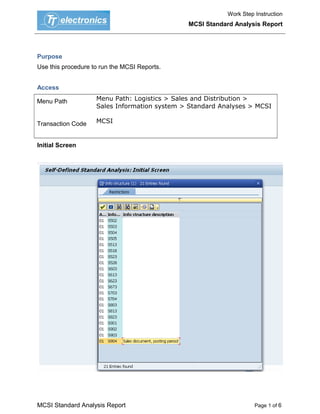
Initial Screen


MCSI Standard Analysis Report                                       Page 1 of 6
Work Step Instruction
                                                MCSI Standard Analysis Report


   1. MCSI After double clicking on the info structure MCSI, a box
      appears wherein you can see different info structures as shown Above
      Here you can select S904 by double clicking on it.


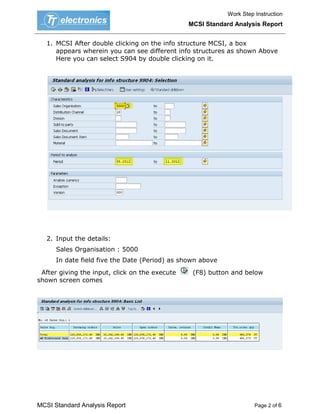
   2. Input the details:
      Sales Organisation : 5000
      In date field five the Date (Period) as shown above
 After giving the input, click on the execute    (F8) button and below
shown screen comes


MCSI Standard Analysis Report                                         Page 2 of 6
Work Step Instruction
                                                      MCSI Standard Analysis Report


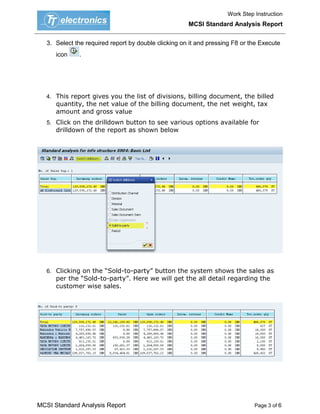
   3. Select the required report by double clicking on it and pressing F8 or the Execute
      icon    .


   4. This report gives you the list of divisions, billing document, the billed
      quantity, the net value of the billing document, the net weight, tax
      amount and gross value
   5. Click on the drilldown button to see various options available for
      drilldown of the report as shown below


   6. Clicking on the “Sold-to-party” button the system shows the sales as
      per the “Sold-to-party”. Here we will get the all detail regarding the
      customer wise sales.


MCSI Standard Analysis Report                                                 Page 3 of 6
Work Step Instruction
                                                       MCSI Standard Analysis Report


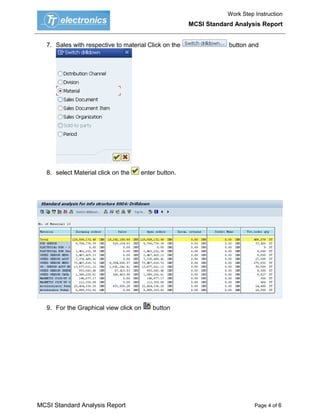
   7. Sales with respective to material Click on the               button and


   8. select Material click on the   enter button.


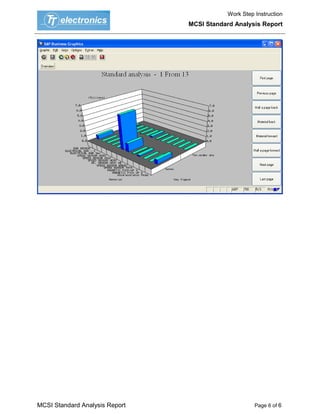
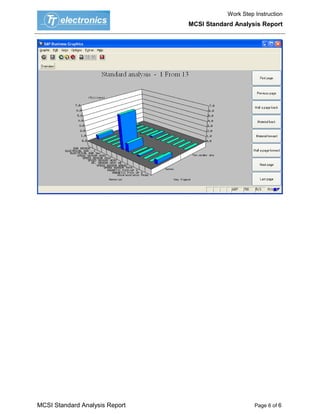
   9. For the Graphical view click on    button


MCSI Standard Analysis Report                                                Page 4 of 6
Work Step Instruction
                                                     MCSI Standard Analysis Report


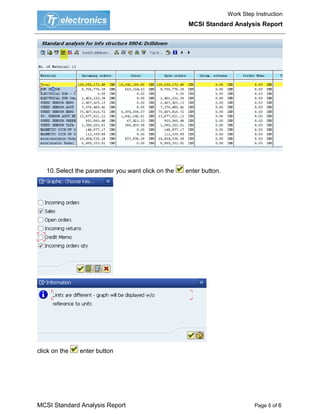
   10. Select the parameter you want click on the   enter button.


click on the   enter button


MCSI Standard Analysis Report                                                 Page 5 of 6
Work Step Instruction
                                MCSI Standard Analysis Report


MCSI Standard Analysis Report                         Page 6 of 6
Work Step Instruction
                                MCSI Standard Analysis Report


MCSI Standard Analysis Report                         Page 6 of 6
Work Step Instruction
                                MCSI Standard Analysis Report


MCSI Standard Analysis Report                         Page 6 of 6
Work Step Instruction
                                MCSI Standard Analysis Report


MCSI Standard Analysis Report                         Page 6 of 6

Sales report mcsi

  • 1.
    Work Step Instruction MCSI Standard Analysis Report Purpose Use this procedure to run the MCSI Reports. Access Menu Path Menu Path: Logistics > Sales and Distribution > Sales Information system > Standard Analyses > MCSI Transaction Code MCSI Initial Screen MCSI Standard Analysis Report Page 1 of 6
  • 2.
    Work Step Instruction MCSI Standard Analysis Report 1. MCSI After double clicking on the info structure MCSI, a box appears wherein you can see different info structures as shown Above Here you can select S904 by double clicking on it. 2. Input the details: Sales Organisation : 5000 In date field five the Date (Period) as shown above After giving the input, click on the execute (F8) button and below shown screen comes MCSI Standard Analysis Report Page 2 of 6
  • 3.
    Work Step Instruction MCSI Standard Analysis Report 3. Select the required report by double clicking on it and pressing F8 or the Execute icon . 4. This report gives you the list of divisions, billing document, the billed quantity, the net value of the billing document, the net weight, tax amount and gross value 5. Click on the drilldown button to see various options available for drilldown of the report as shown below 6. Clicking on the “Sold-to-party” button the system shows the sales as per the “Sold-to-party”. Here we will get the all detail regarding the customer wise sales. MCSI Standard Analysis Report Page 3 of 6
  • 4.
    Work Step Instruction MCSI Standard Analysis Report 7. Sales with respective to material Click on the button and 8. select Material click on the enter button. 9. For the Graphical view click on button MCSI Standard Analysis Report Page 4 of 6
  • 5.
    Work Step Instruction MCSI Standard Analysis Report 10. Select the parameter you want click on the enter button. click on the enter button MCSI Standard Analysis Report Page 5 of 6
  • 6.
    Work Step Instruction MCSI Standard Analysis Report MCSI Standard Analysis Report Page 6 of 6
  • 7.
    Work Step Instruction MCSI Standard Analysis Report MCSI Standard Analysis Report Page 6 of 6
  • 8.
    Work Step Instruction MCSI Standard Analysis Report MCSI Standard Analysis Report Page 6 of 6
  • 9.
    Work Step Instruction MCSI Standard Analysis Report MCSI Standard Analysis Report Page 6 of 6