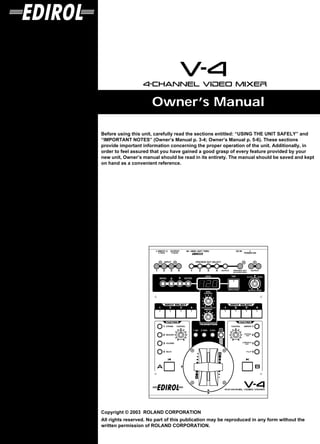
Owner’s Manual

Before using this unit, carefully read the sections entitled: “USING THE UNIT SAFELY” and
“IMPORTANT NOTES” (Owner’s Manual p. 3-4; Owner’s Manual p. 5-6). These sections
provide important information concerning the proper operation of the unit. Additionally, in
order to feel assured that you have gained a good grasp of every feature provided by your
new unit, Owner’s manual should be read in its entirety. The manual should be saved and kept
on hand as a convenient reference.


Copyright © 2003 ROLAND CORPORATION
All rights reserved. No part of this publication may be reproduced in any form without the
written permission of ROLAND CORPORATION.
For the U.K.
    IMPORTANT: THE WIRES IN THIS MAINS LEAD ARE COLOURED IN ACCORDANCE WITH THE FOLLOWING CODE.

                       BLUE:  NEUTRAL
                       BROWN: LIVE

    As the colours of the wires in the mains lead of this apparatus may not correspond with the coloured markings identifying
    the terminals in your plug, proceed as follows:
    The wire which is coloured BLUE must be connected to the terminal which is marked with the letter N or coloured BLACK.
    The wire which is coloured BROWN must be connected to the terminal which is marked with the letter L or coloured RED.
    Under no circumstances must either of the above wires be connected to the earth terminal of a three pin plug.


                                                                                                              For EU Countries

                      This product complies with the requirements of European Directive 89/336/EEC.


                                                                                                                    For the USA

                     FEDERAL COMMUNICATIONS COMMISSION
                   RADIO FREQUENCY INTERFERENCE STATEMENT
    This equipment has been tested and found to comply with the limits for a Class B digital device, pursuant to Part 15 of the
    FCC Rules. These limits are designed to provide reasonable protection against harmful interference in a residential
    installation. This equipment generates, uses, and can radiate radio frequency energy and, if not installed and used in
    accordance with the instructions, may cause harmful interference to radio communications. However, there is no guarantee
    that interference will not occur in a particular installation. If this equipment does cause harmful interference to radio or
    television reception, which can be determined by turning the equipment off and on, the user is encouraged to try to correct the
    interference by one or more of the following measures:
        – Reorient or relocate the receiving antenna.
        – Increase the separation between the equipment and receiver.
        – Connect the equipment into an outlet on a circuit different from that to which the receiver is connected.
        – Consult the dealer or an experienced radio/TV technician for help.

    This device complies with Part 15 of the FCC Rules. Operation is subject to the following two conditions:
    (1) This device may not cause harmful interference, and
    (2) This device must accept any interference received, including interference that may cause undesired operation.

    Unauthorized changes or modification to this system can void the users authority to operate this equipment.
    This equipment requires shielded interface cables in order to meet FCC class B Limit.


                                                                                                                     For Canada

                                                           NOTICE
      This Class B digital apparatus meets all requirements of the Canadian Interference-Causing Equipment Regulations.


                                                              AVIS
      Cet appareil numérique de la classe B respecte toutes les exigences du Règlement sur le matériel brouilleur du Canada.


2
USING THE UNIT SAFELY


                                     Used for instructions intended to alert                                       The     symbol alerts the user to important instructions
                                     the user to the risk of death or severe                                       or warnings.The specific meaning of the symbol is
                                     injury should the unit be used                                                determined by the design contained within the
                                     improperly.                                                                   triangle. In the case of the symbol at left, it is used for
                                                                                                                   general cautions, warnings, or alerts to danger.
                                     Used for instructions intended to alert
                                     the user to the risk of injury or material                                    The     symbol alerts the user to items that must never
                                                                                                                   be carried out (are forbidden). The specific thing that
                                     damage should the unit be used
                                                                                                                   must not be done is indicated by the design contained
                                     improperly.                                                                   within the circle. In the case of the symbol at left, it
                                     * Material damage refers                       to damage or                   means that the unit must never be disassembled.
                                       other adverse effects                        caused with                    The q symbol alerts the user to things that must be
                                       respect to the home                           and all its                   carried out. The specific thing that must be done is
                                       furnishings, as well                         to domestic                    indicated by the design contained within the circle. In
                                       animals or pets.                                                            the case of the symbol at left, it means that the power-
                                                                                                                   cord plug must be unplugged from the outlet.


                                                                                                             008e
                                                                                                             • Use only the attached power-supply cord.
001
• Before using this unit, make sure to read the
  instructions below, and the Owner’s Manual.                                                                009
                                                                                                             • Do not excessively twist or bend the power cord,
..........................................................................................................         nor place heavy objects on it. Doing so can
002d                                                                                                               damage the cord, producing severed elements and
• Do not open or perform any internal modifica-
                                                                                                                   short circuits. Damaged cords are fire and shock
      tions on the unit or its AC adaptor. (The only
                                                                                                                   hazards!
      exception would be where this manual provides
                                                                                                             ..........................................................................................................
      specific instructions.)                                                                                011
..........................................................................................................   • Do not allow any objects (e.g., flammable material,
003                                                                                                            coins, pins); or liquids of any kind (water, soft
• Do not attempt to repair the unit, or replace parts
                                                                                                               drinks, etc.) to penetrate the unit.
      within it (except when this manual provides
      specific instructions directing you to do so). Refer
      all servicing to your retailer, the nearest Roland/
      Edirol Service Center, or an authorized Roland/                                                        012b
                                                                                                             • Immediately turn the power off, remove the AC
      Edirol distributor, as listed on the “Information” page.                                                 adaptor from the outlet, and request servicing by
..........................................................................................................     your retailer, the nearest Roland/Edirol Service
004
• Never use or store the unit in places that are:                                                              Center, or an authorized Roland/Edirol
      • Subject to temperature extremes (e.g., direct                                                          distributor, as listed on the “Information” page
        sunlight in an enclosed vehicle, near a heating                                                        when:
        duct, on top of heat-generating equipment); or                                                             • The AC adaptor, the power-supply cord, or the
        are                                                                                                          plug has been damaged; or
      • Damp (e.g., baths, washrooms, on wet floors);                                                              • If smoke or unusual odor occurs
        or are                                                                                                     • Objects have fallen into, or liquid has been
      • Humid; or are                                                                                                spilled onto the unit; or
      • Exposed to rain; or are                                                                                    • The unit has been exposed to rain (or otherwise
      • Dusty; or are                                                                                                has become wet); or

      • Subject to high levels of vibration.                                                                       • The unit does not appear to operate normally or
..........................................................................................................             exhibits a marked change in performance.
007                                                                                                          ..........................................................................................................
• Make sure you always have the unit placed so it is                                                         013
      level and sure to remain stable. Never place it on                                                     • In households with small children, an adult
      stands that could wobble, or on inclined surfaces.                                                           should provide supervision until the child is
..........................................................................................................         capable of following all the rules essential for the
                                                                                                                   safe operation of the unit.
008c                                                                                                         ..........................................................................................................
• Be sure to use only the AC adaptor supplied with                                                           014
      the unit. Also, make sure the line voltage at the                                                      • Protect the unit from strong impact.
      installation matches the input voltage specified on                                                      (Do not drop it!)
      the AC adaptor’s body. Other AC adaptors may                                                           ..........................................................................................................
      use a different polarity, or be designed for a
      different voltage, so their use could result in
      damage, malfunction, or electric shock.
..........................................................................................................


                                                                                                                                                                                                                     3
015                                                                                                          118
• Do not force the unit’s power-supply cord to share                                                         • Should you remove screws, make sure to put them
      an outlet with an unreasonable number of other                                                           in a safe place out of children's reach, so there is
      devices. Be especially careful when using                                                                no chance of them being swallowed accidentally.
      extension cords—the total power used by all
      devices you have connected to the extension
      cord’s outlet must never exceed the power rating
      (watts/amperes) for the extension cord. Excessive
      loads can cause the insulation on the cord to heat
      up and eventually melt through.
..........................................................................................................
016
• Before using the unit in a foreign country, consult
      with your retailer, the nearest Roland/Edirol
      Service Center, or an authorized Roland/Edirol
      distributor, as listed on the “Information” page.
..........................................................................................................
022b
• Always turn the unit off and unplug the AC
  adaptor before attempting installation of the
  Video Fader.


101b
• The unit and the AC adaptor should be located so
  their location or position does not interfere with
  their proper ventilation.
102c
• Always grasp only the plug on the AC adaptor
      cord when plugging into, or unplugging from, an
      outlet or this unit.
..........................................................................................................
103b
• Any accumulation of dust between the AC
      adaptor and the power outlet can result in poor
      insulation and lead to fire. Periodically wipe away
      such dust with a dry cloth. Also, disconnect the
      power plug from the power outlet whenever the
      unit is to remain unused for an extended period of
      time.
..........................................................................................................
104
• Try to prevent cords and cables from becoming
      entangled. Also, all cords and cables should be
      placed so they are out of the reach of children.
..........................................................................................................
106
• Never climb on top of, nor place heavy objects on
  the unit.
..........................................................................................................
107c
• Never handle the AC adaptor or its plugs with
      wet hands when plugging into, or unplugging
      from, an outlet or this unit.
..........................................................................................................
108b
• Before moving the unit, disconnect the AC
      adaptor and all cords coming from external
      devices.
..........................................................................................................
109b
• Before cleaning the unit, turn off the power and
  unplug the AC adaptor from the outlet.
..........................................................................................................
110b
• Whenever you suspect the possibility of lightning
      in your area, disconnect the AC adaptor from the
      outlet.
..........................................................................................................
115a
• For installation of the Video fader, remove only
  the specified screws.
..........................................................................................................


4
IMPORTANT NOTES
291a
In addition to the items listed under “USING THE UNIT
                                                                  Additional Precautions
SAFELY” on page 3-4, please read and observe the                  551
following:                                                        • Please be aware that the contents of memory can be
                                                                    irretrievably lost as a result of a malfunction, or the
                                                                    improper operation of the unit. To protect yourself against
                                                                    the risk of loosing important data, we recommend to take
Power Supply                                                        memo of your important data (settings etc.) you have
301                                                                 stored in the unit’s memory dial.
• Do not use this unit on the same power circuit with any
                                                                  552
  device that will generate line noise (such as an electric       • Unfortunately, it may be impossible to restore the contents
  motor or variable lighting system).                               of data that was stored in memory dial once it has been
302                                                                 lost. Roland Corporation/Edirol Corporation assumes no
• The AC adaptor will begin to generate heat after long             liability concerning such loss of data.
  hours of consecutive use. This is normal, and is not a
  cause for concern.                                              553
                                                                  • Use a reasonable amount of care when using the unit’s
307                                                                 buttons, sliders, or other controls; and when using its jacks
• Before connecting this unit to other devices, turn off the
                                                                    and connectors. Rough handling can lead to malfunctions.
  power to all units. This will help prevent malfunctions
  and/or damage to other devices.                                 556
                                                                  • When connecting / disconnecting all cables, grasp the
                                                                    connector itself—never pull on the cable. This way you
Placement                                                           will avoid causing shorts, or damage to the cable’s
                                                                    internal elements.
351
• Using the unit near power amplifiers (or other equipment        558b
  containing large power transformers) may induce noise or        • To avoid disturbing your neighbors, try to keep the audio
  unstable image on video output. To alleviate the problem,         volume at reasonable levels (especially when it is late at
  change the orientation of this unit; or move it farther away      night) if you enjoy listening to music.
  from the source of interference.
                                                                  559a
352a                                                              • When you need to transport the unit, package it in the box
• This device may interfere with radio and television               (including padding) that it came in, if possible. Otherwise,
  reception. Do not use this device in the vicinity of such         you will need to use equivalent packaging materials.
  receivers.
352b
• Noise may be produced if wireless communications                Copyright
  devices, such as cell phones, are operated in the vicinity of   851
  this unit. Such noise could occur when receiving or initi-      • Unauthorized recording, distribution, sale, lending, public
  ating a call, or while conversing. Should you experience          performance, broadcasting, or the like, in whole or in part,
  such problems, you should relocate such wireless devices          of a work (musical composition, video, broadcast, public
  so they are at a greater distance from this unit, or switch       performance, or the like) whose copyright is held by a
  them off.                                                         third party is prohibited by law.

355b                                                              853
• When moved from one location to another where the               • Do not use this unit for purposes that could infringe on a
  temperature and/or humidity is very different, water              copyright held by a third party. We assume no responsi-
  droplets (condensation) may form inside the unit. Damage          bility whatsoever with regard to any infringements of
  or malfunction may result if you attempt to use the unit in       third-party copyrights arising through your use of this
  this condition. Therefore, before using the unit, you must        unit.
  allow it to stand for several hours, until the condensation
  has completely evaporated.
                                                                  Installation of Video Fader
Maintenance                                                       911
                                                                  • Do not touch any of the printed circuit pathways or
401a                                                                connection terminals.
• For everyday cleaning wipe the unit with a soft, dry cloth      911(F)
  or one that has been slightly dampened with water. To           (French)
  remove stubborn dirt, use a cloth impregnated with a            • Ne pas toucher aux circuits imprimés ou aux connecteurs.
  mild, non-abrasive detergent. Afterwards, be sure to wipe
  the unit thoroughly with a soft, dry cloth.
                                                                  913
402
• Never use benzine, thinners, alcohol or solvents of any
  kind, to avoid the possibility of discoloration and/or
  deformation.


                                                                                                                               5
• When circuit board installation is complete, double-check    • It is possible on this product to create video sequence with
  your work.                                                     extremely quick switching or ON/OFF of effects.
913(F)                                                           Depending on your physical conditions, such video
(French)                                                         sequence may cause medical problem like headache etc. It
• Quand l’installation de la carte de circuits imprimés est      is prohibited to create video sequence that may cause such
   terminée, revérifiez si tout est bien installé.               problem. Roland or Edirol is not responsible to any
927                                                              medical problem of yourselves or audiences/spectators
* In some cases, depending on the environment in which           caused by such video sequence.
  the unit is installed, the surface of the panel may
  sometimes feel rough and grainy. This is due to an infini-
  tesimal electrical charge, which is absolutely harmless.
  However, if you are concerned about this, connect the
  ground terminal (see figure on p.16) with an external
  ground. When the unit is grounded, a slight noise may
  appear, depending on the particulars of your installation.
  If you are unsure of the connection method, contact the
  nearest Roland Service Center, or an authorized Roland
  distributor, as listed on the “Information” page.

Unsuitable places for connection
- Water pipes (may result in shock or electrocution)
- Gas pipes (may result in fire or explosion)
- Telephone-line ground or lightning rod (may be dangerous
   in the event of lightning)


About turning the power on
941
• Once the connections have been completed (p. 19), turn on
  power to your various devices in the order specified. By
  turning on devices in the wrong order, you risk causing
  malfunction and/or damage to other devices.
942
• This unit is equipped with a protection circuit. A brief
  interval (a few seconds) after power up is required before
  the unit will operate normally.


About specifications
962a
* In the interest of product improvement, the specifications
  and/or appearance of this unit are subject to change
  without prior notice.


Other important notes
985
• The explanations in this manual include illustrations that
  depict what should typically be shown by the display.
  Note, however, that your unit may incorporate a newer,
  enhanced version of the system (e.g., includes newer
  software), so what you actually see in the display may not
  always match what appears in the manual.
988

• Security Slot ( )
  http://www.kensington.com/

• This product is compatible with regular NTSC or PAL
  video signal. In case irregular signal is input, it may
  obstruct stabile operation of this product.


6
Contents

USING THE UNIT SAFELY......................................................................3
IMPORTANT NOTES ...............................................................................5
Contents ..................................................................................................7
Welcome ..................................................................................................9
Features of the V-4................................................................................10
      Four-channels of video inputs................................................................................................................................... 10
      Two independent frame synchronizers ................................................................................................................... 10
      High-quality digital effects ........................................................................................................................................ 10
      Simple operation ......................................................................................................................................................... 10
      Preview function ......................................................................................................................................................... 10
      Switching and effects synchronized to music......................................................................................................... 10
      Control from external MIDI devices ........................................................................................................................ 10

What is V-LINK? ....................................................................................11
Before you begin...................................................................................12
      Check the included items........................................................................................................................................... 12
      Names of things and what they do........................................................................................................................... 13
      About Ground Terminal ............................................................................................................................................ 16

Connecting peripheral devices............................................................17
      Typical connection example ...................................................................................................................................... 17
      Video signal flow ........................................................................................................................................................ 18

Turning the power on/off......................................................................19
      Turning the power on................................................................................................................................................. 19
      Turning the power off ................................................................................................................................................ 19

Checking the inputs and outputs ........................................................20
      Checking the final output .......................................................................................................................................... 20
      Checking the output to the preview monitor ......................................................................................................... 20
      About the display on preview monitor ................................................................................................................... 21

About the Memory dial (MEMORY)......................................................22
Switching two images ..........................................................................23
      Switching by Cut ......................................................................................................................................................... 23
      Switching with dissolve ............................................................................................................................................. 24
      Switching with Wipe .................................................................................................................................................. 24
      Using fade-to-white or fade-to-black ....................................................................................................................... 25

Compositing two images .....................................................................26
      Using Picture In Picture to composite images ........................................................................................................ 26
      Using Chroma Key to composite images ................................................................................................................ 27
      Using Luminance Key to composite images ........................................................................................................... 28

Changing the color of the image .........................................................31
      Applying the Negative effect .................................................................................................................................... 31
      Applying the Colorize effect...................................................................................................................................... 32

Changing the motion of the image......................................................34
      Applying strobe motion ............................................................................................................................................. 34

Applying the Multi or Mirror effects ....................................................35

                                                                                                                                                                                      7
Contents


          Applying the Multi effect........................................................................................................................................... 35
          Applying the Mirror effect......................................................................................................................................... 36

    Switching in synchronization with music...........................................37
          Using BPM sync to switch images............................................................................................................................ 37
          Using the tap (TAP) function to switch images...................................................................................................... 37

    Applying an effect on the music..........................................................39
          Using BPM sync to apply an effect ........................................................................................................................... 39
          Using the tap (TAP) function to apply an effect..................................................................................................... 39

    Editing the front panel assignments...................................................40
          Changing the assignment of the mix button (MIX) ............................................................................................... 42
          Changing the assignment of the wipe button (WIPE) ........................................................................................... 43
          Changing the assignment of the EFX button (EFX) ............................................................................................... 44
          Changing the assignment of the output fade dial (OUTPUT FADE).................................................................. 46
          Changing the assignments of the channel A and B effect buttons (EFFECTS) .................................................. 48
          Changing the assignment of the BPM sync button (BPM SYNC)........................................................................ 50
          Changing the assignment of the channel A/channel B transformer buttons (TRANSFORMER) .................. 51
          Protecting the memory ............................................................................................................................................... 53
          Copying or exchanging memories............................................................................................................................ 54
          Recalling the factory settings..................................................................................................................................... 55

    Control the V-4 from an external device .............................................57
          Using V-LINK to control the V-4 .............................................................................................................................. 57
          Using MIDI to control the V-4................................................................................................................................... 58

    Making various settings .......................................................................64
    Calibrating the video fader...................................................................66
    Using the V-4 in Presentation mode ...................................................68
          What is Presentation mode? ...................................................................................................................................... 68
          Switching to Presentation mode ............................................................................................................................... 69
          Presentations using two screens with Picture In Picture ...................................................................................... 69

    Switching between NTSC and PAL .....................................................71
    Changing the video fader orientation .................................................72
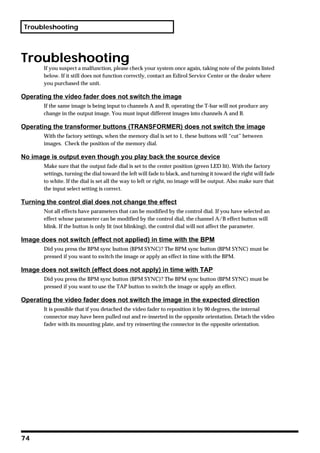
    Troubleshooting....................................................................................74
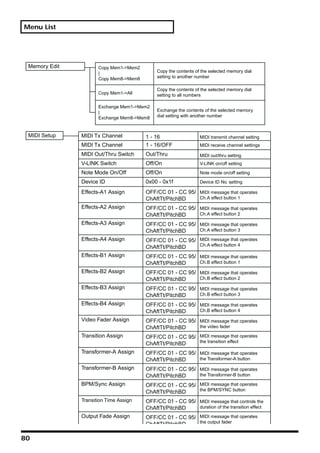
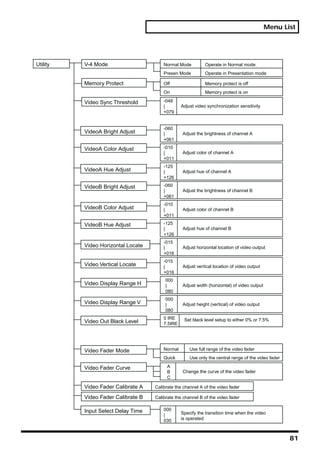
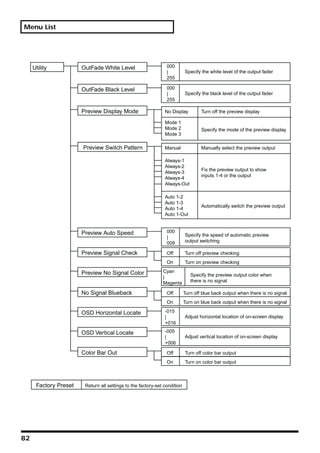
    Menu List ...............................................................................................75
    Main specifications...............................................................................83
    Examples of using the V-4 ...................................................................85
          Using the V-4 at an event ........................................................................................................................................... 85
          Using the V-4 at a concert or VJ performance......................................................................................................... 86
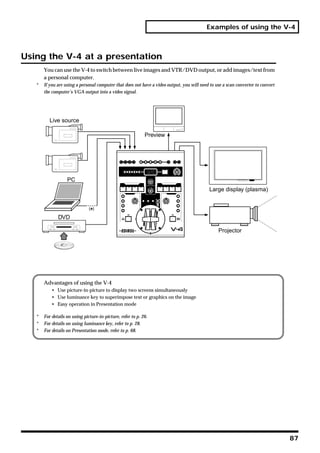
          Using the V-4 at a presentation ................................................................................................................................. 87
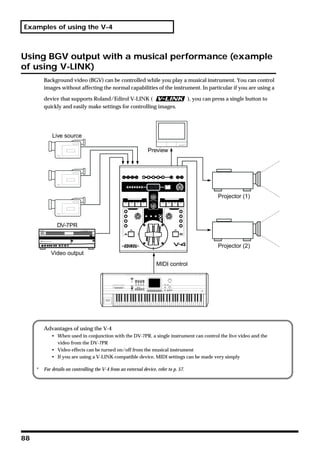
          Using BGV output with a musical performance (example of using V-LINK) ................................................... 88

    MIDI implementation.............................................................................89
    Index.......................................................................................................98


8
Welcome
 Thank you, and congratulations on your choice of the Edirol V-4. The V-4 is a video mixer/effects
 processor that delivers image quality rivaling professional equipment, and provides four channels
 of video input.
 With a rich array of inputs and easy operation, the V-4 allows performances and presentations that
 include images to be made more expressive than ever before.
 The V-4 can also be controlled from external MIDI devices. Images projected on the stage can be
 controlled while you play an instrument, adding impressive impact to a stage performance.
 We hope you will enjoy the V-4’s versatile video functionality in a wide range of applications.


                                                                                                      9
Features of the V-4


Features of the V-4
Four-channels of video inputs
     The V-4 provides two S-video inputs and four video (composite) inputs. Of the four channels 1
     through 4, S-video can be used for inputs 1 and 2. If both S-video and video (composite) are input
     to channels 1/2, the S-video input will take priority and will be automatically selected.


Two independent frame synchronizers
     Even when using unstable video input signals such as VHS and Hi-8, the frame synchronizers
     within the V-4 will correct the synchronization signal. This means you can use a wide range of
     image sources without worrying about noise produced by degradation of the synchronization
     signals.


High-quality digital effects
     Effects are processed digitally. Diverse and high-quality effects such as Picture In Picture, Mirror,
     and Multi can be independently applied to both channels A and B.


Simple operation
     Switching and mixing video sources is extremely easy. The T-bar type video fader can be installed
     in either the horizontal or vertical orientation, whichever you prefer.


Preview function
     Before switching sources, you can use a preview TV screen to view the images being input on each
     channel without affecting the output image.


Switching and effects synchronized to music
     The V-4 lets you tap BPM (Beats Per Minute) to switch images or control effects. This is particularly
     useful when music and video need to be synchronized, such as in a video jockey performance.


Control from external MIDI devices
     The V-4 provides MIDI connectors. An external MIDI device can control effects and switching
     images. Setup is particularly easy if a Roland or Edirol product that supports V-LINK is
     connected—simply press the V-LINK button on the control device.


10
What is V-LINK?


What is V-LINK?
   V-LINK (                        ) is a function that links music and video performance, making it easy to
   create a variety of visual effects linked to the expressive elements of a performance.
   By using V-LINK, musical instruments and music production equipment manufactured by Roland
   or Edirol can control video images without experiencing any loss in the quality of their inherent
   function (i.e., producing sound).

                                                              Audio output
                                                                                                                  Mixer/speaker


                                                  Remote control                                   Video output
                                                                                                                  TV/projector, etc.
                                                    V-LINK


                                                                                 V-4
    Roland/Edirol product that supports V-LINK

                                                              Audio output
                                                                                                                  Mixer/speaker


                                                 Remote control                                                       Video output
                                                                                                                                       TV/projector, etc.
                                                  V-LINK


                                                                             DV-7PR (Presenter running)


    Roland/Edirol product that supports V-LINK


                                                                                                                                                            11
Before you begin


Before you begin
Check the included items
          The V-4 is shipped with the following items. Please make sure that nothing is missing.


     1.   The V-4 itself

     2.   AC adaptor and power cable

     3.   Owner’s manual

     4.   List of Transition Effects patterns

     5.   Four screws to affix Video Fader (spare)


12
Before you begin


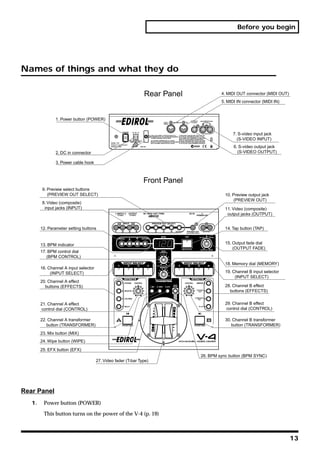
Names of things and what they do

                                                                Rear Panel             4. MIDI OUT connector (MIDI OUT)
                                                                                       5. MIDI IN connector (MIDI IN)


               1. Power button (POWER)


                                                                                             7. S-video input jack
                                                                                               (S-VIDEO INPUT)
                                                                                             6. S-video output jack
               2. DC in connector                                                              (S-VIDEO OUTPUT)

               3. Power cable hook


                                                                Front Panel
        9. Preview select buttons
           (PREVIEW OUT SELECT)                                                          10. Preview output jack
                                                                                              (PREVIEW OUT)
        8. Video (composite)
         input jacks (INPUT)                                                             11. Video (composite)
                                                                                          output jacks (OUTPUT)


        12. Parameter setting buttons                                                    14. Tap button (TAP)


        13. BPM indicator                                                                15. Output fade dial
                                                                                             (OUTPUT FADE)
        17. BPM control dial
           (BPM CONTROL)
                                                                                         18. Memory dial (MEMORY)
        16. Channel A input selector
             (INPUT SELECT)                                                              19. Channel B input selector
                                                                                              (INPUT SELECT)
        20. Channel A effect
          buttons (EFFECTS)                                                              28. Channel B effect
                                                                                           buttons (EFFECTS)


        21. Channel A effect                                                             29. Channel B effect
         control dial (CONTROL)                                                           control dial (CONTROL)

        22. Channel A transformer                                                        30. Channel B transformer
           button (TRANSFORMER)                                                             button (TRANSFORMER)
        23. Mix button (MIX)
        24. Wipe button (WIPE)
        25. EFX button (EFX)
                                                                              26. BPM sync button (BPM SYNC)
                                       27. Video fader (T-bar Type)


Rear Panel
   1.    Power button (POWER)

         This button turns on the power of the V-4 (p. 19)


                                                                                                                          13
Before you begin


     2.   DC in connector

          Connect the power cable (DC) from the AC adaptor to this connector.
     3.   Power cable hook

          Use this hook to retain the power cable so that it will not be accidentally unplugged.
     4.   MIDI OUT connector (MIDI OUT)

          MIDI messages input from an external device are output without change (“thru-ed”) from this
          connector. When using V-LINK to control both the V-4 and a DV-7PR, connect this output to the
          input of the DV-7PR.
     5.   MIDI IN connector (MIDI IN)

          Use this connector to input control signals sent from an external device to the V-4.
     6.   S-video output jack (S-VIDEO OUTPUT)

          This jack outputs a S-video signal.
     7.   S-video input jacks (S-VIDEO INPUT)

          These jacks input S-video signals.

Front Panel
     8.   Video (composite) input jacks (INPUT)

          These jacks input video (composite) signals. If both video (composite) and S-video signals are input
          simultaneously to the same channel (channel 1 or 2 only), the S-video signal will take priority, and
          the video (composite) signal will be ignored.
     9.   Preview select buttons (PREVIEW OUT SELECT) (see p. 20)

          These buttons select the image that will be output to the preview monitor. You can select one of the
          input signals of channels 1 through 4, or the mixed output signal.
     10. Preview output jack (PREVIEW OUT)

          This jack outputs the preview monitor signal. Simultaneously, MIDI and effect parameters are also
          output to the preview monitor.
     11. Video (composite) output jacks (OUTPUT)

          These jacks output video (composite) signals. In conjunction with the S-video output jack, these
          jacks let you simultaneously output to three TV monitors or projectors.
     12. Parameter setting buttons

          These buttons are used to set various parameters for each button. The parameters are displayed on
          the TV monitor connected to the preview output jack.
     13. BPM indicator (see p. 39)

          This displays the current BPM (Beats Per Minute) setting. You can turn the dial below to change
          the displayed setting.

     14. Tap button (TAP) (see p. 39)

          This button is used to control BPM. The speed at which this button is tapped affects the BPM
          setting.


14
Before you begin


15. Output fade dial (OUTPUT FADE) (see p. 25)

    This dial is used to apply fade-to-white or fade-to-black to the final output. Turn the dial toward
    WHITE to fade the final output to white. Turn the dial toward BLACK to fade the final output to
    black.
16. Channel A input selector (INPUT SELECT) (see p. 23)

    This button selects the image that will be input to channel A of the video mixer.
17. BPM control dial (BPM CONTROL)

    This dial adjusts the BPM value. On the V-4, you can switch images or effects in synchronization
    with the BPM.
18. Memory dial (MEMORY) (see p. 22)

    The V-4 can store eight different states of the panel (e.g., effect assignments). By turning this dial
    you can select one of these eight panel states. You can store various effect patterns such as wipes,
    and then turn this dial to select the desired pattern. However, number 1 is fixed (non-writeable) as
    a factory setting. You can make user settings for numbers 2 through 8.
19. Channel B input selector (INPUT SELECT) (see p. 23)

    Selects the image that will be input to channel B of the video mixer.
20. Channel A effect buttons (EFFECTS)
    These buttons apply effects to the image of video mixer channel A. With the factory settings, the
    buttons are assigned (from top to bottom) the Strobe, Negative, Colorize, and Multi effects. You
    may edit the settings to assign different effects if desired.
21. Channel A effect control dial (CONTROL)

    This dial lets you smoothly control a parameter of an effect that is being applied to the image of
    channel A. The dial will adjust an effect parameter of the effect button that is blinking.
22. Channel A transformer button (TRANSFORMER) (see p. 23)

    This button lets you switch between channel A and B without using the video fader. With the
    factory settings, the switch to the channel A image will be instant. You can also change the settings
    to make the change occur gradually if desired.
23. Mix button (MIX) (see p. 24)
    This button switches the function of the video fader to Mix. When you operate the video fader, you
    will fade smoothly from the image selected for channel A to the image selected for channel B,
    dissolving the two images. Press this button if you want to switch between channels A and B with
    dissolve.
24. Wipe button (WIPE) (see p. 24)

    This button switches the function of the video fader to Wipe. Press this button if you want to switch
    between channels A and B by wiping between them. If desired, you can change the settings to
    assign an effect other than Wipe to this button.
25. EFX button (EFX)

    This button switches the function of the video fader to Special Wipe or Slide. Press this button if
    you want to switch between channels A and B with Special Wipe or Slide. If desired, you can
    change the settings to assign an effect other than Special Wipe or Slide to this button.


                                                                                                             15
Before you begin


     26. BPM sync button (BPM SYNC) (see p. 39)

         Press this button if you want to switch images or turn effects on/off in synchronization with the
         BPM.
     27. Video fader (T-bar type)

         This is a T-bar type video fader. You can use it to switch between channels A and B, or to adjust the
         keying level, etc. According to your preference, you can change the orientation 90 degrees from up
         and down to left to right. For details on how to change the orientation, refer to p. xxx.
     28. Channel B effect buttons (EFFECTS)

         These buttons apply effects to the image of video mixer channel B. With the factory settings, the
         buttons are assigned (from top to bottom) the Mirror, Chroma Key, Luminance Key, and P in P
         (Picture In Picture) effects. You may edit the settings to assign different effects to these buttons if
         desired.
     29. Channel B effect control dial (CONTROL)

         This dial lets you smoothly control a parameter of an effect that is being applied to the image of
         channel B. The dial will adjust an effect parameter of the effect button that is blinking.
     30. Channel B transformer button (TRANSFORMER) (see p. 23)

         This button lets you switch between channels A and B without using the video fader.


About Ground Terminal
         In some cases, depending on the environment in which the unit is installed, the surface of the panel
         may sometimes feel rough and grainy. This is due to an infinitesimal electrical charge, which is
         absolutely harmless. However, if you are concerned about this, connect ground terminal (see
         figure) with an external ground. When the unit is grounded, a slight noise may result, depending
         on the particulars of your installation. If you are unsure of the connection method, contact nearest
         Edirol Service Center, or authorized Edirol/Roland distributor, as listed on the “Information”
         page.


                          Ground Terminal

         Unsuitable places for connection
            • Water pipes (may result in shock or electrocution)
            • Gas pipes (may result in fire or explosion)
            • Telephone-line ground or lightning rod (may be dangerous in the event of lightning)


16
Connecting peripheral devices


Connecting peripheral devices
 This section explains how to connect your peripheral devices to the V-4. You can connect up to four video
 playback devices (sources). Here’s how to connect sources such as a video camcorder, VCR, DVD player, or DV-
 7PR, and play them back to create an impressive video performance. To prevent malfunction and/or damage to
 other devices, always turn down the volume, and turn off the power on all devices before making any connec-
 tions.

Typical connection example

                        DV-7PR                                                               Camcorder
                                                    VCR
                                                                          DVD


                                                  Projector
                                                                                               Preview Monitor
    *   The V4 does not have audio inputs so will not mix audio. Audio outputs can be connected directly to speakers or via an
        audio mixer if mixing of audio from multiple devices is necessary.
    *   No video cables come with this product. Please use appropriate video cables for connection with source devices or TV
        monitor/Projector.
    *   It is recommended to use composite cable rather than S-video cable where you need to connect devices long distances
        (unless using S-video amplifiers). If devices are installed closer to the V-4, it is recommended to use S-video cables so that
        you can obtain better image quality.
    *   If both video (composite) and S-video signals are input simultaneously to the same channel (channel 1 or 2 only), the S-
        video signal will take priority.


                                                                                                                                         17
Connecting peripheral devices


Video signal flow
         The video signals received from the four input jacks are assigned to channels A or B of the video
         mixer. (These assignments are made manually.) The signal of A and B channels are processed by
         the video mixer section, and sent via the output fader to the output jack.


               Camcorder
                                      VCR                                   DV-7PR
                                                         DVD


                                            Input selector
                     Channel A                                            Channel B


                                             Video mixer


                                            Output fader


              Inside of V-4                                                                Preview selector


                                                                                            Preview output
                                              Final output

     *   Various setting menus like effect parameters are displayed on preview monitor.
     *   If both video (composite) and S-video signals are input simultaneously to the same channel (channel 1 or 2 only), the S-
         video signal will take priority.
     *   When switching on Preview Selector is done, image on preview monitor may flicker briefly. This does not affect image
         from output jacks.


18
Turning the power on/off


Turning the power on/off
Turning the power on
  1.   Check the power cable

       Make sure that the cable from the AC adaptor is firmly plugged into the V-4.
  2.   Press the POWER button.

       Press the POWER button located on the rear panel of the V-4. It will take approximately five
       seconds for the V-4 to initialize itself and begin operating.


   *   To prevent the inadvertent disruption of power to your unit (should the plug be pulled out accidentally), and
       to avoid applying undue stress to the AC adaptor jack, anchor the power cord using the cord hook, as shown
       in the illustration.


Turning the power off
  1.   Press the POWER button.

       Press the POWER button located on the rear panel of the V-4. All of the front panel LEDs will go
       dark.


                                                                                                                       19
Checking the inputs and outputs


Checking the inputs and outputs
Checking the final output
          Here’s how to check that the signal from each source device is correctly being input to the V-4, and
          is correctly being output to the TV or projector as final output.

     1.   Play back the source device.

          Operate the source device (e.g., camcorder, VCR, DVD player, DV-7PR) connected to the V-4 so
          that it will output video.
     2.   Check the output monitor.

          Power-on the TV monitor or projector that is connected to the output jack of the V-4, and verify that
          the image being output from the V-4 is displayed correctly.
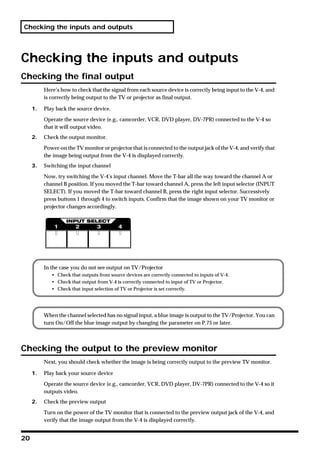
     3.   Switching the input channel

          Now, try switching the V-4’s input channel. Move the T-bar all the way toward the channel A or
          channel B position. If you moved the T-bar toward channel A, press the left input selector (INPUT
          SELECT). If you moved the T-bar toward channel B, press the right input selector. Successively
          press buttons 1 through 4 to switch inputs. Confirm that the image shown on your TV monitor or
          projector changes accordingly.


          In the case you do not see output on TV/Projector
             • Check that outputs from source devices are correctly connected to inputs of V-4.
             • Check that output from V-4 is correctly connected to input of TV or Projector.
             • Check that input selection of TV or Projector is set correctly.


          When the channel selected has no signal input, a blue image is output to the TV/Projector. You can
          turn On/Off the blue image output by changing the parameter on P.75 or later.


Checking the output to the preview monitor
          Next, you should check whether the image is being correctly output to the preview TV monitor.

     1.   Play back your source device

          Operate the source device (e.g., camcorder, VCR, DVD player, DV-7PR) connected to the V-4 so it
          outputs video.
     2.   Check the preview output

          Turn on the power of the TV monitor that is connected to the preview output jack of the V-4, and
          verify that the image output from the V-4 is displayed correctly.


20
Checking the inputs and outputs


  3.   Switch the output channel

       Try switching the channel that is being output to the V-4’s preview monitor. Press the preview
       select buttons (1 through 4 and OUTPUT) one after another, and verify that the image being output
       to your TV monitor changes accordingly.


About the display on preview monitor
       Information about settings of V-4 is displayed to the Preview Monitor as below.


                                                                  Selection of preview output


                                                                                        Current position and
            Settings of                                                                 setting of Output Fader
            BPM and TAP


         Settings of                                                                     Settings of
         channel A effects                                                               channel B effects


         Selection of
         Transition Effect                                                               Channel selection
                                                                                         of video fader and
               Setting of                                                                input selection
               Transformers

          • If name of the effect is highlighted, this is the effect selected
          • If * mark is displayed after effect name, the effect parameter can be changed with the control dial.
          • If ball mark is displayed aside highlighted effect names, it means the effect parameter can be changed
            with the control dial.
       You can add or reduce the information displayed on the preview monitor by changing the settings
       of the V-4 as described on P. 75 or later.


          • [**Preset**] is displayed when position 1 of Memory Dial is selected. The 1st setting is fixed to the
            factory preset and cannot be changed.
          • [*Protect On*] is displayed when Memory Protection is enabled. If this message appears, settings
            cannot be changed.


                                                                                                                     21
About the Memory dial (MEMORY)


About the Memory dial (MEMORY)
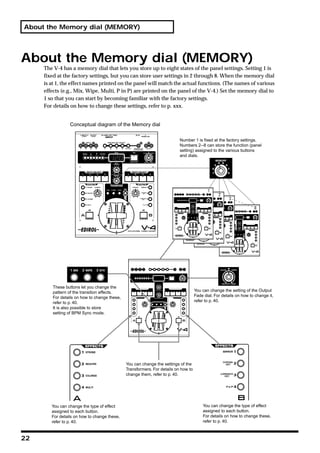
     The V-4 has a memory dial that lets you store up to eight states of the panel settings. Setting 1 is
     fixed at the factory settings, but you can store user settings in 2 through 8. When the memory dial
     is at 1, the effect names printed on the panel will match the actual functions. (The names of various
     effects (e.g., Mix, Wipe, Multi, P in P) are printed on the panel of the V-4.) Set the memory dial to
     1 so that you can start by becoming familiar with the factory settings.
     For details on how to change these settings, refer to p. xxx.


                 Conceptual diagram of the Memory dial

                                                                          Number 1 is fixed at the factory settings.
                                                                          Numbers 2--8 can store the function (panel
                                                                          setting) assigned to the various buttons
                                                                          and dials.


        These buttons let you change the
        pattern of the transition effects.                                          You can change the setting of the Output
        For details on how to change these,                                         Fade dial. For details on how to change it,
        refer to p. 40.                                                             refer to p. 40.
        It is also possible to store
        setting of BPM Sync mode.


                                              You can change the settings of the
                                              Transformers. For details on how to
                                              change them, refer to p. 40.


        You can change the type of effect                                               You can change the type of effect
        assigned to each button.                                                        assigned to each button.
        For details on how to change these,                                             For details on how to change these,
        refer to p. 40.                                                                 refer to p. 40.


22
Switching two images


Switching two images
       Here’s how to switch the images being input to channel A and channel B.


Switching by Cut
  1.   Set the memory dial (MEMORY) to 1.

       To return the V4 state to the factory settings, turn the dial all the way to the left to select the #1
       position.


  2.   Select the input images for A and B.

       From inputs 1 through 4, select the images that will be input to channel A and channel B. If the
       same image is being input to both channels A and B, you will not notice any change when you
       switch between channels. For example, if you have selected input image 1 for channel A, you
       should choose from images 2 through 4 for channel B.


  3.   Output either channel A or channel B.

       Move the video fader all the way to the channel A or channel B position. Watch the final output on
       your TV monitor or projector.


  4.   Press a transformer button (TRANSFORMER).

       If you have moved the video fader to the channel A position, press the channel B transformer
       button. If you have moved the video fader to the channel B position, press the channel A
       transformer button. Notice that the output displayed on your TV monitor or projector has changed.


                          or


                                                                                                                23
Switching two images


     5.   Release the transformer button (TRANSFORMER)

          Release your finger from the transformer button you pressed. Notice that the image displayed on
          your TV monitor (or projector) has returned to the previous image.


Switching with dissolve
          “Dissolve” is the effect of switching images using a gradual fade. You can create this effect by
          mixing two images. If you stop mid-way during this change (i.e., with the video fader in the center
          position), you will see a double-exposure of images A and B.

     1.   Set the memory dial (MEMORY) to 1.

          Turn the dial all the way to the left to select the 1 position.


     2.   Select the input images for A and B.

          From inputs 1 through 4, select the images that will be input to channel A and channel B. If the
          same image is being input to both A and B channels, you will not notice any change when you
          switch between channels. For example, if you have selected input image 1 for channel A, you
          should choose from images 2 through 4 for channel B.
     3.   Press the mix button (MIX).

          Press the mix button (MIX) located above the video fader. The button will light.


     4.   Move the video fader.

          Move the video fader. On your TV monitor (or projector), notice how images A and B are mixed
          while the change occurs.


Switching with Wipe
          “Wipe” is the effect of switching between images by “wiping away” the previous image. If you
          stop midway during this change (i.e., with the video fader in the center position), the two images
          will both be partially displayed.

     1.   Set the memory dial (MEMORY) to 1.

          Turn the dial all the way to the left to select the 1 position.


24
Switching two images


  2.   Select the input images for A and B.

       From inputs 1 through 4, select the images that will be input to channel A and channel B. If the
       same image is being input to both channels A and B, you will not notice any change when you
       switch between channels. For example, if you have selected input image 1 for channel A, you
       should choose from images 2 through 4 for channel B.
  3.   Press the wipe button (WIPE).

       Press the wipe button (WIPE) located above the video fader. The button will light.


  4.   Move the video fader.

       Move the video fader. On your TV monitor (or projector), notice how the previous image is wiped
       away as you change between images A and B.


Using fade-to-white or fade-to-black
       On the V-4 you can fade an image to white or black simply by turning a dial. If you fade-to-white,
       the monitor output image will gradually turn white. If you fade-to-black, the monitor output image
       will gradually turn black.

  1.   Set the memory dial (MEMORY) to 1.

       Turn the dial all the way to the left to the 1 position.


  2.   Output an image.

       Output an image from a source device. If desired, you may stop the video fader in the middle of
       dissolve or wipe.
  3.   Turn the output fade dial (OUTPUT FADE).

       Turn the output fade dial located in the upper right of the V-4’s panel. Turning the dial toward
       “WHITE” will fade the image to white, and turning it toward “BLACK” will fade the image to
       black. If you want to create a gradual fade, turn the dial slowly.


       The output fade dial is equipped with LED that shows status. When it is at center the LED is green.
       When it is non-centered the LED blinks red.


                                                                                                             25
Compositing two images


Compositing two images
          On the V-4 you can use Picture In Picture or Chroma Key/Luminance Key to composite the images
          of channels A and B.


Using Picture In Picture to composite images
          Here’s how you can miniaturize the image of channel B and overlay it on the channel A image. Use
          this when you want to output two images simultaneously.

     1.   Set the memory dial (MEMORY) to 1.

          Turn the dial all the way to the left to select the 1 position.


     2.   Play back the two images.

          Play back the image that you want to use as the background and the image that you want to
          miniaturize.
     3.   Select the channel A input.

          Input the background image into channel A. Use the channel A input select buttons to make your
          choice.
     4.   Select the channel B input.

          Input the image that you want to miniaturize into channel B. Use the channel B input select buttons
          to make your choice.
     5.   Press the P in P button.

          Press the channel B “P in P” button.


     6.   Move the video fader.

          Moving the video fader will control the level of the channel B image (the secondary image). If you
          move the video fader all the way to the channel A position, the channel B image level will be 0%.
          If you move the video fader all the way to the channel B position, the channel B image level will be
          100%. By moving the video fader from the A to the B position, you can fade-in the secondary image.
          Moving the video fader toward A will fade-out the secondary image.


26
Compositing two images


  7.   Turn the effect off

       Press the button again to turn the effect off.


       Some effects cannot be used simultaneously.


       You can change the P in P effect settings to modify the location and size of the superimposed image
       (the secondary image). For details, refer to p. 75 or later.


Using Chroma Key to composite images
       You can composite two images by extracting a specified color from one image and replacing it with
       the other image. Such a composition effect is called Chroma Key. Here’s how you can composite
       the image from channel B and overlay it on the channel A image.

  1.   Set the memory dial (MEMORY) to 1.

       Turn the dial all the way to the left to select the 1 position.


  2.   Select channel A image.
       Play back the image that you want to use as the background.
  3.   Select channel B image.

       Input image to overlay into channel B. The image for Chroma Key is generally shot with blue or
       green background.
  4.   Press the Chroma Key button.

       Press the channel B “ Chroma Key” button.


  5.   Move the video fader to channel B.

       The blue part of channel B image is extracted and the channel A image appears.


                                                                                                             27
Compositing two images


     6.   Turn the control dial.

          Parameter of Chroma Key (level of extraction) gradually changes. If Chroma Key button is not
          blinking, you cannot change the parameter with the control dial.


     7.   Move the video fader

          Moving the video fader will control the appearance and disappearance of the background image.
     8.   Turn the effect off

          Press the button again to turn the effect off.


          Some effects cannot be used simultaneously.


          You cannot composite images if you image has no consistent color that can be extracted with
          Chroma Key. It is also difficult to extract correctly if the blue/green contrast of color is not
          sufficient and consistent.


          The default Chroma Key status of V-4 is set to extract the blue part of the image. It is possible to
          change this setting to extract a different color. It is also possible to adjust setting of the extraction
          level and blur level of edges. For details, refer to p. 75 or later.


Using Luminance Key to composite images
          You can composite two images by extracting the light or dark part from one the image and
          replacing it with the other image. Such a composition effect is called Luminance Key. Here’s how
          you can composite image from channel B and overlay it on the channel A image.

     1.   Set the memory dial (MEMORY) to 1.

          Turn the dial all the way to the left to select the 1 position.


28
Compositing two images


2.   Select channel A image.

     Play back the image that you want to use as the background.
3.   Select channel B image.

     Input image to overlay into channel B. The image for Luminance Key should have clear contrast of
     light and dark.
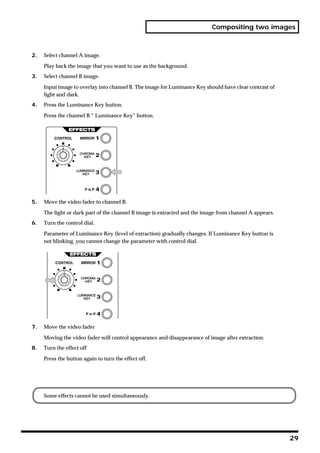
4.   Press the Luminance Key button.

     Press the channel B “ Luminance Key” button.


5.   Move the video fader to channel B.

     The light or dark part of the channel B image is extracted and the image from channel A appears.
6.   Turn the control dial.

     Parameter of Luminance Key (level of extraction) gradually changes. If Luminance Key button is
     not blinking, you cannot change the parameter with control dial.


7.   Move the video fader

     Moving the video fader will control appearance and disappearance of image after extraction.
8.   Turn the effect off

     Press the button again to turn the effect off.


     Some effects cannot be used simultaneously.


                                                                                                        29
Compositing two images


     You cannot composite images via Luminance Key if there is no light or dark aspects in the image
     to key off of. It may be difficult to extract correctly if contrast of light/dark is not sufficient or
     consistent.


     The default status of the Luminance Key of V-4 is set to extract the light part of the image. It is
     possible to change setting to extract dark part. It is also possible to adjust the extraction level of blur
     level of edges. For details, refer to p. 75 or later.


30
Changing the color of the image


Changing the color of the image
Applying the Negative effect
       Here’s how to apply the Negative effect to the image being input to channel A. The “Negative”
       effect inverts the brightness and color of the image from positive to negative.

  1.   Set the memory dial (MEMORY) to 1.

       Turn the dial all the way to the left to select the 1 position.


  2.   Play back the image to which you want to apply the effect.
       Play back the desired image, and input it to the V-4.
  3.   Select the input for channel A.

       Input the image being played back into channel A. Use the channel A input select buttons to make
       your choice.
  4.   Move the video fader to channel A.

       To output the image of channel A, move the video fader to channel A.


  5.   Press the NEGATIVE button.

       Press the channel A “NEGATIVE” button. This is the second effect button from the top on the
       channel A side.


                                                                                                          31
Changing the color of the image


     6.   Turn the control dial.

          Turn the control dial. The brightness and color of the image will be inverted to a negative.


     7.   Turn the effect off

          Press the button again to turn the effect off.


Applying the Colorize effect
          Here’s how to apply the Colorize effect to the image being input to channel A. The “Colorize” effect
          colors the image to produce a paint-like impression.

     1.   Set the memory dial (MEMORY) to 1.

          Turn the dial all the way to the left to select the 1 position.
     2.   Play back the image to which you want to apply the effect.

          Play back the image that you want to colorize, and input it to the V-4.
     3.   Select the input for channel A.

          Input the image being played back into channel A. Use the channel A input select buttons to make
          your choice.
     4.   Move the video fader to channel A.

          To output the image of channel A, move the video fader to channel A.
     5.   Press the COLORIZE button.

          Press the channel A “COLORIZE” button. This is the third effect button from the top on the channel
          A side.
     6.   Turn the control dial.

          Turn the control dial. The colorize parameters will be adjusted to change the way in which the
          image is colored.
     7.   Turn the effect off

          Press the button again to turn the effect off.


32
Changing the color of the image


Some effects cannot be used simultaneously.


In addition to the Negative and Colorize effects, the color of the image can also be modified using
the Posterize effect. To use the Posterize effect, you will need to assign it to an effect button of
channel A or channel B. For details on making this assignment, refer to p. 75 or later.


                                                                                                       33
Changing the motion of the image


Changing the motion of the image
Applying strobe motion
          Here’s how to apply a Strobe Motion effect to the image being input to channel A. “Strobe Motion”
          is an effect that thins-out the frames of the image, producing the impression that the motion is
          being halted at intervals.

     1.   Set the memory dial (MEMORY) to 1.

          Turn the dial all the way to the left to select the 1 position.
     2.   Play back the image to which you want to apply the effect.

          Play back the image that you want to strobe, and input it to the V-4.
     3.   Select the input for channel A.

          Input the image being played back into channel A. Use the channel A input select buttons to make
          your choice.
     4.   Move the video fader to channel A.

          To output the image of channel A, move the video fader to channel A.
     5.   Press the STROBE button.

          Press the channel A “STROBE” button. This is the top effect button on the channel A side.
     6.   Turn the control dial.

          Turn the control dial. The strobe settings will be adjusted and the spacing of the frames will change
          from fast to slow strobing.
     7.   Turn the effect off

          Press the button again to turn the effect off.


          Some effects cannot be used simultaneously.


          In addition to the Strobe effect, the motion of an image can also be modified using the Still (freeze)
          effect. To use the Still effect, you will need to assign it to an effect button of channel A or channel
          B. For details on making this assignment, refer to p. 75 or later.


34
Applying the Multi or Mirror effects


Applying the Multi or Mirror effects
Applying the Multi effect
       Here’s how the image that is input to channel A can be divided on the screen. You can divide the
       image vertically, horizontally, or both vertically and horizontally.

  1.   Set the memory dial (MEMORY) to 1.

       To restore the factory-set state, turn the dial all the way to the left to select the #1 position.
  2.   Play back the image to which you want to apply the effect.

       Play back the image that you want to divide on the screen and input it to the V-4.
  3.   Select the input for channel A.

       Input the image being played back into channel A. Use the channel A input select buttons to make
       your choice.
  4.   Move the video fader to channel A.

       To output the image of channel A, move the video fader to channel A.
  5.   Press the MULTI button.

       Press the channel A “MULTI” button. This is the bottom effect button on the channel A side. With
       the factory settings, the image will be divided in the XX direction.
  6.   Turn the control dial.

       Turn the control dial. The multi effect parameters will be adjusted, changing the number of parts
       into which the screen is divided.
  7.   Turn the effect off

       Press the button again to turn the effect off.


       Some effects cannot be used simultaneously.


       If you want to change the direction in which the image is divided, you will need to edit the
       parameter settings. For details on making this change, refer to p. 75 or later.


                                                                                                            35
Applying the Multi or Mirror effects


Applying the Mirror effect
          Here’s how the image that is input to channel B can be divided and inverted. The result is as though
          a mirror were placed in the center of the screen. The image can be inverted vertically, horizontally,
          or both vertically and horizontally.

     1.   Set the memory dial (MEMORY) to 1.

          To restore the factory-set state, turn the dial all the way to the left to select the 1 position.
     2.   Play back the image to which you want to apply the effect.

          Play back the image to which you want to apply the mirror effect, and input it to the V-4.
     3.   Select the input for channel B.

          Input the image being played back into channel B. Use the channel B input select buttons to make
          your choice.
     4.   Move the video fader to channel B.

          To output the image of channel B, move the video fader to channel B.
     5.   Press the MIRROR button.

          Press the channel B “MIRROR” button. This is the top effect button on the channel B side. With the
          factory settings, the image will be inverted in the XX direction.
     6.   Turn the control dial.

          Turn the control dial. The mirror effect parameters will be adjusted, changing the number of parts
          into which the screen is divided. The result is as though a greater number of mirrors were placed
          against the screen.
     7.   Turn the effect off

          Press the button again to turn the effect off.


          Some effects cannot be used simultaneously.


          If you want to change the direction in which the image is inverted, you will need to edit the
          parameter settings. For details on making this change, refer to p. 75 or later.


36
Switching in synchronization with music


Switching in synchronization with music
       The V-4 can switch images in synchronization with the beat of the music. You can use the BPM or
       TAP functions to switch images as you see in VJ performances.


Using BPM sync to switch images
       You can use BPM (Beats Per Minute) to specify the timing at which images will be switched. The
       V-4 will switch automatically, without you having to operate the video fader or the transformer
       buttons.

  1.   Input images to channels A and B.

       Use the channel A and B input selectors to input images into each channel. Input different images
       into channels A and B.
  2.   Set the BPM.

       Turn the BPM control dial (BPM CONTROL) to set the BPM. Smaller values will cause the images
       to be switched more slowly, and greater values will cause faster switching.


  3.   Press the BPM sync button (BPM SYNC).

       Press the BPM sync button. Notice that the images switch in time with the BPM you specified. You
       may also turn the BPM dial at this time to change the timing.


Using the tap (TAP) function to switch images
       As an alternative to specifying the BPM numerically, you can use the tap button (TAP) to specify
       the timing at which the images will switch.

  1.   Input images to channels A and B.

       Use the channel A and B input selectors to input images into each channel. Input different images
       into channels A and B.
  2.   Press the BPM sync button (BPM SYNC).

       Press the BPM sync button. The images will begin switching at the BPM timing shown in the BPM
       indicator.


                                                                                                           37
Switching in synchronization with music


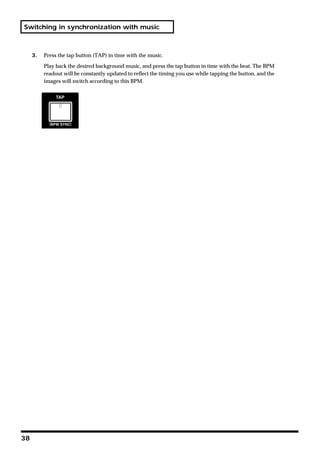
     3.   Press the tap button (TAP) in time with the music.

          Play back the desired background music, and press the tap button in time with the beat. The BPM
          readout will be constantly updated to reflect the timing you use while tapping the button, and the
          images will switch according to this BPM.


38
Applying an effect on the music


Applying an effect on the music
       The V-4 cannot only switch images but can also apply effects in time with music. You can use the
       BPM or TAP functions to apply effects that are synchronized with the music, as in a VJ
       performance.


Using BPM sync to apply an effect
       You can use BPM (Beats Per Minute) to specify the timing at which an effect will be turned on/off.
       The V-4 will apply the effect automatically, without the need for you to operate the buttons
       manually.

  1.   Input the same image into channels A and B.

       Use the channel A and B input selectors to input the same image into both channels. If you choose
       input select button 1 for channel A, choose button 1 for channel B as well.
  2.   Select the type of effect.

       Decide whether you will use a channel A effect or a channel B effect.
  3.   Set the BPM.

       Turn the BPM control dial (BPM CONTROL) to set the BPM. Smaller values will cause the effect to
       be switched on/off more slowly, and greater values will cause it to switch more rapidly.
  4.   Press the BPM sync button (BPM SYNC).

       Press the BPM sync button. Notice that the effect is applied to the image in synchronization with
       the BPM you specified. You may also turn the BPM dial at this time to adjust the timing.


Using the tap (TAP) function to apply an effect
       As an alternative to specifying the BPM numerically, you can use the tap button (TAP) to manually
       specify the timing at which the effect will be switched on/off. In this case you will use the tap
       button (TAP) to specify the timing.

  1.   Input the same image to channels A and B.

       Use the channel A and B input selectors to input the same image into each channel. If you choose
       input select button 1 for channel A, choose button 1 for channel B as well.
  2.   Select the type of effect.

       Decide whether you will use a channel A effect or a channel B effect.
  3.   Press the BPM sync button (BPM SYNC).

       Press the BPM sync button. The effect will begin switching on/off at the BPM timing shown in the
       BPM indicator.
  4.   Press the tap button (TAP) in time with the music.

       Play back the desired background music, and press the tap button in time with the beat. The BPM
       readout will be constantly updated to reflect the timing you use while tapping the button, and the
       effect will switch on/off according to this BPM.


                                                                                                            39
Editing the front panel assignments


Editing the front panel assignments
      As explained earlier, the functions assigned to the buttons and dials of the V-4 can be stored in
      memory and accessed via the memory dial (MEMORY). (Note: The assignment for dial position
      number 1 is fixed at the factory and not assignable.) You can edit and save the assignments of the
      following buttons and dials:

         •   Output fade dial
         •   Mix button (MIX)
         •   Wipe button (WIPE)
         •   EFX button (EFX)
         •   BPM sync button (BPM SYNC)
         •   Channel A effect buttons (four buttons)
         •   Channel B effect buttons (four buttons)
         •   Channel A transformer buttons (TRANSFORMER)
         •   Channel B transformer buttons (TRANSFORMER)

      Settings and menu information is displayed on the TV monitor connected to the preview output.
      If you need to change settings, the operation can be executed by viewing the information and menu
      displayed on the preview monitor. You can change settings by using the following buttons.

Menu Button (MENU)
      When pressed, the button lights up and the menu is displayed on the preview monitor.

Cursor Buttons(         )
      These buttons are used to select desired menu and to change value.

Enter Button (ENTER)
      Where there are multiple setting menus under the top menu, this button can be pressed to select
      the subsequent menu. If you need to return to the upper level menu, press Menu Button.


40
Editing the front panel assignments


                                 41
Editing the front panel assignments


Changing the assignment of the mix button (MIX)
          With the factory settings, mix (MIX: dissolve) is assigned to this button for all eight positions of the
          memory dial. Here’s how to assign a different type of transition effect to the mix button for one of
          the dial positions.

     1.   Set the memory dial to the number whose settings you want to change.

          Set the memory dial to the number (2 through 8) whose settings you want to change.


     2.   Press the mix button(MIX)

          The button lights up when pressed.
     3.   Press the menu button (MENU).

          Press the menu button (MENU) located in the upper left of the panel. The settings edit menu will
          appear on the TV screen connected to the preview output.


     4.   Select “MIX.”

          Use the cursor buttons to select “Mix (Trans1).” It will blink when you select it. The memory dial
          number you select is displayed following “Mix (Trans1).” If you have selected memory number 2,
          this will indicate [Mem2].


     5.   Press the enter button (ENTER).

          Press the enter button (located at the right of the cursor buttons) to make your selection. The
          preview screen display will change.


42
Editing the front panel assignments


  6.   Select the transition effect.

       Use the cursor buttons to select the type of transition effect. With an effect selected (blinking) and
       the video fader set in the center position, the output screen will show the type of transition effect
       that is selected. Operate the video fader to see the result.


  7.   Return to the previous screen.

       When you have selected an effect, press the menu button to return to the previous screen. Press the
       button twice to exit the menu screen and return to the previous screen.


Changing the assignment of the wipe button (WIPE)
       With the factory settings, eight basic wipes are assigned to this button for the eight settings of the
       memory dial. Here’s how to assign a different type of transition effect to the wipe button.

  1.   Set the memory dial to the number whose assignment you want to change.

       Operate the video fader while you turn the memory dial to different positions. Notice how the dial
       selects different wipe patterns. Set the memory dial to the number (2 through 8) whose settings you
       want to change.


  2.   Press the wipe button (WIPE)

       The button lights up when pressed.
  3.   Press the menu button (MENU).

       Press the menu button (MENU) located in the upper left of the panel. The settings edit menu will
       appear on the TV screen connected to the preview output.


  4.   Select “WIPE.”

       Use the cursor buttons to select “WIPE.” It will blink when you select it. The memory dial number
       you select is displayed following “WIPE (Trans1).” If you have selected memory number 2, this
       will indicate [Mem2].


                                                                                                                43
Editing the front panel assignments


     5.   Press the enter button (ENTER).

          Press the enter button (located at the right of the cursor buttons) to make your selection. The
          preview screen display will change.


     6.   Select the transition effect.

          Use the cursor buttons to select the type of transition effect. With an effect selected (blinking) and
          the video fader set in the center position, the output screen will show the type of transition effect
          that is selected. Operate the T-bar to see the result.


     7.   Return to the previous screen.

          When you have selected an effect, press the menu button to return to the previous screen. Press the
          button twice to exit the menu screen and return to the previous screen.


Changing the assignment of the EFX button (EFX)
          With the factory settings, various special wipes and basic slides are assigned to this button for the
          eight settings of the memory dial. Here’s how to assign a different type of transition effect to the
          EFX button.

     1.   Set the memory dial to the number whose assignment you want to change.

          Operate the T-bar while you turn the memory dial to different positions. Notice how the dial selects
          different transition effect patterns. Set the memory dial to the number (2 through 8) whose settings
          you want to change.


44
Editing the front panel assignments


2.   Press the EFX button (EFX)

     The button lights up when pressed.
3.   Press the menu button (MENU).

     Press the menu button (MENU) located in the upper left of the panel. The settings edit menu will
     appear on the TV screen connected to the preview output.


4.   Select “EFX.”

     Use the cursor buttons to select “EFX.” It will blink when you select it. The memory dial number
     you select is displayed following “EFX.” If you have selected memory number 2, this will indicate
     [Mem2].


5.   Press the enter button (ENTER).

     Press the enter button (located at the right of the cursor buttons) to make your selection. The
     preview screen display will change.


6.   Select the transition effect.

     Use the cursor buttons to select the type of transition effect. With an effect selected (blinking) and
     the video fader set in the center position, the output screen will show the type of transition effect
     that is selected. Operate the T-bar to see the result.


                                                                                                              45
Editing the front panel assignments


     7.   Return to the previous screen.

          When you have selected an effect, press the menu button to return to the previous screen. Press the
          button twice to exit the menu screen and return to the previous screen.


Changing the assignment of the output fade dial
(OUTPUT FADE)
          With the factory settings, and when the memory dial is set to number 1, turning the output fade
          dial toward the left will fade-to-black, and turning it toward the right will fade-to-white.

     1.   Set the memory dial to the number whose assignment you want to change.

          Operate the output fade dial while you turn the memory dial to different positions. Set the memory
          dial to the number (2 through 8) whose settings you want to change.


     2.   Press the menu button (MENU).

          Press the menu button (MENU) located in the upper left of the panel. The settings edit menu will
          appear on the TV screen connected to the preview output.


     3.   Select “Output Fade”.

          Use the cursor buttons to select “Output Fade.” It will blink when you select it. The memory dial
          number you select is displayed following “Output Fade.” If you have selected memory number 2,
          this will indicate [Mem2].


46
Editing the front panel assignments


4.   Press the enter button (ENTER).

     Press the enter button (located at the right of the cursor buttons) to make your selection. The
     preview screen display will change.


5.   Select the fade pattern.

     Use the cursor buttons to select the type of fade pattern. With a pattern selected (blinking), turn the
     output fade dial to see the currently selected fade pattern occur in the output screen. If you select
     “No Control,” turning the dial in either direction will not produce a fade.


6.   Return to the previous screen.

     When you have selected a fade pattern, press the menu button to return to the previous screen.
     Press the button twice to exit the menu screen and return to the previous screen.


                                                                                                               47
Editing the front panel assignments


Changing the assignments of the channel A and B effect
buttons (EFFECTS)
          With the factory settings, effect buttons 1 through 4 of channels A and B are assigned the following
          effects:

          Channel A:      1 Strobe (STROBE)
                          2 Negative (NEGATIVE)
                          3 Colorize (COLORIZE)
                          4 Multi (MULTI)
          Channel B:      1 Mirror (MIRROR)
                          2 Chroma key (CHROMA KEY)
                          3 Luminance key (LUMINANCE KEY)
                          4 Picture in picture (PinP)


     1.   Turn the memory dial.

          Turn the memory dial to the number (2 through 8) whose assignment you want to change.


     2.   Choose the effect button whose assignment you want to change.

          Press the effect button (channel A buttons 1-4, channel B buttons 1-4) whose assignment you want
          to change. The effect will be applied.
     3.   Press the menu button (MENU).

          Press the menu button (MENU) located in the upper left of the panel. The settings edit menu will
          appear on the TV screen connected to the preview output.


     4.   Select either “Effects-A” or “Effects-B.”

          Select “Effects-A” if you want to edit the channel A settings. Select “Effects-B” if you want to edit
          the channel B settings. Use the cursor buttons to make your selection. The selection will blink. The
          memory dial number you select is displayed following “Effects-A” or “Effects-B.” If you have
          selected memory number 2, this will indicate [Mem2].


48
Editing the front panel assignments


5.   Press the enter button (ENTER).

     Press the enter button (located at the right of the cursor buttons) to make your selection. The
     preview screen display will change displaying a screen where you can choose the button whose
     assignment will be changed.


6.   Select a button.

     If you have selected channel A, the screen will show A-Efx1 through A-Efx4. If you have selected
     channel B, the screen will show B-Efx1 through B-Efx4. Select the button whose assignment you
     want to change. For example, if you want to change the assignment of channel A button 2, you
     would select A-Efx2. Press the enter button to go to the effect setting screen.


                                             or


7.   Select the type of effect.

     Use the cursor buttons to select the effect that you want to assign. (The selected effect will blink.)
     The type of effect in the output screen will change.


                                                                                                              49
Editing the front panel assignments


          If you select an effect with the “*” mark after the effect name, the effect value can be changed with
          the control dial.


     8.   Return to the previous screen.

          When you have made your selection, press the menu button to return to the previous screen. Press
          the button three times to exit the menu screen and return to the previous screen.


Changing the assignment of the BPM sync button (BPM
SYNC)
          With the factory settings, and when the memory dial is set to 1, BPM sync is set to switch between
          A and B by using a transition effect. The transition speed will be the BPM shown in the BPM
          indicator.

     1.   Turn the memory dial.

          Select the memory number (2 through 8) whose assignments you want to change.


     2.   Press the menu button (MENU).
          Press the menu button (MENU) located in the upper left of the panel. The settings edit menu will
          appear on the TV screen connected to the preview output.


     3.   Select “BPM/SYNC.”

          Use the cursor buttons to select “BPM/SYNC.” The memory dial number you select is displayed
          following “BPM/SYNC.” If you have selected memory number 2, this will indicate [Mem2].


     4.   Press the enter button (ENTER)

          Press the enter button to proceed to the setting screen.


50
Editing the front panel assignments


  5.   Select “MODE” or “SPEED.”

       Use the cursor buttons to choose whether it is the mode or the speed of the transition that you want
       to change. Choose “MODE” if you want to change the transition from a “cut” to one that
       incorporates some kind of effect, such as “wipe.” Choose “SPEED” if you want to change the speed
       of the transition. Then press the enter button to proceed to the following setting screen.


  6.   Select the operating mode or speed.

       If you are changing the operating mode, use the cursor buttons to change “Transition A/B” to
       “Direct A/B.” If you are changing the speed, select either “BPM x 1/4,” “BPM x 1/2,” “BPM x 1,”
       or “BPM x 2.”
  7.   Return to the previous screen.

       When you have finished making settings, press the menu button to return to the previous screen.
       Press the button three times to exit the menu screen and return to the previous screen.


Changing the assignment of the channel A/channel B
transformer buttons (TRANSFORMER)
       With the factory settings, and when the memory dial is set to 1, the switch to image A or B takes
       place immediately when you press the channel A or B transformer buttons (TRANSFORMER).

  1.   Press the transformer buttons while turning the memory dial.

       Press the transformer buttons while turning the memory dial to various settings, and choose the
       memory number whose assignments you want to change.


  2.   Press the menu button (MENU).

       Press the menu button (MENU) located in the upper left of the panel. The settings edit menu will
       appear on the TV screen connected to the preview output.


                                                                                                              51
Editing the front panel assignments


     3.   Select “Transformer.”

          Use the cursor buttons to select “Transformer.” The memory dial number you select is displayed
          following “Transformer.” If you have selected memory number 2, this will indicate [Mem2].


     4.   Press the enter button (ENTER).

          Press the enter button (located at the right of the cursor buttons) to make your selection. The
          preview screen display will change to a screen where you can choose the parameter to be assigned.


     5.   Select a pattern.

          Select a pattern from the range of “01: none-none” to “36: Black-White.” If you select “01: none-
          none,” the transformer buttons will have no effect; you will not be able to switch between images
          A/B or fade to white/black by pressing these buttons. For details on the operation and times of
          these parameters, refer to the menu list on p. 78.


     6.   Return to the previous screen.

          When you have finished making the settings, press the menu button to return to the previous
          screen. Press the button twice to exit the menu screen and return to the previous screen.


52
Editing the front panel assignments


Protecting the memory
       By turning on Memory Protect, you can prevent any accidental changes from being made to the
       assignments you made for memory numbers 2 through 8.

  1.   Press the menu button (MENU).

       Press the menu button (MENU) located in the upper left of the panel. The menu will appear on the
       TV screen connected to the preview output.


  2.   Select “Utility.”

       Use the cursor buttons to select “Utility.” Then press the enter button (ENTER) to move to the
       following screen.


  3.   Select “Memory Protect.”

       Use the cursor buttons to select “Memory Protect.” Then press the enter button (ENTER) to move
       to the following screen.


  4.   Turn the setting “On.”

       Use the cursor buttons to select “On” or “Off.” Selecting “On” turns memory protection on so you
       will be unable to modify the memory contents. Selecting “Off” turns memory protection off so that
       modifications will be permitted.


                                                                                                           53
Editing the front panel assignments


     5.   Return to the previous screen.

          When you have finished making settings, press the menu button to return to the previous screen.
          Press the button three times to exit the menu screen and return to the previous screen.


Copying or exchanging memories
          You can copy the contents of the currently selected memory to another memory, or exchange them
          with another memory.

     1.   Press the menu button (MENU).

          Press the menu button. The menu will appear on the TV screen connected to the preview output.


     2.   Select “Memory Edit.”

          Use the cursor buttons to select “Memory Edit.” Press the enter button (ENTER) to move to the
          following screen.


     3.   Select the operation.

          Use the cursor buttons to select the operation. For example, if you want to copy memory number
          8 to memory number 2, select “Copy Mem8->Mem2.” If you want to exchange memory numbers
          8 and 2, select “Exchange Mem8<->Mem2.” You can turn the memory dial to change the copy-
          source number.


54
Editing the front panel assignments


  4.   Press the enter button (ENTER).

       When you have specified the operation, press the enter button. The display will indicate “Push
       [ENTER]” so press the enter button once again. The selected operation will be executed.
  5.   Return to the previous screen.

       After you have executed the operation, press the menu button to return to the previous screen.
       Press the button twice to exit the menu screen and return to the previous screen.


Recalling the factory settings
       You can recall factory settings with the following operation. Any change of settings or adjustments
       you have made will be cleared with this operation. Do not execute this function if you want to
       retain any of your saved settings. If it is necessary to execute the recall function, you should write
       down the settings of your memory first.

  1.   Press the menu button (MENU).

       Press the menu button. The menu will appear on the TV screen connected to the preview output.


  2.   Select “Factory Preset.”

       Use the cursor buttons to select “Factory Preset.” Press the enter button (ENTER) to move to the
       following screen.


  3.   Select “Yes[ENTER]SW.”

       Use the cursor buttons to select “ Yes[ENTER]SW.”


                                                                                                                55
Editing the front panel assignments


     4.   Press the enter button (ENTER)

          Pressing the enter button will reinitialize the V4 to its Factory Presets. All the settings and
          adjustments will return to factory preset status.


56
Control the V-4 from an external device


Control the V-4 from an external device
Using V-LINK to control the V-4
       You can connect the V-4 with a V-LINK compatible device made by Roland or Edirol, and control
       the V-4 remotely.

s What is V-LINK?
       V-LINK (                ) is a function that allows images to be synchronized to music. V-LINK
       makes it easy to manipulate images in a variety of ways, while linking them to the expressive
       elements of a performance.

                                   Source Devices
               DV-7PR                                                                     V-LINK compatible device


                                                                       MIDI         OUT


                                                                  IN


(Example) When using a Roland MC-909 in conjunction with the V-4:
          • You can make settings for controlling the V-4 from the MC-909 (remote settings).
          • You can use the MC-909’s sequencer to control video switching on the V-4 to create performances that
            link images with music.
          • You can use the MC-909’s velocity pads to control the V-4’s input selectors and switch among images
            from various source devices.
          • You can use the MC-909’s knobs to adjust the time settings of transition effects (such as overlap or
            wipe).

(Example) When using an Edirol PCR-30/50 in conjunction with the V-4:
          • You can make settings for controlling the V-4 from the PCR-30/50 (remote settings).
          • You can use the PCR-30/50 to control the V-4’s input selectors to switch between images from various
            source devices.
          • You can use the PCR-30/50 to adjust the time settings of transition effects (such as overlap or wipe).


                                                                                                                     57
Control the V-4 from an external device


s Using V-LINK
      For details on how to turn V-LINK on/off, refer to the owner’s manual of the V-LINK compatible
      device that you intend to connect to the V-4. When you turn V-LINK on, the indication “V-LINK”
      will appear in the preview monitor. When you turn V-LINK off, this indication will disappear.


      When you turn on V-LINK on the connected device, the V-4 will switch to “Presentation mode.” If
      the V-4 is operating in normal mode and receives a V-LINK “On” signal, the function of its buttons
      and other controls will change. (For details on Presentation mode, refer to p. 68.) When V-LINK is
      turned off, the V-4 will return to its previous settings.
      For details on the functions that can be controlled from an external device via V-LINK, refer to
      MIDI Implementation (p. 89) and to the MIDI implementation of the device you have connected.
      The functions that can be controlled will differ depending on the device that is connected and on
      its settings.


Using MIDI to control the V-4
      You can connect the V-4 with various MIDI devices for a wide range of remote control
      functionality.

s What is MIDI?
      MIDI stands for “Musical Instrument Digital Interface”—a worldwide standard that allows
      performance data and other information to be exchanged among musical instruments. MIDI-
      compatible devices can be connected together easily using MIDI cables. Once connected,
      performance data can readily be communicated between the two devices; or one can make settings
      for, as well as control the operation of the other device.


58
Control the V-4 from an external device


         * System for auto switching and effects controlled by MIDI sequencer

             Source Devices                                          MIDI Sound Module
    DV-7PR                                                                                 Audio


                                                                        MIDI


                                                             OUT
                                                MIDI


                                                IN
                                                                        MIDI Sequencer


V-LINK makes it easy to control the basic functions of the V-4. Even if you are using a device that
does not support V-LINK, you can make transmission and reception settings so that the V-4 can be
controlled from a musical instrument or other external device. For details on the functionality that
can be controlled via MIDI from an external device, refer to p. 89 of this manual, and to the MIDI
implementation of the device you have connected.


                                                                                                       59
Control the V-4 from an external device


s MIDI settings
          You will need to make settings on the V-4 so that it will receive control messages from an external
          MIDI device. The procedure is as follows.

s Setting the MIDI transmit channel (MIDI Tx Channel)
          This setting specifies the MIDI channel that will be used to send control messages.

     1.   Press the menu button (MENU).

          Press the menu button to display the V-4 menu on the preview screen.


     2.   Select “MIDI Setup.”

          Use the cursor buttons to select “MIDI Setup.” Press the enter button (ENTER) to enter the MIDI
          setting screen.


     3.   Select “MIDI Tx Channel.”
          Use the cursor buttons to select “MIDI Tx Channel.” Press the enter button (ENTER) to enter the
          transmit channel setting screen.


     4.   Specify the transmit channel.

          Use the cursor buttons to select the transmit channel.
     5.   Return to the previous screen.

          When you have finished making settings, press the menu button to return to the previous screen.
          If you press the button three times, you will exit the menu screens and return to the previous
          screen.


60
Control the V-4 from an external device


s Setting the MIDI receive channel (MIDI Rx Channel)
       This setting specifies the MIDI channel that will be used to receive control messages.

  1.   Press the menu button (MENU).

       Press the menu button to display the V-4 menu on the preview screen.


  2.   Select “MIDI Setup.”

       Use the cursor buttons to select “MIDI Setup.” Press the enter button (ENTER) to enter the MIDI
       setting screen.


  3.   Select “MIDI Rx Channel.”

       Use the cursor buttons to select “MIDI Rx Channel.” Press the enter button (ENTER) to enter the
       receive channel setting screen.


  4.   Specify the receive channel.

       Use the cursor buttons to select the receive channel.
  5.   Return to the previous screen.

       When you have finished making settings, press the menu button to return to the previous screen.
       If you press the button three times, you will exit the menu screens and return to the previous
       screen.


                                                                                                         61
Control the V-4 from an external device


s Making other MIDI settings
      You can use the same procedure to make other MIDI settings. In particular, the following buttons
      and dials can be controlled via MIDI:

         •   Channel A effect buttons 1–4
         •   Channel B effect buttons 1–4
         •   Video fader
         •   Channel A/B transformer buttons
         •   BPM/SYNC button
         •   Output fader


      In addition, the duration of a transition effect can also be controlled via MIDI. Refer to the
      following table for more about MIDI settings.


62
Control the V-4 from an external device


MIDI Setup   MIDI Tx Channel          1 - 16                 MIDI transmit channel setting
             MIDI Tx Channel          1 - 16/OFF             MIDI receive channel settings

             MIDI Out/Thru Switch     Out/Thru               MIDI out/thru setting
             V-LINK Switch            Off/On                 V-LINK on/off setting

             Note Mode On/Off         Off/On                 Note mode on/off setting

             Device ID                0x00 - 0x1f            Device ID No. setting

             Effects-A1 Assign        OFF/CC 01 - CC 95/ MIDI message that operates
                                      ChAftTt/PitchBD    Ch.A effect button 1

             Effects-A2 Assign        OFF/CC 01 - CC 95/ MIDI message that operates
                                      ChAftTt/PitchBD    Ch.A effect button 2

             Effects-A3 Assign        OFF/CC 01 - CC 95/ MIDI message that operates
                                      ChAftTt/PitchBD    Ch.A effect button 3

             Effects-A4 Assign        OFF/CC 01 - CC 95/ MIDI message that operates
                                      ChAftTt/PitchBD    Ch.A effect button 4

             Effects-B1 Assign        OFF/CC 01 - CC 95/ MIDI message that operates
                                      ChAftTt/PitchBD    Ch.B effect button 1

             Effects-B2 Assign        OFF/CC 01 - CC 95/ MIDI message that operates
                                      ChAftTt/PitchBD    Ch.B effect button 2

             Effects-B3 Assign        OFF/CC 01 - CC 95/ MIDI message that operates
                                      ChAftTt/PitchBD    Ch.B effect button 3

             Effects-B4 Assign        OFF/CC 01 - CC 95/ MIDI message that operates
                                      ChAftTt/PitchBD    Ch.B effect button 4

             Video Fader Assign       OFF/CC 01 - CC 95/ MIDI message that operates
                                      ChAftTt/PitchBD    the video fader

             Transition Assign        OFF/CC 01 - CC 95/ MIDI message that operates
                                      ChAftTt/PitchBD    the transition effect

             Transformer-A Assign     OFF/CC 01 - CC 95/ MIDI message that operates
                                      ChAftTt/PitchBD    the Transformer-A button

             Transformer-B Assign     OFF/CC 01 - CC 95/ MIDI message that operates
                                      ChAftTt/PitchBD    the Transformer-B button

             BPM/Sync Assign          OFF/CC 01 - CC 95/ MIDI message that operates
                                      ChAftTt/PitchBD    the BPM/SYNC button

             Transition Time Assign   OFF/CC 01 - CC 95/ MIDI message that controls the
                                      ChAftTt/PitchBD    duration of the transition effect

             Output Fade Assign       OFF/CC 01 - CC 95/ MIDI message that operates
                                      ChAftTt/PitchBD    the output fader


                                                                                             63
Making various settings


Making various settings
          The V-4’s video mixer lets you adjust the brightness and color of channels A and B independently.
          With the factory settings, both channels are set to typical settings, and you do not need to change
          these settings unless you wish. However, if you want to change the settings, you can use the
          following procedure. Although these settings can be made independently for channels A and B,
          they cannot be made independently for each input. You can also use the same procedure to change
          the output position of the image, or switch the video fader mode.

     1.   Press the menu button.

          Press the menu button (MENU). The menu will appear in the preview screen.


     2.   Select “Utility.”

          Use the cursor buttons to select “Utility.” Press the enter button (ENTER) to move to the following
          screen.


     3.   Select the item that you want to set.

          Use the cursor buttons to select the item that you want to set. For the settings that can be adjusted,
          refer to p.81-82. After you have selected the item, press the enter button (ENTER) to enter the
          setting screen for that item.


     4.   Change the setting.

          Use the cursor buttons to set the parameter.


64
Making various settings


5.   Return to the previous screen.

     When you have finished making the setting, press the menu button to return to the previous
     screen. If you press the menu button three times, you will exit the menu screens and return to the
     previous screen.


                                                                                                          65
Calibrating the video fader


Calibrating the video fader
          With the factory settings, moving the V-4’s video fader all the way to the A position will output
          100% of channel A, and moving it all the way to the B position will output 100% of channel B. If for
          some reason, moving the video fader all the way to A or B does not output 100% of the image, you
          can use the following procedure to automatically calibrate the fader.

     1.   Move the video fader all the way to the A position.

          First you will calibrate the channel A setting. Move the video fader all the way to the A position.
     2.   Press the menu button (MENU).

          Press the menu button to display the menu in the preview screen.


     3.   Select “Utility.”

          Use the cursor buttons to select “Utility.” Then press the enter button to display the “Utility”
          settings.


     4.   Select “Video Fader Calibrate A.”

          Use the cursor buttons to select “Video Fader Calibrate A.” The display will indicate “V Fader [A]
          set [ENTER] SW.”


     5.   Press the enter button (ENTER).

          Press the enter button. The channel A position will be calibrated automatically.
     6.   Move the video fader all the way to the B position.

          Next, you will calibrate the channel B setting. Move the video fader all the way to the B position.


66
Calibrating the video fader


7.   Press the menu button (MENU).

     Press the menu button to display the menu in the preview screen.
8.   Select “Utility.”

     Use the cursor buttons to select “Utility.” Then press the enter button to display the “Utility”
     settings.
9.   Select “Video Fader Calibrate B.”

     Use the cursor buttons to select “Video Fader Calibrate B.” The display will indicate “V Fader [B]
     set [ENTER] SW.”


10. Press the enter button (ENTER).

     Press the enter button. The channel B position will be calibrated automatically.
11. Return to the previous screen.

     When you are finished, press the menu button to return to the previous screen. If you press the
     menu button twice, you will exit the menu screens and return to the previous screen.


                                                                                                          67
Using the V-4 in Presentation mode


Using the V-4 in Presentation mode
     The V-4 has two modes; Normal mode and Presentation mode. The preceding chapters have
     explained operation in Normal mode. This chapter explains how to use the V-4 in Presentation
     mode.


What is Presentation mode?
     Presentation mode is ideal when using the V-4 in a presentation such as a meeting or exhibition.
     Using the V-4 in Presentation mode makes it easy to switch between inputs 1-4 or composite
     images using the Picture In Picture function.


                                                                Source devices


         Specify the transition time


                                       Ach                       Bch

          * When you use the Channel A input selector
            to switch sources, the selected transition effect
                                                                                          Select the effect
            will automatically be applied.
                                                                                          for channel B
          * The duration of the transition effect is shown
            in the BPM indicator. Use the BPM control dial
            to adjust the duration.
          * Use the video fader to control the level of
            image B                                                             Picture In Picture
                                                                                Luminance Key
          * Use the memory dial to select the effect
                                                                                Chroma Key
            applied to the channel B image.


            The following effects are assigned to the
            memory numbers.
                                                                                         Control the image
                 1 Mix                                                                   B level (0-100%)
                 2 Picture In Picture 1 (PinP1)
                 3 Picture In Picture 2 (PinP2)
                 4 Picture In Picture 3 (PinP3)
                 5 Picture In Picture 4 (PinP4)
                 6 White Luminance Key (WLKEY*)
                 7 Black Luminance Key (BLKEY*)
                 8 Chroma Key (C-KEY*)


                                                                 Output Fader


                                                                         TV output


68
Using the V-4 in Presentation mode


Switching to Presentation mode
        To switch from Normal mode to Presentation mode, turn off the power of the V-4. Then hold down
        channel A input select buttons 1 and 4, and press the power button.


        Once you switch to Presentation mode, that setting will be preserved. The next time you start up
        the V-4, you can simply press the power button and the V-4 will start up in Presentation mode. If
        you want to start up in Normal mode, hold down the channel A input select buttons 1 and 4 while
        you press the power button.


s The function of the input selector
        Presentation mode assumes that you will be combining two screens. Use the channel A input
        selector to switch the background image. When you switch the background image in Presentation
        mode, the currently selected transition effect will automatically be applied.
        Use the channel B input selector to switch the image of the secondary screen, the screen overlays
        on background.

s The function of the BPM/CONTROL dial
        Use the BPM/CONTROL dial to set the duration of the transition effect. If this dial is set to the far
        left, the transition effect will have a duration of 0 seconds. If set to the far right, the transition effect
        will have a duration of 4 seconds.


Presentations using two screens with Picture In Picture
        Here’s how you can composite two screens, a technique frequently used in presentations.

   1.   Switch the V-4 to Presentation mode.

        Start up the V-4 in Presentation mode as described above.


        If you want to start up in Normal mode and then switch to Presentation mode by making a menu
        setting, choose the “Utility” menu item “V-4 Mode” and then select “Presentation.”


                                                                                                                        69
Using the V-4 in Presentation mode


     2.   Switch the background image.

          Successively press the channel A input select buttons 1 through 4 to switch the image.


     3.   Apply the Picture In Picture function.

          Set the memory dial to number 2. Picture In Picture will be applied.


     4.   Apply other effects to composite two images.

          Turn the memory dial to other positions to try out other types of effects. Numbers 2 - 5 change the
          location of the secondary screen of the Picture In Picture function. Numbers 6-8 apply other effects
          (luminance key/chroma key).
     5.   Switch the secondary image.

          Press the channel B input selector buttons to switch the secondary image.


70
Switching between NTSC and PAL


Switching between NTSC and PAL
   The V-4 can be switched to support either NTSC or PAL format signals. To start up in PAL mode,
   hold down preview select button 1 and “OUTPUT,” and press the power button.


   The next time you start up, you can simply press the power button to start up in PAL mode. If you
   want to return to NTSC mode, once again hold down preview select button 1 and “OUTPUT’, and
   press the power button.


   When the V-4 starts up, an indication of whether it is starting up in NTSC mode or PAL mode will
   appear for several seconds in the preview screen.


                                                                                                       71
Changing the video fader orientation


Changing the video fader orientation
          The V-4’s T-bar style video fader may be installed in either the horizontal or vertical orientation
          depending on your preference. When shipped, the video fader is installed for vertical operation. If
          you prefer to operate the fader horizontally, you can turn the video fader 90 degrees.

     1.   Remove the screws.

          Four screws fasten the video fader. Remove these four screws from the round video fader
          mounting plate, being careful not to lose them.


     2.   Reposition the video fader.

          Turn the video fader 90 degrees. Align the triangle printed on the round mounting plate of the
          video fader with the triangle printed on the panel of the V-4.


     3.   Fasten the screws.

          Fasten the video fader to the panel, using the screws that you removed earlier. Firmly tighten all
          four screws.


          The cable that connects the video fader to the V-4 may become disconnected if you pull strongly
          when unfastening the video fader panel. Please use caution when pulling the T-bar away from the
          panel.


72
Changing the video fader orientation


If you attempt to rotate the vide fader panel further than 90 degrees, the internal cable may be
damaged. Note the location of the triangle symbols, and do not rotate the video fader panel further
than 90 degrees.


To remove the screws, use a screwdriver that matches the screw heads, and work carefully. If the
screw heads become damaged, you will be unable to fasten the video fader in place.


                                                                                                      73
Troubleshooting


Troubleshooting
       If you suspect a malfunction, please check your system once again, taking note of the points listed
       below. If it still does not function correctly, contact an Edirol Service Center or the dealer where
       you purchased the unit.

Operating the video fader does not switch the image
       If the same image is being input to channels A and B, operating the T-bar will not produce any
       change in the output image. You must input different images into channels A and B.

Operating the transformer buttons (TRANSFORMER) does not switch the image
       With the factory settings, when the memory dial is set to 1, these buttons will “cut” between
       images. Check the position of the memory dial.

No image is output even though you play back the source device
       Make sure that the output fade dial is set to the center position (green LED lit). With the factory
       settings, turning the dial toward the left will fade to black, and turning it toward the right will fade
       to white. If the dial is set all the way to left or right, no image will be output. Also make sure that
       the input select setting is correct.

Turning the control dial does not change the effect
       Not all effects have parameters that can be modified by the control dial. If you have selected an
       effect whose parameter can be modified by the control dial, the channel A/B effect button will
       blink. If the button is only lit (not blinking), the control dial will not affect the parameter.

Image does not switch (effect not applied) in time with the BPM
       Did you press the BPM sync button (BPM SYNC)? The BPM sync button (BPM SYNC) must be
       pressed if you want to switch the image or apply an effect in time with the BPM.

Image does not switch (effect does not apply) in time with TAP
       Did you press the BPM sync button (BPM SYNC)? The BPM sync button (BPM SYNC) must be
       pressed if you want to use the TAP button to switch the image or apply an effect.

Operating the video fader does not switch the image in the expected direction
       It is possible that if you detached the video fader to reposition it by 90 degrees, the internal
       connector may have been pulled out and re-inserted in the opposite orientation. Detach the video
       fader with its mounting plate, and try reinserting the connector in the opposite orientation.


74
Menu List


Menu List
   Mix (Trans1) [Mem2-8]         001:Mix           Mix(Dissolve)
   Wipe (Trans2) [Mem2-8]        002:Wipe01
                                 |                 Hard-edged wipes
   Efx   (Trans3) [Mem2-8]
                                 073:Wipe72
                                 074:SWipe01
                                 |                 Soft-edged wipes
                                 145:SWipe72
                                 146:MWipe01
                                 |                 Multi-border wipes
                                 217:MWipe72
                                 218:Key01         Transition effects
                                 |                 using key extraction
                                 221:Key04
                                 222:Slide01
                                 |                 Slide in/out
                                 248:Slide27

                                               Parameter of effects marked by an asterisk* can be varied by the control dial

   Effects-A   [Mem2-8]      A-Efx1                 01:STILL1                       Still
                             A-Efx2                 02:STILL2

                             A-Efx3                 03:STROBE1
                                                    |                               Strobe
                             A-Efx4                 12:STROBE

   Effects-B   [Mem2-8]      B-Efx1                 13:SHAKE1
                                                    |                               Shake
                             B-Efx2                 16:SHAKE4
                             B-Efx3
                                                    17:NEGATIVE1
                             B-Efx4                 |                               Negative (inverted
                                                    20:NEGATIVE                     brightness and color)

                                                    21:COLRIZE1
                                                    |                               Colorize (apply colors
                                                    29:COLRIZE                      to the image)


                                                    30:MONOCOLOR1
                                                    |                               Monochrome color filter
                                                    38:MONOCOLOR

                                                    39:POSTERIZE1                   Posterize (vary the
                                                    |                               brightness gradations)
                                                    43:POSTERIZE


                                                    44:COLORPASS1                   Make monochrome while
                                                    |                               leaving one color
                                                    52:COLORPASS                    (color pass)

                                                    53:W-LUMIKEY                    Luminance key
                                                    54:W-LUMIKEY                    (extract white)


                                                    55:B-LUMIKEY                    Luminance key
                                                    56:B-LUMIKEY                    (extract black)


                                                                                                                               75
Menu List


                                             Parameter of effects marked by an asterisk* can be varied by the control dial

     Effects-A   [Mem2-8]      A-Efx1
                                                 57:CHROMAKEY                    Chroma key
                               A-Efx2            58:CHROMAKEY
                               A-Efx3
                                                 59:MULTI-H1                     Horizontally divided
                               A-Efx4            |                               multiscreen
                                                 63:MULTI-H
     Effects-B   [Mem2-8]      B-Efx1
                               B-Efx2            64:MULTI-V1                     Vertically divided
                                                 |                               multiscreen
                               B-Efx3            68:MULTI-V
                               B-Efx4
                                                 69:MULTI-HV1                    Horizontally and vertically
                                                 |                               divided multiscreen
                                                 73:MULTI-HV

                                                 74:MIRROR-H1
                                                 |                               Horizontal mirroring
                                                 78:MIRROR-H

                                                 79:MIRROR-V1
                                                 |                               Vertical mirroring
                                                 83:MIRROR-V

                                                 84:MIRROR-HV1
                                                 |                               Horizontal and vertical
                                                 88:MIRROR-HV                    mirroring


                       White-LumiKey Level       000
                                                           Adjust the level of luminance
                                                 |         key extraction (extract white)
                                                 255
                       White-LumiKey Edge        001
                                                           Adjust the edge blurring for
                                                 |         luminance key (extract white)
                                                 015
                       Black-LumiKey Level       000
                                                           Adjust the level of luminance
                                                 |         key extraction (extract black)
                                                 255
                       Black-LumiKey Edge        001
                                                           Adjust the edge blurring for
                                                 |         luminance key (extract black)
                                                 015
                       ChromaKey Color           Blue-Magenta
                                                                          Specify the color for
                                                 |                        chroma key
                                                 Yellow-Red
                       ChromaKey Level           000
                                                           Adjust the level of chroma
                                                 |         key extraction
                                                 255
                       ChromaKey Edge            001
                                                           Adjust the edge blurring for
                                                 |         chroma key
                                                 015


76
Menu List


Effects-A   [Mem2-8]      A-Efx1
                                                  89:PinP-1
                          A-Efx2                  |                       Picture In Picture
                                                  96:PinP-8
                          A-Efx3
                          A-Efx4

Effects-B   [Mem2-8]      B-Efx1
                          B-Efx2
                          B-Efx3
                          B-Efx4


                 PinP1-8 HPosi        HPosi 000
                                      |                   Adjust horizontal location of PinP
                                      HPosi 153

                 PinP1-8 VPosi        VPosi 000
                                      |                   Adjust vertical location of PinP
                                      VPosi 207

                 PinP1-8 4:3 HVSize   4:3 HVSize 000
                                                          Adjust size at fixed aspect ratio
                                      |
                                                          of 4 (horizontal) :3 (vertical)
                                      4:3 HVSize 110

                 PinP1-8 HSize        HSize 000
                                      |                   Adjust horizontal size of PinP
                                      HSize 110
                                      VSize 000
                 PinP1-8 VSize
                                      |                   Adjust vertical size of PinP
                                      VSize 220

                 PinP1-8 Border       Border 000
                                      |                   Select border width of PinP
                                      Border 015

                 PinP1-8 BColor       BColor 000
                                      |                   Select border color of PinP
                                      BColor 015

                 PinP1-8 Shadow       Shadow 000
                                      |                   Select distance of PinP shadow
                                      Shadow 015

                 PinP1-8 SColor       SColor 000
                                      |                   Select color of PinP shadow
                                      SColor 015


                                                                                                      77
Menu List


     Transformer [Mem2-8]   01:none-none     No function
                            02:Trans-Trans   Output the image of pressed channel as long as button is held.
                            03:A<->9-9<->B
                            04:A<->8-8<->B
                            05:A<->7-7<->B
                            06:A<->6-6<->B
                                             Switch between A and B each time you press the button.
                            07:A<->5-5<->B   0--9 indicates the duration of the transition.
                            08:A<->4-4<->B   Higher numbers produce a longer transition.

                            09:A<->3-3<->B
                            10:A<->2-2<->B
                            11:A<->1-1<->B
                            12:A<->0-0<->B
                            13:A<-9 - 9->B
                            14:A<-8 - 8->B
                            15:A<-7 - 7->B
                            16:A<-6 - 6->B   Switch to the image of the channel (A or B) you press.
                            17:A<-5 - 5->B   0--9 indicates the duration of the transition.
                                             Higher numbers produce a longer transition.
                            18:A<-4 - 4->B
                            19:A<-3 - 3->B
                            20:A<-2 - 2->B
                            21:A<-1 - 1->B
                            22:A<-0 - 0->B
                            23:A->9 - 9<-B
                            24:A->8 - 8<-B
                            25:A->7 - 7<-B
                            26:A->6 - 6<-B   Switch to the image of the opposite channel (A or B)
                                             from the one you press.
                            27:A->5 - 5<-B
                                             0--9 indicates the duration of the transition.
                            28:A->4 - 4<-B   Higher numbers produce a longer transition.

                            29:A->3 - 3<-B
                            30:A->2 - 2<-B
                            31:A->1 - 1<-B
                            32:A->0 - 0<-B
                            33:White-White   Fade both channels to white
                            34:Black-Black   Fade both channels to black
                            35:White-Black   Fade channel A to white/channel B to black
                            36:Black-White   Fade channel A to black/channel B to white


     Output Fade [Mem2-8]   01:No Control     No function
                            02:Black-White    Left: black/Right: fade to white
                            03:AutoB/W        Auto fade


78
Menu List


BPM Sync [Mem 2-8]       Mode                           Direct A-B              Transition by cut
                         Select BPM sync mode           TransitionA-B           Transition applying effect

                         Speed                          BPMx1/4             Transition at 1/4 speed of BPM

                                                        BPMx1/2             Transition at 1/2 speed of BPM
                          Specify BPM sync speed
                                                        BPMx1               Transition at speed of BPM

                                                        BPMx2               Transition at double speed of BPM


PinP1 Setup               PinP1-8 HPosi            HPosi 000
                                                   |                    Adjust horizontal location of PinP
PinP2 Setup                                        HPosi 153
PinP3 Setup
                         PinP1-8 VPosi             VPosi 000
PinP4 Setup                                        |                    Adjust vertical location of PinP
PinP5 Setup                                        VPosi 207

PinP6 Setup               PinP1-8 4:3 HVSize       4:3 HVSize 000
                                                                        Adjust size at fixed aspect ratio
                                                   |
PinP7 Setup                                                             of 4 (horizontal) :3 (vertical)
                                                   4:3 HVSize 110
PinP8 Setup              PinP1-8 HSize             HSize 000
                                                   |                    Adjust horizontal size of PinP
                                                   HSize 110

                         PinP1-8 VSize             VSize 000
                                                   |                    Adjust vertical size of PinP
                                                   VSize 220

                         PinP1-8 Border            Border 000
                                                   |                    Select border width of PinP
                                                   Border 015

                         PinP1-8 BColor            BColor 000
                                                   |                    Select border color of PinP
                                                   BColor 015

                         PinP1-8 Shadow            Shadow 000
                                                   |                    Select distance of PinP shadow
                                                   Shadow 015

                          PinP1-8 SColor           SColor 000
                                                   |                    Select color of PinP shadow
                                                   SColor 015

Key Setup                                             000
                     White-LumiKey Level                        Adjust the level of luminance
                                                      |
                                                      255       key extraction (extract white)

                     White-LumiKey Edge               001
                                                      |         Adjust the edge blurring for
                                                      015       luminance key (extract white)

                     Black-LumiKey Level              000
                                                      |         Adjust the level of luminance
                                                      255       key extraction (extract black)

                                                      001
                     Black-LumiKey Edge                         Adjust the edge blurring for
                                                      |
                                                      015       luminance key (extract black)

                     ChromaKey Color                 Blue-Magenta
                                                     |                    Specify the color for
                                                     Yellow-Red           chroma key

                     ChromaKey Level                  000       Adjust the level of chroma
                                                      |
                                                                key extraction
                                                      255
                                                      001
                     ChromaKey Edge                             Adjust the edge blurring for
                                                      |
                                                                chroma key
                                                      015


                                                                                                                79
Menu List


 Memory Edit          Copy Mem1->Mem2
                      |                     Copy the contents of the selected memory dial
                      Copy Mem8->Mem8       setting to another number

                                            Copy the contents of the selected memory dial
                      Copy Mem1->All        setting to all numbers

                      Exchange Mem1->Mem2
                      |                     Exchange the contents of the selected memory
                      Exchange Mem8->Mem8   dial setting with another number


 MIDI Setup    MIDI Tx Channel          1 - 16                  MIDI transmit channel setting
               MIDI Tx Channel          1 - 16/OFF              MIDI receive channel settings

               MIDI Out/Thru Switch     Out/Thru                MIDI out/thru setting
               V-LINK Switch            Off/On                  V-LINK on/off setting

               Note Mode On/Off         Off/On                  Note mode on/off setting

               Device ID                0x00 - 0x1f             Device ID No. setting

               Effects-A1 Assign        OFF/CC 01 - CC 95/ MIDI message that operates
                                        ChAftTt/PitchBD    Ch.A effect button 1

               Effects-A2 Assign        OFF/CC 01 - CC 95/ MIDI message that operates
                                        ChAftTt/PitchBD    Ch.A effect button 2

               Effects-A3 Assign        OFF/CC 01 - CC 95/ MIDI message that operates
                                        ChAftTt/PitchBD    Ch.A effect button 3

               Effects-A4 Assign        OFF/CC 01 - CC 95/ MIDI message that operates
                                        ChAftTt/PitchBD    Ch.A effect button 4

               Effects-B1 Assign        OFF/CC 01 - CC 95/ MIDI message that operates
                                        ChAftTt/PitchBD    Ch.B effect button 1

               Effects-B2 Assign        OFF/CC 01 - CC 95/ MIDI message that operates
                                        ChAftTt/PitchBD    Ch.B effect button 2

               Effects-B3 Assign        OFF/CC 01 - CC 95/ MIDI message that operates
                                        ChAftTt/PitchBD    Ch.B effect button 3

               Effects-B4 Assign        OFF/CC 01 - CC 95/ MIDI message that operates
                                        ChAftTt/PitchBD    Ch.B effect button 4

               Video Fader Assign       OFF/CC 01 - CC 95/ MIDI message that operates
                                        ChAftTt/PitchBD    the video fader

               Transition Assign        OFF/CC 01 - CC 95/ MIDI message that operates
                                        ChAftTt/PitchBD    the transition effect

               Transformer-A Assign     OFF/CC 01 - CC 95/ MIDI message that operates
                                        ChAftTt/PitchBD    the Transformer-A button

               Transformer-B Assign     OFF/CC 01 - CC 95/ MIDI message that operates
                                        ChAftTt/PitchBD    the Transformer-B button

               BPM/Sync Assign          OFF/CC 01 - CC 95/ MIDI message that operates
                                        ChAftTt/PitchBD    the BPM/SYNC button

               Transition Time Assign   OFF/CC 01 - CC 95/ MIDI message that controls the
                                        ChAftTt/PitchBD    duration of the transition effect

               Output Fade Assign       OFF/CC 01 - CC 95/ MIDI message that operates
                                                           the output fader
                                        ChAftTt/PitchBD

80
Menu List


Utility   V-4 Mode                      Normal Mode          Operate in Normal mode
                                        Presen Mode          Operate in Presentation mode

          Memory Protect                Off                  Memory protect is off
                                        On                   Memory protect is on

          Video Sync Threshold          -048
                                        |        Adjust video synchronization sensitivity
                                        +079


                                        -060
          VideoA Bright Adjust          |        Adjust the brightness of channel A
                                        +061

          VideoA Color Adjust           -010
                                        |        Adjust color of channel A
                                        +011
                                        -125
          VideoA Hue Adjust             |        Adjust hue of channel A
                                        +126

          VideoB Bright Adjust          -060
                                        |        Adjust the brightness of channel B
                                        +061
                                        -010
          VideoB Color Adjust           |        Adjust color of channel B
                                        +011

          VideoB Hue Adjust             -125
                                        |        Adjust hue of channel B
                                        +126
                                        -015
          Video Horizontal Locate       |        Adjust horizontal location of video output
                                        +016
                                        -015
          Video Vertical Locate         |        Adjust vertical location of video output
                                        +016
                                         000
          Video Display Range H          |       Adjust width (horizontal) of video output
                                         080
                                         000
          Video Display Range V          |       Adjust height (vertical) of video output
                                         080
                                        0 IRE     Set black level setup to either 0% or 7.5%
          Video Out Black Level         7.5IRE


          Video Fader Mode              Normal       Use full range of the video fader
                                        Quick        Use only the central range of the video fader

          Video Fader Curve               A
                                          B      Change the curve of the video fader
                                          C

          Video Fader Calibrate A   Calibrate the channel A of the video fader

          Video Fader Calibrate B   Calibrate the channel B of the video fader


          Input Select Delay Time       000
                                        |        Specify the transition time when the video
                                        030      is operated


                                                                                                     81
Menu List


     Utility           OutFade White Level                      000
                                                                |          Specify the white level of the output fader
                                                                255

                       OutFade Black Level                      000
                                                                |          Specify the black level of the output fader
                                                                255

                       Preview Display Mode                    No Display          Turn off the preview display

                                                               Mode 1
                                                               Mode 2              Specify the mode of the preview display
                                                               Mode 3

                       Preview Switch Pattern                  Manual              Manually select the preview output

                                                               Always-1
                                                               Always-2
                                                                                   Fix the preview output to show
                                                               Always-3
                                                                                   inputs 1-4 or the output
                                                               Always-4
                                                               Always-Out

                                                               Auto 1-2
                                                               Auto 1-3
                                                                                   Automatically switch the preview output
                                                               Auto 1-4
                                                               Auto 1-Out


                       Preview Auto Speed                       000
                                                                |          Specify the speed of automatic preview
                                                                009        output switching

                       Preview Signal Check                     Off        Turn off preview checking
                                                                On         Turn on preview checking

                       Preview No Signal Color                Cyan
                                                              |               Specify the preview output color when
                                                              Magenta         there is no signal

                       No Signal Blueback                       Off        Turn off blue back output when there is no signal
                                                                On         Turn on blue back output when there is no signal

                       OSD Horizontal Locate                   -015
                                                               |           Adjust horizontal location of on-screen display
                                                               +016

                       OSD Vertical Locate                     -005
                                                               |           Adjust vertical location of on-screen display
                                                               +006

                       Color Bar Out                            Off        Turn off color bar output
                                                                On         Turn on color bar output


      Factory Preset    Return all settings to the factory-set condition


82
Main specifications


Main specifications
Video format
       NTSC or PAL (ITU601)

Video sampling rate
       13.5 MHz, 4:2:2 (Y: B-Y:R-Y), 8-bit

Video input
       S-video: 4-pin mini DIN type x 2 jacks (inputs 1 or 2)
       Video (composite): RCA pin type x 4 (inputs 1-4; however if S-video is simultaneously input to 1/
       2, S-video takes priority)

Video output
       S-video: 4-pin mini DIN type x 1 jack
       Video (composite): RCA pin type x 2 jacks

Preview output
       Video (composite): RCA pin type x 1 jack

Input level and impedance
       S-video output: luminance signal: 1 Vp-p, 75 ohm; chrominance signal: 0.286 mVp-p, 75 ohm
       (NTSC), 0.3 mVp-p, 75 ohm (PAL)
       Video (composite) output: 1 Vp-p, 75 ohm

Output level and impedance
       S-video output: luminance signal: 1 Vp-p, 75 ohm; chrominance signal: 0.286 mVp-p, 75 ohm
       (NTSC), 0.3 mVp-p, 75 ohm (PAL)
       Video (composite) output (final output and preview output): 1 Vp-p, 75 ohm

Control connectors
       MIDI IN: 5-pin DIN type
       MIDI OUT: 5-pin DIN type

Transition effects
       Mix(Dissolve)
       Wipe: hard edge wipe, soft edge wipe, multi-border wipe (more than 200 types)

Video effects
       strobe, still, negative, colorize, solarization, mirror, multi, shake

Compositing effects
       Picture-in-picture, luminance key, chroma key

Power supply
       Dedicated AC adaptor

Current consumption
       1500 mA


                                                                                                           83
Main specifications


Dimensions
         225 mm (W) x 295 mm (D) x 105 mm (H)

Weight
         2.3 kg

Included items
         AC adaptor
         Owner’s manual
         Transition effect list
         T-bar attachment screws x 4 pcs. (spares)


84
Examples of using the V-4


Examples of using the V-4
Using the V-4 at an event
       Here’s an example of using the V-4 to switch between multiple live images and sources such as a
       video tape, as might be used at events such as exhibitions or performances.


        Live source

                                                            Preview


                                                                                Large display (plasma)


       Video images


                                                                                     Projector


       Advantages of using the V-4
           • Two images (two live images, or live video + recorded video) can be mixed
           • Use picture-in-picture to display two screens simultaneously

   *   For details on switching images, refer to p. 23.
   *   For details on using picture-in-picture, refer to p. 26.


                                                                                                         85
Examples of using the V-4


Using the V-4 at a concert or VJ performance
         You can project the output image on a large screen such as the stage backdrop, and create a video
         performance that follows the music. Images from the DV-7PR can be mixed with multiple live
         images.


              Live source

                                                          Preview


                                                                                   Projector (1)


                  DV-7PR


                                                                                   Projector (2)
               Video output


         Advantages of using the V-4
            • Use BPM/TAP to switch images in time with the music
            • Use numerous effects such as mirror, strobe, or colorize

     *   For details on using BPM/TAP, refer to p. 37.
     *   For details on using strobe, refer to p. 34.
     *   For details on using colorize, refer to p. 32.


86
Examples of using the V-4


Using the V-4 at a presentation
       You can use the V-4 to switch between live images and VTR/DVD output, or add images/text from
       a personal computer.
   *   If you are using a personal computer that does not have a video output, you will need to use a scan converter to convert
       the computer’s VGA output into a video signal.


          Live source

                                                             Preview


                   PC
                                                                                             Large display (plasma)


                               ( )

              DVD

                                                                                                 Projector


       Advantages of using the V-4
           • Use picture-in-picture to display two screens simultaneously
           • Use luminance key to superimpose text or graphics on the image
           • Easy operation in Presentation mode

   *   For details on using picture-in-picture, refer to p. 26.
   *   For details on using luminance key, refer to p. 28.
   *   For details on Presentation mode, refer to p. 68.


                                                                                                                                  87
Examples of using the V-4


Using BGV output with a musical performance (example
of using V-LINK)
         Background video (BGV) can be controlled while you play a musical instrument. You can control
         images without affecting the normal capabilities of the instrument. In particular if you are using a

         device that supports Roland/Edirol V-LINK (                                   ), you can press a single button to
         quickly and easily make settings for controlling images.


             Live source

                                                                Preview


                                                                                                    Projector (1)


                DV-7PR


                                                                                                    Projector (2)
            Video output
                                                                     MIDI control


         Advantages of using the V-4
             • When used in conjunction with the DV-7PR, a single instrument can control the live video and the
               video from the DV-7PR
             • Video effects can be turned on/off from the musical instrument
             • If you are using a V-LINK compatible device, MIDI settings can be made very simply

     *   For details on controlling the V-4 from an external device, refer to p. 57.


88
MIDI implementation
                                                                                                                         ❍Modulation (controller number 1)
Model:V-4 Version:1.000 Date:Dec.10.2002                                                                                 Status                      2nd byte                     3rd byte
                                                                                                                         --------------------------------------------------------------------
Symbol                      Meaning                                                  Range                               BnH                         01H                          vvH
----------------------------------------------------------------------------------------------------------------------
n:                          MIDI channel                                             0H--FH (ch.1--ch.16)
                                                                                                                         ❍Breath-type (controller number 2)
vv:                         control value, velocity value, etc.                      00H--7FH (0--127)
                                                                                                                         Status                      2nd byte                     3rd byte
                            only in the case of Note-on Velocity                     01H--7FH (1--127)
                                                                                                                         --------------------------------------------------------------------
kk:                         note number                                              00H--7FH (0--127)
                                                                                                                         BnH                         02H                          vvH
xx:                         on/off switch                                            00H--3FH (0--63): OFF
                                                                                     40H--7FH (64--127): ON
                                                                                                                         ❍Foot-type (controller number 4)
----------------------------------------------------------------------------------------------------------------------
                                                                                                                         Status                      2nd byte                     3rd byte
1. MIDI messages received at MIDI IN                                                                                     --------------------------------------------------------------------
*   If MIDI Thru is ON, MIDI messages received at MIDI IN will be retransmitted without                                  BnH                         04H                          vvH
    change from MIDI OUT.
sChannel voice messages                                                                                                  ❍Portamento Time (controller number 5)
                                                                                                                         Status                      2nd byte                     3rd byte
qNote-on                                                                                                                 --------------------------------------------------------------------
Status                      2nd byte                     3rd byte                                                        BnH                         05H                          vvH
--------------------------------------------------------------------
9nH                         kkH                          vvH
                                                                                                                         ❍Volume (controller number 7)
                                                                                                                         Status                      2nd byte                     3rd byte
*   Received only if Note Mode is ON.
                                                                                                                         --------------------------------------------------------------------
*   The input of each channel is selected. Ignored if a non-selectable note message is
                                                                                                                         BnH                         07H                          vvH
    received.
*   When Presentation mode is ON, the transition time will change according to the velocity
                                                                                                                         ❍Balance (controller number 8)
    value (channel A only).
                                                                                                                         Status                      2nd byte                     3rd byte
*   Inputs correspond to note numbers as follows.
                                                                                                                         --------------------------------------------------------------------
                                                                                                                         BnH                         08H                          vvH
---------------------------------------
Note No.                    Input
---------------------------------------                                                                                  ❍Panpot (controller number 10)
24H                         A Ch, 1                                                                                      Status                      2nd byte                     3rd byte
26H                         A Ch, 2                                                                                      ---------------------------------------------------------------------
28H                         A Ch, 3                                                                                      BnH                         0AH                          vvH
29H                         A Ch, 4
---------------------------------------                                                                                  ❍Expression (controller number 11)
2BH                         B Ch, 1                                                                                      Status                      2nd byte                     3rd byte
2DH                         B Ch, 2                                                                                      ---------------------------------------------------------------------
2FH                         B Ch, 3                                                                                      BnH                         0BH                          vvH
30H                         B Ch, 4
---------------------------------------                                                                                  ❍Effect Control 1 (controller number 12)
                                                                                                                         Status                      2nd byte                     3rd byte
qControl Change                                                                                                          ---------------------------------------------------------------------
*   By making settings in MIDI Setup, you can use these messages to control a wide variety                               BnH                         0CH                          vvH
    of things. The control changes that can be used are CC#1--5, 7--31, and 64--95. For details
    on the factory settings, refer to “Settings Transmitted/Received Using MIDI” (p.95).                                 ❍Effect Control 2 (controller number 13)
                                                                                                                         Status                      2nd byte                     3rd byte
❍Bank Select (controller numbers 0, 32)                                                                                  ---------------------------------------------------------------------
                                                                                                                         BnH                         0DH                          vvH
Status                      2nd byte                     3rd byte
--------------------------------------------------------------------                                                     ❍General Purpose Controllers 1--4 (controller numbers 16-19)
BnH                         00H                          mmH                                                             Status                      2nd byte                     3rd byte
BnH                         20H                          llH                                                             ---------------------------------------------------------------------
                                                                                                                         BnH                         10H - 13H                    vvH
mm, ll= bank number:00 00H - 7F 7FH(bank, 1 - bank, 16384)
                                                                                                                         ❍Hold 1 (controller number 64)
* Bank Select LSB will be ignored.                                                                                       Status                      2nd byte                     3rd byte
* Processing of a Bank Select message is suspended until a subsequent Program Change is                                  ---------------------------------------------------------------------
  received.                                                                                                              BnH                         40H                          xxH
* If a non-selectable Bank Select is received, it will be ignored, and only the Program
  Change will be received.                                                                                               ❍Portamento (controller number 65)
* Bank Select data that is received will be maintained until a subsequent Bank Select is                                 Status                      2nd byte                     3rd byte
  received.                                                                                                              --------------------------------------------------------------------
* These messages select inputs for each channel, set memories, and specify how the sub-                                  BnH                         41H                          xxH
  channel is mixed in Presentation mode.
Controls correspond to bank select messages as follows.
                                                                                                                         ❍Sostenuto (controller number 66)
                                                                                                                         Status                      2nd byte                     3rd byte
Bank Select                 Program No.                  Control
                                                                                                                         ---------------------------------------------------------------------
MSB/LSB
                                                                                                                         BnH                         42H                          xxH
-------------------------------------------------------------------------------
50H/00H                     00H - 07H                    MEMORY 1-8
                                                                                                                         ❍Soft (controller number 67)
-------------------------------------------------------------------------------
                                                                                                                         Status                      2nd byte                     3rd byte
00H/00H                     00H - 03H                    A ch, INPUT 1-4
                                                                                                                         ---------------------------------------------------------------------
-------------------------------------------------------------------------------
                                                                                                                         BnH                         43H                          xxH
01H/00H                     00H - 03H                    B ch, INPUT 1-4


                                                                                                                                                                                                 89
MIDI implementation


                                                                                                qTiming Clock
❍Legato(controller number 68)                                                                   Status
Status                      2nd byte                     3rd byte                               -------
--------------------------------------------------------------------                            F8H
BnH                         44H                          xxH
                                                                                                *   Used to synchronize BPM SYNC.
❍Hold 2 (controller number 69)
Status                      2nd byte                     3rd byte                               qStart
--------------------------------------------------------------------                            Status
BnH                         45H                          xxH                                    -------
                                                                                                FAH
❍Sound Controllers 1--10 (controller numbers 70--79)
Status                      2nd byte                     3rd byte                               *   Specifies the beginning of the beat for BPM SYNC.
--------------------------------------------------------------------
BnH                         46 - 4FH                     vvH
                                                                                                qContinue
                                                                                                Status
❍General Purpose Controllers 5--8 (controller numbers 80--83)
                                                                                                -------
Status                      2nd byte                     3rd byte                               FBH
--------------------------------------------------------------------
BnH                         50 - 53FH                    vvH                                    *   Specifies the beginning of the beat for BPM SYNC.

❍Portamento Control (controller number 84)
Status                      2nd byte                     3rd byte
                                                                                                sSystem exclusive messages
                                                                                                Status                      Data bytes                   Status
--------------------------------------------------------------------
                                                                                                ------------------------------------------------------------------
BnH                         54H                          vvH
                                                                                                F0H                         iiH, ddH,...,eeH             F7H

❍Effect Depth 2-5 (controller number 92-95)
                                                                                                F0H: System Exclusive Message status
Status                      2nd byte                     3rd byte
                                                                                                ii= ID number: An ID number (manufacturer ID) that indicates the manufacturer to which
---------------------------------------------------------------------
                                                                                                the exclusive message belongs. Roland’s manufacturer ID is 41H. ID numbers 7EH and 7FH
BnH                         5C - 5FH                     vvH
                                                                                                are used for Universal Non-realtime Messages (7EH) and Universal Realtime Messages
                                                                                                (7FH) to extend the MIDI specification.
qProgram Change                                                                                 dd, ... ee= data: 00H--7FH (0--127)
Status                      2nd byte                                                            F7H: EOX (End Of Exclusive)
-----------------------------------------
CnH                         ppH
                                                                                                qData Set 1 (DT1)
                                                                                                This is the message that transfers actual data, and is used to specify data for a device.
pp= program number
                                                                                                Status                      Data bytes                                               Status
                                                                                                ----------------------------------------------------------------------------------------------
*   These messages select channel A and channel B inputs, memory settings, and how the
                                                                                                F0H                         41H, dev, 00H, 5BH, 12H,                                 F7H
    sub channel is mixed in Presentation mode. For details, refer to the section on Bank
                                                                                                                            aaH, bbH, ccH, ddH,..eeH, sum
    Select.
*   If a non-selectable Program Change is received, it will be ignored.
                                                                                                Byte                        Explanation
                                                                                                -------------------------------------------------------------------------------------------------------------------------
qChannel Pressure                                                                               F0H                         Exclusive status
Status                      2nd byte                                                            41H                         ID number (Roland)
-----------------------------------------                                                       dev                         Device ID (dev: 00H--1FH, factory setting is 00H)
DnH                         vvH                                                                 00H                         Upper byte of model ID (V-4, V-LINK message is 00H)
                                                                                                5BH                         Lower byte of model ID (V-4, V-LINK message is 51H)
*   Just as for Control Change messages, you can make settings in MIDI Setup to use             12H                         Command ID (DT1)
    Channel Pressure messages to control a wide variety of things. For details on the factory   aaH                         Upper byte of address
    settings, refer to “Settings Transmitted/Received Using MIDI” (p. 95).                      bbH                         Address
                                                                                                ccH                         Address
qPitch Bend Change                                                                              ddH                         Data: the actual data to be transmitted. Multi-byte data is transmitted
Status                      2nd byte                     3rd byte                                                           in the order of the address.
--------------------------------------------------------------------                            :
EnH                         llH                          mmH                                    eeH                         Data
                                                                                                sum                         Checksum
mm, ll= pitch bend value:00 00H - 40 00H - 7F 7FH (-8192 - 0 -+8191)                            F7H                         EOX (End Of Exclusive)
* Just as for Control Change messages, you can make settings in MIDI Setup to use Pitch
  Bend Change messages to control a wide variety of things. For details on the factory          *   For details on setting the address, size, and checksum, refer to “Example of exclusive
  settings, refer to “Settings Transmitted/Received Using MIDI” (p. 95).                            message and checksum calculation” (p. 95).
                                                                                                *   Data that exceeds 256 bytes must be divided into packets of 256 bytes or less for

sSystem realtime messages                                                                           transmission. If a subsequent “Data Set 1” message is transmitted, an interval of at least
                                                                                                    20 ms must be left between packets.
qActive Sensing
Status
-------
FEH


*   Once an Active Sensing message is received, the system will begin monitoring the
    interval between all subsequent messages. If there is an interval of greater than
    approximately 400 ms between messages while monitoring is occurring, the system will
    perform reception error processing and will then stop monitoring the message interval.


90
MIDI implementation


2. MIDI messages transmitted from MIDI                                                     ❍Effect Control 1 (controller number 12)
   OUT                                                                                     Status                      2nd byte                     3rd byte
*   If MIDI Thru is ON, MIDI messages received at MIDI IN are re-transmitted without       --------------------------------------------------------------------
    change from MIDI OUT.                                                                  BnH                         0CH                          vvH
*   If MIDI Thru is ON, messages from the V-4 itself will not be transmitted.
                                                                                           ❍Effect Control 2 (controller number 13)
sChannel voice messages                                                                    Status                      2nd byte                     3rd byte
                                                                                           --------------------------------------------------------------------
q Control Change                                                                           BnH                         0DH                          vvH
*   The messages assigned in MIDI Setup will be transmitted when you operate the panel.
    The control changes that can be used are CC#1--5, 7--31, and 64--95. For the factory   ❍General Purpose Controllers 1--4 (controller numbers 16-19)
    settings, refer to “Settings Transmitted/Received Using MIDI” (p. 95).
                                                                                           Status                      2nd byte                     3rd byte
                                                                                           --------------------------------------------------------------------
❍Bank Select (controller numbers 0, 32)                                                    BnH                         10H - 13H                    vvH
Status                      2nd byte                     3rd byte
---------------------------------------------------------------------                      ❍Hold 1 (controller number 64)
BnH                         00H                          mmH
                                                                                           Status                      2nd byte                     3rd byte
BnH                         20H                          llH
                                                                                           --------------------------------------------------------------------
                                                                                           BnH                         40H                          xxH
mm, ll= bank number:
* When you select channel A or channel B inputs, make memory settings, or specify how
                                                                                           ❍Portamento (controller number 65)
  sub-channels are mixed in Presentation mode, these messages will be transmitted in
                                                                                           Status                      2nd byte                     3rd byte
  conjunction with Program Changes.
                                                                                           --------------------------------------------------------------------
* The following controls correspond to each Bank Select message.
                                                                                           BnH                         41H                          xxH

Bank Select                 Program No.                  Control
MSB/LSB
                                                                                           ❍Sostenuto (controller number 66)
-------------------------------------------------------------------------------            Status                      2nd byte                     3rd byte
50H/00H                     00H - 07H                    MEMORY 1-8                        --------------------------------------------------------------------
-------------------------------------------------------------------------------            BnH                         42H                          xxH
00H/00H                     00H - 03H                    A ch, INPUT 1-4
-------------------------------------------------------------------------------            ❍Soft (controller number 67)
01H/00H                     00H - 03H                    B ch, INPUT 1-4                   Status                      2nd byte                     3rd byte
-------------------------------------------------------------------------------            --------------------------------------------------------------------
                                                                                           BnH                         43H                          xxH
❍Modulation (controller number 1)
Status                      2nd byte                     3rd byte                          ❍Legato (controller number 68)
--------------------------------------------------------------------                       Status                      2nd byte                     3rd byte
BnH                         01H                          vvH                               --------------------------------------------------------------------
                                                                                           BnH                         44H                          xxH
❍Breath-type (controller number 2)
Status                      2nd byte                     3rd byte                          ❍Hold 2 (controller number 69)
--------------------------------------------------------------------                       Status                      2nd byte                     3rd byte
BnH                         02H                          vvH                               --------------------------------------------------------------------
                                                                                           BnH                         45H                          xxH
❍Foot-type (controller number 4)
Status                      2nd byte                     3rd byte                          ❍Sound Controllers 1--10 (controller numbers 70--79)
--------------------------------------------------------------------                       Status                      2nd byte                     3rd byte
BnH                         04H                          vvH                               --------------------------------------------------------------------
                                                                                           BnH                         46 - 4FH                     vvH
❍Portamento Time (controller number 5)
Status                      2nd byte                     3rd byte                          ❍General Purpose Controllers 5--8 (controller numbers 80--83)
--------------------------------------------------------------------                       Status                      2nd byte                     3rd byte
BnH                         05H                          vvH                               --------------------------------------------------------------------
                                                                                           BnH                         50 - 53FH                    vvH
❍Volume (controller number 7)
Status                      2nd byte                     3rd byte                          ❍Portamento Control (controller number 84)
--------------------------------------------------------------------                       Status                      2nd byte                     3rd byte
BnH                         07H                          vvH                               --------------------------------------------------------------------
                                                                                           BnH                         54H                          vvH
❍Balance (controller number 8)
Status                      2nd byte                     3rd byte                          ❍Effect Depth 2--5 (controller number 92--95)
--------------------------------------------------------------------                       Status                      2nd byte                    3rd byte
BnH                         08H                          vvH                               --------------------------------------------------------------------
                                                                                           BnH                         5C - 5FH                     vvH
❍Panpot (controller number 10)
Status                      2nd byte                     3rd byte
--------------------------------------------------------------------
BnH                         0AH                          vvH


❍Expression (controller number 11)
Status                      2nd byte                     3rd byte
--------------------------------------------------------------------
BnH                         0BH                          vvH


                                                                                                                                                                  91
MIDI implementation


qProgram Change
Status                      2nd byte
----------------------------------------
CnH                         ppH


pp= program number:00H - 7FH (prog.1 - prog.128)
* When you select channel A or channel B inputs, make memory settings, or specify how
  sub-channels are mixed in Presentation mode, these messages will be transmitted in
  conjunction with Bank Select messages. For details, refer to the section on Bank Select.


qChannel Pressure
Status                      2nd byte
----------------------------------------
DnH                         vvH


*   Just as for Control Changes, the messages assigned in MIDI Setup will be transmitted
    when you operate the panel. For the factory settings, refer to “Settings Transmitted/
    Received Using MIDI” (p. 95).


qPitch Bend Change
Status                      2nd byte                     3rd byte
--------------------------------------------------------------------
EnH                         llH                          mmH


mm, ll= pitch bend value:00 00H - 40 00H - 7F 7FH (-8192 - 0 -+8191)
* Just as for Control Changes, the messages assigned in MIDI Setup will be transmitted
  when you operate the panel. For the factory settings, refer to “Settings Transmitted/
  Received Using MIDI” (p. 95).


92
MIDI Implementation


3. Parameter Address Map
s3-1. V-4 (Model ID= 00H 5BH)
* Addresses marked by # are sent as two bytes; an upper nibble (upper 4 bits) and lower nibble (lower 4 bits).
Example) If the original data is channel B, 0BH is transmitted as the first byte. The next byte transmitted is 0CH. For reception, this is ignored if two bytes are not received together.


+————————————————————————————————————————————————————————————————+
|Start Address |Description                                    |
|————————————————————————————————————————————————————————————————-
|00H 00H 00H    |System Common Preference Area (See 3—1—1)     |
|01H 00H 00H    |Fader Control Preference Area (See 3—1—2)     |
|02H 00H 00H    |Effects Control Preference Area (See 3—1—3)   |
|03H 00H 00H    |Reserved Area                                 |
|12H 00H 00H    |Fader Control Parameter Area (See 3—1—4)      |
|13H 00H 00H    |Effects Control Parameter Area (See 3—4—5)    |
|14H 00H 00H    |Reserved Area                                 |
+————————————————————————————————————————————————————————————————+

3-1-1 System Common Preference


+——————————————————————————————————————————————————————————————————————————+
|Address        |Parameter Name        |Sys Ex. Value |Meaning of Value |
|——————————————————————————————————————————————————————————————————————————-
|00H 00H 00H    |MIDI Receive Channel  |00H — 10H      |1 — 16 ch., OFF |
+——————————————————————————————————————————————————————————————————————————+

3-1-2 Fader Control Preference


+————————————————————————————————————————————————————————————————————————————————————————————————————————————————+
|Address        |Parameter Name                        |Sys Ex. Value          |Meaning of Value               |
|————————————————————————————————————————————————————————————————————————————————————————————————————————————————--
|#01H 10H 00H   |Tx/Rx Setting (Transition Time)       |01H—05H, 07H—1FH,      |Control Change,                |
|               |                                      |40H—5FH, D0H, E0H, EFH |Channel Press, Pitch Bend, OFF |
|#01H 10H 02H   |Tx/Rx Setting (Video Fader)           |01H—05H, 07H—1FH,      |Control Change,                |
|               |                                      |40H—5FH, D0H, E0H, EFH |Channel Press, Pitch Bend, OFF |
|#01H 10H 04H   |Tx/Rx Setting (Transition Select)     |01H—05H, 07H—1FH,      |Control Change,                |
|               |                                      |40H—5FH, D0H, E0H, EFH |Channel Press, Pitch Bend, OFF |
|#01H 10H 06H   |Tx/Rx Setting (Transformer A)         |01H—05H, 07H—1FH,      |Control Change,                |
|               |                                      |40H—5FH, D0H, E0H, EFH |Channel Press, Pitch Bend, OFF |
|#01H 10H 08H   |Tx/Rx Setting (Transformer B)         |01H—05H, 07H—1FH,      |Control Change,                |
|               |                                      |40H—5FH, D0H, E0H, EFH |Channel Press, Pitch Bend, OFF |
|#01H 10H 0AH   |Tx/Rx Setting (Output Fade)           |01H—05H, 07H—1FH,      |Control Change,                |
|               |                                      |40H—5FH, D0H, E0H, EFH |Channel Press, Pitch Bend, OFF |
|#01H 10H 0CH   |Tx/Rx Setting (BPM sync)              |01H—05H, 07H—1FH,      |Control Change,                |
|               |                                      |40H—5FH, D0H, E0H, EFH |Channel Press, Pitch Bend, OFF |
+————————————————————————————————————————————————————————————————————————————————————————————————————————————————+

3-1-3 Effects Control Preference


+————————————————————————————————————————————————————————————————————————————————————————————————————————+
|Address        |Parameter Name                |Sys Ex. Value          |Meaning of Value               |
|———————————————————————————————————————————————————————————————————————————————————————————————————————--
|#02H 10H 00H   |Tx/Rx Setting (A ch Effect 1) |01H—05H, 07H—1FH,      |Control Change,                |
|               |                              |40H—5FH, D0H, E0H, EFH |Channel Press, Pitch Bend, OFF |
|#02H 10H 02H   |Tx/Rx Setting (A ch Effect 2) |01H—05H, 07H—1FH,      |Control Change,                |
|               |                              |40H—5FH, D0H, E0H, EFH |Channel Press, Pitch Bend, OFF |
|#02H 10H 04H   |Tx/Rx Setting (A ch Effect 3) |01H—05H, 07H—1FH,      |Control Change,                |
|               |                              |40H—5FH, D0H, E0H, EFH |Channel Press, Pitch Bend, OFF |
|#02H 10H 06H   |Tx/Rx Setting (A ch Effect 4) |01H—05H, 07H—1FH,      |Control Change,                |
|               |                              |40H—5FH, D0H, E0H, EFH |Channel Press, Pitch Bend, OFF |
|#02H 10H 08H   |Tx/Rx Setting (B ch Effect 1) |01H—05H, 07H—1FH,      |Control Change,                |
|               |                              |40H—5FH, D0H, E0H, EFH |Channel Press, Pitch Bend, OFF |
|#02H 10H 0AH   |Tx/Rx Setting (B ch Effect 2) |01H—05H, 07H—1FH,      |Control Change,                |
|               |                              |40H—5FH, D0H, E0H, EFH |Channel Press, Pitch Bend, OFF |
|#02H 10H 0CH   |Tx/Rx Setting (B ch Effect 3) |01H—05H, 07H—1FH,      |Control Change,                |
|               |                              |40H—5FH, D0H, E0H, EFH |Channel Press, Pitch Bend, OFF |
|#02H 10H 0EH   |Tx/Rx Setting (B ch Effect 4) |01H—05H, 07H—1FH,      |Control Change,                |
|               |                              |40H—5FH, D0H, E0H, EFH |Channel Press, Pitch Bend, OFF |
+————————————————————————————————————————————————————————————————————————————————————————————————————————+

s3-2. V-LINK (Model ID= 00H 51H)
* Addresses marked by # are sent as two bytes; an upper nibble (upper 4 bits) and lower nibble (lower 4 bits).
  Example) If the original data is channel B, 0BH is transmitted as the first byte. The next byte transmitted is 0CH. For reception, this is ignored if two bytes are not received together.
* If -- is shown in the value field, the V-4 does not have a corresponding parameter. This will be ignored if received.


+————————————————————————————————————————————————————————————————————————+
|Start Address |Description                                            |
|———————————————————————————————————————————————————————————————————————--
|00H 00H 00H    |DV—7PR Presenter Reserved Area                        |
|10H 00H 00H    |V—LINK System Preference Area(See 3—2—1)              |
|10H 10H 00H    |V—LINK Clip Control Preference Area(See 3—2—2)        |
|10H 20H 00H    |V—LINK Effects Control Preference Area(See 3—2—3)     |
|10H 30H 00H    |V—LINK Reserved Area                                  |
|11H 30H 00H    |DV—7PR Presenter Reserved Area                        |
+————————————————————————————————————————————————————————————————————————+

3-2-1 System Common Preference


+————————————————————————————————————————————————————————————————————————————————————————————————+
|Address        |Parameter Name                 |Sys Ex. Value |Meaning of Value               |
|————————————————————————————————————————————————————————————————————————————————————————————————-
|10H 00H 00H    |V—LINK Enabled                 |00H — 01H     |OFF, ON                        |
|10H 00H 01H    |V—LINK MIDI Rx Channel (Clip) |00H — 10H      |1—16 ch, OFF                   |
|10H 00H 02H    |V—LINK MIDI Rx Channel (Color) |———           |———                            |
|10H 00H 03H    |V—LINK Note Message Enabled    |00H — 01H     |Note Mode : OFF, ON            |
|10H 00H 04H    |V—LINK Fast Control Enabled    |———           |———                            |
|10H 00H 05H    |V—LINK MMC Control Mode        |———           |———                            |
|10H 00H 06H    |V—LINK MTC Control Mode        |———           |———                            |


                                                                                                                                                                                               93
MIDI Implementation


|10H 00H 07H    |V—LINK Auto Mix Mode          |00H — 01H      |Presentation Mode : OFF, ON    |
+————————————————————————————————————————————————————————————————————————————————————————————————+


3-2-2 Clip Control Preference


+————————————————————————————————————————————————————————————————————————————————————————————————————————————————+
|Address        |Parameter Name                        |Sys Ex. Value          |Meaning of Value               |
|—————————————————————————————————————————————————————————————————————————————————————————————————————————————————
|#10H 10H 00H   |V—LINK Rx Setting (Playback Speed)    |———                    |———                            ||
|#10H 10H 02H   |V—LINK Rx Setting (Dissolve Time)     |01H—05H, 07H—1FH,      |Transition Time:Control Change |
|               |                                      |40H—5FH, D0H, E0H, EFH |Channel Press, Pitch Bend, OFF |
|#10H 10H 04H   |V—LINK Rx Setting (Audio Level)       |———                    |———                            |
|#10H 10H 06H   |V—LINK Rx Setting (T—Bar Control)     |01H—05H, 07H—1FH,      |Video Fader : Control Change, |
|               |                                      |40H—5FH, D0H, E0H, EFH |Channel Press, Pitch Bend, OFF |
|#10H 10H 08H   |V—LINK Rx Setting (Dual Stream)       |———                    |                               |
|#10H 10H 0AH   |V—LINK Reserved                       |———                    |———                            |
|#10H 10H 0CH   |V—LINK Reserved                       |———                    |———                            |
|#10H 10H 0EH   |V—LINK Reserved                       |———                    |———                            |
|#10H 10H 10H   |V—LINK Rx Setting (Transition Select) |01H—05H, 07H—1FH,      |Control Change,                |
|               |                                      |40H—5FH, D0H, E0H, EFH |Channel Press, Pitch Bend, OFF |
|#10H 10H 12H   |V—LINK Rx Setting (Transformer A)     |01H—05H, 07H—1FH,      |Control Change,                |
|               |                                      |40H—5FH, D0H, E0H, EFH |Channel Press, Pitch Bend, OFF |
|#10H 10H 14H   |V—LINK Rx Setting (Transformer B)     |01H—05H, 07H—1FH,      |Control Change,                |
|               |                                      |40H—5FH, D0H, E0H, EFH |Channel Press, Pitch Bend, OFF |
|#10H 10H 16H   |V—LINK Rx Setting (BPM Sync)          |01H—05H, 07H—1FH,      |Control Change,                |
|               |                                      |40H—5FH, D0H, E0H, EFH |Channel Press, Pitch Bend, OFF |
+————————————————————————————————————————————————————————————————————————————————————————————————————————————————+

3-2-3 Color COntrol Preference


+————————————————————————————————————————————————————————————————————————————————————————————————————————————————+
|Address        |Parameter Name                        |Sys Ex. Value          |Meaning of Value               |
|———————————————————————————————————————————————————————————————————————————————————————————————————————————————---
|#10H 20H 00H   |V—LINK Rx Setting (Color Cb)          |———                    |———                            |
|#10H 20H 02H   |V—LINK Rx Setting (Color Cr)          |———                    |———                            |
|#10H 20H 04H   |V—LINK Rx Setting (Brightness)        |———                    |———                            |
|#10H 20H 06H   |V—LINK Rx Setting (VFX A1)            |01H—05H, 07H—1FH,      |Ach Effect 1 : Control Change, |
|               |                                      |40H—5FH, D0H, E0H, EFH |Channel Press, Pitch Bend, OFF |
|#10H 20H 08H   |V—LINK Rx Setting (VFX A2)            |01H—05H, 07H—1FH,      |Ach Effect 2 : Control Change, |
|               |                                      |40H—5FH, D0H, E0H, EFH |Channel Press, Pitch Bend, OFF |
|#10H 20H 0AH   |V—LINK Rx Setting (VFX A3)            |01H—05H, 07H—1FH,      |Ach Effect 3 : Control Change, |
|               |                                      |40H—5FH, D0H, E0H, EFH |Channel Press, Pitch Bend, OFF |
|#10H 20H 0CH   |V—LINK Rx Setting (VFX A4)            |01H—05H, 07H—1FH,      |Ach Effect 4 : Control Change, |
|               |                                      |40H—5FH, D0H, E0H, EFH |Channel Press, Pitch Bend, OFF |
|#10H 20H 0EH   |V—LINK Reserved                       |———                    |———                            |
|#10H 20H 10H   |V—LINK Reserved                       |———                    |———                            |
|#10H 20H 12H   |V—LINK Reserved                       |———                    |———                            |
|#10H 20H 14H   |V—LINK Reserved                       |———                    |———                            |
|#10H 20H 16H   |V—LINK Rx Setting (VFX B1)            |01H—05H, 07H—1FH,      |Bch Effect 1 : Control Change, |
|               |                                      |40H—5FH, D0H, E0H, EFH |Channel Press, Pitch Bend, OFF |
|#10H 20H 18H   |V—LINK Rx Setting (VFX B2)            |01H—05H, 07H—1FH,      |Bch Effect 2 : Control Change, |
|               |                                      |40H—5FH, D0H, E0H, EFH |Channel Press, Pitch Bend, OFF |
|#10H 20H 1AH   |V—LINK Rx Setting (VFX B3)            |01H—05H, 07H—1FH,      |Bch Effect 3 : Control Change, |
|               |                                      |40H—5FH, D0H, E0H, EFH |Channel Press, Pitch Bend, OFF |
|#10H 20H 1CH   |V—LINK Rx Setting (VFX B4)            |01H—05H, 07H—1FH,      |Bch Effect 4 : Control Change, |
|               |                                      |40H—5FH, D0H, E0H, EFH |Channel Press, Pitch Bend, OFF |
|#10H 20H 1EH   |V—LINK Reserved                       |———                    |———                            |
|#10H 20H 20H   |V—LINK Rx Setting (Output Fader)      |01H—05H, 07H—1FH,      |Control Change,                |
|               |                                      |40H—5FH, D0H, E0H, EFH |Channel Press, Pitch Bend, OFF |
+————————————————————————————————————————————————————————————————————————————————————————————————————————————————+


94
MIDI Implementation


4. Appendices                                                                                     qCalculating the checksum                                       (‘H’         is   appended   to
sDecimal and hexadecimal conversion table                                                         hexadecimal numbers)
                                                                                                  The checksum is a value that produces a lower 7 bits of zero when the address, size, and
(The letter “H” follows numbers in hexadecimal notation.)
                                                                                                  checksum itself are summed. If the exclusive message to be transmitted has an address of
MIDI uses hexadecimal notation in 7-bit units to indicate data values and addresses and
                                                                                                  aaH bbH ccH and the data is ddH eeH, the actual calculation would be as follows:
sizes within an exclusive message. Hexadecimal and decimal numbers correspond as
                                                                                                  aa + bb + cc + dd + ee = sum
follows.
                                                                                                  sum / 128 = quotient ÅEremainder
                                                                                                  128 - remainder = checksum
+——————+——————++——————+——————++——————+——————++——————+——————+
| Deci | Hexa || Deci | Hexa || Deci | Hexa || Deci | Hexa |
+——————+——————++——————+——————++——————+——————++——————+——————+                                      <Example> Assigning Modulation as the control change that controls the transition effect
|    0 | 00H ||    32 | 20H ||    64 | 40H ||    96 | 60H |
|    1 | 01H ||    33 | 21H ||    65 | 41H ||    97 | 61H |                                       time for the Tx/Rx Setting
|    2 | 02H ||    34 | 22H ||    66 | 42H ||    98 | 62H |                                       From the “Parameter address map,” the Tx/Rx Setting transition effect time has a start
|    3 | 03H ||    35 | 23H ||    67 | 43H ||    99 | 63H |
|    4 | 04H ||    36 | 24H ||    68 | 44H || 100 | 64H |                                         address of 01H 10H 00H, and the Modulation control change has a parameter value 01H.
|    5 | 05H ||    37 | 25H ||    69 | 45H || 101 | 65H |                                         Thus,
|    6 | 06H ||    38 | 26H ||    70 | 46H || 102 | 66H |
|    7 | 07H ||    39 | 27H ||    71 | 47H || 103 | 67H |
|    8 | 08H ||    40 | 28H ||    72 | 48H || 104 | 68H |                                         F0H 41H 10H 00H 5BH 12H 01H 10H 00H 01H ??H 7FH
|    9 | 09H ||    41 | 29H ||    73 | 49H || 105 | 69H |
|   10 | 0AH ||    42 | 2AH ||    74 | 4AH || 106 | 6AH |                                         ------ ----- ----- ------------ ----- ------------------ ---- ------ -----
|   11 | 0BH ||    43 | 2BH ||    75 | 4BH || 107 | 6BH |                                           (1) (2) (3)           (4)      (5)         (6)          (7) (8) (9)
|   12 | 0CH ||    44 | 2CH ||    76 | 4CH || 108 | 6CH |
|   13 | 0DH ||    45 | 2DH ||    77 | 4DH || 109 | 6DH |
|   14 | 0EH ||    46 | 2EH ||    78 | 4EH || 110 | 6EH |                                         (1) Exclusive status          (2) ID number (Roland)
|   15 | 0FH ||    47 | 2FH ||    79 | 4FH || 111 | 6FH |
|   16 | 10H ||    48 | 30H ||    80 | 50H || 112 | 70H |                                         (3) Device ID (17)            (4) Model ID (V-4)
|   17 | 11H ||    49 | 31H ||    81 | 51H || 113 | 71H |                                         (5) Command ID (DT1)          (6) Address
|   18 | 12H ||    50 | 32H ||    82 | 52H || 114 | 72H |
|   19 | 13H ||    51 | 33H ||    83 | 53H || 115 | 73H |                                         (7) Data                       (8) Checksum
|   20 | 14H ||    52 | 34H ||    84 | 54H || 116 | 74H |                                         (9) EOX
|   21 | 15H ||    53 | 35H ||    85 | 55H || 117 | 75H |
|   22 | 16H ||    54 | 36H ||    86 | 56H || 118 | 76H |
|   23 | 17H ||    55 | 37H ||    87 | 57H || 119 | 77H |                                         Next, we calculate the checksum.
|   24 | 18H ||    56 | 38H ||    88 | 58H || 120 | 78H |
|   25 | 19H ||    57 | 39H ||    89 | 59H || 121 | 79H |                                         01H + 10H + 00H + 01H = 1 + 16 + 0 + 1 = 18 (sum)
|   26 | 1AH ||    58 | 3AH ||    90 | 5AH || 122 | 7AH |                                         18 (sum) / 128 = 0 (quotient) ÅE18 (remainder)
|   27 | 1BH ||    59 | 3BH ||    91 | 5BH || 123 | 7BH |
|   28 | 1CH ||    60 | 3CH ||    92 | 5CH || 124 | 7CH |                                         Checksum = 128 - 18 (remainder) = 110 = 6EH
|   29 | 1DH ||    61 | 3DH ||    93 | 5DH || 125 | 7DH |                                         Thus, the message to be transmitted is F0H 41H 10H 00H 5BH 12H 01H 10H 00H 01H 6EH
|   30 | 1EH ||    62 | 3EH ||    94 | 5EH || 126 | 7EH |
|   31 | 1FH ||    63 | 3FH ||    95 | 5FH || 127 | 7FH |                                         7FH
+——————+——————++——————+——————++——————+——————++——————+——————+

* Decimal expressions used for MIDI channel, bank select, and program change are 1                sSettings Transmitted/Received Using MIDI
  greater than the decimal value shown in the above table.
* Hexadecimal values in 7-bit units can express a maximum of 128 levels in one byte of            qMIDI Tx Channel
  data. If the data requires greater resolution, two or more bytes are used. For example, a
                                                                                                  This sets the MIDI transmitting channel of V-4.
  value indicated by a hexadecimal expression in two 7-bit bytes “aa bb” would be “aa x
                                                                                                  With the factory settings this is assigned to 1.
  128 + bb.”
                                                                                                  Values are 1-16.
<Example1> What is the decimal equivalent of 5AH?
               From the above table, 5AH = 90.
<Example2> What is the decimal expression of the hexadecimal
                                                                                                  qMIDI Rx Channel
               expression in two 7-bit bytes “12H 34H”?                                           This sets the MIDI receiving channel of V-4.
              From the above table, 12H = 18, and 34H = 52. Thus,                                 With the factory settings this is assigned to 1.
              18 x 128 + 52 = 2356                                                                Values are 1-17, corresponding to 1-16 and OFF.


sExamples of MIDI messages                                                                        qNote Mode
                                                                                                  This sets whether the unit switch the input channel or not on receipt of Note On message.
<Example1> 92H 33H 5F                                                                             With the factory settings this is assigned to OFF.
9n is the Note-on status, and n is the MIDI channel number.                                       Values are 0-1, corresponding to OFF and ON.
2H = 2, 3EH = 62, and 5FH = 95. Thus, this is a Note-on message of MIDI CH= 3, note
number 62 (note name D4), and velocity 95.                                                        qTransition Time
                                                                                                  This sets the duration of transition effects in Presentation mode.
<Example2> CEH 49H                                                                                With the factory settings this is assigned to CC#7 (Volume).
CnH is the Program Change status, and n is the MIDI channel number.                               The values are 0--127, corresponding to 0.0 sec--4.0 sec.
EH = 14, and 49H = 73. Thus, this is a Program Change message of MIDI CH= 15, program
number 74 (in the GS sound map, Flute).
                                                                                                  qA ch effect 1
                                                                                                  This specifies effect 1 on/off and the parameter for channel A in Normal mode or the base
<Example3> EAH 00H 28H
                                                                                                  channel in Presentation mode.
EnH is the Pitch Bend Change status, and n is the MIDI channel number.
                                                                                                  With the factory settings this is unassigned.
The second byte (00H=0) is the lower byte of the pitch bend value, and the third byte
                                                                                                  Values are 0, 1--127, corresponding to OFF, ON:0--Max.
(28H=40) is the upper byte. Since the pitch bend value is a signed value with 40H 00H (= 64
x 128 + 0 = 8192) corresponding to 0, the pitch bend value in this case is:
28H 00H - 40H 00H = 40 x 128 + 0 - (64 x 128 + 0) = 5120 - 8182 - -3072                           qA ch effect 2
If the Pitch Bend Sensitivity is set to two semitones, a pitch change of -8192 (00H 00H)          This specifies effect 2 on/off and the parameter for channel A in Normal mode or the base
would change the pitch by -200 cents, so in this case, a pitch bend of -200 x (-3072) / (-8192)   channel in Presentation mode.
= -75 cents is being designated on MIDI channel 11.                                               With the factory settings this is unassigned.
                                                                                                  Values are 0, 1--127, corresponding to OFF, ON:0--Max.

sExclusive message examples and checksum
                                                                                                  qA ch effect 3
calculation                                                                                       This specifies effect 3 on/off and the parameter for channel A in Normal mode or the base
Roland exclusive messages (RQ1, DT1) contain a checksum following the data (after F7),            channel in Presentation mode.
which can be used to check whether the message was received correctly. The checksum               With the factory settings this is unassigned.
value is derived from the address and data (or size) of the transmitted exclusive message.        Values are 0, 1--127, corresponding to OFF, ON:0--Max.


                                                                                                                                                                                               95
MIDI Implementation


qA ch effect 4                                                                              sFactory Setting of V-LINK
This specifies effect 4 on/off and the parameter for channel A in Normal mode or the base   The factory setting of V-LINK (receipt of V-LINK ON message only) is as follows.
channel in Presentation mode.
With the factory settings this is unassigned.                                               +————————————————————————————————————————————————————————————————+
Values are 0, 1--127, corresponding to OFF, ON:0--Max.                                      |Parameter      |Assign                | Value                 |
                                                                                            +————————————————————————————————————————————————————————————————+
                                                                                            |V—4 Mode       |—                     |Presentation Mode      |
                                                                                            |Note Mode      |—                     |OFF                    |
qB ch effect 1                                                                              |Rx Channel     |—                     |1                      |
This specifies effect 1 on/off and the parameter for channel B in Normal mode.              |Tx Channel     |—                     |1                      |
                                                                                            |Input Select   |—                     |Ach : 1                |
With the factory settings this is unassigned.                                               |               |                      |Bch : 2                |
Values are 0, 1--127, corresponding to OFF, ON:0--Max.                                      |Memory Select |—                      |1                      |
                                                                                            |Transition TimeCC#5(Portament Time    |0.0 sec                |
                                                                                            |A ch Effect 1 |OFF                    |OFF                    |
                                                                                            |A ch Effect 2 |OFF                    |OFF                    |
qB ch effect 2                                                                              |A ch Effect 3 |OFF                    |OFF                    |
This specifies effect 2 on/off and the parameter for channel B in Normal mode.              |A ch Effect 4 |OFF                    |OFF                    |
                                                                                            |B ch Effect 1 |OFF                    |OFF                    |
With the factory settings this is unassigned.                                               |B ch Effect 2 |OFF                    |OFF                    |
Values are 0, 1--127, corresponding to OFF, ON:0--Max.                                      |B ch Effect 3 |OFF                    |OFF                    |
                                                                                            |B ch Effect 4 |OFF                    |OFF                    |
                                                                                            |Transition     |                      |                       |
                                                                                            |Select         |OFF                   |1                      |
qB ch effect 3                                                                              |Transformer A |OFF                    |OFF                    |
This specifies effect 3 on/off and the parameter for channel B in Normal mode.              |Transformer B |OFF                    |OFF                    |
                                                                                            |Output Fade    |OFF                   |Center                 |
With the factory settings this is unassigned.                                               |BPM Sync       |OFF                   |OFF                    |
Values are 0, 1--127, corresponding to OFF, ON:0--Max.                                      |Video Fader    |CC#11(Expression)     |A 100%                 |
                                                                                            +————————————————————————————————————————————————————————————————+

                                                                                            *   When V-LINK is off, V-LINK message will be ignored.
qB ch effect 4
                                                                                            *   The changes of setting done while V-LINK is on will not be saved.
This specifies effect 4 on/off and the parameter for channel B in Normal mode.
                                                                                            *   When V-LINK is turned off, the setting before V-LINK turned on will be recalled.
With the factory settings this is unassigned.
Values are 0, 1--127, corresponding to OFF, ON:0--Max.


qTransition Select
Selects the type of transition.
With the factory settings this is unassigned.
Values are 0-2, corresponding to Transition 1, Transition 2 and Transition 3.


qTransformer A
Turns channel A TRANSFORMER on/off.
With the factory settings this is unassigned.
Values are 0-63 and 64-127, corresponding to OFF and ON.


qTransformer B
Turns channel B TRANSFORMER on/off.
With the factory settings this is unassigned.
Values are 0--63 and 64--127, corresponding to OFF and ON.


qOutput Fade
Controls OUTPUT FADE.
With the factory settings this is unassigned.
Values are 0 - 64 - 127, corresponding to Black - Center - White.


qBPM Sync
Switches BPM SYNC on/off.
With the factory settings this is unassigned.
Values are 0-63 and 64-127, corresponding to OFF and ON.


qVideo Fader
Controls the VIDEO FADER.
With the factory settings this is assigned to CC#11 (Expression).
Values are 0-127, corresponding to A (base)-B (sub).


96
MIDI Implementation


MIDI Implementation

4-Channel Video Mixer
Model V-4                                                                                                    Date : Dec. 13, 2002
                                                   MIDI Implementation Chart                                        Version : 1.00

               Function...                 Transmitted              Recognized                            Remarks

 Basic         Default              1-16                       1-16
 Channel       Changed              1-16                       1-16

              Default               Mode 3                     Mode 3
 Mode         Messages              X                          X
              Altered               ***************


 Note                               X                          O                                Operational only when
                                    X                                                           Note Mode is ON
 Number : True Voice                                           36, 38, 40, 41, 43, 45, 47, 48

               Note ON              X                          O                                Operational only when
 Velocity                                                                                       Presentation Mode is ON
               Note OFF             X                          X

 After         Key's                X                          X
                                                                                                Control Various Values
 Touch         Ch's                 O                          O


 Pitch Bend                         O                          O                                Control Various Values


 Control                0,32        O                          O                                Bank Select
 Change                 1-5         O                          O                                Control Various Values
                        7-31        O                          O                                Control Various Values
                        64-95       O                          O                                Control Various Values


 Program                            O                         O                                 Input select : 1-4
 Change         : True #            0 - 3, 0 - 7              0 - 3, 0 - 7                      Memory Select : 1-8

 System Exclusive                   X                         O                                 Control Various Values, V-LINK

                :Song Pos           X                         X
 Common         :Song Sel           X                         X
                :Tune               X                         X


 Real-Time :Clock                   X                         O
                                                                                                Start, Continue
           :Commands                X                         O

            :All sound OFF          X                         X
            :Reset all controller   X                         X
            :Local ON/OFF           X                         X
 Others     :All Notes OFF          X                         X
            :Active Sense           O                         O
            :Reset                  X                         X

 Notes


Mode 1 : OMNI ON, POLY               Mode 2 : OMNI ON, MONO                                                               O : Yes
Mode 3 : OMNI OFF, POLY              Mode 4 : OMNI OFF, MONO                                                              X : No


                                                                                                                                     97
Index

B                                                                                              O
BPM control dial ............................................................             15   Output fade dial ............................................................ 15
BPM indicator ................................................................            14
BPM sync ........................................................................         37
                                                                                               P
                                                                                               PAL .................................................................................. 71
BPM sync button ...........................................................               16
                                                                                               panel assignments ......................................................... 40
C                                                                                              PCR-30/50 ...................................................................... 57
Calibrating ......................................................................        66   Picture In Picture ........................................................... 26
Chroma Key ...................................................................            27   Presentation mode ......................................................... 68
color .................................................................................   31   preview monitor ............................................................ 21
Colorize ...........................................................................      32   Preview select buttons .................................................. 14
Compositing ...................................................................           26   Protecting the memory ................................................. 53
Copying ..........................................................................        54
                                                                                               S
D                                                                                              signal flow ...................................................................... 18
dissolve ........................................................................... 24        specifications .................................................................. 83
                                                                                               strobe motion ................................................................. 34
E                                                                                              S-video ............................................................................ 14
effect buttons ..................................................................         15
                                                                                               synchronization ............................................................. 37
effect control dial ...........................................................           15
EFX button ......................................................................         15   T
exchanging .....................................................................          54   tap (TAP) function ......................................................... 37
                                                                                               Tap button ...................................................................... 14
F                                                                                              transformer ..................................................................... 15
factory settings ............................................................... 55
                                                                                               Typical connection ........................................................ 17
fade-to-black .................................................................. 25
fade-to-white .................................................................. 25            V
                                                                                               Video (composite) ......................................................... 14
G                                                                                              Video fader ..................................................................... 16
Ground Terminal ........................................................... 16
                                                                                               V-LINK ............................................................................ 11
L
                                                                                               W
Luminance Key .............................................................. 28
                                                                                               Wipe ................................................................................ 24
M                                                                                              Wipe button .................................................................... 15
MC-909 ............................................................................       57
Memory dial ...................................................................           15
Menu List ........................................................................        75
MIDI Rx Channel ..........................................................                61
MIDI settings .................................................................           60
MIDI Tx Channel ...........................................................               60
Mirror ..............................................................................     36
Mix button ......................................................................         15
motion .............................................................................      34
Multi ................................................................................    35

N
Negative .......................................................................... 31
NTSC ............................................................................... 71


98
Information
When you need repair service, call your nearest EDIROL/Roland Service Center or authorized EDIROL/Roland distributor
in your country as shown below.


EUROPE                                                                U. S. A. / CANADA
EDIROL (Europe) Ltd.                                                  EDIROL Corporation North
Studio 3.4 114 Power Road         Deutschland                         America
London W4 5PY                     TEL: 0700 33 47 65 20               425 Sequoia Drive, Suite 114
U. K.                             France                              Bellingham, WA 98226
TEL: +44 (0)20 8747 5949          TEL: 0810 000 371                   U. S. A.
FAX:+44 (0)20 8747 5948           Italia                              TEL: (360) 594-4276
http://www.edirol.com/europe      TEL: 02 93778329                    FAX: (360) 594-4271
                                                                      http://www.edirol.com/


ASIA                              EUROPE
TAIWAN                            AUSTRIA                             GERMANY                             NORWAY                             SPAIN
ROLAND TAIWAN                     Roland Austria GES.M.B.H.           Roland Elektronische                Roland Scandinavia Avd.            Roland Electronics
ENTERPRISE CO., LTD.              Siemensstrasse 4, P.O. Box 74,      Musikinstrumente HmbH.              Kontor Norge                       de España, S. A.
Room 5, 9fl. No. 112 Chung Shan   A-6063 RUM, AUSTRIA                 Oststrasse 96, 22844 Norderstedt,   Lilleakerveien 2 Postboks 95       Calle Bolivia 239, 08020
N.Road Sec.2, Taipei, TAIWAN,     TEL: (0512) 26 44 260               GERMANY                             Lilleaker N-0216 Oslo              Barcelona, SPAIN
R.O.C.                                                                TEL: (040) 52 60090                 NORWAY                             TEL: (93) 308 1000
TEL: (02) 2561 3339               BELGIUM/HOLLAND/                                                        TEL: 2273 0074
                                  LUXEMBOURG                          GREECE                                                                 SWEDEN
                                                                      STOLLAS S.A.                        POLAND                             Roland Scandinavia A/S
                                  Roland Benelux N. V.
 AUSTRALIA                        Houtstraat 3, B-2260, Oevel         Music Sound Light                   P. P. H. Brzostowicz
                                                                                                          UL. Gibraltarska 4.
                                                                                                                                             SWEDISH SALES OFFICE
                                  (Westerlo) BELGIUM                  155, New National Road                                                 Danvik Center 28, 2 tr.
                                                                      Patras 26442, GREECE                PL-03664 Warszawa POLAND           S-131 30 Nacka SWEDEN
AUSTRALIA                         TEL: (014) 575811
                                                                      TEL: 2610 435400                    TEL: (022) 679 44 19               TEL: (0)8 702 00 20
Roland Corporation                DENMARK
Australia Pty., Ltd.                                                  HUNGARY                             PORTUGAL                           SWITZERLAND
                                  Roland Scandinavia A/S
38 Campbell Avenue                Nordhavnsvej 7, Postbox 880,        Roland East Europe Ltd.             Tecnologias Musica e Audio,        Roland (Switzerland) AG
Dee Why West. NSW 2099            DK-2100 Copenhagen                  Warehouse Area ‘DEPO’ Pf.83         Roland Portugal, S.A.              Landstrasse 5, Postfach,
AUSTRALIA                         DENMARK                             H-2046 Torokbalint, HUNGARY         Cais Das Pedras, 8/9-1 Dto         CH-4452 Itingen,
TEL: (02) 9982 8266               TEL: 3916 6200                      TEL: (23) 511011                    4050-465 PORTO                     SWITZERLAND
                                                                                                          PORTUGAL                           TEL: (061) 927-8383
                                  FRANCE                              IRELAND                             TEL: (022) 608 00 60

CENTRAL/LATIN                     Roland France SA                    Roland Ireland                                                         UKRAINE
                                  4, Rue Paul Henri SPAAK,            Audio House, Belmont Court,         ROMANIA                            TIC-TAC
AMERICA                           Parc de l'Esplanade, F 77 462 St.   Donnybrook, Dublin 4.               FBS LINES                          Mira Str. 19/108
                                  Thibault, Lagny Cedex FRANCE        Republic of IRELAND                 Piata Libertatii 1,                P.O. Box 180
                                  TEL: 01 600 73 500                  TEL: (01) 2603501                   RO-4200 Gheorgheni                 295400 Munkachevo, UKRAINE
BRAZIL                                                                                                    TEL: (066) 164-609                 TEL: (03131) 414-40
Roland Brasil Ltda                FINLAND                             ITALY
Rua San Jose, 780 Sala B                                              Roland Italy S. p. A.               RUSSIA                             UNITED KINGDOM
                                  Roland Scandinavia As,
Parque Industrial San Jose                                            Viale delle Industrie 8,            MuTek                              Roland (U.K.) Ltd.
                                  Filial Finland                                                          3-Bogatyrskaya Str. 1.k.l
Cotia - Sao Paulo - SP, BRAZIL                                        20020 Arese, Milano, ITALY                                             Atlantic Close, Swansea
                                  Lauttasaarentie 54 B
TEL: (011) 4615 5666                                                  TEL: (02) 937-78300                 107 564 Moscow, RUSSIA             Enterprise Park, SWANSEA
                                  Fin-00201 Helsinki, FINLAND
                                                                                                          TEL: (095) 169 5043                SA7 9FJ,
                                  TEL: (0)9 68 24 020
                                                                                                                                             UNITED KINGDOM
                                                                                                                                             TEL: (01792) 700139


                                                                                                                                         As of December 1, 2002 (EDIROL-2)
03019190   ’03-01-C2-11KS

Roland V-4

  • 1.
    Owner’s Manual Before usingthis unit, carefully read the sections entitled: “USING THE UNIT SAFELY” and “IMPORTANT NOTES” (Owner’s Manual p. 3-4; Owner’s Manual p. 5-6). These sections provide important information concerning the proper operation of the unit. Additionally, in order to feel assured that you have gained a good grasp of every feature provided by your new unit, Owner’s manual should be read in its entirety. The manual should be saved and kept on hand as a convenient reference. Copyright © 2003 ROLAND CORPORATION All rights reserved. No part of this publication may be reproduced in any form without the written permission of ROLAND CORPORATION.
  • 2.
    For the U.K. IMPORTANT: THE WIRES IN THIS MAINS LEAD ARE COLOURED IN ACCORDANCE WITH THE FOLLOWING CODE. BLUE: NEUTRAL BROWN: LIVE As the colours of the wires in the mains lead of this apparatus may not correspond with the coloured markings identifying the terminals in your plug, proceed as follows: The wire which is coloured BLUE must be connected to the terminal which is marked with the letter N or coloured BLACK. The wire which is coloured BROWN must be connected to the terminal which is marked with the letter L or coloured RED. Under no circumstances must either of the above wires be connected to the earth terminal of a three pin plug. For EU Countries This product complies with the requirements of European Directive 89/336/EEC. For the USA FEDERAL COMMUNICATIONS COMMISSION RADIO FREQUENCY INTERFERENCE STATEMENT This equipment has been tested and found to comply with the limits for a Class B digital device, pursuant to Part 15 of the FCC Rules. These limits are designed to provide reasonable protection against harmful interference in a residential installation. This equipment generates, uses, and can radiate radio frequency energy and, if not installed and used in accordance with the instructions, may cause harmful interference to radio communications. However, there is no guarantee that interference will not occur in a particular installation. If this equipment does cause harmful interference to radio or television reception, which can be determined by turning the equipment off and on, the user is encouraged to try to correct the interference by one or more of the following measures: – Reorient or relocate the receiving antenna. – Increase the separation between the equipment and receiver. – Connect the equipment into an outlet on a circuit different from that to which the receiver is connected. – Consult the dealer or an experienced radio/TV technician for help. This device complies with Part 15 of the FCC Rules. Operation is subject to the following two conditions: (1) This device may not cause harmful interference, and (2) This device must accept any interference received, including interference that may cause undesired operation. Unauthorized changes or modification to this system can void the users authority to operate this equipment. This equipment requires shielded interface cables in order to meet FCC class B Limit. For Canada NOTICE This Class B digital apparatus meets all requirements of the Canadian Interference-Causing Equipment Regulations. AVIS Cet appareil numérique de la classe B respecte toutes les exigences du Règlement sur le matériel brouilleur du Canada. 2
  • 3.
    USING THE UNITSAFELY Used for instructions intended to alert The symbol alerts the user to important instructions the user to the risk of death or severe or warnings.The specific meaning of the symbol is injury should the unit be used determined by the design contained within the improperly. triangle. In the case of the symbol at left, it is used for general cautions, warnings, or alerts to danger. Used for instructions intended to alert the user to the risk of injury or material The symbol alerts the user to items that must never be carried out (are forbidden). The specific thing that damage should the unit be used must not be done is indicated by the design contained improperly. within the circle. In the case of the symbol at left, it * Material damage refers to damage or means that the unit must never be disassembled. other adverse effects caused with The q symbol alerts the user to things that must be respect to the home and all its carried out. The specific thing that must be done is furnishings, as well to domestic indicated by the design contained within the circle. In animals or pets. the case of the symbol at left, it means that the power- cord plug must be unplugged from the outlet. 008e • Use only the attached power-supply cord. 001 • Before using this unit, make sure to read the instructions below, and the Owner’s Manual. 009 • Do not excessively twist or bend the power cord, .......................................................................................................... nor place heavy objects on it. Doing so can 002d damage the cord, producing severed elements and • Do not open or perform any internal modifica- short circuits. Damaged cords are fire and shock tions on the unit or its AC adaptor. (The only hazards! exception would be where this manual provides .......................................................................................................... specific instructions.) 011 .......................................................................................................... • Do not allow any objects (e.g., flammable material, 003 coins, pins); or liquids of any kind (water, soft • Do not attempt to repair the unit, or replace parts drinks, etc.) to penetrate the unit. within it (except when this manual provides specific instructions directing you to do so). Refer all servicing to your retailer, the nearest Roland/ Edirol Service Center, or an authorized Roland/ 012b • Immediately turn the power off, remove the AC Edirol distributor, as listed on the “Information” page. adaptor from the outlet, and request servicing by .......................................................................................................... your retailer, the nearest Roland/Edirol Service 004 • Never use or store the unit in places that are: Center, or an authorized Roland/Edirol • Subject to temperature extremes (e.g., direct distributor, as listed on the “Information” page sunlight in an enclosed vehicle, near a heating when: duct, on top of heat-generating equipment); or • The AC adaptor, the power-supply cord, or the are plug has been damaged; or • Damp (e.g., baths, washrooms, on wet floors); • If smoke or unusual odor occurs or are • Objects have fallen into, or liquid has been • Humid; or are spilled onto the unit; or • Exposed to rain; or are • The unit has been exposed to rain (or otherwise • Dusty; or are has become wet); or • Subject to high levels of vibration. • The unit does not appear to operate normally or .......................................................................................................... exhibits a marked change in performance. 007 .......................................................................................................... • Make sure you always have the unit placed so it is 013 level and sure to remain stable. Never place it on • In households with small children, an adult stands that could wobble, or on inclined surfaces. should provide supervision until the child is .......................................................................................................... capable of following all the rules essential for the safe operation of the unit. 008c .......................................................................................................... • Be sure to use only the AC adaptor supplied with 014 the unit. Also, make sure the line voltage at the • Protect the unit from strong impact. installation matches the input voltage specified on (Do not drop it!) the AC adaptor’s body. Other AC adaptors may .......................................................................................................... use a different polarity, or be designed for a different voltage, so their use could result in damage, malfunction, or electric shock. .......................................................................................................... 3
  • 4.
    015 118 • Do not force the unit’s power-supply cord to share • Should you remove screws, make sure to put them an outlet with an unreasonable number of other in a safe place out of children's reach, so there is devices. Be especially careful when using no chance of them being swallowed accidentally. extension cords—the total power used by all devices you have connected to the extension cord’s outlet must never exceed the power rating (watts/amperes) for the extension cord. Excessive loads can cause the insulation on the cord to heat up and eventually melt through. .......................................................................................................... 016 • Before using the unit in a foreign country, consult with your retailer, the nearest Roland/Edirol Service Center, or an authorized Roland/Edirol distributor, as listed on the “Information” page. .......................................................................................................... 022b • Always turn the unit off and unplug the AC adaptor before attempting installation of the Video Fader. 101b • The unit and the AC adaptor should be located so their location or position does not interfere with their proper ventilation. 102c • Always grasp only the plug on the AC adaptor cord when plugging into, or unplugging from, an outlet or this unit. .......................................................................................................... 103b • Any accumulation of dust between the AC adaptor and the power outlet can result in poor insulation and lead to fire. Periodically wipe away such dust with a dry cloth. Also, disconnect the power plug from the power outlet whenever the unit is to remain unused for an extended period of time. .......................................................................................................... 104 • Try to prevent cords and cables from becoming entangled. Also, all cords and cables should be placed so they are out of the reach of children. .......................................................................................................... 106 • Never climb on top of, nor place heavy objects on the unit. .......................................................................................................... 107c • Never handle the AC adaptor or its plugs with wet hands when plugging into, or unplugging from, an outlet or this unit. .......................................................................................................... 108b • Before moving the unit, disconnect the AC adaptor and all cords coming from external devices. .......................................................................................................... 109b • Before cleaning the unit, turn off the power and unplug the AC adaptor from the outlet. .......................................................................................................... 110b • Whenever you suspect the possibility of lightning in your area, disconnect the AC adaptor from the outlet. .......................................................................................................... 115a • For installation of the Video fader, remove only the specified screws. .......................................................................................................... 4
  • 5.
    IMPORTANT NOTES 291a In additionto the items listed under “USING THE UNIT Additional Precautions SAFELY” on page 3-4, please read and observe the 551 following: • Please be aware that the contents of memory can be irretrievably lost as a result of a malfunction, or the improper operation of the unit. To protect yourself against the risk of loosing important data, we recommend to take Power Supply memo of your important data (settings etc.) you have 301 stored in the unit’s memory dial. • Do not use this unit on the same power circuit with any 552 device that will generate line noise (such as an electric • Unfortunately, it may be impossible to restore the contents motor or variable lighting system). of data that was stored in memory dial once it has been 302 lost. Roland Corporation/Edirol Corporation assumes no • The AC adaptor will begin to generate heat after long liability concerning such loss of data. hours of consecutive use. This is normal, and is not a cause for concern. 553 • Use a reasonable amount of care when using the unit’s 307 buttons, sliders, or other controls; and when using its jacks • Before connecting this unit to other devices, turn off the and connectors. Rough handling can lead to malfunctions. power to all units. This will help prevent malfunctions and/or damage to other devices. 556 • When connecting / disconnecting all cables, grasp the connector itself—never pull on the cable. This way you Placement will avoid causing shorts, or damage to the cable’s internal elements. 351 • Using the unit near power amplifiers (or other equipment 558b containing large power transformers) may induce noise or • To avoid disturbing your neighbors, try to keep the audio unstable image on video output. To alleviate the problem, volume at reasonable levels (especially when it is late at change the orientation of this unit; or move it farther away night) if you enjoy listening to music. from the source of interference. 559a 352a • When you need to transport the unit, package it in the box • This device may interfere with radio and television (including padding) that it came in, if possible. Otherwise, reception. Do not use this device in the vicinity of such you will need to use equivalent packaging materials. receivers. 352b • Noise may be produced if wireless communications Copyright devices, such as cell phones, are operated in the vicinity of 851 this unit. Such noise could occur when receiving or initi- • Unauthorized recording, distribution, sale, lending, public ating a call, or while conversing. Should you experience performance, broadcasting, or the like, in whole or in part, such problems, you should relocate such wireless devices of a work (musical composition, video, broadcast, public so they are at a greater distance from this unit, or switch performance, or the like) whose copyright is held by a them off. third party is prohibited by law. 355b 853 • When moved from one location to another where the • Do not use this unit for purposes that could infringe on a temperature and/or humidity is very different, water copyright held by a third party. We assume no responsi- droplets (condensation) may form inside the unit. Damage bility whatsoever with regard to any infringements of or malfunction may result if you attempt to use the unit in third-party copyrights arising through your use of this this condition. Therefore, before using the unit, you must unit. allow it to stand for several hours, until the condensation has completely evaporated. Installation of Video Fader Maintenance 911 • Do not touch any of the printed circuit pathways or 401a connection terminals. • For everyday cleaning wipe the unit with a soft, dry cloth 911(F) or one that has been slightly dampened with water. To (French) remove stubborn dirt, use a cloth impregnated with a • Ne pas toucher aux circuits imprimés ou aux connecteurs. mild, non-abrasive detergent. Afterwards, be sure to wipe the unit thoroughly with a soft, dry cloth. 913 402 • Never use benzine, thinners, alcohol or solvents of any kind, to avoid the possibility of discoloration and/or deformation. 5
  • 6.
    • When circuitboard installation is complete, double-check • It is possible on this product to create video sequence with your work. extremely quick switching or ON/OFF of effects. 913(F) Depending on your physical conditions, such video (French) sequence may cause medical problem like headache etc. It • Quand l’installation de la carte de circuits imprimés est is prohibited to create video sequence that may cause such terminée, revérifiez si tout est bien installé. problem. Roland or Edirol is not responsible to any 927 medical problem of yourselves or audiences/spectators * In some cases, depending on the environment in which caused by such video sequence. the unit is installed, the surface of the panel may sometimes feel rough and grainy. This is due to an infini- tesimal electrical charge, which is absolutely harmless. However, if you are concerned about this, connect the ground terminal (see figure on p.16) with an external ground. When the unit is grounded, a slight noise may appear, depending on the particulars of your installation. If you are unsure of the connection method, contact the nearest Roland Service Center, or an authorized Roland distributor, as listed on the “Information” page. Unsuitable places for connection - Water pipes (may result in shock or electrocution) - Gas pipes (may result in fire or explosion) - Telephone-line ground or lightning rod (may be dangerous in the event of lightning) About turning the power on 941 • Once the connections have been completed (p. 19), turn on power to your various devices in the order specified. By turning on devices in the wrong order, you risk causing malfunction and/or damage to other devices. 942 • This unit is equipped with a protection circuit. A brief interval (a few seconds) after power up is required before the unit will operate normally. About specifications 962a * In the interest of product improvement, the specifications and/or appearance of this unit are subject to change without prior notice. Other important notes 985 • The explanations in this manual include illustrations that depict what should typically be shown by the display. Note, however, that your unit may incorporate a newer, enhanced version of the system (e.g., includes newer software), so what you actually see in the display may not always match what appears in the manual. 988 • Security Slot ( ) http://www.kensington.com/ • This product is compatible with regular NTSC or PAL video signal. In case irregular signal is input, it may obstruct stabile operation of this product. 6
  • 7.
    Contents USING THE UNITSAFELY......................................................................3 IMPORTANT NOTES ...............................................................................5 Contents ..................................................................................................7 Welcome ..................................................................................................9 Features of the V-4................................................................................10 Four-channels of video inputs................................................................................................................................... 10 Two independent frame synchronizers ................................................................................................................... 10 High-quality digital effects ........................................................................................................................................ 10 Simple operation ......................................................................................................................................................... 10 Preview function ......................................................................................................................................................... 10 Switching and effects synchronized to music......................................................................................................... 10 Control from external MIDI devices ........................................................................................................................ 10 What is V-LINK? ....................................................................................11 Before you begin...................................................................................12 Check the included items........................................................................................................................................... 12 Names of things and what they do........................................................................................................................... 13 About Ground Terminal ............................................................................................................................................ 16 Connecting peripheral devices............................................................17 Typical connection example ...................................................................................................................................... 17 Video signal flow ........................................................................................................................................................ 18 Turning the power on/off......................................................................19 Turning the power on................................................................................................................................................. 19 Turning the power off ................................................................................................................................................ 19 Checking the inputs and outputs ........................................................20 Checking the final output .......................................................................................................................................... 20 Checking the output to the preview monitor ......................................................................................................... 20 About the display on preview monitor ................................................................................................................... 21 About the Memory dial (MEMORY)......................................................22 Switching two images ..........................................................................23 Switching by Cut ......................................................................................................................................................... 23 Switching with dissolve ............................................................................................................................................. 24 Switching with Wipe .................................................................................................................................................. 24 Using fade-to-white or fade-to-black ....................................................................................................................... 25 Compositing two images .....................................................................26 Using Picture In Picture to composite images ........................................................................................................ 26 Using Chroma Key to composite images ................................................................................................................ 27 Using Luminance Key to composite images ........................................................................................................... 28 Changing the color of the image .........................................................31 Applying the Negative effect .................................................................................................................................... 31 Applying the Colorize effect...................................................................................................................................... 32 Changing the motion of the image......................................................34 Applying strobe motion ............................................................................................................................................. 34 Applying the Multi or Mirror effects ....................................................35 7
  • 8.
    Contents Applying the Multi effect........................................................................................................................................... 35 Applying the Mirror effect......................................................................................................................................... 36 Switching in synchronization with music...........................................37 Using BPM sync to switch images............................................................................................................................ 37 Using the tap (TAP) function to switch images...................................................................................................... 37 Applying an effect on the music..........................................................39 Using BPM sync to apply an effect ........................................................................................................................... 39 Using the tap (TAP) function to apply an effect..................................................................................................... 39 Editing the front panel assignments...................................................40 Changing the assignment of the mix button (MIX) ............................................................................................... 42 Changing the assignment of the wipe button (WIPE) ........................................................................................... 43 Changing the assignment of the EFX button (EFX) ............................................................................................... 44 Changing the assignment of the output fade dial (OUTPUT FADE).................................................................. 46 Changing the assignments of the channel A and B effect buttons (EFFECTS) .................................................. 48 Changing the assignment of the BPM sync button (BPM SYNC)........................................................................ 50 Changing the assignment of the channel A/channel B transformer buttons (TRANSFORMER) .................. 51 Protecting the memory ............................................................................................................................................... 53 Copying or exchanging memories............................................................................................................................ 54 Recalling the factory settings..................................................................................................................................... 55 Control the V-4 from an external device .............................................57 Using V-LINK to control the V-4 .............................................................................................................................. 57 Using MIDI to control the V-4................................................................................................................................... 58 Making various settings .......................................................................64 Calibrating the video fader...................................................................66 Using the V-4 in Presentation mode ...................................................68 What is Presentation mode? ...................................................................................................................................... 68 Switching to Presentation mode ............................................................................................................................... 69 Presentations using two screens with Picture In Picture ...................................................................................... 69 Switching between NTSC and PAL .....................................................71 Changing the video fader orientation .................................................72 Troubleshooting....................................................................................74 Menu List ...............................................................................................75 Main specifications...............................................................................83 Examples of using the V-4 ...................................................................85 Using the V-4 at an event ........................................................................................................................................... 85 Using the V-4 at a concert or VJ performance......................................................................................................... 86 Using the V-4 at a presentation ................................................................................................................................. 87 Using BGV output with a musical performance (example of using V-LINK) ................................................... 88 MIDI implementation.............................................................................89 Index.......................................................................................................98 8
  • 9.
    Welcome Thank you,and congratulations on your choice of the Edirol V-4. The V-4 is a video mixer/effects processor that delivers image quality rivaling professional equipment, and provides four channels of video input. With a rich array of inputs and easy operation, the V-4 allows performances and presentations that include images to be made more expressive than ever before. The V-4 can also be controlled from external MIDI devices. Images projected on the stage can be controlled while you play an instrument, adding impressive impact to a stage performance. We hope you will enjoy the V-4’s versatile video functionality in a wide range of applications. 9
  • 10.
    Features of theV-4 Features of the V-4 Four-channels of video inputs The V-4 provides two S-video inputs and four video (composite) inputs. Of the four channels 1 through 4, S-video can be used for inputs 1 and 2. If both S-video and video (composite) are input to channels 1/2, the S-video input will take priority and will be automatically selected. Two independent frame synchronizers Even when using unstable video input signals such as VHS and Hi-8, the frame synchronizers within the V-4 will correct the synchronization signal. This means you can use a wide range of image sources without worrying about noise produced by degradation of the synchronization signals. High-quality digital effects Effects are processed digitally. Diverse and high-quality effects such as Picture In Picture, Mirror, and Multi can be independently applied to both channels A and B. Simple operation Switching and mixing video sources is extremely easy. The T-bar type video fader can be installed in either the horizontal or vertical orientation, whichever you prefer. Preview function Before switching sources, you can use a preview TV screen to view the images being input on each channel without affecting the output image. Switching and effects synchronized to music The V-4 lets you tap BPM (Beats Per Minute) to switch images or control effects. This is particularly useful when music and video need to be synchronized, such as in a video jockey performance. Control from external MIDI devices The V-4 provides MIDI connectors. An external MIDI device can control effects and switching images. Setup is particularly easy if a Roland or Edirol product that supports V-LINK is connected—simply press the V-LINK button on the control device. 10
  • 11.
    What is V-LINK? Whatis V-LINK? V-LINK ( ) is a function that links music and video performance, making it easy to create a variety of visual effects linked to the expressive elements of a performance. By using V-LINK, musical instruments and music production equipment manufactured by Roland or Edirol can control video images without experiencing any loss in the quality of their inherent function (i.e., producing sound). Audio output Mixer/speaker Remote control Video output TV/projector, etc. V-LINK V-4 Roland/Edirol product that supports V-LINK Audio output Mixer/speaker Remote control Video output TV/projector, etc. V-LINK DV-7PR (Presenter running) Roland/Edirol product that supports V-LINK 11
  • 12.
    Before you begin Beforeyou begin Check the included items The V-4 is shipped with the following items. Please make sure that nothing is missing. 1. The V-4 itself 2. AC adaptor and power cable 3. Owner’s manual 4. List of Transition Effects patterns 5. Four screws to affix Video Fader (spare) 12
  • 13.
    Before you begin Namesof things and what they do Rear Panel 4. MIDI OUT connector (MIDI OUT) 5. MIDI IN connector (MIDI IN) 1. Power button (POWER) 7. S-video input jack (S-VIDEO INPUT) 6. S-video output jack 2. DC in connector (S-VIDEO OUTPUT) 3. Power cable hook Front Panel 9. Preview select buttons (PREVIEW OUT SELECT) 10. Preview output jack (PREVIEW OUT) 8. Video (composite) input jacks (INPUT) 11. Video (composite) output jacks (OUTPUT) 12. Parameter setting buttons 14. Tap button (TAP) 13. BPM indicator 15. Output fade dial (OUTPUT FADE) 17. BPM control dial (BPM CONTROL) 18. Memory dial (MEMORY) 16. Channel A input selector (INPUT SELECT) 19. Channel B input selector (INPUT SELECT) 20. Channel A effect buttons (EFFECTS) 28. Channel B effect buttons (EFFECTS) 21. Channel A effect 29. Channel B effect control dial (CONTROL) control dial (CONTROL) 22. Channel A transformer 30. Channel B transformer button (TRANSFORMER) button (TRANSFORMER) 23. Mix button (MIX) 24. Wipe button (WIPE) 25. EFX button (EFX) 26. BPM sync button (BPM SYNC) 27. Video fader (T-bar Type) Rear Panel 1. Power button (POWER) This button turns on the power of the V-4 (p. 19) 13
  • 14.
    Before you begin 2. DC in connector Connect the power cable (DC) from the AC adaptor to this connector. 3. Power cable hook Use this hook to retain the power cable so that it will not be accidentally unplugged. 4. MIDI OUT connector (MIDI OUT) MIDI messages input from an external device are output without change (“thru-ed”) from this connector. When using V-LINK to control both the V-4 and a DV-7PR, connect this output to the input of the DV-7PR. 5. MIDI IN connector (MIDI IN) Use this connector to input control signals sent from an external device to the V-4. 6. S-video output jack (S-VIDEO OUTPUT) This jack outputs a S-video signal. 7. S-video input jacks (S-VIDEO INPUT) These jacks input S-video signals. Front Panel 8. Video (composite) input jacks (INPUT) These jacks input video (composite) signals. If both video (composite) and S-video signals are input simultaneously to the same channel (channel 1 or 2 only), the S-video signal will take priority, and the video (composite) signal will be ignored. 9. Preview select buttons (PREVIEW OUT SELECT) (see p. 20) These buttons select the image that will be output to the preview monitor. You can select one of the input signals of channels 1 through 4, or the mixed output signal. 10. Preview output jack (PREVIEW OUT) This jack outputs the preview monitor signal. Simultaneously, MIDI and effect parameters are also output to the preview monitor. 11. Video (composite) output jacks (OUTPUT) These jacks output video (composite) signals. In conjunction with the S-video output jack, these jacks let you simultaneously output to three TV monitors or projectors. 12. Parameter setting buttons These buttons are used to set various parameters for each button. The parameters are displayed on the TV monitor connected to the preview output jack. 13. BPM indicator (see p. 39) This displays the current BPM (Beats Per Minute) setting. You can turn the dial below to change the displayed setting. 14. Tap button (TAP) (see p. 39) This button is used to control BPM. The speed at which this button is tapped affects the BPM setting. 14
  • 15.
    Before you begin 15.Output fade dial (OUTPUT FADE) (see p. 25) This dial is used to apply fade-to-white or fade-to-black to the final output. Turn the dial toward WHITE to fade the final output to white. Turn the dial toward BLACK to fade the final output to black. 16. Channel A input selector (INPUT SELECT) (see p. 23) This button selects the image that will be input to channel A of the video mixer. 17. BPM control dial (BPM CONTROL) This dial adjusts the BPM value. On the V-4, you can switch images or effects in synchronization with the BPM. 18. Memory dial (MEMORY) (see p. 22) The V-4 can store eight different states of the panel (e.g., effect assignments). By turning this dial you can select one of these eight panel states. You can store various effect patterns such as wipes, and then turn this dial to select the desired pattern. However, number 1 is fixed (non-writeable) as a factory setting. You can make user settings for numbers 2 through 8. 19. Channel B input selector (INPUT SELECT) (see p. 23) Selects the image that will be input to channel B of the video mixer. 20. Channel A effect buttons (EFFECTS) These buttons apply effects to the image of video mixer channel A. With the factory settings, the buttons are assigned (from top to bottom) the Strobe, Negative, Colorize, and Multi effects. You may edit the settings to assign different effects if desired. 21. Channel A effect control dial (CONTROL) This dial lets you smoothly control a parameter of an effect that is being applied to the image of channel A. The dial will adjust an effect parameter of the effect button that is blinking. 22. Channel A transformer button (TRANSFORMER) (see p. 23) This button lets you switch between channel A and B without using the video fader. With the factory settings, the switch to the channel A image will be instant. You can also change the settings to make the change occur gradually if desired. 23. Mix button (MIX) (see p. 24) This button switches the function of the video fader to Mix. When you operate the video fader, you will fade smoothly from the image selected for channel A to the image selected for channel B, dissolving the two images. Press this button if you want to switch between channels A and B with dissolve. 24. Wipe button (WIPE) (see p. 24) This button switches the function of the video fader to Wipe. Press this button if you want to switch between channels A and B by wiping between them. If desired, you can change the settings to assign an effect other than Wipe to this button. 25. EFX button (EFX) This button switches the function of the video fader to Special Wipe or Slide. Press this button if you want to switch between channels A and B with Special Wipe or Slide. If desired, you can change the settings to assign an effect other than Special Wipe or Slide to this button. 15
  • 16.
    Before you begin 26. BPM sync button (BPM SYNC) (see p. 39) Press this button if you want to switch images or turn effects on/off in synchronization with the BPM. 27. Video fader (T-bar type) This is a T-bar type video fader. You can use it to switch between channels A and B, or to adjust the keying level, etc. According to your preference, you can change the orientation 90 degrees from up and down to left to right. For details on how to change the orientation, refer to p. xxx. 28. Channel B effect buttons (EFFECTS) These buttons apply effects to the image of video mixer channel B. With the factory settings, the buttons are assigned (from top to bottom) the Mirror, Chroma Key, Luminance Key, and P in P (Picture In Picture) effects. You may edit the settings to assign different effects to these buttons if desired. 29. Channel B effect control dial (CONTROL) This dial lets you smoothly control a parameter of an effect that is being applied to the image of channel B. The dial will adjust an effect parameter of the effect button that is blinking. 30. Channel B transformer button (TRANSFORMER) (see p. 23) This button lets you switch between channels A and B without using the video fader. About Ground Terminal In some cases, depending on the environment in which the unit is installed, the surface of the panel may sometimes feel rough and grainy. This is due to an infinitesimal electrical charge, which is absolutely harmless. However, if you are concerned about this, connect ground terminal (see figure) with an external ground. When the unit is grounded, a slight noise may result, depending on the particulars of your installation. If you are unsure of the connection method, contact nearest Edirol Service Center, or authorized Edirol/Roland distributor, as listed on the “Information” page. Ground Terminal Unsuitable places for connection • Water pipes (may result in shock or electrocution) • Gas pipes (may result in fire or explosion) • Telephone-line ground or lightning rod (may be dangerous in the event of lightning) 16
  • 17.
    Connecting peripheral devices Connectingperipheral devices This section explains how to connect your peripheral devices to the V-4. You can connect up to four video playback devices (sources). Here’s how to connect sources such as a video camcorder, VCR, DVD player, or DV- 7PR, and play them back to create an impressive video performance. To prevent malfunction and/or damage to other devices, always turn down the volume, and turn off the power on all devices before making any connec- tions. Typical connection example DV-7PR Camcorder VCR DVD Projector Preview Monitor * The V4 does not have audio inputs so will not mix audio. Audio outputs can be connected directly to speakers or via an audio mixer if mixing of audio from multiple devices is necessary. * No video cables come with this product. Please use appropriate video cables for connection with source devices or TV monitor/Projector. * It is recommended to use composite cable rather than S-video cable where you need to connect devices long distances (unless using S-video amplifiers). If devices are installed closer to the V-4, it is recommended to use S-video cables so that you can obtain better image quality. * If both video (composite) and S-video signals are input simultaneously to the same channel (channel 1 or 2 only), the S- video signal will take priority. 17
  • 18.
    Connecting peripheral devices Videosignal flow The video signals received from the four input jacks are assigned to channels A or B of the video mixer. (These assignments are made manually.) The signal of A and B channels are processed by the video mixer section, and sent via the output fader to the output jack. Camcorder VCR DV-7PR DVD Input selector Channel A Channel B Video mixer Output fader Inside of V-4 Preview selector Preview output Final output * Various setting menus like effect parameters are displayed on preview monitor. * If both video (composite) and S-video signals are input simultaneously to the same channel (channel 1 or 2 only), the S- video signal will take priority. * When switching on Preview Selector is done, image on preview monitor may flicker briefly. This does not affect image from output jacks. 18
  • 19.
    Turning the poweron/off Turning the power on/off Turning the power on 1. Check the power cable Make sure that the cable from the AC adaptor is firmly plugged into the V-4. 2. Press the POWER button. Press the POWER button located on the rear panel of the V-4. It will take approximately five seconds for the V-4 to initialize itself and begin operating. * To prevent the inadvertent disruption of power to your unit (should the plug be pulled out accidentally), and to avoid applying undue stress to the AC adaptor jack, anchor the power cord using the cord hook, as shown in the illustration. Turning the power off 1. Press the POWER button. Press the POWER button located on the rear panel of the V-4. All of the front panel LEDs will go dark. 19
  • 20.
    Checking the inputsand outputs Checking the inputs and outputs Checking the final output Here’s how to check that the signal from each source device is correctly being input to the V-4, and is correctly being output to the TV or projector as final output. 1. Play back the source device. Operate the source device (e.g., camcorder, VCR, DVD player, DV-7PR) connected to the V-4 so that it will output video. 2. Check the output monitor. Power-on the TV monitor or projector that is connected to the output jack of the V-4, and verify that the image being output from the V-4 is displayed correctly. 3. Switching the input channel Now, try switching the V-4’s input channel. Move the T-bar all the way toward the channel A or channel B position. If you moved the T-bar toward channel A, press the left input selector (INPUT SELECT). If you moved the T-bar toward channel B, press the right input selector. Successively press buttons 1 through 4 to switch inputs. Confirm that the image shown on your TV monitor or projector changes accordingly. In the case you do not see output on TV/Projector • Check that outputs from source devices are correctly connected to inputs of V-4. • Check that output from V-4 is correctly connected to input of TV or Projector. • Check that input selection of TV or Projector is set correctly. When the channel selected has no signal input, a blue image is output to the TV/Projector. You can turn On/Off the blue image output by changing the parameter on P.75 or later. Checking the output to the preview monitor Next, you should check whether the image is being correctly output to the preview TV monitor. 1. Play back your source device Operate the source device (e.g., camcorder, VCR, DVD player, DV-7PR) connected to the V-4 so it outputs video. 2. Check the preview output Turn on the power of the TV monitor that is connected to the preview output jack of the V-4, and verify that the image output from the V-4 is displayed correctly. 20
  • 21.
    Checking the inputsand outputs 3. Switch the output channel Try switching the channel that is being output to the V-4’s preview monitor. Press the preview select buttons (1 through 4 and OUTPUT) one after another, and verify that the image being output to your TV monitor changes accordingly. About the display on preview monitor Information about settings of V-4 is displayed to the Preview Monitor as below. Selection of preview output Current position and Settings of setting of Output Fader BPM and TAP Settings of Settings of channel A effects channel B effects Selection of Transition Effect Channel selection of video fader and Setting of input selection Transformers • If name of the effect is highlighted, this is the effect selected • If * mark is displayed after effect name, the effect parameter can be changed with the control dial. • If ball mark is displayed aside highlighted effect names, it means the effect parameter can be changed with the control dial. You can add or reduce the information displayed on the preview monitor by changing the settings of the V-4 as described on P. 75 or later. • [**Preset**] is displayed when position 1 of Memory Dial is selected. The 1st setting is fixed to the factory preset and cannot be changed. • [*Protect On*] is displayed when Memory Protection is enabled. If this message appears, settings cannot be changed. 21
  • 22.
    About the Memorydial (MEMORY) About the Memory dial (MEMORY) The V-4 has a memory dial that lets you store up to eight states of the panel settings. Setting 1 is fixed at the factory settings, but you can store user settings in 2 through 8. When the memory dial is at 1, the effect names printed on the panel will match the actual functions. (The names of various effects (e.g., Mix, Wipe, Multi, P in P) are printed on the panel of the V-4.) Set the memory dial to 1 so that you can start by becoming familiar with the factory settings. For details on how to change these settings, refer to p. xxx. Conceptual diagram of the Memory dial Number 1 is fixed at the factory settings. Numbers 2--8 can store the function (panel setting) assigned to the various buttons and dials. These buttons let you change the pattern of the transition effects. You can change the setting of the Output For details on how to change these, Fade dial. For details on how to change it, refer to p. 40. refer to p. 40. It is also possible to store setting of BPM Sync mode. You can change the settings of the Transformers. For details on how to change them, refer to p. 40. You can change the type of effect You can change the type of effect assigned to each button. assigned to each button. For details on how to change these, For details on how to change these, refer to p. 40. refer to p. 40. 22
  • 23.
    Switching two images Switchingtwo images Here’s how to switch the images being input to channel A and channel B. Switching by Cut 1. Set the memory dial (MEMORY) to 1. To return the V4 state to the factory settings, turn the dial all the way to the left to select the #1 position. 2. Select the input images for A and B. From inputs 1 through 4, select the images that will be input to channel A and channel B. If the same image is being input to both channels A and B, you will not notice any change when you switch between channels. For example, if you have selected input image 1 for channel A, you should choose from images 2 through 4 for channel B. 3. Output either channel A or channel B. Move the video fader all the way to the channel A or channel B position. Watch the final output on your TV monitor or projector. 4. Press a transformer button (TRANSFORMER). If you have moved the video fader to the channel A position, press the channel B transformer button. If you have moved the video fader to the channel B position, press the channel A transformer button. Notice that the output displayed on your TV monitor or projector has changed. or 23
  • 24.
    Switching two images 5. Release the transformer button (TRANSFORMER) Release your finger from the transformer button you pressed. Notice that the image displayed on your TV monitor (or projector) has returned to the previous image. Switching with dissolve “Dissolve” is the effect of switching images using a gradual fade. You can create this effect by mixing two images. If you stop mid-way during this change (i.e., with the video fader in the center position), you will see a double-exposure of images A and B. 1. Set the memory dial (MEMORY) to 1. Turn the dial all the way to the left to select the 1 position. 2. Select the input images for A and B. From inputs 1 through 4, select the images that will be input to channel A and channel B. If the same image is being input to both A and B channels, you will not notice any change when you switch between channels. For example, if you have selected input image 1 for channel A, you should choose from images 2 through 4 for channel B. 3. Press the mix button (MIX). Press the mix button (MIX) located above the video fader. The button will light. 4. Move the video fader. Move the video fader. On your TV monitor (or projector), notice how images A and B are mixed while the change occurs. Switching with Wipe “Wipe” is the effect of switching between images by “wiping away” the previous image. If you stop midway during this change (i.e., with the video fader in the center position), the two images will both be partially displayed. 1. Set the memory dial (MEMORY) to 1. Turn the dial all the way to the left to select the 1 position. 24
  • 25.
    Switching two images 2. Select the input images for A and B. From inputs 1 through 4, select the images that will be input to channel A and channel B. If the same image is being input to both channels A and B, you will not notice any change when you switch between channels. For example, if you have selected input image 1 for channel A, you should choose from images 2 through 4 for channel B. 3. Press the wipe button (WIPE). Press the wipe button (WIPE) located above the video fader. The button will light. 4. Move the video fader. Move the video fader. On your TV monitor (or projector), notice how the previous image is wiped away as you change between images A and B. Using fade-to-white or fade-to-black On the V-4 you can fade an image to white or black simply by turning a dial. If you fade-to-white, the monitor output image will gradually turn white. If you fade-to-black, the monitor output image will gradually turn black. 1. Set the memory dial (MEMORY) to 1. Turn the dial all the way to the left to the 1 position. 2. Output an image. Output an image from a source device. If desired, you may stop the video fader in the middle of dissolve or wipe. 3. Turn the output fade dial (OUTPUT FADE). Turn the output fade dial located in the upper right of the V-4’s panel. Turning the dial toward “WHITE” will fade the image to white, and turning it toward “BLACK” will fade the image to black. If you want to create a gradual fade, turn the dial slowly. The output fade dial is equipped with LED that shows status. When it is at center the LED is green. When it is non-centered the LED blinks red. 25
  • 26.
    Compositing two images Compositingtwo images On the V-4 you can use Picture In Picture or Chroma Key/Luminance Key to composite the images of channels A and B. Using Picture In Picture to composite images Here’s how you can miniaturize the image of channel B and overlay it on the channel A image. Use this when you want to output two images simultaneously. 1. Set the memory dial (MEMORY) to 1. Turn the dial all the way to the left to select the 1 position. 2. Play back the two images. Play back the image that you want to use as the background and the image that you want to miniaturize. 3. Select the channel A input. Input the background image into channel A. Use the channel A input select buttons to make your choice. 4. Select the channel B input. Input the image that you want to miniaturize into channel B. Use the channel B input select buttons to make your choice. 5. Press the P in P button. Press the channel B “P in P” button. 6. Move the video fader. Moving the video fader will control the level of the channel B image (the secondary image). If you move the video fader all the way to the channel A position, the channel B image level will be 0%. If you move the video fader all the way to the channel B position, the channel B image level will be 100%. By moving the video fader from the A to the B position, you can fade-in the secondary image. Moving the video fader toward A will fade-out the secondary image. 26
  • 27.
    Compositing two images 7. Turn the effect off Press the button again to turn the effect off. Some effects cannot be used simultaneously. You can change the P in P effect settings to modify the location and size of the superimposed image (the secondary image). For details, refer to p. 75 or later. Using Chroma Key to composite images You can composite two images by extracting a specified color from one image and replacing it with the other image. Such a composition effect is called Chroma Key. Here’s how you can composite the image from channel B and overlay it on the channel A image. 1. Set the memory dial (MEMORY) to 1. Turn the dial all the way to the left to select the 1 position. 2. Select channel A image. Play back the image that you want to use as the background. 3. Select channel B image. Input image to overlay into channel B. The image for Chroma Key is generally shot with blue or green background. 4. Press the Chroma Key button. Press the channel B “ Chroma Key” button. 5. Move the video fader to channel B. The blue part of channel B image is extracted and the channel A image appears. 27
  • 28.
    Compositing two images 6. Turn the control dial. Parameter of Chroma Key (level of extraction) gradually changes. If Chroma Key button is not blinking, you cannot change the parameter with the control dial. 7. Move the video fader Moving the video fader will control the appearance and disappearance of the background image. 8. Turn the effect off Press the button again to turn the effect off. Some effects cannot be used simultaneously. You cannot composite images if you image has no consistent color that can be extracted with Chroma Key. It is also difficult to extract correctly if the blue/green contrast of color is not sufficient and consistent. The default Chroma Key status of V-4 is set to extract the blue part of the image. It is possible to change this setting to extract a different color. It is also possible to adjust setting of the extraction level and blur level of edges. For details, refer to p. 75 or later. Using Luminance Key to composite images You can composite two images by extracting the light or dark part from one the image and replacing it with the other image. Such a composition effect is called Luminance Key. Here’s how you can composite image from channel B and overlay it on the channel A image. 1. Set the memory dial (MEMORY) to 1. Turn the dial all the way to the left to select the 1 position. 28
  • 29.
    Compositing two images 2. Select channel A image. Play back the image that you want to use as the background. 3. Select channel B image. Input image to overlay into channel B. The image for Luminance Key should have clear contrast of light and dark. 4. Press the Luminance Key button. Press the channel B “ Luminance Key” button. 5. Move the video fader to channel B. The light or dark part of the channel B image is extracted and the image from channel A appears. 6. Turn the control dial. Parameter of Luminance Key (level of extraction) gradually changes. If Luminance Key button is not blinking, you cannot change the parameter with control dial. 7. Move the video fader Moving the video fader will control appearance and disappearance of image after extraction. 8. Turn the effect off Press the button again to turn the effect off. Some effects cannot be used simultaneously. 29
  • 30.
    Compositing two images You cannot composite images via Luminance Key if there is no light or dark aspects in the image to key off of. It may be difficult to extract correctly if contrast of light/dark is not sufficient or consistent. The default status of the Luminance Key of V-4 is set to extract the light part of the image. It is possible to change setting to extract dark part. It is also possible to adjust the extraction level of blur level of edges. For details, refer to p. 75 or later. 30
  • 31.
    Changing the colorof the image Changing the color of the image Applying the Negative effect Here’s how to apply the Negative effect to the image being input to channel A. The “Negative” effect inverts the brightness and color of the image from positive to negative. 1. Set the memory dial (MEMORY) to 1. Turn the dial all the way to the left to select the 1 position. 2. Play back the image to which you want to apply the effect. Play back the desired image, and input it to the V-4. 3. Select the input for channel A. Input the image being played back into channel A. Use the channel A input select buttons to make your choice. 4. Move the video fader to channel A. To output the image of channel A, move the video fader to channel A. 5. Press the NEGATIVE button. Press the channel A “NEGATIVE” button. This is the second effect button from the top on the channel A side. 31
  • 32.
    Changing the colorof the image 6. Turn the control dial. Turn the control dial. The brightness and color of the image will be inverted to a negative. 7. Turn the effect off Press the button again to turn the effect off. Applying the Colorize effect Here’s how to apply the Colorize effect to the image being input to channel A. The “Colorize” effect colors the image to produce a paint-like impression. 1. Set the memory dial (MEMORY) to 1. Turn the dial all the way to the left to select the 1 position. 2. Play back the image to which you want to apply the effect. Play back the image that you want to colorize, and input it to the V-4. 3. Select the input for channel A. Input the image being played back into channel A. Use the channel A input select buttons to make your choice. 4. Move the video fader to channel A. To output the image of channel A, move the video fader to channel A. 5. Press the COLORIZE button. Press the channel A “COLORIZE” button. This is the third effect button from the top on the channel A side. 6. Turn the control dial. Turn the control dial. The colorize parameters will be adjusted to change the way in which the image is colored. 7. Turn the effect off Press the button again to turn the effect off. 32
  • 33.
    Changing the colorof the image Some effects cannot be used simultaneously. In addition to the Negative and Colorize effects, the color of the image can also be modified using the Posterize effect. To use the Posterize effect, you will need to assign it to an effect button of channel A or channel B. For details on making this assignment, refer to p. 75 or later. 33
  • 34.
    Changing the motionof the image Changing the motion of the image Applying strobe motion Here’s how to apply a Strobe Motion effect to the image being input to channel A. “Strobe Motion” is an effect that thins-out the frames of the image, producing the impression that the motion is being halted at intervals. 1. Set the memory dial (MEMORY) to 1. Turn the dial all the way to the left to select the 1 position. 2. Play back the image to which you want to apply the effect. Play back the image that you want to strobe, and input it to the V-4. 3. Select the input for channel A. Input the image being played back into channel A. Use the channel A input select buttons to make your choice. 4. Move the video fader to channel A. To output the image of channel A, move the video fader to channel A. 5. Press the STROBE button. Press the channel A “STROBE” button. This is the top effect button on the channel A side. 6. Turn the control dial. Turn the control dial. The strobe settings will be adjusted and the spacing of the frames will change from fast to slow strobing. 7. Turn the effect off Press the button again to turn the effect off. Some effects cannot be used simultaneously. In addition to the Strobe effect, the motion of an image can also be modified using the Still (freeze) effect. To use the Still effect, you will need to assign it to an effect button of channel A or channel B. For details on making this assignment, refer to p. 75 or later. 34
  • 35.
    Applying the Multior Mirror effects Applying the Multi or Mirror effects Applying the Multi effect Here’s how the image that is input to channel A can be divided on the screen. You can divide the image vertically, horizontally, or both vertically and horizontally. 1. Set the memory dial (MEMORY) to 1. To restore the factory-set state, turn the dial all the way to the left to select the #1 position. 2. Play back the image to which you want to apply the effect. Play back the image that you want to divide on the screen and input it to the V-4. 3. Select the input for channel A. Input the image being played back into channel A. Use the channel A input select buttons to make your choice. 4. Move the video fader to channel A. To output the image of channel A, move the video fader to channel A. 5. Press the MULTI button. Press the channel A “MULTI” button. This is the bottom effect button on the channel A side. With the factory settings, the image will be divided in the XX direction. 6. Turn the control dial. Turn the control dial. The multi effect parameters will be adjusted, changing the number of parts into which the screen is divided. 7. Turn the effect off Press the button again to turn the effect off. Some effects cannot be used simultaneously. If you want to change the direction in which the image is divided, you will need to edit the parameter settings. For details on making this change, refer to p. 75 or later. 35
  • 36.
    Applying the Multior Mirror effects Applying the Mirror effect Here’s how the image that is input to channel B can be divided and inverted. The result is as though a mirror were placed in the center of the screen. The image can be inverted vertically, horizontally, or both vertically and horizontally. 1. Set the memory dial (MEMORY) to 1. To restore the factory-set state, turn the dial all the way to the left to select the 1 position. 2. Play back the image to which you want to apply the effect. Play back the image to which you want to apply the mirror effect, and input it to the V-4. 3. Select the input for channel B. Input the image being played back into channel B. Use the channel B input select buttons to make your choice. 4. Move the video fader to channel B. To output the image of channel B, move the video fader to channel B. 5. Press the MIRROR button. Press the channel B “MIRROR” button. This is the top effect button on the channel B side. With the factory settings, the image will be inverted in the XX direction. 6. Turn the control dial. Turn the control dial. The mirror effect parameters will be adjusted, changing the number of parts into which the screen is divided. The result is as though a greater number of mirrors were placed against the screen. 7. Turn the effect off Press the button again to turn the effect off. Some effects cannot be used simultaneously. If you want to change the direction in which the image is inverted, you will need to edit the parameter settings. For details on making this change, refer to p. 75 or later. 36
  • 37.
    Switching in synchronizationwith music Switching in synchronization with music The V-4 can switch images in synchronization with the beat of the music. You can use the BPM or TAP functions to switch images as you see in VJ performances. Using BPM sync to switch images You can use BPM (Beats Per Minute) to specify the timing at which images will be switched. The V-4 will switch automatically, without you having to operate the video fader or the transformer buttons. 1. Input images to channels A and B. Use the channel A and B input selectors to input images into each channel. Input different images into channels A and B. 2. Set the BPM. Turn the BPM control dial (BPM CONTROL) to set the BPM. Smaller values will cause the images to be switched more slowly, and greater values will cause faster switching. 3. Press the BPM sync button (BPM SYNC). Press the BPM sync button. Notice that the images switch in time with the BPM you specified. You may also turn the BPM dial at this time to change the timing. Using the tap (TAP) function to switch images As an alternative to specifying the BPM numerically, you can use the tap button (TAP) to specify the timing at which the images will switch. 1. Input images to channels A and B. Use the channel A and B input selectors to input images into each channel. Input different images into channels A and B. 2. Press the BPM sync button (BPM SYNC). Press the BPM sync button. The images will begin switching at the BPM timing shown in the BPM indicator. 37
  • 38.
    Switching in synchronizationwith music 3. Press the tap button (TAP) in time with the music. Play back the desired background music, and press the tap button in time with the beat. The BPM readout will be constantly updated to reflect the timing you use while tapping the button, and the images will switch according to this BPM. 38
  • 39.
    Applying an effecton the music Applying an effect on the music The V-4 cannot only switch images but can also apply effects in time with music. You can use the BPM or TAP functions to apply effects that are synchronized with the music, as in a VJ performance. Using BPM sync to apply an effect You can use BPM (Beats Per Minute) to specify the timing at which an effect will be turned on/off. The V-4 will apply the effect automatically, without the need for you to operate the buttons manually. 1. Input the same image into channels A and B. Use the channel A and B input selectors to input the same image into both channels. If you choose input select button 1 for channel A, choose button 1 for channel B as well. 2. Select the type of effect. Decide whether you will use a channel A effect or a channel B effect. 3. Set the BPM. Turn the BPM control dial (BPM CONTROL) to set the BPM. Smaller values will cause the effect to be switched on/off more slowly, and greater values will cause it to switch more rapidly. 4. Press the BPM sync button (BPM SYNC). Press the BPM sync button. Notice that the effect is applied to the image in synchronization with the BPM you specified. You may also turn the BPM dial at this time to adjust the timing. Using the tap (TAP) function to apply an effect As an alternative to specifying the BPM numerically, you can use the tap button (TAP) to manually specify the timing at which the effect will be switched on/off. In this case you will use the tap button (TAP) to specify the timing. 1. Input the same image to channels A and B. Use the channel A and B input selectors to input the same image into each channel. If you choose input select button 1 for channel A, choose button 1 for channel B as well. 2. Select the type of effect. Decide whether you will use a channel A effect or a channel B effect. 3. Press the BPM sync button (BPM SYNC). Press the BPM sync button. The effect will begin switching on/off at the BPM timing shown in the BPM indicator. 4. Press the tap button (TAP) in time with the music. Play back the desired background music, and press the tap button in time with the beat. The BPM readout will be constantly updated to reflect the timing you use while tapping the button, and the effect will switch on/off according to this BPM. 39
  • 40.
    Editing the frontpanel assignments Editing the front panel assignments As explained earlier, the functions assigned to the buttons and dials of the V-4 can be stored in memory and accessed via the memory dial (MEMORY). (Note: The assignment for dial position number 1 is fixed at the factory and not assignable.) You can edit and save the assignments of the following buttons and dials: • Output fade dial • Mix button (MIX) • Wipe button (WIPE) • EFX button (EFX) • BPM sync button (BPM SYNC) • Channel A effect buttons (four buttons) • Channel B effect buttons (four buttons) • Channel A transformer buttons (TRANSFORMER) • Channel B transformer buttons (TRANSFORMER) Settings and menu information is displayed on the TV monitor connected to the preview output. If you need to change settings, the operation can be executed by viewing the information and menu displayed on the preview monitor. You can change settings by using the following buttons. Menu Button (MENU) When pressed, the button lights up and the menu is displayed on the preview monitor. Cursor Buttons( ) These buttons are used to select desired menu and to change value. Enter Button (ENTER) Where there are multiple setting menus under the top menu, this button can be pressed to select the subsequent menu. If you need to return to the upper level menu, press Menu Button. 40
  • 41.
    Editing the frontpanel assignments 41
  • 42.
    Editing the frontpanel assignments Changing the assignment of the mix button (MIX) With the factory settings, mix (MIX: dissolve) is assigned to this button for all eight positions of the memory dial. Here’s how to assign a different type of transition effect to the mix button for one of the dial positions. 1. Set the memory dial to the number whose settings you want to change. Set the memory dial to the number (2 through 8) whose settings you want to change. 2. Press the mix button(MIX) The button lights up when pressed. 3. Press the menu button (MENU). Press the menu button (MENU) located in the upper left of the panel. The settings edit menu will appear on the TV screen connected to the preview output. 4. Select “MIX.” Use the cursor buttons to select “Mix (Trans1).” It will blink when you select it. The memory dial number you select is displayed following “Mix (Trans1).” If you have selected memory number 2, this will indicate [Mem2]. 5. Press the enter button (ENTER). Press the enter button (located at the right of the cursor buttons) to make your selection. The preview screen display will change. 42
  • 43.
    Editing the frontpanel assignments 6. Select the transition effect. Use the cursor buttons to select the type of transition effect. With an effect selected (blinking) and the video fader set in the center position, the output screen will show the type of transition effect that is selected. Operate the video fader to see the result. 7. Return to the previous screen. When you have selected an effect, press the menu button to return to the previous screen. Press the button twice to exit the menu screen and return to the previous screen. Changing the assignment of the wipe button (WIPE) With the factory settings, eight basic wipes are assigned to this button for the eight settings of the memory dial. Here’s how to assign a different type of transition effect to the wipe button. 1. Set the memory dial to the number whose assignment you want to change. Operate the video fader while you turn the memory dial to different positions. Notice how the dial selects different wipe patterns. Set the memory dial to the number (2 through 8) whose settings you want to change. 2. Press the wipe button (WIPE) The button lights up when pressed. 3. Press the menu button (MENU). Press the menu button (MENU) located in the upper left of the panel. The settings edit menu will appear on the TV screen connected to the preview output. 4. Select “WIPE.” Use the cursor buttons to select “WIPE.” It will blink when you select it. The memory dial number you select is displayed following “WIPE (Trans1).” If you have selected memory number 2, this will indicate [Mem2]. 43
  • 44.
    Editing the frontpanel assignments 5. Press the enter button (ENTER). Press the enter button (located at the right of the cursor buttons) to make your selection. The preview screen display will change. 6. Select the transition effect. Use the cursor buttons to select the type of transition effect. With an effect selected (blinking) and the video fader set in the center position, the output screen will show the type of transition effect that is selected. Operate the T-bar to see the result. 7. Return to the previous screen. When you have selected an effect, press the menu button to return to the previous screen. Press the button twice to exit the menu screen and return to the previous screen. Changing the assignment of the EFX button (EFX) With the factory settings, various special wipes and basic slides are assigned to this button for the eight settings of the memory dial. Here’s how to assign a different type of transition effect to the EFX button. 1. Set the memory dial to the number whose assignment you want to change. Operate the T-bar while you turn the memory dial to different positions. Notice how the dial selects different transition effect patterns. Set the memory dial to the number (2 through 8) whose settings you want to change. 44
  • 45.
    Editing the frontpanel assignments 2. Press the EFX button (EFX) The button lights up when pressed. 3. Press the menu button (MENU). Press the menu button (MENU) located in the upper left of the panel. The settings edit menu will appear on the TV screen connected to the preview output. 4. Select “EFX.” Use the cursor buttons to select “EFX.” It will blink when you select it. The memory dial number you select is displayed following “EFX.” If you have selected memory number 2, this will indicate [Mem2]. 5. Press the enter button (ENTER). Press the enter button (located at the right of the cursor buttons) to make your selection. The preview screen display will change. 6. Select the transition effect. Use the cursor buttons to select the type of transition effect. With an effect selected (blinking) and the video fader set in the center position, the output screen will show the type of transition effect that is selected. Operate the T-bar to see the result. 45
  • 46.
    Editing the frontpanel assignments 7. Return to the previous screen. When you have selected an effect, press the menu button to return to the previous screen. Press the button twice to exit the menu screen and return to the previous screen. Changing the assignment of the output fade dial (OUTPUT FADE) With the factory settings, and when the memory dial is set to number 1, turning the output fade dial toward the left will fade-to-black, and turning it toward the right will fade-to-white. 1. Set the memory dial to the number whose assignment you want to change. Operate the output fade dial while you turn the memory dial to different positions. Set the memory dial to the number (2 through 8) whose settings you want to change. 2. Press the menu button (MENU). Press the menu button (MENU) located in the upper left of the panel. The settings edit menu will appear on the TV screen connected to the preview output. 3. Select “Output Fade”. Use the cursor buttons to select “Output Fade.” It will blink when you select it. The memory dial number you select is displayed following “Output Fade.” If you have selected memory number 2, this will indicate [Mem2]. 46
  • 47.
    Editing the frontpanel assignments 4. Press the enter button (ENTER). Press the enter button (located at the right of the cursor buttons) to make your selection. The preview screen display will change. 5. Select the fade pattern. Use the cursor buttons to select the type of fade pattern. With a pattern selected (blinking), turn the output fade dial to see the currently selected fade pattern occur in the output screen. If you select “No Control,” turning the dial in either direction will not produce a fade. 6. Return to the previous screen. When you have selected a fade pattern, press the menu button to return to the previous screen. Press the button twice to exit the menu screen and return to the previous screen. 47
  • 48.
    Editing the frontpanel assignments Changing the assignments of the channel A and B effect buttons (EFFECTS) With the factory settings, effect buttons 1 through 4 of channels A and B are assigned the following effects: Channel A: 1 Strobe (STROBE) 2 Negative (NEGATIVE) 3 Colorize (COLORIZE) 4 Multi (MULTI) Channel B: 1 Mirror (MIRROR) 2 Chroma key (CHROMA KEY) 3 Luminance key (LUMINANCE KEY) 4 Picture in picture (PinP) 1. Turn the memory dial. Turn the memory dial to the number (2 through 8) whose assignment you want to change. 2. Choose the effect button whose assignment you want to change. Press the effect button (channel A buttons 1-4, channel B buttons 1-4) whose assignment you want to change. The effect will be applied. 3. Press the menu button (MENU). Press the menu button (MENU) located in the upper left of the panel. The settings edit menu will appear on the TV screen connected to the preview output. 4. Select either “Effects-A” or “Effects-B.” Select “Effects-A” if you want to edit the channel A settings. Select “Effects-B” if you want to edit the channel B settings. Use the cursor buttons to make your selection. The selection will blink. The memory dial number you select is displayed following “Effects-A” or “Effects-B.” If you have selected memory number 2, this will indicate [Mem2]. 48
  • 49.
    Editing the frontpanel assignments 5. Press the enter button (ENTER). Press the enter button (located at the right of the cursor buttons) to make your selection. The preview screen display will change displaying a screen where you can choose the button whose assignment will be changed. 6. Select a button. If you have selected channel A, the screen will show A-Efx1 through A-Efx4. If you have selected channel B, the screen will show B-Efx1 through B-Efx4. Select the button whose assignment you want to change. For example, if you want to change the assignment of channel A button 2, you would select A-Efx2. Press the enter button to go to the effect setting screen. or 7. Select the type of effect. Use the cursor buttons to select the effect that you want to assign. (The selected effect will blink.) The type of effect in the output screen will change. 49
  • 50.
    Editing the frontpanel assignments If you select an effect with the “*” mark after the effect name, the effect value can be changed with the control dial. 8. Return to the previous screen. When you have made your selection, press the menu button to return to the previous screen. Press the button three times to exit the menu screen and return to the previous screen. Changing the assignment of the BPM sync button (BPM SYNC) With the factory settings, and when the memory dial is set to 1, BPM sync is set to switch between A and B by using a transition effect. The transition speed will be the BPM shown in the BPM indicator. 1. Turn the memory dial. Select the memory number (2 through 8) whose assignments you want to change. 2. Press the menu button (MENU). Press the menu button (MENU) located in the upper left of the panel. The settings edit menu will appear on the TV screen connected to the preview output. 3. Select “BPM/SYNC.” Use the cursor buttons to select “BPM/SYNC.” The memory dial number you select is displayed following “BPM/SYNC.” If you have selected memory number 2, this will indicate [Mem2]. 4. Press the enter button (ENTER) Press the enter button to proceed to the setting screen. 50
  • 51.
    Editing the frontpanel assignments 5. Select “MODE” or “SPEED.” Use the cursor buttons to choose whether it is the mode or the speed of the transition that you want to change. Choose “MODE” if you want to change the transition from a “cut” to one that incorporates some kind of effect, such as “wipe.” Choose “SPEED” if you want to change the speed of the transition. Then press the enter button to proceed to the following setting screen. 6. Select the operating mode or speed. If you are changing the operating mode, use the cursor buttons to change “Transition A/B” to “Direct A/B.” If you are changing the speed, select either “BPM x 1/4,” “BPM x 1/2,” “BPM x 1,” or “BPM x 2.” 7. Return to the previous screen. When you have finished making settings, press the menu button to return to the previous screen. Press the button three times to exit the menu screen and return to the previous screen. Changing the assignment of the channel A/channel B transformer buttons (TRANSFORMER) With the factory settings, and when the memory dial is set to 1, the switch to image A or B takes place immediately when you press the channel A or B transformer buttons (TRANSFORMER). 1. Press the transformer buttons while turning the memory dial. Press the transformer buttons while turning the memory dial to various settings, and choose the memory number whose assignments you want to change. 2. Press the menu button (MENU). Press the menu button (MENU) located in the upper left of the panel. The settings edit menu will appear on the TV screen connected to the preview output. 51
  • 52.
    Editing the frontpanel assignments 3. Select “Transformer.” Use the cursor buttons to select “Transformer.” The memory dial number you select is displayed following “Transformer.” If you have selected memory number 2, this will indicate [Mem2]. 4. Press the enter button (ENTER). Press the enter button (located at the right of the cursor buttons) to make your selection. The preview screen display will change to a screen where you can choose the parameter to be assigned. 5. Select a pattern. Select a pattern from the range of “01: none-none” to “36: Black-White.” If you select “01: none- none,” the transformer buttons will have no effect; you will not be able to switch between images A/B or fade to white/black by pressing these buttons. For details on the operation and times of these parameters, refer to the menu list on p. 78. 6. Return to the previous screen. When you have finished making the settings, press the menu button to return to the previous screen. Press the button twice to exit the menu screen and return to the previous screen. 52
  • 53.
    Editing the frontpanel assignments Protecting the memory By turning on Memory Protect, you can prevent any accidental changes from being made to the assignments you made for memory numbers 2 through 8. 1. Press the menu button (MENU). Press the menu button (MENU) located in the upper left of the panel. The menu will appear on the TV screen connected to the preview output. 2. Select “Utility.” Use the cursor buttons to select “Utility.” Then press the enter button (ENTER) to move to the following screen. 3. Select “Memory Protect.” Use the cursor buttons to select “Memory Protect.” Then press the enter button (ENTER) to move to the following screen. 4. Turn the setting “On.” Use the cursor buttons to select “On” or “Off.” Selecting “On” turns memory protection on so you will be unable to modify the memory contents. Selecting “Off” turns memory protection off so that modifications will be permitted. 53
  • 54.
    Editing the frontpanel assignments 5. Return to the previous screen. When you have finished making settings, press the menu button to return to the previous screen. Press the button three times to exit the menu screen and return to the previous screen. Copying or exchanging memories You can copy the contents of the currently selected memory to another memory, or exchange them with another memory. 1. Press the menu button (MENU). Press the menu button. The menu will appear on the TV screen connected to the preview output. 2. Select “Memory Edit.” Use the cursor buttons to select “Memory Edit.” Press the enter button (ENTER) to move to the following screen. 3. Select the operation. Use the cursor buttons to select the operation. For example, if you want to copy memory number 8 to memory number 2, select “Copy Mem8->Mem2.” If you want to exchange memory numbers 8 and 2, select “Exchange Mem8<->Mem2.” You can turn the memory dial to change the copy- source number. 54
  • 55.
    Editing the frontpanel assignments 4. Press the enter button (ENTER). When you have specified the operation, press the enter button. The display will indicate “Push [ENTER]” so press the enter button once again. The selected operation will be executed. 5. Return to the previous screen. After you have executed the operation, press the menu button to return to the previous screen. Press the button twice to exit the menu screen and return to the previous screen. Recalling the factory settings You can recall factory settings with the following operation. Any change of settings or adjustments you have made will be cleared with this operation. Do not execute this function if you want to retain any of your saved settings. If it is necessary to execute the recall function, you should write down the settings of your memory first. 1. Press the menu button (MENU). Press the menu button. The menu will appear on the TV screen connected to the preview output. 2. Select “Factory Preset.” Use the cursor buttons to select “Factory Preset.” Press the enter button (ENTER) to move to the following screen. 3. Select “Yes[ENTER]SW.” Use the cursor buttons to select “ Yes[ENTER]SW.” 55
  • 56.
    Editing the frontpanel assignments 4. Press the enter button (ENTER) Pressing the enter button will reinitialize the V4 to its Factory Presets. All the settings and adjustments will return to factory preset status. 56
  • 57.
    Control the V-4from an external device Control the V-4 from an external device Using V-LINK to control the V-4 You can connect the V-4 with a V-LINK compatible device made by Roland or Edirol, and control the V-4 remotely. s What is V-LINK? V-LINK ( ) is a function that allows images to be synchronized to music. V-LINK makes it easy to manipulate images in a variety of ways, while linking them to the expressive elements of a performance. Source Devices DV-7PR V-LINK compatible device MIDI OUT IN (Example) When using a Roland MC-909 in conjunction with the V-4: • You can make settings for controlling the V-4 from the MC-909 (remote settings). • You can use the MC-909’s sequencer to control video switching on the V-4 to create performances that link images with music. • You can use the MC-909’s velocity pads to control the V-4’s input selectors and switch among images from various source devices. • You can use the MC-909’s knobs to adjust the time settings of transition effects (such as overlap or wipe). (Example) When using an Edirol PCR-30/50 in conjunction with the V-4: • You can make settings for controlling the V-4 from the PCR-30/50 (remote settings). • You can use the PCR-30/50 to control the V-4’s input selectors to switch between images from various source devices. • You can use the PCR-30/50 to adjust the time settings of transition effects (such as overlap or wipe). 57
  • 58.
    Control the V-4from an external device s Using V-LINK For details on how to turn V-LINK on/off, refer to the owner’s manual of the V-LINK compatible device that you intend to connect to the V-4. When you turn V-LINK on, the indication “V-LINK” will appear in the preview monitor. When you turn V-LINK off, this indication will disappear. When you turn on V-LINK on the connected device, the V-4 will switch to “Presentation mode.” If the V-4 is operating in normal mode and receives a V-LINK “On” signal, the function of its buttons and other controls will change. (For details on Presentation mode, refer to p. 68.) When V-LINK is turned off, the V-4 will return to its previous settings. For details on the functions that can be controlled from an external device via V-LINK, refer to MIDI Implementation (p. 89) and to the MIDI implementation of the device you have connected. The functions that can be controlled will differ depending on the device that is connected and on its settings. Using MIDI to control the V-4 You can connect the V-4 with various MIDI devices for a wide range of remote control functionality. s What is MIDI? MIDI stands for “Musical Instrument Digital Interface”—a worldwide standard that allows performance data and other information to be exchanged among musical instruments. MIDI- compatible devices can be connected together easily using MIDI cables. Once connected, performance data can readily be communicated between the two devices; or one can make settings for, as well as control the operation of the other device. 58
  • 59.
    Control the V-4from an external device * System for auto switching and effects controlled by MIDI sequencer Source Devices MIDI Sound Module DV-7PR Audio MIDI OUT MIDI IN MIDI Sequencer V-LINK makes it easy to control the basic functions of the V-4. Even if you are using a device that does not support V-LINK, you can make transmission and reception settings so that the V-4 can be controlled from a musical instrument or other external device. For details on the functionality that can be controlled via MIDI from an external device, refer to p. 89 of this manual, and to the MIDI implementation of the device you have connected. 59
  • 60.
    Control the V-4from an external device s MIDI settings You will need to make settings on the V-4 so that it will receive control messages from an external MIDI device. The procedure is as follows. s Setting the MIDI transmit channel (MIDI Tx Channel) This setting specifies the MIDI channel that will be used to send control messages. 1. Press the menu button (MENU). Press the menu button to display the V-4 menu on the preview screen. 2. Select “MIDI Setup.” Use the cursor buttons to select “MIDI Setup.” Press the enter button (ENTER) to enter the MIDI setting screen. 3. Select “MIDI Tx Channel.” Use the cursor buttons to select “MIDI Tx Channel.” Press the enter button (ENTER) to enter the transmit channel setting screen. 4. Specify the transmit channel. Use the cursor buttons to select the transmit channel. 5. Return to the previous screen. When you have finished making settings, press the menu button to return to the previous screen. If you press the button three times, you will exit the menu screens and return to the previous screen. 60
  • 61.
    Control the V-4from an external device s Setting the MIDI receive channel (MIDI Rx Channel) This setting specifies the MIDI channel that will be used to receive control messages. 1. Press the menu button (MENU). Press the menu button to display the V-4 menu on the preview screen. 2. Select “MIDI Setup.” Use the cursor buttons to select “MIDI Setup.” Press the enter button (ENTER) to enter the MIDI setting screen. 3. Select “MIDI Rx Channel.” Use the cursor buttons to select “MIDI Rx Channel.” Press the enter button (ENTER) to enter the receive channel setting screen. 4. Specify the receive channel. Use the cursor buttons to select the receive channel. 5. Return to the previous screen. When you have finished making settings, press the menu button to return to the previous screen. If you press the button three times, you will exit the menu screens and return to the previous screen. 61
  • 62.
    Control the V-4from an external device s Making other MIDI settings You can use the same procedure to make other MIDI settings. In particular, the following buttons and dials can be controlled via MIDI: • Channel A effect buttons 1–4 • Channel B effect buttons 1–4 • Video fader • Channel A/B transformer buttons • BPM/SYNC button • Output fader In addition, the duration of a transition effect can also be controlled via MIDI. Refer to the following table for more about MIDI settings. 62
  • 63.
    Control the V-4from an external device MIDI Setup MIDI Tx Channel 1 - 16 MIDI transmit channel setting MIDI Tx Channel 1 - 16/OFF MIDI receive channel settings MIDI Out/Thru Switch Out/Thru MIDI out/thru setting V-LINK Switch Off/On V-LINK on/off setting Note Mode On/Off Off/On Note mode on/off setting Device ID 0x00 - 0x1f Device ID No. setting Effects-A1 Assign OFF/CC 01 - CC 95/ MIDI message that operates ChAftTt/PitchBD Ch.A effect button 1 Effects-A2 Assign OFF/CC 01 - CC 95/ MIDI message that operates ChAftTt/PitchBD Ch.A effect button 2 Effects-A3 Assign OFF/CC 01 - CC 95/ MIDI message that operates ChAftTt/PitchBD Ch.A effect button 3 Effects-A4 Assign OFF/CC 01 - CC 95/ MIDI message that operates ChAftTt/PitchBD Ch.A effect button 4 Effects-B1 Assign OFF/CC 01 - CC 95/ MIDI message that operates ChAftTt/PitchBD Ch.B effect button 1 Effects-B2 Assign OFF/CC 01 - CC 95/ MIDI message that operates ChAftTt/PitchBD Ch.B effect button 2 Effects-B3 Assign OFF/CC 01 - CC 95/ MIDI message that operates ChAftTt/PitchBD Ch.B effect button 3 Effects-B4 Assign OFF/CC 01 - CC 95/ MIDI message that operates ChAftTt/PitchBD Ch.B effect button 4 Video Fader Assign OFF/CC 01 - CC 95/ MIDI message that operates ChAftTt/PitchBD the video fader Transition Assign OFF/CC 01 - CC 95/ MIDI message that operates ChAftTt/PitchBD the transition effect Transformer-A Assign OFF/CC 01 - CC 95/ MIDI message that operates ChAftTt/PitchBD the Transformer-A button Transformer-B Assign OFF/CC 01 - CC 95/ MIDI message that operates ChAftTt/PitchBD the Transformer-B button BPM/Sync Assign OFF/CC 01 - CC 95/ MIDI message that operates ChAftTt/PitchBD the BPM/SYNC button Transition Time Assign OFF/CC 01 - CC 95/ MIDI message that controls the ChAftTt/PitchBD duration of the transition effect Output Fade Assign OFF/CC 01 - CC 95/ MIDI message that operates ChAftTt/PitchBD the output fader 63
  • 64.
    Making various settings Makingvarious settings The V-4’s video mixer lets you adjust the brightness and color of channels A and B independently. With the factory settings, both channels are set to typical settings, and you do not need to change these settings unless you wish. However, if you want to change the settings, you can use the following procedure. Although these settings can be made independently for channels A and B, they cannot be made independently for each input. You can also use the same procedure to change the output position of the image, or switch the video fader mode. 1. Press the menu button. Press the menu button (MENU). The menu will appear in the preview screen. 2. Select “Utility.” Use the cursor buttons to select “Utility.” Press the enter button (ENTER) to move to the following screen. 3. Select the item that you want to set. Use the cursor buttons to select the item that you want to set. For the settings that can be adjusted, refer to p.81-82. After you have selected the item, press the enter button (ENTER) to enter the setting screen for that item. 4. Change the setting. Use the cursor buttons to set the parameter. 64
  • 65.
    Making various settings 5. Return to the previous screen. When you have finished making the setting, press the menu button to return to the previous screen. If you press the menu button three times, you will exit the menu screens and return to the previous screen. 65
  • 66.
    Calibrating the videofader Calibrating the video fader With the factory settings, moving the V-4’s video fader all the way to the A position will output 100% of channel A, and moving it all the way to the B position will output 100% of channel B. If for some reason, moving the video fader all the way to A or B does not output 100% of the image, you can use the following procedure to automatically calibrate the fader. 1. Move the video fader all the way to the A position. First you will calibrate the channel A setting. Move the video fader all the way to the A position. 2. Press the menu button (MENU). Press the menu button to display the menu in the preview screen. 3. Select “Utility.” Use the cursor buttons to select “Utility.” Then press the enter button to display the “Utility” settings. 4. Select “Video Fader Calibrate A.” Use the cursor buttons to select “Video Fader Calibrate A.” The display will indicate “V Fader [A] set [ENTER] SW.” 5. Press the enter button (ENTER). Press the enter button. The channel A position will be calibrated automatically. 6. Move the video fader all the way to the B position. Next, you will calibrate the channel B setting. Move the video fader all the way to the B position. 66
  • 67.
    Calibrating the videofader 7. Press the menu button (MENU). Press the menu button to display the menu in the preview screen. 8. Select “Utility.” Use the cursor buttons to select “Utility.” Then press the enter button to display the “Utility” settings. 9. Select “Video Fader Calibrate B.” Use the cursor buttons to select “Video Fader Calibrate B.” The display will indicate “V Fader [B] set [ENTER] SW.” 10. Press the enter button (ENTER). Press the enter button. The channel B position will be calibrated automatically. 11. Return to the previous screen. When you are finished, press the menu button to return to the previous screen. If you press the menu button twice, you will exit the menu screens and return to the previous screen. 67
  • 68.
    Using the V-4in Presentation mode Using the V-4 in Presentation mode The V-4 has two modes; Normal mode and Presentation mode. The preceding chapters have explained operation in Normal mode. This chapter explains how to use the V-4 in Presentation mode. What is Presentation mode? Presentation mode is ideal when using the V-4 in a presentation such as a meeting or exhibition. Using the V-4 in Presentation mode makes it easy to switch between inputs 1-4 or composite images using the Picture In Picture function. Source devices Specify the transition time Ach Bch * When you use the Channel A input selector to switch sources, the selected transition effect Select the effect will automatically be applied. for channel B * The duration of the transition effect is shown in the BPM indicator. Use the BPM control dial to adjust the duration. * Use the video fader to control the level of image B Picture In Picture Luminance Key * Use the memory dial to select the effect Chroma Key applied to the channel B image. The following effects are assigned to the memory numbers. Control the image 1 Mix B level (0-100%) 2 Picture In Picture 1 (PinP1) 3 Picture In Picture 2 (PinP2) 4 Picture In Picture 3 (PinP3) 5 Picture In Picture 4 (PinP4) 6 White Luminance Key (WLKEY*) 7 Black Luminance Key (BLKEY*) 8 Chroma Key (C-KEY*) Output Fader TV output 68
  • 69.
    Using the V-4in Presentation mode Switching to Presentation mode To switch from Normal mode to Presentation mode, turn off the power of the V-4. Then hold down channel A input select buttons 1 and 4, and press the power button. Once you switch to Presentation mode, that setting will be preserved. The next time you start up the V-4, you can simply press the power button and the V-4 will start up in Presentation mode. If you want to start up in Normal mode, hold down the channel A input select buttons 1 and 4 while you press the power button. s The function of the input selector Presentation mode assumes that you will be combining two screens. Use the channel A input selector to switch the background image. When you switch the background image in Presentation mode, the currently selected transition effect will automatically be applied. Use the channel B input selector to switch the image of the secondary screen, the screen overlays on background. s The function of the BPM/CONTROL dial Use the BPM/CONTROL dial to set the duration of the transition effect. If this dial is set to the far left, the transition effect will have a duration of 0 seconds. If set to the far right, the transition effect will have a duration of 4 seconds. Presentations using two screens with Picture In Picture Here’s how you can composite two screens, a technique frequently used in presentations. 1. Switch the V-4 to Presentation mode. Start up the V-4 in Presentation mode as described above. If you want to start up in Normal mode and then switch to Presentation mode by making a menu setting, choose the “Utility” menu item “V-4 Mode” and then select “Presentation.” 69
  • 70.
    Using the V-4in Presentation mode 2. Switch the background image. Successively press the channel A input select buttons 1 through 4 to switch the image. 3. Apply the Picture In Picture function. Set the memory dial to number 2. Picture In Picture will be applied. 4. Apply other effects to composite two images. Turn the memory dial to other positions to try out other types of effects. Numbers 2 - 5 change the location of the secondary screen of the Picture In Picture function. Numbers 6-8 apply other effects (luminance key/chroma key). 5. Switch the secondary image. Press the channel B input selector buttons to switch the secondary image. 70
  • 71.
    Switching between NTSCand PAL Switching between NTSC and PAL The V-4 can be switched to support either NTSC or PAL format signals. To start up in PAL mode, hold down preview select button 1 and “OUTPUT,” and press the power button. The next time you start up, you can simply press the power button to start up in PAL mode. If you want to return to NTSC mode, once again hold down preview select button 1 and “OUTPUT’, and press the power button. When the V-4 starts up, an indication of whether it is starting up in NTSC mode or PAL mode will appear for several seconds in the preview screen. 71
  • 72.
    Changing the videofader orientation Changing the video fader orientation The V-4’s T-bar style video fader may be installed in either the horizontal or vertical orientation depending on your preference. When shipped, the video fader is installed for vertical operation. If you prefer to operate the fader horizontally, you can turn the video fader 90 degrees. 1. Remove the screws. Four screws fasten the video fader. Remove these four screws from the round video fader mounting plate, being careful not to lose them. 2. Reposition the video fader. Turn the video fader 90 degrees. Align the triangle printed on the round mounting plate of the video fader with the triangle printed on the panel of the V-4. 3. Fasten the screws. Fasten the video fader to the panel, using the screws that you removed earlier. Firmly tighten all four screws. The cable that connects the video fader to the V-4 may become disconnected if you pull strongly when unfastening the video fader panel. Please use caution when pulling the T-bar away from the panel. 72
  • 73.
    Changing the videofader orientation If you attempt to rotate the vide fader panel further than 90 degrees, the internal cable may be damaged. Note the location of the triangle symbols, and do not rotate the video fader panel further than 90 degrees. To remove the screws, use a screwdriver that matches the screw heads, and work carefully. If the screw heads become damaged, you will be unable to fasten the video fader in place. 73
  • 74.
    Troubleshooting Troubleshooting If you suspect a malfunction, please check your system once again, taking note of the points listed below. If it still does not function correctly, contact an Edirol Service Center or the dealer where you purchased the unit. Operating the video fader does not switch the image If the same image is being input to channels A and B, operating the T-bar will not produce any change in the output image. You must input different images into channels A and B. Operating the transformer buttons (TRANSFORMER) does not switch the image With the factory settings, when the memory dial is set to 1, these buttons will “cut” between images. Check the position of the memory dial. No image is output even though you play back the source device Make sure that the output fade dial is set to the center position (green LED lit). With the factory settings, turning the dial toward the left will fade to black, and turning it toward the right will fade to white. If the dial is set all the way to left or right, no image will be output. Also make sure that the input select setting is correct. Turning the control dial does not change the effect Not all effects have parameters that can be modified by the control dial. If you have selected an effect whose parameter can be modified by the control dial, the channel A/B effect button will blink. If the button is only lit (not blinking), the control dial will not affect the parameter. Image does not switch (effect not applied) in time with the BPM Did you press the BPM sync button (BPM SYNC)? The BPM sync button (BPM SYNC) must be pressed if you want to switch the image or apply an effect in time with the BPM. Image does not switch (effect does not apply) in time with TAP Did you press the BPM sync button (BPM SYNC)? The BPM sync button (BPM SYNC) must be pressed if you want to use the TAP button to switch the image or apply an effect. Operating the video fader does not switch the image in the expected direction It is possible that if you detached the video fader to reposition it by 90 degrees, the internal connector may have been pulled out and re-inserted in the opposite orientation. Detach the video fader with its mounting plate, and try reinserting the connector in the opposite orientation. 74
  • 75.
    Menu List Menu List Mix (Trans1) [Mem2-8] 001:Mix Mix(Dissolve) Wipe (Trans2) [Mem2-8] 002:Wipe01 | Hard-edged wipes Efx (Trans3) [Mem2-8] 073:Wipe72 074:SWipe01 | Soft-edged wipes 145:SWipe72 146:MWipe01 | Multi-border wipes 217:MWipe72 218:Key01 Transition effects | using key extraction 221:Key04 222:Slide01 | Slide in/out 248:Slide27 Parameter of effects marked by an asterisk* can be varied by the control dial Effects-A [Mem2-8] A-Efx1 01:STILL1 Still A-Efx2 02:STILL2 A-Efx3 03:STROBE1 | Strobe A-Efx4 12:STROBE Effects-B [Mem2-8] B-Efx1 13:SHAKE1 | Shake B-Efx2 16:SHAKE4 B-Efx3 17:NEGATIVE1 B-Efx4 | Negative (inverted 20:NEGATIVE brightness and color) 21:COLRIZE1 | Colorize (apply colors 29:COLRIZE to the image) 30:MONOCOLOR1 | Monochrome color filter 38:MONOCOLOR 39:POSTERIZE1 Posterize (vary the | brightness gradations) 43:POSTERIZE 44:COLORPASS1 Make monochrome while | leaving one color 52:COLORPASS (color pass) 53:W-LUMIKEY Luminance key 54:W-LUMIKEY (extract white) 55:B-LUMIKEY Luminance key 56:B-LUMIKEY (extract black) 75
  • 76.
    Menu List Parameter of effects marked by an asterisk* can be varied by the control dial Effects-A [Mem2-8] A-Efx1 57:CHROMAKEY Chroma key A-Efx2 58:CHROMAKEY A-Efx3 59:MULTI-H1 Horizontally divided A-Efx4 | multiscreen 63:MULTI-H Effects-B [Mem2-8] B-Efx1 B-Efx2 64:MULTI-V1 Vertically divided | multiscreen B-Efx3 68:MULTI-V B-Efx4 69:MULTI-HV1 Horizontally and vertically | divided multiscreen 73:MULTI-HV 74:MIRROR-H1 | Horizontal mirroring 78:MIRROR-H 79:MIRROR-V1 | Vertical mirroring 83:MIRROR-V 84:MIRROR-HV1 | Horizontal and vertical 88:MIRROR-HV mirroring White-LumiKey Level 000 Adjust the level of luminance | key extraction (extract white) 255 White-LumiKey Edge 001 Adjust the edge blurring for | luminance key (extract white) 015 Black-LumiKey Level 000 Adjust the level of luminance | key extraction (extract black) 255 Black-LumiKey Edge 001 Adjust the edge blurring for | luminance key (extract black) 015 ChromaKey Color Blue-Magenta Specify the color for | chroma key Yellow-Red ChromaKey Level 000 Adjust the level of chroma | key extraction 255 ChromaKey Edge 001 Adjust the edge blurring for | chroma key 015 76
  • 77.
    Menu List Effects-A [Mem2-8] A-Efx1 89:PinP-1 A-Efx2 | Picture In Picture 96:PinP-8 A-Efx3 A-Efx4 Effects-B [Mem2-8] B-Efx1 B-Efx2 B-Efx3 B-Efx4 PinP1-8 HPosi HPosi 000 | Adjust horizontal location of PinP HPosi 153 PinP1-8 VPosi VPosi 000 | Adjust vertical location of PinP VPosi 207 PinP1-8 4:3 HVSize 4:3 HVSize 000 Adjust size at fixed aspect ratio | of 4 (horizontal) :3 (vertical) 4:3 HVSize 110 PinP1-8 HSize HSize 000 | Adjust horizontal size of PinP HSize 110 VSize 000 PinP1-8 VSize | Adjust vertical size of PinP VSize 220 PinP1-8 Border Border 000 | Select border width of PinP Border 015 PinP1-8 BColor BColor 000 | Select border color of PinP BColor 015 PinP1-8 Shadow Shadow 000 | Select distance of PinP shadow Shadow 015 PinP1-8 SColor SColor 000 | Select color of PinP shadow SColor 015 77
  • 78.
    Menu List Transformer [Mem2-8] 01:none-none No function 02:Trans-Trans Output the image of pressed channel as long as button is held. 03:A<->9-9<->B 04:A<->8-8<->B 05:A<->7-7<->B 06:A<->6-6<->B Switch between A and B each time you press the button. 07:A<->5-5<->B 0--9 indicates the duration of the transition. 08:A<->4-4<->B Higher numbers produce a longer transition. 09:A<->3-3<->B 10:A<->2-2<->B 11:A<->1-1<->B 12:A<->0-0<->B 13:A<-9 - 9->B 14:A<-8 - 8->B 15:A<-7 - 7->B 16:A<-6 - 6->B Switch to the image of the channel (A or B) you press. 17:A<-5 - 5->B 0--9 indicates the duration of the transition. Higher numbers produce a longer transition. 18:A<-4 - 4->B 19:A<-3 - 3->B 20:A<-2 - 2->B 21:A<-1 - 1->B 22:A<-0 - 0->B 23:A->9 - 9<-B 24:A->8 - 8<-B 25:A->7 - 7<-B 26:A->6 - 6<-B Switch to the image of the opposite channel (A or B) from the one you press. 27:A->5 - 5<-B 0--9 indicates the duration of the transition. 28:A->4 - 4<-B Higher numbers produce a longer transition. 29:A->3 - 3<-B 30:A->2 - 2<-B 31:A->1 - 1<-B 32:A->0 - 0<-B 33:White-White Fade both channels to white 34:Black-Black Fade both channels to black 35:White-Black Fade channel A to white/channel B to black 36:Black-White Fade channel A to black/channel B to white Output Fade [Mem2-8] 01:No Control No function 02:Black-White Left: black/Right: fade to white 03:AutoB/W Auto fade 78
  • 79.
    Menu List BPM Sync[Mem 2-8] Mode Direct A-B Transition by cut Select BPM sync mode TransitionA-B Transition applying effect Speed BPMx1/4 Transition at 1/4 speed of BPM BPMx1/2 Transition at 1/2 speed of BPM Specify BPM sync speed BPMx1 Transition at speed of BPM BPMx2 Transition at double speed of BPM PinP1 Setup PinP1-8 HPosi HPosi 000 | Adjust horizontal location of PinP PinP2 Setup HPosi 153 PinP3 Setup PinP1-8 VPosi VPosi 000 PinP4 Setup | Adjust vertical location of PinP PinP5 Setup VPosi 207 PinP6 Setup PinP1-8 4:3 HVSize 4:3 HVSize 000 Adjust size at fixed aspect ratio | PinP7 Setup of 4 (horizontal) :3 (vertical) 4:3 HVSize 110 PinP8 Setup PinP1-8 HSize HSize 000 | Adjust horizontal size of PinP HSize 110 PinP1-8 VSize VSize 000 | Adjust vertical size of PinP VSize 220 PinP1-8 Border Border 000 | Select border width of PinP Border 015 PinP1-8 BColor BColor 000 | Select border color of PinP BColor 015 PinP1-8 Shadow Shadow 000 | Select distance of PinP shadow Shadow 015 PinP1-8 SColor SColor 000 | Select color of PinP shadow SColor 015 Key Setup 000 White-LumiKey Level Adjust the level of luminance | 255 key extraction (extract white) White-LumiKey Edge 001 | Adjust the edge blurring for 015 luminance key (extract white) Black-LumiKey Level 000 | Adjust the level of luminance 255 key extraction (extract black) 001 Black-LumiKey Edge Adjust the edge blurring for | 015 luminance key (extract black) ChromaKey Color Blue-Magenta | Specify the color for Yellow-Red chroma key ChromaKey Level 000 Adjust the level of chroma | key extraction 255 001 ChromaKey Edge Adjust the edge blurring for | chroma key 015 79
  • 80.
    Menu List MemoryEdit Copy Mem1->Mem2 | Copy the contents of the selected memory dial Copy Mem8->Mem8 setting to another number Copy the contents of the selected memory dial Copy Mem1->All setting to all numbers Exchange Mem1->Mem2 | Exchange the contents of the selected memory Exchange Mem8->Mem8 dial setting with another number MIDI Setup MIDI Tx Channel 1 - 16 MIDI transmit channel setting MIDI Tx Channel 1 - 16/OFF MIDI receive channel settings MIDI Out/Thru Switch Out/Thru MIDI out/thru setting V-LINK Switch Off/On V-LINK on/off setting Note Mode On/Off Off/On Note mode on/off setting Device ID 0x00 - 0x1f Device ID No. setting Effects-A1 Assign OFF/CC 01 - CC 95/ MIDI message that operates ChAftTt/PitchBD Ch.A effect button 1 Effects-A2 Assign OFF/CC 01 - CC 95/ MIDI message that operates ChAftTt/PitchBD Ch.A effect button 2 Effects-A3 Assign OFF/CC 01 - CC 95/ MIDI message that operates ChAftTt/PitchBD Ch.A effect button 3 Effects-A4 Assign OFF/CC 01 - CC 95/ MIDI message that operates ChAftTt/PitchBD Ch.A effect button 4 Effects-B1 Assign OFF/CC 01 - CC 95/ MIDI message that operates ChAftTt/PitchBD Ch.B effect button 1 Effects-B2 Assign OFF/CC 01 - CC 95/ MIDI message that operates ChAftTt/PitchBD Ch.B effect button 2 Effects-B3 Assign OFF/CC 01 - CC 95/ MIDI message that operates ChAftTt/PitchBD Ch.B effect button 3 Effects-B4 Assign OFF/CC 01 - CC 95/ MIDI message that operates ChAftTt/PitchBD Ch.B effect button 4 Video Fader Assign OFF/CC 01 - CC 95/ MIDI message that operates ChAftTt/PitchBD the video fader Transition Assign OFF/CC 01 - CC 95/ MIDI message that operates ChAftTt/PitchBD the transition effect Transformer-A Assign OFF/CC 01 - CC 95/ MIDI message that operates ChAftTt/PitchBD the Transformer-A button Transformer-B Assign OFF/CC 01 - CC 95/ MIDI message that operates ChAftTt/PitchBD the Transformer-B button BPM/Sync Assign OFF/CC 01 - CC 95/ MIDI message that operates ChAftTt/PitchBD the BPM/SYNC button Transition Time Assign OFF/CC 01 - CC 95/ MIDI message that controls the ChAftTt/PitchBD duration of the transition effect Output Fade Assign OFF/CC 01 - CC 95/ MIDI message that operates the output fader ChAftTt/PitchBD 80
  • 81.
    Menu List Utility V-4 Mode Normal Mode Operate in Normal mode Presen Mode Operate in Presentation mode Memory Protect Off Memory protect is off On Memory protect is on Video Sync Threshold -048 | Adjust video synchronization sensitivity +079 -060 VideoA Bright Adjust | Adjust the brightness of channel A +061 VideoA Color Adjust -010 | Adjust color of channel A +011 -125 VideoA Hue Adjust | Adjust hue of channel A +126 VideoB Bright Adjust -060 | Adjust the brightness of channel B +061 -010 VideoB Color Adjust | Adjust color of channel B +011 VideoB Hue Adjust -125 | Adjust hue of channel B +126 -015 Video Horizontal Locate | Adjust horizontal location of video output +016 -015 Video Vertical Locate | Adjust vertical location of video output +016 000 Video Display Range H | Adjust width (horizontal) of video output 080 000 Video Display Range V | Adjust height (vertical) of video output 080 0 IRE Set black level setup to either 0% or 7.5% Video Out Black Level 7.5IRE Video Fader Mode Normal Use full range of the video fader Quick Use only the central range of the video fader Video Fader Curve A B Change the curve of the video fader C Video Fader Calibrate A Calibrate the channel A of the video fader Video Fader Calibrate B Calibrate the channel B of the video fader Input Select Delay Time 000 | Specify the transition time when the video 030 is operated 81
  • 82.
    Menu List Utility OutFade White Level 000 | Specify the white level of the output fader 255 OutFade Black Level 000 | Specify the black level of the output fader 255 Preview Display Mode No Display Turn off the preview display Mode 1 Mode 2 Specify the mode of the preview display Mode 3 Preview Switch Pattern Manual Manually select the preview output Always-1 Always-2 Fix the preview output to show Always-3 inputs 1-4 or the output Always-4 Always-Out Auto 1-2 Auto 1-3 Automatically switch the preview output Auto 1-4 Auto 1-Out Preview Auto Speed 000 | Specify the speed of automatic preview 009 output switching Preview Signal Check Off Turn off preview checking On Turn on preview checking Preview No Signal Color Cyan | Specify the preview output color when Magenta there is no signal No Signal Blueback Off Turn off blue back output when there is no signal On Turn on blue back output when there is no signal OSD Horizontal Locate -015 | Adjust horizontal location of on-screen display +016 OSD Vertical Locate -005 | Adjust vertical location of on-screen display +006 Color Bar Out Off Turn off color bar output On Turn on color bar output Factory Preset Return all settings to the factory-set condition 82
  • 83.
    Main specifications Main specifications Videoformat NTSC or PAL (ITU601) Video sampling rate 13.5 MHz, 4:2:2 (Y: B-Y:R-Y), 8-bit Video input S-video: 4-pin mini DIN type x 2 jacks (inputs 1 or 2) Video (composite): RCA pin type x 4 (inputs 1-4; however if S-video is simultaneously input to 1/ 2, S-video takes priority) Video output S-video: 4-pin mini DIN type x 1 jack Video (composite): RCA pin type x 2 jacks Preview output Video (composite): RCA pin type x 1 jack Input level and impedance S-video output: luminance signal: 1 Vp-p, 75 ohm; chrominance signal: 0.286 mVp-p, 75 ohm (NTSC), 0.3 mVp-p, 75 ohm (PAL) Video (composite) output: 1 Vp-p, 75 ohm Output level and impedance S-video output: luminance signal: 1 Vp-p, 75 ohm; chrominance signal: 0.286 mVp-p, 75 ohm (NTSC), 0.3 mVp-p, 75 ohm (PAL) Video (composite) output (final output and preview output): 1 Vp-p, 75 ohm Control connectors MIDI IN: 5-pin DIN type MIDI OUT: 5-pin DIN type Transition effects Mix(Dissolve) Wipe: hard edge wipe, soft edge wipe, multi-border wipe (more than 200 types) Video effects strobe, still, negative, colorize, solarization, mirror, multi, shake Compositing effects Picture-in-picture, luminance key, chroma key Power supply Dedicated AC adaptor Current consumption 1500 mA 83
  • 84.
    Main specifications Dimensions 225 mm (W) x 295 mm (D) x 105 mm (H) Weight 2.3 kg Included items AC adaptor Owner’s manual Transition effect list T-bar attachment screws x 4 pcs. (spares) 84
  • 85.
    Examples of usingthe V-4 Examples of using the V-4 Using the V-4 at an event Here’s an example of using the V-4 to switch between multiple live images and sources such as a video tape, as might be used at events such as exhibitions or performances. Live source Preview Large display (plasma) Video images Projector Advantages of using the V-4 • Two images (two live images, or live video + recorded video) can be mixed • Use picture-in-picture to display two screens simultaneously * For details on switching images, refer to p. 23. * For details on using picture-in-picture, refer to p. 26. 85
  • 86.
    Examples of usingthe V-4 Using the V-4 at a concert or VJ performance You can project the output image on a large screen such as the stage backdrop, and create a video performance that follows the music. Images from the DV-7PR can be mixed with multiple live images. Live source Preview Projector (1) DV-7PR Projector (2) Video output Advantages of using the V-4 • Use BPM/TAP to switch images in time with the music • Use numerous effects such as mirror, strobe, or colorize * For details on using BPM/TAP, refer to p. 37. * For details on using strobe, refer to p. 34. * For details on using colorize, refer to p. 32. 86
  • 87.
    Examples of usingthe V-4 Using the V-4 at a presentation You can use the V-4 to switch between live images and VTR/DVD output, or add images/text from a personal computer. * If you are using a personal computer that does not have a video output, you will need to use a scan converter to convert the computer’s VGA output into a video signal. Live source Preview PC Large display (plasma) ( ) DVD Projector Advantages of using the V-4 • Use picture-in-picture to display two screens simultaneously • Use luminance key to superimpose text or graphics on the image • Easy operation in Presentation mode * For details on using picture-in-picture, refer to p. 26. * For details on using luminance key, refer to p. 28. * For details on Presentation mode, refer to p. 68. 87
  • 88.
    Examples of usingthe V-4 Using BGV output with a musical performance (example of using V-LINK) Background video (BGV) can be controlled while you play a musical instrument. You can control images without affecting the normal capabilities of the instrument. In particular if you are using a device that supports Roland/Edirol V-LINK ( ), you can press a single button to quickly and easily make settings for controlling images. Live source Preview Projector (1) DV-7PR Projector (2) Video output MIDI control Advantages of using the V-4 • When used in conjunction with the DV-7PR, a single instrument can control the live video and the video from the DV-7PR • Video effects can be turned on/off from the musical instrument • If you are using a V-LINK compatible device, MIDI settings can be made very simply * For details on controlling the V-4 from an external device, refer to p. 57. 88
  • 89.
    MIDI implementation ❍Modulation (controller number 1) Model:V-4 Version:1.000 Date:Dec.10.2002 Status 2nd byte 3rd byte -------------------------------------------------------------------- Symbol Meaning Range BnH 01H vvH ---------------------------------------------------------------------------------------------------------------------- n: MIDI channel 0H--FH (ch.1--ch.16) ❍Breath-type (controller number 2) vv: control value, velocity value, etc. 00H--7FH (0--127) Status 2nd byte 3rd byte only in the case of Note-on Velocity 01H--7FH (1--127) -------------------------------------------------------------------- kk: note number 00H--7FH (0--127) BnH 02H vvH xx: on/off switch 00H--3FH (0--63): OFF 40H--7FH (64--127): ON ❍Foot-type (controller number 4) ---------------------------------------------------------------------------------------------------------------------- Status 2nd byte 3rd byte 1. MIDI messages received at MIDI IN -------------------------------------------------------------------- * If MIDI Thru is ON, MIDI messages received at MIDI IN will be retransmitted without BnH 04H vvH change from MIDI OUT. sChannel voice messages ❍Portamento Time (controller number 5) Status 2nd byte 3rd byte qNote-on -------------------------------------------------------------------- Status 2nd byte 3rd byte BnH 05H vvH -------------------------------------------------------------------- 9nH kkH vvH ❍Volume (controller number 7) Status 2nd byte 3rd byte * Received only if Note Mode is ON. -------------------------------------------------------------------- * The input of each channel is selected. Ignored if a non-selectable note message is BnH 07H vvH received. * When Presentation mode is ON, the transition time will change according to the velocity ❍Balance (controller number 8) value (channel A only). Status 2nd byte 3rd byte * Inputs correspond to note numbers as follows. -------------------------------------------------------------------- BnH 08H vvH --------------------------------------- Note No. Input --------------------------------------- ❍Panpot (controller number 10) 24H A Ch, 1 Status 2nd byte 3rd byte 26H A Ch, 2 --------------------------------------------------------------------- 28H A Ch, 3 BnH 0AH vvH 29H A Ch, 4 --------------------------------------- ❍Expression (controller number 11) 2BH B Ch, 1 Status 2nd byte 3rd byte 2DH B Ch, 2 --------------------------------------------------------------------- 2FH B Ch, 3 BnH 0BH vvH 30H B Ch, 4 --------------------------------------- ❍Effect Control 1 (controller number 12) Status 2nd byte 3rd byte qControl Change --------------------------------------------------------------------- * By making settings in MIDI Setup, you can use these messages to control a wide variety BnH 0CH vvH of things. The control changes that can be used are CC#1--5, 7--31, and 64--95. For details on the factory settings, refer to “Settings Transmitted/Received Using MIDI” (p.95). ❍Effect Control 2 (controller number 13) Status 2nd byte 3rd byte ❍Bank Select (controller numbers 0, 32) --------------------------------------------------------------------- BnH 0DH vvH Status 2nd byte 3rd byte -------------------------------------------------------------------- ❍General Purpose Controllers 1--4 (controller numbers 16-19) BnH 00H mmH Status 2nd byte 3rd byte BnH 20H llH --------------------------------------------------------------------- BnH 10H - 13H vvH mm, ll= bank number:00 00H - 7F 7FH(bank, 1 - bank, 16384) ❍Hold 1 (controller number 64) * Bank Select LSB will be ignored. Status 2nd byte 3rd byte * Processing of a Bank Select message is suspended until a subsequent Program Change is --------------------------------------------------------------------- received. BnH 40H xxH * If a non-selectable Bank Select is received, it will be ignored, and only the Program Change will be received. ❍Portamento (controller number 65) * Bank Select data that is received will be maintained until a subsequent Bank Select is Status 2nd byte 3rd byte received. -------------------------------------------------------------------- * These messages select inputs for each channel, set memories, and specify how the sub- BnH 41H xxH channel is mixed in Presentation mode. Controls correspond to bank select messages as follows. ❍Sostenuto (controller number 66) Status 2nd byte 3rd byte Bank Select Program No. Control --------------------------------------------------------------------- MSB/LSB BnH 42H xxH ------------------------------------------------------------------------------- 50H/00H 00H - 07H MEMORY 1-8 ❍Soft (controller number 67) ------------------------------------------------------------------------------- Status 2nd byte 3rd byte 00H/00H 00H - 03H A ch, INPUT 1-4 --------------------------------------------------------------------- ------------------------------------------------------------------------------- BnH 43H xxH 01H/00H 00H - 03H B ch, INPUT 1-4 89
  • 90.
    MIDI implementation qTiming Clock ❍Legato(controller number 68) Status Status 2nd byte 3rd byte ------- -------------------------------------------------------------------- F8H BnH 44H xxH * Used to synchronize BPM SYNC. ❍Hold 2 (controller number 69) Status 2nd byte 3rd byte qStart -------------------------------------------------------------------- Status BnH 45H xxH ------- FAH ❍Sound Controllers 1--10 (controller numbers 70--79) Status 2nd byte 3rd byte * Specifies the beginning of the beat for BPM SYNC. -------------------------------------------------------------------- BnH 46 - 4FH vvH qContinue Status ❍General Purpose Controllers 5--8 (controller numbers 80--83) ------- Status 2nd byte 3rd byte FBH -------------------------------------------------------------------- BnH 50 - 53FH vvH * Specifies the beginning of the beat for BPM SYNC. ❍Portamento Control (controller number 84) Status 2nd byte 3rd byte sSystem exclusive messages Status Data bytes Status -------------------------------------------------------------------- ------------------------------------------------------------------ BnH 54H vvH F0H iiH, ddH,...,eeH F7H ❍Effect Depth 2-5 (controller number 92-95) F0H: System Exclusive Message status Status 2nd byte 3rd byte ii= ID number: An ID number (manufacturer ID) that indicates the manufacturer to which --------------------------------------------------------------------- the exclusive message belongs. Roland’s manufacturer ID is 41H. ID numbers 7EH and 7FH BnH 5C - 5FH vvH are used for Universal Non-realtime Messages (7EH) and Universal Realtime Messages (7FH) to extend the MIDI specification. qProgram Change dd, ... ee= data: 00H--7FH (0--127) Status 2nd byte F7H: EOX (End Of Exclusive) ----------------------------------------- CnH ppH qData Set 1 (DT1) This is the message that transfers actual data, and is used to specify data for a device. pp= program number Status Data bytes Status ---------------------------------------------------------------------------------------------- * These messages select channel A and channel B inputs, memory settings, and how the F0H 41H, dev, 00H, 5BH, 12H, F7H sub channel is mixed in Presentation mode. For details, refer to the section on Bank aaH, bbH, ccH, ddH,..eeH, sum Select. * If a non-selectable Program Change is received, it will be ignored. Byte Explanation ------------------------------------------------------------------------------------------------------------------------- qChannel Pressure F0H Exclusive status Status 2nd byte 41H ID number (Roland) ----------------------------------------- dev Device ID (dev: 00H--1FH, factory setting is 00H) DnH vvH 00H Upper byte of model ID (V-4, V-LINK message is 00H) 5BH Lower byte of model ID (V-4, V-LINK message is 51H) * Just as for Control Change messages, you can make settings in MIDI Setup to use 12H Command ID (DT1) Channel Pressure messages to control a wide variety of things. For details on the factory aaH Upper byte of address settings, refer to “Settings Transmitted/Received Using MIDI” (p. 95). bbH Address ccH Address qPitch Bend Change ddH Data: the actual data to be transmitted. Multi-byte data is transmitted Status 2nd byte 3rd byte in the order of the address. -------------------------------------------------------------------- : EnH llH mmH eeH Data sum Checksum mm, ll= pitch bend value:00 00H - 40 00H - 7F 7FH (-8192 - 0 -+8191) F7H EOX (End Of Exclusive) * Just as for Control Change messages, you can make settings in MIDI Setup to use Pitch Bend Change messages to control a wide variety of things. For details on the factory * For details on setting the address, size, and checksum, refer to “Example of exclusive settings, refer to “Settings Transmitted/Received Using MIDI” (p. 95). message and checksum calculation” (p. 95). * Data that exceeds 256 bytes must be divided into packets of 256 bytes or less for sSystem realtime messages transmission. If a subsequent “Data Set 1” message is transmitted, an interval of at least 20 ms must be left between packets. qActive Sensing Status ------- FEH * Once an Active Sensing message is received, the system will begin monitoring the interval between all subsequent messages. If there is an interval of greater than approximately 400 ms between messages while monitoring is occurring, the system will perform reception error processing and will then stop monitoring the message interval. 90
  • 91.
    MIDI implementation 2. MIDImessages transmitted from MIDI ❍Effect Control 1 (controller number 12) OUT Status 2nd byte 3rd byte * If MIDI Thru is ON, MIDI messages received at MIDI IN are re-transmitted without -------------------------------------------------------------------- change from MIDI OUT. BnH 0CH vvH * If MIDI Thru is ON, messages from the V-4 itself will not be transmitted. ❍Effect Control 2 (controller number 13) sChannel voice messages Status 2nd byte 3rd byte -------------------------------------------------------------------- q Control Change BnH 0DH vvH * The messages assigned in MIDI Setup will be transmitted when you operate the panel. The control changes that can be used are CC#1--5, 7--31, and 64--95. For the factory ❍General Purpose Controllers 1--4 (controller numbers 16-19) settings, refer to “Settings Transmitted/Received Using MIDI” (p. 95). Status 2nd byte 3rd byte -------------------------------------------------------------------- ❍Bank Select (controller numbers 0, 32) BnH 10H - 13H vvH Status 2nd byte 3rd byte --------------------------------------------------------------------- ❍Hold 1 (controller number 64) BnH 00H mmH Status 2nd byte 3rd byte BnH 20H llH -------------------------------------------------------------------- BnH 40H xxH mm, ll= bank number: * When you select channel A or channel B inputs, make memory settings, or specify how ❍Portamento (controller number 65) sub-channels are mixed in Presentation mode, these messages will be transmitted in Status 2nd byte 3rd byte conjunction with Program Changes. -------------------------------------------------------------------- * The following controls correspond to each Bank Select message. BnH 41H xxH Bank Select Program No. Control MSB/LSB ❍Sostenuto (controller number 66) ------------------------------------------------------------------------------- Status 2nd byte 3rd byte 50H/00H 00H - 07H MEMORY 1-8 -------------------------------------------------------------------- ------------------------------------------------------------------------------- BnH 42H xxH 00H/00H 00H - 03H A ch, INPUT 1-4 ------------------------------------------------------------------------------- ❍Soft (controller number 67) 01H/00H 00H - 03H B ch, INPUT 1-4 Status 2nd byte 3rd byte ------------------------------------------------------------------------------- -------------------------------------------------------------------- BnH 43H xxH ❍Modulation (controller number 1) Status 2nd byte 3rd byte ❍Legato (controller number 68) -------------------------------------------------------------------- Status 2nd byte 3rd byte BnH 01H vvH -------------------------------------------------------------------- BnH 44H xxH ❍Breath-type (controller number 2) Status 2nd byte 3rd byte ❍Hold 2 (controller number 69) -------------------------------------------------------------------- Status 2nd byte 3rd byte BnH 02H vvH -------------------------------------------------------------------- BnH 45H xxH ❍Foot-type (controller number 4) Status 2nd byte 3rd byte ❍Sound Controllers 1--10 (controller numbers 70--79) -------------------------------------------------------------------- Status 2nd byte 3rd byte BnH 04H vvH -------------------------------------------------------------------- BnH 46 - 4FH vvH ❍Portamento Time (controller number 5) Status 2nd byte 3rd byte ❍General Purpose Controllers 5--8 (controller numbers 80--83) -------------------------------------------------------------------- Status 2nd byte 3rd byte BnH 05H vvH -------------------------------------------------------------------- BnH 50 - 53FH vvH ❍Volume (controller number 7) Status 2nd byte 3rd byte ❍Portamento Control (controller number 84) -------------------------------------------------------------------- Status 2nd byte 3rd byte BnH 07H vvH -------------------------------------------------------------------- BnH 54H vvH ❍Balance (controller number 8) Status 2nd byte 3rd byte ❍Effect Depth 2--5 (controller number 92--95) -------------------------------------------------------------------- Status 2nd byte 3rd byte BnH 08H vvH -------------------------------------------------------------------- BnH 5C - 5FH vvH ❍Panpot (controller number 10) Status 2nd byte 3rd byte -------------------------------------------------------------------- BnH 0AH vvH ❍Expression (controller number 11) Status 2nd byte 3rd byte -------------------------------------------------------------------- BnH 0BH vvH 91
  • 92.
    MIDI implementation qProgram Change Status 2nd byte ---------------------------------------- CnH ppH pp= program number:00H - 7FH (prog.1 - prog.128) * When you select channel A or channel B inputs, make memory settings, or specify how sub-channels are mixed in Presentation mode, these messages will be transmitted in conjunction with Bank Select messages. For details, refer to the section on Bank Select. qChannel Pressure Status 2nd byte ---------------------------------------- DnH vvH * Just as for Control Changes, the messages assigned in MIDI Setup will be transmitted when you operate the panel. For the factory settings, refer to “Settings Transmitted/ Received Using MIDI” (p. 95). qPitch Bend Change Status 2nd byte 3rd byte -------------------------------------------------------------------- EnH llH mmH mm, ll= pitch bend value:00 00H - 40 00H - 7F 7FH (-8192 - 0 -+8191) * Just as for Control Changes, the messages assigned in MIDI Setup will be transmitted when you operate the panel. For the factory settings, refer to “Settings Transmitted/ Received Using MIDI” (p. 95). 92
  • 93.
    MIDI Implementation 3. ParameterAddress Map s3-1. V-4 (Model ID= 00H 5BH) * Addresses marked by # are sent as two bytes; an upper nibble (upper 4 bits) and lower nibble (lower 4 bits). Example) If the original data is channel B, 0BH is transmitted as the first byte. The next byte transmitted is 0CH. For reception, this is ignored if two bytes are not received together. +————————————————————————————————————————————————————————————————+ |Start Address |Description | |————————————————————————————————————————————————————————————————- |00H 00H 00H |System Common Preference Area (See 3—1—1) | |01H 00H 00H |Fader Control Preference Area (See 3—1—2) | |02H 00H 00H |Effects Control Preference Area (See 3—1—3) | |03H 00H 00H |Reserved Area | |12H 00H 00H |Fader Control Parameter Area (See 3—1—4) | |13H 00H 00H |Effects Control Parameter Area (See 3—4—5) | |14H 00H 00H |Reserved Area | +————————————————————————————————————————————————————————————————+ 3-1-1 System Common Preference +——————————————————————————————————————————————————————————————————————————+ |Address |Parameter Name |Sys Ex. Value |Meaning of Value | |——————————————————————————————————————————————————————————————————————————- |00H 00H 00H |MIDI Receive Channel |00H — 10H |1 — 16 ch., OFF | +——————————————————————————————————————————————————————————————————————————+ 3-1-2 Fader Control Preference +————————————————————————————————————————————————————————————————————————————————————————————————————————————————+ |Address |Parameter Name |Sys Ex. Value |Meaning of Value | |————————————————————————————————————————————————————————————————————————————————————————————————————————————————-- |#01H 10H 00H |Tx/Rx Setting (Transition Time) |01H—05H, 07H—1FH, |Control Change, | | | |40H—5FH, D0H, E0H, EFH |Channel Press, Pitch Bend, OFF | |#01H 10H 02H |Tx/Rx Setting (Video Fader) |01H—05H, 07H—1FH, |Control Change, | | | |40H—5FH, D0H, E0H, EFH |Channel Press, Pitch Bend, OFF | |#01H 10H 04H |Tx/Rx Setting (Transition Select) |01H—05H, 07H—1FH, |Control Change, | | | |40H—5FH, D0H, E0H, EFH |Channel Press, Pitch Bend, OFF | |#01H 10H 06H |Tx/Rx Setting (Transformer A) |01H—05H, 07H—1FH, |Control Change, | | | |40H—5FH, D0H, E0H, EFH |Channel Press, Pitch Bend, OFF | |#01H 10H 08H |Tx/Rx Setting (Transformer B) |01H—05H, 07H—1FH, |Control Change, | | | |40H—5FH, D0H, E0H, EFH |Channel Press, Pitch Bend, OFF | |#01H 10H 0AH |Tx/Rx Setting (Output Fade) |01H—05H, 07H—1FH, |Control Change, | | | |40H—5FH, D0H, E0H, EFH |Channel Press, Pitch Bend, OFF | |#01H 10H 0CH |Tx/Rx Setting (BPM sync) |01H—05H, 07H—1FH, |Control Change, | | | |40H—5FH, D0H, E0H, EFH |Channel Press, Pitch Bend, OFF | +————————————————————————————————————————————————————————————————————————————————————————————————————————————————+ 3-1-3 Effects Control Preference +————————————————————————————————————————————————————————————————————————————————————————————————————————+ |Address |Parameter Name |Sys Ex. Value |Meaning of Value | |———————————————————————————————————————————————————————————————————————————————————————————————————————-- |#02H 10H 00H |Tx/Rx Setting (A ch Effect 1) |01H—05H, 07H—1FH, |Control Change, | | | |40H—5FH, D0H, E0H, EFH |Channel Press, Pitch Bend, OFF | |#02H 10H 02H |Tx/Rx Setting (A ch Effect 2) |01H—05H, 07H—1FH, |Control Change, | | | |40H—5FH, D0H, E0H, EFH |Channel Press, Pitch Bend, OFF | |#02H 10H 04H |Tx/Rx Setting (A ch Effect 3) |01H—05H, 07H—1FH, |Control Change, | | | |40H—5FH, D0H, E0H, EFH |Channel Press, Pitch Bend, OFF | |#02H 10H 06H |Tx/Rx Setting (A ch Effect 4) |01H—05H, 07H—1FH, |Control Change, | | | |40H—5FH, D0H, E0H, EFH |Channel Press, Pitch Bend, OFF | |#02H 10H 08H |Tx/Rx Setting (B ch Effect 1) |01H—05H, 07H—1FH, |Control Change, | | | |40H—5FH, D0H, E0H, EFH |Channel Press, Pitch Bend, OFF | |#02H 10H 0AH |Tx/Rx Setting (B ch Effect 2) |01H—05H, 07H—1FH, |Control Change, | | | |40H—5FH, D0H, E0H, EFH |Channel Press, Pitch Bend, OFF | |#02H 10H 0CH |Tx/Rx Setting (B ch Effect 3) |01H—05H, 07H—1FH, |Control Change, | | | |40H—5FH, D0H, E0H, EFH |Channel Press, Pitch Bend, OFF | |#02H 10H 0EH |Tx/Rx Setting (B ch Effect 4) |01H—05H, 07H—1FH, |Control Change, | | | |40H—5FH, D0H, E0H, EFH |Channel Press, Pitch Bend, OFF | +————————————————————————————————————————————————————————————————————————————————————————————————————————+ s3-2. V-LINK (Model ID= 00H 51H) * Addresses marked by # are sent as two bytes; an upper nibble (upper 4 bits) and lower nibble (lower 4 bits). Example) If the original data is channel B, 0BH is transmitted as the first byte. The next byte transmitted is 0CH. For reception, this is ignored if two bytes are not received together. * If -- is shown in the value field, the V-4 does not have a corresponding parameter. This will be ignored if received. +————————————————————————————————————————————————————————————————————————+ |Start Address |Description | |———————————————————————————————————————————————————————————————————————-- |00H 00H 00H |DV—7PR Presenter Reserved Area | |10H 00H 00H |V—LINK System Preference Area(See 3—2—1) | |10H 10H 00H |V—LINK Clip Control Preference Area(See 3—2—2) | |10H 20H 00H |V—LINK Effects Control Preference Area(See 3—2—3) | |10H 30H 00H |V—LINK Reserved Area | |11H 30H 00H |DV—7PR Presenter Reserved Area | +————————————————————————————————————————————————————————————————————————+ 3-2-1 System Common Preference +————————————————————————————————————————————————————————————————————————————————————————————————+ |Address |Parameter Name |Sys Ex. Value |Meaning of Value | |————————————————————————————————————————————————————————————————————————————————————————————————- |10H 00H 00H |V—LINK Enabled |00H — 01H |OFF, ON | |10H 00H 01H |V—LINK MIDI Rx Channel (Clip) |00H — 10H |1—16 ch, OFF | |10H 00H 02H |V—LINK MIDI Rx Channel (Color) |——— |——— | |10H 00H 03H |V—LINK Note Message Enabled |00H — 01H |Note Mode : OFF, ON | |10H 00H 04H |V—LINK Fast Control Enabled |——— |——— | |10H 00H 05H |V—LINK MMC Control Mode |——— |——— | |10H 00H 06H |V—LINK MTC Control Mode |——— |——— | 93
  • 94.
    MIDI Implementation |10H 00H07H |V—LINK Auto Mix Mode |00H — 01H |Presentation Mode : OFF, ON | +————————————————————————————————————————————————————————————————————————————————————————————————+ 3-2-2 Clip Control Preference +————————————————————————————————————————————————————————————————————————————————————————————————————————————————+ |Address |Parameter Name |Sys Ex. Value |Meaning of Value | |————————————————————————————————————————————————————————————————————————————————————————————————————————————————— |#10H 10H 00H |V—LINK Rx Setting (Playback Speed) |——— |——— || |#10H 10H 02H |V—LINK Rx Setting (Dissolve Time) |01H—05H, 07H—1FH, |Transition Time:Control Change | | | |40H—5FH, D0H, E0H, EFH |Channel Press, Pitch Bend, OFF | |#10H 10H 04H |V—LINK Rx Setting (Audio Level) |——— |——— | |#10H 10H 06H |V—LINK Rx Setting (T—Bar Control) |01H—05H, 07H—1FH, |Video Fader : Control Change, | | | |40H—5FH, D0H, E0H, EFH |Channel Press, Pitch Bend, OFF | |#10H 10H 08H |V—LINK Rx Setting (Dual Stream) |——— | | |#10H 10H 0AH |V—LINK Reserved |——— |——— | |#10H 10H 0CH |V—LINK Reserved |——— |——— | |#10H 10H 0EH |V—LINK Reserved |——— |——— | |#10H 10H 10H |V—LINK Rx Setting (Transition Select) |01H—05H, 07H—1FH, |Control Change, | | | |40H—5FH, D0H, E0H, EFH |Channel Press, Pitch Bend, OFF | |#10H 10H 12H |V—LINK Rx Setting (Transformer A) |01H—05H, 07H—1FH, |Control Change, | | | |40H—5FH, D0H, E0H, EFH |Channel Press, Pitch Bend, OFF | |#10H 10H 14H |V—LINK Rx Setting (Transformer B) |01H—05H, 07H—1FH, |Control Change, | | | |40H—5FH, D0H, E0H, EFH |Channel Press, Pitch Bend, OFF | |#10H 10H 16H |V—LINK Rx Setting (BPM Sync) |01H—05H, 07H—1FH, |Control Change, | | | |40H—5FH, D0H, E0H, EFH |Channel Press, Pitch Bend, OFF | +————————————————————————————————————————————————————————————————————————————————————————————————————————————————+ 3-2-3 Color COntrol Preference +————————————————————————————————————————————————————————————————————————————————————————————————————————————————+ |Address |Parameter Name |Sys Ex. Value |Meaning of Value | |———————————————————————————————————————————————————————————————————————————————————————————————————————————————--- |#10H 20H 00H |V—LINK Rx Setting (Color Cb) |——— |——— | |#10H 20H 02H |V—LINK Rx Setting (Color Cr) |——— |——— | |#10H 20H 04H |V—LINK Rx Setting (Brightness) |——— |——— | |#10H 20H 06H |V—LINK Rx Setting (VFX A1) |01H—05H, 07H—1FH, |Ach Effect 1 : Control Change, | | | |40H—5FH, D0H, E0H, EFH |Channel Press, Pitch Bend, OFF | |#10H 20H 08H |V—LINK Rx Setting (VFX A2) |01H—05H, 07H—1FH, |Ach Effect 2 : Control Change, | | | |40H—5FH, D0H, E0H, EFH |Channel Press, Pitch Bend, OFF | |#10H 20H 0AH |V—LINK Rx Setting (VFX A3) |01H—05H, 07H—1FH, |Ach Effect 3 : Control Change, | | | |40H—5FH, D0H, E0H, EFH |Channel Press, Pitch Bend, OFF | |#10H 20H 0CH |V—LINK Rx Setting (VFX A4) |01H—05H, 07H—1FH, |Ach Effect 4 : Control Change, | | | |40H—5FH, D0H, E0H, EFH |Channel Press, Pitch Bend, OFF | |#10H 20H 0EH |V—LINK Reserved |——— |——— | |#10H 20H 10H |V—LINK Reserved |——— |——— | |#10H 20H 12H |V—LINK Reserved |——— |——— | |#10H 20H 14H |V—LINK Reserved |——— |——— | |#10H 20H 16H |V—LINK Rx Setting (VFX B1) |01H—05H, 07H—1FH, |Bch Effect 1 : Control Change, | | | |40H—5FH, D0H, E0H, EFH |Channel Press, Pitch Bend, OFF | |#10H 20H 18H |V—LINK Rx Setting (VFX B2) |01H—05H, 07H—1FH, |Bch Effect 2 : Control Change, | | | |40H—5FH, D0H, E0H, EFH |Channel Press, Pitch Bend, OFF | |#10H 20H 1AH |V—LINK Rx Setting (VFX B3) |01H—05H, 07H—1FH, |Bch Effect 3 : Control Change, | | | |40H—5FH, D0H, E0H, EFH |Channel Press, Pitch Bend, OFF | |#10H 20H 1CH |V—LINK Rx Setting (VFX B4) |01H—05H, 07H—1FH, |Bch Effect 4 : Control Change, | | | |40H—5FH, D0H, E0H, EFH |Channel Press, Pitch Bend, OFF | |#10H 20H 1EH |V—LINK Reserved |——— |——— | |#10H 20H 20H |V—LINK Rx Setting (Output Fader) |01H—05H, 07H—1FH, |Control Change, | | | |40H—5FH, D0H, E0H, EFH |Channel Press, Pitch Bend, OFF | +————————————————————————————————————————————————————————————————————————————————————————————————————————————————+ 94
  • 95.
    MIDI Implementation 4. Appendices qCalculating the checksum (‘H’ is appended to sDecimal and hexadecimal conversion table hexadecimal numbers) The checksum is a value that produces a lower 7 bits of zero when the address, size, and (The letter “H” follows numbers in hexadecimal notation.) checksum itself are summed. If the exclusive message to be transmitted has an address of MIDI uses hexadecimal notation in 7-bit units to indicate data values and addresses and aaH bbH ccH and the data is ddH eeH, the actual calculation would be as follows: sizes within an exclusive message. Hexadecimal and decimal numbers correspond as aa + bb + cc + dd + ee = sum follows. sum / 128 = quotient ÅEremainder 128 - remainder = checksum +——————+——————++——————+——————++——————+——————++——————+——————+ | Deci | Hexa || Deci | Hexa || Deci | Hexa || Deci | Hexa | +——————+——————++——————+——————++——————+——————++——————+——————+ <Example> Assigning Modulation as the control change that controls the transition effect | 0 | 00H || 32 | 20H || 64 | 40H || 96 | 60H | | 1 | 01H || 33 | 21H || 65 | 41H || 97 | 61H | time for the Tx/Rx Setting | 2 | 02H || 34 | 22H || 66 | 42H || 98 | 62H | From the “Parameter address map,” the Tx/Rx Setting transition effect time has a start | 3 | 03H || 35 | 23H || 67 | 43H || 99 | 63H | | 4 | 04H || 36 | 24H || 68 | 44H || 100 | 64H | address of 01H 10H 00H, and the Modulation control change has a parameter value 01H. | 5 | 05H || 37 | 25H || 69 | 45H || 101 | 65H | Thus, | 6 | 06H || 38 | 26H || 70 | 46H || 102 | 66H | | 7 | 07H || 39 | 27H || 71 | 47H || 103 | 67H | | 8 | 08H || 40 | 28H || 72 | 48H || 104 | 68H | F0H 41H 10H 00H 5BH 12H 01H 10H 00H 01H ??H 7FH | 9 | 09H || 41 | 29H || 73 | 49H || 105 | 69H | | 10 | 0AH || 42 | 2AH || 74 | 4AH || 106 | 6AH | ------ ----- ----- ------------ ----- ------------------ ---- ------ ----- | 11 | 0BH || 43 | 2BH || 75 | 4BH || 107 | 6BH | (1) (2) (3) (4) (5) (6) (7) (8) (9) | 12 | 0CH || 44 | 2CH || 76 | 4CH || 108 | 6CH | | 13 | 0DH || 45 | 2DH || 77 | 4DH || 109 | 6DH | | 14 | 0EH || 46 | 2EH || 78 | 4EH || 110 | 6EH | (1) Exclusive status (2) ID number (Roland) | 15 | 0FH || 47 | 2FH || 79 | 4FH || 111 | 6FH | | 16 | 10H || 48 | 30H || 80 | 50H || 112 | 70H | (3) Device ID (17) (4) Model ID (V-4) | 17 | 11H || 49 | 31H || 81 | 51H || 113 | 71H | (5) Command ID (DT1) (6) Address | 18 | 12H || 50 | 32H || 82 | 52H || 114 | 72H | | 19 | 13H || 51 | 33H || 83 | 53H || 115 | 73H | (7) Data (8) Checksum | 20 | 14H || 52 | 34H || 84 | 54H || 116 | 74H | (9) EOX | 21 | 15H || 53 | 35H || 85 | 55H || 117 | 75H | | 22 | 16H || 54 | 36H || 86 | 56H || 118 | 76H | | 23 | 17H || 55 | 37H || 87 | 57H || 119 | 77H | Next, we calculate the checksum. | 24 | 18H || 56 | 38H || 88 | 58H || 120 | 78H | | 25 | 19H || 57 | 39H || 89 | 59H || 121 | 79H | 01H + 10H + 00H + 01H = 1 + 16 + 0 + 1 = 18 (sum) | 26 | 1AH || 58 | 3AH || 90 | 5AH || 122 | 7AH | 18 (sum) / 128 = 0 (quotient) ÅE18 (remainder) | 27 | 1BH || 59 | 3BH || 91 | 5BH || 123 | 7BH | | 28 | 1CH || 60 | 3CH || 92 | 5CH || 124 | 7CH | Checksum = 128 - 18 (remainder) = 110 = 6EH | 29 | 1DH || 61 | 3DH || 93 | 5DH || 125 | 7DH | Thus, the message to be transmitted is F0H 41H 10H 00H 5BH 12H 01H 10H 00H 01H 6EH | 30 | 1EH || 62 | 3EH || 94 | 5EH || 126 | 7EH | | 31 | 1FH || 63 | 3FH || 95 | 5FH || 127 | 7FH | 7FH +——————+——————++——————+——————++——————+——————++——————+——————+ * Decimal expressions used for MIDI channel, bank select, and program change are 1 sSettings Transmitted/Received Using MIDI greater than the decimal value shown in the above table. * Hexadecimal values in 7-bit units can express a maximum of 128 levels in one byte of qMIDI Tx Channel data. If the data requires greater resolution, two or more bytes are used. For example, a This sets the MIDI transmitting channel of V-4. value indicated by a hexadecimal expression in two 7-bit bytes “aa bb” would be “aa x With the factory settings this is assigned to 1. 128 + bb.” Values are 1-16. <Example1> What is the decimal equivalent of 5AH? From the above table, 5AH = 90. <Example2> What is the decimal expression of the hexadecimal qMIDI Rx Channel expression in two 7-bit bytes “12H 34H”? This sets the MIDI receiving channel of V-4. From the above table, 12H = 18, and 34H = 52. Thus, With the factory settings this is assigned to 1. 18 x 128 + 52 = 2356 Values are 1-17, corresponding to 1-16 and OFF. sExamples of MIDI messages qNote Mode This sets whether the unit switch the input channel or not on receipt of Note On message. <Example1> 92H 33H 5F With the factory settings this is assigned to OFF. 9n is the Note-on status, and n is the MIDI channel number. Values are 0-1, corresponding to OFF and ON. 2H = 2, 3EH = 62, and 5FH = 95. Thus, this is a Note-on message of MIDI CH= 3, note number 62 (note name D4), and velocity 95. qTransition Time This sets the duration of transition effects in Presentation mode. <Example2> CEH 49H With the factory settings this is assigned to CC#7 (Volume). CnH is the Program Change status, and n is the MIDI channel number. The values are 0--127, corresponding to 0.0 sec--4.0 sec. EH = 14, and 49H = 73. Thus, this is a Program Change message of MIDI CH= 15, program number 74 (in the GS sound map, Flute). qA ch effect 1 This specifies effect 1 on/off and the parameter for channel A in Normal mode or the base <Example3> EAH 00H 28H channel in Presentation mode. EnH is the Pitch Bend Change status, and n is the MIDI channel number. With the factory settings this is unassigned. The second byte (00H=0) is the lower byte of the pitch bend value, and the third byte Values are 0, 1--127, corresponding to OFF, ON:0--Max. (28H=40) is the upper byte. Since the pitch bend value is a signed value with 40H 00H (= 64 x 128 + 0 = 8192) corresponding to 0, the pitch bend value in this case is: 28H 00H - 40H 00H = 40 x 128 + 0 - (64 x 128 + 0) = 5120 - 8182 - -3072 qA ch effect 2 If the Pitch Bend Sensitivity is set to two semitones, a pitch change of -8192 (00H 00H) This specifies effect 2 on/off and the parameter for channel A in Normal mode or the base would change the pitch by -200 cents, so in this case, a pitch bend of -200 x (-3072) / (-8192) channel in Presentation mode. = -75 cents is being designated on MIDI channel 11. With the factory settings this is unassigned. Values are 0, 1--127, corresponding to OFF, ON:0--Max. sExclusive message examples and checksum qA ch effect 3 calculation This specifies effect 3 on/off and the parameter for channel A in Normal mode or the base Roland exclusive messages (RQ1, DT1) contain a checksum following the data (after F7), channel in Presentation mode. which can be used to check whether the message was received correctly. The checksum With the factory settings this is unassigned. value is derived from the address and data (or size) of the transmitted exclusive message. Values are 0, 1--127, corresponding to OFF, ON:0--Max. 95
  • 96.
    MIDI Implementation qA cheffect 4 sFactory Setting of V-LINK This specifies effect 4 on/off and the parameter for channel A in Normal mode or the base The factory setting of V-LINK (receipt of V-LINK ON message only) is as follows. channel in Presentation mode. With the factory settings this is unassigned. +————————————————————————————————————————————————————————————————+ Values are 0, 1--127, corresponding to OFF, ON:0--Max. |Parameter |Assign | Value | +————————————————————————————————————————————————————————————————+ |V—4 Mode |— |Presentation Mode | |Note Mode |— |OFF | qB ch effect 1 |Rx Channel |— |1 | This specifies effect 1 on/off and the parameter for channel B in Normal mode. |Tx Channel |— |1 | |Input Select |— |Ach : 1 | With the factory settings this is unassigned. | | |Bch : 2 | Values are 0, 1--127, corresponding to OFF, ON:0--Max. |Memory Select |— |1 | |Transition TimeCC#5(Portament Time |0.0 sec | |A ch Effect 1 |OFF |OFF | |A ch Effect 2 |OFF |OFF | qB ch effect 2 |A ch Effect 3 |OFF |OFF | This specifies effect 2 on/off and the parameter for channel B in Normal mode. |A ch Effect 4 |OFF |OFF | |B ch Effect 1 |OFF |OFF | With the factory settings this is unassigned. |B ch Effect 2 |OFF |OFF | Values are 0, 1--127, corresponding to OFF, ON:0--Max. |B ch Effect 3 |OFF |OFF | |B ch Effect 4 |OFF |OFF | |Transition | | | |Select |OFF |1 | qB ch effect 3 |Transformer A |OFF |OFF | This specifies effect 3 on/off and the parameter for channel B in Normal mode. |Transformer B |OFF |OFF | |Output Fade |OFF |Center | With the factory settings this is unassigned. |BPM Sync |OFF |OFF | Values are 0, 1--127, corresponding to OFF, ON:0--Max. |Video Fader |CC#11(Expression) |A 100% | +————————————————————————————————————————————————————————————————+ * When V-LINK is off, V-LINK message will be ignored. qB ch effect 4 * The changes of setting done while V-LINK is on will not be saved. This specifies effect 4 on/off and the parameter for channel B in Normal mode. * When V-LINK is turned off, the setting before V-LINK turned on will be recalled. With the factory settings this is unassigned. Values are 0, 1--127, corresponding to OFF, ON:0--Max. qTransition Select Selects the type of transition. With the factory settings this is unassigned. Values are 0-2, corresponding to Transition 1, Transition 2 and Transition 3. qTransformer A Turns channel A TRANSFORMER on/off. With the factory settings this is unassigned. Values are 0-63 and 64-127, corresponding to OFF and ON. qTransformer B Turns channel B TRANSFORMER on/off. With the factory settings this is unassigned. Values are 0--63 and 64--127, corresponding to OFF and ON. qOutput Fade Controls OUTPUT FADE. With the factory settings this is unassigned. Values are 0 - 64 - 127, corresponding to Black - Center - White. qBPM Sync Switches BPM SYNC on/off. With the factory settings this is unassigned. Values are 0-63 and 64-127, corresponding to OFF and ON. qVideo Fader Controls the VIDEO FADER. With the factory settings this is assigned to CC#11 (Expression). Values are 0-127, corresponding to A (base)-B (sub). 96
  • 97.
    MIDI Implementation MIDI Implementation 4-ChannelVideo Mixer Model V-4 Date : Dec. 13, 2002 MIDI Implementation Chart Version : 1.00 Function... Transmitted Recognized Remarks Basic Default 1-16 1-16 Channel Changed 1-16 1-16 Default Mode 3 Mode 3 Mode Messages X X Altered *************** Note X O Operational only when X Note Mode is ON Number : True Voice 36, 38, 40, 41, 43, 45, 47, 48 Note ON X O Operational only when Velocity Presentation Mode is ON Note OFF X X After Key's X X Control Various Values Touch Ch's O O Pitch Bend O O Control Various Values Control 0,32 O O Bank Select Change 1-5 O O Control Various Values 7-31 O O Control Various Values 64-95 O O Control Various Values Program O O Input select : 1-4 Change : True # 0 - 3, 0 - 7 0 - 3, 0 - 7 Memory Select : 1-8 System Exclusive X O Control Various Values, V-LINK :Song Pos X X Common :Song Sel X X :Tune X X Real-Time :Clock X O Start, Continue :Commands X O :All sound OFF X X :Reset all controller X X :Local ON/OFF X X Others :All Notes OFF X X :Active Sense O O :Reset X X Notes Mode 1 : OMNI ON, POLY Mode 2 : OMNI ON, MONO O : Yes Mode 3 : OMNI OFF, POLY Mode 4 : OMNI OFF, MONO X : No 97
  • 98.
    Index B O BPM control dial ............................................................ 15 Output fade dial ............................................................ 15 BPM indicator ................................................................ 14 BPM sync ........................................................................ 37 P PAL .................................................................................. 71 BPM sync button ........................................................... 16 panel assignments ......................................................... 40 C PCR-30/50 ...................................................................... 57 Calibrating ...................................................................... 66 Picture In Picture ........................................................... 26 Chroma Key ................................................................... 27 Presentation mode ......................................................... 68 color ................................................................................. 31 preview monitor ............................................................ 21 Colorize ........................................................................... 32 Preview select buttons .................................................. 14 Compositing ................................................................... 26 Protecting the memory ................................................. 53 Copying .......................................................................... 54 S D signal flow ...................................................................... 18 dissolve ........................................................................... 24 specifications .................................................................. 83 strobe motion ................................................................. 34 E S-video ............................................................................ 14 effect buttons .................................................................. 15 synchronization ............................................................. 37 effect control dial ........................................................... 15 EFX button ...................................................................... 15 T exchanging ..................................................................... 54 tap (TAP) function ......................................................... 37 Tap button ...................................................................... 14 F transformer ..................................................................... 15 factory settings ............................................................... 55 Typical connection ........................................................ 17 fade-to-black .................................................................. 25 fade-to-white .................................................................. 25 V Video (composite) ......................................................... 14 G Video fader ..................................................................... 16 Ground Terminal ........................................................... 16 V-LINK ............................................................................ 11 L W Luminance Key .............................................................. 28 Wipe ................................................................................ 24 M Wipe button .................................................................... 15 MC-909 ............................................................................ 57 Memory dial ................................................................... 15 Menu List ........................................................................ 75 MIDI Rx Channel .......................................................... 61 MIDI settings ................................................................. 60 MIDI Tx Channel ........................................................... 60 Mirror .............................................................................. 36 Mix button ...................................................................... 15 motion ............................................................................. 34 Multi ................................................................................ 35 N Negative .......................................................................... 31 NTSC ............................................................................... 71 98
  • 99.
    Information When you needrepair service, call your nearest EDIROL/Roland Service Center or authorized EDIROL/Roland distributor in your country as shown below. EUROPE U. S. A. / CANADA EDIROL (Europe) Ltd. EDIROL Corporation North Studio 3.4 114 Power Road Deutschland America London W4 5PY TEL: 0700 33 47 65 20 425 Sequoia Drive, Suite 114 U. K. France Bellingham, WA 98226 TEL: +44 (0)20 8747 5949 TEL: 0810 000 371 U. S. A. FAX:+44 (0)20 8747 5948 Italia TEL: (360) 594-4276 http://www.edirol.com/europe TEL: 02 93778329 FAX: (360) 594-4271 http://www.edirol.com/ ASIA EUROPE TAIWAN AUSTRIA GERMANY NORWAY SPAIN ROLAND TAIWAN Roland Austria GES.M.B.H. Roland Elektronische Roland Scandinavia Avd. Roland Electronics ENTERPRISE CO., LTD. Siemensstrasse 4, P.O. Box 74, Musikinstrumente HmbH. Kontor Norge de España, S. A. Room 5, 9fl. No. 112 Chung Shan A-6063 RUM, AUSTRIA Oststrasse 96, 22844 Norderstedt, Lilleakerveien 2 Postboks 95 Calle Bolivia 239, 08020 N.Road Sec.2, Taipei, TAIWAN, TEL: (0512) 26 44 260 GERMANY Lilleaker N-0216 Oslo Barcelona, SPAIN R.O.C. TEL: (040) 52 60090 NORWAY TEL: (93) 308 1000 TEL: (02) 2561 3339 BELGIUM/HOLLAND/ TEL: 2273 0074 LUXEMBOURG GREECE SWEDEN STOLLAS S.A. POLAND Roland Scandinavia A/S Roland Benelux N. V. AUSTRALIA Houtstraat 3, B-2260, Oevel Music Sound Light P. P. H. Brzostowicz UL. Gibraltarska 4. SWEDISH SALES OFFICE (Westerlo) BELGIUM 155, New National Road Danvik Center 28, 2 tr. Patras 26442, GREECE PL-03664 Warszawa POLAND S-131 30 Nacka SWEDEN AUSTRALIA TEL: (014) 575811 TEL: 2610 435400 TEL: (022) 679 44 19 TEL: (0)8 702 00 20 Roland Corporation DENMARK Australia Pty., Ltd. HUNGARY PORTUGAL SWITZERLAND Roland Scandinavia A/S 38 Campbell Avenue Nordhavnsvej 7, Postbox 880, Roland East Europe Ltd. Tecnologias Musica e Audio, Roland (Switzerland) AG Dee Why West. NSW 2099 DK-2100 Copenhagen Warehouse Area ‘DEPO’ Pf.83 Roland Portugal, S.A. Landstrasse 5, Postfach, AUSTRALIA DENMARK H-2046 Torokbalint, HUNGARY Cais Das Pedras, 8/9-1 Dto CH-4452 Itingen, TEL: (02) 9982 8266 TEL: 3916 6200 TEL: (23) 511011 4050-465 PORTO SWITZERLAND PORTUGAL TEL: (061) 927-8383 FRANCE IRELAND TEL: (022) 608 00 60 CENTRAL/LATIN Roland France SA Roland Ireland UKRAINE 4, Rue Paul Henri SPAAK, Audio House, Belmont Court, ROMANIA TIC-TAC AMERICA Parc de l'Esplanade, F 77 462 St. Donnybrook, Dublin 4. FBS LINES Mira Str. 19/108 Thibault, Lagny Cedex FRANCE Republic of IRELAND Piata Libertatii 1, P.O. Box 180 TEL: 01 600 73 500 TEL: (01) 2603501 RO-4200 Gheorgheni 295400 Munkachevo, UKRAINE BRAZIL TEL: (066) 164-609 TEL: (03131) 414-40 Roland Brasil Ltda FINLAND ITALY Rua San Jose, 780 Sala B Roland Italy S. p. A. RUSSIA UNITED KINGDOM Roland Scandinavia As, Parque Industrial San Jose Viale delle Industrie 8, MuTek Roland (U.K.) Ltd. Filial Finland 3-Bogatyrskaya Str. 1.k.l Cotia - Sao Paulo - SP, BRAZIL 20020 Arese, Milano, ITALY Atlantic Close, Swansea Lauttasaarentie 54 B TEL: (011) 4615 5666 TEL: (02) 937-78300 107 564 Moscow, RUSSIA Enterprise Park, SWANSEA Fin-00201 Helsinki, FINLAND TEL: (095) 169 5043 SA7 9FJ, TEL: (0)9 68 24 020 UNITED KINGDOM TEL: (01792) 700139 As of December 1, 2002 (EDIROL-2)
  • 100.
    03019190 ’03-01-C2-11KS