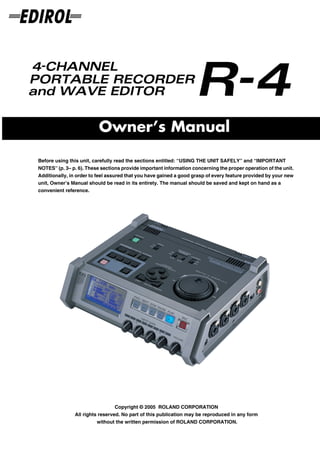
Owner’s Manual
201a
       Before using this unit, carefully read the sections entitled: “USING THE UNIT SAFELY” and “IMPORTANT
       NOTES” (p. 3– p. 6). These sections provide important information concerning the proper operation of the unit.
       Additionally, in order to feel assured that you have gained a good grasp of every feature provided by your new
       unit, Owner’s Manual should be read in its entirety. The manual should be saved and kept on hand as a
       convenient reference.


                                        Copyright © 2005 ROLAND CORPORATION
                      All rights reserved. No part of this publication may be reproduced in any form
                                without the written permission of ROLAND CORPORATION.
For EU Countries

                                                                                     CAUTION
                                                                        Danger of explosion if battery is
         Apparatus containing                                           incorrectly replaced.
                                                                        Replace only with the same or
         Lithium batteries                                              equivalent type recommended by the
                                                                        manufacturer.
                                                                        Discard used batteries according to the
                                                                        manufacturer’s instructions.


                        ADVARSEL!                                                    VARNING
             Lithiumbatteri - Eksplosionsfare ved                       Explosionsfara vid felaktigt batteribyte.
             fejlagtig håndtering.                                      Använd samma batterityp eller en
             Udskiftning må kun ske med batteri af                      ekvivalent typ som rekommenderas av
             samme fabrikat og type.                                    apparattillverkaren.
             Levér det brugte batteri tilbage til                       Kassera använt batteri enligt
             leverandøren.                                              fabrikantens instruktion.


                        ADVARSEL                                                    VAROITUS
             Eksplosjonsfare ved feilaktig skifte av                    Paristo voi räjähtää, jos se on
             batteri.                                                   virheellisesti asennettu.
             Benytt samme batteritype eller en                          Vaihda paristo ainoastaan
             tilsvarende type anbefalt av                               laitevalmistajan suosittelemaan
             apparatfabrikanten.                                        tyyppiin. Hävitä käytetty paristo
             Brukte batterier kasseres i henhold til                    valmistajan ohjeiden mukaisesti.
             fabrikantens instruks joner.

                                                                                                             For EU Countries

                   This product complies with the requirements of European Directive 89/336/EEC.


                                                                                                                    For the USA

                 FEDERAL COMMUNICATIONS COMMISSION
               RADIO FREQUENCY INTERFERENCE STATEMENT
This equipment has been tested and found to comply with the limits for a Class B digital device, pursuant to Part 15 of the
FCC Rules. These limits are designed to provide reasonable protection against harmful interference in a residential
installation. This equipment generates, uses, and can radiate radio frequency energy and, if not installed and used in
accordance with the instructions, may cause harmful interference to radio communications. However, there is no guarantee
that interference will not occur in a particular installation. If this equipment does cause harmful interference to radio or
television reception, which can be determined by turning the equipment off and on, the user is encouraged to try to correct the
interference by one or more of the following measures:
    – Reorient or relocate the receiving antenna.
    – Increase the separation between the equipment and receiver.
    – Connect the equipment into an outlet on a circuit different from that to which the receiver is connected.
    – Consult the dealer or an experienced radio/TV technician for help.

This device complies with Part 15 of the FCC Rules. Operation is subject to the following two conditions:
(1) This device may not cause harmful interference, and
(2) This device must accept any interference received, including interference that may cause undesired operation.

Unauthorized changes or modification to this system can void the users authority to operate this equipment.
This equipment requires shielded interface cables in order to meet FCC class B Limit.


                                                                                                                    For Canada

                                                       NOTICE
 This Class B digital apparatus meets all requirements of the Canadian Interference-Causing Equipment Regulations.


                                                          AVIS
 Cet appareil numérique de la classe B respecte toutes les exigences du Règlement sur le matériel brouilleur du Canada.
USING THE UNIT SAFELY


                                  Used for instructions intended to alert                                 The     symbol alerts the user to important instructions
                                  the user to the risk of death or severe                                 or warnings.The specific meaning of the symbol is
                                  injury should the unit be used                                          determined by the design contained within the
                                  improperly.                                                             triangle. In the case of the symbol at left, it is used for
                                                                                                          general cautions, warnings, or alerts to danger.
                                  Used for instructions intended to alert
                                  the user to the risk of injury or material                              The     symbol alerts the user to items that must never
                                                                                                          be carried out (are forbidden). The specific thing that
                                  damage should the unit be used
                                                                                                          must not be done is indicated by the design contained
                                  improperly.                                                             within the circle. In the case of the symbol at left, it
                                  * Material damage refers                 to damage or                   means that the unit must never be disassembled.
                                    other adverse effects                  caused with                    The ● symbol alerts the user to things that must be
                                    respect to the home                     and all its                   carried out. The specific thing that must be done is
                                    furnishings, as well                   to domestic                    indicated by the design contained within the circle. In
                                    animals or pets.                                                      the case of the symbol at left, it means that the power-
                                                                                                          cord plug must be unplugged from the outlet.


001                                                                                                008e
•     Before using this unit, make sure to read the                                                •     Use only the attached power-supply cord. Also,
      instructions below, and the Owner’s Manual.                                                        the supplied power cord must not be used with
                                                                                                         any other device.
................................................................................................
002c                                                                                               ................................................................................................
•     Do not open (or modify in any way) the unit or its                                           009
                                                                                                   •     Do not excessively twist or bend the power cord,
      AC adaptor.
                                                                                                         nor place heavy objects on it. Doing so can damage
................................................................................................         the cord, producing severed elements and short
003                                                                                                      circuits. Damaged cords are fire and shock hazards!
•     Do not attempt to repair the unit, or replace parts
      within it (except when this manual provides                                                  ................................................................................................
                                                                                                   010
      specific instructions directing you to do so). Refer                                         •     This unit, either alone or in combination with an
      all servicing to your retailer, the nearest Roland Service                                         amplifier and headphones or speakers, may be
      Center, or an authorized Roland distributor, as listed on                                          capable of producing sound levels that could cause
      the “Information” page.                                                                            permanent hearing loss. Do not operate for a long period
................................................................................................         of time at a high volume level, or at a level that is uncom-
004                                                                                                      fortable. If you experience any hearing loss or ringing in
•     Never use or store the unit in places that are:
                                                                                                         the ears, you should immediately stop using the unit, and
      • Subject to temperature extremes (e.g., direct                                                    consult an audiologist.
        sunlight in an enclosed vehicle, near a heating
        duct, on top of heat-generating equipment); or                                             ................................................................................................
        are                                                                                        011
                                                                                                   •     Do not allow any objects (e.g., flammable material,
      • Damp (e.g., baths, washrooms, on wet floors); or are                                             coins, pins); or liquids of any kind (water, soft
      • Humid; or are                                                                                    drinks, etc.) to penetrate the unit.
      • Exposed to rain; or are
      • Dusty; or are                                                                              ................................................................................................
                                                                                                   012b
      • Subject to high levels of vibration.                                                       •     Immediately turn the power off, remove the AC
................................................................................................         adaptor from the outlet, and request servicing by
007
•     Make sure you always have the unit placed so it is                                                 your retailer, the nearest Roland Service Center, or an
      level and sure to remain stable. Never place it on                                                 authorized Roland distributor, as listed on the “Infor-
      stands that could wobble, or on inclined surfaces.                                                 mation” page when:
................................................................................................         • The AC adaptor, the power-supply cord, or the plug has been
008c                                                                                                       damaged; or
•     Be sure to use only the AC adaptor supplied with                                                   • If smoke or unusual odor occurs
      the unit. Also, make sure the line voltage at the                                                  • Objects have fallen into, or liquid has been spilled onto the unit;
      installation matches the input voltage specified on                                                  or
      the AC adaptor’s body. Other AC adaptors may use a                                                 • The unit has been exposed to rain (or otherwise has become
                                                                                                           wet); or
      different polarity, or be designed for a different voltage, so
                                                                                                         • The unit does not appear to operate normally or exhibits a
      their use could result in damage, malfunction, or electric                                           marked change in performance.
      shock.
                                                                                                   ................................................................................................
................................................................................................


                                                                                                                                                                                                 3
013                                                                                                108b
•     In households with small children, an adult should                                           •     Before moving the unit, disconnect the AC adaptor
      provide supervision until the child is capable of                                                  and all cords coming from external devices.
      following all the rules essential for the safe operation of
      the unit.
                                                                                                   ................................................................................................
                                                                                                   109b
................................................................................................   •     Before cleaning the unit, turn off the power and
014                                                                                                      unplug the AC adaptor from the outlet.
•     Protect the unit from strong impact.
      (Do not drop it!)                                                                            ................................................................................................
................................................................................................   110b
                                                                                                   •     Whenever you suspect the possibility of lightning
015
•     Do not force the unit’s power-supply cord to share                                                 in your area, disconnect the AC adaptor from the
      an outlet with an unreasonable number of other                                                     outlet.
      devices. Be especially careful when using extension                                          ................................................................................................
      cords—the total power used by all devices you have                                           111: Selection
                                                                                                   •     If used improperly, batteries may explode or leak
      connected to the extension cord’s outlet must never
                                                                                                         and cause damage or injury. In the interest of
      exceed the power rating (watts/amperes) for the                                                    safety, please read and observe the following
      extension cord. Excessive loads can cause the insulation                                           precautions (p. 25).
      on the cord to heat up and eventually melt through.                                          1
................................................................................................         • Carefully follow the installation instructions for
016                                                                                                        batteries, and make sure you observe the correct
•     Before using the unit in a foreign country, consult
      with your retailer, the nearest Roland Service                                                       polarity.
                                                                                                   2
      Center, or an authorized Roland distributor, as listed on                                          • Avoid using new batteries together with used ones. In
      the “Information” page.                                                                              addition, avoid mixing different types of batteries.
................................................................................................   3
019                                                                                                      • Remove the batteries whenever the unit is to remain
•     Batteries must never be recharged, heated, taken
      apart, or thrown into fire or water.                                                                 unused for an extended period of time.
                                                                                                   5
                                                                                                         • If a battery has leaked, use a soft piece of cloth or paper
                                                                                                           towel to wipe all remnants of the discharge from the
................................................................................................           battery compartment. Then install new batteries. To
                                                                                                           avoid inflammation of the skin, make sure that none of
                                                                                                           the battery discharge gets onto your hands or skin.
101b                                                                                                       Exercise the utmost caution so that none of the
•     The unit and the AC adaptor should be located so
      their location or position does not interfere with                                                   discharge gets near your eyes. Immediately rinse the
      their proper ventilation.                                                                            affected area with running water if any of the discharge
................................................................................................           has entered the eyes.
102c                                                                                               6
•     Always grasp only the plug on the AC adaptor                                                       • Never keep batteries together with metallic objects such
      cord when plugging into, or unplugging from, an                                                      as ballpoint pens, necklaces, hairpins, etc.
      outlet or this unit.                                                                         ................................................................................................
................................................................................................   112
103b
                                                                                                   •     Used batteries must be disposed of in compliance
•     At regular intervals, you should unplug the AC                                                     with whatever regulations for their safe disposal
      adaptor and clean it by using a dry cloth to wipe                                                  that may be observed in the region in which you
      all dust and other accumulations away from its                                                     live.
      prongs. Also, disconnect the power plug from the power                                       ................................................................................................
      outlet whenever the unit is to remain unused for an                                          118a
                                                                                                   •     Should you remove the ground terminal screw,
      extended period of time. Any accumulation of dust
                                                                                                         keep them in a safe place out of children’s reach, so
      between the power plug and the power outlet can result in
                                                                                                         there is no chance of them being swallowed
      poor insulation and lead to fire.
                                                                                                         accidentally.
................................................................................................
104                                                                                                ................................................................................................
•     Try to prevent cords and cables from becoming                                                120
                                                                                                   •     Always turn the phantom power off when
      entangled. Also, all cords and cables should be
                                                                                                         connecting any device other than condenser micro-
      placed so they are out of the reach of children.
                                                                                                         phones that require phantom power. You risk causing
................................................................................................         damage if you mistakenly supply phantom power to
106
•     Never climb on top of, nor place heavy objects on                                                  dynamic microphones, audio playback devices, or other
      the unit.                                                                                          devices that don’t require such power. Be sure to check
                                                                                                         the specifications of any microphone you intend to use by
................................................................................................
107c                                                                                                     referring to the manual that came with it.
•     Never handle the AC adaptor or its plugs with wet                                                  This instrument’s phantom power: 48V DC, 8 mA Max
      hands when plugging into, or unplugging from, an                                                   (total of all channels must be 25 mA or less)
      outlet or this unit.                                                                         ................................................................................................
................................................................................................


4
Important Notes
291a
In addition to the items listed under “USING THE UNIT SAFELY” on page 3, please read and observe the following:


Power Supply: Use of Batteries                                     Maintenance
301                                                                401a
• Do not connect this unit to same electrical outlet that is       • For everyday cleaning wipe the unit with a soft, dry cloth
  being used by an electrical appliance that is controlled by        or one that has been slightly dampened with water. To
  an inverter (such as a refrigerator, washing machine,              remove stubborn dirt, use a cloth impregnated with a mild,
  microwave oven, or air conditioner), or that contains a            non-abrasive detergent. Afterwards, be sure to wipe the
  motor. Depending on the way in which the electrical                unit thoroughly with a soft, dry cloth.
  appliance is used, power supply noise may cause this unit        402
  to malfunction or may produce audible noise. If it is not        • Never use benzine, thinners, alcohol or solvents of any
  practical to use a separate electrical outlet, connect a power     kind, to avoid the possibility of discoloration and/or defor-
  supply noise filter between this unit and the electrical           mation.
  outlet.
302
• The AC adaptor will begin to generate heat after long
                                                                   Repairs and Data
                                                                   452
  hours of consecutive use. This is normal, and is not a cause     • Please be aware that all data contained in the unit’s
  for concern.                                                       memory may be lost when the unit is sent for repairs.
303a                                                                 Important data should always be backed up on a
• The use of an AC adaptor is recommended as the unit’s
                                                                     CompactFrash, your computer, or written down on paper
  power consumption is relatively high. Should you prefer to
                                                                     (when possible). During repairs, due care is taken to avoid
  use batteries, please use the alkaline or nickel metal
                                                                     the loss of data. However, in certain cases (such as when
  hydride type.
                                                                     circuitry related to memory itself is out of order), we regret
304a
• When installing or replacing batteries, always turn off the        that it may not be possible to restore the data, and Roland
  power on this unit and disconnect any other devices you            assumes no liability concerning such loss of data.
  may have connected. This way, you can prevent
  malfunction and/or damage to speakers or other devices.          Memory Backup
307                                                                501b
• Before connecting this unit to other devices, turn off the       • The R-4 contains a battery that keeps the internal clock
  power to all units. This will help prevent malfunctions            running even when the power is turned off. When this
  and/or damage to speakers or other devices.                        battery runs low, the message shown below will appear in
                                                                     the display. Replace the battery as soon as possible, since
Placement                                                            the clock will not keep the correct time if the battery is low.
351                                                                  To have the battery replaced, consult with your retailer, the
• Using the unit near power amplifiers (or other equipment           nearest Roland Service Center, or an authorized Roland
  containing large power transformers) may induce hum. To            distributor, as listed on the “Information” page.
  alleviate the problem, change the orientation of this unit; or     Int-Batt Low!
  move it farther away from the source of interference.
352a
• This device may interfere with radio and television
                                                                   Additional Precautions
                                                                   551
  reception. Do not use this device in the vicinity of such        • Please be aware that the contents of memory can be
  receivers.                                                         irretrievably lost as a result of a malfunction, or the
352b
                                                                     improper operation of the unit. To protect yourself against
• Noise may be produced if wireless communications
                                                                     the risk of loosing important data, we recommend that you
  devices, such as cell phones, are operated in the vicinity of
                                                                     periodically save a backup copy of important data you
  this unit. Such noise could occur when receiving or initi-
                                                                     have stored in the unit’s memory on a CompactFrash or
  ating a call, or while conversing. Should you experience
                                                                     your computer.
  such problems, you should relocate such wireless devices
                                                                   552
  so they are at a greater distance from this unit, or switch      • Unfortunately, it may be impossible to restore the contents
  them off.                                                          of data that was stored on a hard disk, or a CompactFrash
354a
• Do not expose the unit to direct sunlight, place it near           once it has been lost. Roland Corporation assumes no
  devices that radiate heat, leave it inside an enclosed             liability concerning such loss of data.
                                                                   553
  vehicle, or otherwise subject it to temperature extremes.        • Use a reasonable amount of care when using the unit’s
  Excessive heat can deform or discolor the unit.                    buttons, sliders, or other controls; and when using its jacks
355b
                                                                     and connectors. Rough handling can lead to malfunctions.
• When moved from one location to another where the
                                                                   554
  temperature and/or humidity is very different, water             • Never strike or apply strong pressure to the display.
  droplets (condensation) may form inside the unit. Damage         556
  or malfunction may result if you attempt to use the unit in      • When connecting / disconnecting all cables, grasp the
  this condition. Therefore, before using the unit, you must         connector itself—never pull on the cable. This way you will
  allow it to stand for several hours, until the condensation        avoid causing shorts, or damage to the cable’s internal
  has completely evaporated.                                         elements.


                                                                                                                                  5
Important Notes


558a
• To avoid disturbing your neighbors, try to keep the unit’s
                                                                  Precautions Regarding Setup and Use
  volume at reasonable levels. You may prefer to use              812
                                                                  • Certain hard disk setup procedures and usage conditions
  headphones, so you do not need to be concerned about
                                                                    may result in the corruption of recorded data, malfunc-
  those around you (especially when it is late at night).
559a                                                                tioning, or physical damage to the disk, so be sure to
• When you need to transport the unit, package it in the box        observe the following precautions.
  (including padding) that it came in, if possible. Otherwise,       • Do not subject the hard disk to vibration or shock,
  you will need to use equivalent packaging materials.                  especially while the unit is in operation.
562                                                                  • Do not set up the unit in any location where it may be
• Use a cable from Roland to make the connection. If using              affected by vibration from external sources, or on any
  some other make of connection cable, please note the                  surface that is not stable and level.
  following precautions.
                                                                     • If the device includes a cooling fan, ensure that the fan
   • Some connection cables contain resistors. Do not use               and the side panel air vents remain unobstructed.
      cables that incorporate resistors for connecting to this
      unit. The use of such cables can cause the sound level to      • Do not leave the unit in any environment subject to
      be extremely low, or impossible to hear. For infor-               temperature extremes; for example, in a closed
      mation on cable specifications, contact the manufac-              automobile in summer or outdoors during winter.
      turer of the cable.                                            • Do not use the unit in conditions of high temperature
                                                                        and humidity or in any location subject to rapid
                                                                        temperature changes.
Before Using Cards
704                                                                  • Do not unplug the power cord or switch off any circuit
• Carefully insert the DATA card all the way in—until it is             breakers in the circuit to which the unit is connected
  firmly in place.                                                      while the power is turned on.
fig.M512-Insert
                                                                  Emergency Procedures
                                                                  813
                                                                  * The following procedures are to be used as emergency mea-
                                                                    sures only, and are not recommended for normal operation.
                                                                  • If the device fails to respond to operational commands or
                                                                    does not complete operations, turn off the power. If the
                                                                    power does not shut off following normal shutdown proce-
                  CompactFlash™                                     dures, disconnect the power plug.
                                                                    If the unit does not operate normally when the power is
                                                                    turned on again, it may mean that the hard disk has been
                                                                    damaged. In such instances, consult your dealer or the
705                                                                 nearest Roland Service Center. Note, however, that it may
• Never touch the terminals of the DATA card. Also, avoid           not be possible to recover any data from the hard disk once
  getting the terminals dirty.                                      it has been lost.
707
• This unit’s memory card slot accepts CompactFlash
  memory cards. Microdrive storage media are not                  Copyright
  compatible.                                                     851
                                                                  • Unauthorized recording, distribution, sale, lending, public
                                                                    performance, broadcasting, or the like, in whole or in part,
Handling Hard Disks                                                 of a work (musical composition, video, broadcast, public
811                                                                 performance, or the like) whose copyright is held by a third
• Once a hard disk fails to function normally, all data that        party is prohibited by law.
  has been stored on it could be destroyed.                       852b
  All hard disks eventually wear out. We recommend that           • When exchanging audio signals through a digital
  you consider the hard disk not as a permanent storage site,       connection with an external instrument, this unit can
  but as a place to store data temporarily. We also                 perform recording without being subjected to some of the
  recommend that you back up important performance and
                                                                    restrictions of the Serial Copy Management System
  image data that cannot be recorded again onto the external
  media that is supported by your device. For instructions on       (SCMS). This is because the unit is intended solely for
  how to make such backups, refer to the owner’s manual for         musical production, and is designed not to be subject to
  your device.                                                      restrictions as long as it is used to record works (such as
  Note that Roland assumes no liability whatsoever,                 your own compositions) that do not infringe on the
  including monetary compensation, for the loss of any              copyrights of others. (SCMS is a feature that prohibits
  recorded content in the event of the malfunction of, or           second-generation and later copying through a digital
  physical damage to the hard disk, or for any direct or            connection. It is built into MD recorders and other
  incidental damages resulting from the loss of such data.          consumer digital-audio equipment as a copyright-
                                                                    protection feature.)
                                                                  853
                                                                  • Do not use this unit for purposes that could infringe on a
                                                                    copyright held by a third party. We assume no responsi-
                                                                    bility whatsoever with regard to any infringements of
                                                                    third-party copyrights arising through your use of this
                                                                    unit.


6
Contents
Checking the included items ...... 8                                              Application guide ....................75
                                                                                      Connecting an external mic
Introducing the R-4 ................... 9                                              for CD-quality stereo recording ..................75
   The R-4’s controls and connectors .................9                               Recording birdsongs outdoors .....................76
   Display.............................................................18             Recording audio while shooting video .......77
   What is a project? ...........................................21                   Recording audio memos using just the R-4....77
Getting ready to use the R-4 ... 23                                                   Simultaneously recording
   Basic connection examples ...........................23                            environmental sounds (ambience)...............78
   Connecting the AC adaptor and turning the                                          Simultaneously recording
   power on..........................................................24                at different input levels ................................78
   Installing batteries and turning the power on                                  Messages ................................79
   25
                                                                                  Troubleshooting.......................80
Recording ............................... 27                                          Computer-related problems .........................80
   Recording from a connected mic .................27                                 Recording-related problems .........................80
   Recording from the internal mics ................30                                Playback-related problems ...........................82
   Recording digital audio from a digital device                                      Problems with the R-4’s operation...............83
   ..........................................................................31
   Recording analog audio ................................32                      Main specifications ..................84
Playing back........................... 34                                        Block diagram .........................86
   Connections before playback .......................34
   Settings before playback ...............................36
   Playing back....................................................38
                                                                                  Deutsch.........................................................
The Finder screen .................... 41
   Selecting a project (Select).............................41                    Beschreibung des R-4 ..............88
   Deleting a project (Delete) ............................42
   Renaming a project (Rename) ......................43                           Français ........................................................
   Copying a project (Copy)..............................44                       PrésentatioFrancaisn du R-4 ....94
   Moving a project (Move)...............................45
   Creating a new folder (Make Folder)..........46                                Italiano..........................................................
Editing .................................... 48                                   Presentazione dell’R-4 ...........100
   Editing procedure ..........................................48
                                                                                  Español .........................................................
Effects setting .......................... 55
                                                                                  Presentación del R-4 ..............106
   Effects...............................................................56
   Using effects....................................................58
System settings ....................... 60
   System Menu ..................................................60
   Example operations .......................................65
Appendix................................ 70
   Handling memory cards ...............................70
   Connection to a computer.............................72                        Index ....................................112
   Connecting a video device
   that has a LANC connector ..........................74


                                                                                                                                                       7
Checking the included items
                The R-4 comes with the following items. Immediately after opening the package, please check that you have
                all of these items. If any items are missing, please contact the dealer where you purchased the R-4.

          ■ R-4
    fig.R-4.eps_50


          ■ AC adaptor
                This AC adaptor is designed specifically for the R-4. Do not attempt to use any other adaptor with the R-4.


                            “Connecting the AC adaptor and turning the power on” (p. 24)

          ■ USB cable (1 meter)
                You can use this cable to connect the R-4 to the USB connector of your computer.

                            “Connection to a computer” (p. 72)

                * If the AC adaptor or USB cable becomes damaged or if you need a replacement for any reason, please contact one of
                  the Service Centers listed in the “Information” section at the end of this manual.
                * Don't remove the ferrite core that's attached to the USB cable.

          ■ Carrying case
                You can use this case to protect the R-4 while it is being transported or stored.

          ■ Owner’s manual
                This is the document you’re reading. Keep it at hand for easy reference.


8
Introducing the R-4

The R-4’s controls and connectors
Top panel
 fig.panel-1.eps_50


                                        1                                                    1


                                                2                                   2


                                   3                 4             5        6


                                   7        8        9


                                                         13
                                                                                        16
                              10

                                                                                                 17
                              11                12


                                                              14       15


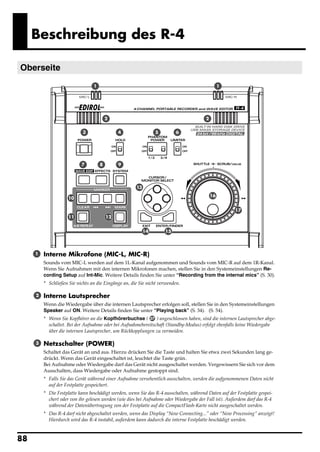
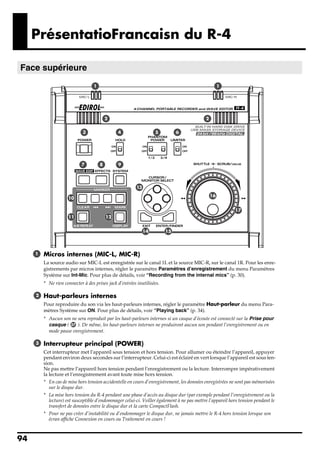
                 1    Internal mics [MIC-L, MIC-R]
                      These are stereo mics built into the R-4. The audio entering MIC-L is recorded on the 1L channel, while
                      audio picked up by MIC-R is recorded on the 1R channel. If you’re recording via the internal mics, set the
                      System Settings menu item Recording Setup to Int-Mic. For details, refer to “Recording from the internal
                      mics” (p. 30).
                      * Don’t connect anything to input jacks you’re not using.
                  2   Internal speakers
                      These are built-in speakers for monitoring. If you want sound to be heard from the internal speakers, set
                      the System Settings menu item Speaker to ON. For details, refer to “Playing back” (p. 34).
                      * No sound will be heard from the internal speakers if you’ve connected headphones to the Headphone jack ( 37 ).
                        Nor will sound be heard from the internal speakers while recording or in recording-standby mode; this prevents
                        acoustic feedback from occurring.

                  3   Power switch [POWER]
                      This turns the power on/off. To turn the power on or off, press and hold the power switch for about two
                      seconds. The power switch is lit green when the power is on.
                      Don’t turn the power off during recording or playback. Before you turn off the power, you must make sure
                      that recording or playback is stopped.
                      * If you accidentally turn off the power during recording, the data that was being recorded will not be stored on the
                        hard disk.
                      * The hard disk may be damaged if you turn off the power of the R-4 while data is being read from or written to the
                        hard disk (such as during recording or playback). You must also be careful not to turn off the power while data is
                        being transferred between the hard disk and the CompactFlash card.
                      * Never turn off the power while the R-4’s display indicates Now Connecting... or Now Processing! Doing so will
                        cause the R-4 to become unstable, and could even damage the internal hard disk.
                      * During recording, pressing the power switch will not turn off the power.
                      * The hard disk may be damaged if you turn off the power of the R-4 while data on the hard disk is being written or
                        read, such as during playback or waveform editing.


                                                                                                                                              9
Introducing the R-4

  fig.panel-1.eps_50

                                       1                                                          1


                                               2                                         2


                                  3                 4               5        6


                                  7        8        9


                                                          13
                                                                                             16
                            10

                                                                                                      17
                            11                 12


                                                               14       15


         4        Hold switch [HOLD]
                  By selecting the HOLD ON position, you can disable the panel buttons so that unwanted operations will not
                  occur if a button is pressed accidentally.
                  However, even if this switch is set to HOLD ON, the phantom power switches 5 , limiter switch 6 ,
                  input level select switches 38 , Input level knobs 25 , and Monitor level knob 26 will still be
                  operable.

         5        Phantom power switches [PHANTOM POWER]
                  These switch the phantom power on/off for the XLR type connectors of the combo input jacks located on
                  the right panel. Since separate switches are provided for channels 1/2 and channels 3/4, you can turn
                  phantom power on/off separately for these channels.
  fig.jack-type

                  * Always turn the phantom power off when connecting any device other than
                    condenser microphones that require phantom power. You risk causing damage
                    if you mistakenly supply phantom power to dynamic microphones, audio                                 XLR plug

                    playback devices, or other devices that don’t require such power. Be sure to
                    check the specifications of any microphone you intend to use by referring to
                    the manual that came with it.
                                                                                                                        TRS phone
                    This instrument’s phantom power: 48 V DC, 8 mA Max                                      Phone plug     plug
                                                                                                           (unbalanced) (balanced)
                    (total of all channels must be 25 mA or less)

         6        Limiter switch [LIMITER]
                  This is an on/off switch for an input level limiter in the analog circuitry.
                  When the input level is too high, the limiter compresses the input level appropriately to prevent distortion.
                  The limiter switch turns limiting on/off for all channels 1–4 together. However, the input level is detected
                  separately for each channel. You cannot turn the limiter on/off separately for each channel.


10
Introducing the R-4

       7        Wave edit button [WAVE EDIT]
                This button takes you to Wave Edit mode, where you can edit the waveform using operations such as Trim,
                Divide, Combine, and Merge. For details, refer to “Editing” (p. 48).
                You won't be able to enter Wave Edit mode during playback or recording, or if the R-4’s hard disk contains
                no files that the R-4 can handle.
                WAV files are the only type of files that the R-4 can handle.

       8        Effect button [EFFECTS]
                This button takes you to Effect mode, where you can make effect settings.
                For details, refer to “Effects setting” (p. 55).

       9        System button [SYSTEM]
                This button takes you to a mode where you can make various settings for the R-4.
                For details, refer to “System settings” (p. 60).

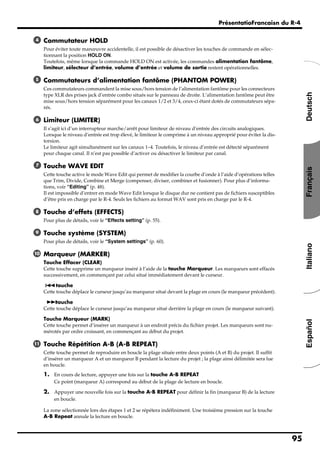
      10        Marker [MARKER]
                Clear button [CLEAR]
                This button deletes a marker you assigned using the Mark button. Markers will be deleted successively,
                starting at the marker located immediately before the current location.

                       button
                This button moves you to the marker that is immediately before the current location (the previous marker).
                If the current playback location is earlier than the first marker, pressing this button will take you to the
                beginning of the project. You will also move to the beginning of the project if no markers have been set.

                       button
                This button moves you to the marker that is immediately after the current location (the next marker).
                If the current playback location is at the last marker, pressing this button will take you to the end of the
                project. You will also move to the end of the song if no markers have been set.

                Mark button [MARK]
                By pressing this button you can assign a marker to a desired location in the project file. Markers are
                numbered sequentially starting at the beginning of the project.

      11        A-B Repeat button [A-B REPEAT]
                This button lets you repeatedly play back the region between two points (A and B) in the project. Simply
                assign marker A and marker B while the project is playing, and playback will repeat between markers A
                and B.
fig.repeat-a

                1. During playback, press the A-B Repeat button once.                                        A
                     That point becomes the beginning (marker A) of repeat playback.


fig.repeat-b

                2. Press the A-B Repeat button once again. That point will be the end                        A       B
                     (marker B) of repeat playback.


fig.repeat-ab
                The region you specified in steps 1 and 2 will play repeatedly. To cancel repeat
                playback, press the A-B Repeat button once again.                                            A       B


      12        Display button [DISPLAY]
                This button switches the contents of the R-4’s display.
                For details, refer to “Display” (p. 18).


                                                                                                                                 11
Introducing the R-4

  fig.panel-1.eps_50

                                     1                                                               1


                                             2                                              2


                                3                 4                5        6


                               7         8        9


                                                         13
                                                                                                16
                         10

                                                                                                         17
                         11                  12


                                                              14       15


        13    Cursor/Monitor Select buttons [CURSOR/MONITOR SELECT]
              Use these buttons to select items shown in the display. When you’re in the main screen, you can press the
              up/down buttons to select the channel that you want to monitor.
              For details, refer to “Display” (p. 18).

        14    Exit button [EXIT]
              Use this button to return to the previous screen or to cancel an operation.

        15    Enter/Finder button [ENTER/FINDER]
              Use this button to confirm a setting or finalize a value. You can also press this when you want to use the
              Finder function. For more about the Finder function, refer to “The Finder screen” (p. 41).

        16    Scrub dial [SCRUB/VALUE]
              Use this dial to select among items for which settings are made, or to modify a value. While stopped or
              when playback is paused, you can turn the scrub dial to move the current location forward or backward.

       17     Shuttle dial [SHUTTLE]
              While the project is playing, turn this dial clockwise to play rapidly forward, or counterclockwise to play
              rapidly backward. When the project is stopped, this dial advances the time counter.


12
Introducing the R-4


Front panel
 fig.panel-2.eps_50


                                       18                           19   20   21   22   23      24


                                                                              25                26

              18      Display
                      This shows various information about the R-4’s status.
                      For details, refer to “Display” (p. 18).

                19    PREV button [PREV]
                      Pressing the PREV button while a project is playing or stopped will take you to the beginning of the project
                      (00:00:00). Pressing this button at the beginning of a project will take you to the preceding project.
                      You can also press and hold down this button to rewind. This is available both while playing and while
                      stopped.
                      * If the system setting Player Setup parameter Play Mode is set to Single, you can't move to the previous or next
                        project during playback.
               20     NEXT button [NEXT]
                      Pressing the NEXT button will take you to the next project. You can also press and hold this button to fast-
                      forward. This is available both while playing and while stopped.
                      * If the system setting Player Setup parameter Play Mode is set to Single, you can't move to the previous or next
                        project during playback.
               21     Stop button [STOP]
                      This button stops playback or recording. If you press the STOP button during playback, the counter will
                      maintain the time at which you pressed the STOP button.
               22     Pause button [PAUSE]
                      This button pauses playback or recording.
               23     Play button [PLAY]
                      This button starts playback. The PLAY button is lit blue during playback.
                      During playback, you can press the PLAY button once again to play at double-speed. During double-
                      speed playback, press the PLAY button once again to return to normal playback. During double-speed
                      playback, the lower part of the display will indicate PLAY X2. Double-speed playback will change the
                      pitch.
                      * If you want to turn off the double-speed playback feature, go to the System Settings menu and in Player Setup,
                        turn X2 Play OFF. For details, refer to “2 Player Setup” (p. 62).
               24     Record button [REC]
                      Recording will begin immediately when you press the REC button. The REC button is lit red during
                      recording. If you hold down the PAUSE button and press the REC button, the REC button will blink
                      red, and the R-4 enters recording-standby mode. Recording will begin when you then press the REC
                      button or 22 PAUSE button.
              25      Input level knobs 1–4 [INPUT GAIN]
                      These knobs adjust the input level of combo input jacks 1–4 ( 39 ). Input levels of the internal mics
                      ( 1 ) are adjusted by knob 1 (MIC-L) and knob 2 (MIC-R).
               26     Monitor level knob [MONITOR]
                      This adjusts the output volume of the internal speakers ( 2 ) and the headphone jack ( 37 ).
                      You can’t adjust the volume of the line output jacks ( 40 ). If you need to adjust the volume of the line
                      output jacks, adjust the controls of the external speakers or playback system connected to the line output
                      jacks.


                                                                                                                                          13
Introducing the R-4


Side panel (left)


                                   29     30        31


                        27
                                                          33          34

                                               32
                        28                                     35          36     37


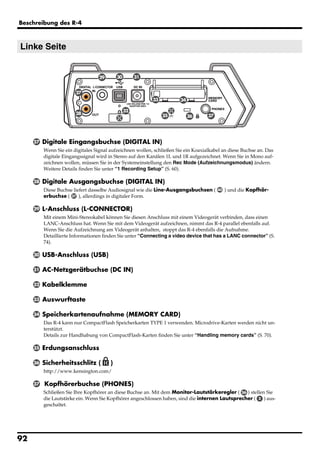
     27   Digital input connector [DIGITAL IN]
          If you want to record a digital signal, connect a coaxial-type cable to this connector. The digital input signal
          is recorded in stereo on channels 1L and 1R. If you want to record in monaural, you’ll need to change the
          Rec Mode setting in the System Settings menu. For details, refer to “1 Recording Setup” (p. 60).

     28   Digital output connector [DIGITAL OUT]
          This connector outputs a digital signal. You can use a coaxial-type cable to connect this to a digital
          recording device such as a DAT or MD recorder. This connector provides the same audio signal as the line
          output jacks ( 40 ) and headphone jack ( 37 ), but in digital form.

     29   L connector [L-CONNECTOR]
          You can use a stereo mini-mini-plug LANC cable to connect this to a video device that is equipped with a
          LANC connector. When you begin recording on your video device, the R-4 will begin recording in tandem.
          When you stop recording on your video device, the R-4 will also stop recording.
          For details, refer to “Connecting a video device that has a LANC connector” (p. 74).

     30   USB connector [USB]
          Use the included USB cable to connect this to your computer. Projects recorded on the R-4 can be moved or
          copied to your computer. Files from your computer can also be moved or copied to the R-4’s hard disk.

     31   AC adaptor jack [DC IN]
          Connect the included AC adaptor to this jack.

     32   Cord hook
          Use this to secure the AC adaptor cable.

     33   Eject button
          Press this when you want to remove the CompactFlash card inserted in the memory card slot 34 .

     34   Memory card slot [MEMORY CARD]
          You can insert a CompactFlash card into this slot.
          Projects you record on the R-4 can be copied to a CompactFlash card for backup or to transfer them to a
          computer.
          The R-4 is able to use only TYPE 1 CompactFlash memory cards. Microdrive cards are not supported.
          For details on handling CompactFlash cards, refer to “Handling memory cards” (p. 70).


14
Introducing the R-4


35   Grounding terminal
     Depending on the circumstances of a particular setup, you may experience a discomforting sensation, or
     perceive that the surface feels gritty to the touch when you touch this device, microphones connected to it,
     or the metal portions of other objects. This is due to an infinitesimal electrical charge, which is absolutely
     harmless. However, if you are concerned about this, connect the ground terminal (see figure) with an
     external ground. When the unit is grounded, a slight hum may occur, depending on the particulars of your
     installation. If you are unsure of the connection method, contact the nearest Roland Service Center, or an
     authorized Roland distributor, as listed on the “Information” page.

     Unsuitable places for connection
     • Water pipes (may result in shock or electrocution)
     • Gas pipes (may result in fire or explosion)
     • Telephone-line ground or lightning rod (may be dangerous in the event of lightning)

36   Security Slot [          ]
     http://www.kensington.com/

37   Headphone jack [PHONES]
     Connect a set of headphones to this jack. Use the monitor level knob ( 26 ) to adjust the volume. If you
     connect headphones, sound will not be heard from the internal speakers ( 2 ).


                                                                                                                      15
Introducing the R-4


Side panel (right)
  fig.panel-3.eps_50


                                                                                                          40


                                           38                          39                        38


       38    Input level select switches
                Set these switches to either the MIC or LINE position depending on the type of device connected to
                channels 1/L and 2/R or channels 3/L and 4/R.

                 MIC         If a mic is connected
                 LINE        If an audio device is connected via an analog connection

       39    Combo input jacks 1–4
                These are analog audio input jacks compatible with mic preamps. They accept either XLR or 1/4” phone
                plugs; you can use whichever is most convenient for the equipment you’re connecting. Balanced or
                unbalanced signals can be connected.
                You can use combo input jacks 1–4 as four channels of monaural input or as two stereo pairs, 1/2 and 3/4.
                For details, refer to “1 Recording Setup” (p. 60).
                * The XLR type jacks can provide 48 V phantom power, allowing you to connect phantom-powered condenser mics.
                  In this case, turn on the phantom power switch ( 5 ).
  fig.XLR-TRS
                This instrument is equipped with balanced (XLR/                                       GND(SLEEVE)

                TRS) type jacks. Wiring diagrams for these jacks are            1:GND
                                                                                2:HOT
                                                                                           HOT(TIP)
                shown below. Make connections after first checking              3:COLD

                the wiring diagrams of other equipment you intend
                                                                                                      COLD(RING)
                to connect.

       40    Line output jacks [LINE OUT]
                These jacks output an analog audio signal. You can use RCA phono cables to connect them to powered
                speakers, audio equipment, a mixer, etc. These jacks output the same signal as the digital output
                connector ( 29 ) and the headphone jack ( 37 ).
                The nominal output level is fixed at -10 dBV, and the volume of these jacks cannot be adjusted.


16
Introducing the R-4


Bottom panel


                                                              41


  41   Battery compartment
       Install batteries here if you want to operate the R-4 on battery power.
       The orientation in which you must insert the batteries is shown on the side of the battery compartment.
       Be sure to observe the correct polarity when installing the batteries.
       If you’re using the AC adaptor, there’s no need to install batteries.
       Make sure to switch off the R-4’s power before you change from AC adaptor operation to battery operation,
       or vice versa.
       For details, refer to “Installing batteries and turning the power on” (p. 25).


                                                                                                                   17
Introducing the R-4


Display
While playing or stopped
  The main screen
               The R-4’s main screen provides information about the project and the operational status of the R-4.
               You can press the [DISPLAY] button to switch the contents of the display.
  fig.play-disp.eps

                                                           Project name         Progress bar        Total time


               Time
               counter
               Level scale
               dBFS                                                                                               Sampling frequency
               Channel                                                                                                Sample size
               names                                                                                                   (bit depth)
                                                                                                                  Marker indicators

                                                                                                                  Clip level indicators
               Output
               assignments
                                                                                                                      Power source


                                                 Channel level meters           Date and time
                                                                                                Output level meters
                             Status indication                  Clip level indicators


                                             Indicates the name of the project. If you copy WAV files from your computer
                                             via USB to the R-4’s internal hard disk, this will show the file name. File names
                 Project name
                                             containing double-byte characters (e.g., Japanese) will not be displayed cor-
                                             rectly, but they can be played.
                                             Indicates the time that has elapsed from the beginning of the project to the
                 Time counter
                                             current location. Indicated in terms of hours: minutes: seconds.
                 Progress bar                Indicates the current playback location relative to the entire project.
                 Total time                  Indicates the total time of the entire project.
                 Level scale                 Shows the audio level of each channel in real time. The markings are relative
                 Clip level indicators       to 0 dBFS (Full Scale) of the digital signal. For example, 12 means -12 dBFS. C
                 Channel level meters        is clipping level (0 dBFS).
                                             This area shows up to four channel names. If you’re using one stereo channel,
                                             this will indicate 1L and 1R. If you’re using two stereo channels, this will in-
                 Channel names               dicate 1L, 1R, 2L, 2R.
                                             For a monaural project, this area will show 1, 2, 3, and 4 according to the num-
                                             ber of channels.
                                             These show how the audio of each channel is assigned to the L/R output
                                             channels. L means that the audio is assigned to the left channel, R to the right
                                             channel, and LR to both left and right channels. Channels for which no indi-
                                             cation appears will not be output. When you're in the main screen, you can
                 Output assignments
                                             press the [CURSOR] up/down buttons to select the channel that you want to
                                             monitor.
                                             The output is sent to the PHONES jack, line output jacks, and digital output
                                             connector.
                 Sampling frequency          Indicates the sampling frequency and sample size (bit depth) of the currently
                 Sample size                 selected project.
                                             The number at the left indicates the marker located immediately before the
                 Marker indicators           current time counter value. The number at the right indicates the total number
                                             of markers assigned in the currently selected project.


18
Introducing the R-4


               Output level meters       These are the output level meters. They show the final output levels of the L
                                         and R channels, to which the various channels have been mixed. You can use
               Clip level indicators     the monitor level sliders of the mixer screen to adjust the level of each channel.
                                         From the left, the level meter is calibrated at -36, -24, -12, and -6 dBFS.
                                         Indicates how power is being supplied to the R-4. The plug icon is shown if
               Power source              power is being supplied by the AC adaptor, and the battery icon is shown if
                                         power is being supplied by batteries.
            In the main screen, you can press the [DISPLAY] button to switch the progress bar area so it shows the
            remaining project time (REMAIN).
fig.play-disp2.eps

                                                    Remaining time


                                         During playback, this indicates the remaining time from the current location
               Remaining time
                                         to the end of the project.

The mixer screen
            From the main screen, press the [DISPLAY] button twice to move to the Mixer screen.
            This screen lets you adjust the volume balance for monitoring.
fig.play-disp3.eps

                                                   Channel names       Monitor output indicators


             Channel level
                                                                                                               Channel level meters
             sliders


                                                                                                               Output level meters


                                         Use these to adjust the playback level of each channel. Use the left/right
                                         [CURSOR/FINDER] buttons to select a slider, and turn the [SCRUB/VALUE]
                                         dial to adjust the value. Each slider provides adjustment within the range 0–
                                         120. The default value is 100.
               Channel level sliders
                                         * The settings are not stored in the project; they are remembered by the R-4
                                           itself. When you turn off the power, the settings will revert to their default
                                           values.
                                         * These settings do not affect the recording levels.


                                                                                                                                 19
Introducing the R-4


While recording
  The main screen
        The R-4’s main screen provides information about the project and the operational status of the R-4.
        You can press the [DISPLAY] button to switch the contents of the display.

                                                        Recordable time      Total recording time


     Time counter


                                       Indicates the elapsed time from the beginning of the project you’re recording
          Time counter
                                       until the current location. Indicated in terms of hours: minutes: seconds.
                                       During recording, this indicates the remaining time that recording to the hard
                                       disk can take place. The remaining time will depend on the sampling
          Recordable time              frequency (Sample Freq.), sample size (Rec Bit), and recording mode (Rec
                                       Mode) settings. The indication shows how much longer you can record with
                                       the current settings.
                                       Indicates the total time from the beginning of recording to the current
                                       location.
                                       * Even if you record continuously, another new project will be created
          Total recording time           automatically when the project reaches 2 GB in size, and recording will
                                         continue. Even for a recording that spans multiple projects in this way, the
                                         elapsed time since you first pressed the [REC] (record) button will be shown
                                         here.
        * For an explanation of the other indications, refer to “While playing or stopped” (p. 18).

        From the main screen, you can press the [DISPLAY] button to make the recordable time area show the
        remaining hard disk capacity instead.

                                                     Remaining hard disk capacity


          Remaining hard disk
                                       Indicates the remaining free capacity on the internal hard disk.
          capacity


20
Introducing the R-4


What is a project?
             On the R-4, the data that you record and play back is handled as “projects.” On the hard disk, each project
             actually consists of a folder with one or more files, in the structure shown below.
             If you connect the R-4 to your computer, you’ll be able to see how these folders and files are organized.
             However, if you change, delete, or rename the files within a project, the R-4 may be unable to play back that
             project. Please use caution.

             In the system settings, the Recording Setup parameter Rec Mode (p. 61) lets you specify the type of project
             you want to record.

 Monaural projects
                Type                Structure
                                    If there is only one channel, a monaural WAV file will be created with a name consist-
                MONOx1
                                    ing of the project name plus an extension of .wav.
                MONOx2              If there are 2–4 channels, a folder will be created with a name consisting of the project
                MONOx3              name plus an extension of .pjt, and within that folder will be created monaural WAV
                MONOx4              files with names consisting of the channel number plus an extension of .wav.
 fig.project-M1.eps


                                                                                                   Project Name
                          ABC-1.wav                               ABC-2.pjt


                              ABC-1.                                 1.wav          2.wav
                               wav                                  (MONO)          (MONO)
                             (MONO)


                           MONOx1                                        MONOx2


                                                                                                   Project Name
                 ABC-3.pjt                                        ABC-4.pjt


                  1.wav    2.wav       3.wav                     1.wav   2.wav   3.wav   4.wav
                 (MONO)    (MONO)      (MONO)                   (MONO) (MONO) (MONO) (MONO)


                          MONOx3                                         MONOx4


                                                                                                                                 21
Introducing the R-4


  Stereo projects

                  Type            Structure
                                  If there is only one channel, a stereo WAV file will be created with a name consisting
                  STEREOx1
                                  of the project name plus an extension of .wav.
                                  If there are two channels, a folder will be created with a name consisting of the project
                  STEREOx2        name plus an extension of .pjt, and within that folder will be created stereo WAV files
                                  with names consisting of the channel number plus an extension of .wav.
  fig.project-S1.eps


                                                                                                   Project Name
               ABC-5.wav                                        ABC-2.pjt
                                                                ABC-6.pjt


                       ABC-5                                      1.wav          2.wav
                        .wav                                     (STEREO)       (STEREO)
                       (STEREO)


                STEREOx1                                             STEREOx2

  Four-channel projects
                  Type            Structure
                                  A four-channel WAV file will be created with a name consisting of the project name
                  4CH
                                  plus an extension of .wav.

               ABC-7.wav
                                          Project Name              * If you want to load such files into your computer, make sure
                                                                      that your waveform editing software supports four-channel
                       ABC-7.
                        wav                                           files.
                       (4CH)


                       4CH


      Limitations on file size
               The R-4 can handle files up to 2 GB in size. If the file size reaches 2 GB during recording, the file will be
               closed. Then, a new file will be created and recording will continue. When you finish recording, these files
               will appear as separate projects.

      About BWF
               In 5 System Setup (p. 63), under system settings, you can set Project File to BWF so that the files created
               during recording and editing will be BWF files. BWF (Broadcast Wave Format) files contain information
               about the recording time and recording device (EDIROL R-4) in addition to the data of a conventional WAV
               file. Of course, BWF files can be loaded by playback devices or audio editing software in the same way as
               conventional WAV files.

      Caution when copying files from your computer
               Please note the following cautions when copying files from your computer into the R-4’s internal hard disk.
               • The R-4 can only record linear PCM WAV files at sampling frequencies of 44.1, 48, or 96 kHz and bit
                  depths of 16 or 24 bits. It cannot play back any other type of file.
               • File names and folder names containing double-byte characters (e.g., Japanese) will not be displayed
                  correctly.
               • Any files other than WAV files cannot be recognized by the R-4, and will be ignored.
               • Files beginning with “.” (dot) will be ignored.
               • You must not copy files larger than 2 GB into the R-4’s internal hard disk. Doing so will make the R-4’s
                  operation unstable, and in the worst case might even damage the files in the internal hard disk.


22
Getting ready to use the R-4

Basic connection examples
                 Before you make connections to other equipment, turn down the volume of all your equipment and turn
                 off the power to prevent malfunctions or speaker damage.
 fig.basic.eps

      Digital connections                                     Digital connection                               Analog connection
     Equipment that has a digital input jack                  Equipment that has a digital output jack        Equipment that has a line input jack
                                                                                                                    Amplified speakers/Mixers
     MD player for recording/Amplified speakers, etc.                    CD/MD player for playback


                                      DIGITAL IN                 DIGITAL OUT
                                                                                                                                LINE IN


      LANC connection                                                                                                                            Mic connection
    Video camera with a LANC                                                                                                                    Dynamic mic/Condenser mic
    connector
                                                                      DIGITAL IN
                                                                                                         LINE OUT
                                  LANC
                                                        DIGITAL OUT


                                                        L-CONNECTOR


                                                                 USB
     USB connection                                              DC IN
    Personal computer with a USB
    connector


                                        USB                              PHONES


                                                                                    Headphones


     AC outlet                      AC adaptor

                 For more about connections, refer to “Recording” (p. 27) and “Playing back” (p. 34).


                                                                                                                                                                            23
Getting ready to use the R-4


Connecting the AC adaptor and turning the power on
              * After you’ve made connections correctly, you must turn on the power using the steps below. If you don’t follow the
                correct order, you may cause malfunctions or damage your speakers.
              * Due to a circuitry protection feature, this unit requires a few moments after power-up before it is ready for normal
                operation.
              * If you connect the AC adaptor when batteries are installed, the power will be supplied from the AC adaptor.
  fig.adaptor.eps


  Turning the power on
       1      Connect the DC plug of the AC adaptor to the AC adaptor jack located on the left side panel of the R-4.
              * Use only the included AC adaptor.
       2
              Plug the AC adaptor into an AC power outlet.
              * To prevent the inadvertent disruption of power to your unit (should the plug be pulled out accidentally), and to
                avoid applying undue stress to the AC adaptor jack, anchor the power cord using the cord hook, as shown in the
                illustration.
       3      To turn the power on, press and hold the R-4’s [POWER] switch for about two seconds.
              Wait until the main screen appears.

  Turning the power off
       1      From the main screen, press and hold the R-4’s [POWER] switch for about two seconds to turn the
              power off.
              * If you disconnect or reconnect the AC adaptor, the power will turn off even if batteries are installed. Please turn off
                the power on the R-4 itself before you change between AC adaptor power and battery power.


24
Getting ready to use the R-4


Installing batteries and turning the power on
  Types of batteries you can use
       • AA alkaline batteries (LR6)
       • AA nickel metal-hydride (HR15/51)
         (The R-4 cannot recharge nickel metal-hydride batteries. You’ll need to use a separate charger.)
       * You must set the R-4’s System Settings menu item “5 System Setup” (p. 63) to specify the type of batteries
         you’ve installed. The R-4 will not operate correctly if you’ve specified a battery type that does not match the batteries
         you’ve actually installed.
  1
       Make sure that the R-4 is turned off, and disconnect the AC adaptor from the AC adaptor jack.


  2    Detach the battery cover from the bottom panel of the R-4.
       * When turning the unit upside-down, handle with care to avoid
         dropping it, or allowing it to fall or tip over.
  3    Insert eight AA batteries into the battery compartment,
       making sure to observe the correct polarity (+ and -
       symbols).

  4    Replace the battery cover.

  5
       Turn on the R-4.

  6
       Press the [SYSTEM] button.

  7
       Use the [CURSOR] up/down buttons to select 5 System Setup.

  8    Press the [ENTER] button.

  9    Using the [SCRUB/VALUE] dial, set the Battery Type to Alkaline if you’ve installed alkaline batteries,
       or to Ni-MH if you’ve installed nickel metal-hydride batteries. The setting is activated as soon as you
       select it.

  10
       When you’ve finished making settings, press the [EXIT] button.You’re returned to the previous screen.

  11   When you’re back in the System Menu screen, press the [EXIT] button once again.
       Although the indication [ENTER] will be blinking in the display, if you don’t need to make additional
       settings, press the [EXIT] button to return to the main screen.


  Caution when using the R-4 on battery power
       • If you operate on battery power for an extended time, the batteries will become hot. Be careful not to
         burn yourself.
       • We recommend that you use alkaline batteries, which have a longer life.
       • Don’t mix new batteries with used batteries, and don’t mix batteries of differing types.
       • If you won’t be using the R-4 for an extended time, we recommend that you remove the batteries to
         prevent leakage or other accidents.
       • When using a USB cable to connect the R-4 to your computer, you must use the AC adaptor to prevent
         the loss of power while the connection is active.


                                                                                                                                     25
Getting ready to use the R-4


Battery status indication
               If you’re using the R-4 on battery power, a battery icon is shown in the lower right of the display. As the
               battery runs down, the battery icon will change as follows.

                               Remaining amount                                     Display


                          Level 4 (sufficient)


                          Level 3


                          Level 2


                          Level 1


                          Level 0 (little remaining)


  fig.bat-caution.eps
               When the battery reaches Level 0, the message shown will appear.
               Replace the batteries as soon as possible.
               If you continue using the R-4 when the batteries have run low, the
               screen shown here will appear, and then the power will
               automatically turn off shortly thereafter.

     Battery life
               (When using alkaline batteries, 44.1 kHz, 16-bit, stereo, phantom power off)
                 Continuous playback                 approximately 3.5 hours
                 Continuous recording                approximately 2 hours

               * The values for battery life shown above are only approximate; they will vary depending on your system and
                 conditions of use.
               * The life of the battery will be shortened if you leave the display backlighting turned on or if you make heavy use of
                 effects. There is a System setting that allows you to specify the length of time that the backlight is to remain on. For
                 details, refer to “4 LCD Setup” (p. 62).


26
Recording

Recording from a connected mic
                 Here’s how to record an audio source from a mic connected to the R-4’s combo input jack.
 fig.mic-1.eps


                                   Turn this ON
                                 if you're using a
                                 condenser mic.


                                                                                          Set to MIC


                                                     Adjust the
                                                     input level


       ● Connections
                 Connect your mic to the combo input jack.
                 If you’re monitoring through external speakers, acoustic feedback (a screech or whine) may occur,
                 depending on the position of the mic relative to the speakers. If this occurs, take the following actions.
                      1. Point the mic in a different direction
                      2. Move the mic away from the speakers
                      3. Lower the monitoring volume

       ● Input level select switch
                 Set this to the MIC position.

       ● Phantom power switch
                 If you’ve connected a phantom-powered condenser mic, turn this ON.
 fig.input-analog.eps


       ● System settings
                 Press the R-4's [SYSTEM] button.
                 In 1 Recording Setup, set Input Select to Analog.
                 Set the other items in 1 Recording Setup as appropriate for the
                 recording you want to make.
                 * For more about system settings, refer to “System settings” (p. 60).

       ● Limiter
                 Turn this ON if you want to prevent unexpectedly loud sounds or strong attacks from producing clipping
                 noise.
                 The limiter threshold is -10 dB relative to digital full scale, and the compression ratio is 1:3.


                                                                                                                              27
Recording


     ● Input level knobs
       These knobs adjust the input levels.
       If you’re recording in stereo, these knobs control the following signals.
        Channel 1            STEREO 1 L-channel                   INPUT GAIN 1 knob
        Channel 2            STEREO 1 R-channel                   INPUT GAIN 2 knob
        Channel 3            STEREO 2 L-channel                   INPUT GAIN 3 knob
        Channel 4            STEREO 2 R-channel                   INPUT GAIN 4 knob


       Adjusting the input level
       1. Hold down the [PAUSE] button and press the [REC] (record) button.
       The R-4 will enter recording-standby mode. In recording-standby mode, the [REC] (record) button will
       blink, and the display will indicate REC STANDBY.
       2. Play sound into the microphone at the actual volume that you expect to record.
       3. Gradually turn the input level knob toward the right.

       4. Adjust the level so that the level meter shown in the display
            reaches a point slightly before C (clip level). If the recording
            level is too low, quiet sounds will not be recorded. If the
            recording level is too high, soft sounds will be distorted,
            producing a crackling noise in the recording.
       * The level meter indicates the clip level (C) at 0 dBFS (FS = full scale). For
         example, 12 indicates -12 dBFS.                                                      level meter (dBFS)


     ● Record button [REC]
       If you want to begin recording immediately, press the [REC] (record) button. Recording will begin.


       Recording-standby

       If you want to put the R-4 in recording-standby mode so that                Recording-standby

       you can prepare for recording, hold down the [PAUSE]
       button and press the [REC] (record) button.


       In recording-standby mode, the [REC] (record) button will blink
       and the display will indicate REC PAUSE.


       Recording will begin immediately when you press the [REC]
       (record) button or the [PAUSE] button in recording-standby
       mode or while paused.


28
Recording


  ● Other settings
     If you want to monitor the sound that’s being recorded, connect headphones to the PHONES jack and use
     the monitor level knob to adjust the volume.
     Adjusting the monitor level knob won’t affect the level of the sound that’s actually being recorded.

     To play back the recorded sound, refer to “Playing back” (p. 34).


Caution regarding placement and handling while recording
     The internal hard disk is a precision device. If you subject the hard disk to impacts such as the
     following, the data may not be read or written successfully, causing recording or playback to be
     unsuccessful. In the worst case, irreparable damage may occur.
     Please be careful not to subject the R-4 to strong impact or continued vibration while using it.

     The following actions will cause malfunctions
     • Subjecting the unit to impact, such as dropping it from a table onto a hard floor.
     • Subjecting the unit to continuous vibration, such as by leaving it on an uncushioned surface like
       the floor of a moving automobile.


                                                                                                                 29
Recording


Recording from the internal mics
              Here’s how to record an audio source via the R-4’s internal mics.

        ● Phantom power switch
              Turn this OFF.
  fig.input-intmic.eps


        ● System settings
              Press the R-4's [SYSTEM] button.
              In 1 Recording Setup, set Input Select to Int-Mic.
              Set the other items in 1 Recording Setup as appropriate for the
              recording you want to make.
              * For more about system settings, refer to “System settings” (p. 60).

        ● Input level knobs
              Adjust the input level.
              Refer to “Adjusting the input level” (p. 28).
              Input levels of the internal mics are adjusted by knob 1 (MIC-L) and knob 2 (MIC-R).

        ● Record button [REC]
              Press the [REC] (record) button to begin recording.
              For details on recording-standby, refer to “Recording-standby” (p. 28).

        ● Other settings
              If you want to monitor the sound that’s being recorded, connect headphones to the PHONES jack and use
              the monitor level knob to adjust the volume.
              Adjusting the monitor level knob won’t affect the level of the sound that’s actually being recorded.

              To play back the recorded sound, refer to “Playing back” (p. 34).


30
Recording


Recording digital audio from a digital device
               Here’s how to record from a digital device connected to the R-4’s digital input jack.
 fig.digital.eps

               CD/MD player for playback                                       DIGITAL IN


                                                             DIGITAL OUT


        ● Connections
               Connect your digital device to the digital input jack. You’ll need a separately available coaxial-type cable
               to connect your device to the R-4’s digital input jack.
 fig.input-digital.eps


        ● System settings
               Press the R-4's [SYSTEM] button.
               In 1 Recording Setup, set Input Select to Digital.
               Set the other items in 1 Recording Setup as appropriate for the
               recording you want to make.

               * For more about system settings, refer to “System settings” (p. 60).

               * The R-4 is not able to synchronize to the clock signal of the digital input connector. Regardless of the sampling
                 frequency that is being input, the incoming digital audio data will be converted to the sampling frequency (Rec
                 Freq.) and sample size (Rec Bit) that are specified in Recording Setup.

        ● Record button [REC]
               Press the [REC] (record) button to begin recording.
               For details on recording-standby, refer to “Recording-standby” (p. 28).

        ● Other settings
               If you want to monitor the sound that’s being recorded, connect headphones to the PHONES jack and use
               the monitor level knob to adjust the volume.
               Adjusting the monitor level knob won’t affect the level of the sound that’s actually being recorded.
               * If you’re recording the digital input, you can’t use the input level knob to adjust the input level.

               To play back the recorded sound, refer to “Playing back” (p. 34).


                                                                                                                                           31
Recording


Recording analog audio
              Here’s how to record from an audio device connected to the R-4’s combo input jacks.
  fig.LINE-1.eps

                                                                                                          Audio playback system
                         Phantom power                                                                 (CD player, record player, etc.)
                          is not required,
                         so turn this OFF


                                                                                 R
                                                                                 L


                                                                                   Set to LINE


                                    Adjust the input level


                                                                       Set to minimum
                                   Raise slowly                          if not used


        ● Connections
              Connect your audio device to the combo input jacks.
              You’ll need to use phone-jack audio cables (sold separately).
              * When connection cables with resistors are used, the volume level of equipment connected to the combo input jacks
                may be low. If this happens, use connection cables that do not contain resistors, such as those from the Roland PCS
                series.

        ● Input level select switch
              Set to LINE.

        ● Phantom power switch
              Turn this OFF.
  fig.input-analog.eps


        ● System settings
              Press the R-4's [SYSTEM] button.
              In 1 Recording Setup, set Input Select to Analog.
              Set the Rec Mode to STEREOx1.
              Set the other items in 1 Recording Setup as appropriate for the
              recording you want to make.
              * For more about system settings, refer to “System settings” (p. 60).


32
Recording


● Input level knobs
  Adjust the input level 1 (L) and 2 (R) knobs. If there are channels to which you have not connected anything,
  turn their input level knobs to the minimum position.
  Refer to “Adjusting the input level” (p. 28).

● Record button [REC]
  Press the [REC] (record) button to begin recording.
  For details on recording-standby, refer to “Recording-standby” (p. 28).

● Limiter
  Turn this OFF if you’re recording an audio source whose levels have already been regularized (in contrast
  to a live audio source whose levels might change unpredictably), or if you have already checked the
  maximum volume levels that are going to occur.
  Turn this ON if you need to prevent clipping (distortion) that might be caused by unexpectedly loud
  volumes or strong attacks.

● Other settings
  If you want to monitor the sound that’s being recorded, connect headphones to the PHONES jack and use
  the monitor level knob to adjust the volume.
  Adjusting the monitor level knob won’t affect the level of the sound that’s actually being recorded.

  To play back the recorded sound, refer to “Playing back” (p. 34).


                                                                                                                   33
Playing back
      This section explains various procedures and methods by which you can play back the projects in the R-4’s
      internal hard disk and the audio material you recorded on the R-4. Make the correct settings and
      connections before you play anything back.
      • Connections before playback.............................. (p. 34)
      • Settings before playback ...................................... (p. 36)
      • Playing back ............................................................. (p. 38)


Connections before playback
Connecting headphones
      Headphones are a convenient way to monitor while you’re recording or immediately after recording.
      1. Turn the [MONITOR] level knob all the way to the left to minimize the volume.
      2. Connect your headphones to the PHONES jack.
      3. Slowly turn the [MONITOR] level knob toward the right to adjust the volume.


Connecting amplified speakers
      Here’s how to connect amplified speakers that have line input jacks or a digital input jack.
      1. Switch off the power on the R-4.
      2. Minimize the volume of the speakers you want to connect, and turn off their power.
      3. Depending on the type of speakers you are using, connect the R-4’s [LINE OUT] line input jacks or
            [DIGITAL OUT] digital output jack to your amplified speakers.

      4. Switch on the R-4’s power.
      5. Next, switch on your speakers, and gradually increase the volume to the desired level.
      * The R-4 does not provide a way to adjust the volume of the audio that is output from its line output jacks.


Connecting a mixer or other analog device
(analog connection: line output jacks)
      Here’s how to connect a mixer or other audio device that has line input jacks.
      1. Switch off the power on the R-4.
      2. Minimize the volume of the mixer or other device you’re going to connect.
      3. Connect the R-4’s [LINE OUT] line input jacks to your mixer.
            You’ll need separately available audio cables (not included) for connecting to the R-4’s line output
            jacks.

      4. Switch on the R-4’s power.
      5. Next, switch on your mixer, and gradually increase the volume to the desired level.
      * The R-4 does not provide a way to adjust the volume of the audio that is output from its line output jacks.


34
Playing back


Connecting an MD recorder or other digital recording device
(digital connection: digital output connector)
              You can connect an MD recorder or other device that has a digital input connector, and use it to record the
              sound played back by the R-4.
 fig.basic-disp.eps
              The sampling frequency of the project you’re playing back will
              be the sampling frequency of the audio that’s output from the
              digital output connector.


              1. Switch off the power on the R-4.
              2. Switch off your MD recorder.
              3. Connect the R-4’s [DIGITAL OUT] jack to the digital input jack of your MD recorder.
                      *   You’ll need a separately available coaxial-type cable (not included) for connecting the R-4’s digital output
                          jack to your digital device.
              4. Switch on the R-4’s power.
              5. Next, switch on your MD recorder.
                      *   The R-4 does not provide a way to adjust the volume of the digital audio signal.


                                                                                                                                         35
Playing back


Settings before playback
Player Setup
  fig.recording-1.eps

       1      Press the R-4’s [SYSTEM] button.
              The system menu screen appears in the display.


  fig.player-setup2.eps

       2      Use the [CURSOR] buttons to choose 2 Playing Setup, and
              press the [ENTER] button.
              The Recording Setup screen appears.
       3      Use the [SCRUB/VALUE] dial to choose the Play Mode value.
              * The setting is applied as soon as you select it. You don’t need to press
                the [ENTER] button.


              Make settings for the following items as well.

                                  Player Setup
                 Menu                                   Playback method
                                  settings
                                                        Selects the playback mode.
                                  Single
                                                        Only the selected project will play.
                 Play Mode
                                                        The projects in the folder containing the currently selected project will
                                  Sequential
                                                        play consecutively.
                                                        Selects whether playback will repeat.
                                                        If Play Mode is Single, only that project will play repeatedly. If it is
                 Repeat           OFF, ON               Sequential, the projects in the folder containing the currently select-
                                                        ed project will play consecutively, and then the projects in the same
                                                        folder will again play consecutively from the beginning.
                                                        This enables/disables the function that provides double-speed play-
                                                        back when you press the [PLAY] button a second time during play-
                                                        back (i.e., when you press [PLAY] twice).
                 X2 Play          OFF, ON
                                                        The indication PLAY X2 will appear in the lower part of the display.
                                                        Normal playback will resume when you press the [PLAY] button
                                                        once again.

              * For more about system settings, refer to “System settings” (p. 60).


36
Playing back


Speaker
             You can use the R-4’s built-in speakers to monitor the sound without having to connect headphones or
             other equipment.
 fig.recording-1.eps

      1
             Press the R-4’s [SYSTEM] button.
             The system menu screen appears in the display.


 fig.speaker-on.eps

      2
             Use the [CURSOR] buttons to choose 3 Speaker Switch, and
             press the [ENTER] button.
             The Speaker screen appears.

                Speaker Switch setting           Output destination
                                                 Internal speakers
                ON                               Line output jacks
                                                 Digital output jack
                                                 Line output jacks
                OFF
                                                 Digital output jack

             * You can’t monitor via the internal speakers while recording. You’ll need to monitor through headphones. Note that
               sound will not be output from the speakers if headphones are connected. If you want to use the internal speakers,
               you must disconnect the headphones.
             * For more about system settings, refer to “System settings” (p. 60).


                                                                                                                                   37
Playing back


Playing back
Normal playback
         After you’ve performed the steps described in “Connections before playback” (p. 34) and “Settings
         before playback” (p. 36), proceed as follows.
     1
         Select the project that you want to play.
         In the main screen, press the [ENTER/FINDER] button. In the Finder screen that appears, use the up/
         down [CURSOR] buttons and the [SCRUB] dial to select a project. For more about the Finder screen,
         refer to “The Finder screen” (p. 41).
         Alternatively, you can use the front panel’s [PREV] button or [NEXT] button to select the project you
         want to play. The projects are in alphabetical order.
     2   Press the [PLAY] button.
         The selected project will play.
     3   Slowly raise the [MONITOR] level knob to the desired volume for listening.
         * Projects with names beginning with “.” are ignored, and will not be shown.
         * The project name will not be displayed correctly if the project name contains double-byte characters (e.g., Japanese).
           To ensure that you can view the file name correctly, don’t use double-byte characters in the filename.
         * Projects whose filename extension is other than .pjt or .wav will be ignored, and will not be shown.


38
Playing back


Mark
             You can assign markers at desired locations in a project. Then you can use the       button or
                   button to move backward or forward to the location of a marker.
             You can use the Mark function either while playing or while recording.
     1
             Use the [NEXT] button or the [SHUTTLE] dial to find the location at which you want
             to assign a marker.
             Play, fast-forward, or rewind the project to the location at which you want to assign a marker.
 fig.mark-1.eps

     2
             Press the [MARK] button at the location at which you
             want to assign a marker.                                                                          Number of markers
             You can assign markers while playing, recording, or                                                 in the project
             stopped.                                                                                          Marker information
             The display indicates the number of markers as shown at
                                                                                                               Number of markers
             right. Marks are numbered sequentially starting at the                                              you’ve passed
             beginning of the project.
             You can assign up to 99 markers.
             Repeat steps 1 and 2 to assign markers as desired.
     3       When you’ve assigned one or more markers, proceed as follows.
             You can use these operations either while playing or while stopped.

                 button
             Moves to the marker immediately before the current location (previous marker).

                    button
             Moves to the marker immediately following the current location (next marker).

             CLEAR button
             Deletes the marker you specified using the [Mark] buttons. Marks are deleted consecutively, starting
             with the marker immediately before the current location.


                                                                                                                             39
Playing back


Repeat playback (A-B REPEAT)
                  You can repeatedly play back between two points (A-B) in the project. Simply assign points A and B during
                  playback, and the playback will repeat between points A and B.
  fig.repeat-a

       1
                  Play back the project.
                                                                                                                     A
                  During playback, press the [A-B REPEAT] button once. The [A-B REPEAT]
                  button will blink, and that location will be remembered as the starting point
                  (A) for repeat playback.
                  * If, after assigning point A, you press the STOP button before assigning point B,
                    point A will be cleared.
  fig.repeat-b

       2          Press the [A-B REPEAT] button once again. The [A-B REPEAT] button will
                  change from blinking to solidly lit, and that location will be remembered as                       A        B
                  the end point (B) for repeat playback.


  fig.repeat-ab
                  Playback will automatically repeat between the points you specified in steps 1
                  and 2.
                                                                                                                     A        B
                  To cancel repeat playback, press the [A-B REPEAT] button when points A and
                  B have already been assigned. The [A-B REPEAT] button will go out, and
                  repeat playback will be cancelled.


      Please note
                  * If, after assigning point A, you press the STOP button before assigning point B, point A will be cleared.
                  * If the song plays all the way to the end after you’ve assigned point A, playback will repeat between point A and the
                    end of the song.
                  * If you press the [STOP] button during repeat playback, playback will stop and the repeat region (A-B) settings
                    will be cleared.


40
The Finder screen
              The R-4 saves projects as files on its internal hard disk. If there are numerous folders or projects within
              folders, you can use the Finder screen to select the project that you want to play. In this screen you can also
              perform operations such as deleting an unwanted project or copying a project to a CompactFlash card.

              Finder functions
                    No.   Menu                   Operation                                                     See
                     1    Select                 Select and load a project.                                    p. 41
                     2    Delete                 Delete a project.                                             p. 42
                     3    Rename                 Rename a project.                                             p. 43
                     4    Copy                   Copy the selected project.                                    p. 44
                     5    Move                   Move the selected project to a different folder.              p. 45
                     6    Make Folder            Create a new folder.                                          p. 46


Selecting a project (Select)
 fig.finder-1.eps

      1
              With project playback stopped and the main screen (p. 18) shown
              in the display, press the [ENTER/FINDER] button. The Finder
              screen shown in the illustration will appear.
              Projects are shown in descending alphabetical order.


 fig.finder-select.eps

      2       In the Finder screen, use the [CURSOR] up/down buttons or
              the [SCRUB] dial to select the desired project. Then press the
              [ENTER] button.


                           If the desired project is in a folder, the hard disk (HD), or the CompactFlash card (CF), you can
                           press the [CURSOR] right button to move into the selected folder (i.e., move to a lower-level
                           folder).
                           If you want to move back to the upper-level folder, press the [CURSOR] left button.
 fig.finder-select2.eps

      3       When the screen at right appears, use the [CURSOR] buttons to
              choose 1 Select.
              The project will be selected, and you will return to the main screen.

              Alternatively, with a project selected (step 2), you can press the
              [PLAY] button (instead of pressing the [ENTER] button) to play
              the selected project. You will return to the main screen when
              playback begins.
              * Since you cannot directly play back projects from the CompactFlash card, you won’t be able to select them. You will
                have to copy the desired project to the R-4’s internal hard disk before you can select it.


                                                                                                                                      41
The Finder screen


Deleting a project (Delete)
  fig.finder-1.eps

       1
               With the main screen shown in the display, press the [ENTER/
               FINDER] button. The Finder screen shown in the illustration will
               appear.
               Projects are shown in descending alphabetical order.


  fig.finder-select.eps

       2       In the Finder screen, use the [CURSOR] up/down buttons or
               the [SCRUB] dial to select the project you want to delete. Then
               press the [ENTER] button.


                            If the desired project is in a folder, the hard disk (HD),
                            or the CompactFlash card (CF), you can press the [CURSOR] right button to move into the
                            selected folder (i.e., move to a lower-level folder). If you want to move back to the upper-level
                            folder, press the [CURSOR] left button.
  fig.finder-cf.eps

               * If you want to select the CompactFlash card, select the hard disk (HD)
                 and then press the [CURSOR] right button; the contents of the
                 CompactFlash card will appear. However, this will not be displayed if
                 no CompactFlash card is inserted.


  fig.finder-delete1.eps

       3
               When the screen shown in the illustration appears, use the
               [CURSOR] buttons to choose 2 Delete.


  fig.finder-delete2.eps

       4
               The screen shown in the illustration will appear. Press the
               [ENTER] button to execute the Delete operation.
               * If you decide to cancel without executing, press the [EXIT] button
                 before you press the [ENTER] button.


  fig.finder-delete3.eps
               Don’t turn off the power while a project is being deleted.


42
The Finder screen


Renaming a project (Rename)
 fig.finder-1.eps

      1
              With the main screen shown in the display, press the [ENTER/
              FINDER] button. The Finder screen shown in the illustration will
              appear.
              Projects are shown in descending alphabetical order.


 fig.finder-select.eps

      2       In the Finder screen, use the [CURSOR] up/down buttons or
              the [SCRUB] dial to select the project you want to rename. Then
              press the [ENTER] button.


                           If the desired project is in a folder, the hard disk (HD),
                           or the CompactFlash card (CF), you can press the [CURSOR] right button to move into the
                           selected folder (i.e., move to a lower-level folder). If you want to move back to the upper-level
                           folder, press the [CURSOR] left button.
 fig.finder-cf.eps

              * If you want to select the CompactFlash card, select the hard disk (HD)
                and then press the [CURSOR] right button; the contents of the
                CompactFlash card will appear. However, this will not be displayed if
                no CompactFlash card is inserted.


 fig.finder-rename1.eps

      3
              When the screen shown in the illustration appears, use the
              [CURSOR] buttons to choose 3 Rename.


 fig.finder-rename2.eps

      4       Use the [CURSOR] left/right buttons to move the cursor
              through the characters of the project name or folder name shown
              in the display. Place the cursor at the character that you want to
              change, and then use the [CURSOR] up/down buttons or the
              [SCRUB/VALUE] dial to change the character.
              Use the [CLEAR] button to delete a character, or the [Mark]
              button to insert a character. Use these buttons to edit the name as
              desired.
              When you’ve finished editing the name, press the [ENTER] button.
              * If you decide to cancel without renaming, press the [EXIT] button before you press the [ENTER] button.
 fig.finder-rename3.eps
              Don’t turn off the power while a project is being renamed.


                                                                                                                               43
The Finder screen


Copying a project (Copy)
  fig.finder-1.eps

       1
               With the main screen shown in the display, press the [ENTER/
               FINDER] button. The Finder screen shown in the illustration will
               appear.
               Projects are shown in descending alphabetical order.


  fig.finder-select.eps

       2       In the Finder screen, use the [CURSOR] up/down buttons or
               the [SCRUB] dial to select the copy-source project (the project
               you want to copy). Then press the [ENTER] button.


                            If the desired project is in a folder, the hard disk (HD),
                            or the CompactFlash card (CF), you can press the [CURSOR] right button to move into the
                            selected folder (i.e., move to a lower-level folder).
                            If you want to move back to the upper-level folder, press the [CURSOR] left button.
  fig.finder-cf.eps

               * If you want to select the CompactFlash card, select the hard disk (HD)
                 and then press the [CURSOR] right button; the contents of the
                 CompactFlash card will appear. However, this will not be displayed if
                 no CompactFlash card is inserted.


  fig.finder-copy1.eps

       3
               When the screen shown in the illustration appears, use the
               [CURSOR] buttons to choose 4 Copy.


  fig.finder-copy2.eps

       4       Use the [CURSOR] up/down buttons or the [SCRUB/VALUE]
               dial to select the copy-destination folder (the folder to which you
               want to copy the project). Then press the [ENTER] button to
               execute the Copy operation. As the copy destination, you may
               also select HD (hard disk) or CF (CompactFlash).
               * If you decide to cancel without executing, press the [EXIT] button.
  fig.finder-copy3.eps
               Don’t turn off the power while a project is being copied.
               * If the copy destination contains an identically named project, a number
                 such as -1 or -2. will be appended to the name of the copied project.


44
The Finder screen


Moving a project (Move)
              * You can’t move a project between the hard disk and the CompactFlash card. If you need to do this, you can first copy
                the project, and then delete the copy-source project.
 fig.finder-1.eps

      1
              With the main screen shown in the display, press the [ENTER/
              FINDER] button. The Finder screen shown in the illustration will
              appear.
              Projects are shown in descending alphabetical order.


 fig.finder-select.eps

      2       In the Finder screen, use the [CURSOR] up/down buttons or
              the [SCRUB] dial to select the project that you want to move.
              Then press the [ENTER] button.


                           If the desired project is in a folder, the hard disk (HD),
                           or the CompactFlash card (CF), you can press the [CURSOR] right button to move into the
                           selected folder (i.e., move to a lower-level folder).
                           If you want to move back to the upper-level folder, press the [CURSOR] left button.
 fig.finder-cf.eps

              * If you want to select the CompactFlash card, select the hard disk (HD)
                and then press the [CURSOR] right button; the contents of the
                CompactFlash card will appear. However, this will not be displayed if
                no CompactFlash card is inserted.


 fig.finder-move1.eps

      3
              When the screen shown in the illustration appears, use the
              [CURSOR] buttons to choose 5 Move.


 fig.finder-move2.eps

      4       Use the [CURSOR] up/down buttons or the [SCRUB/VALUE]
              dial to select the destination folder (the folder to which you want
              to move the project). Then press the [ENTER] button to execute
              the Move operation. You may also select HD (hard disk) as the
              destination.
              * If you decide to cancel without executing, press the [EXIT] button.
 fig.finder-move3.eps
              Don’t turn off the power while a project is being moved.


                                                                                                                                       45
The Finder screen


Creating a new folder (Make Folder)
  fig.finder-1.eps

       1
               With the main screen shown in the display, press the [ENTER/
               FINDER] button. The Finder screen shown in the illustration will
               appear.
               Projects are shown in descending alphabetical order.


  fig.finder-make1.eps

       2       In the Finder screen, use the [CURSOR] up/down buttons
               or the [SCRUB] dial to select HD (hard disk) located at the top
               level.
               Then press the [ENTER] button.


                            If the desired project is in a folder, the hard disk
                            (HD), or the CompactFlash card (CF), you can press the [CURSOR] right button to move into
                            the selected folder (i.e., move to a lower-level folder).
                            If you want to move back to the upper-level folder, press the [CURSOR] left button.
  fig.finder-cf.eps

               * If you want to select the CompactFlash card, select the hard disk (HD)
                 and then press the [CURSOR] right button; the contents of the
                 CompactFlash card will appear. However, this will not be displayed if
                 no CompactFlash card is inserted.


  fig.finder-make2.eps

       3       When the screen shown in the illustration appears, use the
               [CURSOR] buttons to choose 2 Make Folder.


  fig.finder-make3.eps

       4       When the screen shown in the illustration appears, press the
               [ENTER] button to confirm the operation.


  fig.finder-make4.eps
               Don’t turn off the power while a folder is being created.


46
The Finder screen

fig.new-folder.eps

     5      A folder named NewFolder will be created.
            Projects are shown in alphabetical order, and folders are shown in
            alphabetical order after the projects.
            Use the [CURSOR] up/down or the [SCRUB] dial to verify that
            the new folder was created.
            If an identically named folder already exists, a number will be
            added to the name of the newly created folder; e.g., NewFolder-1,
            NewFolder-11, NewFolder-111, etc.


                                                                                               47
Editing
             Projects you record using the R-4 can be edited directly on the R-4.

                        Editing
                  No.                    Result                                                                          See
                        command
                                         Specify two points in the waveform, extract the region, and create a new
                  1     Trim                                                                                             p. 48
                                         project using that region.
                                         Specify one point in the waveform, and divide the project at that point.
                  2     Divide                                                                                           p. 50
                                         Two new projects will be created.
                                         Append another project following the end of the currently selected
                  3     Combine                                                                                          p. 52
                                         project. The two files will be joined to create a single new file.
                  4     Merge            A project consisting of multiple files will be merged into a single channel.    p. 54

             * Executing any of these editing commands will leave the original project file unchanged.
             * There is no Undo function.


Editing procedure

Trim
             This command extracts the region between the two points you specify in the waveform, and creates a new
             project using this extracted region.
             Playback, stop, scrub dial, shuttle dial, and marker operations may be performed even during editing.
             However, operations related to A-B Repeat cannot be performed.
 fig.wave-1.eps

     1
             Press the R-4’s [WAVE EDIT] button. The Wave Edit Menu
             screen appears in the display.

     2
             Use the [CURSOR] buttons to choose 1 Trim, and press the
             [ENTER] button.


 fig.wave-2.eps
             The editing screen shown at the right will appear.                            Time axis zoom               Waveform level
                                                                                                                                zoom
             Time axis zoom (1/1–1/65536)
                Use the [CURSOR] left/right buttons to adjust this                                                               Elapsed
                                                                                                                                   time
             Waveform level zoom (x1–x64)                                                                                         Total time
               Use the [CURSOR] up/down buttons to adjust this
                                                                                                                                  1
             * If you decide not to adjust the settings, press the [EXIT] button.
 fig.wave-3.eps

     3
             While playing or fast-forwarding, press the [ENTER] button
             when you reach the beginning (point 1 ) of the region you want
             to extract.
             Alternatively, you can use the scrub dial or shuttle dial to specify
             the point instead of doing so during playback.

 fig.wave-trim1.eps

             * The value of point [ 1 ] is shown in terms of samples (data).                                1
                                                                                              Project


48
Editing

fig.wave-4.eps

    4       In the same way, move to the end (point 2 ) of the region you
            want to extract, and press the [ENTER] button.
            * The value of point 2 is shown in terms of samples (data).


                                                                                                                            2

fig.wave-trim2.eps


                                                                                                    1         2
                                                                                     Project


fig.wave-5.eps

    5
            A screen asking you to confirm the specified points will appear.


fig.wave-6.eps
            If you are satisfied with the points you specified, press the
            [ENTER] button to confirm the settings. If you decide to try again,
            you can press the [EXIT] button once and re-specify the end of the
            region (point 2 ). You can then press the [EXIT] button once
            again and re-specify the beginning of the region (point 1 ).
            Even when the screen shown at the right is displayed, you can halt
            execution by pressing the [EXIT] button.
            * Don’t turn off the power while a project is being saved or while
              processing is being performed.
fig.wave-trim2.eps

    6       The extracted region will be saved as a
            new project with the same name as the                                1   2
                                                                   Project
            original project but with “-1” appended
            to it. The original project will remain
            unchanged.
            For example, if the original project is
            named Project, the new project will be                                                                  1   2
            named Project-1.                                       Project                              Project-1


                                              fig.media-full.eps
                                              If the internal hard disk does not have enough space to save the project, a
                                              message of “Media Full!” will appear.


                                                                                                                                49
Editing


Divide
              This command divides the project at the point you specify in the waveform. Two new projects will be
              created.
              You can perform playback, stop, or operate the scrub dial and shuttle dial even while using this command.
              However, you cannot perform A-B Repeat or marker-related operations.
  fig.wave2-1.eps

      1       Press the R-4’s [WAVE EDIT] button. The Wave Edit Menu
              screen appears in the display.

      2       Use the [CURSOR] buttons to choose 2 Divide, and press the
              [ENTER] button.
              The editing screen shown at the right will appear.

  fig.wave2-2.eps
              Time axis zoom (1/1–1/65536)                                                   Time axis zoom       Waveform level
                                                                                                                          zoom
                 Use the [CURSOR] left/right buttons to adjust this
              Waveform level zoom (x1–x64)                                                                                Elapsed
                                                                                                                            time
                Use the [CURSOR] up/down buttons to adjust this
                                                                                                                          Total time
              * If you decide not to adjust the settings, press the [EXIT] button.
                                                                                                                          Specified
                                                                                                                            point
  fig.wave2-3.eps

      3       While playing or fast-forwarding, press the [ENTER] button
              when you reach the point at which you want to divide the project.
              Alternatively, you can use the scrub dial or shuttle dial to specify
              the point instead of doing so during playback.


  fig.wave2-4.eps

      4       A screen asking you to confirm the specified point will appear.


  fig.wave2-5.eps
              To execute the Divide operation at the point you specified, press
              the [ENTER] button.
              If you decide not to execute the Divide operation, press the [EXIT]
              button.
              Even when the screen shown at the right is displayed, you can halt
              execution by pressing the [EXIT] button.


              * Don’t turn off the power while a project is being saved or while processing is being performed.
              * It may take some time to save the project if it contains a large amount of data.


50
Editing

fig.wave-divide.eps

    5       The divided project will be saved as two new projects
            with the same name as the original project but with
                                                                     Project
            “-1” and “-2” appended to the names. The original
            project will remain unchanged.
            For example, if the original project is named Project,
            the new projects will be named Project-1 and
            Project-2.
                                                                     Project
                                                                                                           Project-1      Project-2


                                            fig.media-full.eps
                                            If the internal hard disk does not have enough space to save the project, a
                                            message of “Media Full!” will appear.


                                                                                                                                51
Editing


Combine
              This command appends another project (of the same format) onto the end of the currently selected project.
              The two files will be joined to create a single new file.
              You cannot perform playback, stop, or operate the scrub dial or shuttle dial while using this command.
      1
              Select the project (the “base project”) to which you want to append another project.
              In the main screen, use the [NEXT] button or [PREV] button to select the desired project. Alternatively,
              you can use the cursor buttons in the Finder screen.
  fig.wave3-1.eps

      2
              Press the R-4’s [WAVE EDIT] button. The display shows the
              Wave Edit Menu screen.

      3       Use the [CURSOR] buttons to choose 3 Combine, and press the
              [ENTER] button.

  fig.wave3-2.eps
              The display shows an editing screen like the one at right.                          Base project

              * If you decide to cancel the operation, press the [EXIT] button.

                                                                                                                                 Project
                                                                                                                              to append


  fig.wave3-3.eps

      4       Use the [CURSOR] buttons to select the project that you want to
              append, and press the [ENTER] button.


  fig.wave3-4.eps
              If you decide to cancel the operation, press the [EXIT] button.
              Even when the screen shown at right is displayed, you can halt
              execution by pressing the [EXIT] button.
              * Don’t turn off the power while a project is being saved or while
                processing is being performed.
              * It may take some time to save the project if it contains a large amount
                of data.


                         The “base project” and the “project to be appended” must have the same sampling frequency,
                         sample size (bit depth), and number of channels.
                                                         fig.wave3-error.eps


                                                         If you select a project that cannot be appended, the message shown
                                                         here will appear.


52
Editing

fig.wave-combine.eps

    5      The combined projects will be saved as a new project with              Project-1                Project-2
           the same name as the original project but with “-1”
           appended to it. The original project will remain unchanged.
           For example, if the original project is named Project, the
           new project will be named Project-1.
                                                                             Project


                                           fig.media-full.eps
                                           If the internal hard disk does not have enough space to save the project, a
                                           message of “Media Full!” will appear.


                                                                                                                            53
Editing


Merge
              If the currently selected project consists of multiple files (MONO x2, MONO x3, MONO x4, STEREO x2),
              this command merges them into a single channel.
              How Rec Mode will change

                    Before Merge      After Merge
                    MONOx2
                    MONOx3            MONOx1
                    MONOx4
                    STEREOx2          STREOx1

              * Since MONO x1, STEREO x1, or 4 ch. projects cannot be merged, the Merge command will not appear in the menu
                if you’ve selected this type of project.
  fig.merge-1.eps

      1
              Press the R-4’s [WAVE EDIT] button. The Wave Edit Menu
              screen will appear.

      2       Use the [CURSOR] buttons to choose 4 Merge, and press the
              [ENTER] button.

  fig.merge-2.eps
              The editing screen shown at right will appear.

              If you want to adjust the level (Mix Level) of the channels in the
              project, you can do so. Use the [CURSOR] up/down buttons or
              the [SCRUB] dial to specify the value.
              For example, in a stereo two-channel project (STEREO x2), you
              might set the Mix Level to -6.0 dB so that the level of each channel
              will be lowered by 6 dB when they are merged.
              * If you decide to cancel, press the [EXIT] button.
  fig.merge-3.eps

      3       To execute, press the [ENTER] button.
              If you decide not to use the Merge command, press the [EXIT]
              button.
              Even when the screen shown at the right is displayed, you can halt
              execution by pressing the [EXIT] button.


              * Don’t turn off the power while a project is being saved or while
                processing is being performed.
              * It may take some time to save the project if it contains a large amount of data.


                                                 fig.media-full.eps
                                                 If the internal hard disk does not have enough space to save the project, a
                                                 message of “Media Full!” will appear.


54
Effects setting
   The R-4 provides five types of effects. You can apply an effect to the incoming sound as it’s being recorded,
   or you can apply an effect to the playback. You can also change the effect settings for each channel.
   * Effects are not available when the R-4 is operating at 96 kHz.

Effect types provided on the R-4
    No.      Effect name              Effect
                                      No effect will be applied.
      0      No Effect                Use this setting if you want to preserve the effect on/off setting of each
                                      channel, but don’t want an effect to be applied.
      1      3-Band EQ                Three-band equalizer.
      2      Graphic EQ               You can adjust the gain of six fixed-frequency bands.
                                      This effect minimizes the noise that might be heard in silent regions, as
      3      Noise Gate
                                      well as low-frequency noise.
                                      By adding a phase-shifted sound to the direct sound, this effect sharpens
      4      Enhancer
                                      the definition of the sound and pushes it toward the foreground.
                                      This cuts the sibilance that can be obtrusive in a vocal, making the sound
                                      smoother. It also reduces the difference between loud and soft sounds,
                                      making the level more consistent.
      5      Comp&DeEsser             A compressor evens out the level differences between loud and soft
                                      sounds.
                                      A de-esser reduces the unpleasant sibilance (exaggerated “s” sound) that
                                      is sometimes present in a vocal.

   If you apply an effect while recording, the volume and tone of the recorded sound will be different than the
   original sound.
   Before applying an effect aggressively during recording, it’s a good idea to monitor the sound through
   headphones in recording-standby mode to make sure that the sound is not clipping or distorting. It’s also
   a good idea to make a test recording beforehand with those settings.

   For details on the procedure, refer to “Using effects” (p. 58).


           What is an effect?

   On the R-4, an “effect” is a process that digitally transforms the sound, giving it greater clarity or impact.
   Effects can also make the sound more intelligible, or reduce undesired noise.


           What is clipping?

   Applying an effect or boosting the level may increase the audio level (volume) beyond the maximum that
   a device can handle; this occurrence is called clipping. Clipping is occurring when you notice that loud
   sounds are distorted or crackly.


                                                                                                                    55
Effects setting


Effects
     1: 3-Band EQ
               Parameter                                Default
       No.                 Range of values                        Explanation
               name                                     values
                                                                  Adjusts the gain of the low-range
           1   LOW GAIN    -12dB–0dB–+12dB              0dB
                                                                  equalizer.
                           200Hz, 250Hz, 315Hz,
                           400Hz, 500Hz, 630Hz,
                           800Hz, 1kHz, 1.25Hz,                   Specifies the center frequency of the
           2   MID FREQ.                                1kHz
                           1.6kHz, 2kHz, 2.5kHz,                  mid-range equalizer.
                           3.15kHz, 4kHz, 5kHz,
                           6.3kHz
                                                                  Specifies the width of the region cen-
                                                                  tered on the Mid Freq for which the
           3   MID Q       0.5, 1.0, 2.0, 4.0, 8.0      2.0       gain will change. Higher Q settings
                                                                  will narrow the region in which the
                                                                  change occurs.
                                                                  Adjusts the gain of the mid-range
           4   MID GAIN    -12dB–0dB–+12dB              0dB
                                                                  equalizer.
                                                                  Adjusts the gain of the high-range
           5   HIGH GAIN   -12dB–0dB–+12dB              0dB
                                                                  equalizer.
           6   LEVEL       0 - 120                      100       Adjusts the overall volume.

     2: Graphic EQ
               Parameter                                Default
       No.                 Range of values                        Explanation
               name                                     values
       1       125Hz       -12dB–0dB–+12dB              0dB       Adjusts the gain at 125 Hz.
       2       250Hz       -12dB–0dB–+12dB              0dB       Adjusts the gain at 250 Hz.
       3       500Hz       -12dB–0dB–+12dB              0dB       Adjusts the gain at 500 Hz.
       4       1kHz        -12dB–0dB–+12dB              0dB       Adjusts the gain at 1 kHz.
       5       2kHz        -12dB–0dB–+12dB              0dB       Adjusts the gain at 2 kHz.
       6       4kHz        -12dB–0dB–+12dB              0dB       Adjusts the gain at 4 kHz.
       7       Level       0–120                        100       Adjusts the overall volume.

     3: Noise Gate
               Parameter                                Default
       No.                 Range of values                        Explanation
               name                                     values
                           OFF, 40Hz, 55Hz, 63Hz,
                           80Hz, 100Hz, 125Hz, 160Hz,
                                                                  Cuts unwanted low-frequency noise
       1       LO-CUT      200Hz, 250Hz, 315Hz,         100Hz
                                                                  such as wind.
                           400Hz, 500Hz, 630Hz,
                           800Hz, 1kHz
                                                                  Specifies the volume threshold be-
       2       THRESHOLD   OFF,1–100                    20
                                                                  low which the sound will be cut.
       3       LEVEL       0–120                        100       Adjusts the overall volume.


56
Effects setting


4: Enhancer
        Parameter                                        Default
  No.               Range of values                                Explanation
        name                                             values
                                                                   Adjusts the sensitivity of the enhanc-
  1     SENSE       0–100                                50
                                                                   er effect.
                                                                   Adjusts the amount of phase-shifted
  2     MIX         0–100                                50        sound that is to be mixed with the in-
                                                                   put.
  3     LEVEL       0–120                                100       Adjusts the overall volume.

5: Comp&DeEsser
        Parameter                                        Default
  No.               Range of values                                Explanation
        name                                             values
        DE-ESSER                                                   Turn this ON to reduce unpleasant
  1                 OFF, ON                              ON
        SW.                                                        sibilance.
                                                                   Specifies the volume (threshold lev-
                                                                   el) at which the compressor will be-
                                                                   gin to operate. Compression will be
  2     THRESHOLD   0–100                                50        applied to the input when it exceeds
                                                                   this level. Lower threshold settings
                                                                   mean that the compressor will be ap-
                                                                   plied even at lower levels.
                                                                   Adjusts the ratio at which the sound
                                                                   will be compressed when the input
                    1.0:1, 1.2:1, 1.5:1, 2.0:1, 2.8:1,
  3     RATIO                                            4.0:1     exceeds the threshold level. Higher
                    4.0:1, 8.0:1, 16.0:1, Inf:1
                                                                   ratios mean that the sound will be
                                                                   compressed more strongly.
                                                                   Adjusts the time over which the
                                                                   amount of compression specified by
                                                                   Ratio will be reached once compres-
                                                                   sion is triggered by the input exceed-
  4     ATTACK      0.25–100ms                           10ms
                                                                   ing the threshold level. Higher
                                                                   settings of Attack mean that com-
                                                                   pression will be applied more slow-
                                                                   ly.
                                                                   Adjusts the time over which com-
                                                                   pression will be removed once the
                                                                   input falls below the threshold level.
  5     RELEASE     50–5000ms                            100ms
                                                                   Higher settings of Release mean that
                                                                   the sound will revert to its uncom-
                                                                   pressed state more slowly.
                    -6.0dB–+18.0dB
                                                                   Adjusts the gain following compres-
  6     GAIN         (The value will change in           0.0dB
                                                                   sion.
                    steps of 0.5dB)
  7     LEVEL       0–120                                100       Adjusts the overall volume.


                                                                                                              57
Effects setting


Using effects
                You can adjust the R-4’s effects not only while standing-by for recording or playback, but also while you
                listen to the sound during actual playback or recording.
                This section explains how to adjust the effect settings while playing back or in recording-standby mode.
  fig.effect-set.eps


                                   1


                                                                         3                                   2
                                                6
  fig.effect-1.eps

       1
                Press the R-4’s [EFFECTS] button.
                The effect setting screen will appear in the display.


  fig.effect-type.eps

       2
                Use the [SCRUB/VALUE] dial to select the desired effect type.
                For details on each effect type, refer to “Effects” (p. 56).


  fig.effect-link.eps

       3        Press the [CURSOR] down button. The cursor will move to the
                “Link” setting.


                                           The effect on/off setting and effect parameter settings will be independent for
                     CH1 CH2 CH3 CH4
                                           each channel.
                                           The effect on/off setting and effect parameter settings will be linked for chan-
                                           nels 1 and 2, and for channels 3 and 4.
                     CH1+2 CH3+4
                                           Choose this setting if the project uses channels 1 and 2 and channels 3 and 4
                                           as stereo pairs.
                                           The effect on/off setting and effect parameter settings will be linked for all
                     CH1+2+3+4
                                           channels.


58
Effects setting

fig.effect-link2.eps

     4        Use the [SCRUB/VALUE] dial to specify the channels for which
              effect settings will be linked.


fig.effect-play2.eps

     5        In the same way, make the desired settings for “PLAY” and
              “REC”
              PLAY
                 OFF     The effect will not be applied during playback
                 ON      The effect will be applied during playback

fig.effect-rec.eps
              REC
                 OFF     The effect will not be applied during recording
                 ON      The effect will be applied during recording


fig.effect-para.eps

     6
              Press the [DISPLAY] button.
              The effect parameter screen will appear.
              * The effect parameter screen won’t appear if you’ve selected 0: No Effect
                as the Type.
     7        Use the [CURSOR] buttons and the [SCRUB/VALUE] dial to
              set each effect parameter.
fig.effect-para2.eps

     8
              If you selected “CH1 CH2 CH3 CH4” or “CH1+2 CH3+4” as the
              “Link” setting, press the [DISPLAY] button.
              The next channel (or pair of channels) will appear in the display.


                           While setting effect parameters, you can return to the previous screen by pressing the [EXIT]
                           button. The effect settings you make are remembered until you change them. However, if you
                           change the Type of effect, the settings you made will revert to the default values.
     9
              When you’ve finished making the desired effect settings, press the [EXIT] button to
              return to the main screen.

              Each effect has various settings (“parameters”) that you can adjust to alter the character of the effect. The
              settings you make are remembered even while the R-4’s power is switched off. However, if you change the
              effect type, these settings will be reset to the default values.


                                                                                                                               59
System settings
      Here you can make various settings that apply to the entire system of the R-4 as a whole, such as basic
      settings for recording or playback.
       No.       Menu item             Summary                                                                     Refer to
       1         Recording Setup       Make various settings related to recording.                                  p. 65
       2         Player Setup          Make various settings related to playback.                                   p. 65
       3         Speaker               Turn the speaker on/off.                                                     p. 65
       4         LCD Setup             Make settings related to the display.                                        p. 65
       5         System Setup          Make settings to specify how the R-4 operates.                               p. 65
                                       Set the date and time of the R-4’s internal calendar. You can specify
       6         Date & Time                                                                                         p. 66
                                       the year, month, and date (day of the week).
                                       The R-4 can automatically assign a name to a project file that is creat-
       7         Project Name                                                                                        p. 67
                                       ed by recording. You can specify how this name will be assigned.
                                       Perform various utility commands with respect to the R-4’s internal
       8         HDD Utility                                                                                         p. 68
                                       hard disk.
                                       Perform various utility commands with respect to a CompactFlash
       9         CF Utility                                                                                          p. 68
                                       card inserted in the R-4.
       10        Factory Reset         Return the R-4 to the factory-set state.                                      p. 69

System Menu
1 Recording Setup
      The values in boldface are the default values.
      * You can’t change the Recording Setup settings during recording or playback.
       Menu item         Value            Function
                                          This selects the type of input that is to be recorded.
                                          Choose this setting if you want to record the analog input. This is the most com-
                         Analog           mon setting. Connect your mic or analog audio device to the combo input jacks.
                                          With this setting, any input from the internal mics or the digital input jack will
                                          be ignored.
       Input Select      Int-Mic          Choose this setting if you want to record via the internal mics.
                                          Choose this setting if you want to record via the digital input. The signal from a
                                          digital device connected to the digital input jack will be recorded. With this set-
                         Digital          ting, any input from the internal mics or the line input jacks will be ignored.
                                          The sampling frequency is specified by the Rec Freq. setting, and the bit depth
                                          by the Rec Bit setting.
                                          This selects the sampling frequency for recording.
                                          Higher sampling frequencies allow higher-quality recording but will produce a
                                          larger project file, meaning that there will be less available recording time on the
                                          hard disk.
                         44.1 kHz,        The 44.1 kHz setting is sufficient when recording audio that falls within the nor-
       Rec Freq.         48.0 kHz,        mally audible range. This is also the most suitable frequency to use if you’re go-
                          96 kHz          ing to load the recorded file into your computer and create a music CD from it.
                                          You can use the 48 kHz or 96 kHz settings when recording audio that contains
                                          a significant amount of high-frequency content, from instruments such as cym-
                                          bals, or when you want to capture the brightness and transparency of a natural
                                          environment.
                                          This selects the sample size (bit depth) for recording. A larger sample size allows
                                          the sound to be captured in greater detail but will produce a larger project file,
                                          meaning that there will be less available recording time on the hard disk.
                         16 bit,
       Rec Bit                            Use the 16-bit setting for normal recording. This allows the broadest compatibil-
                         24 bit
                                          ity when loading the recorded file into your computer for playback.
                                          Use the 24-bit setting if you want to capture the tonal character and ambience in
                                          greater detail, such as when recording an instrumental or vocal performance.


60
System settings


Menu item     Value           Function
                              One-channel recording to          This selects the structure of the project file that is
              MONOx1
                              one monaural file                 created when you record. A monaural WAV file
                              Two-channel recording to          will be created for each channel. Choose these
              MONOx2                                            settings if you’re using a separate mic for the vo-
                              two monaural files
                              Three-channel recording to        cal and performance or each speaker in a conver-
              MONOx3                                            sation, so that a separate file will be created for
                              three monaural files
                                                                each channel. These settings will create monaural
                                                                WAVE files. If Input Select is Analog, up to four
                                                                monaural files will be created. If Input Select is
                                                                Int-Mic or Digital, up to two monaural files will
                              Four-channel recording to         be created.
              MONOx4
                              four monaural files               * You can’t select MONO x3, or MONO x4, or
                                                                STEREO x2 if Input Select is Int-Mic or Digital.
                                                                * You can’t select MONO x3 or MONO x4 if Rec
                                                                Freq. is 96 kHz.
                                                                Two channels will be recorded as L and R in a ste-
                                                                reo WAV file.
                                                                If Input Select is Analog, one stereo file with
                              Two-channel recording to
              STEREOx1                                          channel 1 as L and channel 2 as R will be created.
                              one stereo file
Rec Mode                                                        The inputs of channels 3 and 4 will be ignored.
                                                                If Input Select is Int-Mic or Digital, one stereo
                                                                WAV file will be created.
                                                                If Input Select is Analog, a stereo file with chan-
                                                                nel 1 as L and channel 2 as R will be created, and
                              Four-channel recording to         another stereo file with channel 3 as L and chan-
              STEREOx2
                              two stereo files                  nel 4 as R will also be created.
                                                                * You can’t select STEREO x2 if Input Select is Int-
                                                                Mic or Digital.
                                                                Channels 1–4 will be recorded as a single WAVE
                                                                file. Be aware that not all computer software is
                              Four-channel recording to
              4CHx1                                             able to handle four-channel WAV files.
                              one four-channel file
                                                                * You can’t select 4CH x1 if Int-Mic is set to Digi-
                                                                tal.

                          MONOx1 MONOx2 MONOx3 MONOx4 STEREOx1 STEREOx2                      4CH
               44.1kHz                                 ✽         ✽                      ✽          ✽
                 48kHz                                 ✽         ✽                      ✽          ✽
                 96kHz                                                                  ✽          ✽

              The “*” symbol means that this is not available if Input Select is set to Int-Mic or Digital.
                             You can specify the length of time that the sound will be captured “retroactive-
                             ly,” starting from before the moment you pressed the [REC] (record) button.
                             This setting specifies the number of seconds that will be captured retroactively.
                             * The maximum time will depend on the sampling frequency, the sample size
                               (bit depth), and the mode setting.
                                 Rec Freq.   Rec Bit       Rec Mode     Pre Recording
                                   44.1        16          STEREO x1         29
Pre Record-   OFF, 1–29            44.1        16          STEREO x2         14
ing           sec                   48         16          STEREO x1         27
                                    48         16          STEREO x2         13
                                    48         24          STEREO x1         18
                                    48         24          STEREO x2          9
                                    96         24          STEREO x1          9
                                    96         24          STEREO x2          4
                              * The R-4 consumes power even during pre-recording. If you’re running on bat-
                                teries, you’ll need to pay attention to the remaining battery amount.


                                                                                                                     61
System settings


         Menu item      Value            Function
                                         This specifies how names will be assigned to the project files that are recorded.
                                         You can specify that the name will be based on the date and time, or on the
                                         Project Name you specify.
                                         If you choose Date, a project recorded at one twenty-three (and 45 seconds) a.m.
                                         on January 1, 2005 will be given a name of “050101012345”.
                                         If you use the Date setting, the name of the project will tell you the time at which
                        Date,            it was recorded; this is convenient when you’ve recorded a large number of
         Project Name
                        Name1–8          projects and are looking for a specific one.
                                         If you use the Name setting, the project name will be the name you specified in
                                         “7 Project Name” (p. 63) plus an ascending serial number. If you specify a clear-
                                         ly identifiable project name, the names will follow an easily recognizable order,
                                         such as : SCENE001, SCENE002, ... etc.
                                         At this time, the R-4 will add a number to the highest-numbered project name in
                                         the current folder. This will be added up to 999.


2 Player Setup
         Menu item      Value            Function
                                         This selects the playback mode.
                        Single
                                         Only the selected project will play.
         Play Mode
                                         All projects in the folder that contains the currently selected project will play se-
                        Sequential
                                         quentially.
                                         This selects whether playback will repeat.
                                         If Play Mode is Single, only that project will be played repeatedly. If Play
         Repeat         OFF, ON          Mode is Sequential, each project in the folder that contains the currently select-
                                         ed project will play sequentially, and then the projects in that same folder will
                                         play sequentially again.
                                         This enables/disables the double-speed playback function that is activated by
                                         pressing the [PLAY] button twice. An indication of PLAY x2 will appear at the
         X2 Play        OFF, ON
                                         bottom of the display.
                                         Press the [PLAY] button once again to return to normal playback.


3 Speaker
         Menu item      Value            Function
                                         This switches the internal speaker on/off.
                                         * Even if this setting is on, no sound will be produced by the internal speakers
         Speaker
                        OFF, ON            during recording-standby or recording if the Recording Setup parameter In-
         Switch
                                           put Select is set to Int-Mic; the speakers also will remain silent while head-
                                           phones are being used.


4 LCD Setup
         Menu item      Value            Function
                                         This adjusts the contrast of the LCD. Higher settings will emphasize the white
         Contrast       1–5–10
                                         areas of the display.
                                         This adjusts the brightness of the LCD backlight.
                                         The OFF setting turns the backlight off.
         BackLight      OFF, 1–10        Higher settings will make the backlight brighter, and will consume more power.
                                         If you’re operating the R-4 on battery power, pay attention to the remaining
                                         amount of battery capacity.
                                         Specifies the time after which the display backlight will be turned off when the
                        OFF, 2 sec,
         BackLight                       R-4 has not been operated for a certain length of time.
                        5 sec, 10 sec,
         Timer                           If you’re operating the R-4 on battery power, use this setting to conserve battery
                        20 sec
                                         life.


62
System settings


5 System Setup
                   Menu item      Value          Function
                                                 Set this to the type of batteries you’re using.
                                                 Choose the Alkaline setting if you’re using alkaline batteries, or Ni-MH if you’re
                   Battery        Alkaline,
                                                 using nickel metal-hydride batteries.
                   Time           Ni-MH
                                                 * If you choose a setting that does not match the type of batteries that are actu-
                                                 ally installed, the remaining battery power indication will not be correct.
                                  Disable,       This setting Enables or Disables the function that lets the R-4 be controlled by a
                   L-Connector
                                  Enable         device connected to the L-connector.
                                                 This specifies the desired format of the project files created during recording or
                                                 editing. If you select WAV, a conventional WAV file will be created. If you select
                   Project File   WAV, BWF
                                                 BWF, a BWF file containing information about the recording time and record-
                                                 ing device (EDIROL R-4) will be created.


6 Date & Time
 fig.date-1a.eps
              Here you can specify the date and time.                              Year    Month          Date (Weekday)

              If Project Name is set to Date, the time you specify here will
              be used to specify the date in the project name.
              This setting is also used for the date and time shown in the
              main screen.


                                                                                                   Time

7 Project Name
              You can use Name 1–8 to specify eight different names. The project name will consist of this name plus a
              consecutive number of 001, 002, 003 ... appended to it. For example, in the case of the default setting
              R4_Scene1, the project name will be R4_Scene1_001.

              In order to use a name you’ve specified here, you’ll need to set the Recording Setup parameter Project
              Name to Name 1–8.

              Available characters
              (space) !#$%&'()+,-.01234546789;=@
              ABCDEFGHIJKLMNOPQRSTUVWXYZ[]^_` abcdefghijklmnopqrstuvwxyz{}


                                                                                                                                      63
System settings


8 HDD Utility
        Here you can execute various utility commands with respect to the R-4’s internal hard disk. You can’t
        execute HDD Utility commands during recording or playback.

         Command                  Explanation
                                  Formats the internal hard disk.
                                  All projects and folders in the internal hard disk will be erased; afterwards, the hard disk
         Format
                                  will be empty.
                                  * Be sure to back up your projects before you execute this command.
                                  Checks the internal hard disk, and after reorganization, frees up any hard disk space not
                                  used by R-4 projects.
                                  * There is no guarantee that this command will restore the internal hard disk to a normal
         Check
                                  operating state. Since this command directly affects the storage area of the hard disk, it
                                  is possible that projects may be affected. Be sure to back up your projects before you ex-
                                  ecute this command.
                                  This checks all sectors of the internal hard disk to see whether they are readable.
                                  This check takes approximately 20 minutes to perform.
                                  If no problems are found, you’re returned to the System Menu. If a problem is found, the
         Scan                     indication “HDD failure” will appear. Please back up your data, then contact your deal-
                                  er or a Roland Service Center for service. In such situations, please be aware that we can-
                                  not make any guarantees regarding recovery of any content that may be lost from the
                                  hard disk.


9 CF Utility
        Here you can execute various utility commands with respect to a CompactFlash card inserted on the R-4.
        You can’t execute CF Utility commands during recording or playback.

         Command                  Explanation
                                  Formats the CompactFlash card. All projects and folders on the CompactFlash card will
         Format                   be erased; afterwards, the card will be empty.
                                  * Be sure to back up your projects before you execute this command.
                                  Checks the CompactFlash card, and after reorganization, frees up any space on the card
                                  not used by R-4 projects.
                                  * There is no guarantee that this command will restore the CompactFlash card to a nor-
         Check
                                    mal operating state. Since this command directly affects the storage area of the Com-
                                    pactFlash card, it is possible that projects may be affected. Be sure to back up your
                                    projects before you execute this command.


10 Factory Reset
        This command resets the following settings to their factory-set state. You can’t execute Factory Reset during
        recording or playback.

        Recording Setup
        Player Setup
        Speaker
        LCD Setup
        System Setup
        Project Name
        HDD Utility
        Effects (Type, Link, Play, Rec, Parameters)


64
System settings


Example operations
Recording Setup settings
             You can use the same procedure to make the settings listed below. As an example, we’ll show how to make
             Recording Setup settings.

             Recording Setup
             Player Setup
             Speaker
             LCD Setup
             System Setup
 fig.recording-1.eps

      1      Press the R-4’s [SYSTEM] button.
             The system menu screen appears in the display.


 fig.recording-2.eps

      2      Use the [CURSOR] buttons to choose 1 Recording Setup, and
             press the [ENTER] button.
             The Recording Setup screen appears.
      3
             Use the [SCRUB/VALUE] dial to choose the Input Select value.
             The setting is applied as soon as you select it.
             You don’t need to press the [ENTER] button.
 fig.recording-3.eps

      4
             Use the [CURSOR] buttons to choose Rec Freq.

      5
             Use the [SCRUB/VALUE] dial to select the Rec Freq. value.

      6
             In the same way, use the [CURSOR] buttons and the [SCRUB/
             VALUE] dial to choose and set the remaining items.

      7
             When you’ve finished making settings, press the [EXIT] button.
             You’re returned to the System Menu screen.
      8
             Press the [EXIT] button once again to return to the main screen.

             If you want to make other system-related settings, use the [CURSOR] buttons to select the desired menu
             item.


                                                                                                                       65
System settings


Date & Time settings
  fig.recording-1.eps

       1
               Press the R-4’s [SYSTEM] button.
               The system menu screen appears in the display.


  fig.data-1.eps

       2       Use the [CURSOR] buttons to choose 6 Date & Time, and press
               the [ENTER] button.
               The Date & Time screen appears.


  fig.data-2.eps

       3
               Use the [CURSOR] buttons and the [SCRUB/VALUE] dial to
               specify the date and time.
               When you’ve finished making settings, press the [EXIT] button.
               You’re returned to the System Menu screen.
               * If you decide to cancel, press the [EXIT] button.
       4       Press the [EXIT] button once again to return to the main screen.

               If you want to make other system-related settings, use the [CURSOR] buttons to select the desired menu
               item.


66
System settings


Project Name settings
 fig.pj-name1.eps

     1
             Press the R-4’s [SYSTEM] button.
             The system menu screen appears in the display.


 fig.pj-name2.eps

     2       Use the [CURSOR] buttons to choose 7 Project Name, and
             press the [ENTER] button.
             The Project Name screen appears.


 fig.pj-name3.eps

     3
             Use the [CURSOR] buttons to choose the Name you want to
             edit, and press the [ENTER] button.
             A screen for editing the project name appears.
     4       Use the [CURSOR] buttons, [SCRUB/VALUE] dial, [CLEAR]
             button, and [MARK] button to edit the name.
             When you’re finished, press the [ENTER] button.
             You’re returned to the Project Name screen.
             * If you decide to cancel, press the [EXIT] button.


             Available characters
             (space) !#$%&'()+,-.01234546789;=@
             ABCDEFGHIJKLMNOPQRSTUVWXYZ[]^_` abcdefghijklmnopqrstuvwxyz{}


     5       Press the [EXIT] button once again to return to the main screen.

             If you want to make other system-related settings, use the [CURSOR] buttons to select the desired menu
             item.


                                                                                                                      67
System settings


Executing HDD Utility or CF Utility commands
               As an example, we’ll show how to execute HD Utility commands. You can also use the same procedure to
               execute CF Utility commands.
  fig.hd-uti1.eps

       1
               Press the R-4’s [SYSTEM] button.
               The system menu screen appears in the display.


  fig.hd-uti2.eps

       2       Use the [CURSOR] buttons to choose 8 HDD Utility, and press
               the [ENTER] button.
               The HDD Utility screen appears.
               If you want to execute a CF Utility command, choose 9 CF Utility.
               * If you decide to cancel, press the [EXIT] button.
  format


  fig.NO-CF.eps

               * If no CompactFlash card is inserted, the message shown at right will
                 appear.
       3       Use the [CURSOR] buttons to choose either “Format” or
               “Check,” and press the [ENTER] button.


  fig.hd-uti3.eps

       4
               The display will ask “Are you sure?” Use the [CURSOR]
               buttons to select “Yes” if you are sure you want to execute (or
               “No” if you decide to cancel without executing).
               Then press the [ENTER] button.


  fig.hd-uti4.eps
               The message shown at right will appear while processing is being
               performed.
               Don’t turn off the power while processing is being performed.


               When processing has been completed, you will automatically
               return to the System Menu screen.
       5
               Press the [EXIT] button once again to return to the main screen.

               If you want to make other system-related settings, use the [CURSOR] buttons to select the desired menu
               item.


68
System settings


Executing Factory Reset (Restoring the factory settings)
 fig.Fact-uti1.eps

      1
               Press the R-4’s [SYSTEM] button.
               The system menu screen appears in the display.


 fig.fact-reset.eps

      2        Use the [CURSOR] buttons to choose 10 Factory Reset, and
               press the [ENTER] button.
               The Factory Reset screen appears.
      3        Press the [ENTER] button if you want to execute Factory Reset.
               * If you decide to cancel, press the [EXIT] button.
 fig.fact-reset2.eps

      4        The display will ask “Are you sure?” Use the [CURSOR]
               buttons to select “Yes” if you are sure you want to execute (or
               “No” if you decide to cancel without executing).
               Then press the [ENTER] button.

               When processing has been completed, you will automatically
               return to the System Menu screen.
      5        Press the [EXIT] button once again to return to the main screen.

               If you want to make other system-related settings, use the [CURSOR] buttons to select the desired menu
               item.


                                                                                                                        69
Appendix

Handling memory cards
      You can use CompactFlash memory cards to transfer project files from the R-4’s internal hard disk to your
      computer, or WAV files from your computer to the R-4’s hard disk.
      * You can also transfer files directly via a USB connection. For details, refer to “Connecting the R-4 to your
        computer” (p. 72).
      * You cannot record directly onto a CompactFlash card, or play back files from a CompactFlash card.


Types of CompactFlash card you can use
      • You can use CompactFlash cards of up to 2 GB (gigabytes) in capacity.
      • Some models or makes of CompactFlash card may not work correctly with the R-4.
      • Microdrives cannot be used.

      * Don’t insert or remove a CompactFlash card while it is being accessed. Doing so may damage the data in the R-4
        or in the CompactFlash card, and may damage the card itself.
      * Carefully insert the CompactFlash card all the way in-until it is firmly in place.


70
Appendix


Inserting and removing a card
 fig.CFslot.eps

 Inserting
      1       Switch off the R-4’s power.

      2       Open the [MEMORY CARD] slot cover, and
              insert the CompactFlash card with its top surface
              facing upward.
              Insert the CompactFlash card all the way into the
              slot.
              * If you attempt to forcibly insert the card in the wrong   With the surface of the
                direction, the R-4 and the CompactFlash card may be       CompactFlash card facing
                damaged. Use caution.                                     upward, insert it all the way
                                                                          into the slot
      3       Close the [MEMORY CARD] slot cover.

 Removing
      1       Switch off the R-4’s power.

      2
              Make sure that data is not being written to or read from the CompactFlash card.

      3
              Open the [MEMORY CARD] slot cover, press the eject button, and remove the CompactFlash card.


Formatting a CompactFlash card
              Before you use a CompactFlash card with the R-4, you’ll need to format the card. For the formatting
              procedure, refer to page 68 of “Executing HDD Utility or CF Utility commands” (p. 68).
              CompactFlash cards formatted on a device other than the R-4 may not work correctly on the R-4.
              The CompactFlash card must be formatted in FAT16 format.

                         As an exception, you should use your Macintosh (not the R-4) to format the CompactFlash
                         card if you will be using the card in Mac OS 9.


                                                                                                                         71
Appendix


Connection to a computer
Connecting the R-4 to your computer
         A project you recorded on the R-4 can be moved or copied to your computer. Likewise, files from your
         computer can be moved or copied to the R-4’s hard disk.

         Using battery power will not cause a malfunction, but we recommend that you always use the AC adaptor
         to prevent damage to the contents of the hard disk, which could occur if the batteries fail while the R-4 is
         connected to your computer.

     1
         Turn on the R-4’s power switch.


     2   Use a USB cable to connect the R-4 to your computer.
         The computer will detect the R-4, and the screen shown at right
         will appear.
         It may take several seconds for detection to occur.
         * If you see a dialog box asking you to “Windows can perform the same action each time you insert a disk
           or connect a device with this kind of file,” click [Cancel].

         The computer will detect the R-4 as follows.

          Windows          When viewed from My Computer or Explorer, the R-4 will appear as EDIROL R-4.
          Mac OS           The R-4 will appear as EDIROL R-4 on the desktop.

     3
         You can copy WAV files from the R-4 to your computer, or from your computer to the R-4.
         To copy a file, drag and drop it.


72
Appendix


Disconnecting the R-4 from your computer
      Here’s how to close the connection between your computer and the R-4. You must use the procedure
      described below to close the connection before you disconnect the USB cable.

                 Don’t disconnect the USB cable or power down the R-4 while it’s connected to your computer.


 Windows
  1
      Close all software and windows (such as Explorer) that are referencing the R-4’s hard disk.
      * If any software or windows (such as Explorer) that are referencing the R-4’s hard disk are open when you close the
        USB connection between your computer and the R-4, an error will occur and the connection will not be closed
        correctly.
  2   In the Windows task tray, double-click the Safely Remove Hardware icon(                ).
      The Safely Remove Hardware dialog box will appear.
  3   Select the item that indicates the R-4.

      Item indicating the R-4
       Windows XP, 2000              USB Mass Storage Device
       Windows Me                    USB Disk

  4
      In the dialog box, click [Stop].

  5
      When the Stop a Hardware Device dialog box appears, select the item that indicates the R-4, and click
      [OK].


  6
      When your computer indicates “Safe To Remove Hardware,”
      you can disconnect the USB cable between the R-4 and your
      computer. Alternatively, you can switch off power to the R-4.
      When you disconnect the cable, the screen shown at right will
      appear.
      * Never switch off the R-4’s power or disconnect the USB cable before
        you have closed the connection. Doing so may damage the internal
        hard disk.

 Macintosh
  1   Cancel the connection with the R-4 displayed on the desktop.
      If you’re using Mac OS X, drag the EDIROL R-4 icon into        in the dock.
      Normally, when you drag to the trash can located at the right edge of the dock, the indication will change
      from the trash can to    allowing you to cancel the connection.

      If you’re using Mac OS 9, drag the EDIROL R-4 icon into the trash.
  2
      When the icon has disappeared from the desktop, you can disconnect the USB cable between the R-4 and
      your computer. Alternatively, you can switch off power to the R-4.


                                                                                                                             73
Appendix


Connecting a video device that has a LANC connector
             You can connect the R-4’s L connector to a video device that has a LANC connector, and make the R-4
             operate in synchronization with the video device.
             * The R-4 does not record or synchronize to time code. Also, the recording time on the video device and the recording
               time on the R-4 may drift during long recordings.


LANC connection settings
 fig.recording-1.eps

      1
             Press the R-4’s [SYSTEM] button.
             The System Menu screen appears.


 fig.system-1.eps

      2      Use the [CURSOR] buttons to choose 5 System Setup, and
             press the [ENTER] button.


 fig.system-2.eps

      3      The System Setup screen appears.
             Use the [CURSOR] buttons to choose L-Connector.
      4
             Use the [SCRUB/VALUE] dial to select Enable.
             The setting is applied when you select it. You don’t need to press
             the [ENTER] button.
      5
             Press the [EXIT] button.
             You’re returned to the System Menu screen. Press the [EXIT] button once again to return to the main
             screen.

             In this state, the R-4 will operate in synchronization with your video device. For details on settings and
             operation for your video device, refer to the manual of your video device.


Using the LANC connection
      1      Use the special cable to connect the LANC connector of your video device to the R-4’s [L-CONNECTOR].

      2
             Power up your video device.

      3
             When your video device enters recording-standby mode, the R-4 will also enter recording-standby mode.

      4
             When you begin (or stop) recording on your video device, the R-4 will also begin (or stop) recording.


74
Application guide
     Before you record using the R-4, you’ll need to make a variety of settings so it’s set up in a way that’s
     appropriate for your recording situation and purposes.
     This section gives several actual examples of applications. For details on connections refer to “Recording”
     (p. 27). Here we will explain the settings you’ll need to make on the R-4.


Connecting an external mic for CD-quality stereo
recording
     This is a basic form of recording.


 ■ Panel settings
      Input level select switch           MIC
                                          ON if you’re using a condenser mic that requires phantom power; otherwise
      Phantom power switch
                                          OFF


 ■ Recording Setup
      Input Select                        Analog
      Rec Freq.                           44.1 kHz
      Rec Bit                             16 bit
      Rec Mode                            STEREOx1
      Pre Recording                       OFF
      Project Name                         Date


                                                                                                                      75
Application guide


Recording birdsongs outdoors
        Here are basic settings for recording birdsongs or similar sounds outdoors. Since you’ll need to run on
        batteries outdoors, the settings take power conservation into account.


  ■ Panel settings
         Input level select switch        MIC
                                          ON if you’re using a condenser mic that requires phantom power; otherwise
         Phantom power switch
                                          OFF


  ■ Recording Setup
         Input Select                     Analog                   By lowering the sampling frequency (Rec Freq.) and
         Rec Freq.                        44.1 kHz                 limiting the number of tracks, you can minimize the
                                                                   size of the file to be written. This will decrease the
         Rec Bit                          16 bit                   amount of access to the hard disk, thereby conserving
                                                                   power.
                                          STEREOx1,
         Rec Mode                                                  Set to match the mics that are connected.
                                          MONOx1
                                                                   The pre-recording setting lets you press the record
                                                                   button when you hear birdsong; sounds that oc-
                                                                   curred several seconds earlier will be captured retro-
                                                                   actively. If you’re trying to capture birdsong, a
                                                                   setting of four seconds will be sufficient. In compari-
         Pre Recording                    4 sec
                                                                   son to allowing recording to continue, this method
                                                                   will minimize the number of accesses to the internal
                                                                   hard disk.
                                                                   However, with any pre-recording setting other than
                                                                   OFF, recording will always be occurring internally.
                                                                   Using the Date setting will make it easy to tell the
         Project Name                     Date
                                                                   date and time that the recording was made.


  ■ LCD Setup
         BackLight Timer                  5 sec


  ■ System Setup
         Battery Type                     Set to the type of batteries you’ve installed


76
Application guide


Recording audio while shooting video
     Here are the basic settings for using the R-4 to record audio while you’re shooting video. If you’re recording
     outdoors, the settings for “Recording birdsongs outdoors” (p. 76) can be used in this case as well, but
     other settings specific to video will also be necessary.


 ■ Panel settings
      Input level select switch         MIC
                                        ON if you’re using a condenser mic that requires phantom power; otherwise
      Phantom power switch
                                        OFF


 ■ Recording Setup
                                                                  The number of mics will depend on the video you’re
                                                                  shooting. If you’re simply recording the background
                                                                  sound, use two mics and record in stereo. If you’re re-
      Input Select                      Analog                    cording a play or an instrumental performance,
                                                                  you’ll probably want to set up one mic for each actor
                                                                  or instrument. You can record up to four mics simul-
                                                                  taneously.
                                                                  If you’re going to shoot video with a video camera,
                                                                  and later use a video editing system to bring in the
      Rec Freq.                         48 kHz
                                                                  audio tracks recorded by the R-4, it’s a good idea to
                                                                  record at 48 kHz.
                                                                  If you’re capturing audio for use in a production in
      Rec Bit                           16 bit                    which the video is the main element, 16-bit recording
                                                                  provides sufficient quality.
                                        Set this to match the mic(s) you’re using. Choose the MONO setting if each
                                        mic is assigned to a different actor or instrument.
      Rec Mode
                                        With the MONO setting, a separate WAV file will be created for each mic. In
                                        other cases you will generally use the STEREO setting.
                                                                  Turn this OFF, since you’ll be synchronizing to the
      Pre Recording                     OFF
                                                                  video device.
                                                                  It’s convenient to assign a unique name to the project
      Project Name                      Name                      so that each recorded project will be easily identifi-
                                                                  able; e.g., SCENE001, SCENE002, ... etc.


 ■ System Setup
                                                                 Set this to Enable if you’re synchronizing the R-4 with
      L-Connector                       Enable                   a video camera that is equipped with a LANC con-
                                                                 nector.


Recording audio memos using just the R-4
     You can use the internal mics to record on just the R-4 without needing any external equipment. However,
     the recording quality will be unavoidably less than when using good-quality external mics. The sound of
     the R-4’s button operations or internal mechanism may also be present in the recording.

      Input Select                      Int-Mic
      Rec Freq.                         44.1 kHz
      Rec Bit                           16 bit
      Rec Mode                          STEREOx1
      Pre Recording                     OFF
      Project Name                      Date


                                                                                                                            77
Application guide


Simultaneously recording environmental sounds (ambience)
        You can take advantage of the R-4’s ability to record four channels simultaneously. You might use channels
        1 and 2 to record the stage performance via line inputs, and channels 3 and 4 to record the sounds of the
        room or audience via mics.


  ■ Panel settings
         Input level select switch         LINE (CH1 and 2), MIC (CH3 and 4)
                                           ON if you’re using a condenser mic that requires phantom power; otherwise
         Phantom power switch
                                           OFF


  ■ Recording Setup
                                                           Set this to Analog since you’re recording from the combo in-
         Input Select             Analog
                                                           put jacks.
         Rec Freq.                44.1 kHz                 If you’ll be using a computer to edit the waveforms after re-
         Rec Bit                  16 bit                   cording, you may wish to use a higher sampling frequency.
                                                           Choose the STEREO x2 setting so that you can record two ste-
         Rec Mode                 STEREOx2                 reo pairs; one pair is the line feed from the stage and the other
                                                           pair is the ambience mics.
         Pre Recording            OFF, 1–29 sec            Specify the pre-recording time as desired.
                                                           Specify a name that will help you manage the projects when
                                                           you’ve finished recording.
                                                           Date... Using the Date setting will make it easy to tell the date
         Project Name             Date, Name               and time that the recording was made.
                                                           Name... Assigning a unique project name, so that the projects
                                                           have names such as SCENE001, SCENE002, and so forth, will
                                                           make it easy to see which projects belong together.


Simultaneously recording at different input levels
        These settings are useful when you cannot afford mistakes, such as when recording an event or other non-
        repeatable occasion. Even if you’ve set the input levels appropriately, there may be cases in which an
        unexpectedly loud sound causes clipping to occur; or conversely, in which the sound stays at an
        unexpectedly low level.
        In such cases, you can use two pairs of mics and channels, each set to differing input levels, and record them
        simultaneously. Afterward, you can choose the best pair.


  ■ Panel settings
         Input level select switch         MIC
                                           ON if you’re using a condenser mic that requires phantom power; otherwise
         Phantom power switch
                                           OFF
                                           Set channels 1 and 2 to appropriate levels. Set channels 3 and 4 to slightly low-
         Input level knobs
                                           er input levels; for example, about -12 dB lower than channels 1 and 2.


  ■ Recording Setup
         Input Select                      Analog
         Rec Freq.                         44.1 kHz
         Rec Bit                           16 bit
         Rec Mode                          STEREOx2
         Pre Recording                     OFF
         Project Name                      Date


78
Messages
     This section explains the most important messages that may appear in the R-4’s display

Message                   Status
                          Int-Batt Low!
                          The internal battery has run low.
                          The internal battery must be replaced. If it runs low, the internal clock will become inaccu-
                          rate. Please contact one of the service locations listed on the warranty card to have the bat-
                          tery replaced.
                          Battery Low!
                          The batteries have run low.
                          Install fresh batteries, or use the AC adaptor.
                          HDD Slow!
                          Data could not be written to the hard disk fast enough. This message may be encountered
                          after you’ve repeatedly written and erased project files, and have thus caused the files on the
                          hard disk to become fragmented, slowing down the access speed.
                          HDD Unformatted
                          This message will appear if the internal hard disk or a CompactFlash card was formatted in
                          a file format that the R-4 cannot read. Please format the internal hard disk.
                          Media Full!
                          There is insufficient free space on the hard disk or CompactFlash card.
                          Transfer project files to your computer to free up more space.
                          Over 2GB
                          The project is too large.
                          This message will appear if the project newly created by appending an existing project ex-
                          ceeds 2 GB. The R-4 can handle files up to 2 GB in size.
                          Over prj #999
                          This message will appear if you press the record button when a project name with a number
                          of 999 already exists. You cannot record in this state. You will need to change the project
                          name before you can record.
                          Project exists!
                          An identically named project already exists.
                          Create the project using a different name.
                          File-Sys Error!
                          A problem has occurred with the file system.
                          Name too long!
                          The project name is too long.
                          This message will appear if the project name newly created when you use Trim, Combine,
                          or copy a project is too long.
                          You’ll need to shorten the name of the source project.
                          Improper Proj.
                          The R-4 cannot handle this project.
                          HOLD ON
                          The HOLD switch is on.
                          This message will appear if you attempt to operate the R-4 while the HOLD switch is on.
                          Now Recording
                          The R-4 is recording now.
                          This message will appear if you attempt to operate the R-4 during recording. If you need to
                          perform an operation, you must first stop recording.
                          Now Playing
                          The R-4 is playing now.
                          This message will appear if you attempt to operate the R-4 during playback. If you need to
                          perform an operation, you must first stop recording.
                          LANC Offline
                          The connection with the L connector has been broken.
                          This message will appear if signals from the L connector are interrupted, or if the cable is dis-
                          connected.


                                                                                                                              79
Troubleshooting
      If you experience difficulties, read this section first. It contains tips on how to resolve various problems.


Computer-related problems
 Can’t close the connection with the R-4
      If you’re using Windows, and Explorer or any other software that is referencing the R-4’s hard disk is open
      when you attempt to close the USB connection between the R-4 and your computer, the error message “An
      error occurred while removing USB mass storage device – Unable to close device ‘unspecified volume’.
      Please execute Stop Device again later.” will appear, and you will be unable to disconnect the R-4.
      Close all software or windows that are referencing the R-4’s hard disk. Then execute “Safely remove hard
      disk” once again.

 CompactFlash card inserted in the R-4 is not visible from the computer
      The CompactFlash card inserted in the R-4 will not be directly visible from the computer. This means that
      you won’t be able to manipulate projects within the CompactFlash.


Recording-related problems
 Can’t record
      You won’t be able to record correctly if the input level you specified using the input level knob is too low.
      Please set the input level correctly.
      Refer to: “Adjusting the input level” (p. 28)

      Nor will you be able to record correctly if the input level select switch is set incorrectly. Please set the input
      level switch correctly.
      Refer to: “Input level select switches” (p. 16)

      If you’re recording from a connected mic, make sure that the mic is correctly connected to the combo input
      jack.
      Also check the setting of the input level select switch and the phantom power switch.
      Refer to: “Phantom power switches [PHANTOM POWER]” (p. 10)
                   “Input level select switches” (p. 16)

      You also won’t be able to record correctly if the system setting Input Select is wrong.
      Refer to: “System settings” (p. 60)

 Strange sounds are heard during the recording
      If you’ve recorded via the internal mics, you may hear metallic, mechanical clicks in the recording. These
      sounds are the operating noises of the R-4’s internal hard disk. Due to how the R-4 is constructed, the hard
      disk operating sounds may affect the recording.
      You can alleviate this somewhat by using the Graphic EQ effect on the REC side to lower the 2 kHz and 4
      kHz levels.

 Recorded sound is distorted
      The sound will be distorted if the input level is too high. Refer to “Adjusting the input level” (p. 28), and
      use the input level knob to adjust the level appropriately.
      In some cases, the sound may be distorted because you’ve applied an effect while recording. You should
      adjust the input level with the effect applied. Adjust the effect parameters so that distortion does not
      appear.


80
Troubleshooting


Pan (stereo image) is not recorded correctly
     If the limiter is turned on, it will respond to the levels of each channel, meaning that when the level of a
     sound located toward the right (or left) side increases, the limiter for that channel will limit the volume. If
     you’re recording in stereo, the result will be that the left and right volume difference will diminish, causing
     the pan (stereo image) to move toward the center.
     The limiter cannot be applied to multiple channels as a group.

     If you’re using the Comp&DeEsser effect with channel linking (LINK) set separately for CH1, CH2, CH3,
     and CH4, and the compressor begins to operate on CH1 (left), this will eliminate the level difference with
     CH2 (right), causing the pan (stereo image) to move toward the center.
     In this case, set the LINK setting to CH1+2 or CH3+4 so that whenever compression starts being applied to
     CH1 (left), it will be applied to CH2 (right) at the same time.

     Also, the stereo image will not be recorded correctly if the input level knob settings differ significantly
     between L and R, so that the levels are not balanced correctly.

Even though you’ve set the recording levels, the sound is distorted when you turn
on an effect
     Since some effects work by emphasizing a portion of the sound, this may increase the volume of the overall
     song, thereby causing clipping (distortion). You may take either of the following two actions.
     • Lower the level (LEV) values for each effect parameter
       The overall volume will decrease, but the character of the effect will be maintained.
       Refer to:“Effects setting” (p. 55)

     • Lower the input level to decrease the volume before applying the effect
       This adjustment is easy to make, but may change the resulting character of the effect.

A message of HDD Slow! appears
     Writing access to the hard disk has slowed down.
     As you repeatedly write and delete project files, the files on the hard disk will become fragmented, and this
     will slow down the processing speed.
     If you are making important recordings, you should consistently delete all projects together when you’re
     finished with them. Repeated deletion of smaller pieces of data will cause the disk to become fragmented,
     possibly causing recording to fail.


                                                                                                                       81
Troubleshooting


Playback-related problems
  No sound
       If the monitor level knob is turned too far down, the volume may be too low for you to hear. Gradually raise
       the monitor level knob.
       Refer to: “Monitor level knob [MONITOR]” (p. 13)

       Make sure that your headphones or speakers are connected correctly.

  No sound from the internal speakers
       In the system settings for Speaker, make sure that Speaker Switch is ON. No sound is output from the
       internal speakers if this setting is OFF.

       No sound is output from the internal speakers if headphones are connected.

       To prevent acoustic feedback, no sound is output from the internal speakers during recording or recording-
       standby.

  The CompactFlash card contains a file, but the R-4 won’t play it
       The R-4 can’t directly play files from the CompactFlash card.
       In order to play a file located on the CompactFlash card, use the Finder screen to copy the file onto the R-
       4’s hard disk, and then play it.
       Refer to: “Copying a project (Copy)” (p. 44)

  A skip of several seconds occurs in the project playback
       If the R-4 is subjected to vibration or impact, writing to the hard disk may not occur in time, meaning that
       that portion of sound will not be recorded. When you listen to the recorded project, the time count during
       playback will not skip, but there will be a skip of several seconds in the sound of the project.
       During recording, please be careful that the R-4 is not subjected to impact.

  The sound skips when you play back through the internal speakers
       Vibration produced by the internal speakers may cause reading from the hard disk to fail, and this may
       cause skips in the sound.
       Try turning the monitor level knob toward the left to lower the volume of the internal speakers.
       Alternatively, you can monitor through headphones.

  Skips occur in the sound
       As you repeatedly write and delete project files, the files on the hard disk will become fragmented, and this
       will slow down the processing speed. If you continue recording in this state, a message of “HDD Slow!”
       will appear, and skips may occur in the recorded project.
       If you are making important recordings, you should consistently delete all projects together when you’re
       finished with them. Repeated deletion of smaller pieces of data will cause the disk to become fragmented,
       possibly causing recording to fail.


82
Troubleshooting


Problems with the R-4’s operation
 Power does not turn on
      Make sure that the AC adaptor is correctly connected.
      If you’re using batteries, make sure that each battery is securely in place and in the correct orientation. It’s
      also possible that the batteries have run down, so you should obtain a new set of batteries.
      Refer to: “Connecting the AC adaptor and turning the power on” (p. 24)
                   “Installing batteries and turning the power on” (p. 25)

      Make sure that the HOLD switch is turned off. If it is on, the panel buttons and the scrub and shuttle dials
      will be inoperable.
      Refer to: “Hold switch [HOLD]” (p. 10)

 Finder operation is sluggish
      If a folder contains a large number of files, operation will be sluggish when you open the Finder, and the
      screen will not scroll easily.
      If there is a large number of files, operations in the Finder will take more time. Try moving projects in the
      folder to a different folder so that the folder contains fewer projects.

 Device connected to the L connector does not work correctly
      The R-4’s L connector is only for reception. You cannot connect it to a controller that requires transmission
      functionality or power supply, and use it to operate the R-4.

 Backlight turns off
      The Backlight setting in LCD Setup may be set to turn off the backlight when the unit has not been operated
      for a while.
      Refer to: “4 LCD Setup” (p. 62)

 Settings you made have disappeared
      If effect settings or system settings you made have reverted to their original state, it’s possible that you
      inadvertently reset the R-4 to its factory-set condition.
      Refer to: “Executing Factory Reset (Restoring the factory settings)” (p. 69)

 Effect parameters you set have been initialized
      Effect parameter values will be remembered as long as you don’t change the effect type; they will return to
      the default values if you change the effect type. If you’ve made precise settings, it’s a good idea to make a
      note of those settings if you want to use them again.
      Refer to: “Effects setting” (p. 55)

 Can’t operate the panel
      Make sure that the HOLD switch is turned off.
      If this is on, the panel buttons and the scrub and shuttle dials will be inoperable.
      Refer to: “Hold switch [HOLD]” (p. 10)

 Project names and folder names in the main switch or Finder are garbled
      WAVE file or folder names that contain double-byte characters (e.g., Japanese) are not displayed correctly.
      In some cases, it will not be possible to Rename them successfully.
      Refer to: “Available characters” (p. 63)


                                                                                                                         83
Main specifications

Recorder Part
● Channels                                            ● Media
  4                                                      Internal Hard Disk Drive (40 GB)
                                                         CompactFlash (supports 32 MB–2 GB)
● Signal Processing
  AD/DA Conversion:         24 bits                   ● Recording Time
  Sampling Frequency:       44.1/48/96 kHz               16 bit/44.1 kHz (Stereo):        58 hours
                                                         16 bit/48 kHz (Stereo):          53 hours
● Data Type                                              24 bit/48 kHz (Stereo):          35 hours
                                                         16 bit/96 kHz (Stereo):          17 hours
  Format:                   WAV
  Sampling Frequency:       44.1/48/96 kHz             * These recording times are approximate. Your actual results
  Bit Depth:                16/24 bits                   may vary somewhat.
                                                       * If more than one recorded file exists, the total recordable time
                                                         will be less than these.


Audio Input and Output Part
● Analog Inputs                                       ● Limiter threshold level
  Channel 1–4:                                           -10 dB (relative to digital full-scale),
      XLR type (phantom powered),                        maximum compression ratio 1:3
      1/4 inch TRS phone type (balanced/unbalanced)
  Internal Microphone (Stereo)                        ● Residual Noise Level
                                                         LINE Out:        -85 dBu
● Analog Outputs                                         Digital Data: -90 dBFS
  LINE Out:                                              (fs = 96 kHz, Input: 1 k ohms terminated,
     1/4 inch phone type (L, R),                         Level Switch: MIC,
     RCA phono type (L, R)                               Input Level Knob: Min. Input: 4 channels simultaneously)
  Headphones:
     Stereo 1/4 inch phone type                       ● Total Harmonic Distortion (THD + N)
                                                         0.03 %
● Digital Input/Output                                    (fs = 96 kHz, Input: 1 k ohms terminated, Level Switch:
  Coaxial type (conforms to IEC60958)                    LINE, Input Level Knob: Min. Input: 4 channels
                                                         simultaneously, Band Width: 22 kHz)
● Input Impedance
  4 k ohms                                            ● Recommended Load Impedance for
                                                        Headphones
● Nominal Input Level (Variable)                         32 ohms
  Line Level:    -33– +4 dBu
  MIC Level:     -60– -23 dBu                         ● Frequency Response
                                                         10 Hz–40 kHz (0– -3 dB)
● Output Impedance
  LINE Out:      950 ohms                             ● Phantom Power
  Headphones:    10 ohms
                                                         48+/-2 V / 8 mA
                                                         Available 4 Channels simultaneously
● Output Level:                                          (total of all channels must be 25 mA or less)
  LINE Out:      -10 dBV
  Headphones:    40 mW + 40 mW                         * 0 dBu = 0.775 Vrms


84
Main specifications


Other Input/Output Part
● USB Interface                                                          ● L Connector
   B Type Connector                                                           Receiving only.
   Supports USB 1.1 and 2.0 Mass Storage Device Class.                        Supports Start/Stop Sync only.
                                                                              Not Supports Timecode.
● CompactFlash Slot
   Supports Type I only.


Effect Unit Part
   Effect Type:                                                            * Available to either recording or playing
   3-BAND SHELVING EQ, 6-BAND GRAPHIC EQ, NOISE                            * Not available to recording in 96 kHz sampling frequency.
   GATE, ENHANCER, COMPRESSOR AND DE-ESSER, NO
   EFFECT


Control
   • Power Switch                                                             • Scrub (Value)/Shuttle Dial
   • Hold Switch                                                              • Transport Buttons:
   • Input Gain Knobs: CH1–CH4                                                  PREV, NEXT, STOP, PLAY, PAUSE, REC
   • Monitor Level knob                                                       • Marker Buttons: CLEAR, PREV, NEXT, MARK
   • Input Level Switches:                                                    • Function Buttons: WAVE EDIT, EFFECTS, SYSTEM
                  CH1/2, CH3/4 (LINE/MIC Level)                               • A-B Repeat Button
   • Phantom Power Switches: CH1/2, CH3/4                                     • Display Button
   • Limiter Switch


Others
● Display                                                                ● Dimensions
   128 x 64 dots Graphic LCD (backlit LCD)                                    240 (W) x 217.4 (D) x 77.1 (H) mm
                                                                              9-1/2 (W) x 8-9/16 (D) x 3-1/16 (H) inches
● Power Supply
   AC Adaptor, Alkaline dry battery LR6 (AA) type x 8, or                ● Weight (with batteries)
   Nickel Hydrogen battery (HR15/51) x 8                                      1.7 kg
                                                                              3 lbs 12 oz
● Power Consumption
   2000 mA                                                               ● Accessories
                                                                              Owner’s Manual
                                                                              AC Adaptor
                                                                              USB cable
                                                                              Carrying Case


 * In the interest of product improvement, the specifications and/or appearance of this unit are subject to change without prior notice.


                                                                                                                                           85
SAMPLE RATES
                                                                           44.1
                               MIC/LINE                                    48
                               LEVEL
                                                 LIMITER                   96
                INPUT1/L
                                          GAIN                                                                        LINE OUT
                                                           A/D                     HDD            D/A                         L
                                                                                                  D/A                         R
                                                 LIMITER
                INPUT2/R                                                                                   MONITOR
                                          GAIN
                                                                                                           LEVEL
                                                                                                                       PHONES
                                                           A/D
                                                                                                                       Built-in
                                                                 DSP                                                   SPEAKER
                Built-in MIC                                                                                                  L
                                                                       EFFECTS
                                                                                                                              R
                               MIC/LINE
                               LEVEL SW
                                                 LIMITER
                INPUT3/L                                                                                             DIGITAL OUT
Block diagram


                                          GAIN                                                                       (Coaxial)
                                                                                                    L
                                                           A/D
                                                                                                    R
                                                 LIMITER                                                            USB 2.0/1.1
                INPUT4/R                  GAIN                   EDIT                    USB MASS STORAGE DEVICE
                                                           A/D
                                                                                                                   COMPACTFLASH
                DIGITAL IN                                                                                              CF
                (Coaxial)        L
                                 R


                                                                                                                                   86
Deutsch

  Beschreibung des R-4 ........................... p. 88
Français

  PrésentatioFrancaisn du R-4 ............. p. 94
Italiano

  Presentazione dell’R-4 ......................... p. 100
Español

  Presentación del R-4 ............................. p. 106


                                                              87
Beschreibung des R-4

Oberseite
 fig.panel-1.eps_50

                                     1                                                              1


                                             2                                             2


                                3                 4                 5        6


                               7         8        9


                                                          13
                                                                                               16
                         10

                                                                                                         17
                         11                  12


                                                               14       15


       1     Interne Mikrofone (MIC-L, MIC-R)
             Sounds vom MIC-L werden auf dem 1L-Kanal aufgenommen und Sounds vom MIC-R auf dem 1R-Kanal.
             Wenn Sie Aufnahmen mit den internen Mikrofonen machen, stellen Sie in den Systemeinstellungen Re-
             cording Setup auf Int-Mic. Weitere Details finden Sie unter “Recording from the internal mics” (S. 30).
             * Schließen Sie nichts an die Eingänge an, die Sie nicht verwenden.

        2    Interne Lautsprecher
             Wenn die Wiedergabe über die internen Lautsprecher erfolgen soll, stellen Sie in den Systemeinstellungen
             Speaker auf ON. Weitere Details finden Sie unter “Playing back” (S. 34). (S. 54).
             * Wenn Sie Kopfhörer an die Kopfhörerbuchse ( 37 ) angeschlossen haben, sind die internen Lautsprecher abge-
               schaltet. Bei der Aufnahme oder bei Aufnahmebereitschaft (Standby-Modus) erfolgt ebenfalls keine Wiedergabe
               über die internen Lautsprecher, um Rückkopplungen zu vermeiden.

        3    Netzschalter (POWER)
             Schaltet das Gerät an und aus. Hierzu drücken Sie die Taste und halten Sie etwa zwei Sekunden lang ge-
             drückt. Wenn das Gerät eingeschaltet ist, leuchtet die Taste grün.
             Bei Aufnahme oder Wiedergabe darf das Gerät nicht ausgeschaltet werden. Vergewissern Sie sich vor dem
             Ausschalten, dass Wiedergabe oder Aufnahme gestoppt sind.
             * Falls Sie das Gerät während einer Aufnahme versehentlich ausschalten, werden die aufgenommenen Daten nicht
               auf der Festplatte gespeichert.
             * Die Festplatte kann beschädigt werden, wenn Sie das R-4 ausschalten, während Daten auf der Festplatte gespei-
               chert oder von ihr gelesen werden (wie dies bei Aufnahme oder Wiedergabe der Fall ist). Außerdem darf das R-4
               während der Datenübertragung von der Festplatte auf die CompactFlash-Karte nicht ausgeschaltet werden.
             * Das R-4 darf nicht abgeschaltet werden, wenn das Display “Now Connecting...” oder “Now Processing” anzeigt!
               Hierdurch wird das R-4 instabil, außerdem kann dadurch die interne Festplatte beschädigt werden.


88
Beschreibung des R-4


4    Hold-Schalter (HOLD)
     Durch Stellen des Schalters auf HOLD ON werden die Tasten des Bedienfeldes gesperrt, damit durch ver-
     sehentliches Drücken keine unerwünschten Operationen ausgelöst werden.
     In der Schalterposition HOLD ON sind die folgenden Bedienelemente jedoch immer noch in Funktion, also
     nicht gesperrt: Phantomspannungsschalter, Begrenzer-Schalter, Eingangswahlschalter , Ein-
     gangspegel und Ausgangspegel.

5    Phantomspannungsschalter (PHANTOM POWER)
     Diese Schalter schalten die Phantomspannung für die XLR-Anschlüsse der Combo/Eingangsbuchsen an


                                                                                                                       Deutsch
     der rechten Seite ein und aus. Es gibt separate Schalter für die Kanäle 1/2 und die Kanäle 3/4, Sie können
     die Phantomspannung für die Kanäle also separat wählen.

6    Begrenzer-Schalter (LIMITER)
     Dieser Schalter schaltet einen Eingangspegelbegrenzer für den analogen Schaltkreis ein und aus.
     Wenn der Eingangspegel zu hoch ist, komprimiert der Begrenzer den Eingangspegel, um Verzerrungen
     vorzubeugen.
     Der Schalter schaltet den Begrenzer für alle Kanäle 1 bis 4 gemeinsam ein und aus. Der Eingangspegel wird
     jedoch für jeden einzelnen Kanal separat ermittelt. Sie können den Begrenzer nicht separat für jeden Kanal
     ein- und ausschalten.

7    Wave-Edit-Taste (WAVE EDIT)


                                                                                                                       Français
     Mit dieser Taste aktivieren Sie den Wave-Edit-Modus, in dem Sie Operationen wie Trim (Trimmen), Divide
     (Teilen), Combine (Kombinieren) und Merge (Zusammenführen) ausführen können. Details hierzu finden
     Sie unter “Editing” (S. 48).
     Sie können den Wave-Edit-Modus nicht aufrufen, wenn auf der Festplatte des R-4 keine Dateien gespei-
     chert sind, die das R-4 verarbeiten kann. WAV-Dateien sind die einzigen Dateitypen, die das R-4 verarbei-
     ten kann.

8    Effekt-Taste (EFFECTS)
     Details finden Sie unter “Effects setting” (S. 55)

9    Systemtaste (SYSTEM)
     Details finden Sie unter “System settings” (S. 60).


                                                                                                                       Italiano
10   Marker (MARKER)
     Löschtaste (CLEAR)
     Mit dieser Taste löschen Sie einen Marker, den Sie mit der Mark-Taste gesetzt haben. Die Marker werden
     nacheinander gelöscht, und zwar beginnend mit dem Marker, der sich unmittelbar vor der aktuellen Posi-
     tion befindet.

          Taste
     Mit dieser Taste kommen Sie zu dem Marker, der sich unmittelbar vor der aktuellen Position befindet (der
     vorangegangene Marker).
           Taste
     Mit dieser Taste kommen Sie zu dem Marker, der sich unmittelbar hinter der aktuellen Position befindet
     (der nächste Marker).
                                                                                                                       Español

     Mark-Taste (MARK)
     Durch Drücken dieser Taste können Sie an einer gewünschten Position in der Projektdatei einen Marker
     setzen. Die Marker werden vom Startpunkt des Projekts an nacheinander durchnummeriert.

11   A-B Wiederholtaste (A-B REPEAT)
     Mit dieser Taste können Sie wiederholt Teile des Projekts zwischen zwei Punkten (A und B) wiedergeben.
     Hierzu weisen Sie einfach Marker A und Marker B beim Abspielen des Projekts zu. Die Wiedergabe erfolgt
     dann zwischen den Markern A und B.
     1. Drücken Sie während der Wiedergabe einmal die A-B Repeat-Taste.
         Dieser Punkt (Marker A) wird der Startpunkt der wiederholten Wiedergabe.
     2. Drücken Sie nochmals die A-B Repeat-Taste. Dieser Punkt wird der Endpunkt B (Marker B) der
         wiederholten Wiedergabe.

     Der in den Schritten 1 und 2 festgelegte Abschnitt wird wiederholt abgespielt. Zum Stornieren der Abspiel-
     wiederholung drücken Sie nochmals die A-B Repeat-Taste.


                                                                                                                  89
Beschreibung des R-4


     12   Display-Taste (DISPLAY)
          Mit dieser Taste wird der Anzeigeinhalt des R-4 gewechselt.
          Details hierzu finden Sie unter “Display” (S. 18).

     13   Cursor/Monitor Auswahltasten (CURSOR / MONITOR SELECT)
          Mit diesen Tasten wählen Sie, was im Display angezeigt wird. Wenn Sie sich in der Hauptanzeige befinden,
          können Sie mit den Tasten AUF/AB den Kanal wählen, den Sie sehen möchten.
          Details hierzu finden Sie unter “Display” (S. 18).

     14   Exit-Taste (EXIT)
          Mit dieser Taste gehen Sie zur vorangegangenen Anzeige zurück oder stornieren Sie eine Operation.

     15   Enter/Finder-Taste (ENTER/FINDER)
          Mit dieser Taste bestätigen Sie eine Einstellung oder schließen Sie eine Eingabe ab. Die Taste dient auch zur
          Nutzung der Finder-Funktion. Informationen zur Finder-Funktion finden Sie unter “The Finder screen”
          (S. 41).

     16   Drehregler (SCRUB/VALUE)
          Mit diesem Drehregler wählen Sie Teile aus, für die Einstellungen vorgenommen werden sollen. Er dient
          auch zum Verändern eines Wertes. Wenn die Wiedergabe gestoppt oder unterbrochen ist, können Sie mit
          dem Drehregler die aktuelle Position nach vorn oder nach hinten verschieben.

     17   Shuttle-Regler (SHUTTLE)
          Beim Abspielen wird durch Drehen des Reglers im Uhrzeigersinn schneller vorwärts und durch Drehen
          gegen den Uhrzeigersinn schneller rückwärts abgespielt. Wenn das Projekt gestoppt ist, stellt dieser Regler
          den Zeitzähler vor.


90
Beschreibung des R-4


Vorderseite
 fig.panel-2.eps_50


                             18                                  19    20    21    22     23        24


                                                                                                                                       Deutsch
                                                                             25                    26
      18     Anzeige
       19    PREV-Taste (PREV)
             Durch Drücken der PREV-Taste während des Abspielens oder Stopps eines Projekts gelangen Sie an den
             Anfang des Projekts (00:00:00). Wenn Sie diese Taste am Anfang eines Projekts drücken, gelangen Sie zum
             vorangegangenen Projekt.


                                                                                                                                       Français
             Mit kontinuierlichem Druck auf diese Taste können Sie zurückspulen. Dies gilt sowohl beim Abspielen als
             auch beim Stopp.
             * Wenn unter Player Setup in den Systemeinstellungen (Settings), der Abspielmodus (Play Mode) auf
               Single eingestellt wurde, kommen Sie nicht zum vorangegangenen oder nächsten Projekt.

      20     NEXT-Taste (NEXT)
             Durch Drücken der NEXT-Taste kommen Sie zum nächsten Projekt. Mit kontinuierlichem Druck auf diese
             Taste können Sie vorspulen. Dies gilt sowohl beim Abspielen als auch beim Stopp.
      21     Stopp-Taste (STOP)
      22     Pause-Taste (PAUSE)


                                                                                                                                       Italiano
      23     Play-Taste (PLAY)
             Diese Taste startet die Wiedergabe. Die PLAY-Taste ist bei der Wiedergabe blau erleuchtet.
             Bei der Wiedergabe können Sie die PLAY-Taste erneut drücken, um mit doppelter Geschwindigkeit ab-
             zuspielen. Wenn Sie die PLAY-Taste button beim Abspielen mit doppelter Geschwindigkeit erneut drü-
             cken, wird wieder mit normaler Geschwindigkeit abgespielt. Beim Abspielen mit doppelter
             Geschwindigkeit wird im unteren Teil des Displays PLAY X2 angezeigt. Die Widergabe mit doppelter Ge-
             schwindigkeit verändert die Tonhöhe.
             * Wenn Sie die Option des Abspielens mit doppelter Geschwindigkeit ausschalten möchten, stellen Sie in den System-
               einstellungen unter Player Setup X2 Play OFF ein. Weitere Details finden Sie unter “2 Player Setup” (S. 62).

      24     Aufnahmetaste (REC)
                                                                                                                                       Español
             Die Aufnahme erfolgt unmittelbar nachdem Sie die REC-Taste gedrückt haben. Die REC-Taste leuchtet
             bei der Aufnahme rot. Wenn Sie die PAUSE-Taste gedrückt halten und gleichzeitig die REC-Taste drü-
             cken, blinkt die REC-Taste rot und zeigt die Aufnahmebereitschaft des R-4 an. Die Aufnahme erfolgt un-
             mittelbar, wenn Sie dann die REC-Taste oder die PAUSE-Taste drücken.

      25     Eingangspegel-Regler 1–4 (INPUT GAIN)
             Mit diesen Drehknöpfen werden die Eingangspegel der Combo-Eingangsbuchsen 1–4 ( 39 ) einge-
             stellt. Die Eingangspegel der internen Mikrofone ( 1 ) werden mit Drehknopf 1 (MIC-L) und Dreh-
             knopf 2 (MIC-R) eingestellt.

      26     Monitor-Lautstärkeregler (MONITOR)
             Mit diesem Drehknopf wird die Lautstärke der internen Lautsprecher ( 2 ) und der Ausgangspegel
             der Kopfhörerbuchse ( 37 ) geregelt.
             Der Ausgangspegel der Line-Ausgangsbuchsen ( 40 ) ist nicht regelbar. Wenn Sie die Lautstärke der
             Line-Ausgangsbuchsen verändern wollen, müssen Sie diese Einstellung an der Lautstärkeregelung der ex-
             ternen Lautsprecher oder am Wiedergabesystem vornehmen.


                                                                                                                                  91
Beschreibung des R-4


Linke Seite


                                   29       30        31


                        27
                                                           33          34

                                                 32
                        28                                      35          36      37


     27   Digitale Eingangsbuchse (DIGITAL IN)
          Wenn Sie ein digitales Signal aufzeichnen wollen, schließen Sie ein Koaxialkabel an diese Buchse an. Das
          digitale Eingangssignal wird in Stereo auf den Kanälen 1L und 1R aufgezeichnet. Wenn Sie in Mono auf-
          zeichnen wollen, müssen Sie in der Systemeinstellung den Rec Mode (Aufzeichnungsmodus) ändern.
          Weitere Details finden Sie unter “1 Recording Setup” (S. 60).

     28   Digitale Ausgangsbuchse (DIGITAL IN)
          Diese Buchse liefert dasselbe Audiosignal wie die Line-Ausgangsbuchsen (       40   ) und die Kopfhör-
          erbuchse ( 37 ), allerdings in digitaler Form.

     29   L-Anschluss (L-CONNECTOR)
          Mit einem Mini-Stereokabel können Sie diesen Anschluss mit einem Videogerät verbinden, dass einen
          LANC-Anschluss hat. Wenn Sie mit dem Videogerät aufzeichnen, nimmt das R-4 parallel ebenfalls auf.
          Wenn Sie die Aufzeichnung am Videogerät anhalten, stoppt das R-4 ebenfalls die Aufnahme.
          Detaillierte Informationen finden Sie unter “Connecting a video device that has a LANC connector” (S.
          74).

     30   USB-Anschluss (USB)

     31   AC-Netzgerätbuchse (DC IN)

     32   Kabelklemme

     33   Auswurftaste

     34   Speicherkartenaufnahme (MEMORY CARD)
          Das R-4 kann nur CompactFlash Speicherkarten TYPE 1 verwenden. Microdrive-Karten werden nicht un-
          terstützt.
          Details zur Handhabung von CompactFlash-Karten finden Sie unter “Handling memory cards” (S. 70).

     35   Erdungsanschluss

     36   Sicherheitsschlitz (          )
          http://www.kensington.com/

     37   Kopfhörerbuchse (PHONES)
          Schließen Sie Ihre Kopfhörer an diese Buchse an. Mit dem Monitor-Lautstärkeregler ( 26 ) stellen Sie
          die Lautstärke ein. Wenn Sie Kopfhörer angeschlossen haben, sind die internen Lautsprecher ( 2 ) aus-
          geschaltet.


92
Beschreibung des R-4


Rechte Seite
 fig.panel-3.eps_50


                                                                                                                           Deutsch
                                                                                              40


                                       38                        39                     38


      38      Eingangspegel-Auswahlschalter
             Stellen Sie diese Schalter entweder auf MIC oder LINE, je nachdem welcher Gerätetyp an die Kanäle 1/L
             und 2/R oder die Kanäle 3/L und 4/R angeschlossen ist.


                                                                                                                           Français
                MIC      Wenn ein Mikrofon angeschlossen ist.
                LINE     Wenn ein Audiogerät über eine analoge Verbindung angeschlossen ist.

      39    Combo-Eingangsbuchsen 1–4
             Dies sind Buchsen mit Mikrofon-Vorverstärkern für analogen Audioeingang. Sie können sowohl XLR als
             auch 1/4” Stecker verwenden, je nachdem welche Ausrüstung Sie anschließen. Es können Signalquellen
             mit oder ohne Balanceregelung angeschlossen werden.
             Sie können die Combo-Eingangsbuchsen 1–4 als vier Mono-Eingänge oder als zwei Stereoeingänge 1/2
             und 3/4 nutzen. Hinweise hierzu finden Sie unter “1 Recording Setup” (S. 60).

      40    Line-Ausgangsbuchsen (LINE OUT)


                                                                                                                           Italiano
             Diese Buchsen geben dasselbe Signal aus wie der digitale Ausgang ( 29 ) und die Kopfhörerbuchse
             ( 37 ).
             Der nominale Ausgangspegel ist fest auf -10 dBV eingestellt, die Lautstärke dieser Ausgangsbuchsen ist
             nicht veränderbar.


Unterseite
      41    Batteriefach
             Legen Sie hier bitte Batterien ein, wenn Sie das R-4 netzunabhängig nutzen möchten. Wenn Sie das Netz-
             gerät anschließen, benötigen Sie keine Batterien.
             Bitte schalten Sie das R-4 aus, bevor Sie von Netzbetrieb zu Batteriebetrieb oder umgekehrt wechseln.
                                                                                                                           Español

             Detaillierte Informationen finden Sie unter “Installing batteries and turning the power on” (S. 25).


                                                                                                                      93
PrésentatioFrancaisn du R-4

Face supérieure
 fig.panel-1.eps_50

                                      1                                                                  1


                                              2                                                 2


                                 3                 4                   5         6


                                7         8        9


                                                             13
                                                                                                    16
                         10

                                                                                                               17
                         11                   12


                                                                  14        15


       1     Micros internes (MIC-L, MIC-R)
             La source audio sur MIC-L est enregistrée sur le canal 1L et la source MIC-R, sur le canal 1R. Pour les enre-
             gistrements par micros internes, régler le paramètre Paramètres d’enregistrement du menu Paramètres
             Système sur Int-Mic. Pour plus de détails, voir “Recording from the internal mics” (p. 30).
             * Ne rien connecter à des prises jack d’entrées inutilisées.

        2    Haut-parleurs internes
             Pour reproduire du son via les haut-parleurs internes, régler le paramètre Haut-parleur du menu Para-
             mètres Système sur ON. Pour plus de détails, voir “Playing back” (p. 34).
             * Aucun son ne sera reproduit par les haut-parleurs internes si un casque d’écoute est connecté sur la Prise pour
               casque ( 37 ). De même, les haut-parleurs internes ne produiront aucun son pendant l’enregistrement ou en
               mode pause enregistrement.

        3    Interrupteur principal (POWER)
             Cet interrupteur met l’appareil sous tension et hors tension. Pour allumer ou éteindre l’appareil, appuyer
             pendant environ deux secondes sur l’interrupteur. Celui-ci est éclairé en vert lorsque l’appareil est sous ten-
             sion.
             Ne pas mettre l’appareil hors tension pendant l’enregistrement ou la lecture. Interrompre impérativement
             la lecture et l’enregistrement avant toute mise hors tension.
             * En cas de mise hors tension accidentelle en cours d’enregistrement, les données enregistrées ne sont pas mémorisées
                sur le disque dur.
             * La mise hors tension du R-4 pendant une phase d’accès au disque dur (par exemple pendant l’enregistrement ou la
                lecture) est susceptible d’endommager celui-ci. Veiller également à ne pas mettre l’appareil hors tension pendant le
                transfert de données entre le disque dur et la carte CompactFlash.
             * Pour ne pas créer d’instabilité ou d’endommager le disque dur, ne jamais mettre le R-4 hors tension lorsque son
                écran affiche Connexion en cours ou Traitement en cours !


94
PrésentatioFrancaisn du R-4


4    Commutateur HOLD
     Pour éviter toute manœuvre accidentelle, il est possible de désactiver les touches de commande en sélec-
     tionnant la position HOLD ON.
     Toutefois, même lorsque la commande HOLD ON est activée, les commandes alimentation fantôme,
     limiteur, sélecteur d’entrée, volume d’entrée et volume de sortie restent opérationnelles.

5    Commutateurs d’alimentation fantôme (PHANTOM POWER)
     Ces commutateurs commandent la mise sous/hors tension de l’alimentation fantôme pour les connecteurs


                                                                                                                         Deutsch
     type XLR des prises jack d’entrée combo situés sur le panneau de droite. L’alimentation fantôme peut être
     mise sous/hors tension séparément pour les canaux 1/2 et 3/4, ceux-ci étant dotés de commutateurs sépa-
     rés.

6    Limiteur (LIMITER)
     Il s’agit ici d’un interrupteur marche/arrêt pour limiteur de niveau d’entrée des circuits analogiques.
     Lorsque le niveau d’entrée est trop élevé, le limiteur le comprime à un niveau approprié pour éviter la dis-
     torsion.
     Le limiteur agit simultanément sur les canaux 1–4. Toutefois, le niveau d’entrée est détecté séparément
     pour chaque canal. Il n’est pas possible d’activer ou désactiver le limiteur par canal.

7    Touche WAVE EDIT


                                                                                                                         Français
     Cette touche active le mode Wave Edit qui permet de modifier la courbe d’onde à l’aide d’opérations telles
     que Trim, Divide, Combine et Merge (compenser, diviser, combiner et fusionner). Pour plus d’informa-
     tions, voir “Editing” (p. 48).
     Il est impossible d’entrer en mode Wave Edit lorsque le disque dur ne contient pas de fichiers susceptibles
     d’être pris en charge par le R-4. Seuls les fichiers au format WAV sont pris en charge par le R-4.

8    Touche d’effets (EFFECTS)
     Pour plus de détails, voir le “Effects setting” (p. 55).

9    Touche système (SYSTEM)
     Pour plus de détails, voir le “System settings” (p. 60).


                                                                                                                         Italiano
10   Marqueur (MARKER)
     Touche Effacer (CLEAR)
     Cette touche supprime un marqueur inséré à l’aide de la touche Marqueur. Les marqueurs sont effacés
     successivement, en commençant par celui situé immédiatement devant le curseur.

           touche
     Cette touche déplace le curseur jusqu’au marqueur situé devant la plage en cours (le marqueur précédent).

           touche
     Cette touche déplace le curseur jusqu’au marqueur situé derrière la plage en cours (le marqueur suivant).

     Touche Marqueur (MARK)
                                                                                                                         Español

     Cette touche permet d’insérer un marqueur à un endroit précis du fichier projet. Les marqueurs sont nu-
     mérotés par ordre croissant, en commençant au début du projet.

11   Touche Répétition A-B (A-B REPEAT)
     Cette touche permet de reproduire en boucle la plage située entre deux points (A et B) du projet. Il suffit
     d’insérer un marqueur A et un marqueur B pendant la lecture du projet ; la plage ainsi délimitée sera lue
     en boucle.
     1. En cours de lecture, appuyer une fois sur la touche A-B REPEAT
          Ce point (marqueur A) correspond au début de la plage de lecture en boucle.

     2. Appuyer une nouvelle fois sur la touche A-B REPEAT pour définir la fin (marqueur B) de la lecture
          en boucle.

     La zone sélectionnée lors des étapes 1 et 2 se répétera indéfiniment. Une troisième pression sur la touche
     A-B Repeat annule la lecture en boucle.


                                                                                                                    95
PrésentatioFrancaisn du R-4


     12   Touche d’affichage (DISPLAY)
          Cette touche commute les différents menus de l’écran du R-4.
          Pour plus d’informations, voir “Display” (p. 18).

     13   Touches Curseur/Sélection du moniteur (CURSOR / MONITOR SELECT)
          Ces touches permettent de sélectionner les éléments affichés. Dans le menu principal, une pression sur les
          touches haut/bas permet de sélectionner le canal à monitorer.
          Pour plus d’informations, voir “Display” (p. 18).

     14   Touche Retour (EXIT)
          Cette touche permet de retourner au menu précédent ou d’annuler une opération.

     15   Touche Entrée/Recherche (ENTER/FINDER)
          Cette touche permet de confirmer un paramètre ou de finaliser une valeur. Vous pouvez également ap-
          puyer sur cette touche pour utiliser la fonction Recherche. Pour en savoir plus sur la fonction Recherche,
          voir “The Finder screen” (p. 41).

     16   Touche Scrub (SCRUB/VALUE)
          Cette touche permet de modifier une valeur ou de naviguer parmi les éléments paramétrés. Lorsque l’ap-
          pareil est arrêté ou que la lecture est sur pause, la touche Scrub permet de déplacer le curseur vers l’avant
          ou l’arrière.

     17   Touche Shuttle (SHUTTLE)
          Lorsque le projet est en cours de lecture, tourner la touche vers la droite pour avancer rapidement ou vers
          la gauche pour reculer rapidement. Lorsque le projet est à l’arrêt, cette touche agit sur le compteur horaire.


96
PrésentatioFrancaisn du R-4


Face avant
 fig.panel-2.eps_50


                              18                                    19    20    21    22      23        24


                                                                                                                                          Deutsch
                                                                                25                      26
      18     Écran d’affichage
       19    Touche PREV
             Pour retourner au début du projet (00:00:00) lorsque celui-ci est en cours de lecture ou à l’arrêt, appuyer sur
             la touche PREV. Une pression sur cette touche au début d’un projet renvoie au projet précédent.
             Il est également possible de retourner en arrière en gardant cette touche enfoncée. Cette commande est dis-


                                                                                                                                          Français
             ponible tant pendant la lecture qu’à l’arrêt.
             * Lorsque dans le sous-menu Paramètres du lecteur du menu Paramètres Système, le Mode Lecture est
               paramétré sur Single, il n’est pas possible de passer au projet précédent ou suivant.

      20     Touche NEXT
             Une pression sur le bouton NEXT permet d’accéder au projet suivant. Une pression prolongée sur cette
             touche permet l’avance rapide. Cette commande est disponible tant pendant la lecture qu’à l’arrêt.

      21     Touche STOP
      22     Touche PAUSE


                                                                                                                                          Italiano
      23     Touche Lecture (PLAY)
             Cette touche permet de lancer la lecture, La touche PLAY est éclairée en bleu pendant la lecture.
             En cours de lecture, une seconde pression sur la touche PLAY déclenche la lecture à double vitesse. Pen-
             dant la lecture à double vitesse, une nouvelle pression sur la touche PLAY permet de revenir au mode de
             lecture normale. Pendant la lecture à double vitesse, la partie inférieure de l’écran affiche PLAY X2. Pen-
             dant la lecture à double vitesse, la tonalité est modifiée.
             * Pour désactiver la fonction de lecture à double vitesse, ouvrir le menu Paramétrage Système et sélectionner X2 Play
               OFF dans le menu Paramètres de lecture. Pour plus de détails, voir “2 Player Setup” (p. 62).

      24     Bouton d’enregistrement (REC)
             L’enregistrement débute dès que la touche REC est enfoncée. La touche REC devient rouge durant l’en-
             registrement. En appuyant sur la touche PAUSE et sur la touche REC, la touche REC devient rouge et
                                                                                                                                          Español

             le R-4 passe en mode pause. Pour reprendre l’enregistrement, appuyer sur la touche REC ou la touche
             PAUSE .

      25     Boutons de niveau d’entrée 1–4 (INPUT GAIN)
             Ces boutons permettent de régler le niveau des jacks d’entrée combo 1–4 ( 39 ). Le niveau d’entrée des
             micros internes ( 1 ) se règle au moyen du bouton 1 (MIC-L) et du bouton 2 (MIC-R).

      26     Bouton niveau du moniteur (MONITOR)
             Il permet de régler le volume de sortie des haut-parleurs internes ( 2 ) et de la prise casque ( 37 ).
             Il n’est pas possible de régler le volume des prises de sortie de ligne ( 40 ). Si ce type de réglage s’avère
             malgré tout nécessaire, régler les haut-parleurs internes ou le système de lecture connectés aux prises de
             sortie de ligne.


                                                                                                                                     97
PrésentatioFrancaisn du R-4


Panneau latéral (gauche)


                                      29   30        31


                        27
                                                           33           34

                                                32
                        28                                      35           36      37


     27   Connecteur d’entrée numérique (DIGITAL IN)
          Pour enregistrer un signal numérique, brancher un câble de type coaxial sur ce connecteur. Le signal d’en-
          trée numérique est enregistré en stéréo sur les canaux 1L et 1R. Pour enregistrer en mode mono, modifier
          le paramètre de Mode Rec dans le menu Paramètres Système. Pour plus de détails, voir “1 Recording Set-
          up” (p. 60).

     28   Connecteur de sortie numérique (DIGITAL OUT)
          Le connecteur produit le même signal audio que les prises de sortie de ligne (    40   ) et prise casque
          ( 37 ), mais sous forme numérique.

     29   Connecteur L (L-CONNECTOR)
          Un câble de type mini stéréo peut être utilisé pour brancher cet équipement à un équipement vidéo dispo-
          sant d’un connecteur LANC. Le R-4 se met à enregistrer en tandem au moment où l’équipement vidéo dé-
          bute l’enregistrement. De même, le R-4 arrête l’enregistrement en même temps que l’équipement vidéo.
          Pour plus d’informations, voir “Connecting a video device that has a LANC connector” (p. 74).

     30   Connecteur USB

     31   Prise adaptateur AC (DC IN)

     32   Réducteur de tension

     33   Touche EJECT

     34   Fente carte mémoire (MEMORY CARD)
          Le R-4 n’est compatible qu’avec les cartes mémoire CompactFlash TYPE 1. Les cartes Microdrive ne sont
          pas prises en charge.
          Pour plus d’informations sur les cartes CompactFlash, voir “Handling memory cards” (p. 70).

     35   Borne de mise à la terre

     36   Verrouillage (          )
          http://www.kensington.com/

     37   Prise casque (PHONES)
          Cette prise permet de connecter un casque audio. Le volume se règle au moyen du bouton de niveau de
          monitorage ( 26 ). Lorsqu’un casque est branché, les haut-parleurs internes ( 2 ) ne produisent
          aucun son.


98
PrésentatioFrancaisn du R-4


Panneau latéral (droit)
 fig.panel-3.eps_50


                                                                                                                                    Deutsch
                                                                                                     40


                                         38                          39                        38


      38    Sélecteurs de niveau d’entrée
             Régler ces sélecteur sur MIC ou LINE selon le type d’appareil connecté aux canaux 1/L et 2/R ou 3/L et 4/R.

                MIC       Si un micro est connecté


                                                                                                                                    Français
                LINE      Si un équipement audio est connecté de manière analogique

      39    Prises d’entrée combo 1-4
             Entrées jacks audio analogiques avec préampli micro, adaptées pour les fiches XLR ou téléphone 1/4"et se
             branchant sur de nombreux équipements. Possibilité de connexion de signaux symétriques ou asymétri-
             ques.
             Il est également possible d’utiliser des prises jack d’entrée combo 1–4 comme quatre canaux d’entrée mono
             ou comme deux paires stéréo, 1/2 et 3/4. Pour plus de détails, voir “1 Recording Setup” (p. 60).

      40    Prises de sortie de ligne (LINE OUT)
             Ces prises produisent le même signal que le connecteur de sortie numérique ( 29 ) et la prise casque


                                                                                                                                    Italiano
             ( 37 ).
             Le niveau de sortie nominale est fixé à –10 dBV. Le volume de ces prises n’est pas réglable.


Face inférieure
      41    Logement des piles
             Si le R-4 doit fonctionner sans être branché sur le secteur, insérer les piles dans le compartiment prévu à cet
             effet. Il n’est pas utile d’installer des piles lorsqu’un adaptateur AC est utilisé.
             Veiller à mettre le R-4 hors tension pour passer d’une alimentation par adaptateur AC au mode piles et vice
             versa.
             Pour plus d’informations, voir “Installing batteries and turning the power on” (p. 25).
                                                                                                                                    Español


                                                                                                                               99
Presentazione dell’R-4

Pannello frontale
 fig.panel-1.eps_50

                                       1                                                                   1


                                               2                                                  2


                                 3                  4                   5         6


                                 7         8        9


                                                              13
                                                                                                      16
                         10

                                                                                                                  17
                          11                   12


                                                                   14        15


       1     Microfoni interni (MIC-L, MIC-R)
             I suoni che arrivano al MIC-L sono registrati sul canale 1L, mentre i suoni captati dal MIC-R sono registrati
             sul canale 1R. Nel caso in cui la registrazione sia eseguita mediante i microfoni interni, impostare la voce
             Impostazioni di registrazione su Int-Mic nel menu Impostazioni del sistema. Per maggiori informazioni
             fare riferimento alla sezione “Recording from the internal mics” (p. 30).
             * Non effettuare connessioni ai jack di ingresso non utilizzati.

        2    Diffusori interni
             Se si desidera che il suono venga emesso dai diffusori interni, impostare la voce Speaker su ON nel menu
             Impostazioni del sistema. Per maggiori informazioni fare riferimento alla sezione “Playing back” (p. 34).
             * Nel caso in cui siano collegate delle cuffie al jack delle cuffie ( 37 ), non verrà emesso alcun suono dai diffusori
               interni. Non verrà emesso alcun suono dai diffusori interni neanche durante la registrazione o in modo standby di
               registrazione, al fine di impedire un eventuale ritorno acustico.

        3    Interruttore di alimentazione (POWER)
             Accende/spegne l’apparecchio. Per accendere o spegnere l’apparecchio, premere e tenere premuto
             l’interruttore di alimentazione per due secondi circa. L’interruzione di alimentazione si illumina di verde
             quando l’apparecchio è acceso.
             Non spegnere l’apparecchio durante la registrazione o la riproduzione. È necessario assicurarsi che la
             riproduzione o la registrazione siano terminate prima di spegnere l’apparecchio.
             * Se l’apparecchio viene spento accidentalmente durante la registrazione, i dati in registrazione non vengono salvati
                sul disco fisso.
             * Il disco fisso potrebbe risultare danneggiato nel caso in cui l’R-4 sia spento durante la lettura o la scrittura di dati
                sul disco fisso (come durante la registrazione o la riproduzione). Fare inoltre attenzione a non spegnere
                l’apparecchio durante il trasferimento dei dati tra il disco fisso e la scheda CompactFlash.
             * Non spegnere l'apparecchio quando il display dell'R-4 indica Now Connecting... oppure Now Processing! Questa
                operazione potrebbe rendere l’R-4 instabile e anche danneggiare il disco fisso interno.


100
Presentazione dell’R-4


4    Interruttore Hold (HOLD)
     Impostando HOLD in posizione ON è possibile disattivare i pulsanti del pannello in modo che non si
     verifichino operazioni non desiderate nel caso venisse premuto accidentalmente un pulsante.
     Anche se questo interruttore HOLD è impostato su ON, sarà comunque possibile azionare gli interruttori
     phantom power, l’ interruttore limiter, l’ interruttore input select, il volume di ingresso e il
     volume di uscita.

5    Interruttori phantom power (PHANTOM POWER)
     Questi interruttori accendono e spengono il phantom power per i connettori di tipo XLR della serie jack di


                                                                                                                             Deutsch
     ingresso sul pannello destro. Dal momento che vengono forniti interruttori distinti per i canali 1/2 e i canali
     3/4, è possibile accendere e spegnere il phantom power separatamente per questi canali.

6    Interruttore limiter (LIMITER)
     È un interruttore on/off per il limiter del livello di ingresso nei circuiti analogici.
     Quando il livello di ingresso è troppo elevato, il limiter comprime in modo opportuno il livello di ingresso
     in modo da impedire che si verifichino distorsioni.
     L’interruttore limiter attiva e disattiva la funzione di limiting per tutti i canali 1-4 contemporaneamente. Il
     livello di ingresso viene comunque rilevato separatamente per ciascun canale. Non è possibile accendere o
     spegnere il limiter separatamente per ciascun canale.

7    Pulsante wave edit (WAVE EDIT)


                                                                                                                             Français
     Questo pulsante attiva il Wave Edit mode, in cui è possibile modificare la forma d’onda mediante
     operazioni quali Trim, Divide, Combine e Merge. Per maggiori informazioni fare riferimento alla sezione
     “Editing” (p. 48).
     Non è possibile attivare il Wave Edit mode se il disco fisso dell’R-4 non contiene nessun file compatibile
     con l'R-4. I file WAV sono l’unico tipo di file compatibili con l’R-4.

8    Pulsante effects (EFFECTS)
     Per maggiori informazioni fare riferimento alla sezione “Effects setting” (p. 55).

9    Pulsante system (SYSTEM)
     Per maggiori informazioni fare riferimento alla sezione “System settings” (p. 60).


                                                                                                                             Italiano
10   Marker (MARKER)
     Pulsante clear (CLEAR)
     Questo pulsante cancella un marker assegnato mediante il pulsante mark. I marker saranno cancellati in
     successione, iniziando dal marker posto immediatamente prima della posizione attuale.

          pulsante
     Questo pulsante consente di passare al marker immediatamente precedente alla posizione attuale (il
     marker precedente).

          pulsante
     Questo pulsante consente di passare al marker immediatamente successivo alla posizione attuale (il marker
     successivo).
                                                                                                                             Español

     Pulsante mark (MARK)
     Premendo questo pulsante è possibile assegnare un marker alla posizione desiderata nel file del progetto.
     I marker sono numerati in sequenza a cominciare dall'inizio del progetto.

11   Pulsante A-B repeat (A-B REPEAT)
     Questo pulsante consente di riprodurre ripetutamente una parte tra due punti (A e B) nel progetto. È
     sufficiente assegnare un marker A e un marker B durante la riproduzione del progetto, e la parte tra i
     marker A e B sarà ripetuta.
     1. Durante la riproduzione, premere una volta il pulsante A-B repeat.
          Questo punto sarà l’inizio (marker A) della riproduzione ripetuta.
     2. Premere ancora una volta il pulsante A-B repeat. Questo punto sarà la fine (marker B) della
          riproduzione ripetuta.

     La parte specificata nelle fasi 1 e 2 sarà riprodotta ripetutamente. Per annullare la riproduzione ripetuta,
     premere di nuovo il pulsante A-B repeat.


                                                                                                                       101
Presentazione dell’R-4


      12   Pulsante display (DISPLAY)
           Questo pulsante cambia il contenuto di ciò che viene visualizzato sul display dell’R-4.
           Per maggiori informazioni fare riferimento alla sezione “Display” (p. 18).

      13   Pulsanti cursor/monitor select (CURSOR / MONITOR SELECT)
           Utilizzare questi pulsanti per selezionare le voci visualizzate sul display. Dalla schermata principale è
           possibile premere i pulsanti su/giù per selezionare il canale che si desidera controllare.
           Per maggiori informazioni fare riferimento alla sezione “Display” (p. 18).

      14   Pulsante exit (EXIT)
           Utilizzare questo pulsante per tornare alla schermata precedente o per annullare un’operazione.

      15   Pulsante enter/finder (ENTER/FINDER)
           Utilizzare questo pulsante per confermare un’impostazione o un valore. È anche possibile premere questo
           pulsante per utilizzare la funzione finder. Per maggiori informazioni sulla funzione finder, fare riferimento
           alla sezione “The Finder screen” (p. 41).

      16   Potenziometro scrub (SCRUB/VALUE)
           Utilizzare questo potenziometro per selezionare le voci da impostare o per modificare un valore. In fase
           inattiva o quando la riproduzione è in pausa, è possibile ruotare il potenziometro scrub per spostare avanti
           o indietro la posizione attuale.

      17   Potenziometro shuttle (SHUTTLE)
           Durante la riproduzione del progetto, ruotare questo potenziometro in senso orario per l’avanzamento
           rapido oppure in senso antiorario per il riavvolgimento rapido. Quando il progetto è in fase inattiva, questo
           potenziometro fa avanzare il contatore.


102
Presentazione dell’R-4


Pannello frontale
 fig.panel-2.eps_50


                              18                                  19     20    21    22     23        24


                                                                                                                                         Deutsch
                                                                               25                     26
      18     Display
       19    Pulsante PREV (PREV)
             La pressione del pulsante PREV quando il progetto è in riproduzione o in fase inattiva consente di passare
             all’inizio del progetto (00:00:00). La pressione di questo pulsante all’inizio del progetto consente di passare
             al progetto precedente.


                                                                                                                                         Français
             È anche possibile premere questo pulsante e tenerlo premuto per il riavvolgimento rapido. Questa funzione
             è disponibile sia durante la riproduzione sia in fase inattiva.
             * Se la Modalità di riproduzione è impostata su Single nelle Impostazioni del riproduttore delle
               Impostazioni del sistema, non sarà possibile passare al progetto precedente o successivo.

      20     Pulsante NEXT (NEXT)
             La pressione del pulsante NEXT consente di passare al progetto successivo. È anche possibile premere
             questo pulsante e tenerlo premuto per l’avanzamento veloce. Questa funzione è disponibile sia durante la
             riproduzione sia in fase inattiva.

      21     Pulsante stop (STOP)


                                                                                                                                         Italiano
      22     Pulsante pause (PAUSE)
      23     Pulsante play (PLAY)
             Questo pulsante avvia la riproduzione. Il pulsante PLAY si illumina di blu durante la riproduzione.
             Durante la riproduzione è possibile premere di nuovo il pulsante PLAY per avviare la riproduzione a
             doppia velocità. Durante la riproduzione a doppia velocità premere di nuovo il pulsante PLAY per
             tornare alla riproduzione normale. Durante la riproduzione a doppia velocità, nella parte inferiore del
             display verrà visualizzata la scritta PLAY X2. La riproduzione a doppia velocità modificherà il tono.
             * Per disattivare la funzione di riproduzione a doppia velocità, passare alle Impostazioni del riproduttore nel
               menu Impostazioni del sistema e impostare X2 PLAY su OFF. Per maggiori informazioni fare riferimento alla
               sezione “2 Player Setup” (p. 62).
                                                                                                                                         Español
      24     Pulsante record (REC)
             Quando si preme il pulsante REC, verrà avviata immediatamente la registrazione. Il pulsate REC si
             illumina di rosso durante la registrazione. Se si tiene premuto il pulsante PAUSE e si preme il pulsante
             REC, il pulsante REC si illumina di rosso e l'R-4 entra in modo standby di registrazione. La registrazione
             verrà avviata alla pressione del pulsante REC oppure del pulsante PAUSE.

      25     Manopole del livello di ingresso 1-4 (INPUT GAIN)
             Queste manopole regolano il livello di ingresso della serie jack di ingresso 1-4 ( 39 ). I livelli di ingresso
             dei microfoni interni ( 1 ) sono regolati dalla manopola 1 (MIC-L) e dalla manopola 2 (MIC-R).

      26     Manopola del livello di controllo (MONITOR)
             Questa manopola regola il volume di uscita dei diffusori interni ( 2 ) e del jack delle cuffie ( 37 ).
             Non è possibile regolare il volume dei jack di uscita di linea ( 40 ). Se si desidera regolare il volume dei
             jack di uscita di linea, regolare i controlli dei diffusori esterni o del sistema di riproduzione collegato ai jack
             di uscita di linea.


                                                                                                                                   103
Presentazione dell’R-4


Pannello laterale (sinistro)


                                    29      30        31


                         27
                                                             33           34

                                                 32
                         28                                       35           36      37


      27   Connettore dell’ingresso digitale (DIGITAL IN)
           Se si desidera registrare un segnale digitale, collegare un cavo di tipo coassiale a questo connettore. Il
           segnale di ingresso digitale viene registrato in stereo sui canali 1L e 1R. Se si desidera effettuare una
           registrazione monofonica, è necessario modificare l’impostazione Rec Mode nel menu Impostazioni del
           sistema. Per maggiori informazioni fare riferimento alla sezione “1 Recording Setup” (p. 60).

      28   Connettore di uscita digitale (DIGITAL OUT)
           Questo connettore fornisce lo stesso segnale audio dei jack di uscita di linea (   40   ) e del jack delle
           cuffie ( 37 ), ma in formato digitale.

      29   Connettore L (L-CONNECTOR)
           È possibile utilizzare un cavo stereo tipo mini per il collegamento ad un dispositivo video dotato di
           connettore LANC. Quando si avvia la registrazione sul dispositivo video, l’R-4 avvierà la registrazione in
           serie. Quando si termina la registrazione sul dispositivo video, anche l’R-4 terminerà la registrazione.
           Per maggiori informazioni fare riferimento alla sezione “Connecting a video device that has a LANC
           connector” (p. 74).

      30   Connettore USB (USB)

      31   Jack dell’adattatore AC (DC IN)

      32   Fermo del cavo

      33   Pulsante Eject

      34   Alloggiamento per la scheda di memoria (MEMORY CARD)
           L’R-4 supporta solamente schede di memoria CompactFlash TYPE 1. Le schede Microdrive non sono
           supportate.
           Per maggiori informazioni sulla gestione delle schede CompactFlash, fare riferimento alla sezione
           “Handling memory cards” (p. 70).

      35   Terminale di messa a terra

      36   Fessura di Sicurezza (              )
           http://www.kensington.com/

      37   Jack delle cuffie (PHONES)
           Collegare delle cuffie al questo jack. Utilizzare la manopola del livello di controllo ( 26 ) per regolare
           il volume. Se si collegano delle cuffie, non verrà emesso alcun suono dai diffusori interni ( 2 ).


104
Presentazione dell’R-4


Pannello laterale (destro)
 fig.panel-3.eps_50


                                                                                                                                        Deutsch
                                                                                                       40


                                          38                          39                         38


      38      Interruttori di selezione del livello di ingresso
             Impostare questi interruttori in posizione MIC oppure LINE a seconda del tipo di dispositivo collegato ai
             canali 1/L e 2/R o ai canali 3/L e 4/R.


                                                                                                                                        Français
                MIC        Se è collegato un microfono
                LINE       Se è collegato un dispositivo audio mediante una connessione analogica

      39    Serie jack di ingresso 1-4
             Si tratta di jack di ingresso audio analogici compatibili con mic preamp. È possibile collegarvi jack XLR
             oppure phone jack da 1/4” a seconda dei dispositivi da collegare. Possono essere collegati segnali bilanciati
             o sbilanciati.
             È possibile utilizzare la serie jack di ingresso 1-4 come quattro canali di ingresso monofonico o come due
             coppie stereo, 1/2 e 3/4. Per maggiori informazioni fare riferimento alla sezione “1 Recording Setup” (p.
             60).

            Jack di uscita di linea (LINE OUT)


                                                                                                                                        Italiano
      40
             Questi jack trasmettono lo stesso segnale del connettore di uscita digitale ( 29 ) e del jack delle cuffie
             ( 37 ).
             Il livello nominale di uscita è fissato a -10 dBV e il volume di questi jack non può essere regolato.


Pannello inferiore
      41    Vano batterie
             Inserire le batterie in questo vano se si desidera alimentare l’R-4 mediante batterie. Se si utilizza l’adattatore
             AC, non è necessario inserire le batterie.
             Assicurarsi di avere spento l’R-4 prima di passare dall’alimentazione con l’adattatore AC all’alimentazione
                                                                                                                                        Español

             a batterie o viceversa.
             Per maggiori informazioni fare riferimento alla sezione “Installing batteries and turning the power on”
             (p. 25).


                                                                                                                                  105
Presentación del R-4

Panel superior
 fig.panel-1.eps_50

                                      1                                                                 1


                                              2                                                2


                                3                  4                  5         6


                                7         8        9


                                                            13
                                                                                                   16
                         10

                                                                                                              17
                         11                   12


                                                                 14       15


       1     Micrófonos internos (MIC-L, MIC-R)
             El audio que entra a través de MIC-L se graba en el canal 1L, mientras que el audio que recoge el micrófono
             MIC-R se graba en el canal 1R. Si está realizando una grabación a través de los micrófonos internos, ajuste
             la opción Recording Setup (configuración de la grabación) del menú System Settings (configuración del
             sistema) en Int-Mic (micrófono interno). Para obtener más detalles, consulte “Recording from the internal
             mics” (pág. 30).
             * No conecte nada a las clavijas de entrada que no utilice.
        2    Altavoces internos
             Si desea que el sonido se escuche desde los altavoces internos, establezca la opción Speaker (altavoz) del
             menú System Settings (configuración del sistema) en ON (activado). Para obtener más detalles, consulte
             “Playing back” (pág. 34).
             * No se escuchará sonido de los altavoces internos si ha conectado unos auriculares al jack de auriculares ( 37 ).
                Tampoco se escuchará ningún sonido de los altavoces internos mientras se está grabando o se encuentre en modo de
                grabación interrumpida: de este modo se evita que se produzca retorno acústico.
        3    Interruptor de alimentación (POWER)
             Este interruptor se utiliza para encender y apagar la unidad. Para encender o apagar la alimentación,
             mantenga pulsado este interruptor durante dos segundos aproximadamente. El interruptor de
             alimentación se encenderá en verde cuando la unidad esté encendida.
             No apague la alimentación durante una grabación o una reproducción. Antes de apagar la unidad, debe
             asegurarse de que la reproducción o la grabación se han detenido.
             * Si, de forma accidental, apaga la unidad durante la grabación, los datos que se estaban grabando no se guardarán
                en el disco duro.
             * El disco duro puede sufrir daños si apaga la alimentación del R-4 mientras se están leyendo datos del disco duro o
                bien se están escribiendo datos en él (como durante la grabación o la reproducción). También deberá tener cuidado
                para no apagar la alimentación mientras se están transfiriendo datos entre el disco duro y la tarjeta CompactFlash.
             * No apague nunca la alimentación mientras la pantalla del R-4 indique Now Connecting... (conexión en curso...) o
                Now Processing (proceso en curso). De lo contrario, el R-4 podría sufrir problemas de estabilidad e incluso podría
                dañarse el disco duro interno.


106
Presentación del R-4


4    Interruptor de bloqueo (HOLD)
     Al seleccionar la posición HOLD ON (bloqueo activado), puede desactivar los botones del panel para que
     no se produzcan operaciones no deseadas si se pulsa un botón accidentalmente.
     Sin embargo, incluso si este interruptor está seleccionado en HOLD ON (bloqueo activado), los
     interruptores de alimentación fantasma, el interruptor Limiter (limitador), el interruptor de
     selección de entrada, el volumen de entrada, y el volumen de salida continúan estando
     operativos.

5    Interruptores de alimentación fantasma (PHANTOM POWER)


                                                                                                                         Deutsch
     Estos interruptores encienden y apagan la alimentación fantasma en los conectores tipo XLR de los jacks de
     entrada combinados situados en el panel derecho. Como se incluyen interruptores separados para los
     canales 1/2 y los canales 3/4, puede activar y desactivar la alimentación fantasma por separado en estos
     canales.

6    Interruptor del limitador (LIMITER)
     Se trata de un interruptor de encendido y apagado de un limitador de nivel de entrada en los circuitos
     analógicos.
     Cuando el nivel de entrada es demasiado alto, el limitador comprime el nivel de entrada cuanto sea
     necesario para evitar la distorsión.
     El interruptor Limiter (limitador) activa y desactiva la limitación para todos los canales, del 1 a 4. Sin
     embargo, el nivel de entrada se detecta por separado en cada canal. No puede activar y desactivar el
     limitador por separado en cada canal.


                                                                                                                         Français
7    Botón de modificación de onda (WAVE EDIT)
     Con este botón, accede al modo Wave Edit (modificación de onda), en el que puede modificar la forma de
     onda mediante operaciones como Trim (adornar), Divide (dividir), Combine (combinar) y Merge
     (fusionar). Para obtener más detalles, consulte “Editing” (pág. 48).
     No podrá acceder al modo Wave Edit (modificación de onda) si el disco duro del R-4 no contiene archivos
     que admita el R-4. Los archivos WAV son el único tipo de archivo que admite el R-4.

8    Botón de efectos (EFFECTS)
     Para obtener más detalles, consulte “Effects setting” (pág. 55).

9    Botón de sistema (SYSTEM)
     Para obtener más detalles, consulte “System settings” (pág. 60).


                                                                                                                         Italiano
10   Marcador (MARKER)
     Botón de borrado (CLEAR)
     Este botón borra un marcador que haya asignado mediante el botón Mark (marcar). Los marcadores se
     borrarán sucesivamente, comenzando con el marcador situado inmediatamente antes de la ubicación
     actual.
          botón
     Con este botón se desplaza hasta el marcador que se encuentra inmediatamente antes de la ubicación actual
     (el marcador anterior).
          botón
     Con este botón se desplaza hasta el marcador que se encuentra inmediatamente después de la ubicación
     actual (el siguiente marcador).
                                                                                                                         Español

     Botón para marcar (MARK)
     Al presionar este botón, puede asignar un marcador a la ubicación que desee en el archivo del proyecto.
     Los marcadores se numeran secuencialmente, comenzando al principio del proyecto.

11   Botón de repetición A-B (A-B REPEAT)
     Con este botón puede reproducir repetidamente un fragmento entre dos puntos (A y B) en el proyecto.
     Simplemente asigne un marcador A y un marcador B mientras se esté reproduciendo el proyecto, y la
     reproducción se repetirá entre los marcadores A y B.
     1. Durante la reproducción, pulse una vez el botón A-B Repeat (repetición A-B).
         Ese punto será el comienzo (marcador A) del fragmento de la reproducción repetida.
     2. Pulse de nuevo el botón A-B Repeat (repetición A-B). Ese punto constituirá el final (marcador B)
         del fragmento de la reproducción repetida.
     El fragmento que ha especificado en los pasos 1 y 2 se reproducirá repetidamente. Para cancelar la
     repetición de la reproducción, pulse de nuevo el botón A-B Repeat (repetición A-B).


                                                                                                                  107
Presentación del R-4


      12   Botón de la pantalla (DISPLAY)
           Con este botón se cambia el contenido de la pantalla de la unidad R-4.
           Para obtener más detalles, consulte “Display” (pág. 18).

      13   Botones de selección del cursor y del monitor (CURSOR / MONITOR SELECT)
           Utilice estos botones para seleccionar elementos que aparezcan en la pantalla. Cuando se encuentre en la
           pantalla principal, puede pulsar los botones de arriba/abajo para seleccionar el canal que desea controlar.
           Para obtener más detalles, consulte “Display” (pág. 18).

      14   Botón de salida (EXIT)
           Utilice este botón para volver a la pantalla anterior o para cancelar una operación.

      15   Botón Intro y de búsqueda (ENTER/FINDER)
           Utilice este botón para confirmar un ajuste o aceptar un valor. También puede pulsarlo cuando desee
           utilizar la función Finder (búsqueda). Para obtener más información sobre la función Finder (búsqueda),
           consulte “The Finder screen” (pág. 41).

      16   Mando de selección (SCRUB/VALUE)
           Utilice este mando para realizar selecciones entre los elementos de una configuración o para modificar un
           valor. Cuando la reproducción se ha detenido o se ha interrumpido, puede girar este mando para avanzar
           o retroceder desde la ubicación actual.

      17   Mando de avance o retroceso rápido (SHUTTLE)
           Mientras se está reproduciendo el proyecto, gire este mando hacia la derecha para reproducir rápidamente
           hacia delante o hacia la izquierda para reproducir rápidamente hacia atrás. Cuando el proyecto se detiene,
           este mando hace que avance el contador de tiempo.


108
Presentación del R-4


Panel frontal
 fig.panel-2.eps_50


                              18                                  19     20    21    22     23        24


                                                                                                                                         Deutsch
                                                                               25                     26
      18     Pantalla
       19    Botón de retroceso (PREV)
             Al pulsar el botón PREV (retroceso) mientras se está reproduciendo un proyecto o mientras está detenido,
             se desplazará al comienzo del proyecto (00:00:00). Si se pulsa este botón al comienzo de un proyecto, se
             desplazará hasta el proyecto anterior.


                                                                                                                                         Français
             Para retroceder, pulse y mantenga pulsado este botón. Esta función se encuentra disponible cuando se está
             reproduciendo y cuando se ha detenido la reproducción.
             * Sin en Player Setup (configuración del reproductor) en System Settings (configuración del sistema), se ha
                establecido Play Mode (modo de reproducción) en Single (único), no podrá desplazarse al proyecto anterior ni al
                siguiente.
      20     Botón de avance (NEXT)
             Al pulsar el botón NEXT (avance), se desplazará al siguiente proyecto. Para avanzar, pulse y mantenga
             pulsado este botón. Esta función se encuentra disponible cuando se está reproduciendo y cuando se ha
             detenido la reproducción.
      21     Botón de parada (STOP)


                                                                                                                                         Italiano
      22     Botón de pausa (PAUSE)
      23     Botón de reproducción (PLAY)
             Este botón inicia la reproducción. El botón PLAY (reproducción) se enciende en azul durante la
             reproducción.
             Durante la reproducción, puede pulsar de nuevo el botón PLAY (reproducción) para reproducir a doble
             velocidad. Durante la reproducción a doble velocidad, pulse de nuevo el botón PLAY (reproducción) para
             volver a la reproducción normal. Durante la reproducción a doble velocidad, en la parte inferior de la
             pantalla aparecerá PLAY X2 (reproducción a doble velocidad). La reproducción a doble velocidad
             cambiará el tono.
             * Si desea desactivar la función de reproducción a doble velocidad, vaya al menú System Settings (configuración del
               sistema) y en Player Setup (configuración del reproductor), desactive X2 Play (reproducción a doble velocidad).
               Para obtener más detalles, consulte “2 Player Setup” (pág. 62).
                                                                                                                                         Español

      24     Botón de grabación (REC)
             La grabación comenzará inmediatamente cuando pulse el botón REC (grabar). El botón REC (grabar)
             permanece encendido en rojo durante la grabación. Si mantiene pulsado el botón PAUSE (pausa) y pulsa
             el botón REC (grabar), el botón REC (grabar) parpadeará en rojo, y el R-4 pasa al modo de grabación
             interrumpida. La grabación comenzará cuando pulse el botón REC (grabar) o el botón PAUSE (pausa).

      25     Botones de ajuste del nivel de entrada 1–4 (INPUT GAIN)
             Con estos botones se ajusta el nivel de entrada de los jacks de entrada combinados 1–4 ( 39 ). Los
             niveles de entrada de los micrófonos internos ( 1 ) se ajustan con el botón 1 (MIC-L) y con el botón
             2 (MIC-R).
      26     Botón de ajuste del nivel del monitor (MONITOR)
             Este botón ajusta el volumen de salida de los altavoces internos ( 2 ) y el jack de auriculares ( 37 ).
             No puede ajustar el volumen de los jacks de salida de línea ( 40 ). Si tiene que ajustar el volumen de
             los jacks de salida de línea, ajuste los controles de los altavoces externos o del sistema de reproducción
             conectado a los jacks de salida de línea.


                                                                                                                                   109
Presentación del R-4


Panel lateral (izquierda)


                                     29       30        31


                          27
                                                               33            34

                                                   32
                          28                                        35            36      37


      27   Conector de entrada digital (DIGITAL IN)
           Si desea grabar una señal digital, conecte un cable de tipo coaxial a este conector. La señal de entrada digital
           se graba en estéreo en los canales 1L y 1R. Si desea grabar en monoaural, tendrá que cambiar el ajuste de
           Rec Mode (modo de grabación) en el menú System Settings (configuración del sistema). Para obtener más
           detalles, consulte “1 Recording Setup” (pág. 60).

      28   Conector de salida digital (DIGITAL OUT)
           Este conector ofrece la misma señal de audio que los jacks de salida de línea (         40   ) y el jack de
           auriculares ( 37 ), pero en formato digital.

      29   Conector L (L-CONNECTOR)
           Puede utilizar un cable estéreo mini para conectarlo a un dispositivo de vídeo que esté equipado con un
           conector LANC. Al comenzar la grabación en el dispositivo de vídeo, el R-4 comenzará a grabar también.
           Cuando detenga la grabación en el dispositivo de vídeo, el R-4 también detendrá la grabación.
           Para obtener más detalles, consulte “Connecting a video device that has a LANC connector” (pág. 74).

      30   Conector USB (USB)

      31   Jack del adaptador de CA (DC IN)

      32   Gancho de seguridad del cable

      33   Botón de expulsión

      34   Ranura de la tarjeta de memoria (MEMORY CARD)
           El R-4 sólo puede utilizar tarjetas de memoria CompactFlash de tipo 1. No admite tarjetas Microdrive.
           Para obtener más detalles sobre la utilización de tarjetas CompactFlash, consulte “Handling memory
           cards” (pág. 70).

      35   Terminal de toma de tierra

      36   Ranura de seguridad (                   )
           http://www.kensington.com/

      37   Jack de auriculares (PHONES)
           En este jack se conectan los auriculares. Utilice el botón de ajuste del nivel del monitor ( 26 ) para
           ajustar el volumen. Si conecta los auriculares, el sonido no se escuchará desde los altavoces internos
           ( 2 ).


110
Presentación del R-4


Panel lateral (derecha)
 fig.panel-3.eps_50


                                                                                                                                    Deutsch
                                                                                                    40


                                         38                         39                        38


      38      Interruptores de selección de entrada
             Establezca estos interruptores en la posición MIC o LINE, dependiendo del tipo de dispositivo conectado
             a los canales 1/L y 2/R o a los canales 3/L y 4/R.


                                                                                                                                    Français
                MIC       Si está conectado un micrófono
                LINE      Si está conectado un dispositivo de audio a través de una conexión analógica

      39    Jacks de entrada combinados 1–4
             Se trata de jacks de entrada de audio analógico compatibles con preamplificadores de micrófono. Admiten
             clavijas XLR o telefónicas de 1/4” y puede utilizar la que resulte de más utilidad para el equipo que esté
             conectando. Se pueden conectar señales tanto equilibradas como desequilibradas.
             Puede utilizar los jacks de entrada combinados 1–4 como cuatro canales de entrada monoaural o como dos
             pares estéreo, 1/2 y 3/4. Para obtener más detalles, consulte “1 Recording Setup” (pág. 60).

      40    Jacks de salida de línea (LINE OUT)


                                                                                                                                    Italiano
             Estos jacks producen la misma señal que el conector de salida digital ( 29 ) y el jack de auriculares
             ( 37 ).
             El nivel de salida nominal se fija en -10 dBV, y el volumen de estos jacks no se puede ajustar.


Panel inferior
      41    Compartimento de las pilas
             Coloque las pilas en este lugar si desea que el R-4 funcione con pilas. Si está utilizando el adaptador de CA,
             no es necesario instalar las pilas.
             Asegúrese de que apaga el R-4 antes de cambiar la alimentación con el adaptador de CA a la alimentación
             con pilas y viceversa.
                                                                                                                                    Español

             Para obtener más detalles, consulte “Installing batteries and turning the power on” (pág. 25).


                                                                                                                              111
Index
Numerics                                                                                              Digital input connector .......................................................... 14
                                                                                                      DIGITAL OUT ......................................................................... 14
3-Band EQ ................................................................................ 56         Digital output connector ........................................................ 14
4CH ........................................................................................... 22    digital recording device ......................................................... 35
                                                                                                      DISPLAY .................................................................................. 11
A                                                                                                     Display ............................................................................... 13, 18
A-B REPEAT ...................................................................... 11, 40              Display button ......................................................................... 11
A-B Repeat button ................................................................... 11              Divide ....................................................................................... 50
AC adaptor .......................................................................... 8, 24
AC adaptor jack ....................................................................... 14            E
Adjusting the input level ....................................................... 28                  Effect button ............................................................................ 11
Alkaline .............................................................................. 25, 63        EFFECTS .................................................................................. 11
amplified speakers .................................................................. 34              effects .................................................................................. 55, 58
Analog ................................................................................ 60, 76        Eject button .............................................................................. 14
analog device ........................................................................... 34          Enhancer .................................................................................. 57
                                                                                                      ENTER/FINDER .................................................................... 12
B                                                                                                     Enter/Finder button ............................................................... 12
BackLight ................................................................................. 62        EXIT .......................................................................................... 12
BackLight Timer ................................................................ 62, 76               Exit button ............................................................................... 12
batteries .................................................................................... 25
Battery compartment .............................................................. 17                 F
Battery life ................................................................................ 26      Factory Reset ..................................................................... 64, 69
Battery Low .............................................................................. 79         File-Sys Error ........................................................................... 79
Battery Time ............................................................................. 63         Format .......................................................................... 64, 68, 71
Battery Type ............................................................................. 76         Four-channel projects ............................................................. 22
Block diagram .......................................................................... 86           Front panel ............................................................................... 13
Bottom panel ............................................................................ 17

                                                                                                      G
C                                                                                                     Graphic EQ .............................................................................. 56
Carrying case ............................................................................. 8         Grounding terminal ............................................................... 15
CF Utility ............................................................................ 64, 68
Channel level meters .............................................................. 18
Channel level sliders .............................................................. 19               H
Channel names ........................................................................ 18             HDD Slow .......................................................................... 79, 81
Check ........................................................................................ 64     HDD Unformatted .................................................................. 79
CLEAR ...................................................................................... 11       HDD Utility ....................................................................... 64, 68
Clear button ............................................................................. 11         Headphone jack ...................................................................... 15
Clip level indicators .......................................................... 18–19                headphones .............................................................................. 34
Combine ................................................................................... 52        HOLD ....................................................................................... 10
Combo input jacks .................................................................. 16               HOLD ON ................................................................................ 79
Comp&DeEsser ....................................................................... 57               Hold switch ............................................................................. 10
CompactFlash .................................................................... 68, 70
computer .................................................................................. 72        I
Contrast .................................................................................... 62
                                                                                                      Improper Proj. ......................................................................... 79
Copy .......................................................................................... 44
                                                                                                      INPUT GAIN ........................................................................... 13
Cord hook ................................................................................ 14
                                                                                                      Input level knobs ............................................ 13, 28, 30, 33, 78
CURSOR/MONITOR SELECT ............................................. 12
                                                                                                      Input level select switch ................................. 16, 27, 32, 75–78
Cursor/Monitor Select buttons ............................................. 12
                                                                                                      Input Select .................................................................. 60, 75–78
                                                                                                      Inserting ................................................................................... 71
D                                                                                                     Int-Batt Low ............................................................................. 79
Date ........................................................................................... 62   Internal mics .............................................................................. 9
Date & Time ....................................................................... 63, 66            Internal speakers ....................................................................... 9
DC IN ........................................................................................ 14     Int-Mic ...................................................................................... 60
Delete ........................................................................................ 42
Digital ....................................................................................... 60
digital device ........................................................................... 31
DIGITAL IN ............................................................................. 14


112
Index


L                                                                                                     P
L connector ............................................................................... 14        PAUSE ...................................................................................... 13
LANC ........................................................................................ 74      Pause button ............................................................................ 13
LANC Offline .......................................................................... 79            PHANTOM POWER .............................................................. 10
LCD Setup ................................................................................ 62         Phantom power switch ............................ 10, 27, 30, 32, 75–78
L-CONNECTOR ..................................................................... 14                  PHONES .................................................................................. 15
L-Connector ....................................................................... 63, 77            pjt .............................................................................................. 22
Level .......................................................................................... 18   PLAY ........................................................................................ 13
Level scale ................................................................................ 18       Play button ............................................................................... 13
LIMITER ................................................................................... 10        Play Mode .......................................................................... 36, 62
Limiter ................................................................................ 27, 33       Player Setup ....................................................................... 36, 62
Limiter switch .......................................................................... 10          POWER ................................................................................ 9, 24
LINE OUT ................................................................................ 16          Power source ........................................................................... 19
Line output jacks ..................................................................... 16            Power switch ............................................................................. 9
                                                                                                      Pre Recording .............................................................. 61, 75–78
M                                                                                                     PREV ......................................................................................... 13
                                                                                                      PREV button ............................................................................ 13
Macintosh ................................................................................. 73        Progress bar ............................................................................. 18
main screen ........................................................................ 18, 20           Project exists ............................................................................ 79
Make Folder ............................................................................. 46          Project Name ............................................. 18, 62–63, 67, 75–78
MARK ................................................................................. 11, 39
Mark button ............................................................................. 11
MARKER .................................................................................. 11          R
Marker ...................................................................................... 11      REC ........................................................................................... 13
Marker indicators .................................................................... 18             Rec Bit ........................................................................... 60, 75–78
Media Full ........................................................ 49, 51, 53–54, 79                 Rec Freq. ....................................................................... 60, 75–78
MEMORY CARD .................................................................... 14                   Rec Mode ..................................................................... 61, 75–78
Memory card slot .................................................................... 14              Record button .................................................. 13, 28, 30–31, 33
Merge ........................................................................................ 54     Recordable time ...................................................................... 20
MIC ........................................................................................... 27    Recording Setup ...................................................................... 65
MIC-L .......................................................................................... 9    Recording-standby ................................................................. 28
MIC-R ......................................................................................... 9     Remaining hard disk capacity .............................................. 20
mixer screen ............................................................................. 19         Remaining time ....................................................................... 19
Monaural projects ................................................................... 21              Removing ................................................................................. 71
MONITOR ............................................................................... 13            Rename ..................................................................................... 43
Monitor level knob ................................................................. 13               Repeat ................................................................................. 36, 62
MONOx1 .................................................................................. 21
MONOx2 .................................................................................. 21          S
MONOx3 .................................................................................. 21
MONOx4 .................................................................................. 21          Sample size .............................................................................. 18
Move ......................................................................................... 45     Sampling frequency ............................................................... 18
                                                                                                      Scrub dial ................................................................................. 12
                                                                                                      SCRUB/VALUE ...................................................................... 12
N                                                                                                     Security Slot ............................................................................. 15
Name ................................................................................... 62, 79       Select ......................................................................................... 41
Name too long ......................................................................... 79            Sequential ................................................................................. 62
NEXT ........................................................................................ 13      SHUTTLE ................................................................................. 12
NEXT button ............................................................................ 13           Shuttle dial ............................................................................... 12
nickel metal-hydride .............................................................. 25                Side panel ........................................................................... 14, 16
Ni-MH ...................................................................................... 63       Single ........................................................................................ 62
Noise Gate ................................................................................ 56        Speaker ............................................................................... 37, 62
Now Playing ............................................................................ 79           Speaker Switch ........................................................................ 62
Now Recording ....................................................................... 79              Stereo ........................................................................................ 22
                                                                                                      Stereo projects ......................................................................... 22
O                                                                                                     STEREOx1 ................................................................................ 22
                                                                                                      STEREOx2 ................................................................................ 22
Output assignments ...............................................................             18     STOP ......................................................................................... 13
Output level meters ................................................................           19     Stop button .............................................................................. 13
Over 2GB ..................................................................................    79     SYSTEM .................................................................................... 11
Over prj #999 ............................................................................     79     System button .......................................................................... 11
                                                                                                      System settings ...................................................... 27, 30–32, 60
                                                                                                      System Setup ........................................................................... 63


                                                                                                                                                                                                    113
Index


T
Time counter ...................................................................... 18, 20
Top panel ................................................................................... 9
Total recording time ............................................................... 20
Total time ................................................................................. 18
Trim ........................................................................................... 48

U
USB ............................................................................................ 14
USB cable .................................................................................... 8
USB connector ......................................................................... 14

W
wav ............................................................................................   22
WAVE EDIT .............................................................................            11
Wave edit button .....................................................................             11
Windows ..................................................................................         73

X
X2 Play ................................................................................ 36, 62


114
For the U.K.
    IMPORTANT: THE WIRES IN THIS MAINS LEAD ARE COLOURED IN ACCORDANCE WITH THE FOLLOWING CODE.

                       BLUE:  NEUTRAL
                       BROWN: LIVE

    As the colours of the wires in the mains lead of this apparatus may not correspond with the coloured markings identifying
    the terminals in your plug, proceed as follows:
    The wire which is coloured BLUE must be connected to the terminal which is marked with the letter N or coloured BLACK.
    The wire which is coloured BROWN must be connected to the terminal which is marked with the letter L or coloured RED.
    Under no circumstances must either of the above wires be connected to the earth terminal of a three pin plug.


                                                                                                               For the USA

                                 DECLARATION OF CONFORMITY
                                 Compliance Information Statement
                                     Model Name :     R-4
                                Type of Equipment :   4-CHANNEL PORTABLE RECORDER and WAVE EDITOR
                                Responsible Party :   Roland Systems Group U.S.
                                          Address :   14830 Desman Road, La Mirada, CA 90638
                                        Telephone :   714-521-8000


204
*   Microsoft and Windows are registered trademarks of Microsoft Corporation.
206j
*   Windows® is known officially as: “Microsoft® Windows® operating system.”
207
*   Apple and Macintosh are registered trademarks of Apple Computer, Inc.
209
*   Mac OS is a trademark of Apple Computer, Inc.
220
*   All product names mentioned in this document are trademarks or registered trademarks of their respective owners.
234
*   CompactFlash and      are trademarks of SanDisk Corporation and licensed by CompactFlash association.
235
*   Roland Corporation is an authorized licensee of the CompactFlash™ and CF logo (    ) trademarks.
236
*   Fugue © 2005 Kyoto Software Research, Inc. All rights reserved.
fig.Fugue-logo.eps
Information
When you need repair service, call your nearest EDIROL/Roland Service Center or authorized EDIROL/Roland distributor
in your country as shown below.


                                                                           FINLAND                            GREECE
 ASIA                                   CENTRAL/LATIN                      Roland Scandinavia As,             STOLLAS S.A.                       OCEANIA
                                        AMERICA                            Filial Finland                     Music Sound Light
                                                                                                                                                Roland Corporation
CHINA                                                                      Elannontie 5                       155, New National Road
Roland Shanghai Electronics Co.,Ltd.                                       FIN-01510 Vantaa, FINLAND          Patras 26442, GREECE              Australia Pty., Ltd.
5F. No.1500 Pingliang Road             Roland Systems Group U.S.           TEL: (0)9 68 24 020                TEL: 2610 435400                  38 Campbell Avenue
Shanghai 200090, CHINA                 14830 Desman Road, La Mirada,                                                                            Dee Why West, NSW 2099
TEL: (021) 5580-0800                   CA 90638 U.S.A.                                                                                          AUSTRALIA
                                       TEL: 714-521-8000
                                                                           NORWAY                             POLAND
Roland Shanghai Electronics Co.,Ltd.                                                                                                            For Australia
                                                                           Roland Scandinavia Avd.            MX MUSIC SP.Z.O.O.                Tel: (02) 9982 8266
(BEIJING OFFICE)                                                                                              UL. Gibraltarska 4.
10F. No.18 3 Section Anhuaxili
                                                                           Kontor Norge                                                         For New Zealand
                                                                           Lilleakerveien 2 Postboks 95       PL-03664 Warszawa POLAND
Chaoyang District Beijing
100011 CHINA
                                        EUROPE                             Lilleaker N-0216 Oslo              TEL: (022) 679 44 19
                                                                                                                                                Tel: (09) 3098 715
                                                                           NORWAY
TEL: (010) 6426-5050
                                                                           TEL: 2273 0074
                                       AUSTRIA/GERMANY/
Roland Shanghai Electronics Co.,Ltd.                                                                          ROMANIA
                                       ITALY/IRELAND/                                                         FBS LINES                          NORTH AMERICA
(GUANGZHOU OFFICE)
2/F., No.30 Si You Nan Er Jie Yi       UNITED KINGDOM                      SWEDEN                             Piata Libertatii 1,
Xiang, Wu Yang Xin Cheng,              EDIROL (Europe) Ltd.                Roland Scandinavia A/S             535500 Gheorgheni, ROMANIA        CANADA
Guangzhou 510600, CHINA                Studio 3.4 114 Power Road           SWEDISH SALES OFFICE               TEL: (266) 364 609
                                                                                                                                                Roland Canada Music Ltd.
TEL: (020) 8736-0428                   London W4 5PY                       Danvik Center 28, 2 tr.
                                       U. K.                                                                                                    (Head Office)
                                                                           S-131 30 Nacka SWEDEN                                                5480 Parkwood Way, Richmond
                                       TEL: (0)20 8747 5949                TEL: (0)8 702 00 20                RUSSIA                            B. C., V6V 2M4 CANADA
TAIWAN                                                                                                        MuTek                             TEL: (604) 270 6626
ROLAND TAIWAN                                                                                                 Dorozhnaya ul.3,korp.6
ENTERPRISE CO., LTD.                   BELGIUM/FRANCE/                     HUNGARY                            117 545 Moscow, RUSSIA            Roland Canada Music Ltd.
                                       LUXEMBOURG/                         Roland East Europe Ltd.            TEL: (095) 981-4967               (Toronto Office)
Room 5, 9fl. No. 112 Chung Shan
                                                                           Warehouse Area ‘DEPO’ Pf.83                                          170 Admiral Boulevard
N.Road Sec.2, Taipei, TAIWAN,          SWITZERLAND/                        H-2046 Torokbalint, HUNGARY
R.O.C.                                                                                                                                          Mississauga ON L5T 2N6
TEL: (02) 2561 3339                    HOLLAND/SPAIN/                      TEL: (23) 511011                   UKRAINE                           CANADA
                                       PORTUGAL                                                               TIC-TAC                           TEL: (905) 362 9707
                                       Roland Iberia, S.L.                                                    Mira Str. 19/108
                                       Paseo García Faria, 33-35           CZECH REP.                         P.O. Box 180
SINGAPORE/                             08005 Barcelona SPAIN                                                  295400 Munkachevo, UKRAINE        U. S. A.
                                                                           K-AUDIO
MALAYSIA                               TEL: 93 493 91 00                   Kardasovska 626.
                                                                                                              TEL: (03131) 414-40
                                                                                                                                                Roland Systems Group U.S.
Roland Asia Pacific Sdn. Bhd.                                              CZ-198 00 Praha 9,                                                   14830 Desman Road, La Mirada,
45-1, Block C2, Jalan PJU 1/39,                                            CZECH REP.                                                           CA 90638 U.S.A.
Dataran Prima, 47301 Petaling          DENMARK                             TEL: (2) 666 10529                                                   TEL: 714-521-8000
Jaya, Selangor, MALAYSIA               Roland Scandinavia A/S
TEL: 3-7805-3263                       Nordhavnsvej 7, Postbox 880,
                                       DK-2100 Copenhagen
                                       DENMARK
                                       TEL: 3916 6200


                                                                                                                                       As of December 10, 2005 (EDIROL-2)


                                                                                                                                             03783701                      ’05-12-3N
                                               *     0     3       7   8   3   7     0     1    -     0   3   *

Edirol R-4

  • 1.
    Owner’s Manual 201a Before using this unit, carefully read the sections entitled: “USING THE UNIT SAFELY” and “IMPORTANT NOTES” (p. 3– p. 6). These sections provide important information concerning the proper operation of the unit. Additionally, in order to feel assured that you have gained a good grasp of every feature provided by your new unit, Owner’s Manual should be read in its entirety. The manual should be saved and kept on hand as a convenient reference. Copyright © 2005 ROLAND CORPORATION All rights reserved. No part of this publication may be reproduced in any form without the written permission of ROLAND CORPORATION.
  • 2.
    For EU Countries CAUTION Danger of explosion if battery is Apparatus containing incorrectly replaced. Replace only with the same or Lithium batteries equivalent type recommended by the manufacturer. Discard used batteries according to the manufacturer’s instructions. ADVARSEL! VARNING Lithiumbatteri - Eksplosionsfare ved Explosionsfara vid felaktigt batteribyte. fejlagtig håndtering. Använd samma batterityp eller en Udskiftning må kun ske med batteri af ekvivalent typ som rekommenderas av samme fabrikat og type. apparattillverkaren. Levér det brugte batteri tilbage til Kassera använt batteri enligt leverandøren. fabrikantens instruktion. ADVARSEL VAROITUS Eksplosjonsfare ved feilaktig skifte av Paristo voi räjähtää, jos se on batteri. virheellisesti asennettu. Benytt samme batteritype eller en Vaihda paristo ainoastaan tilsvarende type anbefalt av laitevalmistajan suosittelemaan apparatfabrikanten. tyyppiin. Hävitä käytetty paristo Brukte batterier kasseres i henhold til valmistajan ohjeiden mukaisesti. fabrikantens instruks joner. For EU Countries This product complies with the requirements of European Directive 89/336/EEC. For the USA FEDERAL COMMUNICATIONS COMMISSION RADIO FREQUENCY INTERFERENCE STATEMENT This equipment has been tested and found to comply with the limits for a Class B digital device, pursuant to Part 15 of the FCC Rules. These limits are designed to provide reasonable protection against harmful interference in a residential installation. This equipment generates, uses, and can radiate radio frequency energy and, if not installed and used in accordance with the instructions, may cause harmful interference to radio communications. However, there is no guarantee that interference will not occur in a particular installation. If this equipment does cause harmful interference to radio or television reception, which can be determined by turning the equipment off and on, the user is encouraged to try to correct the interference by one or more of the following measures: – Reorient or relocate the receiving antenna. – Increase the separation between the equipment and receiver. – Connect the equipment into an outlet on a circuit different from that to which the receiver is connected. – Consult the dealer or an experienced radio/TV technician for help. This device complies with Part 15 of the FCC Rules. Operation is subject to the following two conditions: (1) This device may not cause harmful interference, and (2) This device must accept any interference received, including interference that may cause undesired operation. Unauthorized changes or modification to this system can void the users authority to operate this equipment. This equipment requires shielded interface cables in order to meet FCC class B Limit. For Canada NOTICE This Class B digital apparatus meets all requirements of the Canadian Interference-Causing Equipment Regulations. AVIS Cet appareil numérique de la classe B respecte toutes les exigences du Règlement sur le matériel brouilleur du Canada.
  • 3.
    USING THE UNITSAFELY Used for instructions intended to alert The symbol alerts the user to important instructions the user to the risk of death or severe or warnings.The specific meaning of the symbol is injury should the unit be used determined by the design contained within the improperly. triangle. In the case of the symbol at left, it is used for general cautions, warnings, or alerts to danger. Used for instructions intended to alert the user to the risk of injury or material The symbol alerts the user to items that must never be carried out (are forbidden). The specific thing that damage should the unit be used must not be done is indicated by the design contained improperly. within the circle. In the case of the symbol at left, it * Material damage refers to damage or means that the unit must never be disassembled. other adverse effects caused with The ● symbol alerts the user to things that must be respect to the home and all its carried out. The specific thing that must be done is furnishings, as well to domestic indicated by the design contained within the circle. In animals or pets. the case of the symbol at left, it means that the power- cord plug must be unplugged from the outlet. 001 008e • Before using this unit, make sure to read the • Use only the attached power-supply cord. Also, instructions below, and the Owner’s Manual. the supplied power cord must not be used with any other device. ................................................................................................ 002c ................................................................................................ • Do not open (or modify in any way) the unit or its 009 • Do not excessively twist or bend the power cord, AC adaptor. nor place heavy objects on it. Doing so can damage ................................................................................................ the cord, producing severed elements and short 003 circuits. Damaged cords are fire and shock hazards! • Do not attempt to repair the unit, or replace parts within it (except when this manual provides ................................................................................................ 010 specific instructions directing you to do so). Refer • This unit, either alone or in combination with an all servicing to your retailer, the nearest Roland Service amplifier and headphones or speakers, may be Center, or an authorized Roland distributor, as listed on capable of producing sound levels that could cause the “Information” page. permanent hearing loss. Do not operate for a long period ................................................................................................ of time at a high volume level, or at a level that is uncom- 004 fortable. If you experience any hearing loss or ringing in • Never use or store the unit in places that are: the ears, you should immediately stop using the unit, and • Subject to temperature extremes (e.g., direct consult an audiologist. sunlight in an enclosed vehicle, near a heating duct, on top of heat-generating equipment); or ................................................................................................ are 011 • Do not allow any objects (e.g., flammable material, • Damp (e.g., baths, washrooms, on wet floors); or are coins, pins); or liquids of any kind (water, soft • Humid; or are drinks, etc.) to penetrate the unit. • Exposed to rain; or are • Dusty; or are ................................................................................................ 012b • Subject to high levels of vibration. • Immediately turn the power off, remove the AC ................................................................................................ adaptor from the outlet, and request servicing by 007 • Make sure you always have the unit placed so it is your retailer, the nearest Roland Service Center, or an level and sure to remain stable. Never place it on authorized Roland distributor, as listed on the “Infor- stands that could wobble, or on inclined surfaces. mation” page when: ................................................................................................ • The AC adaptor, the power-supply cord, or the plug has been 008c damaged; or • Be sure to use only the AC adaptor supplied with • If smoke or unusual odor occurs the unit. Also, make sure the line voltage at the • Objects have fallen into, or liquid has been spilled onto the unit; installation matches the input voltage specified on or the AC adaptor’s body. Other AC adaptors may use a • The unit has been exposed to rain (or otherwise has become wet); or different polarity, or be designed for a different voltage, so • The unit does not appear to operate normally or exhibits a their use could result in damage, malfunction, or electric marked change in performance. shock. ................................................................................................ ................................................................................................ 3
  • 4.
    013 108b • In households with small children, an adult should • Before moving the unit, disconnect the AC adaptor provide supervision until the child is capable of and all cords coming from external devices. following all the rules essential for the safe operation of the unit. ................................................................................................ 109b ................................................................................................ • Before cleaning the unit, turn off the power and 014 unplug the AC adaptor from the outlet. • Protect the unit from strong impact. (Do not drop it!) ................................................................................................ ................................................................................................ 110b • Whenever you suspect the possibility of lightning 015 • Do not force the unit’s power-supply cord to share in your area, disconnect the AC adaptor from the an outlet with an unreasonable number of other outlet. devices. Be especially careful when using extension ................................................................................................ cords—the total power used by all devices you have 111: Selection • If used improperly, batteries may explode or leak connected to the extension cord’s outlet must never and cause damage or injury. In the interest of exceed the power rating (watts/amperes) for the safety, please read and observe the following extension cord. Excessive loads can cause the insulation precautions (p. 25). on the cord to heat up and eventually melt through. 1 ................................................................................................ • Carefully follow the installation instructions for 016 batteries, and make sure you observe the correct • Before using the unit in a foreign country, consult with your retailer, the nearest Roland Service polarity. 2 Center, or an authorized Roland distributor, as listed on • Avoid using new batteries together with used ones. In the “Information” page. addition, avoid mixing different types of batteries. ................................................................................................ 3 019 • Remove the batteries whenever the unit is to remain • Batteries must never be recharged, heated, taken apart, or thrown into fire or water. unused for an extended period of time. 5 • If a battery has leaked, use a soft piece of cloth or paper towel to wipe all remnants of the discharge from the ................................................................................................ battery compartment. Then install new batteries. To avoid inflammation of the skin, make sure that none of the battery discharge gets onto your hands or skin. 101b Exercise the utmost caution so that none of the • The unit and the AC adaptor should be located so their location or position does not interfere with discharge gets near your eyes. Immediately rinse the their proper ventilation. affected area with running water if any of the discharge ................................................................................................ has entered the eyes. 102c 6 • Always grasp only the plug on the AC adaptor • Never keep batteries together with metallic objects such cord when plugging into, or unplugging from, an as ballpoint pens, necklaces, hairpins, etc. outlet or this unit. ................................................................................................ ................................................................................................ 112 103b • Used batteries must be disposed of in compliance • At regular intervals, you should unplug the AC with whatever regulations for their safe disposal adaptor and clean it by using a dry cloth to wipe that may be observed in the region in which you all dust and other accumulations away from its live. prongs. Also, disconnect the power plug from the power ................................................................................................ outlet whenever the unit is to remain unused for an 118a • Should you remove the ground terminal screw, extended period of time. Any accumulation of dust keep them in a safe place out of children’s reach, so between the power plug and the power outlet can result in there is no chance of them being swallowed poor insulation and lead to fire. accidentally. ................................................................................................ 104 ................................................................................................ • Try to prevent cords and cables from becoming 120 • Always turn the phantom power off when entangled. Also, all cords and cables should be connecting any device other than condenser micro- placed so they are out of the reach of children. phones that require phantom power. You risk causing ................................................................................................ damage if you mistakenly supply phantom power to 106 • Never climb on top of, nor place heavy objects on dynamic microphones, audio playback devices, or other the unit. devices that don’t require such power. Be sure to check the specifications of any microphone you intend to use by ................................................................................................ 107c referring to the manual that came with it. • Never handle the AC adaptor or its plugs with wet This instrument’s phantom power: 48V DC, 8 mA Max hands when plugging into, or unplugging from, an (total of all channels must be 25 mA or less) outlet or this unit. ................................................................................................ ................................................................................................ 4
  • 5.
    Important Notes 291a In additionto the items listed under “USING THE UNIT SAFELY” on page 3, please read and observe the following: Power Supply: Use of Batteries Maintenance 301 401a • Do not connect this unit to same electrical outlet that is • For everyday cleaning wipe the unit with a soft, dry cloth being used by an electrical appliance that is controlled by or one that has been slightly dampened with water. To an inverter (such as a refrigerator, washing machine, remove stubborn dirt, use a cloth impregnated with a mild, microwave oven, or air conditioner), or that contains a non-abrasive detergent. Afterwards, be sure to wipe the motor. Depending on the way in which the electrical unit thoroughly with a soft, dry cloth. appliance is used, power supply noise may cause this unit 402 to malfunction or may produce audible noise. If it is not • Never use benzine, thinners, alcohol or solvents of any practical to use a separate electrical outlet, connect a power kind, to avoid the possibility of discoloration and/or defor- supply noise filter between this unit and the electrical mation. outlet. 302 • The AC adaptor will begin to generate heat after long Repairs and Data 452 hours of consecutive use. This is normal, and is not a cause • Please be aware that all data contained in the unit’s for concern. memory may be lost when the unit is sent for repairs. 303a Important data should always be backed up on a • The use of an AC adaptor is recommended as the unit’s CompactFrash, your computer, or written down on paper power consumption is relatively high. Should you prefer to (when possible). During repairs, due care is taken to avoid use batteries, please use the alkaline or nickel metal the loss of data. However, in certain cases (such as when hydride type. circuitry related to memory itself is out of order), we regret 304a • When installing or replacing batteries, always turn off the that it may not be possible to restore the data, and Roland power on this unit and disconnect any other devices you assumes no liability concerning such loss of data. may have connected. This way, you can prevent malfunction and/or damage to speakers or other devices. Memory Backup 307 501b • Before connecting this unit to other devices, turn off the • The R-4 contains a battery that keeps the internal clock power to all units. This will help prevent malfunctions running even when the power is turned off. When this and/or damage to speakers or other devices. battery runs low, the message shown below will appear in the display. Replace the battery as soon as possible, since Placement the clock will not keep the correct time if the battery is low. 351 To have the battery replaced, consult with your retailer, the • Using the unit near power amplifiers (or other equipment nearest Roland Service Center, or an authorized Roland containing large power transformers) may induce hum. To distributor, as listed on the “Information” page. alleviate the problem, change the orientation of this unit; or Int-Batt Low! move it farther away from the source of interference. 352a • This device may interfere with radio and television Additional Precautions 551 reception. Do not use this device in the vicinity of such • Please be aware that the contents of memory can be receivers. irretrievably lost as a result of a malfunction, or the 352b improper operation of the unit. To protect yourself against • Noise may be produced if wireless communications the risk of loosing important data, we recommend that you devices, such as cell phones, are operated in the vicinity of periodically save a backup copy of important data you this unit. Such noise could occur when receiving or initi- have stored in the unit’s memory on a CompactFrash or ating a call, or while conversing. Should you experience your computer. such problems, you should relocate such wireless devices 552 so they are at a greater distance from this unit, or switch • Unfortunately, it may be impossible to restore the contents them off. of data that was stored on a hard disk, or a CompactFrash 354a • Do not expose the unit to direct sunlight, place it near once it has been lost. Roland Corporation assumes no devices that radiate heat, leave it inside an enclosed liability concerning such loss of data. 553 vehicle, or otherwise subject it to temperature extremes. • Use a reasonable amount of care when using the unit’s Excessive heat can deform or discolor the unit. buttons, sliders, or other controls; and when using its jacks 355b and connectors. Rough handling can lead to malfunctions. • When moved from one location to another where the 554 temperature and/or humidity is very different, water • Never strike or apply strong pressure to the display. droplets (condensation) may form inside the unit. Damage 556 or malfunction may result if you attempt to use the unit in • When connecting / disconnecting all cables, grasp the this condition. Therefore, before using the unit, you must connector itself—never pull on the cable. This way you will allow it to stand for several hours, until the condensation avoid causing shorts, or damage to the cable’s internal has completely evaporated. elements. 5
  • 6.
    Important Notes 558a • Toavoid disturbing your neighbors, try to keep the unit’s Precautions Regarding Setup and Use volume at reasonable levels. You may prefer to use 812 • Certain hard disk setup procedures and usage conditions headphones, so you do not need to be concerned about may result in the corruption of recorded data, malfunc- those around you (especially when it is late at night). 559a tioning, or physical damage to the disk, so be sure to • When you need to transport the unit, package it in the box observe the following precautions. (including padding) that it came in, if possible. Otherwise, • Do not subject the hard disk to vibration or shock, you will need to use equivalent packaging materials. especially while the unit is in operation. 562 • Do not set up the unit in any location where it may be • Use a cable from Roland to make the connection. If using affected by vibration from external sources, or on any some other make of connection cable, please note the surface that is not stable and level. following precautions. • If the device includes a cooling fan, ensure that the fan • Some connection cables contain resistors. Do not use and the side panel air vents remain unobstructed. cables that incorporate resistors for connecting to this unit. The use of such cables can cause the sound level to • Do not leave the unit in any environment subject to be extremely low, or impossible to hear. For infor- temperature extremes; for example, in a closed mation on cable specifications, contact the manufac- automobile in summer or outdoors during winter. turer of the cable. • Do not use the unit in conditions of high temperature and humidity or in any location subject to rapid temperature changes. Before Using Cards 704 • Do not unplug the power cord or switch off any circuit • Carefully insert the DATA card all the way in—until it is breakers in the circuit to which the unit is connected firmly in place. while the power is turned on. fig.M512-Insert Emergency Procedures 813 * The following procedures are to be used as emergency mea- sures only, and are not recommended for normal operation. • If the device fails to respond to operational commands or does not complete operations, turn off the power. If the power does not shut off following normal shutdown proce- CompactFlash™ dures, disconnect the power plug. If the unit does not operate normally when the power is turned on again, it may mean that the hard disk has been damaged. In such instances, consult your dealer or the 705 nearest Roland Service Center. Note, however, that it may • Never touch the terminals of the DATA card. Also, avoid not be possible to recover any data from the hard disk once getting the terminals dirty. it has been lost. 707 • This unit’s memory card slot accepts CompactFlash memory cards. Microdrive storage media are not Copyright compatible. 851 • Unauthorized recording, distribution, sale, lending, public performance, broadcasting, or the like, in whole or in part, Handling Hard Disks of a work (musical composition, video, broadcast, public 811 performance, or the like) whose copyright is held by a third • Once a hard disk fails to function normally, all data that party is prohibited by law. has been stored on it could be destroyed. 852b All hard disks eventually wear out. We recommend that • When exchanging audio signals through a digital you consider the hard disk not as a permanent storage site, connection with an external instrument, this unit can but as a place to store data temporarily. We also perform recording without being subjected to some of the recommend that you back up important performance and restrictions of the Serial Copy Management System image data that cannot be recorded again onto the external media that is supported by your device. For instructions on (SCMS). This is because the unit is intended solely for how to make such backups, refer to the owner’s manual for musical production, and is designed not to be subject to your device. restrictions as long as it is used to record works (such as Note that Roland assumes no liability whatsoever, your own compositions) that do not infringe on the including monetary compensation, for the loss of any copyrights of others. (SCMS is a feature that prohibits recorded content in the event of the malfunction of, or second-generation and later copying through a digital physical damage to the hard disk, or for any direct or connection. It is built into MD recorders and other incidental damages resulting from the loss of such data. consumer digital-audio equipment as a copyright- protection feature.) 853 • Do not use this unit for purposes that could infringe on a copyright held by a third party. We assume no responsi- bility whatsoever with regard to any infringements of third-party copyrights arising through your use of this unit. 6
  • 7.
    Contents Checking the includeditems ...... 8 Application guide ....................75 Connecting an external mic Introducing the R-4 ................... 9 for CD-quality stereo recording ..................75 The R-4’s controls and connectors .................9 Recording birdsongs outdoors .....................76 Display.............................................................18 Recording audio while shooting video .......77 What is a project? ...........................................21 Recording audio memos using just the R-4....77 Getting ready to use the R-4 ... 23 Simultaneously recording Basic connection examples ...........................23 environmental sounds (ambience)...............78 Connecting the AC adaptor and turning the Simultaneously recording power on..........................................................24 at different input levels ................................78 Installing batteries and turning the power on Messages ................................79 25 Troubleshooting.......................80 Recording ............................... 27 Computer-related problems .........................80 Recording from a connected mic .................27 Recording-related problems .........................80 Recording from the internal mics ................30 Playback-related problems ...........................82 Recording digital audio from a digital device Problems with the R-4’s operation...............83 ..........................................................................31 Recording analog audio ................................32 Main specifications ..................84 Playing back........................... 34 Block diagram .........................86 Connections before playback .......................34 Settings before playback ...............................36 Playing back....................................................38 Deutsch......................................................... The Finder screen .................... 41 Selecting a project (Select).............................41 Beschreibung des R-4 ..............88 Deleting a project (Delete) ............................42 Renaming a project (Rename) ......................43 Français ........................................................ Copying a project (Copy)..............................44 PrésentatioFrancaisn du R-4 ....94 Moving a project (Move)...............................45 Creating a new folder (Make Folder)..........46 Italiano.......................................................... Editing .................................... 48 Presentazione dell’R-4 ...........100 Editing procedure ..........................................48 Español ......................................................... Effects setting .......................... 55 Presentación del R-4 ..............106 Effects...............................................................56 Using effects....................................................58 System settings ....................... 60 System Menu ..................................................60 Example operations .......................................65 Appendix................................ 70 Handling memory cards ...............................70 Connection to a computer.............................72 Index ....................................112 Connecting a video device that has a LANC connector ..........................74 7
  • 8.
    Checking the includeditems The R-4 comes with the following items. Immediately after opening the package, please check that you have all of these items. If any items are missing, please contact the dealer where you purchased the R-4. ■ R-4 fig.R-4.eps_50 ■ AC adaptor This AC adaptor is designed specifically for the R-4. Do not attempt to use any other adaptor with the R-4. “Connecting the AC adaptor and turning the power on” (p. 24) ■ USB cable (1 meter) You can use this cable to connect the R-4 to the USB connector of your computer. “Connection to a computer” (p. 72) * If the AC adaptor or USB cable becomes damaged or if you need a replacement for any reason, please contact one of the Service Centers listed in the “Information” section at the end of this manual. * Don't remove the ferrite core that's attached to the USB cable. ■ Carrying case You can use this case to protect the R-4 while it is being transported or stored. ■ Owner’s manual This is the document you’re reading. Keep it at hand for easy reference. 8
  • 9.
    Introducing the R-4 TheR-4’s controls and connectors Top panel fig.panel-1.eps_50 1 1 2 2 3 4 5 6 7 8 9 13 16 10 17 11 12 14 15 1 Internal mics [MIC-L, MIC-R] These are stereo mics built into the R-4. The audio entering MIC-L is recorded on the 1L channel, while audio picked up by MIC-R is recorded on the 1R channel. If you’re recording via the internal mics, set the System Settings menu item Recording Setup to Int-Mic. For details, refer to “Recording from the internal mics” (p. 30). * Don’t connect anything to input jacks you’re not using. 2 Internal speakers These are built-in speakers for monitoring. If you want sound to be heard from the internal speakers, set the System Settings menu item Speaker to ON. For details, refer to “Playing back” (p. 34). * No sound will be heard from the internal speakers if you’ve connected headphones to the Headphone jack ( 37 ). Nor will sound be heard from the internal speakers while recording or in recording-standby mode; this prevents acoustic feedback from occurring. 3 Power switch [POWER] This turns the power on/off. To turn the power on or off, press and hold the power switch for about two seconds. The power switch is lit green when the power is on. Don’t turn the power off during recording or playback. Before you turn off the power, you must make sure that recording or playback is stopped. * If you accidentally turn off the power during recording, the data that was being recorded will not be stored on the hard disk. * The hard disk may be damaged if you turn off the power of the R-4 while data is being read from or written to the hard disk (such as during recording or playback). You must also be careful not to turn off the power while data is being transferred between the hard disk and the CompactFlash card. * Never turn off the power while the R-4’s display indicates Now Connecting... or Now Processing! Doing so will cause the R-4 to become unstable, and could even damage the internal hard disk. * During recording, pressing the power switch will not turn off the power. * The hard disk may be damaged if you turn off the power of the R-4 while data on the hard disk is being written or read, such as during playback or waveform editing. 9
  • 10.
    Introducing the R-4 fig.panel-1.eps_50 1 1 2 2 3 4 5 6 7 8 9 13 16 10 17 11 12 14 15 4 Hold switch [HOLD] By selecting the HOLD ON position, you can disable the panel buttons so that unwanted operations will not occur if a button is pressed accidentally. However, even if this switch is set to HOLD ON, the phantom power switches 5 , limiter switch 6 , input level select switches 38 , Input level knobs 25 , and Monitor level knob 26 will still be operable. 5 Phantom power switches [PHANTOM POWER] These switch the phantom power on/off for the XLR type connectors of the combo input jacks located on the right panel. Since separate switches are provided for channels 1/2 and channels 3/4, you can turn phantom power on/off separately for these channels. fig.jack-type * Always turn the phantom power off when connecting any device other than condenser microphones that require phantom power. You risk causing damage if you mistakenly supply phantom power to dynamic microphones, audio XLR plug playback devices, or other devices that don’t require such power. Be sure to check the specifications of any microphone you intend to use by referring to the manual that came with it. TRS phone This instrument’s phantom power: 48 V DC, 8 mA Max Phone plug plug (unbalanced) (balanced) (total of all channels must be 25 mA or less) 6 Limiter switch [LIMITER] This is an on/off switch for an input level limiter in the analog circuitry. When the input level is too high, the limiter compresses the input level appropriately to prevent distortion. The limiter switch turns limiting on/off for all channels 1–4 together. However, the input level is detected separately for each channel. You cannot turn the limiter on/off separately for each channel. 10
  • 11.
    Introducing the R-4 7 Wave edit button [WAVE EDIT] This button takes you to Wave Edit mode, where you can edit the waveform using operations such as Trim, Divide, Combine, and Merge. For details, refer to “Editing” (p. 48). You won't be able to enter Wave Edit mode during playback or recording, or if the R-4’s hard disk contains no files that the R-4 can handle. WAV files are the only type of files that the R-4 can handle. 8 Effect button [EFFECTS] This button takes you to Effect mode, where you can make effect settings. For details, refer to “Effects setting” (p. 55). 9 System button [SYSTEM] This button takes you to a mode where you can make various settings for the R-4. For details, refer to “System settings” (p. 60). 10 Marker [MARKER] Clear button [CLEAR] This button deletes a marker you assigned using the Mark button. Markers will be deleted successively, starting at the marker located immediately before the current location. button This button moves you to the marker that is immediately before the current location (the previous marker). If the current playback location is earlier than the first marker, pressing this button will take you to the beginning of the project. You will also move to the beginning of the project if no markers have been set. button This button moves you to the marker that is immediately after the current location (the next marker). If the current playback location is at the last marker, pressing this button will take you to the end of the project. You will also move to the end of the song if no markers have been set. Mark button [MARK] By pressing this button you can assign a marker to a desired location in the project file. Markers are numbered sequentially starting at the beginning of the project. 11 A-B Repeat button [A-B REPEAT] This button lets you repeatedly play back the region between two points (A and B) in the project. Simply assign marker A and marker B while the project is playing, and playback will repeat between markers A and B. fig.repeat-a 1. During playback, press the A-B Repeat button once. A That point becomes the beginning (marker A) of repeat playback. fig.repeat-b 2. Press the A-B Repeat button once again. That point will be the end A B (marker B) of repeat playback. fig.repeat-ab The region you specified in steps 1 and 2 will play repeatedly. To cancel repeat playback, press the A-B Repeat button once again. A B 12 Display button [DISPLAY] This button switches the contents of the R-4’s display. For details, refer to “Display” (p. 18). 11
  • 12.
    Introducing the R-4 fig.panel-1.eps_50 1 1 2 2 3 4 5 6 7 8 9 13 16 10 17 11 12 14 15 13 Cursor/Monitor Select buttons [CURSOR/MONITOR SELECT] Use these buttons to select items shown in the display. When you’re in the main screen, you can press the up/down buttons to select the channel that you want to monitor. For details, refer to “Display” (p. 18). 14 Exit button [EXIT] Use this button to return to the previous screen or to cancel an operation. 15 Enter/Finder button [ENTER/FINDER] Use this button to confirm a setting or finalize a value. You can also press this when you want to use the Finder function. For more about the Finder function, refer to “The Finder screen” (p. 41). 16 Scrub dial [SCRUB/VALUE] Use this dial to select among items for which settings are made, or to modify a value. While stopped or when playback is paused, you can turn the scrub dial to move the current location forward or backward. 17 Shuttle dial [SHUTTLE] While the project is playing, turn this dial clockwise to play rapidly forward, or counterclockwise to play rapidly backward. When the project is stopped, this dial advances the time counter. 12
  • 13.
    Introducing the R-4 Frontpanel fig.panel-2.eps_50 18 19 20 21 22 23 24 25 26 18 Display This shows various information about the R-4’s status. For details, refer to “Display” (p. 18). 19 PREV button [PREV] Pressing the PREV button while a project is playing or stopped will take you to the beginning of the project (00:00:00). Pressing this button at the beginning of a project will take you to the preceding project. You can also press and hold down this button to rewind. This is available both while playing and while stopped. * If the system setting Player Setup parameter Play Mode is set to Single, you can't move to the previous or next project during playback. 20 NEXT button [NEXT] Pressing the NEXT button will take you to the next project. You can also press and hold this button to fast- forward. This is available both while playing and while stopped. * If the system setting Player Setup parameter Play Mode is set to Single, you can't move to the previous or next project during playback. 21 Stop button [STOP] This button stops playback or recording. If you press the STOP button during playback, the counter will maintain the time at which you pressed the STOP button. 22 Pause button [PAUSE] This button pauses playback or recording. 23 Play button [PLAY] This button starts playback. The PLAY button is lit blue during playback. During playback, you can press the PLAY button once again to play at double-speed. During double- speed playback, press the PLAY button once again to return to normal playback. During double-speed playback, the lower part of the display will indicate PLAY X2. Double-speed playback will change the pitch. * If you want to turn off the double-speed playback feature, go to the System Settings menu and in Player Setup, turn X2 Play OFF. For details, refer to “2 Player Setup” (p. 62). 24 Record button [REC] Recording will begin immediately when you press the REC button. The REC button is lit red during recording. If you hold down the PAUSE button and press the REC button, the REC button will blink red, and the R-4 enters recording-standby mode. Recording will begin when you then press the REC button or 22 PAUSE button. 25 Input level knobs 1–4 [INPUT GAIN] These knobs adjust the input level of combo input jacks 1–4 ( 39 ). Input levels of the internal mics ( 1 ) are adjusted by knob 1 (MIC-L) and knob 2 (MIC-R). 26 Monitor level knob [MONITOR] This adjusts the output volume of the internal speakers ( 2 ) and the headphone jack ( 37 ). You can’t adjust the volume of the line output jacks ( 40 ). If you need to adjust the volume of the line output jacks, adjust the controls of the external speakers or playback system connected to the line output jacks. 13
  • 14.
    Introducing the R-4 Sidepanel (left) 29 30 31 27 33 34 32 28 35 36 37 27 Digital input connector [DIGITAL IN] If you want to record a digital signal, connect a coaxial-type cable to this connector. The digital input signal is recorded in stereo on channels 1L and 1R. If you want to record in monaural, you’ll need to change the Rec Mode setting in the System Settings menu. For details, refer to “1 Recording Setup” (p. 60). 28 Digital output connector [DIGITAL OUT] This connector outputs a digital signal. You can use a coaxial-type cable to connect this to a digital recording device such as a DAT or MD recorder. This connector provides the same audio signal as the line output jacks ( 40 ) and headphone jack ( 37 ), but in digital form. 29 L connector [L-CONNECTOR] You can use a stereo mini-mini-plug LANC cable to connect this to a video device that is equipped with a LANC connector. When you begin recording on your video device, the R-4 will begin recording in tandem. When you stop recording on your video device, the R-4 will also stop recording. For details, refer to “Connecting a video device that has a LANC connector” (p. 74). 30 USB connector [USB] Use the included USB cable to connect this to your computer. Projects recorded on the R-4 can be moved or copied to your computer. Files from your computer can also be moved or copied to the R-4’s hard disk. 31 AC adaptor jack [DC IN] Connect the included AC adaptor to this jack. 32 Cord hook Use this to secure the AC adaptor cable. 33 Eject button Press this when you want to remove the CompactFlash card inserted in the memory card slot 34 . 34 Memory card slot [MEMORY CARD] You can insert a CompactFlash card into this slot. Projects you record on the R-4 can be copied to a CompactFlash card for backup or to transfer them to a computer. The R-4 is able to use only TYPE 1 CompactFlash memory cards. Microdrive cards are not supported. For details on handling CompactFlash cards, refer to “Handling memory cards” (p. 70). 14
  • 15.
    Introducing the R-4 35 Grounding terminal Depending on the circumstances of a particular setup, you may experience a discomforting sensation, or perceive that the surface feels gritty to the touch when you touch this device, microphones connected to it, or the metal portions of other objects. This is due to an infinitesimal electrical charge, which is absolutely harmless. However, if you are concerned about this, connect the ground terminal (see figure) with an external ground. When the unit is grounded, a slight hum may occur, depending on the particulars of your installation. If you are unsure of the connection method, contact the nearest Roland Service Center, or an authorized Roland distributor, as listed on the “Information” page. Unsuitable places for connection • Water pipes (may result in shock or electrocution) • Gas pipes (may result in fire or explosion) • Telephone-line ground or lightning rod (may be dangerous in the event of lightning) 36 Security Slot [ ] http://www.kensington.com/ 37 Headphone jack [PHONES] Connect a set of headphones to this jack. Use the monitor level knob ( 26 ) to adjust the volume. If you connect headphones, sound will not be heard from the internal speakers ( 2 ). 15
  • 16.
    Introducing the R-4 Sidepanel (right) fig.panel-3.eps_50 40 38 39 38 38 Input level select switches Set these switches to either the MIC or LINE position depending on the type of device connected to channels 1/L and 2/R or channels 3/L and 4/R. MIC If a mic is connected LINE If an audio device is connected via an analog connection 39 Combo input jacks 1–4 These are analog audio input jacks compatible with mic preamps. They accept either XLR or 1/4” phone plugs; you can use whichever is most convenient for the equipment you’re connecting. Balanced or unbalanced signals can be connected. You can use combo input jacks 1–4 as four channels of monaural input or as two stereo pairs, 1/2 and 3/4. For details, refer to “1 Recording Setup” (p. 60). * The XLR type jacks can provide 48 V phantom power, allowing you to connect phantom-powered condenser mics. In this case, turn on the phantom power switch ( 5 ). fig.XLR-TRS This instrument is equipped with balanced (XLR/ GND(SLEEVE) TRS) type jacks. Wiring diagrams for these jacks are 1:GND 2:HOT HOT(TIP) shown below. Make connections after first checking 3:COLD the wiring diagrams of other equipment you intend COLD(RING) to connect. 40 Line output jacks [LINE OUT] These jacks output an analog audio signal. You can use RCA phono cables to connect them to powered speakers, audio equipment, a mixer, etc. These jacks output the same signal as the digital output connector ( 29 ) and the headphone jack ( 37 ). The nominal output level is fixed at -10 dBV, and the volume of these jacks cannot be adjusted. 16
  • 17.
    Introducing the R-4 Bottompanel 41 41 Battery compartment Install batteries here if you want to operate the R-4 on battery power. The orientation in which you must insert the batteries is shown on the side of the battery compartment. Be sure to observe the correct polarity when installing the batteries. If you’re using the AC adaptor, there’s no need to install batteries. Make sure to switch off the R-4’s power before you change from AC adaptor operation to battery operation, or vice versa. For details, refer to “Installing batteries and turning the power on” (p. 25). 17
  • 18.
    Introducing the R-4 Display Whileplaying or stopped The main screen The R-4’s main screen provides information about the project and the operational status of the R-4. You can press the [DISPLAY] button to switch the contents of the display. fig.play-disp.eps Project name Progress bar Total time Time counter Level scale dBFS Sampling frequency Channel Sample size names (bit depth) Marker indicators Clip level indicators Output assignments Power source Channel level meters Date and time Output level meters Status indication Clip level indicators Indicates the name of the project. If you copy WAV files from your computer via USB to the R-4’s internal hard disk, this will show the file name. File names Project name containing double-byte characters (e.g., Japanese) will not be displayed cor- rectly, but they can be played. Indicates the time that has elapsed from the beginning of the project to the Time counter current location. Indicated in terms of hours: minutes: seconds. Progress bar Indicates the current playback location relative to the entire project. Total time Indicates the total time of the entire project. Level scale Shows the audio level of each channel in real time. The markings are relative Clip level indicators to 0 dBFS (Full Scale) of the digital signal. For example, 12 means -12 dBFS. C Channel level meters is clipping level (0 dBFS). This area shows up to four channel names. If you’re using one stereo channel, this will indicate 1L and 1R. If you’re using two stereo channels, this will in- Channel names dicate 1L, 1R, 2L, 2R. For a monaural project, this area will show 1, 2, 3, and 4 according to the num- ber of channels. These show how the audio of each channel is assigned to the L/R output channels. L means that the audio is assigned to the left channel, R to the right channel, and LR to both left and right channels. Channels for which no indi- cation appears will not be output. When you're in the main screen, you can Output assignments press the [CURSOR] up/down buttons to select the channel that you want to monitor. The output is sent to the PHONES jack, line output jacks, and digital output connector. Sampling frequency Indicates the sampling frequency and sample size (bit depth) of the currently Sample size selected project. The number at the left indicates the marker located immediately before the Marker indicators current time counter value. The number at the right indicates the total number of markers assigned in the currently selected project. 18
  • 19.
    Introducing the R-4 Output level meters These are the output level meters. They show the final output levels of the L and R channels, to which the various channels have been mixed. You can use Clip level indicators the monitor level sliders of the mixer screen to adjust the level of each channel. From the left, the level meter is calibrated at -36, -24, -12, and -6 dBFS. Indicates how power is being supplied to the R-4. The plug icon is shown if Power source power is being supplied by the AC adaptor, and the battery icon is shown if power is being supplied by batteries. In the main screen, you can press the [DISPLAY] button to switch the progress bar area so it shows the remaining project time (REMAIN). fig.play-disp2.eps Remaining time During playback, this indicates the remaining time from the current location Remaining time to the end of the project. The mixer screen From the main screen, press the [DISPLAY] button twice to move to the Mixer screen. This screen lets you adjust the volume balance for monitoring. fig.play-disp3.eps Channel names Monitor output indicators Channel level Channel level meters sliders Output level meters Use these to adjust the playback level of each channel. Use the left/right [CURSOR/FINDER] buttons to select a slider, and turn the [SCRUB/VALUE] dial to adjust the value. Each slider provides adjustment within the range 0– 120. The default value is 100. Channel level sliders * The settings are not stored in the project; they are remembered by the R-4 itself. When you turn off the power, the settings will revert to their default values. * These settings do not affect the recording levels. 19
  • 20.
    Introducing the R-4 Whilerecording The main screen The R-4’s main screen provides information about the project and the operational status of the R-4. You can press the [DISPLAY] button to switch the contents of the display. Recordable time Total recording time Time counter Indicates the elapsed time from the beginning of the project you’re recording Time counter until the current location. Indicated in terms of hours: minutes: seconds. During recording, this indicates the remaining time that recording to the hard disk can take place. The remaining time will depend on the sampling Recordable time frequency (Sample Freq.), sample size (Rec Bit), and recording mode (Rec Mode) settings. The indication shows how much longer you can record with the current settings. Indicates the total time from the beginning of recording to the current location. * Even if you record continuously, another new project will be created Total recording time automatically when the project reaches 2 GB in size, and recording will continue. Even for a recording that spans multiple projects in this way, the elapsed time since you first pressed the [REC] (record) button will be shown here. * For an explanation of the other indications, refer to “While playing or stopped” (p. 18). From the main screen, you can press the [DISPLAY] button to make the recordable time area show the remaining hard disk capacity instead. Remaining hard disk capacity Remaining hard disk Indicates the remaining free capacity on the internal hard disk. capacity 20
  • 21.
    Introducing the R-4 Whatis a project? On the R-4, the data that you record and play back is handled as “projects.” On the hard disk, each project actually consists of a folder with one or more files, in the structure shown below. If you connect the R-4 to your computer, you’ll be able to see how these folders and files are organized. However, if you change, delete, or rename the files within a project, the R-4 may be unable to play back that project. Please use caution. In the system settings, the Recording Setup parameter Rec Mode (p. 61) lets you specify the type of project you want to record. Monaural projects Type Structure If there is only one channel, a monaural WAV file will be created with a name consist- MONOx1 ing of the project name plus an extension of .wav. MONOx2 If there are 2–4 channels, a folder will be created with a name consisting of the project MONOx3 name plus an extension of .pjt, and within that folder will be created monaural WAV MONOx4 files with names consisting of the channel number plus an extension of .wav. fig.project-M1.eps Project Name ABC-1.wav ABC-2.pjt ABC-1. 1.wav 2.wav wav (MONO) (MONO) (MONO) MONOx1 MONOx2 Project Name ABC-3.pjt ABC-4.pjt 1.wav 2.wav 3.wav 1.wav 2.wav 3.wav 4.wav (MONO) (MONO) (MONO) (MONO) (MONO) (MONO) (MONO) MONOx3 MONOx4 21
  • 22.
    Introducing the R-4 Stereo projects Type Structure If there is only one channel, a stereo WAV file will be created with a name consisting STEREOx1 of the project name plus an extension of .wav. If there are two channels, a folder will be created with a name consisting of the project STEREOx2 name plus an extension of .pjt, and within that folder will be created stereo WAV files with names consisting of the channel number plus an extension of .wav. fig.project-S1.eps Project Name ABC-5.wav ABC-2.pjt ABC-6.pjt ABC-5 1.wav 2.wav .wav (STEREO) (STEREO) (STEREO) STEREOx1 STEREOx2 Four-channel projects Type Structure A four-channel WAV file will be created with a name consisting of the project name 4CH plus an extension of .wav. ABC-7.wav Project Name * If you want to load such files into your computer, make sure that your waveform editing software supports four-channel ABC-7. wav files. (4CH) 4CH Limitations on file size The R-4 can handle files up to 2 GB in size. If the file size reaches 2 GB during recording, the file will be closed. Then, a new file will be created and recording will continue. When you finish recording, these files will appear as separate projects. About BWF In 5 System Setup (p. 63), under system settings, you can set Project File to BWF so that the files created during recording and editing will be BWF files. BWF (Broadcast Wave Format) files contain information about the recording time and recording device (EDIROL R-4) in addition to the data of a conventional WAV file. Of course, BWF files can be loaded by playback devices or audio editing software in the same way as conventional WAV files. Caution when copying files from your computer Please note the following cautions when copying files from your computer into the R-4’s internal hard disk. • The R-4 can only record linear PCM WAV files at sampling frequencies of 44.1, 48, or 96 kHz and bit depths of 16 or 24 bits. It cannot play back any other type of file. • File names and folder names containing double-byte characters (e.g., Japanese) will not be displayed correctly. • Any files other than WAV files cannot be recognized by the R-4, and will be ignored. • Files beginning with “.” (dot) will be ignored. • You must not copy files larger than 2 GB into the R-4’s internal hard disk. Doing so will make the R-4’s operation unstable, and in the worst case might even damage the files in the internal hard disk. 22
  • 23.
    Getting ready touse the R-4 Basic connection examples Before you make connections to other equipment, turn down the volume of all your equipment and turn off the power to prevent malfunctions or speaker damage. fig.basic.eps Digital connections Digital connection Analog connection Equipment that has a digital input jack Equipment that has a digital output jack Equipment that has a line input jack Amplified speakers/Mixers MD player for recording/Amplified speakers, etc. CD/MD player for playback DIGITAL IN DIGITAL OUT LINE IN LANC connection Mic connection Video camera with a LANC Dynamic mic/Condenser mic connector DIGITAL IN LINE OUT LANC DIGITAL OUT L-CONNECTOR USB USB connection DC IN Personal computer with a USB connector USB PHONES Headphones AC outlet AC adaptor For more about connections, refer to “Recording” (p. 27) and “Playing back” (p. 34). 23
  • 24.
    Getting ready touse the R-4 Connecting the AC adaptor and turning the power on * After you’ve made connections correctly, you must turn on the power using the steps below. If you don’t follow the correct order, you may cause malfunctions or damage your speakers. * Due to a circuitry protection feature, this unit requires a few moments after power-up before it is ready for normal operation. * If you connect the AC adaptor when batteries are installed, the power will be supplied from the AC adaptor. fig.adaptor.eps Turning the power on 1 Connect the DC plug of the AC adaptor to the AC adaptor jack located on the left side panel of the R-4. * Use only the included AC adaptor. 2 Plug the AC adaptor into an AC power outlet. * To prevent the inadvertent disruption of power to your unit (should the plug be pulled out accidentally), and to avoid applying undue stress to the AC adaptor jack, anchor the power cord using the cord hook, as shown in the illustration. 3 To turn the power on, press and hold the R-4’s [POWER] switch for about two seconds. Wait until the main screen appears. Turning the power off 1 From the main screen, press and hold the R-4’s [POWER] switch for about two seconds to turn the power off. * If you disconnect or reconnect the AC adaptor, the power will turn off even if batteries are installed. Please turn off the power on the R-4 itself before you change between AC adaptor power and battery power. 24
  • 25.
    Getting ready touse the R-4 Installing batteries and turning the power on Types of batteries you can use • AA alkaline batteries (LR6) • AA nickel metal-hydride (HR15/51) (The R-4 cannot recharge nickel metal-hydride batteries. You’ll need to use a separate charger.) * You must set the R-4’s System Settings menu item “5 System Setup” (p. 63) to specify the type of batteries you’ve installed. The R-4 will not operate correctly if you’ve specified a battery type that does not match the batteries you’ve actually installed. 1 Make sure that the R-4 is turned off, and disconnect the AC adaptor from the AC adaptor jack. 2 Detach the battery cover from the bottom panel of the R-4. * When turning the unit upside-down, handle with care to avoid dropping it, or allowing it to fall or tip over. 3 Insert eight AA batteries into the battery compartment, making sure to observe the correct polarity (+ and - symbols). 4 Replace the battery cover. 5 Turn on the R-4. 6 Press the [SYSTEM] button. 7 Use the [CURSOR] up/down buttons to select 5 System Setup. 8 Press the [ENTER] button. 9 Using the [SCRUB/VALUE] dial, set the Battery Type to Alkaline if you’ve installed alkaline batteries, or to Ni-MH if you’ve installed nickel metal-hydride batteries. The setting is activated as soon as you select it. 10 When you’ve finished making settings, press the [EXIT] button.You’re returned to the previous screen. 11 When you’re back in the System Menu screen, press the [EXIT] button once again. Although the indication [ENTER] will be blinking in the display, if you don’t need to make additional settings, press the [EXIT] button to return to the main screen. Caution when using the R-4 on battery power • If you operate on battery power for an extended time, the batteries will become hot. Be careful not to burn yourself. • We recommend that you use alkaline batteries, which have a longer life. • Don’t mix new batteries with used batteries, and don’t mix batteries of differing types. • If you won’t be using the R-4 for an extended time, we recommend that you remove the batteries to prevent leakage or other accidents. • When using a USB cable to connect the R-4 to your computer, you must use the AC adaptor to prevent the loss of power while the connection is active. 25
  • 26.
    Getting ready touse the R-4 Battery status indication If you’re using the R-4 on battery power, a battery icon is shown in the lower right of the display. As the battery runs down, the battery icon will change as follows. Remaining amount Display Level 4 (sufficient) Level 3 Level 2 Level 1 Level 0 (little remaining) fig.bat-caution.eps When the battery reaches Level 0, the message shown will appear. Replace the batteries as soon as possible. If you continue using the R-4 when the batteries have run low, the screen shown here will appear, and then the power will automatically turn off shortly thereafter. Battery life (When using alkaline batteries, 44.1 kHz, 16-bit, stereo, phantom power off) Continuous playback approximately 3.5 hours Continuous recording approximately 2 hours * The values for battery life shown above are only approximate; they will vary depending on your system and conditions of use. * The life of the battery will be shortened if you leave the display backlighting turned on or if you make heavy use of effects. There is a System setting that allows you to specify the length of time that the backlight is to remain on. For details, refer to “4 LCD Setup” (p. 62). 26
  • 27.
    Recording Recording from aconnected mic Here’s how to record an audio source from a mic connected to the R-4’s combo input jack. fig.mic-1.eps Turn this ON if you're using a condenser mic. Set to MIC Adjust the input level ● Connections Connect your mic to the combo input jack. If you’re monitoring through external speakers, acoustic feedback (a screech or whine) may occur, depending on the position of the mic relative to the speakers. If this occurs, take the following actions. 1. Point the mic in a different direction 2. Move the mic away from the speakers 3. Lower the monitoring volume ● Input level select switch Set this to the MIC position. ● Phantom power switch If you’ve connected a phantom-powered condenser mic, turn this ON. fig.input-analog.eps ● System settings Press the R-4's [SYSTEM] button. In 1 Recording Setup, set Input Select to Analog. Set the other items in 1 Recording Setup as appropriate for the recording you want to make. * For more about system settings, refer to “System settings” (p. 60). ● Limiter Turn this ON if you want to prevent unexpectedly loud sounds or strong attacks from producing clipping noise. The limiter threshold is -10 dB relative to digital full scale, and the compression ratio is 1:3. 27
  • 28.
    Recording ● Input level knobs These knobs adjust the input levels. If you’re recording in stereo, these knobs control the following signals. Channel 1 STEREO 1 L-channel INPUT GAIN 1 knob Channel 2 STEREO 1 R-channel INPUT GAIN 2 knob Channel 3 STEREO 2 L-channel INPUT GAIN 3 knob Channel 4 STEREO 2 R-channel INPUT GAIN 4 knob Adjusting the input level 1. Hold down the [PAUSE] button and press the [REC] (record) button. The R-4 will enter recording-standby mode. In recording-standby mode, the [REC] (record) button will blink, and the display will indicate REC STANDBY. 2. Play sound into the microphone at the actual volume that you expect to record. 3. Gradually turn the input level knob toward the right. 4. Adjust the level so that the level meter shown in the display reaches a point slightly before C (clip level). If the recording level is too low, quiet sounds will not be recorded. If the recording level is too high, soft sounds will be distorted, producing a crackling noise in the recording. * The level meter indicates the clip level (C) at 0 dBFS (FS = full scale). For example, 12 indicates -12 dBFS. level meter (dBFS) ● Record button [REC] If you want to begin recording immediately, press the [REC] (record) button. Recording will begin. Recording-standby If you want to put the R-4 in recording-standby mode so that Recording-standby you can prepare for recording, hold down the [PAUSE] button and press the [REC] (record) button. In recording-standby mode, the [REC] (record) button will blink and the display will indicate REC PAUSE. Recording will begin immediately when you press the [REC] (record) button or the [PAUSE] button in recording-standby mode or while paused. 28
  • 29.
    Recording ●Other settings If you want to monitor the sound that’s being recorded, connect headphones to the PHONES jack and use the monitor level knob to adjust the volume. Adjusting the monitor level knob won’t affect the level of the sound that’s actually being recorded. To play back the recorded sound, refer to “Playing back” (p. 34). Caution regarding placement and handling while recording The internal hard disk is a precision device. If you subject the hard disk to impacts such as the following, the data may not be read or written successfully, causing recording or playback to be unsuccessful. In the worst case, irreparable damage may occur. Please be careful not to subject the R-4 to strong impact or continued vibration while using it. The following actions will cause malfunctions • Subjecting the unit to impact, such as dropping it from a table onto a hard floor. • Subjecting the unit to continuous vibration, such as by leaving it on an uncushioned surface like the floor of a moving automobile. 29
  • 30.
    Recording Recording from theinternal mics Here’s how to record an audio source via the R-4’s internal mics. ● Phantom power switch Turn this OFF. fig.input-intmic.eps ● System settings Press the R-4's [SYSTEM] button. In 1 Recording Setup, set Input Select to Int-Mic. Set the other items in 1 Recording Setup as appropriate for the recording you want to make. * For more about system settings, refer to “System settings” (p. 60). ● Input level knobs Adjust the input level. Refer to “Adjusting the input level” (p. 28). Input levels of the internal mics are adjusted by knob 1 (MIC-L) and knob 2 (MIC-R). ● Record button [REC] Press the [REC] (record) button to begin recording. For details on recording-standby, refer to “Recording-standby” (p. 28). ● Other settings If you want to monitor the sound that’s being recorded, connect headphones to the PHONES jack and use the monitor level knob to adjust the volume. Adjusting the monitor level knob won’t affect the level of the sound that’s actually being recorded. To play back the recorded sound, refer to “Playing back” (p. 34). 30
  • 31.
    Recording Recording digital audiofrom a digital device Here’s how to record from a digital device connected to the R-4’s digital input jack. fig.digital.eps CD/MD player for playback DIGITAL IN DIGITAL OUT ● Connections Connect your digital device to the digital input jack. You’ll need a separately available coaxial-type cable to connect your device to the R-4’s digital input jack. fig.input-digital.eps ● System settings Press the R-4's [SYSTEM] button. In 1 Recording Setup, set Input Select to Digital. Set the other items in 1 Recording Setup as appropriate for the recording you want to make. * For more about system settings, refer to “System settings” (p. 60). * The R-4 is not able to synchronize to the clock signal of the digital input connector. Regardless of the sampling frequency that is being input, the incoming digital audio data will be converted to the sampling frequency (Rec Freq.) and sample size (Rec Bit) that are specified in Recording Setup. ● Record button [REC] Press the [REC] (record) button to begin recording. For details on recording-standby, refer to “Recording-standby” (p. 28). ● Other settings If you want to monitor the sound that’s being recorded, connect headphones to the PHONES jack and use the monitor level knob to adjust the volume. Adjusting the monitor level knob won’t affect the level of the sound that’s actually being recorded. * If you’re recording the digital input, you can’t use the input level knob to adjust the input level. To play back the recorded sound, refer to “Playing back” (p. 34). 31
  • 32.
    Recording Recording analog audio Here’s how to record from an audio device connected to the R-4’s combo input jacks. fig.LINE-1.eps Audio playback system Phantom power (CD player, record player, etc.) is not required, so turn this OFF R L Set to LINE Adjust the input level Set to minimum Raise slowly if not used ● Connections Connect your audio device to the combo input jacks. You’ll need to use phone-jack audio cables (sold separately). * When connection cables with resistors are used, the volume level of equipment connected to the combo input jacks may be low. If this happens, use connection cables that do not contain resistors, such as those from the Roland PCS series. ● Input level select switch Set to LINE. ● Phantom power switch Turn this OFF. fig.input-analog.eps ● System settings Press the R-4's [SYSTEM] button. In 1 Recording Setup, set Input Select to Analog. Set the Rec Mode to STEREOx1. Set the other items in 1 Recording Setup as appropriate for the recording you want to make. * For more about system settings, refer to “System settings” (p. 60). 32
  • 33.
    Recording ● Input levelknobs Adjust the input level 1 (L) and 2 (R) knobs. If there are channels to which you have not connected anything, turn their input level knobs to the minimum position. Refer to “Adjusting the input level” (p. 28). ● Record button [REC] Press the [REC] (record) button to begin recording. For details on recording-standby, refer to “Recording-standby” (p. 28). ● Limiter Turn this OFF if you’re recording an audio source whose levels have already been regularized (in contrast to a live audio source whose levels might change unpredictably), or if you have already checked the maximum volume levels that are going to occur. Turn this ON if you need to prevent clipping (distortion) that might be caused by unexpectedly loud volumes or strong attacks. ● Other settings If you want to monitor the sound that’s being recorded, connect headphones to the PHONES jack and use the monitor level knob to adjust the volume. Adjusting the monitor level knob won’t affect the level of the sound that’s actually being recorded. To play back the recorded sound, refer to “Playing back” (p. 34). 33
  • 34.
    Playing back This section explains various procedures and methods by which you can play back the projects in the R-4’s internal hard disk and the audio material you recorded on the R-4. Make the correct settings and connections before you play anything back. • Connections before playback.............................. (p. 34) • Settings before playback ...................................... (p. 36) • Playing back ............................................................. (p. 38) Connections before playback Connecting headphones Headphones are a convenient way to monitor while you’re recording or immediately after recording. 1. Turn the [MONITOR] level knob all the way to the left to minimize the volume. 2. Connect your headphones to the PHONES jack. 3. Slowly turn the [MONITOR] level knob toward the right to adjust the volume. Connecting amplified speakers Here’s how to connect amplified speakers that have line input jacks or a digital input jack. 1. Switch off the power on the R-4. 2. Minimize the volume of the speakers you want to connect, and turn off their power. 3. Depending on the type of speakers you are using, connect the R-4’s [LINE OUT] line input jacks or [DIGITAL OUT] digital output jack to your amplified speakers. 4. Switch on the R-4’s power. 5. Next, switch on your speakers, and gradually increase the volume to the desired level. * The R-4 does not provide a way to adjust the volume of the audio that is output from its line output jacks. Connecting a mixer or other analog device (analog connection: line output jacks) Here’s how to connect a mixer or other audio device that has line input jacks. 1. Switch off the power on the R-4. 2. Minimize the volume of the mixer or other device you’re going to connect. 3. Connect the R-4’s [LINE OUT] line input jacks to your mixer. You’ll need separately available audio cables (not included) for connecting to the R-4’s line output jacks. 4. Switch on the R-4’s power. 5. Next, switch on your mixer, and gradually increase the volume to the desired level. * The R-4 does not provide a way to adjust the volume of the audio that is output from its line output jacks. 34
  • 35.
    Playing back Connecting anMD recorder or other digital recording device (digital connection: digital output connector) You can connect an MD recorder or other device that has a digital input connector, and use it to record the sound played back by the R-4. fig.basic-disp.eps The sampling frequency of the project you’re playing back will be the sampling frequency of the audio that’s output from the digital output connector. 1. Switch off the power on the R-4. 2. Switch off your MD recorder. 3. Connect the R-4’s [DIGITAL OUT] jack to the digital input jack of your MD recorder. * You’ll need a separately available coaxial-type cable (not included) for connecting the R-4’s digital output jack to your digital device. 4. Switch on the R-4’s power. 5. Next, switch on your MD recorder. * The R-4 does not provide a way to adjust the volume of the digital audio signal. 35
  • 36.
    Playing back Settings beforeplayback Player Setup fig.recording-1.eps 1 Press the R-4’s [SYSTEM] button. The system menu screen appears in the display. fig.player-setup2.eps 2 Use the [CURSOR] buttons to choose 2 Playing Setup, and press the [ENTER] button. The Recording Setup screen appears. 3 Use the [SCRUB/VALUE] dial to choose the Play Mode value. * The setting is applied as soon as you select it. You don’t need to press the [ENTER] button. Make settings for the following items as well. Player Setup Menu Playback method settings Selects the playback mode. Single Only the selected project will play. Play Mode The projects in the folder containing the currently selected project will Sequential play consecutively. Selects whether playback will repeat. If Play Mode is Single, only that project will play repeatedly. If it is Repeat OFF, ON Sequential, the projects in the folder containing the currently select- ed project will play consecutively, and then the projects in the same folder will again play consecutively from the beginning. This enables/disables the function that provides double-speed play- back when you press the [PLAY] button a second time during play- back (i.e., when you press [PLAY] twice). X2 Play OFF, ON The indication PLAY X2 will appear in the lower part of the display. Normal playback will resume when you press the [PLAY] button once again. * For more about system settings, refer to “System settings” (p. 60). 36
  • 37.
    Playing back Speaker You can use the R-4’s built-in speakers to monitor the sound without having to connect headphones or other equipment. fig.recording-1.eps 1 Press the R-4’s [SYSTEM] button. The system menu screen appears in the display. fig.speaker-on.eps 2 Use the [CURSOR] buttons to choose 3 Speaker Switch, and press the [ENTER] button. The Speaker screen appears. Speaker Switch setting Output destination Internal speakers ON Line output jacks Digital output jack Line output jacks OFF Digital output jack * You can’t monitor via the internal speakers while recording. You’ll need to monitor through headphones. Note that sound will not be output from the speakers if headphones are connected. If you want to use the internal speakers, you must disconnect the headphones. * For more about system settings, refer to “System settings” (p. 60). 37
  • 38.
    Playing back Playing back Normalplayback After you’ve performed the steps described in “Connections before playback” (p. 34) and “Settings before playback” (p. 36), proceed as follows. 1 Select the project that you want to play. In the main screen, press the [ENTER/FINDER] button. In the Finder screen that appears, use the up/ down [CURSOR] buttons and the [SCRUB] dial to select a project. For more about the Finder screen, refer to “The Finder screen” (p. 41). Alternatively, you can use the front panel’s [PREV] button or [NEXT] button to select the project you want to play. The projects are in alphabetical order. 2 Press the [PLAY] button. The selected project will play. 3 Slowly raise the [MONITOR] level knob to the desired volume for listening. * Projects with names beginning with “.” are ignored, and will not be shown. * The project name will not be displayed correctly if the project name contains double-byte characters (e.g., Japanese). To ensure that you can view the file name correctly, don’t use double-byte characters in the filename. * Projects whose filename extension is other than .pjt or .wav will be ignored, and will not be shown. 38
  • 39.
    Playing back Mark You can assign markers at desired locations in a project. Then you can use the button or button to move backward or forward to the location of a marker. You can use the Mark function either while playing or while recording. 1 Use the [NEXT] button or the [SHUTTLE] dial to find the location at which you want to assign a marker. Play, fast-forward, or rewind the project to the location at which you want to assign a marker. fig.mark-1.eps 2 Press the [MARK] button at the location at which you want to assign a marker. Number of markers You can assign markers while playing, recording, or in the project stopped. Marker information The display indicates the number of markers as shown at Number of markers right. Marks are numbered sequentially starting at the you’ve passed beginning of the project. You can assign up to 99 markers. Repeat steps 1 and 2 to assign markers as desired. 3 When you’ve assigned one or more markers, proceed as follows. You can use these operations either while playing or while stopped. button Moves to the marker immediately before the current location (previous marker). button Moves to the marker immediately following the current location (next marker). CLEAR button Deletes the marker you specified using the [Mark] buttons. Marks are deleted consecutively, starting with the marker immediately before the current location. 39
  • 40.
    Playing back Repeat playback(A-B REPEAT) You can repeatedly play back between two points (A-B) in the project. Simply assign points A and B during playback, and the playback will repeat between points A and B. fig.repeat-a 1 Play back the project. A During playback, press the [A-B REPEAT] button once. The [A-B REPEAT] button will blink, and that location will be remembered as the starting point (A) for repeat playback. * If, after assigning point A, you press the STOP button before assigning point B, point A will be cleared. fig.repeat-b 2 Press the [A-B REPEAT] button once again. The [A-B REPEAT] button will change from blinking to solidly lit, and that location will be remembered as A B the end point (B) for repeat playback. fig.repeat-ab Playback will automatically repeat between the points you specified in steps 1 and 2. A B To cancel repeat playback, press the [A-B REPEAT] button when points A and B have already been assigned. The [A-B REPEAT] button will go out, and repeat playback will be cancelled. Please note * If, after assigning point A, you press the STOP button before assigning point B, point A will be cleared. * If the song plays all the way to the end after you’ve assigned point A, playback will repeat between point A and the end of the song. * If you press the [STOP] button during repeat playback, playback will stop and the repeat region (A-B) settings will be cleared. 40
  • 41.
    The Finder screen The R-4 saves projects as files on its internal hard disk. If there are numerous folders or projects within folders, you can use the Finder screen to select the project that you want to play. In this screen you can also perform operations such as deleting an unwanted project or copying a project to a CompactFlash card. Finder functions No. Menu Operation See 1 Select Select and load a project. p. 41 2 Delete Delete a project. p. 42 3 Rename Rename a project. p. 43 4 Copy Copy the selected project. p. 44 5 Move Move the selected project to a different folder. p. 45 6 Make Folder Create a new folder. p. 46 Selecting a project (Select) fig.finder-1.eps 1 With project playback stopped and the main screen (p. 18) shown in the display, press the [ENTER/FINDER] button. The Finder screen shown in the illustration will appear. Projects are shown in descending alphabetical order. fig.finder-select.eps 2 In the Finder screen, use the [CURSOR] up/down buttons or the [SCRUB] dial to select the desired project. Then press the [ENTER] button. If the desired project is in a folder, the hard disk (HD), or the CompactFlash card (CF), you can press the [CURSOR] right button to move into the selected folder (i.e., move to a lower-level folder). If you want to move back to the upper-level folder, press the [CURSOR] left button. fig.finder-select2.eps 3 When the screen at right appears, use the [CURSOR] buttons to choose 1 Select. The project will be selected, and you will return to the main screen. Alternatively, with a project selected (step 2), you can press the [PLAY] button (instead of pressing the [ENTER] button) to play the selected project. You will return to the main screen when playback begins. * Since you cannot directly play back projects from the CompactFlash card, you won’t be able to select them. You will have to copy the desired project to the R-4’s internal hard disk before you can select it. 41
  • 42.
    The Finder screen Deletinga project (Delete) fig.finder-1.eps 1 With the main screen shown in the display, press the [ENTER/ FINDER] button. The Finder screen shown in the illustration will appear. Projects are shown in descending alphabetical order. fig.finder-select.eps 2 In the Finder screen, use the [CURSOR] up/down buttons or the [SCRUB] dial to select the project you want to delete. Then press the [ENTER] button. If the desired project is in a folder, the hard disk (HD), or the CompactFlash card (CF), you can press the [CURSOR] right button to move into the selected folder (i.e., move to a lower-level folder). If you want to move back to the upper-level folder, press the [CURSOR] left button. fig.finder-cf.eps * If you want to select the CompactFlash card, select the hard disk (HD) and then press the [CURSOR] right button; the contents of the CompactFlash card will appear. However, this will not be displayed if no CompactFlash card is inserted. fig.finder-delete1.eps 3 When the screen shown in the illustration appears, use the [CURSOR] buttons to choose 2 Delete. fig.finder-delete2.eps 4 The screen shown in the illustration will appear. Press the [ENTER] button to execute the Delete operation. * If you decide to cancel without executing, press the [EXIT] button before you press the [ENTER] button. fig.finder-delete3.eps Don’t turn off the power while a project is being deleted. 42
  • 43.
    The Finder screen Renaminga project (Rename) fig.finder-1.eps 1 With the main screen shown in the display, press the [ENTER/ FINDER] button. The Finder screen shown in the illustration will appear. Projects are shown in descending alphabetical order. fig.finder-select.eps 2 In the Finder screen, use the [CURSOR] up/down buttons or the [SCRUB] dial to select the project you want to rename. Then press the [ENTER] button. If the desired project is in a folder, the hard disk (HD), or the CompactFlash card (CF), you can press the [CURSOR] right button to move into the selected folder (i.e., move to a lower-level folder). If you want to move back to the upper-level folder, press the [CURSOR] left button. fig.finder-cf.eps * If you want to select the CompactFlash card, select the hard disk (HD) and then press the [CURSOR] right button; the contents of the CompactFlash card will appear. However, this will not be displayed if no CompactFlash card is inserted. fig.finder-rename1.eps 3 When the screen shown in the illustration appears, use the [CURSOR] buttons to choose 3 Rename. fig.finder-rename2.eps 4 Use the [CURSOR] left/right buttons to move the cursor through the characters of the project name or folder name shown in the display. Place the cursor at the character that you want to change, and then use the [CURSOR] up/down buttons or the [SCRUB/VALUE] dial to change the character. Use the [CLEAR] button to delete a character, or the [Mark] button to insert a character. Use these buttons to edit the name as desired. When you’ve finished editing the name, press the [ENTER] button. * If you decide to cancel without renaming, press the [EXIT] button before you press the [ENTER] button. fig.finder-rename3.eps Don’t turn off the power while a project is being renamed. 43
  • 44.
    The Finder screen Copyinga project (Copy) fig.finder-1.eps 1 With the main screen shown in the display, press the [ENTER/ FINDER] button. The Finder screen shown in the illustration will appear. Projects are shown in descending alphabetical order. fig.finder-select.eps 2 In the Finder screen, use the [CURSOR] up/down buttons or the [SCRUB] dial to select the copy-source project (the project you want to copy). Then press the [ENTER] button. If the desired project is in a folder, the hard disk (HD), or the CompactFlash card (CF), you can press the [CURSOR] right button to move into the selected folder (i.e., move to a lower-level folder). If you want to move back to the upper-level folder, press the [CURSOR] left button. fig.finder-cf.eps * If you want to select the CompactFlash card, select the hard disk (HD) and then press the [CURSOR] right button; the contents of the CompactFlash card will appear. However, this will not be displayed if no CompactFlash card is inserted. fig.finder-copy1.eps 3 When the screen shown in the illustration appears, use the [CURSOR] buttons to choose 4 Copy. fig.finder-copy2.eps 4 Use the [CURSOR] up/down buttons or the [SCRUB/VALUE] dial to select the copy-destination folder (the folder to which you want to copy the project). Then press the [ENTER] button to execute the Copy operation. As the copy destination, you may also select HD (hard disk) or CF (CompactFlash). * If you decide to cancel without executing, press the [EXIT] button. fig.finder-copy3.eps Don’t turn off the power while a project is being copied. * If the copy destination contains an identically named project, a number such as -1 or -2. will be appended to the name of the copied project. 44
  • 45.
    The Finder screen Movinga project (Move) * You can’t move a project between the hard disk and the CompactFlash card. If you need to do this, you can first copy the project, and then delete the copy-source project. fig.finder-1.eps 1 With the main screen shown in the display, press the [ENTER/ FINDER] button. The Finder screen shown in the illustration will appear. Projects are shown in descending alphabetical order. fig.finder-select.eps 2 In the Finder screen, use the [CURSOR] up/down buttons or the [SCRUB] dial to select the project that you want to move. Then press the [ENTER] button. If the desired project is in a folder, the hard disk (HD), or the CompactFlash card (CF), you can press the [CURSOR] right button to move into the selected folder (i.e., move to a lower-level folder). If you want to move back to the upper-level folder, press the [CURSOR] left button. fig.finder-cf.eps * If you want to select the CompactFlash card, select the hard disk (HD) and then press the [CURSOR] right button; the contents of the CompactFlash card will appear. However, this will not be displayed if no CompactFlash card is inserted. fig.finder-move1.eps 3 When the screen shown in the illustration appears, use the [CURSOR] buttons to choose 5 Move. fig.finder-move2.eps 4 Use the [CURSOR] up/down buttons or the [SCRUB/VALUE] dial to select the destination folder (the folder to which you want to move the project). Then press the [ENTER] button to execute the Move operation. You may also select HD (hard disk) as the destination. * If you decide to cancel without executing, press the [EXIT] button. fig.finder-move3.eps Don’t turn off the power while a project is being moved. 45
  • 46.
    The Finder screen Creatinga new folder (Make Folder) fig.finder-1.eps 1 With the main screen shown in the display, press the [ENTER/ FINDER] button. The Finder screen shown in the illustration will appear. Projects are shown in descending alphabetical order. fig.finder-make1.eps 2 In the Finder screen, use the [CURSOR] up/down buttons or the [SCRUB] dial to select HD (hard disk) located at the top level. Then press the [ENTER] button. If the desired project is in a folder, the hard disk (HD), or the CompactFlash card (CF), you can press the [CURSOR] right button to move into the selected folder (i.e., move to a lower-level folder). If you want to move back to the upper-level folder, press the [CURSOR] left button. fig.finder-cf.eps * If you want to select the CompactFlash card, select the hard disk (HD) and then press the [CURSOR] right button; the contents of the CompactFlash card will appear. However, this will not be displayed if no CompactFlash card is inserted. fig.finder-make2.eps 3 When the screen shown in the illustration appears, use the [CURSOR] buttons to choose 2 Make Folder. fig.finder-make3.eps 4 When the screen shown in the illustration appears, press the [ENTER] button to confirm the operation. fig.finder-make4.eps Don’t turn off the power while a folder is being created. 46
  • 47.
    The Finder screen fig.new-folder.eps 5 A folder named NewFolder will be created. Projects are shown in alphabetical order, and folders are shown in alphabetical order after the projects. Use the [CURSOR] up/down or the [SCRUB] dial to verify that the new folder was created. If an identically named folder already exists, a number will be added to the name of the newly created folder; e.g., NewFolder-1, NewFolder-11, NewFolder-111, etc. 47
  • 48.
    Editing Projects you record using the R-4 can be edited directly on the R-4. Editing No. Result See command Specify two points in the waveform, extract the region, and create a new 1 Trim p. 48 project using that region. Specify one point in the waveform, and divide the project at that point. 2 Divide p. 50 Two new projects will be created. Append another project following the end of the currently selected 3 Combine p. 52 project. The two files will be joined to create a single new file. 4 Merge A project consisting of multiple files will be merged into a single channel. p. 54 * Executing any of these editing commands will leave the original project file unchanged. * There is no Undo function. Editing procedure Trim This command extracts the region between the two points you specify in the waveform, and creates a new project using this extracted region. Playback, stop, scrub dial, shuttle dial, and marker operations may be performed even during editing. However, operations related to A-B Repeat cannot be performed. fig.wave-1.eps 1 Press the R-4’s [WAVE EDIT] button. The Wave Edit Menu screen appears in the display. 2 Use the [CURSOR] buttons to choose 1 Trim, and press the [ENTER] button. fig.wave-2.eps The editing screen shown at the right will appear. Time axis zoom Waveform level zoom Time axis zoom (1/1–1/65536) Use the [CURSOR] left/right buttons to adjust this Elapsed time Waveform level zoom (x1–x64) Total time Use the [CURSOR] up/down buttons to adjust this 1 * If you decide not to adjust the settings, press the [EXIT] button. fig.wave-3.eps 3 While playing or fast-forwarding, press the [ENTER] button when you reach the beginning (point 1 ) of the region you want to extract. Alternatively, you can use the scrub dial or shuttle dial to specify the point instead of doing so during playback. fig.wave-trim1.eps * The value of point [ 1 ] is shown in terms of samples (data). 1 Project 48
  • 49.
    Editing fig.wave-4.eps 4 In the same way, move to the end (point 2 ) of the region you want to extract, and press the [ENTER] button. * The value of point 2 is shown in terms of samples (data). 2 fig.wave-trim2.eps 1 2 Project fig.wave-5.eps 5 A screen asking you to confirm the specified points will appear. fig.wave-6.eps If you are satisfied with the points you specified, press the [ENTER] button to confirm the settings. If you decide to try again, you can press the [EXIT] button once and re-specify the end of the region (point 2 ). You can then press the [EXIT] button once again and re-specify the beginning of the region (point 1 ). Even when the screen shown at the right is displayed, you can halt execution by pressing the [EXIT] button. * Don’t turn off the power while a project is being saved or while processing is being performed. fig.wave-trim2.eps 6 The extracted region will be saved as a new project with the same name as the 1 2 Project original project but with “-1” appended to it. The original project will remain unchanged. For example, if the original project is named Project, the new project will be 1 2 named Project-1. Project Project-1 fig.media-full.eps If the internal hard disk does not have enough space to save the project, a message of “Media Full!” will appear. 49
  • 50.
    Editing Divide This command divides the project at the point you specify in the waveform. Two new projects will be created. You can perform playback, stop, or operate the scrub dial and shuttle dial even while using this command. However, you cannot perform A-B Repeat or marker-related operations. fig.wave2-1.eps 1 Press the R-4’s [WAVE EDIT] button. The Wave Edit Menu screen appears in the display. 2 Use the [CURSOR] buttons to choose 2 Divide, and press the [ENTER] button. The editing screen shown at the right will appear. fig.wave2-2.eps Time axis zoom (1/1–1/65536) Time axis zoom Waveform level zoom Use the [CURSOR] left/right buttons to adjust this Waveform level zoom (x1–x64) Elapsed time Use the [CURSOR] up/down buttons to adjust this Total time * If you decide not to adjust the settings, press the [EXIT] button. Specified point fig.wave2-3.eps 3 While playing or fast-forwarding, press the [ENTER] button when you reach the point at which you want to divide the project. Alternatively, you can use the scrub dial or shuttle dial to specify the point instead of doing so during playback. fig.wave2-4.eps 4 A screen asking you to confirm the specified point will appear. fig.wave2-5.eps To execute the Divide operation at the point you specified, press the [ENTER] button. If you decide not to execute the Divide operation, press the [EXIT] button. Even when the screen shown at the right is displayed, you can halt execution by pressing the [EXIT] button. * Don’t turn off the power while a project is being saved or while processing is being performed. * It may take some time to save the project if it contains a large amount of data. 50
  • 51.
    Editing fig.wave-divide.eps 5 The divided project will be saved as two new projects with the same name as the original project but with Project “-1” and “-2” appended to the names. The original project will remain unchanged. For example, if the original project is named Project, the new projects will be named Project-1 and Project-2. Project Project-1 Project-2 fig.media-full.eps If the internal hard disk does not have enough space to save the project, a message of “Media Full!” will appear. 51
  • 52.
    Editing Combine This command appends another project (of the same format) onto the end of the currently selected project. The two files will be joined to create a single new file. You cannot perform playback, stop, or operate the scrub dial or shuttle dial while using this command. 1 Select the project (the “base project”) to which you want to append another project. In the main screen, use the [NEXT] button or [PREV] button to select the desired project. Alternatively, you can use the cursor buttons in the Finder screen. fig.wave3-1.eps 2 Press the R-4’s [WAVE EDIT] button. The display shows the Wave Edit Menu screen. 3 Use the [CURSOR] buttons to choose 3 Combine, and press the [ENTER] button. fig.wave3-2.eps The display shows an editing screen like the one at right. Base project * If you decide to cancel the operation, press the [EXIT] button. Project to append fig.wave3-3.eps 4 Use the [CURSOR] buttons to select the project that you want to append, and press the [ENTER] button. fig.wave3-4.eps If you decide to cancel the operation, press the [EXIT] button. Even when the screen shown at right is displayed, you can halt execution by pressing the [EXIT] button. * Don’t turn off the power while a project is being saved or while processing is being performed. * It may take some time to save the project if it contains a large amount of data. The “base project” and the “project to be appended” must have the same sampling frequency, sample size (bit depth), and number of channels. fig.wave3-error.eps If you select a project that cannot be appended, the message shown here will appear. 52
  • 53.
    Editing fig.wave-combine.eps 5 The combined projects will be saved as a new project with Project-1 Project-2 the same name as the original project but with “-1” appended to it. The original project will remain unchanged. For example, if the original project is named Project, the new project will be named Project-1. Project fig.media-full.eps If the internal hard disk does not have enough space to save the project, a message of “Media Full!” will appear. 53
  • 54.
    Editing Merge If the currently selected project consists of multiple files (MONO x2, MONO x3, MONO x4, STEREO x2), this command merges them into a single channel. How Rec Mode will change Before Merge After Merge MONOx2 MONOx3 MONOx1 MONOx4 STEREOx2 STREOx1 * Since MONO x1, STEREO x1, or 4 ch. projects cannot be merged, the Merge command will not appear in the menu if you’ve selected this type of project. fig.merge-1.eps 1 Press the R-4’s [WAVE EDIT] button. The Wave Edit Menu screen will appear. 2 Use the [CURSOR] buttons to choose 4 Merge, and press the [ENTER] button. fig.merge-2.eps The editing screen shown at right will appear. If you want to adjust the level (Mix Level) of the channels in the project, you can do so. Use the [CURSOR] up/down buttons or the [SCRUB] dial to specify the value. For example, in a stereo two-channel project (STEREO x2), you might set the Mix Level to -6.0 dB so that the level of each channel will be lowered by 6 dB when they are merged. * If you decide to cancel, press the [EXIT] button. fig.merge-3.eps 3 To execute, press the [ENTER] button. If you decide not to use the Merge command, press the [EXIT] button. Even when the screen shown at the right is displayed, you can halt execution by pressing the [EXIT] button. * Don’t turn off the power while a project is being saved or while processing is being performed. * It may take some time to save the project if it contains a large amount of data. fig.media-full.eps If the internal hard disk does not have enough space to save the project, a message of “Media Full!” will appear. 54
  • 55.
    Effects setting The R-4 provides five types of effects. You can apply an effect to the incoming sound as it’s being recorded, or you can apply an effect to the playback. You can also change the effect settings for each channel. * Effects are not available when the R-4 is operating at 96 kHz. Effect types provided on the R-4 No. Effect name Effect No effect will be applied. 0 No Effect Use this setting if you want to preserve the effect on/off setting of each channel, but don’t want an effect to be applied. 1 3-Band EQ Three-band equalizer. 2 Graphic EQ You can adjust the gain of six fixed-frequency bands. This effect minimizes the noise that might be heard in silent regions, as 3 Noise Gate well as low-frequency noise. By adding a phase-shifted sound to the direct sound, this effect sharpens 4 Enhancer the definition of the sound and pushes it toward the foreground. This cuts the sibilance that can be obtrusive in a vocal, making the sound smoother. It also reduces the difference between loud and soft sounds, making the level more consistent. 5 Comp&DeEsser A compressor evens out the level differences between loud and soft sounds. A de-esser reduces the unpleasant sibilance (exaggerated “s” sound) that is sometimes present in a vocal. If you apply an effect while recording, the volume and tone of the recorded sound will be different than the original sound. Before applying an effect aggressively during recording, it’s a good idea to monitor the sound through headphones in recording-standby mode to make sure that the sound is not clipping or distorting. It’s also a good idea to make a test recording beforehand with those settings. For details on the procedure, refer to “Using effects” (p. 58). What is an effect? On the R-4, an “effect” is a process that digitally transforms the sound, giving it greater clarity or impact. Effects can also make the sound more intelligible, or reduce undesired noise. What is clipping? Applying an effect or boosting the level may increase the audio level (volume) beyond the maximum that a device can handle; this occurrence is called clipping. Clipping is occurring when you notice that loud sounds are distorted or crackly. 55
  • 56.
    Effects setting Effects 1: 3-Band EQ Parameter Default No. Range of values Explanation name values Adjusts the gain of the low-range 1 LOW GAIN -12dB–0dB–+12dB 0dB equalizer. 200Hz, 250Hz, 315Hz, 400Hz, 500Hz, 630Hz, 800Hz, 1kHz, 1.25Hz, Specifies the center frequency of the 2 MID FREQ. 1kHz 1.6kHz, 2kHz, 2.5kHz, mid-range equalizer. 3.15kHz, 4kHz, 5kHz, 6.3kHz Specifies the width of the region cen- tered on the Mid Freq for which the 3 MID Q 0.5, 1.0, 2.0, 4.0, 8.0 2.0 gain will change. Higher Q settings will narrow the region in which the change occurs. Adjusts the gain of the mid-range 4 MID GAIN -12dB–0dB–+12dB 0dB equalizer. Adjusts the gain of the high-range 5 HIGH GAIN -12dB–0dB–+12dB 0dB equalizer. 6 LEVEL 0 - 120 100 Adjusts the overall volume. 2: Graphic EQ Parameter Default No. Range of values Explanation name values 1 125Hz -12dB–0dB–+12dB 0dB Adjusts the gain at 125 Hz. 2 250Hz -12dB–0dB–+12dB 0dB Adjusts the gain at 250 Hz. 3 500Hz -12dB–0dB–+12dB 0dB Adjusts the gain at 500 Hz. 4 1kHz -12dB–0dB–+12dB 0dB Adjusts the gain at 1 kHz. 5 2kHz -12dB–0dB–+12dB 0dB Adjusts the gain at 2 kHz. 6 4kHz -12dB–0dB–+12dB 0dB Adjusts the gain at 4 kHz. 7 Level 0–120 100 Adjusts the overall volume. 3: Noise Gate Parameter Default No. Range of values Explanation name values OFF, 40Hz, 55Hz, 63Hz, 80Hz, 100Hz, 125Hz, 160Hz, Cuts unwanted low-frequency noise 1 LO-CUT 200Hz, 250Hz, 315Hz, 100Hz such as wind. 400Hz, 500Hz, 630Hz, 800Hz, 1kHz Specifies the volume threshold be- 2 THRESHOLD OFF,1–100 20 low which the sound will be cut. 3 LEVEL 0–120 100 Adjusts the overall volume. 56
  • 57.
    Effects setting 4: Enhancer Parameter Default No. Range of values Explanation name values Adjusts the sensitivity of the enhanc- 1 SENSE 0–100 50 er effect. Adjusts the amount of phase-shifted 2 MIX 0–100 50 sound that is to be mixed with the in- put. 3 LEVEL 0–120 100 Adjusts the overall volume. 5: Comp&DeEsser Parameter Default No. Range of values Explanation name values DE-ESSER Turn this ON to reduce unpleasant 1 OFF, ON ON SW. sibilance. Specifies the volume (threshold lev- el) at which the compressor will be- gin to operate. Compression will be 2 THRESHOLD 0–100 50 applied to the input when it exceeds this level. Lower threshold settings mean that the compressor will be ap- plied even at lower levels. Adjusts the ratio at which the sound will be compressed when the input 1.0:1, 1.2:1, 1.5:1, 2.0:1, 2.8:1, 3 RATIO 4.0:1 exceeds the threshold level. Higher 4.0:1, 8.0:1, 16.0:1, Inf:1 ratios mean that the sound will be compressed more strongly. Adjusts the time over which the amount of compression specified by Ratio will be reached once compres- sion is triggered by the input exceed- 4 ATTACK 0.25–100ms 10ms ing the threshold level. Higher settings of Attack mean that com- pression will be applied more slow- ly. Adjusts the time over which com- pression will be removed once the input falls below the threshold level. 5 RELEASE 50–5000ms 100ms Higher settings of Release mean that the sound will revert to its uncom- pressed state more slowly. -6.0dB–+18.0dB Adjusts the gain following compres- 6 GAIN (The value will change in 0.0dB sion. steps of 0.5dB) 7 LEVEL 0–120 100 Adjusts the overall volume. 57
  • 58.
    Effects setting Using effects You can adjust the R-4’s effects not only while standing-by for recording or playback, but also while you listen to the sound during actual playback or recording. This section explains how to adjust the effect settings while playing back or in recording-standby mode. fig.effect-set.eps 1 3 2 6 fig.effect-1.eps 1 Press the R-4’s [EFFECTS] button. The effect setting screen will appear in the display. fig.effect-type.eps 2 Use the [SCRUB/VALUE] dial to select the desired effect type. For details on each effect type, refer to “Effects” (p. 56). fig.effect-link.eps 3 Press the [CURSOR] down button. The cursor will move to the “Link” setting. The effect on/off setting and effect parameter settings will be independent for CH1 CH2 CH3 CH4 each channel. The effect on/off setting and effect parameter settings will be linked for chan- nels 1 and 2, and for channels 3 and 4. CH1+2 CH3+4 Choose this setting if the project uses channels 1 and 2 and channels 3 and 4 as stereo pairs. The effect on/off setting and effect parameter settings will be linked for all CH1+2+3+4 channels. 58
  • 59.
    Effects setting fig.effect-link2.eps 4 Use the [SCRUB/VALUE] dial to specify the channels for which effect settings will be linked. fig.effect-play2.eps 5 In the same way, make the desired settings for “PLAY” and “REC” PLAY OFF The effect will not be applied during playback ON The effect will be applied during playback fig.effect-rec.eps REC OFF The effect will not be applied during recording ON The effect will be applied during recording fig.effect-para.eps 6 Press the [DISPLAY] button. The effect parameter screen will appear. * The effect parameter screen won’t appear if you’ve selected 0: No Effect as the Type. 7 Use the [CURSOR] buttons and the [SCRUB/VALUE] dial to set each effect parameter. fig.effect-para2.eps 8 If you selected “CH1 CH2 CH3 CH4” or “CH1+2 CH3+4” as the “Link” setting, press the [DISPLAY] button. The next channel (or pair of channels) will appear in the display. While setting effect parameters, you can return to the previous screen by pressing the [EXIT] button. The effect settings you make are remembered until you change them. However, if you change the Type of effect, the settings you made will revert to the default values. 9 When you’ve finished making the desired effect settings, press the [EXIT] button to return to the main screen. Each effect has various settings (“parameters”) that you can adjust to alter the character of the effect. The settings you make are remembered even while the R-4’s power is switched off. However, if you change the effect type, these settings will be reset to the default values. 59
  • 60.
    System settings Here you can make various settings that apply to the entire system of the R-4 as a whole, such as basic settings for recording or playback. No. Menu item Summary Refer to 1 Recording Setup Make various settings related to recording. p. 65 2 Player Setup Make various settings related to playback. p. 65 3 Speaker Turn the speaker on/off. p. 65 4 LCD Setup Make settings related to the display. p. 65 5 System Setup Make settings to specify how the R-4 operates. p. 65 Set the date and time of the R-4’s internal calendar. You can specify 6 Date & Time p. 66 the year, month, and date (day of the week). The R-4 can automatically assign a name to a project file that is creat- 7 Project Name p. 67 ed by recording. You can specify how this name will be assigned. Perform various utility commands with respect to the R-4’s internal 8 HDD Utility p. 68 hard disk. Perform various utility commands with respect to a CompactFlash 9 CF Utility p. 68 card inserted in the R-4. 10 Factory Reset Return the R-4 to the factory-set state. p. 69 System Menu 1 Recording Setup The values in boldface are the default values. * You can’t change the Recording Setup settings during recording or playback. Menu item Value Function This selects the type of input that is to be recorded. Choose this setting if you want to record the analog input. This is the most com- Analog mon setting. Connect your mic or analog audio device to the combo input jacks. With this setting, any input from the internal mics or the digital input jack will be ignored. Input Select Int-Mic Choose this setting if you want to record via the internal mics. Choose this setting if you want to record via the digital input. The signal from a digital device connected to the digital input jack will be recorded. With this set- Digital ting, any input from the internal mics or the line input jacks will be ignored. The sampling frequency is specified by the Rec Freq. setting, and the bit depth by the Rec Bit setting. This selects the sampling frequency for recording. Higher sampling frequencies allow higher-quality recording but will produce a larger project file, meaning that there will be less available recording time on the hard disk. 44.1 kHz, The 44.1 kHz setting is sufficient when recording audio that falls within the nor- Rec Freq. 48.0 kHz, mally audible range. This is also the most suitable frequency to use if you’re go- 96 kHz ing to load the recorded file into your computer and create a music CD from it. You can use the 48 kHz or 96 kHz settings when recording audio that contains a significant amount of high-frequency content, from instruments such as cym- bals, or when you want to capture the brightness and transparency of a natural environment. This selects the sample size (bit depth) for recording. A larger sample size allows the sound to be captured in greater detail but will produce a larger project file, meaning that there will be less available recording time on the hard disk. 16 bit, Rec Bit Use the 16-bit setting for normal recording. This allows the broadest compatibil- 24 bit ity when loading the recorded file into your computer for playback. Use the 24-bit setting if you want to capture the tonal character and ambience in greater detail, such as when recording an instrumental or vocal performance. 60
  • 61.
    System settings Menu item Value Function One-channel recording to This selects the structure of the project file that is MONOx1 one monaural file created when you record. A monaural WAV file Two-channel recording to will be created for each channel. Choose these MONOx2 settings if you’re using a separate mic for the vo- two monaural files Three-channel recording to cal and performance or each speaker in a conver- MONOx3 sation, so that a separate file will be created for three monaural files each channel. These settings will create monaural WAVE files. If Input Select is Analog, up to four monaural files will be created. If Input Select is Int-Mic or Digital, up to two monaural files will Four-channel recording to be created. MONOx4 four monaural files * You can’t select MONO x3, or MONO x4, or STEREO x2 if Input Select is Int-Mic or Digital. * You can’t select MONO x3 or MONO x4 if Rec Freq. is 96 kHz. Two channels will be recorded as L and R in a ste- reo WAV file. If Input Select is Analog, one stereo file with Two-channel recording to STEREOx1 channel 1 as L and channel 2 as R will be created. one stereo file Rec Mode The inputs of channels 3 and 4 will be ignored. If Input Select is Int-Mic or Digital, one stereo WAV file will be created. If Input Select is Analog, a stereo file with chan- nel 1 as L and channel 2 as R will be created, and Four-channel recording to another stereo file with channel 3 as L and chan- STEREOx2 two stereo files nel 4 as R will also be created. * You can’t select STEREO x2 if Input Select is Int- Mic or Digital. Channels 1–4 will be recorded as a single WAVE file. Be aware that not all computer software is Four-channel recording to 4CHx1 able to handle four-channel WAV files. one four-channel file * You can’t select 4CH x1 if Int-Mic is set to Digi- tal. MONOx1 MONOx2 MONOx3 MONOx4 STEREOx1 STEREOx2 4CH 44.1kHz ✽ ✽ ✽ ✽ 48kHz ✽ ✽ ✽ ✽ 96kHz ✽ ✽ The “*” symbol means that this is not available if Input Select is set to Int-Mic or Digital. You can specify the length of time that the sound will be captured “retroactive- ly,” starting from before the moment you pressed the [REC] (record) button. This setting specifies the number of seconds that will be captured retroactively. * The maximum time will depend on the sampling frequency, the sample size (bit depth), and the mode setting. Rec Freq. Rec Bit Rec Mode Pre Recording 44.1 16 STEREO x1 29 Pre Record- OFF, 1–29 44.1 16 STEREO x2 14 ing sec 48 16 STEREO x1 27 48 16 STEREO x2 13 48 24 STEREO x1 18 48 24 STEREO x2 9 96 24 STEREO x1 9 96 24 STEREO x2 4 * The R-4 consumes power even during pre-recording. If you’re running on bat- teries, you’ll need to pay attention to the remaining battery amount. 61
  • 62.
    System settings Menu item Value Function This specifies how names will be assigned to the project files that are recorded. You can specify that the name will be based on the date and time, or on the Project Name you specify. If you choose Date, a project recorded at one twenty-three (and 45 seconds) a.m. on January 1, 2005 will be given a name of “050101012345”. If you use the Date setting, the name of the project will tell you the time at which Date, it was recorded; this is convenient when you’ve recorded a large number of Project Name Name1–8 projects and are looking for a specific one. If you use the Name setting, the project name will be the name you specified in “7 Project Name” (p. 63) plus an ascending serial number. If you specify a clear- ly identifiable project name, the names will follow an easily recognizable order, such as : SCENE001, SCENE002, ... etc. At this time, the R-4 will add a number to the highest-numbered project name in the current folder. This will be added up to 999. 2 Player Setup Menu item Value Function This selects the playback mode. Single Only the selected project will play. Play Mode All projects in the folder that contains the currently selected project will play se- Sequential quentially. This selects whether playback will repeat. If Play Mode is Single, only that project will be played repeatedly. If Play Repeat OFF, ON Mode is Sequential, each project in the folder that contains the currently select- ed project will play sequentially, and then the projects in that same folder will play sequentially again. This enables/disables the double-speed playback function that is activated by pressing the [PLAY] button twice. An indication of PLAY x2 will appear at the X2 Play OFF, ON bottom of the display. Press the [PLAY] button once again to return to normal playback. 3 Speaker Menu item Value Function This switches the internal speaker on/off. * Even if this setting is on, no sound will be produced by the internal speakers Speaker OFF, ON during recording-standby or recording if the Recording Setup parameter In- Switch put Select is set to Int-Mic; the speakers also will remain silent while head- phones are being used. 4 LCD Setup Menu item Value Function This adjusts the contrast of the LCD. Higher settings will emphasize the white Contrast 1–5–10 areas of the display. This adjusts the brightness of the LCD backlight. The OFF setting turns the backlight off. BackLight OFF, 1–10 Higher settings will make the backlight brighter, and will consume more power. If you’re operating the R-4 on battery power, pay attention to the remaining amount of battery capacity. Specifies the time after which the display backlight will be turned off when the OFF, 2 sec, BackLight R-4 has not been operated for a certain length of time. 5 sec, 10 sec, Timer If you’re operating the R-4 on battery power, use this setting to conserve battery 20 sec life. 62
  • 63.
    System settings 5 SystemSetup Menu item Value Function Set this to the type of batteries you’re using. Choose the Alkaline setting if you’re using alkaline batteries, or Ni-MH if you’re Battery Alkaline, using nickel metal-hydride batteries. Time Ni-MH * If you choose a setting that does not match the type of batteries that are actu- ally installed, the remaining battery power indication will not be correct. Disable, This setting Enables or Disables the function that lets the R-4 be controlled by a L-Connector Enable device connected to the L-connector. This specifies the desired format of the project files created during recording or editing. If you select WAV, a conventional WAV file will be created. If you select Project File WAV, BWF BWF, a BWF file containing information about the recording time and record- ing device (EDIROL R-4) will be created. 6 Date & Time fig.date-1a.eps Here you can specify the date and time. Year Month Date (Weekday) If Project Name is set to Date, the time you specify here will be used to specify the date in the project name. This setting is also used for the date and time shown in the main screen. Time 7 Project Name You can use Name 1–8 to specify eight different names. The project name will consist of this name plus a consecutive number of 001, 002, 003 ... appended to it. For example, in the case of the default setting R4_Scene1, the project name will be R4_Scene1_001. In order to use a name you’ve specified here, you’ll need to set the Recording Setup parameter Project Name to Name 1–8. Available characters (space) !#$%&'()+,-.01234546789;=@ ABCDEFGHIJKLMNOPQRSTUVWXYZ[]^_` abcdefghijklmnopqrstuvwxyz{} 63
  • 64.
    System settings 8 HDDUtility Here you can execute various utility commands with respect to the R-4’s internal hard disk. You can’t execute HDD Utility commands during recording or playback. Command Explanation Formats the internal hard disk. All projects and folders in the internal hard disk will be erased; afterwards, the hard disk Format will be empty. * Be sure to back up your projects before you execute this command. Checks the internal hard disk, and after reorganization, frees up any hard disk space not used by R-4 projects. * There is no guarantee that this command will restore the internal hard disk to a normal Check operating state. Since this command directly affects the storage area of the hard disk, it is possible that projects may be affected. Be sure to back up your projects before you ex- ecute this command. This checks all sectors of the internal hard disk to see whether they are readable. This check takes approximately 20 minutes to perform. If no problems are found, you’re returned to the System Menu. If a problem is found, the Scan indication “HDD failure” will appear. Please back up your data, then contact your deal- er or a Roland Service Center for service. In such situations, please be aware that we can- not make any guarantees regarding recovery of any content that may be lost from the hard disk. 9 CF Utility Here you can execute various utility commands with respect to a CompactFlash card inserted on the R-4. You can’t execute CF Utility commands during recording or playback. Command Explanation Formats the CompactFlash card. All projects and folders on the CompactFlash card will Format be erased; afterwards, the card will be empty. * Be sure to back up your projects before you execute this command. Checks the CompactFlash card, and after reorganization, frees up any space on the card not used by R-4 projects. * There is no guarantee that this command will restore the CompactFlash card to a nor- Check mal operating state. Since this command directly affects the storage area of the Com- pactFlash card, it is possible that projects may be affected. Be sure to back up your projects before you execute this command. 10 Factory Reset This command resets the following settings to their factory-set state. You can’t execute Factory Reset during recording or playback. Recording Setup Player Setup Speaker LCD Setup System Setup Project Name HDD Utility Effects (Type, Link, Play, Rec, Parameters) 64
  • 65.
    System settings Example operations RecordingSetup settings You can use the same procedure to make the settings listed below. As an example, we’ll show how to make Recording Setup settings. Recording Setup Player Setup Speaker LCD Setup System Setup fig.recording-1.eps 1 Press the R-4’s [SYSTEM] button. The system menu screen appears in the display. fig.recording-2.eps 2 Use the [CURSOR] buttons to choose 1 Recording Setup, and press the [ENTER] button. The Recording Setup screen appears. 3 Use the [SCRUB/VALUE] dial to choose the Input Select value. The setting is applied as soon as you select it. You don’t need to press the [ENTER] button. fig.recording-3.eps 4 Use the [CURSOR] buttons to choose Rec Freq. 5 Use the [SCRUB/VALUE] dial to select the Rec Freq. value. 6 In the same way, use the [CURSOR] buttons and the [SCRUB/ VALUE] dial to choose and set the remaining items. 7 When you’ve finished making settings, press the [EXIT] button. You’re returned to the System Menu screen. 8 Press the [EXIT] button once again to return to the main screen. If you want to make other system-related settings, use the [CURSOR] buttons to select the desired menu item. 65
  • 66.
    System settings Date &Time settings fig.recording-1.eps 1 Press the R-4’s [SYSTEM] button. The system menu screen appears in the display. fig.data-1.eps 2 Use the [CURSOR] buttons to choose 6 Date & Time, and press the [ENTER] button. The Date & Time screen appears. fig.data-2.eps 3 Use the [CURSOR] buttons and the [SCRUB/VALUE] dial to specify the date and time. When you’ve finished making settings, press the [EXIT] button. You’re returned to the System Menu screen. * If you decide to cancel, press the [EXIT] button. 4 Press the [EXIT] button once again to return to the main screen. If you want to make other system-related settings, use the [CURSOR] buttons to select the desired menu item. 66
  • 67.
    System settings Project Namesettings fig.pj-name1.eps 1 Press the R-4’s [SYSTEM] button. The system menu screen appears in the display. fig.pj-name2.eps 2 Use the [CURSOR] buttons to choose 7 Project Name, and press the [ENTER] button. The Project Name screen appears. fig.pj-name3.eps 3 Use the [CURSOR] buttons to choose the Name you want to edit, and press the [ENTER] button. A screen for editing the project name appears. 4 Use the [CURSOR] buttons, [SCRUB/VALUE] dial, [CLEAR] button, and [MARK] button to edit the name. When you’re finished, press the [ENTER] button. You’re returned to the Project Name screen. * If you decide to cancel, press the [EXIT] button. Available characters (space) !#$%&'()+,-.01234546789;=@ ABCDEFGHIJKLMNOPQRSTUVWXYZ[]^_` abcdefghijklmnopqrstuvwxyz{} 5 Press the [EXIT] button once again to return to the main screen. If you want to make other system-related settings, use the [CURSOR] buttons to select the desired menu item. 67
  • 68.
    System settings Executing HDDUtility or CF Utility commands As an example, we’ll show how to execute HD Utility commands. You can also use the same procedure to execute CF Utility commands. fig.hd-uti1.eps 1 Press the R-4’s [SYSTEM] button. The system menu screen appears in the display. fig.hd-uti2.eps 2 Use the [CURSOR] buttons to choose 8 HDD Utility, and press the [ENTER] button. The HDD Utility screen appears. If you want to execute a CF Utility command, choose 9 CF Utility. * If you decide to cancel, press the [EXIT] button. format fig.NO-CF.eps * If no CompactFlash card is inserted, the message shown at right will appear. 3 Use the [CURSOR] buttons to choose either “Format” or “Check,” and press the [ENTER] button. fig.hd-uti3.eps 4 The display will ask “Are you sure?” Use the [CURSOR] buttons to select “Yes” if you are sure you want to execute (or “No” if you decide to cancel without executing). Then press the [ENTER] button. fig.hd-uti4.eps The message shown at right will appear while processing is being performed. Don’t turn off the power while processing is being performed. When processing has been completed, you will automatically return to the System Menu screen. 5 Press the [EXIT] button once again to return to the main screen. If you want to make other system-related settings, use the [CURSOR] buttons to select the desired menu item. 68
  • 69.
    System settings Executing FactoryReset (Restoring the factory settings) fig.Fact-uti1.eps 1 Press the R-4’s [SYSTEM] button. The system menu screen appears in the display. fig.fact-reset.eps 2 Use the [CURSOR] buttons to choose 10 Factory Reset, and press the [ENTER] button. The Factory Reset screen appears. 3 Press the [ENTER] button if you want to execute Factory Reset. * If you decide to cancel, press the [EXIT] button. fig.fact-reset2.eps 4 The display will ask “Are you sure?” Use the [CURSOR] buttons to select “Yes” if you are sure you want to execute (or “No” if you decide to cancel without executing). Then press the [ENTER] button. When processing has been completed, you will automatically return to the System Menu screen. 5 Press the [EXIT] button once again to return to the main screen. If you want to make other system-related settings, use the [CURSOR] buttons to select the desired menu item. 69
  • 70.
    Appendix Handling memory cards You can use CompactFlash memory cards to transfer project files from the R-4’s internal hard disk to your computer, or WAV files from your computer to the R-4’s hard disk. * You can also transfer files directly via a USB connection. For details, refer to “Connecting the R-4 to your computer” (p. 72). * You cannot record directly onto a CompactFlash card, or play back files from a CompactFlash card. Types of CompactFlash card you can use • You can use CompactFlash cards of up to 2 GB (gigabytes) in capacity. • Some models or makes of CompactFlash card may not work correctly with the R-4. • Microdrives cannot be used. * Don’t insert or remove a CompactFlash card while it is being accessed. Doing so may damage the data in the R-4 or in the CompactFlash card, and may damage the card itself. * Carefully insert the CompactFlash card all the way in-until it is firmly in place. 70
  • 71.
    Appendix Inserting and removinga card fig.CFslot.eps Inserting 1 Switch off the R-4’s power. 2 Open the [MEMORY CARD] slot cover, and insert the CompactFlash card with its top surface facing upward. Insert the CompactFlash card all the way into the slot. * If you attempt to forcibly insert the card in the wrong With the surface of the direction, the R-4 and the CompactFlash card may be CompactFlash card facing damaged. Use caution. upward, insert it all the way into the slot 3 Close the [MEMORY CARD] slot cover. Removing 1 Switch off the R-4’s power. 2 Make sure that data is not being written to or read from the CompactFlash card. 3 Open the [MEMORY CARD] slot cover, press the eject button, and remove the CompactFlash card. Formatting a CompactFlash card Before you use a CompactFlash card with the R-4, you’ll need to format the card. For the formatting procedure, refer to page 68 of “Executing HDD Utility or CF Utility commands” (p. 68). CompactFlash cards formatted on a device other than the R-4 may not work correctly on the R-4. The CompactFlash card must be formatted in FAT16 format. As an exception, you should use your Macintosh (not the R-4) to format the CompactFlash card if you will be using the card in Mac OS 9. 71
  • 72.
    Appendix Connection to acomputer Connecting the R-4 to your computer A project you recorded on the R-4 can be moved or copied to your computer. Likewise, files from your computer can be moved or copied to the R-4’s hard disk. Using battery power will not cause a malfunction, but we recommend that you always use the AC adaptor to prevent damage to the contents of the hard disk, which could occur if the batteries fail while the R-4 is connected to your computer. 1 Turn on the R-4’s power switch. 2 Use a USB cable to connect the R-4 to your computer. The computer will detect the R-4, and the screen shown at right will appear. It may take several seconds for detection to occur. * If you see a dialog box asking you to “Windows can perform the same action each time you insert a disk or connect a device with this kind of file,” click [Cancel]. The computer will detect the R-4 as follows. Windows When viewed from My Computer or Explorer, the R-4 will appear as EDIROL R-4. Mac OS The R-4 will appear as EDIROL R-4 on the desktop. 3 You can copy WAV files from the R-4 to your computer, or from your computer to the R-4. To copy a file, drag and drop it. 72
  • 73.
    Appendix Disconnecting the R-4from your computer Here’s how to close the connection between your computer and the R-4. You must use the procedure described below to close the connection before you disconnect the USB cable. Don’t disconnect the USB cable or power down the R-4 while it’s connected to your computer. Windows 1 Close all software and windows (such as Explorer) that are referencing the R-4’s hard disk. * If any software or windows (such as Explorer) that are referencing the R-4’s hard disk are open when you close the USB connection between your computer and the R-4, an error will occur and the connection will not be closed correctly. 2 In the Windows task tray, double-click the Safely Remove Hardware icon( ). The Safely Remove Hardware dialog box will appear. 3 Select the item that indicates the R-4. Item indicating the R-4 Windows XP, 2000 USB Mass Storage Device Windows Me USB Disk 4 In the dialog box, click [Stop]. 5 When the Stop a Hardware Device dialog box appears, select the item that indicates the R-4, and click [OK]. 6 When your computer indicates “Safe To Remove Hardware,” you can disconnect the USB cable between the R-4 and your computer. Alternatively, you can switch off power to the R-4. When you disconnect the cable, the screen shown at right will appear. * Never switch off the R-4’s power or disconnect the USB cable before you have closed the connection. Doing so may damage the internal hard disk. Macintosh 1 Cancel the connection with the R-4 displayed on the desktop. If you’re using Mac OS X, drag the EDIROL R-4 icon into in the dock. Normally, when you drag to the trash can located at the right edge of the dock, the indication will change from the trash can to allowing you to cancel the connection. If you’re using Mac OS 9, drag the EDIROL R-4 icon into the trash. 2 When the icon has disappeared from the desktop, you can disconnect the USB cable between the R-4 and your computer. Alternatively, you can switch off power to the R-4. 73
  • 74.
    Appendix Connecting a videodevice that has a LANC connector You can connect the R-4’s L connector to a video device that has a LANC connector, and make the R-4 operate in synchronization with the video device. * The R-4 does not record or synchronize to time code. Also, the recording time on the video device and the recording time on the R-4 may drift during long recordings. LANC connection settings fig.recording-1.eps 1 Press the R-4’s [SYSTEM] button. The System Menu screen appears. fig.system-1.eps 2 Use the [CURSOR] buttons to choose 5 System Setup, and press the [ENTER] button. fig.system-2.eps 3 The System Setup screen appears. Use the [CURSOR] buttons to choose L-Connector. 4 Use the [SCRUB/VALUE] dial to select Enable. The setting is applied when you select it. You don’t need to press the [ENTER] button. 5 Press the [EXIT] button. You’re returned to the System Menu screen. Press the [EXIT] button once again to return to the main screen. In this state, the R-4 will operate in synchronization with your video device. For details on settings and operation for your video device, refer to the manual of your video device. Using the LANC connection 1 Use the special cable to connect the LANC connector of your video device to the R-4’s [L-CONNECTOR]. 2 Power up your video device. 3 When your video device enters recording-standby mode, the R-4 will also enter recording-standby mode. 4 When you begin (or stop) recording on your video device, the R-4 will also begin (or stop) recording. 74
  • 75.
    Application guide Before you record using the R-4, you’ll need to make a variety of settings so it’s set up in a way that’s appropriate for your recording situation and purposes. This section gives several actual examples of applications. For details on connections refer to “Recording” (p. 27). Here we will explain the settings you’ll need to make on the R-4. Connecting an external mic for CD-quality stereo recording This is a basic form of recording. ■ Panel settings Input level select switch MIC ON if you’re using a condenser mic that requires phantom power; otherwise Phantom power switch OFF ■ Recording Setup Input Select Analog Rec Freq. 44.1 kHz Rec Bit 16 bit Rec Mode STEREOx1 Pre Recording OFF Project Name Date 75
  • 76.
    Application guide Recording birdsongsoutdoors Here are basic settings for recording birdsongs or similar sounds outdoors. Since you’ll need to run on batteries outdoors, the settings take power conservation into account. ■ Panel settings Input level select switch MIC ON if you’re using a condenser mic that requires phantom power; otherwise Phantom power switch OFF ■ Recording Setup Input Select Analog By lowering the sampling frequency (Rec Freq.) and Rec Freq. 44.1 kHz limiting the number of tracks, you can minimize the size of the file to be written. This will decrease the Rec Bit 16 bit amount of access to the hard disk, thereby conserving power. STEREOx1, Rec Mode Set to match the mics that are connected. MONOx1 The pre-recording setting lets you press the record button when you hear birdsong; sounds that oc- curred several seconds earlier will be captured retro- actively. If you’re trying to capture birdsong, a setting of four seconds will be sufficient. In compari- Pre Recording 4 sec son to allowing recording to continue, this method will minimize the number of accesses to the internal hard disk. However, with any pre-recording setting other than OFF, recording will always be occurring internally. Using the Date setting will make it easy to tell the Project Name Date date and time that the recording was made. ■ LCD Setup BackLight Timer 5 sec ■ System Setup Battery Type Set to the type of batteries you’ve installed 76
  • 77.
    Application guide Recording audiowhile shooting video Here are the basic settings for using the R-4 to record audio while you’re shooting video. If you’re recording outdoors, the settings for “Recording birdsongs outdoors” (p. 76) can be used in this case as well, but other settings specific to video will also be necessary. ■ Panel settings Input level select switch MIC ON if you’re using a condenser mic that requires phantom power; otherwise Phantom power switch OFF ■ Recording Setup The number of mics will depend on the video you’re shooting. If you’re simply recording the background sound, use two mics and record in stereo. If you’re re- Input Select Analog cording a play or an instrumental performance, you’ll probably want to set up one mic for each actor or instrument. You can record up to four mics simul- taneously. If you’re going to shoot video with a video camera, and later use a video editing system to bring in the Rec Freq. 48 kHz audio tracks recorded by the R-4, it’s a good idea to record at 48 kHz. If you’re capturing audio for use in a production in Rec Bit 16 bit which the video is the main element, 16-bit recording provides sufficient quality. Set this to match the mic(s) you’re using. Choose the MONO setting if each mic is assigned to a different actor or instrument. Rec Mode With the MONO setting, a separate WAV file will be created for each mic. In other cases you will generally use the STEREO setting. Turn this OFF, since you’ll be synchronizing to the Pre Recording OFF video device. It’s convenient to assign a unique name to the project Project Name Name so that each recorded project will be easily identifi- able; e.g., SCENE001, SCENE002, ... etc. ■ System Setup Set this to Enable if you’re synchronizing the R-4 with L-Connector Enable a video camera that is equipped with a LANC con- nector. Recording audio memos using just the R-4 You can use the internal mics to record on just the R-4 without needing any external equipment. However, the recording quality will be unavoidably less than when using good-quality external mics. The sound of the R-4’s button operations or internal mechanism may also be present in the recording. Input Select Int-Mic Rec Freq. 44.1 kHz Rec Bit 16 bit Rec Mode STEREOx1 Pre Recording OFF Project Name Date 77
  • 78.
    Application guide Simultaneously recordingenvironmental sounds (ambience) You can take advantage of the R-4’s ability to record four channels simultaneously. You might use channels 1 and 2 to record the stage performance via line inputs, and channels 3 and 4 to record the sounds of the room or audience via mics. ■ Panel settings Input level select switch LINE (CH1 and 2), MIC (CH3 and 4) ON if you’re using a condenser mic that requires phantom power; otherwise Phantom power switch OFF ■ Recording Setup Set this to Analog since you’re recording from the combo in- Input Select Analog put jacks. Rec Freq. 44.1 kHz If you’ll be using a computer to edit the waveforms after re- Rec Bit 16 bit cording, you may wish to use a higher sampling frequency. Choose the STEREO x2 setting so that you can record two ste- Rec Mode STEREOx2 reo pairs; one pair is the line feed from the stage and the other pair is the ambience mics. Pre Recording OFF, 1–29 sec Specify the pre-recording time as desired. Specify a name that will help you manage the projects when you’ve finished recording. Date... Using the Date setting will make it easy to tell the date Project Name Date, Name and time that the recording was made. Name... Assigning a unique project name, so that the projects have names such as SCENE001, SCENE002, and so forth, will make it easy to see which projects belong together. Simultaneously recording at different input levels These settings are useful when you cannot afford mistakes, such as when recording an event or other non- repeatable occasion. Even if you’ve set the input levels appropriately, there may be cases in which an unexpectedly loud sound causes clipping to occur; or conversely, in which the sound stays at an unexpectedly low level. In such cases, you can use two pairs of mics and channels, each set to differing input levels, and record them simultaneously. Afterward, you can choose the best pair. ■ Panel settings Input level select switch MIC ON if you’re using a condenser mic that requires phantom power; otherwise Phantom power switch OFF Set channels 1 and 2 to appropriate levels. Set channels 3 and 4 to slightly low- Input level knobs er input levels; for example, about -12 dB lower than channels 1 and 2. ■ Recording Setup Input Select Analog Rec Freq. 44.1 kHz Rec Bit 16 bit Rec Mode STEREOx2 Pre Recording OFF Project Name Date 78
  • 79.
    Messages This section explains the most important messages that may appear in the R-4’s display Message Status Int-Batt Low! The internal battery has run low. The internal battery must be replaced. If it runs low, the internal clock will become inaccu- rate. Please contact one of the service locations listed on the warranty card to have the bat- tery replaced. Battery Low! The batteries have run low. Install fresh batteries, or use the AC adaptor. HDD Slow! Data could not be written to the hard disk fast enough. This message may be encountered after you’ve repeatedly written and erased project files, and have thus caused the files on the hard disk to become fragmented, slowing down the access speed. HDD Unformatted This message will appear if the internal hard disk or a CompactFlash card was formatted in a file format that the R-4 cannot read. Please format the internal hard disk. Media Full! There is insufficient free space on the hard disk or CompactFlash card. Transfer project files to your computer to free up more space. Over 2GB The project is too large. This message will appear if the project newly created by appending an existing project ex- ceeds 2 GB. The R-4 can handle files up to 2 GB in size. Over prj #999 This message will appear if you press the record button when a project name with a number of 999 already exists. You cannot record in this state. You will need to change the project name before you can record. Project exists! An identically named project already exists. Create the project using a different name. File-Sys Error! A problem has occurred with the file system. Name too long! The project name is too long. This message will appear if the project name newly created when you use Trim, Combine, or copy a project is too long. You’ll need to shorten the name of the source project. Improper Proj. The R-4 cannot handle this project. HOLD ON The HOLD switch is on. This message will appear if you attempt to operate the R-4 while the HOLD switch is on. Now Recording The R-4 is recording now. This message will appear if you attempt to operate the R-4 during recording. If you need to perform an operation, you must first stop recording. Now Playing The R-4 is playing now. This message will appear if you attempt to operate the R-4 during playback. If you need to perform an operation, you must first stop recording. LANC Offline The connection with the L connector has been broken. This message will appear if signals from the L connector are interrupted, or if the cable is dis- connected. 79
  • 80.
    Troubleshooting If you experience difficulties, read this section first. It contains tips on how to resolve various problems. Computer-related problems Can’t close the connection with the R-4 If you’re using Windows, and Explorer or any other software that is referencing the R-4’s hard disk is open when you attempt to close the USB connection between the R-4 and your computer, the error message “An error occurred while removing USB mass storage device – Unable to close device ‘unspecified volume’. Please execute Stop Device again later.” will appear, and you will be unable to disconnect the R-4. Close all software or windows that are referencing the R-4’s hard disk. Then execute “Safely remove hard disk” once again. CompactFlash card inserted in the R-4 is not visible from the computer The CompactFlash card inserted in the R-4 will not be directly visible from the computer. This means that you won’t be able to manipulate projects within the CompactFlash. Recording-related problems Can’t record You won’t be able to record correctly if the input level you specified using the input level knob is too low. Please set the input level correctly. Refer to: “Adjusting the input level” (p. 28) Nor will you be able to record correctly if the input level select switch is set incorrectly. Please set the input level switch correctly. Refer to: “Input level select switches” (p. 16) If you’re recording from a connected mic, make sure that the mic is correctly connected to the combo input jack. Also check the setting of the input level select switch and the phantom power switch. Refer to: “Phantom power switches [PHANTOM POWER]” (p. 10) “Input level select switches” (p. 16) You also won’t be able to record correctly if the system setting Input Select is wrong. Refer to: “System settings” (p. 60) Strange sounds are heard during the recording If you’ve recorded via the internal mics, you may hear metallic, mechanical clicks in the recording. These sounds are the operating noises of the R-4’s internal hard disk. Due to how the R-4 is constructed, the hard disk operating sounds may affect the recording. You can alleviate this somewhat by using the Graphic EQ effect on the REC side to lower the 2 kHz and 4 kHz levels. Recorded sound is distorted The sound will be distorted if the input level is too high. Refer to “Adjusting the input level” (p. 28), and use the input level knob to adjust the level appropriately. In some cases, the sound may be distorted because you’ve applied an effect while recording. You should adjust the input level with the effect applied. Adjust the effect parameters so that distortion does not appear. 80
  • 81.
    Troubleshooting Pan (stereo image)is not recorded correctly If the limiter is turned on, it will respond to the levels of each channel, meaning that when the level of a sound located toward the right (or left) side increases, the limiter for that channel will limit the volume. If you’re recording in stereo, the result will be that the left and right volume difference will diminish, causing the pan (stereo image) to move toward the center. The limiter cannot be applied to multiple channels as a group. If you’re using the Comp&DeEsser effect with channel linking (LINK) set separately for CH1, CH2, CH3, and CH4, and the compressor begins to operate on CH1 (left), this will eliminate the level difference with CH2 (right), causing the pan (stereo image) to move toward the center. In this case, set the LINK setting to CH1+2 or CH3+4 so that whenever compression starts being applied to CH1 (left), it will be applied to CH2 (right) at the same time. Also, the stereo image will not be recorded correctly if the input level knob settings differ significantly between L and R, so that the levels are not balanced correctly. Even though you’ve set the recording levels, the sound is distorted when you turn on an effect Since some effects work by emphasizing a portion of the sound, this may increase the volume of the overall song, thereby causing clipping (distortion). You may take either of the following two actions. • Lower the level (LEV) values for each effect parameter The overall volume will decrease, but the character of the effect will be maintained. Refer to:“Effects setting” (p. 55) • Lower the input level to decrease the volume before applying the effect This adjustment is easy to make, but may change the resulting character of the effect. A message of HDD Slow! appears Writing access to the hard disk has slowed down. As you repeatedly write and delete project files, the files on the hard disk will become fragmented, and this will slow down the processing speed. If you are making important recordings, you should consistently delete all projects together when you’re finished with them. Repeated deletion of smaller pieces of data will cause the disk to become fragmented, possibly causing recording to fail. 81
  • 82.
    Troubleshooting Playback-related problems No sound If the monitor level knob is turned too far down, the volume may be too low for you to hear. Gradually raise the monitor level knob. Refer to: “Monitor level knob [MONITOR]” (p. 13) Make sure that your headphones or speakers are connected correctly. No sound from the internal speakers In the system settings for Speaker, make sure that Speaker Switch is ON. No sound is output from the internal speakers if this setting is OFF. No sound is output from the internal speakers if headphones are connected. To prevent acoustic feedback, no sound is output from the internal speakers during recording or recording- standby. The CompactFlash card contains a file, but the R-4 won’t play it The R-4 can’t directly play files from the CompactFlash card. In order to play a file located on the CompactFlash card, use the Finder screen to copy the file onto the R- 4’s hard disk, and then play it. Refer to: “Copying a project (Copy)” (p. 44) A skip of several seconds occurs in the project playback If the R-4 is subjected to vibration or impact, writing to the hard disk may not occur in time, meaning that that portion of sound will not be recorded. When you listen to the recorded project, the time count during playback will not skip, but there will be a skip of several seconds in the sound of the project. During recording, please be careful that the R-4 is not subjected to impact. The sound skips when you play back through the internal speakers Vibration produced by the internal speakers may cause reading from the hard disk to fail, and this may cause skips in the sound. Try turning the monitor level knob toward the left to lower the volume of the internal speakers. Alternatively, you can monitor through headphones. Skips occur in the sound As you repeatedly write and delete project files, the files on the hard disk will become fragmented, and this will slow down the processing speed. If you continue recording in this state, a message of “HDD Slow!” will appear, and skips may occur in the recorded project. If you are making important recordings, you should consistently delete all projects together when you’re finished with them. Repeated deletion of smaller pieces of data will cause the disk to become fragmented, possibly causing recording to fail. 82
  • 83.
    Troubleshooting Problems with theR-4’s operation Power does not turn on Make sure that the AC adaptor is correctly connected. If you’re using batteries, make sure that each battery is securely in place and in the correct orientation. It’s also possible that the batteries have run down, so you should obtain a new set of batteries. Refer to: “Connecting the AC adaptor and turning the power on” (p. 24) “Installing batteries and turning the power on” (p. 25) Make sure that the HOLD switch is turned off. If it is on, the panel buttons and the scrub and shuttle dials will be inoperable. Refer to: “Hold switch [HOLD]” (p. 10) Finder operation is sluggish If a folder contains a large number of files, operation will be sluggish when you open the Finder, and the screen will not scroll easily. If there is a large number of files, operations in the Finder will take more time. Try moving projects in the folder to a different folder so that the folder contains fewer projects. Device connected to the L connector does not work correctly The R-4’s L connector is only for reception. You cannot connect it to a controller that requires transmission functionality or power supply, and use it to operate the R-4. Backlight turns off The Backlight setting in LCD Setup may be set to turn off the backlight when the unit has not been operated for a while. Refer to: “4 LCD Setup” (p. 62) Settings you made have disappeared If effect settings or system settings you made have reverted to their original state, it’s possible that you inadvertently reset the R-4 to its factory-set condition. Refer to: “Executing Factory Reset (Restoring the factory settings)” (p. 69) Effect parameters you set have been initialized Effect parameter values will be remembered as long as you don’t change the effect type; they will return to the default values if you change the effect type. If you’ve made precise settings, it’s a good idea to make a note of those settings if you want to use them again. Refer to: “Effects setting” (p. 55) Can’t operate the panel Make sure that the HOLD switch is turned off. If this is on, the panel buttons and the scrub and shuttle dials will be inoperable. Refer to: “Hold switch [HOLD]” (p. 10) Project names and folder names in the main switch or Finder are garbled WAVE file or folder names that contain double-byte characters (e.g., Japanese) are not displayed correctly. In some cases, it will not be possible to Rename them successfully. Refer to: “Available characters” (p. 63) 83
  • 84.
    Main specifications Recorder Part ●Channels ● Media 4 Internal Hard Disk Drive (40 GB) CompactFlash (supports 32 MB–2 GB) ● Signal Processing AD/DA Conversion: 24 bits ● Recording Time Sampling Frequency: 44.1/48/96 kHz 16 bit/44.1 kHz (Stereo): 58 hours 16 bit/48 kHz (Stereo): 53 hours ● Data Type 24 bit/48 kHz (Stereo): 35 hours 16 bit/96 kHz (Stereo): 17 hours Format: WAV Sampling Frequency: 44.1/48/96 kHz * These recording times are approximate. Your actual results Bit Depth: 16/24 bits may vary somewhat. * If more than one recorded file exists, the total recordable time will be less than these. Audio Input and Output Part ● Analog Inputs ● Limiter threshold level Channel 1–4: -10 dB (relative to digital full-scale), XLR type (phantom powered), maximum compression ratio 1:3 1/4 inch TRS phone type (balanced/unbalanced) Internal Microphone (Stereo) ● Residual Noise Level LINE Out: -85 dBu ● Analog Outputs Digital Data: -90 dBFS LINE Out: (fs = 96 kHz, Input: 1 k ohms terminated, 1/4 inch phone type (L, R), Level Switch: MIC, RCA phono type (L, R) Input Level Knob: Min. Input: 4 channels simultaneously) Headphones: Stereo 1/4 inch phone type ● Total Harmonic Distortion (THD + N) 0.03 % ● Digital Input/Output (fs = 96 kHz, Input: 1 k ohms terminated, Level Switch: Coaxial type (conforms to IEC60958) LINE, Input Level Knob: Min. Input: 4 channels simultaneously, Band Width: 22 kHz) ● Input Impedance 4 k ohms ● Recommended Load Impedance for Headphones ● Nominal Input Level (Variable) 32 ohms Line Level: -33– +4 dBu MIC Level: -60– -23 dBu ● Frequency Response 10 Hz–40 kHz (0– -3 dB) ● Output Impedance LINE Out: 950 ohms ● Phantom Power Headphones: 10 ohms 48+/-2 V / 8 mA Available 4 Channels simultaneously ● Output Level: (total of all channels must be 25 mA or less) LINE Out: -10 dBV Headphones: 40 mW + 40 mW * 0 dBu = 0.775 Vrms 84
  • 85.
    Main specifications Other Input/OutputPart ● USB Interface ● L Connector B Type Connector Receiving only. Supports USB 1.1 and 2.0 Mass Storage Device Class. Supports Start/Stop Sync only. Not Supports Timecode. ● CompactFlash Slot Supports Type I only. Effect Unit Part Effect Type: * Available to either recording or playing 3-BAND SHELVING EQ, 6-BAND GRAPHIC EQ, NOISE * Not available to recording in 96 kHz sampling frequency. GATE, ENHANCER, COMPRESSOR AND DE-ESSER, NO EFFECT Control • Power Switch • Scrub (Value)/Shuttle Dial • Hold Switch • Transport Buttons: • Input Gain Knobs: CH1–CH4 PREV, NEXT, STOP, PLAY, PAUSE, REC • Monitor Level knob • Marker Buttons: CLEAR, PREV, NEXT, MARK • Input Level Switches: • Function Buttons: WAVE EDIT, EFFECTS, SYSTEM CH1/2, CH3/4 (LINE/MIC Level) • A-B Repeat Button • Phantom Power Switches: CH1/2, CH3/4 • Display Button • Limiter Switch Others ● Display ● Dimensions 128 x 64 dots Graphic LCD (backlit LCD) 240 (W) x 217.4 (D) x 77.1 (H) mm 9-1/2 (W) x 8-9/16 (D) x 3-1/16 (H) inches ● Power Supply AC Adaptor, Alkaline dry battery LR6 (AA) type x 8, or ● Weight (with batteries) Nickel Hydrogen battery (HR15/51) x 8 1.7 kg 3 lbs 12 oz ● Power Consumption 2000 mA ● Accessories Owner’s Manual AC Adaptor USB cable Carrying Case * In the interest of product improvement, the specifications and/or appearance of this unit are subject to change without prior notice. 85
  • 86.
    SAMPLE RATES 44.1 MIC/LINE 48 LEVEL LIMITER 96 INPUT1/L GAIN LINE OUT A/D HDD D/A L D/A R LIMITER INPUT2/R MONITOR GAIN LEVEL PHONES A/D Built-in DSP SPEAKER Built-in MIC L EFFECTS R MIC/LINE LEVEL SW LIMITER INPUT3/L DIGITAL OUT Block diagram GAIN (Coaxial) L A/D R LIMITER USB 2.0/1.1 INPUT4/R GAIN EDIT USB MASS STORAGE DEVICE A/D COMPACTFLASH DIGITAL IN CF (Coaxial) L R 86
  • 87.
    Deutsch Beschreibungdes R-4 ........................... p. 88 Français PrésentatioFrancaisn du R-4 ............. p. 94 Italiano Presentazione dell’R-4 ......................... p. 100 Español Presentación del R-4 ............................. p. 106 87
  • 88.
    Beschreibung des R-4 Oberseite fig.panel-1.eps_50 1 1 2 2 3 4 5 6 7 8 9 13 16 10 17 11 12 14 15 1 Interne Mikrofone (MIC-L, MIC-R) Sounds vom MIC-L werden auf dem 1L-Kanal aufgenommen und Sounds vom MIC-R auf dem 1R-Kanal. Wenn Sie Aufnahmen mit den internen Mikrofonen machen, stellen Sie in den Systemeinstellungen Re- cording Setup auf Int-Mic. Weitere Details finden Sie unter “Recording from the internal mics” (S. 30). * Schließen Sie nichts an die Eingänge an, die Sie nicht verwenden. 2 Interne Lautsprecher Wenn die Wiedergabe über die internen Lautsprecher erfolgen soll, stellen Sie in den Systemeinstellungen Speaker auf ON. Weitere Details finden Sie unter “Playing back” (S. 34). (S. 54). * Wenn Sie Kopfhörer an die Kopfhörerbuchse ( 37 ) angeschlossen haben, sind die internen Lautsprecher abge- schaltet. Bei der Aufnahme oder bei Aufnahmebereitschaft (Standby-Modus) erfolgt ebenfalls keine Wiedergabe über die internen Lautsprecher, um Rückkopplungen zu vermeiden. 3 Netzschalter (POWER) Schaltet das Gerät an und aus. Hierzu drücken Sie die Taste und halten Sie etwa zwei Sekunden lang ge- drückt. Wenn das Gerät eingeschaltet ist, leuchtet die Taste grün. Bei Aufnahme oder Wiedergabe darf das Gerät nicht ausgeschaltet werden. Vergewissern Sie sich vor dem Ausschalten, dass Wiedergabe oder Aufnahme gestoppt sind. * Falls Sie das Gerät während einer Aufnahme versehentlich ausschalten, werden die aufgenommenen Daten nicht auf der Festplatte gespeichert. * Die Festplatte kann beschädigt werden, wenn Sie das R-4 ausschalten, während Daten auf der Festplatte gespei- chert oder von ihr gelesen werden (wie dies bei Aufnahme oder Wiedergabe der Fall ist). Außerdem darf das R-4 während der Datenübertragung von der Festplatte auf die CompactFlash-Karte nicht ausgeschaltet werden. * Das R-4 darf nicht abgeschaltet werden, wenn das Display “Now Connecting...” oder “Now Processing” anzeigt! Hierdurch wird das R-4 instabil, außerdem kann dadurch die interne Festplatte beschädigt werden. 88
  • 89.
    Beschreibung des R-4 4 Hold-Schalter (HOLD) Durch Stellen des Schalters auf HOLD ON werden die Tasten des Bedienfeldes gesperrt, damit durch ver- sehentliches Drücken keine unerwünschten Operationen ausgelöst werden. In der Schalterposition HOLD ON sind die folgenden Bedienelemente jedoch immer noch in Funktion, also nicht gesperrt: Phantomspannungsschalter, Begrenzer-Schalter, Eingangswahlschalter , Ein- gangspegel und Ausgangspegel. 5 Phantomspannungsschalter (PHANTOM POWER) Diese Schalter schalten die Phantomspannung für die XLR-Anschlüsse der Combo/Eingangsbuchsen an Deutsch der rechten Seite ein und aus. Es gibt separate Schalter für die Kanäle 1/2 und die Kanäle 3/4, Sie können die Phantomspannung für die Kanäle also separat wählen. 6 Begrenzer-Schalter (LIMITER) Dieser Schalter schaltet einen Eingangspegelbegrenzer für den analogen Schaltkreis ein und aus. Wenn der Eingangspegel zu hoch ist, komprimiert der Begrenzer den Eingangspegel, um Verzerrungen vorzubeugen. Der Schalter schaltet den Begrenzer für alle Kanäle 1 bis 4 gemeinsam ein und aus. Der Eingangspegel wird jedoch für jeden einzelnen Kanal separat ermittelt. Sie können den Begrenzer nicht separat für jeden Kanal ein- und ausschalten. 7 Wave-Edit-Taste (WAVE EDIT) Français Mit dieser Taste aktivieren Sie den Wave-Edit-Modus, in dem Sie Operationen wie Trim (Trimmen), Divide (Teilen), Combine (Kombinieren) und Merge (Zusammenführen) ausführen können. Details hierzu finden Sie unter “Editing” (S. 48). Sie können den Wave-Edit-Modus nicht aufrufen, wenn auf der Festplatte des R-4 keine Dateien gespei- chert sind, die das R-4 verarbeiten kann. WAV-Dateien sind die einzigen Dateitypen, die das R-4 verarbei- ten kann. 8 Effekt-Taste (EFFECTS) Details finden Sie unter “Effects setting” (S. 55) 9 Systemtaste (SYSTEM) Details finden Sie unter “System settings” (S. 60). Italiano 10 Marker (MARKER) Löschtaste (CLEAR) Mit dieser Taste löschen Sie einen Marker, den Sie mit der Mark-Taste gesetzt haben. Die Marker werden nacheinander gelöscht, und zwar beginnend mit dem Marker, der sich unmittelbar vor der aktuellen Posi- tion befindet. Taste Mit dieser Taste kommen Sie zu dem Marker, der sich unmittelbar vor der aktuellen Position befindet (der vorangegangene Marker). Taste Mit dieser Taste kommen Sie zu dem Marker, der sich unmittelbar hinter der aktuellen Position befindet (der nächste Marker). Español Mark-Taste (MARK) Durch Drücken dieser Taste können Sie an einer gewünschten Position in der Projektdatei einen Marker setzen. Die Marker werden vom Startpunkt des Projekts an nacheinander durchnummeriert. 11 A-B Wiederholtaste (A-B REPEAT) Mit dieser Taste können Sie wiederholt Teile des Projekts zwischen zwei Punkten (A und B) wiedergeben. Hierzu weisen Sie einfach Marker A und Marker B beim Abspielen des Projekts zu. Die Wiedergabe erfolgt dann zwischen den Markern A und B. 1. Drücken Sie während der Wiedergabe einmal die A-B Repeat-Taste. Dieser Punkt (Marker A) wird der Startpunkt der wiederholten Wiedergabe. 2. Drücken Sie nochmals die A-B Repeat-Taste. Dieser Punkt wird der Endpunkt B (Marker B) der wiederholten Wiedergabe. Der in den Schritten 1 und 2 festgelegte Abschnitt wird wiederholt abgespielt. Zum Stornieren der Abspiel- wiederholung drücken Sie nochmals die A-B Repeat-Taste. 89
  • 90.
    Beschreibung des R-4 12 Display-Taste (DISPLAY) Mit dieser Taste wird der Anzeigeinhalt des R-4 gewechselt. Details hierzu finden Sie unter “Display” (S. 18). 13 Cursor/Monitor Auswahltasten (CURSOR / MONITOR SELECT) Mit diesen Tasten wählen Sie, was im Display angezeigt wird. Wenn Sie sich in der Hauptanzeige befinden, können Sie mit den Tasten AUF/AB den Kanal wählen, den Sie sehen möchten. Details hierzu finden Sie unter “Display” (S. 18). 14 Exit-Taste (EXIT) Mit dieser Taste gehen Sie zur vorangegangenen Anzeige zurück oder stornieren Sie eine Operation. 15 Enter/Finder-Taste (ENTER/FINDER) Mit dieser Taste bestätigen Sie eine Einstellung oder schließen Sie eine Eingabe ab. Die Taste dient auch zur Nutzung der Finder-Funktion. Informationen zur Finder-Funktion finden Sie unter “The Finder screen” (S. 41). 16 Drehregler (SCRUB/VALUE) Mit diesem Drehregler wählen Sie Teile aus, für die Einstellungen vorgenommen werden sollen. Er dient auch zum Verändern eines Wertes. Wenn die Wiedergabe gestoppt oder unterbrochen ist, können Sie mit dem Drehregler die aktuelle Position nach vorn oder nach hinten verschieben. 17 Shuttle-Regler (SHUTTLE) Beim Abspielen wird durch Drehen des Reglers im Uhrzeigersinn schneller vorwärts und durch Drehen gegen den Uhrzeigersinn schneller rückwärts abgespielt. Wenn das Projekt gestoppt ist, stellt dieser Regler den Zeitzähler vor. 90
  • 91.
    Beschreibung des R-4 Vorderseite fig.panel-2.eps_50 18 19 20 21 22 23 24 Deutsch 25 26 18 Anzeige 19 PREV-Taste (PREV) Durch Drücken der PREV-Taste während des Abspielens oder Stopps eines Projekts gelangen Sie an den Anfang des Projekts (00:00:00). Wenn Sie diese Taste am Anfang eines Projekts drücken, gelangen Sie zum vorangegangenen Projekt. Français Mit kontinuierlichem Druck auf diese Taste können Sie zurückspulen. Dies gilt sowohl beim Abspielen als auch beim Stopp. * Wenn unter Player Setup in den Systemeinstellungen (Settings), der Abspielmodus (Play Mode) auf Single eingestellt wurde, kommen Sie nicht zum vorangegangenen oder nächsten Projekt. 20 NEXT-Taste (NEXT) Durch Drücken der NEXT-Taste kommen Sie zum nächsten Projekt. Mit kontinuierlichem Druck auf diese Taste können Sie vorspulen. Dies gilt sowohl beim Abspielen als auch beim Stopp. 21 Stopp-Taste (STOP) 22 Pause-Taste (PAUSE) Italiano 23 Play-Taste (PLAY) Diese Taste startet die Wiedergabe. Die PLAY-Taste ist bei der Wiedergabe blau erleuchtet. Bei der Wiedergabe können Sie die PLAY-Taste erneut drücken, um mit doppelter Geschwindigkeit ab- zuspielen. Wenn Sie die PLAY-Taste button beim Abspielen mit doppelter Geschwindigkeit erneut drü- cken, wird wieder mit normaler Geschwindigkeit abgespielt. Beim Abspielen mit doppelter Geschwindigkeit wird im unteren Teil des Displays PLAY X2 angezeigt. Die Widergabe mit doppelter Ge- schwindigkeit verändert die Tonhöhe. * Wenn Sie die Option des Abspielens mit doppelter Geschwindigkeit ausschalten möchten, stellen Sie in den System- einstellungen unter Player Setup X2 Play OFF ein. Weitere Details finden Sie unter “2 Player Setup” (S. 62). 24 Aufnahmetaste (REC) Español Die Aufnahme erfolgt unmittelbar nachdem Sie die REC-Taste gedrückt haben. Die REC-Taste leuchtet bei der Aufnahme rot. Wenn Sie die PAUSE-Taste gedrückt halten und gleichzeitig die REC-Taste drü- cken, blinkt die REC-Taste rot und zeigt die Aufnahmebereitschaft des R-4 an. Die Aufnahme erfolgt un- mittelbar, wenn Sie dann die REC-Taste oder die PAUSE-Taste drücken. 25 Eingangspegel-Regler 1–4 (INPUT GAIN) Mit diesen Drehknöpfen werden die Eingangspegel der Combo-Eingangsbuchsen 1–4 ( 39 ) einge- stellt. Die Eingangspegel der internen Mikrofone ( 1 ) werden mit Drehknopf 1 (MIC-L) und Dreh- knopf 2 (MIC-R) eingestellt. 26 Monitor-Lautstärkeregler (MONITOR) Mit diesem Drehknopf wird die Lautstärke der internen Lautsprecher ( 2 ) und der Ausgangspegel der Kopfhörerbuchse ( 37 ) geregelt. Der Ausgangspegel der Line-Ausgangsbuchsen ( 40 ) ist nicht regelbar. Wenn Sie die Lautstärke der Line-Ausgangsbuchsen verändern wollen, müssen Sie diese Einstellung an der Lautstärkeregelung der ex- ternen Lautsprecher oder am Wiedergabesystem vornehmen. 91
  • 92.
    Beschreibung des R-4 LinkeSeite 29 30 31 27 33 34 32 28 35 36 37 27 Digitale Eingangsbuchse (DIGITAL IN) Wenn Sie ein digitales Signal aufzeichnen wollen, schließen Sie ein Koaxialkabel an diese Buchse an. Das digitale Eingangssignal wird in Stereo auf den Kanälen 1L und 1R aufgezeichnet. Wenn Sie in Mono auf- zeichnen wollen, müssen Sie in der Systemeinstellung den Rec Mode (Aufzeichnungsmodus) ändern. Weitere Details finden Sie unter “1 Recording Setup” (S. 60). 28 Digitale Ausgangsbuchse (DIGITAL IN) Diese Buchse liefert dasselbe Audiosignal wie die Line-Ausgangsbuchsen ( 40 ) und die Kopfhör- erbuchse ( 37 ), allerdings in digitaler Form. 29 L-Anschluss (L-CONNECTOR) Mit einem Mini-Stereokabel können Sie diesen Anschluss mit einem Videogerät verbinden, dass einen LANC-Anschluss hat. Wenn Sie mit dem Videogerät aufzeichnen, nimmt das R-4 parallel ebenfalls auf. Wenn Sie die Aufzeichnung am Videogerät anhalten, stoppt das R-4 ebenfalls die Aufnahme. Detaillierte Informationen finden Sie unter “Connecting a video device that has a LANC connector” (S. 74). 30 USB-Anschluss (USB) 31 AC-Netzgerätbuchse (DC IN) 32 Kabelklemme 33 Auswurftaste 34 Speicherkartenaufnahme (MEMORY CARD) Das R-4 kann nur CompactFlash Speicherkarten TYPE 1 verwenden. Microdrive-Karten werden nicht un- terstützt. Details zur Handhabung von CompactFlash-Karten finden Sie unter “Handling memory cards” (S. 70). 35 Erdungsanschluss 36 Sicherheitsschlitz ( ) http://www.kensington.com/ 37 Kopfhörerbuchse (PHONES) Schließen Sie Ihre Kopfhörer an diese Buchse an. Mit dem Monitor-Lautstärkeregler ( 26 ) stellen Sie die Lautstärke ein. Wenn Sie Kopfhörer angeschlossen haben, sind die internen Lautsprecher ( 2 ) aus- geschaltet. 92
  • 93.
    Beschreibung des R-4 RechteSeite fig.panel-3.eps_50 Deutsch 40 38 39 38 38 Eingangspegel-Auswahlschalter Stellen Sie diese Schalter entweder auf MIC oder LINE, je nachdem welcher Gerätetyp an die Kanäle 1/L und 2/R oder die Kanäle 3/L und 4/R angeschlossen ist. Français MIC Wenn ein Mikrofon angeschlossen ist. LINE Wenn ein Audiogerät über eine analoge Verbindung angeschlossen ist. 39 Combo-Eingangsbuchsen 1–4 Dies sind Buchsen mit Mikrofon-Vorverstärkern für analogen Audioeingang. Sie können sowohl XLR als auch 1/4” Stecker verwenden, je nachdem welche Ausrüstung Sie anschließen. Es können Signalquellen mit oder ohne Balanceregelung angeschlossen werden. Sie können die Combo-Eingangsbuchsen 1–4 als vier Mono-Eingänge oder als zwei Stereoeingänge 1/2 und 3/4 nutzen. Hinweise hierzu finden Sie unter “1 Recording Setup” (S. 60). 40 Line-Ausgangsbuchsen (LINE OUT) Italiano Diese Buchsen geben dasselbe Signal aus wie der digitale Ausgang ( 29 ) und die Kopfhörerbuchse ( 37 ). Der nominale Ausgangspegel ist fest auf -10 dBV eingestellt, die Lautstärke dieser Ausgangsbuchsen ist nicht veränderbar. Unterseite 41 Batteriefach Legen Sie hier bitte Batterien ein, wenn Sie das R-4 netzunabhängig nutzen möchten. Wenn Sie das Netz- gerät anschließen, benötigen Sie keine Batterien. Bitte schalten Sie das R-4 aus, bevor Sie von Netzbetrieb zu Batteriebetrieb oder umgekehrt wechseln. Español Detaillierte Informationen finden Sie unter “Installing batteries and turning the power on” (S. 25). 93
  • 94.
    PrésentatioFrancaisn du R-4 Facesupérieure fig.panel-1.eps_50 1 1 2 2 3 4 5 6 7 8 9 13 16 10 17 11 12 14 15 1 Micros internes (MIC-L, MIC-R) La source audio sur MIC-L est enregistrée sur le canal 1L et la source MIC-R, sur le canal 1R. Pour les enre- gistrements par micros internes, régler le paramètre Paramètres d’enregistrement du menu Paramètres Système sur Int-Mic. Pour plus de détails, voir “Recording from the internal mics” (p. 30). * Ne rien connecter à des prises jack d’entrées inutilisées. 2 Haut-parleurs internes Pour reproduire du son via les haut-parleurs internes, régler le paramètre Haut-parleur du menu Para- mètres Système sur ON. Pour plus de détails, voir “Playing back” (p. 34). * Aucun son ne sera reproduit par les haut-parleurs internes si un casque d’écoute est connecté sur la Prise pour casque ( 37 ). De même, les haut-parleurs internes ne produiront aucun son pendant l’enregistrement ou en mode pause enregistrement. 3 Interrupteur principal (POWER) Cet interrupteur met l’appareil sous tension et hors tension. Pour allumer ou éteindre l’appareil, appuyer pendant environ deux secondes sur l’interrupteur. Celui-ci est éclairé en vert lorsque l’appareil est sous ten- sion. Ne pas mettre l’appareil hors tension pendant l’enregistrement ou la lecture. Interrompre impérativement la lecture et l’enregistrement avant toute mise hors tension. * En cas de mise hors tension accidentelle en cours d’enregistrement, les données enregistrées ne sont pas mémorisées sur le disque dur. * La mise hors tension du R-4 pendant une phase d’accès au disque dur (par exemple pendant l’enregistrement ou la lecture) est susceptible d’endommager celui-ci. Veiller également à ne pas mettre l’appareil hors tension pendant le transfert de données entre le disque dur et la carte CompactFlash. * Pour ne pas créer d’instabilité ou d’endommager le disque dur, ne jamais mettre le R-4 hors tension lorsque son écran affiche Connexion en cours ou Traitement en cours ! 94
  • 95.
    PrésentatioFrancaisn du R-4 4 Commutateur HOLD Pour éviter toute manœuvre accidentelle, il est possible de désactiver les touches de commande en sélec- tionnant la position HOLD ON. Toutefois, même lorsque la commande HOLD ON est activée, les commandes alimentation fantôme, limiteur, sélecteur d’entrée, volume d’entrée et volume de sortie restent opérationnelles. 5 Commutateurs d’alimentation fantôme (PHANTOM POWER) Ces commutateurs commandent la mise sous/hors tension de l’alimentation fantôme pour les connecteurs Deutsch type XLR des prises jack d’entrée combo situés sur le panneau de droite. L’alimentation fantôme peut être mise sous/hors tension séparément pour les canaux 1/2 et 3/4, ceux-ci étant dotés de commutateurs sépa- rés. 6 Limiteur (LIMITER) Il s’agit ici d’un interrupteur marche/arrêt pour limiteur de niveau d’entrée des circuits analogiques. Lorsque le niveau d’entrée est trop élevé, le limiteur le comprime à un niveau approprié pour éviter la dis- torsion. Le limiteur agit simultanément sur les canaux 1–4. Toutefois, le niveau d’entrée est détecté séparément pour chaque canal. Il n’est pas possible d’activer ou désactiver le limiteur par canal. 7 Touche WAVE EDIT Français Cette touche active le mode Wave Edit qui permet de modifier la courbe d’onde à l’aide d’opérations telles que Trim, Divide, Combine et Merge (compenser, diviser, combiner et fusionner). Pour plus d’informa- tions, voir “Editing” (p. 48). Il est impossible d’entrer en mode Wave Edit lorsque le disque dur ne contient pas de fichiers susceptibles d’être pris en charge par le R-4. Seuls les fichiers au format WAV sont pris en charge par le R-4. 8 Touche d’effets (EFFECTS) Pour plus de détails, voir le “Effects setting” (p. 55). 9 Touche système (SYSTEM) Pour plus de détails, voir le “System settings” (p. 60). Italiano 10 Marqueur (MARKER) Touche Effacer (CLEAR) Cette touche supprime un marqueur inséré à l’aide de la touche Marqueur. Les marqueurs sont effacés successivement, en commençant par celui situé immédiatement devant le curseur. touche Cette touche déplace le curseur jusqu’au marqueur situé devant la plage en cours (le marqueur précédent). touche Cette touche déplace le curseur jusqu’au marqueur situé derrière la plage en cours (le marqueur suivant). Touche Marqueur (MARK) Español Cette touche permet d’insérer un marqueur à un endroit précis du fichier projet. Les marqueurs sont nu- mérotés par ordre croissant, en commençant au début du projet. 11 Touche Répétition A-B (A-B REPEAT) Cette touche permet de reproduire en boucle la plage située entre deux points (A et B) du projet. Il suffit d’insérer un marqueur A et un marqueur B pendant la lecture du projet ; la plage ainsi délimitée sera lue en boucle. 1. En cours de lecture, appuyer une fois sur la touche A-B REPEAT Ce point (marqueur A) correspond au début de la plage de lecture en boucle. 2. Appuyer une nouvelle fois sur la touche A-B REPEAT pour définir la fin (marqueur B) de la lecture en boucle. La zone sélectionnée lors des étapes 1 et 2 se répétera indéfiniment. Une troisième pression sur la touche A-B Repeat annule la lecture en boucle. 95
  • 96.
    PrésentatioFrancaisn du R-4 12 Touche d’affichage (DISPLAY) Cette touche commute les différents menus de l’écran du R-4. Pour plus d’informations, voir “Display” (p. 18). 13 Touches Curseur/Sélection du moniteur (CURSOR / MONITOR SELECT) Ces touches permettent de sélectionner les éléments affichés. Dans le menu principal, une pression sur les touches haut/bas permet de sélectionner le canal à monitorer. Pour plus d’informations, voir “Display” (p. 18). 14 Touche Retour (EXIT) Cette touche permet de retourner au menu précédent ou d’annuler une opération. 15 Touche Entrée/Recherche (ENTER/FINDER) Cette touche permet de confirmer un paramètre ou de finaliser une valeur. Vous pouvez également ap- puyer sur cette touche pour utiliser la fonction Recherche. Pour en savoir plus sur la fonction Recherche, voir “The Finder screen” (p. 41). 16 Touche Scrub (SCRUB/VALUE) Cette touche permet de modifier une valeur ou de naviguer parmi les éléments paramétrés. Lorsque l’ap- pareil est arrêté ou que la lecture est sur pause, la touche Scrub permet de déplacer le curseur vers l’avant ou l’arrière. 17 Touche Shuttle (SHUTTLE) Lorsque le projet est en cours de lecture, tourner la touche vers la droite pour avancer rapidement ou vers la gauche pour reculer rapidement. Lorsque le projet est à l’arrêt, cette touche agit sur le compteur horaire. 96
  • 97.
    PrésentatioFrancaisn du R-4 Faceavant fig.panel-2.eps_50 18 19 20 21 22 23 24 Deutsch 25 26 18 Écran d’affichage 19 Touche PREV Pour retourner au début du projet (00:00:00) lorsque celui-ci est en cours de lecture ou à l’arrêt, appuyer sur la touche PREV. Une pression sur cette touche au début d’un projet renvoie au projet précédent. Il est également possible de retourner en arrière en gardant cette touche enfoncée. Cette commande est dis- Français ponible tant pendant la lecture qu’à l’arrêt. * Lorsque dans le sous-menu Paramètres du lecteur du menu Paramètres Système, le Mode Lecture est paramétré sur Single, il n’est pas possible de passer au projet précédent ou suivant. 20 Touche NEXT Une pression sur le bouton NEXT permet d’accéder au projet suivant. Une pression prolongée sur cette touche permet l’avance rapide. Cette commande est disponible tant pendant la lecture qu’à l’arrêt. 21 Touche STOP 22 Touche PAUSE Italiano 23 Touche Lecture (PLAY) Cette touche permet de lancer la lecture, La touche PLAY est éclairée en bleu pendant la lecture. En cours de lecture, une seconde pression sur la touche PLAY déclenche la lecture à double vitesse. Pen- dant la lecture à double vitesse, une nouvelle pression sur la touche PLAY permet de revenir au mode de lecture normale. Pendant la lecture à double vitesse, la partie inférieure de l’écran affiche PLAY X2. Pen- dant la lecture à double vitesse, la tonalité est modifiée. * Pour désactiver la fonction de lecture à double vitesse, ouvrir le menu Paramétrage Système et sélectionner X2 Play OFF dans le menu Paramètres de lecture. Pour plus de détails, voir “2 Player Setup” (p. 62). 24 Bouton d’enregistrement (REC) L’enregistrement débute dès que la touche REC est enfoncée. La touche REC devient rouge durant l’en- registrement. En appuyant sur la touche PAUSE et sur la touche REC, la touche REC devient rouge et Español le R-4 passe en mode pause. Pour reprendre l’enregistrement, appuyer sur la touche REC ou la touche PAUSE . 25 Boutons de niveau d’entrée 1–4 (INPUT GAIN) Ces boutons permettent de régler le niveau des jacks d’entrée combo 1–4 ( 39 ). Le niveau d’entrée des micros internes ( 1 ) se règle au moyen du bouton 1 (MIC-L) et du bouton 2 (MIC-R). 26 Bouton niveau du moniteur (MONITOR) Il permet de régler le volume de sortie des haut-parleurs internes ( 2 ) et de la prise casque ( 37 ). Il n’est pas possible de régler le volume des prises de sortie de ligne ( 40 ). Si ce type de réglage s’avère malgré tout nécessaire, régler les haut-parleurs internes ou le système de lecture connectés aux prises de sortie de ligne. 97
  • 98.
    PrésentatioFrancaisn du R-4 Panneaulatéral (gauche) 29 30 31 27 33 34 32 28 35 36 37 27 Connecteur d’entrée numérique (DIGITAL IN) Pour enregistrer un signal numérique, brancher un câble de type coaxial sur ce connecteur. Le signal d’en- trée numérique est enregistré en stéréo sur les canaux 1L et 1R. Pour enregistrer en mode mono, modifier le paramètre de Mode Rec dans le menu Paramètres Système. Pour plus de détails, voir “1 Recording Set- up” (p. 60). 28 Connecteur de sortie numérique (DIGITAL OUT) Le connecteur produit le même signal audio que les prises de sortie de ligne ( 40 ) et prise casque ( 37 ), mais sous forme numérique. 29 Connecteur L (L-CONNECTOR) Un câble de type mini stéréo peut être utilisé pour brancher cet équipement à un équipement vidéo dispo- sant d’un connecteur LANC. Le R-4 se met à enregistrer en tandem au moment où l’équipement vidéo dé- bute l’enregistrement. De même, le R-4 arrête l’enregistrement en même temps que l’équipement vidéo. Pour plus d’informations, voir “Connecting a video device that has a LANC connector” (p. 74). 30 Connecteur USB 31 Prise adaptateur AC (DC IN) 32 Réducteur de tension 33 Touche EJECT 34 Fente carte mémoire (MEMORY CARD) Le R-4 n’est compatible qu’avec les cartes mémoire CompactFlash TYPE 1. Les cartes Microdrive ne sont pas prises en charge. Pour plus d’informations sur les cartes CompactFlash, voir “Handling memory cards” (p. 70). 35 Borne de mise à la terre 36 Verrouillage ( ) http://www.kensington.com/ 37 Prise casque (PHONES) Cette prise permet de connecter un casque audio. Le volume se règle au moyen du bouton de niveau de monitorage ( 26 ). Lorsqu’un casque est branché, les haut-parleurs internes ( 2 ) ne produisent aucun son. 98
  • 99.
    PrésentatioFrancaisn du R-4 Panneaulatéral (droit) fig.panel-3.eps_50 Deutsch 40 38 39 38 38 Sélecteurs de niveau d’entrée Régler ces sélecteur sur MIC ou LINE selon le type d’appareil connecté aux canaux 1/L et 2/R ou 3/L et 4/R. MIC Si un micro est connecté Français LINE Si un équipement audio est connecté de manière analogique 39 Prises d’entrée combo 1-4 Entrées jacks audio analogiques avec préampli micro, adaptées pour les fiches XLR ou téléphone 1/4"et se branchant sur de nombreux équipements. Possibilité de connexion de signaux symétriques ou asymétri- ques. Il est également possible d’utiliser des prises jack d’entrée combo 1–4 comme quatre canaux d’entrée mono ou comme deux paires stéréo, 1/2 et 3/4. Pour plus de détails, voir “1 Recording Setup” (p. 60). 40 Prises de sortie de ligne (LINE OUT) Ces prises produisent le même signal que le connecteur de sortie numérique ( 29 ) et la prise casque Italiano ( 37 ). Le niveau de sortie nominale est fixé à –10 dBV. Le volume de ces prises n’est pas réglable. Face inférieure 41 Logement des piles Si le R-4 doit fonctionner sans être branché sur le secteur, insérer les piles dans le compartiment prévu à cet effet. Il n’est pas utile d’installer des piles lorsqu’un adaptateur AC est utilisé. Veiller à mettre le R-4 hors tension pour passer d’une alimentation par adaptateur AC au mode piles et vice versa. Pour plus d’informations, voir “Installing batteries and turning the power on” (p. 25). Español 99
  • 100.
    Presentazione dell’R-4 Pannello frontale fig.panel-1.eps_50 1 1 2 2 3 4 5 6 7 8 9 13 16 10 17 11 12 14 15 1 Microfoni interni (MIC-L, MIC-R) I suoni che arrivano al MIC-L sono registrati sul canale 1L, mentre i suoni captati dal MIC-R sono registrati sul canale 1R. Nel caso in cui la registrazione sia eseguita mediante i microfoni interni, impostare la voce Impostazioni di registrazione su Int-Mic nel menu Impostazioni del sistema. Per maggiori informazioni fare riferimento alla sezione “Recording from the internal mics” (p. 30). * Non effettuare connessioni ai jack di ingresso non utilizzati. 2 Diffusori interni Se si desidera che il suono venga emesso dai diffusori interni, impostare la voce Speaker su ON nel menu Impostazioni del sistema. Per maggiori informazioni fare riferimento alla sezione “Playing back” (p. 34). * Nel caso in cui siano collegate delle cuffie al jack delle cuffie ( 37 ), non verrà emesso alcun suono dai diffusori interni. Non verrà emesso alcun suono dai diffusori interni neanche durante la registrazione o in modo standby di registrazione, al fine di impedire un eventuale ritorno acustico. 3 Interruttore di alimentazione (POWER) Accende/spegne l’apparecchio. Per accendere o spegnere l’apparecchio, premere e tenere premuto l’interruttore di alimentazione per due secondi circa. L’interruzione di alimentazione si illumina di verde quando l’apparecchio è acceso. Non spegnere l’apparecchio durante la registrazione o la riproduzione. È necessario assicurarsi che la riproduzione o la registrazione siano terminate prima di spegnere l’apparecchio. * Se l’apparecchio viene spento accidentalmente durante la registrazione, i dati in registrazione non vengono salvati sul disco fisso. * Il disco fisso potrebbe risultare danneggiato nel caso in cui l’R-4 sia spento durante la lettura o la scrittura di dati sul disco fisso (come durante la registrazione o la riproduzione). Fare inoltre attenzione a non spegnere l’apparecchio durante il trasferimento dei dati tra il disco fisso e la scheda CompactFlash. * Non spegnere l'apparecchio quando il display dell'R-4 indica Now Connecting... oppure Now Processing! Questa operazione potrebbe rendere l’R-4 instabile e anche danneggiare il disco fisso interno. 100
  • 101.
    Presentazione dell’R-4 4 Interruttore Hold (HOLD) Impostando HOLD in posizione ON è possibile disattivare i pulsanti del pannello in modo che non si verifichino operazioni non desiderate nel caso venisse premuto accidentalmente un pulsante. Anche se questo interruttore HOLD è impostato su ON, sarà comunque possibile azionare gli interruttori phantom power, l’ interruttore limiter, l’ interruttore input select, il volume di ingresso e il volume di uscita. 5 Interruttori phantom power (PHANTOM POWER) Questi interruttori accendono e spengono il phantom power per i connettori di tipo XLR della serie jack di Deutsch ingresso sul pannello destro. Dal momento che vengono forniti interruttori distinti per i canali 1/2 e i canali 3/4, è possibile accendere e spegnere il phantom power separatamente per questi canali. 6 Interruttore limiter (LIMITER) È un interruttore on/off per il limiter del livello di ingresso nei circuiti analogici. Quando il livello di ingresso è troppo elevato, il limiter comprime in modo opportuno il livello di ingresso in modo da impedire che si verifichino distorsioni. L’interruttore limiter attiva e disattiva la funzione di limiting per tutti i canali 1-4 contemporaneamente. Il livello di ingresso viene comunque rilevato separatamente per ciascun canale. Non è possibile accendere o spegnere il limiter separatamente per ciascun canale. 7 Pulsante wave edit (WAVE EDIT) Français Questo pulsante attiva il Wave Edit mode, in cui è possibile modificare la forma d’onda mediante operazioni quali Trim, Divide, Combine e Merge. Per maggiori informazioni fare riferimento alla sezione “Editing” (p. 48). Non è possibile attivare il Wave Edit mode se il disco fisso dell’R-4 non contiene nessun file compatibile con l'R-4. I file WAV sono l’unico tipo di file compatibili con l’R-4. 8 Pulsante effects (EFFECTS) Per maggiori informazioni fare riferimento alla sezione “Effects setting” (p. 55). 9 Pulsante system (SYSTEM) Per maggiori informazioni fare riferimento alla sezione “System settings” (p. 60). Italiano 10 Marker (MARKER) Pulsante clear (CLEAR) Questo pulsante cancella un marker assegnato mediante il pulsante mark. I marker saranno cancellati in successione, iniziando dal marker posto immediatamente prima della posizione attuale. pulsante Questo pulsante consente di passare al marker immediatamente precedente alla posizione attuale (il marker precedente). pulsante Questo pulsante consente di passare al marker immediatamente successivo alla posizione attuale (il marker successivo). Español Pulsante mark (MARK) Premendo questo pulsante è possibile assegnare un marker alla posizione desiderata nel file del progetto. I marker sono numerati in sequenza a cominciare dall'inizio del progetto. 11 Pulsante A-B repeat (A-B REPEAT) Questo pulsante consente di riprodurre ripetutamente una parte tra due punti (A e B) nel progetto. È sufficiente assegnare un marker A e un marker B durante la riproduzione del progetto, e la parte tra i marker A e B sarà ripetuta. 1. Durante la riproduzione, premere una volta il pulsante A-B repeat. Questo punto sarà l’inizio (marker A) della riproduzione ripetuta. 2. Premere ancora una volta il pulsante A-B repeat. Questo punto sarà la fine (marker B) della riproduzione ripetuta. La parte specificata nelle fasi 1 e 2 sarà riprodotta ripetutamente. Per annullare la riproduzione ripetuta, premere di nuovo il pulsante A-B repeat. 101
  • 102.
    Presentazione dell’R-4 12 Pulsante display (DISPLAY) Questo pulsante cambia il contenuto di ciò che viene visualizzato sul display dell’R-4. Per maggiori informazioni fare riferimento alla sezione “Display” (p. 18). 13 Pulsanti cursor/monitor select (CURSOR / MONITOR SELECT) Utilizzare questi pulsanti per selezionare le voci visualizzate sul display. Dalla schermata principale è possibile premere i pulsanti su/giù per selezionare il canale che si desidera controllare. Per maggiori informazioni fare riferimento alla sezione “Display” (p. 18). 14 Pulsante exit (EXIT) Utilizzare questo pulsante per tornare alla schermata precedente o per annullare un’operazione. 15 Pulsante enter/finder (ENTER/FINDER) Utilizzare questo pulsante per confermare un’impostazione o un valore. È anche possibile premere questo pulsante per utilizzare la funzione finder. Per maggiori informazioni sulla funzione finder, fare riferimento alla sezione “The Finder screen” (p. 41). 16 Potenziometro scrub (SCRUB/VALUE) Utilizzare questo potenziometro per selezionare le voci da impostare o per modificare un valore. In fase inattiva o quando la riproduzione è in pausa, è possibile ruotare il potenziometro scrub per spostare avanti o indietro la posizione attuale. 17 Potenziometro shuttle (SHUTTLE) Durante la riproduzione del progetto, ruotare questo potenziometro in senso orario per l’avanzamento rapido oppure in senso antiorario per il riavvolgimento rapido. Quando il progetto è in fase inattiva, questo potenziometro fa avanzare il contatore. 102
  • 103.
    Presentazione dell’R-4 Pannello frontale fig.panel-2.eps_50 18 19 20 21 22 23 24 Deutsch 25 26 18 Display 19 Pulsante PREV (PREV) La pressione del pulsante PREV quando il progetto è in riproduzione o in fase inattiva consente di passare all’inizio del progetto (00:00:00). La pressione di questo pulsante all’inizio del progetto consente di passare al progetto precedente. Français È anche possibile premere questo pulsante e tenerlo premuto per il riavvolgimento rapido. Questa funzione è disponibile sia durante la riproduzione sia in fase inattiva. * Se la Modalità di riproduzione è impostata su Single nelle Impostazioni del riproduttore delle Impostazioni del sistema, non sarà possibile passare al progetto precedente o successivo. 20 Pulsante NEXT (NEXT) La pressione del pulsante NEXT consente di passare al progetto successivo. È anche possibile premere questo pulsante e tenerlo premuto per l’avanzamento veloce. Questa funzione è disponibile sia durante la riproduzione sia in fase inattiva. 21 Pulsante stop (STOP) Italiano 22 Pulsante pause (PAUSE) 23 Pulsante play (PLAY) Questo pulsante avvia la riproduzione. Il pulsante PLAY si illumina di blu durante la riproduzione. Durante la riproduzione è possibile premere di nuovo il pulsante PLAY per avviare la riproduzione a doppia velocità. Durante la riproduzione a doppia velocità premere di nuovo il pulsante PLAY per tornare alla riproduzione normale. Durante la riproduzione a doppia velocità, nella parte inferiore del display verrà visualizzata la scritta PLAY X2. La riproduzione a doppia velocità modificherà il tono. * Per disattivare la funzione di riproduzione a doppia velocità, passare alle Impostazioni del riproduttore nel menu Impostazioni del sistema e impostare X2 PLAY su OFF. Per maggiori informazioni fare riferimento alla sezione “2 Player Setup” (p. 62). Español 24 Pulsante record (REC) Quando si preme il pulsante REC, verrà avviata immediatamente la registrazione. Il pulsate REC si illumina di rosso durante la registrazione. Se si tiene premuto il pulsante PAUSE e si preme il pulsante REC, il pulsante REC si illumina di rosso e l'R-4 entra in modo standby di registrazione. La registrazione verrà avviata alla pressione del pulsante REC oppure del pulsante PAUSE. 25 Manopole del livello di ingresso 1-4 (INPUT GAIN) Queste manopole regolano il livello di ingresso della serie jack di ingresso 1-4 ( 39 ). I livelli di ingresso dei microfoni interni ( 1 ) sono regolati dalla manopola 1 (MIC-L) e dalla manopola 2 (MIC-R). 26 Manopola del livello di controllo (MONITOR) Questa manopola regola il volume di uscita dei diffusori interni ( 2 ) e del jack delle cuffie ( 37 ). Non è possibile regolare il volume dei jack di uscita di linea ( 40 ). Se si desidera regolare il volume dei jack di uscita di linea, regolare i controlli dei diffusori esterni o del sistema di riproduzione collegato ai jack di uscita di linea. 103
  • 104.
    Presentazione dell’R-4 Pannello laterale(sinistro) 29 30 31 27 33 34 32 28 35 36 37 27 Connettore dell’ingresso digitale (DIGITAL IN) Se si desidera registrare un segnale digitale, collegare un cavo di tipo coassiale a questo connettore. Il segnale di ingresso digitale viene registrato in stereo sui canali 1L e 1R. Se si desidera effettuare una registrazione monofonica, è necessario modificare l’impostazione Rec Mode nel menu Impostazioni del sistema. Per maggiori informazioni fare riferimento alla sezione “1 Recording Setup” (p. 60). 28 Connettore di uscita digitale (DIGITAL OUT) Questo connettore fornisce lo stesso segnale audio dei jack di uscita di linea ( 40 ) e del jack delle cuffie ( 37 ), ma in formato digitale. 29 Connettore L (L-CONNECTOR) È possibile utilizzare un cavo stereo tipo mini per il collegamento ad un dispositivo video dotato di connettore LANC. Quando si avvia la registrazione sul dispositivo video, l’R-4 avvierà la registrazione in serie. Quando si termina la registrazione sul dispositivo video, anche l’R-4 terminerà la registrazione. Per maggiori informazioni fare riferimento alla sezione “Connecting a video device that has a LANC connector” (p. 74). 30 Connettore USB (USB) 31 Jack dell’adattatore AC (DC IN) 32 Fermo del cavo 33 Pulsante Eject 34 Alloggiamento per la scheda di memoria (MEMORY CARD) L’R-4 supporta solamente schede di memoria CompactFlash TYPE 1. Le schede Microdrive non sono supportate. Per maggiori informazioni sulla gestione delle schede CompactFlash, fare riferimento alla sezione “Handling memory cards” (p. 70). 35 Terminale di messa a terra 36 Fessura di Sicurezza ( ) http://www.kensington.com/ 37 Jack delle cuffie (PHONES) Collegare delle cuffie al questo jack. Utilizzare la manopola del livello di controllo ( 26 ) per regolare il volume. Se si collegano delle cuffie, non verrà emesso alcun suono dai diffusori interni ( 2 ). 104
  • 105.
    Presentazione dell’R-4 Pannello laterale(destro) fig.panel-3.eps_50 Deutsch 40 38 39 38 38 Interruttori di selezione del livello di ingresso Impostare questi interruttori in posizione MIC oppure LINE a seconda del tipo di dispositivo collegato ai canali 1/L e 2/R o ai canali 3/L e 4/R. Français MIC Se è collegato un microfono LINE Se è collegato un dispositivo audio mediante una connessione analogica 39 Serie jack di ingresso 1-4 Si tratta di jack di ingresso audio analogici compatibili con mic preamp. È possibile collegarvi jack XLR oppure phone jack da 1/4” a seconda dei dispositivi da collegare. Possono essere collegati segnali bilanciati o sbilanciati. È possibile utilizzare la serie jack di ingresso 1-4 come quattro canali di ingresso monofonico o come due coppie stereo, 1/2 e 3/4. Per maggiori informazioni fare riferimento alla sezione “1 Recording Setup” (p. 60). Jack di uscita di linea (LINE OUT) Italiano 40 Questi jack trasmettono lo stesso segnale del connettore di uscita digitale ( 29 ) e del jack delle cuffie ( 37 ). Il livello nominale di uscita è fissato a -10 dBV e il volume di questi jack non può essere regolato. Pannello inferiore 41 Vano batterie Inserire le batterie in questo vano se si desidera alimentare l’R-4 mediante batterie. Se si utilizza l’adattatore AC, non è necessario inserire le batterie. Assicurarsi di avere spento l’R-4 prima di passare dall’alimentazione con l’adattatore AC all’alimentazione Español a batterie o viceversa. Per maggiori informazioni fare riferimento alla sezione “Installing batteries and turning the power on” (p. 25). 105
  • 106.
    Presentación del R-4 Panelsuperior fig.panel-1.eps_50 1 1 2 2 3 4 5 6 7 8 9 13 16 10 17 11 12 14 15 1 Micrófonos internos (MIC-L, MIC-R) El audio que entra a través de MIC-L se graba en el canal 1L, mientras que el audio que recoge el micrófono MIC-R se graba en el canal 1R. Si está realizando una grabación a través de los micrófonos internos, ajuste la opción Recording Setup (configuración de la grabación) del menú System Settings (configuración del sistema) en Int-Mic (micrófono interno). Para obtener más detalles, consulte “Recording from the internal mics” (pág. 30). * No conecte nada a las clavijas de entrada que no utilice. 2 Altavoces internos Si desea que el sonido se escuche desde los altavoces internos, establezca la opción Speaker (altavoz) del menú System Settings (configuración del sistema) en ON (activado). Para obtener más detalles, consulte “Playing back” (pág. 34). * No se escuchará sonido de los altavoces internos si ha conectado unos auriculares al jack de auriculares ( 37 ). Tampoco se escuchará ningún sonido de los altavoces internos mientras se está grabando o se encuentre en modo de grabación interrumpida: de este modo se evita que se produzca retorno acústico. 3 Interruptor de alimentación (POWER) Este interruptor se utiliza para encender y apagar la unidad. Para encender o apagar la alimentación, mantenga pulsado este interruptor durante dos segundos aproximadamente. El interruptor de alimentación se encenderá en verde cuando la unidad esté encendida. No apague la alimentación durante una grabación o una reproducción. Antes de apagar la unidad, debe asegurarse de que la reproducción o la grabación se han detenido. * Si, de forma accidental, apaga la unidad durante la grabación, los datos que se estaban grabando no se guardarán en el disco duro. * El disco duro puede sufrir daños si apaga la alimentación del R-4 mientras se están leyendo datos del disco duro o bien se están escribiendo datos en él (como durante la grabación o la reproducción). También deberá tener cuidado para no apagar la alimentación mientras se están transfiriendo datos entre el disco duro y la tarjeta CompactFlash. * No apague nunca la alimentación mientras la pantalla del R-4 indique Now Connecting... (conexión en curso...) o Now Processing (proceso en curso). De lo contrario, el R-4 podría sufrir problemas de estabilidad e incluso podría dañarse el disco duro interno. 106
  • 107.
    Presentación del R-4 4 Interruptor de bloqueo (HOLD) Al seleccionar la posición HOLD ON (bloqueo activado), puede desactivar los botones del panel para que no se produzcan operaciones no deseadas si se pulsa un botón accidentalmente. Sin embargo, incluso si este interruptor está seleccionado en HOLD ON (bloqueo activado), los interruptores de alimentación fantasma, el interruptor Limiter (limitador), el interruptor de selección de entrada, el volumen de entrada, y el volumen de salida continúan estando operativos. 5 Interruptores de alimentación fantasma (PHANTOM POWER) Deutsch Estos interruptores encienden y apagan la alimentación fantasma en los conectores tipo XLR de los jacks de entrada combinados situados en el panel derecho. Como se incluyen interruptores separados para los canales 1/2 y los canales 3/4, puede activar y desactivar la alimentación fantasma por separado en estos canales. 6 Interruptor del limitador (LIMITER) Se trata de un interruptor de encendido y apagado de un limitador de nivel de entrada en los circuitos analógicos. Cuando el nivel de entrada es demasiado alto, el limitador comprime el nivel de entrada cuanto sea necesario para evitar la distorsión. El interruptor Limiter (limitador) activa y desactiva la limitación para todos los canales, del 1 a 4. Sin embargo, el nivel de entrada se detecta por separado en cada canal. No puede activar y desactivar el limitador por separado en cada canal. Français 7 Botón de modificación de onda (WAVE EDIT) Con este botón, accede al modo Wave Edit (modificación de onda), en el que puede modificar la forma de onda mediante operaciones como Trim (adornar), Divide (dividir), Combine (combinar) y Merge (fusionar). Para obtener más detalles, consulte “Editing” (pág. 48). No podrá acceder al modo Wave Edit (modificación de onda) si el disco duro del R-4 no contiene archivos que admita el R-4. Los archivos WAV son el único tipo de archivo que admite el R-4. 8 Botón de efectos (EFFECTS) Para obtener más detalles, consulte “Effects setting” (pág. 55). 9 Botón de sistema (SYSTEM) Para obtener más detalles, consulte “System settings” (pág. 60). Italiano 10 Marcador (MARKER) Botón de borrado (CLEAR) Este botón borra un marcador que haya asignado mediante el botón Mark (marcar). Los marcadores se borrarán sucesivamente, comenzando con el marcador situado inmediatamente antes de la ubicación actual. botón Con este botón se desplaza hasta el marcador que se encuentra inmediatamente antes de la ubicación actual (el marcador anterior). botón Con este botón se desplaza hasta el marcador que se encuentra inmediatamente después de la ubicación actual (el siguiente marcador). Español Botón para marcar (MARK) Al presionar este botón, puede asignar un marcador a la ubicación que desee en el archivo del proyecto. Los marcadores se numeran secuencialmente, comenzando al principio del proyecto. 11 Botón de repetición A-B (A-B REPEAT) Con este botón puede reproducir repetidamente un fragmento entre dos puntos (A y B) en el proyecto. Simplemente asigne un marcador A y un marcador B mientras se esté reproduciendo el proyecto, y la reproducción se repetirá entre los marcadores A y B. 1. Durante la reproducción, pulse una vez el botón A-B Repeat (repetición A-B). Ese punto será el comienzo (marcador A) del fragmento de la reproducción repetida. 2. Pulse de nuevo el botón A-B Repeat (repetición A-B). Ese punto constituirá el final (marcador B) del fragmento de la reproducción repetida. El fragmento que ha especificado en los pasos 1 y 2 se reproducirá repetidamente. Para cancelar la repetición de la reproducción, pulse de nuevo el botón A-B Repeat (repetición A-B). 107
  • 108.
    Presentación del R-4 12 Botón de la pantalla (DISPLAY) Con este botón se cambia el contenido de la pantalla de la unidad R-4. Para obtener más detalles, consulte “Display” (pág. 18). 13 Botones de selección del cursor y del monitor (CURSOR / MONITOR SELECT) Utilice estos botones para seleccionar elementos que aparezcan en la pantalla. Cuando se encuentre en la pantalla principal, puede pulsar los botones de arriba/abajo para seleccionar el canal que desea controlar. Para obtener más detalles, consulte “Display” (pág. 18). 14 Botón de salida (EXIT) Utilice este botón para volver a la pantalla anterior o para cancelar una operación. 15 Botón Intro y de búsqueda (ENTER/FINDER) Utilice este botón para confirmar un ajuste o aceptar un valor. También puede pulsarlo cuando desee utilizar la función Finder (búsqueda). Para obtener más información sobre la función Finder (búsqueda), consulte “The Finder screen” (pág. 41). 16 Mando de selección (SCRUB/VALUE) Utilice este mando para realizar selecciones entre los elementos de una configuración o para modificar un valor. Cuando la reproducción se ha detenido o se ha interrumpido, puede girar este mando para avanzar o retroceder desde la ubicación actual. 17 Mando de avance o retroceso rápido (SHUTTLE) Mientras se está reproduciendo el proyecto, gire este mando hacia la derecha para reproducir rápidamente hacia delante o hacia la izquierda para reproducir rápidamente hacia atrás. Cuando el proyecto se detiene, este mando hace que avance el contador de tiempo. 108
  • 109.
    Presentación del R-4 Panelfrontal fig.panel-2.eps_50 18 19 20 21 22 23 24 Deutsch 25 26 18 Pantalla 19 Botón de retroceso (PREV) Al pulsar el botón PREV (retroceso) mientras se está reproduciendo un proyecto o mientras está detenido, se desplazará al comienzo del proyecto (00:00:00). Si se pulsa este botón al comienzo de un proyecto, se desplazará hasta el proyecto anterior. Français Para retroceder, pulse y mantenga pulsado este botón. Esta función se encuentra disponible cuando se está reproduciendo y cuando se ha detenido la reproducción. * Sin en Player Setup (configuración del reproductor) en System Settings (configuración del sistema), se ha establecido Play Mode (modo de reproducción) en Single (único), no podrá desplazarse al proyecto anterior ni al siguiente. 20 Botón de avance (NEXT) Al pulsar el botón NEXT (avance), se desplazará al siguiente proyecto. Para avanzar, pulse y mantenga pulsado este botón. Esta función se encuentra disponible cuando se está reproduciendo y cuando se ha detenido la reproducción. 21 Botón de parada (STOP) Italiano 22 Botón de pausa (PAUSE) 23 Botón de reproducción (PLAY) Este botón inicia la reproducción. El botón PLAY (reproducción) se enciende en azul durante la reproducción. Durante la reproducción, puede pulsar de nuevo el botón PLAY (reproducción) para reproducir a doble velocidad. Durante la reproducción a doble velocidad, pulse de nuevo el botón PLAY (reproducción) para volver a la reproducción normal. Durante la reproducción a doble velocidad, en la parte inferior de la pantalla aparecerá PLAY X2 (reproducción a doble velocidad). La reproducción a doble velocidad cambiará el tono. * Si desea desactivar la función de reproducción a doble velocidad, vaya al menú System Settings (configuración del sistema) y en Player Setup (configuración del reproductor), desactive X2 Play (reproducción a doble velocidad). Para obtener más detalles, consulte “2 Player Setup” (pág. 62). Español 24 Botón de grabación (REC) La grabación comenzará inmediatamente cuando pulse el botón REC (grabar). El botón REC (grabar) permanece encendido en rojo durante la grabación. Si mantiene pulsado el botón PAUSE (pausa) y pulsa el botón REC (grabar), el botón REC (grabar) parpadeará en rojo, y el R-4 pasa al modo de grabación interrumpida. La grabación comenzará cuando pulse el botón REC (grabar) o el botón PAUSE (pausa). 25 Botones de ajuste del nivel de entrada 1–4 (INPUT GAIN) Con estos botones se ajusta el nivel de entrada de los jacks de entrada combinados 1–4 ( 39 ). Los niveles de entrada de los micrófonos internos ( 1 ) se ajustan con el botón 1 (MIC-L) y con el botón 2 (MIC-R). 26 Botón de ajuste del nivel del monitor (MONITOR) Este botón ajusta el volumen de salida de los altavoces internos ( 2 ) y el jack de auriculares ( 37 ). No puede ajustar el volumen de los jacks de salida de línea ( 40 ). Si tiene que ajustar el volumen de los jacks de salida de línea, ajuste los controles de los altavoces externos o del sistema de reproducción conectado a los jacks de salida de línea. 109
  • 110.
    Presentación del R-4 Panellateral (izquierda) 29 30 31 27 33 34 32 28 35 36 37 27 Conector de entrada digital (DIGITAL IN) Si desea grabar una señal digital, conecte un cable de tipo coaxial a este conector. La señal de entrada digital se graba en estéreo en los canales 1L y 1R. Si desea grabar en monoaural, tendrá que cambiar el ajuste de Rec Mode (modo de grabación) en el menú System Settings (configuración del sistema). Para obtener más detalles, consulte “1 Recording Setup” (pág. 60). 28 Conector de salida digital (DIGITAL OUT) Este conector ofrece la misma señal de audio que los jacks de salida de línea ( 40 ) y el jack de auriculares ( 37 ), pero en formato digital. 29 Conector L (L-CONNECTOR) Puede utilizar un cable estéreo mini para conectarlo a un dispositivo de vídeo que esté equipado con un conector LANC. Al comenzar la grabación en el dispositivo de vídeo, el R-4 comenzará a grabar también. Cuando detenga la grabación en el dispositivo de vídeo, el R-4 también detendrá la grabación. Para obtener más detalles, consulte “Connecting a video device that has a LANC connector” (pág. 74). 30 Conector USB (USB) 31 Jack del adaptador de CA (DC IN) 32 Gancho de seguridad del cable 33 Botón de expulsión 34 Ranura de la tarjeta de memoria (MEMORY CARD) El R-4 sólo puede utilizar tarjetas de memoria CompactFlash de tipo 1. No admite tarjetas Microdrive. Para obtener más detalles sobre la utilización de tarjetas CompactFlash, consulte “Handling memory cards” (pág. 70). 35 Terminal de toma de tierra 36 Ranura de seguridad ( ) http://www.kensington.com/ 37 Jack de auriculares (PHONES) En este jack se conectan los auriculares. Utilice el botón de ajuste del nivel del monitor ( 26 ) para ajustar el volumen. Si conecta los auriculares, el sonido no se escuchará desde los altavoces internos ( 2 ). 110
  • 111.
    Presentación del R-4 Panellateral (derecha) fig.panel-3.eps_50 Deutsch 40 38 39 38 38 Interruptores de selección de entrada Establezca estos interruptores en la posición MIC o LINE, dependiendo del tipo de dispositivo conectado a los canales 1/L y 2/R o a los canales 3/L y 4/R. Français MIC Si está conectado un micrófono LINE Si está conectado un dispositivo de audio a través de una conexión analógica 39 Jacks de entrada combinados 1–4 Se trata de jacks de entrada de audio analógico compatibles con preamplificadores de micrófono. Admiten clavijas XLR o telefónicas de 1/4” y puede utilizar la que resulte de más utilidad para el equipo que esté conectando. Se pueden conectar señales tanto equilibradas como desequilibradas. Puede utilizar los jacks de entrada combinados 1–4 como cuatro canales de entrada monoaural o como dos pares estéreo, 1/2 y 3/4. Para obtener más detalles, consulte “1 Recording Setup” (pág. 60). 40 Jacks de salida de línea (LINE OUT) Italiano Estos jacks producen la misma señal que el conector de salida digital ( 29 ) y el jack de auriculares ( 37 ). El nivel de salida nominal se fija en -10 dBV, y el volumen de estos jacks no se puede ajustar. Panel inferior 41 Compartimento de las pilas Coloque las pilas en este lugar si desea que el R-4 funcione con pilas. Si está utilizando el adaptador de CA, no es necesario instalar las pilas. Asegúrese de que apaga el R-4 antes de cambiar la alimentación con el adaptador de CA a la alimentación con pilas y viceversa. Español Para obtener más detalles, consulte “Installing batteries and turning the power on” (pág. 25). 111
  • 112.
    Index Numerics Digital input connector .......................................................... 14 DIGITAL OUT ......................................................................... 14 3-Band EQ ................................................................................ 56 Digital output connector ........................................................ 14 4CH ........................................................................................... 22 digital recording device ......................................................... 35 DISPLAY .................................................................................. 11 A Display ............................................................................... 13, 18 A-B REPEAT ...................................................................... 11, 40 Display button ......................................................................... 11 A-B Repeat button ................................................................... 11 Divide ....................................................................................... 50 AC adaptor .......................................................................... 8, 24 AC adaptor jack ....................................................................... 14 E Adjusting the input level ....................................................... 28 Effect button ............................................................................ 11 Alkaline .............................................................................. 25, 63 EFFECTS .................................................................................. 11 amplified speakers .................................................................. 34 effects .................................................................................. 55, 58 Analog ................................................................................ 60, 76 Eject button .............................................................................. 14 analog device ........................................................................... 34 Enhancer .................................................................................. 57 ENTER/FINDER .................................................................... 12 B Enter/Finder button ............................................................... 12 BackLight ................................................................................. 62 EXIT .......................................................................................... 12 BackLight Timer ................................................................ 62, 76 Exit button ............................................................................... 12 batteries .................................................................................... 25 Battery compartment .............................................................. 17 F Battery life ................................................................................ 26 Factory Reset ..................................................................... 64, 69 Battery Low .............................................................................. 79 File-Sys Error ........................................................................... 79 Battery Time ............................................................................. 63 Format .......................................................................... 64, 68, 71 Battery Type ............................................................................. 76 Four-channel projects ............................................................. 22 Block diagram .......................................................................... 86 Front panel ............................................................................... 13 Bottom panel ............................................................................ 17 G C Graphic EQ .............................................................................. 56 Carrying case ............................................................................. 8 Grounding terminal ............................................................... 15 CF Utility ............................................................................ 64, 68 Channel level meters .............................................................. 18 Channel level sliders .............................................................. 19 H Channel names ........................................................................ 18 HDD Slow .......................................................................... 79, 81 Check ........................................................................................ 64 HDD Unformatted .................................................................. 79 CLEAR ...................................................................................... 11 HDD Utility ....................................................................... 64, 68 Clear button ............................................................................. 11 Headphone jack ...................................................................... 15 Clip level indicators .......................................................... 18–19 headphones .............................................................................. 34 Combine ................................................................................... 52 HOLD ....................................................................................... 10 Combo input jacks .................................................................. 16 HOLD ON ................................................................................ 79 Comp&DeEsser ....................................................................... 57 Hold switch ............................................................................. 10 CompactFlash .................................................................... 68, 70 computer .................................................................................. 72 I Contrast .................................................................................... 62 Improper Proj. ......................................................................... 79 Copy .......................................................................................... 44 INPUT GAIN ........................................................................... 13 Cord hook ................................................................................ 14 Input level knobs ............................................ 13, 28, 30, 33, 78 CURSOR/MONITOR SELECT ............................................. 12 Input level select switch ................................. 16, 27, 32, 75–78 Cursor/Monitor Select buttons ............................................. 12 Input Select .................................................................. 60, 75–78 Inserting ................................................................................... 71 D Int-Batt Low ............................................................................. 79 Date ........................................................................................... 62 Internal mics .............................................................................. 9 Date & Time ....................................................................... 63, 66 Internal speakers ....................................................................... 9 DC IN ........................................................................................ 14 Int-Mic ...................................................................................... 60 Delete ........................................................................................ 42 Digital ....................................................................................... 60 digital device ........................................................................... 31 DIGITAL IN ............................................................................. 14 112
  • 113.
    Index L P L connector ............................................................................... 14 PAUSE ...................................................................................... 13 LANC ........................................................................................ 74 Pause button ............................................................................ 13 LANC Offline .......................................................................... 79 PHANTOM POWER .............................................................. 10 LCD Setup ................................................................................ 62 Phantom power switch ............................ 10, 27, 30, 32, 75–78 L-CONNECTOR ..................................................................... 14 PHONES .................................................................................. 15 L-Connector ....................................................................... 63, 77 pjt .............................................................................................. 22 Level .......................................................................................... 18 PLAY ........................................................................................ 13 Level scale ................................................................................ 18 Play button ............................................................................... 13 LIMITER ................................................................................... 10 Play Mode .......................................................................... 36, 62 Limiter ................................................................................ 27, 33 Player Setup ....................................................................... 36, 62 Limiter switch .......................................................................... 10 POWER ................................................................................ 9, 24 LINE OUT ................................................................................ 16 Power source ........................................................................... 19 Line output jacks ..................................................................... 16 Power switch ............................................................................. 9 Pre Recording .............................................................. 61, 75–78 M PREV ......................................................................................... 13 PREV button ............................................................................ 13 Macintosh ................................................................................. 73 Progress bar ............................................................................. 18 main screen ........................................................................ 18, 20 Project exists ............................................................................ 79 Make Folder ............................................................................. 46 Project Name ............................................. 18, 62–63, 67, 75–78 MARK ................................................................................. 11, 39 Mark button ............................................................................. 11 MARKER .................................................................................. 11 R Marker ...................................................................................... 11 REC ........................................................................................... 13 Marker indicators .................................................................... 18 Rec Bit ........................................................................... 60, 75–78 Media Full ........................................................ 49, 51, 53–54, 79 Rec Freq. ....................................................................... 60, 75–78 MEMORY CARD .................................................................... 14 Rec Mode ..................................................................... 61, 75–78 Memory card slot .................................................................... 14 Record button .................................................. 13, 28, 30–31, 33 Merge ........................................................................................ 54 Recordable time ...................................................................... 20 MIC ........................................................................................... 27 Recording Setup ...................................................................... 65 MIC-L .......................................................................................... 9 Recording-standby ................................................................. 28 MIC-R ......................................................................................... 9 Remaining hard disk capacity .............................................. 20 mixer screen ............................................................................. 19 Remaining time ....................................................................... 19 Monaural projects ................................................................... 21 Removing ................................................................................. 71 MONITOR ............................................................................... 13 Rename ..................................................................................... 43 Monitor level knob ................................................................. 13 Repeat ................................................................................. 36, 62 MONOx1 .................................................................................. 21 MONOx2 .................................................................................. 21 S MONOx3 .................................................................................. 21 MONOx4 .................................................................................. 21 Sample size .............................................................................. 18 Move ......................................................................................... 45 Sampling frequency ............................................................... 18 Scrub dial ................................................................................. 12 SCRUB/VALUE ...................................................................... 12 N Security Slot ............................................................................. 15 Name ................................................................................... 62, 79 Select ......................................................................................... 41 Name too long ......................................................................... 79 Sequential ................................................................................. 62 NEXT ........................................................................................ 13 SHUTTLE ................................................................................. 12 NEXT button ............................................................................ 13 Shuttle dial ............................................................................... 12 nickel metal-hydride .............................................................. 25 Side panel ........................................................................... 14, 16 Ni-MH ...................................................................................... 63 Single ........................................................................................ 62 Noise Gate ................................................................................ 56 Speaker ............................................................................... 37, 62 Now Playing ............................................................................ 79 Speaker Switch ........................................................................ 62 Now Recording ....................................................................... 79 Stereo ........................................................................................ 22 Stereo projects ......................................................................... 22 O STEREOx1 ................................................................................ 22 STEREOx2 ................................................................................ 22 Output assignments ............................................................... 18 STOP ......................................................................................... 13 Output level meters ................................................................ 19 Stop button .............................................................................. 13 Over 2GB .................................................................................. 79 SYSTEM .................................................................................... 11 Over prj #999 ............................................................................ 79 System button .......................................................................... 11 System settings ...................................................... 27, 30–32, 60 System Setup ........................................................................... 63 113
  • 114.
    Index T Time counter ......................................................................18, 20 Top panel ................................................................................... 9 Total recording time ............................................................... 20 Total time ................................................................................. 18 Trim ........................................................................................... 48 U USB ............................................................................................ 14 USB cable .................................................................................... 8 USB connector ......................................................................... 14 W wav ............................................................................................ 22 WAVE EDIT ............................................................................. 11 Wave edit button ..................................................................... 11 Windows .................................................................................. 73 X X2 Play ................................................................................ 36, 62 114
  • 115.
    For the U.K. IMPORTANT: THE WIRES IN THIS MAINS LEAD ARE COLOURED IN ACCORDANCE WITH THE FOLLOWING CODE. BLUE: NEUTRAL BROWN: LIVE As the colours of the wires in the mains lead of this apparatus may not correspond with the coloured markings identifying the terminals in your plug, proceed as follows: The wire which is coloured BLUE must be connected to the terminal which is marked with the letter N or coloured BLACK. The wire which is coloured BROWN must be connected to the terminal which is marked with the letter L or coloured RED. Under no circumstances must either of the above wires be connected to the earth terminal of a three pin plug. For the USA DECLARATION OF CONFORMITY Compliance Information Statement Model Name : R-4 Type of Equipment : 4-CHANNEL PORTABLE RECORDER and WAVE EDITOR Responsible Party : Roland Systems Group U.S. Address : 14830 Desman Road, La Mirada, CA 90638 Telephone : 714-521-8000 204 * Microsoft and Windows are registered trademarks of Microsoft Corporation. 206j * Windows® is known officially as: “Microsoft® Windows® operating system.” 207 * Apple and Macintosh are registered trademarks of Apple Computer, Inc. 209 * Mac OS is a trademark of Apple Computer, Inc. 220 * All product names mentioned in this document are trademarks or registered trademarks of their respective owners. 234 * CompactFlash and are trademarks of SanDisk Corporation and licensed by CompactFlash association. 235 * Roland Corporation is an authorized licensee of the CompactFlash™ and CF logo ( ) trademarks. 236 * Fugue © 2005 Kyoto Software Research, Inc. All rights reserved. fig.Fugue-logo.eps
  • 116.
    Information When you needrepair service, call your nearest EDIROL/Roland Service Center or authorized EDIROL/Roland distributor in your country as shown below. FINLAND GREECE ASIA CENTRAL/LATIN Roland Scandinavia As, STOLLAS S.A. OCEANIA AMERICA Filial Finland Music Sound Light Roland Corporation CHINA Elannontie 5 155, New National Road Roland Shanghai Electronics Co.,Ltd. FIN-01510 Vantaa, FINLAND Patras 26442, GREECE Australia Pty., Ltd. 5F. No.1500 Pingliang Road Roland Systems Group U.S. TEL: (0)9 68 24 020 TEL: 2610 435400 38 Campbell Avenue Shanghai 200090, CHINA 14830 Desman Road, La Mirada, Dee Why West, NSW 2099 TEL: (021) 5580-0800 CA 90638 U.S.A. AUSTRALIA TEL: 714-521-8000 NORWAY POLAND Roland Shanghai Electronics Co.,Ltd. For Australia Roland Scandinavia Avd. MX MUSIC SP.Z.O.O. Tel: (02) 9982 8266 (BEIJING OFFICE) UL. Gibraltarska 4. 10F. No.18 3 Section Anhuaxili Kontor Norge For New Zealand Lilleakerveien 2 Postboks 95 PL-03664 Warszawa POLAND Chaoyang District Beijing 100011 CHINA EUROPE Lilleaker N-0216 Oslo TEL: (022) 679 44 19 Tel: (09) 3098 715 NORWAY TEL: (010) 6426-5050 TEL: 2273 0074 AUSTRIA/GERMANY/ Roland Shanghai Electronics Co.,Ltd. ROMANIA ITALY/IRELAND/ FBS LINES NORTH AMERICA (GUANGZHOU OFFICE) 2/F., No.30 Si You Nan Er Jie Yi UNITED KINGDOM SWEDEN Piata Libertatii 1, Xiang, Wu Yang Xin Cheng, EDIROL (Europe) Ltd. Roland Scandinavia A/S 535500 Gheorgheni, ROMANIA CANADA Guangzhou 510600, CHINA Studio 3.4 114 Power Road SWEDISH SALES OFFICE TEL: (266) 364 609 Roland Canada Music Ltd. TEL: (020) 8736-0428 London W4 5PY Danvik Center 28, 2 tr. U. K. (Head Office) S-131 30 Nacka SWEDEN 5480 Parkwood Way, Richmond TEL: (0)20 8747 5949 TEL: (0)8 702 00 20 RUSSIA B. C., V6V 2M4 CANADA TAIWAN MuTek TEL: (604) 270 6626 ROLAND TAIWAN Dorozhnaya ul.3,korp.6 ENTERPRISE CO., LTD. BELGIUM/FRANCE/ HUNGARY 117 545 Moscow, RUSSIA Roland Canada Music Ltd. LUXEMBOURG/ Roland East Europe Ltd. TEL: (095) 981-4967 (Toronto Office) Room 5, 9fl. No. 112 Chung Shan Warehouse Area ‘DEPO’ Pf.83 170 Admiral Boulevard N.Road Sec.2, Taipei, TAIWAN, SWITZERLAND/ H-2046 Torokbalint, HUNGARY R.O.C. Mississauga ON L5T 2N6 TEL: (02) 2561 3339 HOLLAND/SPAIN/ TEL: (23) 511011 UKRAINE CANADA PORTUGAL TIC-TAC TEL: (905) 362 9707 Roland Iberia, S.L. Mira Str. 19/108 Paseo García Faria, 33-35 CZECH REP. P.O. Box 180 SINGAPORE/ 08005 Barcelona SPAIN 295400 Munkachevo, UKRAINE U. S. A. K-AUDIO MALAYSIA TEL: 93 493 91 00 Kardasovska 626. TEL: (03131) 414-40 Roland Systems Group U.S. Roland Asia Pacific Sdn. Bhd. CZ-198 00 Praha 9, 14830 Desman Road, La Mirada, 45-1, Block C2, Jalan PJU 1/39, CZECH REP. CA 90638 U.S.A. Dataran Prima, 47301 Petaling DENMARK TEL: (2) 666 10529 TEL: 714-521-8000 Jaya, Selangor, MALAYSIA Roland Scandinavia A/S TEL: 3-7805-3263 Nordhavnsvej 7, Postbox 880, DK-2100 Copenhagen DENMARK TEL: 3916 6200 As of December 10, 2005 (EDIROL-2) 03783701 ’05-12-3N * 0 3 7 8 3 7 0 1 - 0 3 *