Owner's Manual

201b
 Before using this unit, carefully read the sections entitled: “IMPORTANT SAFETY
 INSTRUCTIONS” (p. 2), “USING THE UNIT SAFELY” (p. 4), and “IMPORTANT NOTES” (p. 6).
 These sections provide important information concerning the proper operation of the unit.
 Additionally, in order to feel assured that you have gained a good grasp of every feature
 provided by your new unit, Owner’s Manual should be read in its entirety. The manual
 should be saved and kept on hand as a convenient reference.


202
Copyright © 2005 ROLAND CORPORATION
All rights reserved. No part of this publication may be reproduced in any form without the
written permission of ROLAND CORPORATION.
WARNING: To reduce the risk of fire or electric shock, do not expose this apparatus to rain or moisture.


                                                                                      The lightning flash with arrowhead symbol, within an
                                 CAUTION
                                                                                      equilateral triangle, is intended to alert the user to the
                             RISK OF ELECTRIC SHOCK
                                   DO NOT OPEN                                        presence of uninsulated “dangerous voltage” within the
                                                                                      product’s enclosure that may be of sufficient magnitude to
             ATTENTION: RISQUE DE CHOC ELECTRIQUE NE PAS OUVRIR                       constitute a risk of electric shock to persons.

          CAUTION: TO REDUCE THE RISK OF ELECTRIC SHOCK,                              The exclamation point within an equilateral triangle is
                  DO NOT REMOVE COVER (OR BACK).                                      intended to alert the user to the presence of important
                 NO USER-SERVICEABLE PARTS INSIDE.                                    operating and maintenance (servicing) instructions in the
                                                                                      literature accompanying the product.
          REFER SERVICING TO QUALIFIED SERVICE PERSONNEL.


         INSTRUCTIONS PERTAINING TO A RISK OF FIRE, ELECTRIC SHOCK, OR INJURY TO PERSONS.


                IMPORTANT SAFETY INSTRUCTIONS
                   SAVE THESE INSTRUCTIONS
                WARNING - When using electric products, basic precautions should always be followed, including the following:


    1.    Read these instructions.                                         10. Protect the power cord from being walked on or pinched
    2.    Keep these instructions.                                             particularly at plugs, convenience receptacles, and the
    3.    Heed all warnings.                                                   point where they exit from the apparatus.
    4.    Follow all instructions.                                         11. Only use attachments/accessories specified
    5.    Do not use this apparatus near water.                                by the manufacturer.
    6.    Clean only with a dry cloth.                                     12. Unplug this apparatus during lightning storms or when
    7.    Do not block any of the ventilation openings. Install in             unused for long periods of time.
          accordance with the manufacturers instructions.                  13. Refer all servicing to qualified service personnel. Servicing
    8.    Do not install near any heat sources such as radiators,              is required when the apparatus has been damaged in any
          heat registers, stoves, or other apparatus (including                way, such as power-supply cord or plug is damaged, liquid
          amplifiers) that produce heat.                                       has been spilled or objects have fallen into the apparatus,
    9.    Do not defeat the safety purpose of the polarized or                 the apparatus has been exposed to rain or moisture, does
          grounding-type plug. A polarized plug has two blades with            not operate normally, or has been dropped.
          one wider than the other. A grounding type plug has two
          blades and a third grounding prong. The wide blade or the
          third prong are provided for your safety. If the provided plug
          does not fit into your outlet, consult an electrician for
          replacement of the obsolete outlet.


                                                                                                                             For the U.K.
         WARNING:          THIS APPARATUS MUST BE EARTHED
         IMPORTANT: THE WIRES IN THIS MAINS LEAD ARE COLOURED IN ACCORDANCE WITH THE FOLLOWING CODE.
                           GREEN-AND-YELLOW: EARTH, BLUE: NEUTRAL, BROWN: LIVE
            As the colours of the wires in the mains lead of this apparatus may not correspond with the coloured markings identifying
         the terminals in your plug, proceed as follows:
            The wire which is coloured GREEN-AND-YELLOW must be connected to the terminal in the plug which is marked by the
         letter E or by the safety earth symbol or coloured GREEN or GREEN-AND-YELLOW.
            The wire which is coloured BLUE must be connected to the terminal which is marked with the letter N or coloured BLACK.
            The wire which is coloured BROWN must be connected to the terminal which is marked with the letter L or coloured RED.


2
For EU Countries

               This product complies with the requirements of European Directives EMC 89/336/EEC and LVD 73/23/EEC.


                                                                                                                For the USA

                 FEDERAL COMMUNICATIONS COMMISSION
               RADIO FREQUENCY INTERFERENCE STATEMENT
This equipment has been tested and found to comply with the limits for a Class B digital device, pursuant to Part 15 of the
FCC Rules. These limits are designed to provide reasonable protection against harmful interference in a residential
installation. This equipment generates, uses, and can radiate radio frequency energy and, if not installed and used in
accordance with the instructions, may cause harmful interference to radio communications. However, there is no guarantee
that interference will not occur in a particular installation. If this equipment does cause harmful interference to radio or
television reception, which can be determined by turning the equipment off and on, the user is encouraged to try to correct the
interference by one or more of the following measures:
    – Reorient or relocate the receiving antenna.
    – Increase the separation between the equipment and receiver.
    – Connect the equipment into an outlet on a circuit different from that to which the receiver is connected.
    – Consult the dealer or an experienced radio/TV technician for help.

This device complies with Part 15 of the FCC Rules. Operation is subject to the following two conditions:
(1) This device may not cause harmful interference, and
(2) This device must accept any interference received, including interference that may cause undesired operation.

Unauthorized changes or modification to this system can void the users authority to operate this equipment.
This equipment requires shielded interface cables in order to meet FCC class B Limit.


                                                                                                                 For Canada

                                                        NOTICE
 This Class B digital apparatus meets all requirements of the Canadian Interference-Causing Equipment Regulations.


                                                          AVIS
 Cet appareil numérique de la classe B respecte toutes les exigences du Règlement sur le matériel brouilleur du Canada.


                                                                                                                                  3
USING THE UNIT SAFELY


                                     Used for instructions intended to alert                                       The     symbol alerts the user to important instructions
                                     the user to the risk of death or severe                                       or warnings.The specific meaning of the symbol is
                                     injury should the unit be used                                                determined by the design contained within the
                                     improperly.                                                                   triangle. In the case of the symbol at left, it is used for
                                                                                                                   general cautions, warnings, or alerts to danger.
                                     Used for instructions intended to alert
                                     the user to the risk of injury or material                                    The     symbol alerts the user to items that must never
                                                                                                                   be carried out (are forbidden). The specific thing that
                                     damage should the unit be used
                                                                                                                   must not be done is indicated by the design contained
                                     improperly.                                                                   within the circle. In the case of the symbol at left, it
                                     * Material damage refers                       to damage or                   means that the unit must never be disassembled.
                                       other adverse effects                        caused with                    The ● symbol alerts the user to things that must be
                                       respect to the home                           and all its                   carried out. The specific thing that must be done is
                                       furnishings, as well                         to domestic                    indicated by the design contained within the circle. In
                                       animals or pets.                                                            the case of the symbol at left, it means that the power-
                                                                                                                   cord plug must be unplugged from the outlet.


001                                                                                                          008e
• Before using this unit, make sure to read the                                                              • Use only the attached power-supply cord. Also,
  instructions below, and the Owner’s Manual.                                                                      the supplied power cord must not be used with
                                                                                                                   any other device.
..........................................................................................................   ..........................................................................................................
001-50
                                                                                                             009
• Connect mains plug of this model to a mains                                                                • Do not excessively twist or bend the power cord,
      socket outlet with a protective earthing                                                                     nor place heavy objects on it. Doing so can
      connection.                                                                                                  damage the cord, producing severed elements
..........................................................................................................         and short circuits. Damaged cords are fire and shock
002a
• Do not open or perform any internal modifica-                                                                    hazards!
  tions on the unit.                                                                                         ..........................................................................................................
                                                                                                             011
..........................................................................................................   • Do not allow any objects (e.g., flammable
003                                                                                                            material, coins, pins); or liquids of any kind
• Do not attempt to repair the unit, or replace parts                                                          (water, soft drinks, etc.) to penetrate the unit.
      within it (except when this manual provides
      specific instructions directing you to do so). Refer
      all servicing to your retailer, the nearest Roland Service                                             ..........................................................................................................
      Center, or an authorized Roland distributor, as listed on                                              012a
      the “Information” page.                                                                                • Immediately turn the power off, remove the
..........................................................................................................     power cord from the outlet, and request servicing
004                                                                                                            by your retailer, the nearest Roland Service
• Never use or store the unit in places that are:                                                              Center, or an authorized Roland distributor, as listed on
      • Subject to temperature extremes (e.g., direct                                                          the “Information” page when:
        sunlight in an enclosed vehicle, near a heating                                                            • The power-supply cord, or the plug has been
        duct, on top of heat-generating equipment); or                                                               damaged; or
        are                                                                                                        • If smoke or unusual odor occurs
      • Damp (e.g., baths, washrooms, on wet floors); or are                                                       • Objects have fallen into, or liquid has been spilled onto
      • Humid; or are                                                                                                the unit; or
      • Exposed to rain; or are                                                                                    • The unit has been exposed to rain (or otherwise has
      • Dusty; or are                                                                                                become wet); or
      • Subject to high levels of vibration.                                                                       • The unit does not appear to operate normally or
..........................................................................................................             exhibits a marked change in performance.
007                                                                                                          ..........................................................................................................
• Make sure you always have the unit placed so it is                                                         014
      level and sure to remain stable. Never place it on                                                     • Protect the unit from strong impact.
      stands that could wobble, or on inclined surfaces.                                                       (Do not drop it!)
..........................................................................................................
008a
                                                                                                             ..........................................................................................................
• The unit should be connected to a power supply
  only of the type described in the operating
  instructions, or as marked on the rear side of unit.

..........................................................................................................


4
015                                                                                                          101a
• Do not force the unit’s power-supply cord to                                                               • The unit should be located so that its location or
      share an outlet with an unreasonable number of                                                               position does not interfere with its proper venti-
      other devices. Be especially careful when using                                                              lation.
      extension cords—the total power used by all devices you                                                ..........................................................................................................
      have connected to the extension cord’s outlet must never                                               102b
                                                                                                             • Always grasp only the plug on the power-supply
      exceed the power rating (watts/amperes) for the
                                                                                                                   cord when plugging into, or unplugging from, an
      extension cord. Excessive loads can cause the insulation
                                                                                                                   outlet or this unit.
      on the cord to heat up and eventually melt through.
                                                                                                             ..........................................................................................................
..........................................................................................................   103a
016                                                                                                          • At regular intervals, you should unplug the
• Before using the unit in a foreign country, consult
                                                                                                                   power plug and clean it by using a dry cloth to
      with your retailer, the nearest Roland Service
                                                                                                                   wipe all dust and other accumulations away from
      Center, or an authorized Roland distributor, as
                                                                                                                   its prongs. Also, disconnect the power plug from the
      listed on the “Information” page.
                                                                                                                   power outlet whenever the unit is to remain unused for
..........................................................................................................
026                                                                                                                an extended period of time. Any accumulation of dust
• Do not put anything that contains water (e.g.,                                                                   between the power plug and the power outlet can result
      flower vases) on this unit. Also, avoid the use of                                                           in poor insulation and lead to fire.
      insecticides, perfumes, alcohol, nail polish, spray                                                    ..........................................................................................................
      cans, etc., near the unit. Swiftly wipe away any liquid that                                           104
                                                                                                             • Try to prevent cords and cables from becoming
      spills on the unit using a dry, soft cloth.
                                                                                                                   entangled. Also, all cords and cables should be
..........................................................................................................
                                                                                                                   placed so they are out of the reach of children.
                                                                                                             ..........................................................................................................
                                                                                                             106
                                                                                                             • Never climb on top of, nor place heavy objects on
                                                                                                               the unit.

                                                                                                             ..........................................................................................................
                                                                                                             107b
                                                                                                             • Never handle the power cord or its plugs with
                                                                                                                   wet hands when plugging into, or unplugging
                                                                                                                   from, an outlet or this unit.
                                                                                                             ..........................................................................................................
                                                                                                             108a
                                                                                                             • Before moving the unit, disconnect the power
                                                                                                                   plug from the outlet, and pull out all cords from
                                                                                                                   external devices.
                                                                                                             ..........................................................................................................
                                                                                                             109a
                                                                                                             • Before cleaning the unit, turn off the power and
                                                                                                               unplug the power cord from the outlet (p. 23).

                                                                                                             ..........................................................................................................
                                                                                                             110a
                                                                                                             • Whenever you suspect the possibility of lightning
                                                                                                                   in your area, pull the plug on the power cord out
                                                                                                                   of the outlet.
                                                                                                             ..........................................................................................................
                                                                                                             118c
                                                                                                             • Keep any screws you may remove and the
                                                                                                                   included screws in a safe place out of children’s
                                                                                                                   reach, so there is no chance of them being
                                                                                                                   swallowed accidentally.
                                                                                                             ..........................................................................................................


                                                                                                                                                                                                                     5
IMPORTANT NOTES
291a
In addition to the items listed under “USING THE UNIT             Maintenance
                                                                  401a
SAFELY” on page 4, please read and observe the                    • For everyday cleaning wipe the unit with a soft, dry cloth
following:                                                          or one that has been slightly dampened with water. To
                                                                    remove stubborn dirt, use a cloth impregnated with a
Power Supply                                                        mild, non-abrasive detergent. Afterwards, be sure to wipe
301                                                                 the unit thoroughly with a soft, dry cloth.
• Do not connect this unit to same electrical outlet that is      402
  being used by an electrical appliance that is controlled by     • Never use benzine, thinners, alcohol or solvents of any
  an inverter (such as a refrigerator, washing machine,             kind, to avoid the possibility of discoloration and/or
  microwave oven, or air conditioner), or that contains a           deformation.
  motor. Depending on the way in which the electrical
  appliance is used, power supply noise may cause this unit       Repairs and Data
                                                                  452
  to malfunction or may produce audible noise. If it is not       • Please be aware that all data contained in the unit’s
  practical to use a separate electrical outlet, connect a          memory may be lost when the unit is sent for repairs.
  power supply noise filter between this unit and the               Important data should always be written down on paper
  electrical outlet.                                                (when possible). During repairs, due care is taken to avoid
307
• Before connecting this unit to other devices, turn off the        the loss of data. However, in certain cases (such as when
  power to all units. This will help prevent malfunctions           circuitry related to memory itself is out of order), we
  and/or damage to TV monitors or other devices.                    regret that it may not be possible to restore the data, and
308                                                                 Roland assumes no liability concerning such loss of data.
• Although the LCD and LEDs are switched off when the
  POWER switch is switched off, this does not mean that the       Additional Precautions
  unit has been completely disconnected from the source of        551

  power. If you need to turn off the power completely, first      • Please be aware that the contents of memory can be
  turn off the POWER switch, then unplug the power cord             irretrievably lost as a result of a malfunction, or the
  from the power outlet. For this reason, the outlet into           improper operation of the unit. To protect yourself against
  which you choose to connect the power cord’s plug                 the risk of loosing important data, we recommend that
  should be one that is within easy reach and readily acces-        you periodically save a backup copy of important data
  sible.                                                            you have stored in the unit’s memory.
                                                                  552
                                                                  • Unfortunately, it may be impossible to restore the
Placement                                                           contents of data that was stored in the unit’s memory once
352a
• This device may interfere with radio and television               it has been lost. Roland Corporation assumes no liability .
                                                                  553
  reception. Do not use this device in the vicinity of such       • Use a reasonable amount of care when using the unit’s
  receivers.                                                        buttons, sliders, or other controls; and when using its jacks
352b
• Noise may be produced if wireless communications                  and connectors. Rough handling can lead to malfunctions.
                                                                  556
  devices, such as cell phones, are operated in the vicinity of   • When connecting / disconnecting all cables, grasp the
  this unit. Such noise could occur when receiving or initi-        connector itself—never pull on the cable. This way you
  ating a call, or while conversing. Should you experience          will avoid causing shorts, or damage to the cable’s
  such problems, you should relocate such wireless devices          internal elements.
  so they are at a greater distance from this unit, or switch     557
  them off.                                                       • A small amount of heat will radiate from the unit during
355b                                                                normal operation.
• When moved from one location to another where the               559a
  temperature and/or humidity is very different, water            • When you need to transport the unit, package it in the box
  droplets (condensation) may form inside the unit. Damage          (including padding) that it came in, if possible. Otherwise,
  or malfunction may result if you attempt to use the unit in       you will need to use equivalent packaging materials.
                                                                  add
  this condition. Therefore, before using the unit, you must
                                                                  • This device allows you to switch images or turn video
  allow it to stand for several hours, until the condensation
                                                                    effects on/off at high speed. For some people, viewing
  has completely evaporated.
                                                                    such images can cause headache, nausea, or other
Copyright                                                           discomfort. Do not use this device to create video that
                                                                    might cause these types of health problems. Roland
851
• Unauthorized recording, distribution, sale, lending, public       Corporation will accept no responsibility for any such
  performance, broadcasting, or the like, in whole or in part,      health problems that may occur in yourself or in viewers.
  of a work (musical composition, video, broadcast, public
  performance, or the like) whose copyright is held by a
  third party is prohibited by law.
853
• Do not use this unit for purposes that could infringe on a
  copyright held by a third party. We assume no responsi-
  bility whatsoever with regard to any infringements of
  third-party copyrights arising through your use of this
  unit.


6
Contents
USING THE UNIT SAFELY ............................4                                        Using the PANEL PRESET Buttons .........................38
                                                                                              Copying Presets.....................................................38
IMPORTANT NOTES......................................6                                        Exchanging Presets ...............................................39
                                                                                           Multi-Screen Output ..................................................39
Contents.........................................................7                            Connection Instructions for Multi-Screen Output
Main Features ................................................8                               39
   Organization of the V-440HD.....................................8                          Making the Multi-Screen Settings ......................40
   Multiformat Switcher...................................................9                   Advanced Multi-Screen Settings ........................41
     HD/RGB Inputs......................................................9                     Temporarily Switching Off the Multi-Screen
     SD Inputs..................................................................9             Function for the Master and Slave Devices.......41
     Multiscreen Displays..............................................9                      Switching Between NTSC and PAL ...................42
   Connection Example ..................................................10                    Displaying Test Patterns ......................................42
     Live Switching.......................................................10           Reference .................................................... 43
     Examples of Devices That Can Be Used ............10                                   About the HD/RGB IN Connectors (D-Sub)..........43
Before Using the V-440HD..........................11                                       About the RGB OUT Connectors (D-Sub)...............43
   Check the Contents of the Package..........................11                           About the TALLY Connectors ..................................44
                                                                                           About the REMOTE Connector ................................44
Names of Things and What They Do .........12                                               Controlling the V-440HD from an External Device
   Top Panel .....................................................................12       Via MIDI ......................................................................45
      SD Section ..............................................................14             Controlling the V-440HD from an External
      HD/RGB Section...................................................16                     Device Via MIDI....................................................45
      Settings Section .....................................................17                MIDI Messages Handled by the V-440HD........46
   Rear Panel ....................................................................18          Control Using V-LINK .........................................46
      HD Output Section ...............................................19                     Instructions for Using V-LINK ...........................46
      SD Input/Output Section ....................................19                       Installing the Rack Mount Hardware ......................47
      HD/RGB Input Section........................................19                          Instructions for Attaching the Rack Mount
                                                                                              Hardware ...............................................................47
Connections and Settings ..........................20                                      About Maintenance ....................................................47
   Making the Connections............................................20                       Daily Maintenance ................................................47
   Precautions When Making Settings.........................22                                About the Fan ........................................................47
      With Rack-Mounting and Other Enclosures.....22
                                                                                       Menu Parameters........................................ 48
Basic Operation...........................................23
     Turning On the Power .........................................23                  REMOTE Command Reference ................. 56
     Turning Off the Power .........................................23                     Commands Transmitted from External Devices to
   Outputting and Stopping the Final Output............23                                  the V-440HD ................................................................56
     Making the Fade-out Settings .............................23                          Commands Transmitted from the V-440HD to
   Making Various Settings ...........................................24                   External Devices .........................................................58
     Displaying Menus.................................................24
     Menu Operations ..................................................25
                                                                                       MIDI implementation................................... 59
     Shortcuts to the Menu Parameters .....................25                              MIDI IMPLEMENTATION CHART .......................66

Input and Output Settings ..........................26                                 Block Diagram............................................. 67
   Selecting the Output Format.....................................26                  Settings and Parameters............................ 68
      Making the Output Settings ................................26                        HD Size16:9 Output....................................................68
   Setting the HD/RGB Input .......................................27                      RGB Video Live Output.............................................69
   Setting the SD Input ...................................................27              SD Size4:3 Output.......................................................70
HD/RGB Section Operations ......................28                                         HD-SDI Recording......................................................71
       Switching in the HD/RGB Section.....................28                          Troubleshooting ......................................... 72
       HD/RGB Section P in P Effects ..........................30
       HD/RGB Section Key Composite Effects .........32                                Memo ........................................................... 74
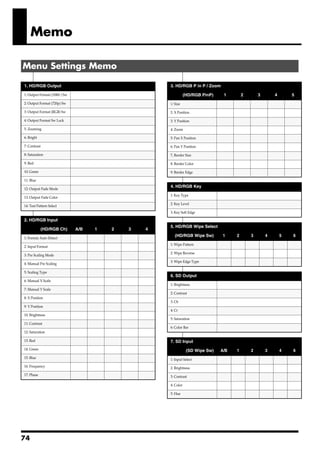
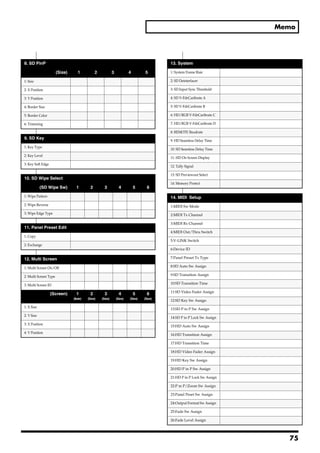
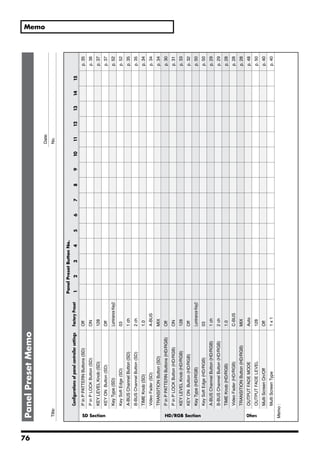
                                                                                           Menu Settings Memo .................................................74
SD Section Operations ...............................34
       Switching in the SD Section.................................34                  Index ............................................................ 77
       SD Section P in P Effects ......................................35
       SD Section Key Composite Effects .....................37
                                                                                       Main specifications..................................... 79
Other Operations.........................................38

                                                                                                                                                                         7
Main Features
      The V-440HD multiformat live switcher is capable of switching between four HD/
      RGB input systems and four SD input systems for seamless switching between HD,
      RGB, and SD inputs. There is no need to obtain separate converters to handle each
      type of format. Although housed in a compact body, this one device is capable of
      handling a wide variety of formats.


          SD VCR


     SD Video Presenter
                                                                              Plasuma Display


                                                                                  Projector
          HD VCR                                V-440HD


            PC


     About HD
      An abbreviation for “High Definition,” HD is a generic term for television formats that, in
      comparison to conventional TV formats, provide higher resolution and an improved angle of
      view, and deliver a heightened sense of presence by means of large-screen. This is also referred
      to as HDTV. Although there are a number of different types of HD, which can vary depending
      on the country where the technology was developed, the V-440HD utilizes the standards
      recommended in BT.709-3, established by the ITU in February, 1998.

     About RGB
      This format, used for output of video images with computers and other digital devices, uses
      video signals whereby each of three main colors, red (R), green (G), and blue (B), are handled
      separately.

     About SD
      An abbreviation for Standard Definition, this refers to formats currently in general use (such as
      480I), as opposed to HD (High Definition).


Organization of the V-440HD
      The V-440HD comprises two main sections, an “HD/RGB section,” which is used to
      mix all video signals, and an “SD section,” used for managing all SD video. The
      resulting mixes of composite video and S-video signals from the SD section (PGM
      output) are sent to the HD/RGB section, where the HD and RGB video are mixed
      and then output in either HD or RGB format.

         SD IN 1
                                                                                        SD PGM OUT
         SD IN 2              SD
         SD IN 3            Section
                                              SD
         SD IN 4                             PGM                                        HD OUT 1
                                                                                        HD OUT 2
     HD/RGB IN 1                                          HD/RGB
     HD/RGB IN 2                                          Section                       RGB OUT 1
                                                                                        RGB OUT 2
     HD/RGB IN 3
     HD/RGB IN 4


8
Main Features


Multiformat Switcher
     The V-440HD converts and seamlessly switches signals in HD, RGB, and SD format
     to the selected final output format.

   HD Effects
   • The V-440HD uses a variety of effects, including transitions (effects used when
     switching video images), P in P, and key composite effects.
   • Using the V-440HD in combination with an SD video switcher allows you to
     compose video using up to six different effects simultaneously.

   Equipped with High-Performance SD-to-HD/RGB Up-Converter
     The V-440HD features an up-converter that converts SD output to the final output
     format. This system enables up-conversion of SD video to HD and RGB with
     superior image quality.


HD/RGB Inputs
   • The HD/RGB inputs provide for the input of four channels of HD or RGB video.
   • HD inputs are compatible with 1080I as well as the typical 720p format. RGB inputs
     are compatible with VGA (640 x 480), SXGA (1280 x 1024) formats.
   • The HD/RGB inputs allow input through BNC and D-Sub connectors
   • Any HD/RGB input component BNC and D-Sub connectors not in use for input can
     be used as loop thru outputs.


SD Inputs
   • The V-440HD features four input channels.
   • SD inputs are compatible with both S-Video and component video.
   • A preview output is provided for each of the SD inputs 1-4.

   SD Video Mixer
   • Capable of switching only SD video input.
   • PGM output from the SD video mixer can be switched after being input to the
     multiformat switcher. In addition, SD PGM output can be output as S-Video or
     composite video.
   • Effects, including transitions (effects used when switching video images), P in P, and
     key composite effects can be used.


Multiscreen Displays
     You can use to synchronize multiple V-440HDs easily, and use simple settings to
     output the signals from one V-440HD to multiscreen displays. This eliminates any
     need to prepare video for each individual screen.


                                                                                                          9
Main Features


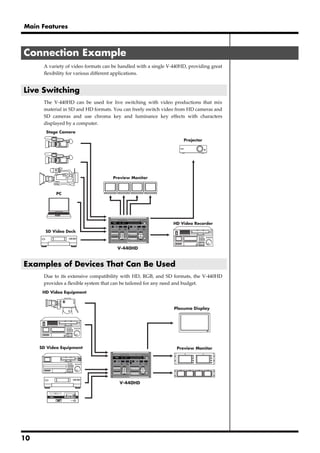
Connection Example
      A variety of video formats can be handled with a single V-440HD, providing great
      flexibility for various different applications.


Live Switching
      The V-440HD can be used for live switching with video productions that mix
      material in SD and HD formats. You can freely switch video from HD cameras and
      SD cameras and use chroma key and luminance key effects with characters
      displayed by a computer.
       Stage Camera

                                                                    Projector


                                     Preview Monitor


           PC


                                                                HD Video Recorder

       SD Video Deck


                                      V-440HD


Examples of Devices That Can Be Used
      Due to its extensive compatibility with HD, RGB, and SD formats, the V-440HD
      provides a flexible system that can be tailored for any need and budget.
      HD Video Equipment


                                                                Plasuma Display


     SD Video Equipment                                          Preview Monitor


                                       V-440HD


10
Before Using the V-440HD

Check the Contents of the Package
    The V-440HD includes the following accessories. Please take a moment to confirm
    that all of these items have been included with the V-440HD.
    If you find that any item is missing, contact your nearest Roland Service Center.

  V-440HD


  Power cord
  * Use only the attached power cord. Also, must not remove the ferrite core from the supplied
    power code.

  Owner’s Manual (this volume)


                                                                                                 11
Names of Things and What They Do

 Top Panel
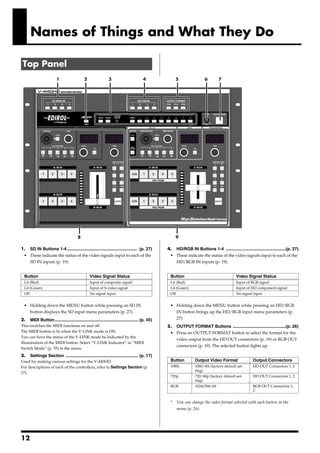
                         1                   2                 3                        4              5                 6        7


                                        8                                                              9

1. SD IN Buttons 1-4........................................................... (p. 27)           4. HD/RGB IN Buttons 1-4 ..................................................(p. 27)
 • These indicate the status of the video signals input to each of the                             • These indicate the status of the video signals input to each of the
   SD IN inputs (p. 19).                                                                             HD/RGB IN inputs (p. 19).


  Button                                         Video Signal Status                                Button                                   Video Signal Status
  Lit (Red)                                      Input of composite signal                          Lit (Red)                                Input of RGB signal
  Lit (Green)                                    Input of S-video signal                            Lit (Green)                              Input of HD component signal
  Off                                            No signal input                                    Off                                      No signal input


  • Holding down the MENU button while pressing an SD IN                                           • Holding down the MENU button while pressing an HD/RGB
    button displays the SD input menu parameters (p. 27).                                            IN button brings up the HD/RGB input menu parameters (p.
2.    MIDI Button...................................................................... (p. 45)      27).
This switches the MIDI functions on and off.                                                      5. OUTPUT FORMAT Buttons ............................................(p. 26)
The MIDI button is lit when the V-LINK mode is ON.                                                 • Press an OUTPUT FORMAT button to select the format for the
You can have the status of the V-LINK mode be indicated by the
                                                                                                     video output from the HD OUT connectors (p. 19) or RGB OUT
illumination of the MIDI button. Select “V-LINK Indicator” in “MIDI
                                                                                                     connectors (p. 19). The selected button lights up.
Switch Mode” (p. 55) in the menu.
3.    Settings Section ............................................................. (p. 17)
Used for making various settings for the V-440HD.                                                   Button         Output Video Format                 Output Connectors
For descriptions of each of the controllers, refer to Settings Section (p.                          1080i          1080/60i (factory default set-      HD OUT Connectors 1, 2
                                                                                                                   ting)
17).
                                                                                                    720p           720/60p (factory default set-       HD OUT Connectors 1, 2
                                                                                                                   ting)
                                                                                                    RGB            1024x768/60                         RGB OUT Connectors 1,
                                                                                                                                                       2


                                                                                                   *   You can change the video format selected with each button in the
                                                                                                       menu (p. 26).


12
Names of Things and What They Do


6.   TIME Knob ...................................................................... (p. 23)
Enables setting of the time for the video to fade when the OUTPUT FADE
button is pressed. Time can be set from 0.0 to 4.0 seconds.
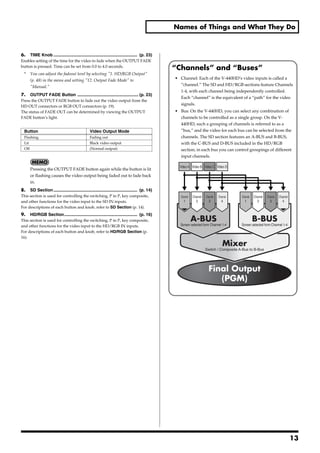
                                                                                                 “Channels” and “Buses”
 *   You can adjust the fadeout level by selecting "1. HD/RGB Output"
     (p. 48) in the menu and setting "12. Output Fade Mode" to                                   • Channel: Each of the V-440HD’s video inputs is called a
     "Manual."                                                                                     “channel.” The SD and HD/RGB sections feature Channels
                                                                                                   1-4, with each channel being independently controlled.
7.   OUTPUT FADE Button ................................................... (p. 23)
                                                                                                   Each “channel” is the equivalent of a “path” for the video
Press the OUTPUT FADE button to fade out the video output from the
HD OUT connectors or RGB OUT connectors (p. 19).
                                                                                                   signals.
The status of FADE OUT can be determined by viewing the OUTPUT                                   • Bus: On the V-440HD, you can select any combination of
FADE button’s light.                                                                               channels to be controlled as a single group. On the V-
                                                                                                   440HD, such a grouping of channels is referred to as a
 Button                                         Video Output Mode                                  “bus,” and the video for each bus can be selected from the
 Flashing                                       Fading out                                         channels. The SD section features an A-BUS and B-BUS,
 Lit                                            Black video output                                 with the C-BUS and D-BUS included in the HD/RGB
 Off                                            (Normal output)                                    section; in each bus you can control groupings of different
                                                                                                   input channels.

                                                                                                   Video A Video B Video C Video D
     Pressing the OUTPUT FADE button again while the button is lit
     or flashing causes the video output being faded out to fade back
     in.
8.   SD Section ...................................................................... (p. 14)
This section is used for controlling the switching, P in P, key composite,                          Channel   Channel   Channel   Channel   Channel   Channel   Channel   Channel
and other functions for the video input to the SD IN inputs.                                          1         2         3         4         1         2         3         4
For descriptions of each button and knob, refer to SD Section (p. 14).
9.   HD/RGB Section............................................................. (p. 16)
This section is used for controlling the switching, P in P, key composite,                                    A-BUS                                   B-BUS
and other functions for the video input to the HD/RGB IN inputs.                                   Screen selected form Channel 1-4         Screen selected form Channel 1-4
For descriptions of each button and knob, refer to HD/RGB Section (p.
16).
                                                                                                                                     Mixer
                                                                                                                        Switch / Composite A-Bus to B-Bus


                                                                                                                          Final Output
                                                                                                                             (PGM)


                                                                                                                                                                                    13
Names of Things and What They Do


SD Section
This section is used for controlling the switching, P in P, key composite,                 4.   SIZE Knob (SD) ............................................................... (p. 36)
and other functions for the video input to the SD IN inputs.                               This adjusts the size of the small screen when the P in P effect is used in
                                                                                           the SD section.
             1       2 3 4             5 6 7               8           9
                                                                                           5.   LEVEL Knob (SD) ............................................................(p. 37)
                                                                                           This adjusts the key level when key composite effects are used in the SD
                                                                                           section.
                                                                                           6.   LEVEL Display (SD) ........................................................(p. 37)
                                                                                           This indicates the value of the key level set with the (5.) LEVEL knob
                                                                                           (SD).
                                                                                           7.   KEY ON Button (SD) ....................................................... (p. 37)
                                                                                           Pressing the KEY ON Button (SD) causes the key composite effect to be
                                                                                           applied in the SD section.
                                                                                           8.   TIME Display (SD) ........................................................... (p. 34)
                                                                                           This indicates the transition time used to switch between the A-BUS and
                                                                                           B-BUS when the (14.) AUTO button (SD) is pressed. The time is indicated
                                                                                           in seconds.
                                                                                           9.   TIME Knob (SD) ...............................................................(p. 34)
                                                                                           This sets the transition time used to switch between the A-BUS and B-
                                                                                           BUS when the (14.) AUTO button (SD) is pressed. The set time is
                                                                                           indicated in the TIME display. The time can be set to any value from 0.0
                                                                                           to 4.0.
                                                                                           10. A-BUS Channel Buttons (SD) 1-4 .................................. (p. 35)
  10                11             12          13           14 15                          These buttons are used to select the video signals to be input to the A-
                                                                                           BUS, from the video input to the SD IN connectors 1-4.
1.   POSITION Joystick (SD) ................................................ (p. 36)
This adjusts the positioning of the small screen when the P in P effect is                  Button                                        V-440HD Status
used in the SD section.                                                                     Lit (Yellow)                                  Channel is selected
The POSITION joystick (SD) can be used only when the LOCK button to                         Lit (Green)                                   Channel is selected (not displayed)
the right of the joystick is pressed to release the lock.                                   Off                                           Channel selection is cancelled
2.   LOCK Button (SD) .......................................................... (p. 36)    Flashing (Yellow or Green)                    P in P or key composite is in use
When the LOCK button (SD) is lit, the P in P position cannot be changed
with the POSITION joystick (SD) to the left of the button.                                 11. B-BUS Channel Buttons (SD) 1-4 .................................. (p. 35)
Pressing the LOCK button (SD) so its light is turned off enables operation                 These buttons are used to select the video signals to be input to the B-
with the POSITION joystick (SD).                                                           BUS, from the video input to the SD IN connectors 1-4.
3.   P in P PATTERN Buttons (SD) 1-5................................ (p. 35)
Pressing the P in P PATTERN 1-5 buttons (SD) applies the P in P effect in                   Button                                        V-440HD Status
the SD section.                                                                             Lit (Yellow)                                  Channel is selected
When the P in P effect is applied, the selected P in P PATTERN button                       Lit (Green)                                   Channel is selected (not displayed)
(SD) lights up.                                                                             Off                                           Channel selection is cancelled
                                                                                            Flashing (Yellow or Green)                    P in P or key composite is in use
 Button                       Sub-Screen Position (Factory Setting)
                              Upper left                                                   12. TRANSITION Indicators (SD) .........................................(p. 34)
 1
                                                                                           These indicate the position of the video fader.
                              Upper right
 2                                                                                         When the AUTO button (SD) is in use, these indicate the ratio of video
                              Lower right                                                  being switched in the SD section. The portion of A-BUS video in the mix
 3                                                                                         increases as the position of the indicator that lights within the
                              Lower left                                                   TRANSITION indicators (SD) gets closer to the A-BUS, while the relative
 4
                                                                                           portion of B-BUS video decreases correspondingly.
                              Center
 5


14
Names of Things and What They Do


13. Video Fader (SD) ............................................................ (p. 34)
Moving the video fader up or down switches between the SD section A-
BUS and B-BUS.
Tilt the fader shown in the figure up to switch to the A-BUS; tilt the fader
down to switch to the B-BUS. The video switches using the effect selected
with the (15.) TRANSITION buttons (SD).
14. AUTO Button (SD).......................................................... (p. 34)
When the AUTO button (SD) is pressed, the SD section video switches
over the time indicated in the TIME display (SD).
The video switches using the effect selected with the (15.) TRANSITION
buttons (SD).
15. TRANSITION Buttons (SD) ............................................. (p. 34)
These are used to select the effect applied when switching the SD section
video with the video fader (SD) or the AUTO button (SD).


  Button          Function                      Description
  CUT             Cut                           The SD video switches when the
                                                SD video fader reaches the half-
                                                way point.
  MIX             Dissolve                      The SD video is mixed as it gradu-
                                                ally switches according to the an-
                                                gle of the SD video fader.
  WIPE            Wipe switching                The SD video switches with a
  PATTERN                                       wipe effect, with the wipe corre-
  1-6                                           sponding to the angle of the SD
                                                fader.


                                                                                                                          15
Names of Things and What They Do


 HD/RGB Section
This section is used for controlling the switching, P in P, key composite,              5.    P in P PATTERN Buttons (HD/RGB) 1-5 .......................(p. 30)
and other functions for the video input to the HD/RGB inputs.                           Pressing the P in P PATTERN 1-5 buttons (HD/RGB) applies the P in P
                                                                                        effect in the HD/RGB section.
                                                                                        When the P in P effect is applied, the selected P in P PATTERN button
     1 2     3      4 5 6             78 9               10         11                  (HD/RGB) lights up.

                                                                                          Button                     Sub-Screen Position (Factory Setting)
                                                                                                                     Upper left
                                                                                          1
                                                                                                                     Upper right
                                                                                          2
                                                                                                                     Lower right
                                                                                          3
                                                                                                                     Lower left
                                                                                          4
                                                                                                                     Center
                                                                                          5

                                                                                        6.    SIZE/ZOOM Knob (HD/RGB) ..........................................(p. 31)
                                                                                        This adjusts the size of the small screen when the P in P effect is used in
                                                                                        the HD/RGB section.
                                                                                        7.    LEVEL Knob (HD/RGB) ..................................................(p. 33)
                                                                                        This adjusts the key level when key composite effects are used in the
                                                                                        HD/RGB section.
                                                                                        8.    LEVEL Display (HD/RGB)............................................... (p. 33)
                                                                                        This indicates the value of the key level set with the (7.) LEVEL knob
                                                                                        (HD/RGB).
                 12     13          14         15         16     17
                                                                                        9.    KEY ON Button (HD/RGB).............................................. (p. 32)
1.   P in P Button (HD/RGB) ................................................. (p. 31)   Pressing the KEY ON Button (HD/RGB) causes the key composite effect
When this button is lit, the position of the subscreen when the P in P effect is        to be applied in the HD/RGB section.
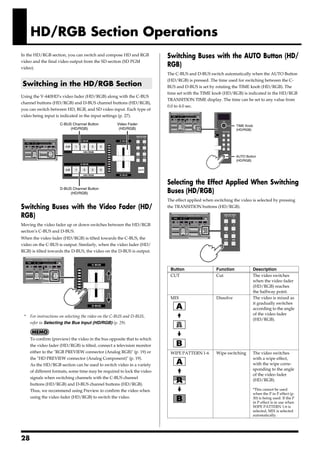
used in the HD/RGB section can be set with the POSITION joystick (HD/                   10. TIME Display (HD/RGB) ..................................................(p. 28)
RGB), while the subscreen size can be set with the SIZE/ZOOM knob (HD/
                                                                                        This indicates the transition time used to switch between the C-BUS and
RGB).
                                                                                        D-BUS when the (16.) AUTO button (HD/RGB) is pressed. The time is
2.   PAN/ZOOM Button (HD/RGB) ....................................... (p. 31)           indicated in seconds.
When using the P in P effect in the HD/RGB section, the crop position
and zoom ratio of the small screen can be set with the POSITION/PAN                     11. TIME Knob (HD/RGB) .....................................................(p. 28)
joystick (HD/RGB) and SIZE/ZOOM knob (HD/RGB) knob when this                            This sets the transition time used to switch between the C-BUS and D-
button is lit.                                                                          BUS when the (16.) AUTO button (HD/RGB) is pressed. The set time is
                                                                                        indicated in the TIME display. The time can be set to any value from 0.0
3.   POSITION/PAN Joystick (HD/RGB) .............................. (p. 31)              to 4.0.
This adjusts the position of, and zoom for the small screen when the P in
P effect is used in the HD/RGB section.                                                 12. C-BUS Channel Buttons (HD/RGB) A/B, 1-4................. (p. 29)
The POSITION/PAN joystick (HD/RGB) can be used only when the                            These buttons are used to select the video signals to be input to the C-
LOCK button to the right of the POSITION/PAN joystick (HD/RGB) is                       BUS, either from the video input to the HD/RGB IN connectors 1-4 or the
pressed to release the lock.                                                            final output from the SD section (SD PGM video).

4.   LOCK Button (HD/RGB) ................................................. (p. 31)
When the LOCK button (HD/RGB) is lit, neither the position nor panning of                 Button                                   V-440HD Status
the P in P subscreen be changed with the POSITION/PAN joystick (HD/RGB).                  Lit (Yellow)                             Channel is selected
Pressing the LOCK button (HD/RGB) so enables operation with the                           Lit (Green)                              Channel is selected (not displayed)
POSITION/PAN joystick (HD/RGB).                                                           Off                                      Channel selection is cancelled
                                                                                          Flashing (Yellow or Green)               P in P or key composite is in use


16
Names of Things and What They Do


13. D-BUS Channel Buttons (HD/RGB) A/B, 1-4................ (p. 29)
These buttons are used to select the video signals to be input to the D-
BUS, either from the video input to the HD/RGB IN connectors 1-4 or the                Settings Section
final output from the SD section (SD PGM video).
                                                                                            1      2     3          4                     5
  Button                                    V-440HD Status
  Lit (Yellow)                              Channel is selected
  Lit (Green)                               Channel is selected (not displayed)
  Off                                       Channel selection is cancelled
  Flashing (Yellow or Green)                P in P or key composite is in use

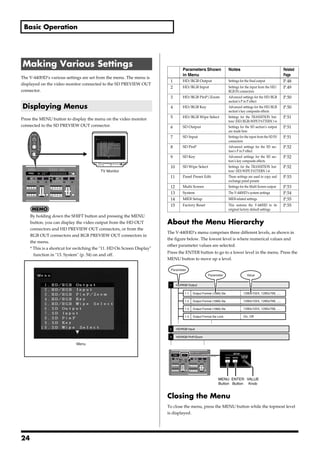
                                                                                       1.       MENU Button ...................................................................(p. 24)
14. TRANSITION Indicators (HD/RGB) ............................... (p. 28)             Pressing the MENU button displays the menu in the video monitor
These indicate the position of the video fader.                                        connected to the SD PREVIEW OUT connector.
When the AUTO button (HD/RGB) is in use, these indicate the ratio of                   Rotate the VALUE knob to select the parameter to be set, then press the
video being switched in the HD/RGB section. The portion of C-BUS                       ENTER button to enter the selection.
video in the mix increases as the position of the indicator that lights                Pressing the MENU button while the menu is displayed closes the menu.
within the TRANSITION indicators (HD/RGB) gets closer to the C-BUS,                    When the menu is appeared, the MENU button Flashing. When the
while the relative portion of D-BUS video decreases correspondingly.                   menu is disappeared, the MENU button Off.
15. Video Fader (HD/RGB) ................................................... (p. 28)   2.       ENTER Button ................................................................. (p. 24)
Moving the video fader up or down switches between the C-BUS and D-                    This is used to confirm a menu choice. The button flashes while the menu
BUS of the HD/RGB section.                                                             is displayed.
Tilt the fader shown in the figure up to switch to the C-BUS; tilt the fader
                                                                                       3.       VALUE Knob ................................................................... (p. 24)
down to switch to the D-BUS. The video switches using the effect selected
                                                                                       This is used to select parameters from the menu.
with the (17.) TRANSITION buttons (HD/RGB).
                                                                                       4.       SHIFT Button................................................................... (p. 38)
16. AUTO Button (HD/RGB) ................................................. (p. 28)
                                                                                       Pressing the SHIFT button so it’s lit enables selection of PANEL PRESET
When the AUTO (HD/RGB) button is pressed, the HD/RGB section
                                                                                       9-15 using the PANEL PRESET buttons (1-8).
video switches over the time indicated in the TIME display (HD/RGB).
The video switches using the effect selected with the (17.) TRANSITION                 5.       PANEL PRESET Buttons 1-8 ......................................... (p. 38)
buttons (HD/RGB).                                                                      You can store up to 15 separate configurations of parameter settings set
                                                                                       in each of the top sections.
17. TRANSITION Buttons (HD/RGB) ................................... (p. 28)
                                                                                       You can call up the saved settings by pressing the PANEL PRESET
These are used to select the effect applied when switching the HD/RGB
                                                                                       buttons.
section video with the video fader (HD/RGB) or the AUTO button (HD/
                                                                                       PANEL PRESET 9-15 and FACTORY RESET can be selected when the
RGB).
                                                                                       SHIFT button is lit.

  Button         Function                    Description
                                                                                        Button                                            V-440HD Function
  CUT            Cut                         The HD/RGB video switches
                                             when the HD/RGB video fader                Lit (Green)                                       Selects PANEL PRESET 1-8
                                             reaches the half-way point.                Lit (Red)                                         Selects PANEL PRESET 9-15, FAC-
  MIX            Dissolve                    The HD/RGB video is mixed as it                                                              TORY RESET
                                             gradually switches according to            Off                                               No PANEL PRESET selected
                                             the angle of the HD/RGB video
                                             fader.
  WIPE           Wipe switching              The HD/RGB video switches with
  PATTERN                                    a wipe effect, with the wipe corre-
  1-6                                        sponding to the angle of the HD/
                                             RGB fader.


                                                                                                                                                                                17
Names of Things and What They Do


Rear Panel
                  1 2                 3                         4                                    5                                            6


                                                    7                                                                              8        9         10      11      12

1.   POWER Switch ............................................................... (p. 23)           10. REMOTE Connector ...................................................... (p. 44)
This switches the V-440HD’s power on and off.                                                       Use this connector when using serial control from computers or other
945 need to turn off the power completely, first turn off the POWER
If you                                                                                              external devices.
switch, then unplug the power cord from the power outlet. Refer to                                  Refer to the chart of serial signals on p. 44.
Turning Off the Power (p. 23).                                                                      11. Ground terminal
2.   AC Inlet ........................................................................... (p. 20)   927
                                                                                                    Depending on the circumstances of a particular setup, you may
Connect the power cord included with the V-440HD here.                                              experience a discomforting sensation, or perceive that the surface feels
3.   Exhaust Vent .................................................................. (p. 22)        gritty to the touch when you touch this device, microphones connected to
Heat generated by the V-440HD is expelled here.                                                     it, or the metal portions of other objects, such as guitars. This is due to an
                                                                                                    infinitesimal electrical charge, which is absolutely harmless. However, if
                                                                                                    you are concerned about this, connect the ground terminal (see figure)
     Allowing this section of the panel to be blocked may, due to the                               with an external ground. When the unit is grounded, a slight hum may
     buildup of excess heat, result in damage to the V-440HD.                                       occur, depending on the particulars of your installation. If you are unsure
                                                                                                    of the connection method, contact the nearest Roland Service Center, or
4.   HD/RGB Output Section ................................................. (p. 19)                an authorized Roland distributor, as listed on the “Information” page.
Video in HD or RGB format is output here. For descriptions of each                                  Unsuitable places for connection
connector, refer to p. 19.
                                                                                                     •    Water pipes (may result in shock or electrocution)
5.   HD/RGB Input Section ................................................... (p. 19)                •    Gas pipes (may result in fire or explosion)
Four channels of HD or RGB video can be input using the BNC or D-sub
                                                                                                     •    Telephone-line ground or lightning rod (may be dangerous in
connectors. BNC and D-sub terminals not used for signal input can be
used as THRU outs. For descriptions of each connector, refer to p. 19.                                   the event of lightning)
                                                                                                    988
6.   SD Input/Output Section ............................................... (p. 19)
                                                                                                    12. SECURITY Slot (              )
Four channels of SD video can be input using the composite video or S-
video connectors. For descriptions of each connector, refer to p. 19.                               http://www.kensington.com/

7.   TALLY Terminals (HD, SD)............................................ (p. 44)
TALLY signals are output here. When a television monitor equipped
with a TALLY terminal is connected to the V-440HD, the V-440HD can
then be used to activate the television monitor's TALLY lamp.
Tally signals from the HD/RGB section are output from the TALLY HD
terminal; tally signals from the SD section are output from the TALLY SD
terminal. For descriptions of each terminals, refer to p. 44.
8.   MIDI OUT/THRU ............................................................. (p. 45)
Use this connector to connect the V-440HD to an external MIDI device
and transmit MIDI messages to the other MIDI device. Use a MIDI cable
(sold separately) to connect the devices. You can also use this connector
as a THRU output for MIDI signals received at the MIDI IN connector.
9.   MIDI IN Connector.......................................................... (p. 45)
Use this connector to connect the V-440HD to an external MIDI device                                About the Preview Screen
and receive MIDI messages from the other MIDI device. Use a MIDI cable
(sold separately) to connect the devices.                                                           The V-440HD's "Preview OUT" outputs video from the bus not being
                                                                                                    used to output from PGM OUT.


18
Names of Things and What They Do


                                                                             4.   SD S-VIDEO IN 1-4 Connectors .......................... (p. 20, p. 27)
                                                                             These are connectors for input of S-Video to SD buses 1-4.
HD Output Section                                                            Video devices equipped with an S-Video output connector can be
                                                                             connected here.As initially set at the factory, when video is
     1    2       3          4
                                                                             simultaneously being input to the SD COMPOSITE IN connector for the
                                                                             same channel, the video input to the SD S-VIDEO IN connector is given
                                                                             priority.
                                                                             5.   SD COMPOSITE IN 1-4 Connectors (Analog) .... (p. 20, p. 27)
                                                                             These are connectors for input of composite video to SD buses 1-4.
                                                                             Video devices equipped with a composite video output connector can be
                                                                             connected here.
                                                                             As initially set at the factory, when video is simultaneously being input to
                                                                             the SD S-VIDEO IN connector for the same channel, the video input to
                                                                             the SD S-VIDEO IN connector is given priority.
                                                                              *   You can set the V-440HD so that the SD COMPOSITE IN connectors the
                                                                                  SD S-VIDEO IN connectors. To make this setting, go to "7. SD Input" (p.
                                                                                  51) - "1. SD Input Select" in the menu, then select "Composite."

1.   RGB PREVIEW Connector (Analog RGB) .................... (p. 20)         6.   SD MONITOR OUT Output 1-4 Connectors (Analog Composite Video)...(p. 20)
The HD/RGB bus preview screen is output in RGB (analog/D-Sub) from           These BNC connectors output video from the SD S-VIDEO IN connectors or SD
this connector.                                                              COMPOSITE IN connectors as composite video.
                                                                             When the V-440HD is connected to a video monitor equipped with composite
 *   The video in the HD/RGB Preview screen is displayed with the P in P
                                                                             video input connectors, you can monitor the video of each channel.
     effect (p. 30) and other such effects applied.
2.   HD PREVIEW Connectors (Analog Component)......... (p. 20)
This is a BNC connector for outputting the HD/RGB bus preview screen
                                                                             HD/RGB Input Section
as analog component video.
 *   The video in the HD/RGB Preview screen is displayed with the P in P
     effect (p. 30) and other such effects applied.
3.   HD OUT 1, 2 Connectors (Analog Component)........... (p. 20)
These are BNC connectors for outputting the video combined on the                                                                     1
HD/RGB bus as analog component video.
4.   RGB OUT 1, 2 Connectors (Analog RGB) .......... (p. 20, p. 43)
The composite video from the HD/RGB bus is output as RGB signals
                                                                                                                                      2
from this connector.
                                                                                                                                      3

SD Input/Output Section
                                                                             1.   HD/RGB IN 1-4 Connectors (Analog Component/RGB) .. (p. 20)
 1 2 3            4                   5 6                                    These are BNC connectors capable of being used for input of analog
                                                                             component signals or RGB signals.
                                                                             If not inputting video, connectors to which no video is being input can be
                                                                             used as loop thru outputs for video input via the HD/RGB IN 1-4
                                                                             connectors (analog RGB).
                                                                              *   Video cannot be input via both the HD/RGB IN (BNC) connectors and
                                                                                  IN (D-Sub) connectors simultaneously. Inputting video simultaneously
                                                                                  in this manner may result in disruption of the video images.

                                                                             2.   HD/RGB 75      TERMINATOR 1-4 Switches ............................(p. 21)
                                                                             Switch to ON if no cables are connected to either the HD/RGB IN (BNC)
1.   SD PGM OUT COMPOSITE Connector (Analog) ......... (p. 20)               connectors or the HD/RGB IN (D-Sub) connector.
This connector outputs composite effects from the SD section as              Switch to OFF if using these connectors as loop thru connectors.
composite video signals. Video monitors equipped with a composite
video input connector can be connected here.                                 3.   HD/RGB IN 1-4 Connectors (RGB/Analog Component) .. (p. 20, p. 43)
                                                                             These are D-Sub connectors capable of being used for input of analog
2.   SD PGM OUT S-VIDEO Connector ............................... (p. 20)    component signals or RGB signals.
This Connector outputs composite effects from the SD bus as S-video          If not inputting video, connectors to which no video is being input can be
signals. Video monitors equipped with an S-Video input connector can be      used as loop thru outputs for video input via the HD/RGB IN 1-4
connected here.                                                              connectors (analog component).
3.   SD PREVIEW OUT Connector ............................. (p. 20, p. 24)    *   Video cannot be input via both the HD/RGB IN (BNC) connectors and
The preview screen from the SD Section is output from this connector.
                                                                                  IN (D-Sub) connectors simultaneously. Inputting video simultaneously
The menu (p. 24) is also displayed.
                                                                                  in this manner may result in disruption of the video images.
 *   The video in the SD Preview screen is displayed without the P in P
     effect (p. 35) and other such effects applied.


                                                                                                                                                      19
Connections and Settings

 Making the Connections
921                To prevent malfunction and/or damage to speakers or other devices, always turn
                   down the volume, and turn off the power on all devices before making any
                   connections.                                                                                                                                                                                                                               HD/RGB IN Connectors
                                                                                                                                                                                                                                                              (Analog Component/RGB)
      1                                                                                                                                                                                                                                                       Make sure that the component Y, Pb,
                   Before connecting the V-440HD, make sure that the power to all devices to be                                                                                                                                                               and Pr are properly connected when
                                                                                                                                                                                                                                                              connecting component video to the
                   connected is turned off.
                                                                                                                                                                                                                                                              HD/RGB IN BNC connectors. If
                                                                                                                                                                                                                                                              connecting RGB video, connect R, G,
      2                                                                                                                                                                                                                                                       B, H, and V. Failure to connect these
                   Connect the included power cord to the V-440HD’s AC inlet, then connect the                                                                                                                                                                properly may prevent output of the
                   other end of the cord to a power outlet.                                                                                                                                                                                                   video or result in problems with the
                                                                                                                                                                                                                                                              colors.

      3            Connect the V-440HD to other devices as shown in the figure.

                                                                                                                                                                       MIDI Device                                   RS-232C Device
        [V-440HD Connecting Diagram]


                                                                                                                                                                    MIDI Sequencer                                   PC or Other Device
                                                                                                                                                                                   MIDI Cable


                                                                                                                                                                                                                                                   RS-232C Cable
                                                            HD Video Output Device                                                RGB Video Output Device                                            SD Video Output Device


                                                                        HD Camera                                                    PC or Other Device                                              DV Camcoder , Presenter
                                                                                                                                                            D-Sub Cable
                                                                                          Component


                                                                                                                                                                                                         Composite
                                                                                          Cable


                                                                                                                                                                                                         Cable


                                                                                                                                Loop Thru
                             AC Cable


                                            D-Sub Cable

                                                          D-Sub Cable

                                                                        Component Cable

                                                                                            VGA Cable

                                                                                                        Component-D-Sub Cable


                                                                                                                                     D-Sub Cable
                                                                                                                                     Component-


                                                                                                                                                                Composite Cable


                                                                                                                                                                                         Composite
                                                                                                                                                                                         Cable


                                                                                                                                                                                                                     Ground terminal
      to Concent
                                                                                                                                                                                                                               Composite Cable


            Final Output (HD)                                                                                                   VGA Monitor                                                 SD PREVIEW Monitor


        Plasma Display or Other Display                                                                                          VGA Display                                      TV Monitor or Other Device

                   Final Output (RGB)                                                      HD IN Monitor                                              SD PGM OUT Monitor                                      SD IN Monitor


               Projector or Other Display                                  Multiformat Monitor or Other Device                                     TV Monitor or Other Device                          TV Monitor or Other Device


                                                                                                                                                                                                                                                 external ground


20
Connections and Settings

About Loop Thru
  The HD/RGB IN connector (D-sub) and HD/RGB IN connector (BNC) for any
  particular channel are linked internally within the unit. So, for example, if analog
  component signals are input to the Channel 1 HD/RGB IN connector (D-sub), the
  same signals are output from the Channel 1 HD/RGB IN connector (BNC). This
  function is called "Loop Thru."
  Using Loop Thru, you can monitor the video output of each video input on a
  television monitor, or even use the connections for multiscreen output.
  However, the following precautions must be observed.


• Set the TERMINATOR 75Ω switch to ON when Loop Thru is not being used
  Some devices may not function properly when Loop Thru is not in use unless the
  TERMINATOR 75Ω switch is set to ON.


• Using more than one pass with Loop Thru may result in attenuation of the video
  With three or more V-440HDs connected using Loop Thru, the video signal becomes
  more attenuated the further down the signal path the V-440HD is.
  When using identical video with three or more V-440HDs, be sure to use a
  commercially available video multiplexer.


                                                                                                           21
Connections and Settings


Precautions When Making Settings
       The V-440HD is force cooled, using a cooling
       fan to dissipate high interior temperatures.
       Exterior air is drawn through the front panel
       intake vent and expelled from the rear panel
       exhaust vent (see figure).
     • Use a vacuum cleaner or other means to
       remove any dust that may accumulate in the
       intake and exhaust vents.


With Rack-Mounting and Other Enclosures
       Observe the following precautions when mounting the V-440HD in a rack or
       portable case.
     • Ensure that the location provides good air
       flow.
     • If the rack’s rear panel is not removable, ensure
       that there is a minimum of 10 cm clearance
       between the V-440HD’s exhaust vent and the
       rack’s rear panel, and that the top of the rack
       has a ventilation port or exhaust fan to expel
       any accumulated heat.
     • If mounted in a portable case, ensure that the
       intake vent is not obstructed.
     • Use due caution when mounting the V-440HD
       in a rack or other enclosure so your fingers
       don’t get wedged or pinched between the V-
       440HD and the rack or enclosure.


22
Basic Operation

 Turning On the Power                                                   Outputting and Stopping
941 Once the connections have been completed (p. 20), turn on
 •
                                                                        the Final Output
    power to your various devices in the order specified. By turning    To output and stop the V-440HD's final output, use the OUTPUT
    on devices in the wrong order, you risk causing malfunction         FADE button.
    and/or damage to speakers and other devices.
                                                                        You can have the final output fade out over the period set with the
942 This unit is equipped with a protection circuit. A brief interval
 •                                                                      TIME knob by pressing the OUTPUT FADE button. This period can
     (a few seconds) after power up is required before the unit will    be set from 0.0 seconds to 4.0 seconds. Pressing the OUTPUT FADE
     operate normally.                                                  button after the final output has faded out causes the video to fade in
                                                                        again.
1.   Before turning on the power, confirm that all other devices
     are properly connected.
                                                                             If you are not going to fade the final output in or out, set the
2.   Switch the POWER switch on the V-440HD’s rear panel to
                                                                             TIME knob to 0.0.
     ON.


                                                                                                        TIME Knob
                                                                                                             OUTPUT FADE Button


                                                                             When the OUTPUT FADE button is pressed while a fade-out or
                                                                             fade-in is in progress, the fade-out or fade-in stops at that point.
                                                                             Pressing the OUTPUT FADE button once more starts the fade-
                                                                             out or fade-in again.
 Turning Off the Power
1.   Switch the POWER switch on the V-440HD’s rear panel to             Making the Fade-out Settings
     OFF.
                                                                        Make the fade-out settings with the "12. Output Fade Mode" and "13.
                                                                        Output Fade Color " settings under "1. HD/RGB Output " in the
                                                                        menu (p. 24).


                                                                         Output Fade Mode            Sets the final output fade control
                                                                         Output Fade Color           Sets the final output fade color

                                                                         *   For more on the menu, refer to "Menu Operations" (p. 25).
                                                                         *   You can move the cursor to the "12. Output Fade Mode" parameter
                                                                             under "1. HD/RGB Output" in the menu by holding down the
                                                                             MENU button and pressing the OUTPUT FADE button.


945 need to turn off the power completely, first turn off the
If you
POWER switch, then unplug the power cord from the power outlet.
Refer to Making the Connections (p. 20).


                                                                                                                                            23
Basic Operation


Making Various Settings                                                            Parameters Shown                  Notes                                   Related
                                                                                   in Menu                                                                   Page
The V-440HD’s various settings are set from the menu. The menu is
                                                                          1        HD/RGB Output                     Settings for the final output           P.48
displayed on the video monitor connected to the SD PREVIEW OUT
                                                                          2        HD/RGB Input                      Settings for the input from the HD/     P.49
connector.                                                                                                           RGB IN connectors
                                                                          3        HD/RGB PinP/Zoom                  Advanced settings for the HD/RGB        P.50
                                                                                                                     section’s P in P effect
Displaying Menus                                                          4        HD/RGB Key                        Advanced settings for the HD/RGB        P.50
                                                                                                                     section’s key composite effects

Press the MENU button to display the menu on the video monitor            5        HD/RGB Wipe Select                Settings for the TRANSITION but-        P.51
                                                                                                                     tons’ (HD/RGB) WIPE PATTERN 1-6
connected to the SD PREVIEW OUT connector.                                6        SD Output                         Settings for the SD section’s output    P.51
                                                                                                                     are made here
                                                                          7        SD Input                          Settings for the input from the SD IN   P.51
                                                                                                                     connectors
                                                                          8        SD PinP                           Advanced settings for the SD sec-       P.52
                                                                                                                     tion’s P in P effect
                                                                          9        SD Key                            Advanced settings for the SD sec-       P.52
                                                                                                                     tion’s key composite effects
                                                                          10       SD Wipe Select                    Settings for the TRANSITION but-        P.52
                                          TV Monitor                                                                 tons’ (SD) WIPE PATTERN 1-6
                                                                          11       Panel Preset Edit                 These settings are used to copy and     P.53
                                                                                                                     exchange panel presets
                                                                          12       Multi Screen                      Settings for the Multi Screen output    P.53
                                                                          13       System                            The V-440HD’s system settings           P.54
                                                                          14       MIDI Setup                        MIDI-related settings                   P.55
                                                                          15       Factory Reset                     This restores the V-440HD to its        P.55
                                                                                                                     original factory default settings.
     By holding down the SHIFT button and pressing the MENU
     button, you can display the video output from the HD OUT            About the Menu Hierarchy
     connectors and HD PREVIEW OUT connectors, or from the
                                                                         The V-440HD’s menu comprises three different levels, as shown in
     RGB OUT connectors and RGB PREVIEW OUT connectors in
                                                                         the figure below. The lowest level is where numerical values and
     the menu.
                                                                         other parameter values are selected.
     * This is a shortcut for switching the "11. HD On Screen Display"
                                                                         Press the ENTER button to go to a lower level in the menu. Press the
       function in "13. System" (p. 54) on and off.
                                                                         MENU button to move up a level.

                                                                          Parameter
                                                                                                     Parameter                     Value


                                                                          1.   HD/RGB Output

                                                                                    1-1:   Output Format (1080) Sw              1280x1024, 1280x768, ....

                                                                                    1-2:   Output Format (1080) Sw              1280x1024, 1280x768, ....

                                                                                    1-3:   Output Format (1080) Sw              1280x1024, 1280x768, ....

                                                                                    1-3:   Output Format Sw Lock                On, Off


                                                                          2.   HD/RGB Input

                                                                          3.   HD/RGB PinP/Zoom

                             Menu


                                                                                                            MENU ENTER VALUE
                                                                                                            Button Button Knob


                                                                         Closing the Menu
                                                                         To close the menu, press the MENU button while the topmost level
                                                                         is displayed.


24
Basic Operation


Menu Operations                                                       Shortcuts to the Menu Parameters
                                                                      You can easily open parameters corresponding to buttons in the
Moving the Cursor and Selecting                                       menu by holding down the MENU button and pressing the button
                                                                      for the corresponding settings parameter.
Rotate the VALUE knob to move the cursor up and down. The
parameter at the cursor position flashes, indicating that the         Operation of the parameter indicated with the shortcut is the same as
parameter can be selected. When selecting numerical or other          in the normal menu.
parameter values, change the value at the cursor position.


                                                                      Shortcuts are used with the following buttons.
                          MENU ENTER VALUE
                          Button Button Knob
                                                                       Button name                        Parameter displayed by Shortcut   Related
                                                                                                                                            Page
Confirming Parameter Selections                                        SD IN Button 1 - 4                 7. SD Input (p. 51)               p.27
                                                                       HD/RGB IN Button1 - 4              2. HD/RGB Input (p. 49)           p.27
Move the cursor to the desired parameter, and confirm selection of     OUTPUT FORMAT Button               1. HD/RGB Output (p. 48)          p.26
the parameter by pressing the ENTER button. When the parameter is      OUTPUT FADE Button                 1. HD/RGB Output (p. 48)          p.23
selected, the cursor shifts to the next lower line.                    P in P PATTERN Button (SD) 1 - 5   8. SD PinP (p. 52)                p.35
                                                                       P in P PATTERN Button (HD/         3. HD/RGB PinP/Zoom               p.30
                                                                       RGB) 1 - 5                         (p. 50)
                                                                       KEY ON Button (SD)                 9. SD Key (p. 52)                 p.37
                                                                       KEY ON Button (HD/RGB)             4. HD/RGB Key (p. 50)             p.32
                                                                       TRANSITION Button (SD)             10. SD Wipe Select (p.            p.34
                          MENU ENTER VALUE                             * WIPE PATTEN1 - 6                 52)
                          Button Button Knob
                                                                       TRANSITION Button (HD/RGB)         5. HD/RGB Wipe Select             p.28
                                                                       * WIPE PATTEN1 - 6                 (p. 51)
                                                                       SHIFT Button                       * See p.24                        p.24
Saving Settings Selected in the
Menu
Settings are saved in the V-440HD’s internal memory by pressing the
MENU button a number of times until the menu is closed.


                                                                                                                                            25
Input and Output Settings
Since the V-440HD is capable of handling video input and output
with entirely different formats, it may be necessary to make
adjustments for the differences in picture quality and angle of view
                                                                              Making the Output Settings
in each video format. To match the device used for inputting video            The output settings are made from the menu. The menu is displayed
to the V-440HD to the device receiving the output from the V-                 in the SD video output from the SD PREVIEW OUT connector.
440HD, make the input and output settings.
                                                                               *   For more on the menus, refer to Menu Operations (p. 25).
                                                                               *   To rapidly get to the output settings menu, hold down the MENU
Selecting the Output Format                                                        button and press one of the OUTPUT FORMAT buttons.

Press an OUTPUT FORMAT button to select the format for the video
                                                                               1. HD/RGB Output Settings Parameters
output from the HD OUT connectors (p. 19) or RGB OUT connectors
                                                                               Output Format (1080i ) Sw       (1080i) video format
(p. 19). The selected button lights up.                                        Output Format (720p) Sw         (720p) video format
                                                                               Output Format (RGB) Sw          (RGB) video format
                                                                               Output Format Sw Lock           OUTPUT FORMAT button lock
                                                                               Zooming                         Final output scaling adjustment
                                                                               Bright                          Final output brightness adjustment
                                                                               Contrast                        Final output contrast adjustment
                                                                               Saturation                      Final output saturation adjustment
                                                                               Red                             Final output red adjustment
                                                                               Green                           Final output green adjustment
 Button         Output Format           Output Connectors
                                                                               Blue                            Final output blue adjustment
                (Factory Default        (Factory Preset Setting)
                Setting)                                                       Output Fade Mode                Final output fade control adjustment
                                                                               Output Fade Color               Final output fade color setting
 1080i          1080/60i                HD OUT Connectors 1, 2 (not
                                        output from RGB OUT con-               Test Pattern Select             Test pattern output
                                        nectors 1, 2)
 720p           720/60p                 HD OUT Connectors 1, 2 (not
                                        output from RGB OUT con-
                                                                              About the Output Format
                                        nectors 1, 2)                         The V-440HD handles output in the following formats
 RGB            1024x768/60             RGB OUT Connectors 1, 2
                                                                              [HD OUT]
                                        (not output from HD OUT
                                        connectors 1, 2)                      The HD output formats feature frame rate settings of 60 and 50. The
                                                                              frame rate used in the United States and Japan (NTSC regions) is 60;
 *   The formats shown above are the default factory settings. You can also
                                                                              in Europe (PAL regions), the frame rate is 50. The frame rate can be
     select output formats other than these. For more details, refer to
                                                                              switched using the procedure described on p. 42.
     About the Final Output Format (p. 48).
                                                                               60 - NTSC             50 - PAL
                                                                               1080/60i              1080/50i
                                                                               720/60p               720/50p
  Start with the Output Settings                                               480/60p               576/50p
  When making these settings, start by making the output                       480/60i               576/50i
  settings first. Setting the output after making the input settings          [RGB OUT]
  will result in discrepancies in the color and angle of view if the           1280x1024/60               1024x768/60                 640x480/75
  input video is switched to a format other than those used in the             1280x1024/60               1024x768/75                 640x480/60
  output settings.                                                             1280x768/75                800x600/75
                                                                               1280x768/60                800x600/60

                                                                               *   Units: [horizontal (pixels) x vertical (lines) / frame rate (Hertz)].

  About Delayed Output
  Note that, due to the process of up-converting and down-                    About NTSC and PAL SD Output
  converting processes, the use of multiple formats with the V-
                                                                              Either NTSC or PAL can be selected for the SD section's input and
  440HD will result in a lag of several frames.
                                                                              output. For instructions on making the settings, refer to Switching
  [Approximate Delays]                                                        Between NTSC and PAL (p. 42). Additionally, the HD OUT output
     Input/Output         SD PGM Out          HD Out / RGB Out                format frame rate is determined by the format set here.
     SD Input             1 frame             2 frames
     HD/RGB Input         ---                 1 frame
  These delays may cause discrepancies in the timing of the
  external audio and the video processed by the V-440HD. In
  such a case you might use an audio delay line in order to
  synchronize the video and audio.


26
Input and Output Settings


Setting the HD/RGB Input                                                      Setting the SD Input
With the HD/RGB inputs, the image’s dimensions and color may                  Although the SD input is in a fixed format, there may be differences
vary with each individual format and/or device, so it may be                  in the type of device used or physical differences, and it may be
necessary to make separate settings for each input individually.              necessary to set each input individually.
The default factory setting for the HD/RGB input format is
“AUTO,” whereby the settings are determined automatically.
                                                                              Settings
Settings                                                                      Make the SD video settings in the menu with "7. SD Input." In "7. SD
                                                                              Input," you can select from the SD Channel 1-4, and make settings
Make the HD/RGB video settings with "2. HD/RGB Input" in the                  the parameters listed below.
menu. With "2. HD/RGB Input," you can select from the HD/RGB
Channel A/B and 1-4, and set the following parameters.


                                                                               *   For more on the menus, refer to Menu Operations (p. 25).
                                                                               *   To quickly go to the Input settings menu, hold down the MENU
 *   To quickly go to the input settings menu, hold the MENU button and
                                                                                   button and press any of the SD IN buttons 1-4.
     Press any of the HD/RGB Buttons 1-4.
 *   For more on the menus, refer to Menu Operations (p. 25).
                                                                               7. SD Input Settings Parameters
 2. HD/RGB Input Settings Parameters                                           SD InputSelect          Selects S-Video or component for the SD input
 Format Auto Detect        Function automatically distinguishes input          SD Brightness           Brightness adjustment
 Input Format              Input format select                                 SD Contrast             Contrast adjustment
 Pre Scaling Mode          Switches scaling adjustment function on and off     SD Saturation           Saturation adjustment
 Manual Pre Scaling        Adjusts scaling ratio when full scaling used        SD Hue                  Hue adjustment
 Scaling Type              Scaling method
 Manual X Scale            Adjusts the horizontal expansion ratio
 Manual Y Scale            Adjusts the vertical expansion ratio               About SD Input
 X Position                Fine adjustment of the horizontal start position
 Y Position                Fine adjustment of the vertical start position     The V-440HD is compatible with the following SD signal formats.
 Brightness                Brightness adjustment                              • NTSC      59.94 Hz         Component video format
 Contrast                  Contrast adjustment
                                                                                                           S-Video format
 Saturation                Saturation adjustment
 Red                       Red adjustment                                     • PAL       50 Hz            Component video format
 Green                     Green adjustment                                                                S-Video format
 Blue                      Blue adjustment
 Frequency                 Fine adjustment of the Sampling Frequency
 Phase                     Fine adjustment of the Sampling Phase                   Select either NTSC or PAL for use with the V-440HD. For
                                                                                   instructions on setting the SD signal format to be used, refer to
About HD Input                                                                     Switching Between NTSC and PAL (p. 42)
The V-440HD is compatible with the following HD signal formats.
 • 1080 59.94i / 50i : (SMPTE 274M)
 • 720 59.94p / 50p : (SMPTE 296M)                                              Inputting Analog Component SD Video
About RGB Input                                                                 To input SD video to the V-440HD as analog component video,
The V-440HD is compatible with the following RGB signal formats.                input to the HD/RGB IN BNC connectors. In this case, the input
 • 640x480 60 / 75Hz                                                            SD video is handled in the HD/RGB section.
 • 800x600 60 / 75Hz                                                            With analog component input, no interlace to progressive
 • 1024x768 60 / 70 / 75Hz                                                      conversion is performed. We recommend that a progressive
 • 1280x768 60 / 75Hz                                                           signal (480p/576p) be employed for the SD video input.
 • 1280x1024 60Hz
 *   Units: [horizontal (pixels) x vertical (lines) / frame rate (Hertz)].
 *   Certain signal conditions may produce differences in the aspect ratio
     and position of the RGB input. If this occurs, make adjustments with
     the "X position," "Y position," "Frequency," "Phase" or other
     relevant settings from the menu.


                                                                                                                                                   27
HD/RGB Section Operations
In the HD/RGB section, you can switch and compose HD and RGB             Switching Buses with the AUTO Button (HD/
video and the final video output from the SD section (SD PGM
video).
                                                                         RGB)
                                                                         The C-BUS and D-BUS switch automatically when the AUTO Button
                                                                         (HD/RGB) is pressed. The time used for switching between the C-
Switching in the HD/RGB Section                                          BUS and D-BUS is set by rotating the TIME knob (HD/RGB). The
                                                                         time set with the TIME knob (HD/RGB) is indicated in the HD/RGB
Using the V-440HD’s video fader (HD/RGB) along with the C-BUS
                                                                         TRANSITION TIME display. The time can be set to any value from
channel buttons (HD/RGB) and D-BUS channel buttons (HD/RGB),
                                                                         0.0 to 4.0 sec.
you can switch between HD, RGB, and SD video input. Each type of
video being input is indicated in the input settings (p. 27).
                     C-BUS Channel Button           Video Fader                                              TIME Knob
                          (HD/RGB)                   (HD/RGB)                                                (HD/RGB)


                                                                                                             AUTO Button
                                                                                                             (HD/RGB)


                                                                         Selecting the Effect Applied When Switching
                     D-BUS Channel Button
                          (HD/RGB)                                       Buses (HD/RGB)
                                                                         The effect applied when switching the video is selected by pressing
Switching Buses with the Video Fader (HD/                                the TRANSITION buttons (HD/RGB).

RGB)
Moving the video fader up or down switches between the HD/RGB
section’s C-BUS and D-BUS.
When the video fader (HD/RGB) is tilted towards the C-BUS, the
video on the C-BUS is output. Similarly, when the video fader (HD/
RGB) is tilted towards the D-BUS, the video on the D-BUS is output.


                                                                          Button                  Function            Description
                                                                          CUT                     Cut                 The video switches
                                                                                                                      when the video fader
                                                                                                                      (HD/RGB) reaches
                                                                                                                      the halfway point.
                                                                          MIX                     Dissolve            The video is mixed as
                                                                                                                      it gradually switches
                                                                                                                      according to the angle
                                                                                                                      of the video fader
 *   For instructions on selecting the video on the C-BUS and D-BUS,
                                                                                                                      (HD/RGB).
     refer to Selecting the Bus Input (HD/RGB) (p. 29).


     To confirm (preview) the video in the bus opposite that to which
     the video fader (HD/RGB) is tilted, connect a television monitor
     either to the "RGB PREVIEW connector (Analog RGB)" (p. 19) or        WIPE PATTERN 1-6        Wipe switching      The video switches
     the "HD PREVIEW connector (Analog Component)" (p. 19).                                                           with a wipe effect,
     As the HD/RGB section can be used to switch video in a variety                                                   with the wipe corre-
     of different formats, some time may be required to lock the video                                                sponding to the angle
                                                                                                                      of the video fader
     signals when switching channels with the C-BUS channel
                                                                                                                      (HD/RGB).
     buttons (HD/RGB) and D-BUS channel buttons (HD/RGB).
     Thus, we recommend using Preview to confirm the video when                                                       *This cannot be used
                                                                                                                      when the P in P effect (p.
     using the video fader (HD/RGB) to switch the video.                                                              30) is being used. If the P
                                                                                                                      in P effect is in use when
                                                                                                                      WIPE PATTERN 1-6 is
                                                                                                                      selected, MIX is selected
                                                                                                                      automatically.


28
HD/RGB Section Operations


Selecting the Bus Input (HD/RGB)
The video used on the C-BUS is selected by pressing the C-BUS
channel buttons (HD/RGB) 1-4 and A/B button. In the same
                                                                         Customizing Wipe Transitions
manner, the video used on the D-BUS is selected by pressing the D-       The wipe switching effects assigned to the TRANSITION
BUS channel buttons (HD/RGB) 1-4 and A/B button.                         (HD/RGB) WIPE PATTERN 1-6 buttons can be set from the
                                                                         menu. You can make settings for the wipe pattern, direction,
                                                                         and soft edge, and combine these settings in various ways to
                                                                         create customized wipe transitions.
                                                                          *   For more on the menus, refer to Menu Operations (p. 25).
                                                                          *   When key composite effect (p. 32) in use, you can not use the
                                                                              soft edge.


                                                                              Wipe Patterns
                                                                              Horizontal


    When switching channels with the C-BUS channel buttons                    Vertical
    (HD/RGB) and D-BUS channel buttons (HD/RGB), several
    frames is required to switch the video in each bus. This is due to
    the time required to lock the video signals when switching the
    video input formats used in each channel. To shorten the                  Horizontal Open
    duration, select the following parameter from the menu and
    adjust the parameter.

    *   When you need to switch between Buses quickly, use the                Vertical Open
        Video Fader (HD/RGB) (p. 28)
    *   With some settings, noise may occur when the video is
        switched. Set a value that provides sufficient time for
         switching to avoid this problem.                                     Box

    •    "HD/RGB Input" - (Each channel)
        [1. Format Auto Detect]
        If "Auto" is set, set this to "Manual" and then select the            Cross
        format for the video being input.
        [2. Input Format]
        Select the format for the video being input.
    •    "13. System"
        [9. HD Seamless Delay Time]
        Keep the time setting somewhat short. The unit of time is
        the field.


                                                                                                                                              29
HD/RGB Section Operations


                                                                                  *   Use of the C-BUS channel buttons (HD/RGB) (or D-BUS channel
                                                                                      buttons (HD/RGB)) while combining video with the P in P effect may
HD/RGB Section P in P Effects                                                         result in disruption of the video image.

P in P (Picture in Picture) effects are applied to the video on the C-            *   Wipe Patterns 1-6 cannot be selected with the "TRANSITION
BUS or D-BUS. The video on the bus to which the P in P effect is                      buttons (HD/RGB)" (p. 28) while the P in P effect is in use.
applied appears as a smaller sub-screen displayed in reduced size
over the video on the other bus.
      Background                     Insert                                       Terminology Used with the P in P Effect
                                                                                  The following terminology is used in describing the V-440HD’s
                                                                                  P in P effect.
                                                                                      • Position: positioning of the sub-screen
                                                                                      • Size: size of the sub-screen
                                                                                      • Zoom: Magnification of the video in the sub-screen (HD/
                                                                                        RGB only)
                                                                                      • Pan: Positioning of the video within the sub-screen (HD/
                                                                                        RGB only)

                                                                                       [Position - Size]
Procedure for Setting the HD/RGB Section P in P Effect
     1          3            2, 4


                                                                                                  Position                   Size


                                                                                       [Zoom - Pan]                                       Zoom


1.   Select the video to include in the sub-screen with the C-
     BUS channel buttons (HD/RGB) (or D-BUS channel buttons
     (HD/RGB)).

2.   Tilt the video fader (HD/RGB) to the opposite side from that
     of the bus selected in Step 1.                                                                           Use of zoom/pan does not change the
                                                                                                                position or size of the sub-screen.
3. Press a P in P PATTERN button (HD/RGB).
The button or buttons pressed in Step 1 flash. At this point, a button
flashing indicates that the P in P effect is being applied to the video
assigned to that button.


 Button                     Sub-Screen Position (Factory Setting)
                            Upper left
 1                                                                                                                  Pan
                            Upper right
 2
                            Lower right
 3
                            Lower left
 4
                            Center
 5

4. Tilt the video fader (HD/RGB) to the opposite direction.
The video assigned to the channels corresponding to the flashing
buttons in Step 3 appears as the sub-screen.
 *   When key composite effects are in use, the P in P effect is applied to the
     selected bus, regardless of the video fader (HD/RGB) position.


30
HD/RGB Section Operations


Adjusting the Position of the Sub-Screen (HD/RGB)                       Adjusting the Panning for the Sub-Screen (HD/RGB)


                              1       3     2                                                          1      3      2

1. Press the P in P button (HD/RGB).                                    1. Press the PAN/ZOOM button (HD/RGB).
The P in P button (HD/RGB) lights up.                                   The PAN/ZOOM button (HD/RGB) lights up.

2. Press the LOCK button (HD/RGB).                                      2. Press the LOCK button (HD/RGB).
The LOCK button (HD/RGB) is turned off.                                 The LOCK button (HD/RGB) is turned off.
At this time, operation of the POSITION/PAN joystick (HD/RGB) is        At this time, operation of the POSITION/PAN joystick (HD/RGB) is
enabled.                                                                enabled.

3. Move the POSITION/PAN joystick (HD/RGB).                             3. Move the POSITION/PAN joystick (HD/RGB).
Adjust the placement of the sub-screen while viewing the screen.        Adjust the panning in the sub-screen while viewing the screen.


Adjusting the Size of the Sub-Screen (HD/RGB)                           Adjusting the Zoom in the Sub-Screen (HD/RGB)


                              1                  2                                                     1                   2


1. Press the P in P button (HD/RGB).                                    1. Press the PAN/ZOOM button (HD/RGB).
The P in P button (HD/RGB) lights up.                                   The PAN/ZOOM (HD/RGB) lights up.

2. Rotate the SIZE/ZOOM knob (HD/RGB).                                  2. Rotate the SIZE/ZOOM knob (HD/RGB).
Adjust the size of the sub-screen while viewing the screen.             Adjust the zoom for the sub-screen while viewing the screen.


    P in P Settings Cleared When Power Is Turned Off                        Restoring the Original Subscreen Pan
    Be sure to save the P in P effect position, size, panning, and          To return the pan in the subscreen to its original settings after
    zoom settings using the procedure described in Saving the P in          changing the pan with the procedure above, hold down the
    P Effect Settings (HD/RGB) (p. 32). Turning off the V-440HD's           PAN/ZOOM button for at least five seconds.
    power without saving the P in P settings will result in a loss of
    the settings.
                                                                          P in P Position, Size, Pan, and Zoom Settings
                                                                          The settings processed with the above procedure are stored to
                                                                          the lit P in P PATTERN button and saved until the V-440HD is
                                                                          turned off. Use of the settings that have been changed with the
                                                                          procedure above after the power is turned off requires that the
                                                                          settings be saved to the V-440HD.
                                                                          For more detailed information, refer to Saving the P in P
                                                                          Effect Settings (HD/RGB) (p. 32).


                                                                                                                                          31
HD/RGB Section Operations


Saving the P in P Effect Settings (HD/RGB)
                                                                               HD/RGB Section Key Composite
                                                                               Effects
                                                                               You can use key composite effects in combining C-BUS and D-BUS
                                                                               video. The portions with the key color in the video on the bus to
                                                                               which the key composite effect is applied are made transparent, and
                                                                               the video on the other bus is inserted as shown below.
                                                                               The range of color used as the key is set with the “KEY LEVEL.”
To use P in P effect settings the next time the V-440HD is turned on,                   Screen A              Screen B
save the settings to the P in P PATTERN buttons (HD/RGB).
When a P in P PATTERN button (HD/RGB) is held down for at least
five seconds, the P in P settings are saved to that button. All of the P
in P PATTERN buttons (HD/RGB) flash when saving of the settings
is completed.
Any settings previously stored to a P in P PATTERN button (HD/
                                                                                                              A black part on screen B that is cut out.
RGB) are overwritten when new settings are saved to that button.                                              And screen B composite screen A.
 *   To call up saved settings, press the P in P PATTERN button (HD/
     RGB) to which the settings are saved.
                                                                               Procedure for Using the HD/RGB Key Composite Effect
Advanced P in P Effect Settings (HD/RGB)                                            1                3        2, 4

Make the P in P effect settings from the menu with the "3. HD/RGB
P in P/Zoom" parameters. Select the P in P PATTERN button (HD/
RGB) to which the settings are assigned with "P in P 1" to "P in P 5."
Settings can be made for the following parameters.


 3. HD/RGB P in P/Zoom Settings Parameters
 Size              Subscreen size adjustment
 X Position        Subscreen horizontal position adjustment
 Y Position        Subscreen vertical position adjustment
 Zoom              Subscreen zoom size adjustment
 Pan X Position    Subscreen panning horizontal position adjustment
                                                                               1.   Select the key composite video with the C-BUS channel
 Pan Y Position    Subscreen panning vertical position adjustment
                                                                                    buttons (HD/RGB) (or D-BUS channel buttons (HD/RGB)).
 Border Size       Subscreen border width adjustment
                                                                               The portions of the selected video selected with the key effect are cut out.
 Border Color      Subscreen border color adjustment
 Border Edge       Subscreen edge
                                                                               2.   Tilt the video fader (HD/RGB) to the opposite side from that
                                                                                    of the bus selected in Step 1.
 *   For more on the menus, refer to Menu Operations (p. 25).
 *   You can quickly access the menu’s P in P parameters by holding down       3. Press the KEY ON Button (HD/RGB).
     the MENU button and pressing a P in P PATTERN button (HD/                 The button or buttons pressed in Step 1 flash. At this point, a button
     RGB).                                                                     flashing indicates that the key effect is being applied to the video
                                                                               assigned to that button.
 *   When key composite effect (p. 32) or multi-screen output (p. 39) are in
     use, you can not use “Border Size“, “Border Color“ and “Border             *   When using the key composite effects while the P in P effect is in use,
     Edge“ Function .                                                               the key effect settings are applied to the video with the P in P effect
                                                                                    applied.
                                                                                *   Use of the C-BUS channel buttons (HD/RGB) (or D-BUS channel
                                                                                    buttons (HD/RGB)) while combining video with the key composite
                                                                                    effects may result in disruption of the video image.

                                                                               4. Tilt the video fader (HD/RGB) to the opposite direction.
                                                                               The key composite effect is applied to the video selected in Step 1,
                                                                               and this is combined with the video on the other bus.
                                                                                *   When key composite effect in use, you can not use switching effect’s
                                                                                    soft edge.


32
HD/RGB Section Operations


Adjusting the Key Level
Adjust the key level by rotating the LEVEL knob (HD/RGB).
The key level is indicated in the LEVEL display (HD/RGB).
The key level can be set to any value from 0 to 255.


Advanced Key Composite Settings (HD/RGB)
You can set the following Key Composite parameters under "4. HD/
RGB Key" in the menu.


 4. HD/RGB Key Settings Parameters
 HD/RGB Key Type               Key type
 HD/RGB Key Level              Key level
 HD/RGB Key Soft Edge          Key soft edge level


 *   For more on the menus, refer to Menu Operations (p. 25).
 *   You can quickly access the menu’s HD/RGB key composite parameters
     by holding down the MENU button and pressing the HD/RGB KEY
     ON Button.


                                                                                                33
SD Section Operations
You can switch and compose SD video in the SD section.                    Switching Buses with the AUTO Button (SD)
                                                                          The A-BUS and B-BUS switch automatically when the AUTO Button
Switching in the SD Section                                               (SD) is pressed. The time used for switching between the A-BUS and
                                                                          C-BUS is set by rotating the TIME knob (SD). The time set with the
You can switch the SD video input using the V-440HD’s video fader         TIME knob (SD) is indicated in the TRANSITION TIME display
(SD) along with the C-BUS channel buttons (SD) and B-BUS channel          (SD). The time can be set to any value from 0 to 120 frames.
buttons (SD).
                    A-BUS Channel Button          Video Fader
                           (SD)                      (SD)
                                                                                                            TIME Knob (SD)


                                                                                                            AUTO Button (SD)


                    B-BUS Channel Button                                  Selecting the Effect Applied When Switching Buses (SD)
                           (SD)
                                                                          The effect applied when switching the video is selected by pressing
                                                                          the TRANSITION buttons (SD).
Switching Buses with the Video Fader (SD)


                                                                           Button                    Function            Description
When the video fader (SD) is tilted towards the A-BUS, the video on
                                                                           CUT                       Cut                 The video switches
the A-BUS is output. Similarly, when the video fader (SD) is tilted
                                                                                                                         when the video
towards the B-BUS, the video on the B-BUS is output.                                                                     fader (SD) reaches
 *   For instructions on selecting the video on the A-BUS and B-BUS,                                                     the halfway point.
     refer to Selecting the Bus Input (p. 35).                             MIX                       Dissolve            The video is mixed
                                                                                                                         as it gradually
                                                                                                                         switches according
     To confirm (preview) the video in the bus opposite that to                                                          to the angle of the
                                                                                                                         video fader (SD).
     which the video fader (SD) is tilted, connect a television monitor
     to the "SD PREVIEW OUT connector" (p. 19).
 *   In addition to the preview video, you can also output from the SD
     PREVIEW OUT connector the same video that is output from SD
     PGM OUT. Set this from the menu by selecting "13. SD Preview Out
                                                                           WIPE PATTERN 1-6          Wipe switching      The video switches
     Select" under "13. System."
                                                                                                                         with a wipe effect,
                                                                                                                         with the wipe cor-
                                                                                                                         responding to the
                                                                                                                         angle of the video
                                                                                                                         fader (SD).
                                                                                                                         * This cannot be select-
                                                                                                                         ed while the P in P ef-
                                                                                                                         fect (p. 35) is in use. If
                                                                                                                         the P in P effect is in
                                                                                                                         use when WIPE PAT-
                                                                                                                         TERN 1-6 is selected,
                                                                                                                         MIX is selected auto-
                                                                                                                         matically.


34
SD Section Operations


Selecting the Bus Input
The video used on the A-BUS is selected by pressing the A-BUS              SD Section P in P Effects
channel buttons (SD) 1-4. In the same manner, the video used on the
                                                                           P in P (Picture in Picture) effects are applied to the video on the A-
B-BUS is selected by pressing the B-BUS channel buttons (SD) 1-4.
                                                                           BUS or B-BUS. The P in P effect is used just by pressing the P in P
                                                                           PATTERN buttons (SD).
                                                                                Background                   Insert


    When switching channels with the A-BUS channel buttons (SD)            Procedure for Setting the SD Section P in P Effect
    and B-BUS channel buttons (SD), several frames is required to
                                                                                  1          3           2, 4
    switch the video in each bus. This is due to the time required to
    lock the video signals when switching the video input formats
    used in each channel. To shorten the duration, select the
    following parameter from the menu and adjust the parameter.


    *    When you need to switch between Buses quickly, use the,
         use Video Fader (SD) (p. 34)
    *    With some settings, noise may occur when the video is
         switched. Set a value that provides sufficient time for
          switching to avoid this problem.
    •    "13. System" - [10. SD Seamless Delay Time]                       1.     Select the video to include in the sub-screen with the A-
         Keep the time setting somewhat short. The unit of time is                BUS channel buttons (SD) (or B-BUS channel buttons (SD)).
         the field.
                                                                           2.     Tilt the video fader (SD) to the opposite side from that of the
                                                                                  bus selected in Step 1.

  Customizing the Wipe                                                     3. Press a P in P PATTERN button (SD).
                                                                           The button or buttons pressed in Step 1 flash. At this point, a button
  The wipe switching effects assigned to the TRANSITION (SD)
                                                                           flashing indicates that the P in P effect is being applied to the video
  WIPE PATTERN 1-6 buttons can be set from the menu. You can
                                                                           assigned to that button.
  make settings for the wipe pattern, direction, and soft edge, and
  combine these settings in various ways to create customized               Button                      Sub-Screen Position (Factory Setting)
  wipe transitions.                                                                                     Upper left
                                                                            1
   * For more on the menus, refer to Menu Operations (p. 25).                                           Upper right
                                                                            2
   *    For more information about the different kinds of wipe patterns,
                                                                                                        Lower right
        refer to "Customizing Wipe Transitions"(p. 29)                      3
                                                                                                        Lower left
                                                                            4
                                                                                                        Center
                                                                            5

                                                                           4. Tilt the video fader (SD) to the opposite direction.
                                                                           The video assigned to the channels corresponding to the flashing
                                                                           buttons in Step 3 appears as the sub-screen.
                                                                            *     When using the P in P effect while a key composite effect is in use, the
                                                                                  P in P is applied to the video with the key effect settings included.
                                                                            *     Use of the A-BUS channel buttons (SD) (or B-BUS channel buttons
                                                                                  (SD)) while combining video with the P in P effect may result in
                                                                                  disruption of the video image.
                                                                            *     Wipe Patterns 1-6 cannot be selected with the "TRANSITION
                                                                                  buttons (SD)" (p. 34) while the P in P effect is in use.


                                                                                                                                                     35
SD Section Operations


Adjusting the Position of the Sub-Screen (SD)                              Saving the P in P Effect Settings


                                   2     1
                                                                           To use P in P effect settings the next time the V-440HD is turned on,
1. Press the LOCK button (SD).                                             save the settings to the P in P PATTERN buttons (SD).
The LOCK button (SD) is turned off. The LOCK button (SD) begins
                                                                           When a P in P PATTERN button (SD) is held down for at least five
to flash. At this time, operation of the POSITION joystick (SD) is
                                                                           seconds, the P in P settings are saved to that button. All of the P in P
enabled.
                                                                           PATTERN buttons (SD) flash when saving of the settings is
2. Move the POSITION joystick (SD).                                        completed.
Adjust the placement of the sub-screen while viewing the screen.           Any settings previously stored to a P in P PATTERN button (SD) are
                                                                           overwritten when new settings are saved to that button.
Adjusting the Size of the Sub-Screen (SD)                                   *   To call up saved settings, press the P in P PATTERN button to which
                                                                                the settings are saved.


                                                                           Advanced P in P Effect Settings (SD)
                                                                           Make the P in P effect settings from the menu with the "8. SD P in P"
                                                                           parameters. Select the P in P PATTERN button (SD) to which the
                                                                           settings are assigned with "P in P 1" to "P in P 5." Settings can be
                                                                           made for the following parameters.
                                                1

                                                                            8. SD P in P Settings Parameters
1. Rotate the SIZE knob (SD).                                               PinP Size                   P in P size
Adjust the size of the sub-screen while viewing the screen.                 PinP X Position             Horizontal position
                                                                            PinP Y Position             Vertical position
                                                                            PinP Border Size            Border width
     P in P Settings Cleared When Power is Turned Off                       PinP Border Color           Border color
     Be sure to save the P in P effect position, size, panning, and         PinP Trimming               Width of portion trimmed from P in P edge
     zoom settings using the procedure described in "Saving the P in
     P Effect Settings (SD)" at the right side of this page. Turning off    *   For more on the menus, refer to Menu Operations (p. 25).
     the V-440HD's power without saving the P in P settings will            *   You can quickly access the menu’s P in P parameters by holding down
     result in a loss of the settings.                                          the MENU button and pressing a P in P PATTERN button (SD).


  P in P Position, Size, Pan, and Zoom Settings
  The settings processed with the above procedure are stored to
  the lit P in P PATTERN button and saved until the V-440HD is
  turned off. Use of the settings that have been changed with the
  procedure above after the power is turned off requires that the
  settings be saved to the V-440HD.
  For more detailed information, refer to "Saving the P in P Effect
  Settings (SD)" at the right side of this page.


36
SD Section Operations


                                                                                Adjusting the Key Level
SD Section Key Composite Effects                                                Adjust the key level by rotating the LEVEL knob (SD).
                                                                                The key level is indicated in the LEVEL display (SD).
You can use key composite effects in combining A-BUS and B-BUS
                                                                                The key level can be set to any value from 0 to 255.
video. The portions with the key color in the video on the bus to
which the key composite effect is applied are made transparent, and
the video on the other bus is inserted as shown below.
The range of color used as the key is set with the “KEY LEVEL.”
     Screen A               Screen B


                                                                                Advanced Key Composite Settings
                                                                                You can set the following Key Composite parameters under "9. SD
                            A black part on screen B that is cut out.
                            And screen B composite screen A.                    Key" in the menu.


                                                                                 9. SD Key Settings Parameters
Procedure for Using the SD Key Composite Effect                                  SD Key Type                  Key type
                                                                                 SD Key Level                 Key level
       1                    3           2, 4                                     SD Key Soft Edge             Soft edge level


                                                                                 *   For more on the menus, refer to Menu Operations (p. 25).
                                                                                 *   You can quickly access the menu’s key composite parameters (SD) by
                                                                                     holding down the MENU button and pressing the KEY ON Button
                                                                                     (SD).


1.   Select the key composite video with the A-BUS channel
     buttons (SD) (or B-BUS channel buttons (SD)).
The portions of the selected video selected with the key effect are cut
out.

2.    Tilt the video fader (SD) to the opposite side from that of the
      bus selected in Step 1.

3. Press the KEY ON Button (SD).
The button or buttons pressed in Step 1 flash. At this point, a button
flashing indicates that the key effect is being applied to the video
assigned to that button.
 *    When using the key composite effects while the P in P effect is in use,
      the key effect settings are applied to the video with the P in P effect
      included.
 *    Use of the A-BUS channel buttons (SD) (or B-BUS channel buttons
      (SD)) while combining video with the key composite effects may result
      in disruption of the video image.

4. Tilt the video fader (SD) to the opposite direction.
The key composite effect is applied to the video selected in Step 1,
and this is combined with the video on the other bus.


                                                                                                                                                   37
Other Operations
                                                                                         Calling Up PANEL PRESET Settings
Using the PANEL PRESET                                                                   Press a PANEL PRESET button 1-8.
Buttons                                                                                  The pressed button lights up, and the stored settings are called up
                                                                                         and reflected in the controllers.
You can save configurations of panel controller settings to the                          Settings in PANEL PRESET 9-15 can be accessed by pressing the
PANEL PRESET buttons. Saving complex settings to the PANEL                               SHIFT button so it’s lit, then pressing PANEL PRESET buttons 1-7.
PRESET buttons enables you to call up these settings without any
complicated operations just by pressing the PANEL PRESET
buttons.
A different configuration of settings can be saved to each of the
PANEL PRESET buttons 1-15.
                                                                                                                                           5 sec.

                                                                                          *   Pressing PANEL PRESET button 8 while the SHIFT button is lit
                                                                                              calls up the “Factory Preset” status (see table).
                                                                                          *   Use of certain functions together may result in disruption of the video
 Configurations of panel controller settings                  Factory Preset   Related        images. We recommend testing settings configurations beforehand
                                                                               Page           when switching PANEL PRESET settings.
                      P in P PATTERN Buttons (SD)             Off              p. 35
  SD Section


                      P in P LOCK Button (SD)                 ON               p. 36
                      LEVEL Knob (SD)                         128              p. 37     Copying Presets
                      KEY ON Button (SD)                      Off              p. 37
                      Key Type (SD)                           Luminance Key2   p. 52     Use the following procedure to copy settings from one PANEL
                      Key Soft Edge (SD)                      03               p. 52
                                                                                         PRESET to another PANEL PRESET button.
                      A-BUS Channel Button (SD)               1 ch             p. 35
                      B-BUS Channel Button (SD)               2 ch             p. 35     1. Press the MENU button.
                      TIME Knob (SD)                          1.0              p. 34
                                                                                         The menu is displayed.
                      Video Fader (SD)                        A-BUS            p. 34
                      TRANSITION Button (SD)                  MIX              p. 34     2.   Select "11. Panel Preset Edit."
                      P in P PATTERN Buttons (HD/RGB)         Off              p. 30
  HD/RGB Section


                      P in P LOCK Button (HD/RGB)             ON               p. 31     3.   Select "1. Copy."
                      LEVEL Knob (HD/RGB)                     128              p. 33
                      KEY ON Button (HD/RGB)                  Off              p. 32     4. Select the preset to be copied.
                      Key Type (HD/RGB)                       Luminance Key2   p. 50     The preset shown at the left of the screen becomes the copy source.
                      Key Soft Edge (HD/RGB)                  03               p. 50
                      C-BUS Channel Button (HD/RGB)           1 ch             p. 29     5.   Press the ENTER button.
                      D-BUS Channel Button (HD/RGB)           2 ch             p. 29
                      TIME Knob (HD/RGB)                      1.0              p. 28     6.   Select the preset copy destination.
                      Video Fader (HD/RGB)                    C-BUS            p. 28
                                                                                         7. Press the ENTER button.
                      TRANSITION Button (HD/RGB)              MIX              p. 28
                      OUTPUT FADE MODE                        Auto             p. 48     The message "Are You Sure?" appears.
  Others


                      OUTPUT FADE LEVEL                       128              p. 50
                                                                                         8.   Select "Yes."
                      Multi Screen On/Off                     Off              p. 40
                      Multi Screen Type                       1x1              p. 40     9. Press the ENTER button.
                                                                                         The preset shown at the left of the screen is copied to the PANEL
Saving PANEL PRESET Settings                                                             PRESET button selected in Step 6.

To save PANEL PRESET settings, hold down the desired PANEL
PRESET button for at least five seconds. Once the PANEL PRESET is
saved, all of the PANEL PRESET buttons 1-8 flash.                                             Note that any settings in the copy-destination PANEL PRESET
                                                                                              are overwritten when this operation is executed.


 *                 The content of the V-440HD’s internal memory cannot be written to
                   any external device.


38
Other Operations


Exchanging Presets                                                 Multi-Screen Output
Use the following procedure to exchange settings stored in one     With MIDI used to link multiple V-440HDs, you can then use the
PANEL PRESET with settings stored at another PANEL PRESET          “multiscreen output,” whereby the video is partitioned and output
button.                                                            to multiple screens. With “multiscreen output,” one V-440HD is
                                                                   used for control, with the operation of other V-440HDs synchronized
1. Press the MENU button.
                                                                   to it.
The menu is displayed.
                                                                   [Connecting Diagram]
2.   Select "11. Panel Preset Edit."

3.   Select "2. Exchange."

4. Select the preset to be exchanged.
The preset shown at the left of the screen becomes the exchange                   Output                     Output                                                     Output

source.                                                                               Video                                               Video

5.   Press the ENTER button.
                                                                                       MIDI                                               MIDI
6.   Select the preset exchange destination.                            Master                          Slave1                                                           Slave2

7. Press the ENTER button.                                          *   The V-440HD used as the control device is referred to here as the
The message "Are You Sure?" appears.                                    “master.” The other V-440HDs whose operations are synchronized to
                                                                        the master are referred to as “slaves.”
8.   Select "Yes."

9. Press the ENTER button.
The preset shown at the left of the screen is exchanged with the
                                                                   Connection Instructions for Multi-Screen Output
preset stored to the PANEL PRESET button selected in Step 6.       When using multiscreen output, use the following method to
                                                                   connect the V-440HD with other devices.
                                                                    *   When making any connections, always be sure to turn off the power to
                                                                        all devices before connecting them.


                                                                   Connecting When Two Screens Are Used
                                                                   When using multiscreen output with two screens, connect the master
                                                                   and the slave directly to each other.

                                                                   [Connecting Diagram]
                                                                                                             [HD/RGB]                             [SD]
                                                                                                                      Component - D-sub


                                                                                                                                           MIDI

                                                                                                                                                    Composite - Video


                                                                                                Master


                                                                                              Loop Through


                                                                                                Slave

                                                                   1. Distribute the video.
                                                                   When using multiscreen output with two screens, use loop thru to
                                                                   distribute the video from the HD/RGB input to the two V-440HDs
                                                                   (p. 21).
                                                                    *   When using loop thru, set the HD/RGB 75Ω TERMINATOR switch
                                                                        to OFF.


                                                                                                                                                                                  39
Other Operations


2. Connect via MIDI.
Using a MIDI cable, connect the master V-440HD’s MIDI OUT/
THRU connector to the MIDI IN connector on the slave V-440HD.
                                                                              Making the Multi-Screen Settings
3. Connect the screens.                                                       After connecting the devices according to the procedures described
Connect the left screen to the master V-440HD’s HD OUT or RGB                 on p. 39 and p. 40, make the V-440HD settings. Set all of the V-
connectors.                                                                   440HDs as described below.

Connect the right screen to the slaved V-440HD’s HD OUT or RGB                1.     Press the MENU button.
connectors.
                                                                              2.     Select "12. Multi Screen."

Connecting When Three or More                                                 3. Set "2. Multi Screen Mode."

Screens Are Used                                                              Select the screen layout. The master and slave values are set
                                                                              automatically.
Using multiscreen output with three or more screens requires use of
                                                                               *     For more on the screen position, refer to "Slave Numbers and Screen
to distribute the video and MIDI signals for the master and multiple
                                                                                     Positions."
connected slaves.
 *   Satisfactory image quality may not be obtainable using loop thru to      4. 4. Set "3. Multi Screen ID."
     distribute the video to three or more V-440HD.                           This sets the screen positions for the master and slave V-440HDs.
[Connecting Diagram]                                                          Referring to "Slave Numbers and Screen Positions" below, make
                                                                              selections from Screen1-Master to Screen6-Slave. Assign Screen1-
                                                           HD
                                                        Distributer           Master to the V-440HD corresponding to the highest priority MIDI
                                                                      [HD]
                                                                              signal (the uppermost unit in the right figure on p. 40). V-440HDs set
                                                                              to Screen2-Slave to Screen6-Slave become slave devices.
                                    MIDI


                   Master                                                      *     For more on the MIDI setting, refer to Controlling the V-440HD
                                                                                     from an External Device Via MIDI and Linking Operations
                                                          RGB
                                                        Distributer                  Via MIDI (p. 45).
                                                                      [RGB]


                                                                              Turning the Multi Screen Function On
                                    MIDI


                   Slave1

                                                                              1. Select "On" for the master V-440HD's "1. Multi Screen On/Off" setting.
                                                           SD                 After making the settings in Steps 1-4 of "Making the Multi Screen
                                                        Distributer
                                                                      [SD]    Function Settings" for all of the V-440HDs, select "On" in "1. Multi
                                                                              Screen On/Off" under "12. Multi Screen" in the menu for the master
                   Slave2
                                                                              V-440HD. The Multi Screen function is switched on, and each V-
1. Distribute the video.                                                      440HD displays the video corresponding to its assigned screen
When using multiscreen output with three or more screens, use to              position.
distribute the video to each input.
 *   Use an interface compatible with the format of the video being           Turning the Multi Screen Function Off
     distributed.
                                                                              Select "Of" in "1. Multi Screen On/Off" under "12. Multi Screen" in
 *   Make sure that the same type of video signals are input to each V-       the menu for the master V-440HD.
     440HD. If, for example, you are grouping S-Video signals in SD IN
     Channel 4, make sure that the signal formats are the same, even
     though the video may have the same field of view.
                                                                                            Position of screen               Position of screen
2. Connect via MIDI.                                                                2x1                              3x1
Use a MIDI cable to connect the MIDI OUT/THRU connector on the
master V-440HD to the MIDI IN connector on the slave V-440HD.                                   1         2                     1      2      3
Connect any additional V-440HDs in the same manner.
 *   If connecting multiple V-440HDs results in attenuation of the
     operational signals, use a MIDI interface (e.g., Edirol UM-880) to             2x2                              3x2
     multiplex the MIDI output signals from the master V-440HD.                                 1         2                     1      2     3
                                                                                                                                4      5     6
3. Connect the screens.                                                                         3         4
Send the video output from the master and slaves as shown in the
table. Connect the master and slave HD OUT or RGB outputs to the
                                                                                   * Numbers in the figure indicate slave order.
corresponding video output devices.


40
Other Operations


Advanced Multi-Screen Settings                                                  Temporarily Switching Off the
                                                                                Multi-Screen Function for the
When using the Multi Screen function, the settings may need to be
changed if, for example, screens overlap due to the screen sizes and
                                                                                Master and Slave Devices
positions.                                                                      To temporarily switch off the Multi Screen function for the master
Make advanced settings for the Multi Screen function from the menu              and slave devices, press the MIDI button so that the button's light
with "12. Multi Screen" (p. 53). The following parameters are                   goes off. Multi Screen is not operational while the MIDI button light
enabled.                                                                        is off.


 12. Multi Parameter Settings Parameters
 Multi Screen On / Off       Switches the Multi Screen function on and off
                                                                                  Differences in Screen Colors
 Multi Screen Type           Number of screens used with Multi Screen
 Multi Screen ID             V-440HD rank and screen position                     When using the Multi Screen function, discrepancies in color
 Screen1 X Size              Screen1 (master) screen horizontal size              may be visible in the receiving the final output from each V-
 Screen1 Y Size              Screen1 (master) screen vertical size                440HD. If this occurs, use the following procedure to adjust the
 Screen1 X Position          Screen1 (master) screen horizontal position
                                                                                  final output from each V-440HD.
 Screen1 Y Position          Screen1 (master) screen vertical position
 Screen2 X Size              Screen2 screen horizontal size                       1.   Select ”1. HD/RGB Output” (p. 48) from the menu for the
 Screen2 Y Size              Screen2 screen vertical size                              master V-440HD, then adjust the color.
 Screen2 X Position          Screen2 screen horizontal position
 Screen2 Y Position          Screen2 screen vertical position
                                                                                  2.   Select”2. HD/RGB Input” (p. 49) or ”7. SD Input” (p. 51)
 Screen3 X Size              Screen3 screen horizontal size                            from the menu for the master V-440HD, then adjust the
 Screen3 Y Size              Screen3 screen vertical size                              color in each of the video inputs.
 Screen3 X Position          Screen3 screen horizontal position                   3.   Set all of the slave V-440HDs to the values set in Step 2.
 Screen3 Y Position          Screen3 screen vertical position
 Screen4 X Size              Screen4 screen horizontal size                       4.   Select”1. HD/RGB Output” (p. 48) from the menu for the
 Screen4 Y Size              Screen4 screen vertical size                              slave V-440HDs, then match the color to that in the master
 Screen4 X Position          Screen4 screen horizontal position                        video.
 Screen4 Y Position          Screen4 screen vertical position
 Screen5 X Size              Screen5 screen horizontal size
 Screen5 Y Size              Screen5 screen vertical size
 Screen5 X Position          Screen5 screen horizontal position
 Screen5 Y Position          Screen5 screen vertical position
 Screen6 X Size              Screen6 screen horizontal size
 Screen6 Y Size              Screen6 screen vertical size
 Screen6 X Position          Screen6 screen horizontal position
 Screen6 Y Position          Screen6 screen vertical position


About Manual Settings for the
Master and Slave V-440HDs
You can set the screen size and position of the master and slave V-
440HDs manually with the parameters "4. Screen1 X Size" to "27.
Screen6 Y Position."
 *   The values that can be set manually depend on the size of the final
     video output.
 *   After making manual settings, the values for "4. Screen1 X Size" to
     "27. Screen6 Y Position" are changed automatically when the value in
     "2. Multi Screen Type" is changed.
 *   After making manual settings, changing the value in 1. HD/RGB
     Output (p. 48) may, depending on the settings, result in nothing
     displayed by the slave devices. If this occurs, set the "2. Multi Screen
     Type" value again, then redo the manual settings.


                                                                                                                                                    41
Other Operations


Switching Between NTSC and PAL                                   Displaying Test Patterns
You can switch the V-440HD between NTSC and PAL formats.         The V-440HD outputs color bar test patterns. Use of this patterns is
                                                                 convenient when making the output settings.

Switching Between NTSC and PAL
from the Menu                                                    Outputting the Test Pattern from
                                                                 the HD/RGB OUT Connectors
1. Press the MENU button.
The menu is displayed.                                           1. Press the MENU button.
                                                                 The menu is displayed.
2.   Select "13. System."
                                                                 2.   Select "1. HD/RGB Output."
3.   Select "1. System Frame Rate."
                                                                 3. Select "14. Test Pattern Select."
4. Select NTSC or PAL.
                                                                 Select the pattern to be displayed from the menu.
If using NTSC, select "60-NTSC"; select "50-PAL" if using PAL.
The V-440HD can output color bars. This is useful when making
                                                                  Value                               Displayed
output settings.
                                                                  Off                                 (No output)
 *   For more on the menus, refer to Menu Operations (p. 25).     Color Bar 75%


Switching to NTSC or PAL When the
Power is Turned On
NTSC and PAL are switched when the V-440HD’s power is turned
                                                                  Color Bar 100%
on while HD/RGB button 1 and 4 are held down.


                                                                  *   For more on the menus, refer to Menu Operations (p. 25).


                                                                 Outputting the Test Pattern from
                                                                 the SD OUT Connectors
                                                                 1. Press the MENU button.
                                                                 The menu is displayed.

                                                                 2.   Select "6. SD Output."

                                                                 3. Select "6. Color Bar."
                                                                 Select On from the menu and press the ENTER button.

                                                                  *   For more on the menus, refer to Menu Operations (p. 25).


42
Reference

About the HD/RGB IN                                                   About the RGB OUT
Connectors (D-Sub)                                                    Connectors (D-Sub)
The V-440HD's HD/RGB IN (D-Sub) connectors accept either analog       The V-440HD's RGB OUT connectors output RGB signals.
component signals or RGB signals. In addition, the Loop Thru           *       Analog Component signal is not output from RGB OUT Connector.
function can be used for thru output of analog component signals or
RGB signals input via the HD/RGB IN connectors (BNC).
                                                                      Outputting RGB Signals
These input signals are output with the following specifications.
                                                                      Connector Type: D-SUB 15-pin shrink terminal

Inputting and Outputting Analog
                                                                       Pin number          Signal name                Pin Connections
Component Signals                                                      1                   Red
Connector Type: D-SUB 15-pin shrink terminal                           2                   Green
                                                                                                                            5        1
                                                                       3                   Blue
                                                                       4                   GND
                                                                                                                             10       6
 Pin number      Signal name            Pin Connections                5                   GND
 1               Pr                                                    6                   R-GND
 2               Y                                                     7                   G-GND
                                               5          1
 3               Pb                                                    8                   B-GND                           15        11
 4               GND
                                                10        6
                                                                       9                   N.C.
 5               GND                                                   10                  SYNC-GND
 6               Pr-GND                                                11                  (Reserved)
 7               Y-GND                                                 12                  (VESA DDC RESERVED)
 8               Pb-GND                      15           11
                                                                       13                  H-SYNC
 9               N.C.                                                  14                  V-SYNC
 10              SYNC-GND                                              15                  (VESA DDC RESERVED)
 11              (Reserved)                                            FG                  Frame GND
 12              -
 13              -
 14              -
 15              -
 FG              Frame GND                                              About Loop Thru
                                                                        The HD/RGB IN connector (D-sub) and HD/RGB IN connector
Inputting and Outputting RGB                                            (BNC) for any particular channel are linked internally within

Signals                                                                 the V-440HD. So, for example, if analog component signals are
                                                                        input to the Channel 1 HD/RGB IN connector (D-sub), the same
Connector Type: D-SUB 15-pin shrink terminal
                                                                        signals are output from the Channel 1 HD/RGB IN connector
                                                                        (BNC). This function is called "Loop Thru."
 Pin number      Signal name                 Pin Connections            Using Loop Thru, you can monitor the video output of each
 1               Red / Pr                                               video input on a television monitor, or even use the connections
 2               Green / Y
                                                     5         1        for multiscreen output.
 3               Blue / Pb
 4               GND
                                                     10        6        However, the following precautions must be observed.
 5               GND                                                       •     Set the TERMINATOR 75Ω switch to ON when Loop
 6               R-GND / Pr-GND                                                  Thru is not being used
 7               G-GND / Y-GND                                                   Some devices may not function properly when Loop Thru
 8               B-GND / Pb-GND                    15          11
                                                                                 is not in use unless the TERMINATOR 75Ω switch is set to
 9               N.C.
                                                                                 ON.
 10              SYNC-GND
 11              (Reserved)                                                •     Using more than one pass with Loop Thru may result
 12              (VESA DDC RESERVED)                                             in attenuation of the video
 13              H-SYNC (*)                                                      With three or more V-440HDs connected using Loop Thru,
 14              V-SYNC (*)
                                                                                 the video signal becomes more attenuated the further
 15              (VESA DDC RESERVED)
                                                                                 down the signal path the V-440HD is. When using identical
 FG              Frame GND
                                                                                 video with three or more V-440HDs, be sure to use a
                                                                                 commercially available video multiplexer.


                                                                                                                                          43
Reference


About the TALLY Connectors                                                   About the REMOTE Connector
When connecting a television monitor equipped with a TALLY input to the      You can use the REMOTE connector to enable switching, control of
V-440HD, you can have the television monitor’s TALLY lamp light up. The      effects, and other operations from a computer or other external
TALLY lamp lights up according to the switching status, allowing you to      control device.
confirm the channel being used on the monitor. The switching status of the
SD video is output from the TALLY 1 connector, and the switching status      REMOTE Connector Specifications
of the HD/RGB video is output from the TALLY 1 (HD/RGB) connector.
                                                                              • Transmission Format: Start-stop synchronization
 *    Obtain a separate cable for use in connecting the V-440HD with the        (asynchronous), full duplex
      TALLY input-equipped television monitor.                                • Transmission Rate: 9600 bps (Initial setting)/19200 bps
                                                                                (This can be changed in the menu with "8. REMOTE Baudrate"
About TALLY Types
                                                                                under “13. System” (p. 54).)
The V-440HD is capable of outputting three different types of tally           • Parity: None
signal, Type 1-Type 3. When Type 1-3 is selected, you can then select
                                                                              • Data Length: 8 bits
the terminal from which the tally signals are output (refer to "TALLY
                                                                              • Stop Bit Length: 1 bit
Terminal Specifications" below).
                                                                              • Encoding: ASCII
You can select the tally signal output type in "12. Tally Signal" under
                                                                              • Flow Control: XON/XOFF
"13. System" in the menu; select the output type suited to the
particular conditions.
                                                                              Pin number        Signal name      Pin Connections
 *    For more on the menus, refer to Menu Operations (p. 25).                1                 DCD
                                                                              2                 RXD
TALLY Connector Specifications                                                3                 TXD
                                                                                                                        5        1
Connector Type: D-SUB 15-pin shrink terminal                                  4                 DTR
 • TALLY 1 (SD) Connector Pin Assignments                                     5                 GND
                                                                              6                 DSR
 Pin number          Signal name             Pin Connections                  7                 RTS
 1                   SD 1ch Type 1                                                                                       9      6
                                                                              8                 CTS
 2                   SD 1ch Type 2
                                                    5        1                9                 RI
 3                   SD 1ch Type 3
 4                   GND
                                                     10       6
                                                                              *   The V-440HD’s connectors are male. To connect to a computer, use a
 5                   SD 4ch Type 1
                                                                                  female-female crossover cable.
 6                   SD 2ch Type 1
 7                   SD 2ch Type 2                                           Cable Connections:
 8                   SD 2ch Type 3                15         11
 9                   GND                                                             V-440HD              Computer
 10                  SD 4ch Type 2                                                    1 : DCD             1 : DCD
 11                  SD 3ch Type 1                                                    2 : RXD             2 : RXD
 12                  SD 3ch Type 2                                                    3 : TXD             3 : TXD
 13                  SD 3ch Type 3                                                    4 : DTR             4 : DTR
                                                                                      5 : GND             5 : GND
 14                  GND
                                                                                      6 : DSR             6 : DSR
 15                  SD 4ch Type 3
                                                                                      7 : RTS             7 : RTS
                                                                                      8 : CTS             8 : CTS
 • TALLY 2 (HD/RGB) Connector Pin Assignments                                         9 : RI              9 : RI
 Pin number          Signal name             Pin Connections
 1                   HD/RGB 1ch Type 1                                       Setup Procedure
 2                   HD/RGB 1ch Type 2
                                                    5        1               Use the following procedure to set up the control device and V-
 3                   HD/RGB 1ch Type 3
                                                     10       6              440HD.
 4                   GND
 5                   HD/RGB 4ch Type 1
                                                                             1.   Connect the V-440HD and control device with a REMOTE
 6                   HD/RGB 2ch Type 1
                                                                                  cable.
 7                   HD/RGB 2ch Type 2
 8                   HD/RGB 2ch Type 3            15         11
                                                                             2.   Turn on the power to the control device.
 9                   GND
 10                  HD/RGB 4ch Type 2                                       3.   Set the communications protocol for the control device.
 11                  HD/RGB 3ch Type 1
 12                  HD/RGB 3ch Type 2                                       4.   Turn on the power to the V-440HD.
 13                  HD/RGB 3ch Type 3
 14                  GND                                                     5.   Begin operation.
 15                  HD/RGB 4ch Type 3                                        *   For more on commands, refer to REMOTE Command Reference
                                                                                  (p. 56).


44
Reference


                                                                                              MIDI Connectors
Controlling the V-440HD from an                                                               The following three types of connectors are used in exchanging MIDI

External Device Via MIDI                                                                      messages (data handled with MIDI). On the V-440HD, the MIDI
                                                                                              OUT and MIDI THRU are combined in one connector. The function
                                                                                              is switched according to the operation being performed.
The V-440HD can be controlled from an external device using MIDI.
For example, you can use a Roland multitrack recorder to control                              MIDI IN: MIDI messages from other MIDI devices are received here.
video performances that are synchronized to the sounds.                                       MIDI OUT: MIDI messages from the V-440HD are transmitted from
This section explains some basics of MIDI and describes the use of                            here. MIDI THRU: MIDI messages received at the MIDI IN
MIDI messages with the V-440HD.                                                               connector are output as is.


What is MIDI?                                                                                 Linking Operations Via MIDI
MIDI, an abbreviation for Musical Instrument Digital Interface, is an                         You can use MIDI to link the operation of multiple V-440HDs. To do
international standard created to enable exchange of performance                              so, make the following settings.
data among devices. Any MIDI-compatible device can be connected                                • Linking operation of multiple V-440HDs
simply with a MIDI cable, allowing transfer of performance data and                                  Select "14. MIDI Setup" (p. 55) from the menu and set "4. MIDI
control of device operations and settings.                                                           Out/Thru Switch" to "Thru."
                                                                                               • Linking operation using "Multi-Screen Output" (p. 39)
                                                                                                     For instructions on linking operation of multiple V-440HDs with
Controlling the V-440HD from an External Device Via MIDI                                             the Multi-Screen function, refer to "Multi-Screen Output" (p. 39).

After switching on the power (when V-LINK is off), MIDI messages are
output from MIDI OUT in response to adjustments with the corresponding
                                                                                              Temporarily Switching Off Linked Operation
buttons and knobs. In addition, adjustments identical to those made with the                  You can stop reception of MIDI signals temporarily by pressing the
buttons and knobs are made when the corresponding MIDI messages are                           MIDI button. This stops linked operation via MIDI and enables
received at MIDI IN.                                                                          independent functioning of one individual V-440HD.

 *    For more about MIDI messages, refer to the "MIDI implementation (p.                     To restore linked operation through MIDI, press the MIDI button
      59).                                                                                    once more so the button is lit.


                                                                                                                                                      PANEL PRESET Button
[Things that receives MIDI message]                                                                                                               2


 1    MIDI Button                                                                                                                                 3   OUTPUT FORMAT Button

                                                                                                                                                  4   TIME Knob
                                                                                                             3


                                                             1                           2                                 4        5             5   OUTPUT FADE Button


                                    6       7       8                          18        19     20      21


                                                9          10    11   12                         22              23   24       25


                                            13                   15   16                         26                   28       29


                                            14                        17                         27                            30


 6    POSITION Joystick (SD)         12   TIME Knob (SD)                        18       POSITION/SIZE Button (HD/RGB)                  24   KEY ON Button (HD/RGB)
                                                                                         PAN/ZOOM Button (HD/RGB)
 7    LOCK Button (SD)               13   A-BUS Channel Button (SD)                                                                     25   TIME Knob (HD/RGB)
                                                                                19       POSITION/PAN Joystick (HD/RGB)
 8    SIZE Knob (SD)                 14   B-BUS Channel Button (SD)                                                                     26   C-BUS Channel Button (HD/RGB)
                                                                                20       LOCK Button (HD/RGB)
 9    P in P PATTERN Button (SD)     15   Video Fader (SD)                                                                              27   D-BUS Channel Button (HD/RGB)
                                                                                    21   SIZE/ZOOM Knob (HD/RGB)
 10   LEVEL Knob (SD)                16   TRANSITION Button (SD)                                                                        28   Video Fader (HD/RGB)
                                                                                    22   P in P PATTERN Button (HD/RGB)
 11   KEY ON Button (SD)             17   AUTO Button (SD)                                                                              29   TRANSITION Button (HD/RGB)
                                                                                    23   LEVEL Knob (HD/RGB)
                                                                                                                                        30   AUTO Button (HD/RGB)


                                                                                                                                                                          45
Reference


MIDI Messages Handled by the V-                                        Control Using V-LINK
440HD
                                                                       You can have control of the V-440HD be linked to the performance
The following MIDI messages are handled with the V-440HD.              of a V-LINK compatible instrument (when V-LINK is on)

                                                                       What is V-LINK?
 • Bank Select and Program Change
                                                                       V-LINK (            ) is the name of a feature that makes it possible to
These messages are used for switching tones. On the V-440HD, Bank
                                                                       use MIDI to control visual presentations that are designed to
Select messages are used to select the bus, and Program Change
                                                                       accompany a musical performance. Thanks to V-LINK, it’s easy to
messages are used to select channels.
                                                                       present a variety of video linked to the expressive elements of a
                                                                       performance.
 • Control Change Messages
                                                                       With V-LINK, you can use Roland and Edirol instruments and music
These generally transmit information, such as vibrato, hold, and
                                                                       devices to control the video without any degradation in the
volume, that enhances the realism of performances. All functions are
                                                                       instruments’ original functions (producing sounds).
organized according to a controller number from 0 to 127, with each
function being assigned its own number. On the V-440HD, these
messages are used with the video faders and knobs.                     Instructions for Using V-LINK
@p
                                                                       For information on switching V-LINK on and off, refer to the
 • System Exclusive Messages
                                                                       Owner’s Manual for the V-LINK compatible device to be connected
These messages are used for transmitting device-specific settings.
                                                                       to the V-440HD.
On the V-440HD, these messages are used for transmitting P in P
settings and when setting the Multi Screen outputs.                     *   You can confirm the V-LINK MODE status by checking whether or
                                                                            not the MIDI button is lit. Select "14. MIDI setup"(p. 55) from the
 When System Exclusive messages are exchanged, MIDI
                                                                            menu and set “MIDI Sw Mode” to “V-Link Indicator“.
transmissions are distinguished by Device IDs rather than MIDI
channels. When exchanging System Exclusive messages, set the            *   To see which functions can be controlled from an external device with
devices to the same Device ID.                                              V-LINK, refer to the MIDI Implementation on p. 66 as well as the
                                                                            MIDI Implementation for the device being connected. The functions
                                                                            that can be controlled may vary according to the device being
MIDI channels                                                               connected and the settings.

MIDI is able to send information over a single MIDI cable              Initial V-LINK Status Settings (V-440HD
independently to two or more MIDI devices. This is made possible
                                                                       Receives Only the V-LINK ON Message)
by the concept of MIDI channels. You can think of MIDI channels as
being somewhat similar in function to the channels on a television.     Rx Channel                            1
By changing the channel of a TV set, you can view a variety of          Tx Channel                            1
programs being transmitted by different broadcast stations. This is     SD A Bus                              Ach:1
because data is received only from the transmitter whose channel is     SD B Bus                              Bch:2
                                                                        SD Auto Switch                        -
selected on the receiver.
                                                                        SD Transition Pattern                 Mix
In the same way, a MIDI device whose receive channel is set to [1]      SD Transition Time                    0.0sec
will receive only the data being transmitted by another MIDI device     SD Video Fader                        Ach100%
whose transmit channel is also set to [1.]                              SD Key Switch                         OFF
                                                                        SD PinP Switch                        OFF
                                                                        SD PinP Lock Switch                   OFF
                                                                        HD C Bus                              Cch:1
MIDI Implementation Chart                                               HD D Bus                              Dch:2
The use of MIDI makes it possible to communicate with a broad           HD Auto Switch                        -
range of electronic musical instruments. However, this does not         HD Transition Pattern                 Mix
                                                                        HD Transition Time                    0.0sec
mean that all MIDI messages can be exchanged among all devices.
                                                                        HD Video Fader                        Cch100%
Only those MIDI messages that both of the communicating devices
                                                                        HD Key Switch                         OFF
are designed to understand can be exchanged. The owner’s manual         HD PinP Switch                        OFF
that comes with a MIDI device includes a MIDI Implementation            HD PinP Lock Switch                   OFF
Chart (p. 66). Such charts allow you to easily find out which MIDI      PinP/Zoom Switch                      PinP
messages that device can transmit and receive. When using MIDI          Panel Preset Switch                   OFF
devices, compare the charts for the devices that will be                Output Format Switch                  1
                                                                        Output Fade Mode                      Auto
communicating to check which MIDI messages are compatible.
                                                                        Fade Switch                           -
                                                                        Fade Level                            MAX


46
Reference


Installing the Rack Mount                                               About Maintenance
Hardware
Precautions to Observe When                                             Daily Maintenance
Attaching the Rack Mount                                                Loss of air flow due to dust accumulating at the exhaust vent may
Hardware                                                                inhibit the forced cooling function. Using a vacuum cleaner or other
                                                                        means, regularly remove accumulations of dust from the exhaust
 • Use the proper size Phillips head screwdriver for the screw
                                                                        vent and intake vent.
   heads (No. 2 driver). Use of a screwdriver that does not fit the
   screw heads may result in the heads becoming stripped.
 • When removing the screws, turn the screwdriver in the                About the Fan
   counterclockwise direction. To tighten the screws, turn the
   screwdriver in the clockwise direction.                              Malfunctioning of the fan will prevent the forced cooling function
                                                                        from working properly, posing the danger of overheating and other
                                                                        problems. If you cannot confirm that the fan is operational, please
     loosen               tighten
                                                                        consult your Roland dealer or a Roland ED Service Station.

 • Remove only the specified screws when attaching the rack
   mount hardware.
 • Once the installation is complete, check it again to make sure
   that is has been done correctly.


Instructions for Attaching the Rack
Mount Hardware
1.   Before attaching the rack mount hardware, turn the power
     off to the V-440HD and all connected devices and
     disconnect all power cords and connection cables.

2.   Turn the V-440HD over and remove the screws specified in
     the following figure to remove the rack mount hardware.


         (V-440HD Bottom Panel)


                                                 Screws to be removed


3.   Return the screws removed in Step 2 to their original holes
     and secure.


                                                                                                                                        47
Menu Parameters
      *      For more on menus, see p. 24.


1. HD/RGB Output
      Settings for the final output are made here.

                   Parameters                        Notes                                                 Values
          1- 1.    Output Format (1080i) Sw          (1080i) video format                                  Refer to “About the Final Output Format.”
          1- 2.    Output Format (720p) Sw           (720p) video format                                   Refer to “About the Final Output Format.”
          1- 3.    Output Format (RGB) Sw            (RGB) video format                                    Refer to “About the Final Output Format.”
          1- 4.    Output Format Sw Lock             OUTPUT FORMAT button lock                             Off, On
          1- 5.    Zooming                           Final output scaling adjustment                       80.0 ~ 120.0
          1- 6.    Bright                            Final output brightness adjustment                    -64 ~ +64
          1- 7.    Contrast                          Final output contrast adjustment                      -64 ~ +64
          1- 8.    Saturation                        Final output saturation adjustment                    -64 ~ +64
          1- 9.    Red                               Final output red adjustment                           -64 ~ +64
          1- 10.   Green                             Final output green adjustment                         -64 ~ +64
          1- 11.   Blue                              Final output blue adjustment                          -64 ~ +64
          1- 12.   Output Fade Mode                  Final output fade control adjustment                  Auto, Manual
                                                                                                           Refer to “About the Final Output Fade Control”
          1- 13.   Output Fade Color                 Final output fade color setting                       Black, White
          1- 14.   Test Pattern Select               Test pattern output                                   Off, 75% Color Bar, 100% Color Bar


      About the Final Output Format
      You can select from the following formats for use with the final output.

          Component                      RGB
          1080i (50/60)                  1280x1024/60
          720p (50/60)                   1280x768/75
          480p (50/60)                   1280x768/60
          480i (50/60)                   1024x768/75
                                         1024x768/60
                                         800x600/75
                                         800x600/60
                                         640x480/75
                                         640x480/60

      *      Numbers in parentheses for the component formats indicate frame rate. Frame rates for parameters with (50/60) can be set with the value in “1.
             System Frame Rate” under “13. System.”
      *      Units are [horizontal (pixels) x vertical (lines) / frame rate (Hertz)].


      About the Final Output Fade Control
      There are two final output fade modes (p. 23), which can be changed as needed.
      [1-12. Output Fade Mode Settings and Function of Each Controller]

                                              Auto                                                 Manual
          OUTPUT FADE Button                  Fades in/out according to value set with TIME knob   -(Flashes when video is fading out)
          TIME Knob                           Sets Fade-in/Fade-out time for final output          Controls fade-in/fade-out time


48
Menu Parameters


2. HD/RGB Input
     Settings for the input from the HD/RGB IN connectors are made here.

                    Parameters                      Notes                                                        Values
         2- 1.      HD/RGB Ch A/B                   Sets input for SD section video input to HD/RGB              * Refer to “HD/RGB Input Parameters.”
         2- 2.      HD/RGB Ch 1                     Sets video input to Channel 1 of the HD/RGB IN connectors    * Refer to “HD/RGB Input Parameters.”
         2- 3.      HD/RGB Ch 2                     Sets video input to Channel 2 of the HD/RGB IN connectors    * Refer to “HD/RGB Input Parameters.”
         2- 4.      HD/RGB Ch 3                     Sets video input to Channel 3 of the HD/RGB IN connectors    * Refer to “HD/RGB Input Parameters.”
         2- 4.      HD/RGB Ch 4                     Sets video input to Channel 4 of the HD/RGB IN connectors    * Refer to “HD/RGB Input Parameters.”


HD/RGB Input Parameters

                    Parameters                      Notes                                                Values
         1.         Format Auto Detect              Function automatically distinguishes input *1        Auto, Manual
         2.         Input Format                    Input format select *1*2                             * Refer to “About the HD/RGB Input Format”
         3.         Pre Scaling Mode                Switches scaling adjustment function on and off      Auto, Manual
         4.         Manual Pre Scaling              Adjusts scaling ratio when full scaling used *3      90.0 ~ 110.0%, Auto
         5.         Scaling Type                    Scaling method                                       Full Scale. Fixed Aspect: Letter, Fixed Aspect:Crop, Manual
         6.         Manual X Scale                  Adjusts the horizontal expansion ratio *4            0010 ~ +1000
         7.         Manual Y Scale                  Adjusts the vertical expansion ratio *4              0010 ~ +1000
         8.         X Position                      Fine adjustment of the horizontal start position     -64 ~ +64
         9.         Y Position                      Fine adjustment of the vertical start position       -64 ~ +64
         10.        Brightness                      Brightness adjustment                                -64 ~ +64
         11.        Contrast                        Contrast adjustment                                  -64 ~ +64
         12.        Saturation                      Saturation adjustment                                -64 ~ +64
         13.        Red                             Red adjustment                                       -64 ~ +64
         14.        Green                           Green adjustment                                     -64 ~ +64
         15.        Blue                            Blue adjustment                                      -64 ~ +64
         16.        Frequency                       Fine adjustment of the Sampling Frequency *1         -64 ~ +64
         17.        Phase                           Fine adjustment of the Sampling Phase *1             -64 ~ +64

     *1 Cannot be set in HD/RGB Channel A/B. Parameter numbers are in sequence, with these parameters omitted.
     *2 Enabled when Format Auto Detect is set to Manual.
     *3 Enabled when Pre Scaling Mode is set to Manual.
     *4 Enabled when Scaling Type is set to Manual.


     About the HD/RGB Input Format
     The V-440HD inputs component and RGB video in the formats shown in the following table.

         Component                        RGB
         480/60p                          640x480/60
         576/50p                          640x480/75
         1080/60i                         800x600/60
         1080/50i                         800x600/75
         720/60p                          1024x768/60
         720/50p                          1024x768/75
                                          1280x768/60
                                          1280x768/75
                                          1280x1024/60

     *        RGB units are [horizontal (pixels) x vertical (lines) / frame rate (Hertz)].


                                                                                                                                                                49
Menu Parameters


3. HD/RGB PinP/Zoom
     Advanced settings for the HD/RGB section’s P in P effect are made here.

                    Parameters                    Notes                                            Values
         3- 1.      HD/RGB PinP1                  Sets P in P PATTERN button (HD/RGB) 1            * Refer to “HD/RGB P in P Parameters.”
         3- 2.      HD/RGB PinP2                  Sets P in P PATTERN button (HD/RGB) 2            * Refer to “HD/RGB P in P Parameters.”
         3- 3.      HD/RGB PinP3                  Sets P in P PATTERN button (HD/RGB) 3            * Refer to “HD/RGB P in P Parameters.”
         3- 4.      HD/RGB PinP4                  Sets P in P PATTERN button (HD/RGB) 4            * Refer to “HD/RGB P in P Parameters.”
         3- 5.      HD/RGB PinP5                  Sets P in P PATTERN button (HD/RGB) 5            * Refer to “HD/RGB P in P Parameters.”


HD/RGB P in P Parameters

                    Parameters                    Notes                                                     Values
         1.         Size                          Subscreen size adjustment                                 20 ~ 100%
                                                                                                            (Changes according to the subscreen position)
         2.         X Position                    Subscreen horizontal position adjustment                  -44 ~ +44%
                                                                                                            (Changes according to the subscreen position)
         3.         Y Position                    Subscreen vertical position adjustment                    -44 ~ +44%
                                                                                                            (Changes according to the subscreen position)
         4.         Zoom                          Subscreen zoom size adjustment                            100 ~ 1000%
         5.         Pan X Position                Subscreen panning horizontal position adjustment          -100.0 ~ +100.0%
         6.         Pan Y Position                Subscreen panning vertical position adjustment            -100.0 ~ +100.0%
         7.         Border Size                   Subscreen border width adjustment                         0 ~ 15
         8.         Border Color                  Subscreen border color adjustment                         Black, Red, Green, Yellow, Blue, Magenta, Cyan,
                                                                                                            White
         9.         Border Edge                   Subscreen edge                                            Hard, Soft

     *        When key composite effect (p. 32) or multi-screen output (p. 39) are in use, you can not use “Border Size“, “Border Color“and “Border
              Edge“Function.
     *        For more on the HD/RGB section’s P in P effects, see p. 30.


4. HD/RGB Key
     Advanced settings for the HD/RGB section’s key composite effects are made here.

                    Parameters                    Notes                                            Values
         4- 1.      HD/RGB Key Type               Key type                                         Luminance Key1 (White), Luminance Key2 (Black),
                                                                                                   Chroma Key1 (Blue), Chroma Key2(Green)
         4- 2.      HD/RGB Key Level              Key level                                        0 ~ 255
         4- 3.      HD/RGB Key Soft Edge          Key soft edge level                              0 ~ 15

     *        For more on the HD/RGB section’s key composite effects, see p. 32.


50
Menu Parameters


5. HD/RGB Wipe Select
     Settings for the TRANSITION buttons’ (HD/RGB) WIPE PATTERN 1-6 are made here.

                    Parameters                Notes                                                       Values
         5- 1.      HD/RGB Wipe Sw 1          Sets TRANSITION button (HD/RGB) WIPE PATTERN 1              * Refer to “TRANSITION Button (HD/RGB) Parameters.”
         5- 2.      HD/RGB Wipe Sw 2          Sets TRANSITION button (HD/RGB) WIPE PATTERN 2              * Refer to “TRANSITION Button (HD/RGB) Parameters.”
         5- 3.      HD/RGB Wipe Sw 3          Sets TRANSITION button (HD/RGB) WIPE PATTERN 3              * Refer to “TRANSITION Button (HD/RGB) Parameters.”
         5- 4.      HD/RGB Wipe Sw 4          Sets TRANSITION button (HD/RGB) WIPE PATTERN 4              * Refer to “TRANSITION Button (HD/RGB) Parameters.”
         5- 5.      HD/RGB Wipe Sw 5          Sets TRANSITION button (HD/RGB) WIPE PATTERN 5              * Refer to “TRANSITION Button (HD/RGB) Parameters.”
         5- 6.      HD/RGB Wipe Sw 6          Sets TRANSITION button (HD/RGB) WIPE PATTERN 6              * Refer to “TRANSITION Button (HD/RGB) Parameters.”


TRANSITION Button (HD/RGB) Parameters

                    Parameters                        Notes                                  Values
         1.         Wipe Pattern                      Wipe pattern setting                   Horizontal, Vertical, Horizontal Open, Vertical Open, Box, Cross *
         2.         Wipe Reverse                      Wipe direction                         Off, On
         3.         Wipe Edge Type                    Soft edge function                     Hard, Soft

     *        For more on wipe patterns, see p. 28.


6. SD Output
     Settings for the SD section’s output are made here.

                    Parameters                        Notes                                            Values
         6- 1.      SD Output Brightness              Brightness adjustment                            -128 ~ +127
         6- 2.      SD Output Contrast                Contrast adjustment                              -32 ~ +32
         6- 3.      SD Output Cb                      Cb adjustment                                    -32 ~ +32
         6- 4.      SD Output Cr                      Cr adjustment                                    -32 ~ +32
         6- 5.      SD Output Saturation              Saturation adjustment                            -64 ~ +64
         6- 6.      Color Bar                         Test pattern output                              Off, On


7. SD Input
     Settings for the input from the SD IN connectors are made here.

                    Parameters                        Notes                                                        Values
         7- 1.      SD Ch 1                           Sets video input to Channel 1 of the SD IN connectors        * Refer to “SD Input Parameters.”
         7- 2.      SD Ch 2                           Sets video input to Channel 2 of the SD IN connectors        * Refer to “SD Input Parameters.”
         7- 3.      SD Ch 3                           Sets video input to Channel 3 of the SD IN connectors        * Refer to “SD Input Parameters.”
         7- 4.      SD Ch 4                           Sets video input to Channel 4 of the SD IN connectors        * Refer to “SD Input Parameters.”


SD Input Parameters

                    Parameters                        Notes                                            Values
         1.         SD Input Select                   Selects S-Video or component for the SD input    Auto, S-Video, Composite
         2.         SD Brightness                     Brightness adjustment                            -63 ~ +63
         3.         SD Contrast                       Contrast adjustment                              -8 ~ +7
         4.         SD Saturation                     Saturation adjustment                            -128 ~ +127
         5.         SD Hue                            Hue adjustment                                   -128 ~ +127


                                                                                                                                                             51
Menu Parameters


8. SD PinP
     Advanced settings for the SD section’s P in P effect are made here.

                    Parameters                        Notes                                           Values
         8- 1.      SD PinP1                          Sets P in P PATTERN button (SD) 1               * Refer to “SD P in P Parameters.”
         8- 2.      SD PinP2                          Sets P in P PATTERN button (SD) 2               * Refer to “SD P in P Parameters.”
         8- 3.      SD PinP3                          Sets P in P PATTERN button (SD) 3               * Refer to “SD P in P Parameters.”
         8- 4.      SD PinP4                          Sets P in P PATTERN button (SD) 4               * Refer to “SD P in P Parameters.”
         8- 5.      SD PinP5                          Sets P in P PATTERN button (SD) 5               * Refer to “SD P in P Parameters.”

     *        For more on the SD section’s P in P effects, see p. 35.


SD P in P Parameters

                    Parameters                        Notes                                           Values
         1.         PinP Size                         P in P size                                     20 ~ 100%
                                                                                                      (Changes according to the subscreen position)
         2.         PinP X Position                   Horizontal position                             -44 ~ +44%
                                                                                                      (Changes according to the subscreen position)
         3.         PinP Y Position                   Vertical position                               -44 ~ +44%
                                                                                                      (Changes according to the subscreen position)
         4.         PinP Border Size                  Border width                                    0 ~ 15
         5.         PinP Border Color                 Border color                                    Black, Red, Green, Yellow, Blue, Magenta, Cyan, White
         6.         PinP Trimming                     Width of portion trimmed from P in P edge       0 ~ 15


9. SD Key
     Advanced settings for the SD section’s key composite effects are made here.

                    Parameters                        Notes                                           Values
         9- 1.      SD Key Type                       Key type                                        Luminance Key1 (White), Luminance Key2 (Black),
                                                                                                      Chroma Key1 (Blue), Chroma Key2(Green)
         9- 2.      SD Key Level                      Key level                                       0 ~ 255
         9- 3.      SD Key Soft Edge                  Soft edge level                                 0 ~ 15

     *        For more on the SD section’s key composite effects, see p. 37.


10. SD Wipe Select
     Settings for the TRANSITION buttons’ (SD) WIPE PATTERN 1-6 are made here.

                    Parameters                        Notes                                               Values
         10- 1.     SD Wipe Sw 1                      Sets TRANSITION button (SD) WIPE PATTERN 1          * Refer to “TRANSITION Button (SD) Parameters.”
         10- 2.     SD Wipe Sw 2                      Sets TRANSITION button (SD) WIPE PATTERN 2          * Refer to “TRANSITION Button (SD) Parameters.”
         10- 3.     SD Wipe Sw 3                      Sets TRANSITION button (SD) WIPE PATTERN 3          * Refer to “TRANSITION Button (SD) Parameters.”
         10- 4.     SD Wipe Sw 4                      Sets TRANSITION button (SD) WIPE PATTERN 4          * Refer to “TRANSITION Button (SD) Parameters.”
         10- 5.     SD Wipe Sw 5                      Sets TRANSITION button (SD) WIPE PATTERN 5          * Refer to “TRANSITION Button (SD) Parameters.”
         10- 6.     SD Wipe Sw 6                      Sets TRANSITION button (SD) WIPE PATTERN 6          * Refer to “TRANSITION Button (SD) Parameters.”


TRANSITION Button (SD) Parameters

                    Parameters                        Notes                                 Values
         1.         Wipe Pattern                      Wipe pattern                          Horizontal, Vertical, Horizontal Open, Vertical Open, Box, Cross *
         2.         Wipe Reverse                      Reverses wipe direction               Off, On
         3.         Wipe Edge Type                    Soft edge function                    Hard, Soft

     *        For more on wipe patterns, see p. 34.


52
Menu Parameters


11. Panel Preset Edit
     These settings are used to copy and exchange panel presets.

               Parameters                Notes                                                         Values
     11- 1.    Copy                      Copies the panel preset                                       * Refer to Copying Presets (p. 38).
     11- 2.    Exchange                  Exchanges the panel preset with a different panel preset      * Refer to Exchanging Presets (p. 39).


12. Multi Screen
     Settings for the Multi Screen output are made here.

               Parameters                Notes                                              Values
     12- 1.    Multi Screen On / Off     Switches the Multi Screen function on and off      Off, On
     12- 2.    Multi Screen Type         Number of screens used with Multi Screen           2x1, 2x2, 3x1, 3x2
     12- 3.    Multi Screen ID           V-440HD rank and screen position                   Screen1 - Master, Screen2 - Slave, Screen3 - Slave, Screen4
                                                                                            - Slave, Screen5 - Slave, Screen6 - Slave
     12- 4.    Screen1 X Size            Screen1 (master) screen horizontal size            0 ~ 2000 (Depends on the final output.)
     12- 5.    Screen1 Y Size            Screen1 (master) screen vertical size              0 ~ 2000 (Depends on the final output.)
     12- 6.    Screen1 X Position        Screen1 (master) screen horizontal position        0 ~ 2000 (Depends on the final output.)
     12- 7.    Screen1 Y Position        Screen1 (master) screen vertical position          0 ~ 2000 (Depends on the final output.)
     12- 8.    Screen2 X Size            Screen2 screen horizontal size                     0 ~ 2000 (Depends on the final output.)
     12- 9.    Screen2 Y Size            Screen2 screen vertical size                       0 ~ 2000 (Depends on the final output.)
     12- 10.   Screen2 X Position        Screen2 screen horizontal position                 0 ~ 2000 (Depends on the final output.)
     12- 11    Screen2 Y Position        Screen2 screen vertical position                   0 ~ 2000 (Depends on the final output.)
     12- 12    Screen3 X Size            Screen3 screen horizontal size                     0 ~ 2000 (Depends on the final output.)
     12- 13.   Screen3 Y Size            Screen3 screen vertical size                       0 ~ 2000 (Depends on the final output.)
     12- 14.   Screen3 X Position        Screen3 screen horizontal position                 0 ~ 2000 (Depends on the final output.)
     12- 15.   Screen3 Y Position        Screen3 screen vertical position                   0 ~ 2000 (Depends on the final output.)
     12- 16.   Screen4 X Size            Screen4 screen horizontal size                     0 ~ 2000 (Depends on the final output.)
     12- 17.   Screen4 Y Size            Screen4 screen vertical size                       0 ~ 2000 (Depends on the final output.)
     12- 18.   Screen4 X Position        Screen4 screen horizontal position                 0 ~ 2000 (Depends on the final output.)
     12- 19.   Screen4 Y Position        Screen4 screen vertical position                   0 ~ 2000 (Depends on the final output.)
     12- 20    Screen5 X Size            Screen5 screen horizontal size                     0 ~ 2000 (Depends on the final output.)
     12- 21.   Screen5 Y Size            Screen5 screen vertical size                       0 ~ 2000 (Depends on the final output.)
     12- 22.   Screen5 X Position        Screen5 screen horizontal position                 0 ~ 2000 (Depends on the final output.)
     12- 23.   Screen5 Y Position        Screen5 screen vertical position                   0 ~ 2000 (Depends on the final output.)
     12- 24.   Screen6 X Size            Screen6 screen horizontal size                     0 ~ 2000 (Depends on the final output.)
     12- 25    Screen6 Y Size            Screen6 screen vertical size                       0 ~ 2000 (Depends on the final output.)
     12- 26    Screen6 X Position        Screen6 screen horizontal position                 0 ~ 2000 (Depends on the final output.)
     12- 27    Screen6 Y Position        Screen6 screen vertical position                   0 ~ 2000 (Depends on the final output.)


                                                                                                                                                   53
Menu Parameters


13. System
     The V-440HD’s system settings are made here.

                   Parameters                    Notes                                                  Values
         13- 1.    System Frame Rate             Switches between NTSC and PAL                          60 - NTSC, 50 - PAL
         13- 2.    SD Deinterlacer               SD section I/P conversion function                     Off, On
         13- 3.    SD Input Sync Threshold       SD input sync level adjustment                         -64 ~ +64
         13- 4.    SD V-FdrCaribrate A           SD video fader adjustment                              * Refer to “Adjusting the Video Faders.”
         13- 5.    SD V-FdrCaribrate B           SD video fader adjustment                              * Refer to “Adjusting the Video Faders.”
         13- 6.    HD/RGB V-FdrCaribrate C       HD/RGB video fader adjustment                          * Refer to “Adjusting the Video Faders.”
         13- 7.    HD/RGB V-FdrCaribrate D       HD/RGB video fader adjustment                          * Refer to “Adjusting the Video Faders.”
         13- 8.    REMOTE Baudrate               REMOTE bit rate setting                                9600bps, 19200bps
         13- 9.    HD Seamless Delay Time        Delay time when C-BUS (D-BUS) channel buttons are      0 ~ 50 (Field)
                                                 used
         13- 10.   SD Seamless Delay Time        Delay time when A-BUS (B-BUS) channel buttons are      0 ~ 50 (Field)
                                                 used
         13- 11.   HD On Screen Display          Displays HD/RGB output in menu                         On, Off
         13- 12.   Tally Signal                  Mode for signals output from TALLY terminals           Type1, Type2, Type3
         13- 13.   SD Previewout Select          Video output from SD PREVIEW OUT connector             Preview Out, PGM Out
         13- 14.   Memory Protect                Memory Protect function                                Off, On


     Adjusting the SD Input Sync Level
     The sync level of the SD signal output by some SD video devices may be lower than standard values, preventing adequate synching
     when the V-440HD is set to factory default values. If this occurs, you may be able to achieve synchronization by adjusting the “13-5.
     Video Sync Threshold” parameter.


     Adjusting the Video Faders
     Continued use of the video faders and transport of the V-440HD may make adjustments to the faders necessary. In such cases, use
     the following procedure to make the adjustments.
     [Adjusting the Video Fader (SD)]

     1. Display the menu.

     2. Select “4. SD V-Fdr Calibrate A” under “13. System.”

     3. Tilt the video fader (SD) to the A-BUS.

     4. The message “Are You Sure?” appears; select “Yes.”

     5. Select “SD V-Fdr Calibrate B.”

     6. Tilt the video fader (SD) to the B-BUS.

     7. The message “Are You Sure?” appears; select “Yes.”
     *      Use the same procedure to adjust the video fader (HD/RGB), using “Video Fader Calibrate C” and “Video Fader Calibrate D.”


54
Menu Parameters


14. MIDI Setup
    MIDI-related settings are made here.

                  Parameters                   Notes                                                            Values
        14- 1.    MIDI Sw Mode                 MIDI button function                                             MIDI In/Out Sw, V-LINK Indicator
        14- 2.    MIDI Tx Channel              Sets MIDI Transmit channel                                       1 ~ 16
        14- 3.    MIDI Rx Channel              Sets MIDI Receive channel                                        1 ~ 16, OFF
        14- 4.    MIDI Out/Thru Switch         MIDI OUT/THRU connector function                                 Out, Thru
        14- 5.    V-LINK Switch                Switches the V-LINK function on and off                          Off, On
        14- 6.    Device ID                    Device ID                                                        0x00 ~ 0x1F
        14- 7.    Panel Preset Tx Type         PANEL PRESET (p. 38) transfer method                             Settings, Number Only
        14- 8.    SD Auto Sw Assign            AUTO button (SD) (p. 34) MIDI assign                             Off, CC#01 ~ CC#95, ChAftTt, PitchBD
        14- 9.    SD Transition Assign         TRANSITION button (SD) (p. 34) MIDI assign                       Off, CC#01 ~ CC#95, ChAftTt, PitchBD
        14- 10.   SD Transition Time           TIME knob (SD) (p. 34) MIDI assign                               Off, CC#01 ~ CC#95, ChAftTt, PitchBD
        14- 11.   SD Video Fader Assign        Video Fader (SD) (p. 34) MIDI assign                             Off, CC#01 ~ CC#95, ChAftTt, PitchBD
        14- 12.   SD Key Sw Assign             KEY ON button (SD) (p. 37) MIDI assign                           Off, CC#01 ~ CC#95, ChAftTt, PitchBD
        14- 13.   SD P in P Sw Assign          P in P PATTERN button (SD) 1~5 (p. 35) MIDI assign               Off, CC#01 ~ CC#95, ChAftTt, PitchBD
        14- 14.   SD P in P Lock Sw Assign     LOCK button (SD) (p. 36) MIDI assign                             Off, CC#01 ~ CC#95, ChAftTt, PitchBD
        14- 15.   HD Auto Sw Assign            AUTO button (HD/RGB) (p. 28) MIDI assign                         Off, CC#01 ~ CC#95, ChAftTt, PitchBD
        14- 16.   HD Transition Assign         TRANSITION button (HD/RGB) (p. 28) MIDI assign                   Off, CC#01 ~ CC#95, ChAftTt, PitchBD
        14- 17.   HD Transition Time           TIME knob (HD/RGB) (p. 28) MIDI assign                           Off, CC#01 ~ CC#95, ChAftTt, PitchBD
        14- 18.   HD Video Fader Assign        Video fader (HD/RGB) (p. 28) MIDI assign                         Off, CC#01 ~ CC#95, ChAftTt, PitchBD
        14- 19.   HD Key Sw Assign             KEY ON button (HD/RGB) (p. 32) MIDI assign                       Off, CC#01 ~ CC#95, ChAftTt, PitchBD
        14- 20.   HD P in P Sw Assign          P in P PATTERN button (HD/RGB) 1~5 (p. 30) MIDI assign           Off, CC#01 ~ CC#95, ChAftTt, PitchBD
        14- 21.   HD P in P Lock Sw Assign     LOCK button (HD/RGB) (p. 31) MIDI assign                         Off, CC#01 ~ CC#95, ChAftTt, PitchBD
        14- 22.   P in P/Zoom Sw Assign        P in P button (HD/RGB) (p. 31) MIDI assign                       Off, CC#01 ~ CC#95, ChAftTt, PitchBD
        14- 23.   Panel preset Sw Assign       PANEL PRESET button (p. 38) 1~ 15 , Factory Preset MIDI assign   Off, CC#01 ~ CC#95, ChAftTt, PitchBD
        14- 24.   Output Format Sw Assign      OUTPUT FORMAT button (p. 26) MIDI assign                         Off, CC#01 ~ CC#95, ChAftTt, PitchBD
        14- 25.   Fade Sw Assign               OUTPUT FADE button (p. 23) MIDI assign                           Off, CC#01 ~ CC#95, ChAftTt, PitchBD
        14- 26.   Fade Level Assign            TIME knob (p. 23) MIDI assign                                    Off, CC#01 ~ CC#95, ChAftTt, PitchBD


15. Factory Reset
    This restores the V-440HD to its original factory default settings.
    *      Note that when this procedure is executed, all settings made up to that time are deleted.


    Restoring the Original Factory Default Settings
    1. Display the menu.

    2. Select “15. Factory Reset.”

    3. The message “Are You Sure?” appears; select “Yes.”

    4. Press the ENTER button.


                                                                                                                                                       55
REMOTE Command Reference
For more information on transmission settings, refer to About the        STM         TIME Knob (SD) Setting
REMOTE Connector (p. 44).
                                                                         stxSTM:a;
                                                                         a: Time (0.0-4.0)
Overview of Commands
                                                                         ACK is returned by the V-440HD upon proper reception of the
A command consists of an ASCII code sequence containing "stx,"
                                                                         command.
three uppercase letters of the alphabet, and a semicolon (";"). The
three letters of the alphabet indicate the command type. If the
                                                                         SAT         AUTO Button (SD) Setting
command has an argument, a colon (":") is inserted between the two
                                                                         stxSAT:a;
letters of the alphabet and the argument. When multiple arguments
                                                                         a: Time (0.0-4.0)
occur, they are separated by commas (",").
                                                                         This switches the A-BUS and B-BUS over the time set with the
"stx"   This is the ASCII code signal name (code number 02H
                                                                         number.
        [hexadecimal]) and code that signals the command start.
                                                                         ACK is returned by the V-440HD upon proper reception of the
":"     This is the code used by the Presenter to separate the
                                                                         command.
        command and its arguments.
";"     This is the code used by the Presenter to signify the end of a
        command.
                                                                         STR         TRANSITION Button (SD) Select
                                                                         stxSTR:a;
Example 1) When transmitting the A-BUS channel select command -
> the ASCII code string stxSIA; is transmitted.                          a: TRANSITION button (SD) number (0:CUT, 1: MIX 2:WIPE 1, 3:
Example 2) When setting the SD section P in P horizontal placement       WIPE 2, 4: WIPE 3, 5: WIPE 4, 6: WIPE 5, 7: WIPE 6)
at 50%, vertical placement at 25%, and size at 50% -> the ASCII code     This selects the TRANSITION button (SD) for the effect used in
string stxSPI:50,70,95; is transmitted.                                  switching in the SD section.
                                                                         ACK is returned by the V-440HD upon proper reception of the
                                                                         command.
 Commands Transmitted from
 External Devices to the V-440HD                                         SPS         SD Section P in P Effect ON
                                                                         stxSPS:a;
In the following, stx(02H), ACK(06H), and Xon(11H)/Xoff(13H) are         a: P in P status (0-5 (0: OFF, 1-5: P in P PATTERN buttons (SD) 1-5
control codes.                                                           ON))
                                                                         This selects the P in P PATTERN button 1-5 used for the P in P effect
SIA         A-BUS Channel Select                                         in the SD section.
stxSIA:a;                                                                ACK is returned by the V-440HD upon proper reception of the
a: Channel number (0: SD IN Channel 1, 1: SD IN Channel 2, 2: SD IN      command.
Channel 3, 3: SD IN Channel 4)
This selects the A-BUS channels.                                         SPI         SD Section P in P Effect Setting
ACK is returned by the V-440HD upon proper reception of the              stxSPI:a,b,c;
command.                                                                 a: P in P horizontal position (%)(-40 to 40)
                                                                         b: P in P vertical position (%)(-40 to 40)
SIB         B-BUS Channel Select                                         c: P in P size (%)(20 to 100)
stxSIB:a;                                                                This makes the settings for the P in P currently being displayed.
a: Channel number (0: SD IN Channel 1, 1: SD IN Channel 2, 2: SD IN      ACK is returned by the V-440HD upon proper reception of the
Channel 3, 3: SD IN Channel 4)                                           command.
This selects the B-BUS channels.
ACK is returned by the V-440HD upon proper reception of the              SKS         SD Section Key Composite ON
command.                                                                 stxSKS:a;
                                                                         a: Key composite status (0-4 (0: OFF, 1: White Key , 2: Black Key, 3:
STB         Video Fader (SD) Position                                    Chroma Key 1, 4: Chroma Key 2))
stxSTB:a;                                                                This switches the SD section’s key composite effects on and off. It
a: Video fader (SD) position (0-255, 0: A-BUS, 255: B-BUS)               also sets the type of key applied when the effect is switched on.
This sets the video fader (SD) position.                                 ACK is returned by the V-440HD upon proper reception of the
ACK is returned by the V-440HD upon proper reception of the              command.
command.


56
REMOTE Command Reference


SKL         SD Section Key Level                                  HPS         HD/RGB Section P in P Effect ON
stxSKL:a;                                                         stxHPS:a;
a: Key Level (0-255)                                              a: P in P status (0-5 (0: OFF, 1-5: P in P PATTERN buttons (SD) 1-5
This sets the key level in the SD section.                        ON))
ACK is returned by the V-440HD upon proper reception of the       This selects the P in P PATTERN button 1-5 used for the P in P effect
command.                                                          in the HD/RGB section.
                                                                  ACK is returned by the V-440HD upon proper reception of the
HIC         C-BUS Channel Select                                  command.
stxHIC:a;
a: Channel number (0: HD/RGB IN Channel A/B, 1: HD/RGB IN         HPI         HD/RGB Section P in P Effect Setting
Channel 1, 2: HD/RGB IN Channel 2, 3: HD/RGB IN Channel 3, 4:     stxHPI:a,b,c;
HD/RGB IN Channel 4)                                              a: P in P horizontal position (%)(-40 to 40)
This selects the C-BUS channels.                                  b: P in P vertical position (%)(-40 to 40)
ACK is returned by the V-440HD upon proper reception of the       c: P in P size (%)(20 to 100)
command.                                                          This makes the settings for the P in P currently being displayed.
                                                                  ACK is returned by the V-440HD upon proper reception of the
HID         D-BUS Channel Select                                  command.
stxHID:a;
a: Channel number (0: HD/RGB IN Channel A/B, 1: HD/RGB IN         HKS         HD/RGB Section Key Composite ON
Channel 1, 2: HD/RGB IN Channel 2, 3: HD/RGB IN Channel 3, 4:     stxHKS:a;
HD/RGB IN Channel 4)                                              a: Key composite status (0-4 (0: OFF, 1: White Key , 2: Black Key, 3:
This selects the D-BUS channels.                                  Chroma Key 1, 4: Chroma Key 2))
ACK is returned by the V-440HD upon proper reception of the       This switches the HD/RGB section’s key composite effects on and
command.                                                          off. It also sets the type of key applied when the effect is switched on.
                                                                  ACK is returned by the V-440HD upon proper reception of the
HTB         Video Fader (HD/RGB) Position                         command.
stxHTB:a;
a: Video fader (HD/RGB) position (0-255, 0: C-BUS, 255: D-BUS)    HKL         HD/RGB Section Key Level
This sets the video fader (HD/RGB) position.                      stxHKL:a;
ACK is returned by the V-440HD upon proper reception of the       a: Key Level (0-255)
command.                                                          This sets the key level in the HD/RGB section.
                                                                  ACK is returned by the V-440HD upon proper reception of the
HTM TIME Knob (HD/RGB) Setting                                    command.
stxHTM:a;
a: Time (0.0-4.0)                                                 PSE         PANEL PRESET Select
ACK is returned by the V-440HD upon proper reception of the       stxPSE:a;
command.                                                          a: PANEL PRESET number (0-14 : Panel Preset 1-15, 15: Factory
                                                                  Preset)
HAT         AUTO Button (HD/RGB) Setting                          This selects the PANEL PRESET settings.
stxHAT:a;                                                         ACK is returned by the V-440HD upon proper reception of the
a: Time (0.0-4.0)                                                 command.
This switches the D-BUS and C-BUS over the time set with the
number.ACK is returned by the V-440HD upon proper reception of    OUT         OUTPUT FORMAT Button Select
the command.                                                      stxOUT:a;
                                                                  a: 0-2 (0: 1080i, 1: 720p, 2: RGB)
HTR         TRANSITION Button (HD/RGB) Select                     This selects the OUTPUT FORMAT button, changing the format of
stxHTR:a;                                                         the video output.
a: TRANSITION button (HD/RGB) number (0:CUT, 1: MIX 2:WIPE        ACK is returned by the V-440HD upon proper reception of the
1, 3: WIPE 2, 4: WIPE 3, 5: WIPE 4, 6: WIPE 5, 7: WIPE 6)         command.
This selects the TRANSITION button (HD/RGB) for the effect used
in switching in the HD/RGB section.
ACK is returned by the V-440HD upon proper reception of the
command.


                                                                                                                                      57
REMOTE Command Reference


FAD         OUTPUT FADE Operation
stxFAD:a;                                                              Commands Transmitted from the
a: OUTPUT FADE status (0-255, 0: FADE MAX, 255: VIDEO MAX)
This sets the concentration during fadeouts of the video output from
                                                                       V-440HD to External Devices
the HD OUT and RGB OUT connectors.                                     In the following, stx(02H), ACK(06H), and Xon(11H)/Xoff(13H) are
ACK is returned by the V-440HD upon proper reception of the            control codes.
command.
                                                                       ACK         Acknowledgment of Proper Reception
RST         V-440HD Reset                                              ACK
stxRST;                                                                This is transmitted when a command is received properly.
This resets the V-440HD's panel status, with the Factory Presets
called up.                                                             ERR         Error Information
ACK is returned by the V-440HD upon proper reception of the            stxERR:a;
command.
                                                                       a: 0 (syntax error)Error in the syntax of the received command.
                                                                       2 (busy error)   V-440HD busy, command cannot be processed.
VER         Version Information Request
                                                                       5 (out of range error)Number in received command is out of range.
stxVER;
                                                                       20 (something error)Other error. Transmitted when the V-440HD is
Transmit this when you want to check the V-440HD’s version.
                                                                       unable to process the command properly.
VR is returned.
                                                                       VER         Version Information
ACS         Active Sensing Request
                                                                       stxVER:”a”,”b”,”c”;
stxACS;
                                                                       This is transmitted when the V-440HD receives a VR command
Transmit this when you want to check the V-440HD’s status.
                                                                       version. The version information is transmitted as an ASCII
ACK is returned when no operation is being performed by the V-         character string.
440HD.
                                                                       XON Flow Control
XON Flow Control                                                       XON
XON
                                                                       XOFF Flow Control
XOFF Flow Control                                                      XOFF
XOFF


58
MIDI implementation
Model: V-440HD                                         Version: 1.000       Date: Oct. 10. 2005           ❍Panpot (controller number 10)
Symbol                     Item                        Setting range                                      Status               2nd byte             3rd byte
n:                         MIDI channel                0H-FH (ch.1 - ch.16)                               BnH                  0AH                  vvH
vv:                        Control value,              00H-7FH (0 - 127)
                           Velocity value, etc.        (Only when the item is the Note On Velocity, the   ❍Expression (controller number 11)
                                                       setting range is “01H-7FH (1 - 127)”.)             Status               2nd byte             3rd byte
kk:                        Note number                  00H-7FH (0 - 127)                                 BnH                  0BH                  vvH
xx:                        Switch on and off           00H-3FH (0 - 63): OFF
                                                       40H-7FH (64 - 127): ON
                                                                                                          ❍Effect Control 1 (controller number 12)
                                                                                                          Status               2nd byte             3rd byte
1. MIDI messages received at MIDI IN                                                                      BnH                  0CH                  vvH
*     If MIDI Thru is ON, MIDI messages received at MIDI IN will be retransmitted without
      change from MIDI OUT.                                                                               ❍Effect Control 2 (controller number 13)
                                                                                                          Status               2nd byte             3rd byte

●Control Change                                                                                           BnH                  0DH                  vvH

*     By making settings in MIDI Setup, you can use these messages to control a wide variety
                                                                                                          ❍General Purpose Controllers 1--4 (controller numbers 16-19)
      of things. The control changes that can be used are CC#1--5, 7--31, and 64--95. For details
                                                                                                          Status               2nd byte             3rd byte
      on the factory settings, refer to “Settings Transmitted/Received Using MIDI” (p. 64).
                                                                                                          BnH                  10H - 13H            vvH

❍Bank Select (controller numbers 0, 32)
                                                                                                          ❍Hold 1 (controller number 64)
                                                                                                          Status               2nd byte             3rd byte
Status                     2nd byte                    3rd byte
                                                                                                          BnH                  40H                  xxH
BnH                        00H                         mmH
BnH                        20H                         llH
                                                                                                          ❍Portamento (controller number 65)
                                                                                                          Status               2nd byte             3rd byte
mm, ll= bank number:00 00H - 7F 7FH(bank, 1 - bank, 16384)
                                                                                                          BnH                  41H                  xxH

*     Processing of a Bank Select message is suspended until a subsequent Program Change is
      received.                                                                                           ❍Sostenuto (controller number 66)
*     If a non-selectable Bank Select is received, it will be ignored, and only the Program               Status               2nd byte             3rd byte
      Change will be received.                                                                            BnH                  42H                  xxH
*     Bank Select data that is received will be maintained until a subsequent Bank Select is
      received.                                                                                           ❍Soft (controller number 67)
*     This selects the input for each channel.                                                            Status               2nd byte             3rd byte
*     Bank Select LSB will be ignored.                                                                    BnH                  43H                  xxH


Controls correspond to bank select messages as follows.                                                   ❍Legato(controller number 68)
                                                                                                          Status               2nd byte             3rd byte
-------------------------------------------------------------------------------                           BnH                  44H                  xxH
Bank Select                 Program No.                  Control
MSB/LSB                                                                                                   ❍Hold 2 (controller number 69)
-------------------------------------------------------------------------------                           Status               2nd byte             3rd byte
00H/00H                     00H - 03H                    A ch, INPUT 1-4                                  BnH                  45H                  xxH
-------------------------------------------------------------------------------
01H/00H                     00H - 03H                    B ch, INPUT 1-4                                  ❍Sound Controllers 1--10 (controller numbers 70--79)
-------------------------------------------------------------------------------                           Status               2nd byte             3rd byte
02H/00H                     00H - 04H                    C ch, INPUT AB-4                                 BnH                  46 - 4FH             vvH
-------------------------------------------------------------------------------
03H/00H                     00H - 04H                    D ch, INPUT AB-4
                                                                                                          ❍General Purpose Controllers 5--8 (controller numbers 80--83)
-------------------------------------------------------------------------------
                                                                                                          Status               2nd byte             3rd byte
                                                                                                          BnH                  50 - 53FH            vvH
❍Modulation (controller number 1)
Status                     2nd byte                    3rd byte                                           ❍Portamento Control (controller number 84)
BnH                        01H                         vvH                                                Status               2nd byte             3rd byte
                                                                                                          BnH                  54H                  vvH
❍Breath-type (controller number 2)
Status                     2nd byte                    3rd byte                                           ❍Effect Depth 2-5 (controller number 92-95)
BnH                        02H                         vvH                                                Status               2nd byte             3rd byte
                                                                                                          BnH                  5C - 5FH             vvH
❍Foot-type (controller number 4)
Status                     2nd byte                    3rd byte                                           ●Program Change
BnH                        04H                         vvH
                                                                                                          Status               2nd byte
                                                                                                          CnH                  ppH
❍Portamento Time (controller number 5)
Status                     2nd byte                    3rd byte                                           pp= program number
BnH                        05H                         vvH

                                                                                                          *   This selects the input for Channel A and Channel B. For more detailed information refer
❍Volume (controller number 7)                                                                                 to the Bank Select parameters.
Status                     2nd byte                    3rd byte                                           *   If a non-selectable Program Change is received, it will be ignored.
BnH                        07H                         vvH


❍Balance (controller number 8)
Status                     2nd byte                    3rd byte
BnH                        08H                         vvH


                                                                                                                                                                                              59
MIDI implementation


●Channel Pressure                                                                               eeH                        Data
Status                2nd byte                                                                  sum                        Checksum
DnH                   vvH                                                                       F7H                        EOX (End Of Exclusive)


                                                                                                *   For details on setting the address, size, and checksum, refer to Calculating the
*   Just as for Control Change messages, you can make settings in MIDI Setup to use
                                                                                                    checksum (‘H’ is appended to hexadecimal numbers) (p. 64).
    Channel Pressure messages to control a wide variety of things. For details on the factory
                                                                                                *   Data that exceeds 256 bytes must be divided into packets of 256 bytes or less for
    settings, refer to “Settings Transmitted/Received Using MIDI” (p. 64).
                                                                                                    transmission. If a subsequent “Data Set 1” message is transmitted, an interval of at least
                                                                                                    20 ms must be left between packets.
●Pitch Bend Change
Status                2nd byte              3rd byte
EnH                   llH                   mmH                                                 2. MIDI messages transmitted from MIDI OUT
                                                                                                *   If MIDI Thru is ON, MIDI messages received at MIDI IN are re-transmitted without
mm, ll= pitch bend value:00 00H - 40 00H - 7F 7FH (-8192 - 0 -+8191)                                change from MIDI OUT.
* Just as for Control Change messages, you can make settings in MIDI Setup to use Pitch         *   If MIDI Thru is ON, messages from the V-440HD itself will not be transmitted.
  Bend Change messages to control a wide variety of things. For details on the factory
  settings, refer to “Settings Transmitted/Received Using MIDI” (p. 64).                        ■Channel voice messages
                                                                                                ● Control Change
■System realtime messages                                                                       *   The messages assigned in MIDI Setup will be transmitted when you operate the panel.
●Active Sensing                                                                                     The control changes that can be used are CC#1--5, 7--31, and 64--95. For the factory
Status                                                                                              settings, refer to “Settings Transmitted/Received Using MIDI” (p. 64).
FEH
* Once an Active Sensing message is received, the system will begin monitoring the              ❍Bank Select (controller numbers 0, 32)
   interval between all subsequent messages. If there is an interval of greater than            Status                     2nd byte                    3rd byte
   approximately 400 ms between messages while monitoring is occurring, the system will         BnH                        00H                         mmH
   perform reception error processing and will then stop monitoring the message interval.       BnH                        20H                         llH


■System exclusive messages                                                                      mm, ll= bank number:
                                                                                                * When you select channel A or channel B inputs, make memory settings, or specify how
Status                Data bytes         Status
                                                                                                  sub-channels are mixed in Presentation mode, these messages will be transmitted in
F0H                   iiH, ddH,...,eeH   F7H
                                                                                                  conjunction with Program Changes.
F0H: System Exclusive Message status
                                                                                                * The following controls correspond to each Bank Select message.
ii= ID number: An ID number (manufacturer ID) that indicates the manufacturer to which
the exclusive message belongs. Roland’s manufacturer ID is 41H. ID numbers 7EH and 7FH
are used for Universal Non-realtime Messages (7EH) and Universal Realtime Messages              -------------------------------------------------------------------------------
(7FH) to extend the MIDI specification.                                                         Bank Select                 Program No.                  Control
dd, .. ee= data: 00H--7FH (0--127)                                                              MSB/LSB
F7H: EOX (End Of Exclusive)                                                                     -------------------------------------------------------------------------------
                                                                                                00H/00H                     00H - 03H                    A ch, INPUT 1-4
                                                                                                -------------------------------------------------------------------------------
●Data Set 1 (DT1)                                                                               01H/00H                     00H - 03H                    B ch, INPUT 1-4
This is the message that transfers actual data, and is used to specify data for a device.       -------------------------------------------------------------------------------
Status                Data bytes                                   Status                       02H/00H                     00H - 04H                    C ch, INPUT AB-4
F0H                   41H, dev, 00H, 00H, 10H, 12H,                 F7H                         -------------------------------------------------------------------------------
                      aaH, bbH, ccH, ddH, ..., eeH, sum                                         03H/00H                     00H - 04H                    D ch, INPUT AB-4
                                                                                                -------------------------------------------------------------------------------
Byte                  Explanation
F0H                   Exclusive status
                                                                                                ❍Modulation (controller number 1)
41H                   ID number (Roland)
                                                                                                Status                     2nd byte                    3rd byte
dev                   Device ID (dev: 00H--1FH, factory setting is 10H)
                                                                                                BnH                        01H                         vvH
00H                   1st byte of model ID (V-440HD)
00H                   2nd byte of model ID (V-440HD)
10H                   3rd byte of model ID (V-440HD)
                                                                                                ❍Breath-type (controller number 2)
12H                   Command ID (DT1)                                                          Status                     2nd byte                    3rd byte
aaH                   Upper byte of address                                                     BnH                        02H                         vvH
bbH                   Address
ccH                   Address                                                                   ❍Foot-type (controller number 4)
ddH                   Data: the actual data to be transmitted. Multi-byte data is transmitted   Status                     2nd byte                    3rd byte
                      in the order of the address.                                              BnH                        04H                         vvH
:
eeH                   Data                                                                      ❍Portamento Time (controller number 5)
sum                   Checksum                                                                  Status                     2nd byte                    3rd byte
F7H                   EOX (End Of Exclusive)                                                    BnH                        05H                         vvH

Byte                  Explanation                                                               ❍Volume (controller number 7)
F0H                   Exclusive status                                                          Status                     2nd byte                    3rd byte
41H                   ID number (Roland)                                                        BnH                        07H                         vvH
dev                   Device ID (dev: 00H--1FH, factory setting is 01H)
00H                   Upper byte of model ID (V-Link message)                                   ❍Balance (controller number 8)
10H                   Lower byte of model ID (V-Link message)
                                                                                                Status                     2nd byte                    3rd byte
12H                   Command ID (DT1)
                                                                                                BnH                        08H                         vvH
aaH                   Upper byte of address
bbH                   Address
                                                                                                ❍Panpot (controller number 10)
ccH                   Address
                                                                                                Status                     2nd byte                    3rd byte
ddH                   Data: the actual data to be transmitted. Multi-byte data is transmitted
                                                                                                BnH                        0AH                         vvH
                      in the order of the address.
:


60
MIDI implementation


❍Expression (controller number 11)                                                           ●Pitch Bend Change
Status               2nd byte            3rd byte                                            Status                2nd byte              3rd byte
BnH                  0BH                 vvH                                                 EnH                   llH                   mmH

❍Effect Control 1 (controller number 12)                                                     mm, ll= pitch bend value:00 00H - 40 00H - 7F 7FH (-8192 - 0 -+8191)
Status               2nd byte            3rd byte                                            * Just as for Control Changes, the messages assigned in MIDI Setup will be transmitted
BnH                  0CH                 vvH                                                   when you operate the panel. For the factory settings, refer to “Settings Transmitted/
                                                                                               Received Using MIDI” (p. 64).


❍Effect Control 2 (controller number 13)                                                     ●Data Set 1 (DT1)
Status               2nd byte            3rd byte                                            This is the message that transfers actual data, and is used to specify data for a device.
BnH                  0DH                 vvH                                                 Status                Data bytes                                   Status
                                                                                             F0H                   41H, dev, 00H, 00H, 10H, 12H,                 F7H
❍General Purpose Controllers 1--4 (controller numbers 16-19)                                                       aaH, bbH, ccH, ddH, ..., eeH, sum
Status               2nd byte            3rd byte
BnH                  10H - 13H           vvH                                                 Byte                  Explanation
                                                                                             F0H                   Exclusive status
❍Hold 1 (controller number 64)                                                               41H                   ID number (Roland)
Status               2nd byte            3rd byte                                            dev                   Device ID (dev: 00H--1FH, factory setting is 10H)
BnH                  40H                 xxH                                                 00H                   1st byte of model ID (V-440HD)
                                                                                             00H                   2nd byte of model ID (V-440HD)
❍Portamento (controller number 65)                                                           10H                   3rd byte of model ID (V-440HD)
Status               2nd byte            3rd byte                                            12H                   Command ID (DT1)
BnH                  41H                 xxH                                                 aaH                   Upper byte of address
                                                                                             bbH                   Address
❍Sostenuto (controller number 66)                                                            ccH                   Address
                                                                                             ddH                   Data: the actual data to be transmitted. Multi-byte data is transmitted
Status               2nd byte            3rd byte
                                                                                                                   in the order of the address.
BnH                  42H                 xxH
                                                                                             :
                                                                                             eeH                   Data
❍Soft (controller number 67)
                                                                                             sum                   Checksum
Status               2nd byte            3rd byte
                                                                                             F7H                   EOX (End Of Exclusive)
BnH                  43H                 xxH

                                                                                             *   For details on setting the address, size, and checksum, refer to “Example of exclusive
❍Legato (controller number 68)
                                                                                                 message and checksum calculation”.
Status               2nd byte            3rd byte
                                                                                             *   Data that exceeds 256 bytes must be divided into packets of 256 bytes or less for
BnH                  44H                 xxH
                                                                                                 transmission. If a subsequent “Data Set 1” message is transmitted, an interval of at least
                                                                                                 20 ms must be left between packets.
❍Hold 2 (controller number 69)
Status               2nd byte            3rd byte
BnH                  45H                 xxH


❍Sound Controllers 1--10 (controller numbers 70--79)
Status               2nd byte            3rd byte
BnH                  46 - 4FH            vvH


❍General Purpose Controllers 5--8 (controller numbers 80--83)
Status               2nd byte            3rd byte
BnH                  50 - 53FH           vvH


❍Portamento Control (controller number 84)
Status               2nd byte            3rd byte
BnH                  54H                 vvH


❍Effect Depth 2--5 (controller number 92--95)
Status               2nd byte            3rd byte
BnH                  5C - 5FH            vvH


●Program Change
Status               2nd byte
CnH                  ppH


pp= program number:00H - 7FH (prog.1 - prog.128)
* When you select channel A or channel B inputs, make memory settings, or specify how
  sub-channels are mixed in Presentation mode, these messages will be transmitted in
  conjunction with Bank Select messages. For details, refer to the section on Bank Select.


●Channel Pressure
Status               2nd byte
DnH                  vvH


*   Just as for Control Changes, the messages assigned in MIDI Setup will be transmitted
    when you operate the panel. For the factory settings, refer to “Settings Transmitted/
    Received Using MIDI” (p. 64).


                                                                                                                                                                                         61
MIDI implementation


3. Parameter Address Map
■3-1. V-440HD (Model ID = 00H 00H 10)
* Addresses marked by # are sent as two bytes; an upper nibble (upper 4 bits) and lower nibble (lower 4 bits).
Example) If the original data is BCH, 0BH is transmitted as the first byte. The next byte transmitted is 0CH. For reception, this is ignored if two bytes are not received together.
* Addresses marked by ## are sent as two bytes; an upper nibble (upper 6 bits and lower MSB) and lower nibble (lower 7 bits).
Example) If the original data is 01FFH, 03H is transmitted as the first byte. The next byte transmitted is 7FH. This is ignored if two bytes are not received together.
* Do not transmit data to the address whose Parameter Name is “Reserve”.
* DEVICE ID = 10H.
+---------------+-----------------------------------------------+
|Start Address |Description                                                              |
+---------------+-----------------------------------------------+
|00H 00H 00H          | System Common Preference Area (See 2-1-1)                        |
|01H 00H 00H          | Panel Control Preference Area (See 2-1-2)                        |
|02H 00H 00H          | ---                                                              |
|03H 00H 00H          | Key Control Parameter (See 2-1-3)                                |
|04H 00H 00H          | HD PinP Control Parameter Area (See 2-1-4)                       |
|05H 00H 00H          | SD PinP Control Parameter Area (See 2-1-5)                       |
|06H 00H 00H          | Multi Control Parameter Area (See 2-1-6)                         |
+---------------+-----------------------------------------------+
●3-1-1. System Common Preference
+--------------+--------------------------------------+-------------------------------------+---------------------------------------------+
|Address       |Parameter Name                       |Sys.Ex.Value               |Meaning of Value                                        |
+--------------+--------------------------------------+-------------------------------------+---------------------------------------------+
|00H 00H 00H   | MIDI Receive Channel                |00H - 10H .                |1 - 16 Ch, OFF                                          |
|00H 00H 10H   | Reserve                             |00H - 01H .                |System Parameter                                        |
|00H 00H 11H   | Reserve                             |00H - 01H .                |System Parameter                                        |
+--------------+--------------------------------------+-------------------------------------+---------------------------------------------+
●3-1-2. Panel Control Preference
+--------------+--------------------------------------+-------------------------------------+---------------------------------------------+
|Address       |Parameter Name                       |Sys.Ex.Value               |Meaning of Value|
+--------------+--------------------------------------+-------------------------------------+---------------------------------------------+
|#01H 00H 00H |Tx/Rx Setting (SD Auto Switch)        |01H-05H,07H-1FH,40H-5FH,D0H,E0H,FFH|Control Change,Channel Press, Pitch Bend, OFF   |
|#01H 00H 02H |Tx/Rx Setting (SD Transition Pattern)|01H-05H,07H-1FH,40H-5FH,D0H,E0H,FFH|Control Change,Channel Press, Pitch Bend, OFF    |
|#01H 00H 04H |Tx/Rx Setting (SD Transition Time)    |01H-05H,07H-1FH,40H-5FH,D0H,E0H,FFH|Control Change,Channel Press, Pitch Bend, OFF   |
|#01H 00H 06H |Tx/Rx Setting (SD Video Fader)        |01H-05H,07H-1FH,40H-5FH,D0H,E0H,FFH|Control Change,Channel Press, Pitch Bend, OFF   |
|#01H 00H 08H |Tx/Rx Setting (SD Key Switch)         |01H-05H,07H-1FH,40H-5FH,D0H,E0H,FFH|Control Change,Channel Press, Pitch Bend, OFF   |
|#01H 00H 0AH |Tx/Rx Setting (SD PinP Switch)        |01H-05H,07H-1FH,40H-5FH,D0H,E0H,FFH|Control Change,Channel Press, Pitch Bend, OFF   |
|#01H 00H 0CH |Tx/Rx Setting (SD Lock Switch)        |01H-05H,07H-1FH,40H-5FH,D0H,E0H,FFH|Control Change,Channel Press, Pitch Bend, OFF   |
|#01H 00H 0EH |Tx/Rx Setting (HD Auto Switch)        |01H-05H,07H-1FH,40H-5FH,D0H,E0H,FFH|Control Change,Channel Press, Pitch Bend, OFF   |
|#01H 00H 10H |Tx/Rx Setting (HD Transition Pattern)|01H-05H,07H-1FH,40H-5FH,D0H,E0H,FFH|Control Change,Channel Press, Pitch Bend, OFF    |
|#01H 00H 12H |Tx/Rx Setting (HD Transition Time)    |01H-05H,07H-1FH,40H-5FH,D0H,E0H,FFH|Control Change,Channel Press, Pitch Bend, OFF   |
|#01H 00H 14H |Tx/Rx Setting (HD Video Fader)        |01H-05H,07H-1FH,40H-5FH,D0H,E0H,FFH|Control Change,Channel Press, Pitch Bend, OFF   |
|#01H 00H 16H |Tx/Rx Setting (HD Key Switch)         |01H-05H,07H-1FH,40H-5FH,D0H,E0H,FFH|Control Change,Channel Press, Pitch Bend, OFF   |
|#01H 00H 18H |Tx/Rx Setting (HD PinP Switch)        |01H-05H,07H-1FH,40H-5FH,D0H,E0H,FFH|Control Change,Channel Press, Pitch Bend, OFF   |
|#01H 00H 1AH |Tx/Rx Setting (HD Lock Switch)        |01H-05H,07H-1FH,40H-5FH,D0H,E0H,FFH|Control Change,Channel Press, Pitch Bend, OFF   |
|#01H 00H 1CH |Tx/Rx Setting (PinP/Zoom Switch)      |01H-05H,07H-1FH,40H-5FH,D0H,E0H,FFH|Control Change,Channel Press, Pitch Bend, OFF   |
|#01H 00H 1EH |Tx/Rx Setting (Panel Preset Switch) |01H-05H,07H-1FH,40H-5FH,D0H,E0H,FFH|Control Change,Channel Press, Pitch Bend, OFF     |
|#01H 00H 20H |Tx/Rx Setting (OutputFormat Switch) |01H-05H,07H-1FH,40H-5FH,D0H,E0H,FFH|Control Change,Channel Press, Pitch Bend, OFF     |
|#01H 00H 22H |Tx/Rx Setting (Fade Switch)           |01H-05H,07H-1FH,40H-5FH,D0H,E0H,FFH|Control Change,Channel Press, Pitch Bend, OFF   |
|#01H 00H 24H |Tx/Rx Setting (Fade Level)            |01H-05H,07H-1FH,40H-5FH,D0H,E0H,FFH|Control Change,Channel Press, Pitch Bend, OFF   |
+--------------+--------------------------------------+-------------------------------------+---------------------------------------------+
●3-1-3. Key Control Parameter
+--------------+-------------------------------------+-------------------------------------+----------------------------------------------+
|Address       |Parameter Name                       |Sys.Ex.Value               |Meaning of Value                                        |
+--------------+-------------------------------------+-------------------------------------+----------------------------------------------+
|##03H 00H 00H |HD Key Type                          |0000H-0003H,               |HD Key Type                                             |
|##03H 00H 02H |HD Key Level                         |0000H-00FFH,               |HD Key Level                                            |
|##03H 00H 04H |HD Key Edge                          |0000H-000FH,               |HD Key Edge                                             |
|##03H 00H 06H |SD Key Type                          |0000H-0003H,               |SD Key Type                                             |
|##03H 00H 08H |SD Key Level                         |0000H-00FFH,               |SD Key Level                                            |
|##03H 00H 0AH |SD Key Edge                          |0000H-000FH,               |SD Key Edge                                             |
+--------------+-------------------------------------+-------------------------------------+----------------------------------------------+
●3-1-4. HD PinP Control Preference Area
+--------------+-------------------------------------+-------------------------------------+----------------------------------------------+
|Address       |Parameter Name                       |Sys.Ex.Value               |Meaning of Value                                        |
+--------------+-------------------------------------+-------------------------------------+----------------------------------------------+
|##04H 00H 00H |HD PinP Size                         |0014H-0064H,               |Size(20% ~ 100%)                                        |
|##04H 00H 02H |HD PinP X Position                   |003CH-0064H-010CH,         |X position(-40% ~ 0% ~ +40%)                            |
|##04H 00H 04H |HD PinP Y Position                   |003CH-0064H-010CH,         |Y position(-40% ~ 0% ~ +40%)                            |
|##04H 00H 06H |HD PinP Zoom                         |0064H-03E8H,               |Zoom(100% ~ 1000%)                                      |
|##04H 00H 08H |HD PinP X Pan Position               |0000H-0064H-00C8H,         |X Pan position(-100% ~ 0% ~ +100%)                      |
|##04H 00H 0AH |HD PinP Y Pan Position               |0000H-0064H-00C8H,         |Y Pan position(-100% ~ 0% ~ +100%)                      |
+--------------+-------------------------------------+-------------------------------------+----------------------------------------------+
●3-1-5. SD PinP Control Parameter
+--------------+-------------------------------------+-------------------------------------+----------------------------------------------+
|Address       |Parameter Name                       |Sys.Ex.Value               |Meaning of Value                                        |
+--------------+-------------------------------------+-------------------------------------+----------------------------------------------+
|##05H 00H 00H |SD PinP Size                         |0014H-0064H,               |X Size (20% ~ 100%)                                     |
|##05H 00H 02H |SD PinP X Position                   |000AH-0032H-005AH,         |X position(-40% ~ 0% ~ +40%)                            |
|##05H 00H 04H |SD PinP Y Position                   |000AH-0032H-005AH,         |Y position(-40% ~ 0% ~ +40%)                            |
+--------------+-------------------------------------+-------------------------------------+----------------------------------------------+


62
MIDI implementation


●3-1-7. Multi Control Parameter
+--------------+-------------------------------------+-------------------------------------+----------------------------------------------+
|Address       |Parameter Name                       |Sys.Ex.Value               |Meaning of Value                                        |
+--------------+-------------------------------------+-------------------------------------+----------------------------------------------+
|##06H 00H 00H |Multi Screen On/Off                  |0000H-0001H,               |Multi Switch                                            |
|##06H 00H 02H |Multi Screen Type                    |0000H-0003H,               |Multi Scale(2x1,2x2,3x1,3x2)                            |
|##06H 00H 04H |Reserve                              |-------                    |System Parameter                                        |
|##06H 00H 06H |Screen1 X Size                       |0000H-07D0H,               |X Size(0 ~ 2000)                                        |
|##06H 00H 08H |Screen1 Y Size                       |0000H-07D0H,               |Y Size(0 ~ 2000)                                        |
|##06H 00H 0AH |Screen1 X Position                   |0000H-07D0H,               |X position(0 ~ 2000)                                    |
|##06H 00H 0CH |Screen1 Y Position                   |0000H-07D0H,               |Y position(0 ~ 2000)                                    |
|##06H 00H 0EH |Screen2 X Size                       |0000H-07D0H,               |X Size(0 ~ 2000)                                        |
|##06H 00H 10H |Screen2 Y Size                       |0000H-07D0H,               |Y Size(0 ~ 2000)                                        |
|##06H 00H 12H |Screen2 X Position                   |0000H-07D0H,               |X position(0 ~ 2000)                                    |
|##06H 00H 14H |Screen2 Y Position                   |0000H-07D0H,               |Y position(0 ~ 2000)                                    |
|##06H 00H 16H |Screen3 X Size                       |0000H-07D0H,               |X Size(0 ~ 2000)                                        |
|##06H 00H 18H |Screen3 Y Size                       |0000H-07D0H,               |Y Size(0 ~ 2000)                                        |
|##06H 00H 1AH |Screen3 X Position                   |0000H-07D0H,               |X position(0 ~ 2000)                                    |
|##06H 00H 1CH |Screen3 Y Position                   |0000H-07D0H,               |Y position(0 ~ 2000)                                    |
|##06H 00H 1EH |Screen4 X Size                       |0000H-07D0H,               |X Size(0 ~ 2000)                                        |
|##06H 00H 20H |Screen4 Y Size                       |0000H-07D0H,               |Y Size(0 ~ 2000)                                        |
|##06H 00H 22H |Screen4 X Position                   |0000H-07D0H,               |X position(0 ~ 2000)                                    |
|##06H 00H 24H |Screen4 Y Position                   |0000H-07D0H,               |Y position(0 ~ 2000)                                    |
|##06H 00H 26H |Screen5 X Size                       |0000H-07D0H,               |X Size(0 ~ 2000)                                        |
|##06H 00H 28H |Screen5 Y Size                       |0000H-07D0H,               |Y Size(0 ~ 2000)                                        |
|##06H 00H 2AH |Screen5 X Position                   |0000H-07D0H,               |X position(0 ~ 2000)                                    |
|##06H 00H 2CH |Screen5 Y Position                   |0000H-07D0H,               |Y position(0 ~ 2000)                                    |
|##06H 00H 2EH |Screen6 X Size                       |0000H-07D0H,               |X Size(0 ~ 2000)                                        |
|##06H 00H 30H |Screen6 Y Size                       |0000H-07D0H,               |Y Size(0 ~ 2000)                                        |
|##06H 00H 32H |Screen6 X Position                   |0000H-07D0H,               |X position(0 ~ 2000)                                    |
|##06H 00H 34H |Screen6 Y Position                   |0000H-07D0H,               |Y position(0 ~ 2000)                                    |
+--------------+-------------------------------------+-------------------------------------+----------------------------------------------+
■3-2. V-LINK (Model ID = 00H 51H)
* Addresses marked by # are sent as two bytes; an upper nibble (upper 4 bits) and lower nibble (lower 4 bits).
  Example) If the original data is channel B, 0BH is transmitted as the first byte. The next byte transmitted is 0CH. For reception, this is ignored if two bytes are not received together.
* If -- is shown in the value field, the V-440HD does not have a corresponding parameter. This will be ignored if received.
+---------------+------------------------------------------------------+
|Start Address |Description                                                                         |
+---------------+------------------------------------------------------+
|10H 00H 00H          |V-LINK System Preference Area (See 2-2-1)                                    |
|10H 10H 00H          |V-LINK Clip Control Assignment Area (See 2-2-2)                              |
|10H 20H 00H          |V-LINK Effects Control Assignment Area (See 2-2-3)                           |
+---------------+------------------------------------------------------+
●3-2-1. System Common Preference
+--------------+-------------------------------------+---------------------------+--------------------------------------------------------+
|Address       |Parameter Name                       |Sys.Ex.Value               |Meaning of Value                                        |
+--------------+-------------------------------------+---------------------------+--------------------------------------------------------+
|10H 00H 00H   |V-LINK Enabled                       |00H - 01H                  |OFF, ON                                                 |
|10H 00H 01H   |V-LINK MIDI Rx Channel (Clip)        |00H - 0FH                  |1 - 16 Ch.                                              |
|10H 00H 02H   |V-LINK MIDI Rx Channel (Color)       |---                        |---                                                     |
|10H 00H 03H   |V-LINK Note Message Enabled          |---                        |---                                                     |
|10H 00H 04H   |V-LINK Fast Control Enabled          |---                        |---                                                     |
|10H 00H 05H   |V-LINK MMC Control Mode              |---                        |---                                                     |
|10H 00H 06H   |V-LINK MTC Control Mode              |---                        |---                                                     |
|10H 00H 07H   |V-LINK Auto Mix Mode                 |---                        |---                                                     |
+--------------+-------------------------------------+---------------------------+--------------------------------------------------------+
●3-2-2. Clip Control Preference
+--------------+-------------------------------------+---------------------------+--------------------------------------------------------+
|Address       |Parameter Name                         |Sys.Ex.Value             |Meaning of Value                                        |
+--------------+-------------------------------------+---------------------------+--------------------------------------------------------+
|#10H 10H 00H |V-LINK Rx Setting(PlaybackSpeed)        |---                      |---                                                     |
|#10H 10H 02H |V-LINK Rx Setting (Dissolve Time)       |---                      |---                                                     |
|#10H 10H 04H |V-LINK Rx Setting (Audio Level)         |---                      |---                                                     |
|#10H 10H 06H |V-LINK Rx Setting (T-Bar Control(HD))|01H-05H,07H-1FH,            |HD Video Fader: Control Change,                         |
|              |                                       |40H-5FH,D0H,E0H,FFH      |Channel Press, Pitch Bend, OFF                          |
|#10H 10H 08H |V-LINK Rx Setting (Dual Stream)         |---                      |---                                                     |
|#10H 10H 0AH |V-LINK Reserved                         |---                      |---                                                     |
|#10H 10H 0CH |V-LINK Reserved                         |---                      |---                                                     |
|#10H 10H 0EH |V-LINK Reserved                         |---                      |---                                                     |
|#10H 10H 10H |V-LINK Rx Setting(TransitionSelect(HD)) |01H-05H,07H-1FH,         |CUT,MIX, WIPE1-6: Control Change,                       |
|              |                                       |40H-5FH,D0H,E0H,FFH      |Channel Press, Pitch Bend, OFF                          |
|#10H 10H 12H |V-LINK Rx Setting (Transformer A)       |---                      |---                                                     |
|#10H 10H 14H |V-LINK Rx Setting (Transformer B)       |---                      |---                                                     |
|#10H 10H 16H |V-LINK Rx Setting (BPM Sync)            |---                      |---                                                     |
+--------------+-------------------------------------+---------------------------+--------------------------------------------------------+
●3-2-3. Color Control Preference
+--------------+-------------------------------------+---------------------------+--------------------------------------------------------+
|Address       |Parameter Name                       |Sys.Ex.Value               |Meaning of Value                                        |
+--------------+-------------------------------------+---------------------------+--------------------------------------------------------+
|#10H 20H 00H |V-LINK Rx Setting (Color Cb)          |---                        |---                                                     |
|#10H 20H 02H |V-LINK Rx Setting (Color Cr)          |---                        |---                                                     |
|#10H 20H 04H |V-LINK Rx Setting (Brightness)        |---                        |---                                                     |
|#10H 20H 06H |V-LINK Rx Setting (VFX A 1)           |---                        |---                                                     |
|#10H 20H 08H |V-LINK Rx Setting (VFX A 2)           |---                        |---                                                     |
|#10H 20H 0AH |V-LINK Rx Setting (VFX A 3)           |---                        |---                                                     |
|#10H 20H 0CH |V-LINK Rx Setting (VFX A 4)           |---                        |---                                                     |
|#10H 20H 0EH |V-LINK Reserved                       |---                        |---                                                     |
|#10H 20H 10H |V-LINK Reserved                       |---                        |---                                                     |
|#10H 20H 12H |V-LINK Reserved                       |---                        |---                                                     |
|#10H 20H 14H |V-LINK Reserved                       |---                        |---                                                     |
|#10H 20H 16H |V-LINK Rx Setting (VFX B 1)           |---                        |---                                                     |
|#10H 20H 18H |V-LINK Rx Setting (VFX B 2)           |---                        |---                                                     |
|#10H 20H 1AH |V-LINK Rx Setting (VFX B 3)           |---                        |---                                                     |
|#10H 20H 1CH |V-LINK Rx Setting (VFX B 4)           |---                        |---                                                     |
|#10H 20H 1EH |V-LINK Reserved                       |---                        |---                                                     |
|#10H 20H 20H |V-LINK Rx Setting (Output Fader)      |01H-05H,07H-1FH,           |Output : Control Change, Channel Press, Pitch Bend, OFF |
|              |                                     |40H-5FH,D0H,E0H,FFH        |Channel Press, Pitch Bend, OFF                          |
+--------------+-------------------------------------+---------------------------+--------------------------------------------------------+


                                                                                                                                                                                               63
MIDI implementation


4. Appendices                                                                                    ■Exclusive message examples and checksum
■Decimal and hexadecimal conversion table                                                        calculation
(The letter “H” follows numbers in hexadecimal notation.)                                        Roland exclusive messages (RQ1, DT1) contain a checksum following the data (after F7),
MIDI uses hexadecimal notation in 7-bit units to indicate data values and addresses and          which can be used to check whether the message was received correctly. The checksum
sizes within an exclusive message. Hexadecimal and decimal numbers correspond as                 value is derived from the address and data (or size) of the transmitted exclusive message.
follows.
                                                                                                 ●Calculating the checksum                           (‘H’     is     appended            to
+——————+——————++——————+——————++——————+——————++——————+——————+                                     hexadecimal numbers)
| Deci | Hexa || Deci | Hexa || Deci | Hexa || Deci | Hexa |
+——————+——————++——————+——————++——————+——————++——————+——————+                                     The checksum is a value that produces a lower 7 bits of zero when the address, size, and
|    0 | 00H ||    32 | 20H ||    64 | 40H ||    96 | 60H |
|    1 | 01H ||    33 | 21H ||    65 | 41H ||    97 | 61H |                                      checksum itself are summed. If the exclusive message to be transmitted has an address of
|    2 | 02H ||    34 | 22H ||    66 | 42H ||    98 | 62H |                                      aaH bbH ccH and the data is ddH eeH, the actual calculation would be as follows:
|    3 | 03H ||    35 | 23H ||    67 | 43H ||    99 | 63H |
|    4 | 04H ||    36 | 24H ||    68 | 44H || 100 | 64H |                                        aa + bb + cc + dd + ee = sum
|    5 | 05H ||    37 | 25H ||    69 | 45H || 101 | 65H |                                        sum / 128 = quotient ••• Eremainder
|    6 | 06H ||    38 | 26H ||    70 | 46H || 102 | 66H |
|    7 | 07H ||    39 | 27H ||    71 | 47H || 103 | 67H |                                        128 - remainder = checksum
|    8 | 08H ||    40 | 28H ||    72 | 48H || 104 | 68H |
|    9 | 09H ||    41 | 29H ||    73 | 49H || 105 | 69H |
|   10 | 0AH ||    42 | 2AH ||    74 | 4AH || 106 | 6AH |                                        <Example> Assigning Modulation as the control change that controls the transition effect
|   11 | 0BH ||    43 | 2BH ||    75 | 4BH || 107 | 6BH |                                        time for the HD “Video Fader” of Tx/Rx Setting.
|   12 | 0CH ||    44 | 2CH ||    76 | 4CH || 108 | 6CH |
|   13 | 0DH ||    45 | 2DH ||    77 | 4DH || 109 | 6DH |                                        From the “Parameter address map,” the “Video Fader” of Tx/Rx Setting transition effect
|   14 | 0EH ||    46 | 2EH ||    78 | 4EH || 110 | 6EH |                                        time has a start address of 01H 10H 14H, and the Modulation control change has a
|   15 | 0FH ||    47 | 2FH ||    79 | 4FH || 111 | 6FH |
|   16 | 10H ||    48 | 30H ||    80 | 50H || 112 | 70H |                                        parameter value 01H. Thus,
|   17 | 11H ||    49 | 31H ||    81 | 51H || 113 | 71H |
|   18 | 12H ||    50 | 32H ||    82 | 52H || 114 | 72H |
|   19 | 13H ||    51 | 33H ||    83 | 53H || 115 | 73H |                                        F0H     41H     10H      00H 00H 10H     12H      01H 10H 00H     01H    ??H     7FH
|   20 | 14H ||    52 | 34H ||    84 | 54H || 116 | 74H |                                        (1)     (2)     (3)          (4)         (5)          (6)          (7)    (8)     (9)
|   21 | 15H ||    53 | 35H ||    85 | 55H || 117 | 75H |
|   22 | 16H ||    54 | 36H ||    86 | 56H || 118 | 76H |
|   23 | 17H ||    55 | 37H ||    87 | 57H || 119 | 77H |
|   24 | 18H ||    56 | 38H ||    88 | 58H || 120 | 78H |                                        (1) Exclusive status     (2) ID number (Roland)
|   25 | 19H ||    57 | 39H ||    89 | 59H || 121 | 79H |                                        (3) Device ID (17)       (4) Model ID (V-440HD)
|   26 | 1AH ||    58 | 3AH ||    90 | 5AH || 122 | 7AH |
|   27 | 1BH ||    59 | 3BH ||    91 | 5BH || 123 | 7BH |                                        (5) Command ID (DT1)     (6) Address
|   28 | 1CH ||    60 | 3CH ||    92 | 5CH || 124 | 7CH |                                        (7) Data                  (8) Checksum
|   29 | 1DH ||    61 | 3DH ||    93 | 5DH || 125 | 7DH |
|   30 | 1EH ||    62 | 3EH ||    94 | 5EH || 126 | 7EH |                                        (9) EOX
|   31 | 1FH ||    63 | 3FH ||    95 | 5FH || 127 | 7FH |
+——————+——————++——————+——————++——————+——————++——————+——————+
                                                                                                 Next, we calculate the checksum.
* Decimal expressions used for MIDI channel, bank select, and program change are 1               01H + 10H + 14H + 01H = 1 + 0 + 20 + 0 + 1 = 22 (sum)
  greater than the decimal value shown in the above table.                                       22 (sum) / 128 = 0 (quotient) •••22 (remainder)
* Hexadecimal values in 7-bit units can express a maximum of 128 levels in one byte of           Checksum = 128 - 22 (remainder) = 126 = 6EH
  data. If the data requires greater resolution, two or more bytes are used. For example, a      Thus, the message to be transmitted is F0H 41H 00H 00H 10H 12H 01H 10H 14H 00H 01H
  value indicated by a hexadecimal expression in two 7-bit bytes “aa bb” would be “aa x          7EH 7FH
  128 + bb.”
<Example1>       What is the decimal equivalent of 5AH?                                          ■Settings Transmitted/Received Using MIDI
                 From the above table, 5AH = 90.
<Example2>       What is the decimal expression of the hexadecimal
                 expression in two 7-bit bytes “12H 34H”?                                        ●MIDI Tx Channel
                  From the above table, 12H = 18, and 34H = 52. Thus,                            This sets the V-440HD's MIDI Transmit channel.
                 18 x 128 + 52 = 2356                                                            The factory default setting is 1.0


■Examples of MIDI messages                                                                       ●MIDI Rx Channel
                                                                                                 This sets the V-440HD's MIDI Receive channel.
<Example1>      92H 33H 5F                                                                       The factory default setting is 1.
                9n is the Note-on status, and n is the MIDI channel number.                      The values 0-16 can be set via MIDI, which correspond to 1-16 and OFF.
                2H = 2, 3EH = 62, and 5FH = 95. Thus, this is a Note-on message of MIDI
                CH= 3, note number 62 (note name D4), and velocity 95.                           ●MIDI Out/Thru Switch
                                                                                                 This sets the MIDI Out.
<Example2>      CEH 49H                                                                          The factory default setting is OUT.
                CnH is the Program Change status, and n is the MIDI channel number.
                EH = 14, and 49H = 73. Thus, this is a Program Change message of MIDI
                CH= 15, program number 74 (in the GS sound map, Flute).
                                                                                                 ●V-LINK Switch
                                                                                                 This sets the V-LINK ON/OFF.
                                                                                                 The factory default setting is OFF.
<Example3>      EAH 00H 28H
                EnH is the Pitch Bend Change status, and n is the MIDI channel number.
                The second byte (00H=0) is the lower byte of the pitch bend value, and the       ●Device ID
                third byte (28H=40) is the upper byte. Since the pitch bend value is a           This sets the ID for distinguishing devices when System Exclusive messages are received.
                signed value with 40H 00H (= 64 x 128 + 0 = 8192) corresponding to 0, the        The factory default setting is 0x10.
                pitch bend value in this case is:
                28H 00H - 40H 00H = 40 x 128 + 0 - (64 x 128 + 0) = 5120 - 8182 - -3072
                                                                                                 ●SD Auto Switch
                If the Pitch Bend Sensitivity is set to two semitones, a pitch change of -8192
                                                                                                 This controls the SD Auto Switch.
                (00H 00H) would change the pitch by -200 cents, so in this case, a pitch
                                                                                                 This is assigned to CC#01 at the factory.
                bend of -200 x (-3072) / (-8192) = -75 cents is being designated on MIDI
                                                                                                 When set via MIDI, the values 0-63 correspond to OFF; the values 64-127 correspond to ON.
                channel 11.

                                                                                                 ●C SD Transition Pattern
                                                                                                 This selects the transition pattern.
                                                                                                 This is assigned to CC#02 at the factory.
                                                                                                 Values 0-7 correspond to CUT, MIX, and WIPE 1-6.


64
MIDI implementation


●SD Transition Time                                                            ●OutputFormat Switch
This selects the transition time.                                              This controls the Output Format Switch.
This is assigned to CC#03 at the factory.                                      This is assigned to CC#18 at the factory.
Values 0-127 correspond to 0.0 seconds to 4.0 seconds.                         Values 0-2 set with MIDI correspond to Output Format1, Output Format2, Output Format3.


●SD Video Fader                                                                ●Fade Switch
This controls the VIDEO FADER.                                                 This controls the FADE Switch.
This is assigned to CC#04 at the factory.                                      This is assigned to CC#19 at the factory.
Values 0-127 set with MIDI correspond to A(BUS) to B(BUS).                     Values 0-63 set with MIDI correspond to OFF; values 64-127 correspond to ON.


●SD Key Switch                                                                 ●Fade Level
This controls the SD Key Switch.                                               This controls the FADE.
This is assigned to CC#05 at the factory.                                      This is assigned to CC#20 at the factory.
Values 0-64 set with MIDI correspond to OFF; values 64-127 correspond to ON.   Values 0-127 set with MIDI correspond to FADE OUT(Black) -100%.


●SD PinP Switch                                                                ■Factory Setting of V-LINK
This controls the SD P in P Switch.                                            The factory setting of V-LINK (receipt of V-LINK ON message only) is as follows.
This is assigned to CC#07 at the factory.                                      +——————————————————————+———————————+————————————+
                                                                               |Parameter                     |Assign         | Value        |
Values 0-5 set with MIDI correspond to OFF and PinP1 ON-PinP5 ON.              +——————————————————————+———————————+————————————+
                                                                               |Rx Channel                    |-              |1             |
                                                                               |Tx Channel                    |-              |1             |
●SD PinP Lock Switch                                                           |SD A Bus                      |-              |Ach:1         |
                                                                               |SD B Bus                      |-              |Bch:2         |
This controls the SD P in P LOCK Switch.                                       |SD Auto Switch                |OFF            |-             |
This is assigned to CC#08 at the factory.                                      |SD Transition Pattern |OFF                    |Mix           |
                                                                               |SD Transition Time            |OFF            |0.0sec        |
Values 0-63 set with MIDI correspond to OFF; values 64-127 correspond to ON.   |SD Video Fader                |OFF            |Ach100%       |
                                                                               |SD Key Switch                 |OFF            |OFF           |
                                                                               |SD PinP Switch                |OFF            |OFF           |
●HD Auto Switch                                                                |SD PinP Lock Switch           |OFF            |OFF           |
                                                                               |HD C Bus                      |OFF            |Cch:1         |
This controls the HD Auto Switch.                                              |HD D Bus                      |OFF            |Dch:2         |
This is assigned to CC#09 at the factory.                                      |HD Auto Switch                |OFF            |-             |
                                                                               |HD Transition Pattern |OFF                    |Mix           |
Values 0-63 set with MIDI correspond to OFF; values 64-127 correspond to ON.   |HD Transition Time            |CC#5           |0.0sec        |
                                                                               |HD Video Fader                |OFF            |Cch100%       |
                                                                               |HD Key Switch                 |OFF            |OFF           |
●HD Transition Pattern                                                         |HD PinP Switch
                                                                               |HD PinP Lock Switch
                                                                                                              |OFF
                                                                                                              |OFF
                                                                                                                              |OFF
                                                                                                                              |OFF
                                                                                                                                             |
                                                                                                                                             |
This selects the transition pattern.                                           |PinP/Zoom Switch              |OFF            |PinP          |
                                                                               |Panel Preset Switch           |OFF            |OFF           |
This is assigned to CC#10 at the factory.                                      |Output Fade Mode              |-              |Auto          |
Values 0-7 correspond to CUT, MIX, and WIPE 1-6.                               |Fade Switch                   |OFF            |-             |
                                                                               |Fade Level                    |OFF            |MAX           |
                                                                               +——————————————————————+———————————+————————————+
●HD Transition Time                                                            *   When V-LINK is off, V-LINK message will be ignored.
This selects the Transition Time.                                              *   The changes of setting done while V-LINK is on will not be saved.
This is assigned to CC#12 at the factory.                                      *   When switching from V-LINK ON to OFF, the MIDI transmit/receive settings revert to
Values 0-127 correspond to 0.0 seconds to 4.0 seconds.                             the settings that were in effect before V-LINK was switched on.


●HD Video Fader
This controls the VIDEO FADER.
This is assigned to CC#11 at the factory.
Values 0-127 set with MIDI correspond to C(BUS) to D(BUS).


●HD Key Switch
This controls the HD Key Switch.
This is assigned to CC#13 at the factory.
Values 0-63 set with MIDI correspond to OFF; values 64-127 correspond to ON.


●HD PinP Switch
This controls the HD PinP Switch.
This is assigned to CC#14 at the factory.
Values 0-5 set with MIDI correspond to OFF and PinP1 ON-PinP5 ON.


●HD PinP Lock Switch
This controls the HD PinP LOCK Switch.
This is assigned to CC#15 at the factory.
Values 0-63 set with MIDI correspond to OFF; values 64-127 correspond to ON.


●PinP/Zoom Switch
This controls the P in P/Zoom Switch.
This is assigned to CC#16 at the factory.
Values 0-63 set with MIDI correspond to P in P/Zoom Switch On.


●Panel Preset Switch
This controls the Panel Preset Switch.
This is assigned to CC#17 at the factory.
Values 0-15 set with MIDI correspond to Preset...Preset15, Factory Preset.


                                                                                                                                                                  65
MIDI implementation


         MULTI FORMAT VIDEO MIXER
MIDI IMPLEMENTATION CHART
                                                                                                      Date : Oct. 10, 2005
         Model V-440HD                                  MIDI Implementation Chart                             Version : 1.00

                            Function...                      Transmitted            Recognized           Remarks

              Basic         Default                    1                      1
              Channel       Changed                    1 - 16                 1 - 16

                            Default                    Mode 3                 Mode 3
              Mode          Messages                   X                      X
                            Altered                    **************

              Note                                     X                      X
              Number : True Voice                      X                      X

                            Note On                    X                      X
              Velocity      Note Off                   X                      X

              After         Key’s                      X                      X
              Touch         Channel’s                                                            Control various parameters

              Pitch Bend                                                                         Control various parameters

                                            0, 32                                                Select inputs
                                            1-5                                                  Control various parameters
                                           7 - 31                                                Control various parameters
                                          64 - 95                                                Control various parameters


              Control
              Change


              Program
              Change        : True Number              1-5                    1-5                Select inputs:

              System Exclusive                                                                   Set parameters, V-LINK

                     : Song Position                   X                      X
              System
                     : Song Select                     X                      X
              Common
                     : Tune Request                    X                      X

              System    : Clock                        X                      X
              Real Time : Commands                     X                      X

                            : All Sound Off            X                      X
              Aux      : Reset All Controllers X                              X
                       : Local On/Off          X                              X
              Messages : All Notes Off         X                              X
                            : Active Sensing                                  X
                            : System Reset             X                      X

              Notes


         Mode 1 : OMNI ON, POLY                     Mode 2 : OMNI ON, MONO                                           O : Yes
         Mode 3 : OMNI OFF, POLY                    Mode 4 : OMNI OFF, MONO                                          X : No


66
67
                V-440HD Block Diagram                                                                            SD MONITOR OUT 1 (Composite)
                                                                                                                 SD MONITOR OUT 2 (Composite)
                                                                                                                 SD MONITOR OUT 3 (Composite)
                                           Video Input
                                          Auto Detection                                                         SD MONITOR OUT 4 (Composite)
                 SD IN 1 (S-Video)
                 SD IN 1 (Composite)                                             SD MIXER
                 SD IN 2 (S-Video)
                 SD IN 2 (Composite)                                                          PREVIEW
                                                           A/D   A-BUS                             OUT     D/A   SD PREVIEW OUT
                 SD IN 3 (S-Video)                               Frame                           (OSD)
                 SD IN 3 (Composite)                             Synchronizer
                 SD IN 4 (S-Video)
                 SD IN 4 (Composite)
                                                                                    Effect
                                                                 B-BUS                                           SD OUT (Composite)
                                                                 Frame                             PGM
                                                           A/D   Synchronizer                              D/A   SD OUT (S-Video)
                                                                                                   OUT
                                           Video Input
                                          Auto Detection
                                                                            HD/RGB MIXER
                        HD/RGB IN 1                                                                        D/A   HD OUT 1
                                                                                                                 (Component)
                           (Component)
                                                                 C-BUS
                                                           A/D
                                                                                                   PGM           HD OUT 2
                        HD/RGB IN 2                              Frame
                                                                                    Scaler         OUT           (Component)
                           (Component)                           Synchronizer
                        HD/RGB IN 3                                                                        D/A   RGB OUT 1
                                                                                                                 (D-Sub)
                           (Component)
Block Diagram


                                                                                                                 RGB OUT 2
                        HD/RGB IN 4                                                 Effect                       (D-Sub)
                           (Component)
                                                                                                           D/A   HD PREVIEW OUT
                                                                 D-BUS              Scaler                       (Component)
                 HD/RGB IN 1 (D-Sub)                                                          PREVIEW
                                                           A/D   Frame                            OUT            RGB PREVIEW OUT
                 HD/RGB IN 2 (D-Sub)                             Synchronizer                              D/A   (D-Sub)
                 HD/RGB IN 3 (D-Sub)
                 HD/RGB IN 4 (D-Sub)
                                                                                MIDI / SERIAL
                               MIDI IN                            MIDI IN                     MIDI OUT           MIDI OUT / THRU
                           CONTROL                                CONTROL                    TALLY OUT
                                                                                                    (SD)         TALLY SD
                              (RS-232C)
                                                                                             TALLY OUT           TALLY HD
                                                                                                (HD/RGB)
Settings and Parameters
HD Size16:9 Output
       Use the V-440HD’s component output for shows and other situations where the video is being output to plasma displays or high-
       definition projectors.

                                            HD Video Output Device           RGB Video Output Device     SD Video Output Device


                                               HD Camera                    PC or Other Device          DV Camera, Player, Etc.


                                                                                               Cable
                                                                                               D-Sub
                                                       Cable
                                                       Component


                                                                                                                   Cable
                                                                                                                   Composite
                                           Cable
                                           Component


                                         Final Output (HD)


                                        Plasma Display or Other Display


       V-440HD Settings Parameters
       Set the following parameters from the menu. Make parameter settings suited for the particular usage environment.

           Settings Parameter                                                                                                           Related Page
           1. HD/RGB Output                1. Output Format |1080i| sw,                  Selects optimal format, e.g., 1080i or 720p,   p. 26
                                           etc.                                          for the connected device.                      p. 48
                                           5. Zooming                                    Set value to 100 when entire screen is not
                                                                                         being displayed.
           2. HD/RGB Input                 3. Pre Scaling Mode                           There are times when the RGB video is not      p. 27
                                           4. Manual Pre Scaling                         displayed on the entire screen. Set the “3.    p. 49
                                                                                         Pre Scaling Mode” to Manual and adjust
                                                                                         with the “4. Manual Pre Scaling” parame-
                                                                                         ter.
                                           5. Scaling Type                               As the aspect ratio of the video in the RGB
                                           (Channel input to RGB and                     and SD sections (Channel A/B) is not 16:9,
                                           Channel A/B only)                             set this to “Fixed Aspect: Letter” or “Fixed
                                                                                         Aspect: Crop.”
           3. System                       1. System Frame Rate                          Select the format appropriate for the out-     p. 26
                                                                                         put device you are using.

       *     For more on the menus, refer to Menu Operations (p. 25).


       Settings Parameters for Devices Other Than V-440HD
       It may be necessary to set the following parameters for connected plasma displays or high-definition projectors.

           Settings Parameter                                             Values
           Output Device (e.g., plasma display, high-defini-              Set the input to “Component Input.”
           tion projector)


68
Settings and Parameters


RGB Video Live Output
    In business presentations and other such situations, use the V-440HD’s RGB output when outputting video to a data projector.

                                       HD Video Output Device        RGB Video Output Device       SD Video Output Device


                                          HD Camera                PC or Other Device             DV Camera, Player, Etc.


                                                                                       Cable
                                                                                       D-Sub
                                                  Cable
                                                  Component


                                                                                                             Cable
                                                                                                             Composite
                                      Cable
                                      Component


                                     Final Output (RGB)


                                    Projector or Other Display


    V-440HD Settings Parameters
    Set the following parameters from the menu. Make parameter settings suited for the particular usage environment.

        Settings Parameter                                                                                                                    Related Page
        1. HD/RGB Output                     1. Output Format |RGB| Sw,                Selects optimal format, e.g., 1280 x 1024/60 to 640    p. 26
                                             etc.                                      x 480/60, for the connected device.                    p. 48
                                             5. Zooming                                Set value to 100 or lower when entire screen is not
                                                                                       being displayed, adjusting as you observe the
                                                                                       screen being displayed.
        2. HD/RGB Input                      3. Pre Scaling Mode                       There are times when excess video is displayed         p. 27
                                             4. Manual Pre Scaling                     on the screen. In such cases, Set the “3. Pre Scal-    p. 49
                                                                                       ing Mode” to Manual and adjust with the “4.
                                                                                       Manual Pre Scaling” parameter.
                                             5. Scaling Type                           As RGB video features various differing aspect
                                                                                       ratios, such as 4:3 and 16:9, it may be necessary to
                                                                                       adjust the aspect ratio while observing the
                                                                                       screen. If satisfactory results cannot be obtained
                                                                                       with “Full Size,” “Fixed Aspect: Letter,” or
                                                                                       “Fixed Aspect: Crop,” select “Manual” and make
                                                                                       fine adjustments to the “6. Manual X Scale” and
                                                                                       “7. Manual Y Scale” parameters.

    *     For more on the menus, refer to Menu Operations (p. 25).


    Settings Parameters for Devices Other Than V-440HD
    It may be necessary to set the following parameters for the data projector.

        Settings Parameter                                       Values
        Output Device (e.g., data projector, computer-           Set the input to “RGB Input.”
        use liquid crystal display)                              Switch off if the screen features a 16:9 wide out-
                                                                 put function.


                                                                                                                                                             69
Settings and Parameters


SD Size4:3 Output
     In shows and other situations where SD video is being output to LED displays or similar displays, you can output video from the V-
     440HD’s HD OUT connectors.
     *     Only the resulting composite video from the SD section is output from the V-440HD’s SD PGM OUT connectors.

                                       HD Video Output Device         RGB Video Output Device    SD Video Output Device


                                           HD Camera                 PC or Other Device         DV Camera, Player, Etc.


                                                                                        Cable
                                                                                        D-Sub
                                                   Cable
                                                   Component


                                                                                                           Cable
                                                                                                           Composite
                                       Cable
                                       Component


                                     Final Output (HD)


                                    LED Display or Other Display


     V-440HD Settings Parameters
     Set the following parameters from the menu. Make parameter settings suited for the particular usage environment.

         Settings Parameter                                                                                                            Related Page
         1. HD/RGB Output        1. Output Format |1080i| Sw,              Selects optimal format, e.g., 480/60p or 480/60i, for the   p. 26
                                 etc.                                      output device.                                              p. 48
                                                                           * When “1. System Frame Rate” below is set to 50-PAL,
                                                                           this parameter can be set to 480/60p or 480/60i.
         2. HD/RGB Input         3. Pre Scaling Mode                       There are times when excess portions of the HD video        p. 27
                                 4. Manual Pre Scaling                     may be displayed. In such cases, set the “3. Pre Scaling    p. 49
                                                                           Mode” to Manual and adjust with the “4. Manual Pre
                                                                           Scaling” parameter.
                                 5. Scaling Type (Channel input            There may be instances where the aspect ratio of video
                                 to RGB and Channel A/B only)              input with HD or RGB is not 4:3. If satisfactory results
                                                                           cannot be obtained even when this is set to “Full Size,”
                                                                           “Fixed Aspect: Letter,” or “Fixed Aspect: Crop,” select
                                                                           “Manual” and make fine adjustments to the “6. Manual
                                                                           X Scale” and “7. Manual Y Scale” parameters.
         13. System              1. System Frame Rate                      Select the format appropriate for the output device you     p. 26
                                                                           are using.                                                  p. 54

     *     For more on the menus, refer to Menu Operations (p. 25).


     Settings Parameters for Devices Other Than V-440HD
     It may be necessary to set the following parameters for the connected LED display being used.

         Settings Parameter                                        Values
         Output Device (e.g., LED display)                         Set the input to “Component Input.”


70
Settings and Parameters


HD-SDI Recording
    When recording the V-440HD’s video output with an HD CAM deck, DVC PRO HD deck, HD non-linear editing device, or other
    such equipment, it may be necessary to convert the V-440HD’s component output to HD-SDI signals. For this, you will need to obtain
    a separate HD HD-SDI converter to convert the component signals to HD-SDI.

                                     HD Video Output Device        RGB Video Output Device       SD Video Output Device


                                       HD Camera                  PC or Other Device            DV Camera, Player, Etc.


                                                                                     Cable
                                                                                     D-Sub
                                               Cable
                                               Component


                                                                                                           Cable
                                                                                                           Composite
                                                                          HD HD-SDI Converter


                                                      Component                                    BNC Cable
                                                      Cable
                                                                                                                           SD Video Deck (HD-SDI)


    V-440HD Settings Parameters
    Set the following parameters from the menu. Make parameter settings suited for the particular usage environment.

        Settings Parameter                                                                                                               Related Page
        1. HD/RGB Output                 1. Output Format |1080i| Sw,                Selects appropriate format for the HD-SDI           p. 26
                                         etc.                                        converter being used.                               p. 48
                                         5. Zooming                                  Set to 100.
        2. HD/RGB Input                  3. Pre Scaling Mode                         There are times when the RGB video is not           p. 27
                                         4. Manual Pre Scaling                       displayed fully on the screen. Set the “3. Pre      p. 49
                                                                                     Scaling Mode” to Manual and adjust with the
                                                                                     “4. Manual Pre Scaling” parameter.
                                         5. Scaling Type (RGB)                       As RGB video features various differing as-
                                                                                     pect ratios, such as 4:3 and 16:9, it may be nec-
                                                                                     essary to adjust the aspect ratio while
                                                                                     observing the screen.
        13. System                       1. System Frame Rate                        Select the format appropriate for the output        p. 26
                                                                                     device you are using.                               p. 54

    *     For more on the menus, refer to Menu Operations (p. 25).


    Settings Parameters for Devices Other Than V-440HD
    It may be necessary to set the following parameters for connected HD recorder.

        Settings Parameterr              Values
        HD HD-SDI Converters             Sync Signal: Use internal sync signal*
                                         Frame Rate: 59.94 Hz*
        HD Recorder                      Input Signal: HD-SDI signals*
                                         Sync Signal: Use internal sync signal*

    *     Indications may vary with the device used.
    *     If the above settings do not stabilize the video, input the Y signal from the V-440HD’s HD PGM OUT 2 connector to the converter’s “Sync
          Input” connector.


                                                                                                                                                        71
Troubleshooting
     If the V-440HD does not function properly, first check the following      Color of input video is incorrect
     points before determining there is some malfunction. If after
                                                                                   As the V-440HD inputs and outputs HD, RGB, and SD signals as
     checking these points the problem persists, consult the nearest
                                                                                   analog signals, differences in individual devices can lead to color
     Roland Service Center or Roland dealer.
                                                                                   variance, even with the same video sources. Correct these
                                                                                   differences with “2. HD/RGB Input” (p. 49) in the menu.

Video Output                                                                    • Mistake in BNC connector used for inputting component video
                                                                                   When inputting component signals, connecting to the wrong BNC
                                                                                   connectors may result in video being displayed monochrome image.
Video not being output                                                             Confirm that the connections to each BNC connector are correct.
     Confirm that the connected video device is properly connected as
     described in “Making the Connections” (p. 20). If the connections         Video images input to HD/RGB are disrupted
     are correct, check the following points.
                                                                                • Video being input with differing System Frame Rate settings (p. 42)
 • Appropriate format for video device not selected
                                                                                   When the video format uses a different frame rate than the system
     Check to confirm whether or not the output selected is suited for the         frame rate set for the V-440HD, the video image may at times move
     video device connected to the HD/RGB output connectors.                       in a disjointed fashion due to the frame rate conversion processing
 • Output connectors and output format not properly selected                       required.
     If the video device is connected to the HD OUT connectors, confirm         • Video being input with frame rate different than that for the
     that 1080i or 720p is selected with the OUTPUT FORMAT button. If
                                                                                  output format (p. 26)
     the video device is connected to the RGB OUT connectors, confirm
                                                                                   When the video format uses a different frame rate than the frame
     that RGB is selected with the OUTPUT FORMAT button.
                                                                                   rate set for the V-440HD’s output format, the video image may at
                                                                                   times move in a disjointed fashion due to the frame rate conversion
Video output is disrupted                                                          processing required.
 • Final output not locked
     Changing the V-440HD’s output format settings may prevent                 Aspect ratio of video input using RGB
     locking of the video with the device receiving the video. If this
     occurs, try turning off the power to all devices, then turning on the
                                                                               signals is off
     power to the transmitting device (e.g., video deck), the V-440HD,          • Settings not matching screen’s aspect ratio
     and the receiving video device, in that order.                                In some instances, the screen aspect ratio of the device to which the
 • Video output incompatible with receiving device                                 finished video images are being input may not match the aspect
                                                                                   ratio of the RGB input video. Make the settings selected in the menu
     If the video output from the V-440HD is in a format that is not
                                                                                   (p. 24) to achieve the proper aspect ratio.
     compatible with the receiving device (such as a television monitor
     or projector), the receiving device may be unable to output images         • RGB input’s horizontal synchronization set to rate other than 60
     well. After confirming the formats compatible with the receiving             Hz or 75 Hz
     device, set the video output in the menu (p. 24).                             If the horizontal synchronization of the RGB video is not properly
 • Reference signal (black burst signal) properly connected to                     matched to the 60 or 75 settings, the video image will be extended
   device requiring it                                                             vertically as a result.
     The V-440HD does not input or output reference signals (black burst        • Does the signal conform to VESA standards?
     signals), thus video images may become disrupted when the                  • The RGB signal output of some devices may not properly
     reference signals are connected to devices that require them. If this        conform to VESA standards. When such signals are used, the
     occurs, use the following methods of avoiding disruption of the              screen image may be extended vertically or horizontally as a
     video images.
                                                                                  result.
 • Input the signals output from the V-440HD’s HD OUTPUT                           If this occurs, you can adjust the aspect ratio of the RGB video
   connector 2 Y connector to the reference signal input connector                 images by setting “6. Manual X Scale” and “7. Manual Y Scale”
   on the device requiring reference signals.                                      under "2. HD/RGB Input" (p. 49) in the menu.
 • Switch the device requiring the reference signal to a mode that
   uses reference signals within the component signals.                        Screen shows visible vertical
                                                                               discrepancies
Video input to the HD/RGB IN connectors is disrupted                               The screen aspect ratio may be distorted if the format of the output
 • Instability of the video                                                        video does not match the settings of the device receiving HD output
     Depending on the condition of the video signals input to the V-               or RGB output.
     440HD, the video image may become very unstable when the C-BUS
     or D-BUS channel buttons are used to switch the video (when the           Not all of the video appearing in the screen
     lock is off). If this occurs, go to "2. HD/RGB Input" (p. 49) in the          Some receiving devices may not display all of the video output from
     menu and set "1. Format Auto Detect" to "Manual," then select the             the V-440HD. This may be due to differences in the size of the
     video to be input with "Input Format."                                        region in which video is not displayed (the safe area) in some
 • Video being input to the BNC and D-Sub connectors on the                        receiving devices. To adjust the video size so that it does not reach
   same channel                                                                    into the safe area, set “4. Zooming” under “1. HD/RGB Output” in
     Inputting two video sources to the same channel creates interference          the menu.
     in the internal circuitry, resulting in disruption of the images. Input
     video sources to different channels.


72
Troubleshooting


Effects                                                                     Operations in Individual Sections

Screen is disrupted when video is switched                                  Screen is disrupted when video is switched
• When using transition, P in P, or key composite effects                   • When using transition, P in P, or key composite effects
    Disruption of the video images may occur when the video is                 Disruption of the video images may occur when the video is
    switched with the A-BUS (B-BUS) SD IN select buttons or the C-BUS          switched with the A-BUS (B-BUS) SD IN select buttons or the C-BUS
    (D-BUS) HD/RGB IN select buttons. Switch the video after first             (D-BUS) HD/RGB IN select buttons. Switch the video after first
    stopping the effect.                                                       stopping the effect.

Subscreen not displayed when P in P                                         Video fader not operating properly
is used                                                                     • Video fader calibration setting seems to be wrong
• Subscreen positioned near the edge of the screen                             With time and extended use, the settings for the video faders’ top
    When setting the subscreen position with the POSITION joystick or          and bottom positions may drift into inaccuracy. If this occurs, adjust
    by other means, most of the subscreen may end up outside of the            the video faders (p. 54) with the settings in "13. System" (p. 54) in the
    screen itself. If this occurs, the subscreen will not appear in the        menu.
    screen. In such instances, use the POSITION joystick to move the
    subscreen back to a position where it is visible.                       No movement when POSITION
• When using the Multi Screen function                                      joystick adjusted
    When the Multi Screen function (p. 39) is used, part of the screen is      The P in P position may fail to move even when the POSITION
    expanded when displayed. In this case, the subscreen portion does          joystick is adjusted. If this occurs, check the LOCK button next to the
    not expand, and as a result, the subscreen may cease to appear. If         POSITION joystick to see whether or not the button is lit. If the
    this occurs, use the POSITION joystick to move the subscreen back          button is lit, it indicates that the POSITION button is locked, which
    to a suitable position.                                                    prevents the POSITION joystick from functioning. To enable
                                                                               operation of the POSITION joystick, press the LOCK button so its
Video image not being removed                                                  light is off.
properly with the key effects
    Adjust the value of the “Soft Edge” setting in the menu. If the value   Other
    is set too high, portions of the video not belonging to the key image
    may also end up being masked.
    Use video input that features a high signal-to-noise ratio. For         V-440HD becoming hot
    example, you can achieve better key composite results with HD key       • Something is blocking the exhaust vent or ventilation port
    images than with SD key images.                                            The V-440HD is cooled with forced air, so if anything impeding the
• When using the Multi Screen function                                         exhaust vent or any other air flow intake or vent, it will prevent
    When the Multi Screen function (p. 39) is used, the key composite          proper cooling of the V-440HD.
    conditions of the master and slave V-440HDs may differ.                 • Other equipment is stacked on top of the V-440HD
    This is because the video input for these V-440HDs comprises               Setting other devices directly on top of the V-440HD may result in
    analog signals, with the resulting differences in video signals being      heat from these devices being transferred to the V-440HD, thus
    the physical cause of this problem.                                        causing the V-440HD to overheat. In such situations, either raise the
    To mitigate these conditions, adjust the “Brightness” and “Contrast”       other device upwards away from the V-440HD or provide shelving
    parameters with "2. HD/RGB Input" (p. 49) and "7. SD Input" (p. 51)        or racks placed between the devices.
    while using the key composite effects, adjusting each V-440HD so
    that the same video is synthesized.                                     Odd noises coming from inside the unit
*   When using the Multi Screen function, the LEVEL knob function is        • Debris is caught in the exhaust vent
    linked to the master and slave devices, so you should lock in a fixed      The V-440HD is cooled with forced air, using a cooling fan installed
    value.                                                                     inside the exhaust vent. If anything caught up in cooling fan, it can
                                                                               cause audible noises from the interior of the V-440HD, and may
                                                                               even lead to damage. Do not place any objects liable to enter the
                                                                               exhaust vent near the vent.
                                                                               If something does get inside the exhaust vent and you are unable to
                                                                               remove it from the outside, contact the nearest Roland Service
                                                                               Center.


                                                                                                                                                  73
Memo

Menu Settings Memo

1. HD/RGB Output                                     3. HD/RGB P in P / Zoom

1: Output Format (1080i ) Sw                                    (HD/RGB PinP)    1        2       3       4       5
2: Output Format (720p) Sw                           1: Size

3: Output Format (RGB) Sw                            2: X Position

4: Output Format Sw Lock                             3: Y Position

5: Zooming                                           4: Zoom

6: Bright                                            5: Pan X Position

7: Contrast                                          6: Pan Y Position

8: Saturation                                        7, Border Size

9: Red                                               8: Border Color

10: Green                                            9: Border Edge

11: Blue
                                                     4. HD/RGB Key
12: Output Fade Mode
                                                     1: Key Type
13: Output Fade Color
                                                     2: Key Level
14: Test Pattern Select
                                                     3: Key Soft Edge

2. HD/RGB Input
                                                     5. HD/RGB Wipe Select
              (HD/RGB Ch)      A/B   1   2   3   4
                                                        (HD/RGB Wipe Sw)         1    2       3       4       5   6
1: Format Auto Detect
                                                     1: Wipe Pattern
2: Input Format
                                                     2: Wipe Reverse
3: Pre Scaling Mode
                                                     3: Wipe Edge Type
4: Manual Pre Scaling

5: Scaling Type
                                                     6. SD Output
6: Manual X Scale
                                                     1: Brightness
7: Manual Y Scale
                                                     2: Contrast
8: X Position
                                                     3: Cb
9: Y Position
                                                     4: Cr
10: Brightness
                                                     5: Saturation
11: Contrast
                                                     6: Color Bar
12: Saturation

13: Red                                              7. SD Input
14: Green                                                        (SD Wipe Sw)   A/B   1       2       3       4   6
15: Blue                                             1: Input Select
16: Frequency                                        2: Brightness
17: Phase                                            3: Contrast

                                                     4: Color

                                                     5: Hue


74
Memo


8. SD PinP                                                                                       13. System

                       (Size)       1            2             3             4          5        1: System Frame Rate

1: Size                                                                                          2: SD Deinterlacer

2: X Position                                                                                    3: SD Input Sync Threshold

3: Y Position                                                                                    4: SD V-FdrCaribrate A

4: Border Size                                                                                   5: SD V-FdrCaribrate B

5: Border Color                                                                                  6: HD/RGB V-FdrCaribrate C

6: Trimming                                                                                      7: HD/RGB V-FdrCaribrate D

                                                                                                 8: REMOTE Baudrate
9. SD Key
                                                                                                 9: HD Seamless Delay Time
1: Key Type
                                                                                                 10: SD Seamless Delay Time
2: Key Level
                                                                                                 11: HD On Screen Display
3: Key Soft Edge
                                                                                                 12: Tally Signal

                                                                                                 13: SD Previewout Select
10. SD Wipe Select
                                                                                                 14: Memory Protect
            (SD Wipe Sw)          1          2         3             4           5       6

1: Wipe Pattern                                                                                  14. MIDI Setup
2: Wipe Reverse                                                                                  1:MIDI Sw Mode
3: Wipe Edge Type                                                                                2:MIDI Tx Channel

                                                                                                 3:MIDI Rx Channel
11. Panel Preset Edit
                                                                                                 4:MIDI Out/Thru Switch
1: Copy
                                                                                                 5:V-LINK Switch
2: Exchange
                                                                                                 6:Device ID

12. Multi Screen                                                                                 7:Panel Preset Tx Type

1: Multi Screen On/Off                                                                           8:SD Auto Sw Assign

2: Multi Screen Type                                                                             9:SD Transition Assign

3: Multi Screen ID                                                                               10:SD Transition Time

                                                                                                 11:SD Video Fader Assign
                   (Screen)       1          2         3             4           5       6
                                (Master)   (Slave)   (Slave)       (Slave)   (Slave)   (Slave)
                                                                                                 12:SD Key Sw Assign
1: X Size
                                                                                                 13:SD P in P Sw Assign
2: Y Size
                                                                                                 14:SD P in P Lock Sw Assign
3: X Position
                                                                                                 15:HD Auto Sw Assign
4: Y Position
                                                                                                 16:HD Transition Assign

                                                                                                 17:HD Transition Time

                                                                                                 18:HD Video Fader Assign

                                                                                                 19:HD Key Sw Assign

                                                                                                 20:HD P in P Sw Assign

                                                                                                 21:HD P in P Lock Sw Assign

                                                                                                 22:P in P/Zoom Sw Assign

                                                                                                 23:Panel Peset Sw Assign

                                                                                                 24:Output Format Sw Assign

                                                                                                 25:Fade Sw Assign

                                                                                                 26:Fade Level Assign


                                                                                                                                 75
76
     Panel Preset Memo                                                                                                                                                      Memo

                                                                                                                                        Date:
        Title:                                                                                                                          No.


                                                                                     Panel Preset Button No.
                      Configurations of panel controller settings   Factory Preset   1     2      3      4     5   6   7   8   9   10    11     12   13   14   15
                      P in P PATTERN Buttons (SD)                   Off                                                                                             p. 35
                      P in P LOCK Button (SD)                       ON                                                                                              p. 36
                      KEY LEVEL Knob (SD)                           128                                                                                             p. 37


     SD Section
                      KEY ON Button (SD)                            Off                                                                                             p. 37
                      Key Type (SD)                                 Luminance Key2                                                                                  p. 52
                      Key Soft Edge (SD)                            03                                                                                              p. 52
                      A-BUS Channel Button (SD)                     1 ch                                                                                            p. 35
                      B-BUS Channel Button (SD)                     2 ch                                                                                            p. 35
                      TIME Knob (SD)                                1.0                                                                                             p. 34
                      Video Fader (SD)                              A-BUS                                                                                           p. 34
                      TRANSITION Button (SD)                        MIX                                                                                             p. 34
                      P in P PATTERN Buttons (HD/RGB)               Off                                                                                             p. 30
                      P in P LOCK Button (HD/RGB)                   ON                                                                                              p. 31
                      KEY LEVEL Knob (HD/RGB)                       128                                                                                             p. 33
                      KEY ON Button (HD/RGB)                        Off                                                                                             p. 32
                      Key Type (HD/RGB)                             Luminance Key2                                                                                  p. 50


     HD/RGB Section
                      Key Soft Edge (HD/RGB)                        03                                                                                              p. 50
                      A-BUS Channel Button (HD/RGB)                 1 ch                                                                                            p. 29
                      B-BUS Channel Button (HD/RGB)                 2 ch                                                                                            p. 29
                      TIME Knob (HD/RGB)                            1.0                                                                                             p. 28
                      Video Fader (HD/RGB)                          C-BUS                                                                                           p. 28
                      TRANSITION Button (HD/RGB)                    MIX                                                                                             p. 28
                      OUTPUT FADE MODE                              Auto                                                                                            p. 48


     Others
                      OUTPUT FADE LEVEL                             128                                                                                             p. 50
                      Multi Screen On/Off                           Off                                                                                             p. 40
                      Multi Screen Type                             1x1                                                                                             p. 40
     Memo :
Index
A                                                                                            M
A-BUS Channel Button (SD) ........................................                      14   menu ................................................................................ 24
AC Inlet ...........................................................................    18   MENU Button ................................................................ 17
AUTO Button (HD/RGB) ............................................                       17   MENU button ................................................................ 24
AUTO Button (SD) ........................................................               15   MIDI Button ................................................................... 12
                                                                                             MIDI IN Connector ....................................................... 18
B                                                                                            MIDI OUT/THRU ......................................................... 18
B-BUS Channel Button (SD) ........................................ 14
                                                                                             O
C                                                                                            OUTPUT FADE Button ................................................ 13
C-BUS Channel Button (HD/RGB) ............................ 16
                                                                                             OUTPUT FADE button ................................................ 23
D                                                                                            OUTPUT FORMAT Button .......................................... 12
D-BUS Channel Button (HD/RGB) ............................ 17
                                                                                             P
E                                                                                            P in P Button (HD/RGB) .............................................. 16
ENTER Button ............................................................... 17              P in P PATTERN Button (HD/RGB) .......................... 16
ENTER button ................................................................ 24             P in P PATTERN Button (SD) ...................................... 14
Exhaust Vent .................................................................. 18           PAN/ZOOM Button (HD/RGB) ................................ 16
                                                                                             PANEL PRESET Button ................................................ 17
F                                                                                            POSITION Joystick (SD) ............................................... 14
fade-in ............................................................................. 23
                                                                                             POSITION/PAN Joystick (HD/RGB) ........................ 16
Fade-out .......................................................................... 23
                                                                                             POWER Switch .............................................................. 18
G                                                                                            POWER switch ............................................................... 23
Ground terminal ............................................................ 18
                                                                                             R
H                                                                                            REMOTE Connector ..................................................... 18
HD OUT 1, 2 Connectors (Analog Component) .......                                       19   RGB OUT 1, 2 Connectors (Analog RGB) .................. 19
HD PREVIEW Connector (Analog Component) ......                                          19   RGB PREVIEW Connectors (Analog RGB) ............... 19
HD/RGB 75 ohm TARMINATOR Switch 1-4 ..........                                          19
                                                                                             S
HD/RGB IN 1-4 Connectors (Analog Component/
                                                                                             SD IN Buttons ................................................................ 12
RGB) ................................................................................   19
                                                                                             SD Input/Output Section ............................................. 18
HD/RGB IN 1-4 Connectors (RGB/Analog
Component) ...................................................................          19   SD MONITOR OUT Output 1-4 Connectors (Analog
                                                                                             Composite Video) .......................................................... 19
HD/RGB IN Button ......................................................                 12
                                                                                             SD PREVIEW OUT connector ..................................... 24
HD/RGB Input Section ................................................                   18
                                                                                             SD Section ....................................................................... 13
HD/RGB Output Section .............................................                     18
                                                                                             SECURITY Slot .............................................................. 18
HD/RGB Section ...........................................................              13
                                                                                             Settings Section .............................................................. 12
K                                                                                            SHIFT Button ................................................................. 17
KEY Button (HD/RGB) ................................................ 16                      SIZE Knob (SD) .............................................................. 14
KEY Button (SD) ............................................................ 14              SIZE/ZOOM Knob (HD/RGB) ................................... 16

L                                                                                            T
LEVEL Display (HD/RGB) ..........................................                       16   TALLY Terminal ............................................................ 18
LEVEL Display (SD) .....................................................                14   TIME Display (HD/RGB) ............................................ 16
LEVEL Knob (HD/RGB) ..............................................                      16   TIME Display (SD) ........................................................ 14
LEVEL Knob (SD) .........................................................               14   TIME Knob ..................................................................... 13
LOCK Button (HD/RGB) .............................................                      16   TIME knob ...................................................................... 23
LOCK Button (SD) ........................................................               14   TIME Knob (HD/RGB) ................................................ 16

                                                                                                                                                                                77
Index


TIME Knob (SD) ............................................................     14
TRANSITION Button (HD/RGB) ...............................                      17
TRANSITION Buttons (SD) .........................................               15
TRANSITION Indicator (HD/RGB) ...........................                       17
TRANSITION Indicator (SD) ......................................                14

V
VALUE Knob .................................................................    17
VALUE knob ..................................................................   25
Video Fader (HD/RGB) ...............................................            17
Video Fader (SD) ...........................................................    15


78
Main specifications
V-440HD: MULTI FORMAT VIDEO MIXER

Video Processing
Video Format:                         SD                                 NTSC or PAL [CVBS, S (Y/C)]
                                      HD                                 1080/59.94i/50i SMPTE274M (Y/Pb/Pr TriLevel Sync)
                                                                         720/59.94p/50p SMPTE296M (Y/Pb/Pr TriLevel Sync)
                                      PC-RGB                             640x480/60/75, 800x600/60/75, 1024x768/60/75,1280x768/60/75,
                                                                         1280x1024/60 (RGB VH:positive/negative logic)
                                                                         * VESA DMT Version 1.0 Revision 10 conform
Video Sampling Rate:                  SD                                 4:2:2 (Y/Cb/Cr) 8-bit 13.5 MHz (BT.601)
                                      HD                                 4:4:4 (Y/Pb/Pr) 8-bit 74.1758 MHz / 74.25 MHz
                                      RGB                                4:4:4 (R/G/B) 8-bit 25 MHz to 110 MHz
Effects                               Video Transition                   Cut
                                                                          Dissolve
                                                                          Wipe: 6 Patterns, Reverse, SoftEdge
                                      Composition FX                      Picture in Picture,
                                                                         Chroma Key (Blue/Green),
                                                                         Luminance Key(White/Black)
                                                                          Picture in Picture with Zoom/Pan (HD/RGB side)
                                      Multi-Screen Presentation          Screen Setup: 2 screens x 1 line, 3 screens x 1 line, 2 screens x 2 line,
                                                                                        3 screens x 2 lines
                                      Synchronization Multiple Units by MIDI
                                      Master Fade                         0 to 4 seconds Black or White
Connectors
SD Input                              S-Video (Y/C) Preferential               x 4: 4 pin mini DIN type (Y: 1.0 Vp-p, C: 0.286 Vp-p, 75 ohms)
                                      Video (composite)x 4                     BNC type (1.0 Vp-p, 75 ohms)
HD/RGB Input                          BNC Type x 4                             HD: Y/Pb/Pr (1.0 Vp-p, 75 ohms, TriLevel Sync)
                                                                               RGB:R/G/B (0.7 Vp-p, 75 ohms), H (5VTTL), V (5VTTL)
                                      D-SUB 15pin Shrink Type x 4              HD: Y/Pb/Pr (1.0 Vp-p, 75 ohms, TriLevel Sync)
                                      * BNC Type or D-sub Type are             RGB:R/G/B (0.7 Vp-p, 75 ohms), H (5VTTL), V (5VTTL)
                                      In/ThruOut Use combinedly
SD Output                             PGM S-Video (Y/C)                 4-pin mini DIN type (Y: 1.0 Vp-p, C: 0.286 Vp-p, 75 ohms)
                                      PGM Video (composite)             BNC type (1.0 Vp-p, 75 ohms)
                                      Preview                           BNC type (1.0 Vp-p, 75 ohms), OSD Menu Output
HD Output                             PGM Component HD                  BNC Type x 2 (1.0 Vp-p, 75 ohms, TriLevel Sync)
                                      Preview Component HD              BNC type (1.0 Vp-p, 75 ohms, TriLevel Sync),
                                      OSD Menu Output (selectable Display)
RGB Output                            PGM RGB                           D-sub 15 pin Shrink Type x 2 (0.7 Vp-p, 75 ohms, 5 VTTL Sync)
                                      Preview RGB                       D-sub 15 pin Shrink type (0.7 Vp-p, 75 ohms, 5 VTTL Sync),
                                                                        OSD Menu Output (selectable Display)
                                                                        * Component & RGB Outputs are selectable
Remote Control Interfaces             MIDI 5 pin DIN Type (In, Out/Thru)
                                      RS-232C D-sub 9pin
TALLY Output                          for SD Section                    D-sub 15 pin Shrink type
                                                                        Input(max): 12 V, 200 mA Open collector Type
                                      for HD Section                    D-sub 15 pin Shrink type
                                                                        Input(max): 12 V, 200 mA Open collector Type
Others
Power Supply                          AC 117 V, AC 230 V, AC 240 V (50/60 Hz)
                                      AC 220 V (60 Hz)
Power Consumption                     50 W
Dimensions                            482 (W) x 308 (D) x 130 (H) mm
                                      19 (W) x 12-1/8 (D) x 5-1/8 (H) inches
                                      * EIA-7U Rack Mount Size
Weight                                6.8 kg
                                      15 lbs
Accessories                           Owner’s Manual, Power Cord

*   In the interest of product improvement, the specifications and/or appearance of this unit are subject to change without prior notice.


                                                                                                                                                     79
Information
        When you need repair service, call your nearest EDIROL/Roland Service Center or authorized EDIROL/Roland distributor
        in your country as shown below.


                                                                                   FINLAND                        GREECE
            ASIA                                    CENTRAL/LATIN                  Roland Scandinavia As,         STOLLAS S.A.                       OCEANIA
                                                    AMERICA                        Filial Finland                 Music Sound Light
                                                                                                                                                    Roland Corporation
        CHINA                                                                      Elannontie 5                   155, New National Road
        Roland Shanghai Electronics Co.,Ltd.                                       FIN-01510 Vantaa, FINLAND      Patras 26442, GREECE              Australia Pty., Ltd.
        5F. No.1500 Pingliang Road                 Roland Systems Group U.S.       TEL: (0)9 68 24 020            TEL: 2610 435400                  38 Campbell Avenue
        Shanghai 200090, CHINA                     14830 Desman Road, La Mirada,                                                                    Dee Why West, NSW 2099
        TEL: (021) 5580-0800                       CA 90638 U.S.A.                                                                                  AUSTRALIA
                                                   TEL: 714-521-8000
                                                                                   NORWAY                         POLAND
        Roland Shanghai Electronics Co.,Ltd.                                                                                                        For Australia
                                                                                   Roland Scandinavia Avd.        MX MUSIC SP.Z.O.O.                Tel: (02) 9982 8266
        (BEIJING OFFICE)
        10F. No.18 3 Section Anhuaxili
                                                                                   Kontor Norge                   UL. Gibraltarska 4.
                                                                                                                                                    For New Zealand
                                                                                   Lilleakerveien 2 Postboks 95   PL-03664 Warszawa POLAND
        Chaoyang District Beijing
        100011 CHINA
                                                    EUROPE                         Lilleaker N-0216 Oslo          TEL: (022) 679 44 19
                                                                                                                                                    Tel: (09) 3098 715
                                                                                   NORWAY
        TEL: (010) 6426-5050
                                                                                   TEL: 2273 0074
                                                   AUSTRIA/GERMANY/
        Roland Shanghai Electronics Co.,Ltd.                                                                      ROMANIA
                                                   ITALY/IRELAND/                                                 FBS LINES                          NORTH AMERICA
        (GUANGZHOU OFFICE)
        2/F., No.30 Si You Nan Er Jie Yi           UNITED KINGDOM                  SWEDEN                         Piata Libertatii 1,
        Xiang, Wu Yang Xin Cheng,                  EDIROL (Europe) Ltd.            Roland Scandinavia A/S         535500 Gheorgheni, ROMANIA        CANADA
        Guangzhou 510600, CHINA                    Studio 3.4 114 Power Road       SWEDISH SALES OFFICE           TEL: (266) 364 609
                                                                                                                                                    Roland Canada Music Ltd.
        TEL: (020) 8736-0428                       London W4 5PY                   Danvik Center 28, 2 tr.
                                                   U. K.                                                                                            (Head Office)
                                                                                   S-131 30 Nacka SWEDEN                                            5480 Parkwood Way, Richmond
                                                   TEL: (0)20 8747 5949            TEL: (0)8 702 00 20            RUSSIA                            B. C., V6V 2M4 CANADA
        TAIWAN                                                                                                    MuTek                             TEL: (604) 270 6626
        ROLAND TAIWAN                                                                                             Dorozhnaya ul.3,korp.6
        ENTERPRISE CO., LTD.                       BELGIUM/FRANCE/                 HUNGARY                        117 545 Moscow, RUSSIA            Roland Canada Music Ltd.
                                                   LUXEMBOURG/                     Roland East Europe Ltd.        TEL: (095) 981-4967               (Toronto Office)
        Room 5, 9fl. No. 112 Chung Shan
                                                                                   Warehouse Area DEPO Pf.83                                        170 Admiral Boulevard
        N.Road Sec.2, Taipei, TAIWAN,              SWITZERLAND/                    H-2046 Torokbalint, HUNGARY
        R.O.C.                                                                                                                                      Mississauga ON L5T 2N6
        TEL: (02) 2561 3339                        HOLLAND/SPAIN/                  TEL: (23) 511011               UKRAINE                           CANADA
                                                   PORTUGAL                                                       TIC-TAC                           TEL: (905) 362 9707
                                                   Roland Iberia, S.L.                                            Mira Str. 19/108
                                                   Paseo Garca Faria, 33-35        CZECH REP.                     P.O. Box 180
        SINGAPORE/                                 08005 Barcelona SPAIN                                          295400 Munkachevo, UKRAINE        U. S. A.
                                                                                   K-AUDIO
        MALAYSIA                                   TEL: 93 493 91 00               Kardasovska 626.
                                                                                                                  TEL: (03131) 414-40
                                                                                                                                                    Roland Systems Group U.S.
        Roland Asia Pacific Sdn. Bhd.                                              CZ-198 00 Praha 9,                                               14830 Desman Road, La Mirada,
        45-1, Block C2, Jalan PJU 1/39,                                            CZECH REP.                                                       CA 90638 U.S.A.
        Dataran Prima, 47301 Petaling              DENMARK                         TEL: (2) 666 10529                                               TEL: 714-521-8000
        Jaya, Selangor, MALAYSIA                   Roland Scandinavia A/S
        TEL: 3-7805-3263                           Nordhavnsvej 7, Postbox 880,
                                                   DK-2100 Copenhagen
                                                   DENMARK
                                                   TEL: 3916 6200


                                                                                                                                           As of December 10, 2005 (EDIROL-2)


                                                                                                                                                   04017701               ’06-1-2N
*   0   4   0   1    1    7    7    0     1    -     0   2    *

V 440 Hd R E2

  • 1.
    Owner's Manual 201b Beforeusing this unit, carefully read the sections entitled: “IMPORTANT SAFETY INSTRUCTIONS” (p. 2), “USING THE UNIT SAFELY” (p. 4), and “IMPORTANT NOTES” (p. 6). These sections provide important information concerning the proper operation of the unit. Additionally, in order to feel assured that you have gained a good grasp of every feature provided by your new unit, Owner’s Manual should be read in its entirety. The manual should be saved and kept on hand as a convenient reference. 202 Copyright © 2005 ROLAND CORPORATION All rights reserved. No part of this publication may be reproduced in any form without the written permission of ROLAND CORPORATION.
  • 2.
    WARNING: To reducethe risk of fire or electric shock, do not expose this apparatus to rain or moisture. The lightning flash with arrowhead symbol, within an CAUTION equilateral triangle, is intended to alert the user to the RISK OF ELECTRIC SHOCK DO NOT OPEN presence of uninsulated “dangerous voltage” within the product’s enclosure that may be of sufficient magnitude to ATTENTION: RISQUE DE CHOC ELECTRIQUE NE PAS OUVRIR constitute a risk of electric shock to persons. CAUTION: TO REDUCE THE RISK OF ELECTRIC SHOCK, The exclamation point within an equilateral triangle is DO NOT REMOVE COVER (OR BACK). intended to alert the user to the presence of important NO USER-SERVICEABLE PARTS INSIDE. operating and maintenance (servicing) instructions in the literature accompanying the product. REFER SERVICING TO QUALIFIED SERVICE PERSONNEL. INSTRUCTIONS PERTAINING TO A RISK OF FIRE, ELECTRIC SHOCK, OR INJURY TO PERSONS. IMPORTANT SAFETY INSTRUCTIONS SAVE THESE INSTRUCTIONS WARNING - When using electric products, basic precautions should always be followed, including the following: 1. Read these instructions. 10. Protect the power cord from being walked on or pinched 2. Keep these instructions. particularly at plugs, convenience receptacles, and the 3. Heed all warnings. point where they exit from the apparatus. 4. Follow all instructions. 11. Only use attachments/accessories specified 5. Do not use this apparatus near water. by the manufacturer. 6. Clean only with a dry cloth. 12. Unplug this apparatus during lightning storms or when 7. Do not block any of the ventilation openings. Install in unused for long periods of time. accordance with the manufacturers instructions. 13. Refer all servicing to qualified service personnel. Servicing 8. Do not install near any heat sources such as radiators, is required when the apparatus has been damaged in any heat registers, stoves, or other apparatus (including way, such as power-supply cord or plug is damaged, liquid amplifiers) that produce heat. has been spilled or objects have fallen into the apparatus, 9. Do not defeat the safety purpose of the polarized or the apparatus has been exposed to rain or moisture, does grounding-type plug. A polarized plug has two blades with not operate normally, or has been dropped. one wider than the other. A grounding type plug has two blades and a third grounding prong. The wide blade or the third prong are provided for your safety. If the provided plug does not fit into your outlet, consult an electrician for replacement of the obsolete outlet. For the U.K. WARNING: THIS APPARATUS MUST BE EARTHED IMPORTANT: THE WIRES IN THIS MAINS LEAD ARE COLOURED IN ACCORDANCE WITH THE FOLLOWING CODE. GREEN-AND-YELLOW: EARTH, BLUE: NEUTRAL, BROWN: LIVE As the colours of the wires in the mains lead of this apparatus may not correspond with the coloured markings identifying the terminals in your plug, proceed as follows: The wire which is coloured GREEN-AND-YELLOW must be connected to the terminal in the plug which is marked by the letter E or by the safety earth symbol or coloured GREEN or GREEN-AND-YELLOW. The wire which is coloured BLUE must be connected to the terminal which is marked with the letter N or coloured BLACK. The wire which is coloured BROWN must be connected to the terminal which is marked with the letter L or coloured RED. 2
  • 3.
    For EU Countries This product complies with the requirements of European Directives EMC 89/336/EEC and LVD 73/23/EEC. For the USA FEDERAL COMMUNICATIONS COMMISSION RADIO FREQUENCY INTERFERENCE STATEMENT This equipment has been tested and found to comply with the limits for a Class B digital device, pursuant to Part 15 of the FCC Rules. These limits are designed to provide reasonable protection against harmful interference in a residential installation. This equipment generates, uses, and can radiate radio frequency energy and, if not installed and used in accordance with the instructions, may cause harmful interference to radio communications. However, there is no guarantee that interference will not occur in a particular installation. If this equipment does cause harmful interference to radio or television reception, which can be determined by turning the equipment off and on, the user is encouraged to try to correct the interference by one or more of the following measures: – Reorient or relocate the receiving antenna. – Increase the separation between the equipment and receiver. – Connect the equipment into an outlet on a circuit different from that to which the receiver is connected. – Consult the dealer or an experienced radio/TV technician for help. This device complies with Part 15 of the FCC Rules. Operation is subject to the following two conditions: (1) This device may not cause harmful interference, and (2) This device must accept any interference received, including interference that may cause undesired operation. Unauthorized changes or modification to this system can void the users authority to operate this equipment. This equipment requires shielded interface cables in order to meet FCC class B Limit. For Canada NOTICE This Class B digital apparatus meets all requirements of the Canadian Interference-Causing Equipment Regulations. AVIS Cet appareil numérique de la classe B respecte toutes les exigences du Règlement sur le matériel brouilleur du Canada. 3
  • 4.
    USING THE UNITSAFELY Used for instructions intended to alert The symbol alerts the user to important instructions the user to the risk of death or severe or warnings.The specific meaning of the symbol is injury should the unit be used determined by the design contained within the improperly. triangle. In the case of the symbol at left, it is used for general cautions, warnings, or alerts to danger. Used for instructions intended to alert the user to the risk of injury or material The symbol alerts the user to items that must never be carried out (are forbidden). The specific thing that damage should the unit be used must not be done is indicated by the design contained improperly. within the circle. In the case of the symbol at left, it * Material damage refers to damage or means that the unit must never be disassembled. other adverse effects caused with The ● symbol alerts the user to things that must be respect to the home and all its carried out. The specific thing that must be done is furnishings, as well to domestic indicated by the design contained within the circle. In animals or pets. the case of the symbol at left, it means that the power- cord plug must be unplugged from the outlet. 001 008e • Before using this unit, make sure to read the • Use only the attached power-supply cord. Also, instructions below, and the Owner’s Manual. the supplied power cord must not be used with any other device. .......................................................................................................... .......................................................................................................... 001-50 009 • Connect mains plug of this model to a mains • Do not excessively twist or bend the power cord, socket outlet with a protective earthing nor place heavy objects on it. Doing so can connection. damage the cord, producing severed elements .......................................................................................................... and short circuits. Damaged cords are fire and shock 002a • Do not open or perform any internal modifica- hazards! tions on the unit. .......................................................................................................... 011 .......................................................................................................... • Do not allow any objects (e.g., flammable 003 material, coins, pins); or liquids of any kind • Do not attempt to repair the unit, or replace parts (water, soft drinks, etc.) to penetrate the unit. within it (except when this manual provides specific instructions directing you to do so). Refer all servicing to your retailer, the nearest Roland Service .......................................................................................................... Center, or an authorized Roland distributor, as listed on 012a the “Information” page. • Immediately turn the power off, remove the .......................................................................................................... power cord from the outlet, and request servicing 004 by your retailer, the nearest Roland Service • Never use or store the unit in places that are: Center, or an authorized Roland distributor, as listed on • Subject to temperature extremes (e.g., direct the “Information” page when: sunlight in an enclosed vehicle, near a heating • The power-supply cord, or the plug has been duct, on top of heat-generating equipment); or damaged; or are • If smoke or unusual odor occurs • Damp (e.g., baths, washrooms, on wet floors); or are • Objects have fallen into, or liquid has been spilled onto • Humid; or are the unit; or • Exposed to rain; or are • The unit has been exposed to rain (or otherwise has • Dusty; or are become wet); or • Subject to high levels of vibration. • The unit does not appear to operate normally or .......................................................................................................... exhibits a marked change in performance. 007 .......................................................................................................... • Make sure you always have the unit placed so it is 014 level and sure to remain stable. Never place it on • Protect the unit from strong impact. stands that could wobble, or on inclined surfaces. (Do not drop it!) .......................................................................................................... 008a .......................................................................................................... • The unit should be connected to a power supply only of the type described in the operating instructions, or as marked on the rear side of unit. .......................................................................................................... 4
  • 5.
    015 101a • Do not force the unit’s power-supply cord to • The unit should be located so that its location or share an outlet with an unreasonable number of position does not interfere with its proper venti- other devices. Be especially careful when using lation. extension cords—the total power used by all devices you .......................................................................................................... have connected to the extension cord’s outlet must never 102b • Always grasp only the plug on the power-supply exceed the power rating (watts/amperes) for the cord when plugging into, or unplugging from, an extension cord. Excessive loads can cause the insulation outlet or this unit. on the cord to heat up and eventually melt through. .......................................................................................................... .......................................................................................................... 103a 016 • At regular intervals, you should unplug the • Before using the unit in a foreign country, consult power plug and clean it by using a dry cloth to with your retailer, the nearest Roland Service wipe all dust and other accumulations away from Center, or an authorized Roland distributor, as its prongs. Also, disconnect the power plug from the listed on the “Information” page. power outlet whenever the unit is to remain unused for .......................................................................................................... 026 an extended period of time. Any accumulation of dust • Do not put anything that contains water (e.g., between the power plug and the power outlet can result flower vases) on this unit. Also, avoid the use of in poor insulation and lead to fire. insecticides, perfumes, alcohol, nail polish, spray .......................................................................................................... cans, etc., near the unit. Swiftly wipe away any liquid that 104 • Try to prevent cords and cables from becoming spills on the unit using a dry, soft cloth. entangled. Also, all cords and cables should be .......................................................................................................... placed so they are out of the reach of children. .......................................................................................................... 106 • Never climb on top of, nor place heavy objects on the unit. .......................................................................................................... 107b • Never handle the power cord or its plugs with wet hands when plugging into, or unplugging from, an outlet or this unit. .......................................................................................................... 108a • Before moving the unit, disconnect the power plug from the outlet, and pull out all cords from external devices. .......................................................................................................... 109a • Before cleaning the unit, turn off the power and unplug the power cord from the outlet (p. 23). .......................................................................................................... 110a • Whenever you suspect the possibility of lightning in your area, pull the plug on the power cord out of the outlet. .......................................................................................................... 118c • Keep any screws you may remove and the included screws in a safe place out of children’s reach, so there is no chance of them being swallowed accidentally. .......................................................................................................... 5
  • 6.
    IMPORTANT NOTES 291a In additionto the items listed under “USING THE UNIT Maintenance 401a SAFELY” on page 4, please read and observe the • For everyday cleaning wipe the unit with a soft, dry cloth following: or one that has been slightly dampened with water. To remove stubborn dirt, use a cloth impregnated with a Power Supply mild, non-abrasive detergent. Afterwards, be sure to wipe 301 the unit thoroughly with a soft, dry cloth. • Do not connect this unit to same electrical outlet that is 402 being used by an electrical appliance that is controlled by • Never use benzine, thinners, alcohol or solvents of any an inverter (such as a refrigerator, washing machine, kind, to avoid the possibility of discoloration and/or microwave oven, or air conditioner), or that contains a deformation. motor. Depending on the way in which the electrical appliance is used, power supply noise may cause this unit Repairs and Data 452 to malfunction or may produce audible noise. If it is not • Please be aware that all data contained in the unit’s practical to use a separate electrical outlet, connect a memory may be lost when the unit is sent for repairs. power supply noise filter between this unit and the Important data should always be written down on paper electrical outlet. (when possible). During repairs, due care is taken to avoid 307 • Before connecting this unit to other devices, turn off the the loss of data. However, in certain cases (such as when power to all units. This will help prevent malfunctions circuitry related to memory itself is out of order), we and/or damage to TV monitors or other devices. regret that it may not be possible to restore the data, and 308 Roland assumes no liability concerning such loss of data. • Although the LCD and LEDs are switched off when the POWER switch is switched off, this does not mean that the Additional Precautions unit has been completely disconnected from the source of 551 power. If you need to turn off the power completely, first • Please be aware that the contents of memory can be turn off the POWER switch, then unplug the power cord irretrievably lost as a result of a malfunction, or the from the power outlet. For this reason, the outlet into improper operation of the unit. To protect yourself against which you choose to connect the power cord’s plug the risk of loosing important data, we recommend that should be one that is within easy reach and readily acces- you periodically save a backup copy of important data sible. you have stored in the unit’s memory. 552 • Unfortunately, it may be impossible to restore the Placement contents of data that was stored in the unit’s memory once 352a • This device may interfere with radio and television it has been lost. Roland Corporation assumes no liability . 553 reception. Do not use this device in the vicinity of such • Use a reasonable amount of care when using the unit’s receivers. buttons, sliders, or other controls; and when using its jacks 352b • Noise may be produced if wireless communications and connectors. Rough handling can lead to malfunctions. 556 devices, such as cell phones, are operated in the vicinity of • When connecting / disconnecting all cables, grasp the this unit. Such noise could occur when receiving or initi- connector itself—never pull on the cable. This way you ating a call, or while conversing. Should you experience will avoid causing shorts, or damage to the cable’s such problems, you should relocate such wireless devices internal elements. so they are at a greater distance from this unit, or switch 557 them off. • A small amount of heat will radiate from the unit during 355b normal operation. • When moved from one location to another where the 559a temperature and/or humidity is very different, water • When you need to transport the unit, package it in the box droplets (condensation) may form inside the unit. Damage (including padding) that it came in, if possible. Otherwise, or malfunction may result if you attempt to use the unit in you will need to use equivalent packaging materials. add this condition. Therefore, before using the unit, you must • This device allows you to switch images or turn video allow it to stand for several hours, until the condensation effects on/off at high speed. For some people, viewing has completely evaporated. such images can cause headache, nausea, or other Copyright discomfort. Do not use this device to create video that might cause these types of health problems. Roland 851 • Unauthorized recording, distribution, sale, lending, public Corporation will accept no responsibility for any such performance, broadcasting, or the like, in whole or in part, health problems that may occur in yourself or in viewers. of a work (musical composition, video, broadcast, public performance, or the like) whose copyright is held by a third party is prohibited by law. 853 • Do not use this unit for purposes that could infringe on a copyright held by a third party. We assume no responsi- bility whatsoever with regard to any infringements of third-party copyrights arising through your use of this unit. 6
  • 7.
    Contents USING THE UNITSAFELY ............................4 Using the PANEL PRESET Buttons .........................38 Copying Presets.....................................................38 IMPORTANT NOTES......................................6 Exchanging Presets ...............................................39 Multi-Screen Output ..................................................39 Contents.........................................................7 Connection Instructions for Multi-Screen Output Main Features ................................................8 39 Organization of the V-440HD.....................................8 Making the Multi-Screen Settings ......................40 Multiformat Switcher...................................................9 Advanced Multi-Screen Settings ........................41 HD/RGB Inputs......................................................9 Temporarily Switching Off the Multi-Screen SD Inputs..................................................................9 Function for the Master and Slave Devices.......41 Multiscreen Displays..............................................9 Switching Between NTSC and PAL ...................42 Connection Example ..................................................10 Displaying Test Patterns ......................................42 Live Switching.......................................................10 Reference .................................................... 43 Examples of Devices That Can Be Used ............10 About the HD/RGB IN Connectors (D-Sub)..........43 Before Using the V-440HD..........................11 About the RGB OUT Connectors (D-Sub)...............43 Check the Contents of the Package..........................11 About the TALLY Connectors ..................................44 About the REMOTE Connector ................................44 Names of Things and What They Do .........12 Controlling the V-440HD from an External Device Top Panel .....................................................................12 Via MIDI ......................................................................45 SD Section ..............................................................14 Controlling the V-440HD from an External HD/RGB Section...................................................16 Device Via MIDI....................................................45 Settings Section .....................................................17 MIDI Messages Handled by the V-440HD........46 Rear Panel ....................................................................18 Control Using V-LINK .........................................46 HD Output Section ...............................................19 Instructions for Using V-LINK ...........................46 SD Input/Output Section ....................................19 Installing the Rack Mount Hardware ......................47 HD/RGB Input Section........................................19 Instructions for Attaching the Rack Mount Hardware ...............................................................47 Connections and Settings ..........................20 About Maintenance ....................................................47 Making the Connections............................................20 Daily Maintenance ................................................47 Precautions When Making Settings.........................22 About the Fan ........................................................47 With Rack-Mounting and Other Enclosures.....22 Menu Parameters........................................ 48 Basic Operation...........................................23 Turning On the Power .........................................23 REMOTE Command Reference ................. 56 Turning Off the Power .........................................23 Commands Transmitted from External Devices to Outputting and Stopping the Final Output............23 the V-440HD ................................................................56 Making the Fade-out Settings .............................23 Commands Transmitted from the V-440HD to Making Various Settings ...........................................24 External Devices .........................................................58 Displaying Menus.................................................24 Menu Operations ..................................................25 MIDI implementation................................... 59 Shortcuts to the Menu Parameters .....................25 MIDI IMPLEMENTATION CHART .......................66 Input and Output Settings ..........................26 Block Diagram............................................. 67 Selecting the Output Format.....................................26 Settings and Parameters............................ 68 Making the Output Settings ................................26 HD Size16:9 Output....................................................68 Setting the HD/RGB Input .......................................27 RGB Video Live Output.............................................69 Setting the SD Input ...................................................27 SD Size4:3 Output.......................................................70 HD/RGB Section Operations ......................28 HD-SDI Recording......................................................71 Switching in the HD/RGB Section.....................28 Troubleshooting ......................................... 72 HD/RGB Section P in P Effects ..........................30 HD/RGB Section Key Composite Effects .........32 Memo ........................................................... 74 Menu Settings Memo .................................................74 SD Section Operations ...............................34 Switching in the SD Section.................................34 Index ............................................................ 77 SD Section P in P Effects ......................................35 SD Section Key Composite Effects .....................37 Main specifications..................................... 79 Other Operations.........................................38 7
  • 8.
    Main Features The V-440HD multiformat live switcher is capable of switching between four HD/ RGB input systems and four SD input systems for seamless switching between HD, RGB, and SD inputs. There is no need to obtain separate converters to handle each type of format. Although housed in a compact body, this one device is capable of handling a wide variety of formats. SD VCR SD Video Presenter Plasuma Display Projector HD VCR V-440HD PC About HD An abbreviation for “High Definition,” HD is a generic term for television formats that, in comparison to conventional TV formats, provide higher resolution and an improved angle of view, and deliver a heightened sense of presence by means of large-screen. This is also referred to as HDTV. Although there are a number of different types of HD, which can vary depending on the country where the technology was developed, the V-440HD utilizes the standards recommended in BT.709-3, established by the ITU in February, 1998. About RGB This format, used for output of video images with computers and other digital devices, uses video signals whereby each of three main colors, red (R), green (G), and blue (B), are handled separately. About SD An abbreviation for Standard Definition, this refers to formats currently in general use (such as 480I), as opposed to HD (High Definition). Organization of the V-440HD The V-440HD comprises two main sections, an “HD/RGB section,” which is used to mix all video signals, and an “SD section,” used for managing all SD video. The resulting mixes of composite video and S-video signals from the SD section (PGM output) are sent to the HD/RGB section, where the HD and RGB video are mixed and then output in either HD or RGB format. SD IN 1 SD PGM OUT SD IN 2 SD SD IN 3 Section SD SD IN 4 PGM HD OUT 1 HD OUT 2 HD/RGB IN 1 HD/RGB HD/RGB IN 2 Section RGB OUT 1 RGB OUT 2 HD/RGB IN 3 HD/RGB IN 4 8
  • 9.
    Main Features Multiformat Switcher The V-440HD converts and seamlessly switches signals in HD, RGB, and SD format to the selected final output format. HD Effects • The V-440HD uses a variety of effects, including transitions (effects used when switching video images), P in P, and key composite effects. • Using the V-440HD in combination with an SD video switcher allows you to compose video using up to six different effects simultaneously. Equipped with High-Performance SD-to-HD/RGB Up-Converter The V-440HD features an up-converter that converts SD output to the final output format. This system enables up-conversion of SD video to HD and RGB with superior image quality. HD/RGB Inputs • The HD/RGB inputs provide for the input of four channels of HD or RGB video. • HD inputs are compatible with 1080I as well as the typical 720p format. RGB inputs are compatible with VGA (640 x 480), SXGA (1280 x 1024) formats. • The HD/RGB inputs allow input through BNC and D-Sub connectors • Any HD/RGB input component BNC and D-Sub connectors not in use for input can be used as loop thru outputs. SD Inputs • The V-440HD features four input channels. • SD inputs are compatible with both S-Video and component video. • A preview output is provided for each of the SD inputs 1-4. SD Video Mixer • Capable of switching only SD video input. • PGM output from the SD video mixer can be switched after being input to the multiformat switcher. In addition, SD PGM output can be output as S-Video or composite video. • Effects, including transitions (effects used when switching video images), P in P, and key composite effects can be used. Multiscreen Displays You can use to synchronize multiple V-440HDs easily, and use simple settings to output the signals from one V-440HD to multiscreen displays. This eliminates any need to prepare video for each individual screen. 9
  • 10.
    Main Features Connection Example A variety of video formats can be handled with a single V-440HD, providing great flexibility for various different applications. Live Switching The V-440HD can be used for live switching with video productions that mix material in SD and HD formats. You can freely switch video from HD cameras and SD cameras and use chroma key and luminance key effects with characters displayed by a computer. Stage Camera Projector Preview Monitor PC HD Video Recorder SD Video Deck V-440HD Examples of Devices That Can Be Used Due to its extensive compatibility with HD, RGB, and SD formats, the V-440HD provides a flexible system that can be tailored for any need and budget. HD Video Equipment Plasuma Display SD Video Equipment Preview Monitor V-440HD 10
  • 11.
    Before Using theV-440HD Check the Contents of the Package The V-440HD includes the following accessories. Please take a moment to confirm that all of these items have been included with the V-440HD. If you find that any item is missing, contact your nearest Roland Service Center. V-440HD Power cord * Use only the attached power cord. Also, must not remove the ferrite core from the supplied power code. Owner’s Manual (this volume) 11
  • 12.
    Names of Thingsand What They Do Top Panel 1 2 3 4 5 6 7 8 9 1. SD IN Buttons 1-4........................................................... (p. 27) 4. HD/RGB IN Buttons 1-4 ..................................................(p. 27) • These indicate the status of the video signals input to each of the • These indicate the status of the video signals input to each of the SD IN inputs (p. 19). HD/RGB IN inputs (p. 19). Button Video Signal Status Button Video Signal Status Lit (Red) Input of composite signal Lit (Red) Input of RGB signal Lit (Green) Input of S-video signal Lit (Green) Input of HD component signal Off No signal input Off No signal input • Holding down the MENU button while pressing an SD IN • Holding down the MENU button while pressing an HD/RGB button displays the SD input menu parameters (p. 27). IN button brings up the HD/RGB input menu parameters (p. 2. MIDI Button...................................................................... (p. 45) 27). This switches the MIDI functions on and off. 5. OUTPUT FORMAT Buttons ............................................(p. 26) The MIDI button is lit when the V-LINK mode is ON. • Press an OUTPUT FORMAT button to select the format for the You can have the status of the V-LINK mode be indicated by the video output from the HD OUT connectors (p. 19) or RGB OUT illumination of the MIDI button. Select “V-LINK Indicator” in “MIDI connectors (p. 19). The selected button lights up. Switch Mode” (p. 55) in the menu. 3. Settings Section ............................................................. (p. 17) Used for making various settings for the V-440HD. Button Output Video Format Output Connectors For descriptions of each of the controllers, refer to Settings Section (p. 1080i 1080/60i (factory default set- HD OUT Connectors 1, 2 ting) 17). 720p 720/60p (factory default set- HD OUT Connectors 1, 2 ting) RGB 1024x768/60 RGB OUT Connectors 1, 2 * You can change the video format selected with each button in the menu (p. 26). 12
  • 13.
    Names of Thingsand What They Do 6. TIME Knob ...................................................................... (p. 23) Enables setting of the time for the video to fade when the OUTPUT FADE button is pressed. Time can be set from 0.0 to 4.0 seconds. “Channels” and “Buses” * You can adjust the fadeout level by selecting "1. HD/RGB Output" (p. 48) in the menu and setting "12. Output Fade Mode" to • Channel: Each of the V-440HD’s video inputs is called a "Manual." “channel.” The SD and HD/RGB sections feature Channels 1-4, with each channel being independently controlled. 7. OUTPUT FADE Button ................................................... (p. 23) Each “channel” is the equivalent of a “path” for the video Press the OUTPUT FADE button to fade out the video output from the HD OUT connectors or RGB OUT connectors (p. 19). signals. The status of FADE OUT can be determined by viewing the OUTPUT • Bus: On the V-440HD, you can select any combination of FADE button’s light. channels to be controlled as a single group. On the V- 440HD, such a grouping of channels is referred to as a Button Video Output Mode “bus,” and the video for each bus can be selected from the Flashing Fading out channels. The SD section features an A-BUS and B-BUS, Lit Black video output with the C-BUS and D-BUS included in the HD/RGB Off (Normal output) section; in each bus you can control groupings of different input channels. Video A Video B Video C Video D Pressing the OUTPUT FADE button again while the button is lit or flashing causes the video output being faded out to fade back in. 8. SD Section ...................................................................... (p. 14) This section is used for controlling the switching, P in P, key composite, Channel Channel Channel Channel Channel Channel Channel Channel and other functions for the video input to the SD IN inputs. 1 2 3 4 1 2 3 4 For descriptions of each button and knob, refer to SD Section (p. 14). 9. HD/RGB Section............................................................. (p. 16) This section is used for controlling the switching, P in P, key composite, A-BUS B-BUS and other functions for the video input to the HD/RGB IN inputs. Screen selected form Channel 1-4 Screen selected form Channel 1-4 For descriptions of each button and knob, refer to HD/RGB Section (p. 16). Mixer Switch / Composite A-Bus to B-Bus Final Output (PGM) 13
  • 14.
    Names of Thingsand What They Do SD Section This section is used for controlling the switching, P in P, key composite, 4. SIZE Knob (SD) ............................................................... (p. 36) and other functions for the video input to the SD IN inputs. This adjusts the size of the small screen when the P in P effect is used in the SD section. 1 2 3 4 5 6 7 8 9 5. LEVEL Knob (SD) ............................................................(p. 37) This adjusts the key level when key composite effects are used in the SD section. 6. LEVEL Display (SD) ........................................................(p. 37) This indicates the value of the key level set with the (5.) LEVEL knob (SD). 7. KEY ON Button (SD) ....................................................... (p. 37) Pressing the KEY ON Button (SD) causes the key composite effect to be applied in the SD section. 8. TIME Display (SD) ........................................................... (p. 34) This indicates the transition time used to switch between the A-BUS and B-BUS when the (14.) AUTO button (SD) is pressed. The time is indicated in seconds. 9. TIME Knob (SD) ...............................................................(p. 34) This sets the transition time used to switch between the A-BUS and B- BUS when the (14.) AUTO button (SD) is pressed. The set time is indicated in the TIME display. The time can be set to any value from 0.0 to 4.0. 10. A-BUS Channel Buttons (SD) 1-4 .................................. (p. 35) 10 11 12 13 14 15 These buttons are used to select the video signals to be input to the A- BUS, from the video input to the SD IN connectors 1-4. 1. POSITION Joystick (SD) ................................................ (p. 36) This adjusts the positioning of the small screen when the P in P effect is Button V-440HD Status used in the SD section. Lit (Yellow) Channel is selected The POSITION joystick (SD) can be used only when the LOCK button to Lit (Green) Channel is selected (not displayed) the right of the joystick is pressed to release the lock. Off Channel selection is cancelled 2. LOCK Button (SD) .......................................................... (p. 36) Flashing (Yellow or Green) P in P or key composite is in use When the LOCK button (SD) is lit, the P in P position cannot be changed with the POSITION joystick (SD) to the left of the button. 11. B-BUS Channel Buttons (SD) 1-4 .................................. (p. 35) Pressing the LOCK button (SD) so its light is turned off enables operation These buttons are used to select the video signals to be input to the B- with the POSITION joystick (SD). BUS, from the video input to the SD IN connectors 1-4. 3. P in P PATTERN Buttons (SD) 1-5................................ (p. 35) Pressing the P in P PATTERN 1-5 buttons (SD) applies the P in P effect in Button V-440HD Status the SD section. Lit (Yellow) Channel is selected When the P in P effect is applied, the selected P in P PATTERN button Lit (Green) Channel is selected (not displayed) (SD) lights up. Off Channel selection is cancelled Flashing (Yellow or Green) P in P or key composite is in use Button Sub-Screen Position (Factory Setting) Upper left 12. TRANSITION Indicators (SD) .........................................(p. 34) 1 These indicate the position of the video fader. Upper right 2 When the AUTO button (SD) is in use, these indicate the ratio of video Lower right being switched in the SD section. The portion of A-BUS video in the mix 3 increases as the position of the indicator that lights within the Lower left TRANSITION indicators (SD) gets closer to the A-BUS, while the relative 4 portion of B-BUS video decreases correspondingly. Center 5 14
  • 15.
    Names of Thingsand What They Do 13. Video Fader (SD) ............................................................ (p. 34) Moving the video fader up or down switches between the SD section A- BUS and B-BUS. Tilt the fader shown in the figure up to switch to the A-BUS; tilt the fader down to switch to the B-BUS. The video switches using the effect selected with the (15.) TRANSITION buttons (SD). 14. AUTO Button (SD).......................................................... (p. 34) When the AUTO button (SD) is pressed, the SD section video switches over the time indicated in the TIME display (SD). The video switches using the effect selected with the (15.) TRANSITION buttons (SD). 15. TRANSITION Buttons (SD) ............................................. (p. 34) These are used to select the effect applied when switching the SD section video with the video fader (SD) or the AUTO button (SD). Button Function Description CUT Cut The SD video switches when the SD video fader reaches the half- way point. MIX Dissolve The SD video is mixed as it gradu- ally switches according to the an- gle of the SD video fader. WIPE Wipe switching The SD video switches with a PATTERN wipe effect, with the wipe corre- 1-6 sponding to the angle of the SD fader. 15
  • 16.
    Names of Thingsand What They Do HD/RGB Section This section is used for controlling the switching, P in P, key composite, 5. P in P PATTERN Buttons (HD/RGB) 1-5 .......................(p. 30) and other functions for the video input to the HD/RGB inputs. Pressing the P in P PATTERN 1-5 buttons (HD/RGB) applies the P in P effect in the HD/RGB section. When the P in P effect is applied, the selected P in P PATTERN button 1 2 3 4 5 6 78 9 10 11 (HD/RGB) lights up. Button Sub-Screen Position (Factory Setting) Upper left 1 Upper right 2 Lower right 3 Lower left 4 Center 5 6. SIZE/ZOOM Knob (HD/RGB) ..........................................(p. 31) This adjusts the size of the small screen when the P in P effect is used in the HD/RGB section. 7. LEVEL Knob (HD/RGB) ..................................................(p. 33) This adjusts the key level when key composite effects are used in the HD/RGB section. 8. LEVEL Display (HD/RGB)............................................... (p. 33) This indicates the value of the key level set with the (7.) LEVEL knob (HD/RGB). 12 13 14 15 16 17 9. KEY ON Button (HD/RGB).............................................. (p. 32) 1. P in P Button (HD/RGB) ................................................. (p. 31) Pressing the KEY ON Button (HD/RGB) causes the key composite effect When this button is lit, the position of the subscreen when the P in P effect is to be applied in the HD/RGB section. used in the HD/RGB section can be set with the POSITION joystick (HD/ 10. TIME Display (HD/RGB) ..................................................(p. 28) RGB), while the subscreen size can be set with the SIZE/ZOOM knob (HD/ This indicates the transition time used to switch between the C-BUS and RGB). D-BUS when the (16.) AUTO button (HD/RGB) is pressed. The time is 2. PAN/ZOOM Button (HD/RGB) ....................................... (p. 31) indicated in seconds. When using the P in P effect in the HD/RGB section, the crop position and zoom ratio of the small screen can be set with the POSITION/PAN 11. TIME Knob (HD/RGB) .....................................................(p. 28) joystick (HD/RGB) and SIZE/ZOOM knob (HD/RGB) knob when this This sets the transition time used to switch between the C-BUS and D- button is lit. BUS when the (16.) AUTO button (HD/RGB) is pressed. The set time is indicated in the TIME display. The time can be set to any value from 0.0 3. POSITION/PAN Joystick (HD/RGB) .............................. (p. 31) to 4.0. This adjusts the position of, and zoom for the small screen when the P in P effect is used in the HD/RGB section. 12. C-BUS Channel Buttons (HD/RGB) A/B, 1-4................. (p. 29) The POSITION/PAN joystick (HD/RGB) can be used only when the These buttons are used to select the video signals to be input to the C- LOCK button to the right of the POSITION/PAN joystick (HD/RGB) is BUS, either from the video input to the HD/RGB IN connectors 1-4 or the pressed to release the lock. final output from the SD section (SD PGM video). 4. LOCK Button (HD/RGB) ................................................. (p. 31) When the LOCK button (HD/RGB) is lit, neither the position nor panning of Button V-440HD Status the P in P subscreen be changed with the POSITION/PAN joystick (HD/RGB). Lit (Yellow) Channel is selected Pressing the LOCK button (HD/RGB) so enables operation with the Lit (Green) Channel is selected (not displayed) POSITION/PAN joystick (HD/RGB). Off Channel selection is cancelled Flashing (Yellow or Green) P in P or key composite is in use 16
  • 17.
    Names of Thingsand What They Do 13. D-BUS Channel Buttons (HD/RGB) A/B, 1-4................ (p. 29) These buttons are used to select the video signals to be input to the D- BUS, either from the video input to the HD/RGB IN connectors 1-4 or the Settings Section final output from the SD section (SD PGM video). 1 2 3 4 5 Button V-440HD Status Lit (Yellow) Channel is selected Lit (Green) Channel is selected (not displayed) Off Channel selection is cancelled Flashing (Yellow or Green) P in P or key composite is in use 1. MENU Button ...................................................................(p. 24) 14. TRANSITION Indicators (HD/RGB) ............................... (p. 28) Pressing the MENU button displays the menu in the video monitor These indicate the position of the video fader. connected to the SD PREVIEW OUT connector. When the AUTO button (HD/RGB) is in use, these indicate the ratio of Rotate the VALUE knob to select the parameter to be set, then press the video being switched in the HD/RGB section. The portion of C-BUS ENTER button to enter the selection. video in the mix increases as the position of the indicator that lights Pressing the MENU button while the menu is displayed closes the menu. within the TRANSITION indicators (HD/RGB) gets closer to the C-BUS, When the menu is appeared, the MENU button Flashing. When the while the relative portion of D-BUS video decreases correspondingly. menu is disappeared, the MENU button Off. 15. Video Fader (HD/RGB) ................................................... (p. 28) 2. ENTER Button ................................................................. (p. 24) Moving the video fader up or down switches between the C-BUS and D- This is used to confirm a menu choice. The button flashes while the menu BUS of the HD/RGB section. is displayed. Tilt the fader shown in the figure up to switch to the C-BUS; tilt the fader 3. VALUE Knob ................................................................... (p. 24) down to switch to the D-BUS. The video switches using the effect selected This is used to select parameters from the menu. with the (17.) TRANSITION buttons (HD/RGB). 4. SHIFT Button................................................................... (p. 38) 16. AUTO Button (HD/RGB) ................................................. (p. 28) Pressing the SHIFT button so it’s lit enables selection of PANEL PRESET When the AUTO (HD/RGB) button is pressed, the HD/RGB section 9-15 using the PANEL PRESET buttons (1-8). video switches over the time indicated in the TIME display (HD/RGB). The video switches using the effect selected with the (17.) TRANSITION 5. PANEL PRESET Buttons 1-8 ......................................... (p. 38) buttons (HD/RGB). You can store up to 15 separate configurations of parameter settings set in each of the top sections. 17. TRANSITION Buttons (HD/RGB) ................................... (p. 28) You can call up the saved settings by pressing the PANEL PRESET These are used to select the effect applied when switching the HD/RGB buttons. section video with the video fader (HD/RGB) or the AUTO button (HD/ PANEL PRESET 9-15 and FACTORY RESET can be selected when the RGB). SHIFT button is lit. Button Function Description Button V-440HD Function CUT Cut The HD/RGB video switches when the HD/RGB video fader Lit (Green) Selects PANEL PRESET 1-8 reaches the half-way point. Lit (Red) Selects PANEL PRESET 9-15, FAC- MIX Dissolve The HD/RGB video is mixed as it TORY RESET gradually switches according to Off No PANEL PRESET selected the angle of the HD/RGB video fader. WIPE Wipe switching The HD/RGB video switches with PATTERN a wipe effect, with the wipe corre- 1-6 sponding to the angle of the HD/ RGB fader. 17
  • 18.
    Names of Thingsand What They Do Rear Panel 1 2 3 4 5 6 7 8 9 10 11 12 1. POWER Switch ............................................................... (p. 23) 10. REMOTE Connector ...................................................... (p. 44) This switches the V-440HD’s power on and off. Use this connector when using serial control from computers or other 945 need to turn off the power completely, first turn off the POWER If you external devices. switch, then unplug the power cord from the power outlet. Refer to Refer to the chart of serial signals on p. 44. Turning Off the Power (p. 23). 11. Ground terminal 2. AC Inlet ........................................................................... (p. 20) 927 Depending on the circumstances of a particular setup, you may Connect the power cord included with the V-440HD here. experience a discomforting sensation, or perceive that the surface feels 3. Exhaust Vent .................................................................. (p. 22) gritty to the touch when you touch this device, microphones connected to Heat generated by the V-440HD is expelled here. it, or the metal portions of other objects, such as guitars. This is due to an infinitesimal electrical charge, which is absolutely harmless. However, if you are concerned about this, connect the ground terminal (see figure) Allowing this section of the panel to be blocked may, due to the with an external ground. When the unit is grounded, a slight hum may buildup of excess heat, result in damage to the V-440HD. occur, depending on the particulars of your installation. If you are unsure of the connection method, contact the nearest Roland Service Center, or 4. HD/RGB Output Section ................................................. (p. 19) an authorized Roland distributor, as listed on the “Information” page. Video in HD or RGB format is output here. For descriptions of each Unsuitable places for connection connector, refer to p. 19. • Water pipes (may result in shock or electrocution) 5. HD/RGB Input Section ................................................... (p. 19) • Gas pipes (may result in fire or explosion) Four channels of HD or RGB video can be input using the BNC or D-sub • Telephone-line ground or lightning rod (may be dangerous in connectors. BNC and D-sub terminals not used for signal input can be used as THRU outs. For descriptions of each connector, refer to p. 19. the event of lightning) 988 6. SD Input/Output Section ............................................... (p. 19) 12. SECURITY Slot ( ) Four channels of SD video can be input using the composite video or S- video connectors. For descriptions of each connector, refer to p. 19. http://www.kensington.com/ 7. TALLY Terminals (HD, SD)............................................ (p. 44) TALLY signals are output here. When a television monitor equipped with a TALLY terminal is connected to the V-440HD, the V-440HD can then be used to activate the television monitor's TALLY lamp. Tally signals from the HD/RGB section are output from the TALLY HD terminal; tally signals from the SD section are output from the TALLY SD terminal. For descriptions of each terminals, refer to p. 44. 8. MIDI OUT/THRU ............................................................. (p. 45) Use this connector to connect the V-440HD to an external MIDI device and transmit MIDI messages to the other MIDI device. Use a MIDI cable (sold separately) to connect the devices. You can also use this connector as a THRU output for MIDI signals received at the MIDI IN connector. 9. MIDI IN Connector.......................................................... (p. 45) Use this connector to connect the V-440HD to an external MIDI device About the Preview Screen and receive MIDI messages from the other MIDI device. Use a MIDI cable (sold separately) to connect the devices. The V-440HD's "Preview OUT" outputs video from the bus not being used to output from PGM OUT. 18
  • 19.
    Names of Thingsand What They Do 4. SD S-VIDEO IN 1-4 Connectors .......................... (p. 20, p. 27) These are connectors for input of S-Video to SD buses 1-4. HD Output Section Video devices equipped with an S-Video output connector can be connected here.As initially set at the factory, when video is 1 2 3 4 simultaneously being input to the SD COMPOSITE IN connector for the same channel, the video input to the SD S-VIDEO IN connector is given priority. 5. SD COMPOSITE IN 1-4 Connectors (Analog) .... (p. 20, p. 27) These are connectors for input of composite video to SD buses 1-4. Video devices equipped with a composite video output connector can be connected here. As initially set at the factory, when video is simultaneously being input to the SD S-VIDEO IN connector for the same channel, the video input to the SD S-VIDEO IN connector is given priority. * You can set the V-440HD so that the SD COMPOSITE IN connectors the SD S-VIDEO IN connectors. To make this setting, go to "7. SD Input" (p. 51) - "1. SD Input Select" in the menu, then select "Composite." 1. RGB PREVIEW Connector (Analog RGB) .................... (p. 20) 6. SD MONITOR OUT Output 1-4 Connectors (Analog Composite Video)...(p. 20) The HD/RGB bus preview screen is output in RGB (analog/D-Sub) from These BNC connectors output video from the SD S-VIDEO IN connectors or SD this connector. COMPOSITE IN connectors as composite video. When the V-440HD is connected to a video monitor equipped with composite * The video in the HD/RGB Preview screen is displayed with the P in P video input connectors, you can monitor the video of each channel. effect (p. 30) and other such effects applied. 2. HD PREVIEW Connectors (Analog Component)......... (p. 20) This is a BNC connector for outputting the HD/RGB bus preview screen HD/RGB Input Section as analog component video. * The video in the HD/RGB Preview screen is displayed with the P in P effect (p. 30) and other such effects applied. 3. HD OUT 1, 2 Connectors (Analog Component)........... (p. 20) These are BNC connectors for outputting the video combined on the 1 HD/RGB bus as analog component video. 4. RGB OUT 1, 2 Connectors (Analog RGB) .......... (p. 20, p. 43) The composite video from the HD/RGB bus is output as RGB signals 2 from this connector. 3 SD Input/Output Section 1. HD/RGB IN 1-4 Connectors (Analog Component/RGB) .. (p. 20) 1 2 3 4 5 6 These are BNC connectors capable of being used for input of analog component signals or RGB signals. If not inputting video, connectors to which no video is being input can be used as loop thru outputs for video input via the HD/RGB IN 1-4 connectors (analog RGB). * Video cannot be input via both the HD/RGB IN (BNC) connectors and IN (D-Sub) connectors simultaneously. Inputting video simultaneously in this manner may result in disruption of the video images. 2. HD/RGB 75 TERMINATOR 1-4 Switches ............................(p. 21) Switch to ON if no cables are connected to either the HD/RGB IN (BNC) 1. SD PGM OUT COMPOSITE Connector (Analog) ......... (p. 20) connectors or the HD/RGB IN (D-Sub) connector. This connector outputs composite effects from the SD section as Switch to OFF if using these connectors as loop thru connectors. composite video signals. Video monitors equipped with a composite video input connector can be connected here. 3. HD/RGB IN 1-4 Connectors (RGB/Analog Component) .. (p. 20, p. 43) These are D-Sub connectors capable of being used for input of analog 2. SD PGM OUT S-VIDEO Connector ............................... (p. 20) component signals or RGB signals. This Connector outputs composite effects from the SD bus as S-video If not inputting video, connectors to which no video is being input can be signals. Video monitors equipped with an S-Video input connector can be used as loop thru outputs for video input via the HD/RGB IN 1-4 connected here. connectors (analog component). 3. SD PREVIEW OUT Connector ............................. (p. 20, p. 24) * Video cannot be input via both the HD/RGB IN (BNC) connectors and The preview screen from the SD Section is output from this connector. IN (D-Sub) connectors simultaneously. Inputting video simultaneously The menu (p. 24) is also displayed. in this manner may result in disruption of the video images. * The video in the SD Preview screen is displayed without the P in P effect (p. 35) and other such effects applied. 19
  • 20.
    Connections and Settings Making the Connections 921 To prevent malfunction and/or damage to speakers or other devices, always turn down the volume, and turn off the power on all devices before making any connections. HD/RGB IN Connectors (Analog Component/RGB) 1 Make sure that the component Y, Pb, Before connecting the V-440HD, make sure that the power to all devices to be and Pr are properly connected when connecting component video to the connected is turned off. HD/RGB IN BNC connectors. If connecting RGB video, connect R, G, 2 B, H, and V. Failure to connect these Connect the included power cord to the V-440HD’s AC inlet, then connect the properly may prevent output of the other end of the cord to a power outlet. video or result in problems with the colors. 3 Connect the V-440HD to other devices as shown in the figure. MIDI Device RS-232C Device [V-440HD Connecting Diagram] MIDI Sequencer PC or Other Device MIDI Cable RS-232C Cable HD Video Output Device RGB Video Output Device SD Video Output Device HD Camera PC or Other Device DV Camcoder , Presenter D-Sub Cable Component Composite Cable Cable Loop Thru AC Cable D-Sub Cable D-Sub Cable Component Cable VGA Cable Component-D-Sub Cable D-Sub Cable Component- Composite Cable Composite Cable Ground terminal to Concent Composite Cable Final Output (HD) VGA Monitor SD PREVIEW Monitor Plasma Display or Other Display VGA Display TV Monitor or Other Device Final Output (RGB) HD IN Monitor SD PGM OUT Monitor SD IN Monitor Projector or Other Display Multiformat Monitor or Other Device TV Monitor or Other Device TV Monitor or Other Device external ground 20
  • 21.
    Connections and Settings AboutLoop Thru The HD/RGB IN connector (D-sub) and HD/RGB IN connector (BNC) for any particular channel are linked internally within the unit. So, for example, if analog component signals are input to the Channel 1 HD/RGB IN connector (D-sub), the same signals are output from the Channel 1 HD/RGB IN connector (BNC). This function is called "Loop Thru." Using Loop Thru, you can monitor the video output of each video input on a television monitor, or even use the connections for multiscreen output. However, the following precautions must be observed. • Set the TERMINATOR 75Ω switch to ON when Loop Thru is not being used Some devices may not function properly when Loop Thru is not in use unless the TERMINATOR 75Ω switch is set to ON. • Using more than one pass with Loop Thru may result in attenuation of the video With three or more V-440HDs connected using Loop Thru, the video signal becomes more attenuated the further down the signal path the V-440HD is. When using identical video with three or more V-440HDs, be sure to use a commercially available video multiplexer. 21
  • 22.
    Connections and Settings PrecautionsWhen Making Settings The V-440HD is force cooled, using a cooling fan to dissipate high interior temperatures. Exterior air is drawn through the front panel intake vent and expelled from the rear panel exhaust vent (see figure). • Use a vacuum cleaner or other means to remove any dust that may accumulate in the intake and exhaust vents. With Rack-Mounting and Other Enclosures Observe the following precautions when mounting the V-440HD in a rack or portable case. • Ensure that the location provides good air flow. • If the rack’s rear panel is not removable, ensure that there is a minimum of 10 cm clearance between the V-440HD’s exhaust vent and the rack’s rear panel, and that the top of the rack has a ventilation port or exhaust fan to expel any accumulated heat. • If mounted in a portable case, ensure that the intake vent is not obstructed. • Use due caution when mounting the V-440HD in a rack or other enclosure so your fingers don’t get wedged or pinched between the V- 440HD and the rack or enclosure. 22
  • 23.
    Basic Operation TurningOn the Power Outputting and Stopping 941 Once the connections have been completed (p. 20), turn on • the Final Output power to your various devices in the order specified. By turning To output and stop the V-440HD's final output, use the OUTPUT on devices in the wrong order, you risk causing malfunction FADE button. and/or damage to speakers and other devices. You can have the final output fade out over the period set with the 942 This unit is equipped with a protection circuit. A brief interval • TIME knob by pressing the OUTPUT FADE button. This period can (a few seconds) after power up is required before the unit will be set from 0.0 seconds to 4.0 seconds. Pressing the OUTPUT FADE operate normally. button after the final output has faded out causes the video to fade in again. 1. Before turning on the power, confirm that all other devices are properly connected. If you are not going to fade the final output in or out, set the 2. Switch the POWER switch on the V-440HD’s rear panel to TIME knob to 0.0. ON. TIME Knob OUTPUT FADE Button When the OUTPUT FADE button is pressed while a fade-out or fade-in is in progress, the fade-out or fade-in stops at that point. Pressing the OUTPUT FADE button once more starts the fade- out or fade-in again. Turning Off the Power 1. Switch the POWER switch on the V-440HD’s rear panel to Making the Fade-out Settings OFF. Make the fade-out settings with the "12. Output Fade Mode" and "13. Output Fade Color " settings under "1. HD/RGB Output " in the menu (p. 24). Output Fade Mode Sets the final output fade control Output Fade Color Sets the final output fade color * For more on the menu, refer to "Menu Operations" (p. 25). * You can move the cursor to the "12. Output Fade Mode" parameter under "1. HD/RGB Output" in the menu by holding down the MENU button and pressing the OUTPUT FADE button. 945 need to turn off the power completely, first turn off the If you POWER switch, then unplug the power cord from the power outlet. Refer to Making the Connections (p. 20). 23
  • 24.
    Basic Operation Making VariousSettings Parameters Shown Notes Related in Menu Page The V-440HD’s various settings are set from the menu. The menu is 1 HD/RGB Output Settings for the final output P.48 displayed on the video monitor connected to the SD PREVIEW OUT 2 HD/RGB Input Settings for the input from the HD/ P.49 connector. RGB IN connectors 3 HD/RGB PinP/Zoom Advanced settings for the HD/RGB P.50 section’s P in P effect Displaying Menus 4 HD/RGB Key Advanced settings for the HD/RGB P.50 section’s key composite effects Press the MENU button to display the menu on the video monitor 5 HD/RGB Wipe Select Settings for the TRANSITION but- P.51 tons’ (HD/RGB) WIPE PATTERN 1-6 connected to the SD PREVIEW OUT connector. 6 SD Output Settings for the SD section’s output P.51 are made here 7 SD Input Settings for the input from the SD IN P.51 connectors 8 SD PinP Advanced settings for the SD sec- P.52 tion’s P in P effect 9 SD Key Advanced settings for the SD sec- P.52 tion’s key composite effects 10 SD Wipe Select Settings for the TRANSITION but- P.52 TV Monitor tons’ (SD) WIPE PATTERN 1-6 11 Panel Preset Edit These settings are used to copy and P.53 exchange panel presets 12 Multi Screen Settings for the Multi Screen output P.53 13 System The V-440HD’s system settings P.54 14 MIDI Setup MIDI-related settings P.55 15 Factory Reset This restores the V-440HD to its P.55 original factory default settings. By holding down the SHIFT button and pressing the MENU button, you can display the video output from the HD OUT About the Menu Hierarchy connectors and HD PREVIEW OUT connectors, or from the The V-440HD’s menu comprises three different levels, as shown in RGB OUT connectors and RGB PREVIEW OUT connectors in the figure below. The lowest level is where numerical values and the menu. other parameter values are selected. * This is a shortcut for switching the "11. HD On Screen Display" Press the ENTER button to go to a lower level in the menu. Press the function in "13. System" (p. 54) on and off. MENU button to move up a level. Parameter Parameter Value 1. HD/RGB Output 1-1: Output Format (1080) Sw 1280x1024, 1280x768, .... 1-2: Output Format (1080) Sw 1280x1024, 1280x768, .... 1-3: Output Format (1080) Sw 1280x1024, 1280x768, .... 1-3: Output Format Sw Lock On, Off 2. HD/RGB Input 3. HD/RGB PinP/Zoom Menu MENU ENTER VALUE Button Button Knob Closing the Menu To close the menu, press the MENU button while the topmost level is displayed. 24
  • 25.
    Basic Operation Menu Operations Shortcuts to the Menu Parameters You can easily open parameters corresponding to buttons in the Moving the Cursor and Selecting menu by holding down the MENU button and pressing the button for the corresponding settings parameter. Rotate the VALUE knob to move the cursor up and down. The parameter at the cursor position flashes, indicating that the Operation of the parameter indicated with the shortcut is the same as parameter can be selected. When selecting numerical or other in the normal menu. parameter values, change the value at the cursor position. Shortcuts are used with the following buttons. MENU ENTER VALUE Button Button Knob Button name Parameter displayed by Shortcut Related Page Confirming Parameter Selections SD IN Button 1 - 4 7. SD Input (p. 51) p.27 HD/RGB IN Button1 - 4 2. HD/RGB Input (p. 49) p.27 Move the cursor to the desired parameter, and confirm selection of OUTPUT FORMAT Button 1. HD/RGB Output (p. 48) p.26 the parameter by pressing the ENTER button. When the parameter is OUTPUT FADE Button 1. HD/RGB Output (p. 48) p.23 selected, the cursor shifts to the next lower line. P in P PATTERN Button (SD) 1 - 5 8. SD PinP (p. 52) p.35 P in P PATTERN Button (HD/ 3. HD/RGB PinP/Zoom p.30 RGB) 1 - 5 (p. 50) KEY ON Button (SD) 9. SD Key (p. 52) p.37 KEY ON Button (HD/RGB) 4. HD/RGB Key (p. 50) p.32 TRANSITION Button (SD) 10. SD Wipe Select (p. p.34 MENU ENTER VALUE * WIPE PATTEN1 - 6 52) Button Button Knob TRANSITION Button (HD/RGB) 5. HD/RGB Wipe Select p.28 * WIPE PATTEN1 - 6 (p. 51) SHIFT Button * See p.24 p.24 Saving Settings Selected in the Menu Settings are saved in the V-440HD’s internal memory by pressing the MENU button a number of times until the menu is closed. 25
  • 26.
    Input and OutputSettings Since the V-440HD is capable of handling video input and output with entirely different formats, it may be necessary to make adjustments for the differences in picture quality and angle of view Making the Output Settings in each video format. To match the device used for inputting video The output settings are made from the menu. The menu is displayed to the V-440HD to the device receiving the output from the V- in the SD video output from the SD PREVIEW OUT connector. 440HD, make the input and output settings. * For more on the menus, refer to Menu Operations (p. 25). * To rapidly get to the output settings menu, hold down the MENU Selecting the Output Format button and press one of the OUTPUT FORMAT buttons. Press an OUTPUT FORMAT button to select the format for the video 1. HD/RGB Output Settings Parameters output from the HD OUT connectors (p. 19) or RGB OUT connectors Output Format (1080i ) Sw (1080i) video format (p. 19). The selected button lights up. Output Format (720p) Sw (720p) video format Output Format (RGB) Sw (RGB) video format Output Format Sw Lock OUTPUT FORMAT button lock Zooming Final output scaling adjustment Bright Final output brightness adjustment Contrast Final output contrast adjustment Saturation Final output saturation adjustment Red Final output red adjustment Green Final output green adjustment Button Output Format Output Connectors Blue Final output blue adjustment (Factory Default (Factory Preset Setting) Setting) Output Fade Mode Final output fade control adjustment Output Fade Color Final output fade color setting 1080i 1080/60i HD OUT Connectors 1, 2 (not output from RGB OUT con- Test Pattern Select Test pattern output nectors 1, 2) 720p 720/60p HD OUT Connectors 1, 2 (not output from RGB OUT con- About the Output Format nectors 1, 2) The V-440HD handles output in the following formats RGB 1024x768/60 RGB OUT Connectors 1, 2 [HD OUT] (not output from HD OUT connectors 1, 2) The HD output formats feature frame rate settings of 60 and 50. The frame rate used in the United States and Japan (NTSC regions) is 60; * The formats shown above are the default factory settings. You can also in Europe (PAL regions), the frame rate is 50. The frame rate can be select output formats other than these. For more details, refer to switched using the procedure described on p. 42. About the Final Output Format (p. 48). 60 - NTSC 50 - PAL 1080/60i 1080/50i 720/60p 720/50p Start with the Output Settings 480/60p 576/50p When making these settings, start by making the output 480/60i 576/50i settings first. Setting the output after making the input settings [RGB OUT] will result in discrepancies in the color and angle of view if the 1280x1024/60 1024x768/60 640x480/75 input video is switched to a format other than those used in the 1280x1024/60 1024x768/75 640x480/60 output settings. 1280x768/75 800x600/75 1280x768/60 800x600/60 * Units: [horizontal (pixels) x vertical (lines) / frame rate (Hertz)]. About Delayed Output Note that, due to the process of up-converting and down- About NTSC and PAL SD Output converting processes, the use of multiple formats with the V- Either NTSC or PAL can be selected for the SD section's input and 440HD will result in a lag of several frames. output. For instructions on making the settings, refer to Switching [Approximate Delays] Between NTSC and PAL (p. 42). Additionally, the HD OUT output Input/Output SD PGM Out HD Out / RGB Out format frame rate is determined by the format set here. SD Input 1 frame 2 frames HD/RGB Input --- 1 frame These delays may cause discrepancies in the timing of the external audio and the video processed by the V-440HD. In such a case you might use an audio delay line in order to synchronize the video and audio. 26
  • 27.
    Input and OutputSettings Setting the HD/RGB Input Setting the SD Input With the HD/RGB inputs, the image’s dimensions and color may Although the SD input is in a fixed format, there may be differences vary with each individual format and/or device, so it may be in the type of device used or physical differences, and it may be necessary to make separate settings for each input individually. necessary to set each input individually. The default factory setting for the HD/RGB input format is “AUTO,” whereby the settings are determined automatically. Settings Settings Make the SD video settings in the menu with "7. SD Input." In "7. SD Input," you can select from the SD Channel 1-4, and make settings Make the HD/RGB video settings with "2. HD/RGB Input" in the the parameters listed below. menu. With "2. HD/RGB Input," you can select from the HD/RGB Channel A/B and 1-4, and set the following parameters. * For more on the menus, refer to Menu Operations (p. 25). * To quickly go to the Input settings menu, hold down the MENU * To quickly go to the input settings menu, hold the MENU button and button and press any of the SD IN buttons 1-4. Press any of the HD/RGB Buttons 1-4. * For more on the menus, refer to Menu Operations (p. 25). 7. SD Input Settings Parameters 2. HD/RGB Input Settings Parameters SD InputSelect Selects S-Video or component for the SD input Format Auto Detect Function automatically distinguishes input SD Brightness Brightness adjustment Input Format Input format select SD Contrast Contrast adjustment Pre Scaling Mode Switches scaling adjustment function on and off SD Saturation Saturation adjustment Manual Pre Scaling Adjusts scaling ratio when full scaling used SD Hue Hue adjustment Scaling Type Scaling method Manual X Scale Adjusts the horizontal expansion ratio Manual Y Scale Adjusts the vertical expansion ratio About SD Input X Position Fine adjustment of the horizontal start position Y Position Fine adjustment of the vertical start position The V-440HD is compatible with the following SD signal formats. Brightness Brightness adjustment • NTSC 59.94 Hz Component video format Contrast Contrast adjustment S-Video format Saturation Saturation adjustment Red Red adjustment • PAL 50 Hz Component video format Green Green adjustment S-Video format Blue Blue adjustment Frequency Fine adjustment of the Sampling Frequency Phase Fine adjustment of the Sampling Phase Select either NTSC or PAL for use with the V-440HD. For instructions on setting the SD signal format to be used, refer to About HD Input Switching Between NTSC and PAL (p. 42) The V-440HD is compatible with the following HD signal formats. • 1080 59.94i / 50i : (SMPTE 274M) • 720 59.94p / 50p : (SMPTE 296M) Inputting Analog Component SD Video About RGB Input To input SD video to the V-440HD as analog component video, The V-440HD is compatible with the following RGB signal formats. input to the HD/RGB IN BNC connectors. In this case, the input • 640x480 60 / 75Hz SD video is handled in the HD/RGB section. • 800x600 60 / 75Hz With analog component input, no interlace to progressive • 1024x768 60 / 70 / 75Hz conversion is performed. We recommend that a progressive • 1280x768 60 / 75Hz signal (480p/576p) be employed for the SD video input. • 1280x1024 60Hz * Units: [horizontal (pixels) x vertical (lines) / frame rate (Hertz)]. * Certain signal conditions may produce differences in the aspect ratio and position of the RGB input. If this occurs, make adjustments with the "X position," "Y position," "Frequency," "Phase" or other relevant settings from the menu. 27
  • 28.
    HD/RGB Section Operations Inthe HD/RGB section, you can switch and compose HD and RGB Switching Buses with the AUTO Button (HD/ video and the final video output from the SD section (SD PGM video). RGB) The C-BUS and D-BUS switch automatically when the AUTO Button (HD/RGB) is pressed. The time used for switching between the C- Switching in the HD/RGB Section BUS and D-BUS is set by rotating the TIME knob (HD/RGB). The time set with the TIME knob (HD/RGB) is indicated in the HD/RGB Using the V-440HD’s video fader (HD/RGB) along with the C-BUS TRANSITION TIME display. The time can be set to any value from channel buttons (HD/RGB) and D-BUS channel buttons (HD/RGB), 0.0 to 4.0 sec. you can switch between HD, RGB, and SD video input. Each type of video being input is indicated in the input settings (p. 27). C-BUS Channel Button Video Fader TIME Knob (HD/RGB) (HD/RGB) (HD/RGB) AUTO Button (HD/RGB) Selecting the Effect Applied When Switching D-BUS Channel Button (HD/RGB) Buses (HD/RGB) The effect applied when switching the video is selected by pressing Switching Buses with the Video Fader (HD/ the TRANSITION buttons (HD/RGB). RGB) Moving the video fader up or down switches between the HD/RGB section’s C-BUS and D-BUS. When the video fader (HD/RGB) is tilted towards the C-BUS, the video on the C-BUS is output. Similarly, when the video fader (HD/ RGB) is tilted towards the D-BUS, the video on the D-BUS is output. Button Function Description CUT Cut The video switches when the video fader (HD/RGB) reaches the halfway point. MIX Dissolve The video is mixed as it gradually switches according to the angle of the video fader * For instructions on selecting the video on the C-BUS and D-BUS, (HD/RGB). refer to Selecting the Bus Input (HD/RGB) (p. 29). To confirm (preview) the video in the bus opposite that to which the video fader (HD/RGB) is tilted, connect a television monitor either to the "RGB PREVIEW connector (Analog RGB)" (p. 19) or WIPE PATTERN 1-6 Wipe switching The video switches the "HD PREVIEW connector (Analog Component)" (p. 19). with a wipe effect, As the HD/RGB section can be used to switch video in a variety with the wipe corre- of different formats, some time may be required to lock the video sponding to the angle of the video fader signals when switching channels with the C-BUS channel (HD/RGB). buttons (HD/RGB) and D-BUS channel buttons (HD/RGB). Thus, we recommend using Preview to confirm the video when *This cannot be used when the P in P effect (p. using the video fader (HD/RGB) to switch the video. 30) is being used. If the P in P effect is in use when WIPE PATTERN 1-6 is selected, MIX is selected automatically. 28
  • 29.
    HD/RGB Section Operations Selectingthe Bus Input (HD/RGB) The video used on the C-BUS is selected by pressing the C-BUS channel buttons (HD/RGB) 1-4 and A/B button. In the same Customizing Wipe Transitions manner, the video used on the D-BUS is selected by pressing the D- The wipe switching effects assigned to the TRANSITION BUS channel buttons (HD/RGB) 1-4 and A/B button. (HD/RGB) WIPE PATTERN 1-6 buttons can be set from the menu. You can make settings for the wipe pattern, direction, and soft edge, and combine these settings in various ways to create customized wipe transitions. * For more on the menus, refer to Menu Operations (p. 25). * When key composite effect (p. 32) in use, you can not use the soft edge. Wipe Patterns Horizontal When switching channels with the C-BUS channel buttons Vertical (HD/RGB) and D-BUS channel buttons (HD/RGB), several frames is required to switch the video in each bus. This is due to the time required to lock the video signals when switching the video input formats used in each channel. To shorten the Horizontal Open duration, select the following parameter from the menu and adjust the parameter. * When you need to switch between Buses quickly, use the Vertical Open Video Fader (HD/RGB) (p. 28) * With some settings, noise may occur when the video is switched. Set a value that provides sufficient time for switching to avoid this problem. Box • "HD/RGB Input" - (Each channel) [1. Format Auto Detect] If "Auto" is set, set this to "Manual" and then select the Cross format for the video being input. [2. Input Format] Select the format for the video being input. • "13. System" [9. HD Seamless Delay Time] Keep the time setting somewhat short. The unit of time is the field. 29
  • 30.
    HD/RGB Section Operations * Use of the C-BUS channel buttons (HD/RGB) (or D-BUS channel buttons (HD/RGB)) while combining video with the P in P effect may HD/RGB Section P in P Effects result in disruption of the video image. P in P (Picture in Picture) effects are applied to the video on the C- * Wipe Patterns 1-6 cannot be selected with the "TRANSITION BUS or D-BUS. The video on the bus to which the P in P effect is buttons (HD/RGB)" (p. 28) while the P in P effect is in use. applied appears as a smaller sub-screen displayed in reduced size over the video on the other bus. Background Insert Terminology Used with the P in P Effect The following terminology is used in describing the V-440HD’s P in P effect. • Position: positioning of the sub-screen • Size: size of the sub-screen • Zoom: Magnification of the video in the sub-screen (HD/ RGB only) • Pan: Positioning of the video within the sub-screen (HD/ RGB only) [Position - Size] Procedure for Setting the HD/RGB Section P in P Effect 1 3 2, 4 Position Size [Zoom - Pan] Zoom 1. Select the video to include in the sub-screen with the C- BUS channel buttons (HD/RGB) (or D-BUS channel buttons (HD/RGB)). 2. Tilt the video fader (HD/RGB) to the opposite side from that of the bus selected in Step 1. Use of zoom/pan does not change the position or size of the sub-screen. 3. Press a P in P PATTERN button (HD/RGB). The button or buttons pressed in Step 1 flash. At this point, a button flashing indicates that the P in P effect is being applied to the video assigned to that button. Button Sub-Screen Position (Factory Setting) Upper left 1 Pan Upper right 2 Lower right 3 Lower left 4 Center 5 4. Tilt the video fader (HD/RGB) to the opposite direction. The video assigned to the channels corresponding to the flashing buttons in Step 3 appears as the sub-screen. * When key composite effects are in use, the P in P effect is applied to the selected bus, regardless of the video fader (HD/RGB) position. 30
  • 31.
    HD/RGB Section Operations Adjustingthe Position of the Sub-Screen (HD/RGB) Adjusting the Panning for the Sub-Screen (HD/RGB) 1 3 2 1 3 2 1. Press the P in P button (HD/RGB). 1. Press the PAN/ZOOM button (HD/RGB). The P in P button (HD/RGB) lights up. The PAN/ZOOM button (HD/RGB) lights up. 2. Press the LOCK button (HD/RGB). 2. Press the LOCK button (HD/RGB). The LOCK button (HD/RGB) is turned off. The LOCK button (HD/RGB) is turned off. At this time, operation of the POSITION/PAN joystick (HD/RGB) is At this time, operation of the POSITION/PAN joystick (HD/RGB) is enabled. enabled. 3. Move the POSITION/PAN joystick (HD/RGB). 3. Move the POSITION/PAN joystick (HD/RGB). Adjust the placement of the sub-screen while viewing the screen. Adjust the panning in the sub-screen while viewing the screen. Adjusting the Size of the Sub-Screen (HD/RGB) Adjusting the Zoom in the Sub-Screen (HD/RGB) 1 2 1 2 1. Press the P in P button (HD/RGB). 1. Press the PAN/ZOOM button (HD/RGB). The P in P button (HD/RGB) lights up. The PAN/ZOOM (HD/RGB) lights up. 2. Rotate the SIZE/ZOOM knob (HD/RGB). 2. Rotate the SIZE/ZOOM knob (HD/RGB). Adjust the size of the sub-screen while viewing the screen. Adjust the zoom for the sub-screen while viewing the screen. P in P Settings Cleared When Power Is Turned Off Restoring the Original Subscreen Pan Be sure to save the P in P effect position, size, panning, and To return the pan in the subscreen to its original settings after zoom settings using the procedure described in Saving the P in changing the pan with the procedure above, hold down the P Effect Settings (HD/RGB) (p. 32). Turning off the V-440HD's PAN/ZOOM button for at least five seconds. power without saving the P in P settings will result in a loss of the settings. P in P Position, Size, Pan, and Zoom Settings The settings processed with the above procedure are stored to the lit P in P PATTERN button and saved until the V-440HD is turned off. Use of the settings that have been changed with the procedure above after the power is turned off requires that the settings be saved to the V-440HD. For more detailed information, refer to Saving the P in P Effect Settings (HD/RGB) (p. 32). 31
  • 32.
    HD/RGB Section Operations Savingthe P in P Effect Settings (HD/RGB) HD/RGB Section Key Composite Effects You can use key composite effects in combining C-BUS and D-BUS video. The portions with the key color in the video on the bus to which the key composite effect is applied are made transparent, and the video on the other bus is inserted as shown below. The range of color used as the key is set with the “KEY LEVEL.” To use P in P effect settings the next time the V-440HD is turned on, Screen A Screen B save the settings to the P in P PATTERN buttons (HD/RGB). When a P in P PATTERN button (HD/RGB) is held down for at least five seconds, the P in P settings are saved to that button. All of the P in P PATTERN buttons (HD/RGB) flash when saving of the settings is completed. Any settings previously stored to a P in P PATTERN button (HD/ A black part on screen B that is cut out. RGB) are overwritten when new settings are saved to that button. And screen B composite screen A. * To call up saved settings, press the P in P PATTERN button (HD/ RGB) to which the settings are saved. Procedure for Using the HD/RGB Key Composite Effect Advanced P in P Effect Settings (HD/RGB) 1 3 2, 4 Make the P in P effect settings from the menu with the "3. HD/RGB P in P/Zoom" parameters. Select the P in P PATTERN button (HD/ RGB) to which the settings are assigned with "P in P 1" to "P in P 5." Settings can be made for the following parameters. 3. HD/RGB P in P/Zoom Settings Parameters Size Subscreen size adjustment X Position Subscreen horizontal position adjustment Y Position Subscreen vertical position adjustment Zoom Subscreen zoom size adjustment Pan X Position Subscreen panning horizontal position adjustment 1. Select the key composite video with the C-BUS channel Pan Y Position Subscreen panning vertical position adjustment buttons (HD/RGB) (or D-BUS channel buttons (HD/RGB)). Border Size Subscreen border width adjustment The portions of the selected video selected with the key effect are cut out. Border Color Subscreen border color adjustment Border Edge Subscreen edge 2. Tilt the video fader (HD/RGB) to the opposite side from that of the bus selected in Step 1. * For more on the menus, refer to Menu Operations (p. 25). * You can quickly access the menu’s P in P parameters by holding down 3. Press the KEY ON Button (HD/RGB). the MENU button and pressing a P in P PATTERN button (HD/ The button or buttons pressed in Step 1 flash. At this point, a button RGB). flashing indicates that the key effect is being applied to the video assigned to that button. * When key composite effect (p. 32) or multi-screen output (p. 39) are in use, you can not use “Border Size“, “Border Color“ and “Border * When using the key composite effects while the P in P effect is in use, Edge“ Function . the key effect settings are applied to the video with the P in P effect applied. * Use of the C-BUS channel buttons (HD/RGB) (or D-BUS channel buttons (HD/RGB)) while combining video with the key composite effects may result in disruption of the video image. 4. Tilt the video fader (HD/RGB) to the opposite direction. The key composite effect is applied to the video selected in Step 1, and this is combined with the video on the other bus. * When key composite effect in use, you can not use switching effect’s soft edge. 32
  • 33.
    HD/RGB Section Operations Adjustingthe Key Level Adjust the key level by rotating the LEVEL knob (HD/RGB). The key level is indicated in the LEVEL display (HD/RGB). The key level can be set to any value from 0 to 255. Advanced Key Composite Settings (HD/RGB) You can set the following Key Composite parameters under "4. HD/ RGB Key" in the menu. 4. HD/RGB Key Settings Parameters HD/RGB Key Type Key type HD/RGB Key Level Key level HD/RGB Key Soft Edge Key soft edge level * For more on the menus, refer to Menu Operations (p. 25). * You can quickly access the menu’s HD/RGB key composite parameters by holding down the MENU button and pressing the HD/RGB KEY ON Button. 33
  • 34.
    SD Section Operations Youcan switch and compose SD video in the SD section. Switching Buses with the AUTO Button (SD) The A-BUS and B-BUS switch automatically when the AUTO Button Switching in the SD Section (SD) is pressed. The time used for switching between the A-BUS and C-BUS is set by rotating the TIME knob (SD). The time set with the You can switch the SD video input using the V-440HD’s video fader TIME knob (SD) is indicated in the TRANSITION TIME display (SD) along with the C-BUS channel buttons (SD) and B-BUS channel (SD). The time can be set to any value from 0 to 120 frames. buttons (SD). A-BUS Channel Button Video Fader (SD) (SD) TIME Knob (SD) AUTO Button (SD) B-BUS Channel Button Selecting the Effect Applied When Switching Buses (SD) (SD) The effect applied when switching the video is selected by pressing the TRANSITION buttons (SD). Switching Buses with the Video Fader (SD) Button Function Description When the video fader (SD) is tilted towards the A-BUS, the video on CUT Cut The video switches the A-BUS is output. Similarly, when the video fader (SD) is tilted when the video towards the B-BUS, the video on the B-BUS is output. fader (SD) reaches * For instructions on selecting the video on the A-BUS and B-BUS, the halfway point. refer to Selecting the Bus Input (p. 35). MIX Dissolve The video is mixed as it gradually switches according To confirm (preview) the video in the bus opposite that to to the angle of the video fader (SD). which the video fader (SD) is tilted, connect a television monitor to the "SD PREVIEW OUT connector" (p. 19). * In addition to the preview video, you can also output from the SD PREVIEW OUT connector the same video that is output from SD PGM OUT. Set this from the menu by selecting "13. SD Preview Out WIPE PATTERN 1-6 Wipe switching The video switches Select" under "13. System." with a wipe effect, with the wipe cor- responding to the angle of the video fader (SD). * This cannot be select- ed while the P in P ef- fect (p. 35) is in use. If the P in P effect is in use when WIPE PAT- TERN 1-6 is selected, MIX is selected auto- matically. 34
  • 35.
    SD Section Operations Selectingthe Bus Input The video used on the A-BUS is selected by pressing the A-BUS SD Section P in P Effects channel buttons (SD) 1-4. In the same manner, the video used on the P in P (Picture in Picture) effects are applied to the video on the A- B-BUS is selected by pressing the B-BUS channel buttons (SD) 1-4. BUS or B-BUS. The P in P effect is used just by pressing the P in P PATTERN buttons (SD). Background Insert When switching channels with the A-BUS channel buttons (SD) Procedure for Setting the SD Section P in P Effect and B-BUS channel buttons (SD), several frames is required to 1 3 2, 4 switch the video in each bus. This is due to the time required to lock the video signals when switching the video input formats used in each channel. To shorten the duration, select the following parameter from the menu and adjust the parameter. * When you need to switch between Buses quickly, use the, use Video Fader (SD) (p. 34) * With some settings, noise may occur when the video is switched. Set a value that provides sufficient time for switching to avoid this problem. • "13. System" - [10. SD Seamless Delay Time] 1. Select the video to include in the sub-screen with the A- Keep the time setting somewhat short. The unit of time is BUS channel buttons (SD) (or B-BUS channel buttons (SD)). the field. 2. Tilt the video fader (SD) to the opposite side from that of the bus selected in Step 1. Customizing the Wipe 3. Press a P in P PATTERN button (SD). The button or buttons pressed in Step 1 flash. At this point, a button The wipe switching effects assigned to the TRANSITION (SD) flashing indicates that the P in P effect is being applied to the video WIPE PATTERN 1-6 buttons can be set from the menu. You can assigned to that button. make settings for the wipe pattern, direction, and soft edge, and combine these settings in various ways to create customized Button Sub-Screen Position (Factory Setting) wipe transitions. Upper left 1 * For more on the menus, refer to Menu Operations (p. 25). Upper right 2 * For more information about the different kinds of wipe patterns, Lower right refer to "Customizing Wipe Transitions"(p. 29) 3 Lower left 4 Center 5 4. Tilt the video fader (SD) to the opposite direction. The video assigned to the channels corresponding to the flashing buttons in Step 3 appears as the sub-screen. * When using the P in P effect while a key composite effect is in use, the P in P is applied to the video with the key effect settings included. * Use of the A-BUS channel buttons (SD) (or B-BUS channel buttons (SD)) while combining video with the P in P effect may result in disruption of the video image. * Wipe Patterns 1-6 cannot be selected with the "TRANSITION buttons (SD)" (p. 34) while the P in P effect is in use. 35
  • 36.
    SD Section Operations Adjustingthe Position of the Sub-Screen (SD) Saving the P in P Effect Settings 2 1 To use P in P effect settings the next time the V-440HD is turned on, 1. Press the LOCK button (SD). save the settings to the P in P PATTERN buttons (SD). The LOCK button (SD) is turned off. The LOCK button (SD) begins When a P in P PATTERN button (SD) is held down for at least five to flash. At this time, operation of the POSITION joystick (SD) is seconds, the P in P settings are saved to that button. All of the P in P enabled. PATTERN buttons (SD) flash when saving of the settings is 2. Move the POSITION joystick (SD). completed. Adjust the placement of the sub-screen while viewing the screen. Any settings previously stored to a P in P PATTERN button (SD) are overwritten when new settings are saved to that button. Adjusting the Size of the Sub-Screen (SD) * To call up saved settings, press the P in P PATTERN button to which the settings are saved. Advanced P in P Effect Settings (SD) Make the P in P effect settings from the menu with the "8. SD P in P" parameters. Select the P in P PATTERN button (SD) to which the settings are assigned with "P in P 1" to "P in P 5." Settings can be made for the following parameters. 1 8. SD P in P Settings Parameters 1. Rotate the SIZE knob (SD). PinP Size P in P size Adjust the size of the sub-screen while viewing the screen. PinP X Position Horizontal position PinP Y Position Vertical position PinP Border Size Border width P in P Settings Cleared When Power is Turned Off PinP Border Color Border color Be sure to save the P in P effect position, size, panning, and PinP Trimming Width of portion trimmed from P in P edge zoom settings using the procedure described in "Saving the P in P Effect Settings (SD)" at the right side of this page. Turning off * For more on the menus, refer to Menu Operations (p. 25). the V-440HD's power without saving the P in P settings will * You can quickly access the menu’s P in P parameters by holding down result in a loss of the settings. the MENU button and pressing a P in P PATTERN button (SD). P in P Position, Size, Pan, and Zoom Settings The settings processed with the above procedure are stored to the lit P in P PATTERN button and saved until the V-440HD is turned off. Use of the settings that have been changed with the procedure above after the power is turned off requires that the settings be saved to the V-440HD. For more detailed information, refer to "Saving the P in P Effect Settings (SD)" at the right side of this page. 36
  • 37.
    SD Section Operations Adjusting the Key Level SD Section Key Composite Effects Adjust the key level by rotating the LEVEL knob (SD). The key level is indicated in the LEVEL display (SD). You can use key composite effects in combining A-BUS and B-BUS The key level can be set to any value from 0 to 255. video. The portions with the key color in the video on the bus to which the key composite effect is applied are made transparent, and the video on the other bus is inserted as shown below. The range of color used as the key is set with the “KEY LEVEL.” Screen A Screen B Advanced Key Composite Settings You can set the following Key Composite parameters under "9. SD A black part on screen B that is cut out. And screen B composite screen A. Key" in the menu. 9. SD Key Settings Parameters Procedure for Using the SD Key Composite Effect SD Key Type Key type SD Key Level Key level 1 3 2, 4 SD Key Soft Edge Soft edge level * For more on the menus, refer to Menu Operations (p. 25). * You can quickly access the menu’s key composite parameters (SD) by holding down the MENU button and pressing the KEY ON Button (SD). 1. Select the key composite video with the A-BUS channel buttons (SD) (or B-BUS channel buttons (SD)). The portions of the selected video selected with the key effect are cut out. 2. Tilt the video fader (SD) to the opposite side from that of the bus selected in Step 1. 3. Press the KEY ON Button (SD). The button or buttons pressed in Step 1 flash. At this point, a button flashing indicates that the key effect is being applied to the video assigned to that button. * When using the key composite effects while the P in P effect is in use, the key effect settings are applied to the video with the P in P effect included. * Use of the A-BUS channel buttons (SD) (or B-BUS channel buttons (SD)) while combining video with the key composite effects may result in disruption of the video image. 4. Tilt the video fader (SD) to the opposite direction. The key composite effect is applied to the video selected in Step 1, and this is combined with the video on the other bus. 37
  • 38.
    Other Operations Calling Up PANEL PRESET Settings Using the PANEL PRESET Press a PANEL PRESET button 1-8. Buttons The pressed button lights up, and the stored settings are called up and reflected in the controllers. You can save configurations of panel controller settings to the Settings in PANEL PRESET 9-15 can be accessed by pressing the PANEL PRESET buttons. Saving complex settings to the PANEL SHIFT button so it’s lit, then pressing PANEL PRESET buttons 1-7. PRESET buttons enables you to call up these settings without any complicated operations just by pressing the PANEL PRESET buttons. A different configuration of settings can be saved to each of the PANEL PRESET buttons 1-15. 5 sec. * Pressing PANEL PRESET button 8 while the SHIFT button is lit calls up the “Factory Preset” status (see table). * Use of certain functions together may result in disruption of the video Configurations of panel controller settings Factory Preset Related images. We recommend testing settings configurations beforehand Page when switching PANEL PRESET settings. P in P PATTERN Buttons (SD) Off p. 35 SD Section P in P LOCK Button (SD) ON p. 36 LEVEL Knob (SD) 128 p. 37 Copying Presets KEY ON Button (SD) Off p. 37 Key Type (SD) Luminance Key2 p. 52 Use the following procedure to copy settings from one PANEL Key Soft Edge (SD) 03 p. 52 PRESET to another PANEL PRESET button. A-BUS Channel Button (SD) 1 ch p. 35 B-BUS Channel Button (SD) 2 ch p. 35 1. Press the MENU button. TIME Knob (SD) 1.0 p. 34 The menu is displayed. Video Fader (SD) A-BUS p. 34 TRANSITION Button (SD) MIX p. 34 2. Select "11. Panel Preset Edit." P in P PATTERN Buttons (HD/RGB) Off p. 30 HD/RGB Section P in P LOCK Button (HD/RGB) ON p. 31 3. Select "1. Copy." LEVEL Knob (HD/RGB) 128 p. 33 KEY ON Button (HD/RGB) Off p. 32 4. Select the preset to be copied. Key Type (HD/RGB) Luminance Key2 p. 50 The preset shown at the left of the screen becomes the copy source. Key Soft Edge (HD/RGB) 03 p. 50 C-BUS Channel Button (HD/RGB) 1 ch p. 29 5. Press the ENTER button. D-BUS Channel Button (HD/RGB) 2 ch p. 29 TIME Knob (HD/RGB) 1.0 p. 28 6. Select the preset copy destination. Video Fader (HD/RGB) C-BUS p. 28 7. Press the ENTER button. TRANSITION Button (HD/RGB) MIX p. 28 OUTPUT FADE MODE Auto p. 48 The message "Are You Sure?" appears. Others OUTPUT FADE LEVEL 128 p. 50 8. Select "Yes." Multi Screen On/Off Off p. 40 Multi Screen Type 1x1 p. 40 9. Press the ENTER button. The preset shown at the left of the screen is copied to the PANEL Saving PANEL PRESET Settings PRESET button selected in Step 6. To save PANEL PRESET settings, hold down the desired PANEL PRESET button for at least five seconds. Once the PANEL PRESET is saved, all of the PANEL PRESET buttons 1-8 flash. Note that any settings in the copy-destination PANEL PRESET are overwritten when this operation is executed. * The content of the V-440HD’s internal memory cannot be written to any external device. 38
  • 39.
    Other Operations Exchanging Presets Multi-Screen Output Use the following procedure to exchange settings stored in one With MIDI used to link multiple V-440HDs, you can then use the PANEL PRESET with settings stored at another PANEL PRESET “multiscreen output,” whereby the video is partitioned and output button. to multiple screens. With “multiscreen output,” one V-440HD is used for control, with the operation of other V-440HDs synchronized 1. Press the MENU button. to it. The menu is displayed. [Connecting Diagram] 2. Select "11. Panel Preset Edit." 3. Select "2. Exchange." 4. Select the preset to be exchanged. The preset shown at the left of the screen becomes the exchange Output Output Output source. Video Video 5. Press the ENTER button. MIDI MIDI 6. Select the preset exchange destination. Master Slave1 Slave2 7. Press the ENTER button. * The V-440HD used as the control device is referred to here as the The message "Are You Sure?" appears. “master.” The other V-440HDs whose operations are synchronized to the master are referred to as “slaves.” 8. Select "Yes." 9. Press the ENTER button. The preset shown at the left of the screen is exchanged with the Connection Instructions for Multi-Screen Output preset stored to the PANEL PRESET button selected in Step 6. When using multiscreen output, use the following method to connect the V-440HD with other devices. * When making any connections, always be sure to turn off the power to all devices before connecting them. Connecting When Two Screens Are Used When using multiscreen output with two screens, connect the master and the slave directly to each other. [Connecting Diagram] [HD/RGB] [SD] Component - D-sub MIDI Composite - Video Master Loop Through Slave 1. Distribute the video. When using multiscreen output with two screens, use loop thru to distribute the video from the HD/RGB input to the two V-440HDs (p. 21). * When using loop thru, set the HD/RGB 75Ω TERMINATOR switch to OFF. 39
  • 40.
    Other Operations 2. Connectvia MIDI. Using a MIDI cable, connect the master V-440HD’s MIDI OUT/ THRU connector to the MIDI IN connector on the slave V-440HD. Making the Multi-Screen Settings 3. Connect the screens. After connecting the devices according to the procedures described Connect the left screen to the master V-440HD’s HD OUT or RGB on p. 39 and p. 40, make the V-440HD settings. Set all of the V- connectors. 440HDs as described below. Connect the right screen to the slaved V-440HD’s HD OUT or RGB 1. Press the MENU button. connectors. 2. Select "12. Multi Screen." Connecting When Three or More 3. Set "2. Multi Screen Mode." Screens Are Used Select the screen layout. The master and slave values are set automatically. Using multiscreen output with three or more screens requires use of * For more on the screen position, refer to "Slave Numbers and Screen to distribute the video and MIDI signals for the master and multiple Positions." connected slaves. * Satisfactory image quality may not be obtainable using loop thru to 4. 4. Set "3. Multi Screen ID." distribute the video to three or more V-440HD. This sets the screen positions for the master and slave V-440HDs. [Connecting Diagram] Referring to "Slave Numbers and Screen Positions" below, make selections from Screen1-Master to Screen6-Slave. Assign Screen1- HD Distributer Master to the V-440HD corresponding to the highest priority MIDI [HD] signal (the uppermost unit in the right figure on p. 40). V-440HDs set to Screen2-Slave to Screen6-Slave become slave devices. MIDI Master * For more on the MIDI setting, refer to Controlling the V-440HD from an External Device Via MIDI and Linking Operations RGB Distributer Via MIDI (p. 45). [RGB] Turning the Multi Screen Function On MIDI Slave1 1. Select "On" for the master V-440HD's "1. Multi Screen On/Off" setting. SD After making the settings in Steps 1-4 of "Making the Multi Screen Distributer [SD] Function Settings" for all of the V-440HDs, select "On" in "1. Multi Screen On/Off" under "12. Multi Screen" in the menu for the master Slave2 V-440HD. The Multi Screen function is switched on, and each V- 1. Distribute the video. 440HD displays the video corresponding to its assigned screen When using multiscreen output with three or more screens, use to position. distribute the video to each input. * Use an interface compatible with the format of the video being Turning the Multi Screen Function Off distributed. Select "Of" in "1. Multi Screen On/Off" under "12. Multi Screen" in * Make sure that the same type of video signals are input to each V- the menu for the master V-440HD. 440HD. If, for example, you are grouping S-Video signals in SD IN Channel 4, make sure that the signal formats are the same, even though the video may have the same field of view. Position of screen Position of screen 2. Connect via MIDI. 2x1 3x1 Use a MIDI cable to connect the MIDI OUT/THRU connector on the master V-440HD to the MIDI IN connector on the slave V-440HD. 1 2 1 2 3 Connect any additional V-440HDs in the same manner. * If connecting multiple V-440HDs results in attenuation of the operational signals, use a MIDI interface (e.g., Edirol UM-880) to 2x2 3x2 multiplex the MIDI output signals from the master V-440HD. 1 2 1 2 3 4 5 6 3. Connect the screens. 3 4 Send the video output from the master and slaves as shown in the table. Connect the master and slave HD OUT or RGB outputs to the * Numbers in the figure indicate slave order. corresponding video output devices. 40
  • 41.
    Other Operations Advanced Multi-ScreenSettings Temporarily Switching Off the Multi-Screen Function for the When using the Multi Screen function, the settings may need to be changed if, for example, screens overlap due to the screen sizes and Master and Slave Devices positions. To temporarily switch off the Multi Screen function for the master Make advanced settings for the Multi Screen function from the menu and slave devices, press the MIDI button so that the button's light with "12. Multi Screen" (p. 53). The following parameters are goes off. Multi Screen is not operational while the MIDI button light enabled. is off. 12. Multi Parameter Settings Parameters Multi Screen On / Off Switches the Multi Screen function on and off Differences in Screen Colors Multi Screen Type Number of screens used with Multi Screen Multi Screen ID V-440HD rank and screen position When using the Multi Screen function, discrepancies in color Screen1 X Size Screen1 (master) screen horizontal size may be visible in the receiving the final output from each V- Screen1 Y Size Screen1 (master) screen vertical size 440HD. If this occurs, use the following procedure to adjust the Screen1 X Position Screen1 (master) screen horizontal position final output from each V-440HD. Screen1 Y Position Screen1 (master) screen vertical position Screen2 X Size Screen2 screen horizontal size 1. Select ”1. HD/RGB Output” (p. 48) from the menu for the Screen2 Y Size Screen2 screen vertical size master V-440HD, then adjust the color. Screen2 X Position Screen2 screen horizontal position Screen2 Y Position Screen2 screen vertical position 2. Select”2. HD/RGB Input” (p. 49) or ”7. SD Input” (p. 51) Screen3 X Size Screen3 screen horizontal size from the menu for the master V-440HD, then adjust the Screen3 Y Size Screen3 screen vertical size color in each of the video inputs. Screen3 X Position Screen3 screen horizontal position 3. Set all of the slave V-440HDs to the values set in Step 2. Screen3 Y Position Screen3 screen vertical position Screen4 X Size Screen4 screen horizontal size 4. Select”1. HD/RGB Output” (p. 48) from the menu for the Screen4 Y Size Screen4 screen vertical size slave V-440HDs, then match the color to that in the master Screen4 X Position Screen4 screen horizontal position video. Screen4 Y Position Screen4 screen vertical position Screen5 X Size Screen5 screen horizontal size Screen5 Y Size Screen5 screen vertical size Screen5 X Position Screen5 screen horizontal position Screen5 Y Position Screen5 screen vertical position Screen6 X Size Screen6 screen horizontal size Screen6 Y Size Screen6 screen vertical size Screen6 X Position Screen6 screen horizontal position Screen6 Y Position Screen6 screen vertical position About Manual Settings for the Master and Slave V-440HDs You can set the screen size and position of the master and slave V- 440HDs manually with the parameters "4. Screen1 X Size" to "27. Screen6 Y Position." * The values that can be set manually depend on the size of the final video output. * After making manual settings, the values for "4. Screen1 X Size" to "27. Screen6 Y Position" are changed automatically when the value in "2. Multi Screen Type" is changed. * After making manual settings, changing the value in 1. HD/RGB Output (p. 48) may, depending on the settings, result in nothing displayed by the slave devices. If this occurs, set the "2. Multi Screen Type" value again, then redo the manual settings. 41
  • 42.
    Other Operations Switching BetweenNTSC and PAL Displaying Test Patterns You can switch the V-440HD between NTSC and PAL formats. The V-440HD outputs color bar test patterns. Use of this patterns is convenient when making the output settings. Switching Between NTSC and PAL from the Menu Outputting the Test Pattern from the HD/RGB OUT Connectors 1. Press the MENU button. The menu is displayed. 1. Press the MENU button. The menu is displayed. 2. Select "13. System." 2. Select "1. HD/RGB Output." 3. Select "1. System Frame Rate." 3. Select "14. Test Pattern Select." 4. Select NTSC or PAL. Select the pattern to be displayed from the menu. If using NTSC, select "60-NTSC"; select "50-PAL" if using PAL. The V-440HD can output color bars. This is useful when making Value Displayed output settings. Off (No output) * For more on the menus, refer to Menu Operations (p. 25). Color Bar 75% Switching to NTSC or PAL When the Power is Turned On NTSC and PAL are switched when the V-440HD’s power is turned Color Bar 100% on while HD/RGB button 1 and 4 are held down. * For more on the menus, refer to Menu Operations (p. 25). Outputting the Test Pattern from the SD OUT Connectors 1. Press the MENU button. The menu is displayed. 2. Select "6. SD Output." 3. Select "6. Color Bar." Select On from the menu and press the ENTER button. * For more on the menus, refer to Menu Operations (p. 25). 42
  • 43.
    Reference About the HD/RGBIN About the RGB OUT Connectors (D-Sub) Connectors (D-Sub) The V-440HD's HD/RGB IN (D-Sub) connectors accept either analog The V-440HD's RGB OUT connectors output RGB signals. component signals or RGB signals. In addition, the Loop Thru * Analog Component signal is not output from RGB OUT Connector. function can be used for thru output of analog component signals or RGB signals input via the HD/RGB IN connectors (BNC). Outputting RGB Signals These input signals are output with the following specifications. Connector Type: D-SUB 15-pin shrink terminal Inputting and Outputting Analog Pin number Signal name Pin Connections Component Signals 1 Red Connector Type: D-SUB 15-pin shrink terminal 2 Green 5 1 3 Blue 4 GND 10 6 Pin number Signal name Pin Connections 5 GND 1 Pr 6 R-GND 2 Y 7 G-GND 5 1 3 Pb 8 B-GND 15 11 4 GND 10 6 9 N.C. 5 GND 10 SYNC-GND 6 Pr-GND 11 (Reserved) 7 Y-GND 12 (VESA DDC RESERVED) 8 Pb-GND 15 11 13 H-SYNC 9 N.C. 14 V-SYNC 10 SYNC-GND 15 (VESA DDC RESERVED) 11 (Reserved) FG Frame GND 12 - 13 - 14 - 15 - FG Frame GND About Loop Thru The HD/RGB IN connector (D-sub) and HD/RGB IN connector Inputting and Outputting RGB (BNC) for any particular channel are linked internally within Signals the V-440HD. So, for example, if analog component signals are input to the Channel 1 HD/RGB IN connector (D-sub), the same Connector Type: D-SUB 15-pin shrink terminal signals are output from the Channel 1 HD/RGB IN connector (BNC). This function is called "Loop Thru." Pin number Signal name Pin Connections Using Loop Thru, you can monitor the video output of each 1 Red / Pr video input on a television monitor, or even use the connections 2 Green / Y 5 1 for multiscreen output. 3 Blue / Pb 4 GND 10 6 However, the following precautions must be observed. 5 GND • Set the TERMINATOR 75Ω switch to ON when Loop 6 R-GND / Pr-GND Thru is not being used 7 G-GND / Y-GND Some devices may not function properly when Loop Thru 8 B-GND / Pb-GND 15 11 is not in use unless the TERMINATOR 75Ω switch is set to 9 N.C. ON. 10 SYNC-GND 11 (Reserved) • Using more than one pass with Loop Thru may result 12 (VESA DDC RESERVED) in attenuation of the video 13 H-SYNC (*) With three or more V-440HDs connected using Loop Thru, 14 V-SYNC (*) the video signal becomes more attenuated the further 15 (VESA DDC RESERVED) down the signal path the V-440HD is. When using identical FG Frame GND video with three or more V-440HDs, be sure to use a commercially available video multiplexer. 43
  • 44.
    Reference About the TALLYConnectors About the REMOTE Connector When connecting a television monitor equipped with a TALLY input to the You can use the REMOTE connector to enable switching, control of V-440HD, you can have the television monitor’s TALLY lamp light up. The effects, and other operations from a computer or other external TALLY lamp lights up according to the switching status, allowing you to control device. confirm the channel being used on the monitor. The switching status of the SD video is output from the TALLY 1 connector, and the switching status REMOTE Connector Specifications of the HD/RGB video is output from the TALLY 1 (HD/RGB) connector. • Transmission Format: Start-stop synchronization * Obtain a separate cable for use in connecting the V-440HD with the (asynchronous), full duplex TALLY input-equipped television monitor. • Transmission Rate: 9600 bps (Initial setting)/19200 bps (This can be changed in the menu with "8. REMOTE Baudrate" About TALLY Types under “13. System” (p. 54).) The V-440HD is capable of outputting three different types of tally • Parity: None signal, Type 1-Type 3. When Type 1-3 is selected, you can then select • Data Length: 8 bits the terminal from which the tally signals are output (refer to "TALLY • Stop Bit Length: 1 bit Terminal Specifications" below). • Encoding: ASCII You can select the tally signal output type in "12. Tally Signal" under • Flow Control: XON/XOFF "13. System" in the menu; select the output type suited to the particular conditions. Pin number Signal name Pin Connections * For more on the menus, refer to Menu Operations (p. 25). 1 DCD 2 RXD TALLY Connector Specifications 3 TXD 5 1 Connector Type: D-SUB 15-pin shrink terminal 4 DTR • TALLY 1 (SD) Connector Pin Assignments 5 GND 6 DSR Pin number Signal name Pin Connections 7 RTS 1 SD 1ch Type 1 9 6 8 CTS 2 SD 1ch Type 2 5 1 9 RI 3 SD 1ch Type 3 4 GND 10 6 * The V-440HD’s connectors are male. To connect to a computer, use a 5 SD 4ch Type 1 female-female crossover cable. 6 SD 2ch Type 1 7 SD 2ch Type 2 Cable Connections: 8 SD 2ch Type 3 15 11 9 GND V-440HD Computer 10 SD 4ch Type 2 1 : DCD 1 : DCD 11 SD 3ch Type 1 2 : RXD 2 : RXD 12 SD 3ch Type 2 3 : TXD 3 : TXD 13 SD 3ch Type 3 4 : DTR 4 : DTR 5 : GND 5 : GND 14 GND 6 : DSR 6 : DSR 15 SD 4ch Type 3 7 : RTS 7 : RTS 8 : CTS 8 : CTS • TALLY 2 (HD/RGB) Connector Pin Assignments 9 : RI 9 : RI Pin number Signal name Pin Connections 1 HD/RGB 1ch Type 1 Setup Procedure 2 HD/RGB 1ch Type 2 5 1 Use the following procedure to set up the control device and V- 3 HD/RGB 1ch Type 3 10 6 440HD. 4 GND 5 HD/RGB 4ch Type 1 1. Connect the V-440HD and control device with a REMOTE 6 HD/RGB 2ch Type 1 cable. 7 HD/RGB 2ch Type 2 8 HD/RGB 2ch Type 3 15 11 2. Turn on the power to the control device. 9 GND 10 HD/RGB 4ch Type 2 3. Set the communications protocol for the control device. 11 HD/RGB 3ch Type 1 12 HD/RGB 3ch Type 2 4. Turn on the power to the V-440HD. 13 HD/RGB 3ch Type 3 14 GND 5. Begin operation. 15 HD/RGB 4ch Type 3 * For more on commands, refer to REMOTE Command Reference (p. 56). 44
  • 45.
    Reference MIDI Connectors Controlling the V-440HD from an The following three types of connectors are used in exchanging MIDI External Device Via MIDI messages (data handled with MIDI). On the V-440HD, the MIDI OUT and MIDI THRU are combined in one connector. The function is switched according to the operation being performed. The V-440HD can be controlled from an external device using MIDI. For example, you can use a Roland multitrack recorder to control MIDI IN: MIDI messages from other MIDI devices are received here. video performances that are synchronized to the sounds. MIDI OUT: MIDI messages from the V-440HD are transmitted from This section explains some basics of MIDI and describes the use of here. MIDI THRU: MIDI messages received at the MIDI IN MIDI messages with the V-440HD. connector are output as is. What is MIDI? Linking Operations Via MIDI MIDI, an abbreviation for Musical Instrument Digital Interface, is an You can use MIDI to link the operation of multiple V-440HDs. To do international standard created to enable exchange of performance so, make the following settings. data among devices. Any MIDI-compatible device can be connected • Linking operation of multiple V-440HDs simply with a MIDI cable, allowing transfer of performance data and Select "14. MIDI Setup" (p. 55) from the menu and set "4. MIDI control of device operations and settings. Out/Thru Switch" to "Thru." • Linking operation using "Multi-Screen Output" (p. 39) For instructions on linking operation of multiple V-440HDs with Controlling the V-440HD from an External Device Via MIDI the Multi-Screen function, refer to "Multi-Screen Output" (p. 39). After switching on the power (when V-LINK is off), MIDI messages are output from MIDI OUT in response to adjustments with the corresponding Temporarily Switching Off Linked Operation buttons and knobs. In addition, adjustments identical to those made with the You can stop reception of MIDI signals temporarily by pressing the buttons and knobs are made when the corresponding MIDI messages are MIDI button. This stops linked operation via MIDI and enables received at MIDI IN. independent functioning of one individual V-440HD. * For more about MIDI messages, refer to the "MIDI implementation (p. To restore linked operation through MIDI, press the MIDI button 59). once more so the button is lit. PANEL PRESET Button [Things that receives MIDI message] 2 1 MIDI Button 3 OUTPUT FORMAT Button 4 TIME Knob 3 1 2 4 5 5 OUTPUT FADE Button 6 7 8 18 19 20 21 9 10 11 12 22 23 24 25 13 15 16 26 28 29 14 17 27 30 6 POSITION Joystick (SD) 12 TIME Knob (SD) 18 POSITION/SIZE Button (HD/RGB) 24 KEY ON Button (HD/RGB) PAN/ZOOM Button (HD/RGB) 7 LOCK Button (SD) 13 A-BUS Channel Button (SD) 25 TIME Knob (HD/RGB) 19 POSITION/PAN Joystick (HD/RGB) 8 SIZE Knob (SD) 14 B-BUS Channel Button (SD) 26 C-BUS Channel Button (HD/RGB) 20 LOCK Button (HD/RGB) 9 P in P PATTERN Button (SD) 15 Video Fader (SD) 27 D-BUS Channel Button (HD/RGB) 21 SIZE/ZOOM Knob (HD/RGB) 10 LEVEL Knob (SD) 16 TRANSITION Button (SD) 28 Video Fader (HD/RGB) 22 P in P PATTERN Button (HD/RGB) 11 KEY ON Button (SD) 17 AUTO Button (SD) 29 TRANSITION Button (HD/RGB) 23 LEVEL Knob (HD/RGB) 30 AUTO Button (HD/RGB) 45
  • 46.
    Reference MIDI Messages Handledby the V- Control Using V-LINK 440HD You can have control of the V-440HD be linked to the performance The following MIDI messages are handled with the V-440HD. of a V-LINK compatible instrument (when V-LINK is on) What is V-LINK? • Bank Select and Program Change V-LINK ( ) is the name of a feature that makes it possible to These messages are used for switching tones. On the V-440HD, Bank use MIDI to control visual presentations that are designed to Select messages are used to select the bus, and Program Change accompany a musical performance. Thanks to V-LINK, it’s easy to messages are used to select channels. present a variety of video linked to the expressive elements of a performance. • Control Change Messages With V-LINK, you can use Roland and Edirol instruments and music These generally transmit information, such as vibrato, hold, and devices to control the video without any degradation in the volume, that enhances the realism of performances. All functions are instruments’ original functions (producing sounds). organized according to a controller number from 0 to 127, with each function being assigned its own number. On the V-440HD, these messages are used with the video faders and knobs. Instructions for Using V-LINK @p For information on switching V-LINK on and off, refer to the • System Exclusive Messages Owner’s Manual for the V-LINK compatible device to be connected These messages are used for transmitting device-specific settings. to the V-440HD. On the V-440HD, these messages are used for transmitting P in P settings and when setting the Multi Screen outputs. * You can confirm the V-LINK MODE status by checking whether or not the MIDI button is lit. Select "14. MIDI setup"(p. 55) from the When System Exclusive messages are exchanged, MIDI menu and set “MIDI Sw Mode” to “V-Link Indicator“. transmissions are distinguished by Device IDs rather than MIDI channels. When exchanging System Exclusive messages, set the * To see which functions can be controlled from an external device with devices to the same Device ID. V-LINK, refer to the MIDI Implementation on p. 66 as well as the MIDI Implementation for the device being connected. The functions that can be controlled may vary according to the device being MIDI channels connected and the settings. MIDI is able to send information over a single MIDI cable Initial V-LINK Status Settings (V-440HD independently to two or more MIDI devices. This is made possible Receives Only the V-LINK ON Message) by the concept of MIDI channels. You can think of MIDI channels as being somewhat similar in function to the channels on a television. Rx Channel 1 By changing the channel of a TV set, you can view a variety of Tx Channel 1 programs being transmitted by different broadcast stations. This is SD A Bus Ach:1 because data is received only from the transmitter whose channel is SD B Bus Bch:2 SD Auto Switch - selected on the receiver. SD Transition Pattern Mix In the same way, a MIDI device whose receive channel is set to [1] SD Transition Time 0.0sec will receive only the data being transmitted by another MIDI device SD Video Fader Ach100% whose transmit channel is also set to [1.] SD Key Switch OFF SD PinP Switch OFF SD PinP Lock Switch OFF HD C Bus Cch:1 MIDI Implementation Chart HD D Bus Dch:2 The use of MIDI makes it possible to communicate with a broad HD Auto Switch - range of electronic musical instruments. However, this does not HD Transition Pattern Mix HD Transition Time 0.0sec mean that all MIDI messages can be exchanged among all devices. HD Video Fader Cch100% Only those MIDI messages that both of the communicating devices HD Key Switch OFF are designed to understand can be exchanged. The owner’s manual HD PinP Switch OFF that comes with a MIDI device includes a MIDI Implementation HD PinP Lock Switch OFF Chart (p. 66). Such charts allow you to easily find out which MIDI PinP/Zoom Switch PinP messages that device can transmit and receive. When using MIDI Panel Preset Switch OFF devices, compare the charts for the devices that will be Output Format Switch 1 Output Fade Mode Auto communicating to check which MIDI messages are compatible. Fade Switch - Fade Level MAX 46
  • 47.
    Reference Installing the RackMount About Maintenance Hardware Precautions to Observe When Daily Maintenance Attaching the Rack Mount Loss of air flow due to dust accumulating at the exhaust vent may Hardware inhibit the forced cooling function. Using a vacuum cleaner or other means, regularly remove accumulations of dust from the exhaust • Use the proper size Phillips head screwdriver for the screw vent and intake vent. heads (No. 2 driver). Use of a screwdriver that does not fit the screw heads may result in the heads becoming stripped. • When removing the screws, turn the screwdriver in the About the Fan counterclockwise direction. To tighten the screws, turn the screwdriver in the clockwise direction. Malfunctioning of the fan will prevent the forced cooling function from working properly, posing the danger of overheating and other problems. If you cannot confirm that the fan is operational, please loosen tighten consult your Roland dealer or a Roland ED Service Station. • Remove only the specified screws when attaching the rack mount hardware. • Once the installation is complete, check it again to make sure that is has been done correctly. Instructions for Attaching the Rack Mount Hardware 1. Before attaching the rack mount hardware, turn the power off to the V-440HD and all connected devices and disconnect all power cords and connection cables. 2. Turn the V-440HD over and remove the screws specified in the following figure to remove the rack mount hardware. (V-440HD Bottom Panel) Screws to be removed 3. Return the screws removed in Step 2 to their original holes and secure. 47
  • 48.
    Menu Parameters * For more on menus, see p. 24. 1. HD/RGB Output Settings for the final output are made here. Parameters Notes Values 1- 1. Output Format (1080i) Sw (1080i) video format Refer to “About the Final Output Format.” 1- 2. Output Format (720p) Sw (720p) video format Refer to “About the Final Output Format.” 1- 3. Output Format (RGB) Sw (RGB) video format Refer to “About the Final Output Format.” 1- 4. Output Format Sw Lock OUTPUT FORMAT button lock Off, On 1- 5. Zooming Final output scaling adjustment 80.0 ~ 120.0 1- 6. Bright Final output brightness adjustment -64 ~ +64 1- 7. Contrast Final output contrast adjustment -64 ~ +64 1- 8. Saturation Final output saturation adjustment -64 ~ +64 1- 9. Red Final output red adjustment -64 ~ +64 1- 10. Green Final output green adjustment -64 ~ +64 1- 11. Blue Final output blue adjustment -64 ~ +64 1- 12. Output Fade Mode Final output fade control adjustment Auto, Manual Refer to “About the Final Output Fade Control” 1- 13. Output Fade Color Final output fade color setting Black, White 1- 14. Test Pattern Select Test pattern output Off, 75% Color Bar, 100% Color Bar About the Final Output Format You can select from the following formats for use with the final output. Component RGB 1080i (50/60) 1280x1024/60 720p (50/60) 1280x768/75 480p (50/60) 1280x768/60 480i (50/60) 1024x768/75 1024x768/60 800x600/75 800x600/60 640x480/75 640x480/60 * Numbers in parentheses for the component formats indicate frame rate. Frame rates for parameters with (50/60) can be set with the value in “1. System Frame Rate” under “13. System.” * Units are [horizontal (pixels) x vertical (lines) / frame rate (Hertz)]. About the Final Output Fade Control There are two final output fade modes (p. 23), which can be changed as needed. [1-12. Output Fade Mode Settings and Function of Each Controller] Auto Manual OUTPUT FADE Button Fades in/out according to value set with TIME knob -(Flashes when video is fading out) TIME Knob Sets Fade-in/Fade-out time for final output Controls fade-in/fade-out time 48
  • 49.
    Menu Parameters 2. HD/RGBInput Settings for the input from the HD/RGB IN connectors are made here. Parameters Notes Values 2- 1. HD/RGB Ch A/B Sets input for SD section video input to HD/RGB * Refer to “HD/RGB Input Parameters.” 2- 2. HD/RGB Ch 1 Sets video input to Channel 1 of the HD/RGB IN connectors * Refer to “HD/RGB Input Parameters.” 2- 3. HD/RGB Ch 2 Sets video input to Channel 2 of the HD/RGB IN connectors * Refer to “HD/RGB Input Parameters.” 2- 4. HD/RGB Ch 3 Sets video input to Channel 3 of the HD/RGB IN connectors * Refer to “HD/RGB Input Parameters.” 2- 4. HD/RGB Ch 4 Sets video input to Channel 4 of the HD/RGB IN connectors * Refer to “HD/RGB Input Parameters.” HD/RGB Input Parameters Parameters Notes Values 1. Format Auto Detect Function automatically distinguishes input *1 Auto, Manual 2. Input Format Input format select *1*2 * Refer to “About the HD/RGB Input Format” 3. Pre Scaling Mode Switches scaling adjustment function on and off Auto, Manual 4. Manual Pre Scaling Adjusts scaling ratio when full scaling used *3 90.0 ~ 110.0%, Auto 5. Scaling Type Scaling method Full Scale. Fixed Aspect: Letter, Fixed Aspect:Crop, Manual 6. Manual X Scale Adjusts the horizontal expansion ratio *4 0010 ~ +1000 7. Manual Y Scale Adjusts the vertical expansion ratio *4 0010 ~ +1000 8. X Position Fine adjustment of the horizontal start position -64 ~ +64 9. Y Position Fine adjustment of the vertical start position -64 ~ +64 10. Brightness Brightness adjustment -64 ~ +64 11. Contrast Contrast adjustment -64 ~ +64 12. Saturation Saturation adjustment -64 ~ +64 13. Red Red adjustment -64 ~ +64 14. Green Green adjustment -64 ~ +64 15. Blue Blue adjustment -64 ~ +64 16. Frequency Fine adjustment of the Sampling Frequency *1 -64 ~ +64 17. Phase Fine adjustment of the Sampling Phase *1 -64 ~ +64 *1 Cannot be set in HD/RGB Channel A/B. Parameter numbers are in sequence, with these parameters omitted. *2 Enabled when Format Auto Detect is set to Manual. *3 Enabled when Pre Scaling Mode is set to Manual. *4 Enabled when Scaling Type is set to Manual. About the HD/RGB Input Format The V-440HD inputs component and RGB video in the formats shown in the following table. Component RGB 480/60p 640x480/60 576/50p 640x480/75 1080/60i 800x600/60 1080/50i 800x600/75 720/60p 1024x768/60 720/50p 1024x768/75 1280x768/60 1280x768/75 1280x1024/60 * RGB units are [horizontal (pixels) x vertical (lines) / frame rate (Hertz)]. 49
  • 50.
    Menu Parameters 3. HD/RGBPinP/Zoom Advanced settings for the HD/RGB section’s P in P effect are made here. Parameters Notes Values 3- 1. HD/RGB PinP1 Sets P in P PATTERN button (HD/RGB) 1 * Refer to “HD/RGB P in P Parameters.” 3- 2. HD/RGB PinP2 Sets P in P PATTERN button (HD/RGB) 2 * Refer to “HD/RGB P in P Parameters.” 3- 3. HD/RGB PinP3 Sets P in P PATTERN button (HD/RGB) 3 * Refer to “HD/RGB P in P Parameters.” 3- 4. HD/RGB PinP4 Sets P in P PATTERN button (HD/RGB) 4 * Refer to “HD/RGB P in P Parameters.” 3- 5. HD/RGB PinP5 Sets P in P PATTERN button (HD/RGB) 5 * Refer to “HD/RGB P in P Parameters.” HD/RGB P in P Parameters Parameters Notes Values 1. Size Subscreen size adjustment 20 ~ 100% (Changes according to the subscreen position) 2. X Position Subscreen horizontal position adjustment -44 ~ +44% (Changes according to the subscreen position) 3. Y Position Subscreen vertical position adjustment -44 ~ +44% (Changes according to the subscreen position) 4. Zoom Subscreen zoom size adjustment 100 ~ 1000% 5. Pan X Position Subscreen panning horizontal position adjustment -100.0 ~ +100.0% 6. Pan Y Position Subscreen panning vertical position adjustment -100.0 ~ +100.0% 7. Border Size Subscreen border width adjustment 0 ~ 15 8. Border Color Subscreen border color adjustment Black, Red, Green, Yellow, Blue, Magenta, Cyan, White 9. Border Edge Subscreen edge Hard, Soft * When key composite effect (p. 32) or multi-screen output (p. 39) are in use, you can not use “Border Size“, “Border Color“and “Border Edge“Function. * For more on the HD/RGB section’s P in P effects, see p. 30. 4. HD/RGB Key Advanced settings for the HD/RGB section’s key composite effects are made here. Parameters Notes Values 4- 1. HD/RGB Key Type Key type Luminance Key1 (White), Luminance Key2 (Black), Chroma Key1 (Blue), Chroma Key2(Green) 4- 2. HD/RGB Key Level Key level 0 ~ 255 4- 3. HD/RGB Key Soft Edge Key soft edge level 0 ~ 15 * For more on the HD/RGB section’s key composite effects, see p. 32. 50
  • 51.
    Menu Parameters 5. HD/RGBWipe Select Settings for the TRANSITION buttons’ (HD/RGB) WIPE PATTERN 1-6 are made here. Parameters Notes Values 5- 1. HD/RGB Wipe Sw 1 Sets TRANSITION button (HD/RGB) WIPE PATTERN 1 * Refer to “TRANSITION Button (HD/RGB) Parameters.” 5- 2. HD/RGB Wipe Sw 2 Sets TRANSITION button (HD/RGB) WIPE PATTERN 2 * Refer to “TRANSITION Button (HD/RGB) Parameters.” 5- 3. HD/RGB Wipe Sw 3 Sets TRANSITION button (HD/RGB) WIPE PATTERN 3 * Refer to “TRANSITION Button (HD/RGB) Parameters.” 5- 4. HD/RGB Wipe Sw 4 Sets TRANSITION button (HD/RGB) WIPE PATTERN 4 * Refer to “TRANSITION Button (HD/RGB) Parameters.” 5- 5. HD/RGB Wipe Sw 5 Sets TRANSITION button (HD/RGB) WIPE PATTERN 5 * Refer to “TRANSITION Button (HD/RGB) Parameters.” 5- 6. HD/RGB Wipe Sw 6 Sets TRANSITION button (HD/RGB) WIPE PATTERN 6 * Refer to “TRANSITION Button (HD/RGB) Parameters.” TRANSITION Button (HD/RGB) Parameters Parameters Notes Values 1. Wipe Pattern Wipe pattern setting Horizontal, Vertical, Horizontal Open, Vertical Open, Box, Cross * 2. Wipe Reverse Wipe direction Off, On 3. Wipe Edge Type Soft edge function Hard, Soft * For more on wipe patterns, see p. 28. 6. SD Output Settings for the SD section’s output are made here. Parameters Notes Values 6- 1. SD Output Brightness Brightness adjustment -128 ~ +127 6- 2. SD Output Contrast Contrast adjustment -32 ~ +32 6- 3. SD Output Cb Cb adjustment -32 ~ +32 6- 4. SD Output Cr Cr adjustment -32 ~ +32 6- 5. SD Output Saturation Saturation adjustment -64 ~ +64 6- 6. Color Bar Test pattern output Off, On 7. SD Input Settings for the input from the SD IN connectors are made here. Parameters Notes Values 7- 1. SD Ch 1 Sets video input to Channel 1 of the SD IN connectors * Refer to “SD Input Parameters.” 7- 2. SD Ch 2 Sets video input to Channel 2 of the SD IN connectors * Refer to “SD Input Parameters.” 7- 3. SD Ch 3 Sets video input to Channel 3 of the SD IN connectors * Refer to “SD Input Parameters.” 7- 4. SD Ch 4 Sets video input to Channel 4 of the SD IN connectors * Refer to “SD Input Parameters.” SD Input Parameters Parameters Notes Values 1. SD Input Select Selects S-Video or component for the SD input Auto, S-Video, Composite 2. SD Brightness Brightness adjustment -63 ~ +63 3. SD Contrast Contrast adjustment -8 ~ +7 4. SD Saturation Saturation adjustment -128 ~ +127 5. SD Hue Hue adjustment -128 ~ +127 51
  • 52.
    Menu Parameters 8. SDPinP Advanced settings for the SD section’s P in P effect are made here. Parameters Notes Values 8- 1. SD PinP1 Sets P in P PATTERN button (SD) 1 * Refer to “SD P in P Parameters.” 8- 2. SD PinP2 Sets P in P PATTERN button (SD) 2 * Refer to “SD P in P Parameters.” 8- 3. SD PinP3 Sets P in P PATTERN button (SD) 3 * Refer to “SD P in P Parameters.” 8- 4. SD PinP4 Sets P in P PATTERN button (SD) 4 * Refer to “SD P in P Parameters.” 8- 5. SD PinP5 Sets P in P PATTERN button (SD) 5 * Refer to “SD P in P Parameters.” * For more on the SD section’s P in P effects, see p. 35. SD P in P Parameters Parameters Notes Values 1. PinP Size P in P size 20 ~ 100% (Changes according to the subscreen position) 2. PinP X Position Horizontal position -44 ~ +44% (Changes according to the subscreen position) 3. PinP Y Position Vertical position -44 ~ +44% (Changes according to the subscreen position) 4. PinP Border Size Border width 0 ~ 15 5. PinP Border Color Border color Black, Red, Green, Yellow, Blue, Magenta, Cyan, White 6. PinP Trimming Width of portion trimmed from P in P edge 0 ~ 15 9. SD Key Advanced settings for the SD section’s key composite effects are made here. Parameters Notes Values 9- 1. SD Key Type Key type Luminance Key1 (White), Luminance Key2 (Black), Chroma Key1 (Blue), Chroma Key2(Green) 9- 2. SD Key Level Key level 0 ~ 255 9- 3. SD Key Soft Edge Soft edge level 0 ~ 15 * For more on the SD section’s key composite effects, see p. 37. 10. SD Wipe Select Settings for the TRANSITION buttons’ (SD) WIPE PATTERN 1-6 are made here. Parameters Notes Values 10- 1. SD Wipe Sw 1 Sets TRANSITION button (SD) WIPE PATTERN 1 * Refer to “TRANSITION Button (SD) Parameters.” 10- 2. SD Wipe Sw 2 Sets TRANSITION button (SD) WIPE PATTERN 2 * Refer to “TRANSITION Button (SD) Parameters.” 10- 3. SD Wipe Sw 3 Sets TRANSITION button (SD) WIPE PATTERN 3 * Refer to “TRANSITION Button (SD) Parameters.” 10- 4. SD Wipe Sw 4 Sets TRANSITION button (SD) WIPE PATTERN 4 * Refer to “TRANSITION Button (SD) Parameters.” 10- 5. SD Wipe Sw 5 Sets TRANSITION button (SD) WIPE PATTERN 5 * Refer to “TRANSITION Button (SD) Parameters.” 10- 6. SD Wipe Sw 6 Sets TRANSITION button (SD) WIPE PATTERN 6 * Refer to “TRANSITION Button (SD) Parameters.” TRANSITION Button (SD) Parameters Parameters Notes Values 1. Wipe Pattern Wipe pattern Horizontal, Vertical, Horizontal Open, Vertical Open, Box, Cross * 2. Wipe Reverse Reverses wipe direction Off, On 3. Wipe Edge Type Soft edge function Hard, Soft * For more on wipe patterns, see p. 34. 52
  • 53.
    Menu Parameters 11. PanelPreset Edit These settings are used to copy and exchange panel presets. Parameters Notes Values 11- 1. Copy Copies the panel preset * Refer to Copying Presets (p. 38). 11- 2. Exchange Exchanges the panel preset with a different panel preset * Refer to Exchanging Presets (p. 39). 12. Multi Screen Settings for the Multi Screen output are made here. Parameters Notes Values 12- 1. Multi Screen On / Off Switches the Multi Screen function on and off Off, On 12- 2. Multi Screen Type Number of screens used with Multi Screen 2x1, 2x2, 3x1, 3x2 12- 3. Multi Screen ID V-440HD rank and screen position Screen1 - Master, Screen2 - Slave, Screen3 - Slave, Screen4 - Slave, Screen5 - Slave, Screen6 - Slave 12- 4. Screen1 X Size Screen1 (master) screen horizontal size 0 ~ 2000 (Depends on the final output.) 12- 5. Screen1 Y Size Screen1 (master) screen vertical size 0 ~ 2000 (Depends on the final output.) 12- 6. Screen1 X Position Screen1 (master) screen horizontal position 0 ~ 2000 (Depends on the final output.) 12- 7. Screen1 Y Position Screen1 (master) screen vertical position 0 ~ 2000 (Depends on the final output.) 12- 8. Screen2 X Size Screen2 screen horizontal size 0 ~ 2000 (Depends on the final output.) 12- 9. Screen2 Y Size Screen2 screen vertical size 0 ~ 2000 (Depends on the final output.) 12- 10. Screen2 X Position Screen2 screen horizontal position 0 ~ 2000 (Depends on the final output.) 12- 11 Screen2 Y Position Screen2 screen vertical position 0 ~ 2000 (Depends on the final output.) 12- 12 Screen3 X Size Screen3 screen horizontal size 0 ~ 2000 (Depends on the final output.) 12- 13. Screen3 Y Size Screen3 screen vertical size 0 ~ 2000 (Depends on the final output.) 12- 14. Screen3 X Position Screen3 screen horizontal position 0 ~ 2000 (Depends on the final output.) 12- 15. Screen3 Y Position Screen3 screen vertical position 0 ~ 2000 (Depends on the final output.) 12- 16. Screen4 X Size Screen4 screen horizontal size 0 ~ 2000 (Depends on the final output.) 12- 17. Screen4 Y Size Screen4 screen vertical size 0 ~ 2000 (Depends on the final output.) 12- 18. Screen4 X Position Screen4 screen horizontal position 0 ~ 2000 (Depends on the final output.) 12- 19. Screen4 Y Position Screen4 screen vertical position 0 ~ 2000 (Depends on the final output.) 12- 20 Screen5 X Size Screen5 screen horizontal size 0 ~ 2000 (Depends on the final output.) 12- 21. Screen5 Y Size Screen5 screen vertical size 0 ~ 2000 (Depends on the final output.) 12- 22. Screen5 X Position Screen5 screen horizontal position 0 ~ 2000 (Depends on the final output.) 12- 23. Screen5 Y Position Screen5 screen vertical position 0 ~ 2000 (Depends on the final output.) 12- 24. Screen6 X Size Screen6 screen horizontal size 0 ~ 2000 (Depends on the final output.) 12- 25 Screen6 Y Size Screen6 screen vertical size 0 ~ 2000 (Depends on the final output.) 12- 26 Screen6 X Position Screen6 screen horizontal position 0 ~ 2000 (Depends on the final output.) 12- 27 Screen6 Y Position Screen6 screen vertical position 0 ~ 2000 (Depends on the final output.) 53
  • 54.
    Menu Parameters 13. System The V-440HD’s system settings are made here. Parameters Notes Values 13- 1. System Frame Rate Switches between NTSC and PAL 60 - NTSC, 50 - PAL 13- 2. SD Deinterlacer SD section I/P conversion function Off, On 13- 3. SD Input Sync Threshold SD input sync level adjustment -64 ~ +64 13- 4. SD V-FdrCaribrate A SD video fader adjustment * Refer to “Adjusting the Video Faders.” 13- 5. SD V-FdrCaribrate B SD video fader adjustment * Refer to “Adjusting the Video Faders.” 13- 6. HD/RGB V-FdrCaribrate C HD/RGB video fader adjustment * Refer to “Adjusting the Video Faders.” 13- 7. HD/RGB V-FdrCaribrate D HD/RGB video fader adjustment * Refer to “Adjusting the Video Faders.” 13- 8. REMOTE Baudrate REMOTE bit rate setting 9600bps, 19200bps 13- 9. HD Seamless Delay Time Delay time when C-BUS (D-BUS) channel buttons are 0 ~ 50 (Field) used 13- 10. SD Seamless Delay Time Delay time when A-BUS (B-BUS) channel buttons are 0 ~ 50 (Field) used 13- 11. HD On Screen Display Displays HD/RGB output in menu On, Off 13- 12. Tally Signal Mode for signals output from TALLY terminals Type1, Type2, Type3 13- 13. SD Previewout Select Video output from SD PREVIEW OUT connector Preview Out, PGM Out 13- 14. Memory Protect Memory Protect function Off, On Adjusting the SD Input Sync Level The sync level of the SD signal output by some SD video devices may be lower than standard values, preventing adequate synching when the V-440HD is set to factory default values. If this occurs, you may be able to achieve synchronization by adjusting the “13-5. Video Sync Threshold” parameter. Adjusting the Video Faders Continued use of the video faders and transport of the V-440HD may make adjustments to the faders necessary. In such cases, use the following procedure to make the adjustments. [Adjusting the Video Fader (SD)] 1. Display the menu. 2. Select “4. SD V-Fdr Calibrate A” under “13. System.” 3. Tilt the video fader (SD) to the A-BUS. 4. The message “Are You Sure?” appears; select “Yes.” 5. Select “SD V-Fdr Calibrate B.” 6. Tilt the video fader (SD) to the B-BUS. 7. The message “Are You Sure?” appears; select “Yes.” * Use the same procedure to adjust the video fader (HD/RGB), using “Video Fader Calibrate C” and “Video Fader Calibrate D.” 54
  • 55.
    Menu Parameters 14. MIDISetup MIDI-related settings are made here. Parameters Notes Values 14- 1. MIDI Sw Mode MIDI button function MIDI In/Out Sw, V-LINK Indicator 14- 2. MIDI Tx Channel Sets MIDI Transmit channel 1 ~ 16 14- 3. MIDI Rx Channel Sets MIDI Receive channel 1 ~ 16, OFF 14- 4. MIDI Out/Thru Switch MIDI OUT/THRU connector function Out, Thru 14- 5. V-LINK Switch Switches the V-LINK function on and off Off, On 14- 6. Device ID Device ID 0x00 ~ 0x1F 14- 7. Panel Preset Tx Type PANEL PRESET (p. 38) transfer method Settings, Number Only 14- 8. SD Auto Sw Assign AUTO button (SD) (p. 34) MIDI assign Off, CC#01 ~ CC#95, ChAftTt, PitchBD 14- 9. SD Transition Assign TRANSITION button (SD) (p. 34) MIDI assign Off, CC#01 ~ CC#95, ChAftTt, PitchBD 14- 10. SD Transition Time TIME knob (SD) (p. 34) MIDI assign Off, CC#01 ~ CC#95, ChAftTt, PitchBD 14- 11. SD Video Fader Assign Video Fader (SD) (p. 34) MIDI assign Off, CC#01 ~ CC#95, ChAftTt, PitchBD 14- 12. SD Key Sw Assign KEY ON button (SD) (p. 37) MIDI assign Off, CC#01 ~ CC#95, ChAftTt, PitchBD 14- 13. SD P in P Sw Assign P in P PATTERN button (SD) 1~5 (p. 35) MIDI assign Off, CC#01 ~ CC#95, ChAftTt, PitchBD 14- 14. SD P in P Lock Sw Assign LOCK button (SD) (p. 36) MIDI assign Off, CC#01 ~ CC#95, ChAftTt, PitchBD 14- 15. HD Auto Sw Assign AUTO button (HD/RGB) (p. 28) MIDI assign Off, CC#01 ~ CC#95, ChAftTt, PitchBD 14- 16. HD Transition Assign TRANSITION button (HD/RGB) (p. 28) MIDI assign Off, CC#01 ~ CC#95, ChAftTt, PitchBD 14- 17. HD Transition Time TIME knob (HD/RGB) (p. 28) MIDI assign Off, CC#01 ~ CC#95, ChAftTt, PitchBD 14- 18. HD Video Fader Assign Video fader (HD/RGB) (p. 28) MIDI assign Off, CC#01 ~ CC#95, ChAftTt, PitchBD 14- 19. HD Key Sw Assign KEY ON button (HD/RGB) (p. 32) MIDI assign Off, CC#01 ~ CC#95, ChAftTt, PitchBD 14- 20. HD P in P Sw Assign P in P PATTERN button (HD/RGB) 1~5 (p. 30) MIDI assign Off, CC#01 ~ CC#95, ChAftTt, PitchBD 14- 21. HD P in P Lock Sw Assign LOCK button (HD/RGB) (p. 31) MIDI assign Off, CC#01 ~ CC#95, ChAftTt, PitchBD 14- 22. P in P/Zoom Sw Assign P in P button (HD/RGB) (p. 31) MIDI assign Off, CC#01 ~ CC#95, ChAftTt, PitchBD 14- 23. Panel preset Sw Assign PANEL PRESET button (p. 38) 1~ 15 , Factory Preset MIDI assign Off, CC#01 ~ CC#95, ChAftTt, PitchBD 14- 24. Output Format Sw Assign OUTPUT FORMAT button (p. 26) MIDI assign Off, CC#01 ~ CC#95, ChAftTt, PitchBD 14- 25. Fade Sw Assign OUTPUT FADE button (p. 23) MIDI assign Off, CC#01 ~ CC#95, ChAftTt, PitchBD 14- 26. Fade Level Assign TIME knob (p. 23) MIDI assign Off, CC#01 ~ CC#95, ChAftTt, PitchBD 15. Factory Reset This restores the V-440HD to its original factory default settings. * Note that when this procedure is executed, all settings made up to that time are deleted. Restoring the Original Factory Default Settings 1. Display the menu. 2. Select “15. Factory Reset.” 3. The message “Are You Sure?” appears; select “Yes.” 4. Press the ENTER button. 55
  • 56.
    REMOTE Command Reference Formore information on transmission settings, refer to About the STM TIME Knob (SD) Setting REMOTE Connector (p. 44). stxSTM:a; a: Time (0.0-4.0) Overview of Commands ACK is returned by the V-440HD upon proper reception of the A command consists of an ASCII code sequence containing "stx," command. three uppercase letters of the alphabet, and a semicolon (";"). The three letters of the alphabet indicate the command type. If the SAT AUTO Button (SD) Setting command has an argument, a colon (":") is inserted between the two stxSAT:a; letters of the alphabet and the argument. When multiple arguments a: Time (0.0-4.0) occur, they are separated by commas (","). This switches the A-BUS and B-BUS over the time set with the "stx" This is the ASCII code signal name (code number 02H number. [hexadecimal]) and code that signals the command start. ACK is returned by the V-440HD upon proper reception of the ":" This is the code used by the Presenter to separate the command. command and its arguments. ";" This is the code used by the Presenter to signify the end of a command. STR TRANSITION Button (SD) Select stxSTR:a; Example 1) When transmitting the A-BUS channel select command - > the ASCII code string stxSIA; is transmitted. a: TRANSITION button (SD) number (0:CUT, 1: MIX 2:WIPE 1, 3: Example 2) When setting the SD section P in P horizontal placement WIPE 2, 4: WIPE 3, 5: WIPE 4, 6: WIPE 5, 7: WIPE 6) at 50%, vertical placement at 25%, and size at 50% -> the ASCII code This selects the TRANSITION button (SD) for the effect used in string stxSPI:50,70,95; is transmitted. switching in the SD section. ACK is returned by the V-440HD upon proper reception of the command. Commands Transmitted from External Devices to the V-440HD SPS SD Section P in P Effect ON stxSPS:a; In the following, stx(02H), ACK(06H), and Xon(11H)/Xoff(13H) are a: P in P status (0-5 (0: OFF, 1-5: P in P PATTERN buttons (SD) 1-5 control codes. ON)) This selects the P in P PATTERN button 1-5 used for the P in P effect SIA A-BUS Channel Select in the SD section. stxSIA:a; ACK is returned by the V-440HD upon proper reception of the a: Channel number (0: SD IN Channel 1, 1: SD IN Channel 2, 2: SD IN command. Channel 3, 3: SD IN Channel 4) This selects the A-BUS channels. SPI SD Section P in P Effect Setting ACK is returned by the V-440HD upon proper reception of the stxSPI:a,b,c; command. a: P in P horizontal position (%)(-40 to 40) b: P in P vertical position (%)(-40 to 40) SIB B-BUS Channel Select c: P in P size (%)(20 to 100) stxSIB:a; This makes the settings for the P in P currently being displayed. a: Channel number (0: SD IN Channel 1, 1: SD IN Channel 2, 2: SD IN ACK is returned by the V-440HD upon proper reception of the Channel 3, 3: SD IN Channel 4) command. This selects the B-BUS channels. ACK is returned by the V-440HD upon proper reception of the SKS SD Section Key Composite ON command. stxSKS:a; a: Key composite status (0-4 (0: OFF, 1: White Key , 2: Black Key, 3: STB Video Fader (SD) Position Chroma Key 1, 4: Chroma Key 2)) stxSTB:a; This switches the SD section’s key composite effects on and off. It a: Video fader (SD) position (0-255, 0: A-BUS, 255: B-BUS) also sets the type of key applied when the effect is switched on. This sets the video fader (SD) position. ACK is returned by the V-440HD upon proper reception of the ACK is returned by the V-440HD upon proper reception of the command. command. 56
  • 57.
    REMOTE Command Reference SKL SD Section Key Level HPS HD/RGB Section P in P Effect ON stxSKL:a; stxHPS:a; a: Key Level (0-255) a: P in P status (0-5 (0: OFF, 1-5: P in P PATTERN buttons (SD) 1-5 This sets the key level in the SD section. ON)) ACK is returned by the V-440HD upon proper reception of the This selects the P in P PATTERN button 1-5 used for the P in P effect command. in the HD/RGB section. ACK is returned by the V-440HD upon proper reception of the HIC C-BUS Channel Select command. stxHIC:a; a: Channel number (0: HD/RGB IN Channel A/B, 1: HD/RGB IN HPI HD/RGB Section P in P Effect Setting Channel 1, 2: HD/RGB IN Channel 2, 3: HD/RGB IN Channel 3, 4: stxHPI:a,b,c; HD/RGB IN Channel 4) a: P in P horizontal position (%)(-40 to 40) This selects the C-BUS channels. b: P in P vertical position (%)(-40 to 40) ACK is returned by the V-440HD upon proper reception of the c: P in P size (%)(20 to 100) command. This makes the settings for the P in P currently being displayed. ACK is returned by the V-440HD upon proper reception of the HID D-BUS Channel Select command. stxHID:a; a: Channel number (0: HD/RGB IN Channel A/B, 1: HD/RGB IN HKS HD/RGB Section Key Composite ON Channel 1, 2: HD/RGB IN Channel 2, 3: HD/RGB IN Channel 3, 4: stxHKS:a; HD/RGB IN Channel 4) a: Key composite status (0-4 (0: OFF, 1: White Key , 2: Black Key, 3: This selects the D-BUS channels. Chroma Key 1, 4: Chroma Key 2)) ACK is returned by the V-440HD upon proper reception of the This switches the HD/RGB section’s key composite effects on and command. off. It also sets the type of key applied when the effect is switched on. ACK is returned by the V-440HD upon proper reception of the HTB Video Fader (HD/RGB) Position command. stxHTB:a; a: Video fader (HD/RGB) position (0-255, 0: C-BUS, 255: D-BUS) HKL HD/RGB Section Key Level This sets the video fader (HD/RGB) position. stxHKL:a; ACK is returned by the V-440HD upon proper reception of the a: Key Level (0-255) command. This sets the key level in the HD/RGB section. ACK is returned by the V-440HD upon proper reception of the HTM TIME Knob (HD/RGB) Setting command. stxHTM:a; a: Time (0.0-4.0) PSE PANEL PRESET Select ACK is returned by the V-440HD upon proper reception of the stxPSE:a; command. a: PANEL PRESET number (0-14 : Panel Preset 1-15, 15: Factory Preset) HAT AUTO Button (HD/RGB) Setting This selects the PANEL PRESET settings. stxHAT:a; ACK is returned by the V-440HD upon proper reception of the a: Time (0.0-4.0) command. This switches the D-BUS and C-BUS over the time set with the number.ACK is returned by the V-440HD upon proper reception of OUT OUTPUT FORMAT Button Select the command. stxOUT:a; a: 0-2 (0: 1080i, 1: 720p, 2: RGB) HTR TRANSITION Button (HD/RGB) Select This selects the OUTPUT FORMAT button, changing the format of stxHTR:a; the video output. a: TRANSITION button (HD/RGB) number (0:CUT, 1: MIX 2:WIPE ACK is returned by the V-440HD upon proper reception of the 1, 3: WIPE 2, 4: WIPE 3, 5: WIPE 4, 6: WIPE 5, 7: WIPE 6) command. This selects the TRANSITION button (HD/RGB) for the effect used in switching in the HD/RGB section. ACK is returned by the V-440HD upon proper reception of the command. 57
  • 58.
    REMOTE Command Reference FAD OUTPUT FADE Operation stxFAD:a; Commands Transmitted from the a: OUTPUT FADE status (0-255, 0: FADE MAX, 255: VIDEO MAX) This sets the concentration during fadeouts of the video output from V-440HD to External Devices the HD OUT and RGB OUT connectors. In the following, stx(02H), ACK(06H), and Xon(11H)/Xoff(13H) are ACK is returned by the V-440HD upon proper reception of the control codes. command. ACK Acknowledgment of Proper Reception RST V-440HD Reset ACK stxRST; This is transmitted when a command is received properly. This resets the V-440HD's panel status, with the Factory Presets called up. ERR Error Information ACK is returned by the V-440HD upon proper reception of the stxERR:a; command. a: 0 (syntax error)Error in the syntax of the received command. 2 (busy error) V-440HD busy, command cannot be processed. VER Version Information Request 5 (out of range error)Number in received command is out of range. stxVER; 20 (something error)Other error. Transmitted when the V-440HD is Transmit this when you want to check the V-440HD’s version. unable to process the command properly. VR is returned. VER Version Information ACS Active Sensing Request stxVER:”a”,”b”,”c”; stxACS; This is transmitted when the V-440HD receives a VR command Transmit this when you want to check the V-440HD’s status. version. The version information is transmitted as an ASCII ACK is returned when no operation is being performed by the V- character string. 440HD. XON Flow Control XON Flow Control XON XON XOFF Flow Control XOFF Flow Control XOFF XOFF 58
  • 59.
    MIDI implementation Model: V-440HD Version: 1.000 Date: Oct. 10. 2005 ❍Panpot (controller number 10) Symbol Item Setting range Status 2nd byte 3rd byte n: MIDI channel 0H-FH (ch.1 - ch.16) BnH 0AH vvH vv: Control value, 00H-7FH (0 - 127) Velocity value, etc. (Only when the item is the Note On Velocity, the ❍Expression (controller number 11) setting range is “01H-7FH (1 - 127)”.) Status 2nd byte 3rd byte kk: Note number 00H-7FH (0 - 127) BnH 0BH vvH xx: Switch on and off 00H-3FH (0 - 63): OFF 40H-7FH (64 - 127): ON ❍Effect Control 1 (controller number 12) Status 2nd byte 3rd byte 1. MIDI messages received at MIDI IN BnH 0CH vvH * If MIDI Thru is ON, MIDI messages received at MIDI IN will be retransmitted without change from MIDI OUT. ❍Effect Control 2 (controller number 13) Status 2nd byte 3rd byte ●Control Change BnH 0DH vvH * By making settings in MIDI Setup, you can use these messages to control a wide variety ❍General Purpose Controllers 1--4 (controller numbers 16-19) of things. The control changes that can be used are CC#1--5, 7--31, and 64--95. For details Status 2nd byte 3rd byte on the factory settings, refer to “Settings Transmitted/Received Using MIDI” (p. 64). BnH 10H - 13H vvH ❍Bank Select (controller numbers 0, 32) ❍Hold 1 (controller number 64) Status 2nd byte 3rd byte Status 2nd byte 3rd byte BnH 40H xxH BnH 00H mmH BnH 20H llH ❍Portamento (controller number 65) Status 2nd byte 3rd byte mm, ll= bank number:00 00H - 7F 7FH(bank, 1 - bank, 16384) BnH 41H xxH * Processing of a Bank Select message is suspended until a subsequent Program Change is received. ❍Sostenuto (controller number 66) * If a non-selectable Bank Select is received, it will be ignored, and only the Program Status 2nd byte 3rd byte Change will be received. BnH 42H xxH * Bank Select data that is received will be maintained until a subsequent Bank Select is received. ❍Soft (controller number 67) * This selects the input for each channel. Status 2nd byte 3rd byte * Bank Select LSB will be ignored. BnH 43H xxH Controls correspond to bank select messages as follows. ❍Legato(controller number 68) Status 2nd byte 3rd byte ------------------------------------------------------------------------------- BnH 44H xxH Bank Select Program No. Control MSB/LSB ❍Hold 2 (controller number 69) ------------------------------------------------------------------------------- Status 2nd byte 3rd byte 00H/00H 00H - 03H A ch, INPUT 1-4 BnH 45H xxH ------------------------------------------------------------------------------- 01H/00H 00H - 03H B ch, INPUT 1-4 ❍Sound Controllers 1--10 (controller numbers 70--79) ------------------------------------------------------------------------------- Status 2nd byte 3rd byte 02H/00H 00H - 04H C ch, INPUT AB-4 BnH 46 - 4FH vvH ------------------------------------------------------------------------------- 03H/00H 00H - 04H D ch, INPUT AB-4 ❍General Purpose Controllers 5--8 (controller numbers 80--83) ------------------------------------------------------------------------------- Status 2nd byte 3rd byte BnH 50 - 53FH vvH ❍Modulation (controller number 1) Status 2nd byte 3rd byte ❍Portamento Control (controller number 84) BnH 01H vvH Status 2nd byte 3rd byte BnH 54H vvH ❍Breath-type (controller number 2) Status 2nd byte 3rd byte ❍Effect Depth 2-5 (controller number 92-95) BnH 02H vvH Status 2nd byte 3rd byte BnH 5C - 5FH vvH ❍Foot-type (controller number 4) Status 2nd byte 3rd byte ●Program Change BnH 04H vvH Status 2nd byte CnH ppH ❍Portamento Time (controller number 5) Status 2nd byte 3rd byte pp= program number BnH 05H vvH * This selects the input for Channel A and Channel B. For more detailed information refer ❍Volume (controller number 7) to the Bank Select parameters. Status 2nd byte 3rd byte * If a non-selectable Program Change is received, it will be ignored. BnH 07H vvH ❍Balance (controller number 8) Status 2nd byte 3rd byte BnH 08H vvH 59
  • 60.
    MIDI implementation ●Channel Pressure eeH Data Status 2nd byte sum Checksum DnH vvH F7H EOX (End Of Exclusive) * For details on setting the address, size, and checksum, refer to Calculating the * Just as for Control Change messages, you can make settings in MIDI Setup to use checksum (‘H’ is appended to hexadecimal numbers) (p. 64). Channel Pressure messages to control a wide variety of things. For details on the factory * Data that exceeds 256 bytes must be divided into packets of 256 bytes or less for settings, refer to “Settings Transmitted/Received Using MIDI” (p. 64). transmission. If a subsequent “Data Set 1” message is transmitted, an interval of at least 20 ms must be left between packets. ●Pitch Bend Change Status 2nd byte 3rd byte EnH llH mmH 2. MIDI messages transmitted from MIDI OUT * If MIDI Thru is ON, MIDI messages received at MIDI IN are re-transmitted without mm, ll= pitch bend value:00 00H - 40 00H - 7F 7FH (-8192 - 0 -+8191) change from MIDI OUT. * Just as for Control Change messages, you can make settings in MIDI Setup to use Pitch * If MIDI Thru is ON, messages from the V-440HD itself will not be transmitted. Bend Change messages to control a wide variety of things. For details on the factory settings, refer to “Settings Transmitted/Received Using MIDI” (p. 64). ■Channel voice messages ● Control Change ■System realtime messages * The messages assigned in MIDI Setup will be transmitted when you operate the panel. ●Active Sensing The control changes that can be used are CC#1--5, 7--31, and 64--95. For the factory Status settings, refer to “Settings Transmitted/Received Using MIDI” (p. 64). FEH * Once an Active Sensing message is received, the system will begin monitoring the ❍Bank Select (controller numbers 0, 32) interval between all subsequent messages. If there is an interval of greater than Status 2nd byte 3rd byte approximately 400 ms between messages while monitoring is occurring, the system will BnH 00H mmH perform reception error processing and will then stop monitoring the message interval. BnH 20H llH ■System exclusive messages mm, ll= bank number: * When you select channel A or channel B inputs, make memory settings, or specify how Status Data bytes Status sub-channels are mixed in Presentation mode, these messages will be transmitted in F0H iiH, ddH,...,eeH F7H conjunction with Program Changes. F0H: System Exclusive Message status * The following controls correspond to each Bank Select message. ii= ID number: An ID number (manufacturer ID) that indicates the manufacturer to which the exclusive message belongs. Roland’s manufacturer ID is 41H. ID numbers 7EH and 7FH are used for Universal Non-realtime Messages (7EH) and Universal Realtime Messages ------------------------------------------------------------------------------- (7FH) to extend the MIDI specification. Bank Select Program No. Control dd, .. ee= data: 00H--7FH (0--127) MSB/LSB F7H: EOX (End Of Exclusive) ------------------------------------------------------------------------------- 00H/00H 00H - 03H A ch, INPUT 1-4 ------------------------------------------------------------------------------- ●Data Set 1 (DT1) 01H/00H 00H - 03H B ch, INPUT 1-4 This is the message that transfers actual data, and is used to specify data for a device. ------------------------------------------------------------------------------- Status Data bytes Status 02H/00H 00H - 04H C ch, INPUT AB-4 F0H 41H, dev, 00H, 00H, 10H, 12H, F7H ------------------------------------------------------------------------------- aaH, bbH, ccH, ddH, ..., eeH, sum 03H/00H 00H - 04H D ch, INPUT AB-4 ------------------------------------------------------------------------------- Byte Explanation F0H Exclusive status ❍Modulation (controller number 1) 41H ID number (Roland) Status 2nd byte 3rd byte dev Device ID (dev: 00H--1FH, factory setting is 10H) BnH 01H vvH 00H 1st byte of model ID (V-440HD) 00H 2nd byte of model ID (V-440HD) 10H 3rd byte of model ID (V-440HD) ❍Breath-type (controller number 2) 12H Command ID (DT1) Status 2nd byte 3rd byte aaH Upper byte of address BnH 02H vvH bbH Address ccH Address ❍Foot-type (controller number 4) ddH Data: the actual data to be transmitted. Multi-byte data is transmitted Status 2nd byte 3rd byte in the order of the address. BnH 04H vvH : eeH Data ❍Portamento Time (controller number 5) sum Checksum Status 2nd byte 3rd byte F7H EOX (End Of Exclusive) BnH 05H vvH Byte Explanation ❍Volume (controller number 7) F0H Exclusive status Status 2nd byte 3rd byte 41H ID number (Roland) BnH 07H vvH dev Device ID (dev: 00H--1FH, factory setting is 01H) 00H Upper byte of model ID (V-Link message) ❍Balance (controller number 8) 10H Lower byte of model ID (V-Link message) Status 2nd byte 3rd byte 12H Command ID (DT1) BnH 08H vvH aaH Upper byte of address bbH Address ❍Panpot (controller number 10) ccH Address Status 2nd byte 3rd byte ddH Data: the actual data to be transmitted. Multi-byte data is transmitted BnH 0AH vvH in the order of the address. : 60
  • 61.
    MIDI implementation ❍Expression (controllernumber 11) ●Pitch Bend Change Status 2nd byte 3rd byte Status 2nd byte 3rd byte BnH 0BH vvH EnH llH mmH ❍Effect Control 1 (controller number 12) mm, ll= pitch bend value:00 00H - 40 00H - 7F 7FH (-8192 - 0 -+8191) Status 2nd byte 3rd byte * Just as for Control Changes, the messages assigned in MIDI Setup will be transmitted BnH 0CH vvH when you operate the panel. For the factory settings, refer to “Settings Transmitted/ Received Using MIDI” (p. 64). ❍Effect Control 2 (controller number 13) ●Data Set 1 (DT1) Status 2nd byte 3rd byte This is the message that transfers actual data, and is used to specify data for a device. BnH 0DH vvH Status Data bytes Status F0H 41H, dev, 00H, 00H, 10H, 12H, F7H ❍General Purpose Controllers 1--4 (controller numbers 16-19) aaH, bbH, ccH, ddH, ..., eeH, sum Status 2nd byte 3rd byte BnH 10H - 13H vvH Byte Explanation F0H Exclusive status ❍Hold 1 (controller number 64) 41H ID number (Roland) Status 2nd byte 3rd byte dev Device ID (dev: 00H--1FH, factory setting is 10H) BnH 40H xxH 00H 1st byte of model ID (V-440HD) 00H 2nd byte of model ID (V-440HD) ❍Portamento (controller number 65) 10H 3rd byte of model ID (V-440HD) Status 2nd byte 3rd byte 12H Command ID (DT1) BnH 41H xxH aaH Upper byte of address bbH Address ❍Sostenuto (controller number 66) ccH Address ddH Data: the actual data to be transmitted. Multi-byte data is transmitted Status 2nd byte 3rd byte in the order of the address. BnH 42H xxH : eeH Data ❍Soft (controller number 67) sum Checksum Status 2nd byte 3rd byte F7H EOX (End Of Exclusive) BnH 43H xxH * For details on setting the address, size, and checksum, refer to “Example of exclusive ❍Legato (controller number 68) message and checksum calculation”. Status 2nd byte 3rd byte * Data that exceeds 256 bytes must be divided into packets of 256 bytes or less for BnH 44H xxH transmission. If a subsequent “Data Set 1” message is transmitted, an interval of at least 20 ms must be left between packets. ❍Hold 2 (controller number 69) Status 2nd byte 3rd byte BnH 45H xxH ❍Sound Controllers 1--10 (controller numbers 70--79) Status 2nd byte 3rd byte BnH 46 - 4FH vvH ❍General Purpose Controllers 5--8 (controller numbers 80--83) Status 2nd byte 3rd byte BnH 50 - 53FH vvH ❍Portamento Control (controller number 84) Status 2nd byte 3rd byte BnH 54H vvH ❍Effect Depth 2--5 (controller number 92--95) Status 2nd byte 3rd byte BnH 5C - 5FH vvH ●Program Change Status 2nd byte CnH ppH pp= program number:00H - 7FH (prog.1 - prog.128) * When you select channel A or channel B inputs, make memory settings, or specify how sub-channels are mixed in Presentation mode, these messages will be transmitted in conjunction with Bank Select messages. For details, refer to the section on Bank Select. ●Channel Pressure Status 2nd byte DnH vvH * Just as for Control Changes, the messages assigned in MIDI Setup will be transmitted when you operate the panel. For the factory settings, refer to “Settings Transmitted/ Received Using MIDI” (p. 64). 61
  • 62.
    MIDI implementation 3. ParameterAddress Map ■3-1. V-440HD (Model ID = 00H 00H 10) * Addresses marked by # are sent as two bytes; an upper nibble (upper 4 bits) and lower nibble (lower 4 bits). Example) If the original data is BCH, 0BH is transmitted as the first byte. The next byte transmitted is 0CH. For reception, this is ignored if two bytes are not received together. * Addresses marked by ## are sent as two bytes; an upper nibble (upper 6 bits and lower MSB) and lower nibble (lower 7 bits). Example) If the original data is 01FFH, 03H is transmitted as the first byte. The next byte transmitted is 7FH. This is ignored if two bytes are not received together. * Do not transmit data to the address whose Parameter Name is “Reserve”. * DEVICE ID = 10H. +---------------+-----------------------------------------------+ |Start Address |Description | +---------------+-----------------------------------------------+ |00H 00H 00H | System Common Preference Area (See 2-1-1) | |01H 00H 00H | Panel Control Preference Area (See 2-1-2) | |02H 00H 00H | --- | |03H 00H 00H | Key Control Parameter (See 2-1-3) | |04H 00H 00H | HD PinP Control Parameter Area (See 2-1-4) | |05H 00H 00H | SD PinP Control Parameter Area (See 2-1-5) | |06H 00H 00H | Multi Control Parameter Area (See 2-1-6) | +---------------+-----------------------------------------------+ ●3-1-1. System Common Preference +--------------+--------------------------------------+-------------------------------------+---------------------------------------------+ |Address |Parameter Name |Sys.Ex.Value |Meaning of Value | +--------------+--------------------------------------+-------------------------------------+---------------------------------------------+ |00H 00H 00H | MIDI Receive Channel |00H - 10H . |1 - 16 Ch, OFF | |00H 00H 10H | Reserve |00H - 01H . |System Parameter | |00H 00H 11H | Reserve |00H - 01H . |System Parameter | +--------------+--------------------------------------+-------------------------------------+---------------------------------------------+ ●3-1-2. Panel Control Preference +--------------+--------------------------------------+-------------------------------------+---------------------------------------------+ |Address |Parameter Name |Sys.Ex.Value |Meaning of Value| +--------------+--------------------------------------+-------------------------------------+---------------------------------------------+ |#01H 00H 00H |Tx/Rx Setting (SD Auto Switch) |01H-05H,07H-1FH,40H-5FH,D0H,E0H,FFH|Control Change,Channel Press, Pitch Bend, OFF | |#01H 00H 02H |Tx/Rx Setting (SD Transition Pattern)|01H-05H,07H-1FH,40H-5FH,D0H,E0H,FFH|Control Change,Channel Press, Pitch Bend, OFF | |#01H 00H 04H |Tx/Rx Setting (SD Transition Time) |01H-05H,07H-1FH,40H-5FH,D0H,E0H,FFH|Control Change,Channel Press, Pitch Bend, OFF | |#01H 00H 06H |Tx/Rx Setting (SD Video Fader) |01H-05H,07H-1FH,40H-5FH,D0H,E0H,FFH|Control Change,Channel Press, Pitch Bend, OFF | |#01H 00H 08H |Tx/Rx Setting (SD Key Switch) |01H-05H,07H-1FH,40H-5FH,D0H,E0H,FFH|Control Change,Channel Press, Pitch Bend, OFF | |#01H 00H 0AH |Tx/Rx Setting (SD PinP Switch) |01H-05H,07H-1FH,40H-5FH,D0H,E0H,FFH|Control Change,Channel Press, Pitch Bend, OFF | |#01H 00H 0CH |Tx/Rx Setting (SD Lock Switch) |01H-05H,07H-1FH,40H-5FH,D0H,E0H,FFH|Control Change,Channel Press, Pitch Bend, OFF | |#01H 00H 0EH |Tx/Rx Setting (HD Auto Switch) |01H-05H,07H-1FH,40H-5FH,D0H,E0H,FFH|Control Change,Channel Press, Pitch Bend, OFF | |#01H 00H 10H |Tx/Rx Setting (HD Transition Pattern)|01H-05H,07H-1FH,40H-5FH,D0H,E0H,FFH|Control Change,Channel Press, Pitch Bend, OFF | |#01H 00H 12H |Tx/Rx Setting (HD Transition Time) |01H-05H,07H-1FH,40H-5FH,D0H,E0H,FFH|Control Change,Channel Press, Pitch Bend, OFF | |#01H 00H 14H |Tx/Rx Setting (HD Video Fader) |01H-05H,07H-1FH,40H-5FH,D0H,E0H,FFH|Control Change,Channel Press, Pitch Bend, OFF | |#01H 00H 16H |Tx/Rx Setting (HD Key Switch) |01H-05H,07H-1FH,40H-5FH,D0H,E0H,FFH|Control Change,Channel Press, Pitch Bend, OFF | |#01H 00H 18H |Tx/Rx Setting (HD PinP Switch) |01H-05H,07H-1FH,40H-5FH,D0H,E0H,FFH|Control Change,Channel Press, Pitch Bend, OFF | |#01H 00H 1AH |Tx/Rx Setting (HD Lock Switch) |01H-05H,07H-1FH,40H-5FH,D0H,E0H,FFH|Control Change,Channel Press, Pitch Bend, OFF | |#01H 00H 1CH |Tx/Rx Setting (PinP/Zoom Switch) |01H-05H,07H-1FH,40H-5FH,D0H,E0H,FFH|Control Change,Channel Press, Pitch Bend, OFF | |#01H 00H 1EH |Tx/Rx Setting (Panel Preset Switch) |01H-05H,07H-1FH,40H-5FH,D0H,E0H,FFH|Control Change,Channel Press, Pitch Bend, OFF | |#01H 00H 20H |Tx/Rx Setting (OutputFormat Switch) |01H-05H,07H-1FH,40H-5FH,D0H,E0H,FFH|Control Change,Channel Press, Pitch Bend, OFF | |#01H 00H 22H |Tx/Rx Setting (Fade Switch) |01H-05H,07H-1FH,40H-5FH,D0H,E0H,FFH|Control Change,Channel Press, Pitch Bend, OFF | |#01H 00H 24H |Tx/Rx Setting (Fade Level) |01H-05H,07H-1FH,40H-5FH,D0H,E0H,FFH|Control Change,Channel Press, Pitch Bend, OFF | +--------------+--------------------------------------+-------------------------------------+---------------------------------------------+ ●3-1-3. Key Control Parameter +--------------+-------------------------------------+-------------------------------------+----------------------------------------------+ |Address |Parameter Name |Sys.Ex.Value |Meaning of Value | +--------------+-------------------------------------+-------------------------------------+----------------------------------------------+ |##03H 00H 00H |HD Key Type |0000H-0003H, |HD Key Type | |##03H 00H 02H |HD Key Level |0000H-00FFH, |HD Key Level | |##03H 00H 04H |HD Key Edge |0000H-000FH, |HD Key Edge | |##03H 00H 06H |SD Key Type |0000H-0003H, |SD Key Type | |##03H 00H 08H |SD Key Level |0000H-00FFH, |SD Key Level | |##03H 00H 0AH |SD Key Edge |0000H-000FH, |SD Key Edge | +--------------+-------------------------------------+-------------------------------------+----------------------------------------------+ ●3-1-4. HD PinP Control Preference Area +--------------+-------------------------------------+-------------------------------------+----------------------------------------------+ |Address |Parameter Name |Sys.Ex.Value |Meaning of Value | +--------------+-------------------------------------+-------------------------------------+----------------------------------------------+ |##04H 00H 00H |HD PinP Size |0014H-0064H, |Size(20% ~ 100%) | |##04H 00H 02H |HD PinP X Position |003CH-0064H-010CH, |X position(-40% ~ 0% ~ +40%) | |##04H 00H 04H |HD PinP Y Position |003CH-0064H-010CH, |Y position(-40% ~ 0% ~ +40%) | |##04H 00H 06H |HD PinP Zoom |0064H-03E8H, |Zoom(100% ~ 1000%) | |##04H 00H 08H |HD PinP X Pan Position |0000H-0064H-00C8H, |X Pan position(-100% ~ 0% ~ +100%) | |##04H 00H 0AH |HD PinP Y Pan Position |0000H-0064H-00C8H, |Y Pan position(-100% ~ 0% ~ +100%) | +--------------+-------------------------------------+-------------------------------------+----------------------------------------------+ ●3-1-5. SD PinP Control Parameter +--------------+-------------------------------------+-------------------------------------+----------------------------------------------+ |Address |Parameter Name |Sys.Ex.Value |Meaning of Value | +--------------+-------------------------------------+-------------------------------------+----------------------------------------------+ |##05H 00H 00H |SD PinP Size |0014H-0064H, |X Size (20% ~ 100%) | |##05H 00H 02H |SD PinP X Position |000AH-0032H-005AH, |X position(-40% ~ 0% ~ +40%) | |##05H 00H 04H |SD PinP Y Position |000AH-0032H-005AH, |Y position(-40% ~ 0% ~ +40%) | +--------------+-------------------------------------+-------------------------------------+----------------------------------------------+ 62
  • 63.
    MIDI implementation ●3-1-7. MultiControl Parameter +--------------+-------------------------------------+-------------------------------------+----------------------------------------------+ |Address |Parameter Name |Sys.Ex.Value |Meaning of Value | +--------------+-------------------------------------+-------------------------------------+----------------------------------------------+ |##06H 00H 00H |Multi Screen On/Off |0000H-0001H, |Multi Switch | |##06H 00H 02H |Multi Screen Type |0000H-0003H, |Multi Scale(2x1,2x2,3x1,3x2) | |##06H 00H 04H |Reserve |------- |System Parameter | |##06H 00H 06H |Screen1 X Size |0000H-07D0H, |X Size(0 ~ 2000) | |##06H 00H 08H |Screen1 Y Size |0000H-07D0H, |Y Size(0 ~ 2000) | |##06H 00H 0AH |Screen1 X Position |0000H-07D0H, |X position(0 ~ 2000) | |##06H 00H 0CH |Screen1 Y Position |0000H-07D0H, |Y position(0 ~ 2000) | |##06H 00H 0EH |Screen2 X Size |0000H-07D0H, |X Size(0 ~ 2000) | |##06H 00H 10H |Screen2 Y Size |0000H-07D0H, |Y Size(0 ~ 2000) | |##06H 00H 12H |Screen2 X Position |0000H-07D0H, |X position(0 ~ 2000) | |##06H 00H 14H |Screen2 Y Position |0000H-07D0H, |Y position(0 ~ 2000) | |##06H 00H 16H |Screen3 X Size |0000H-07D0H, |X Size(0 ~ 2000) | |##06H 00H 18H |Screen3 Y Size |0000H-07D0H, |Y Size(0 ~ 2000) | |##06H 00H 1AH |Screen3 X Position |0000H-07D0H, |X position(0 ~ 2000) | |##06H 00H 1CH |Screen3 Y Position |0000H-07D0H, |Y position(0 ~ 2000) | |##06H 00H 1EH |Screen4 X Size |0000H-07D0H, |X Size(0 ~ 2000) | |##06H 00H 20H |Screen4 Y Size |0000H-07D0H, |Y Size(0 ~ 2000) | |##06H 00H 22H |Screen4 X Position |0000H-07D0H, |X position(0 ~ 2000) | |##06H 00H 24H |Screen4 Y Position |0000H-07D0H, |Y position(0 ~ 2000) | |##06H 00H 26H |Screen5 X Size |0000H-07D0H, |X Size(0 ~ 2000) | |##06H 00H 28H |Screen5 Y Size |0000H-07D0H, |Y Size(0 ~ 2000) | |##06H 00H 2AH |Screen5 X Position |0000H-07D0H, |X position(0 ~ 2000) | |##06H 00H 2CH |Screen5 Y Position |0000H-07D0H, |Y position(0 ~ 2000) | |##06H 00H 2EH |Screen6 X Size |0000H-07D0H, |X Size(0 ~ 2000) | |##06H 00H 30H |Screen6 Y Size |0000H-07D0H, |Y Size(0 ~ 2000) | |##06H 00H 32H |Screen6 X Position |0000H-07D0H, |X position(0 ~ 2000) | |##06H 00H 34H |Screen6 Y Position |0000H-07D0H, |Y position(0 ~ 2000) | +--------------+-------------------------------------+-------------------------------------+----------------------------------------------+ ■3-2. V-LINK (Model ID = 00H 51H) * Addresses marked by # are sent as two bytes; an upper nibble (upper 4 bits) and lower nibble (lower 4 bits). Example) If the original data is channel B, 0BH is transmitted as the first byte. The next byte transmitted is 0CH. For reception, this is ignored if two bytes are not received together. * If -- is shown in the value field, the V-440HD does not have a corresponding parameter. This will be ignored if received. +---------------+------------------------------------------------------+ |Start Address |Description | +---------------+------------------------------------------------------+ |10H 00H 00H |V-LINK System Preference Area (See 2-2-1) | |10H 10H 00H |V-LINK Clip Control Assignment Area (See 2-2-2) | |10H 20H 00H |V-LINK Effects Control Assignment Area (See 2-2-3) | +---------------+------------------------------------------------------+ ●3-2-1. System Common Preference +--------------+-------------------------------------+---------------------------+--------------------------------------------------------+ |Address |Parameter Name |Sys.Ex.Value |Meaning of Value | +--------------+-------------------------------------+---------------------------+--------------------------------------------------------+ |10H 00H 00H |V-LINK Enabled |00H - 01H |OFF, ON | |10H 00H 01H |V-LINK MIDI Rx Channel (Clip) |00H - 0FH |1 - 16 Ch. | |10H 00H 02H |V-LINK MIDI Rx Channel (Color) |--- |--- | |10H 00H 03H |V-LINK Note Message Enabled |--- |--- | |10H 00H 04H |V-LINK Fast Control Enabled |--- |--- | |10H 00H 05H |V-LINK MMC Control Mode |--- |--- | |10H 00H 06H |V-LINK MTC Control Mode |--- |--- | |10H 00H 07H |V-LINK Auto Mix Mode |--- |--- | +--------------+-------------------------------------+---------------------------+--------------------------------------------------------+ ●3-2-2. Clip Control Preference +--------------+-------------------------------------+---------------------------+--------------------------------------------------------+ |Address |Parameter Name |Sys.Ex.Value |Meaning of Value | +--------------+-------------------------------------+---------------------------+--------------------------------------------------------+ |#10H 10H 00H |V-LINK Rx Setting(PlaybackSpeed) |--- |--- | |#10H 10H 02H |V-LINK Rx Setting (Dissolve Time) |--- |--- | |#10H 10H 04H |V-LINK Rx Setting (Audio Level) |--- |--- | |#10H 10H 06H |V-LINK Rx Setting (T-Bar Control(HD))|01H-05H,07H-1FH, |HD Video Fader: Control Change, | | | |40H-5FH,D0H,E0H,FFH |Channel Press, Pitch Bend, OFF | |#10H 10H 08H |V-LINK Rx Setting (Dual Stream) |--- |--- | |#10H 10H 0AH |V-LINK Reserved |--- |--- | |#10H 10H 0CH |V-LINK Reserved |--- |--- | |#10H 10H 0EH |V-LINK Reserved |--- |--- | |#10H 10H 10H |V-LINK Rx Setting(TransitionSelect(HD)) |01H-05H,07H-1FH, |CUT,MIX, WIPE1-6: Control Change, | | | |40H-5FH,D0H,E0H,FFH |Channel Press, Pitch Bend, OFF | |#10H 10H 12H |V-LINK Rx Setting (Transformer A) |--- |--- | |#10H 10H 14H |V-LINK Rx Setting (Transformer B) |--- |--- | |#10H 10H 16H |V-LINK Rx Setting (BPM Sync) |--- |--- | +--------------+-------------------------------------+---------------------------+--------------------------------------------------------+ ●3-2-3. Color Control Preference +--------------+-------------------------------------+---------------------------+--------------------------------------------------------+ |Address |Parameter Name |Sys.Ex.Value |Meaning of Value | +--------------+-------------------------------------+---------------------------+--------------------------------------------------------+ |#10H 20H 00H |V-LINK Rx Setting (Color Cb) |--- |--- | |#10H 20H 02H |V-LINK Rx Setting (Color Cr) |--- |--- | |#10H 20H 04H |V-LINK Rx Setting (Brightness) |--- |--- | |#10H 20H 06H |V-LINK Rx Setting (VFX A 1) |--- |--- | |#10H 20H 08H |V-LINK Rx Setting (VFX A 2) |--- |--- | |#10H 20H 0AH |V-LINK Rx Setting (VFX A 3) |--- |--- | |#10H 20H 0CH |V-LINK Rx Setting (VFX A 4) |--- |--- | |#10H 20H 0EH |V-LINK Reserved |--- |--- | |#10H 20H 10H |V-LINK Reserved |--- |--- | |#10H 20H 12H |V-LINK Reserved |--- |--- | |#10H 20H 14H |V-LINK Reserved |--- |--- | |#10H 20H 16H |V-LINK Rx Setting (VFX B 1) |--- |--- | |#10H 20H 18H |V-LINK Rx Setting (VFX B 2) |--- |--- | |#10H 20H 1AH |V-LINK Rx Setting (VFX B 3) |--- |--- | |#10H 20H 1CH |V-LINK Rx Setting (VFX B 4) |--- |--- | |#10H 20H 1EH |V-LINK Reserved |--- |--- | |#10H 20H 20H |V-LINK Rx Setting (Output Fader) |01H-05H,07H-1FH, |Output : Control Change, Channel Press, Pitch Bend, OFF | | | |40H-5FH,D0H,E0H,FFH |Channel Press, Pitch Bend, OFF | +--------------+-------------------------------------+---------------------------+--------------------------------------------------------+ 63
  • 64.
    MIDI implementation 4. Appendices ■Exclusive message examples and checksum ■Decimal and hexadecimal conversion table calculation (The letter “H” follows numbers in hexadecimal notation.) Roland exclusive messages (RQ1, DT1) contain a checksum following the data (after F7), MIDI uses hexadecimal notation in 7-bit units to indicate data values and addresses and which can be used to check whether the message was received correctly. The checksum sizes within an exclusive message. Hexadecimal and decimal numbers correspond as value is derived from the address and data (or size) of the transmitted exclusive message. follows. ●Calculating the checksum (‘H’ is appended to +——————+——————++——————+——————++——————+——————++——————+——————+ hexadecimal numbers) | Deci | Hexa || Deci | Hexa || Deci | Hexa || Deci | Hexa | +——————+——————++——————+——————++——————+——————++——————+——————+ The checksum is a value that produces a lower 7 bits of zero when the address, size, and | 0 | 00H || 32 | 20H || 64 | 40H || 96 | 60H | | 1 | 01H || 33 | 21H || 65 | 41H || 97 | 61H | checksum itself are summed. If the exclusive message to be transmitted has an address of | 2 | 02H || 34 | 22H || 66 | 42H || 98 | 62H | aaH bbH ccH and the data is ddH eeH, the actual calculation would be as follows: | 3 | 03H || 35 | 23H || 67 | 43H || 99 | 63H | | 4 | 04H || 36 | 24H || 68 | 44H || 100 | 64H | aa + bb + cc + dd + ee = sum | 5 | 05H || 37 | 25H || 69 | 45H || 101 | 65H | sum / 128 = quotient ••• Eremainder | 6 | 06H || 38 | 26H || 70 | 46H || 102 | 66H | | 7 | 07H || 39 | 27H || 71 | 47H || 103 | 67H | 128 - remainder = checksum | 8 | 08H || 40 | 28H || 72 | 48H || 104 | 68H | | 9 | 09H || 41 | 29H || 73 | 49H || 105 | 69H | | 10 | 0AH || 42 | 2AH || 74 | 4AH || 106 | 6AH | <Example> Assigning Modulation as the control change that controls the transition effect | 11 | 0BH || 43 | 2BH || 75 | 4BH || 107 | 6BH | time for the HD “Video Fader” of Tx/Rx Setting. | 12 | 0CH || 44 | 2CH || 76 | 4CH || 108 | 6CH | | 13 | 0DH || 45 | 2DH || 77 | 4DH || 109 | 6DH | From the “Parameter address map,” the “Video Fader” of Tx/Rx Setting transition effect | 14 | 0EH || 46 | 2EH || 78 | 4EH || 110 | 6EH | time has a start address of 01H 10H 14H, and the Modulation control change has a | 15 | 0FH || 47 | 2FH || 79 | 4FH || 111 | 6FH | | 16 | 10H || 48 | 30H || 80 | 50H || 112 | 70H | parameter value 01H. Thus, | 17 | 11H || 49 | 31H || 81 | 51H || 113 | 71H | | 18 | 12H || 50 | 32H || 82 | 52H || 114 | 72H | | 19 | 13H || 51 | 33H || 83 | 53H || 115 | 73H | F0H 41H 10H 00H 00H 10H 12H 01H 10H 00H 01H ??H 7FH | 20 | 14H || 52 | 34H || 84 | 54H || 116 | 74H | (1) (2) (3) (4) (5) (6) (7) (8) (9) | 21 | 15H || 53 | 35H || 85 | 55H || 117 | 75H | | 22 | 16H || 54 | 36H || 86 | 56H || 118 | 76H | | 23 | 17H || 55 | 37H || 87 | 57H || 119 | 77H | | 24 | 18H || 56 | 38H || 88 | 58H || 120 | 78H | (1) Exclusive status (2) ID number (Roland) | 25 | 19H || 57 | 39H || 89 | 59H || 121 | 79H | (3) Device ID (17) (4) Model ID (V-440HD) | 26 | 1AH || 58 | 3AH || 90 | 5AH || 122 | 7AH | | 27 | 1BH || 59 | 3BH || 91 | 5BH || 123 | 7BH | (5) Command ID (DT1) (6) Address | 28 | 1CH || 60 | 3CH || 92 | 5CH || 124 | 7CH | (7) Data (8) Checksum | 29 | 1DH || 61 | 3DH || 93 | 5DH || 125 | 7DH | | 30 | 1EH || 62 | 3EH || 94 | 5EH || 126 | 7EH | (9) EOX | 31 | 1FH || 63 | 3FH || 95 | 5FH || 127 | 7FH | +——————+——————++——————+——————++——————+——————++——————+——————+ Next, we calculate the checksum. * Decimal expressions used for MIDI channel, bank select, and program change are 1 01H + 10H + 14H + 01H = 1 + 0 + 20 + 0 + 1 = 22 (sum) greater than the decimal value shown in the above table. 22 (sum) / 128 = 0 (quotient) •••22 (remainder) * Hexadecimal values in 7-bit units can express a maximum of 128 levels in one byte of Checksum = 128 - 22 (remainder) = 126 = 6EH data. If the data requires greater resolution, two or more bytes are used. For example, a Thus, the message to be transmitted is F0H 41H 00H 00H 10H 12H 01H 10H 14H 00H 01H value indicated by a hexadecimal expression in two 7-bit bytes “aa bb” would be “aa x 7EH 7FH 128 + bb.” <Example1> What is the decimal equivalent of 5AH? ■Settings Transmitted/Received Using MIDI From the above table, 5AH = 90. <Example2> What is the decimal expression of the hexadecimal expression in two 7-bit bytes “12H 34H”? ●MIDI Tx Channel From the above table, 12H = 18, and 34H = 52. Thus, This sets the V-440HD's MIDI Transmit channel. 18 x 128 + 52 = 2356 The factory default setting is 1.0 ■Examples of MIDI messages ●MIDI Rx Channel This sets the V-440HD's MIDI Receive channel. <Example1> 92H 33H 5F The factory default setting is 1. 9n is the Note-on status, and n is the MIDI channel number. The values 0-16 can be set via MIDI, which correspond to 1-16 and OFF. 2H = 2, 3EH = 62, and 5FH = 95. Thus, this is a Note-on message of MIDI CH= 3, note number 62 (note name D4), and velocity 95. ●MIDI Out/Thru Switch This sets the MIDI Out. <Example2> CEH 49H The factory default setting is OUT. CnH is the Program Change status, and n is the MIDI channel number. EH = 14, and 49H = 73. Thus, this is a Program Change message of MIDI CH= 15, program number 74 (in the GS sound map, Flute). ●V-LINK Switch This sets the V-LINK ON/OFF. The factory default setting is OFF. <Example3> EAH 00H 28H EnH is the Pitch Bend Change status, and n is the MIDI channel number. The second byte (00H=0) is the lower byte of the pitch bend value, and the ●Device ID third byte (28H=40) is the upper byte. Since the pitch bend value is a This sets the ID for distinguishing devices when System Exclusive messages are received. signed value with 40H 00H (= 64 x 128 + 0 = 8192) corresponding to 0, the The factory default setting is 0x10. pitch bend value in this case is: 28H 00H - 40H 00H = 40 x 128 + 0 - (64 x 128 + 0) = 5120 - 8182 - -3072 ●SD Auto Switch If the Pitch Bend Sensitivity is set to two semitones, a pitch change of -8192 This controls the SD Auto Switch. (00H 00H) would change the pitch by -200 cents, so in this case, a pitch This is assigned to CC#01 at the factory. bend of -200 x (-3072) / (-8192) = -75 cents is being designated on MIDI When set via MIDI, the values 0-63 correspond to OFF; the values 64-127 correspond to ON. channel 11. ●C SD Transition Pattern This selects the transition pattern. This is assigned to CC#02 at the factory. Values 0-7 correspond to CUT, MIX, and WIPE 1-6. 64
  • 65.
    MIDI implementation ●SD TransitionTime ●OutputFormat Switch This selects the transition time. This controls the Output Format Switch. This is assigned to CC#03 at the factory. This is assigned to CC#18 at the factory. Values 0-127 correspond to 0.0 seconds to 4.0 seconds. Values 0-2 set with MIDI correspond to Output Format1, Output Format2, Output Format3. ●SD Video Fader ●Fade Switch This controls the VIDEO FADER. This controls the FADE Switch. This is assigned to CC#04 at the factory. This is assigned to CC#19 at the factory. Values 0-127 set with MIDI correspond to A(BUS) to B(BUS). Values 0-63 set with MIDI correspond to OFF; values 64-127 correspond to ON. ●SD Key Switch ●Fade Level This controls the SD Key Switch. This controls the FADE. This is assigned to CC#05 at the factory. This is assigned to CC#20 at the factory. Values 0-64 set with MIDI correspond to OFF; values 64-127 correspond to ON. Values 0-127 set with MIDI correspond to FADE OUT(Black) -100%. ●SD PinP Switch ■Factory Setting of V-LINK This controls the SD P in P Switch. The factory setting of V-LINK (receipt of V-LINK ON message only) is as follows. This is assigned to CC#07 at the factory. +——————————————————————+———————————+————————————+ |Parameter |Assign | Value | Values 0-5 set with MIDI correspond to OFF and PinP1 ON-PinP5 ON. +——————————————————————+———————————+————————————+ |Rx Channel |- |1 | |Tx Channel |- |1 | ●SD PinP Lock Switch |SD A Bus |- |Ach:1 | |SD B Bus |- |Bch:2 | This controls the SD P in P LOCK Switch. |SD Auto Switch |OFF |- | This is assigned to CC#08 at the factory. |SD Transition Pattern |OFF |Mix | |SD Transition Time |OFF |0.0sec | Values 0-63 set with MIDI correspond to OFF; values 64-127 correspond to ON. |SD Video Fader |OFF |Ach100% | |SD Key Switch |OFF |OFF | |SD PinP Switch |OFF |OFF | ●HD Auto Switch |SD PinP Lock Switch |OFF |OFF | |HD C Bus |OFF |Cch:1 | This controls the HD Auto Switch. |HD D Bus |OFF |Dch:2 | This is assigned to CC#09 at the factory. |HD Auto Switch |OFF |- | |HD Transition Pattern |OFF |Mix | Values 0-63 set with MIDI correspond to OFF; values 64-127 correspond to ON. |HD Transition Time |CC#5 |0.0sec | |HD Video Fader |OFF |Cch100% | |HD Key Switch |OFF |OFF | ●HD Transition Pattern |HD PinP Switch |HD PinP Lock Switch |OFF |OFF |OFF |OFF | | This selects the transition pattern. |PinP/Zoom Switch |OFF |PinP | |Panel Preset Switch |OFF |OFF | This is assigned to CC#10 at the factory. |Output Fade Mode |- |Auto | Values 0-7 correspond to CUT, MIX, and WIPE 1-6. |Fade Switch |OFF |- | |Fade Level |OFF |MAX | +——————————————————————+———————————+————————————+ ●HD Transition Time * When V-LINK is off, V-LINK message will be ignored. This selects the Transition Time. * The changes of setting done while V-LINK is on will not be saved. This is assigned to CC#12 at the factory. * When switching from V-LINK ON to OFF, the MIDI transmit/receive settings revert to Values 0-127 correspond to 0.0 seconds to 4.0 seconds. the settings that were in effect before V-LINK was switched on. ●HD Video Fader This controls the VIDEO FADER. This is assigned to CC#11 at the factory. Values 0-127 set with MIDI correspond to C(BUS) to D(BUS). ●HD Key Switch This controls the HD Key Switch. This is assigned to CC#13 at the factory. Values 0-63 set with MIDI correspond to OFF; values 64-127 correspond to ON. ●HD PinP Switch This controls the HD PinP Switch. This is assigned to CC#14 at the factory. Values 0-5 set with MIDI correspond to OFF and PinP1 ON-PinP5 ON. ●HD PinP Lock Switch This controls the HD PinP LOCK Switch. This is assigned to CC#15 at the factory. Values 0-63 set with MIDI correspond to OFF; values 64-127 correspond to ON. ●PinP/Zoom Switch This controls the P in P/Zoom Switch. This is assigned to CC#16 at the factory. Values 0-63 set with MIDI correspond to P in P/Zoom Switch On. ●Panel Preset Switch This controls the Panel Preset Switch. This is assigned to CC#17 at the factory. Values 0-15 set with MIDI correspond to Preset...Preset15, Factory Preset. 65
  • 66.
    MIDI implementation MULTI FORMAT VIDEO MIXER MIDI IMPLEMENTATION CHART Date : Oct. 10, 2005 Model V-440HD MIDI Implementation Chart Version : 1.00 Function... Transmitted Recognized Remarks Basic Default 1 1 Channel Changed 1 - 16 1 - 16 Default Mode 3 Mode 3 Mode Messages X X Altered ************** Note X X Number : True Voice X X Note On X X Velocity Note Off X X After Key’s X X Touch Channel’s Control various parameters Pitch Bend Control various parameters 0, 32 Select inputs 1-5 Control various parameters 7 - 31 Control various parameters 64 - 95 Control various parameters Control Change Program Change : True Number 1-5 1-5 Select inputs: System Exclusive Set parameters, V-LINK : Song Position X X System : Song Select X X Common : Tune Request X X System : Clock X X Real Time : Commands X X : All Sound Off X X Aux : Reset All Controllers X X : Local On/Off X X Messages : All Notes Off X X : Active Sensing X : System Reset X X Notes Mode 1 : OMNI ON, POLY Mode 2 : OMNI ON, MONO O : Yes Mode 3 : OMNI OFF, POLY Mode 4 : OMNI OFF, MONO X : No 66
  • 67.
    67 V-440HD Block Diagram SD MONITOR OUT 1 (Composite) SD MONITOR OUT 2 (Composite) SD MONITOR OUT 3 (Composite) Video Input Auto Detection SD MONITOR OUT 4 (Composite) SD IN 1 (S-Video) SD IN 1 (Composite) SD MIXER SD IN 2 (S-Video) SD IN 2 (Composite) PREVIEW A/D A-BUS OUT D/A SD PREVIEW OUT SD IN 3 (S-Video) Frame (OSD) SD IN 3 (Composite) Synchronizer SD IN 4 (S-Video) SD IN 4 (Composite) Effect B-BUS SD OUT (Composite) Frame PGM A/D Synchronizer D/A SD OUT (S-Video) OUT Video Input Auto Detection HD/RGB MIXER HD/RGB IN 1 D/A HD OUT 1 (Component) (Component) C-BUS A/D PGM HD OUT 2 HD/RGB IN 2 Frame Scaler OUT (Component) (Component) Synchronizer HD/RGB IN 3 D/A RGB OUT 1 (D-Sub) (Component) Block Diagram RGB OUT 2 HD/RGB IN 4 Effect (D-Sub) (Component) D/A HD PREVIEW OUT D-BUS Scaler (Component) HD/RGB IN 1 (D-Sub) PREVIEW A/D Frame OUT RGB PREVIEW OUT HD/RGB IN 2 (D-Sub) Synchronizer D/A (D-Sub) HD/RGB IN 3 (D-Sub) HD/RGB IN 4 (D-Sub) MIDI / SERIAL MIDI IN MIDI IN MIDI OUT MIDI OUT / THRU CONTROL CONTROL TALLY OUT (SD) TALLY SD (RS-232C) TALLY OUT TALLY HD (HD/RGB)
  • 68.
    Settings and Parameters HDSize16:9 Output Use the V-440HD’s component output for shows and other situations where the video is being output to plasma displays or high- definition projectors. HD Video Output Device RGB Video Output Device SD Video Output Device HD Camera PC or Other Device DV Camera, Player, Etc. Cable D-Sub Cable Component Cable Composite Cable Component Final Output (HD) Plasma Display or Other Display V-440HD Settings Parameters Set the following parameters from the menu. Make parameter settings suited for the particular usage environment. Settings Parameter Related Page 1. HD/RGB Output 1. Output Format |1080i| sw, Selects optimal format, e.g., 1080i or 720p, p. 26 etc. for the connected device. p. 48 5. Zooming Set value to 100 when entire screen is not being displayed. 2. HD/RGB Input 3. Pre Scaling Mode There are times when the RGB video is not p. 27 4. Manual Pre Scaling displayed on the entire screen. Set the “3. p. 49 Pre Scaling Mode” to Manual and adjust with the “4. Manual Pre Scaling” parame- ter. 5. Scaling Type As the aspect ratio of the video in the RGB (Channel input to RGB and and SD sections (Channel A/B) is not 16:9, Channel A/B only) set this to “Fixed Aspect: Letter” or “Fixed Aspect: Crop.” 3. System 1. System Frame Rate Select the format appropriate for the out- p. 26 put device you are using. * For more on the menus, refer to Menu Operations (p. 25). Settings Parameters for Devices Other Than V-440HD It may be necessary to set the following parameters for connected plasma displays or high-definition projectors. Settings Parameter Values Output Device (e.g., plasma display, high-defini- Set the input to “Component Input.” tion projector) 68
  • 69.
    Settings and Parameters RGBVideo Live Output In business presentations and other such situations, use the V-440HD’s RGB output when outputting video to a data projector. HD Video Output Device RGB Video Output Device SD Video Output Device HD Camera PC or Other Device DV Camera, Player, Etc. Cable D-Sub Cable Component Cable Composite Cable Component Final Output (RGB) Projector or Other Display V-440HD Settings Parameters Set the following parameters from the menu. Make parameter settings suited for the particular usage environment. Settings Parameter Related Page 1. HD/RGB Output 1. Output Format |RGB| Sw, Selects optimal format, e.g., 1280 x 1024/60 to 640 p. 26 etc. x 480/60, for the connected device. p. 48 5. Zooming Set value to 100 or lower when entire screen is not being displayed, adjusting as you observe the screen being displayed. 2. HD/RGB Input 3. Pre Scaling Mode There are times when excess video is displayed p. 27 4. Manual Pre Scaling on the screen. In such cases, Set the “3. Pre Scal- p. 49 ing Mode” to Manual and adjust with the “4. Manual Pre Scaling” parameter. 5. Scaling Type As RGB video features various differing aspect ratios, such as 4:3 and 16:9, it may be necessary to adjust the aspect ratio while observing the screen. If satisfactory results cannot be obtained with “Full Size,” “Fixed Aspect: Letter,” or “Fixed Aspect: Crop,” select “Manual” and make fine adjustments to the “6. Manual X Scale” and “7. Manual Y Scale” parameters. * For more on the menus, refer to Menu Operations (p. 25). Settings Parameters for Devices Other Than V-440HD It may be necessary to set the following parameters for the data projector. Settings Parameter Values Output Device (e.g., data projector, computer- Set the input to “RGB Input.” use liquid crystal display) Switch off if the screen features a 16:9 wide out- put function. 69
  • 70.
    Settings and Parameters SDSize4:3 Output In shows and other situations where SD video is being output to LED displays or similar displays, you can output video from the V- 440HD’s HD OUT connectors. * Only the resulting composite video from the SD section is output from the V-440HD’s SD PGM OUT connectors. HD Video Output Device RGB Video Output Device SD Video Output Device HD Camera PC or Other Device DV Camera, Player, Etc. Cable D-Sub Cable Component Cable Composite Cable Component Final Output (HD) LED Display or Other Display V-440HD Settings Parameters Set the following parameters from the menu. Make parameter settings suited for the particular usage environment. Settings Parameter Related Page 1. HD/RGB Output 1. Output Format |1080i| Sw, Selects optimal format, e.g., 480/60p or 480/60i, for the p. 26 etc. output device. p. 48 * When “1. System Frame Rate” below is set to 50-PAL, this parameter can be set to 480/60p or 480/60i. 2. HD/RGB Input 3. Pre Scaling Mode There are times when excess portions of the HD video p. 27 4. Manual Pre Scaling may be displayed. In such cases, set the “3. Pre Scaling p. 49 Mode” to Manual and adjust with the “4. Manual Pre Scaling” parameter. 5. Scaling Type (Channel input There may be instances where the aspect ratio of video to RGB and Channel A/B only) input with HD or RGB is not 4:3. If satisfactory results cannot be obtained even when this is set to “Full Size,” “Fixed Aspect: Letter,” or “Fixed Aspect: Crop,” select “Manual” and make fine adjustments to the “6. Manual X Scale” and “7. Manual Y Scale” parameters. 13. System 1. System Frame Rate Select the format appropriate for the output device you p. 26 are using. p. 54 * For more on the menus, refer to Menu Operations (p. 25). Settings Parameters for Devices Other Than V-440HD It may be necessary to set the following parameters for the connected LED display being used. Settings Parameter Values Output Device (e.g., LED display) Set the input to “Component Input.” 70
  • 71.
    Settings and Parameters HD-SDIRecording When recording the V-440HD’s video output with an HD CAM deck, DVC PRO HD deck, HD non-linear editing device, or other such equipment, it may be necessary to convert the V-440HD’s component output to HD-SDI signals. For this, you will need to obtain a separate HD HD-SDI converter to convert the component signals to HD-SDI. HD Video Output Device RGB Video Output Device SD Video Output Device HD Camera PC or Other Device DV Camera, Player, Etc. Cable D-Sub Cable Component Cable Composite HD HD-SDI Converter Component BNC Cable Cable SD Video Deck (HD-SDI) V-440HD Settings Parameters Set the following parameters from the menu. Make parameter settings suited for the particular usage environment. Settings Parameter Related Page 1. HD/RGB Output 1. Output Format |1080i| Sw, Selects appropriate format for the HD-SDI p. 26 etc. converter being used. p. 48 5. Zooming Set to 100. 2. HD/RGB Input 3. Pre Scaling Mode There are times when the RGB video is not p. 27 4. Manual Pre Scaling displayed fully on the screen. Set the “3. Pre p. 49 Scaling Mode” to Manual and adjust with the “4. Manual Pre Scaling” parameter. 5. Scaling Type (RGB) As RGB video features various differing as- pect ratios, such as 4:3 and 16:9, it may be nec- essary to adjust the aspect ratio while observing the screen. 13. System 1. System Frame Rate Select the format appropriate for the output p. 26 device you are using. p. 54 * For more on the menus, refer to Menu Operations (p. 25). Settings Parameters for Devices Other Than V-440HD It may be necessary to set the following parameters for connected HD recorder. Settings Parameterr Values HD HD-SDI Converters Sync Signal: Use internal sync signal* Frame Rate: 59.94 Hz* HD Recorder Input Signal: HD-SDI signals* Sync Signal: Use internal sync signal* * Indications may vary with the device used. * If the above settings do not stabilize the video, input the Y signal from the V-440HD’s HD PGM OUT 2 connector to the converter’s “Sync Input” connector. 71
  • 72.
    Troubleshooting If the V-440HD does not function properly, first check the following Color of input video is incorrect points before determining there is some malfunction. If after As the V-440HD inputs and outputs HD, RGB, and SD signals as checking these points the problem persists, consult the nearest analog signals, differences in individual devices can lead to color Roland Service Center or Roland dealer. variance, even with the same video sources. Correct these differences with “2. HD/RGB Input” (p. 49) in the menu. Video Output • Mistake in BNC connector used for inputting component video When inputting component signals, connecting to the wrong BNC connectors may result in video being displayed monochrome image. Video not being output Confirm that the connections to each BNC connector are correct. Confirm that the connected video device is properly connected as described in “Making the Connections” (p. 20). If the connections Video images input to HD/RGB are disrupted are correct, check the following points. • Video being input with differing System Frame Rate settings (p. 42) • Appropriate format for video device not selected When the video format uses a different frame rate than the system Check to confirm whether or not the output selected is suited for the frame rate set for the V-440HD, the video image may at times move video device connected to the HD/RGB output connectors. in a disjointed fashion due to the frame rate conversion processing • Output connectors and output format not properly selected required. If the video device is connected to the HD OUT connectors, confirm • Video being input with frame rate different than that for the that 1080i or 720p is selected with the OUTPUT FORMAT button. If output format (p. 26) the video device is connected to the RGB OUT connectors, confirm When the video format uses a different frame rate than the frame that RGB is selected with the OUTPUT FORMAT button. rate set for the V-440HD’s output format, the video image may at times move in a disjointed fashion due to the frame rate conversion Video output is disrupted processing required. • Final output not locked Changing the V-440HD’s output format settings may prevent Aspect ratio of video input using RGB locking of the video with the device receiving the video. If this occurs, try turning off the power to all devices, then turning on the signals is off power to the transmitting device (e.g., video deck), the V-440HD, • Settings not matching screen’s aspect ratio and the receiving video device, in that order. In some instances, the screen aspect ratio of the device to which the • Video output incompatible with receiving device finished video images are being input may not match the aspect ratio of the RGB input video. Make the settings selected in the menu If the video output from the V-440HD is in a format that is not (p. 24) to achieve the proper aspect ratio. compatible with the receiving device (such as a television monitor or projector), the receiving device may be unable to output images • RGB input’s horizontal synchronization set to rate other than 60 well. After confirming the formats compatible with the receiving Hz or 75 Hz device, set the video output in the menu (p. 24). If the horizontal synchronization of the RGB video is not properly • Reference signal (black burst signal) properly connected to matched to the 60 or 75 settings, the video image will be extended device requiring it vertically as a result. The V-440HD does not input or output reference signals (black burst • Does the signal conform to VESA standards? signals), thus video images may become disrupted when the • The RGB signal output of some devices may not properly reference signals are connected to devices that require them. If this conform to VESA standards. When such signals are used, the occurs, use the following methods of avoiding disruption of the screen image may be extended vertically or horizontally as a video images. result. • Input the signals output from the V-440HD’s HD OUTPUT If this occurs, you can adjust the aspect ratio of the RGB video connector 2 Y connector to the reference signal input connector images by setting “6. Manual X Scale” and “7. Manual Y Scale” on the device requiring reference signals. under "2. HD/RGB Input" (p. 49) in the menu. • Switch the device requiring the reference signal to a mode that uses reference signals within the component signals. Screen shows visible vertical discrepancies Video input to the HD/RGB IN connectors is disrupted The screen aspect ratio may be distorted if the format of the output • Instability of the video video does not match the settings of the device receiving HD output Depending on the condition of the video signals input to the V- or RGB output. 440HD, the video image may become very unstable when the C-BUS or D-BUS channel buttons are used to switch the video (when the Not all of the video appearing in the screen lock is off). If this occurs, go to "2. HD/RGB Input" (p. 49) in the Some receiving devices may not display all of the video output from menu and set "1. Format Auto Detect" to "Manual," then select the the V-440HD. This may be due to differences in the size of the video to be input with "Input Format." region in which video is not displayed (the safe area) in some • Video being input to the BNC and D-Sub connectors on the receiving devices. To adjust the video size so that it does not reach same channel into the safe area, set “4. Zooming” under “1. HD/RGB Output” in Inputting two video sources to the same channel creates interference the menu. in the internal circuitry, resulting in disruption of the images. Input video sources to different channels. 72
  • 73.
    Troubleshooting Effects Operations in Individual Sections Screen is disrupted when video is switched Screen is disrupted when video is switched • When using transition, P in P, or key composite effects • When using transition, P in P, or key composite effects Disruption of the video images may occur when the video is Disruption of the video images may occur when the video is switched with the A-BUS (B-BUS) SD IN select buttons or the C-BUS switched with the A-BUS (B-BUS) SD IN select buttons or the C-BUS (D-BUS) HD/RGB IN select buttons. Switch the video after first (D-BUS) HD/RGB IN select buttons. Switch the video after first stopping the effect. stopping the effect. Subscreen not displayed when P in P Video fader not operating properly is used • Video fader calibration setting seems to be wrong • Subscreen positioned near the edge of the screen With time and extended use, the settings for the video faders’ top When setting the subscreen position with the POSITION joystick or and bottom positions may drift into inaccuracy. If this occurs, adjust by other means, most of the subscreen may end up outside of the the video faders (p. 54) with the settings in "13. System" (p. 54) in the screen itself. If this occurs, the subscreen will not appear in the menu. screen. In such instances, use the POSITION joystick to move the subscreen back to a position where it is visible. No movement when POSITION • When using the Multi Screen function joystick adjusted When the Multi Screen function (p. 39) is used, part of the screen is The P in P position may fail to move even when the POSITION expanded when displayed. In this case, the subscreen portion does joystick is adjusted. If this occurs, check the LOCK button next to the not expand, and as a result, the subscreen may cease to appear. If POSITION joystick to see whether or not the button is lit. If the this occurs, use the POSITION joystick to move the subscreen back button is lit, it indicates that the POSITION button is locked, which to a suitable position. prevents the POSITION joystick from functioning. To enable operation of the POSITION joystick, press the LOCK button so its Video image not being removed light is off. properly with the key effects Adjust the value of the “Soft Edge” setting in the menu. If the value Other is set too high, portions of the video not belonging to the key image may also end up being masked. Use video input that features a high signal-to-noise ratio. For V-440HD becoming hot example, you can achieve better key composite results with HD key • Something is blocking the exhaust vent or ventilation port images than with SD key images. The V-440HD is cooled with forced air, so if anything impeding the • When using the Multi Screen function exhaust vent or any other air flow intake or vent, it will prevent When the Multi Screen function (p. 39) is used, the key composite proper cooling of the V-440HD. conditions of the master and slave V-440HDs may differ. • Other equipment is stacked on top of the V-440HD This is because the video input for these V-440HDs comprises Setting other devices directly on top of the V-440HD may result in analog signals, with the resulting differences in video signals being heat from these devices being transferred to the V-440HD, thus the physical cause of this problem. causing the V-440HD to overheat. In such situations, either raise the To mitigate these conditions, adjust the “Brightness” and “Contrast” other device upwards away from the V-440HD or provide shelving parameters with "2. HD/RGB Input" (p. 49) and "7. SD Input" (p. 51) or racks placed between the devices. while using the key composite effects, adjusting each V-440HD so that the same video is synthesized. Odd noises coming from inside the unit * When using the Multi Screen function, the LEVEL knob function is • Debris is caught in the exhaust vent linked to the master and slave devices, so you should lock in a fixed The V-440HD is cooled with forced air, using a cooling fan installed value. inside the exhaust vent. If anything caught up in cooling fan, it can cause audible noises from the interior of the V-440HD, and may even lead to damage. Do not place any objects liable to enter the exhaust vent near the vent. If something does get inside the exhaust vent and you are unable to remove it from the outside, contact the nearest Roland Service Center. 73
  • 74.
    Memo Menu Settings Memo 1.HD/RGB Output 3. HD/RGB P in P / Zoom 1: Output Format (1080i ) Sw (HD/RGB PinP) 1 2 3 4 5 2: Output Format (720p) Sw 1: Size 3: Output Format (RGB) Sw 2: X Position 4: Output Format Sw Lock 3: Y Position 5: Zooming 4: Zoom 6: Bright 5: Pan X Position 7: Contrast 6: Pan Y Position 8: Saturation 7, Border Size 9: Red 8: Border Color 10: Green 9: Border Edge 11: Blue 4. HD/RGB Key 12: Output Fade Mode 1: Key Type 13: Output Fade Color 2: Key Level 14: Test Pattern Select 3: Key Soft Edge 2. HD/RGB Input 5. HD/RGB Wipe Select (HD/RGB Ch) A/B 1 2 3 4 (HD/RGB Wipe Sw) 1 2 3 4 5 6 1: Format Auto Detect 1: Wipe Pattern 2: Input Format 2: Wipe Reverse 3: Pre Scaling Mode 3: Wipe Edge Type 4: Manual Pre Scaling 5: Scaling Type 6. SD Output 6: Manual X Scale 1: Brightness 7: Manual Y Scale 2: Contrast 8: X Position 3: Cb 9: Y Position 4: Cr 10: Brightness 5: Saturation 11: Contrast 6: Color Bar 12: Saturation 13: Red 7. SD Input 14: Green (SD Wipe Sw) A/B 1 2 3 4 6 15: Blue 1: Input Select 16: Frequency 2: Brightness 17: Phase 3: Contrast 4: Color 5: Hue 74
  • 75.
    Memo 8. SD PinP 13. System (Size) 1 2 3 4 5 1: System Frame Rate 1: Size 2: SD Deinterlacer 2: X Position 3: SD Input Sync Threshold 3: Y Position 4: SD V-FdrCaribrate A 4: Border Size 5: SD V-FdrCaribrate B 5: Border Color 6: HD/RGB V-FdrCaribrate C 6: Trimming 7: HD/RGB V-FdrCaribrate D 8: REMOTE Baudrate 9. SD Key 9: HD Seamless Delay Time 1: Key Type 10: SD Seamless Delay Time 2: Key Level 11: HD On Screen Display 3: Key Soft Edge 12: Tally Signal 13: SD Previewout Select 10. SD Wipe Select 14: Memory Protect (SD Wipe Sw) 1 2 3 4 5 6 1: Wipe Pattern 14. MIDI Setup 2: Wipe Reverse 1:MIDI Sw Mode 3: Wipe Edge Type 2:MIDI Tx Channel 3:MIDI Rx Channel 11. Panel Preset Edit 4:MIDI Out/Thru Switch 1: Copy 5:V-LINK Switch 2: Exchange 6:Device ID 12. Multi Screen 7:Panel Preset Tx Type 1: Multi Screen On/Off 8:SD Auto Sw Assign 2: Multi Screen Type 9:SD Transition Assign 3: Multi Screen ID 10:SD Transition Time 11:SD Video Fader Assign (Screen) 1 2 3 4 5 6 (Master) (Slave) (Slave) (Slave) (Slave) (Slave) 12:SD Key Sw Assign 1: X Size 13:SD P in P Sw Assign 2: Y Size 14:SD P in P Lock Sw Assign 3: X Position 15:HD Auto Sw Assign 4: Y Position 16:HD Transition Assign 17:HD Transition Time 18:HD Video Fader Assign 19:HD Key Sw Assign 20:HD P in P Sw Assign 21:HD P in P Lock Sw Assign 22:P in P/Zoom Sw Assign 23:Panel Peset Sw Assign 24:Output Format Sw Assign 25:Fade Sw Assign 26:Fade Level Assign 75
  • 76.
    76 Panel Preset Memo Memo Date: Title: No. Panel Preset Button No. Configurations of panel controller settings Factory Preset 1 2 3 4 5 6 7 8 9 10 11 12 13 14 15 P in P PATTERN Buttons (SD) Off p. 35 P in P LOCK Button (SD) ON p. 36 KEY LEVEL Knob (SD) 128 p. 37 SD Section KEY ON Button (SD) Off p. 37 Key Type (SD) Luminance Key2 p. 52 Key Soft Edge (SD) 03 p. 52 A-BUS Channel Button (SD) 1 ch p. 35 B-BUS Channel Button (SD) 2 ch p. 35 TIME Knob (SD) 1.0 p. 34 Video Fader (SD) A-BUS p. 34 TRANSITION Button (SD) MIX p. 34 P in P PATTERN Buttons (HD/RGB) Off p. 30 P in P LOCK Button (HD/RGB) ON p. 31 KEY LEVEL Knob (HD/RGB) 128 p. 33 KEY ON Button (HD/RGB) Off p. 32 Key Type (HD/RGB) Luminance Key2 p. 50 HD/RGB Section Key Soft Edge (HD/RGB) 03 p. 50 A-BUS Channel Button (HD/RGB) 1 ch p. 29 B-BUS Channel Button (HD/RGB) 2 ch p. 29 TIME Knob (HD/RGB) 1.0 p. 28 Video Fader (HD/RGB) C-BUS p. 28 TRANSITION Button (HD/RGB) MIX p. 28 OUTPUT FADE MODE Auto p. 48 Others OUTPUT FADE LEVEL 128 p. 50 Multi Screen On/Off Off p. 40 Multi Screen Type 1x1 p. 40 Memo :
  • 77.
    Index A M A-BUS Channel Button (SD) ........................................ 14 menu ................................................................................ 24 AC Inlet ........................................................................... 18 MENU Button ................................................................ 17 AUTO Button (HD/RGB) ............................................ 17 MENU button ................................................................ 24 AUTO Button (SD) ........................................................ 15 MIDI Button ................................................................... 12 MIDI IN Connector ....................................................... 18 B MIDI OUT/THRU ......................................................... 18 B-BUS Channel Button (SD) ........................................ 14 O C OUTPUT FADE Button ................................................ 13 C-BUS Channel Button (HD/RGB) ............................ 16 OUTPUT FADE button ................................................ 23 D OUTPUT FORMAT Button .......................................... 12 D-BUS Channel Button (HD/RGB) ............................ 17 P E P in P Button (HD/RGB) .............................................. 16 ENTER Button ............................................................... 17 P in P PATTERN Button (HD/RGB) .......................... 16 ENTER button ................................................................ 24 P in P PATTERN Button (SD) ...................................... 14 Exhaust Vent .................................................................. 18 PAN/ZOOM Button (HD/RGB) ................................ 16 PANEL PRESET Button ................................................ 17 F POSITION Joystick (SD) ............................................... 14 fade-in ............................................................................. 23 POSITION/PAN Joystick (HD/RGB) ........................ 16 Fade-out .......................................................................... 23 POWER Switch .............................................................. 18 G POWER switch ............................................................... 23 Ground terminal ............................................................ 18 R H REMOTE Connector ..................................................... 18 HD OUT 1, 2 Connectors (Analog Component) ....... 19 RGB OUT 1, 2 Connectors (Analog RGB) .................. 19 HD PREVIEW Connector (Analog Component) ...... 19 RGB PREVIEW Connectors (Analog RGB) ............... 19 HD/RGB 75 ohm TARMINATOR Switch 1-4 .......... 19 S HD/RGB IN 1-4 Connectors (Analog Component/ SD IN Buttons ................................................................ 12 RGB) ................................................................................ 19 SD Input/Output Section ............................................. 18 HD/RGB IN 1-4 Connectors (RGB/Analog Component) ................................................................... 19 SD MONITOR OUT Output 1-4 Connectors (Analog Composite Video) .......................................................... 19 HD/RGB IN Button ...................................................... 12 SD PREVIEW OUT connector ..................................... 24 HD/RGB Input Section ................................................ 18 SD Section ....................................................................... 13 HD/RGB Output Section ............................................. 18 SECURITY Slot .............................................................. 18 HD/RGB Section ........................................................... 13 Settings Section .............................................................. 12 K SHIFT Button ................................................................. 17 KEY Button (HD/RGB) ................................................ 16 SIZE Knob (SD) .............................................................. 14 KEY Button (SD) ............................................................ 14 SIZE/ZOOM Knob (HD/RGB) ................................... 16 L T LEVEL Display (HD/RGB) .......................................... 16 TALLY Terminal ............................................................ 18 LEVEL Display (SD) ..................................................... 14 TIME Display (HD/RGB) ............................................ 16 LEVEL Knob (HD/RGB) .............................................. 16 TIME Display (SD) ........................................................ 14 LEVEL Knob (SD) ......................................................... 14 TIME Knob ..................................................................... 13 LOCK Button (HD/RGB) ............................................. 16 TIME knob ...................................................................... 23 LOCK Button (SD) ........................................................ 14 TIME Knob (HD/RGB) ................................................ 16 77
  • 78.
    Index TIME Knob (SD)............................................................ 14 TRANSITION Button (HD/RGB) ............................... 17 TRANSITION Buttons (SD) ......................................... 15 TRANSITION Indicator (HD/RGB) ........................... 17 TRANSITION Indicator (SD) ...................................... 14 V VALUE Knob ................................................................. 17 VALUE knob .................................................................. 25 Video Fader (HD/RGB) ............................................... 17 Video Fader (SD) ........................................................... 15 78
  • 79.
    Main specifications V-440HD: MULTIFORMAT VIDEO MIXER Video Processing Video Format: SD NTSC or PAL [CVBS, S (Y/C)] HD 1080/59.94i/50i SMPTE274M (Y/Pb/Pr TriLevel Sync) 720/59.94p/50p SMPTE296M (Y/Pb/Pr TriLevel Sync) PC-RGB 640x480/60/75, 800x600/60/75, 1024x768/60/75,1280x768/60/75, 1280x1024/60 (RGB VH:positive/negative logic) * VESA DMT Version 1.0 Revision 10 conform Video Sampling Rate: SD 4:2:2 (Y/Cb/Cr) 8-bit 13.5 MHz (BT.601) HD 4:4:4 (Y/Pb/Pr) 8-bit 74.1758 MHz / 74.25 MHz RGB 4:4:4 (R/G/B) 8-bit 25 MHz to 110 MHz Effects Video Transition Cut Dissolve Wipe: 6 Patterns, Reverse, SoftEdge Composition FX Picture in Picture, Chroma Key (Blue/Green), Luminance Key(White/Black) Picture in Picture with Zoom/Pan (HD/RGB side) Multi-Screen Presentation Screen Setup: 2 screens x 1 line, 3 screens x 1 line, 2 screens x 2 line, 3 screens x 2 lines Synchronization Multiple Units by MIDI Master Fade 0 to 4 seconds Black or White Connectors SD Input S-Video (Y/C) Preferential x 4: 4 pin mini DIN type (Y: 1.0 Vp-p, C: 0.286 Vp-p, 75 ohms) Video (composite)x 4 BNC type (1.0 Vp-p, 75 ohms) HD/RGB Input BNC Type x 4 HD: Y/Pb/Pr (1.0 Vp-p, 75 ohms, TriLevel Sync) RGB:R/G/B (0.7 Vp-p, 75 ohms), H (5VTTL), V (5VTTL) D-SUB 15pin Shrink Type x 4 HD: Y/Pb/Pr (1.0 Vp-p, 75 ohms, TriLevel Sync) * BNC Type or D-sub Type are RGB:R/G/B (0.7 Vp-p, 75 ohms), H (5VTTL), V (5VTTL) In/ThruOut Use combinedly SD Output PGM S-Video (Y/C) 4-pin mini DIN type (Y: 1.0 Vp-p, C: 0.286 Vp-p, 75 ohms) PGM Video (composite) BNC type (1.0 Vp-p, 75 ohms) Preview BNC type (1.0 Vp-p, 75 ohms), OSD Menu Output HD Output PGM Component HD BNC Type x 2 (1.0 Vp-p, 75 ohms, TriLevel Sync) Preview Component HD BNC type (1.0 Vp-p, 75 ohms, TriLevel Sync), OSD Menu Output (selectable Display) RGB Output PGM RGB D-sub 15 pin Shrink Type x 2 (0.7 Vp-p, 75 ohms, 5 VTTL Sync) Preview RGB D-sub 15 pin Shrink type (0.7 Vp-p, 75 ohms, 5 VTTL Sync), OSD Menu Output (selectable Display) * Component & RGB Outputs are selectable Remote Control Interfaces MIDI 5 pin DIN Type (In, Out/Thru) RS-232C D-sub 9pin TALLY Output for SD Section D-sub 15 pin Shrink type Input(max): 12 V, 200 mA Open collector Type for HD Section D-sub 15 pin Shrink type Input(max): 12 V, 200 mA Open collector Type Others Power Supply AC 117 V, AC 230 V, AC 240 V (50/60 Hz) AC 220 V (60 Hz) Power Consumption 50 W Dimensions 482 (W) x 308 (D) x 130 (H) mm 19 (W) x 12-1/8 (D) x 5-1/8 (H) inches * EIA-7U Rack Mount Size Weight 6.8 kg 15 lbs Accessories Owner’s Manual, Power Cord * In the interest of product improvement, the specifications and/or appearance of this unit are subject to change without prior notice. 79
  • 80.
    Information When you need repair service, call your nearest EDIROL/Roland Service Center or authorized EDIROL/Roland distributor in your country as shown below. FINLAND GREECE ASIA CENTRAL/LATIN Roland Scandinavia As, STOLLAS S.A. OCEANIA AMERICA Filial Finland Music Sound Light Roland Corporation CHINA Elannontie 5 155, New National Road Roland Shanghai Electronics Co.,Ltd. FIN-01510 Vantaa, FINLAND Patras 26442, GREECE Australia Pty., Ltd. 5F. No.1500 Pingliang Road Roland Systems Group U.S. TEL: (0)9 68 24 020 TEL: 2610 435400 38 Campbell Avenue Shanghai 200090, CHINA 14830 Desman Road, La Mirada, Dee Why West, NSW 2099 TEL: (021) 5580-0800 CA 90638 U.S.A. AUSTRALIA TEL: 714-521-8000 NORWAY POLAND Roland Shanghai Electronics Co.,Ltd. For Australia Roland Scandinavia Avd. MX MUSIC SP.Z.O.O. Tel: (02) 9982 8266 (BEIJING OFFICE) 10F. No.18 3 Section Anhuaxili Kontor Norge UL. Gibraltarska 4. For New Zealand Lilleakerveien 2 Postboks 95 PL-03664 Warszawa POLAND Chaoyang District Beijing 100011 CHINA EUROPE Lilleaker N-0216 Oslo TEL: (022) 679 44 19 Tel: (09) 3098 715 NORWAY TEL: (010) 6426-5050 TEL: 2273 0074 AUSTRIA/GERMANY/ Roland Shanghai Electronics Co.,Ltd. ROMANIA ITALY/IRELAND/ FBS LINES NORTH AMERICA (GUANGZHOU OFFICE) 2/F., No.30 Si You Nan Er Jie Yi UNITED KINGDOM SWEDEN Piata Libertatii 1, Xiang, Wu Yang Xin Cheng, EDIROL (Europe) Ltd. Roland Scandinavia A/S 535500 Gheorgheni, ROMANIA CANADA Guangzhou 510600, CHINA Studio 3.4 114 Power Road SWEDISH SALES OFFICE TEL: (266) 364 609 Roland Canada Music Ltd. TEL: (020) 8736-0428 London W4 5PY Danvik Center 28, 2 tr. U. K. (Head Office) S-131 30 Nacka SWEDEN 5480 Parkwood Way, Richmond TEL: (0)20 8747 5949 TEL: (0)8 702 00 20 RUSSIA B. C., V6V 2M4 CANADA TAIWAN MuTek TEL: (604) 270 6626 ROLAND TAIWAN Dorozhnaya ul.3,korp.6 ENTERPRISE CO., LTD. BELGIUM/FRANCE/ HUNGARY 117 545 Moscow, RUSSIA Roland Canada Music Ltd. LUXEMBOURG/ Roland East Europe Ltd. TEL: (095) 981-4967 (Toronto Office) Room 5, 9fl. No. 112 Chung Shan Warehouse Area DEPO Pf.83 170 Admiral Boulevard N.Road Sec.2, Taipei, TAIWAN, SWITZERLAND/ H-2046 Torokbalint, HUNGARY R.O.C. Mississauga ON L5T 2N6 TEL: (02) 2561 3339 HOLLAND/SPAIN/ TEL: (23) 511011 UKRAINE CANADA PORTUGAL TIC-TAC TEL: (905) 362 9707 Roland Iberia, S.L. Mira Str. 19/108 Paseo Garca Faria, 33-35 CZECH REP. P.O. Box 180 SINGAPORE/ 08005 Barcelona SPAIN 295400 Munkachevo, UKRAINE U. S. A. K-AUDIO MALAYSIA TEL: 93 493 91 00 Kardasovska 626. TEL: (03131) 414-40 Roland Systems Group U.S. Roland Asia Pacific Sdn. Bhd. CZ-198 00 Praha 9, 14830 Desman Road, La Mirada, 45-1, Block C2, Jalan PJU 1/39, CZECH REP. CA 90638 U.S.A. Dataran Prima, 47301 Petaling DENMARK TEL: (2) 666 10529 TEL: 714-521-8000 Jaya, Selangor, MALAYSIA Roland Scandinavia A/S TEL: 3-7805-3263 Nordhavnsvej 7, Postbox 880, DK-2100 Copenhagen DENMARK TEL: 3916 6200 As of December 10, 2005 (EDIROL-2) 04017701 ’06-1-2N * 0 4 0 1 1 7 7 0 1 - 0 2 *