This error appears with different web browsers
including Internet Explorer, Google Chrome and
Mozilla Firefox. Follow the steps in this article to
get rid of this issue.
Fix Unresponsive Script Error in
Firefox, Chrome & IE
Step-by-Step Guide
For Firefox Users
Change Script Runtime Value
In the Firefox configurations you’ll get the script runtime value. You’ll
need to modify the default value and change it to “20”.
Open Mozilla Firefox.
Type “about:config” in the Address Bar.
Press ENTER.
A warning message will appear. Click “I’ll be careful, I promise!” link to
continue.
Double click a string named “dom.max_script_run_time”.
Replace its value with “20” and press ENTER.
Note: In case the problem still persists you can restore the default value
by right clicking the string, selecting “Reset” option.
Use YesScript Plug-In
Install YesScript.
Close and re-load Mozilla Firefox.
Click the Tools menu, select Add-Ons.
Select “YesScript” and click Options.
A new dialog will appear. Enter the website URL which
displays you script error.
Click Add button. This will fix Unresponsive Script Error in
Firefox, Chrome & IE.
Start Firefox in the Safe Mode
In the safe mode a browser is loaded without loading any
add-ons. Start the browser in safe mode to resolve faulty
add-ons.
Click the Firefox button.
Click Help | Restart with add-ons disabled.
Alternatively, you may press Shift key while starting Firefox.
Disable Hardware Acceleration
Click the Firefox button, select Options.
Click Advanced tab.
Uncheck the box “Use hardware acceleration when
available”.
Close and re-open the browser.
Restore Default Theme
Click Firefox button.
Select Options.
Click the Sync tab.
Disable the synchronization feature.
For Chrome Users
Disable Synchronization in Chrome
Disable the synchronization feature to fix Unresponsive
Script Error in Chrome.
Click the Wrench icon on the right.
Select Tools | Settings.
Under “Sign In” category click “Advanced sync settings”
button.
In the drop down box select “Choose what to sync” option.
Uncheck all the checkboxes.
Click OK button.
Disable Avast Security
Extension
Click Wrench, select Tools | Extensions.
Disable Avast Antivirus Security plugin.
Restart the browser.
For Internet Explorer Users
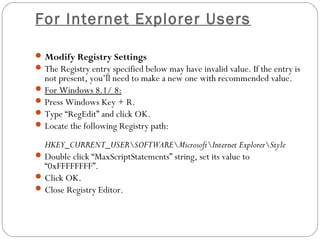
Modify Registry Settings
The Registry entry specified below may have invalid value. If the entry is
not present, you’ll need to make a new one with recommended value.
For Windows 8.1/ 8:
Press Windows Key + R.
Type “RegEdit” and click OK.
Locate the following Registry path:
HKEY_CURRENT_USERSOFTWAREMicrosoftInternet ExplorerStyle
Double click “MaxScriptStatements” string, set its value to
“0xFFFFFFFF”.
Click OK.
Close Registry Editor.
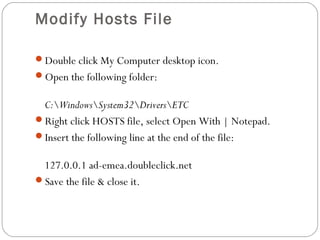
Modify Hosts File
Double click My Computer desktop icon.
Open the following folder:
C:WindowsSystem32DriversETC
Right click HOSTS file, select Open With | Notepad.
Insert the following line at the end of the file:
127.0.0.1 ad-emea.doubleclick.net
Save the file & close it.
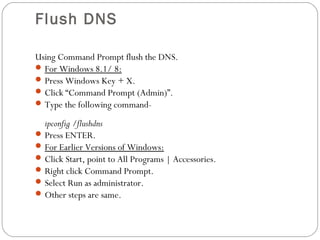
Flush DNS
Using Command Prompt flush the DNS.
For Windows 8.1/ 8:
Press Windows Key + X.
Click “Command Prompt (Admin)”.
Type the following command-
ipconfig /flushdns
Press ENTER.
For Earlier Versions of Windows:
Click Start, point to All Programs | Accessories.
Right click Command Prompt.
Select Run as administrator.
Other steps are same.

Fix unresponsive script error in firefox, chrome & ie

  • 1.
    This error appearswith different web browsers including Internet Explorer, Google Chrome and Mozilla Firefox. Follow the steps in this article to get rid of this issue. Fix Unresponsive Script Error in Firefox, Chrome & IE
  • 2.
    Step-by-Step Guide For FirefoxUsers Change Script Runtime Value In the Firefox configurations you’ll get the script runtime value. You’ll need to modify the default value and change it to “20”. Open Mozilla Firefox. Type “about:config” in the Address Bar. Press ENTER. A warning message will appear. Click “I’ll be careful, I promise!” link to continue. Double click a string named “dom.max_script_run_time”. Replace its value with “20” and press ENTER. Note: In case the problem still persists you can restore the default value by right clicking the string, selecting “Reset” option.
  • 3.
    Use YesScript Plug-In InstallYesScript. Close and re-load Mozilla Firefox. Click the Tools menu, select Add-Ons. Select “YesScript” and click Options. A new dialog will appear. Enter the website URL which displays you script error. Click Add button. This will fix Unresponsive Script Error in Firefox, Chrome & IE.
  • 4.
    Start Firefox inthe Safe Mode In the safe mode a browser is loaded without loading any add-ons. Start the browser in safe mode to resolve faulty add-ons. Click the Firefox button. Click Help | Restart with add-ons disabled. Alternatively, you may press Shift key while starting Firefox.
  • 5.
    Disable Hardware Acceleration Clickthe Firefox button, select Options. Click Advanced tab. Uncheck the box “Use hardware acceleration when available”. Close and re-open the browser.
  • 6.
    Restore Default Theme ClickFirefox button. Select Options. Click the Sync tab. Disable the synchronization feature.
  • 7.
    For Chrome Users DisableSynchronization in Chrome Disable the synchronization feature to fix Unresponsive Script Error in Chrome. Click the Wrench icon on the right. Select Tools | Settings. Under “Sign In” category click “Advanced sync settings” button. In the drop down box select “Choose what to sync” option. Uncheck all the checkboxes. Click OK button.
  • 8.
    Disable Avast Security Extension ClickWrench, select Tools | Extensions. Disable Avast Antivirus Security plugin. Restart the browser.
  • 9.
    For Internet ExplorerUsers Modify Registry Settings The Registry entry specified below may have invalid value. If the entry is not present, you’ll need to make a new one with recommended value. For Windows 8.1/ 8: Press Windows Key + R. Type “RegEdit” and click OK. Locate the following Registry path: HKEY_CURRENT_USERSOFTWAREMicrosoftInternet ExplorerStyle Double click “MaxScriptStatements” string, set its value to “0xFFFFFFFF”. Click OK. Close Registry Editor.
  • 10.
    Modify Hosts File Doubleclick My Computer desktop icon. Open the following folder: C:WindowsSystem32DriversETC Right click HOSTS file, select Open With | Notepad. Insert the following line at the end of the file: 127.0.0.1 ad-emea.doubleclick.net Save the file & close it.
  • 11.
    Flush DNS Using CommandPrompt flush the DNS. For Windows 8.1/ 8: Press Windows Key + X. Click “Command Prompt (Admin)”. Type the following command- ipconfig /flushdns Press ENTER. For Earlier Versions of Windows: Click Start, point to All Programs | Accessories. Right click Command Prompt. Select Run as administrator. Other steps are same.