Remote Access VPNs
Part 2
October 2015 Hangout
Jim Pingle
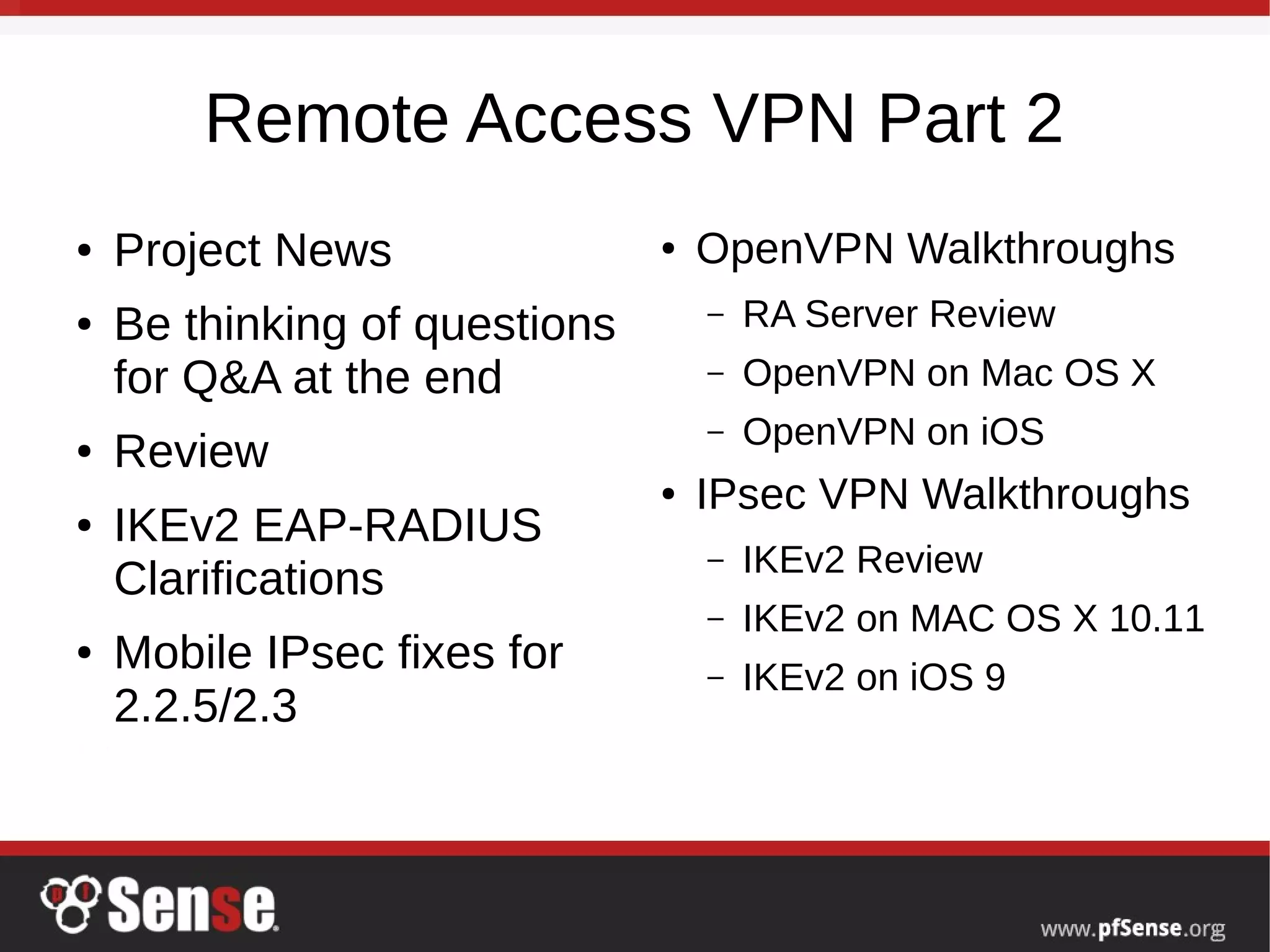
Remote Access VPN Part 2
● Project News
● Be thinking of questions
for Q&A at the end
● Review
● IKEv2 EAP-RADIUS
Clarifications
● Mobile IPsec fixes for
2.2.5/2.3
● OpenVPN Walkthroughs
– RA Server Review
– OpenVPN on Mac OS X
– OpenVPN on iOS
● IPsec VPN Walkthroughs
– IKEv2 Review
– IKEv2 on MAC OS X 10.11
– IKEv2 on iOS 9
Project Notes
● 2.2.5 will be out shortly, possibly by the end of the
weekend
– strongSwan memory leak fixed, but required rewriting status
processing/code.
● 2.3 progressing still
– Public alpha snapshots at https://snapshots.pfsense.org/
– Bootstrap GUI still needs testing and refinement – join in
and help!
– New package system is working well, search capability
● 2220 and 2440 units back in stock, 4860 desktops sold
out, 4860 1U in. All 8860s out.
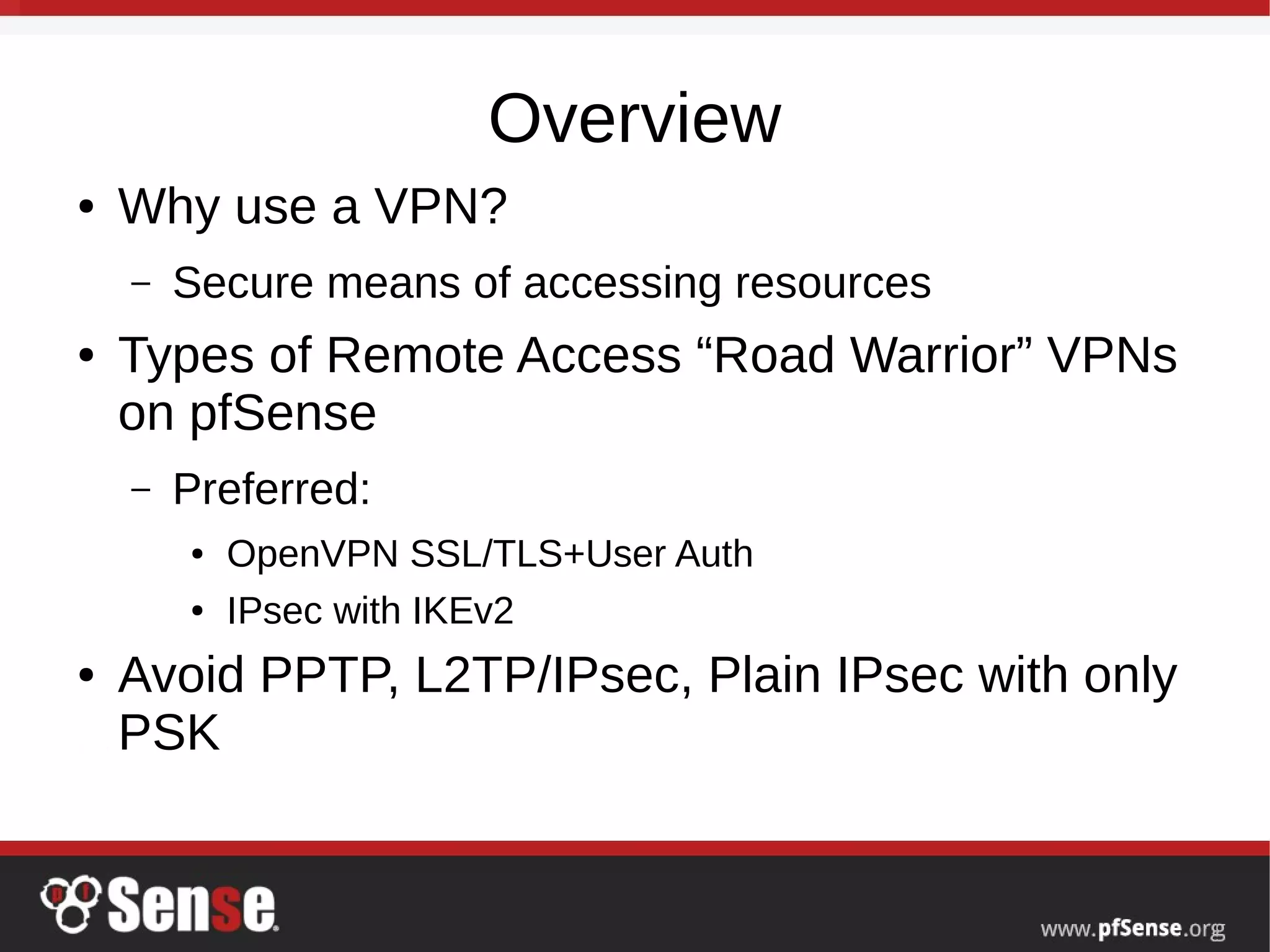
Overview
● Why use a VPN?
– Secure means of accessing resources
● Types of Remote Access “Road Warrior” VPNs
on pfSense
– Preferred:
● OpenVPN SSL/TLS+User Auth
● IPsec with IKEv2
● Avoid PPTP, L2TP/IPsec, Plain IPsec with only
PSK
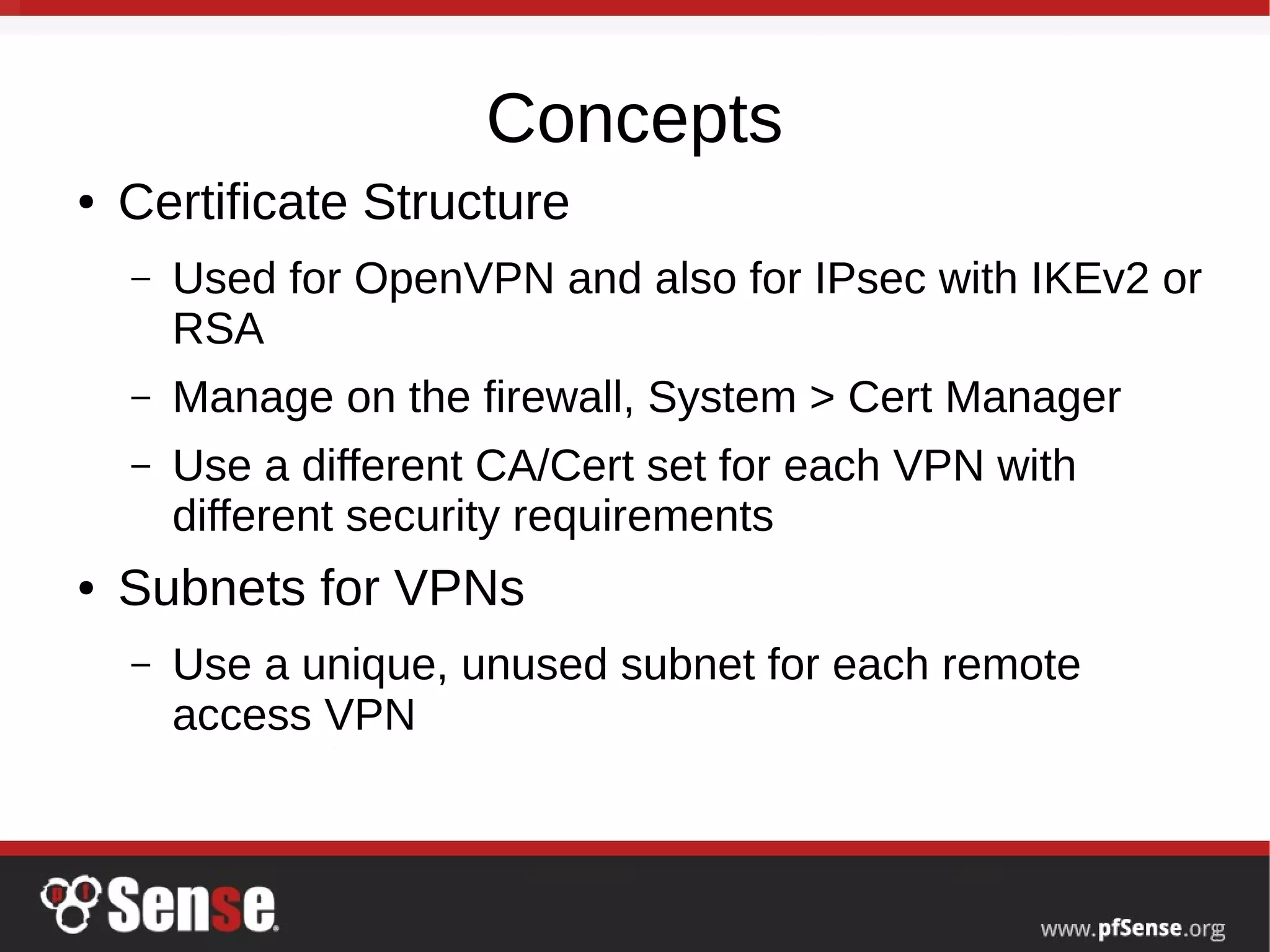
Concepts
● Certificate Structure
– Used for OpenVPN and also for IPsec with IKEv2 or
RSA
– Manage on the firewall, System > Cert Manager
– Use a different CA/Cert set for each VPN with
different security requirements
● Subnets for VPNs
– Use a unique, unused subnet for each remote
access VPN
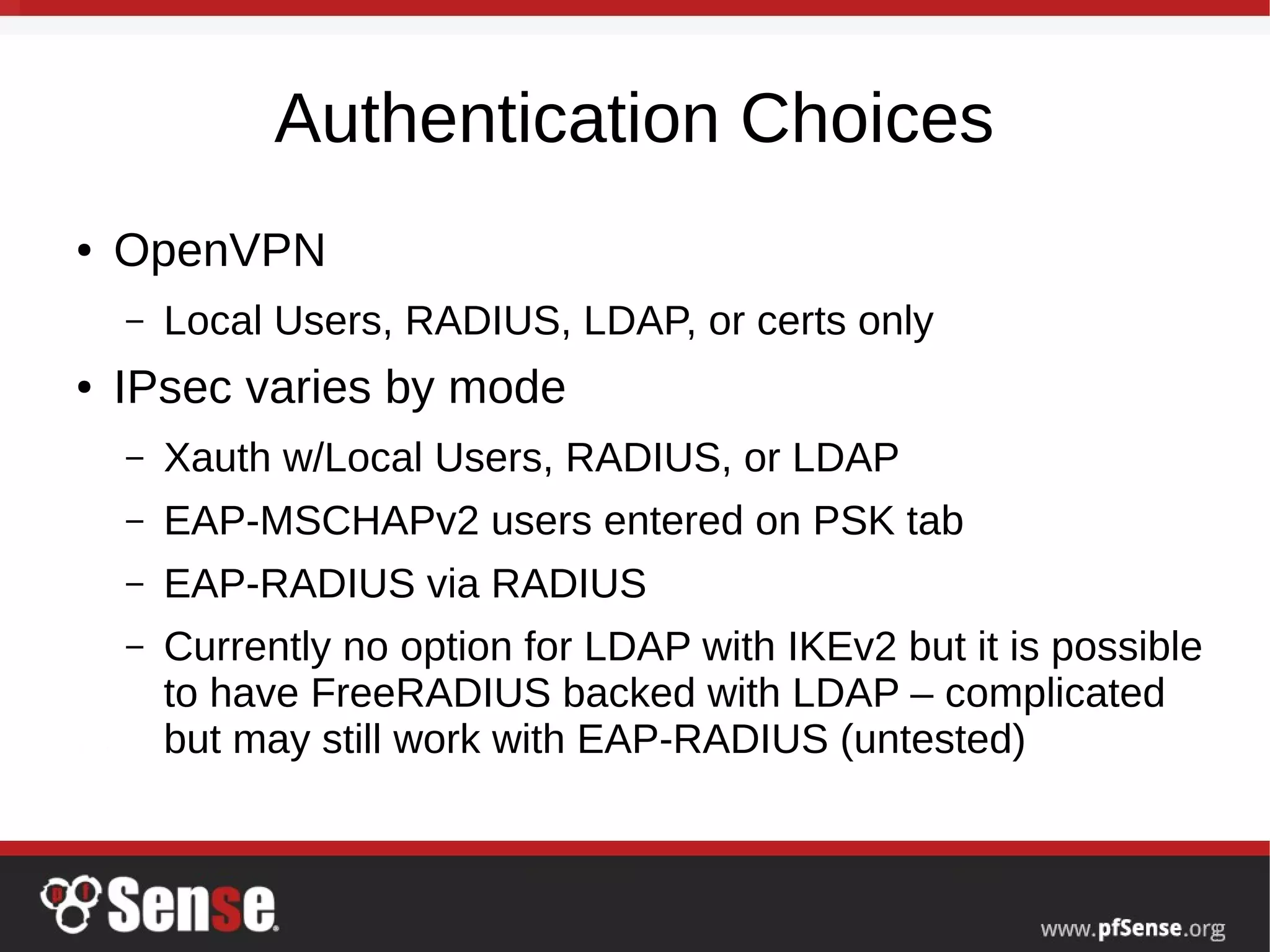
Authentication Choices
● OpenVPN
– Local Users, RADIUS, LDAP, or certs only
● IPsec varies by mode
– Xauth w/Local Users, RADIUS, or LDAP
– EAP-MSCHAPv2 users entered on PSK tab
– EAP-RADIUS via RADIUS
– Currently no option for LDAP with IKEv2 but it is possible
to have FreeRADIUS backed with LDAP – complicated
but may still work with EAP-RADIUS (untested)
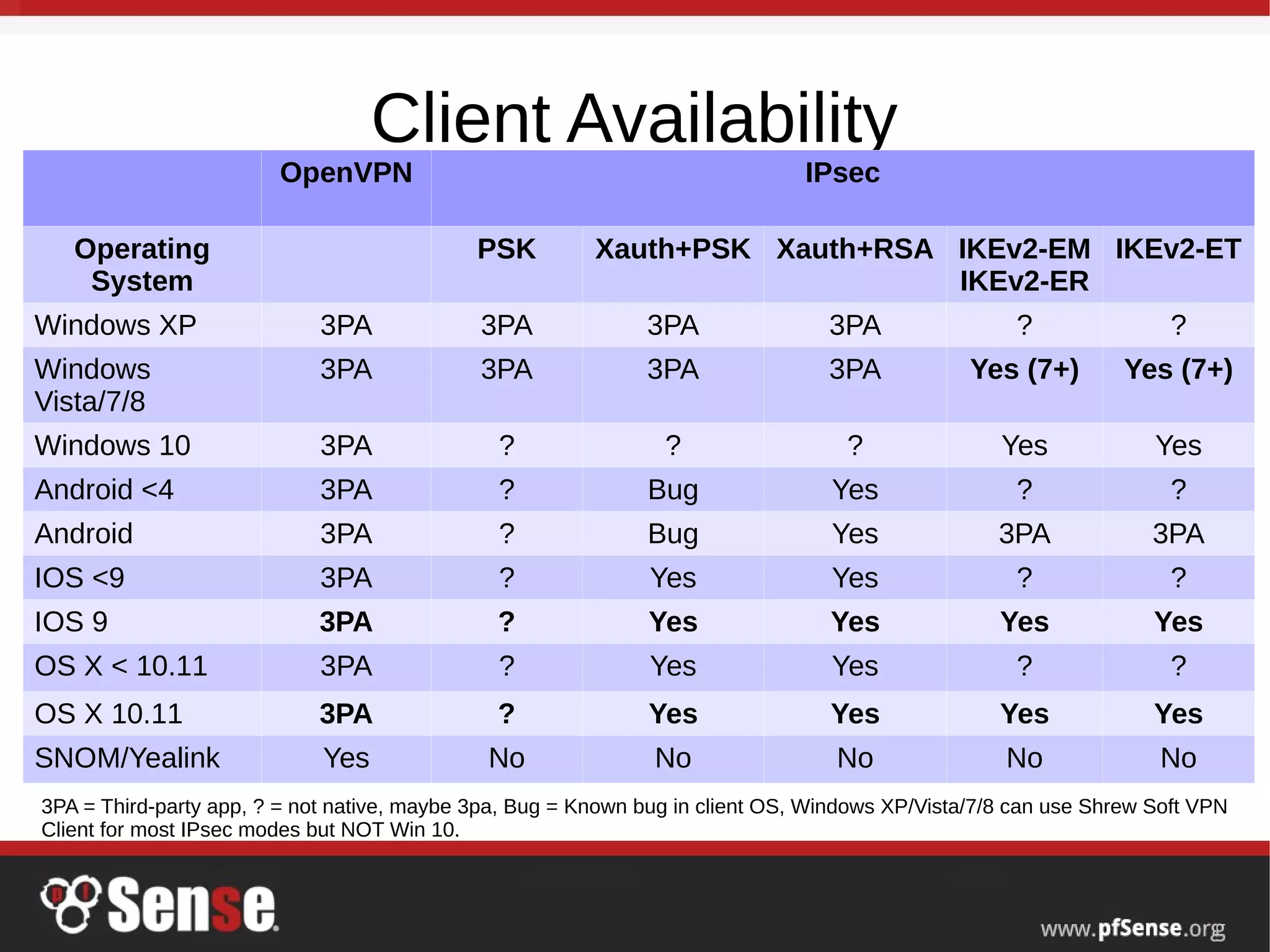
Client Availability
OpenVPN IPsec
Operating
System
PSK Xauth+PSK Xauth+RSA IKEv2-EM
IKEv2-ER
IKEv2-ET
Windows XP 3PA 3PA 3PA 3PA ? ?
Windows
Vista/7/8
3PA 3PA 3PA 3PA Yes (7+) Yes (7+)
Windows 10 3PA ? ? ? Yes Yes
Android <4 3PA ? Bug Yes ? ?
Android 3PA ? Bug Yes 3PA 3PA
IOS <9 3PA ? Yes Yes ? ?
IOS 9 3PA ? Yes Yes Yes Yes
OS X < 10.11 3PA ? Yes Yes ? ?
OS X 10.11 3PA ? Yes Yes Yes Yes
SNOM/Yealink Yes No No No No No
3PA = Third-party app, ? = not native, maybe 3pa, Bug = Known bug in client OS, Windows XP/Vista/7/8 can use Shrew Soft VPN
Client for most IPsec modes but NOT Win 10.
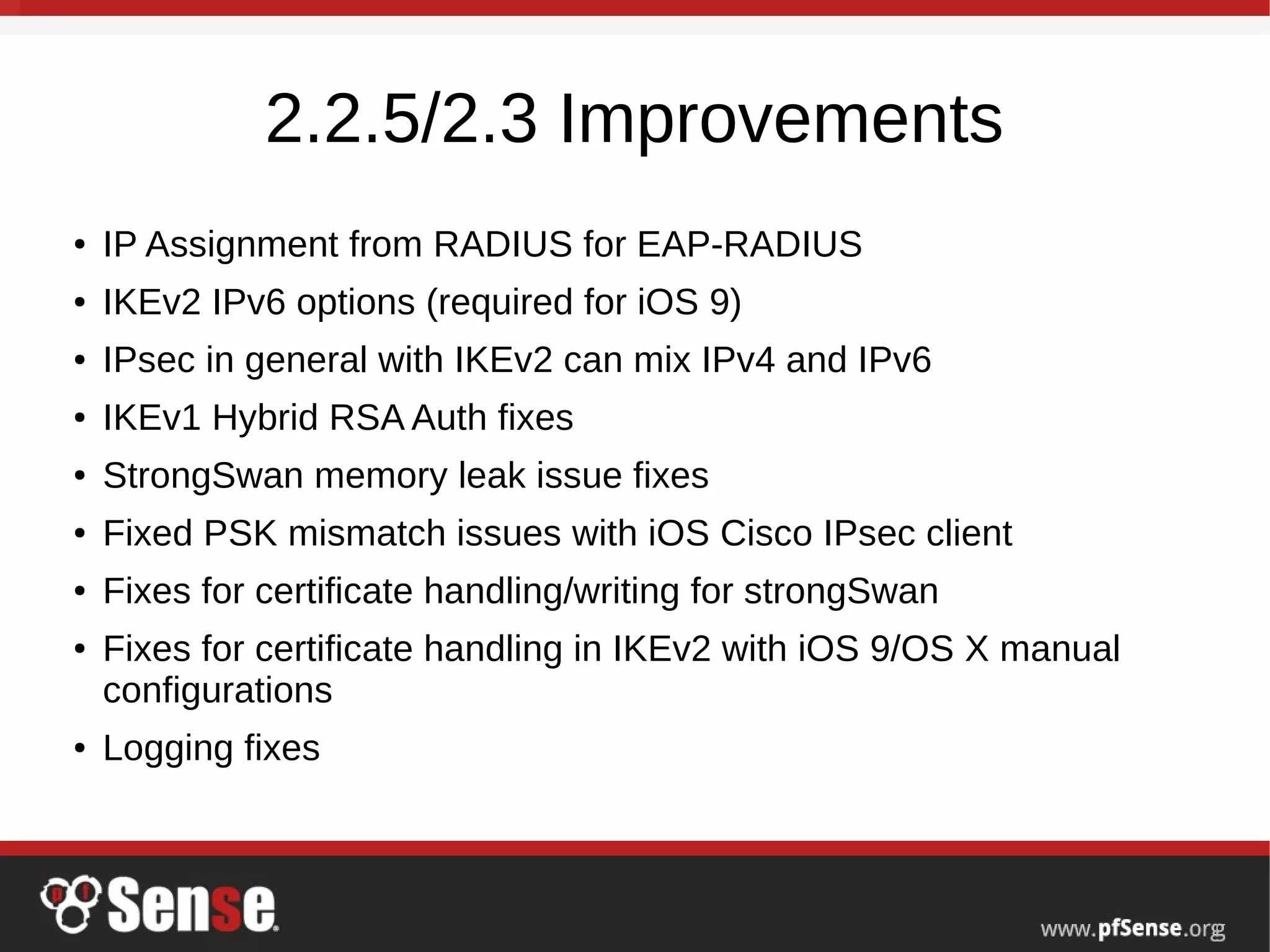
2.2.5/2.3 Improvements
● IP Assignment from RADIUS for EAP-RADIUS
● IKEv2 IPv6 options (required for iOS 9)
● IPsec in general with IKEv2 can mix IPv4 and IPv6
● IKEv1 Hybrid RSA Auth fixes
● StrongSwan memory leak issue fixes
● Fixed PSK mismatch issues with iOS Cisco IPsec client
● Fixes for certificate handling/writing for strongSwan
● Fixes for certificate handling in IKEv2 with iOS 9/OS X manual
configurations
● Logging fixes
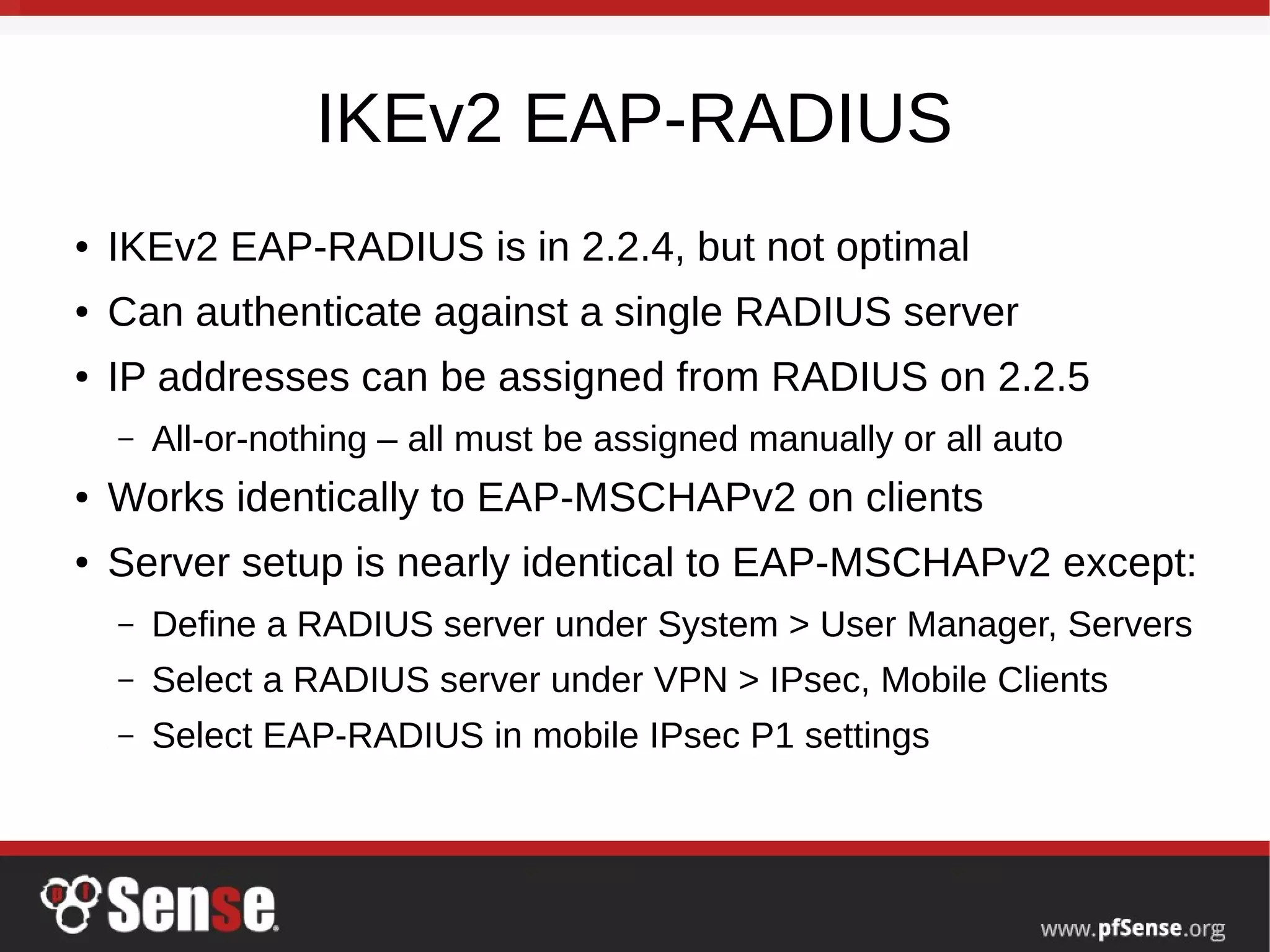
IKEv2 EAP-RADIUS
● IKEv2 EAP-RADIUS is in 2.2.4, but not optimal
● Can authenticate against a single RADIUS server
● IP addresses can be assigned from RADIUS on 2.2.5
– All-or-nothing – all must be assigned manually or all auto
● Works identically to EAP-MSCHAPv2 on clients
● Server setup is nearly identical to EAP-MSCHAPv2 except:
– Define a RADIUS server under System > User Manager, Servers
– Select a RADIUS server under VPN > IPsec, Mobile Clients
– Select EAP-RADIUS in mobile IPsec P1 settings
OpenVPN Review
SSL/TLS + User Auth
● Full details on the wiki:
https://doc.pfsense.org/index.php/OpenVPN_Remote_Access_S
erver
● Setup CA/Certs, Server, add firewall rules to WAN & OpenVPN
tab, Users
● Client Export Package
● Client Setup
– OS X
● Viscosity
●
Tunnelblick
– iOS
●
OpenVPN Connect App
Client Setup – OS X Viscosity
● Export either the Viscosity bundle OR the Inline “Others” config
from pfSense
● Download/install/Launch Viscosity
– $9/seat but works excellently
● Double click the exported .zip, then viscosity.visc
– It will be imported automatically
● -or-
● Click Viscosity icon in the notifications area
● Click Preferences, then +, then Import, From File
● Find and select the exported configuration (.zip or .ovpn)
Client Setup – OS X Tunnelblick
● Export the “Others” type Inline OpenVPN configuration from
pfSense
● Download/install Tunnleblick
● Click “I have configuration files” when promped, follow through
other prompts
● Select Quit if asked, or manually quit Tunnelblock
● Locate the exported .ovpn file and double click it
● Click All Users or Only Me, whichever is desired
● Launch Tunnelblick, connect/disconnect using the main
window or the icon in the upper right
Client Setup
iOS OpenVPN Connect
● Install the OpenVPN Connect app on the iOS device
● Export the “OpenVPN Connect” version of a client config
from pfSense
● Copy this config to the iOS device (e.g. e-mail or by using
iTunes)
● Open the file with the OpenVPN app
● Tap + to import, enter credentials if it has user auth
● That's it!
● Connect/Disconnect from the OpenVPN Connect App
IPsec – IKEv2 EAP-MSCHAPv2
– Review settings
– Full details on wiki:
https://doc.pfsense.org/index.php/IKEv2_with_E
AP-MSCHAPv2
– Client Setup
● OS X 10.11.x
● iOS 9.x
● Factory image for 2.2.5 will have an iOS/OS X VPN
Profile exporter built-in which will make the process
easier.
IKEv2 for iOS/OS X
EAP-MSChapv2/EAP-RADIUS
● Must be running pfSense 2.2.5, otherwise it won't work
● Similar to previous config (on Wiki) with some notable differences
for manual iOS/OS X config
– Phase 1
● Encryption algo must be 3DES
● Hash algo must be SHA1
– Phase 2
● LAN Network set on Phase 2 net
● Encryption algo must have 3DES selected (can have others)
● Hash algo must have SHA1 selected (can have others)
● This config will work with iOS, OS X, Windows, Android, and Linux
Client Setup – OS X 10.11
● Import the CA Certificate
– Copy the CA Certificate to the OS X system, Double click, opens Keychain Access
– Enter the login credentials and click Modify Keychain
– Locate the imported certificate under Login, All Items
– Drag the certificate on to System, then find it again and click it
– Click File > Get Info, Expand Trust
– Set When using this certificate to Always Trust
● Setup the VPN Connection
– Open System Preferences, Network
– Click + to add a new entry
– Select VPN for the Interface
– Select IKEv2 for the VPN Type (default)
– Set Service Name to a description for the VPN
– Enter the hostname of the firewall in DNS as the Server Address
– Enter the hostname of the firewall again in Remote ID -- This must match the server cert CN/SAN entry
– Leave Local ID blank
– Click Authentication Settings, Select Username
– Enter the Username (EAP Key ID for this user) and Password
– Check Show VPN status in the menu bar (if desired)
– Click Apply
Client Setup – iOS 9+
● Import the CA Certificate
– Send the CA Certificate file to the iOS device via E-mail
– Open the Mail app, message with the CA Certificate, then the attachment
– Tap Install at the upper right
– Tap the Install button that appears to confirm the installation
● Setup the VPN Connection
– Open Settings, General, VPN
– Tap Add VPN Configuration
– Set the Type to IKEv2 (default)
– Enter some text for the Description (e.g. ExampleCo VPN)
– Enter the hostname of the firewall in DNS as the Server
– Enter the hostname of the firewall again in Remote ID -- must match the server cert CN/SAN
– Leave Local ID blank
– Set User Authentication to Username
– Enter the Username (EAP Key ID for this user) and Password
– Tap Done
Conclusion
● Questions?
● Ideas for hangout topics? Post on forum,
comment on the blog posts, Reddit, etc

Remote Access VPNs Part 2 - pfSense Hangout October 2015

  • 1.
    Remote Access VPNs Part2 October 2015 Hangout Jim Pingle
  • 2.
    Remote Access VPNPart 2 ● Project News ● Be thinking of questions for Q&A at the end ● Review ● IKEv2 EAP-RADIUS Clarifications ● Mobile IPsec fixes for 2.2.5/2.3 ● OpenVPN Walkthroughs – RA Server Review – OpenVPN on Mac OS X – OpenVPN on iOS ● IPsec VPN Walkthroughs – IKEv2 Review – IKEv2 on MAC OS X 10.11 – IKEv2 on iOS 9
  • 3.
    Project Notes ● 2.2.5will be out shortly, possibly by the end of the weekend – strongSwan memory leak fixed, but required rewriting status processing/code. ● 2.3 progressing still – Public alpha snapshots at https://snapshots.pfsense.org/ – Bootstrap GUI still needs testing and refinement – join in and help! – New package system is working well, search capability ● 2220 and 2440 units back in stock, 4860 desktops sold out, 4860 1U in. All 8860s out.
  • 4.
    Overview ● Why usea VPN? – Secure means of accessing resources ● Types of Remote Access “Road Warrior” VPNs on pfSense – Preferred: ● OpenVPN SSL/TLS+User Auth ● IPsec with IKEv2 ● Avoid PPTP, L2TP/IPsec, Plain IPsec with only PSK
  • 5.
    Concepts ● Certificate Structure –Used for OpenVPN and also for IPsec with IKEv2 or RSA – Manage on the firewall, System > Cert Manager – Use a different CA/Cert set for each VPN with different security requirements ● Subnets for VPNs – Use a unique, unused subnet for each remote access VPN
  • 6.
    Authentication Choices ● OpenVPN –Local Users, RADIUS, LDAP, or certs only ● IPsec varies by mode – Xauth w/Local Users, RADIUS, or LDAP – EAP-MSCHAPv2 users entered on PSK tab – EAP-RADIUS via RADIUS – Currently no option for LDAP with IKEv2 but it is possible to have FreeRADIUS backed with LDAP – complicated but may still work with EAP-RADIUS (untested)
  • 7.
    Client Availability OpenVPN IPsec Operating System PSKXauth+PSK Xauth+RSA IKEv2-EM IKEv2-ER IKEv2-ET Windows XP 3PA 3PA 3PA 3PA ? ? Windows Vista/7/8 3PA 3PA 3PA 3PA Yes (7+) Yes (7+) Windows 10 3PA ? ? ? Yes Yes Android <4 3PA ? Bug Yes ? ? Android 3PA ? Bug Yes 3PA 3PA IOS <9 3PA ? Yes Yes ? ? IOS 9 3PA ? Yes Yes Yes Yes OS X < 10.11 3PA ? Yes Yes ? ? OS X 10.11 3PA ? Yes Yes Yes Yes SNOM/Yealink Yes No No No No No 3PA = Third-party app, ? = not native, maybe 3pa, Bug = Known bug in client OS, Windows XP/Vista/7/8 can use Shrew Soft VPN Client for most IPsec modes but NOT Win 10.
  • 8.
    2.2.5/2.3 Improvements ● IPAssignment from RADIUS for EAP-RADIUS ● IKEv2 IPv6 options (required for iOS 9) ● IPsec in general with IKEv2 can mix IPv4 and IPv6 ● IKEv1 Hybrid RSA Auth fixes ● StrongSwan memory leak issue fixes ● Fixed PSK mismatch issues with iOS Cisco IPsec client ● Fixes for certificate handling/writing for strongSwan ● Fixes for certificate handling in IKEv2 with iOS 9/OS X manual configurations ● Logging fixes
  • 9.
    IKEv2 EAP-RADIUS ● IKEv2EAP-RADIUS is in 2.2.4, but not optimal ● Can authenticate against a single RADIUS server ● IP addresses can be assigned from RADIUS on 2.2.5 – All-or-nothing – all must be assigned manually or all auto ● Works identically to EAP-MSCHAPv2 on clients ● Server setup is nearly identical to EAP-MSCHAPv2 except: – Define a RADIUS server under System > User Manager, Servers – Select a RADIUS server under VPN > IPsec, Mobile Clients – Select EAP-RADIUS in mobile IPsec P1 settings
  • 10.
    OpenVPN Review SSL/TLS +User Auth ● Full details on the wiki: https://doc.pfsense.org/index.php/OpenVPN_Remote_Access_S erver ● Setup CA/Certs, Server, add firewall rules to WAN & OpenVPN tab, Users ● Client Export Package ● Client Setup – OS X ● Viscosity ● Tunnelblick – iOS ● OpenVPN Connect App
  • 11.
    Client Setup –OS X Viscosity ● Export either the Viscosity bundle OR the Inline “Others” config from pfSense ● Download/install/Launch Viscosity – $9/seat but works excellently ● Double click the exported .zip, then viscosity.visc – It will be imported automatically ● -or- ● Click Viscosity icon in the notifications area ● Click Preferences, then +, then Import, From File ● Find and select the exported configuration (.zip or .ovpn)
  • 12.
    Client Setup –OS X Tunnelblick ● Export the “Others” type Inline OpenVPN configuration from pfSense ● Download/install Tunnleblick ● Click “I have configuration files” when promped, follow through other prompts ● Select Quit if asked, or manually quit Tunnelblock ● Locate the exported .ovpn file and double click it ● Click All Users or Only Me, whichever is desired ● Launch Tunnelblick, connect/disconnect using the main window or the icon in the upper right
  • 13.
    Client Setup iOS OpenVPNConnect ● Install the OpenVPN Connect app on the iOS device ● Export the “OpenVPN Connect” version of a client config from pfSense ● Copy this config to the iOS device (e.g. e-mail or by using iTunes) ● Open the file with the OpenVPN app ● Tap + to import, enter credentials if it has user auth ● That's it! ● Connect/Disconnect from the OpenVPN Connect App
  • 14.
    IPsec – IKEv2EAP-MSCHAPv2 – Review settings – Full details on wiki: https://doc.pfsense.org/index.php/IKEv2_with_E AP-MSCHAPv2 – Client Setup ● OS X 10.11.x ● iOS 9.x ● Factory image for 2.2.5 will have an iOS/OS X VPN Profile exporter built-in which will make the process easier.
  • 15.
    IKEv2 for iOS/OSX EAP-MSChapv2/EAP-RADIUS ● Must be running pfSense 2.2.5, otherwise it won't work ● Similar to previous config (on Wiki) with some notable differences for manual iOS/OS X config – Phase 1 ● Encryption algo must be 3DES ● Hash algo must be SHA1 – Phase 2 ● LAN Network set on Phase 2 net ● Encryption algo must have 3DES selected (can have others) ● Hash algo must have SHA1 selected (can have others) ● This config will work with iOS, OS X, Windows, Android, and Linux
  • 16.
    Client Setup –OS X 10.11 ● Import the CA Certificate – Copy the CA Certificate to the OS X system, Double click, opens Keychain Access – Enter the login credentials and click Modify Keychain – Locate the imported certificate under Login, All Items – Drag the certificate on to System, then find it again and click it – Click File > Get Info, Expand Trust – Set When using this certificate to Always Trust ● Setup the VPN Connection – Open System Preferences, Network – Click + to add a new entry – Select VPN for the Interface – Select IKEv2 for the VPN Type (default) – Set Service Name to a description for the VPN – Enter the hostname of the firewall in DNS as the Server Address – Enter the hostname of the firewall again in Remote ID -- This must match the server cert CN/SAN entry – Leave Local ID blank – Click Authentication Settings, Select Username – Enter the Username (EAP Key ID for this user) and Password – Check Show VPN status in the menu bar (if desired) – Click Apply
  • 17.
    Client Setup –iOS 9+ ● Import the CA Certificate – Send the CA Certificate file to the iOS device via E-mail – Open the Mail app, message with the CA Certificate, then the attachment – Tap Install at the upper right – Tap the Install button that appears to confirm the installation ● Setup the VPN Connection – Open Settings, General, VPN – Tap Add VPN Configuration – Set the Type to IKEv2 (default) – Enter some text for the Description (e.g. ExampleCo VPN) – Enter the hostname of the firewall in DNS as the Server – Enter the hostname of the firewall again in Remote ID -- must match the server cert CN/SAN – Leave Local ID blank – Set User Authentication to Username – Enter the Username (EAP Key ID for this user) and Password – Tap Done
  • 18.
    Conclusion ● Questions? ● Ideasfor hangout topics? Post on forum, comment on the blog posts, Reddit, etc