Kobkrit Viriyayudhakorn, Ph.D.
CEO of iApp Technology Limited.
kobkrit@gmail.com
http://www.kobkrit.com
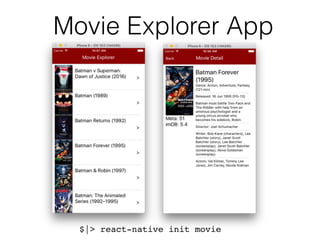
Movie Explorer App
$|> react-native init l8_movie
Navigator
• Navigator controls and handles the transition
between different scenes (screens) in the app.
• Navigator can switch the scenes to be display in
the apps.
• To setup the navigator, you provide one or more
objects call routes, to identify each scene.
• You also provide a renderScene function that
renders the scene for each route object.
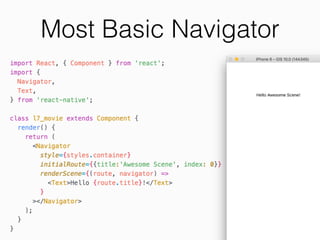
Most Basic Navigator
Navigator’s Props
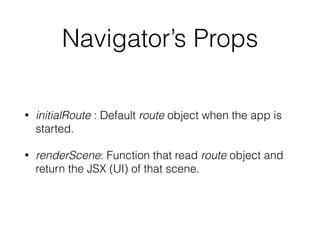
• initialRoute : Default route object when the app is
started.
• renderScene: Function that read route object and
return the JSX (UI) of that scene.
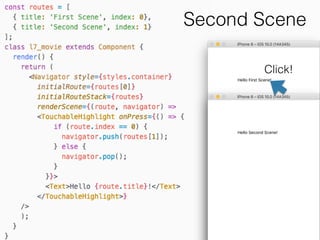
Second Scene
Click!
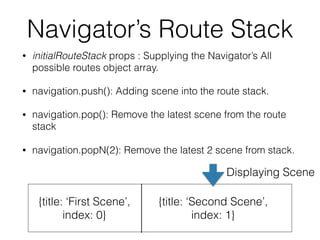
Navigator’s Route Stack
• initialRouteStack props : Supplying the Navigator’s All
possible routes object array.
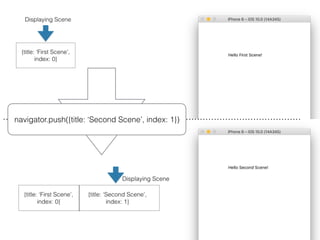
• navigation.push(): Adding scene into the route stack.
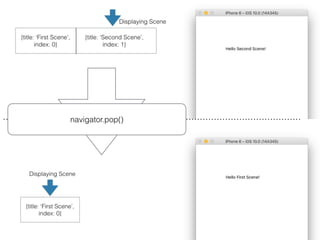
• navigation.pop(): Remove the latest scene from the route
stack
• navigation.popN(2): Remove the latest 2 scene from stack.
{title: ‘First Scene’,

index: 0}
{title: ‘Second Scene’,

index: 1}
Displaying Scene
navigator.push({title: ‘Second Scene’, index: 1})
navigator.pop()
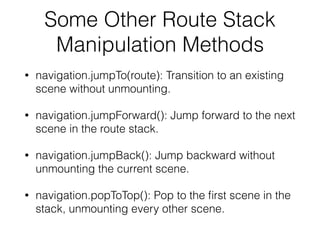
Some Other Route Stack
Manipulation Methods
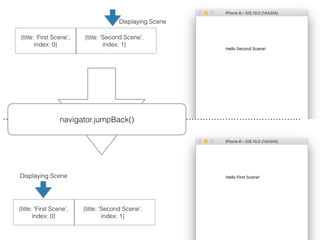
• navigation.jumpTo(route): Transition to an existing
scene without unmounting.
• navigation.jumpForward(): Jump forward to the next
scene in the route stack.
• navigation.jumpBack(): Jump backward without
unmounting the current scene.
• navigation.popToTop(): Pop to the first scene in the
stack, unmounting every other scene.
navigator.jumpForward()
navigator.jumpBack()
Debugging routeStack
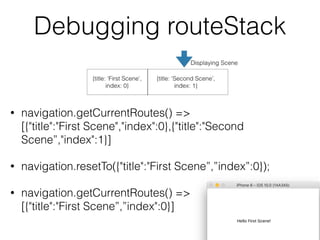
• navigation.getCurrentRoutes() => 

[{"title":"First Scene","index":0},{"title":"Second
Scene”,"index":1}]
• navigation.resetTo({"title":"First Scene”,”index”:0});
• navigation.getCurrentRoutes() => 

[{"title":"First Scene”,”index":0}]
Adding
Navigation Bar
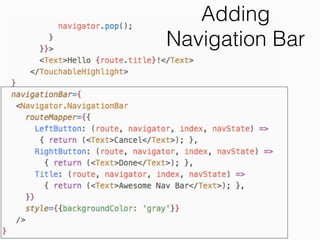
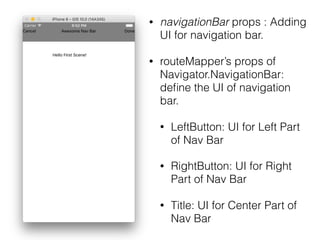
• navigationBar props : Adding
UI for navigation bar.
• routeMapper’s props of
Navigator.NavigationBar:
define the UI of navigation
bar.
• LeftButton: UI for Left Part
of Nav Bar
• RightButton: UI for Right
Part of Nav Bar
• Title: UI for Center Part of
Nav Bar
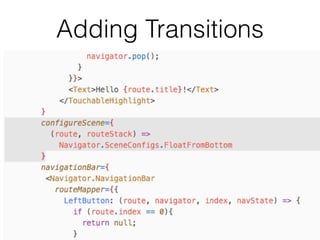
Adding Transitions
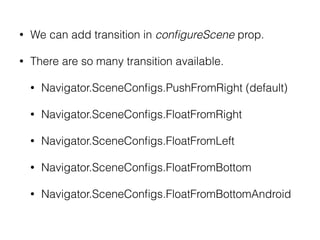
• We can add transition in configureScene prop.
• There are so many transition available.
• Navigator.SceneConfigs.PushFromRight (default)
• Navigator.SceneConfigs.FloatFromRight
• Navigator.SceneConfigs.FloatFromLeft
• Navigator.SceneConfigs.FloatFromBottom
• Navigator.SceneConfigs.FloatFromBottomAndroid
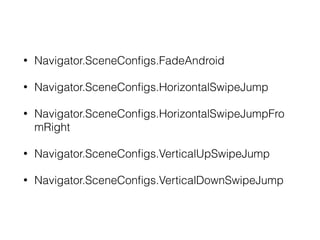
• Navigator.SceneConfigs.FadeAndroid
• Navigator.SceneConfigs.SwipeFromLeft
• Navigator.SceneConfigs.HorizontalSwipeJump
• Navigator.SceneConfigs.HorizontalSwipeJumpFro
mRight
• Navigator.SceneConfigs.VerticalUpSwipeJump
• Navigator.SceneConfigs.VerticalDownSwipeJump
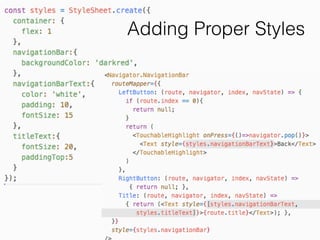
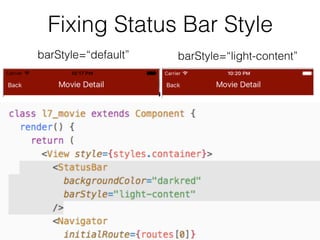
Adding Proper Styles
barStyle=“default” barStyle=“light-content”
Fixing Status Bar Style
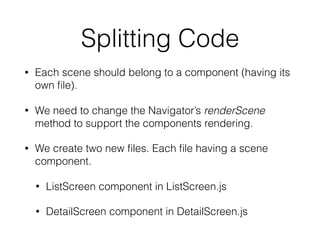
Splitting Code
• Each scene should belong to a component (having its
own file).
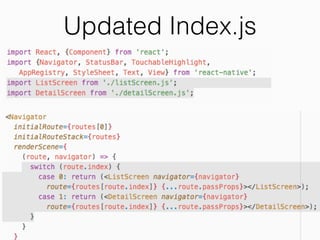
• We need to change the Navigator’s renderScene
method to support the components rendering.
• We create two new files. Each file having a scene
component.
• ListScreen component in ListScreen.js
• DetailScreen component in DetailScreen.js
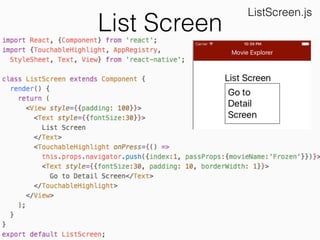
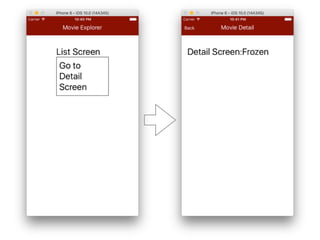
List Screen
ListScreen.js
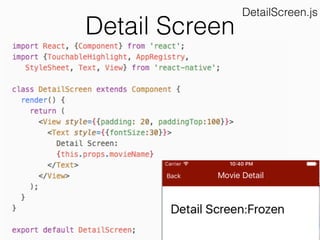
Detail Screen
DetailScreen.js
Updated Index.js
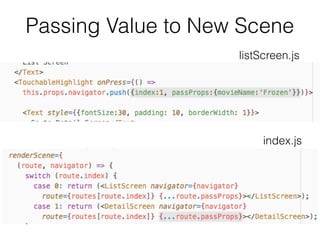
Passing Value to New Scene
listScreen.js
index.js
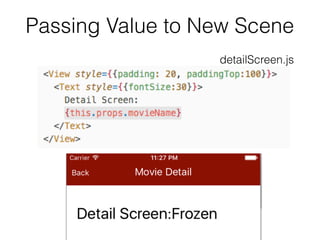
Passing Value to New Scene
detailScreen.js
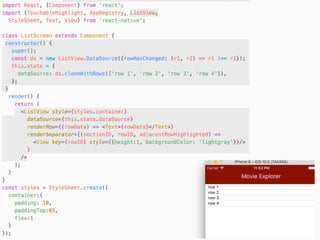
List View
• A core component designed for efficient display of
vertically scrolling lists of changing data.
• List View requires a ListView.Datasource to
manipulate the display data. Its simplest form is a
simple array of data.
• List View render each item of data according to
ListView.RenderRow callback.
List View Benefits over
Custom-made UI
• ListView supports advanced features such as
• Scrolling
• Section Segmentation
• Sticky Section Headers
• Header and Footer Supports
• Callback when reaching the end of the available data
(onEndReached), which can enable infinite browsing.
• Re-render only when necessary + Several Performance
Optimization
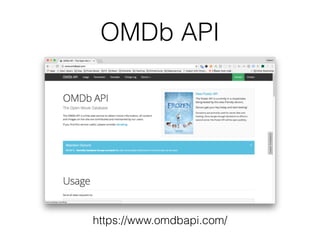
OMDb API
https://www.omdbapi.com/
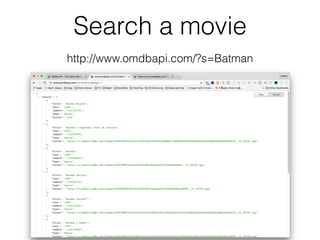
Search a movie
http://www.omdbapi.com/?s=Batman
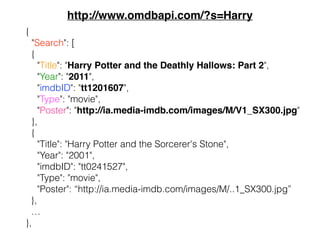
{
"Search": [
{
"Title": "Harry Potter and the Deathly Hallows: Part 2",
"Year": "2011",
"imdbID": "tt1201607",
"Type": "movie",
"Poster": "http://ia.media-imdb.com/images/M/V1_SX300.jpg"
},
{
"Title": "Harry Potter and the Sorcerer's Stone",
"Year": "2001",
"imdbID": "tt0241527",
"Type": "movie",
"Poster": “http://ia.media-imdb.com/images/M/..1_SX300.jpg”
},
…

},
http://www.omdbapi.com/?s=Harry
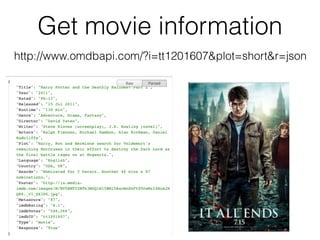
Get movie information
http://www.omdbapi.com/?i=tt1201607&plot=short&r=json
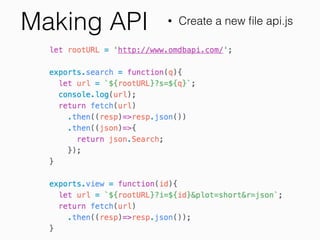
Making API • Create a new file api.js
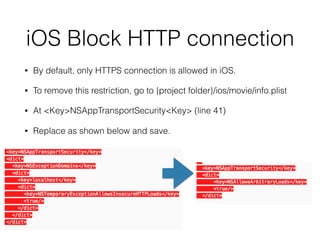
iOS Block HTTP connection
• By default, only HTTPS connection is allowed in iOS.
• To remove this restriction, go to {project folder}/ios/movie/info.plist
• At <Key>NSAppTransportSecurity<Key> (line 41)
• Replace as shown below and save.
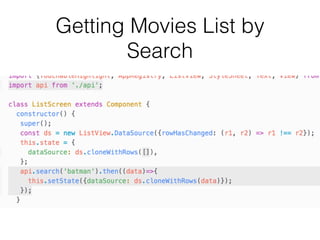
Getting Movies List by
Search
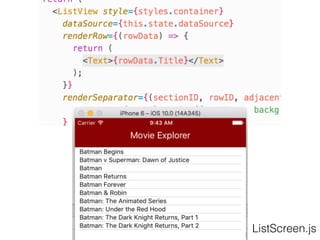
ListScreen.js
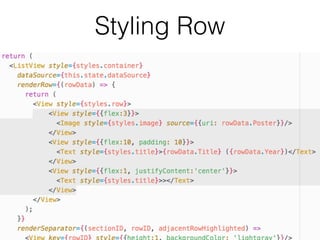
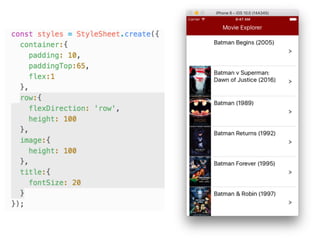
Styling Row
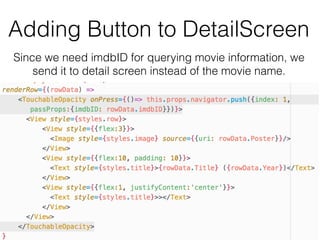
Adding Button to DetailScreen
Since we need imdbID for querying movie information, we
send it to detail screen instead of the movie name.
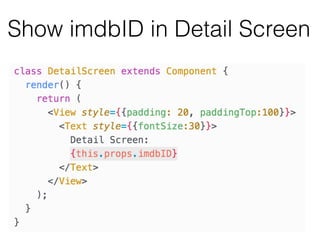
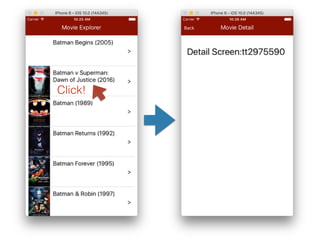
Show imdbID in Detail Screen
Click!
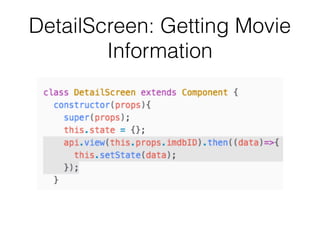
DetailScreen: Getting Movie
Information
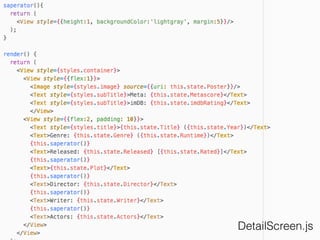
DetailScreen.js
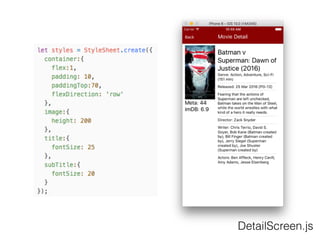
DetailScreen.js
Home Work
• Why only “Batman” movie?
• Make a search box for any kind of movies you
want.

[React Native Tutorial] Lecture 7: Navigation - Scene Transition - ListView