BV103 - Quickly
Respond to Relevant
Information in
SharePoint Online
Tom Resing, Microsoft
@resing
About Tom
toresing@Microsoft.com
Content Developer for SharePoint @
Microsoft
Former MVP in SharePoint, Microsoft
Certified Master in SharePoint, co-
author of SharePoint 2013 Inside Out
spsevents.org/city/Redmond oct 27
Looking for content collaborators for
new and existing articles on
support.office.com and
docs.Microsoft.com
Agenda
Change
01
Forms
02
Pages
03
Teams
04
Flow
05
Scale
06
Demo: Collaboration
powered by SharePoint;
Microsoft Forms
Demo 2, Modern page
management:
Page creation
Request sign-off
Page approval flow
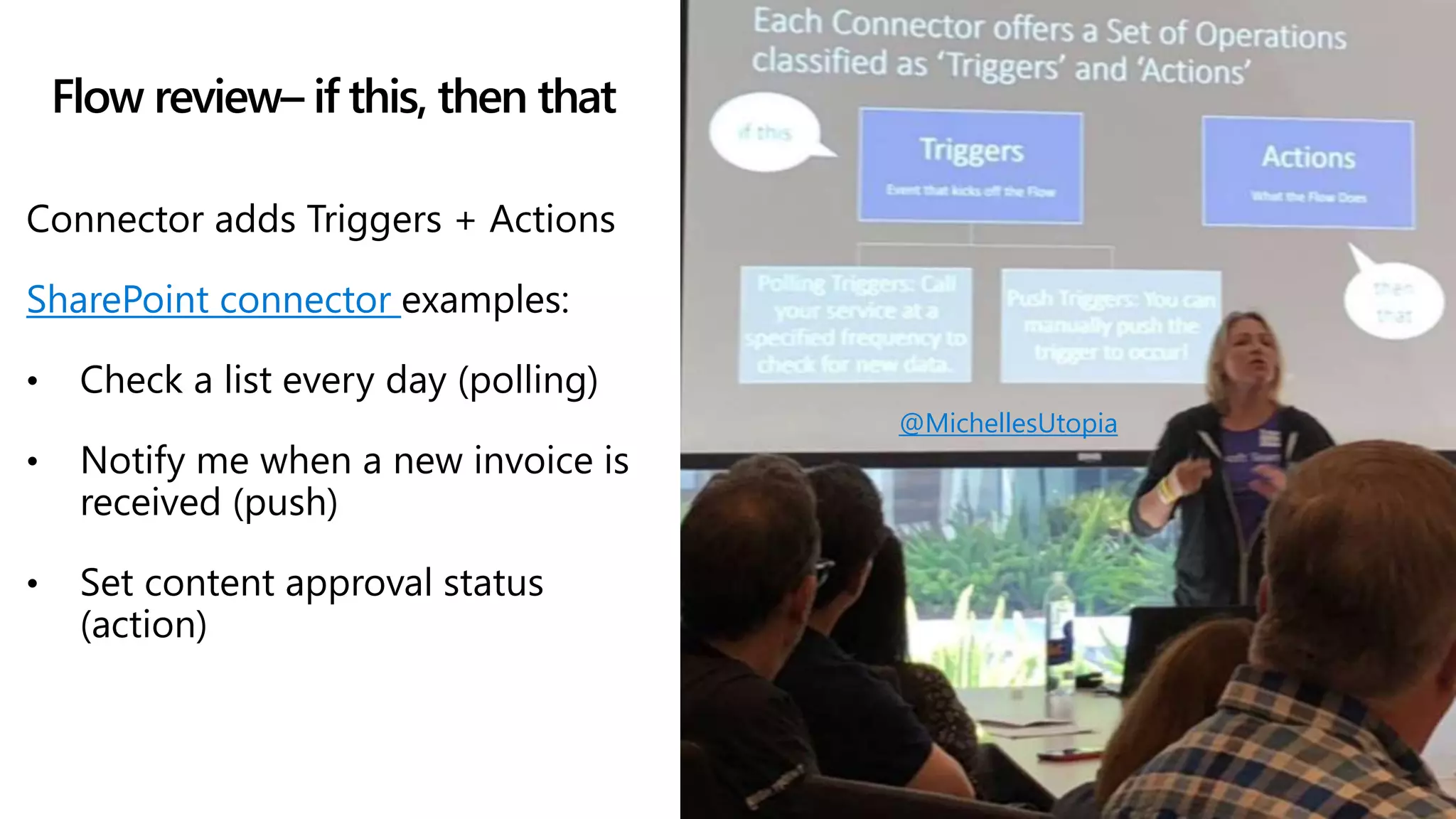
Flow review– if this, then that
Connector adds Triggers + Actions
SharePoint connector examples:
• Check a list every day (polling)
• Notify me when a new invoice is
received (push)
• Set content approval status
(action)
@MichellesUtopia
Demo 3,
Microsoft Teams
view in SharePoint
add page tab
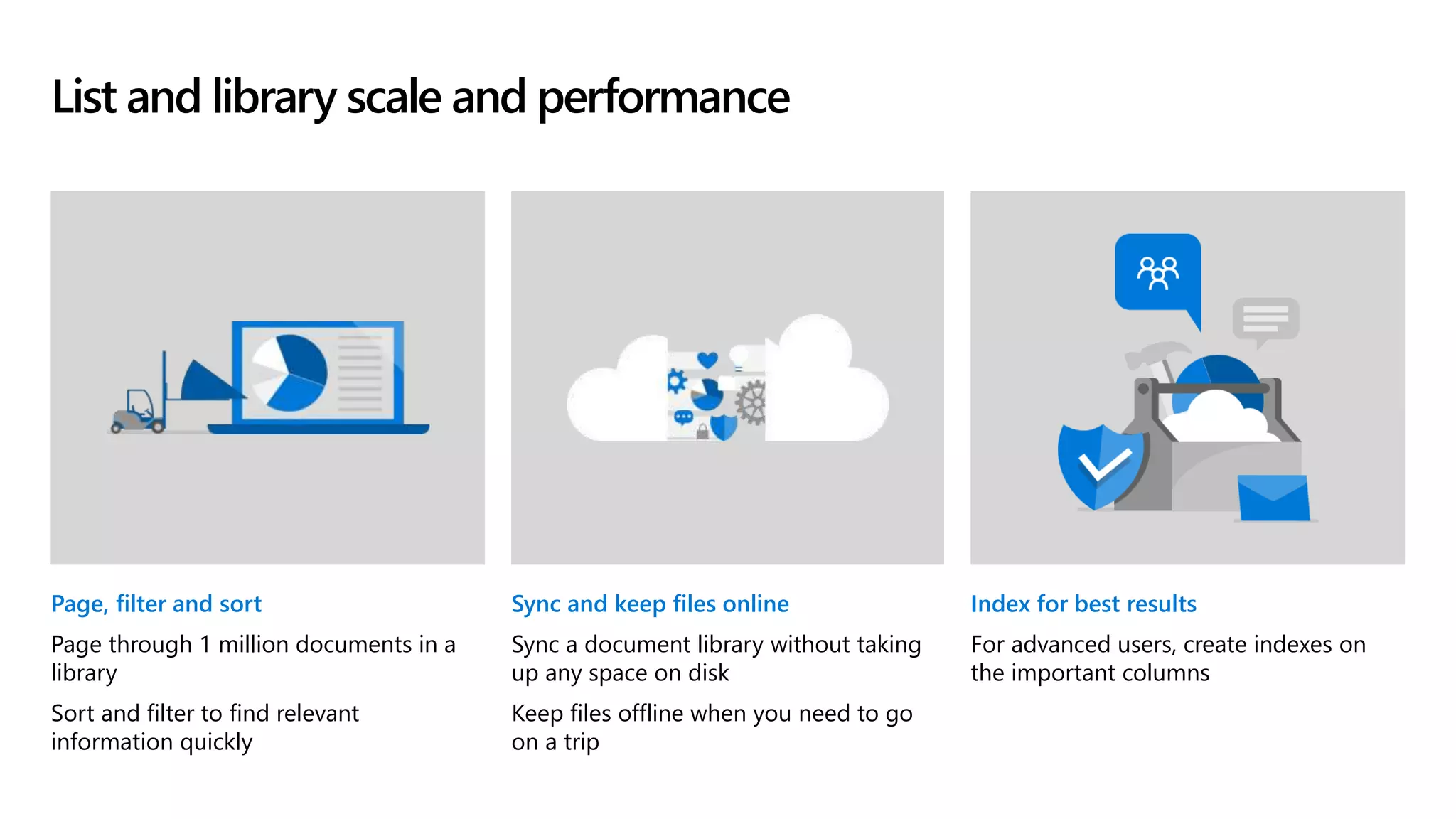
List and library scale and performance
Page, filter and sort
Page through 1 million documents in a
library
Sort and filter to find relevant
information quickly
Sync and keep files online
Sync a document library without taking
up any space on disk
Keep files offline when you need to go
on a trip
Index for best results
For advanced users, create indexes on
the important columns
Demo 4,
scalability:
indexing for
sorting
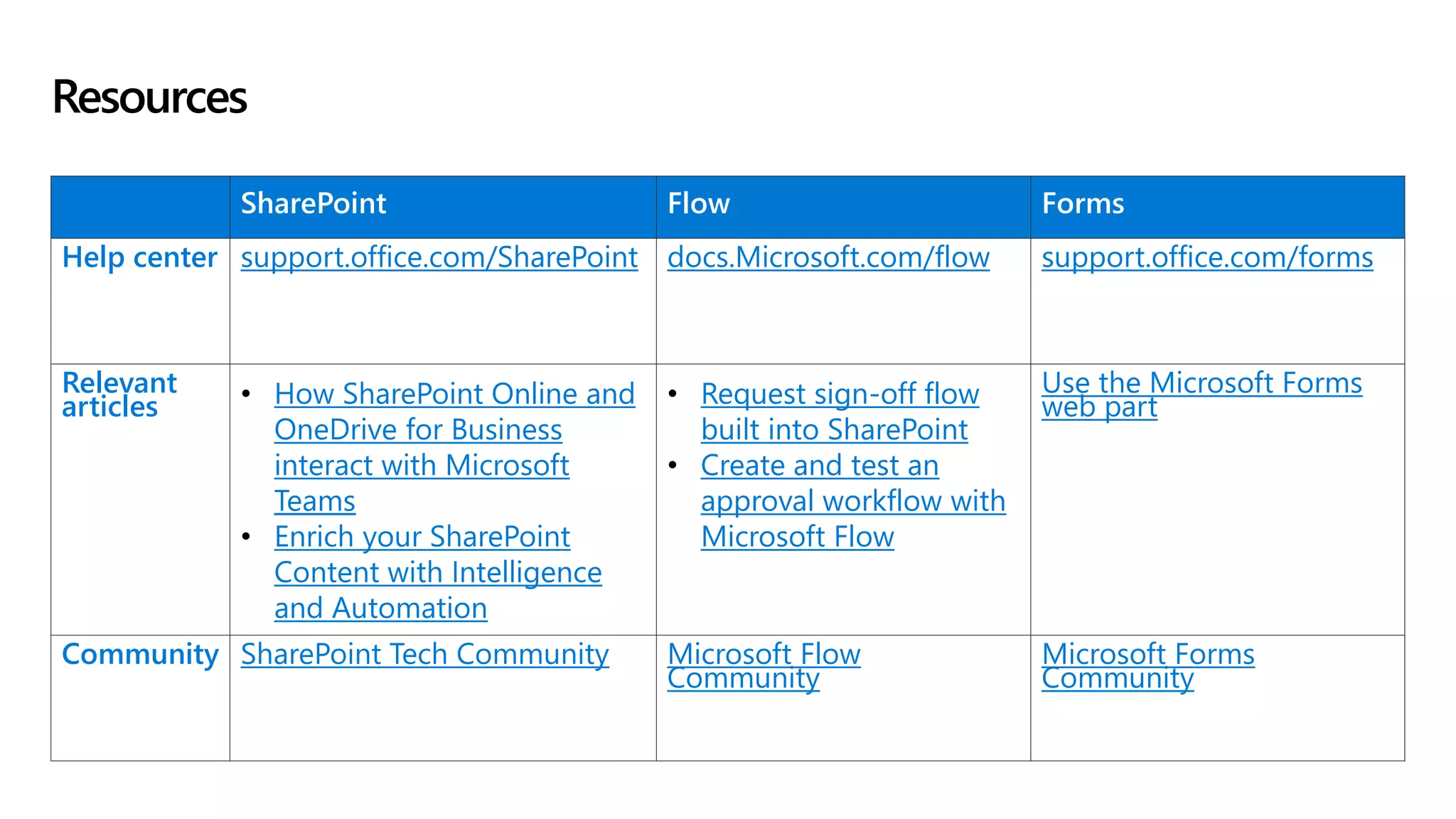
SharePoint Flow Forms
Help center support.office.com/SharePoint docs.Microsoft.com/flow support.office.com/forms
Relevant
articles • How SharePoint Online and
OneDrive for Business
interact with Microsoft
Teams
• Enrich your SharePoint
Content with Intelligence
and Automation
• Request sign-off flow
built into SharePoint
• Create and test an
approval workflow with
Microsoft Flow
Use the Microsoft Forms
web part
Community SharePoint Tech Community Microsoft Flow
Community
Microsoft Forms
Community
Resources
© Copyright Microsoft Corporation. All rights reserved.
Thank you.
Quickly respond to relevant information in SharePoint Online

Quickly respond to relevant information in SharePoint Online

  • 1.
    BV103 - Quickly Respondto Relevant Information in SharePoint Online Tom Resing, Microsoft @resing
  • 3.
    About Tom toresing@Microsoft.com Content Developerfor SharePoint @ Microsoft Former MVP in SharePoint, Microsoft Certified Master in SharePoint, co- author of SharePoint 2013 Inside Out spsevents.org/city/Redmond oct 27 Looking for content collaborators for new and existing articles on support.office.com and docs.Microsoft.com
  • 4.
  • 5.
    Demo: Collaboration powered bySharePoint; Microsoft Forms
  • 6.
    Demo 2, Modernpage management: Page creation Request sign-off Page approval flow
  • 7.
    Flow review– ifthis, then that Connector adds Triggers + Actions SharePoint connector examples: • Check a list every day (polling) • Notify me when a new invoice is received (push) • Set content approval status (action) @MichellesUtopia
  • 8.
    Demo 3, Microsoft Teams viewin SharePoint add page tab
  • 9.
    List and libraryscale and performance Page, filter and sort Page through 1 million documents in a library Sort and filter to find relevant information quickly Sync and keep files online Sync a document library without taking up any space on disk Keep files offline when you need to go on a trip Index for best results For advanced users, create indexes on the important columns
  • 10.
  • 11.
    SharePoint Flow Forms Helpcenter support.office.com/SharePoint docs.Microsoft.com/flow support.office.com/forms Relevant articles • How SharePoint Online and OneDrive for Business interact with Microsoft Teams • Enrich your SharePoint Content with Intelligence and Automation • Request sign-off flow built into SharePoint • Create and test an approval workflow with Microsoft Flow Use the Microsoft Forms web part Community SharePoint Tech Community Microsoft Flow Community Microsoft Forms Community Resources
  • 12.
    © Copyright MicrosoftCorporation. All rights reserved. Thank you.

Editor's Notes

  • #2 [Black screen at start. Have Go available as prop. ]
  • #3 [screen black]The world is changing. Response times are decreasing. What used to be sent by air mail with response times of days or even weeks now goes by email. What’s the expected response time for email? Certainly not weeks. [show screen] Microsoft has been changing as well. This device represents the change, in some ways. It’s the latest Surface, the Surface Go. And it enables more people in more places to respond quickly to information. SharePoint’s been changing to. OneDrive and SharePoint are the storage behind all of Office 365. And today, we’re going to explore some of the ways you can use SharePoint to respond more quickly to relevant information.
  • #4 Hi. I’m tom. That’s my cat Chester and my wife’s new Surface Go. I work in user experience and content development in SharePoint lists and libraries. I’ve been working with SharePoint for years and I love the community. Ask me about collaborative content development after the show or on twitter.
  • #5 We’ve discussed change. Now you’ll see demos of Forms, Pages, Teams, Flow and Scale.
  • #8 Michelle Gilbert, MichellesUtopia on twitter, shared this slide at SharePoint Saturday Los Angeles on the 11th. I thought it captured some important concepts for Flow review. Two types of triggers, polling and push. The current SharePoint Online connector has 8 types of triggers. “Set content approval status” is an example of one of the 21 actions currently available. All of the triggers and actions are documented at docs.microsoft.com/connectors/sharepointonline/