ADVANCE WORD
PROCESSING
SKILLS
MAIL MERGE •is one of the most powerful and
commonly used features of
Microsoft Word. It allows you
to create documents and merge
them with another document.
It is commonly used when
sending out advertising
materials to various recipients.
INTEGRATING IMAGES AND
EXTERNAL MATERIALS
•Inserting pictures in your document like creating
a resume improves the impression of it. Though
seemingly simple to do, your knowledge on the
different kinds of materials that you can insert in
a Word document and its characteristics can help
you create a more efficient, richer document not
only in content but also in physical form.
A. KINDS OF MATERIALS
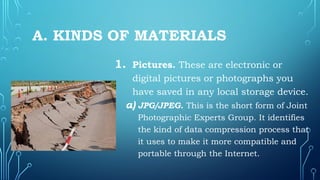
1. Pictures. These are electronic or
digital pictures or photographs you
have saved in any local storage device.
a) JPG/JPEG. This is the short form of Joint
Photographic Experts Group. It identifies
the kind of data compression process that
it uses to make it more compatible and
portable through the Internet.
A. KINDS OF MATERIALS
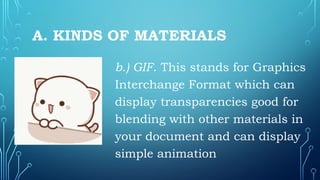
b.) GIF. This stands for Graphics
Interchange Format which can
display transparencies good for
blending with other materials in
your document and can display
simple animation
A. KINDS OF MATERIALS
c.) PNG. It stands for Portable Network
Graphics built around the capabilities of
.GIF for the purpose of transporting
images on the Internet at faster rates
but does not support animation.
A. KINDS OF MATERIALS
•2. Clip Art. This is generally a .GIF
type; line art drawings or images used
as generic representation for ideas
and objects that you might want to
integrate in your document.
A. KINDS OF MATERIALS
•3.Shapes. These are printable
objects or materials that you
can integrate in your document
to allow you to have some tools
to use for composing and
representing ideas.
A. KINDS OF MATERIALS
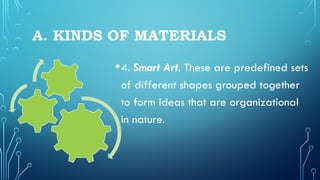
•4. Smart Art. These are predefined sets
of different shapes grouped together
to form ideas that are organizational
in nature.
A. KINDS OF MATERIALS
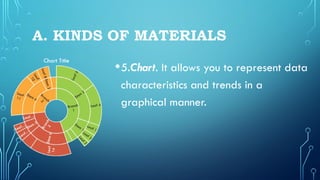
•5.Chart. It allows you to represent data
characteristics and trends in a
graphical manner.
A. KINDS OF MATERIALS
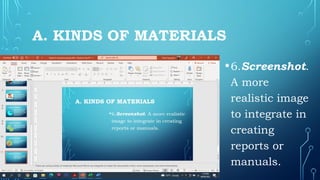
•6.Screenshot.
A more
realistic image
to integrate in
creating
reports or
manuals.
IMAGE PLACEMENT
1. In Line with Text. It treats your image like a
text font with the bottom side totally aligned
with the text line and is used when you need to
place your image at the beginning of a
paragraph.
IMAGE PLACEMENT
2. Square. This allows the inserted image to be
placed anywhere within the paragraph with the
text going around the image in a square pattern
like frame.
IMAGE PLACEMENT
3. Tight. This is almost like the Square setting
where the text “hug” or conforms to the general
shape of the image.
IMAGE PLACEMENT
4. Through. This allows the text on your
document to flow even tighter taking the
contours and shape of the image.
IMAGE PLACEMENT
5. Top and Bottom. This pushes the texts away
vertically to the top and/or the bottom of the
image so that the image occupies a whole text
line on its own.
IMAGE PLACEMENT
6. Behind Text. It allows the image to be
dragged and placed anywhere on your document
but with all the texts floating in front of it.
IMAGE PLACEMENT
7. In Front of Text. This allows your image to
be placed right on top of the text as if your
image was dropped right on it.
ACTIVITY

E-Tech_Advance word processing skills.pptx

  • 1.
  • 2.
    MAIL MERGE •isone of the most powerful and commonly used features of Microsoft Word. It allows you to create documents and merge them with another document. It is commonly used when sending out advertising materials to various recipients.
  • 3.
    INTEGRATING IMAGES AND EXTERNALMATERIALS •Inserting pictures in your document like creating a resume improves the impression of it. Though seemingly simple to do, your knowledge on the different kinds of materials that you can insert in a Word document and its characteristics can help you create a more efficient, richer document not only in content but also in physical form.
  • 4.
    A. KINDS OFMATERIALS 1. Pictures. These are electronic or digital pictures or photographs you have saved in any local storage device. a) JPG/JPEG. This is the short form of Joint Photographic Experts Group. It identifies the kind of data compression process that it uses to make it more compatible and portable through the Internet.
  • 5.
    A. KINDS OFMATERIALS b.) GIF. This stands for Graphics Interchange Format which can display transparencies good for blending with other materials in your document and can display simple animation
  • 6.
    A. KINDS OFMATERIALS c.) PNG. It stands for Portable Network Graphics built around the capabilities of .GIF for the purpose of transporting images on the Internet at faster rates but does not support animation.
  • 7.
    A. KINDS OFMATERIALS •2. Clip Art. This is generally a .GIF type; line art drawings or images used as generic representation for ideas and objects that you might want to integrate in your document.
  • 8.
    A. KINDS OFMATERIALS •3.Shapes. These are printable objects or materials that you can integrate in your document to allow you to have some tools to use for composing and representing ideas.
  • 9.
    A. KINDS OFMATERIALS •4. Smart Art. These are predefined sets of different shapes grouped together to form ideas that are organizational in nature.
  • 10.
    A. KINDS OFMATERIALS •5.Chart. It allows you to represent data characteristics and trends in a graphical manner.
  • 11.
    A. KINDS OFMATERIALS •6.Screenshot. A more realistic image to integrate in creating reports or manuals.
  • 12.
    IMAGE PLACEMENT 1. InLine with Text. It treats your image like a text font with the bottom side totally aligned with the text line and is used when you need to place your image at the beginning of a paragraph.
  • 13.
    IMAGE PLACEMENT 2. Square.This allows the inserted image to be placed anywhere within the paragraph with the text going around the image in a square pattern like frame.
  • 14.
    IMAGE PLACEMENT 3. Tight.This is almost like the Square setting where the text “hug” or conforms to the general shape of the image.
  • 15.
    IMAGE PLACEMENT 4. Through.This allows the text on your document to flow even tighter taking the contours and shape of the image.
  • 16.
    IMAGE PLACEMENT 5. Topand Bottom. This pushes the texts away vertically to the top and/or the bottom of the image so that the image occupies a whole text line on its own.
  • 17.
    IMAGE PLACEMENT 6. BehindText. It allows the image to be dragged and placed anywhere on your document but with all the texts floating in front of it.
  • 18.
    IMAGE PLACEMENT 7. InFront of Text. This allows your image to be placed right on top of the text as if your image was dropped right on it.
  • 19.

Editor's Notes

  • #4 There are various kinds of materials Microsoft Word can integrate to make the documents richer, more impressive, and more informative.
  • #5 There are various kinds of materials Microsoft Word can integrate to make the documents richer, more impressive, and more informative.
  • #6 There are various kinds of materials Microsoft Word can integrate to make the documents richer, more impressive, and more informative.
  • #7 There are various kinds of materials Microsoft Word can integrate to make the documents richer, more impressive, and more informative.
  • #8 There are various kinds of materials Microsoft Word can integrate to make the documents richer, more impressive, and more informative.
  • #9 There are various kinds of materials Microsoft Word can integrate to make the documents richer, more impressive, and more informative.
  • #10 There are various kinds of materials Microsoft Word can integrate to make the documents richer, more impressive, and more informative.
  • #11 There are various kinds of materials Microsoft Word can integrate to make the documents richer, more impressive, and more informative.
  • #12 There are various kinds of materials Microsoft Word can integrate to make the documents richer, more impressive, and more informative.
  • #13 There are various kinds of materials Microsoft Word can integrate to make the documents richer, more impressive, and more informative.
  • #14 There are various kinds of materials Microsoft Word can integrate to make the documents richer, more impressive, and more informative.
  • #15 There are various kinds of materials Microsoft Word can integrate to make the documents richer, more impressive, and more informative.
  • #16 There are various kinds of materials Microsoft Word can integrate to make the documents richer, more impressive, and more informative.
  • #17 There are various kinds of materials Microsoft Word can integrate to make the documents richer, more impressive, and more informative.
  • #18 There are various kinds of materials Microsoft Word can integrate to make the documents richer, more impressive, and more informative.