File operations and data parsing 
Presented by 
Felix Hoffmann 
@Felix11H 
felix11h.github.io/ 
Slides 
Slideshare: 
tiny.cc/file-ops 
Source: 
tiny.cc/file-ops-github 
References 
- Python Files I/O at tutorialspoint.com 
- Dive into Python 3 by Mark Pilgrim 
- Python Documentation on 
match objects 
- Regex tutorial at regexone.com 
This work is licensed under a Creative Commons Attribution 4.0 International License.
File operations: Reading 
Opening an existing file 
>>> f = open("test.txt","rb") 
>>> print f 
<open file ’test.txt’, mode ’rb’ at 0x...> 
Reading it: 
>>> f.read() 
’hello world’ 
Closing it: 
>>> f.close() 
>>> print f 
<closed file ’test.txt’, mode ’rb’ at 0x...>
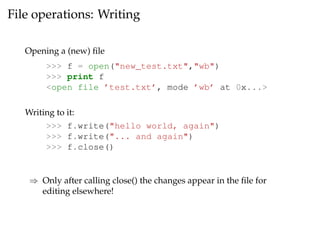
File operations: Writing 
Opening a (new) file 
>>> f = open("new_test.txt","wb") 
>>> print f 
<open file ’test.txt’, mode ’wb’ at 0x...> 
Writing to it: 
>>> f.write("hello world, again") 
>>> f.write("... and again") 
>>> f.close() 
) Only after calling close() the changes appear in the file for 
editing elsewhere!
File operations: Appending 
Opening an existing file 
>>> f = open("test.txt","ab") 
>>> print f 
<open file ’test.txt’, mode ’ab’ at 0x...> 
Appending to it: 
>>> f.write("hello world, again") 
>>> f.write("... and again") 
>>> f.close() 
) In append mode the file pointer is set to the end of the opened 
file.
File operations: More about file pointers 
1 f = open("lines_test.txt", "wb") 
2 for i in range(10): 
3 f.write("this is line %d n" %(i+1)) 
4 f.close() 
Reading from the file: 
>>> f = open("lines_test.txt", "rb") 
>>> f.readline() 
’this is line 1 n’ 
>>> f.readline() 
’this is line 2 n’ 
>>> f.read(14) 
’this is line 3’ 
>>> f.read(2) 
’ n’
File operations: More about file pointers 
f.tell() gives current position within file f 
f.seek(x[, from]) change file pointer position within 
file f, where 
from = 0 from beginning of file 
from = 1 from current position 
from = 2 from end of file 
1 >>> f = open("lines_test.txt", "rb") 
2 >>> f.tell() 
3 0 
4 >>> f.read(10) 
5 ’this is li’ 
6 >>> f.tell() 
7 10
File operations: More about file pointers 
1 >>> f.seek(5) 
2 >>> f.tell() 
3 5 
4 >>> f.seek(10,1) 
5 >>> f.tell() 
6 15 
7 >>> f.seek(-10,2) 
8 >>> f.tell() 
9 151 
10 >>> f.read() 
11 ’ line 10 n’
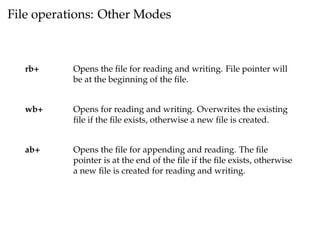
File operations: Other Modes 
rb+ Opens the file for reading and writing. File pointer will 
be at the beginning of the file. 
wb+ Opens for reading and writing. Overwrites the existing 
file if the file exists, otherwise a new file is created. 
ab+ Opens the file for appending and reading. The file 
pointer is at the end of the file if the file exists, otherwise 
a new file is created for reading and writing.
Saving Data: Python Pickle 
Use pickle to save and retrieve more complex data types - lists, 
dictionaries and even class objects: 
1 >>> import pickle 
2 >>> f = open(’save_file.p’, ’wb’) 
3 >>> ex_dict = {’hello’: ’world’} 
4 >>> pickle.dump(ex_dict, f) 
5 >>> f.close() 
1 >>> import pickle 
2 >>> f = open(’save_file.p’, ’rb’) 
3 >>> loadobj = pickle.load(f) 
4 >>> print loadobj[’hello’] 
5 world
Best practice: With Statement 
1 import pickle 
2 
3 ex_dict = {’hello’: ’world’} 
4 
5 with open(’save_file.p’, ’wb’) as f: 
6 pickle.dump(ex_dict, f) 
1 import pickle 
2 
3 with open(’save_file.p’, ’rb’) as f: 
4 loadobj = pickle.load(f) 
5 
6 print loadobj[’hello’] 
) Use this!
Need for parsing 
Imagine that 
Data files are 
generated by a third 
party (no control over 
the format) 
& the data files need 
pre-processing 
) Regular expressions 
provide a powerful 
and concise way to 
perform pattern 
match/search/replace 
over the data 
©Randall Munroe xkcd.com CC BY-NC 2.5
Regular expressions - A case study 
Formatting street names 
>>> s = ’100 NORTH MAIN ROAD’ 
>>> s.replace(’ROAD’, ’RD.’) 
’100 NORTH MAIN RD.’ 
>>> s = ’100 NORTH BROAD ROAD’ 
>>> s.replace(’ROAD’, ’RD.’) 
’100 NORTH BRD. RD.’ 
>>> s[:-4] + s[-4:].replace(’ROAD’, ’RD.’) 
’100 NORTH BROAD RD.’ 
Better use regular expressions! 
>>> import re 
>>> re.sub(r’ROAD$’, ’RD.’, s) 
’100 NORTH BROAD RD.’ 
example from Dive Into Python 3 
©Mark Pilgrim CC BY-SA 3.0
Pattern matching with regular expressions 
ˆ Matches beginning of line/pattern 
$ Matches end of line/pattern 
. Matches any character except newline 
[..] Matches any single character in brackets 
[ˆ..] Matches any single character not in brackets 
re* Matches 0 or more occurrences of the preceding 
expression 
re+ Matches 1 or more occurrences of the preceding 
expression 
re? Matches 0 or 1 occurrence 
refng Match exactly n occurrences 
refn,g Match n or more occurrences 
refn,mg Match at least n and at most m 
) Use cheatsheets, trainers, tutorials, builders, etc..
re.search() & matches 
>>> import re 
>>> data = "I like python" 
>>> m = re.search(r’python’,data) 
>>> print m 
<_sre.SRE_Match object at 0x...> 
Important properties of the match object: 
group() Return the string matched by the RE 
start() Return the starting position of the match 
end() Return the ending position of the match 
span() Return a tuple containing the (start, end) positions of 
the match
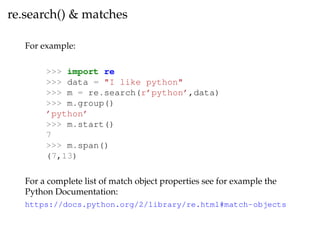
re.search() & matches 
For example: 
>>> import re 
>>> data = "I like python" 
>>> m = re.search(r’python’,data) 
>>> m.group() 
’python’ 
>>> m.start() 
7 
>>> m.span() 
(7,13) 
For a complete list of match object properties see for example the 
Python Documentation: 
https://docs.python.org/2/library/re.html#match-objects
re.findall() 
>>> import re 
>>> data = "Python is great. I like python" 
>>> m = re.search(r’[pP]ython’,data) 
>>> m.group() 
’Python’ 
) re.search() returns only the first match, use re.findall() instead: 
>>> import re 
>>> data = "Python is great. I like python" 
>>> l = re.findall(r’[pP]ython’,data) 
>>> print l 
[’Python’, ’python’] 
) Returns list instead of match object!
re.findall() - Example 
1 import re 
2 
3 with open("history.txt", "rb") as f: 
4 text = f.read() 
5 
6 year_dates = re.findall(r’19[0-9]{2}’, text)
re.split() 
Suppose the data stream has well-defined delimiter 
>>> data = "x = 20" 
>>> re.split(r’=’,data) 
[’x ’, ’ 20’] 
>>> data = ’ftp://python.about.com’ 
>>> re.split(r’:/{1,3}’, data) 
[’ftp’, ’python.about.com’] 
>>> data = ’25.657’ 
>>> re.split(r’.’,data) 
[’25’, ’657’]
re.sub() 
Replace patterns by other patterns. 
>>> data = "2004-959-559 # my phone number" 
>>> re.sub(r’#.*’,’’,data) 
’2004-959-559 ’ 
A more interesting example: 
>>> data = "2004-959-559" 
>>> re.sub(r’([0-9]*)-([0-9]*)-([0-9]*)’, 
>>> r’3-2-1’, data) 
’559-959-2004’ 
) Groups are captured in parenthesis and referenced in the 
replacement string by n1, n2, ...
os module 
Provides a way of using os dependent functionality: 
os.mkdir() Creates a directory (like mkdir) 
os.chmod() Change the permissions (like chmod) 
os.rename() Rename the old file name with the new file name. 
os.listdir() List the contents of the directory 
os.getcwd() Get the current working directory path 
os.path Submodule for useful functions on pathnames 
For example, list all files in the current directory: 
>>> from os import listdir 
>>> 
>>> for f in listdir("."): 
>>> print f
Have fun! 
Presented by 
Felix Hoffmann 
@Felix11H 
felix11h.github.io/ 
Slides 
Slideshare: 
tiny.cc/file-ops 
Source: 
tiny.cc/file-ops-github 
References 
- Python Files I/O at tutorialspoint.com 
- Dive into Python 3 by Mark Pilgrim 
- Python Documentation on 
match objects 
- Regex tutorial at regexone.com 
This work is licensed under a Creative Commons Attribution 4.0 International License.

Python - File operations & Data parsing

  • 1.
    File operations anddata parsing Presented by Felix Hoffmann @Felix11H felix11h.github.io/ Slides Slideshare: tiny.cc/file-ops Source: tiny.cc/file-ops-github References - Python Files I/O at tutorialspoint.com - Dive into Python 3 by Mark Pilgrim - Python Documentation on match objects - Regex tutorial at regexone.com This work is licensed under a Creative Commons Attribution 4.0 International License.
  • 2.
    File operations: Reading Opening an existing file >>> f = open("test.txt","rb") >>> print f <open file ’test.txt’, mode ’rb’ at 0x...> Reading it: >>> f.read() ’hello world’ Closing it: >>> f.close() >>> print f <closed file ’test.txt’, mode ’rb’ at 0x...>
  • 3.
    File operations: Writing Opening a (new) file >>> f = open("new_test.txt","wb") >>> print f <open file ’test.txt’, mode ’wb’ at 0x...> Writing to it: >>> f.write("hello world, again") >>> f.write("... and again") >>> f.close() ) Only after calling close() the changes appear in the file for editing elsewhere!
  • 4.
    File operations: Appending Opening an existing file >>> f = open("test.txt","ab") >>> print f <open file ’test.txt’, mode ’ab’ at 0x...> Appending to it: >>> f.write("hello world, again") >>> f.write("... and again") >>> f.close() ) In append mode the file pointer is set to the end of the opened file.
  • 5.
    File operations: Moreabout file pointers 1 f = open("lines_test.txt", "wb") 2 for i in range(10): 3 f.write("this is line %d n" %(i+1)) 4 f.close() Reading from the file: >>> f = open("lines_test.txt", "rb") >>> f.readline() ’this is line 1 n’ >>> f.readline() ’this is line 2 n’ >>> f.read(14) ’this is line 3’ >>> f.read(2) ’ n’
  • 6.
    File operations: Moreabout file pointers f.tell() gives current position within file f f.seek(x[, from]) change file pointer position within file f, where from = 0 from beginning of file from = 1 from current position from = 2 from end of file 1 >>> f = open("lines_test.txt", "rb") 2 >>> f.tell() 3 0 4 >>> f.read(10) 5 ’this is li’ 6 >>> f.tell() 7 10
  • 7.
    File operations: Moreabout file pointers 1 >>> f.seek(5) 2 >>> f.tell() 3 5 4 >>> f.seek(10,1) 5 >>> f.tell() 6 15 7 >>> f.seek(-10,2) 8 >>> f.tell() 9 151 10 >>> f.read() 11 ’ line 10 n’
  • 8.
    File operations: OtherModes rb+ Opens the file for reading and writing. File pointer will be at the beginning of the file. wb+ Opens for reading and writing. Overwrites the existing file if the file exists, otherwise a new file is created. ab+ Opens the file for appending and reading. The file pointer is at the end of the file if the file exists, otherwise a new file is created for reading and writing.
  • 9.
    Saving Data: PythonPickle Use pickle to save and retrieve more complex data types - lists, dictionaries and even class objects: 1 >>> import pickle 2 >>> f = open(’save_file.p’, ’wb’) 3 >>> ex_dict = {’hello’: ’world’} 4 >>> pickle.dump(ex_dict, f) 5 >>> f.close() 1 >>> import pickle 2 >>> f = open(’save_file.p’, ’rb’) 3 >>> loadobj = pickle.load(f) 4 >>> print loadobj[’hello’] 5 world
  • 10.
    Best practice: WithStatement 1 import pickle 2 3 ex_dict = {’hello’: ’world’} 4 5 with open(’save_file.p’, ’wb’) as f: 6 pickle.dump(ex_dict, f) 1 import pickle 2 3 with open(’save_file.p’, ’rb’) as f: 4 loadobj = pickle.load(f) 5 6 print loadobj[’hello’] ) Use this!
  • 11.
    Need for parsing Imagine that Data files are generated by a third party (no control over the format) & the data files need pre-processing ) Regular expressions provide a powerful and concise way to perform pattern match/search/replace over the data ©Randall Munroe xkcd.com CC BY-NC 2.5
  • 12.
    Regular expressions -A case study Formatting street names >>> s = ’100 NORTH MAIN ROAD’ >>> s.replace(’ROAD’, ’RD.’) ’100 NORTH MAIN RD.’ >>> s = ’100 NORTH BROAD ROAD’ >>> s.replace(’ROAD’, ’RD.’) ’100 NORTH BRD. RD.’ >>> s[:-4] + s[-4:].replace(’ROAD’, ’RD.’) ’100 NORTH BROAD RD.’ Better use regular expressions! >>> import re >>> re.sub(r’ROAD$’, ’RD.’, s) ’100 NORTH BROAD RD.’ example from Dive Into Python 3 ©Mark Pilgrim CC BY-SA 3.0
  • 13.
    Pattern matching withregular expressions ˆ Matches beginning of line/pattern $ Matches end of line/pattern . Matches any character except newline [..] Matches any single character in brackets [ˆ..] Matches any single character not in brackets re* Matches 0 or more occurrences of the preceding expression re+ Matches 1 or more occurrences of the preceding expression re? Matches 0 or 1 occurrence refng Match exactly n occurrences refn,g Match n or more occurrences refn,mg Match at least n and at most m ) Use cheatsheets, trainers, tutorials, builders, etc..
  • 14.
    re.search() & matches >>> import re >>> data = "I like python" >>> m = re.search(r’python’,data) >>> print m <_sre.SRE_Match object at 0x...> Important properties of the match object: group() Return the string matched by the RE start() Return the starting position of the match end() Return the ending position of the match span() Return a tuple containing the (start, end) positions of the match
  • 15.
    re.search() & matches For example: >>> import re >>> data = "I like python" >>> m = re.search(r’python’,data) >>> m.group() ’python’ >>> m.start() 7 >>> m.span() (7,13) For a complete list of match object properties see for example the Python Documentation: https://docs.python.org/2/library/re.html#match-objects
  • 16.
    re.findall() >>> importre >>> data = "Python is great. I like python" >>> m = re.search(r’[pP]ython’,data) >>> m.group() ’Python’ ) re.search() returns only the first match, use re.findall() instead: >>> import re >>> data = "Python is great. I like python" >>> l = re.findall(r’[pP]ython’,data) >>> print l [’Python’, ’python’] ) Returns list instead of match object!
  • 17.
    re.findall() - Example 1 import re 2 3 with open("history.txt", "rb") as f: 4 text = f.read() 5 6 year_dates = re.findall(r’19[0-9]{2}’, text)
  • 18.
    re.split() Suppose thedata stream has well-defined delimiter >>> data = "x = 20" >>> re.split(r’=’,data) [’x ’, ’ 20’] >>> data = ’ftp://python.about.com’ >>> re.split(r’:/{1,3}’, data) [’ftp’, ’python.about.com’] >>> data = ’25.657’ >>> re.split(r’.’,data) [’25’, ’657’]
  • 19.
    re.sub() Replace patternsby other patterns. >>> data = "2004-959-559 # my phone number" >>> re.sub(r’#.*’,’’,data) ’2004-959-559 ’ A more interesting example: >>> data = "2004-959-559" >>> re.sub(r’([0-9]*)-([0-9]*)-([0-9]*)’, >>> r’3-2-1’, data) ’559-959-2004’ ) Groups are captured in parenthesis and referenced in the replacement string by n1, n2, ...
  • 20.
    os module Providesa way of using os dependent functionality: os.mkdir() Creates a directory (like mkdir) os.chmod() Change the permissions (like chmod) os.rename() Rename the old file name with the new file name. os.listdir() List the contents of the directory os.getcwd() Get the current working directory path os.path Submodule for useful functions on pathnames For example, list all files in the current directory: >>> from os import listdir >>> >>> for f in listdir("."): >>> print f
  • 21.
    Have fun! Presentedby Felix Hoffmann @Felix11H felix11h.github.io/ Slides Slideshare: tiny.cc/file-ops Source: tiny.cc/file-ops-github References - Python Files I/O at tutorialspoint.com - Dive into Python 3 by Mark Pilgrim - Python Documentation on match objects - Regex tutorial at regexone.com This work is licensed under a Creative Commons Attribution 4.0 International License.