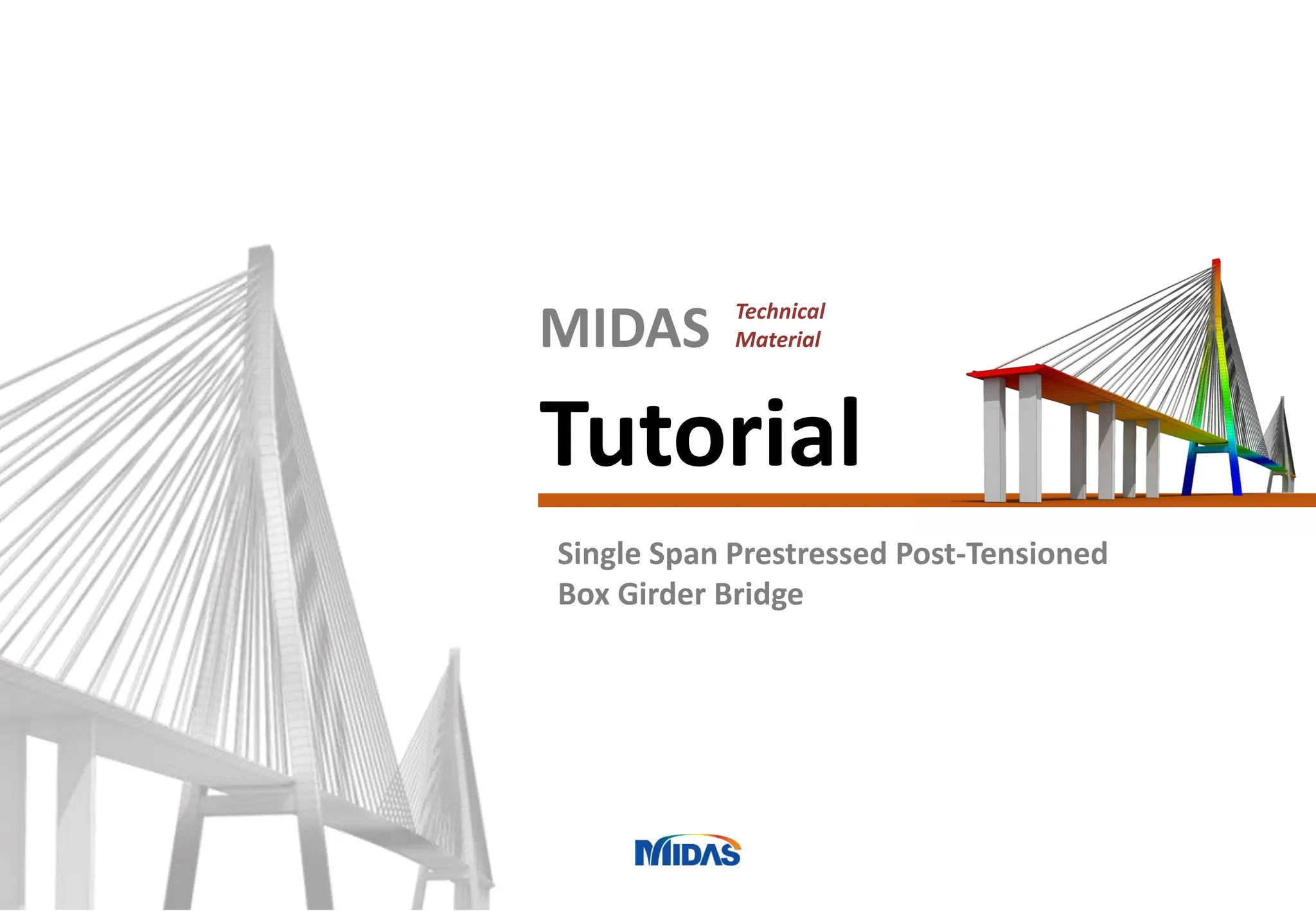
Single Span Prestressed Post-Tensioned
Box Girder Bridge
Tutorial
MIDAS Technical
Material
00
Single Span PSC Box Girder Bridge
Program Version Civil 2019 (v2.1)
Revision Date Dec 08, 2018
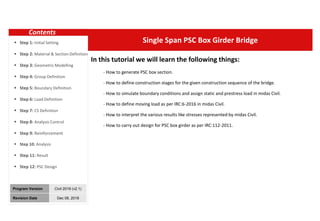
In this tutorial we will learn the following things:
- How to generate PSC box section.
- How to define construction stages for the given construction sequence of the bridge.
- How to simulate boundary conditions and assign static and prestress load in midas Civil.
- How to define moving load as per IRC:6-2016 in midas Civil.
- How to interpret the various results like stresses represented by midas Civil.
- How to carry out design for PSC box girder as per IRC:112-2011.
Contents
 Step 1: Initial Setting
 Step 2: Material & Section Definition
 Step 3: Geometric Modelling
 Step 4: Group Definition
 Step 5: Boundary Definition
 Step 6: Load Definition
 Step 7: CS Definition
 Step 8: Analysis Control
 Step 9: Reinforcement
 Step 10: Analysis
 Step 11: Result
 Step 12: PSC Design
Single Span Prestressed Box Girder Bridge 3
Step
Step
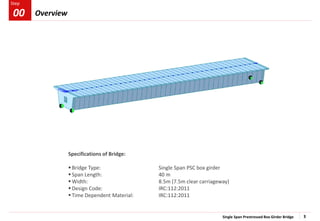
Specifications of Bridge:
 Bridge Type: Single Span PSC box girder
 Span Length: 40 m
 Width: 8.5m (7.5m clear carriageway)
 Design Code: IRC:112:2011
 Time Dependent Material: IRC:112:2011
Overview
00
Single Span Prestressed Box Girder Bridge 4
Step
Step
Invoke midas Civil
Open New File
Select the Unit System [ kN, m]
Save as ‘Single Span PSC Box Girder’
1
2
3
Procedure
.
3
2
1 Initial Setting
01
1
Single Span Prestressed Box Girder Bridge 5
Step
Step
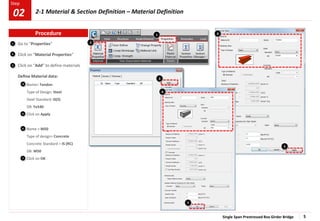
Go to “Properties”
Click on “Material Properties”
Click on “Add” to define materials
Define Material data:
Name> Tendon
Type of Design: Steel
Steel Standard: IS(S)
DB: Fe540
Click on Apply
Name > M50
Type of design> Concrete
Concrete Standard > IS (RC)
DB: M50
Click on OK
1
2
3
4
5
2
3
4
1
6
7
7
6
5
Procedure
2-1 Material & Section Definition – Material Definition
02
Single Span Prestressed Box Girder Bridge 6
Step
Step
1
2
3
4
5
Change unit system [ N, mm ]
Go to “Properties”
(Creep/Shrinkage)”
Click on “Add” to define properties
Define Creep / Shrinkage data:
Name > M50 C&S
Code > INDIA (IRC:112-2011)
Compressive strength of concrete at
the age of 28 days > 50 N/mm2
Relative Humidity of ambient
environment (40–99) > 70
Notational size of member > 1000mm
Age of concrete at the beginning of
shrinkage > 3 days
Click on Show Result to see the graph
Click on OK to add the C&S property.
7
6
2
3
4
6 7
Note: To get the creep & shrinkage strains, the value of relative humidity is to be considered as 70%, Notational size of member, h as
1000mm and Age of concrete at the beginning of shrinkage as 3 days. Later, the h value would be automatically updated for
composite sections
1
5
Procedure
02 2-2 Material & Section Definition – Time Dependent Material Properties (Creep &Shrinkage)
Single Span Prestressed Box Girder Bridge 7
Step
Step
1
2
3
4
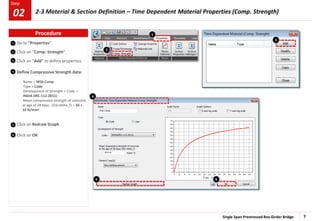
Go to “Properties”
Click on “Comp. Strength”
Click on “Add” to define properties
Define Compressive Strength data:
Name > M50 Comp
Type > Code
Development of Strength > Code >
INDIA (IRC:112-2011)
Mean compressive strength of concrete
at age of 28 days (fck+delta_f) > 50 +
10 N/mm2
Click on Redraw Graph
Click on OK
5
6
2
1
5 6
4
3
Procedure
2-3 Material & Section Definition – Time Dependent Material Properties (Comp. Strength)
02
Single Span Prestressed Box Girder Bridge 8
Step
Step
1
2
3
4
5
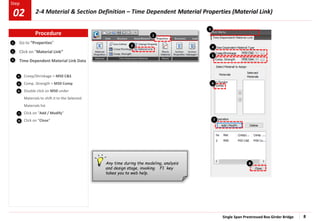
Go to “Properties”
Click on “Material Link”
Time Dependent Material Link Data
Creep/Shrinkage > M50 C&S
Comp. Strength > M50 Comp
Double click on M50 under
Materials to shift it to the Selected
Materials list
Click on “Add / Modify”
Click on “Close”
6
7
8
2
1
7
6
8
4
5
Any time during the modeling, analysis
and design stage, invoking F1 key
takes you to web help.
3
Procedure
2-4 Material & Section Definition – Time Dependent Material Properties (Material Link)
02
Single Span Prestressed Box Girder Bridge 9
Step
Step
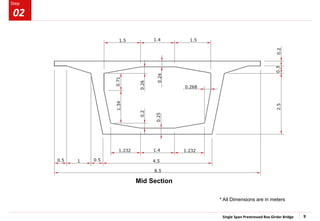
Mid Section
* All Dimensions are in meters
02
Single Span Prestressed Box Girder Bridge 10
Step
Step
1
2
4
5
Change unit system [ KN, m ]
Go to “Properties” > Section
Properties”
Click on “Add..”
Click on tab “PSC”
Select: ‘PSC-1Cell, 2Cell’ type
Define Mid Section:
Name > Mid Section
Joint On/Off > Check JO1, JI1, JI3, JI5
See the PSC Viewer and enter the
section dimension parameters
Outer box dimensions
HO1: 0.2, BO1: 1.5, HO2: 0.3,
BO1-1: 0.5, HO2-1: 0, BO2: 0.5,
HO3: 2.5, BO3: 2.25
Inner box dimensions
HI1: 0.24, BI1: 2.2, HI2: 0.26,
BI1-1: 0.7, HI2-1: 0, BI2-1: 2.2
HI3: 2.05, BI3: 1.932, HI3-1: 0.71,
BI3-1: 0.7, HI4: 0.2, HI4-1: 0,
HI5: 0.25
Check all Auto options related to
Shear calculations
Click “Change Offset”
Select Offset : Center- Top
& Click on “OK”
3
Note: The internal Process of section offset is explained in the help file .
Path: Help > Contents > Start > Model > Properties > Section, When Section
tab is opened under offset, click on ‘Details’
6
8
7
2
4
9
1
Click “Show Calculation Results”
Click on “Apply”
10
5
3
6
10
8
7
9
8
Procedure
02 2-5 Material & Section Definition – Mid Section Definition
Single Span Prestressed Box Girder Bridge 11
Step
Step
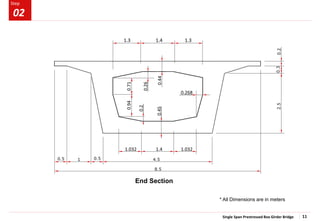
End Section
0.94
0.71
0.26
0.44
0.268
1.4
1.3 1.3
1.032 1.032
1.4
0.2
0.45
0.94
0.71
0.26
0.44
0.268
1.4
1.3 1.3
1.032 1.032
1.4
0.2
0.45
* All Dimensions are in meters
02
Single Span Prestressed Box Girder Bridge 12
Step
Step
1
2
4
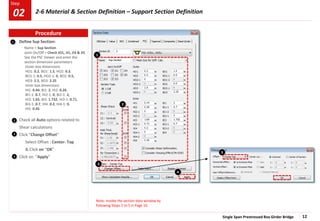
Define Sup Section:
Name > Sup Section
Joint On/Off > Check JO1, JI1, JI3 & JI5
See the PSC Viewer and enter the
section dimension parameters
Outer box dimensions
HO1: 0.2, BO1: 1.5, HO2: 0.3,
BO1-1: 0.5, HO2-1: 0, BO2: 0.5,
HO3: 2.5, BO3: 2.25
Inner box dimensions
HI1: 0.44, BI1: 2, HI2: 0.26,
BI1-1: 0.7, HI2-1: 0, BI2-1: 2,
HI3: 1.65, BI3: 1.732, HI3-1: 0.71,
BI3-1: 0.7, HI4: 0.2, HI4-1: 0,
HI5: 0.45
Check all Auto options related to
Shear calculations
Click “Change Offset”
Select Offset : Center- Top
& Click on “OK”
Click on “Apply”
3
4
Note: Invoke the section data window by
following Steps 2 to 5 in Page 10.
3
1
2
3
Procedure
02 2-6 Material & Section Definition – Support Section Definition
Single Span Prestressed Box Girder Bridge 13
Step
Step
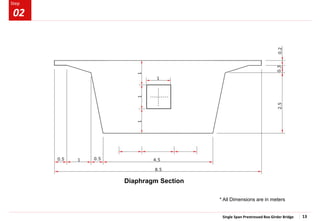
Diaphragm Section
* All Dimensions are in meters
02
Single Span Prestressed Box Girder Bridge 14
Step
Step
1
2
4
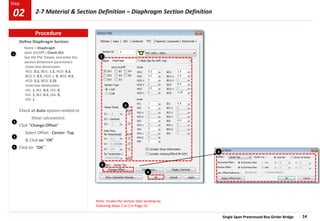
Define Diaphragm Section:
Name > Diaphragm
Joint On/Off > Check JO1
See the PSC Viewer and enter the
section dimension parameters
Outer box dimensions
HO1: 0.2, BO1: 1.5, HO2: 0.3,
BO1-1: 0.5, HO2-1: 0, BO2: 0.5,
HO3: 2.5, BO3: 2.25
Inner box dimensions
HI1: 1, BI1: 0.5, HI2: 0,
HI3: 1, BI3: 0.5, HI4: 0,
HI5: 1
Check all Auto options related to
Shear calculations
Click “Change Offset”
Select Offset : Center- Top
& Click on “OK”
Click on “OK”
3
4
Note: Invoke the section data window by
following Steps 2 to 5 in Page 10.
1
2
3
3
Procedure
02 2-7 Material & Section Definition – Diaphragm Section Definition
Single Span Prestressed Box Girder Bridge 15
Step
Step
1
2
3
.
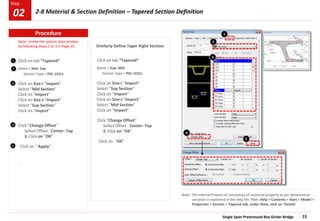
Click on tab “Tapered”
Name > Mid- Sup
Section Type > PSC-1CELL
Click on Size-I “Import”
Select “Mid Section”
Click on “Import”
Click on Size-J “Import”
Select “Sup Section”
Click on “Import”
Click “Change Offset”
Select Offset : Center- Top
& Click on “OK”
Click on “Apply”
4
1
Similarly Define Taper Right Section:
5
Note: The internal Process of calculation of sectional property as per dimensional
variation is explained in the help file. Path: Help > Contents > Start > Model >
Properties > Section > Tapered tab, under Note, click on ‘Details’
2
3
5
Note: Invoke the section data window
by following Steps 2 to 3 in Page 10.
4
Click on tab “Tapered”
Name > Sup- Mid
Section Type > PSC-1CELL
Click on Size-I “Import”
Select “Sup Section”
Click on “Import”
Click on Size-J “Import”
Select “Mid Section”
Click on “Import”
Click “Change Offset”
Select Offset : Center- Top
& Click on “OK”
Click on “OK”
Procedure
2-8 Material & Section Definition – Tapered Section Definition
02
Single Span Prestressed Box Girder Bridge 16
Step
Step
1
2
3
.
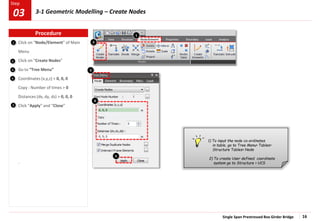
Click on “Node/Element” of Main
Menu
Click on “Create Nodes”
Go to “Tree Menu”
Coordinates (x,y,z) > 0, 0, 0
Copy : Number of times > 0
Distances (dx, dy, dz) > 0, 0, 0
Click “Apply” and “Close”
4
5
1
4
1) To input the node co-ordinates
in table, go to Tree Menu> Tables>
Structure Tables> Node
2) To create User defined coordinate
system go to Structure > UCS
2
5
3
Procedure
3-1 Geometric Modelling – Create Nodes
03
Single Span Prestressed Box Girder Bridge 17
Step
Step
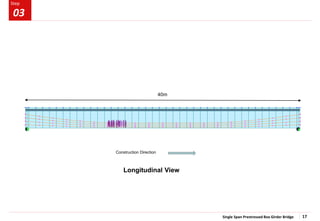
Longitudinal View
40m
Construction Direction
03
Single Span Prestressed Box Girder Bridge 18
Step
Step
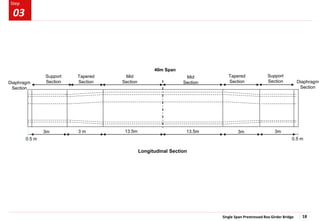
Longitudinal Section
Tapered
Section
Support
Section
Mid
Section
13.5m
3 m
3m
40m Span
Support
Section
Tapered
Section
Mid
Section
3m 3m
13.5m
03
0.5 m 0.5 m
Diaphragm
Section
Diaphragm
Section
Single Span Prestressed Box Girder Bridge 19
Step
Step
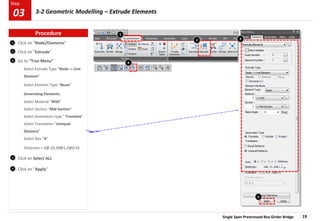
2
3
Click on “Node/Elements”
Click on “Extrude”
Go to “Tree Menu”
Select Extrude Type “Node -> Line
Element”
Select Element Type “Beam”
Generating Elements:
Select Material “M50”
Select Section “Mid Section”
Select Generation type “ Translate”
Select Translation “Unequal
Distance”
Select Axis “X”
Distances > 2@.25,39@1,2@0.25
Click on Select ALL
Click on “Apply”
4
1
1
2 3
5
5
4
Procedure
03 3-2 Geometric Modelling – Extrude Elements
Single Span Prestressed Box Girder Bridge 20
Step
Step
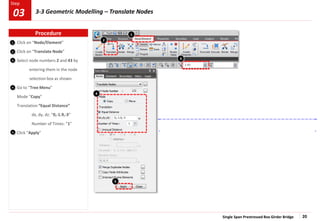
1
2
3
Click on “Node/Element”
Click on “Translate Node”
Select node numbers 2 and 43 by
entering them in the node
selection box as shown.
Go to “Tree Menu”
Mode “Copy”
Translation “Equal Distance”
dx, dy, dz: “0,-1.9,-3”
Number of Times: “1”
Click “Apply”
4
5
2
1
4
5
3
Procedure
3-3 Geometric Modelling – Translate Nodes
03
Single Span Prestressed Box Girder Bridge 21
Step
Step
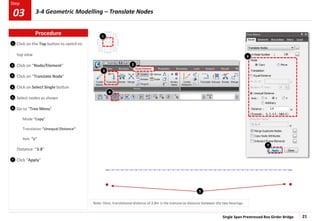
1
2
3
Click on the Top button to switch to
top view
Click on “Node/Element”
Click on “Translate Node”
Click on Select Single button
Select nodes as shown
Go to “Tree Menu”
Mode “Copy”
Translation “Unequal Distance”
Axis: “y”
Distance: “3.8”
Click “Apply”
3
2
4
5
7
1
5
4
6
7
Note: Here, translational distance of 3.8m is the transverse distance between the two bearings.
6
Procedure
3-4 Geometric Modelling – Translate Nodes
03
Single Span Prestressed Box Girder Bridge 22
Step
Step
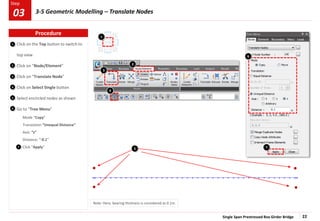
1
2
3
Click on the Top button to switch to
top view
Click on “Node/Element”
Click on “Translate Node”
Click on Select Single button
Select encircled nodes as shown
Go to “Tree Menu”
Mode “Copy”
Translation “Unequal Distance”
Axis: “z”
Distance: “-0.1”
Click “Apply”
4
5
6
7
Note: Here, bearing thickness is considered as 0.1m.
3
5
4
2
6
7
1
Procedure
3-5 Geometric Modelling – Translate Nodes
03
Single Span Prestressed Box Girder Bridge 23
Step
Step
2
3
4
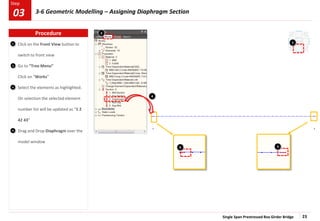
Click on the Front View button to
switch to front view
Go to “Tree Menu”
Click on “Works”
Select the elements as highlighted.
On selection the selected element
number list will be updated as “1 2
42 43”
Drag and Drop Diaphragm over the
model window
1 1
3 3
4
2
Procedure
03 3-6 Geometric Modelling – Assigning Diaphragm Section
Single Span Prestressed Box Girder Bridge 24
Step
Step
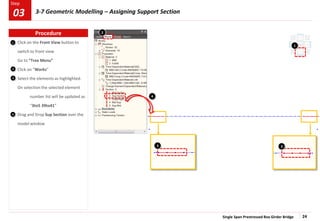
Click on the Front View button to
switch to front view
Go to “Tree Menu”
Click on “Works”
Select the elements as highlighted.
On selection the selected element
number list will be updated as
“3to5 39to41”
Drag and Drop Sup Section over the
model window
1
2
3
4
1
3 3
4
2
Procedure
03 3-7 Geometric Modelling – Assigning Support Section
Single Span Prestressed Box Girder Bridge 25
Step
Step
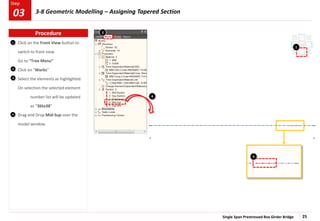
Click on the Front View button to
switch to front view
Go to “Tree Menu”
Click on “Works”
Select the elements as highlighted.
On selection the selected element
number list will be updated
as “36to38”
Drag and Drop Mid-Sup over the
model window
1
2
3
4
1
3
4
2
Procedure
03 3-8 Geometric Modelling – Assigning Tapered Section
Single Span Prestressed Box Girder Bridge 26
Step
Step
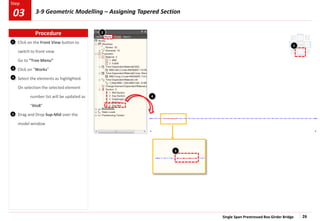
Click on the Front View button to
switch to front view
Go to “Tree Menu”
Click on “Works”
Select the elements as highlighted.
On selection the selected element
number list will be updated as
“6to8”
Drag and Drop Sup-Mid over the
model window
1
2
3
4
1
3
4
2
Procedure
03 3-9 Geometric Modelling – Assigning Tapered Section
Single Span Prestressed Box Girder Bridge 27
Step
Step
2
3
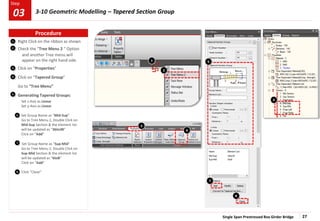
Right Click on the ribbon as shown
Check the “Tree Menu 2 “ Option
and another Tree menu will
appear on the right hand side.
Click on “Properties”
Click on “Tapered Group”
Go to “Tree Menu”
Generating Tapered Groups:
Set z-Axis as Linear
Set y-Axis as Linear
Set Group Name as “Mid-Sup”
Go to Tree Menu 2, Double Click on
Mid-Sup Section & the element list
will be updated as “36to38”
Click on “Add”
Set Group Name as “Sup-Mid”
Go to Tree Menu 2, Double Click on
Sup-Mid Section & the element list
will be updated as “6to8”
Click on “Add”
Click “Close”
2
6
1
1
4
3
6
4
5
7
5
8
7
8
Procedure
03 3-10 Geometric Modelling – Tapered Section Group
Single Span Prestressed Box Girder Bridge 28
Step
Step
2
3
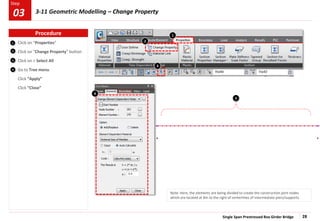
Click on “Properties”
Click on “Change Property” button
Click on > Select All
Go to Tree menu
Click “Apply”
Click “Close”
2
1
4
4
1
Note: Here, the elements are being divided to create the construction joint nodes
which are located at 8m to the right of centerlines of intermediate piers/supports.
3
3
Procedure
03 3-11 Geometric Modelling – Change Property
Single Span Prestressed Box Girder Bridge 29
Step
Step
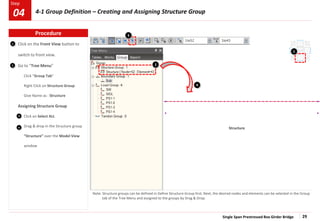
1 Click on the Front View button to
switch to front view.
Go to “Tree Menu”
Click “Group Tab”
Right Click on Structure Group
Give Name as : Structure
Assigning Structure Group
Click on Select ALL
Drag & drop in the Structure group
“Structure” over the Model View
window
Note: Structure groups can be defined in Define Structure Group first. Next, the desired nodes and elements can be selected in the Group
tab of the Tree Menu and assigned to the groups by Drag & Drop.
Structure
2 2
3
4
3
4
1
Procedure
04 4-1 Group Definition – Creating and Assigning Structure Group
Single Span Prestressed Box Girder Bridge 30
Step
1
2
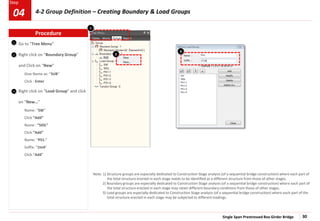
Go to “Tree Menu”
Right click on “Boundary Group”
and Click on “New”
Give Name as: “SUB”
Click : Enter
Right click on “Load Group” and click
on “New…”
Name: “SW”
Click “Add”
Name : “SIDL”
Click “Add”
Name: “PS1-”
Suffix: “1to4”
Click “Add”
Note: 1) Structure groups are especially dedicated to Construction Stage analysis (of a sequential bridge construction) where each part of
the total structure erected in each stage needs to be identified as a different structure from those of other stages.
2) Boundary groups are especially dedicated to Construction Stage analysis (of a sequential bridge construction) where each part of
the total structure erected in each stage may retain different boundary conditions from those of other stages.
3) Load groups are especially dedicated to Construction Stage analysis (of a sequential bridge construction) where each part of the
total structure erected in each stage may be subjected to different loadings.
3
Procedure
2
3
1
4-2 Group Definition – Creating Boundary & Load Groups
04
Single Span Prestressed Box Girder Bridge 31
Step
Step
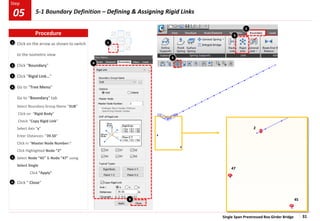
1
2
3
Click on the arrow as shown to switch
to the isometric view
Click “Boundary”
Click “Rigid Link…”
Go to “Tree Menu”
Go to “Boundary” tab
Select Boundary Group Name “SUB”
Click on “Rigid Body”
Check “Copy Rigid Link”
Select Axis “x”
Enter Distances: “39.50”
Click in “Master Node Number:”
Click Highlighted Node “2”
Select Node “45” & Node “47” using
Select Single
Click “Apply”
Click “ Close”
4
1
2
3
2
45
47
4
6
6
Procedure
05 5-1 Boundary Definition – Defining & Assigning Rigid Links
5
5
Single Span Prestressed Box Girder Bridge 32
Step
Step
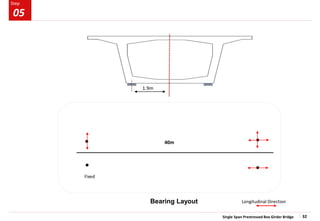
Bearing Layout
1.9m
Longitudinal Direction
40m
Fixed
05
Single Span Prestressed Box Girder Bridge 33
Step
Step
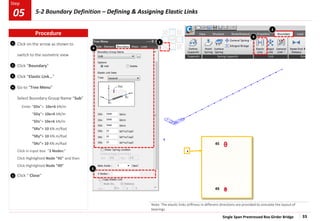
1
2
3
Click on the arrow as shown to
switch to the isometric view
Click “Boundary”
Click “Elastic Link…”
Go to “Tree Menu”
Select Boundary Group Name “Sub”
Enter “SDx”> 10e+6 kN/m
“SDy”> 10e+6 kN/m
“SDz”> 10e+6 kN/m
“SRx”> 10 KN.m/Rad
“SRy”> 10 KN.m/Rad
“SRz”> 10 KN.m/Rad
Click in input box “2 Nodes:”
Click Highlighted Node “45” and then
Click Highlighted Node “49”
Click “ Close”
4
5
Note: The elastic links stiffness in different directions are provided to simulate the layout of
bearings .
1
2
3
45
49
5
4
Procedure
05 5-2 Boundary Definition – Defining & Assigning Elastic Links
Single Span Prestressed Box Girder Bridge 34
Step
Step
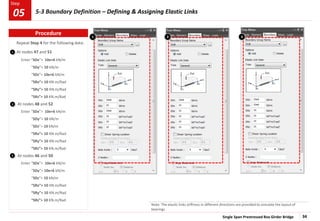
Repeat Step 4 for the following data:
At nodes 47 and 51
Enter “SDx”> 10e+6 kN/m
“SDy”> 10 kN/m
“SDz”> 10e+6 kN/m
“SRx”> 10 KN.m/Rad
“SRy”> 10 KN.m/Rad
“SRz”> 10 KN.m/Rad
At nodes 48 and 52
Enter “SDx”> 10e+6 kN/m
“SDy”> 10 kN/m
“SDz”> 10 kN/m
“SRx”> 10 KN.m/Rad
“SRy”> 10 KN.m/Rad
“SRz”> 10 KN.m/Rad
At nodes 46 and 50
Enter “SDx”> 10e+6 kN/m
“SDy”> 10e+6 kN/m
“SDz”> 10 kN/m
“SRx”> 10 KN.m/Rad
“SRy”> 10 KN.m/Rad
“SRz”> 10 KN.m/Rad
Note: The elastic links stiffness in different directions are provided to simulate the layout of
bearings .
1
1
2
3
2 3
Procedure
5-3 Boundary Definition – Defining & Assigning Elastic Links
05
Single Span Prestressed Box Girder Bridge 35
Step
Step
1
2
3
Click on the button as shown &
switch to the isometric view
Click “Boundary”
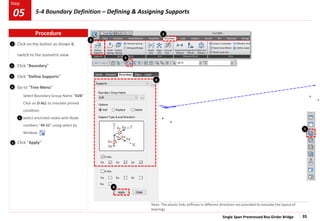
Click “Define Supports”
Go to “Tree Menu”
Select Boundary Group Name “SUB”
Click on D-ALL to simulate pinned
condition.
Select encircled nodes with Node
numbers “49 51” using select by
Window
Click “Apply”
4
6
Note: The elastic links stiffness in different directions are provided to simulate the layout of
bearings
5
2
3
5
6
4
1
Procedure
5-4 Boundary Definition – Defining & Assigning Supports
05
Single Span Prestressed Box Girder Bridge 36
Step
Step
1
2
3
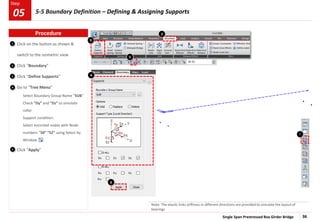
Click on the button as shown &
switch to the isometric view
Click “Boundary”
Click “Define Supports”
Go to “Tree Menu”
Select Boundary Group Name “SUB”
Check “Dy” and “Dz” to simulate
roller
Support condition.
Select encircled nodes with Node
numbers “50” “52” using Select by
Window
Click “Apply”
4
5
Note: The elastic links stiffness in different directions are provided to simulate the layout of
bearings
2
3
5
6
4
1
Procedure
5-5 Boundary Definition – Defining & Assigning Supports
05
Single Span Prestressed Box Girder Bridge 37
Step
Step
1
2
3
.
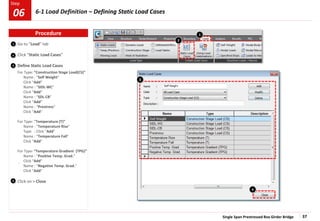
Go to “Load” tab
Click “Static Load Cases”
Define Static Load Cases
For Type: “Construction Stage Load(CS)”
Name : “Self Weight”
Click “Add”
Name : “SIDL-WC”
Click “Add”
Name : “SDL-CB”
Click “Add”
Name : “Prestress”
Click “Add”
For Type: “Temperature (T)”
Name : “Temperature Rise”
Type : Click “Add”
Name : “Temperature Fall”
Click “Add”
For Type: “Temperature Gradient (TPG)”
Name : “Positive Temp. Grad.”
Click “Add”
Name : “Negative Temp. Grad.”
Click “Add”
Click on > Close
1
2
3
4
4
Procedure
6-1 Load Definition – Defining Static Load Cases
06
Single Span Prestressed Box Girder Bridge 38
Step
Step
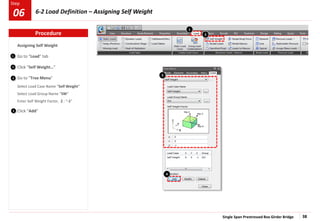
Assigning Self Weight
Go to “Load” tab
Click “Self Weight…”
Go to “Tree Menu”
Select Load Case Name “Self Weight”
Select Load Group Name “SW”
Enter Self Weight Factor, Z : “-1”
Click “Add”
1
2
2
1
3
4
4
3
Procedure
6-2 Load Definition – Assigning Self Weight
06
Single Span Prestressed Box Girder Bridge 39
Step
Step
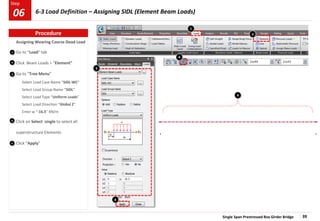
1
4
Assigning Wearing Course Dead Load
Go to “Load” tab
Click Beam Loads > “Element”
Go to “Tree Menu”
Select Load Case Name “SIDL-WC”
Select Load Group Name “SIDL”
Select Load Type “Uniform Loads”
Select Load Direction “Global Z”
Enter w “-16.5” KN/m
Click on Select single to select all
superstructure Elements
Click “Apply”
1
4
2
2
3
4
5
3
4
Procedure
6-3 Load Definition – Assigning SIDL (Element Beam Loads)
06
Single Span Prestressed Box Girder Bridge 40
Step
Step
1
2
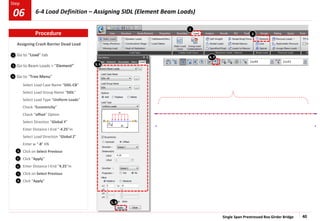
Assigning Crash Barrier Dead Load
Go to “Load” tab
Go to Beam Loads > “Element”
Go to “Tree Menu”
Select Load Case Name “SIDL-CB”
Select Load Group Name “SIDL”
Select Load Type “Uniform Loads”
Check “Eccentricity”
Check “offset” Option
Select Direction “Global Y”
Enter Distance I-End “-4.25”m
Select Load Direction “Global Z”
Enter w “-8” KN
Click on Select Previous
Click “Apply”
Enter Distance I-End “4.25”m
Click on Select Previous
Click “Apply”
1
2
3
4
3, 6
5
6
8
7
Procedure
4, 7
6-4 Load Definition – Assigning SIDL (Element Beam Loads)
06
5, 8
Single Span Prestressed Box Girder Bridge 41
Step
Step
1
2
3
Change unit system [N,mm]
Go to “Load” of Main Menu
Click “Temp/Prestress”
Click “Tendon Property”
Click “Add”
Enter Tendon Name “Tendon”
Select Tendon Type “Internal(Post-
Tension”
Select Material “Tendon”
Click “…” in the dialog box for Total
Tendon Area
Select Strand Diameter
“15.2mm(0.6”)”
Enter Number of Strands “19”
Click “OK”
Enter Duct Diameter “110”mm
Select Relaxation Coefficient “India
(IRC:112-2011) – Low”
Enter Ultimate Strength “1860”
Enter Yield Strength “1581”
Enter Curvature Friction Factor
“0.17”
Enter Wobble Friction Factor as
“2e-6”/mm
Enter Anchorage Slip Begin : “6”
Enter Anchorage Slip End : “6”
Select Bond Type “Bonded”
Click “OK”
Click “Close”
4
2
3
1
4
5
7
7
5
6
6
Procedure
6-5 Load Definition – Defining Tendon Property
06
Single Span Prestressed Box Girder Bridge 42
Step
Step
1
2
3
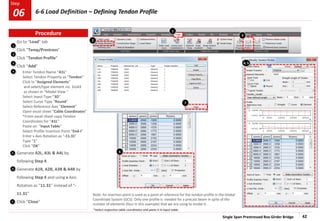
Go to “Load” tab
Click “Temp/Prestress”
Click “Tendon Profile”
Click “Add”
Enter Tendon Name “A1L”
Select Tendon Property as “Tendon”
Click in “Assigned Elements”
and select/type element no. 1to43
as shown in “Model View “
Select Input Type “3D”
Select Curve Type “Round”
Select Reference Axis “Element”
Open excel sheet “Cable Coordinates”
*From excel sheet copy Tendon
Coordinates for “A1L”
Paste on “Input Table”
Select Profile Insertion Point “End-I”
Enter x Axis Rotation as “-11.31”
Type “1”
Click “OK”
Generate A2L, A3L & A4L by
following Step 4
Generate A1R, A2R, A3R & A4R by
following Step 4 and using x Axis
Rotation as “11.31” instead of “-
11.31”
Click “Close”
4
1
5
7
2
*Select respective cable coordinates and paste it in input table.
Note: An insertion point is used as a point of reference for the tendon profile in the Global
Coordinate System (GCS). Only one profile is needed for a precast beam in spite of the
number of elements (four in this example) that we are using to model it.
3
6
4, 5
6
Procedure
6-6 Load Definition – Defining Tendon Profile
06
7
Single Span Prestressed Box Girder Bridge 43
Step
Step
1
2
3
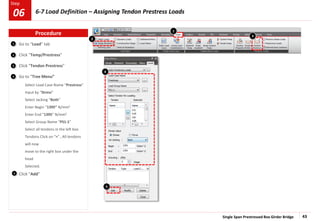
Go to “Load” tab
Click “Temp/Prestress”
Click “Tendon Prestress”
Go to “Tree Menu”
Select Load Case Name “Prestress”
Input by “Stress”
Select Jacking “Both”
Enter Begin “1395” N/mm2
Enter End “1395” N/mm2
Select Group Name “PS1-1”
Select all tendons in the left box
Tendons Click on “>” , All tendons
will now
move to the right box under the
head
Selected.
Click “Add”
5
4
4
5
1
2
3
Procedure
6-7 Load Definition – Assigning Tendon Prestress Loads
06
Single Span Prestressed Box Girder Bridge 44
Step
Step
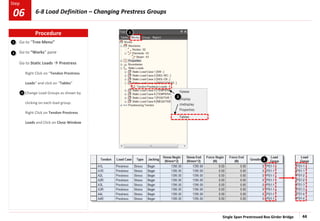
1
2
Go to “Tree Menu”
Go to “Works” pane
Go to Static Loads  Prestress
Right Click on “Tendon Prestress
Loads” and click on “Tables”
Change Load Groups as shown by
clicking on each load group.
Right Click on Tendon Prestress
Loads and Click on Close Window
3
1
3
2
Procedure
6-8 Load Definition – Changing Prestress Groups
06
Single Span Prestressed Box Girder Bridge 45
Step
Step
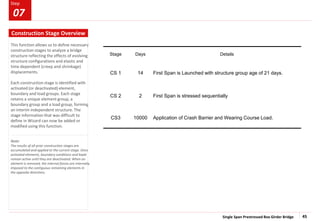
This function allows us to define necessary
construction stages to analyze a bridge
structure reflecting the effects of evolving
structure configurations and elastic and
time dependent (creep and shrinkage)
displacements.
Each construction stage is identified with
activated (or deactivated) element,
boundary and load groups. Each stage
retains a unique element group, a
boundary group and a load group, forming
an interim independent structure. The
stage information that was difficult to
define in Wizard can now be added or
modified using this function.
Note:
The results of all prior construction stages are
accumulated and applied to the current stage. Once
activated elements, boundary conditions and loads
remain active until they are deactivated. When an
element is removed, the internal forces are internally
imposed to the contiguous remaining elements in
the opposite directions.
Stage Days Details
CS 1 14 First Span is Launched with structure group age of 21 days.
CS 2 2 First Span is stressed sequentially
CS3 10000 Application of Crash Barrier and Wearing Course Load.
Construction Stage Overview
07
Single Span Prestressed Box Girder Bridge 46
Step
Step
1
2
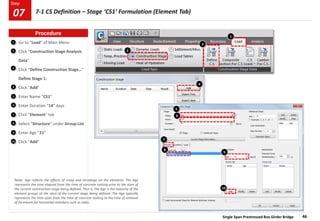
Go to “Load” of Main Menu
Click “Construction Stage Analysis
Data”
Click “Define Construction Stage…”
Define Stage 1:
Click “Add”
Enter Name “CS1”
Enter Duration “14” days
Click “Element” tab
Select “Structure” under Group List
Enter Age “21”
Click “Add”
3
5
1
2
6
10
9
8
7
6
5
4
9
3
7
8
4
10
Note: Age reflects the effects of creep and shrinkage on the elements. The Age
represents the time elapsed from the time of concrete casting prior to the start of
the current construction stage being defined. That is, the Age is the maturity of the
element groups at the start of the current stage being defined. The Age typically
represents the time span from the time of concrete casting to the time of removal
of formwork for horizontal members such as slabs.
Procedure
7-1 CS Definition – Stage ‘CS1’ Formulation (Element Tab)
07
Single Span Prestressed Box Girder Bridge 47
Step
Step
1
2
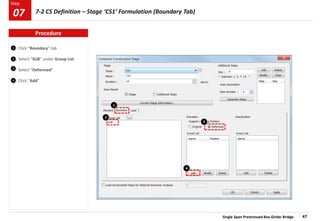
Click “Boundary” tab
Select “SUB” under Group List
Select “Deformed”
Click “Add”
3
4
2
3
4
1
Procedure
7-2 CS Definition – Stage ‘CS1’ Formulation (Boundary Tab)
07
Single Span Prestressed Box Girder Bridge 48
Step
Step
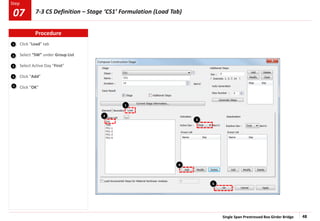
Click “Load” tab
Select “SW” under Group List
Select Active Day “First”
Click “Add”
Click “OK”
1
4
1
2
3
4
5
5
2
3
Procedure
7-3 CS Definition – Stage ‘CS1’ Formulation (Load Tab)
07
Single Span Prestressed Box Girder Bridge 49
Step
Step
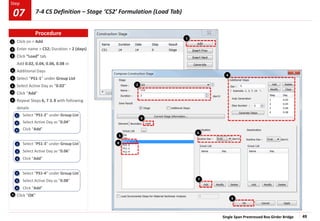
Click on > Add
Enter name > CS2; Duration > 2 (days)
Click “Load” tab
Add 0.02, 0.04, 0.06, 0.08 in
Additional Days
Select “PS1-1” under Group List
Select Active Day as “0.02”
Click “Add”
Repeat Steps 6, 7 & 8 with following
details
Select “PS1-2” under Group List
Select Active Day as “0.04”
Click “Add”
Select “PS1-3” under Group List
Select Active Day as “0.06”
Click “Add”
Select “PS1-4” under Group List
Select Active Day as “0.08”
Click “Add”
Click “OK”
1
2
3
4
5
2
3
4
2
3
4
2
3
4
9
6
7
3
5
6
8
2
4
7
1
9
8
Procedure
7-4 CS Definition – Stage ‘CS2’ Formulation (Load Tab)
07
Single Span Prestressed Box Girder Bridge 50
Step
Step
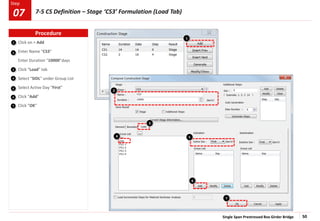
Click on > Add
Enter Name “CS3”
Enter Duration “10000”days
Click “Load” tab
Select “SIDL” under Group List
Select Active Day “First”
Click “Add”
Click “OK”
1
2
3
4
5
6
7
3
2
4 5
6
7
1
Procedure
7-5 CS Definition – Stage ‘CS3’ Formulation (Load Tab)
07
Single Span Prestressed Box Girder Bridge 51
Step
Step
1
1
2
3
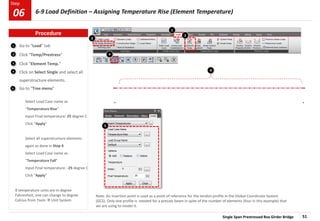
Go to “Load” tab
Click “Temp/Prestress”
Click “Element Temp.”
Click on Select Single and select all
superstructure elements.
Go to “Tree menu”
Select Load Case name as
“Temperature Rise”
Input Final temperature: 25 degree C
Click “Apply”
Select all superstructure elements
again as done in Step 4
Select Load Case name as
“Temperature Fall”
Input Final temperature: -25 degree C
Click “Apply”
4
5
If temperature units are in degree
Fahrenheit, one can change to degree
Celcius from Tools  Unit System
Note: An insertion point is used as a point of reference for the tendon profile in the Global Coordinate System
(GCS). Only one profile is needed for a precast beam in spite of the number of elements (four in this example) that
we are using to model it.
3
4
2
5
4
Procedure
6-9 Load Definition – Assigning Temperature Rise (Element Temperature)
06
Single Span Prestressed Box Girder Bridge 52
Step
Step
3
1
2
3
Go to “Load” tab
Click “Temp/Prestress”
Click “Beam Section Temp.”
Select all superstructure elements.
Go to “Tree menu”
Select Load Case name as “Positive
Temp. Grad.”
Section Type > PSC/Composite
Select “Element” option for Material
Keep Ref. as “Top”
B > “Section”
Enter H1 as 0 mm
Enter H2 as 150 mm
Enter T1 as 17.8 [C]
Enter T2 as 4 [C]
Click on Add
Change Parameters:
Enter H1 as 150 mm
Enter H2 as 400 mm
Enter T1 as 4 [C]
Enter T2 as 0 [C]
Click on Add
Change Parameters:
Enter H1 as 2850 mm
Enter H2 as 3000 mm
Enter T1 as 0 [C]
Enter T2 as 2.1 [C]
Click on Add
Click “Apply”
4
5
If temperature units are in degree Fahrenheit, one can change to degree Celsius from Tools  Unit System
6
6
h1 = 0.15m
h2 = 0.25m
h3 = 0.15m
Positive Temperature
Differences
Reverse Temperature
Differences
h1
h2
h3
h1
h2
h3
h4
h1 = h4 = 0.25m
h2 = h3 = 0.25m
For the given depth of box girder
4
2 5
1
Procedure
6-10 Load Definition – Assigning Positive Temperature Differences (Beam Section Temperature)
06
Single Span Prestressed Box Girder Bridge 53
Step
Step
Change Parameters:
Enter H1 as 2750 mm
Enter H2 as 3000 mm
Enter T1 as -0.8 [C]
Enter T2 as -6.6 [C]
Click “Apply”
1
2
3
Go to “Load” tab
Click “Temp/Prestress”
Click “Beam Section Temp.”
Select all superstructure elements.
Go to “Tree menu”
Select Load Case name as “Negative
Temp. Grad.”
Section Type > PSC/Composite
Select “Element” option for Material
Keep Ref. as “Top”
B > “Section”
Enter H1 as 0 mm
Enter H2 as 250 mm
Enter T1 as -10.3 [C]
Enter T2 as -0.7 [C]
Click on Add
Change Parameters:
Enter H1 as 250 mm
Enter H2 as 500 mm
Enter T1 as -0.7 [C]
Enter T2 as 0 [C]
Click on Add
Change Parameters:
Enter H1 as 2500 mm
Enter H2 as 2750 mm
Enter T1 as 0 [C]
Enter T2 as -0.8 [C]
Click on Add
4
5
Note: An insertion point is used as a point of reference for the tendon profile in the Global Coordinate System (GCS).
Only one profile is needed for a precast beam in spite of the number of elements (four in this example) that we are
using to model it.
6 6
4
3
2
1
5
Procedure
6-11 Load Definition – Assigning Negative Temperature Differences (Beam Section Temperature)
06
Single Span Prestressed Box Girder Bridge 54
Step
Step
Change unit system [kN , m]
Go to “Load” tab
Click “Moving Load”
Moving Load Code > India
Click “Traffic Line Lanes”
Click “Add”
Enter Lane Name “70R”
View the figure provided
Enter Eccentricity “1.155”m
Enter Wheel Spacing “1.93”m
Enter Impact factor “0.1”
Select Vehicular Load Distribution as
“Lane Element”
Select Moving direction as “Both”
Select Selection by “2 Points”
Click in the “Box”
Click on extreme left node of
superstructure i.e. node no. 1
Click on extreme right node of
superstructure i.e. node no. 44
Click “OK”
3
7
1
Node: 1 Node: 44
6
6
7
1
2
3
4
5
2
Procedure
6-12 Load Definition – Definition of Traffic Line Lanes
06
5 6
For other lanes, similarly change names,
wheel spacing and eccentricities as
below:
Enter Lane Name “Cl.A 1”
Enter Eccentricity “2.45”m
Enter Wheel Spacing “1.8”m
Enter Impact factor “0.1”
Enter Lane Name “Cl.A 2”
Enter Eccentricity “-1.05”m
Enter Wheel Spacing “1.8”m
Enter Impact factor “0.1”
4
Single Span Prestressed Box Girder Bridge 55
Step
Step
5
1
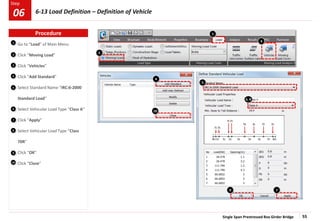
2
3
Go to “Load” of Main Menu
Click “Moving Load”
Click “Vehicles”
Click “Add Standard”
Select Standard Name “IRC:6-2000
Standard Load”
Select Vehicular Load Type “Class A”
Click “Apply”
Select Vehicular Load Type “Class
70R”
Click “OK”
Click “Close”
4
3
2
6
7
8
9
10
5
6, 8
9
4
10
7
1
Procedure
6-13 Load Definition – Definition of Vehicle
06
Single Span Prestressed Box Girder Bridge 56
Step
Step
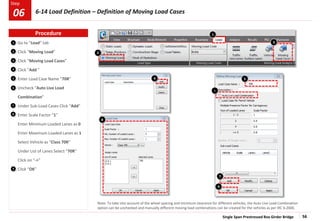
5
1
2
3
Go to “Load” tab
Click “Moving Load”
Click “Moving Load Cases”
Click “Add ”
Enter Load Case Name “70R”
Uncheck “Auto Live Load
Combination”
Under Sub-Load Cases Click “Add”
Enter Scale Factor “1”
Enter Minimum Loaded Lanes as 0
Enter Maximum Loaded Lanes as 1
Select Vehicle as “Class 70R”
Under List of Lanes Select “70R”
Click on “->”
Click “OK”
4
6
7
6
Note: To take into account of the wheel spacing and minimum clearance for different vehicles, the Auto Live Load Combination
option can be unchecked and manually different moving load combinations can be created for the vehicles as per IRC 6:2000.
9
7
3
2
8
9
4 5
1
8
Procedure
6-14 Load Definition – Definition of Moving Load Cases
06
Single Span Prestressed Box Girder Bridge 57
Step
Step
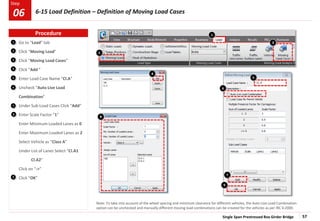
5
1
2
3
Go to “Load” tab
Click “Moving Load”
Click “Moving Load Cases”
Click “Add ”
Enter Load Case Name “Cl.A”
Uncheck “Auto Live Load
Combination”
Under Sub-Load Cases Click “Add”
Enter Scale Factor “1”
Enter Minimum Loaded Lanes as 0
Enter Maximum Loaded Lanes as 2
Select Vehicle as “Class A”
Under List of Lanes Select “Cl.A1
Cl.A2”
Click on “->”
Click “OK”
4
6
7
4
6
9
7
3
2
8
9
Note: To take into account of the wheel spacing and minimum clearance for different vehicles, the Auto Live Load Combination
option can be unchecked and manually different moving load combinations can be created for the vehicles as per IRC 6:2000.
5
1
8
Procedure
6-15 Load Definition – Definition of Moving Load Cases
06
Single Span Prestressed Box Girder Bridge 58
Step
Step
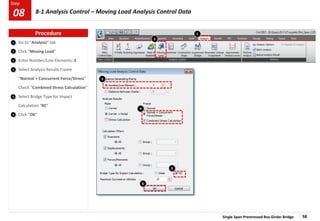
5
1
2
3
Go to “Analysis” tab
Click “Moving Load”
Enter Number/Line Elements: 3
Select Analysis Results Frame
“Normal + Concurrent Force/Stress”
Check “Combined Stress Calculation”
Select Bridge Type for Impact
Calculation “RC”
Click “OK”
4
2
3
4
5
6
6
1
Procedure
8-1 Analysis Control – Moving Load Analysis Control Data
08
Single Span Prestressed Box Girder Bridge 59
Step
Step
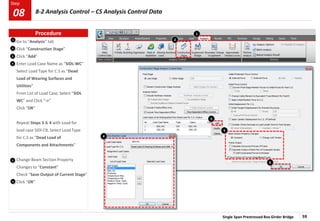
1
2
Go to “Analysis” tab
Click “Construction Stage”
Click “Add”
Enter Load Case Name as “SIDL-WC”
Select Load Type for C.S as “Dead
Load of Wearing Surfaces and
Utilities”
From List of Load Case, Select “SIDL
WC” and Click “->”
Click “OK”
Repeat Steps 3 & 4 with Load for
load case SIDl-CB, Select Load Type
for C.S as “Dead Load of
Components and Attachments”
Change Beam Section Property
Changes to “Constant”
Check “Save Output of Current Stage”
Click “OK”
3
5
3
5
4
6
6
2
1
4
Procedure
8-2 Analysis Control – CS Analysis Control Data
08
Single Span Prestressed Box Girder Bridge 60
Step
Step
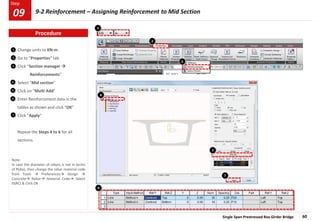
2
3
Change units to KN-m.
Go to “Properties” tab
Click “Section manager 
Reinforcements”
Select “Mid section”
Click on “Multi Add”
Enter Reinforcement data in the
tables as shown and click “OK”
Click “Apply”
Repeat the Steps 4 to 6 for all
sections.
2
4
5
6
7
1
1
3
4
5
7
Note:
In case the diameter of rebars is not in terms
of P(dia), then change the rebar material code
from Tools  Preferences Design 
Concrete Rebar Material Code Select
IS(RC) & Click OK
6
Procedure
9-2 Reinforcement – Assigning Reinforcement to Mid Section
09
Single Span Prestressed Box Girder Bridge 61
Step
Step
1
2
Select “Mid section”
Click on “Shear Reinforcement”
Enter Shear Reinforcement data
under “Diagonal Reinforcement” as
Pitch: 0.15m
Angle: 90 [deg]
Aw: 0.0012568 m^2 (4Legs of P20)
Enter Torsional Reinforcement data
under “Torsional Reinforcement” as
Pitch: 0.15m
Awt: 0.0003142 m^2 (1Leg of P20)
Alt: 0.008044 m^2(40 Nos. of P16)
Click “Apply”
Repeat the Steps 2 to 5 for all
sections.
Click “Close”
3
1
4
2
5
3
4
7
5
6
*Note: Diameter & number of rebars can be entered by clicking …
*
*
*
Procedure
9-3 Reinforcement – Assigning Reinforcement to Mid Section
09
7
Single Span Prestressed Box Girder Bridge 62
Step
Step
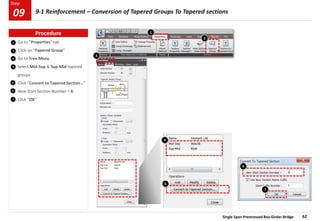
1
2
Go to “Properties” tab
Click on “Tapered Group”
Go to Tree Menu
Select Mid-Sup & Sup-Mid tapered
groups
Click “Convert to Tapered Section…”
New Start Section Number > 6
Click “OK”
3
1
4
2
5
6
7
3
4
5
Procedure
9-1 Reinforcement – Conversion of Tapered Groups To Tapered sections
09
7
6
Single Span Prestressed Box Girder Bridge 63
Step
Step
1
2
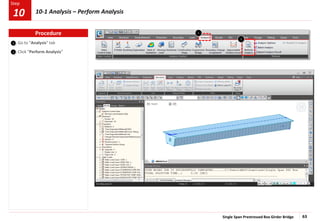
Go to “Analysis” tab
Click “Perform Analysis”
2
1
Procedure
10-1 Analysis – Perform Analysis
10
Single Span Prestressed Box Girder Bridge 64
Step
Step
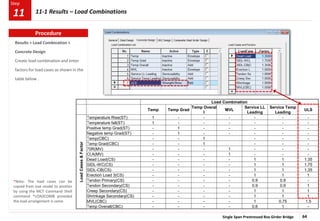
Results > Load Combination >
Concrete Design
Create load combination and enter
factors for load cases as shown in the
table below .
Load Combination
Temp Temp Grad
Temp Overal
l
MVL
Service LL
Leading
Service Temp
Leading
ULS
Load
Cases
&
Factor
Temperature Rise(ST) 1 - - - - - -
Temperature fall(ST) 1 - - - - - -
Positive temp Grad(ST) - 1 - - - - -
Negative temp Grad(ST) - 1 - - - - -
Temp(CBC) - - 1 - - -
Temp Grad(CBC) - - 1 - - -
70R(MV) - - - 1 - - -
Cl.A(MV) - - - 1 - - -
Dead Load(CS) - - - - 1 1 1.35
SIDL-WC(CS) - - - - 1 1 1.75
SIDL-CB(CS) - - - - 1 1 1.35
Erection Load 3(CS) - - - - 1 1 1
Tendon Primary(CS) - - - - 0.9 0.9 -
Tendon Secondary(CS) - - - - 0.9 0.9 1
Creep Secondary(CS) - - - - 1 1 1
Shrinkage Secondary(CS) - - - - 1 1 1
MVL(CBC) - - - - 1 0.75 1.5
Temp Overall(CBC) - - - - 0.6 1 -
Procedure
11-1 Results – Load Combinations
11
*Note: The load cases can be
copied from one model to another
by using the MCT Command Shell
command *LOADCOMB provided
the load arrangement is same.
Single Span Prestressed Box Girder Bridge 65
Step
Step
1
2
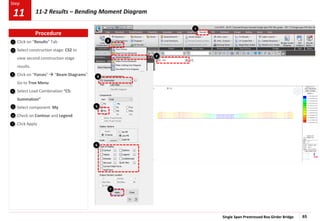
Click on “Results” Tab
Select construction stage: CS2 to
view second construction stage
results.
Click on “Forces”  “Beam Diagrams”
Go to Tree Menu
Select Load Combination “CS:
Summation”
Select component My
Check on Contour and Legend
Click Apply
1
4
6
5
6
7
7
3
3
Procedure
11-2 Results – Bending Moment Diagram
11
2
4
5
Single Span Prestressed Box Girder Bridge 66
Step
Step
1
2
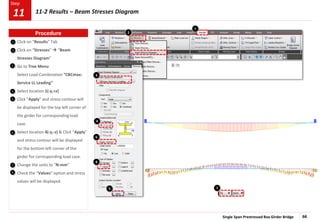
Click on “Results” Tab
Click on “Stresses”  “Beam
Stresses Diagram”
Go to Tree Menu
Select Load Combination “CBCmax:
Service LL Leading”
Select location 1(-y,+z)
Click “Apply” and stress contour will
be displayed for the top left corner of
the girder for corresponding load
case.
Select location 4(-y,-z) & Click “Apply”
and stress contour will be displayed
for the bottom left corner of the
girder for corresponding load case.
Change the units to “N-mm”
Check the “Values” option and stress
values will be displayed.
1
2
4
4
5
6
5
6
8
7
7
8
3
3
Procedure
11-2 Results – Beam Stresses Diagram
11
Single Span Prestressed Box Girder Bridge 67
Step
Step
1
2
1
2
3
3
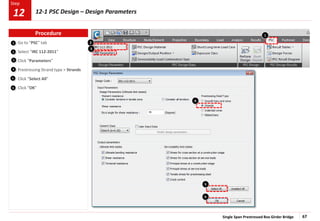
Go to “PSC” tab
Select “IRC 112-2011”
Click “Parameters”
Prestressing Strand type > Strands
Click “Select All”
Click “OK”
4
5
6
4
5
6
Procedure
12-1 PSC Design – Design Parameters
12
Single Span Prestressed Box Girder Bridge 68
Step
Step
1
2
3
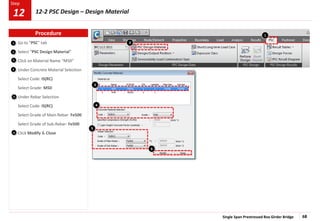
Go to “PSC” tab
Select “PSC Design Material”
Click on Material Name “M50”
Under Concrete Material Selection
Select Code: IS(RC)
Select Grade: M50
Under Rebar Selection
Select Code: IS(RC)
Select Grade of Main Rebar: Fe500
Select Grade of Sub-Rebar: Fe500
Click Modify & Close
4
5
6
1
2
4
3
5
6
Procedure
12-2 PSC Design – Design Material
12
Single Span Prestressed Box Girder Bridge 69
Step
Step
1
2
3
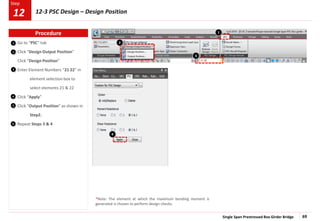
Go to “PSC” tab
Click “Design Output Position”
Click “Design Position”
Enter Element Numbers “21 22” in
element selection box to
select elements 21 & 22
Click “Apply”
Click “Output Position” as shown in
Step2.
Repeat Steps 3 & 4
4
5
6
1
2
4
3
Procedure
12-3 PSC Design – Design Position
12
*Note: The element at which the maximum bending moment is
generated is chosen to perform design checks.
Single Span Prestressed Box Girder Bridge 70
Step
Step
1
2
3
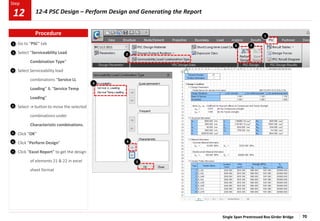
Go to “PSC” tab
Select “Serviceability Load
Combination Type”
Select Serviceability load
combinations “Service LL
Loading” & “Service Temp
Loading”
Select -> button to move the selected
combinations under
Characteristic combinations.
Click “OK”
Click “Perform Design”
Click “Excel Report” to get the design
of elements 21 & 22 in excel
sheet format
4
5
5
6
7
1
2
3
4
6 7
Procedure
12-4 PSC Design – Perform Design and Generating the Report
12

PSC Box Bridge Single Span for structural engineers

  • 1.
    Single Span PrestressedPost-Tensioned Box Girder Bridge Tutorial MIDAS Technical Material
  • 2.
    00 Single Span PSCBox Girder Bridge Program Version Civil 2019 (v2.1) Revision Date Dec 08, 2018 In this tutorial we will learn the following things: - How to generate PSC box section. - How to define construction stages for the given construction sequence of the bridge. - How to simulate boundary conditions and assign static and prestress load in midas Civil. - How to define moving load as per IRC:6-2016 in midas Civil. - How to interpret the various results like stresses represented by midas Civil. - How to carry out design for PSC box girder as per IRC:112-2011. Contents  Step 1: Initial Setting  Step 2: Material & Section Definition  Step 3: Geometric Modelling  Step 4: Group Definition  Step 5: Boundary Definition  Step 6: Load Definition  Step 7: CS Definition  Step 8: Analysis Control  Step 9: Reinforcement  Step 10: Analysis  Step 11: Result  Step 12: PSC Design
  • 3.
    Single Span PrestressedBox Girder Bridge 3 Step Step Specifications of Bridge:  Bridge Type: Single Span PSC box girder  Span Length: 40 m  Width: 8.5m (7.5m clear carriageway)  Design Code: IRC:112:2011  Time Dependent Material: IRC:112:2011 Overview 00
  • 4.
    Single Span PrestressedBox Girder Bridge 4 Step Step Invoke midas Civil Open New File Select the Unit System [ kN, m] Save as ‘Single Span PSC Box Girder’ 1 2 3 Procedure . 3 2 1 Initial Setting 01 1
  • 5.
    Single Span PrestressedBox Girder Bridge 5 Step Step Go to “Properties” Click on “Material Properties” Click on “Add” to define materials Define Material data: Name> Tendon Type of Design: Steel Steel Standard: IS(S) DB: Fe540 Click on Apply Name > M50 Type of design> Concrete Concrete Standard > IS (RC) DB: M50 Click on OK 1 2 3 4 5 2 3 4 1 6 7 7 6 5 Procedure 2-1 Material & Section Definition – Material Definition 02
  • 6.
    Single Span PrestressedBox Girder Bridge 6 Step Step 1 2 3 4 5 Change unit system [ N, mm ] Go to “Properties” (Creep/Shrinkage)” Click on “Add” to define properties Define Creep / Shrinkage data: Name > M50 C&S Code > INDIA (IRC:112-2011) Compressive strength of concrete at the age of 28 days > 50 N/mm2 Relative Humidity of ambient environment (40–99) > 70 Notational size of member > 1000mm Age of concrete at the beginning of shrinkage > 3 days Click on Show Result to see the graph Click on OK to add the C&S property. 7 6 2 3 4 6 7 Note: To get the creep & shrinkage strains, the value of relative humidity is to be considered as 70%, Notational size of member, h as 1000mm and Age of concrete at the beginning of shrinkage as 3 days. Later, the h value would be automatically updated for composite sections 1 5 Procedure 02 2-2 Material & Section Definition – Time Dependent Material Properties (Creep &Shrinkage)
  • 7.
    Single Span PrestressedBox Girder Bridge 7 Step Step 1 2 3 4 Go to “Properties” Click on “Comp. Strength” Click on “Add” to define properties Define Compressive Strength data: Name > M50 Comp Type > Code Development of Strength > Code > INDIA (IRC:112-2011) Mean compressive strength of concrete at age of 28 days (fck+delta_f) > 50 + 10 N/mm2 Click on Redraw Graph Click on OK 5 6 2 1 5 6 4 3 Procedure 2-3 Material & Section Definition – Time Dependent Material Properties (Comp. Strength) 02
  • 8.
    Single Span PrestressedBox Girder Bridge 8 Step Step 1 2 3 4 5 Go to “Properties” Click on “Material Link” Time Dependent Material Link Data Creep/Shrinkage > M50 C&S Comp. Strength > M50 Comp Double click on M50 under Materials to shift it to the Selected Materials list Click on “Add / Modify” Click on “Close” 6 7 8 2 1 7 6 8 4 5 Any time during the modeling, analysis and design stage, invoking F1 key takes you to web help. 3 Procedure 2-4 Material & Section Definition – Time Dependent Material Properties (Material Link) 02
  • 9.
    Single Span PrestressedBox Girder Bridge 9 Step Step Mid Section * All Dimensions are in meters 02
  • 10.
    Single Span PrestressedBox Girder Bridge 10 Step Step 1 2 4 5 Change unit system [ KN, m ] Go to “Properties” > Section Properties” Click on “Add..” Click on tab “PSC” Select: ‘PSC-1Cell, 2Cell’ type Define Mid Section: Name > Mid Section Joint On/Off > Check JO1, JI1, JI3, JI5 See the PSC Viewer and enter the section dimension parameters Outer box dimensions HO1: 0.2, BO1: 1.5, HO2: 0.3, BO1-1: 0.5, HO2-1: 0, BO2: 0.5, HO3: 2.5, BO3: 2.25 Inner box dimensions HI1: 0.24, BI1: 2.2, HI2: 0.26, BI1-1: 0.7, HI2-1: 0, BI2-1: 2.2 HI3: 2.05, BI3: 1.932, HI3-1: 0.71, BI3-1: 0.7, HI4: 0.2, HI4-1: 0, HI5: 0.25 Check all Auto options related to Shear calculations Click “Change Offset” Select Offset : Center- Top & Click on “OK” 3 Note: The internal Process of section offset is explained in the help file . Path: Help > Contents > Start > Model > Properties > Section, When Section tab is opened under offset, click on ‘Details’ 6 8 7 2 4 9 1 Click “Show Calculation Results” Click on “Apply” 10 5 3 6 10 8 7 9 8 Procedure 02 2-5 Material & Section Definition – Mid Section Definition
  • 11.
    Single Span PrestressedBox Girder Bridge 11 Step Step End Section 0.94 0.71 0.26 0.44 0.268 1.4 1.3 1.3 1.032 1.032 1.4 0.2 0.45 0.94 0.71 0.26 0.44 0.268 1.4 1.3 1.3 1.032 1.032 1.4 0.2 0.45 * All Dimensions are in meters 02
  • 12.
    Single Span PrestressedBox Girder Bridge 12 Step Step 1 2 4 Define Sup Section: Name > Sup Section Joint On/Off > Check JO1, JI1, JI3 & JI5 See the PSC Viewer and enter the section dimension parameters Outer box dimensions HO1: 0.2, BO1: 1.5, HO2: 0.3, BO1-1: 0.5, HO2-1: 0, BO2: 0.5, HO3: 2.5, BO3: 2.25 Inner box dimensions HI1: 0.44, BI1: 2, HI2: 0.26, BI1-1: 0.7, HI2-1: 0, BI2-1: 2, HI3: 1.65, BI3: 1.732, HI3-1: 0.71, BI3-1: 0.7, HI4: 0.2, HI4-1: 0, HI5: 0.45 Check all Auto options related to Shear calculations Click “Change Offset” Select Offset : Center- Top & Click on “OK” Click on “Apply” 3 4 Note: Invoke the section data window by following Steps 2 to 5 in Page 10. 3 1 2 3 Procedure 02 2-6 Material & Section Definition – Support Section Definition
  • 13.
    Single Span PrestressedBox Girder Bridge 13 Step Step Diaphragm Section * All Dimensions are in meters 02
  • 14.
    Single Span PrestressedBox Girder Bridge 14 Step Step 1 2 4 Define Diaphragm Section: Name > Diaphragm Joint On/Off > Check JO1 See the PSC Viewer and enter the section dimension parameters Outer box dimensions HO1: 0.2, BO1: 1.5, HO2: 0.3, BO1-1: 0.5, HO2-1: 0, BO2: 0.5, HO3: 2.5, BO3: 2.25 Inner box dimensions HI1: 1, BI1: 0.5, HI2: 0, HI3: 1, BI3: 0.5, HI4: 0, HI5: 1 Check all Auto options related to Shear calculations Click “Change Offset” Select Offset : Center- Top & Click on “OK” Click on “OK” 3 4 Note: Invoke the section data window by following Steps 2 to 5 in Page 10. 1 2 3 3 Procedure 02 2-7 Material & Section Definition – Diaphragm Section Definition
  • 15.
    Single Span PrestressedBox Girder Bridge 15 Step Step 1 2 3 . Click on tab “Tapered” Name > Mid- Sup Section Type > PSC-1CELL Click on Size-I “Import” Select “Mid Section” Click on “Import” Click on Size-J “Import” Select “Sup Section” Click on “Import” Click “Change Offset” Select Offset : Center- Top & Click on “OK” Click on “Apply” 4 1 Similarly Define Taper Right Section: 5 Note: The internal Process of calculation of sectional property as per dimensional variation is explained in the help file. Path: Help > Contents > Start > Model > Properties > Section > Tapered tab, under Note, click on ‘Details’ 2 3 5 Note: Invoke the section data window by following Steps 2 to 3 in Page 10. 4 Click on tab “Tapered” Name > Sup- Mid Section Type > PSC-1CELL Click on Size-I “Import” Select “Sup Section” Click on “Import” Click on Size-J “Import” Select “Mid Section” Click on “Import” Click “Change Offset” Select Offset : Center- Top & Click on “OK” Click on “OK” Procedure 2-8 Material & Section Definition – Tapered Section Definition 02
  • 16.
    Single Span PrestressedBox Girder Bridge 16 Step Step 1 2 3 . Click on “Node/Element” of Main Menu Click on “Create Nodes” Go to “Tree Menu” Coordinates (x,y,z) > 0, 0, 0 Copy : Number of times > 0 Distances (dx, dy, dz) > 0, 0, 0 Click “Apply” and “Close” 4 5 1 4 1) To input the node co-ordinates in table, go to Tree Menu> Tables> Structure Tables> Node 2) To create User defined coordinate system go to Structure > UCS 2 5 3 Procedure 3-1 Geometric Modelling – Create Nodes 03
  • 17.
    Single Span PrestressedBox Girder Bridge 17 Step Step Longitudinal View 40m Construction Direction 03
  • 18.
    Single Span PrestressedBox Girder Bridge 18 Step Step Longitudinal Section Tapered Section Support Section Mid Section 13.5m 3 m 3m 40m Span Support Section Tapered Section Mid Section 3m 3m 13.5m 03 0.5 m 0.5 m Diaphragm Section Diaphragm Section
  • 19.
    Single Span PrestressedBox Girder Bridge 19 Step Step 2 3 Click on “Node/Elements” Click on “Extrude” Go to “Tree Menu” Select Extrude Type “Node -> Line Element” Select Element Type “Beam” Generating Elements: Select Material “M50” Select Section “Mid Section” Select Generation type “ Translate” Select Translation “Unequal Distance” Select Axis “X” Distances > 2@.25,39@1,2@0.25 Click on Select ALL Click on “Apply” 4 1 1 2 3 5 5 4 Procedure 03 3-2 Geometric Modelling – Extrude Elements
  • 20.
    Single Span PrestressedBox Girder Bridge 20 Step Step 1 2 3 Click on “Node/Element” Click on “Translate Node” Select node numbers 2 and 43 by entering them in the node selection box as shown. Go to “Tree Menu” Mode “Copy” Translation “Equal Distance” dx, dy, dz: “0,-1.9,-3” Number of Times: “1” Click “Apply” 4 5 2 1 4 5 3 Procedure 3-3 Geometric Modelling – Translate Nodes 03
  • 21.
    Single Span PrestressedBox Girder Bridge 21 Step Step 1 2 3 Click on the Top button to switch to top view Click on “Node/Element” Click on “Translate Node” Click on Select Single button Select nodes as shown Go to “Tree Menu” Mode “Copy” Translation “Unequal Distance” Axis: “y” Distance: “3.8” Click “Apply” 3 2 4 5 7 1 5 4 6 7 Note: Here, translational distance of 3.8m is the transverse distance between the two bearings. 6 Procedure 3-4 Geometric Modelling – Translate Nodes 03
  • 22.
    Single Span PrestressedBox Girder Bridge 22 Step Step 1 2 3 Click on the Top button to switch to top view Click on “Node/Element” Click on “Translate Node” Click on Select Single button Select encircled nodes as shown Go to “Tree Menu” Mode “Copy” Translation “Unequal Distance” Axis: “z” Distance: “-0.1” Click “Apply” 4 5 6 7 Note: Here, bearing thickness is considered as 0.1m. 3 5 4 2 6 7 1 Procedure 3-5 Geometric Modelling – Translate Nodes 03
  • 23.
    Single Span PrestressedBox Girder Bridge 23 Step Step 2 3 4 Click on the Front View button to switch to front view Go to “Tree Menu” Click on “Works” Select the elements as highlighted. On selection the selected element number list will be updated as “1 2 42 43” Drag and Drop Diaphragm over the model window 1 1 3 3 4 2 Procedure 03 3-6 Geometric Modelling – Assigning Diaphragm Section
  • 24.
    Single Span PrestressedBox Girder Bridge 24 Step Step Click on the Front View button to switch to front view Go to “Tree Menu” Click on “Works” Select the elements as highlighted. On selection the selected element number list will be updated as “3to5 39to41” Drag and Drop Sup Section over the model window 1 2 3 4 1 3 3 4 2 Procedure 03 3-7 Geometric Modelling – Assigning Support Section
  • 25.
    Single Span PrestressedBox Girder Bridge 25 Step Step Click on the Front View button to switch to front view Go to “Tree Menu” Click on “Works” Select the elements as highlighted. On selection the selected element number list will be updated as “36to38” Drag and Drop Mid-Sup over the model window 1 2 3 4 1 3 4 2 Procedure 03 3-8 Geometric Modelling – Assigning Tapered Section
  • 26.
    Single Span PrestressedBox Girder Bridge 26 Step Step Click on the Front View button to switch to front view Go to “Tree Menu” Click on “Works” Select the elements as highlighted. On selection the selected element number list will be updated as “6to8” Drag and Drop Sup-Mid over the model window 1 2 3 4 1 3 4 2 Procedure 03 3-9 Geometric Modelling – Assigning Tapered Section
  • 27.
    Single Span PrestressedBox Girder Bridge 27 Step Step 2 3 Right Click on the ribbon as shown Check the “Tree Menu 2 “ Option and another Tree menu will appear on the right hand side. Click on “Properties” Click on “Tapered Group” Go to “Tree Menu” Generating Tapered Groups: Set z-Axis as Linear Set y-Axis as Linear Set Group Name as “Mid-Sup” Go to Tree Menu 2, Double Click on Mid-Sup Section & the element list will be updated as “36to38” Click on “Add” Set Group Name as “Sup-Mid” Go to Tree Menu 2, Double Click on Sup-Mid Section & the element list will be updated as “6to8” Click on “Add” Click “Close” 2 6 1 1 4 3 6 4 5 7 5 8 7 8 Procedure 03 3-10 Geometric Modelling – Tapered Section Group
  • 28.
    Single Span PrestressedBox Girder Bridge 28 Step Step 2 3 Click on “Properties” Click on “Change Property” button Click on > Select All Go to Tree menu Click “Apply” Click “Close” 2 1 4 4 1 Note: Here, the elements are being divided to create the construction joint nodes which are located at 8m to the right of centerlines of intermediate piers/supports. 3 3 Procedure 03 3-11 Geometric Modelling – Change Property
  • 29.
    Single Span PrestressedBox Girder Bridge 29 Step Step 1 Click on the Front View button to switch to front view. Go to “Tree Menu” Click “Group Tab” Right Click on Structure Group Give Name as : Structure Assigning Structure Group Click on Select ALL Drag & drop in the Structure group “Structure” over the Model View window Note: Structure groups can be defined in Define Structure Group first. Next, the desired nodes and elements can be selected in the Group tab of the Tree Menu and assigned to the groups by Drag & Drop. Structure 2 2 3 4 3 4 1 Procedure 04 4-1 Group Definition – Creating and Assigning Structure Group
  • 30.
    Single Span PrestressedBox Girder Bridge 30 Step 1 2 Go to “Tree Menu” Right click on “Boundary Group” and Click on “New” Give Name as: “SUB” Click : Enter Right click on “Load Group” and click on “New…” Name: “SW” Click “Add” Name : “SIDL” Click “Add” Name: “PS1-” Suffix: “1to4” Click “Add” Note: 1) Structure groups are especially dedicated to Construction Stage analysis (of a sequential bridge construction) where each part of the total structure erected in each stage needs to be identified as a different structure from those of other stages. 2) Boundary groups are especially dedicated to Construction Stage analysis (of a sequential bridge construction) where each part of the total structure erected in each stage may retain different boundary conditions from those of other stages. 3) Load groups are especially dedicated to Construction Stage analysis (of a sequential bridge construction) where each part of the total structure erected in each stage may be subjected to different loadings. 3 Procedure 2 3 1 4-2 Group Definition – Creating Boundary & Load Groups 04
  • 31.
    Single Span PrestressedBox Girder Bridge 31 Step Step 1 2 3 Click on the arrow as shown to switch to the isometric view Click “Boundary” Click “Rigid Link…” Go to “Tree Menu” Go to “Boundary” tab Select Boundary Group Name “SUB” Click on “Rigid Body” Check “Copy Rigid Link” Select Axis “x” Enter Distances: “39.50” Click in “Master Node Number:” Click Highlighted Node “2” Select Node “45” & Node “47” using Select Single Click “Apply” Click “ Close” 4 1 2 3 2 45 47 4 6 6 Procedure 05 5-1 Boundary Definition – Defining & Assigning Rigid Links 5 5
  • 32.
    Single Span PrestressedBox Girder Bridge 32 Step Step Bearing Layout 1.9m Longitudinal Direction 40m Fixed 05
  • 33.
    Single Span PrestressedBox Girder Bridge 33 Step Step 1 2 3 Click on the arrow as shown to switch to the isometric view Click “Boundary” Click “Elastic Link…” Go to “Tree Menu” Select Boundary Group Name “Sub” Enter “SDx”> 10e+6 kN/m “SDy”> 10e+6 kN/m “SDz”> 10e+6 kN/m “SRx”> 10 KN.m/Rad “SRy”> 10 KN.m/Rad “SRz”> 10 KN.m/Rad Click in input box “2 Nodes:” Click Highlighted Node “45” and then Click Highlighted Node “49” Click “ Close” 4 5 Note: The elastic links stiffness in different directions are provided to simulate the layout of bearings . 1 2 3 45 49 5 4 Procedure 05 5-2 Boundary Definition – Defining & Assigning Elastic Links
  • 34.
    Single Span PrestressedBox Girder Bridge 34 Step Step Repeat Step 4 for the following data: At nodes 47 and 51 Enter “SDx”> 10e+6 kN/m “SDy”> 10 kN/m “SDz”> 10e+6 kN/m “SRx”> 10 KN.m/Rad “SRy”> 10 KN.m/Rad “SRz”> 10 KN.m/Rad At nodes 48 and 52 Enter “SDx”> 10e+6 kN/m “SDy”> 10 kN/m “SDz”> 10 kN/m “SRx”> 10 KN.m/Rad “SRy”> 10 KN.m/Rad “SRz”> 10 KN.m/Rad At nodes 46 and 50 Enter “SDx”> 10e+6 kN/m “SDy”> 10e+6 kN/m “SDz”> 10 kN/m “SRx”> 10 KN.m/Rad “SRy”> 10 KN.m/Rad “SRz”> 10 KN.m/Rad Note: The elastic links stiffness in different directions are provided to simulate the layout of bearings . 1 1 2 3 2 3 Procedure 5-3 Boundary Definition – Defining & Assigning Elastic Links 05
  • 35.
    Single Span PrestressedBox Girder Bridge 35 Step Step 1 2 3 Click on the button as shown & switch to the isometric view Click “Boundary” Click “Define Supports” Go to “Tree Menu” Select Boundary Group Name “SUB” Click on D-ALL to simulate pinned condition. Select encircled nodes with Node numbers “49 51” using select by Window Click “Apply” 4 6 Note: The elastic links stiffness in different directions are provided to simulate the layout of bearings 5 2 3 5 6 4 1 Procedure 5-4 Boundary Definition – Defining & Assigning Supports 05
  • 36.
    Single Span PrestressedBox Girder Bridge 36 Step Step 1 2 3 Click on the button as shown & switch to the isometric view Click “Boundary” Click “Define Supports” Go to “Tree Menu” Select Boundary Group Name “SUB” Check “Dy” and “Dz” to simulate roller Support condition. Select encircled nodes with Node numbers “50” “52” using Select by Window Click “Apply” 4 5 Note: The elastic links stiffness in different directions are provided to simulate the layout of bearings 2 3 5 6 4 1 Procedure 5-5 Boundary Definition – Defining & Assigning Supports 05
  • 37.
    Single Span PrestressedBox Girder Bridge 37 Step Step 1 2 3 . Go to “Load” tab Click “Static Load Cases” Define Static Load Cases For Type: “Construction Stage Load(CS)” Name : “Self Weight” Click “Add” Name : “SIDL-WC” Click “Add” Name : “SDL-CB” Click “Add” Name : “Prestress” Click “Add” For Type: “Temperature (T)” Name : “Temperature Rise” Type : Click “Add” Name : “Temperature Fall” Click “Add” For Type: “Temperature Gradient (TPG)” Name : “Positive Temp. Grad.” Click “Add” Name : “Negative Temp. Grad.” Click “Add” Click on > Close 1 2 3 4 4 Procedure 6-1 Load Definition – Defining Static Load Cases 06
  • 38.
    Single Span PrestressedBox Girder Bridge 38 Step Step Assigning Self Weight Go to “Load” tab Click “Self Weight…” Go to “Tree Menu” Select Load Case Name “Self Weight” Select Load Group Name “SW” Enter Self Weight Factor, Z : “-1” Click “Add” 1 2 2 1 3 4 4 3 Procedure 6-2 Load Definition – Assigning Self Weight 06
  • 39.
    Single Span PrestressedBox Girder Bridge 39 Step Step 1 4 Assigning Wearing Course Dead Load Go to “Load” tab Click Beam Loads > “Element” Go to “Tree Menu” Select Load Case Name “SIDL-WC” Select Load Group Name “SIDL” Select Load Type “Uniform Loads” Select Load Direction “Global Z” Enter w “-16.5” KN/m Click on Select single to select all superstructure Elements Click “Apply” 1 4 2 2 3 4 5 3 4 Procedure 6-3 Load Definition – Assigning SIDL (Element Beam Loads) 06
  • 40.
    Single Span PrestressedBox Girder Bridge 40 Step Step 1 2 Assigning Crash Barrier Dead Load Go to “Load” tab Go to Beam Loads > “Element” Go to “Tree Menu” Select Load Case Name “SIDL-CB” Select Load Group Name “SIDL” Select Load Type “Uniform Loads” Check “Eccentricity” Check “offset” Option Select Direction “Global Y” Enter Distance I-End “-4.25”m Select Load Direction “Global Z” Enter w “-8” KN Click on Select Previous Click “Apply” Enter Distance I-End “4.25”m Click on Select Previous Click “Apply” 1 2 3 4 3, 6 5 6 8 7 Procedure 4, 7 6-4 Load Definition – Assigning SIDL (Element Beam Loads) 06 5, 8
  • 41.
    Single Span PrestressedBox Girder Bridge 41 Step Step 1 2 3 Change unit system [N,mm] Go to “Load” of Main Menu Click “Temp/Prestress” Click “Tendon Property” Click “Add” Enter Tendon Name “Tendon” Select Tendon Type “Internal(Post- Tension” Select Material “Tendon” Click “…” in the dialog box for Total Tendon Area Select Strand Diameter “15.2mm(0.6”)” Enter Number of Strands “19” Click “OK” Enter Duct Diameter “110”mm Select Relaxation Coefficient “India (IRC:112-2011) – Low” Enter Ultimate Strength “1860” Enter Yield Strength “1581” Enter Curvature Friction Factor “0.17” Enter Wobble Friction Factor as “2e-6”/mm Enter Anchorage Slip Begin : “6” Enter Anchorage Slip End : “6” Select Bond Type “Bonded” Click “OK” Click “Close” 4 2 3 1 4 5 7 7 5 6 6 Procedure 6-5 Load Definition – Defining Tendon Property 06
  • 42.
    Single Span PrestressedBox Girder Bridge 42 Step Step 1 2 3 Go to “Load” tab Click “Temp/Prestress” Click “Tendon Profile” Click “Add” Enter Tendon Name “A1L” Select Tendon Property as “Tendon” Click in “Assigned Elements” and select/type element no. 1to43 as shown in “Model View “ Select Input Type “3D” Select Curve Type “Round” Select Reference Axis “Element” Open excel sheet “Cable Coordinates” *From excel sheet copy Tendon Coordinates for “A1L” Paste on “Input Table” Select Profile Insertion Point “End-I” Enter x Axis Rotation as “-11.31” Type “1” Click “OK” Generate A2L, A3L & A4L by following Step 4 Generate A1R, A2R, A3R & A4R by following Step 4 and using x Axis Rotation as “11.31” instead of “- 11.31” Click “Close” 4 1 5 7 2 *Select respective cable coordinates and paste it in input table. Note: An insertion point is used as a point of reference for the tendon profile in the Global Coordinate System (GCS). Only one profile is needed for a precast beam in spite of the number of elements (four in this example) that we are using to model it. 3 6 4, 5 6 Procedure 6-6 Load Definition – Defining Tendon Profile 06 7
  • 43.
    Single Span PrestressedBox Girder Bridge 43 Step Step 1 2 3 Go to “Load” tab Click “Temp/Prestress” Click “Tendon Prestress” Go to “Tree Menu” Select Load Case Name “Prestress” Input by “Stress” Select Jacking “Both” Enter Begin “1395” N/mm2 Enter End “1395” N/mm2 Select Group Name “PS1-1” Select all tendons in the left box Tendons Click on “>” , All tendons will now move to the right box under the head Selected. Click “Add” 5 4 4 5 1 2 3 Procedure 6-7 Load Definition – Assigning Tendon Prestress Loads 06
  • 44.
    Single Span PrestressedBox Girder Bridge 44 Step Step 1 2 Go to “Tree Menu” Go to “Works” pane Go to Static Loads  Prestress Right Click on “Tendon Prestress Loads” and click on “Tables” Change Load Groups as shown by clicking on each load group. Right Click on Tendon Prestress Loads and Click on Close Window 3 1 3 2 Procedure 6-8 Load Definition – Changing Prestress Groups 06
  • 45.
    Single Span PrestressedBox Girder Bridge 45 Step Step This function allows us to define necessary construction stages to analyze a bridge structure reflecting the effects of evolving structure configurations and elastic and time dependent (creep and shrinkage) displacements. Each construction stage is identified with activated (or deactivated) element, boundary and load groups. Each stage retains a unique element group, a boundary group and a load group, forming an interim independent structure. The stage information that was difficult to define in Wizard can now be added or modified using this function. Note: The results of all prior construction stages are accumulated and applied to the current stage. Once activated elements, boundary conditions and loads remain active until they are deactivated. When an element is removed, the internal forces are internally imposed to the contiguous remaining elements in the opposite directions. Stage Days Details CS 1 14 First Span is Launched with structure group age of 21 days. CS 2 2 First Span is stressed sequentially CS3 10000 Application of Crash Barrier and Wearing Course Load. Construction Stage Overview 07
  • 46.
    Single Span PrestressedBox Girder Bridge 46 Step Step 1 2 Go to “Load” of Main Menu Click “Construction Stage Analysis Data” Click “Define Construction Stage…” Define Stage 1: Click “Add” Enter Name “CS1” Enter Duration “14” days Click “Element” tab Select “Structure” under Group List Enter Age “21” Click “Add” 3 5 1 2 6 10 9 8 7 6 5 4 9 3 7 8 4 10 Note: Age reflects the effects of creep and shrinkage on the elements. The Age represents the time elapsed from the time of concrete casting prior to the start of the current construction stage being defined. That is, the Age is the maturity of the element groups at the start of the current stage being defined. The Age typically represents the time span from the time of concrete casting to the time of removal of formwork for horizontal members such as slabs. Procedure 7-1 CS Definition – Stage ‘CS1’ Formulation (Element Tab) 07
  • 47.
    Single Span PrestressedBox Girder Bridge 47 Step Step 1 2 Click “Boundary” tab Select “SUB” under Group List Select “Deformed” Click “Add” 3 4 2 3 4 1 Procedure 7-2 CS Definition – Stage ‘CS1’ Formulation (Boundary Tab) 07
  • 48.
    Single Span PrestressedBox Girder Bridge 48 Step Step Click “Load” tab Select “SW” under Group List Select Active Day “First” Click “Add” Click “OK” 1 4 1 2 3 4 5 5 2 3 Procedure 7-3 CS Definition – Stage ‘CS1’ Formulation (Load Tab) 07
  • 49.
    Single Span PrestressedBox Girder Bridge 49 Step Step Click on > Add Enter name > CS2; Duration > 2 (days) Click “Load” tab Add 0.02, 0.04, 0.06, 0.08 in Additional Days Select “PS1-1” under Group List Select Active Day as “0.02” Click “Add” Repeat Steps 6, 7 & 8 with following details Select “PS1-2” under Group List Select Active Day as “0.04” Click “Add” Select “PS1-3” under Group List Select Active Day as “0.06” Click “Add” Select “PS1-4” under Group List Select Active Day as “0.08” Click “Add” Click “OK” 1 2 3 4 5 2 3 4 2 3 4 2 3 4 9 6 7 3 5 6 8 2 4 7 1 9 8 Procedure 7-4 CS Definition – Stage ‘CS2’ Formulation (Load Tab) 07
  • 50.
    Single Span PrestressedBox Girder Bridge 50 Step Step Click on > Add Enter Name “CS3” Enter Duration “10000”days Click “Load” tab Select “SIDL” under Group List Select Active Day “First” Click “Add” Click “OK” 1 2 3 4 5 6 7 3 2 4 5 6 7 1 Procedure 7-5 CS Definition – Stage ‘CS3’ Formulation (Load Tab) 07
  • 51.
    Single Span PrestressedBox Girder Bridge 51 Step Step 1 1 2 3 Go to “Load” tab Click “Temp/Prestress” Click “Element Temp.” Click on Select Single and select all superstructure elements. Go to “Tree menu” Select Load Case name as “Temperature Rise” Input Final temperature: 25 degree C Click “Apply” Select all superstructure elements again as done in Step 4 Select Load Case name as “Temperature Fall” Input Final temperature: -25 degree C Click “Apply” 4 5 If temperature units are in degree Fahrenheit, one can change to degree Celcius from Tools  Unit System Note: An insertion point is used as a point of reference for the tendon profile in the Global Coordinate System (GCS). Only one profile is needed for a precast beam in spite of the number of elements (four in this example) that we are using to model it. 3 4 2 5 4 Procedure 6-9 Load Definition – Assigning Temperature Rise (Element Temperature) 06
  • 52.
    Single Span PrestressedBox Girder Bridge 52 Step Step 3 1 2 3 Go to “Load” tab Click “Temp/Prestress” Click “Beam Section Temp.” Select all superstructure elements. Go to “Tree menu” Select Load Case name as “Positive Temp. Grad.” Section Type > PSC/Composite Select “Element” option for Material Keep Ref. as “Top” B > “Section” Enter H1 as 0 mm Enter H2 as 150 mm Enter T1 as 17.8 [C] Enter T2 as 4 [C] Click on Add Change Parameters: Enter H1 as 150 mm Enter H2 as 400 mm Enter T1 as 4 [C] Enter T2 as 0 [C] Click on Add Change Parameters: Enter H1 as 2850 mm Enter H2 as 3000 mm Enter T1 as 0 [C] Enter T2 as 2.1 [C] Click on Add Click “Apply” 4 5 If temperature units are in degree Fahrenheit, one can change to degree Celsius from Tools  Unit System 6 6 h1 = 0.15m h2 = 0.25m h3 = 0.15m Positive Temperature Differences Reverse Temperature Differences h1 h2 h3 h1 h2 h3 h4 h1 = h4 = 0.25m h2 = h3 = 0.25m For the given depth of box girder 4 2 5 1 Procedure 6-10 Load Definition – Assigning Positive Temperature Differences (Beam Section Temperature) 06
  • 53.
    Single Span PrestressedBox Girder Bridge 53 Step Step Change Parameters: Enter H1 as 2750 mm Enter H2 as 3000 mm Enter T1 as -0.8 [C] Enter T2 as -6.6 [C] Click “Apply” 1 2 3 Go to “Load” tab Click “Temp/Prestress” Click “Beam Section Temp.” Select all superstructure elements. Go to “Tree menu” Select Load Case name as “Negative Temp. Grad.” Section Type > PSC/Composite Select “Element” option for Material Keep Ref. as “Top” B > “Section” Enter H1 as 0 mm Enter H2 as 250 mm Enter T1 as -10.3 [C] Enter T2 as -0.7 [C] Click on Add Change Parameters: Enter H1 as 250 mm Enter H2 as 500 mm Enter T1 as -0.7 [C] Enter T2 as 0 [C] Click on Add Change Parameters: Enter H1 as 2500 mm Enter H2 as 2750 mm Enter T1 as 0 [C] Enter T2 as -0.8 [C] Click on Add 4 5 Note: An insertion point is used as a point of reference for the tendon profile in the Global Coordinate System (GCS). Only one profile is needed for a precast beam in spite of the number of elements (four in this example) that we are using to model it. 6 6 4 3 2 1 5 Procedure 6-11 Load Definition – Assigning Negative Temperature Differences (Beam Section Temperature) 06
  • 54.
    Single Span PrestressedBox Girder Bridge 54 Step Step Change unit system [kN , m] Go to “Load” tab Click “Moving Load” Moving Load Code > India Click “Traffic Line Lanes” Click “Add” Enter Lane Name “70R” View the figure provided Enter Eccentricity “1.155”m Enter Wheel Spacing “1.93”m Enter Impact factor “0.1” Select Vehicular Load Distribution as “Lane Element” Select Moving direction as “Both” Select Selection by “2 Points” Click in the “Box” Click on extreme left node of superstructure i.e. node no. 1 Click on extreme right node of superstructure i.e. node no. 44 Click “OK” 3 7 1 Node: 1 Node: 44 6 6 7 1 2 3 4 5 2 Procedure 6-12 Load Definition – Definition of Traffic Line Lanes 06 5 6 For other lanes, similarly change names, wheel spacing and eccentricities as below: Enter Lane Name “Cl.A 1” Enter Eccentricity “2.45”m Enter Wheel Spacing “1.8”m Enter Impact factor “0.1” Enter Lane Name “Cl.A 2” Enter Eccentricity “-1.05”m Enter Wheel Spacing “1.8”m Enter Impact factor “0.1” 4
  • 55.
    Single Span PrestressedBox Girder Bridge 55 Step Step 5 1 2 3 Go to “Load” of Main Menu Click “Moving Load” Click “Vehicles” Click “Add Standard” Select Standard Name “IRC:6-2000 Standard Load” Select Vehicular Load Type “Class A” Click “Apply” Select Vehicular Load Type “Class 70R” Click “OK” Click “Close” 4 3 2 6 7 8 9 10 5 6, 8 9 4 10 7 1 Procedure 6-13 Load Definition – Definition of Vehicle 06
  • 56.
    Single Span PrestressedBox Girder Bridge 56 Step Step 5 1 2 3 Go to “Load” tab Click “Moving Load” Click “Moving Load Cases” Click “Add ” Enter Load Case Name “70R” Uncheck “Auto Live Load Combination” Under Sub-Load Cases Click “Add” Enter Scale Factor “1” Enter Minimum Loaded Lanes as 0 Enter Maximum Loaded Lanes as 1 Select Vehicle as “Class 70R” Under List of Lanes Select “70R” Click on “->” Click “OK” 4 6 7 6 Note: To take into account of the wheel spacing and minimum clearance for different vehicles, the Auto Live Load Combination option can be unchecked and manually different moving load combinations can be created for the vehicles as per IRC 6:2000. 9 7 3 2 8 9 4 5 1 8 Procedure 6-14 Load Definition – Definition of Moving Load Cases 06
  • 57.
    Single Span PrestressedBox Girder Bridge 57 Step Step 5 1 2 3 Go to “Load” tab Click “Moving Load” Click “Moving Load Cases” Click “Add ” Enter Load Case Name “Cl.A” Uncheck “Auto Live Load Combination” Under Sub-Load Cases Click “Add” Enter Scale Factor “1” Enter Minimum Loaded Lanes as 0 Enter Maximum Loaded Lanes as 2 Select Vehicle as “Class A” Under List of Lanes Select “Cl.A1 Cl.A2” Click on “->” Click “OK” 4 6 7 4 6 9 7 3 2 8 9 Note: To take into account of the wheel spacing and minimum clearance for different vehicles, the Auto Live Load Combination option can be unchecked and manually different moving load combinations can be created for the vehicles as per IRC 6:2000. 5 1 8 Procedure 6-15 Load Definition – Definition of Moving Load Cases 06
  • 58.
    Single Span PrestressedBox Girder Bridge 58 Step Step 5 1 2 3 Go to “Analysis” tab Click “Moving Load” Enter Number/Line Elements: 3 Select Analysis Results Frame “Normal + Concurrent Force/Stress” Check “Combined Stress Calculation” Select Bridge Type for Impact Calculation “RC” Click “OK” 4 2 3 4 5 6 6 1 Procedure 8-1 Analysis Control – Moving Load Analysis Control Data 08
  • 59.
    Single Span PrestressedBox Girder Bridge 59 Step Step 1 2 Go to “Analysis” tab Click “Construction Stage” Click “Add” Enter Load Case Name as “SIDL-WC” Select Load Type for C.S as “Dead Load of Wearing Surfaces and Utilities” From List of Load Case, Select “SIDL WC” and Click “->” Click “OK” Repeat Steps 3 & 4 with Load for load case SIDl-CB, Select Load Type for C.S as “Dead Load of Components and Attachments” Change Beam Section Property Changes to “Constant” Check “Save Output of Current Stage” Click “OK” 3 5 3 5 4 6 6 2 1 4 Procedure 8-2 Analysis Control – CS Analysis Control Data 08
  • 60.
    Single Span PrestressedBox Girder Bridge 60 Step Step 2 3 Change units to KN-m. Go to “Properties” tab Click “Section manager  Reinforcements” Select “Mid section” Click on “Multi Add” Enter Reinforcement data in the tables as shown and click “OK” Click “Apply” Repeat the Steps 4 to 6 for all sections. 2 4 5 6 7 1 1 3 4 5 7 Note: In case the diameter of rebars is not in terms of P(dia), then change the rebar material code from Tools  Preferences Design  Concrete Rebar Material Code Select IS(RC) & Click OK 6 Procedure 9-2 Reinforcement – Assigning Reinforcement to Mid Section 09
  • 61.
    Single Span PrestressedBox Girder Bridge 61 Step Step 1 2 Select “Mid section” Click on “Shear Reinforcement” Enter Shear Reinforcement data under “Diagonal Reinforcement” as Pitch: 0.15m Angle: 90 [deg] Aw: 0.0012568 m^2 (4Legs of P20) Enter Torsional Reinforcement data under “Torsional Reinforcement” as Pitch: 0.15m Awt: 0.0003142 m^2 (1Leg of P20) Alt: 0.008044 m^2(40 Nos. of P16) Click “Apply” Repeat the Steps 2 to 5 for all sections. Click “Close” 3 1 4 2 5 3 4 7 5 6 *Note: Diameter & number of rebars can be entered by clicking … * * * Procedure 9-3 Reinforcement – Assigning Reinforcement to Mid Section 09 7
  • 62.
    Single Span PrestressedBox Girder Bridge 62 Step Step 1 2 Go to “Properties” tab Click on “Tapered Group” Go to Tree Menu Select Mid-Sup & Sup-Mid tapered groups Click “Convert to Tapered Section…” New Start Section Number > 6 Click “OK” 3 1 4 2 5 6 7 3 4 5 Procedure 9-1 Reinforcement – Conversion of Tapered Groups To Tapered sections 09 7 6
  • 63.
    Single Span PrestressedBox Girder Bridge 63 Step Step 1 2 Go to “Analysis” tab Click “Perform Analysis” 2 1 Procedure 10-1 Analysis – Perform Analysis 10
  • 64.
    Single Span PrestressedBox Girder Bridge 64 Step Step Results > Load Combination > Concrete Design Create load combination and enter factors for load cases as shown in the table below . Load Combination Temp Temp Grad Temp Overal l MVL Service LL Leading Service Temp Leading ULS Load Cases & Factor Temperature Rise(ST) 1 - - - - - - Temperature fall(ST) 1 - - - - - - Positive temp Grad(ST) - 1 - - - - - Negative temp Grad(ST) - 1 - - - - - Temp(CBC) - - 1 - - - Temp Grad(CBC) - - 1 - - - 70R(MV) - - - 1 - - - Cl.A(MV) - - - 1 - - - Dead Load(CS) - - - - 1 1 1.35 SIDL-WC(CS) - - - - 1 1 1.75 SIDL-CB(CS) - - - - 1 1 1.35 Erection Load 3(CS) - - - - 1 1 1 Tendon Primary(CS) - - - - 0.9 0.9 - Tendon Secondary(CS) - - - - 0.9 0.9 1 Creep Secondary(CS) - - - - 1 1 1 Shrinkage Secondary(CS) - - - - 1 1 1 MVL(CBC) - - - - 1 0.75 1.5 Temp Overall(CBC) - - - - 0.6 1 - Procedure 11-1 Results – Load Combinations 11 *Note: The load cases can be copied from one model to another by using the MCT Command Shell command *LOADCOMB provided the load arrangement is same.
  • 65.
    Single Span PrestressedBox Girder Bridge 65 Step Step 1 2 Click on “Results” Tab Select construction stage: CS2 to view second construction stage results. Click on “Forces”  “Beam Diagrams” Go to Tree Menu Select Load Combination “CS: Summation” Select component My Check on Contour and Legend Click Apply 1 4 6 5 6 7 7 3 3 Procedure 11-2 Results – Bending Moment Diagram 11 2 4 5
  • 66.
    Single Span PrestressedBox Girder Bridge 66 Step Step 1 2 Click on “Results” Tab Click on “Stresses”  “Beam Stresses Diagram” Go to Tree Menu Select Load Combination “CBCmax: Service LL Leading” Select location 1(-y,+z) Click “Apply” and stress contour will be displayed for the top left corner of the girder for corresponding load case. Select location 4(-y,-z) & Click “Apply” and stress contour will be displayed for the bottom left corner of the girder for corresponding load case. Change the units to “N-mm” Check the “Values” option and stress values will be displayed. 1 2 4 4 5 6 5 6 8 7 7 8 3 3 Procedure 11-2 Results – Beam Stresses Diagram 11
  • 67.
    Single Span PrestressedBox Girder Bridge 67 Step Step 1 2 1 2 3 3 Go to “PSC” tab Select “IRC 112-2011” Click “Parameters” Prestressing Strand type > Strands Click “Select All” Click “OK” 4 5 6 4 5 6 Procedure 12-1 PSC Design – Design Parameters 12
  • 68.
    Single Span PrestressedBox Girder Bridge 68 Step Step 1 2 3 Go to “PSC” tab Select “PSC Design Material” Click on Material Name “M50” Under Concrete Material Selection Select Code: IS(RC) Select Grade: M50 Under Rebar Selection Select Code: IS(RC) Select Grade of Main Rebar: Fe500 Select Grade of Sub-Rebar: Fe500 Click Modify & Close 4 5 6 1 2 4 3 5 6 Procedure 12-2 PSC Design – Design Material 12
  • 69.
    Single Span PrestressedBox Girder Bridge 69 Step Step 1 2 3 Go to “PSC” tab Click “Design Output Position” Click “Design Position” Enter Element Numbers “21 22” in element selection box to select elements 21 & 22 Click “Apply” Click “Output Position” as shown in Step2. Repeat Steps 3 & 4 4 5 6 1 2 4 3 Procedure 12-3 PSC Design – Design Position 12 *Note: The element at which the maximum bending moment is generated is chosen to perform design checks.
  • 70.
    Single Span PrestressedBox Girder Bridge 70 Step Step 1 2 3 Go to “PSC” tab Select “Serviceability Load Combination Type” Select Serviceability load combinations “Service LL Loading” & “Service Temp Loading” Select -> button to move the selected combinations under Characteristic combinations. Click “OK” Click “Perform Design” Click “Excel Report” to get the design of elements 21 & 22 in excel sheet format 4 5 5 6 7 1 2 3 4 6 7 Procedure 12-4 PSC Design – Perform Design and Generating the Report 12