Applied Productivity Tools
with Slides
MS PowerPoint
Objectives:
1. Insert photos;
2. Insert videos; and
3. Use hyperlinks to improve their
PowerPoint.
Adding a Picture in MS PowerPoint:
1. On the first slide, click Insert > Pictures >
Pictures from File. The Insert
2. Pictures dialog box will appear.
Adding a Picture in MS PowerPoint:
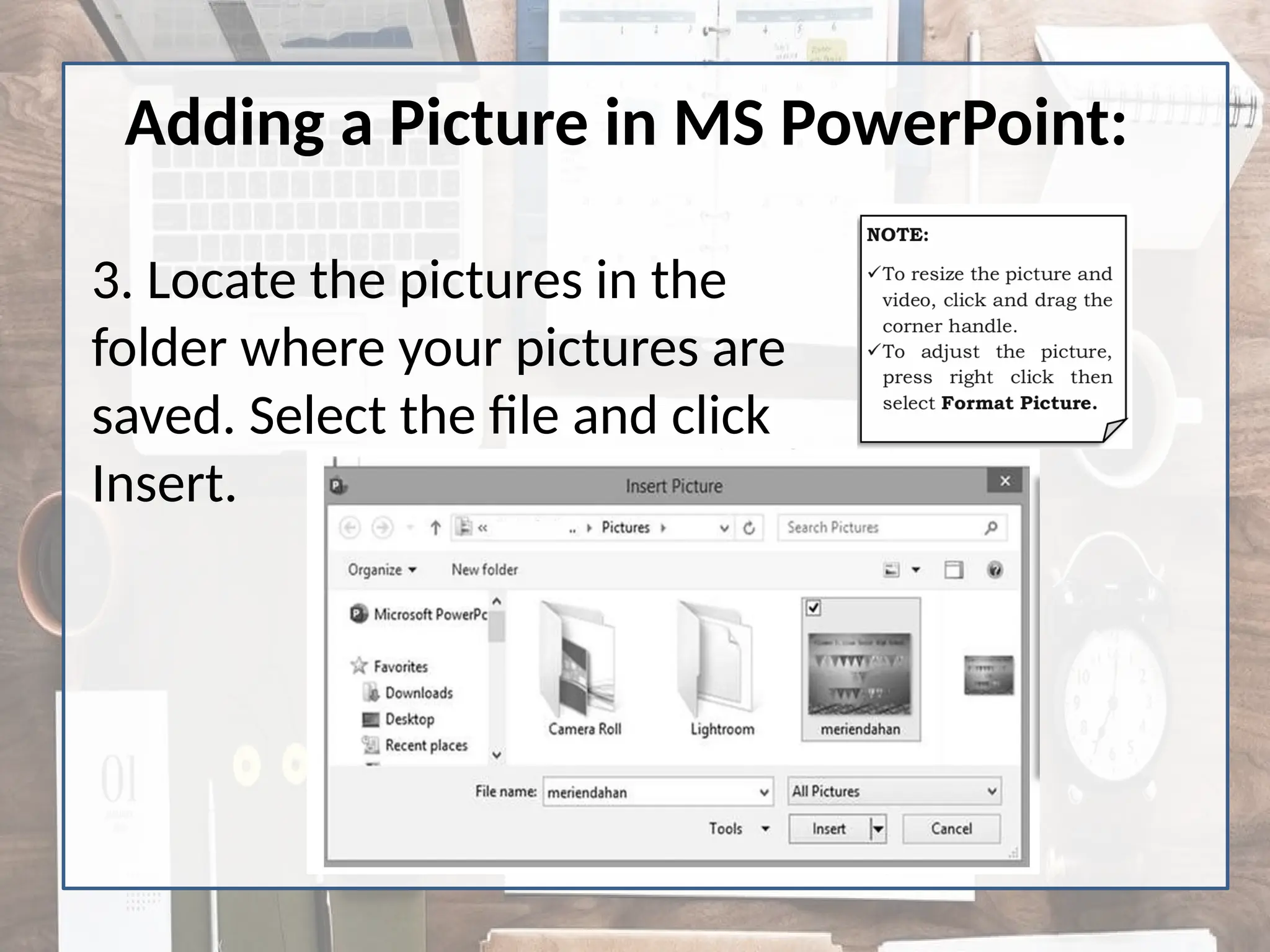
3. Locate the pictures in the
folder where your pictures are
saved. Select the file and click
Insert.
Adding a Video in MS PowerPoint:
1. For adding video, create another slide after
your first slide and apply the blank layout.
2. Click Insert > Media > Video > Video from File.
Adding a Video in MS PowerPoint:
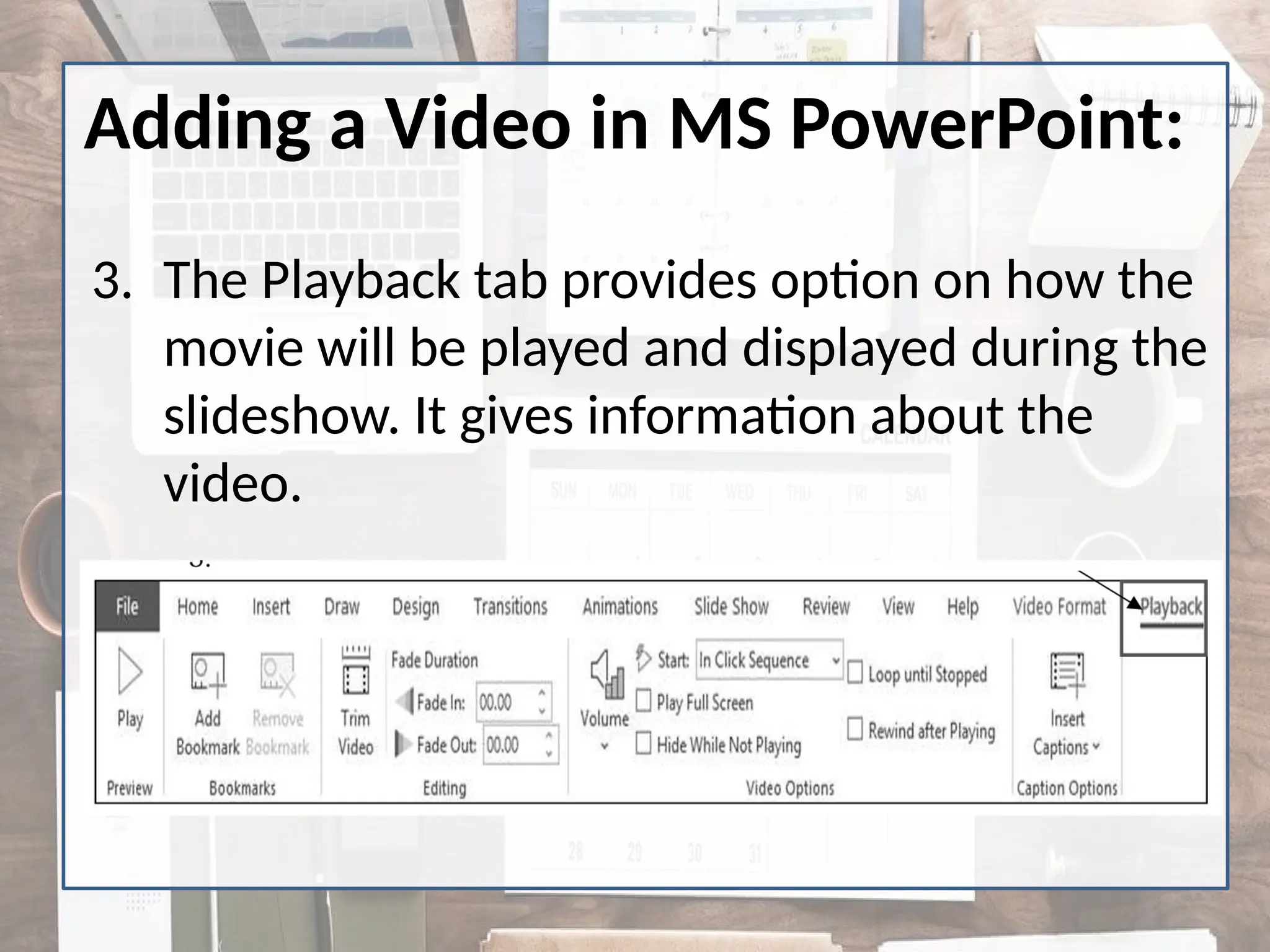
3. The Playback tab provides option on how the
movie will be played and displayed during the
slideshow. It gives information about the
video.
Adding a Video in MS PowerPoint:
4. Click the F5 in the keyboard or Start from
Beginning icon that you see in the upper right
part to play the inserted movie or video. (see
Figure 2.5)
Adding a Video in MS PowerPoint:
5. Click Esc in the keyboard or click End Show to
stop the video. (see Figure 2.6)
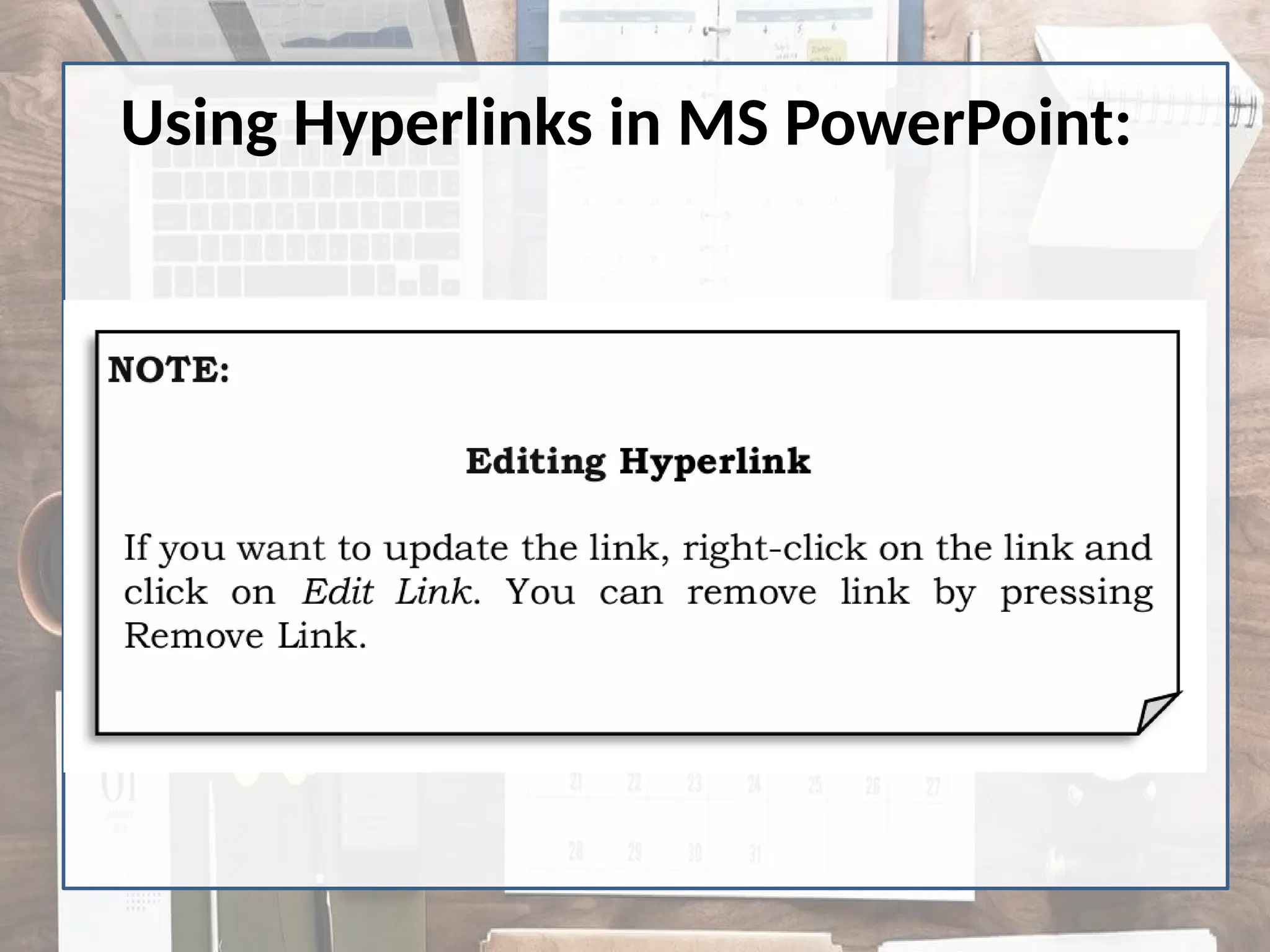
Using Hyperlinks in MS PowerPoint:
1. Select an object or
highlight a text.
2. Go to Insert > Hyperlinks
(under links category) or
use the shortcut key Ctrl
+ K. The insert Hyperlink
dialog box would
appear.
Link to Options:
a. Existing File or Web Page – creates a hyperlink to website or a local
file saved in your hard drive. Just browse your file in the dialog box or
type the web address.
b. Place in This Document – creates a hyperlink that allows you to
jump to a specific slide in your presentation.
c. Create a New Document – creates a hyperlink that once clicked,
creates a new document on your specified location.
d. E-mail Address – creates a hyperlink that opens Microsoft Outlook
that automatically adds your specified recipient on a new email.
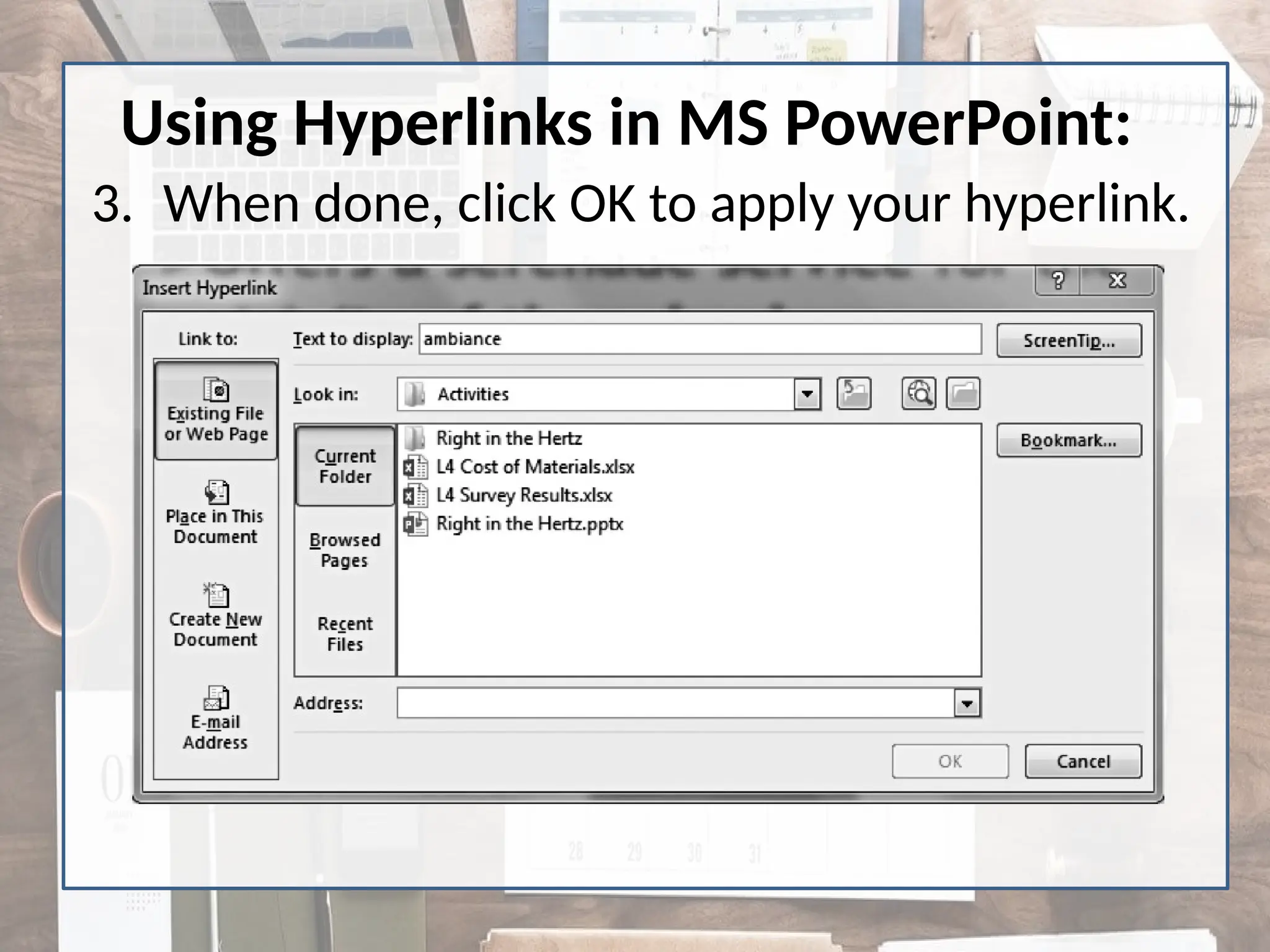
3. When done, click OK to apply your hyperlink.
Using Hyperlinks in MS PowerPoint:
Activity Photo Album
• Using the process from the above discussion (adding
pictures, videos and hyperlink), create a photo album
with a minimum of ten (10) and maximum of fifteen
(15) slides.
• You can choose from the following topics:
a. Hobbies
b. Likes/Dislikes
c. Family
d. Travel
e. Education
Productivity Tools with PowerPoint Slides

Productivity Tools with PowerPoint Slides

  • 1.
    Applied Productivity Tools withSlides MS PowerPoint
  • 2.
    Objectives: 1. Insert photos; 2.Insert videos; and 3. Use hyperlinks to improve their PowerPoint.
  • 3.
    Adding a Picturein MS PowerPoint: 1. On the first slide, click Insert > Pictures > Pictures from File. The Insert 2. Pictures dialog box will appear.
  • 4.
    Adding a Picturein MS PowerPoint: 3. Locate the pictures in the folder where your pictures are saved. Select the file and click Insert.
  • 5.
    Adding a Videoin MS PowerPoint: 1. For adding video, create another slide after your first slide and apply the blank layout. 2. Click Insert > Media > Video > Video from File.
  • 6.
    Adding a Videoin MS PowerPoint: 3. The Playback tab provides option on how the movie will be played and displayed during the slideshow. It gives information about the video.
  • 7.
    Adding a Videoin MS PowerPoint: 4. Click the F5 in the keyboard or Start from Beginning icon that you see in the upper right part to play the inserted movie or video. (see Figure 2.5)
  • 8.
    Adding a Videoin MS PowerPoint: 5. Click Esc in the keyboard or click End Show to stop the video. (see Figure 2.6)
  • 9.
    Using Hyperlinks inMS PowerPoint: 1. Select an object or highlight a text. 2. Go to Insert > Hyperlinks (under links category) or use the shortcut key Ctrl + K. The insert Hyperlink dialog box would appear.
  • 10.
    Link to Options: a.Existing File or Web Page – creates a hyperlink to website or a local file saved in your hard drive. Just browse your file in the dialog box or type the web address. b. Place in This Document – creates a hyperlink that allows you to jump to a specific slide in your presentation. c. Create a New Document – creates a hyperlink that once clicked, creates a new document on your specified location. d. E-mail Address – creates a hyperlink that opens Microsoft Outlook that automatically adds your specified recipient on a new email.
  • 11.
    3. When done,click OK to apply your hyperlink. Using Hyperlinks in MS PowerPoint:
  • 12.
    Using Hyperlinks inMS PowerPoint:
  • 13.
    Using Hyperlinks inMS PowerPoint:
  • 14.
    Activity Photo Album •Using the process from the above discussion (adding pictures, videos and hyperlink), create a photo album with a minimum of ten (10) and maximum of fifteen (15) slides. • You can choose from the following topics: a. Hobbies b. Likes/Dislikes c. Family d. Travel e. Education