Private Loan
Cert/Response Pending
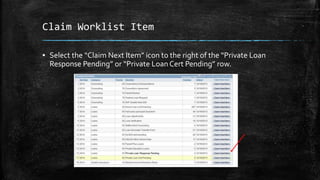
Claim Worklist Item
▪ Select the “Claim Next Item” icon to the right of the “Private Loan
Response Pending” or “Private Loan Cert Pending” row.
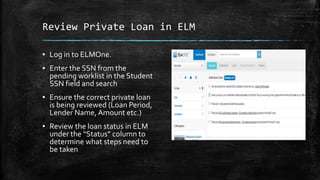
Review Private Loan in ELM
▪ Log in to ELMOne.
▪ Enter the SSN from the
pending worklist in the Student
SSN field and search
▪ Ensure the correct private loan
is being reviewed (Loan Period,
Lender Name, Amount etc.)
▪ Review the loan status in ELM
under the “Status” column to
determine what steps need to
be taken
Certification Status
Certification Requested
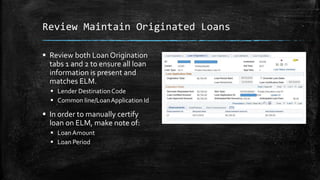
Review Maintain Originated Loans
 Review both Loan Origination
tabs 1 and 2 to ensure all loan
information is present and
matches ELM.
 Lender DestinationCode
 Common line/LoanApplication Id
 In order to manually certify
loan on ELM, make note of:
 LoanAmount
 Loan Period
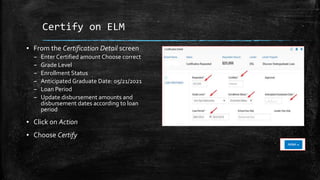
Certify on ELM
▪ From the Certification Detail screen
– Enter Certified amount Choose correct
– Grade Level
– Enrollment Status
– Anticipated Graduate Date: 05/21/2021
– Loan Period
– Update disbursement amounts and
disbursement dates according to loan
period
▪ Click on Action
▪ Choose Certify
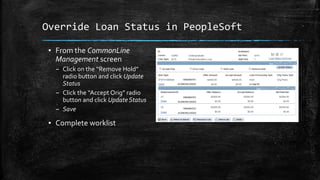
Override Loan Status in PeopleSoft
▪ From the CommonLine
Management screen
– Click on the “Remove Hold”
radio button and click Update
Status
– Click the “Accept Orig” radio
button and click Update Status
– Save
▪ Complete worklist
Certification Status
Certification Completed
Loan Status: Disbursement Scheduled
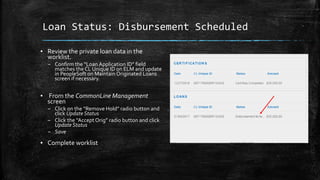
▪ Review the private loan data in the
worklist.
– Confirm the “Loan Application ID” field
matches the CL Unique ID on ELM and update
in PeopleSoft on Maintain Originated Loans
screen if necessary.
▪ From the CommonLine Management
screen
– Click on the “Remove Hold” radio button and
click UpdateStatus
– Click the “Accept Orig” radio button and click
UpdateStatus
– Save
▪ Complete worklist
Loan Status: Loan Cancelled
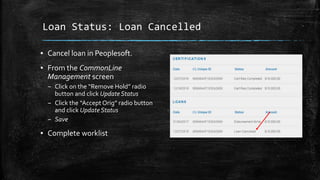
▪ Cancel loan in Peoplesoft.
▪ From the CommonLine
Management screen
– Click on the “Remove Hold” radio
button and click Update Status
– Click the “Accept Orig” radio button
and click Update Status
– Save
▪ Complete worklist
Loan Status: Need Borrower Info
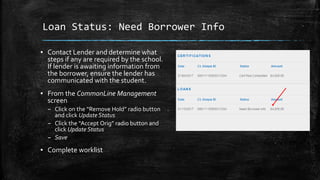
▪ Contact Lender and determine what
steps if any are required by the school.
If lender is awaiting information from
the borrower, ensure the lender has
communicated with the student.
▪ From the CommonLine Management
screen
– Click on the “Remove Hold” radio button
and click Update Status
– Click the “Accept Orig” radio button and
click Update Status
– Save
▪ Complete worklist
Comment
▪ Due to error in loan transmission, manually certified loan on ELM.
Accepted origination in PS.

Private loan cert and response pending

  • 1.
  • 2.
    Claim Worklist Item ▪Select the “Claim Next Item” icon to the right of the “Private Loan Response Pending” or “Private Loan Cert Pending” row.
  • 3.
    Review Private Loanin ELM ▪ Log in to ELMOne. ▪ Enter the SSN from the pending worklist in the Student SSN field and search ▪ Ensure the correct private loan is being reviewed (Loan Period, Lender Name, Amount etc.) ▪ Review the loan status in ELM under the “Status” column to determine what steps need to be taken
  • 4.
  • 5.
    Review Maintain OriginatedLoans  Review both Loan Origination tabs 1 and 2 to ensure all loan information is present and matches ELM.  Lender DestinationCode  Common line/LoanApplication Id  In order to manually certify loan on ELM, make note of:  LoanAmount  Loan Period
  • 6.
    Certify on ELM ▪From the Certification Detail screen – Enter Certified amount Choose correct – Grade Level – Enrollment Status – Anticipated Graduate Date: 05/21/2021 – Loan Period – Update disbursement amounts and disbursement dates according to loan period ▪ Click on Action ▪ Choose Certify
  • 7.
    Override Loan Statusin PeopleSoft ▪ From the CommonLine Management screen – Click on the “Remove Hold” radio button and click Update Status – Click the “Accept Orig” radio button and click Update Status – Save ▪ Complete worklist
  • 8.
  • 9.
    Loan Status: DisbursementScheduled ▪ Review the private loan data in the worklist. – Confirm the “Loan Application ID” field matches the CL Unique ID on ELM and update in PeopleSoft on Maintain Originated Loans screen if necessary. ▪ From the CommonLine Management screen – Click on the “Remove Hold” radio button and click UpdateStatus – Click the “Accept Orig” radio button and click UpdateStatus – Save ▪ Complete worklist
  • 10.
    Loan Status: LoanCancelled ▪ Cancel loan in Peoplesoft. ▪ From the CommonLine Management screen – Click on the “Remove Hold” radio button and click Update Status – Click the “Accept Orig” radio button and click Update Status – Save ▪ Complete worklist
  • 11.
    Loan Status: NeedBorrower Info ▪ Contact Lender and determine what steps if any are required by the school. If lender is awaiting information from the borrower, ensure the lender has communicated with the student. ▪ From the CommonLine Management screen – Click on the “Remove Hold” radio button and click Update Status – Click the “Accept Orig” radio button and click Update Status – Save ▪ Complete worklist
  • 12.
    Comment ▪ Due toerror in loan transmission, manually certified loan on ELM. Accepted origination in PS.