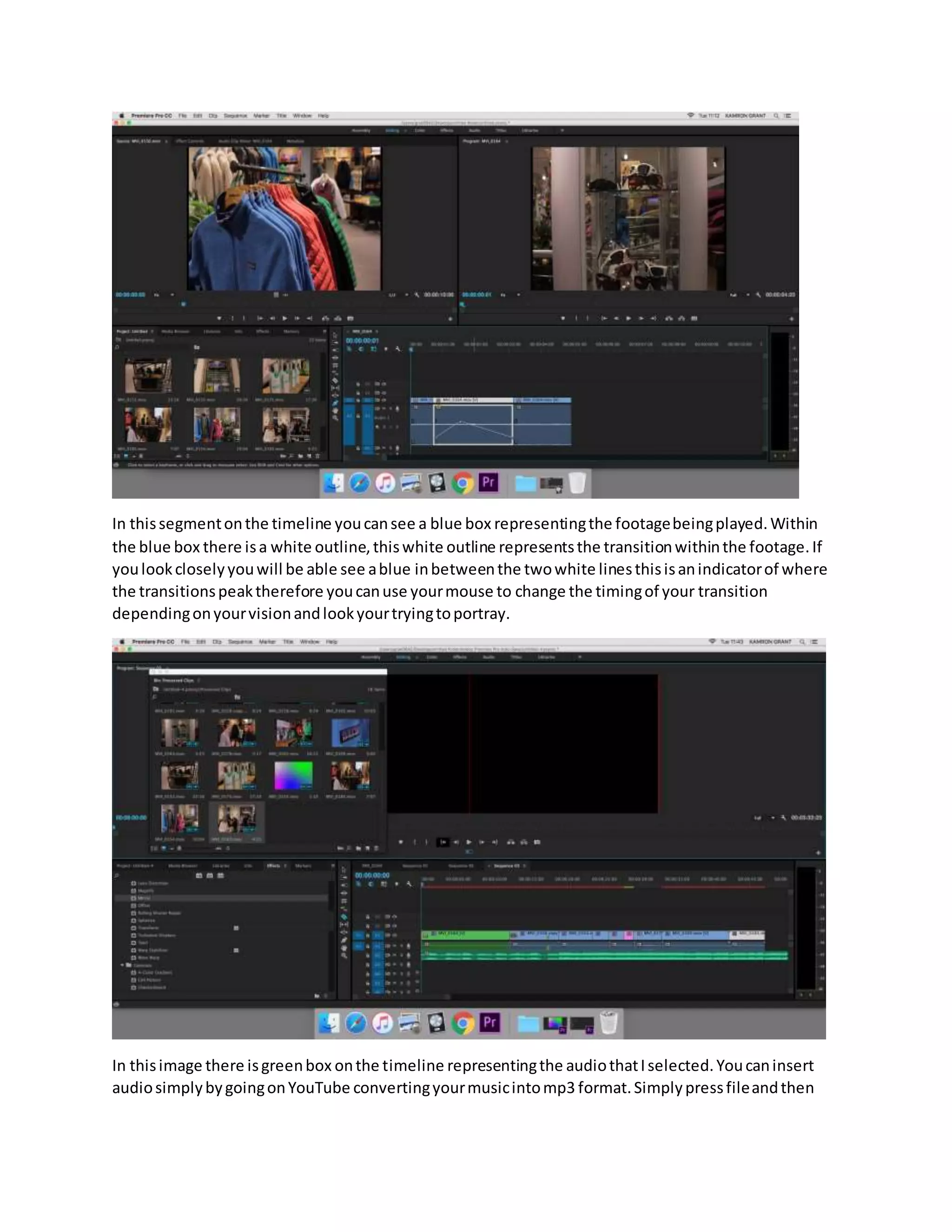
In thissegmentonthe timeline youcansee a blue box representingthe footagebeingplayed.Within
the blue box there isa white outline,thiswhite outline representsthe transitionwithinthe footage.If
youlookcloselyyouwill be able see ablue inbetweenthe twowhite linesthisisanindicatorof where
the transitionspeaktherefore youcanuse yourmouse to change the timingof your transition
dependingonyourvisionandlookyourtryingtoportray.
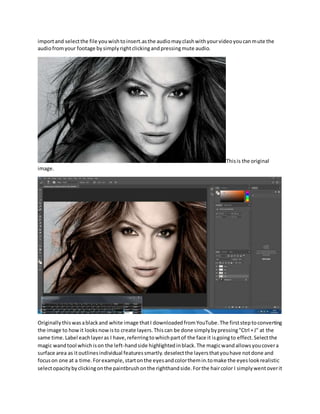
In thisimage there isgreenbox onthe timeline representingthe audiothatIselected.Youcaninsert
audiosimplybygoingonYouTube convertingyourmusicintomp3 format.Simplypressfileandthen
importand selectthe file youwishtoinsert.asthe audiomayclashwithyourvideoyoucanmute the
audiofromyour footage bysimplyrightclickingandpressingmute audio.
Thisis the original
image.
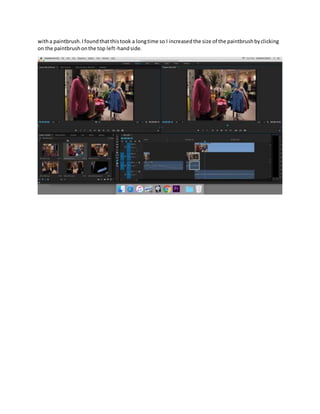
Originallythiswasablackand white image thatI downloadedfromYouTube.The firststeptoconverting
the image to howit looksnowisto create layers.Thiscan be done simplybypressing"Ctrl +J" at the
same time.Label eachlayeras I have,referringtowhichpartof the face it isgoingto effect.Selectthe
magic wandtool whichison the left-handside highlightedinblack.The magicwandallowsyoucovera
surface area as itoutlinesindividual featuressmartly.deselectthe layersthatyouhave notdone and
focuson one at a time.Forexample,startonthe eyesandcolorthemin.tomake the eyeslookrealistic
selectopacitybyclickingonthe paintbrushonthe righthandside.Forthe haircolor I simplywentoverit
witha paintbrush.Ifoundthatthistook a longtime so I increasedthe size of the paintbrushbyclicking
on the paintbrushonthe top left-handside.

Premiere pro and photoshop tutorial

  • 1.
    In thissegmentonthe timelineyoucansee a blue box representingthe footagebeingplayed.Within the blue box there isa white outline,thiswhite outline representsthe transitionwithinthe footage.If youlookcloselyyouwill be able see ablue inbetweenthe twowhite linesthisisanindicatorof where the transitionspeaktherefore youcanuse yourmouse to change the timingof your transition dependingonyourvisionandlookyourtryingtoportray. In thisimage there isgreenbox onthe timeline representingthe audiothatIselected.Youcaninsert audiosimplybygoingonYouTube convertingyourmusicintomp3 format.Simplypressfileandthen
  • 2.
    importand selectthe fileyouwishtoinsert.asthe audiomayclashwithyourvideoyoucanmute the audiofromyour footage bysimplyrightclickingandpressingmute audio. Thisis the original image. Originallythiswasablackand white image thatI downloadedfromYouTube.The firststeptoconverting the image to howit looksnowisto create layers.Thiscan be done simplybypressing"Ctrl +J" at the same time.Label eachlayeras I have,referringtowhichpartof the face it isgoingto effect.Selectthe magic wandtool whichison the left-handside highlightedinblack.The magicwandallowsyoucovera surface area as itoutlinesindividual featuressmartly.deselectthe layersthatyouhave notdone and focuson one at a time.Forexample,startonthe eyesandcolorthemin.tomake the eyeslookrealistic selectopacitybyclickingonthe paintbrushonthe righthandside.Forthe haircolor I simplywentoverit
  • 3.
    witha paintbrush.Ifoundthatthistook alongtime so I increasedthe size of the paintbrushbyclicking on the paintbrushonthe top left-handside.