PRACTICING
TYPING –
AN OVERVIEW
CIT-102, SU2021
Overview of Content
Why the 10-finger system?
Will I make mistakes?
Practicing the Trade
Typing Techniques and Your Environment
WHY THE 10-FINGER SYSTEM?
Getting started with typing
What is the 10-finger system?
Much faster typing than methods
such as ‘search and peck’ (using
one finger at a time while
looking at the keyboard
Allows for multi-tasking and can
transcribe from documents while
not having to look at your
fingers on the keyboard
As you practice and get more
comfortable with the 10-finger
system (also known as touch-
typing) you will notice you will
get faster with typing thereby
saving time.
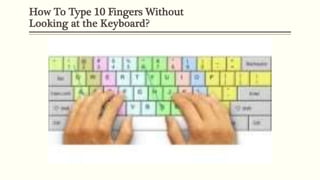
How To Type 10 Fingers Without
Looking at the Keyboard?
Will I make mistakes?
Absolutely! That is OK! You are learning a whole new way of
working with the keyboard, it is all
about repetition and practice.
Think of it like learning a trade skill – For
example, pottery. When first starting out a
person may struggle making a bowl from
clay; but from there and with practice, they
advance their skills and then the process
becomes second nature!
Be kind to yourself!
Practicing the Trade (Typing Technique)
Try to type
daily
Can be 10-15
minutes
Work in small
chunks
Step 1
Practice Do not try to
tackle the
whole keyboard
Work on 3-4
keys daily
Practice!
Step 2
Chunks
Work at your
pace
Celebrate your
success
Step 3
Be
Patient
TYPING TECHNIQUE
Your Environment and Ergonomic Principles
Typing Techniques in your Environment
Workstation
 Make sure to have a work environment
that can you can have your lower back
supported and your legs creating a 90-
degree angle to the floor
 If possible, have a way to set your text
you are referencing on either side of
your keyboard area
 Try to have a set up whereby you can
keep your monitor a little over an arm
length away and at eye height
Position at the Keyboard
 Keep your body centered at the
keyboard
 Make sure to keep your elbows at the
side of your body, but also relaxed
 Curve your fingers over the home keys,
and keep your wrists and back of hands
at the same angle as the keyboard
 When using your mouse, move it with
your arm, not just your wrist!

Practicing Typing - An Overview

  • 1.
  • 2.
    Overview of Content Whythe 10-finger system? Will I make mistakes? Practicing the Trade Typing Techniques and Your Environment
  • 3.
    WHY THE 10-FINGERSYSTEM? Getting started with typing
  • 4.
    What is the10-finger system? Much faster typing than methods such as ‘search and peck’ (using one finger at a time while looking at the keyboard Allows for multi-tasking and can transcribe from documents while not having to look at your fingers on the keyboard As you practice and get more comfortable with the 10-finger system (also known as touch- typing) you will notice you will get faster with typing thereby saving time.
  • 5.
    How To Type10 Fingers Without Looking at the Keyboard?
  • 6.
    Will I makemistakes? Absolutely! That is OK! You are learning a whole new way of working with the keyboard, it is all about repetition and practice. Think of it like learning a trade skill – For example, pottery. When first starting out a person may struggle making a bowl from clay; but from there and with practice, they advance their skills and then the process becomes second nature! Be kind to yourself!
  • 7.
    Practicing the Trade(Typing Technique) Try to type daily Can be 10-15 minutes Work in small chunks Step 1 Practice Do not try to tackle the whole keyboard Work on 3-4 keys daily Practice! Step 2 Chunks Work at your pace Celebrate your success Step 3 Be Patient
  • 8.
    TYPING TECHNIQUE Your Environmentand Ergonomic Principles
  • 9.
    Typing Techniques inyour Environment Workstation  Make sure to have a work environment that can you can have your lower back supported and your legs creating a 90- degree angle to the floor  If possible, have a way to set your text you are referencing on either side of your keyboard area  Try to have a set up whereby you can keep your monitor a little over an arm length away and at eye height Position at the Keyboard  Keep your body centered at the keyboard  Make sure to keep your elbows at the side of your body, but also relaxed  Curve your fingers over the home keys, and keep your wrists and back of hands at the same angle as the keyboard  When using your mouse, move it with your arm, not just your wrist!

Editor's Notes

  • #2 NOTE: To change the image on this slide, select the picture and delete it. Then click the Pictures icon in the placeholder to insert your own image.