
A Paperless Workflow For
Teachers Using Google Drive
Robin Briones
EDUU 563
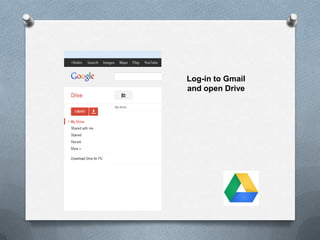
Log-in to Gmail
and open Drive
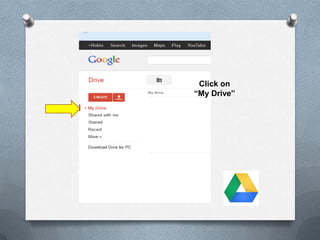
Click on
“My Drive”
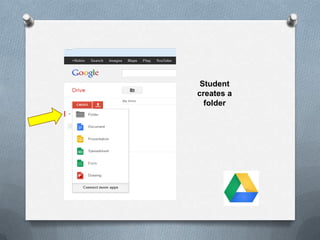
Student
creates a
folder
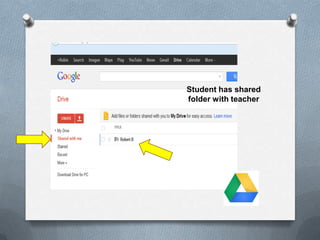
Student has shared
folder with teacher
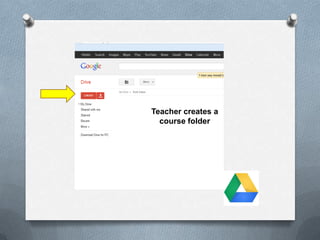
Teacher creates a
course folder
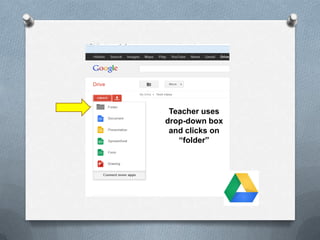
Teacher uses
drop-down box
and clicks on
“folder”
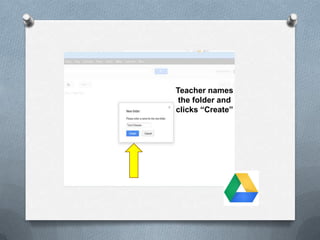
Teacher names
the folder and
clicks “Create”
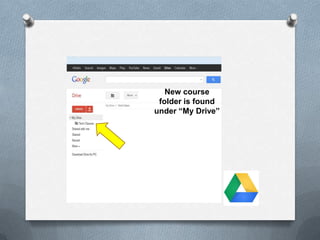
New course
folder is found
under “My Drive”
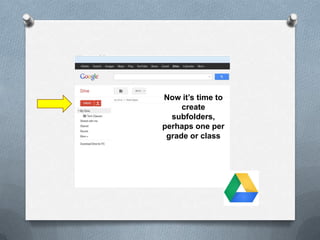
Now it’s time to
create
subfolders,
perhaps one per
grade or class
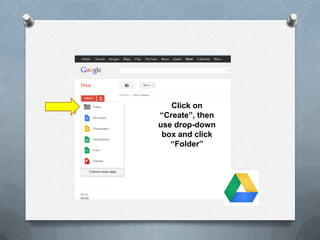
Click on
“Create”, then
use drop-down
box and click
“Folder”
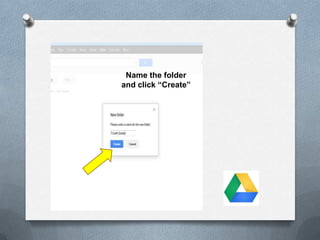
Name the folder
and click “Create”
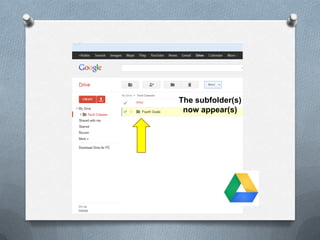
The subfolder(s)
now appear(s)
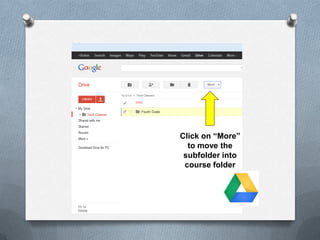
Click on “More”
to move the
subfolder into
course folder
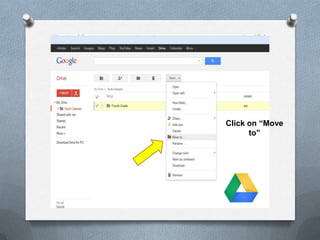
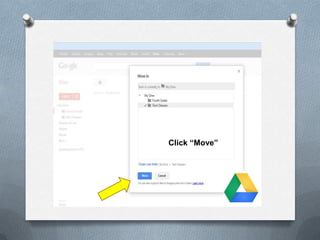
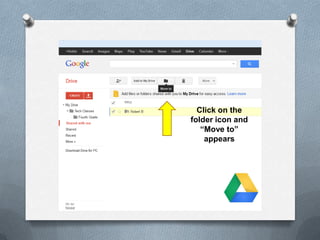
Click on “Move
to”
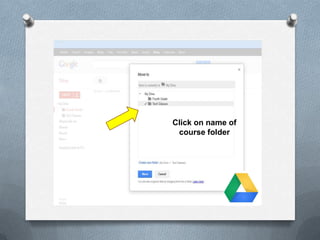
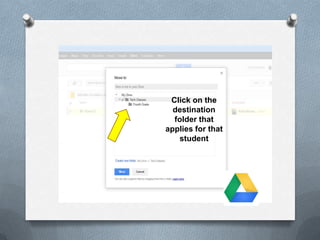
Click on name of
course folder
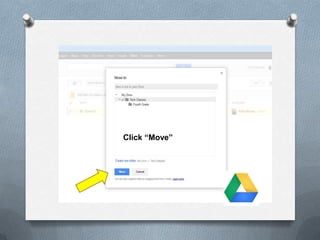
Click “Move”
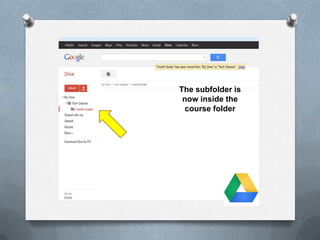
The subfolder is
now inside the
course folder
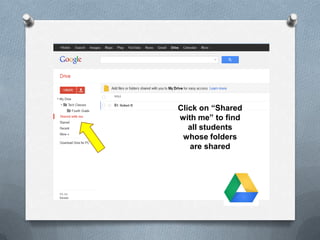
Click on “Shared
with me” to find
all students
whose folders
are shared
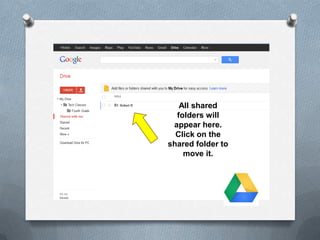
All shared
folders will
appear here.
Click on the
shared folder to
move it.
Click on the
folder icon and
“Move to”
appears
Click on the
destination
folder that
applies for that
student
Click “Move”
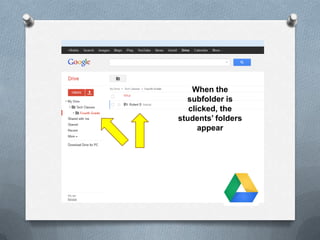
When the
subfolder is
clicked, the
students’ folders
appear
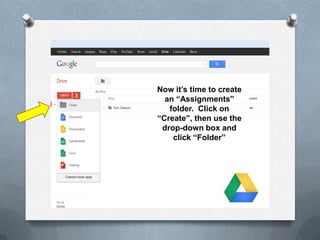
Now it’s time to create
an “Assignments”
folder. Click on
“Create”, then use the
drop-down box and
click “Folder”
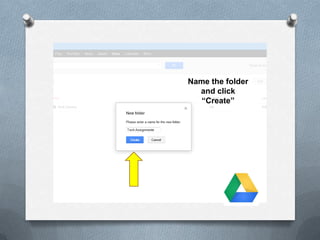
Name the folder
and click
“Create”
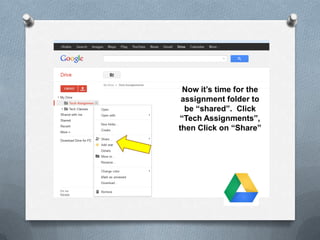
Now it’s time for the
assignment folder to
be “shared”. Click
“Tech Assignments”,
then Click on “Share”
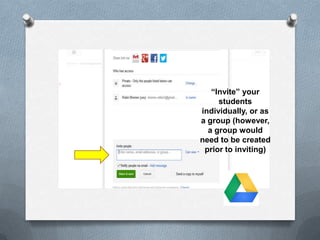
“Invite” your
students
individually, or as
a group (however,
a group would
need to be created
prior to inviting)
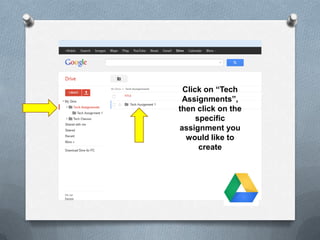
Click on “Tech
Assignments”,
then click on the
specific
assignment you
would like to
create
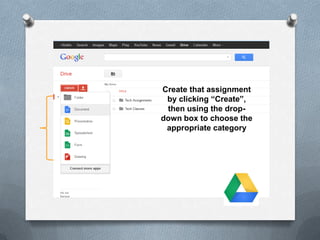
Create that assignment
by clicking “Create”,
then using the drop-
down box to choose the
appropriate category
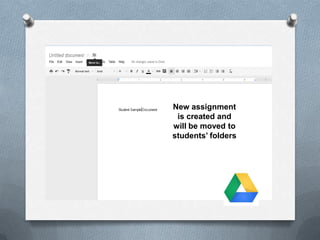
New assignment
is created and
will be moved to
students’ folders
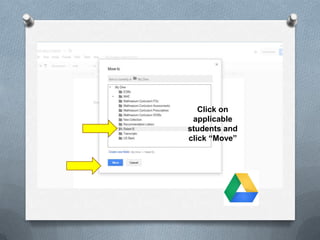
Click on
applicable
students and
click “Move”
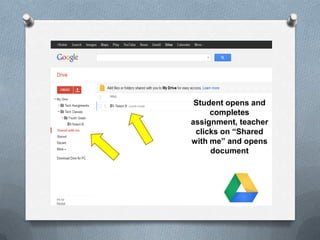
Student opens and
completes
assignment, teacher
clicks on “Shared
with me” and opens
document
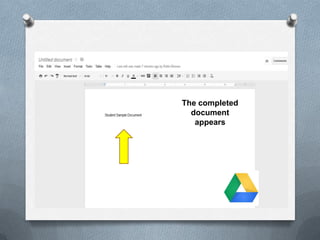
The completed
document
appears
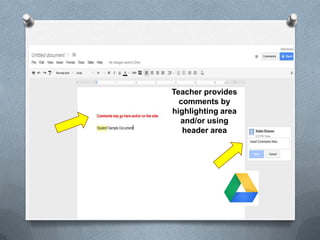
Teacher provides
comments by
highlighting area
and/or using
header area
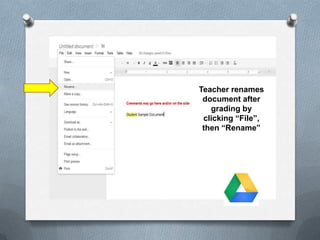
Teacher renames
document after
grading by
clicking “File”,
then “Rename”
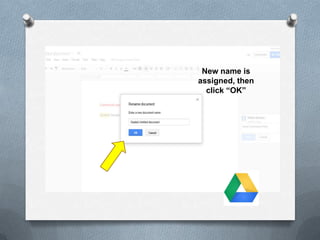
New name is
assigned, then
click “OK”
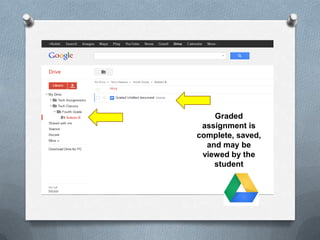
Graded
assignment is
complete, saved,
and may be
viewed by the
student
Thank you

Ppt for google drive video