“When a man dies, his acts come to an end, but three, recurring charity, or knowledge (by which people) benefit, or a pious son, who prays for him (for the deceased).”
-Sahih Muslim 1631-
Power BI Basic
Tutorial
By Pusat Loker RNO Only
a.k.a. Indo-RNO
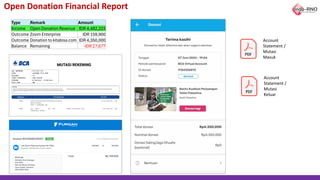
Open Donation Financial Report
Type Remark Amount
Income Open Donation Revenue IDR 4,482,223
Outcome Zoom Enterprise IDR 159,900
Outcome Donation to kitabisa.com IDR 4,350,000
Balance Remaining -IDR 27,677
Account
Statement /
Mutasi
Masuk
Account
Statement /
Mutasi
Keluar
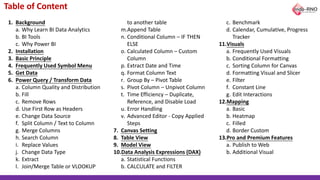
Table of Content
1. Background
a. Why Learn BI Data Analytics
b. BI Tools
c. Why Power BI
2. Installation
3. Basic Principle
4. Frequently Used Symbol Menu
5. Get Data
6. Power Query / Transform Data
a. Column Quality and Distribution
b. Fill
c. Remove Rows
d. Use First Row as Headers
e. Change Data Source
f. Split Column / Text to Column
g. Merge Columns
h. Search Column
i. Replace Values
j. Change Data Type
k. Extract
l. Join/Merge Table or VLOOKUP
to another table
m.Append Table
n. Conditional Column – IF THEN
ELSE
o. Calculated Column – Custom
Column
p. Extract Date and Time
q. Format Column Text
r. Group By – Pivot Table
s. Pivot Column – Unpivot Column
t. Time Efficiency – Duplicate,
Reference, and Disable Load
u. Error Handling
v. Advanced Editor - Copy Applied
Steps
7. Canvas Setting
8. Table View
9. Model View
10.Data Analysis Expressions (DAX)
a. Statistical Functions
b. CALCULATE and FILTER
c. Benchmark
d. Calendar, Cumulative, Progress
Tracker
11.Visuals
a. Frequently Used Visuals
b. Conditional Formatting
c. Sorting Column for Canvas
d. Formatting Visual and Slicer
e. Filter
f. Constant Line
g. Edit Interactions
12.Mapping
a. Basic
b. Heatmap
c. Filled
d. Border Custom
13.Pro and Premium Features
a. Publish to Web
b. Additional Visual
Aldindha Octa Airlangga
aldindha.work@gmail.com
https://www.linkedin.com/in/aldindha/
Contributors
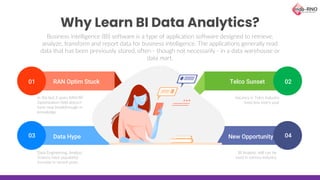
Why Learn BI Data Analytics?
Business intelligence (BI) software is a type of application software designed to retrieve,
analyze, transform and report data for business intelligence. The applications generally read
data that has been previously stored, often - though not necessarily - in a data warehouse or
data mart.
RAN Optim Stuck
In the last 3 years RAN/RF
Optimization field doesn’t
have new breakthrough in
knowledge
Data Hype
Data Engineering, Analyst,
Science have popularity
increase in recent years
Telco Sunset
Vacancy in Telco Industry
keep less every year
New Opportunity
BI Analytic skill can be
used in various industry
01
03
02
04
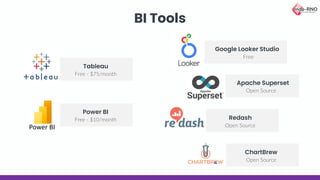
BI Tools
Free - $75/month
Tableau
Free - $10/month
Power BI
Open Source
ChartBrew
Free
Google Looker Studio
Open Source
Apache Superset
Open Source
Redash
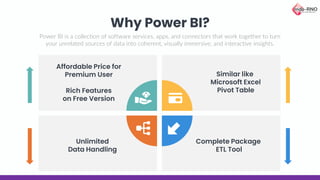
Why Power BI?
Affordable Price for
Premium User
Rich Features
on Free Version
Unlimited
Data Handling
Complete Package
ETL Tool
Power BI is a collection of software services, apps, and connectors that work together to turn
your unrelated sources of data into coherent, visually immersive, and interactive insights.
Similar like
Microsoft Excel
Pivot Table
I’m not an Expert….
I’m not a Professional Trainer
I’m don’t have any Certificates
I’m just a normal RNO Engineer
like you guys
Installation
1. Download and Install Power BI and Plugins:
https://www.microsoft.com/en-us/download/details.aspx?id=58494
https://daxstudio.org/downloads/
https://www.datavizioner.com/power-bi-exporter
2. Download Link for Materials:
https://1drv.ms/f/s!Ari-fJDiX6PzkPtfsLbOir4zgPcxTw?e=x3fBq1
3. Download Link for Tutorial Update:
https://1drv.ms/f/s!Ari-fJDiX6PzkPtgMn7FAJeS3mBscg?e=V14kN3
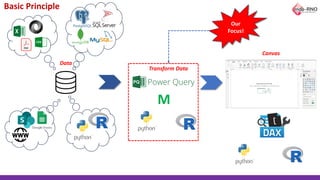
Basic Principle
Data
Transform Data
M
Canvas
Our
Focus!
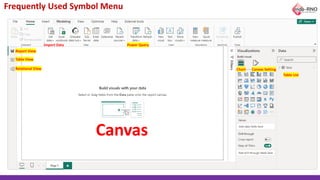
Frequently Used Symbol Menu
Canvas
Import Data
Chart Canvas Setting
Table List
Table View
Report View
Relational View
Power Query
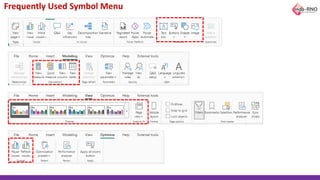
Frequently Used Symbol Menu
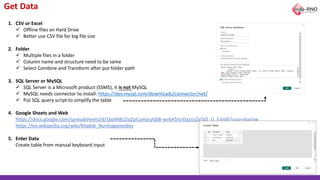
Get Data
1. CSV or Excel
✓ Offline files on Hard Drive
✓ Better use CSV file for big file size
2. Folder
✓ Multiple files in a folder
✓ Column name and structure need to be same
✓ Select Combine and Transform after put folder path
3. SQL Server or MySQL
✓ SQL Server is a Microsoft product (SSMS), it is not MySQL
✓ MySQL needs connector to install: https://dev.mysql.com/downloads/connector/net/
✓ Put SQL query script to simplify the table
4. Google Sheets and Web
https://docs.google.com/spreadsheets/d/1boM8UZsiZpCumJcyG08-wr6A5tsrDazJzjZy5iO_U_E/edit?usp=sharing
https://en.wikipedia.org/wiki/Khabib_Nurmagomedov
5. Enter Data
Create table from manual keyboard input
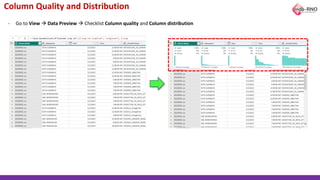
Column Quality and Distribution
- Go to View → Data Preview → Checklist Column quality and Column distribution
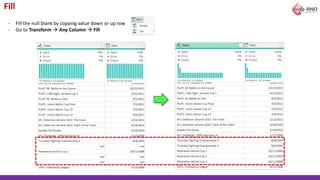
Fill
- Fill the null blank by copying value down or up row
- Go to Transform → Any Column → Fill
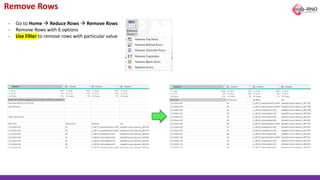
Remove Rows
- Go to Home → Reduce Rows → Remove Rows
- Remove Rows with 6 options
- Use Filter to remove rows with particular value
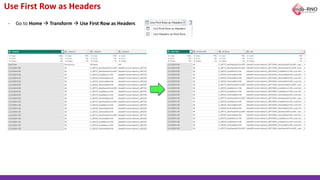
Use First Row as Headers
- Go to Home → Transform → Use First Row as Headers
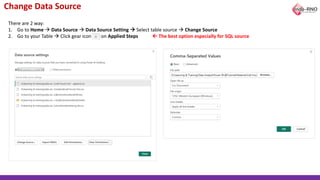
Change Data Source
There are 2 way:
1. Go to Home → Data Source → Data Source Setting → Select table source → Change Source
2. Go to your Table → Click gear icon on Applied Steps  The best option especially for SQL source
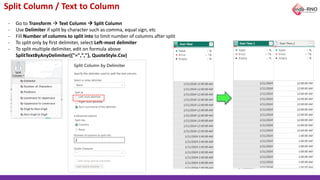
Split Column / Text to Column
- Go to Transform → Text Column → Split Column
- Use Delimiter if split by character such as comma, equal sign, etc
- Fill Number of columns to split into to limit number of columns after split
- To split only by first delimiter, select Left-most delimiter
- To split multiple delimiter, edit on formula above
SplitTextByAnyDelimiter({"=",","}, QuoteStyle.Csv)
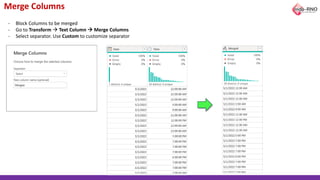
Merge Columns
- Block Columns to be merged
- Go to Transform → Text Column → Merge Columns
- Select separator. Use Custom to customize separator
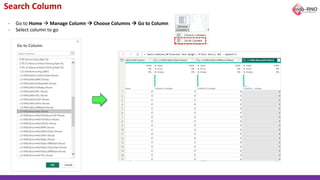
Search Column
- Go to Home → Manage Column → Choose Columns → Go to Column
- Select column to go
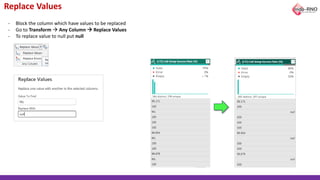
Replace Values
- Block the column which have values to be replaced
- Go to Transform → Any Column → Replace Values
- To replace value to null put null
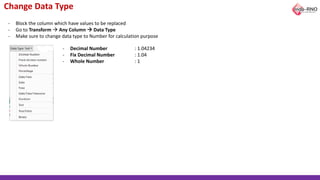
Change Data Type
- Block the column which have values to be replaced
- Go to Transform → Any Column → Data Type
- Make sure to change data type to Number for calculation purpose
- Decimal Number : 1.04234
- Fix Decimal Number : 1.04
- Whole Number : 1
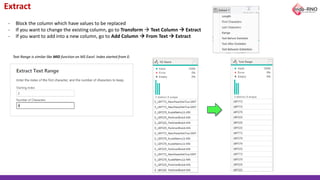
Extract
- Block the column which have values to be replaced
- If you want to change the existing column, go to Transform → Text Column → Extract
- If you want to add into a new column, go to Add Column → From Text → Extract
Text Range is similar like MID function on MS Excel. Index started from 0.
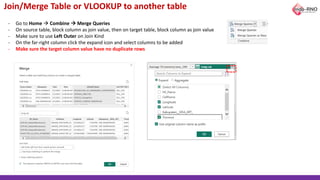
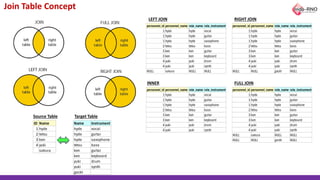
Join/Merge Table or VLOOKUP to another table
- Go to Home → Combine → Merge Queries
- On source table, block column as join value, then on target table, block column as join value
- Make sure to use Left Outer on Join Kind
- On the far-right column click the expand icon and select columns to be added
- Make sure the target column value have no duplicate rows
ID Name Name Instrument
1 hyde hyde vocal
2 tetsu hyde guitar
3 ken hyde saxophone
4 yuki tetsu bass
sakura ken guitar
ken keyboard
yuki drum
yuki synth
gackt
Join Table Concept
personnel_id personnel_name role_name role_instrument
1 hyde hyde vocal
1 hyde hyde guitar
1 hyde hyde saxophone
2 tetsu tetsu bass
3 ken ken guitar
3 ken ken keyboard
4 yuki yuki drum
4 yuki yuki synth
NULL sakura NULL NULL
personnel_id personnel_name role_name role_instrument
1 hyde hyde vocal
1 hyde hyde guitar
1 hyde hyde saxophone
2 tetsu tetsu bass
3 ken ken guitar
3 ken ken keyboard
4 yuki yuki drum
4 yuki yuki synth
NULL NULL gackt NULL
personnel_id personnel_name role_name role_instrument
1 hyde hyde vocal
1 hyde hyde guitar
1 hyde hyde saxophone
2 tetsu tetsu bass
3 ken ken guitar
3 ken ken keyboard
4 yuki yuki drum
4 yuki yuki synth
personnel_id personnel_name role_name role_instrument
1 hyde hyde vocal
1 hyde hyde guitar
1 hyde hyde saxophone
2 tetsu tetsu bass
3 ken ken guitar
3 ken ken keyboard
4 yuki yuki drum
4 yuki yuki synth
NULL sakura NULL NULL
NULL NULL gackt NULL
LEFT JOIN RIGHT JOIN
INNER FULL JOIN
Source Table Target Table
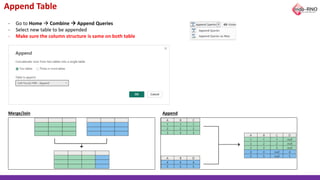
Append Table
- Go to Home → Combine → Append Queries
- Select new table to be appended
- Make sure the column structure is same on both table
Merge/Join Append
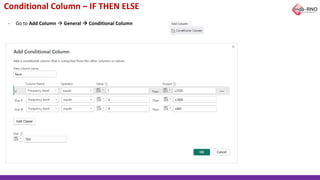
Conditional Column – IF THEN ELSE
- Go to Add Column → General → Conditional Column
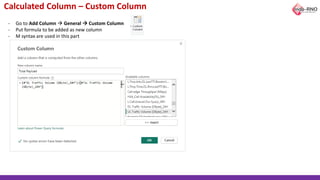
Calculated Column – Custom Column
- Go to Add Column → General → Custom Column
- Put formula to be added as new column
- M syntax are used in this part
Extract Date and Time
- Select column with Date or Time data type
- Go to Add Column → From Date & Time
- Select Week of Year to extract week
- Modify this script to start week on Friday → Table.AddColumn(#"Added Custom", "Week of Year", each
Date.WeekOfYear([Date], Day.Friday), Int64.Type)
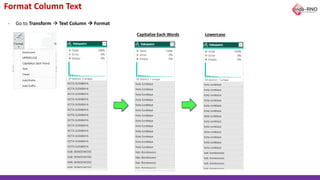
Format Column Text
- Go to Transform → Text Column → Format
Capitalize Each Words Lowercase
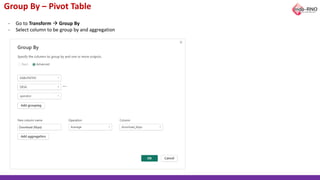
Group By – Pivot Table
- Go to Transform → Group By
- Select column to be group by and aggregation
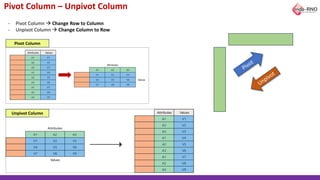
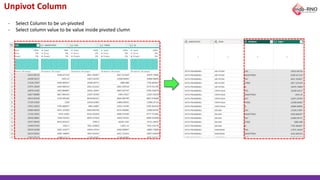
Pivot Column – Unpivot Column
- Pivot Column → Change Row to Column
- Unpivot Column → Change Column to Row
Unpivot Column
Pivot Column
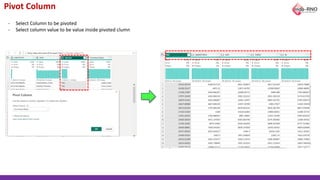
Pivot Column
- Select Column to be pivoted
- Select column value to be value inside pivoted clumn
Unpivot Column
- Select Column to be un-pivoted
- Select column value to be value inside pivoted clumn
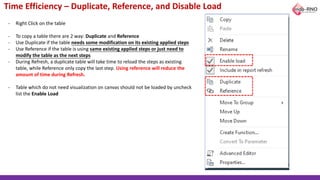
Time Efficiency – Duplicate, Reference, and Disable Load
- Right Click on the table
- To copy a table there are 2 way: Duplicate and Reference
- Use Duplicate if the table needs some modification on its existing applied steps
- Use Reference if the table is using same existing applied steps or just need to
modify the table as the next steps
- During Refresh, a duplicate table will take time to reload the steps as existing
table, while Reference only copy the last step. Using reference will reduce the
amount of time during Refresh.
- Table which do not need visualization on canvas should not be loaded by uncheck
list the Enable Load
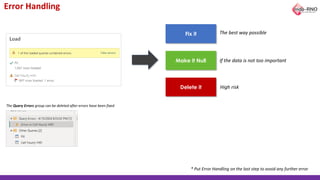
Error Handling
Delete it
Make it Null
Fix it The best way possible
If the data is not too important
High risk
The Query Errors group can be deleted after errors have been fixed
* Put Error Handling on the last step to avoid any further error
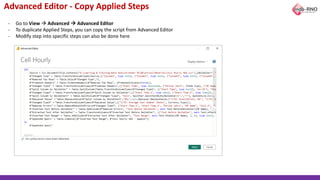
Advanced Editor - Copy Applied Steps
- Go to View → Advanced → Advanced Editor
- To duplicate Applied Steps, you can copy the script from Advanced Editor
- Modify step into specific steps can also be done here
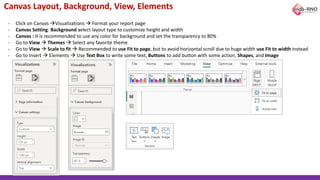
Canvas Layout, Background, View, Elements
- Click on Canvas →Visualizations → Format your report page
- Canvas Setting: Background select layout type to customize height and width
- Canvas : It is recommended to use any color for background and set the transparency to 80%
- Go to View → Themes → Select any favorite theme
- Go to View → Scale to fit → Recommended to use Fit to page, but to avoid horizontal scroll due to huge width use Fit to width instead
- Go to Insert → Elements → Use Text Box to write some text, Buttons to add button with some action, Shapes, and Image
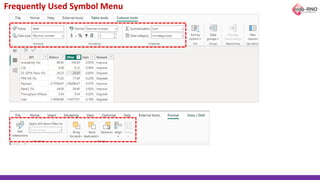
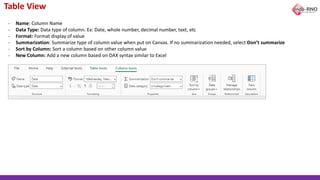
Table View
- Name: Column Name
- Data Type: Data type of column. Ex: Date, whole number, decimal number, text, etc
- Format: Format display of value
- Summarization: Summarize type of column value when put on Canvas. If no summarization needed, select Don’t summarize
- Sort by Column: Sort a column based on other column value
- New Column: Add a new column based on DAX syntax similar to Excel
Model View – Relational Table
- Drag a column of source table to a column of target table to join/merge table
- Ensure there is no duplicate value on a column of target value
- The column name of source or target table do not need to have same name, just need to make sure the value is similar
- Use RELATED to lookup column of target table. Ex: Month Name = RELATED('Month Sort'[Month Name])
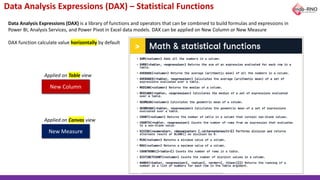
Data Analysis Expressions (DAX) – Statistical Functions
New Column
New Measure
Applied on Table view
Applied on Canvas view
Data Analysis Expressions (DAX) is a library of functions and operators that can be combined to build formulas and expressions in
Power BI, Analysis Services, and Power Pivot in Excel data models. DAX can be applied on New Column or New Measure
DAX function calculate value horizontally by default
DAX – CALCULATE and FILTER
Normally CALCULATE and FILTER are used on
Canvas as Measure
CALCULATE
FILTER
Return
Value
Return
Table
= CALCULATE(SUM('Cell Hourly'[(LTE) Average User Number
(None)]),'Cell Hourly'[NE Name] = "ABC003_ParkiranBlokA-KIN")
= CALCULATE(Expression, Criteria)
Basic Formula
Sample: Return Number of an Expression/Calculation
Sample: Return Number or Text with specific criteria from other columns value
= CALCULATE(FIRSTNONBLANK('Cell Hourly'[(LTE) UL Resource
Block Utilizing Rate (%)],1),'Cell
Hourly'[Cell.6]="E_ABC002ML1_NewPasarDeliTua-DMT_ML02" &&
'Cell Hourly'[Date Time]=DATE(2024, 1, 11) + TIME(3, 0, 0))
= FILTER('Cell Daily',
('Cell Daily'[Kabupaten] = "KOTA SURABAYA" ||
'Cell Daily'[Kabupaten] ="KOTA MALANG")
&& 'Cell Daily'[Downlink bandwidth]="CELL_BW_N100")
Sample: Return a virtual table with several criteria
= FILTER(Table, FilterExpression
Basic Formula
DAX – Benchmark
Winner =
VAR SummaryTable =
UNION (
ROW ( "Column name", "A", "Column Value", 'OOKLA - Download'[A]),
ROW ( "Column name", "B", "Column Value", 'OOKLA - Download'[B]),
ROW ( "Column name", "C", "Column Value", 'OOKLA - Download'[C]),
ROW ( "Column name", "D", "Column Value", 'OOKLA - Download'[D]),
ROW ( "Column name", "E", "Column Value", 'OOKLA - Download'[E])
)
VAR Result =
CONCATENATEX ( TOPN ( 1, SummaryTable, [Column Value] ), [Column name], ", " )
RETURN
Result
Formula
Add Column with return value of column name with the highest value among other tables
DAX – Calendar, Cumulative, Progress Tracker
Calendar = CALENDAR(DATE(2022,5,1), DATE(2022,5,31))
Calendar as Table
Cumulative =
CALCULATE (
SUM ( 'Month Sort'[Random] ),
ALL ( 'Month Sort' ),
'Month Sort'[Month Num] <= EARLIER ( 'Month Sort'[Month Num] ))
Cumulative as Column
Progress =
CALCULATE(COUNTROWS(Tracker),Tracker[Submission Status]="Submitted")
/
COUNTROWS(Tracker)
Progress as Measure
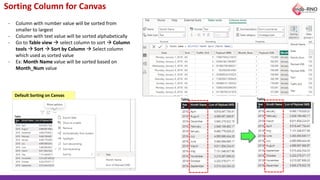
Sorting Column for Canvas
- Column with number value will be sorted from
smaller to largest
- Column with text value will be sorted alphabetically
- Go to Table view → select column to sort → Column
tools → Sort → Sort by Column → Select column
which used as sorted value
- Ex: Month Name value will be sorted based on
Month_Num value
Default Sorting on Canvas
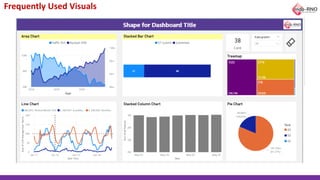
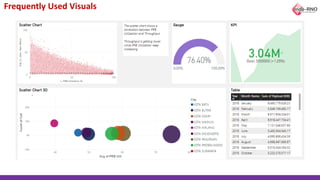
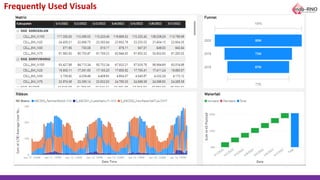
Frequently Used Visuals
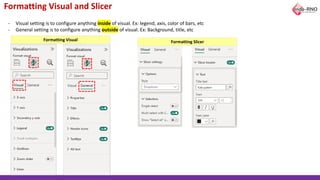
Formatting Visual and Slicer
- Visual setting is to configure anything inside of visual. Ex: legend, axis, color of bars, etc
- General setting is to configure anything outside of visual. Ex: Background, title, etc
Formatting Visual Formatting Slicer
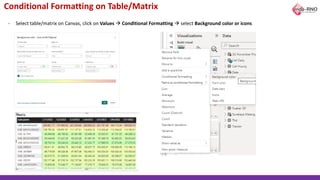
Conditional Formatting on Table/Matrix
- Select table/matrix on Canvas, click on Values → Conditional Formatting → select Background color or icons
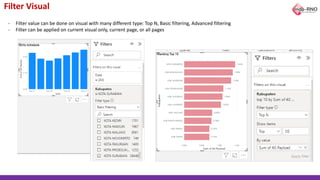
Filter Visual
- Filter value can be done on visual with many different type: Top N, Basic filtering, Advanced filtering
- Filter can be applied on current visual only, current page, or all pages
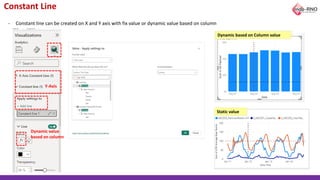
Constant Line
- Constant line can be created on X and Y axis with fix value or dynamic value based on column
Y-Axis
Dynamic value
based on column
Dynamic based on Column value
Static value
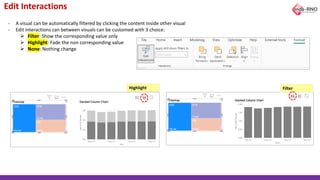
Edit Interactions
- A visual can be automatically filtered by clicking the content inside other visual
- Edit interactions can between visuals can be customed with 3 choice:
➢ Filter: Show the corresponding value only
➢ Highlight: Fade the non corresponding value
➢ None: Nothing change
Highlight Filter
Mapping
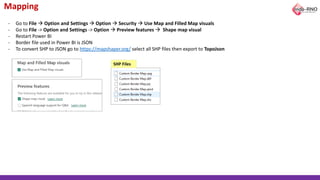
- Go to File → Option and Settings → Option → Security → Use Map and Filled Map visuals
- Go to File -> Option and Settings -> Option → Preview features → Shape map visual
- Restart Power BI
- Border file used in Power BI is JSON
- To convert SHP to JSON go to https://mapshaper.org/ select all SHP files then export to TopoJson
SHP Files
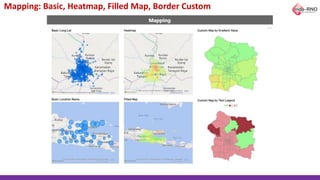
Mapping: Basic, Heatmap, Filled Map, Border Custom
Power BI Pro and Premium Feature
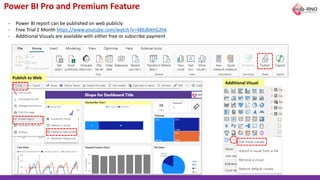
- Power BI report can be published on web publicly
- Free Trial 2 Month https://www.youtube.com/watch?v=48EdbkhG2hk
- Additional Visuals are available with either free or subscribe payment
Publish to Web
Additional Visual
Power BI Tutorial for analysis optimasi network

Power BI Tutorial for analysis optimasi network

  • 1.
    “When a mandies, his acts come to an end, but three, recurring charity, or knowledge (by which people) benefit, or a pious son, who prays for him (for the deceased).” -Sahih Muslim 1631- Power BI Basic Tutorial By Pusat Loker RNO Only a.k.a. Indo-RNO
  • 2.
    Open Donation FinancialReport Type Remark Amount Income Open Donation Revenue IDR 4,482,223 Outcome Zoom Enterprise IDR 159,900 Outcome Donation to kitabisa.com IDR 4,350,000 Balance Remaining -IDR 27,677 Account Statement / Mutasi Masuk Account Statement / Mutasi Keluar
  • 3.
    Table of Content 1.Background a. Why Learn BI Data Analytics b. BI Tools c. Why Power BI 2. Installation 3. Basic Principle 4. Frequently Used Symbol Menu 5. Get Data 6. Power Query / Transform Data a. Column Quality and Distribution b. Fill c. Remove Rows d. Use First Row as Headers e. Change Data Source f. Split Column / Text to Column g. Merge Columns h. Search Column i. Replace Values j. Change Data Type k. Extract l. Join/Merge Table or VLOOKUP to another table m.Append Table n. Conditional Column – IF THEN ELSE o. Calculated Column – Custom Column p. Extract Date and Time q. Format Column Text r. Group By – Pivot Table s. Pivot Column – Unpivot Column t. Time Efficiency – Duplicate, Reference, and Disable Load u. Error Handling v. Advanced Editor - Copy Applied Steps 7. Canvas Setting 8. Table View 9. Model View 10.Data Analysis Expressions (DAX) a. Statistical Functions b. CALCULATE and FILTER c. Benchmark d. Calendar, Cumulative, Progress Tracker 11.Visuals a. Frequently Used Visuals b. Conditional Formatting c. Sorting Column for Canvas d. Formatting Visual and Slicer e. Filter f. Constant Line g. Edit Interactions 12.Mapping a. Basic b. Heatmap c. Filled d. Border Custom 13.Pro and Premium Features a. Publish to Web b. Additional Visual
  • 4.
  • 5.
    Why Learn BIData Analytics? Business intelligence (BI) software is a type of application software designed to retrieve, analyze, transform and report data for business intelligence. The applications generally read data that has been previously stored, often - though not necessarily - in a data warehouse or data mart. RAN Optim Stuck In the last 3 years RAN/RF Optimization field doesn’t have new breakthrough in knowledge Data Hype Data Engineering, Analyst, Science have popularity increase in recent years Telco Sunset Vacancy in Telco Industry keep less every year New Opportunity BI Analytic skill can be used in various industry 01 03 02 04
  • 6.
    BI Tools Free -$75/month Tableau Free - $10/month Power BI Open Source ChartBrew Free Google Looker Studio Open Source Apache Superset Open Source Redash
  • 7.
    Why Power BI? AffordablePrice for Premium User Rich Features on Free Version Unlimited Data Handling Complete Package ETL Tool Power BI is a collection of software services, apps, and connectors that work together to turn your unrelated sources of data into coherent, visually immersive, and interactive insights. Similar like Microsoft Excel Pivot Table
  • 8.
    I’m not anExpert…. I’m not a Professional Trainer I’m don’t have any Certificates I’m just a normal RNO Engineer like you guys
  • 9.
    Installation 1. Download andInstall Power BI and Plugins: https://www.microsoft.com/en-us/download/details.aspx?id=58494 https://daxstudio.org/downloads/ https://www.datavizioner.com/power-bi-exporter 2. Download Link for Materials: https://1drv.ms/f/s!Ari-fJDiX6PzkPtfsLbOir4zgPcxTw?e=x3fBq1 3. Download Link for Tutorial Update: https://1drv.ms/f/s!Ari-fJDiX6PzkPtgMn7FAJeS3mBscg?e=V14kN3
  • 10.
  • 11.
    Frequently Used SymbolMenu Canvas Import Data Chart Canvas Setting Table List Table View Report View Relational View Power Query
  • 12.
  • 13.
  • 15.
    Get Data 1. CSVor Excel ✓ Offline files on Hard Drive ✓ Better use CSV file for big file size 2. Folder ✓ Multiple files in a folder ✓ Column name and structure need to be same ✓ Select Combine and Transform after put folder path 3. SQL Server or MySQL ✓ SQL Server is a Microsoft product (SSMS), it is not MySQL ✓ MySQL needs connector to install: https://dev.mysql.com/downloads/connector/net/ ✓ Put SQL query script to simplify the table 4. Google Sheets and Web https://docs.google.com/spreadsheets/d/1boM8UZsiZpCumJcyG08-wr6A5tsrDazJzjZy5iO_U_E/edit?usp=sharing https://en.wikipedia.org/wiki/Khabib_Nurmagomedov 5. Enter Data Create table from manual keyboard input
  • 16.
    Column Quality andDistribution - Go to View → Data Preview → Checklist Column quality and Column distribution
  • 17.
    Fill - Fill thenull blank by copying value down or up row - Go to Transform → Any Column → Fill
  • 18.
    Remove Rows - Goto Home → Reduce Rows → Remove Rows - Remove Rows with 6 options - Use Filter to remove rows with particular value
  • 19.
    Use First Rowas Headers - Go to Home → Transform → Use First Row as Headers
  • 20.
    Change Data Source Thereare 2 way: 1. Go to Home → Data Source → Data Source Setting → Select table source → Change Source 2. Go to your Table → Click gear icon on Applied Steps  The best option especially for SQL source
  • 21.
    Split Column /Text to Column - Go to Transform → Text Column → Split Column - Use Delimiter if split by character such as comma, equal sign, etc - Fill Number of columns to split into to limit number of columns after split - To split only by first delimiter, select Left-most delimiter - To split multiple delimiter, edit on formula above SplitTextByAnyDelimiter({"=",","}, QuoteStyle.Csv)
  • 22.
    Merge Columns - BlockColumns to be merged - Go to Transform → Text Column → Merge Columns - Select separator. Use Custom to customize separator
  • 23.
    Search Column - Goto Home → Manage Column → Choose Columns → Go to Column - Select column to go
  • 24.
    Replace Values - Blockthe column which have values to be replaced - Go to Transform → Any Column → Replace Values - To replace value to null put null
  • 25.
    Change Data Type -Block the column which have values to be replaced - Go to Transform → Any Column → Data Type - Make sure to change data type to Number for calculation purpose - Decimal Number : 1.04234 - Fix Decimal Number : 1.04 - Whole Number : 1
  • 26.
    Extract - Block thecolumn which have values to be replaced - If you want to change the existing column, go to Transform → Text Column → Extract - If you want to add into a new column, go to Add Column → From Text → Extract Text Range is similar like MID function on MS Excel. Index started from 0.
  • 27.
    Join/Merge Table orVLOOKUP to another table - Go to Home → Combine → Merge Queries - On source table, block column as join value, then on target table, block column as join value - Make sure to use Left Outer on Join Kind - On the far-right column click the expand icon and select columns to be added - Make sure the target column value have no duplicate rows
  • 28.
    ID Name NameInstrument 1 hyde hyde vocal 2 tetsu hyde guitar 3 ken hyde saxophone 4 yuki tetsu bass sakura ken guitar ken keyboard yuki drum yuki synth gackt Join Table Concept personnel_id personnel_name role_name role_instrument 1 hyde hyde vocal 1 hyde hyde guitar 1 hyde hyde saxophone 2 tetsu tetsu bass 3 ken ken guitar 3 ken ken keyboard 4 yuki yuki drum 4 yuki yuki synth NULL sakura NULL NULL personnel_id personnel_name role_name role_instrument 1 hyde hyde vocal 1 hyde hyde guitar 1 hyde hyde saxophone 2 tetsu tetsu bass 3 ken ken guitar 3 ken ken keyboard 4 yuki yuki drum 4 yuki yuki synth NULL NULL gackt NULL personnel_id personnel_name role_name role_instrument 1 hyde hyde vocal 1 hyde hyde guitar 1 hyde hyde saxophone 2 tetsu tetsu bass 3 ken ken guitar 3 ken ken keyboard 4 yuki yuki drum 4 yuki yuki synth personnel_id personnel_name role_name role_instrument 1 hyde hyde vocal 1 hyde hyde guitar 1 hyde hyde saxophone 2 tetsu tetsu bass 3 ken ken guitar 3 ken ken keyboard 4 yuki yuki drum 4 yuki yuki synth NULL sakura NULL NULL NULL NULL gackt NULL LEFT JOIN RIGHT JOIN INNER FULL JOIN Source Table Target Table
  • 29.
    Append Table - Goto Home → Combine → Append Queries - Select new table to be appended - Make sure the column structure is same on both table Merge/Join Append
  • 30.
    Conditional Column –IF THEN ELSE - Go to Add Column → General → Conditional Column
  • 31.
    Calculated Column –Custom Column - Go to Add Column → General → Custom Column - Put formula to be added as new column - M syntax are used in this part
  • 32.
    Extract Date andTime - Select column with Date or Time data type - Go to Add Column → From Date & Time - Select Week of Year to extract week - Modify this script to start week on Friday → Table.AddColumn(#"Added Custom", "Week of Year", each Date.WeekOfYear([Date], Day.Friday), Int64.Type)
  • 33.
    Format Column Text -Go to Transform → Text Column → Format Capitalize Each Words Lowercase
  • 34.
    Group By –Pivot Table - Go to Transform → Group By - Select column to be group by and aggregation
  • 35.
    Pivot Column –Unpivot Column - Pivot Column → Change Row to Column - Unpivot Column → Change Column to Row Unpivot Column Pivot Column
  • 36.
    Pivot Column - SelectColumn to be pivoted - Select column value to be value inside pivoted clumn
  • 37.
    Unpivot Column - SelectColumn to be un-pivoted - Select column value to be value inside pivoted clumn
  • 38.
    Time Efficiency –Duplicate, Reference, and Disable Load - Right Click on the table - To copy a table there are 2 way: Duplicate and Reference - Use Duplicate if the table needs some modification on its existing applied steps - Use Reference if the table is using same existing applied steps or just need to modify the table as the next steps - During Refresh, a duplicate table will take time to reload the steps as existing table, while Reference only copy the last step. Using reference will reduce the amount of time during Refresh. - Table which do not need visualization on canvas should not be loaded by uncheck list the Enable Load
  • 39.
    Error Handling Delete it Makeit Null Fix it The best way possible If the data is not too important High risk The Query Errors group can be deleted after errors have been fixed * Put Error Handling on the last step to avoid any further error
  • 40.
    Advanced Editor -Copy Applied Steps - Go to View → Advanced → Advanced Editor - To duplicate Applied Steps, you can copy the script from Advanced Editor - Modify step into specific steps can also be done here
  • 41.
    Canvas Layout, Background,View, Elements - Click on Canvas →Visualizations → Format your report page - Canvas Setting: Background select layout type to customize height and width - Canvas : It is recommended to use any color for background and set the transparency to 80% - Go to View → Themes → Select any favorite theme - Go to View → Scale to fit → Recommended to use Fit to page, but to avoid horizontal scroll due to huge width use Fit to width instead - Go to Insert → Elements → Use Text Box to write some text, Buttons to add button with some action, Shapes, and Image
  • 42.
    Table View - Name:Column Name - Data Type: Data type of column. Ex: Date, whole number, decimal number, text, etc - Format: Format display of value - Summarization: Summarize type of column value when put on Canvas. If no summarization needed, select Don’t summarize - Sort by Column: Sort a column based on other column value - New Column: Add a new column based on DAX syntax similar to Excel
  • 43.
    Model View –Relational Table - Drag a column of source table to a column of target table to join/merge table - Ensure there is no duplicate value on a column of target value - The column name of source or target table do not need to have same name, just need to make sure the value is similar - Use RELATED to lookup column of target table. Ex: Month Name = RELATED('Month Sort'[Month Name])
  • 44.
    Data Analysis Expressions(DAX) – Statistical Functions New Column New Measure Applied on Table view Applied on Canvas view Data Analysis Expressions (DAX) is a library of functions and operators that can be combined to build formulas and expressions in Power BI, Analysis Services, and Power Pivot in Excel data models. DAX can be applied on New Column or New Measure DAX function calculate value horizontally by default
  • 45.
    DAX – CALCULATEand FILTER Normally CALCULATE and FILTER are used on Canvas as Measure CALCULATE FILTER Return Value Return Table = CALCULATE(SUM('Cell Hourly'[(LTE) Average User Number (None)]),'Cell Hourly'[NE Name] = "ABC003_ParkiranBlokA-KIN") = CALCULATE(Expression, Criteria) Basic Formula Sample: Return Number of an Expression/Calculation Sample: Return Number or Text with specific criteria from other columns value = CALCULATE(FIRSTNONBLANK('Cell Hourly'[(LTE) UL Resource Block Utilizing Rate (%)],1),'Cell Hourly'[Cell.6]="E_ABC002ML1_NewPasarDeliTua-DMT_ML02" && 'Cell Hourly'[Date Time]=DATE(2024, 1, 11) + TIME(3, 0, 0)) = FILTER('Cell Daily', ('Cell Daily'[Kabupaten] = "KOTA SURABAYA" || 'Cell Daily'[Kabupaten] ="KOTA MALANG") && 'Cell Daily'[Downlink bandwidth]="CELL_BW_N100") Sample: Return a virtual table with several criteria = FILTER(Table, FilterExpression Basic Formula
  • 46.
    DAX – Benchmark Winner= VAR SummaryTable = UNION ( ROW ( "Column name", "A", "Column Value", 'OOKLA - Download'[A]), ROW ( "Column name", "B", "Column Value", 'OOKLA - Download'[B]), ROW ( "Column name", "C", "Column Value", 'OOKLA - Download'[C]), ROW ( "Column name", "D", "Column Value", 'OOKLA - Download'[D]), ROW ( "Column name", "E", "Column Value", 'OOKLA - Download'[E]) ) VAR Result = CONCATENATEX ( TOPN ( 1, SummaryTable, [Column Value] ), [Column name], ", " ) RETURN Result Formula Add Column with return value of column name with the highest value among other tables
  • 47.
    DAX – Calendar,Cumulative, Progress Tracker Calendar = CALENDAR(DATE(2022,5,1), DATE(2022,5,31)) Calendar as Table Cumulative = CALCULATE ( SUM ( 'Month Sort'[Random] ), ALL ( 'Month Sort' ), 'Month Sort'[Month Num] <= EARLIER ( 'Month Sort'[Month Num] )) Cumulative as Column Progress = CALCULATE(COUNTROWS(Tracker),Tracker[Submission Status]="Submitted") / COUNTROWS(Tracker) Progress as Measure
  • 48.
    Sorting Column forCanvas - Column with number value will be sorted from smaller to largest - Column with text value will be sorted alphabetically - Go to Table view → select column to sort → Column tools → Sort → Sort by Column → Select column which used as sorted value - Ex: Month Name value will be sorted based on Month_Num value Default Sorting on Canvas
  • 49.
  • 50.
  • 51.
  • 52.
    Formatting Visual andSlicer - Visual setting is to configure anything inside of visual. Ex: legend, axis, color of bars, etc - General setting is to configure anything outside of visual. Ex: Background, title, etc Formatting Visual Formatting Slicer
  • 53.
    Conditional Formatting onTable/Matrix - Select table/matrix on Canvas, click on Values → Conditional Formatting → select Background color or icons
  • 54.
    Filter Visual - Filtervalue can be done on visual with many different type: Top N, Basic filtering, Advanced filtering - Filter can be applied on current visual only, current page, or all pages
  • 55.
    Constant Line - Constantline can be created on X and Y axis with fix value or dynamic value based on column Y-Axis Dynamic value based on column Dynamic based on Column value Static value
  • 56.
    Edit Interactions - Avisual can be automatically filtered by clicking the content inside other visual - Edit interactions can between visuals can be customed with 3 choice: ➢ Filter: Show the corresponding value only ➢ Highlight: Fade the non corresponding value ➢ None: Nothing change Highlight Filter
  • 57.
    Mapping - Go toFile → Option and Settings → Option → Security → Use Map and Filled Map visuals - Go to File -> Option and Settings -> Option → Preview features → Shape map visual - Restart Power BI - Border file used in Power BI is JSON - To convert SHP to JSON go to https://mapshaper.org/ select all SHP files then export to TopoJson SHP Files
  • 58.
    Mapping: Basic, Heatmap,Filled Map, Border Custom
  • 59.
    Power BI Proand Premium Feature - Power BI report can be published on web publicly - Free Trial 2 Month https://www.youtube.com/watch?v=48EdbkhG2hk - Additional Visuals are available with either free or subscribe payment Publish to Web Additional Visual