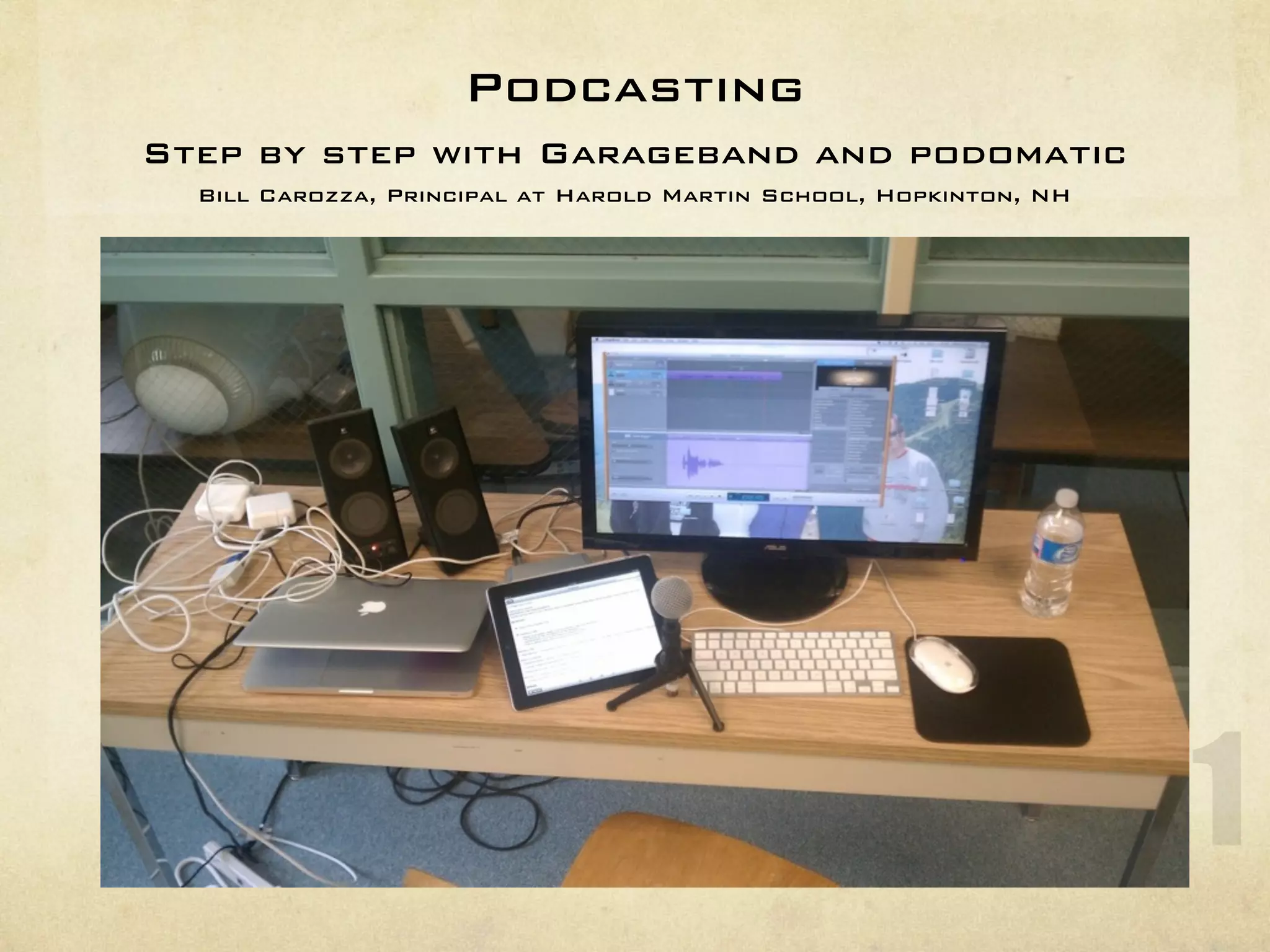
Podcasting
Step by step with Garageband and podomatic
  Bill Carozza, Principal at Harold Martin School, Hopkinton, NH


                                                                   1
Who are we and what do
  we want to learn?


                         2
Who are we and what do
  we want to learn?
Balance between what was advertised and
what you need and want.


                                          2
Who are we and what do
  we want to learn?
Balance between what was advertised and
what you need and want.

Workshops are about inspiration!


                                          2
In this workshop you will…
Learn what a Podcast is and how it can be used.
In this workshop you will…
Learn what a Podcast is and how it can be used.

Learn how to use GarageBand on the iPad and
Desktop to produce an audio file.
In this workshop you will…
Learn what a Podcast is and how it can be used.

Learn how to use GarageBand on the iPad and
Desktop to produce an audio file.
  The skills you learn will be relevant for the use of
  Audacity which is multi-platform
In this workshop you will…
Learn what a Podcast is and how it can be used.

Learn how to use GarageBand on the iPad and
Desktop to produce an audio file.
  The skills you learn will be relevant for the use of
  Audacity which is multi-platform

Learn how to use a free program to upload your
Podcast so that the world can hear it.
What’s a Podcast?


                    4
What’s a Podcast?
Simply an audio or video (radio/TV)
presentation that airs over the Internet and is
easily accessible.


                                                  4
What’s a Podcast?
Simply an audio or video (radio/TV)
presentation that airs over the Internet and is
easily accessible.

It often involves multi-tracks.


                                                  4
Why is it useful for
   educators?


                       5
Why is it useful for
       educators?
Administrators can “get the word out”on
school events and present the school’s vision.


                                                 5
Why is it useful for
       educators?
Administrators can “get the word out”on
school events and present the school’s vision.

Teachers can involve students and provide a
very solid project tool that can be shared with
the school and outside community.


                                                  5
Why is it useful for
       educators?
Administrators can “get the word out”on
school events and present the school’s vision.

Teachers can involve students and provide a
very solid project tool that can be shared with
the school and outside community.

It can become, essentially, your radio station.


                                                  5
Why is it useful for
       educators?
Administrators can “get the word out”on
school events and present the school’s vision.

Teachers can involve students and provide a
very solid project tool that can be shared with
the school and outside community.

It can become, essentially, your radio station.

REMEMBER: Start simple!


                                                  5
5 Podcasting Steps


                     6
5 Podcasting Steps
Plan the Podcast


                         6
5 Podcasting Steps
Plan the Podcast

Record the Podcast


                         6
5 Podcasting Steps
Plan the Podcast

Record the Podcast

Produce the Podcast


                         6
5 Podcasting Steps
Plan the Podcast

Record the Podcast

Produce the Podcast

Upload the Podcast


                         6
5 Podcasting Steps
Plan the Podcast

Record the Podcast

Produce the Podcast

Upload the Podcast

Publicize the Podcast


                         6
Plan


       7
Plan
Think of the Podcast in different segments each with a
different theme and purpose.


                                                         7
Plan
Think of the Podcast in different segments each with a
different theme and purpose.

Plan relevant content always remembering your
audience.


                                                         7
Plan
Think of the Podcast in different segments each with a
different theme and purpose.

Plan relevant content always remembering your
audience.

Try to have one guest person to interview.


                                                         7
Plan
Think of the Podcast in different segments each with a
different theme and purpose.

Plan relevant content always remembering your
audience.

Try to have one guest person to interview.

When you mention resources, have online notes.


                                                         7
Record


         8
Record
Best practice-don’t script.


                              8
Record
Best practice-don’t script.

Record a short segment and test the audio


                                            8
Record
Best practice-don’t script.

Record a short segment and test the audio

Keep to the same approximate time.


                                            8
Record
Best practice-don’t script.

Record a short segment and test the audio

Keep to the same approximate time.

Speak slower than you think you should.


                                            8
Record
Best practice-don’t script.

Record a short segment and test the audio

Keep to the same approximate time.

Speak slower than you think you should.

Watch the “aahs and pops”.


                                            8
Record
Best practice-don’t script.

Record a short segment and test the audio

Keep to the same approximate time.

Speak slower than you think you should.

Watch the “aahs and pops”.

Pretend you are speaking to a human being.


                                             8
Produce


          9
Produce
Edit for “aahs”, crazy comments, pops, etc.


                                              9
Produce
Edit for “aahs”, crazy comments, pops, etc.

Add sound beds, effects, etc. watching
carefully for levels.


                                              9
Produce
Edit for “aahs”, crazy comments, pops, etc.

Add sound beds, effects, etc. watching
carefully for levels.

Watch for distortion. The listener can always
turn up the volume but distortion cannot be
modied.


                                                9
Upload
Use “Podomatic” or another site to put it on
the Internet.


                                               10
Publicize
Get the word out via email, web site, Twitter,
and Blogs


                                                 11
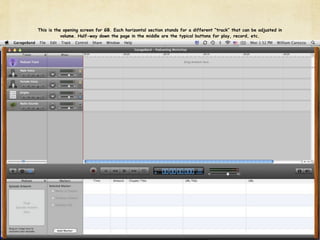
This is the opening screen for GB. Each horizontal section stands for a different “track” that can be adjusted in
           volume. Half-way down the page in the middle are the typical buttons for play, record, etc.
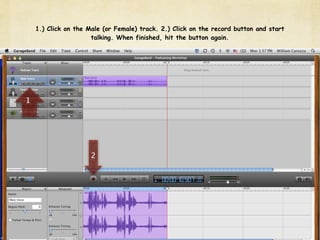
1.) Click on the Male (or Female) track. 2.) Click on the record button and start
                      talking. When finished, hit the button again.


1


                      2
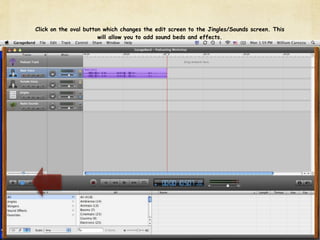
Click on the oval button which changes the edit screen to the Jingles/Sounds screen. This
                       will allow you to add sound beds and effects.
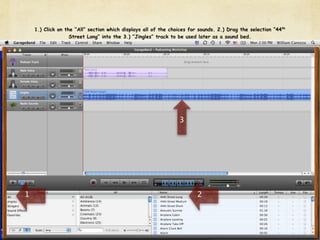
1.) Click on the “All” section which displays all of the choices for sounds. 2.) Drag the selection “44th
                   Street Long” into the 3.) “Jingles” track to be used later as a sound bed.


                                                                3


1                                                                       2
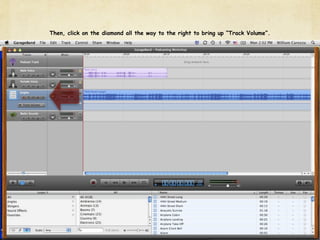
Then, click on the diamond all the way to the right to bring up “Track Volume”.
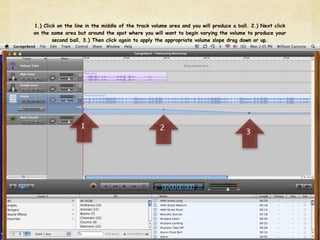
1.) Click on the line in the middle of the track volume area and you will produce a ball. 2.) Next click
on the same area but around the spot where you will want to begin varying the volume to produce your
        second ball. 3.) Then click again to apply the appropriate volume slope drag down or up.


                   1                                2
                                                                                       3
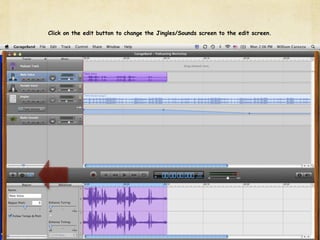
Click on the edit button to change the Jingles/Sounds screen to the edit screen.
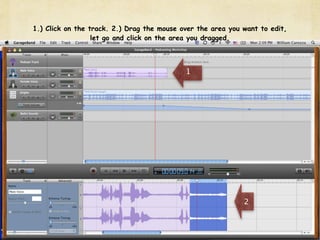
1.) Click on the track. 2.) Drag the mouse over the area you want to edit,
                  let go and click on the area you dragged.


                                            1


                                                             2
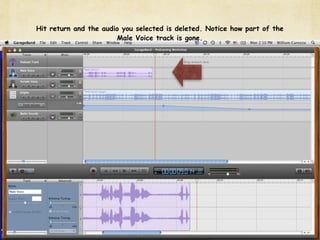
Hit return and the audio you selected is deleted. Notice how part of the
                       Male Voice track is gone.
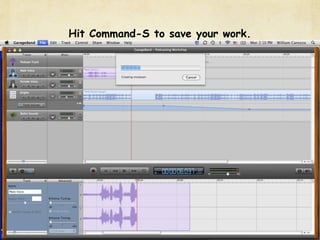
Hit Command-S to save your work.
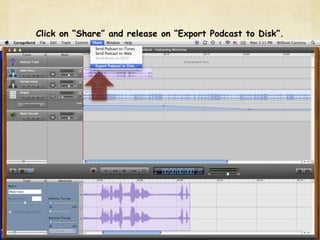
Click on “Share” and release on “Export Podcast to Disk”.
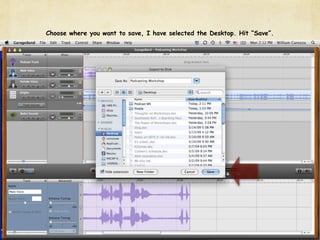
Choose where you want to save, I have selected the Desktop. Hit “Save”.
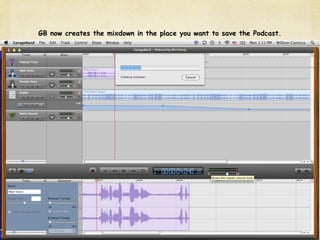
GB now creates the mixdown in the place you want to save the Podcast.
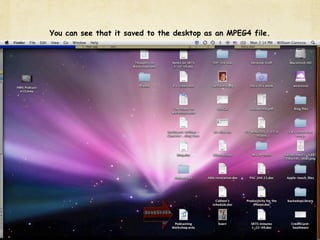
You can see that it saved to the desktop as an MPEG4 file.
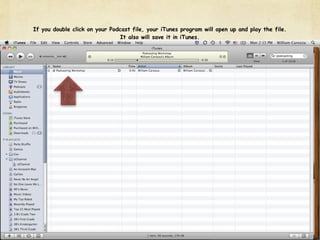
If you double click on your Podcast file, your iTunes program will open up and play the file.
                                It also will save it in iTunes.
You have completed
recording your Podcast.
   Now we must put it up on the
  Internet so that everyone can hear it!
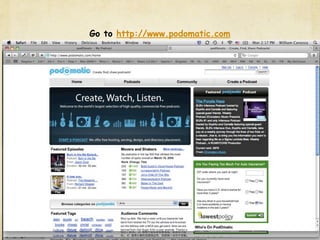
Go to http://www.podomatic.com
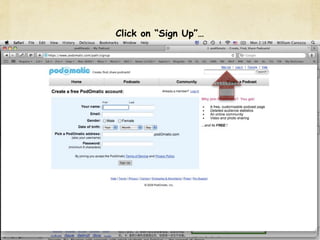
Click on “Sign Up”…
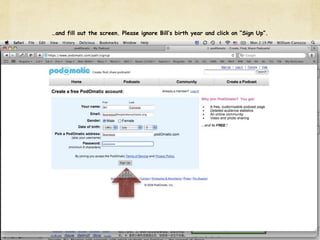
…and fill out the screen. Please ignore Bill’s birth year and click on “Sign Up”.
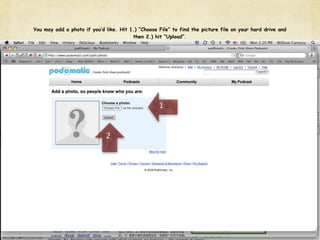
You may add a photo if you’d like. Hit 1.) “Choose File” to find the picture file on your hard drive and
                                        then 2.) hit “Upload”.


                                                   1


                             2
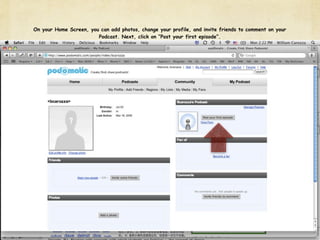
On your Home Screen, you can add photos, change your profile, and invite friends to comment on your
                        Podcast. Next, click on “Post your first episode”.
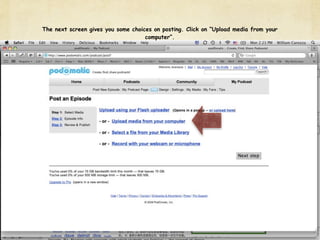
The next screen gives you some choices on posting. Click on “Upload media from your
                                    computer”.
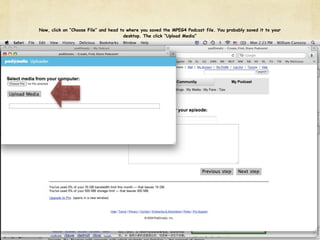
Now, click on “Choose File” and head to where you saved the MPEG4 Podcast file. You probably saved it to your
                                      desktop. The click “Upload Media”
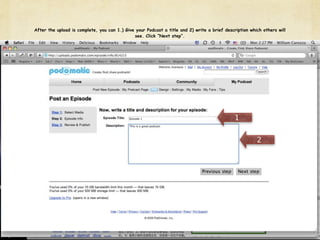
After the upload is complete, you can 1.) Give your Podcast a title and 2) write a brief description which others will
                                              see. Click “Next step”.


                                                                                              1

                                                                                                        2
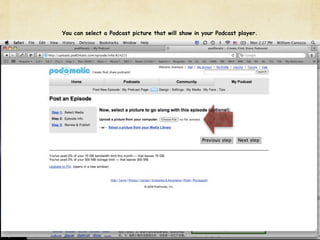
You can select a Podcast picture that will show in your Podcast player.
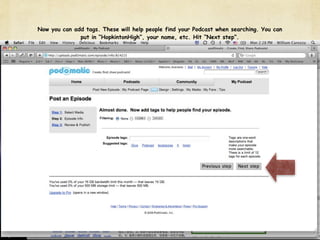
Now you can add tags. These will help people find your Podcast when searching. You can
              put in “HopkintonHigh”, your name, etc. Hit “Next step”.
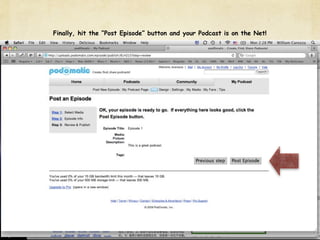
Finally, hit the “Post Episode” button and your Podcast is on the Net!
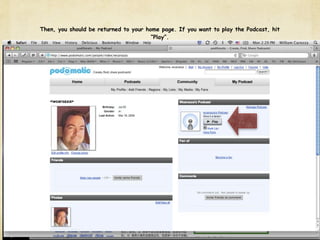
Then, you should be returned to your home page. If you want to play the Podcast, hit
                                       “Play”.
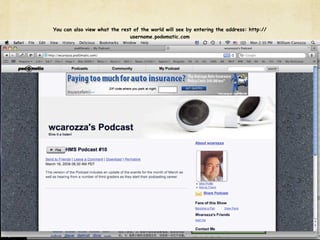
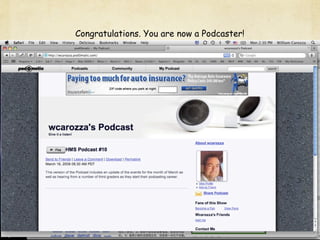
You can also view what the rest of the world will see by entering the address: http://
                              username.podomatic.com
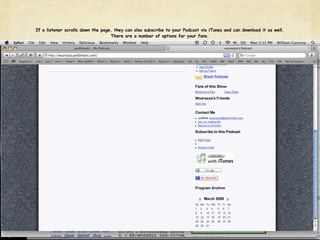
If a listener scrolls down the page, they can also subscribe to your Podcast via iTunes and can download it as well.
                                   There are a number of options for your fans.
Congratulations. You are now a Podcaster!
Equipment possibilities


                          43
Equipment possibilities
Microphone:


                          43
Equipment possibilities
Microphone:
 SM58


                          43
Equipment possibilities
Microphone:
  SM58

Mic Stand


                          43
Equipment possibilities
Microphone:
  SM58

Mic Stand

USB Audio Interface


                          43
Equipment possibilities
Microphone:
  SM58

Mic Stand

USB Audio Interface
  M-Audio Fast Track


                          43
Equipment possibilities
Microphone:
  SM58

Mic Stand

USB Audio Interface
  M-Audio Fast Track

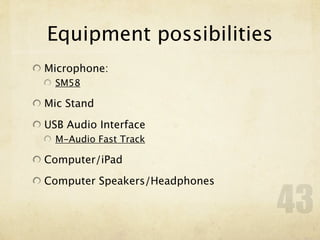
Computer/iPad


                          43
Equipment possibilities
Microphone:
  SM58

Mic Stand

USB Audio Interface
  M-Audio Fast Track

Computer/iPad

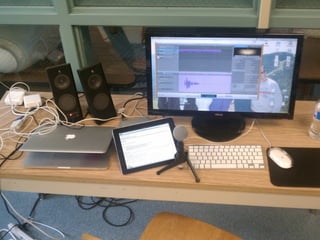
Computer Speakers/Headphones

                               43
44
Using the iPad to Podcast


                        45
Questions?
Email Bill at: bcarozza@hopkintonschools.org

Podcasting-Bill Carozza

  • 1.
    Podcasting Step by stepwith Garageband and podomatic Bill Carozza, Principal at Harold Martin School, Hopkinton, NH 1
  • 2.
    Who are weand what do we want to learn? 2
  • 3.
    Who are weand what do we want to learn? Balance between what was advertised and what you need and want. 2
  • 4.
    Who are weand what do we want to learn? Balance between what was advertised and what you need and want. Workshops are about inspiration! 2
  • 5.
    In this workshopyou will…
  • 6.
    In this workshopyou will… Learn what a Podcast is and how it can be used.
  • 7.
    In this workshopyou will… Learn what a Podcast is and how it can be used. Learn how to use GarageBand on the iPad and Desktop to produce an audio file.
  • 8.
    In this workshopyou will… Learn what a Podcast is and how it can be used. Learn how to use GarageBand on the iPad and Desktop to produce an audio file. The skills you learn will be relevant for the use of Audacity which is multi-platform
  • 9.
    In this workshopyou will… Learn what a Podcast is and how it can be used. Learn how to use GarageBand on the iPad and Desktop to produce an audio file. The skills you learn will be relevant for the use of Audacity which is multi-platform Learn how to use a free program to upload your Podcast so that the world can hear it.
  • 10.
  • 11.
    What’s a Podcast? Simplyan audio or video (radio/TV) presentation that airs over the Internet and is easily accessible. 4
  • 12.
    What’s a Podcast? Simplyan audio or video (radio/TV) presentation that airs over the Internet and is easily accessible. It often involves multi-tracks. 4
  • 13.
    Why is ituseful for educators? 5
  • 14.
    Why is ituseful for educators? Administrators can “get the word out”on school events and present the school’s vision. 5
  • 15.
    Why is ituseful for educators? Administrators can “get the word out”on school events and present the school’s vision. Teachers can involve students and provide a very solid project tool that can be shared with the school and outside community. 5
  • 16.
    Why is ituseful for educators? Administrators can “get the word out”on school events and present the school’s vision. Teachers can involve students and provide a very solid project tool that can be shared with the school and outside community. It can become, essentially, your radio station. 5
  • 17.
    Why is ituseful for educators? Administrators can “get the word out”on school events and present the school’s vision. Teachers can involve students and provide a very solid project tool that can be shared with the school and outside community. It can become, essentially, your radio station. REMEMBER: Start simple! 5
  • 18.
  • 19.
  • 20.
    5 Podcasting Steps Planthe Podcast Record the Podcast 6
  • 21.
    5 Podcasting Steps Planthe Podcast Record the Podcast Produce the Podcast 6
  • 22.
    5 Podcasting Steps Planthe Podcast Record the Podcast Produce the Podcast Upload the Podcast 6
  • 23.
    5 Podcasting Steps Planthe Podcast Record the Podcast Produce the Podcast Upload the Podcast Publicize the Podcast 6
  • 24.
  • 25.
    Plan Think of thePodcast in different segments each with a different theme and purpose. 7
  • 26.
    Plan Think of thePodcast in different segments each with a different theme and purpose. Plan relevant content always remembering your audience. 7
  • 27.
    Plan Think of thePodcast in different segments each with a different theme and purpose. Plan relevant content always remembering your audience. Try to have one guest person to interview. 7
  • 28.
    Plan Think of thePodcast in different segments each with a different theme and purpose. Plan relevant content always remembering your audience. Try to have one guest person to interview. When you mention resources, have online notes. 7
  • 29.
  • 30.
  • 31.
    Record Best practice-don’t script. Recorda short segment and test the audio 8
  • 32.
    Record Best practice-don’t script. Recorda short segment and test the audio Keep to the same approximate time. 8
  • 33.
    Record Best practice-don’t script. Recorda short segment and test the audio Keep to the same approximate time. Speak slower than you think you should. 8
  • 34.
    Record Best practice-don’t script. Recorda short segment and test the audio Keep to the same approximate time. Speak slower than you think you should. Watch the “aahs and pops”. 8
  • 35.
    Record Best practice-don’t script. Recorda short segment and test the audio Keep to the same approximate time. Speak slower than you think you should. Watch the “aahs and pops”. Pretend you are speaking to a human being. 8
  • 36.
  • 37.
    Produce Edit for “aahs”,crazy comments, pops, etc. 9
  • 38.
    Produce Edit for “aahs”,crazy comments, pops, etc. Add sound beds, effects, etc. watching carefully for levels. 9
  • 39.
    Produce Edit for “aahs”,crazy comments, pops, etc. Add sound beds, effects, etc. watching carefully for levels. Watch for distortion. The listener can always turn up the volume but distortion cannot be modified. 9
  • 40.
    Upload Use “Podomatic” oranother site to put it on the Internet. 10
  • 41.
    Publicize Get the wordout via email, web site, Twitter, and Blogs 11
  • 42.
    This is theopening screen for GB. Each horizontal section stands for a different “track” that can be adjusted in volume. Half-way down the page in the middle are the typical buttons for play, record, etc.
  • 43.
    1.) Click onthe Male (or Female) track. 2.) Click on the record button and start talking. When finished, hit the button again. 1 2
  • 44.
    Click on theoval button which changes the edit screen to the Jingles/Sounds screen. This will allow you to add sound beds and effects.
  • 45.
    1.) Click onthe “All” section which displays all of the choices for sounds. 2.) Drag the selection “44th Street Long” into the 3.) “Jingles” track to be used later as a sound bed. 3 1 2
  • 46.
    Then, click onthe diamond all the way to the right to bring up “Track Volume”.
  • 47.
    1.) Click onthe line in the middle of the track volume area and you will produce a ball. 2.) Next click on the same area but around the spot where you will want to begin varying the volume to produce your second ball. 3.) Then click again to apply the appropriate volume slope drag down or up. 1 2 3
  • 48.
    Click on theedit button to change the Jingles/Sounds screen to the edit screen.
  • 49.
    1.) Click onthe track. 2.) Drag the mouse over the area you want to edit, let go and click on the area you dragged. 1 2
  • 50.
    Hit return andthe audio you selected is deleted. Notice how part of the Male Voice track is gone.
  • 51.
    Hit Command-S tosave your work.
  • 52.
    Click on “Share”and release on “Export Podcast to Disk”.
  • 53.
    Choose where youwant to save, I have selected the Desktop. Hit “Save”.
  • 54.
    GB now createsthe mixdown in the place you want to save the Podcast.
  • 55.
    You can seethat it saved to the desktop as an MPEG4 file.
  • 56.
    If you doubleclick on your Podcast file, your iTunes program will open up and play the file. It also will save it in iTunes.
  • 57.
    You have completed recordingyour Podcast. Now we must put it up on the Internet so that everyone can hear it!
  • 58.
  • 59.
    Click on “SignUp”…
  • 60.
    …and fill outthe screen. Please ignore Bill’s birth year and click on “Sign Up”.
  • 61.
    You may adda photo if you’d like. Hit 1.) “Choose File” to find the picture file on your hard drive and then 2.) hit “Upload”. 1 2
  • 62.
    On your HomeScreen, you can add photos, change your profile, and invite friends to comment on your Podcast. Next, click on “Post your first episode”.
  • 63.
    The next screengives you some choices on posting. Click on “Upload media from your computer”.
  • 64.
    Now, click on“Choose File” and head to where you saved the MPEG4 Podcast file. You probably saved it to your desktop. The click “Upload Media”
  • 65.
    After the uploadis complete, you can 1.) Give your Podcast a title and 2) write a brief description which others will see. Click “Next step”. 1 2
  • 66.
    You can selecta Podcast picture that will show in your Podcast player.
  • 67.
    Now you canadd tags. These will help people find your Podcast when searching. You can put in “HopkintonHigh”, your name, etc. Hit “Next step”.
  • 68.
    Finally, hit the“Post Episode” button and your Podcast is on the Net!
  • 69.
    Then, you shouldbe returned to your home page. If you want to play the Podcast, hit “Play”.
  • 70.
    You can alsoview what the rest of the world will see by entering the address: http:// username.podomatic.com
  • 71.
    If a listenerscrolls down the page, they can also subscribe to your Podcast via iTunes and can download it as well. There are a number of options for your fans.
  • 72.
    Congratulations. You arenow a Podcaster!
  • 73.
  • 74.
  • 75.
  • 76.
  • 77.
    Equipment possibilities Microphone: SM58 Mic Stand USB Audio Interface 43
  • 78.
    Equipment possibilities Microphone: SM58 Mic Stand USB Audio Interface M-Audio Fast Track 43
  • 79.
    Equipment possibilities Microphone: SM58 Mic Stand USB Audio Interface M-Audio Fast Track Computer/iPad 43
  • 80.
    Equipment possibilities Microphone: SM58 Mic Stand USB Audio Interface M-Audio Fast Track Computer/iPad Computer Speakers/Headphones 43
  • 81.
  • 82.
    Using the iPadto Podcast 45
  • 83.
    Questions? Email Bill at:bcarozza@hopkintonschools.org