Training onPodcasting at MMUNillan FakiraE-Learning Content DeveloperLearning and Research Technologies (LRT)Email:N.Fakira@mmu.ac.ukExt.3801LRT Blog Sites: http://lrt.mmu.ac.uk/podcasthttp://lrt.mmu.ac.uk/nillan
What is a Podcast?The basic ingredients : recording of live/pre-recorded lectures, it can be PowerPoint slides, audios, animations and images for users to view on demand and/or download onto different technological devices for later viewing. This can involve a series of episodes that are made available over a time period.Use of Podcasts for PedagogySupplementary to traditional classroom notesStudent created podcast as an assessmentRevising and RevisionWorked ExamplesAssignment BriefMissed LecturesDistance Learnersetc etc.......
Podcast Blogsitehttp://lrt.mmu.ac.uk/podcastSupportPodcasting@MMU Tutorials(Found in Moodle ‘Staff Resource Area’)
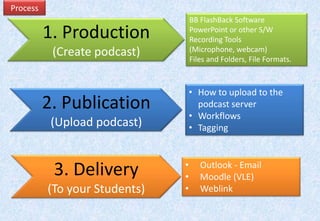
ProcessBB FlashBack SoftwarePowerPoint or other S/WRecording Tools (Microphone, webcam)Files and Folders, File Formats.1. Production(Create podcast)How to upload to the podcast server
Workflows
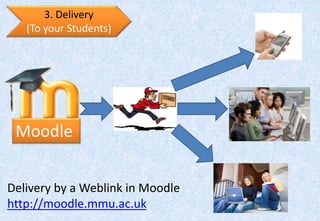
Tagging2. Publication(Upload podcast)3. Delivery(To your Students)Outlook - Email
Moodle (VLE)
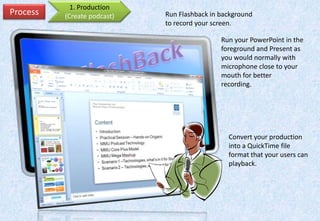
Weblink1. Production(Create podcast)ProcessRun Flashback in background to record your screen.Run your PowerPoint in the foreground and Present as you would normally with microphone close to your mouth for better recording.BB FlashBackScreen Capture SoftwareConvert your production into a QuickTime file format that your users can playback.
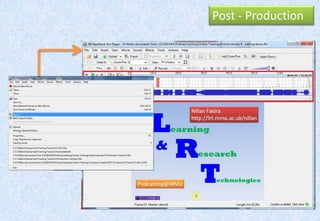
Post - Production
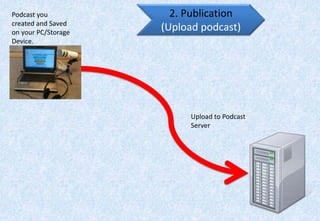
2. Publication(Upload podcast)Podcast you created and Saved on your PC/Storage Device.Upload to Podcast Server
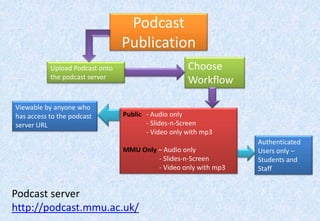
PodcastPublicationChoose WorkflowUpload Podcast onto the podcast serverViewable by anyone who has access to the podcast server URLPublic	- Audio only	- Slides-n-Screen- Video only with mp3MMU Only – Audio only	    - Slides-n-Screen	    - Video only with mp3Authenticated Users only – Students and StaffPodcast serverhttp://podcast.mmu.ac.uk/

Podcast training law270711

  • 1.
    Training onPodcasting atMMUNillan FakiraE-Learning Content DeveloperLearning and Research Technologies (LRT)Email:N.Fakira@mmu.ac.ukExt.3801LRT Blog Sites: http://lrt.mmu.ac.uk/podcasthttp://lrt.mmu.ac.uk/nillan
  • 2.
    What is aPodcast?The basic ingredients : recording of live/pre-recorded lectures, it can be PowerPoint slides, audios, animations and images for users to view on demand and/or download onto different technological devices for later viewing. This can involve a series of episodes that are made available over a time period.Use of Podcasts for PedagogySupplementary to traditional classroom notesStudent created podcast as an assessmentRevising and RevisionWorked ExamplesAssignment BriefMissed LecturesDistance Learnersetc etc.......
  • 3.
  • 4.
    ProcessBB FlashBack SoftwarePowerPointor other S/WRecording Tools (Microphone, webcam)Files and Folders, File Formats.1. Production(Create podcast)How to upload to the podcast server
  • 5.
  • 6.
    Tagging2. Publication(Upload podcast)3.Delivery(To your Students)Outlook - Email
  • 7.
  • 8.
    Weblink1. Production(Create podcast)ProcessRunFlashback in background to record your screen.Run your PowerPoint in the foreground and Present as you would normally with microphone close to your mouth for better recording.BB FlashBackScreen Capture SoftwareConvert your production into a QuickTime file format that your users can playback.
  • 9.
  • 10.
    2. Publication(Upload podcast)Podcastyou created and Saved on your PC/Storage Device.Upload to Podcast Server
  • 11.
    PodcastPublicationChoose WorkflowUpload Podcastonto the podcast serverViewable by anyone who has access to the podcast server URLPublic - Audio only - Slides-n-Screen- Video only with mp3MMU Only – Audio only - Slides-n-Screen - Video only with mp3Authenticated Users only – Students and StaffPodcast serverhttp://podcast.mmu.ac.uk/

Editor's Notes

  • #3 Generic term podcastPedagogy values are when you can deliver episodes. Keeping students engaged.
  • #4 Investment in time is essentialUsing : BB Flashback,PPT,IE – Podcast Server, Email , WebCT, Upload pageDon’t give upSupport procedures are in being developed or are in placePodcast BlogsiteHelplineDocumentationHow to ? PodcastsMore courses – central training teamsBy the time you get to between 3-6 podcast, you’ll have worked out do’s and don’tsThis Slide is Picture Superiority Effect  (PSE)
  • #5 Production – You’ll be working with BB Flashback software, PowerPoint slides and Script if you have written one, Microphone and you may use a Webcam tools. Managing your files, you’ll be working with different applications, file formats, so therefore knowing how to create folders and mange files in those folders.Publication – Browsing to the Podcast server to upload your file, choosing the appropriate workflow, navigating to your successful podcast upload and tagging it with your unit code.Delivery – Logging into your MMU outlook mail, Logging into Moodle, creating a Weblink resource in Moodle, Copy and paste the URL link in the email into your
  • #7 The timeline is where everything happens.Play\\pauseJump to end\\beginningTime position of selected frame\\total time of podcast.Audio Track\\video trackDepending on your selection each second of your podcast is made up of number of frames, ie 14fps, therefore you can edit in detailThis file is very important. Keep a copy of the original and work on a backup copy.Create a test podcast and experiment with this file and learn about the tools of Falshbackfor post-production.
  • #9 Page 21To Apple ServerLimited formats (MP3, MP4, MOV, WMA)WorkflowsPublicMMUOnlyTagging
  • #10 Login to moodle andcreate a link.