1
Lesson 22: Payroll Accounting and Compliance
The term Payroll refers to a series of accounting transactions involved in the process of paying
employees for the services rendered after taking all the statutory and non-statutory deductions
into account, in conformance with the terms of employment, company policy and the law of the
land i.e., payment of payroll taxes, insurance premiums, employee benefits and other deductions.
An efficient payroll system facilitates an error-free, accurate and timely employee payment while
ensuring that the employment is well within the valid work permit.
22.1 Configuring Payroll in Tally.ERP 9
Payroll in Tally.ERP 9 is easy to use and can handle all the functional, accounting and statutory
requirements of the payroll department.
22.1.1 Salient Features of Tally.ERP 9’s Payroll
The key features of the Payroll functionality in Tally.ERP 9 are as follows:
It is fully integrated with accounts to give you the benefits of simplified Payroll processing
and accounting
It has user defined classifications and sub-classifications for comprehensive reporting.This
may be related to the employees, employee groups, pay components, departments etc.
It provides the facility to create user-defined earnings and deductions Pay Heads
It allows flexible and User-definable criteria for simple or complex calculations
It allows unlimited grouping of Payroll Masters
Lesson Objectives
On completion of this lesson, you will learn,
Payroll Accounting & Statutory Features in Tally.ERP 9
www.accountsarabia.com
facebook.com/accountsarabia
call Us:0530055606
Payroll Accounting and Compliance
2
It supports user-defined production units i.e., attendance/ production/ time based remuner-
ation units
It provides a flexible payroll processing period
It provides comprehensive Cost Centre as well as employee-wise costing reports
It ensures an accurate & timely Salary Processing, Employee Statutory Deductions &
Employer Statutory Contributions with the help of predefined processes
It provides auto-fill facility to expedite the Attendance, Payroll & Employer Contributions
processes.
It facilitates an accurate computation and deduction of ESI, EPF, Professional Tax, Gratuity
etc.
It helps in the generation of Statutory Forms & Challans for EPF & ESI, as prescribed.
It allows drill-down facility to voucher level for any kind of alteration.
It facilitates computation of arrears pertaining to prior period(s).
It helps in tracking employee loan details
22.1.2 Enabling Payroll in Tally.ERP 9
It takes a one-time configuration in Tally.ERP 9 for the Payroll functionality to be activated. Create
a new company in Tally.ERP 9 and follow the steps given below to enable Payroll.
Let us consider M/s. Indus Solutions Pvt. Ltd., which is engaged in the business of Software
services. It is based at Bangalore with the following three major departments:
Sales
Administration
R & D
Step 1: Company Setup
Go to Gateway of Tally > Company Info. > Create Company
In the Company Creation screen,
Select India in the field Statutory compliance for from the List of Countries provided
Type 1-4-2009 as Financial Year from date and press Enter
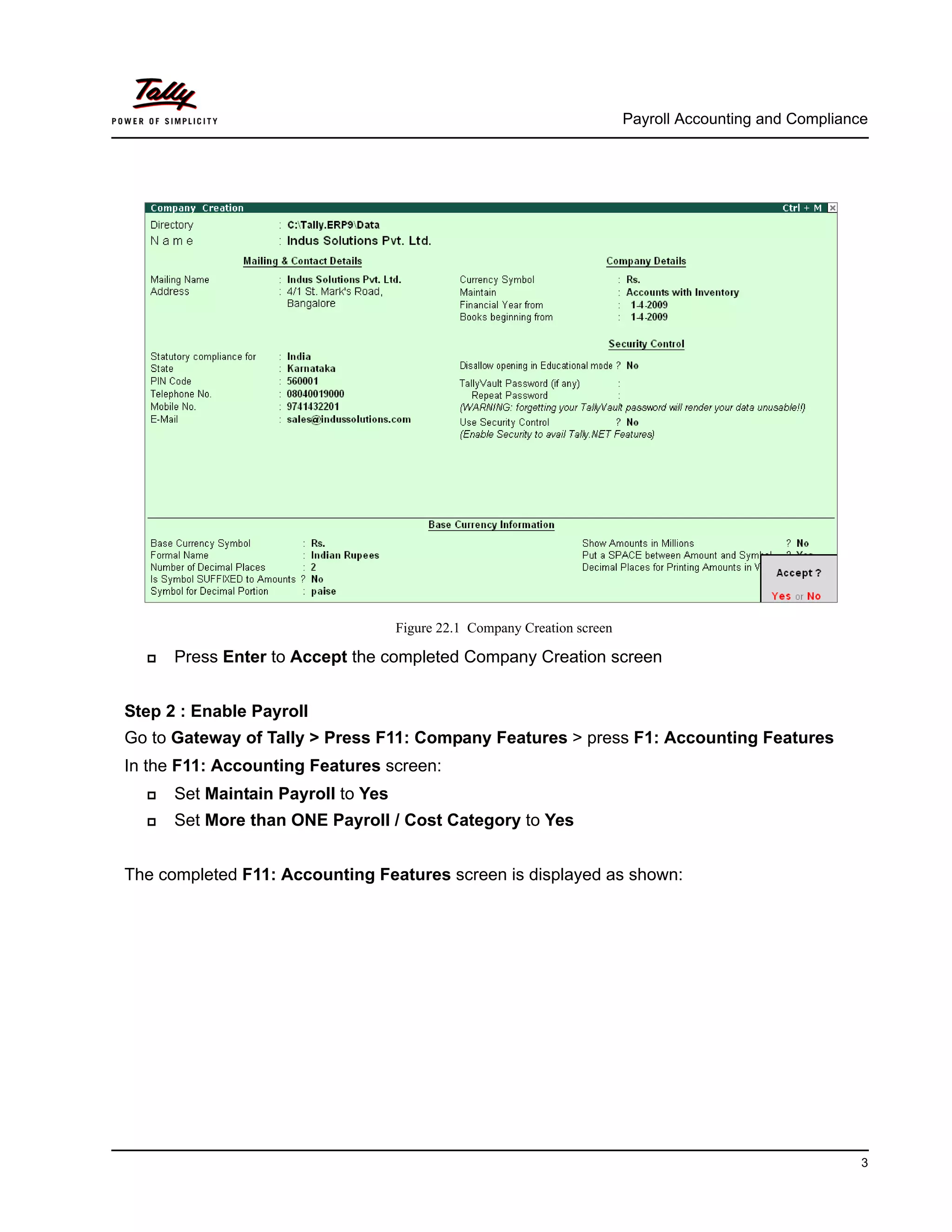
The completed Company Creation screen is displayed as shown:
Payroll Accounting and Compliance
3
Figure 22.1 Company Creation screen
Press Enter to Accept the completed Company Creation screen
Step 2 : Enable Payroll
Go to Gateway of Tally > Press F11: Company Features > press F1: Accounting Features
In the F11: Accounting Features screen:
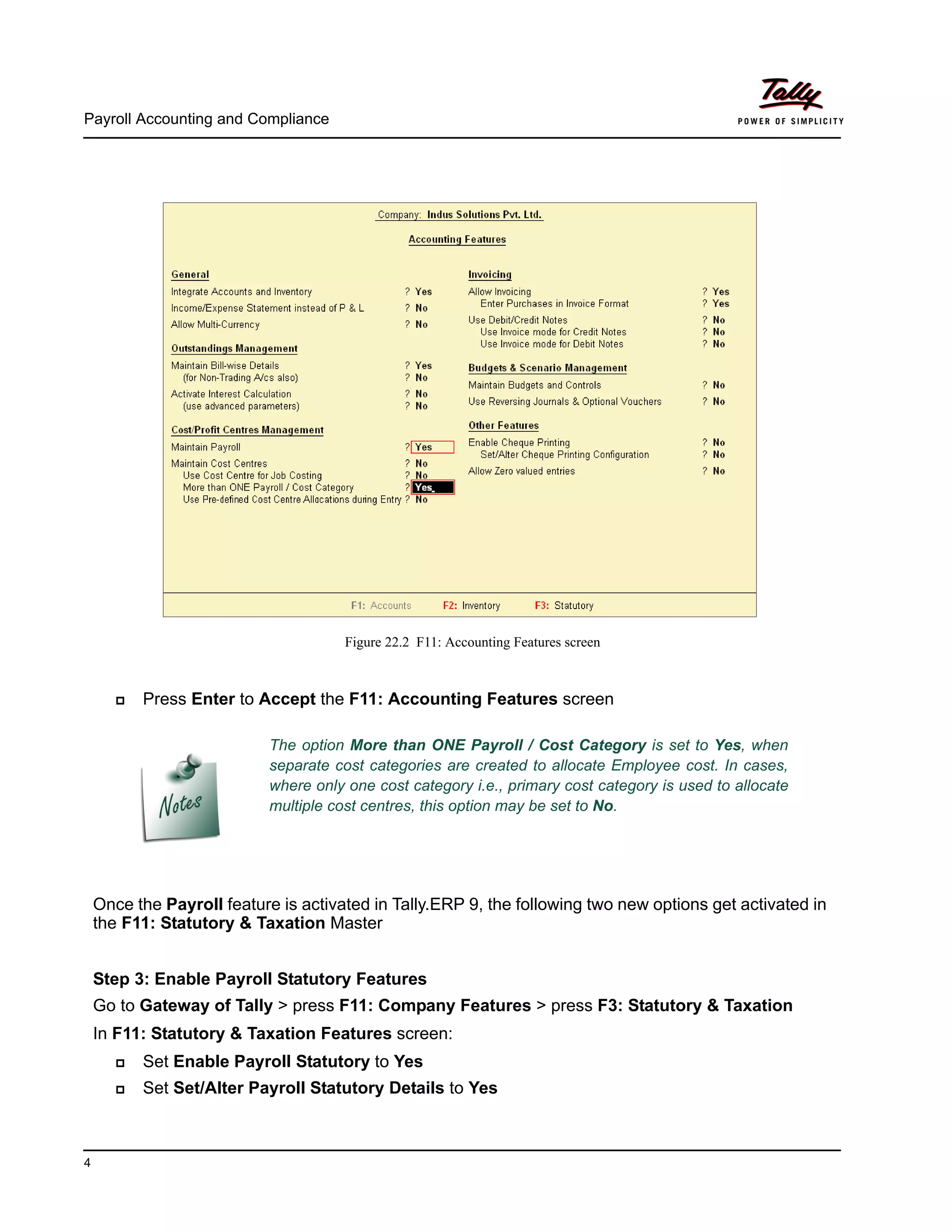
Set Maintain Payroll to Yes
Set More than ONE Payroll / Cost Category to Yes
The completed F11: Accounting Features screen is displayed as shown:
Payroll Accounting and Compliance
4
Figure 22.2 F11: Accounting Features screen
Press Enter to Accept the F11: Accounting Features screen
Once the Payroll feature is activated in Tally.ERP 9, the following two new options get activated in
the F11: Statutory & Taxation Master
Step 3: Enable Payroll Statutory Features
Go to Gateway of Tally > press F11: Company Features > press F3: Statutory & Taxation
In F11: Statutory & Taxation Features screen:
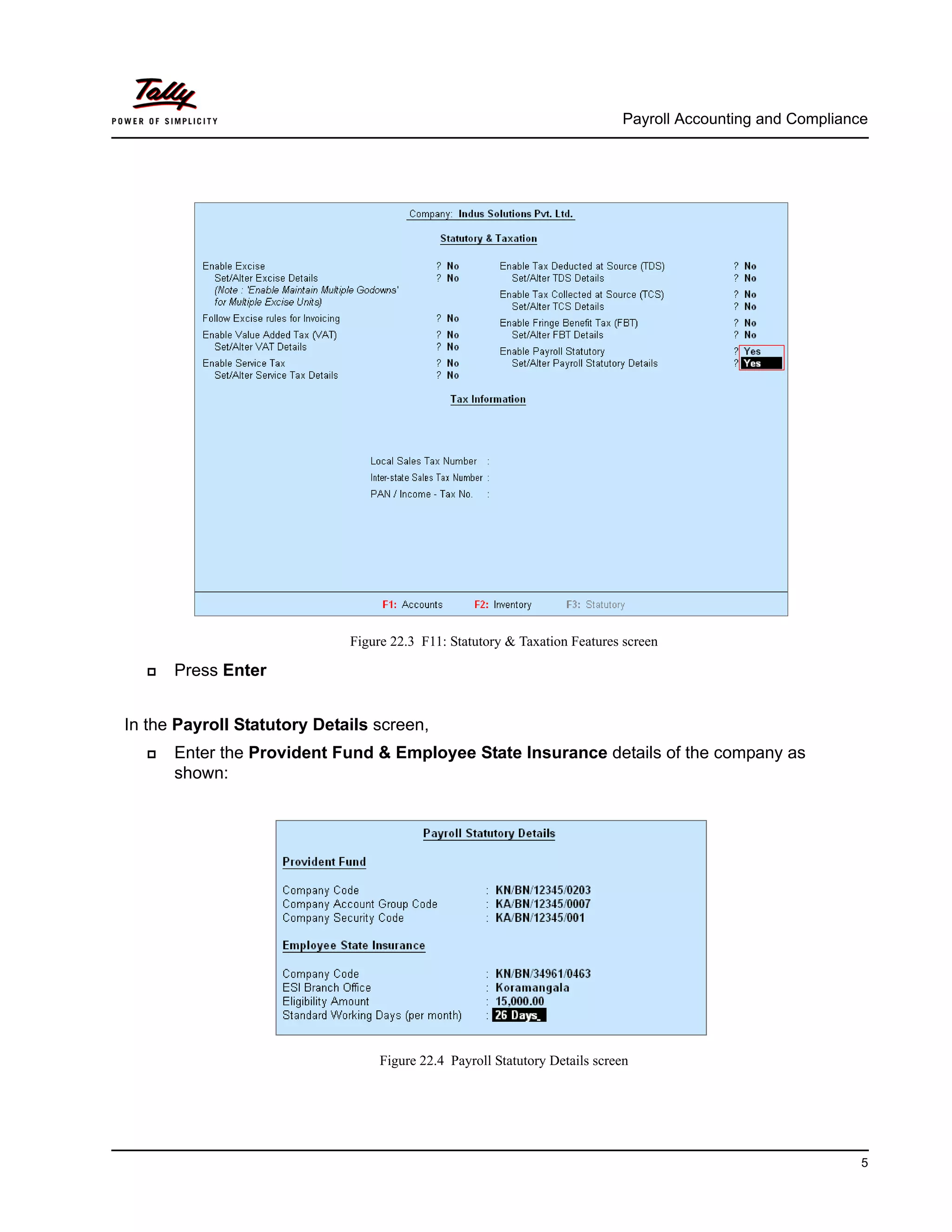
Set Enable Payroll Statutory to Yes
Set Set/Alter Payroll Statutory Details to Yes
The option More than ONE Payroll / Cost Category is set to Yes, when
separate cost categories are created to allocate Employee cost. In cases,
where only one cost category i.e., primary cost category is used to allocate
multiple cost centres, this option may be set to No.
Payroll Accounting and Compliance
5
Figure 22.3 F11: Statutory & Taxation Features screen
Press Enter
In the Payroll Statutory Details screen,
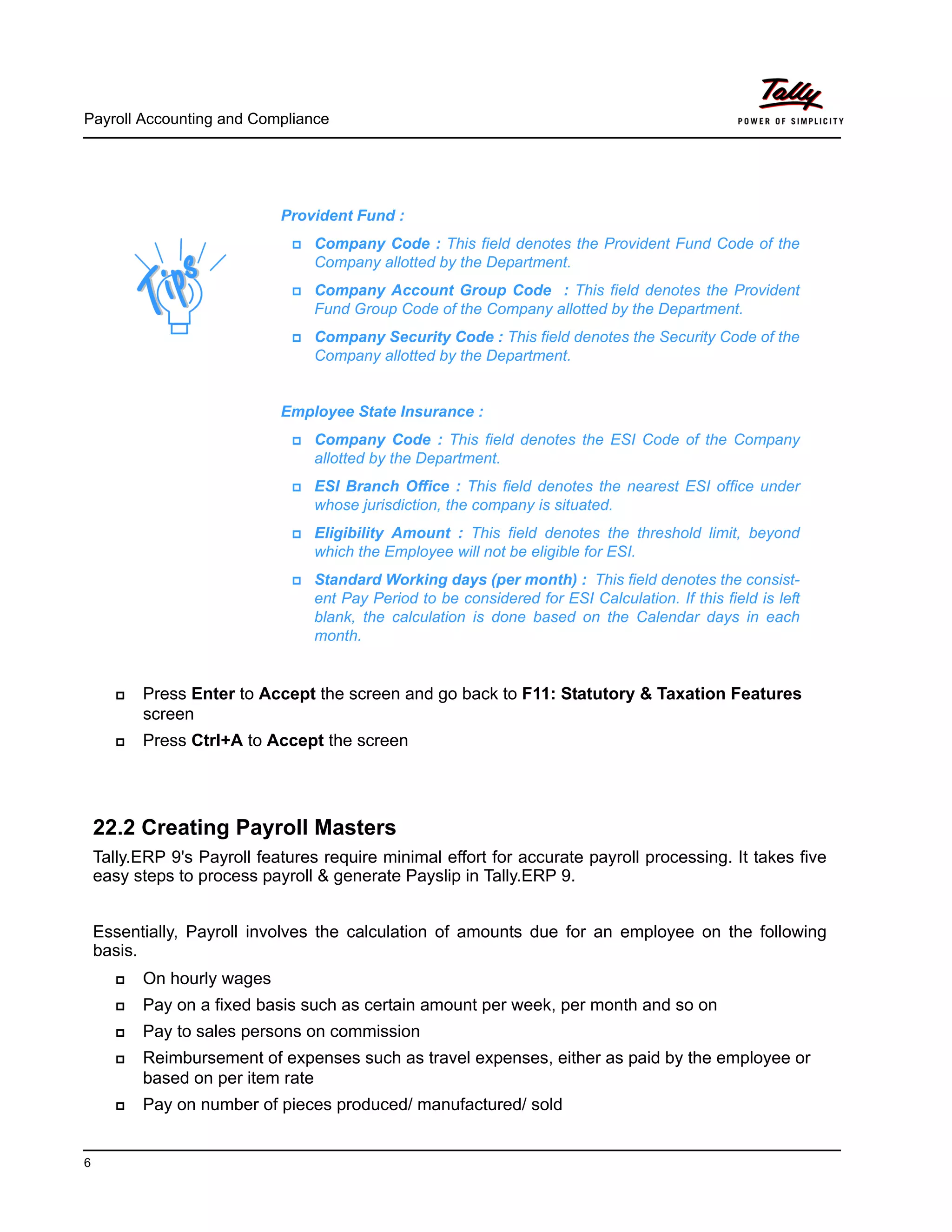
Enter the Provident Fund & Employee State Insurance details of the company as
shown:
Figure 22.4 Payroll Statutory Details screen
Payroll Accounting and Compliance
6
Press Enter to Accept the screen and go back to F11: Statutory & Taxation Features
screen
Press Ctrl+A to Accept the screen
22.2 Creating Payroll Masters
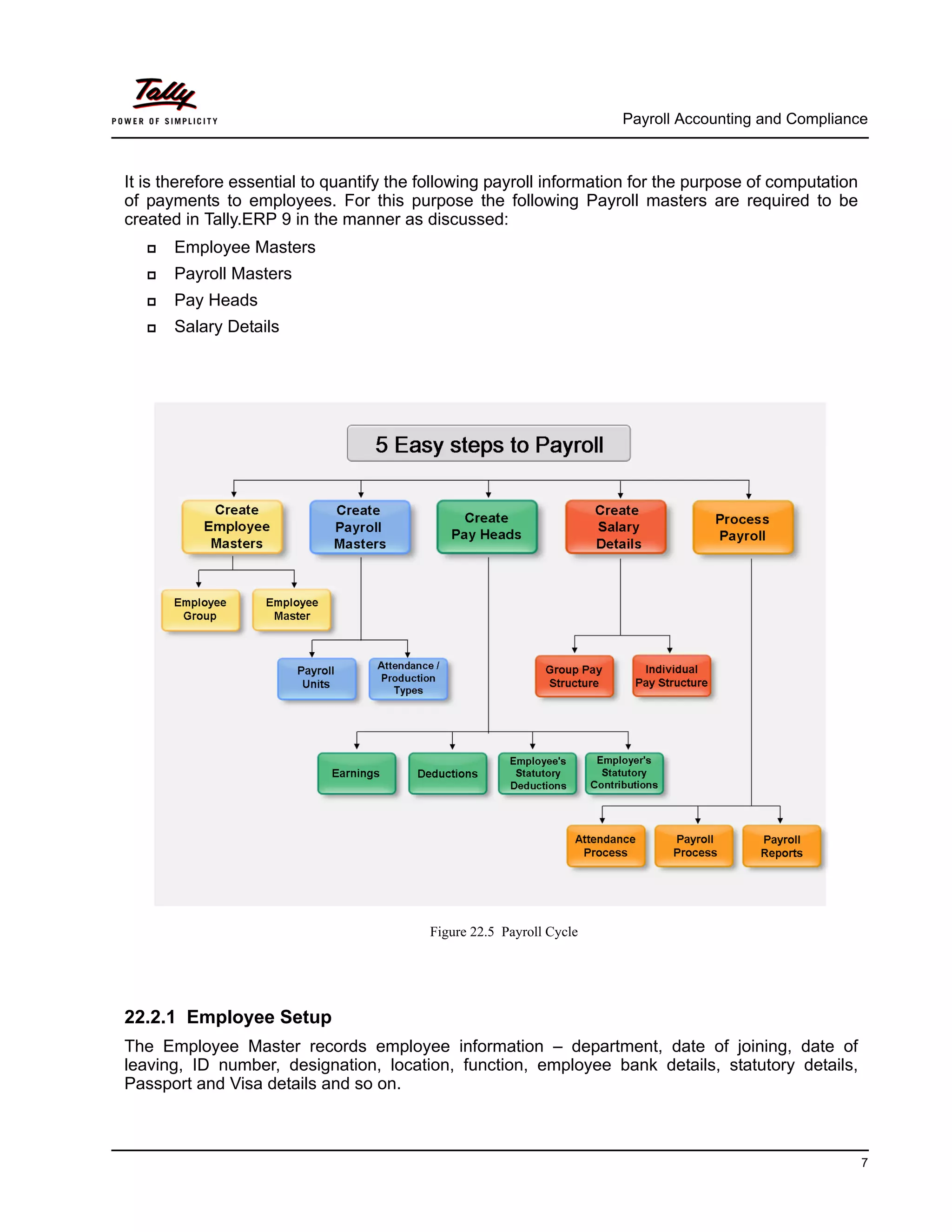
Tally.ERP 9's Payroll features require minimal effort for accurate payroll processing. It takes five
easy steps to process payroll & generate Payslip in Tally.ERP 9.
Essentially, Payroll involves the calculation of amounts due for an employee on the following
basis.
On hourly wages
Pay on a fixed basis such as certain amount per week, per month and so on
Pay to sales persons on commission
Reimbursement of expenses such as travel expenses, either as paid by the employee or
based on per item rate
Pay on number of pieces produced/ manufactured/ sold
Provident Fund :
Company Code : This field denotes the Provident Fund Code of the
Company allotted by the Department.
Company Account Group Code : This field denotes the Provident
Fund Group Code of the Company allotted by the Department.
Company Security Code : This field denotes the Security Code of the
Company allotted by the Department.
Employee State Insurance :
Company Code : This field denotes the ESI Code of the Company
allotted by the Department.
ESI Branch Office : This field denotes the nearest ESI office under
whose jurisdiction, the company is situated.
Eligibility Amount : This field denotes the threshold limit, beyond
which the Employee will not be eligible for ESI.
Standard Working days (per month) : This field denotes the consist-
ent Pay Period to be considered for ESI Calculation. If this field is left
blank, the calculation is done based on the Calendar days in each
month.
Payroll Accounting and Compliance
7
It is therefore essential to quantify the following payroll information for the purpose of computation
of payments to employees. For this purpose the following Payroll masters are required to be
created in Tally.ERP 9 in the manner as discussed:
Employee Masters
Payroll Masters
Pay Heads
Salary Details
Figure 22.5 Payroll Cycle
22.2.1 Employee Setup
The Employee Master records employee information – department, date of joining, date of
leaving, ID number, designation, location, function, employee bank details, statutory details,
Passport and Visa details and so on.
Payroll Accounting and Compliance
8
Employee Group Master
Businesses with multiple departments, divisions, functions or activities may create the required
employee groups and classify individual employees under a specified group i.e., Production,
Sales, Marketing, Stores, Support or a particular group of employees such as managers, supervi-
sors, sub-staff and so on.
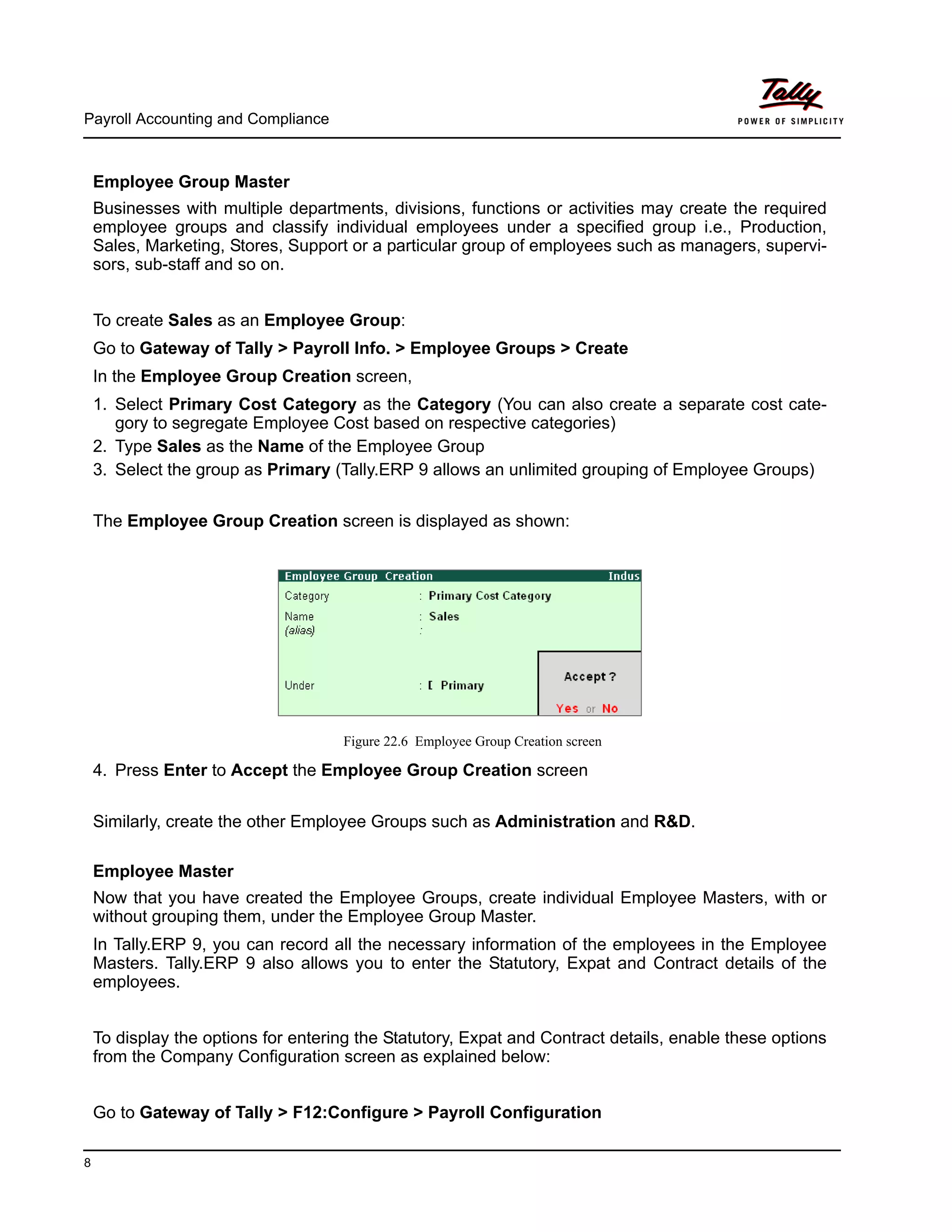
To create Sales as an Employee Group:
Go to Gateway of Tally > Payroll Info. > Employee Groups > Create
In the Employee Group Creation screen,
1. Select Primary Cost Category as the Category (You can also create a separate cost cate-
gory to segregate Employee Cost based on respective categories)
2. Type Sales as the Name of the Employee Group
3. Select the group as Primary (Tally.ERP 9 allows an unlimited grouping of Employee Groups)
The Employee Group Creation screen is displayed as shown:
Figure 22.6 Employee Group Creation screen
4. Press Enter to Accept the Employee Group Creation screen
Similarly, create the other Employee Groups such as Administration and R&D.
Employee Master
Now that you have created the Employee Groups, create individual Employee Masters, with or
without grouping them, under the Employee Group Master.
In Tally.ERP 9, you can record all the necessary information of the employees in the Employee
Masters. Tally.ERP 9 also allows you to enter the Statutory, Expat and Contract details of the
employees.
To display the options for entering the Statutory, Expat and Contract details, enable these options
from the Company Configuration screen as explained below:
Go to Gateway of Tally > F12:Configure > Payroll Configuration
Payroll Accounting and Compliance
9
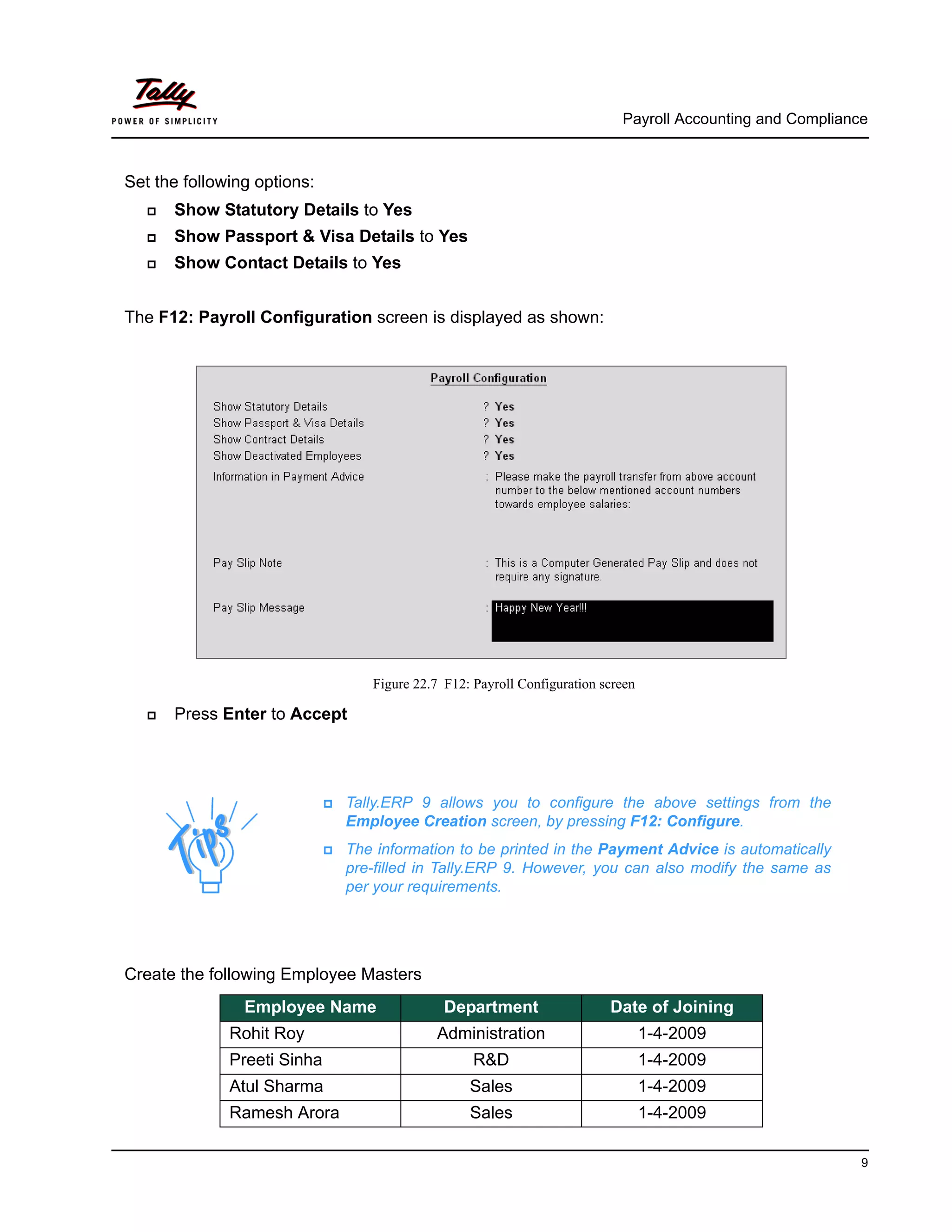
Set the following options:
Show Statutory Details to Yes
Show Passport & Visa Details to Yes
Show Contact Details to Yes
The F12: Payroll Configuration screen is displayed as shown:
Figure 22.7 F12: Payroll Configuration screen
Press Enter to Accept
Create the following Employee Masters
Tally.ERP 9 allows you to configure the above settings from the
Employee Creation screen, by pressing F12: Configure.
The information to be printed in the Payment Advice is automatically
pre-filled in Tally.ERP 9. However, you can also modify the same as
per your requirements.
Employee Name Department Date of Joining
Rohit Roy Administration 1-4-2009
Preeti Sinha R&D 1-4-2009
Atul Sharma Sales 1-4-2009
Ramesh Arora Sales 1-4-2009
Payroll Accounting and Compliance
10
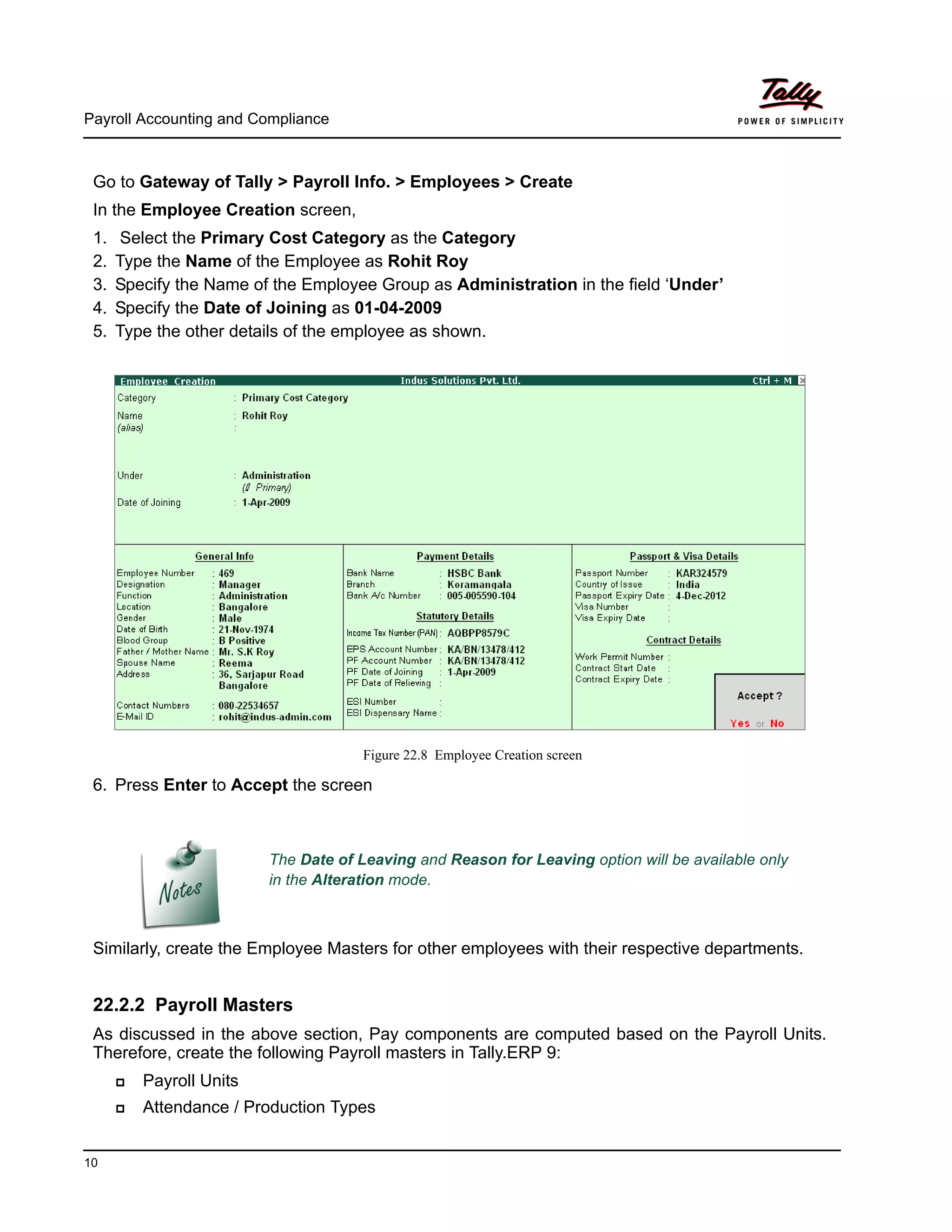
Go to Gateway of Tally > Payroll Info. > Employees > Create
In the Employee Creation screen,
1. Select the Primary Cost Category as the Category
2. Type the Name of the Employee as Rohit Roy
3. Specify the Name of the Employee Group as Administration in the field ‘Under’
4. Specify the Date of Joining as 01-04-2009
5. Type the other details of the employee as shown.
Figure 22.8 Employee Creation screen
6. Press Enter to Accept the screen
Similarly, create the Employee Masters for other employees with their respective departments.
22.2.2 Payroll Masters
As discussed in the above section, Pay components are computed based on the Payroll Units.
Therefore, create the following Payroll masters in Tally.ERP 9:
Payroll Units
Attendance / Production Types
The Date of Leaving and Reason for Leaving option will be available only
in the Alteration mode.
Payroll Accounting and Compliance
11
Payroll Units
A payroll unit refers to a unit of measurement based on which pay heads are calculated. Payroll
units can be classified into two types viz., Simple Payroll Units and Compound Payroll Units.
Simple Payroll Units refer to individual units such as Day, Week, Month, Hours, Pcs, Box, Nos
etc., Whereas, Compound Payroll Units refer to Units which are combination of two simple units,
i.e., an Hour of 60 Minutes, Month of 26 days, Day of 8 Hrs.
Usually, the Pay components are computed based on a single or compound payroll units.
Sometimes an employee may be paid on the basis of a combination of two or more units. For
example, an employee is paid a regular salary and an hourly rate for the overtime hours. In this
case, the two likely units are Calendar Month and Hours. In Tally.ERP, you can create simple as
well as compound units.
By default, Tally.ERP 9 contains four preset Calculation Periods – Days, Fortnights, Months &
Weeks. However, you can also create new Payroll Units based on your business requirements.
i. Simple Payroll Units
Go to Gateway of Tally > Payroll Info. > Units (Work) > Create
In the Unit Creation screen,
1. Simple is defualted as the Type of Unit
2. Specify Hrs as the Symbol
3. Type Hours as the Formal Name
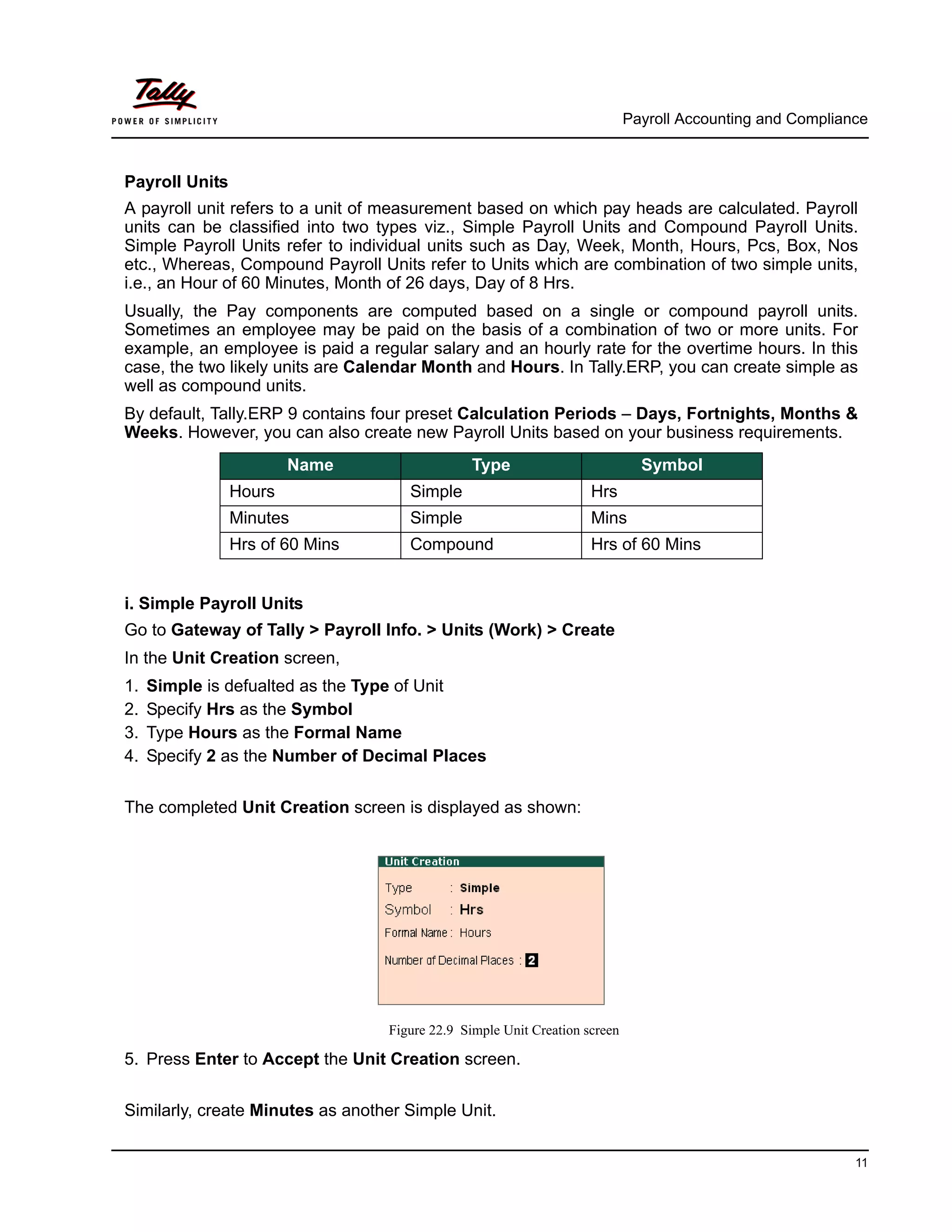
4. Specify 2 as the Number of Decimal Places
The completed Unit Creation screen is displayed as shown:
Figure 22.9 Simple Unit Creation screen
5. Press Enter to Accept the Unit Creation screen.
Similarly, create Minutes as another Simple Unit.
Name Type Symbol
Hours Simple Hrs
Minutes Simple Mins
Hrs of 60 Mins Compound Hrs of 60 Mins
Payroll Accounting and Compliance
12
ii. Compound Payroll Units
Create Hrs of 60 Mins as a Compound Unit.
In the Unit Creation screen:
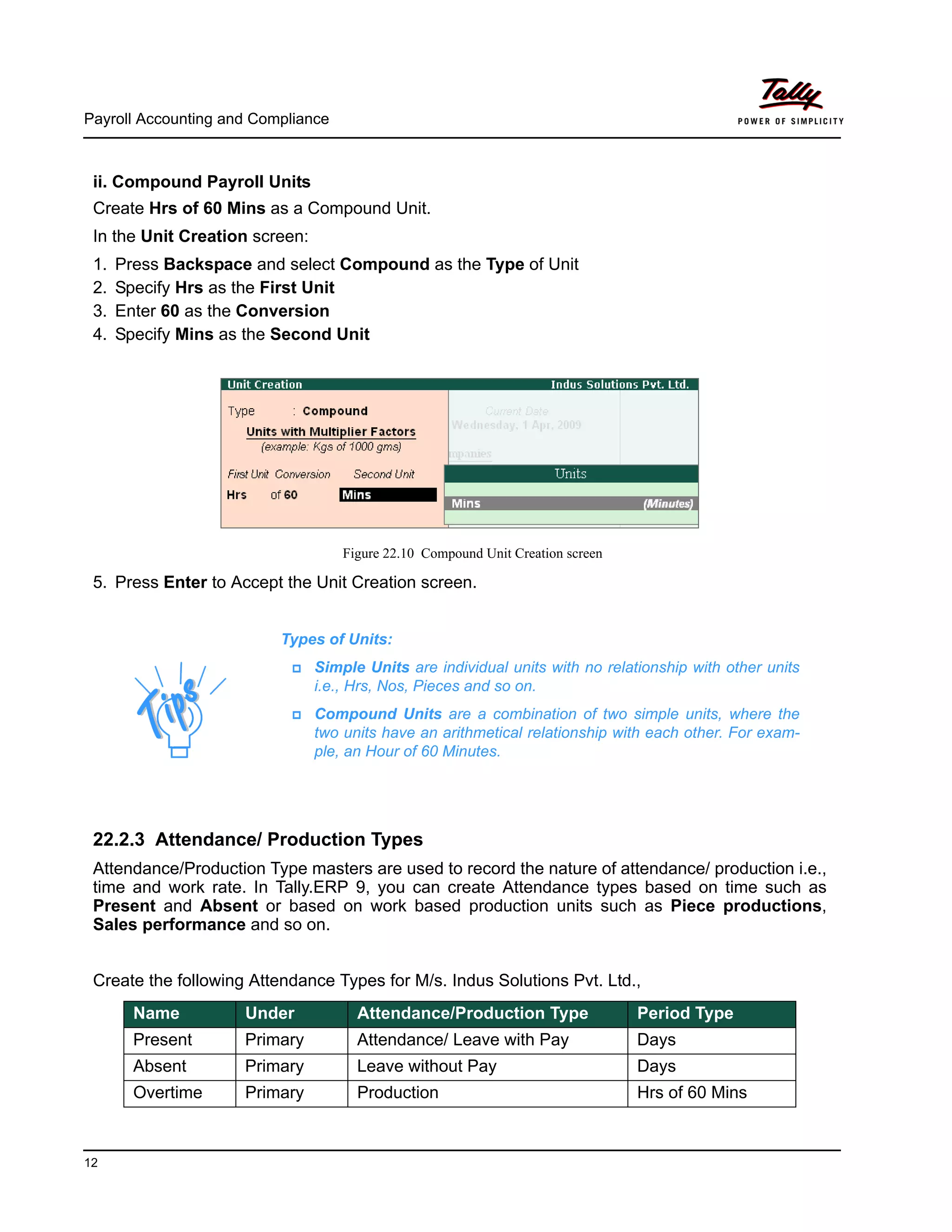
1. Press Backspace and select Compound as the Type of Unit
2. Specify Hrs as the First Unit
3. Enter 60 as the Conversion
4. Specify Mins as the Second Unit
Figure 22.10 Compound Unit Creation screen
5. Press Enter to Accept the Unit Creation screen.
22.2.3 Attendance/ Production Types
Attendance/Production Type masters are used to record the nature of attendance/ production i.e.,
time and work rate. In Tally.ERP 9, you can create Attendance types based on time such as
Present and Absent or based on work based production units such as Piece productions,
Sales performance and so on.
Create the following Attendance Types for M/s. Indus Solutions Pvt. Ltd.,
Types of Units:
Simple Units are individual units with no relationship with other units
i.e., Hrs, Nos, Pieces and so on.
Compound Units are a combination of two simple units, where the
two units have an arithmetical relationship with each other. For exam-
ple, an Hour of 60 Minutes.
Name Under Attendance/Production Type Period Type
Present Primary Attendance/ Leave with Pay Days
Absent Primary Leave without Pay Days
Overtime Primary Production Hrs of 60 Mins
Payroll Accounting and Compliance
13
i. Present Attendance Type
Go to Gateway of Tally > Payroll Info. > Attendance / Production Types > Create
In the Attendance Type Creation screen,
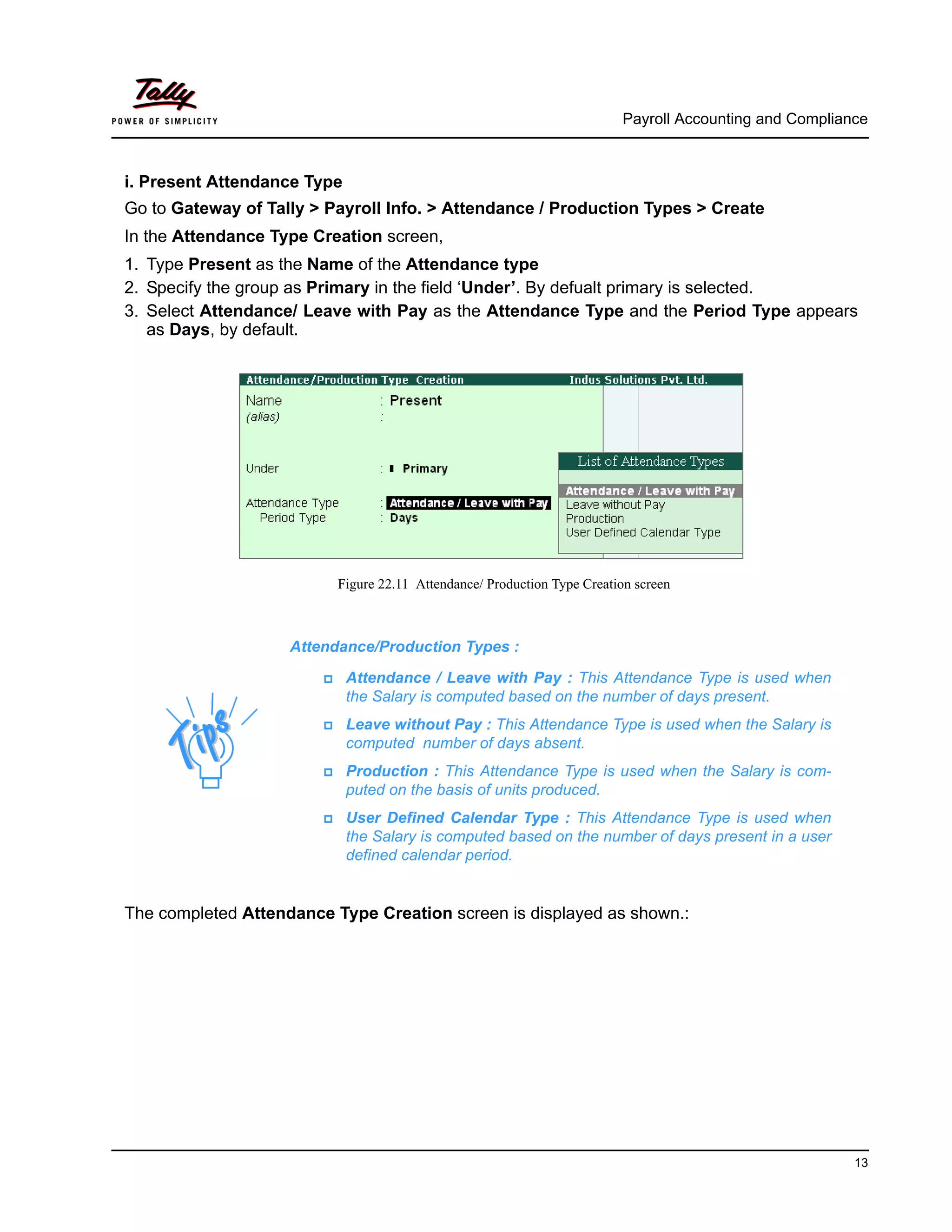
1. Type Present as the Name of the Attendance type
2. Specify the group as Primary in the field ‘Under’. By defualt primary is selected.
3. Select Attendance/ Leave with Pay as the Attendance Type and the Period Type appears
as Days, by default.
Figure 22.11 Attendance/ Production Type Creation screen
The completed Attendance Type Creation screen is displayed as shown.:
Attendance/Production Types :
Attendance / Leave with Pay : This Attendance Type is used when
the Salary is computed based on the number of days present.
Leave without Pay : This Attendance Type is used when the Salary is
computed number of days absent.
Production : This Attendance Type is used when the Salary is com-
puted on the basis of units produced.
User Defined Calendar Type : This Attendance Type is used when
the Salary is computed based on the number of days present in a user
defined calendar period.
Payroll Accounting and Compliance
14
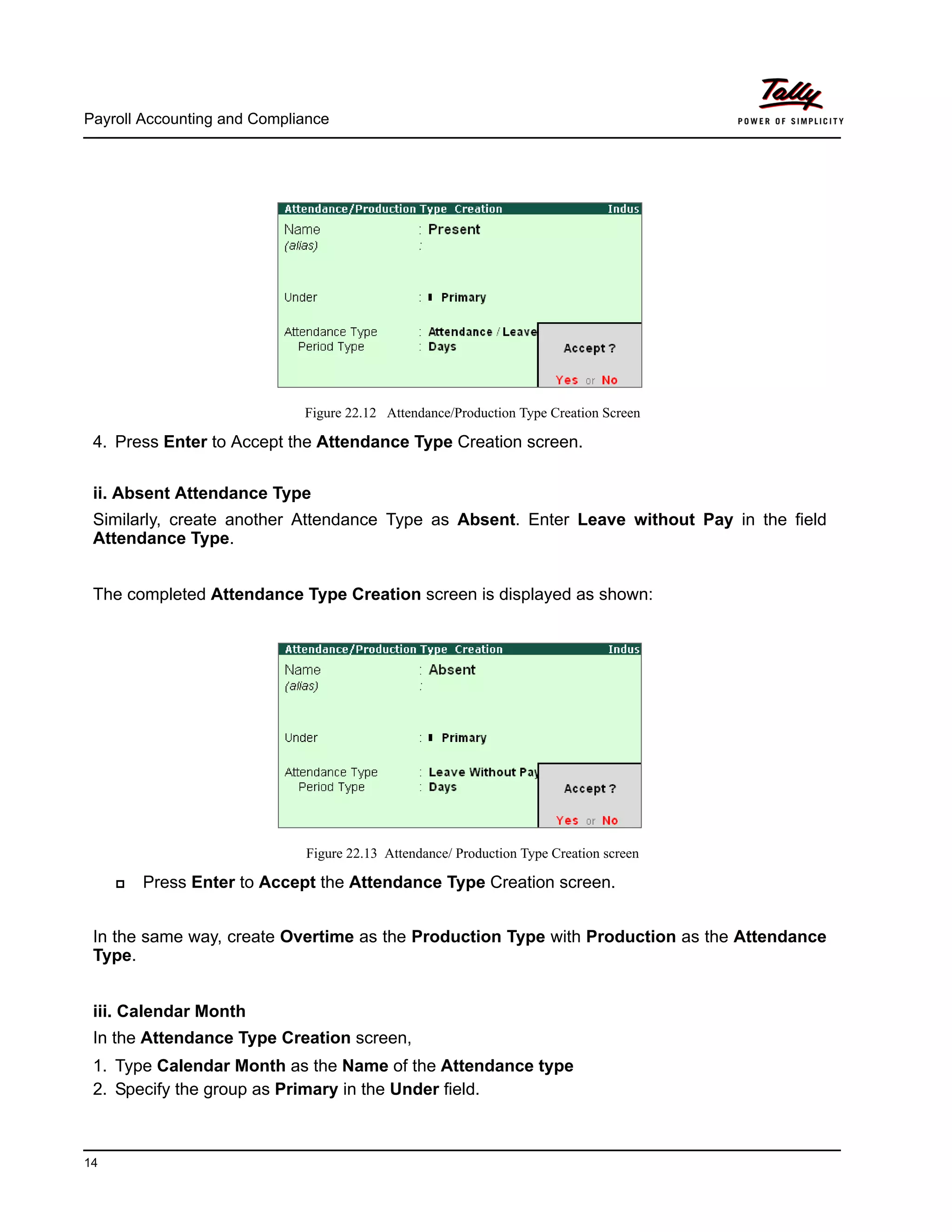
Figure 22.12 Attendance/Production Type Creation Screen
4. Press Enter to Accept the Attendance Type Creation screen.
ii. Absent Attendance Type
Similarly, create another Attendance Type as Absent. Enter Leave without Pay in the field
Attendance Type.
The completed Attendance Type Creation screen is displayed as shown:
Figure 22.13 Attendance/ Production Type Creation screen
Press Enter to Accept the Attendance Type Creation screen.
In the same way, create Overtime as the Production Type with Production as the Attendance
Type.
iii. Calendar Month
In the Attendance Type Creation screen,
1. Type Calendar Month as the Name of the Attendance type
2. Specify the group as Primary in the Under field.
Payroll Accounting and Compliance
15
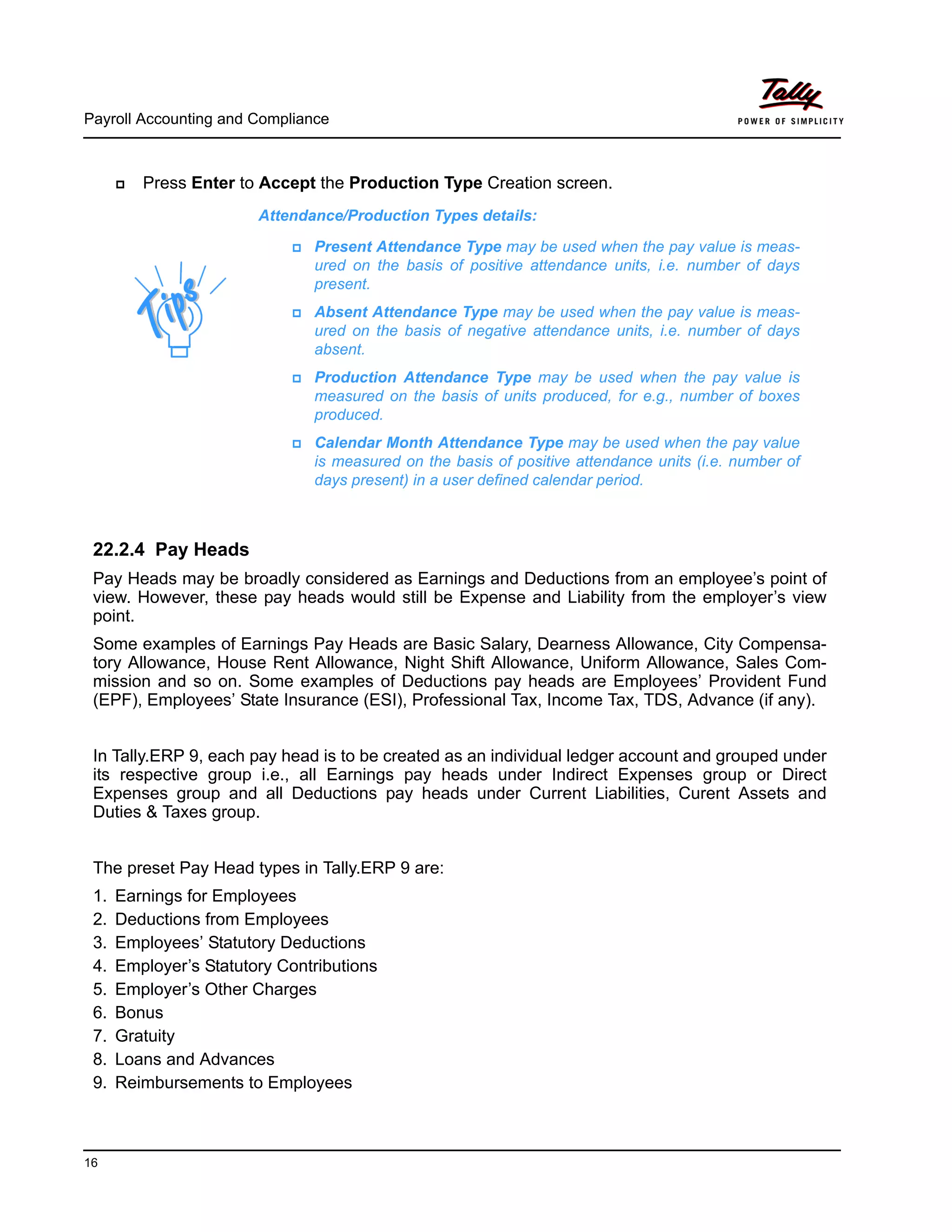
3. Select User Defined Calendar Type as the Attendance Type and the Period Type appears
as Days, by default.
Figure 22.14 User Defined Calendar Type Creation screen
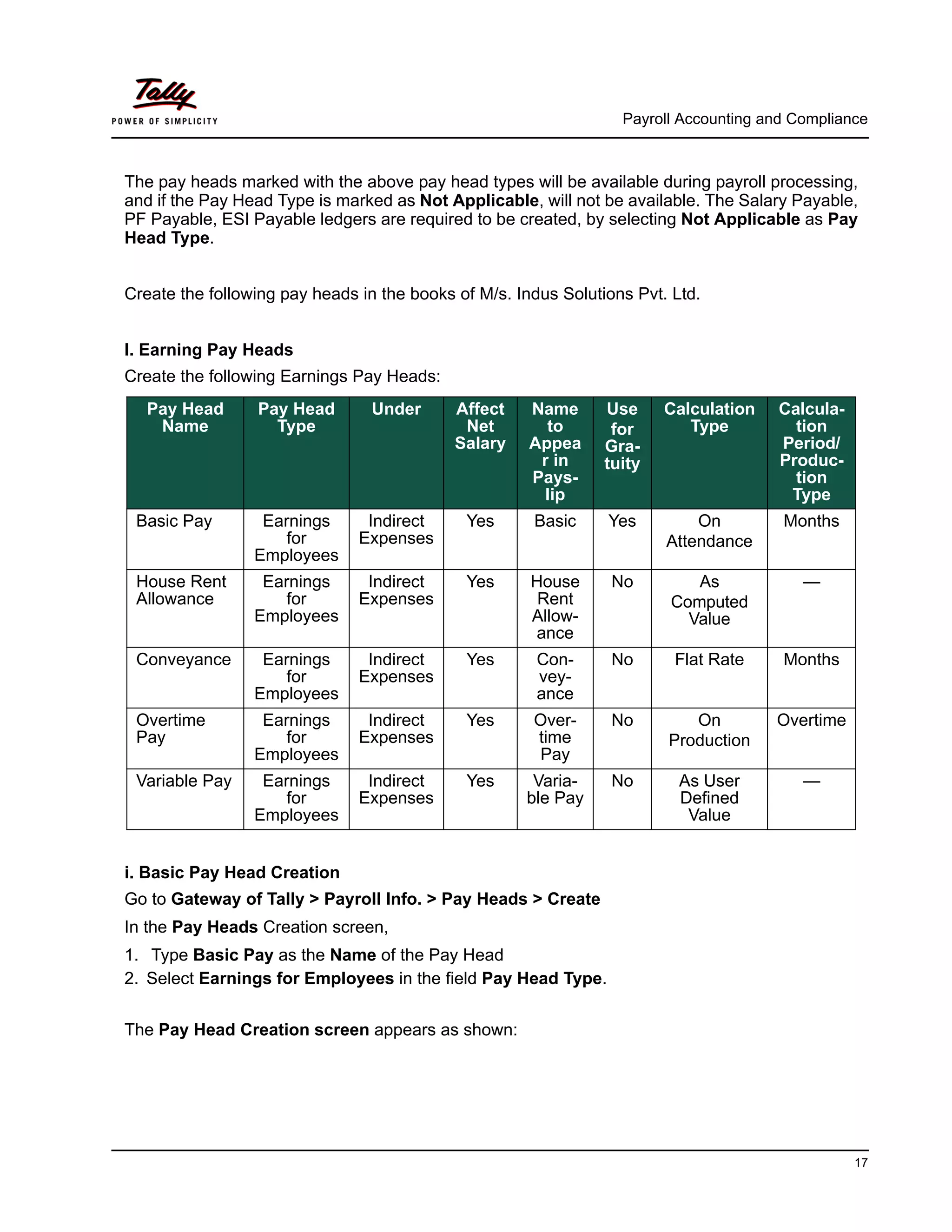
iv. Overtime Production Type
The completed Overtime - Production Type Creation screen is displayed as shown below:
Figure 22.15 Overtime - Production Type Creation screen
Payroll Accounting and Compliance
16
Press Enter to Accept the Production Type Creation screen.
22.2.4 Pay Heads
Pay Heads may be broadly considered as Earnings and Deductions from an employee’s point of
view. However, these pay heads would still be Expense and Liability from the employer’s view
point.
Some examples of Earnings Pay Heads are Basic Salary, Dearness Allowance, City Compensa-
tory Allowance, House Rent Allowance, Night Shift Allowance, Uniform Allowance, Sales Com-
mission and so on. Some examples of Deductions pay heads are Employees’ Provident Fund
(EPF), Employees’ State Insurance (ESI), Professional Tax, Income Tax, TDS, Advance (if any).
In Tally.ERP 9, each pay head is to be created as an individual ledger account and grouped under
its respective group i.e., all Earnings pay heads under Indirect Expenses group or Direct
Expenses group and all Deductions pay heads under Current Liabilities, Curent Assets and
Duties & Taxes group.
The preset Pay Head types in Tally.ERP 9 are:
1. Earnings for Employees
2. Deductions from Employees
3. Employees’ Statutory Deductions
4. Employer’s Statutory Contributions
5. Employer’s Other Charges
6. Bonus
7. Gratuity
8. Loans and Advances
9. Reimbursements to Employees
Attendance/Production Types details:
Present Attendance Type may be used when the pay value is meas-
ured on the basis of positive attendance units, i.e. number of days
present.
Absent Attendance Type may be used when the pay value is meas-
ured on the basis of negative attendance units, i.e. number of days
absent.
Production Attendance Type may be used when the pay value is
measured on the basis of units produced, for e.g., number of boxes
produced.
Calendar Month Attendance Type may be used when the pay value
is measured on the basis of positive attendance units (i.e. number of
days present) in a user defined calendar period.
Payroll Accounting and Compliance
17
The pay heads marked with the above pay head types will be available during payroll processing,
and if the Pay Head Type is marked as Not Applicable, will not be available. The Salary Payable,
PF Payable, ESI Payable ledgers are required to be created, by selecting Not Applicable as Pay
Head Type.
Create the following pay heads in the books of M/s. Indus Solutions Pvt. Ltd.
I. Earning Pay Heads
Create the following Earnings Pay Heads:
i. Basic Pay Head Creation
Go to Gateway of Tally > Payroll Info. > Pay Heads > Create
In the Pay Heads Creation screen,
1. Type Basic Pay as the Name of the Pay Head
2. Select Earnings for Employees in the field Pay Head Type.
The Pay Head Creation screen appears as shown:
Pay Head
Name
Pay Head
Type
Under Affect
Net
Salary
Name
to
Appea
r in
Pays-
lip
Use
for
Gra-
tuity
Calculation
Type
Calcula-
tion
Period/
Produc-
tion
Type
Basic Pay Earnings
for
Employees
Indirect
Expenses
Yes Basic Yes On
Attendance
Months
House Rent
Allowance
Earnings
for
Employees
Indirect
Expenses
Yes House
Rent
Allow-
ance
No As
Computed
Value
—
Conveyance Earnings
for
Employees
Indirect
Expenses
Yes Con-
vey-
ance
No Flat Rate Months
Overtime
Pay
Earnings
for
Employees
Indirect
Expenses
Yes Over-
time
Pay
No On
Production
Overtime
Variable Pay Earnings
for
Employees
Indirect
Expenses
Yes Varia-
ble Pay
No As User
Defined
Value
—
Payroll Accounting and Compliance
18
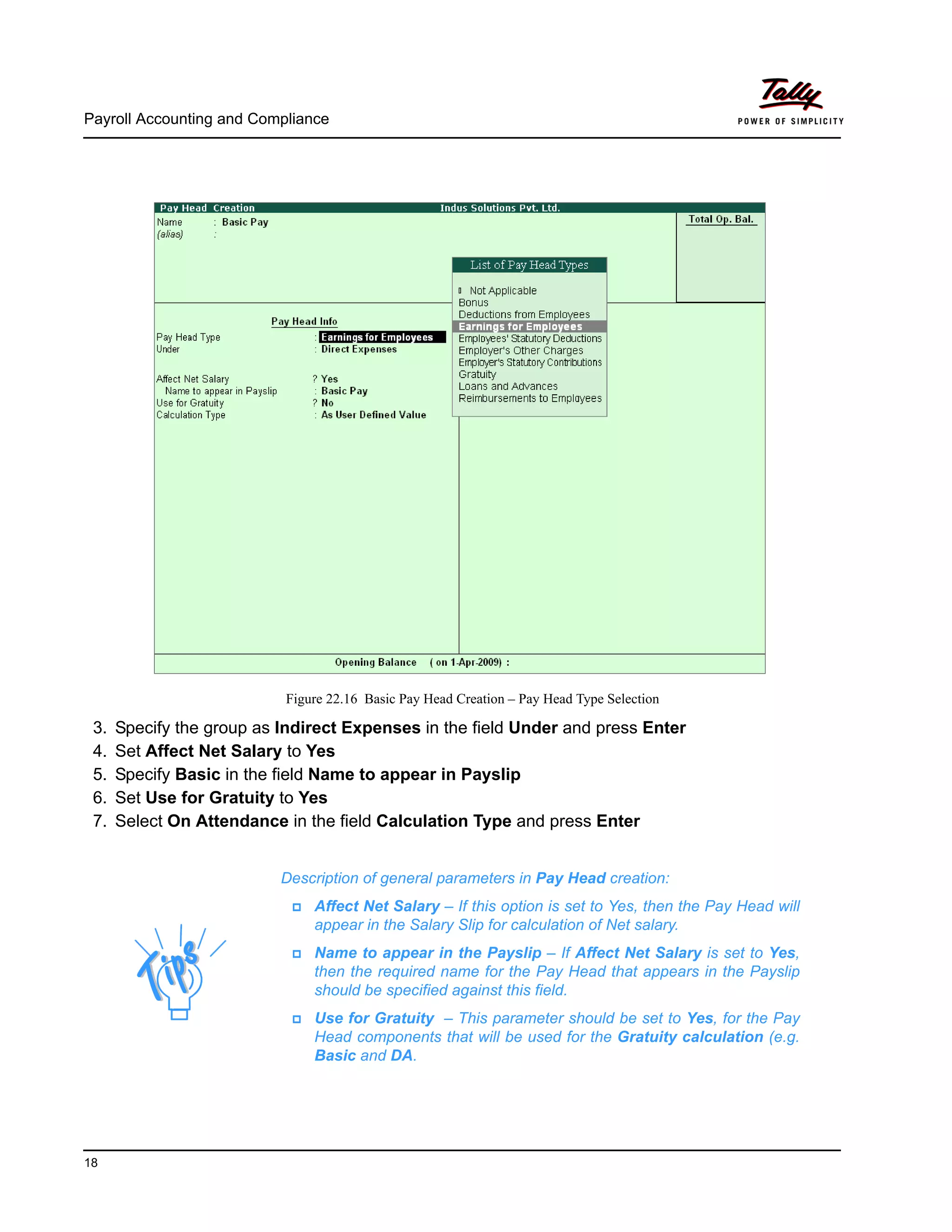
Figure 22.16 Basic Pay Head Creation – Pay Head Type Selection
3. Specify the group as Indirect Expenses in the field Under and press Enter
4. Set Affect Net Salary to Yes
5. Specify Basic in the field Name to appear in Payslip
6. Set Use for Gratuity to Yes
7. Select On Attendance in the field Calculation Type and press Enter
Description of general parameters in Pay Head creation:
Affect Net Salary – If this option is set to Yes, then the Pay Head will
appear in the Salary Slip for calculation of Net salary.
Name to appear in the Payslip – If Affect Net Salary is set to Yes,
then the required name for the Pay Head that appears in the Payslip
should be specified against this field.
Use for Gratuity – This parameter should be set to Yes, for the Pay
Head components that will be used for the Gratuity calculation (e.g.
Basic and DA.
Payroll Accounting and Compliance
19
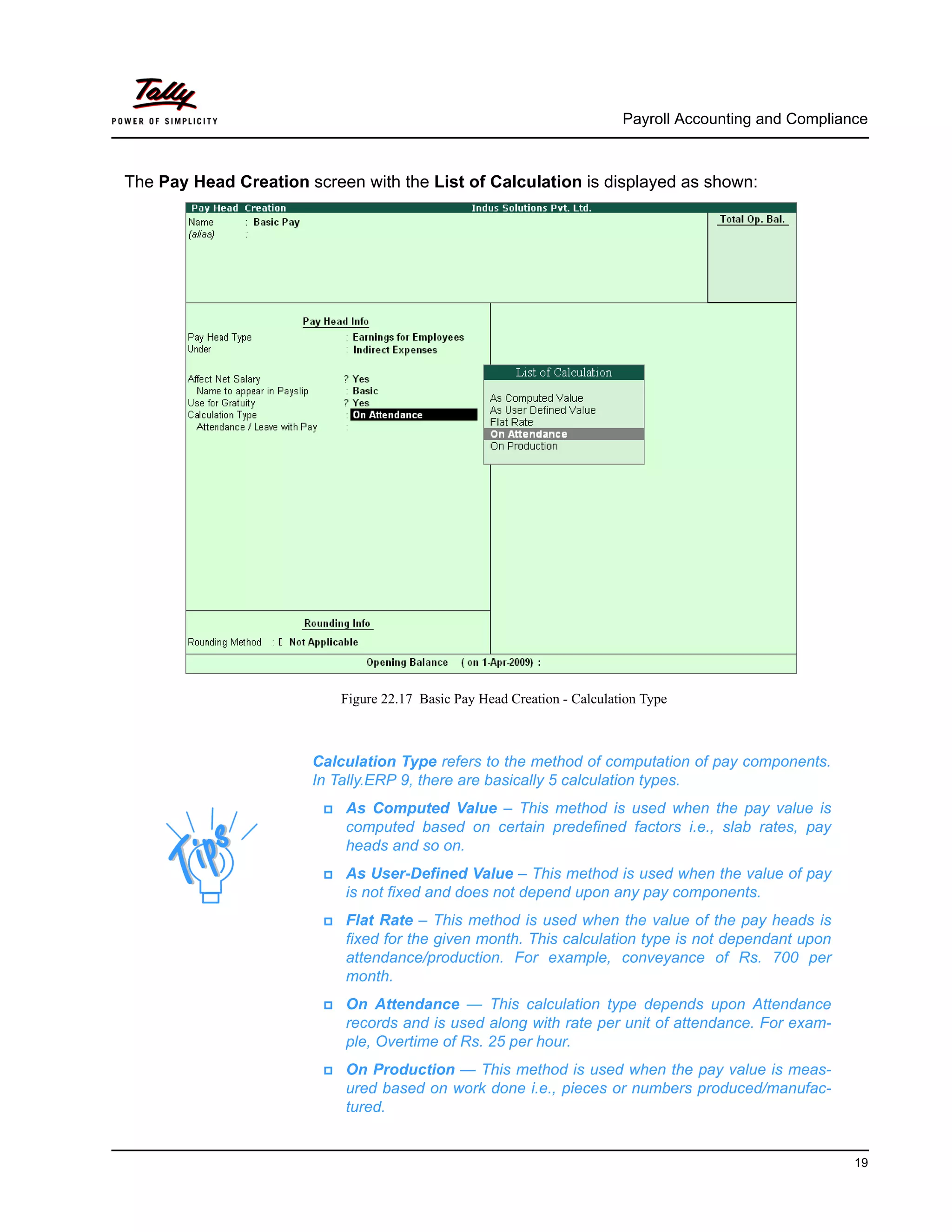
The Pay Head Creation screen with the List of Calculation is displayed as shown:
Figure 22.17 Basic Pay Head Creation - Calculation Type
Calculation Type refers to the method of computation of pay components.
In Tally.ERP 9, there are basically 5 calculation types.
As Computed Value – This method is used when the pay value is
computed based on certain predefined factors i.e., slab rates, pay
heads and so on.
As User-Defined Value – This method is used when the value of pay
is not fixed and does not depend upon any pay components.
Flat Rate – This method is used when the value of the pay heads is
fixed for the given month. This calculation type is not dependant upon
attendance/production. For example, conveyance of Rs. 700 per
month.
On Attendance — This calculation type depends upon Attendance
records and is used along with rate per unit of attendance. For exam-
ple, Overtime of Rs. 25 per hour.
On Production — This method is used when the pay value is meas-
ured based on work done i.e., pieces or numbers produced/manufac-
tured.
Payroll Accounting and Compliance
20
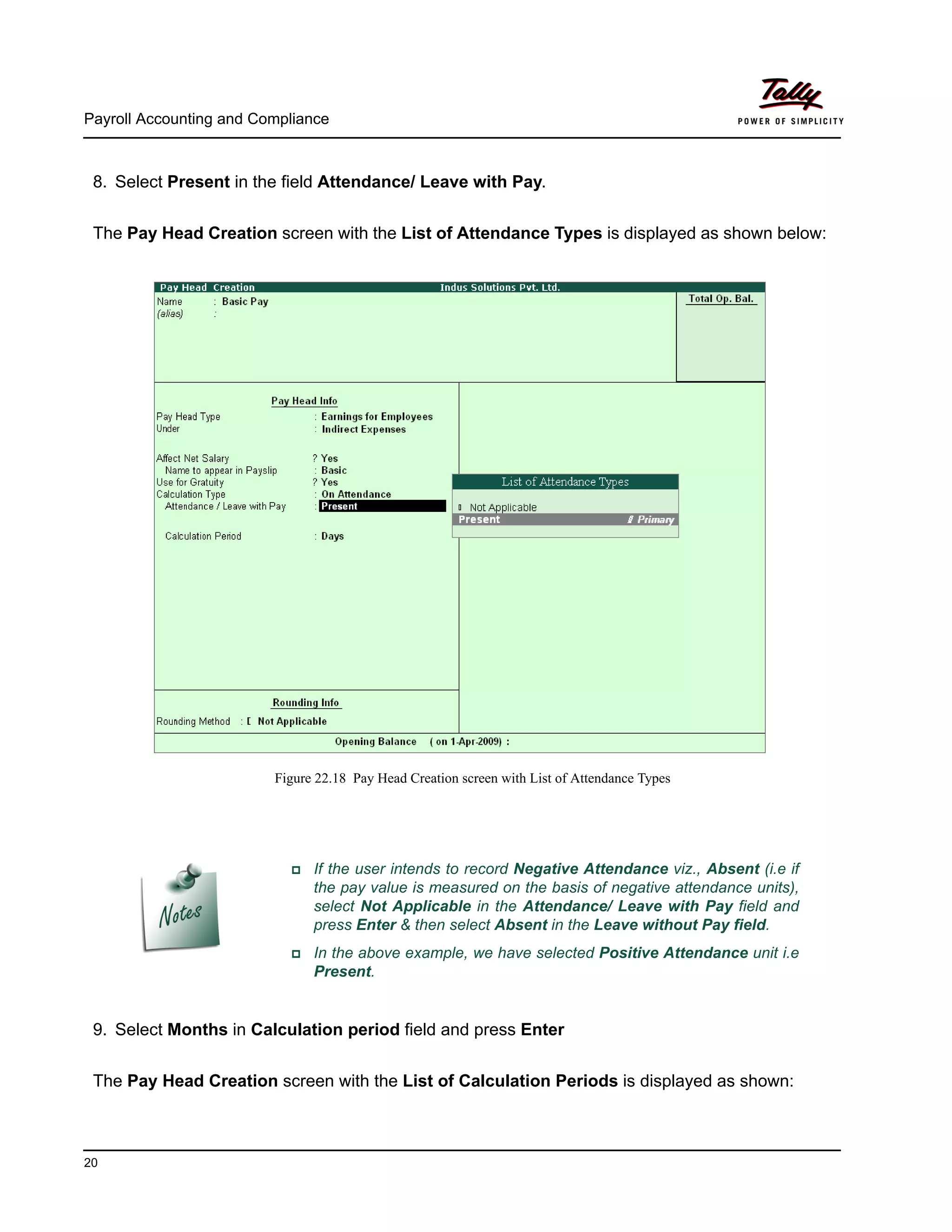
8. Select Present in the field Attendance/ Leave with Pay.
The Pay Head Creation screen with the List of Attendance Types is displayed as shown below:
Figure 22.18 Pay Head Creation screen with List of Attendance Types
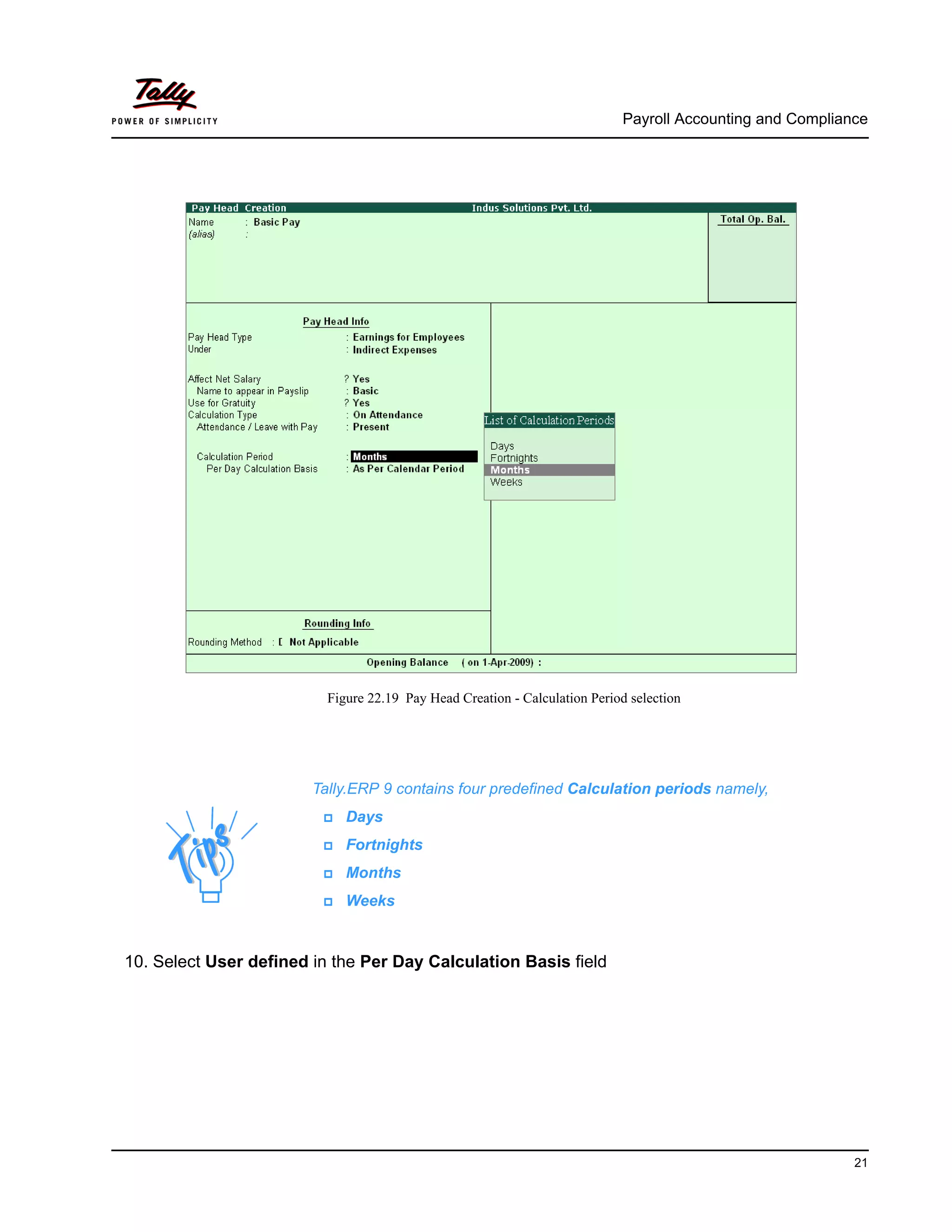
9. Select Months in Calculation period field and press Enter
The Pay Head Creation screen with the List of Calculation Periods is displayed as shown:
If the user intends to record Negative Attendance viz., Absent (i.e if
the pay value is measured on the basis of negative attendance units),
select Not Applicable in the Attendance/ Leave with Pay field and
press Enter & then select Absent in the Leave without Pay field.
In the above example, we have selected Positive Attendance unit i.e
Present.
Payroll Accounting and Compliance
21
Figure 22.19 Pay Head Creation - Calculation Period selection
10. Select User defined in the Per Day Calculation Basis field
Tally.ERP 9 contains four predefined Calculation periods namely,
Days
Fortnights
Months
Weeks
Payroll Accounting and Compliance
22
Figure 22.20 Pay Head Creation screen - Calculation Basis Selection
11.Press Enter to Accept
Calculation Basis refers to the periodicity of the given calculation period.
As per Calendar Period refers to the perpetual calendar month, i.e. if
the payroll process is carried out for the month of March, then the
attendance records will be entered for 31 days.
User Defined Value refers to the consistent payroll period irrespective
of calendar month, i.e. If an employee’s salary is based on a standard
month of 30 days irrespective of the calendar month, then you can
select User Defined as the Calculation Basis and define the periodic-
ity of the specified period or month.
For example, an employee’s monthly salary is Rs. 3,000 and the
calculation basis is defined as a month of 30 days. If he takes 3
days leave in January (which consists of 31 days), then the salary
per day is computed as (Rs. 3000/30 days, i.e. 100). The net salary
after deducting the leave salary [i.e. Rs. 300 (3 days x Rs. 100)]
amounts to Rs. 2,700.
Payroll Accounting and Compliance
23
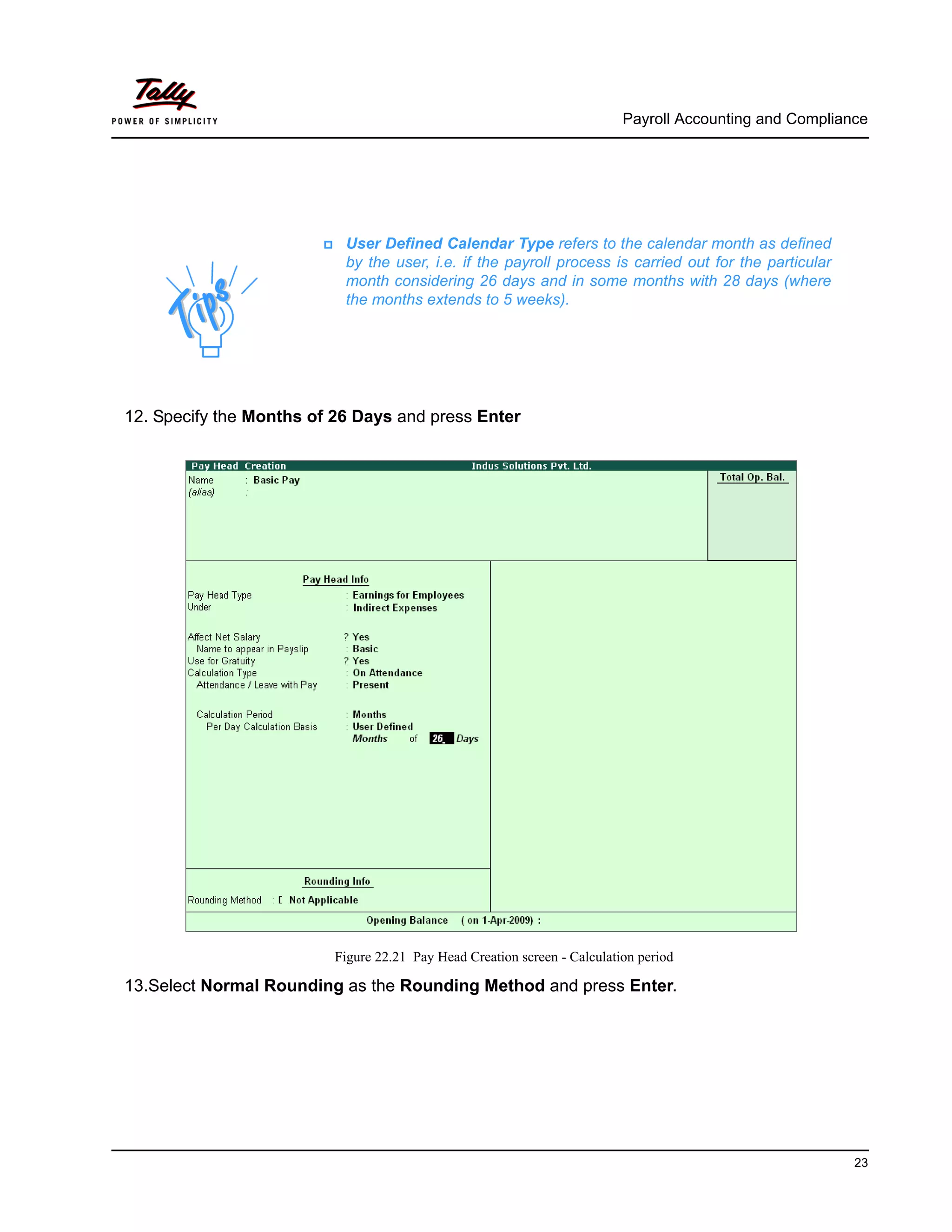
12. Specify the Months of 26 Days and press Enter
Figure 22.21 Pay Head Creation screen - Calculation period
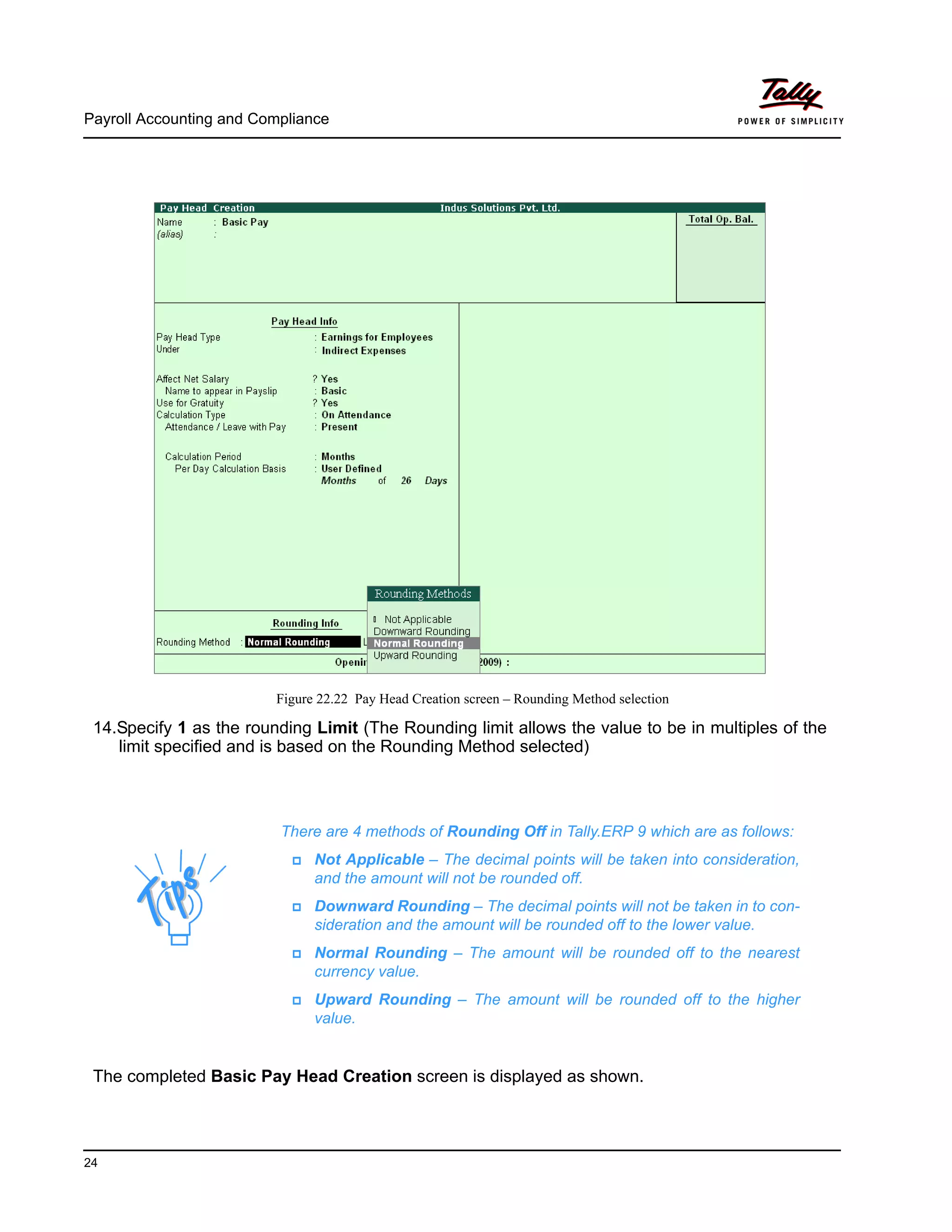
13.Select Normal Rounding as the Rounding Method and press Enter.
User Defined Calendar Type refers to the calendar month as defined
by the user, i.e. if the payroll process is carried out for the particular
month considering 26 days and in some months with 28 days (where
the months extends to 5 weeks).
Payroll Accounting and Compliance
24
Figure 22.22 Pay Head Creation screen – Rounding Method selection
14.Specify 1 as the rounding Limit (The Rounding limit allows the value to be in multiples of the
limit specified and is based on the Rounding Method selected)
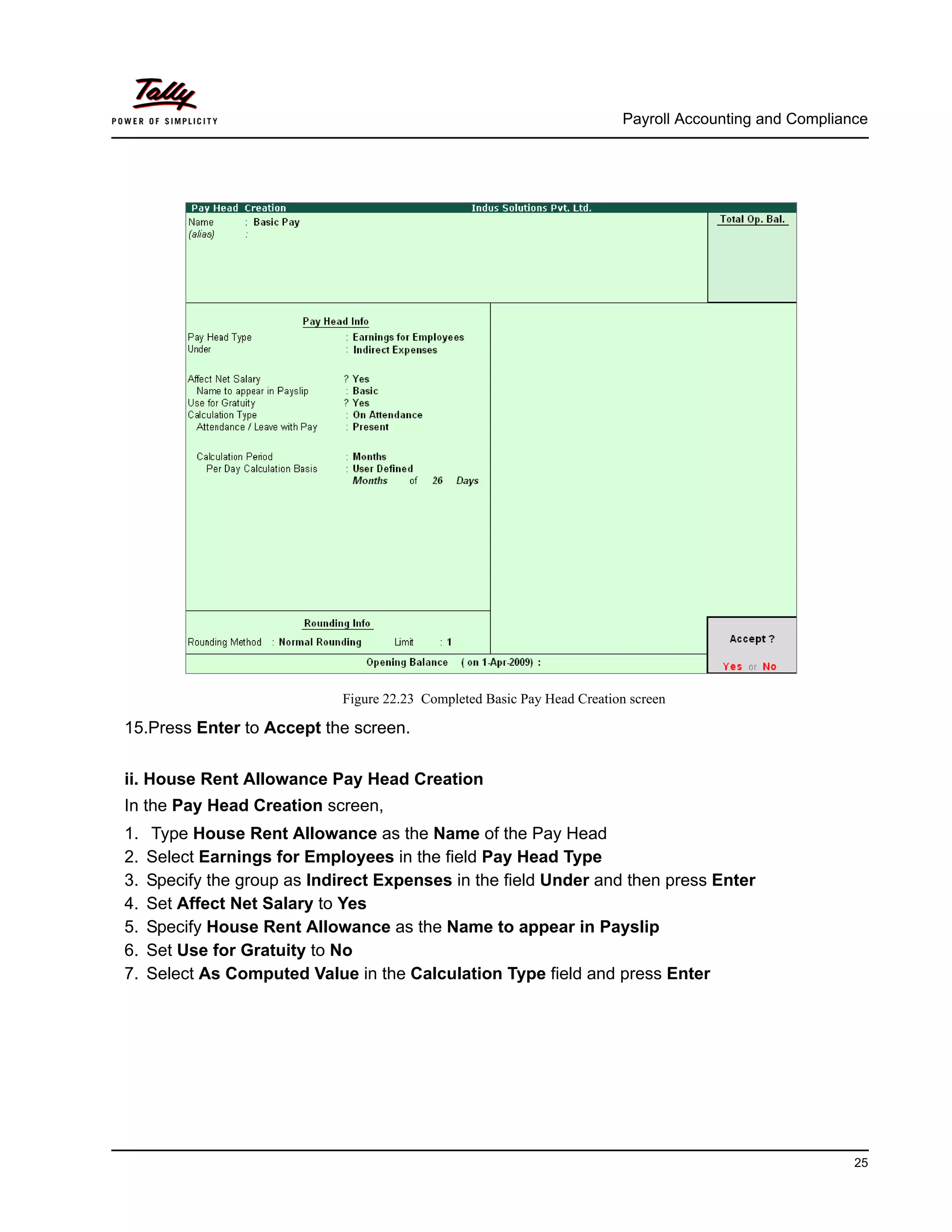
The completed Basic Pay Head Creation screen is displayed as shown.
There are 4 methods of Rounding Off in Tally.ERP 9 which are as follows:
Not Applicable – The decimal points will be taken into consideration,
and the amount will not be rounded off.
Downward Rounding – The decimal points will not be taken in to con-
sideration and the amount will be rounded off to the lower value.
Normal Rounding – The amount will be rounded off to the nearest
currency value.
Upward Rounding – The amount will be rounded off to the higher
value.
Payroll Accounting and Compliance
25
Figure 22.23 Completed Basic Pay Head Creation screen
15.Press Enter to Accept the screen.
ii. House Rent Allowance Pay Head Creation
In the Pay Head Creation screen,
1. Type House Rent Allowance as the Name of the Pay Head
2. Select Earnings for Employees in the field Pay Head Type
3. Specify the group as Indirect Expenses in the field Under and then press Enter
4. Set Affect Net Salary to Yes
5. Specify House Rent Allowance as the Name to appear in Payslip
6. Set Use for Gratuity to No
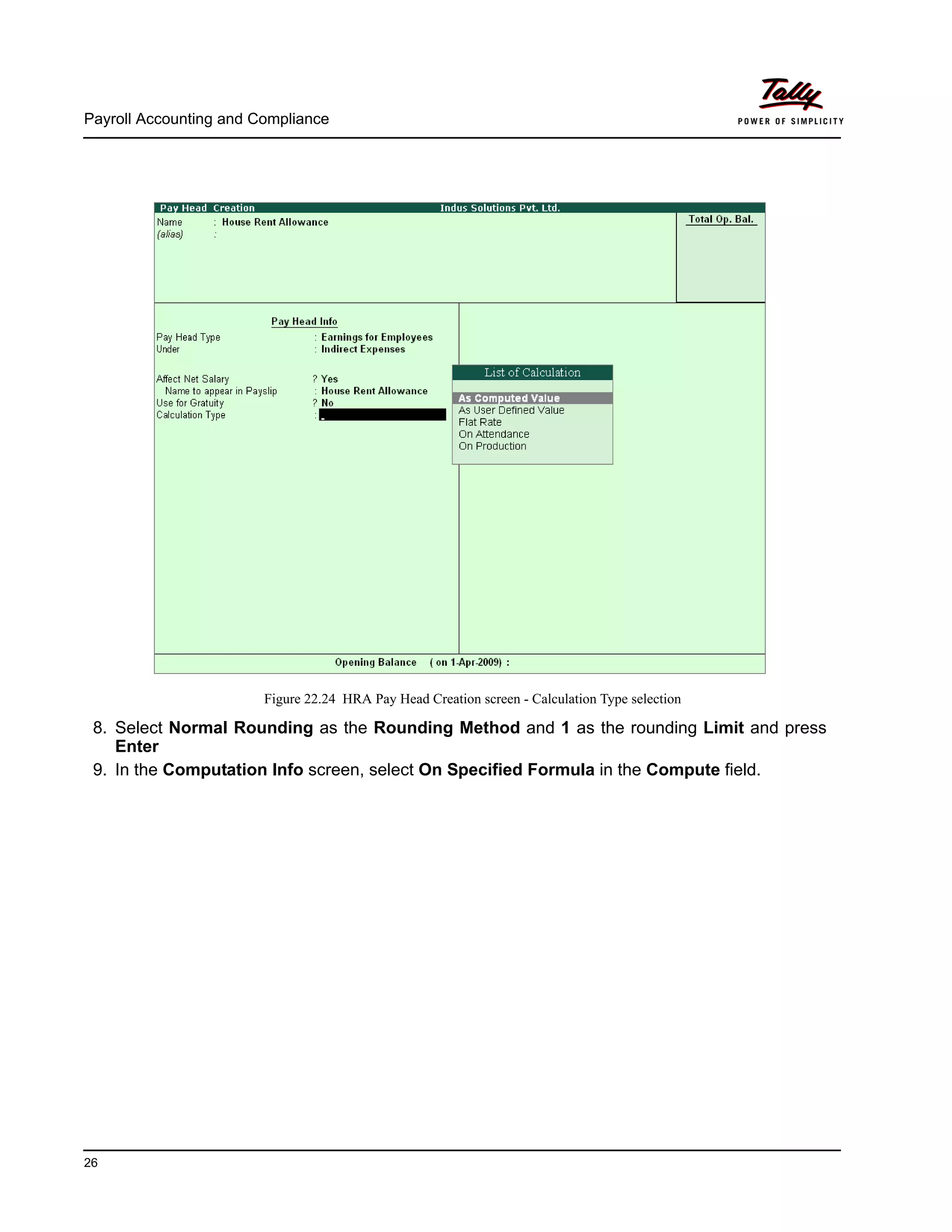
7. Select As Computed Value in the Calculation Type field and press Enter
Payroll Accounting and Compliance
26
Figure 22.24 HRA Pay Head Creation screen - Calculation Type selection
8. Select Normal Rounding as the Rounding Method and 1 as the rounding Limit and press
Enter
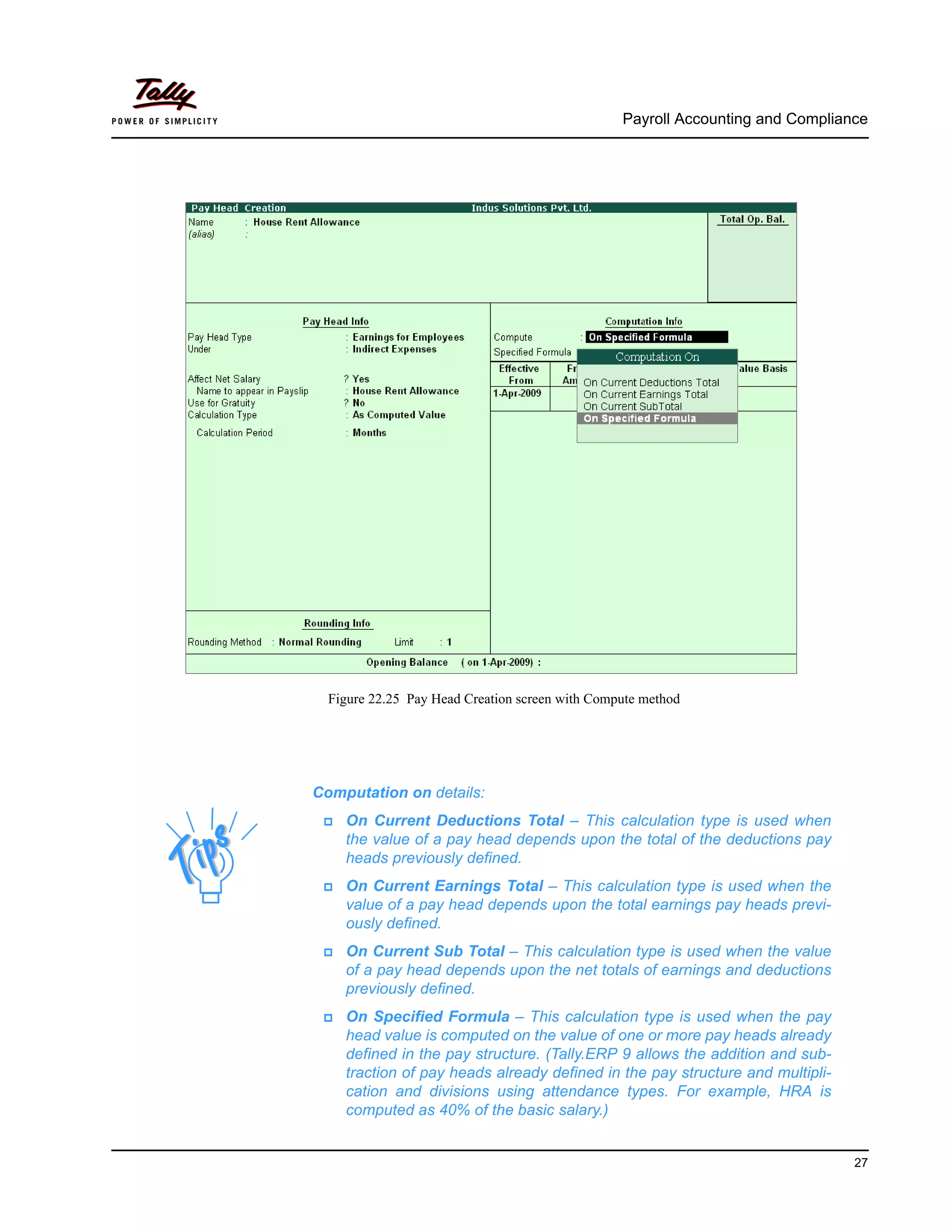
9. In the Computation Info screen, select On Specified Formula in the Compute field.
Payroll Accounting and Compliance
27
Figure 22.25 Pay Head Creation screen with Compute method
Computation on details:
On Current Deductions Total – This calculation type is used when
the value of a pay head depends upon the total of the deductions pay
heads previously defined.
On Current Earnings Total – This calculation type is used when the
value of a pay head depends upon the total earnings pay heads previ-
ously defined.
On Current Sub Total – This calculation type is used when the value
of a pay head depends upon the net totals of earnings and deductions
previously defined.
On Specified Formula – This calculation type is used when the pay
head value is computed on the value of one or more pay heads already
defined in the pay structure. (Tally.ERP 9 allows the addition and sub-
traction of pay heads already defined in the pay structure and multipli-
cation and divisions using attendance types. For example, HRA is
computed as 40% of the basic salary.)
Payroll Accounting and Compliance
28
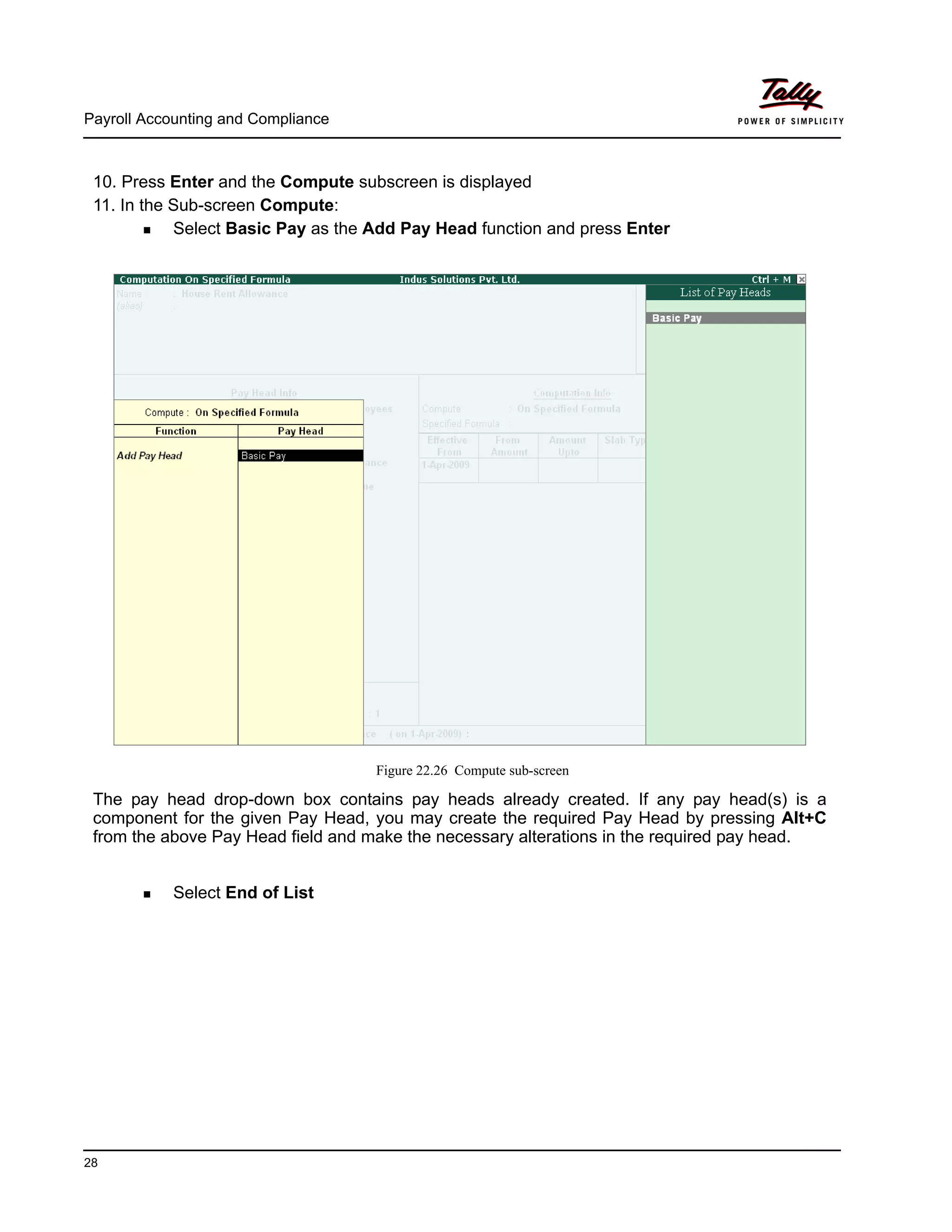
10. Press Enter and the Compute subscreen is displayed
11. In the Sub-screen Compute:
Select Basic Pay as the Add Pay Head function and press Enter
Figure 22.26 Compute sub-screen
The pay head drop-down box contains pay heads already created. If any pay head(s) is a
component for the given Pay Head, you may create the required Pay Head by pressing Alt+C
from the above Pay Head field and make the necessary alterations in the required pay head.
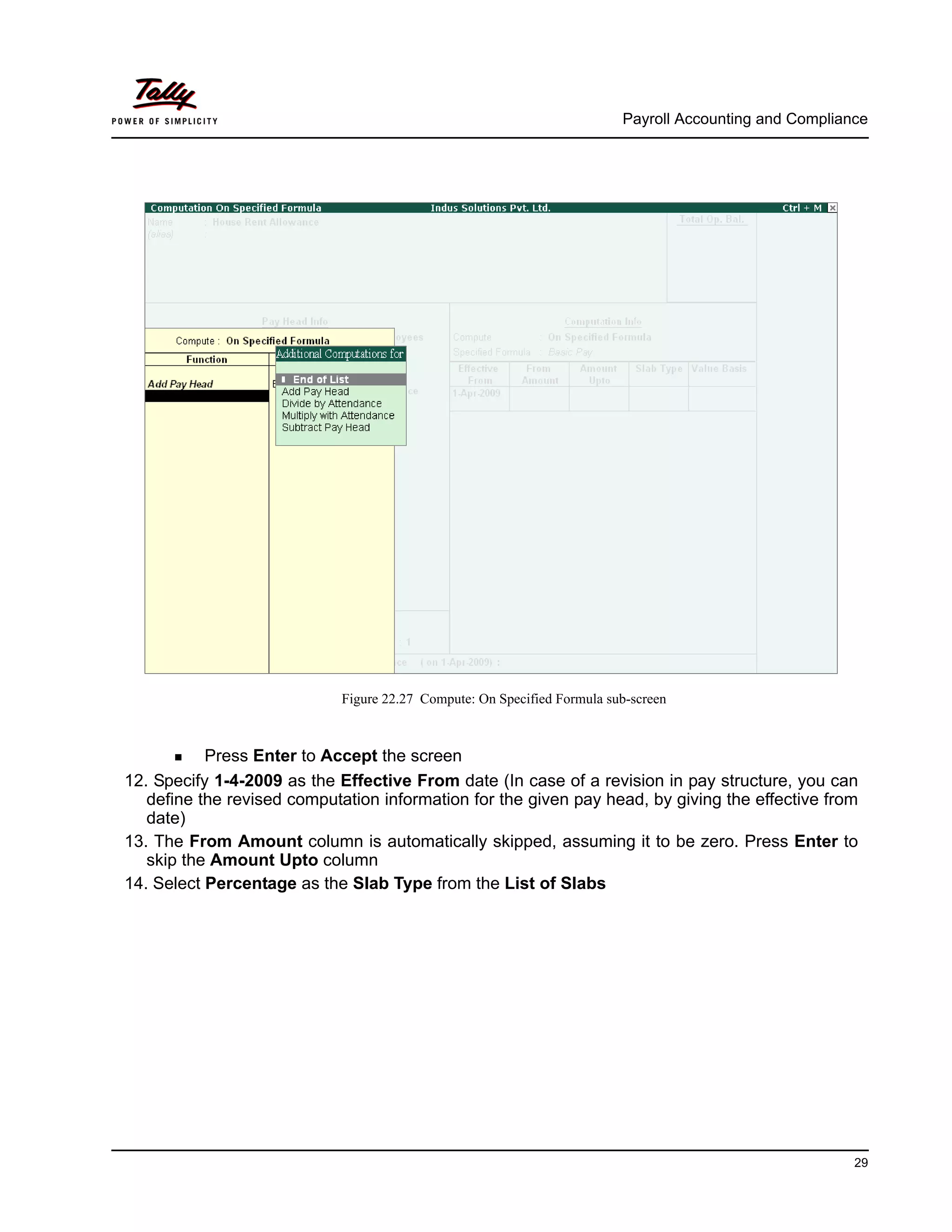
Select End of List
Payroll Accounting and Compliance
29
Figure 22.27 Compute: On Specified Formula sub-screen
Press Enter to Accept the screen
12. Specify 1-4-2009 as the Effective From date (In case of a revision in pay structure, you can
define the revised computation information for the given pay head, by giving the effective from
date)
13. The From Amount column is automatically skipped, assuming it to be zero. Press Enter to
skip the Amount Upto column
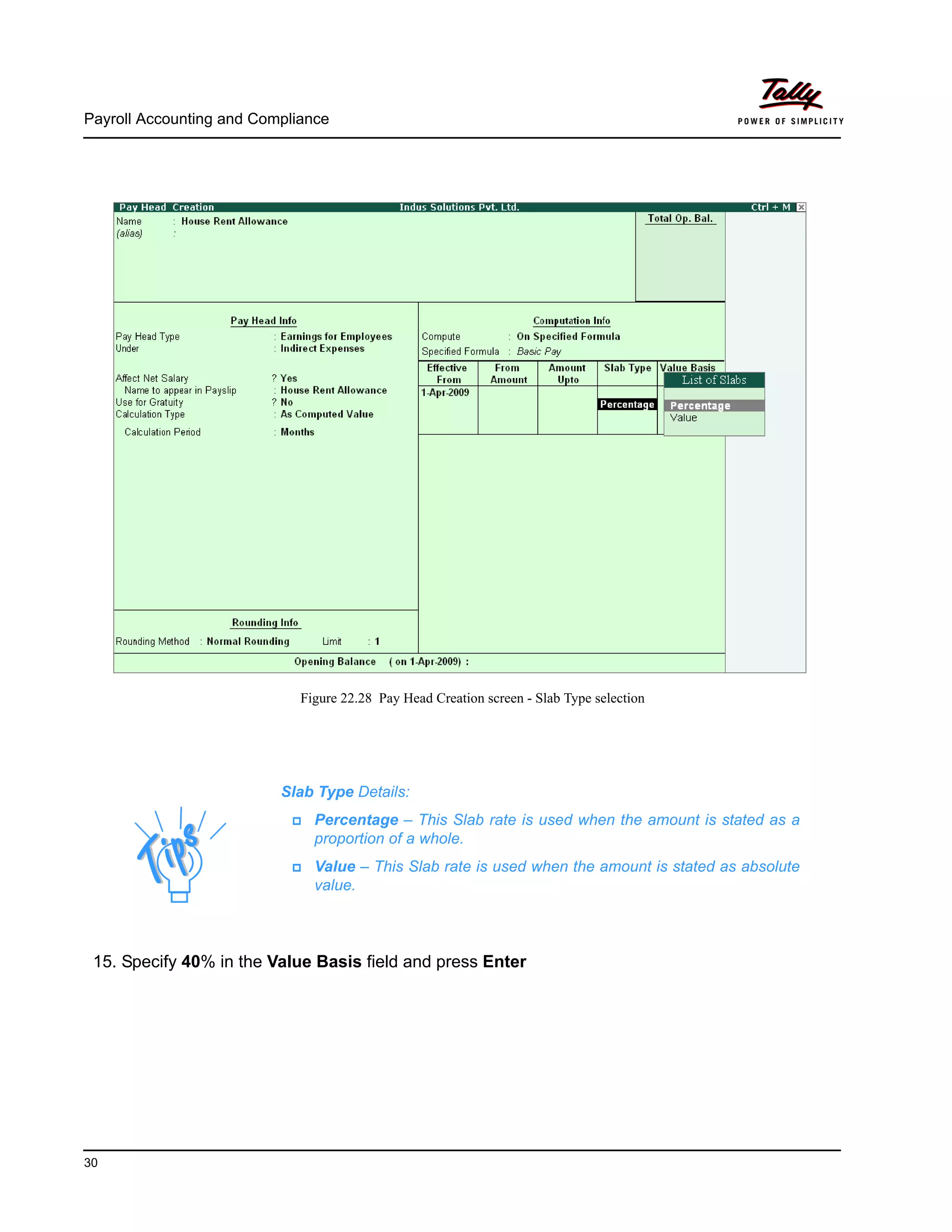
14. Select Percentage as the Slab Type from the List of Slabs
Payroll Accounting and Compliance
30
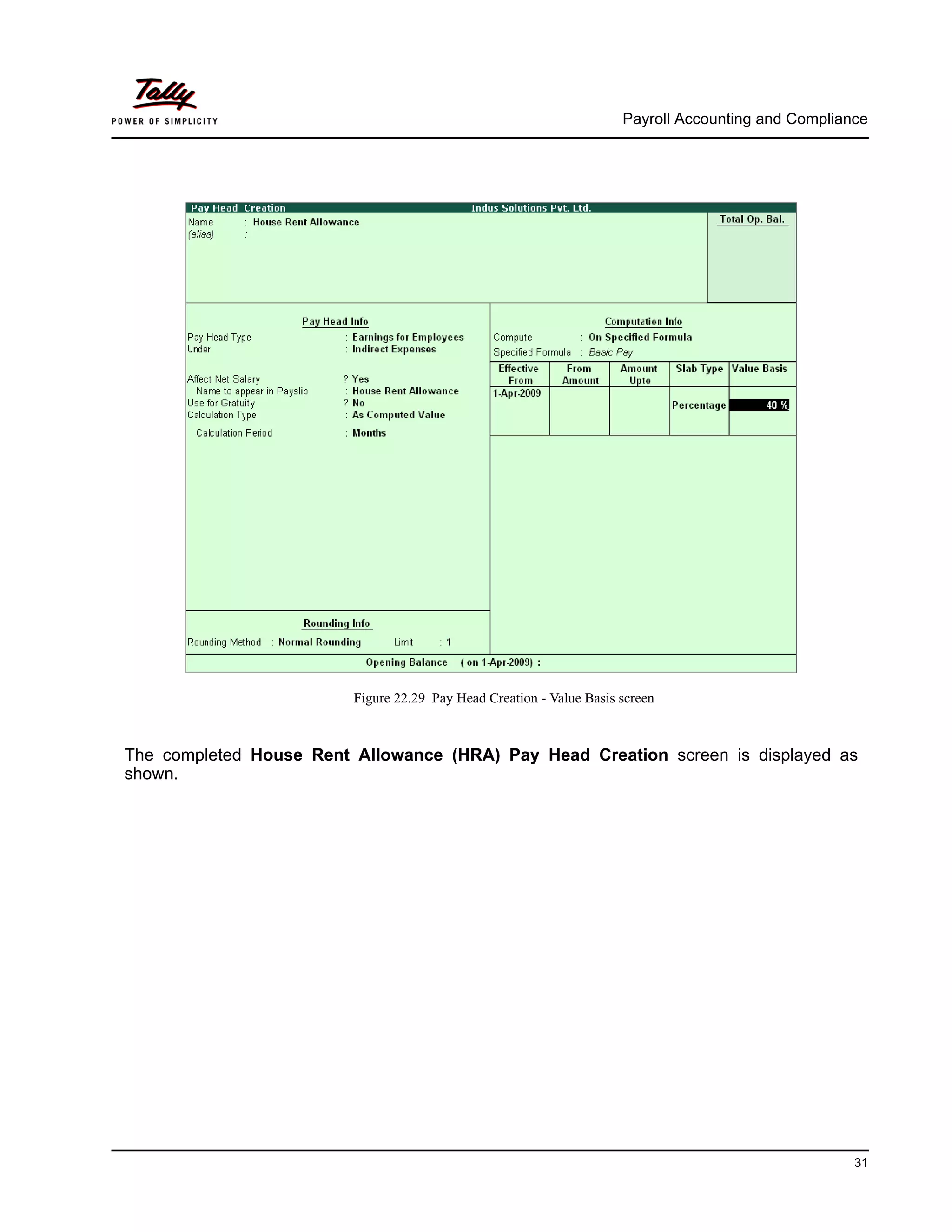
Figure 22.28 Pay Head Creation screen - Slab Type selection
15. Specify 40% in the Value Basis field and press Enter
Slab Type Details:
Percentage – This Slab rate is used when the amount is stated as a
proportion of a whole.
Value – This Slab rate is used when the amount is stated as absolute
value.
Payroll Accounting and Compliance
31
Figure 22.29 Pay Head Creation - Value Basis screen
The completed House Rent Allowance (HRA) Pay Head Creation screen is displayed as
shown.
Payroll Accounting and Compliance
32
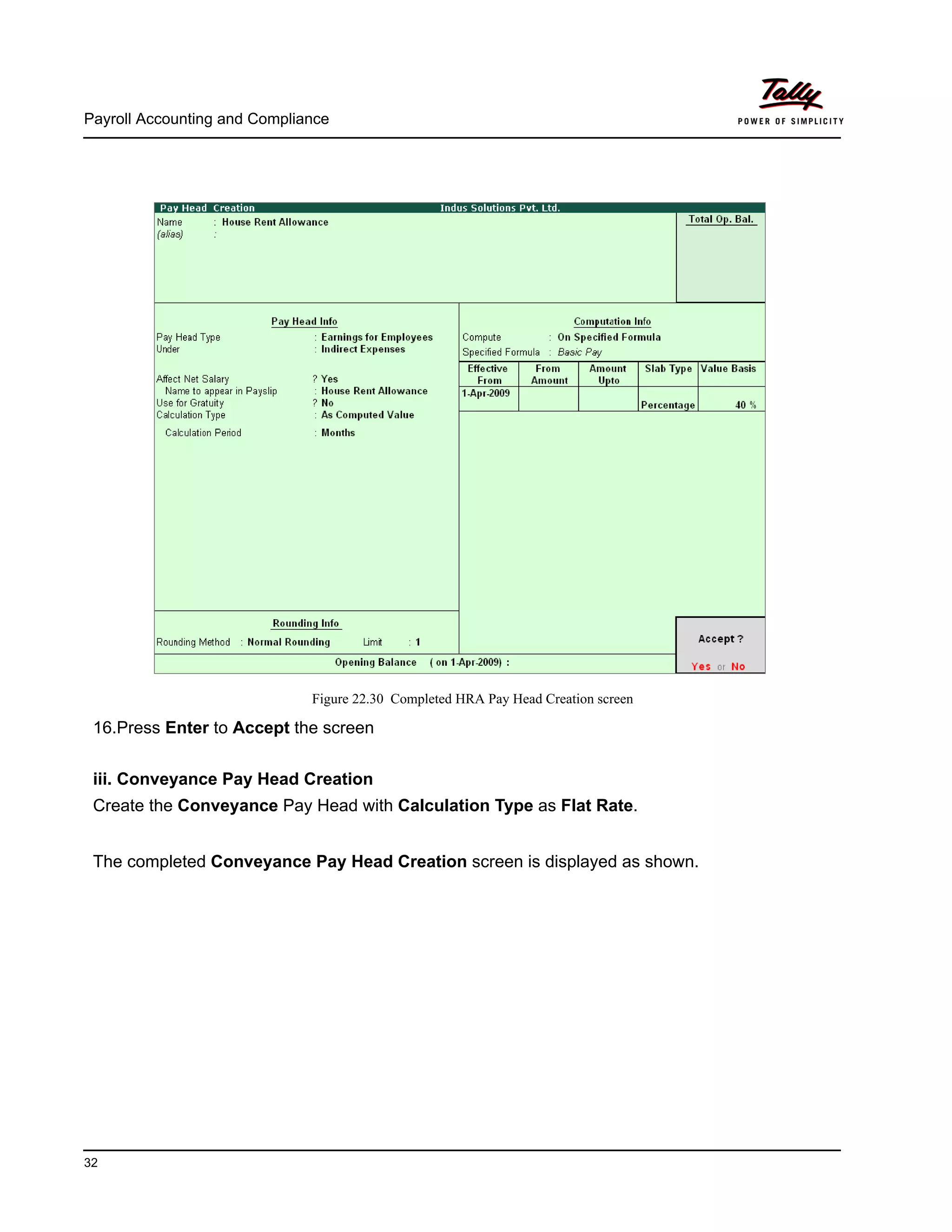
Figure 22.30 Completed HRA Pay Head Creation screen
16.Press Enter to Accept the screen
iii. Conveyance Pay Head Creation
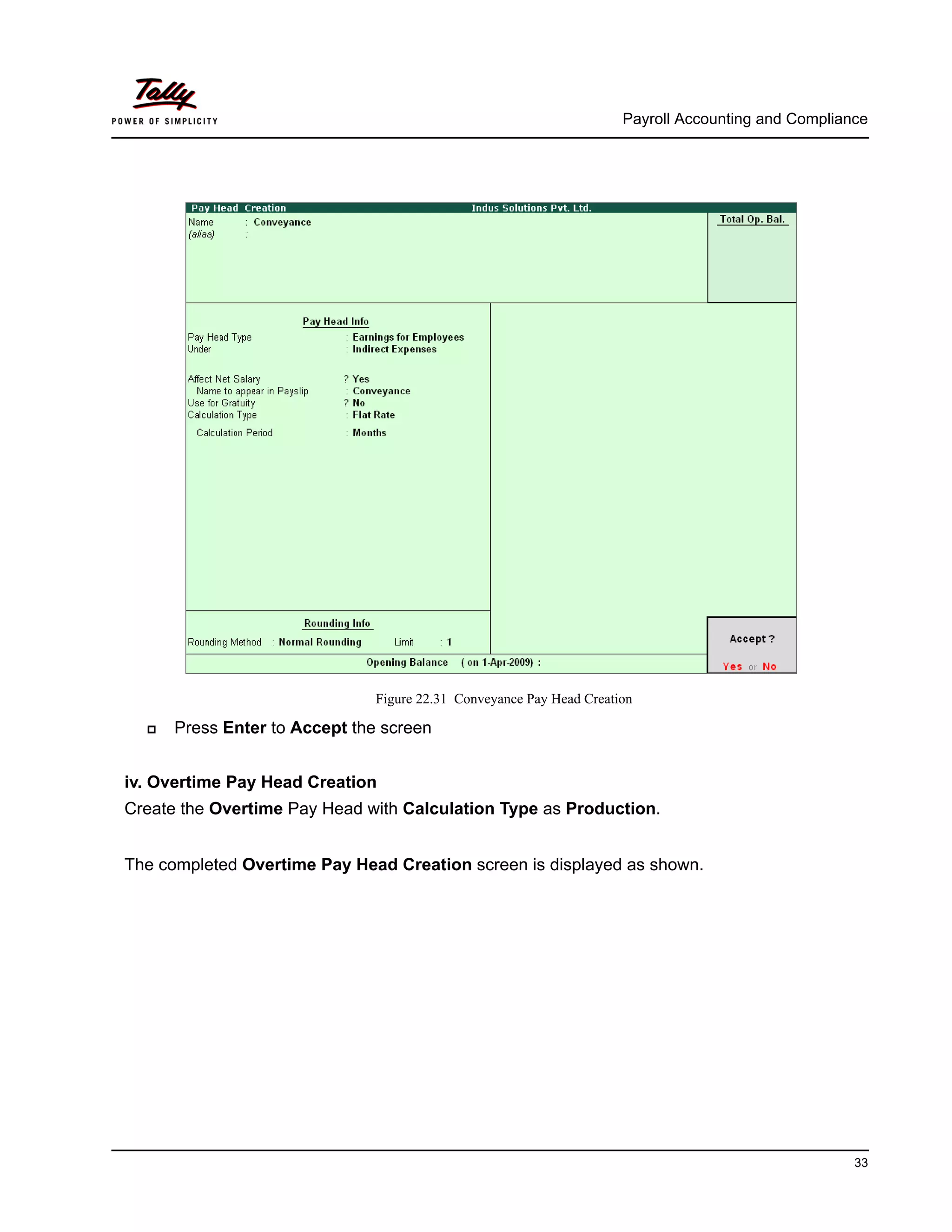
Create the Conveyance Pay Head with Calculation Type as Flat Rate.
The completed Conveyance Pay Head Creation screen is displayed as shown.
Payroll Accounting and Compliance
33
Figure 22.31 Conveyance Pay Head Creation
Press Enter to Accept the screen
iv. Overtime Pay Head Creation
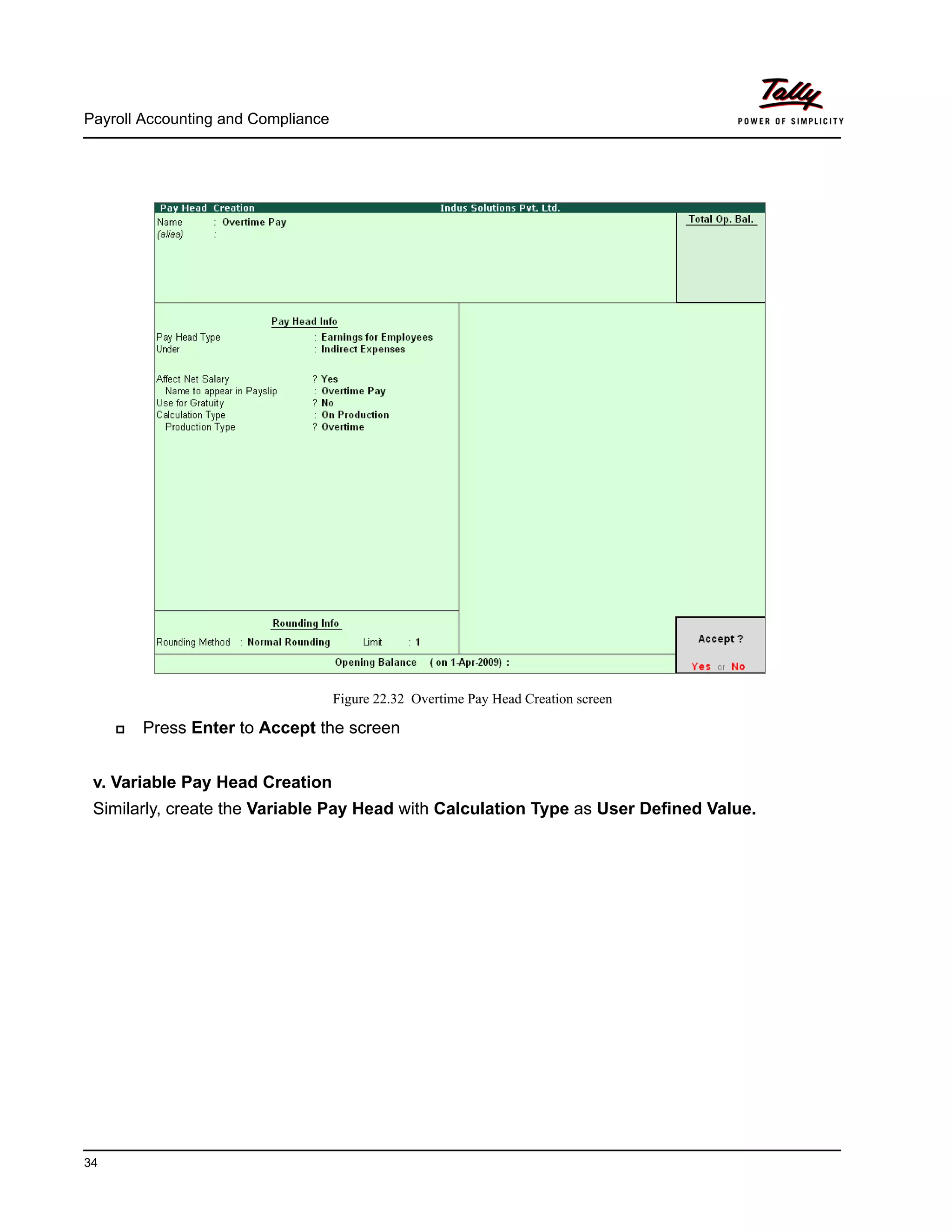
Create the Overtime Pay Head with Calculation Type as Production.
The completed Overtime Pay Head Creation screen is displayed as shown.
Payroll Accounting and Compliance
34
Figure 22.32 Overtime Pay Head Creation screen
Press Enter to Accept the screen
v. Variable Pay Head Creation
Similarly, create the Variable Pay Head with Calculation Type as User Defined Value.
Payroll Accounting and Compliance
35
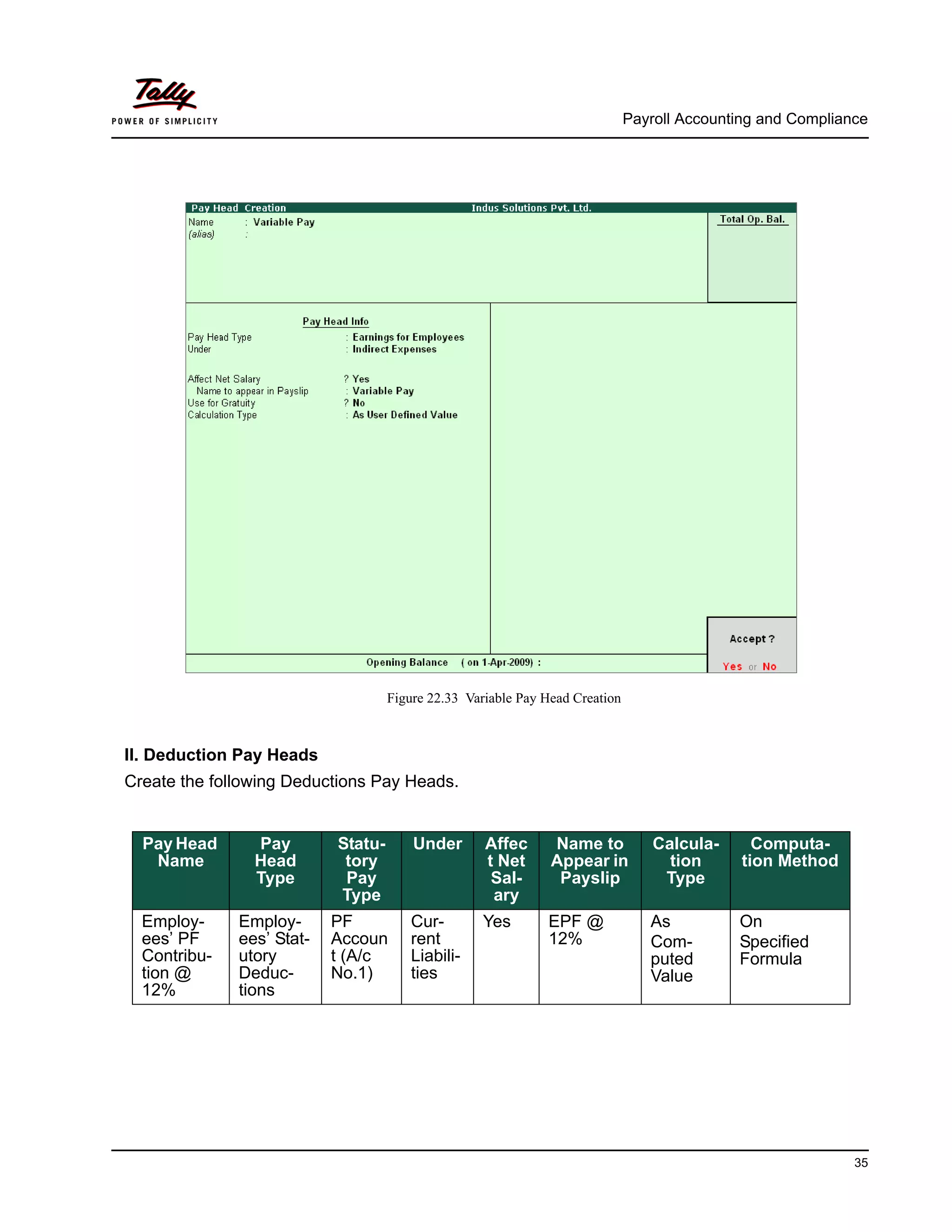
Figure 22.33 Variable Pay Head Creation
II. Deduction Pay Heads
Create the following Deductions Pay Heads.
Pay Head
Name
Pay
Head
Type
Statu-
tory
Pay
Type
Under Affec
t Net
Sal-
ary
Name to
Appear in
Payslip
Calcula-
tion
Type
Computa-
tion Method
Employ-
ees’ PF
Contribu-
tion @
12%
Employ-
ees’ Stat-
utory
Deduc-
tions
PF
Accoun
t (A/c
No.1)
Cur-
rent
Liabili-
ties
Yes EPF @
12%
As
Com-
puted
Value
On
Specified
Formula
Payroll Accounting and Compliance
36
i. Employee’s PF Contribution @ 12% Pay Head Creation
Go to Gateway of Tally > Payroll Info. > Pay Heads > Create
In the Pay Head Creation screen,
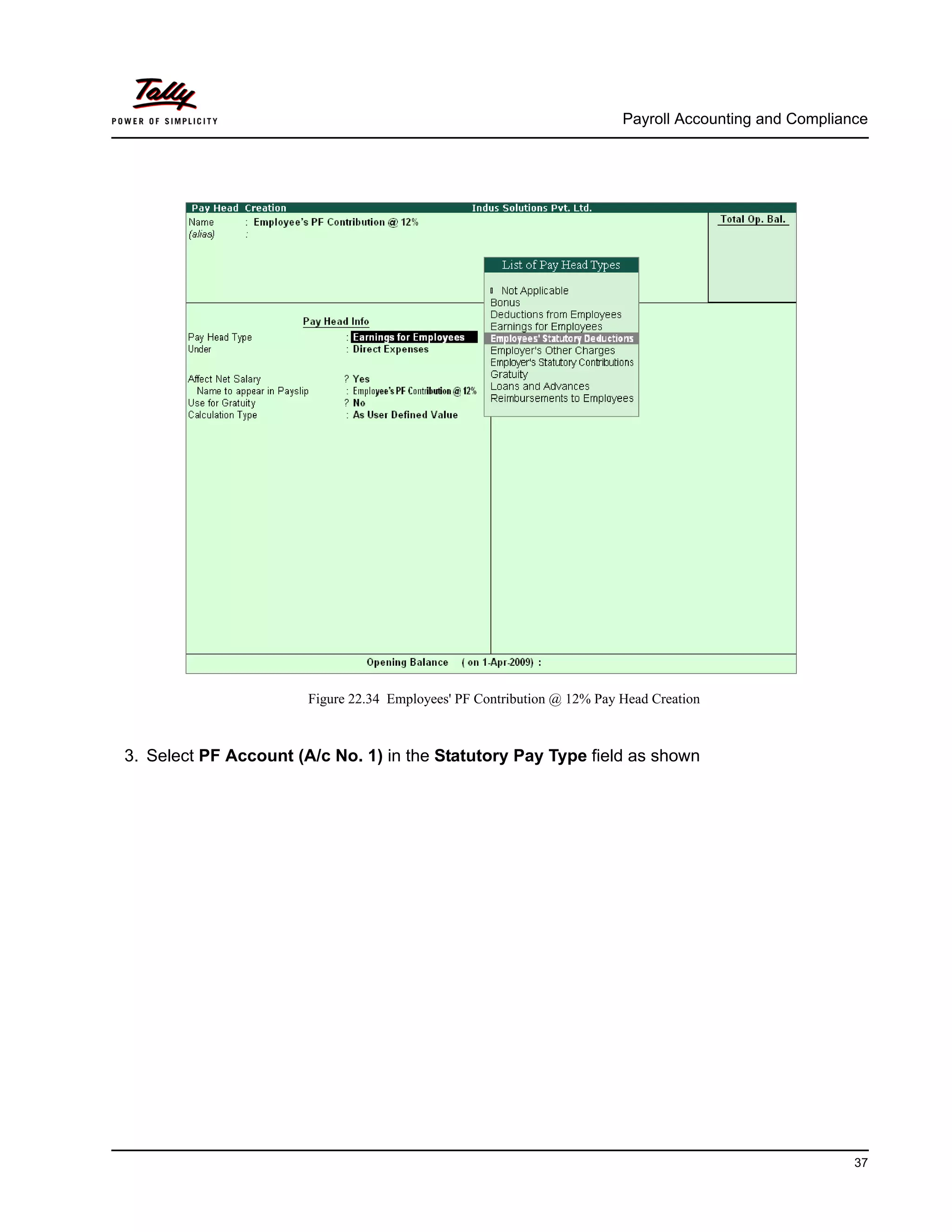
1. Type Employee’s PF Contribution @ 12% as the Name of the Pay Head
2. Select Employees’ Statutory Deductions in the field Pay Head Type and press Enter
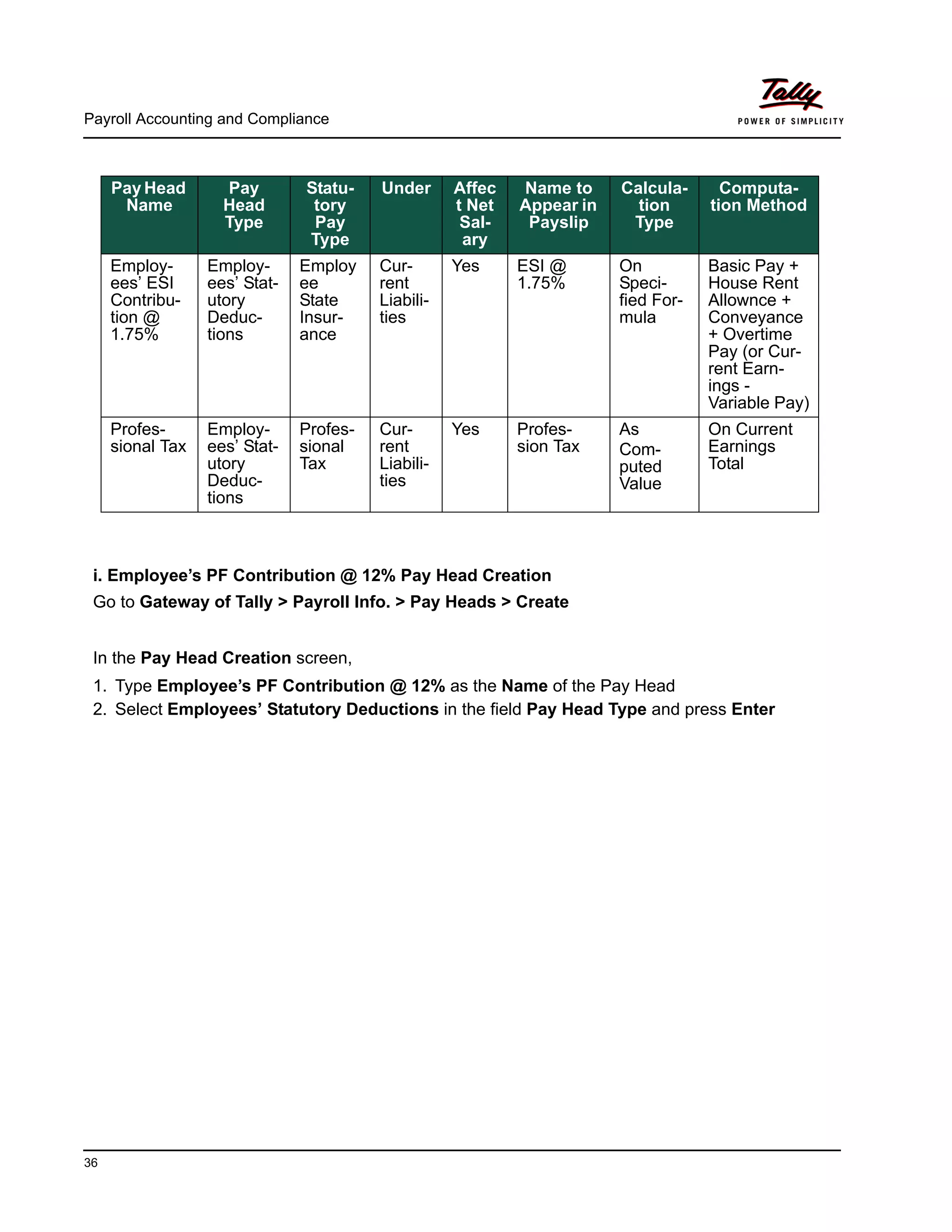
Pay Head
Name
Pay
Head
Type
Statu-
tory
Pay
Type
Under Affec
t Net
Sal-
ary
Name to
Appear in
Payslip
Calcula-
tion
Type
Computa-
tion Method
Employ-
ees’ ESI
Contribu-
tion @
1.75%
Employ-
ees’ Stat-
utory
Deduc-
tions
Employ
ee
State
Insur-
ance
Cur-
rent
Liabili-
ties
Yes ESI @
1.75%
On
Speci-
fied For-
mula
Basic Pay +
House Rent
Allownce +
Conveyance
+ Overtime
Pay (or Cur-
rent Earn-
ings -
Variable Pay)
Profes-
sional Tax
Employ-
ees’ Stat-
utory
Deduc-
tions
Profes-
sional
Tax
Cur-
rent
Liabili-
ties
Yes Profes-
sion Tax
As
Com-
puted
Value
On Current
Earnings
Total
Payroll Accounting and Compliance
37
Figure 22.34 Employees' PF Contribution @ 12% Pay Head Creation
3. Select PF Account (A/c No. 1) in the Statutory Pay Type field as shown
Payroll Accounting and Compliance
38
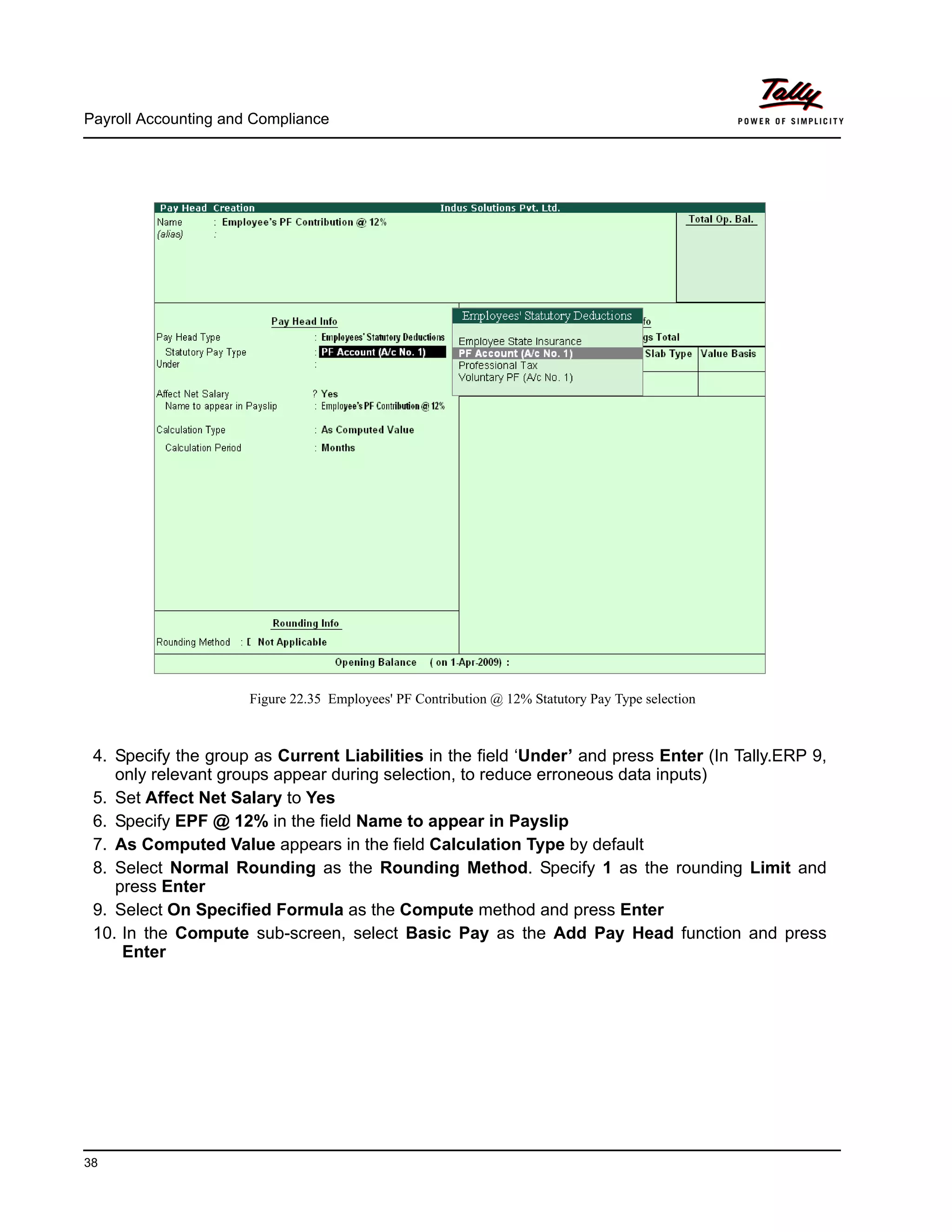
Figure 22.35 Employees' PF Contribution @ 12% Statutory Pay Type selection
4. Specify the group as Current Liabilities in the field ‘Under’ and press Enter (In Tally.ERP 9,
only relevant groups appear during selection, to reduce erroneous data inputs)
5. Set Affect Net Salary to Yes
6. Specify EPF @ 12% in the field Name to appear in Payslip
7. As Computed Value appears in the field Calculation Type by default
8. Select Normal Rounding as the Rounding Method. Specify 1 as the rounding Limit and
press Enter
9. Select On Specified Formula as the Compute method and press Enter
10. In the Compute sub-screen, select Basic Pay as the Add Pay Head function and press
Enter
Payroll Accounting and Compliance
39
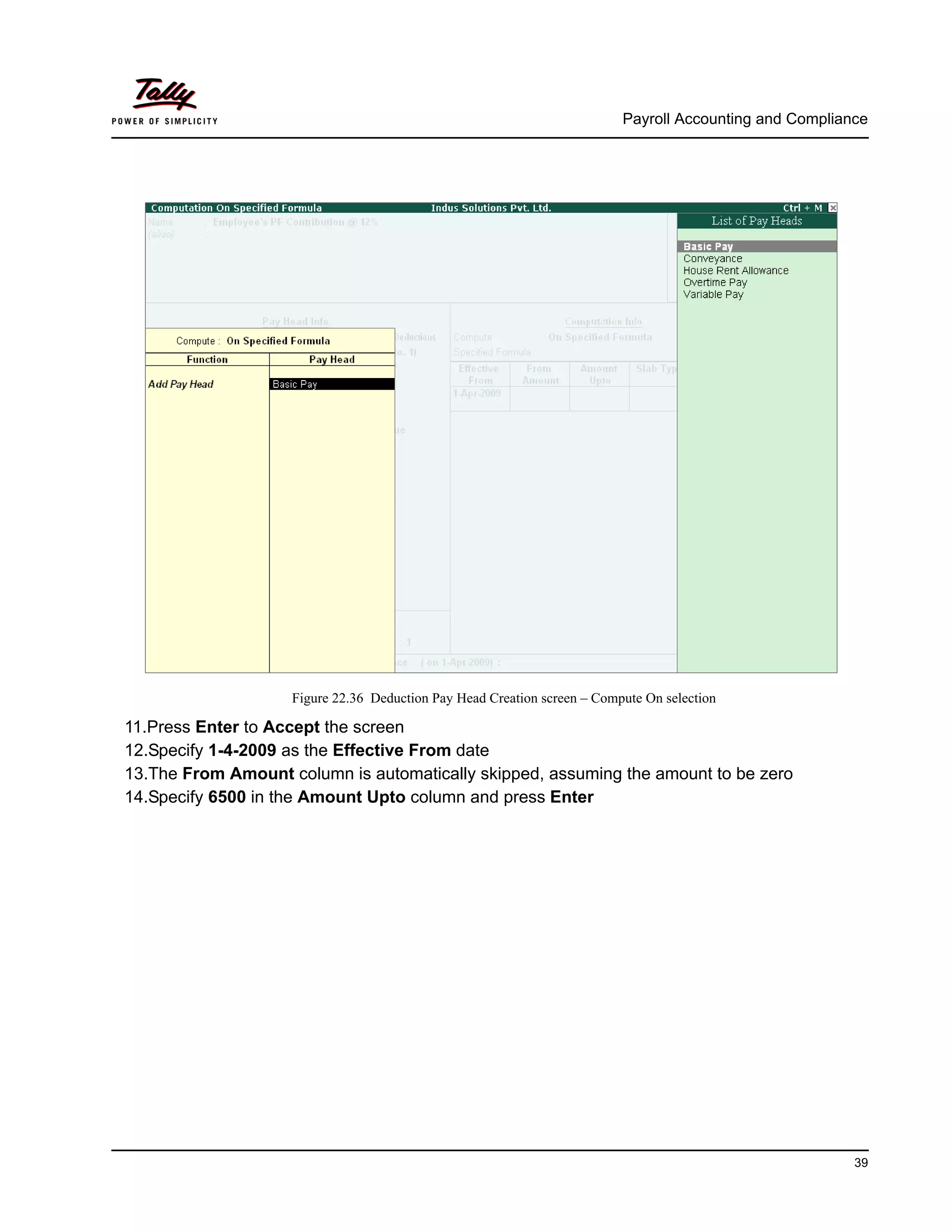
Figure 22.36 Deduction Pay Head Creation screen – Compute On selection
11.Press Enter to Accept the screen
12.Specify 1-4-2009 as the Effective From date
13.The From Amount column is automatically skipped, assuming the amount to be zero
14.Specify 6500 in the Amount Upto column and press Enter
Payroll Accounting and Compliance
40
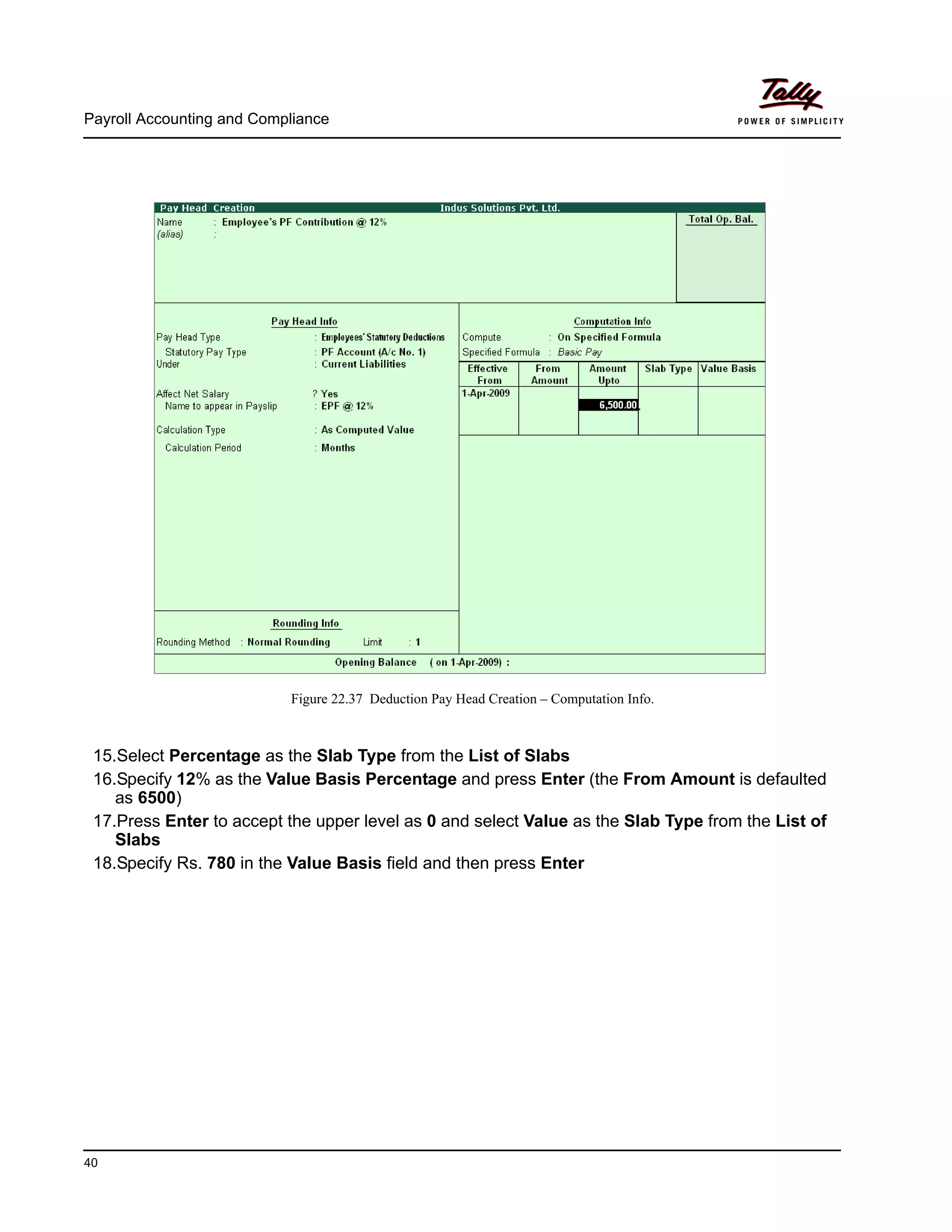
Figure 22.37 Deduction Pay Head Creation – Computation Info.
15.Select Percentage as the Slab Type from the List of Slabs
16.Specify 12% as the Value Basis Percentage and press Enter (the From Amount is defaulted
as 6500)
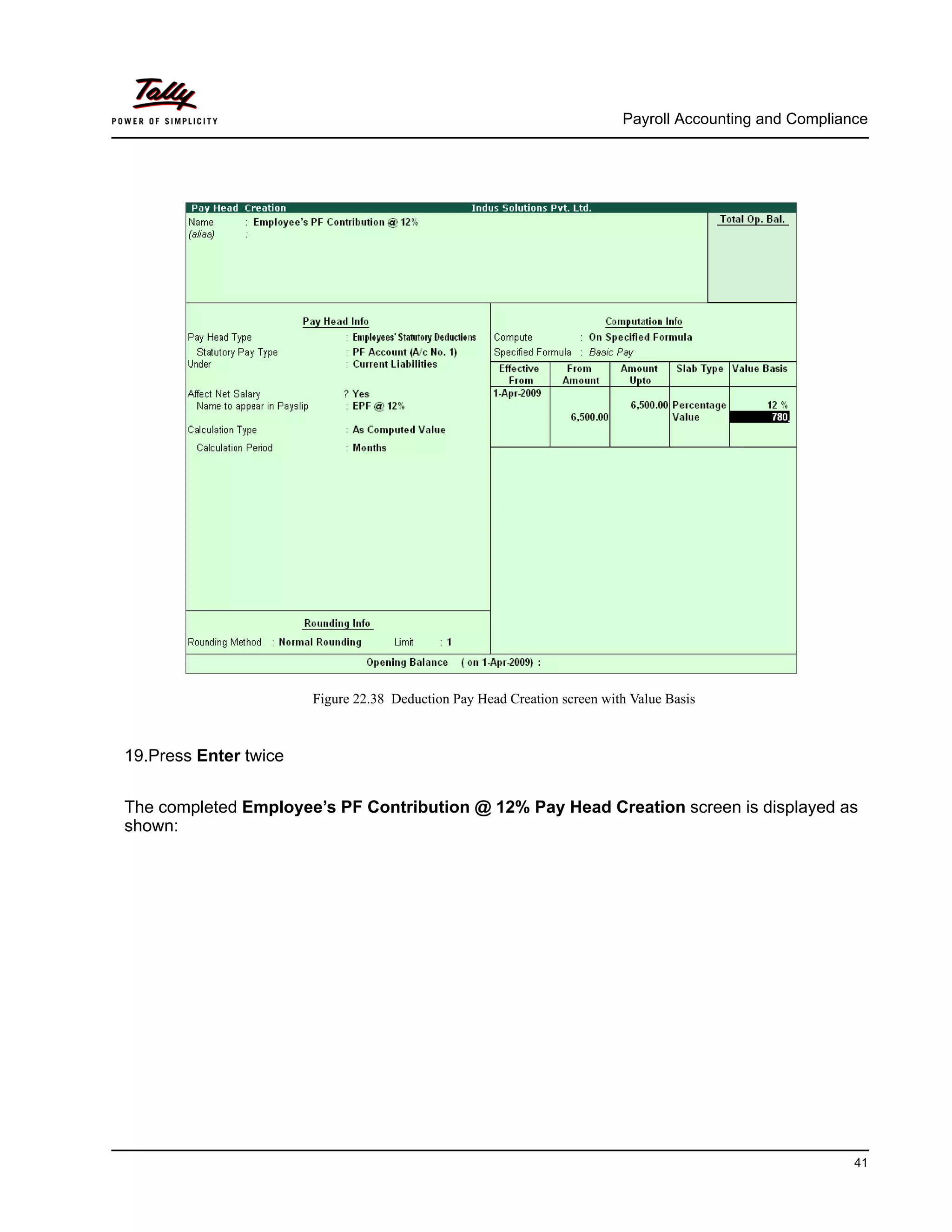
17.Press Enter to accept the upper level as 0 and select Value as the Slab Type from the List of
Slabs
18.Specify Rs. 780 in the Value Basis field and then press Enter
Payroll Accounting and Compliance
41
Figure 22.38 Deduction Pay Head Creation screen with Value Basis
19.Press Enter twice
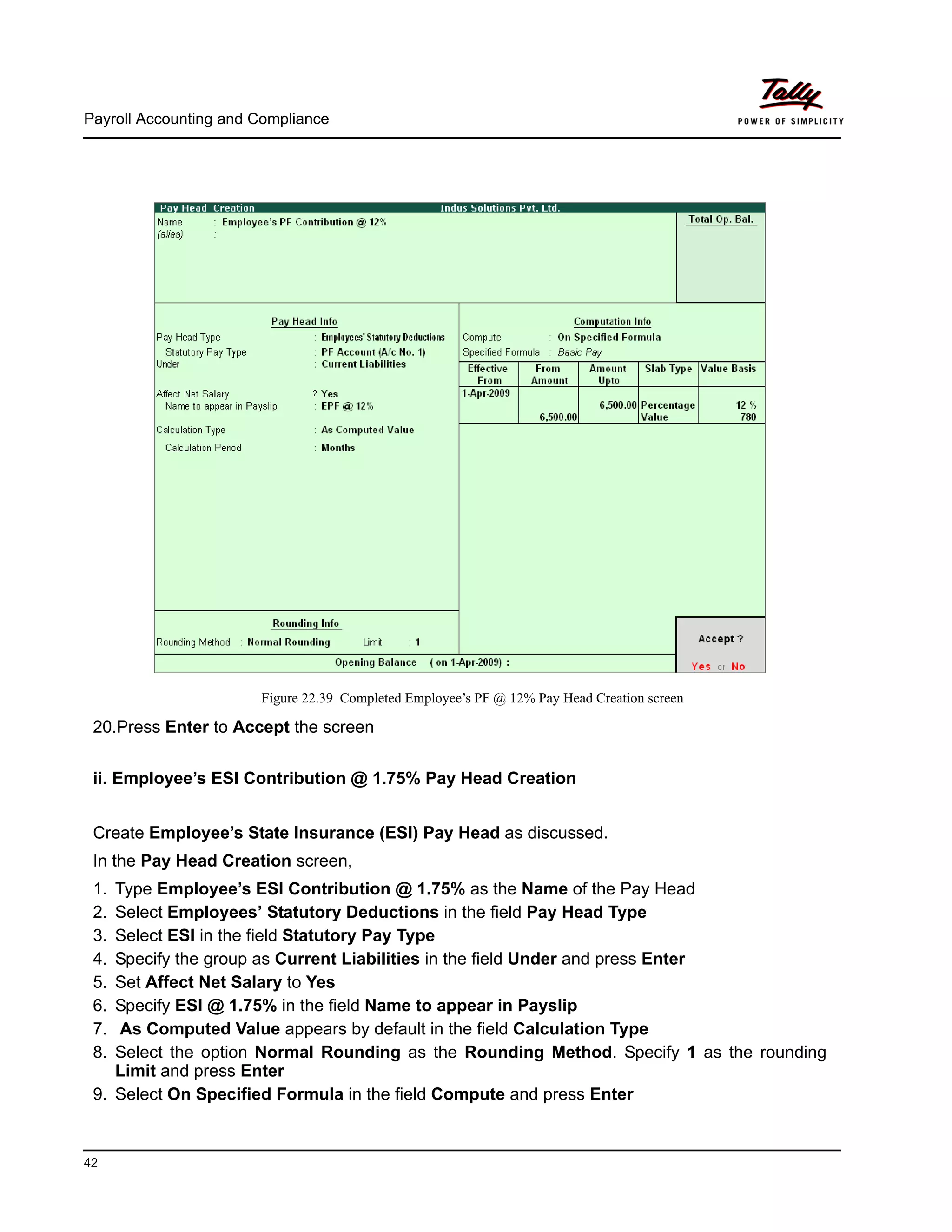
The completed Employee’s PF Contribution @ 12% Pay Head Creation screen is displayed as
shown:
Payroll Accounting and Compliance
42
Figure 22.39 Completed Employee’s PF @ 12% Pay Head Creation screen
20.Press Enter to Accept the screen
ii. Employee’s ESI Contribution @ 1.75% Pay Head Creation
Create Employee’s State Insurance (ESI) Pay Head as discussed.
In the Pay Head Creation screen,
1. Type Employee’s ESI Contribution @ 1.75% as the Name of the Pay Head
2. Select Employees’ Statutory Deductions in the field Pay Head Type
3. Select ESI in the field Statutory Pay Type
4. Specify the group as Current Liabilities in the field Under and press Enter
5. Set Affect Net Salary to Yes
6. Specify ESI @ 1.75% in the field Name to appear in Payslip
7. As Computed Value appears by default in the field Calculation Type
8. Select the option Normal Rounding as the Rounding Method. Specify 1 as the rounding
Limit and press Enter
9. Select On Specified Formula in the field Compute and press Enter
Payroll Accounting and Compliance
43
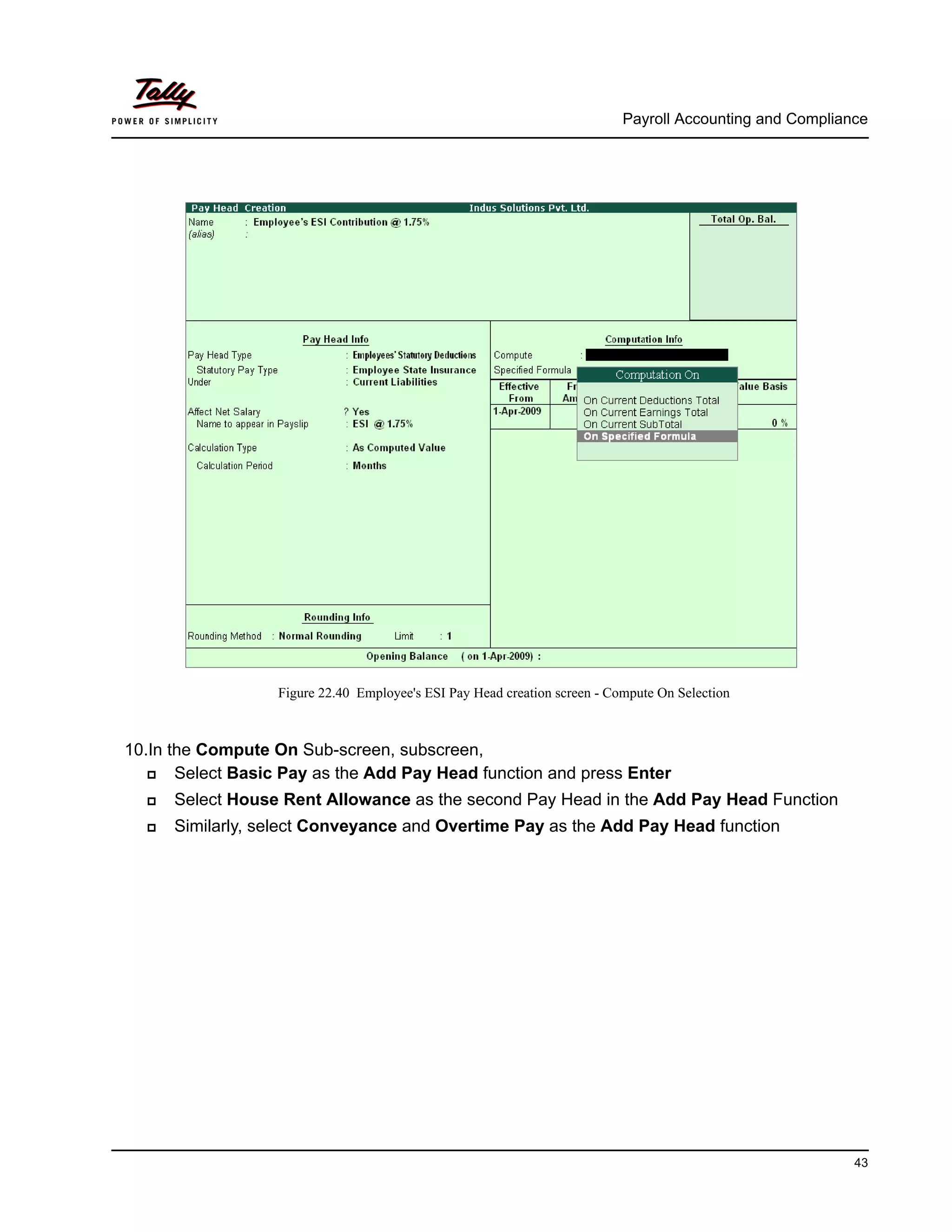
Figure 22.40 Employee's ESI Pay Head creation screen - Compute On Selection
10.In the Compute On Sub-screen, subscreen,
Select Basic Pay as the Add Pay Head function and press Enter
Select House Rent Allowance as the second Pay Head in the Add Pay Head Function
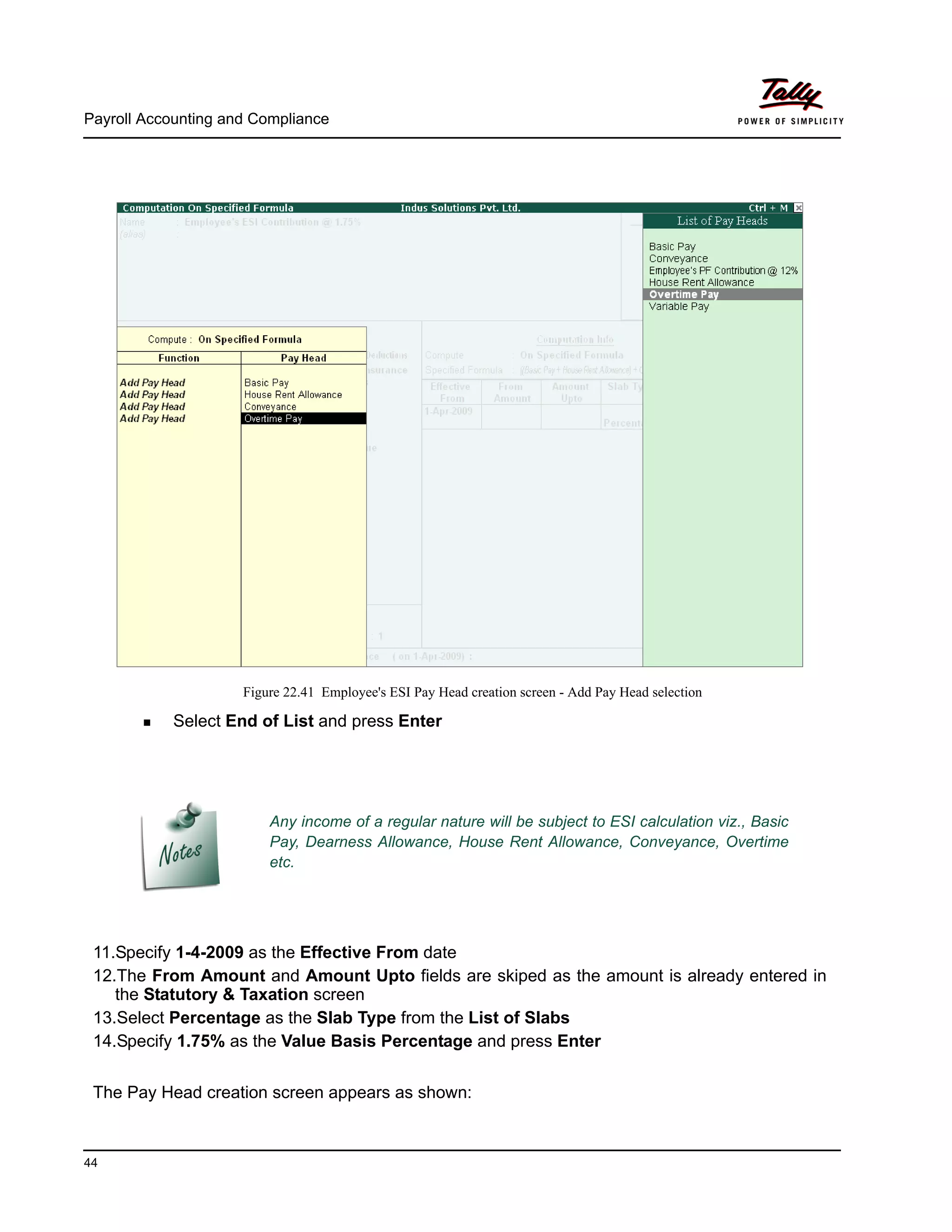
Similarly, select Conveyance and Overtime Pay as the Add Pay Head function
Payroll Accounting and Compliance
44
Figure 22.41 Employee's ESI Pay Head creation screen - Add Pay Head selection
Select End of List and press Enter
11.Specify 1-4-2009 as the Effective From date
12.The From Amount and Amount Upto fields are skiped as the amount is already entered in
the Statutory & Taxation screen
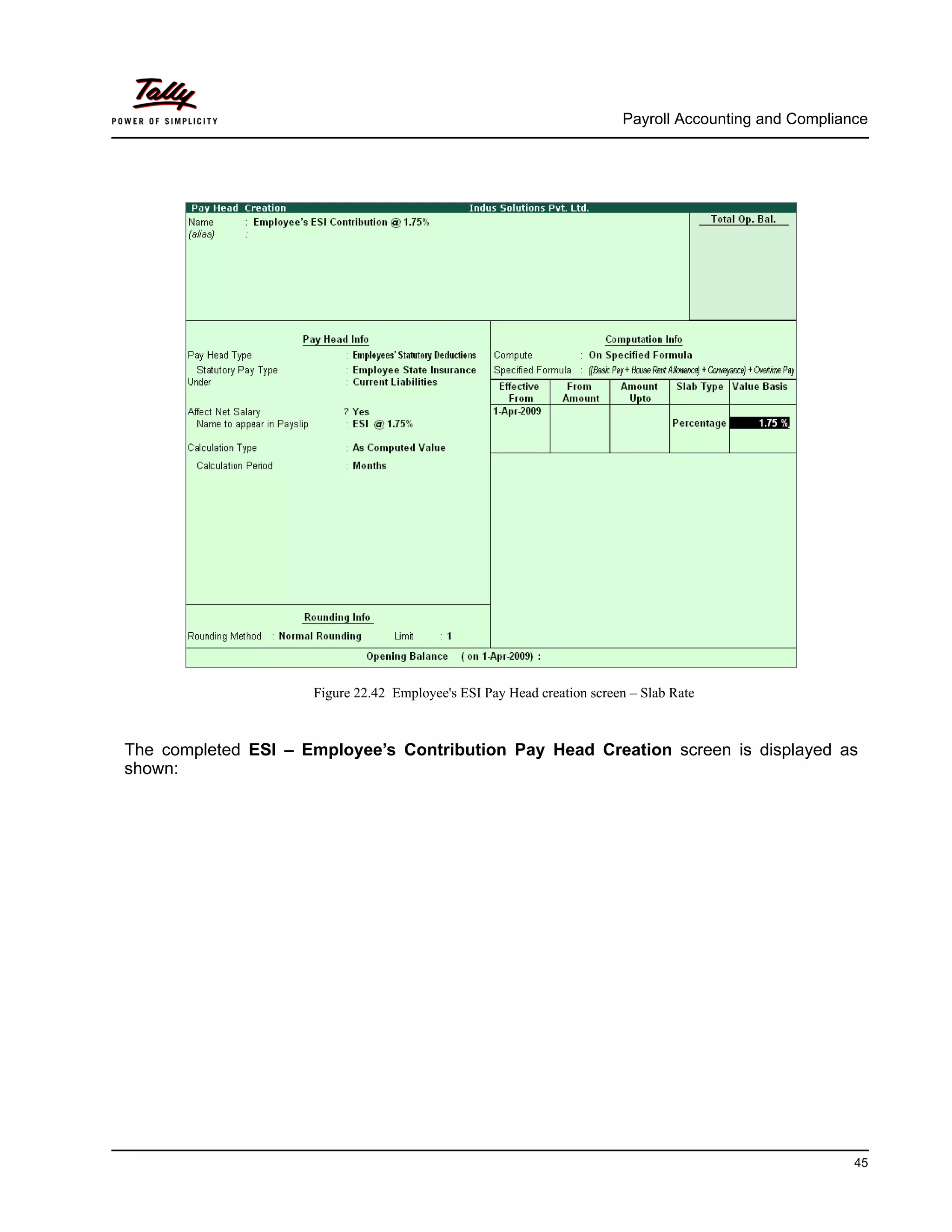
13.Select Percentage as the Slab Type from the List of Slabs
14.Specify 1.75% as the Value Basis Percentage and press Enter
The Pay Head creation screen appears as shown:
Any income of a regular nature will be subject to ESI calculation viz., Basic
Pay, Dearness Allowance, House Rent Allowance, Conveyance, Overtime
etc.
Payroll Accounting and Compliance
45
Figure 22.42 Employee's ESI Pay Head creation screen – Slab Rate
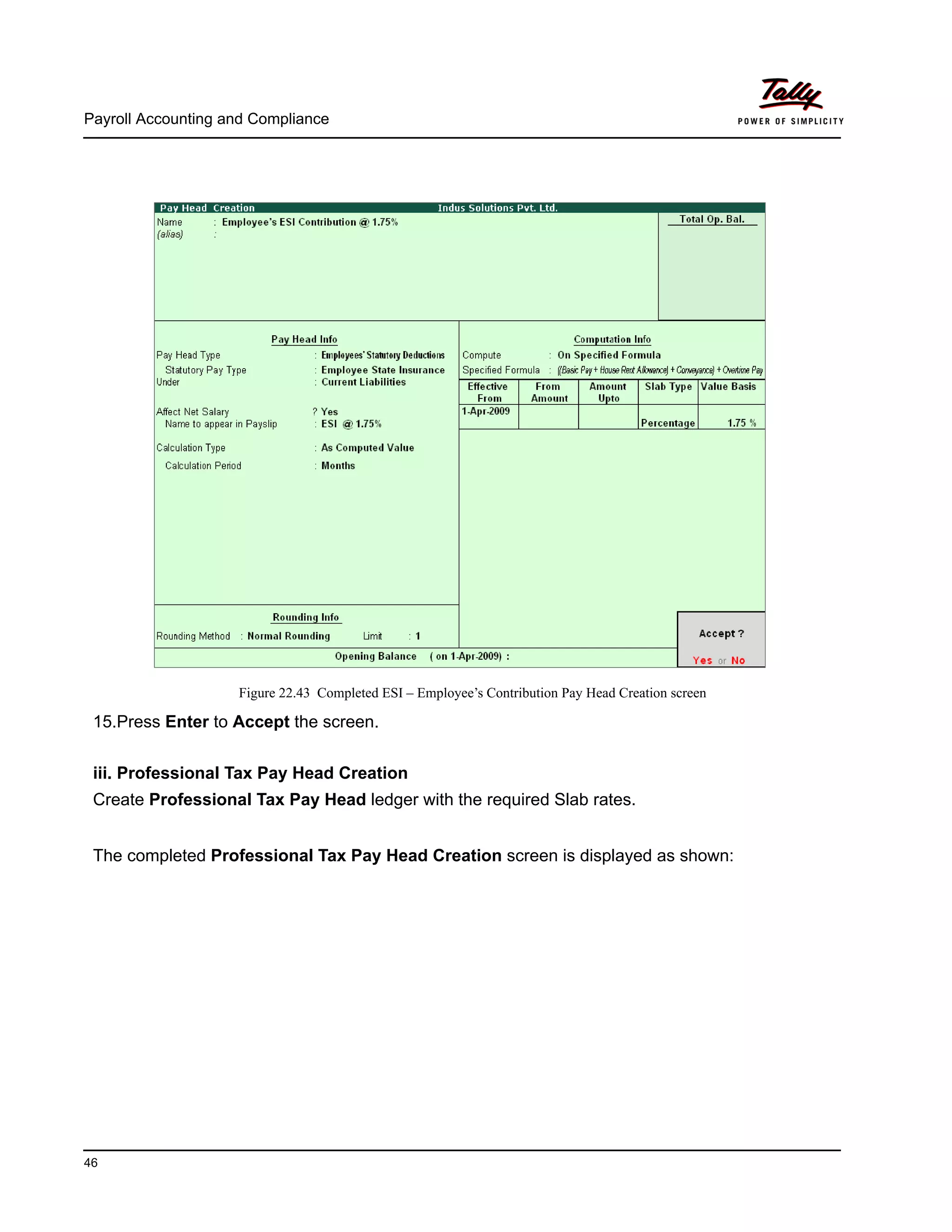
The completed ESI – Employee’s Contribution Pay Head Creation screen is displayed as
shown:
Payroll Accounting and Compliance
46
Figure 22.43 Completed ESI – Employee’s Contribution Pay Head Creation screen
15.Press Enter to Accept the screen.
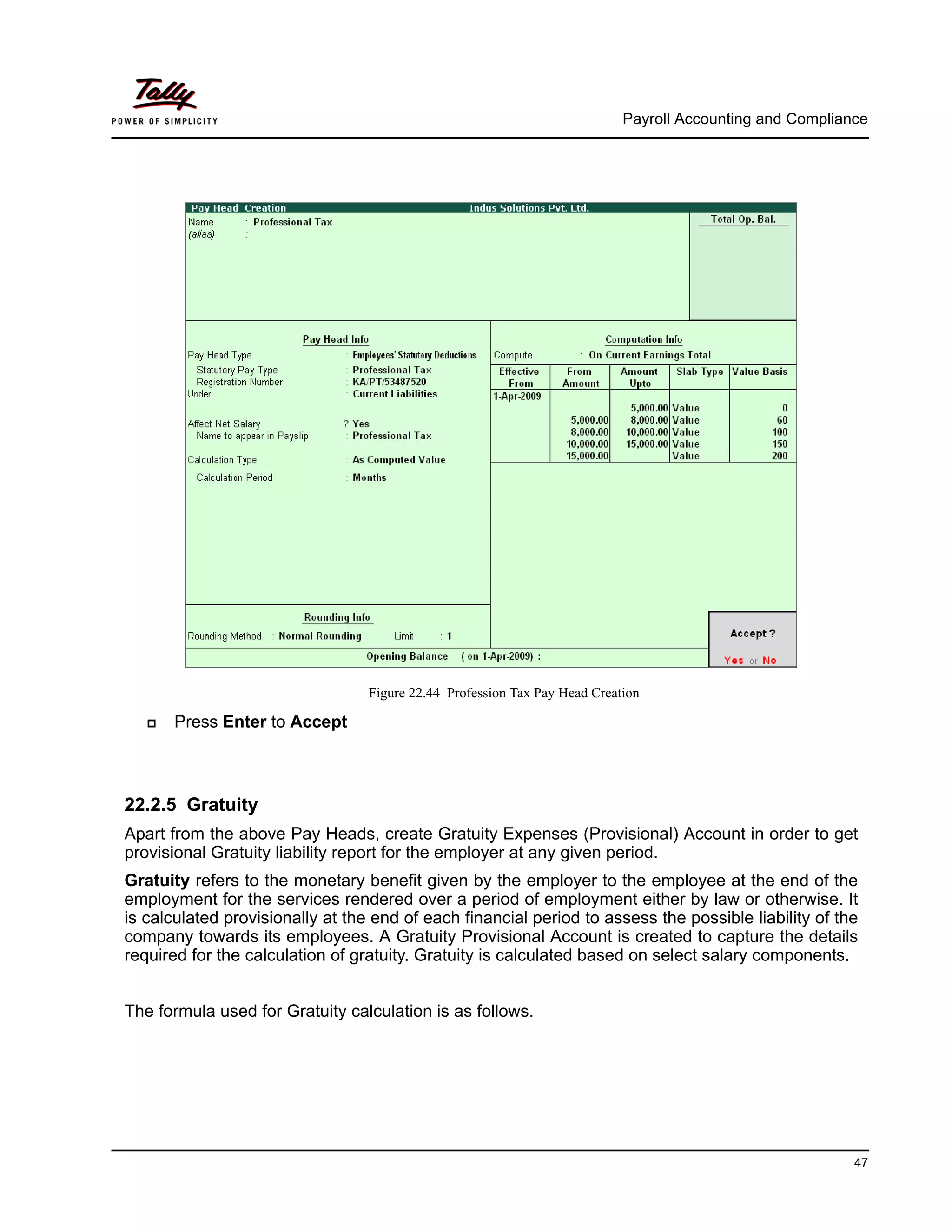
iii. Professional Tax Pay Head Creation
Create Professional Tax Pay Head ledger with the required Slab rates.
The completed Professional Tax Pay Head Creation screen is displayed as shown:
Payroll Accounting and Compliance
47
Figure 22.44 Profession Tax Pay Head Creation
Press Enter to Accept
22.2.5 Gratuity
Apart from the above Pay Heads, create Gratuity Expenses (Provisional) Account in order to get
provisional Gratuity liability report for the employer at any given period.
Gratuity refers to the monetary benefit given by the employer to the employee at the end of the
employment for the services rendered over a period of employment either by law or otherwise. It
is calculated provisionally at the end of each financial period to assess the possible liability of the
company towards its employees. A Gratuity Provisional Account is created to capture the details
required for the calculation of gratuity. Gratuity is calculated based on select salary components.
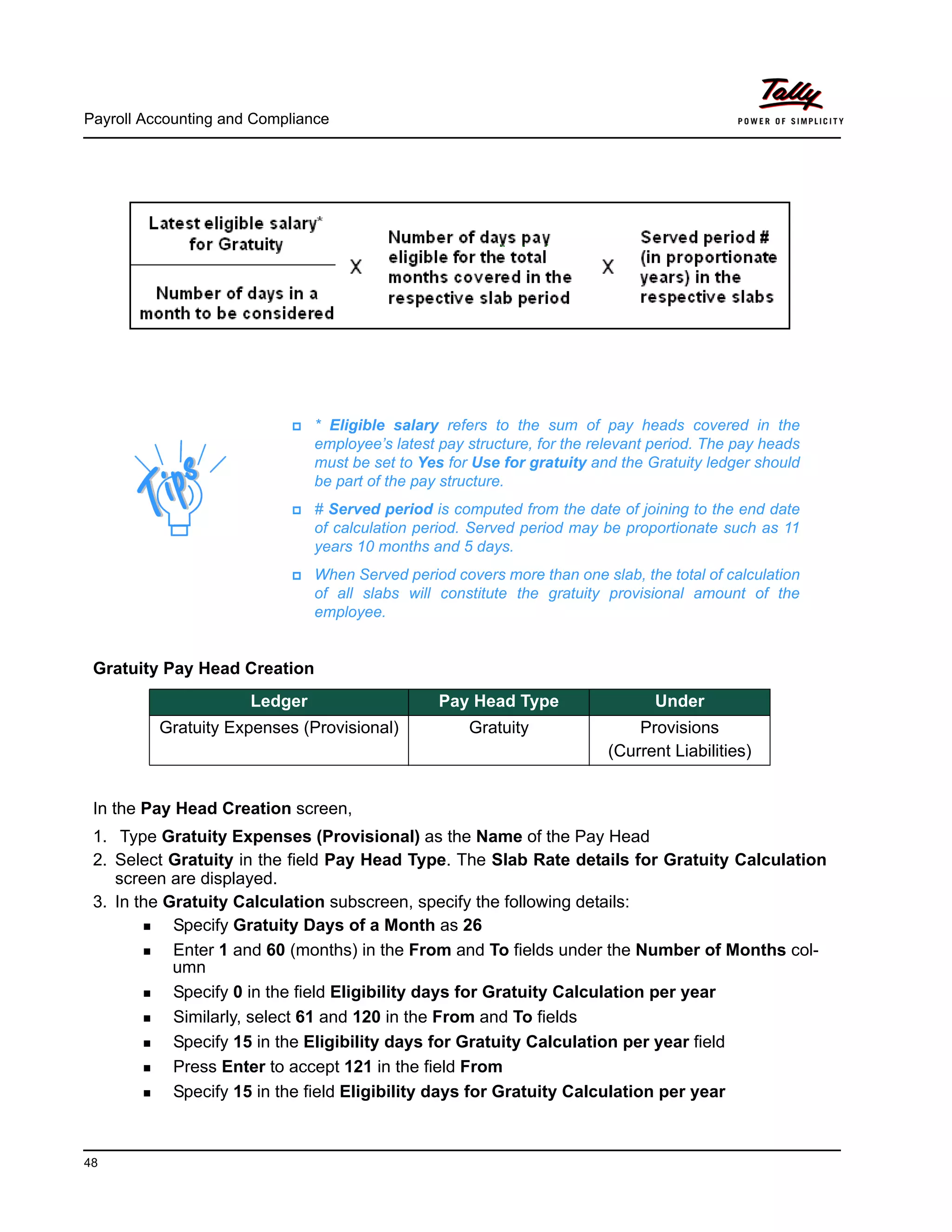
The formula used for Gratuity calculation is as follows.
Payroll Accounting and Compliance
48
Gratuity Pay Head Creation
In the Pay Head Creation screen,
1. Type Gratuity Expenses (Provisional) as the Name of the Pay Head
2. Select Gratuity in the field Pay Head Type. The Slab Rate details for Gratuity Calculation
screen are displayed.
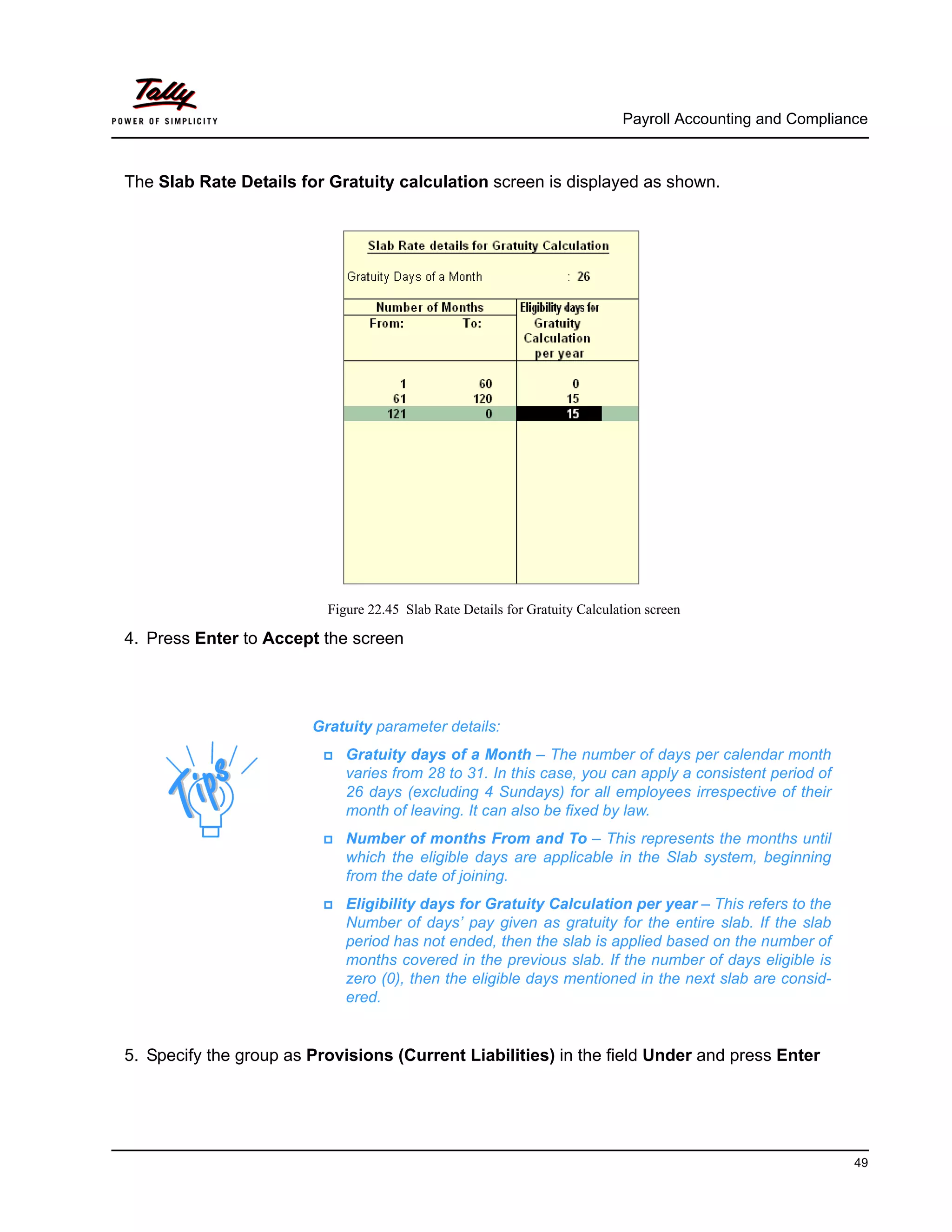
3. In the Gratuity Calculation subscreen, specify the following details:
Specify Gratuity Days of a Month as 26
Enter 1 and 60 (months) in the From and To fields under the Number of Months col-
umn
Specify 0 in the field Eligibility days for Gratuity Calculation per year
Similarly, select 61 and 120 in the From and To fields
Specify 15 in the Eligibility days for Gratuity Calculation per year field
Press Enter to accept 121 in the field From
Specify 15 in the field Eligibility days for Gratuity Calculation per year
* Eligible salary refers to the sum of pay heads covered in the
employee’s latest pay structure, for the relevant period. The pay heads
must be set to Yes for Use for gratuity and the Gratuity ledger should
be part of the pay structure.
# Served period is computed from the date of joining to the end date
of calculation period. Served period may be proportionate such as 11
years 10 months and 5 days.
When Served period covers more than one slab, the total of calculation
of all slabs will constitute the gratuity provisional amount of the
employee.
Ledger Pay Head Type Under
Gratuity Expenses (Provisional) Gratuity Provisions
(Current Liabilities)
Payroll Accounting and Compliance
49
The Slab Rate Details for Gratuity calculation screen is displayed as shown.
Figure 22.45 Slab Rate Details for Gratuity Calculation screen
4. Press Enter to Accept the screen
5. Specify the group as Provisions (Current Liabilities) in the field Under and press Enter
Gratuity parameter details:
Gratuity days of a Month – The number of days per calendar month
varies from 28 to 31. In this case, you can apply a consistent period of
26 days (excluding 4 Sundays) for all employees irrespective of their
month of leaving. It can also be fixed by law.
Number of months From and To – This represents the months until
which the eligible days are applicable in the Slab system, beginning
from the date of joining.
Eligibility days for Gratuity Calculation per year – This refers to the
Number of days’ pay given as gratuity for the entire slab. If the slab
period has not ended, then the slab is applied based on the number of
months covered in the previous slab. If the number of days eligible is
zero (0), then the eligible days mentioned in the next slab are consid-
ered.
Payroll Accounting and Compliance
50
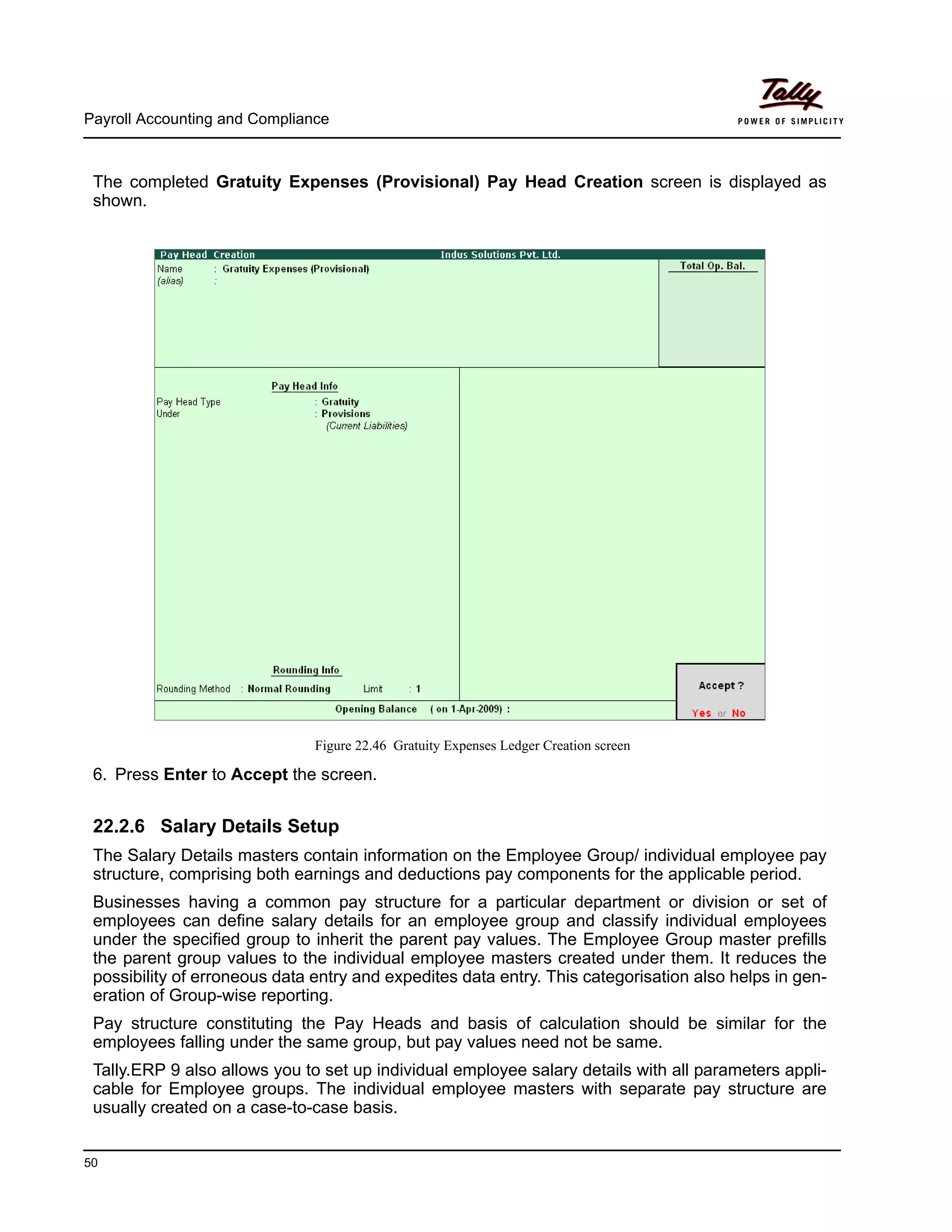
The completed Gratuity Expenses (Provisional) Pay Head Creation screen is displayed as
shown.
Figure 22.46 Gratuity Expenses Ledger Creation screen
6. Press Enter to Accept the screen.
22.2.6 Salary Details Setup
The Salary Details masters contain information on the Employee Group/ individual employee pay
structure, comprising both earnings and deductions pay components for the applicable period.
Businesses having a common pay structure for a particular department or division or set of
employees can define salary details for an employee group and classify individual employees
under the specified group to inherit the parent pay values. The Employee Group master prefills
the parent group values to the individual employee masters created under them. It reduces the
possibility of erroneous data entry and expedites data entry. This categorisation also helps in gen-
eration of Group-wise reporting.
Pay structure constituting the Pay Heads and basis of calculation should be similar for the
employees falling under the same group, but pay values need not be same.
Tally.ERP 9 also allows you to set up individual employee salary details with all parameters appli-
cable for Employee groups. The individual employee masters with separate pay structure are
usually created on a case-to-case basis.
Payroll Accounting and Compliance
51
To define Salary Details for employees,
Go to Gateway of Tally > Payroll Info. > Salary Details > Create
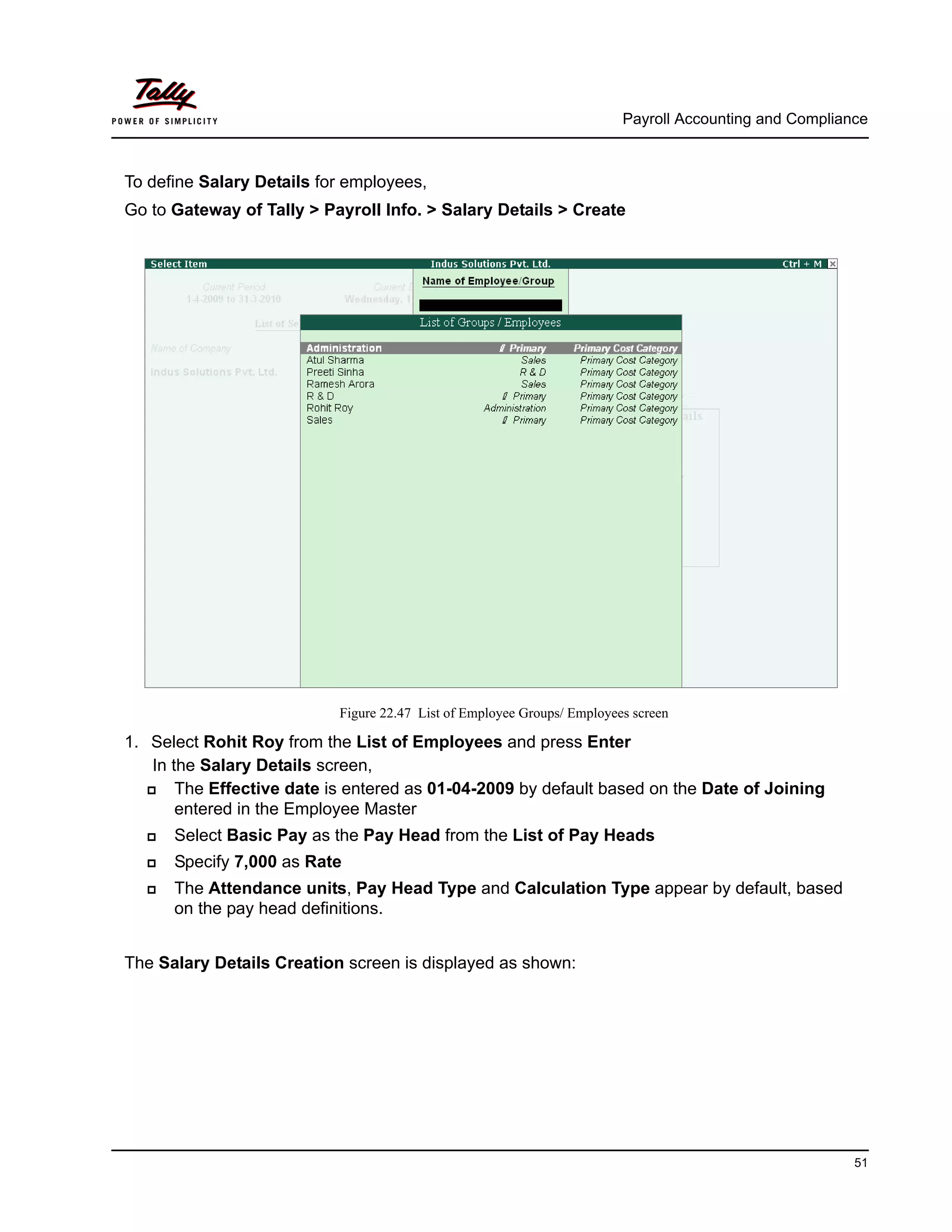
Figure 22.47 List of Employee Groups/ Employees screen
1. Select Rohit Roy from the List of Employees and press Enter
In the Salary Details screen,
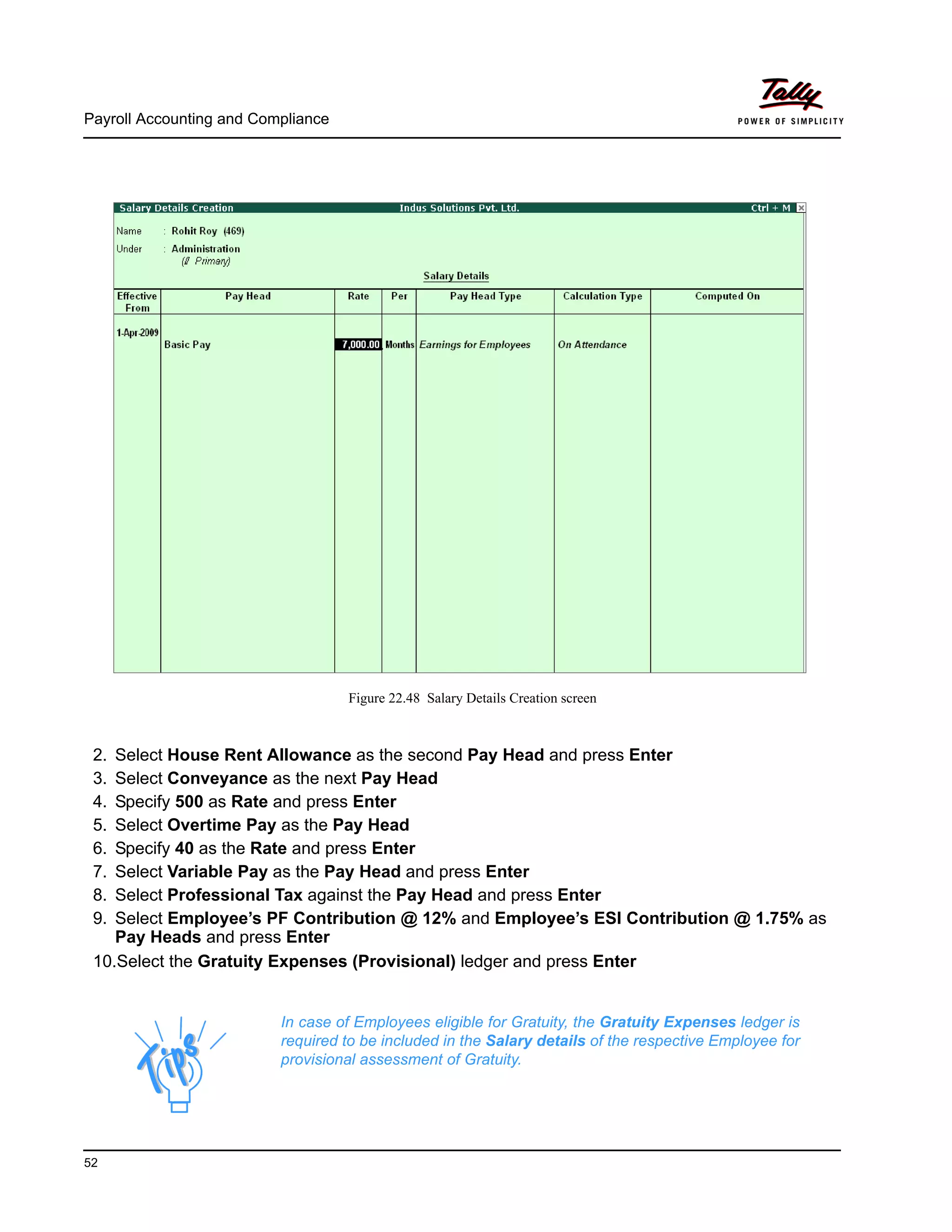
The Effective date is entered as 01-04-2009 by default based on the Date of Joining
entered in the Employee Master
Select Basic Pay as the Pay Head from the List of Pay Heads
Specify 7,000 as Rate
The Attendance units, Pay Head Type and Calculation Type appear by default, based
on the pay head definitions.
The Salary Details Creation screen is displayed as shown:
Payroll Accounting and Compliance
52
Figure 22.48 Salary Details Creation screen
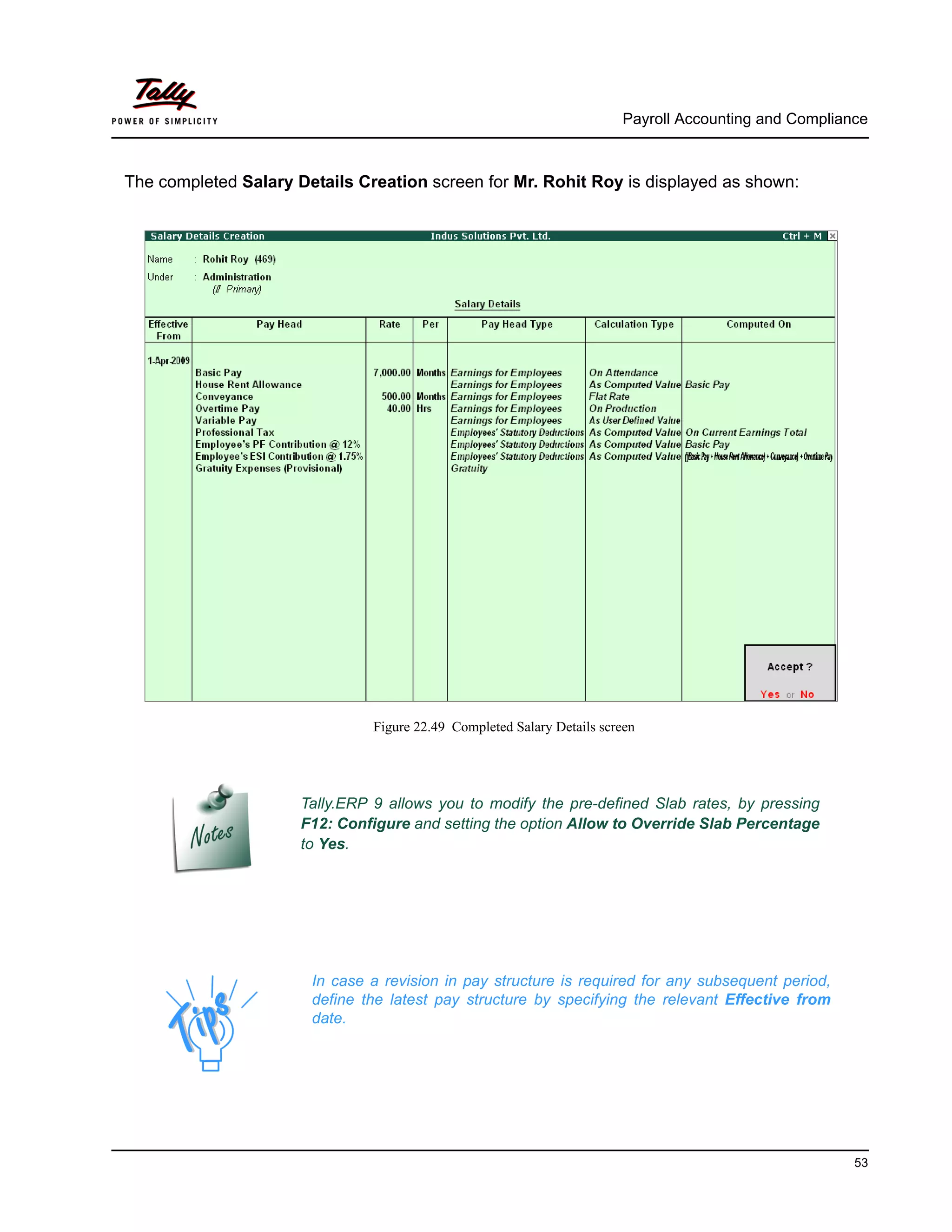
2. Select House Rent Allowance as the second Pay Head and press Enter
3. Select Conveyance as the next Pay Head
4. Specify 500 as Rate and press Enter
5. Select Overtime Pay as the Pay Head
6. Specify 40 as the Rate and press Enter
7. Select Variable Pay as the Pay Head and press Enter
8. Select Professional Tax against the Pay Head and press Enter
9. Select Employee’s PF Contribution @ 12% and Employee’s ESI Contribution @ 1.75% as
Pay Heads and press Enter
10.Select the Gratuity Expenses (Provisional) ledger and press Enter
In case of Employees eligible for Gratuity, the Gratuity Expenses ledger is
required to be included in the Salary details of the respective Employee for
provisional assessment of Gratuity.
Payroll Accounting and Compliance
53
The completed Salary Details Creation screen for Mr. Rohit Roy is displayed as shown:
Figure 22.49 Completed Salary Details screen
Tally.ERP 9 allows you to modify the pre-defined Slab rates, by pressing
F12: Configure and setting the option Allow to Override Slab Percentage
to Yes.
In case a revision in pay structure is required for any subsequent period,
define the latest pay structure by specifying the relevant Effective from
date.
Payroll Accounting and Compliance
54
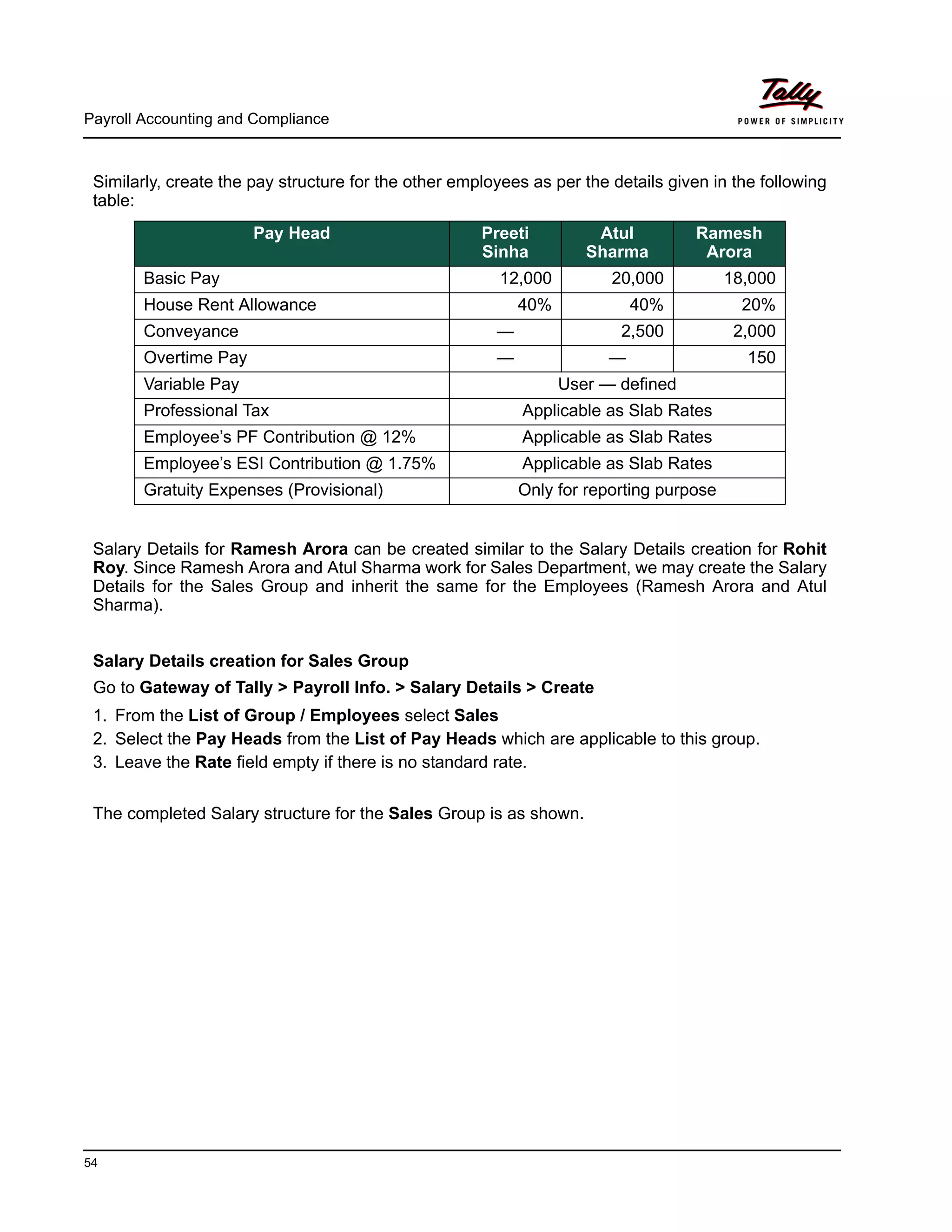
Similarly, create the pay structure for the other employees as per the details given in the following
table:
Salary Details for Ramesh Arora can be created similar to the Salary Details creation for Rohit
Roy. Since Ramesh Arora and Atul Sharma work for Sales Department, we may create the Salary
Details for the Sales Group and inherit the same for the Employees (Ramesh Arora and Atul
Sharma).
Salary Details creation for Sales Group
Go to Gateway of Tally > Payroll Info. > Salary Details > Create
1. From the List of Group / Employees select Sales
2. Select the Pay Heads from the List of Pay Heads which are applicable to this group.
3. Leave the Rate field empty if there is no standard rate.
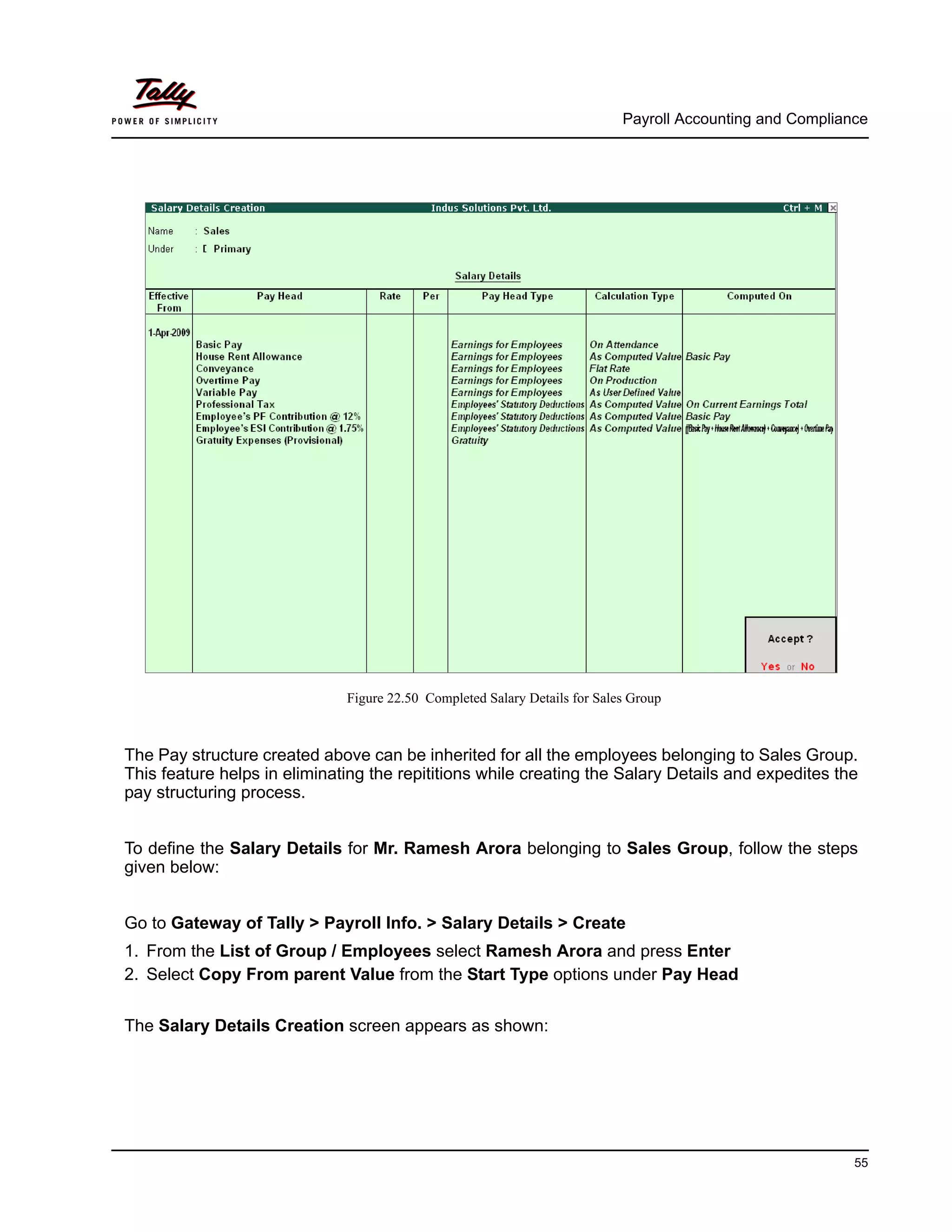
The completed Salary structure for the Sales Group is as shown.
Pay Head Preeti
Sinha
Atul
Sharma
Ramesh
Arora
Basic Pay 12,000 20,000 18,000
House Rent Allowance 40% 40% 20%
Conveyance — 2,500 2,000
Overtime Pay — — 150
Variable Pay User — defined
Professional Tax Applicable as Slab Rates
Employee’s PF Contribution @ 12% Applicable as Slab Rates
Employee’s ESI Contribution @ 1.75% Applicable as Slab Rates
Gratuity Expenses (Provisional) Only for reporting purpose
Payroll Accounting and Compliance
55
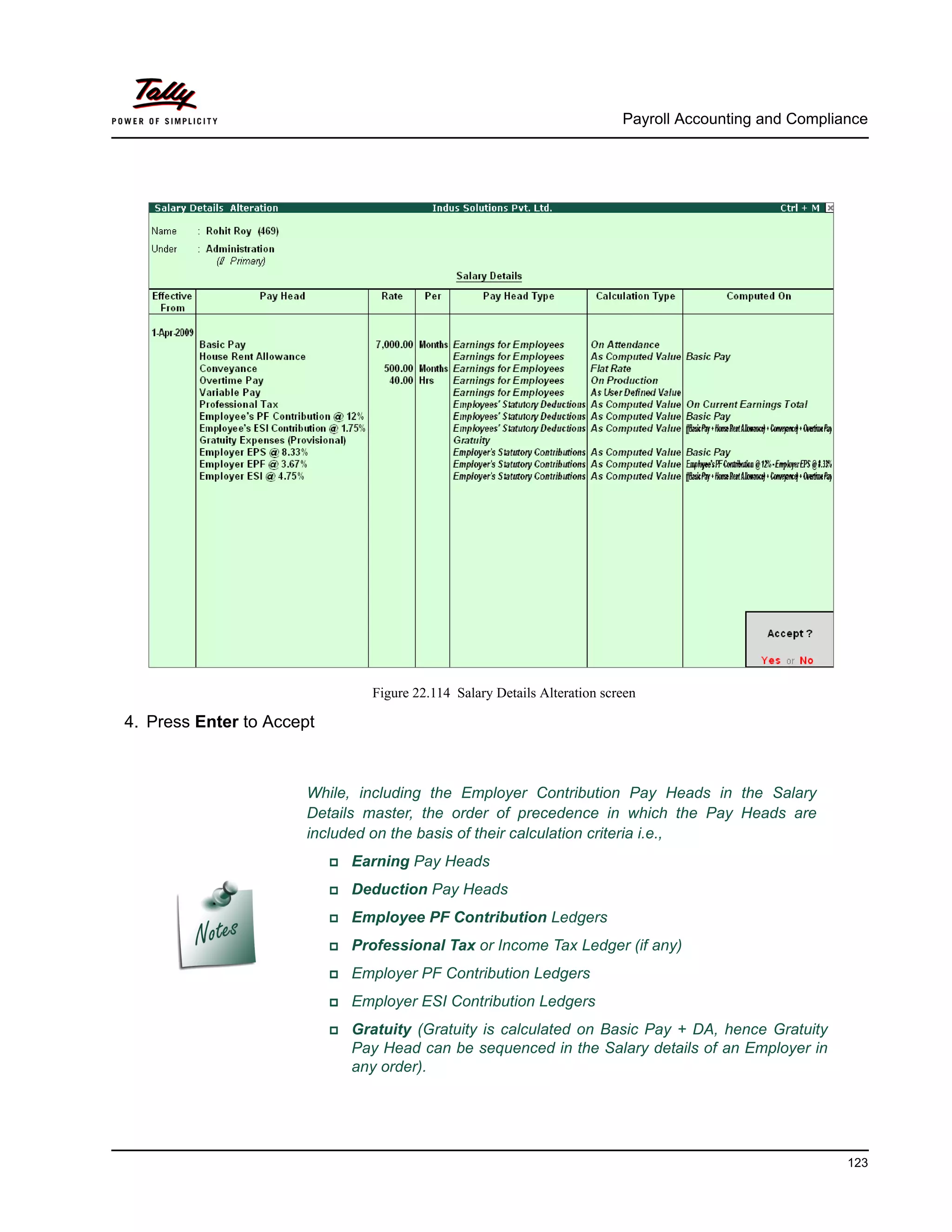
Figure 22.50 Completed Salary Details for Sales Group
The Pay structure created above can be inherited for all the employees belonging to Sales Group.
This feature helps in eliminating the repititions while creating the Salary Details and expedites the
pay structuring process.
To define the Salary Details for Mr. Ramesh Arora belonging to Sales Group, follow the steps
given below:
Go to Gateway of Tally > Payroll Info. > Salary Details > Create
1. From the List of Group / Employees select Ramesh Arora and press Enter
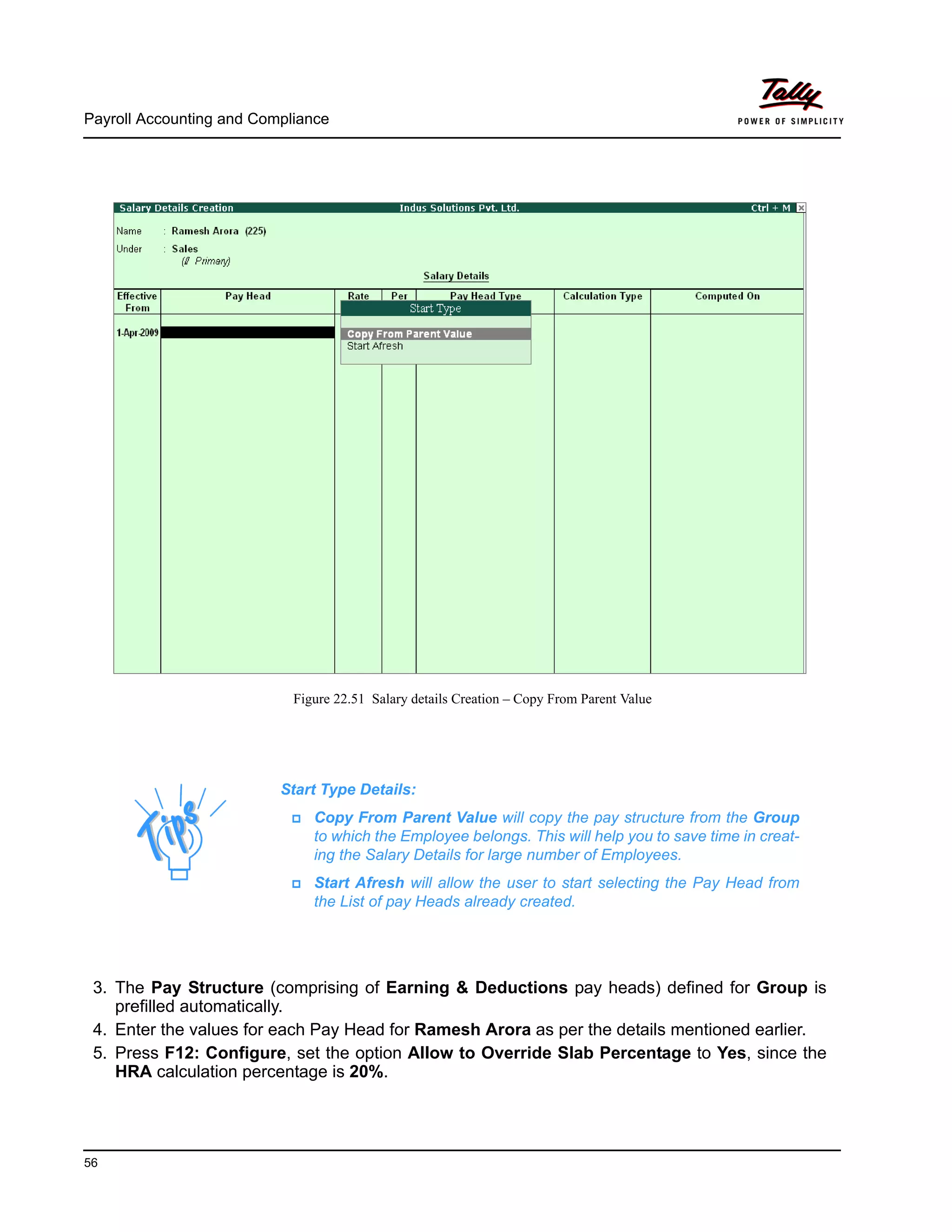
2. Select Copy From parent Value from the Start Type options under Pay Head
The Salary Details Creation screen appears as shown:
Payroll Accounting and Compliance
56
Figure 22.51 Salary details Creation – Copy From Parent Value
3. The Pay Structure (comprising of Earning & Deductions pay heads) defined for Group is
prefilled automatically.
4. Enter the values for each Pay Head for Ramesh Arora as per the details mentioned earlier.
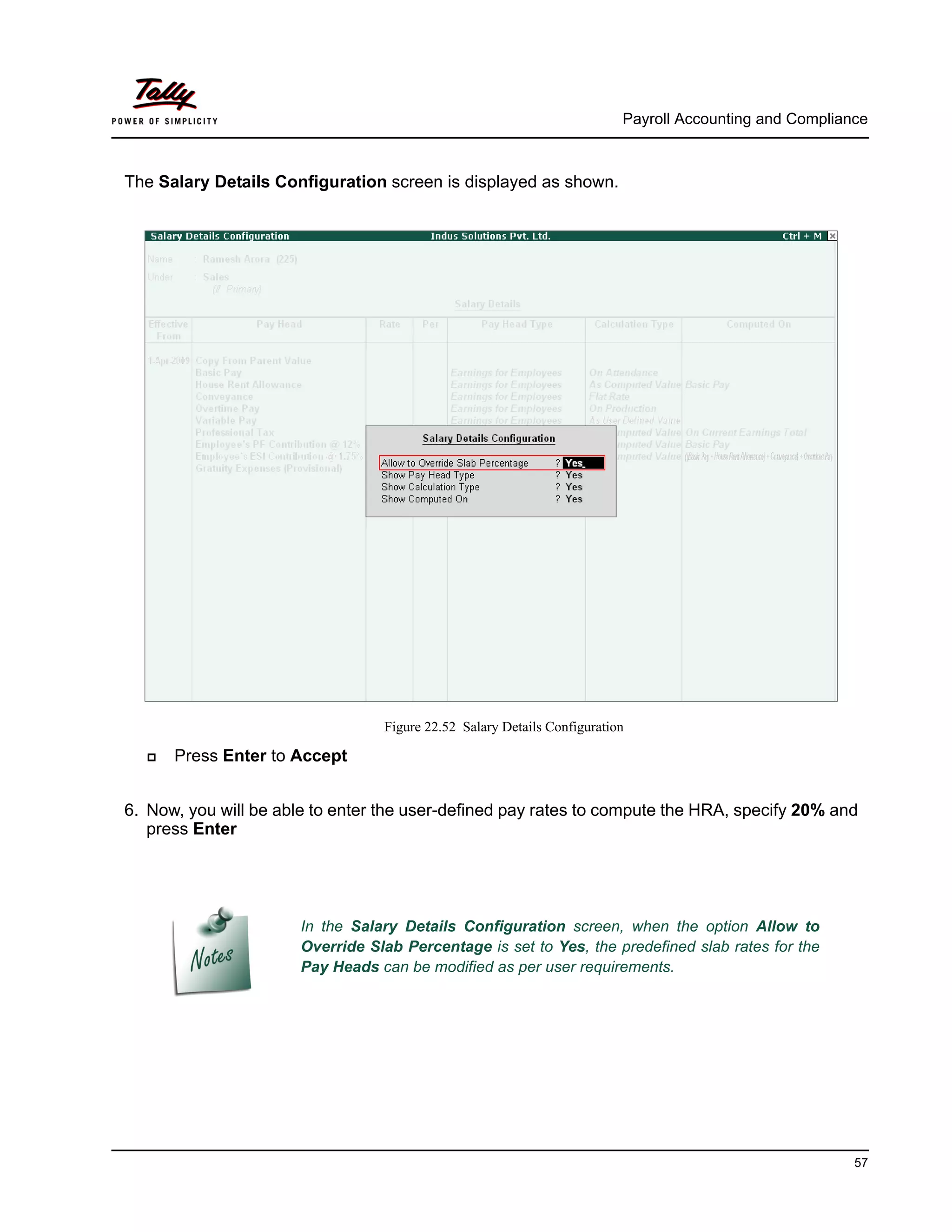
5. Press F12: Configure, set the option Allow to Override Slab Percentage to Yes, since the
HRA calculation percentage is 20%.
Start Type Details:
Copy From Parent Value will copy the pay structure from the Group
to which the Employee belongs. This will help you to save time in creat-
ing the Salary Details for large number of Employees.
Start Afresh will allow the user to start selecting the Pay Head from
the List of pay Heads already created.
Payroll Accounting and Compliance
57
The Salary Details Configuration screen is displayed as shown.
Figure 22.52 Salary Details Configuration
Press Enter to Accept
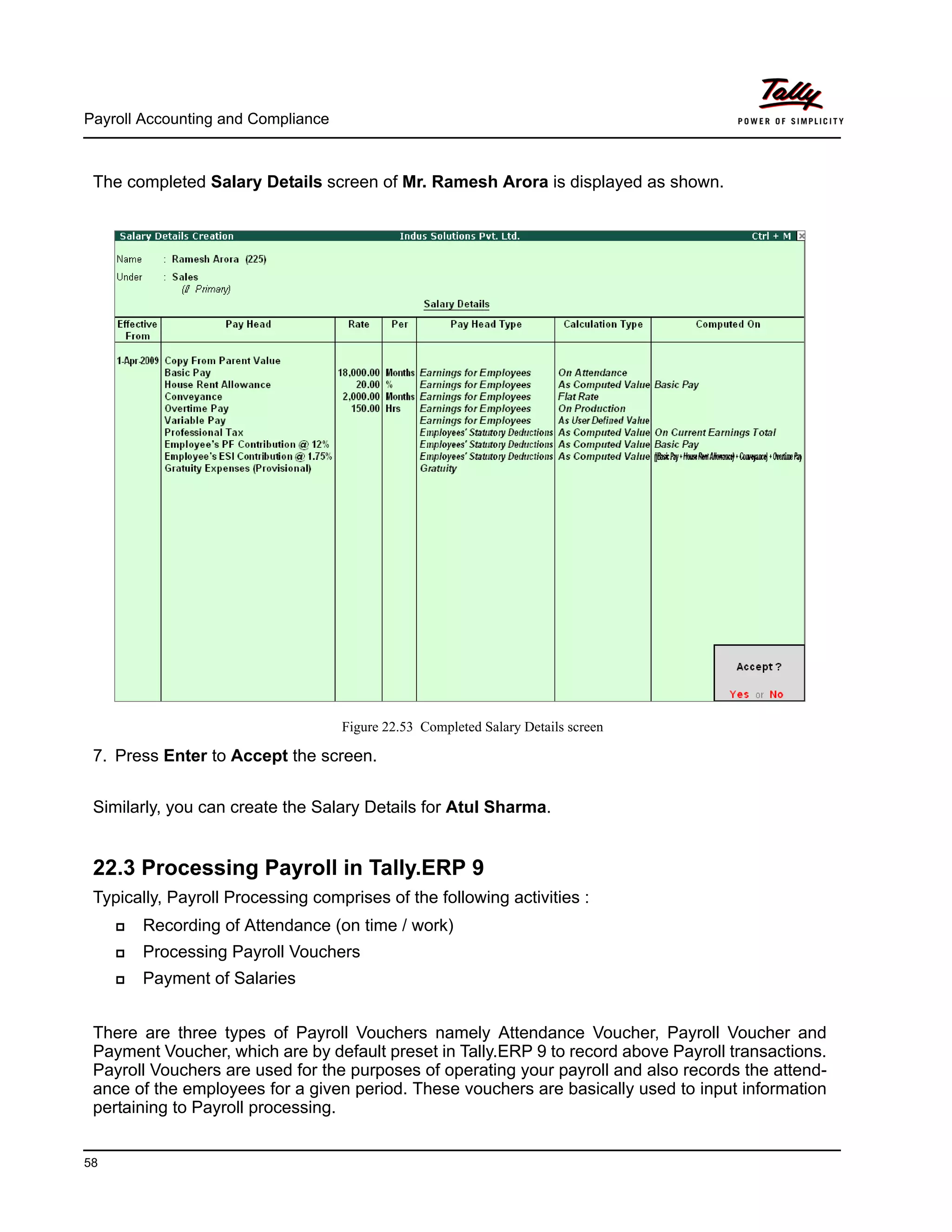
6. Now, you will be able to enter the user-defined pay rates to compute the HRA, specify 20% and
press Enter
In the Salary Details Configuration screen, when the option Allow to
Override Slab Percentage is set to Yes, the predefined slab rates for the
Pay Heads can be modified as per user requirements.
Payroll Accounting and Compliance
58
The completed Salary Details screen of Mr. Ramesh Arora is displayed as shown.
Figure 22.53 Completed Salary Details screen
7. Press Enter to Accept the screen.
Similarly, you can create the Salary Details for Atul Sharma.
22.3 Processing Payroll in Tally.ERP 9
Typically, Payroll Processing comprises of the following activities :
Recording of Attendance (on time / work)
Processing Payroll Vouchers
Payment of Salaries
There are three types of Payroll Vouchers namely Attendance Voucher, Payroll Voucher and
Payment Voucher, which are by default preset in Tally.ERP 9 to record above Payroll transactions.
Payroll Vouchers are used for the purposes of operating your payroll and also records the attend-
ance of the employees for a given period. These vouchers are basically used to input information
pertaining to Payroll processing.
Payroll Accounting and Compliance
59
22.3.1 Attendance Vouchers
An Attendance Voucher is used to record employees’ attendance data, based on Attendance/
Production types (i.e., present or absent days, overtime hours and so on).
An Attendance Voucher allows you to record the attendance/ production units for employees.
Tally.ERP 9 gives you the flexibility to enter the attendance records through a single attendance
voucher for a payroll period, or through multiple attendance vouchers as and when required within
a payroll period. You also have the option of recording one attendance/ production voucher per
employee per day or collectively for a month or any other variation thereof for all the employees.
In Tally.ERP 9, the auto-fill facility (Alt+A) is used to prefill the required Attendance/Production
types data for the selected employee group/ employee for the specified period.
Example 1:
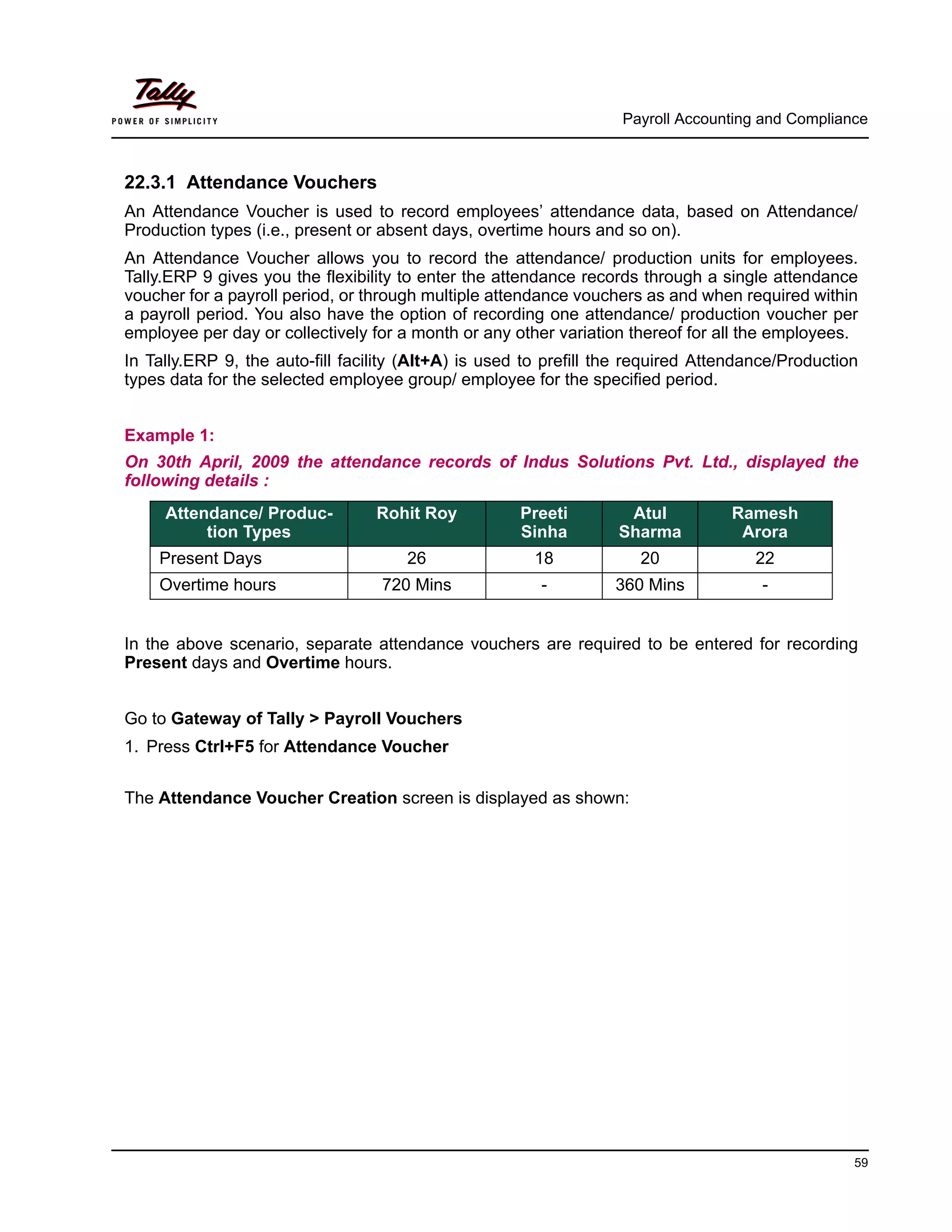
On 30th April, 2009 the attendance records of Indus Solutions Pvt. Ltd., displayed the
following details :
In the above scenario, separate attendance vouchers are required to be entered for recording
Present days and Overtime hours.
Go to Gateway of Tally > Payroll Vouchers
1. Press Ctrl+F5 for Attendance Voucher
The Attendance Voucher Creation screen is displayed as shown:
Attendance/ Produc-
tion Types
Rohit Roy Preeti
Sinha
Atul
Sharma
Ramesh
Arora
Present Days 26 18 20 22
Overtime hours 720 Mins - 360 Mins -
Payroll Accounting and Compliance
60
Figure 22.54 Attendance Voucher Creation screen
2. Press F2 and specify the date as 30-4-2009
3. Press Enter
4. Press Alt+A (Attendance Auto Fill) to prefill employee payroll details
The Attendance Auto Fill screen is displayed as shown:
Payroll Accounting and Compliance
61
Figure 22.55 Attendance Voucher - Employee Filters screen
5. In the Attendance Auto Fill screen,
Specify the Voucher Date as 30-04-2009
Select Primary Cost Category as Cost Category (If separate cost categories are used to
capture employee cost, then select the respective cost category)
Select All Items as Employee/ Group (if you want to generate payroll voucher for individ-
ual employee/ group, select the respective employee or group)
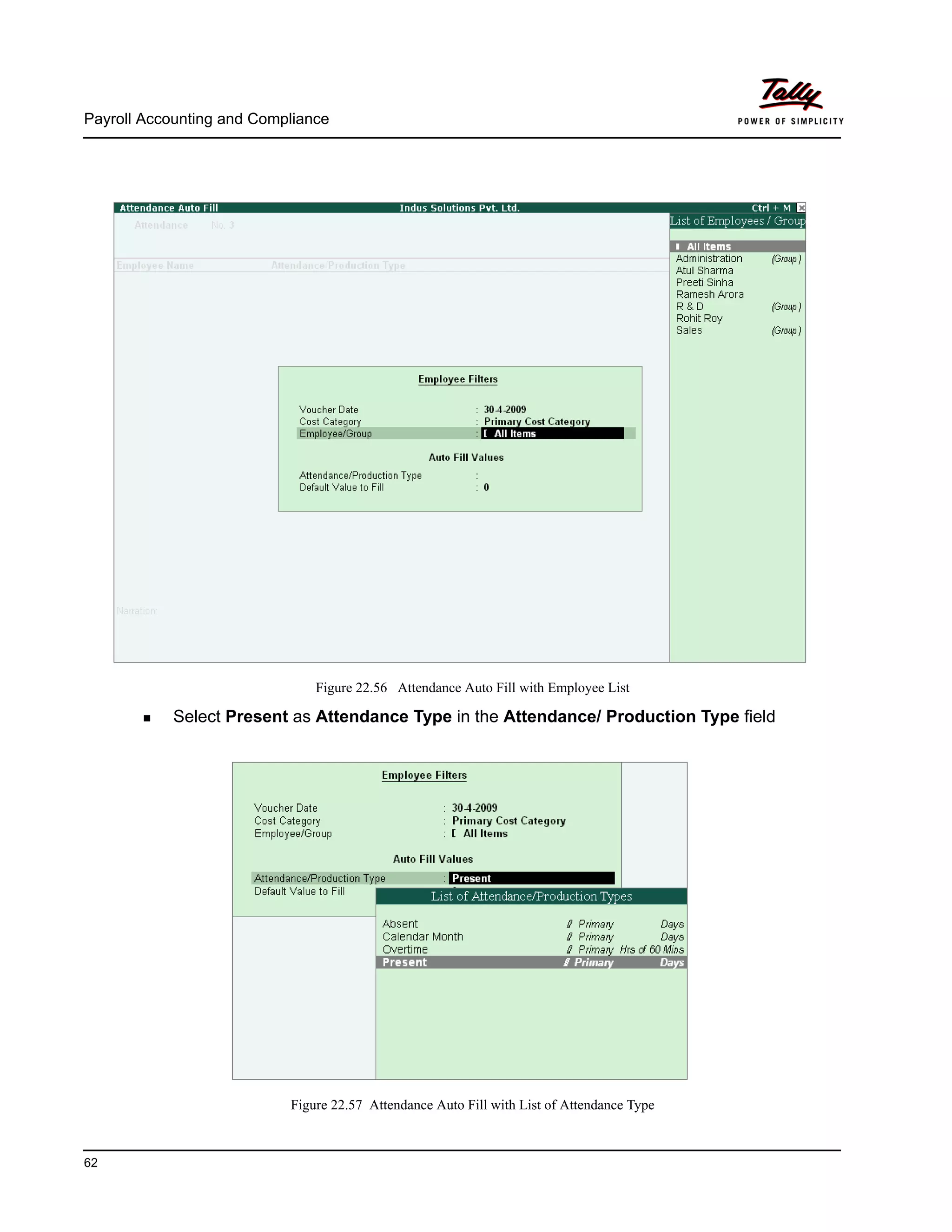
The Attendance Auto Fill with Employee Filters screen is displayed as shown:
Payroll Accounting and Compliance
62
Figure 22.56 Attendance Auto Fill with Employee List
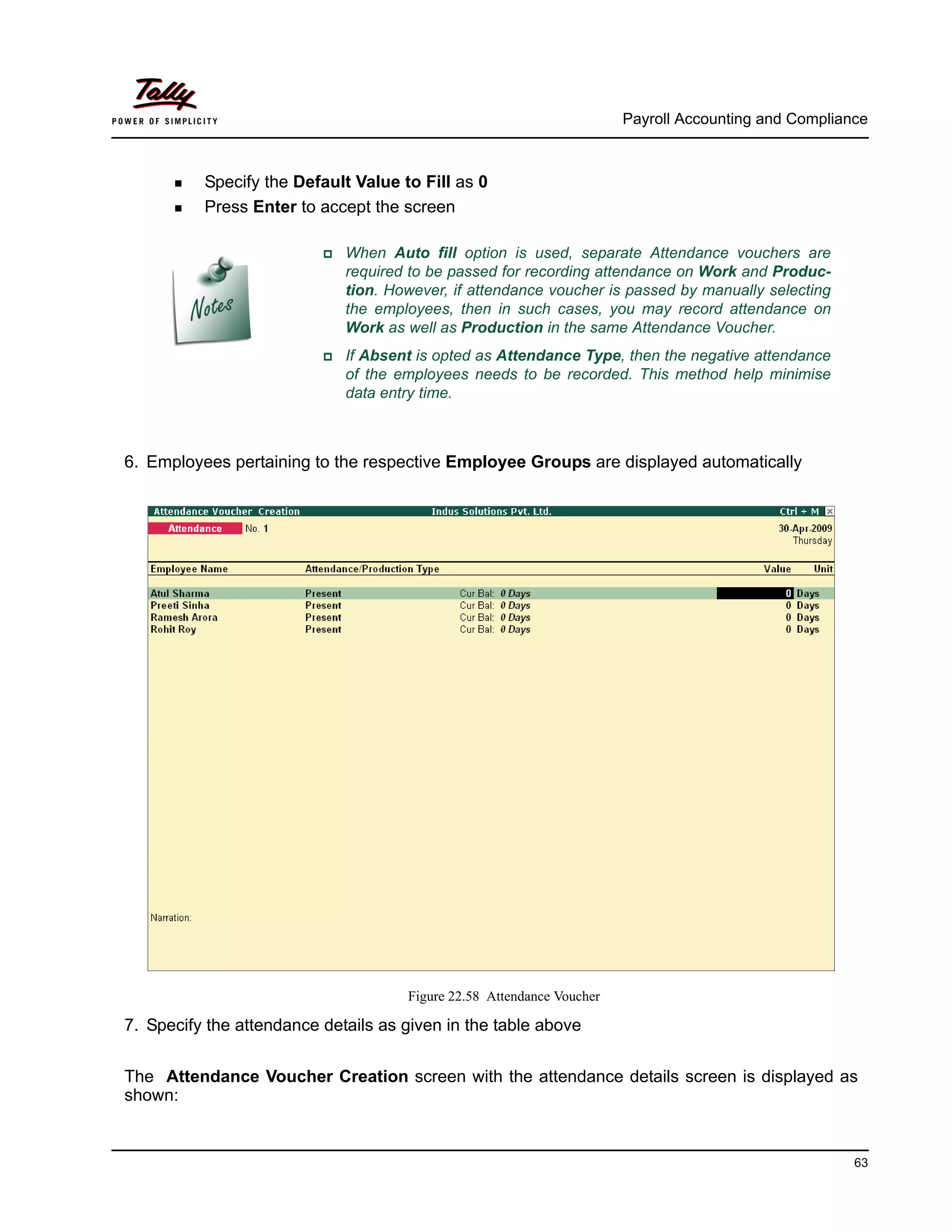
Select Present as Attendance Type in the Attendance/ Production Type field
Figure 22.57 Attendance Auto Fill with List of Attendance Type
Payroll Accounting and Compliance
63
Specify the Default Value to Fill as 0
Press Enter to accept the screen
When Auto fill option is used, separate Attendance vouchers are
required to be passed for recording attendance on Work and Produc-
tion. However, if attendance voucher is passed by manually selecting
the employees, then in such cases, you may record attendance on
Work as well as Production in the same Attendance Voucher.
If Absent is opted as Attendance Type, then the negative attendance
of the employees needs to be recorded. This method help minimise
data entry time.
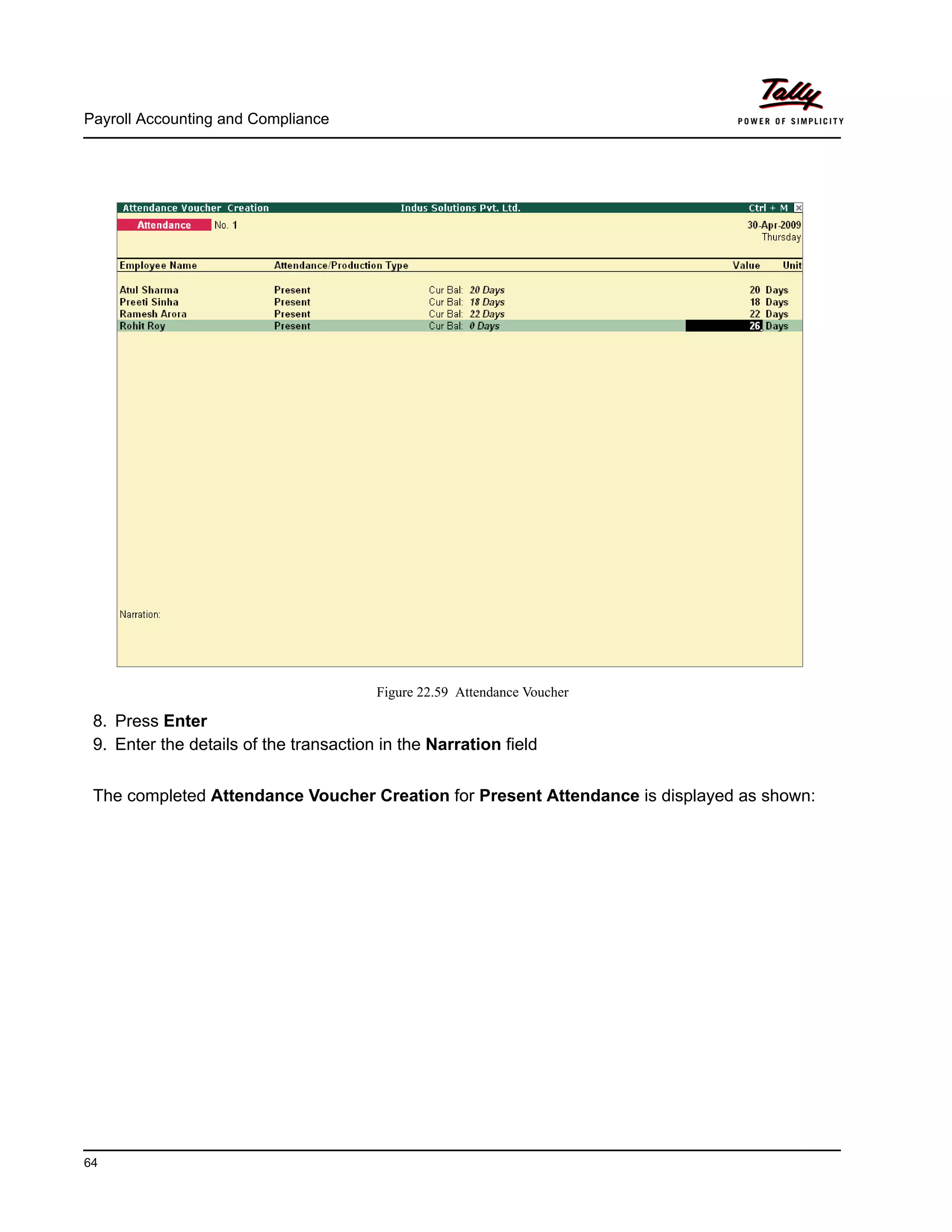
6. Employees pertaining to the respective Employee Groups are displayed automatically
Figure 22.58 Attendance Voucher
7. Specify the attendance details as given in the table above
The Attendance Voucher Creation screen with the attendance details screen is displayed as
shown:
Payroll Accounting and Compliance
64
Figure 22.59 Attendance Voucher
8. Press Enter
9. Enter the details of the transaction in the Narration field
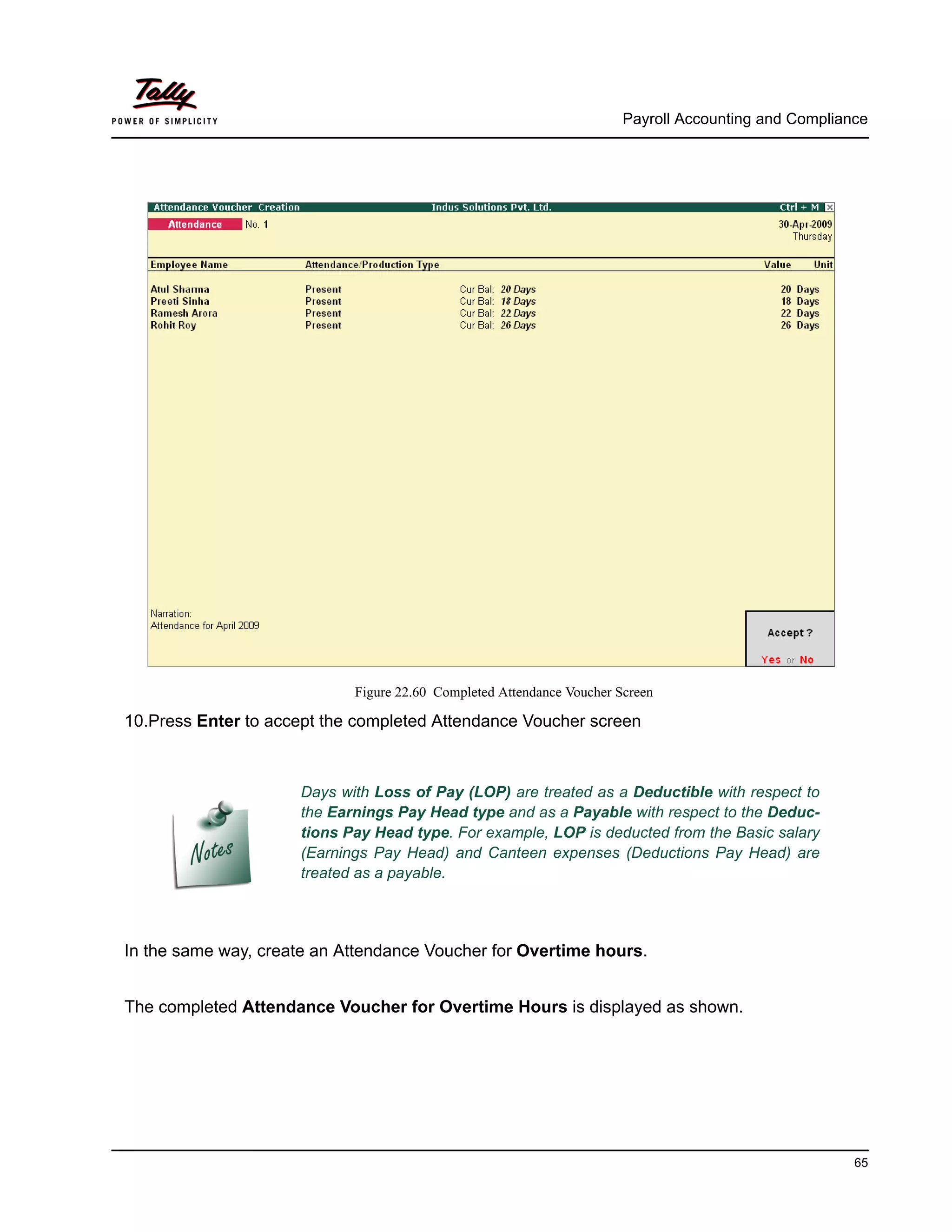
The completed Attendance Voucher Creation for Present Attendance is displayed as shown:
Payroll Accounting and Compliance
65
Figure 22.60 Completed Attendance Voucher Screen
10.Press Enter to accept the completed Attendance Voucher screen
In the same way, create an Attendance Voucher for Overtime hours.
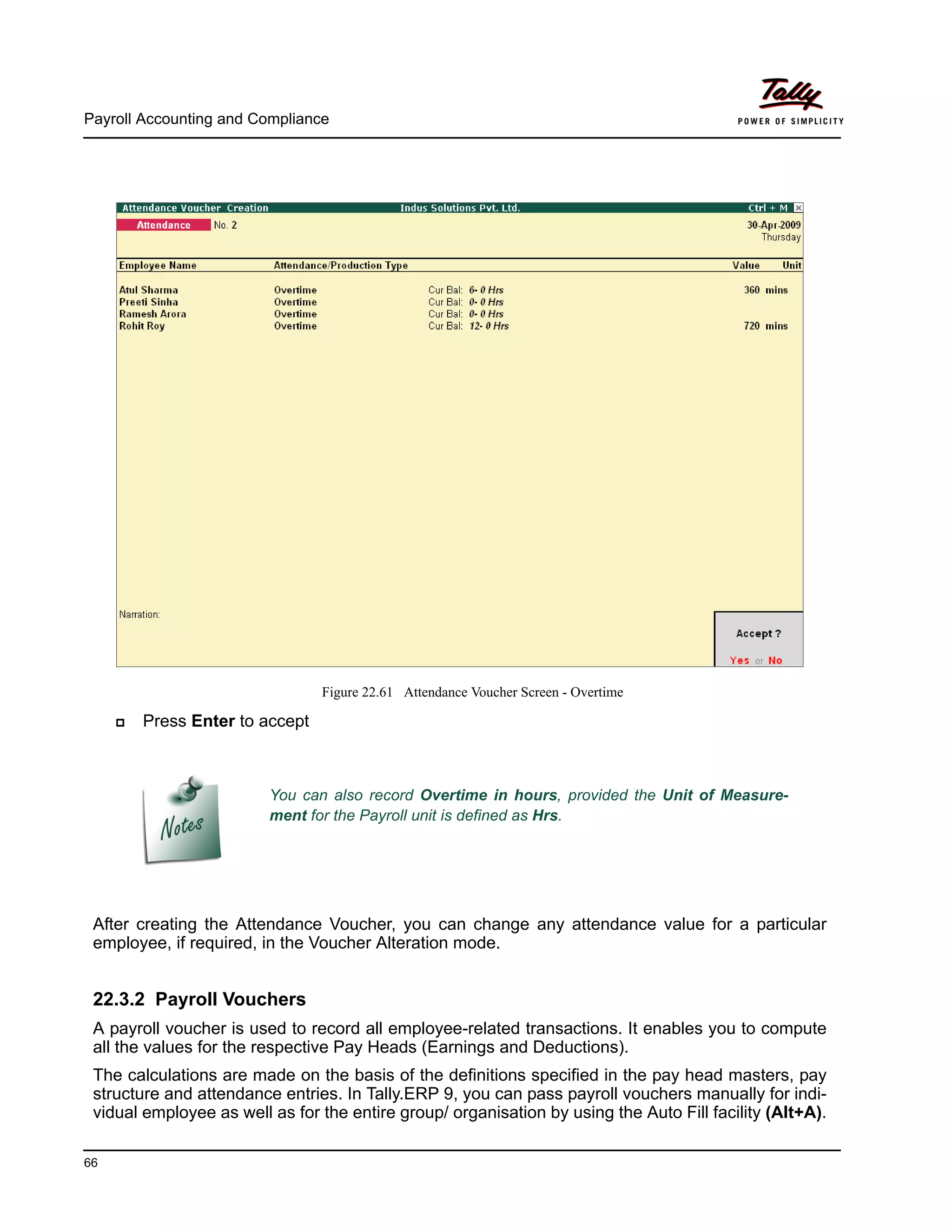
The completed Attendance Voucher for Overtime Hours is displayed as shown.
Days with Loss of Pay (LOP) are treated as a Deductible with respect to
the Earnings Pay Head type and as a Payable with respect to the Deduc-
tions Pay Head type. For example, LOP is deducted from the Basic salary
(Earnings Pay Head) and Canteen expenses (Deductions Pay Head) are
treated as a payable.
Payroll Accounting and Compliance
66
Figure 22.61 Attendance Voucher Screen - Overtime
Press Enter to accept
After creating the Attendance Voucher, you can change any attendance value for a particular
employee, if required, in the Voucher Alteration mode.
22.3.2 Payroll Vouchers
A payroll voucher is used to record all employee-related transactions. It enables you to compute
all the values for the respective Pay Heads (Earnings and Deductions).
The calculations are made on the basis of the definitions specified in the pay head masters, pay
structure and attendance entries. In Tally.ERP 9, you can pass payroll vouchers manually for indi-
vidual employee as well as for the entire group/ organisation by using the Auto Fill facility (Alt+A).
You can also record Overtime in hours, provided the Unit of Measure-
ment for the Payroll unit is defined as Hrs.
Payroll Accounting and Compliance
67
In Tally.ERP 9, the disbursement of salaries can be effected in any of the following modes.
Direct Remittance – in cash or by cheque
Bank Transfer – a direct transfer is made to an employee’s bank account and the list of
disbursement is printed separately.
I. Cash (or Direct) Remittance
Example 2:
On 30th April, 2009, Indus Solutions Pvt. Ltd., processes Payroll for all the employees and
entitled the following employees for Variable Pay.
Go to Gateway of Tally > Payroll Vouchers
1. Press Ctrl+F4 for Payroll Voucher
2. Press F2, specify the date as 30-4-2009 and press Enter
3. Press Alt+A (Payroll Auto Fill) to prefill employee payroll details
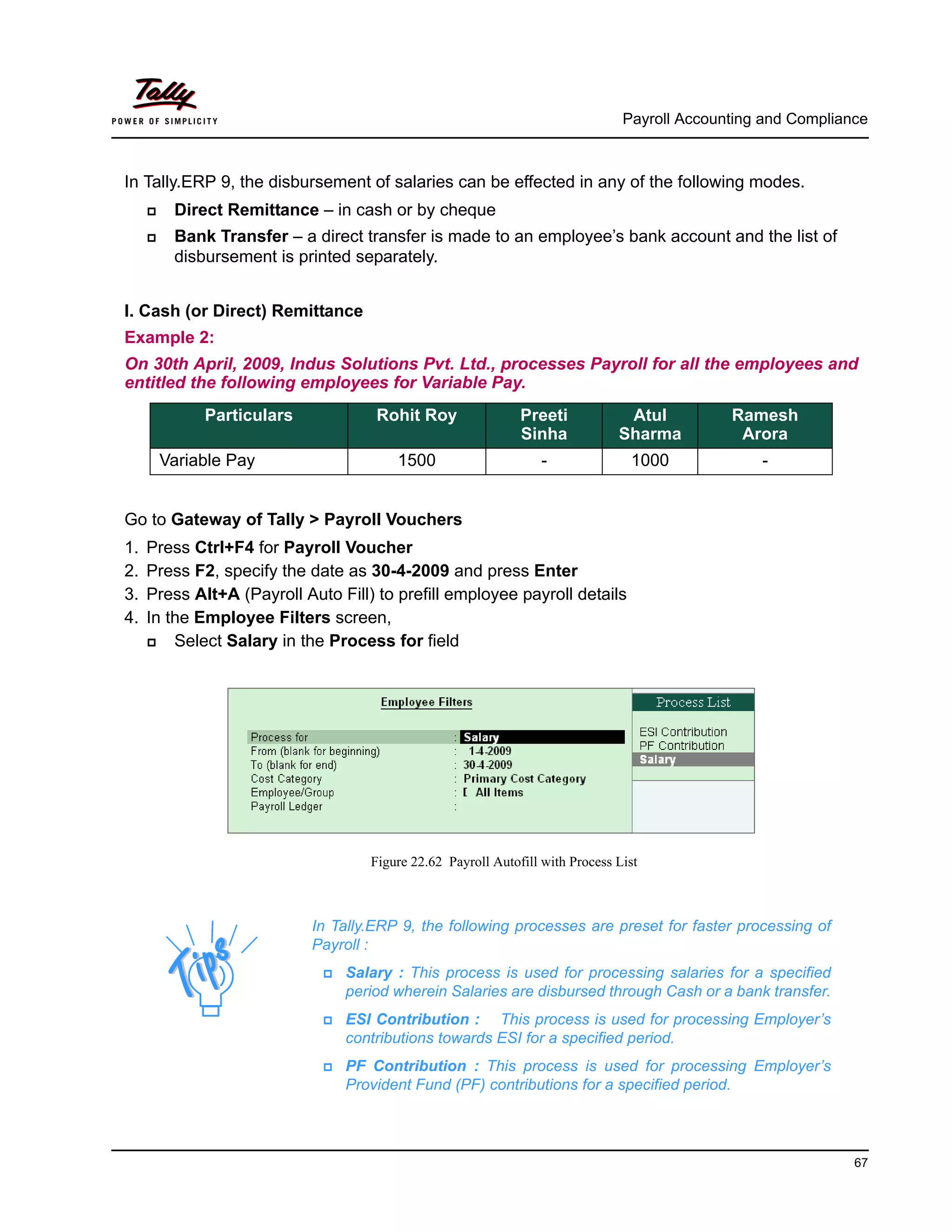
4. In the Employee Filters screen,
Select Salary in the Process for field
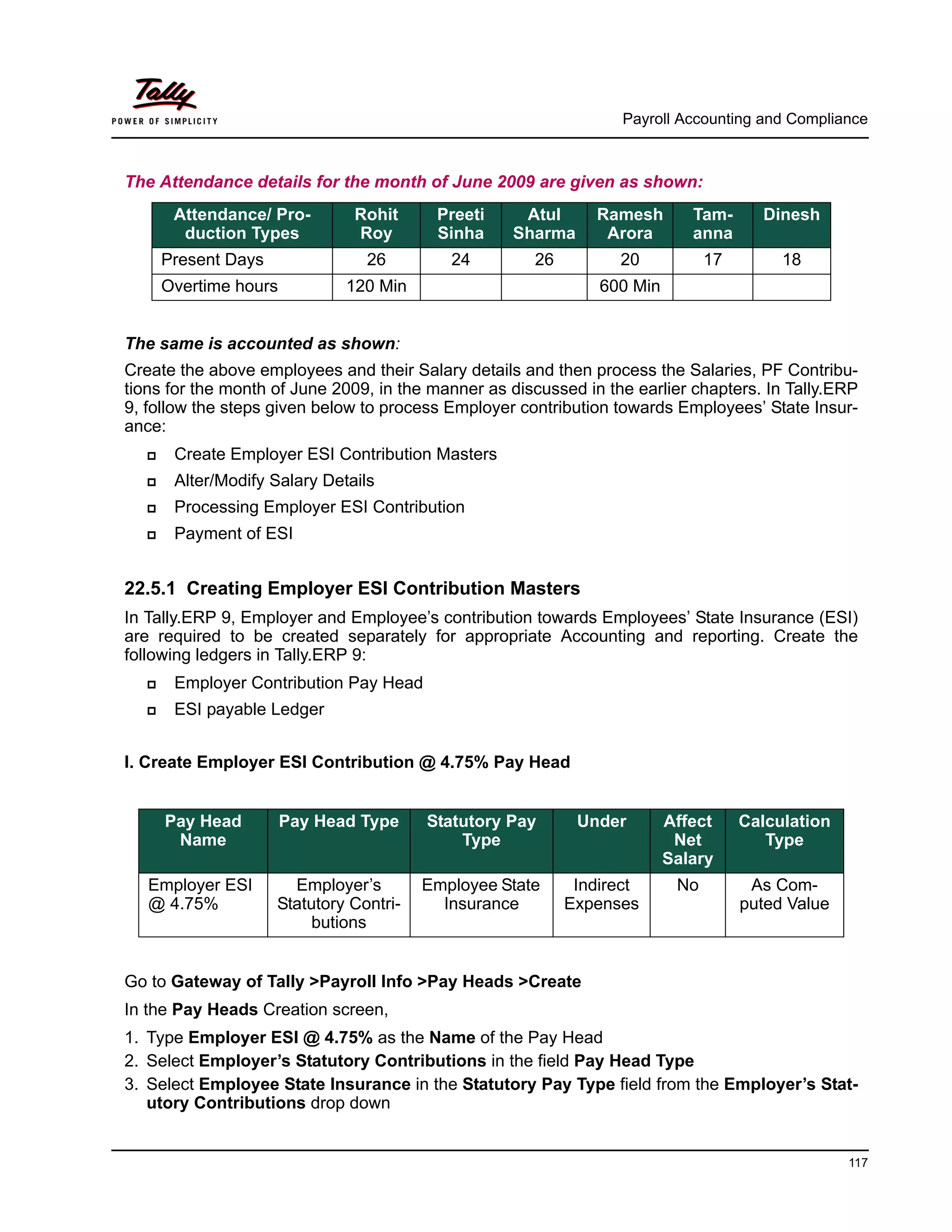
Figure 22.62 Payroll Autofill with Process List
Particulars Rohit Roy Preeti
Sinha
Atul
Sharma
Ramesh
Arora
Variable Pay 1500 - 1000 -
In Tally.ERP 9, the following processes are preset for faster processing of
Payroll :
Salary : This process is used for processing salaries for a specified
period wherein Salaries are disbursed through Cash or a bank transfer.
ESI Contribution : This process is used for processing Employer’s
contributions towards ESI for a specified period.
PF Contribution : This process is used for processing Employer’s
Provident Fund (PF) contributions for a specified period.
Payroll Accounting and Compliance
68
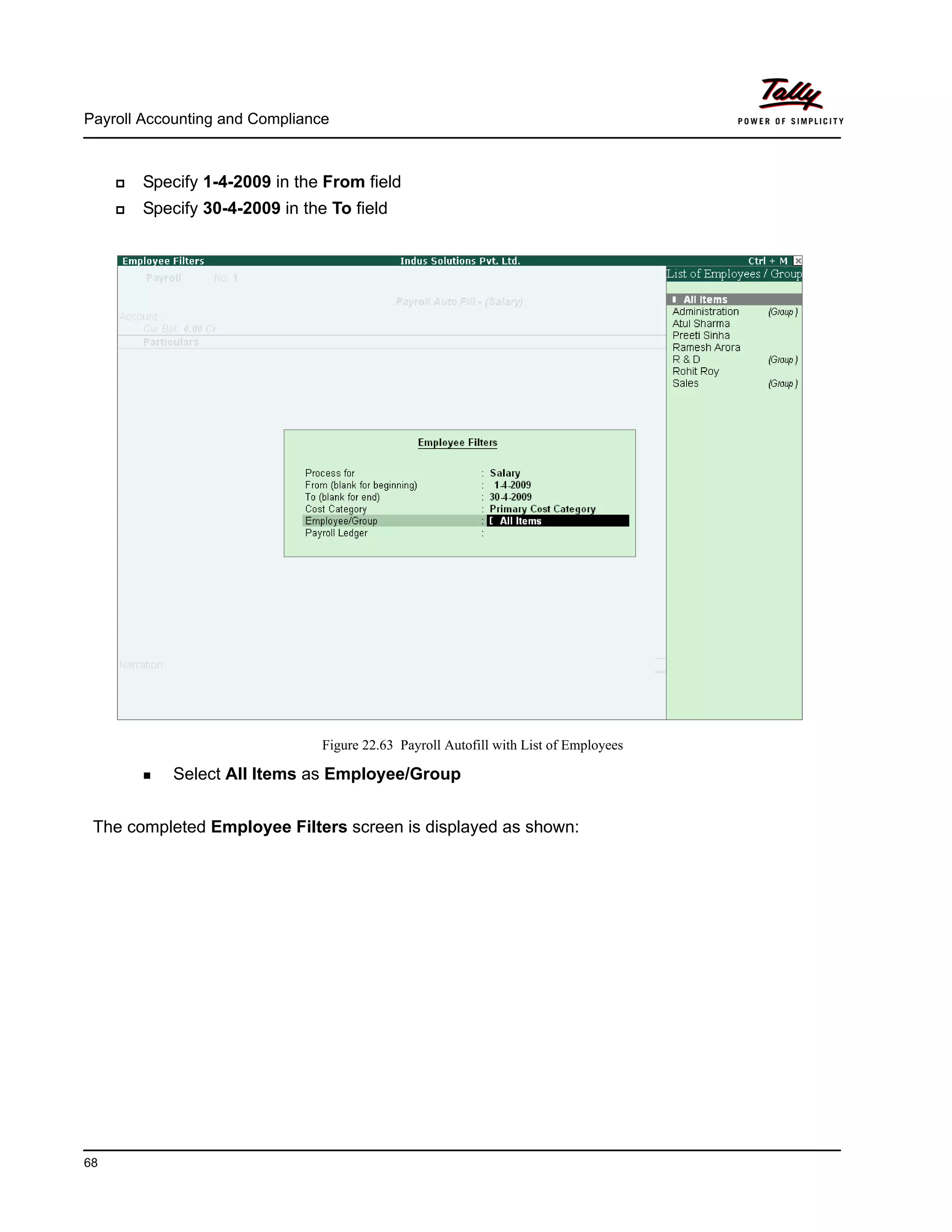
Specify 1-4-2009 in the From field
Specify 30-4-2009 in the To field
Figure 22.63 Payroll Autofill with List of Employees
Select All Items as Employee/Group
The completed Employee Filters screen is displayed as shown:
Payroll Accounting and Compliance
69
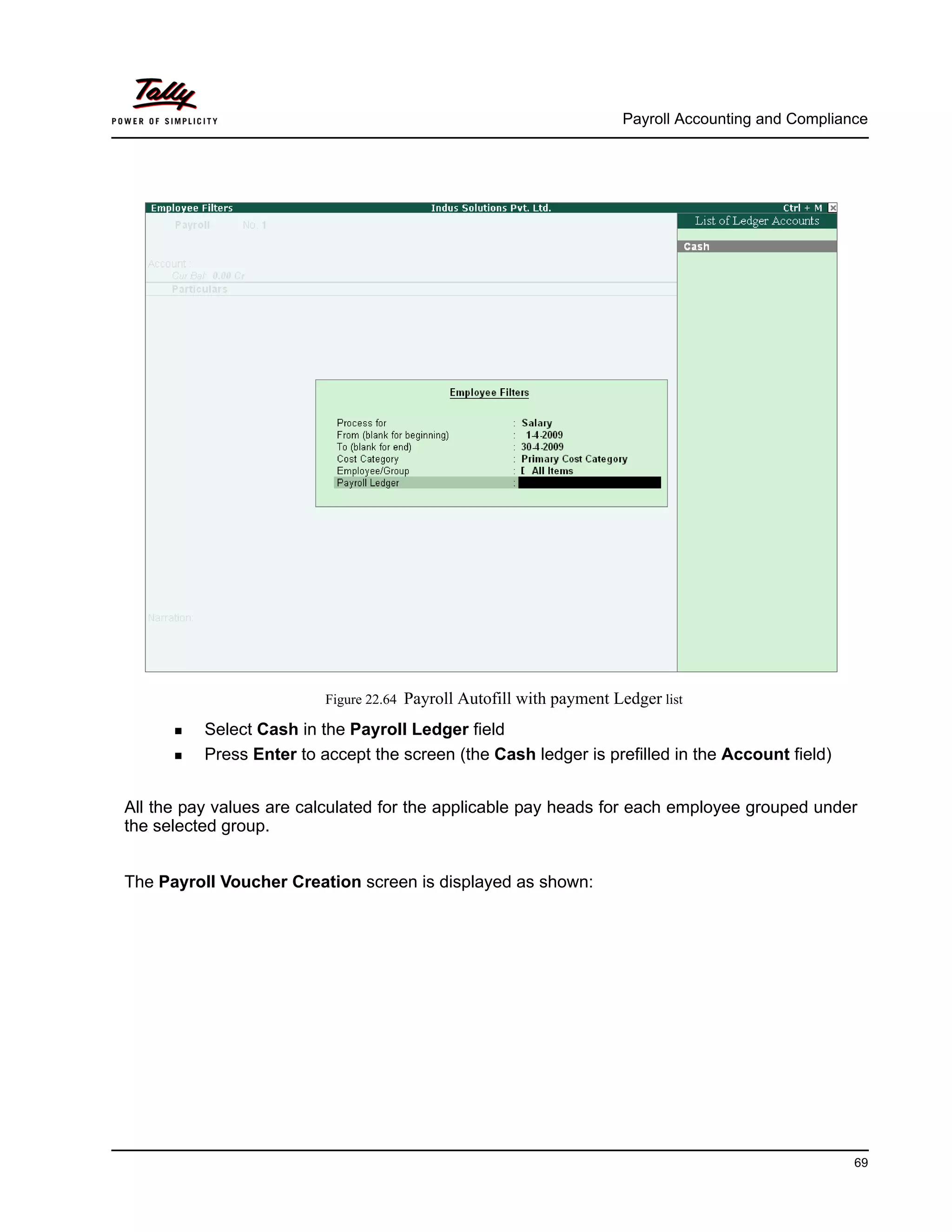
Figure 22.64 Payroll Autofill with payment Ledger list
Select Cash in the Payroll Ledger field
Press Enter to accept the screen (the Cash ledger is prefilled in the Account field)
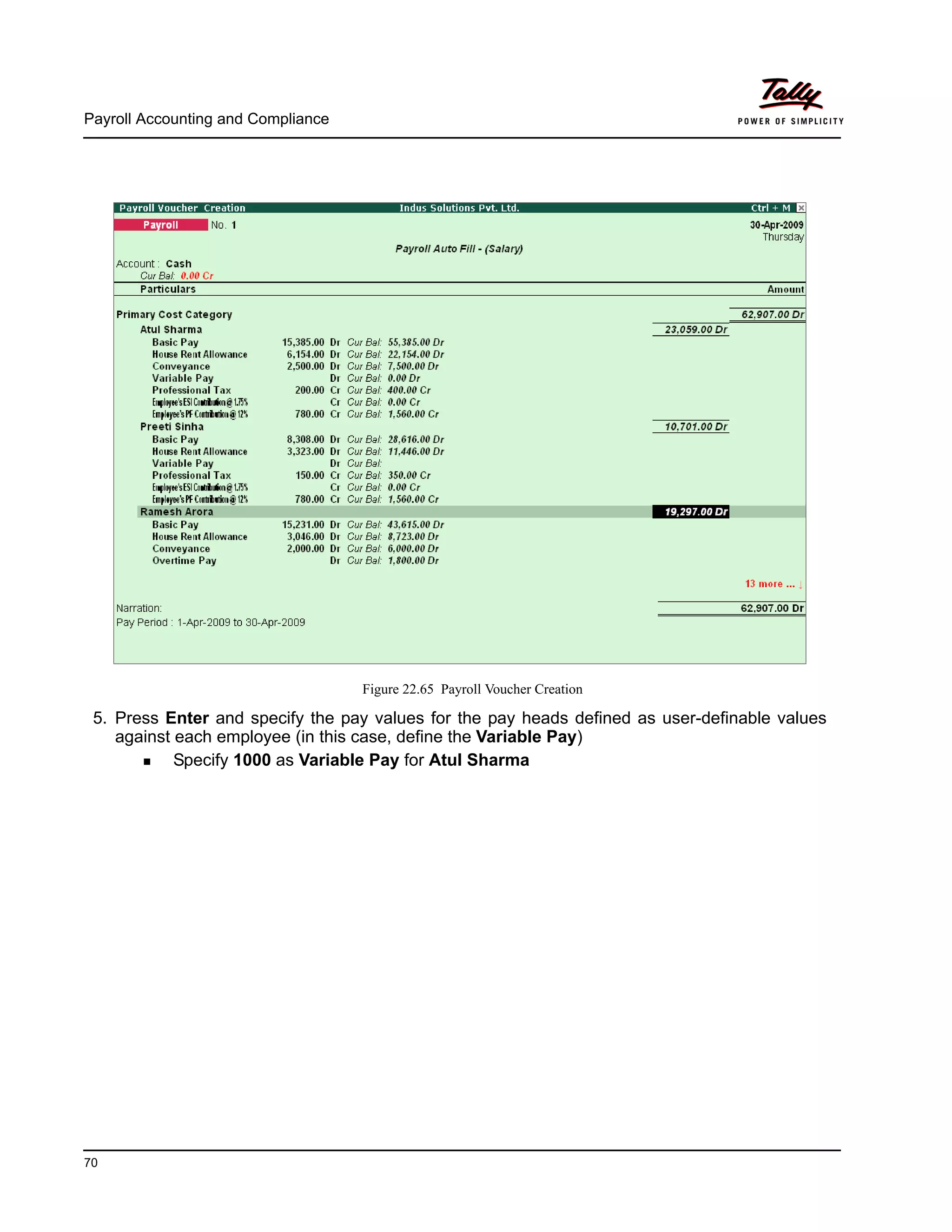
All the pay values are calculated for the applicable pay heads for each employee grouped under
the selected group.
The Payroll Voucher Creation screen is displayed as shown:
Payroll Accounting and Compliance
70
Figure 22.65 Payroll Voucher Creation
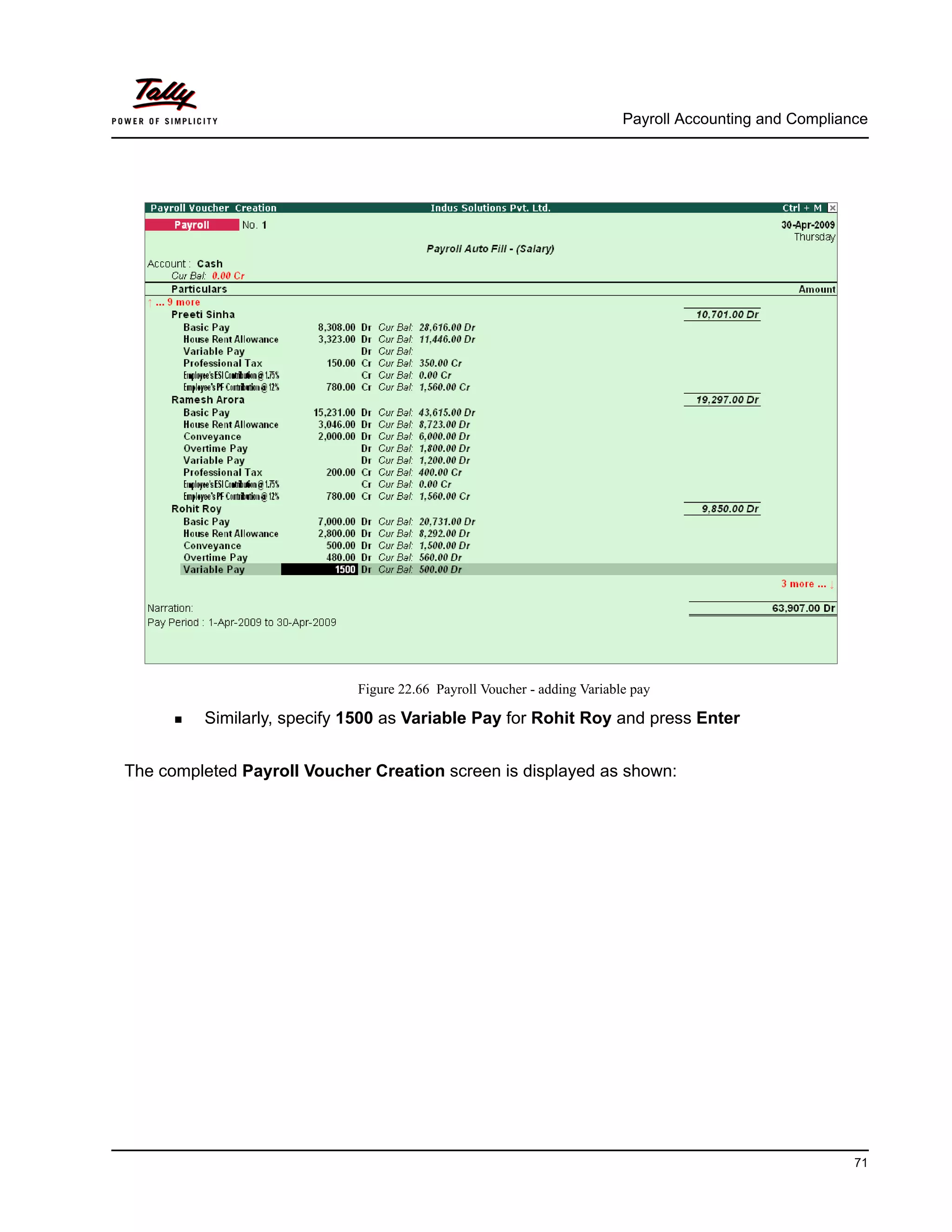
5. Press Enter and specify the pay values for the pay heads defined as user-definable values
against each employee (in this case, define the Variable Pay)
Specify 1000 as Variable Pay for Atul Sharma
Payroll Accounting and Compliance
71
Figure 22.66 Payroll Voucher - adding Variable pay
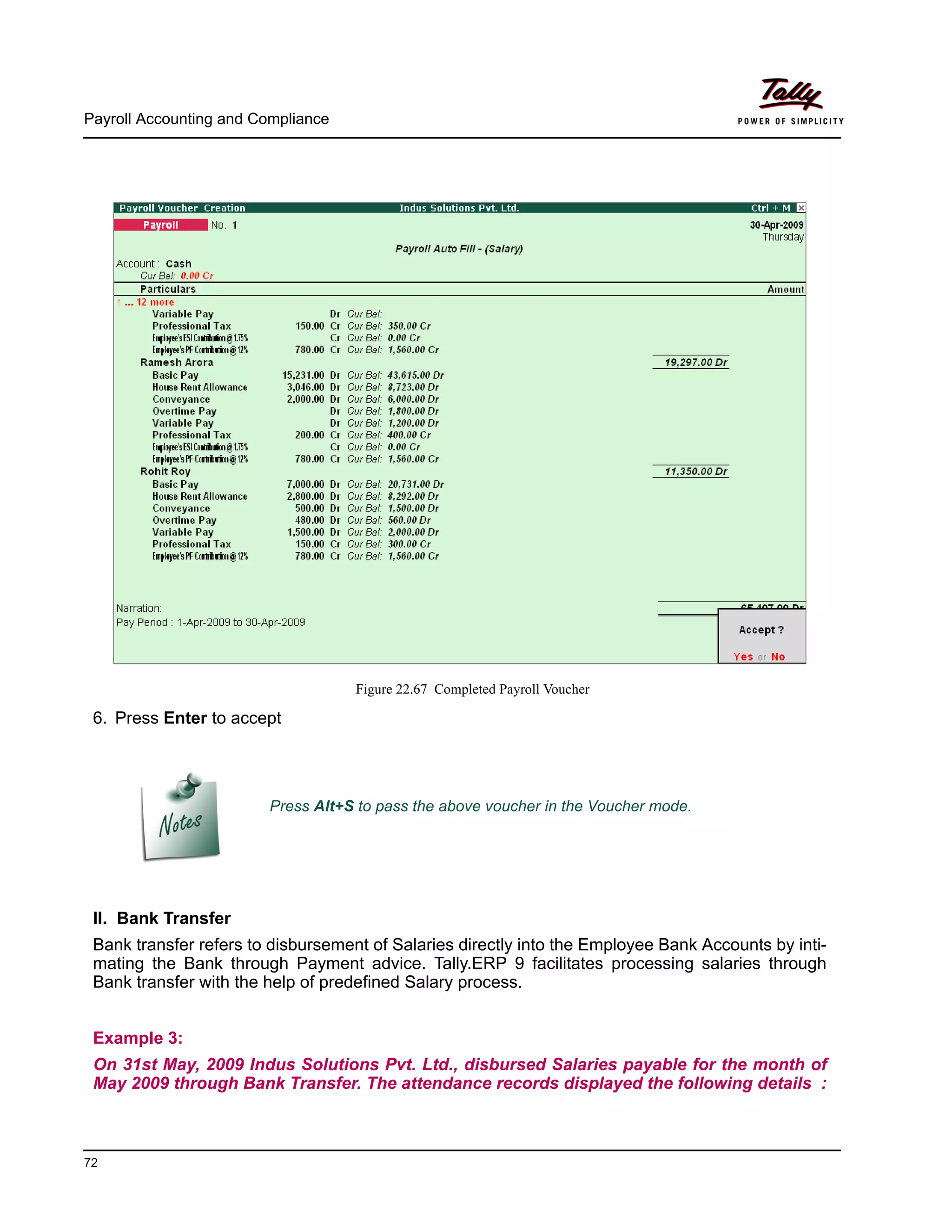
Similarly, specify 1500 as Variable Pay for Rohit Roy and press Enter
The completed Payroll Voucher Creation screen is displayed as shown:
Payroll Accounting and Compliance
72
Figure 22.67 Completed Payroll Voucher
6. Press Enter to accept
II. Bank Transfer
Bank transfer refers to disbursement of Salaries directly into the Employee Bank Accounts by inti-
mating the Bank through Payment advice. Tally.ERP 9 facilitates processing salaries through
Bank transfer with the help of predefined Salary process.
Example 3:
On 31st May, 2009 Indus Solutions Pvt. Ltd., disbursed Salaries payable for the month of
May 2009 through Bank Transfer. The attendance records displayed the following details :
Press Alt+S to pass the above voucher in the Voucher mode.
Payroll Accounting and Compliance
73
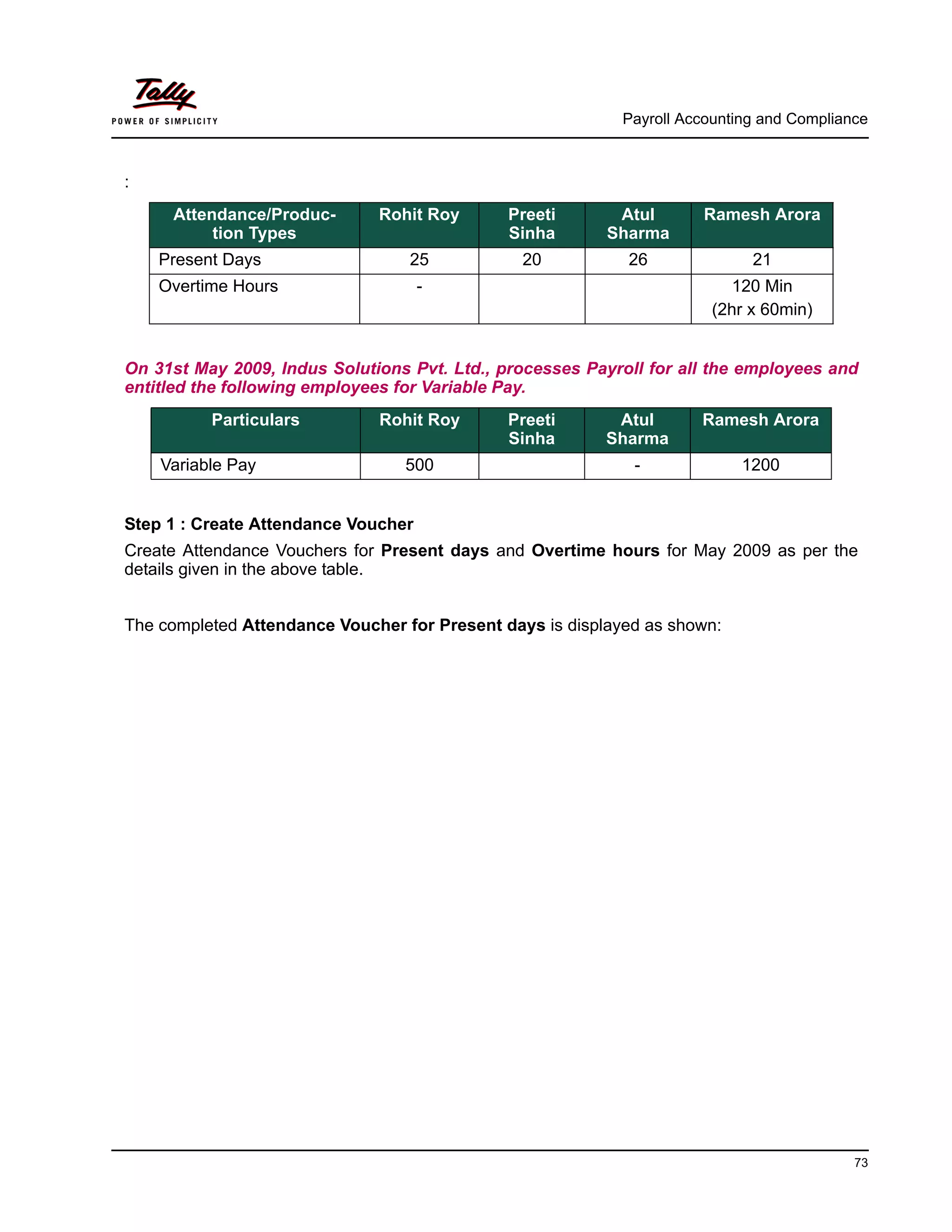
:
On 31st May 2009, Indus Solutions Pvt. Ltd., processes Payroll for all the employees and
entitled the following employees for Variable Pay.
Step 1 : Create Attendance Voucher
Create Attendance Vouchers for Present days and Overtime hours for May 2009 as per the
details given in the above table.
The completed Attendance Voucher for Present days is displayed as shown:
Attendance/Produc-
tion Types
Rohit Roy Preeti
Sinha
Atul
Sharma
Ramesh Arora
Present Days 25 20 26 21
Overtime Hours - 120 Min
(2hr x 60min)
Particulars Rohit Roy Preeti
Sinha
Atul
Sharma
Ramesh Arora
Variable Pay 500 - 1200
Payroll Accounting and Compliance
74
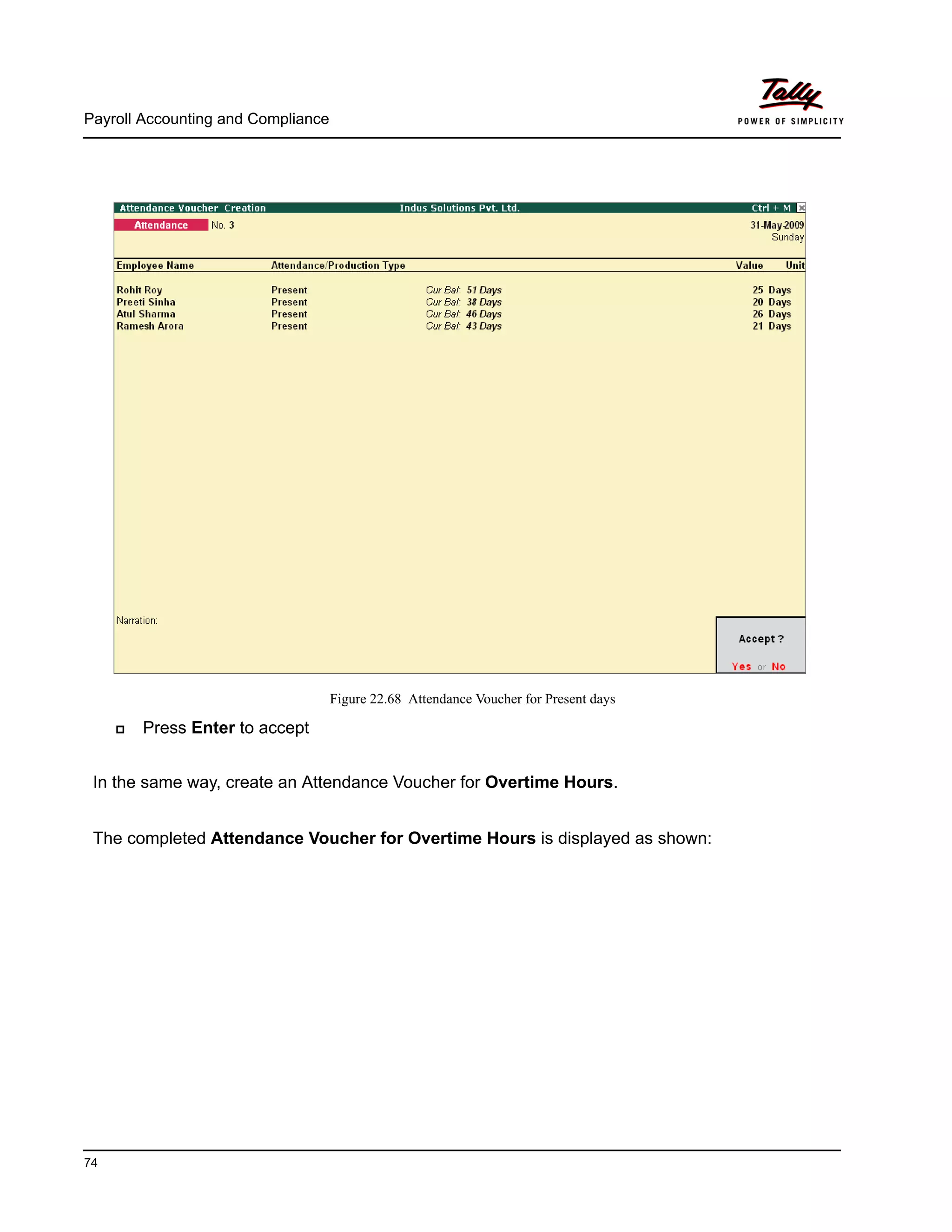
Figure 22.68 Attendance Voucher for Present days
Press Enter to accept
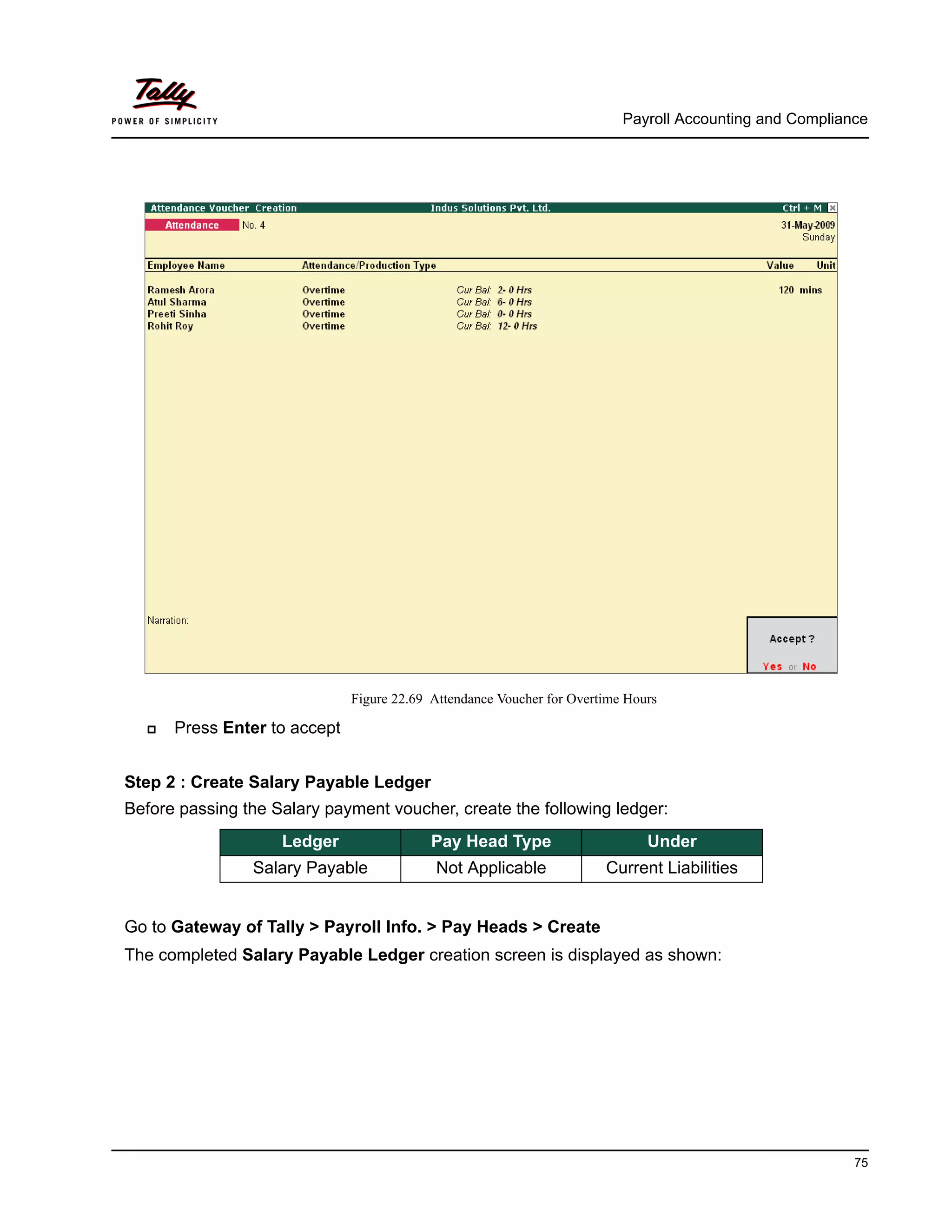
In the same way, create an Attendance Voucher for Overtime Hours.
The completed Attendance Voucher for Overtime Hours is displayed as shown:
Payroll Accounting and Compliance
75
Figure 22.69 Attendance Voucher for Overtime Hours
Press Enter to accept
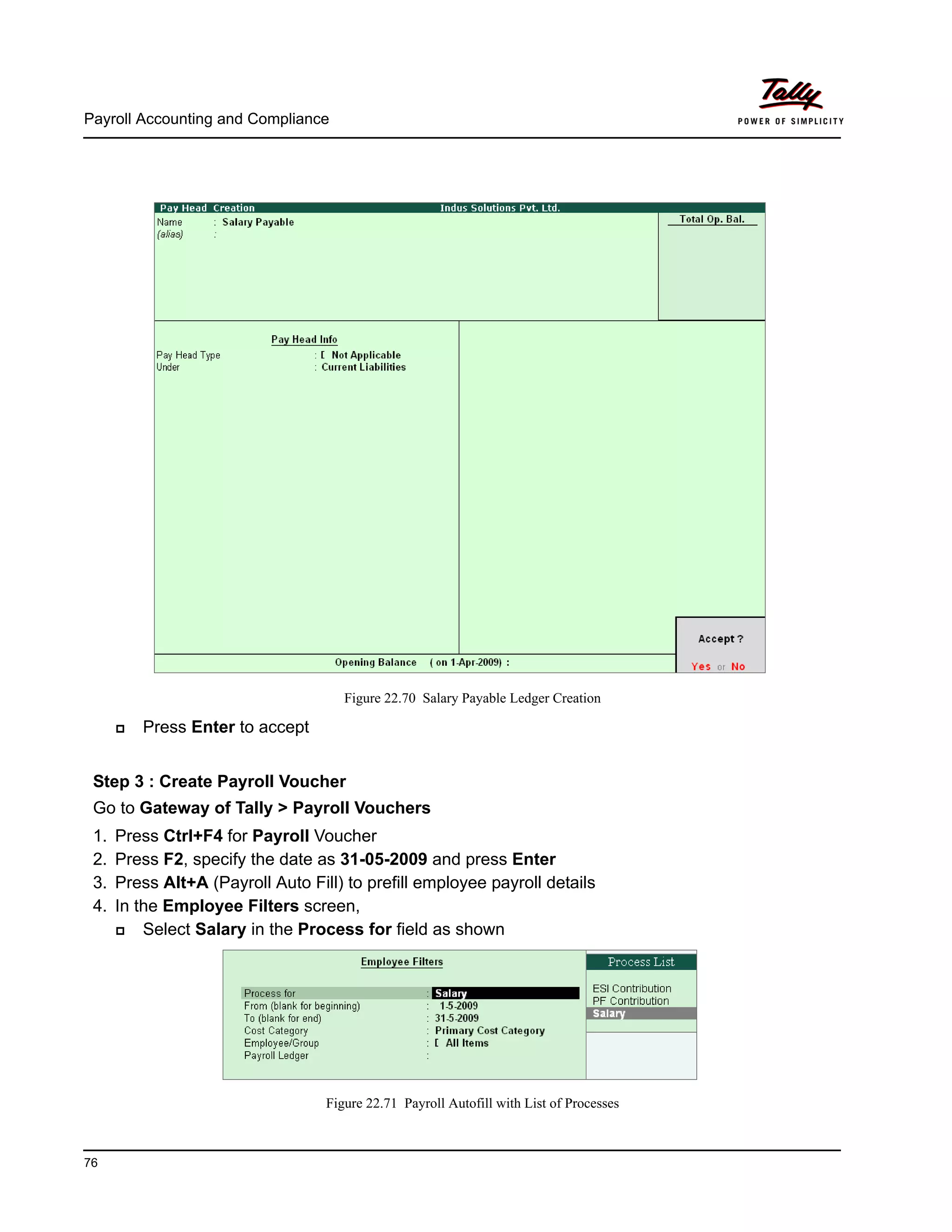
Step 2 : Create Salary Payable Ledger
Before passing the Salary payment voucher, create the following ledger:
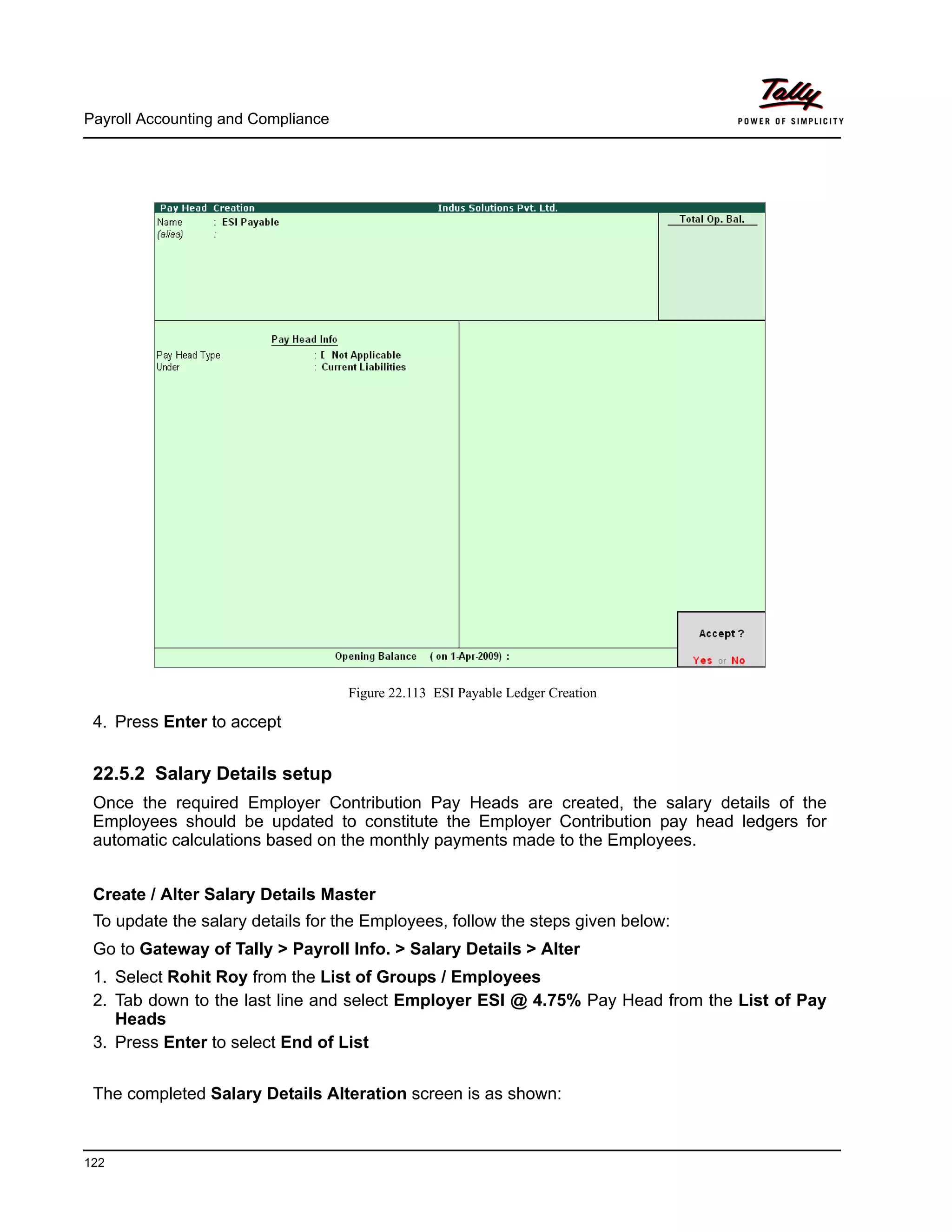
Go to Gateway of Tally > Payroll Info. > Pay Heads > Create
The completed Salary Payable Ledger creation screen is displayed as shown:
Ledger Pay Head Type Under
Salary Payable Not Applicable Current Liabilities
Payroll Accounting and Compliance
76
Figure 22.70 Salary Payable Ledger Creation
Press Enter to accept
Step 3 : Create Payroll Voucher
Go to Gateway of Tally > Payroll Vouchers
1. Press Ctrl+F4 for Payroll Voucher
2. Press F2, specify the date as 31-05-2009 and press Enter
3. Press Alt+A (Payroll Auto Fill) to prefill employee payroll details
4. In the Employee Filters screen,
Select Salary in the Process for field as shown
Figure 22.71 Payroll Autofill with List of Processes
Payroll Accounting and Compliance
77
Specify 01-05-2009 in the From field
Specify 31-05-2009 in the To field
Select All Items as Employee/Group
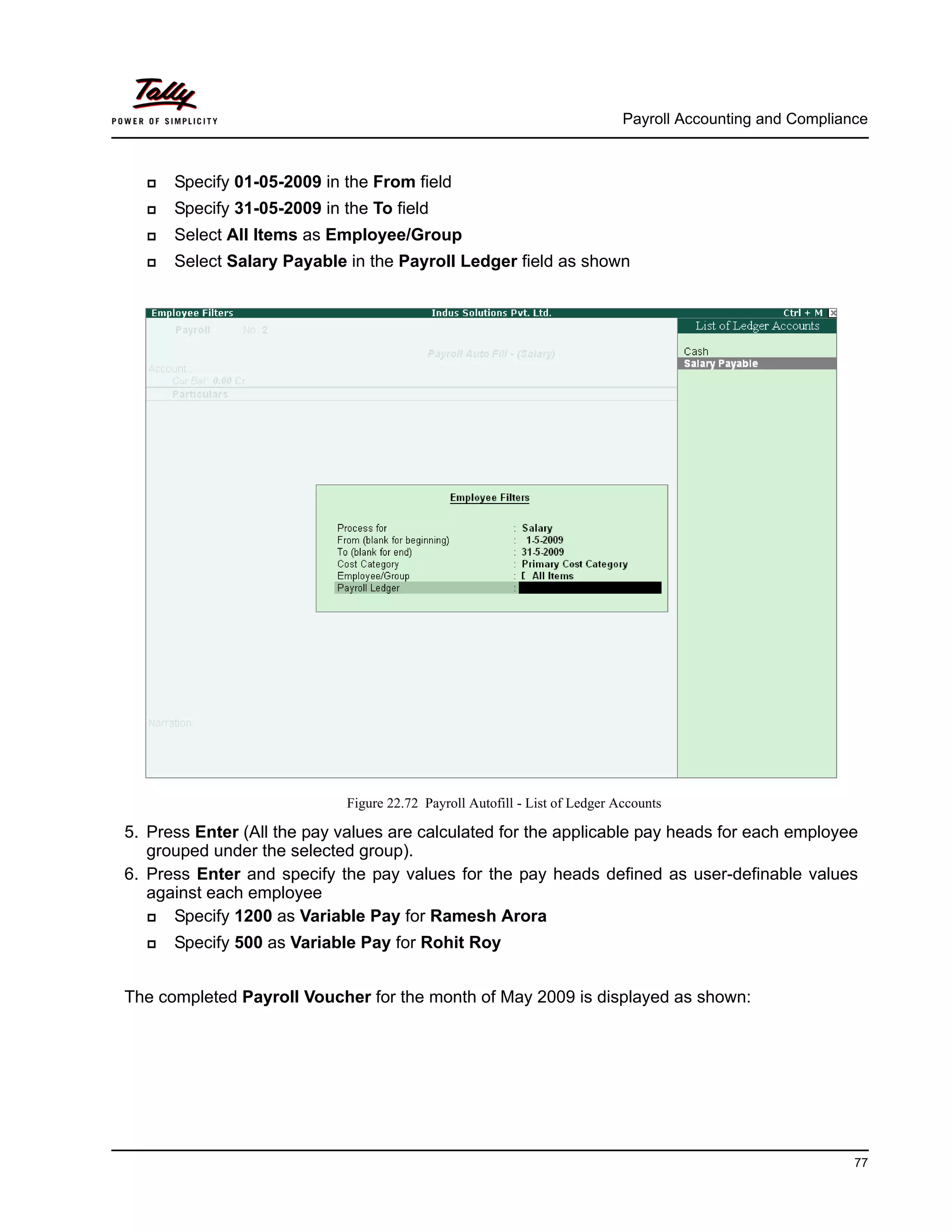
Select Salary Payable in the Payroll Ledger field as shown
Figure 22.72 Payroll Autofill - List of Ledger Accounts
5. Press Enter (All the pay values are calculated for the applicable pay heads for each employee
grouped under the selected group).
6. Press Enter and specify the pay values for the pay heads defined as user-definable values
against each employee
Specify 1200 as Variable Pay for Ramesh Arora
Specify 500 as Variable Pay for Rohit Roy
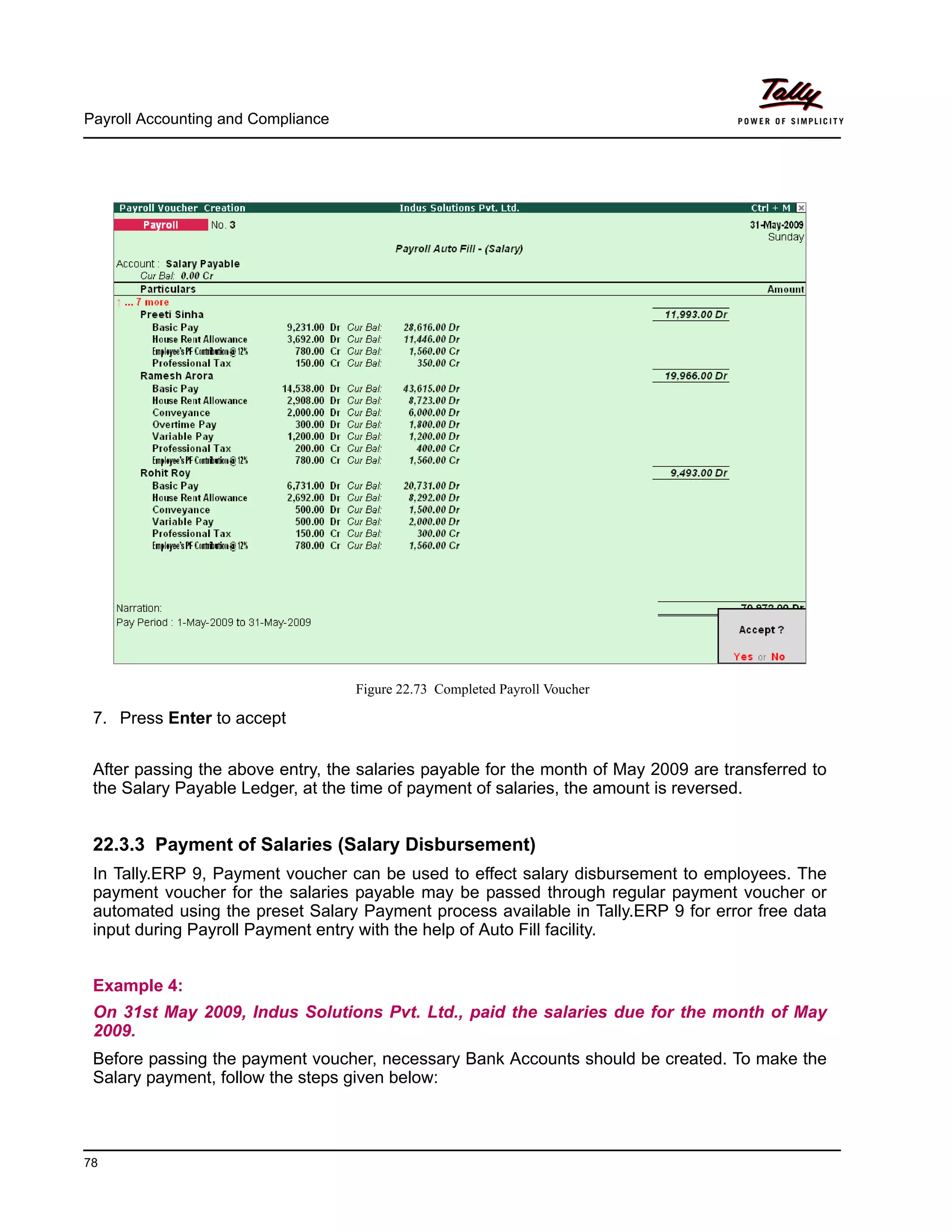
The completed Payroll Voucher for the month of May 2009 is displayed as shown:
Payroll Accounting and Compliance
78
Figure 22.73 Completed Payroll Voucher
7. Press Enter to accept
After passing the above entry, the salaries payable for the month of May 2009 are transferred to
the Salary Payable Ledger, at the time of payment of salaries, the amount is reversed.
22.3.3 Payment of Salaries (Salary Disbursement)
In Tally.ERP 9, Payment voucher can be used to effect salary disbursement to employees. The
payment voucher for the salaries payable may be passed through regular payment voucher or
automated using the preset Salary Payment process available in Tally.ERP 9 for error free data
input during Payroll Payment entry with the help of Auto Fill facility.
Example 4:
On 31st May 2009, Indus Solutions Pvt. Ltd., paid the salaries due for the month of May
2009.
Before passing the payment voucher, necessary Bank Accounts should be created. To make the
Salary payment, follow the steps given below:
Payroll Accounting and Compliance
79
Go to Gateway of Tally > Accounting Vouchers
1. Press F5 for Payment Voucher
2. Press F2, specify the date as 31-05-2009 and press Enter
3. Press Alt+A (Payroll Auto Fill) to prefill employee payroll details
4. In the Employee Filters screen,
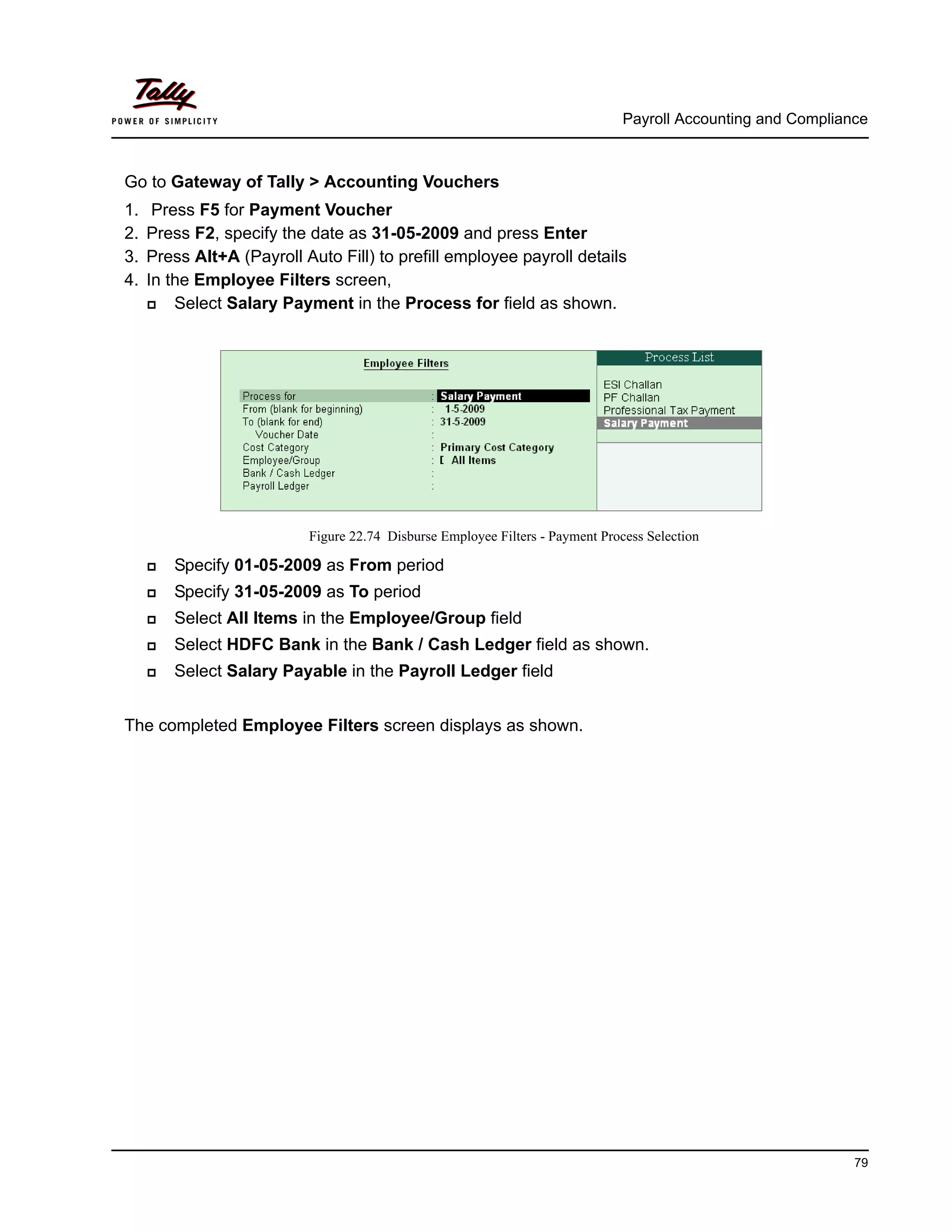
Select Salary Payment in the Process for field as shown.
Figure 22.74 Disburse Employee Filters - Payment Process Selection
Specify 01-05-2009 as From period
Specify 31-05-2009 as To period
Select All Items in the Employee/Group field
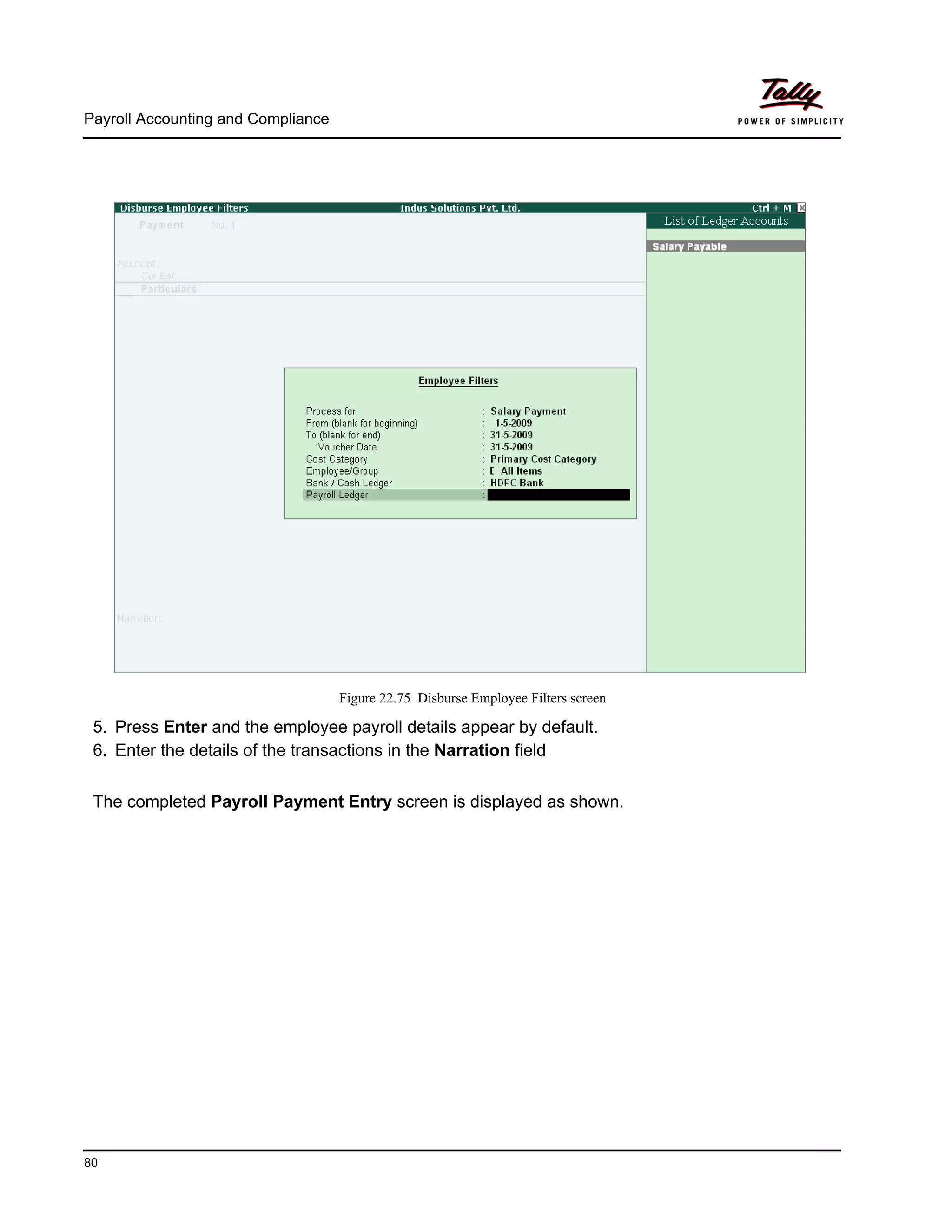
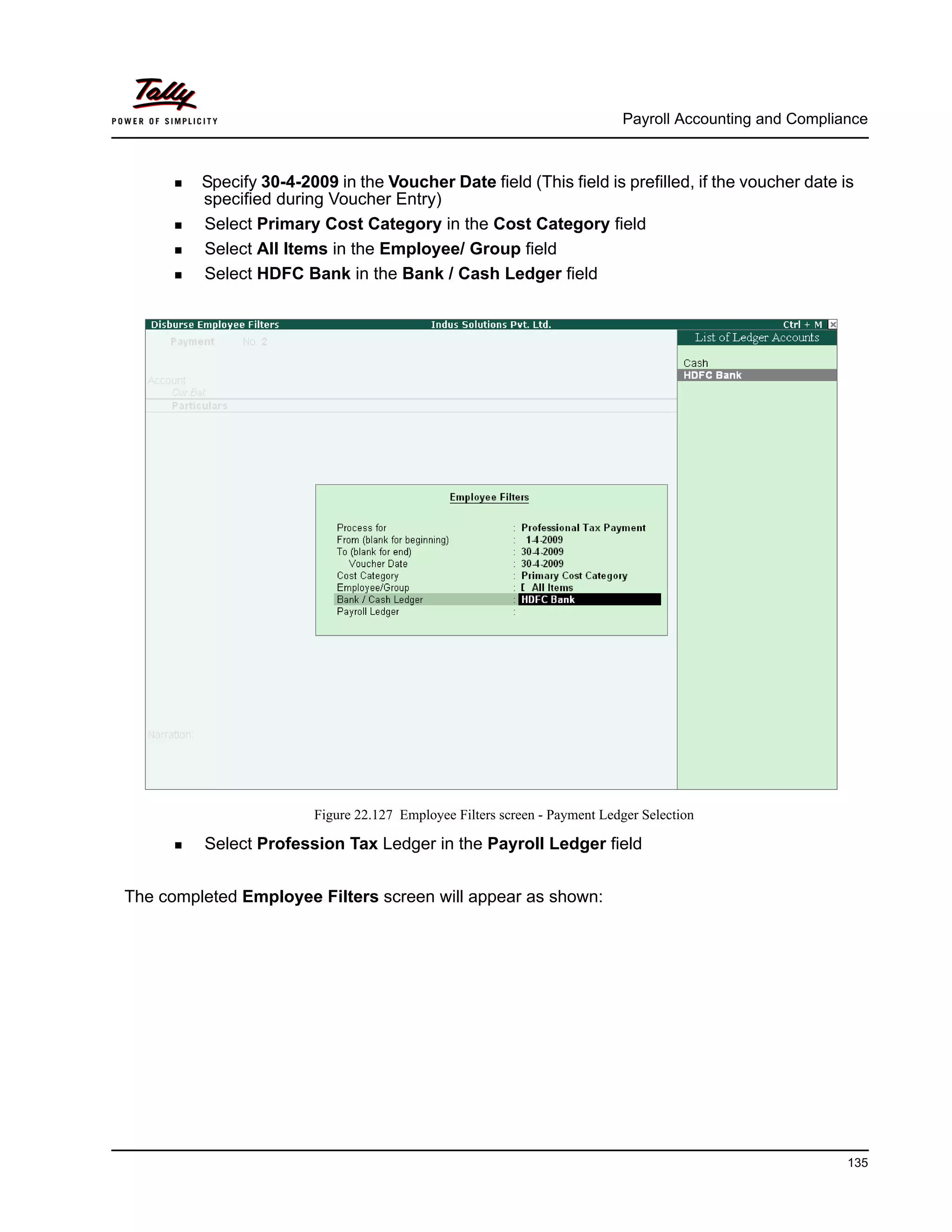
Select HDFC Bank in the Bank / Cash Ledger field as shown.
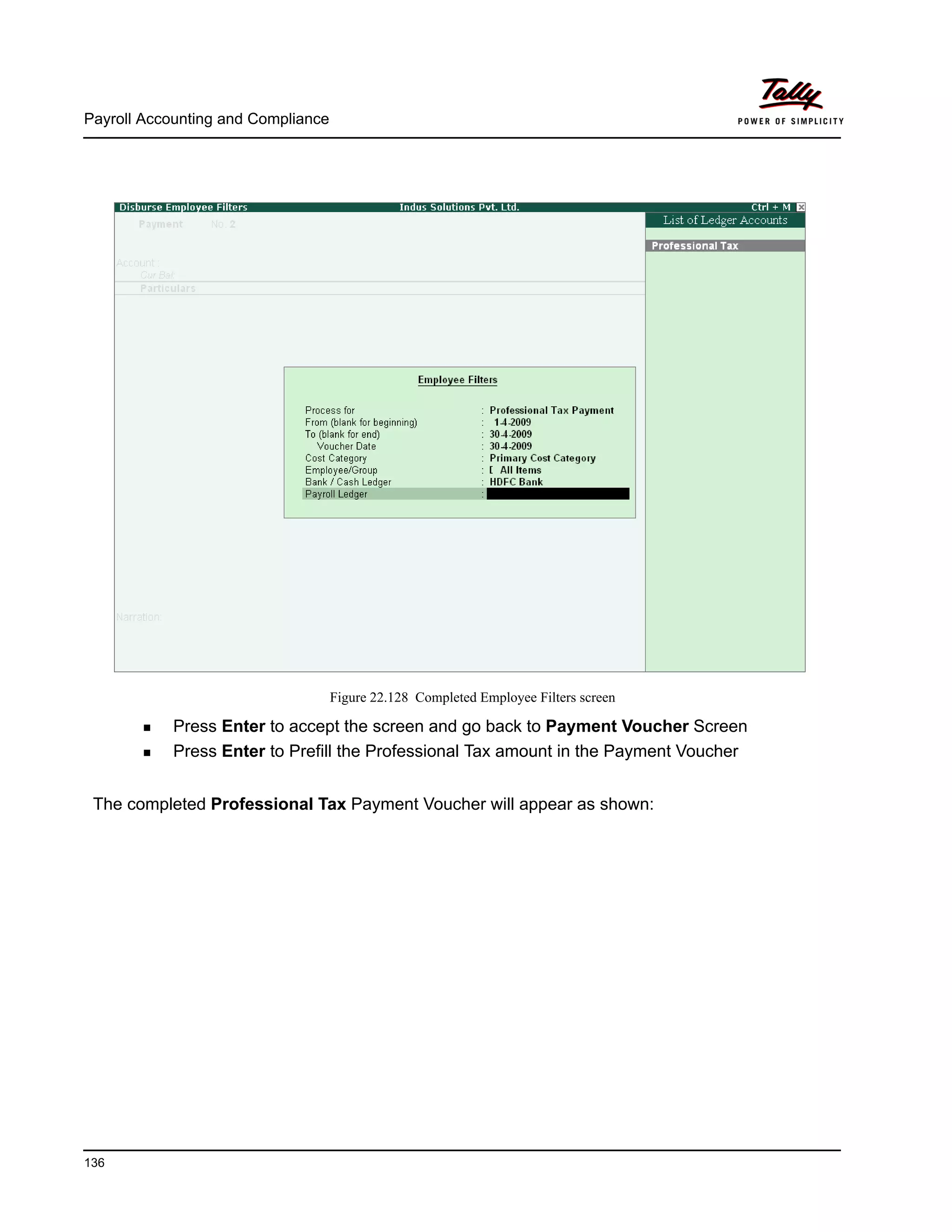
Select Salary Payable in the Payroll Ledger field
The completed Employee Filters screen displays as shown.
Payroll Accounting and Compliance
80
Figure 22.75 Disburse Employee Filters screen
5. Press Enter and the employee payroll details appear by default.
6. Enter the details of the transactions in the Narration field
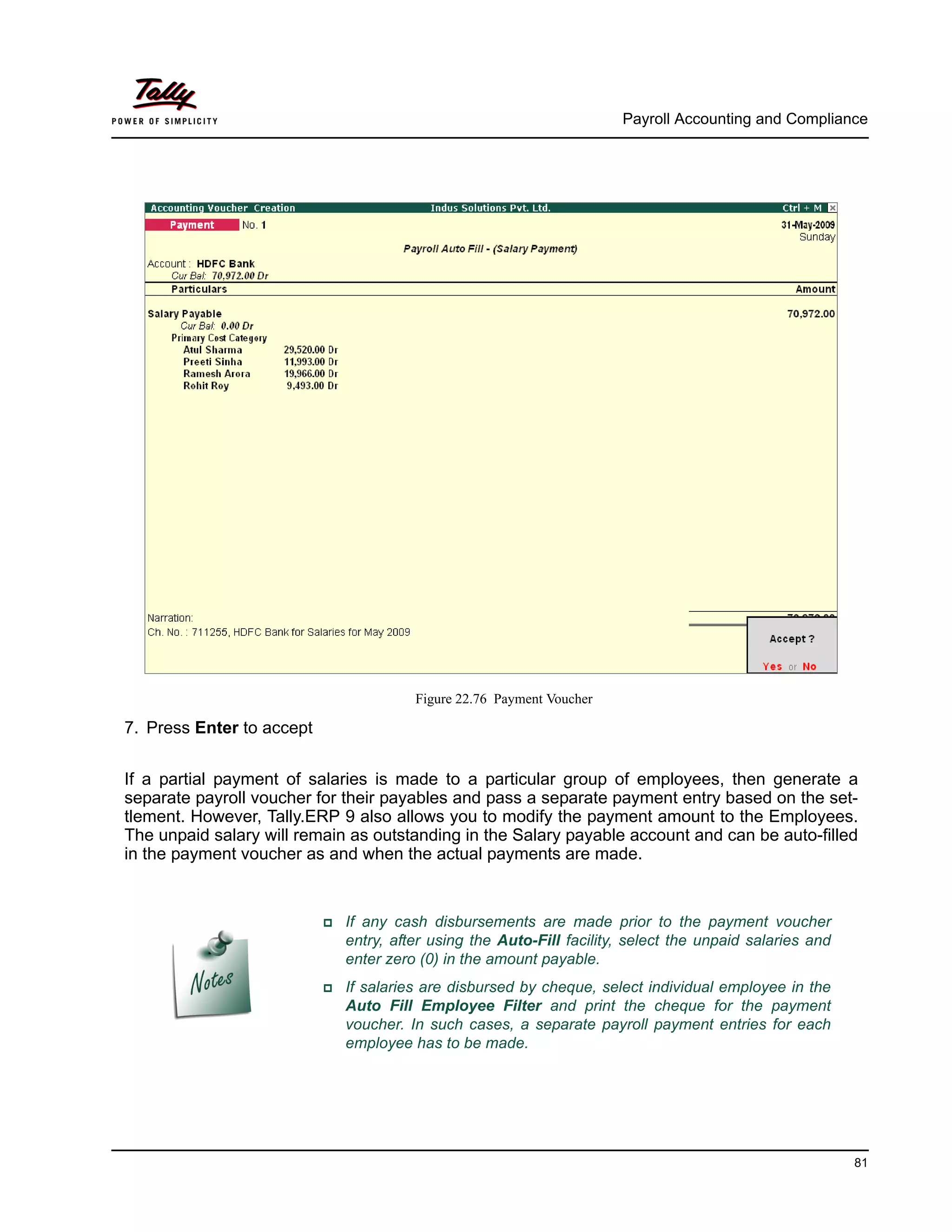
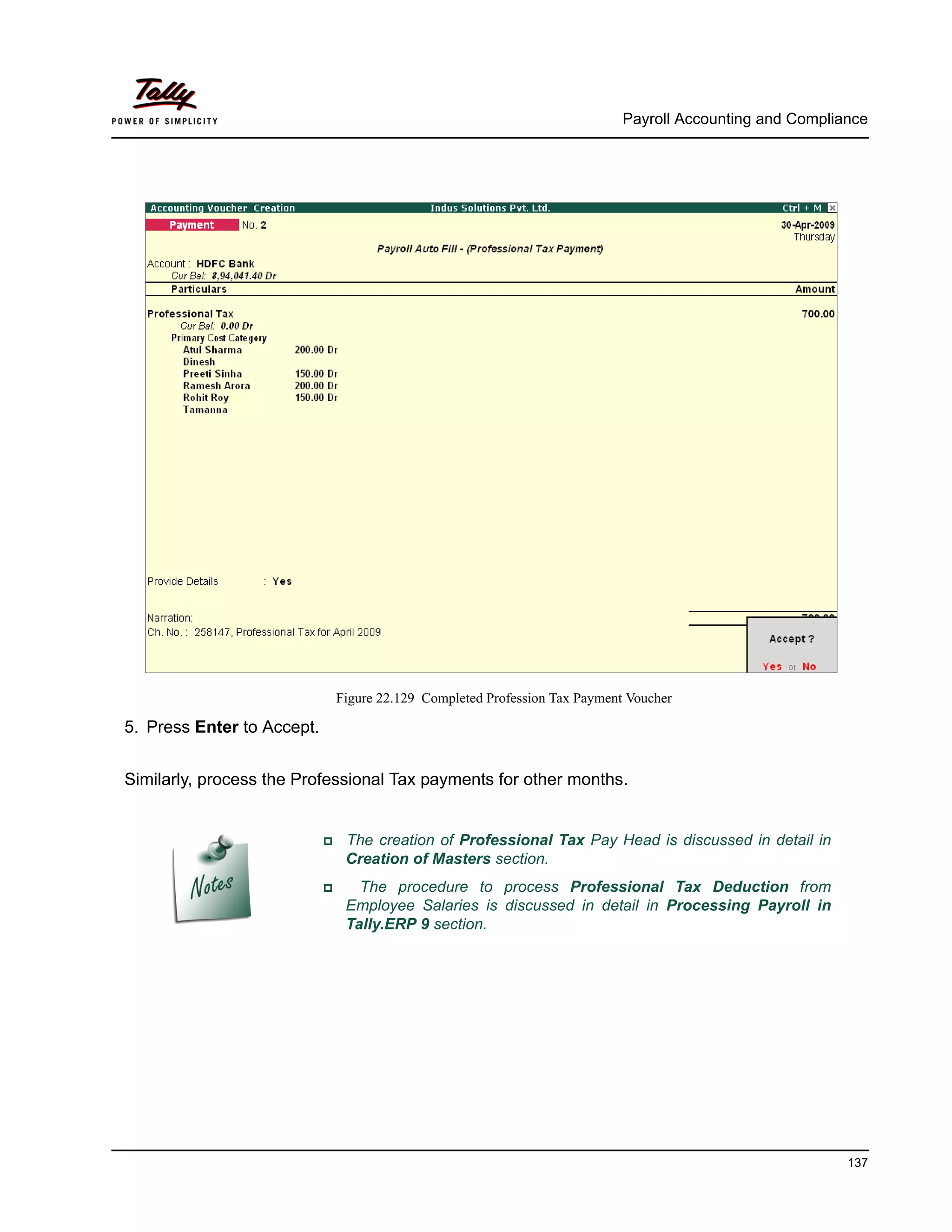
The completed Payroll Payment Entry screen is displayed as shown.
Payroll Accounting and Compliance
81
Figure 22.76 Payment Voucher
7. Press Enter to accept
If a partial payment of salaries is made to a particular group of employees, then generate a
separate payroll voucher for their payables and pass a separate payment entry based on the set-
tlement. However, Tally.ERP 9 also allows you to modify the payment amount to the Employees.
The unpaid salary will remain as outstanding in the Salary payable account and can be auto-filled
in the payment voucher as and when the actual payments are made.
If any cash disbursements are made prior to the payment voucher
entry, after using the Auto-Fill facility, select the unpaid salaries and
enter zero (0) in the amount payable.
If salaries are disbursed by cheque, select individual employee in the
Auto Fill Employee Filter and print the cheque for the payment
voucher. In such cases, a separate payroll payment entries for each
employee has to be made.
Payroll Accounting and Compliance
82
22.4 Accounting for Employer PF Contributions
The Employees' Provident Funds and Miscellaneous Provisions Act is a social security legislation
which administers provident fund, family pension and insurance to employees. The Act covers
three schemes namely., PF (Provident Fund scheme), EPS (Employees’ Pension Fund Scheme),
EDLI (Employees Deposit Linked Insurance scheme).
Under the Employees’ Provident Fund scheme, both the employees and employer contribute to
the fund at the rate of 12% of the basic wages, dearness allowance, cash value of food conces-
sion and retaining allowance (if any), payable to employees per month. The rate of contribution is
10% in the case of following establishments:
Any covered establishment with less than 20 employees
Any sick industrial company as specified in the relevant section of Sick Industrial Compa-
nies (Special Provisions) Act, 1985 and which has been declared as such by the Board for
Industrial and Financial Reconstruction
Any establishment which has at the end of any financial year accumulated losses equal to
or exceeding its entire net worth and
Any establishment engaged in manufacturing of (a) jute (b) Breed (d) coir and (e) Guar
gum Industries/ Factories.
The Contribution payable by the Employer is not allowed to be deducted from the wages of the
employee. However, the employer has to deduct employee's share from their Salaries and pay
the same in EPF scheme. The deduction can be only from the wages pertaining to a period for
which contribution is paid. However, if there is an accidental omission, the amount can be
recovered later.
Out of employer's contribution of 12% or 10%, the Employer's contribution of 8.33% is diverted to
Employees' Pension Scheme and the balance is retained in the EPF scheme. On retirement, the
employee gets his full share plus the balance of Employer's share retained to his credit in EPF
account.
Once an establishment is covered under PF, all its departments and branches wherever they are
situated are also covered.
i. Employees' Pension Scheme :
As discussed above, the employer's contribution of 8.33% is diverted to the fund of Pension
Scheme and the balance 3.67% (1.67%, if the contribution is 10%) is credited in employee's
name in Provident Fund account. The contribution of 8.33% is on maximum salary of Rs. 6,500.
However, if the some employers are paying contribution on salary in excess of Rs. 6,500, the
excess contribution will be credited to Provident Fund account and not to Pension scheme.
Benefits under the Scheme
Members will get pension on superannuation or retirement from service and upon disablement
during employment. Family pension will be available to widow/widower for life or till he/she remar-
ries. In addition, children will be entitled to pension, upto 25 years of their age. In case of orphans,
pension at enhanced rate is available upon death of widow/widower or ceasing payment of widow
Payroll Accounting and Compliance
83
pension. Benefit of pension to children or orphan is only restricted for two children/orphans. If the
person is unmarried or has no family, pension is available to nominee for a specified period.
ii. Employees Deposit Linked Insurance Scheme :
The purpose of the scheme is to provide life insurance benefits to employees who are already
covered under PF/EPS. The employer has to pay contribution equal to 0.50% of the total wages
of employees. In addition, administrative charges of 0.1% of total wages.The employee does not
have to contribute any amount to the scheme. The salary limit for coverage of employees is same
as that of Provident Fund.
Benefit to nominee of employee
In case of death of an employee during employment, his nominee or family member gets an
amount equal to average balance in the Provident Fund Account of the deceased employee
during last 12 months.
As discussed earlier, the statutory features viz., EPF & ESI etc., are required to be configured in
F11: Statutory & Taxation Features. In this section, we will discuss, recording of transactions
related to computation and contribution of Provident Fund.
Example 5:
On 30th April, 2009 M/s. Indus Solutions Pvt. Ltd., processed Provident Fund contributions
for the month of April 2009 and paid the amount in full to EPFO.
The same is accounted as shown :
In Tally.ERP 9, follow the steps given below to process Employer contribution towards Provident
Fund:
Create Employer PF Contribution Masters
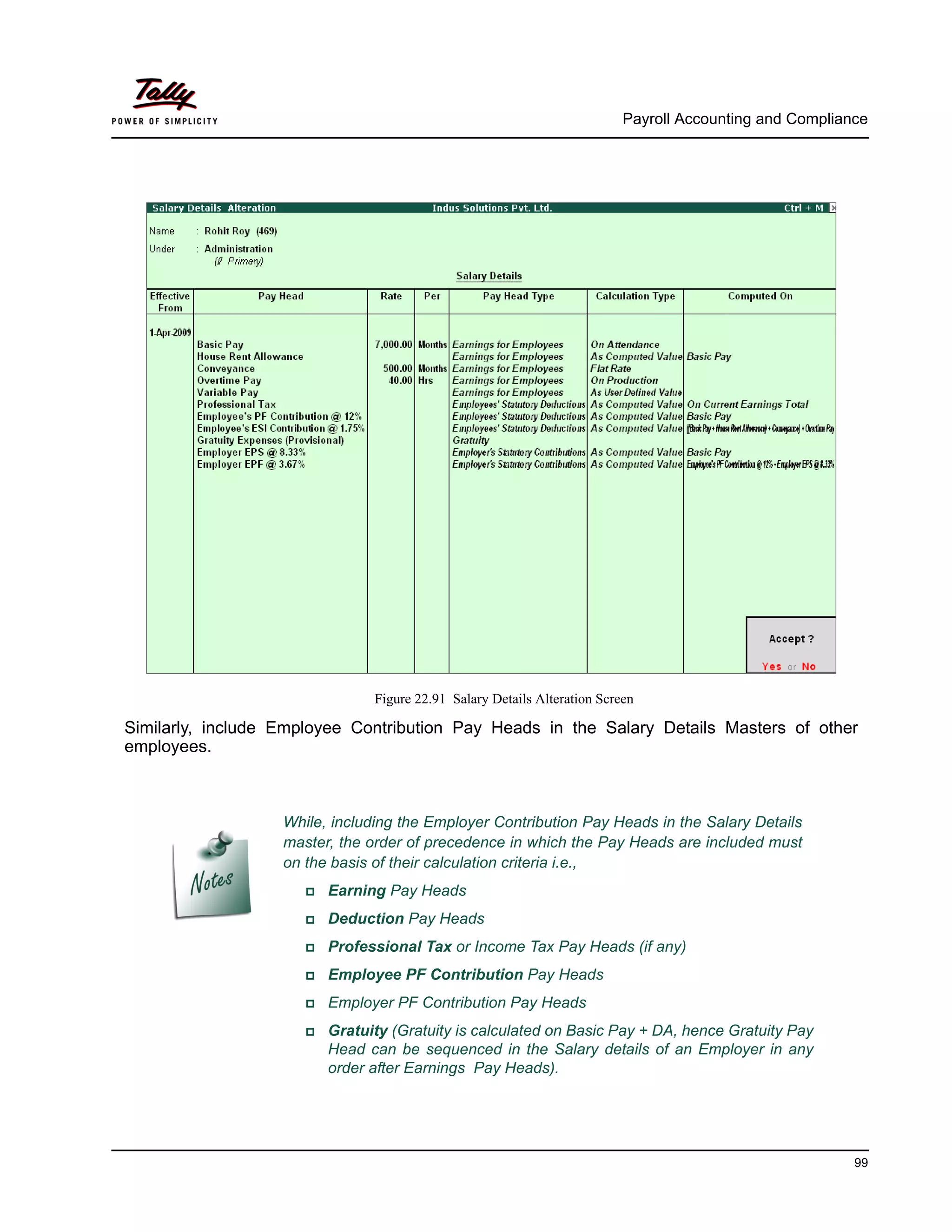
Alter/Modify Salary Details
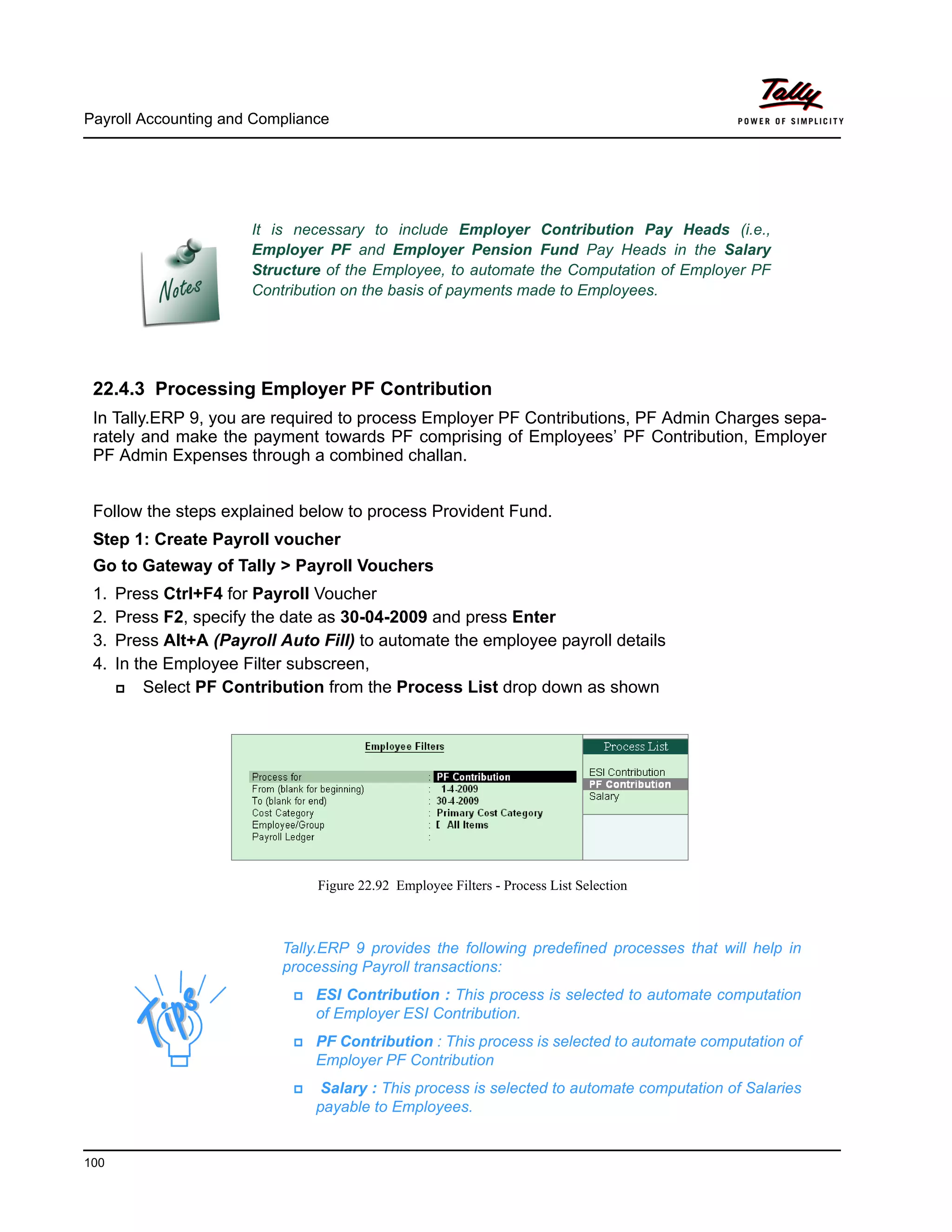
Processing Employer PF Contribution
Processing PF Admin Expenses
Payment of Provident Fund
22.4.1 Creating Employer PF Contribution Masters
In Tally.ERP 9, Employer contribution towards Employees’ Pension Fund (Employees’ Pension
Scheme), Provident Fund, Admin Charges and other PF related ledgers are required to be
created separately for appropriate Accounting and reporting. Create the following ledgers in
Tally.ERP 9,
1. Employer Contributions Pay Head
2. Employer PF Admin Charges
Payroll Accounting and Compliance
84
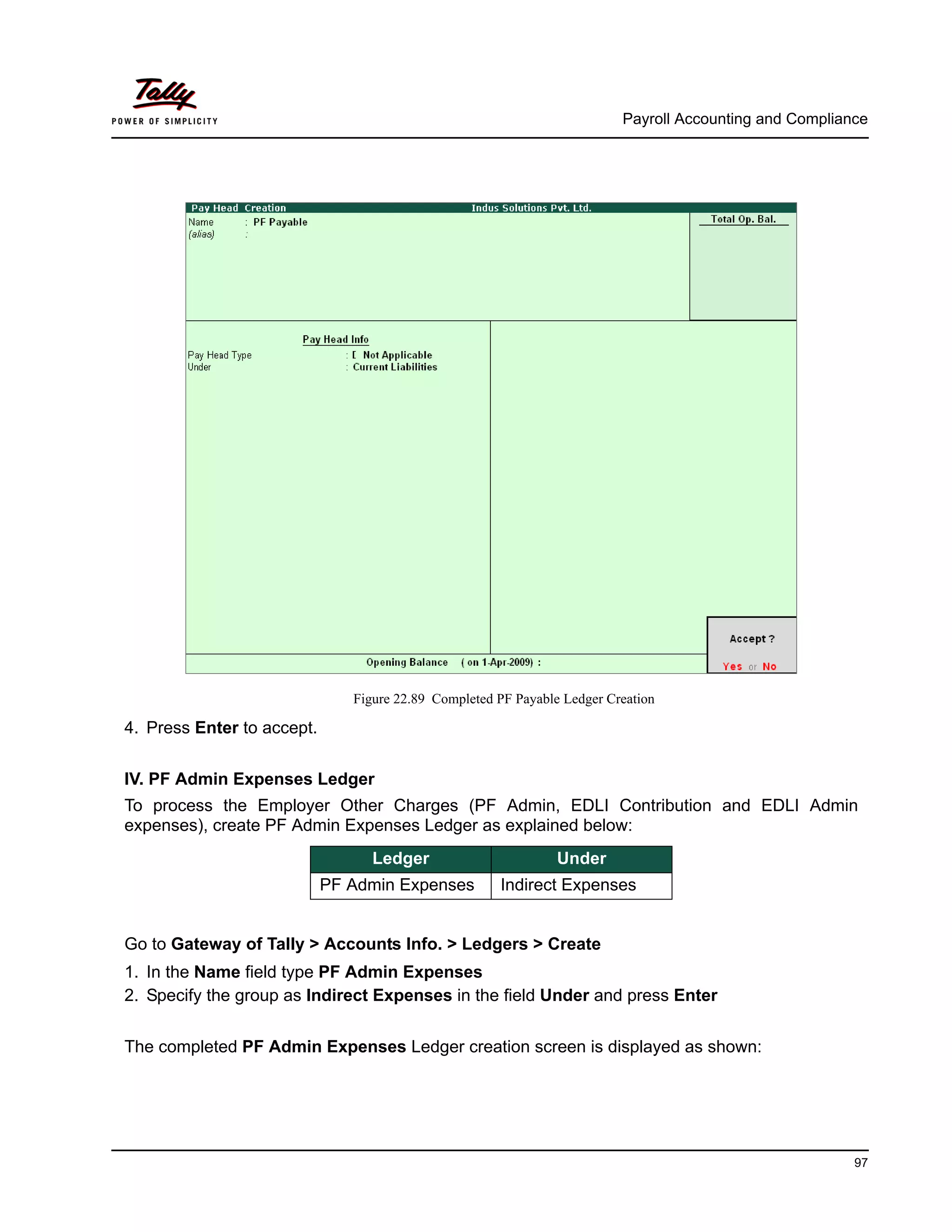
3. PF Payable Ledger
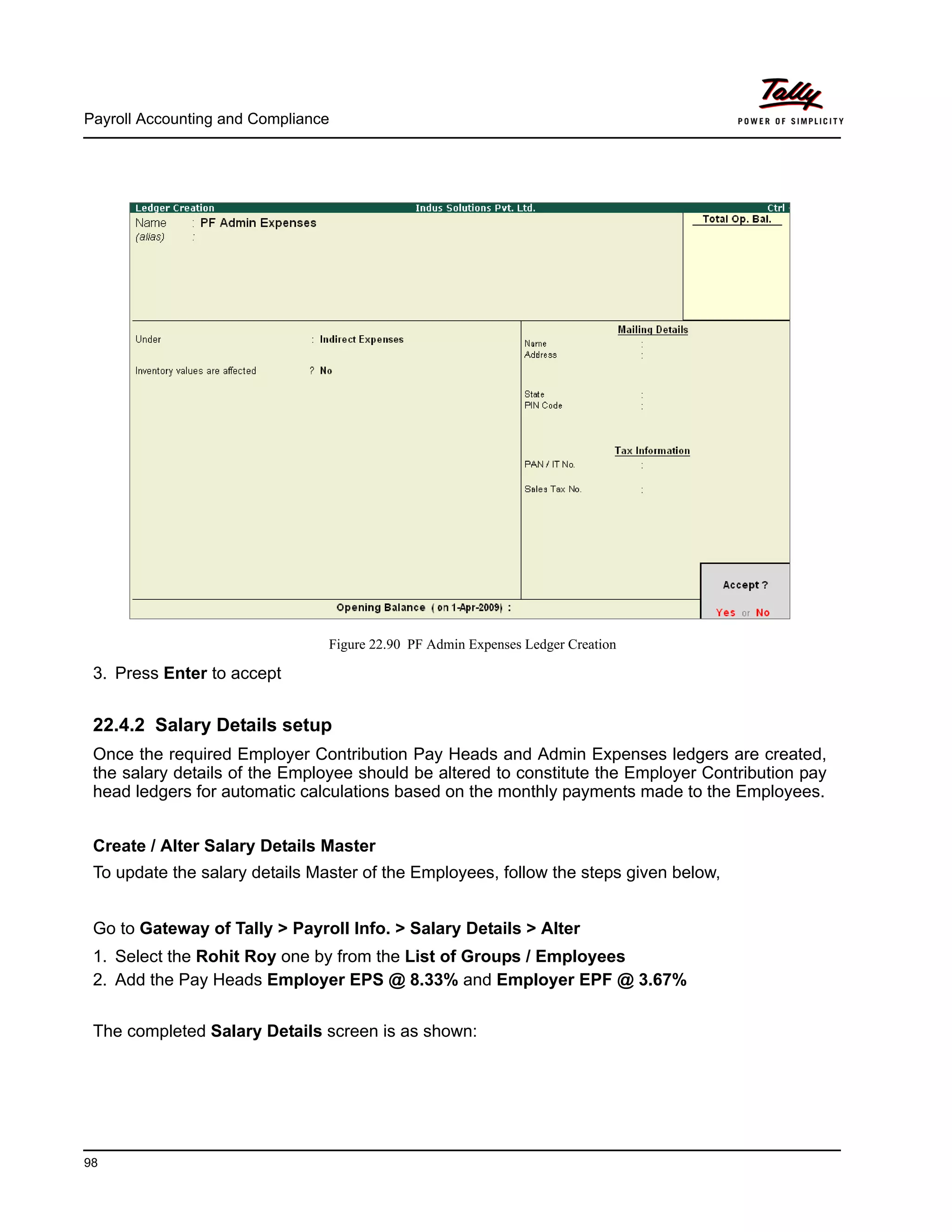
4. PF Admin Expenses Ledger
I. Employer Contributions Pay Head
i. Employer Contribution EPS @ 8.33% Pay Head Creation
Go to Gateway of Tally > Payroll Info. > PayHeads > Create
In the Pay Heads Creation screen,
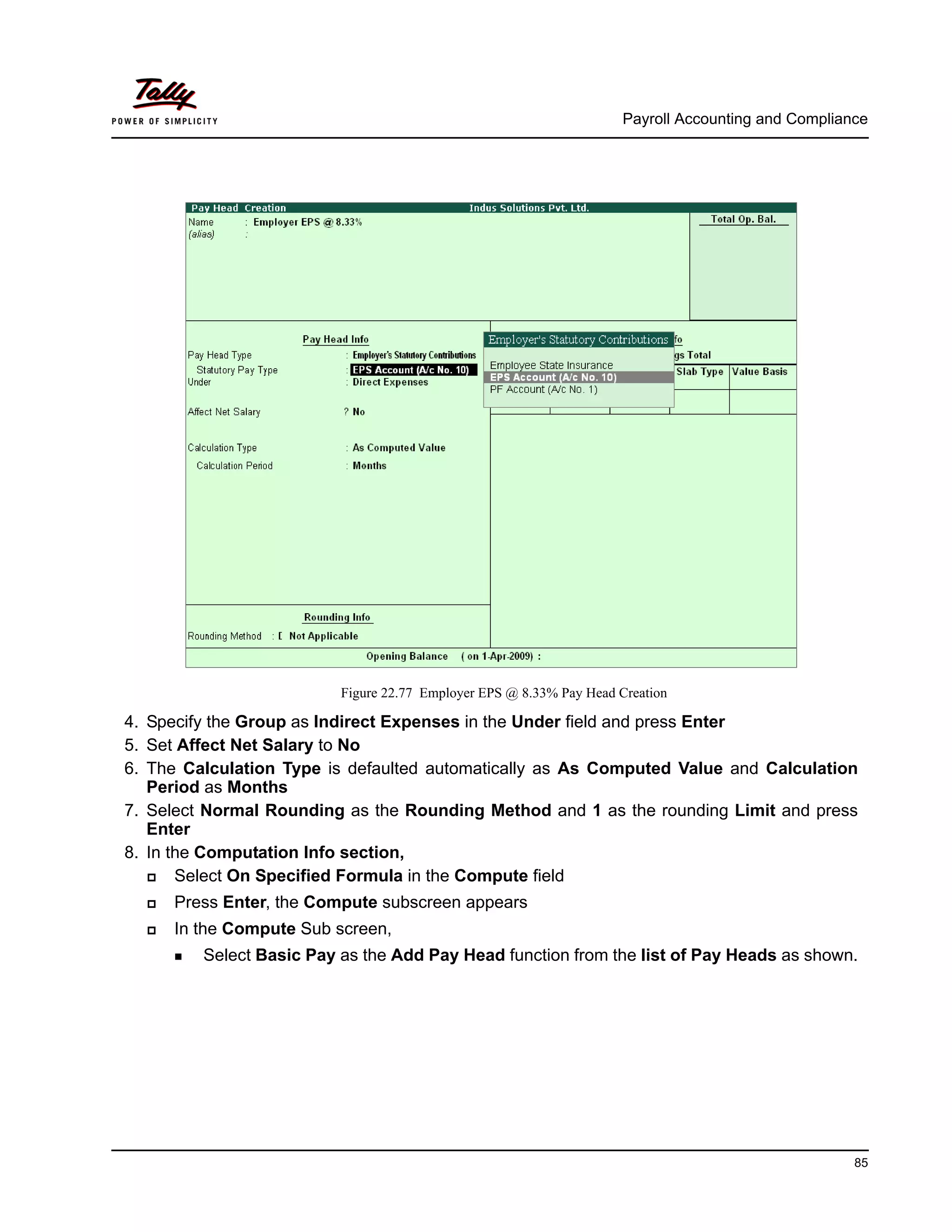
1. Type Employer EPS @ 8.33% as the Name of the Pay Head
2. Select Employer’s Statutory Contributions in the field Pay Head Type
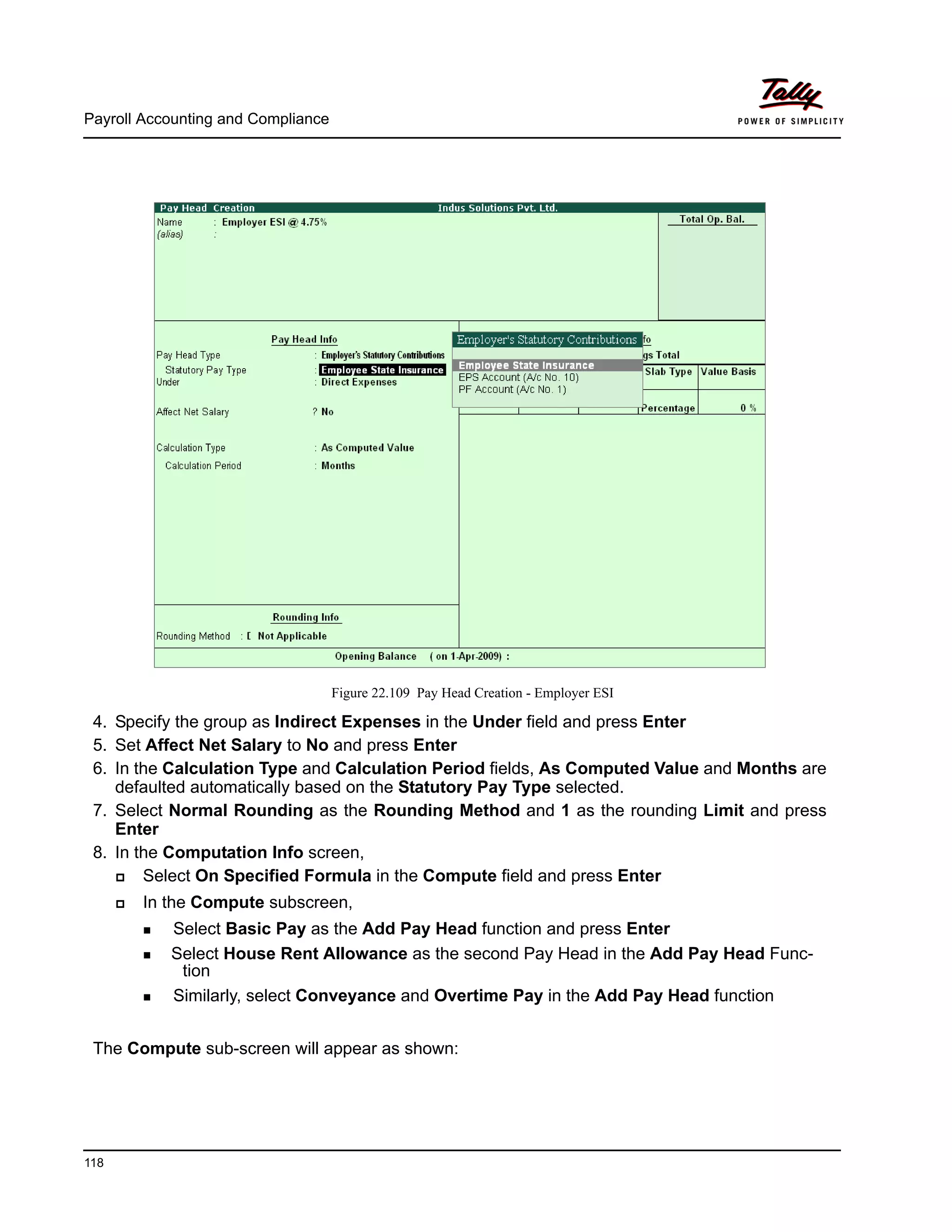
3. In Statutory Pay Type field, select EPS Account (A/c No. 10) as shown
Pay Head
Name
Pay Head Type
StatutoryPay
Type
Under
Affect
Net
Salary
Calculation
Type
Employer
EPS @ 8.33%
Employer’s Stat-
utory Contribu-
tions
EPS Account
(A/c No.10)
Indirect
Expenses
No As com-
puted value
Employer
EPF @ 3.67%
Employer’s Stat-
utory Contribu-
tions
PF Account
(A/c No.1)
Indirect
Expenses
No As com-
puted value
Payroll Accounting and Compliance
85
Figure 22.77 Employer EPS @ 8.33% Pay Head Creation
4. Specify the Group as Indirect Expenses in the Under field and press Enter
5. Set Affect Net Salary to No
6. The Calculation Type is defaulted automatically as As Computed Value and Calculation
Period as Months
7. Select Normal Rounding as the Rounding Method and 1 as the rounding Limit and press
Enter
8. In the Computation Info section,
Select On Specified Formula in the Compute field
Press Enter, the Compute subscreen appears
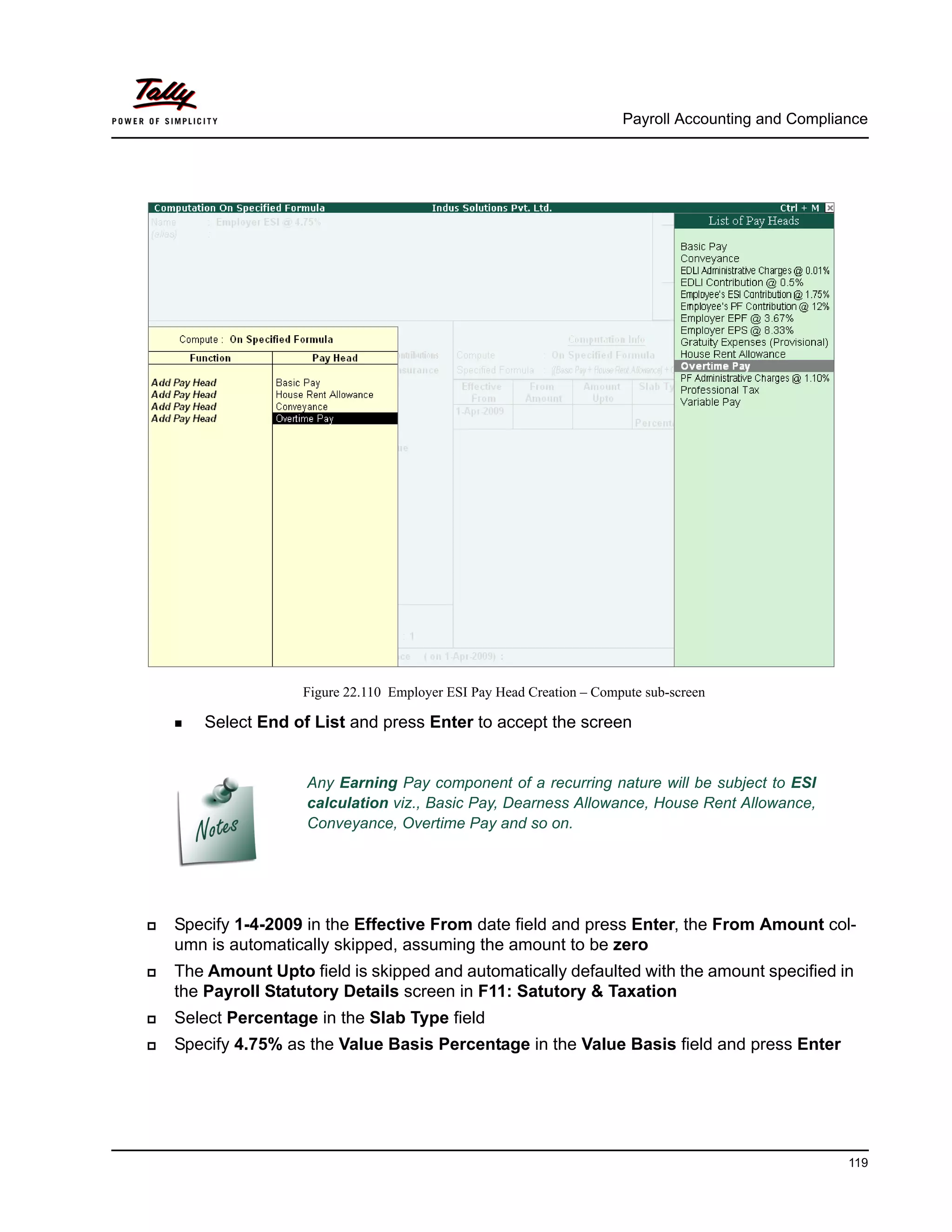
In the Compute Sub screen,
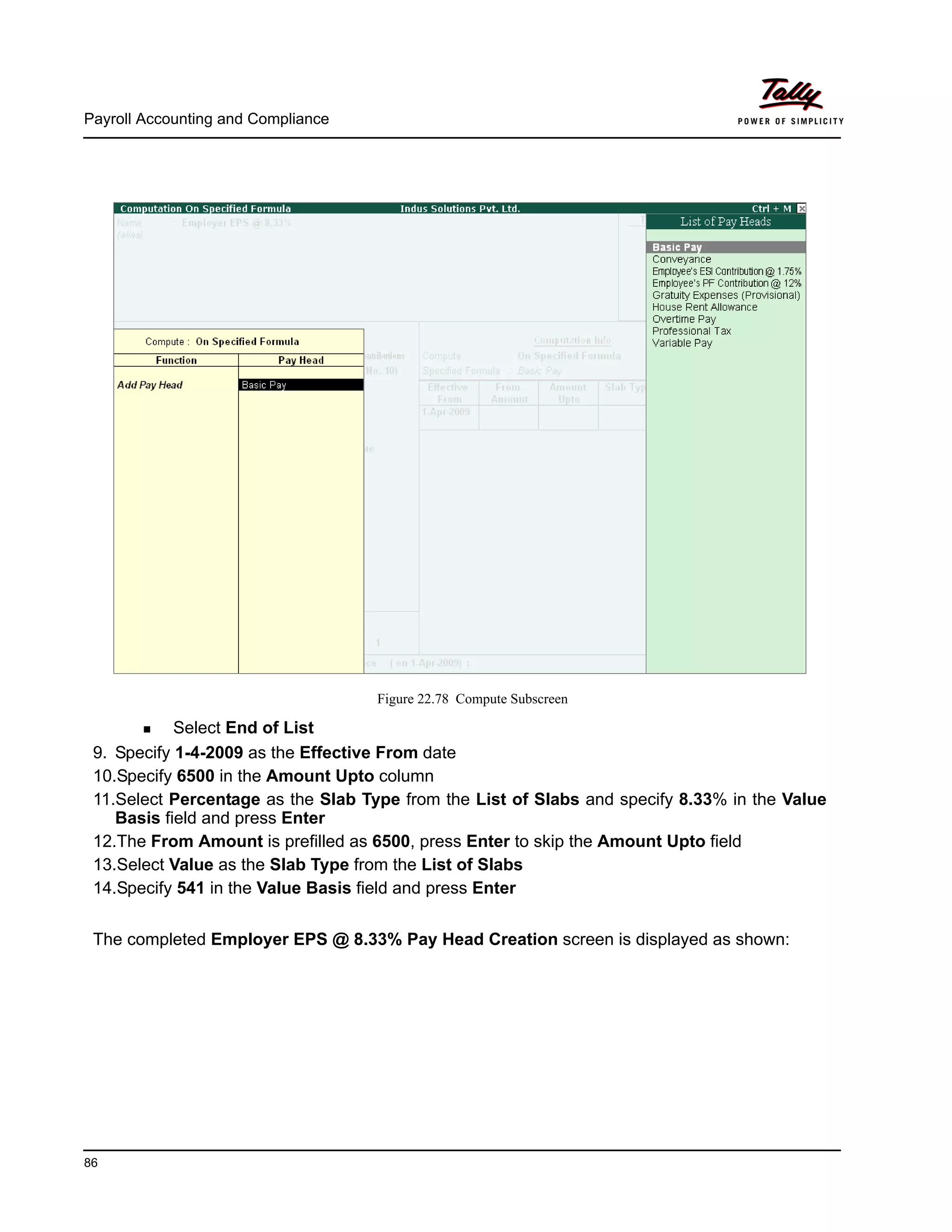
Select Basic Pay as the Add Pay Head function from the list of Pay Heads as shown.
Payroll Accounting and Compliance
86
Figure 22.78 Compute Subscreen
Select End of List
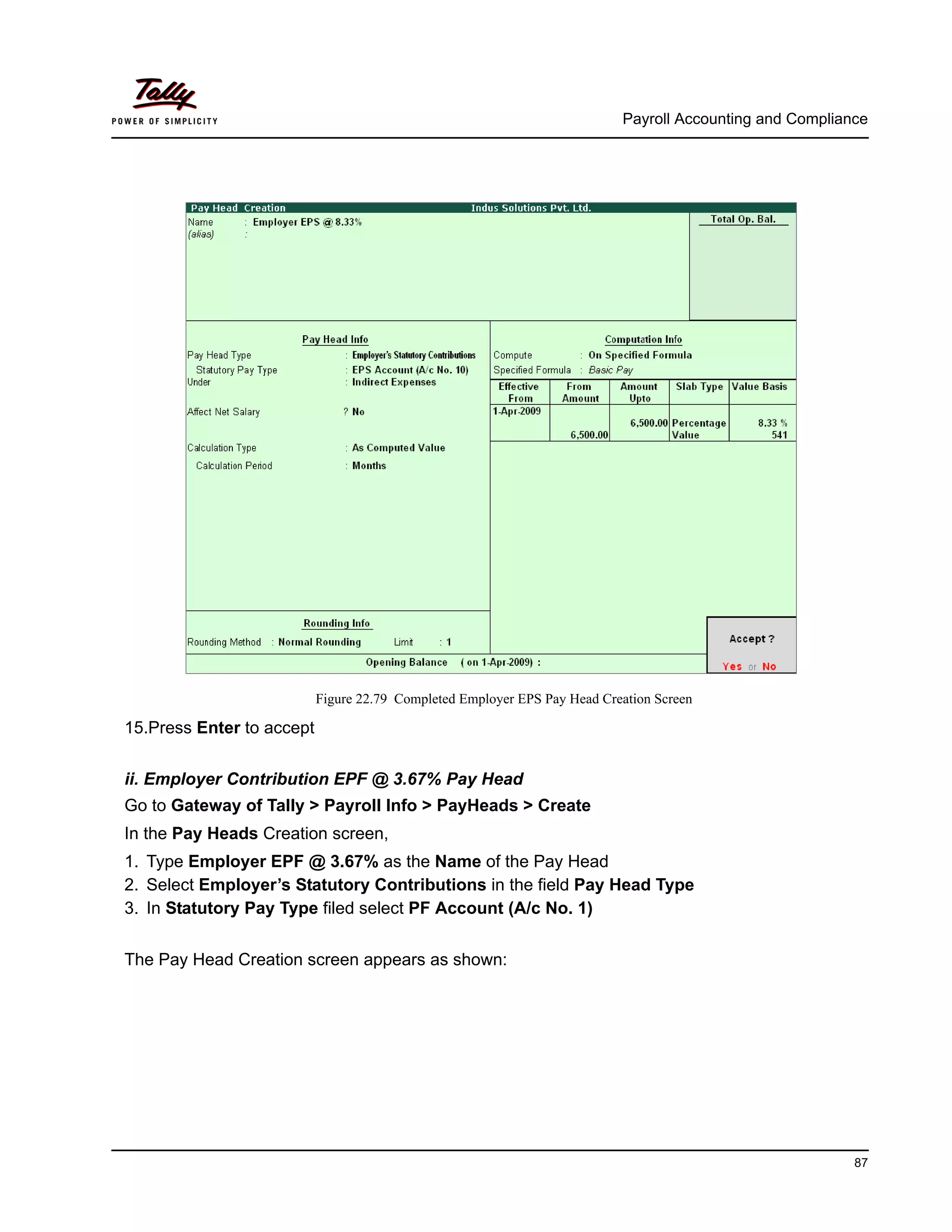
9. Specify 1-4-2009 as the Effective From date
10.Specify 6500 in the Amount Upto column
11.Select Percentage as the Slab Type from the List of Slabs and specify 8.33% in the Value
Basis field and press Enter
12.The From Amount is prefilled as 6500, press Enter to skip the Amount Upto field
13.Select Value as the Slab Type from the List of Slabs
14.Specify 541 in the Value Basis field and press Enter
The completed Employer EPS @ 8.33% Pay Head Creation screen is displayed as shown:
Payroll Accounting and Compliance
87
Figure 22.79 Completed Employer EPS Pay Head Creation Screen
15.Press Enter to accept
ii. Employer Contribution EPF @ 3.67% Pay Head
Go to Gateway of Tally > Payroll Info > PayHeads > Create
In the Pay Heads Creation screen,
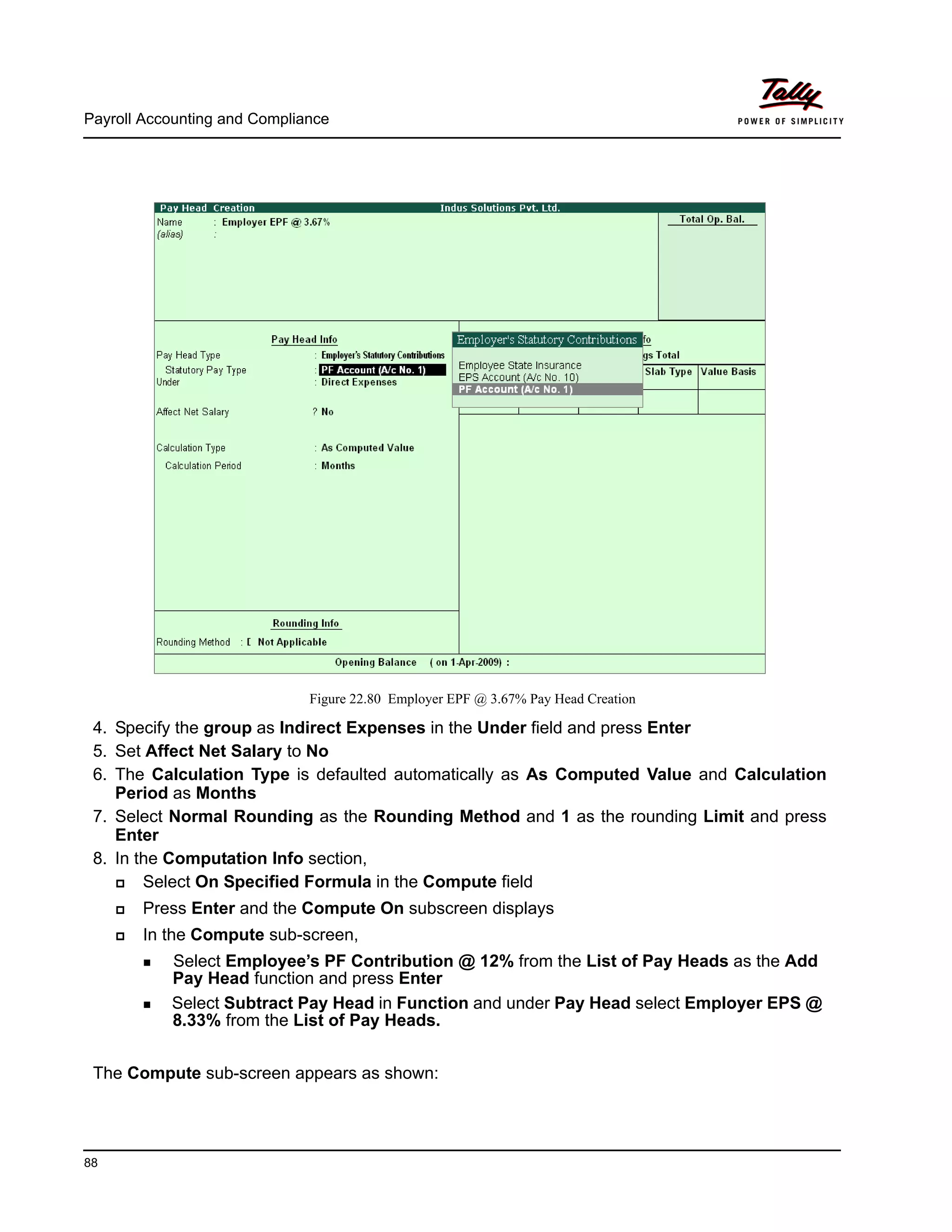
1. Type Employer EPF @ 3.67% as the Name of the Pay Head
2. Select Employer’s Statutory Contributions in the field Pay Head Type
3. In Statutory Pay Type filed select PF Account (A/c No. 1)
The Pay Head Creation screen appears as shown:
Payroll Accounting and Compliance
88
Figure 22.80 Employer EPF @ 3.67% Pay Head Creation
4. Specify the group as Indirect Expenses in the Under field and press Enter
5. Set Affect Net Salary to No
6. The Calculation Type is defaulted automatically as As Computed Value and Calculation
Period as Months
7. Select Normal Rounding as the Rounding Method and 1 as the rounding Limit and press
Enter
8. In the Computation Info section,
Select On Specified Formula in the Compute field
Press Enter and the Compute On subscreen displays
In the Compute sub-screen,
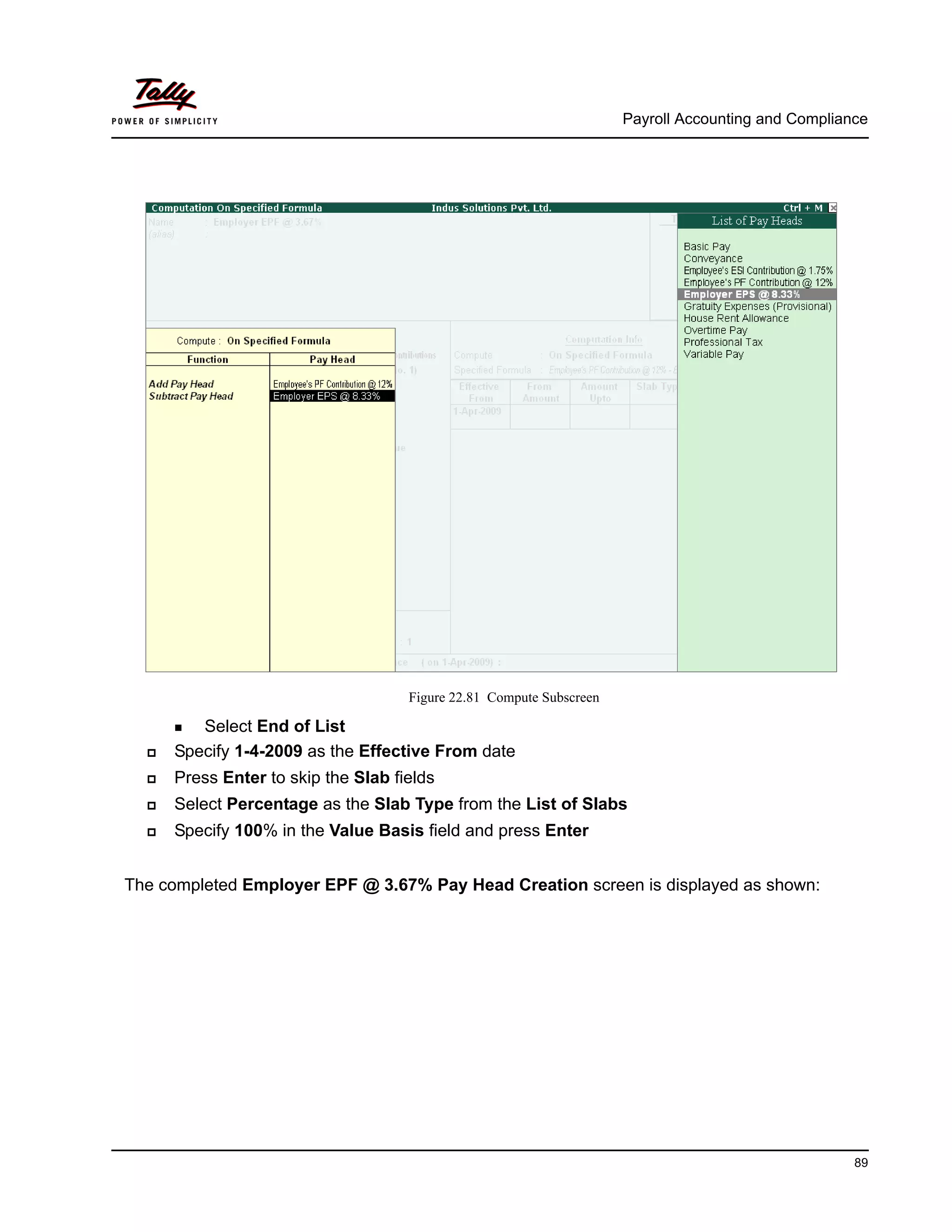
Select Employee’s PF Contribution @ 12% from the List of Pay Heads as the Add
Pay Head function and press Enter
Select Subtract Pay Head in Function and under Pay Head select Employer EPS @
8.33% from the List of Pay Heads.
The Compute sub-screen appears as shown:
Payroll Accounting and Compliance
89
Figure 22.81 Compute Subscreen
Select End of List
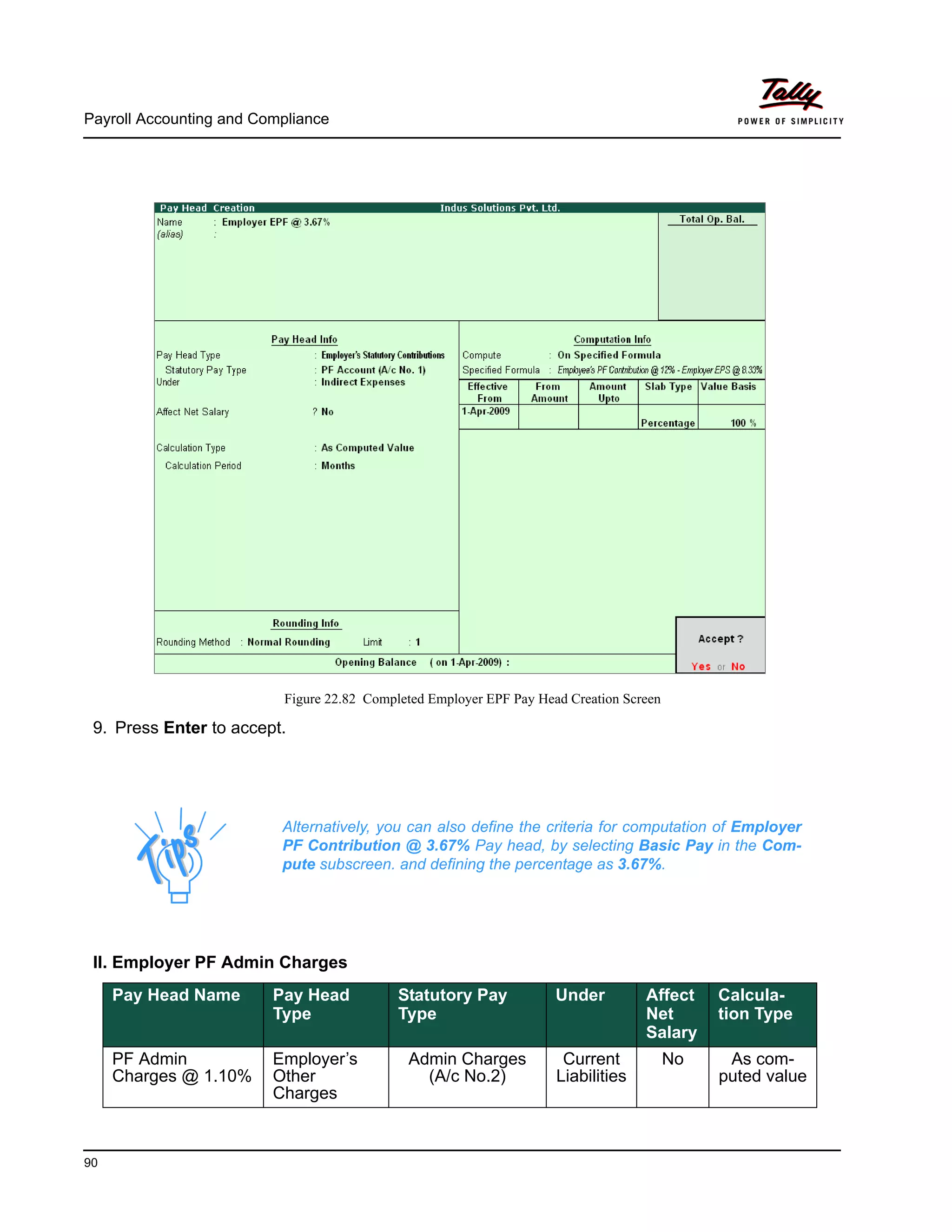
Specify 1-4-2009 as the Effective From date
Press Enter to skip the Slab fields
Select Percentage as the Slab Type from the List of Slabs
Specify 100% in the Value Basis field and press Enter
The completed Employer EPF @ 3.67% Pay Head Creation screen is displayed as shown:
Payroll Accounting and Compliance
90
Figure 22.82 Completed Employer EPF Pay Head Creation Screen
9. Press Enter to accept.
II. Employer PF Admin Charges
Alternatively, you can also define the criteria for computation of Employer
PF Contribution @ 3.67% Pay head, by selecting Basic Pay in the Com-
pute subscreen. and defining the percentage as 3.67%.
Pay Head Name Pay Head
Type
Statutory Pay
Type
Under Affect
Net
Salary
Calcula-
tion Type
PF Admin
Charges @ 1.10%
Employer’s
Other
Charges
Admin Charges
(A/c No.2)
Current
Liabilities
No As com-
puted value
Payroll Accounting and Compliance
91
i. PF Administrative Charges @ 1.10% Pay Head Creation
Go to Gateway of Tally > Payroll Info > PayHeads > Create
In the Pay Heads Creation screen,
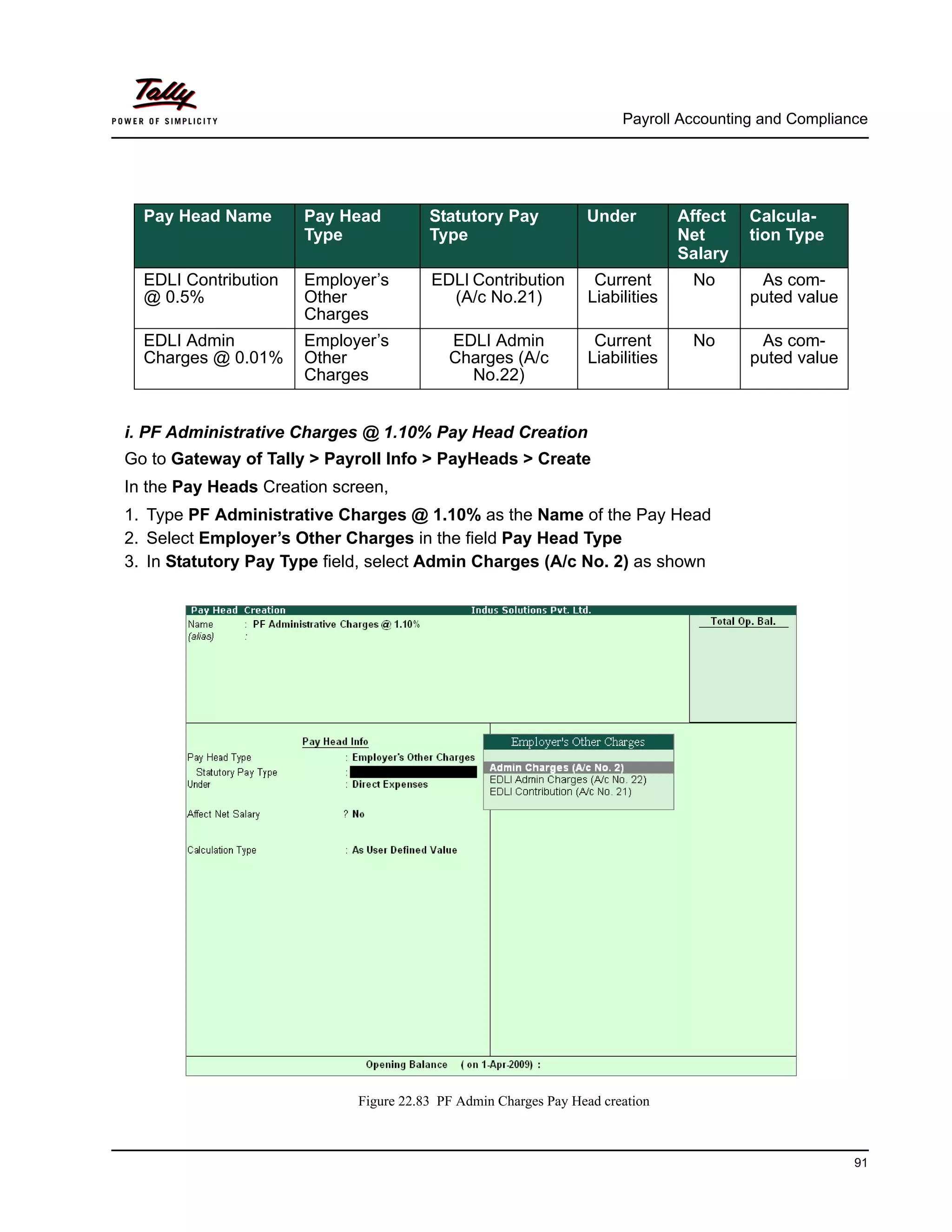
1. Type PF Administrative Charges @ 1.10% as the Name of the Pay Head
2. Select Employer’s Other Charges in the field Pay Head Type
3. In Statutory Pay Type field, select Admin Charges (A/c No. 2) as shown
Figure 22.83 PF Admin Charges Pay Head creation
Pay Head Name Pay Head
Type
Statutory Pay
Type
Under Affect
Net
Salary
Calcula-
tion Type
EDLI Contribution
@ 0.5%
Employer’s
Other
Charges
EDLI Contribution
(A/c No.21)
Current
Liabilities
No As com-
puted value
EDLI Admin
Charges @ 0.01%
Employer’s
Other
Charges
EDLI Admin
Charges (A/c
No.22)
Current
Liabilities
No As com-
puted value
Payroll Accounting and Compliance
92
4. Specify the group as Current Liabilities in the Under field and press Enter
5. Set Affect Net Salary to No
6. The Calculation Type is defaulted automatically as As Computed Value and Calculation
Period as Months
7. The Rounding Method is defaulted to Normal Rounding and 1 defaulted as the rounding
Limit
8. In the Computation Info section,
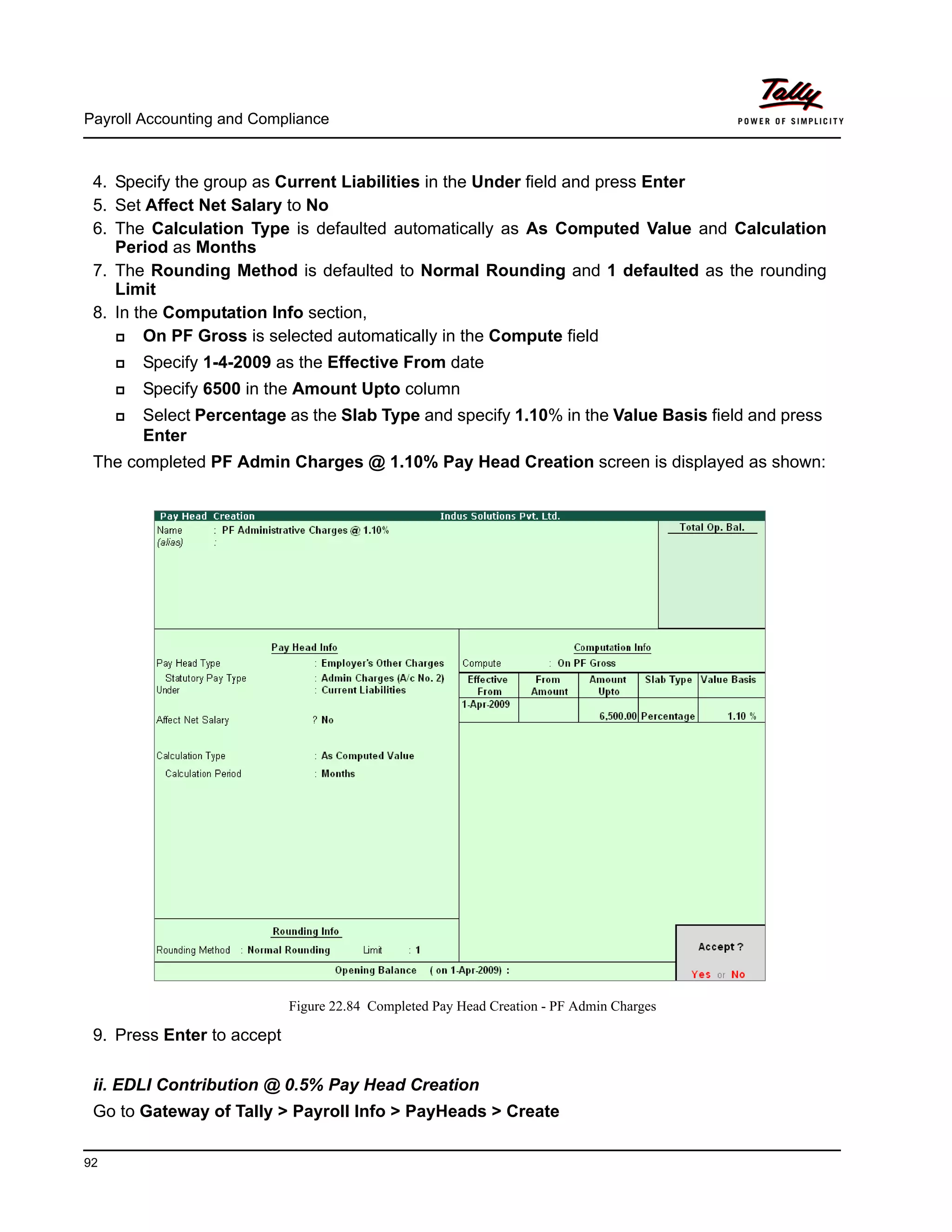
On PF Gross is selected automatically in the Compute field
Specify 1-4-2009 as the Effective From date
Specify 6500 in the Amount Upto column
Select Percentage as the Slab Type and specify 1.10% in the Value Basis field and press
Enter
The completed PF Admin Charges @ 1.10% Pay Head Creation screen is displayed as shown:
Figure 22.84 Completed Pay Head Creation - PF Admin Charges
9. Press Enter to accept
ii. EDLI Contribution @ 0.5% Pay Head Creation
Go to Gateway of Tally > Payroll Info > PayHeads > Create
Payroll Accounting and Compliance
93
In the Pay Heads Creation screen:
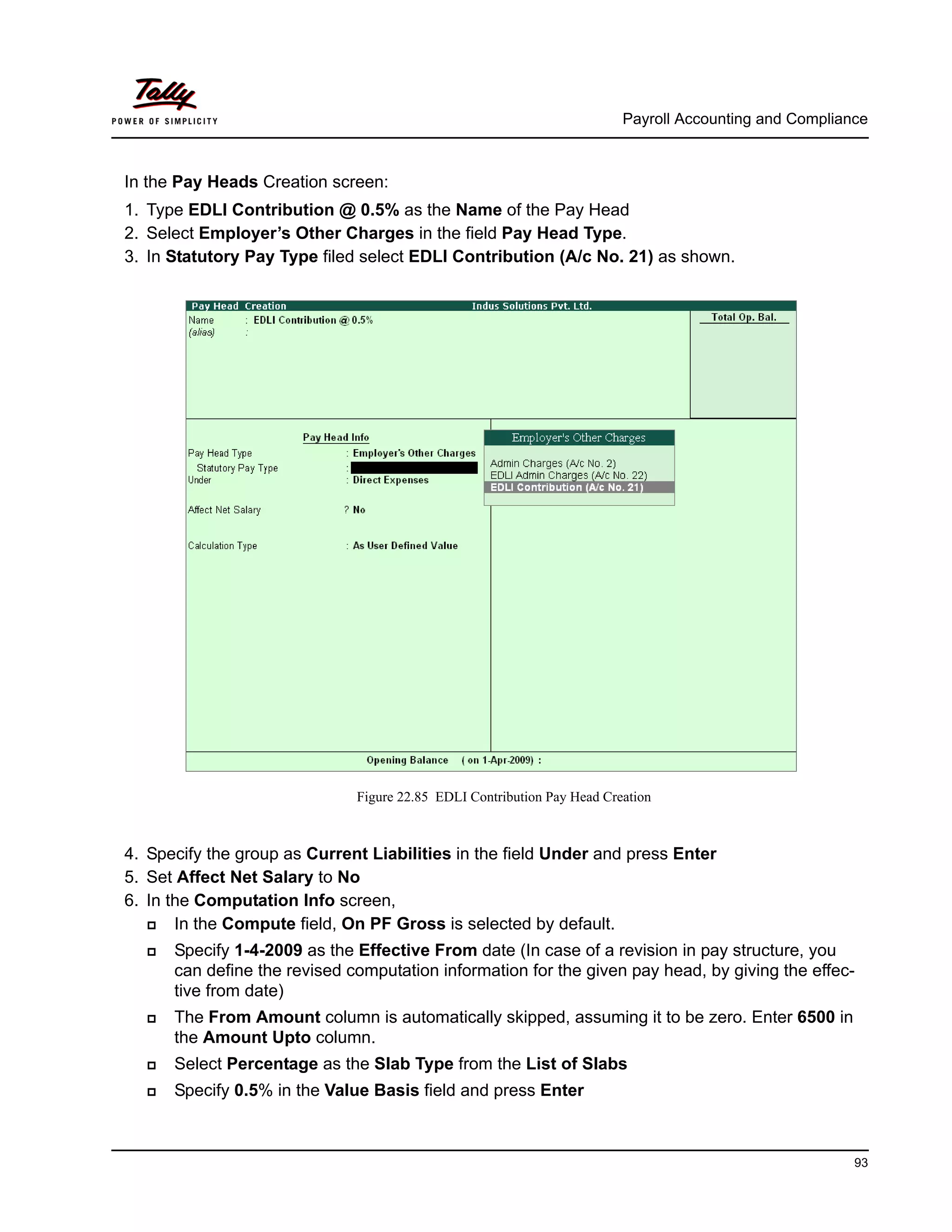
1. Type EDLI Contribution @ 0.5% as the Name of the Pay Head
2. Select Employer’s Other Charges in the field Pay Head Type.
3. In Statutory Pay Type filed select EDLI Contribution (A/c No. 21) as shown.
Figure 22.85 EDLI Contribution Pay Head Creation
4. Specify the group as Current Liabilities in the field Under and press Enter
5. Set Affect Net Salary to No
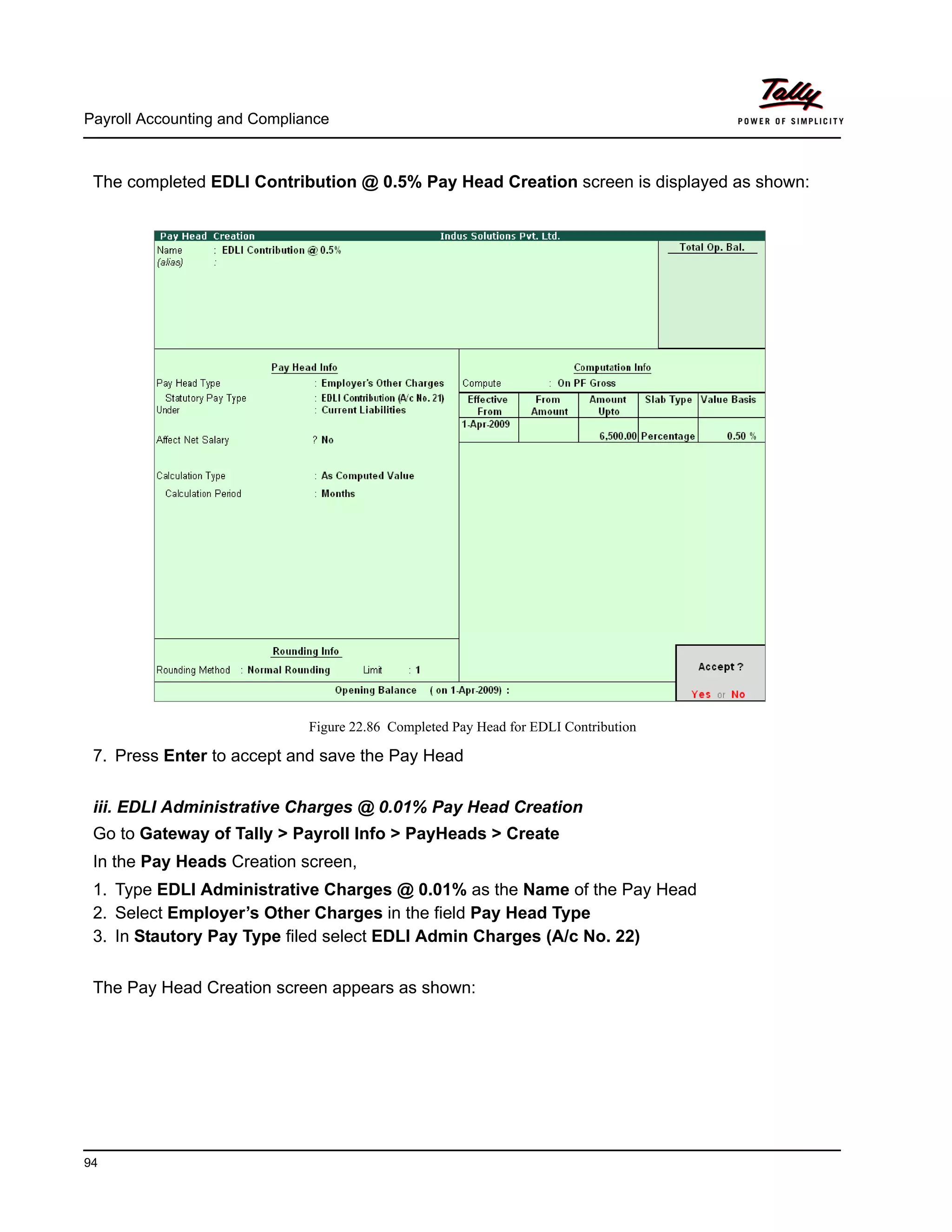
6. In the Computation Info screen,
In the Compute field, On PF Gross is selected by default.
Specify 1-4-2009 as the Effective From date (In case of a revision in pay structure, you
can define the revised computation information for the given pay head, by giving the effec-
tive from date)
The From Amount column is automatically skipped, assuming it to be zero. Enter 6500 in
the Amount Upto column.
Select Percentage as the Slab Type from the List of Slabs
Specify 0.5% in the Value Basis field and press Enter
Payroll Accounting and Compliance
94
The completed EDLI Contribution @ 0.5% Pay Head Creation screen is displayed as shown:
Figure 22.86 Completed Pay Head for EDLI Contribution
7. Press Enter to accept and save the Pay Head
iii. EDLI Administrative Charges @ 0.01% Pay Head Creation
Go to Gateway of Tally > Payroll Info > PayHeads > Create
In the Pay Heads Creation screen,
1. Type EDLI Administrative Charges @ 0.01% as the Name of the Pay Head
2. Select Employer’s Other Charges in the field Pay Head Type
3. In Stautory Pay Type filed select EDLI Admin Charges (A/c No. 22)
The Pay Head Creation screen appears as shown:
Payroll Accounting and Compliance
95
Figure 22.87 EDLI Admin Charges Pay Head Creation
4. Specify the group as Current Liabilities in the field Under and press Enter
5. Set Affect Net Salary to No
6. In the Computation Info screen,
On PF Gross is selected in the Compute field, by default
Specify 1-4-2009 as the Effective From date
The From Amount column is automatically skipped, assuming it to be zero. Enter 6500 in
the Amount Upto column
Select Percentage as the Slab Type from the List of Slabs
Specify 0.01% in the Value Basis field and press Enter
The completed EDLI Administrative Charges @ 0.01% Pay Head Creation screen is displayed
as shown.
Payroll Accounting and Compliance
96
Figure 22.88 Completed pay Head for EDLI Admin Charges
7. Press Enter to accept and save the Pay Head.
III. PF Payable Ledger
To process the Employer PF Contribution, create PF Payable Ledger as explained below:
Go to Gateway of Tally > Payroll Info. > Payheads > Create
1. Type PF Payable in the Name field
2. In the Pay Head Type field select Not Applicable
3. Specify the Group as Current Liabilities in the Under field and press Enter
The completed PF Payable Ledger creation screen is displayed as shown:
Ledger Pay Head Type Under
PF Payable Not Applicable Current Liabilities
Payroll Accounting and Compliance
97
Figure 22.89 Completed PF Payable Ledger Creation
4. Press Enter to accept.
IV. PF Admin Expenses Ledger
To process the Employer Other Charges (PF Admin, EDLI Contribution and EDLI Admin
expenses), create PF Admin Expenses Ledger as explained below:
Go to Gateway of Tally > Accounts Info. > Ledgers > Create
1. In the Name field type PF Admin Expenses
2. Specify the group as Indirect Expenses in the field Under and press Enter
The completed PF Admin Expenses Ledger creation screen is displayed as shown:
Ledger Under
PF Admin Expenses Indirect Expenses
Payroll Accounting and Compliance
98
Figure 22.90 PF Admin Expenses Ledger Creation
3. Press Enter to accept
22.4.2 Salary Details setup
Once the required Employer Contribution Pay Heads and Admin Expenses ledgers are created,
the salary details of the Employee should be altered to constitute the Employer Contribution pay
head ledgers for automatic calculations based on the monthly payments made to the Employees.
Create / Alter Salary Details Master
To update the salary details Master of the Employees, follow the steps given below,
Go to Gateway of Tally > Payroll Info. > Salary Details > Alter
1. Select the Rohit Roy one by from the List of Groups / Employees
2. Add the Pay Heads Employer EPS @ 8.33% and Employer EPF @ 3.67%
The completed Salary Details screen is as shown:
Payroll Accounting and Compliance
99
Figure 22.91 Salary Details Alteration Screen
Similarly, include Employee Contribution Pay Heads in the Salary Details Masters of other
employees.
While, including the Employer Contribution Pay Heads in the Salary Details
master, the order of precedence in which the Pay Heads are included must
on the basis of their calculation criteria i.e.,
Earning Pay Heads
Deduction Pay Heads
Professional Tax or Income Tax Pay Heads (if any)
Employee PF Contribution Pay Heads
Employer PF Contribution Pay Heads
Gratuity (Gratuity is calculated on Basic Pay + DA, hence Gratuity Pay
Head can be sequenced in the Salary details of an Employer in any
order after Earnings Pay Heads).
Payroll Accounting and Compliance
100
22.4.3 Processing Employer PF Contribution
In Tally.ERP 9, you are required to process Employer PF Contributions, PF Admin Charges sepa-
rately and make the payment towards PF comprising of Employees’ PF Contribution, Employer
PF Admin Expenses through a combined challan.
Follow the steps explained below to process Provident Fund.
Step 1: Create Payroll voucher
Go to Gateway of Tally > Payroll Vouchers
1. Press Ctrl+F4 for Payroll Voucher
2. Press F2, specify the date as 30-04-2009 and press Enter
3. Press Alt+A (Payroll Auto Fill) to automate the employee payroll details
4. In the Employee Filter subscreen,
Select PF Contribution from the Process List drop down as shown
Figure 22.92 Employee Filters - Process List Selection
It is necessary to include Employer Contribution Pay Heads (i.e.,
Employer PF and Employer Pension Fund Pay Heads in the Salary
Structure of the Employee, to automate the Computation of Employer PF
Contribution on the basis of payments made to Employees.
Tally.ERP 9 provides the following predefined processes that will help in
processing Payroll transactions:
ESI Contribution : This process is selected to automate computation
of Employer ESI Contribution.
PF Contribution : This process is selected to automate computation of
Employer PF Contribution
Salary : This process is selected to automate computation of Salaries
payable to Employees.
Payroll Accounting and Compliance
101
Specify 1-4-2009 and 30-4-2009 in the From and To Date fields respectively
Select Primary Cost Category in the Cost Category field
Select All Items as Employee/ Group field (To process, for a particular group /
Employee select the respective Employee / group, as required)
Select PF Payable Ledger from the list of Ledger Accounts drop down in the Payroll
Ledger field as shown
Figure 22.93 Employee Filters screen – Payroll Ledger Selection
The values for the Employer PF contributions are prefilled in the Payroll Voucher for PF Contribu-
tion process.
The Payroll Voucher for Employer PF Contribution is as shown:
Payroll Accounting and Compliance
102
Figure 22.94 Payroll Voucher Creation - PF Contribution
5. Press Enter to accept
The completed Payroll Voucher for Employer PF Contribution is as shown:
Payroll Accounting and Compliance
103
Figure 22.95 Completed PF Contribution screen
6. Press Enter to accept
22.4.4 Processing PF Admin Expenses
Example 6:
On 30th April, 2009 M/s. Indus Solutions Pvt. Ltd., processed PF Admin Expenses for the
month of April 2009.
To process the PF Admin Charges, follow the steps given below:
Step 1: Create Journal voucher
Go to Gateway of Tally > Accounting Vouchers
1. Press F7 for Journal Voucher
2. Press F2, specify the date as 30-04-2009 and press Enter
3. Press Alt+A (Other Charges Auto Fill) to prefill Employer’s Other Charges details
Specify 1-4-2009 and 30-4-2009 in the From and To Date fields respectively
Select Primary Cost Category in the Cost Category field
Select All Items in the Employee/ Group field
Payroll Accounting and Compliance
104
Select PF Admin Expenses Ledger in the Expense Ledger field
Figure 22.96 Employer’s Other Charges screen – Expenses Ledger Selection
Select PF Admin Charges @ 1.10% Ledger in the Admin Charges (A/c No. 2) field as
shown
Payroll Accounting and Compliance
105
Figure 22.97 Employer’s Other Charges screen – Admin Charges Ledger Selection
Similarly, select EDLI Contribution @ 0.5% and EDLI Admin Charges @ 0.01% in the
EDLI Contribution (A/c No. 21) and EDLI Admin Charges (A/c No. 22) fields respec-
tively.
The completed Employer’s Other Charges subscreen appears as shown:
Payroll Accounting and Compliance
106
Figure 22.98 Completed Employer’s Other Charges screen
Press Enter
4. Type the details of the transaction in the Narration field
The completed Employer PF Expenses Voucher is as shown:
Payroll Accounting and Compliance
107
Figure 22.99 Completed PF Expenses Voucher screen
5. Press Enter to accept and save.
22.4.5 Payment of Provident Fund
In Tally.ERP 9, once process for Employee and Employer contributions to Provident Fund is
implemented in the manner as discussed in earlier sections, the total amount payable to EPFO is
accumulated separately in three Ledger Accounts, PF Payable Account (Employer Contributions),
Employee PF Contributions and the PF Admin Charges Ledger. At the time of making payment to
EPFO, a payment voucher is required to be passed.
Example 7:
On 30th April, 2009 M/s. Indus Solutions Pvt. Ltd., made the payment in respect of EPF,
EDLI Admin Expenses, EDLI Contribution and PF Admin Charges for the month of April
2009.
To process the payment of Provident Fund, follow the steps given below:
Payroll Accounting and Compliance
108
Step 1 : Create PF Payment Voucher
Go to Gateway of Tally > Accounting Vouchers
1. Press F5 for Payment Voucher
2. Press F2, specify 30-04-2009 as the Voucher Date and press Enter
3. Press Alt+A (Payroll Auto Fill) to prefill PF details
Select PF Challan in the Process for field from the Process List screen
Figure 22.100 Employee Filters screen - Process Selection
Enter 1-4-2009 and 30-4-2009 in the From and To Date fields respectively
Specify 30-4-2009 in the Voucher Date field (This field is prefilled, if the voucher date is
specified during Voucher Entry)
Select Primary Cost Category in the Cost Category field
Select All Items in the Employee/ Group field
Select HDFC Bank in the Bank / Cash Ledger field
Select PF Payable Ledger in the Payroll Ledger field
Payroll Accounting and Compliance
109
Figure 22.101 Employee Filters screen - PF Ledger selection
4. Press Enter to prefill PF Payable Amount in respect of Employer Contributions during the
relevant month
The Payment voucher appears as shown:
Payroll Accounting and Compliance
110
Figure 22.102 PF Payment Voucher with Employer PF Contribution details
5. Press Enter again, to prefill the amount of Employee Contributions during the relevant
month
Payroll Accounting and Compliance
111
Figure 22.103 PF Payment Voucher - with Employee Contribution details
6. Press Enter thrice to again, to prefill EDLI Admin Expenses, EDLI Contribution and PF
Admin Charges during the selected month as shown:
Payroll Accounting and Compliance
112
Figure 22.104 PF Payment Voucher with Employer Other charges details
7. Press Enter twice
8. Set Yes in Provide Details field and press Enter
9. In the Provide Details subscreen,
Specify 547245 in the Cheque/ DD No. field
Specify 30-4-2009 in the Cheque/DD Date field
Specify 30-4-2009 in the Challan Date field
Type the name of the Depositor in the Depositor Name field
Specify the name of the Bank on which the Cheque is drawn in the Bank Name field
The completed Provide Details subscreen is as shown:
Figure 22.105 Payment details subscreen
Payroll Accounting and Compliance
113
10.Press Enter to go back to the PF Payment Voucher screen
11.Type the details of the transaction in the narration field
The completed PF Payment Voucher screen for the month of April 2009, is as shown:
Figure 22.106 Completed PF Payment Voucher screen
12.Press Enter to accept
Step 2 : Print PF Payment Challan
Press Pg UP from the above Voucher Entry screen
Press Alt + P, the Voucher Printing screen appears,
Payroll Accounting and Compliance
114
Figure 22.107 Voucher Printing Screen
In the Voucher printing screen, select Yes in the Print Challan field
Enter Total No. of Subscribers (A/c.1)
Enter Total No. of Subscribers (A/c.10)
Enter Total No. of Subscribers (A/c.21)
Press Enter to Print
The printed PF Combined Challan for the month of April 2009 of M/s. Indus Solutions Pvt. Ltd.
is as shown:
Payroll Accounting and Compliance
115
Figure 22.108 Printed PF Payment Challan
Payroll Accounting and Compliance
116
22.5 Accounting for Employer ESI Contributions
ESI Contribution refers to the amount payable to the Corporation by the Principal Employer in
respect of Employees and comprises of the amount payable by the employee as well as the
employer.
The employer is required to calculate and remit ESI Contributions comprising of employers' share
plus employees' share on or before 21st of the subsequent month in respect of salaries of the
related month. The Principal Employer should pay Employer’s share of contribution @ 4.75% in
respect of every employee whether employed directly or through immediate employer. And the
Employee’s share @ 1.75% has to be recovered by making deduction from their wages for the
respective salary/wages period.
In case, if the employee is drawing upto Rs. 70/- as daily average wage, he is exempt from
payment of his share of contribution. However, the employer has to pay employer’s share of
4.75% of the Salary payable to the employees.
As discussed earlier, the statutory features viz., EPF & ESI etc., are required to be configured in
F11: Statutory & Taxation Features. In this section, we will discuss, recording of transactions
related to computation and contribution of Employee State Insurance.
Example 8:
On 1st June 2009, the list of new joinees with their Salary details are given below:
The Salary details for the above new employees is listed in the table below:
Employee Name Department Date of Joining
Tamanna Administration 05-6-2009
Dinesh Sales 08-6-2009
Pay Head Tamanna Dinesh
Basic Pay 9,000 10,000
House Rent Allowance 40% 40%
Conveyance 800 700
Overtime Pay — —
Variable Pay User — defined
Gratuity Expenses (Provisional) Only for reporting purpose
Employee’s PF Contribution @ 12% Applicable based on Slab Rates
Employee’s ESI Contribution @ 1.75% Applicable based on Slab Rates
Profession Tax Applicable based on Slab Rates
Payroll Accounting and Compliance
117
The Attendance details for the month of June 2009 are given as shown:
The same is accounted as shown:
Create the above employees and their Salary details and then process the Salaries, PF Contribu-
tions for the month of June 2009, in the manner as discussed in the earlier chapters. In Tally.ERP
9, follow the steps given below to process Employer contribution towards Employees’ State Insur-
ance:
Create Employer ESI Contribution Masters
Alter/Modify Salary Details
Processing Employer ESI Contribution
Payment of ESI
22.5.1 Creating Employer ESI Contribution Masters
In Tally.ERP 9, Employer and Employee’s contribution towards Employees’ State Insurance (ESI)
are required to be created separately for appropriate Accounting and reporting. Create the
following ledgers in Tally.ERP 9:
Employer Contribution Pay Head
ESI payable Ledger
I. Create Employer ESI Contribution @ 4.75% Pay Head
Go to Gateway of Tally >Payroll Info >Pay Heads >Create
In the Pay Heads Creation screen,
1. Type Employer ESI @ 4.75% as the Name of the Pay Head
2. Select Employer’s Statutory Contributions in the field Pay Head Type
3. Select Employee State Insurance in the Statutory Pay Type field from the Employer’s Stat-
utory Contributions drop down
Attendance/ Pro-
duction Types
Rohit
Roy
Preeti
Sinha
Atul
Sharma
Ramesh
Arora
Tam-
anna
Dinesh
Present Days 26 24 26 20 17 18
Overtime hours 120 Min 600 Min
Pay Head
Name
Pay Head Type Statutory Pay
Type
Under Affect
Net
Salary
Calculation
Type
Employer ESI
@ 4.75%
Employer’s
Statutory Contri-
butions
Employee State
Insurance
Indirect
Expenses
No As Com-
puted Value
Payroll Accounting and Compliance
118
Figure 22.109 Pay Head Creation - Employer ESI
4. Specify the group as Indirect Expenses in the Under field and press Enter
5. Set Affect Net Salary to No and press Enter
6. In the Calculation Type and Calculation Period fields, As Computed Value and Months are
defaulted automatically based on the Statutory Pay Type selected.
7. Select Normal Rounding as the Rounding Method and 1 as the rounding Limit and press
Enter
8. In the Computation Info screen,
Select On Specified Formula in the Compute field and press Enter
In the Compute subscreen,
Select Basic Pay as the Add Pay Head function and press Enter
Select House Rent Allowance as the second Pay Head in the Add Pay Head Func-
tion
Similarly, select Conveyance and Overtime Pay in the Add Pay Head function
The Compute sub-screen will appear as shown:
Payroll Accounting and Compliance
119
Figure 22.110 Employer ESI Pay Head Creation – Compute sub-screen
Any Earning Pay component of a recurring nature will be subject to ESI
calculation viz., Basic Pay, Dearness Allowance, House Rent Allowance,
Conveyance, Overtime Pay and so on.
Select End of List and press Enter to accept the screen
Specify 1-4-2009 in the Effective From date field and press Enter, the From Amount col-
umn is automatically skipped, assuming the amount to be zero
The Amount Upto field is skipped and automatically defaulted with the amount specified in
the Payroll Statutory Details screen in F11: Satutory & Taxation
Select Percentage in the Slab Type field
Specify 4.75% as the Value Basis Percentage in the Value Basis field and press Enter
Payroll Accounting and Compliance
120
Figure 22.111 Employer ESI Pay Head Creation
In Tally.ERP 9, the Earning Payheads which are selected for computation of Employer ESI contri-
bution are listed in the Specified Formula for easy reference. You can alter / modify the criteria
for calculation, by Enter in the Compute field and redefining the Function Pay components.
Specify 4.75% as the Value Basis Percentage in the Value Basis field and press Enter
Press Enter to accept
The completed Employer ESI Contribution Pay Head Creation screen is as shown:
Payroll Accounting and Compliance
121
Figure 22.112 Completed Employer ESI Pay Head
Press Enter to accept.
II. Create ESI Payable Ledger
Create ESI Payable Ledger as explained below:
Go to Gateway of Tally > Payroll Info. > Pay Heads > Create
1. Type ESI Payable in the Name field
2. In the Pay Head Type field select Not Applicable
3. Specify the group as Current Liabilities in the Under field and press Enter
The completed ESI Payable Ledger creation screen is displayed as shown:
Ledger Pay Head Type Under
ESI Payable Not Applicable Current Liabilities
Payroll Accounting and Compliance
122
Figure 22.113 ESI Payable Ledger Creation
4. Press Enter to accept
22.5.2 Salary Details setup
Once the required Employer Contribution Pay Heads are created, the salary details of the
Employees should be updated to constitute the Employer Contribution pay head ledgers for
automatic calculations based on the monthly payments made to the Employees.
Create / Alter Salary Details Master
To update the salary details for the Employees, follow the steps given below:
Go to Gateway of Tally > Payroll Info. > Salary Details > Alter
1. Select Rohit Roy from the List of Groups / Employees
2. Tab down to the last line and select Employer ESI @ 4.75% Pay Head from the List of Pay
Heads
3. Press Enter to select End of List
The completed Salary Details Alteration screen is as shown:
Payroll Accounting and Compliance
123
Figure 22.114 Salary Details Alteration screen
4. Press Enter to Accept
While, including the Employer Contribution Pay Heads in the Salary
Details master, the order of precedence in which the Pay Heads are
included on the basis of their calculation criteria i.e.,
Earning Pay Heads
Deduction Pay Heads
Employee PF Contribution Ledgers
Professional Tax or Income Tax Ledger (if any)
Employer PF Contribution Ledgers
Employer ESI Contribution Ledgers
Gratuity (Gratuity is calculated on Basic Pay + DA, hence Gratuity
Pay Head can be sequenced in the Salary details of an Employer in
any order).
Payroll Accounting and Compliance
124
Similarly, include Employer ESI @ 4.75% Pay Head in the Salary details of all other Employees.
22.5.3 Processing Employer ESI Contribution
In Tally.ERP 9, you can process Employer ESI Contributions and make the payment towards ESI
comprising of Employees’ and Employer’s ESI Contribution through a challan. To process the ESI
Contribution for June 2009, follow the steps given below:
Example 9:
On 30th June, 2009 M/s. Indus Solutions Pvt. Ltd., processed Employer ESI Contribution
for the month of June 2009.
Step 1: Create Payroll Voucher
Go to Gateway of Tally > Payroll Vouchers
1. Press Ctrl+F4 for Payroll Voucher
2. Press F2, specify the date as 30-06-2009 and press Enter
3. Press Alt+A (Payroll Auto Fill) to prefill employee payroll details
4. In the Employee Filters subscreen,
Select ESI Contribution from the Process List as shown:
Figure 22.115 Payroll Autofill - ESI process selection
Specify 1-6-2009 and 30-6-2009 in the From and To Date fields respectively
Select Primary Cost Category as Cost Category field
It is necessary to include Employer ESI Contribution Pay Head in the
Salary Structure of the Employees, to automate the Computation of
Employer ESI Contribution on the basis of payments made to Employees.
Payroll Accounting and Compliance
125
Select All Items in the Employee/ Group field
Select ESI Payable Ledger in the Payroll Ledger field as shown:
Figure 22.116 Payroll Autofill – Payroll Ledger selection
5. Press Enter to accept and go back to the Payroll Voucher screen
The completed Employer ESI Contribution Voucher Creation screen will appear as shown:
Payroll Accounting and Compliance
126
Figure 22.117 Completed ESI Voucher
6. Press Enter to accept
22.5.4 Payment of ESI
In Tally.ERP 9, once process for Employee and Employer contributions to Employee’s state
Insurance is implemented in the manner as discussed in earlier sections, the total amount
payable to ESIC comprising of Employee’s Contribution as well as Employer’s contribution to
ESI is accumulated separately in ESI Payable Ledger. At the time of making payment to ESIC, a
payment voucher is required to be passed.
The Employer ESI contribution will be computed automatically upon
selection of ESI Contribution Process during Payroll Voucher Entry.
However, only for employees those who meet the criteria of monthly
earnings not exceeding the prescribed limits will be subject to ESI Con-
tribution.
In the same way while processing Salaries, the Employees ESI Con-
tribution will also be computed based on the Eligibility amount pre-
scribed in F11: Statutory & Taxation Features.
Payroll Accounting and Compliance
127
Example 10:
On 30th June, 2009 M/s. Indus Solutions Pvt. Ltd., processed the payment of ESI for the
month of June 2009.
To process the payment of ESI and generate ESI Challan, follow the steps given below:
Step 1 : Create ESI Payment Voucher
Go to Gateway of Tally > Accounting Vouchers
1. Press F5 for Payment Voucher
2. Press F2, specify the date as 30-06-2009 and press Enter
3. Press Alt+A (Payroll Auto Fill) to prefill employee payroll details
4. In the Employee Filters subscreen,
Select ESI Challan from the Process List as shown:
Figure 22.118 Employee Filters subscreen - ESI Process Selection
Specify 1-6-2009 and 30-6-2009 in the From and To Date fields respectively
Specify 30-6-2009 in the Voucher Date field (This field is prefilled, if the voucher date is
specified during Voucher Entry)
Select Primary Cost Category in the Cost Category field
Select All Items in the Employee/ Group field
Select HDFC Bank in the Bank / Cash Ledger field
Payroll Accounting and Compliance
128
Figure 22.119 Employee Filters Subscreen – Bank Ledger Selection
Select ESI Payable Ledger in the Payroll Ledger field
Payroll Accounting and Compliance
129
Figure 22.120 Employee Filters Subscreen - Payroll Ledger Selection
5. Press Enter to accept and go back to Payment Voucher Screen
6. Press Enter to prefill the Employer’s ESI Contribution amount for the eligible Employees
Payroll Accounting and Compliance
130
Figure 22.121 ESI Payment Voucher with Employer Contributions
7. Press Enter again, to prefill the Employee’s ESI Contribution amount against the eligible
Employees
Payroll Accounting and Compliance
131
Figure 22.122 ESI Payment Voucher with both Employee and Employer Contributions
8. Press Enter twice
9. Set Yes in the Provide Details field and press Enter
10.In the Provide Details subscreen, specify the Cheque / DD No., Cheque / DD Date and Bank
& Branch Code Details as shown:
Figure 22.123 Complete Provide Details subscreen
11. Press Enter to accept
12.Type the details of the transaction in the narration field
The completed ESI Payment Voucher for the month of June 2009 will appear as shown:
Payroll Accounting and Compliance
132
Figure 22.124 Completed ESI Payment Voucher
13.Press Enter to accept
Step 2 : Print ESI Payment Challan
Press Pg UP from the above Voucher Entry screen
Press Alt + P, the Voucher Printing screen appears,
Figure 22.125 ESI Voucher Printing Screen
Payroll Accounting and Compliance
133
In the Voucher printing screen, select Yes in the Print Challan field
Press Enter to Print
The printed ESI Payment Challan for the month of June 2009 of M/s. Indus Solutions Pvt. Ltd.
is as shown:
Figure 22.126 Printed ESI Payment Challan
Payroll Accounting and Compliance
134
22.6 Payment of Professional Tax
The Professional Tax is applicable to those individuals or professionals in India who are involved
in any profession or trade. The state government of each state governs and administers the levy
and collection of Professional Tax in the respective State.The state is empowered with the respon-
sibility of structuring as well as formulating the professional tax criteria for the respective state.
Professional tax is charged on the incomes of Individuals, profits of business or gains in vocations
as per the list II of the Indian Constitution.
In India, the professional tax slabs are different for all the states in India and some of the states
have formulated different professional tax slabs for men, women and the senior citizens of the
respective states. The rates depend upon profession, years in the profession and the amount of
income or turnover and so on. In Karnataka, the professional taxes are leviable as follows:
22.6.1 Processing Professional Tax Payment
In Tally.ERP 9, creation of Professional Tax Ledger is discussed in detail in the Creation of
Masters chapter and the procedure to process Professional Tax Deduction from Employee
Salaries is discussed in detail in Processing Payroll in Tally.ERP 9 Chapter. In this section, we
will discuss recording of transactions related to payment of Professional Tax.
Example 11:
On 30th April, 2009 M/s. Indus Solutions Pvt. Ltd., made payment of Professional Tax for
the month of April 2009.
The same is accounted as shown :
Step 1: Create Payment Voucher
Go to Gateway of Tally > Accounting Vouchers
1. Press F5 for Payment Voucher
2. Press F2, specify the date as 30-04-2009 and press Enter
3. Press Alt+A (Payroll Auto Fill) to prefill employee payroll details
4. In Employee Filters screen,
Select Professional Tax Payment from the Process List
Specify 1-4-2009 and 30-4-2009 in the From and To date fields respectively
S.No Salary or wage earners whose salary or wage or
both, as the case may be, for a month is,
Tax Amount
(a) less than Rs.5000 Rs. 0 Per month
(b) not less than Rs. 5,000 but less than Rs.8,000 Rs. 60 Per month
(c) not less than Rs.8,000 but less than Rs.10,000 Rs.100 Per month
(d) not less than Rs.10,000 but less than Rs.15,000 Rs.150 Per month
(e) Rs. 15,000 and above Rs.200 Per month
Payroll Accounting and Compliance
135
Specify 30-4-2009 in the Voucher Date field (This field is prefilled, if the voucher date is
specified during Voucher Entry)
Select Primary Cost Category in the Cost Category field
Select All Items in the Employee/ Group field
Select HDFC Bank in the Bank / Cash Ledger field
Figure 22.127 Employee Filters screen - Payment Ledger Selection
Select Profession Tax Ledger in the Payroll Ledger field
The completed Employee Filters screen will appear as shown:
Payroll Accounting and Compliance
136
Figure 22.128 Completed Employee Filters screen
Press Enter to accept the screen and go back to Payment Voucher Screen
Press Enter to Prefill the Professional Tax amount in the Payment Voucher
The completed Professional Tax Payment Voucher will appear as shown:
Payroll Accounting and Compliance
137
Figure 22.129 Completed Profession Tax Payment Voucher
5. Press Enter to Accept.
Similarly, process the Professional Tax payments for other months.
The creation of Professional Tax Pay Head is discussed in detail in
Creation of Masters section.
The procedure to process Professional Tax Deduction from
Employee Salaries is discussed in detail in Processing Payroll in
Tally.ERP 9 section.
Payroll Accounting and Compliance
138
22.7 Generating Payroll Reports
Payroll Reports help you to ascertain the payroll expenses for a specified month or for year-to-
date (YTD) transactions for a particular employee/ group along with the Attendance and Produc-
tion details. You can also view the statutory forms required for Provident Fund and Employee
State Insurance. In Tally.ERP 9, the Payroll reports can be broadly categorized into two viz.,
Payroll Reports
Payroll Statutory Reports
22.7.1 Payroll Reports
In Tally.ERP 9, you can generate the following Payroll related reports.
Chart showing Payroll Reports in Tally.ERP 9
Figure 22.130 Payroll Reports in Tally.ERP 9
Payroll Accounting and Compliance
139
We will discuss each report in detail in the coming sections as explained below :
Payslip
A Payslip refers to a document issued to an employee, which itemises each component of his/ her
earnings and deductions and the net amount paid for a given pay period. It provides particulars on
how the net amount has been arrived at i.e., how much money has been earned and how much
tax / deductions have been made.
Display Payslip
Go to Gateway of Tally > Display > Payroll Reports > Statements of Payroll > Payslip >
Single Pay Slip
Select the required Employee and press Enter
The Payslip for the selected employee displays as shown:
Figure 22.131 Payslip
In Tally.ERP 9 Payroll, the Payslip can be configured to vertically display the details of attendance,
in terms of attendance or production, with Year to Date Values (YTD).
The F12:Configuration options in Payslip are explained as follows:
Show Vertical Payslip – Set this option to Yes to view / print the Payslip
in vertical format, i.e. align Deductions pay heads below Earnings pay
heads
Show Employee Details – Set this option to Yes to display employee
information as entered in the employee master
Show Passport Details – Set this option to Yes to display an
employee’s passport details
Show Visa Expiry Date – Set this option to Yes to display an
employee’s visa expiry date
Show Attendance/Production Details – Set this option to Yes to dis-
play Attendance/Production information
Show Attendance/Production Groups – Set this option to Yes to dis-
play the grouping of the Attendance/Production data as defined during
the creation of Types
Payroll Accounting and Compliance
140
Press F12: Configure and set the following options to Yes
Figure 22.132 Payslip F12: Configuration screen
Some of the options in F12: Configuration screen, are by default set to
Yes viz., Show Employee Details, Show Attendance/Production
Details, Show Attendance/Production Groups, Remove Zero Entries
for Attendance/Production also based on the Payroll Features / Payroll
Statutory features enabled during voucher entry.
Payroll Accounting and Compliance
141
The Payslip with the above configurations will appear as shown:
The F12:Configuration options in Payslip are explained as follows:
Display Attendance/Production Type in Tail Units – For compound
units used in Attendance/Production Type, set this option to Yes, to dis-
play the value of the Attendance/Production details in the Tail unit. If this
option is set to No, the Production units will display in primary units
Show Year To Date values – Set this option to Yes to display the cumu-
lative value of Attendance/Production records and Earnings /Deductions
for any given period
Show Gross Salary - Set this option to Yes by setting the ‘Show Year
To Date values’ to No, to view Gross Earnings and Deductions for any
given period
Remove Zero Entries – Set this option to Yes to remove the Earnings/
Deductions components with Zero value from the Payslip
For Attendance/Production also – Set this option to Yes to remove
Attendance/ Production records with zero values from the Payslip
Appearance of Employee Names – Select the appropriate name style
to appear in the Payslip (i.e., Alias (Name), Alias only, Name (Alias),
Name only)
Appearance of Pay Head Names – Select the appropriate name style
to appear for each Pay Head in Payslip (i.e. Alias(Name), Alias only,
Name(Alias), Name Only, Payslip Name)
Payroll Accounting and Compliance
142
Figure 22.133 Payslip with YTD values
The Payslip now displays the Attendance with Present / Overtime details, Year to Date balance,
and so on. To view the Payslip in vertical form, press F12: Configure and set Show Vertical
Payslip to Yes.
The Vertical Payslip will appear as shown:
Payroll Accounting and Compliance
143
Figure 22.134 Configured Payslip with Vertical Display
You can further view additional information in the Payslip, by pressing Alt+F1.
The detailed Payslip displays as shown:
Payroll Accounting and Compliance
144
Figure 22.135 Detailed Payslip
The voucher number, date and the number of attendance or payroll records are displayed as
shown in the screen above. This is very useful where multiple attendance/payroll vouchers are
entered for the same payroll period. You can drill down to the voucher level for reference or to
effect an alteration by pressing Enter on the required record.
Printing Payslip
Press Alt+P from the Payslip screen, the Printing Payslip screen appears
Period Button – By default, the Payslip for the current month displays.
However, you can change the period by pressing F2: Date and defining
the required date. This button can be used to display multiple period
payroll information to view/print a consolidated Payslip.
Employee Button – From the existing Payslip of an employee, you can
toggle between employees by pressing F4: Employee.
Payroll Accounting and Compliance
145
Figure 22.136 Payslip Print Configuration screen
Some of the configuration in the Printing screen, are similar to F12: Configure and can be config-
ured from either of the screens. In addition, Show Authorised Signatory option is available in
the above screen.
In the Printing Payslip screen, press backspace and enable the required option as
required
Press Enter to Print
The printed Payslip of Mr. Rohit Roy displays as shown.
Payroll Accounting and Compliance
146
Figure 22.137 Printed Payslip
Printing Multiple Payslips
Tally.ERP 9 allows you to print Payslips for all the employees at once in each separate page, by
using Multi-Payslip option. You may print multiple Payslips of all the of employees or employees in
a particular group / department for the selected period.
Go to Gateway of Tally > Display > Payroll Reports > Statements of Payroll > Payslip >
Multiple Pay Slip
In the Employee Filters screen,
In the Name of Category field select the required Payroll Category
In the Name of Employee Group select the required Employee Group from the List of
Employees / Groups
Press Alt+P to Print Multiple Pay Slip
In the Printing Payslip screen,
Press Backspace and enable the options as required
Payroll Accounting and Compliance
147
The Printing Configuration for Multi-Payslip displays as shown.
Figure 22.138 Printing Configuration for Multi-Payslip
Press Enter to print the payslips of all employees in alphabetical order in separate sheets.
The printed Payslip for Atul Sharma is as shown:
Payroll Accounting and Compliance
148
Figure 22.139 Printed Payslip through Multi Payslip Printing
The subsequent pages will print the Payslips for the remaining employees in the alphabetical
order.
Emailing Payslip
Go to Gateway of Tally > Display > Payroll Reports > Statements of Payroll > Payslip >
Single Pay Slip
Select the required Employee and press Enter
Press Alt+M, the Mailing Payslip screen is as shown:
Payroll Accounting and Compliance
149
Figure 22.140 Mailing Payslip sub screen
In the Mailing Payslip screen,
Specify the SMTP Server Name in the Email Server field
Press Enter to accept the From & From E-mail Address fields (The company name &
Email id is defaulted from the company master, however you can modify the same)
Specify the Authentication User Name and Password, if required
Set Use SSL to No
Select HTML (Web publishing) in the Format field
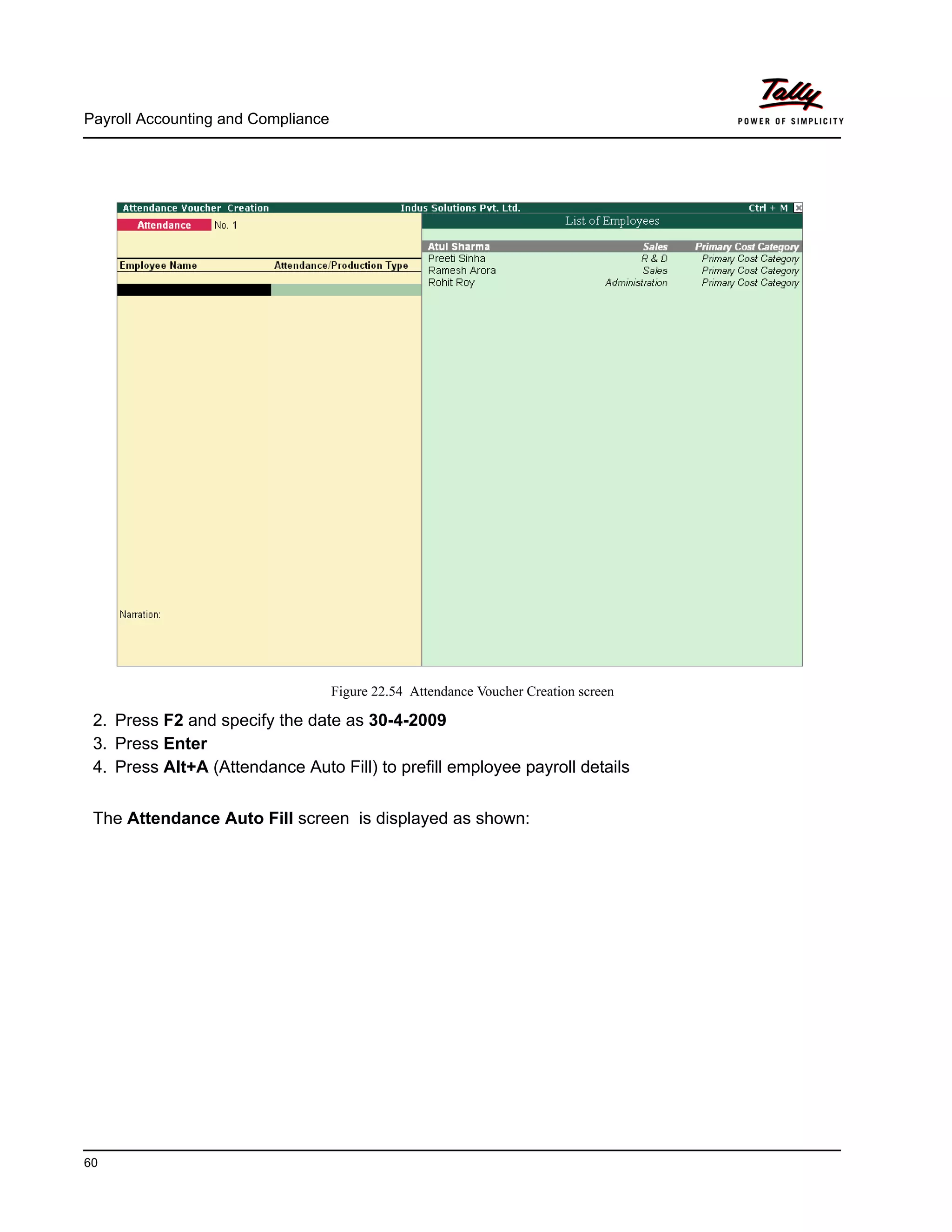
Select the required Resolution from the Resolutions drop down
Press Enter to accept the To Email Address (The Employee address is defaulted from
the Employee Master, however, you may modify as required)
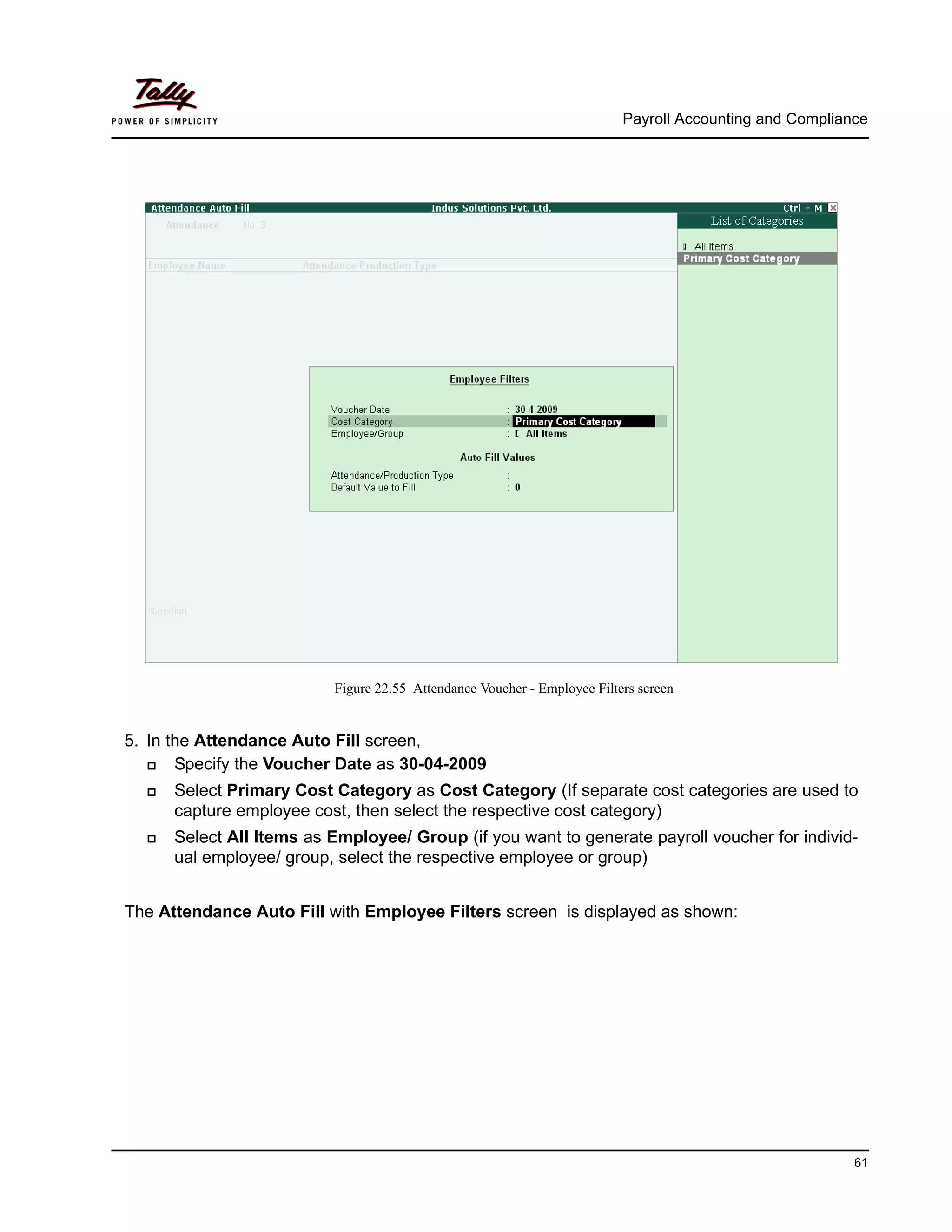
Enter the other information as shown
The completed Mailing Payslip configuration screen is as shown.
Payroll Accounting and Compliance
150
Figure 22.141 Completed Mailing Payslip sub screen
Mailing Payslip Configurations
Email Server – Name of the SMTP mail server should be specified.
From - In the From field is prefilled with the name of your Company as
specified in the Company Creation screen. You can change the same if
you want some other name to be displayed.
From E-mail Address is pre-filled with the Company’s email address as
filled during the Company Creation.
Authentication User Name and Password field should be filled if your
SMTP Server needs Authentication for sending emails.
Use SSL - This is set to Yes for the servers using the Secured Socket
Layer protocol for extra security reasons.
Format - you can select from format in which the Payslip should be
viewed by the mail recipient.
Resolution - appropriate resolution for the Emailed Payslip can be
selected in this field.
To E-Mail Address - this will be selected automatically if the email
address is provided in the Employee Master. Or else, you need to spec-
ify the same at the time of emailing.
CC To (if any) - If you want the Payslip to be marked to some other
email address that can be specified here.
Subject - specify the Subject of email to be seen by the user.
Additional Text (if any) - This will appear in the body of the email that is
sent.
Information Sent - The option to send the Email as an Attachment or as
a direct view can be selected here.
Payroll Accounting and Compliance
151
Press Enter to Email the Payslip
The emailed Payslip when viewed from the mail box of the employee is as shown:
Figure 22.142 Emailed payslip
If you want to use the Gmail’s (Google Mail) SMTP service for emailing Pays-
lip,
Enter Gmail’s SMTP server name: port no. (viz. smtp.gmail.com:465)
Provide your Gmail User name and Password against Authentication
User Name and Password
Set Use SSL to Yes
All other settings will be same as shown above.
Payroll Accounting and Compliance
152
Exporting Payslip to MS Excel
Go to Gateway of Tally > Display > Payroll Reports > Statements of Payroll > Payslip >
Single Payslip
Select the required Employee and press Enter
Press Alt+E, the configuration screen to select the required format appears as shown:
In the Export screen,
Select the required Format in the Languages field
Select the Excel as Format from the drop down list of Formats
Output File Name is defaulted to Payslip.xls, however you can modify the same
Output Sheet Name is defaulted to Payslip, however you can modify the same
Complete the remaining options as shown
The completed Export screen is as shown:
Figure 22.143 Export Payslip screen
The Payslip exported into Excel will appear as shown:
Payroll Accounting and Compliance
153
Figure 22.144 Exported Payslip
Pay Sheet
A Pay Sheet is a columnar report which displays the Group/Department-wise employees’ break-
up of earnings and deductions for the selected month.
Go to Gateway of Tally > Display > Payroll Reports > Statements of Payroll > Pay Sheet
In the Employee Filters screen,
In the Name of Category field select the required Payroll Category
In the Name of Employee Group select the required Employee Group from the List of
Employees / Groups
The Pay Sheet displays as shown:
Payroll Accounting and Compliance
154
Figure 22.145 Pay Sheet
You can further configure the Pay Sheet to display the net amount, column subtotals, Category/
Group subtotals, user-defined payslip names, Employee names and sort it by Employee number
in the F12: Configure.
The F12: Configuration from the Pay Sheet screen displays as shown:
Figure 22.146 F12: Configuration
Payroll Accounting and Compliance
155
The F12 :Configuration options in the Pay Sheet are explained as follows.
Appearance of Pay Head Types – Set All Items to view Deductions and
Earnings.
Show Net Amount Column – Set this option to Yes to display the Net
Payable Column.
Show Column SubTotals – Set this option to Yes to display the subto-
tals of Earnings/Deductions pay head columns.
Remove Zero Entries – Set this option to Yes to eliminate Earnings/
Deductions pay heads with Zero values.
Show Payslip Names for Ledgers – Set this option to Yes to display
the Name defined in the Appear in Payslip field in the pay head master.
Include Employee Groups & Categories – Set this option to Yes to
display Category-wise/ Group-wise pay sheet. If this option is set to No,
the Pay Sheet will appear Employee-wise.
Show Category/Group Total – Set this option to Yes to display Cate-
gory and Group-wise columnar pay head totals.
Show Grand Total – Set this option to Yes to display the sum of all pay
head columns appearing in the report.
Show Attendance Details - Set this Option to Yes to display the Attend-
ance for the Employees
Display Production types in Tail Units - Set this Option to Yes to show
the Overtime details in minutes.
Format – Select Detailed mode to view Pay Sheet information of
employees with their respective category and group. Select Condensed
mode when only sum totals are required for each category and group.
Show Employee Number – Set this option to Yes to display employee
numbers.
Show Employee Designation - Set this Option to Yes to show the des-
ignation for employees.
Expand all levels in Detailed Format – Set this option to Yes to
expand all levels and display Employee details.
Appearance of Names – Select the appropriate name style to appear in
the paysheet (viz., Alias (Name), Alias only, Name (Alias), Name only).
Sorting Method – Sort the Pay Sheet either by Alphabetical increasing /
decreasing, Employee number or by the Default method.
Payroll Accounting and Compliance
156
Set the F12: Configuration screen as shown:
Figure 22.147 F12: Configuration screen - Pay Sheet
The Pay Sheet with the above configurations will appear as shown:
Payroll Accounting and Compliance
157
Figure 22.148 Pay Sheet
To view the Pay Sheet till date with Category and Group Totals
In F12: Configuration, set Category / Group Total to Yes (by default it is set to Yes)
Press Alt+F2 and change period as 01-04-2009 to 30-06-2009
The Pay Sheet with Category and Group Totals displays as shown:
Payroll Accounting and Compliance
158
Figure 22.149 Pay Sheet with Category and Group Total
To view the Pay Sheet for a particular Employee Group,
Press Ctrl+F7 from the Pay Sheet display, the Employee Filters screen appears
In the Employee Filters screen,
Select Primary Cost Category in the Cost Category field
Select Sales as the Employees/ group
Button options:
Detailed/Condensed Button – This button (Alt+F1) is used to toggle
between the detailed and condensed modes of reporting.
Period button – This option (F2) is used to define the periodicity of the
report, i.e. for a day, week, fortnight, month, quarter, half-year, year or
any given period.
Payroll Accounting and Compliance
159
The Employee Filters screen displays as shown:
Figure 22.150 Employee Filters
The Pay Sheet for the selected Employee Group displays as shown:
Payroll Accounting and Compliance
160
Figure 22.151 Employee Group Pay Sheet
You can also drill down from the above report to the voucher level, by highlighting the pay heads
column of the required employee and pressing Enter.
You can also print the Pay Sheet, by pressing Alt+P and specifying the required options in the
Pay Sheet Print configuration screen.
Button Options:
Employee Filter Button – By using the Employee Filter button
(Ctrl+F7), view the individual employee/ Employee group pay sheet
report.
New Column – This option (Alt+C) is used to add a new column for
any other Pay Head, which is not part of the pay structure.
Alter Column – This option (Alt+A) is used to replace an existing col-
umn in the report with another Pay Head column.
Delete Column -– This option (Alt+D) is used to delete an existing col-
umn in the report.
Payroll Accounting and Compliance
161
The Pay Sheet Print Configuration screen will appear as shown:
Figure 22.152 Pay Sheet Print Configuration screen
The Printed Pay Sheet displays as shown:
Figure 22.153 Printed Pay Sheet 1A
Figure 22.154 Printed Pay Sheet 1B
Payroll Accounting and Compliance
162
While printing the Pay Sheet, you can choose to Increase the Line Height (for each employee
line) if you want to create space for the employee’s signature or to affix a stamp. Such a Pay
Sheet can also be used as a salary disbursement register.
Press Alt+P to print Pay Sheet and set the Increase Line Height for Signature/ Stamp?
field to Yes
The printed Pay Sheet with space for signature/ stamp is as shown.
Figure 22.155 Printed Pay Sheet with space for Signature/ Stamp (1A)
Figure 22.156 Printed Pay Sheet with space for Signature/ Stamp (1B)
Payroll Accounting and Compliance
163
Payroll Statement
A Payroll Statement is a columnar report which displays Group/Department-wise employees’
break-up of selected earnings or deductions, for a specified month or period.
Go to Gateway of Tally > Display > Payroll Reports > Statements of Payroll > Payroll
Statement
Select the required pay head and press Enter
The Payroll Statement for Basic Pay Earnings Head for the month of April 2009 is as shown:
Figure 22.157 Payroll Statement
You can also Email or Export Pay Sheet Report in the manner as
discussed in Payslip Section. The navigation steps for Emailing, Exporting
Pay Sheet is similar to as explained in Payslip Report.
Payroll Accounting and Compliance
164
You can further configure the Payroll Statement to display the Employee groups and categories,
category/group subtotals, grand totals, user-defined Payslip names, employee names, employee
bank details, sort it by Employee number, by pressing F12: Configure
Enter the details in F12: Configuration screen as shown
The F12: Configuration screen will appear as shown:
Figure 22.158 F12: Configuration
The F12: Configuration options in Payroll Statement Report are as fol-
lows:
Remove Zero Entries – Set this option to Yes to remove Earnings/
Deductions pay head information with Zero values.
Show Payslip Names for Ledgers – Set this option to Yes, to view
the names of pay heads as specified in the Name to Appear in Pays-
lip field in the Pay Head master creation.
Include Employee Groups & Categories – Set this option to Yes to
display Category and Group-wise Employee information.
Show Category/Group Total – Set this option to Yes, to display Cate-
gory and Group-wise Totals.
Payroll Accounting and Compliance
165
Show Grand Total – Set this option to Yes, to display the sum of all
the pay head columns in the report.
Format – Select the Detailed mode to view payroll information of
employees with their respective categories and groups. Select the
Condensed mode when only sum totals are required for each category
and group.
Show Employee PF Account Number – Set this option to Yes, to dis-
play the Provident Fund Account number of an employee.
Show Employee I.T. PAN – Set this option to Yes, to display the
Income Tax Permanent Account Number (PAN) of an employee.
Show Employee Bank Details – Set this option to Yes, to display the
Bank Account Number of an employee
Show Employee Number – Set this option to Yes, to display the
Employee Number of an employee.
Show Employee ESI Number – Set this option to Yes, to display the
State Insurance Number of an employee.
Show Employee Passport Details – Set this option to Yes, to display
an employee’s passport details.
Show Employee Visa Expiry Date – Set this option to Yes, to display
an employee’s visa expiry date.
Expand all levels in Detailed format – Set this option to Yes, to
expand all levels and display Employee details.
Appearance of Names – Select the appropriate name style to appear
in the Payroll Statement (Alias (Name), Alias only, Name (Alias), Name
only).
Sorting Method – Sort the Payroll Statement using Alphabetical
(Decreasing), Alphabetical (Increasing), Bank details, Employee IT
Pan Number, Employee Number, ESI Number, PF Account Number,
Passport details or by the default method.
The Employee PF Account Number, IT PAN Number, ESI Number,
Passport Details, Visa Expiry Date options will be available in F12:
Configure only when the options, Show Statutory details and Passport
& Visa details, are set to Yes in F12: Payroll Configuration.
Payroll Accounting and Compliance
166
The Payroll Statement with the above Configurations will appear as shown:
Figure 22.159 Payroll Statement with additional information
To view Payroll Statement for other Pay Heads, you may either select other Pay Head(s) in the
manner as discussed or you may also include other Pay Heads in the above report for compara-
tive analysis or to obtain a cumulative value, by pressing Alt+C and selecting the required Pay
Head(s).
The Payroll statement with additional Pay Heads will appear as shown:
You can also Email or Export Payroll Statement in the manner as
discussed in Payslip Section.
The Button Bar options in Payroll Statement are same as in the
Paysheet report.
Payroll Accounting and Compliance
167
Figure 22.160 Payroll Statement with additional Columns
Payment Advice
A Payment Advice is an intimation letter containing the details of employees with their bank
account numbers issued to the banker to transfer a specified sum (salaries earned) to the
employees’ bank accounts.
As discussed earlier, the contents of the Payment Advice can be altered in F12: Payroll Configu-
ration as per the employer’s requirements.
Go to Gateway of Tally > Display > Payroll Reports > Statements of Payroll > Payment
Advice
The Printing Configuration for Payment Advice displays as shown:
Payroll Accounting and Compliance
168
Figure 22.161 Printing Configuration for Payment Advice
Press Backspace and enter the details as shown above
Press Enter to print
The printed Payment Advice for May 2009 displays as shown:
Payroll Accounting and Compliance
169
Figure 22.162 Printed Payment Advice
The Payment Advice will be available only when the Salaries are
processed through Bank Transfer and a Payment voucher is passed
for the salaries payable for a given month/period.
You can also Email or Export Payment Advice in the manner as
discussed in Payslip Section.
Payroll Accounting and Compliance
170
Payroll Register
A Payroll Register is a month-wise transaction summary report which displays the number of
payroll vouchers passed during a particular month. Additional information can be appended into
the Payroll Register, by inserting a new column with the required voucher type i.e., Attendance,
Journal, Purchases, Sales and so on.
Go to Gateway of Tally > Display > Payroll Reports > Statements of Payroll >Payroll
Register
The Payroll Register displays as shown:
Figure 22.163 Payroll Register
Press F12: Configure and set the Appearance of Names and the Periodicity to use as
shown.
The F12: Configuration screen displays as shown:
Payroll Accounting and Compliance
171
Figure 22.164 F12: Configuration
The Payroll Register with the above configurations will appear as shown:
Figure 22.165 Payroll Register - Quarterly
Tally.ERP 9 allows you to drill down to the voucher level from the above display for any kind of
verification, by pressing Enter on the required month/period.
Payroll Accounting and Compliance
172
The Payroll Register voucher level screen displays as shown:
Figure 22.166 Payroll Voucher Register
You can further drill down to transaction level, by selecting the required transaction and pressing
Enter.
Employee Pay Head Breakup
An Employee Pay Head Breakup report is a columnar report which displays the Group/Depart-
ment-wise employees’ breakup of a selected earnings or deductions pay head for a specified
month/period. This report also displays the opening balance, debit and credit transactions and the
closing balance for a specified period.
This report is also beneficial in tracking loan outstanding and instalments deducted till date or for
any specified period.
Go to Gateway of Tally > Display > Payroll Reports > Statements of Payroll >Employee Pay
Head Breakup
Select the required Pay Head from the List of Pay Heads and press Enter
The Employee Breakup of Pay Head for Basic pay screen displays as shown:
Payroll Accounting and Compliance
173
Figure 22.167 Employee Breakup of Pay Head
To drill down to Employee Summary report from the above display,
Select Cost Category and press Enter
Press Alt+F1 to view the detailed report
The Employee Summary screen displays as shown:
Payroll Accounting and Compliance
174
Figure 22.168 Employee Summary
To drill down to the Employee Monthly Summary report from the Employee Summary report,
Highlight the required employee and press Enter
The Employee Monthly Summary screen displays as shown:
You can also Email or Export Employee Breakup of Pay Head Report in
the manner as discussed in Payslip Section.
Payroll Accounting and Compliance
175
Figure 22.169 Employee Monthly Summary
To further drill down to Employee Voucher level screen from the Employee Monthly Summary
report, press Enter on the required month
The Employee Summary voucher level screen displays as shown:
Payroll Accounting and Compliance
176
Figure 22.170 Employee Vouchers Summary
You can further drill down to transaction level, by selecting the required transaction and pressing
Enter.
The Employee Breakup of Pay Head report can be viewed with additional Pay Heads, by
pressing Alt+C and adding the required Pay Head and for multiple periods, by pressing Alt+N.
Pay Head Employee Breakup
A Pay Head Employee Breakup report displays the sum of transactions and closing balance of
the transacted groups for the selected employee.
Go to Gateway of Tally > Display > Payroll Reports > Statements of Payroll >Pay Head
Employee Breakup
The Employee Selection screen displays as shown:
Payroll Accounting and Compliance
177
Figure 22.171 Employee Selection
To view the ledger breakup,
Select the required Employee from the List of Employees and press Enter
Press Alt+F1 for detailed view
The ledger-wise Breakup of Employee screen displays as shown:
Figure 22.172 Pay Head Employee Breakup
Payroll Accounting and Compliance
178
To further drill down to view the Breakup of Employee report for each ledger from the above
displayed report, select the required ledger and press Enter
The Breakup of Employee screen for a selected ledger (Basic Pay) displays as shown:
Figure 22.173 Ledger Monthly Summary
You can drill down further to view the Monthly Summary of the selected ledger and the Employee
Voucher report.
The Pay Head Employee Breakup report can be viewed with additional employees, by pressing
Alt+C and adding the required Employee and for multiple periods, by pressing Alt+N.
Attendance Sheet
An Attendance Sheet is a columnar report which displays the details of Attendance/ Production
types with the number of attendance/ production units achieved during a particular month or
period.
Go to Gateway of Tally > Display > Payroll Reports > Attendance Sheet
Payroll Accounting and Compliance
179
The Attendance Sheet displays as shown:
Figure 22.174 Attendance Sheet
You may configure the above report with additional details, by pressing F12:Configure and
enabling the following options, as required.
The completed F12: Configuration screen displays as shown:
Figure 22.175 F12: Configuration screen
F12: Configurations for Attendance Sheet:
Remove Zero Entries – Set this option to Yes, to remove Attendance/
Production information with Zero values.
Include Employee Groups & Categories – Set this option to Yes, to
display Category and Group-wise Employee information.
Payroll Accounting and Compliance
180
The Attendance sheet with the above Configurations is as shown:
Figure 22.176 Attendance sheet
F12: Configurations for Attendance Sheet:
Show Category/Group Total -– Set this option to Yes, to display Cat-
egory and Group-wise Totals.
Include Group Attendance/Production Types – Set this option to
Yes to include Group Attendance/Production Types in Attendance
Sheet report.
Display Attendance/Production Types in Tail Units – Set this option
to Yes, to display the Attendance/Production Types in Tail Units.
Format – Select the Detailed mode to view the payroll information of
employees with their respective categories and groups. Select the
Condensed mode when only sum totals are required for each cate-
gory and group.
Expand all levels in Detailed Format – Set this option to Yes, to
expand all levels and display Employee details.
Show Employee Number – Set this option to Yes, to display
employee numbers of employees.
Appearance of Names – Select the appropriate name style to appear
in the payroll statement (Alias (Name), Alias only, Name (Alias), Name
only)
Sorting Method – Sort the Attendance Sheet, either by Employee
Number or by the Default method.
Payroll Accounting and Compliance
181
Attendance Register
An Attendance Register is a month-wise transactions summary report which displays the number
of attendance vouchers passed during the month. You can append additional information by
inserting a new column with the required voucher type, i.e. Payroll, Journal, Purchases, Sales and
so on.
Go to Gateway of Tally > Display > Payroll Reports > Attendance Register
The Attendance Register displays as shown:
Figure 22.177 Attendance Register
Press F12: Configure and set the Appearance of Names and the Periodicity to use as
shown
The F12:Configuration options in Attendance Register are as follows:
Payroll Accounting and Compliance
182
Figure 22.178 F12: Configuration for Attendance Register
Tally.ERP 9 allows you to drill down to the voucher register, from the Attendance Register screen
for any kind of verification.
The Voucher level screen from Attendance Register displays as shown:
Figure 22.179 Attendance Voucher Register
You may further drill down to voucher level, by pressing Enter on the required transaction.
Payroll Accounting and Compliance
183
22.7.2 Expat Reports
Expat Reports provide information about regular as well as contractual employees, working
abroad on a short/ long tenure or on assignment. They capture all the relevant information in
respect of passport, visa and contract details along with the date of joining, the issuing country
and the expiry date. In Tally.ERP 9, the following Expat reports are available.
Passport Expiry
Visa Expiry
Contract Expiry
Passport Expiry Report
The Passport Expiry Report provides information on the passport details of employees, such as
passport number, country of Issue, passport expiry date and other details such as the employee's
date of joining and email id.
Go to Gateway of Tally > Display > Payroll Reports > Expat Reports > Passport Expiry
The Passport Expiry Report displays as shown:
Figure 22.180 Passport Expiry Report
Press F12: Configure to configure additional options
The F12: Configuration screen appears as shown:
Payroll Accounting and Compliance
184
Figure 22.181 F12: Configuration screen
The F12: Configurations in Passport Expiry Report are
Show All Employees – Set this option to Yes, to view the passport
details of all employees. It includes information on expired and unex-
pired passport details. If this option is set to No, Show Expiry in days
will be available.
Show Expiry in days – Set this option to Yes, to enter the expiry days.
When Show All Employees and Show Expiry in days options are set
to No, Tally.ERP 9 filters only those employee passport details, which
are nearing the expiry date. If this option is set to Yes, Expiry in next n
days will be available.
Expiry in next n days – Set this option to Yes, to get the passport
expiry details for the next specified number of days. On entering the
number of days, Tally.ERP 9 filters the employee passport details
which are likely to expire within the specified period (number of speci-
fied days). If this option is left blank, the report will denote the current
date (last date of voucher entry).
Show Employee Number – Set this option to Yes, to display the
employee number of employees in the report.
Appearance of Names – Select the appropriate name style to appear
in the Passport Expiry Report (Alias (Name), Alias only, Name (Alias),
Name only).
Sorting Method — Sort employee details based on Employee
Number, Passport Expiry Date (Ascending/Descending), or by the
default method.
Show Employee Email Id – Set this option to Yes, to view the email
ids of employees.
Payroll Accounting and Compliance
185
Similarly Visa Expiry and Contract Expiry reports can be generated.
22.7.3 Payroll Statutory Reports
In Tally.ERP 9, you can display, print statutory forms and reports for Provident Fund (EPF),
Employee State Insurance (ESI) and Professional Tax (PT) in the prescribed format as required
by the statutes. The following Statutory reports are available in Tally.ERP 9 :
Figure 22.182 Payroll Statutory Reports in Tally.ERP 9
Button Functions in a Passport Expiry Report:
F2: Change Period – Allows you to change the period of the report.
F5: Employee Wise – Allows you to display the Employee-wise Pass-
port Expiry report.
F7: Employee Filters – This option (Ctrl+F7) allows you to display the
Passport Expiry Report for a particular Cost Category with the required
Group or Employee.
Payroll Accounting and Compliance
186
You can view Payroll Statutory reports either from Statutory Reports menu or Payroll Reports
menu i.e., Gateway of Tally > Display > Statutory Reports > Payroll Reports or Gateway of
Tally > Display > Payroll Reports > Statutory Reports
Provident Fund Reports
As discussed, the following Provident Fund Reports are available in Tally.ERP 9:
Computation report
Form 5
Form 10
Form 12A
Monthly Statement
Form 3A
Form 6A
E-Return
In this section, we will generate each of the above forms / report and understand the purpose and
information to be furnished.
i. Computation Report
The PF Computation Report provides the summary of Amount Payable and amount paid in
respect of PF for a given period comprising of Employer Contributions, Employee Deductions and
Employer’s Other charges, if any. To view PF Computation Report, follow the steps given below:
Go to Gateway of Tally > Display > Payroll Reports > Statutory Reports > Computation
Press F2 and specify the period as 01-04-2009 to 30-06-2009 and press Enter
The Payroll Statutory Computation Report appears as shown:
Payroll Accounting and Compliance
187
Figure 22.183 Payroll Statutory Computation Report
The report, by default displays summary of Employee’s Provident Fund, Employee’s State
Insurance and Professional Tax, you may however configure to display only details of Provident
Fund
Press F12 : Configure and enable/disable the following options as required
Figure 22.184 F12: Configurations screen
Press Enter
The PF Computation report will appear as shown:
Payroll Accounting and Compliance
188
Figure 22.185 PF Computation screen
To view detailed ledger wise information under each contributions / deductions head, press
Alt+F1.
The detailed Provident Fund Computation Report will appear as shown:
Payroll Accounting and Compliance
189
Figure 22.186 Detailed PF Computation Report
You can further drill down to Employee Breakup of Pay Head report and from their to Employee
Vouchers and so on, by pressing Enter on the required ledger from the above screen.
ii. Form 5
As per the Employees' Provident Funds Scheme,1952 [para 36 (2)(a)], a return is required to be
submitted in Form 5 within 15 days of the following month detailing the list of Employees qualify-
ing for membership to the Employees’ Provident Fund for the First time during every month.
Form 5 is a monthly Returns to be submitted with the details of any new employee covered under
EPF. In Tally.ERP 9, you can generate Form 5 in the prescribed format containing the details of
the new joinees in the organisation for the selected month. To generate the PF Form 5 for the
month of June 2009, follow the steps given below:
Go to Gateway of Tally > Display > Payroll Reports > Statutory Reports > Provident Fund >
Form 5
In the Payroll Statutory Print Configuration screen,
Specify 01-04-2009 and 30-04-2009 in the From and To fields respectively
Select the required Payroll Category, Employee/Group and Sorting Method
Payroll Accounting and Compliance
190
Specify 07-05-2009 in the Date field
The completed Payroll Statutory Print Configuration screen is as shown:
Figure 22.187 Payroll Statutory Print Configuration screen
Press Enter to print.
The printed PF Form 5 will appear as shown:
Payroll Accounting and Compliance
191
Figure 22.188 PF Form 5
Payroll Accounting and Compliance
192
In our case study, there are two new employees joined during the month of June 2009 and thus
Form 5 contains the details of the above employees.
iii. Form 10
As per the Employees' Provident Funds Scheme,1952 [para 36 (2)(a) & (b), a Return is required
to be submitted in Form 10 within 15 days of the following month detailing the list of members
leaving service during the month.
Form 10 is a monthly Return to be submitted with the details of employees leaving the organisa-
tion. In Tally.ERP 9, on resignation or retirement or expulsion of any employee, the date of leaving
is required to be specified in the Employee master of such employee. The Date of Leaving option
in the Employee Master appears, in alteration mode. The Form 10 will contain the details of
Employees for whom the date of leaving is specified in the Employee Master.
You can generate Form 10 in the prescribed format containing the details of the employees
resigned for the selected month. To generate the PF Form 10 for the month of August 2009, follow
the steps given below.
Go to Gateway of Tally > Display > Payroll Reports > Statutory Reports > Provident Fund >
Form 10
In the Payroll Statutory Print Configuration screen
Specify 01-09-2009 and 30-09-2009 in the From and To fields respectively
Select the required Payroll Category, Employee/Group and Sorting Method
Specify 10-10-2009 in the Date field
The completed Payroll Statutory Print Configuration screen is as shown:
Payroll Accounting and Compliance
193
Figure 22.189 Payroll Statutory Print Configuration screen
Press Enter to print
The printed Form 10 is as shown:
Payroll Accounting and Compliance
194
Figure 22.190 Printed Form 10
Payroll Accounting and Compliance
195
iv. Form 12A
As per the Employees' Provident Funds Scheme, 1952 [para 36(1)] and the Employees' Pension
Scheme 1995 [para 20(4)] and the Employees' Deposit Linked Insurance Scheme, 1976, a con-
solidated Statement of dues and remittance is required to be submitted by 25th of the following
month to which the dues relate.
You can generate Form 12A in the prescribed format containing the details of the amount of con-
tribution, amount of contribution remitted and the date of remittance in respect of EPF, Pension
Fund and EDLI Contribution for the selected month. To generate the PF Form 12A for the month
of August 2009, follow the steps given below.
Go to Gateway of Tally > Display > Payroll Reports > Statutory Reports > Provident Fund >
Form 12A
In the Payroll Statutory Print Configuration screen
Specify 01-04-2009 and 30-04-2009 in the From and To fields respectively
Select the required Payroll Category, Employee/Group and Sorting Method
Specify the Name & Address of the Bank
Set Include VPF Account to No
Specify 0 in the Number of Contract Employees field
Press Enter to accept 0 in Number of Rest (Temporary Employees) field
The completed Payroll Statutory Print Configuration screen is as shown.
Figure 22.191 Completed Print Configuration screen
Payroll Accounting and Compliance
196
Press Enter to print
The printed Form 12A is as shown:
Figure 22.192 Printed Form 12A
Payroll Accounting and Compliance
197
v. PF Monthly Statement
The PF Monthly Statement provides a summary of Employee wise monthly PF Employee Deduc-
tions and Employer Contribution amount. To print PF Monthly Statement, follow the steps given
below:
Go to Gateway of Tally > Display > Payroll Reports > Statutory Reports > Provident Fund >
Monthly Statement
In the Payroll Statutory Print Configuration screen,
Specify 01-04-2009 and 30-04-2009 in the From and To fields respectively
Select the required Payroll Category, Employee/Group and Sorting Method
Figure 22.193 Print Configuration screen
Press Enter to Print.
The printed PF Monthly Statement for April 2009 will appear as shown:
Payroll Accounting and Compliance
198
Figure 22.194 PF Monthly Statement
vi. Form 3A
As per the Employees' Provident Funds Scheme,1952 [para 35 & 42] and the Employees'
Pension Scheme 1995 (Para 19), a Form (Member’s Annual Contribution Card) showing month
wise recoveries towards EPF and Pension Fund in respect of a member for one financial year is
required to be furnished by the employer before 30th April of the following year.
Form 3A is a annual contribution card to be furnished for each employee in separate sheet to
EPFO. To print Form 3A, follow the steps given below:
Go to Gateway of Tally > Display > Payroll Reports > Statutory Reports > Provident Fund >
Form 3A
In the Payroll Statutory Print Configuration screen
Select Primary Cost Category in the Cost Category field
Select All Items in the Employee/Group field
Specify 01-03-2009 and 28-02-2010 in the From and To fields respectively
Set Include VPF Account to No
Select the Employee Name in the Sorting Method field
Specify 28-02-2010 in the Date of Printing field
The completed Payroll Statutory Print Configuration screen will appear as shown:
Payroll Accounting and Compliance
199
Figure 22.195 Payroll Statutory Print Configuration
Press Enter to Print.
The printed Form 3A for Atul Sharma will appear as shown:
Payroll Accounting and Compliance
200
Figure 22.196 Printed PF Form 3A
The next page will contain the Contribution Card in Form 3A for the next employee.
Payroll Accounting and Compliance
201
vii. Form 6A
As per the Employees' Provident Funds Scheme,1952 [para 43] and the Employees' Pension
Scheme 1975 [para 20], a Form (Consolidated Annual Contribution Statement) providing annual
contributions of each member of the establishment is required to be submitted by 30th April.
Form 6A is vital form for compiling the annual Provident Fund statement of a subscriber. In
Tally.ERP 9, you can generate Form 6A in the prescribed format. To print Form 6A follow the steps
given below:
Go to Gateway of Tally > Display > Payroll Reports > Statutory Reports > Provident Fund >
Form 6A
In the Payroll Statutory Print Configuration screen
Specify 01-03-2009 and 28-02-2010 in the From and To fields respectively
Select the required Payroll Category, Employee/Group and Sorting Method
The completed Payroll Statutory Print Configuration screen will appear as shown:
Figure 22.197 Payroll Statutory Print Configuration for PF Form 6A
Press Enter to Print.
The printed Form 6A will appear as shown:
Payroll Accounting and Compliance
202
Figure 22.198 Printed Form 6A - Page 1
Payroll Accounting and Compliance
203
The Page 2 of PF Form 6A is as shown:
Figure 22.199 Printed Form 6A - Page 2
Payroll Accounting and Compliance
204
viii. E-Return
In Tally.ERP 9 , you can also generate PF Form 3A in .xls format for e-filing purposes.
Go to Gateway of Tally > Display > Payroll Reports > Statutory Reports > Provident Fund >
E-Return
In the Exporting Form 3A Configuration screen
Select Default (All Languages) in Language field
Select Excel (Spreadsheet) in Format field
Specify the Export Location
Specify Output File Name as Form 3A.xls
Specify Output Sheet Name as Form 3A
Set Yes in Update Existing file, Excel (Spreadsheet) Formatting, with Colour to Yes
Specify 01-03-2009 and 28-02-2010 in the From and To fields respectively
Select the required Payroll Category, Employee/Group and Sorting Method
The completed Exporting Form 3A Configuration screen will appear as shown:
Figure 22.200 E-Return
Press Enter to Export the file
The exported file (E-Return) will be placed in the default Tally.ERP 9 directory.
Payroll Accounting and Compliance
205
Employee’s State Insurance Reports
As discussed, the following ESI Reports are available in Tally.ERP 9:
Computation Report
Form 3
Monthly Statement
Form 5
Form 6
In this section, we will generate each of the above forms / report and understand the purpose and
information to be furnished.
i. Computation Report
The ESI Computation Report provides the summary of Amount Payable and amount paid in
respect of ESI for given period comprising of Employer Contributions and Employee Deductions.
To view ESI Computation Report, follow the steps given below:
Go to Gateway of Tally > Display > Payroll Reports > Statutory Reports > Computation
Press F2 and specify the period as 01-06-2009 to 30-06-2009 and press Enter
Figure 22.201 Payroll Computation report
Payroll Accounting and Compliance
206
The report, by default displays summary of Employee’s Provident Fund, Employee’s State
Insurance and Professional Tax, you may however configure to display only details of Employee
State Insurance.
Press F12 : Configure and enable/disable the following options as required
Figure 22.202 F12: Configuration screen
Press Enter
The ESI Computation report will appear as shown:
Figure 22.203 ESI Computation report
To view detailed ledger wise information under each contributions / deductions head, press
Alt+F1.
Payroll Accounting and Compliance
207
The detailed Employee State Insurance Computation Report will appear as shown:
Figure 22.204 Detailed ESI Computation report
You can further drill down to Employee Breakup of Pay Head report and from their to Employee
Vouchers and so on, by pressing Enter on the required ledger from the above screen.
ii. Form 3
As per Regulation 14, a declaration form in Form 3 is required to be filed for every Half Yearly
stating the list of Employees whose remuneration is not exceeding Rs. 10,000/- per month.To
generate ESI Form 3, follow the steps given below:
Go to Gateway of Tally > Display > Payroll Reports > Statutory Reports > Employee State
Insurance > Form 3
In the Payroll Statutory Print Configuration screen,
Specify 1-04-2009 and 30-09-2009 in the From and To fields respectively
Select the required Payroll Category, Employee/Group and Sorting Method
Select the required Gender from the List of Gender field
Type Bangalore in the Place field
Payroll Accounting and Compliance
208
Specify 10-10-2009 in the Date of Printing field
Type the Designation details of the person submitting the declaration form
The completed Payroll Statutory Print Configuration screen will appear as shown:
Figure 22.205 Payroll Statutory Print Configuration for ESI Form 3
Press Enter to Print.
The printed declaration form in Form 3 will appear as shown:
Payroll Accounting and Compliance
209
Figure 22.206 Printed Form 3
iii. Monthly Statement
The ESI Monthly Statement provides a summary of Employee wise monthly ESI Employee
Deductions and Employer Contribution amount. To print ESI Monthly Statement, follow the steps
given below:
Payroll Accounting and Compliance
210
Go to Gateway of Tally > Display > Payroll Reports > Statutory Reports > Employee State
Insurance > Monthly Statement
In the Payroll Statutory Print Configuration screen,
Specify 01-06-2009 and 30-06-2009 in the From and To fields respectively
Select the required Payroll Category, Employee/Group and Sorting Method
The completed Payroll Configuration Print screen will appear as shown:
Figure 22.207 Payroll Statutory Print Configuration screen
Press Enter to Print.
The printed ESI Monthly Statement for June 2009 will appear as shown:
Payroll Accounting and Compliance
211
Figure 22.208 ESI Monthly Statement
iv. Form 5
As per Regulation 26, a Return of Contribution in Form 5 is required to be submitted to the appro-
priate Branch Office within 42 days of the expiry of the contribution period (i.e, 12th May or
November 11th of each year). Such return of contribution should be prepared in quadruplicate
and submitted separately for the main Code Number and each sub-code number.
The employer may make compliance from the parent unit and submit only one return in respect of
all the branches or may make compliance through their Branch Offices/ Sales Offices separately
in the Regions where such offices are located.
Go to Gateway of Tally > Display > Payroll Reports > Statutory Reports > Employee State
Insurance > Form 5
In the Payroll Statutory Print Configuration screen
Specify 01-04-2009 and 30-09-2009 in the From and To fields respectively
Select the required Payroll Category, Employee/Group and Sorting Method
Select the required Display Employee Name Style in Appearance of Employee Names
field
Specify Bangalore in the Place Field
Specify 30-09-2009 in the Date of Printing field
Type the name of the Signatory in the Authorised Signatory Name field
Type the Designation details of the signing authority
In the Residential Address field provide the Home Address of Authorised Signatory
Payroll Accounting and Compliance
212
The completed Payroll Statutory Print Configuration screen for ESI Monthly Statement is as
shown:
Figure 22.209 Payroll Statutory Print Configuration screen
Press Enter to Print
The printed From 5 will appear as shown:
Payroll Accounting and Compliance
213
Figure 22.210 Printed Form 5 - Page 1
Payroll Accounting and Compliance
214
The Page 2 of Form 5 is as shown:
Figure 22.211 Printed Form 5 - Page 2
Payroll Accounting and Compliance
215
The Page 3 of Form 5 is as shown:
Figure 22.212 Printed Form 5 - Page 3
Payroll Accounting and Compliance
216
v. Form 6
As per Regulation 32, a register of Employees covered under Employees State Insurance
Scheme, containing information regarding the Insurance No., dispensary, other occupational
details, Employer’s Share and month wise (under that particular Half Year) ESI details (i.e., Gross
wages, Number of working days and ESI Contribution for each employee) should be furnished. To
generate Form 6, follow the steps given below:
Go to Gateway of Tally > Display > Payroll Reports > Statutory Reports > Employee State
Insurance > Form 6
In the Payroll Statutory Print Configuration screen
Type 01-04-2009 in the From field
Type 30-09-2009 in the To field
Select the required Payroll Category, Employee/Group and Sorting Method
The completed Payroll Statutory Print Configuration screen will appear as shown:
Figure 22.213 Payroll Statutory Print Configuration for ESI Form 6
Press Enter to Print.
The printed Form 6 will appear as shown:
Payroll Accounting and Compliance
217
Figure 22.214 Printed Form 6 - Page 1
Payroll Accounting and Compliance
218
The Page 2 of Form 6 will appear as shown:
Figure 22.215 Printed Form 6 - Page 2
Payroll Accounting and Compliance
219
The Page 3 of Form 6 will appear as shown:
Figure 22.216 Printed Form 6 - Page 3
Payroll Accounting and Compliance
220
Professional Tax Reports
As discussed earlier, Professional Tax is applicable to those individuals or professionals in India
who are involved in any profession or trade. The state government of each state governs and
administers the levy and collection of Professional Tax in the respective State.The state is
empowered with the responsibility of structuring as well as formulating the professional tax criteria
for the respective state. Professional tax is charged on the incomes of Individuals, profits of
business or gains in vocations as per the list II of the Indian Constitution.
In India, the professional tax slabs are different for all the states in India and some of the states
have formulated different professional tax slabs for men, women and the senior citizens of the
respective states. The rates depend upon profession, years in the profession and the amount of
income or turnover and so on.
In Tally.ERP 9, based on the Slab Rates defined in the Professional Tax Ledger, the Professional
Tax Report is generated, capturing the amount of Professional Tax deducted under each slab
rate.
i. Professional Tax Computation Report
The Professional Tax Computation Report provides the summary of Amount deducted as Profes-
sional Tax in accordance with the Slab rates applicable for the particular state, from the Earnings
of the Employees exceeding the prescribed threshold limits.
Go to Gateway of Tally > Display > Payroll Reports > Statutory Reports > Professional Tax >
Computation Report
From the List of Ledgers drop down, select Professional Tax and press Enter, the Pay-
roll Statutory Print Configuration screen appears
In the Payroll Statutory Print Configuration screen,
Specify 01-06-2009 and 30-06-2009 in the From and To fields respectively
Select the required Payroll Category, Employee/Group and Sorting Method
Type Bangalore in the Place field
Specify 30-06-2009 in the Date of Printing field
The completed Payroll Statutory Print Configuration screen will appear as shown:
Payroll Accounting and Compliance
221
Figure 22.217 Payroll Statutory Print Configuration screen
Press Enter to Print.
The printed Professional Tax Computation Report for the month of June 2009 will appear as
shown:
Payroll Accounting and Compliance
222
Figure 22.218 Printed PT Computation Report
Payroll Accounting and Compliance
223
ii. Professional Tax Statement
The Professional Tax Statement provides the summary of Employee wise Gross Wages paid, No.
of Working Days and the amount of Professional Tax deducted during the selected period. To
generate the Professional Tax Statement for a month,
Go to Gateway of Tally > Display > Payroll Reports > Statutory Reports > Professional Tax >
Statement
From the List of Ledgers drop down, select Professional Tax and press Enter, the Pay-
roll Statutory Print Configuration screen appears
In the Payroll Statutory Print Configuration screen, specify 01-06-2009 and 30-06-2009
in the From and To fields respectively
Select the required Payroll Category, Employee/Group and Sorting Method
The completed Payroll Statutory Print Configuration screen will appear as shown:
Figure 22.219 Payroll Statutory Print Configuration screen
Press Enter to Print.
The printed Professional Tax Statement for June 2009 will appear as shown:
Payroll Accounting and Compliance
224
Figure 22.220 Printed Professional Tax Statement
Gratuity Report
The Gratuity Report displays the provisional liability of an employer towards his employee in
respect of gratuity payable at the time of cessation of employment either by resignation, death,
retirement or termination.
The Gratuity Summary Report displays the gratuity amount payable in accordance with the pay
components and formulae defined in the ledger master, as discussed earlier. In Tally.ERP 9, the
Gratuity amount is calculated proportionately for eligible days in a year to the extent of completed
months of service.
You can view Gratuity Report either from Statutory Reports menu or Payroll Reports menu i.e.,
Gateway of Tally > Display > Payroll Reports > Statutory Reports or Gateway of Tally >
Display > Statutory Reports > Payroll Reports.
You can view PT Computation Report from Gateway of Tally > Display >
Payroll Reports > Statutory Reports > Computation menu, detailing Pro-
fessional Tax collected and paid during a given period in the manner as
discussed in Provident Fund Computation Report section.
Payroll Accounting and Compliance
225
Go to Gateway of Tally > Display > Payroll Reports > Statutory Reports > Gratuity Report
The Gratuity Report for the Employees eligible for Gratuity will appear as shown:
Figure 22.221 Gratuity Summary Report
In order to ascertain the Gratuity payable amount, set Use for Gratuity to
Yes in the Pay Head master (i.e. Basic Pay, Dearness Allowance etc.)
Button Options in the Gratuity Report:
F4: Change Currency – Allows you to display the report in any other
foreign currency other than base currency.
F5: Employee Wise – Allows you to display the Employee-wise Gratu-
ity report.
F7: Employee Filters – This option (Ctrl+F7) allows you to display the
Gratuity report for a particular Cost Category with the required Group
or Employee.
Payroll Accounting and Compliance
226
The above report displays the details of all employees' along with the Date of Birth, Date of
Joining and the Gratuity Eligible Salary, besides commenting on the total Gratuity liability as on
date. Press F12: Configure to configure for additional options
Figure 22.222 F12: Configuration screen
Tally.ERP 9 allows you to drill down to the Gratuity Details report from the above display.
Select the required employee and press Enter
The Gratuity Details screen displays as shown:
Figure 22.223 Gratuity Details Report
Once the employee is deactivated (i.e., when the date of leaving is filled in
the Employee master), Tally.ERP 9 stops computing Gratuity for the deacti-
vated employee. If the tenure of service of such an employee falls below the
eligible slab for gratuity calculation, he/she will not be entitled for any
gratuity amount. However, in cases where the tenure of service is spread
over more than one eligible slab(s), he/she will be entitled to the sum total of
all the slabs.
Payroll Accounting and Compliance
227
Payroll Accounting and Compliance
228
Points to Remember
Payroll is the process of maintaining records of all employees’ salaries.
The Payroll function in Tally.ERP 9 facilitates accurate and timely
employee payments.
The Attendance/Production Type is used to record attendance and pro-
duction data.
Salary components constituting Pay Structures are called Pay Heads.
Gratuity is a monetary benefit paid by an employer to an employee, at
the end of the employment, for the services rendered over the period of
employment.
Attendance voucher is a voucher type used to record attendance, over-
time, leave or production details.
Payroll voucher is used to record employees’ payroll related transac-
tions.
Payslip is a document, issued to an employee, that itemises each com-
ponent of his/her earnings and deductions.
Pay Sheet is a matrix report with details of pay heads pertaining to
employees.
Payroll Statement helps to generate reports for specific pay heads.
Attendance Sheet displays information relating to employees’ attend-
ance or production data.
Gratuity Summary Report calculates the liability of a company in terms
of gratuity.
Expat Report provides comprehensive information about employees
who are abroad, on short/ long-term assignments.

Payroll accounting in tally erp 9

  • 1.
    1 Lesson 22: PayrollAccounting and Compliance The term Payroll refers to a series of accounting transactions involved in the process of paying employees for the services rendered after taking all the statutory and non-statutory deductions into account, in conformance with the terms of employment, company policy and the law of the land i.e., payment of payroll taxes, insurance premiums, employee benefits and other deductions. An efficient payroll system facilitates an error-free, accurate and timely employee payment while ensuring that the employment is well within the valid work permit. 22.1 Configuring Payroll in Tally.ERP 9 Payroll in Tally.ERP 9 is easy to use and can handle all the functional, accounting and statutory requirements of the payroll department. 22.1.1 Salient Features of Tally.ERP 9’s Payroll The key features of the Payroll functionality in Tally.ERP 9 are as follows: It is fully integrated with accounts to give you the benefits of simplified Payroll processing and accounting It has user defined classifications and sub-classifications for comprehensive reporting.This may be related to the employees, employee groups, pay components, departments etc. It provides the facility to create user-defined earnings and deductions Pay Heads It allows flexible and User-definable criteria for simple or complex calculations It allows unlimited grouping of Payroll Masters Lesson Objectives On completion of this lesson, you will learn, Payroll Accounting & Statutory Features in Tally.ERP 9 www.accountsarabia.com facebook.com/accountsarabia call Us:0530055606
  • 2.
    Payroll Accounting andCompliance 2 It supports user-defined production units i.e., attendance/ production/ time based remuner- ation units It provides a flexible payroll processing period It provides comprehensive Cost Centre as well as employee-wise costing reports It ensures an accurate & timely Salary Processing, Employee Statutory Deductions & Employer Statutory Contributions with the help of predefined processes It provides auto-fill facility to expedite the Attendance, Payroll & Employer Contributions processes. It facilitates an accurate computation and deduction of ESI, EPF, Professional Tax, Gratuity etc. It helps in the generation of Statutory Forms & Challans for EPF & ESI, as prescribed. It allows drill-down facility to voucher level for any kind of alteration. It facilitates computation of arrears pertaining to prior period(s). It helps in tracking employee loan details 22.1.2 Enabling Payroll in Tally.ERP 9 It takes a one-time configuration in Tally.ERP 9 for the Payroll functionality to be activated. Create a new company in Tally.ERP 9 and follow the steps given below to enable Payroll. Let us consider M/s. Indus Solutions Pvt. Ltd., which is engaged in the business of Software services. It is based at Bangalore with the following three major departments: Sales Administration R & D Step 1: Company Setup Go to Gateway of Tally > Company Info. > Create Company In the Company Creation screen, Select India in the field Statutory compliance for from the List of Countries provided Type 1-4-2009 as Financial Year from date and press Enter The completed Company Creation screen is displayed as shown:
  • 3.
    Payroll Accounting andCompliance 3 Figure 22.1 Company Creation screen Press Enter to Accept the completed Company Creation screen Step 2 : Enable Payroll Go to Gateway of Tally > Press F11: Company Features > press F1: Accounting Features In the F11: Accounting Features screen: Set Maintain Payroll to Yes Set More than ONE Payroll / Cost Category to Yes The completed F11: Accounting Features screen is displayed as shown:
  • 4.
    Payroll Accounting andCompliance 4 Figure 22.2 F11: Accounting Features screen Press Enter to Accept the F11: Accounting Features screen Once the Payroll feature is activated in Tally.ERP 9, the following two new options get activated in the F11: Statutory & Taxation Master Step 3: Enable Payroll Statutory Features Go to Gateway of Tally > press F11: Company Features > press F3: Statutory & Taxation In F11: Statutory & Taxation Features screen: Set Enable Payroll Statutory to Yes Set Set/Alter Payroll Statutory Details to Yes The option More than ONE Payroll / Cost Category is set to Yes, when separate cost categories are created to allocate Employee cost. In cases, where only one cost category i.e., primary cost category is used to allocate multiple cost centres, this option may be set to No.
  • 5.
    Payroll Accounting andCompliance 5 Figure 22.3 F11: Statutory & Taxation Features screen Press Enter In the Payroll Statutory Details screen, Enter the Provident Fund & Employee State Insurance details of the company as shown: Figure 22.4 Payroll Statutory Details screen
  • 6.
    Payroll Accounting andCompliance 6 Press Enter to Accept the screen and go back to F11: Statutory & Taxation Features screen Press Ctrl+A to Accept the screen 22.2 Creating Payroll Masters Tally.ERP 9's Payroll features require minimal effort for accurate payroll processing. It takes five easy steps to process payroll & generate Payslip in Tally.ERP 9. Essentially, Payroll involves the calculation of amounts due for an employee on the following basis. On hourly wages Pay on a fixed basis such as certain amount per week, per month and so on Pay to sales persons on commission Reimbursement of expenses such as travel expenses, either as paid by the employee or based on per item rate Pay on number of pieces produced/ manufactured/ sold Provident Fund : Company Code : This field denotes the Provident Fund Code of the Company allotted by the Department. Company Account Group Code : This field denotes the Provident Fund Group Code of the Company allotted by the Department. Company Security Code : This field denotes the Security Code of the Company allotted by the Department. Employee State Insurance : Company Code : This field denotes the ESI Code of the Company allotted by the Department. ESI Branch Office : This field denotes the nearest ESI office under whose jurisdiction, the company is situated. Eligibility Amount : This field denotes the threshold limit, beyond which the Employee will not be eligible for ESI. Standard Working days (per month) : This field denotes the consist- ent Pay Period to be considered for ESI Calculation. If this field is left blank, the calculation is done based on the Calendar days in each month.
  • 7.
    Payroll Accounting andCompliance 7 It is therefore essential to quantify the following payroll information for the purpose of computation of payments to employees. For this purpose the following Payroll masters are required to be created in Tally.ERP 9 in the manner as discussed: Employee Masters Payroll Masters Pay Heads Salary Details Figure 22.5 Payroll Cycle 22.2.1 Employee Setup The Employee Master records employee information – department, date of joining, date of leaving, ID number, designation, location, function, employee bank details, statutory details, Passport and Visa details and so on.
  • 8.
    Payroll Accounting andCompliance 8 Employee Group Master Businesses with multiple departments, divisions, functions or activities may create the required employee groups and classify individual employees under a specified group i.e., Production, Sales, Marketing, Stores, Support or a particular group of employees such as managers, supervi- sors, sub-staff and so on. To create Sales as an Employee Group: Go to Gateway of Tally > Payroll Info. > Employee Groups > Create In the Employee Group Creation screen, 1. Select Primary Cost Category as the Category (You can also create a separate cost cate- gory to segregate Employee Cost based on respective categories) 2. Type Sales as the Name of the Employee Group 3. Select the group as Primary (Tally.ERP 9 allows an unlimited grouping of Employee Groups) The Employee Group Creation screen is displayed as shown: Figure 22.6 Employee Group Creation screen 4. Press Enter to Accept the Employee Group Creation screen Similarly, create the other Employee Groups such as Administration and R&D. Employee Master Now that you have created the Employee Groups, create individual Employee Masters, with or without grouping them, under the Employee Group Master. In Tally.ERP 9, you can record all the necessary information of the employees in the Employee Masters. Tally.ERP 9 also allows you to enter the Statutory, Expat and Contract details of the employees. To display the options for entering the Statutory, Expat and Contract details, enable these options from the Company Configuration screen as explained below: Go to Gateway of Tally > F12:Configure > Payroll Configuration
  • 9.
    Payroll Accounting andCompliance 9 Set the following options: Show Statutory Details to Yes Show Passport & Visa Details to Yes Show Contact Details to Yes The F12: Payroll Configuration screen is displayed as shown: Figure 22.7 F12: Payroll Configuration screen Press Enter to Accept Create the following Employee Masters Tally.ERP 9 allows you to configure the above settings from the Employee Creation screen, by pressing F12: Configure. The information to be printed in the Payment Advice is automatically pre-filled in Tally.ERP 9. However, you can also modify the same as per your requirements. Employee Name Department Date of Joining Rohit Roy Administration 1-4-2009 Preeti Sinha R&D 1-4-2009 Atul Sharma Sales 1-4-2009 Ramesh Arora Sales 1-4-2009
  • 10.
    Payroll Accounting andCompliance 10 Go to Gateway of Tally > Payroll Info. > Employees > Create In the Employee Creation screen, 1. Select the Primary Cost Category as the Category 2. Type the Name of the Employee as Rohit Roy 3. Specify the Name of the Employee Group as Administration in the field ‘Under’ 4. Specify the Date of Joining as 01-04-2009 5. Type the other details of the employee as shown. Figure 22.8 Employee Creation screen 6. Press Enter to Accept the screen Similarly, create the Employee Masters for other employees with their respective departments. 22.2.2 Payroll Masters As discussed in the above section, Pay components are computed based on the Payroll Units. Therefore, create the following Payroll masters in Tally.ERP 9: Payroll Units Attendance / Production Types The Date of Leaving and Reason for Leaving option will be available only in the Alteration mode.
  • 11.
    Payroll Accounting andCompliance 11 Payroll Units A payroll unit refers to a unit of measurement based on which pay heads are calculated. Payroll units can be classified into two types viz., Simple Payroll Units and Compound Payroll Units. Simple Payroll Units refer to individual units such as Day, Week, Month, Hours, Pcs, Box, Nos etc., Whereas, Compound Payroll Units refer to Units which are combination of two simple units, i.e., an Hour of 60 Minutes, Month of 26 days, Day of 8 Hrs. Usually, the Pay components are computed based on a single or compound payroll units. Sometimes an employee may be paid on the basis of a combination of two or more units. For example, an employee is paid a regular salary and an hourly rate for the overtime hours. In this case, the two likely units are Calendar Month and Hours. In Tally.ERP, you can create simple as well as compound units. By default, Tally.ERP 9 contains four preset Calculation Periods – Days, Fortnights, Months & Weeks. However, you can also create new Payroll Units based on your business requirements. i. Simple Payroll Units Go to Gateway of Tally > Payroll Info. > Units (Work) > Create In the Unit Creation screen, 1. Simple is defualted as the Type of Unit 2. Specify Hrs as the Symbol 3. Type Hours as the Formal Name 4. Specify 2 as the Number of Decimal Places The completed Unit Creation screen is displayed as shown: Figure 22.9 Simple Unit Creation screen 5. Press Enter to Accept the Unit Creation screen. Similarly, create Minutes as another Simple Unit. Name Type Symbol Hours Simple Hrs Minutes Simple Mins Hrs of 60 Mins Compound Hrs of 60 Mins
  • 12.
    Payroll Accounting andCompliance 12 ii. Compound Payroll Units Create Hrs of 60 Mins as a Compound Unit. In the Unit Creation screen: 1. Press Backspace and select Compound as the Type of Unit 2. Specify Hrs as the First Unit 3. Enter 60 as the Conversion 4. Specify Mins as the Second Unit Figure 22.10 Compound Unit Creation screen 5. Press Enter to Accept the Unit Creation screen. 22.2.3 Attendance/ Production Types Attendance/Production Type masters are used to record the nature of attendance/ production i.e., time and work rate. In Tally.ERP 9, you can create Attendance types based on time such as Present and Absent or based on work based production units such as Piece productions, Sales performance and so on. Create the following Attendance Types for M/s. Indus Solutions Pvt. Ltd., Types of Units: Simple Units are individual units with no relationship with other units i.e., Hrs, Nos, Pieces and so on. Compound Units are a combination of two simple units, where the two units have an arithmetical relationship with each other. For exam- ple, an Hour of 60 Minutes. Name Under Attendance/Production Type Period Type Present Primary Attendance/ Leave with Pay Days Absent Primary Leave without Pay Days Overtime Primary Production Hrs of 60 Mins
  • 13.
    Payroll Accounting andCompliance 13 i. Present Attendance Type Go to Gateway of Tally > Payroll Info. > Attendance / Production Types > Create In the Attendance Type Creation screen, 1. Type Present as the Name of the Attendance type 2. Specify the group as Primary in the field ‘Under’. By defualt primary is selected. 3. Select Attendance/ Leave with Pay as the Attendance Type and the Period Type appears as Days, by default. Figure 22.11 Attendance/ Production Type Creation screen The completed Attendance Type Creation screen is displayed as shown.: Attendance/Production Types : Attendance / Leave with Pay : This Attendance Type is used when the Salary is computed based on the number of days present. Leave without Pay : This Attendance Type is used when the Salary is computed number of days absent. Production : This Attendance Type is used when the Salary is com- puted on the basis of units produced. User Defined Calendar Type : This Attendance Type is used when the Salary is computed based on the number of days present in a user defined calendar period.
  • 14.
    Payroll Accounting andCompliance 14 Figure 22.12 Attendance/Production Type Creation Screen 4. Press Enter to Accept the Attendance Type Creation screen. ii. Absent Attendance Type Similarly, create another Attendance Type as Absent. Enter Leave without Pay in the field Attendance Type. The completed Attendance Type Creation screen is displayed as shown: Figure 22.13 Attendance/ Production Type Creation screen Press Enter to Accept the Attendance Type Creation screen. In the same way, create Overtime as the Production Type with Production as the Attendance Type. iii. Calendar Month In the Attendance Type Creation screen, 1. Type Calendar Month as the Name of the Attendance type 2. Specify the group as Primary in the Under field.
  • 15.
    Payroll Accounting andCompliance 15 3. Select User Defined Calendar Type as the Attendance Type and the Period Type appears as Days, by default. Figure 22.14 User Defined Calendar Type Creation screen iv. Overtime Production Type The completed Overtime - Production Type Creation screen is displayed as shown below: Figure 22.15 Overtime - Production Type Creation screen
  • 16.
    Payroll Accounting andCompliance 16 Press Enter to Accept the Production Type Creation screen. 22.2.4 Pay Heads Pay Heads may be broadly considered as Earnings and Deductions from an employee’s point of view. However, these pay heads would still be Expense and Liability from the employer’s view point. Some examples of Earnings Pay Heads are Basic Salary, Dearness Allowance, City Compensa- tory Allowance, House Rent Allowance, Night Shift Allowance, Uniform Allowance, Sales Com- mission and so on. Some examples of Deductions pay heads are Employees’ Provident Fund (EPF), Employees’ State Insurance (ESI), Professional Tax, Income Tax, TDS, Advance (if any). In Tally.ERP 9, each pay head is to be created as an individual ledger account and grouped under its respective group i.e., all Earnings pay heads under Indirect Expenses group or Direct Expenses group and all Deductions pay heads under Current Liabilities, Curent Assets and Duties & Taxes group. The preset Pay Head types in Tally.ERP 9 are: 1. Earnings for Employees 2. Deductions from Employees 3. Employees’ Statutory Deductions 4. Employer’s Statutory Contributions 5. Employer’s Other Charges 6. Bonus 7. Gratuity 8. Loans and Advances 9. Reimbursements to Employees Attendance/Production Types details: Present Attendance Type may be used when the pay value is meas- ured on the basis of positive attendance units, i.e. number of days present. Absent Attendance Type may be used when the pay value is meas- ured on the basis of negative attendance units, i.e. number of days absent. Production Attendance Type may be used when the pay value is measured on the basis of units produced, for e.g., number of boxes produced. Calendar Month Attendance Type may be used when the pay value is measured on the basis of positive attendance units (i.e. number of days present) in a user defined calendar period.
  • 17.
    Payroll Accounting andCompliance 17 The pay heads marked with the above pay head types will be available during payroll processing, and if the Pay Head Type is marked as Not Applicable, will not be available. The Salary Payable, PF Payable, ESI Payable ledgers are required to be created, by selecting Not Applicable as Pay Head Type. Create the following pay heads in the books of M/s. Indus Solutions Pvt. Ltd. I. Earning Pay Heads Create the following Earnings Pay Heads: i. Basic Pay Head Creation Go to Gateway of Tally > Payroll Info. > Pay Heads > Create In the Pay Heads Creation screen, 1. Type Basic Pay as the Name of the Pay Head 2. Select Earnings for Employees in the field Pay Head Type. The Pay Head Creation screen appears as shown: Pay Head Name Pay Head Type Under Affect Net Salary Name to Appea r in Pays- lip Use for Gra- tuity Calculation Type Calcula- tion Period/ Produc- tion Type Basic Pay Earnings for Employees Indirect Expenses Yes Basic Yes On Attendance Months House Rent Allowance Earnings for Employees Indirect Expenses Yes House Rent Allow- ance No As Computed Value — Conveyance Earnings for Employees Indirect Expenses Yes Con- vey- ance No Flat Rate Months Overtime Pay Earnings for Employees Indirect Expenses Yes Over- time Pay No On Production Overtime Variable Pay Earnings for Employees Indirect Expenses Yes Varia- ble Pay No As User Defined Value —
  • 18.
    Payroll Accounting andCompliance 18 Figure 22.16 Basic Pay Head Creation – Pay Head Type Selection 3. Specify the group as Indirect Expenses in the field Under and press Enter 4. Set Affect Net Salary to Yes 5. Specify Basic in the field Name to appear in Payslip 6. Set Use for Gratuity to Yes 7. Select On Attendance in the field Calculation Type and press Enter Description of general parameters in Pay Head creation: Affect Net Salary – If this option is set to Yes, then the Pay Head will appear in the Salary Slip for calculation of Net salary. Name to appear in the Payslip – If Affect Net Salary is set to Yes, then the required name for the Pay Head that appears in the Payslip should be specified against this field. Use for Gratuity – This parameter should be set to Yes, for the Pay Head components that will be used for the Gratuity calculation (e.g. Basic and DA.
  • 19.
    Payroll Accounting andCompliance 19 The Pay Head Creation screen with the List of Calculation is displayed as shown: Figure 22.17 Basic Pay Head Creation - Calculation Type Calculation Type refers to the method of computation of pay components. In Tally.ERP 9, there are basically 5 calculation types. As Computed Value – This method is used when the pay value is computed based on certain predefined factors i.e., slab rates, pay heads and so on. As User-Defined Value – This method is used when the value of pay is not fixed and does not depend upon any pay components. Flat Rate – This method is used when the value of the pay heads is fixed for the given month. This calculation type is not dependant upon attendance/production. For example, conveyance of Rs. 700 per month. On Attendance — This calculation type depends upon Attendance records and is used along with rate per unit of attendance. For exam- ple, Overtime of Rs. 25 per hour. On Production — This method is used when the pay value is meas- ured based on work done i.e., pieces or numbers produced/manufac- tured.
  • 20.
    Payroll Accounting andCompliance 20 8. Select Present in the field Attendance/ Leave with Pay. The Pay Head Creation screen with the List of Attendance Types is displayed as shown below: Figure 22.18 Pay Head Creation screen with List of Attendance Types 9. Select Months in Calculation period field and press Enter The Pay Head Creation screen with the List of Calculation Periods is displayed as shown: If the user intends to record Negative Attendance viz., Absent (i.e if the pay value is measured on the basis of negative attendance units), select Not Applicable in the Attendance/ Leave with Pay field and press Enter & then select Absent in the Leave without Pay field. In the above example, we have selected Positive Attendance unit i.e Present.
  • 21.
    Payroll Accounting andCompliance 21 Figure 22.19 Pay Head Creation - Calculation Period selection 10. Select User defined in the Per Day Calculation Basis field Tally.ERP 9 contains four predefined Calculation periods namely, Days Fortnights Months Weeks
  • 22.
    Payroll Accounting andCompliance 22 Figure 22.20 Pay Head Creation screen - Calculation Basis Selection 11.Press Enter to Accept Calculation Basis refers to the periodicity of the given calculation period. As per Calendar Period refers to the perpetual calendar month, i.e. if the payroll process is carried out for the month of March, then the attendance records will be entered for 31 days. User Defined Value refers to the consistent payroll period irrespective of calendar month, i.e. If an employee’s salary is based on a standard month of 30 days irrespective of the calendar month, then you can select User Defined as the Calculation Basis and define the periodic- ity of the specified period or month. For example, an employee’s monthly salary is Rs. 3,000 and the calculation basis is defined as a month of 30 days. If he takes 3 days leave in January (which consists of 31 days), then the salary per day is computed as (Rs. 3000/30 days, i.e. 100). The net salary after deducting the leave salary [i.e. Rs. 300 (3 days x Rs. 100)] amounts to Rs. 2,700.
  • 23.
    Payroll Accounting andCompliance 23 12. Specify the Months of 26 Days and press Enter Figure 22.21 Pay Head Creation screen - Calculation period 13.Select Normal Rounding as the Rounding Method and press Enter. User Defined Calendar Type refers to the calendar month as defined by the user, i.e. if the payroll process is carried out for the particular month considering 26 days and in some months with 28 days (where the months extends to 5 weeks).
  • 24.
    Payroll Accounting andCompliance 24 Figure 22.22 Pay Head Creation screen – Rounding Method selection 14.Specify 1 as the rounding Limit (The Rounding limit allows the value to be in multiples of the limit specified and is based on the Rounding Method selected) The completed Basic Pay Head Creation screen is displayed as shown. There are 4 methods of Rounding Off in Tally.ERP 9 which are as follows: Not Applicable – The decimal points will be taken into consideration, and the amount will not be rounded off. Downward Rounding – The decimal points will not be taken in to con- sideration and the amount will be rounded off to the lower value. Normal Rounding – The amount will be rounded off to the nearest currency value. Upward Rounding – The amount will be rounded off to the higher value.
  • 25.
    Payroll Accounting andCompliance 25 Figure 22.23 Completed Basic Pay Head Creation screen 15.Press Enter to Accept the screen. ii. House Rent Allowance Pay Head Creation In the Pay Head Creation screen, 1. Type House Rent Allowance as the Name of the Pay Head 2. Select Earnings for Employees in the field Pay Head Type 3. Specify the group as Indirect Expenses in the field Under and then press Enter 4. Set Affect Net Salary to Yes 5. Specify House Rent Allowance as the Name to appear in Payslip 6. Set Use for Gratuity to No 7. Select As Computed Value in the Calculation Type field and press Enter
  • 26.
    Payroll Accounting andCompliance 26 Figure 22.24 HRA Pay Head Creation screen - Calculation Type selection 8. Select Normal Rounding as the Rounding Method and 1 as the rounding Limit and press Enter 9. In the Computation Info screen, select On Specified Formula in the Compute field.
  • 27.
    Payroll Accounting andCompliance 27 Figure 22.25 Pay Head Creation screen with Compute method Computation on details: On Current Deductions Total – This calculation type is used when the value of a pay head depends upon the total of the deductions pay heads previously defined. On Current Earnings Total – This calculation type is used when the value of a pay head depends upon the total earnings pay heads previ- ously defined. On Current Sub Total – This calculation type is used when the value of a pay head depends upon the net totals of earnings and deductions previously defined. On Specified Formula – This calculation type is used when the pay head value is computed on the value of one or more pay heads already defined in the pay structure. (Tally.ERP 9 allows the addition and sub- traction of pay heads already defined in the pay structure and multipli- cation and divisions using attendance types. For example, HRA is computed as 40% of the basic salary.)
  • 28.
    Payroll Accounting andCompliance 28 10. Press Enter and the Compute subscreen is displayed 11. In the Sub-screen Compute: Select Basic Pay as the Add Pay Head function and press Enter Figure 22.26 Compute sub-screen The pay head drop-down box contains pay heads already created. If any pay head(s) is a component for the given Pay Head, you may create the required Pay Head by pressing Alt+C from the above Pay Head field and make the necessary alterations in the required pay head. Select End of List
  • 29.
    Payroll Accounting andCompliance 29 Figure 22.27 Compute: On Specified Formula sub-screen Press Enter to Accept the screen 12. Specify 1-4-2009 as the Effective From date (In case of a revision in pay structure, you can define the revised computation information for the given pay head, by giving the effective from date) 13. The From Amount column is automatically skipped, assuming it to be zero. Press Enter to skip the Amount Upto column 14. Select Percentage as the Slab Type from the List of Slabs
  • 30.
    Payroll Accounting andCompliance 30 Figure 22.28 Pay Head Creation screen - Slab Type selection 15. Specify 40% in the Value Basis field and press Enter Slab Type Details: Percentage – This Slab rate is used when the amount is stated as a proportion of a whole. Value – This Slab rate is used when the amount is stated as absolute value.
  • 31.
    Payroll Accounting andCompliance 31 Figure 22.29 Pay Head Creation - Value Basis screen The completed House Rent Allowance (HRA) Pay Head Creation screen is displayed as shown.
  • 32.
    Payroll Accounting andCompliance 32 Figure 22.30 Completed HRA Pay Head Creation screen 16.Press Enter to Accept the screen iii. Conveyance Pay Head Creation Create the Conveyance Pay Head with Calculation Type as Flat Rate. The completed Conveyance Pay Head Creation screen is displayed as shown.
  • 33.
    Payroll Accounting andCompliance 33 Figure 22.31 Conveyance Pay Head Creation Press Enter to Accept the screen iv. Overtime Pay Head Creation Create the Overtime Pay Head with Calculation Type as Production. The completed Overtime Pay Head Creation screen is displayed as shown.
  • 34.
    Payroll Accounting andCompliance 34 Figure 22.32 Overtime Pay Head Creation screen Press Enter to Accept the screen v. Variable Pay Head Creation Similarly, create the Variable Pay Head with Calculation Type as User Defined Value.
  • 35.
    Payroll Accounting andCompliance 35 Figure 22.33 Variable Pay Head Creation II. Deduction Pay Heads Create the following Deductions Pay Heads. Pay Head Name Pay Head Type Statu- tory Pay Type Under Affec t Net Sal- ary Name to Appear in Payslip Calcula- tion Type Computa- tion Method Employ- ees’ PF Contribu- tion @ 12% Employ- ees’ Stat- utory Deduc- tions PF Accoun t (A/c No.1) Cur- rent Liabili- ties Yes EPF @ 12% As Com- puted Value On Specified Formula
  • 36.
    Payroll Accounting andCompliance 36 i. Employee’s PF Contribution @ 12% Pay Head Creation Go to Gateway of Tally > Payroll Info. > Pay Heads > Create In the Pay Head Creation screen, 1. Type Employee’s PF Contribution @ 12% as the Name of the Pay Head 2. Select Employees’ Statutory Deductions in the field Pay Head Type and press Enter Pay Head Name Pay Head Type Statu- tory Pay Type Under Affec t Net Sal- ary Name to Appear in Payslip Calcula- tion Type Computa- tion Method Employ- ees’ ESI Contribu- tion @ 1.75% Employ- ees’ Stat- utory Deduc- tions Employ ee State Insur- ance Cur- rent Liabili- ties Yes ESI @ 1.75% On Speci- fied For- mula Basic Pay + House Rent Allownce + Conveyance + Overtime Pay (or Cur- rent Earn- ings - Variable Pay) Profes- sional Tax Employ- ees’ Stat- utory Deduc- tions Profes- sional Tax Cur- rent Liabili- ties Yes Profes- sion Tax As Com- puted Value On Current Earnings Total
  • 37.
    Payroll Accounting andCompliance 37 Figure 22.34 Employees' PF Contribution @ 12% Pay Head Creation 3. Select PF Account (A/c No. 1) in the Statutory Pay Type field as shown
  • 38.
    Payroll Accounting andCompliance 38 Figure 22.35 Employees' PF Contribution @ 12% Statutory Pay Type selection 4. Specify the group as Current Liabilities in the field ‘Under’ and press Enter (In Tally.ERP 9, only relevant groups appear during selection, to reduce erroneous data inputs) 5. Set Affect Net Salary to Yes 6. Specify EPF @ 12% in the field Name to appear in Payslip 7. As Computed Value appears in the field Calculation Type by default 8. Select Normal Rounding as the Rounding Method. Specify 1 as the rounding Limit and press Enter 9. Select On Specified Formula as the Compute method and press Enter 10. In the Compute sub-screen, select Basic Pay as the Add Pay Head function and press Enter
  • 39.
    Payroll Accounting andCompliance 39 Figure 22.36 Deduction Pay Head Creation screen – Compute On selection 11.Press Enter to Accept the screen 12.Specify 1-4-2009 as the Effective From date 13.The From Amount column is automatically skipped, assuming the amount to be zero 14.Specify 6500 in the Amount Upto column and press Enter
  • 40.
    Payroll Accounting andCompliance 40 Figure 22.37 Deduction Pay Head Creation – Computation Info. 15.Select Percentage as the Slab Type from the List of Slabs 16.Specify 12% as the Value Basis Percentage and press Enter (the From Amount is defaulted as 6500) 17.Press Enter to accept the upper level as 0 and select Value as the Slab Type from the List of Slabs 18.Specify Rs. 780 in the Value Basis field and then press Enter
  • 41.
    Payroll Accounting andCompliance 41 Figure 22.38 Deduction Pay Head Creation screen with Value Basis 19.Press Enter twice The completed Employee’s PF Contribution @ 12% Pay Head Creation screen is displayed as shown:
  • 42.
    Payroll Accounting andCompliance 42 Figure 22.39 Completed Employee’s PF @ 12% Pay Head Creation screen 20.Press Enter to Accept the screen ii. Employee’s ESI Contribution @ 1.75% Pay Head Creation Create Employee’s State Insurance (ESI) Pay Head as discussed. In the Pay Head Creation screen, 1. Type Employee’s ESI Contribution @ 1.75% as the Name of the Pay Head 2. Select Employees’ Statutory Deductions in the field Pay Head Type 3. Select ESI in the field Statutory Pay Type 4. Specify the group as Current Liabilities in the field Under and press Enter 5. Set Affect Net Salary to Yes 6. Specify ESI @ 1.75% in the field Name to appear in Payslip 7. As Computed Value appears by default in the field Calculation Type 8. Select the option Normal Rounding as the Rounding Method. Specify 1 as the rounding Limit and press Enter 9. Select On Specified Formula in the field Compute and press Enter
  • 43.
    Payroll Accounting andCompliance 43 Figure 22.40 Employee's ESI Pay Head creation screen - Compute On Selection 10.In the Compute On Sub-screen, subscreen, Select Basic Pay as the Add Pay Head function and press Enter Select House Rent Allowance as the second Pay Head in the Add Pay Head Function Similarly, select Conveyance and Overtime Pay as the Add Pay Head function
  • 44.
    Payroll Accounting andCompliance 44 Figure 22.41 Employee's ESI Pay Head creation screen - Add Pay Head selection Select End of List and press Enter 11.Specify 1-4-2009 as the Effective From date 12.The From Amount and Amount Upto fields are skiped as the amount is already entered in the Statutory & Taxation screen 13.Select Percentage as the Slab Type from the List of Slabs 14.Specify 1.75% as the Value Basis Percentage and press Enter The Pay Head creation screen appears as shown: Any income of a regular nature will be subject to ESI calculation viz., Basic Pay, Dearness Allowance, House Rent Allowance, Conveyance, Overtime etc.
  • 45.
    Payroll Accounting andCompliance 45 Figure 22.42 Employee's ESI Pay Head creation screen – Slab Rate The completed ESI – Employee’s Contribution Pay Head Creation screen is displayed as shown:
  • 46.
    Payroll Accounting andCompliance 46 Figure 22.43 Completed ESI – Employee’s Contribution Pay Head Creation screen 15.Press Enter to Accept the screen. iii. Professional Tax Pay Head Creation Create Professional Tax Pay Head ledger with the required Slab rates. The completed Professional Tax Pay Head Creation screen is displayed as shown:
  • 47.
    Payroll Accounting andCompliance 47 Figure 22.44 Profession Tax Pay Head Creation Press Enter to Accept 22.2.5 Gratuity Apart from the above Pay Heads, create Gratuity Expenses (Provisional) Account in order to get provisional Gratuity liability report for the employer at any given period. Gratuity refers to the monetary benefit given by the employer to the employee at the end of the employment for the services rendered over a period of employment either by law or otherwise. It is calculated provisionally at the end of each financial period to assess the possible liability of the company towards its employees. A Gratuity Provisional Account is created to capture the details required for the calculation of gratuity. Gratuity is calculated based on select salary components. The formula used for Gratuity calculation is as follows.
  • 48.
    Payroll Accounting andCompliance 48 Gratuity Pay Head Creation In the Pay Head Creation screen, 1. Type Gratuity Expenses (Provisional) as the Name of the Pay Head 2. Select Gratuity in the field Pay Head Type. The Slab Rate details for Gratuity Calculation screen are displayed. 3. In the Gratuity Calculation subscreen, specify the following details: Specify Gratuity Days of a Month as 26 Enter 1 and 60 (months) in the From and To fields under the Number of Months col- umn Specify 0 in the field Eligibility days for Gratuity Calculation per year Similarly, select 61 and 120 in the From and To fields Specify 15 in the Eligibility days for Gratuity Calculation per year field Press Enter to accept 121 in the field From Specify 15 in the field Eligibility days for Gratuity Calculation per year * Eligible salary refers to the sum of pay heads covered in the employee’s latest pay structure, for the relevant period. The pay heads must be set to Yes for Use for gratuity and the Gratuity ledger should be part of the pay structure. # Served period is computed from the date of joining to the end date of calculation period. Served period may be proportionate such as 11 years 10 months and 5 days. When Served period covers more than one slab, the total of calculation of all slabs will constitute the gratuity provisional amount of the employee. Ledger Pay Head Type Under Gratuity Expenses (Provisional) Gratuity Provisions (Current Liabilities)
  • 49.
    Payroll Accounting andCompliance 49 The Slab Rate Details for Gratuity calculation screen is displayed as shown. Figure 22.45 Slab Rate Details for Gratuity Calculation screen 4. Press Enter to Accept the screen 5. Specify the group as Provisions (Current Liabilities) in the field Under and press Enter Gratuity parameter details: Gratuity days of a Month – The number of days per calendar month varies from 28 to 31. In this case, you can apply a consistent period of 26 days (excluding 4 Sundays) for all employees irrespective of their month of leaving. It can also be fixed by law. Number of months From and To – This represents the months until which the eligible days are applicable in the Slab system, beginning from the date of joining. Eligibility days for Gratuity Calculation per year – This refers to the Number of days’ pay given as gratuity for the entire slab. If the slab period has not ended, then the slab is applied based on the number of months covered in the previous slab. If the number of days eligible is zero (0), then the eligible days mentioned in the next slab are consid- ered.
  • 50.
    Payroll Accounting andCompliance 50 The completed Gratuity Expenses (Provisional) Pay Head Creation screen is displayed as shown. Figure 22.46 Gratuity Expenses Ledger Creation screen 6. Press Enter to Accept the screen. 22.2.6 Salary Details Setup The Salary Details masters contain information on the Employee Group/ individual employee pay structure, comprising both earnings and deductions pay components for the applicable period. Businesses having a common pay structure for a particular department or division or set of employees can define salary details for an employee group and classify individual employees under the specified group to inherit the parent pay values. The Employee Group master prefills the parent group values to the individual employee masters created under them. It reduces the possibility of erroneous data entry and expedites data entry. This categorisation also helps in gen- eration of Group-wise reporting. Pay structure constituting the Pay Heads and basis of calculation should be similar for the employees falling under the same group, but pay values need not be same. Tally.ERP 9 also allows you to set up individual employee salary details with all parameters appli- cable for Employee groups. The individual employee masters with separate pay structure are usually created on a case-to-case basis.
  • 51.
    Payroll Accounting andCompliance 51 To define Salary Details for employees, Go to Gateway of Tally > Payroll Info. > Salary Details > Create Figure 22.47 List of Employee Groups/ Employees screen 1. Select Rohit Roy from the List of Employees and press Enter In the Salary Details screen, The Effective date is entered as 01-04-2009 by default based on the Date of Joining entered in the Employee Master Select Basic Pay as the Pay Head from the List of Pay Heads Specify 7,000 as Rate The Attendance units, Pay Head Type and Calculation Type appear by default, based on the pay head definitions. The Salary Details Creation screen is displayed as shown:
  • 52.
    Payroll Accounting andCompliance 52 Figure 22.48 Salary Details Creation screen 2. Select House Rent Allowance as the second Pay Head and press Enter 3. Select Conveyance as the next Pay Head 4. Specify 500 as Rate and press Enter 5. Select Overtime Pay as the Pay Head 6. Specify 40 as the Rate and press Enter 7. Select Variable Pay as the Pay Head and press Enter 8. Select Professional Tax against the Pay Head and press Enter 9. Select Employee’s PF Contribution @ 12% and Employee’s ESI Contribution @ 1.75% as Pay Heads and press Enter 10.Select the Gratuity Expenses (Provisional) ledger and press Enter In case of Employees eligible for Gratuity, the Gratuity Expenses ledger is required to be included in the Salary details of the respective Employee for provisional assessment of Gratuity.
  • 53.
    Payroll Accounting andCompliance 53 The completed Salary Details Creation screen for Mr. Rohit Roy is displayed as shown: Figure 22.49 Completed Salary Details screen Tally.ERP 9 allows you to modify the pre-defined Slab rates, by pressing F12: Configure and setting the option Allow to Override Slab Percentage to Yes. In case a revision in pay structure is required for any subsequent period, define the latest pay structure by specifying the relevant Effective from date.
  • 54.
    Payroll Accounting andCompliance 54 Similarly, create the pay structure for the other employees as per the details given in the following table: Salary Details for Ramesh Arora can be created similar to the Salary Details creation for Rohit Roy. Since Ramesh Arora and Atul Sharma work for Sales Department, we may create the Salary Details for the Sales Group and inherit the same for the Employees (Ramesh Arora and Atul Sharma). Salary Details creation for Sales Group Go to Gateway of Tally > Payroll Info. > Salary Details > Create 1. From the List of Group / Employees select Sales 2. Select the Pay Heads from the List of Pay Heads which are applicable to this group. 3. Leave the Rate field empty if there is no standard rate. The completed Salary structure for the Sales Group is as shown. Pay Head Preeti Sinha Atul Sharma Ramesh Arora Basic Pay 12,000 20,000 18,000 House Rent Allowance 40% 40% 20% Conveyance — 2,500 2,000 Overtime Pay — — 150 Variable Pay User — defined Professional Tax Applicable as Slab Rates Employee’s PF Contribution @ 12% Applicable as Slab Rates Employee’s ESI Contribution @ 1.75% Applicable as Slab Rates Gratuity Expenses (Provisional) Only for reporting purpose
  • 55.
    Payroll Accounting andCompliance 55 Figure 22.50 Completed Salary Details for Sales Group The Pay structure created above can be inherited for all the employees belonging to Sales Group. This feature helps in eliminating the repititions while creating the Salary Details and expedites the pay structuring process. To define the Salary Details for Mr. Ramesh Arora belonging to Sales Group, follow the steps given below: Go to Gateway of Tally > Payroll Info. > Salary Details > Create 1. From the List of Group / Employees select Ramesh Arora and press Enter 2. Select Copy From parent Value from the Start Type options under Pay Head The Salary Details Creation screen appears as shown:
  • 56.
    Payroll Accounting andCompliance 56 Figure 22.51 Salary details Creation – Copy From Parent Value 3. The Pay Structure (comprising of Earning & Deductions pay heads) defined for Group is prefilled automatically. 4. Enter the values for each Pay Head for Ramesh Arora as per the details mentioned earlier. 5. Press F12: Configure, set the option Allow to Override Slab Percentage to Yes, since the HRA calculation percentage is 20%. Start Type Details: Copy From Parent Value will copy the pay structure from the Group to which the Employee belongs. This will help you to save time in creat- ing the Salary Details for large number of Employees. Start Afresh will allow the user to start selecting the Pay Head from the List of pay Heads already created.
  • 57.
    Payroll Accounting andCompliance 57 The Salary Details Configuration screen is displayed as shown. Figure 22.52 Salary Details Configuration Press Enter to Accept 6. Now, you will be able to enter the user-defined pay rates to compute the HRA, specify 20% and press Enter In the Salary Details Configuration screen, when the option Allow to Override Slab Percentage is set to Yes, the predefined slab rates for the Pay Heads can be modified as per user requirements.
  • 58.
    Payroll Accounting andCompliance 58 The completed Salary Details screen of Mr. Ramesh Arora is displayed as shown. Figure 22.53 Completed Salary Details screen 7. Press Enter to Accept the screen. Similarly, you can create the Salary Details for Atul Sharma. 22.3 Processing Payroll in Tally.ERP 9 Typically, Payroll Processing comprises of the following activities : Recording of Attendance (on time / work) Processing Payroll Vouchers Payment of Salaries There are three types of Payroll Vouchers namely Attendance Voucher, Payroll Voucher and Payment Voucher, which are by default preset in Tally.ERP 9 to record above Payroll transactions. Payroll Vouchers are used for the purposes of operating your payroll and also records the attend- ance of the employees for a given period. These vouchers are basically used to input information pertaining to Payroll processing.
  • 59.
    Payroll Accounting andCompliance 59 22.3.1 Attendance Vouchers An Attendance Voucher is used to record employees’ attendance data, based on Attendance/ Production types (i.e., present or absent days, overtime hours and so on). An Attendance Voucher allows you to record the attendance/ production units for employees. Tally.ERP 9 gives you the flexibility to enter the attendance records through a single attendance voucher for a payroll period, or through multiple attendance vouchers as and when required within a payroll period. You also have the option of recording one attendance/ production voucher per employee per day or collectively for a month or any other variation thereof for all the employees. In Tally.ERP 9, the auto-fill facility (Alt+A) is used to prefill the required Attendance/Production types data for the selected employee group/ employee for the specified period. Example 1: On 30th April, 2009 the attendance records of Indus Solutions Pvt. Ltd., displayed the following details : In the above scenario, separate attendance vouchers are required to be entered for recording Present days and Overtime hours. Go to Gateway of Tally > Payroll Vouchers 1. Press Ctrl+F5 for Attendance Voucher The Attendance Voucher Creation screen is displayed as shown: Attendance/ Produc- tion Types Rohit Roy Preeti Sinha Atul Sharma Ramesh Arora Present Days 26 18 20 22 Overtime hours 720 Mins - 360 Mins -
  • 60.
    Payroll Accounting andCompliance 60 Figure 22.54 Attendance Voucher Creation screen 2. Press F2 and specify the date as 30-4-2009 3. Press Enter 4. Press Alt+A (Attendance Auto Fill) to prefill employee payroll details The Attendance Auto Fill screen is displayed as shown:
  • 61.
    Payroll Accounting andCompliance 61 Figure 22.55 Attendance Voucher - Employee Filters screen 5. In the Attendance Auto Fill screen, Specify the Voucher Date as 30-04-2009 Select Primary Cost Category as Cost Category (If separate cost categories are used to capture employee cost, then select the respective cost category) Select All Items as Employee/ Group (if you want to generate payroll voucher for individ- ual employee/ group, select the respective employee or group) The Attendance Auto Fill with Employee Filters screen is displayed as shown:
  • 62.
    Payroll Accounting andCompliance 62 Figure 22.56 Attendance Auto Fill with Employee List Select Present as Attendance Type in the Attendance/ Production Type field Figure 22.57 Attendance Auto Fill with List of Attendance Type
  • 63.
    Payroll Accounting andCompliance 63 Specify the Default Value to Fill as 0 Press Enter to accept the screen When Auto fill option is used, separate Attendance vouchers are required to be passed for recording attendance on Work and Produc- tion. However, if attendance voucher is passed by manually selecting the employees, then in such cases, you may record attendance on Work as well as Production in the same Attendance Voucher. If Absent is opted as Attendance Type, then the negative attendance of the employees needs to be recorded. This method help minimise data entry time. 6. Employees pertaining to the respective Employee Groups are displayed automatically Figure 22.58 Attendance Voucher 7. Specify the attendance details as given in the table above The Attendance Voucher Creation screen with the attendance details screen is displayed as shown:
  • 64.
    Payroll Accounting andCompliance 64 Figure 22.59 Attendance Voucher 8. Press Enter 9. Enter the details of the transaction in the Narration field The completed Attendance Voucher Creation for Present Attendance is displayed as shown:
  • 65.
    Payroll Accounting andCompliance 65 Figure 22.60 Completed Attendance Voucher Screen 10.Press Enter to accept the completed Attendance Voucher screen In the same way, create an Attendance Voucher for Overtime hours. The completed Attendance Voucher for Overtime Hours is displayed as shown. Days with Loss of Pay (LOP) are treated as a Deductible with respect to the Earnings Pay Head type and as a Payable with respect to the Deduc- tions Pay Head type. For example, LOP is deducted from the Basic salary (Earnings Pay Head) and Canteen expenses (Deductions Pay Head) are treated as a payable.
  • 66.
    Payroll Accounting andCompliance 66 Figure 22.61 Attendance Voucher Screen - Overtime Press Enter to accept After creating the Attendance Voucher, you can change any attendance value for a particular employee, if required, in the Voucher Alteration mode. 22.3.2 Payroll Vouchers A payroll voucher is used to record all employee-related transactions. It enables you to compute all the values for the respective Pay Heads (Earnings and Deductions). The calculations are made on the basis of the definitions specified in the pay head masters, pay structure and attendance entries. In Tally.ERP 9, you can pass payroll vouchers manually for indi- vidual employee as well as for the entire group/ organisation by using the Auto Fill facility (Alt+A). You can also record Overtime in hours, provided the Unit of Measure- ment for the Payroll unit is defined as Hrs.
  • 67.
    Payroll Accounting andCompliance 67 In Tally.ERP 9, the disbursement of salaries can be effected in any of the following modes. Direct Remittance – in cash or by cheque Bank Transfer – a direct transfer is made to an employee’s bank account and the list of disbursement is printed separately. I. Cash (or Direct) Remittance Example 2: On 30th April, 2009, Indus Solutions Pvt. Ltd., processes Payroll for all the employees and entitled the following employees for Variable Pay. Go to Gateway of Tally > Payroll Vouchers 1. Press Ctrl+F4 for Payroll Voucher 2. Press F2, specify the date as 30-4-2009 and press Enter 3. Press Alt+A (Payroll Auto Fill) to prefill employee payroll details 4. In the Employee Filters screen, Select Salary in the Process for field Figure 22.62 Payroll Autofill with Process List Particulars Rohit Roy Preeti Sinha Atul Sharma Ramesh Arora Variable Pay 1500 - 1000 - In Tally.ERP 9, the following processes are preset for faster processing of Payroll : Salary : This process is used for processing salaries for a specified period wherein Salaries are disbursed through Cash or a bank transfer. ESI Contribution : This process is used for processing Employer’s contributions towards ESI for a specified period. PF Contribution : This process is used for processing Employer’s Provident Fund (PF) contributions for a specified period.
  • 68.
    Payroll Accounting andCompliance 68 Specify 1-4-2009 in the From field Specify 30-4-2009 in the To field Figure 22.63 Payroll Autofill with List of Employees Select All Items as Employee/Group The completed Employee Filters screen is displayed as shown:
  • 69.
    Payroll Accounting andCompliance 69 Figure 22.64 Payroll Autofill with payment Ledger list Select Cash in the Payroll Ledger field Press Enter to accept the screen (the Cash ledger is prefilled in the Account field) All the pay values are calculated for the applicable pay heads for each employee grouped under the selected group. The Payroll Voucher Creation screen is displayed as shown:
  • 70.
    Payroll Accounting andCompliance 70 Figure 22.65 Payroll Voucher Creation 5. Press Enter and specify the pay values for the pay heads defined as user-definable values against each employee (in this case, define the Variable Pay) Specify 1000 as Variable Pay for Atul Sharma
  • 71.
    Payroll Accounting andCompliance 71 Figure 22.66 Payroll Voucher - adding Variable pay Similarly, specify 1500 as Variable Pay for Rohit Roy and press Enter The completed Payroll Voucher Creation screen is displayed as shown:
  • 72.
    Payroll Accounting andCompliance 72 Figure 22.67 Completed Payroll Voucher 6. Press Enter to accept II. Bank Transfer Bank transfer refers to disbursement of Salaries directly into the Employee Bank Accounts by inti- mating the Bank through Payment advice. Tally.ERP 9 facilitates processing salaries through Bank transfer with the help of predefined Salary process. Example 3: On 31st May, 2009 Indus Solutions Pvt. Ltd., disbursed Salaries payable for the month of May 2009 through Bank Transfer. The attendance records displayed the following details : Press Alt+S to pass the above voucher in the Voucher mode.
  • 73.
    Payroll Accounting andCompliance 73 : On 31st May 2009, Indus Solutions Pvt. Ltd., processes Payroll for all the employees and entitled the following employees for Variable Pay. Step 1 : Create Attendance Voucher Create Attendance Vouchers for Present days and Overtime hours for May 2009 as per the details given in the above table. The completed Attendance Voucher for Present days is displayed as shown: Attendance/Produc- tion Types Rohit Roy Preeti Sinha Atul Sharma Ramesh Arora Present Days 25 20 26 21 Overtime Hours - 120 Min (2hr x 60min) Particulars Rohit Roy Preeti Sinha Atul Sharma Ramesh Arora Variable Pay 500 - 1200
  • 74.
    Payroll Accounting andCompliance 74 Figure 22.68 Attendance Voucher for Present days Press Enter to accept In the same way, create an Attendance Voucher for Overtime Hours. The completed Attendance Voucher for Overtime Hours is displayed as shown:
  • 75.
    Payroll Accounting andCompliance 75 Figure 22.69 Attendance Voucher for Overtime Hours Press Enter to accept Step 2 : Create Salary Payable Ledger Before passing the Salary payment voucher, create the following ledger: Go to Gateway of Tally > Payroll Info. > Pay Heads > Create The completed Salary Payable Ledger creation screen is displayed as shown: Ledger Pay Head Type Under Salary Payable Not Applicable Current Liabilities
  • 76.
    Payroll Accounting andCompliance 76 Figure 22.70 Salary Payable Ledger Creation Press Enter to accept Step 3 : Create Payroll Voucher Go to Gateway of Tally > Payroll Vouchers 1. Press Ctrl+F4 for Payroll Voucher 2. Press F2, specify the date as 31-05-2009 and press Enter 3. Press Alt+A (Payroll Auto Fill) to prefill employee payroll details 4. In the Employee Filters screen, Select Salary in the Process for field as shown Figure 22.71 Payroll Autofill with List of Processes
  • 77.
    Payroll Accounting andCompliance 77 Specify 01-05-2009 in the From field Specify 31-05-2009 in the To field Select All Items as Employee/Group Select Salary Payable in the Payroll Ledger field as shown Figure 22.72 Payroll Autofill - List of Ledger Accounts 5. Press Enter (All the pay values are calculated for the applicable pay heads for each employee grouped under the selected group). 6. Press Enter and specify the pay values for the pay heads defined as user-definable values against each employee Specify 1200 as Variable Pay for Ramesh Arora Specify 500 as Variable Pay for Rohit Roy The completed Payroll Voucher for the month of May 2009 is displayed as shown:
  • 78.
    Payroll Accounting andCompliance 78 Figure 22.73 Completed Payroll Voucher 7. Press Enter to accept After passing the above entry, the salaries payable for the month of May 2009 are transferred to the Salary Payable Ledger, at the time of payment of salaries, the amount is reversed. 22.3.3 Payment of Salaries (Salary Disbursement) In Tally.ERP 9, Payment voucher can be used to effect salary disbursement to employees. The payment voucher for the salaries payable may be passed through regular payment voucher or automated using the preset Salary Payment process available in Tally.ERP 9 for error free data input during Payroll Payment entry with the help of Auto Fill facility. Example 4: On 31st May 2009, Indus Solutions Pvt. Ltd., paid the salaries due for the month of May 2009. Before passing the payment voucher, necessary Bank Accounts should be created. To make the Salary payment, follow the steps given below:
  • 79.
    Payroll Accounting andCompliance 79 Go to Gateway of Tally > Accounting Vouchers 1. Press F5 for Payment Voucher 2. Press F2, specify the date as 31-05-2009 and press Enter 3. Press Alt+A (Payroll Auto Fill) to prefill employee payroll details 4. In the Employee Filters screen, Select Salary Payment in the Process for field as shown. Figure 22.74 Disburse Employee Filters - Payment Process Selection Specify 01-05-2009 as From period Specify 31-05-2009 as To period Select All Items in the Employee/Group field Select HDFC Bank in the Bank / Cash Ledger field as shown. Select Salary Payable in the Payroll Ledger field The completed Employee Filters screen displays as shown.
  • 80.
    Payroll Accounting andCompliance 80 Figure 22.75 Disburse Employee Filters screen 5. Press Enter and the employee payroll details appear by default. 6. Enter the details of the transactions in the Narration field The completed Payroll Payment Entry screen is displayed as shown.
  • 81.
    Payroll Accounting andCompliance 81 Figure 22.76 Payment Voucher 7. Press Enter to accept If a partial payment of salaries is made to a particular group of employees, then generate a separate payroll voucher for their payables and pass a separate payment entry based on the set- tlement. However, Tally.ERP 9 also allows you to modify the payment amount to the Employees. The unpaid salary will remain as outstanding in the Salary payable account and can be auto-filled in the payment voucher as and when the actual payments are made. If any cash disbursements are made prior to the payment voucher entry, after using the Auto-Fill facility, select the unpaid salaries and enter zero (0) in the amount payable. If salaries are disbursed by cheque, select individual employee in the Auto Fill Employee Filter and print the cheque for the payment voucher. In such cases, a separate payroll payment entries for each employee has to be made.
  • 82.
    Payroll Accounting andCompliance 82 22.4 Accounting for Employer PF Contributions The Employees' Provident Funds and Miscellaneous Provisions Act is a social security legislation which administers provident fund, family pension and insurance to employees. The Act covers three schemes namely., PF (Provident Fund scheme), EPS (Employees’ Pension Fund Scheme), EDLI (Employees Deposit Linked Insurance scheme). Under the Employees’ Provident Fund scheme, both the employees and employer contribute to the fund at the rate of 12% of the basic wages, dearness allowance, cash value of food conces- sion and retaining allowance (if any), payable to employees per month. The rate of contribution is 10% in the case of following establishments: Any covered establishment with less than 20 employees Any sick industrial company as specified in the relevant section of Sick Industrial Compa- nies (Special Provisions) Act, 1985 and which has been declared as such by the Board for Industrial and Financial Reconstruction Any establishment which has at the end of any financial year accumulated losses equal to or exceeding its entire net worth and Any establishment engaged in manufacturing of (a) jute (b) Breed (d) coir and (e) Guar gum Industries/ Factories. The Contribution payable by the Employer is not allowed to be deducted from the wages of the employee. However, the employer has to deduct employee's share from their Salaries and pay the same in EPF scheme. The deduction can be only from the wages pertaining to a period for which contribution is paid. However, if there is an accidental omission, the amount can be recovered later. Out of employer's contribution of 12% or 10%, the Employer's contribution of 8.33% is diverted to Employees' Pension Scheme and the balance is retained in the EPF scheme. On retirement, the employee gets his full share plus the balance of Employer's share retained to his credit in EPF account. Once an establishment is covered under PF, all its departments and branches wherever they are situated are also covered. i. Employees' Pension Scheme : As discussed above, the employer's contribution of 8.33% is diverted to the fund of Pension Scheme and the balance 3.67% (1.67%, if the contribution is 10%) is credited in employee's name in Provident Fund account. The contribution of 8.33% is on maximum salary of Rs. 6,500. However, if the some employers are paying contribution on salary in excess of Rs. 6,500, the excess contribution will be credited to Provident Fund account and not to Pension scheme. Benefits under the Scheme Members will get pension on superannuation or retirement from service and upon disablement during employment. Family pension will be available to widow/widower for life or till he/she remar- ries. In addition, children will be entitled to pension, upto 25 years of their age. In case of orphans, pension at enhanced rate is available upon death of widow/widower or ceasing payment of widow
  • 83.
    Payroll Accounting andCompliance 83 pension. Benefit of pension to children or orphan is only restricted for two children/orphans. If the person is unmarried or has no family, pension is available to nominee for a specified period. ii. Employees Deposit Linked Insurance Scheme : The purpose of the scheme is to provide life insurance benefits to employees who are already covered under PF/EPS. The employer has to pay contribution equal to 0.50% of the total wages of employees. In addition, administrative charges of 0.1% of total wages.The employee does not have to contribute any amount to the scheme. The salary limit for coverage of employees is same as that of Provident Fund. Benefit to nominee of employee In case of death of an employee during employment, his nominee or family member gets an amount equal to average balance in the Provident Fund Account of the deceased employee during last 12 months. As discussed earlier, the statutory features viz., EPF & ESI etc., are required to be configured in F11: Statutory & Taxation Features. In this section, we will discuss, recording of transactions related to computation and contribution of Provident Fund. Example 5: On 30th April, 2009 M/s. Indus Solutions Pvt. Ltd., processed Provident Fund contributions for the month of April 2009 and paid the amount in full to EPFO. The same is accounted as shown : In Tally.ERP 9, follow the steps given below to process Employer contribution towards Provident Fund: Create Employer PF Contribution Masters Alter/Modify Salary Details Processing Employer PF Contribution Processing PF Admin Expenses Payment of Provident Fund 22.4.1 Creating Employer PF Contribution Masters In Tally.ERP 9, Employer contribution towards Employees’ Pension Fund (Employees’ Pension Scheme), Provident Fund, Admin Charges and other PF related ledgers are required to be created separately for appropriate Accounting and reporting. Create the following ledgers in Tally.ERP 9, 1. Employer Contributions Pay Head 2. Employer PF Admin Charges
  • 84.
    Payroll Accounting andCompliance 84 3. PF Payable Ledger 4. PF Admin Expenses Ledger I. Employer Contributions Pay Head i. Employer Contribution EPS @ 8.33% Pay Head Creation Go to Gateway of Tally > Payroll Info. > PayHeads > Create In the Pay Heads Creation screen, 1. Type Employer EPS @ 8.33% as the Name of the Pay Head 2. Select Employer’s Statutory Contributions in the field Pay Head Type 3. In Statutory Pay Type field, select EPS Account (A/c No. 10) as shown Pay Head Name Pay Head Type StatutoryPay Type Under Affect Net Salary Calculation Type Employer EPS @ 8.33% Employer’s Stat- utory Contribu- tions EPS Account (A/c No.10) Indirect Expenses No As com- puted value Employer EPF @ 3.67% Employer’s Stat- utory Contribu- tions PF Account (A/c No.1) Indirect Expenses No As com- puted value
  • 85.
    Payroll Accounting andCompliance 85 Figure 22.77 Employer EPS @ 8.33% Pay Head Creation 4. Specify the Group as Indirect Expenses in the Under field and press Enter 5. Set Affect Net Salary to No 6. The Calculation Type is defaulted automatically as As Computed Value and Calculation Period as Months 7. Select Normal Rounding as the Rounding Method and 1 as the rounding Limit and press Enter 8. In the Computation Info section, Select On Specified Formula in the Compute field Press Enter, the Compute subscreen appears In the Compute Sub screen, Select Basic Pay as the Add Pay Head function from the list of Pay Heads as shown.
  • 86.
    Payroll Accounting andCompliance 86 Figure 22.78 Compute Subscreen Select End of List 9. Specify 1-4-2009 as the Effective From date 10.Specify 6500 in the Amount Upto column 11.Select Percentage as the Slab Type from the List of Slabs and specify 8.33% in the Value Basis field and press Enter 12.The From Amount is prefilled as 6500, press Enter to skip the Amount Upto field 13.Select Value as the Slab Type from the List of Slabs 14.Specify 541 in the Value Basis field and press Enter The completed Employer EPS @ 8.33% Pay Head Creation screen is displayed as shown:
  • 87.
    Payroll Accounting andCompliance 87 Figure 22.79 Completed Employer EPS Pay Head Creation Screen 15.Press Enter to accept ii. Employer Contribution EPF @ 3.67% Pay Head Go to Gateway of Tally > Payroll Info > PayHeads > Create In the Pay Heads Creation screen, 1. Type Employer EPF @ 3.67% as the Name of the Pay Head 2. Select Employer’s Statutory Contributions in the field Pay Head Type 3. In Statutory Pay Type filed select PF Account (A/c No. 1) The Pay Head Creation screen appears as shown:
  • 88.
    Payroll Accounting andCompliance 88 Figure 22.80 Employer EPF @ 3.67% Pay Head Creation 4. Specify the group as Indirect Expenses in the Under field and press Enter 5. Set Affect Net Salary to No 6. The Calculation Type is defaulted automatically as As Computed Value and Calculation Period as Months 7. Select Normal Rounding as the Rounding Method and 1 as the rounding Limit and press Enter 8. In the Computation Info section, Select On Specified Formula in the Compute field Press Enter and the Compute On subscreen displays In the Compute sub-screen, Select Employee’s PF Contribution @ 12% from the List of Pay Heads as the Add Pay Head function and press Enter Select Subtract Pay Head in Function and under Pay Head select Employer EPS @ 8.33% from the List of Pay Heads. The Compute sub-screen appears as shown:
  • 89.
    Payroll Accounting andCompliance 89 Figure 22.81 Compute Subscreen Select End of List Specify 1-4-2009 as the Effective From date Press Enter to skip the Slab fields Select Percentage as the Slab Type from the List of Slabs Specify 100% in the Value Basis field and press Enter The completed Employer EPF @ 3.67% Pay Head Creation screen is displayed as shown:
  • 90.
    Payroll Accounting andCompliance 90 Figure 22.82 Completed Employer EPF Pay Head Creation Screen 9. Press Enter to accept. II. Employer PF Admin Charges Alternatively, you can also define the criteria for computation of Employer PF Contribution @ 3.67% Pay head, by selecting Basic Pay in the Com- pute subscreen. and defining the percentage as 3.67%. Pay Head Name Pay Head Type Statutory Pay Type Under Affect Net Salary Calcula- tion Type PF Admin Charges @ 1.10% Employer’s Other Charges Admin Charges (A/c No.2) Current Liabilities No As com- puted value
  • 91.
    Payroll Accounting andCompliance 91 i. PF Administrative Charges @ 1.10% Pay Head Creation Go to Gateway of Tally > Payroll Info > PayHeads > Create In the Pay Heads Creation screen, 1. Type PF Administrative Charges @ 1.10% as the Name of the Pay Head 2. Select Employer’s Other Charges in the field Pay Head Type 3. In Statutory Pay Type field, select Admin Charges (A/c No. 2) as shown Figure 22.83 PF Admin Charges Pay Head creation Pay Head Name Pay Head Type Statutory Pay Type Under Affect Net Salary Calcula- tion Type EDLI Contribution @ 0.5% Employer’s Other Charges EDLI Contribution (A/c No.21) Current Liabilities No As com- puted value EDLI Admin Charges @ 0.01% Employer’s Other Charges EDLI Admin Charges (A/c No.22) Current Liabilities No As com- puted value
  • 92.
    Payroll Accounting andCompliance 92 4. Specify the group as Current Liabilities in the Under field and press Enter 5. Set Affect Net Salary to No 6. The Calculation Type is defaulted automatically as As Computed Value and Calculation Period as Months 7. The Rounding Method is defaulted to Normal Rounding and 1 defaulted as the rounding Limit 8. In the Computation Info section, On PF Gross is selected automatically in the Compute field Specify 1-4-2009 as the Effective From date Specify 6500 in the Amount Upto column Select Percentage as the Slab Type and specify 1.10% in the Value Basis field and press Enter The completed PF Admin Charges @ 1.10% Pay Head Creation screen is displayed as shown: Figure 22.84 Completed Pay Head Creation - PF Admin Charges 9. Press Enter to accept ii. EDLI Contribution @ 0.5% Pay Head Creation Go to Gateway of Tally > Payroll Info > PayHeads > Create
  • 93.
    Payroll Accounting andCompliance 93 In the Pay Heads Creation screen: 1. Type EDLI Contribution @ 0.5% as the Name of the Pay Head 2. Select Employer’s Other Charges in the field Pay Head Type. 3. In Statutory Pay Type filed select EDLI Contribution (A/c No. 21) as shown. Figure 22.85 EDLI Contribution Pay Head Creation 4. Specify the group as Current Liabilities in the field Under and press Enter 5. Set Affect Net Salary to No 6. In the Computation Info screen, In the Compute field, On PF Gross is selected by default. Specify 1-4-2009 as the Effective From date (In case of a revision in pay structure, you can define the revised computation information for the given pay head, by giving the effec- tive from date) The From Amount column is automatically skipped, assuming it to be zero. Enter 6500 in the Amount Upto column. Select Percentage as the Slab Type from the List of Slabs Specify 0.5% in the Value Basis field and press Enter
  • 94.
    Payroll Accounting andCompliance 94 The completed EDLI Contribution @ 0.5% Pay Head Creation screen is displayed as shown: Figure 22.86 Completed Pay Head for EDLI Contribution 7. Press Enter to accept and save the Pay Head iii. EDLI Administrative Charges @ 0.01% Pay Head Creation Go to Gateway of Tally > Payroll Info > PayHeads > Create In the Pay Heads Creation screen, 1. Type EDLI Administrative Charges @ 0.01% as the Name of the Pay Head 2. Select Employer’s Other Charges in the field Pay Head Type 3. In Stautory Pay Type filed select EDLI Admin Charges (A/c No. 22) The Pay Head Creation screen appears as shown:
  • 95.
    Payroll Accounting andCompliance 95 Figure 22.87 EDLI Admin Charges Pay Head Creation 4. Specify the group as Current Liabilities in the field Under and press Enter 5. Set Affect Net Salary to No 6. In the Computation Info screen, On PF Gross is selected in the Compute field, by default Specify 1-4-2009 as the Effective From date The From Amount column is automatically skipped, assuming it to be zero. Enter 6500 in the Amount Upto column Select Percentage as the Slab Type from the List of Slabs Specify 0.01% in the Value Basis field and press Enter The completed EDLI Administrative Charges @ 0.01% Pay Head Creation screen is displayed as shown.
  • 96.
    Payroll Accounting andCompliance 96 Figure 22.88 Completed pay Head for EDLI Admin Charges 7. Press Enter to accept and save the Pay Head. III. PF Payable Ledger To process the Employer PF Contribution, create PF Payable Ledger as explained below: Go to Gateway of Tally > Payroll Info. > Payheads > Create 1. Type PF Payable in the Name field 2. In the Pay Head Type field select Not Applicable 3. Specify the Group as Current Liabilities in the Under field and press Enter The completed PF Payable Ledger creation screen is displayed as shown: Ledger Pay Head Type Under PF Payable Not Applicable Current Liabilities
  • 97.
    Payroll Accounting andCompliance 97 Figure 22.89 Completed PF Payable Ledger Creation 4. Press Enter to accept. IV. PF Admin Expenses Ledger To process the Employer Other Charges (PF Admin, EDLI Contribution and EDLI Admin expenses), create PF Admin Expenses Ledger as explained below: Go to Gateway of Tally > Accounts Info. > Ledgers > Create 1. In the Name field type PF Admin Expenses 2. Specify the group as Indirect Expenses in the field Under and press Enter The completed PF Admin Expenses Ledger creation screen is displayed as shown: Ledger Under PF Admin Expenses Indirect Expenses
  • 98.
    Payroll Accounting andCompliance 98 Figure 22.90 PF Admin Expenses Ledger Creation 3. Press Enter to accept 22.4.2 Salary Details setup Once the required Employer Contribution Pay Heads and Admin Expenses ledgers are created, the salary details of the Employee should be altered to constitute the Employer Contribution pay head ledgers for automatic calculations based on the monthly payments made to the Employees. Create / Alter Salary Details Master To update the salary details Master of the Employees, follow the steps given below, Go to Gateway of Tally > Payroll Info. > Salary Details > Alter 1. Select the Rohit Roy one by from the List of Groups / Employees 2. Add the Pay Heads Employer EPS @ 8.33% and Employer EPF @ 3.67% The completed Salary Details screen is as shown:
  • 99.
    Payroll Accounting andCompliance 99 Figure 22.91 Salary Details Alteration Screen Similarly, include Employee Contribution Pay Heads in the Salary Details Masters of other employees. While, including the Employer Contribution Pay Heads in the Salary Details master, the order of precedence in which the Pay Heads are included must on the basis of their calculation criteria i.e., Earning Pay Heads Deduction Pay Heads Professional Tax or Income Tax Pay Heads (if any) Employee PF Contribution Pay Heads Employer PF Contribution Pay Heads Gratuity (Gratuity is calculated on Basic Pay + DA, hence Gratuity Pay Head can be sequenced in the Salary details of an Employer in any order after Earnings Pay Heads).
  • 100.
    Payroll Accounting andCompliance 100 22.4.3 Processing Employer PF Contribution In Tally.ERP 9, you are required to process Employer PF Contributions, PF Admin Charges sepa- rately and make the payment towards PF comprising of Employees’ PF Contribution, Employer PF Admin Expenses through a combined challan. Follow the steps explained below to process Provident Fund. Step 1: Create Payroll voucher Go to Gateway of Tally > Payroll Vouchers 1. Press Ctrl+F4 for Payroll Voucher 2. Press F2, specify the date as 30-04-2009 and press Enter 3. Press Alt+A (Payroll Auto Fill) to automate the employee payroll details 4. In the Employee Filter subscreen, Select PF Contribution from the Process List drop down as shown Figure 22.92 Employee Filters - Process List Selection It is necessary to include Employer Contribution Pay Heads (i.e., Employer PF and Employer Pension Fund Pay Heads in the Salary Structure of the Employee, to automate the Computation of Employer PF Contribution on the basis of payments made to Employees. Tally.ERP 9 provides the following predefined processes that will help in processing Payroll transactions: ESI Contribution : This process is selected to automate computation of Employer ESI Contribution. PF Contribution : This process is selected to automate computation of Employer PF Contribution Salary : This process is selected to automate computation of Salaries payable to Employees.
  • 101.
    Payroll Accounting andCompliance 101 Specify 1-4-2009 and 30-4-2009 in the From and To Date fields respectively Select Primary Cost Category in the Cost Category field Select All Items as Employee/ Group field (To process, for a particular group / Employee select the respective Employee / group, as required) Select PF Payable Ledger from the list of Ledger Accounts drop down in the Payroll Ledger field as shown Figure 22.93 Employee Filters screen – Payroll Ledger Selection The values for the Employer PF contributions are prefilled in the Payroll Voucher for PF Contribu- tion process. The Payroll Voucher for Employer PF Contribution is as shown:
  • 102.
    Payroll Accounting andCompliance 102 Figure 22.94 Payroll Voucher Creation - PF Contribution 5. Press Enter to accept The completed Payroll Voucher for Employer PF Contribution is as shown:
  • 103.
    Payroll Accounting andCompliance 103 Figure 22.95 Completed PF Contribution screen 6. Press Enter to accept 22.4.4 Processing PF Admin Expenses Example 6: On 30th April, 2009 M/s. Indus Solutions Pvt. Ltd., processed PF Admin Expenses for the month of April 2009. To process the PF Admin Charges, follow the steps given below: Step 1: Create Journal voucher Go to Gateway of Tally > Accounting Vouchers 1. Press F7 for Journal Voucher 2. Press F2, specify the date as 30-04-2009 and press Enter 3. Press Alt+A (Other Charges Auto Fill) to prefill Employer’s Other Charges details Specify 1-4-2009 and 30-4-2009 in the From and To Date fields respectively Select Primary Cost Category in the Cost Category field Select All Items in the Employee/ Group field
  • 104.
    Payroll Accounting andCompliance 104 Select PF Admin Expenses Ledger in the Expense Ledger field Figure 22.96 Employer’s Other Charges screen – Expenses Ledger Selection Select PF Admin Charges @ 1.10% Ledger in the Admin Charges (A/c No. 2) field as shown
  • 105.
    Payroll Accounting andCompliance 105 Figure 22.97 Employer’s Other Charges screen – Admin Charges Ledger Selection Similarly, select EDLI Contribution @ 0.5% and EDLI Admin Charges @ 0.01% in the EDLI Contribution (A/c No. 21) and EDLI Admin Charges (A/c No. 22) fields respec- tively. The completed Employer’s Other Charges subscreen appears as shown:
  • 106.
    Payroll Accounting andCompliance 106 Figure 22.98 Completed Employer’s Other Charges screen Press Enter 4. Type the details of the transaction in the Narration field The completed Employer PF Expenses Voucher is as shown:
  • 107.
    Payroll Accounting andCompliance 107 Figure 22.99 Completed PF Expenses Voucher screen 5. Press Enter to accept and save. 22.4.5 Payment of Provident Fund In Tally.ERP 9, once process for Employee and Employer contributions to Provident Fund is implemented in the manner as discussed in earlier sections, the total amount payable to EPFO is accumulated separately in three Ledger Accounts, PF Payable Account (Employer Contributions), Employee PF Contributions and the PF Admin Charges Ledger. At the time of making payment to EPFO, a payment voucher is required to be passed. Example 7: On 30th April, 2009 M/s. Indus Solutions Pvt. Ltd., made the payment in respect of EPF, EDLI Admin Expenses, EDLI Contribution and PF Admin Charges for the month of April 2009. To process the payment of Provident Fund, follow the steps given below:
  • 108.
    Payroll Accounting andCompliance 108 Step 1 : Create PF Payment Voucher Go to Gateway of Tally > Accounting Vouchers 1. Press F5 for Payment Voucher 2. Press F2, specify 30-04-2009 as the Voucher Date and press Enter 3. Press Alt+A (Payroll Auto Fill) to prefill PF details Select PF Challan in the Process for field from the Process List screen Figure 22.100 Employee Filters screen - Process Selection Enter 1-4-2009 and 30-4-2009 in the From and To Date fields respectively Specify 30-4-2009 in the Voucher Date field (This field is prefilled, if the voucher date is specified during Voucher Entry) Select Primary Cost Category in the Cost Category field Select All Items in the Employee/ Group field Select HDFC Bank in the Bank / Cash Ledger field Select PF Payable Ledger in the Payroll Ledger field
  • 109.
    Payroll Accounting andCompliance 109 Figure 22.101 Employee Filters screen - PF Ledger selection 4. Press Enter to prefill PF Payable Amount in respect of Employer Contributions during the relevant month The Payment voucher appears as shown:
  • 110.
    Payroll Accounting andCompliance 110 Figure 22.102 PF Payment Voucher with Employer PF Contribution details 5. Press Enter again, to prefill the amount of Employee Contributions during the relevant month
  • 111.
    Payroll Accounting andCompliance 111 Figure 22.103 PF Payment Voucher - with Employee Contribution details 6. Press Enter thrice to again, to prefill EDLI Admin Expenses, EDLI Contribution and PF Admin Charges during the selected month as shown:
  • 112.
    Payroll Accounting andCompliance 112 Figure 22.104 PF Payment Voucher with Employer Other charges details 7. Press Enter twice 8. Set Yes in Provide Details field and press Enter 9. In the Provide Details subscreen, Specify 547245 in the Cheque/ DD No. field Specify 30-4-2009 in the Cheque/DD Date field Specify 30-4-2009 in the Challan Date field Type the name of the Depositor in the Depositor Name field Specify the name of the Bank on which the Cheque is drawn in the Bank Name field The completed Provide Details subscreen is as shown: Figure 22.105 Payment details subscreen
  • 113.
    Payroll Accounting andCompliance 113 10.Press Enter to go back to the PF Payment Voucher screen 11.Type the details of the transaction in the narration field The completed PF Payment Voucher screen for the month of April 2009, is as shown: Figure 22.106 Completed PF Payment Voucher screen 12.Press Enter to accept Step 2 : Print PF Payment Challan Press Pg UP from the above Voucher Entry screen Press Alt + P, the Voucher Printing screen appears,
  • 114.
    Payroll Accounting andCompliance 114 Figure 22.107 Voucher Printing Screen In the Voucher printing screen, select Yes in the Print Challan field Enter Total No. of Subscribers (A/c.1) Enter Total No. of Subscribers (A/c.10) Enter Total No. of Subscribers (A/c.21) Press Enter to Print The printed PF Combined Challan for the month of April 2009 of M/s. Indus Solutions Pvt. Ltd. is as shown:
  • 115.
    Payroll Accounting andCompliance 115 Figure 22.108 Printed PF Payment Challan
  • 116.
    Payroll Accounting andCompliance 116 22.5 Accounting for Employer ESI Contributions ESI Contribution refers to the amount payable to the Corporation by the Principal Employer in respect of Employees and comprises of the amount payable by the employee as well as the employer. The employer is required to calculate and remit ESI Contributions comprising of employers' share plus employees' share on or before 21st of the subsequent month in respect of salaries of the related month. The Principal Employer should pay Employer’s share of contribution @ 4.75% in respect of every employee whether employed directly or through immediate employer. And the Employee’s share @ 1.75% has to be recovered by making deduction from their wages for the respective salary/wages period. In case, if the employee is drawing upto Rs. 70/- as daily average wage, he is exempt from payment of his share of contribution. However, the employer has to pay employer’s share of 4.75% of the Salary payable to the employees. As discussed earlier, the statutory features viz., EPF & ESI etc., are required to be configured in F11: Statutory & Taxation Features. In this section, we will discuss, recording of transactions related to computation and contribution of Employee State Insurance. Example 8: On 1st June 2009, the list of new joinees with their Salary details are given below: The Salary details for the above new employees is listed in the table below: Employee Name Department Date of Joining Tamanna Administration 05-6-2009 Dinesh Sales 08-6-2009 Pay Head Tamanna Dinesh Basic Pay 9,000 10,000 House Rent Allowance 40% 40% Conveyance 800 700 Overtime Pay — — Variable Pay User — defined Gratuity Expenses (Provisional) Only for reporting purpose Employee’s PF Contribution @ 12% Applicable based on Slab Rates Employee’s ESI Contribution @ 1.75% Applicable based on Slab Rates Profession Tax Applicable based on Slab Rates
  • 117.
    Payroll Accounting andCompliance 117 The Attendance details for the month of June 2009 are given as shown: The same is accounted as shown: Create the above employees and their Salary details and then process the Salaries, PF Contribu- tions for the month of June 2009, in the manner as discussed in the earlier chapters. In Tally.ERP 9, follow the steps given below to process Employer contribution towards Employees’ State Insur- ance: Create Employer ESI Contribution Masters Alter/Modify Salary Details Processing Employer ESI Contribution Payment of ESI 22.5.1 Creating Employer ESI Contribution Masters In Tally.ERP 9, Employer and Employee’s contribution towards Employees’ State Insurance (ESI) are required to be created separately for appropriate Accounting and reporting. Create the following ledgers in Tally.ERP 9: Employer Contribution Pay Head ESI payable Ledger I. Create Employer ESI Contribution @ 4.75% Pay Head Go to Gateway of Tally >Payroll Info >Pay Heads >Create In the Pay Heads Creation screen, 1. Type Employer ESI @ 4.75% as the Name of the Pay Head 2. Select Employer’s Statutory Contributions in the field Pay Head Type 3. Select Employee State Insurance in the Statutory Pay Type field from the Employer’s Stat- utory Contributions drop down Attendance/ Pro- duction Types Rohit Roy Preeti Sinha Atul Sharma Ramesh Arora Tam- anna Dinesh Present Days 26 24 26 20 17 18 Overtime hours 120 Min 600 Min Pay Head Name Pay Head Type Statutory Pay Type Under Affect Net Salary Calculation Type Employer ESI @ 4.75% Employer’s Statutory Contri- butions Employee State Insurance Indirect Expenses No As Com- puted Value
  • 118.
    Payroll Accounting andCompliance 118 Figure 22.109 Pay Head Creation - Employer ESI 4. Specify the group as Indirect Expenses in the Under field and press Enter 5. Set Affect Net Salary to No and press Enter 6. In the Calculation Type and Calculation Period fields, As Computed Value and Months are defaulted automatically based on the Statutory Pay Type selected. 7. Select Normal Rounding as the Rounding Method and 1 as the rounding Limit and press Enter 8. In the Computation Info screen, Select On Specified Formula in the Compute field and press Enter In the Compute subscreen, Select Basic Pay as the Add Pay Head function and press Enter Select House Rent Allowance as the second Pay Head in the Add Pay Head Func- tion Similarly, select Conveyance and Overtime Pay in the Add Pay Head function The Compute sub-screen will appear as shown:
  • 119.
    Payroll Accounting andCompliance 119 Figure 22.110 Employer ESI Pay Head Creation – Compute sub-screen Any Earning Pay component of a recurring nature will be subject to ESI calculation viz., Basic Pay, Dearness Allowance, House Rent Allowance, Conveyance, Overtime Pay and so on. Select End of List and press Enter to accept the screen Specify 1-4-2009 in the Effective From date field and press Enter, the From Amount col- umn is automatically skipped, assuming the amount to be zero The Amount Upto field is skipped and automatically defaulted with the amount specified in the Payroll Statutory Details screen in F11: Satutory & Taxation Select Percentage in the Slab Type field Specify 4.75% as the Value Basis Percentage in the Value Basis field and press Enter
  • 120.
    Payroll Accounting andCompliance 120 Figure 22.111 Employer ESI Pay Head Creation In Tally.ERP 9, the Earning Payheads which are selected for computation of Employer ESI contri- bution are listed in the Specified Formula for easy reference. You can alter / modify the criteria for calculation, by Enter in the Compute field and redefining the Function Pay components. Specify 4.75% as the Value Basis Percentage in the Value Basis field and press Enter Press Enter to accept The completed Employer ESI Contribution Pay Head Creation screen is as shown:
  • 121.
    Payroll Accounting andCompliance 121 Figure 22.112 Completed Employer ESI Pay Head Press Enter to accept. II. Create ESI Payable Ledger Create ESI Payable Ledger as explained below: Go to Gateway of Tally > Payroll Info. > Pay Heads > Create 1. Type ESI Payable in the Name field 2. In the Pay Head Type field select Not Applicable 3. Specify the group as Current Liabilities in the Under field and press Enter The completed ESI Payable Ledger creation screen is displayed as shown: Ledger Pay Head Type Under ESI Payable Not Applicable Current Liabilities
  • 122.
    Payroll Accounting andCompliance 122 Figure 22.113 ESI Payable Ledger Creation 4. Press Enter to accept 22.5.2 Salary Details setup Once the required Employer Contribution Pay Heads are created, the salary details of the Employees should be updated to constitute the Employer Contribution pay head ledgers for automatic calculations based on the monthly payments made to the Employees. Create / Alter Salary Details Master To update the salary details for the Employees, follow the steps given below: Go to Gateway of Tally > Payroll Info. > Salary Details > Alter 1. Select Rohit Roy from the List of Groups / Employees 2. Tab down to the last line and select Employer ESI @ 4.75% Pay Head from the List of Pay Heads 3. Press Enter to select End of List The completed Salary Details Alteration screen is as shown:
  • 123.
    Payroll Accounting andCompliance 123 Figure 22.114 Salary Details Alteration screen 4. Press Enter to Accept While, including the Employer Contribution Pay Heads in the Salary Details master, the order of precedence in which the Pay Heads are included on the basis of their calculation criteria i.e., Earning Pay Heads Deduction Pay Heads Employee PF Contribution Ledgers Professional Tax or Income Tax Ledger (if any) Employer PF Contribution Ledgers Employer ESI Contribution Ledgers Gratuity (Gratuity is calculated on Basic Pay + DA, hence Gratuity Pay Head can be sequenced in the Salary details of an Employer in any order).
  • 124.
    Payroll Accounting andCompliance 124 Similarly, include Employer ESI @ 4.75% Pay Head in the Salary details of all other Employees. 22.5.3 Processing Employer ESI Contribution In Tally.ERP 9, you can process Employer ESI Contributions and make the payment towards ESI comprising of Employees’ and Employer’s ESI Contribution through a challan. To process the ESI Contribution for June 2009, follow the steps given below: Example 9: On 30th June, 2009 M/s. Indus Solutions Pvt. Ltd., processed Employer ESI Contribution for the month of June 2009. Step 1: Create Payroll Voucher Go to Gateway of Tally > Payroll Vouchers 1. Press Ctrl+F4 for Payroll Voucher 2. Press F2, specify the date as 30-06-2009 and press Enter 3. Press Alt+A (Payroll Auto Fill) to prefill employee payroll details 4. In the Employee Filters subscreen, Select ESI Contribution from the Process List as shown: Figure 22.115 Payroll Autofill - ESI process selection Specify 1-6-2009 and 30-6-2009 in the From and To Date fields respectively Select Primary Cost Category as Cost Category field It is necessary to include Employer ESI Contribution Pay Head in the Salary Structure of the Employees, to automate the Computation of Employer ESI Contribution on the basis of payments made to Employees.
  • 125.
    Payroll Accounting andCompliance 125 Select All Items in the Employee/ Group field Select ESI Payable Ledger in the Payroll Ledger field as shown: Figure 22.116 Payroll Autofill – Payroll Ledger selection 5. Press Enter to accept and go back to the Payroll Voucher screen The completed Employer ESI Contribution Voucher Creation screen will appear as shown:
  • 126.
    Payroll Accounting andCompliance 126 Figure 22.117 Completed ESI Voucher 6. Press Enter to accept 22.5.4 Payment of ESI In Tally.ERP 9, once process for Employee and Employer contributions to Employee’s state Insurance is implemented in the manner as discussed in earlier sections, the total amount payable to ESIC comprising of Employee’s Contribution as well as Employer’s contribution to ESI is accumulated separately in ESI Payable Ledger. At the time of making payment to ESIC, a payment voucher is required to be passed. The Employer ESI contribution will be computed automatically upon selection of ESI Contribution Process during Payroll Voucher Entry. However, only for employees those who meet the criteria of monthly earnings not exceeding the prescribed limits will be subject to ESI Con- tribution. In the same way while processing Salaries, the Employees ESI Con- tribution will also be computed based on the Eligibility amount pre- scribed in F11: Statutory & Taxation Features.
  • 127.
    Payroll Accounting andCompliance 127 Example 10: On 30th June, 2009 M/s. Indus Solutions Pvt. Ltd., processed the payment of ESI for the month of June 2009. To process the payment of ESI and generate ESI Challan, follow the steps given below: Step 1 : Create ESI Payment Voucher Go to Gateway of Tally > Accounting Vouchers 1. Press F5 for Payment Voucher 2. Press F2, specify the date as 30-06-2009 and press Enter 3. Press Alt+A (Payroll Auto Fill) to prefill employee payroll details 4. In the Employee Filters subscreen, Select ESI Challan from the Process List as shown: Figure 22.118 Employee Filters subscreen - ESI Process Selection Specify 1-6-2009 and 30-6-2009 in the From and To Date fields respectively Specify 30-6-2009 in the Voucher Date field (This field is prefilled, if the voucher date is specified during Voucher Entry) Select Primary Cost Category in the Cost Category field Select All Items in the Employee/ Group field Select HDFC Bank in the Bank / Cash Ledger field
  • 128.
    Payroll Accounting andCompliance 128 Figure 22.119 Employee Filters Subscreen – Bank Ledger Selection Select ESI Payable Ledger in the Payroll Ledger field
  • 129.
    Payroll Accounting andCompliance 129 Figure 22.120 Employee Filters Subscreen - Payroll Ledger Selection 5. Press Enter to accept and go back to Payment Voucher Screen 6. Press Enter to prefill the Employer’s ESI Contribution amount for the eligible Employees
  • 130.
    Payroll Accounting andCompliance 130 Figure 22.121 ESI Payment Voucher with Employer Contributions 7. Press Enter again, to prefill the Employee’s ESI Contribution amount against the eligible Employees
  • 131.
    Payroll Accounting andCompliance 131 Figure 22.122 ESI Payment Voucher with both Employee and Employer Contributions 8. Press Enter twice 9. Set Yes in the Provide Details field and press Enter 10.In the Provide Details subscreen, specify the Cheque / DD No., Cheque / DD Date and Bank & Branch Code Details as shown: Figure 22.123 Complete Provide Details subscreen 11. Press Enter to accept 12.Type the details of the transaction in the narration field The completed ESI Payment Voucher for the month of June 2009 will appear as shown:
  • 132.
    Payroll Accounting andCompliance 132 Figure 22.124 Completed ESI Payment Voucher 13.Press Enter to accept Step 2 : Print ESI Payment Challan Press Pg UP from the above Voucher Entry screen Press Alt + P, the Voucher Printing screen appears, Figure 22.125 ESI Voucher Printing Screen
  • 133.
    Payroll Accounting andCompliance 133 In the Voucher printing screen, select Yes in the Print Challan field Press Enter to Print The printed ESI Payment Challan for the month of June 2009 of M/s. Indus Solutions Pvt. Ltd. is as shown: Figure 22.126 Printed ESI Payment Challan
  • 134.
    Payroll Accounting andCompliance 134 22.6 Payment of Professional Tax The Professional Tax is applicable to those individuals or professionals in India who are involved in any profession or trade. The state government of each state governs and administers the levy and collection of Professional Tax in the respective State.The state is empowered with the respon- sibility of structuring as well as formulating the professional tax criteria for the respective state. Professional tax is charged on the incomes of Individuals, profits of business or gains in vocations as per the list II of the Indian Constitution. In India, the professional tax slabs are different for all the states in India and some of the states have formulated different professional tax slabs for men, women and the senior citizens of the respective states. The rates depend upon profession, years in the profession and the amount of income or turnover and so on. In Karnataka, the professional taxes are leviable as follows: 22.6.1 Processing Professional Tax Payment In Tally.ERP 9, creation of Professional Tax Ledger is discussed in detail in the Creation of Masters chapter and the procedure to process Professional Tax Deduction from Employee Salaries is discussed in detail in Processing Payroll in Tally.ERP 9 Chapter. In this section, we will discuss recording of transactions related to payment of Professional Tax. Example 11: On 30th April, 2009 M/s. Indus Solutions Pvt. Ltd., made payment of Professional Tax for the month of April 2009. The same is accounted as shown : Step 1: Create Payment Voucher Go to Gateway of Tally > Accounting Vouchers 1. Press F5 for Payment Voucher 2. Press F2, specify the date as 30-04-2009 and press Enter 3. Press Alt+A (Payroll Auto Fill) to prefill employee payroll details 4. In Employee Filters screen, Select Professional Tax Payment from the Process List Specify 1-4-2009 and 30-4-2009 in the From and To date fields respectively S.No Salary or wage earners whose salary or wage or both, as the case may be, for a month is, Tax Amount (a) less than Rs.5000 Rs. 0 Per month (b) not less than Rs. 5,000 but less than Rs.8,000 Rs. 60 Per month (c) not less than Rs.8,000 but less than Rs.10,000 Rs.100 Per month (d) not less than Rs.10,000 but less than Rs.15,000 Rs.150 Per month (e) Rs. 15,000 and above Rs.200 Per month
  • 135.
    Payroll Accounting andCompliance 135 Specify 30-4-2009 in the Voucher Date field (This field is prefilled, if the voucher date is specified during Voucher Entry) Select Primary Cost Category in the Cost Category field Select All Items in the Employee/ Group field Select HDFC Bank in the Bank / Cash Ledger field Figure 22.127 Employee Filters screen - Payment Ledger Selection Select Profession Tax Ledger in the Payroll Ledger field The completed Employee Filters screen will appear as shown:
  • 136.
    Payroll Accounting andCompliance 136 Figure 22.128 Completed Employee Filters screen Press Enter to accept the screen and go back to Payment Voucher Screen Press Enter to Prefill the Professional Tax amount in the Payment Voucher The completed Professional Tax Payment Voucher will appear as shown:
  • 137.
    Payroll Accounting andCompliance 137 Figure 22.129 Completed Profession Tax Payment Voucher 5. Press Enter to Accept. Similarly, process the Professional Tax payments for other months. The creation of Professional Tax Pay Head is discussed in detail in Creation of Masters section. The procedure to process Professional Tax Deduction from Employee Salaries is discussed in detail in Processing Payroll in Tally.ERP 9 section.
  • 138.
    Payroll Accounting andCompliance 138 22.7 Generating Payroll Reports Payroll Reports help you to ascertain the payroll expenses for a specified month or for year-to- date (YTD) transactions for a particular employee/ group along with the Attendance and Produc- tion details. You can also view the statutory forms required for Provident Fund and Employee State Insurance. In Tally.ERP 9, the Payroll reports can be broadly categorized into two viz., Payroll Reports Payroll Statutory Reports 22.7.1 Payroll Reports In Tally.ERP 9, you can generate the following Payroll related reports. Chart showing Payroll Reports in Tally.ERP 9 Figure 22.130 Payroll Reports in Tally.ERP 9
  • 139.
    Payroll Accounting andCompliance 139 We will discuss each report in detail in the coming sections as explained below : Payslip A Payslip refers to a document issued to an employee, which itemises each component of his/ her earnings and deductions and the net amount paid for a given pay period. It provides particulars on how the net amount has been arrived at i.e., how much money has been earned and how much tax / deductions have been made. Display Payslip Go to Gateway of Tally > Display > Payroll Reports > Statements of Payroll > Payslip > Single Pay Slip Select the required Employee and press Enter The Payslip for the selected employee displays as shown: Figure 22.131 Payslip In Tally.ERP 9 Payroll, the Payslip can be configured to vertically display the details of attendance, in terms of attendance or production, with Year to Date Values (YTD).
  • 140.
    The F12:Configuration optionsin Payslip are explained as follows: Show Vertical Payslip – Set this option to Yes to view / print the Payslip in vertical format, i.e. align Deductions pay heads below Earnings pay heads Show Employee Details – Set this option to Yes to display employee information as entered in the employee master Show Passport Details – Set this option to Yes to display an employee’s passport details Show Visa Expiry Date – Set this option to Yes to display an employee’s visa expiry date Show Attendance/Production Details – Set this option to Yes to dis- play Attendance/Production information Show Attendance/Production Groups – Set this option to Yes to dis- play the grouping of the Attendance/Production data as defined during the creation of Types Payroll Accounting and Compliance 140 Press F12: Configure and set the following options to Yes Figure 22.132 Payslip F12: Configuration screen Some of the options in F12: Configuration screen, are by default set to Yes viz., Show Employee Details, Show Attendance/Production Details, Show Attendance/Production Groups, Remove Zero Entries for Attendance/Production also based on the Payroll Features / Payroll Statutory features enabled during voucher entry.
  • 141.
    Payroll Accounting andCompliance 141 The Payslip with the above configurations will appear as shown: The F12:Configuration options in Payslip are explained as follows: Display Attendance/Production Type in Tail Units – For compound units used in Attendance/Production Type, set this option to Yes, to dis- play the value of the Attendance/Production details in the Tail unit. If this option is set to No, the Production units will display in primary units Show Year To Date values – Set this option to Yes to display the cumu- lative value of Attendance/Production records and Earnings /Deductions for any given period Show Gross Salary - Set this option to Yes by setting the ‘Show Year To Date values’ to No, to view Gross Earnings and Deductions for any given period Remove Zero Entries – Set this option to Yes to remove the Earnings/ Deductions components with Zero value from the Payslip For Attendance/Production also – Set this option to Yes to remove Attendance/ Production records with zero values from the Payslip Appearance of Employee Names – Select the appropriate name style to appear in the Payslip (i.e., Alias (Name), Alias only, Name (Alias), Name only) Appearance of Pay Head Names – Select the appropriate name style to appear for each Pay Head in Payslip (i.e. Alias(Name), Alias only, Name(Alias), Name Only, Payslip Name)
  • 142.
    Payroll Accounting andCompliance 142 Figure 22.133 Payslip with YTD values The Payslip now displays the Attendance with Present / Overtime details, Year to Date balance, and so on. To view the Payslip in vertical form, press F12: Configure and set Show Vertical Payslip to Yes. The Vertical Payslip will appear as shown:
  • 143.
    Payroll Accounting andCompliance 143 Figure 22.134 Configured Payslip with Vertical Display You can further view additional information in the Payslip, by pressing Alt+F1. The detailed Payslip displays as shown:
  • 144.
    Payroll Accounting andCompliance 144 Figure 22.135 Detailed Payslip The voucher number, date and the number of attendance or payroll records are displayed as shown in the screen above. This is very useful where multiple attendance/payroll vouchers are entered for the same payroll period. You can drill down to the voucher level for reference or to effect an alteration by pressing Enter on the required record. Printing Payslip Press Alt+P from the Payslip screen, the Printing Payslip screen appears Period Button – By default, the Payslip for the current month displays. However, you can change the period by pressing F2: Date and defining the required date. This button can be used to display multiple period payroll information to view/print a consolidated Payslip. Employee Button – From the existing Payslip of an employee, you can toggle between employees by pressing F4: Employee.
  • 145.
    Payroll Accounting andCompliance 145 Figure 22.136 Payslip Print Configuration screen Some of the configuration in the Printing screen, are similar to F12: Configure and can be config- ured from either of the screens. In addition, Show Authorised Signatory option is available in the above screen. In the Printing Payslip screen, press backspace and enable the required option as required Press Enter to Print The printed Payslip of Mr. Rohit Roy displays as shown.
  • 146.
    Payroll Accounting andCompliance 146 Figure 22.137 Printed Payslip Printing Multiple Payslips Tally.ERP 9 allows you to print Payslips for all the employees at once in each separate page, by using Multi-Payslip option. You may print multiple Payslips of all the of employees or employees in a particular group / department for the selected period. Go to Gateway of Tally > Display > Payroll Reports > Statements of Payroll > Payslip > Multiple Pay Slip In the Employee Filters screen, In the Name of Category field select the required Payroll Category In the Name of Employee Group select the required Employee Group from the List of Employees / Groups Press Alt+P to Print Multiple Pay Slip In the Printing Payslip screen, Press Backspace and enable the options as required
  • 147.
    Payroll Accounting andCompliance 147 The Printing Configuration for Multi-Payslip displays as shown. Figure 22.138 Printing Configuration for Multi-Payslip Press Enter to print the payslips of all employees in alphabetical order in separate sheets. The printed Payslip for Atul Sharma is as shown:
  • 148.
    Payroll Accounting andCompliance 148 Figure 22.139 Printed Payslip through Multi Payslip Printing The subsequent pages will print the Payslips for the remaining employees in the alphabetical order. Emailing Payslip Go to Gateway of Tally > Display > Payroll Reports > Statements of Payroll > Payslip > Single Pay Slip Select the required Employee and press Enter Press Alt+M, the Mailing Payslip screen is as shown:
  • 149.
    Payroll Accounting andCompliance 149 Figure 22.140 Mailing Payslip sub screen In the Mailing Payslip screen, Specify the SMTP Server Name in the Email Server field Press Enter to accept the From & From E-mail Address fields (The company name & Email id is defaulted from the company master, however you can modify the same) Specify the Authentication User Name and Password, if required Set Use SSL to No Select HTML (Web publishing) in the Format field Select the required Resolution from the Resolutions drop down Press Enter to accept the To Email Address (The Employee address is defaulted from the Employee Master, however, you may modify as required) Enter the other information as shown The completed Mailing Payslip configuration screen is as shown.
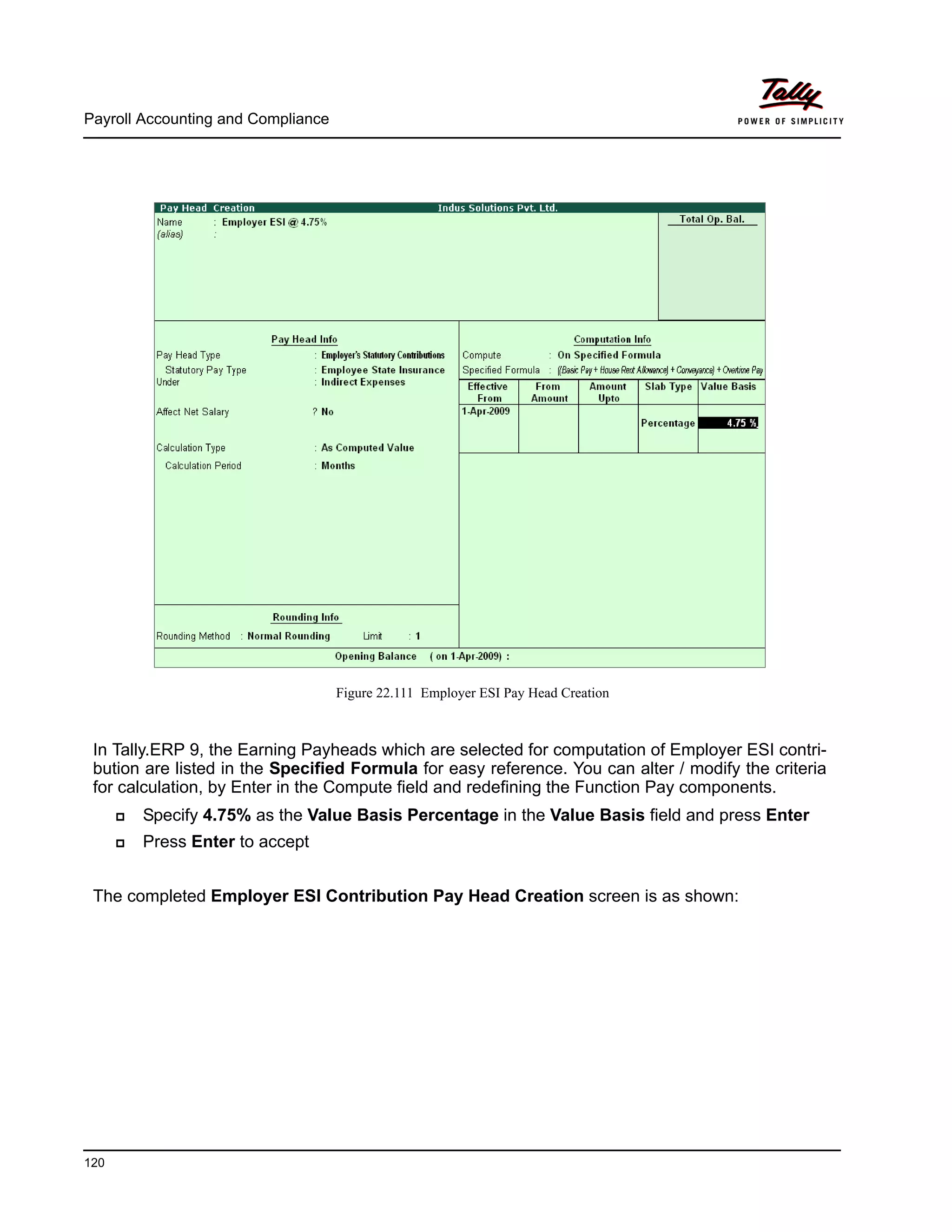
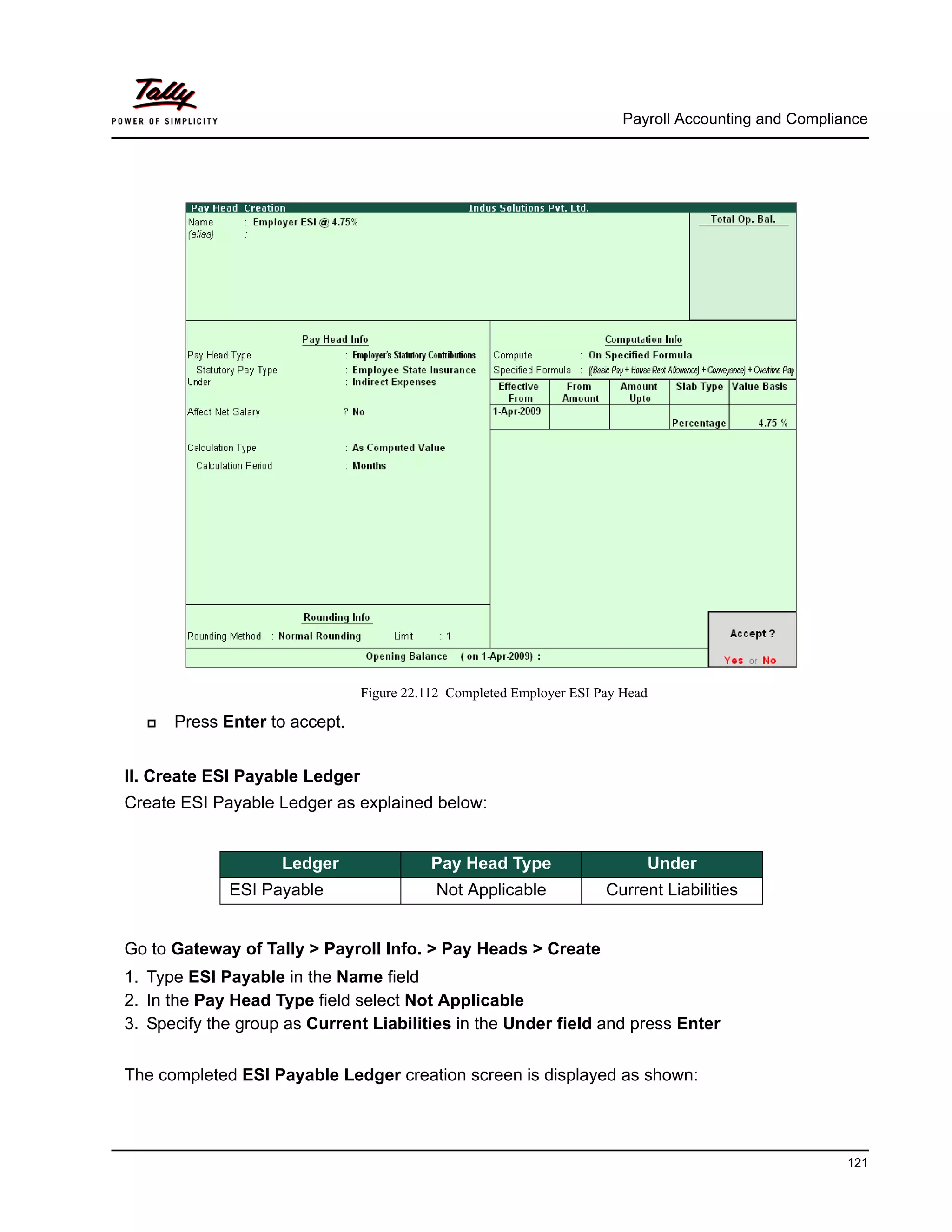
  • 150.
    Payroll Accounting andCompliance 150 Figure 22.141 Completed Mailing Payslip sub screen Mailing Payslip Configurations Email Server – Name of the SMTP mail server should be specified. From - In the From field is prefilled with the name of your Company as specified in the Company Creation screen. You can change the same if you want some other name to be displayed. From E-mail Address is pre-filled with the Company’s email address as filled during the Company Creation. Authentication User Name and Password field should be filled if your SMTP Server needs Authentication for sending emails. Use SSL - This is set to Yes for the servers using the Secured Socket Layer protocol for extra security reasons. Format - you can select from format in which the Payslip should be viewed by the mail recipient. Resolution - appropriate resolution for the Emailed Payslip can be selected in this field. To E-Mail Address - this will be selected automatically if the email address is provided in the Employee Master. Or else, you need to spec- ify the same at the time of emailing. CC To (if any) - If you want the Payslip to be marked to some other email address that can be specified here. Subject - specify the Subject of email to be seen by the user. Additional Text (if any) - This will appear in the body of the email that is sent. Information Sent - The option to send the Email as an Attachment or as a direct view can be selected here.
  • 151.
    Payroll Accounting andCompliance 151 Press Enter to Email the Payslip The emailed Payslip when viewed from the mail box of the employee is as shown: Figure 22.142 Emailed payslip If you want to use the Gmail’s (Google Mail) SMTP service for emailing Pays- lip, Enter Gmail’s SMTP server name: port no. (viz. smtp.gmail.com:465) Provide your Gmail User name and Password against Authentication User Name and Password Set Use SSL to Yes All other settings will be same as shown above.
  • 152.
    Payroll Accounting andCompliance 152 Exporting Payslip to MS Excel Go to Gateway of Tally > Display > Payroll Reports > Statements of Payroll > Payslip > Single Payslip Select the required Employee and press Enter Press Alt+E, the configuration screen to select the required format appears as shown: In the Export screen, Select the required Format in the Languages field Select the Excel as Format from the drop down list of Formats Output File Name is defaulted to Payslip.xls, however you can modify the same Output Sheet Name is defaulted to Payslip, however you can modify the same Complete the remaining options as shown The completed Export screen is as shown: Figure 22.143 Export Payslip screen The Payslip exported into Excel will appear as shown:
  • 153.
    Payroll Accounting andCompliance 153 Figure 22.144 Exported Payslip Pay Sheet A Pay Sheet is a columnar report which displays the Group/Department-wise employees’ break- up of earnings and deductions for the selected month. Go to Gateway of Tally > Display > Payroll Reports > Statements of Payroll > Pay Sheet In the Employee Filters screen, In the Name of Category field select the required Payroll Category In the Name of Employee Group select the required Employee Group from the List of Employees / Groups The Pay Sheet displays as shown:
  • 154.
    Payroll Accounting andCompliance 154 Figure 22.145 Pay Sheet You can further configure the Pay Sheet to display the net amount, column subtotals, Category/ Group subtotals, user-defined payslip names, Employee names and sort it by Employee number in the F12: Configure. The F12: Configuration from the Pay Sheet screen displays as shown: Figure 22.146 F12: Configuration
  • 155.
    Payroll Accounting andCompliance 155 The F12 :Configuration options in the Pay Sheet are explained as follows. Appearance of Pay Head Types – Set All Items to view Deductions and Earnings. Show Net Amount Column – Set this option to Yes to display the Net Payable Column. Show Column SubTotals – Set this option to Yes to display the subto- tals of Earnings/Deductions pay head columns. Remove Zero Entries – Set this option to Yes to eliminate Earnings/ Deductions pay heads with Zero values. Show Payslip Names for Ledgers – Set this option to Yes to display the Name defined in the Appear in Payslip field in the pay head master. Include Employee Groups & Categories – Set this option to Yes to display Category-wise/ Group-wise pay sheet. If this option is set to No, the Pay Sheet will appear Employee-wise. Show Category/Group Total – Set this option to Yes to display Cate- gory and Group-wise columnar pay head totals. Show Grand Total – Set this option to Yes to display the sum of all pay head columns appearing in the report. Show Attendance Details - Set this Option to Yes to display the Attend- ance for the Employees Display Production types in Tail Units - Set this Option to Yes to show the Overtime details in minutes. Format – Select Detailed mode to view Pay Sheet information of employees with their respective category and group. Select Condensed mode when only sum totals are required for each category and group. Show Employee Number – Set this option to Yes to display employee numbers. Show Employee Designation - Set this Option to Yes to show the des- ignation for employees. Expand all levels in Detailed Format – Set this option to Yes to expand all levels and display Employee details. Appearance of Names – Select the appropriate name style to appear in the paysheet (viz., Alias (Name), Alias only, Name (Alias), Name only). Sorting Method – Sort the Pay Sheet either by Alphabetical increasing / decreasing, Employee number or by the Default method.
  • 156.
    Payroll Accounting andCompliance 156 Set the F12: Configuration screen as shown: Figure 22.147 F12: Configuration screen - Pay Sheet The Pay Sheet with the above configurations will appear as shown:
  • 157.
    Payroll Accounting andCompliance 157 Figure 22.148 Pay Sheet To view the Pay Sheet till date with Category and Group Totals In F12: Configuration, set Category / Group Total to Yes (by default it is set to Yes) Press Alt+F2 and change period as 01-04-2009 to 30-06-2009 The Pay Sheet with Category and Group Totals displays as shown:
  • 158.
    Payroll Accounting andCompliance 158 Figure 22.149 Pay Sheet with Category and Group Total To view the Pay Sheet for a particular Employee Group, Press Ctrl+F7 from the Pay Sheet display, the Employee Filters screen appears In the Employee Filters screen, Select Primary Cost Category in the Cost Category field Select Sales as the Employees/ group Button options: Detailed/Condensed Button – This button (Alt+F1) is used to toggle between the detailed and condensed modes of reporting. Period button – This option (F2) is used to define the periodicity of the report, i.e. for a day, week, fortnight, month, quarter, half-year, year or any given period.
  • 159.
    Payroll Accounting andCompliance 159 The Employee Filters screen displays as shown: Figure 22.150 Employee Filters The Pay Sheet for the selected Employee Group displays as shown:
  • 160.
    Payroll Accounting andCompliance 160 Figure 22.151 Employee Group Pay Sheet You can also drill down from the above report to the voucher level, by highlighting the pay heads column of the required employee and pressing Enter. You can also print the Pay Sheet, by pressing Alt+P and specifying the required options in the Pay Sheet Print configuration screen. Button Options: Employee Filter Button – By using the Employee Filter button (Ctrl+F7), view the individual employee/ Employee group pay sheet report. New Column – This option (Alt+C) is used to add a new column for any other Pay Head, which is not part of the pay structure. Alter Column – This option (Alt+A) is used to replace an existing col- umn in the report with another Pay Head column. Delete Column -– This option (Alt+D) is used to delete an existing col- umn in the report.
  • 161.
    Payroll Accounting andCompliance 161 The Pay Sheet Print Configuration screen will appear as shown: Figure 22.152 Pay Sheet Print Configuration screen The Printed Pay Sheet displays as shown: Figure 22.153 Printed Pay Sheet 1A Figure 22.154 Printed Pay Sheet 1B
  • 162.
    Payroll Accounting andCompliance 162 While printing the Pay Sheet, you can choose to Increase the Line Height (for each employee line) if you want to create space for the employee’s signature or to affix a stamp. Such a Pay Sheet can also be used as a salary disbursement register. Press Alt+P to print Pay Sheet and set the Increase Line Height for Signature/ Stamp? field to Yes The printed Pay Sheet with space for signature/ stamp is as shown. Figure 22.155 Printed Pay Sheet with space for Signature/ Stamp (1A) Figure 22.156 Printed Pay Sheet with space for Signature/ Stamp (1B)
  • 163.
    Payroll Accounting andCompliance 163 Payroll Statement A Payroll Statement is a columnar report which displays Group/Department-wise employees’ break-up of selected earnings or deductions, for a specified month or period. Go to Gateway of Tally > Display > Payroll Reports > Statements of Payroll > Payroll Statement Select the required pay head and press Enter The Payroll Statement for Basic Pay Earnings Head for the month of April 2009 is as shown: Figure 22.157 Payroll Statement You can also Email or Export Pay Sheet Report in the manner as discussed in Payslip Section. The navigation steps for Emailing, Exporting Pay Sheet is similar to as explained in Payslip Report.
  • 164.
    Payroll Accounting andCompliance 164 You can further configure the Payroll Statement to display the Employee groups and categories, category/group subtotals, grand totals, user-defined Payslip names, employee names, employee bank details, sort it by Employee number, by pressing F12: Configure Enter the details in F12: Configuration screen as shown The F12: Configuration screen will appear as shown: Figure 22.158 F12: Configuration The F12: Configuration options in Payroll Statement Report are as fol- lows: Remove Zero Entries – Set this option to Yes to remove Earnings/ Deductions pay head information with Zero values. Show Payslip Names for Ledgers – Set this option to Yes, to view the names of pay heads as specified in the Name to Appear in Pays- lip field in the Pay Head master creation. Include Employee Groups & Categories – Set this option to Yes to display Category and Group-wise Employee information. Show Category/Group Total – Set this option to Yes, to display Cate- gory and Group-wise Totals.
  • 165.
    Payroll Accounting andCompliance 165 Show Grand Total – Set this option to Yes, to display the sum of all the pay head columns in the report. Format – Select the Detailed mode to view payroll information of employees with their respective categories and groups. Select the Condensed mode when only sum totals are required for each category and group. Show Employee PF Account Number – Set this option to Yes, to dis- play the Provident Fund Account number of an employee. Show Employee I.T. PAN – Set this option to Yes, to display the Income Tax Permanent Account Number (PAN) of an employee. Show Employee Bank Details – Set this option to Yes, to display the Bank Account Number of an employee Show Employee Number – Set this option to Yes, to display the Employee Number of an employee. Show Employee ESI Number – Set this option to Yes, to display the State Insurance Number of an employee. Show Employee Passport Details – Set this option to Yes, to display an employee’s passport details. Show Employee Visa Expiry Date – Set this option to Yes, to display an employee’s visa expiry date. Expand all levels in Detailed format – Set this option to Yes, to expand all levels and display Employee details. Appearance of Names – Select the appropriate name style to appear in the Payroll Statement (Alias (Name), Alias only, Name (Alias), Name only). Sorting Method – Sort the Payroll Statement using Alphabetical (Decreasing), Alphabetical (Increasing), Bank details, Employee IT Pan Number, Employee Number, ESI Number, PF Account Number, Passport details or by the default method. The Employee PF Account Number, IT PAN Number, ESI Number, Passport Details, Visa Expiry Date options will be available in F12: Configure only when the options, Show Statutory details and Passport & Visa details, are set to Yes in F12: Payroll Configuration.
  • 166.
    Payroll Accounting andCompliance 166 The Payroll Statement with the above Configurations will appear as shown: Figure 22.159 Payroll Statement with additional information To view Payroll Statement for other Pay Heads, you may either select other Pay Head(s) in the manner as discussed or you may also include other Pay Heads in the above report for compara- tive analysis or to obtain a cumulative value, by pressing Alt+C and selecting the required Pay Head(s). The Payroll statement with additional Pay Heads will appear as shown: You can also Email or Export Payroll Statement in the manner as discussed in Payslip Section. The Button Bar options in Payroll Statement are same as in the Paysheet report.
  • 167.
    Payroll Accounting andCompliance 167 Figure 22.160 Payroll Statement with additional Columns Payment Advice A Payment Advice is an intimation letter containing the details of employees with their bank account numbers issued to the banker to transfer a specified sum (salaries earned) to the employees’ bank accounts. As discussed earlier, the contents of the Payment Advice can be altered in F12: Payroll Configu- ration as per the employer’s requirements. Go to Gateway of Tally > Display > Payroll Reports > Statements of Payroll > Payment Advice The Printing Configuration for Payment Advice displays as shown:
  • 168.
    Payroll Accounting andCompliance 168 Figure 22.161 Printing Configuration for Payment Advice Press Backspace and enter the details as shown above Press Enter to print The printed Payment Advice for May 2009 displays as shown:
  • 169.
    Payroll Accounting andCompliance 169 Figure 22.162 Printed Payment Advice The Payment Advice will be available only when the Salaries are processed through Bank Transfer and a Payment voucher is passed for the salaries payable for a given month/period. You can also Email or Export Payment Advice in the manner as discussed in Payslip Section.
  • 170.
    Payroll Accounting andCompliance 170 Payroll Register A Payroll Register is a month-wise transaction summary report which displays the number of payroll vouchers passed during a particular month. Additional information can be appended into the Payroll Register, by inserting a new column with the required voucher type i.e., Attendance, Journal, Purchases, Sales and so on. Go to Gateway of Tally > Display > Payroll Reports > Statements of Payroll >Payroll Register The Payroll Register displays as shown: Figure 22.163 Payroll Register Press F12: Configure and set the Appearance of Names and the Periodicity to use as shown. The F12: Configuration screen displays as shown:
  • 171.
    Payroll Accounting andCompliance 171 Figure 22.164 F12: Configuration The Payroll Register with the above configurations will appear as shown: Figure 22.165 Payroll Register - Quarterly Tally.ERP 9 allows you to drill down to the voucher level from the above display for any kind of verification, by pressing Enter on the required month/period.
  • 172.
    Payroll Accounting andCompliance 172 The Payroll Register voucher level screen displays as shown: Figure 22.166 Payroll Voucher Register You can further drill down to transaction level, by selecting the required transaction and pressing Enter. Employee Pay Head Breakup An Employee Pay Head Breakup report is a columnar report which displays the Group/Depart- ment-wise employees’ breakup of a selected earnings or deductions pay head for a specified month/period. This report also displays the opening balance, debit and credit transactions and the closing balance for a specified period. This report is also beneficial in tracking loan outstanding and instalments deducted till date or for any specified period. Go to Gateway of Tally > Display > Payroll Reports > Statements of Payroll >Employee Pay Head Breakup Select the required Pay Head from the List of Pay Heads and press Enter The Employee Breakup of Pay Head for Basic pay screen displays as shown:
  • 173.
    Payroll Accounting andCompliance 173 Figure 22.167 Employee Breakup of Pay Head To drill down to Employee Summary report from the above display, Select Cost Category and press Enter Press Alt+F1 to view the detailed report The Employee Summary screen displays as shown:
  • 174.
    Payroll Accounting andCompliance 174 Figure 22.168 Employee Summary To drill down to the Employee Monthly Summary report from the Employee Summary report, Highlight the required employee and press Enter The Employee Monthly Summary screen displays as shown: You can also Email or Export Employee Breakup of Pay Head Report in the manner as discussed in Payslip Section.
  • 175.
    Payroll Accounting andCompliance 175 Figure 22.169 Employee Monthly Summary To further drill down to Employee Voucher level screen from the Employee Monthly Summary report, press Enter on the required month The Employee Summary voucher level screen displays as shown:
  • 176.
    Payroll Accounting andCompliance 176 Figure 22.170 Employee Vouchers Summary You can further drill down to transaction level, by selecting the required transaction and pressing Enter. The Employee Breakup of Pay Head report can be viewed with additional Pay Heads, by pressing Alt+C and adding the required Pay Head and for multiple periods, by pressing Alt+N. Pay Head Employee Breakup A Pay Head Employee Breakup report displays the sum of transactions and closing balance of the transacted groups for the selected employee. Go to Gateway of Tally > Display > Payroll Reports > Statements of Payroll >Pay Head Employee Breakup The Employee Selection screen displays as shown:
  • 177.
    Payroll Accounting andCompliance 177 Figure 22.171 Employee Selection To view the ledger breakup, Select the required Employee from the List of Employees and press Enter Press Alt+F1 for detailed view The ledger-wise Breakup of Employee screen displays as shown: Figure 22.172 Pay Head Employee Breakup
  • 178.
    Payroll Accounting andCompliance 178 To further drill down to view the Breakup of Employee report for each ledger from the above displayed report, select the required ledger and press Enter The Breakup of Employee screen for a selected ledger (Basic Pay) displays as shown: Figure 22.173 Ledger Monthly Summary You can drill down further to view the Monthly Summary of the selected ledger and the Employee Voucher report. The Pay Head Employee Breakup report can be viewed with additional employees, by pressing Alt+C and adding the required Employee and for multiple periods, by pressing Alt+N. Attendance Sheet An Attendance Sheet is a columnar report which displays the details of Attendance/ Production types with the number of attendance/ production units achieved during a particular month or period. Go to Gateway of Tally > Display > Payroll Reports > Attendance Sheet
  • 179.
    Payroll Accounting andCompliance 179 The Attendance Sheet displays as shown: Figure 22.174 Attendance Sheet You may configure the above report with additional details, by pressing F12:Configure and enabling the following options, as required. The completed F12: Configuration screen displays as shown: Figure 22.175 F12: Configuration screen F12: Configurations for Attendance Sheet: Remove Zero Entries – Set this option to Yes, to remove Attendance/ Production information with Zero values. Include Employee Groups & Categories – Set this option to Yes, to display Category and Group-wise Employee information.
  • 180.
    Payroll Accounting andCompliance 180 The Attendance sheet with the above Configurations is as shown: Figure 22.176 Attendance sheet F12: Configurations for Attendance Sheet: Show Category/Group Total -– Set this option to Yes, to display Cat- egory and Group-wise Totals. Include Group Attendance/Production Types – Set this option to Yes to include Group Attendance/Production Types in Attendance Sheet report. Display Attendance/Production Types in Tail Units – Set this option to Yes, to display the Attendance/Production Types in Tail Units. Format – Select the Detailed mode to view the payroll information of employees with their respective categories and groups. Select the Condensed mode when only sum totals are required for each cate- gory and group. Expand all levels in Detailed Format – Set this option to Yes, to expand all levels and display Employee details. Show Employee Number – Set this option to Yes, to display employee numbers of employees. Appearance of Names – Select the appropriate name style to appear in the payroll statement (Alias (Name), Alias only, Name (Alias), Name only) Sorting Method – Sort the Attendance Sheet, either by Employee Number or by the Default method.
  • 181.
    Payroll Accounting andCompliance 181 Attendance Register An Attendance Register is a month-wise transactions summary report which displays the number of attendance vouchers passed during the month. You can append additional information by inserting a new column with the required voucher type, i.e. Payroll, Journal, Purchases, Sales and so on. Go to Gateway of Tally > Display > Payroll Reports > Attendance Register The Attendance Register displays as shown: Figure 22.177 Attendance Register Press F12: Configure and set the Appearance of Names and the Periodicity to use as shown The F12:Configuration options in Attendance Register are as follows:
  • 182.
    Payroll Accounting andCompliance 182 Figure 22.178 F12: Configuration for Attendance Register Tally.ERP 9 allows you to drill down to the voucher register, from the Attendance Register screen for any kind of verification. The Voucher level screen from Attendance Register displays as shown: Figure 22.179 Attendance Voucher Register You may further drill down to voucher level, by pressing Enter on the required transaction.
  • 183.
    Payroll Accounting andCompliance 183 22.7.2 Expat Reports Expat Reports provide information about regular as well as contractual employees, working abroad on a short/ long tenure or on assignment. They capture all the relevant information in respect of passport, visa and contract details along with the date of joining, the issuing country and the expiry date. In Tally.ERP 9, the following Expat reports are available. Passport Expiry Visa Expiry Contract Expiry Passport Expiry Report The Passport Expiry Report provides information on the passport details of employees, such as passport number, country of Issue, passport expiry date and other details such as the employee's date of joining and email id. Go to Gateway of Tally > Display > Payroll Reports > Expat Reports > Passport Expiry The Passport Expiry Report displays as shown: Figure 22.180 Passport Expiry Report Press F12: Configure to configure additional options The F12: Configuration screen appears as shown:
  • 184.
    Payroll Accounting andCompliance 184 Figure 22.181 F12: Configuration screen The F12: Configurations in Passport Expiry Report are Show All Employees – Set this option to Yes, to view the passport details of all employees. It includes information on expired and unex- pired passport details. If this option is set to No, Show Expiry in days will be available. Show Expiry in days – Set this option to Yes, to enter the expiry days. When Show All Employees and Show Expiry in days options are set to No, Tally.ERP 9 filters only those employee passport details, which are nearing the expiry date. If this option is set to Yes, Expiry in next n days will be available. Expiry in next n days – Set this option to Yes, to get the passport expiry details for the next specified number of days. On entering the number of days, Tally.ERP 9 filters the employee passport details which are likely to expire within the specified period (number of speci- fied days). If this option is left blank, the report will denote the current date (last date of voucher entry). Show Employee Number – Set this option to Yes, to display the employee number of employees in the report. Appearance of Names – Select the appropriate name style to appear in the Passport Expiry Report (Alias (Name), Alias only, Name (Alias), Name only). Sorting Method — Sort employee details based on Employee Number, Passport Expiry Date (Ascending/Descending), or by the default method. Show Employee Email Id – Set this option to Yes, to view the email ids of employees.
  • 185.
    Payroll Accounting andCompliance 185 Similarly Visa Expiry and Contract Expiry reports can be generated. 22.7.3 Payroll Statutory Reports In Tally.ERP 9, you can display, print statutory forms and reports for Provident Fund (EPF), Employee State Insurance (ESI) and Professional Tax (PT) in the prescribed format as required by the statutes. The following Statutory reports are available in Tally.ERP 9 : Figure 22.182 Payroll Statutory Reports in Tally.ERP 9 Button Functions in a Passport Expiry Report: F2: Change Period – Allows you to change the period of the report. F5: Employee Wise – Allows you to display the Employee-wise Pass- port Expiry report. F7: Employee Filters – This option (Ctrl+F7) allows you to display the Passport Expiry Report for a particular Cost Category with the required Group or Employee.
  • 186.
    Payroll Accounting andCompliance 186 You can view Payroll Statutory reports either from Statutory Reports menu or Payroll Reports menu i.e., Gateway of Tally > Display > Statutory Reports > Payroll Reports or Gateway of Tally > Display > Payroll Reports > Statutory Reports Provident Fund Reports As discussed, the following Provident Fund Reports are available in Tally.ERP 9: Computation report Form 5 Form 10 Form 12A Monthly Statement Form 3A Form 6A E-Return In this section, we will generate each of the above forms / report and understand the purpose and information to be furnished. i. Computation Report The PF Computation Report provides the summary of Amount Payable and amount paid in respect of PF for a given period comprising of Employer Contributions, Employee Deductions and Employer’s Other charges, if any. To view PF Computation Report, follow the steps given below: Go to Gateway of Tally > Display > Payroll Reports > Statutory Reports > Computation Press F2 and specify the period as 01-04-2009 to 30-06-2009 and press Enter The Payroll Statutory Computation Report appears as shown:
  • 187.
    Payroll Accounting andCompliance 187 Figure 22.183 Payroll Statutory Computation Report The report, by default displays summary of Employee’s Provident Fund, Employee’s State Insurance and Professional Tax, you may however configure to display only details of Provident Fund Press F12 : Configure and enable/disable the following options as required Figure 22.184 F12: Configurations screen Press Enter The PF Computation report will appear as shown:
  • 188.
    Payroll Accounting andCompliance 188 Figure 22.185 PF Computation screen To view detailed ledger wise information under each contributions / deductions head, press Alt+F1. The detailed Provident Fund Computation Report will appear as shown:
  • 189.
    Payroll Accounting andCompliance 189 Figure 22.186 Detailed PF Computation Report You can further drill down to Employee Breakup of Pay Head report and from their to Employee Vouchers and so on, by pressing Enter on the required ledger from the above screen. ii. Form 5 As per the Employees' Provident Funds Scheme,1952 [para 36 (2)(a)], a return is required to be submitted in Form 5 within 15 days of the following month detailing the list of Employees qualify- ing for membership to the Employees’ Provident Fund for the First time during every month. Form 5 is a monthly Returns to be submitted with the details of any new employee covered under EPF. In Tally.ERP 9, you can generate Form 5 in the prescribed format containing the details of the new joinees in the organisation for the selected month. To generate the PF Form 5 for the month of June 2009, follow the steps given below: Go to Gateway of Tally > Display > Payroll Reports > Statutory Reports > Provident Fund > Form 5 In the Payroll Statutory Print Configuration screen, Specify 01-04-2009 and 30-04-2009 in the From and To fields respectively Select the required Payroll Category, Employee/Group and Sorting Method
  • 190.
    Payroll Accounting andCompliance 190 Specify 07-05-2009 in the Date field The completed Payroll Statutory Print Configuration screen is as shown: Figure 22.187 Payroll Statutory Print Configuration screen Press Enter to print. The printed PF Form 5 will appear as shown:
  • 191.
    Payroll Accounting andCompliance 191 Figure 22.188 PF Form 5
  • 192.
    Payroll Accounting andCompliance 192 In our case study, there are two new employees joined during the month of June 2009 and thus Form 5 contains the details of the above employees. iii. Form 10 As per the Employees' Provident Funds Scheme,1952 [para 36 (2)(a) & (b), a Return is required to be submitted in Form 10 within 15 days of the following month detailing the list of members leaving service during the month. Form 10 is a monthly Return to be submitted with the details of employees leaving the organisa- tion. In Tally.ERP 9, on resignation or retirement or expulsion of any employee, the date of leaving is required to be specified in the Employee master of such employee. The Date of Leaving option in the Employee Master appears, in alteration mode. The Form 10 will contain the details of Employees for whom the date of leaving is specified in the Employee Master. You can generate Form 10 in the prescribed format containing the details of the employees resigned for the selected month. To generate the PF Form 10 for the month of August 2009, follow the steps given below. Go to Gateway of Tally > Display > Payroll Reports > Statutory Reports > Provident Fund > Form 10 In the Payroll Statutory Print Configuration screen Specify 01-09-2009 and 30-09-2009 in the From and To fields respectively Select the required Payroll Category, Employee/Group and Sorting Method Specify 10-10-2009 in the Date field The completed Payroll Statutory Print Configuration screen is as shown:
  • 193.
    Payroll Accounting andCompliance 193 Figure 22.189 Payroll Statutory Print Configuration screen Press Enter to print The printed Form 10 is as shown:
  • 194.
    Payroll Accounting andCompliance 194 Figure 22.190 Printed Form 10
  • 195.
    Payroll Accounting andCompliance 195 iv. Form 12A As per the Employees' Provident Funds Scheme, 1952 [para 36(1)] and the Employees' Pension Scheme 1995 [para 20(4)] and the Employees' Deposit Linked Insurance Scheme, 1976, a con- solidated Statement of dues and remittance is required to be submitted by 25th of the following month to which the dues relate. You can generate Form 12A in the prescribed format containing the details of the amount of con- tribution, amount of contribution remitted and the date of remittance in respect of EPF, Pension Fund and EDLI Contribution for the selected month. To generate the PF Form 12A for the month of August 2009, follow the steps given below. Go to Gateway of Tally > Display > Payroll Reports > Statutory Reports > Provident Fund > Form 12A In the Payroll Statutory Print Configuration screen Specify 01-04-2009 and 30-04-2009 in the From and To fields respectively Select the required Payroll Category, Employee/Group and Sorting Method Specify the Name & Address of the Bank Set Include VPF Account to No Specify 0 in the Number of Contract Employees field Press Enter to accept 0 in Number of Rest (Temporary Employees) field The completed Payroll Statutory Print Configuration screen is as shown. Figure 22.191 Completed Print Configuration screen
  • 196.
    Payroll Accounting andCompliance 196 Press Enter to print The printed Form 12A is as shown: Figure 22.192 Printed Form 12A
  • 197.
    Payroll Accounting andCompliance 197 v. PF Monthly Statement The PF Monthly Statement provides a summary of Employee wise monthly PF Employee Deduc- tions and Employer Contribution amount. To print PF Monthly Statement, follow the steps given below: Go to Gateway of Tally > Display > Payroll Reports > Statutory Reports > Provident Fund > Monthly Statement In the Payroll Statutory Print Configuration screen, Specify 01-04-2009 and 30-04-2009 in the From and To fields respectively Select the required Payroll Category, Employee/Group and Sorting Method Figure 22.193 Print Configuration screen Press Enter to Print. The printed PF Monthly Statement for April 2009 will appear as shown:
  • 198.
    Payroll Accounting andCompliance 198 Figure 22.194 PF Monthly Statement vi. Form 3A As per the Employees' Provident Funds Scheme,1952 [para 35 & 42] and the Employees' Pension Scheme 1995 (Para 19), a Form (Member’s Annual Contribution Card) showing month wise recoveries towards EPF and Pension Fund in respect of a member for one financial year is required to be furnished by the employer before 30th April of the following year. Form 3A is a annual contribution card to be furnished for each employee in separate sheet to EPFO. To print Form 3A, follow the steps given below: Go to Gateway of Tally > Display > Payroll Reports > Statutory Reports > Provident Fund > Form 3A In the Payroll Statutory Print Configuration screen Select Primary Cost Category in the Cost Category field Select All Items in the Employee/Group field Specify 01-03-2009 and 28-02-2010 in the From and To fields respectively Set Include VPF Account to No Select the Employee Name in the Sorting Method field Specify 28-02-2010 in the Date of Printing field The completed Payroll Statutory Print Configuration screen will appear as shown:
  • 199.
    Payroll Accounting andCompliance 199 Figure 22.195 Payroll Statutory Print Configuration Press Enter to Print. The printed Form 3A for Atul Sharma will appear as shown:
  • 200.
    Payroll Accounting andCompliance 200 Figure 22.196 Printed PF Form 3A The next page will contain the Contribution Card in Form 3A for the next employee.
  • 201.
    Payroll Accounting andCompliance 201 vii. Form 6A As per the Employees' Provident Funds Scheme,1952 [para 43] and the Employees' Pension Scheme 1975 [para 20], a Form (Consolidated Annual Contribution Statement) providing annual contributions of each member of the establishment is required to be submitted by 30th April. Form 6A is vital form for compiling the annual Provident Fund statement of a subscriber. In Tally.ERP 9, you can generate Form 6A in the prescribed format. To print Form 6A follow the steps given below: Go to Gateway of Tally > Display > Payroll Reports > Statutory Reports > Provident Fund > Form 6A In the Payroll Statutory Print Configuration screen Specify 01-03-2009 and 28-02-2010 in the From and To fields respectively Select the required Payroll Category, Employee/Group and Sorting Method The completed Payroll Statutory Print Configuration screen will appear as shown: Figure 22.197 Payroll Statutory Print Configuration for PF Form 6A Press Enter to Print. The printed Form 6A will appear as shown:
  • 202.
    Payroll Accounting andCompliance 202 Figure 22.198 Printed Form 6A - Page 1
  • 203.
    Payroll Accounting andCompliance 203 The Page 2 of PF Form 6A is as shown: Figure 22.199 Printed Form 6A - Page 2
  • 204.
    Payroll Accounting andCompliance 204 viii. E-Return In Tally.ERP 9 , you can also generate PF Form 3A in .xls format for e-filing purposes. Go to Gateway of Tally > Display > Payroll Reports > Statutory Reports > Provident Fund > E-Return In the Exporting Form 3A Configuration screen Select Default (All Languages) in Language field Select Excel (Spreadsheet) in Format field Specify the Export Location Specify Output File Name as Form 3A.xls Specify Output Sheet Name as Form 3A Set Yes in Update Existing file, Excel (Spreadsheet) Formatting, with Colour to Yes Specify 01-03-2009 and 28-02-2010 in the From and To fields respectively Select the required Payroll Category, Employee/Group and Sorting Method The completed Exporting Form 3A Configuration screen will appear as shown: Figure 22.200 E-Return Press Enter to Export the file The exported file (E-Return) will be placed in the default Tally.ERP 9 directory.
  • 205.
    Payroll Accounting andCompliance 205 Employee’s State Insurance Reports As discussed, the following ESI Reports are available in Tally.ERP 9: Computation Report Form 3 Monthly Statement Form 5 Form 6 In this section, we will generate each of the above forms / report and understand the purpose and information to be furnished. i. Computation Report The ESI Computation Report provides the summary of Amount Payable and amount paid in respect of ESI for given period comprising of Employer Contributions and Employee Deductions. To view ESI Computation Report, follow the steps given below: Go to Gateway of Tally > Display > Payroll Reports > Statutory Reports > Computation Press F2 and specify the period as 01-06-2009 to 30-06-2009 and press Enter Figure 22.201 Payroll Computation report
  • 206.
    Payroll Accounting andCompliance 206 The report, by default displays summary of Employee’s Provident Fund, Employee’s State Insurance and Professional Tax, you may however configure to display only details of Employee State Insurance. Press F12 : Configure and enable/disable the following options as required Figure 22.202 F12: Configuration screen Press Enter The ESI Computation report will appear as shown: Figure 22.203 ESI Computation report To view detailed ledger wise information under each contributions / deductions head, press Alt+F1.
  • 207.
    Payroll Accounting andCompliance 207 The detailed Employee State Insurance Computation Report will appear as shown: Figure 22.204 Detailed ESI Computation report You can further drill down to Employee Breakup of Pay Head report and from their to Employee Vouchers and so on, by pressing Enter on the required ledger from the above screen. ii. Form 3 As per Regulation 14, a declaration form in Form 3 is required to be filed for every Half Yearly stating the list of Employees whose remuneration is not exceeding Rs. 10,000/- per month.To generate ESI Form 3, follow the steps given below: Go to Gateway of Tally > Display > Payroll Reports > Statutory Reports > Employee State Insurance > Form 3 In the Payroll Statutory Print Configuration screen, Specify 1-04-2009 and 30-09-2009 in the From and To fields respectively Select the required Payroll Category, Employee/Group and Sorting Method Select the required Gender from the List of Gender field Type Bangalore in the Place field
  • 208.
    Payroll Accounting andCompliance 208 Specify 10-10-2009 in the Date of Printing field Type the Designation details of the person submitting the declaration form The completed Payroll Statutory Print Configuration screen will appear as shown: Figure 22.205 Payroll Statutory Print Configuration for ESI Form 3 Press Enter to Print. The printed declaration form in Form 3 will appear as shown:
  • 209.
    Payroll Accounting andCompliance 209 Figure 22.206 Printed Form 3 iii. Monthly Statement The ESI Monthly Statement provides a summary of Employee wise monthly ESI Employee Deductions and Employer Contribution amount. To print ESI Monthly Statement, follow the steps given below:
  • 210.
    Payroll Accounting andCompliance 210 Go to Gateway of Tally > Display > Payroll Reports > Statutory Reports > Employee State Insurance > Monthly Statement In the Payroll Statutory Print Configuration screen, Specify 01-06-2009 and 30-06-2009 in the From and To fields respectively Select the required Payroll Category, Employee/Group and Sorting Method The completed Payroll Configuration Print screen will appear as shown: Figure 22.207 Payroll Statutory Print Configuration screen Press Enter to Print. The printed ESI Monthly Statement for June 2009 will appear as shown:
  • 211.
    Payroll Accounting andCompliance 211 Figure 22.208 ESI Monthly Statement iv. Form 5 As per Regulation 26, a Return of Contribution in Form 5 is required to be submitted to the appro- priate Branch Office within 42 days of the expiry of the contribution period (i.e, 12th May or November 11th of each year). Such return of contribution should be prepared in quadruplicate and submitted separately for the main Code Number and each sub-code number. The employer may make compliance from the parent unit and submit only one return in respect of all the branches or may make compliance through their Branch Offices/ Sales Offices separately in the Regions where such offices are located. Go to Gateway of Tally > Display > Payroll Reports > Statutory Reports > Employee State Insurance > Form 5 In the Payroll Statutory Print Configuration screen Specify 01-04-2009 and 30-09-2009 in the From and To fields respectively Select the required Payroll Category, Employee/Group and Sorting Method Select the required Display Employee Name Style in Appearance of Employee Names field Specify Bangalore in the Place Field Specify 30-09-2009 in the Date of Printing field Type the name of the Signatory in the Authorised Signatory Name field Type the Designation details of the signing authority In the Residential Address field provide the Home Address of Authorised Signatory
  • 212.
    Payroll Accounting andCompliance 212 The completed Payroll Statutory Print Configuration screen for ESI Monthly Statement is as shown: Figure 22.209 Payroll Statutory Print Configuration screen Press Enter to Print The printed From 5 will appear as shown:
  • 213.
    Payroll Accounting andCompliance 213 Figure 22.210 Printed Form 5 - Page 1
  • 214.
    Payroll Accounting andCompliance 214 The Page 2 of Form 5 is as shown: Figure 22.211 Printed Form 5 - Page 2
  • 215.
    Payroll Accounting andCompliance 215 The Page 3 of Form 5 is as shown: Figure 22.212 Printed Form 5 - Page 3
  • 216.
    Payroll Accounting andCompliance 216 v. Form 6 As per Regulation 32, a register of Employees covered under Employees State Insurance Scheme, containing information regarding the Insurance No., dispensary, other occupational details, Employer’s Share and month wise (under that particular Half Year) ESI details (i.e., Gross wages, Number of working days and ESI Contribution for each employee) should be furnished. To generate Form 6, follow the steps given below: Go to Gateway of Tally > Display > Payroll Reports > Statutory Reports > Employee State Insurance > Form 6 In the Payroll Statutory Print Configuration screen Type 01-04-2009 in the From field Type 30-09-2009 in the To field Select the required Payroll Category, Employee/Group and Sorting Method The completed Payroll Statutory Print Configuration screen will appear as shown: Figure 22.213 Payroll Statutory Print Configuration for ESI Form 6 Press Enter to Print. The printed Form 6 will appear as shown:
  • 217.
    Payroll Accounting andCompliance 217 Figure 22.214 Printed Form 6 - Page 1
  • 218.
    Payroll Accounting andCompliance 218 The Page 2 of Form 6 will appear as shown: Figure 22.215 Printed Form 6 - Page 2
  • 219.
    Payroll Accounting andCompliance 219 The Page 3 of Form 6 will appear as shown: Figure 22.216 Printed Form 6 - Page 3
  • 220.
    Payroll Accounting andCompliance 220 Professional Tax Reports As discussed earlier, Professional Tax is applicable to those individuals or professionals in India who are involved in any profession or trade. The state government of each state governs and administers the levy and collection of Professional Tax in the respective State.The state is empowered with the responsibility of structuring as well as formulating the professional tax criteria for the respective state. Professional tax is charged on the incomes of Individuals, profits of business or gains in vocations as per the list II of the Indian Constitution. In India, the professional tax slabs are different for all the states in India and some of the states have formulated different professional tax slabs for men, women and the senior citizens of the respective states. The rates depend upon profession, years in the profession and the amount of income or turnover and so on. In Tally.ERP 9, based on the Slab Rates defined in the Professional Tax Ledger, the Professional Tax Report is generated, capturing the amount of Professional Tax deducted under each slab rate. i. Professional Tax Computation Report The Professional Tax Computation Report provides the summary of Amount deducted as Profes- sional Tax in accordance with the Slab rates applicable for the particular state, from the Earnings of the Employees exceeding the prescribed threshold limits. Go to Gateway of Tally > Display > Payroll Reports > Statutory Reports > Professional Tax > Computation Report From the List of Ledgers drop down, select Professional Tax and press Enter, the Pay- roll Statutory Print Configuration screen appears In the Payroll Statutory Print Configuration screen, Specify 01-06-2009 and 30-06-2009 in the From and To fields respectively Select the required Payroll Category, Employee/Group and Sorting Method Type Bangalore in the Place field Specify 30-06-2009 in the Date of Printing field The completed Payroll Statutory Print Configuration screen will appear as shown:
  • 221.
    Payroll Accounting andCompliance 221 Figure 22.217 Payroll Statutory Print Configuration screen Press Enter to Print. The printed Professional Tax Computation Report for the month of June 2009 will appear as shown:
  • 222.
    Payroll Accounting andCompliance 222 Figure 22.218 Printed PT Computation Report
  • 223.
    Payroll Accounting andCompliance 223 ii. Professional Tax Statement The Professional Tax Statement provides the summary of Employee wise Gross Wages paid, No. of Working Days and the amount of Professional Tax deducted during the selected period. To generate the Professional Tax Statement for a month, Go to Gateway of Tally > Display > Payroll Reports > Statutory Reports > Professional Tax > Statement From the List of Ledgers drop down, select Professional Tax and press Enter, the Pay- roll Statutory Print Configuration screen appears In the Payroll Statutory Print Configuration screen, specify 01-06-2009 and 30-06-2009 in the From and To fields respectively Select the required Payroll Category, Employee/Group and Sorting Method The completed Payroll Statutory Print Configuration screen will appear as shown: Figure 22.219 Payroll Statutory Print Configuration screen Press Enter to Print. The printed Professional Tax Statement for June 2009 will appear as shown:
  • 224.
    Payroll Accounting andCompliance 224 Figure 22.220 Printed Professional Tax Statement Gratuity Report The Gratuity Report displays the provisional liability of an employer towards his employee in respect of gratuity payable at the time of cessation of employment either by resignation, death, retirement or termination. The Gratuity Summary Report displays the gratuity amount payable in accordance with the pay components and formulae defined in the ledger master, as discussed earlier. In Tally.ERP 9, the Gratuity amount is calculated proportionately for eligible days in a year to the extent of completed months of service. You can view Gratuity Report either from Statutory Reports menu or Payroll Reports menu i.e., Gateway of Tally > Display > Payroll Reports > Statutory Reports or Gateway of Tally > Display > Statutory Reports > Payroll Reports. You can view PT Computation Report from Gateway of Tally > Display > Payroll Reports > Statutory Reports > Computation menu, detailing Pro- fessional Tax collected and paid during a given period in the manner as discussed in Provident Fund Computation Report section.
  • 225.
    Payroll Accounting andCompliance 225 Go to Gateway of Tally > Display > Payroll Reports > Statutory Reports > Gratuity Report The Gratuity Report for the Employees eligible for Gratuity will appear as shown: Figure 22.221 Gratuity Summary Report In order to ascertain the Gratuity payable amount, set Use for Gratuity to Yes in the Pay Head master (i.e. Basic Pay, Dearness Allowance etc.) Button Options in the Gratuity Report: F4: Change Currency – Allows you to display the report in any other foreign currency other than base currency. F5: Employee Wise – Allows you to display the Employee-wise Gratu- ity report. F7: Employee Filters – This option (Ctrl+F7) allows you to display the Gratuity report for a particular Cost Category with the required Group or Employee.
  • 226.
    Payroll Accounting andCompliance 226 The above report displays the details of all employees' along with the Date of Birth, Date of Joining and the Gratuity Eligible Salary, besides commenting on the total Gratuity liability as on date. Press F12: Configure to configure for additional options Figure 22.222 F12: Configuration screen Tally.ERP 9 allows you to drill down to the Gratuity Details report from the above display. Select the required employee and press Enter The Gratuity Details screen displays as shown: Figure 22.223 Gratuity Details Report
  • 227.
    Once the employeeis deactivated (i.e., when the date of leaving is filled in the Employee master), Tally.ERP 9 stops computing Gratuity for the deacti- vated employee. If the tenure of service of such an employee falls below the eligible slab for gratuity calculation, he/she will not be entitled for any gratuity amount. However, in cases where the tenure of service is spread over more than one eligible slab(s), he/she will be entitled to the sum total of all the slabs. Payroll Accounting and Compliance 227
  • 228.
    Payroll Accounting andCompliance 228 Points to Remember Payroll is the process of maintaining records of all employees’ salaries. The Payroll function in Tally.ERP 9 facilitates accurate and timely employee payments. The Attendance/Production Type is used to record attendance and pro- duction data. Salary components constituting Pay Structures are called Pay Heads. Gratuity is a monetary benefit paid by an employer to an employee, at the end of the employment, for the services rendered over the period of employment. Attendance voucher is a voucher type used to record attendance, over- time, leave or production details. Payroll voucher is used to record employees’ payroll related transac- tions. Payslip is a document, issued to an employee, that itemises each com- ponent of his/her earnings and deductions. Pay Sheet is a matrix report with details of pay heads pertaining to employees. Payroll Statement helps to generate reports for specific pay heads. Attendance Sheet displays information relating to employees’ attend- ance or production data. Gratuity Summary Report calculates the liability of a company in terms of gratuity. Expat Report provides comprehensive information about employees who are abroad, on short/ long-term assignments.