Microsoft Dynamics™ AX 4.0Rapid Configuration ToolA/P Parameters SetupUpdates Tab
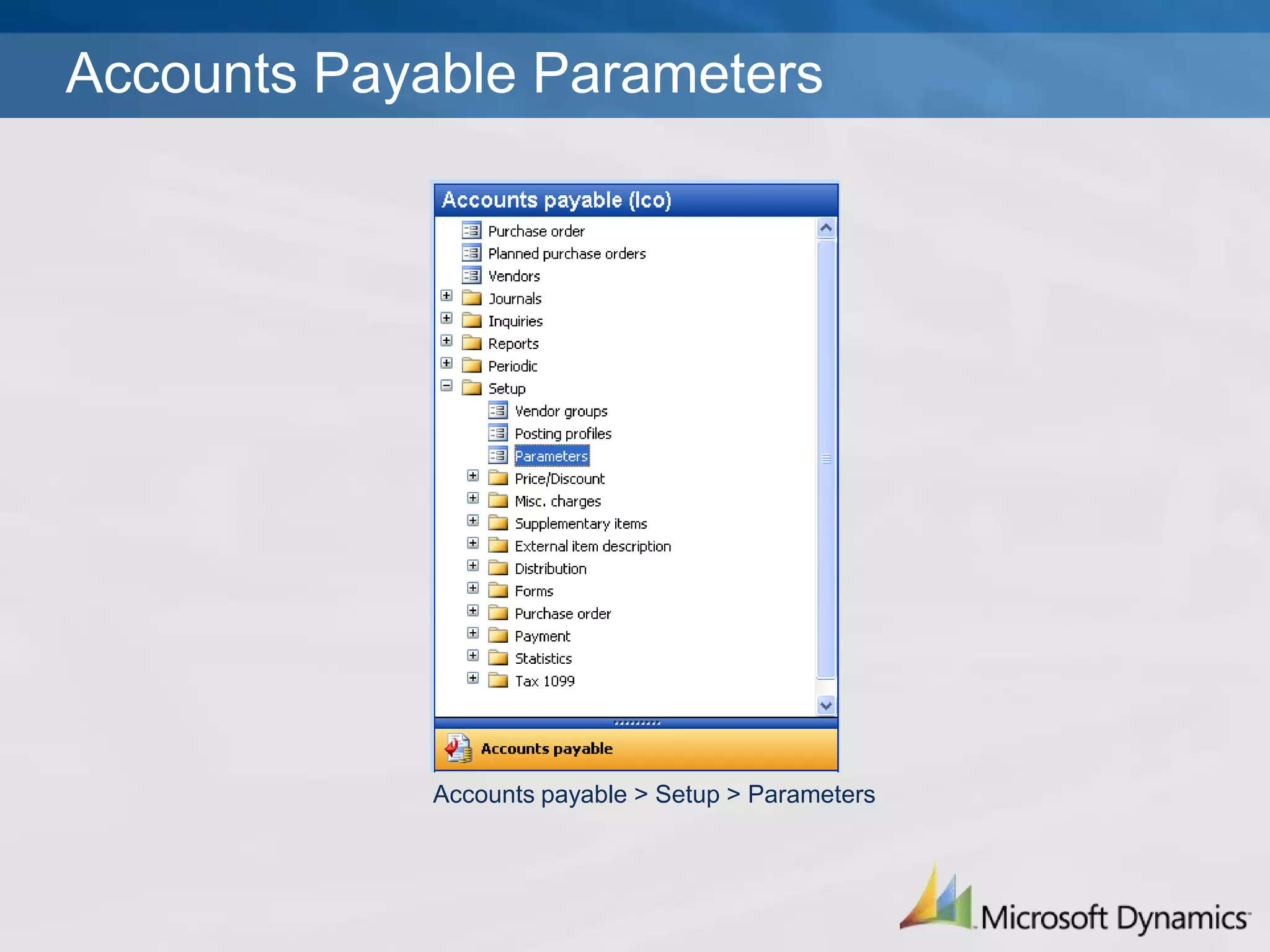
Accounts payable > Setup > ParametersAccounts Payable Parameters
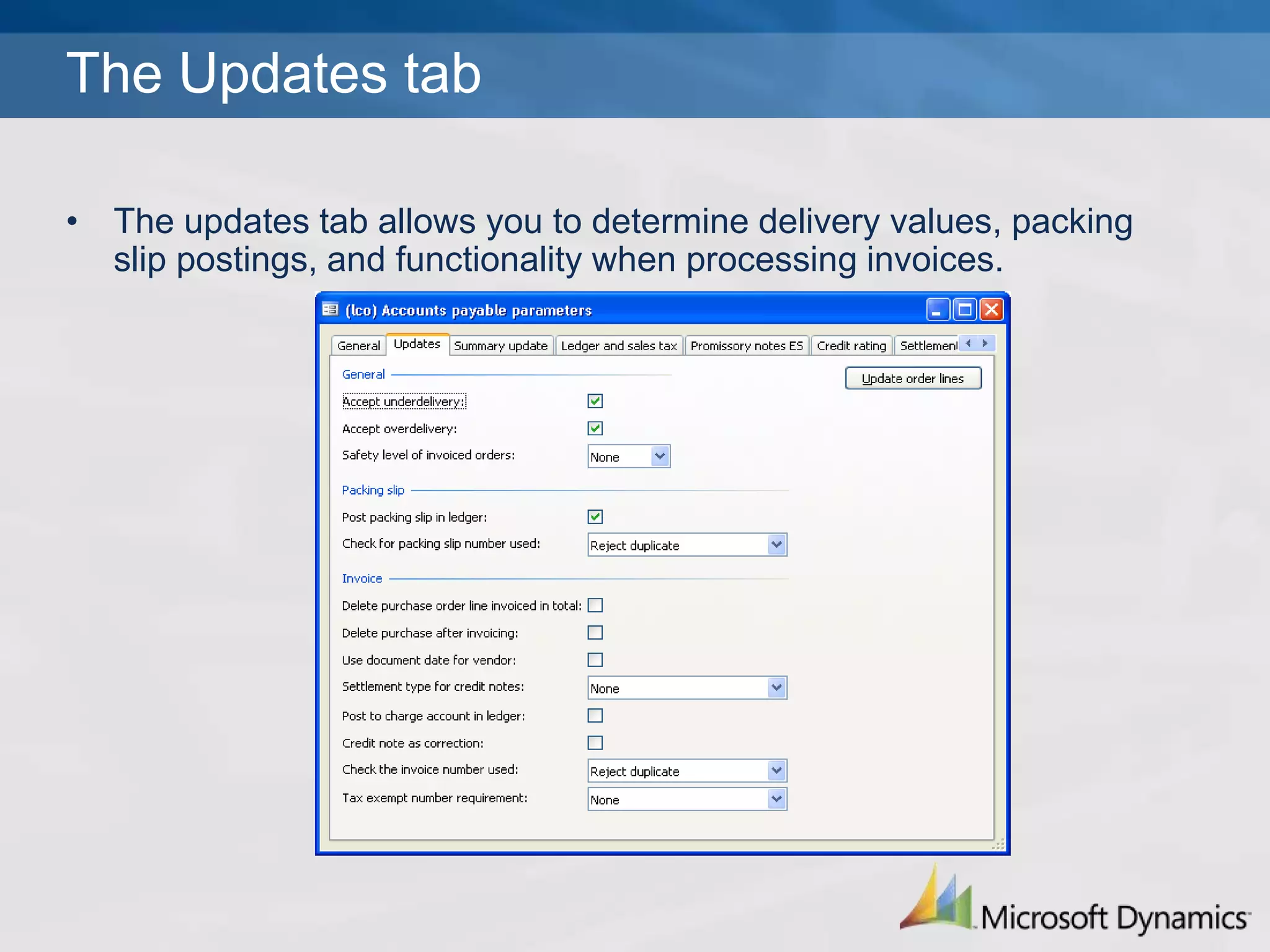
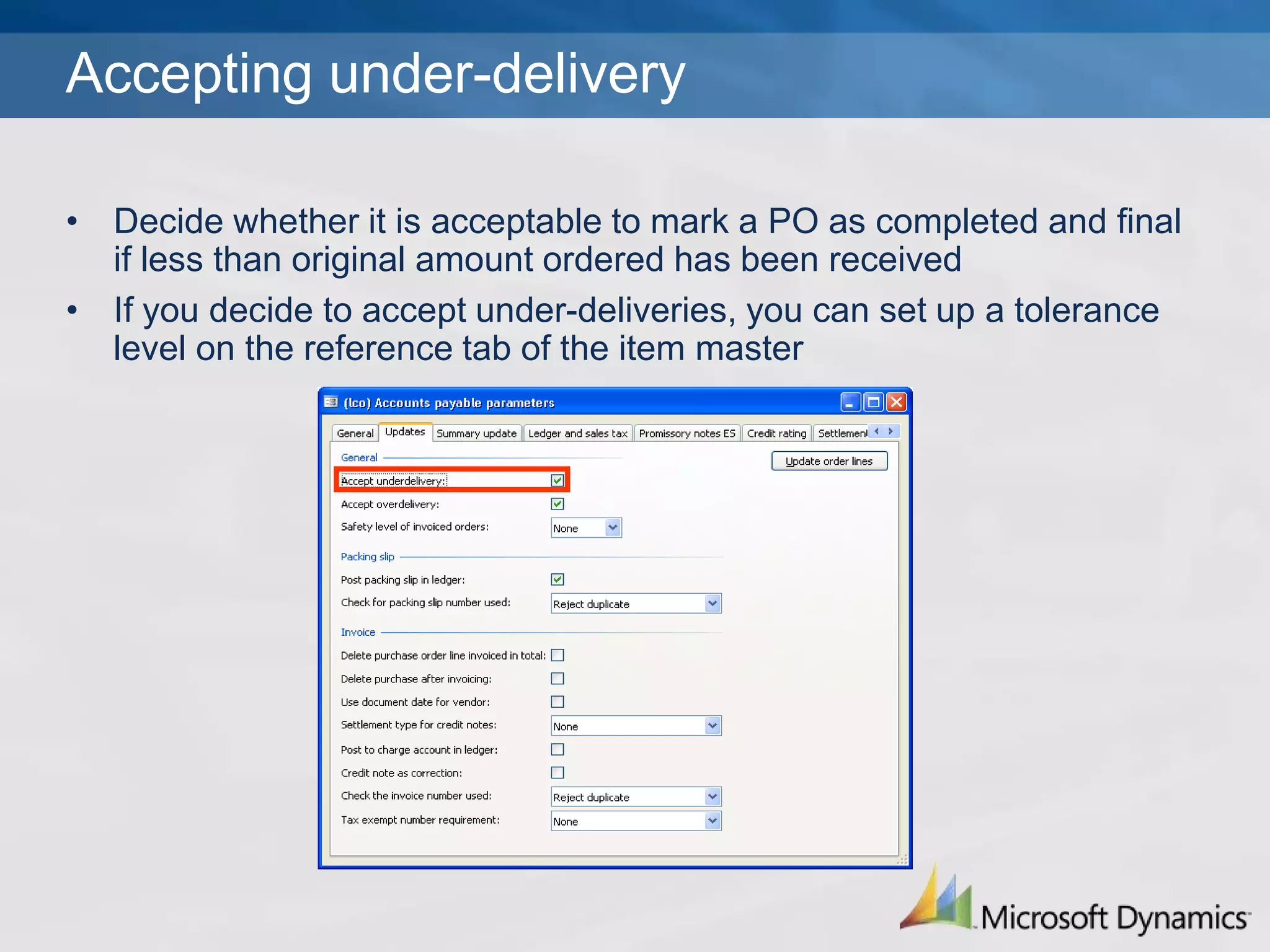
The Updates tabThe updates tab allows you to determine delivery values, packing slip postings, and functionality when processing invoices.Accepting under-deliveryDecide whether it is acceptable to mark a PO as completed and final if less than original amount ordered has been receivedIf you decide to accept under-deliveries, you can set up a tolerance level on the reference tab of the item master
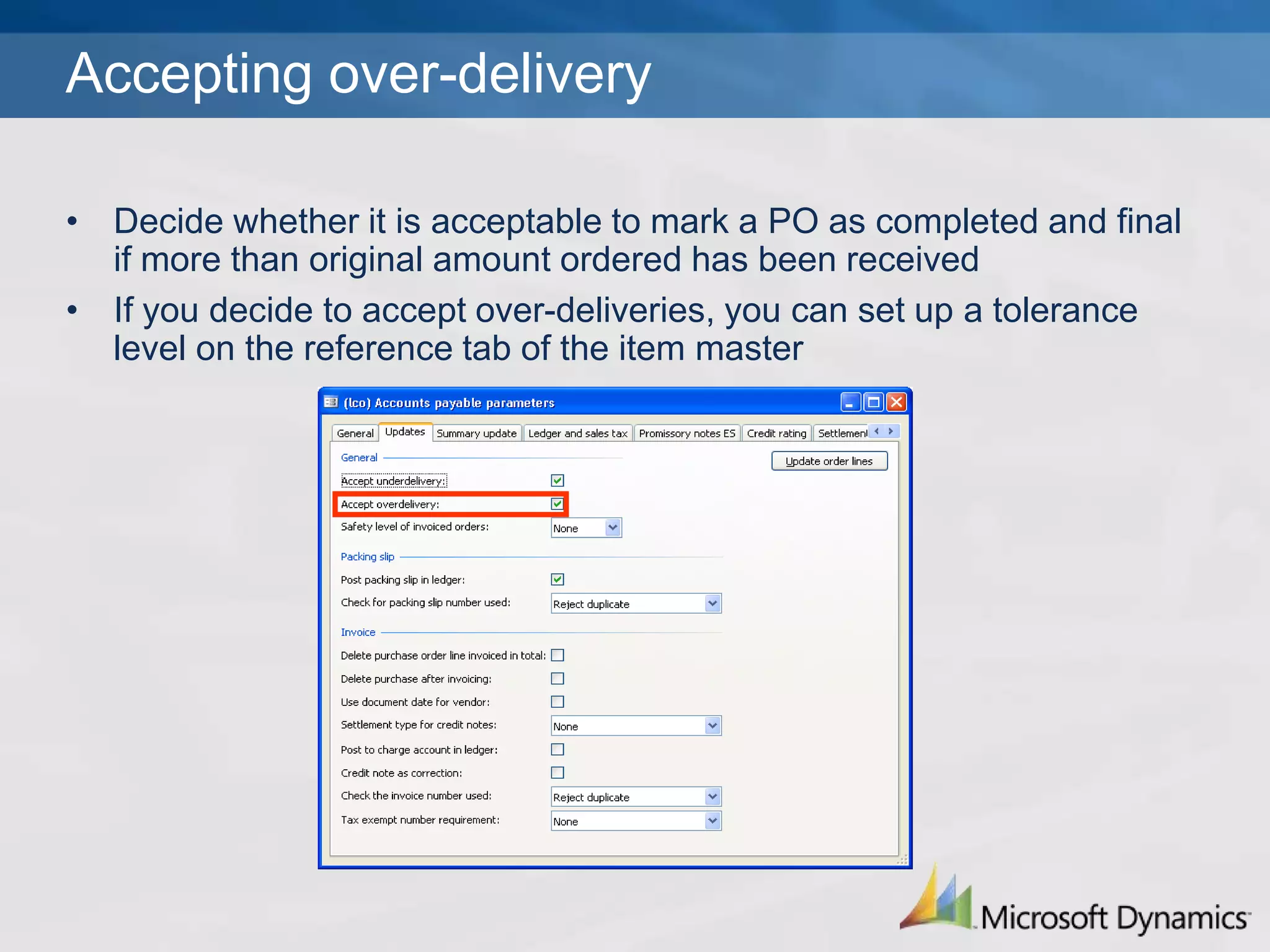
Accepting over-deliveryDecide whether it is acceptable to mark a PO as completed and final if more than original amount ordered has been receivedIf you decide to accept over-deliveries, you can set up a tolerance level on the reference tab of the item master
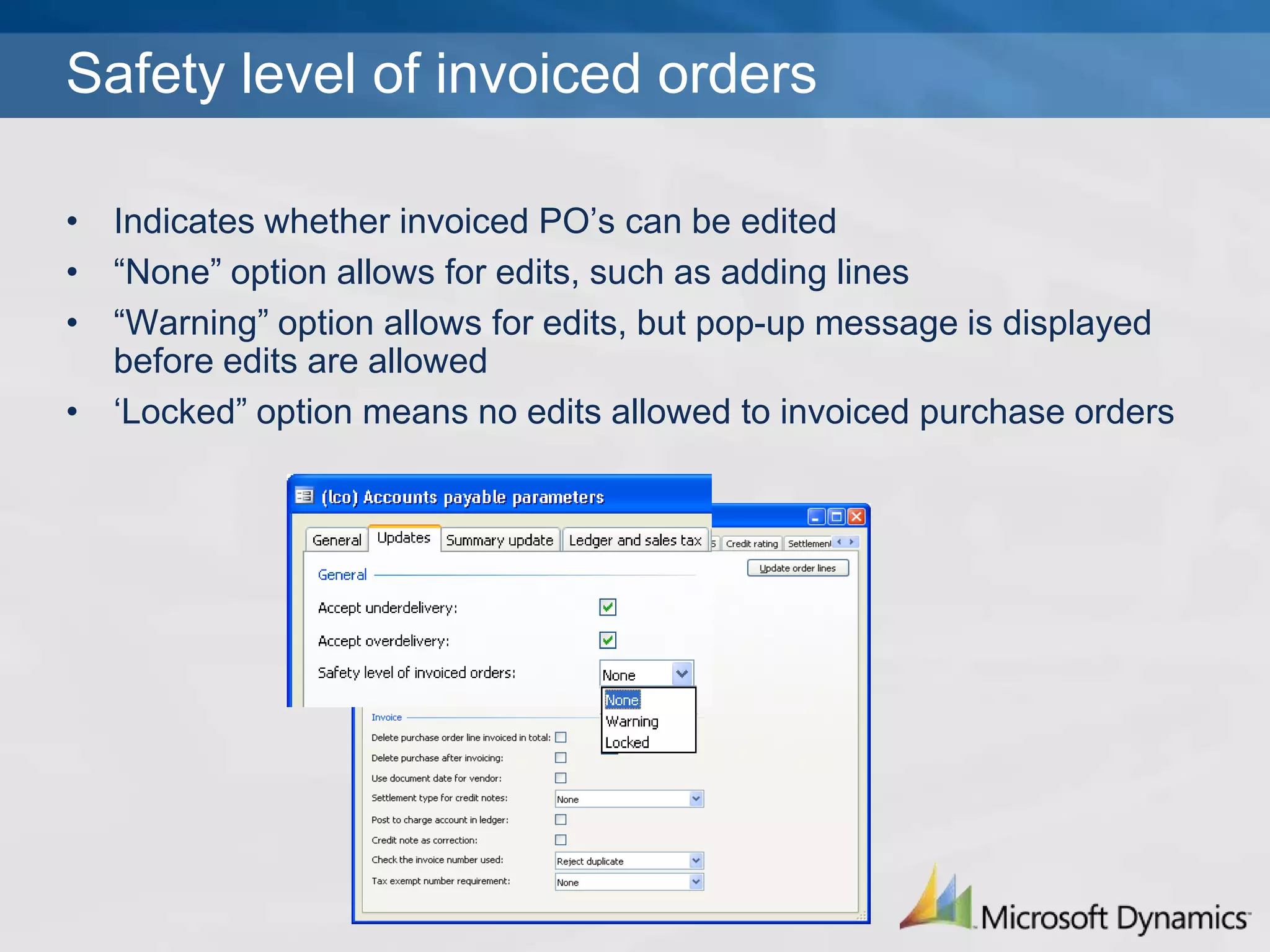
Safety level of invoiced ordersIndicates whether invoiced PO’s can be edited“None” option allows for edits, such as adding lines“Warning” option allows for edits, but pop-up message is displayed before edits are allowed‘Locked” option means no edits allowed to invoiced purchase orders
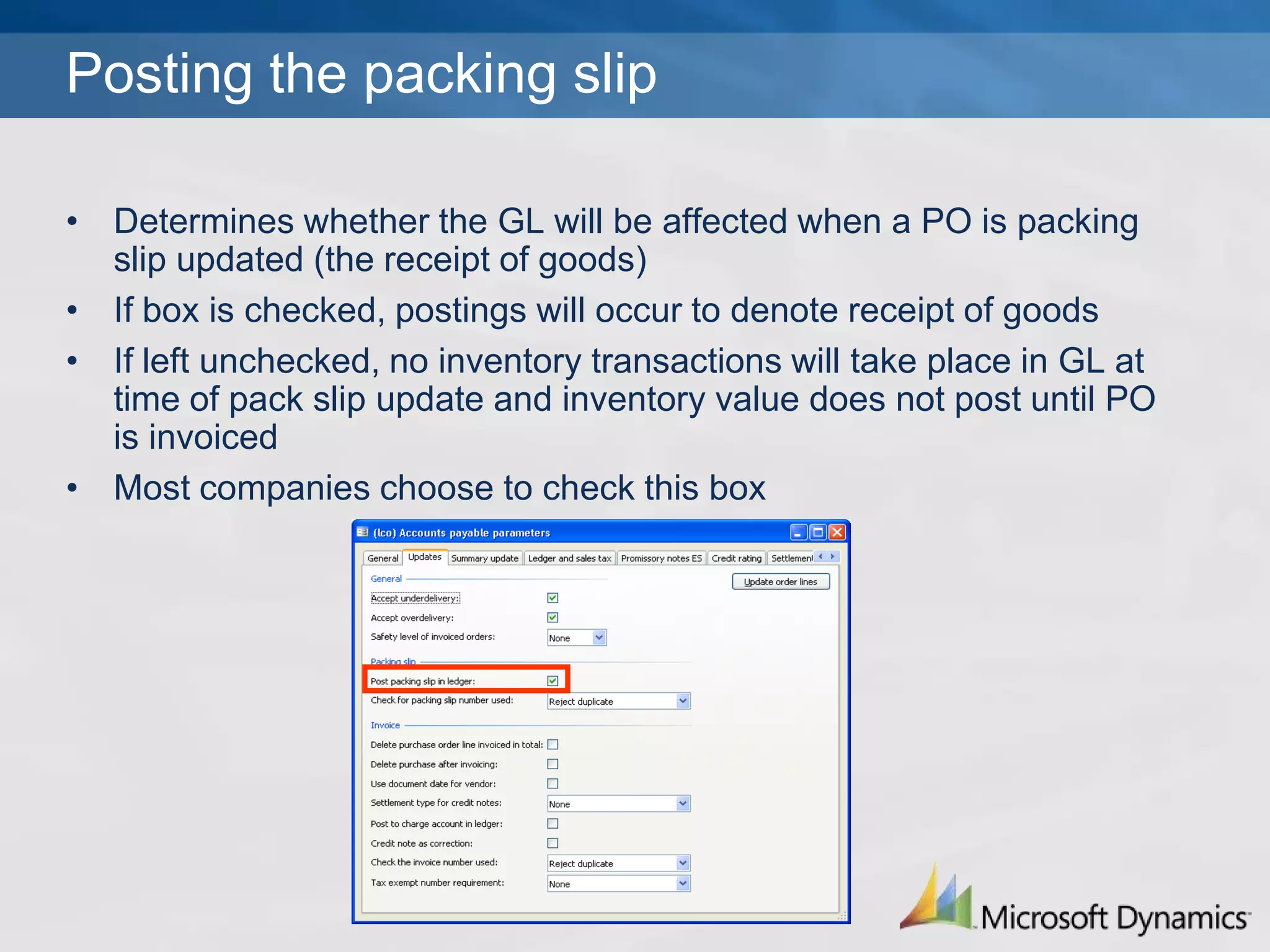
Posting the packing slipDetermines whether the GL will be affected when a PO is packing slip updated (the receipt of goods)If box is checked, postings will occur to denote receipt of goodsIf left unchecked, no inventory transactions will take place in GL at time of pack slip update and inventory value does not post until PO is invoicedMost companies choose to check this box
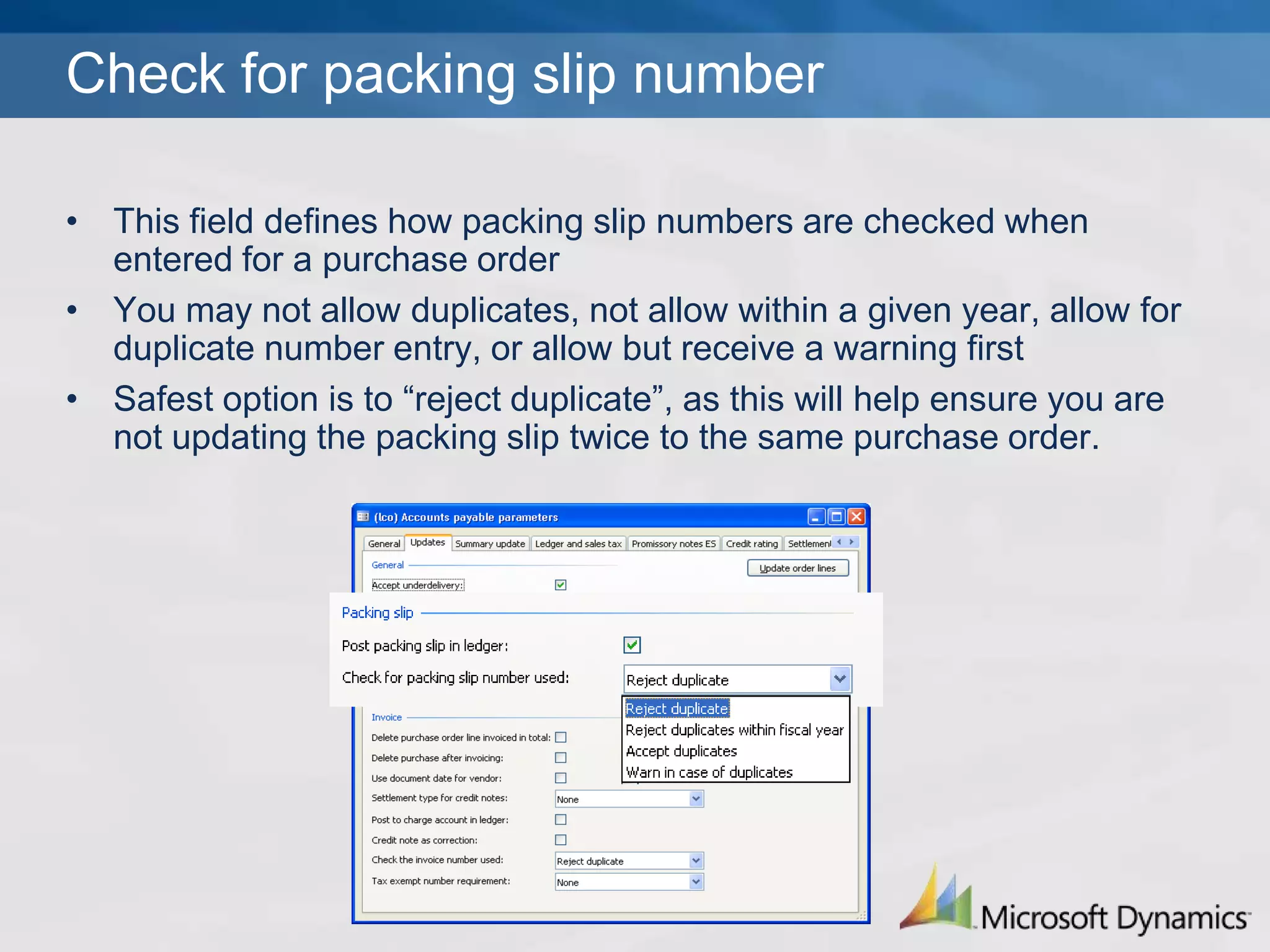
Check for packing slip numberThis field defines how packing slip numbers are checked when entered for a purchase orderYou may not allow duplicates, not allow within a given year, allow for duplicate number entry, or allow but receive a warning firstSafest option is to “reject duplicate”, as this will help ensure you are not updating the packing slip twice to the same purchase order.
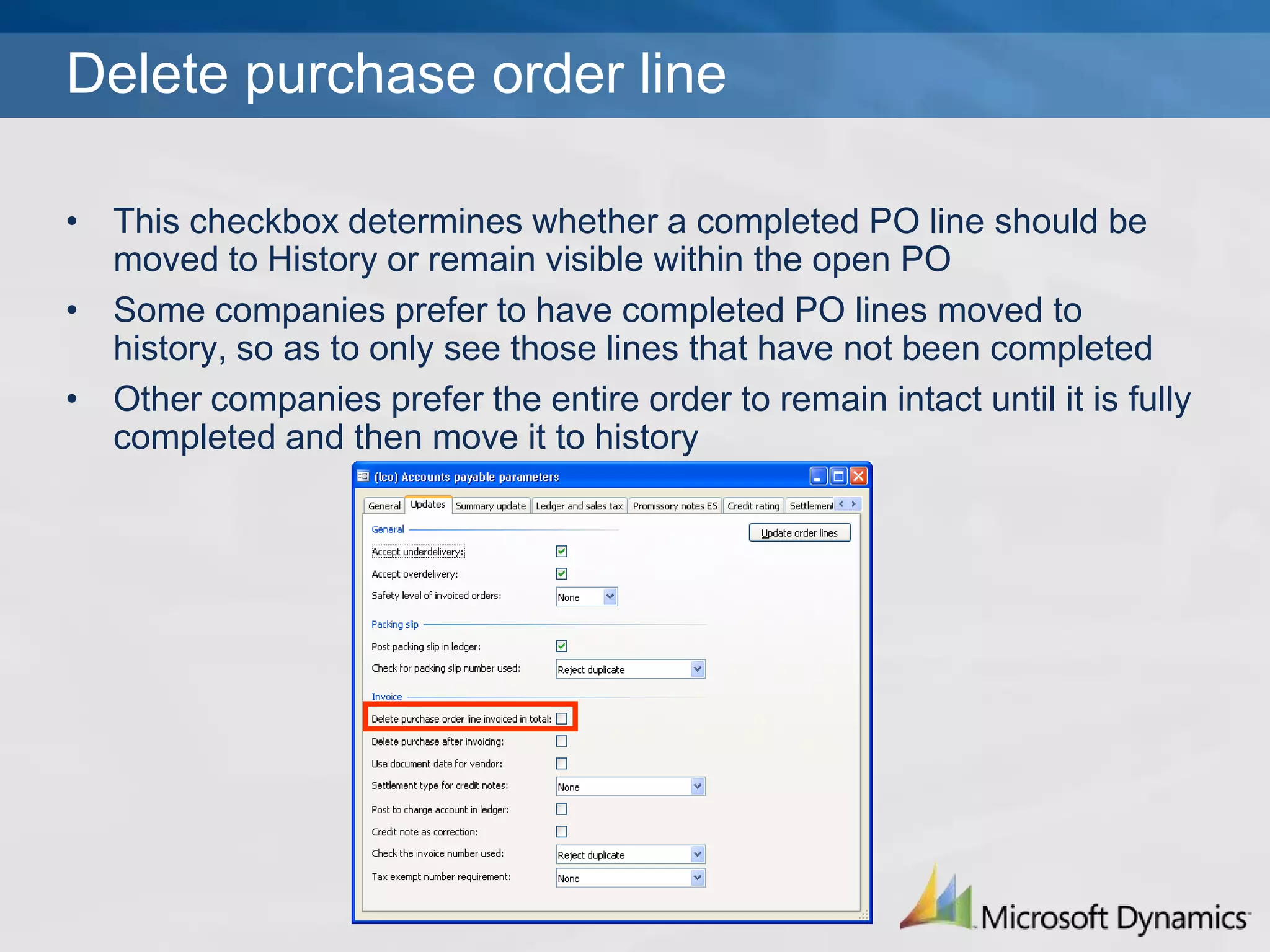
Delete purchase order lineThis checkbox determines whether a completed PO line should be moved to History or remain visible within the open POSome companies prefer to have completed PO lines moved to history, so as to only see those lines that have not been completedOther companies prefer the entire order to remain intact until it is fully completed and then move it to history
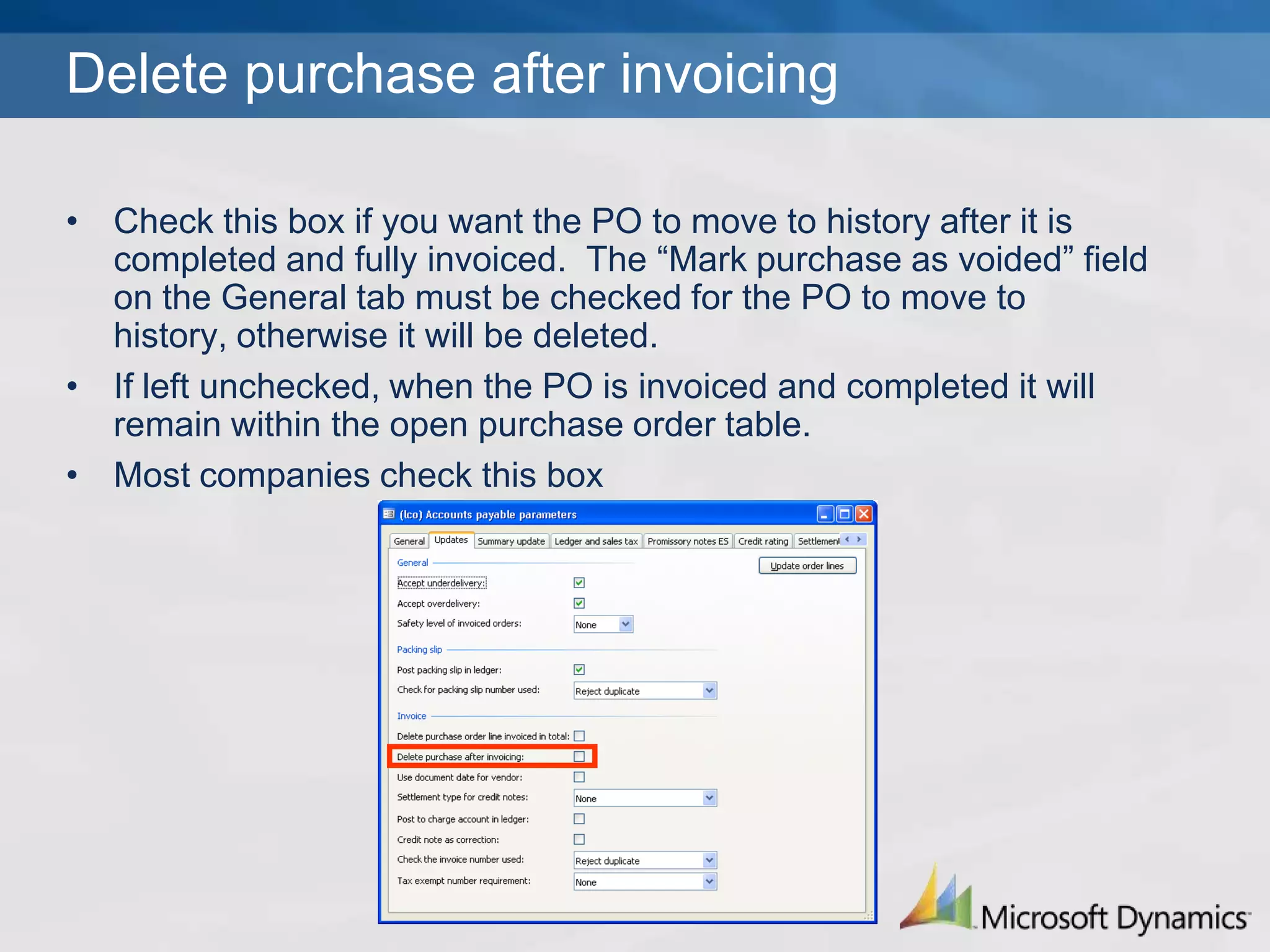
Delete purchase after invoicingCheck this box if you want the PO to move to history after it is completed and fully invoiced.  The “Mark purchase as voided” field on the General tab must be checked for the PO to move to history, otherwise it will be deleted.  If left unchecked, when the PO is invoiced and completed it will remain within the open purchase order table.Most companies check this box
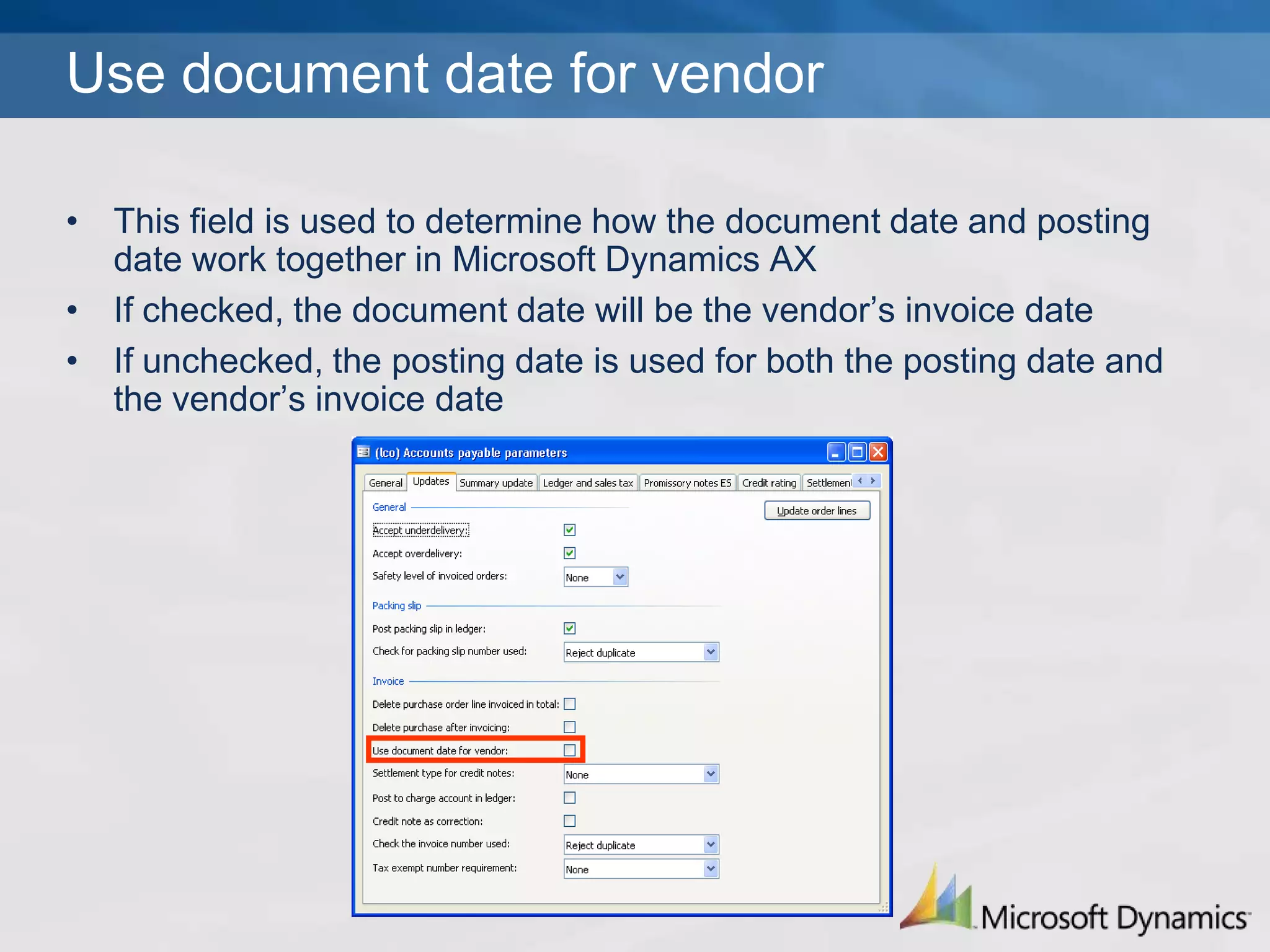
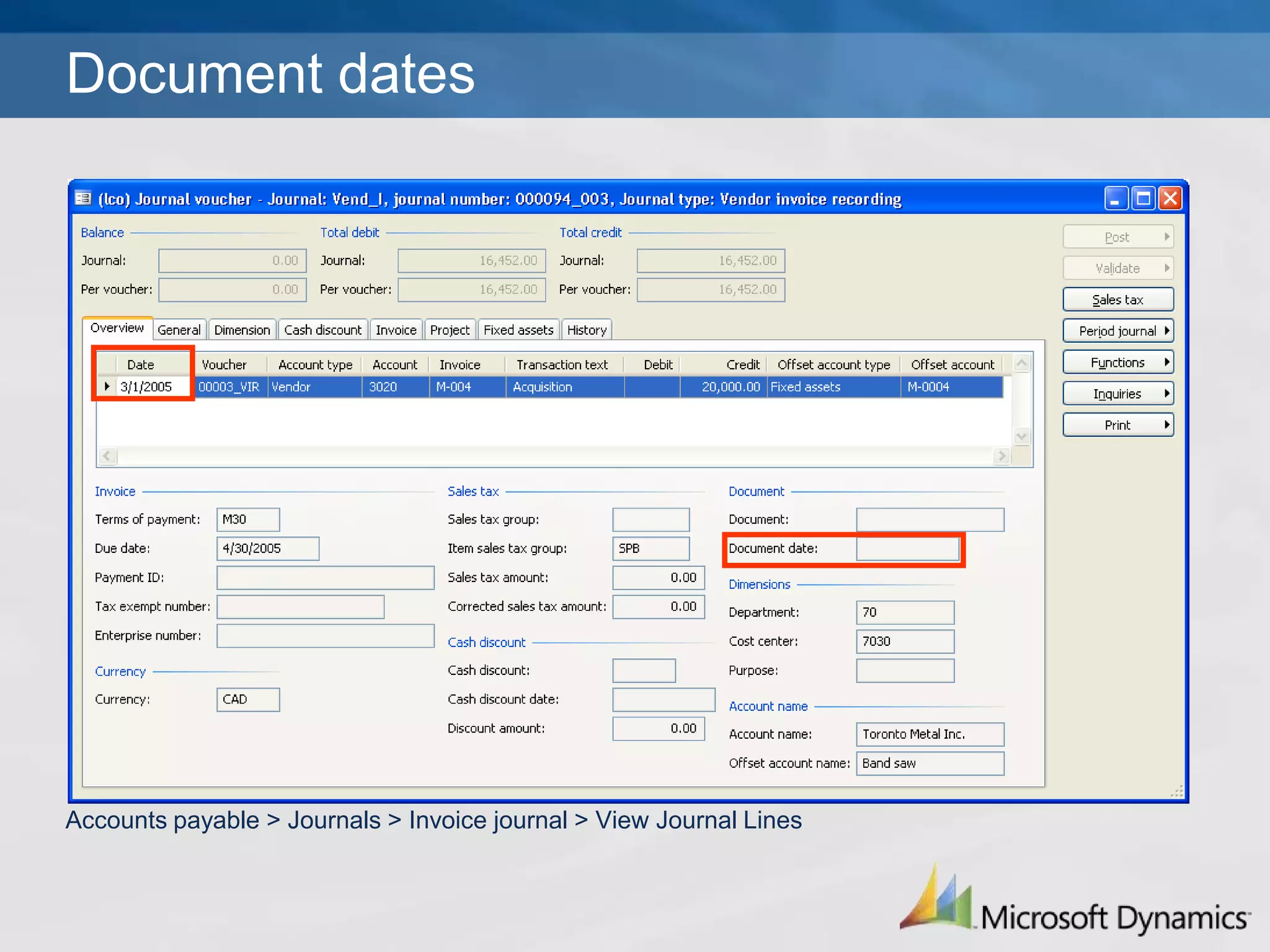
Use document date for vendorThis field is used to determine how the document date and posting date work together in Microsoft Dynamics AXIf checked, the document date will be the vendor’s invoice dateIf unchecked, the posting date is used for both the posting date and the vendor’s invoice date
Document datesAccounts payable > Journals > Invoice journal > View Journal Lines
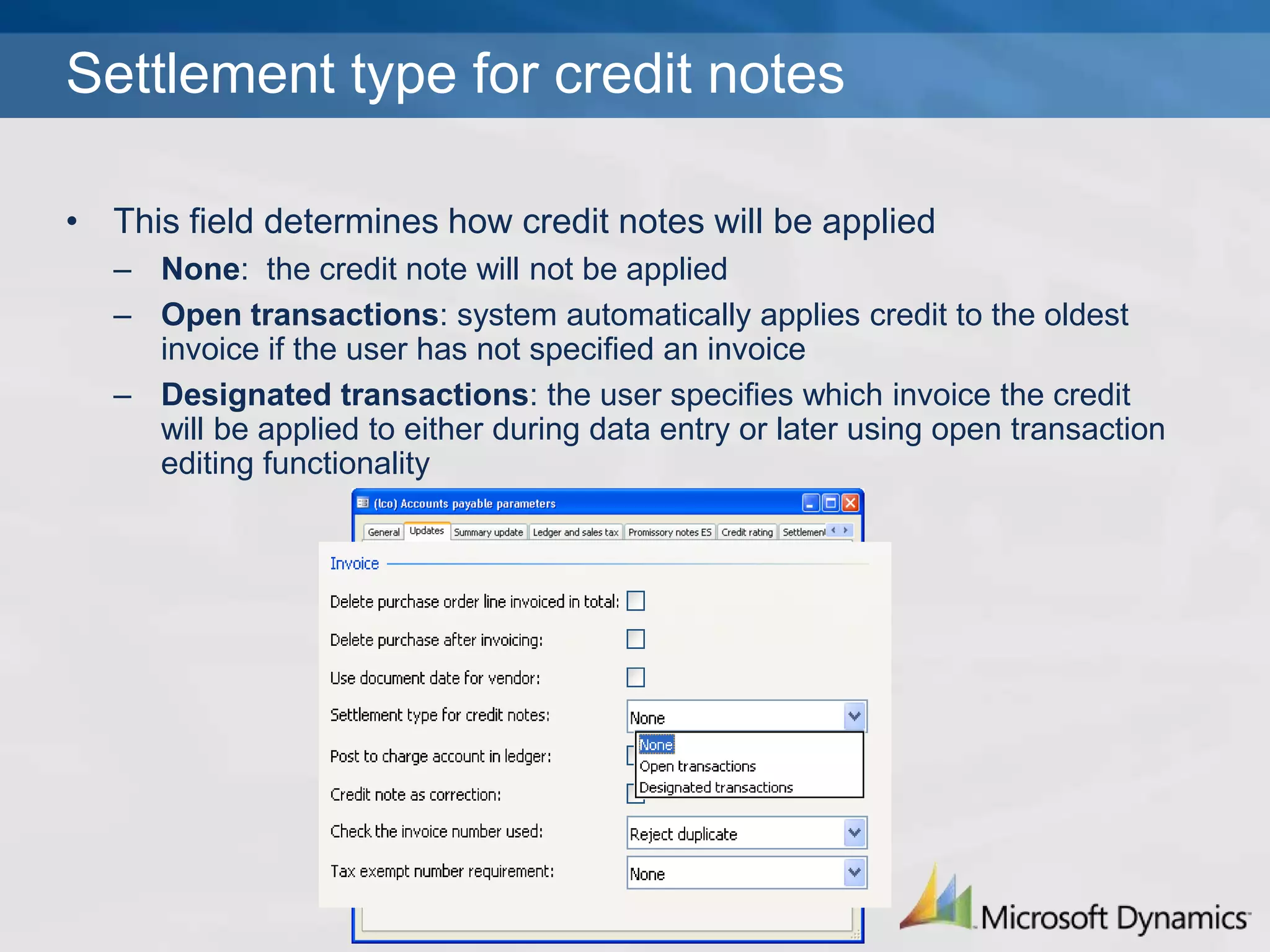
Settlement type for credit notesThis field determines how credit notes will be appliedNone:  the credit note will not be appliedOpen transactions: system automatically applies credit to the oldest invoice if the user has not specified an invoiceDesignated transactions: the user specifies which invoice the credit will be applied to either during data entry or later using open transaction editing functionality
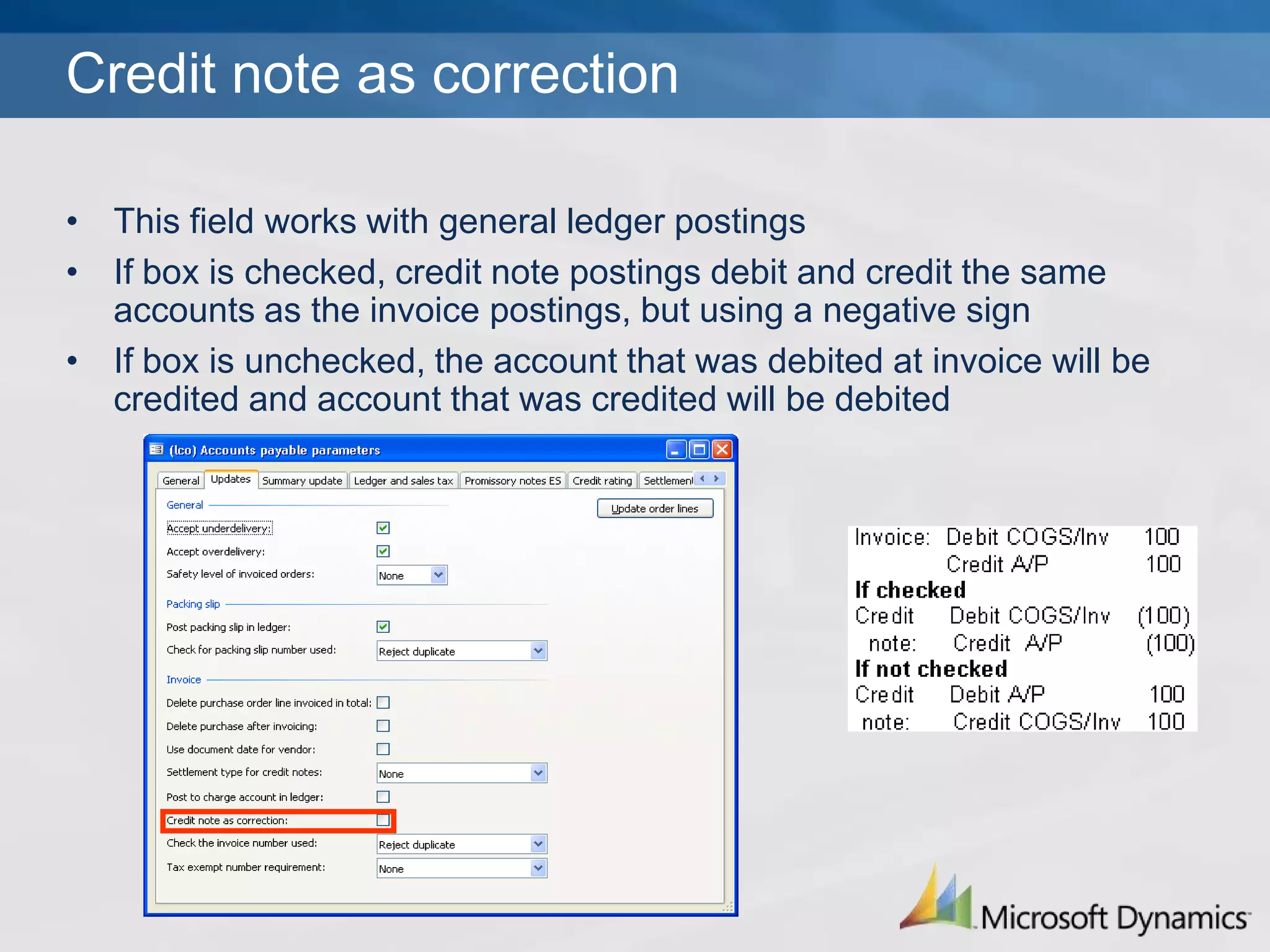
Credit note as correctionThis field works with general ledger postingsIf box is checked, credit note postings debit and credit the same accounts as the invoice postings, but using a negative signIf box is unchecked, the account that was debited at invoice will be credited and account that was credited will be debited
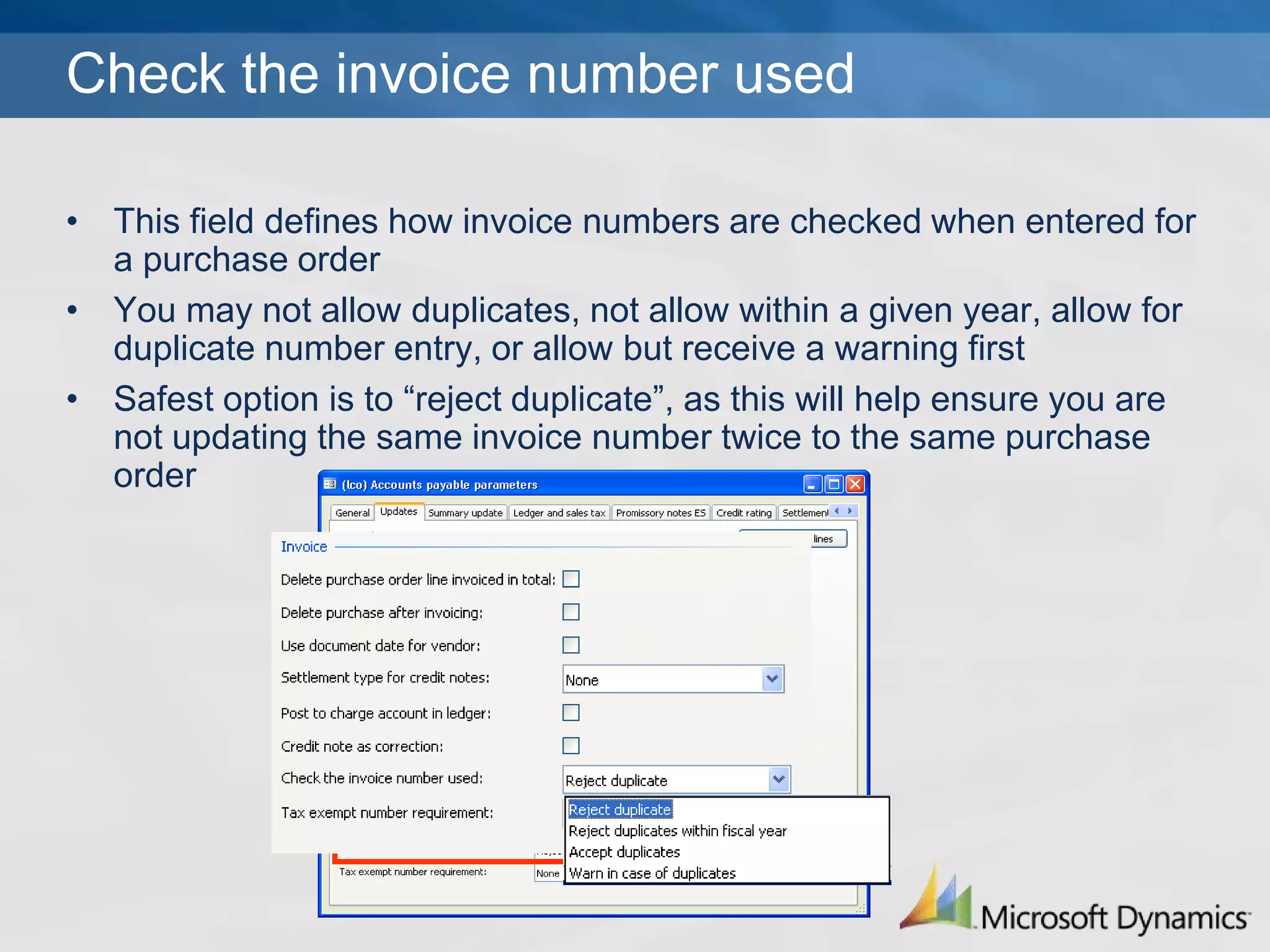
Check the invoice number usedThis field defines how invoice numbers are checked when entered for a purchase orderYou may not allow duplicates, not allow within a given year, allow for duplicate number entry, or allow but receive a warning firstSafest option is to “reject duplicate”, as this will help ensure you are not updating the same invoice number twice to the same purchase order
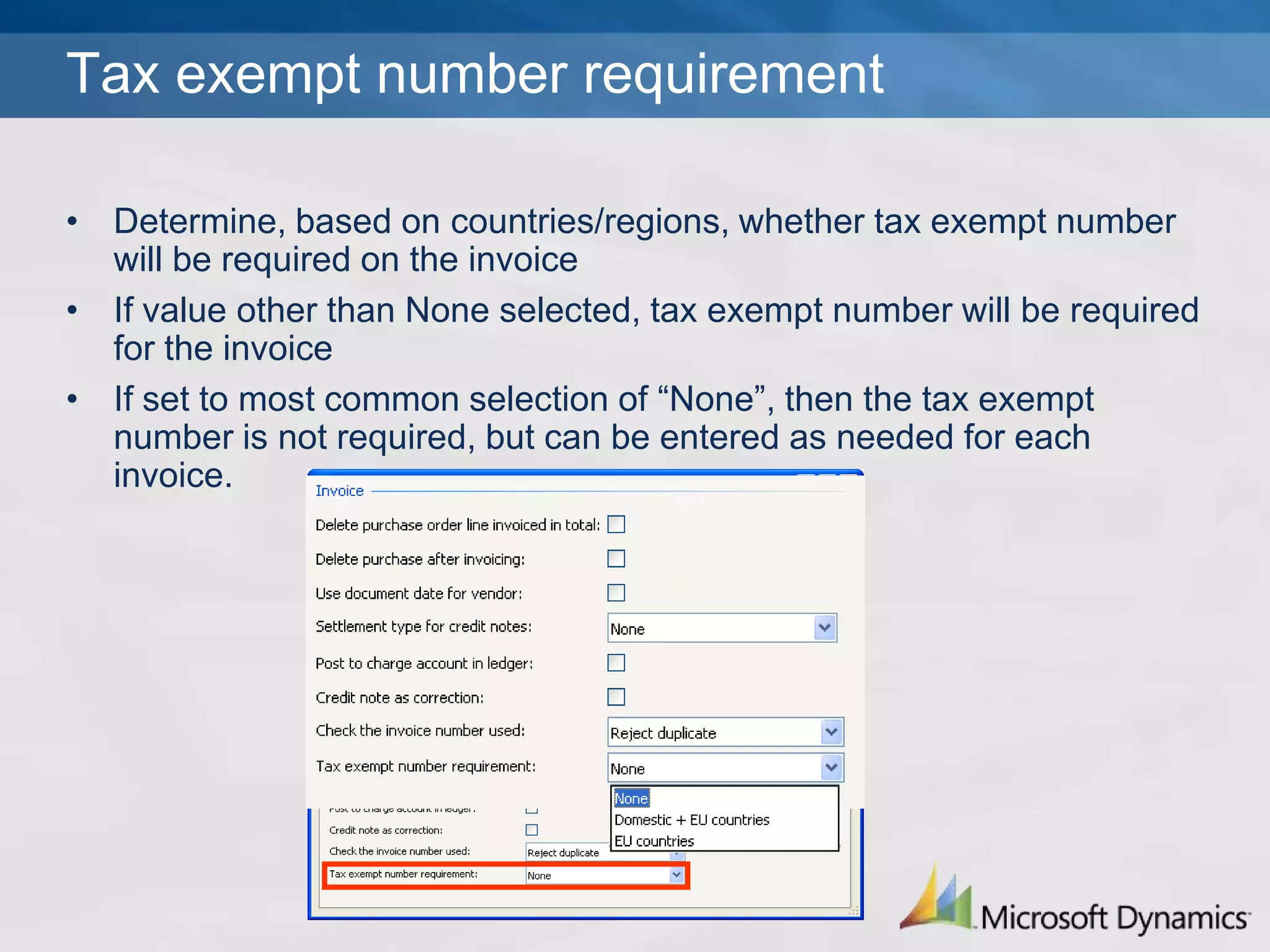
Tax exempt number requirementDetermine, based on countries/regions, whether tax exempt number will be required on the invoiceIf value other than None selected, tax exempt number will be required for the invoiceIf set to most common selection of “None”, then the tax exempt number is not required, but can be entered as needed for each invoice.
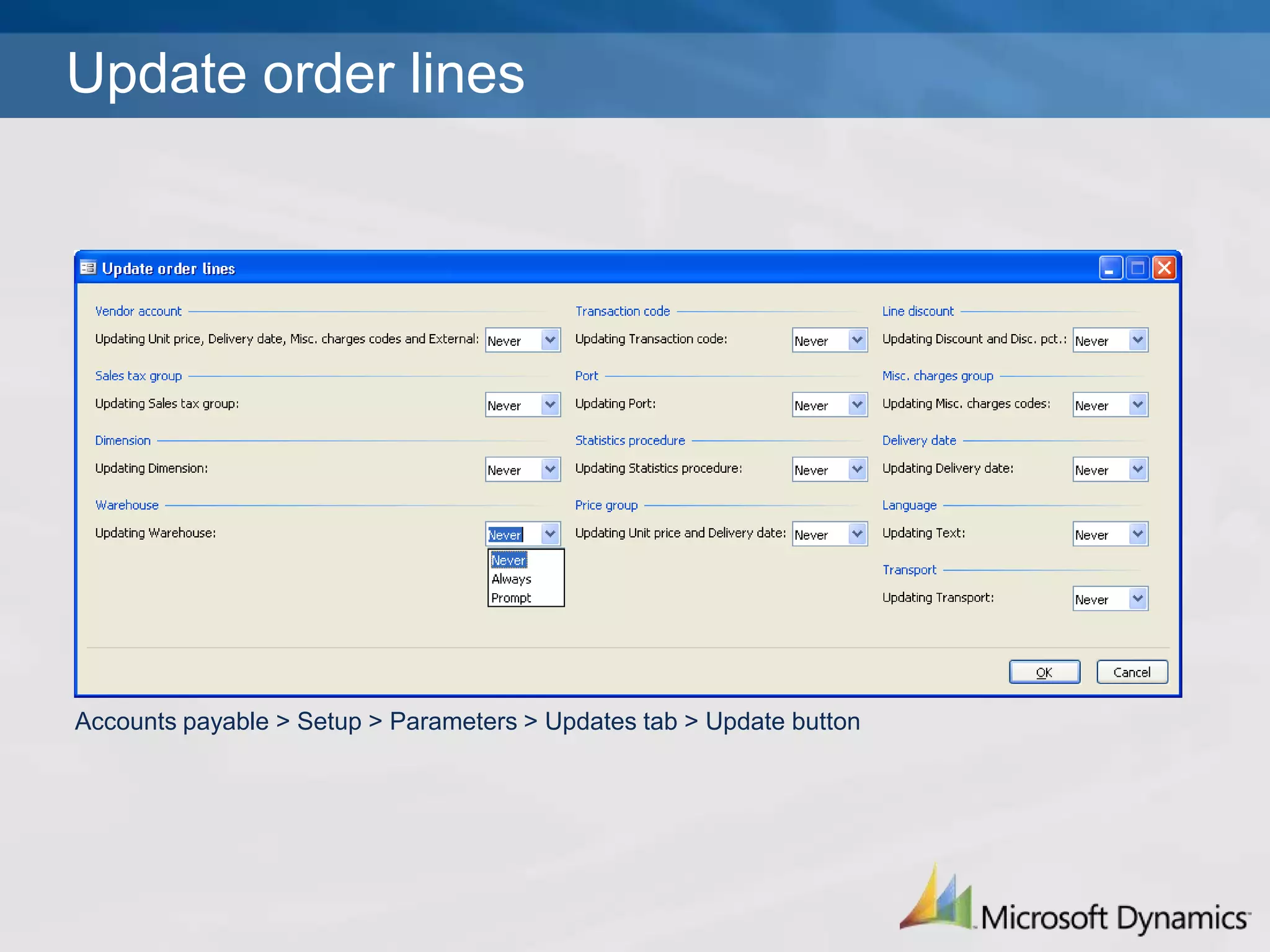
Update order linesAccounts payable > Setup > Parameters > Updates tab > Update button
© 2006 Microsoft Corporation. All rights reserved.This presentation is for informational purposes only. Microsoft makes no warranties, express or implied, in this summary.
Parameters Updates Tab

Parameters Updates Tab

  • 1.
    Microsoft Dynamics™ AX4.0Rapid Configuration ToolA/P Parameters SetupUpdates Tab
  • 2.
    Accounts payable >Setup > ParametersAccounts Payable Parameters
  • 3.
    The Updates tabTheupdates tab allows you to determine delivery values, packing slip postings, and functionality when processing invoices.Accepting under-deliveryDecide whether it is acceptable to mark a PO as completed and final if less than original amount ordered has been receivedIf you decide to accept under-deliveries, you can set up a tolerance level on the reference tab of the item master
  • 4.
    Accepting over-deliveryDecide whetherit is acceptable to mark a PO as completed and final if more than original amount ordered has been receivedIf you decide to accept over-deliveries, you can set up a tolerance level on the reference tab of the item master
  • 5.
    Safety level ofinvoiced ordersIndicates whether invoiced PO’s can be edited“None” option allows for edits, such as adding lines“Warning” option allows for edits, but pop-up message is displayed before edits are allowed‘Locked” option means no edits allowed to invoiced purchase orders
  • 6.
    Posting the packingslipDetermines whether the GL will be affected when a PO is packing slip updated (the receipt of goods)If box is checked, postings will occur to denote receipt of goodsIf left unchecked, no inventory transactions will take place in GL at time of pack slip update and inventory value does not post until PO is invoicedMost companies choose to check this box
  • 7.
    Check for packingslip numberThis field defines how packing slip numbers are checked when entered for a purchase orderYou may not allow duplicates, not allow within a given year, allow for duplicate number entry, or allow but receive a warning firstSafest option is to “reject duplicate”, as this will help ensure you are not updating the packing slip twice to the same purchase order.
  • 8.
    Delete purchase orderlineThis checkbox determines whether a completed PO line should be moved to History or remain visible within the open POSome companies prefer to have completed PO lines moved to history, so as to only see those lines that have not been completedOther companies prefer the entire order to remain intact until it is fully completed and then move it to history
  • 9.
    Delete purchase afterinvoicingCheck this box if you want the PO to move to history after it is completed and fully invoiced. The “Mark purchase as voided” field on the General tab must be checked for the PO to move to history, otherwise it will be deleted. If left unchecked, when the PO is invoiced and completed it will remain within the open purchase order table.Most companies check this box
  • 10.
    Use document datefor vendorThis field is used to determine how the document date and posting date work together in Microsoft Dynamics AXIf checked, the document date will be the vendor’s invoice dateIf unchecked, the posting date is used for both the posting date and the vendor’s invoice date
  • 11.
    Document datesAccounts payable> Journals > Invoice journal > View Journal Lines
  • 12.
    Settlement type forcredit notesThis field determines how credit notes will be appliedNone: the credit note will not be appliedOpen transactions: system automatically applies credit to the oldest invoice if the user has not specified an invoiceDesignated transactions: the user specifies which invoice the credit will be applied to either during data entry or later using open transaction editing functionality
  • 13.
    Credit note ascorrectionThis field works with general ledger postingsIf box is checked, credit note postings debit and credit the same accounts as the invoice postings, but using a negative signIf box is unchecked, the account that was debited at invoice will be credited and account that was credited will be debited
  • 14.
    Check the invoicenumber usedThis field defines how invoice numbers are checked when entered for a purchase orderYou may not allow duplicates, not allow within a given year, allow for duplicate number entry, or allow but receive a warning firstSafest option is to “reject duplicate”, as this will help ensure you are not updating the same invoice number twice to the same purchase order
  • 15.
    Tax exempt numberrequirementDetermine, based on countries/regions, whether tax exempt number will be required on the invoiceIf value other than None selected, tax exempt number will be required for the invoiceIf set to most common selection of “None”, then the tax exempt number is not required, but can be entered as needed for each invoice.
  • 16.
    Update order linesAccountspayable > Setup > Parameters > Updates tab > Update button
  • 17.
    © 2006 MicrosoftCorporation. All rights reserved.This presentation is for informational purposes only. Microsoft makes no warranties, express or implied, in this summary.