Microsoft Dynamics™ AX 4.0 Rapid Configuration Tool PRICING Line Discounts
Trade Agreements Sales price Line discount Multi-line discount Total discount
What is a Line Discount? Discount percentage Discount amount Discounts can have an effective start and end date Discounts can be based on the quantity purchased
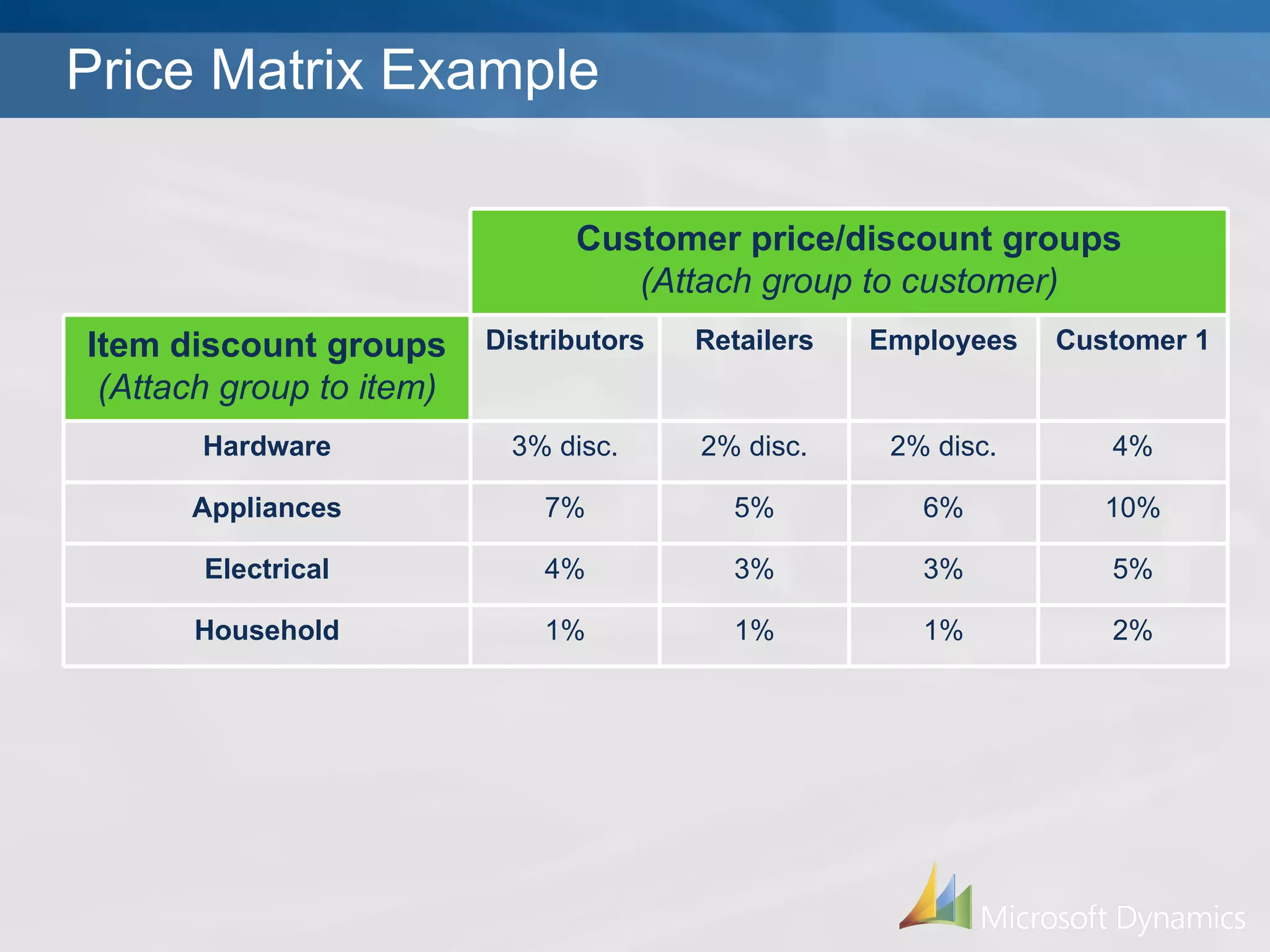
Price Matrix Example 2% 1% 1% 1% Household 5% 3% 3% 4% Electrical 10% 6% 5% 7% Appliances 4% 2% disc. 2% disc. 3% disc. Hardware Customer 1 Employees Retailers Distributors Item discount groups (Attach group to item) Customer price/discount groups (Attach group to customer)
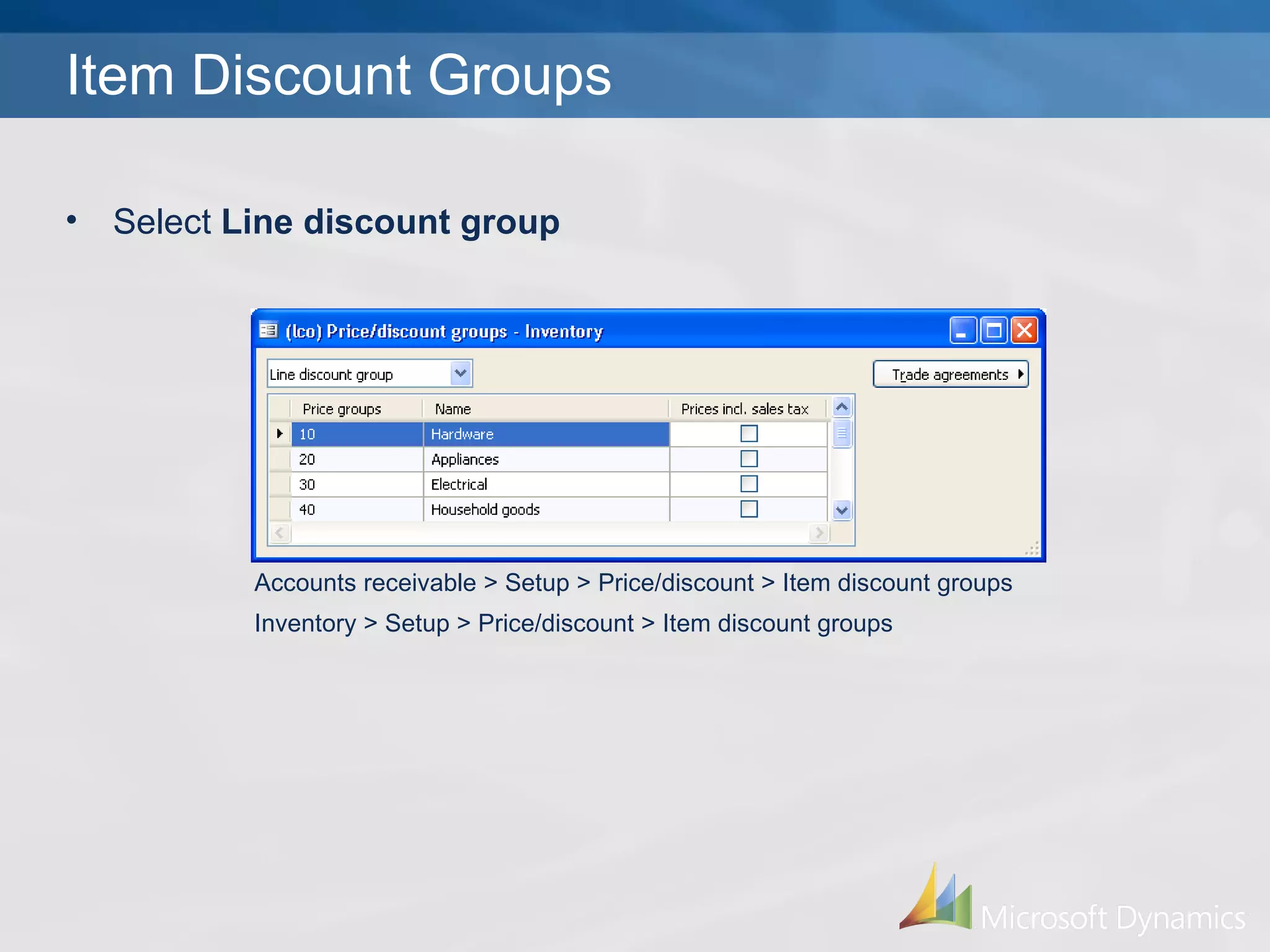
Item Discount Groups Accounts receivable > Setup > Price/discount > Item discount groups Inventory > Setup > Price/discount > Item discount groups Select  Line discount group
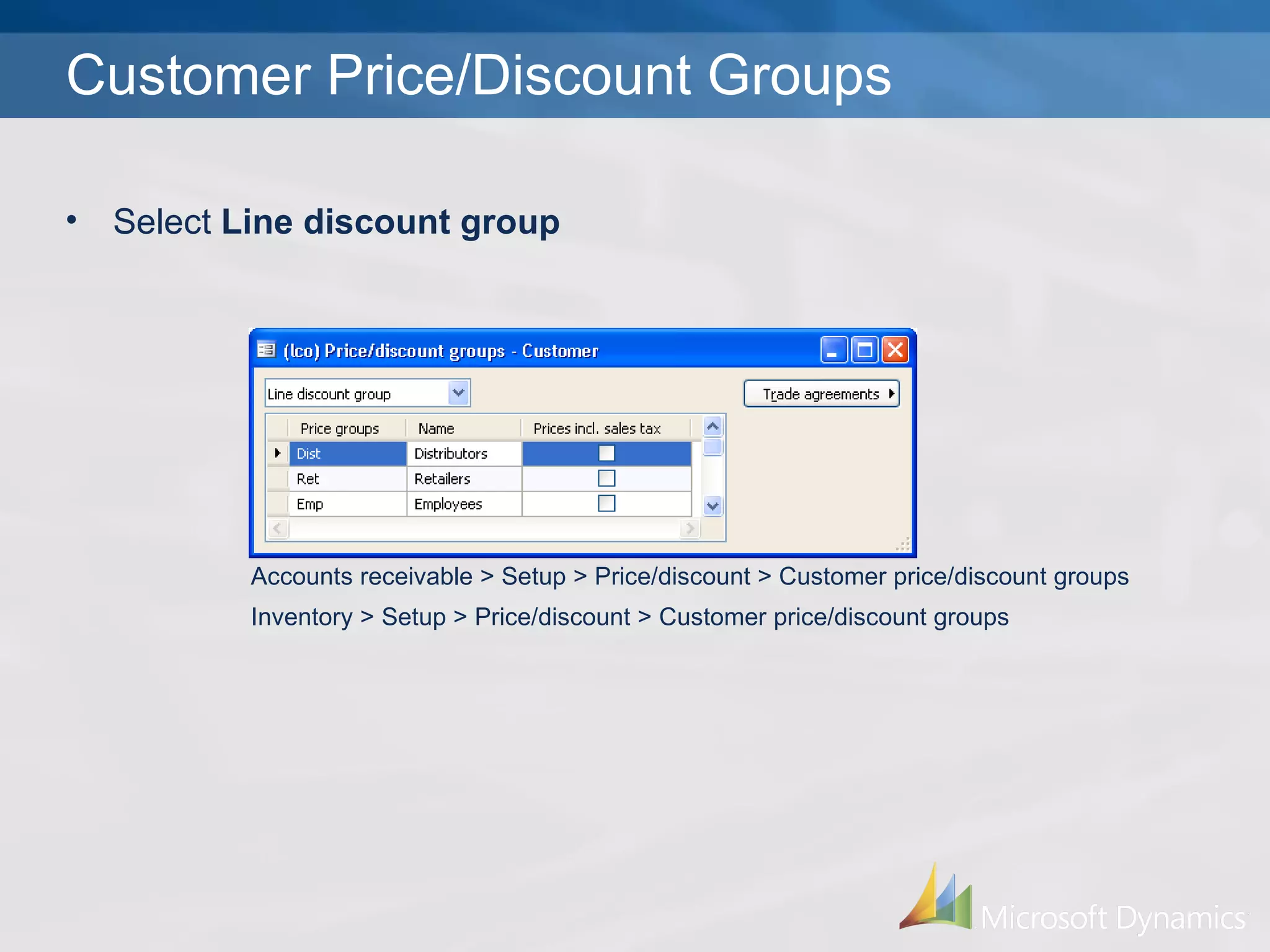
Customer Price/Discount Groups Accounts receivable > Setup > Price/discount > Customer price/discount groups Inventory > Setup > Price/discount > Customer price/discount groups Select  Line discount group
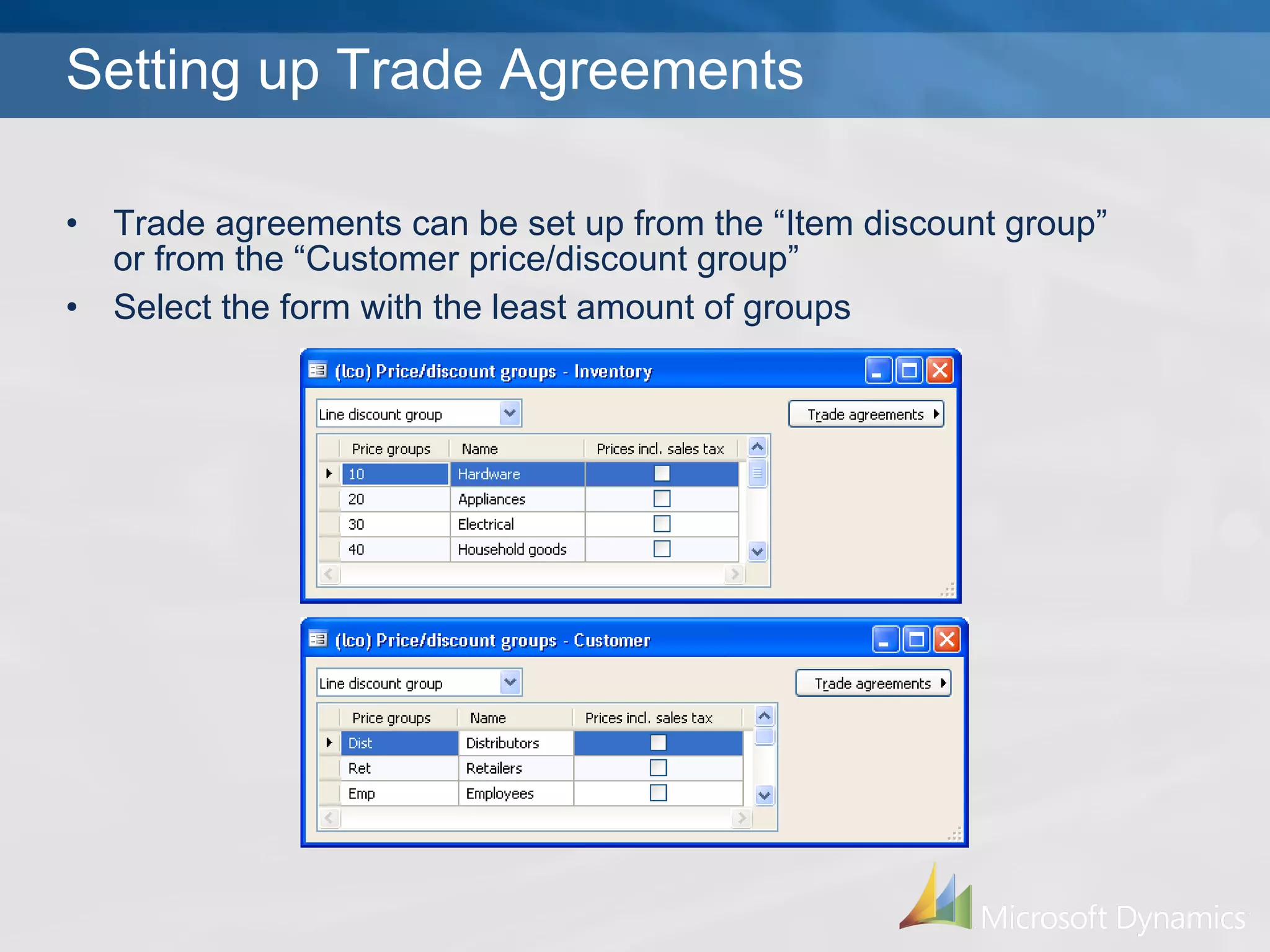
Trade agreements can be set up from the “Item discount group” or from the “Customer price/discount group” Select the form with the least amount of groups Setting up Trade Agreements
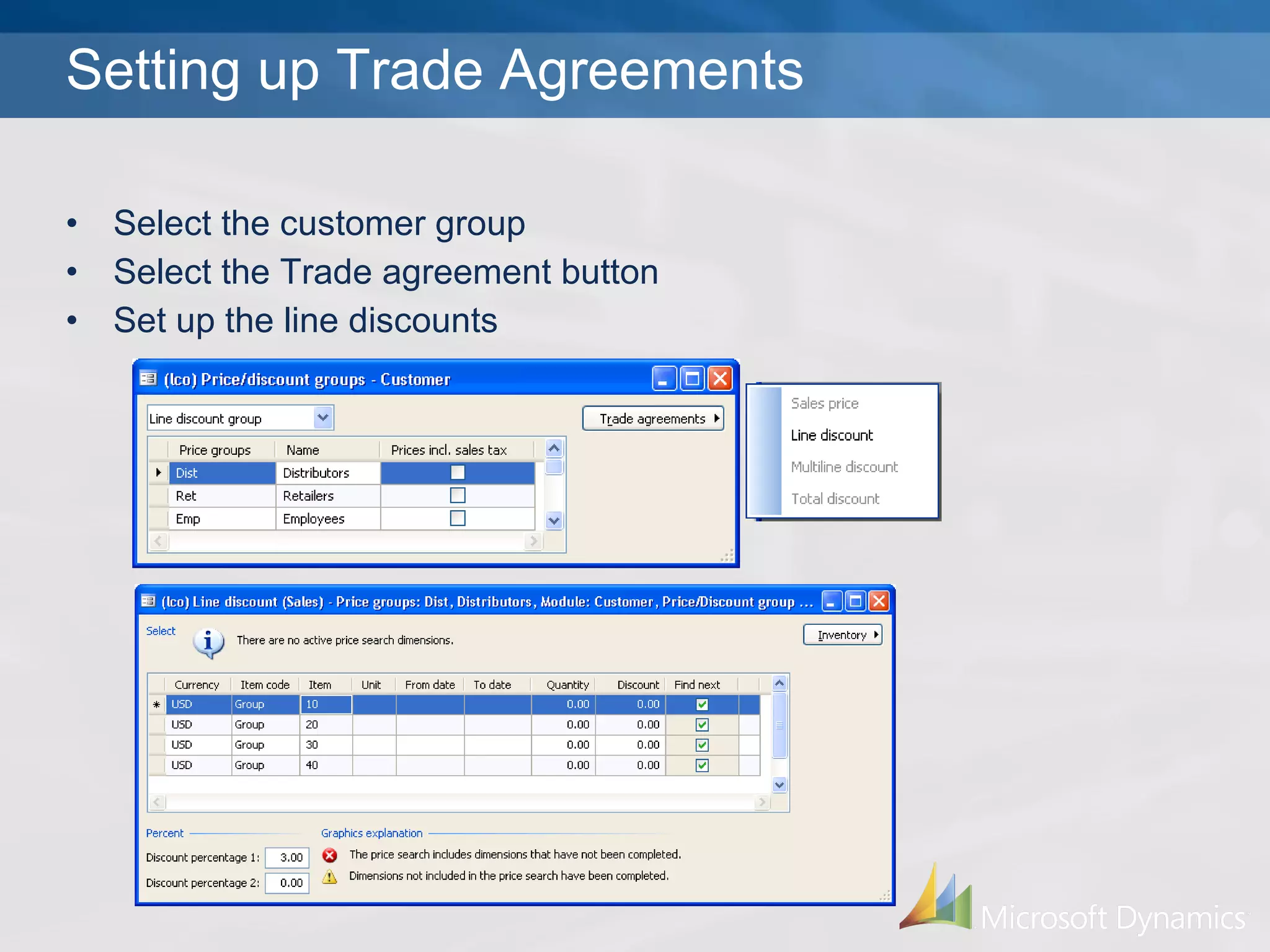
Setting up Trade Agreements Select the customer group  Select the Trade agreement button Set up the line discounts
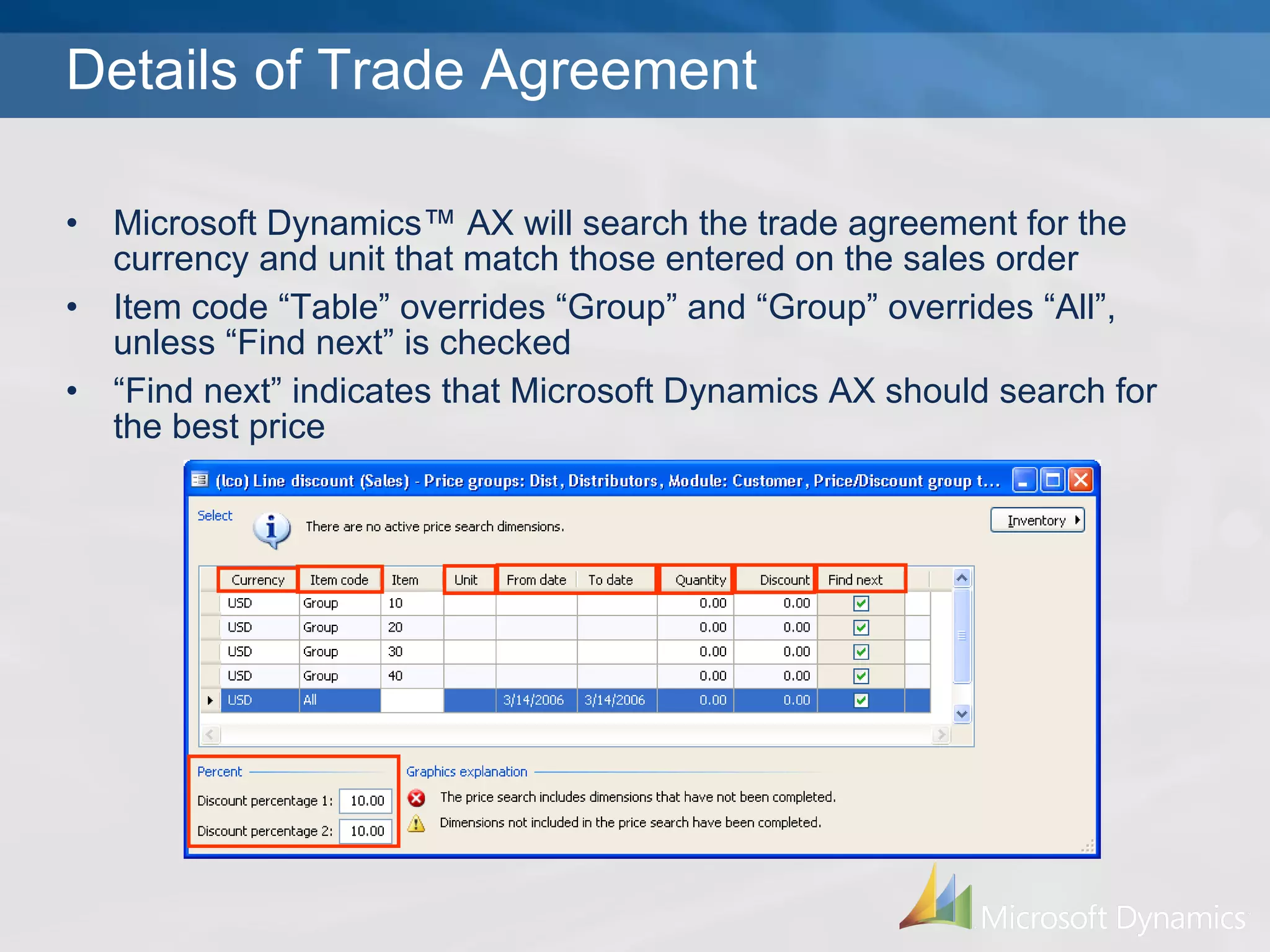
Details of Trade Agreement Microsoft Dynamics™ AX will search the trade agreement for the currency and unit that match those entered on the sales order Item code “Table” overrides “Group” and “Group” overrides “All”, unless “Find next” is checked “ Find next” indicates that Microsoft Dynamics AX should search for the best price
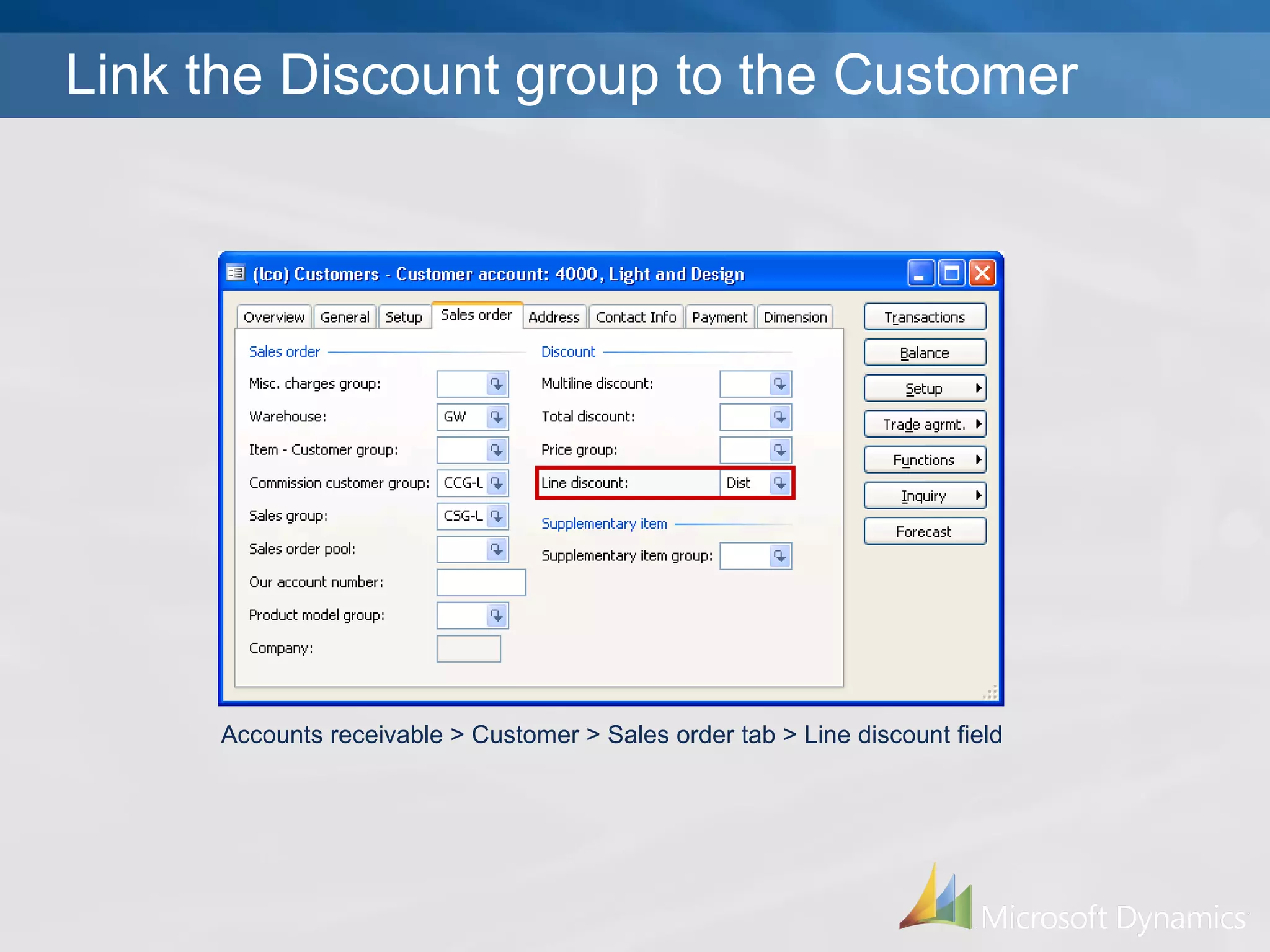
Accounts receivable > Customer > Sales order tab > Line discount field Link the Discount group to the Customer
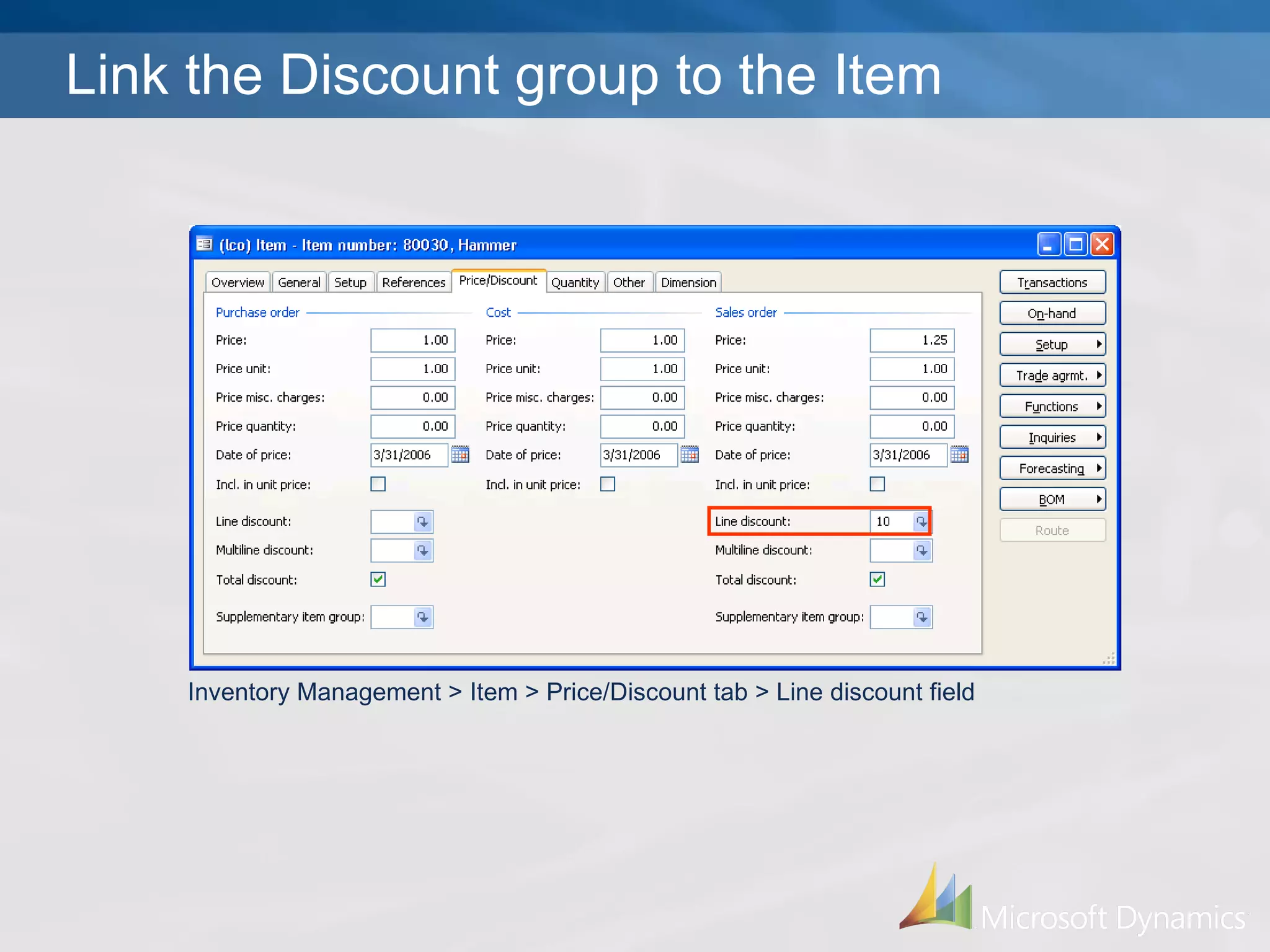
Inventory Management > Item > Price/Discount tab > Line discount field Link the Discount group to the Item
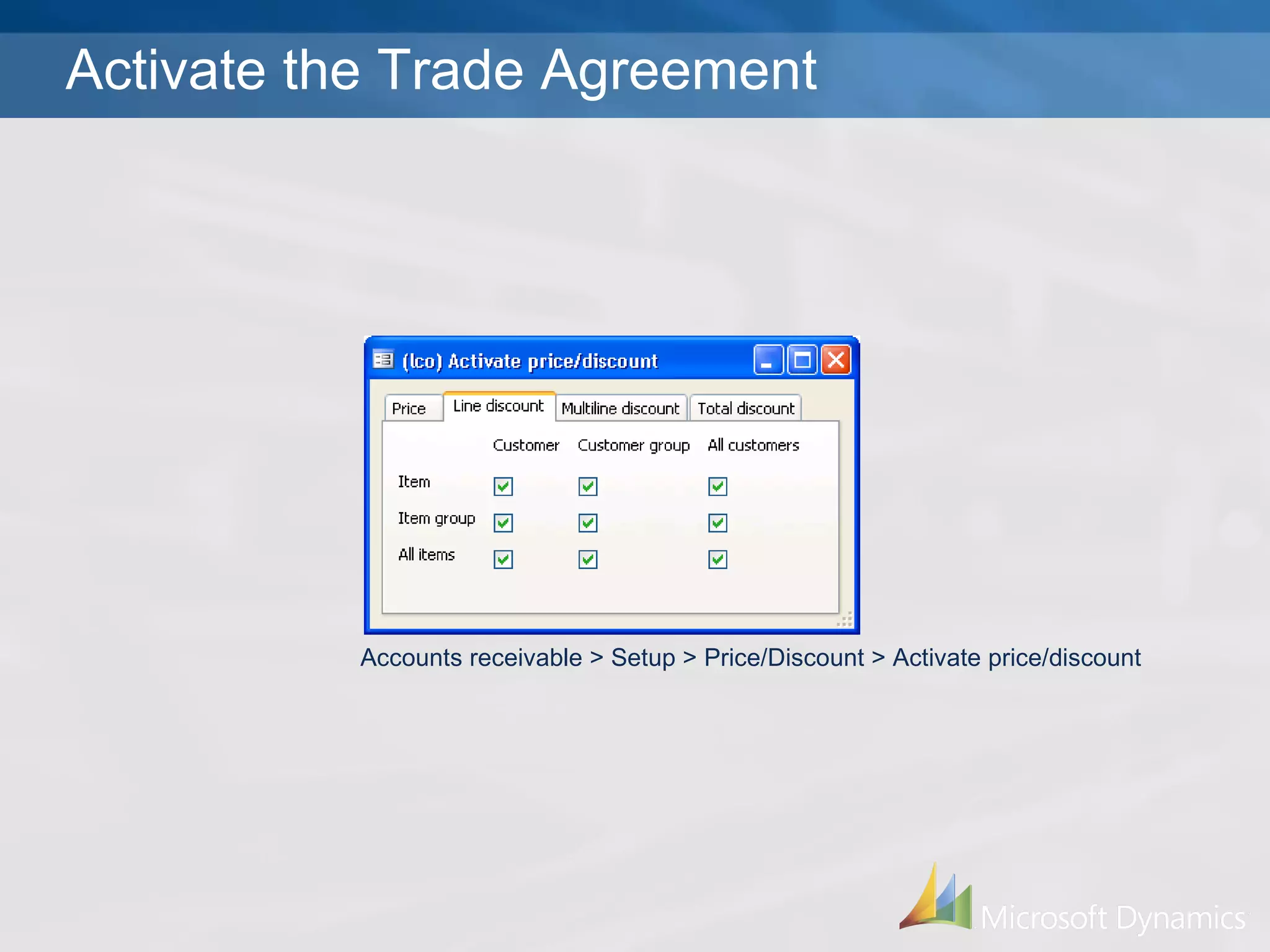
Activate the Trade Agreement Accounts receivable > Setup > Price/Discount > Activate price/discount
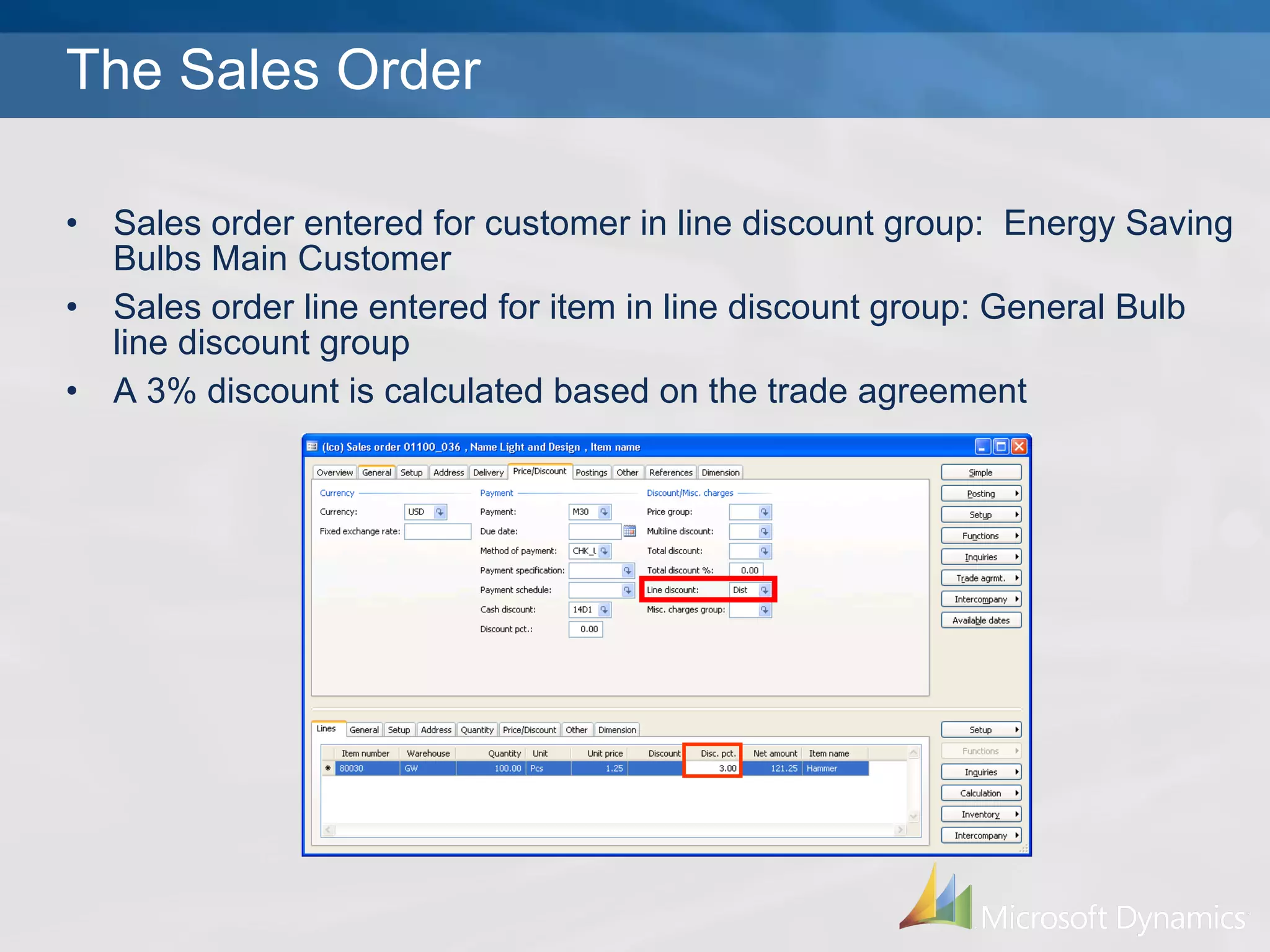
The Sales Order Sales order entered for customer in line discount group:  Energy Saving Bulbs Main Customer  Sales order line entered for item in line discount group: General Bulb line discount group A 3% discount is calculated based on the trade agreement
© 2006 Microsoft Corporation. All rights reserved. This presentation is for informational purposes only. Microsoft makes no warranties, express or implied, in this summary.

Pricing Line Disc

  • 1.
    Microsoft Dynamics™ AX4.0 Rapid Configuration Tool PRICING Line Discounts
  • 2.
    Trade Agreements Salesprice Line discount Multi-line discount Total discount
  • 3.
    What is aLine Discount? Discount percentage Discount amount Discounts can have an effective start and end date Discounts can be based on the quantity purchased
  • 4.
    Price Matrix Example2% 1% 1% 1% Household 5% 3% 3% 4% Electrical 10% 6% 5% 7% Appliances 4% 2% disc. 2% disc. 3% disc. Hardware Customer 1 Employees Retailers Distributors Item discount groups (Attach group to item) Customer price/discount groups (Attach group to customer)
  • 5.
    Item Discount GroupsAccounts receivable > Setup > Price/discount > Item discount groups Inventory > Setup > Price/discount > Item discount groups Select Line discount group
  • 6.
    Customer Price/Discount GroupsAccounts receivable > Setup > Price/discount > Customer price/discount groups Inventory > Setup > Price/discount > Customer price/discount groups Select Line discount group
  • 7.
    Trade agreements canbe set up from the “Item discount group” or from the “Customer price/discount group” Select the form with the least amount of groups Setting up Trade Agreements
  • 8.
    Setting up TradeAgreements Select the customer group Select the Trade agreement button Set up the line discounts
  • 9.
    Details of TradeAgreement Microsoft Dynamics™ AX will search the trade agreement for the currency and unit that match those entered on the sales order Item code “Table” overrides “Group” and “Group” overrides “All”, unless “Find next” is checked “ Find next” indicates that Microsoft Dynamics AX should search for the best price
  • 10.
    Accounts receivable >Customer > Sales order tab > Line discount field Link the Discount group to the Customer
  • 11.
    Inventory Management >Item > Price/Discount tab > Line discount field Link the Discount group to the Item
  • 12.
    Activate the TradeAgreement Accounts receivable > Setup > Price/Discount > Activate price/discount
  • 13.
    The Sales OrderSales order entered for customer in line discount group: Energy Saving Bulbs Main Customer Sales order line entered for item in line discount group: General Bulb line discount group A 3% discount is calculated based on the trade agreement
  • 14.
    © 2006 MicrosoftCorporation. All rights reserved. This presentation is for informational purposes only. Microsoft makes no warranties, express or implied, in this summary.

Editor's Notes

  • #4 Follow template with respect to point size I guess it’s a matter of taste… but I find this one too much..
  • #8 Sample slide that I inserted to illustrate
  • #11 Sample slide that I inserted to illustrate
  • #12 Sample slide that I inserted to illustrate
  • #15 ©2006 Microsoft Corporation. All rights reserved. This presentation is for informational purposes only. Microsoft makes no warranties, express or implied, in this summary. 01/01/10 05:45