User’s
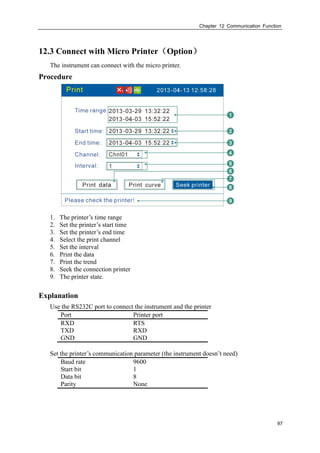
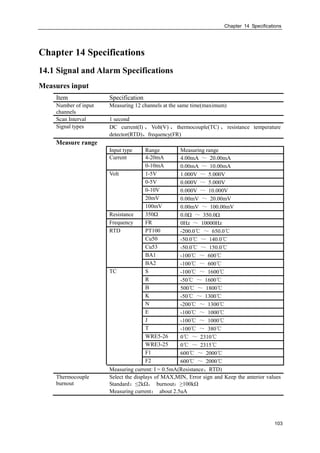
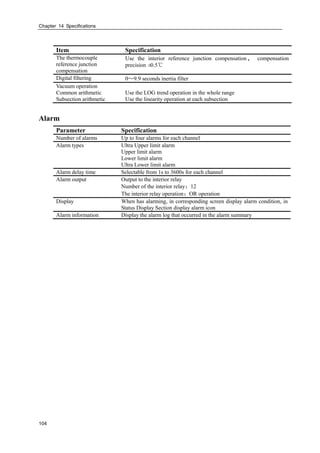
Manual
IMA63-EZ01
First edition
ZeroInstrument
PaperlessRecorderUser'sManual
I
Foreword
Thank you for purchasing the paperless recorder!
This manual is about the functions, settings, wiring methods, methods of operation,
failure of treatment methods of the paperless recorder. To ensure correct use, please read
this manual carefully and use properly before operation and keep this manual in a safe
place for quick reference.
Notice
 The contents of this manual are subject to change without prior notice as a result of
continuing improvements to the instrument’s performance and functions.
 Every effort has been made in the preparation of this manual to ensure the accuracy of its
contents. However, should you have any questions or find any errors, please contact us.
 Copying or reproducing all or any part of the contents of this manual without our
permission is strictly prohibited.
Revisions
First edition: March 2013
II
Safety Precautions
The following general safety precautions must be observed during all phases of operation.
If the Instrument is used in a manner not specified in this manual, the protection provided
by the Instrument may be impaired. We assume no liability for the customer’s failure to
comply with these requirements.
WARNING
 Power Supply
Before connecting the power cord, ensure that the power supply voltage matches
the voltage rating for the instrument.
 Protective Grounding
Make sure to connect the protective grounding to prevent electric shock before
turning ON the power.
 Necessity of Protective Grounding
Never cut off the internal or external protective grounding wire or disconnect the
wiring of the protective grounding terminal. Doing so poses a potential shock
hazard.
 Defect of Protective Grounding
Do not operate the instrument when the protective grounding or the fuse might be
defective. Also, make sure to check them before operation.
 Do Not Operate in Explosive Atmosphere
Do not operate the instrument in the presence of flammable liquids or vapors.
Operation of any electrical instrument in such an environment constitutes a safety
hazard.
 Do Not Remove Covers
Some areas inside the instrument have high voltages. Do not remove the cover if
the power supply is connected. The cover should be removed by our qualified
personnel only.
 External Connection
Connect the protective grounding before connecting to the item under
measurement or control unit.
 Damage to the protection
Using the instrument in a manner not specified in this manual can damage the
instrument’s protection.
III
Checking the Contents of the Package
Unpack the box and check the contents before operating the instrument. If some of the
contents are not correct or missing or if there is physical damage, contact the dealer from
which you purchased them.
Main Unit
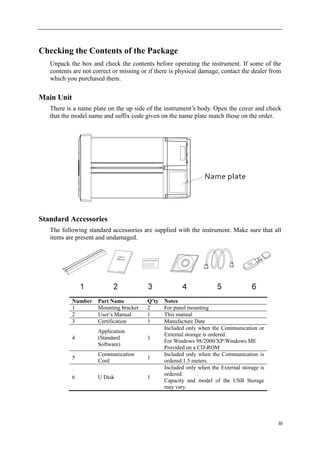
There is a name plate on the up side of the instrument’s body. Open the cover and check
that the model name and suffix code given on the name plate match those on the order.
Standard Accessories
The following standard accessories are supplied with the instrument. Make sure that all
items are present and undamaged.
Number Part Name Q’ty Notes
1 Mounting bracket 2 For panel mounting
2 User’s Manual 1 This manual
3 Certification 1 Manufacture Date
4
Application
(Standard
Software)
1
Included only when the Communication or
External storage is ordered.
For Windows 98/2000/XP/Windows ME
Provided on a CD-ROM
5
Communication
Cord
1
Included only when the Communication is
ordered.1.5 meters.
6 U Disk 1
Included only when the External storage is
ordered.
Capacity and model of the USB Storage
may vary.
IV
How to Use This Manual
Structure of the Manual
This user's manual consists of the following sections:
Chapter Title and Contents
1 Overview of Functions
Describes the functions of the instrument.
2 Before Using the Instrument
Describes the installation and wiring procedures.
3 Names of Parts/Run Mode/Common Operations
Describes the names of each part of the instrument, how to
use the storage medium drive, run mode, and common key
operations.
4 Switching Operation Screens
Describes how to use the operation screen such as the trend
display and digital display. Describes the operations that can
be performed using the arrow keys, page key and the enter
key on the front panel.
5 System Configurations
Describes the parameters of system running.
6 Input Channel Settings
Describes how to set input specifications such as the range,
filter, and burnout.
7 Setting Alarms
Describes how to set alarms and relays.
8 Setting Analog Outputs
Describes how to set analog outputs specifications such as
the output channel.
9 Data acquisition and Saving to External Storage Medium
Describes how to acquire the measured/computed data and
how to save the data to the external storage medium.
10 Set Differential Pressure Compensation Parameters
Describes how to set differential pressure compensation in
the process of flow use.
11 Setting Report Parameters
Describes how to set report parameters.
12 Communication Function
Describes how to use the optional computation function.
13 Initializing Data
Purge the accumulation and alarm report, resume factory
setting.
14 Specifications
Lists the specifications of the Paperless Recorder.
V
Conventions Used in this Manual
1. Unit
K Denotes”1024”
k Denotes”1000”
M Denotes“1024K”
G Denotes“1024M”
B “Bytes”
2. Symbols (The following symbols are used in this manual)
WARNING Describes precautions that should be observed to prevent
injury or death to the user.
CAUTION Describes precautions that should be observed to prevent
damage to the instrument.
Note Provides important information for the proper operation of the
instrument.
3. Notation regarding procedures
The following symbols are used during the explanation of operation
[ ] ............ Represent key’s name. Example: [Page] [En]
『』 ….... Indicate a reference item. Example: 『Input Channel Setting』
VI
Contents
FOREWORD...........................................................................................................................................................I
SAFETY PRECAUTIONS ....................................................................................................................................... II
CHECKING THE CONTENTS OF THE PACKAGE ....................................................................................................III
HOW TO USE THIS MANUAL..............................................................................................................................IV
CONTENTS.........................................................................................................................................................VI
CHAPTER 1 OVERVIEW OF FUNCTIONS....................................................................................................1
1.1 OVERVIEW OF THE INSTRUMENT....................................................................................................................1
1.2 FUNCTIONS OF THE INPUT SECTION ...............................................................................................................2
1.3 DISPLAY FUNCTION .......................................................................................................................................4
1.4 STORAGE FUNCTION......................................................................................................................................6
1.5 ALARM FUNCTION.........................................................................................................................................7
1.6 COMPUTATION FUNCTION (OPTION)..............................................................................................................8
1.7 ANALOG OUTPUT FUNCTION (OPTION) .........................................................................................................9
1.9 OTHER FUNCTIONS...................................................................................................................................... 11
CHAPTER 2 BEFORE USING THE INSTRUMENT....................................................................................12
2.1 PRECAUTIONS ON THE USE OF THE INSTRUMENT.........................................................................................12
2.2 INSTALLING THE INSTRUMENT.....................................................................................................................13
2.3 INPUT AND OUTPUT SIGNAL WIRING ...........................................................................................................15
2.4 ALARM OUTPUT WIRING (OPTION) .............................................................................................................18
2.5 INPUT DIGITAL SIGNAL WIRING (OPTION)...................................................................................................20
2.6 CONNECT POWER SUPPLY ...........................................................................................................................21
2.7 24VDC TRANSMITTER POWER WIRING(OPTION) ..................................................................................23
2.8 RS232C/RS485 COMMUNICATION WIRING (OPTION).................................................................................25
CHAPTER 3 NAMES OF PARTS/RUN MODE/COMMON OPERATIONS..............................................27
3.1 NAMES OF PARTS AND FUNCTIONS ..............................................................................................................27
3.2 INSERTING/REMOVING THE EXTERNAL STORAGE MEDIUM .........................................................................29
3.3 RUN MODE..................................................................................................................................................30
3.4 CONFIGURING THE FUNCTIONS ....................................................................................................................32
3.5 COMMON KEY OPERATIONS .........................................................................................................................33
CHAPTER 4 SWITCHING OPERATION SCREENS...................................................................................35
4.1 SWITCHING OPERATION SCREENS.................................................................................................................35
4.2 EXPLANATION OF THE STATUS DISPLAY SECTION.........................................................................................36
4.3 OVERVIEW SCREEN......................................................................................................................................37
4.4 BAR GRAPH DISPLAY ..................................................................................................................................38
4.5 TREND SCREEN............................................................................................................................................39
4.6 HISTORY SCREEN .........................................................................................................................................41
4.7 ALARM SUMMARY .......................................................................................................................................43
4.8 REPORT .......................................................................................................................................................44
CHAPTER 5 SYSTEM CONFIGURATIONS.................................................................................................49
5.1 SETTING THE DATE AND TIME .....................................................................................................................49
5.2 SETTING THE ALIAS.....................................................................................................................................50
5.3 SETTING THE SYSTEM PASSWORD ................................................................................................................51
5.4 SETTING TREND DIRECTION AND GROUPS OF THE TREND ...........................................................................52
5.5 SHOW/HIDE THE RUN SCREENS...................................................................................................................53
5.6 SETTING BACKGROUND COLOR...................................................................................................................54
5.7 SYSTEM INFORMATION ................................................................................................................................55
CHAPTER 6 INPUT CHANNEL SETTINGS.................................................................................................56
6.1 INPUT TYPE AND SCALING SETTING.............................................................................................................56
6.2 INPUT VACUUM TYPE AND SCALING SETTING .............................................................................................58
6.3 CHANNEL TAG AND UNIT SETTING ..............................................................................................................59
VII
6.4 INPUT FILTER SETTING ................................................................................................................................60
6.5 BURNOUT SETTING......................................................................................................................................61
6.6 REFERENCE JUNCTION COMPENSATION.......................................................................................................62
6.7 ACCUMULATION SETTING............................................................................................................................63
6.8 COPYING CHANNEL PARAMETERS ...............................................................................................................64
6.9 SQUARE ROOT COMPUTATION AND SMALL SIGNAL CUTTING......................................................................65
CHAPTER 7 SETTING ALARMS...................................................................................................................66
7.1 ALARM SETTING..........................................................................................................................................66
7.2 SETTING THE RELAY DELAY PERIOD............................................................................................................68
CHAPTER 8 SETTING ANALOG OUTPUTS ...............................................................................................69
8.1 ANALOG OUTPUTS SETTING ........................................................................................................................69
CHAPTER 9 DATA SAVINGAND SAVING TO EXTERNAL STORAGE MEDIUM ...............................70
9.1 SETTING THE SAVING INTERVAL OF INTERNAL MEMORY .............................................................................70
9.2 SAVING TO EXTERNAL STORAGE MEDIUM...................................................................................................72
CHAPTER 10 SETTING TEMPERATURE PRESSURE PARAMETERS .................................................73
10.1 SET TEMPERATURE AND PRESSURE COMPENSATION MODEL AND THE FLOW CHANNEL PARAMETERS.....73
10.2 ORIFICE + STEAM PARAMETER SETTING....................................................................................................75
10.3 ORIFICE + WATER PARAMETER SETTING....................................................................................................77
10.4 ORIFICE + GENERAL GAS PARAMETER SETTING........................................................................................79
10.5 VORTEX (FREQUENCY) + STEAM PARAMETER SETTING ............................................................................81
10.6 VORTEX (FREQUENCY) + WATER PARAMETER SETTING ............................................................................83
10.7 VORTEX (FREQUENCY) + GENERAL GAS PARAMETER SETTING ................................................................84
10.8 VORTEX (MA) + STEAM PARAMETER SETTING ..........................................................................................86
10.9 VORTEX (MA) + WATER PARAMETER SETTING ..........................................................................................88
10.10 VORTEX (MA) + GENERAL GAS PARAMETER SETTING ............................................................................90
CHAPTER 11 SETTING REPORT..................................................................................................................92
11.1 SETTING SPECIFICATIONS OF REPORT .........................................................................................................92
CHAPTER 12 COMMUNICATION FUNCTION ..........................................................................................93
12.1 COMMUNICATION USING RS232C (OPTION) .............................................................................................93
12.2 COMMUNICATION USING RS485(OPTION) ...........................................................................................95
12.3 CONNECT WITH MICRO PRINTER(OPTION)...........................................................................................97
12.4 AUTO PRINT FUNCTION SETTING...............................................................................................................98
CHAPTER 13 INITIALIZING DATA..............................................................................................................99
13.1 RESTORE FACTORY SETTING......................................................................................................................99
13.2 PURGE ALARM SUMMARY .......................................................................................................................101
13.3 PURGE ACCUMULATION DATA .................................................................................................................102
CHAPTER 14 SPECIFICATIONS .................................................................................................................103
14.1 SIGNAL AND ALARM SPECIFICATIONS......................................................................................................103
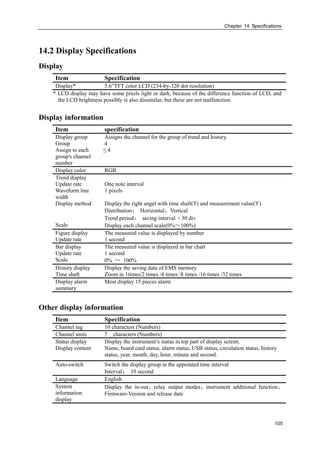
14.2 DISPLAY SPECIFICATIONS ........................................................................................................................105
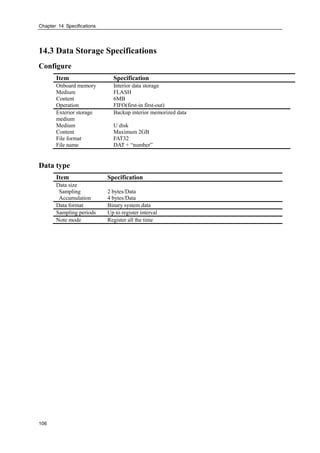
14.3 DATA STORAGE SPECIFICATIONS .............................................................................................................106
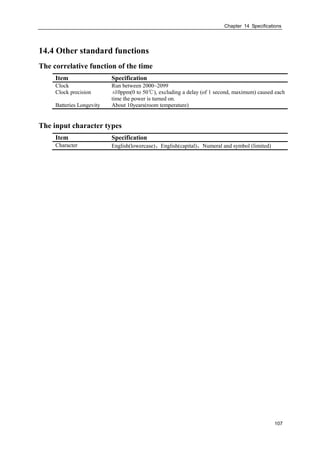
14.4 OTHER STANDARD FUNCTIONS ................................................................................................................107
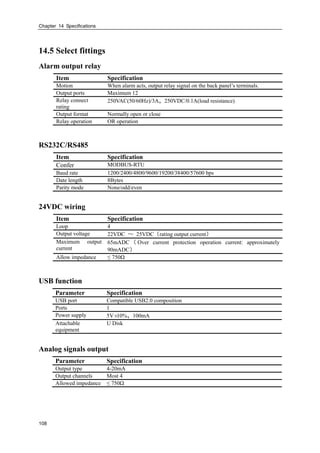
14.5 SELECT FITTINGS .....................................................................................................................................108
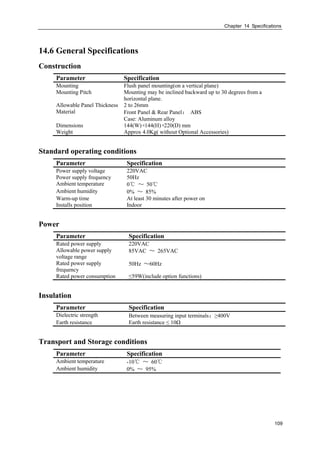
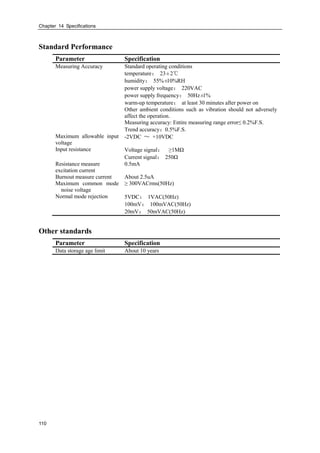
14.6 GENERAL SPECIFICATIONS.......................................................................................................................109
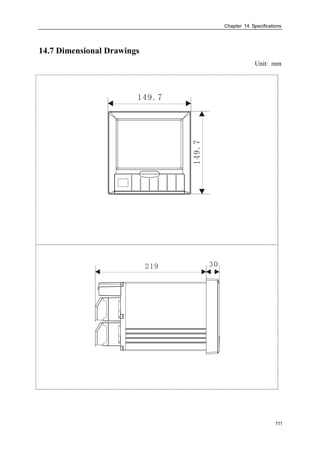
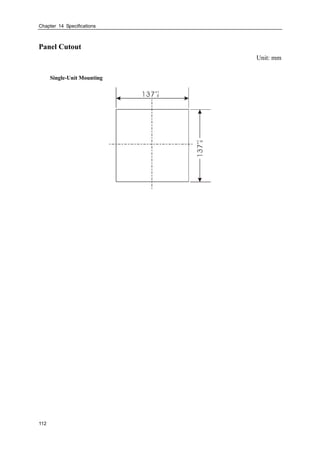
14.7 DIMENSIONAL DRAWINGS ....................................................................................................................... 111
Chapter 1 Overview of Functions
1
Chapter 1 Overview of Functions
1.1 Overview of the Instrument
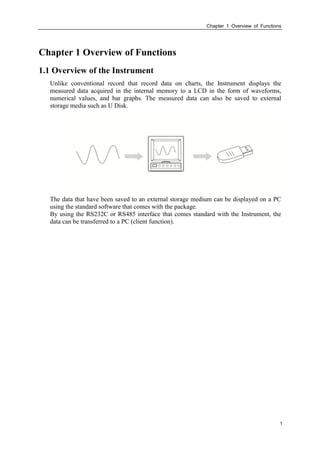
Unlike conventional record that record data on charts, the Instrument displays the
measured data acquired in the internal memory to a LCD in the form of waveforms,
numerical values, and bar graphs. The measured data can also be saved to external
storage media such as U Disk.
The data that have been saved to an external storage medium can be displayed on a PC
using the standard software that comes with the package.
By using the RS232C or RS485 interface that comes standard with the Instrument, the
data can be transferred to a PC (client function).
Chapter 1 Overview of Functions
2
1.2 Functions of the Input Section
Number of Measurement Channels/Scan Interval
The number of measurement channels can be selected from 1~16.
The scan interval of measurement is 1 second.
Input Type and Computation
You can select the input type of a measurement channel as follows. You can also perform
computation on the measured data such as the “square root,” and “small signal cutting.”
For the procedure related to setting the different modes, see section 『 System
Configurations』
Input Mode Signal Type
DC current 0–10mA
4–20mA
DC voltage 0–20mV
0–100mV
0–5V
Resistance 0 – 400Ω
Thermocouple S, B, K, T, E, J, R, N, F1, F2, WRE
RTC PT100, Cu50, BA1, BA2
frequency 0 – 10000Hz
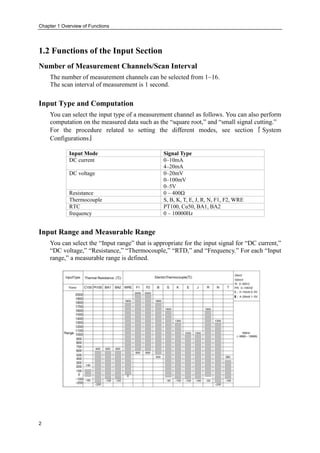
Input Range and Measurable Range
You can select the “Input range” that is appropriate for the input signal for “DC current,”
“DC voltage,” “Resistance,” “Thermocouple,” “RTD,” and “Frequency.” For each “Input
range,” a measurable range is defined.
Chapter 1 Overview of Functions
3
Burnout
When measuring temperature with a thermocouple / thermal resistence / 4-20mA / 1-5V
signal, the instrument provides check burnout function.you can specify the measurement
result to be set to maximum of measurable range, minimum of measurable range, last
value or Error Flag*1. For the setting procedure, see section『Burnout』.
*1 when the burnout setting is Error Flag, the measured value is indicated as “#####”.
Reference Junction Compensation (RJC)
When measuring the temperature using a thermocouple, the reference junction
compensation can be used. Reference junction compensation current is installed. You can
adjust the temperature that measured by the instrument. For the setting procedure, see
section 6.6.
Filter
The filter is used to suppress the effect noise that is riding on the signal. Filtering is
provided on the standard products. The filter can be set on each channel. For the setting
procedure, see section 6.4.
Chapter 1 Overview of Functions
4
1.3 Display Function
Common Items Related to the Display
TFT Color LCD and the Screen Configuration
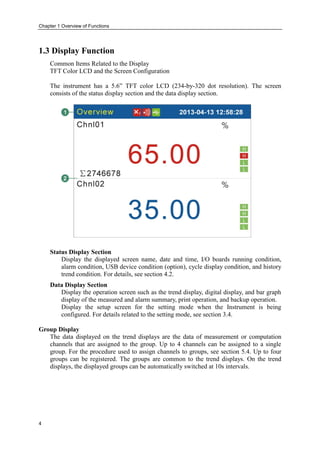
The instrument has a 5.6” TFT color LCD (234-by-320 dot resolution). The screen
consists of the status display section and the data display section.
Status Display Section
Display the displayed screen name, date and time, I/O boards running condition,
alarm condition, USB device condition (option), cycle display condition, and history
trend condition. For details, see section 4.2.
Data Display Section
Display the operation screen such as the trend display, digital display, and bar graph
display of the measured and alarm summary, print operation, and backup operation.
Display the setup screen for the setting mode when the Instrument is being
configured. For details related to the setting mode, see section 3.4.
Group Display
The data displayed on the trend displays are the data of measurement or computation
channels that are assigned to the group. Up to 4 channels can be assigned to a single
group. For the procedure used to assign channels to groups, see section 5.4. Up to four
groups can be registered. The groups are common to the trend displays. On the trend
displays, the displayed groups can be automatically switched at 10s intervals.
Chapter 1 Overview of Functions
5
Run Mode
This mode is used for daily operation.
This mode is entered when the power is turned ON.
Displays various operation screens such as digital, bar graph, trend, historical trend,
alarm summary, data print(option), and data backup display (option). Screens are
switched by the PAGE key.
Setting Mode
The various functions of the instrument are configured using the setting mode.
This screen is used to set the input range, filter, alarm, group, etc.
Chapter 1 Overview of Functions
6
1.4 Storage Function
The measured/computed data are first acquired to the instrument’s internal memory as
display data. Then, the data are saved to the external storage medium manually when the
external storage medium is inserted into the drive.
The capacity of the internal memory for acquiring display data is 6 MB. For detail, see
sections『 Date Saving and Saving to External Storage Medium』
External Storage Media and Internal Memory
The capacity of the internal memory for acquiring display data is 6 MB.
Various data can be saved to the U disk. The capacity is from 256MB to 1GB.
Scan Interval and Saving Interval
The scan interval of signal is fixed at 1s. The measuring and computing are completed in
every scan interval. Display data is generated by these data.
All measured or computed data sampled can be saved to internal memory by saving
interval.
Saving Data to Internal Memory
The display data are saved to internal memory continuously by saving interval.
If the instrument is unplugged, the data that lost while unplugged will be complemented
by ‘0’ when the power is turned ON.
Saving Data to External Storage Media
Insert the storage medium to the drive when data is to be saved (referred to as manual
save.
Chapter 1 Overview of Functions
7
1.5 Alarm Function
This function generates an alarm when the measured/computed data meets a certain
condition. When an alarm occurs, information notifying the alarm occurrence is
displayed on the screen. In addition, a signal can be output from the relay output
terminals on the rear panel of the instrument (Option). For details, see section 『Setting
Alarms』.
Alarm Indication
The alarm conditions are displayed as alarm icons in the status display section and
through the trend, bar graph, overview and other screens. The detailed information about
the alarms is displayed in the alarm summary.
Number of Alarms
You can set up to four alarms for each channel.
Alarm Conditions
The following eight conditions are available:
 High high alarm (HH)
An alarm occurs when the measured value exceeds the alarm value.
 High alarm (H)
An alarm occurs when the measured value exceeds the alarm value.
 Low alarm (L)
An alarm occurs when the measured value falls below the alarm value.
 Low low alarm (LL)
An alarm occurs when the measured value falls below the alarm value.
Alarm Hysteresis
This applies to ultra upper (HH), upper (H), lower (L) and ultra upper (LL) limit alarms
on measurement channels. A width (hysteresis) can be specified on the value used to set
or release the alarm. This prevents the alarm from being set or released repetitively when
the measured value is fluctuating around the alarm value. About setting the hysteresis,
see section 7.2.
Alarm Output Relay
If you are using a model with the optional alarm output relay, a contact signal can be
generated according to the alarm conditions. For the procedure related to setting the
alarm output relay, see section 7.2, “Alarm Setting.” For details, see section 7.1.
Delay Alarm
An alarm occurs when the measured value remains above or bellows the alarm value for
the specified time period (delay period).
Chapter 1 Overview of Functions
8
1.6 Computation Function (Option)
The Accumulation computation can be performed.
Accumulation Computation
The accumulation computation is performed every second.
The accumulation computation can be performed on each measurement channel.
For detail, see section『Accumulation Setting』
Chapter 1 Overview of Functions
9
1.7 Analog Output Function (Option)
Measured and Computed data can be transmitted and output as an analog signal.
Transmitter Output
The signal type of transmitter output is 4-20mA.
The instrument provides 4 channels transmitter output. The maximum load of each
channel can be drover is 750Ω.
For detail, see section『Analog Outputs Setting』
Chapter 1 Overview of Functions
10
1.8 Communication Functions (Option)
The instrument can communicated with PC via serial cable. And also can print data or
trend by micro printer.
RS232C/RS485 Interface
RS232C or RS485 can be select when the instrument communicates with PC.
By using the MODBUS-RTU protocol, measured/computed data written to the
instrument’s input register can be read by the PC.
The OPC software also provides for users, you can use it to connect the general HMI
software like iFix, inTouch. Etc.
Micro Printer
History Data, History Trend and Display Data can be printed using micro printer.
You can print history data and history manually.
Print display data will be automatic.
Chapter 1 Overview of Functions
11
1.9 Other Functions
24 VDC Power Supply for Transmitter (Option)
Provide 24 VDC power to transmitters.
The instrument provides 4 channels power supply. The maximum current of each channel
can be provided is 60mA.
Chapter 2 Before Using the Instrument
12
Chapter 2 Before Using the Instrument
2.1 Precautions on the Use of the Instrument
Read the following precautions before using the instrument and the external storage
medium (U disk).
Handling Precautions
 Be careful when cleaning the instrument, especially any plastic parts. When cleaning,
wipe with a dry, soft cloth. Do not use chemicals such as benzene or thinner, since
these may cause discoloring and deformation.
 Keep electrically charged objects away from the instrument as this may cause
malfunction.
 Do not apply volatile chemicals to the LCD monitor or panel keys. Do not allow
rubber and vinyl products to remain in contact with the instrument for long periods
of time. This may damage the instrument.
 Do not apply shock to the instrument.
 When not in use, make sure to turn OFF the power switch.
 If there are any symptoms of trouble such as strange odors or smoke coming from
the instrument, immediately turn OFF the power and unplug the power cord. Then,
contact your dealer or us.
Handling precautions of external storage media
 Take special care in handling external storage media as they are delicate products.
For general precautions, see the instruction manual that came with the external
storage medium.
 U disks may not operate properly under high or low temperature environment. If you
are using the instrument in a low-
instrument warm-up for at least 30 minutes beforehand.
 If you are using them in a high-
recommend the external storage medium be inserted into the drive when saving the
data and be removed after the data have been saved.
 Remove the external storage medium from the drive when turning ON/OFF the
instrument.
 Do not remove the external storage medium while the access lamp is lit. Doing so
can destroy the data on the medium.
 If you are using a commercially available U disk on instruments in the USB port, be
careful of static electricity. The instrument may not operate properly if you touch the
U disk that is inserted into the instrument when your body is charged with static
electricity.
Chapter 2 Before Using the Instrument
13
2.2 Installing the Instrument
Installation location
Install the instrument in a location that meets the following conditions.
 Instrument panel
The instrument is designed for panel mounting.
 Well-ventilated location
To prevent overheating, install the instrument in a well-ventilated location. For the
panel mount type, see section『Dimensional Drawings』
 Minimum mechanical vibrations
Choose an installation location with the minimum mechanical vibration.
 Horizontal
Install the instrument horizontally (However, the instrument can be inclined up to 30
degrees backwards for panel mounting).
Note
 Condensation may occur if the instrument is moved to another place where both the ambient
temperature and humidity are higher, or if the temperature changes rapidly. In addition,
measurement errors will result when using thermocouples. In this case, let the instrument
adjust to the new environment for at least one hour before using the instrument.
 The lifetime of the LCD may be shortened if the instrument is used in a high-temperature
environment over a long period of time. When installing the instrument in a high-temperature
environment (greater than 40°C), we recommend the backlight brightness of the LCD be set
to a low setting.
Do not install the instrument in the following places:
 In direct sunlight or near heat sources
Install the instrument in a place with small temperature fluctuations near room
temperature (23
can cause adverse effects on the internal circuitry.
 Where an excessive amount of soot, steam, moisture, dust, or corrosive gases are
present
Soot, steam, moisture, dust, and corrosive gases will adversely affect the instrument.
Avoid such locations.
 Near strong magnetic field sources
Do not bring magnets or instruments that produce electromagnetic fields close to the
instrument. Operating the instrument in strong magnetic fields can cause errors in
the measurements.
 Bad angle for viewing the screen
Because the instrument uses a 5.6” TFT color LCD, it is difficult to view the display
from an extreme angle. Please install the instrument so that the monitor can be
viewed from the front.
Chapter 2 Before Using the Instrument
14
Installation Procedure (Panel Mount Type)
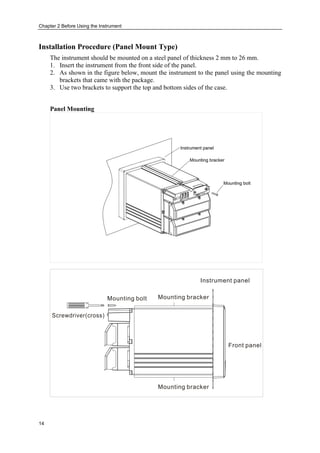
The instrument should be mounted on a steel panel of thickness 2 mm to 26 mm.
1. Insert the instrument from the front side of the panel.
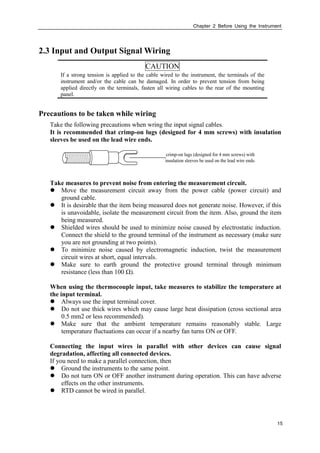
2. As shown in the figure below, mount the instrument to the panel using the mounting
brackets that came with the package.
3. Use two brackets to support the top and bottom sides of the case.
Panel Mounting
Chapter 2 Before Using the Instrument
15
2.3 Input and Output Signal Wiring
CAUTION
If a strong tension is applied to the cable wired to the instrument, the terminals of the
instrument and/or the cable can be damaged. In order to prevent tension from being
applied directly on the terminals, fasten all wiring cables to the rear of the mounting
panel.
Precautions to be taken while wiring
Take the following precautions when wring the input signal cables.
It is recommended that crimp-on lugs (designed for 4 mm screws) with insulation
sleeves be used on the lead wire ends.
crimp-on lugs (designed for 4 mm screws) with
insulation sleeves be used on the lead wire ends.
Take measures to prevent noise from entering the measurement circuit.
 Move the measurement circuit away from the power cable (power circuit) and
ground cable.
 It is desirable that the item being measured does not generate noise. However, if this
is unavoidable, isolate the measurement circuit from the item. Also, ground the item
being measured.
 Shielded wires should be used to minimize noise caused by electrostatic induction.
Connect the shield to the ground terminal of the instrument as necessary (make sure
you are not grounding at two points).
 To minimize noise caused by electromagnetic induction, twist the measurement
circuit wires at short, equal intervals.
 Make sure to earth ground the protective ground terminal through minimum
resistance (less than 100 Ω).
When using the thermocouple input, take measures to stabilize the temperature at
the input terminal.
 Always use the input terminal cover.
 Do not use thick wires which may cause large heat dissipation (cross sectional area
0.5 mm2 or less recommended).
 Make sure that the ambient temperature remains reasonably stable. Large
temperature fluctuations can occur if a nearby fan turns ON or OFF.
Connecting the input wires in parallel with other devices can cause signal
degradation, affecting all connected devices.
If you need to make a parallel connection, then
 Ground the instruments to the same point.
 Do not turn ON or OFF another instrument during operation. This can have adverse
effects on the other instruments.
 RTD cannot be wired in parallel.
Chapter 2 Before Using the Instrument
16
CAUTION
 Do not apply input signals that exceed the following values. This can damage the
instrument.
1. Maximum input voltage
Voltage range of 0.2 VDC or less or thermocouples: ±5 VDC
Voltage range between 2 and 10 VDC: ±12 VDC
2. Maximum common mode noise voltage
250 VACrms (50Hz)
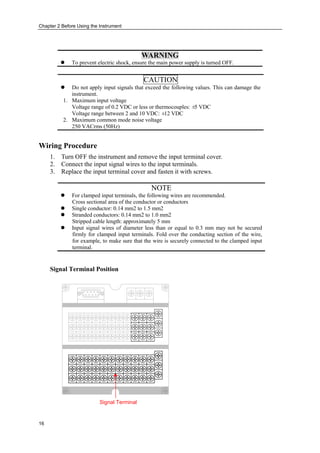
Wiring Procedure
1. Turn OFF the instrument and remove the input terminal cover.
2. Connect the input signal wires to the input terminals.
3. Replace the input terminal cover and fasten it with screws.
NOTE
 For clamped input terminals, the following wires are recommended.
Cross sectional area of the conductor or conductors
 Single conductor: 0.14 mm2 to 1.5 mm2
 Stranded conductors: 0.14 mm2 to 1.0 mm2
Stripped cable length: approximately 5 mm
 Input signal wires of diameter less than or equal to 0.3 mm may not be secured
firmly for clamped input terminals. Fold over the conducting section of the wire,
for example, to make sure that the wire is securely connected to the clamped input
terminal.
Signal Terminal Position
Signal Terminal
WARNING
 To prevent electric shock, ensure the main power supply is turned OFF.
Chapter 2 Before Using the Instrument
17
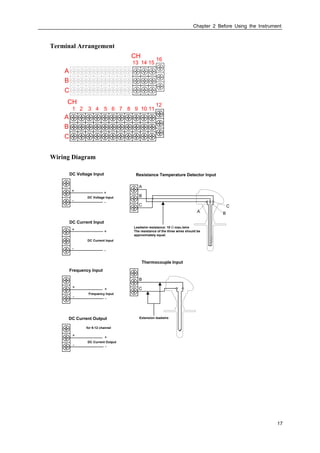
Terminal Arrangement
1
12
1110982 3 4 5 6 7
A
B
C
CH
13 14 15
16
A
B
C
CH
Wiring Diagram
DC Current Input
DC Current Input
+
-
+
-
DC Voltage Input
DC Voltage Input
+
-
+
-
Thermocouple Input
C
B
Extension leadwireDC Current Output
DC Current Output
+
-
+
-
for 9-12 channel
Frequency Input
Frequency Input
+
-
+
-
A
C
B
A
C
B
Resistance Temperature Detector Input
Leadwire resistance: 10 Ω max./wire
The resistance of the three wires should be
approximately equal.
Chapter 2 Before Using the Instrument
18
2.4 Alarm Output Wiring (Option)
WARNING
 To prevent electric shock, ensure the main power supply is turned OFF.
 If a voltage of more than 30 VAC or 60 VDC is to be applied to the alarm output
terminal, use ring-tongue crimp-on lugs with insulation sleeves on all terminals to
prevent the wires from slipping out when the screws become loose. Furthermore,
use double-insulated wires (dielectric strength of 2300 VAC or more) for the
signal wires on which a voltage of more than 30 VAC or 60 VDC is to be applied.
For all other wires, use basic insulated wires (dielectric strength of 1350 VAC). To
prevent electric shock, attach the terminal cover after wiring and make sure not to
touch the terminals.
Wiring Procedure
1. Turn OFF the instrument and remove the cover for the option terminal.
2. Connect the alarm output cables to the terminal.
The terminal arrangement will be one of the figures shown on the next page
depending on the alarm output relay option (number of outputs).
3. Replace the terminal cover and fasten it with screws.
CAUTION
To prevent fire, use signal wires having a temperature rating of 70°C or more.
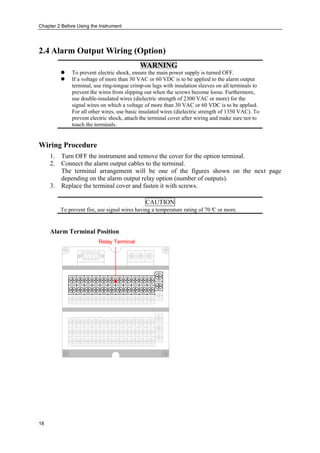
Alarm Terminal Position
Relay Terminal
Chapter 2 Before Using the Instrument
19
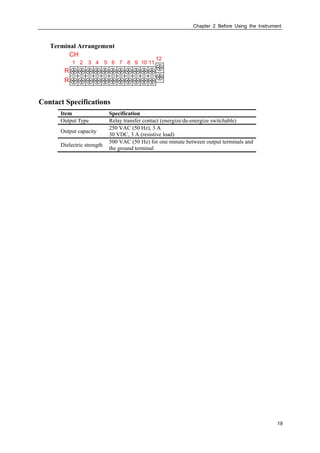
Terminal Arrangement
1
12
1110982 3 4 5 6 7
R
R
CH
Contact Specifications
Item Specification
Output Type Relay transfer contact (energize/de-energize switchable)
Output capacity
250 VAC (50 Hz), 3 A
30 VDC, 3 A (resistive load)
Dielectric strength
500 VAC (50 Hz) for one minute between output terminals and
the ground terminal
Chapter 2 Before Using the Instrument
20
2.5 Input Digital Signal Wiring (Option)
Wiring Procedure
1. Turn OFF the instrument and remove the cover for the option terminal.
2. Connect the alarm output cables to the terminal.
3. Replace the terminal cover and fasten it with screws.
CAUTION
To prevent fire, use signal wires having a temperature rating of 70℃ or more.
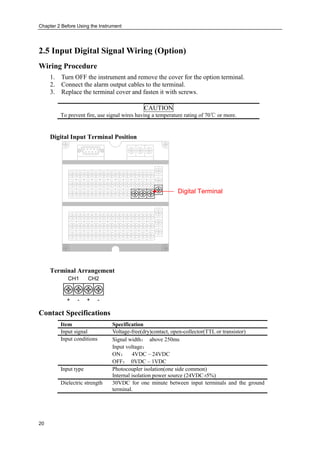
Digital Input Terminal Position
Digital Terminal
Terminal Arrangement
CH1 CH2
+ - + -
Contact Specifications
Item Specification
Input signal Voltage-free(dry)contact, open-collector(TTL or transistor)
Input conditions Signal width: above 250ms
Input voltage:
ON: 4VDC – 24VDC
OFF: 0VDC – 1VDC
Input type Photocoupler isolation(one side common)
Internal isolation power source (24VDC±5%)
Dielectric strength 30VDC for one minute between input terminals and the ground
terminal.
Chapter 2 Before Using the Instrument
21
2.6 Connect Power Supply
Precautions to be taken when wiring the power supply
To prevent electric shock and damage to the instrument, observe the following warnings.
WARNING
 To prevent electric shock, ensure the main power supply is turned OFF.
 To prevent the possibility of fire, use 600 V PVC insulated wire (AWG18) or an
equivalent wire for power wiring.
 Make sure to earth ground the protective earth terminal through a grounding
resistance less than 100 Ω before turning ON the power.
 Use crimp-on lugs (designed for 4mm screws) for power and ground wiring
termination.
 Make sure to provide a power switch (double-pole type) on the power supply line in
order to separate the instrument from the main power supply. Put an indication on
this switch as the breaker on the power supply line for the instrument.
Switch Specification Rated current: 3A or more
 Connect a fuse (between 2A and 15A) to the power line.
Wiring Procedure
1. Connect the power supply wires and the protective ground wire to the power
terminals.
2. Replace the terminal cover and fasten it with screws.
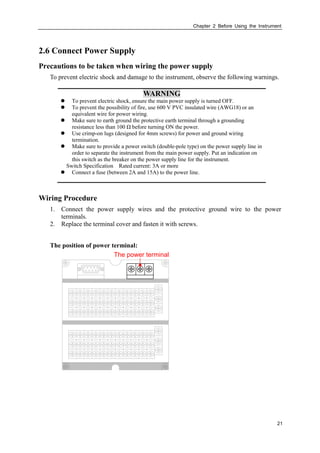
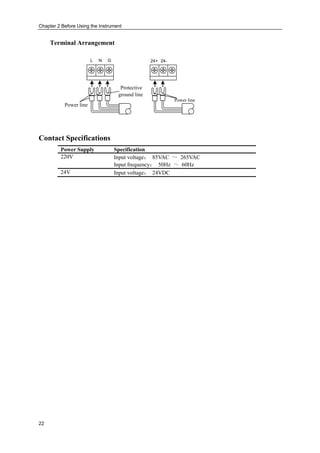
The position of power terminal:
The power terminal
Chapter 2 Before Using the Instrument
22
Terminal Arrangement
L GN
Protective
ground line
Power line
24+ 24-
Power line
Contact Specifications
Power Supply Specification
220V Input voltage: 85VAC ~ 265VAC
Input frequency: 50Hz ~ 60Hz
24V Input voltage: 24VDC
Chapter 2 Before Using the Instrument
23
2.7 24VDC Transmitter Power Wiring(Option)
Transmitter power output
CAUTION
Never short-circuit the power supply terminals or apply an external voltage,
otherwise damage to the instrument may result.
Wiring Procedure
1. Turn OFF the instrument and remove the cover for the option terminal.
2. Connect the alarm output cables to the terminal.
3. Replace the terminal cover and fasten it with screws.
Note
Remove the cover for the option terminal can be expediently to wiring. To prevent
contact badness, replace the terminal cover and fasten it with screws.
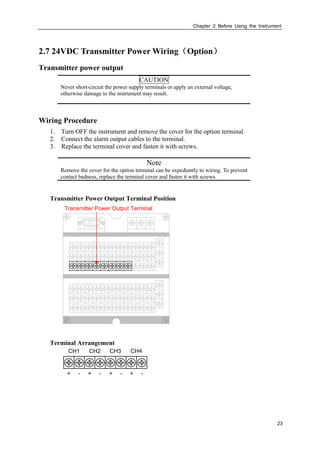
Transmitter Power Output Terminal Position
Transmitter Power Output Terminal
Terminal Arrangement
CH1 CH2
+ - + - + - + -
CH3 CH4
Chapter 2 Before Using the Instrument
24
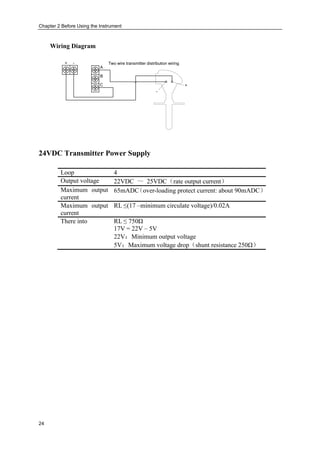
Wiring Diagram
+ -
A
C
B
+
-
Two wire transmitter distribution wiring
24VDC Transmitter Power Supply
Loop 4
Output voltage 22VDC ~ 25VDC(rate output current)
Maximum output
current
65mADC(over-loading protect current: about 90mADC)
Maximum output
current
RL ≤(17 –minimum circulate voltage)/0.02A
There into RL ≤ 750Ω
17V = 22V – 5V
22V:Minimum output voltage
5V:Maximum voltage drop(shunt resistance 250Ω)
Chapter 2 Before Using the Instrument
25
2.8 RS232C/RS485 Communication Wiring (Option)
Wiring Procedure
RS232 Communication wiring position
1 2 3 4 5
9876
Communication
connection
Pin number Signal Name Description
2 RXD instrument receive data
3 TXD instrument send data
5 GND Signal Ground
7 485A RS485 communication wiring +
8 485B RS485 communication wiring -
RS232C Wiring
RXD[incept data]
PC InstrumentTXD[send data]
GND[signal ground wire]
Signal direction
Chapter 2 Before Using the Instrument
26
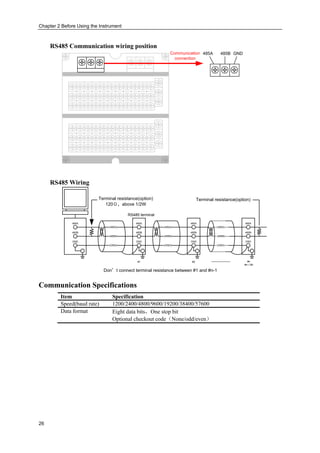
RS485 Communication wiring position
485A 485B GNDCommunication
connection
RS485 Wiring
(485A)
(485B)
(485A)
(485B)
(485A)
(485B)
(GND)
485A
485B
GND
(GND) (GND)
485A
485B
GND
485A
485B
GND
485A
485B
GND
#1 #2 #n
#n≤99
RS485 terminal
Terminal resistance(option)
120Ω,above 1/2W
Don’t connect terminal resistance between #1 and #n-1
Terminal resistance(option)
Communication Specifications
Item Specification
Speed(baud rate) 1200/2400/4800/9600/19200/38400/57600
Data format Eight data bits,One stop bit
Optional checkout code(None/odd/even)
Chapter 3 Names of Parts/Run Mode/Common Operations
27
Chapter 3 Names of Parts/Run Mode/Common
Operations
3.1 Names of Parts and Functions
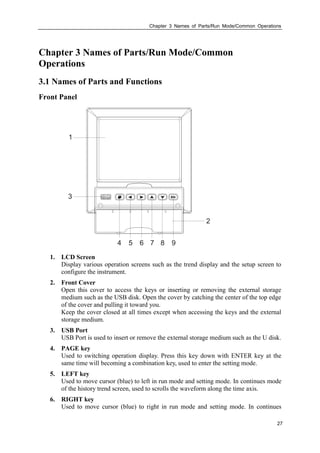
Front Panel
1. LCD Screen
Display various operation screens such as the trend display and the setup screen to
configure the instrument.
2. Front Cover
Open this cover to access the keys or inserting or removing the external storage
medium such as the USB disk. Open the cover by catching the center of the top edge
of the cover and pulling it toward you.
Keep the cover closed at all times except when accessing the keys and the external
storage medium.
3. USB Port
USB Port is used to insert or remove the external storage medium such as the U disk.
4. PAGE key
Used to switching operation display. Press this key down with ENTER key at the
same time will becoming a combination key, used to enter the setting mode.
5. LEFT key
Used to move cursor (blue) to left in run mode and setting mode. In continues mode
of the history trend screen, used to scrolls the waveform along the time axis.
6. RIGHT key
Used to move cursor (blue) to right in run mode and setting mode. In continues
Chapter 3 Names of Parts/Run Mode/Common Operations
28
mode on history trend display, used to scrolls the waveform along the time axis.
7. UP key
Used to increase the value that cursor indicated, and switches groups on the trend
screen.
8. DOWN key
Used to decrease the value that cursor indicated, and switches compress ratio on the
history trend screen.
9. ENTER key
Used to execute the function of button that cursor indicated. It also display the input
keypad when the value that cursor indicated can be edited. On history trend screen,
you can switch replay mode between continuous time mode and select time mode.
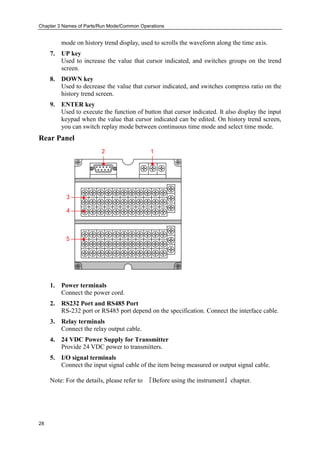
Rear Panel
12
5
4
3
1. Power terminals
Connect the power cord.
2. RS232 Port and RS485 Port
RS-232 port or RS485 port depend on the specification. Connect the interface cable.
3. Relay terminals
Connect the relay output cable.
4. 24 VDC Power Supply for Transmitter
Provide 24 VDC power to transmitters.
5. I/O signal terminals
Connect the input signal cable of the item being measured or output signal cable.
Note: For the details, please refer to 『Before using the instrument』chapter.
Chapter 3 Names of Parts/Run Mode/Common Operations
29
3.2 Inserting/Removing the External Storage Medium
This section describes the procedures to insert and remove the external storage medium.
USB disk is the only type of media can be used.
For the handling procedure of the storage medium, see section 9.2.
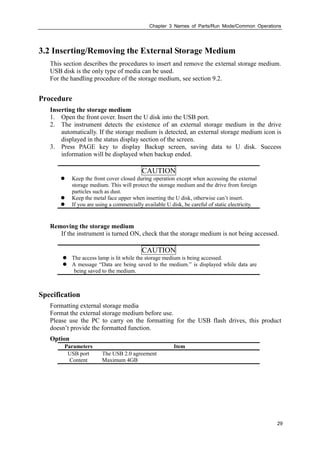
Procedure
Inserting the storage medium
1. Open the front cover. Insert the U disk into the USB port.
2. The instrument detects the existence of an external storage medium in the drive
automatically. If the storage medium is detected, an external storage medium icon is
displayed in the status display section of the screen.
3. Press PAGE key to display Backup screen, saving data to U disk. Success
information will be displayed when backup ended.
CAUTION
 Keep the front cover closed during operation except when accessing the external
storage medium. This will protect the storage medium and the drive from foreign
particles such as dust.
 Keep the metal face upper when inserting the U disk, otherwise can’t insert.
 If you are using a commercially available U disk, be careful of static electricity.
Removing the storage medium
If the instrument is turned ON, check that the storage medium is not being accessed.
CAUTION
 The access lamp is lit while the storage medium is being accessed.
 A message “Data are being saved to the medium.” is displayed while data are
being saved to the medium.
Specification
Formatting external storage media
Format the external storage medium before use.
Please use the PC to carry on the formatting for the USB flash drives, this product
doesn’t provide the formatted function.
Option
Parameters Item
USB port The USB 2.0 agreement
Content Maximum 4GB
Chapter 3 Names of Parts/Run Mode/Common Operations
30
3.3 Run Mode
There are two run modes: operating and setting. This section describes the functions and
relationships of the two modes.
Mode Types
Operation
screens
Setting
screens
Menu screen
Pressing
[Page]+[Enter]for
1 second
Exit menu
->[Enter]
Sofe menu
->[Enter]
Exit menu
->[Enter]
Power ON
Opration mode
Setting
Mode Type Description Possible operations
Operation
Mode
This mode is used for daily operation.
This mode is entered when the power is turned
ON.
Back up data to the external storage.
Monitoring operation
Data acquisition
Data printing
Operation related to the file
on the external storage
medium.
Setting Mode This mode is used to configure the operation
such as input range and alarms.
This mode is entered by pressing the [Page] and
[Enter] key for one second at the setting mode
menu.
Measured data can’t be displayed in this mode.
Operations such as measurements, alarm
detection, and data acquisition are continued.
Settings of the functions.
Chapter 3 Names of Parts/Run Mode/Common Operations
31
Functions and Operations in the Operation Mode
Operation screen
Display various operation screens such as digital, trend, bar graph, historical trend, alarm
summary, print and back up.
Screens are switched by the [Page] key. See section 4.1.
The operation screen with different key operating has the different functions. The
concrete pressed key operation and the function please see section 4.1.
Functions of setting modes
Use arrow keys and [En] key to set the instrument’s functions.
See sections 5.1 to 12.4.
Chapter 3 Names of Parts/Run Mode/Common Operations
32
3.4 Configuring the functions
Setting Mode
The setting mode is used to change the configuration of various functions.
CAUTION
Change some system parameters will affect the data acquisition. We suggest backing
up data before the changed.
Setting Items
User can carry out the following content in configuration mode:
 System Configurations
 Setting Analog Inputs
 Setting Analog Outputs
 Setting Display Parameters
 Setting Report Parameters
 Setting Alarms
 Communication Function
 Print Function
 Initializing Data
Chapter 3 Names of Parts/Run Mode/Common Operations
33
3.5 Common key operations
This section describes common key operations which are used often.
Key operations in the setting mode
Entering the setting mode
1. Power on immediacy enter the setting mode
2. Select [Exit] to enter the setting mode in the configuration mode.
Switching the screens under the setting mode
Press [Page] to display each setting screen in turn.
Key operations in the configuration mode
Entering the configuration mode
1. Under the setting mode, Press [Page] and [En] to enter the configuration screen.
2. Move the cursor and press the [En] to enter each configuration screen.
Selecting the parameter
Used [Left] and [Right] to move the cursor (blue) to the appropriate parameter or
operation key.
Confirming operation
Press [En] to confirm the settings.
Modifying the parameter
There are two types of the revisable parameters, select input parameter and edit input
parameter.
 Selecting input parameter(The right of the input frame has the sign )
Used [Up] and [Down] to move the cursor to modify the appropriate parameter.
 Edit input parameter(The right of the input frame has no sign)
When the parameter can be edited, user can input Number, English (Caps), English,
Symbol and Chinese.
Move the cursor to the edited parameter, press [En] to the input panel, user can do it.
Chapter 3 Names of Parts/Run Mode/Common Operations
34
Input Number/English (Caps)/English/Symbol
Used in inputting range, unit, tag etc.
Procedure
[Left][Right]:Move the cursor to the soft key or input method.
[Up][Down]:Move the cursor of the soft key.
[Page]:Switch the cursor’s area.(Soft key /Input method)。
[En]: Input the character to the input field, which under the place of cursor.
Cursor at [Delete]:Delete the last character in the input field.
Cursor at [Cancel]:Exit the input panel, cancel the editing.
Cursor at [Enter]: Exit the input panel, confirm the editing.
If the cursor at the input method area, you can switch it to the soft key area.
Chapter 4 Switching Operation Screens
35
Chapter 4 Switching Operation Screens
4.1 Switching operation screens
This chapter describes the screen (operation screen) used to display the measured /
computed data.
The operation screens are composed of Overview, Bar, Trend, History, Alarm summary,
Print (Add-ones function) and Backup (Add-ones function).
Used the [Page] key can switch each screen.
Overview
screen
Bar
screen
Trend
screen
History
screen
Alarm
summary
screen
Print Screen
(Add-ones
function)
Power on
Backup Screen
(Add-ones
function)
Chapter 4 Switching Operation Screens
36
4.2 Explanation of the status Display Section
The following information is displayed in the status display section during the operation
mode and the configuration mode.
1. Screen name
Displayed the screen name, [Alias] is displayed during all channel display.
2. Board card status flag
None Work normal
A All Interior boards don’t work
B The board in Socket1 doesn’t work
C The board in Socket2 doesn’t work
Note
When the instrument displayed this flag, there was something wrong with it,
you should contact the Supplier.
3. Alarm status flag
Alarm icon: Relay exports the alarm.
None: Relay doesn’t export the alarm.
4. USB Equipment flag
5. Circulation display flag (Trend screen)
Circulation icon: Circulation Display each group
None: Fixed screen, don’t circulation.
6. History trend status flag (History screen)
None Not in this screen
D Continuous state
E Fixed point state
7. Current data and time
Chapter 4 Switching Operation Screens
37
4.3 Overview screen
1. Channel tag. See section『Channel Tag and Unit Setting』
2. Engineering value. Blue is Normal, red is alarming
Note
 Measure the channel’s data display
When measuring data of measurement channel anomalies (see below), the
screen shows measurements for #####.
 Data exception
4-20 mA : signal bellows 2 mA.
The thermocouple burnout , the [burnout set] display #####.
3. Channel accumulation value.
4. Channel unit. See section『Channel Tag and Unit Setting』
5. Alarm symbol. From up to down, high high alarm, high alarm, low alarm, low low
alarm. Green is normal, red is alarm.
Chapter 4 Switching Operation Screens
38
4.4 Bar Graph Display
1. Channel tag. See section『Channel Tag and Unit Setting』
2. Bar. Bar chart ruler has the length of 10 grids, and the length of filling color
represents proportion in percent. Green is normal, red is alarm.
3. Channel unit. See section『Channel Tag and Unit Setting』
4. Engineering value .Blue is normal, red is alarm.
Note
 Measure the channel’s data display
When measuring data of measurement channel anomalies (see below), the
screen shows measurements for #####.
 Data exception
4-20 mA : signal bellows 2 mA.
The thermocouple burnout , the [burnout set] display #####.
5. Alarm symbol. From up to down, high high alarm, high alarm, low alarm, low low
alarm. Green is normal, red is alarm. Indications of each channel’s alarm state.
Chapter 4 Switching Operation Screens
39
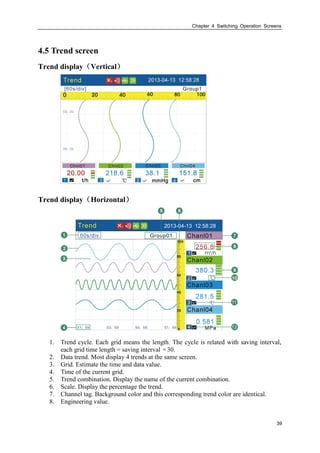
4.5 Trend screen
Trend display(Vertical)
Trend display(Horizontal)
1. Trend cycle. Each grid means the length. The cycle is related with saving interval,
each grid time length = saving interval ×30.
2. Data trend. Most display 4 trends at the same screen.
3. Grid. Estimate the time and data value.
4. Time of the current grid.
5. Trend combination. Display the name of the current combination.
6. Scale. Display the percentage the trend.
7. Channel tag. Background color and this corresponding trend color are identical.
8. Engineering value.
Chapter 4 Switching Operation Screens
40
Note
 Measure the channel’s data display
When measuring data of measurement channel anomalies (see below), the
screen shows measurements for #####.
 Data exception
4-20 mA : signal bellows 2 mA.
The thermocouple burnout , the [burnout set] display #####.
9. Alarm symbol. From up to down, high high alarm, high alarm, low alarm, low low
alarm. Green is normal, red is alarm. Indications of each channel’s alarm state.
10. Channel unit. See the section of『Channel Tag and Unit Setting』
11. Trend sequence number
12. Trend display symbol. “√” display, “×” hide.
Trends refurbish
On time axis of the instrument’s LCD screen, every pixel stands for a record interval.
Every record interval in trend moves once.
Group circulation
When started the circulation display function, switched to next group display trend for
every 10 seconds.
Procedure
Switch trend display group
[Up] is used to switch to next effectual group display trend.
Circular display the trend display group
[En] is used to open or close display with circulation. When open this function, there will
be an icon appeared in the state bar. See section『Explanation of the status Display
Section』.
Display or hide a trend
Move the cursor (black) with [Left] and [Right] keys, pitch on the channel needing
display or hide a trend, press [Down] to hide or display the trend.
Chapter 4 Switching Operation Screens
41
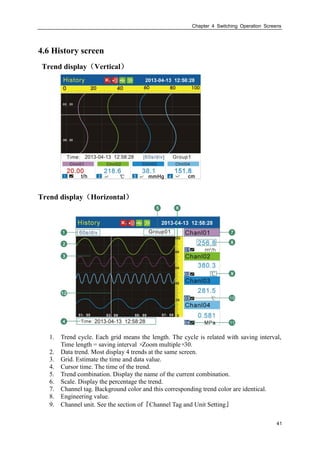
4.6 History screen
Trend display(Vertical)
Trend display(Horizontal)
1. Trend cycle. Each grid means the length. The cycle is related with saving interval,
Time length = saving interval ×Zoom multiple×30.
2. Data trend. Most display 4 trends at the same screen.
3. Grid. Estimate the time and data value.
4. Cursor time. The time of the trend.
5. Trend combination. Display the name of the current combination.
6. Scale. Display the percentage the trend.
7. Channel tag. Background color and this corresponding trend color are identical.
8. Engineering value.
9. Channel unit. See the section of『Channel Tag and Unit Setting』
Chapter 4 Switching Operation Screens
42
10. Trend sequence number
11. Trend display symbol. “√” display, “×” hide.
Procedure
There exist two methods to search historical data. One is continuous and the other is
fixed point.
The current state tag, please see section of『Explanation of the status Display Section』.
Switch the continuous state and the fixed point state
Under the continuous state, press [En] to switch to the fixed point state.
Under the fixed point state, press [En] to switch to the continuous state.
Continuous state
Switch channel trend
Within this state, uses [up] to display the next channel’s trend.
Trend zoom
Under the continuous state, press [Down] to switch the trend zoom times, circulation
switch between 1 times/ 2 times/ 4 times/ 8 times/ 16 times/ 32 times.
Operation
Uses [Left] and [Right] to move cursor so that forward or backward searching is
available.
The trend moves 1/3 screen trend voluntarily when the trend cursor remove arrives at
screen border.
Fixed point state
Display or hide the trend
Within this state, uses [Left] and [Right] to move cursor (Black) and chooses the
trend in channel to be displayed or hided by pressing [Down].
Operation
Uses [Left] and [Right] to move cursor. Set the data time to a desired point by using
[Up] and [Down]. Press [En], the trend will be moved to the fixed point
automatically.
Chapter 4 Switching Operation Screens
43
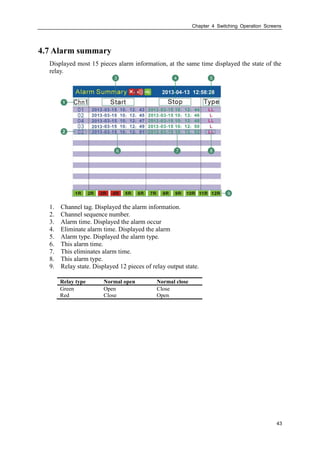
4.7 Alarm summary
Displayed most 15 pieces alarm information, at the same time displayed the state of the
relay.
1. Channel tag. Displayed the alarm information.
2. Channel sequence number.
3. Alarm time. Displayed the alarm occur
4. Eliminate alarm time. Displayed the alarm
5. Alarm type. Displayed the alarm type.
6. This alarm time.
7. This eliminates alarm time.
8. This alarm type.
9. Relay state. Displayed 12 pieces of relay output state.
Relay type Normal open Normal close
Green Open Close
Red Close Open
Chapter 4 Switching Operation Screens
44
4.8 Report
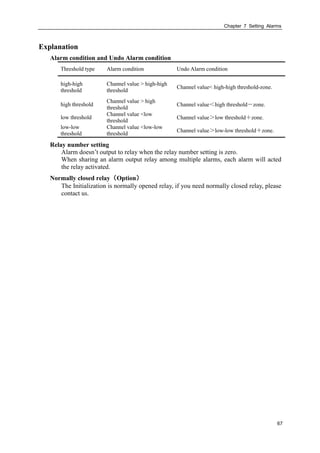
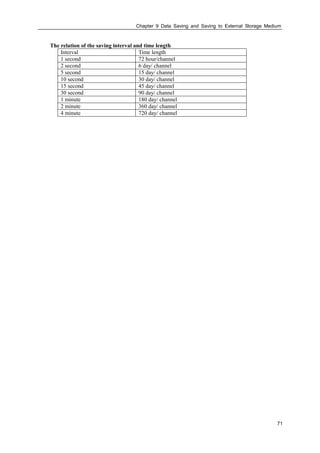
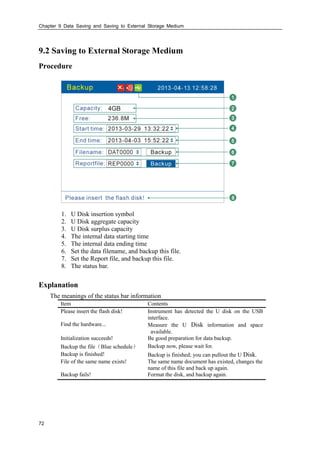
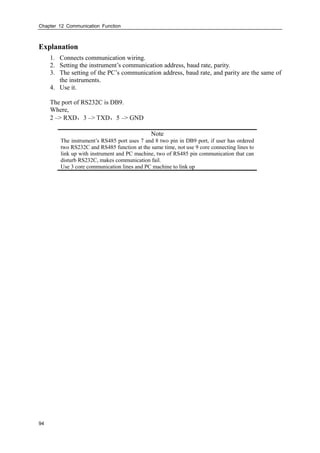
There are four types of cumulative report (Hourly, 8Hourly, 12Hourly, Daily, Monthly)
Report-Hourly
Report-Hourly 2013-04-13 14:11:26
2013-04-12Date: Chnl: PrintChnl01
∑3.69 Daily Sum : 0.00
01: 09: 17:
02: 10: 18:
03: 11: 19:
04: 12: 20:
05: 13: 21:
06: 14: 22:
07: 15: 23:
08: 16: 00:
0.00 0.00 0.00
0.00 0.00 0.00
0.00 0.00 0.00
0.00 0.00 0.00
0.00 0.00 0.00
0.00 0.00 0.00
0.00 0.00 0.00
0.00 0.00 0.00
1. Query
Query report by setting the date, uses [Left] or [Right] key to move the cursor, Press
[Up] or [Down] key to configure the time .The report displays 24 hours’
accumulation values on the screen.
2. Channel selection
Move the cursor to the edit box of channel, Press [Up] or [Down] key to select the
channel.
3. Print
Move the cursor to the button named “Print”, press [En] to print the report of current
screen.
Chapter 4 Switching Operation Screens
45
Report-8Hourly
Report-8Hourly 2013-04-13 14:11:26
2013-04-12Date: Chnl: PrintChnl01
∑3.69
04-12:
04-13:
04-14:
04-15:
04-16:
04-17:
04-18:
04-19:
0.00 0.00 0.00
0.00 0.00 0.00
0.00 0.00 0.00
0.00 0.00 0.00
0.00 0.00 0.00
0.00 0.00 0.00
0.00 0.00 0.00
0.00 0.00 0.00
1. Query
Query report by setting the date, uses [Left] or [Right] key to move the cursor, Press
[Up] or [Down] key to configure the time. Display the data of 7 days since the date
of the settlement, 3 cumulative values for each day.
2. Channel selection
Move the cursor to the edit box of channel, Press [Up] or [Down] key to select the
channel.
3. Print
Move the cursor to the button named “Print”, press [En] to print the report of current
screen.
Chapter 4 Switching Operation Screens
46
Report-12Hourly
Report-12Hourly 2013-04-13 14:11:26
2013-04-12Date: Chnl: PrintChnl01
∑3.69
04-12:
04-13:
04-14:
04-15:
04-16:
04-17:
04-18:
04-19:
0.00 0.00
0.00 0.00
0.00 0.00
0.00 0.00
0.00 0.00
0.00 0.00
0.00 0.00
0.00 0.00
1. Query
Query report by setting the date, uses [Left] or [Right] key to move the cursor, Press
[Up] or [Down] key to configure the time. Display the data of 7 days since the date
of the settlement, 2 cumulative values for each day.
2. Channel selection
Move the cursor to the edit box of channel, Press [Up] or [Down] key to select the
channel.
3. Print
Move the cursor to the button named “Print”, press [En] to print the report of current
screen.
Chapter 4 Switching Operation Screens
47
Report-Daily
Report-Daily 2013-04-13 14:11:26
2013-03Date:
Chnl:
Print
Chnl01
∑3.69
01: 12: 23:
02: 13: 24:
03: 14: 25:
04: 15: 26:
05: 16: 27:
06: 17: 28:
07: 18: 29:
08: 19: 30:
09: 20: 31:
10: 21:
11: 22:
0.00 0.00 0.00
0.00 0.00 0.00
0.00 0.00 0.00
0.00 0.00 0.00
0.00 0.00 0.00
0.00 0.00 0.00
0.00 0.00 0.00
0.00 0.00 0.00
0.00 0.00 0.00
0.00 0.00
0.00 0.00
Monthly
Mon Sum: 0.00
Average: 0.00
Maximum: 0.00
Minimum: 0.00
1. Query
Query report by setting the date, uses [Left] or [Right] key to move the cursor, Press
[Up] or [Down] key to configure the time. Display the data of 7 days since the date
of the settlement, 2 cumulative values for each day.
2. Channel selection
Move the cursor to the edit box of channel, Press [Up] or [Down] key to select the
channel.
3. Print
Move the cursor to the button named “Print”, press [En] to print the report of current
screen.
4. Report –Monthly
Move the cursor to the button named “Monthly”, press [En] to display monthly
report.
5. Stat.
Display the value of month sum, average, maximum and minimum
Chapter 4 Switching Operation Screens
48
Report-Monthly
Report-Monthly 2013-04-13 14:11:26
Print
Annual Sum: 0.00
∑3.69
2012-04: 2012-11:
2012-05: 2012-12:
2012-06: 2013-01:
2012-07: 2013-02:
2012-08: 2013-03:
2012-09: 2013-04:
2012-10:
0.00 0.00
0.00 0.00
0.00 0.00
0.00 0.00
0.00 0.00
0.00 0.00
0.00
Exit
1. Display cumulative value of 13 months before current month
2. Move the cursor to the [Print] key, press the [En] key to print the current screen.
3. Move the cursor to the [Exit] key, press the [En] key back to the screen of
Report-Daily.
Chapter 5 System Configurations
49
Chapter 5 System Configurations
5.1 Setting the Date and Time
Procedure
Press [Page] and [En] at the same time, enter the configuration menu.
Use arrow keys and [En] to input the password, enter the [System] screen.
Confirming operation
After the parameter setting, select [Exit] there is a Frame.
Select [Yes] to save setting content, and exit [System] screen.
Select [No] to cancel setting content, and exit [System] screen.
Select [Cancel] to continue setting parameters in [System] screen.
Caution
After setting system date / time, those historical data stored in
instrument is invalid.
New and effective data begins after setting system date / time.
Before setting system date / time, please backup history data.
Chapter 5 System Configurations
50
5.2 Setting the Alias
Procedure
Press [Page] and [En] at the same time, enter the configuration menu.
Use arrow keys and [En] to input the password, enter the [System] screen.
About the input method of editing parameter, see section『Common key operations』
Confirming operation
After the parameter setting, select [Exit] there is a Frame.
Select [Yes] to save setting content, and exit [System] screen.
Select [No] to cancel setting content, and exit [System] screen.
Select [Cancel] to continue setting parameters in [System] screen.
Chapter 5 System Configurations
51
5.3 Setting the system password
System password is needed when modifies configuration parameters, and is used to
prevent system parameters from being changed by accident.
It is made by 6 numbers.
Procedure
Press [Page] and [En] at the same time, enter the configuration menu.
Use arrow keys and [En] to input the password, enter the [System] screen.
About the input method of editing parameter, see section『Common key operations』
Confirming operation
After the parameter setting, select [Exit] there is a Frame.
Select [Yes] to save setting content, and exit [System] screen.
Select [No] to cancel setting content, and exit [System] screen.
Select [Cancel] to continue setting parameters in [System] screen.
Note
It is a unique password to modify configuration parameters. Once it is
forgotten, it can not be modified those parameters.
The initial password is 000000, after purchasing instrument, it is better
for users to amend it as soon as possible and preserve it properly.
Chapter 5 System Configurations
52
5.4 Setting Trend Direction and Groups of the Trend
User can choose two directions of trends, horizontal and vertical. When the horizontal,
the trend is from right to left; when vertical, it’s from up to down.
User can set four trend groups and enable it to use. Each trend is composed of 1-4 trends,
has 4 kind of different trend colors.
Procedure
Press [Page] and [En] at the same time, enter the configuration menu.
Use arrow keys and [En] to input the password, enter the [Display] screen.
1. Set the trend direction
Press arrow keys to choose the trend direction, horizontal or vertical. It’s usable for
Trend and History.
2. Select the trend group
Press arrow keys to choose trend group.
3. Enable the trend group to use or no
Move the cursor to [Enable], and use the arrow keys to set the trend group.
4. Set the channel of current trend
User can input channels at discretion, there are four colors for the trend in right side.
Confirming operation
After the parameter setting, select [Exit] there is a Frame.
Select [Yes] to save setting content, and exit [Display] screen.
Select [No] to cancel setting content, and exit [Display] screen.
Select [Cancel] to continue setting parameters in [Display] screen.
Chapter 5 System Configurations
53
5.5 Show/Hide the Run Screens
Procedure
Press [Page] and [En] at the same time, enter the configuration menu.
Use arrow keys and [En] to input the password, enter the [Display] screen.
Press arrow keys to show or hide the relevant screens.
Confirming operation
After the parameter setting, select [Exit] there is a Frame.
Select [Yes] to save setting content, and exit [Display] screen.
Select [No] to cancel setting content, and exit [Display] screen.
Select [Cancel] to continue setting parameters in [Display] screen.
Chapter 5 System Configurations
54
5.6 Setting Background Color
User can choose background color for the screen of overview and bar .
Procedure
Press [Page] and [En] at the same time, enter the configuration menu.
Use arrow keys and [En] to input the password, enter the [Display] screen.
Set background color
Display 2013-04-13 13:21:32
Exit
Direction: Horizontal
Group: Group1 Enable: Yes
Trend 1: Chnl1 Color:
Trend 2: Chnl2 Color:
Trend 3: Chnl3 Color:
Trend 4: Chnl4 Color:
Overview√ Bar √ Trend √
History √ Alarm √ Print √
Backup √
Background Color: White
Setting Background Color
Press arrow keys to choose white or black color for the background of overview and
bar screens
Confirming operation
After the parameter setting, select [Exit] there is a Frame.
Select [Yes] to save setting content, and exit [Display] screen.
Select [No] to cancel setting content, and exit [Display] screen.
Select [Cancel] to continue setting parameters in [Display] screen.
Chapter 5 System Configurations
55
5.7 System Information
Procedure
Press [Page] and [En] to enter configuration menu.
Use arrow keys and [En] to input the password, enter the [About] screen.
Explanation
1. The Option Functions
2. The number and type of the hardware in-out channels.
3. The output loop of the relay
4. The Firmware issue date and version number
5. [Exit] soft key
Chapter 6 Input Channel Settings
56
Chapter 6 Input Channel Settings
6.1 Input type and Scaling Setting
Procedure
Press [Page] and [En] at the same time, enter the configuration menu.
Use arrow keys and [En] to input the password, enter the [Input] screen.
1. Input channel
Select the channel to set the parameter, which is limited of the input board channel’s
number.
2. Channel type
Set the current channel’s input signal type.
3. Channel range
Set the current channel's input signal measuring range.
4. Adjust value
Set the correct value,Display data=Measure data ×K + B。
Note
The high and low value should not be the same.
The low value is -9999 and high range is 19999.
Confirming operation
After the parameter setting, select [Exit] there is a Frame.
Select [Yes] to save setting content, and exit [Input] screen.
Select [No] to cancel setting content, and exit [Input] screen.
Select [Cancel] to continue setting parameters in [Input] screen.
Chapter 6 Input Channel Settings
57
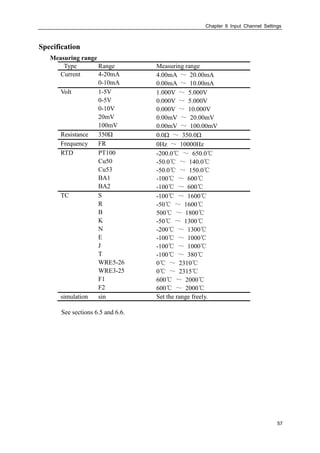
Specification
Measuring range
Type Range Measuring range
Current 4-20mA 4.00mA ~ 20.00mA
0-10mA 0.00mA ~ 10.00mA
Volt 1-5V 1.000V ~ 5.000V
0-5V 0.000V ~ 5.000V
0-10V 0.000V ~ 10.000V
20mV 0.00mV ~ 20.00mV
100mV 0.00mV ~ 100.00mV
Resistance 350Ω 0.0Ω ~ 350.0Ω
Frequency FR 0Hz ~ 10000Hz
RTD PT100 -200.0℃ ~ 650.0℃
Cu50 -50.0℃ ~ 140.0℃
Cu53 -50.0℃ ~ 150.0℃
BA1 -100℃ ~ 600℃
BA2 -100℃ ~ 600℃
TC S -100℃ ~ 1600℃
R -50℃ ~ 1600℃
B 500℃ ~ 1800℃
K -50℃ ~ 1300℃
N -200℃ ~ 1300℃
E -100℃ ~ 1000℃
J -100℃ ~ 1000℃
T -100℃ ~ 380℃
WRE5-26 0℃ ~ 2310℃
WRE3-25 0℃ ~ 2315℃
F1 600℃ ~ 2000℃
F2 600℃ ~ 2000℃
simulation sin Set the range freely.
See sections 6.5 and 6.6.
Chapter 6 Input Channel Settings
58
6.2 Input Vacuum Type and Scaling Setting
Procedure
Press [Page] and [En] at the same time, enter the configuration menu.
Use arrow keys and [En] to input the password, enter the [Input] screen.
1. Input channel
Select the channel to set the parameter, which is limited of the input board channel’s
number.
2. Channel type
Set the current channel’s input signal type.
3. Channel range
Set the current channel's input signal measuring range.
4. Set vacuum type
There are two vacuum types, normal arithmetic and subsection arithmetic. User can
choose it base on vacuum transmitter signal.
5. Adjust value
When the measuring mode is vacuum measure, the adjust value will be invalidated.
Note
The high and low value should not be the same.
The low value is -9999 and high range is 19999. You can only change the
index.
Confirming operation
After the parameter setting, select [Exit] there is a Frame.
Select [Yes] to save setting content, and exit [Input] screen.
Select [No] to cancel setting content, and exit [Input] screen.
Select [Cancel] to continue setting parameters in [Input] screen.
Chapter 6 Input Channel Settings
59
6.3 Channel Tag and Unit Setting
Procedure
Press [Page] and [En] at the same time, enter the configuration menu.
Use arrow keys and [En] to input the password, enter the [Input] screen.
1. Channel tag
Press [En] to input channel tag, most ten English characters.
2. Channel unit
Press [En] to input channel unit, most seven English characters.
Note
Channel unit and measure signal are Independence.
Confirming operation
After the parameter setting, select [Exit] there is a Frame.
Select [Yes] to save setting content, and exit [Input] screen.
Select [No] to cancel setting content, and exit [Input] screen.
Select [Cancel] to continue setting parameters in [Input] screen.
Chapter 6 Input Channel Settings
60
6.4 Input Filter Setting
Procedure
Press [Page] and [En] at the same time, enter the configuration menu.
Use arrow keys and [En] to input the password, enter the [Input] screen.
Setting filter time constant
Press [Up] and [Down] to set the time, the range from 0.0S to 9.9S.
Confirming operation
After the parameter setting, select [Exit] there is a Frame.
Select [Yes] to save setting content, and exit [Input] screen.
Select [No] to cancel setting content, and exit [Input] screen.
Select [Cancel] to continue setting parameters in [Input] screen.
Explanations
Filter setting method:
1filterInput
valueCurrentfilterInputvalueLast
valueShow



Chapter 6 Input Channel Settings
61
6.5 Burnout Setting
Procedure
Press [Page] and [En] at the same time, enter the configuration menu.
Use arrow keys and [En] to input the password, enter the [Input] screen.
Set with arrow keys.
Setting Result
Least Low limit
Max High limit
Hold front value Fix the finally right value before burnout
Error flag #####
Confirming operation
After the parameter setting, select [Exit] there is a Frame.
Select [Yes] to save setting content, and exit [Input] screen.
Select [No] to cancel setting content, and exit [Input] screen.
Select [Cancel] to continue setting parameters in [Input] screen.
Chapter 6 Input Channel Settings
62
6.6 Reference Junction Compensation
Procedure
Press [Page] and [En] at the same time, enter the configuration menu.
Use arrow keys and [En] to input the password, enter the [System] screen.
CJ compensational value
When there are some differences between the scene temperature and the cold
temperature instrument measured, user can use the adjust function.
Compensation value= CJ measurement value + CJ adjusted value
Confirming operation
After the parameter setting, select [Exit] there is a Frame.
Select [Yes] to save setting content, and exit [System] screen.
Select [No] to cancel setting content, and exit [System] screen.
Select [Cancel] to continue setting parameters in [System] screen.
Chapter 6 Input Channel Settings
63
6.7 Accumulation Setting
Procedure
Press [Page] and [En] at the same time, enter the configuration menu.
Use arrow keys and [En] to input the password, enter the [Input] screen.
Set the accumulate function and cumulate magnification
Move the cursor to [Accumulate],use [Up] and [Down] to set the accumulate
function.
Confirming operation
After the parameter setting, select [Exit] there is a Frame.
Select [Yes] to save setting content, and exit [Input] screen.
Select [No] to cancel setting content, and exit [Input] screen.
Select [Cancel] to continue setting parameters in [Input] screen.
Explanation
Accumulation function is that carries out time integral for current channel measurement
value and arithmetic value.
The range of accumulation value is 0 ~ 9,999,999,999.9, one radix point.
It will clear voluntarily when accumulate value exceeding 9,999,999,999.9.
When enabled the accumulation function, the accumulation value can be displayed in the
overview screen automatically.
Chapter 6 Input Channel Settings
64
6.8 Copying Channel Parameters
Use this function when channel A and channel B need to set the same parameter.
Procedure
Press [Page] and [En] at the same time, enter the configuration menu.
Use arrow keys and [En] to input the password, enter the [Input] screen.
Copy the channel parameter
Move the cursor to [Copy01].
When used the [Up] and [Down] to copy source channel, it may display on the soft
key.
Press [En] to confirm copying parameters.
Confirming operation
After the parameter setting, select [Exit] there is a Frame.
Select [Yes] to save setting content, and exit [Input] screen.
Select [No] to cancel setting content, and exit [Input] screen.
Select [Cancel] to continue setting parameters in [Input] screen.
Explanation
The operations can copied the following parameter
Type / Unit / Range / Square / Vacuum /Filter / Cut / low low Alarm / low Alarm / high
Alarm / high high Alarm /Zone /4 touch points/Adjust value.
Chapter 6 Input Channel Settings
65
6.9 Square Root Computation and Small Signal Cutting
Procedure
Press [Page] and [En] at the same time, enter the configuration menu.
Use arrow keys and [En] to input the password, enter the [Input] screen.
1. Set the small signal cutting
Move the cursor to [Cut], modify the small signal cutting percent with [Up] and
[Down] keys.
If the signal is smaller than the signal cutting percent, it will be forced into lower
limit of measurement range.
2. Set the square root computation
Move the cursor to [Sqrt], enabled the square root computation with [Up] and [Down]
keys.
Confirming operation
After the parameter setting, select [Exit] there is a Frame.
Select [Yes] to save setting content, and exit [Input] screen.
Select [No] to cancel setting content, and exit [Input] screen.
Select [Cancel] to continue setting parameters in [Input] screen.
Explanation
Need to use to square root function in measurement differential pressure flow meter in
pore plate, a few flow meter not bringing the square root function along per se , can use
this function.
That the small signal cutting is to point to when rate of flow is lower than some threshold
value, regard it being irrespective of flow turn to be able to ignore, flow shows for zero.
Chapter 7 Setting Alarms
66
Chapter 7 Setting Alarms
7.1 Alarm Setting
Each channel can set four alarm values, high high alarm, high alarm, low alarm and low
low alarm.
CAUTION
Set the measurement range before setting the alarm.
All of the alarm settings of a channel are canceled in the following cases:
 When the signal type is changed(Volt, Resistance)
 When the input range is changed
 When the setting compensation or square root operation
Procedure
Press [Page] and [En] at the same time, enter the configuration menu.
Use arrow keys and [En] to input the password, enter the [Input] screen.
1. Select the alarm channel
The setting method is the same as the signal type and signal range
2. Set the alarm threshold value
The threshold value must in the channel range.
3. Set the alarm threshold value zone
Prevent the relay frequently action when the signal surged by the alarm threshold
value.
4. Set relay number
Output the relay with setting serial number when an alarm occurs.
Confirming operation
After the parameter setting, select [Exit] there is a Frame.
Select [Yes] to save setting content, and exit [Input] screen.
Select [No] to cancel setting content, and exit [Input] screen.
Select [Cancel] to continue setting parameters in [Input] screen.
Chapter 7 Setting Alarms
67
Explanation
Alarm condition and Undo Alarm condition
Threshold type Alarm condition Undo Alarm condition
high-high
threshold
Channel value > high-high
threshold
Channel value< high-high threshold-zone.
high threshold
Channel value > high
threshold
Channel value<high threshold-zone.
low threshold
Channel value <low
threshold
Channel value>low threshold+zone.
low-low
threshold
Channel value <low-low
threshold
Channel value>low-low threshold+zone.
Relay number setting
Alarm doesn’t output to relay when the relay number setting is zero.
When sharing an alarm output relay among multiple alarms, each alarm will acted
the relay activated.
Normally closed relay(Option)
The Initialization is normally opened relay, if you need normally closed relay, please
contact us.
Chapter 7 Setting Alarms
68
7.2 Setting the Relay Delay Period
Procedure
Press [Page] and [En] at the same time, enter the configuration menu.
Use arrow keys and [En] to input the password, enter the [System] screen.
About the input method of editing parameter, see section『Common key operations』
The Relay Delay Period
For preventing the relay mistake action, in appearance system group state, relay time
lapse can set 0-10 seconds to delay trigger under the system configuration.
Think that the queen who gives an alarm coming into being continues setting up
second of inner signal being in the state giving an alarm without exception or
continues setting up second of inner signal without exception in eliminating
newspaper state, relay only meeting action.
The relay will action when the continue setting second signal under alarm state or
undo alarm state.
Confirming operation
After the parameter setting, select [Exit] there is a Frame.
Select [Yes] to save setting content, and exit [System] screen.
Select [No] to cancel setting content, and exit [System] screen.
Select [Cancel] to continue setting parameters in [System] screen.
Chapter 8 Setting Analog Outputs
69
Chapter 8 Setting Analog Outputs
8.1 Analog Outputs Setting
The instrument provides 4-20mA analog output.
Procedure
Press [Page] and [En] at the same time, enter the configuration menu.
Use arrow keys and [En] to input the password, enter the [Output] screen.
1. Set the output source channel
Set the source of this channel output value.
2. Output the adjust value
Output value = Current value ×K + B。
Confirming operation
After the parameter setting, select [Exit] there is a Frame.
Select [Yes] to save setting content, and exit [Output] screen.
Select [No] to cancel setting content, and exit [Output] screen.
Select [Cancel] to continue setting parameters in [Output] screen.
Explanation
The analog output only supports 4-20mA
According to the channel measurement range, converts the source channel value to
percentage, then transforms to 4-20mA analog output.
When there is no output source channel , the analog output will fix to4mA。
Chapter 9 Data Saving and Saving to External Storage Medium
70
Chapter 9 Data Saving and Saving to External Storage
Medium
9.1 Setting the Saving Interval of Internal Memory
Procedure
Press [Page] and [En] at the same time, enter the configuration menu.
Use arrow keys and [En] to input the password, enter the [System] screen.
Set the saving interval
User can choose 1s/2s/5s/10s/15s/30s/1min/2min/4min.
Confirming operation
After the parameter setting, select [Exit] there is a Frame.
Select [Yes] to save setting content, and exit [System] screen.
Select [No] to cancel setting content, and exit [System] screen.
Select [Cancel] to continue setting parameters in [System] screen.
Explanation
The sample period is 1 second, so the smallest records interval is 1 second.
Increasing the interval can prolong the time length of storage data.
Note
The interior saving historical data will be invalidation if you modify the saving
interval, therefore, please backup the historical data before you modify it, prevents
the loss.
Chapter 9 Data Saving and Saving to External Storage Medium
71
The relation of the saving interval and time length
Interval Time length
1 second 72 hour/channel
2 second 6 day/ channel
5 second 15 day/ channel
10 second 30 day/ channel
15 second 45 day/ channel
30 second 90 day/ channel
1 minute 180 day/ channel
2 minute 360 day/ channel
4 minute 720 day/ channel
Chapter 9 Data Saving and Saving to External Storage Medium
72
9.2 Saving to External Storage Medium
Procedure
1. U Disk insertion symbol
2. U Disk aggregate capacity
3. U Disk surplus capacity
4. The internal data starting time
5. The internal data ending time
6. Set the data filename, and backup this file.
7. Set the Report file, and backup this file.
8. The status bar.
Explanation
The meanings of the status bar information
Item Contents
Please insert the flash disk! Instrument has detected the U disk on the USB
interface.
Find the hardware... Measure the U Disk information and space
available.
Initialization succeeds! Be good preparation for data backup.
Backup the file(Blue schedule) Backup now, please wait for.
Backup is finished! Backup is finished; you can pullout the U Disk.
File of the same name exists! The same name document has existed, changes the
name of this file and back up again.
Backup fails! Format the disk, and backup again.
Chapter 10 Setting Temperature pressure Parameters
73
Chapter 10 Setting Temperature pressure Parameters
10.1 Set Temperature And Pressure Compensation Model And
The Flow Channel Parameters
This section describes how to set the parameters of temperature and
pressurecompensation model, flow channel, measuring devices and measuring dielectric,
etc.
Operation
Press the [page] and [En], enter the configuration menu.
Use the [arrow keys] and [En] button, enter the password, and then select to enter the
[compensation].
Compensation 2013-04-13 12:58:28
Compensation:
Flow Channel:
Measure Device:
Measure Media:
Accumulate Rate:
Little Flow Fill:
Over Scale Set:
Power-off Fill:
Local Atm Pressure:
Compensation1
Chnl01
Orifice
Steam
1
100%
0%
0.1013MPa
0%
Configure Exit
0%
1. Compensation
Select the compensation channel, a total number of four channels. Select with [Up
and Down] key.
2. Flow channel
set the compensation flow channel. Select with [Up and Down] key.
3. Measuring device
set the compensation medium measurement device, which has a plate, vortex
(frequency), vortex (mA). Select with [Up and Down] key .
4. Measuring medium
set the measurement medium, which has steam, water and general gases. Select with
[Up and Down] key.
5. Cumulative rate
set accumulation rate values, according to [the instantaneous value ×magnification].
Press [En] key to modify the settings, [up and down] key to adjust.
6. Small flow fill
the first setting value is the percentage of small flow limit; the second setting value
Chapter 10 Setting Temperature pressure Parameters
74
is the percentage of compensation. The Percentage is all flow range percentage. To
adjust settings with [Up and Down] keys.
When the instantaneous flow rate is less than the first set value, the flow
accumulation value according to make up the second set.
7. Over-range setting
when instantaneous flow exceeds maximum range, and then it will lead to top
destruction, according to [flow range ×set value] accumulation. To adjust settings
with [Up and Down] keys
8. Power-down fill
Cumulative value and the statements during a power outage is according to [flow
range ×set value] calculated compensation. To adjust settings with [Up and Down]
keys.
9. Parameter setting
Press [En] key to enter the temperature and pressure compensation parameter setting
screen.
Confirming operation
After the parameter setting, select [Exit] there is a Frame.
Select [Yes] to save setting content, and exit [compensation] screen.
Select [No] to cancel setting content, and exit [compensation] screen.
Select [Cancel] to continue setting parameters in [compensation] screen.
Explain
During flow accumulation, it should the first cut the small signal, and then calculated the
flow after compensation according to temperature and pressure compensation formula.
Then have calculation on small flow compensation, over range compensation,
accumulation, and finally get the last flow to accumulate.
Chapter 10 Setting Temperature pressure Parameters
75
10.2 Orifice + Steam Parameter Setting
This section describes measuring device (orifice) and measuring medium (steam)
parameters setting.
Operation
Press the [page] + [En], enter the configuration menu.
Use the [arrow keys] and [En] button, enter the password, and then select to enter the
[flow compensation].
Move the cursor to the [Parameter setting] button, press the [En] key to enter the
parameter setting screen.
Configure 2013-04-13 12:58:28
Removal:
Square:
Pressure-Diff Scale:
Pressure-Diff Unit:
Flow unit:
Actual Temperature:
Actual Pressure:
Designed Temperature:
0.0%
No
4.00
KPa
t/h
Input
0 ℃
Chnl03
Finish
20.00
Mpa
Input Chnl02 ℃
Designed Pressure: 0 MPa
1. Resection of the small signal
The setting range is 0.0-9.9%, expressed by a percentage. If Input differential signal
is less than set value range, it will be the limit input. To adjust settings with [Up and
Down] keys
2. Square root
To have square root calculation on the percentage of the differential pressure signal.
To adjust settings with [Up and Down] keys
3. Differential pressure range
To acquire differential signal to display range. Press [En] key to modify the settings.
To adjust settings with [Up and Down] keys
4. Differential pressure units
Differential pressure signal units is involved in operations. It is fixed at KPa.
5. Flow units
Flow units is involved in operations, the default is t / h (or t / h, kg / h). Press [up and
down] key to select.
6. Temperature conditions
Input type: [enter], [set] (two options).
[Input]: Select the signal channel input for the temperature value, press [up and
Chapter 10 Setting Temperature pressure Parameters
76
down] key to select.
[Set]: Set the constant value for temperature. Press [En] button to change settings,
press [up and down] key to adjust.
7. Pressure condition
Input type: [enter], [set] (two options).
[Input]: Select the signal channel input for the pressure value, press [up and down]
key to select.
[Set]: Set the constant value for pressure. Press [En] button to change settings, press
[up and down] key to adjust.
8. Set temperature
Set temperature value. Press [En] button to change settings, press [up and down] key
to adjust.
9. Design pressure
Set pressure value. Press [En] button to change settings, press [up and down] key to
adjust.
10. Cursor to the [Finish] button, press the [En] button to return.
Chapter 10 Setting Temperature pressure Parameters
77
10.3 Orifice + Water Parameter Setting
This section describes measuring device (orifice) and measuring medium (water)
parameters setting.
Operating
Press the [page] + [En], enter the configuration menu.
Use the [arrow keys] and [En] button, enter the password, and then select to enter the
[flow compensation].
Move the cursor to the [Parameter setting] button, press the [En] key to enter the
parameter setting screen.
Configure 2013-04-13 12:58:28
Removal:
Square:
Pressure-Diff Scale:
Pressure-Diff Unit:
Flow unit:
Actual Temperature:
Actual Pressure:
Designed Temperature:
0.0%
No
4.00
KPa
t/h
Input
0 C
Chnl02
Finish
20.00
℃
0.6MPa
1. Resection of the small signal
The setting range is 0.0-9.9%, expressed by a percentage. If Input differential signal
is less than set value range, it will be the limit input. To adjust settings with [Up
and Down] keys
2. Square root
To have square root calculation on the percentage of the differential pressure signal.
To adjust settings with [Up and Down] keys
3. Differential pressure range
To acquire differential signal to display range. Press [En] key to modify the settings.
To adjust settings with [Up and Down] keys
4. Differential pressure units
Differential pressure signal units is involved in operations. It is fixed at KPa.
5. Flow units
Flow units is involved in operations, the default is t / h (or t / h, kg / h). Press [up and
down] key to select.
6. Temperature conditions
Input type: [enter], [set] (two options).
[Input]: Select the signal channel input for the temperature value, press [up and
Chapter 10 Setting Temperature pressure Parameters
78
down] key to select.
[Set]: Set the constant value for temperature. Press [En] button to change settings,
press [up and down] key to adjust.
7. Pressure condition
Input type: [enter], [set] (two options).
[Input]: Select the signal channel input for the pressure value, press [up and down]
key to select.
[Set]: Set the constant value for pressure. Press [En] button to change settings, press
[up and down] key to adjust.
8. Set temperature
Set temperature value. Press [En] button to change settings, press [up and down] key
to adjust.
9. Cursor to the [Finish] button, press the [En] button to return.
Chapter 10 Setting Temperature pressure Parameters
79
10.4 Orifice + General Gas Parameter Setting
This section describes measuring device (orifice) and measuring medium (general gas)
parameters setting.
Operating
Press the [page] + [En], enter the configuration menu.
Use the [arrow keys] and [En] button, enter the password, and then select to enter
the [flow compensation].
Move the cursor to the [Parameter setting] button, press the [En] key to enter the
parameter setting screen.
Configure 2013-04-13 12:58:28
Removal:
Pressure-Diff Scale:
Pressure-Diff Unit:
Flow unit:
Actual Temperature:
Actual Pressure:
Designed Temperature:
Designed Pressure:
0.0%
4.00
KPa
t/h
Input
0 C
0 MPa
Chnl02
Finish
20.00
℃
Input Chnl03 MPa
Square: No
Compress Rate: Table Air
Local atm: 0.1013Mpa
1. Resection of the small signal
The setting range is 0.0-9.9%, expressed by a percentage. If Input differential signal
is less than set value range, it will be the limit input. To adjust settings with [Up
and Down] keys
2. Square root
To have square root calculation on the percentage of the differential pressure signal.
To adjust settings with [Up and Down] keys
3. Differential pressure range
To acquire differential signal to display range. Press [En] key to modify the settings.
To adjust settings with [Up and Down] keys
4. Differential pressure units
Differential pressure signal units is involved in operations. It is fixed at KPa.
5. Flow units
Flow units is involved in operations. It is fixed at m3/h.
6. Temperature conditions
Input type: [enter], [set] (two options).
[Input]: Select the signal channel input for the temperature value, press [up and
down] key to select.
[Set]: Set the constant value for temperature. Press [En] button to change settings,
Chapter 10 Setting Temperature pressure Parameters
80
press [up and down] key to adjust.
7. Pressure condition
Input type: [enter], [set] (two options).
[Input]: Select the signal channel input for the pressure value, press [up and down]
key to select.
[Set]: Set the constant value for pressure. Press [En] button to change settings, press
[up and down] key to adjust.
8. Set temperature
Set temperature value. Press [En] button to change settings, press [up and down] key
to adjust.
9. Designed pressure
Set design pressure value. Press [En] button to change settings, press [up and down]
key to adjust.
10. Compressibility coefficient
General gas‘s compressibility coefficient. There are [set], [check] two options.
[Settings]: free to set the compression factor. Press [En] button to change settings,
press [up and down] key to adjust.
[Check]: There are three kinds of gas models: air, nitrogen, oxygen, press [up and
down] key to select.
11. The local atmospheric pressure
Atmospheric pressure where the user locates. Press [En] button to change settings,
press [up and down] key to adjust.
12. Cursor to the [Finish] button, press the [En] button to return.
Chapter 10 Setting Temperature pressure Parameters
81
10.5 Vortex (Frequency) + Steam Parameter Setting
This section describes measuring device (vortex) and measuring medium (steam)
parameters setting.
Operating
Press the [page] + [En], enter the configuration menu.
Use the [arrow keys] and [En] button, enter the password, and then select to enter the
[flow compensation].
Move the cursor to the [Parameter setting] button, press the [En] key to enter the
parameter setting screen.
Configure 2013-04-13 12:58:28
Removal:
K:
Unit of K:
Flow Unit:
Actual temperature:
0%
Times/m3
t/h
Input
Finish
℃Chnl02
Actual pressure: Input MPaChnl03
1
1. Resection of the small signal
the setting range is 0.0-9.9%, expressed by a percentage. If Input differential signal
is less than set value range, it will be the limit input. To adjust settings with [Up and
Down] keys
2. K Vortex average K factor setting.
Press [En] key to modify the settings. . To adjust settings with [Up and Down] keys.
3. K factor unit
K factor unit is involved in operation.
The default is time / m3 (optional times / m3, plays / L). To adjust settings with [Up
and Down] keys
4. Flow units
Traffic units involved in operations, the default is t / h (optional t / h, kg / h), press
[up and down] key to select.
5. Temperature conditions
Input type: [enter], [set] (two options).
[Input]: Select the signal channel input for the temperature value, press [up and
down] key to select.
Chapter 10 Setting Temperature pressure Parameters
82
[Set]: Set the constant value for temperature. Press [En] button to change settings,
press [up and down] key to adjust.
6. Pressure condition
Choose [0.6MPa] or [1.6Mpa.Press [up and down] key to select.
7. Cursor to the [Finish] button, press the [En] button to return.
Chapter 10 Setting Temperature pressure Parameters
83
10.6 Vortex (Frequency) + Water Parameter Setting
This section describes the measuring device (vortex (frequency) and measured medium
(water) parameter settings.
Operation
Press the [page] + [En], enter the configuration menu.
Use the [arrow keys] and [En] button, enter the password, and then select to enter
the [flow compensation].
Move the cursor to the [Parameter setting] button, press the [En] key to enter the
parameter setting screen.
Configure 2013-04-13 12:58:28
Removal:
K:
Unit of K:
Flow Unit:
Actual temperature:
0%
Times/m3
t/h
Input
Finish
℃Chnl02
Actual pressure: 0.6MPa
1
1. Resection of the small signal
The setting range is 0.0-9.9%, expressed by a percentage. If Input differential signal
is less than set value range, it will be the limit input. To adjust settings with [Up
and Down] keys
2. K Vortex average K factor setting.
Press [En] key to modify the settings. . To adjust settings with [Up and Down] keys
3. K factor unit
K factor unit is involved in operation.
The default is time / m3 (optional times / m3, plays / L). To adjust settings with
[Up and Down] keys
4. Flow units
Traffic units involved in operations, the default is t / h (optional t / h, kg / h), press
[up and down] key to select.
5. Temperature conditions
Input type: [enter], [set] (two options).
[Input]: Select the signal channel input for the temperature value, press [up and
down] key to select.
Chapter 10 Setting Temperature pressure Parameters
84
10.7 Vortex (Frequency) + General Gas Parameter Setting
This section describes the measuring device (vortex (frequency) and measured medium
(general gas) parameter settings.
Operation
Press the [page] + [En], enter the configuration menu.
Use the [arrow keys] and [En] button, enter the password, and then select to enter
the [flow compensation].
Move the cursor to the [Parameter setting] button, press the [En] key to enter the
parameter setting screen.
Configure 2013-04-13 12:58:28
Removal:
K:
Unit of K:
Flow Unit:
Actual temperature:
0%
Times/m3
t/h
Input
Finish
℃Chnl02
Actual pressure: Input MPaChnl03
Compress Rate: Table Air
Local atm pressure: 0.1013MPa
1
1. Resection of the small signal
The setting range is 0.0-9.9%, expressed by a percentage. If Input differential signal
is less than set value range, it will be 0. To adjust settings with [Up and Down] keys.
2. K Vortex average K factor setting.
Press [En] key to modify the settings. . To adjust settings with [Up and Down] keys.
3. K factor unit
K factor unit is involved in operation.
The default is time / m3 (optional times / m3, plays / L). To adjust settings with [Up
and Down] keys.
4. Flow units
Flow units is involved in operations. It is fixed at m3/h.
5. Temperature conditions
Input type: [enter], [set] (two options).
[Input]: Select the signal channel input for the temperature value, press [up and
down] key to select.
[Set]: Set the constant value for temperature. Press [En] button to change settings,
press [up and down] key to adjust.
Chapter 10 Setting Temperature pressure Parameters
85
6. Pressure condition
Input type: [enter], [set] (two options).
[Input]: Select the signal channel input for the pressure value, press [up and down]
key to select.
[Set]: Set the constant value for pressure. Press [En] button to change settings, press
[up and down] key to adjust.
7. Compressibility coefficient
General gas‘s compressibility coefficient. There are [set], [check] two options.
[Settings]: free to set the compression factor. Press [En] button to change settings,
press [up and down] key to adjust.
[Check]: There are three kinds of gas models: air, nitrogen, oxygen, and press [up
and down] key to select.
8. The local atmospheric pressure
Atmospheric pressure where the user locates. Press [En] button to change settings,
press [up and down] key to adjust.
9. Cursor to the [Finish] button, press the [En] button to return.
Chapter 10 Setting Temperature pressure Parameters
86
10.8 Vortex (mA) + Steam Parameter Setting
This section describes the measuring device (vortex (ma) and measured medium (steam)
parameter settings.
Operation
Press the [page] + [En], enter the configuration menu.
Use the [arrow keys] and [En] button, enter the password, and then select to enter
the [flow compensation].
Move the cursor to the [Parameter setting] button, press the [En] key to enter the
parameter setting screen.
Configure 2013-04-13 12:58:28
Removal:
Volume Scale:
Volume Unit:
Flow Unit:
Actual temperature:
0%
4.00
m3
/h
t/h
Input
20.00
Finish
℃Chnl02
Actual pressure: Input MPaChnl03
1. Resection of the small signal
The setting range is 0.0-9.9%, expressed by a percentage. If Input differential signal
is less than set value range, it will be input limit. To adjust settings with [Up and
Down] keys
2. Volume Range
Collect display range of volume signal, and press [En key to modify the settings, and
press [up and down] key to adjust.
3. Volume unit
Volume unit is involved in operations, fixed at m3 / h.
4. Flow units
Flow units is involved in operations, the default is t / h (optional t / h, kg / h), press
[up and down] key to select.
5. Temperature conditions
Input type: [enter], [set] (two options).
[Input]: Select the signal channel input for the temperature value, press [up and
down] key to select.
[Set]: Set the constant value for temperature. Press [En] button to change settings,
Chapter 10 Setting Temperature pressure Parameters
87
press [up and down] key to adjust.
6. Pressure condition
Input type: [enter], [set] (two options).
[Input]: Select the signal channel input for the pressure value, press [up and down]
key to select.
[Set]: Set the constant value for pressure. Press [En] button to change settings, press
[up and down] key to adjust.
7. Cursor to the [Finish] button, press the [En] button to return.
Chapter 10 Setting Temperature pressure Parameters
88
10.9 Vortex (mA) + Water Parameter Setting
This section describes the measuring device (vortex (ma) and measured medium (water)
parameter settings.
Operation
Press the [page] + [En], enter the configuration menu.
Use the [arrow keys] and [En] button, enter the password, and then select to enter
the [flow compensation].
Move the cursor to the [Parameter setting] button, press the [En] key to enter the
parameter setting screen.
Configure 2013-04-13 12:58:28
Removal:
Volume Scale:
Volume Unit:
Flow Unit:
Actual temperature:
0%
4.00
m3
/h
t/h
Input
20.00
Finish
℃Chnl02
Actual pressure: 0.6MPa
1. Resection of the small signal
The setting range is 0.0-9.9%, expressed by a percentage. If Input differential signal
is less than set value range, it will be input limit. To adjust settings with [Up and
Down] keys.
2. Volume Range
Collect display range of volume signal, and press [En key to modify the settings, and
press [up and down] key to adjust.
3. Volume unit
Volume unit is involved in operations, fixed at m3 / h.
4. Flow units
Flow units is involved in operations, the default is t / h (optional t / h, kg / h), press
[up and down] key to select.
5. Temperature conditions
Input type: [enter], [set] (two options).
[Input]: Select the signal channel input for the temperature value, press [up and
down] key to select.
[Set]: Set the constant value for temperature. Press [En] button to change settings,
Chapter 10 Setting Temperature pressure Parameters
89
press [up and down] key to adjust.
6. Pressure condition
Input type: [enter], [set] (two options).
Choose [0.6MPa] or [1.6Mpa], and press [up and down] key to adjust.
7. Cursor to the [Finish] button, press the [En] button to return.
Chapter 10 Setting Temperature pressure Parameters
90
10.10 Vortex (mA) + General Gas Parameter Setting
This section describes the measuring device (vortex (ma) and measured medium (general
gas) parameter settings.
Operation
Press the [page] + [En], enter the configuration menu.
Use the [arrow keys] and [En] button, enter the password, and then select to enter
the [flow compensation].
Move the cursor to the [Parameter setting] button, press the [En] key to enter the
parameter setting screen.
Configure 2013-04-13 12:58:28
Removal:
Volume Scale:
Volume Unit:
Flow Unit:
Actual temperature:
0%
4.00
m3
/h
t/h
Input
20.00
Finish
℃Chnl02
Actual pressure: Input MPaChnl03
Compress Rate: Table Air
Local atm pressure: 0.1013MPa
1. Resection of the small signal
The setting range is 0.0-9.9%, expressed by a percentage. If Input differential signal
is less than set value range, it will be 0. To adjust settings with [Up and Down] keys.
2. Volume Range
Collect display range of volume signal, and press [En key to modify the settings, and
press [up and down] key to adjust.
3. Volume unit
Volume unit is involved in operations, fixed at m3 / h.
4. Flow units
Flow units are involved in operations. It is fixed at m3/h.
5. Temperature conditions
Input type: [enter], [set] (two options).
[Input]: Select the signal channel input for the temperature value, press [up and
down] key to select.
[Set]: Set the constant value for temperature. Press [En] button to change settings,
press [up and down] key to adjust.
6. Pressure condition
Chapter 10 Setting Temperature pressure Parameters
91
Input type: [enter], [set] (two options).
[Input]: Select the signal channel input for the pressure value, press [up and down]
key to select.
[Set]: Set the constant value for pressure. Press [En] button to change settings, press
[up and down] key to adjust.
7. Compressibility coefficient
General gas‘s compressibility coefficient. There are [set], [check] two options.
[Settings]: free to set the compression factor. Press [En] button to change settings,
press [up and down] key to adjust.
[Check]: There are three kinds of gas models: air, nitrogen, oxygen, and press [up
and down] key to select.
8. The local atmospheric pressure
Atmospheric pressure where the user locates. Press [En] button to change settings,
press [up and down] key to adjust.
9. Cursor to the [Finish] button, press the [En] button to return.
Chapter 11 Setting Report
92
Chapter 11 Setting Report
11.1 Setting specifications of report
Procedure
Press [Page] and [En] at the same time, enter the configuration menu.
Use arrow keys and [En] to input the password, enter the [Report] screen.
Report 2013-04-13 13:21:32
Report type: Daily
Exit
Report time: 00 o’clock
1. Report type
Select report type for display and saving, there are four options: Hourly, 8Hourly,
12Hourly and Daily (you can get into the Report-Monthly screen while at the screen
of Report-Daily)
2. Report time
Setting report time. Using [Up] or [Down] key to Configure the report time from 00
o’clock to 07 o’clock.
Confirming operation
After the parameter setting, select [Exit] there is a Frame.
Select [Yes] to save setting content, and exit [Report] screen.
Select [No] to cancel setting content, and exit [Report] screen.
Select [Cancel] to continue setting parameters in [Report] screen.
Warning
Do not change the report type at will; the change will cause the internal data to be
chaotic.
Chapter 12 Communication Function
93
Chapter 12 Communication Function
12.1 Communication Using RS232C (Option)
Procedure
Press [Page] and [En] at the same time, enter the configuration menu.
Use arrow keys and [En] to input the password, enter the [system] screen.
Item Content
Communication address 0 – 255
Communication baud rate 1200/2400/4800/9600/19200/38400/57600
Communication parity mode None/Odd/Even
Confirming operation
After the parameter setting, select [Exit] there is a Frame.
Select [Yes] to save setting content, and exit [System] screen.
Select [No] to cancel setting content, and exit [System] screen.
Select [Cancel] to continue setting parameters in [System] screen.
Chapter 12 Communication Function
94
Explanation
1. Connects communication wiring.
2. Setting the instrument’s communication address, baud rate, parity.
3. The setting of the PC’s communication address, baud rate, and parity are the same of
the instruments.
4. Use it.
The port of RS232C is DB9.
Where,
2 –> RXD,3 –> TXD,5 –> GND
Note
The instrument’s RS485 port uses 7 and 8 two pin in DB9 port, if user has ordered
two RS232C and RS485 function at the same time, not use 9 core connecting lines to
link up with instrument and PC machine, two of RS485 pin communication that can
disturb RS232C, makes communication fail.
Use 3 core communication lines and PC machine to link up
Chapter 12 Communication Function
95
12.2 Communication Using RS485(Option)
Procedure
Press [Page] and [En] at the same time, enter the configuration menu.
Use arrow keys and [En] to input the password, enter the [system] screen.
Item Content
Communication address 0 – 255
Communication baud rate 1200/2400/4800/9600/19200/38400/57600
Communication parity mode None/Odd/Even
Confirming operation
After the parameter setting, select [Exit] there is a Frame.
Select [Yes] to save setting content, and exit [System] screen.
Select [No] to cancel setting content, and exit [System] screen.
Select [Cancel] to continue setting parameters in [System] screen.
Chapter 12 Communication Function
96
Explanation
1. Connects communication wiring.
2. Sets the instrument’s communication address, baud rate, parity mode.
3. The setting of the PC’s communication address, baud rate, and parity mode are the
same of the instruments.
4. Use it.
The port of RS485 is DB9.
Where,
7 –> 485+,8 –> 485-
Note
 Allow multiple instruments to connect to RS485 network. Use the type of the
bus-based connections.
 When the link of the RS485 is further or the interference in the connecting
with the bus is larger. Add 120Ω resistance at both ends in the network.
Connection is between the 485+ and 485-.
Chapter 12 Communication Function
97
12.3 Connect with Micro Printer(Option)
The instrument can connect with the micro printer.
Procedure
1. The printer’s time range
2. Set the printer’s start time
3. Set the printer’s end time
4. Select the print channel
5. Set the interval
6. Print the data
7. Print the trend
8. Seek the connection printer
9. The printer state.
Explanation
Use the RS232C port to connect the instrument and the printer
Port Printer port
RXD RTS
TXD RXD
GND GND
Set the printer’s communication parameter (the instrument doesn’t need)
Baud rate 9600
Start bit 1
Data bit 8
Parity None
Chapter 12 Communication Function
98
12.4 Auto Print Function Setting
Procedure
Press [Page] and [En] at the same time, enter the configuration menu.
Use arrow keys and [En] to input the password, enter the [Timer] screen.
1. Set the timer print function
Move the cursor to [Timer Prt], choose it with [Up] and [Down]
[Yes]: The timer print function is opened.
[No]: The timer print function is closed.
2. The starting time
3. Interval: Between two printing time intervals.
Confirming operation
After the parameter setting, select [Exit] there is a Frame.
Select [Yes] to save setting content, and exit [Timer] screen.
Select [No] to cancel setting content, and exit [Timer] screen.
Select [Cancel] to continue setting parameters in [Timer] screen.
Note
 When use the timer print function, the printer must connect with the
instrumental the time.
 About the printer setting, see section 10.3.
Chapter 13 Initializing Data
99
Chapter 13 Initializing Data
13.1 Restore Factory Setting
Procedure
Press [Page] and [En] at the same time, enter the configuration menu.
Use arrow keys and [En] to input the password, enter the [system] screen.
Restore factory setting
Move the cursor to [Factory Setting], press [En].
Confirming operation
Select [Yes] and press [En] to restore factory setting.
Select [No] and press [En] to cancel factory setting.
After Restore Factory setting, select [Exit] there is a Frame.
Select [Yes] to save setting content, and exit [System] screen.
Select [No] to cancel setting content, and exit [System] screen.
Select [Cancel] to continue setting parameters in [System] screen.
Note
After factory setting, the historical data stored in instrument will be cleared.
Before the factory setting, please backup the historical data.
Chapter 13 Initializing Data
100
Explanation
The influencing parameter tabulation
Type Name Value
System parameter Alias Overview
Password 000000
Display parameter Direction Horizontal
Group1 Enable
Group1 – Chnl1 –purple
Group2 –Chnl2 – green
Group3 –Chnl3 – blue
Group4 –Chnl4 – yellow
Group2 – 4 Prohibited
Data save
parameter
Interval 02 S
Communication
parameter
Address 8
Baud rate 9600
Parity None
Timing printer Prohibited
Analog input
parameter
(all channels)
Tag Channel[No.]
Type 4-20mA
Unit %
lower limit 4.00
Upper limit 20.00
Accumulation No
Accumulation rate 1
Vacuum No
Filter 0.0 sec.
Burnout Minimum
Cold junction adjustment 0.0
Square No
Cut 0.0%
Adjust value K 1.00
Adjust value B 0.00
Alarm parameter
(all channels)
Alarm low low threshold 4.00
Alarm low threshold 4.00
Alarm high threshold 20.00
Alarm high high threshold 20.00
Alarm contact(all alarm)) 0
Zone 0.00
Analog output
parameter
(all loops)
Analog output No
Adjust value K 1.00
Adjust value B 0.00
Chapter 13 Initializing Data
101
13.2 Purge Alarm Summary
Procedure
Press [Page] and [En] at the same time, enter the configuration menu.
Use arrow keys and [En] to input the password, enter the [system] screen.
Purge Alarm Summary
Move the cursor to [Purge Alarm], press [En].
Confirming operation
Select [Yes] and press [En] to purge alarm summary.
Select [NO] and press [En] to cancel purge alarm summary.
After Purge Alarm Summary, select [Exit] there is a Frame.
Select [Yes] to save setting content, and exits [System] screen.
Select [No] to cancel setting content, and exits [System] screen.
Select [Cancel] to continue setting parameters in [System] screen.
Explanation
Clearing alarm list will eliminate alarm records in memory, and can not be recovered.
Clearing alarm list will not affect other parameters and functions of this instrument.
Chapter 13 Initializing Data
102
13.3 Purge Accumulation Data
Procedure
Press [Page] and [En] at the same time, enter the configuration menu.
Use arrow keys and [En] to input the password, enter the [Input] screen.
Clear Accumulate
Move the cursor to [Clear Acc], press [En] key.
Confirming operation
Select [Yes] and press [En] to purge accumulation data.
Select [NO] and press [En] to cancel purge accumulation data.
After Purge Alarm Summary, select [Exit] there is a Frame.
Select [Yes] to save setting content, and exits [Input] screen.
Select [No] to cancel setting content, and exits [Input] screen.
Select [Cancel] to continue setting parameters in [Input] screen.
Explanation
Clearing accumulation will eliminate accumulation records in memory, and can not be
recovered.
Clearing accumulation will not affect other parameters and functions of this instrument.
Chapter 14 Specifications
103
Chapter 14 Specifications
14.1 Signal and Alarm Specifications
Measures input
Item Specification
Number of input
channels
Measuring 12 channels at the same time(maximum)
Scan Interval 1 second
Signal types DC current(I) 、 Volt(V) 、 thermocouple(TC) 、 resistance temperature
detector(RTD)、frequency(FR)
Measure range
Input type Range Measuring range
Current 4-20mA 4.00mA ~ 20.00mA
0-10mA 0.00mA ~ 10.00mA
Volt 1-5V 1.000V ~ 5.000V
0-5V 0.000V ~ 5.000V
0-10V 0.000V ~ 10.000V
20mV 0.00mV ~ 20.00mV
100mV 0.00mV ~ 100.00mV
Resistance 350Ω 0.0Ω ~ 350.0Ω
Frequency FR 0Hz ~ 10000Hz
RTD PT100 -200.0℃ ~ 650.0℃
Cu50 -50.0℃ ~ 140.0℃
Cu53 -50.0℃ ~ 150.0℃
BA1 -100℃ ~ 600℃
BA2 -100℃ ~ 600℃
TC S -100℃ ~ 1600℃
R -50℃ ~ 1600℃
B 500℃ ~ 1800℃
K -50℃ ~ 1300℃
N -200℃ ~ 1300℃
E -100℃ ~ 1000℃
J -100℃ ~ 1000℃
T -100℃ ~ 380℃
WRE5-26 0℃ ~ 2310℃
WRE3-25 0℃ ~ 2315℃
F1 600℃ ~ 2000℃
F2 600℃ ~ 2000℃
Measuring current: I = 0.5mA(Resistance、RTD)
Thermocouple
burnout
Select the displays of MAX,MIN, Error sign and Keep the anterior values
Standard:≤2kΩ, burnout:≥100kΩ
Measuring current: about 2.5uA
Chapter 14 Specifications
104
Item Specification
The thermocouple
reference junction
compensation
Use the interior reference junction compensation, compensation
precision ±0.5℃
Digital filtering 0~9.9 seconds inertia filter
Vacuum operation
Common arithmetic Use the LOG trend operation in the whole range
Subsection arithmetic Use the linearity operation at each subsection
Alarm
Parameter Specification
Number of alarms Up to four alarms for each channel
Alarm types Ultra Upper limit alarm
Upper limit alarm
Lower limit alarm
Ultra Lower limit alarm
Alarm delay time Selectable from 1s to 3600s for each channel
Alarm output Output to the interior relay
Number of the interior relay:12
The interior relay operation:OR operation
Display When has alarming, in corresponding screen display alarm condition, in
Status Display Section display alarm icon
Alarm information Display the alarm log that occurred in the alarm summary
Chapter 14 Specifications
105
14.2 Display Specifications
Display
Item Specification
Display* 5.6”TFT color LCD (234-by-320 dot resolution)
* LCD display may have some pixels light or dark, because of the difference function of LCD, and
the LCD brightness possibly is also dissimilar, but these are not malfunction.
Display information
Item specification
Display group Assigns the channel for the group of trend and history.
Group 4
Assign to each
group's channel
number
≤ 4
Display color RGB
Trend display
Update rate One note interval
Waveform line
width
1 pixels
Display method Display the right angel with time shaft(T) and measurement value(Y)
Distribution: Horizontal、Vertical
Trend period: saving interval ×30 div
Scale Display each channel scale(0%~100%)
Figure display The measured value is displayed by number
Update rate 1 second
Bar display The measured value is displayed in bar chart
Update rate 1 second
Scale 0% ~ 100%
History display Display the saving data of EMS memory
Time shaft Zoom in 1times/2 times /4 times /8 times /16 times /32 times
Display alarm
summary
Most display 15 pieces alarm
Other display information
Item Specification
Channel tag 10 characters (Numbers)
Channel units 7 characters (Numbers)
Status display Display the instrument’s status in top part of display screen.
Display content Name, board card status, alarm status, USB status, circulation status, history
status, year, mouth, day, hour, minute and second.
Auto-switch Switch the display group in the appointed time interval
Interval: 10 second
Language English
System
information
display
Display the in-out、relay output modes、instrument additional function、
Firmware-Version and release date
Chapter 14 Specifications
106
14.3 Data Storage Specifications
Configure
Item Specification
Onboard memory Interior data storage
Medium FLASH
Content 6MB
Operation FIFO(first-in first-out)
Exterior storage
medium
Backup interior memorized data
Medium U disk
Content Maximum 2GB
File format FAT32
File name DAT + “number”
Data type
Item Specification
Data size
Sampling 2 bytes/Data
Accumulation 4 bytes/Data
Data format Binary system data
Sampling periods Up to register interval
Note mode Register all the time
Chapter 14 Specifications
107
14.4 Other standard functions
The correlative function of the time
Item Specification
Clock Run between 2000~2099
Clock precision ±10ppm(0 to 50℃), excluding a delay (of 1 second, maximum) caused each
time the power is turned on.
Batteries Longevity About 10years(room temperature)
The input character types
Item Specification
Character English(lowercase)、English(capital)、Numeral and symbol (limited)
Chapter 14 Specifications
108
14.5 Select fittings
Alarm output relay
Item Specification
Motion When alarm acts, output relay signal on the back panel’s terminals.
Output ports Maximum 12
Relay connect
rating
250VAC(50/60Hz)/3A,250VDC/0.1A(load resistance)
Output format Normally open or close
Relay operation OR operation
RS232C/RS485
Item Specification
Confer MODBUS-RTU
Baud rate 1200/2400/4800/9600/19200/38400/57600 bps
Date length 8Bytes
Parity mode None/odd/even
24VDC wiring
Item Specification
Loop 4
Output voltage 22VDC ~ 25VDC(rating output current)
Maximum output
current
65mADC ( Over current protection operation current: approximately
90mADC)
Allow impedance ≤ 750Ω
USB function
Parameter Specification
USB port Compatible USB2.0 composition
Ports 1
Power supply 5V±10%,100mA
Attachable
equipment
U Disk
Analog signals output
Parameter Specification
Output type 4-20mA
Output channels Most 4
Allowed impedance ≤ 750Ω
Chapter 14 Specifications
109
14.6 General Specifications
Construction
Parameter Specification
Mounting Flush panel mounting(on a vertical plane)
Mounting Pitch Mounting may be inclined backward up to 30 degrees from a
horizontal plane.
Allowable Panel Thickness 2 to 26mm
Material Front Panel & Rear Panel: ABS
Case: Aluminum alloy
Dimensions 144(W)×144(H)×220(D) mm
Weight Approx 4.0Kg( without Optional Accessories)
Standard operating conditions
Parameter Specification
Power supply voltage 220VAC
Power supply frequency 50Hz
Ambient temperature 0℃ ~ 50℃
Ambient humidity 0% ~ 85%
Warm-up time At least 30 minutes after power on
Installs position Indoor
Power
Parameter Specification
Rated power supply 220VAC
Allowable power supply
voltage range
85VAC ~ 265VAC
Rated power supply
frequency
50Hz ~60Hz
Rated power consumption ≤59W(include option functions)
Insulation
Parameter Specification
Dielectric strength Between measuring input terminals:≥400V
Earth resistance Earth resistance ≤ 10Ω
Transport and Storage conditions
Parameter Specification
Ambient temperature -10℃ ~ 60℃
Ambient humidity 0% ~ 95%
Chapter 14 Specifications
110
Standard Performance
Parameter Specification
Measuring Accuracy Standard operating conditions
temperature: 23±2℃
humidity: 55%±10%RH
power supply voltage: 220VAC
power supply frequency: 50Hz±1%
warm-up temperature: at least 30 minutes after power on
Other ambient conditions such as vibration should not adversely
affect the operation.
Measuring accuracy: Entire measuring range error≤ 0.2%F.S.
Trend accuracy:0.5%F.S.
Maximum allowable input
voltage
-2VDC ~ +10VDC
Input resistance Voltage signal: ≥1MΩ
Current signal: 250Ω
Resistance measure
excitation current
0.5mA
Burnout measure current About 2.5uA
Maximum common mode
noise voltage
≥ 300VACrms(50Hz)
Normal mode rejection 5VDC: 1VAC(50Hz)
100mV: 100mVAC(50Hz)
20mV: 50mVAC(50Hz)
Other standards
Parameter Specification
Data storage age limit About 10 years
Chapter 14 Specifications
111
14.7 Dimensional Drawings
Unit: mm
Chapter 14 Specifications
112
Panel Cutout
Unit: mm
Single-Unit Mounting
Print in China

Paperless recorder user manual

  • 1.
  • 3.
    I Foreword Thank you forpurchasing the paperless recorder! This manual is about the functions, settings, wiring methods, methods of operation, failure of treatment methods of the paperless recorder. To ensure correct use, please read this manual carefully and use properly before operation and keep this manual in a safe place for quick reference. Notice  The contents of this manual are subject to change without prior notice as a result of continuing improvements to the instrument’s performance and functions.  Every effort has been made in the preparation of this manual to ensure the accuracy of its contents. However, should you have any questions or find any errors, please contact us.  Copying or reproducing all or any part of the contents of this manual without our permission is strictly prohibited. Revisions First edition: March 2013
  • 4.
    II Safety Precautions The followinggeneral safety precautions must be observed during all phases of operation. If the Instrument is used in a manner not specified in this manual, the protection provided by the Instrument may be impaired. We assume no liability for the customer’s failure to comply with these requirements. WARNING  Power Supply Before connecting the power cord, ensure that the power supply voltage matches the voltage rating for the instrument.  Protective Grounding Make sure to connect the protective grounding to prevent electric shock before turning ON the power.  Necessity of Protective Grounding Never cut off the internal or external protective grounding wire or disconnect the wiring of the protective grounding terminal. Doing so poses a potential shock hazard.  Defect of Protective Grounding Do not operate the instrument when the protective grounding or the fuse might be defective. Also, make sure to check them before operation.  Do Not Operate in Explosive Atmosphere Do not operate the instrument in the presence of flammable liquids or vapors. Operation of any electrical instrument in such an environment constitutes a safety hazard.  Do Not Remove Covers Some areas inside the instrument have high voltages. Do not remove the cover if the power supply is connected. The cover should be removed by our qualified personnel only.  External Connection Connect the protective grounding before connecting to the item under measurement or control unit.  Damage to the protection Using the instrument in a manner not specified in this manual can damage the instrument’s protection.
  • 5.
    III Checking the Contentsof the Package Unpack the box and check the contents before operating the instrument. If some of the contents are not correct or missing or if there is physical damage, contact the dealer from which you purchased them. Main Unit There is a name plate on the up side of the instrument’s body. Open the cover and check that the model name and suffix code given on the name plate match those on the order. Standard Accessories The following standard accessories are supplied with the instrument. Make sure that all items are present and undamaged. Number Part Name Q’ty Notes 1 Mounting bracket 2 For panel mounting 2 User’s Manual 1 This manual 3 Certification 1 Manufacture Date 4 Application (Standard Software) 1 Included only when the Communication or External storage is ordered. For Windows 98/2000/XP/Windows ME Provided on a CD-ROM 5 Communication Cord 1 Included only when the Communication is ordered.1.5 meters. 6 U Disk 1 Included only when the External storage is ordered. Capacity and model of the USB Storage may vary.
  • 6.
    IV How to UseThis Manual Structure of the Manual This user's manual consists of the following sections: Chapter Title and Contents 1 Overview of Functions Describes the functions of the instrument. 2 Before Using the Instrument Describes the installation and wiring procedures. 3 Names of Parts/Run Mode/Common Operations Describes the names of each part of the instrument, how to use the storage medium drive, run mode, and common key operations. 4 Switching Operation Screens Describes how to use the operation screen such as the trend display and digital display. Describes the operations that can be performed using the arrow keys, page key and the enter key on the front panel. 5 System Configurations Describes the parameters of system running. 6 Input Channel Settings Describes how to set input specifications such as the range, filter, and burnout. 7 Setting Alarms Describes how to set alarms and relays. 8 Setting Analog Outputs Describes how to set analog outputs specifications such as the output channel. 9 Data acquisition and Saving to External Storage Medium Describes how to acquire the measured/computed data and how to save the data to the external storage medium. 10 Set Differential Pressure Compensation Parameters Describes how to set differential pressure compensation in the process of flow use. 11 Setting Report Parameters Describes how to set report parameters. 12 Communication Function Describes how to use the optional computation function. 13 Initializing Data Purge the accumulation and alarm report, resume factory setting. 14 Specifications Lists the specifications of the Paperless Recorder.
  • 7.
    V Conventions Used inthis Manual 1. Unit K Denotes”1024” k Denotes”1000” M Denotes“1024K” G Denotes“1024M” B “Bytes” 2. Symbols (The following symbols are used in this manual) WARNING Describes precautions that should be observed to prevent injury or death to the user. CAUTION Describes precautions that should be observed to prevent damage to the instrument. Note Provides important information for the proper operation of the instrument. 3. Notation regarding procedures The following symbols are used during the explanation of operation [ ] ............ Represent key’s name. Example: [Page] [En] 『』 ….... Indicate a reference item. Example: 『Input Channel Setting』
  • 8.
    VI Contents FOREWORD...........................................................................................................................................................I SAFETY PRECAUTIONS .......................................................................................................................................II CHECKING THE CONTENTS OF THE PACKAGE ....................................................................................................III HOW TO USE THIS MANUAL..............................................................................................................................IV CONTENTS.........................................................................................................................................................VI CHAPTER 1 OVERVIEW OF FUNCTIONS....................................................................................................1 1.1 OVERVIEW OF THE INSTRUMENT....................................................................................................................1 1.2 FUNCTIONS OF THE INPUT SECTION ...............................................................................................................2 1.3 DISPLAY FUNCTION .......................................................................................................................................4 1.4 STORAGE FUNCTION......................................................................................................................................6 1.5 ALARM FUNCTION.........................................................................................................................................7 1.6 COMPUTATION FUNCTION (OPTION)..............................................................................................................8 1.7 ANALOG OUTPUT FUNCTION (OPTION) .........................................................................................................9 1.9 OTHER FUNCTIONS...................................................................................................................................... 11 CHAPTER 2 BEFORE USING THE INSTRUMENT....................................................................................12 2.1 PRECAUTIONS ON THE USE OF THE INSTRUMENT.........................................................................................12 2.2 INSTALLING THE INSTRUMENT.....................................................................................................................13 2.3 INPUT AND OUTPUT SIGNAL WIRING ...........................................................................................................15 2.4 ALARM OUTPUT WIRING (OPTION) .............................................................................................................18 2.5 INPUT DIGITAL SIGNAL WIRING (OPTION)...................................................................................................20 2.6 CONNECT POWER SUPPLY ...........................................................................................................................21 2.7 24VDC TRANSMITTER POWER WIRING(OPTION) ..................................................................................23 2.8 RS232C/RS485 COMMUNICATION WIRING (OPTION).................................................................................25 CHAPTER 3 NAMES OF PARTS/RUN MODE/COMMON OPERATIONS..............................................27 3.1 NAMES OF PARTS AND FUNCTIONS ..............................................................................................................27 3.2 INSERTING/REMOVING THE EXTERNAL STORAGE MEDIUM .........................................................................29 3.3 RUN MODE..................................................................................................................................................30 3.4 CONFIGURING THE FUNCTIONS ....................................................................................................................32 3.5 COMMON KEY OPERATIONS .........................................................................................................................33 CHAPTER 4 SWITCHING OPERATION SCREENS...................................................................................35 4.1 SWITCHING OPERATION SCREENS.................................................................................................................35 4.2 EXPLANATION OF THE STATUS DISPLAY SECTION.........................................................................................36 4.3 OVERVIEW SCREEN......................................................................................................................................37 4.4 BAR GRAPH DISPLAY ..................................................................................................................................38 4.5 TREND SCREEN............................................................................................................................................39 4.6 HISTORY SCREEN .........................................................................................................................................41 4.7 ALARM SUMMARY .......................................................................................................................................43 4.8 REPORT .......................................................................................................................................................44 CHAPTER 5 SYSTEM CONFIGURATIONS.................................................................................................49 5.1 SETTING THE DATE AND TIME .....................................................................................................................49 5.2 SETTING THE ALIAS.....................................................................................................................................50 5.3 SETTING THE SYSTEM PASSWORD ................................................................................................................51 5.4 SETTING TREND DIRECTION AND GROUPS OF THE TREND ...........................................................................52 5.5 SHOW/HIDE THE RUN SCREENS...................................................................................................................53 5.6 SETTING BACKGROUND COLOR...................................................................................................................54 5.7 SYSTEM INFORMATION ................................................................................................................................55 CHAPTER 6 INPUT CHANNEL SETTINGS.................................................................................................56 6.1 INPUT TYPE AND SCALING SETTING.............................................................................................................56 6.2 INPUT VACUUM TYPE AND SCALING SETTING .............................................................................................58 6.3 CHANNEL TAG AND UNIT SETTING ..............................................................................................................59
  • 9.
    VII 6.4 INPUT FILTERSETTING ................................................................................................................................60 6.5 BURNOUT SETTING......................................................................................................................................61 6.6 REFERENCE JUNCTION COMPENSATION.......................................................................................................62 6.7 ACCUMULATION SETTING............................................................................................................................63 6.8 COPYING CHANNEL PARAMETERS ...............................................................................................................64 6.9 SQUARE ROOT COMPUTATION AND SMALL SIGNAL CUTTING......................................................................65 CHAPTER 7 SETTING ALARMS...................................................................................................................66 7.1 ALARM SETTING..........................................................................................................................................66 7.2 SETTING THE RELAY DELAY PERIOD............................................................................................................68 CHAPTER 8 SETTING ANALOG OUTPUTS ...............................................................................................69 8.1 ANALOG OUTPUTS SETTING ........................................................................................................................69 CHAPTER 9 DATA SAVINGAND SAVING TO EXTERNAL STORAGE MEDIUM ...............................70 9.1 SETTING THE SAVING INTERVAL OF INTERNAL MEMORY .............................................................................70 9.2 SAVING TO EXTERNAL STORAGE MEDIUM...................................................................................................72 CHAPTER 10 SETTING TEMPERATURE PRESSURE PARAMETERS .................................................73 10.1 SET TEMPERATURE AND PRESSURE COMPENSATION MODEL AND THE FLOW CHANNEL PARAMETERS.....73 10.2 ORIFICE + STEAM PARAMETER SETTING....................................................................................................75 10.3 ORIFICE + WATER PARAMETER SETTING....................................................................................................77 10.4 ORIFICE + GENERAL GAS PARAMETER SETTING........................................................................................79 10.5 VORTEX (FREQUENCY) + STEAM PARAMETER SETTING ............................................................................81 10.6 VORTEX (FREQUENCY) + WATER PARAMETER SETTING ............................................................................83 10.7 VORTEX (FREQUENCY) + GENERAL GAS PARAMETER SETTING ................................................................84 10.8 VORTEX (MA) + STEAM PARAMETER SETTING ..........................................................................................86 10.9 VORTEX (MA) + WATER PARAMETER SETTING ..........................................................................................88 10.10 VORTEX (MA) + GENERAL GAS PARAMETER SETTING ............................................................................90 CHAPTER 11 SETTING REPORT..................................................................................................................92 11.1 SETTING SPECIFICATIONS OF REPORT .........................................................................................................92 CHAPTER 12 COMMUNICATION FUNCTION ..........................................................................................93 12.1 COMMUNICATION USING RS232C (OPTION) .............................................................................................93 12.2 COMMUNICATION USING RS485(OPTION) ...........................................................................................95 12.3 CONNECT WITH MICRO PRINTER(OPTION)...........................................................................................97 12.4 AUTO PRINT FUNCTION SETTING...............................................................................................................98 CHAPTER 13 INITIALIZING DATA..............................................................................................................99 13.1 RESTORE FACTORY SETTING......................................................................................................................99 13.2 PURGE ALARM SUMMARY .......................................................................................................................101 13.3 PURGE ACCUMULATION DATA .................................................................................................................102 CHAPTER 14 SPECIFICATIONS .................................................................................................................103 14.1 SIGNAL AND ALARM SPECIFICATIONS......................................................................................................103 14.2 DISPLAY SPECIFICATIONS ........................................................................................................................105 14.3 DATA STORAGE SPECIFICATIONS .............................................................................................................106 14.4 OTHER STANDARD FUNCTIONS ................................................................................................................107 14.5 SELECT FITTINGS .....................................................................................................................................108 14.6 GENERAL SPECIFICATIONS.......................................................................................................................109 14.7 DIMENSIONAL DRAWINGS ....................................................................................................................... 111
  • 11.
    Chapter 1 Overviewof Functions 1 Chapter 1 Overview of Functions 1.1 Overview of the Instrument Unlike conventional record that record data on charts, the Instrument displays the measured data acquired in the internal memory to a LCD in the form of waveforms, numerical values, and bar graphs. The measured data can also be saved to external storage media such as U Disk. The data that have been saved to an external storage medium can be displayed on a PC using the standard software that comes with the package. By using the RS232C or RS485 interface that comes standard with the Instrument, the data can be transferred to a PC (client function).
  • 12.
    Chapter 1 Overviewof Functions 2 1.2 Functions of the Input Section Number of Measurement Channels/Scan Interval The number of measurement channels can be selected from 1~16. The scan interval of measurement is 1 second. Input Type and Computation You can select the input type of a measurement channel as follows. You can also perform computation on the measured data such as the “square root,” and “small signal cutting.” For the procedure related to setting the different modes, see section 『 System Configurations』 Input Mode Signal Type DC current 0–10mA 4–20mA DC voltage 0–20mV 0–100mV 0–5V Resistance 0 – 400Ω Thermocouple S, B, K, T, E, J, R, N, F1, F2, WRE RTC PT100, Cu50, BA1, BA2 frequency 0 – 10000Hz Input Range and Measurable Range You can select the “Input range” that is appropriate for the input signal for “DC current,” “DC voltage,” “Resistance,” “Thermocouple,” “RTD,” and “Frequency.” For each “Input range,” a measurable range is defined.
  • 13.
    Chapter 1 Overviewof Functions 3 Burnout When measuring temperature with a thermocouple / thermal resistence / 4-20mA / 1-5V signal, the instrument provides check burnout function.you can specify the measurement result to be set to maximum of measurable range, minimum of measurable range, last value or Error Flag*1. For the setting procedure, see section『Burnout』. *1 when the burnout setting is Error Flag, the measured value is indicated as “#####”. Reference Junction Compensation (RJC) When measuring the temperature using a thermocouple, the reference junction compensation can be used. Reference junction compensation current is installed. You can adjust the temperature that measured by the instrument. For the setting procedure, see section 6.6. Filter The filter is used to suppress the effect noise that is riding on the signal. Filtering is provided on the standard products. The filter can be set on each channel. For the setting procedure, see section 6.4.
  • 14.
    Chapter 1 Overviewof Functions 4 1.3 Display Function Common Items Related to the Display TFT Color LCD and the Screen Configuration The instrument has a 5.6” TFT color LCD (234-by-320 dot resolution). The screen consists of the status display section and the data display section. Status Display Section Display the displayed screen name, date and time, I/O boards running condition, alarm condition, USB device condition (option), cycle display condition, and history trend condition. For details, see section 4.2. Data Display Section Display the operation screen such as the trend display, digital display, and bar graph display of the measured and alarm summary, print operation, and backup operation. Display the setup screen for the setting mode when the Instrument is being configured. For details related to the setting mode, see section 3.4. Group Display The data displayed on the trend displays are the data of measurement or computation channels that are assigned to the group. Up to 4 channels can be assigned to a single group. For the procedure used to assign channels to groups, see section 5.4. Up to four groups can be registered. The groups are common to the trend displays. On the trend displays, the displayed groups can be automatically switched at 10s intervals.
  • 15.
    Chapter 1 Overviewof Functions 5 Run Mode This mode is used for daily operation. This mode is entered when the power is turned ON. Displays various operation screens such as digital, bar graph, trend, historical trend, alarm summary, data print(option), and data backup display (option). Screens are switched by the PAGE key. Setting Mode The various functions of the instrument are configured using the setting mode. This screen is used to set the input range, filter, alarm, group, etc.
  • 16.
    Chapter 1 Overviewof Functions 6 1.4 Storage Function The measured/computed data are first acquired to the instrument’s internal memory as display data. Then, the data are saved to the external storage medium manually when the external storage medium is inserted into the drive. The capacity of the internal memory for acquiring display data is 6 MB. For detail, see sections『 Date Saving and Saving to External Storage Medium』 External Storage Media and Internal Memory The capacity of the internal memory for acquiring display data is 6 MB. Various data can be saved to the U disk. The capacity is from 256MB to 1GB. Scan Interval and Saving Interval The scan interval of signal is fixed at 1s. The measuring and computing are completed in every scan interval. Display data is generated by these data. All measured or computed data sampled can be saved to internal memory by saving interval. Saving Data to Internal Memory The display data are saved to internal memory continuously by saving interval. If the instrument is unplugged, the data that lost while unplugged will be complemented by ‘0’ when the power is turned ON. Saving Data to External Storage Media Insert the storage medium to the drive when data is to be saved (referred to as manual save.
  • 17.
    Chapter 1 Overviewof Functions 7 1.5 Alarm Function This function generates an alarm when the measured/computed data meets a certain condition. When an alarm occurs, information notifying the alarm occurrence is displayed on the screen. In addition, a signal can be output from the relay output terminals on the rear panel of the instrument (Option). For details, see section 『Setting Alarms』. Alarm Indication The alarm conditions are displayed as alarm icons in the status display section and through the trend, bar graph, overview and other screens. The detailed information about the alarms is displayed in the alarm summary. Number of Alarms You can set up to four alarms for each channel. Alarm Conditions The following eight conditions are available:  High high alarm (HH) An alarm occurs when the measured value exceeds the alarm value.  High alarm (H) An alarm occurs when the measured value exceeds the alarm value.  Low alarm (L) An alarm occurs when the measured value falls below the alarm value.  Low low alarm (LL) An alarm occurs when the measured value falls below the alarm value. Alarm Hysteresis This applies to ultra upper (HH), upper (H), lower (L) and ultra upper (LL) limit alarms on measurement channels. A width (hysteresis) can be specified on the value used to set or release the alarm. This prevents the alarm from being set or released repetitively when the measured value is fluctuating around the alarm value. About setting the hysteresis, see section 7.2. Alarm Output Relay If you are using a model with the optional alarm output relay, a contact signal can be generated according to the alarm conditions. For the procedure related to setting the alarm output relay, see section 7.2, “Alarm Setting.” For details, see section 7.1. Delay Alarm An alarm occurs when the measured value remains above or bellows the alarm value for the specified time period (delay period).
  • 18.
    Chapter 1 Overviewof Functions 8 1.6 Computation Function (Option) The Accumulation computation can be performed. Accumulation Computation The accumulation computation is performed every second. The accumulation computation can be performed on each measurement channel. For detail, see section『Accumulation Setting』
  • 19.
    Chapter 1 Overviewof Functions 9 1.7 Analog Output Function (Option) Measured and Computed data can be transmitted and output as an analog signal. Transmitter Output The signal type of transmitter output is 4-20mA. The instrument provides 4 channels transmitter output. The maximum load of each channel can be drover is 750Ω. For detail, see section『Analog Outputs Setting』
  • 20.
    Chapter 1 Overviewof Functions 10 1.8 Communication Functions (Option) The instrument can communicated with PC via serial cable. And also can print data or trend by micro printer. RS232C/RS485 Interface RS232C or RS485 can be select when the instrument communicates with PC. By using the MODBUS-RTU protocol, measured/computed data written to the instrument’s input register can be read by the PC. The OPC software also provides for users, you can use it to connect the general HMI software like iFix, inTouch. Etc. Micro Printer History Data, History Trend and Display Data can be printed using micro printer. You can print history data and history manually. Print display data will be automatic.
  • 21.
    Chapter 1 Overviewof Functions 11 1.9 Other Functions 24 VDC Power Supply for Transmitter (Option) Provide 24 VDC power to transmitters. The instrument provides 4 channels power supply. The maximum current of each channel can be provided is 60mA.
  • 22.
    Chapter 2 BeforeUsing the Instrument 12 Chapter 2 Before Using the Instrument 2.1 Precautions on the Use of the Instrument Read the following precautions before using the instrument and the external storage medium (U disk). Handling Precautions  Be careful when cleaning the instrument, especially any plastic parts. When cleaning, wipe with a dry, soft cloth. Do not use chemicals such as benzene or thinner, since these may cause discoloring and deformation.  Keep electrically charged objects away from the instrument as this may cause malfunction.  Do not apply volatile chemicals to the LCD monitor or panel keys. Do not allow rubber and vinyl products to remain in contact with the instrument for long periods of time. This may damage the instrument.  Do not apply shock to the instrument.  When not in use, make sure to turn OFF the power switch.  If there are any symptoms of trouble such as strange odors or smoke coming from the instrument, immediately turn OFF the power and unplug the power cord. Then, contact your dealer or us. Handling precautions of external storage media  Take special care in handling external storage media as they are delicate products. For general precautions, see the instruction manual that came with the external storage medium.  U disks may not operate properly under high or low temperature environment. If you are using the instrument in a low- instrument warm-up for at least 30 minutes beforehand.  If you are using them in a high- recommend the external storage medium be inserted into the drive when saving the data and be removed after the data have been saved.  Remove the external storage medium from the drive when turning ON/OFF the instrument.  Do not remove the external storage medium while the access lamp is lit. Doing so can destroy the data on the medium.  If you are using a commercially available U disk on instruments in the USB port, be careful of static electricity. The instrument may not operate properly if you touch the U disk that is inserted into the instrument when your body is charged with static electricity.
  • 23.
    Chapter 2 BeforeUsing the Instrument 13 2.2 Installing the Instrument Installation location Install the instrument in a location that meets the following conditions.  Instrument panel The instrument is designed for panel mounting.  Well-ventilated location To prevent overheating, install the instrument in a well-ventilated location. For the panel mount type, see section『Dimensional Drawings』  Minimum mechanical vibrations Choose an installation location with the minimum mechanical vibration.  Horizontal Install the instrument horizontally (However, the instrument can be inclined up to 30 degrees backwards for panel mounting). Note  Condensation may occur if the instrument is moved to another place where both the ambient temperature and humidity are higher, or if the temperature changes rapidly. In addition, measurement errors will result when using thermocouples. In this case, let the instrument adjust to the new environment for at least one hour before using the instrument.  The lifetime of the LCD may be shortened if the instrument is used in a high-temperature environment over a long period of time. When installing the instrument in a high-temperature environment (greater than 40°C), we recommend the backlight brightness of the LCD be set to a low setting. Do not install the instrument in the following places:  In direct sunlight or near heat sources Install the instrument in a place with small temperature fluctuations near room temperature (23 can cause adverse effects on the internal circuitry.  Where an excessive amount of soot, steam, moisture, dust, or corrosive gases are present Soot, steam, moisture, dust, and corrosive gases will adversely affect the instrument. Avoid such locations.  Near strong magnetic field sources Do not bring magnets or instruments that produce electromagnetic fields close to the instrument. Operating the instrument in strong magnetic fields can cause errors in the measurements.  Bad angle for viewing the screen Because the instrument uses a 5.6” TFT color LCD, it is difficult to view the display from an extreme angle. Please install the instrument so that the monitor can be viewed from the front.
  • 24.
    Chapter 2 BeforeUsing the Instrument 14 Installation Procedure (Panel Mount Type) The instrument should be mounted on a steel panel of thickness 2 mm to 26 mm. 1. Insert the instrument from the front side of the panel. 2. As shown in the figure below, mount the instrument to the panel using the mounting brackets that came with the package. 3. Use two brackets to support the top and bottom sides of the case. Panel Mounting
  • 25.
    Chapter 2 BeforeUsing the Instrument 15 2.3 Input and Output Signal Wiring CAUTION If a strong tension is applied to the cable wired to the instrument, the terminals of the instrument and/or the cable can be damaged. In order to prevent tension from being applied directly on the terminals, fasten all wiring cables to the rear of the mounting panel. Precautions to be taken while wiring Take the following precautions when wring the input signal cables. It is recommended that crimp-on lugs (designed for 4 mm screws) with insulation sleeves be used on the lead wire ends. crimp-on lugs (designed for 4 mm screws) with insulation sleeves be used on the lead wire ends. Take measures to prevent noise from entering the measurement circuit.  Move the measurement circuit away from the power cable (power circuit) and ground cable.  It is desirable that the item being measured does not generate noise. However, if this is unavoidable, isolate the measurement circuit from the item. Also, ground the item being measured.  Shielded wires should be used to minimize noise caused by electrostatic induction. Connect the shield to the ground terminal of the instrument as necessary (make sure you are not grounding at two points).  To minimize noise caused by electromagnetic induction, twist the measurement circuit wires at short, equal intervals.  Make sure to earth ground the protective ground terminal through minimum resistance (less than 100 Ω). When using the thermocouple input, take measures to stabilize the temperature at the input terminal.  Always use the input terminal cover.  Do not use thick wires which may cause large heat dissipation (cross sectional area 0.5 mm2 or less recommended).  Make sure that the ambient temperature remains reasonably stable. Large temperature fluctuations can occur if a nearby fan turns ON or OFF. Connecting the input wires in parallel with other devices can cause signal degradation, affecting all connected devices. If you need to make a parallel connection, then  Ground the instruments to the same point.  Do not turn ON or OFF another instrument during operation. This can have adverse effects on the other instruments.  RTD cannot be wired in parallel.
  • 26.
    Chapter 2 BeforeUsing the Instrument 16 CAUTION  Do not apply input signals that exceed the following values. This can damage the instrument. 1. Maximum input voltage Voltage range of 0.2 VDC or less or thermocouples: ±5 VDC Voltage range between 2 and 10 VDC: ±12 VDC 2. Maximum common mode noise voltage 250 VACrms (50Hz) Wiring Procedure 1. Turn OFF the instrument and remove the input terminal cover. 2. Connect the input signal wires to the input terminals. 3. Replace the input terminal cover and fasten it with screws. NOTE  For clamped input terminals, the following wires are recommended. Cross sectional area of the conductor or conductors  Single conductor: 0.14 mm2 to 1.5 mm2  Stranded conductors: 0.14 mm2 to 1.0 mm2 Stripped cable length: approximately 5 mm  Input signal wires of diameter less than or equal to 0.3 mm may not be secured firmly for clamped input terminals. Fold over the conducting section of the wire, for example, to make sure that the wire is securely connected to the clamped input terminal. Signal Terminal Position Signal Terminal WARNING  To prevent electric shock, ensure the main power supply is turned OFF.
  • 27.
    Chapter 2 BeforeUsing the Instrument 17 Terminal Arrangement 1 12 1110982 3 4 5 6 7 A B C CH 13 14 15 16 A B C CH Wiring Diagram DC Current Input DC Current Input + - + - DC Voltage Input DC Voltage Input + - + - Thermocouple Input C B Extension leadwireDC Current Output DC Current Output + - + - for 9-12 channel Frequency Input Frequency Input + - + - A C B A C B Resistance Temperature Detector Input Leadwire resistance: 10 Ω max./wire The resistance of the three wires should be approximately equal.
  • 28.
    Chapter 2 BeforeUsing the Instrument 18 2.4 Alarm Output Wiring (Option) WARNING  To prevent electric shock, ensure the main power supply is turned OFF.  If a voltage of more than 30 VAC or 60 VDC is to be applied to the alarm output terminal, use ring-tongue crimp-on lugs with insulation sleeves on all terminals to prevent the wires from slipping out when the screws become loose. Furthermore, use double-insulated wires (dielectric strength of 2300 VAC or more) for the signal wires on which a voltage of more than 30 VAC or 60 VDC is to be applied. For all other wires, use basic insulated wires (dielectric strength of 1350 VAC). To prevent electric shock, attach the terminal cover after wiring and make sure not to touch the terminals. Wiring Procedure 1. Turn OFF the instrument and remove the cover for the option terminal. 2. Connect the alarm output cables to the terminal. The terminal arrangement will be one of the figures shown on the next page depending on the alarm output relay option (number of outputs). 3. Replace the terminal cover and fasten it with screws. CAUTION To prevent fire, use signal wires having a temperature rating of 70°C or more. Alarm Terminal Position Relay Terminal
  • 29.
    Chapter 2 BeforeUsing the Instrument 19 Terminal Arrangement 1 12 1110982 3 4 5 6 7 R R CH Contact Specifications Item Specification Output Type Relay transfer contact (energize/de-energize switchable) Output capacity 250 VAC (50 Hz), 3 A 30 VDC, 3 A (resistive load) Dielectric strength 500 VAC (50 Hz) for one minute between output terminals and the ground terminal
  • 30.
    Chapter 2 BeforeUsing the Instrument 20 2.5 Input Digital Signal Wiring (Option) Wiring Procedure 1. Turn OFF the instrument and remove the cover for the option terminal. 2. Connect the alarm output cables to the terminal. 3. Replace the terminal cover and fasten it with screws. CAUTION To prevent fire, use signal wires having a temperature rating of 70℃ or more. Digital Input Terminal Position Digital Terminal Terminal Arrangement CH1 CH2 + - + - Contact Specifications Item Specification Input signal Voltage-free(dry)contact, open-collector(TTL or transistor) Input conditions Signal width: above 250ms Input voltage: ON: 4VDC – 24VDC OFF: 0VDC – 1VDC Input type Photocoupler isolation(one side common) Internal isolation power source (24VDC±5%) Dielectric strength 30VDC for one minute between input terminals and the ground terminal.
  • 31.
    Chapter 2 BeforeUsing the Instrument 21 2.6 Connect Power Supply Precautions to be taken when wiring the power supply To prevent electric shock and damage to the instrument, observe the following warnings. WARNING  To prevent electric shock, ensure the main power supply is turned OFF.  To prevent the possibility of fire, use 600 V PVC insulated wire (AWG18) or an equivalent wire for power wiring.  Make sure to earth ground the protective earth terminal through a grounding resistance less than 100 Ω before turning ON the power.  Use crimp-on lugs (designed for 4mm screws) for power and ground wiring termination.  Make sure to provide a power switch (double-pole type) on the power supply line in order to separate the instrument from the main power supply. Put an indication on this switch as the breaker on the power supply line for the instrument. Switch Specification Rated current: 3A or more  Connect a fuse (between 2A and 15A) to the power line. Wiring Procedure 1. Connect the power supply wires and the protective ground wire to the power terminals. 2. Replace the terminal cover and fasten it with screws. The position of power terminal: The power terminal
  • 32.
    Chapter 2 BeforeUsing the Instrument 22 Terminal Arrangement L GN Protective ground line Power line 24+ 24- Power line Contact Specifications Power Supply Specification 220V Input voltage: 85VAC ~ 265VAC Input frequency: 50Hz ~ 60Hz 24V Input voltage: 24VDC
  • 33.
    Chapter 2 BeforeUsing the Instrument 23 2.7 24VDC Transmitter Power Wiring(Option) Transmitter power output CAUTION Never short-circuit the power supply terminals or apply an external voltage, otherwise damage to the instrument may result. Wiring Procedure 1. Turn OFF the instrument and remove the cover for the option terminal. 2. Connect the alarm output cables to the terminal. 3. Replace the terminal cover and fasten it with screws. Note Remove the cover for the option terminal can be expediently to wiring. To prevent contact badness, replace the terminal cover and fasten it with screws. Transmitter Power Output Terminal Position Transmitter Power Output Terminal Terminal Arrangement CH1 CH2 + - + - + - + - CH3 CH4
  • 34.
    Chapter 2 BeforeUsing the Instrument 24 Wiring Diagram + - A C B + - Two wire transmitter distribution wiring 24VDC Transmitter Power Supply Loop 4 Output voltage 22VDC ~ 25VDC(rate output current) Maximum output current 65mADC(over-loading protect current: about 90mADC) Maximum output current RL ≤(17 –minimum circulate voltage)/0.02A There into RL ≤ 750Ω 17V = 22V – 5V 22V:Minimum output voltage 5V:Maximum voltage drop(shunt resistance 250Ω)
  • 35.
    Chapter 2 BeforeUsing the Instrument 25 2.8 RS232C/RS485 Communication Wiring (Option) Wiring Procedure RS232 Communication wiring position 1 2 3 4 5 9876 Communication connection Pin number Signal Name Description 2 RXD instrument receive data 3 TXD instrument send data 5 GND Signal Ground 7 485A RS485 communication wiring + 8 485B RS485 communication wiring - RS232C Wiring RXD[incept data] PC InstrumentTXD[send data] GND[signal ground wire] Signal direction
  • 36.
    Chapter 2 BeforeUsing the Instrument 26 RS485 Communication wiring position 485A 485B GNDCommunication connection RS485 Wiring (485A) (485B) (485A) (485B) (485A) (485B) (GND) 485A 485B GND (GND) (GND) 485A 485B GND 485A 485B GND 485A 485B GND #1 #2 #n #n≤99 RS485 terminal Terminal resistance(option) 120Ω,above 1/2W Don’t connect terminal resistance between #1 and #n-1 Terminal resistance(option) Communication Specifications Item Specification Speed(baud rate) 1200/2400/4800/9600/19200/38400/57600 Data format Eight data bits,One stop bit Optional checkout code(None/odd/even)
  • 37.
    Chapter 3 Namesof Parts/Run Mode/Common Operations 27 Chapter 3 Names of Parts/Run Mode/Common Operations 3.1 Names of Parts and Functions Front Panel 1. LCD Screen Display various operation screens such as the trend display and the setup screen to configure the instrument. 2. Front Cover Open this cover to access the keys or inserting or removing the external storage medium such as the USB disk. Open the cover by catching the center of the top edge of the cover and pulling it toward you. Keep the cover closed at all times except when accessing the keys and the external storage medium. 3. USB Port USB Port is used to insert or remove the external storage medium such as the U disk. 4. PAGE key Used to switching operation display. Press this key down with ENTER key at the same time will becoming a combination key, used to enter the setting mode. 5. LEFT key Used to move cursor (blue) to left in run mode and setting mode. In continues mode of the history trend screen, used to scrolls the waveform along the time axis. 6. RIGHT key Used to move cursor (blue) to right in run mode and setting mode. In continues
  • 38.
    Chapter 3 Namesof Parts/Run Mode/Common Operations 28 mode on history trend display, used to scrolls the waveform along the time axis. 7. UP key Used to increase the value that cursor indicated, and switches groups on the trend screen. 8. DOWN key Used to decrease the value that cursor indicated, and switches compress ratio on the history trend screen. 9. ENTER key Used to execute the function of button that cursor indicated. It also display the input keypad when the value that cursor indicated can be edited. On history trend screen, you can switch replay mode between continuous time mode and select time mode. Rear Panel 12 5 4 3 1. Power terminals Connect the power cord. 2. RS232 Port and RS485 Port RS-232 port or RS485 port depend on the specification. Connect the interface cable. 3. Relay terminals Connect the relay output cable. 4. 24 VDC Power Supply for Transmitter Provide 24 VDC power to transmitters. 5. I/O signal terminals Connect the input signal cable of the item being measured or output signal cable. Note: For the details, please refer to 『Before using the instrument』chapter.
  • 39.
    Chapter 3 Namesof Parts/Run Mode/Common Operations 29 3.2 Inserting/Removing the External Storage Medium This section describes the procedures to insert and remove the external storage medium. USB disk is the only type of media can be used. For the handling procedure of the storage medium, see section 9.2. Procedure Inserting the storage medium 1. Open the front cover. Insert the U disk into the USB port. 2. The instrument detects the existence of an external storage medium in the drive automatically. If the storage medium is detected, an external storage medium icon is displayed in the status display section of the screen. 3. Press PAGE key to display Backup screen, saving data to U disk. Success information will be displayed when backup ended. CAUTION  Keep the front cover closed during operation except when accessing the external storage medium. This will protect the storage medium and the drive from foreign particles such as dust.  Keep the metal face upper when inserting the U disk, otherwise can’t insert.  If you are using a commercially available U disk, be careful of static electricity. Removing the storage medium If the instrument is turned ON, check that the storage medium is not being accessed. CAUTION  The access lamp is lit while the storage medium is being accessed.  A message “Data are being saved to the medium.” is displayed while data are being saved to the medium. Specification Formatting external storage media Format the external storage medium before use. Please use the PC to carry on the formatting for the USB flash drives, this product doesn’t provide the formatted function. Option Parameters Item USB port The USB 2.0 agreement Content Maximum 4GB
  • 40.
    Chapter 3 Namesof Parts/Run Mode/Common Operations 30 3.3 Run Mode There are two run modes: operating and setting. This section describes the functions and relationships of the two modes. Mode Types Operation screens Setting screens Menu screen Pressing [Page]+[Enter]for 1 second Exit menu ->[Enter] Sofe menu ->[Enter] Exit menu ->[Enter] Power ON Opration mode Setting Mode Type Description Possible operations Operation Mode This mode is used for daily operation. This mode is entered when the power is turned ON. Back up data to the external storage. Monitoring operation Data acquisition Data printing Operation related to the file on the external storage medium. Setting Mode This mode is used to configure the operation such as input range and alarms. This mode is entered by pressing the [Page] and [Enter] key for one second at the setting mode menu. Measured data can’t be displayed in this mode. Operations such as measurements, alarm detection, and data acquisition are continued. Settings of the functions.
  • 41.
    Chapter 3 Namesof Parts/Run Mode/Common Operations 31 Functions and Operations in the Operation Mode Operation screen Display various operation screens such as digital, trend, bar graph, historical trend, alarm summary, print and back up. Screens are switched by the [Page] key. See section 4.1. The operation screen with different key operating has the different functions. The concrete pressed key operation and the function please see section 4.1. Functions of setting modes Use arrow keys and [En] key to set the instrument’s functions. See sections 5.1 to 12.4.
  • 42.
    Chapter 3 Namesof Parts/Run Mode/Common Operations 32 3.4 Configuring the functions Setting Mode The setting mode is used to change the configuration of various functions. CAUTION Change some system parameters will affect the data acquisition. We suggest backing up data before the changed. Setting Items User can carry out the following content in configuration mode:  System Configurations  Setting Analog Inputs  Setting Analog Outputs  Setting Display Parameters  Setting Report Parameters  Setting Alarms  Communication Function  Print Function  Initializing Data
  • 43.
    Chapter 3 Namesof Parts/Run Mode/Common Operations 33 3.5 Common key operations This section describes common key operations which are used often. Key operations in the setting mode Entering the setting mode 1. Power on immediacy enter the setting mode 2. Select [Exit] to enter the setting mode in the configuration mode. Switching the screens under the setting mode Press [Page] to display each setting screen in turn. Key operations in the configuration mode Entering the configuration mode 1. Under the setting mode, Press [Page] and [En] to enter the configuration screen. 2. Move the cursor and press the [En] to enter each configuration screen. Selecting the parameter Used [Left] and [Right] to move the cursor (blue) to the appropriate parameter or operation key. Confirming operation Press [En] to confirm the settings. Modifying the parameter There are two types of the revisable parameters, select input parameter and edit input parameter.  Selecting input parameter(The right of the input frame has the sign ) Used [Up] and [Down] to move the cursor to modify the appropriate parameter.  Edit input parameter(The right of the input frame has no sign) When the parameter can be edited, user can input Number, English (Caps), English, Symbol and Chinese. Move the cursor to the edited parameter, press [En] to the input panel, user can do it.
  • 44.
    Chapter 3 Namesof Parts/Run Mode/Common Operations 34 Input Number/English (Caps)/English/Symbol Used in inputting range, unit, tag etc. Procedure [Left][Right]:Move the cursor to the soft key or input method. [Up][Down]:Move the cursor of the soft key. [Page]:Switch the cursor’s area.(Soft key /Input method)。 [En]: Input the character to the input field, which under the place of cursor. Cursor at [Delete]:Delete the last character in the input field. Cursor at [Cancel]:Exit the input panel, cancel the editing. Cursor at [Enter]: Exit the input panel, confirm the editing. If the cursor at the input method area, you can switch it to the soft key area.
  • 45.
    Chapter 4 SwitchingOperation Screens 35 Chapter 4 Switching Operation Screens 4.1 Switching operation screens This chapter describes the screen (operation screen) used to display the measured / computed data. The operation screens are composed of Overview, Bar, Trend, History, Alarm summary, Print (Add-ones function) and Backup (Add-ones function). Used the [Page] key can switch each screen. Overview screen Bar screen Trend screen History screen Alarm summary screen Print Screen (Add-ones function) Power on Backup Screen (Add-ones function)
  • 46.
    Chapter 4 SwitchingOperation Screens 36 4.2 Explanation of the status Display Section The following information is displayed in the status display section during the operation mode and the configuration mode. 1. Screen name Displayed the screen name, [Alias] is displayed during all channel display. 2. Board card status flag None Work normal A All Interior boards don’t work B The board in Socket1 doesn’t work C The board in Socket2 doesn’t work Note When the instrument displayed this flag, there was something wrong with it, you should contact the Supplier. 3. Alarm status flag Alarm icon: Relay exports the alarm. None: Relay doesn’t export the alarm. 4. USB Equipment flag 5. Circulation display flag (Trend screen) Circulation icon: Circulation Display each group None: Fixed screen, don’t circulation. 6. History trend status flag (History screen) None Not in this screen D Continuous state E Fixed point state 7. Current data and time
  • 47.
    Chapter 4 SwitchingOperation Screens 37 4.3 Overview screen 1. Channel tag. See section『Channel Tag and Unit Setting』 2. Engineering value. Blue is Normal, red is alarming Note  Measure the channel’s data display When measuring data of measurement channel anomalies (see below), the screen shows measurements for #####.  Data exception 4-20 mA : signal bellows 2 mA. The thermocouple burnout , the [burnout set] display #####. 3. Channel accumulation value. 4. Channel unit. See section『Channel Tag and Unit Setting』 5. Alarm symbol. From up to down, high high alarm, high alarm, low alarm, low low alarm. Green is normal, red is alarm.
  • 48.
    Chapter 4 SwitchingOperation Screens 38 4.4 Bar Graph Display 1. Channel tag. See section『Channel Tag and Unit Setting』 2. Bar. Bar chart ruler has the length of 10 grids, and the length of filling color represents proportion in percent. Green is normal, red is alarm. 3. Channel unit. See section『Channel Tag and Unit Setting』 4. Engineering value .Blue is normal, red is alarm. Note  Measure the channel’s data display When measuring data of measurement channel anomalies (see below), the screen shows measurements for #####.  Data exception 4-20 mA : signal bellows 2 mA. The thermocouple burnout , the [burnout set] display #####. 5. Alarm symbol. From up to down, high high alarm, high alarm, low alarm, low low alarm. Green is normal, red is alarm. Indications of each channel’s alarm state.
  • 49.
    Chapter 4 SwitchingOperation Screens 39 4.5 Trend screen Trend display(Vertical) Trend display(Horizontal) 1. Trend cycle. Each grid means the length. The cycle is related with saving interval, each grid time length = saving interval ×30. 2. Data trend. Most display 4 trends at the same screen. 3. Grid. Estimate the time and data value. 4. Time of the current grid. 5. Trend combination. Display the name of the current combination. 6. Scale. Display the percentage the trend. 7. Channel tag. Background color and this corresponding trend color are identical. 8. Engineering value.
  • 50.
    Chapter 4 SwitchingOperation Screens 40 Note  Measure the channel’s data display When measuring data of measurement channel anomalies (see below), the screen shows measurements for #####.  Data exception 4-20 mA : signal bellows 2 mA. The thermocouple burnout , the [burnout set] display #####. 9. Alarm symbol. From up to down, high high alarm, high alarm, low alarm, low low alarm. Green is normal, red is alarm. Indications of each channel’s alarm state. 10. Channel unit. See the section of『Channel Tag and Unit Setting』 11. Trend sequence number 12. Trend display symbol. “√” display, “×” hide. Trends refurbish On time axis of the instrument’s LCD screen, every pixel stands for a record interval. Every record interval in trend moves once. Group circulation When started the circulation display function, switched to next group display trend for every 10 seconds. Procedure Switch trend display group [Up] is used to switch to next effectual group display trend. Circular display the trend display group [En] is used to open or close display with circulation. When open this function, there will be an icon appeared in the state bar. See section『Explanation of the status Display Section』. Display or hide a trend Move the cursor (black) with [Left] and [Right] keys, pitch on the channel needing display or hide a trend, press [Down] to hide or display the trend.
  • 51.
    Chapter 4 SwitchingOperation Screens 41 4.6 History screen Trend display(Vertical) Trend display(Horizontal) 1. Trend cycle. Each grid means the length. The cycle is related with saving interval, Time length = saving interval ×Zoom multiple×30. 2. Data trend. Most display 4 trends at the same screen. 3. Grid. Estimate the time and data value. 4. Cursor time. The time of the trend. 5. Trend combination. Display the name of the current combination. 6. Scale. Display the percentage the trend. 7. Channel tag. Background color and this corresponding trend color are identical. 8. Engineering value. 9. Channel unit. See the section of『Channel Tag and Unit Setting』
  • 52.
    Chapter 4 SwitchingOperation Screens 42 10. Trend sequence number 11. Trend display symbol. “√” display, “×” hide. Procedure There exist two methods to search historical data. One is continuous and the other is fixed point. The current state tag, please see section of『Explanation of the status Display Section』. Switch the continuous state and the fixed point state Under the continuous state, press [En] to switch to the fixed point state. Under the fixed point state, press [En] to switch to the continuous state. Continuous state Switch channel trend Within this state, uses [up] to display the next channel’s trend. Trend zoom Under the continuous state, press [Down] to switch the trend zoom times, circulation switch between 1 times/ 2 times/ 4 times/ 8 times/ 16 times/ 32 times. Operation Uses [Left] and [Right] to move cursor so that forward or backward searching is available. The trend moves 1/3 screen trend voluntarily when the trend cursor remove arrives at screen border. Fixed point state Display or hide the trend Within this state, uses [Left] and [Right] to move cursor (Black) and chooses the trend in channel to be displayed or hided by pressing [Down]. Operation Uses [Left] and [Right] to move cursor. Set the data time to a desired point by using [Up] and [Down]. Press [En], the trend will be moved to the fixed point automatically.
  • 53.
    Chapter 4 SwitchingOperation Screens 43 4.7 Alarm summary Displayed most 15 pieces alarm information, at the same time displayed the state of the relay. 1. Channel tag. Displayed the alarm information. 2. Channel sequence number. 3. Alarm time. Displayed the alarm occur 4. Eliminate alarm time. Displayed the alarm 5. Alarm type. Displayed the alarm type. 6. This alarm time. 7. This eliminates alarm time. 8. This alarm type. 9. Relay state. Displayed 12 pieces of relay output state. Relay type Normal open Normal close Green Open Close Red Close Open
  • 54.
    Chapter 4 SwitchingOperation Screens 44 4.8 Report There are four types of cumulative report (Hourly, 8Hourly, 12Hourly, Daily, Monthly) Report-Hourly Report-Hourly 2013-04-13 14:11:26 2013-04-12Date: Chnl: PrintChnl01 ∑3.69 Daily Sum : 0.00 01: 09: 17: 02: 10: 18: 03: 11: 19: 04: 12: 20: 05: 13: 21: 06: 14: 22: 07: 15: 23: 08: 16: 00: 0.00 0.00 0.00 0.00 0.00 0.00 0.00 0.00 0.00 0.00 0.00 0.00 0.00 0.00 0.00 0.00 0.00 0.00 0.00 0.00 0.00 0.00 0.00 0.00 1. Query Query report by setting the date, uses [Left] or [Right] key to move the cursor, Press [Up] or [Down] key to configure the time .The report displays 24 hours’ accumulation values on the screen. 2. Channel selection Move the cursor to the edit box of channel, Press [Up] or [Down] key to select the channel. 3. Print Move the cursor to the button named “Print”, press [En] to print the report of current screen.
  • 55.
    Chapter 4 SwitchingOperation Screens 45 Report-8Hourly Report-8Hourly 2013-04-13 14:11:26 2013-04-12Date: Chnl: PrintChnl01 ∑3.69 04-12: 04-13: 04-14: 04-15: 04-16: 04-17: 04-18: 04-19: 0.00 0.00 0.00 0.00 0.00 0.00 0.00 0.00 0.00 0.00 0.00 0.00 0.00 0.00 0.00 0.00 0.00 0.00 0.00 0.00 0.00 0.00 0.00 0.00 1. Query Query report by setting the date, uses [Left] or [Right] key to move the cursor, Press [Up] or [Down] key to configure the time. Display the data of 7 days since the date of the settlement, 3 cumulative values for each day. 2. Channel selection Move the cursor to the edit box of channel, Press [Up] or [Down] key to select the channel. 3. Print Move the cursor to the button named “Print”, press [En] to print the report of current screen.
  • 56.
    Chapter 4 SwitchingOperation Screens 46 Report-12Hourly Report-12Hourly 2013-04-13 14:11:26 2013-04-12Date: Chnl: PrintChnl01 ∑3.69 04-12: 04-13: 04-14: 04-15: 04-16: 04-17: 04-18: 04-19: 0.00 0.00 0.00 0.00 0.00 0.00 0.00 0.00 0.00 0.00 0.00 0.00 0.00 0.00 0.00 0.00 1. Query Query report by setting the date, uses [Left] or [Right] key to move the cursor, Press [Up] or [Down] key to configure the time. Display the data of 7 days since the date of the settlement, 2 cumulative values for each day. 2. Channel selection Move the cursor to the edit box of channel, Press [Up] or [Down] key to select the channel. 3. Print Move the cursor to the button named “Print”, press [En] to print the report of current screen.
  • 57.
    Chapter 4 SwitchingOperation Screens 47 Report-Daily Report-Daily 2013-04-13 14:11:26 2013-03Date: Chnl: Print Chnl01 ∑3.69 01: 12: 23: 02: 13: 24: 03: 14: 25: 04: 15: 26: 05: 16: 27: 06: 17: 28: 07: 18: 29: 08: 19: 30: 09: 20: 31: 10: 21: 11: 22: 0.00 0.00 0.00 0.00 0.00 0.00 0.00 0.00 0.00 0.00 0.00 0.00 0.00 0.00 0.00 0.00 0.00 0.00 0.00 0.00 0.00 0.00 0.00 0.00 0.00 0.00 0.00 0.00 0.00 0.00 0.00 Monthly Mon Sum: 0.00 Average: 0.00 Maximum: 0.00 Minimum: 0.00 1. Query Query report by setting the date, uses [Left] or [Right] key to move the cursor, Press [Up] or [Down] key to configure the time. Display the data of 7 days since the date of the settlement, 2 cumulative values for each day. 2. Channel selection Move the cursor to the edit box of channel, Press [Up] or [Down] key to select the channel. 3. Print Move the cursor to the button named “Print”, press [En] to print the report of current screen. 4. Report –Monthly Move the cursor to the button named “Monthly”, press [En] to display monthly report. 5. Stat. Display the value of month sum, average, maximum and minimum
  • 58.
    Chapter 4 SwitchingOperation Screens 48 Report-Monthly Report-Monthly 2013-04-13 14:11:26 Print Annual Sum: 0.00 ∑3.69 2012-04: 2012-11: 2012-05: 2012-12: 2012-06: 2013-01: 2012-07: 2013-02: 2012-08: 2013-03: 2012-09: 2013-04: 2012-10: 0.00 0.00 0.00 0.00 0.00 0.00 0.00 0.00 0.00 0.00 0.00 0.00 0.00 Exit 1. Display cumulative value of 13 months before current month 2. Move the cursor to the [Print] key, press the [En] key to print the current screen. 3. Move the cursor to the [Exit] key, press the [En] key back to the screen of Report-Daily.
  • 59.
    Chapter 5 SystemConfigurations 49 Chapter 5 System Configurations 5.1 Setting the Date and Time Procedure Press [Page] and [En] at the same time, enter the configuration menu. Use arrow keys and [En] to input the password, enter the [System] screen. Confirming operation After the parameter setting, select [Exit] there is a Frame. Select [Yes] to save setting content, and exit [System] screen. Select [No] to cancel setting content, and exit [System] screen. Select [Cancel] to continue setting parameters in [System] screen. Caution After setting system date / time, those historical data stored in instrument is invalid. New and effective data begins after setting system date / time. Before setting system date / time, please backup history data.
  • 60.
    Chapter 5 SystemConfigurations 50 5.2 Setting the Alias Procedure Press [Page] and [En] at the same time, enter the configuration menu. Use arrow keys and [En] to input the password, enter the [System] screen. About the input method of editing parameter, see section『Common key operations』 Confirming operation After the parameter setting, select [Exit] there is a Frame. Select [Yes] to save setting content, and exit [System] screen. Select [No] to cancel setting content, and exit [System] screen. Select [Cancel] to continue setting parameters in [System] screen.
  • 61.
    Chapter 5 SystemConfigurations 51 5.3 Setting the system password System password is needed when modifies configuration parameters, and is used to prevent system parameters from being changed by accident. It is made by 6 numbers. Procedure Press [Page] and [En] at the same time, enter the configuration menu. Use arrow keys and [En] to input the password, enter the [System] screen. About the input method of editing parameter, see section『Common key operations』 Confirming operation After the parameter setting, select [Exit] there is a Frame. Select [Yes] to save setting content, and exit [System] screen. Select [No] to cancel setting content, and exit [System] screen. Select [Cancel] to continue setting parameters in [System] screen. Note It is a unique password to modify configuration parameters. Once it is forgotten, it can not be modified those parameters. The initial password is 000000, after purchasing instrument, it is better for users to amend it as soon as possible and preserve it properly.
  • 62.
    Chapter 5 SystemConfigurations 52 5.4 Setting Trend Direction and Groups of the Trend User can choose two directions of trends, horizontal and vertical. When the horizontal, the trend is from right to left; when vertical, it’s from up to down. User can set four trend groups and enable it to use. Each trend is composed of 1-4 trends, has 4 kind of different trend colors. Procedure Press [Page] and [En] at the same time, enter the configuration menu. Use arrow keys and [En] to input the password, enter the [Display] screen. 1. Set the trend direction Press arrow keys to choose the trend direction, horizontal or vertical. It’s usable for Trend and History. 2. Select the trend group Press arrow keys to choose trend group. 3. Enable the trend group to use or no Move the cursor to [Enable], and use the arrow keys to set the trend group. 4. Set the channel of current trend User can input channels at discretion, there are four colors for the trend in right side. Confirming operation After the parameter setting, select [Exit] there is a Frame. Select [Yes] to save setting content, and exit [Display] screen. Select [No] to cancel setting content, and exit [Display] screen. Select [Cancel] to continue setting parameters in [Display] screen.
  • 63.
    Chapter 5 SystemConfigurations 53 5.5 Show/Hide the Run Screens Procedure Press [Page] and [En] at the same time, enter the configuration menu. Use arrow keys and [En] to input the password, enter the [Display] screen. Press arrow keys to show or hide the relevant screens. Confirming operation After the parameter setting, select [Exit] there is a Frame. Select [Yes] to save setting content, and exit [Display] screen. Select [No] to cancel setting content, and exit [Display] screen. Select [Cancel] to continue setting parameters in [Display] screen.
  • 64.
    Chapter 5 SystemConfigurations 54 5.6 Setting Background Color User can choose background color for the screen of overview and bar . Procedure Press [Page] and [En] at the same time, enter the configuration menu. Use arrow keys and [En] to input the password, enter the [Display] screen. Set background color Display 2013-04-13 13:21:32 Exit Direction: Horizontal Group: Group1 Enable: Yes Trend 1: Chnl1 Color: Trend 2: Chnl2 Color: Trend 3: Chnl3 Color: Trend 4: Chnl4 Color: Overview√ Bar √ Trend √ History √ Alarm √ Print √ Backup √ Background Color: White Setting Background Color Press arrow keys to choose white or black color for the background of overview and bar screens Confirming operation After the parameter setting, select [Exit] there is a Frame. Select [Yes] to save setting content, and exit [Display] screen. Select [No] to cancel setting content, and exit [Display] screen. Select [Cancel] to continue setting parameters in [Display] screen.
  • 65.
    Chapter 5 SystemConfigurations 55 5.7 System Information Procedure Press [Page] and [En] to enter configuration menu. Use arrow keys and [En] to input the password, enter the [About] screen. Explanation 1. The Option Functions 2. The number and type of the hardware in-out channels. 3. The output loop of the relay 4. The Firmware issue date and version number 5. [Exit] soft key
  • 66.
    Chapter 6 InputChannel Settings 56 Chapter 6 Input Channel Settings 6.1 Input type and Scaling Setting Procedure Press [Page] and [En] at the same time, enter the configuration menu. Use arrow keys and [En] to input the password, enter the [Input] screen. 1. Input channel Select the channel to set the parameter, which is limited of the input board channel’s number. 2. Channel type Set the current channel’s input signal type. 3. Channel range Set the current channel's input signal measuring range. 4. Adjust value Set the correct value,Display data=Measure data ×K + B。 Note The high and low value should not be the same. The low value is -9999 and high range is 19999. Confirming operation After the parameter setting, select [Exit] there is a Frame. Select [Yes] to save setting content, and exit [Input] screen. Select [No] to cancel setting content, and exit [Input] screen. Select [Cancel] to continue setting parameters in [Input] screen.
  • 67.
    Chapter 6 InputChannel Settings 57 Specification Measuring range Type Range Measuring range Current 4-20mA 4.00mA ~ 20.00mA 0-10mA 0.00mA ~ 10.00mA Volt 1-5V 1.000V ~ 5.000V 0-5V 0.000V ~ 5.000V 0-10V 0.000V ~ 10.000V 20mV 0.00mV ~ 20.00mV 100mV 0.00mV ~ 100.00mV Resistance 350Ω 0.0Ω ~ 350.0Ω Frequency FR 0Hz ~ 10000Hz RTD PT100 -200.0℃ ~ 650.0℃ Cu50 -50.0℃ ~ 140.0℃ Cu53 -50.0℃ ~ 150.0℃ BA1 -100℃ ~ 600℃ BA2 -100℃ ~ 600℃ TC S -100℃ ~ 1600℃ R -50℃ ~ 1600℃ B 500℃ ~ 1800℃ K -50℃ ~ 1300℃ N -200℃ ~ 1300℃ E -100℃ ~ 1000℃ J -100℃ ~ 1000℃ T -100℃ ~ 380℃ WRE5-26 0℃ ~ 2310℃ WRE3-25 0℃ ~ 2315℃ F1 600℃ ~ 2000℃ F2 600℃ ~ 2000℃ simulation sin Set the range freely. See sections 6.5 and 6.6.
  • 68.
    Chapter 6 InputChannel Settings 58 6.2 Input Vacuum Type and Scaling Setting Procedure Press [Page] and [En] at the same time, enter the configuration menu. Use arrow keys and [En] to input the password, enter the [Input] screen. 1. Input channel Select the channel to set the parameter, which is limited of the input board channel’s number. 2. Channel type Set the current channel’s input signal type. 3. Channel range Set the current channel's input signal measuring range. 4. Set vacuum type There are two vacuum types, normal arithmetic and subsection arithmetic. User can choose it base on vacuum transmitter signal. 5. Adjust value When the measuring mode is vacuum measure, the adjust value will be invalidated. Note The high and low value should not be the same. The low value is -9999 and high range is 19999. You can only change the index. Confirming operation After the parameter setting, select [Exit] there is a Frame. Select [Yes] to save setting content, and exit [Input] screen. Select [No] to cancel setting content, and exit [Input] screen. Select [Cancel] to continue setting parameters in [Input] screen.
  • 69.
    Chapter 6 InputChannel Settings 59 6.3 Channel Tag and Unit Setting Procedure Press [Page] and [En] at the same time, enter the configuration menu. Use arrow keys and [En] to input the password, enter the [Input] screen. 1. Channel tag Press [En] to input channel tag, most ten English characters. 2. Channel unit Press [En] to input channel unit, most seven English characters. Note Channel unit and measure signal are Independence. Confirming operation After the parameter setting, select [Exit] there is a Frame. Select [Yes] to save setting content, and exit [Input] screen. Select [No] to cancel setting content, and exit [Input] screen. Select [Cancel] to continue setting parameters in [Input] screen.
  • 70.
    Chapter 6 InputChannel Settings 60 6.4 Input Filter Setting Procedure Press [Page] and [En] at the same time, enter the configuration menu. Use arrow keys and [En] to input the password, enter the [Input] screen. Setting filter time constant Press [Up] and [Down] to set the time, the range from 0.0S to 9.9S. Confirming operation After the parameter setting, select [Exit] there is a Frame. Select [Yes] to save setting content, and exit [Input] screen. Select [No] to cancel setting content, and exit [Input] screen. Select [Cancel] to continue setting parameters in [Input] screen. Explanations Filter setting method: 1filterInput valueCurrentfilterInputvalueLast valueShow   
  • 71.
    Chapter 6 InputChannel Settings 61 6.5 Burnout Setting Procedure Press [Page] and [En] at the same time, enter the configuration menu. Use arrow keys and [En] to input the password, enter the [Input] screen. Set with arrow keys. Setting Result Least Low limit Max High limit Hold front value Fix the finally right value before burnout Error flag ##### Confirming operation After the parameter setting, select [Exit] there is a Frame. Select [Yes] to save setting content, and exit [Input] screen. Select [No] to cancel setting content, and exit [Input] screen. Select [Cancel] to continue setting parameters in [Input] screen.
  • 72.
    Chapter 6 InputChannel Settings 62 6.6 Reference Junction Compensation Procedure Press [Page] and [En] at the same time, enter the configuration menu. Use arrow keys and [En] to input the password, enter the [System] screen. CJ compensational value When there are some differences between the scene temperature and the cold temperature instrument measured, user can use the adjust function. Compensation value= CJ measurement value + CJ adjusted value Confirming operation After the parameter setting, select [Exit] there is a Frame. Select [Yes] to save setting content, and exit [System] screen. Select [No] to cancel setting content, and exit [System] screen. Select [Cancel] to continue setting parameters in [System] screen.
  • 73.
    Chapter 6 InputChannel Settings 63 6.7 Accumulation Setting Procedure Press [Page] and [En] at the same time, enter the configuration menu. Use arrow keys and [En] to input the password, enter the [Input] screen. Set the accumulate function and cumulate magnification Move the cursor to [Accumulate],use [Up] and [Down] to set the accumulate function. Confirming operation After the parameter setting, select [Exit] there is a Frame. Select [Yes] to save setting content, and exit [Input] screen. Select [No] to cancel setting content, and exit [Input] screen. Select [Cancel] to continue setting parameters in [Input] screen. Explanation Accumulation function is that carries out time integral for current channel measurement value and arithmetic value. The range of accumulation value is 0 ~ 9,999,999,999.9, one radix point. It will clear voluntarily when accumulate value exceeding 9,999,999,999.9. When enabled the accumulation function, the accumulation value can be displayed in the overview screen automatically.
  • 74.
    Chapter 6 InputChannel Settings 64 6.8 Copying Channel Parameters Use this function when channel A and channel B need to set the same parameter. Procedure Press [Page] and [En] at the same time, enter the configuration menu. Use arrow keys and [En] to input the password, enter the [Input] screen. Copy the channel parameter Move the cursor to [Copy01]. When used the [Up] and [Down] to copy source channel, it may display on the soft key. Press [En] to confirm copying parameters. Confirming operation After the parameter setting, select [Exit] there is a Frame. Select [Yes] to save setting content, and exit [Input] screen. Select [No] to cancel setting content, and exit [Input] screen. Select [Cancel] to continue setting parameters in [Input] screen. Explanation The operations can copied the following parameter Type / Unit / Range / Square / Vacuum /Filter / Cut / low low Alarm / low Alarm / high Alarm / high high Alarm /Zone /4 touch points/Adjust value.
  • 75.
    Chapter 6 InputChannel Settings 65 6.9 Square Root Computation and Small Signal Cutting Procedure Press [Page] and [En] at the same time, enter the configuration menu. Use arrow keys and [En] to input the password, enter the [Input] screen. 1. Set the small signal cutting Move the cursor to [Cut], modify the small signal cutting percent with [Up] and [Down] keys. If the signal is smaller than the signal cutting percent, it will be forced into lower limit of measurement range. 2. Set the square root computation Move the cursor to [Sqrt], enabled the square root computation with [Up] and [Down] keys. Confirming operation After the parameter setting, select [Exit] there is a Frame. Select [Yes] to save setting content, and exit [Input] screen. Select [No] to cancel setting content, and exit [Input] screen. Select [Cancel] to continue setting parameters in [Input] screen. Explanation Need to use to square root function in measurement differential pressure flow meter in pore plate, a few flow meter not bringing the square root function along per se , can use this function. That the small signal cutting is to point to when rate of flow is lower than some threshold value, regard it being irrespective of flow turn to be able to ignore, flow shows for zero.
  • 76.
    Chapter 7 SettingAlarms 66 Chapter 7 Setting Alarms 7.1 Alarm Setting Each channel can set four alarm values, high high alarm, high alarm, low alarm and low low alarm. CAUTION Set the measurement range before setting the alarm. All of the alarm settings of a channel are canceled in the following cases:  When the signal type is changed(Volt, Resistance)  When the input range is changed  When the setting compensation or square root operation Procedure Press [Page] and [En] at the same time, enter the configuration menu. Use arrow keys and [En] to input the password, enter the [Input] screen. 1. Select the alarm channel The setting method is the same as the signal type and signal range 2. Set the alarm threshold value The threshold value must in the channel range. 3. Set the alarm threshold value zone Prevent the relay frequently action when the signal surged by the alarm threshold value. 4. Set relay number Output the relay with setting serial number when an alarm occurs. Confirming operation After the parameter setting, select [Exit] there is a Frame. Select [Yes] to save setting content, and exit [Input] screen. Select [No] to cancel setting content, and exit [Input] screen. Select [Cancel] to continue setting parameters in [Input] screen.
  • 77.
    Chapter 7 SettingAlarms 67 Explanation Alarm condition and Undo Alarm condition Threshold type Alarm condition Undo Alarm condition high-high threshold Channel value > high-high threshold Channel value< high-high threshold-zone. high threshold Channel value > high threshold Channel value<high threshold-zone. low threshold Channel value <low threshold Channel value>low threshold+zone. low-low threshold Channel value <low-low threshold Channel value>low-low threshold+zone. Relay number setting Alarm doesn’t output to relay when the relay number setting is zero. When sharing an alarm output relay among multiple alarms, each alarm will acted the relay activated. Normally closed relay(Option) The Initialization is normally opened relay, if you need normally closed relay, please contact us.
  • 78.
    Chapter 7 SettingAlarms 68 7.2 Setting the Relay Delay Period Procedure Press [Page] and [En] at the same time, enter the configuration menu. Use arrow keys and [En] to input the password, enter the [System] screen. About the input method of editing parameter, see section『Common key operations』 The Relay Delay Period For preventing the relay mistake action, in appearance system group state, relay time lapse can set 0-10 seconds to delay trigger under the system configuration. Think that the queen who gives an alarm coming into being continues setting up second of inner signal being in the state giving an alarm without exception or continues setting up second of inner signal without exception in eliminating newspaper state, relay only meeting action. The relay will action when the continue setting second signal under alarm state or undo alarm state. Confirming operation After the parameter setting, select [Exit] there is a Frame. Select [Yes] to save setting content, and exit [System] screen. Select [No] to cancel setting content, and exit [System] screen. Select [Cancel] to continue setting parameters in [System] screen.
  • 79.
    Chapter 8 SettingAnalog Outputs 69 Chapter 8 Setting Analog Outputs 8.1 Analog Outputs Setting The instrument provides 4-20mA analog output. Procedure Press [Page] and [En] at the same time, enter the configuration menu. Use arrow keys and [En] to input the password, enter the [Output] screen. 1. Set the output source channel Set the source of this channel output value. 2. Output the adjust value Output value = Current value ×K + B。 Confirming operation After the parameter setting, select [Exit] there is a Frame. Select [Yes] to save setting content, and exit [Output] screen. Select [No] to cancel setting content, and exit [Output] screen. Select [Cancel] to continue setting parameters in [Output] screen. Explanation The analog output only supports 4-20mA According to the channel measurement range, converts the source channel value to percentage, then transforms to 4-20mA analog output. When there is no output source channel , the analog output will fix to4mA。
  • 80.
    Chapter 9 DataSaving and Saving to External Storage Medium 70 Chapter 9 Data Saving and Saving to External Storage Medium 9.1 Setting the Saving Interval of Internal Memory Procedure Press [Page] and [En] at the same time, enter the configuration menu. Use arrow keys and [En] to input the password, enter the [System] screen. Set the saving interval User can choose 1s/2s/5s/10s/15s/30s/1min/2min/4min. Confirming operation After the parameter setting, select [Exit] there is a Frame. Select [Yes] to save setting content, and exit [System] screen. Select [No] to cancel setting content, and exit [System] screen. Select [Cancel] to continue setting parameters in [System] screen. Explanation The sample period is 1 second, so the smallest records interval is 1 second. Increasing the interval can prolong the time length of storage data. Note The interior saving historical data will be invalidation if you modify the saving interval, therefore, please backup the historical data before you modify it, prevents the loss.
  • 81.
    Chapter 9 DataSaving and Saving to External Storage Medium 71 The relation of the saving interval and time length Interval Time length 1 second 72 hour/channel 2 second 6 day/ channel 5 second 15 day/ channel 10 second 30 day/ channel 15 second 45 day/ channel 30 second 90 day/ channel 1 minute 180 day/ channel 2 minute 360 day/ channel 4 minute 720 day/ channel
  • 82.
    Chapter 9 DataSaving and Saving to External Storage Medium 72 9.2 Saving to External Storage Medium Procedure 1. U Disk insertion symbol 2. U Disk aggregate capacity 3. U Disk surplus capacity 4. The internal data starting time 5. The internal data ending time 6. Set the data filename, and backup this file. 7. Set the Report file, and backup this file. 8. The status bar. Explanation The meanings of the status bar information Item Contents Please insert the flash disk! Instrument has detected the U disk on the USB interface. Find the hardware... Measure the U Disk information and space available. Initialization succeeds! Be good preparation for data backup. Backup the file(Blue schedule) Backup now, please wait for. Backup is finished! Backup is finished; you can pullout the U Disk. File of the same name exists! The same name document has existed, changes the name of this file and back up again. Backup fails! Format the disk, and backup again.
  • 83.
    Chapter 10 SettingTemperature pressure Parameters 73 Chapter 10 Setting Temperature pressure Parameters 10.1 Set Temperature And Pressure Compensation Model And The Flow Channel Parameters This section describes how to set the parameters of temperature and pressurecompensation model, flow channel, measuring devices and measuring dielectric, etc. Operation Press the [page] and [En], enter the configuration menu. Use the [arrow keys] and [En] button, enter the password, and then select to enter the [compensation]. Compensation 2013-04-13 12:58:28 Compensation: Flow Channel: Measure Device: Measure Media: Accumulate Rate: Little Flow Fill: Over Scale Set: Power-off Fill: Local Atm Pressure: Compensation1 Chnl01 Orifice Steam 1 100% 0% 0.1013MPa 0% Configure Exit 0% 1. Compensation Select the compensation channel, a total number of four channels. Select with [Up and Down] key. 2. Flow channel set the compensation flow channel. Select with [Up and Down] key. 3. Measuring device set the compensation medium measurement device, which has a plate, vortex (frequency), vortex (mA). Select with [Up and Down] key . 4. Measuring medium set the measurement medium, which has steam, water and general gases. Select with [Up and Down] key. 5. Cumulative rate set accumulation rate values, according to [the instantaneous value ×magnification]. Press [En] key to modify the settings, [up and down] key to adjust. 6. Small flow fill the first setting value is the percentage of small flow limit; the second setting value
  • 84.
    Chapter 10 SettingTemperature pressure Parameters 74 is the percentage of compensation. The Percentage is all flow range percentage. To adjust settings with [Up and Down] keys. When the instantaneous flow rate is less than the first set value, the flow accumulation value according to make up the second set. 7. Over-range setting when instantaneous flow exceeds maximum range, and then it will lead to top destruction, according to [flow range ×set value] accumulation. To adjust settings with [Up and Down] keys 8. Power-down fill Cumulative value and the statements during a power outage is according to [flow range ×set value] calculated compensation. To adjust settings with [Up and Down] keys. 9. Parameter setting Press [En] key to enter the temperature and pressure compensation parameter setting screen. Confirming operation After the parameter setting, select [Exit] there is a Frame. Select [Yes] to save setting content, and exit [compensation] screen. Select [No] to cancel setting content, and exit [compensation] screen. Select [Cancel] to continue setting parameters in [compensation] screen. Explain During flow accumulation, it should the first cut the small signal, and then calculated the flow after compensation according to temperature and pressure compensation formula. Then have calculation on small flow compensation, over range compensation, accumulation, and finally get the last flow to accumulate.
  • 85.
    Chapter 10 SettingTemperature pressure Parameters 75 10.2 Orifice + Steam Parameter Setting This section describes measuring device (orifice) and measuring medium (steam) parameters setting. Operation Press the [page] + [En], enter the configuration menu. Use the [arrow keys] and [En] button, enter the password, and then select to enter the [flow compensation]. Move the cursor to the [Parameter setting] button, press the [En] key to enter the parameter setting screen. Configure 2013-04-13 12:58:28 Removal: Square: Pressure-Diff Scale: Pressure-Diff Unit: Flow unit: Actual Temperature: Actual Pressure: Designed Temperature: 0.0% No 4.00 KPa t/h Input 0 ℃ Chnl03 Finish 20.00 Mpa Input Chnl02 ℃ Designed Pressure: 0 MPa 1. Resection of the small signal The setting range is 0.0-9.9%, expressed by a percentage. If Input differential signal is less than set value range, it will be the limit input. To adjust settings with [Up and Down] keys 2. Square root To have square root calculation on the percentage of the differential pressure signal. To adjust settings with [Up and Down] keys 3. Differential pressure range To acquire differential signal to display range. Press [En] key to modify the settings. To adjust settings with [Up and Down] keys 4. Differential pressure units Differential pressure signal units is involved in operations. It is fixed at KPa. 5. Flow units Flow units is involved in operations, the default is t / h (or t / h, kg / h). Press [up and down] key to select. 6. Temperature conditions Input type: [enter], [set] (two options). [Input]: Select the signal channel input for the temperature value, press [up and
  • 86.
    Chapter 10 SettingTemperature pressure Parameters 76 down] key to select. [Set]: Set the constant value for temperature. Press [En] button to change settings, press [up and down] key to adjust. 7. Pressure condition Input type: [enter], [set] (two options). [Input]: Select the signal channel input for the pressure value, press [up and down] key to select. [Set]: Set the constant value for pressure. Press [En] button to change settings, press [up and down] key to adjust. 8. Set temperature Set temperature value. Press [En] button to change settings, press [up and down] key to adjust. 9. Design pressure Set pressure value. Press [En] button to change settings, press [up and down] key to adjust. 10. Cursor to the [Finish] button, press the [En] button to return.
  • 87.
    Chapter 10 SettingTemperature pressure Parameters 77 10.3 Orifice + Water Parameter Setting This section describes measuring device (orifice) and measuring medium (water) parameters setting. Operating Press the [page] + [En], enter the configuration menu. Use the [arrow keys] and [En] button, enter the password, and then select to enter the [flow compensation]. Move the cursor to the [Parameter setting] button, press the [En] key to enter the parameter setting screen. Configure 2013-04-13 12:58:28 Removal: Square: Pressure-Diff Scale: Pressure-Diff Unit: Flow unit: Actual Temperature: Actual Pressure: Designed Temperature: 0.0% No 4.00 KPa t/h Input 0 C Chnl02 Finish 20.00 ℃ 0.6MPa 1. Resection of the small signal The setting range is 0.0-9.9%, expressed by a percentage. If Input differential signal is less than set value range, it will be the limit input. To adjust settings with [Up and Down] keys 2. Square root To have square root calculation on the percentage of the differential pressure signal. To adjust settings with [Up and Down] keys 3. Differential pressure range To acquire differential signal to display range. Press [En] key to modify the settings. To adjust settings with [Up and Down] keys 4. Differential pressure units Differential pressure signal units is involved in operations. It is fixed at KPa. 5. Flow units Flow units is involved in operations, the default is t / h (or t / h, kg / h). Press [up and down] key to select. 6. Temperature conditions Input type: [enter], [set] (two options). [Input]: Select the signal channel input for the temperature value, press [up and
  • 88.
    Chapter 10 SettingTemperature pressure Parameters 78 down] key to select. [Set]: Set the constant value for temperature. Press [En] button to change settings, press [up and down] key to adjust. 7. Pressure condition Input type: [enter], [set] (two options). [Input]: Select the signal channel input for the pressure value, press [up and down] key to select. [Set]: Set the constant value for pressure. Press [En] button to change settings, press [up and down] key to adjust. 8. Set temperature Set temperature value. Press [En] button to change settings, press [up and down] key to adjust. 9. Cursor to the [Finish] button, press the [En] button to return.
  • 89.
    Chapter 10 SettingTemperature pressure Parameters 79 10.4 Orifice + General Gas Parameter Setting This section describes measuring device (orifice) and measuring medium (general gas) parameters setting. Operating Press the [page] + [En], enter the configuration menu. Use the [arrow keys] and [En] button, enter the password, and then select to enter the [flow compensation]. Move the cursor to the [Parameter setting] button, press the [En] key to enter the parameter setting screen. Configure 2013-04-13 12:58:28 Removal: Pressure-Diff Scale: Pressure-Diff Unit: Flow unit: Actual Temperature: Actual Pressure: Designed Temperature: Designed Pressure: 0.0% 4.00 KPa t/h Input 0 C 0 MPa Chnl02 Finish 20.00 ℃ Input Chnl03 MPa Square: No Compress Rate: Table Air Local atm: 0.1013Mpa 1. Resection of the small signal The setting range is 0.0-9.9%, expressed by a percentage. If Input differential signal is less than set value range, it will be the limit input. To adjust settings with [Up and Down] keys 2. Square root To have square root calculation on the percentage of the differential pressure signal. To adjust settings with [Up and Down] keys 3. Differential pressure range To acquire differential signal to display range. Press [En] key to modify the settings. To adjust settings with [Up and Down] keys 4. Differential pressure units Differential pressure signal units is involved in operations. It is fixed at KPa. 5. Flow units Flow units is involved in operations. It is fixed at m3/h. 6. Temperature conditions Input type: [enter], [set] (two options). [Input]: Select the signal channel input for the temperature value, press [up and down] key to select. [Set]: Set the constant value for temperature. Press [En] button to change settings,
  • 90.
    Chapter 10 SettingTemperature pressure Parameters 80 press [up and down] key to adjust. 7. Pressure condition Input type: [enter], [set] (two options). [Input]: Select the signal channel input for the pressure value, press [up and down] key to select. [Set]: Set the constant value for pressure. Press [En] button to change settings, press [up and down] key to adjust. 8. Set temperature Set temperature value. Press [En] button to change settings, press [up and down] key to adjust. 9. Designed pressure Set design pressure value. Press [En] button to change settings, press [up and down] key to adjust. 10. Compressibility coefficient General gas‘s compressibility coefficient. There are [set], [check] two options. [Settings]: free to set the compression factor. Press [En] button to change settings, press [up and down] key to adjust. [Check]: There are three kinds of gas models: air, nitrogen, oxygen, press [up and down] key to select. 11. The local atmospheric pressure Atmospheric pressure where the user locates. Press [En] button to change settings, press [up and down] key to adjust. 12. Cursor to the [Finish] button, press the [En] button to return.
  • 91.
    Chapter 10 SettingTemperature pressure Parameters 81 10.5 Vortex (Frequency) + Steam Parameter Setting This section describes measuring device (vortex) and measuring medium (steam) parameters setting. Operating Press the [page] + [En], enter the configuration menu. Use the [arrow keys] and [En] button, enter the password, and then select to enter the [flow compensation]. Move the cursor to the [Parameter setting] button, press the [En] key to enter the parameter setting screen. Configure 2013-04-13 12:58:28 Removal: K: Unit of K: Flow Unit: Actual temperature: 0% Times/m3 t/h Input Finish ℃Chnl02 Actual pressure: Input MPaChnl03 1 1. Resection of the small signal the setting range is 0.0-9.9%, expressed by a percentage. If Input differential signal is less than set value range, it will be the limit input. To adjust settings with [Up and Down] keys 2. K Vortex average K factor setting. Press [En] key to modify the settings. . To adjust settings with [Up and Down] keys. 3. K factor unit K factor unit is involved in operation. The default is time / m3 (optional times / m3, plays / L). To adjust settings with [Up and Down] keys 4. Flow units Traffic units involved in operations, the default is t / h (optional t / h, kg / h), press [up and down] key to select. 5. Temperature conditions Input type: [enter], [set] (two options). [Input]: Select the signal channel input for the temperature value, press [up and down] key to select.
  • 92.
    Chapter 10 SettingTemperature pressure Parameters 82 [Set]: Set the constant value for temperature. Press [En] button to change settings, press [up and down] key to adjust. 6. Pressure condition Choose [0.6MPa] or [1.6Mpa.Press [up and down] key to select. 7. Cursor to the [Finish] button, press the [En] button to return.
  • 93.
    Chapter 10 SettingTemperature pressure Parameters 83 10.6 Vortex (Frequency) + Water Parameter Setting This section describes the measuring device (vortex (frequency) and measured medium (water) parameter settings. Operation Press the [page] + [En], enter the configuration menu. Use the [arrow keys] and [En] button, enter the password, and then select to enter the [flow compensation]. Move the cursor to the [Parameter setting] button, press the [En] key to enter the parameter setting screen. Configure 2013-04-13 12:58:28 Removal: K: Unit of K: Flow Unit: Actual temperature: 0% Times/m3 t/h Input Finish ℃Chnl02 Actual pressure: 0.6MPa 1 1. Resection of the small signal The setting range is 0.0-9.9%, expressed by a percentage. If Input differential signal is less than set value range, it will be the limit input. To adjust settings with [Up and Down] keys 2. K Vortex average K factor setting. Press [En] key to modify the settings. . To adjust settings with [Up and Down] keys 3. K factor unit K factor unit is involved in operation. The default is time / m3 (optional times / m3, plays / L). To adjust settings with [Up and Down] keys 4. Flow units Traffic units involved in operations, the default is t / h (optional t / h, kg / h), press [up and down] key to select. 5. Temperature conditions Input type: [enter], [set] (two options). [Input]: Select the signal channel input for the temperature value, press [up and down] key to select.
  • 94.
    Chapter 10 SettingTemperature pressure Parameters 84 10.7 Vortex (Frequency) + General Gas Parameter Setting This section describes the measuring device (vortex (frequency) and measured medium (general gas) parameter settings. Operation Press the [page] + [En], enter the configuration menu. Use the [arrow keys] and [En] button, enter the password, and then select to enter the [flow compensation]. Move the cursor to the [Parameter setting] button, press the [En] key to enter the parameter setting screen. Configure 2013-04-13 12:58:28 Removal: K: Unit of K: Flow Unit: Actual temperature: 0% Times/m3 t/h Input Finish ℃Chnl02 Actual pressure: Input MPaChnl03 Compress Rate: Table Air Local atm pressure: 0.1013MPa 1 1. Resection of the small signal The setting range is 0.0-9.9%, expressed by a percentage. If Input differential signal is less than set value range, it will be 0. To adjust settings with [Up and Down] keys. 2. K Vortex average K factor setting. Press [En] key to modify the settings. . To adjust settings with [Up and Down] keys. 3. K factor unit K factor unit is involved in operation. The default is time / m3 (optional times / m3, plays / L). To adjust settings with [Up and Down] keys. 4. Flow units Flow units is involved in operations. It is fixed at m3/h. 5. Temperature conditions Input type: [enter], [set] (two options). [Input]: Select the signal channel input for the temperature value, press [up and down] key to select. [Set]: Set the constant value for temperature. Press [En] button to change settings, press [up and down] key to adjust.
  • 95.
    Chapter 10 SettingTemperature pressure Parameters 85 6. Pressure condition Input type: [enter], [set] (two options). [Input]: Select the signal channel input for the pressure value, press [up and down] key to select. [Set]: Set the constant value for pressure. Press [En] button to change settings, press [up and down] key to adjust. 7. Compressibility coefficient General gas‘s compressibility coefficient. There are [set], [check] two options. [Settings]: free to set the compression factor. Press [En] button to change settings, press [up and down] key to adjust. [Check]: There are three kinds of gas models: air, nitrogen, oxygen, and press [up and down] key to select. 8. The local atmospheric pressure Atmospheric pressure where the user locates. Press [En] button to change settings, press [up and down] key to adjust. 9. Cursor to the [Finish] button, press the [En] button to return.
  • 96.
    Chapter 10 SettingTemperature pressure Parameters 86 10.8 Vortex (mA) + Steam Parameter Setting This section describes the measuring device (vortex (ma) and measured medium (steam) parameter settings. Operation Press the [page] + [En], enter the configuration menu. Use the [arrow keys] and [En] button, enter the password, and then select to enter the [flow compensation]. Move the cursor to the [Parameter setting] button, press the [En] key to enter the parameter setting screen. Configure 2013-04-13 12:58:28 Removal: Volume Scale: Volume Unit: Flow Unit: Actual temperature: 0% 4.00 m3 /h t/h Input 20.00 Finish ℃Chnl02 Actual pressure: Input MPaChnl03 1. Resection of the small signal The setting range is 0.0-9.9%, expressed by a percentage. If Input differential signal is less than set value range, it will be input limit. To adjust settings with [Up and Down] keys 2. Volume Range Collect display range of volume signal, and press [En key to modify the settings, and press [up and down] key to adjust. 3. Volume unit Volume unit is involved in operations, fixed at m3 / h. 4. Flow units Flow units is involved in operations, the default is t / h (optional t / h, kg / h), press [up and down] key to select. 5. Temperature conditions Input type: [enter], [set] (two options). [Input]: Select the signal channel input for the temperature value, press [up and down] key to select. [Set]: Set the constant value for temperature. Press [En] button to change settings,
  • 97.
    Chapter 10 SettingTemperature pressure Parameters 87 press [up and down] key to adjust. 6. Pressure condition Input type: [enter], [set] (two options). [Input]: Select the signal channel input for the pressure value, press [up and down] key to select. [Set]: Set the constant value for pressure. Press [En] button to change settings, press [up and down] key to adjust. 7. Cursor to the [Finish] button, press the [En] button to return.
  • 98.
    Chapter 10 SettingTemperature pressure Parameters 88 10.9 Vortex (mA) + Water Parameter Setting This section describes the measuring device (vortex (ma) and measured medium (water) parameter settings. Operation Press the [page] + [En], enter the configuration menu. Use the [arrow keys] and [En] button, enter the password, and then select to enter the [flow compensation]. Move the cursor to the [Parameter setting] button, press the [En] key to enter the parameter setting screen. Configure 2013-04-13 12:58:28 Removal: Volume Scale: Volume Unit: Flow Unit: Actual temperature: 0% 4.00 m3 /h t/h Input 20.00 Finish ℃Chnl02 Actual pressure: 0.6MPa 1. Resection of the small signal The setting range is 0.0-9.9%, expressed by a percentage. If Input differential signal is less than set value range, it will be input limit. To adjust settings with [Up and Down] keys. 2. Volume Range Collect display range of volume signal, and press [En key to modify the settings, and press [up and down] key to adjust. 3. Volume unit Volume unit is involved in operations, fixed at m3 / h. 4. Flow units Flow units is involved in operations, the default is t / h (optional t / h, kg / h), press [up and down] key to select. 5. Temperature conditions Input type: [enter], [set] (two options). [Input]: Select the signal channel input for the temperature value, press [up and down] key to select. [Set]: Set the constant value for temperature. Press [En] button to change settings,
  • 99.
    Chapter 10 SettingTemperature pressure Parameters 89 press [up and down] key to adjust. 6. Pressure condition Input type: [enter], [set] (two options). Choose [0.6MPa] or [1.6Mpa], and press [up and down] key to adjust. 7. Cursor to the [Finish] button, press the [En] button to return.
  • 100.
    Chapter 10 SettingTemperature pressure Parameters 90 10.10 Vortex (mA) + General Gas Parameter Setting This section describes the measuring device (vortex (ma) and measured medium (general gas) parameter settings. Operation Press the [page] + [En], enter the configuration menu. Use the [arrow keys] and [En] button, enter the password, and then select to enter the [flow compensation]. Move the cursor to the [Parameter setting] button, press the [En] key to enter the parameter setting screen. Configure 2013-04-13 12:58:28 Removal: Volume Scale: Volume Unit: Flow Unit: Actual temperature: 0% 4.00 m3 /h t/h Input 20.00 Finish ℃Chnl02 Actual pressure: Input MPaChnl03 Compress Rate: Table Air Local atm pressure: 0.1013MPa 1. Resection of the small signal The setting range is 0.0-9.9%, expressed by a percentage. If Input differential signal is less than set value range, it will be 0. To adjust settings with [Up and Down] keys. 2. Volume Range Collect display range of volume signal, and press [En key to modify the settings, and press [up and down] key to adjust. 3. Volume unit Volume unit is involved in operations, fixed at m3 / h. 4. Flow units Flow units are involved in operations. It is fixed at m3/h. 5. Temperature conditions Input type: [enter], [set] (two options). [Input]: Select the signal channel input for the temperature value, press [up and down] key to select. [Set]: Set the constant value for temperature. Press [En] button to change settings, press [up and down] key to adjust. 6. Pressure condition
  • 101.
    Chapter 10 SettingTemperature pressure Parameters 91 Input type: [enter], [set] (two options). [Input]: Select the signal channel input for the pressure value, press [up and down] key to select. [Set]: Set the constant value for pressure. Press [En] button to change settings, press [up and down] key to adjust. 7. Compressibility coefficient General gas‘s compressibility coefficient. There are [set], [check] two options. [Settings]: free to set the compression factor. Press [En] button to change settings, press [up and down] key to adjust. [Check]: There are three kinds of gas models: air, nitrogen, oxygen, and press [up and down] key to select. 8. The local atmospheric pressure Atmospheric pressure where the user locates. Press [En] button to change settings, press [up and down] key to adjust. 9. Cursor to the [Finish] button, press the [En] button to return.
  • 102.
    Chapter 11 SettingReport 92 Chapter 11 Setting Report 11.1 Setting specifications of report Procedure Press [Page] and [En] at the same time, enter the configuration menu. Use arrow keys and [En] to input the password, enter the [Report] screen. Report 2013-04-13 13:21:32 Report type: Daily Exit Report time: 00 o’clock 1. Report type Select report type for display and saving, there are four options: Hourly, 8Hourly, 12Hourly and Daily (you can get into the Report-Monthly screen while at the screen of Report-Daily) 2. Report time Setting report time. Using [Up] or [Down] key to Configure the report time from 00 o’clock to 07 o’clock. Confirming operation After the parameter setting, select [Exit] there is a Frame. Select [Yes] to save setting content, and exit [Report] screen. Select [No] to cancel setting content, and exit [Report] screen. Select [Cancel] to continue setting parameters in [Report] screen. Warning Do not change the report type at will; the change will cause the internal data to be chaotic.
  • 103.
    Chapter 12 CommunicationFunction 93 Chapter 12 Communication Function 12.1 Communication Using RS232C (Option) Procedure Press [Page] and [En] at the same time, enter the configuration menu. Use arrow keys and [En] to input the password, enter the [system] screen. Item Content Communication address 0 – 255 Communication baud rate 1200/2400/4800/9600/19200/38400/57600 Communication parity mode None/Odd/Even Confirming operation After the parameter setting, select [Exit] there is a Frame. Select [Yes] to save setting content, and exit [System] screen. Select [No] to cancel setting content, and exit [System] screen. Select [Cancel] to continue setting parameters in [System] screen.
  • 104.
    Chapter 12 CommunicationFunction 94 Explanation 1. Connects communication wiring. 2. Setting the instrument’s communication address, baud rate, parity. 3. The setting of the PC’s communication address, baud rate, and parity are the same of the instruments. 4. Use it. The port of RS232C is DB9. Where, 2 –> RXD,3 –> TXD,5 –> GND Note The instrument’s RS485 port uses 7 and 8 two pin in DB9 port, if user has ordered two RS232C and RS485 function at the same time, not use 9 core connecting lines to link up with instrument and PC machine, two of RS485 pin communication that can disturb RS232C, makes communication fail. Use 3 core communication lines and PC machine to link up
  • 105.
    Chapter 12 CommunicationFunction 95 12.2 Communication Using RS485(Option) Procedure Press [Page] and [En] at the same time, enter the configuration menu. Use arrow keys and [En] to input the password, enter the [system] screen. Item Content Communication address 0 – 255 Communication baud rate 1200/2400/4800/9600/19200/38400/57600 Communication parity mode None/Odd/Even Confirming operation After the parameter setting, select [Exit] there is a Frame. Select [Yes] to save setting content, and exit [System] screen. Select [No] to cancel setting content, and exit [System] screen. Select [Cancel] to continue setting parameters in [System] screen.
  • 106.
    Chapter 12 CommunicationFunction 96 Explanation 1. Connects communication wiring. 2. Sets the instrument’s communication address, baud rate, parity mode. 3. The setting of the PC’s communication address, baud rate, and parity mode are the same of the instruments. 4. Use it. The port of RS485 is DB9. Where, 7 –> 485+,8 –> 485- Note  Allow multiple instruments to connect to RS485 network. Use the type of the bus-based connections.  When the link of the RS485 is further or the interference in the connecting with the bus is larger. Add 120Ω resistance at both ends in the network. Connection is between the 485+ and 485-.
  • 107.
    Chapter 12 CommunicationFunction 97 12.3 Connect with Micro Printer(Option) The instrument can connect with the micro printer. Procedure 1. The printer’s time range 2. Set the printer’s start time 3. Set the printer’s end time 4. Select the print channel 5. Set the interval 6. Print the data 7. Print the trend 8. Seek the connection printer 9. The printer state. Explanation Use the RS232C port to connect the instrument and the printer Port Printer port RXD RTS TXD RXD GND GND Set the printer’s communication parameter (the instrument doesn’t need) Baud rate 9600 Start bit 1 Data bit 8 Parity None
  • 108.
    Chapter 12 CommunicationFunction 98 12.4 Auto Print Function Setting Procedure Press [Page] and [En] at the same time, enter the configuration menu. Use arrow keys and [En] to input the password, enter the [Timer] screen. 1. Set the timer print function Move the cursor to [Timer Prt], choose it with [Up] and [Down] [Yes]: The timer print function is opened. [No]: The timer print function is closed. 2. The starting time 3. Interval: Between two printing time intervals. Confirming operation After the parameter setting, select [Exit] there is a Frame. Select [Yes] to save setting content, and exit [Timer] screen. Select [No] to cancel setting content, and exit [Timer] screen. Select [Cancel] to continue setting parameters in [Timer] screen. Note  When use the timer print function, the printer must connect with the instrumental the time.  About the printer setting, see section 10.3.
  • 109.
    Chapter 13 InitializingData 99 Chapter 13 Initializing Data 13.1 Restore Factory Setting Procedure Press [Page] and [En] at the same time, enter the configuration menu. Use arrow keys and [En] to input the password, enter the [system] screen. Restore factory setting Move the cursor to [Factory Setting], press [En]. Confirming operation Select [Yes] and press [En] to restore factory setting. Select [No] and press [En] to cancel factory setting. After Restore Factory setting, select [Exit] there is a Frame. Select [Yes] to save setting content, and exit [System] screen. Select [No] to cancel setting content, and exit [System] screen. Select [Cancel] to continue setting parameters in [System] screen. Note After factory setting, the historical data stored in instrument will be cleared. Before the factory setting, please backup the historical data.
  • 110.
    Chapter 13 InitializingData 100 Explanation The influencing parameter tabulation Type Name Value System parameter Alias Overview Password 000000 Display parameter Direction Horizontal Group1 Enable Group1 – Chnl1 –purple Group2 –Chnl2 – green Group3 –Chnl3 – blue Group4 –Chnl4 – yellow Group2 – 4 Prohibited Data save parameter Interval 02 S Communication parameter Address 8 Baud rate 9600 Parity None Timing printer Prohibited Analog input parameter (all channels) Tag Channel[No.] Type 4-20mA Unit % lower limit 4.00 Upper limit 20.00 Accumulation No Accumulation rate 1 Vacuum No Filter 0.0 sec. Burnout Minimum Cold junction adjustment 0.0 Square No Cut 0.0% Adjust value K 1.00 Adjust value B 0.00 Alarm parameter (all channels) Alarm low low threshold 4.00 Alarm low threshold 4.00 Alarm high threshold 20.00 Alarm high high threshold 20.00 Alarm contact(all alarm)) 0 Zone 0.00 Analog output parameter (all loops) Analog output No Adjust value K 1.00 Adjust value B 0.00
  • 111.
    Chapter 13 InitializingData 101 13.2 Purge Alarm Summary Procedure Press [Page] and [En] at the same time, enter the configuration menu. Use arrow keys and [En] to input the password, enter the [system] screen. Purge Alarm Summary Move the cursor to [Purge Alarm], press [En]. Confirming operation Select [Yes] and press [En] to purge alarm summary. Select [NO] and press [En] to cancel purge alarm summary. After Purge Alarm Summary, select [Exit] there is a Frame. Select [Yes] to save setting content, and exits [System] screen. Select [No] to cancel setting content, and exits [System] screen. Select [Cancel] to continue setting parameters in [System] screen. Explanation Clearing alarm list will eliminate alarm records in memory, and can not be recovered. Clearing alarm list will not affect other parameters and functions of this instrument.
  • 112.
    Chapter 13 InitializingData 102 13.3 Purge Accumulation Data Procedure Press [Page] and [En] at the same time, enter the configuration menu. Use arrow keys and [En] to input the password, enter the [Input] screen. Clear Accumulate Move the cursor to [Clear Acc], press [En] key. Confirming operation Select [Yes] and press [En] to purge accumulation data. Select [NO] and press [En] to cancel purge accumulation data. After Purge Alarm Summary, select [Exit] there is a Frame. Select [Yes] to save setting content, and exits [Input] screen. Select [No] to cancel setting content, and exits [Input] screen. Select [Cancel] to continue setting parameters in [Input] screen. Explanation Clearing accumulation will eliminate accumulation records in memory, and can not be recovered. Clearing accumulation will not affect other parameters and functions of this instrument.
  • 113.
    Chapter 14 Specifications 103 Chapter14 Specifications 14.1 Signal and Alarm Specifications Measures input Item Specification Number of input channels Measuring 12 channels at the same time(maximum) Scan Interval 1 second Signal types DC current(I) 、 Volt(V) 、 thermocouple(TC) 、 resistance temperature detector(RTD)、frequency(FR) Measure range Input type Range Measuring range Current 4-20mA 4.00mA ~ 20.00mA 0-10mA 0.00mA ~ 10.00mA Volt 1-5V 1.000V ~ 5.000V 0-5V 0.000V ~ 5.000V 0-10V 0.000V ~ 10.000V 20mV 0.00mV ~ 20.00mV 100mV 0.00mV ~ 100.00mV Resistance 350Ω 0.0Ω ~ 350.0Ω Frequency FR 0Hz ~ 10000Hz RTD PT100 -200.0℃ ~ 650.0℃ Cu50 -50.0℃ ~ 140.0℃ Cu53 -50.0℃ ~ 150.0℃ BA1 -100℃ ~ 600℃ BA2 -100℃ ~ 600℃ TC S -100℃ ~ 1600℃ R -50℃ ~ 1600℃ B 500℃ ~ 1800℃ K -50℃ ~ 1300℃ N -200℃ ~ 1300℃ E -100℃ ~ 1000℃ J -100℃ ~ 1000℃ T -100℃ ~ 380℃ WRE5-26 0℃ ~ 2310℃ WRE3-25 0℃ ~ 2315℃ F1 600℃ ~ 2000℃ F2 600℃ ~ 2000℃ Measuring current: I = 0.5mA(Resistance、RTD) Thermocouple burnout Select the displays of MAX,MIN, Error sign and Keep the anterior values Standard:≤2kΩ, burnout:≥100kΩ Measuring current: about 2.5uA
  • 114.
    Chapter 14 Specifications 104 ItemSpecification The thermocouple reference junction compensation Use the interior reference junction compensation, compensation precision ±0.5℃ Digital filtering 0~9.9 seconds inertia filter Vacuum operation Common arithmetic Use the LOG trend operation in the whole range Subsection arithmetic Use the linearity operation at each subsection Alarm Parameter Specification Number of alarms Up to four alarms for each channel Alarm types Ultra Upper limit alarm Upper limit alarm Lower limit alarm Ultra Lower limit alarm Alarm delay time Selectable from 1s to 3600s for each channel Alarm output Output to the interior relay Number of the interior relay:12 The interior relay operation:OR operation Display When has alarming, in corresponding screen display alarm condition, in Status Display Section display alarm icon Alarm information Display the alarm log that occurred in the alarm summary
  • 115.
    Chapter 14 Specifications 105 14.2Display Specifications Display Item Specification Display* 5.6”TFT color LCD (234-by-320 dot resolution) * LCD display may have some pixels light or dark, because of the difference function of LCD, and the LCD brightness possibly is also dissimilar, but these are not malfunction. Display information Item specification Display group Assigns the channel for the group of trend and history. Group 4 Assign to each group's channel number ≤ 4 Display color RGB Trend display Update rate One note interval Waveform line width 1 pixels Display method Display the right angel with time shaft(T) and measurement value(Y) Distribution: Horizontal、Vertical Trend period: saving interval ×30 div Scale Display each channel scale(0%~100%) Figure display The measured value is displayed by number Update rate 1 second Bar display The measured value is displayed in bar chart Update rate 1 second Scale 0% ~ 100% History display Display the saving data of EMS memory Time shaft Zoom in 1times/2 times /4 times /8 times /16 times /32 times Display alarm summary Most display 15 pieces alarm Other display information Item Specification Channel tag 10 characters (Numbers) Channel units 7 characters (Numbers) Status display Display the instrument’s status in top part of display screen. Display content Name, board card status, alarm status, USB status, circulation status, history status, year, mouth, day, hour, minute and second. Auto-switch Switch the display group in the appointed time interval Interval: 10 second Language English System information display Display the in-out、relay output modes、instrument additional function、 Firmware-Version and release date
  • 116.
    Chapter 14 Specifications 106 14.3Data Storage Specifications Configure Item Specification Onboard memory Interior data storage Medium FLASH Content 6MB Operation FIFO(first-in first-out) Exterior storage medium Backup interior memorized data Medium U disk Content Maximum 2GB File format FAT32 File name DAT + “number” Data type Item Specification Data size Sampling 2 bytes/Data Accumulation 4 bytes/Data Data format Binary system data Sampling periods Up to register interval Note mode Register all the time
  • 117.
    Chapter 14 Specifications 107 14.4Other standard functions The correlative function of the time Item Specification Clock Run between 2000~2099 Clock precision ±10ppm(0 to 50℃), excluding a delay (of 1 second, maximum) caused each time the power is turned on. Batteries Longevity About 10years(room temperature) The input character types Item Specification Character English(lowercase)、English(capital)、Numeral and symbol (limited)
  • 118.
    Chapter 14 Specifications 108 14.5Select fittings Alarm output relay Item Specification Motion When alarm acts, output relay signal on the back panel’s terminals. Output ports Maximum 12 Relay connect rating 250VAC(50/60Hz)/3A,250VDC/0.1A(load resistance) Output format Normally open or close Relay operation OR operation RS232C/RS485 Item Specification Confer MODBUS-RTU Baud rate 1200/2400/4800/9600/19200/38400/57600 bps Date length 8Bytes Parity mode None/odd/even 24VDC wiring Item Specification Loop 4 Output voltage 22VDC ~ 25VDC(rating output current) Maximum output current 65mADC ( Over current protection operation current: approximately 90mADC) Allow impedance ≤ 750Ω USB function Parameter Specification USB port Compatible USB2.0 composition Ports 1 Power supply 5V±10%,100mA Attachable equipment U Disk Analog signals output Parameter Specification Output type 4-20mA Output channels Most 4 Allowed impedance ≤ 750Ω
  • 119.
    Chapter 14 Specifications 109 14.6General Specifications Construction Parameter Specification Mounting Flush panel mounting(on a vertical plane) Mounting Pitch Mounting may be inclined backward up to 30 degrees from a horizontal plane. Allowable Panel Thickness 2 to 26mm Material Front Panel & Rear Panel: ABS Case: Aluminum alloy Dimensions 144(W)×144(H)×220(D) mm Weight Approx 4.0Kg( without Optional Accessories) Standard operating conditions Parameter Specification Power supply voltage 220VAC Power supply frequency 50Hz Ambient temperature 0℃ ~ 50℃ Ambient humidity 0% ~ 85% Warm-up time At least 30 minutes after power on Installs position Indoor Power Parameter Specification Rated power supply 220VAC Allowable power supply voltage range 85VAC ~ 265VAC Rated power supply frequency 50Hz ~60Hz Rated power consumption ≤59W(include option functions) Insulation Parameter Specification Dielectric strength Between measuring input terminals:≥400V Earth resistance Earth resistance ≤ 10Ω Transport and Storage conditions Parameter Specification Ambient temperature -10℃ ~ 60℃ Ambient humidity 0% ~ 95%
  • 120.
    Chapter 14 Specifications 110 StandardPerformance Parameter Specification Measuring Accuracy Standard operating conditions temperature: 23±2℃ humidity: 55%±10%RH power supply voltage: 220VAC power supply frequency: 50Hz±1% warm-up temperature: at least 30 minutes after power on Other ambient conditions such as vibration should not adversely affect the operation. Measuring accuracy: Entire measuring range error≤ 0.2%F.S. Trend accuracy:0.5%F.S. Maximum allowable input voltage -2VDC ~ +10VDC Input resistance Voltage signal: ≥1MΩ Current signal: 250Ω Resistance measure excitation current 0.5mA Burnout measure current About 2.5uA Maximum common mode noise voltage ≥ 300VACrms(50Hz) Normal mode rejection 5VDC: 1VAC(50Hz) 100mV: 100mVAC(50Hz) 20mV: 50mVAC(50Hz) Other standards Parameter Specification Data storage age limit About 10 years
  • 121.
    Chapter 14 Specifications 111 14.7Dimensional Drawings Unit: mm
  • 122.
    Chapter 14 Specifications 112 PanelCutout Unit: mm Single-Unit Mounting
  • 123.