FANUC Series 30+-MODEL B
FANUC Series 31+-MODEL B
FANUC Series 32+-MODEL B


       MAINTENANCE MANUAL


                   B-64485EN/01
• No part of this manual may be reproduced in any form.
 • All specifications and designs are subject to change without notice.


The products in this manual are controlled based on Japan’s “Foreign Exchange and
Foreign Trade Law”. The export of Series 30i-B, Series 31i-B5 from Japan is subject to an
export license by the government of Japan. Other models in this manual may also be
subject to export controls.
Further, re-export to another country may be subject to the license of the government of
the country from where the product is re-exported. Furthermore, the product may also be
controlled by re-export regulations of the United States government.
Should you wish to export or re-export these products, please contact FANUC for advice.


The products in this manual are manufactured under strict quality control. However, when
some serious accidents or losses are predicted due to a failure of the product, make
adequate consideration for safety.


In this manual we have tried as much as possible to describe all the various matters.
However, we cannot describe all the matters which must not be done, or which cannot be
done, because there are so many possibilities.
Therefore, matters which are not especially described as possible in this manual should be
regarded as “impossible”.


This manual contains the program names or device names of other companies, some of
which are registered trademarks of respective owners. However, these names are not
followed by ® or ™ in the main body.
B-64485EN/01                                                                              SAFETY PRECAUTIONS

SAFETY PRECAUTIONS
   This section describes the safety precautions related to the use of CNC units. It is essential that these
   precautions be observed by users to ensure the safe operation of machines equipped with a CNC unit (all
   descriptions in this section assume this configuration).
   CNC maintenance involves various dangers. CNC maintenance must be undertaken only by a qualified
   technician.
   Users must also observe the safety precautions related to the machine, as described in the relevant manual
   supplied by the machine tool builder.
   Before checking the operation of the machine, take time to become familiar with the manuals provided by
   the machine tool builder and FANUC.

                                                           Contents

   DEFINITION OF WARNING, CAUTION, AND NOTE.........................................................................s-1
   WARNINGS RELATED TO CHECK OPERATION ...............................................................................s-2
   WARNINGS RELATED TO REPLACEMENT .......................................................................................s-3
   WARNINGS RELATED TO PARAMETERS..........................................................................................s-3
   WARNINGS, CAUTIONS, AND NOTES RELATED TO DAILY MAINTENANCE...........................s-4

DEFINITION OF WARNING, CAUTION, AND NOTE
   This manual includes safety precautions for protecting the maintenance personnel (herein referred to as
   the user) and preventing damage to the machine. Precautions are classified into Warnings and Cautions
   according to their bearing on safety. Also, supplementary information is described as a Note. Read the
   Warning, Caution, and Note thoroughly before attempting to use the machine.

          WARNING
          Applied when there is a danger of the user being injured or when there is a
          danger of both the user being injured and the equipment being damaged if the
          approved procedure is not observed.

          CAUTION
          Applied when there is a danger of the equipment being damaged, if the
          approved procedure is not observed.

       NOTE
         The Note is used to indicate supplementary information other than Warning and
         Caution.

   *     Read this manual carefully, and store it in a safe place.


                                                             s-1
SAFETY PRECAUTIONS                                                               B-64485EN/01


WARNINGS RELATED TO CHECK OPERATION
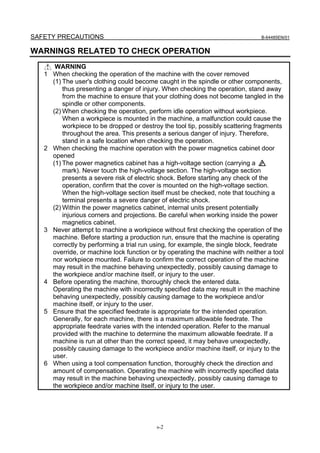
        WARNING
   1   When checking the operation of the machine with the cover removed
       (1) The user's clothing could become caught in the spindle or other components,
           thus presenting a danger of injury. When checking the operation, stand away
           from the machine to ensure that your clothing does not become tangled in the
           spindle or other components.
       (2) When checking the operation, perform idle operation without workpiece.
           When a workpiece is mounted in the machine, a malfunction could cause the
           workpiece to be dropped or destroy the tool tip, possibly scattering fragments
           throughout the area. This presents a serious danger of injury. Therefore,
           stand in a safe location when checking the operation.
   2   When checking the machine operation with the power magnetics cabinet door
       opened
       (1) The power magnetics cabinet has a high-voltage section (carrying a
           mark). Never touch the high-voltage section. The high-voltage section
           presents a severe risk of electric shock. Before starting any check of the
           operation, confirm that the cover is mounted on the high-voltage section.
           When the high-voltage section itself must be checked, note that touching a
           terminal presents a severe danger of electric shock.
       (2) Within the power magnetics cabinet, internal units present potentially
           injurious corners and projections. Be careful when working inside the power
           magnetics cabinet.
   3   Never attempt to machine a workpiece without first checking the operation of the
       machine. Before starting a production run, ensure that the machine is operating
       correctly by performing a trial run using, for example, the single block, feedrate
       override, or machine lock function or by operating the machine with neither a tool
       nor workpiece mounted. Failure to confirm the correct operation of the machine
       may result in the machine behaving unexpectedly, possibly causing damage to
       the workpiece and/or machine itself, or injury to the user.
   4   Before operating the machine, thoroughly check the entered data.
       Operating the machine with incorrectly specified data may result in the machine
       behaving unexpectedly, possibly causing damage to the workpiece and/or
       machine itself, or injury to the user.
   5   Ensure that the specified feedrate is appropriate for the intended operation.
       Generally, for each machine, there is a maximum allowable feedrate. The
       appropriate feedrate varies with the intended operation. Refer to the manual
       provided with the machine to determine the maximum allowable feedrate. If a
       machine is run at other than the correct speed, it may behave unexpectedly,
       possibly causing damage to the workpiece and/or machine itself, or injury to the
       user.
   6   When using a tool compensation function, thoroughly check the direction and
       amount of compensation. Operating the machine with incorrectly specified data
       may result in the machine behaving unexpectedly, possibly causing damage to
       the workpiece and/or machine itself, or injury to the user.


                                           s-2
B-64485EN/01                                                           SAFETY PRECAUTIONS

WARNINGS RELATED TO REPLACEMENT
           WARNING
     1    Before exchanging, be sure to shut off externally supplied power. Otherwise,
          electrical shocks, breakdown, and blowout may occur.
          If a control unit is turned off but other units are not, it is likely that power may be
          supplied to servo units, resulting in the units being damaged and workers getting
          an electrical shock when the units are exchanged.
     2    In order to prevent damage that may be caused by static electricity, wear a
          grounding wrist strap or take a similar protective measure before starting to
          touch a printed-circuit board or unit or attach a cable.
          Static electricity from human bodies can damage electrical circuits.
     3    Voltage lingers in servo and spindle amplifiers for a while even after power has
          been turned off, resulting in workers possibly getting an electrical shock when
          the workers touch them. Before starting to exchange these amplifiers, wait for 20
          minutes after power has been turned off.
     4    When replacing a unit, ensure that the new unit has the same parameters and
          settings as the old one. (For details, refer to the manual for the machine.)
          Otherwise, unpredictable machine movement could damage the workpiece or
          the machine itself or cause injury.
     5    If you notice an apparent hardware fault, such as abnormal noise, abnormal
          odor, smoke, ignition, or abnormal heat, in the hardware while power is being
          supplied to it, shut it off at once. These faults can cause fire, breakdown,
          blowout, and malfunction.
     6    The radiating fins of control units, servo amplifiers, spindle amplifiers, and other
          devices can remain very hot for a while after power has been turned off, making
          you get burned if you touch them. Before starting to work on them, wait and
          make sure they are cool.
     7    When exchanging heavy stuff, you should do so together with two or more
          people.
          If the replacement is attempted by only one person, the old or new unit could slip
          and fall, possibly causing injury.
     8    Be careful not to damage cables. Otherwise, electrical shocks can occur.
     9    When working, wear suitable clothes with safety taken into account. Otherwise,
          injury and electrical shocks can occur.
     10   Do not work with your hands wet. Otherwise, electrical shocks and damage to
          electrical circuits can occur.

WARNINGS RELATED TO PARAMETERS
        WARNING
     1 When machining a workpiece for the first time after modifying a parameter, close
       the machine cover. Never use the automatic operation function immediately after
       such a modification. Instead, confirm normal machine operation by using
       functions such as the single block function, feedrate override function, and
       machine lock function, or by operating the machine without mounting a tool and
       workpiece. If the machine is used before confirming that it operates normally, the
       machine may move unpredictably, possibly damaging the machine or workpiece,
       and presenting a risk of injury.

                                                 s-3
SAFETY PRECAUTIONS                                                                 B-64485EN/01


      WARNING
   2 The CNC and PMC parameters are set to their optimal values, so that those
     parameters usually need not be modified. When a parameter must be modified
     for some reason, ensure that you fully understand the function of that parameter
     before attempting to modify it. If a parameter is set incorrectly, the machine may
     move unpredictably, possibly damaging the machine or workpiece, and
     presenting a risk of injury.

WARNINGS, CAUTIONS, AND NOTES RELATED TO DAILY
MAINTENANCE
       WARNING
      When using the controller unit, display unit, MDI unit, or machine operator's
      panel, prevent these units from directly exposing to chips or coolants. Even if
      direct exposure to coolants is prevented, coolants containing sulfur or chlorine at
      a high activation level, oil-free synthetic-type coolants, or water-soluble coolants
      at a high alkali level particularly have large effects on the control unit and
      peripheral units, possibly causing the following failures.
      • Coolants containing sulfur or chlorine at a high activation level
          Some coolants containing sulfur or chlorine are at an extremely high activity
          level. If such a coolant adheres to the CNC or peripheral units, it reacts
          chemically with a material, such as resin, of equipment, possibly leading to
          corrosion or deterioration. If it gets in the CNC or peripheral units, it corrodes
          metals, such as copper and silver, used as component materials, possibly
          leading to a defective component.
      • Synthetic-type coolants having a high permeability
          Some synthetic-type coolants whose lubricating component is, for example,
          PAG (polyalkylene glycol) have an extremely high permeability. If such a
          coolant is used even in equipment having a high closeness, it can readily flow
          into the CNC or peripheral units through, for example, gaskets. It is likely that,
          if the coolant gets in the CNC or a peripheral unit, it may deteriorate the
          insulation and damage the components.
      • Water-soluble coolants at a high alkali level
          Some coolants whose pH is increased using alkanolamine are so strong
          alkali that its standard dilution will lead to pH10 or higher. If such a coolant
          spatters over the surface of the CNC or peripheral unit, it reacts chemically
          with a material, such as resin, possibly leading to corrosion or deterioration.

      WARNING
      Battery replacement
      Do not replace batteries unless you have been well informed of maintenance
      work and safety.
      When opening the cabinet and replacing batteries, be careful not to touch any
      high-voltage circuit (marked with     and covered with an electric shock
      prevention cover).
      When the electric shock prevention cover has been removed, you will get an
      electric shock if you touch any high-voltage circuit.


                                            s-4
B-64485EN/01                                                      SAFETY PRECAUTIONS

          WARNING
         Fuse replacement
         Before replacing a blown fuse, it is necessary to remove the cause of the blown
         fuse.
         So, do not replace fuses unless you have been well informed of maintenance
         work and safety.
         When opening the cabinet and replacing fuses, be careful not to touch any
         high-voltage circuit (marked with      and covered with an electric shock
         prevention cover).
         When the electric shock prevention cover has been removed, you will get an
         electric shock if you touch any high-voltage circuit.

         CAUTION
         Handle the batteries gently. Do not drop them or give a strong impact to them.

     NOTE
       Each control unit uses batteries, because it must hold data, such as programs,
       offset values, and parameters even when AC power for it is off.
       Back up the data (programs, offset values, and parameters) regularly.
       If the battery voltage becomes low, a low battery voltage alarm is displayed on
       the machine operator’s panel or screen.
       Once the battery voltage alarm has been displayed, replace the batteries within
       one week. Otherwise, the memory contents may be lost. The time when the
       battery for the absolute pulse coder is to be replaced depends on the machine
       configuration including the detector type. For details, contact the machine tool
       builder.
       For the battery replacement procedure, see Chapter 3 or 4. Recollect or discard
       old batteries in the way your local autonomous community specifies.


                                             s-5
B-64485EN/01                                                                                      PREFACE

PREFACE
   The manual consists of the following chapters:

Description of this manual
   1.  DISPLAY AND OPERATION
        This chapter covers those items, displayed on the screen, that are related to maintenance. A list of all
        supported operations is also provided at the end of this chapter.
   2. CONTROL UNIT HARDWARE
        This chapter describes the hardware configuration, printed circuit boards and their mounting
        positions, and LED display and installation of the control unit.
   3. REPLACING CONTROL UNIT MAINTENANCE PARTS
        This chapter describes the replacement of maintenance parts of the control unit.
   4. MAINTENANCE OF THE OTHER UNITS
        This chapter describes the basics of maintenance of other units.
   5. INPUT AND OUTPUT OF DATA
        This chapter describes the input/output of data, including programs, parameters, and tool
        compensation data, as well as the input/output procedures for conversational data.
   6. INTERFACE BETWEEN CNC AND PMC
        This chapter describes the PMC specifications, the system configuration, and the signals used by the
        PMC.
   7. EMBEDDED ETHERNET FUNCTION
        This chapter describes the embedded Ethernet.
   8. DIGITAL SERVO
        This chapter describes the servo tuning screen and how to adjust the reference position return
        position.
   9. AC SPINDLE
        This chapter describes the spindle tuning screen.
   10. TROUBLESHOOTING
        This chapter describes the procedures to be followed in the event of certain problems occurring, for
        example, if the power cannot be turned on or if manual operation cannot be performed.
        Countermeasures to be applied in the event of alarms being output are also described.
   11. MOTOR/DETECTOR/AMPLIFIER PREVENTIVE MAINTENANCE
        This chapter describes the basic information about the preventive maintenance of motors, detectors,
        and amplifiers.
   APPENDIX
        A. ALARM LIST
        B. LIST OF MAINTENANCE PARTS
        C. BOOT SYSTEM
        D. MEMRY CARD SLOT
        E. LED DISPLAY
        F. MAINTENANCE OF PERSONAL COMPUTER FUNCTIONS (BOOT-UP AND IPL)
        G. MAINTENANCE OF STAND-ALONE TYPE UNIT
        H. ETHERNET DISPLAY FUNCTION
        J. MEMORY CLEAR
        K. USB FUNCTION MAINTENANCE
   This manual does not provide a parameter list. If necessary, refer to the separate PARAMETER
   MANUAL.


                                                      p-1
PREFACE                                                                                          B-64485EN/01


Applicable models
  This manual can be used with the following models. The abbreviated names may be used.

                   Model name                                           Abbreviation
  FANUC Series 30i–B                              30i –B                      Series 30i
  FANUC Series 31i–B5                             31i –B5
                                                                              Series 31i
  FANUC Series 31i–B                              31i –B
  FANUC Series 32i–B                              32i –B                      Series 32i


    NOTE
      Some function described in this manual may not be applied to some products.
      For details, refer to the DESCRIPTIONS manual (B-64482EN).

Related manuals of
Series 30i- MODEL B
Series 31i- MODEL B
Series 32i- MODEL B
  The following table lists the manuals related to Series 30i-B, Series 31i-B, Series 32i-B. This manual is
  indicated by an asterisk(*).

                                         Table 1 Related manuals
                                     Manual name                                           Specification
   DESCRIPTIONS                                                                        B-64482EN
   CONNECTION MANUAL (HARDWARE)                                                        B-64483EN
   CONNECTION MANUAL (FUNCTION)                                                        B-64483EN-1
   OPERATOR’S MANUAL (Common to Lathe System/Machining Center System)                  B-64484EN
   OPERATOR’S MANUAL (For Lathe System)                                                B-64484EN-1
   OPERATOR’S MANUAL (For Machining Center System)                                     B-64484EN-2
   MAINTENANCE MANUAL                                                                  B-64485EN           *
   PARAMETER MANUAL                                                                    B-64490EN
   Programming
   Macro Executor PROGRAMMING MANUAL                                                   B-63943EN-2
   Macro Compiler PROGRAMMING MANUAL                                                   B-66263EN
   C Language Executor PROGRAMMING MANUAL                                              B-63943EN-3
   PMC
   PMC PROGRAMMING MANUAL                                                              B-64513EN
   Network
   PROFIBUS-DP Board CONNECTION MANUAL                                                 B-63993EN
   Fast Ethernet / Fast Data Server OPERATOR’S MANUAL                                  B-64014EN
   DeviceNet Board CONNECTION MANUAL                                                   B-64043EN
   FL-net Board CONNECTION MANUAL                                                      B-64163EN
   CC-Link Board CONNECTION MANUAL                                                     B-64463EN
   Operation guidance function
   MANUAL GUIDE i (Common to Lathe System/Machining Center System) OPERATOR’S          B-63874EN
   MANUAL
   MANUAL GUIDE i (For Machining Center System) OPERATOR’S MANUAL                      B-63874EN-2
   MANUAL GUIDE i (Set-up Guidance Functions) OPERATOR’S MANUAL                        B-63874EN-1
   Dual Check Safety
   Dual Check Safety CONNECTION MANUAL                                                 B-64483EN-2


                                                   p-2
B-64485EN/01                                                                                PREFACE

Related manuals of SERVO MOTOR series
   The following table lists the manuals related to SERVO MOTOR series
                                        Manual name                                       Specification
    FANUC AC SERVO MOTOR αi series DESCRIPTIONS                                          B-65262EN
    FANUC AC SERVO MOTOR βis series DESCRIPTIONS                                         B-65302EN
    FANUC SYNCHROUNOUS BUILT-IN SERVO MOTOR DiS series DESCRIPTIONS                      B-65332EN
    FANUC LINEAR MOTOR LiS series DESCRIPTIONS                                           B-65382EN
    FANUC AC SPINDLE MOTOR αi series DESCRIPTIONS                                        B-65272EN
    FANUC AC SPINDLE MOTOR βi series DESCRIPTIONS                                        B-65312EN
    FANUC BUILT-IN SPINDLE MOTOR BiI series DESCRIPTIONS                                 B-65292EN
    FANUC SYNCHROUNOUS BUILT-IN SPINDLE MOTOR BiS series DESCRIPTIONS                    B-65342EN
    FANUC - NSK SPINDLE UNIT series DESCRIPTIONS                                         B-65352EN
    FANUC SERVO AMPLIFIER αi series DESCRIPTIONS                                         B-65282EN
    FANUC SERVO AMPLIFIER βi series DESCRIPTIONS                                         B-65322EN
    FANUC AC SERVO MOTOR αi series
    FANUC AC SERVO MOTOR βi series
    FANUC LINEAR MOTOR LiS series                                                        B-65270EN
    FANUC SYNCHRONOUS BUILT-IN SERVO MOTOR DiS series
    PARAMETER MANUAL
    FANUC AC SPINDLE MOTOR αi/βi series
                                                                                         B-65280EN
    BUILT-IN SPINDLE MOTOR Bi series PARAMETER MANUAL
    FANUC AC SERVO MOTOR αis/αi series
    AC SPINDLE MOTOR αi series                                                           B-65285EN
    SERVO AMPLIFIER αi series MAINTENANCE MANUAL
    FANUC AC SERVO MOTOR βis series
    AC SPINDLE MOTOR βi series                                                           B-65325EN
    SERVO AMPLIFIER βi series MAINTENANCE MANUAL
    FANUC SERVO AMPLIFIER βi series MAINTENANCE MANUAL                                   B-65395EN
    FANUC SERVO GUIDE OPERATOR’S MANUAL                                                  B-65404EN
    FANUC AC SERVO MOTOR αis/αi/βis series
                                                                                         B-65264EN
    SERVO TUNING PROCEDURE (BASIC)


Related manuals of FANUC PANEL i
   The following table lists the manuals related to FANUC PANEL i.
                                     Manual name                                          Specification
       FANUC PANEL i CONNECTION AND MAINTENANCE MANUAL                                   B-64223EN


Related manuals of FANUC I/O Unit
   The following table lists the manuals related to FANUC I/O Unit.
                                        Manual name                                       Specification
       FANUC I/O Unit-MODEL A CONNECTION AND MAINTENANCE MANUAL                          B-61813E
       FANUC I/O Unit-MODEL B CONNECTION AND MAINTENANCE MANUAL                          B-62163E
       Handy Machine Operator’s Panel CONNECTION MANUAL                                  B-63753EN


Training
   •      FANUC runs FANUC Training Center to train those who will be involved in the connection,
          maintenance, and operation of FANUC products. It is recommended to attend the class so you will
          be able to use the products effectively.
          Visit the following web site for detailed descriptions of its curriculum.
          http://www.fanuc.co.jp/


                                                    p-3
B-64485EN/01                                                                                                     TABLE OF CONTENTS

TABLE OF CONTENTS
SAFETY PRECAUTIONS............................................................................s-1
      DEFINITION OF WARNING, CAUTION, AND NOTE ............................................. s-1
      WARNINGS RELATED TO CHECK OPERATION.................................................. s-2
      WARNINGS RELATED TO REPLACEMENT ......................................................... s-3
      WARNINGS RELATED TO PARAMETERS............................................................ s-3
      WARNINGS, CAUTIONS, AND NOTES RELATED TO DAILY MAINTENANCE.... s-4
PREFACE ....................................................................................................p-1
1     DISPLAY AND OPERATION .................................................................. 1
      1.1       FUNCTION KEYS AND SOFT KEYS ............................................................ 1
                1.1.1     Soft Key Structure ....................................................................................................1
                1.1.2     General Screen Operations .......................................................................................1
                1.1.3     Function Keys ..........................................................................................................2
                1.1.4     Soft Keys ..................................................................................................................3
      1.2       SYSTEM CONFIGURATION SCREEN ......................................................... 9
                1.2.1     Display Method ........................................................................................................9
                1.2.2     Hardware Configuration Screen .............................................................................10
                1.2.3     Software Configuration Screen ..............................................................................11
                1.2.4     Outputting System Configuration Data ..................................................................13
      1.3       DIAGNOSIS FUNCTION ............................................................................. 13
                1.3.1     Displaying Diagnosis Screen..................................................................................13
                1.3.2     Contents Displayed.................................................................................................13
      1.4       CNC STATE DISPLAY ................................................................................ 44
      1.5       OPERATING MONITOR.............................................................................. 46
                1.5.1     Display Method ......................................................................................................46
                1.5.2     Parameters ..............................................................................................................47
      1.6       WAVEFORM DIAGNOSIS DISPLAY........................................................... 48
                1.6.1     Waveform Diagnosis Graph Screen .......................................................................48
                1.6.2     Waveform Diagnosis Parameter Screen .................................................................49
                1.6.3     Tracing Data ...........................................................................................................58
                1.6.4     Outputting Data ......................................................................................................59
      1.7       COLOR SETTING SCREEN........................................................................ 65
                1.7.1     Screen Display........................................................................................................65
                1.7.2     Operations for Color Setting ..................................................................................65
                1.7.3     Parameter................................................................................................................66
                1.7.4     Notes.......................................................................................................................68
      1.8       POWER MATE CNC MANAGER FUNCTION ............................................. 68
                1.8.1     Screen Display........................................................................................................69
                1.8.2     Inputting and Outputting Parameters......................................................................73
                1.8.3     Parameters ..............................................................................................................74
                1.8.4     Notes.......................................................................................................................76
      1.9       SERVO GUIDE MATE................................................................................. 77
                1.9.1     Wave Display .........................................................................................................77
                          1.9.1.1       Y-time graph...................................................................................................... 78
                          1.9.1.2       XY graph ........................................................................................................... 95
                          1.9.1.3       Circle graph ..................................................................................................... 105
                          1.9.1.4       Fourier graph ................................................................................................... 114
                          1.9.1.5       Bode graph....................................................................................................... 120
                                                                    c-1
TABLE OF CONTENTS                                                                                                                     B-64485EN/01

                     1.9.1.6       Parameters........................................................................................................ 129
    1.10    MAINTENANCE INFORMATION SCREEN............................................... 131
            1.10.1   Displaying the Maintenance Information Screen .................................................131
            1.10.2   Operating the Maintenance Information Screen...................................................132
            1.10.3   Half-Size Kana Input on the Maintenance Information Screen............................133
            1.10.4   Warnings That Occurs on the Maintenance Information Screen..........................134
            1.10.5   Parameter..............................................................................................................134
            1.10.6   Overview of the History Function........................................................................135
                     1.10.6.1      Alarm history ................................................................................................... 136
                     1.10.6.2      External operator message history................................................................... 138
                     1.10.6.3      Operation history ............................................................................................. 142
                     1.10.6.4      Operation history signal selection.................................................................... 148
                     1.10.6.5      Outputting all history data ............................................................................... 153
    1.11    SYSTEM ALARM HISTORY SCREEN ...................................................... 156
            1.11.1   System Alarm History List Screen .......................................................................156
            1.11.2   System Alarm History Detail Screen....................................................................157
            1.11.3   Outputting System Alarm History........................................................................158
            1.11.4   Parameter..............................................................................................................158

2   CONTROL UNIT HARDWARE ........................................................... 159
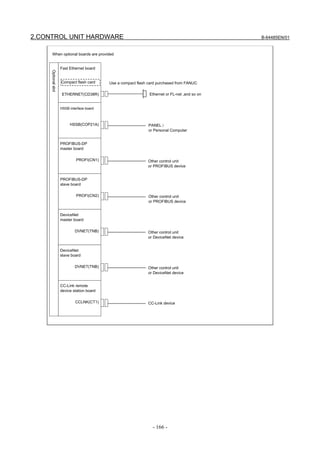
    2.1     EXAMPLE OF HARDWARE CONFIGURATION ....................................... 159
            2.1.1    Example of the Hardware Configuration of the LCD-mounted Type Control
                     Unit.......................................................................................................................159
            2.1.2    Example of the Hardware Configuration of the Stand-alone Type Control Unit.160
    2.2     HARDWARE OVERVIEW.......................................................................... 161
            2.2.1    LCD-mounted Type Control Unit Overview .......................................................161
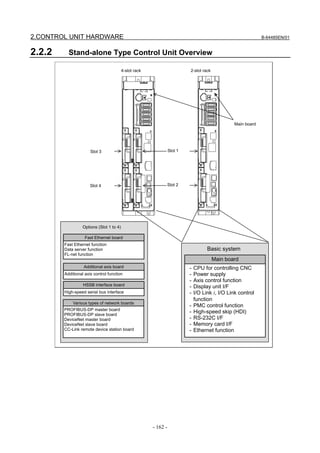
            2.2.2    Stand-alone Type Control Unit Overview............................................................162
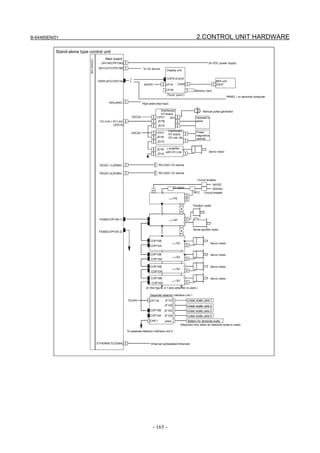
    2.3     TOTAL CONNECTION DIAGRAMS .......................................................... 163
            2.3.1    Control Unit Connection Diagram .......................................................................163
            2.3.2    Connection Diagram of a Display Unit for the Stand-Alone Type Control Unit.167
    2.4     HARDWARE OF LCD-MOUNTED TYPE CONTROL UNIT ...................... 171
            2.4.1    LCD-mounted Type Control Unit (8.4” LCD Unit and 10.4” LCD Unit A) .......171
            2.4.2    LCD-mounted Type Control Unit (10.4” LCD Unit B and 15” LCD Unit) ........180
            2.4.3    LCD-mounted Type Control Unit (with Personal Computer Function with
                     Windows®CE) Hardware ....................................................................................188
    2.5     HARDWARE OF STAND-ALONE TYPE CONTROL UNIT ....................... 198
            2.5.1    Stand-alone Type Control Unit ............................................................................198
            2.5.2    Display Unit for Stand-alone Type Control Unit .................................................203
                     2.5.2.1       Display Unit (10.4” LCD unit A) .................................................................... 203
                     2.5.2.2       Display unit (10.4” LCD unit B and 15” LCD unit) ..................................206
                     2.5.2.3       Display unit for automotive manufacture ........................................................ 211
            2.5.3    Display Unit for Stand-Alone Type Control Unit (with Personal Computer
                     Function with Windows®CE) ...............................................................................219
    2.6     HARDWARE OF OPTIONAL BOARDS..................................................... 226
            2.6.1    Fast Ethernet Board ..............................................................................................226
            2.6.2    Additional axis board ...........................................................................................228
            2.6.3    HSSB interface board ...........................................................................................229
            2.6.4    PROFIBUS-DP Board..........................................................................................230
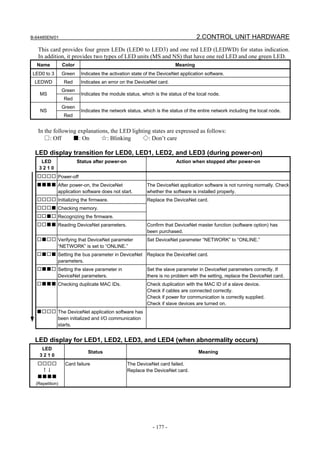
            2.6.5    DeviceNet Board ..................................................................................................233
            2.6.6    CC-Link Board .....................................................................................................239
    2.7     ENVIRONMENTAL REQUIREMENTS OUTSIDE THE CABINET............. 241
            2.7.1    Environmental Conditions outside the Cabinet....................................................241
            2.7.2    Installation Conditions of the Control Unit ..........................................................241
    2.8     CAUTIONS RELATED TO GROUNDING AND NOISE............................. 242
                                                               c-2
B-64485EN/01                                                                                               TABLE OF CONTENTS
               2.8.1      Separating Cables .................................................................................................242
               2.8.2      Noise Suppressor..................................................................................................244
               2.8.3      Cable Clamp and Shield Processing.....................................................................245
               2.8.4      Lightning Surge Absorber ....................................................................................247

3     REPLACING CONTROL UNIT MAINTENANCE PARTS ................... 249
      3.1      CAUTIONS FOR REPLACEMENT............................................................ 249
               3.1.1      Optional Information File.....................................................................................250
               3.1.2      Attaching and Detaching Units ............................................................................250
               3.1.3      Tightening Torque for Fastening Units and Ground Terminals ...........................251
               3.1.4      Packing .................................................................................................................251
      3.2      REPLACING THE MAIN BOARD .............................................................. 253
               3.2.1      LCD-mounted Type Control Unit ........................................................................253
               3.2.2      Stand-alone Type Control Unit ............................................................................255
      3.3      REPLACING THE DISPLAY CONTROL BOARD FOR THE DISPLAY
               UNIT .......................................................................................................... 256
      3.4      REPLACING LCD UNITS .......................................................................... 257
               3.4.1      LCD-mounted Type Control Unit (8.4” LCD Unit and 10.4” LCD Unit) ...........257
               3.4.2      Display Unit for Stand-alone Type Control Unit (10.4” LCD Unit)....................258
      3.5      MOUNTING AND DEMOUNTING CARD PCBS ....................................... 259
      3.6      MOUNTING AND DEMOUNTING FROM/SRAM MODULE ...................... 261
      3.7      ATTACHING A COMPACT FLASH CARD ONTO, AND DETACHING IT
               FROM, A PRINTED CIRCUIT BOARD...................................................... 262
      3.8      INSERTING AND EXTRACTING OPTIONAL BOARDS ........................... 263
      3.9      REPLACING FUSES ................................................................................. 265
               3.9.1      LCD-mounted Type Control Unit ........................................................................266
               3.9.2      LCD-mounted Type Control Unit (Personal Computer Function with
                          Windows® CE) .....................................................................................................267
               3.9.3      Stand-alone Type Control Unit ............................................................................267
               3.9.4      Display Unit for Stand-alone Type Control Unit .................................................268
                          3.9.4.1       Display unit (10.4” LCD unit A) ..................................................................... 268
                          3.9.4.2       Display unit (10.4” LCD unit B and 15” LCD unit) ..................................268
                          3.9.4.3       Display unit for Automotive manufacture ....................................................... 269
               3.9.5      Replacing the Fuse on the Display Unit for the Stand-Alone Type Control Unit
                          (with PC Functions Supporting Windows® CE) ..................................................269
      3.10     REPLACING THE MEMORY BACKUP BATTERY IN THE CONTROL
               UNIT .......................................................................................................... 270
               3.10.1     Replacing a Lithium Battery ................................................................................270
               3.10.2     Replacing a Commercial D-size Alkaline Dry Cells............................................273
      3.11     REPLACING A FAN .................................................................................. 274
               3.11.1     LCD-mounted Type Control Unit ........................................................................274
               3.11.2     Stand-alone Type Control Unit ............................................................................275
               3.11.3     Display Unit for Automotive................................................................................276
               3.11.4     Display Unit for Stand-alone Type Control Unit (Personal Computer Function
                          with Windows® CE) .............................................................................................277
      3.12     REPLACING THE PROTECTION COVER................................................ 278
      3.13     REPLACING THE TOUCH PANEL PROTECTION SHEET ...................... 279
      3.14     TOUCH PANEL CALIBRATION ................................................................ 280
      3.15     REPLACING THE BACKUP UNIT............................................................. 284
4     MAINTENANCE OF THE OTHER UNITS........................................... 285
      4.1      CAUTIONS COMMON TO THE OTHER UNITS ....................................... 285
                                                                   c-3
TABLE OF CONTENTS                                                                                                                B-64485EN/01


    4.2     UNITS SUPPORTING I/O Link i ........................................................................ 285
            4.2.1       Items Common to Units Supporting I/O Link i....................................................285
            4.2.2       I/O Module for Connector Panel [Supporting I/O Link i]....................................286
            4.2.3       I/O Module for Operator’s Panel (Supporting Matrix Input)
                        [Supporting I/O Link i].........................................................................................289
            4.2.4       Connection of I/O Module for Operator's Panel and I/O Module for Power
                        Magnetics Cabinet [Supporting I/O Link i]..........................................................290
            4.2.5       I/O Module Type-2 for Connector Panel [Supporting I/O Link i] .......................291
            4.2.6       Terminal Type I/O Module [Supporting I/O Link i] ............................................293
            4.2.7       I/O Link Connection Unit [Supporting I/O Link i] ..............................................298
            4.2.8       Standard Machine Operator's Panel [Supporting I/O Link i] ...............................300
    4.3     UNITS SUPPORTING I/O Link .................................................................. 302
            4.3.1        I/O Link-AS-i Converter ......................................................................................302
    4.4     SEPARATE DETECTOR INTERFACE UNIT ............................................ 310
    4.5     Analog Input Separate Detector Interface Unit .......................................... 311
    4.6     PANEL i.................................................................................................................. 312
            4.6.1        Replacing the Battery ...........................................................................................312
            4.6.2        Replacing the Fan.................................................................................................314
                         4.6.2.1      Replacing the fan in the PANEL i ................................................................... 314
                         4.6.2.2      Replacing the fan for the HDD........................................................................ 315
            4.6.3        Replacing the Touch Panel Protection Sheet........................................................315
    4.7     REPLACING BATTERY FOR ABSOLUTE PULSECODERS .................... 316
            4.7.1       Overview ..............................................................................................................316
            4.7.2       Replacing Batteries...............................................................................................316
            4.7.3       Replacing the Batteries in a Separate Battery Case..............................................317
            4.7.4       Replacing the Battery Built into the Servo Amplifier ..........................................317

5   INPUT AND OUTPUT OF DATA......................................................... 319
    5.1     SETTING PARAMETERS FOR INPUT/OUTPUT...................................... 319
    5.2     INPUTTING/ OUTPUTTING DATA............................................................ 320
            5.2.1       Confirming the Parameters Required for Data Output .........................................321
            5.2.2       Outputting CNC Parameters.................................................................................322
            5.2.3       Outputting Pitch Error Compensation Amount ....................................................323
            5.2.4       Outputting Custom Macro Variable Values .........................................................323
            5.2.5       Outputting Tool Compensation Amount ..............................................................323
            5.2.6       Outputting Part Program ......................................................................................323
            5.2.7       Inputting CNC Parameters ...................................................................................324
            5.2.8       Inputting Pitch Error Compensation Amount.......................................................325
            5.2.9       Inputting Custom Macro Variable Values............................................................326
            5.2.10      Inputting Tool Compensation Amount.................................................................326
            5.2.11      Inputting Part Programs........................................................................................326
    5.3     AUTOMATIC DATA BACKUP ................................................................... 327
6   INTERFACE BETWEEN CNC AND PMC........................................... 332
    6.1     WHAT IS PMC?......................................................................................... 332
            6.1.1        Basic Configuration of PMC ................................................................................332
            6.1.2        I/O Signals of PMC ..............................................................................................332
            6.1.3        PMC Signal Addresses .........................................................................................333
            6.1.4        Communication Method for External I/O Device ................................................335
    6.2     MULTI-PMC FUNCTION ........................................................................... 336
            6.2.1       Execution Order and Execution Time Percentage................................................337
            6.2.2       Setting I/O Address for I/O Link i and I/O Link ..................................................338
            6.2.3       Interface Between CNC and PMC .......................................................................339
                                                                c-4
B-64485EN/01                                                                                                   TABLE OF CONTENTS
               6.2.4     Multi-Path PMC Interface ....................................................................................340
               6.2.5     System Relay Addresses (R9000, Z0)..................................................................341
      6.3      PMC SPECIFICATIONS............................................................................ 346
               6.3.1     Basic Specifications .............................................................................................346
               6.3.2     Addresses..............................................................................................................350
      6.4      OPERATING THE PMC SCREEN............................................................. 352
               6.4.1     Transition of the PMC Screens.............................................................................354
      6.5      PMC DIAGNOSIS AND MAINTENANCE SCREENS ([PMC MAINTE]) .... 355
               6.5.1     Monitoring PMC Signal Status ([STATUS] Screen) ...........................................355
               6.5.2     Checking PMC Alarms ([PMC ALARM] Screen)...............................................356
               6.5.3     Setting and Displaying Variable Timers ([TIMER] Screen)................................357
               6.5.4     Setting and Displaying Counter Values ([COUNTR] Screen) .............................359
               6.5.5     Setting and Displaying Keep Relays ([KEEP RELAY] Screen)..........................360
               6.5.6     Setting and Displaying Data Tables ([DATA] Screen) ........................................361
               6.5.7     Data Input/Output ([I/O] Screen) .........................................................................367
               6.5.8     Displaying i/o devices connection status ([I/O DEVICE] screen) .......................370
               6.5.9     Signal Trace Function ([TRACE] Screen) ...........................................................372
               6.5.10    Setting of Trace Parameter ([TRACE SETING] Screen).....................................373
               6.5.11    Execution of Trace ...............................................................................................376
                         6.5.11.1 Operation after execution of trace ................................................................... 377
                         6.5.11.2 Automatic start of trace setting ........................................................................ 380
               6.5.12    MONITORING I/O DIAGNOSIS ([I/O DGN] SCREEN) ..................................380
      6.6      LADDER DIAGRAM MONITOR AND EDITOR SCREENS
               ([PMC LADDER])....................................................................................... 384
               6.6.1     Displaying a Program List ([LIST] Screen) .........................................................385
               6.6.2     Monitoring Ladder Diagrams ([LADDER] Screen).............................................386
               6.6.3     Editing Ladder Programs......................................................................................389
                         6.6.3.1       NET EDITOR screen....................................................................................... 391
               6.6.4     PROGRAM LIST EDITOR Screen .....................................................................393
               6.6.5     Collective Monitor Function ................................................................................394
                         6.6.5.1       COLLECTIVE MONITOR function............................................................... 395
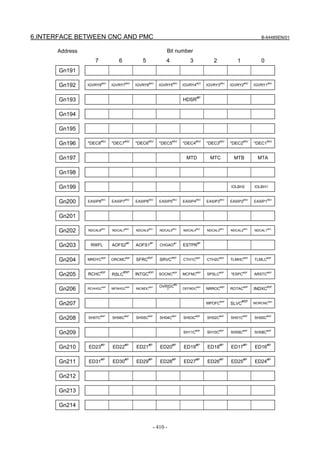
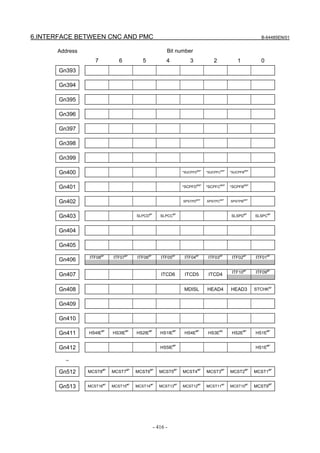
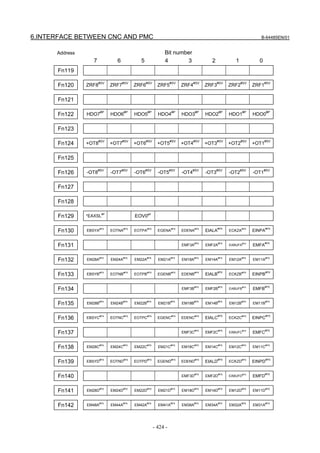
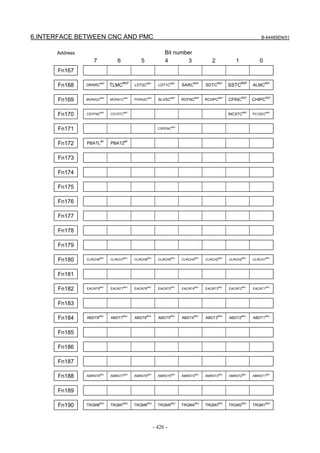
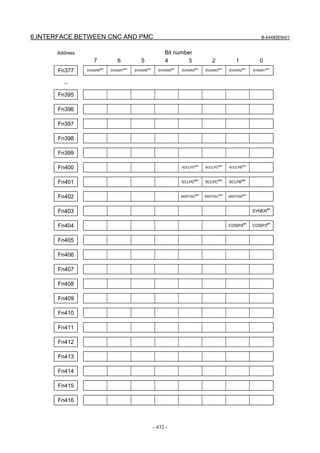
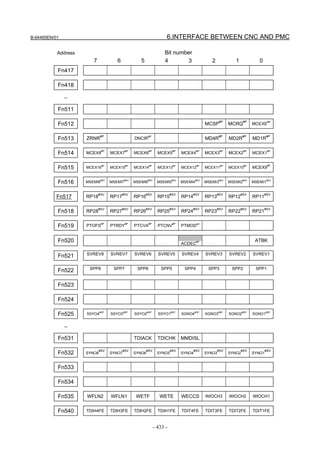
      6.7      LIST OF ADDRESSES .............................................................................. 398
7     EMBEDDED ETHERNET FUNCTION ................................................ 435
      7.1      EMBEDDED ETHERNET PORT AND PCMCIA ETHERNET CARD......... 435
      7.2      SETTING UP THE EMBEDDED ETHERNET FUNCTION ........................ 437
               7.2.1     Setting of the FOCAS2/Ethernet Function...........................................................437
                         7.2.1.1       Operation on the FOCAS2/Ethernet setting screen ......................................... 438
                         7.2.1.2       Example of setting the FOCAS2/Ethernet function......................................... 440
               7.2.2     Setting of the FTP File Transfer Function............................................................440
                         7.2.2.1       Operation on the FTP file transfer setting screen ............................................ 441
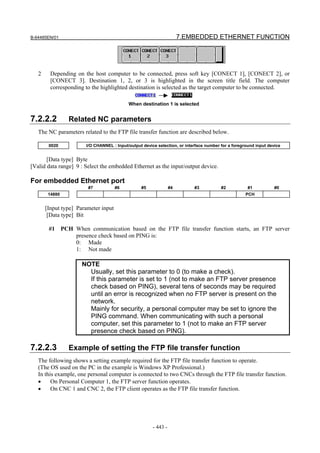
                         7.2.2.2       Related NC parameters .................................................................................... 443
                         7.2.2.3       Example of setting the FTP file transfer function............................................ 443
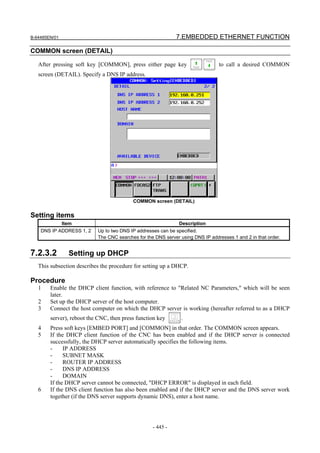
               7.2.3     Setting Up the DNS/DHCP Function ...................................................................444
                         7.2.3.1       Setting up DNS................................................................................................ 444
                         7.2.3.2       Setting up DHCP ............................................................................................. 445
                         7.2.3.3       Related NC parameters .................................................................................... 447
               7.2.4     Setting of the Unsolicited Messaging Function....................................................448
                         7.2.4.1       Overview ......................................................................................................... 448
                         7.2.4.2       Setting of the FOCAS2/Ethernet function ....................................................... 449
                         7.2.4.3       Mode selection................................................................................................. 452
                         7.2.4.4       Setting on the CNC screen............................................................................... 454
                         7.2.4.5       Setting on the personal computer..................................................................... 457
                         7.2.4.6       Execution methods........................................................................................... 457

                                                                   c-5
TABLE OF CONTENTS                                                                                                                            B-64485EN/01

                         7.2.4.7      Related NC parameters .................................................................................... 463
              7.2.5      Backing Up and Restoring Communication Parameters ......................................464
     7.3      SWITCHING BETWEEN THE EMBEDDED ETHERNET DEVICES ......... 466
     7.4      EMBEDDED ETHERNET OPERATIONS.................................................. 466
              7.4.1      FTP File Transfer Function ..................................................................................466
                         7.4.1.1      Displaying and operating the file list............................................................... 469
     7.5      RESTART OF THE EMBEDDED ETHERNET .......................................... 470
     7.6      MAINTENANCE SCREEN FOR EMBEDDED ETHERNET FUNCTION ... 471
     7.7      LOG SCREEN OF THE EMBEDDED ETHERNET FUNCTION ................ 474
8    DIGITAL SERVO................................................................................. 479
     8.1      INITIAL SETTING SERVO PARAMETERS ............................................... 479
     8.2      FSSB SETTING SCREEN ......................................................................... 489
     8.3      SERVO TUNING SCREEN........................................................................ 501
              8.3.1      Parameter Setting .................................................................................................501
              8.3.2      Displaying Servo Tuning Screen..........................................................................501
     8.4      ADJUSTING REFERENCE POSITION (DOG METHOD) ......................... 502
     8.5      DOGLESS REFERENCE POSITION SETTING........................................ 505
     8.6      αi SERVO WARNING INTERFACE .......................................................... 506
     8.7      αi SERVO INFORMATION SCREEN ........................................................ 509

9    AC SPINDLE ....................................................................................... 514
     9.1      SERIAL INTERFACE AC SPINDLE .......................................................... 515
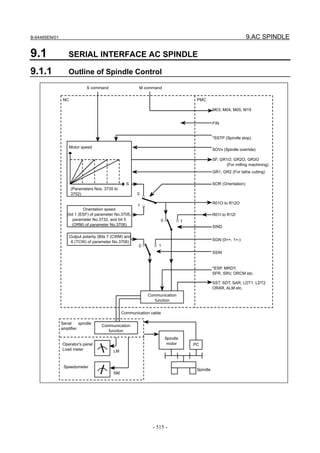
              9.1.1      Outline of Spindle Control ...................................................................................515
                         9.1.1.1      Method A of gear change for machining center system
                                      (bit 2 (SGB) of Parameter No.3705 = 0) ......................................................... 516
                         9.1.1.2      Method B of gear change for machining center system
                                      (bit 2 (SGB) of Parameter No.3705 = 1) ......................................................... 516
                         9.1.1.3      Lathe system .................................................................................................... 516
              9.1.2      Spindle Setting and Tuning Screen ......................................................................517
                         9.1.2.1      Display method................................................................................................ 517
                         9.1.2.2      Spindle setting screen ...................................................................................... 517
                         9.1.2.3      Spindle tuning screen....................................................................................... 519
                         9.1.2.4      Spindle monitor screen .................................................................................... 520
                         9.1.2.5      Correspondence between operation mode and parameters on spindle tuning
                                      screen ............................................................................................................... 522
              9.1.3      Automatic Setting of Standard Parameters...........................................................524
              9.1.4      Warning Interface.................................................................................................525
              9.1.5      Spindle Information Screen..................................................................................527

10 TROUBLESHOOTING ........................................................................ 532
     10.1     CORRECTIVE ACTION FOR FAILURES.................................................. 532
              10.1.1     Investigating the Conditions under which Failure Occurred................................533
     10.2     NO MANUAL OPERATION NOR AUTOMATIC OPERATION CAN BE
              EXECUTED ............................................................................................... 534
     10.3     JOG OPERATION CANNOT BE DONE .................................................... 537
     10.4     HANDLE OPERATION CANNOT BE DONE ............................................. 540
     10.5     AUTOMATIC OPERATION CANNOT BE DONE ...................................... 544
     10.6     CYCLE START LED SIGNAL HAS TURNED OFF.................................... 549
     10.7     NOTHING IS DISPLAYED ON THE LCD WHEN THE POWER IS
              TURNED ON ............................................................................................. 550

                                                                   c-6
B-64485EN/01                                                                                                 TABLE OF CONTENTS

      10.8     INPUT FROM AND OUTPUT TO I/O DEVICES CANNOT BE
               PERFORMED, INPUT/OUTPUT CANNOT BE PERFORMED
               PROPERLY ............................................................................................... 551
      10.9     IN A CONNECTOR PANEL I/O UNIT, DATA IS INPUT TO
               AN UNEXPECTED ADDRESS .................................................................. 553
      10.10    IN A CONNECTOR PANEL I/O UNIT, NO DATA IS OUTPUT TO
               AN EXPANSION UNIT .............................................................................. 554
      10.11    ALARM SR0085 TO SR0087 (READER/PUNCHER INTERFACE
               ALARM) ..................................................................................................... 555
      10.12    ALARM PS0090 (REFERENCE POSITION RETURN IS ABNORMAL) .... 559
      10.13    ALARM DS0300 (REQUEST FOR REFERENCE POSITION RETURN) .. 560
      10.14    ALARM SV0401 (V READY OFF) ............................................................. 561
      10.15    ALARM SV0404 (V READY ON) ............................................................... 563
      10.16    ALARM SV0462 (SEND CNC DATA FAILED)
               ALARM SV0463 (SEND SLAVE DATA FAILED)....................................... 563
      10.17    ALARM SV0417 (DIGITAL SERVO SYSTEM IS ABNORMAL)................. 564
      10.18    ALARM OH0700 (OVERHEAT: CONTROL UNIT) .................................... 564
      10.19    ALARM OH0701 (OVERHEAT: FAN MOTOR).......................................... 565
      10.20    ALARM SV5134 (FSSB: OPEN READY TIME OUT)
               ALARM SV5137 (FSSB: CONFIGURATION ERROR)
               ALARM SV5197 (FSSB: OPEN TIME OUT).............................................. 565
      10.21    ALARM SV5136 (FSSB: NUMBER OF AMPS IS SMALL) ........................ 566
      10.22    SERVO ALARMS ...................................................................................... 566
      10.23    SPINDLE ALARMS.................................................................................... 566
      10.24    SYSTEM ALARMS .................................................................................... 566
               10.24.1     Overview ..............................................................................................................566
               10.24.2     Operations on the System Alarm Screen..............................................................568
               10.24.3     System Alarms Detected by Hardware.................................................................571
               10.24.4     System Alarms 114 to 160 (Alarms on the FSSB)...............................................572
      10.25    SYSTEM ALARMS RELATED TO THE PMC AND I/O Link ...................... 575
                           System alarms 197, 199 (PMC general) ........................................................................... 576
                           System alarm 196 (PMC watchdog)................................................................................. 578
                           System alarm 195 (related to the I/O Link) ...................................................................... 579
                           System alarm 194 (related to the I/O Link i) .................................................................... 580
      10.26    LEDS ON UNITS SUPPORTING I/O LINK i .................................................... 584
               10.26.1 Meanings of LEDs on units supporting I/O Link i...............................................584
               10.26.2 Unit’s LED on I/O Link i .....................................................................................586
               10.26.3 Unit’s LED on I/O Link .......................................................................................590

11 MOTOR/DETECTOR/AMPLIFIER PREVENTIVE MAINTENANCE ... 593
      11.1     LIST OF MANUALS RELATED TO MOTORS AND AMPLIFIERS ............ 594
      11.2     PREVENTIVE MAINTENANCE OF MOTORS AND DETECTORS........... 595
               11.2.1      Warnings, Cautions, and Notes on Preventive Maintenance of Motors and
                           Detectors...............................................................................................................595
               11.2.2      Preventive Maintenance of a Motor (Common to All Models)............................597
                           11.2.2.1      Main inspection items...................................................................................... 597
                           11.2.2.2      Periodic cleaning of a motor............................................................................ 599
                           11.2.2.3      Notes on motor cleaning.................................................................................. 600
                           11.2.2.4      Notes on the cutting fluid (informational) ....................................................... 600
               11.2.3      Preventive Maintenance of a Built-in Spindle Motor and Spindle Unit...............600
                                                                    c-7
TABLE OF CONTENTS                                                                                                                       B-64485EN/01

                        11.2.3.1       Routine inspection of the FANUC-NSK spindle unit ..................................... 601
                        11.2.3.2       Maintenance of the FANUC-NSK spindle unit............................................... 601
                        11.2.3.3       Test run of the FANUC-NSK spindle unit ...................................................... 602
                        11.2.3.4       Storage method of the FANUC-NSK spindle unit .......................................... 602
             11.2.4     Preventive Maintenance of a Linear Motor..........................................................602
                        11.2.4.1 Appearance inspection of the linear motor (magnet plate) .............................. 602
             11.2.5     Maintenance of a Detector....................................................................................603
                        11.2.5.1 Alarms for built-in detectors (αi and βi Pulsecoders) and troubleshooting
                                 actions.............................................................................................................. 603
                        11.2.5.2 Alarms for separate detectors and troubleshooting actions ............................. 604
                        11.2.5.3 Detailed troubleshooting methods ................................................................... 604
                        11.2.5.4 Maintenance of βiS motor Pulsecoders ........................................................... 606
    11.3     PREVENTIVE MAINTENANCE OF SERVO AMPLIFIERS ....................... 607
             11.3.1     Warnings, Cautions, and Notes on Preventive Maintenance of Servo
                        Amplifiers.............................................................................................................607
             11.3.2     Preventive Maintenance of a Servo Amplifier .....................................................610
             11.3.3     Maintenance of a Servo Amplifier .......................................................................611
                        11.3.3.1 Display of the servo amplifier operation status ............................................... 611
                        11.3.3.2 Replacement of a fan motor............................................................................. 613

APPENDIX
A   ALARM LIST ....................................................................................... 617
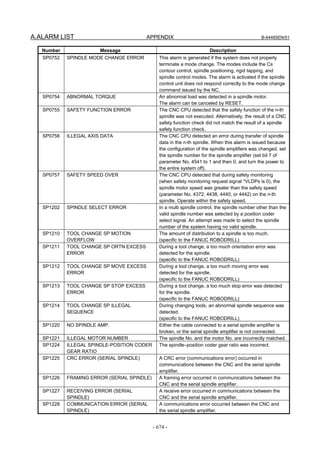
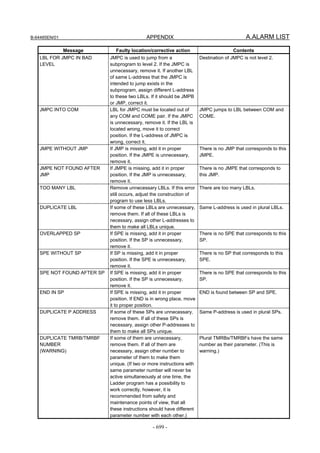
    A.1      ALARM LIST (CNC)................................................................................... 617
    A.2      ALARM LIST (PMC) .................................................................................. 681
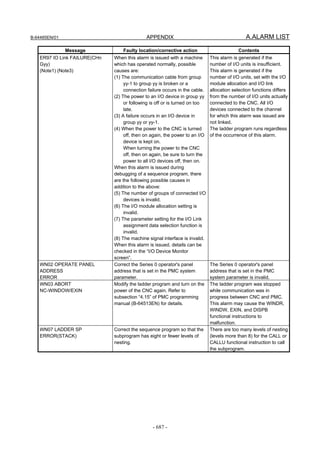
             A.2.1      Messages That May Be Displayed on the PMC Alarm Screen ............................681
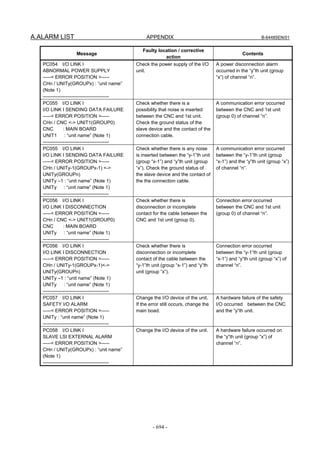
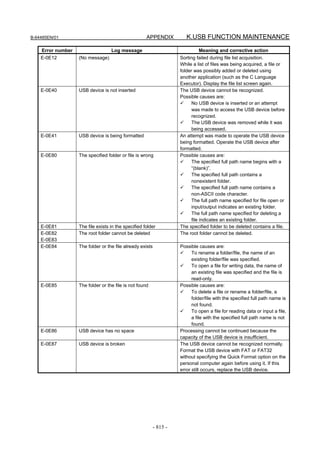
             A.2.2      PMC System Alarm Messages .............................................................................690
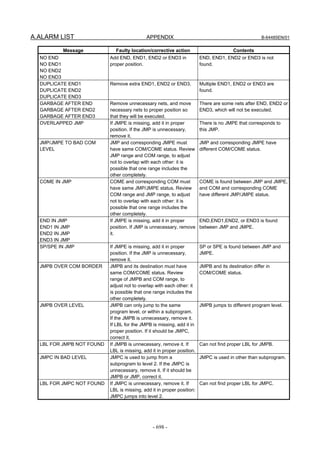
             A.2.3      Operation Errors ...................................................................................................695
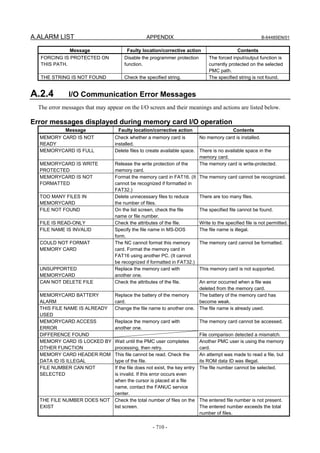
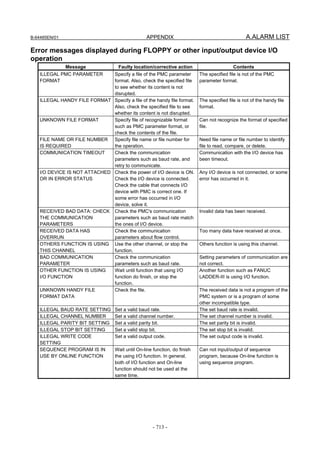
             A.2.4      I/O Communication Error Messages ....................................................................710
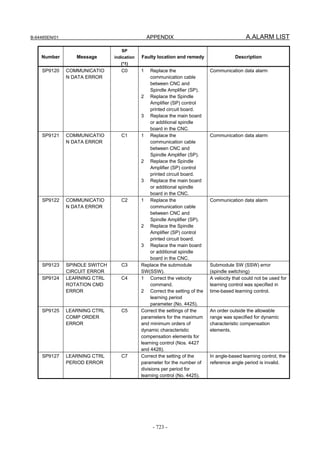
    A.3      ALARM LIST (SERIAL SPINDLE) ............................................................. 715
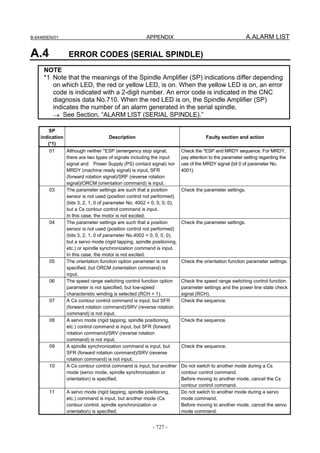
    A.4      ERROR CODES (SERIAL SPINDLE)........................................................ 727
B   LISTS OF UNITS, PRINTED CIRCUIT BOARDS, AND
    CONSUMABLES................................................................................. 730
    B.1      UNITS AND PRINTED CIRCUIT BOARDS FOR LCD-MOUNTED TYPE
             CONTROL UNIT........................................................................................ 730
    B.2      UNITS AND PRINTED CIRCUIT BOARDS FOR STAND-ALONTE TYPE
             CONTROL UNIT........................................................................................ 731
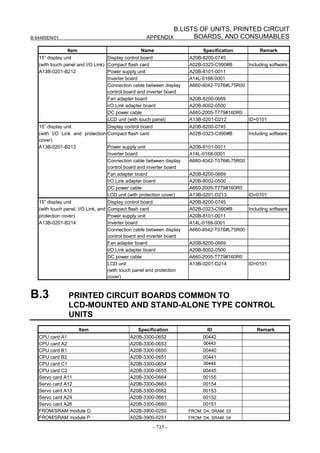
    B.3      PRINTED CIRCUIT BOARDS COMMON TO LCD-MOUNTED AND
             STAND-ALONE TYPE CONTROL UNITS................................................. 735
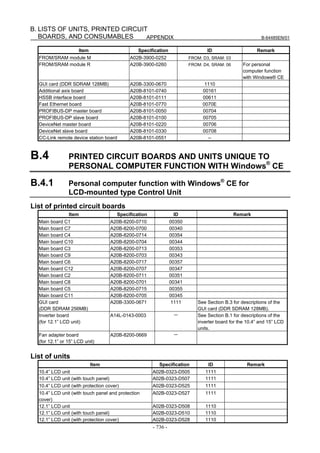
    B.4      PRINTED CIRCUIT BOARDS AND UNITS UNIQUE TO PERSONAL
             COMPUTER FUNCTION WITH Windows® CE ......................................... 736
             B.4.1      Personal computer function with Windows® CE for LCD-mounted type Control
                        Unit.......................................................................................................................736
             B.4.2      Personal computer function with Windows® CE for Stand-alone type Control
                        Unit.......................................................................................................................737
    B.5      MDI UNIT................................................................................................... 740
    B.6      OTHER UNITS .......................................................................................... 740
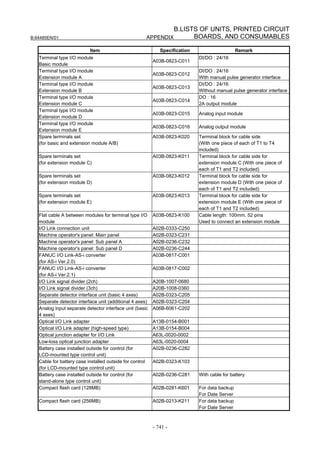
    B.7      Consumables............................................................................................. 742
C   BOOT SYSTEM................................................................................... 744
    C.1      OVERVIEW ............................................................................................... 744
                                                                   c-8
B-64485EN/01                                                                                                    TABLE OF CONTENTS
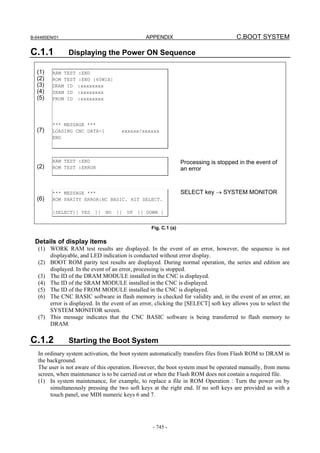
               C.1.1      Displaying the Power ON Sequence ....................................................................745
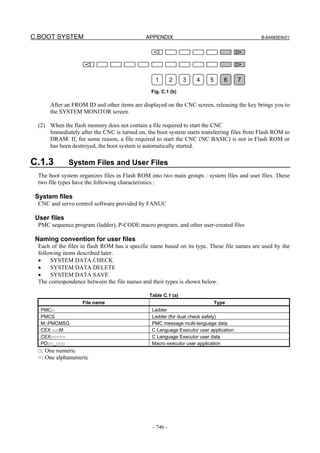
               C.1.2      Starting the Boot System......................................................................................745
               C.1.3      System Files and User Files .................................................................................746
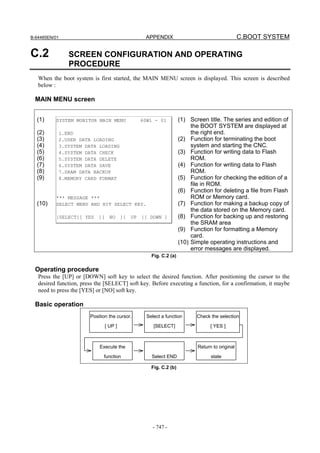
      C.2      SCREEN CONFIGURATION AND OPERATING PROCEDURE .............. 747
               C.2.1      USER DATA LOADING/SYSTEM DATA LOADING Screen.........................748
               C.2.2      SYSTEM DATA CHECK Screen........................................................................750
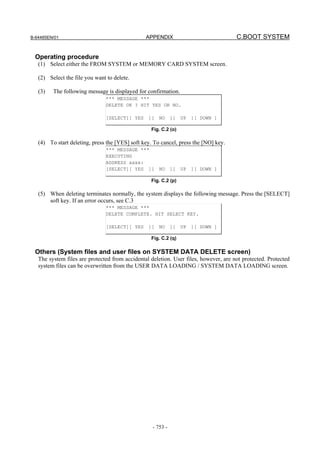
               C.2.3      SYSTEM DATA DELETE Screen ......................................................................752
               C.2.4      SYSTEM DATA SAVE Screen ...........................................................................754
               C.2.5      SRAM DATA UTILITY Screen ..........................................................................755
               C.2.6      MEMORY CARD FORMAT Screen...................................................................757
               C.2.7      LOAD BASIC SYSTEM .....................................................................................758
               C.2.8      Cautions................................................................................................................758
      C.3      ERROR MESSAGES AND REQUIRED ACTIONS ................................... 759
D     MEMORY CARD SLOT....................................................................... 761
      D.1      OVERVIEW ............................................................................................... 761
      D.2      MEMORY CARD TYPES (FUNCTIONS) .................................................. 761
      D.3      HARDWARE CONFIGURATION............................................................... 763
E     LED DISPLAY ..................................................................................... 764
      E.1      OVERIVIEW .............................................................................................. 764
      E.2      7-SEGMENT LED INDICATIONS (TURNED ON) ..................................... 764
      E.3      7-SEGMENT LED INDICATIONS (BLINKING).......................................... 766
F     MAINTENANCE OF PERSONAL COMPUTER FUNCTIONS
      (BOOT-UP AND IPL) .......................................................................... 767
      F.1      OVERVIEW ............................................................................................... 767
      F.2      CHANGING START SEQUENCES ........................................................... 769
      F.3      EXPLANATION OF SCREENS ................................................................. 770
               F.3.1      BOOT Screen .......................................................................................................770
                          F.3.1.1       User data manipulation .................................................................................... 771
                          F.3.1.2       SRAM operation.............................................................................................. 772
                          F.3.1.3       File operation ................................................................................................... 773
               F.3.2      IPL Screen ............................................................................................................773
                          F.3.2.1       Functions on the IPL screen ............................................................................ 774
      F.4      OTHER SCREENS.................................................................................... 774
               F.4.1      CNC Alarm Screen...............................................................................................774
               F.4.2      Status Screen (Personal Computer Functions with WindowsXP only)................775
               F.4.3      Option Setting Screen...........................................................................................775
                          F.4.3.1       Option setting screen (Personal Computer Functions with WindowsXP)....... 776
                          F.4.3.2       Option setting screen (Personal Computer Functions with WindowsCE)....... 777

G     MAINTENANCE OF STAND-ALONE TYPE UNIT.............................. 782
      G.1      OVERVIEW ............................................................................................... 782
      G.2      OPERATION.............................................................................................. 782
      G.3      OPERATION OF EACH FUNCTION ......................................................... 783
H     ETHERNET DISPLAY FUNCTION ..................................................... 786
      H.1      OVERVIEW ............................................................................................... 786
      H.2      EXAMPLE OF NETWORK CONFIGURATION.......................................... 788
      H.3      DISPLAY UNIT NUMBER SETTING AND CONFIRMATION .................... 790
               H.3.1      Display Unit Number Setting ...............................................................................790
                                                                    c-9
TABLE OF CONTENTS                                                                                                                B-64485EN/01

             H.3.2      Display Unit Number Confirmation .....................................................................791
    H.4      NODE NUMBER SETTING AND CONFIRMATION .................................. 792
             H.4.1      Method of Node Number Setting .........................................................................792
             H.4.2      Method of Node Number Confirmation ...............................................................792
    H.5      CHANGING START SEQUENCES ........................................................... 793
    H.6      NCBOOT32E.exe ...................................................................................... 794
             H.6.1      Boot Screen ..........................................................................................................795
             H.6.2      File Storage Location Selection............................................................................796
             H.6.3      User Data Operation .............................................................................................796
             H.6.4      S-RAM Operation ................................................................................................797
             H.6.5      File Operation.......................................................................................................798
             H.6.6      IPL Screen ............................................................................................................799
             H.6.7      CNC Alarm Screen...............................................................................................800
             H.6.8      Status Screen ........................................................................................................800
             H.6.9      Option Setting Screen...........................................................................................801
             H.6.10     Changer Screen.....................................................................................................802
    H.7      STARTING OF THE CNC SCREEN DISPLAY FUNCTION ...................... 803
I   IPL MONITOR ..................................................................................... 805
    I.1      OVERVIEW ............................................................................................... 805
    I.2      STARTING OF THE IPL MONITOR .......................................................... 805
    I.3      IPL MENU.................................................................................................. 806
J   MEMORY CLEAR ............................................................................... 808
    J.1      OVERVIEW ............................................................................................... 808
    J.2      OPERATION METHOD ............................................................................. 808
    J.3      DATA TYPES TO BE CLEARED............................................................... 809
K   USB FUNCTION MAINTENANCE ...................................................... 811
    K.1      USB FUNCTION MAINTENANCE SCREEN ............................................. 811
    K.2      USB FUNCTION LOG SCREEN ............................................................... 813


                                                               c-10
B-64485EN/01                                                                                    1.DISPLAY AND OPERATION


1                   DISPLAY AND OPERATION
   This chapter describes how to display various screens by the function keys.
   The screens used for maintenance are respectively displayed.

   1.1    FUNCTION KEYS AND SOFT KEYS ...............................................................................................1
   1.2    SYSTEM CONFIGURATION SCREEN .............................................................................................9
   1.3    DIAGNOSIS FUNCTION ..................................................................................................................13
   1.4    CNC STATE DISPLAY .....................................................................................................................44
   1.5    OPERATING MONITOR...................................................................................................................46
   1.6    WAVEFORM DIAGNOSIS DISPLAY .............................................................................................48
   1.7    COLOR SETTING SCREEN .............................................................................................................65
   1.8    POWER MATE CNC MANAGER FUNCTION ...............................................................................68
   1.9    SERVO GUIDE MATE ......................................................................................................................77
   1.10   MAINTENANCE INFORMATION SCREEN ................................................................................131
   1.11   SYSTEM ALARM HISTORY SCREEN .........................................................................................156


1.1                 FUNCTION KEYS AND SOFT KEYS
   Operations and soft key display status for each function key are described below:

1.1.1               Soft Key Structure
   The function keys are used to select the type of screen (function) to be displayed. When a soft key
   (section select soft key) is pressed immediately after a function key, the screen (section) corresponding to
   the selected function can be selected.

1.1.2               General Screen Operations
   -      Procedure
   1   By pressing a function key on the MDI panel, the chapter selection soft keys that belong to the
       function are displayed.
   Example 1)
                                                                                                                    Operation selection key


                                                                               Chapter selection soft keys           Continuous menu key

   2      When one of the chapter selection soft keys is pressed, the screen of the chapter is displayed. If the
          soft key of a desired chapter is not displayed, press the continuous menu key.
          In a chapter, a further choice may be made from multiple chapters.

   3      When the screen of a desired chapter is displayed, press the operation selection key to display
          operations to be performed.

   4      Select a desired operation with the operation selection soft key.
          Depending on the operation to be executed, an auxiliary menu of soft keys is displayed. Perform an
          operation according to the indications on the auxiliary menu.

                                                                      -1-
1.DISPLAY AND OPERATION                                                                               B-64485EN/01

  Example 2)


      Return menu key                                                 Operation selection soft keys

  Example 3)


                                                                          Auxiliary menu
  5     To return to the display of chapter selection soft keys, press the return menu key.

  A general screen display procedure is provided above. The actual display procedure varies from one
  screen to another.
  For details, see each description of operation.

  -    Button design change depending on soft key state
  The soft keys assume one of the following states, depending on the selection target:
  •    Chapter selection soft keys
  •    Operation selection soft keys
  •    Auxiliary menu of operation selection soft keys

  Depending on the state, the button images of the soft keys change.
  From the button images, which state the soft keys are assuming can be known.

  Example)
      •    Chapter selection soft keys


        •    Operation selection soft keys


        •    Auxiliary menu of operation selection soft keys


1.1.3          Function Keys
  Function keys are provided to select the type of screen to be displayed. The following function keys are
  provided on the MDI panel:

  Press this key to display the position screen.


                                                     -2-
B-64485EN/01                                                                    1.DISPLAY AND OPERATION
   Press this key to display the program screen.


   Press this key to display the offset/setting screen.


   Press this key to display the system screen.


   Press this key to display the message screen.


   Press this key to display the graphics screen.


   Press this key to display the custom screen 1 (conversational macro screen or C Language Executor
   screen).


   Press this key to display the custom screen 2 (conversational macro screen or C Language Executor
   screen).


1.1.4           Soft Keys
   By pressing a soft key after a function key, the corresponding screen of the function can be displayed.

   The chapter selection soft keys of each function are described below.
   The horizontal four keys on the right-hand side are assigned to chapter selection soft keys. When multiple
   pages are used for chapter selection soft keys, [+] is displayed on the continuous menu key (rightmost soft
   key). Press the continuous menu key to switch between chapter selection soft keys.

     NOTE
     1 Press function keys to switch between screens that are used frequently.
     2 Some soft keys are not displayed depending on the option configuration.

   If position indications are provided on the left half of the screen when a key other than the function key
          is pressed, the left half of the soft keys is displayed as follows at all times:


                                                          -3-
1.DISPLAY AND OPERATION                                                                                    B-64485EN/01


 Position display screen
  The chapter selection soft keys that belong to the function key               and the function of each screen are
  described below.
                                 (1)            (2)            (3)           (4)           (5)

                                ABS            REL            ALL          HNDL         (OPRT)         +
             Page 1


                                 (6)            (7)            (8)           (9)            (10)

                               MONI            3-D                                      (OPRT)         +
             Page 2
                                            MANUAL


                                       Table 1.1.4 (a) Position display screen
      No.         Chapter menu                                         Description
       (1)             ABS             Selects the absolute coordinate display screen.
       (2)              REL            Selects the relative coordinate display screen.
       (3)              ALL            Selects the overall coordinate display screen.
       (4)             HNDL            Selects the operation screen for manual handle operation.
       (6)             MONI            Selects the screen for displaying the servo axis load meter, serial spindle load
                                       meter, and speedometer.
       (7)              3-D            Displays a handle pulse interrupt amount in three-dimensional manual feed.
                      MANUAL


 Program screen
  The chapter selection soft keys that belong to the function key               and the function of each screen are
  described below.
                                 (1)            (2)            (3)           (4)           (5)

                              PROGRA        FOLDER            NEXT        CHECK         (OPRT)         +
             Page 1
                                M


                                 (6)            (7)            (8)           (9)            (10)

                               TIME            JOG            RSTR                      (OPRT)         +
             Page 2


                                               Table 1.1.4 (b) Program
      No.         Chapter menu                                           Description
       (1)            PROGRAM          Selects the screen for displaying a list of part programs currently registered.
       (2)             FOLDER          Selects the screen for displaying a list of part programs currently registered.
       (3)              NEXT           Selects the screen for displaying the command values of the block currently
                                       executed and the next block to be executed among the command values.
       (4)             CHECK           Selects the screen for displaying programs, position data, modal information,
                                       and so forth simultaneously.
       (6)             TIME            Selects the screen for displaying executed program operation time.
       (7)             JOG             Selects the screen for executing, in the JOG mode, data specified in the
                                       program format from the MDI.
       (8)             RSTR            Selects the operation screen for restarting an interrupted program operation.


                                                        -4-
B-64485EN/01                                                                      1.DISPLAY AND OPERATION

 Offset/setting screen
   The chapter selection soft keys that belong to the function key                  and the function of each screen are
   described below.
                                   (1)               (2)          (3)            (4)          (5)

                              OFFSET          SETTING          WORK                         (OPRT)     +
               Page 1


                                   (6)               (7)          (8)            (9)          (10)

                              MACRO                               OPR           TOOL        (OPRT)     +
               Page 2                                                         MANAGER


                                  (11)            (12)            (13)           (14)         (15)

                              OFST.2           W.SHFT          GEOM.2                       (OPRT)     +
               Page 3


                                  (16)               (17)         (18)           (19)         (20)

                                                 PR-LV         EXTEND          CHOPP        (OPRT)     +
               Page 4                                          OFFSET           ING

                                                or
                                               MACHIN
                                                LEVEL

                                                or
                                               QUALTY
                                               SELECT

                                  (21)               (22)         (23)           (24)         (25)

                              CHUCK              LANG.        PROTECT          GUARD        (OPRT)     +
               Page 5          TAIL


                                   (26)              (27)         (28)           (29)         (30)

                                                                               TOOL         (OPRT)     +
               Page 6                                                          LIFE


                                   (31)              (32)         (33)           (34)         (35)

                              WORK                                                          (OPRT)     +
               Page 7         SET ER


                                                     Table 1.1.4 (c) Offset
       No.          Chapter menu                                              Description
        (1)             OFFSET            Selects the screen for setting tool offset values.
        (2)             SETTING           Selects the screen for setting the setting parameters.

                                                            -5-
1.DISPLAY AND OPERATION                                                                               B-64485EN/01


      No.         Chapter menu                                       Description
       (3)           WORK           Selects the screen for setting a workpiece coordinate system offset.
       (6)           MACRO          Selects the screen for setting macro variables.
       (8)            OPR           Selects the screen for operating some operation switches on the machine
                                    operator's panel as soft switches.
       (9)      TOOL MANAGER        Selects the screen for setting data related to tool management.
      (11)          OFST.2          Selects the screen for setting a Y-axis offset.
      (12)          W.SHFT          Selects the screen for setting a workpiece coordinate system shift value.
      (13)          GEOM.2          Selects the screen for setting a second geometry offset.
      (17)           PR-LV          Selects the screen for setting a precision level.
                 MACHIN LEVEL       Selects the screen for setting a precision level or smoothing level.
                QUALTY SELECT
      (18)      EXTEND OFFSET       Selects the screen for setting the offsets of the fourth and fifth axes.
      (21)        CHUCK TAIL        Selects the chuck tail stock barrier screen.
      (22)           LANG.          Selects the screen for setting a display language.
      (23)         PROTECT          Selects the screen for setting data protection.
      (24)          GUARD           Selects the screen for setting wrong operation prevention.
      (29)         TOOL LIFE        Selects the screen for operations and setting related to tool life management.
      (31)      WRK ERR COMP        Selects the screen for setting errors related to workpiece mounting position.


 System screen
  The chapter selection soft keys that belong to the function key             and the function of each screen are
  described below.
                                  (1)         (2)          (3)         (4)          (5)

                               PARAM       DGNOS       SERVO        SYSTEM        (OPRT)      +
                Page 1                                 GUIDEM


                                  (6)         (7)          (8)         (9)           (10)

                              MEMORY       PITCH        SERVO        SP.SET       (OPRT)      +
                Page 2                                  PARAM


                                  (11)       (12)          (13)        (14)          (15)
                                PMC         PMC         PMC                       (OPRT)      +
                Page 3         MAINTE     LADDER       CONFIG


                                  (16)       (17)          (18)        (19)          (20)
                                MCNG        ALL IO      ALL IO      OPEHIS        (OPRT)       +
                Page 4         TUNING


                                  (21)       (22)          (23)        (24)          (25)

                               COLOR       MAINTE       M-INFO      W. DGNS       (OPRT)       +
                Page 5


                                                     -6-
B-64485EN/01                                                             1.DISPLAY AND OPERATION

                                (26)        (27)         (28)         (29)          (30)
                              TOUCH       FSSB        PRMTUN        P.MATE        (OPRT)      +
               Page 6         PANEL                                  MGR.


                                (31)        (32)         (33)         (34)          (35)
                               EMBED     PCMCIA       ETHNET         PROFI        (OPRT)      +
               Page 7           PORT      LAN         BOARD         MASTER


                                 (36)       (37)          (38)         (39)          (40)

                            REMOTE       M CODE                                   (OPRT)      +
               Page 8        DIAG


                                 (41)       (42)          (43)         (44)          (45)

                               PROFI     DEVNET                                   (OPRT)      +
               Page 9          SLAVE     MASTER


                                 (46)       (47)          (48)         (49)          (50)

                                DUAL     R.TIME                                   (OPRT)      +
               Page 10         CHECK     MACRO


                                           Table 1.1.4 (d) System
      No.       Chapter menu                                        Description
      (1)         PARAM            Selects the screen for setting parameters.
      (2)         DGNOS            Selects the screen for displaying CNC state.
      (3)      SERVO GUIDEM        Selects the screen for displaying the servo guide mate.
      (4)         SYSTEM           Selects the screen for displaying the current system status.
      (6)        MEMORY            Selects the screen for displaying the contents of memory.
      (7)          PITCH           Selects the screen for setting pith error compensation.
      (8)      SERVO PARAM         Selects the screen for setting the servo-related parameters.
      (9)         SP.SET           Selects the screen for spindle-related setting.
     (11)       PMC MAINTE         Selects the screen related to PMC maintenance such as PMC signal state
                                   monitoring and tracing, and PMC parameter display/editing.
     (12)        PMC LADDER        Selects the screen related to ladder display/editing.
     (13)        PMC CONFIG        Displays the screen for displaying/editing data other than ladders that makes
                                   up a sequence program and for setting the PMC function.
     (16)       MCNG TUNING        Displays the screen for setting the parameter set for emphasis on speed (LV1),
                                   emphasis on precision (LV10), or smoothing level (LV1 or LV10).
     (17)          ALL IO          Selects the screen for data input and output.
     (18)          ALL IO          Selects the screen for data input to and output from the memory card.
     (19)          OPEHIS          Selects the screen for displaying the history of operations performed by the
                                   operator and issued alarms.
     (21)          COLOR           Selects the screen for setting colors to be used on the screen.
     (22)          MAINTE          Selects the screen for setting maintenance items to be managed periodically.
     (23)          M-INFO          Selects the screen for displaying information about maintenance performed.
     (24)          W.DGNS          Selects the screen for displaying data such as servo positional deviation
                                   values, torque values, machine signals, and so forth as graphs.
     (26)       TOUCH PANEL        Selects the screen for setting a touch panel.
     (27)          FSSB            Selects the screen for making settings related to the high-speed serial servo
                                   bus (FSSB: Fanuc Serial Servo Bus).
     (28)          PRMTUN          Selects the screen for setting parameters necessary for start-up and tuning.

                                                   -7-
1.DISPLAY AND OPERATION                                                                                    B-64485EN/01


    No.         Chapter menu                                              Description
    (31)        EMBED PORT              Selects the screen for making settings related to the embedded Ethernet
                                        (embedded port).
    (32)         PCMCIA LAN             Selects the screen for making settings related to the embedded Ethernet
                                        (PCMCIA Ethernet card).
    (33)       ETHNET BOARD             Selects the screen for making settings related to the fast Ethernet/fast data
                                        server.
    (34)       PROFI MASTER             Selects the screen for making settings related to the profibus master function.
    (37)          M CODE                Selects the screen for setting an M code group.
    (41)        PROFI SLAVE             Selects the screen for making settings related to the profi-bus slave function.
    (42)       DEVNETMASTER             Selects the screen for making settings related to the DeviceNet master
                                        function.
    (46)         DUAL CHECK             Selects the screen for making settings related to the dual check safety
                                        function.
    (47)        R.TIME MACRO            Selects the screen for making settings related to the real-time custom macro
                                        function.


 Message screen
  The chapter selection soft keys that belong to the function key                 and the function of each screen are
  described below.
                                  (1)            (2)            (3)           (4)           (5)

                             ALARM             MSG          HISTRY        MSGHIS         (OPRT)        +
             Page 1


                               (6)             (7)             (8)          (9)           (10)
                             EMBED           PCMCIA         BOARD                        (OPRT)        +
             Page 2           LOG             LOG            LOG


                                                Table 1.1.4 (e) Message
      No.         Chapter menu                                            Description
       (1)             ALARM            Selects the alarm message screen.
       (2)              MSG             Selects the operator message screen.
       (3)             HISTRY           Selects the screen for displaying the details of alarms issued so far.
       (4)            MSGHIS            Selects the external operator message screen.
       (6)           EMBED LOG          Selects the screen for displaying error messages related to the embedded
                                        Ethernet (embedded port).
       (7)           PCMCIA LOG         Selects the screen for displaying error messages related to the embedded
                                        Ethernet (PCMCIA Ethernet card).
       (8)           BOARD LOG          Selects the screen for displaying error messages related to the fast
                                        Ethernet/fast data server.


 Graphic screen
  The chapter selection soft keys that belong to the function key                 and the function of each screen are
  described below.

  When the graphic display function is enabled:


                                                         -8-
B-64485EN/01                                                                   1.DISPLAY AND OPERATION

                                  (1)            (2)            (3)           (4)            (5)

                             PARAM            GRAPH                                       (OPRT)       +
               Page 1


                                                 Table 1.1.4 (f) Graphic
       No.         Chapter menu                                            Description
        (1)             PARAM           Selects the screen for setting graphic parameters.
        (2)             GRAPH           Selects the screen for graphically displaying the tool path.

   When the dynamic graphic display function is enabled:
                                  (1)            (2)            (3)           (4)            (5)
                                DRAW           PATH          ANIME          TOOL          (OPRT)
               Page 1           PARAM          EXEC          EXEC           POS


                                                Table 1.1.4 (g) Graphic
       No.         Chapter menu                                            Description
        (1)        DRAW PARAM           Selects the screen for setting drawing parameters.
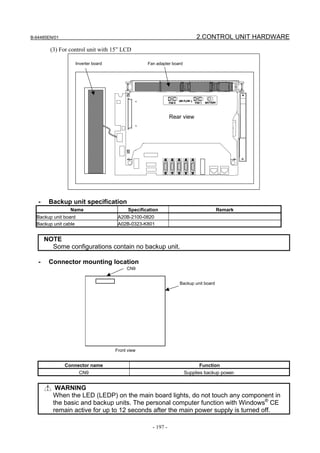
        (2)         PATH EXEC           Selects the screen for drawing tool paths.
        (3)        ANIME EXEC           Selects the screen for drawing animation.
        (4)         TOOL POS            Selects the screen for displaying tool positions.


1.2             SYSTEM CONFIGURATION SCREEN
   After the system has started normally, you can find the types of installed printed circuit boards and
   software types by displaying a system configuration screen.

1.2.1           Display Method

   1    Press function key        .
   2    Press soft key [SYSTEM].
   3    Two types of system configuration screen, the hardware screen and software screen, are provided,
        and you can switch between these screens by using the                       page keys.
        When all information cannot be displayed on one page of the screen, you can switch to the next page
        by using the              keys.


                                                         -9-
1.DISPLAY AND OPERATION                                                                        B-64485EN/01


1.2.2         Hardware Configuration Screen
  -   Screen display


  -   Displayed information
  The following explains the displayed information:
  1. NAME
       MAIN BOARD
       •    Displays information on the main board, and cards and modules on the main board.
       OPTION BOARD
       •    Displays information on the board installed in the option slot.
       DISPLAY
       •    Displays information on the display unit.
       OTHERS
       •    Displays information on other components (such as an MDI and a basic unit).
  2. SLOT
       •    Displays the number of the slot in which the option board is inserted.


                                                 - 10 -
B-64485EN/01                                                               1.DISPLAY AND OPERATION

1.2.3           Software Configuration Screen
   -     Screen display


   -     Displayed information
   The following explains the displayed information:
        SYSTEM : Software type
        SERIES : Software series
        EDITION : Software edition

   -     Displayed systems and corresponding software types
   The following lists the correspondence between displayed systems and software:

               System                                             Software type
       CNC(BASIC)                CNC basic software
       CNC(OPT A1)               Option assembly A1
       CNC(OPT A2)               Option assembly A2
       CNC(OPT A3)               Option assembly A3
       CNC(MSG ENG)              Language indication (English)
       CNC(MSG JPN)              Language indication (Japanese)
       CNC(MSG DEU)              Language indication (German)
       CNC(MSG FRA)              Language indication (French)
       CNC(MSG CHT)              Language indication (Chinese (traditional characters))
       CNC(MSG ITA)              Language indication (Italian)
       CNC(MSG KOR)              Language indication (Korean)
       CNC(MSG ESP)              Language indication (Spanish)
       CNC(MSG NLD)              Language indication (Dutch)
       CNC(MSG DAN)              Language indication (Danish)
       CNC(MSG PTG)              Language indication (Portuguese)
       CNC(MSG PLK)              Language indication (Polish)
       CNC(MSG HUN)              Language indication (Hungarian)
       CNC(MSG SVE)              Language indication (Swedish)
       CNC(MSG CSY)              Language indication (Czech)
       CNC(MSG CHS)              Language indication (Chinese (simplified characters))
       CNC(MSG RUS)              Language indication (Russian)
       CNC(MSG TRK)              Language indication (Turkish)

                                                    - 11 -
1.DISPLAY AND OPERATION                                                      B-64485EN/01


          System                                      Software type
  BOOT               Boot system
  PMC(SYSTEM)        PMC function
  PMC(LADDER1)       PMC ladder for path 1
  PMC(LADDER2)       PMC ladder for path 2
  PMC(LADDER3)       PMC ladder for path 3
  PMC(LAD DCS)       Dual check safety PMC ladder
  CLB(SYSTEM)        System software for C language board
  CLB(USER)          User software for C language board
  SERVO              Digital servo software (up to ten programs displayed)
  SPINDLE-1          Spindle 1
  SPINDLE-2          Spindle 2
  SPINDLE-3          Spindle 3
  SPINDLE-4          Spindle 4
  SPINDLE-5          Spindle 5
  SPINDLE-6          Spindle 6
  SPINDLE-7          Spindle 7
  SPINDLE-8          Spindle 8
  SPINDLE-9          Spindle 9
  SPINDLE-10         Spindle 10
  SPINDLE-11         Spindle 11
  SPINDLE-12         Spindle 12
  SPINDLE-13         Spindle 13
  SPINDLE-14         Spindle 14
  SPINDLE-15         Spindle 15
  SPINDLE-16         Spindle 16
  GRAPHIC            Graphic function
  GRAPHIC1           Graphic function
  GRAPHIC2           Graphic function
  MACRO EXE1         Macro executor 1
  MACRO EXE2         Macro executor 2
  MACRO EXE3         Macro executor 3
  MACRO EXE4         Macro executor 4
  MACRO EXE5         Macro executor 5
  MACRO EXE6         Macro executor 6
  MACRO EXE7         Macro executor 7
  MACRO EXE8         Macro executor 8
  MACRO EXE9         Macro executor 9
  MACRO EXE10        Macro executor 10
  MACRO EXE11        Macro executor 11
  MACRO EXE12        Macro executor 12
  MACRO EXE13        Macro executor 13
  MACRO EXE14        Macro executor 14
  MACRO EXE15        Macro executor 15
  MACRO EXE16        Macro executor 16
  MACRO EXE17        Macro executor 17
  MACRO EXE18        Macro executor 18
  MACRO EXE19        Macro executor 19
  MACRO EXE20        Macro executor 20
  CEXELIB            Library for C Language Executor
  CEXEAPL            Application for C Language Executor
  MGI(LIB)           Library for MANUAL GUIDE i
  MGI(SYSTEM)        System software for MANUAL GUIDE i
  MGI(MACRO M)       Macro software for MANUAL GUIDE i (M series)
  MGI(MACRO T)       Macro software for MANUAL GUIDE i (T series)

                                        - 12 -
B-64485EN/01                                                                  1.DISPLAY AND OPERATION

                   System                                            Software type
    EMBED ETHER                      Control software for embedded Ethernet function
    PROFI SOFT                       Software for PROFIBUS function
    PROFI MASTER                     Control software for PROFIBUS master function
    PROFI SLAVE                      Control software for PROFIBUS slave function
    DEVNT SOFT                       Software for DeviceNet function
    DEVNT MASTER                     Control software for DeviceNet master function
    DEVNT SLAVE                      Control software for DeviceNet slave function
    ETHERNET                         Control software for fast Data Server
    CMB(SYSTEM)                      Customers' board system software
    CMB(USER)                        Customers' board user software
    USB SOFT                         Control software for USB function


   •      Display of macro executor
          The series and edition are displayed for each number specified at the time of P-CODE macro
          creation.
          Up to 20 types of macro executor are displayed.

1.2.4               Outputting System Configuration Data
   Data displayed on the system configuration screen can be output to an input/output device.

   (1) Press function key        .
   (2)    Press the EDIT switch on the machine operator's panel.
   (3)    Press soft key [SYSTEM] to display the system configuration screen.
   (4)    Press soft key [(OPRT)] and select soft key [PUNCH].
   (5)    Press soft key [EXCE].
   (6)    Data is output to the output device selected by parameter No. 20.

   Data is output to a file named SYS_CONF.TXT.


1.3                 DIAGNOSIS FUNCTION

1.3.1               Displaying Diagnosis Screen

   (1) Press function key        .
   (2) Press soft key [DGNOS], then a diagnosis screen is displayed.

1.3.2               Contents Displayed
Causes when the machine does not travel in spite of giving a command
       Diagnosis       0                                         CNC internal state 1
         [Data type] Bit
                     NAME                              Internal state when "1" is displayed
                     INPOSITION CHECK                  In-position check is being done.
                     FEEDRATE OVERRIDE 0%              Feedrate override is 0%.
                     JOG FEED OVERRIDE 0%              Jog feedrate override is 0%.
                     INTER/START LOCK ON               Interlock/start lock is on.
                     SPEED ARRIVAL ON                  The system is waiting for the speed arrival signal to turn
                                                       on.

                                                        - 13 -
1.DISPLAY AND OPERATION                                                                             B-64485EN/01

                 WAIT REVOLUTION                 The system is waiting for the spindle one-rotation signal
                                                 in threading.
                 STOP POSITION OCDER             The system is waiting for the rotation of the position
                                                 coder in spindle feed per revolution.
                 FEED STOP                       A feed stop was made.

   Diagnosis      2                                        Dwell execution state
                 When a dwell is being executed, "1" is displayed.

   Diagnosis      8                                        CNC internal state 2
     [Data type] Bit
                 NAME                            Internal state when "1" is displayed
                 FOREGROUND READING              Data is being input in the foreground.
                 BACKGROUND READING              Data is being input in the background.

Reader/puncher interface output state
   Diagnosis     10                               Reader/puncher interface output state
                 When data is being output through the reader/puncher interface, "1" is indicated.

State of TH alarm
   Diagnosis     30                             TH alarm character count (foreground edit)
     [Data type] 2-word axis
                 The position where the TH alarm occurred in foreground input is indicated by the number
                 of characters from the beginning of the block.

   Diagnosis     31                             TH alarm character code (foreground edit)
     [Data type] 2-word axis
                 The character code of the character at which the TH alarm occurred in foreground input is
                 indicated.

   Diagnosis     32                             TH alarm character count (background edit)
     [Data type] 2-word axis
                 The position where the TH alarm occurred in background input is indicated by the
                 number of characters from the beginning of the block.

   Diagnosis     33                             TH alarm character code (background edit)
     [Data type] 2-word axis
                 The character code of the character at which the TH alarm occurred in background input
                 is indicated.

Display language of the CNC screen
   Diagnosis     43                      Number of the current display language of the CNC screen
     [Data type] Byte
                 The number of the current display language of the CNC screen is indicated.
                 The correspondence between languages and numbers is show below.
                 0    :    English
                 1    :    Japanese
                 2    :    German
                 3    :    French
                 4    :    Chinese (traditional characters)
                 5    :    Italian
                 6    :    Korean
                 7    :    Spanish
                 8    :    Dutch
                                                  - 14 -
B-64485EN/01                                                                   1.DISPLAY AND OPERATION
                     9      :   Danish
                     10     :   Portuguese
                     11     :   Polish
                     12     :   Hungarian
                     13     :   Swedish
                     14     :   Czech
                     15     :   Chinese (simplified characters)
                     16     :   Russian
                     17     :   Turkish

Details of serial Pulsecoder
                                      #7      #6          #5             #4        #3           #2         #1        #0
     Diagnosis        200          OVL        LV          OVC        HCA        HVA          DCA       FBA           OFA
        #0     OFA   Overflow alarm
        #1     FBA   Disconnection alarm
       #2      DCA   Discharge alarm
       #3      HVA   Overvoltage alarm
       #4      HCA   Abnormal current alarm
       #5      OVC   Over current alarm
       #6       LV   Insufficient voltage alarm
       #7      OVL   Overload alarm

                                   #7       #6        #5            #4        #3           #2         #1        #0
    Diagnosis        201          ALD      PCR                     EXP
       #4 EXP
       #7 ALD
                                            ALD     EXP                                 Description
                     Overload alarm           0       -        Motor overheat
                                              1       -        Amplifier overheat
                     Disconnection alarm      1       0        Built-in Pulsecoder (hard)
                                              1       1        Disconnection of separated type Pulsecoder (hard)
                                              0       0        Disconnection of Pulsecoder (software)
       #6      PCR The one-rotation signal of the position detector was caught before a manual reference
                   position return is performed. Since the manual reference position return grid was
                   established, a manual reference position return is enabled.
                       NOTE
                         This bit is valid only when the operation of the manual reference
                         position return mode is started.

                                      #7     #6           #5          #4           #3           #2         #1        #0
    Diagnosis        202                     CSA       BLA           PHA        RCA          BZA       CKA           SPH
        #0     SPH Serial Pulsecoder or feedback cable is faulty.
                   Counting of feedback cable is erroneous.
       #1      CKA Serial Pulsecoder is faulty.
                   Internal block stopped.
       #2      BZA Battery voltage became 0.
                   Replace the battery and set the reference position.
       #3      RCA Serial Pulsecoder is faulty.
                   The speed was incorrectly counted.
       #4      PHA Serial Pulsecoder or feedback cable is erroneous.
                   Counting of feedback cable is erroneous.
       #5      BLA Battery voltage is low (warning)
       #6      CSA Hardware of serial Pulsecoder is abnormal

                                                      - 15 -
1.DISPLAY AND OPERATION                                                                            B-64485EN/01

                                #7        #6        #5        #4        #3       #2          #1         #0
   Diagnosis      203          DTE       CRC       STB       PRM
      #4  PRM A parameter failure was detected on the digital servo side. See the cause and
              measure described in diagnosis No. 352.
       #5 STB Communication failure of serial Pulsecoder.
              Transferred data is erroneous.
      #6 CRC Communication failure of serial Pulsecoder.
              Transferred data is erroneous.
      #7 DTE Communication failure of serial Pulsecoder.
              There is no response for communication.

                                #7        #6        #5        #4        #3       #2          #1         #0
   Diagnosis      204                    OFS       MCC       LDA       PMS
      #3 PMS Feedback is not correct due to faulty serial Pulsecoder C or feedback cable.
      #4 LDA Serial Pulsecoder LED is abnormal
     #5 MCC Contacts of MCC of servo amplifier is melted.
      #6 OFS Abnormal current value result of A/D conversion of digital servo

Details of separate serial Pulsecoder alarms
                                #7        #6        #5        #4        #3       #2          #1         #0
   Diagnosis      205          OHA       LDA       BLA       PHA       CMA       BZA         PMA        SPH
      #0    SPH   A soft phase data error occurred in the separate Pulsecoder.
     #1    PMA    A pulse error occurred in the separate Pulsecoder.
      #2   BZA    The battery voltage for the separate Pulsecoder is zero.
     #3    CMA    A count error occurred in the separate Pulsecoder.
      #4   PHA    A phase data error occurred in the separate linear scale.
      #5   BLA    A low battery voltage occurred in the separate Pulsecoder.
      #6   LDA    An LED error occurred in the separate Pulsecoder.
     #7    OHA    Overheat occurred in the separate Pulsecoder.

                                #7        #6        #5        #4        #3       #2          #1         #0
   Diagnosis      206          DTE       CRC       STB
       #5 STB A stop bit error occurred in the separate Pulsecoder.
      #6 CRC A CRC error occurred in the separate Pulsecoder.
      #7 DTE A data error occurred in the separate Pulsecoder.

Details of invalid servo parameter alarms (on the CNC side)
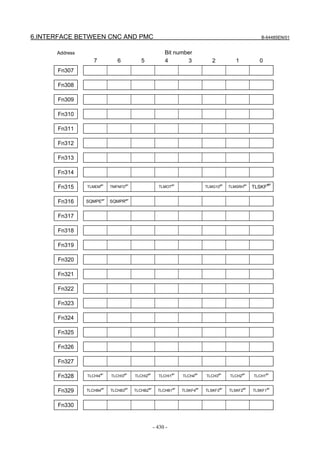
  When servo alarm No. 417 is issued, and diagnosis No. 203#4 = 0, its cause is indicated.
  When diagnosis No. 203#4 = 1, see diagnosis No. 352.

                                #7        #6        #5        #4        #3       #2          #1         #0
   Diagnosis      280                                         DIR       PLS      PLC                   MOT
     #0 MOT The motor type specified in parameter No. 2020 falls outside the predetermined range.
      #2 PLC The number of velocity feedback pulses per motor revolution, specified in parameter No.
             2023, is zero or less. The value is invalid.
      #3 PLS The number of position feedback pulses per motor revolution, specified in parameter No.
             2024, is zero or less. The value is invalid.
      #4 DIR The wrong direction of rotation for the motor is specified in parameter No. 2022 (the
             value is other than 111 or -111).

                                #7        #6        #5        #4        #3       #2          #1         #0
   Diagnosis      281                                                                                  TDM
     #0    TDM Four-winding motor drive (bit 7 of parameter No. 2211) or two-winding motor drive (bit
               6 of parameter No. 2211) is enabled when no option for tandem control is present.

                                                   - 16 -
B-64485EN/01                                                                  1.DISPLAY AND OPERATION


Position error amount
    Diagnosis     300                                Position error of an axis in detection unit


                                             Feed rate [mm/min] × 100          1
                         Position error =                               ×
                                            60 × servo loop gain [1/sec] Detection unit

Machine position
    Diagnosis     301                       Distance from reference position of an axis in detection unit


Distance from the end of the deceleration dog to the first grid point
    Diagnosis     302                  Distance from the end of the deceleration dog to the first grid point
       [Data type] Real axis
    [Unit of data] Machine unit
[Valid data range] 0 to ±99999999

                     NOTE
                       For the reference position setting without a dog, the distance from
                       the beginning of the reference position setting without a dog to the
                       first grid point is assumed.

Reference counter
    Diagnosis     304                                 Reference counter amount in each axis
       [Data type] 2-word axis
    [Unit of data] Detection unit
[Valid data range] –99999999 to 99999999

Motor temperature information
    Diagnosis     308                                      Servo motor temperature (°C)
       [Data type] Byte axis
    [Unit of data] °C
[Valid data range] 0 to 255
                   The temperature of the coil of the servo motor is indicated. When the temperature reaches
                   140°C, a motor overheat alarm is issued.

    Diagnosis     309                                       Pulsecoder temperature (°C)
       [Data type] Byte axis
    [Unit of data] °C
[Valid data range] 0 to 255
                   The temperature of the printed circuit board in the Pulsecoder is indicated. When the
                   temperature reaches 100°C (approximately 85°C for the temperature of atmosphere in the
                   Pulsecoder), a motor overheat alarm is issued.

                     NOTE
                     1 Temperature information has the following error:
                       • 50°C to 160°C ±5°C
                       • 160°C to 180°C ±10°C
                     2 The temperature at which an overheat alarm is issued has an error
                       of up to 5°C.


                                                      - 17 -
1.DISPLAY AND OPERATION                                                                                         B-64485EN/01


Cause that sets bit 4 (APZ) of parameter No. 1815 to 0
  You can find the cause that sets bit 4 (APZ) of parameter No. 1815 to 0 by checking diagnosis Nos. 310
  and 311.
  Once diagnosis No. 310 or 311 is set to 1, this setting is kept unchanged until the zero point of the
  absolute position detector of the corresponding axis is set again. Possible causes that set APZ to 0 are as
  follows:

                                    #7         #6           #5        #4         #3          #2            #1        #0
      Diagnosis      310                      DTH         ALP                   BZ2         BZ1        PR2           PR1
         #0   PR1 One of the following parameters was changed:
                  No.1815#0, No.1815#1, No.1815#6, No.1817#3, No.1820, No.1821, No.1822, No.1823,
                  No.1850, No.1868, No.1869, No.1874, No.1875, No.1876, No.1883, No.1884, No.2022,
                  No.2084, No.2085, No.2179
         #1   PR2 Bit 1 (ATS) of parameter No. 8303 was changed. Alternatively, when bit 7 (SMA) of
                  parameter No. 8302 was set to 1, APZ of the axis to be synchronized together was set to
                  0.
         #2   BZ1 A battery voltage of 0 V was detected. (Inductosyn)
         #3   BZ2 A battery voltage of 0 V was detected. (Separate position detector)
         #5   ALP The zero point was set by MDI when the α pulse coder had not rotate one or more turns.
                  Alternatively, the CNC could not obtain a correct value from the absolute pulse coder.
         #6   DTH An axis detach operation was performed by the controlled-axis detach signal DTCH
                  <G124> or by setting bit 7 (RMV) of parameter No. 0012.

                                    #7         #6           #5        #4         #3          #2            #1        #0
      Diagnosis      311                      DUA         XBZ        GSG        AL4         AL3        AL2           AL1
         #0   AL1 An SV alarm (SV301 to SV305) was issued.
         #1   AL2 When bit 1 (CRF) of parameter No. 1819 was set to 1, alarm SV0445, “SOFT
                  DISCONNECT ALARM”, SV0447, “HARD DISCONNECT(EXT)”, or SV0646,
                  “ABNORMAL ANALOG SIGNAL(EXT)”, was detected.
         #2   AL3 A battery voltage of 0 V was detected. (Built-in serial Pulsecoder)
         #3   AL4 Alarm SV0367, “COUNT MISS(INT)”, was detected.
         #4   GSG The status of broken-wire alarm ignore signal NDCAL (G202) changed from 1 to 0.
         #5   XBZ A battery voltage of 0 V or alarm SV0382, “COUNT MISS(EXT)”, was detected.
                  (Separate serial position detector)
         #6   DUA When bit 1 (CRF) of parameter No. 1819 was set to 1, alarm SV0421, “EXCESS
                  ERROR(SEMI-FULL)”, was detected.

Details of invalid servo parameter setting alarms (on the servo side)
      Diagnosis      352                         Detail number for invalid servo parameter setting alarm
                     Indicates information that can be used to identify the location (parameter) and cause of an
                     invalid servo parameter setting alarm (servo alarm No. 417).
                     This diagnosis information is valid when the following conditions are satisfied.
                     •    Servo alarm No. 417 has occurred.
                     •    Bit 4 of diagnosis No. 203 (PRM) = 1
                     See the following table for the displayed detail numbers and the corresponding causes.
                     For further detail information that could be used to take measures, refer to FANUC AC
                     Servo Motor αis/αi/βis series Parameter Manual (B-65270EN).

  •      Detailed descriptions about invalid servo parameter setting alarms
       Detail
                  Parameter No.                     Cause                                         Action
      number
                                  Parameter settings related to learning
                                                                             Change the parameter settings so that
         83           2019        control are illegal
                                                                             they fall in the applicable range.
                                  → See Supplementary.
                                                         - 18 -
B-64485EN/01                                                                 1.DISPLAY AND OPERATION

      Detail
               Parameter No.                     Cause                                       Action
     number
                                When initialization bit 0 is set to 1, the Correct the number of velocity pulses so
       0233        2023
                                number of velocity pulses exceeds 13100. that it is within 13100.
                                                                           Set 512 or a greater number as the
                               When a DD motor is used, a value smaller
                                                                           number of velocity pulses, or disable the
       0234        2023        than 512 is set as the number of velocity
                                                                           DD motor.
                               pulses.
                                                                           Bit 0 of parameter No. 2300=0
                                                                           Correct the number of position pulses so
                                When initialization bit 0 is set to 1, the that it is within 13100.
       0243        2024         number of position pulses exceeds          Use the position feedback pulse
                                13100.                                     conversion coefficient (parameter No.
                                                                           2185).
       0434                     The internal value of the velocity loop    Decrease the value of the velocity loop
                   2043
       0435                     integral gain overflowed.                  integral gain parameter.
                                                                           Use the function for changing the internal
       0443                                                                format of the velocity loop proportional
                                The internal value of the velocity loop
       0444        2044                                                    gain (bit 6 of parameter No. 2200).
                                proportional gain overflowed.
       0445                                                                Alternatively, decrease the parameter
                                                                           setting.
       0474                     The internal value of the observer         Correct the setting to
                   2047
       0475                     parameter (POA1) overflowed.               (−1) × (desired value)/10.
                                                                           Decrease the setting to the extent that the
       0534                     The internal value of a parameter related
                   2053                                                    illegal servo parameter setting alarm is
       0535                     to dead zone compensation overflowed.
                                                                           not caused.
                                                                           Decrease the setting to the extent that the
       0544                     The internal value of a parameter related
                   2054                                                    illegal servo parameter setting alarm is
       0545                     to dead zone compensation overflowed.
                                                                           not caused.
       0694
       0695                    The internal value of the velocity          Decrease the velocity feed-forward
                   2069
       0696                    feed-forward coefficient overflowed.        coefficient.
       0699
       0754                    The setting for this parameter has          This parameter is not used at present. Set
                   2075
       0755                    overflowed.                                 0.
       0764                    The setting for this parameter has          This parameter is not used at present. Set
                   2076
       0765                    overflowed.                                 0.
                                                                           Set a positive value as the flexible feed
                               A positive value is not set as the flexible gear numerator.
                               feed gear numerator.                        Alternatively, satisfy the following
       0843        2084        Alternatively, the following condition      condition: Feed gear numerator ≤
                               exists: Feed gear numerator >               denominator × 16
                               denominator × 16                            (except for phase A-/B-specific separate
                                                                           detector).
                               A positive value is not set as the flexible Set a positive value as the flexible feed
       0853        2085
                               feed gear denominator.                      gear denominator.
                                                                           For an axis with a serial type separate
                               For an axis with a serial type separate     detector, the upper limit of the machine
       0883        2088        detector, a value exceeding 100 is set as velocity feedback coefficient is 100.
                               the machine velocity feedback coefficient. Correct the coefficient so that it does not
                                                                           exceed 100.
                                                                           Decrease the machine velocity feedback
       0884                                                                coefficient.
                               The internal value of the machine velocity
       0885        2088                                                    Alternatively, use the vibration-damping
                               feedback coefficient overflowed.
       0886                                                                control function that has an equivalent
                                                                           effect.


                                                      - 19 -
1.DISPLAY AND OPERATION                                                                                   B-64485EN/01


    Detail
             Parameter No.                      Cause                                        Action
   number
    0994                                                                   Disable the N pulse suppression function.
                             The internal value for N pulse
    0995         2099                                                      Alternatively, decrease the parameter
                             suppression overflowed.
    0996                                                                   setting so that no overflow will occur.
                             The retract distance related to an
                             abnormal load differs between the L and M Set the same value for both the L and M
    1033         2103
                             axes (if the same-axis retract function is in axes.
                             use).
                             Although a linear motor is used, the AMR
    1123         2112        conversion coefficient parameter is not       Set the AMR conversion coefficient.
                             input.
                 2118
                             The dual position feedback conversion         Specify the dual position feedback
    1182         2078
                             coefficient has not been specified.           conversion coefficient.
                 2079
                             When a small value is set as the number
    1284                     of velocity pulses, the internal value of a   Decrease the value in this parameter to
                 2128
    1285                     parameter related to current control          the extent that the alarm is not caused.
                             overflows.
                             When a large value is set as the number
                                                                           When the value set in this parameter is
    1294                     of velocity pulses, the internal value of a
                 2129                                                      resolved to the form a × 256 + b, set a
    1295                     parameter related to current control
                                                                           smaller value in a again.
                             overflows.
                                                                           Enlarge the AMR offset setting range (bit
                             The AMR offset setting value of a linear
    1393         2139                                                      0 of parameter N. 2270=1) to input a
                             motor exceeds ±45.
                                                                           value within a range of ±60.
    1454
    1455                     Velocity feed-forward coefficient for         Decrease the velocity feed-forward
                 2145
    1456                     cutting overflowed.                           coefficient.
    1459
                                                                           Only 6 or less can be specified in this
                             A value greater than 6 is specified in this
    1493         2149                                                      parameter. Change the setting to 6 or
                             parameter.
                                                                           below 6.
    1503         2150        A value equal to or greater than 10 is set. Set a value less than 10.
                             Bit 6 of No. 2212 or bit 6 of No. 2213 is set Set bit 6 of No. 2212 or bit 6 of No. 2213
    1786         2178
                             to 1, and No. 2621=0 is set.                  to 0.
                             A negative value or a value greater than      Set a positive value less than the setting
    1793         2179
                             the setting of parameter No. 1821 is set. of parameter No. 1821.
                             A negative value or a value greater than      Set a positive value less than the setting
    1853         2185
                             the setting of parameter No. 2023 is set. of parameter No. 2023.
                             If pole detection is enabled (bit 7 of No.
                             2213=1) and a non-binary detector is
                             enabled (bit 0 of No. 2220=1), an illegal
                             servo parameter setting alarm is issued
                             when any of the following is set:             Set the AMR conversion coefficients
    2203        2220#0
                             - AMR conversion coefficient 1 ≤ 0            correctly.
                             - AMR conversion coefficient 2 ≤ 0
                             - AMR conversion coefficient 2 > 512
                             (The settable range is 1 (2 poles) to 512
                             (1024 poles).)
                             This alarm is issued when a setting is
                             made to neglect the invalid setting of the
                             parameter for the feed-forward timing
    2243        2224#5                                                     Use either one.
                             adjustment function (bit 5 of No. 2224=1)
                             and a command for nano interpolation is
                             issued.


                                                     - 20 -
B-64485EN/01                                                                      1.DISPLAY AND OPERATION

      Detail
               Parameter No.                      Cause                                           Action
     number
                               When the lifting function against gravity is
                                                                                Take one of the following actions:
                               enabled (bit 7 of No. 2298=1) or the
                                                                                1) Set a value in parameter No. 2263.
                               post-servo-off travel distance monitor
                                                                                2) Disable the lifting function against
                               function is enabled (bit 5 of No. 2278=1),
                                                                                   gravity and the post-servo-off travel
       2632        2263        the function for enabling the CNC software
                                                                                   distance monitor function.
                               to post the detection unit to the servo
                                                                                3) Use CNC software that supports the
                               software is not supported and the setting
                                                                                   function for enabling the detection unit
                               of the detection unit (No. 2263) is
                                                                                   to be posted to the servo software.
                               disabled.
                2277#5,6,7     When the first SDU unit is not used
                2278#0,2,4     (No.24096=0), a setting is made to               Check the FSSB setting (No.24096) or the
       2780       24096        connect a detector (acceleration sensor,         detector setting (bits 0, 2, and 4 of No.
                               temperature detection circuit, or analog         2278).
                               check interface unit) to the first SDU unit.
                2277#5,6,7     When the second SDU unit is not used
                2278#1,3,4     (No.24097=0), a setting is made to
                                                                                Check the FSSB setting (No.24097) or the
                  24097        connect a detector (acceleration sensor,
       2781                                                                     detector setting (bits 1, 3, and 4 of No.
                               temperature detection circuit, or analog
                                                                                2278).
                               check interface unit) to the second SDU
                               unit.
                2277#5,6,7     Any of the following settings is made:
                 2278#0,4      • For use with the first SDU unit, both of
                  24096              an acceleration sensor and
                                     temperature detection circuit are
                                     enabled.
                                                                                Check the settings of the acceleration
       2782                    • Settings are made to use the first
                                                                                sensor and temperature detection circuit.
                                     SDU unit (No.24096>0), disable an
                                     acceleration sensor (bits 5, 6, 7 of No.
                                     2277=0,0,0), and read acceleration
                                     data from the second unit (bit 1 of No.
                                     2278=1).
                               Any of the following settings is made:
                               • For use with the second SDU unit,
                                     both of an acceleration sensor and
                                     temperature detection circuit are
                2277#5,6,7           enabled.
                                                                                Check the settings of the acceleration
       2783      2278#1,4      • Settings are made to use the second
                                                                                sensor and temperature detection circuit.
                  24097              SDU unit (No.24097>0), disable an
                                     acceleration sensor (bits 5, 6, 7 of No.
                                     2277=0,0,0), and read acceleration
                                     data from the second unit (bit 1 of No.
                                     2278=1).
                               At the time of full-closed system setting, a
                  1815#1
                               detector other than a separate position
       2784     2277#5,6,7                                                      Modify the setting of the detector.
                               detector is connected (with the first/second
                2278#0,1,4
                               SDU unit).
                               At the time of full-closed system setting, a
                  1815#1
                               detector other than a separate position
       2785     2277#5,6,7                                                      Modify the setting of the detector.
                               detector is connected (with the first SDU
                 2278#0,4
                               unit).
                               At the time of full-closed system setting, a
                  1815#1
                               detector other than a separate position
       2786     2277#5,6,7                                                      Modify the setting of the detector.
                               detector is connected (with the second
                 2278#1,4
                               SDU unit).


                                                        - 21 -
1.DISPLAY AND OPERATION                                                                                   B-64485EN/01


    Detail
             Parameter No.                     Cause                                         Action
   number
                                                                           Only one temperature detection circuit can
                             A setting is made to connect two              be connected. Modify the setting so that
    2787      2278#0,#1
                             temperature detection circuits.               data is read from one of the first and
                                                                           second SDU units.
                1815#1
              2277#5,6,7                                                   Only one temperature detection circuit can
                2278#4       A setting is made to connect two              be connected. Modify the setting so that
    2788
               2278#0,1      temperature detection circuits.               data is read from one of the first and
                24096                                                      second SDU units.
                24097
                                                                           Replace the αiCZ detection circuit and
                                                                           linear motor position detection circuit with
                             The αiCZ detection circuit and linear         those circuits that support overheat signal
    3002      2300#3,#7      motor position detection circuit do not       connection. Alternatively, modify the
                             support overheat signal connection.           setting so that the overheat signal is read
                                                                           from a DI signal (bit 3 of parameter No.
                                                                           2300=0).
                             •   When bit 2 of No. 2301=1                  • When bit 2 of No. 2301=1
                                 Hardware (PS, SV) that does not                Set bit 2 of No. 2301 to 0.
                                 support DC link voltage information
                                 output is connected, but bit 2 of No.
    3012      2301#2,#7          2301 is set to 1.
                             •   When bit 7 of No. 2301=1                  •   When bit 7 of No. 2301=1
                                 The CNC software does not support             Use CNC software that supports the
                                 the torque control setting range              function.
                                 extension function.
    3553
                 2355        The value 4 or a smaller number is set.       Set the value 5 or a greater number.
    3603
                                                                           Set the value 96 or a greater number.
                 2113
                                                                           Alternatively, if no resonance elimination
                 2360
    3603                     The value 95 or smaller number is set.        filter is used, set all of the center
                 2363
                                                                           frequency, band width, and dumping value
                 2366
                                                                           to 0.
    3603
                 2366        The value 4 or a smaller number is set.       Set the value 5 or a greater number.
    3663
    4553         2455        A negative value is set.                     Set the value 0 or a greater number.
    4563         2456        A value not within 0 to 12 is set.           Set a value within 0 to 12.
                             A positive value is not set in the reference
    8213         1821                                                     Set a positive value in this parameter.
                             counter capacity parameter.
                                                                          • Set a value other than 0 (when setting
    8254                                                                      = 0).
                             A position gain of 0 is set, or the internal
    8255         1825                                                     • Use the function for automatic format
                             position gain value has overflowed.
    8256                                                                      change for position gain setting range.
                                                                              (Set bit 6 of parameter No. 2209 to 1.)
                1815#1
                             At the time of full-closed system setting,
    9053        24096                                                      Set a separate detector interface unit.
                             no separate detector interface unit is set.
                24097
   10010
                             The internal value of a parameter used to Do not use the runaway detection function
   10016        2200#0
                             detect runaway has overflowed.            (specify bit 0 = 1).
   10019
                             Illegal control cycle setting
                                                                           Correct this parameter related to interrupt
   10033         2004        This error occurs if automatic modification
                                                                           cycle setting.
                             is carried out for the control cycle.
                              When a linear motor is used, the scale       When the linear motor is used, the scale
   10053        2018#0
                              reverse connection bit is set.               reverse connection bit cannot be used.

                                                     - 22 -
B-64485EN/01                                                                    1.DISPLAY AND OPERATION

      Detail
                Parameter No.                      Cause                                         Action
     number
                                                                              When you use the current amplifier
                                                                              continuously, set the function bit shown to
                                 The amplifier used does not support the      the left to 0.
      10062        2209#4
                                 HC alarm prevention function.                When using the HC alarm prevention
                                                                              function, use an appropriate amplifier that
                                                                              supports the function.

                                Different control cycles are set within one   Set the same control cycle for axes
                                servo CPU.                                    controlled by one servo CPU.

                    2004
      10092                                                                   Replace the detector with a detector
                   2013#0       When HRV4 is enabled, a detector that
      10093                                                                   supporting HRV4. Alternatively, disable
                   2014#0       does not support HRV4 is used.
                                                                              HRV4.
                                                                              Replace the servo amplifier with a servo
                                When HRV4 is enabled, a servo amplifier
                                                                              amplifier supporting HRV4. Alternatively,
                                that does not support HRV4 is connected.
                                                                              disable HRV4.
                    2004                                                      The Series 30i does not allow HRV1
      10103                     HRV1 is set.
                   2013#0                                                     setting. Set HRV2, HRV3 or HRV4.
                                                                              An axis for which HRV3 is specified exists
                                Current cycle mismatch alarm.
                                                                              on the same optical cable. Review the
      10113        2013#0       This alarm is issued if the specified current
                                                                              placement of the amplifier, or disable
                                cycle does not match the actual setting.
                                                                              HRV3.
                                Alarm for indicating the disability of HRV3
                                setting.                                      Eliminate the cause of the disability in
      10123        2013#0       This alarm is issued when the axis            setting the other axis. Alternatively, cancel
                                supports HRV3 but the other axis of the       the HRV3 setting.
                                pair does not support HRV3.
                                When HRV4 is set, this alarm is issued if
                                any of the following conditions is met.
                                • Servo software not supporting HRV4
                                      is used.
                                • The same FSSB system includes
                   2013#0                                                     Eliminate the causes listed on the left.
      10133                           axes with HRV4 setting and axes with
                   2014#0                                                     Alternatively, cancel the HRV4 setting.
                                      HRV2 or HRV3 setting.
                                • The limitation in the number of axes is
                                      not observed.
                                      (In HRV4 control, one axis/DSP is
                                      set.)
                                This alarm is issued when HRV3 or HRV4
                   2013#0                                                     HRV3 or HRV4 is unusable for the axis on
      10133                     is set, but the amplifier does not support
                   2014#0                                                     which the alarm was issued.
                                these control types.
                                The ID of the detector connected to the
                 2277#5,6,7                                                   Check the detector-related parameter or
      10202                     first SDU unit differs from the parameter
                 2278#0,2,4                                                   the state of detector connection.
                                setting.
                                The ID of the detector connected to the
                 2277#5,6,7                                                   Check the detector-related parameter or
      10212                     second SDU unit differs from the
                 2278#1,3,4                                                   the state of detector connection.
                                parameter setting.


   Supplementary: Details of an illegal learning control parameter
   Set parameter No. 2115 to 0, and parameter No. 2151 to 6265 to change the value of DGN No. 353 to a
   binary number. You can find a detailed cause from the bit position of the obtained binary number at
   which 1 is set.
     Position                                                    Cause
        B3       The band-pass filter (No. 2512) is not in the range.

                                                        - 23 -
1.DISPLAY AND OPERATION                                                                               B-64485EN/01


   Position                                                    Cause
     B4       The profile number (No. 2511) is not in the range.
     B5       The specified data period (No. 251, 2519, 2521, 2523, or 2525) is not in the range.
     B6       The total number of profiles (No. 2510) is not in the range.
     B7       This alarm is issued when G05 starts during a memory clear operation.
     B8       This alarm is issued when the total number of profiles (No. 2510) is not 0, and the profile number
              (No. 2511) is 0.
     B9       This alarm is issued when the automatically-set thinning shift value exceeds the range because the
              specified data period is too long.


  Diagnosis     355                           Communication alarm ignore counter (separate type)


  Diagnosis     356                                  Link processing counter (built-in type)


  Diagnosis     357                                 Link processing counter (separate type)


                The number of times a communication error occurred during serial communication with
                the detector is indicated.
                Data transmitted during communication is guaranteed unless another alarm occurs.
                However, if the counter value indicated in this diagnosis information increases in a short
                period, there is a high probability that serial communication is disturbed by noise. So,
                take sufficient measures to prevent noise.
                *    For details, refer to a relevant manual on FANUC SERVO MOTOR αi series.

  Diagnosis     358                                           V ready-off information


                This information is provided to analyze the cause of the V ready-off alarm (servo alarm
                SV0401).
                Convert the indicated value to a binary representation, and check bits 5 to 14 of the
                binary representation.
                When amplifier excitation is turned on, these bits are set to 1 sequentially from the lowest
                bit, which is bit 5. If the amplifier is activated normally, bits 5 to 14 are all set to 1.
                Therefore, check the bits sequentially from the lowest bit to find the first bit that is set to
                0. This bit indicates that the corresponding processing could not be completed and so the
                V ready-off alarm was caused.
                                    #15    #14     #13       #12    #11    #10     #09    #08
                                           SRDY    DRDY      INTL          CRDY


                                    #07    #06     #05       #04    #03    #02     #01    #00
                                           *ESP

                                 # 06             *ESP       Converter emergency stop state released
                                 # 10             CRDY       Converter ready
                                 # 12             INTL       DB relay released
                                 # 13             DRDY       Amplifier ready (amplifier)
                                 # 14             SRDY       Amplifier ready (software)

                *     For details, refer to a relevant manual on FANUC SERVO MOTOR αi series.

  Diagnosis     359                           Communication alarm neglect counter (built-in type)
                The diagnosis information is the same as that of diagnosis No. 355.
                See the descriptions in diagnoses No.355 to 357.


                                                    - 24 -
B-64485EN/01                                                                  1.DISPLAY AND OPERATION
    Diagnosis        360                             Cumulative value of specified pulses (NC)
       [Data type] 2-word
    [Unit of data] Detection unit
[Valid data range] -99999999 to 99999999
                   Cumulative value of move commands distributed from the CNC since power-on is
                   indicated.

    Diagnosis        361                                       Compensation pulses (NC)
       [Data type] 2-word
    [Unit of data] Detection unit
[Valid data range] -99999999 to 99999999
                   Cumulative value of compensation pulses (backlash compensation, pitch error
                   compensation, and so on) distributed from the CNC since power-on is indicated.

    Diagnosis        362                             Cumulative value of specified pulses (SV)
       [Data type] 2-word
    [Unit of data] Detection unit
[Valid data range] -99999999 to 99999999
                   Cumulative value of move pulses and compensation pulses received by the servo system
                   since power-on is indicated.

    Diagnosis        363                                       Cumulative feedback (SV)
       [Data type] 2-word
    [Unit of data] Detection unit
[Valid data range] -99999999 to 99999999
                   Cumulative value of positional feedback pulses the servo system received from the pulse
                   coder since power-on is indicated.

Diagnosis data related to the Inductosyn absolute position detector
    Diagnosis        380                Difference between the absolute position of the motor and offset data
      [Data type] 2-word axis
    [Unit of data] Detection unit
                       M (absolute position of the motor)-S (offset data)
                                      λ (pitch interval)

                     The remainder resulting from the division is displayed.

    Diagnosis        381                                  Offset data from the Inductosyn
      [Data type] 2-word axis
    [Unit of data] Detection unit
                   Off set data is displayed when CNC calculates the machine position.

Diagnosis data related to the serial spindles
                                   #7        #6         #5           #4        #3           #2        #1        #0
    Diagnosis        400          LNK
       #7      LNK Communication with the spindle control side has been established.

    Diagnosis        403                                     Temperature of spindle motor
       [Data type] Byte spindle
    [Unit of data] °C
[Valid data range] 0 to 255
                   The temperature of the winding of the spindle motor is indicated.
                   This information can be used to determine the overheat alarm of the spindle.
                   (The temperature that causes an overheat alarm varies from motor to motor.)
                                                      - 25 -
1.DISPLAY AND OPERATION                                                                                      B-64485EN/01


                      NOTE
                      1 Temperature information has the following error:
                        • 50°C to 160°C ±5°C
                        • 160°C to 180°C ±10°C
                      2 The indicated temperature and the temperature causing an
                        overheat alarm have the following error:
                        • For lower than 160°C 5°C maximum
                        • For 160 to 180°C          10°C maximum

                                 #7       #6           #5           #4         #3           #2         #1         #0
    Diagnosis       408         SSA                   SCA         CME         CER           SNE        FRE        CRE
       #0    CRE    A CRC error occurred (warning).
        #1   FRE    A framing error occurred (warning).
        #2    SNE   The sender or receiver is not correct.
       #3    CER    An abnormality occurred during reception.
       #4    CME    No response was returned during automatic scanning.
        #5   SCA    A communication alarm was issued on the spindle amplifier side.
        #7    SSA   A system alarm was issued on the spindle amplifier side.
                    (The above conditions are major causes of alarm SP0749. These conditions are caused
                    mainly by noise, a broken wire, a momentary failure of power, and so on.)

    Diagnosis       410                                 Spindle load meter indication [%]
      [Data type] Word spindle
    [Unit of data] %
                                                                                            -1
    Diagnosis       411                                Spindle load meter indication [min ]
      [Data type] Word spindle
    [Unit of data] min-1

    Diagnosis       417                            Spindle position coder feedback information
      [Data type] 2-word spindle
    [Unit of data] Detection unit

    Diagnosis       418                        Positional deviation of spindle in position loop mode
      [Data type] 2-word spindle
    [Unit of data] Detection unit

    Diagnosis       425                                     Spindle synchronization error
      [Data type] 2-word spindle
    [Unit of data] Detection unit
                   When the spindles are in synchronization mode, the absolute value of the synchronization
                   error when each spindle is set as the slave axis is indicated.

    Diagnosis       445                                         Spindle position data
       [Data type] Word spindle
    [Unit of data] Pulse
[Valid data range] 0 to 4095
                   For the serial spindle, position coder signal pulse data from the one-rotation signal is
                   indicated as the position data of the spindle.
                   This data is valid when bit 1 of parameter No. 3117 is set to 1.
                   To display spindle position data, spindle orientation must be performed once.


                                                     - 26 -
B-64485EN/01                                                                   1.DISPLAY AND OPERATION

Diagnosis data related to rigid tapping
    Diagnosis     450                                 Spindle position error during rigid tapping
      [Data type] 2-word spindle
    [Unit of data] Detection unit

    Diagnosis     451                                  Spindle distribution during rigid tapping
      [Data type] 2-word spindle
    [Unit of data] Detection unit

                                   Difference in error amount between spindle and tapping axis during rigid tapping
    Diagnosis     452
                                                                  (momentary value)
      [Data type] 2-word spindle
    [Unit of data] %

                            Difference in error amount between spindle and tapping axis during rigid tapping (maximum
    Diagnosis     453
                                                                      value)
      [Data type] 2-word spindle
    [Unit of data] %

    Diagnosis     454                  Accumulated spindle distribution during rigid tapping (cumulative value)
      [Data type] 2-word spindle
    [Unit of data] Detection unit

    Diagnosis     455           Difference in spindle-converted move command during rigid tapping (momentary value)
      [Data type] 2-word spindle
    [Unit of data] Detection unit

    Diagnosis     456       Difference in spindle-converted positional deviation during rigid tapping (momentary value)
      [Data type] 2-word spindle
    [Unit of data] Detection unit

    Diagnosis     457                    Width of synchronization error during rigid tapping (maximum value)
      [Data type] 2-word spindle
    [Unit of data] Detection unit

    Diagnosis     458                  Tapping axis distribution amount during rigid tapping (cumulative value)
      [Data type] 2-word spindle
    [Unit of data] Detection unit

    Diagnosis     459                               Selected spindle number during rigid tapping
      [Data type] 2-word path

    Diagnosis     460           Difference in spindle-converted move command during rigid tapping (maximum value)
      [Data type] 2-word spindle
    [Unit of data] Detection unit

    Diagnosis     461        Difference in spindle-converted machine position during rigid tapping (momentary value)
      [Data type] 2-word spindle
    [Unit of data] Detection unit

    Diagnosis     462           Difference in spindle-converted machine position during rigid tapping (maximum value)
      [Data type] 2-word spindle
    [Unit of data] Detection unit


                                                       - 27 -
1.DISPLAY AND OPERATION                                                                      B-64485EN/01


Diagnosis data related to polygon machining with two spindles
                                 #7       #6       #5        #4       #3       #2       #1        #0
   Diagnosis        470         SC0      LGE                SCF      PSC      PEN      PSU        SPL
      #0 SPL Polygon synchronization with two spindles under way
      #1 PSU Polygon synchronization mode with two spindles being activated
                      NOTE
                        If only PSU becomes 1, but no change occurs, and the program
                        stops in a block containing a G51.2 command, the speed of an
                        spindle does not reach the targeted polygon synchronization
                        speed, for example, because bit 7 (PST) of parameter No. 7603 = 0
                        keeps the spindle from being energized.

      #2 PEN Polygon synchronization mode with two spindles released
      #3 PSC Spindle speed being changed during polygon synchronization mode with two spindles
      #4 SCF Spindle speed changed during polygon synchronization mode with two spindles
      #6 LGE The loop gain is different between the spindles during polygon synchronization mode
             with two spindles.
                      NOTE
                        When the speed is changed during polygon synchronization mode,
                        LGE is set to 1 if the spindle synchronization control loop gain used
                        by the serial spindle control unit is different between the master
                        spindle and polygon synchronization axis.
                        Diagnosis display indicates the loop gain because this function
                        requires that both spindles be controlled with the same loop gain.
                        However, no alarm is issued even if the loop gain is different
                        between the spindles.
                        (For the serial spindle control unit, the parameters used are
                        changed according to the state of the CTH1 and CTH2 signals.)

      #7       SC0 Actual speed command is 0 during polygon synchronization mode with two spindles.
                      NOTE
                        Signal SC0 is not a value specified by the program. It is set to 1
                        under any of the following conditions:
                        1. When the S command value is adjusted according to the signals
                            related to spindle control, SSTP<Gn029.6> and SOV0-
                            SOV7<Gn030> and the signal related to multi-spindle control
                            <Gn027>, the result is 0.
                        2. The S command value is smaller than the spindle control
                            resolution (the result of multiplying the S command value by a
                            value of 4095/(maximum spindle speed) is less than 1).
                            The S command value is specified by SIND control <Gn032,
                            Gn033>, and it is 0.
                        If SC0 = 1, the spindle speed becomes 0 and bit 0 of diagnosis
                        display No. 471 becomes 1. In this case, the polygon
                        synchronization rotation ratio is impractical, but alarm PS5018 does
                        not occurs, because it is regarded as the result of the command.


                                                  - 28 -
B-64485EN/01                                                              1.DISPLAY AND OPERATION
   If the following status is indicated during the polygon synchronization mode, there are no abnormalities.
                                   #7        #6        #5        #4        #3        #2      #1        #0
    Diagnosis        470           0         0          0         1         -            0    0         1


                                   #7        #6        #5        #4        #3        #2      #1        #0
    Diagnosis        471          NPQ       PQE       QMS       NSP       SUO       QCL               SCU


                    Polygon turning with two spindles
                    Indication of causes for alarms PS5018, PS0314, and PS0218

         #0 to #3 Causes for alarm PS5018
                  Alarm PS5018 is cleared by a reset, but the indication of its causes remains until the
                  causes are cleared or the polygon synchronization mode is released.

               SCU The specified speed is too low during polygon synchronization mode with two spindles.
                   (The unit of speed calculated internally becomes 0.)

                       NOTE
                         SCU becomes 1 also when the specified spindle speed is 0
                         (diagnosis display No. 470#7 = 1). In this case, however, alarm
                         PS5018 is not issued (because the command is 0). When
                         diagnosis display No. 470#7 = 0 and diagnosis display No. 471#0 =
                         1, alarm PS5018 occurs. Normally this does not occur with speed
                         at which the spindle can rotate.

               QCL The polygon synchronization axis is clamped.

                       NOTE
                         QCL becomes 1, when the polygon synchronization axis receives a
                         command with a polygon synchronization speed that is higher than
                         the value specified in parameter No. 7621 and is clamped at that
                         speed.

               SUO The specified speed is too high during the polygon synchronization mode with two
                   spindles.
                   (It is clamped to the upper limit calculated internally.)

                       NOTE
                         SUO occurs, if a result of (speed specified for the master
                         spindle)/(value specified at P) is higher than 59998. In other words,
                         the master spindle must rotate at a speed lower than 59998 min-1
                         assuming P = 1.

                 #4 Causes for alarm PS0314
                    When alarm PS0314 occurs, the polygon synchronization mode is released, but the
                    indication of its causes remains until the alarm PS0314 is cleared by a reset.

               NSP A spindle necessary for control is not connected.
                   (For example, there is not a serial spindle or the second spindle.)
                   The axis settings for polygon turning are not correct.


                                                      - 29 -
1.DISPLAY AND OPERATION                                                                                      B-64485EN/01

         #5 to #7 Causes for alarm PS0218
                  When alarm PS0218 occurs, the polygon synchronization mode is released, but the
                  indication of its causes remains until the alarm PS0218 is cleared by a reset.

            QMS When bit 1 (QDR) of parameter No. 7603 = 1, a negative value is specified at Q.

            PQE In a G51.2, either P or Q has a value out of the specifiable range.
                Or, P and Q are not specified as a pair.

            NPQ In a G51.2, R is specified when P and Q have not been specified at all, or none of P, Q,
                and R has been specified.

                  Indication of values specified during the polygon synchronization mode with two
                  spindles

                               Rotation ratio for the master axis during the polygon synchronization mode with two
    Diagnosis     474
                                                            spindles (P command value)
                  This indication is the current rotation ratio (P command value) of the master axis during
                  the polygon synchronization mode with two spindles.

                              Rotation ratio for the polygon synchronization axis during the polygon synchronization
    Diagnosis     475
                                                     mode with two spindles (Q command value)
                  This indication is the current rotation ratio (Q command value) of the polygon
                  synchronization axis during the polygon synchronization mode with two spindles.

Diagnosis data related to the small-hole peck drilling cycle
                             Total number of times a retraction operation has been performed during drilling since G83
    Diagnosis     520
                                                                   was specified


                               Total number of times a retraction operation has been performed in response to the
    Diagnosis     521
                             reception of the overload torque detection signal during drilling since G83 was specified
                  The total numbers of times output in Nos.520 and 521 are cleared to zero by a G83
                  command issued after the small-hole peck drilling cycle mode is entered.

                                      Coordinate value of the drilling axis at which retraction operation starts
    Diagnosis     522
                                                              (least input increment)


                            Difference between the coordinate value of the drilling axis at which the previous retraction
    Diagnosis     523       operation started and the coordinate value of the drilling axis at which the current retraction
                                    operation starts (least input increment: previous value minus current value)


Diagnosis data related to the dual position feedback function
    Diagnosis     550                                             Closed loop error
       [Data type] 2-word axis
    [Unit of data] Detection unit
[Valid data range] -99999999 to +99999999

    Diagnosis     551                                           Semi-closed loop error
       [Data type] 2-word axis
    [Unit of data] Detection unit
[Valid data range] -99999999 to +99999999

    Diagnosis     552                               Error between semi-closed and closed loops
       [Data type] Word axis
    [Unit of data] Detection unit
[Valid data range] -32768 to +32767
                                                       - 30 -
B-64485EN/01                                                                                         1.DISPLAY AND OPERATION

    Diagnosis           553                                                Amount of dual position compensation
       [Data type] 2-word axis
    [Unit of data] Detection unit
[Valid data range] -99999999 to +99999999
                   The data items displayed on the diagnosis screen are obtained at the following positions:

                         Semi-closed loop
                         error (No. 551)


                                                                                                                       Motor
    Command +                                +                   +
                                Σ                         Kp                          Speed
                                                                                                                                         Machine
                                                                                      control
                   -                         +                       -
                                                                                                   Servo amplifier
                       Ps


                                                                                    Conversion
                                                                                    coefficients

                        Closed loop                                      (Parameters No. 2078 and 2079)
                       error (No. 550)                                                                                 Amount of dual
                                                                                                                         position
                                                                     +                × Time                         compensation (No.
                                                                                     constant                              553)
               +                             -                       +
                                Σ                                         (Parameter No. 2080)
                   -                     +
                                                   Error between
                                                 semi-closed and
                                                 closed loops (No.
                                                        552)


Automatic alteration of tool position compensation
    Diagnosis          0560                                               Manual tool compensation state number
       [Data type] Byte
    [Unit of data] None
[Valid data range] 0 to 255
                   When incomplete operation was performed in manual tool compensation, one of the
                   following numbers is used for notification.
                   0 : Manual tool compensation was completed normally.
                   1 : The data of T code command falls outside the allowable range.
                   2 : The offset value falls outside the range.
                   3 : The offset number falls outside the range.
                   4 : Automatic operation or axis movement is being performed in the CNC.
                   5 : The CNC is in the tool-nose radius compensation mode.
                   6 : The CNC is in a mode other than the JOG mode, HNDL (INC) mode, and REF
                         mode.
                   7 : A CNC parameter is illegal.
                   8 : The CNC is in the 3-dimensional cutter compensation mode or tool center point
                         control mode.


                                                                           - 31 -
1.DISPLAY AND OPERATION                                                                                        B-64485EN/01


 Data for adjusting the compensation of the start position of thread cutting when
 the spindle speed is changed
    Diagnosis     670             Delay in acceleration/deceleration after interpolation that is calculated in the NC


    Diagnosis     671                                     Servo delay calculated in the NC


    Diagnosis     672                    Delay in one-rotation signal detection that is calculated in the NC


       [Data type] 2-word path
    [Unit of data] Metric input: 0.00001mm
                   Inch input : 0.000001inch
[Valid data range] 0 to 99,999,999
                   Compensation amounts calculated by the NC are indicated. Use them to set adjustment
                   parameters Nos. 1446 to 1449.

State of high-speed HRV current control
                                 #7         #6          #5          #4          #3           #2         #1          #0
    Diagnosis     700                                                                     DCLNK        HOK         HON
     [Data type] Bit axis
                 The state of high-speed HRV current control is displayed.
      #0 HON The motor is controlled in the high-speed HRV current control mode.
      #1 HOK This bit is set to 1 when high-speed HRV current control is enabled.
                 High-speed HRV current control is enabled when the following conditions are satisfied:
                 •    Bit 0 (HR3) of parameter No. 2013 is set to 1.
                 •    Bit 0 (HR4) of parameter No. 2014 is set to 1.
                 •    Servo software, servo modules, and servo amplifiers suitable for high-speed HRV
                      current control are used.
                 •    When a separate detector interface unit is used, the separate detector interface unit is
                      suitable for high-speed HRV current control.
   #2 DCLNK This bit is set to 1 when voltage information can be output to the diagnosis screen.

Thermal growth compensation along tool vector
    Diagnosis     705                            Thermal growth compensation amount for each axis
       [Data type] Word axis
    [Unit of data] Detection unit
[Valid data range] −32768 to +32767
                   The compensation amount for each axis in thermal growth compensation along the tool
                   vector is indicated.

Spindle error and warning states
    Diagnosis     710                                            Spindle error state
      [Data type] Word spindle

    Diagnosis     712                                           Spindle warning state
      [Data type] Word spindle
                  When an error (yellow LED ON + error number indication) or a warning occurs in a
                  Spindle Amplifier (SP), the number is indicated on the diagnosis screen.
                  If neither error nor warning occurs, 0 is indicated.

                  For spindle errors, refer to "FANUC SERVO MOTOR αi series Maintenance Manual"
                  (B-65285EN).
                  For warnings, see Subsection 10.1.4, "Spindle Warning Interface" in this manual.


                                                       - 32 -
B-64485EN/01                                                                   1.DISPLAY AND OPERATION

OVC level
    Diagnosis      750                                                OVC level
      [Data type] Word axis
    [Unit of data] %
                   The proportion of soft thermal (OVC) in the alarm issuance level is indicated.

Linear inclination compensation function
    Diagnosis      751                              Each axis linear inclination compensation
       [Data type] Word axis
    [Unit of data] Detection unit
[Valid data range] -32768 to +32767
                   Compensation of linear inclination compensation for each axis is indicated.

DC link voltage information
    Diagnosis      752                                        DC link voltage information
       [Data type] Word axis
    [Unit of data] Vrms
[Valid data range] 0 to 452 (200 Vrms input amplifier)
                   0 to 905 (400 Vrms input amplifier)
                   DC link voltage information is indicated.

Servo motor
    Diagnosis      760                                          R phase current value
       [Data type] Word axis
    [Unit of data] Value 6554 is equivalent to the maximum amplifier current.
[Valid data range] -6554 to +6554
                   The actual R phase current value of the servo motor is indicated.

    Diagnosis      761                                          Effective current value
       [Data type] Word axis
    [Unit of data] Value 8027 is equivalent to the maximum amplifier current.
[Valid data range] -8027 to +8027
                   The effective current value of the servo motor is indicated.
    Diagnosis      762                                             Activating phase
       [Data type] Word axis
    [Unit of data] Value 256 is equivalent to 360 degrees.
[Valid data range] 0 to 255
                   The activating phase (electrical angle) of the servo motor is indicated.

Reason why a start cannot be performed
                                  #7        #6        #5             #4           #3        #2    #1    #0
    Diagnosis      1006                                                                           ALM   *SP
      [Data type] Bit
                  The reason why a start cannot be performed is displayed.
        #0 *SP The feed hold signal (*SP) is 0.
       #1 ALM An alarm occurs.

Automatic data backup
                                  #7        #6        #5             #4           #3        #2    #1    #0
    Diagnosis      1016          ANG       ACM                                 DT3          DT2   DT1   AEX
      [Data type] Bit
                  The execution state of backup is indicated.
       #0 AEX Automatic data backup is being performed.

                                                     - 33 -
1.DISPLAY AND OPERATION                                                                               B-64485EN/01

        #1 DT1 Data 1 was updated in the previous backup.
        #2 DT2 Data 2 was updated in the previous backup.
        #3 DT3 Data 3 was updated in the previous backup.
       #6 ACM Automatic data backup was performed.
       #7 ANG An error occurred in automatic data backup.

Fan rotation speed
    Diagnosis     1002                                        FAN1 rotation speed


    Diagnosis     1003                                        FAN2 rotation speed


    Diagnosis     1490                                        FAN3 rotation speed


    Diagnosis     1491                                        FAN4 rotation speed
      [Data type] 2-word
    [Unit of data] 1/min
                   FAN1, FAN2
                         The rotation speed of the fans in the CNC controller are indicated.
                   FAN3, FAN4
                         The rotation speed of the fans in the stand-alone CNC with 15" LCD display are
                         indicated.
                   If there is no applicable fan, 0 is indicated.

Custom macro / execution macro / auxiliary macro
    Diagnosis     1493        Number of blocks in the macro statements executed by a custom macro/execution macro
      [Data type] 2-word
    [Unit of data] Block
                   Displays the number of blocks in the macro statements executed by a custom
                   macro/execution macro per 1024 ms.
                   It provides an indication of the actual processing speed of macro statements.

    Diagnosis     1494                         Number of blocks in executed by an auxiliary macro
      [Data type] 2-word
    [Unit of data] Block
                   Displays the number of blocks executed by an auxiliary macro per 1024 ms.
                   It provides an indication of the actual processing speed of auxiliary macros.

Spindle revolution number history function
    Diagnosis     1520                                  Spindle total revolution number 1


    Diagnosis     1521                                  Spindle total revolution number 2
       [Data type] 2-word spindle
    [Unit of data] 1000 min-1
[Valid data range] 0 to 999999999
                   The number of revolutions of the spindle is counted and the total number of revolutions is
                   indicated.

Built-in 3D interference check
       1900                                 Built-in 3D interference check processing time


      [Data type] Word
    [Unit of data] msec
    [Description] Displays the current processing time required for 3D interference check.

                                                     - 34 -
B-64485EN/01                                                                 1.DISPLAY AND OPERATION
       1901                                Additional width for Built-in 3D interference check


      [Data type] Real
    [Unit of data] mm, inch (machine unit)
    [Description] Displays the current additional width to be considered for 3D interference check.
                   The display unit is the same as the unit set for the reference axis (parameter No. 1031).

Detector battery exhaustion
                                  #7        #6         #5          #4          #3          #2           #1   #0
    Diagnosis      3019                               EXP          INP        ABP
      [Data type] Bit axis
                  If a detector battery low alarm is issued, the cause can be checked.
       #3 ABP The battery of the A/B phase is low.
        #4 INP The battery of the serial pulse coder (built-in position detector) is low.
       #5 EXP The battery of the separate detector of serial type is low.

Diagnosis data related to axis synchronous control
    Diagnosis     3500                                      Synchronization error amount
       [Data type] 2-word axis
    [Unit of data] Detection unit
[Valid data range] −99999999 to +99999999
                   The difference in position (synchronization error amount) between the master axis and
                   slave axis is indicated. This data is indicated for the slave axis.

    Diagnosis     3501                              Synchronization error compensation value
       [Data type] 2-word axis
    [Unit of data] Detection unit
[Valid data range] −99999999 to +99999999
                   Cumulative value of compensation pulses (synchronization error compensation value)
                   output to the slave axis is indicated. This data is indicated for the slave axis.

Diagnosis data related to synchronous/composite control
    Diagnosis     3502                       Indication of synchronization error amount for each axis
       [Data type] 2-word axis
    [Unit of data] Detection unit
[Valid data range] −99999999 to +99999999
                   When synchronization deviation is detected (bit 1 (SERx) of parameter No. 8162 is set to
                   1), the positional deviation difference of the slave axis from the master axis is indicated.
                   The positional deviation difference is:
                   (Positional deviation of master axis) ± (positional deviation of slave axis)
                                                          ↑
                            +when mirror image is applied to synchronization command
                            −when mirror image is not applied to synchronization command


Details of invalid FSSB setting alarms
    Diagnosis     3510                                          FSSB alarm number
      [Data type] Word
                  Information is output for identifying the location (parameter) and cause of an
                  FSSB-related alarm which has been issued. For the displayed detail numbers and
                  corresponding causes and actions, see the table below. When multiple FSSB alarm
                  numbers appear, address the alarms in ascending order of the FSSB alarm number.


                                                     - 35 -
1.DISPLAY AND OPERATION                                                                                B-64485EN/01


    Detail      Parameter
                                               Cause                                       Action
  alarm No.      number
    120                        The FSSB internal status did not           Check the connection between the CNC
    451             -          change to open.                            and each amplifier. Alternatively, the
    452                                                                   servo card may be faulty.
                               The ATR value is inconsistent with the     Set the ATR value corresponding to the
    140
              24000 to 24095   connected slave (servo, spindle, or        connected slave.
    450
                               separate detector).
                               The spindle amplifier number               Make the spindle amplifier number
                  3717
    271                        corresponding to the ATR value             consistent with the ATR value setting.
              24000 to 24095
                               setting is not set.
                               The fifth to eighth separate detector is   Do not set the fifth to eighth separate
              24000 to 24031
    272                        set for the first FSSB line (third FSSB    detectors for the first FSSB line (third
              24064 to 24095
                               line).                                     FSSB line).
                               The first to fourth (ninth to twelfth)     Do not set the first to fourth (ninth to
    273       24032 to 24063   separate detector is set for the second    twelfth) separate detectors for the
                               FSSB line.                                 second FSSB line.
                               The setting for a separate detector is     Make the setting for each separate
    276       24000 to 24095
                               made more than once.                       detector only once in the servo card.
                               The maximum number of slaves per           Reduce the number of slaves to 32
    290       24000 to 24095   FSSB line is exceeded for an FSSB          (maximum number of slaves per FSSB
                               line of servo HRV2 control.                line of servo HRV2 control) or less.
                               The maximum number of slaves per           Reduce the number of slaves to 15
    291       24000 to 24095   FSSB line is exceeded for an FSSB          (maximum number of slaves per FSSB
                               line of servo HRV3 control.                line of servo HRV3 control) or less.
                               The maximum number of slaves per           Reduce the number of slaves to 7
    293       24000 to 24095   FSSB line is exceeded for an FSSB          (maximum number of slaves per FSSB
                               line of servo HRV4 control.                line of servo HRV4 control) or less.
                               The servo axis number corresponding        Set the value corresponding to the ATR
                  1023         to the ATR value setting of a separate     value setting for parameter No. 1023.
    310
              24104 to 24199   detector is not set for parameter No.
                               1023.
                               The servo axis number corresponding        Set the value corresponding to the ATR
                   1023
                               to the ATR value setting of a separate     value setting for parameter No. 1023.
    313          14476#5
                               detector is not set for parameter No.
              24104 to 24199
                               1023.
                   1023        The ATR value setting of a separate        Correct the settings of parameters Nos.
    314          14476#5       detector is invalid.                       24104 to 24199.
              24104 to 24199
                               Manual setting 1 cannot be performed       Disconnect the separate detector.
    383             -          when a separate detector is used.          Alternatively, perform manual setting or
                                                                          automatic setting.
                               Servo initialization has not completed     An optical cable may be faulty or the
    453             -          successfully.                              connection between the amplifier and
                                                                          another module may be incorrect.
                               Alarm No. 550 to 556 of diagnostic         Check diagnostic data No. 3511.
    454             -
                               data No. 3511 occurred.
                               The ATR value of a spindle or              Set the ATR value corresponding to the
    460       24000 to 24095   separate detector is set for a slave       connected slave.
                               which is not connected.
                               Although a separate detector is            Set the value for the separate detector in
    471       24000 to 24095   connected, the separate detector           the corresponding parameter.
                               setting is not made.
                               In ATR value setting, a servo axis         Make settings so that any servo axis
    480       24000 to 24095
                               number exceeds 80.                         number does not exceed 80.


                                                   - 36 -
B-64485EN/01                                                                   1.DISPLAY AND OPERATION
    Diagnosis    3511                                           FSSB alarm number
      [Data type] Word axis
                  Information is output for identifying the location (parameter) and cause of an
                  FSSB-related alarm which has been issued. For the displayed detail numbers and
                  corresponding causes and actions, see the table below. When multiple FSSB alarm
                  numbers appear, address the alarms in ascending order of the FSSB alarm number.

      Detail      Parameter
                                                  Cause                                        Action
    alarm No.      number
                                 Although a separate detector is not          Set parameter Nos. 24096 to 24103 to
       210      24096 to 24103   set, a value is set in parameter No.         all 0.
                                 24096 to 24103.
                                 An unavailable servo axis number is          Change the servo axis number.
       220          1023
                                 set.
                                 A servo axis number is set more than         Change the servo axis number.
       221          1023
                                 once.
                                 For a specific servo axis, two or more       To use two separate detectors for a
                                 separate detectors are used and the          specific servo axis, one separate
                                 paired separate detectors are two of         detector must have an odd number and
       250      24096 to 24103
                                 the first, third, fifth, and seventh units   the other must have an even number.
                                 or the second, fourth, sixth, and eighth     Three or more separate detectors
                                 units.                                       cannot be used.
                                 ・ The servo axis number                      Check the conditions on the left.
                                   corresponding to the ATR value
                                   setting is not set for parameter No.
                    1023           1023.
       270
                24000 to 24095   ・ An unavailable servo axis number is
                                   set.
                                 ・ A servo axis number is set more
                                   than once.
                                 For an FSSB line of servo HRV3               For the FSSB line of servo HRV3
                                 control, only the following servo axis       control, set the servo axis numbers on
                    1023
       292                       numbers can be used:                         the left.
                   2013#0
                                 (1 + 8n, 2 + 8n, 3 + 8n, 4 + 8n (n = 0,
                                 1, …, 9))
                                 For an FSSB line of servo HRV4               For the FSSB line of servo HRV4
                    1023         control, only the following servo axis       control, set the servo axis numbers on
       294
                   2014#0        numbers can be used:                         the left.
                                 (1+8n(n=0,1,…,9))
       311      24096 to 24103   A connector number is invalid.               Specify a value between 0 and 8.
                                 A connector number is set more than          Make setting so that each connector
       314      24096 to 24103   once.                                        number is used only once for one
                                                                              separate detector.
                   2013#0        Different current loops (HRV) are            Set the same current loop (HRV) for the
       350
                   2014#0        used for FSSB lines.                         FSSB lines.
                                 Different current loops (HRV) are set        Set servo axis numbers so that each set
                    1023
                                 for the first and second FSSB lines          of (1 to 6), (9 to 14), (17 to 22), (25 to
       360         2013#0
                                 and parameter No. 1023 setting is            30), (33 to 38), and (41 to 46) is set for
                   2014#0
                                 invalid.                                     the same FSSB line.
                   1902#0        When servo HRV3 or HRV4 control is           To set servo HRV3 or HRV4 control,
                   1902#1        set, manual setting 1 cannot be              perform manual setting or automatic
       370
                   2013#0        performed.                                   setting.
                   2014#0
                                 When a servo axis number is skipped,         Set servo axis numbers without skipping
       380          1023         manual setting 1 cannot be                   any number.
                                 performed.


                                                      - 37 -
1.DISPLAY AND OPERATION                                                                               B-64485EN/01


     Detail      Parameter
                                               Cause                                      Action
   alarm No.      number
                                An attempt was made to perform           Reduce the number of connected servo
                                manual setting 1 though the maximum      axes to the maximum number of
      382           1023
                                number of controlled axes per FSSB       controlled axes or less.
                                line is exceeded.
      470      24000 to 24095   An ATR value is set more than once.      Set each ATR value only once.
                                A servo axis number is inconsistent      Check whether the value set in
                                with the ATR value setting or the        parameter No. 1023 is consistent with
                   1023
      481                       servo motor having a servo axis          ATR value setting and whether the servo
               24000 to 24095
                                number is not connected.                 motor corresponding to each servo axis
                                                                         number is connected.
                                At power-on, amplifier ID information    Check the connection between the CNC
      520           2165        could not be read.                       and each amplifier.
                                                                         Alternatively, an amplifier may be faulty.
                                The ATR value setting is inconsistent    Make the value set in parameter No.
                   1023
      550                       with the servo axis number setting.      1023 consistent with the ATR value
               24000 to 24095
                                                                         setting.
                                The number of ATR value settings         Make as many settings as the number of
      551      24000 to 24095   exceeds the number of slaves             slaves connected to the CNC.
                                connected to the CNC.
                                An unavailable servo axis number is      Change the servo axis number.
      552           1023
                                set.
                                A servo axis number is set more than     Change the servo axis number.
      553           1023
                                once.
                                A value is set in parameter No. 24096    Set parameters Nos. 24096 to 24103 to
      554      24096 to 24103   to 24103 though no separate detector     all 0.
                                is connected.
      555                       The maximum current of an amplifier      Set the maximum current of the amplifier
      557           2165        (parameter No. 2165) differs from that   (parameter No. 2165) to that of the
      558                       of a motor.                              motor.
     1023           1023        An invalid servo axis number is set.     Set a correct servo axis number.

   Diagnosis    3513                                         FSSB alarm number
     [Data type] Word spindle
                 Information is output for identifying the location (parameter) and cause of an
                 FSSB-related alarm which has been issued.
                 For the displayed detail numbers and corresponding causes and actions, see the table
                 below. When multiple FSSB alarm numbers appear, address the alarms in ascending
                 order of the FSSB alarm number.

     Detail      Parameter
                                                Cause                                     Action
   alarm No.      number
                   3717         An ATR value is set more than once.       Make each spindle amplifier consistent
     271
               24000 to 24095                                             with the ATR value setting.
                                When a spindle amplifier number is        Set spindle amplifier numbers without
     381           3717         skipped, manual setting 1 cannot be       skipping any number.
                                performed.


Diagnosis data related to linear scale with absolute address reference marks
   Diagnosis    3545               Linear scale with absolute address reference marks: Measurement point 1


   Diagnosis    3546               Linear scale with absolute address reference marks: Measurement point 2


   Diagnosis    3547               Linear scale with absolute address reference marks: Measurement point 3


                                                   - 38 -
B-64485EN/01                                                                 1.DISPLAY AND OPERATION
    Diagnosis     3548                Linear scale with absolute address reference marks: Measurement point 4


       [Data type] 2-word axis
    [Unit of data] Detection unit
[Valid data range] -999999999 to 999999999

    Diagnosis     3549                   Linear scale with absolute address reference marks: Status display


    Diagnosis     3550                    Linear scale with absolute address reference marks: Scale value


       [Data type] 2-word axis
    [Unit of data] Detection unit
[Valid data range] -999999999 to 999999999

    Diagnosis     3551                 Linear scale with absolute address reference marks: Scale value (High)


       [Data type] 2-word axis
    [Unit of data] Detection unit
[Valid data range] -999 to 999
                   Linear scale with absolute address reference marks
                   Scale value = Diagnosis No.3551 × 1,000,000,000 + Diagnosis No.3550

 Wrong operation prevention function
                                 #7          #6         #5         #4         #3          #2         #1         #0
    Diagnosis     3570                                                                                          MSC
      [Data type] Bit path
       #0 MSC Memory operation is stopped due to the reconfirming of midway block start.
                  In a multipath system, the bit is set to 1 on only the path on which the cursor is position in
                  the middle of the program.

Diagnosis data related to flexible path axis assignment
    Diagnosis     4000                        Reason number of alarm in flexible path axis assignment
                  The cause of the alarm that may be issued in flexible path axis assignment is displayed.
                  1    The number of axes in the path is 0.
                  2    The number of axes in the path is larger than its allowable maximum value.
                  3    The removal command has no ID specification.
                  4    The removal command has a duplicate ID specification.
                  5    An axis specified with removal command P does not exist in the path or has been
                       removed from the path.
                  6    An axis specified with removal command Q does not exist in the path or has been
                       removed from the path.
                  7    An axis specified with removal command R does not exist in the path or has been
                       removed from the path.
                  8    An axis specified with the removal command does not exist in the path or has been
                       removed from the path.
                  9    The removal command has no axis specification or has an ID specification.
                  10 In flexible path axis assignment, the ID specification is incorrect.
                  11 The assignment command has no ID specification.
                  12 The assignment command has a duplicate ID specification.
                  13 The assignment command has a duplicate axis arrangement specification.
                  14 The path specified with the arrangement command has no target axis or the
                       arrangement command has no ID specification.
                  15 The path specified with the arrangement command has an invalid axis assignment
                       specification.
                                                      - 39 -
1.DISPLAY AND OPERATION                                                              B-64485EN/01

           16   An axis whose removal a command is waiting for belongs to the path where the
                command was issued.
           18   An axis whose removal an exchange command is waiting for belongs to the path
                paired with the path where the exchange command was issued.
           19   An axis for which an assignment command was issued is yet to be removed. (Bit 1
                of parameter No. 11561 is set to 1.)
           20   An axis for which an assignment command is issued in a path belongs to another
                path where a removal command for it has been issued.
           21   An axis for which an assignment command was issued is yet to be removed.
           22   The assignment command has no axis specification or has an ID specification.
           24   An axis at which an exchange command is targeted belongs to the path where the
                exchange command was issued.
           25   The exchange command has no ID specification.
           26   The exchange command has a duplicate ID specification.
           27   In a system having 3 or more paths, an exchange command has no L specification.
           28   An axis targeted by an exchange command was not found in the source path (path
                where this exchange command was issued).
           29   An axis specified in the exchange command is being processed by another command
                or has already been removed.
           30   An axis targeted by an exchange command was not found in the destination path
                (path paired with a path where another exchange command was issued for the axis).
           32   The exchange command has no target axis.
           33   The exchange command has a conflict.
           34   The exchange command has no axis specification or has an ID specification.
           35   A cycle other than flexible path axis assignment is under way.
           36   An attempt was made to perform flexible path axis assignment during the SV
                rotation control mode.
           37   An attempt was made to perform flexible path axis assignment during the polygon
                turning mode.
           38   An attempt was made to perform flexible path axis assignment during PMC axis
                control.
           39   An attempt was made to perform flexible path axis assignment during the chopping
                mode.
           40   An attempt was made to perform flexible path axis assignment during mirror
                imaging.
           41   An attempt was made to perform flexible path axis assignment during 3-dimensional
                coordinate conversion.
           42   An attempt was made to perform flexible path axis assignment during coordinate
                system rotation.
           43   An attempt was made to perform flexible path axis assignment during scaling.
           44   An attempt was made to perform flexible path axis assignment during axis
                synchronization.
           45   An attempt was made to perform flexible path axis assignment for an axis already
                removed.
           46   An attempt was made to perform flexible path axis assignment for an axis under
                composite control.
           47   An attempt was made to perform flexible path axis assignment for an axis under
                synchronous control.
           48   An attempt was made to perform flexible path axis assignment for an axis under
                superimposed control.
           55   An attempt was made to perform flexible path axis assignment simultaneously with
                an axis move command.
           56   An attempt was made to perform flexible path axis assignment during tool
                compensation.

                                          - 40 -
B-64485EN/01                                                               1.DISPLAY AND OPERATION
    Diagnosis    4001                       Belonging path of axis in flexible path axis assignment
                  A path (specified by parameter No. 981) to which an axis specified for flexible path axis
                  assignment belongs is displayed.
                  0          : Source path
                  1 to 10    : Destination path (because of assignment or exchange)
                  -1 to -10 : Already removed

Pulse superimposed function
    Diagnosis    4110             Number of accumulated pulses specified by the pulse superimposed function
      [Data type] Floating point number axis
    [Unit of data] Input unit
                   The number of accumulated pulses specified by pulse superimposition is indicated. The
                   number multiplied by the travel distance magnification is indicated.

    Diagnosis    4110             Number of accumulated pulses specified by the pulse superimposed function
      [Data type] Floating point number axis
    [Unit of data] Input unit
                   When the maximum cutting feedrate is to be exceeded by the specified pulse
                   superimposition, the pulses exceeding the allowable number (set in parameter No. 7117)
                   are discarded.
                   This diagnosis data indicates the number of accumulated pulses that are actually
                   discarded in pulse superimposition.

                  | Number of pulses specified by pulse superimposition × travel distance magnification | >
                  |maximum cutting feedrate + allowable number of pulses |
                  → Number of discarded pulses
                  = Number of pulses specified by pulse superimposition × travel distance magnification -
                  maximum cutting feedrate - allowable number of pulses

                  | Number of pulses specified by pulse superimposition × travel distance magnification | <
                  |maximum cutting feedrate + allowable number of pulses |
                  → Number of discarded pulses = 0

                    NOTE
                      When the pulse superimposed function is disabled (bit 0 (PSI) of
                      parameter No. 10350 is set to 0), reset operation clears the
                      indicated number of accumulated/discarded pulses.

Total of the current actual power consumption of all servo axes/spindles
    Diagnosis    4900                        Total of current actual power consumption of all axes
      [Data type] 2-word
    [Unit of data] W

                    NOTE
                      The actual power consumption is obtained by subtracting the
                      regenerative power from the power consumption. If the
                      regenerative power exceeds the power consumption, the actual
                      power consumption becomes a negative value.

Current actual power consumption of each servo axis
    Diagnosis    4901                        Current actual power consumption of each servo axis
      [Data type] 2-word axis
                                                   - 41 -
1.DISPLAY AND OPERATION                                                                                B-64485EN/01

   [Unit of data] W

                      NOTE
                        This power consumption becomes a negative value during
                        regeneration of power such as reduction in servo axis speed.

Current actual power consumption of each spindle
   Diagnosis    4902                        Current actual power consumption of each spindle
     [Data type] 2-word spindle
   [Unit of data] W

                      NOTE
                        This power consumption becomes a negative value during
                        regeneration of power such as reduction in spindle speed.

Accumulated value of the total power consumption of all servo axes/spindles
   Diagnosis    4910                Accumulated value of the total actual power consumption of all axes


   Diagnosis    4911                   Accumulated value of the total power consumption of all axes


   Diagnosis    4912                    Accumulated value of the total regenerated power of all axes
     [Data type] 2-word
   [Unit of data] 0.001kWh

                      NOTE
                       These values are accumulated after power-on.

Accumulated value of power consumption of each servo axis
   Diagnosis    4920               Accumulated value of the actual power consumption of each servo axis


   Diagnosis    4921                  Accumulated value of the power consumption of each servo axis


   Diagnosis    4922                  Accumulated value of the regenerated power of each servo axis
     [Data type] 2-word axis
   [Unit of data] 0.001kWh

                      NOTE
                       These values are accumulated after power-on.

Accumulated value of power consumption of each spindle
   Diagnosis    4930                Accumulated value of the actual power consumption of each spindle


   Diagnosis    4931                   Accumulated value of the power consumption of each spindle


   Diagnosis    4932                    Accumulated value of the regenerated power of each spindle
     [Data type] 2-word spindle
   [Unit of data] W

                      NOTE
                       These values are accumulated after power-on.

                                                  - 42 -
B-64485EN/01                                                               1.DISPLAY AND OPERATION

 Interpolation state
     Diagnosis     5000                                         Smoothing mode


     [Data type] Bit
        NAME Interpolation state when "1" is indicated
  Smooth IPL on When smooth interpolation G5.1 Q2 is specified and all conditions are satisfied, "1" is
                 indicated. The G5.1 Q2 command turns on AI contour control at the same time. Therefore,
                 the AI contour control mode signal AICC<Fn062.0> turns on and AICC1/AICC2 blinks
                 in the state display at the lower right of the screen.
SMOOTHING ON When nano smoothing G5.1 Q3 is specified and all conditions are satisfied, "1" is
                 indicated. The G5.1 Q3 command turns on AI contour control at the same time. Therefore,
                 the AI contour control mode signal AICC<Fn062.0> turns on and AICC1/AICC2 blinks
                 in the state display at the lower right of the screen.

 3-dimensional machine position compensation
     Diagnosis     5302                Compensation amount of 3-dimensional machine position compensation
       [Data type] 2-word axis
     [Unit of data] Detection unit
                    The compensation value of 3-dimensional machine position compensation is indicated.

 Diagnosis data related to automatic phase synchronization for flexible
 synchronous control
     Diagnosis     5600                         Error of automatic phase synchronization (group A)


     Diagnosis     5601                         Error of automatic phase synchronization (group B)


     Diagnosis     5602                         Error of automatic phase synchronization (group C)


     Diagnosis     5603                         Error of automatic phase synchronization (group D)
       [Data type] Real path
     [Unit of data] mm, inch, deg (machine unit)
                    Error between master axis and slave axis after executing automatic phase Synchronization
                    for flexible synchronous control is displayed.
                    This data is displayed in the path of slave axis in inter-path flexible synchronous control.

     Diagnosis     5604                    Maximum error of Automatic Phase Synchronization (group A)


     Diagnosis     5605                    Maximum error of Automatic Phase Synchronization (group B)


     Diagnosis     5606                    Maximum error of Automatic Phase Synchronization (group C)


     Diagnosis     5607                    Maximum error of Automatic Phase Synchronization (group D)
       [Data type] Real path
     [Unit of data] mm, inch, deg (machine unit)
                    Maximum error between master axis and slave axis after executing automatic phase
                    synchronization for flexible synchronous control is displayed.
                    This data is displayed in the path of slave axis in inter-path flexible synchronous control.
                    This data is cleared when automatic operation is started in auto mode.
                    This data is cleared when flexible synchronous control is started in manual mode.


                                                      - 43 -
1.DISPLAY AND OPERATION                                                                             B-64485EN/01


1.4              CNC STATE DISPLAY
  -     Description of each display


                       (9)       DATA IS OUT OF RANGE


                        (1)


                                      (2)      (3)     (4)    (6)           (7)    (8)

                                               (5) :                     (10) :
                                               (5) is displayed in the   (10) is displayed at the
                                               area for (3) and (4).     position where (8) is
                                                                         now displayed.
                                                      Fig. 1.4

 (1) Current mode
  MDI     :   Manual data input, MDI operation
  MEM     :   Automatic operation (memory operation)
  RMT     :   Automatic operation (DNC operation, or such like)
  EDIT    :   Memory editing
  HND     :   Manual handle feed
  JOG     :   Jog feed
  INC     :   Manual incremental feed
  REF     :   Manual reference position return

 (2) Automatic operation status
  ****    : Reset (When the power is turned on or the state in which program execution has terminated and
            automatic operation has terminated.)
  STOP    : Automatic operation stop (The state in which one block has been executed and automatic
            operation is stopped.)
  HOLD    : Feed hold (The state in which execution of one block has been interrupted and automatic
            operation is stopped.)
  STRT    : Automatic operation start-up (The state in which the system operates automatically)
  MSTR    : Manual numerical command start state (The state in which a manual numerical command is
            being executed)
            Alternatively, tool retract and recover operation state (The state in which a recover operation
            and repositioning operation are being performed)

 (3) Axis moving status/dwell status
  MTN : Indicates that the axis is moving.
  DWL : Indicates the dwell state.
  *** : Indicates a state other than the above.

 (4) State in which an auxiliary function is being executed
  FIN     : Indicates the state in which an auxiliary function is being executed. (Waiting for the complete
            signal from the PMC)
  ***     : Indicates a state other than the above.

 (5) Emergency stop or reset status
  --EMG--        : Indicates emergency stop.(Blinks in reversed display.)
                                                     - 44 -
B-64485EN/01                                                            1.DISPLAY AND OPERATION
   --RESET-- : Indicates that the reset signal is being received.

 (6) Alarm status
   ALM   : Indicates that an alarm is issued. (Blinks in reversed display.)
   BAT   : Indicates that the voltage of the lithium battery (the backup battery of the CNC) has decreased.
           (Blinks in reversed display.)
   APC : Indicates that the voltage of the backup battery of the absolute pulse coder has decreased.
           (Blinks in reversed display.)
   FAN : Indicates that the rotation speed of the fan has decreased. (Blinks in reversed display.)
           Check the fan motor status display screen and replace the fan motors for which the rotation
           speed is found to be decreased.
   Space : Indicates a state other than the above.

 (7) Current time
   hh : mm : ss -     Hours, minutes, and seconds

 (8) Program editing status
   INPUT   : Indicates that data is being input.
   OUTPUT  : Indicates that data is being output.
   SEARCH  : Indicates that a search is being performed.
   EDIT    : Indicates that another editing operation is being performed (insertion, modification, etc.)
   LSK     : Indicates that labels are skipped when data is input.
   RSTR    : Indicates that the program is being restarted
   COMPARE : Indicates that a data comparison is being made.
   OFST    : Indicates that the tool length compensation amount measurement mode is set
             (for the machining center system) or that the tool length compensation amount write mode
             is set (for the lathe system).
   WOFS    : Indicates that the workpiece origin offset amount measurement mode is set.
   AICC1   : Indicates that operation is being performed in the AI contour control I mode.
   AICC2   : Indicates that operation is being performed in the AI contour control II mode.
   MEM-CHK : Indicates that a program memory check is being made.
   WSFT    : Indicates that the workpiece shift amount write mode is set.
   LEN     : Indicates that the active offset value change mode (tool length offset value of the M series)
             is set.
   RAD     : Indicates that the active offset value change mode (tool radius compensation amount of the
             M series) is set.
   WZR     : Indicates that the active offset value change mode (workpiece origin offset value) is set.
   TOFS    : Indicates that the active offset value change mode (tool offset value of the M series) is set.
   OFSX    : Indicates that the active offset value change mode (X-axis tool offset value of the T series)
             is set.
   OFSZ    : Indicates that the active offset value change mode (Z-axis tool offset value of the T series)
             is set.
   OFSY    : Indicates that the active offset value change mode (Y-axis tool offset value of the T series).
   TCP     : Indicates that operation is being performed in the tool center point control.
   TWP     : Indicates that operation is being performed in the tilted working plane command mode.
   Space   : Indicates that no editing operation is being performed.

 (9) Warning for data setting or input/output operation
   When invalid data is entered (wrong format, value out of range, etc.), when input is disabled (wrong
   mode, write disabled, etc.), or when input/output operation is incorrect (wrong mode, etc.), a warning
   message is displayed. When the RS232-C communication port is being used, “CANNOT USE I/O
   DEVICE” is displayed.
   In this case, the CNC does not accept the setting or input/output operation (retry the operation according
   to the message).

                                                     - 45 -
1.DISPLAY AND OPERATION                                                                       B-64485EN/01


  Example 1)
      When a parameter is entered


  Example 2)
      When a parameter is entered


  Example 3)
      When a parameter is output to an external input/output device


 (10) Tool post name
  The number of a path whose status is indicated is displayed.
  PATH1 :       Indicates that the status being indicated is for path 1.
                Other names can be used depending on the settings of parameters 3141 to 3147.
                The tool post name is displayed at the position where (8) is now displayed.
                While the program is edited, (8) is displayed.


1.5           OPERATING MONITOR
  Load meter of the servo axis and the serial spindle and the speed meter can be displayed.

1.5.1         Display Method
  1    Set a parameter to display operating monitor. (Bit 5 (OPM) of parameter No.3111)
  2    Press the        key to display the position display screen.
  3    Press continuous menu key    , then soft key [MONITOR] is displayed.
  4    Press the soft key [MONITOR], then the operating monitor screen is displayed.


                                                   - 46 -
B-64485EN/01                                                             1.DISPLAY AND OPERATION


           CAUTION
     1    The bar graph for the load meter shows load up to 200%.
     2    The bar graph for the speed meter shows the ratio of the current spindle speed
          to the maximum spindle speed (100%). Although the speed meter normally
          indicates the speed of the spindle motor, it can also be used to indicate the
          speed of the spindle by setting bit 6 (OPS) of parameter 3111 to 1.
     3    The servo axes for their load meters are displayed are set to parameter No.
          3151 to 3153. If parameters 3151 to 3153 are all zero, the load meter of the
          basic axes are displayed.
     4    When high precision spindle speed control is enabled, these values are rounded
          off to nearest integers.

1.5.2              Parameters
                          #7         #6        #5            #4     #3           #2   #1   #0
         3111                       OPS       OPM


      [Input type] Setting input
       [Data type] Bit path

         #5     OPM Operating monitor
                    0: Not displayed
                    1: Displayed

         #6     OPS The speedometer on the operating monitor screen indicates:
                    0: Spindle motor speed
                    1: Spindle speed


                                                    - 47 -
1.DISPLAY AND OPERATION                                                                         B-64485EN/01


1.6            WAVEFORM DIAGNOSIS DISPLAY
  The waveform diagnosis display function traces values of data such as servo positional deviation amount,
  torque, and machine signals and plots and displays a graph representing changes in the traced data. This
  function facilitates servo motor and spindle motor adjustment and fault location when trouble has
  occurred.

  The waveform diagnosis function can trace the following data:
  (1) Servo-related data
      •    Positional deviation amount
      •    Pulse amount after distribution
      •    Torque amount (actual current)
      •    Pulse amount after acceleration/deceleration
      •    Current command value
      •    Heat simulation data
      •    Composite speed of all axes
  (2) Spindle-related data
      •    Speed of each spindle
      •    Load meter value
      •    Difference in spindle-converted positional deviation during rigid tapping
  (3) Machine signal
      •    ON/OFF state of the external I/O signal specified by a signal address

  Up to four servo and spindle data items or up to 32 signals can be traced at the same time.

  Data can be traced under the following three conditions:
  (1) Data is acquired at any point of time.
  (2) Data immediately after a specified event is acquired.
  (3) Data immediately before a specified event is acquired.

  In condition (1), the time to end tracing can be delayed by a specified time. This allows data before and
  after the occurrence of an event can be acquired.

  Traced data can be output to an external input/output device.

1.6.1          Waveform Diagnosis Graph Screen

  1    Press the function key       .
  2    Pressing the soft key [W.DGNS] displays a screen as shown below.
  3    Pressing the operation soft key [(OPRT)] displays the following soft keys:


                                                   - 48 -
B-64485EN/01                                                          1.DISPLAY AND OPERATION


   -   Servo and spindle data
   Each waveform is drawn in a specified color. The numbers and colors of the first and second waveforms
   are indicated in the upper left part, and the numbers and colors of the third and fourth waveforms are
   indicated in the upper right part.

   -   I/O signals
   When displayed over the waveforms of servo and spindle data, up to four I/O signals are plotted in the
   lower half of the screen.
   In this case, the addresses of the plotted signals are indicated in the second column on the left side.
   When only signal data is displayed, up to nine signals are plotted in the entire screen.
   The addresses of the plotted signals are indicated in the first column on the left side.

1.6.2          Waveform Diagnosis Parameter Screen
Display
   1    Press the function key      .
   2    Press the soft key [W.DGNS].
   3    Pressing the soft key [PARAME] displays the waveform diagnosis parameter screen.


                                                  - 49 -
1.DISPLAY AND OPERATION                                                                      B-64485EN/01


Editing
  1   Follow the steps explained in "Display" to display the screen.


  2   Pressing the             cursor keys moves the cursor on the screen.

  3   Press numeric keys, then press the        MDI key or soft key [INPUT] to set the entered value.
  4   Press the [(OPRT)] operation soft key to display the following operation soft keys:


      Pressing continuous menu key         displays the following soft keys:


      Pressing [TRACE] displays the trace setting screen of the waveform diagnosis parameter screen.
      Pressing [WAVE] displays the waveform setting screen of the waveform diagnosis parameter screen.
                                                  - 50 -
B-64485EN/01                                                                      1.DISPLAY AND OPERATION
        Pressing [SIGNAL] displays the signal setting screen of the waveform diagnosis parameter screen.

Trace setting


   -   Trace condition
   One of the following three trace conditions can be selected to start and end tracing:

   Type 1 (1: JUST)
   Data is traced only for a specified period of time immediately after the soft key [TRACE] is pressed.

                                       Trace time
                                                                                          Time
                           [TRACE] pressed


   Type 2 (2: AFTER)
   When the soft key [TRACE] has been pressed, data is traced only for a specified period of time
   immediately after a specified trigger event occurs.

                                                                           Trace time
                                                                                         Time
                          [TRACE] pressed                   Event occurs


   Type 3 (3: BEFORE)
   When the soft key [TRACE] has been pressed, data is traced only for a specified period of time
   immediately before a specified trigger event occurs.

                                             Trace time
                                                                                         Time
                          [TRACE] pressed                   Event occurs


               Setting                                                 Trace condition
                  1                                                           Type 1
                  2                                                           Type 2
                  3                                                           Type 3


                                                          - 51 -
1.DISPLAY AND OPERATION                                                                             B-64485EN/01


  -      Sampling cycle
  Set the sampling cycle period for waveforms and the sampling cycle for signals as follows:
               Type                                                 Setting
              Waveform                             Multiple of 2 ranging from 2 ms to 4096 ms
               Signal                              Multiple of 2 ranging from 2 ms to 4096 ms


  -      Trace time
  Set the period for tracing data.
  The trace time specifies a period of time during which tracing is to be performed for waveforms and
  signals. If the trace period is insufficient, increase the sampling cycle, or decrease the measurement items.
  Approximately 32700 points of data can be traced. One point is used for each sampling cycle of one
  channel. For signal measurement, one channel is used regardless of the number of signals measured at the
  same time.
  When one channel of waveform is traced with a sampling cycle of 4 ms, tracing can be performed for 130
  s.
  When one channel of waveform is traced with a sampling cycle of 4096 ms, tracing can be performed for
  37 hours.

  Valid data range: 2 to 133939200
  Unit of data:     msec
  Example of maximum trace time determined by the sampling cycle and the number of channels
                      No. of channels
                                                      1ch                               4ch + signal
      Cycle
                   2 ms                               65 s                                  13 s
                   4 ms                              130 s                                  26 s
                   8 ms                              261 s                                  52 s
                 4096 ms                    37 hours and 12 minutes                7 hours and 26 minutes


  -      Delay time
  When type 3 is selected as the trace condition, the end of tracing can be delayed by a specified time after
  the occurrence of an event.
  Valid data range: 0 to 65528 (in 8-ms increments)
  Unit of data: ms

       NOTE
         If the input numeric value is not a multiple of 8 ms, the value is rounded off to the
         nearest multiple of 8 ms.

  -      Graduation unit on the horizontal axis
  Set an increment per graduation on the horizontal axis.
  Valid data range : 1 to 100000000
  Unit of data : ms


                                                    - 52 -
B-64485EN/01                                                                    1.DISPLAY AND OPERATION

Trigger setting


   -   Trigger type
   If you specify the occurrence of an event as a trigger when selecting a trace condition in the trace setting
   of the waveform diagnosis parameter screen (2: AFTER or 3: BEFORE is specified as the trace condition),
   set the type of the trigger.
   If 2 (AFTER) is selected as the trace condition, tracing starts when a set trigger event occurs. If 3
   (BEFORE) is selected as the trace condition, tracing ends when the trigger event occurs.

        Setting                                                  Trigger type
           1         Alarms only
           2         A specified signal is turned on.
           3         A specified signal is turned off.
           4         The status of a specified signal changes.
           5         An alarm is issued, or a specified signal is turned on.
           6         An alarm is issued, or a specified signal is turned off.
           7         An alarm is issued, or the status of a specified signal changes.


   -   Alarm type
   When the issuance of an alarm is specified as a trigger in the setting of the trigger type (the trigger type is
   set to 1, 5, 6, or 7), set the type of alarms used as a trigger as listed in the table below. When a particular
   alarm type is not to be specified, use alarm signal AL as the trigger.

        Setting                                                  Alarm type
          1                                                      PW alarms
          2                                                      IO alarms
          3                                                      PS alarms
          4                                                      OT alarms
          5                                                      OH alarms
          6                                                      SV alarms
          7                                                      SR alarms
          8                                                      MC alarms
          9                                                      SP alarms
          10                                                     DS alarms
          11                                                      IE alarms
          12                                                     BG alarms
          13                                                     SN alarms
          14                                                     EX alarms
          15                                                     PC alarms


                                                        - 53 -
1.DISPLAY AND OPERATION                                                                               B-64485EN/01


  -    Alarm No.
  If 6 (SV alarms) or 9 (SP alarms) is specified as the alarm type, specify the target alarm number with an
  integer from 1 to 9999.
  To specify all alarm numbers as the alarm target, set -1.

  -    Axis No.
  If 6 (SV alarms) or 9 (SP alarms) is specified as the alarm type, specify the target axis for the alarm with
  an axis number.
  To set all axes as the alarm target, set -1.

      NOTE
        For multi-axis control, the axis number must be an absolute axis number instead
        of a relative axis number in each path.

  -    Signal address
  When use of a signal as a trigger is specified for the trigger type (the trigger type is set to 2, 3, 4, 5, 6, or
  7), enter the address of the signal used as the trigger.
  With a multi-path PMC, an address on a PMC path is set by specifying the path number together with the
  address.
  Example: 2:F0001.1
  As shown in the above example, set a PMC path number plus a colon (:) plus an address. With the
  standard PMC, which has just one path, no path number needs to be specified.

      NOTE
      1 For PMC path numbers, refer to "Multi-Path PMC Function" in "FANUC Series
        30i-MODEL B PMC Programming Manual" (B-64513EN).
      2 If the keyboard used does not have the ":" key, use ";" or "/" instead of ":".

Waveform setting


                                                      - 54 -
B-64485EN/01                                                                       1.DISPLAY AND OPERATION


   -      Trace data type
   Set the type number of data to be traced as listed below:
        Setting                                         Type                                                   Unit
           0       (Not traced)
           1       Servo positional deviation                                                      Pulse (detection unit)
           2       Servo pulses after distribution                                                 Pulse (detection unit)
           3       Servo torque (actual current)                                                   %
           4       Servo pulses after acceleration/deceleration                                    Pulse (detection unit)
           5       Actual servo speed                                                              min-1
           6       Servo current command value                                                     %
           7       Servo heat simulation data                                                      %
           8       Composite speed of all axes                                                     mm/min or min-1
           9       Spindle speed                                                                   min-1
          10       Spindle load meter                                                              %
          11       Difference in spindle-converted positional deviation during rigid tapping       Pulse (detection unit)

        NOTE
          The servo torque (actual current) and current command value are represented
          by percentages to parameter No. 2086 (rated current).

   -      Axis number/path number
   Specify an axis number or path number according to the type of data to be traced as follows:

                                           Type                                                      Setting
       Servo positional deviation                                                      Controlled axis number (1 to 32)
       Servo pulses after distribution
       Servo torque (actual current)
       Servo pulses after acceleration/deceleration
       Actual servo speed
       Servo current command value
       Servo heat simulation data
       Composite speed of all axes                                                     Path number (1 to 10)
       Spindle speed                                                                   Controlled spindle number (1 to 8)
       Spindle load meter
       Difference in spindle-converted positional deviation during rigid tapping


        NOTE
          For multi-axis control, the axis number must be an absolute axis number instead
          of a relative axis number in each path.
                                                             - 55 -
1.DISPLAY AND OPERATION                                                                            B-64485EN/01


  -   Graduation unit on the axis
  Set an increment per graduation on the vertical axis. This setting is valid for servo and spindle data.
  Valid data range :       1 to 100000000

  -   Waveform color
  Set the number of a color to be used for drawing the waveform as listed below. The numbers represent
  associated system colors.

               Setting                           Default drawing color(Associated system color)
                  0                                           Black (Data display color)
                  1                                           Red (Alarm display color)
                  2                                           Green (Title display color)
                  3                                          Yellow (Cursor display color)
                  4                                          Blue (Subtitle display color)
                  5                                         Purple (Input key display color)
                  6                                 Blue (Color selection window bar display color)
                  7                                  White (Background color for specifiable data)


Signal setting


  -   Signal setting
  When the ON/OFF state of an input/output signal is to be traced, set the address of the signal.
  With a multi-path PMC, an address on a PMC path is set by specifying the path number together with the
  address.
  Example: 2:F0001.1

                                                    - 56 -
B-64485EN/01                                                             1.DISPLAY AND OPERATION
   As shown in the above example, set a PMC path number plus a colon (:) plus an address. With the
   standard PMC, which has just one path, no path number needs to be specified.

       NOTE
       1 For PMC path numbers, refer to "Multi-Path PMC Function" in "PMC
         Programming Manual" (B-64513EN).
       2 If the keyboard used does not have the ":" key, use ";" or "/" instead of ":".
       3 For signal data, even when just one signal address is input in an address 1 to
         32, one channel is used.
       4 When tracing is not performed, enter 0.
       5 Up to 32 signals can be measured at the same time.

Guide to selecting items
   -    Alarm type
   1     When the soft key [(OPRT)] is pressed with the cursor positioned at the alarm type in the trigger
         setting, the soft key [EXPLAIN] appears.


   2           Pressing the soft key [EXPLAIN] displays a list of alarm types.


   -    Data type
   1     When the soft key [(OPRT)] is pressed with the cursor positioned at the trace data type in the trace
         waveform setting, the soft key [EXPLAIN] appears.
   2     Pressing the soft key [EXPLAIN] displays a list of trace data types.


                                                     - 57 -
1.DISPLAY AND OPERATION                                                                      B-64485EN/01


  -   Waveform color
  1   When the soft key [(OPRT)] is pressed with the cursor positioned at the waveform color in the trace
      waveform setting, the soft key [EXPLAIN] appears.
  2   Pressing the soft key [EXPLAIN] displays a list of waveform colors


1.6.3         Tracing Data
Starting tracing
  1   Display the waveform diagnosis graph screen.
  2   Press the soft key [TRACE] to start tracing.

  "Now Sampling…" appears in the upper part of the screen. When tracing ends, the indication "Now
  Sampling…" disappears.
  Even when the screen display is changed to another screen, tracing continues.


Canceling tracing
  When the soft key [CANCEL] is pressed during tracing, tracing stops.


                                                 - 58 -
B-64485EN/01                                                              1.DISPLAY AND OPERATION

Moving, extending, and reducing a waveform


   When soft key [H-DOBL] or [H-HALF] is pressed, the length of the time axis on one screen is extended
   or reduced, respectively.
   When a waveform cannot fit in one screen, the time axis can be moved by pressing soft key [←TIME] or
   [TIME→].


   Furthermore, pressing [CH-1], [CH-2], [CH-3], or [CH-4], a submenu appears.


   When soft key [WAVE.EX] or [WAVE.RE] is pressed, the length of the time axis on one screen is
   extended or reduced, respectively. The graduation unit on the horizontal axis, which is a parameter, also
   changes automatically.
   The graduation unit changes from 1 to 2 to 5 to 10 to 20 to 50 to 100, and so on.
   When soft key [WAVE.↑] or [WAVE.↓] is pressed, each waveform of servo and spindle data can be
   moved upward or downward.

Displaying signal data


   Up to 32 signals can be measured at the same time. Up to nine signals can be displayed at the same time if
   only signal data is displayed, or up to four signals can be displayed if signal data is displayed over
   waveforms.
   When soft key [SIG.↑] or [SIG.↓] is pressed, the currently displayed signals are changed.

     NOTE
       Signal data cannot be moved.

1.6.4           Outputting Data
   Waveform diagnosis data can be output to an input/output device.

Specifying a format
   When outputting data, you can select one of the two formats, which are the FS16i compatible format
   (called the 16 compatible format hereinafter) and the FS30i format (called the 30 format hereinafter). If
   bit 0 (IOF) of parameter No. 10600 is set to 0, the 30 format is selected; if bit 0 (IOF) of parameter No.
   10600 is set to 1, the 16 compatible format is selected.

Output format
   Traced data is input or output as a text file with the following format:


                                                     - 59 -
1.DISPLAY AND OPERATION                                                                                   B-64485EN/01


  -    Identifiers
            Identifier word (T)                                          Meaning
                  T0/T1              Header
                   T60               Servo positional deviation
                   T61               Servo pulses after distribution
                   T62               Servo torque (actual current)
                   T63               Actual servo speed
                   T64               Servo current command value
                   T65               Servo heat simulation data
                   T68               Measurement item
                   T69               Date and time (start of measurement)
                   T70               Servo pulses after acceleration/deceleration
                   T75               Composite speed of all axes
                   T80               Spindle speed
                   T81               Spindle load meter
                   T82               Difference in spindle-converted positional deviation during rigid tapping
                   T90               Measurement period (waveform)
                   T91               Measurement period (signal)
                   T92               Date and time (end of measurement)
                   T98               Signal data

  (1) Header
      30 format

                          T 1 C W A V E                D I      A G N O S           ;


        16 compatible format

                          T 0 C W A V E                D I      A G N O S           ;


  (2) Date and time of start/end of tracing
                                           -      Starting date and time

                      T 6 9 D * * * * * * * *                        ,   * * * * * *             ;
                                        Year       Month       Day       Hour    Min      Sec


        -     Ending date and time

                       T 9 2 D * * * * * * * *                       ,   * * * * * *             ;
                                        Year       Month       Day       Hour     Min     Sec


      NOTE
        The ending date and time is output only in the 30 format.


                                                      - 60 -
B-64485EN/01                                                                                            1.DISPLAY AND OPERATION
   (3) Waveform sampling cycle
                                       T   9       0   D   *    *       *       *       ;


                                                                            Waveform sampling cycle

   (4) Signal sampling cycle
                                           T       9   1   D   *    *           *       *       ;


                                                                                    Signal sampling period


     NOTE
       The waveform sampling cycle and signal sampling cycle are output only in the
       30 format.

   (5) Selection items
                         T    6    8   P       *   *   D   *   *    ,       *       *       ,       ~   *   *   ;


                                   Measurement item                Axis No./path
                                                                   No./signal address
                             P0    Servo positional deviation      Controlled axis number
                             P1    Servo pulses after distribution (1 to 32)
                             P2    Servo torque
                             P3    Actual servo speed
                             P4    Servo current command value
                             P5    Servo heat simulation data
                             P6    Servo pulses after
                                   acceleration/deceleration
                             P10   Composite speed of all axes Path number (1 to 10)
                             P20   Spindle speed                   Controlled spindle
                             P21   Spindle load meter              number
                             P22   Difference in spindle-convert (1 to 8)
                                   positional deviation
                             P30   Signal                          Signal address


     NOTE
       Items P6 to P30 are output only in the 30 format.


                                                               - 61 -
1.DISPLAY AND OPERATION                                                             B-64485EN/01

  (6) Waveform diagnosis data
                          T   6   0   D   *    *   ,   *    *   ,   ~   *   *   ;

                          T   6   1   D   *    *   ,   *    *   ,   ~   *   *   ;

                          T   6   2   D   *    *   ,   *    *   ,   ~   *   *   ;

                          T   6   3   D   *    *   ,   *    *   ,   ~   *   *   ;

                          T   6   4   D   *    *   ,   *    *   ,   ~   *   *   ;

                          T   6   5   D   *    *   ,   *    *   ,   ~   *   *   ;

                          T   7   0   D   *    *   ,   *    *   ,   ~   *   *   ;

                          T   7   5   D   *    *   ,   *    *   ,   ~   *   *   ;

                          T   8   0   D   *    *   ,   *    *   ,   ~   *   *   ;

                          T   8   1   D   *    *   ,   *    *   ,   ~   *   *   ;

                          T   8   2   D   *    *   ,   *    *   ,   ~   *   *   ;

                          T   9   8   D   *    *   ,   *    *   ,   ~   *   *   ;

                         D** ~ ** : Waveform diagnosis data × No. of axes/No. of
                                    paths/No. of signals


  Blocks are output in the following order:
  Header                                      (16 compatible/30 format)
  Date and time (start of measurement)        (16 compatible/30 format)
  Date and time (end of measurement)          (30 format only)
  Waveform measurement period                 (30 format only)
  Signal measurement period                   (30 format only)
  Selection item                              (16 compatible/30 format)
  Waveform diagnosis data                     (16 compatible/30 format)

    NOTE
      Signal data of waveform diagnosis data is output after all waveform data is
      output.


                                                           - 62 -
B-64485EN/01                                                          1.DISPLAY AND OPERATION

   -   Sample file
                     T01WAVE DIAGNOSE                               Header

                     T69D20040101,120125                            Start time

                     T92D20040101,120130                            End time

                     T90D2                                          Waveform period

                     T91D4                                          Signal period

                     T68P0D1,2                                      Measurement item/axis

                     T68P4D1
                     T68P10D1
                     T68P30DG0010.4,G0010.5,G0010.6                 Measurement item/signal

                     T60D643,6420                                   Waveform data

                     T64D270
                     T75D1855
                     T60D673,6451
                     T64D265
                     T75D1855
                     T60D702,6480
                     T64D268
                     T75D1855
                       :
                     T75D1855
                     T98D0,0,1                                      Signal data
                     T98D0,0,1
                     T98D0,0,1
                       :


Outputting a file
   1    Display the waveform diagnosis graph screen.
   2    When the [(OPRT)] operation soft key is pressed, soft keys are displayed in the following operation
        selection state:


                                                  - 63 -
1.DISPLAY AND OPERATION                                                                          B-64485EN/01

  3     Change the mode to the EDIT mode.
  4     Enter a file name in the key-in buffer, and press the soft key [PUNCH]. If no file name is input, the
        file name is assumed to be WAVE-DGN.TXT by default.
  5     Press the soft key [EXEC] shown below to start outputting data:


  6     When data output ends, or when the soft key [CAN] is pressed, the initial operation selection state is
        restored.

      NOTE
        While data is being traced, data output is not allowed.

Parameter
                         #7        #6         #5             #4      #3         #2          #1         #0
       10600                                                                                          IOF


    [Input type] Parameter input
  [Type of data] Bit

        #0     IOF The output format used for waveform diagnosis is:
                   0: 30i /31i /32i format (30 format).
                   1: 16i /18i /21i format (16 compatible format).


                                                    - 64 -
B-64485EN/01                                                               1.DISPLAY AND OPERATION

1.7             COLOR SETTING SCREEN
   On the color setting screen, the colors of the VGA screen can be set.

1.7.1           Screen Display

   1    Press the function key        .
   2    Press the continuous menu key      several times until the soft key [COLOR] is displayed.
   3    Pressing the soft key [COLOR] displays the color setting screen.


1.7.2           Operations for Color Setting
Modification to color settings (color palette values)
   1    Pressing the soft key [(OPRT)] displays the following operation soft keys:


   2    Move the cursor to a color number whose color palette values are to be modified.
        The current color palette values of the individual color elements are displayed.
   3    Select a color element to be modified, with the soft key [RED], [GREEN], or [BLUE].
        Multiple color elements can be selected at a time.
        Each of the soft keys [RED], [GREEN], and [BLUE] toggles between selection and deselection each
        time the soft key is pressed.
        (The soft keys [RED], [GREEN], and [BLUE], when not displayed, can be displayed by pressing the
        rightmost soft key.)
   4    By pressing the operation soft key [BRIGHT] or [DARK], modify the brightness of the selected
        color element.

Storing color settings (color palette values)
   Set color palette values can be stored.


                                                    - 65 -
1.DISPLAY AND OPERATION                                                                         B-64485EN/01


  1   Select a storage area by pressing the [COLOR1], [COLOR2], or [COLOR3] operation soft key.
      Color 1 Color 1 (standard color) data parameters Nos. 6581 to 6595
      Color 2 Color 2 data parameters Nos. 10421 to 10435
      Color 3 Color 3 data parameters Nos. 10461 to 10475

  2   Press the operation soft key [STORE]. The following operation soft keys are displayed:


  3   Press the operation soft key [EXEC]. The current color palette values are stored in the selected area.
      Pressing the operation soft key [CAN] or the leftmost key does not store the current color palette
      values.

Calling color settings (color palette values)


  1   Select an area for storing color palette values by pressing the operation soft key [COLOR1],
      [COLOR2], or [COLOR3].
      (The soft keys [COLOR1], [COLOR2], and [COLOR3], when not displayed, can be displayed by
      pressing the rightmost soft key.)
  2   Press the [RECALL] operation soft key. The following operation soft keys are displayed:


  3   Press the operation soft key [EXEC]. Color palette values are called from the selected area for
      modification to the color settings. This operation is invalid if no color palette values are stored.
      Pressing the operation soft key [CANCEL] or the leftmost key does not call color palette values.

1.7.3        Parameter
      6581                                  RGB value of color palette 1 for color set 1

      6582                                  RGB value of color palette 2 for color set 1

      6583                                  RGB value of color palette 3 for color set 1

      6584                                  RGB value of color palette 4 for color set 1

      6585                                  RGB value of color palette 5 for color set 1

      6586                                  RGB value of color palette 6 for color set 1

      6587                                  RGB value of color palette 7 for color set 1

      6588                                  RGB value of color palette 8 for color set 1

      6589                                  RGB value of color palette 9 for color set 1

      6590                                 RGB value of color palette 10 for color set 1

      6591                                 RGB value of color palette 11 for color set 1

      6592                                 RGB value of color palette 12 for color set 1

      6593                                 RGB value of color palette 13 for color set 1

      6594                                 RGB value of color palette 14 for color set 1

      6595                                 RGB value of color palette 15 for color set 1


                                                   - 66 -
B-64485EN/01                                                                 1.DISPLAY AND OPERATION
       [Data type] 2-word
    [Unit of data] rrggbb 6-digit number
                   (rr: Red data, gg: Green data, bb: Blue data)
                   When a number shorter than 6 digits is specified, the unspecified higher digit or digits are
                   treated as 0.
[Valid data range] 00 to 15 for each color data (same as the tone level on the color setting screen)
                   When a value equal to or greater than 16 is specified, the specification of 15 is assumed.
        (Example) When setting the color tone level as red = 1, green = 2, and blue = 3, specify "10203".

       10421                                  RGB value of color palette 1 for color set 2

       10422                                  RGB value of color palette 2 for color set 2

       10423                                  RGB value of color palette 3 for color set 2

       10424                                  RGB value of color palette 4 for color set 2

       10425                                  RGB value of color palette 5 for color set 2

       10426                                  RGB value of color palette 6 for color set 2

       10427                                  RGB value of color palette 7 for color set 2

       10428                                  RGB value of color palette 8 for color set 2

       10429                                  RGB value of color palette 9 for color set 2

       10430                                  RGB value of color palette 10 for color set 2

       10431                                  RGB value of color palette 11 for color set 2

       10432                                  RGB value of color palette 12 for color set 2

       10433                                  RGB value of color palette 13 for color set 2

       10434                                  RGB value of color palette 14 for color set 2

       10435                                  RGB value of color palette 15 for color set 2


       [Data type] 2-word
    [Unit of data] rrggbb 6-digit number
                   (rr: Red data, gg: Green data, bb: Blue data)
                   When a number shorter than 6 digits is specified, the unspecified higher digit or digits are
                   treated as 0.
[Valid data range] 00 to 15 for each color data (same as the tone level on the color setting screen)
                   When a value equal to or greater than 16 is specified, the specification of 15 is assumed.
        (Example) When setting the color tone level as red = 1, green = 2, and blue = 3, specify "10203".

       10461                                  RGB value of color palette 1 for color set 3

       10462                                  RGB value of color palette 2 for color set 3

       10463                                  RGB value of color palette 3 for color set 3

       10464                                  RGB value of color palette 4 for color set 3

       10465                                  RGB value of color palette 5 for color set 3

       10466                                  RGB value of color palette 6 for color set 3

       10467                                  RGB value of color palette 7 for color set 3

       10468                                  RGB value of color palette 8 for color set 3

       10469                                  RGB value of color palette 9 for color set 3


                                                     - 67 -
1.DISPLAY AND OPERATION                                                                           B-64485EN/01

       10470                                  RGB value of color palette 10 for color set 3

       10471                                  RGB value of color palette 11 for color set 3

       10472                                  RGB value of color palette 12 for color set 3

       10473                                  RGB value of color palette 13 for color set 3

       10474                                  RGB value of color palette 14 for color set 3

       10475                                  RGB value of color palette 15 for color set 3


       [Data type] 2-word
    [Unit of data] rrggbb 6-digit number
                   (rr: Red data, gg: Green data, bb: Blue data)
                   When a number shorter than 6 digits is specified, the unspecified higher digit or digits are
                   treated as 0.
[Valid data range] 00 to 15 for each color data (same as the tone level on the color setting screen)
                   When a value equal to or greater than 16 is specified, the specification of 15 is assumed.
        [Example] When setting the color tone level as red = 1, green = 2, and blue = 3, specify "10203".

1.7.4           Notes
   (1) Immediately after the power is turned on, color 1 is used as the screen color.
       If no color palette values are stored in color 1, the FANUC standard color is used for display.
   (2) Do not modify the parameters of the standard color data by direct MDI key input. When modifying
       the parameters of the RGB value, be sure to perform a storage operation on the color setting screen.
   (3) If the screen display becomes invisible because an incorrect value is input in an RGB value
        parameter, turn off the power then turn on the power again while holding down the             +
        keys. All stored color data is cleared, and the screen is displayed in the FANUC standard color.
        This operation, however, clears all contents of the memory including parameters and programs. Take
        special care when performing this operation.


1.8             POWER MATE CNC MANAGER FUNCTION
   When the I/O Link Option for the FANUC servo unit βi series (called I/O Link βi below) is used for CNC
   additional axes (slaves), the Power Mate CNC manager function can be used to display and set up various
   types of data of these slaves on the CNC.

   The Power Mate CNC manager function enables the following display and setting operations:
   (1) Current position display (absolute/machine coordinates)
   (2) Parameter display and setting
   (3) Alarm display
   (4) Diagnosis data display
   (5) System configuration screen display

   Up to eight slaves can be connected to each I/O Link channel.


                                                     - 68 -
B-64485EN/01                                                              1.DISPLAY AND OPERATION

1.8.1            Screen Display

   1    Press the function key        .
   2    Press the continuous menu key         several times until the soft key [P.MATE MGR.] is displayed.


   3    Pressing the soft key [P.MATE MGR.] displays the absolute coordinate screen, which is the initial
        screen of the Power Mate CNC manager. On this screen, you can select each of the following items
        by pressing the corresponding soft key:
        ABS:         Absolute coordinate display
        MACHIN: Machine coordinate display
        PARAM: Parameter screen
        MSG:         Alarm list
        DGNOS: Diagnosis screen
        SYSTEM: System information
        To select another function after one of the functions listed above is selected, press the return menu
        key       until the soft keys appear as shown above. Then, select the desired function.
   4    Terminating the Power Mate CNC manager function
        Press the return menu key once or twice. The soft keys of the CNC system appear, and the Power
        Mate CNC manager terminates.
        Alternatively, you can select another function by pressing an MDI function key (                 ,   ,

               , etc.) to terminate the Power Mate CNC manager function.


Selecting a slave
   When slaves are connected to multiple I/O Link channels, pressing soft key [NEXT CH.] or [PREV. CH.]
   displayed by pressing the soft key [(OPRT)] changes the displayed channel.
   In the upper section of the screen, the following information items are displayed for the connected slaves
   (up to eight slaves):
   •    I/O Link group number (0 to 15)
   •    Alarm status
   The cursor is positioned at the number of the slave for which to display information (active slave). When
   multiple slaves are connected, pressing the soft key [NEXT SLAVE] or [PREV. SLAVE] changes the
   active slave.
   You can display the slave status and select a slave on any screen of the Power Mate CNC manager
   function.

Current position display screen
   The current position display screen displays the current position and actual feedrate of the slave.
   The following current position data is displayed:
   •    Absolute coordinate (current position in the absolute coordinate system)
   •    Machine coordinate (current position in the machine coordinate system)

   -   Display method
   Press soft key [ABS] or [MACHIN] to display the absolute coordinate screen or machine coordinate
   screen, respectively.


                                                     - 69 -
1.DISPLAY AND OPERATION                                                                      B-64485EN/01


                            Power Mate CNC manager: Machine coordinate screen


Axis name display
  You can change the axis name by setting it in the I/O Link βi parameters Nos. 0024 and 0025. Up to two
  characters can be set. (Use the ASCII codes of 0 to 9 and/or A to Z). When no axis name is set or the
  setting data is invalid, the axis name is set to 1.
  This axis name is used only for position display of the Power Mate CNC manager function and irrelevant
  to the controlled axis on the CNC.

Parameter screen
  The parameters required for the functions of the slave must be specified in advance.

  Press soft key [PARAM] to display the parameter screen.


  This screen displays only the bit and decimal data. For details of the parameters, refer to FANUC SERVO
  MOTOR βi series I/O Link Option Maintenance Manual.


                                                   - 70 -
B-64485EN/01                                                                1.DISPLAY AND OPERATION

   •    Selecting and searching for a parameter
        1    First, select the active slave.
        2    Press the soft key [(OPRT)]. The following soft keys appear:


        3      Enter a parameter number and press the soft key [NO. SRH]. The search starts.
               You can also select a desired parameter number by pressing the cursor keys
                                      and page keys                 and moving the cursor.

   •    Setting a parameter
        You can directly set an I/O Link βi parameter of the slave from the CNC.
        1    Select a desired parameter using either of the above methods.
        2    Press the soft key [(OPRT)]. The following soft keys appear:


        3      Enter setting data.
        4      Press the soft key [INPUT] or MDI key            .


Alarm screen
   If an alarm is issued for the slave, “ALARM” is displayed in the slave status field in the upper section of
   the screen.
   At this time, you can display the alarm screen to check the details of the alarm.
   Up to 40 alarm codes are displayed on the screen.
   For details of the alarms, refer to FANUC SERVO MOTOR βi series I/O Link Option Maintenance
   Manual.

   -   Display method
   Press the soft key [MSG]. On the screen, only error codes are displayed.


                                Example of displaying alarms for I/O Link βi of slave 0


                                                       - 71 -
1.DISPLAY AND OPERATION                                                                          B-64485EN/01


Diagnosis screen
  The diagnosis screen displays diagnosis information of the slave.
  Diagnosis data is displayed in bit or integer (decimal) representation. For details of diagnosis data, refer
  to FANUC SERVO MOTOR βi series I/O Link Option Maintenance Manual.

  -   Display method
  1    Press the continuous menu key     .
  2    Press soft key [DGNOS] to display the diagnosis screen.


Searching for diagnosis data
  1    First, select the active slave.
  2    Press the soft key [(OPRT)]. The following soft keys appear:


  3    Enter a diagnosis number and press the soft key [NO. SRH]. The search starts.
       You can also select a desired parameter number by pressing the cursor keys                   and page

       keys              and moving the cursor.


System configuration screen
  The system configuration screen displays information on the system software of slaves.

  -   Display method
  1    Press the continuous menu key     .
  2    Press the soft key [SYSTEM] to select the system configuration screen.


                                                   - 72 -
B-64485EN/01                                                             1.DISPLAY AND OPERATION


                              Series and edition of the I/O Link βi system software


1.8.2          Inputting and Outputting Parameters
 Outputting parameters
   Parameters are output to the CNC memory or a memory card as a data file in the program format. Set the
   first registration program number in parameter No. 8760. For each slave, program with a predetermined
   number is created.
   When parameters are output to the CNC memory, a program with the specified program number is
   created.
   When parameters are output to a memory card, a file is created, of which file name consists of the
   specified program number and an extension PMM.

   Program number = setting-of-parameter (parameter No. 8760) + (m - 1) × 100 + n × 10
                      m: Channel number (1 to 4)
                      n: Group number
   Example: When parameter No. 8760 is set to 8000
            Channel 1 (I/O Link β: Group 0)
                      8000 + 0*100 + 0*10 = 8000
            Channel 2 (I/O Link β: Group 1)
                      8000 + 1*100 + 1*10 = 8110
            Channel 3 (I/O Link β: Group 2)
                      8000 + 2*100 + 2*10 = 8220
            Channel 4 (I/O Link β: Group 3)
                      8000 + 3*100 + 3*10 = 8330

   The group number is the slave number displayed in the slave status field in the upper section of the screen
   in reverse video.
   When bit 3 (PMO) of parameter No. 0961 is set to 1, the numbers of the parameters to be output can be
   set only with a group number.

   Select a desired input device using bits 1 (MD1) and 2 (MD2) of parameter No. 0960.
   Connect a memory card or check the unused area of the CNC memory, then follow the steps below:
   1    For multi-path control, display the Power Mate CNC manager screen from the screen for path 1.
   2    Select the active slave.
        Press the soft key [(OPRT)]. The following soft keys appear:
                                                    - 73 -
1.DISPLAY AND OPERATION                                                                       B-64485EN/01


  3     Press the soft key [READ]. The following soft keys appear:


  4     Press the soft key [EXEC].
        During input, “INPUT” blinks in the message field.

      NOTE
      1 Parameters can be saved in other than the MEM mode or in the emergency stop
        status.
      2 To save parameters in a memory card, if a file with the same name is found in
        the memory card, the parameters cannot be saved. Delete the file from the
        memory card or change the file name by setting parameter No. 8760.
        To save parameters in a program area, save operation is performed according to
        the setting of bit 2 (REP) of parameter No. 3201.

 Inputting parameters
  A data file of parameters output to the CNC memory or a memory card as a program is input to the slave
  determined by the program number. The program number and memory device are determined as
  described in “Outputting parameters.”

  1     For multi-path control, display the Power Mate CNC manager screen from the screen for path 1.
  2     Select the active slave.
  3     Press the soft key [(OPRT)]. The following soft keys appear:


  4     Press the soft key [PUNCH]. The following soft keys appear:


  5     Press the soft key [EXEC].
        During output, “OUTPUT” blinks in the message field.

      NOTE
      1 Parameters can be input in other than the MEM mode or in the emergency stop
        status.
      2 For multi-path control, parameters can be input and output only using the Power
        Mate CNC manager screen for path 1. They can only be input from and output to
        the CNC memory for path 1.

1.8.3          Parameters
                        #7         #6        #5            #4        #3      #2         #1         #0
       0960                                                PPE       PMN    MD2        MD1

      [Input type] Setting input
       [Data type] Bit path

                                                  - 74 -
B-64485EN/01                                                                      1.DISPLAY AND OPERATION
       #1      MD1
       #2      MD2 The slave parameters are input from and output to either of the following devices:
                               Parameter MD2                 Parameter MD1                    I/O destination
                                    0                                 0                 Program memory
                                    0                                 1                 Memory card

       #3      PMN The Power Mate CNC manager function is:
                   0: Enabled.
                   1: Disabled. (Communication with the slave is not performed.)

        #4     PPE Setting slave parameters using the Power Mate CNC manager:
                   0: Can always be performed regardless of the setting of PWE.
                   1: Follows the setting of PWE.

                          #7            #6         #5            #4          #3         #2        #1            #0
        0961                                                                PMO

      [Input type] Parameter input
       [Data type] Bit
       #3      PMO The O number of a program for saving and restoring the I/O LINK β parameter is set
                   based on:
                   0: Group number and channel number
                   1: Group number only

       8760                             Program number of data input/output (Power Mate CNC manager)


      [Input type] Setting input
       [Data type] 2-word path
[Valid data range] 0 to 99999999
                   This parameter sets the program numbers of programs to be used for inputting and
                   outputting slave data (parameters) when the Power Mate CNC manager function is used.
                   For a slave specified with I/O LINK channel m and group n, the following program
                   number is used:
                   Setting + (m - 1) × 100 + n × 10
                   If the setting is 0, the parameters of the slave specified with channel 1 and group 0 cannot
                   be input from or output to the CNC memory because the program number is set to 0. The
                   parameters can be input from and output to a memory card.
                   (Set a value with which any used program number does not exceed 99999999.)

Warning
   If an alarm is issued for the Power Mate CNC manager, a warning message is displayed.

                Message                                                   Description
    DATA ERROR                      An attempt was made to execute [PUNCH] (NC → β) for a program not found in
                                    the program area.
    WRITE PROTECTED                 An attempt was made to execute [READ] (β → NC) for a program area when the
                                    memory protection signal (KEY) is off.


                                                        - 75 -
1.DISPLAY AND OPERATION                                                                          B-64485EN/01


             Message                                            Description
      EDIT REJECTED            An attempt was made to execute [READ] (β → NC) when the program area already
                               contained a program with the same name as that to be created by executing
                               [READ] (β → NC).
                               An attempt was made to execute [READ] (β → NC) when the number of the
                               program to be created by executing [READ] (β → NC) was selected.
                               An attempt was made to execute [READ] (β → NC) when bit 0 (TVC) of CNC
                               parameter No. 0000 was set to 1. (Parameters Nos. 0000 to 0019 are output, but
                               parameter No. 0020 and subsequent parameters are not output.)
                               An attempt was made to execute [PUNCH] (NC → β) when a memory card did not
                               contain any program for which [PUNCH] (NC → β) could be executed.
                               An attempt was made to execute [READ] (β → NC) for a protected memory card.
      NO MORE SPACE            An attempt was made to execute [READ] (β → NC) when the program area did not
                               have enough unused space.
      FORMAT ERROR             Data other than digits, signs, CAN, and INPUT was entered as the setting of a
                               parameter.
      TOO MANY FIGURES         Data consisting of 9 or more digits was entered for a bit-type parameter.
      DATA IS OUT OF RANGE     The setting exceeds the valid data range.


1.8.4          Notes
  -     Connecting an I/O Link
  When I/O Link βi is used as a slave of an I/O Link, the CNC assigns I/O addresses. The slave data is
  input and output in 16-byte units. Therefore, be sure to specify 128 as the number of input/output points.
  Up to eight slaves can be connected.
  The module name is OC021 (16-bit input) or OC020 (16-byte output).
  BASE is always 0 and SLOT is always 1.

  -     Function of ignoring the Power Mate CNC manager
  After setting and checking data required for each slave connected, you can stop communication with the
  Power Mate CNC manager function to send a command from the CNC ladder to the slave.
  When bit 3 (PMN) of parameter No. 960 is set to 1, communication between the CNC and the slave via
  the I/O Link is all open to the ladder. While this bit is 1, the Power Mate CNC manager function does not
  operate.

  -     Data protection key
  When the program data protection key of the CNC is on, no parameters can be input to the CNC program
  memory.


                                                  - 76 -
B-64485EN/01                                                                     1.DISPLAY AND OPERATION

1.9            SERVO GUIDE MATE
   The servo guide mate enables various types of data related to the servo motor and spindle motor to be
   displayed on the screen in the form of graphs. This allows you to readily measure the machine precision,
   thereby making it easy to grasp changes in precision resulting from the aging process, an earthquake, or
   collision of the machine.

Overview
   Set up as outlined in Fig. 1.9 (a), the servo guide mate displays graphs representing the feedback data
   related to the servo motor and spindle motor that are controlled through the execution of the program. It
   features such functions as drawing graphs representing chronological changes in data and the motor path,
   as well as displaying an enlarged view of error associated with the circular operation.

                          CNC
                                G ra p h
                               d is p la y

                                              Feedback
                                                d a ta
                                                            P a r a m e te r s e ttin g


                         D a ta b u f f e r                 P r o g r a m e x e c u tio n


                                                                           F e e d a x is


                                                  S e rv o m o to r
                                                                  S p in d le m o to r


                                                                                            S p in d le
                                                                              Sensor
                                 Fig. 1.9 (a) Outline of the servo guide mate setup


1.9.1          Wave Display
   The wave display function can acquire various types of data related to the servo motor and spindle motor
   and display graphs in several different drawing modes for the analysis of the measurement data. A graph
   is made up of the two elements described below. To display a graph, therefore, operations for the wave
   display need to be set, in addition to the measurement data.
   1    Measurement data
        This refers to raw data, such as position and torque, acquired from the CNC on a per-channel basis.
   2    Operations
        This collectively refers to the results of operations performed for measurement data. A graph cannot
        be displayed unless necessary operations are set.
   This denotes that the following relationship holds true:
   Wave display (graph display) = measurement data + operations
                                                         - 77 -
1.DISPLAY AND OPERATION                                                                            B-64485EN/01

  In the remainder of this chapter, the term channel (CH) is used to refer to a specific set of measurement
  data and the term draw to refer to a specific displayed wave.
       CH1        : Measurement data 1
       Draw3 : Display waveform 3
  A conceptual diagram of the wave display is shown Fig. 1.9 (b).
                                          Measurement data                Display data
                                                              Operation


                                              CH1                             Draw1

                            Data
                                              CH2                             Draw2      Screen
                            acquisition                                                  display
                                              CH3                             Draw3

                                              CH4                             Draw4

                                                        Fig. 1.9 (b)

  Measurements of both the servo motor and spindle motor can be made for up to four channels
  simultaneously. Also, data can be measured at up to 10000 points per measurement item.
  The following five drawing modes are available.
  1    Y-time graph
       This mode displays wave data along the time axis, as by an oscilloscope.
  2    XY graph
       This mode provides a 2-dimensional path display using 2-axis data.
  3    Circle graph
       This mode displays an enlarged view of the path deviation from the specified circle arising during
       circular cutting.
  4    Fourier graph
       This mode displays the frequency spectrum by performing digital Fourier conversion for the range
       of data displayed by the Y-time graph.
  5    Bode graph
       This mode displays a Bode diagram in the form of single logarithm graph for the horizontal axis.

Note
  -    Axis number
      NOTE
        For multi-axis control, the axis number must be an absolute axis number instead
        of a relative axis number in each path.

1.9.1.1        Y-time graph
  The Y-time graph displays wave data for the measurement data along the time axis, as by an oscilloscope.
  Up to four draws can be displayed at a time.

Displaying and setting the Y-time graph
Procedure
  The procedure for displaying the measurement data is described below.
  1     Press the      function key.
  2     Press the continuous menu key       several times until [SERVO GUIDE MATE] is displayed.
  3     Click the soft key [SERVO GUIDE MATE].
  4     Click the soft key [Y-TIME].
        The wave display screen is displayed as shown Fig. 1.9.1.1 (a).


                                                             - 78 -
B-64485EN/01                                                           1.DISPLAY AND OPERATION


                                                    Fig. 1.9.1.1 (a)

   5    Click the soft key[MEASUREMENT].
   6    Click the soft key[DATA IN].
   7    Click the soft key[SAMPLING].
        The data-in screen is displayed as shown Fig. 1.9.1.1 (b).


                                                    Fig. 1.9.1.1 (b)

   8    Move the cursor to the parameter you want to set, by pressing the cursor key.
   9    Enter data and then press the        key.
   10   Repeat steps 8 and 9 until you set all the parameters.
   11   Click the soft key [SET CHANNEL].
        The channel setting screen is displayed as shown Fig. 1.9.1.1 (c).
        To set any channel other than the one currently displayed, display the setting screen for the desired
        channel by pressing the         or          key.


                                                       - 79 -
1.DISPLAY AND OPERATION                                                                      B-64485EN/01


                                                  Fig. 1.9.1.1 (c)

  12   Move the cursor to the parameter you want to set, by pressing the cursor key.
  13   Enter data and the press the        key.
  14   Repeat steps 12 and 13 until you set all the parameters.
  15   Click the soft key [RE-DSPGRAPH].
  16   Click the soft key [OPERATION & GRAPH].
       The operation and graph setting screen is displayed as shown Fig. 1.9.1.1 (d).
       To set any draw other than the one currently displayed, display the setting screen for the desired
       draw by pressing the           or      key.


                                                  Fig. 1.9.1.1 (d)

  17   Move the cursor to the parameter you want to set, by pressing the cursor key.
  18   Enter data and the press the        key.
  19   Repeat steps 17 and 18 until you set all the parameters.
  20   Click the soft key [RE-DSPGRAPH].
                                                     - 80 -
B-64485EN/01                                                               1.DISPLAY AND OPERATION
   21   Click the soft key [SCALE SET].
        The scale setting screen is displayed as shown Fig. 1.9.1.1 (e).


                                                   Fig. 1.9.1.1 (e)

   22   Move the cursor to the parameter you want to set, by pressing the cursor key.
   23   Enter data and the press the        key.
   24   Repeat steps 22 and 23 until you set all the parameters.
   25   Click the soft key [RE-DSPGRAPH].
   26   Click the soft key [MEASUREMENT].
   27   Click the soft key [START].
   28   Start the automatic or manual operation.
   29   When the measurement is completed, the wave display screen is displayed as shown Fig. 1.9.1.1 (f).


                                                   Fig. 1.9.1.1 (f)

   -    Changing the operation and graph setting screen
   The procedure for changing the operation and graph setting screen as necessary is described below.
                                                      - 81 -
1.DISPLAY AND OPERATION                                                                      B-64485EN/01

  1    Click the soft key [OPERATION & GRAPH].
       The operation and graph setting screen is displayed as shown Fig. 1.9.1.1 (g).
       To set any draw other than the one currently displayed, display the setting screen for the desired
       draw by pressing the           or      key.


                                                  Fig. 1.9.1.1 (g)

  2    Move the cursor to the parameter you want to set, by pressing the cursor key.
  3    Enter data and the press the        key.
  4    Repeat steps 2 and 3 until you set all the parameters.
  5    Click the soft key [RE-DSPGRAPH].
       Based on the new operation and graph settings, the wave display screen is displayed as shown Fig.
       1.9.1.1 (h).


                                                  Fig. 1.9.1.1 (h)

  -   Changing the scale screen
  The procedure for changing the scale settings as necessary is described below.

                                                     - 82 -
B-64485EN/01                                                               1.DISPLAY AND OPERATION
   1    Click the soft key [SCALE SET].
        The scale setting screen is displayed as shown Fig. 1.9.1.1 (i).


                                                   Fig. 1.9.1.1 (i)

   2    Move the cursor to the parameter you want to set, by pressing the cursor key.
   3    Enter data and the press the        key.
   4    Repeat steps 2 and 3 until you set all the parameters.
   5    Click the soft key [RE-DSPGRAPH].
        Based on the new scale settings, the wave display screen is displayed as shown Fig. 1.9.1.1 (j).


                                                   Fig. 1.9.1.1 (j)

   -   Manipulating the Y-time graph
   By clicking the following soft keys, you can perform the operations corresponding to them.
   [MEASUREMENT] : Performs a measurement-related operation.
   [←]                   : Shifts the time axis to the right.
   [→]                   : Shifts the time axis to the left.
   [H-AXIS EXP]          : Expands the time axis.
                                                     - 83 -
1.DISPLAY AND OPERATION                                                                        B-64485EN/01

  [H-AXIS RED]         :   Reduces the time axis.
  [DRAW 1UNDSP]        :   Sets whether or not to display Draw 1.
  [DRAW 1 ↑]           :   Shifts Draw 1 downward.
  [DRAW 1 ↓]           :   Shifts Draw 1 upward.
  [DRAW 1 V-EXP]       :   Expands Draw 1.
  [DRAW 1 V-RED]       :   Reduces Draw 1.
  [DRAW 2UNDSP]        :   Sets whether or not to display Draw 2.
  [DRAW 2 ↑]           :   Shifts Draw 2 downward.
  [DRAW 2 ↓]           :   Shifts Draw 2 upward.
  [DRAW 2 V-EXP]       :   Expands Draw 2.
  [DRAW 2 V-RED]       :   Reduces Draw 2.
  [DRAW 3UNDSP]        :   Sets whether or not to display Draw 3.
  [DRAW 3 ↑]           :   Shifts Draw 3 downward.
  [DRAW 3 ↓]           :   Shifts Draw 3 upward.
  [DRAW 3 V-EXP]       :   Expands Draw 3.
  [DRAW 3 V-RED]       :   Reduces Draw 3.
  [DRAW 4UNDSP]        :   Sets whether or not to display Draw 4.
  [DRAW 4 ↑]           :   Shifts Draw 4 downward.
  [DRAW 4 ↓]           :   Shifts Draw 4 upward.
  [DRAW 4 V-EXP]       :   Expands Draw 4.
  [DRAW 4 V-RED]       :   Reduces Draw 4.
  [AUTO SCALE]         :   Enables auto scaling.
  [V-AXIS EXP]         :   Expands all draws.
  [V-AXIS RED]         :   Reduces all draws.
  [OPE/G SET]          :   Sets operations and graphs.
  [SCALE SET]          :   Sets scales.
  [COM1 INPUT]         :   Inputs comment 1.
  [COM2 INPUT]         :   Inputs comment 2.
  [XY]                 :   Switches to the XY graph.
  [CIRCLE]             :   Switches to the Circle graph.
  [FOURIER]            :   Switches to the Fourier graph.
  [BODE]               :   Switches to the Bode graph.

  -   Performing measurement
  When you click the soft key [MEASUREMENT], you can perform the operations corresponding to the
  menu items that follow.
  [START]               : Starts measurement.
  [ORIGIN]              : Sets the origin value.
  [STOP]                : Stops measurement.
  [DATA IN]             : Specifies measurement-related settings.

  -   Changing measurement settings
  1   When you click the soft key [MEASUREMENT] and then the soft key [DATA IN], you can perform
      the operations corresponding to the menu items that follow.
  2   Click the soft key [LIST].
      The list screen is displayed as shown Fig. 1.9.1.1 (k).
      To display any channel other than the one currently displayed, display the list screen for the desired
      channel by pressing the          or        key.


                                                   - 84 -
B-64485EN/01                                                           1.DISPLAY AND OPERATION


                                                    Fig. 1.9.1.1 (k)

   3    Check the current settings on the list screen.
   4    Click the soft key [SAMPLING].
        The data-in screen is displayed as shown Fig. 1.9.1.1 (l).


                                                    Fig. 1.9.1.1 (l)

   5    Move the cursor to the parameter you want to set, by pressing the cursor key.
   6    Enter data and the press the         key.
   7    Repeat steps 5 and 6 until you set all the parameters.
   8    Click the soft key [SET CHANNEL].
        The channel setting screen is displayed as shown Fig. 1.9.1.1 (m).
        To set any channel other than the one currently displayed, display the setting screen for the desired
        channel by pressing the         or          key.


                                                       - 85 -
1.DISPLAY AND OPERATION                                                                     B-64485EN/01


                                                 Fig. 1.9.1.1 (m)

  9    Move the cursor to the parameter you want to set, by pressing the cursor key.
  10   Enter data and the press the       key.
  11   Repeat steps 9 and 10 until you set all the parameters.
  12   Click the soft key [RE-DSPGRAPH].
       The wave display screen is displayed as shown Fig. 1.9.1.1 (n).


                                                 Fig. 1.9.1.1 (n)

  13   The new settings will take effect next time you perform measurement. Change the operation/graph
       settings and scale settings according to the new channel settings.

Explanation
  -    Setting the data-in screen
  •    Measurement data points
       Enter a numerical value between 1 and 10000. This setting represents the number of data points to
       be measured.
                                                    - 86 -
B-64485EN/01                                                             1.DISPLAY AND OPERATION
        The data measurement time is calculated by multiplying the data points by the sampling cycle. If
        different sampling cycles are set for the servo axis and spindle axis, the data points for the shorter
        sampling cycle apply. The data points for the longer sampling cycle is decreased according to the
        sampling cycle ratio.
   •    Trigger path and sequential number
        Enter numerical values - path number and sequential number - that specify when to trigger
        measurement. Numerical values that can be specified as path numbers are sequential, starting at Path
        1, with the maximum value being the number of paths that are set to the CNC. The range of
        sequential numbers is from 0 to 99999. If 0 is specified as the sequential number, measurement starts
        immediately after you click the soft key [MEASUREMENT] and then the soft key [START].
   •    Sampling cycle (servo and spindle)
        Enter numerical values that specify the sampling cycles for the servo axis and spindle axis separately.
        The specifiable values are listed in Table 1.9.1.1 (a), Sampling cycles.

                                       Table 1.9.1.1 (a) Sampling cycles
                  Input value     Meaning (sampling cycle)     Servo axis     Spindle axis
                        1                  100ms               Specifiable     Specifiable
                        2                   50ms               Specifiable     Specifiable
                        3                   20ms               Specifiable     Specifiable
                        4                   10ms               Specifiable     Specifiable
                        5                   5ms                Specifiable     Specifiable
                        6                   2ms                Specifiable     Specifiable
                        7                   1ms                Specifiable     Specifiable
                        8                  500μs               Specifiable     Specifiable
                        9                  250μs               Specifiable    Unspecifiable
                       10                  125μs               Specifiable    Unspecifiable
                       11                  62.5μs              Specifiable    Unspecifiable


   •    Auto scaling
        Enter a numerical value that specifies whether to perform auto scaling each time a measurement is
        made. The specifiable values are 1 (do not perform), 2 (perform only once), and 3 (perform each
        time). When auto scaling is enabled, the wave scale is changed so that the entire wave can be
        displayed within the display range of the graph. Therefore, when you want to monitor changes in the
        wave size, it is better to fix the scale, rather than using the auto scaling function.
   •    Synchronization mode selection
        The specifiable values are 1 (do not select) and 2 (select).
        This function may be useful in cases where data is not synchronized in terms of time due to different
        sampling cycles when interpolation between servo axis and spindle axis is performed through Cs
        contour control or other means. (In some cases, the function may not produce any effect.)
   •    Date and time
        The date and time when data is measured are displayed. (This is a read-only item.)

   -   Setting the channel setting screen
   Up to four sets of measurement data can be specified per channel. Be sure to set measurement data
   starting with the smallest channel number.
   •     Axis
         Specify an axis number for the data to be specified. Use a positive control axis number when
         specifying a servo axis or a negative control axis number when specifying a spindle axis. The
         maximum number that can be specified is equal to the number of servo axes and spindle axes that
         are set to the CNC respectively. When enabling channels, be sure to specify the channel numbers
         sequentially, starting with the smallest channel number. Setting 0 disables the channel (not
         measured).


                                                    - 87 -
1.DISPLAY AND OPERATION                                                                               B-64485EN/01


  •      Type
         When a servo axis is selected, the specifiable values are as shown in Table 1.9.1.1 (b), Servo motor
         measurement data types. When a spindle axis is selected, the specifiable values are as shown in
         Table 1.9.1.1 (c), Spindle motor measurement data types. Specify the type of data you want to
         measure.
                              Table 1.9.1.1 (b) Servo motor measurement data types
      Input value   Item name                                    Description
           5          POSF       Position feedback integrated value
           1         VCMD        Velocity command
           2         TCMD        Torque command
           3         SPEED       Motor speed
           4           ERR       Position error
           7          SYNC       Right tapping synchronization error (tap axis only)
           8           ABS       Absolute position of the built-in pulse coder
          22          DTRQ       Estimated disturbance torque
          24         DLTCM       Synchronous axis torque difference
          23         SFERR       Dual position feedback semi-full error
          48            IR       R phase current value
          49             IS      S phase current value
          50           IEFF      Effective current
          20         ROTOR       Rotor phase
          21          SIN_T      Rotor position SINθ
          15          FREQ       Disturbance input frequency (used to measure frequency characteristics)
          16         FRTCM       Disturbance torque (used to measure frequency characteristics)
          25         OVCLV       OVC level

                            Table 1.9.1.1 (c) Spindle motor measurement data types
      Input value   Item name                                   Description
           1         SPEED       Motor speed
           2         INORM       Motor current amplitude
           3          TCMD       Torque command
           4          VCMD       Velocity command
           5          VERR       Velocity error
           7         PERR1       Position error
           8         ORERR       Orientation position error
           9         PCPOS       Position feedback integrated value
          10         MCMD        Command pulse per ITP cycle
          11         PERR2       Position error
          13         CSPOS       Position feedback integrated value
          14         SPCMD       Velocity command data
          15         SPCT1       Spindle control signal 1
          16         SPCT2       Spindle control signal 2
          17         SPST1       Spindle status signal 1
          18         SPST2       Spindle status signal 2
          19         ORSEQ       Orientation sequence data
          20          FREQ       Vibration frequency
          21         FRTCM       Vibration torque command
          25           PA1       AD value of the motor sensor A phase signal
          26           PB1       AD value of the motor sensor B phase signal
          27           PA2       AD value of the spindle sensor A phase signal
          28           PB2       AD value of the spindle sensor B phase signal
          29         MFBDF       Motor feedback incremental data
          30         SFBDF       Spindle feedback incremental data
          32          DTRQ       Estimated load torque


                                                     - 88 -
B-64485EN/01                                                                     1.DISPLAY AND OPERATION

   •      Unit
          The specifiable values are as shown in Table 1.9.1.1 (d), Measurement data units. However, as
          shown in Table 1.9.1.1 (e), Corresponding measurement data units, you cannot specify any unit
          other than that corresponding to the type of measurement data. Under normal circumstances, the
          automatically set values do not need to be changed. When performing polar coordinate conversion
          or other operation that requires information about the actual position of the rotation axis, deg needs
          to be selected as the unit.
                                       Table 1.9.1.1 (d) Measurement data units
               Input value                  Unit                   Input value                        Unit
                   4                           mm                           31                        A(p)
                   5                             m                          33                          %
                   6                            μm                          34                        pulse
                   7                            nm                          35                          bit
                   8                           inch                         32                         Hz
                   9                           deg                          36                          --
                   20                         1/min                         38                        V(p)
                   14                         m/min                         39                         rev

                                Table 1.9.1.1 (e) Corresponding measurement data units
        Servo motor data type        Corresponding unit       Spindle motor data type        Corresponding unit
                                  4 : mm
                                  6 : μm
       5 : POSF                                                1 : SPEED                 20 : 1/min
                                  8 : inch
                                  9 : deg
                                 20 : 1/min                                              36 : --
       1 : VCMD                                                2 : INORM
                                 14 : m/min                                              31 : A(p)
                                 31 : A(p)                                               33 : %
       2 : TCMD                                                3 : TCMD
                                 33 : %                                                  31 : A(p)
                                 20 : 1/min
       3 : SPEED                                               4 : VCMD                  20 : 1/min
                                 14 : m/min
                                  4 : mm
                                  6 : μm
       4 : ERR                                                 5 : VERR                  20 : 1/min
                                  8 : inch
                                  9 : deg
       7 : SYNC                  36 : --                       7 : PERR1                  9 : deg
                                  4 : mm
                                  6 : μm                                                  9 : deg
       8 : ABS                                                 8 : ORERR
                                  8 : inch                                               34 : pulse
                                  9 : deg
    22 : DTRQ                    31 : A(p)                      9 : PCPOS                 9 : deg
    24 : DLTCM                   31 : A(p)                     10 : MCMD                 34 : pulse
                                 4 : mm
                                 6 : μm
    23 : SFERR                                                 11 : PERR2                34 : pulse
                                 8 : inch
                                 9 : deg
                                 31 : A(p)
    48 : IR                                                    13 : CSPOS                 9 : deg
                                 33 : %
                                 31 : A(p)
    49 : IS                                                    14 : SPCMD                36 : --
                                 33 : %
                                 31 : A(p)
    50 : IEFF                                                  15 : SPCT1                36 : --
                                 33 : %
    20 : ROTOR                    9 : deg                      16 : SPCT2                36 : --
    21 : SIN_T                   36 : --                       17 : SPST1                36 : --
    15 : FREQ                    32 : Hz                       18 : SPST2                36 : --
    16 : FRTCM                   31 : A(p)                     19 : ORSEQ                36 : --
    25 : OVCLV                   33 : %                        20 : FREQ                 32 : Hz
                                                      - 89 -
1.DISPLAY AND OPERATION                                                                                   B-64485EN/01


      Servo motor data type       Corresponding unit            Spindle motor data type       Corresponding unit
                                                               21 : FRTCM                 31 : A(p)
                                                               25:PA1                     38:V(p)
                                                                                          33:%
                                                               26:PB1                     38:V(p)
                                                                                          33:%
                                                               27:PA2                     38:V(p)
                                                                                          33:%
                                                               28:PB2                     38:V(p)
                                                                                          33:%
                                                               29:MFBDF                   9:deg
                                                                                          39:rev
                                                               30:SFBDF                   9:deg
                                                                                          39:rev
                                                               32:DTRQ                    33:%


  •    Conversion coefficient
       Set the weight of the data selected for each channel type (numerator = physical amount). For POSF
       and other position-related data, specify the amount of travel per pulse. For VCMD and SPEED,
       specify 3750. For TCMD, specify the maximum current value of the amplifier in use.
  •    Conversion base
       Set the weight of the data selected for each channel type (denominator = raw data unit). Under
       normal circumstances, use the value that is automatically set when the type is selected. Usually, the
       system automatically sets 1 for POSF and other position-related data, 32768 for VCMD and SPEED,
       and 7282 for TCMD.
  •    Origin value
       Specify the value that is to be set as the initial value for each channel when you click the soft key
       [MEASUREMENT] and then the soft key [ORIGIN].
  •    Extended address
       Under normal circumstances, this item is unspecifiable and not used. (This is a read-only item.)
  •    Shift
       Under normal circumstances, this item is unspecifiable and not used. (A value may be set
       automatically when the type is selected.)

  -    Setting the operation and graph setting screen
  In the operation and graph setting screen, up to four graphs can be set per draw.
  •    Operation
       The specifiable values are as shown in Table 1.9.1.1 (f), Y-time graph operations.
       An operation cannot be specified if it does not meet the graph display conditions defined in Table
       1.9.1.1 (g), Y-time graph conditions.

                                     Table 1.9.1.1 (f) Y-time graph operations
 Input value   Operation name                                      Description
      1             N/A         Not displayed.
                                Normal display
                                (The data of the sleeted channel is displayed as is, without performing any
      2            Y-Time
                                operations.) Input 1 is the vertical axis. All measurement channels are available to
                                be selected.
                                First order differential display of position data (equivalent to velocity)
      3          Diff1 ( VT )   Input 1 is the vertical axis. Only those channels whose positions have been
                                measured can be selected.
                                Second order differential display of position data (equivalent to acceleration)
      4          Diff2 ( AT )   Input 1 is the vertical axis. Only those channels whose positions have been
                                measured can be selected.

                                                      - 90 -
B-64485EN/01                                                                     1.DISPLAY AND OPERATION

  Input value     Operation name                                       Description
                                   Tangent speed display
        5            Tangent       Only those channels whose positions have been measured can be selected. The
                                   combined speed of input 1 and input 2 is displayed.
                                   N axis tangent speed display
                                   Only those channels whose positions have been measured can be selected. The
        6            Tangent N     combined speed for the position data from the channel specified by input 1 to the
                                   channel specified by input 2 is displayed.
                                   All channels to be combined need to have position data.
                                   Feed smoothness display
                                   Only those channels whose positions have been measured can be selected. This
        7             Smooth       item displays the deviation from the ideal position calculated on the assumption
                                   that the tool moves from the displayed start time (start point) to the end time (end
                                   point) at a constant speed.
                                   Synchronization error display
                                   Only those channels whose positions have been measured can be selected. This
        8            Synchro
                                   item displays the difference between input 1 and input 2. Currently, only 1-to-1 ratio
                                   is supported as the proportion of input 1 to input 2.
                                   Bit display
        9               Bit        The status of the corresponding bit specified by input 2 is displayed, based on the
                                   measurement data for the channel specified by input 1.

                                       Table 1.9.1.1 (g) Y-time graph conditions
                      Coordinate
     Operation                                  Input 1                              Input 2                Remarks
                      conversion
                                   Channel whose position has
                     1 : Normal                                       Not specified
                                   been measured
                                   Channel whose position has
                                                                      Channel whose position has
                                   been measured
  2 : Y-Time         2 : Polar                                        been measured
                                   (only when the data unit is mm,
                                                                      (only when the data unit is deg)
                                   μm, or inch)
                                   Channel whose position has         Channel whose position has
                     3 : Angular
                                   been measured                      been measured
                                   Channel whose position has
  3 : Diff1 ( VT )   1 : Normal                                       Not specified
                                   been measured
                                   Channel whose position has
  4 : Diff2 ( AT )   1 : Normal                                       Not specified
                                   been measured
                                   Channel whose position has         Channel whose position has
                     1 : Normal
                                   been measured                      been measured
                                   Channel whose position has
                                                                      Channel whose position has
                                   been measured
  5 : Tangent        2 : Polar                                        been measured
                                   (only when the data unit is mm,
                                                                      (only when the data unit is deg)
                                   μm, or inch)
                                   Channel whose position has         Channel whose position has
                     3 : Angular
                                   been measured                      been measured
                                                                                                         Make sure that
                                                                                                         the measured
                                   Channel whose position has         Channel whose position has
  6 : Tangent N      1 : Normal                                                                          data unit is
                                   been measured                      been measured
                                                                                                         either mm, μm,
                                                                                                         or inch, or deg.
                                   Channel whose position has
  7 : Smooth         1 : Normal                                       Not specified
                                   been measured
                                   Channel whose position has         Channel whose position has
  8 : Synchro        1 : Normal
                                   been measured                      been measured
                                   Channel whose position has
  9 : Bit            1 : Normal                                       Bit position
                                   been measured

                                                          - 91 -
1.DISPLAY AND OPERATION                                                                          B-64485EN/01


  •   Input 1
      Specifiable values are sequential, with channel 1 being 1. The maximum value is the largest channel
      number for which measurement is set during the channel setting process. A value that does not meet
      the graph display conditions defined in Table 1.9.1.1 (g), Y-time graph conditions cannot be
      specified in input 1.
  •   Input 2
      Specifiable values are sequential, with channel 1 being 1. The maximum value is the largest channel
      number for which measurement is set during the channel setting process. Note that, when Bit is
      specified as the operation, values are sequentially set, with bit position 0 being 10. In this case, the
      maximum value is 25, which indicates bit position 15. A value that does not meet the graph display
      conditions defined in Table 1.9.1.1 (g), Y-time graph conditions cannot be specified in input 2.
  •   Display unit
      Specifiable values are as shown in Table 1.9.1.1 (h), Display units. The conditions for specifying
      these display units are as shown in Table 1.9.1.1 (i), Y-time graph display units.

                                        Table 1.9.1.1 (h) Display units
         Input value                    Unit                     Input value                   Unit
                           1              sec                                   19             1/sec
                           2            msec                                    20             1/min
                           3            μsec                                    21          mm/sec/sec
                           4             mm                                     22         mm/min/min
                           5               m                                    23           m/sec/sec
                           6              μm                                    24           m/min/min
                           7              nm                                    25         inch/sec/sec
                           8             inch                                   26         inch/min/min
                           9             deg                                    27          deg/sec/sec
                          10            mdeg                                    28         deg/min/min
                          11          mm/sec                                    29           1/sec/sec
                          12          mm/min                                    30           1/min/min
                          13            m/sec                                   31              A(p)
                          14           m/min                                    32              Hz
                          15          inch/sec                                  33               %
                          16          inch/min                                  34             pulse
                          17          deg/sec                                   35               bit
                          18          deg/min                                   36               --


                                                   - 92 -
B-64485EN/01                                                                   1.DISPLAY AND OPERATION
                                 Table 1.9.1.1 (i) Corresponding Y-time graph display units
       Operation                Input 1 measurement data unit                     Specifiable display unit
                         4 : mm                                         4 : mm
                         5:m                                            5:m
                         6 : μm                                         6 : μm
                         7 : nm                                         7 : nm
                         8 : inch                                       8 : inch
                         9 : deg                                        9 : deg
                                                                       11 : mm/sec
                                                                       12 : mm/min
                                                                       13 : m/sec
                        14 : m/min
                                                                       14 : m/min
                                                                       15 : inch/sec
     2 : Y-Time
                                                                       16 : inch/min
                                                                       17 : deg/sec
                                                                       18 : deg/min
                        20 : 1/min
                                                                       19 : 1/sec
                                                                       20 : 1/min
                        31 : A(p)                                      31 : A(p)
                        32 : Hz                                        32 : Hz
                        33 : %                                         33 : %
                        34 : pulse                                     34 : pulse
                        35 : bit                                       35 : bit
                        36 : --                                        36 : --
                                                                       11 : mm/sec
                         4 : mm
                                                                       12 : mm/min
                         5:m
                                                                       13 : m/sec
                         6 : μm
                                                                       14 : m/min
                         7 : nm
                                                                       15 : inch/sec
     3 : Diff1 ( VT )    8 : inch
                                                                       16 : inch/min
                                                                       17 : deg/sec
                                                                       18 : deg/min
                         9 : deg
                                                                       19 : 1/sec
                                                                       20 : 1/min
                                                                       21 : mm/sec/sec
                         4 : mm
                                                                       22 : mm/min/min
                         5:m
                                                                       23 : m/sec/sec
                         6 : μm
                                                                       24 : m/min/min
                         7 : nm
                                                                       25 : inch/sec/sec
     4 : Diff2 ( AT )    8 : inch
                                                                       26 : inch/min/min
                                                                       27 : deg/sec/sec
                                                                       28 : deg/min/min
                         9 : deg
                                                                       29 : 1/sec/sec
                                                                       30 : 1/min/min
                         4 : mm                                        11 : mm/sec
                         5:m                                           12 : mm/min
                         6 : μm                                        13 : m/sec
     5 : Tangent
                         7 : nm                                        14 : m/min
                         8 : inch                                      15 : inch/sec
                         9 : deg                                       16 : inch/min
                         4 : mm                                        11 : mm/sec
                         5:m                                           12 : mm/min
                         6 : μm                                        13 : m/sec
     6 : Tangent N
                         7 : nm                                        14 : m/min
                         8 : inch                                      15 : inch/sec
                         9 : deg                                       16 : inch/min


                                                         - 93 -
1.DISPLAY AND OPERATION                                                                                  B-64485EN/01


        Operation             Input 1 measurement data unit                      Specifiable display unit
                       4 : mm                                         4 : mm
                       5:m                                            5:m
                       6 : μm                                         6 : μm
      7 : Smooth
                       7 : nm                                         7 : nm
                       8 : inch                                       8 : inch
                       9 : deg                                        9 : deg
                                                                      4 : mm
                                                                      5:m
                                                                      6 : μm
      8 : Synchro     Not affected by the measurement unit.           7 : nm
                                                                      8 : inch
                                                                      9 : deg
                                                                     36 : --
      9 : Bit         Not affected by the measurement unit.          Not specified.


  •       Coordinate conversion
          Specifiable values are 1 (Normal; no coordinate conversion), 2 (Polar; coordinate conversion for
          polar coordinate interpolation), and 3 (Angular; coordinate conversion for angular axis control). The
          conditions for the specifiable coordinate conversion types are as shown in Table 1.9.1.1 (j),
          Corresponding Y-time graph coordinate conversion types. Note that no conditions are imposed for
          specifying Normal (no coordinate conversion).

                      Table 1.9.1.1 (j) Corresponding Y-time graph coordinate conversion types
                                                                                         Specifiable coordinate
      Operation                  Input 1                            Input 2
                                                                                              conversion
                  Channel whose position has been
                                                       Channel whose position has been
                  measured
                                                       measured                            2 : Polar
      2 : Y-Time (only when the data unit is mm, μm,
                                                       (only when the data unit is deg)
      5 : Tangent or inch)
                  Channel whose position has been      Channel whose position has been
                                                                                           3 : Angular
                  measured                             measured


  •       Inclination
          Specify the inclination in degrees. The specified value is effective only when Angular (coordinate
          conversion for angular axis control) is specified as the coordinate conversion type.

  -      Setting the scale screen
  The scale screen lets you set up to four scales per draw and specify the graph scale with respect to the
  time axis.
  •    Start point
       Set the center coordinate of the displayed data (Draw 1 to Draw 4; vertical axis).
       Set the display start time for time (horizontal axis).
  •    Division
       Set the value of the displayed data per grid (Draw 1 to Draw 4; vertical axis).
       Set the amount of time per grid for time (horizontal axis).

  -      Operation for measurement
  •       Origin
          Arrange that the origin value, set on a per-channel basis in the channel setting screen, will be the
          initial value for the measurement data when measurement is started. This operation is effective only
          for those channels for which position measurement is set.


                                                       - 94 -
B-64485EN/01                                                              1.DISPLAY AND OPERATION

Limitation
   -   Data update cycle
   Position-related data is updated at intervals of 1 ms, and power-related data is updated at the current cycle.
   Therefore, even if you specify a sampling cycle that is shorter than the data update cycle, the displayed
   data remains unchanged during the present data update cycle.

   -   Sampling cycle and the number of channels measured
   Regarding the sampling cycle and the number of channels measured, there are limitations as shown in
   Table 1.9.1.1 (k).

                      Table 1.9.1.1 (k) Sampling cycle and the number of channels measured
                       Sampling cycle                            Maximum number of channels measured
                         1ms or more                                                  4
                           500μs                                                      4
                           250μs                                                      4
                           125μs                                                      4
                                                                                      2
                           62.5μs
                                                                    (Channel 3 or later cannot be input.)

   The following limitations are imposed on the servo axis and spindle axis.
   Number of channels that can be acquired per servo DSP
   •    Up to four channels can be acquired when the sampling cycle is 1 ms or longer, 500 μs, or 250 μs.
   •    Up to two channels can be acquired when the sampling cycle is 125 μs.
   •    Only one channel can be acquired when the sampling cycle is 62.25 μs.
   Number of channels that can be acquired per spindle axis
   •    Up to two channels can be acquired when the sampling cycle is1 ms or longer.
   •    Only one channel can be acquired when the sampling cycle is 500 ms.

1.9.1.2         XY graph
   This graph provides a 2-dimensional path display of measurement data by using 2-axis data.
   Up to two draws can be displayed at a time.

Displaying and setting the XY graph
Procedure
   The procedure for displaying the measurement data is described below.
   1    Press the        function key.
   2    Press the continuous menu key       several times until [SERVO GUIDE MATE] is displayed.
   3    Click the soft key [SERVO GUIDE MATE].
   4    Click the soft key [XY].
        The wave display screen is displayed as shown Fig. 1.9.1.2 (a).


                                                     - 95 -
1.DISPLAY AND OPERATION                                                                         B-64485EN/01


                                                   Fig. 1.9.1.2 (a)

  5    Click the soft key [MEASUREMENT].
  6    Click the soft key [DATA IN].
  7    Click the soft key [SAMPLING].
       The data-in screen is displayed as shown Fig. 1.9.1.2 (b).


                                                   Fig. 1.9.1.2 (b)

  8    Move the cursor to the parameter you want to set, by pressing the cursor key.
  9    Enter data and the press the         key.
  10   Repeat steps 8 and 9 until you set all the parameters.
  11   Click the soft key [SET CHANNEL].
       The channel setting screen is displayed as shown Fig. 1.9.1.2 (c).
       To set any channel other than the one currently displayed, display the setting screen for the desired
       channel by pressing the         or          key.


                                                      - 96 -
B-64485EN/01                                                           1.DISPLAY AND OPERATION


                                                   Fig. 1.9.1.2 (c)

   12   Move the cursor to the parameter you want to set, by pressing the cursor key.
   13   Enter data and the press the        key.
   14   Repeat steps 12 and 13 until you set all the parameters.
   15   Click the soft key [RE-DSPGRAPH].
   16   Click the soft key [OPERATION & GRAPH].
        The operation and graph setting screen is displayed as shown Fig. 1.9.1.2 (d).
        To set any draw other than the one currently displayed, display the setting screen for the desired
        draw by pressing the           or      key.


                                                   Fig. 1.9.1.2 (d)

   17   Move the cursor to the parameter you want to set, by pressing the cursor key.
   18   Enter data and the press the        key.
   19   Repeat steps 17 and 18 until you set all the parameters.
   20   Click the soft key [RE-DSPGRAPH].
                                                      - 97 -
1.DISPLAY AND OPERATION                                                                        B-64485EN/01

  21   Click the soft key [SCALE SET].
       The scale setting screen is displayed as shown Fig. 1.9.1.2 (e).


                                                  Fig. 1.9.1.2 (e)

  22   Move the cursor to the parameter you want to set, by pressing the cursor key.
  23   Enter data and the press the        key.
  24   Repeat steps 22 and 23 until you set all the parameters.
  25   Click the soft key [RE-DSPGRAPH].
  26   Click the soft key [MEASUREMENT].
  27   Click the soft key [START].
  28   Start the automatic or manual operation.
  29   When the measurement is completed, the wave display screen is displayed as shown Fig. 1.9.1.2 (f).


                                                  Fig. 1.9.1.2 (f)

  -    Changing the operation and graph setting screen
  The procedure for changing the operation and graph setting screen as necessary is described below.


                                                     - 98 -
B-64485EN/01                                                           1.DISPLAY AND OPERATION
   1    Click the soft key [OPERATION & GRAPH].
        The operation and graph setting screen is displayed as shown Fig. 1.9.1.2 (g).
        To set any draw other than the one currently displayed, display the setting screen for the desired
        draw by pressing the           or      key.


                                                   Fig. 1.9.1.2 (g)

   2    Move the cursor to the parameter you want to set, by pressing the cursor key.
   3    Enter data and the press the        key.
   4    Repeat steps 2 and 3 until you set all the parameters.
   5    Click the soft key [RE-DSPGRAPH].
        Based on the new operation and graph settings, the wave display screen is displayed as shown Fig.
        1.9.1.2 (h).


                                                   Fig. 1.9.1.2 (h)

   -   Changing the scale screen
   The procedure for changing the scale settings as necessary is described below.

                                                      - 99 -
1.DISPLAY AND OPERATION                                                                             B-64485EN/01

     1    Click the soft key [SCALE SET].
          The scale setting screen is displayed as shown Fig. 1.9.1.2 (i).


                                                     Fig. 1.9.1.2 (i)

     2    Move the cursor to the parameter you want to set, by pressing the cursor key.
     3    Enter data and the press the        key.
     4    Repeat steps 2 and 3 until you set all the parameters.
     5    Click the soft key [RE-DSPGRAPH].
          Based on the new scale settings, the wave display screen is displayed as shown Fig. 1.9.1.2 (j).


                                                     Fig. 1.9.1.2 (j)

 -       Manipulating the XY graph
     By clicking the following soft keys, you can perform the operations corresponding to them.
     [MEASUREMENT] : Performs a measurement-related operation.
     [←]                   : Shifts the horizontal axis to the right.
     [→]                   : Shifts the horizontal axis to the left.
     [H-AXIS EXP]          : Expands the horizontal axis.
                                                       - 100 -
B-64485EN/01                                                            1.DISPLAY AND OPERATION
   [H-AXIS RED]           :   Reduces the horizontal axis.
   [AUTO SCALE]           :   Enables auto scaling.
   [↑]                    :   Shifts the vertical axis downward.
   [↓]                    :   Shifts the vertical axis upward.
   [V-AXIS EXP]           :   Expands the vertical axis.
   [V-AXIS RED]           :   Reduces the vertical axis.
   [DRAW 1UNDSP]          :   Sets whether or not to display Draw 1.
   [DRAW 2UNDSP]          :   Sets whether or not to display Draw 2.
   [OPE/G SET]            :   Sets operations and graphs.
   [SCALE SET]            :   Sets scales.
   [COM1 INPUT]           :   Inputs comment 1.
   [COM2 INPUT]           :   Inputs comment 2.
   [Y-TIME]               :   Switches to the Y-Time graph.
   [CIRCLE]               :   Switches to the Circle graph.
   [FOURIER]              :   Switches to the Fourier graph.
   [BODE]                 :   Switches to the Bode graph.

   -   Performing measurement
   When you click the soft key [MEASUREMENT], you can perform the operations corresponding to the
   menu items that follow.
   [START]               : Starts measurement.
   [ORIGIN]              : Sets the origin value.
   [STOP]                : Stops measurement.
   [DATA IN]             : Specifies measurement-related settings.

   -   Changing measurement settings
   1    When you click the soft key [MEASUREMENT] and then the soft key [DATA IN], you can perform
        the operations corresponding to the menu items that follow.
   2    Click the soft key [LIST].
        The list screen is displayed as shown Fig. 1.9.1.2 (k).
        To display any channel other than the one currently displayed, display the list screen for the desired
        channel by pressing the           or        key.


                                                   Fig. 1.9.1.2 (k)

   3    Check the current settings on the list screen.
                                                      - 101 -
1.DISPLAY AND OPERATION                                                                         B-64485EN/01

  4    Click the soft key [SAMPLING].
       The data-in screen is displayed as shown Fig. 1.9.1.2 (l).


                                                   Fig. 1.9.1.2 (l)

  5    Move the cursor to the parameter you want to set, by pressing the cursor key.
  6    Enter data and the press the         key.
  7    Repeat steps 5 and 6 until you set all the parameters.
  8    Click the soft key [SET CHANNEL].
       The channel setting screen is displayed as shown Fig. 1.9.1.2 (m).
       To set any channel other than the one currently displayed, display the setting screen for the desired
       channel by pressing the         or          key.


                                                   Fig. 1.9.1.2 (m)

  9    Move the cursor to the parameter you want to set, by pressing the cursor key.
  10   Enter data and the press the         key.
  11   Repeat steps 9 and 10 until you set all the parameters.
                                                     - 102 -
B-64485EN/01                                                                      1.DISPLAY AND OPERATION
   12      Click the soft key [RE-DSPGRAPH].
           The wave display screen is displayed as shown Fig. 1.9.1.2 (n).


                                                      Fig. 1.9.1.2 (n)

   13      The new settings will take effect next time you perform measurement. Change the operation/graph
           settings and scale settings according to the new channel settings.

Explanation
   -      Setting the data-in screen
   See the Explanation section for the Y-time graph describing the setting of the data-in screen.

   -      Setting the channel setting screen
   See the Explanation section for the Y-time describing the setting of the channel setting screen.

   -      Setting the operation and graph setting screen
   In the operation and graph setting screen, up to two graphs can be set per draw.
   •    Operation
        The specifiable values are as shown in Table 1.9.1.2 (a), XY graph operations.
        An operation cannot be specified if it does not meet the graph display conditions defined in Table
        1.9.1.2 (b), XY graph conditions.

                                        Table 1.9.1.2 (a) XY graph operations
       Input value   Operation name                                  Description
           1               N/A        Not displayed.
                                      XY display
           11              XY
                                      Input 1 is the horizontal axis. Input 2 is the vertical axis.


                                                        - 103 -
1.DISPLAY AND OPERATION                                                                                     B-64485EN/01

                                         Table 1.9.1.2 (b) XY graph conditions
               Coordinate
 Operation                                   Input 1                               Input 2                  Remarks
               conversion
                                Channel whose position has been       Channel whose position has been
             1 : Normal
                                measured                              measured
                                Channel whose position has been
                                                                      Channel whose position has been
                                measured
 11 : XY     2 : Polar                                                measured
                                (only when the data unit is mm, μm,
                                                                      (only when the data unit is deg)
                                or inch)
                                Channel whose position has been       Channel whose position has been
             3 : Angular
                                measured                              measured


  •    Input 1
       Specifiable values are sequential, with channel 1 being 1. The maximum value is the largest channel
       number for which measurement is set during the channel setting process. A value that does not meet
       the graph display conditions defined in Table 1.9.1.2 (b), XY graph conditions cannot be specified in
       input 1.
  •    Input 2
       Specifiable values are sequential, with channel 1 being 1. The maximum value is the largest channel
       number for which measurement is set during the channel setting process. A value that does not meet
       the graph display conditions defined in Table 1.9.1.2 (b), XY graph conditions cannot be specified in
       input 2.
  •    Display unit
       The specifiable value is 4 (mm) only.
  •    Coordinate conversion
       Specifiable values are 1 (Normal; no coordinate conversion), 2 (Polar; coordinate conversion for
       polar coordinate interpolation), and 3 (Angular; coordinate conversion for angular axis control). The
       conditions for the specifiable coordinate conversion types are as shown in Table 1.9.1.2 (c),
       Corresponding XY graph coordinate conversion types.

                         Table 1.9.1.2 (c) Corresponding XY graph coordinate conversion types
                                                                                         Specifiable coordinate
 Operation                        Input 1                            Input 2
                                                                                              conversion
                                                          Channel whose position has
             Channel whose position has been measured                                         1 : Normal
                                                          been measured
                                                          Channel whose position has
             Channel whose position has been measured
 11 : XY                                                  been measured                       2 : Polar
             (only when the data unit is mm, μm, or inch)
                                                          (only when the data unit is deg)
                                                          Channel whose position has
             Channel whose position has been measured                                         3 : Angular
                                                          been measured


  •    Inclination
       Specify the inclination in degrees. The specified value is effective only when Angular (coordinate
       conversion for angular axis control) is specified as the coordinate conversion type.

  -    Setting the scale screen
  •    Start point
       Set the center coordinates of the horizontal axis and vertical axis of the displayed data, respectively.
  •    Division
       Set the value of one grid of the horizontal axis and vertical axis of the displayed data, respectively.

  -    Operation for measurement
  See the Explanation section for the Y-time graph describing the operation for measurement.


                                                        - 104 -
B-64485EN/01                                                         1.DISPLAY AND OPERATION

Limitation
   See the Limitation section for the Y-time graph.

1.9.1.3        Circle graph
   This graph displays an enlarged view of the path deviation from the specified circle arising during
   circular cutting.
   Only one draw can be displayed.

Displaying and setting the circle graph
Procedure
   The procedure for displaying the measurement data is described below.
   1    Press the        function key.
   2    Press the continuous menu key       several times until [SERVO GUIDE MATE] is displayed.
   3    Click the soft key [SERVO GUIDE MATE].
   4    Click the soft key [CIRCLE].
        The wave display screen is displayed as shown Fig. 1.9.1.3 (a).


                                                 Fig. 1.9.1.3 (a)

   5    Click the soft key [MEASUREMENT].
   6    Click the soft key [DATA IN].


                                                      - 105 -
1.DISPLAY AND OPERATION                                                                         B-64485EN/01

  7    Click the soft key [SAMPLING].
       The data-in screen is displayed as shown Fig. 1.9.1.3 (b).


                                                   Fig. 1.9.1.3 (b)

  8    Move the cursor to the parameter you want to set, by pressing the cursor key.
  9    Enter data and the press the         key.
  10   Repeat steps 8 and 9 until you set all the parameters.
  11   Click the soft key [SET CHANNEL].
       The channel setting screen is displayed as shown Fig. 1.9.1.3 (c).
       To set any channel other than the one currently displayed, display the setting screen for the desired
       channel by pressing the         or          key.


                                                   Fig. 1.9.1.3 (c)

  12   Move the cursor to the parameter you want to set, by pressing the cursor key.
  13   Enter data and the press the         key.
  14   Repeat steps 12 and 13 until you set all the parameters.
                                                     - 106 -
B-64485EN/01                                                               1.DISPLAY AND OPERATION
   15   Click the soft key [RE-DSPGRAPH].
   16   Click the soft key [OPERATION & GRAPH].
        The operation and graph setting screen is displayed as shown Fig. 1.9.1.3 (d).


                                                   Fig. 1.9.1.3 (d)

   17   Move the cursor to the parameter you want to set, by pressing the cursor key.
   18   Enter data and the press the        key.
   19   Repeat steps 17 and 18 until you set all the parameters.
   20   Click the soft key [RE-DSPGRAPH].
   21   Click the soft key [SCALE SET].
        The scale setting screen is displayed as shown Fig. 1.9.1.3 (e).


                                                   Fig. 1.9.1.3 (e)

   22   Move the cursor to the parameter you want to set, by pressing the cursor key.
   23   Enter data and the press the        key.
   24   Repeat steps 22 and 23 until you set all the parameters.

                                                     - 107 -
1.DISPLAY AND OPERATION                                                                        B-64485EN/01

  25   Click the soft key [RE-DSPGRAPH].
  26   Click the soft key [MEASUREMENT].
  27   Click the soft key [START].
  28   Start the automatic or manual operation.
  29   When the measurement is completed, the wave display screen is displayed as shown Fig. 1.9.1.3 (f).


                                                  Fig. 1.9.1.3 (f)

  -    Changing the operation and graph setting screen
  The procedure for changing the operation and graph setting screen as necessary is described below.
  1   Click the soft key [OPERATION & GRAPH].
       The operation and graph setting screen is displayed as shown Fig. 1.9.1.3 (g).


                                                  Fig. 1.9.1.3 (g)

  2    Move the cursor to the parameter you want to set, by pressing the cursor key.
  3    Enter data and the press the        key.
  4    Repeat steps 2 and 3 until you set all the parameters.


                                                    - 108 -
B-64485EN/01                                                            1.DISPLAY AND OPERATION
   5    Click the soft key [RE-DSPGRAPH].
        Based on the new operation and graph settings, the wave display screen is displayed as shown Fig.
        1.9.1.3 (h).


                                                   Fig. 1.9.1.3 (h)

   -   Changing the scale screen
   The procedure for changing the scale settings as necessary is described below.
   1    Click the soft key [SCALE SET].
        The scale setting screen is displayed as shown Fig. 1.9.1.3 (i).


                                                   Fig. 1.9.1.3 (i)

   2    Move the cursor to the parameter you want to set, by pressing the cursor key.
   3    Enter data and the press the        key.
   4    Repeat steps 2 and 3 until you set all the parameters.
   5    Click the soft key [RE-DSPGRAPH].
        Based on the new scale settings, the wave display screen is displayed as shown Fig. 1.9.1.3 (j).


                                                     - 109 -
1.DISPLAY AND OPERATION                                                                        B-64485EN/01


                                               Fig. 1.9.1.3 (j)

  -   Manipulating the Circle graph
  By clicking the following soft keys, you can perform the operations corresponding to them.
  [MEASUREMENT] : Performs a measurement-related operation.
  [←]                   : Moves the center coordinate position to the left.
  [→]                   : Moves the center coordinate position to the right.
  [↑]                   : Moves the center coordinate position upward.
  [↓]                   : Moves the center coordinate position downward.
  [AUTO SCALE]          : Enables auto scaling.
  [ERROR EXP]           : Expands the error display.
  [ERROR RED]           : Reduces the error display.
  [RADIUSEXP]           : Expands the radius.
  [RADIUSRED            : Reduces the radius.
  [DRAW 1UNDSP] : Sets whether or not to display Draw 1.
  [ZOOM EXP]            : Expands the zoom.
  [ZOOM RED]            : Reduces the zoom.
  [OPE/G SET]           : Sets operations and graphs.
  [SCALE SET]           : Sets scales.
  [COM1 INPUT]          : Inputs comment 1.
  [COM2 INPUT]          : Inputs comment 2.
  [Y-TIME]              : Switches to the Y-time graph.
  [XY]                  : Switches to the XY graph.
  [FOURIER]             : Switches to the Fourier graph.
  [BODE]                : Switches to the Bode graph.

  -   Performing measurement
  When you click the soft key [MEASUREMENT], you can perform the operations corresponding to the
  menu items that follow.
  [START]               : Starts measurement.
  [ORIGIN]              : Sets the origin value.
  [STOP]                : Stops measurement.
  [DATA IN]             : Specifies measurement-related settings.


                                                 - 110 -
B-64485EN/01                                                            1.DISPLAY AND OPERATION

   -   Changing measurement settings
   1    When you click the soft key [MEASUREMENT] and then the soft key [DATA IN], you can perform
        the operations corresponding to the menu items that follow.
   2    Click the soft key [LIST].
        The list screen is displayed as shown Fig. 1.9.1.3 (k).
        To display any channel other than the one currently displayed, display the list screen for the desired
        channel by pressing the         or          key.


                                                    Fig. 1.9.1.3 (k)

   3    Check the current settings on the list screen.
   4    Click the soft key [SAMPLING].
        The data-in screen is displayed as shown Fig. 1.9.1.3 (l).


                                                    Fig. 1.9.1.3 (l)

   5    Move the cursor to the parameter you want to set, by pressing the cursor key.
   6    Enter data and the press the         key.

                                                      - 111 -
1.DISPLAY AND OPERATION                                                                         B-64485EN/01

  7    Repeat steps 5 and 6 until you set all the parameters.
  8    Click the soft key [SET CHANNEL].
       The channel setting screen is displayed as shown Fig. 1.9.1.3 (m).
       To set any channel other than the one currently displayed, display the setting screen for the desired
       channel by pressing the        or          key.


                                                  Fig. 1.9.1.3 (m)

  9    Move the cursor to the parameter you want to set, by pressing the cursor key.
  10   Enter data and the press the        key.
  11   Repeat steps 9 and 10 until you set all the parameters.
  12   Click the soft key [RE-DSPGRAPH].
       The wave display screen is displayed as shown Fig. 1.9.1.3 (n).


                                                  Fig. 1.9.1.3 (n)

  13   The new settings will take effect next time you perform measurement. Change the operation/graph
       settings and scale settings according to the new channel settings.

                                                    - 112 -
B-64485EN/01                                                                  1.DISPLAY AND OPERATION


Explanation
   -   Setting the data-in screen
   See the Explanation section for the Y-time graph describing the setting of the data-in screen.

   -   Setting the channel setting screen
   See the Explanation section for the Y-time describing the setting of the channel setting screen.

   -   Setting the operation and graph setting screen
   The operation and graph setting screen lets you specify graph settings.
   •    Operation
        The specifiable values are as shown in Table 1.9.1.3 (a), Circle graph operations.
        An operation cannot be specified if it does not meet the graph display conditions defined in Table
        1.9.1.3 (b), Circle graph conditions.
                                      Table 1.9.1.3 (a) Circle graph operations
  Input value      Operation name                                     Description
       1                     N/A     Not displayed.
                                     Circle error display
       21                   Circle   Input 1 is the horizontal axis, and input 2 is the vertical axis.
                                     The reference circle used to calculate the error is set on the scale page.

                                     Table 1.9.1.3 (b) Circle graph conditions
   Operation     Coordinate conversion              Input 1                           Input 2              Remarks
                                          Channel whose position has      Channel whose position has
                1 : Normal
                                          been measured                   been measured
                                          Channel whose position has      Channel whose position has
                                          been measured                   been measured
 21 : Circle    2 : Polar
                                          (only when the data unit is     (only when the data unit is
                                          mm, μm, or inch)                deg)
                                          Channel whose position has      Channel whose position has
                3 : Angular
                                          been measured                   been measured


   •    Input 1
        Specifiable values are sequential, with channel 1 being 1. The maximum value is the largest channel
        number for which measurement is set during the channel setting process. A value that does not meet
        the graph display conditions defined in Table 1.9.1.3 (b), Circle graph conditions cannot be specified
        in input 1.
   •    Input 2
        Specifiable values are sequential, with channel 1 being 1. The maximum value is the largest channel
        number for which measurement is set during the channel setting process. A value that does not meet
        the graph display conditions defined in Table 1.9.1.3 (b), Circle graph conditions cannot be specified
        in input 2.
   •    Display unit
        The specifiable value is 4 (mm) only.
   •    Coordinate conversion
        Specifiable values are 1 (Normal; no coordinate conversion), 2 (Polar; coordinate conversion for
        polar coordinate interpolation), and 3 (Angular; coordinate conversion for angular axis control). The
        conditions for the specifiable coordinate conversion types are as shown in Table 1.9.1.3 (c),
        Corresponding Circle graph coordinate conversion types.


                                                      - 113 -
1.DISPLAY AND OPERATION                                                                                    B-64485EN/01

                     Table 1.9.1.3 (c) Corresponding Circle graph coordinate conversion types
                                                                                       Specifiable coordinate
  Operation                      Input 1                             Input 2
                                                                                            conversion
                                                             Channel whose position has
               Channel whose position has been measured                                      1 : Normal
                                                             been measured
                                                            Channel whose position has
               Channel whose position has been measured
 21 : Circle                                                been measured                    2 : Polar
               (only when the data unit is mm, μm, or inch)
                                                            (only when the data unit is deg)
                                                            Channel whose position has
               Channel whose position has been measured                                      3 : Angular
                                                            been measured


  •     Inclination
        Specify the inclination in degrees. The specified value is effective only when Angular (coordinate
        conversion for angular axis control) is specified as the coordinate conversion type.

  -    Setting the scale screen
  •     Center
        Set the center coordinates of the circle (respective coordinates of the horizontal and vertical axes).
  •     Radius
        Set the radius of the circle.
  •     Division
        Set the scale of the circle display.
  •     Zoom
        Set the zoom percentage when expanding the display in the direction of the center angle at the
        quadrant change point (direction change point for each axis). This is effective for getting a detailed
        view of quadrant protrusions. Under normal circumstances, set this value to 1.0.

  -    Performing measurement
  See the Explanation section for the Y-time graph describing the performing measurement.

Limitation
  See the Limitation section for the Y-time graph.

1.9.1.4         Fourier graph
  This graph displays the frequency spectrum by performing digital Fourier conversion for the range of data
  displayed by the Y-time graph.
  Up to four draws can be displayed at a time.

Displaying and setting the Fourier graph
Procedure
  The procedure for displaying the measurement data is described below.
  1   Display the Y-time graph according to the relevant procedure.
  2   Click the soft key [FOURIER].
       The wave display screen is displayed as shown Fig. 1.9.1.4 (a).


                                                       - 114 -
B-64485EN/01                                                               1.DISPLAY AND OPERATION


                                                   Fig. 1.9.1.4 (a)

   3    Click the soft key [OPERATION & GRAPH].
        The operation and graph setting screen is displayed as shown Fig. 1.9.1.4 (b).


                                                   Fig. 1.9.1.4 (b)

   4    Move the cursor to the parameter you want to set, by pressing the cursor key.
   5    Enter data and the press the        key.
   6    Repeat steps 4 and 5 until you set all the parameters.
   7    Click the soft key [RE-DSPGRAPH].
   8    Click the soft key [SCALE SET].
        The scale setting screen is displayed as shown Fig. 1.9.1.4 (c).


                                                     - 115 -
1.DISPLAY AND OPERATION                                                                        B-64485EN/01


                                                 Fig. 1.9.1.4 (c)

  9    Move the cursor to the parameter you want to set, by pressing the cursor key.
  10   Enter data and the press the       key.
  11   Repeat steps 9 and 10 until you set all the parameters.
  12   Click the soft key [RE-DSPGRAPH].
       The wave display screen is displayed as shown Fig. 1.9.1.4 (d).


                                                 Fig. 1.9.1.4 (d)

  -    Changing the operation and graph setting screen
  The procedure for changing the operation and graph setting screen as necessary is described below.
  1   Click the soft key [OPERATION & GRAPH].
       The operation and graph setting screen is displayed as shown Fig. 1.9.1.4 (e).


                                                   - 116 -
B-64485EN/01                                                           1.DISPLAY AND OPERATION


                                                  Fig. 1.9.1.4 (e)

   2    Move the cursor to the parameter you want to set, by pressing the cursor key.
   3    Enter data and the press the       key.
   4    Repeat steps 2 and 3 until you set all the parameters.
   5    Click the soft key [RE-DSPGRAPH].
        Based on the new operation and graph settings, the wave display screen is displayed as shown Fig.
        1.9.1.4 (f).


                                                  Fig. 1.9.1.4 (f)

   -   Changing the scale screen
   The procedure for changing the scale settings as necessary is described below.
   1    Click the soft key [SCALE SET].
        The scale setting screen is displayed as shown Fig. 1.9.1.4 (g).


                                                    - 117 -
1.DISPLAY AND OPERATION                                                                         B-64485EN/01


                                                 Fig. 1.9.1.4 (g)

  2    Move the cursor to the parameter you want to set, by pressing the cursor key.
  3    Enter data and the press the       key.
  4    Repeat steps 2 and 3 until you set all the parameters.
  5    Click the soft key [RE-DSPGRAPH].
       Based on the new scale settings, the wave display screen is displayed as shown Fig. 1.9.1.4 (h).


                                                 Fig. 1.9.1.4 (h)

  -   Manipulating the Fourier graph
  By clicking the following soft keys, you can perform the operations corresponding to them.
  [MEASUREMENT] : Performs a measurement-related operation.
  [GAIN ↑]              : Shifts the gain graph downward.
  [GAIN ↓]              : Shifts the gain graph upward.
  [GAIN V-EXP]          : Expands the gain graph.
  [GAIN V-RED]          : Reduces the gain graph.
  [AUTO SCALE]          : Enables auto scaling.
                                                   - 118 -
B-64485EN/01                                                                    1.DISPLAY AND OPERATION

   [PHASE ↑]                 :   Shifts the phase graph downward.
   [PHASE ↓]                 :   Shifts the phase graph upward.
   [PHASE V-EXP]             :   Expands the phase graph.
   [PHASE V-RED]             :   Reduces the phase graph.
   [DRAW 1UNDSP]             :   Sets whether or not to display Draw 1.
   [DRAW 2UNDSP]             :   Sets whether or not to display Draw 2.
   [DRAW 3UNDSP]             :   Sets whether or not to display Draw 3.
   [DRAW 4UNDSP]             :   Sets whether or not to display Draw 4.
   [OPE/G SET]               :   Sets operations and graphs.
   [SCALE SET]               :   Sets scales.
   [COM1 INPUT]              :   Inputs comment 1.
   [COM2 INPUT]              :   Inputs comment 2.
   [Y-TIME]                  :   Switches to the Y-Time.
   [XY]                      :   Switches to the XY graph.
   [CIRCLE]                  :   Switches to the Circle graph.
   [BODE]                    :   Switches to the Bode graph.

Explanation
   -      Setting the operation and graph setting screen
   The operation and graph setting screen lets you specify up to four graph settings per draw.
   •    Operation
        The specifiable values are as shown in Table 1.9.1.4 (a), Fourier graph operations.
        An operation cannot be specified if it does not meet the graph display conditions defined in Table
        1.9.1.4 (b), Fourier graph conditions.

                                         Table 1.9.1.4 (a) Fourier graph operations
       Input value     Operation name                                    Description
           1                N/A          Not displayed.
           31              Fourier       Displays the frequency spectrum by performing digital Fourier conversion.

                                         Table 1.9.1.4 (b) Fourier graph conditions
           Operation                                        Condition                                    Remarks
                             Draws of the Y-time graph correspond to those of the Fourier graph on
 31 : Fourier                a one-to-one basis. The Fourier operation can be set only when the
                             corresponding Y-time graph draw is effective.


   -      Setting the scale screen
   •       Start point
           Set gain and phase data values for the center of the graph.
   •       Division
           Set the value of one grid.
   •       Frequency
           Set the minimum and maximum values of the horizontal axis. Since the unit is dependent on the time
           range selected for the Y-time graph, 1 is not necessarily equal to 1 Hz.
           (Example)       When a 0.1-second time range is selected, 1 is equal to 1 Hz.

Limitation
   See the Limitation section for the Y-time graph.


                                                          - 119 -
1.DISPLAY AND OPERATION                                                                       B-64485EN/01


1.9.1.5       Bode graph
  This graph displays a Bode diagram for the measurement data in the form of a horizontal axis logarithm
  graph.
  Only one draw can be displayed at a time.

Displaying and setting the Bode graph
Procedure
  To display the Bode graph, set the parameters for automatic vibration (disturbance input function) using
  servo software.
  The procedure for displaying the measurement data is described below.
  1    Press the       function key.
  2    Press and hold this key until [PARAMETER] appears.
  3    Set the following parameters.
       No.2326 (Disturbance input gain)       Recommended value: 500
       No.2327 (Start frequency of disturbance input) Recommended value: 10
       No.2328 (End frequency of disturbance input) Recommended value: 1000
       No.2329 (Number of disturbance input measurement points)          Recommended value:3
  4    When bit 7 (DSTIN) of parameter No. 2270 changes from 0 to 1, disturbance input starts. This
       operation needs to be performed to start measurement, so a program that changes bit 7 (DSTIN) of
       parameter No. 2270 from 0 to 1 with program data input (G10) must have been created in advance.

  Programming example: When the Z-axis (third axis) is vibrated (when bit 4 (G1B) of parameter 3454 is
  1)
       O1234

       N1G10L52 ;             Parameter input mode (this N number is used for a trigger.)
       N2270 P3 Q7 R1;        Set DSTIN (bit 7 of parameter No. 2270).
       G11 ;                  Cancel the parameter input mode.

       N2G04X10.;             Wait for completion of vibration.

       N99G10L52 ;            Parameter input mode
       N2270 P3 Q7 R0;        Clear DSTIN (bit 7 of parameter No. 2270).
       G11 ;                  Cancel the parameter input mode.

       M30

  5    Press the continuous menu key       several times until [SERVO GUIDE MATE] is displayed.
  6    Click the soft key [SERVO GUIDE MATE].
  7    Click the soft key [BODE].
       The wave display screen is displayed as shown Fig. 1.9.1.5 (a).


                                                 - 120 -
B-64485EN/01                                                           1.DISPLAY AND OPERATION


                                                    Fig. 1.9.1.5 (a)

   8    Click the soft key [MEASUREMENT].
   9    Click the soft key [DATA IN].
   10   Click the soft key [SAMPLING].
        The data-in screen is displayed as shown Fig. 1.9.1.5 (b).


                                                    Fig. 1.9.1.5 (b)

   11   Move the cursor to the parameter you want to set, by pressing the cursor key.
   12   Enter data and the press the         key.
   13   Repeat steps 11 and 12 until you set all the parameters.
   14   Click the soft key [SET CHANNEL].
        The channel setting screen is displayed as shown Fig. 1.9.1.5 (c).
        To set any channel other than the one currently displayed, display the setting screen for the desired
        channel by pressing the         or          key.


                                                      - 121 -
1.DISPLAY AND OPERATION                                                                          B-64485EN/01


                                                   Fig. 1.9.1.5 (c)

  15    Move the cursor to the parameter you want to set, by pressing the cursor key.
  16    Enter data and the press the        key.
  17     Repeat steps 15 and 16 until you set all the parameters.
       To display the Bode graph, make the channel settings of the Bode graph in Table 1.9.1.5 (a). At this
       time, be sure to disable channel 4 (axis for channel 4 is 0).
                                  Table 1.9.1.5 (a) Bode graph channel settings
                                     Channel 1                   Channel 2                  Channel 3
            AXIS                                       Specify the same servo motor axis.
            TYPE                       2 : TCMD                   16 : FRTCM                15 : FREQ
            UNIT                         33 : %                     33 : A(p)                32 : Hz
         CONV.COEF                         100                         100                       1
         CONV.BASE                        7282                       -7282                       1
        ORIGIN VALUE                        0                           0                        0

       Set a trigger that corresponds to the program prepared in step 4.
       (In the programming example, set N number for a trigger to 1.)

  18    Click the soft key [RE-DSPGRAPH].
  19    Click the soft key [OPERATION & GRAPH].
        The operation and graph setting screen is displayed as shown Fig. 1.9.1.5 (d).


                                                     - 122 -
B-64485EN/01                                                               1.DISPLAY AND OPERATION


                                                   Fig. 1.9.1.5 (d)

   20   Move the cursor to the parameter you want to set, by pressing the cursor key.
   21   Enter data and the press the        key.
   22   Click the soft key [RE-DSPGRAPH].
   23   Click the soft key [SCALE SET].
        The scale setting screen is displayed as shown Fig. 1.9.1.5 (e).


                                                   Fig. 1.9.1.5 (e)

   24   Move the cursor to the parameter you want to set, by pressing the cursor key.
   25   Enter data and the press the        key.
   26   Repeat steps 21 and 22 until you set all the parameters.
   27   Click the soft key [RE-DSPGRAPH].
   28   Click the soft key [MEASUREMENT].
   29   Click the soft key [START].
   30   Perform automatic operation of the program prepared in step 4.

                                                     - 123 -
1.DISPLAY AND OPERATION                                                                        B-64485EN/01

  28   When the measurement is completed, the wave display screen is displayed as shown Fig. 1.9.1.5 (f).


                                                 Fig. 1.9.1.5 (f)

  -    Changing the operation and graph setting screen
  The procedure for changing the operation and graph setting screen as necessary is described below.
  1   Click the soft key [OPERATION & GRAPH].
       The operation and graph setting screen is displayed as shown Fig. 1.9.1.5 (g).


                                                 Fig. 1.9.1.5 (g)

  2    Move the cursor to the parameter you want to set, by pressing the cursor key.
  3    Enter data and the press the       key.
  4    Click the soft key [RE-DSPGRAPH].
       Based on the new operation and graph settings, the wave display screen is displayed as shown Fig.
       1.9.1.5 (h).


                                                   - 124 -
B-64485EN/01                                                            1.DISPLAY AND OPERATION


                                                   Fig. 1.9.1.5 (h)

   -   Changing the scale screen
   The procedure for changing the scale settings as necessary is described below.
   1    Click the soft key [SCALE SET].
        The scale setting screen is displayed as shown Fig. 1.9.1.5 (i).


                                                   Fig. 1.9.1.5 (i)

   2    Move the cursor to the parameter you want to set, by pressing the cursor key.
   3    Enter data and the press the        key.
   4    Repeat steps 2 and 3 until you set all the parameters.
   5    Click the soft key [RE-DSPGRAPH].
        Based on the new scale settings, the wave display screen is displayed as shown Fig. 1.9.1.5 (j).


                                                     - 125 -
1.DISPLAY AND OPERATION                                                                        B-64485EN/01


                                               Fig. 1.9.1.5 (j)

  -   Manipulating the Bode graph
  By clicking the following soft keys, you can perform the operations corresponding to them.
  [MEASUREMENT] : Performs a measurement-related operation.
  [GAIN ↑]              : Shifts the gain graph downward.
  [GAIN ↓]              : Shifts the gain graph upward.
  [GAIN V-EXP]          : Expands the gain graph.
  [GAIN V-RED]          : Reduces the gain graph.
  [AUTO SCALE]          : Enables auto scaling.
  [PHASE ↑]             : Shifts the phase graph downward.
  [PHASE ↓]             : Shifts the phase graph upward.
  [PHASE V-EXP]         : Expands the phase graph.
  [PHASE V-RED]         : Reduces the phase graph.
  [DRAW 1UNDSP] : Sets whether or not to display Draw 1.
  [OPE/G SET]           : Sets operations and graphs.
  [SCALE SET]           : Sets scales.
  [COM1 INPUT]          : Inputs comment 1.
  [COM2 INPUT]          : Inputs comment 2.
  [Y-TIME]              : Switches to the Y-Time.
  [XY]                  : Switches to the XY graph.
  [CIRCLE]              : Switches to the Circle graph.
  [FOURIER]             : Switches to the Fourier graph.

  -   Performing measurement
  When you click the soft key [MEASUREMENT], you can perform the operations corresponding to the
  menu items that follow.
  [START]               : Starts measurement.
  [ORIGIN]              : Sets the origin value.
  [STOP]                : Stops measurement.
  [DATA IN]             : Specifies measurement-related settings.

  -   Changing measurement settings
  1    When you click the soft key [MEASUREMENT] and then the soft key [DATA IN], you can perform
       the operations corresponding to the menu items that follow.

                                                 - 126 -
B-64485EN/01                                                            1.DISPLAY AND OPERATION
   2    Click the soft key [LIST].
        The list screen is displayed as shown Fig. 1.9.1.5 (k).
        To display any channel other than the one currently displayed, display the list screen for the desired
        channel by pressing the         or          key.


                                                    Fig. 1.9.1.5 (k)

   3    Check the current settings on the list screen.
   4    Click the soft key [SAMPLING].
        The data-in screen is displayed as shown Fig. 1.9.1.5 (l).


                                                    Fig. 1.9.1.5 (l)

   5    Move the cursor to the parameter you want to set, by pressing the cursor key.
   6    Enter data and the press the         key.
   7    Repeat steps 5 and 6 until you set all the parameters.


                                                      - 127 -
1.DISPLAY AND OPERATION                                                                         B-64485EN/01

  8    Click the soft key [SET CHANNEL].
       The channel setting screen is displayed as shown Fig. 1.9.1.5 (m).
       To set any channel other than the one currently displayed, display the setting screen for the desired
       channel by pressing the        or          key.


                                                  Fig. 1.9.1.5 (m)

  9    Move the cursor to the parameter you want to set, by pressing the cursor key.
  10   Enter data and the press the        key.
  11   Repeat steps 9 and 10 until you set all the parameters.
  12   Click the soft key [RE-DSPGRAPH].
       The wave display screen is displayed as shown Fig. 1.9.1.5 (n).


                                                  Fig. 1.9.1.5 (n)

  13   The new settings will take effect next time you perform measurement. Change the operation/graph
       settings and scale settings according to the new channel settings.


                                                    - 128 -
B-64485EN/01                                                                     1.DISPLAY AND OPERATION

Explanation
   -      Setting the data-in screen
   See the Explanation section for the Y-time graph describing the setting the data-in screen.

   -      Setting the channel setting screen
   See the Explanation section for the Y-time graph describing the setting the channel setting screen.

   -      Setting the operation and graph setting screen
   The operation and graph setting screen lets you specify graph settings.
   •    Operation
        The specifiable values are as shown in Table 1.9.1.5 (b), Bode graph operations.
        An operation cannot be specified if it does not meet the graph display conditions defined in Table
        1.9.1 (c), Bode graph conditions.
                                         Table 1.9.1.5 (b) Bode graph operations
       Input value     Operation name                                  Description
           1               N/A          Not displayed.
           41              Bode         Displays a Bode diagram in the form of a horizontal axis logarithm graph.

                                             Table 1.9.1 (c) Bode graph conditions
           Operation                                                  Condition
                             The measurement and channel settings must meet the following conditions.
                                                      CHANNEL 1             CHANNEL 2             CHANNEL 3
                                   AXIS                          Specify the same servo motor axis.
                                   TYPE                2 : TCMD              16 : FRTCM             15 : FREQ
 41 : Bode                         UNIT                  33 : %                 33 : %                32 : Hz
                                CONV.COEF                  100                    100                    1
                                CONV.BASE                 7282                  -7282                    1
                               ORIGIN VALUE                 0                      0                     0
                             Channel 4 must be disabled (channel 4 axis must be set to0).


   -      Setting the scale screen
   •       Start point
           Set gain and phase data values for the center of the graph.
   •       Division
           Set the value of one grid.
   •       Frequency
           Set the minimum and maximum values of the horizontal axis. The unit is Hz.

   -      Performing measurement
   See the Explanation section for the Y-time graph describing the performing measurement.

Limitation
   See the Limitation section for the Y-time graph.

1.9.1.6              Parameters
                           #7           #6           #5             #4      #3           #2          #1             #0
          2270            DSTIN     DSTTAN        DSTWAV       DSTMV      ACREF


         [Input type] Parameter input
          [Data type] Bit axis


                                                          - 129 -
1.DISPLAY AND OPERATION                                                                               B-64485EN/01

    #3       ACREF Adaptive resonance elimination filter
                   0: Disabled
                   1: Enabled
                   When this function is enabled, disable it temporarily and then use the disturbance input
                   function.
                   (This is because the resonance elimination filter changes in response to the vibration of
                   the axis even if the vibration is caused by the disturbance input function.)

   #4        DSTMV Usually, set 0.

  #5     DSTWAV The input waveform of disturbance input is:
                0: Sine wave.
                1: Square wave.
                Usually, set 0.

       #6    DSTTN Disturbance is:
                   0: Input for one axis only.
                   1: Input for both the L and M axes.
                   Usually, set 0. To be set only for the L axis side of synchronous axes or tandem axes.

       #7     DSTIN Disturbance input
                    0: Stop
                    1: Start
                    Disturbance input starts on the rising edge from 0 to 1.

            2326                                           Disturbance input gain


      [Input type]    Parameter input
       [Data type]    Word axis
    [Unit of data]    TCMD unit (maximum amplifier current: 7282)
[Valid data range]    0 to 7282
                      First, set about 500 to apply vibration to the machine so that light sound is generated.

            2327                                    Start frequency of disturbance input


      [Input type]    Parameter input
       [Data type]    Word axis
    [Unit of data]    Hz
[Valid data range]    1 to 2000
  [Guide setting]     10
                      Set the frequency at which vibration starts.

            2328                                     End frequency of disturbance input


      [Input type]    Parameter input
       [Data type]    Word axis
    [Unit of data]    Hz
[Valid data range]    1 to 2000
  [Guide setting]     1000
                      Set the frequency at which vibration terminates.

            2329                              Number of disturbance input measurement points


        [Input type] Parameter input
         [Data type] Word axis
                                                       - 130 -
B-64485EN/01                                                              1.DISPLAY AND OPERATION
   [Guide setting] 3
                   Set the number of measurement points by the disturbance input function (number of
                   vibrations).

                    For details on the disturbance input function, refer to the PARAMETER MANUAL
                    (B-65270EN) for the servo motor.

                         #7            #6      #5             #4     #3         #2         #1    #0
         3454                                             G1B


        [Input type] Parameter input
         [Data type] Bit path

         #4 G1B In programmable parameter input, the change command for a particular bit parameter is:
                0: Disabled.
                1: Enabled. (The bit number is specified by Q_.)


1.10             MAINTENANCE INFORMATION SCREEN
   The maintenance information screen is provided to record the history of maintenance performed by a
   service person of FANUC or machine tool builder.
   The screen has the following features:
   •    MDI alphabetical input is allowed.
        (Half-size kana input is for Japanese display only.)
   •    The recording screen can be scrolled in units of lines.
   •    Edited maintenance information can be input and output.
   •    Records are stored in Flash ROM.
   •    Double-byte (shift JIS) codes can be displayed.

1.10.1           Displaying the Maintenance Information Screen

   1.     Press function key      .
   2.     Press continuous menu key       several times until soft key [M-INFO] is displayed.
   3.     Press the soft key [M-INFO]. The maintenance information screen appears.

   When selected, the maintenance screen shows the latest information.
   The status (mode, number of empty character spaces, cursor line, column number) is displayed at the
   bottom of the screen.


                                                    - 131 -
1.DISPLAY AND OPERATION                                                                         B-64485EN/01


                                                      Column


                      Line


                                 <1>     <2>    <3>            <4>         <5> <6>

                              Fig. 1.10.1 (a) MAINTENANCE INFORMATION screen

  Status display
  <1> Kana/alphabetic
       KN: Half-size kana input mode.
       ABC: English input mode
  <2> OVER / INSERT
       OVER: Overwrite mode
       INSERT: Insert input mode.
  <3> EDIT / READ
       EDIT: Editing allowed
       READ: Editing inhibited
  <4> Number of empty character spaces
       Number of empty character spaces as half-size characters
  <5> Current cursor line
       Position of the line on which the cursor is currently located.
  <6> Current cursor column
       Position of the column at which the cursor is currently located.

    NOTE
      The numbers of lines and columns that can be displayed by each LCD are:
      • 10.4” display unit: 37 characters × 12 lines
      • 8.4” display unit: 38 characters × 11 lines
      • 15” display unit: 38 characters × 19 lines

1.10.2         Operating the Maintenance Information Screen
  The maintenance information screen has view mode and edit mode, which are selected by pressing the
  soft key [END] or [EDIT].
  Initially, view mode is selected. To start editing, select edit mode by pressing the soft keys [(OPRT)] and
  [EDIT]. When the editing is completed, press the soft key [END] key. Then, select soft key [SAVE] or
  [QUIT]. Unless soft key [SAVE] is selected, the edited data will be lost at next power-up.

                                                   - 132 -
B-64485EN/01                                                                   1.DISPLAY AND OPERATION
   To scroll the screen showing the recorded information, press a cursor keys or page keys on the MDI
   panel.
   The following keys are used for editing (character input) and viewing:

                  Table 1.10.2 (a) Table of (edit) operations on the maintenance information screen
      Mode                Key                                           Description
    View          Soft key
                   [EDIT]                 Allows editing.
                   [JUMP]                 Displays the beginning or the end.
                  Cursor keys             Scrolls the screen up or down.
                  Page keys               Scrolls the screen up or down in units of whole screens.
    Edit          Soft key
                   [END]                  Ends editing. Select whether to save the edited data.
                   [KN/ABC]               Switches between half-size kana input and alphabetic input modes.
                                          (Supports Japanese display only.)
                   [CLEAR ALL]            Clears all maintenance information. (This key is enabled when the bit 7
                                          (MDC) of parameter No. 3116 is set to 1.)
                   [I/O]                  Reads or punches the maintenance information.
                   [JUMP]                 Moves the cursor to the beginning or end.
                  Cursor keys             Moves the cursor position up or down.
                  Page keys               Scrolls the screen up or down in units of whole screens.
                  Alphanumeric/ special   Allows alphabetical, numeric, or special character input. (For details of
                  character keys          half-size kana input, see Item, " Half-size kana input".)
                        key               Switches between insert and overwrite modes.

                                          • If the key input buffer does not contain any character, deletes the one
                                            character at the cursor position.
                        key
                                          • If the key input buffer contains characters, deletes the characters from the
                                            buffer.
                                          • If the key input buffer does not contain any character, deletes the one
                                            character before the cursor.
                        key
                                          • If the key input buffer contains characters, deletes the one character from
                                            the buffer.
                                          • If the key input buffer does not contain any character, starts a new line.
                        key               • If the key input buffer contains characters, outputs the characters from the
                                            buffer to the information screen.


1.10.3            Half-Size Kana Input on the Maintenance Information Screen
   By pressing soft key [KN/ABC], you can switch between half-size kana input and alphabetic input
   modes.
   In half-size kana input mode, alphabetic characters are converted in accordance with the "half-size
   kana/Roman character conversion table" and resultant half-size kana characters are displayed in the key
   input buffer.
   Pressing the          key causes the characters in the key input buffer to be output to maintenance
   information.
   Pressing the          key causes the characters to be deleted from the key input buffer and the one
   character of the maintenance information on which the cursor is positioned to be deleted.
   Pressing the          key causes cancels conversion, and deletes one character from the key input buffer. If
   the key input buffer does not contain any character, the one character of the maintenance information that
   immediately precedes the cursor is deleted.


                                                        - 133 -
1.DISPLAY AND OPERATION                                                                            B-64485EN/01


1.10.4          Warnings That Occurs on the Maintenance Information
                Screen
  The following warnings occur on the maintenance information screen.

               Warning message                                            Meaning
   NO MORE SPACE                          An overflow occurred in CNC memory.
   ALARM                                  The operation could not be performed because an alarm was
                                          generated in the CNC.
   BUSY                                   Wait for CNC processing to end or make a retry.
   ILLEGAL DATA                           Investigate data and correct it as required.
   WRONG MODE                             The CNC is in wrong mode.
   COMMAND ILLEGAL USE                    A corresponding CNC option cannot be found.
   PARAMETER ERROR                        CNC parameter settings contain an error.
   EDIT REJECTED                          An attempt was made to perform an edit operation on data that could
                                          not be edited.
   WRITE PROTECT                          Writing is prohibited.
   COMMAND REJECT                         The CNC rejected the execution of the processing. Check the
                                          execution conditions.


1.10.5          Parameter
                        #7         #6        #5             #4       #3             #2       #1          #0
      3116             MDC


    [Input type] Setting input
     [Data type] Bit path

     #7      MDC Maintenance information data:
                 0: Cannot be erased entirely.
                 1: Can be erased entirely.

                        #7         #6        #5             #4       #3             #2       #1          #0
      3206                                                                                  MIF


    [Input type] Parameter input
     [Data type] Bit

      #1     MIF Editing of the maintenance information screen is:
                 0: Not prohibited.
                 1: Prohibited.

                        #7         #6        #5             #4       #3             #2       #1          #0
      8901             MEN


    [Input type] Setting input
     [Data type] Bit path

     #7      MEN The periodic maintenance screen is:
                 0: Displayed.
                 1: Not displayed.


                                                  - 134 -
B-64485EN/01                                                                1.DISPLAY AND OPERATION

1.10.6            Overview of the History Function
   It is possible to record history of operations performed by the operator, alarms that occurred, external
   operator messages, etc. in order to check the history or output history data.

   1     Conditions under which history is recorded
         a   Display screen
             History is recorded when a screen other than the operation history screen is displayed.
         b   Signal selection
             Up to 60 input/output signals for which history is recorded can be selected.
         c   Parameter setting
             It is possible to set parameters in order to specify individually whether to record data change
             history such as operation history of the MDI key, history of external operator messages,
             addition of external alarms/messages, parameters/tool offset, workpiece offset (workpiece shift
             amount)/custom macro common variable, operation history of input/output signals.
         d   Storage capacity
             When the storage capacity is exhausted, data is deleted in the chronological order, oldest first.
             A maximum of approximately 8000 history items can be recorded when, for example, only the
             operation history of the MDI key is stored.

   2     Data output
         All the history data items stored can be output to an external input/output unit (see the section about
         outputting of all history data).

   3     Deletion of history
         When bit 7 (EKE) of parameter No. 3195 is 1, soft key [ALL CLEAR] appears, which can be used
         to delete history data.

                          #7        #6          #5             #4      #3         #2         #1          #0
        3195              EKE


        [Data type] Bit

        #7     EKE The [ALL CLEAR] soft key for clearing all history data is:
                   0: Not displayed.
                   1: Displayed.

       NOTE
       1 History data is not cleared even after power-off.
         If memory clear operation is performed, however, history data is also deleted.
       2 The correct date and time need to be set on the setting screen.
       3 All history data items including alarms, external operator messages, operations,
         and input/output signals are integrated into one and stored in a single storage
         area. Therefore, when the storage capacity is exhausted, data is deleted in the
         chronological order, oldest first, regardless of the type of history.
         The deletion of history data deletes all history data, so care should be executed
         before performing deletion.
         Delete operation cannot be performed on a per-history-type basis.


                                                     - 135 -
1.DISPLAY AND OPERATION                                                                         B-64485EN/01


1.10.6.1 Alarm history
  Only alarm history is extracted from all history data recorded and displayed on the screen. When the
  amount of history data exceeds the storage capacity, data is automatically deleted in the chronological
  order, oldest first.


                                       Fig. 1.10.6.1 (a) Alarm history screen


Screen display
  The alarms that occurred are displayed in the chronological order, most recent first.
  The following items are indicated for each alarm.
   Path name (only for multi-path operation)
   Date and time of alarm issuance
   Alarm type and number
   Alarm message

      NOTE
        To record external alarm and macro alarm messages as history data, set bit 3
        (EAH) of parameter No. 3112 to 1 and bit 7 (HAL) of parameter No. 3196 to 0.

  If the path name, axis name, or spindle name is changed after occurrence of an alarm, the new name is
  displayed on the alarm history screen.
  For modal 'O' data, only the first five characters are output in the case of the program name.

  -    Procedure
  1     Press function key          to display the screen for parameters etc.
  2     Press return menu key     .
  3     Press the continuous menu key      several times until soft key [HISTORY] is displayed.
  4     Press soft key [HISTORY] to display the alarm history screen.
  5     Press page switching keys               to move between the previous page and the next page.


                                                     - 136 -
B-64485EN/01                                                                    1.DISPLAY AND OPERATION

Deleting history data on the alarm history screen
   -    Procedure
   1     Display the alarm history screen.
   2     Press the soft key [(OPRT)].
   3     If soft key [(CLEAR)] is pressed, all history data is deleted.

       NOTE
         The delete operation deletes not only alarm history, but also external operator
         message history, operation history, and other history data. Delete operation
         cannot be performed on a per-history-type basis.

Holding alarm history
   Alarm history is held in the same storage area as in other history data such as key operation history and
   signal change history. Therefore, alarm history is deleted when the storage capacity is fully exhausted by
   other history data.
   When bit 2 (SAH) of parameter No. 11354 is set to 1, alarm history data is stored in the area specific to
   alarm history and recorded in the storage area for operation history. Accordingly, up to 50 alarm history
   items can be held even if the storage capacity is fully exhausted by other history data.
   However, additional information (modal data, absolute coordinates, and machine coordinates during
   occurrence of an alarm) is not recorded in the area specific to alarm history. (The additional information
   is recorded in the storage area of operation history.)

Deleting alarm history
   If history is deleted on the alarm history screen when bit 2 (SAH) of parameter No. 11354 is set to 1, only
   the alarm history is deleted. Even if history is deleted on the operation history screen or external operator
   message screen, alarm history is not deleted.

Parameter setting
                           #7        #6         #5              #4        #3         #2      #1          #0
        11354                                                                       SAH


        [Data type] Bit

        #2      SAH When the storage capacity for history data is exceeded due to non-alarm history, alarm
                    history will be:
                    0: Erased.
                    1: Erased, except the most recent 50 items of history data.

Displaying an external alarm or macro alarm
   When an external alarm or macro alarm is caused by setting the following parameters, the message in
   addition to the alarm number can be recorded in alarm history.

                           #7        #6         #5              #4        #3         #2      #1          #0
        3112                                                              EAH


        [Data type] Bit

        #3      EAH Messages of the external alarm/macro alarm in alarm or operation history:
                    0: Not recorded
                    1: Recorded


                                                      - 137 -
1.DISPLAY AND OPERATION                                                                       B-64485EN/01


                     NOTE
                       This parameter is valid when bit 7 (HAL) of parameter No. 3196 is
                       set to 0.

                       #7          #6       #5             #4     #3         #2         #1         #0
      3196             HAL


    [Input type] Parameter input
     [Data type] Bit

      #7     HAL When an alarm is issued, additional information (modal data, absolute coordinates, and
                 machine coordinates present at the issuance of the alarm) is:
                 0: Recorded in the operation history and alarm history.
                 1: Not recorded in the operation history and alarm history.

                     NOTE
                      1 Since alarms, operations, external operator messages, and data
                        change history are held in the same storage area, alarm history
                        may be deleted if the storage capacity is fully exhausted by other
                        history data.
                      2 The maximum number of history items that can be recorded is
                        shown below (when the history items are alarms).
                        When bit 7 (HAL) of parameter No. 3196 is 1, the maximum
                        number is approximately 4000.
                        When bit 7 (HAL) of parameter No. 3196 is 0, the maximum
                        number depends on the system because the modal information
                        and coordinates during occurrence of an alarm are also recorded.
                        (Example: 280 for 5-axis systems and 200 for 10-axis systems)
                        When bit 3 (EAH) of parameter No. 3112 is 1, however, messages
                        for macro alarms and external alarms are also recorded, the
                        maximum number is further reduced.

1.10.6.2 External operator message history
  Only external operator message history and macro message history are extracted from all history data
  recorded and displayed on the screen. When the amount of history data exceeds the storage capacity, data
  is automatically deleted in the chronological order, oldest first.


                                                 - 138 -
B-64485EN/01                                                               1.DISPLAY AND OPERATION


                              Fig. 1.10.6.2 (a) External operator message history screen


Screen display
   -    Procedure
   1     Press function key        .
   2     Press the continuous menu key       several times until soft key [MESSAGE HISTRY]] is
         displayed.
   3     Press soft key [MESSAGE HISTRY]] to display the external operator message history screen.
   4     Press page switching keys               to move between the previous page and the next page.


       NOTE
       1 Since external operator messages, operations, alarms, and data change history
         are held in the same storage area, external operator message history may be
         deleted if the storage capacity is fully exhausted by other history data.
       2 The maximum number of history items that can be recorded is approximately
         150 (when the history items are external operator messages).

Deleting history data from the external operator message history screen
   -    Procedure
   1     Display the external operator message history screen.
   2     Press the soft key [(OPRT)].
   3     If soft key [CLEAR] is pressed, all history data is deleted.

       NOTE
         The delete operation deletes not only external operator message history, but
         also operation history, alarm history, and other history data. Delete operation
         cannot be performed on a per-history-type basis.

Holding external operator message history
   External operator message history is held in the same storage area as in other history data such as key
   operation history and signal change history. Therefore, external operator message history is deleted when
   the storage capacity is fully exhausted by other history data.
                                                      - 139 -
1.DISPLAY AND OPERATION                                                                              B-64485EN/01

  When bit 3 (SOH) of parameter No. 11354 is set to 1, external operator message history data is stored in
  the area specific to external operator message history and recorded in the storage area for operation
  history. Accordingly, external operator message history items can be held even if the storage capacity is
  fully exhausted by other history data.

Deleting external operator message history
  If history is deleted on the external operator message history screen when bit 3 (SOH) of parameter No.
  11354 is set to 1, only the external operator message history is deleted. Even if history is deleted on the
  operation history screen or alarm history screen, external operator message history is not deleted.

Number of characters in external operator message history and number of
external operator messages
  When bit 3 (SOH) of parameter No. 11354 is set to 1, the number of characters in external operator
  message history and the number of external operator messages are set by bit 6 (MS0) and bit 7 (MS1) of
  parameter No. 3113. The correspondence between the settings, the number of characters, and the number
  of messages is shown in Table 1.10.6.2 (a).
                                               Table 1.10.6.2 (a)
                    Parameter                  Maximum number of characters         Number of messages
          MS0=0                 MS1=0                            255                            8
          MS0=1                 MS1=0                            200                            10
          MS0=0                 MS1=1                            100                            18
          MS0=1                 MS1=1                             50                            32


Parameter setting
                        #7         #6        #5             #4         #3      #2          #1             #0
      3112                                                                    OMH


    [Input type] Parameter input
     [Data type] Bit

     #2   OMH The external operator message history screen is:
              0: Not displayed.
              1: Displayed.

                        #7         #6        #5             #4         #3      #2          #1             #0
      3113             MS1        MS0                                                                    HMC


    [Input type] Parameter input
     [Data type] Bit

     #0      HMC The contents of the external operator message history:
                 0: Cannot be erased.
                 1: Can be erased.

                      NOTE
                        This parameter is valid when bit 3 (SOH) of parameter No. 11354 is
                        set to 1.

    #6        MS0
    #7        MS1 Set the combination of the number of characters and the number of messages to be
                  preserved in the external operator message history.


                                                  - 140 -
B-64485EN/01                                                                 1.DISPLAY AND OPERATION
                                               Table 1.10.6.2 (b)
                              Parameter           Maximum number of characters         Number of messages
                        MS0=0        MS1=0                        255                          8
                        MS0=1        MS1=0                        200                          10
                        MS0=0        MS1=1                        100                          18
                        MS0=1        MS1=1                        50                           32


                       NOTE
                       1 Although up to 255 characters can be specified for each external
                         operator message, you can use the combination of bits 6 (MS0)
                         and 7 (MS1) of parameter No. 3113 to limit the number of
                         characters and select the number of messages to be preserved in
                         the external operator message history.
                       2 The settings of bits 6 (MS0) and 7 (MS1) of parameter No. 3113
                         take effect the next time the power is turned on. The external
                         operator message history is erased at that time.
                       3 Even though you change the settings of bits 6 (MS0) and 7 (MS1)
                         of parameter No. 3113, the alarm PW0000, "POWER MUST BE
                         OFF" is not issued. You must however turn on the power again
                         before the new settings can take effect.
                       4 If text (such as single-byte katakana or kanji characters) is entered
                         in character code, the number of characters recorded in the
                         external operator message history may be smaller than the
                         maximum number of characters set by bits 6 (MS0) and 7 (MS1) of
                         parameter No. 3113.

                         #7          #6       #5             #4         #3        #2     #1         #0
       3196                         HOM


      [Input type] Parameter input
       [Data type] Bit

      #6    HOM A history of external operator messages and macro messages ((#3006) is:
                0: Recorded.
                1: Not recorded.

                         #7          #6       #5             #4         #3        #2     #1         #0
       11354                                                        SOH


      [Input type] Parameter input
       [Data type] Bit

       #3      SOH When the storage capacity for history data is exceeded due to data other than external
                   operator message history, external operator message history will be:
                   0: Erased.
                   1: Retained.

                       NOTE
                       1 The setting of bit 3 (SOH) of parameter No. 11354 will be effective
                         the next time the power is turned on. At this time, all history data
                         (operation history, alarm history, and external operator message
                         history) will be erased.
                                                   - 141 -
1.DISPLAY AND OPERATION                                                                          B-64485EN/01


                      NOTE
                      2 When bit 3 (SOH) of parameter No. 11354 is set to 1, the number
                        of history data items that can be retained varies. The number of
                        history data items that can be recorded as follows:
                            Bit 3 (SOH) of parameter No. 11354=0 . . . Approx. 8000 items
                            Bit 3 (SOH) of parameter No. 11354=1 . . . Approx. 7500 items
                        (*) The numbers of items above are those if only key operation
                            history is recorded.

1.10.6.3 Operation history
  This function displays the history of key-in and signal operation performed by the operator when a failure
  or alarm occurs and the history of an alarm that occurred.
  What is recorded is shown below.

  a     Operation history
        i MDI key operation by the operator
        ii Turning on or off of output signals (X, Y, G, F)
  b     Alarm history
        i Alarm that occurred
        ii Modal information and coordinates of the block executed during occurrence of an alarm
             (Not displayed on the screen.)
  c     Data change history
        i Change of tool offset data
             (When the bit 0 (HTO) of parameter No. 3196 is set to 1)
        ii Change of workpiece offset data/extended workpiece offset data/workpiece shift amount (T
             series)
             (When the bit 1 (HWO) of parameter No. 3196 is set to 1)
        iii Change of a parameter
             (When the bit 2 (HPM) of parameter No. 3196 is set to 1)
        iv Change of custom macro common variable data
             (When the bit 3 (HMV) of parameter No. 3196 is set to 1)
  d     External operator message history and macro message history
        (When the bit 6 (HOM) of parameter No. 3196 is set to 0)
  e     Time stamp (date/time)

  History data of operation history and alarm history except certain parts can be referenced on the operation
  history screen. (Data change history, external operator message history, and alarm messages are not
  displayed.)
  All of recorded history data can be output to external input/output units.

      NOTE
        The maximum number of items that can be recorded is approximately 8000
        when the items are assumed to be MDI key operation history. Since each history
        data size is not constant, however, the maximum number varies.

Parameter setting
                         #7        #6         #5               #4   #3         #2          #1         #0
       3106                                                OPH


       #4     OPH The operation history screen is:
                  0: Not displayed.
                  1: Displayed.
                                                     - 142 -
B-64485EN/01                                                                      1.DISPLAY AND OPERATION

       3122                               Time interval used to record time data in operation history


      [Input type]   Parameter input
       [Data type]   Word
    [Unit of data]   min
[Valid data range]   0 to 1440
                     Time data is recorded in operation history at specified time intervals.
                     When 0 is set, the specification of a time period of 10 minutes is assumed.
                     If data to be recorded is not present within the time period, no time data is recorded.

                        NOTE
                          This parameter must be set to the same value for all paths.

                          #7         #6           #5              #4         #3           #2            #1    #0
       3195              EKE        HDE          HKE


      [Input type] Parameter input
       [Data type] Bit

       #5      HKE A key operation history is:
                   0: Recorded.
                   1: Not recorded.

       #6      HDE A DI/DO history is:
                   0: Recorded.
                   1: Not recorded.

       #7      EKE The [ALL CLEAR] soft key for clearing all history data is:
                   0: Not displayed.
                   1: Displayed.

                          #7         #6           #5              #4         #3           #2            #1    #0
       3196              HAL        HOM                                    HMV           HPM            HWO   HTO


      [Input type] Parameter input
       [Data type] Bit

       #0      HTO A modification history of tool offset data is:
                   0: Not recorded.
                   1: Recorded.

      #1    HWO A modification history of workpiece offset data/extended workpiece offset
                data/workpiece shift (T series) is:
                0: Not recorded.
                1: Recorded.

       #2      HPM A modification history of parameters is:
                   0: Not recorded.
                   1: Recorded.

      #3       HMV A modification history of custom macro common variables is:
                   0: Not recorded.
                   1: Recorded.

                                                        - 143 -
1.DISPLAY AND OPERATION                                                                                     B-64485EN/01


       #6   HOM A history of external operator messages and macro messages ((#3006) is:
                0: Recorded.
                1: Not recorded.

       #7      HAL When an alarm is issued, additional information (modal data, absolute coordinates, and
                   machine coordinates present at the issuance of the alarm) is:
                   0: Recorded in the operation history and alarm history.
                   1: Not recorded in the operation history and alarm history.
                   To record as many alarm history items as possible, rather than detailed alarm information,
                   set 1. In addition, 10 G code modal group numbers that need to be recorded are set in
                   parameters Nos. 12990 to 12999.

       12990                 G code modal group (first one) to be recorded as history data when an alarm is issued
         to                                                            to
       12999                 G code modal group (tenth one) to be recorded as history data when an alarm is issued


      [Input type] Parameter input
       [Data type] Byte path
[Valid data range] 1 to maximum G code group number
                   Set a G code modal group number to be recorded as alarm history and operation history
                   data when an alarm is issued.
                   *    If a specified value falls outside the data range, the states of groups 01 to 10 are
                        recorded.

Screen display
   -   Procedure
   1    Press function key          .
   2    Press the continuous menu key         several times until soft key [OPERAT HISTRY] is displayed.
   3    Press soft key [OPERAT HISTRY] and then press soft key [OPERAT HISTRY] that newly appears
        to display the operation history screen.
   4    To display subsequent operation history, press page switching keys                        to move between the
        previous page and the next page.
        To display the portion between pages, press one of cursor keys                          to shift the display by
        half page.
        (For the 8.4-inch display unit, however, the display shifts by one column.)
        When soft key [(OPRT)] is pressed on the operation history screen, the following soft key operations
        can be performed.
        a Pressing [TOP] displays the first page, which contains the oldest data.
        b Pressing [BOTTOM] displays the last page, which contains the latest data.
        c Pressing [NO.SRH] displays specified operation history data.
              (Example) Entering 50 and pressing [NO.SRH] display 50th data.


                                                        - 144 -
B-64485EN/01                                                              1.DISPLAY AND OPERATION


                                    Fig. 1.10.6.3 (a) Operation history screen


Displayed information
   1    Serial number and display start history number/total number of history items
        A serial number is indicated to the left of each of recorded history data items. The smaller the serial
        number, the older the data item.
        The display start history number/total number of history items is displayed at the upper right of the
        screen. The number of history data items that is not displayed on the screen is not included in the
        total number of history items.

   2    Data
        •    MDI key
             When bit 5 (HKE) of parameter No. 3195 is 0, key operations are recorded.
             A key operation is preceded by a path number as follows: 1_[LEFT F] or 2_[LEFT F]. (When
             the number of paths is 1, no path number is displayed.)
             P_ of P_[LEFT F] indicates an external key operation.
             i    Address keys, numerical keys
                  Characters such as A to Z, 0 to 9, ";", "+", and "-" are directly displayed with black text.
             ii   Function menu keys, operation menu keys, soft keys
                  A key name is enclosed by square brackets as follows and displayed with green text:
                  [LEFT F], [SOFT 1] to [SOFT 10], [RIGHT F].
             iii Function keys, page keys, cursor keys, etc.
                  A key name is enclosed by angle brackets as follows and displayed with green text:
                  <POS>, <SYSTEM>, <PAGE ↑>, <CUR →>, <RESET>, <INPUT>, etc.
             iv Key at power-on
                  A key name is displayed with white text against a green background.


                                                    - 145 -
1.DISPLAY AND OPERATION                                                                         B-64485EN/01


       •    Input/output signals
            When bit 6 (HDE) of parameter No. 3195 is 0, the input/output signal specified on the
            operation history signal selection screen is recorded. The address of the signal and a change in
            each bit are displayed. This display is performed with purple text.
            G000.2 ↓
                         An up arrow indicates a change from 0 to 1.
                         A down arrow indicates a change from 1 to 0.

                        Indicates a bit.

                        Indicates the address of a signal.

    NOTE
    1 When multiple bits at the same address change at the same timing, the
      change is handled as one history data item.
    2 A change in a signal less than 4 msec is not recorded as history data.

       •    Alarm
            The number of an alarm and the time when the alarm occurred are displayed on the operation
            history screen.
            The display is performed with white text against a red background.

                         Indicates a path number.
                         Indicates an alarm number.
                         Indicates a servo axis name for a servo axis.
                         Indicates a spindle name or number for a spindle.

            1_OT0506 XA1)
                      (
            2004/01/11 Indicates the year/month/date and time on two lines.
             11:22:33

            If a path name, axis name, or spindle name is changed after occurrence of an alarm, the new
            name is displayed.

       •    Date/time
            The data and time of the following items are displayed on two lines.
            i    The date and time of power-on are displayed with white text against a green background.
            ii   The date and time of power-off are displayed with green text.
            iii The date when the date changes is displayed with black text.
            iv The dates and times at certain time intervals set in parameter No. 3122 are displayed with
                 black text.
            v    The date and time when history data was deleted is displayed with black text.

    NOTE
    1 In storing time data at certain time intervals, if data to be stored is not present
      within a certain time period, the time data is not stored. (If time data is stored
      because the date changes, data to be stored is assumed to be present.)
    2 If the date and time of a CNC system is changed, the new date and time may be
      recorded as the date and time in iii or iv.

History data not displayed on the screen
  In addition to history data such as the MDI key, input/output signal state, alarm that occurred, external
  operator message (not displayed on the operation history screen), and time stamp, the following data can
  be displayed together with time data. These history data items cannot be displayed on the screen, but can
  be output to external input/output units (see the section about outputting of all history data).
                                                     - 146 -
B-64485EN/01                                                            1.DISPLAY AND OPERATION


   1     Detailed data during occurrence of an alarm
         When bit 7 (HAL) of parameter No. 3196 is 0, 10 G code modals of the block that was being
         executed during occurrence of an alarm, the second auxiliary function codes D, E, F, H, M, N, O, S,
         and T, absolute values, and machine coordinates are recorded together with the alarm number and
         the time of occurrence.
         The group numbers of 10 G code modals to be recorded are set in parameters Nos. 12990 to 12999.
         If they are not set, the G code modals of groups 01 to 10 are recorded.

       NOTE
         For modal 'O' data, only the first five characters are recorded in the case of the
         program name.
         To increase the number as compared with detailed data on occurrence of an
         alarm, set bit 7 (HAL) of parameter No. 3196 to 1.

   2     External alarm message and macro alarm message
         When bit 3 (EAH) of parameter No. 3112 is 1, external alarm messages and macro alarm messages
         can be recorded as history data. However, only the first 64 characters are recorded.

       NOTE
         To record external alarm messages and macro alarm messages as history data,
         set bit 3 (EAH) of parameter No. 3112 to 1 and bit 7 (HAL) of parameter No.
         3196 to 0.

   3     Changing the tool offset data
         When bit 0 (HTO) of parameter No. 3196 is 1, changing the tool offset data records the changed
         offset number and type, the changed tool offset data, the new tool offset data, and the change time.

   4     Changing the workpiece offset, extended workpiece offset, or workpiece shift (T series) data
         When bit 1 (HWO) of parameter No. 3196 is 1, changing the workpiece offset data records the
         changed offset number, the changed workpiece offset data, the new workpiece offset data, and the
         change time. These items are also recorded when the extended workpiece offset or workpiece shift
         amount (for the T series) is changed.

   5     Changing a parameter
         When bit 2 (HPM) of parameter No. 3196 is 1, changing a parameter records the changed parameter
         number, type (axis type, spindle type, path type, and machine group type), the changed parameter
         data, the new parameter data, and the change time.

       NOTE
         History concerning changes during power-on and changes of the password and
         keys is not recorded.

   6     Changing custom macro common variables (#100 to #999)
         When bit 3 (HMV) of parameter No. 3196 is 1, changing a custom macro common variable records
         the changed common variable number, the changed common variable value, the new common
         variable value, and the change time.

Deleting history data on the operation history screen
   -    Procedure
   1     Display the operation history screen.
   2     Press the soft key [(OPRT)].

                                                   - 147 -
1.DISPLAY AND OPERATION                                                                           B-64485EN/01

  3     Press the soft key [ALL CLEAR].
  4     If soft key [EXEC] is pressed, all history data is deleted.

      NOTE
        The delete operation deletes not only operation history, but also external
        operator message history, alarm history, and other history data. Delete operation
        cannot be performed on a per-history-type basis.

1.10.6.4 Operation history signal selection
  An input/output signal for recording history can be selected. A maximum of 60 signals can be set.

Setting data
  1     Press function key        .
  2     Press the continuous menu key    several times until soft key [OPERAT HISTRY] is displayed.
  3     Press soft key [OPERAT HISTRY].
  4     Press soft key [SIGNAL SELECT] to display the operation history signal selection screen.
  5     Press soft key [(OPRT)].
  6     Press cursor movement keys                 to move the cursor to a desired position.

  7     Operate keys to enter the signal type (X, G, F, or Y) followed by the address and press       .

        Example) Entering G0004 and pressing            :
             Then entered signal address "G0004" appears in the ADDRES position and the initial value
        "00000000" is set in the SIGNAL position.
  8     Select the bit to be recorded as history.
        To change all bits of a specified signal address, move the cursor so that all bits are displayed in
        reverse video as "00000000" and then press soft key [ON:1] or [OFF:0] to change the bits to
        "11111111" or "00000000".
        To change only a particular bit, move the cursor with cursor movement keys                to the bit to
        be changed and then press soft key [ON:1] or [OFF:0] to change the bits to 1 or 0.
  9     A maximum of 60 signals can be selected. It is not necessary to set signals contiguously from No. 1.

      NOTE
      1 When the operation history signal selection screen is displayed, no history is
        recorded.
      2 The addresses that can be set for an input/output signal are X, Y, G, and F only.
        When no data is set, ******** appears.
      3 If all bits are 0 even when an address is set, no history is recorded.
      4 When the ON/OFF width of an input signal is 4 msec or less, nothing is recorded
        in history data. Some signals are not recorded.
      5 When the number of selected signals is large, the processing speed may be
        reduced.

Clearing individual data items
  1     Display the operation history signal selection screen.
  2     Move the cursor to the data to be cleared.
  3     Press soft key [DELETE].
  4     Press soft key [EXEC].

                                                     - 148 -
B-64485EN/01                                                                  1.DISPLAY AND OPERATION

Clearing all data items
   1     Display the operation history signal selection screen.
   2     Press soft key [ALLDEL].
   3     Press soft key [EXEC].


                              Fig. 1.10.6.4 (a) Operation history signal selection screen


Selection by the parameter
   When bit 4 (PHS) of parameter No. 3206 is 1, an input/output signal for which history is recorded can be
   set by the parameter.
   When a signal is selected or deselected on the operation history signal selection screen in this case, the
   value of the corresponding parameter automatically changes. When the value of the parameter is changed
   on the parameter screen, the display of the operation history signal selection screen changes.
   This is the same as in input operations. When operation history signal selection data is input on the
   operation history signal selection screen, the value of the corresponding parameter automatically changes.
   When the value of parameter is input on the parameter screen, the display of the operation history signal
   selection screen changes.
   The first 20 data items of the 60 data items can be set by the parameter.

Parameter setting
                         #7           #6         #5             #4       #3          #2     #1        #0
        3206                                                PHS


       [Input type] Parameter input
        [Data type] Bit

        #4     PHS Operation history signal selection:
                   0: Does not interact with parameters.
                       Operation history signal selection is added or deleted on the operation history signal
                       selection screen.
                       Changing the settings of parameters Nos. 24901 to 24920, Nos. 12801 to 12820,
                       Nos. 12841 to 12860, or Nos. 12881 to 12900 has no effect on operation history
                       signal selection.
                       Changes to the signals of the addresses specified by parameters Nos. 24901 to 24920,
                       Nos. 12801 to 12820, Nos. 12841 to 12860, or Nos. 12881 to 12900 are not
                       recorded in the history.
                                                      - 149 -
1.DISPLAY AND OPERATION                                                                                B-64485EN/01

                  1:     Interacts with parameters.
                         Operation history signal selection can be performed either on the operation history
                         signal selection screen or by setting parameters.

                       NOTE
                         Setting this parameter to 1 reflects the current operation history
                         signal selection data on parameters Nos. 24901 to 24920 and Nos.
                         12801 to 12900.

      24901                           Operation history signal selection PMC path number (No. 01)
        to                                                        to
      24920                           Operation history signal selection PMC path number (No. 20)


      [Input type] Parameter input
       [Data type] Byte
[Valid data range] 0 to 3
                   These parameters set operation history signal selection PMC path numbers Nos. 1 to 20.
                   The correspondence between PMC path numbers and settings is as given in the Table
                   1.10.6.4 (a).
                                                Table 1.10.6.4 (a)
                                   PMC path number                                   Parameter value
                                     Not selected.                                         0
                                      1st PMC                                              1
                                      2nd PMC                                              2
                                      3rd PMC                                              3

                  These parameters are paired with other parameters as given below (Table 1.10.6.4 (b)).
                                             Table 1.10.6.4 (b)
                       No.     PMC path number     Address type            Address number           Bit number
                       01         No. 24901          No. 12801                No. 12841             No. 12881
                       02         No. 24902          No. 12802                No. 12842             No. 12882
                       03         No. 24903          No. 12803                No. 12843             No. 12883
                       …                                 …                        …                      …
                       20         No. 24920          No. 12820                No. 12860             No. 12900


                       NOTE
                       1 Operation history signals that can be selected and deselected with
                         parameters are for the first 20 of 60 sets. If an operation history
                         signal is specified from the operation history signal selection
                         screen, the PMC path number is fixed at the first PMC.
                       2 To deselect a signal, set 0.
                         At this time, 0 is set as the initial value in the address type (Nos.
                         12801 to 12820), the address number (Nos. 12841 to 12860), and
                         the bit number (Nos. 12881 to 12900) corresponding to that signal.


                                                    - 150 -
B-64485EN/01                                                                1.DISPLAY AND OPERATION

                     NOTE
                     3 When a PMC path number is set, 1 is set as the initial value in the
                       address type (Nos. 12801 to 12820) corresponding to that signal,
                       and 0 is set as the initial value in the address number (Nos. 12841
                       to 12860) and the bit number (Nos. 12881 to 12900).
                       [Example]
                            If parameter No. 24901 is set to 1, the parameters are initialized
                            as follows:
                            No. 12801=1                Address type
                            No. 12841=0               Address number
                            No. 12881=00000000 Bit number
                       If, however, the address type (Nos. 12801 to 12820) corresponding
                       to that signal is set, the address type (Nos. 12801 to 12820), the
                       address number (Nos. 12841 to 12860), and the bit number (Nos.
                       12881 to 12900) will not be initialized.
                     4 If an attempt is made to set a value that cannot be set, a warning,
                       "DATA IS OUT OF RANGE" appears; retry setting a value.

       12801                           Operation history signal selection address type (No. 01)
        to                                                        to
       12820                           Operation history signal selection address type (No. 20)


      [Input type] Parameter input
       [Data type] Byte
[Valid data range] 0 to 4
                   These parameters set operation history signal selection address types Nos. 1 to 20.
                   The correspondence between address types and settings is as given in the Table 1.10.6.4
                   (c).
                                              Table 1.10.6.4 (c)
                                   Address type                                      Parameter value
                                   Not selected.                                           0
                                        X                                                  1
                                        G                                                  2
                                        Y                                                  3
                                        F                                                  4

                  These parameters are paired with other parameters as given below (Table 1.10.6.4 (d)).
                                                        Table 1.10.6.4 (d)
                     No.      PMC path number         Address type       Address number           Bit number
                     01          No. 24901             No. 12801            No. 12841             No. 12881
                     02          No. 24902             No. 12802            No. 12842             No. 12882
                     03          No. 24903             No. 12803            No. 12843             No. 12883
                     …                                     …                    …                      …
                     20           No. 24920            No. 12820            No. 12860             No. 12900


                     NOTE
                     1 Operation history signals that can be selected and deselected with
                       parameters are for the first 20 of 60 sets. If an operation history
                       signal is specified from the operation history signal selection
                       screen, the PMC path number is fixed at the first PMC.


                                                   - 151 -
1.DISPLAY AND OPERATION                                                                               B-64485EN/01


                     NOTE
                     2 To deselect a signal, set 0.
                       At this time, 0 is set as the initial value in the address number (Nos.
                       12841 to 12860) and the bit number (Nos. 12881 to 12900)
                       corresponding to that signal.
                     3 When an address type is set, 1 is set as the initial value in the PMC
                       path number (Nos. 24901 to 24920) corresponding to that signal,
                       and 0 is set as the initial value in the address number (Nos. 12841
                       to 12860) and the bit number (Nos. 12881 to 12900).
                       [Example]
                           If parameter No. 12801 is set to 2, the parameters are initialized
                           as follows:
                           No. 24901=1                 PMC path number
                           No. 12841=0                 Address number
                           No. 12881=00000000 Bit number
                           If, however, the PMC path number (Nos. 24901 to 24920)
                           corresponding to that signal is set, the PMC path number (Nos.
                           24901 to 24920) will not be initialized.
                     4 If an attempt is made to set a value that cannot be set, a warning,
                       "DATA IS OUT OF RANGE" appears; retry setting a value.

       12841                          Operation history signal selection address number (No. 01)
        to                                                        to
       12860                          Operation history signal selection address number (No. 20)


      [Input type] Parameter input
       [Data type] Word
[Valid data range] For an explanation of the address ranges of the G, F, X, and Y signals, refer to the PMC
                   Programming Manual (B-64513EN).

                  These parameters set operation history signal selection address numbers Nos. 1 to 20.
                  These parameters are paired with other parameters as given below (Table 1.10.6.4 (e)).
                                             Table 1.10.6.4 (e)
                     No.      PMC path number      Address type            Address number          Bit number
                     01          No. 24901           No. 12801                No. 12841            No. 12881
                     02          No. 24902           No. 12802                No. 12842            No. 12882
                     03          No. 24903           No. 12803                No. 12843            No. 12883
                     …                                   …                        …                     …
                     20          No. 24920           No. 12820                No. 12860            No. 12900


                     NOTE
                     1 Operation history signals that can be selected and deselected with
                       parameters are for the first 20 of 60 sets.
                     2 When an address number is set, 0 is set as the initial value in the
                       bit number (Nos. 12881 to 12900) corresponding to that signal.
                     3 If an attempt is made to set a value that cannot be set or if the
                       address type (Nos. 12801 to 12820) corresponding to that signal is
                       0, a warning, "DATA IS OUT OF RANGE" appears; retry setting a
                       value.


                                                    - 152 -
B-64485EN/01                                                                      1.DISPLAY AND OPERATION
                         #7           #6          #5              #4        #3         #2     #1           #0
        12881           RB7           RB6         RB5         RB4           RB3       RB2     RB1         RB0
         to                                                            to
        12900           RB7           RB6         RB5         RB4           RB3       RB2     RB1         RB0


       [Input type] Parameter input
        [Data type] Bit

       RB7 - RB0 History of the respective operation history signal selection bits Nos. 1 to 20 (RB7 to RB0)
                 corresponding to the operation history signal selection addresses set in parameters Nos.
                 12801 to 12860 is:
                 0 : Not retained. (History of the bit is not recorded.)
                 1 : Retained. (History of the bit is recorded.)

                   These parameters are paired with other parameters as given below (Table 1.10.6.4 (f)).
                                                            Table 1.10.6.4 (f)
                       No.     PMC path number            Address type       Address number        Bit number
                       01         No. 24901                No. 12801            No. 12841          No. 12881
                       02         No. 24902                No. 12802            No. 12842          No. 12882
                       03         No. 24903                No. 12803            No. 12843          No. 12883
                       …                                       …                    …                   …
                       20             No. 24920            No. 12820            No. 12860          No. 12900


1.10.6.5 Outputting all history data
   All history data items can be output to an external input/output unit.
   History data items cannot be output individually.

Procedure
   1     Make sure the output device is ready for output.
   2     Enter the EDIT mode.
   3     Press function key       .
   4     Press the continuous menu key         several times until soft key [OPERAT HISTRY] is displayed.
   5     Press soft key [OPERAT HISTRY] and then press soft key [OPERAT HISTRY] that newly appears
         to display the operation history screen.
   6     Press soft key [(OPRT)].
   7     Press soft key [PUNCH].
   8     Enter the file name and press soft key [EXEC].
         When pressing soft key [EXEC] without entering a file name, the name of the output file name is
         "OPRT_HIS.TXT".

 Output format
   History is output as an ASCII file in the following format.

   1     MDI key
         "MDI" is followed by "path number_", "key data", and "input time".
         (The key data that is input during power-on is indicated as "Power on MDI".)
         <Example>
              MDI 01_A 12:23:34
              MDI 02_<CAN> 12:23:34
              MDI 02_[SOFT HF1] 12:23:35
              MDI P_<RESET> 12:34:56
              Power on MDI 01_<RESET> 12:34:56

                                                        - 153 -
1.DISPLAY AND OPERATION                                                                      B-64485EN/01

  2   Input/output signal
      "DI/DO" is followed by "PMC number_", "signal address bit state", and "change time".
      <Example>
           DI/DO 1_F0002.2_on 12:34:56
           DI/DO 1_ G0043.0_off G0043.1_off 12:35:00
           (Example of the same address and multiple bits)

  3   Alarm
      "Alarm" is followed by "path number_", "type", "alarm number", "G code modal data", "non-G-code
      modal data", each axis "absolute coordinates", "machine coordinates", and "data and time of
      occurrence".
      The modal data for which a command is present in the block that was being executed during
      occurrence of an alarm is preceded by "*".
      <Example>
      •    Alarm 01_SR01973
           *G0. G97. G69. G99. G21. G50.2 G25. G13.1 B0. D0. E0. *F100. H0. M10. *N123. Test_
           S1000. T1010.
           X1 ABS 197.999 MCN 197.999 Y1 ABS -199806.00 MCN -199806.00 Z1 ABS 297.009
           MCN 0.123 C1 ABS 10395.999 MCN 0.000 at 2007/09/01 19:03:28
      •    Alarm 02_ OT00506(ZA2)
           *G1. G17. G90. G22. G94. G20. *G42. G49. G80. G12.1 B0. *D12. E0. *F100. H34. M0.
           *N123. O123 S0. T0.
           X2 ABS 123.999 MCN 234.000 Y2 ABS -123.00 MCN -234.00 ZA2 ABS 1234.567 MCN
           –1234.567 at 2007/09/01 12:34:56
      •    When no additional information is recorded during occurrence of an alarm (bit 7 (HAL) of
           parameter No. 3196 is 1), only "path number_", "alarm number", and "data and time of
           occurrence" are output.
           Alarm 01_OT00506(XC1) at 2007/09/01 22:08:32
           Alarm 02_SW00100 at 2007/09/01 19:07:52
      •    When external alarm messages and macro alarm messages are recorded (bit 7 (HAL) of
           parameter No. 3196 is 0 and bit 3 (EAH) of parameter No. 3112 is 1), the messages are also
           output.
           Alarm 01_MC00001 Message ATC ALARM
           G0. G97. G69. G99. G21. G40. G25. G22. G80. D0. E0. F0. H0. M0. N0. O9999 S0. T0.
           X2 ABS 10.000 MCN 0.000Y2 ABS 123.000 MCN 0.000Z2 ABS 0.000 MCN 0.000 at
           2007/09/01 10:06:43

  4   External operator message
      "EXT_Message" is followed by "message number", "message", and "data and time of occurrence".
      <Example>
           EXT_Message 01234 OIL PRESSURE DECREASE at 2007/09/01 2:38:43

  5   Changing the tool offset data
      "Tool Offset" is followed by "path number", "type", "offset number", "changed offset data",
      "changing offset data", and "change time". The type is described below.
      Common to M/T : G = geometric compensation                              W = wear compensation
      M series           : H = tool length compensation                       D = cutter compensation
      T series           : R = tool-nose radius compensation                  T = tool direction
                           X2, Z2, Y2 = second geometric compensation
      <Example>
            Tool Offset 01_X0002 0.000 → 1 at 12:15:43
            Tool Offset 02_XW0001 -9999.999 → 9999.999 at 12:15:46
            Tool Offset 01_RG0032 0.000 → 0.003 at 12:15:52
            Tool Offset 02_T0001 5. → 2. at 19:34:11
                                               - 154 -
B-64485EN/01                                                          1.DISPLAY AND OPERATION

               Tool Offset 02_W0123 -10.000 → 123.456 at 10:28:58
               Tool Offset 01_HG0456 0.000 → 999.999 at 11:37:40
               Tool Offset 01_ 0064 12.340 → 12.569 at 11:39:42

   6    Changing the workpiece offset/extended workpiece offset/workpiece shift (T series) data
        "Work Offset/EXT Work Offset/Work Shift" is followed by "path number_(axis name)", "type",
        "offset number", "changed offset data", "changing offset data", and "change time".
        <Example>
             Work Offset 01_G55(XA1) 15.000 → 0.007 at 09:23:03
             Work Offset 02_EXT(Z2) 0.000 → 300.003 at 09:22:50
             EXT Work Offset 02_G54.1P300 (Y2) 123.456 → 9999.999 at 12:15:46
             Work Shift (X) 02_999999.999 → 999999.999 at 10:22:37

   7    Changing a parameter
       "Parameter" is followed by "type", "parameter number", "changed parameter", "changing parameter",
        and "change time".
        The type is described below.
       Path type:     A path number is preceded by L.
       Axis type:     An axis number is preceded by A.
       Spindle type: A spindle number of preceded by S.
       Machine group type: A machine group is preceded by T.
       Others:        No type is output.
        <Example>
              Parameter N03112 00000100 → 00001100 at 11:18:40
              Parameter Path type N01410 L02 0.000 → 1000.000 at 18:58:48
              Parameter Axis type N01423 A04(B2) 0.000 → 10000.000 at 18:58:48
              Parameter Spindle type N04011 S1(S) 10011010 → 10011010 at 18:58:53
              Parameter Machine type N06310 T01 0 → -32768 at 19:21:13

   8    Changing custom macro common variables (#100 to #999)
        "Macro variable" is followed by "path number", "#variable name", "changed common variable",
        "changing common variable", and "change time".
        Variables are output in the data form of M × (10**(-E)).
        <Example>
        •    When #149 of the first path is changed from empty to 12.345
             Macro variable 01_#149 Empty → 123450000*(10**-7) at 15:02:35
        •    When #549 of the second path is changed from -12.345 to 123456789012
             Macro variable 02_#549 -123450000*(10**-7) →123456789*(10**3) at 15:03:27

   9    Data/time
        Power on at 2007/09/01 17:11:17       (Data/time of power-on)
        Power off at 2007/09/01 17:49:17      (Data/time of power-off)
        Date 2007/09/01 00:00:00              (Record of date change)
        Time stamp at 2007/09/01 15:51:00     (Record at certain time intervals)
        Data delete at 2007/09/01 10:56:18    (Data/time of history data deletion)


                                                 - 155 -
1.DISPLAY AND OPERATION                                                                         B-64485EN/01


1.11          SYSTEM ALARM HISTORY SCREEN
  On the system alarm history screen, a maximum of two system alarms that occurred can be displayed. In
  addition, system alarm information can be output to an external unit.


                                   Fig. 1.11 (a) System alarm history screen


1.11.1        System Alarm History List Screen
  The system alarm history list screen lists the system alarms history items that are currently recorded, as
  shown in Fig. 1.11 (b).
  A maximum of two system alarm information items including the latest system alarm information can be
  displayed by setting bit 2 (NMH) of parameter No. 3103.


                                 Fig. 1.11 (b) System alarm history list screen


                                                   - 156 -
B-64485EN/01                                                            1.DISPLAY AND OPERATION
   The following information is displayed.

   (1) Date and time of system alarm issuance
   (2) System alarm number
   (3) System alarm message

Procedure

   1    Press function key      .

   2    Press the continuous menu key         several times until soft key [SYSALM HIS.] is displayed.
   3    Press soft key [SYSALM HIS.].
   4    The system alarm history list screen as shown in Fig. 1.11 (b) appears.

1.11.2         System Alarm History Detail Screen

   This screen displays details on system alarms. Page switching keys              ,   can be used to switch
   between pages to be displayed.


                                Fig. 1.11 (c) System alarm history detail screen


Procedure

  1    On the system alarm history list screen, move the cursor with          and        to the system alarm
       history for which detailed information is to be displayed.
  2    Press [INPUT] key or soft key [(OPRT)] and then press soft key [SELECT].
  3    Details of the selected system alarm history are displayed.

   To move from the system alarm history detail screen to the list screen, follow the steps below.
   1   On the system alarm history detail screen, press soft key [(OPRT)] and then press [RETURN].
   2   The system alarm history list screen appears.


                                                   - 157 -
1.DISPLAY AND OPERATION                                                                            B-64485EN/01


1.11.3           Outputting System Alarm History
  This section describes the procedure for outputting system alarm history to an external unit.

Procedure
  1     On the system alarm history detail screen, press soft key [(OPRT)] and press soft key [F OUTPUT].
  2     Enter the name of a file to which history is output. If no file name is specified, the default file name
        (SYS-ALM.TXT) is assumed.
  3     Press soft key [EXEC].

1.11.4           Parameter
                         #7          #6        #5             #4      #3          #2         #1          #0
       3103                                                                      NMH


      [Input type] Parameter input
       [Data type] Bit

      #2      NMH System alarm history screen is:
                  0: Not displayed.
                  1: Displayed.


                                                    - 158 -
B-64485EN/01                                                                          2.CONTROL UNIT HARDWARE


2               CONTROL UNIT HARDWARE
   This chapter describes the hardware configuration of the control unit, various printed-circuit boards in the
   control unit, their locations, LED indicators, and their locations.


2.1             EXAMPLE OF HARDWARE CONFIGURATION

2.1.1           Example of the Hardware Configuration of the LCD-mounted
                Type Control Unit

                               Control unit

                                                                                       MDI unit


                                              Optical fiber cable

                                                                                     Servo motor


                                                               Servo amplifier


                  I/O Link i
                  or
                  I/O Link


                                                                          I/O Unit


                                                Machine operator’s panel/ Power magnetics circuit etc.


                                                                - 159 -
2.CONTROL UNIT HARDWARE                                                                                B-64485EN/01


2.1.2         Example of the Hardware Configuration of the Stand-alone
              Type Control Unit
                               Display unit                                   MDI unit


   Control unit


                                                                                         Servo motor


                                                                      Servo amplifier


                                 Optical fiber cable


                                                                 I/O Unit
                  I/O Link i
                  or
                  I/O Link


                                       Machine operator’s panel/ Power magnetics circuit etc.


                                                       - 160 -
B-64485EN/01                                                                 2.CONTROL UNIT HARDWARE

2.2            HARDWARE OVERVIEW

2.2.1          LCD-mounted Type Control Unit Overview

                                                                                    Main board
                                                                        -   CPU for controlling CNC
                                                                        -   Power supply
                                                                        -   Axis control function
                                                                        -   MDI I/F
                                                                        -   I/O Link i, I/O Link control
                                                                            function
                                                                        -   PMC control function
                                                                        -   High-speed skip (HDI)
                                                                        -   RS-232C I/F
                                                                        -   Memory card I/F
                     Fast Ethernet board                                -   USB I/F
                                                                        -   Ethernet function
               Fast Ethernet function                                                             note2
                                                                        -   DeviceNet function
               Data server function                                     -   PC functions (Personal
               FL-net function                                              computer function with
                                                                            Windows® CE)
                     Additional axis board
                                                                                Basic system
               Additional axis control function


                    HSSB interface board
               High-speed serial bus interface

               Various types of network boards         Options
               PROFIBUS-DP master board
               PROFIBUS-DP slave board
                                      note2
               DeviceNet master board
               DeviceNet slave board
               CC-Link remote device station board
                                                                  Unit without optional slots
                                                                               or
                                                                 Unit having one optional slot
                                                                               or
                                                                 Unit having two optional slots


           Note
           1   On a unit with optional slots, as many optional boards as the slots can be mounted.
           2   DeviceNet master functions are provided on the mainboard or on the optional board,
               depending on the specification.


                                                     - 161 -
2.CONTROL UNIT HARDWARE                                                                                       B-64485EN/01


2.2.2     Stand-alone Type Control Unit Overview

                                          4-slot rack                      2-slot rack


                                                                                                 Main board


                      Slot 3                                      Slot 1


                      Slot 4                                      Slot 2


                  Options (Slot 1 to 4)

                   Fast Ethernet board
        Fast Ethernet function
        Data server function                                                         Basic system
        FL-net function
                                                                                         Main board
                  Additional axis board                                    -   CPU for controlling CNC
        Additional axis control function                                   -   Power supply
                                                                           -   Axis control function
                  HSSB interface board                                     -   Display unit I/F
        High-speed serial bus interface                                    -   I/O Link i, I/O Link control
                                                                               function
            Various types of network boards
                                                                           -   PMC control function
        PROFIBUS-DP master board
        PROFIBUS-DP slave board
                                                                           -   High-speed skip (HDI)
        DeviceNet master board                                             -   RS-232C I/F
        DeviceNet slave board                                              -   Memory card I/F
        CC-Link remote device station board                                -   Ethernet function


                                                        - 162 -
B-64485EN/01                                     2.CONTROL UNIT HARDWARE

2.3            TOTAL CONNECTION DIAGRAMS

2.3.1          Control Unit Connection Diagram


                                    - 163 -
2.CONTROL UNIT HARDWARE                                                          B-64485EN/01


   NOTE
     See the following descriptions for connections unique to control units
     incorporating personal computer function with Windows Windows® CE.

   LCD-mounted type control unit (personal computer function with Windows® CE)


     LCD-mounted type
     control unit


         24V-IN(CPD16A)
         I/O LINK(JD51A)        See the descriptions on the previous
              HDI(JA40)         page for the functions of the
             MDI(CA55)          connectors listed on the left and how
                                to attach them.
        FSSB(COP10A-1)
        FSSB(COP10A-2)


         R232-1(JD56A)                    RS-232C I/O device


                                        {
                                              RS-232C I/O device
      R232-2/USB(JD54)                        Personal computer
                                              USB keyboard


                                          Ethernet (embedded Ethernet)
    ETHERNET (CD38S)


                                          Ethernet (multi-function Ethernet)
    ETHERNET (CD38B)


       BUZZER for T.P.                             Buzzer
               (CA76)


                                                                    - 164 -
B-64485EN/01                                                                                                                     2.CONTROL UNIT HARDWARE

          Stand-alone type control unit
                                                 Main board


                            Control unit
                                              24V-IN(CPD19A)                                                                               24 VDC power supply
                                            24V-OUT(CPD19B)                      To I/O device
                                                                                                      Display unit


                                                                     {
                                                                                                      COP21A,B,M
                                           DISPLAY(COP21A)                                                                                        MDI unit
                                                                                  24VDC              CP1A       CA55                              CK27
                                                                                                     CP1B                       Memory card
                                                                                                     (Touch panel)
                                                                                                                                                            PANEL i or personal computer

                                                    HDI(JA40)                    High-peed skip input

                                                                                              Distributed                              Manual pulse generator
                                                                                              I/O board
                                                                         VDC24              CPD1     JA3                         Operator's
                                             I/O Link i I/O Link                            JD1B                                 panel
                                                        (JD51A)                               JD1A
                                                                                                        Distributed              Power
                                                                      VDC24                 CPD1
                                                                                                        I/O board,               magnetics
                                                                                            JD1B        I/O unit, etc.           cabinet
                                                                                            JD1A

                                                                                            JD1B βamplifier
                                                                                                 with I/O Link                              Servo motor
                                                                                            JD1A


                                            R232C-1(JD56A)                                    RS-232C I/O device

                                            R232C-2(JD36A)                                    RS-232C I/O device

                                                                                                                                   Circuit breaker
                                                                                                                                                24VDC
                                                                                                             AC reactor                         200VAC
                                                                                                                               MCC      Circuit breaker

                                                                                                        αi PS

                                                                                                                              Position coder


                                            FSSB(COP10A-1)                                              αi SP


                                                                                                                              Serial spindle motor
                                            FSSB(COP10A-2)


                                                                                       COP10B
                                                                                                           αi SV                              Servo motor
                                                                                       COP10A

                                                                                       COP10B                                                 Servo motor
                                                                                                           αi SV
                                                                                       COP10A

                                                                                       COP10B                                                 Servo motor
                                                                                                           αi SV
                                                                                       COP10A

                                                                                       COP10B                                                 Servo motor
                                                                                                           αi SV
                                                                                        COP10A
                                                                                   (In this figure, a 1-axis amplifier is used.)

                                                                                       Separate detector interface unit 1
                                                                    DC24V              CP11A         JF101                Linear scale, axis 1
                                                                                                   JF102                  Linear scale, axis 2
                                                                                      COP10B       JF103                  Linear scale, axis 3
                                                                                      COP10A       JF104                  Linear scale, axis 4
                                                                                       CNF1        JA4A                 Battery for absolute scale
                                                                                                                   (Required only when an absolute scale is used)

                                                                   To separate detector interface unit 2


                                           ETHERNET(CD38A)                             Ethernet (embedded Ethernet)


                                                                                         - 165 -
2.CONTROL UNIT HARDWARE                                                                         B-64485EN/01


      When optional boards are provided


                     Fast Ethernet board
     Optional slot


                     Compact flash card     Use a compact flash card purchased from FANUC

                      ETHERNET(CD38R)                           Ethernet or FL-net ,and so on


                     HSSB interface board


                          HSSB(COP21A)                          PANEL i
                                                                or Personal Computer


                     PROFIBUS-DP
                     master board

                              PROFI(CN1)                       Other control unit
                                                               or PROFIBUS device


                     PROFIBUS-DP
                     slave board

                              PROFI(CN2)                        Other control unit
                                                                or PROFIBUS device


                     DeviceNet
                     master board

                             DVNET(TNB)                        Other control unit
                                                               or DeviceNet device


                     DeviceNet
                     slave board

                             DVNET(TNB)                        Other control unit
                                                               or DeviceNet device


                     CC-Link remote
                     device station board

                             CCLNK(CT1)                        CC-Link device


                                                                  - 166 -
B-64485EN/01                                                                                           2.CONTROL UNIT HARDWARE

          When one or more option boards are present


                         Additional axis
                         board
         Optional slot


                                                                                                          Circuit breaker

                                                                                                                        24VDC
                                                                                          AC reactor
                                                                                                                       200VAC
                                                                                                       MCC     Circuit breaker
                                                                                        αi PS

                                                                                                       Position coder


                                                                                        αi SP
                              FSSB(COP10A-3)

                                                                                                       Serial spindle motor


                                                                             COP10B      αi SV                      Servo motor
                                                                             COP10A

                                                                                                                    Servo motor
                                                                             COP10B      αi SV
                                                                             COP10A
                                                                                                                    Servo motor
                                                                             COP10B      αi SV
                                                                             COP10A
                                                                                                                    Servo motor
                                                                             COP10B      αi SV
                                                                             COP10A


2.3.2                          Connection Diagram of a Display Unit for the Stand-Alone
                               Type Control Unit
     NOTE
       See the connection diagram that matches the display unit you are using.

                                           Display unit (10.4” LCD unit A)

                                             Stand-alone                                                        Display unit
                                             type control
                                                 unit
                                                                  Optical fiber cable                       COP21B
                                                 COP21A

                                                                               External power
                                                                               supply                       CP1A
                                                                               24VDC±10%

                                                                                                            CP1B


                                                                                                            CA55


                                                                       MDI cable

                                                                                                               MDI unit

                                                                                                            CK27


                                                                              - 167 -
2.CONTROL UNIT HARDWARE                                                                                                 B-64485EN/01


      With Two Display Units


                                                                       External
                                                                       power supply
                                                                       24VDC±10%
         Stand-alone           type
                                                                    1st display unit
         control unit
                                                                CP1A
                                                                CP1B                                         MDI unit
                                                                                       CA55                  CK27
                                                                                                MDI
                                                                    COP21B                      cable
                          COP21A      Optical fiber cable


                                          24-V power                                   JA73
                                          cable                             CA103


                                                                                Video cable
                                                                                between units
                  External                                                                              MDI cable
                  power supply                                                                          between units
                  24VDC±10%
                                                                            CA103
                                                                                       JA73


                                                                                                             MDI unit
                                                                                       CA55                  CK27
                                                                    CP1A                        MDI
                                                                                                cable
                                                                    CP1B

                                                                    2nd display unit


                        Display unit (10.4” LCD unit B and 15” LCD unit)


                          Stand-alone                                                         Display unit
                          type control
                              unit
                                                 Optical fiber cable
                               COP21A                                                         COP21M
                                                               External power
                                                               supply                         CPD18
                                                               24VDC±10%

                                                                                              CA55


                                                        MDI cable

                                                                                                MDI unit

                                                                                              CK27


                                                              - 168 -
B-64485EN/01                                                                   2.CONTROL UNIT HARDWARE

           With the Display Unit for Automotive
                                 Control unit


                                        24V-IN(CPD19A)


                                     DISPLAY(COP21A)


                                        I/O Link (JD51A)

                                    I/O Link device

                                        I/O Link (JD1B)

                                        I/O Link (JD1A)                              External
                                                                                     power supply
                                Display unit for automotive                          24VDC±10%

                                                                                     I/O Link device
                                                HSSB (COP21M)


                                                  +24V (CPD18)

                                                                          (Note 1)
                    Card slot


                                                  I/OLink(JD1A)

                                                                        (Note 1)
                                                  I/OLink(JD1B)


                                                                                     USB mouse
                                                                                     USB keyboard

                                                                                     USB mouse
                                                                                     USB keyboard


     NOTE
     1 The I/O Link interface is optional.
     2 On the display unit for automobile manufacturers, the MDI unit is built onto the
       front panel.


                                                              - 169 -
2.CONTROL UNIT HARDWARE                                                                            B-64485EN/01

                                                                          ®
      Stand-alone type control unit (personal computer function with Windows CE)


                       Control unit

                              Main board
                                    HSSB(COP21A)


                       MDI unit


                                              (CK27)


                        Display unit
                                                                           Power supply (+24VDC)

                                           MDI(CA55)


                                       HSSB(COP21M)


                                       24V-IN(CPD18)


                                                                 {
                                                                     RS-232C I/O device
                                                                     Personal computer
                                  R232-2/USB(JD54)                   USB keyboard
                                                                     USB printer


                                        R232-1(JD36)              RS-232C I/O device


                                                                  Ethernet (embedded Ethernet)
                                ETHERNET(CD38S)


                                  BUZZER for T.P.                       Buzzer
                                          (CA76)


                                                       - 170 -
B-64485EN/01                                                                          2.CONTROL UNIT HARDWARE

2.4             HARDWARE OF LCD-MOUNTED TYPE CONTROL UNIT

2.4.1           LCD-mounted Type Control Unit (8.4” LCD Unit and 10.4”
                LCD Unit A)
   -   Main board specification
                   Name                                                 Specification                   Remark
   Main board                                    A20B-8200-0720
                                                 A20B-8200-0721
                                                 A20B-8200-0723
                                                 A20B-8200-0724


   -   Connector mounting location
                                                             Fan motor                       Battery


                                                             Rear view


                                 COP10A-1 COP10A-2
                                                 (COP10A is a connector installed on the servo card.)


                                                  JD56A                               TBL
                                       CA55                   JA40
                                 CDP16A
                                        CK20A
                                        CK21A


                                 Fuse                   JD36A      JD51A      CD38A      CD38B


                                                                                  CA132

                          JGM                                                                CA135


                                                   Main board
                                                                                             CA88A


                                    CA55                                                     CD46A
                                                JD56A     JA40
                      CPD16A
                                    CK20A
                                    CK21A

                          Fuse                      JD36A       JD51A        CD38A      CD38B


                                                         - 171 -
2.CONTROL UNIT HARDWARE                                                                                                    B-64485EN/01


               Connector number                                                                 Application
  COP10A-1, COP10A-2                         For FSSB interface
  CA55                                       For MDI
  JD56A                                      For I/O device interface (RS-232C)
  JD36A                                      For I/O device interface (RS-232C)
  JA40                                       For high-speed skip
  JD51A                                      For I/O Link i and I/O Link
  CPD16A                                     For power supply
  JGM                                        For back panel
  CA135                                      For video signal interface
  CA88A                                      For memory card interface
  CD46A                                      For USB port
  CK20A                                      For horizontal soft key
  CK21A                                      For vertical soft key
  CA132                                      For inverter board
  CD38A                                      For Ethernet (Embedded Ethernet)
  CD38B                                      For Ethernet (Multi-function Ethernet)
  TBL                                        For DeviceNet interface


 -         Locations of printed circuit boards
                                                         (4) FROM/SRAM module


                                       (1) Servo card                                 (2) CPUcard    (3) DeviceNet card
                                             Connector


                                                                          Connector


                      (5) Back panel
                                                                                                               Connector


                      (with a power
                           l )


     No.                  Name                               Specification                                     Remark
     (1) Servo card                                      A20B-3300-0660
                                                         A20B-3300-0661
                                                         A20B-3300-0662
                                                         A20B-3300-0663
                                                         A20B-3300-0664
     (2) CPU card                                        A20B-3300-0650
                                                         A20B-3300-0651
                                                         A20B-3300-0652
                                                         A20B-3300-0653
                                                         A20B-3300-0654
                                                         A20B-3300-0655
     (3) DeviceNet card                                  A20B-3200-0020


                                                                - 172 -
B-64485EN/01                                                                                            2.CONTROL UNIT HARDWARE

       No.            Name                                         Specification                                   Remark
       (4) FROM/SRAM module                                  A20B-3900-0250                     The FROM stores various control software
                                                             A20B-3900-0251                     programs, user software programs, and so
                                                             A20B-3900-0252                     forth. The SRAM is a battery-backed memory
                                                                                                module.
       (5) Back panel (with power supply)                    A20B-8200-0650
                                                             A20B-8200-0670
                                                             A20B-8200-0680


   -      Block diagram
                                                                                                                                     Optional
               Main board                                                                                                            board

                                         CPU card

                                                  CPU          DRAM           BOOT           Ethernet       I/O Link
                                                                             software         control        control


               Servo card                               Peripheral control                                             I/O Link i,
                                                                                                                        I/O Link
                                                                                                                         control
                                                                                                                                     Back panel


                       DeviceNet card
                                                         FROM/SRAM                Communication
                                                           module                    function
                                                                                                                                       Power
                                                                                                                                       supply

                                                               Calendar
                                                               function


                                           LCD
                                           unit                             MDI                Ethernet
                                                                         RS-232C             (embedded
                                                                       Memory card            Ethernet)
                                                   Battery
               FSSB                                                        USB
                                                                                                                       24VDC
                                                                      High-speed skip

                            DeviceNet                                                                   I/O Link i
                                                                             Ethernet (multi-function   I/O Link
                                                                                   Ethernet)


                                        : Detachable card or module


                                                                          - 173 -
2.CONTROL UNIT HARDWARE                                                                                                    B-64485EN/01


 -    LED display


                                                                      Rear view


                                                                                (3) Ethernet (multi-function Ethernet)
                               (1) Alarm LED                                    Status LED


                                                                                                           STATUSF
                                                                                                   LCOM
                                                                                           HER


                                                                                                                     COL
                               CORE


                                                             CCPU
                                       ALM1

                                               ALM2

                                                      ALM3

                                                              ALM
                                ALM


                                                                                  COM
                                                                         LINK


                                                                       (green) (yellow)
                                                                    (2) Ethernet (embedded Ethernet)
                       (4) 7-segment LED                            Status LED


 (1) Alarm LED (red) indication
     CORE        ALM         CCPU
                                                                                        Meaning
      ALM    1    2     3    ALM
       ◇     □    ■     □     ◇       Low battery voltage. The battery may be is running out.
       ◇     ■    ■     □     ◇       Software detected an error and stopped the system.
       ◇     □    □     ■     ◇       Hardware detected a failure in the system.
       ◇     ■    □     ■     ◇       An alarm was issued with the servo card on the main board.
       ◇     □    ■     ■     ◇       An error was detected in the data of the SRAM on the FROM/SRAM module.
                                      The FROM/SRAM module may be faulty, the battery voltage may have dropped, or
                                      the main board may be faulty.
      ◇      ■ ■        ■      ◇      Abnormal power supply operation. The cause may be noise or the back panel (with
                                      power supply) failure.
      ◇      ◇ ◇        ◇      ■      The CPU card may be faulty.
      ■      ◇ ◇        ◇      ◇      Lights if there is an abnormal condition in the power supply on the main board.
 ■: On      □: Off        ◇: Don’t care

 (2) Ethernet (Embedded Ethernet) statusLED
                 LED                                                                    Meaning
            LINK (green)              Turned on when a connection is made with the hub correctly.
            COM (yellow)              Turned on when data is transferred.


                                                               - 174 -
B-64485EN/01                                                                     2.CONTROL UNIT HARDWARE
     (3) Ethernet (Multi-function Ethernet) statusLED
     In the following explanations, the LED lighting states are expressed as follows:
          □: Off      ■: On       ☆: Blinking

 -            LED display transition for STATUSF (power on state)
          LED
                                    Status                                          Meaning
         display
             □       Power-off
             ■       Immediately after power-on      Initial state entered immediately after power-on.
                                                     If LED is stopped in this condition, the cause is one of the following:
                                                     → The CNC communication software may not be running normally.
                                                           Check whether the communication software is installed properly.
                                                     → The main board may be faulty. Replace the main board.
             ☆       Start completion                The Multi-function Ethernet has started normally.


     -       LED display for STATUSF (during normal operation)
   LED
                                   Status                                           Meaning
  display
         ☆       Normal status                       The Multi-function Ethernet is operating normally.


     -       LED display for LCOM
   LED
                                   Status                                           Meaning
  display
         □       Not connected to hub                The board is not connected to the hub properly.
                                                     The LED stays off also when the power to the hub is off.
                                                     Check whether the board is connected to the hub properly.
         ■       Connected to hub                    The board is connected to the hub.
         ☆       Transmission/reception in progress Data is being transmitted or received.


 -           LED display for COL
   LED                             Status                                           Meaning
  display
         □         Normal status                     The Multi-function Ethernet is operating normally.
         ■         Collision occurs.                 The LED is on or blinks at short intervals when the Ethernet
         ☆         (Data collision occurs.)          communication traffic (communication amount) is high or ambient
                                                     noise is high.


     -       LED display for HER
   LED                             Status                                            Meaning
  display
         □         Normal status                     The Multi-function Ethernet is operating normally.
         ■         Error detected in the Ethernet    The cause may be the faulty main board or a malfunction due to
                   circuit on the main board        noise.
         ☆         Error detected in the software


     (4) 7-segment LED
         See Appendix E, “LED Display”.


                                                           - 175 -
2.CONTROL UNIT HARDWARE                                                                                                  B-64485EN/01


  -   Inverter board specification
                   Name                           Specification                                                 Remark
      Inverter board   For 8.4-inch LCD A20B-8200-0663
                       For 10.4-inch LCD A20B-8200-0662


  -   Configuration of the inverter
                                                                                                   Main board
                                                                    Inverter board
                             LCD unit             CPA11                         CA132          CA132


  -   Location of the inverter board
                                        Inverter board


                                                              Rear view


DeviceNet card
Connector and LED mounting location


                                                                    Outside line
                                                                     connector
                                                                       TBL


                                                LED                           LED

                                                                                    LEDWD
                                                      Green Green
                                                       Red


                                                                                      Red
                                           MS                          LED0 Green Green LED2
                                                                       LED1 Green Green LED3
                                                             Red


                                           NS


                                                                    - 176 -
B-64485EN/01                                                                      2.CONTROL UNIT HARDWARE
   This card provides four green LEDs (LED0 to LED3) and one red LED (LEDWD) for status indication.
   In addition, it provides two types of LED units (MS and NS) that have one red LED and one green LED.
  Name           Color                                                 Meaning
LED0 to 3        Green    Indicates the activation state of the DeviceNet application software.
 LEDWD           Red      Indicates an error on the DeviceNet card.
                 Green
    MS                    Indicates the module status, which is the status of the local node.
                 Red
                 Green
    NS                    Indicates the network status, which is the status of the entire network including the local node.
                 Red


   In the following explanations, the LED lighting states are expressed as follows:
      □: Off      ■: On       ☆: Blinking      ◇: Don’t care

 LED display transition for LED0, LED1, LED2, and LED3 (during power-on)
    LED                  Status after power-on                          Action when stopped after power-on
   3210
  □□□□ Power-off
  ■■■■ After power-on, the DeviceNet                      The DeviceNet application software is not running normally. Check
       application software does not start.               whether the software is installed properly.
  □□□□ Initializing the firmware.                         Replace the DeviceNet card.
  □□□■ Checking memory.
  □□■□ Recognizing the firmware.
  □□■■ Reading DeviceNet parameters.                      Confirm that DeviceNet master function (software option) has
                                                          been purchased.
  □■□□ Verifying that DeviceNet parameter                 Set DeviceNet parameter “NETWORK” to “ONLINE.”
       “NETWORK” is set to “ONLINE.”
  □■□■ Setting the bus parameter in DeviceNet Replace the DeviceNet card.
       parameters.
  □■■□ Setting the slave parameter in                     Set the slave parameter in DeviceNet parameters correctly. If
       DeviceNet parameters.                              there is no problem with the setting, replace the DeviceNet card.
  □■■■ Checking duplicate MAC IDs.                        Check duplication with the MAC ID of a slave device.
                                                          Check if cables are connected correctly.
                                                          Check if power for communication is correctly supplied.
                                                          Check if slave devices are turned on.
  ■□□□ The DeviceNet application software has
       been initialized and I/O communication
       starts.


 LED display for LED1, LED2, LED3, and LED4 (when abnormality occurs)
     LED
                             Status                                                Meaning
    3210
  □□□□            Card failure                   The DeviceNet card failed.
   ↑↓                                            Replace the DeviceNet card.
  ■■■■
  (Repetition)


                                                            - 177 -
2.CONTROL UNIT HARDWARE                                                                               B-64485EN/01


       LED display for LEDWD
LED display               Status                                            Meaning
     ■        Card failure               The DeviceNet card failed.
                                         Replace the DeviceNet card.


       LED display of MS and NS (during normal operation)
LED display               Status                                           Meaning
MS □          Immediately after power-on The MPU is being reset.
NS □
MS ☆ green Initializing                  The firmware is making a initialization.
NS □
MS ■ green Checking duplication of       The firmware is checking duplicated MAC IDs.
NS □       MAC IDs
MS ■ green I/O communication stopped The firmware is stopping I/O communication.
NS ☆ green
MS ■ green I/O communication in          The firmware is successfully performing I/O communication.
NS ■ green advance


         LED display of MS and NS (during occurrence of an error)
   LED                  Status                                         Error and action
  display
MS ☆ red Card failure                    A MAC ID or communication rate setting error occurred or the DeviceNet
NS ◇                                     card failed.
                                         When the setting is correct, replace the card.
MS ■ red Card failure                    The DeviceNet card failed.
NS □                                     Replace the card.
MS ◇     Duplicate MAC IDs               MAC IDs are duplicate.
NS ■ red                                 Verify the following:
                                         → MAC IDs are not duplicate by check the MAC IDs of all nodes.
            Busoff detection             Communication stopped because a communication error occurred
                                         frequently.
                                         Verify the following:
                                         → The communication rates of all nodes are set to the same value.
                                         → The cable length is appropriate.
                                         → The cable is not loose or broken.
                                         → A terminal is placed on only both ends of the main line.
                                         → There is not much noise.
MS ◇        Network power failure        Power for communication is not supplied.
NS □                                     Verify the following:
                                         → Power for communication is properly supplied.
            Transmission error           Transmission is not completed successfully.
                                         Verify the following:
                                         → All slaves are turned on.
                                         → There is no other master on the network.
                                         → The communication rates of all nodes are set to the same value.
                                         → The cable length is appropriate.
                                         → The cable is not loose or broken.
                                         → A terminal is placed on only both ends of the main line.
                                         → There is not much noise.


                                                     - 178 -
B-64485EN/01                                                              2.CONTROL UNIT HARDWARE

   LED                    Status                                       Error and action
  display
MS ◇     Slave not present               No slaves are present.
NS ☆ red                                 Verify the following:
                                         → The slave is turned on.
                                         → The communication rates of all nodes are set to the same value.
                                         → The cable length is appropriate.
                                         → The cable is not loose or broken.
                                         → A terminal is placed on only both ends of the main line.
                                         → There is not much noise.
               Slave I/O size mismatch   The slave I/O size setting does not match the setting of the actual slave.
                                         Verify the following:
                                         → The slave I/O size setting matches the setting of the actual slave.
               I/O communication error   I/O communication timed out.
                                         Verify the following:
                                         → The communication rates of all nodes are set to the same value.
                                         → The cable length is appropriate.
                                         → The cable is not loose or broken.
                                         → A terminal is placed on only both ends of the main line.
                                         → There is not much noise.


                                                     - 179 -
2.CONTROL UNIT HARDWARE                                                                                            B-64485EN/01


2.4.2          LCD-mounted Type Control Unit (10.4” LCD Unit B and 15”
               LCD Unit)
Main board specification
                                 Name                                                     Specification            Remark
  Main board                                  For 10.4” LCD                        A20B-8200-0708
                                                                                   A20B-8200-0709
                                                                                   A20B-8200-0718
                                                                                   A20B-8200-0719
                                              For 15” LCD                          A20B-8200-0702
                                                                                   A20B-8200-0706
                                                                                   A20B-8200-0712
                                                                                   A20B-8200-0716


  -   Connector mounting location
                                                                    Fan motor                    Battery


                                          (COP10A is a connector installed on the servo card.)
                                            COP10A-1
                 CA139
                                                   COP10A-2
                                                                      Rear view


                                                             JD56A     JD54     JA40      JD51A


                 CA134
                                                  CA55

                                                  CK20A
                 Fuse

                                 CPD16A

                                                         CK21A                         CD38S      CD38B


                                                                                       CA132               CA135


                                            JGM
                                                                                 CA133


                         CA139                            Main board                       CA88A

                                    CA134                             JA40
                                                            JD56A
                                                                                            CD46L
                  Fuse
                                                  CA55


                                 CPD16A


                                        CK20A
                                                     CK21A
                                                               JD54     JD51A          CD38S        CD38B


         Connector number                                                         Application
  COP10A-1, COP10A-2                For FSSB interface
  CA55                              For MDI
                                                          - 180 -
B-64485EN/01                                                                  2.CONTROL UNIT HARDWARE

               Connector number                                             Application
   JD56A                             For I/O device interface (RS-232C)
   JD54                              For I/O device interface (RS-232C)
   JA40                              For high-speed skip
   JD51A                             For I/O Link i and I/O Link
   CPD16A                            For power supply
   JGM                               For back panel
   CA133                             For video signal interface (for 10.4”LCD)
   CA135                             For video signal interface (for 15”LCD)
   CA88A                             For memory card interface
   CD46L                             For USB port
   CK20A                             For horizontal soft key
   CK21A                             For vertical soft key
   CA132                             For inverter board (for 10.4”LCD)
                                     For fan adapter board (for 15”LCD)
   CD38S                             Ethernet (Embedded Ethernet)
   CD38B                             Ethernet (Multi-function Ethernet)
   CA139                             For touch panel interface
   CA134                             For inverter board (for 15”LCD)


   -         Card and back panel mounting location

                                                                Connector


                                                                                      Connector
                                         (1) Servo card     (2) CPU card


                   (3) Back panel
                   (with power                                                  (4) GU card
                   supply)
                                         Connector


       No.             Name                      Specification                                    Remark
       (1) Servo card               See Subsection 2.4.1, “LCD-mounted
       (2) CPU card                 Type Control Unit (8.4” LCD Unit and
       (3) Back panel (with power   10.4” LCD Unit A)”.
           supply)
       (4) GUI card                 A20B-3300-0670


                                                      - 181 -
2.CONTROL UNIT HARDWARE                                                                                                                                               B-64485EN/01


 -     FROM/SRAM module and compact flash card mounting location

                                  FROM/SRAM                                                                                                  Compact flash card
                                  module


                                                                                             Connector


                                               Connector


                                                                                                                                                 Connector


 A compact flash card is mounted on the main board.

 No.              Name                                           Specification                                                                  Remark
  (1) FROM/SRAM module                                    A20B-3900-0260                          The FROM stores various control software programs,
                                                                                                  user software programs, and so forth.
                                                                                                  The SRAM is a battery-backed memory module.
  (2) Compact flash card                                  A02B-0323-C990#A                        Including software


 -     Block diagram
                                                                                                                                                          Optional
                  Main board
                                                                                                                                                           board

                            GUI card                                              CPU card
                                               DRAM       Display control
                                CPU                                                         CPU         DRAM          BOOT           I/O Link
                                                                                                                     software         control
                                                BOOT
                                               software


                                       Peripheral
                                        control 2
                                                           Compact
                                                          Flash card
                                                                                                        Peripheral                      I/O Link i,
                                                                                                         control 1                        I/O Link       Back panel
                                                                 Servo card                                                                control
                                    USB
                 Ethernet          control
                  control
                                                                            Communication
                                                                               function
                                                                                              FROM/SRAM                                                    Power
                                                                                                module                                                     supply

                                                                                                    Calendar
                                                                                                    function


                            LCD unit
                            RS-232C                          FSSB                             Battery           MDI                          24VDC
                                                                                                          High-speed skip
                                                                                                                                I/O Link i
                                         USB                                                                                     I/O Link
                  Ethernet                                             Ethernet (Multi-function
                (Embedded                                                    Ethernet)
                 Ethernet)                  Memory card

                                                                                 : Detachable card or module


                                                                                     - 182 -
B-64485EN/01                                                                                  2.CONTROL UNIT HARDWARE

   -    LED display


                                                                  Rear view


                                                                                                                      STATUSF
                                                                                                         LCOM
                                                                                               HER


                                                                                                                                       COL
                                                                DNV9                           (red) (yellow) (green) (red)

                                                                           (3)                       (7) Ethernet
                    (8) 7-segment LED                           DNV8
                                                                           GUI status 2                (Multi-function
                                                                           LED(green)                  Ethernet) status LED


                                                                DNV5    (5) LEDP(green)
                     CORE
                      ALM


                                                                DNV4       (4) GUI alarm
                                                                             LED(red)
                                                                                                                COM


                                                                                                                                LINK
                                                        CCPU
                             ALM1


                                        ALM2


                                                 ALM3

                                                         ALM


                                                                DNV3
                                                                           (2) GUI status 1
                                                                             LED(green)
                                                                DNV2                                            (yellow) (green)
                             (1) Alarm LED(red)                                                       (6) Ethernet (Embedded
                                                                DNV1                                    Ethernet) status LED


   (1) Alarm LED (red LED)
       CORE        ALM        CCPU
                                                                                          Meaning
        ALM    1    2    3    ALM
         ◇     □    ■    □     ◇               Low battery voltage. The battery may be is running out.
         ◇     ■    ■    □     ◇               Software detected an error and stopped the system.
         ◇     □    □    ■     ◇               Hardware detected a failure in the system.
         ◇     ■    □    ■     ◇               An alarm was issued with the servo card on the main board.
         ◇     □    ■    ■     ◇               An error was detected in the data of the SRAM on the FROM/SRAM module.
                                               The FROM/SRAM module may be faulty, the battery voltage may have dropped, or
                                               the main board may be faulty.
        ◇      ■ ■       ■          ◇          Abnormal power supply operation. The cause may be noise or the back panel (with
                                               power supply) failure.
        ◇      ◇ ◇       ◇          ■          The CPU card may be faulty.
        ■      ◇ ◇       ◇          ◇          Lights if there is an abnormal condition in the power supply on the main board.
   ■: On       □: Off       ◇: Don’t care


                                                                 - 183 -
2.CONTROL UNIT HARDWARE                                                                      B-64485EN/01

 (2) GUI status 1 LED (green LED)
     Reserved.

 (3) GUI status 2 LED (green LED)
             LED                                                  Meaning
         DNV8 (LED2)        Indicates the operation status of the screen display function.
         DNV9 (LED1)        Indicates the operation status of the screen display function.
 ■: On    □: Off

 (4)   GUI alarm LED (red LED)
             LED                                                  Meaning
         DNV4 (RAME)        Common RAM error. The main board may be faulty.

 (5)   LEDP (green LED)
             LED                                                  Meaning
         DNV5 (LEDP)        Turned on when power is supplied to the GUI card.

 (6) Ethernet (Embedded Ethernet) status LED
             LED                                                  Meaning
         LINK (green)       Turned on when a connection is made with the hub correctly.
         COM (yellow)       Turned on when data is transferred.


                                                 - 184 -
B-64485EN/01                                                                     2.CONTROL UNIT HARDWARE
     (7)     Ethernet (Multi-function Ethernet) status LED
             In the following explanations, the LED lighting states are expressed as follows:
             □: Off       ■: On      ☆: Blinking

 -             LED display transition for STATUSF (power on state)
          LED
                                    Status                                          Meaning
         display
             □       Power-off
             ■       Immediately after power-on      Initial state entered immediately after power-on.
                                                     If LED is stopped in this condition, the cause is one of the following:
                                                     → The CNC communication software may not be running normally.
                                                           Check whether the communication software is installed properly.
                                                     → The main board may be faulty. Replace the main board.
             ☆       Start completion                The Multi-function Ethernet has started normally.


     -       LED display for STATUSF (during normal operation)
   LED
                                   Status                                           Meaning
  display
         ☆       Normal status                       The Multi-function Ethernet is operating normally.


     -       LED display for LCOM
   LED
                                   Status                                           Meaning
  display
         □       Not connected to hub                The board is not connected to the hub properly.
                                                     The LED stays off also when the power to the hub is off.
                                                     Check whether the board is connected to the hub properly.
         ■       Connected to hub                    The board is connected to the hub.
         ☆       Transmission/reception in progress Data is being transmitted or received.


 -           LED display for COL
   LED                             Status                                           Meaning
  display
         □         Normal status                     The Multi-function Ethernet is operating normally.
         ■         Collision occurs.                 The LED is on or blinks at short intervals when the Ethernet
         ☆         (Data collision occurs.)          communication traffic (communication amount) is high or ambient
                                                     noise is high.


     -       LED display for HER
   LED                             Status                                            Meaning
  display
         □         Normal status                     The Multi-function Ethernet is operating normally.
         ■         Error detected in the Ethernet    The cause may be the faulty main board or a malfunction due to
                   circuit on the main board        noise.
         ☆         Error detected in the software


     (8)      7-segment LED
             See Appendix E, “LED Display”.


                                                           - 185 -
2.CONTROL UNIT HARDWARE                                                                                                                     B-64485EN/01


  -      Inverter board and fan adapter board
                                         Name                                                                               Specification      Remark
  Inverter board                         For 10.4” LCD (working also as fan                                A20B-8200-0662
                                         adapter board)
                                         For 15” LCD                                                       A14L-0168-0001
  Fan adapter board                      For 10.4” LCD (working also as fan                                Works also as the inverter
                                         adapter board)                                                    board mentioned above.
                                         For 15” LCD                                                       A20B-8200-0669
  Main board-to-inverter board           For 15” LCD                                                       A660-4042-T076#L75R00
  connection cable


Configuration of the inverter
      (1) For control unit with 10.4” LCD
                                                                                                       Main board


                                                        Inverter board
                                 10.4”LCD unit          (Also functions as a fan adapter board.)       CA132
                                                        CP1                              CN1


      (2) For control unit with 15” LCD
                                                                                                                    Main board


                                                                                Fan adapter boartd
                                                                                                                    CA132
                                                                                                     CN1


                       15”LCD unit               Inverter board
                                                                                                                    CA134
                                                 CN02                    CN01
                                                                                     Inverter connection cable
                                                 CN03
                                                 CN04
                                                 CN05


                                                                        - 186 -
B-64485EN/01                                                          2.CONTROL UNIT HARDWARE

Locations of the inverter board and fan adapter board
        (1) For control unit with 10.4” LCD
                                                     Inverter board


                                               Rear view


   (2) For control unit with 15” LCD
                 Inverter board               Fan adapter board


                                                          Rear view


                                                - 187 -
2.CONTROL UNIT HARDWARE                                                      B-64485EN/01


2.4.3         LCD-mounted Type Control Unit (with Personal Computer
              Function with Windows®CE) Hardware
 -   Main board specification
                      Name                              Specification   Remark
 Main board              For 10.4” LCD             A20B-8200-0700
                                                   A20B-8200-0704
                                                   A20B-8200-0710
                                                   A20B-8200-0714
                         For 12.1” LCD             A20B-8200-0703
                                                   A20B-8200-0707
                                                   A20B-8200-0713
                                                   A20B-8200-0717
                         For 15" LCD               A20B-8200-0701
                                                   A20B-8200-0705
                                                   A20B-8200-0711
                                                   A20B-8200-0715


                                         - 188 -
B-64485EN/01                                                                   2.CONTROL UNIT HARDWARE

   -   Connector mounting location
                                                           Fan motor                   Battery


                CA76


                                     (COP10A is a connector installed on the servo card.)
                                      COP10A-1
                                           COP10A-2
                                                             Rear


                                                      JD56A      JA40

               Fuse                                                         CA136
                                             CA55


                         CPD16A                       JD54     JD51A           CD38S        CD38B


                      CA76                                                      CA132                CA135


                                       JGM
                                                                              CA133


                      CA139                            Main board                      CA88A

                                  CA134                           JA40
                                                       JD56A
                                                                                        CD46L
                                                                             CA136
                 Fuse                        CA55


                 CPD16A


                                                CK20A
                                                          JD54      JD51A           CD38S        CD38B
                                          CK21A


           Connector number                                                  Application
   COP10A-1, COP10A-2                 For FSSB interface
   CA55                               For MDI
   JD56A                              For I/O device interface (RS-232C)
   JD54                               For I/O device interface (RS-232C) or USB device
   JA40                               For high-speed skip
   JD51A                              For I/O Link i and I/O Link
   CPD16A                             For power supply
   JGM                                For back panel
   CA133                              For video signal interface (for 10.4”/12.1”LCD)
   CA135                              For video signal interface (for 15”LCD)
                                                        - 189 -
2.CONTROL UNIT HARDWARE                                                                                    B-64485EN/01


             Connector number                                               Application
  CA88A                                 For memory card interface
  CD46L                                 For USB port
  CK20A                                 For horizontal soft key
  CK21A                                 For vertical soft key
  CA132                                 For inverter board (for 10.4”LCD)
                                        For fan adapter board (for 12.1”/15” LCD)
  CD38S                                 For Ethernet (Windows CE control or Embedded Ethernet)
  CD38B                                 Ethernet (Multi-function Ethernet)
  CA139                                 For touch panel interface
  CA134                                 For inverter board (for 12.1”/15” LCD)
  CA76                                  For buzzer interface
  CA136                                 For backup unit


 •       Card and back panel mounting location

                                                             Connector


                                                                                      Connector

                                       (1) Servo card        (2) CPU card


     (3) Back panel (with
        power supply)                                                          (4) GUI card
                                   Connector


     №                  Name                            Specification                             Remark
  (1)     Servo card                     See Subsection 2.4.1, “LCD-mounted
                                         Type Control Unit (8.4” LCD Unit and
  (2)     CPU card                       10.4” LCD Unit A)”.
  (3)     Back panel (with power
          supply)
  (4)     GUI card                       A20B-3300-0670
                                         A20B-3300-0671


                                                          - 190 -
B-64485EN/01                                                                                                                       2.CONTROL UNIT HARDWARE

   -     FROM/SRAM module and compact flash card mounting location

                                                            (1) FROM/SRAM module                                         (2) Compact flash card


                                                                                                           Connector


                                                              Connector


                                                                                                                                             Connector


   No.         Name                               Specification                                                                                       Remark
   (1) FROM/SRAM               A20B-3900-0260                                              The FROM stores various control software programs, user
       module                                                                              software programs, and so forth.
                                                                                           The SRAM is a battery-backed memory module.
   (2) Compact flash           A87L-0001-0173#128MBD                                       Total capacity: 128MB
       card                    A87L-0001-0173#256MBD                                       Total capacity: 256MB
                               A87L-0001-0173#512MBD                                       Total capacity: 512MB
                               A87L-0001-0173#001GBD                                       Total capacity: 1GB
                               A87L-0001-0173#002GBD                                       Total capacity: 2GB


   -     Block diagram
                                                                                                                                                                Optional
                        Main board
                                                                                                                                                                 board

                                    GUI card                                               CPU card
                                                        DRAM       Display control
                                         CPU                                                        CPU          DRAM          BOOT           I/O Link
                                                                                                                              software         control
                                                         BOOT
                                                        software


                                               Peripheral
                                                control 2
                                                                    Compact
                                                                   Flash card
                                                                                                                 Peripheral                      I/O Link i,
                                                                                                                  control 1                        I/O Link    Back panel
                                                                          Servo card                                                                control
                        Ethernet              USB
                         control
                                             control

                                                                                 Communication         FROM/SRAM
                                                                                    function                                                                     Power
                                                                                                         module                                                  supply

                                                                                                             Calendar
                                                                                                             function


                                   Display unit
                                    RS-232C                             FSSB                           Battery          MDI                           24VDC
                                                                                                                        HDI
                                                                                Ethernet (Multi-function                                 I/O Link i
                                                  USB                                 Ethernet)                                           I/O Link
                        Ethernet
                      (Embedded
                       Ethernet)                     Memory card

                                                                                          : Detachable card or module


                                                                                             - 191 -
2.CONTROL UNIT HARDWARE                                                                                                                    B-64485EN/01


 -    LED display


                                                                Rear view


                                                                                                                    STATUSF
                                                                                                       LCOM
                                                                                             HER


                                                                                                                                     COL
                                                              DNV9                          (red) (yellow) (green) (red)
                                                                        (3)
                                                                                                   (7) Ethernet
                 (8) 7-segment LED                            DNV8      GUI status 2
                                                                                                     (Multi-function
                                                                        LED (green)
                                                                                                     Ethernet) status LED


                                                             DNV5       (5) LEDP (green)
                 CORE
                  ALM


                                                             DNV4       (4) GUI alarm LED
                                                                          (red)
                                                                                                              COM


                                                                                                                              LINK
                                                     CCPU
                          ALM1


                                     ALM2


                                              ALM3

                                                      ALM


                                                             DNV3
                                                                        (2) GUI status 1
                                                                          LED (green)
                                                              DNV2                                        (yellow) (green)
                          (1)Alarm LED (red)                                                       (6) Ethernet (Embedded
                                                             DNV1                                      Ethernet) status LED


 (1) Alarm LED (red LED)
     CORE       ALM        CCPU
                                                                                    Meaning
      ALM   1    2    3    ALM
       ◇    □    ■    □     ◇               Low battery voltage. The battery may be is running out.
       ◇    ■    ■    □     ◇               Software detected an error and stopped the system.
       ◇    □    □    ■     ◇               Hardware detected a failure in the system.
       ◇    ■    □    ■     ◇               An alarm was issued with the servo card on the main board.
       ◇    □    ■    ■     ◇               An error was detected in the data of the SRAM on the FROM/SRAM module.
                                            The FROM/SRAM module may be faulty, the battery voltage may have dropped, or
                                            the main board may be faulty.
      ◇     ■ ■       ■          ◇          Abnormal power supply operation. The cause may be noise or the back panel (with
                                            power supply) failure.
      ◇     ◇ ◇       ◇          ■          The CPU card may be faulty.
      ■     ◇ ◇       ◇          ◇          Lights if there is an abnormal condition in the power supply on the main board.
 ■: On      □: Off      ◇: Don’t care


                                                              - 192 -
B-64485EN/01                                                                 2.CONTROL UNIT HARDWARE
   (2) GUI status 1 LED (green LED)
               LED
    DNV3 DNV2 DNV1                                                   Meaning
   (STA3) (STA2) (STA1)
                            State where the power is not tuned on, or state where the system was started up
         □     □     □
                            successfully and is running normally.
                            State immediately after the power is turned on.
                            If the state remains unchanged:
                                   If “CCPUALM” is on:
         ■     ■     ■
                                           It is likely that the CPU card may be defective.
                                   If “CCPUALM” is off:
                            It is likely that the main board or GUI card may be defective.
         ■     ■     □      The NCBoot32 screen is active.
       □ ■ □                IPL processing is under way.
   ■: On □: Off

   (3) GUI status 2 LED (green LED)
                   LED                                                   Meaning
             DNV8 (LED2)            Indicates the operation status of the personal computer function.
             DNV9 (LED1)            Indicates the operation status of the personal computer function.
   ■: On       □: Off

   (4)   GUI alarm LED (red LED)
                   LED                                                   Meaning
             DNV4 (RAME)            Common RAM error. The main board may be faulty.

   (5)   LEDP (green LED)
                   LED                                                   Meaning
             DNV5 (LEDP)            Turned on when power is supplied to the GUI card.

   (6) Ethernet (Embedded Ethernet) status LED
                   LED                                                   Meaning
             LINK (green)           Turned on when a connection is made with the hub correctly.
             COM (yellow)           Turned on when data is transferred.


                                                           - 193 -
2.CONTROL UNIT HARDWARE                                                                                           B-64485EN/01

     (7)     Ethernet (Multi-function Ethernet) status LED
             In the following explanations, the LED lighting states are expressed as follows:
             □: Off       ■: On      ☆: Blinking ◇: Don’t care

 -             LED display transition for STATUSF (power on state)
          LED
                                    Status                                          Meaning
         display
             □       Power-off
             ■       Immediately after power-on      Initial state entered immediately after power-on.
                                                     If LED is stopped in this condition, the cause is one of the following:
                                                     → The CNC communication software may not be running normally.
                                                           Check whether the communication software is installed properly.
                                                     → The main board may be faulty. Replace the main board.
             ☆       Start completion                The Multi-function Ethernet function has started normally.


     -       LED display for STATUSF (during normal operation)
  LED
                                   Status                                           Meaning
 display
         ☆       Normal status                       The Multi-function Ethernet function is operating normally.


     -       LED display for LCOM
  LED
                                   Status                                           Meaning
 display
         □       Not connected to hub                The board is not connected to the hub properly.
                                                     The LED stays off also when the power to the hub is off.
                                                     Check whether the board is connected to the hub properly.
         ■       Connected to hub                    The board is connected to the hub.
         ☆       Transmission/reception in progress Data is being transmitted or received.


 -           LED display for COL
  LED                              Status                                           Meaning
 display
         □         Normal status                     The Multi-function Ethernet function is operating normally.
         ■         Collision occurs.                 The LED is on or blinks at short intervals when the Ethernet
         ☆         (Data collision occurs.)          communication traffic (communication amount) is high or ambient
                                                     noise is high.


     -       LED display for HER
  LED                              Status                                            Meaning
 display
         □         Normal status                     The Multi-function Ethernet function is operating normally.
         ■         Error detected in the Ethernet    The cause may be the faulty main board or a malfunction due to
                   circuit on the main board        noise.
         ☆         Error detected in the software


     (8)      7-segment LED
             See Appendix E, “LED Display”.


                                                           - 194 -
B-64485EN/01                                                                                                 2.CONTROL UNIT HARDWARE

 Inverter board and fan adapter board specification
                                           Name                                                                             Specification   Remark
   Inverter board                         For 10.4” LCD (working also as fan                                  A20B-8200-0662
                                          adapter board)
                                          For 12.1” LCD                                                       A14L-0143-0003
                                          For 15” LCD                                                         A14L-0168-0001
   Fan adapter board                      For 10.4” LCD (working also as fan                                  Works also as the inverter
                                          adapter board)                                                      board mentioned above.
                                          For 12.1” LCD                                                       A20B-8200-0669
                                          For 15” LCD
   Main board-to-inverter board           For 12.1” LCD                                                       A660-4042-T075#L90R00
   connection cable                       For 15” LCD                                                         A660-4042-T076#L75R00


   -   Details of the inverter board
   (1) For control unit with 10.4” LCD

                                                                                                       Main board


                                                        Inverter board
                                  10.4”LCD unit         (Also functions as a fan adapter board.)       CA132
                                                        CP1                              CN1


   (2) For control unit with 12.1” LCD

                                                                                                                    Main board


                                                                                  Fan adapter
                                                                                                                    CA132
                                                                                                        CN1


                       12.1”LCD unit              Inverter board
                                                                                                                    CA134
                                                  CN2                    CN1
                                                                                      Inverter connection cable
                                                  CN3


   (3) For control unit with 15” LCD

                                                                                                                    Main board


                                                                                 Fan adapter board
                                                                                                                    CA132
                                                                                                       CN1


                        15”LCD unit                Inverter board
                                                                                                                    CA134
                                                   CN02                  CN01
                                                                                      Inverter connection cable
                                                   CN03
                                                   CN04
                                                   CN05


                                                                         - 195 -
2.CONTROL UNIT HARDWARE                                                         B-64485EN/01


 -   Locations of the inverter board and fan adapter board
     (1) For control unit with 10.4” LCD
                                                               Inverter board


                                                Rear view


     (2) For control unit with 12.1” LCD

               Inverter board              Fan adapter board


                                                        Rear view


                                                 - 196 -
B-64485EN/01                                                                  2.CONTROL UNIT HARDWARE
         (3) For control unit with 15” LCD

                      Inverter board                 Fan adapter board


                                                                 Rear view


   -    Backup unit specification
                 Name                        Specification                              Remark
  Backup unit board                     A20B-2100-0820
  Backup unit cable                     A02B-0323-K801


       NOTE
         Some configurations contain no backup unit.

   -    Connector mounting location
                                            CN9


                                                                    Backup unit board


                                       Front view


               Connector name                                                  Function
                       CN9                                               Supplies backup power.


           WARNING
          When the LED (LEDP) on the main board lights, do not touch any component in
          the basic and backup units. The personal computer function with Windows® CE
          remain active for up to 12 seconds after the main power supply is turned off.

                                                       - 197 -
2.CONTROL UNIT HARDWARE                                          B-64485EN/01


2.5            HARDWARE OF STAND-ALONE TYPE CONTROL UNIT

2.5.1          Stand-alone Type Control Unit
 -    Main board specification
                Name                        Specification   Remark
  Main board                     A16B-3200-0710
                                 A16B-3200-0711


                                          - 198 -
B-64485EN/01                                                           2.CONTROL UNIT HARDWARE

   -   Mounting positions of connectors, LEDs, etc.


                            Battery              BAT1: For battery

                                                 JD56A: For I/O device interface (RS-232C)
                                                 JD36A: For I/O device interface (RS-232C)

               CNM1B: For memory                 JD51A: For I/O Link i or I/O Link
                    card interface               JA40: For high-speed skip


                                                 LINK,COM: LED for Ethernet
                                                 CD38A: Connector for Ethernet (Embedded Ethernet)

                                                 FUSE ALM: Fuse burn-out detection LED
                                                 CPD19A (right): For 24VDC power supply input
                                                 CPD19B (left): For 24VDC power supply output


                                                 COP21A: For HSSB interface


               COP10A-2: For FSSB interface      STATUS: 7-segment LED

                                                 ALARM: Alarm LED
               COP10A-1: For FSSB interface
                                                 MTSW: Rotary SW
                                                 PSW: Push SW

                                                 COREALM: Alarm LED
                                                 GND: SG connection terminal


   STATUS 7-segment LED
      This LED indicates the state of the control unit. This LED is used also for setting and maintenance
      using the rotary switch MTSW and the push switch PSW.
   MTSW rotary switch
      This rotary switch is used for setting and maintenance operations, in combination with the STATUS
      7-segment LED and the PSW push switch.
   PSW push switch:
      This push switch is used for setting and maintenance operations, in combination with the STATUS
      7-segment LED and the MTSW rotary switch.


                                                 - 199 -
2.CONTROL UNIT HARDWARE                                                                                   B-64485EN/01


 -         Mounting positions of cards, power supply unit, and FROM/SRAM module
                                               (3) FROM/SRAM module


                                                                                  (4) Power supply unit


                                                       (2) CPU card


                         (5) Back panel

                                                                 (1) Servo card


     No.               Name                 Specification                                    Remark
     (1)    Servo card               See Subsection 2.4.1,
                                     “LCD-mounted Type Control
     (2)    CPU card                 Unit (8.4” LCD Unit and 10.4”
                                     LCD Unit A)”.
     (3)    FROM/SRAM module         A20B-3900-0250                  FROM stores various control software products.
                                     A20B-3900-0251                  The SRAM is a battery-backed memory module.
                                     A20B-3900-0252
                                     A20B-3900-0260
     (4)    Power supply unit        A20B-8101-0011
     (5)    Back panel               A20B-2003-0580
                                     A20B-2003-0650


                                                       - 200 -
B-64485EN/01                                                                                       2.CONTROL UNIT HARDWARE

   -   Block diagram
                                                                                                                       Optional board
               Main board
                             CPU card

                                        CPU         DRAM            BOOT        Ethernet          I/O Link
                                                                   software      control           control


                Servo card                    Peripheral control                                         I/O Link i,    Back panel
                                                                                                          I/O Link
                                                                                                           control


                                          FROM/SRAM
                                            module
                                                                                                        Power supply
                                                                                                           unit
                                                       Calendar
                                                       function


                                                                                 Ethernet
                                                                               (Embedded
                    FSSB                  Battery                               Ethernet)                    24VDC


                                 HSSB                              MDI
                                                                RS232C
                                                              Memory card                  I/O Link i
                                                             High-speed skip                I/O Link
                                 : Detachable


                                                              - 201 -
2.CONTROL UNIT HARDWARE                                                                              B-64485EN/01


 -       LED display


                                                      (2) Status LED for Ethernet
                                                          (Embedded Ethernet)
                                                      LINK        (Upper, green)
                                                      COM         (Lower, yellow)


                                                   FUSE ALM : Fuse burn-out detection LED
                                                                            (red)


                                                   (3) STATUS: 7-segment LED


                                                    (1) ALARM: Alarm LED
                                                                               1
                                                                    (red)
                                                                               2
                                                                               3
                                                                               4
                                                   (1) COREALM: Alarm LED (red)


 (1) Alarm LED (red LED)
           ALM          CORE
                                                                       Meaning
     1    2 3      4     ALM
     □    ■ □      ◇      ◇       Low battery voltage. The battery may be is running out.
     ■    ■ □      ◇      ◇       Software detected an error and stopped the system.
     □    □ ■      ◇      ◇       Hardware detected a failure in the system.
     ■    □ ■      ◇      ◇       An alarm was issued with the servo card on the main board.
     □    ■ ■      ◇      ◇       An error was detected in the data of the SRAM on the FROM/SRAM module.
                                  The FROM/SRAM module may be faulty, the battery voltage may have dropped, or
                                  the main board may be faulty.
     ■    ■    ■ ◇           ◇    Abnormal power supply operation. The cause may be noise or the back panel (with
                                  power supply) failure.
     ◇    ◇    ◇ ■           ◇    The CPU card may be faulty.
     ◇    ◇    ◇ ◇           ■    Lights if there is an abnormal condition in the power supply on the main board.
 ■: On        □: Off     ◇: Don’t care

 (2) Status LED for Ethernet (Embedded Ethernet)
                  LED                                                 Meaning
              LINK (green)       Turned on when a connection is made with the hub correctly.
              COM (yellow)       Turned on when data is transferred.


                                                    - 202 -
B-64485EN/01                                                                     2.CONTROL UNIT HARDWARE
   (3) 7-segment LED

                                                                     Dot


                   LED                                                       Meaning
                    Dot               Turned on when the display unit is not connected to connector COP21A.
                                      If this LED is turned on when the display unit is connected, it is probable that the
                                      optical fiber cable is broken, the display unit is not powered on, or the display unit is
                                      faulty.
           See Appendix E “LED Display” for others.

2.5.2              Display Unit for Stand-alone Type Control Unit

2.5.2.1            Display Unit (10.4” LCD unit A)
   -      Unit specification
                                            Name                                               Specification        Remark
   10.4” LCD unit A                                                                         A02B-0323-C074
   10.4” LCD unit A (with a protection cover)                                               A02B-0323-C075
   10.4” LCD unit A (with a touch panel)                                                    A02B-0323-C084
   10.4” LCD unit A (with a touch panel and protection cover)                               A02B-0323-C085
   1st 10.4” LCD unit A for two display unit                                                A02B-0323-C072
   1st 10.4” LCD unit A for two display unit (with a protection cover)                      A02B-0323-C076
   2nd 10.4” LCD unit A for two display unit                                                A02B-0323-C073
   2nd 10.4” LCD unit A for two display unit (with a protection cover)                      A02B-0323-C077


   -      Prited circuit board for display unit
                       Name                           Specification                               Remark
       Display control board                   A20B-8200-0760
                                               A20B-8200-0761                 1st unit for two display unit
                                               A20B-8200-0762                 2nd unit for two display unit
       Inverter board                          A20B-8200-0662
       Touch panel control board               A20B-8002-0312


   -      Two display unit cable specification
                                   Name                                     Specification                     Remark
                                              30m                     A02B-0303-K843
                                              20m                     A02B-0303-K840
   Interconnection cable for video signal
                                              10m                     A02B-0303-K841
                                              5m                      A02B-0303-K842
                                              30m                     A02B-0303-K848
                                              20m                     A02B-0303-K845
   Interconnection cable for MDI signal
                                              10m                     A02B-0303-K846
                                              5m                      A02B-0303-K847


                                                           - 203 -
2.CONTROL UNIT HARDWARE                                                                          B-64485EN/01


 Connector mounting location


                                            Rear view


                                           CA103


                              JA73


                                                       JD36A
                               CA55
                                                                       CP1B CP1A
                              CK20A
                                                               COP21B
                              CK21A
                                                                Fuse


                                                                CA132

                                      Display control board                CA135


                                           CA103
                                                                         CA88A


                             JA73

                                                                         CD46A
                              CA55                     JD36A
                                                                        CP1B CP1A
                             CK20A                             COP21B
                             CK21A
                                                                Fuse


          Connector number                                     Application
  CA55                       For MDI
  JD36A                      For touch panel interface
  CP1A                       For 24VDC power input
  CP1B                       For 24VDC power output
  CA79A                      For video signal interface
  CA88A                      For memory card interface
  CD46A                      For USB port
  CA103                      For Interconnection cable for video signal interface (for connecting two display
                             units)
  JA73                       For Interconnection cable for MDI signal interface (for connecting two display
                             units)
  CK20A                      For horizontal soft key
  CK21A                      For vertical soft key
  CA87A                      For inverter board
  COP21B                     For HSSB interface


                                             - 204 -
B-64485EN/01                                                                       2.CONTROL UNIT HARDWARE

 LED display


                                                               PW


                                                                           ERROR
                                            PW (green)
                                            ERROR (red)


                                                                                                   HSSB (green)


                                                                                                             HSSB
                 LED                                                               Meaning
                                      Lights when this board is normally connected to the control unit and
   HSSB (green LED)
                                      communication is enabled.
   PW (green LED)                     Lights the power is normally turned on.
                                      Lights if the hardware detects a failure in this display unit. It is likely that the
   ERROR (red LED)
                                      display control board may be defective.
   If a failure is detected on the control unit side, ERROR (red LED) does not light because of a
   communication failure such as a broken HSSB cable. In this case, the screen display that appears when
   the failure occurs will keep blinking.

 Configuration of the inverter
                                                                                     Display control board
                                                          Inverter board
                               LCD unit             CPA11             CA132         CA132


                                                       - 205 -
2.CONTROL UNIT HARDWARE                                                                   B-64485EN/01


Positions of the inverter board and touch panel printed circuit board

                 Touch panel printed circuit                         Inverter board


2.5.2.2         Display unit (10.4” LCD unit B and 15” LCD unit)
  -    Unit specification
                               Name                                  Specification    Remark
  10.4” LCD unit B                                               A02B-0323-C078
  10.4” LCD unit B (with a touch panel)                          A02B-0323-C079
  10.4” LCD unit B (with a protection cover)                     A02B-0323-C088
  10.4” LCD unit B (with a touch panel and protection cover)     A02B-0323-C089
  15” LCD unit                                                   A02B-0323-C091
  15” LCD unit (with a touch panel)                              A02B-0323-C092
  15” LCD unit (with a protection cover)                         A02B-0323-C095
  15” LCD unit (with a touch panel and protection cover)         A02B-0323-C096


  -    Display control board specification
                              Name                                   Specification    Remark
  10.4” LCD unit B                                               A20B-8200-0746
  15” LCD unit                                                   A20B-8200-0742


                                                       - 206 -
B-64485EN/01                                                                       2.CONTROL UNIT HARDWARE

   -   Connector mounting location


                                                         Rear view


                                                        COP21M
                                       CA55


                          CPD18


                                                                                CA132
                                                                                            CA135


                                                                                CA133


                              CA139                    Display control board            CA88A


                              CA134                                Rotary switch
                                                 COP21M
                                        CA55                                            CD46L

                              CPD18
                                               CK20A
                                               CK21A


           Connector number                                                    Application
   CA55                               For MDI
   CPD18                              For power supply
   CA133                              For video signal interface (for 10.4”LCD)
   CA135                              For video signal interface (for 15”LCD)
   CA88A                              For memory card interface
   CD46L                              For USB port
   CK20A                              For horizontal soft key
   CK21A                              For vertical soft key
   CA132                              For inverter board (for 10.4”LCD)
                                      For fan adapter board (for 15”LCD)
   COP21M                             For HSSB interface
   CA139                              For touch panel interface
   CA134                              For inverter board (for 15”LCD)


                                                        - 207 -
2.CONTROL UNIT HARDWARE                                                                               B-64485EN/01


 -      Mounting positions of the GUI card, power supply unit, and compact flash
        card

                                           (3) Compact flash card


                            Connector

                                                                                Connector
                           (2) Power supply unit


                                                                              (1) GUI card


  No.            Name                              Specification                             Remark
  (1) GUI card                            A20B-3300-0670
  (2) Power supply unit                   A20B-8101-0011
  (3) Compact flash card                  A02B-0323-C990#A             Including software


 -      LED display


                                                             Rear view


                           ALM4          BSRDY                         DNV8 (green)
                           (red)         (green)                       DNV9 (green)
                                                                       DNV5 (green)


                                                             - 208 -
B-64485EN/01                                                                 2.CONTROL UNIT HARDWARE
   (1) HSSB status LED
               LED                                                    Meaning
                           Lights when this board is normally connected to the control unit and communication is
        BSRDY (green)
                           enabled.
       ALM2 (RAME ⋅ red)   Indicates a common RAM error. It is likely that the display control board may be defective.

   (2) Others (green LED)
               LED                                                   Meaning
         DNV5 (LEDP)       Turned on when power is supplied to the display unit.
         DNV8 (LED2)       Indicates the operation status of the screen display function.
         DNV9 (LED1)       Indicates the operation status of the screen display function.

   -     Inverter board and fan adapter board
                                    Name                                               Specification           Remark
   Inverter board                   For 10.4” LCD (working also as fan        A20B-8200-0662
                                    adapter board)
                                    For 15” LCD                               A14L-0168-0001
   Fan adapter board                For 10.4” LCD (working also as fan        Works also as the inverter
                                    adapter board)                            board mentioned above.
                                    For 15” LCD                               A20B-8200-0669
   Connection cable between the     For 15” LCD                               A660-4042-T076#L75R00
   display control board and the
   inverter board


                                                        - 209 -
2.CONTROL UNIT HARDWARE                                                                                                                    B-64485EN/01


 -   Details of the inverter board
 (1) For display unit with 10.4” LCD

                                                                                                         Display control board


                                                          Inverter board
                                  10.4”LCD unit           (Also functions as a fan adapter board.)       CA132
                                                          CP1                              CN1


 (2) For display unit with 15” LCD

                                                                                                                   Display control board


                                                                                 Fan adapter board
                                                                                                                   CA132
                                                                                                       CN1


                    15”LCD unit                    Inverter board
                                                                                                                   CA134
                                                   CN02                  CN01
                                                                                      Inverter connection cable
                                                   CN03
                                                   CN04
                                                   CN05


 -   Locations of the inverter board and fan adapter board
     (1) For display unit with 10.4” LCD
                                                  Inverter board


                                                             Rear view


                                                                        - 210 -
B-64485EN/01                                                                   2.CONTROL UNIT HARDWARE
        (2) For display unit with 15” LCD
                      Inverter board                  Fan adapter board


                                                               Rear view


   -    Connecting the display unit to the control unit
   For the display unit, place the rotary switch to 0 (initial setting).
                           Connection mode                      Rotary switch setting
                                 Default                                     0
                                 Reserve                                  1 to F


       NOTE
         Do not set the rotary switch to the Reserve position.

2.5.2.3          Display unit for automotive manufacture
   -    Unit specification
                                         Name                                            Specification     Remark
   Display unit for automotive manufacture                                         A13B-0201-B201
   Display unit for automotive manufacture (with a touch panel)                    A13B-0201-B202
   Display unit for automotive manufacture (with a protection cover)               A13B-0201-B203
   Display unit for automotive manufacture (with a touch panel and protection
                                                                                   A13B-0201-B204
   cover)
   Display unit for automotive manufacture (with I/O Link)                         A13B-0201-B211
   Display unit for automotive manufacture (with a touch panel and I/O Link)       A13B-0201-B212
   Display unit for automotive manufacture (with I/O Link and protection cover)    A13B-0201-B213
   Display unit for automotive manufacture (with a touch panel, I/O Link, and
                                                                                   A13B-0201-B214
   protection cover)


   -    Display control board
                                       Name                                        Specification         Remark
   Display control board                                                    A20B-8200-0745


                                                         - 211 -
2.CONTROL UNIT HARDWARE                                                                  B-64485EN/01


 -   Display control board mounting location


                                     Rear
                                     view
                                                      Display control board


 -   Connector mounting location

                                                                     CA132
                                                                                 CA135


                                       Display control board
                                                                             CA88A
                   CA139
                 CA134                                  Rotary switch
                                     COP21M
                            CA55                                             CD46L
                                                             CA117
                 CPD18
                                   CK20A
                                   CK21A                          CPD15

                           Fuse                JD54       JD36


            Connector number                                            Application
  CA55                                      For MDI
  CA132                                     For fan adapter board
  CA88A                                     For memory card interface
  CA139                                     For touch panel interface
  CA135                                     For video signal interface
  CD46L                                     For USB port
  CK20A                                     For horizontal soft key
  CK21A                                     For vertical soft key

                                            - 212 -
B-64485EN/01                                                                      2.CONTROL UNIT HARDWARE
                       Connector number                                             Application
   COP21M                                                  For HSSB interface
   CA134                                                   For inverter board
   CPD18                                                   For power supply
   JD36                                                    For I/O device interface (RS-232C)
   JD54                                                    For I/O device interface (RS-232C) or USB device
   CPD15                                                   For DC power interface of the I/O Link adapter board
   CA117                                                   For LED interface


   -         Mounting positions of the GUI card, power supply unit, and compact flash
             card

                                             (3) Compact flash card


                               Connector

                                                                           Connector
                              (2) Power supply unit


                                                                         (1) GUI card


   No.                       Name                                 Specification                       Remark
       (1)    GUI card                                A20B-3300-0670
       (2)    Power supply unit                       A20B-8101-0011
       (3)    Compact flash card                      A02B-0323-C990#B                      Including software


                                                            - 213 -
2.CONTROL UNIT HARDWARE                                                                               B-64485EN/01


 -   Block diagram

             Display control board

                                     GUI card
                                                       DRAM             Display
                                          CPU                           control


                                                       BOOT
                                                      software


                                                 Compact
                             Peripheral         Flash card       Peripheral

                              control 2                          control 1        Power supply unit


                                USB
                               control


                    Display unit                                                       24VDC
                                            Memory card            HSSB
                                   USB


                                                : Detachable card or module


                                                    - 214 -
B-64485EN/01                                                                  2.CONTROL UNIT HARDWARE

   -    LED display


                                                   Rear view


                     ALM2        BSRDY                             DNV8 (green)
                     (red)       (green)                           DNV9 (green)
                                                                   DNV5 (green)


   (1) HSSB status LED
               LED                                                      Meaning
                             Lights when this board is normally connected to the control unit and communication is
        BSRDY (green)
                             enabled.
       ALM2 (RAME ⋅ red)     Indicates a common RAM error. It is likely that the display control board may be defective.

   (2) Others (green LED)
               LED                                                      Meaning
         DNV5 (LEDP)         Turned on when power is supplied to the display unit.
         DNV8 (LED2)         Indicates the operation status of the screen display function.
         DNV9 (LED1)         Indicates the operation status of the screen display function.


                                                         - 215 -
2.CONTROL UNIT HARDWARE                                                                                                            B-64485EN/01


                                                                                           ABC         CAPS
                                                                                           (green)     LOCK
                                                                                                        (green)


                                                                                         POWER        CARD           STATUS

                                                                                         (green)      (green)      (red) (green)
                                Key board


 (4) LED on MDI
             LED                                                                    Meaning
        ABC (green)              Lights when the function key is in the alphabet input mode.
     CAPS LOCK (green)           Lights when CAPS LOCK is enabled.
      POWER (green)              Lights when the unit is powered on.
       CARD (green)              Lights when data is being written to or read from the built-in memory card.
                                 Lights in red during power-on or in green when after startup.
     STATUS (green / red)        Normally, this LED lights in green, but lights in red if a hardware alarm such as
                                 overheating, fan stop, or bus disconnection occurs.


 -    Inverter board and fan adapter board
                                Name                                                            Specification                       Remark
  Inverter board                                                        A14L-0168-0001
  Fan adapter board                                                     A20B-8200-0669
  Connection cable between the display control board and                A660-4042-T076#L75R00
  the inverter board


 -    Details of the inverter board

                                                                                                     Display control board


                                                                     Fan adapter board
                                                                                                     CA132
                                                                                          CN1


                     LCD unit                Inverter board
                                                                                                     CA134
                                             CN02             CN01
                                                                        Inverter connection cable
                                             CN03
                                             CN04
                                             CN05


                                                              - 216 -
B-64485EN/01                                                                      2.CONTROL UNIT HARDWARE

   -    Locations of the inverter board and fan adapter board
                      Inverter board                      Fan adapter board


                                                                            Rear view


                              Connection cable between the display control board and the inverter board


   -    Connecting the display unit to the control unit
   For the display unit, place the rotary switch to 0 (initial setting).
                            Connection mode                        Rotary switch setting
                                Default                                        0
                                Reserve                                     1 to F


       NOTE
         Do not set the rotary switch to the Reserve position.

I/O Link adapter board (Unit specification: A13B-0201-B211, -B212, -B213, and
-B214 only)
                      Name                                      Specification                             Remark
   I/O Link adapter board                           A20B-8002-0500


                                                           - 217 -
2.CONTROL UNIT HARDWARE                                                                                                   B-64485EN/01


  -   I/O Link adapter board mounting location


                                                                                      Rear view


                                  I/O Link adapter board


  -   Details of the I/O Link adapter board

                                                                                                  Display control board
                       LCD unit

                                             I/O Link adapter board
                                                                                                  CPD15
                                               CK33             CPD15
                                                                            Power supply cable
                                                                        (A660-2005-T779#L160R0)


Use of NCBOOT32
 1.    Purpose
  NCBOOT32 perform the following operations.
  •  Displays the BOOT screen.
     On this screen, it is possible to perform CNC maintenance work such as installation or backup of the
     CNC system program or saving, restoration, or clearing of SRAM.
  •  Displays the IPL screen.
  •  Displays the CNC alarm screen.
  •  Monitors the state of communication with the CNC and makes reconnection during occurrence of an
     error.

 2.   Startup
  Using the rotary switch on the display control board in the display unit for automobile manufacturers can
  change the startup sequence.
  To start NCBOOT32 or return to the normal operation, turn off the power, change the position of the
  rotary switch, and turn on the power again.

  (1) Rotary switch position in normal operation: 0
      1. The CNC and display unit wait for communication to be established.
      2. The system waits for the battery to be charged completely (only when the battery unit is
           enabled).
      3. The system monitors a communication error and CNC system alarm.
                                                              - 218 -
B-64485EN/01                                                            2.CONTROL UNIT HARDWARE


   (2) Rotary switch position during startup of NCBOOT32 (during maintenance): F
       1. The CNC and display unit wait for communication to be established.
       2. The system displays the BOOT screen.
       3. The system displays the IPL screen.
       4. The system displays the CNC power-on screen.
       5. The system monitors a communication error and CNC system alarm.

 3.    Descriptions of the BOOT and IPL screens
   The operating procedure for the BOOT and IPL screens on the display unit for automobile manufacturers
   is the same as for the personal computer function with Windows® CE.
   See Appendix F.3 for the descriptions of the operating procedure.

2.5.3            Display Unit for Stand-Alone Type Control Unit (with Personal
                 Computer Function with Windows®CE)
   -   Display control board specification
                                          Name                                        Specification   Remark
   Display control board (for 10.4"LCD) For A13B-0201-B001,-B003,-B004, and -B006   A20B-8200-0740
   Display control board (for 12.1”LCD) For A13B-0201-B011,-B013,-B014, and -B016   A20B-8200-0743
   Display control board (for 15”LCD)   For A13B-0201-B021,-B023,-B024, and -B026   A20B-8200-0741


                                                      - 219 -
2.CONTROL UNIT HARDWARE                                                                                      B-64485EN/01


 -   Connector mounting location
                                                     Fan motor


                                                   Rear view


                                  CA55             COP21M
                                                                        CA136


                        CPD18                        JD54        JD36           CA76      CD38S


                                                                                CA132
                                                                                             CA135


                                                                                CA133


                        CA139                    Display control board                   CA88A


                         CA134
                                                                         Rotary switch
                                            COP21M
                                  CA55                                                               CD46L
                                                                         CA136
                        CPD18
                                                                                            CD38S
                                         CK20A

                                         CK21A
                                                       JD54       JD36             CA76
                                 Fuse


          Connector number                                                      Application
  CA55                           For MDI
  JD36                           For I/O device interface (RS-232C)
  JD54                           For I/O device interface (RS-232C) or USB device
  CPD18                          For power supply
  CA133                          For video signal interface (for 10.4”/12.1” display unit)
  CA135                          For video signal interface (for 15” display unit)
  CA88A                          For memory card interface
  CD46L                          For USB port
  CK20A                          For horizontal soft key
  CK21A                          For vertical soft key
  CA132                          For inverter board (for 10.4” display unit)
                                 For fan adapter board (for 12.1”/15” display unit)
  COP21M                         For HSSB interface
  CD38S                          For Ethernet (Windows CE control)
  CA139                          For touch panel interface
  CA134                          For inverter board (for 12.1”/15” display unit)
  CA76                           For buzzer interface

                                                    - 220 -
B-64485EN/01                                                                   2.CONTROL UNIT HARDWARE

             Connector number                                                Application
   CA136                                      For backup unit


   -      Mounting positions of the GUI card, power supply unit, and compact flash
          card

                                             (3) Compact flash card


                                Connector

                                                                           Connector
                             (2) Power supply unit


                                                                          (1) GUI card


   No.                Name                           Specification                           Remark
       (1) GUI card                          A20B-3300-0670
                                             A20B-3300-0671
       (2) Power supply unit                 A20B-8101-0011
       (3) Compact flash card                A87L-0001-0173#128MBD        Total capacity: 128MB
                                             A87L-0001-0173#256MBD        Total capacity: 256MB
                                             A87L-0001-0173#512MBD        Total capacity: 512MB
                                             A87L-0001-0173#001GBD        Total capacity: 1GB
                                             A87L-0001-0173#002GBD        Total capacity: 2GB


                                                                - 221 -
2.CONTROL UNIT HARDWARE                                                                                      B-64485EN/01


 -   Block diagram

             Display control board

                                        GUI card
                                                            DRAM       Display control
                                               CPU

                                                             BOOT
                                                            software


             Ethernet                                 Compact           Peripheral
                               Peripheral            Flash card
              control
                                   control 2                             control 1
                                                                                         Power supply unit


                               USB control


                         Display
                          unit
                        RS-232C                                        HSSB                  24VDC
                                     USB           Memory
            Ethernet                                card


                                                     : Detachable card or module


                                                         - 222 -
B-64485EN/01                                                                  2.CONTROL UNIT HARDWARE

   -     LED display


                                                     Rear view


                                                                                          LINK(green)
                                                                    DNV8(green)           COM(yellow)
                     ALM2         BSRDY
                     (red)        (green)                           DNV9(green)
                                                                    DNV5(green)


   (1) HSSB status
               LED                                                      Meaning
                             Lights when this board is normally connected to the control unit and communication is
        BSRDY (green)
                             enabled.
       ALM2 (RAME ⋅ red)     Indicates a common RAM error. It is likely that the display control board may be defective.

   (2) Ethernet status
            Name                                                        Meaning
         LINK (green)        Turned on when a connection is made with the hub correctly.
         COM (yellow)        Turned on when data is transferred.

   (3) Others (green LED)
            Name                                                        Meaning
         DNV5 (LEDP)         Turned on when power is supplied to the GUI card.
         DNV8 (LED2)         Indicates the operation status of the personal computer function.
         DNV9 (LED1)         Indicates the operation status of the personal computer function.


                                                          - 223 -
2.CONTROL UNIT HARDWARE                                                                                                       B-64485EN/01


 -      Specifications of Inverter board and fan adapter board
                                     Name                                                                  Specification         Remark
  Inverter board                For 10.4” LCD (working also as fan adapter                     A20B-8200-0662
                                board)
                                For 12.1” LCD                                                  A14L-0143-0003
                                For 15” LCD                                                    A14L-0168-0001
  Fan adapter board             For 10.4” LCD (working also as fan adapter                     Works also as the inverter
                                board)                                                         board mentioned above.
                                For 12.1” LCD                                                  A20B-8200-0669
                                For 15” LCD
  Connection cable between the For 12.1” LCD                                                   A660-4042-T075#L90R00
  display control board and the For 15” LCD                                                    A660-4042-T076#L75R00
  inverter board


 -      Details of the inverter board
     (1) For display unit with 10.4” LCD
                                                                                                Display control board


                                         Inverter board
                    10.4”LCD unit        (Also functions as a fan adapter board.)               CA132
                                         CP1                          CN1


     (2) For display unit with 12.1” LCD

                                                                                                      Display control board


                                                                     Fan adapter board
                                                                                                      CA132
                                                                                          CN1


                     12.1”LCD unit          Inverter board
                                                                                                      CA134
                                            CN2               CN1
                                                                        Inverter connection cable
                                            CN3


 (3) For display unit with 15” LCD

                                                                                                     Display control board


                                                                     Fan adapter board
                                                                                                     CA132
                                                                                         CN1


                      15”LCD unit            Inverter board
                                                                                                     CA134
                                             CN02             CN01
                                                                        Inverter connection cable
                                             CN03
                                             CN04
                                             CN05


                                                              - 224 -
B-64485EN/01                                                        2.CONTROL UNIT HARDWARE

   -   Locations of the inverter board and fan adapter board
   (1) For display unit with 10.4” LCD
                                     Inverter board


                                             Rear view


   (2) For display unit with 12.1” LCD
                Inverter board               Fan adapter board


                                                        Rear view


                                                  - 225 -
2.CONTROL UNIT HARDWARE                                                                        B-64485EN/01

 (3) For display unit with 15” LCD

                        Inverter board                 Fan adapter board


                                                                 Rear view


 -    Connecting the display unit to the control unit
 For the display unit, place the rotary switch to 0 (initial setting).
                          Connection mode                     Rotary switch setting
                                Default                                   0
                                Reserve                                1 to F


     NOTE
       Do not set the rotary switch to the Reserve position.

 -    Backup unit specification
                Name                         Specification                            Remark
 Backup board                            A20B-2100-0820
 See Subsection 2.4.3, “Bacuup Unit”.


2.6             HARDWARE OF OPTIONAL BOARDS

2.6.1           Fast Ethernet Board
 -    Specification
                Name                         Specification                            Remark
  Fast Ethernet board                     A20B-8101-0770


     NOTE
       The Ethernet board may be used for the data server and FL-net functions as well
       as the Ethernet functions depending on parameter setting.


                                                       - 226 -
B-64485EN/01                                                                                                 2.CONTROL UNIT HARDWARE

   -    Connector mounting location


                                                                                    Compact
                                                                                    flash card


                                                                                                   CD38R


           Connector number                                                                                Application
   CD38R                           For Ethernet


   -    LED display
   The board incorporates four LEDs.
   The locations and meanings of the LEDs are indicated below.


                                                                                                           CD38R
                                       HER (red)

                                                   LCOM (yellow)

                                                                   STATUS (green)


                                                                                       COL (red)


       NOTE
         The face plate is indicated with dotted line.


                                                                                    - 227 -
2.CONTROL UNIT HARDWARE                                                                                         B-64485EN/01

 In the following explanations, the LED lighting states are expressed as follows:
      □: Off      ■: On       ☆: Blinking

 LED display transition for STATUS (power on state)
           LED
                                     Status                                           Meaning
          display
             □         Power-off
             ■         Immediately after power-on         Initial state entered immediately after power-on.
                                                          If the board is stopped in this condition, the cause is one of the
                                                          following:
                                                          → The CNC communication software may not be running
                                                                normally. Check whether the communication software is
                                                                installed properly.
                                                          → The hardware may be faulty. Replace this board.
             ☆         Start completion                   The board has started normally.

 LED display transition for STATUS (during normal operation)
       LED
                                    Status                                            Meaning
      display
         ☆          Normal status                         The board is operating normally.

 LED display for LCOM
       LED
                                    Status                                            Meaning
      display
         □          Not connected to hub                  The board is not connected to the hub properly.
                                                          The LED stays off also when the power to the hub is off.
                                                          Check whether the board is connected to the hub properly.
         ■          Connected to hub                      The board is connected to the hub.
         ☆          Transmission/reception in             Data is being transmitted or received.
                    progress

 LED display for COL
       LED                          Status                                            Meaning
      display
         □          Normal status                         The board is operating normally.
         ■          Collision occurs.                     The LED is on or blinks at short intervals when the Ethernet
         ☆          (Data collision occurs.)              communication traffic (communication amount) is high or
                                                          ambient noise is high.

 LED display for HER
        LED                         Status                                            Meaning
       display
          □         Normal status                         The board is operating normally.
          ■         Error detected in the hardware        The cause may be a failure in this board or a malfunction due
          ☆         Error detected in the software        to noise.


2.6.2             Additional axis board
 -      Specification
                    Name                         Specification                              Remark
     Additional axis board                     A20B-8101-0740


                                                           - 228 -
B-64485EN/01                                                       2.CONTROL UNIT HARDWARE

 Connector and LED mounting location and LED display


                                 COP10A


                                   FSSB_OP (green)


             Connector number                                    Application
   COP10A                       For FSSB interface


   -      LED display
                    LED                                            Meaning
   FBBS_OP (green)              ON: FSSB connected


2.6.3             HSSB interface board
   -      Specification
                    Name            Specification                              Remark
       HSSB interface board     A20B-8101-0111


   -      Connector and LED mounting location and LED display


                                                LEDR     (red)
                                                BRDYA    (green)


             Connector number                                    Application
   COP21N                       For HSSB interface


   -      LED display
                    LED                                            Meaning
   LEDR                         Turned on when a common RAM parity error occurs in this board.

                                               - 229 -
2.CONTROL UNIT HARDWARE                                                                          B-64485EN/01


                  LED                                                      Meaning
  BRDYA                                Lights to indicate that a link has been established.


2.6.4           PROFIBUS-DP Board
  -      Specification
                 Name                      Specification                                Remark
      PROFIBUS-DP master board         A20B-8101-0050
      PROFIBUS-DP slave board          A20B-8101-0100


Connector mounting location
  - PROFIBUS-DP master board


                                 CN1


           Connector number                                               Application
  CN1                                  For PROFIBUS-DP master interface

  -      PROFIBUS-DP slave board


                                 CN2


           Connector number                                               Application
  CN2                                  For PROFIBUS-DP slave interface


                                                       - 230 -
B-64485EN/01                                                         2.CONTROL UNIT HARDWARE

   -    LED display and their meanings
   -    PROFIBUS-DP master interface


                                                                   CN1

                                          LED2        LED1


       NOTE
         The face plate is indicated with dotted line.

   -    LED display
        Name       Color                                      Description
                           Indicates that the CPU on this board has started running.
        LED1       Green   On: RESET has been released, allowing the CPU to start running.
                           The LED is turned off when the power is turned on.
                           Indicates whether communication is being normally carried out.
                           On: Communication is being normally carried out.
        LED2       Green
                           Off: Communication is not being carried out.
                           The LED is turned off when the power is turned on.


                                                 - 231 -
2.CONTROL UNIT HARDWARE                                                                            B-64485EN/01


 -    PROFIBUS-DP slave board


                                                                   CN2

                               LEDB     LED3    LED2      LED1


     NOTE
       The face plate is indicated with dotted line.

 -    LED display
      Name       Color                                        Description
                         Indicates that the CPU on this board has started running.
      LED1       Green   On: RESET has been released, allowing the CPU to start running.
                         The LED is turned off when the power is turned on.
                         Indicates that communication has started.
                         On: Communication has started.
      LED2       Green   The LED is turned off when the power is turned on or if:
                         -    No parameter data and configuration data have been received.
                         -    Invalid parameter data and configuration data have been received.
                         Indicates whether communication is being normally carried out.
                         On: Communication is being normally carried out.
      LED3       Green
                         Off: Communication is not being carried out.
                         The LED is turned off when the power is turned on.
                         Indicates that a RAM parity alarm condition has occurred on this board.
                         On: A RAM parity alarm condition has occurred.
      LEDB        Red
                         The LED is turned off when the power is turned on. Once it has been turned on, it
                         stays on until the power is turned off.


                                                - 232 -
B-64485EN/01                                                                                                                      2.CONTROL UNIT HARDWARE

2.6.5             DeviceNet Board
Specification
                   Name                                                                            Specification                                      Remark
       DeviceNet master board                                                  A20B-8101-0220
       DeviceNet slave board                                                   A20B-8101-0330


Connector and LED mounting location
   -      DeviceNet master board


                                From left to                                                              Daughter board
                                right
                                LEDWD
                                LED3
                                                                                                          NS MS (LED)
                                LED2
                                LED1
                                LED0


                                                                                                                           TBL


                                                                                                                                       Face plate


             Connector number                                                                                               Application
   TBL                                                                   For DeviceNet interface


   -      DeviceNet slave board


                                                   LED
                                               Green LED3
                                                            Green LED2
                                                                         Green LED1
                                                                                      Green LED0


                                                   LED
                                               Green


                                                                         Green
                                   LEDWD Red


                                                            Red


                                                                                      Red


                                                  MS                        NS


                                                                                                                                 TBL


                                                                                                                                         Face plate


             Connector number                                                                                               Application
   TBL                                                                   For DeviceNet interface


                                                                                                              - 233 -
2.CONTROL UNIT HARDWARE                                                                                   B-64485EN/01


LED display and their meanings
  -   DeviceNet master board
  This board provides four green LEDs and one red LED for status indication. In addition, the internal
  daughter board has two LEDs that emit red and green light.

       Name             Color                                           Meaning
      LED0 to 3        Green     Indicates the activation state of the DeviceNet application software.
       LEDWD            Red      Indicates an error on the daughter board.
         MS          Red / green Indicates the module status, which is the status of the local node.
                                 Indicates the network status, which is the status of the entire network including the
         NS          Red / green
                                 local node.


  In the following explanations, the LED lighting states are expressed as follows:
  □: Off       ■: On      ☆: Blinking      ◇: Don’t care

LED display transition for LED0, LED1, LED2, and LED3 (during power-on)

       LED
                           Status after power-on                      Action when stopped after power-on
      3210
      □□□□        Power-off
      ■■■■        After power-on, the DeviceNet application The DeviceNet application software is not running
                  software does not start.                  normally. Check whether the software is installed
                                                            properly.
      □□□□        Initializing the firmware on the daughter Replace the DeviceNet master board.
                  board.
      □□□■        Checking memory on the daughter board.
      □□■□        Recognizing the firmware on the daughter
                  board.
      □□■■        Reading DeviceNet parameters.             Confirm that DeviceNet master function (software option)
                                                            has been purchased.
      □■□□        Verifying that DeviceNet parameter        Set DeviceNet parameter “NETWORK” to “ONLINE.”
                  “NETWORK” is set to “ONLINE.”
      □■□■        Setting the bus parameter in DeviceNet    Replace the DeviceNet master board.
                  parameters.
      □■■□        Setting the slave parameter in DeviceNet Set the slave parameter in DeviceNet parameters
                  parameters.                               correctly. If there is no problem with the setting, replace
                                                            the DeviceNet master board.
      □■■■        Checking duplicate MAC IDs.               Check duplication with the MAC ID of a slave device.
                                                            Check if cables are connected correctly.
                                                            Check if power for communication is correctly supplied.
                                                            Check if slave devices are turned on.
      ■□□□        The DeviceNet application software has
                  been initialized and I/O communication
                  starts.


                                                       - 234 -
B-64485EN/01                                                                2.CONTROL UNIT HARDWARE

 LED display for LED1, LED2, LED3, and LED4 (when abnormality occurs)
     LED
                                Status                                       Meaning
    3210
  □□□□           Daughter board failure     The daughter board failed.
   ↑↓                                       Replace the DeviceNet master board.
  ■■■■
  (Repetition)


LED display for LEDWD
 LED display           Status                                                Meaning
     ■       Daughter board failure         The daughter board failed.
                                            Replace the DeviceNet master board.


LED display of MS and NS (during normal operation)
 LED display                    Status                                       Meaning
MS □             Immediately after power-on The MPU on the daughter board is being reset.
NS □
MS ☆ green       Initializing               The firmware on the daughter board is making a initialization.
NS □
MS ■ green       Checking duplication of   The firmware on the daughter board is checking duplicated MAC IDs.
NS □             MAC IDs
MS ■ green       I/O communication stopped The firmware on the daughter board is stopping I/O communication.
NS ☆ green
MS ■ green       I/O communication in       The firmware on the daughter board is successfully performing I/O
NS ■ green       advance                    communication.


                                                        - 235 -
2.CONTROL UNIT HARDWARE                                                                            B-64485EN/01


LED display of MS and NS (during occurrence of an error)
   LED display           Status                                     Error and action
  MS ☆ red     Daughter board failure     A MAC ID or communication rate setting error occurred or the
  NS ◇                                    daughter board failed. When the setting is correct, replace the
                                          DeviceNet master board.
  MS   ■ red    Daughter board failure    The daughter board failed.
  NS   □                                  Replace the DeviceNet master board.
  MS   ◇        Duplicate MAC IDs         MAC IDs are duplicate.
  NS   ■ red                              Verify the following:
                                          → MAC IDs are not duplicate by check the MAC IDs of all nodes.
                Busoff detection          Communication stopped because a communication error occurred
                                          frequently.
                                          Verify the following:
                                          → The communication rates of all nodes are set to the same value.
                                          → The cable length is appropriate.
                                          → The cable is not loose or broken.
                                          → A terminal is placed on only both ends of the main line.
                                          → There is not much noise.
  MS ◇          Network power failure     Power for communication is not supplied. Verify the following:
  NS □                                    → Power for communication is properly supplied.
                Transmission error        Transmission is not completed successfully.
                                          Verify the following:
                                          → All slaves are turned on.
                                          → There is no other master on the network.
                                          → The communication rates of all nodes are set to the same value.
                                          → The cable length is appropriate.
                                          → The cable is not loose or broken.
                                          → A terminal is placed on only both ends of the main line.
                                          → There is not much noise.
  MS ◇          Slave not present         No slaves are present.
  NS ☆ red                                Verify the following:
                                          → The slave is turned on.
                                          → The communication rates of all nodes are set to the same value.
                                          → The cable length is appropriate.
                                          → The cable is not loose or broken.
                                          → A terminal is placed on only both ends of the main line.
                                          → There is not much noise.
                Slave I/O size mismatch   The slave I/O size setting does not match the setting of the actual
                                          slave.
                                          Verify the following:
                                          → The slave I/O size setting matches the setting of the actual slave.
                I/O communication error   I/O communication timed out.
                                          Verify the following:
                                          → The communication rates of all nodes are set to the same value.
                                          → The cable length is appropriate.
                                          → The cable is not loose or broken.
                                          → A terminal is placed on only both ends of the main line.
                                          → There is not much noise.


                                                - 236 -
B-64485EN/01                                                                  2.CONTROL UNIT HARDWARE

DeviceNet slave board
   This board provides four green LEDs (LED0 to LED3) and one red LED (LEDWD) for status indication.
   In addition, there are two LED sets (MS and NS) that consist of one red LED and one green LED.

        Name            Color                                              Meaning
      LED0 to 3        Green        Indicates the activation state of the DeviceNet application software.
       LEDWD            Red         Indicates an error on the DeviceNet slave board.
                       Green        Indicates the module status, which is the status of the local node.
         MS
                        Red
                       Green        Indicates the network status, which is the status of the entire network including the
          NS
                        Red         local node.


   In the following explanations, the LED lighting states are expressed as follows:
   □: Off       ■: On      ☆: Blinking      ◇: Don’t care        ?:Undefined

LED display transition for LED0, LED1, LED2, and LED3
         LED         Status and cause when stopped after
                                                                          Action when stopped after power-on
        3210                      power-on
       □□□□         Power-off
       ■■■■         After power-on, the DeviceNet application     The DeviceNet application software is not running
                    software does not start. Or, the DeviceNet    normally. Check whether the software is installed
                    slave function (software option) is           properly.
                    disabled.                                     Or, confirm that the DeviceNet slave function (software
                                                                  option) has been purchased.
       □□□□         Initializing the firmware.                    Replace the DeviceNet slave board.
       □□□■         Firmware has been initialized.
       □□■□         A line baud rate check is in progress.        Check the status of communication with the DeviceNet
       □□■■         Checking duplication of MAC IDs               master.
       □■□□         Waiting for I/O communication to be           A network power failure may also occur. Check
                    established.                                  whether the power for communication is supplied
       □■□■         I/O communication is normal.                  properly.
                                                                  If the system does not recover from the error, replace
       □■■□         I/O communication has timed out.
                                                                  the DeviceNet slave board.
       □■■■         I/O communication is idle.


LED display for LEDWD
     LED display                      Status                                             Meaning
         ■          Board failure                                 The DeviceNet slave board failed.
                                                                  Replace the DeviceNet slave board.


                                                        - 237 -
2.CONTROL UNIT HARDWARE                                                                             B-64485EN/01


LED display of MS and NS (during normal operation)
  In the “during normal operation” status, when communication is normally established, a transition to the
  “I/O communication normal” status is made.

    LED display                Status                                        Meaning
  MS □ green       Immediately after power-on      The onboard firmware is being initialized when the onboard
  MS □ red                                         MPU is in the reset status or reset release status.
  NS □ green
  NS □ red

  MS   ■   green   Communication under             The onboard firmware performs processing in the order below.
  MS   □   red     preparation                     (1) Waits for the DeviceNet application software to be
  NS   □   green                                       initialized.
  NS   □   red                                     (2) Checks the baud rate.
                                                   (3) Checks MAC ID duplication.


  MS   ■   green   Waiting for I/O communication to Each status corresponds to DeviceNet MPU status transition.
  MS   □   red     be established.
  NS   ☆   green
  NS   □   red
  MS   ■   green   I/O communication is normal.
  MS   □   red
  NS   ■   green
  NS   □   red
  MS   ◇   green   I/O communication has timed
  MS   ◇   red     out.
  NS   ■   green
  NS   ☆   red


    NOTE
      When a transition to the "I/O communication normal" status is not made, confirm
      that the power for communication is correctly supplied because a network power
      failure may have occurred.


                                                   - 238 -
B-64485EN/01                                                                           2.CONTROL UNIT HARDWARE

LED display of MS and NS (during occurrence of an unrecoverable failure)
   In the "during occurrence of an unrecoverable failure" status, once an error occurred, recovery is not
   performed unless this slave station is powered off and back on again.
                              LED
    LED display                                                     Status                           Error and action
                             3210
   MS   ◇   green          ■□□□                            Duplicate MAC IDs      Check the following and then turn the slave
   MS   ◇   red             ↑↓                                                    power off and back on again.
   NS   □   green          □□■□                                                   → MAC IDs are not duplicate by check the MAC
   NS   ■   red            (Repetition)                                              IDs of all nodes.
                           ■□□□                            Busoff detection       Check the following and then turn the slave
                            ↑↓                                                    power off and back on again.
                           □□■■                                                   → The communication rates of all nodes are set
                           (Repetition)                                              to the same value.
                                                                                  → The cable length is appropriate.
                                                                                  → The cable is not loose or broken.
                                                                                  → A terminal is placed on only both ends of the
                                                                                     main line.
                                                                                  → There is not much noise.
   MS   □ green            ■□□□                            Board failure          The DeviceNet slave board failed.
   MS   ■ red               ↑↓                                                    Replace the DeviceNet slave board.
   NS   ◇ green            □???
   NS   ◇ red              (Repetition)
   MS   ◇ green            □□□□                            An unrecoverable failure Contact FANUC.
   MS   ◇ red               ↑↓                             occurred on the CNC
   NS   ◇ green            ■■■■                            side.
   NS   ◇ red              (Repetition)


2.6.6           CC-Link Board
Specification
                    Name                                      Specification                              Remark
    CC-Link remote device station board                    A20B-8101-0551


Connector and LED mounting location
CC-Link remote device station board


                                 LED
                                       ERROR


                                               Green RUN
                                 Green RD
                                 Green SD
                                Red


                                                                                          Outside line
                                                                                          connector

                                                                                                    Face plate


                                                                      - 239 -
2.CONTROL UNIT HARDWARE                                                                                           B-64485EN/01


LED display and their meanings
  -    CCC-Link remote device station board
  This board provides three green LEDs and one red LED for status indication.
          Name             Color                       On                                               Off
        RUN                Green    Online                                      Offline
         SD                Green    Sending data.                               Not sending data.
         RD                Green    Channel carrier detected.                   Channel carrier error.
       ERROR                Red     CRC error detected.                         Communicating normally.


  In the usual, normal communication state, the on/off states of the LEDs are as follows:
                            Name                                                         On/off state
                             RUN                                                              On
                              SD                                                           Blinking
                              RD                                                              On
                            ERROR                                                             Off


      NOTE
        If the number of units on the network is small, SD blinks at high speed, and it
        may appear on not insteading of blinking to the human eye.

LED indicators in the event of an error
  In any of the following LED states, check the settings as listed in the table below.
     □: Off      ■: On      ☆: Blinking       ◇: Don’t care
                     LED
                                                      Meaning of the state                              Check item
      RUN       SD         RD       ERR
                                                                                             Cable connection
                                                                                             Terminating resistors
      ◇          ◇         ◇        ☆      •   A CRC error occurred.
                                                                                             Measures against noise
                                                                                             Baud rate
                                           •   Data destined to the local station            Settings of the master station
      ■          □         ■        □          cannot be received from the master
                                               station.
      □          ☆         ■        □      •   The master station is not link-started.       Settings of the master station
                                                                                             Cable connection
      □          □         ■        □      •   Data cannot be received.                      Measures against noise
                                                                                             Settings of the master station
                                           •   The cable is disconnected.                    Cable connection
      □          □         □        □
                                           •   The master station is not turned on.          Settings of the master station


                Check item                                                  What to check
                                          •    The cable is not connected.
                                          •    The cable and the connector are connected together correctly.
             Cable connection
                                          •    The cable is not bend forcibly.
                                          •    The inter-slave station distance is correct.
                                          •    Terminating resistors are connected to both ends of the cable.
            Terminating resistors
                                          •    The terminating resistors match the cable type.
          Measures against noise          •    Each unit is grounded.
               Baud rate                  •    The same baud rate is set for the master and slave stations.
                                          •    The master station is turned on.
      Settings of the master station      •    The master station is operating normally.
                                          •    The settings of the master station are made correctly.


                                                            - 240 -
B-64485EN/01                                                                  2.CONTROL UNIT HARDWARE

2.7               ENVIRONMENTAL REQUIREMENTS OUTSIDE THE
                  CABINET

2.7.1             Environmental Conditions outside the Cabinet
   The control unit and the peripheral units have been designed on the assumption that they are housed in
   closed cabinets. In this manual "cabinet" refers to the following:
   •    Cabinet manufactured by the machine tool builder for housing the control unit or peripheral units;
   • Operation pendant, manufactured by the machine tool builder, for housing the display unit, MDI unit,
        or operator's panel.
   •    Equivalent to the above.
   The following table lists the environmental conditions required in installing these cabinets.

                     Operating                                                      0°C to 45°C
    Ambient
                     Nonoperating (including storage
    temperature of                                                                 -20°C to 60°C
                     and transportation)
    the cabinet
                     Temperature change                                    0.3°C/minute or less
                     Normal                                            75%RH or less, no condensation
    Humidity
                     Short period (less than 1 month)                  95%RH or less, no condensation
                     Operating                                                 0.5G or less
    Vibration        Nonoperating (including storage
                                                                                    1.0G or less
                     and transportation)
                     Operating                                       Up to 1000 m (see Note 1 in the Subsec. 2.7.2.)
    Meters above
                     Nonoperating (including storage
    sea level                                                                     Up to 12000 m
                     and transportation)
                                                         Normal machine shop environment
                                                         (The environment must be considered if the cabinets are in a
    Environment
                                                         location where the density of dust, coolant, organic solvent,
                                                         and/or corrosive gas is relatively high.)


2.7.2             Installation Conditions of the Control Unit
                                                         LCD-mounted type control               Stand-alone type control
                       Condition
                                                           unit and display unit                          unit
                     Operating                                    0°C to 58°C                            0°C to 55°C
    Ambient          Nonoperating (including storage
                                                                                   -20°C to 60°C
    temperature      and transportation)
                     Temperature change                                    0.3°C/minute or less
                     Normal                                            75%RH or less, no condensation
    Humidity
                     Short period (less than 1 month)                  95%RH or less, no condensation
                                                         0.5G or less
                                                         FANUC’s evaluation test was conducted under the following
                                                         conditions complying with IEC 60068-2-6.
                     Operating                               10 to 58Hz: 0.075mm (amplitude)
    Vibration                                                58 to 500Hz: 1G
                                                             Direction of vibration: Each of the X, Y, and Z directions
                                                             Number of sweep cycles: 10
                     Nonoperating (including storage
                                                                                     1.0G or less
                     and transportation)
                     Operating                                                  Up to 1000m (Note 1)
    Meters above
                     Nonoperating (including storage
    sea level                                                                      Up to 12000m
                     and transportation)


                                                        - 241 -
2.CONTROL UNIT HARDWARE                                                                                 B-64485EN/01


                                                      LCD-mounted type control          Stand-alone type control
                      Condition
                                                        unit and display unit                     unit
                                                      Coolant, lubricant, or cutting chips shall not be sprinkled
  Environment                                         directly over the CNC or servo unit. No corrosive gas shall be
                                                      allowed.


   NOTE
   1 If the control unit is installed 1000 m or higher above sea level, the allowable
     upper ambient temperature of the control unit in the cabinet is changed as
     follows. Assume that the allowable upper ambient temperature of the control unit
     in the cabinet installed 1000 m or higher above sea level decreases by 1.0°C for
     every 100 m rise in altitude.
     Example)
          When a control unit whose required operating ambient temperature range is
          0°C to 55°C is installed 1750 m above sea level:
          55°C-(1750m-1000m)/100m × 1.0°C = 47.5°C
          Therefore, the allowable ambient temperature range is from 0°C to 47.5°C.
   2 When using a unit having additional installation conditions, be sure to meet also
     these conditions.


2.8             CAUTIONS RELATED TO GROUNDING AND NOISE
 The cabinet and pendant box generally have measures against electrical shocks and noise, such as
 connecting grounding wires and separating cables on routing, in them. If you removed grounding wires
 from the cabinet or pendant box, for example, in replacing a control or peripheral unit in the cabinet or
 pendant box or if you temporarily changed the way other cables are laid or bound, basically restore their
 original state of connection after maintenance work. Otherwise, it is likely that an electrical shock or
 noise may result and the unit may malfunction.

 This section describes the concept of cable separation, a noise suppresser as a measure against noise,
 cable clamping and shield processing, and a lightning surge absorber.

2.8.1           Separating Cables
 The cables used for the CNC machine tool are classified as listed in the following table. The cables in
 each group must have been subjected to treatment stated in the Action column.
                                            Table 2.8.1 Cable grouping
      Group                       Signal line                                           Action
  A             Primary AC power line                             Bind the cables in group A separately (Note 1) from
                Secondary AC power line                           groups B and C, or cover group A with an
                                                                                         (Note 2)
                AC/DC power lines (containing the power lines     electromagnetic shield         .
                for the servo and spindle motors)                 See Subsection 2.8.2 and connect spark killers or
                AC/DC solenoid                                    diodes with the solenoid and relay.
                AC/DC relay
  B             DC solenoid (24 VDC)                              Connect diodes with the DC solenoid and relay.
                DC relay (24 VDC)                                 Bind the cables in group B separately from group
                DI/DO cable between the I/O unit and power        A, or cover group B with an electromagnetic
                magnetics cabinet                                 shield.
                DI/DO cable between the I/O unit and machine      Separate group B as far from group C as
                24 VDC input power cables connected to the        possible.
                control unit and its peripherals                  It is desirable to apply shield processing
                                                                  described in Subsection 2.8.3.

                                                     - 242 -
B-64485EN/01                                                                                                       2.CONTROL UNIT HARDWARE

        Group                             Signal line                                                                        Action
    C                I/O Link i or I/O Link cable                                                      Bind the cables in group C separately from group
                     Cable for the position coder                                                      A, or cover group C with an electromagnetic
                     Cable for the manual pulse generator                                              shield.
                                         (Note 3)
                     Cable for the MDI                                                                 Separate group C as far from group B as
                     RS–232C interface cable                                                           possible.
                                                                                                       Be sure to perform shield processing as
                     Cable for the battery
                                                                                                       described in Subsection 2.8.3.
                     Cable for the Ethernet
                     Other cables for which shield processing is
                     specified


     NOTE
     1 Binding the cables in one group separately from another means that the groups
       are placed 10 cm or more apart from one another.
     2 Covering a group with an electromagnetic shield means that shielding is
       provided between groups with grounded steel plates.
     3 The shield is not required when the cable for the MDI is no more than 50 cm in
       length.

           CAUTION
          Select a cable with a proper length. If the cable is too long, the noise immunity
          may be reduced or noise may be caused on other cables. In addition, when the
          excess length is coiled, the inductance is increased and a high voltage is
          induced during turning on or off of signals. This may cause a failure or a
          malfunction due to noise.

                                                            C ab in e t                                                                 P e nd a nt b o x


                                   24VDC            S p in dle        S ervo                I/O                                      C o ntro l      U n it
                                                    am p lifie r      am plifier                                                     un it           rec eivin g
                                   power                                                    U nit
                                                                                                                                                     AC
                                   s up p ly                                                                                                         vo ltag e
                                                                                                                   D uct


                T o m otor                                                                                         S h ie ld in g
                an d th e lik e                                                                                       p la te


                                                                                   C a b le o f g rou p A                 C a ble o f gro up B , C


                                                                                                            S e ction of d uc t


                                                                                                     G ro u p A              G ro u p B , C
                                                                                                                  S hielding plate


                                                          Fig. 2.8.1 Cable layout example


                                                                               - 243 -
2.CONTROL UNIT HARDWARE                                                                          B-64485EN/01


2.8.2         Noise Suppressor
  A noise suppressor must be installed as a measure against noise that may occur in actuators such as
  solenoids and relays used in the power magnetics cabinet.
  Because an actuator, which converts electrical energy to mechanical action, is an inductive load, it
  resonates with the parasitic capacitance in a circuit containing it, when it works on and off, thus
  generating intermittent arcs accompanied by abrupt voltage rises and falls at its contacts, hence
  electromagnetic waves interfering with electronics circuits. As a remediation measure, treat the inductive
  load as described below.
  1) While referencing the processing for cable groups A and B described in Subsection 2.8.1,
        “Separating Signal Lines”, apply a CR snubber circuit and a diode, respectively, to an inductive load
        in an AC circuit and that in a DC circuit.
  2) When selecting a CR snubber or diode, observe the following cautions.

Cautions for selecting and using a CR snubber
  •    Use a CR snubber in an AC circuit.
       A varistor, voltage clamping element, can limit the peak of an oscillating voltage waveform but
       cannot relax an abrupt voltage transition . For this reason, we recommend using a CR snubber rather
       than the varistor.
  •    Determine the rating of the resistor and capacitor in the CR snubber according to the steady-state
       current I (A) and DC resistance RL (Ω) of the inductive load as follows:
       1) CR snubber resistance: R ≅ RL(Ω)
                                     2       2
       2)   CR snubber capacitance: I ≤ C ≤ I (μF)
                                       10        20
  •    Place the CR snubber close to the inductive load to minimize its wiring.


                                                                Inductive load (such as relay)


                                                                   CR snubber


                                                                 Motor


                                                               General-purpose induction motor


                                Fig. 2.8.2 (a) Example of applying a CR snubber


Cautions for selecting and using a diode
  •    A diode (freewheeling diode) can be used as a noise suppressor for a DC driver circuit.
  •    Determine the ratings of the diode according to the drive voltage and current for the inductive load
       (such as a solenoid coil, relay, or motor) as follows:
       1) Voltage rating: Approximately twice the voltage applied to the inductive load
       2) Current rating: Approximately twice the steady-state current flowing through the inductive load


                                                  - 244 -
B-64485EN/01                                                                                   2.CONTROL UNIT HARDWARE

   •     Place the diode close to the inductive load in order to minimize its wiring.


                                      +
                                                                                             Inductive load (such as a relay)


                                                                Diode
                                        Fig. 2.8.2 (b)               Example of applying a diode


2.8.3           Cable Clamp and Shield Processing
   Each cable leading into this control unit, servo amplifiers, or spindle amplifiers that requires shielding so
   as to suppress external noise has been clamped (basically signal cables require shield clamps). So when
   the cable replaced by a new one, confirm that the shield processing complies with following
   requirements.
   Partially peel the sheath off each of such cables and expose the shield, and press the exposed portion
   against a ground bar with a clamp. Care should be taken so that the ground bar and shield have a surface
   contact in a larger area.
   The ground bar for the cable clamp must be installed as shown in Fig. 2.8.3 (a).
   When the multipoint grounding scheme is used, care should be taken so that the ground bar for the shield
   clamp and cabinet are connected at low impedance by, for example, preventing the cabinet side contact
   surface from being coated.
   When using an in-line connector or the like to split a cable, it is necessary to connect the shield of one
   portion of the cable and that of the other portion and to keep the total impedance of the two cable portions
   from becoming high. Even if the connector is placed at the inlet of the cabinet, it is also necessary to use
   the shield for the intra-cabinet portion of the cable all the way to the other end of the cable.

               Ground bar for shield clamp

                                                                                     Cable

                                                                                   Metal fittings
                                                                                   for clamp
                                             40 mm to 80 mm


                                                              Fig. 2.8.3 (a) Cable clamp (1)


       NOTE
         Bundle and clamp the shields of cables that lead into the control unit or amplifier
         at a point, respectively, close to the unit or amplifier.


                                                                        - 245 -
2.CONTROL UNIT HARDWARE                                                                                     B-64485EN/01


                               Control unit


                                                                           Cabinet


                                                                       Ground bar for shield clamp


                     Metal fittings for clamp

                                      Shield


                                            Fig. 2.8.3 (b) Cable clamp (2)

 Prepare a ground bar for cable clamping shown below.


                                                                                                Ground terminal
                                                                                                (grounded)


                                                 Hole for securing metal
                                                 fitting clamp

                         Mount screw hole

                        Fig. 2.8.3 (c) Ground bar for shield clamp (outline drawing)


 The ground bar for cable clamping must be made of a steel plate at least 2 mm thick and plated with
 nickel.
                                                                Ground bar for shield clamp
                                  8


                12


                                            20                                                       (Unit: mm)


            Fig. 2.8.3 (d) Ground bar for shield clamp (hole arrangement and dimension drawing)
                                                         - 246 -
B-64485EN/01                                                            2.CONTROL UNIT HARDWARE


                                                 Max. 55
               Reference)


                                                                        28


                                       6


                                                                        17
                                                                                  (Unit: mm)

                              Fig. 2.8.3 (e) Clamping metal fixture (outline drawing)
   Ordering specification for metal fittings for clamp
       A02B-0303-K001 (8 pieces)

2.8.4              Lightning Surge Absorber
   A lightning surge absorber installed between input power lines and between input power lines and the
   ground might be effective to protect units from lightning voltage surges. However, installing a surge
   absorber does not always ensure protection from lightning surges. How to install the lightning surge
   absorber is explained below.

Installation procedure
   The surge-absorbing elements used for measures against surges due to lightening must be installed in the
   input power unit as shown in the figure below. The figure below shows an example in which an insulating
   transformer, shown by dotted lines, is not installed. If an insulating transformer is installed,
   surge-absorbing element 2 (between line and ground) is not required.


                                                    - 247 -
2.CONTROL UNIT HARDWARE                                                                                        B-64485EN/01


                                                                                      To control power input for control unit
                                                              Circuit
                                                                                      24 VDC power and control power
                                                              breaker
                                                                                      supply input of Power Supply for
                                                              (MCCB)
                                                                                      servo amplifier

        R                                                                                                To main circuit
  AC        Circuit     Insulating                            Circuit     Magnetic    AC
  input S                                                                                                power input of
            breaker     transformer                           breaker     contactor   reactor
                                                                                                         Power Supply for
       T
            (MCCB)                                            (MCCB)                                     servo amplifier

       PE
                                          Circuit
                                          breaker
                                                         a
                                          (5A,MCCB)


                                                                        To other electric parts on the machine


                                      b
                                                                         Surge-absorbing element 1
                                                                         (between lines)


                                                               Surge-absorbing element 2
                                                               (between line and ground)


                Fig. 2.8.4 Example of installing lightning surge absorbers on 200 VAC lines


      CAUTION
   1 For a better surge absorbing effect, the wiring shown by heavy line must be as
     short as possible.
     Wire size : Cross-sectional area at least 2 mm2 large
     Wire length: The sum of the length (a) of the wire for the connection of
                   surge-absorbing element 1 and that (b) of surge-absorbing element
                   2 must be 2 m or less.
   2 If conducting dielectric strength tests by applying overvoltages (1000 VAC and
     1500 VAC) to the power line, remove surge-absorbing element 2. Otherwise, the
     overvoltages would activate the element.
   3 The circuit breaker (5A) is a short circuit protection of lines if the surge-absorbing
     elements result in short circuit breakdown due to the absorption of an excessive
     amount of energy.

   NOTE
     The circuit breaker (5A) can be used also for other electric parts on the machine
     because no current flows through surge-absorbing elements 1 and 2 in the
     normal state. The “other electric parts on the machine” can be the control power
     supply of Power Supply for servo unit and the power supply for the fan motor for
     a spindle motor.


                                                    - 248 -
B-64485EN/01                       3.REPLACING CONTROL UNIT MAINTENANCE PARTS


3              REPLACING CONTROL UNIT
               MAINTENANCE PARTS
3.1            CAUTIONS FOR REPLACEMENT
         WARNING
     1 Only those personnel who have received approved safety and maintenance
        training may perform this replacement work. When opening the cabinet and
        replacing the board, be careful not to touch the high-voltage circuits (marked
        with       and fitted with an insulating cover). If you touch any uncovered
        high-voltage circuit, you will get an electric shock.
     2 Before exchanging, be sure to shut off externally supplied power. Otherwise,
        electrical shocks, breakdown, and blowout may occur.
        If a control unit is turned off but other units are not, it is likely that power may be
        supplied to servo units, resulting in the units being damaged and workers getting
        an electrical shock when the units are exchanged.
     3 In order to prevent damage that may be caused by static electricity, wear a
        grounding wrist strap or take a similar protective measure before starting to
        touch a printed-circuit board or unit or attach a cable.
        Static electricity from human bodies can damage electrical circuits.
     4 Voltage lingers in servo and spindle amplifiers for a while even after power has
        been turned off, resulting in workers possibly getting an electrical shock when
        the workers touch them. Before starting to exchange these amplifiers, wait for 20
        minutes after power has been turned off.
     5 When replacing a unit, ensure that the new unit has the same parameters and
        settings as the old one. (For details, refer to the manual for the machine.)
        Otherwise, unpredictable machine movement could damage the workpiece or
        the machine itself or cause injury.
     6 If you notice an apparent hardware fault, such as abnormal noise, abnormal
        odor, smoke, ignition, or abnormal heat, in the hardware while power is being
        supplied to it, shut it off at once. These faults can cause fire, breakdown,
        blowout, and malfunction.
     7 The radiating fins of control units, servo amplifiers, spindle amplifiers, and other
        devices can remain very hot for a while after power has been turned off, making
        you get burned if you touch them. Before starting to work on them, wait and
        make sure they are cool.
     8 When exchanging heavy stuff, you should do so together with two or more
        people.
        If the replacement is attempted by only one person, the old or new unit could slip
        and fall, possibly causing injury.
     9 Be careful not to damage cables. Otherwise, electrical shocks can occur.
     10 When working, wear suitable clothes with safety taken into account. Otherwise,
        injury and electrical shocks can occur.
     11 Do not work with your hands wet. Otherwise, electrical shocks and damage to
        electrical circuits can occur.


                                             - 249 -
3.REPLACING CONTROL UNIT MAINTENANCE PARTS                                                       B-64485EN/01


       NOTE
         The LCD (liquid-crystal display) has been fabricated using an extreme precision
         technology. However, some of their pixels may fail to light or stay constantly
         lighting because of their characteristics. Please be forewarned that these
         phenomena are not faults.

3.1.1           Optional Information File
  This control unit supports the “FANUC Remote Option System”. Optional parameters are held as an
  optional information file (named “OPRM INF”) in FROM

Cautions for optional information file restoration
  1)     When making a backup copy of SRAM data and user files, make a backup copy also of an optional
         information file (named “OPRM INF”) in FROM. The optional information file is needed when the
         optional information must be restored, for example, because of it having been damaged.
  2)     Once the optional information file is restored, alarm PS5523 “OPTION AUTHENTICATION WAIT
         STATE” is issued at power-on, indicating that the optional parameters must be authenticated by the
         FANUC service department within the period of validity (within 30 days since the occurrence of the
         alarm). Alarm PS5523 can be canceled by a reset within the period of validity. Contact the FANUC
         service department for information about the authentication procedure.

3.1.2           Attaching and Detaching Units
  LCD-mounted type control units, display units, MDI units, and main panel machine operator's panels, can
  be categorized into two types in terms of the way they are mounted. One of the types is fixed using M4
  nuts through the rear surface of the unit, and the other type is fixed using M3 screws through the front
  surface of the unit. The front surface-mount type units use screw caps for covering the screw holes in its
  corners.
  When attaching the M3-fixed type unit mentioned above to, or detaching it from, a cabinet, follow the
  procedure below while paying attention to the screw caps.


                                                                                  Slot


Detaching
  1.     Pull out the screw cap from the screw hole in each corner by inserting a precision screwdriver (flat
         blade) into the slot in the screw cap head.
  2.     Remove the screw which appeared each screw cap was detached to detach the unit.


                                                   - 250 -
B-64485EN/01                             3.REPLACING CONTROL UNIT MAINTENANCE PARTS

Attaching
   1.     Fasten the unit by inserting a screw into the screw hole in each corner. Tighten the screws with an
          appropriate torque.
   2.     Cover each screw hole with a screw cap while making sure that all the screw caps are oriented in
          such a way that their slots face in the respective directions shown in the figure. Push in each screw
          cap until they become flush with the surface of the unit.

        NOTE
          The ordering information for the screw caps is as follows:
          A02B-0319-K190: A set of 100 screw caps
          A02B-0319-K191: A set of 5 screw caps

3.1.3            Tightening Torque for Fastening Units and Ground Terminals
   The following table lists the tightening torque for screws and nuts used to fasten the units (except those
   having molded mounting parts) explained herein and ground terminals in the units.
                                  Screw and nut diameter       Tightening torque
                                            M3                   0.8 to 1.0 N⋅m
                                            M4                   1.6 to 2.0 N⋅m

   The following table lists the tightening torque for screws and nuts used to fasten those units having
   molded mounting parts, such as stand-alone control units and separate detector interface units.
                                  Screw and nut diameter       Tightening torque
                                            M4                   1.1 to 1.5 N⋅m
                                            M5                   2.4 to 2.8 N⋅m


            CAUTION
           Be sure to observe the rules listed above when tightening screws. If screws are
           tightened too weakly or too strongly, it is likely that the unit may drop, break, or
           malfunction.
           For units having a touch panel in particular, be sure to observe the above rules.
           Failing to observe them can cause the touch panel to malfunction.

        NOTE
          For units having different installation conditions specified herein, observe them
          first.

3.1.4            Packing
   Each FANUC-supplied unit, such as a display or operator’s panel, has been designed on the assumption
   that they will be mounted using packing and with the specified screw tightening torque. Failing to mount
   them as specified can lead to unit damage and/or malfunction. Be sure to use packing and observe the
   specified screw tightening torque. When replacing the packing, do so neatly so that no coolant will get in
   the unit after replacement. Observe the following precaution when attaching the packing.

   When making screw holes in packing, be careful not to cut to the edge of the packing. Any extra cut can
   let coolant get in the cabinet through the screw hole, causing trouble.


                                                     - 251 -
3.REPLACING CONTROL UNIT MAINTENANCE PARTS                                                                                 B-64485EN/01


                                            Packing
                                                   Screw hole


                                *) When making screw holes in packing, be careful not to cut to the edge of the packing.


                                                                                        Any extra cut can let coolant
                                                                                        get in the cabinet through the
                                                                                        screw hole.
                                            Packing
                                                       Screw hole


Packing for LCD units, MDI units, and standard machine operator’s panels
   Observe the following rough standards for the thickness and hardness of packing used with LCD units
   (included LCD-mounted control units or display units), MDI units, and main panel of standard machine
   operator’s panel.

   Thickness     : 1.4mm(including double-stick tape)
   Hardness      : 8(Asker C)

   The following models of packing can be purchased from FANUC. These models are electrically
   conductive. When they are used to mount a unit on a cabinet or pendant box, they leave no electrical gap
   between the unit and cabinet or pendant box, being effective in electromagnetic wave shielding and EMC
   measures.
               Ordering information                                                                 Use
                 A02B-0323-K302                  For 8.4” LCD unit, for standard MDI unit (ONG 8.4” LCD unit)
                 A02B-0323-K301                  For 10.4” LCD unit, for standard MDI unit (ONG vertical type)
                 A02B-0323-K300                                        For 12.1” LCD unit
                 A02B-0323-K304                                         For 15” LCD unit
                 A02B-0323-K306                           For display unit for automotive manufacture
                 A02B-0323-K310                            For standard MDI unit (ONG vertical type)
                 A02B-0323-K313                             For small MDI unit (ONG 8.4” LCD unit)
                 A02B-0323-K314                                For standard MDI unit (QWERTY)
                 A02B-0323-K315                            For standard MDI unit (QWERTY type B)
                 A02B-0323-K320                      For main panel of standard machine operator’s panel


        CAUTION
     1 We have evaluated the above models of packing for many different coolants.
       However, we do not necessarily guarantee that they are resistant to all coolants.
       They are not resistant to, for example, coolants containing sulfur or chlorine at a
       high activation level and water-soluble coolants at a high alkali level.
     2 When attaching these models of packing, observe the cautions provided
       together with them.

When using packing to install a LCD unit, MDI unit, or standard machine operator’s panel in a cabinet or
pendant box, be careful not to pinch the packing between the mounting surface of the cabinet or pendant box
and the brim of the unit being installed.


                                                                       - 252 -
B-64485EN/01                                 3.REPLACING CONTROL UNIT MAINTENANCE PARTS

                            When attaching packing,
                                                                                           Cabinet, pendant box
                            be careful not to pinch it.


                         LCD unit, MDI unit,
                         standard machine operator’s                                      Packing
                         panel


3.2            REPLACING THE MAIN BOARD
          CAUTION
         Before starting to replace the main board, make a backup copy of the contents
         (parameters, programs, etc.) of SRAM in the CNC. The SRAM contents may be
         lost during replacement. See Chapter 5, “INPUT AND OUTPUT OF DATA”, and
         Appendix C, “BOOT SYSTEM” for explanations about how to make backup
         copies. Also see Subsection 3.1.1, “Optional Information File”.

3.2.1          LCD-mounted Type Control Unit
Replacement procedure
   1)  Remove each cable from the control unit. Take out the control unit from the cabinet while
       referencing Subsection 3.1.2, “Attaching and Detaching Units”.
   2) Detach the two screws in the lower section of the case unit from the main board. The structure is
       such that the two screws will not come off the case unit.
   3) Pull out the case unit while unlatching the claws from the metal bases on both sides in the upper
      section of the case unit. The case unit comes out together with the back panel, fan motor, and lithium
      battery.

                                                                            Claws


                                                                      Detach screws.


                                             Note) The structure is such that the screws will not come off the case.


                                                                    - 253 -
3.REPLACING CONTROL UNIT MAINTENANCE PARTS                                                           B-64485EN/01

 4)     Remove the cable from each connector on the main board. Also remove the screws fastening the
        main board.
                                        Remove the cables (CK20A, CK21A, CA130, CA88A, and CA46A).


                                                                         CA132    CA130


                                                                                      CA88A


                                                                                     CA46A

                                                CK20A
                                                CK21A


                                         Remove the screws (3 places) fastening the main board.


                     Detaching the main board from the 10.4” LCD unit-mounted control unit

 5)    Detach the main board by pulling it down because the main board and inverter board is connected
       using the connector CA132 (for the inverter board).
 6)    After moving the cards and modules from the detached main board to another (replacing) main
       board, attach the replacing main board.
 7)    Connect the main board to the inverter board and fasten it with screws. Re-attach each cable to the
       main board while exercising care not to attach them incorrectly.
 8)    Place the case in such way that its screws and latches align with their positions, and push it in slowly.
       When pushing it in, make sure that the back panel and main board engage with their respective
       connectors securely and pay attention not to apply an excessive force. After making sure that the
       case unit is latched securely, tighten the case unit screws. Also make sure that the fan motor and
       battery are connected securely.
 9)    While referencing Subsection 3.1.2, “Attaching and Detaching Units”, attach the control unit to the
       cabinet. Re-attach the cables to the control unit. Be careful not to attach them incorrectly.

      NOTE
        Once the main board on a control unit with a touch panel is replaced, the touch
        panel needs to be calibrated. See Section 3.14 for explanations about how to
        adjust the touch panel.


                                                          - 254 -
B-64485EN/01                           3.REPLACING CONTROL UNIT MAINTENANCE PARTS

3.2.2          Stand-alone Type Control Unit
Replacement procedure
   1)   Remove each cable from the control unit. (The lithium battery need not be removed because it is on
        the face plate of the main board.)
   2)   Remove the fan unit.(Caution)
   3)   Hold handles A and B.
   4)   Pull out the printed circuit board while pushing down the hook of handle A and pushing up the hook
        of handle B.
   5)   After moving the cards and modules from the detached main board to another (replacing) main
        board, attach the replacing main board.
   6)   While holding handles A and B, push the main board into the control unit slowly and engage it with
        the back panel connector. Make sure that the hooks of handles A and B have latched on the case.
   7)   While referencing Subsection 3.11.2, attach the fan unit. Note that, unless the main board is engaged
        with the back panel securely, the fan unit cannot be mounted.
   8)   Re-attach the cables correctly.


                                                                   A

                                       The hook is on the upper side.


                                                                  B

                                       The hook is on the lower side.


         CAUTION
         The main board is so structured that it is fastened to the control unit with the fan
         unit. For this reason, the main board cannot be detached if the fan unit is
         mounted on the control unit. Before starting to detach or attach the main board,
         be sure to remove the fan unit.
         See Subsection 3.11.2 for explanations about how to remove the fan unit.


                                                         - 255 -
3.REPLACING CONTROL UNIT MAINTENANCE PARTS                                                                      B-64485EN/01


3.3           REPLACING THE DISPLAY CONTROL BOARD FOR THE
              DISPLAY UNIT
Replacement procedure
  1)   Detach each cable from the display unit. While referencing Subsection 3.1.2, “Attaching and
       Detaching Units”, take out the display unit from the cabinet.
  2)   [Display unit (with 10.4” LCD unit A)]
       Remove the screws from the cover and detach the cover. If the display unit is a type having a touch
       panel, remove the cable from the touch panel control board before detaching the cover.
       [Other types of display units]
       Remove the two screws from the lower section of the case unit. While pushing down the claws in the
       upper section, take out the case unit. The structure is such that the screws will not come off the case
       unit. Note that the fan motor need not be removed. While unlatching the claws from the metal bases
       on both sides in the upper section of the case unit, pull out the case unit.


                                                             Screws (4 places)


                                      Display unit (with 10.4” LCD unit A)

                                                                      Claws


                                                               Screws.


                                      Note) The structure is such that the screws will not come off the case.


                                                    Other display units

  3)   Remove the cable from each connector on the display control board. Also remove the screws
       fastening the display control board.
                                                            - 256 -
B-64485EN/01                             3.REPLACING CONTROL UNIT MAINTENANCE PARTS
   4)     Detach the display control board by pulling it down because the display control board and inverter
          board are connected using the connector CA132 (for the inverter board).
   5)     Move cards and modules (if any) from the detached display control board to another (replacing)
          display control board, and attach the replacing display control board.
   6)     Connect the display control board to the inverter board and fasten it with screws. Re-attach each
          cable to the display control board while exercising care not to attach them incorrectly.
   7)     [For display unit (with 10.4" LCD unit A)]
               Mount the cover using screws. If the display unit is a type having a touch panel, re-attach the
               cable to the touch panel controller board.
          [For other display units]
               Place the case unit in such way that its screws and latches align with their respective positions
               and push it in slowly. After making sure that the case unit is latched securely, tighten the case
               unit screws. Also make sure that the fan motor is connected securely.
   8)     While referencing Subsection 3.1.2, “Attaching and Detaching Units”, attach the display unit to the
          cabinet. Re-attach the cables to the display unit. Be careful not to attach them incorrectly.

        NOTE
          Once the display control board on a display unit with a touch panel is replaced,
          the touch panel needs to be calibrated. See Section 3.14 for explanations about
          how to adjust the touch panel.


3.4              REPLACING LCD UNITS

3.4.1            LCD-mounted Type Control Unit (8.4” LCD Unit and 10.4”
                 LCD Unit)
            CAUTION
           Before starting to replace the main board, make a backup copy of the contents
           (parameters, programs, etc.) of SRAM in the CNC. The SRAM contents may be
           lost during replacement. See Chapter 5, “INPUT AND OUTPUT OF DATA”, and
           Appendix C, “BOOT SYSTEM” for explanations about how to make backup
           copies. Also see Subsection 3.1.1, “Optional Information File”.

Replacement procedure
   1)     Remove the screws from the lower section of the case unit and pull it out while unlatching claws
          from the upper section.
                                              Unlatch the claw from each metal base.


                                                             Remove screws (2 places).


                                         Note) The structure is such that the screws will not come off the case.


   2)     Detach the cable from each connector on the main board. Also remove the fastening screws.
                                                                - 257 -
3.REPLACING CONTROL UNIT MAINTENANCE PARTS                                                                              B-64485EN/01


              Remove the cables (CK20A, CK21A, CA130, CA88A, and CA46A).


                                                                                                                CA132

                                                     CA132   CA130


                                                                 CA88A


                                                                CA46A

                            CK20A
                            CK21A


                  Remove the screws (3 places) fastening the main board.                   LCD unit rear view


                                                             In case of 10.4” LCD unit A

  3)     Move the main board to the replacing LCD unit.
  4)     Re-attach the cables, screws, and case unit.

       NOTE
       1 See also the descriptions of the main board replacement procedure in
         Subsection 3.2.1, “LCD-mounted Type Control Unit”.
       2 Once you replace the LCD unit in a control unit with a touch panel, move the
         touch panel control printed circuit board from the replaced LCD unit to the
         replacing LCD unit. Note that the touch panel needs to be calibrated. See
         Section 3.14 for explanations about how to adjust the touch panel.

3.4.2            Display Unit for Stand-alone Type Control Unit (10.4” LCD
                 Unit)
Replacement procedure
         See the descriptions of the display control board replacement procedure for the display unit in
         Section 3.3.

       NOTE
         Once the LCD unit for a display unit with a touch panel is replaced, the touch
         panel needs to be calibrated. See Section 3.14 for explanations about how to
         adjust the touch panel.


                                                                           - 258 -
B-64485EN/01                               3.REPLACING CONTROL UNIT MAINTENANCE PARTS

3.5            MOUNTING AND DEMOUNTING CARD PCBS
          CAUTION
         Before starting to replace the main board, make a backup copy of the contents
         (parameters, programs, etc.) of SRAM in the CNC. The SRAM contents may be
         lost during replacement. See Chapter 5, “INPUT AND OUTPUT OF DATA”, and
         Appendix C, “BOOT SYSTEM” for explanations about how to make backup
         copies. Also see Subsection 3.1.1, “Optional Information File”.

Method of extraction
   1.   Unlatch the card PCB (servo card, CPU card, DeviceNet card, or GUI card) by pulling the claws on
        the two spacers outward. (Fig. a)
   2.   Pull the card PCB upward. (Fig. b)


                                                    Card PCB                 Card PCB


                                                               Card PCB


                                 Fig. a    Spacer
                                                                 Connector


                                                               Card PCB


                                       Spacer


                                  Fig. b
                                                                 Connector


                                                         - 259 -
3.REPLACING CONTROL UNIT MAINTENANCE PARTS                                                                                B-64485EN/01


Method of insertion
  1.   Check that the metal fittings of the spacers are raised. (Fig. d)
  2.   To align the card PCB insertion position, touch the spacer fixing end faces of the card PCB with the
       spacers as shown in the figure below. (At this time, the board can be touched with the spacers for
       easier position alignment by slightly holding up the connector side and lowering the spacer side
       only.)
  3.   While aligning the card PCB with the spacers, lower the connector side slowly then cause the
       connectors to touch each other. (Fig. d)
  4.   Push the connector side of the card PCB slowly. At this time, push the card board against the board
       on the rear side of the connector. The force required for connector insertion is about 10 kgf. If the
       connector cannot be mated by a force of about 10 kgf or more, the card board may be aligned
       incorrectly, and the connector can break. In this case, realign the card board.
  5.   Push in the spacer metal fittings. (Fig. e)

        CAUTION
        When attaching the connector, do not press the radiating fin of the card PCB
        with your finger, or you may get hurt or the PCB may get damaged.
                                              Do not press the radiating fin of the card PCB with your finger.


                                                                                                        Spacer


                                                                                                          Spacer fixing
                                                                                                          end face
                                     Connector side


                                                                                          Spacer side


                                                                Connector
                                                                on the back


                                                                                                           Spacer
                            Fig. c


                                                                     - 260 -
B-64485EN/01                                3.REPLACING CONTROL UNIT MAINTENANCE PARTS


                                                              Card PCB


                                Fig. d
                                          Spacer
                                                                Connector


                                                   Card PCB
                                                                            Card PCB


                                                              Card PCB


                                 Fig. e
                                          Spacer
                                                               Connector


3.6            MOUNTING AND DEMOUNTING FROM/SRAM MODULE
          CAUTION
         Before starting replacement work, make a backup copy of the contents of the
         FROM/SRAM module. See Chapter 5, “INPUT AND OUTPUT OF DATA”, and
         Appendix C, “BOOT SYSTEM” for explanations about how to make backup
         copies and how to restore the contents of memory. Also see Subsection 3.1.1,
         “Optional Information File”.

Demounting an FROM/SRAM module
   1)   Open the claw of the socket outward. (Fig. a)
   2)   Extract the module slantly upward. (Fig. b)

Mounting an FROM/SRAM module
   1)   Insert the module slantly into the module socket, with side B facing upward. (Fig. b)
   2)   Push the module downward until it is locked. (Fig. c) At this time, push it down with pushing two
        points of (*) in the figure.


                                                          - 261 -
3.REPLACING CONTROL UNIT MAINTENANCE PARTS                                                    B-64485EN/01


                                     Fig. a


                                     Fig. b


                                     Fig. c
                                                   ☆


                                                           ☆


3.7            ATTACHING A COMPACT FLASH CARD ONTO, AND
               DETACHING IT FROM, A PRINTED CIRCUIT BOARD
         CAUTION
        Before starting to replace the compact flash card, make a backup copy of the
        contents (parameters, programs, etc.) of SRAM in the CNC. The SRAM contents
        may be lost during replacement. See Chapter 5, “INPUT AND OUTPUT OF
        DATA”, and Appendix C, “BOOT SYSTEM” for explanations about how to make
        backup copies. Also see Subsection 3.1.1, “Optional Information File”.

  Some types of printed circuit boards incorporate a compact flash card. When replacing these printed
  circuit boards, stick to the following procedures.

Dismounting procedure
  Pull out the card by turning the latch toward the far side while pressing down the printed circuit board
  retainer gently.

Mounting procedure
  Push in the card until it locks.


                                                 - 262 -
B-64485EN/01                               3.REPLACING CONTROL UNIT MAINTENANCE PARTS

               Compact flash card socket
                                                Latch
                                                                    (2) Pull out the card
                                                                        by lifting it up.

                                                    Retainer                          (1) Press down the
                                                                                          retainer gently.

                                                                         Board
                                                                                            Retainer
                                     Compact flash card


3.8                INSERTING AND EXTRACTING OPTIONAL BOARDS
Method of extraction
   1.   Detach the cable connected to the optional board and the cable that interferes when the optional
        board is extracted.
   2.   Pinch handles A and B.
   3.   Pinch handle A, and extract the optional board while disengaging the latch.

Method of insertion
          CAUTION
         Insert the option board all the way through the rack. Turing on the power without
         having it engaged with the back panel connector on the far-side wall of the rack
         may lead to a failure or system alarm.

   1.   By holding handles A and B, insert the board into the rack until it reaches the far-side wall of the
        rack to make the back panel engaged with the connector. Make sure that the claw of handle A is
        latched securely and the option board surface is flushed with the ambient surface.
   2.   Plug the detached cables again correctly.


                                                                                                             A
               B


                                                                                                             B


                       A


                    LCD-mounted type                                Stand-alone type


                                                          - 263 -
3.REPLACING CONTROL UNIT MAINTENANCE PARTS                                                            B-64485EN/01


Option board location
  Which slot is to be used for which option board is predetermined. When adding or maintaining option
  boards, install them while observing the following rules.
  1. Option boards for 2-slot type LCD-mounted or stand-alone control units
       Check the option boards you are going to install with Table 3.8.1. Insert a board with a smaller
       number and that with a larger number, respectively, into slots 1 and 2.
  2. Option boards for 4-slot type stand-alone control units
       Check the option boards you are going to install with Table 3.8.1. Insert a board with the smaller
       number, one with the next smaller number, and so, respectively, into slots 1, 3, 4, and 2 in the stated
       order.

                                           Table 3.8.1 Optional boards
    No.                                                   Name
     1    PROFIBUS-DP master board
     2    Fast Ethernet board
     3    DeviceNet master board
     4    DeviceNet slave board
     5    PROFIBUS-DP slave board
     6    HSSB board
     7    CC-Link remote device station board
     8    Additional axis board


                    LCD-mounted type                                     Stand-alone type
                                                              4 slots                       2 slots
               Slot 2
                        Slot 1


                                           Slot 3                            Slot 1


                                           Slot 4                           Slot 2


                                                    - 264 -
B-64485EN/01                     3.REPLACING CONTROL UNIT MAINTENANCE PARTS

3.9            REPLACING FUSES
          WARNING
         Before replacement of a blown fuse, the cause of the blown fuse must be
         corrected. So, fuse replacement work must be done only by a person who is
         trained in the related maintenance and safety requirements. When opening the
         cabinet and replacing a fuse inside, be careful not to touch the high-voltage
         circuits (marked with      and fitted with an insulating cover). Touching the
         uncovered high-voltage circuits presents an extremely dangerous electric shock
         hazard.


                                           - 265 -
3.REPLACING CONTROL UNIT MAINTENANCE PARTS                                B-64485EN/01


3.9.1          LCD-mounted Type Control Unit
 ・ 8.4” LCD unit and 10.4” LCD unit A
 Fuse mounting location


                                                          Rear view


                                                 Fuse mounting location


 Fuse specification
        Specification             Rating
  A02B-0236-K100                     5A


 ・ 10.4” LCD unit and 15” LCD unit
 Fuse mounting location


                                                        Rear view


                        Fuse mounting location

 Fuse specification
      Specification               Rating
  A02B-0236-K101                   7.5A


                                                     - 266 -
B-64485EN/01                            3.REPLACING CONTROL UNIT MAINTENANCE PARTS

3.9.2           LCD-mounted Type Control Unit (Personal Computer
                Function with Windows® CE)
   Fuse mounting location


                                                        Rear view


                                Fuse

   Fuse specification
         Specification          Rating
   A02B-0236-K101                7.5A


3.9.3           Stand-alone Type Control Unit
   Fuse mounting location


                                                                      Fuse


                                                                Fuse burn-out detection LED


                                           Main board


   The fuse is on the main board. Before replacing the fuse, pull out the main board. See Subsection 3.2.2
   for explanations about how to pull it out.

   Fuse specification
         Specification          Rating
   A02B-0265-K100                7.5A


                                                   - 267 -
3.REPLACING CONTROL UNIT MAINTENANCE PARTS                            B-64485EN/01


3.9.4         Display Unit for Stand-alone Type Control Unit

3.9.4.1       Display unit (10.4” LCD unit A)
  Fuse mounting location


                                                               Fuse


  Fuse specification
       Specification               Rating
  A02B-0303-K101                    3.2A


3.9.4.2       Display unit (10.4” LCD unit B and 15” LCD unit)
  Fuse mounting location


                                                   Rear view


                                                   COP21M
                                         CA55


                           CPD18

                                            Fuse

  Fuse specification
       Specification               Rating
  A02B-0236-K100                    5A


                                                   - 268 -
B-64485EN/01                           3.REPLACING CONTROL UNIT MAINTENANCE PARTS

3.9.4.3         Display unit for Automotive manufacture
   Fuse mounting location


                                                         Rear view


                                                         Fuse

   Fuse specification
         Specification           Rating
    A02B-0236-K100          5A


3.9.5           Replacing the Fuse on the Display Unit for the Stand-Alone
                Type Control Unit (with PC Functions Supporting Windows®
                CE)
   Fuse mounting location


                                             Rear view


                                    Fuse
   Fuse specification
         Specification           Rating
   A02B-0236-K100                 5A

                                              - 269 -
3.REPLACING CONTROL UNIT MAINTENANCE PARTS                                                        B-64485EN/01


3.10           REPLACING THE MEMORY BACKUP BATTERY IN THE
               CONTROL UNIT
  Such as Offset data and system parameters are stored in SRAM in the control unit. The power for the
  SRAM is backed up with a memory backup battery housed in the control unit. Therefore, the above data
  is not lost even if the main power is turned off.
  When the battery voltage falls, alarm message "BAT" blinks on the LCD screen and the battery alarm
  signal is output to the PMC. Once the alarm message starts blinking or the alarm signal is output, replace
  the battery as soon as possible. In general, the battery can be replaced within one week of the alarm first
  being issued. This, however, depends on the system configuration.
  If the battery voltage subsequently drops further, backup of memory can no longer be provided. Turning
  on the power to the control unit in this state causes system alarm to be issued because the contents of
  memory are lost. Replace the battery, clear the entire memory, then reenter the data.
  For this reason, FANUC recommends that the battery be replaced once per year regardless of whether a
  battery alarm is issued.
  Two types of batteries are usable:
  •     Lithium battery incorporated in the control unit
  •     Commercial alkaline dry cells (R20) inserted in a battery case externally attached to the control unit

    NOTE
      The control unit is factory-equipped with a lithium battery by default. This battery
      can provide backup for the memory contents for about a year.

3.10.1         Replacing a Lithium Battery
For LCD-mounted type control unit
  Prepare a new lithium battery (ordering code: A02B-0323-K102).
  <1> Turn the power to the machine (control unit) on. After about 30 seconds, turn the power off.
  <2> Pull out the lithium battery on the back of the control unit. (Hold the latch of the lithium battery, and
       pull the lithium battery toward you while releasing the claw from the case.)

                                             While holding this section, pull out the battery.


  <3> Mount a new lithium battery you get ready beforehand. (Push the battery until the catch is latched
      with the case.) Confirm that the catch has been latched securely.


                                                    - 270 -
B-64485EN/01                            3.REPLACING CONTROL UNIT MAINTENANCE PARTS


                                                                  Push the battery until the
                                                                  catch is latched with the
                                                                  case.


          WARNING
         Using other than the recommended lithium battery may result in the battery
         exploding. Replace the battery only with the specified lithium battery
         (A02B-0323-K102).

         CAUTION
         Steps <1> to <3> should be completed within 30 minutes.
         Do not leave the control unit without a battery for any longer than the specified
         period. Otherwise, the contents of SRAM may be lost.
         Before starting replacement work, save the contents of the SRAM in a batch.
         Even if they are lost, they can be restored easily.
         For the methods of saving all contents and restoring them, refer to the Chapter
         5, “INPUT AND OUTPUT OF DATA”, and Appendix C, “BOOT SYSTEM”.

     NOTE
       After replacement, dispose the used battery as “industrial waste” correctly
       according to the laws of the country where the machine is installed and the
       ordinances of the local government having jurisdiction over the site of the
       machine. When disposing the battery, insulate it, for example, by taping its
       electrodes in order to prevent a short circuit.

For stand-alone type control unit
   Prepare a new lithium battery (ordering code: A02B-0200-K102).
   <1> Turn the power to the machine (control unit) on. After about 30 seconds, turn the power off.
   <2> Remove the lithium battery on the upper section of the control unit.
        First, unplug the connector by yanking the battery cable, then take the battery out of its case.
        The battery case is located in the upper section of the face plate of the main board.
   <3> Insert a new lithium battery and reconnect the connector.


                                                     - 271 -
3.REPLACING CONTROL UNIT MAINTENANCE PARTS                                       B-64485EN/01


                                    Battery case


                           Lithium battery
                           A02B-0200-K102

                                                             Connector


      WARNING
      Using other than the recommended battery may result in the battery exploding.
      Replace the battery only with the specified battery (A02B-0200-K102).

      CAUTION
      Steps <1> to <3> should be completed within 30 minutes.
      Do not leave the control unit without a battery for any longer than the specified
      period. Otherwise, the contents of SRAM may be lost.
      Before starting replacement work, save the contents of the SRAM in a batch.
      Even if they are lost, they can be restored easily.
      For the methods of saving all contents and restoring them, refer to the Chapter
      5, “INPUT AND OUTPUT OF DATA”, and Appendix C, “BOOT SYSTEM”.

   NOTE
     After replacement, dispose the used battery as “industrial waste” correctly
     according to the laws of the country where the machine is installed and the
     ordinances of the local government having jurisdiction over the site of the
     machine. When disposing the battery, insulate it, for example, by taping its
     electrodes in order to prevent a short circuit.


                                                   - 272 -
B-64485EN/01                             3.REPLACING CONTROL UNIT MAINTENANCE PARTS

3.10.2          Replacing a Commercial D-size Alkaline Dry Cells
   Commercial alkaline dry cells (R20) can be used in place of the lithium battery incorporated in the control
   unit by inserting them in a battery case externally attached to the control unit.

How to connect the battery case to the control unit
   For the LCD-mounted type control unit, attach a battery cable (A02B-0323-K103) to the battery case
   (A02B-0236-C282). For the stand-alone control unit, use the battery case (A02B-0236-C281), which is
   factory-attached with a battery cable.


                      (For LCD-mounted type)                               (For stand-alone type)
                             Example of connecting the battery case to the control unit


     NOTE
     1 The connector of the battery cable has a simplified lock for engagement. So, fix
       the battery cable at a point within a length of 500 mm from the connector
       location with no tension on it in order to prevent the connector from falling due to
       its own weight or any extraneous force.
     2 Keep the battery cable away from any source of noise, such as power wires.

Replacing a commercial D-size alkaline dry cells
   <1>   Have commercial D-size alkaline dry cells handy.
   <2>   Turn the power to the machine (control unit) on for about 30 seconds.
   <3>   Turn off the power to the control unit.
   <4>   Remove the cover from the battery case.
   <5>   Replace the old dry cells with new ones. Mount the dry cells in a correct orientation.
   <6>   Reinstall the cover onto the battery case.

           CAUTION
          Steps <1> to <6> should be completed within 30 minutes.
          Do not leave the control unit without a battery for any longer than the specified
          period. Otherwise, the contents of SRAM may be lost.
          If steps <1> to <6> may not be completed within 30 minutes, save all contents of
          the SRAM to the memory card or USB memory beforehand. Thus, if the contents
          of the SRAM are lost, the contents can be restored easily.
          For the methods of saving all contents and restoring them, refer to the Chapter
          5, “INPUT AND OUTPUT OF DATA”, and Appendix C, “BOOT SYSTEM”.


                                                     - 273 -
3.REPLACING CONTROL UNIT MAINTENANCE PARTS                                                             B-64485EN/01


                                                                              2 dry cells


                                                                                    Cover


                           Connection terminal
                           on the back                  4 mounting
                                                        holes
                                                 Case


3.11             REPLACING A FAN
 When a reduction in the speed of the fan motor is detected, the FAN warning message blinks on the LCD
 screen.
 When a failure such as stop of the fan motor is detected, an overheat alarm or system alarm is issued and
 the system stops operating. Therefore, as soon as the FAN warning appears, replace the fan motor.

3.11.1           LCD-mounted Type Control Unit
 -     Fan motor specification
                                                                         Specification             Remark
  Unit with no option slot                                      A02B-0323-K120
  Unit with a slot for option 1                                 A02B-0323-K124
  Unit with a slot for option 2                                 A02B-0323-K125


 -     Replacing a fan motor
 1.    When replacing the fan motor, be sure to turn off the power to the machine (CNC).
 2.    Remove the fan motor from the case by holding its latch and pulling it out while releasing the claws
       from the case.
 3.    Mount the fan motor to the case. After that, make sure that the fan motor claws have latched the case
       securely.
      To remove the fan motor, hold the latches                       When mounting the fan motor, push it in
      of the fan motor and pull it out.                               until its claws latch the case.


                                                            - 274 -
B-64485EN/01                                  3.REPLACING CONTROL UNIT MAINTENANCE PARTS

3.11.2            Stand-alone Type Control Unit
   -    Fan unit specification
                                                                         Specification                  Remark
   2-slot rack fan unit                                         A02B-0303-C103
   4-slot rack fan unit                                         A02B-0303-C102


   -    Replacing a fan unit
   Detaching a fan unit
   1. When replacing the fan motor, be sure to turn off the power to the machine (control unit).
   2. Push up the latch at the top of the unit until the latch is disengaged.

                                                Push up the latch.


                                                        Latched                     Unlatched


           CAUTION
          Just disengage the latch. Do not push up the latch after the latch is disengaged.
          If you continue pushing up the latch forcibly, the latch can break.

   3.   Place a finger at the bottom of the front of the fan unit then push up the fan unit.


                                                         Push up the fan unit.


   4.   Push up the fan unit until the fan unit is slanted by about 30 degrees.
   5.   Pull out the fan unit toward you in the slanted direction.


                          4. Push up the fan unit until it is     5. Pull out the fan unit toward you
                             slanted by about 30 degrees.            in the slanted direction.


   Attaching a fan unit
   1. Insert a fan unit deeply into the main unit at a slanted angle of about 30 degrees until the fan unit
       touches the wall of the main unit.
   2. Lower the fan unit slowly on the main unit.
   3. Push down the fan unit on the near side to couple the fan unit with the top of the main unit.


                                                            - 275 -
3.REPLACING CONTROL UNIT MAINTENANCE PARTS                                                                      B-64485EN/01


        1. Insert the fan unit at about 30   2. Lower the fan unit slowly.    3. Push down the fan unit to
           degrees until it touches the                                          connect it to the main unit.
           far-side wall of the main unit.


         CAUTION
         The fan unit and main board are coupled directly with each other by a connector.
         When mounting the fan unit, failing to follow the connection procedure correctly
         may damage the coupling section of the connector.

 4.     Push down the latch at the top of the fan unit for latching.

                                4. Push down the latch.


                                     Unlatched                               Latched


 5.     Turn on the power, then check that no fan alarm is issued and that both fans are rotating.

          CAUTION
         If the power is turned on without connecting the fan unit correctly, it is likely that
         the fan may not be able to rotate or a fan alarm may be issued even when it
         rotates. After replacement, make sure that the fan rotates normally and no fan
         alarm is issued.

      NOTE
        When a large amount of force is required to couple the fan unit with the main
        unit, check if pins of the connector of the base printed circuit board are bent and
        if the base printed circuit board is inserted correctly.

3.11.3           Display Unit for Automotive
 -     Fan motor specification
                           Specification                                                 Remark
  A02B-0323-K120


 -     Replacing a fan motor
 See Subsection 3.11.1 for explanations about how to replace the fan motor.


                                                          - 276 -
B-64485EN/01                            3.REPLACING CONTROL UNIT MAINTENANCE PARTS

3.11.4           Display Unit for Stand-alone Type Control Unit (Personal
                 Computer Function with Windows® CE)
   -      Fan motor specification
                        Specification                                           Remark
       A02B-0323-K120


   -      Replacing a fan motor
   See Subsection 3.11.1 for explanations about how to replace the fan motor.


                                                  - 277 -
3.REPLACING CONTROL UNIT MAINTENANCE PARTS                                                            B-64485EN/01


3.12              REPLACING THE PROTECTION COVER
   -    Protection cover specification
                  Screen size                             Specification                         Remark
   8.4”                                   A02B-0323-K112
   10.4”                                  A02B-0323-K113
   12.1”                                  A02B-0323-K114
   15”                                    A02B-0323-K115


   -    How to attach the protection cover
If the screen surface already has a protection cover or touch panel protection sheet attached on it, detach the
cover or sheet from it. Remove any adhesive left on it completely, using adhesive tape. Using solvent in
attempt to remove any remaining adhesive may result in the screen surface being soiled contrary to your
expectation.
Before attaching the protection cover, wipe off any soil and smear completely from the ornamental frame,
LCD surface, and soft key surface, using ethanol or diluted neutral detergent (such as kitchen detergent). If
you used neutral detergent, remove any remaining detergent, using a cloth wetted with water. Any remaining
oily substance or detergent causes the protection cover to come off easily. After making sure that the
ornamental frame is dry, follow the procedure below to attach the protection cover.

   -    For 8.4” LCD unit
   1.      Position the protection cover in such a way that the both-side adhesive tape does not overlap with
           the soft key section, LCD section, PCMCIA interface or USB port lids.
   2.      Upon completion of positioning, press the protection cover by stroking the both-side adhesive tape
           section. Moving your finger along the attached surface with a short reciprocating motion can
           enhance adhesion.
   3.      The protection cover surface is covered with a thin film to protect it from flaws and contamination.
           Peel off the thin film from the protection cover.


                                                   Both-side adhesive tape (hatched)


   -    For 10.4”, 12.1”, and 15” LCD units
   1.      The protection cover for the LCD units has a concave section so that it is conformable to the figure
           of the display section. Position the protection cover in such a way that the concave section meets the
           ornamental frame at the position indicated with the arrow while exercising care not to cause the
           both-side adhesive tape to overlap with the soft key section.
   2.      Pressing the protection cover after positioning in such a way that any air left between the LCD
           section and protection cover is expelled toward the right will make it possible to attach the
           protection cover tidily. Once the protection cover is finally positioned, press it firmly while stroking
           the both-side adhesive tape section. Moving your finger along the attached surface with a short
           reciprocating motion can enhance adhesion.
                                                       - 278 -
B-64485EN/01                              3.REPLACING CONTROL UNIT MAINTENANCE PARTS
   3.      For units with a touch panel, make sure that the touch panel is not held pressed after power-on. Also
           make sure that the touch panel works normally.


                                            1.Alignment position


                                                                   2.Expel air toward the right.


                                         Both-side adhesive tape (hatched)


3.13              REPLACING THE TOUCH PANEL PROTECTION SHEET
   For the unit with a touch panel, the surface of the touch panel is covered with the protection sheet to
   protect it. When there are flaws and contamination on this protection sheet that make the screen hard to
   read, replace the protection sheet. Prepare the following items.
   1) Protection sheet
   2) Ethanol or neutral detergent (such as kitchen detergent)
   3) Soft cloth (if neutral detergent is used)

 Touch panel protection sheet specification
                  Screen size                                      Specification                   Remark
   10.4”                                  A02B-0236-K110
   12.1”                                  A02B-0236-K118
   15”                                    A08B-0082-K020


   -    Replacement procedure
   1)      Before replacement
           <1> Turn off the power to the machine.
           <2> Peel off the old protection sheet from the surface of the touch panel.
           <3> Remove any remaining adhesive completely, using adhesive tape.
               Using solvent in attempt to remove any remaining adhesive may result in the screen surface
               being soiled contrary to your expectation.
           <4> Remove any oily substance from the touch panel surface, using ethanol or diluted neutral
               detergent.
           <5> If you used neutral detergent, remove any remaining detergent, using a soft cloth wetted with
               water.
               → If the touch panel surface becomes cloudy, oil is still left on the surface. Remove oil
                     completely.
               → If oil or detergent is left on the surface of the touch panel, the protection sheet cannot
                     adhere to the panel completely and will sometimes peel off easily.
           <6> With a dry soft cloth, wipe off moisture completely.


                                                             - 279 -
3.REPLACING CONTROL UNIT MAINTENANCE PARTS                                                        B-64485EN/01

 2)     Applying the protection sheet
        <1> Fold the tab over the front side (the side opposite to the backing sheet).

                                                                        Fold


        <2> Peel off the backing sheet.
        <3> Position the sheet, then attach the upper and lower sides of the sheet first. Check that the sides
            of the protection sheet do not touch the escutcheon.

                          OK                                       NG


        <4> Attach the right and left sides of the protection sheet while pushing out air between the touch
            panel and protection sheet.
            → With part of the protection sheet kept stuck to the touch panel, do not attempt to correct
                 the position of the protection sheet by pulling the sheet.
        <5> Press the adhesive parts of the four sides, and attach the entire sheet completely.
            → Check that the four corners and four sides of the protection sheet do not float.

 (3) Checks after replacement
     <1> Check that there is no wrinkle on the surface of the protection sheet.
     <2> After power-on, check that there is no touch panel portion kept pressed.
     <3> Press the touch panel, and check that correct operation takes place.


3.14             TOUCH PANEL CALIBRATION
 -     Conditions that require calibration
 Touch panel calibration is needed under the following conditions:
 1. The LCD mounted type control unit with a touch panel or the display unit with a touch panel was
     replaced.
 2. The main board on the LCD mounted type control unit with a touch panel or the display control
     board on the display unit with a touch panel was replaced.
 3. The touch panel control board was replaced.
 4. Memory all clear was performed.

 -     Related Parameters
                         #7          #6        #5             #4        #3       #2         #1         #0
       3113                                   DCL


      [Input type] Parameter input
       [Data type] Bit

       #5     DCL The touch panel compensation screen is:
                  0: Disabled.
                  1: Enabled.
                  Set this parameter to 0 usually. Touch panel compensation becomes necessary only when
                  the panel is replaced or memory all clear operation is performed. Set this parameter to 1
                  only when performing touch panel compensation. Upon completion of compensation, set
                  this parameter to 0.


                                                    - 280 -
B-64485EN/01                               3.REPLACING CONTROL UNIT MAINTENANCE PARTS
                         #7           #6       #5             #4   #3          #2         #1     #0
        3119                                                       TPA        DDS


       [Input type] Parameter input
        [Data type] Bit

                      NOTE
                        When this parameter is set, the power must be turned off before
                        operation is continued.

        #2     DDS The touch panel is:
                   0: Enabled.
                   1: Disabled.
                   Set this parameter to 1 when disabling the touch panel temporarily, for example, at
                   start-up time.

   -    Touch panel calibration method
       NOTE
         How to calibrate the touch panel used with the display unit for the LCD-mounted
         control unit (with personal computer function with Windows® CE) and the
         stand-alone control unit (with personal computer function with Windows® CE) or
         the display unit for automobile manufacturers is explained later.

   Calibration procedure
   <1> Enable the touch panel calibration screen.(Set bit 5 (DCL) of parameter No. 3113 to 1.)
   <2> Press function key        .
   <3> Press the continuous menu key several times. The [TOUCH PANEL] soft key is displayed.
   <4> Press the [TOUCH PANEL] soft key then the [(OPRT)] soft key. The [TP CAL] soft key is
       displayed.


                                                    - 281 -
3.REPLACING CONTROL UNIT MAINTENANCE PARTS                                                      B-64485EN/01

 <5> Pressing the [TP CAL] soft key causes a full-screen touch panel calibration screen to appear.


 <6> Click the 9 calibration points with a stylus pen. The marker of a normally clicked point changes
     from "+" to "o". If you fail to click right on a "+" mark, the message "Your stylus pen is not right on
     a "+" mark. Click again." appears.
 <7> After clicking all 9 calibration points, clicking the      key completes calibration. To quit or retry

      calibration, click the        key. The previous screen appears again. Before clicking 9 calibration

      points, clicking the        key aborts calibration.
 <8> When calibration ends normally, the message "Calibration ended" appears.
 <9> After completing calibration, disable the touch panel calibration screen (by resetting the DCL
     parameter (bit 5 of parameter No. 3113) to 0) to prevent operation mistake.

 -    Touch panel calibration method (for LCD-moutend type control unit
      (personalcomputer function with Windows® CE) and display unit for
      stand-alone type control unit (personalcomputer function with Windows® CE))
 Open the control panel and start the stylus.
 Make calibration as directed in the window.

 -    Touch panel calibration method (for display unit for automotive manufacture)
 1.   Press the ALT-O key to display the following function menu.


 2.   Select [Stylus] to display the calibration screen.


                                                   - 282 -
B-64485EN/01                           3.REPLACING CONTROL UNIT MAINTENANCE PARTS


   3.   When the crosshair cursor appears, press and hold the center of the cursor until it disappears (about
        three seconds).
   4.   When the cursor position moves, perform step 3 again. Repeat this process a total of five times.
   5.   Press the RETURN key to close the calibration screen. To cancel the settings of the touch panel,
        press the ESC key.


                                                   - 283 -
3.REPLACING CONTROL UNIT MAINTENANCE PARTS                                               B-64485EN/01


3.15         REPLACING THE BACKUP UNIT
  When "NCBOOT32- A battery backup hardware alarm(04E5)" appears on the screen of the
  personalcomputer function with Windows® CE, replace the backup unit.


Procedure
  <1> Turn off the CNC power, replace the backup unit, and turn on the power again.
  <2> When the Windows screen appears, press the Ctrl key and Aux key of the MDI in sequence to
      display the start menu, and start Windows Explorer.
  <3> Execute "Storage Card¥Fanuc¥NCBOOT32.exe".
  <4> When a pop-up menu appears at the lower left of the screen, select "Open".
  <5> Check "Enable battery backup unit" to enable backup operation.
  <6> Select "OK" to close NCBOOT32.
  <7> Execute "Storage Card¥Fanuc¥NCBOOT32.exe".
  <8> When a pop-up menu appears at the lower left of the screen, select "Save".
  <9> Turn off the CNC power and back on again. Confirm that a backup operates normally and no alarm
      appears.


                                              - 284 -
B-64485EN/01                                                4.MAINTENANCE OF THE OTHER UNITS


4                 MAINTENANCE OF THE OTHER UNITS
4.1               CAUTIONS COMMON TO THE OTHER UNITS
 -         Replacing fuses
            WARNING
           Before replacement of a blown fuse, the cause of the blown fuse must be
           corrected. So, fuse replacement work must be done only by a person who is
           trained in the related maintenance and safety requirements. When opening the
           cabinet and replacing a fuse inside, be careful not to touch the high-voltage
           circuits (marked with      and fitted with an insulating cover). Touching the
           uncovered high-voltage circuits presents an extremely dangerous electric shock
           hazard.

     See the descriptions of each unit in this chapter for the locations of their fuses.
     See also Appendix B, “LISTS OF UNITS, PRINTED CIRCUIT BOARDS, AND CONSUMABLES” for
     the specifications of the fuses for each unit.


4.2               UNITS SUPPORTING I/O Link i

4.2.1             Items Common to Units Supporting I/O Link i
 - Meanings of LED displays on units supporting I/O Link i
     The standard I/O Link i incorporates three LEDs, “LINK” (green), “ALM” (red), and “FUSE” (red) for
     each unit separately. The information represented using each LED is as follows:

     LED「LINK」(green)           Indicates the status of communication by the unit of interest.
     LED「ALM」(red)           Indicates that an alarm has been issued in the unit of interest.
     LED「FUSE」(red)           Indicates where there is a blown fuse in the unit of interest.

     See Section 10.26 for descriptions of the on/off states of the LEDs and their meanings.

 - Status Alarm
     Some I/O units have a function which detects unit errors including DO alarms (ground faults) and DO
     common voltage errors. If these units detect an error described above, how detected information is
     transferred to the master differs between the I/O Link and I/O Link i.
     With the I/O Link, detected information is transferred to the master as DI signals. For this reason, to allow
     the master to reference the detected information, as many signals as required for the detected information
     must be assigned to X addresses. As many signals as required for the detected information are assumed as
     the number of DI signals used by the group and channel.
     With the I/O Link i, detected information is called a status alarm, and the CNC is notified of the status
     alarm separate from DI signals. For this reason, it is not necessary to assign the information to X
     addresses. If an error occurs, the information is output to the system relay (R or Z) area. The information
     only for one group per channel is output to the system relay area. Only the information for the first group
     in which a status alarm is detected is output.
     Given below are the examples of system relay areas where a status alarm is issued.
     See the descriptions of each unit in this section for the correspondence between the slot number and alarm
     information number for them.

                                                      - 285 -
4.MAINTENANCE OF THE OTHER UNITS                                                                            B-64485EN/01

 For details of the system relay area, refer to the FANUC Series 30i/31i/32i-MODEL B PMC
 Programming Manual (B-64513EN).

                               [Reference] System relay area related to a status alarm
       Channel 1       Channel 2       7        6         5         4          3          2        1               0
      R9268(Z268)     R9276(Z276)   Status    Type
      R9269(Z269)     R9277(Z277)                                                  Group number
      R9270(Z270)     R9278(Z278)                                                   Slot number
      R9271(Z271)     R9279(Z279)                            Alarm information number
      R9272(Z272)     R9280(Z280)
                                                                 Y address number
      R9273(Z273)     R9281(Z281)
      R9274(Z274)     R9282(Z282)                                                          PMC path
      R9275(Z275)     R9283(Z283)                                    Alarm data

                                        [Reference] Simple description of signals
                   Name                                               Description
      Status                           Indicates that a status alarm occurs when this signal is set to 1.
      Type                             Indicates the type of status alarm.
                                       0: DO alarm (such as a ground fault), 1: Other than a DO alarm (such as a DO
                                       common voltage error)
      Group number                     Outputs a group number (0 to 23).
      Slot number                      Outputs a numeric value 0 to 31, which indicates slot number 1 to 32.
      Alarm information number         Outputs the position of the alarm information corresponding to the alarm which
                                       occurs (byte position in the slot).
      Y address number                 Outputs the Y address number of the relevant DO signal. Valid when the PMC
                                       path value is other than 0.
      PMC path                         Outputs the PMC path at the Y address assigned to the relevant DO signal.
                                       Outputs 0 if no address is assigned to the DO signal.
      Alarm data                       Outputs information on the alarm which occurs. Outputs 1 to the bit corresponding
                                       to the alarm which occurs.


4.2.2              I/O Module for Connector Panel [Supporting I/O Link i]
  -      Specification
                   Name                   Ordering specifications                        Specification
      I/O module for connector panel
                                              A03B-0824-C001           DI/DO : 24/16
      (basic module)
      I/O module for connector panel                                   DI/DO : 24/16
                                              A03B-0824-C002
      (extension module A)                                             With MPG interface
      I/O module for connector panel                                   DI/DO : 24/16
                                              A03B-0824-C003
      (extension module B)                                             Without MPG interface
      I/O module for connector panel                                   DO : 16
                                              A03B-0824-C004
      (extension module C)                                             2A output module
      I/O module for connector panel
                                              A03B-0824-C005           Analog input module
      (extension module D)
                                                                       1A
      Fuse (spare parts)                      A03B-0815-K002
                                                                       (For basic module)
                                                                       20 mm long
      Flat cable between modules              A03B-0815-K100
                                                                       Suitable for a module interval of 32 mm


                                                         - 286 -
B-64485EN/01                                                          4.MAINTENANCE OF THE OTHER UNITS

   -   Connector and fuse locations
                                             CA137     Fuse                   Flat cable between modules

                                     CA138
                        CA137


         Basic module


                                    JD1A                      JA3                       Extension module 3
                                                     JD1B
                                                                               Extension module 2
               Cable for I/O Link
                                                                    Extension module 1
                        Cable for manual pulse generator            (with manual pulse generator interface)


                            Connector number         Use
                            JD1A                     Second I/O Link i stage
                            JD1B                     First I/O Link i stage
                            JA3                      Manual pulse generator
                            CA137                    Later stage in inter-module connection
                            CA138                    Early stage in inter-module connection


                                                              - 287 -
4.MAINTENANCE OF THE OTHER UNITS                                                               B-64485EN/01


  -   LED
 The basic module incorporates a green LED, “LINK”, and two red LEDs, “ALM” and “FUSE”.
 See Subsection 4.2.1 for descriptions of the correspondence between the on/off state of each LED and the
 status of the I/O module for connector panel.


                                                                    ALM (red)


                                                                    LINK (green)


                                                                    FUSE (red)


                                   JD1A           JD1B


  -   Rotary switch

        CAUTION
       The rotary switch on each extension module is used to connect them by skipping
       other extension modules (slots).
       When replacing extension modules, set the rotary switch on a replacing module in
       the same manner as for the replaced module.

 Method of setting (control and setting method)
 A control (rotary switch) is provided on the location shown below of each expansion module. When
 changing the setting, turn the rotary switch with a flat-blade screwdriver with a tip diameter of about 2.5
 mm.


                                                 - 288 -
B-64485EN/01                                                         4.MAINTENANCE OF THE OTHER UNITS


   -      Correspondence between slot numbers and intra-slot byte addresses
   The table below lists the slot number and intra-slot byte address for this module.
        Slot number            Intra-slot byte address              DO address                           Location
              1                          0                   Yn1                            Basic module
              1                          1                   Yn1+1                          Basic module
              2                          0                   Yn2                            Extension module 1
              2                          1                   Yn2+1                          Extension module 1
              3                          0                   Yn3                            Extension module 2
              3                          1                   Yn3+1                          Extension module 2
              4                          0                   Yn4                            Extension module 3
              4                          1                   Yn4+1                          Extension module 3


4.2.3              I/O Module for Operator’s Panel (Supporting Matrix Input)
                   [Supporting I/O Link i]
   -      Specification
                    Name                         Specification                          Remark
       I/O module for operator’s panel   A03B-0824-K200
       Fuse (spare parts)                A03B-0815-K001                  1A


   -      Connector, LED, and fuse locations


                                                                   LINK LED (green)            FUSE LED (red)


                                                                                                JD1A

                                                   ALM LED (red)                                JD1B

                                                                                                 JA3


                                                                                                 Fuse


                        CE53     CE54                                         CPD1


                                          Connector number         Use
                                          JD1A                     Second I/O Link i stage
                                          JD1B                     First I/O Link i stage
                                          JA3                      Manual pulse generator
                                          CPD1                     24VDC input/output
                                          CE53                     DI/DO connector 1
                                          CE54                     DI/DO connector 2


                                                             - 289 -
4.MAINTENANCE OF THE OTHER UNITS                                                                        B-64485EN/01


  -      LED
 The I/O module for operator’s panel incorporates a green LED, “LINK”, and two red LEDs, “ALM” and
 “FUSE” in above figure.
 See Subsection 4.2.1 for descriptions of the correspondence between the on/off state of each LED and the
 status of the I/O module for operator’s panel.

  -      Correspondence between slot numbers and intra-slot byte addresses
 The table below lists the slot number and intra-slot byte address for this module.
 With this module, DO alarms (such as ground fault) are detected for each byte separately.
                      Information output to the system relay area
                                                                                                 Description
            Slot number       Alarm information number      Alarm data bit 0 data
                  1                            0                         1             Yn1 error
                  1                            1                         1             Yn1+1 error
                  1                            2                         1             Yn1+2 error
                  1                            3                         1             Yn1+3 error
                  1                            4                         1             Yn1+4 error
                  1                            5                         1             Yn1+5 error
                  1                            6                         1             Yn1+6 error


4.2.4             Connection of I/O Module for Operator's Panel and I/O
                  Module for Power Magnetics Cabinet [Supporting I/O Link i]
 ・ Specification
                       Item                    Ordering specifications                   Remarks
                                                                         DI : 48 points
      I/O module for operator’s panel
                                                   A03B-0824-K202        DO : 32 points
      (with MPG interface)
                                                                         With MPG interface
                                                                         DI : 48 points
      I/O module for power magnetics cabinet
                                                   A03B-0824-K203        DO : 32 points
      (without MPG interface)
                                                                         Without MPG interface
      Fuse (spare parts)                           A03B-0815-K001        1A


                                                        - 290 -
B-64485EN/01                                                     4.MAINTENANCE OF THE OTHER UNITS

   -      Connector, LED, and fuse locations


                                                                LINK LED (green)     FUSE LED (red)


                                                                                       JD1A

                                                ALM LED (red)                          JD1B

                                                                                       JA3


                                                                                       Fuse


                        CE56    CE57                                      CPD1


                                     Connector number     Use
                                     JD1A                 Second I/O Link i stage
                                     JD1B                 First I/O Link i stage
                                     JA3                  Manual pulse generator
                                     CPD1                 24VDC input/output
                                     CE56                 DI/D connector 1
                                     CE57                 DI/DO connector 2


   -      LED
   The I/O module for operator’s panel incorporates a green LED, “LINK”, and two red LEDs, “ALM” and
   “FUSE” in above figure.
   See Subsection 4.2.1 for descriptions of the correspondence between the on/off state of each LED and the
   status of the I/O module for operator’s panel.

   -      Correspondence between slot numbers and intra-slot byte addresses
   The table below lists the slot number and intra-slot byte address for this module.
              Slot number            Alarm information number         Address of the DO driver which detects an error
                    1                            0                                            Yn1
                    1                            1                                           Yn1+1
                    1                            2                                           Yn1+2
                    1                            3                                           Yn1+3


4.2.5              I/O Module Type-2 for Connector Panel [Supporting I/O Link i]
   -      Specification
                        Item                         Ordering specifications                    Specification
       I/O module type-2 for connector panel            A03B-0824-C040              DI/DO=48/32
       (basic module B1)                                                            With MPG interface
       I/O module type-2 for connector panel            A03B-0824-C041              DI/DO=48/32
       (basic module B2)                                                            Without MPG interface

                                                         - 291 -
4.MAINTENANCE OF THE OTHER UNITS                                                                                 B-64485EN/01


                       Item                          Ordering specifications                         Specification
      I/O module type-2 for connector panel             A03B-0824-C042                 DI/DO=48/32
      (extension module E1)
      Fuse (spare parts)                                A03B-0815-K002                 1 A (for basic module)
      Inter-module flat cable                           A03B-0815-K102                 Cable length: 35 mm
                                                                                       Module interval: 5 mm


  -      Connector, LED, and fuse locations

             JD1B                             Fuse


                                                                                                            FUSE LED
                                                           CA140
                                                                                                            (red)

                                                                 CA141
                                                                                                             LINK LED
                                                                                                             (green)


                                                            Flat cable for
                                                            module connection


                                                                                                             ALM LED
                                                                                                             (red)


                    JD1A

                                                     Extension module
                           JA3
                                     Basic module                                    Basic module

                                              Connector number     Use
                                              JD1A                 Second I/O Link i stage
                                              JD1B                 First I/O Link i stage
                                              JA3                  Manual pulse generator
                                              CA140                Inter-module connection (basic)
                                              CA141                Inter-module connection (extension)


  -      LED
 The basic module incorporates a green LED, “LINK”, and two red LEDs, “ALM” and “FUSE”.
 See Subsection 4.2.1 for descriptions of the correspondence between the on/off state of each LED and the
 status of the I/O module type-2 for connector panel.

  -      Correspondence between slot numbers and intra-slot byte addresses
 The table below lists the slot number and intra-slot byte address for this module.

                                                              Address of the DO driver
        Slot number        Alarm information number                                                        Location
                                                               which detects an error
             1                         0                   Yn1                                   Basic module

                                                         - 292 -
B-64485EN/01                                                  4.MAINTENANCE OF THE OTHER UNITS

                                                            Address of the DO driver
       Slot number          Alarm information number                                             Location
                                                             which detects an error
           1                           1                 Yn1+1                            Basic module
           1                           2                 Yn1+2                            Basic module
           1                           3                 Yn1+3                            Basic module
           2                           0                 Yn2                              Extension module
           2                           1                 Yn2+1                            Extension module
           2                           2                 Yn2+2                            Extension module
           2                           3                 Yn2+3                            Extension module


4.2.6           Terminal Type I/O Module [Supporting I/O Link i]
   -    Specification
                     Item                    Ordering specifications                   Specification
   Basic module                            A03B-0823-C011              DI/DO: 24/16
                                                                       DI/DO : 24/16
   Extension module A                      A03B-0823-C012
                                                                       With MPG interface
                                                                       DI/DO : 24/16
   Extension module B                      A03B-0823-C013
                                                                       Without MPG interface
                                                                       DO : 16
   Extension module C                      A03B-0823-C014
                                                                       2-A output module
   Extension module D                      A03B-0823-C015              Analog input module
   Extension module E                      A03B-0823-C016              Analog output module
   Fuse (spare parts)                      A03B-0823-K001              2A (for basic module)
   Spare terminal block set
                                                                       Cable-side terminal block set (including each
   (for basic module and extension         A03B-0823-K020
                                                                       of T1 through T4)
   module A/B)
   Spare terminal block set                                            Cable-side terminal block set (including each
                                           A03B-0823-K011
   (for extension module C)                                            of T1 and T2)
   Spare terminal block set                                            Cable-side terminal block set (including each
                                           A03B-0823-K012
   (for extension module D)                                            of T1 and T2)
   Spare terminal block set                                            Cable-side terminal block set (including each
                                           A03B-0823-K013
   (for extension module E)                                            of T1 and T2)
                                                                       Cable length: 100 mm, 52 pins
   Inter-module cable A                    A03B-0823-K100
                                                                       Used for extension module connection


           CAUTION
          The spare terminal board set is a replacement set for a cable-side terminal board
          supplied with the main unit.


                                                        - 293 -
4.MAINTENANCE OF THE OTHER UNITS                                                                                   B-64485EN/01


  -     Locations of connectors, fuses, LEDs, etc.

       Basic module A03B-0823-C011
                                                                                     As seen from A in figure at left.
      A (See figure at right.)   DI/DO status display LED


                                                            T2

                                                                                CA105
             T1
                                                      Communication
                                                      status display Connector /
                                                      LED             terminal
                                                                                                  Use
                                                                       board
                                             LINK
                                                                      number
                                                      Alarm status
                                                                       CP11A         24-VDC power supply input
                                                      display LED
                                             ALM                       CP11B        24-VDC power supply output
                     S             S
                                                                        JD1A           Second I/O Link i stage
                                                           T4           JD1B            First I/O Link i stage
           T3                                                          CA105       Extension module connection
                                                             JD1A        T1      DO terminal board with aqua label
                                                                         T2      DO terminal board with lime green
                                                                                                 label
                                                                         T3      DI terminal board with yellow label
                                                                         T4       DI terminal board with pink label
      CP11A
                                                                 JD1B
                                  FUSE


      CP11B


         Blown fuse display LED          Fuse, 2 A
       Meanings of LED displays
               LED                                                 Meaning
              LINK            Status of communication             See Subsection 4.2.1 for the
               ALM              Occurrence of alarm               correspondence between the on/off state of
              FUSE                   Blown fuse                   each LED and the status of the terminal
                                                                  board type I/O module.
         DO 0 to 7 (2 bytes)                                Light when DO is ON.
         DI 0 to 7 (3 bytes)                                Light when DIO is ON.


                                                             - 294 -
B-64485EN/01                                                          4.MAINTENANCE OF THE OTHER UNITS

         Extension module A               A03B-0823-C012
                                                                             As seen from A in figure at left.
   A (See figure at right.)                                                  (Common to A03B-0823-C012 and A03B-0823-C013)
                              DI/DO status display LED
                                                                          CA105
                                                                          CA106

     T1                                             T2


                                                                          Connector /
                                                                           terminal
                                                                                                       Use
                                                                            board
                                                                           number
                                                                              JA3                MPG interface
                                                     T4
                   S          S                                             CA105     Extension module connection
                                                                                       (to next-stage extension module)
     T3                                                                     CA106     Extension module connection
                                                      JA3                              (to previous-stage basic module)
                                                                               T1     DO terminal board with aqua label
                                                                               T2     DO terminal board with lime green
                                                                                                      label
                                                                               T3     DI terminal board with yellow label
                                                                               T4      DI terminal board with pink label
                                                   Rotary switch


         Extension module B               A03B-0823-C013
   A (See figure at right.)       DI/DO status display LED


                                                                          Connector /
                                                      T2                   terminal
    T1                                                                                                 Use
                                                                            board
                                                                           number
                                                                            CA105     Extension module connection
                                                                                       (to next-stage extension module)
                                                                            CA106     Extension module connection
                                                                                       (to previous-stage basic module)
                                                                              T1      DO terminal board with aqua label
                                                       T4                     T2      DO terminal board with lime green
               S          S
                                                                                                      label
                                                                              T3      DI terminal board with yellow label
                                                                              T4       DI terminal board with pink label
    T3

                                                    Rotary switch
                                                                      Meanings of LED displays
                                                                      (Common to A03B-0823-C012 and A03B-0823-C013)

                                                                                  LED                        Meaning

                                                                          DO 0 to 7 (2 bytes)         Light when DO is ON.

                                                                           DI 0 to 7 (3 bytes)        Light when DIO is ON.


                                                                - 295 -
4.MAINTENANCE OF THE OTHER UNITS                                                                           B-64485EN/01


                                                                  As seen from A in figure at left. (Common to
  Extension module C         A03B-0823-C014                        A03B-0823-C014 and A03B-0823-C015)
                              DO status display LED (green)
  A (See figure at right.)   DO alarm display LED (red)      CA105
                                                             CA106


    T1
                                                     Connector /
                                                      terminal
                                                                                        Use
                                                       board
                                                      number
                                                       CA105                Extension module connection
                                                                          (to next-stage expansion module)
                                                          CA106             Extension module connection
                                                                        (to previous-stage basic or extension
                                                                                       module)
                                                             T1           DO terminal board with aqua label
                                                             T2        DO terminal board with lime green label
   T2

                                               Rotary switch
                                               Meanings of LED displays

                                                               LED                           Meaning

                                                     DO 0 to 7 (2 bytes)              Light when DO is ON.

                                                   ALARM 0 to 7 (2 bytes)           Light to indicate an alarm.


  Extension module D         A03B-0823-C015
 A (See figure at right.)


    T1

                                                   Connector /
                                                    terminal
                                                                                       Use
                                                     board
                                                    number
                                                     CA105                 Extension module connection
                                                                         (to next-stage expansion module)
                                                      CA106                Extension module connection
                                                                       (to previous-stage basic or extension
                                                                                      module)
                                                          T1         Analog input CH1 and CH2 terminal board
   T2                                                                             with yellow label
                                                          T2         Analog input CH3 and CH4 terminal board
                                                                                   with pink label


                                                  Rotary switch


                                                   - 296 -
B-64485EN/01                                             4.MAINTENANCE OF THE OTHER UNITS

       Extension module E            A03B-0823-C016
                                                                              As seen from A in figure at left.
    A (See figure at right.)
                                                             CA105
                                                             CA106
       T1


                                                         Connector /
                                                          terminal
                                                                                            Use
                                                           board
                                                          number
                                                           CA105                Extension module connection
                                                                              (to next-stage expansion module)
       T2                                                     CA106             Extension module connection
                                                                            (to previous-stage basic or extension
                                                                                            module)
                                                                 T1       Analog input CH1 and CH2 terminal board
                                                                                     with lime green label
                                                                 T2       Analog input CH3 and CH4 terminal board
                                                                                      with sky blue label


                                                 Rotary switch


 States when the protection function is activated in extension module C
   The following table lists the DO output and alarm data states when a DO error occurs in extension
   module C and the protection function is activated.
                                                          DO state
                                PMC     Module DO                            DO alarm
               State                                     indication                                 Alarm data
                               output    output                              LED (red)
                                                        LED (green)
                                 0         OFF               Turned off       Turned off                  0
       Normal operation
                                 1         ON                Turned on        Turned off                  0
      Overheat protection        0         OFF               Turned off       Turned off                  0
       function operation        1         OFF               Turned off       Turned on                   1
     Over voltage protection     0         OFF               Turned off       Turned on                   1
       function operation        1         OFF               Turned off       Turned off                  0
                                 0         OFF               Turned off       Turned off                  0
    Disconnection detection
                                 1         ON                Turned on        Turned on                   1


        CAUTION
     1 If the overheat protection function or over voltage protection function among the
       protection functions above is activated, the DO bit is kept OFF until the cause is
       eliminated. When the cause is eliminated, the DO bit is set to ON without
       restarting the system.


                                                   - 297 -
4.MAINTENANCE OF THE OTHER UNITS                                                                    B-64485EN/01


         CAUTION
      2 Disconnection detection is performed by monitoring, with an output element in the
        module, the current flowing through a load when DO output is ON. When the
        detected current value is about 100 mA or less, disconnection detection is
        assumed. So, when a device (such as an LED) with a small load current is
        connected, the DO alarm state results, assuming disconnection detection. Unlike
        the other protection functions, however, this function does not turn off DO output.
        If a connection is reactivated after the state of disconnection is once set,
        disconnection detection is canceled without restarting the system.

  -    Rotary switch

          CAUTION
         When replacing extension modules, set the rotary switch on a replacing module in
         the same manner as for the replaced module.

 Re-setting the rotary switch on each extension module can be used to connect them by skipping other
 modules. For details, see descriptions of the rotary switch in Subsection 4.2.2, “I/O module for connector
 panel”.

  -    Correspondence between slot numbers and intra-slot byte addresses
 The table below lists the slot number and intra-slot byte address for this module.
      Slot number     Intra-slot byte address           DO address                       Location
          1                        0            Yn1                      Basic module
          1                        1            Yn1+1                    Basic module
          2                        0            Yn2                      Extension module 1
          2                        1            Yn2+1                    Extension module 1
          3                        0            Yn3                      Extension module 2
          3                        1            Yn3+1                    Extension module 2
          4                        0            Yn4                      Extension module 3
          4                        1            Yn4+1                    Extension module 3


4.2.7          I/O Link Connection Unit [Supporting I/O Link i]
 Specification
                       Name                                              Specification
  I/O Link connection unit                          A02B-0333-C250
  Fuse 1A (spare parts, 1 piece)                    A03B-0815-K001


                                                   - 298 -
B-64485EN/01                                           4.MAINTENANCE OF THE OTHER UNITS

 Connector and fuse locations
                            F1 (FUSE1)   F2 (FUSE2)
                                                                                               CP1 (IN)
                                                                                               CP2 (IN)


                                                                                               JD1B1
                                                                                               JD1A1


                                                                                               JD1B2
                                                                                               JD1A2


               GND


        Connector number and fuse number                                   Application
   CP1 (IN)                                     24 VDC power input (channel 1)
   CP2 (IN)                                     24 VDC power input (channel 2)
   JD1B1,JD1A1                                  I/O Link interface (channel 1)
   JD1B2,JD1A2                                  I/O Link interface (channel 2)
   GND                                          Signal ground terminal
   F1 (FUSE1)                                   Fuse (channel 2, LED “FUSE1” lights if the relevant fuse blows)
   F2 (FUSE2)                                   Fuse (channel 2, LED “FUSE2” lights if the relevant fuse blows)


   -   LED display
   The I/O Link connection unit has two I/O Link channels, each incorporating a green LED, “LINKn”, and
   two red LEDs, “ALMn” and “FUSEn”, (where n is 1 or 2) as shown below.


                                                                          Channel 1
                                                                              FUSE 1 (red)
                                                                             LINK 1 (green)
                                                                                ALM1 (red)


                                                                                 ALM2 (red)
                                                                              LINK 2 (green)
                                                                               FUSE 2 (red)

                                                                          Channel 2


   See Subsection 4.2.1 for the correspondence between the on/off state of each LED and the status of the
   I/O Link connection unit.


                                                 - 299 -
4.MAINTENANCE OF THE OTHER UNITS                                                                 B-64485EN/01


         CAUTION
        The I/O Link connection unit has two I/O Link channels, each having to be
        supplied with 24 V.
        If the LED “LINK1” neither steadily lights nor blinks, check for 24 V on the
        connector CP1.
        If the LED “LINK2” neither steadily lights nor blinks, check for 24 V on the
        connector CP2

4.2.8          Standard Machine Operator's Panel [Supporting I/O Link i]
  -   Specification
                                       Name                                           Specification
  Standard machine operators panel Main panel                                A02B-0323-C231
  Standard machine operators panel Sub panel A                               A02B-0236-C232
  Standard machine operators panel Sub panel D                               A02B-0236-C244
  Set of transparent key tops (55 key tops)                                  A02B-0236-K170
  Set of blank key tops (55 key tops)                                        A02B-0236-K171
  Set of symbol English key tops (34 labeled key tops + 21 blank key tops)   A02B-0236-K174
  Set of blank key tops (100 red blank key tops)                             A02B-0236-K175
  Set of blank key tops (100 green blank key tops)                           A02B-0236-K176
  Set of blank key tops (100 blue blank key tops)                            A02B-0236-K177
  Set of blank key tops (100 yellow blank key tops)                          A02B-0236-K178
  Screw caps (with 5 pieces included)                                        A02B-0319-K191
  Fuse 1A (spare parts)                                                      A03B-0815-K001


                                                      - 300 -
B-64485EN/01                                                 4.MAINTENANCE OF THE OTHER UNITS

   -   Connector and fuse locations
                                                            LINK LED
                                                            (green)    FUSE LED
                            Fuse                                       (red)
                                             PCB          ALM LED
               JA58   JA3          CA64                   (red)                JD1B JD1A    Ground terminal


                 CM68 CM69 CM67            CM66               CM65             CA65
                                             Rear view of main panel
                        Connector number                            Use
                       JD1A                  Second I/O Link i stage
                       JD1B                  First I/O Link i stage
                       JA3                   Manual pulse generator
                       JA58                  Pendant type manual pulse generator
                       CA64                  24VDC input/output
                       CA65                  Connection to power magnetics cabinet
                       CM65                  Rotary switch
                       CM66                  Rotary switch
                       CM67                  Memory protect, emergency stop signal
                       CM68                  General purpose DI/DO
                       CM69                  General purpose DI/DO


   -   LED
   The printed circuit board on the rear of the main panel machine operator's panel incorporates a green LED,
   “LINK”, and two red LEDs, “ALM” and “FUSE”, as shown above.
   See Subsection 4.2.1 for the correspondence between the on/off state of each LED and the status of the
   main panel.

   -   Correspondence between slot numbers and intra-slot byte addresses
   The table below lists the slot number and intra-slot byte address for this operator’s panel.
                 Information output to the system relay area             Address of the DO driver which
                 Slot number             Alarm information number              detects an error
                       1                              0                Yn1 error
                       1                              1                Yn1+1 error
                       1                              2                Yn1+2 error
                       1                              3                Yn1+3 error
                       1                              4                Yn1+4 error
                       1                              5                Yn1+5 error
                       1                              6                Yn1+6 error

                                                      - 301 -
4.MAINTENANCE OF THE OTHER UNITS                                                                      B-64485EN/01


              Information output to the system relay area          Address of the DO driver which
              Slot number             Alarm information number           detects an error
                    1                            7                Yn1+7 error


4.3            UNITS SUPPORTING I/O Link

4.3.1          I/O Link-AS-i Converter
  -   Specification
                          Name                                         Specification
  For AS-i Ver2.0                                A03B-0817-C001
  For AS-i Ver2.1                                A03B-0817-C002
  Fuse 1A (spare parts)                          A03B-0815-K001

  -   Locations of connectors


                                                                                AS-i terminal block
             CP1A,CP1B           JD1A         JD1B


                  Connector number                                      Application
  CP1A                                         24 VDC power input
  CP1B                                         24 VDC power output
  JD1A                                         Second I/O Link i stage
  JD1B                                         First I/O Link i stage
  AS-i terminal block                          AS-i communication cable connection


                                                - 302 -
B-64485EN/01                                                   4.MAINTENANCE OF THE OTHER UNITS

   -   Locations of fuses
   The fuse for the I/O Link-AS-i converter is on the printed circuit board in the case.


                                                                       LED


                                                     Setting switch

                                        Fuse
                                                             7-sgment LED


                                                                                      block
                                                                                      AS-i terminal
                                                 JD1A                 JD1B


                                    Power supply connector


   -   LED displays and setting switch
   The I/O Link-AS-i converter is equipped with status display LEDs and a setting switch. The equipped
   LEDs include four green, four red, and two 7-segment LEDs. Shown below are the location and use of
   each LED as well as what the setting switch is used for.


                              (1) LED


         (2) 7-segment LEDs


                                                                                  (3) Setting switch


                                                                             Note: This label is only on Ver 2.1
                                                                                   of AS-i converter.


                                                      - 303 -
4.MAINTENANCE OF THE OTHER UNITS                                                                            B-64485EN/01


 (1) LED display
  Function     Label     Color                                        Description
               POW       Green   Lights to indicate that the power for the I/O Link - AS-i converter is on.
               ERR        Red    Lights to indicate a failure (whose details can be checked using the other LED
                                 displays (including the 7-segment LED displays) and status information on the I/O
                                 Link).
  I/O Link     RDY       Green   Lights to indicate that the I/O Link is ready to communicate.
               ALM        Red    Lights to indicate that an alarm condition (whose details can be checked using the
                                 7-segment LED displays) has occurred on the I/O Link.
  AS-i         AUP       Green   Lights to indicate that the current operation mode is the protected mode and
                                 automatic address is available.
                CM       Green   Lights to indicate that the current operation is the configuration mode and goes off to
                                 indicate that the current operation is the protected mode.
               APF        Red    Lights to indicate an AS-i power fail.
               CER        Red    Lights to indicate that a registered slave configuration (LPS, ID code, or I/O
                                 configuration) does not match the currently connected slaves.


 (2) 7-segment LED displays
                       LED display                                                Description
  No display                                             Normal operation
  (If the setting switch is in the DISP position, the
  LED displays light according to the operation mode
  as listed below.)
  E0                                                     AS-i master error
  E1                                                     AS-i master EEPROM error
  E2                                                     ROM error
  E3                                                     RAM error
  E5                                                     Command execution error, SET switch execution error
  E6                                                     I/O Link slave watchdog alarm
  E7                                                     I/O Link RAM error
  E8                                                     Watchdog alarm 1
  E9 or "⋅" (dot) at the tens digit                      Watchdog alarm 2
  00 to 31                                               Slave address display
  "⋅" (dot) at the ones digit                            Lights when the B slave address is displayed.
  88                                                     Initialize operation, mode shifting, AS-i power fail


         Operation mode              Normal operation                When setting switch is in DISP position
  Configuration mode             No display                   The LES of each connected salve unit is displayed at
                                                              1-second intervals.
  Protected mode                 The lowest slave address     Each slave unit that has encountered a configuration
                                 among those which            mismatch is displayed at 1-second intervals (in an
                                 encountered a                LPS-LES mismatch list).
                                 configuration mismatch is    Note: Nothing is displayed if there is no mismatched
                                 displayed.                          slave unit.


                                                        - 304 -
B-64485EN/01                                                       4.MAINTENANCE OF THE OTHER UNITS

   (a) Order in which Ver 2.1 displays slave numbers
   The slave number of the standard slave or the A slave is displayed first (with "⋅" at the ones digit off). The
   slave number of the B slave is displayed next (with "⋅" at the ones digit on).

   Example: Address #10          Standard slave
              Address #20A       A/B slave
              Address #20B       A/B slave
              Address #30        Standard slave
   If the above slave units are connected, their slave numbers are displayed in the order shown below.

            Address #10                     Address #20                 Address #30                 Address #20B
            Standard slave                   A/B slave                  Standard slave                A/B slave


          X10                         X10                              X10                          X10


           X1                          X1                              X1                             X1

                       ●B-                           ●B-                            ●B-                            ●B-
                       SLAVE                         SLAVE                          SLAVE                          SLAVE


                                                                                         "⋅" (dot) at the ones
                                                                                         digit lights.


 (3) What the setting switch specifies
     Setting                                                    Operation mode
     switch                       Configuration                                             Protected mode
    DISP          Slave addresses are displayed.
                  No other input is acceptable until all salve addresses are displayed.
                  The LES of each of all connected slaves are        Each slave unit which has encountered a
                  displayed at about 1-second intervals.             configuration mismatch is displayed at about
                                                                     1-second intervals (in an LPS-LES mismatch list).
                                                                     Note) Nothing is displayed if there is no
                                                                             mismatched slave unit.
    SET           The operation modes are switched.
                  Note) Keeping pressing the switch will not change the modes. Keep your hand off the switch for at
                          least 1 second to make it off.
                  Keeping pressing the switch for at least 5         Keeping pressing the switch for at least 5 seconds
                  seconds causes the current slave                   selects the configuration mode.
                  configuration (LPS, ID code, I/O configuration,
                  and parameters) to be registered, enables          Note: Keeping pressing the switch for not longer
                  automatic addressing, and selects the                    than 5 seconds causes nothing.
                  protected mode.
                  Note: Keeping pressing the switch for not
                         longer than 5 seconds selects the
                         protected mode but does not cause the
                         configuration to be registered or
                         enables automatic addressing.


     NOTE
       If a slave unit with address "0" is connected, no configuration registration is
       made and the protected mode is not selected. Alarm "E5" is displayed.

                                                             - 305 -
4.MAINTENANCE OF THE OTHER UNITS                                                                       B-64485EN/01


  -   Dealing with errors
 Check error status according to the LED display or status signals on the I/O Link.

                                          Status signal on the I/O Link
                         LED display
                                         (X represents a PMC address)
      Alarm or                                   AS-i data
                                          ERR                                    Possible cause and action
      warning                  7-segment           ready
                       LED                X+18                 Other
                                  LED              X+18
                                           bit1
                                                    bit0
  Normal operation       -        Off        0       1            -        -
  Configuration       CER on     (Note)      0       1         X+16        The current slave configuration does not
  mismatch                                                     bit7=0      match the registered configuration. In the
                                                                           protected mode, selecting DISP causes
                                                                           the slave address encountering a
                                                                           configuration mismatch to be displayed.
                                                                           The possible causes include a slave unit
                                                                           failure, broken AS-i cable, and
                                                                           noise-induced AS-i communication error.
  Initialization or      -         88        0       0         X+16
  mode change in                                               bit0=1
  progress                                                        or
                                                               X+17
                                                               bit0=1
  AS-i power fail     APF on       88        1       0         X+16        Check to see if the AS-i power supply is
                                                               bit1=1      normal and cables from the AS-i power
                                                                           supply are normal.
                                                                           Normal operation is resumed when the
                                                                           AS-i power returns to normal.
  AS-i master         ERR on       E1        1       0         X+17        Turn the power off and on again.
  EEPROM fail                                                  bit2=0      Because the configuration may be
                                                                           corrupted, register the configuration
                                                                           again (see NOTE on the next page). If
                                                                           the alarm occurs again, replace the
                                                                           converter unit.
  AS-i master fail    ERR on       E0        1       0       X+18 bit2=1   Turn the power off and on again. If the
                                                                           alarm occurs again, replace the
                                                                           converter unit.
  ROM fail            ERR on     E2          1       0       X+18 bit3=1   Replace the converter unit.
  RAM fail            ERR on     E3          1       0       X+18 bit4=1   Replace the converter unit.
  Watchdog 1          ERR on     E8          1       0       X+18 bit5=1   Replace the converter unit.
  Watchdog 2          ERR on E9 or ×10 "⋅"   1       0            -        An I/O Link system alarm occurred on
                                                                           the host CNC.
                                                                           Replace the converter unit.
  I/O Link            ERR on       E6        -        -           -        An I/O Link system alarm occurred on
  Slave                                                                    the host CNC.
  Watchdog                                                                 The possible causes include a power
                                                                           failure in another unit on the I/O Link and
                                                                           a broken I/O Link cable as well as a
                                                                           noise-induced I/O Link communication
                                                                           error.
  I/O Link RAM fail   ERR on       E7        -        -           -        An I/O Link system alarm occurred on
                                                                           host CNC.
                                                                           Replace the converter unit.


                                                   - 306 -
B-64485EN/01                                                       4.MAINTENANCE OF THE OTHER UNITS

       NOTE
       - In the protected mode, the lowest address number among those encountering a
         configuration mismatch is displayed. In the configuration mode, nothing is
         displayed.
       - Use ladder programs to detect and display converter unit errors.
       - If a converter unit error occurs, both the DO and DI are turned off.
       - If it is impossible to continue AS-i communication, a watchdog alarm condition
         occurs in the slave unit. How the DO behaves at the watchdog alarm is
         determined according to the slave unit type and parameter setting used. See
         the relevant slave unit specification.
       - How to handle AS-i master EEPROM errors
         If the 7-segment LEDs display "E1", it is likely that the registered configuration
         may be corrupted. So, register it again according to the following chart.
                                                       Turn off power


                                  Place switch in SET position, and turn on power again.


                                 7-segment LED displays "E1" (keep switch in SET position).


                      Keep switch in SET position until LED "CM" changes from off to on or from on to off.
                                        (This operation may take 5 seconds or more.)


                         Take your hand off switch, and turn power off and on again to restart system.


                      If 7-segment LEDs do not display "E1", registered configuration has been repaired.
       (If LED "CM" lights, protect registered configuration for subsequent operation. Keep switch in SET position
       until "E1" disappears. This operation takes 5 seconds or more.)


                                 If 7-segment LEDs still display "E1", replace converter unit.
           Note that if "E1" is displayed, the CNC may fail to start up.

           The converter having this function is one shipped in or after June 2005.
           Those shipped before do not support this function. If EEPROM fails to operate
           normally, replace the converter unit.

   -      How to re-install
       Once the I/O Link - AS-i converter is replaced, the new I/O Link - AS-i must be loaded with AS-i slave information
       according to the following procedure.
       The procedure can be executed even when no I/O Link is connected (when power is supplied to the I/O Link - AS-i
       converter but not to the CNC or when no I/O Link cable is attached).


                                                            - 307 -
4.MAINTENANCE OF THE OTHER UNITS                                                                               B-64485EN/01


                                            Start


            Mount I/O Link-AS-i converter, AS-i slave, and AS-i power supply.


                                     Connect AS-i cable.


                   Turn on power for I/O Link-AS-i converter and AS-i.


                                                                                             Mode              LED "CM"
                                                                         YES
                                                                                          Configuration            On
                                   Configuration mode?
                                                                                            Protected              Off

                                                       NO

         Keep pressing SET switch for at least 5 seconds to select configuration mode.


        Press DISP switch and check slave number of currently connected slave.


           Keep pressing SET switch for at least 5 seconds to select protected


                                       End of loading


       NOTE
       1 When the protected mode is selected, the slave configuration is registered, and
         automatic addressing is enabled.
       2 Turning the I/O Link-AS-i converter power on/off causes no operation mode
         change. To change the operation modes, use the SET switch.

  -      Operating procedure for AS-i slave replacement
      Described below is the operating procedure for AS-i slave replacement (in case the slave is faulty). It is necessary
      to set a slave address, using either of the following two:
      (1) Commercially available address setting device.
      (2) Automatic address setting function of the I/O Link-AS-i converter; how to use the function is explained below.


                                                                 - 308 -
B-64485EN/01                                                               4.MAINTENANCE OF THE OTHER UNITS

                                         Start


                                 Detach faulty AS-i slave.


                 Turn on power for I/O Link-AS-i converter and AS-i.

                                                                                                   Mode              LED "CM"
                                                                         YES                   Configuration             On
                                    Protected mode?
                                                                                                 Protected               Off

                                                      NO

      Keep SET switch flipped down for 1 second to enter protect mode. Note that
      keeping it down for 5 seconds or longer causes configuration to be registered.


                                                                           NO
                                        Is AUP on?                                     The automatic address setting function is
                                                                                       unusable. Use an address setting
                                                                                       device, instead.
                                                      YES

               Turn off power to each of I/O Link-AS-i converter and AS-i.


                                   Attach new AS-i slave.


             Turn on power to each of I/O Link-AS-i converter and AS-i.


                                                                           NO
                                Are AUP and CER off?                                   The newly attached AS-i slave has a
                                                                                       nonzero address. Set its address to "0",
                                                                                       using an address setting device, or
                                                       YES                             replace it with another slave.

                                  End of address setting


                                                                   - 309 -
4.MAINTENANCE OF THE OTHER UNITS                                                                    B-64485EN/01


4.4             SEPARATE DETECTOR INTERFACE UNIT
  -   Specification
                          Name                                           Specification
  Basic unit                                     A02B-0323-C205
  Additional unit                                A02B-0323-C204


  -   Connector mounting location
                           CNF1(CNF2)


                                                                                             JF101(JF105)
                                                                                             JF102(JF106)
                                                                                             JF103(JF107)
                                                                                             JF104(JF108)
                                                                                             JA4A


 The parenthesized connector names are for the additional unit.

                    Connector number                                     Application
  CP11A                                        24 VDC power input
  CP11B                                        24 VDC power output
  COP10A                                       Back stage of the FSSB interface
  COP10B                                       Front stage of the FSSB interface
  JF101 to JF104 (JF105 to JF108)              Separate detector interface
  JA4A                                         Connection of a battery for the absolute detector
  CNF1(CNF2)                                   Connection of the additional unit
 The parenthesized connector names are for the additional unit.

  -   LED display
 Status indication LEDs are installed on the board in the basic unit case. Two green LEDs (POWER and
 OPEN) and two red LEDs (ERR1 and ERR2) are provided. The locations and meanings of the LEDs are
 indicated below.


                                                 - 310 -
B-64485EN/01                                               4.MAINTENANCE OF THE OTHER UNITS


                                                                                   POWER


                                       ERR1,ERR2               LINK


   LED indication
       No.           LED                                               Meaning
       1            POWER              Turned on when the power is on
       2             LINK              Turned on when FSSB communication is performed
       3             ERR1              Turned on when COP10A (back stage) is disconnected
       4             ERR2              Turned on when COP10B (front stage) is disconnected


4.5              Analog Input Separate Detector Interface Unit
   -       Specification
                        Name                                                Specification
   Basic unit                                        A06B-6061-C202
   The additional unit A02B-0323-C204 mentioned in the previous subsection can be used with this interface
   unit.

   -       Connector mounting location
                                CNF1


                                                                                             JF111
                                                                                             JF112
                                                                                             JF113
                                                                                             JF114
                                                                                             JA4A


   The parenthesized connector names are for the additional unit.


                                                     - 311 -
4.MAINTENANCE OF THE OTHER UNITS                                                                    B-64485EN/01


                Connector number                                          Application
  CP11A                                         24 VDC power input
  CP11B                                         24 VDC power output
  COP10A                                        Back stage of the FSSB interface
  COP10B                                        Front stage of the FSSB interface
  JF111 to JF114                                Separate detector interface
  JA4A                                          Connection of a battery for the absolute detector
  CNF1                                          Connection of the additional unit


  -       LED display
  Status indication LEDs are installed on the board in the basic unit case. Two green LEDs (POWER and
  OPEN) and two red LEDs (ERR1 and ERR2) are provided. The locations and meanings of the LEDs are
  indicated below.


                                                                                  POWER


                                    ERR1,ERR2                LINK


  LED indication
      No.           LED                                              Meaning
      1            POWER           Turned on when the power is on
      2             LINK           Turned on when FSSB communication is performed
      3             ERR1           Turned on when COP10A (back stage) is disconnected
      4             ERR2           Turned on when COP10B (front stage) is disconnected


4.6            PANEL i

4.6.1          Replacing the Battery
  The BIOS settings for the PANEL i are held in the LSI device on the PANEL i main board. The power
  for this LSI device is backed up with a backup battery mounted on the PANEL i. Even if the main power
  is interrupted, no data in the LSI device will be lost.
  If the battery voltage drops, the BIOS message “CMOS Battery Low” appears on the screen when the
  power is turned on. If the hardware monitor (HardMntr.exe) has been incorporated normally, the monitor
  screen automatically opens to display “CMOS Battery : Low” after system start-up. If the alarm is issued,
  replace the battery as soon as possible.
  If the battery voltage drops further, it becomes impossible to back up the BIOS settings, thus making it
  necessary to clear and re-set all the contents. For this reason, FANUC recommends that the battery be
  replaced once per year regardless of whether a battery alarm is issued.
                                                 - 312 -
B-64485EN/01                                                 4.MAINTENANCE OF THE OTHER UNITS


   Before starting replacement work, get the lithium battery (ordering information: A02B-0200-K102)
   ready.
   To replace the battery, follow the procedure below:
   (1) After keeping the PANEL i turned on for at least 5 seconds, turn off the power, and detach it from
        the panel so that you can work from behind.
   (2) Remove the connector from the lithium battery and take out the battery from the battery holder.
   (3) Insert a new battery into the connector (BAT1) within 5 minutes, and put it into the battery holder.
   (4) Re-install the PANEL i.
   (5) Turn on the power, and make sure that the BIOS parameters are intact (no error occurs at startup).


                         Connector
                         (BAT1)


                          Lithium battery
                          A02B-0200-K102

                                            Fig. 4.6.1 Replacing the Battery


          WARNING
         Using other than the recommended lithium battery may result in the battery
         exploding. Replace the battery only with the specified lithium battery
         (A02B-0200-K102).

          CAUTION
         Insert a new battery within 5 minutes after the old battery is removed from the
         connector.
         Usually, following the battery replacement procedure stated below will not lose
         the BIOS settings. Should they be lost, the messages ”251: System CMOS
         checksum bad – Default configuration used.” and “Press <F2> to enter SETUP”
         appear when the power is turned on.
         If you have been using non-default BIOS settings for the PANEL i, re-set them
         up exactly. Usually, the unit is used with the default settings.


                                                       - 313 -
4.MAINTENANCE OF THE OTHER UNITS                                                              B-64485EN/01


    NOTE
      After replacement, dispose the used battery as “industrial waste” correctly
      according to the laws of the country where the machine is installed and the
      ordinances of the local government having jurisdiction over the site of the
      machine. When disposing the battery, insulate it, for example, by taping its
      electrodes in order to prevent a short circuit.

4.6.2         Replacing the Fan

4.6.2.1       Replacing the fan in the PANEL i
  (1) Turn off the power to the PANEL i.
  (2) Get a new fan ready.
  (3) Detach the connector from the fan in the PANEL i. The connector is latched. Pull it out by
      unlatching it with a flat-blade screwdriver as shown below.
  (4) Replace the fan. Be careful not to mount it in the wrong orientation.
  (5) Attach the connector of the new fan correctly; 60-mm-square fan (A08B-0084-K101) to CPE11B
      and 40-mm-square fan (A08B-0084-K100) to CPB11.
                                                                    Air Flow


           60-mm-square fan
           A08B-0084-K101
           Be careful not to
           mount the fan in the
           wrong orientation.


                                                                                  40-mm-square fan
                                                                                  A08B-0084-K100
                                                                                  Be careful not to
                                                                                  mount the fan in the
                                                                                  wrong orientation.


           (40mm-mm-square fan) CPE11A


           (60mm-mm-square fan) CPE11B


               Pull out the connector by
               unlatching it gently with a
               flat-blade screwdriver. Do not
               pull it hard, or it may be
               damaged.


                                                Fig. 4.6.2(a) Replacing the Fan


                                                          - 314 -
B-64485EN/01                                                    4.MAINTENANCE OF THE OTHER UNITS

4.6.2.2        Replacing the fan for the HDD
   (1) Turn off the power to the PANEL i.
   (2) Get a new fan ready.
   (3) Remove the fan connector (CPE11C) from the power supply board. The connector is latched. Detach
       it by pulling it up slightly to unlatch.
   (4) Remove the two fastening screws from the fan to detach the fan.
   (5) Fasten the new fan with two screws. Attach it to the connector (CPE11C). Be careful not mount it in
       the wrong orientation.

     NOTE
       Before replacing a fan in a unit designed to the automotive manufacture’s
       specification, remove the HDD unit.
                     To power supply P.C.B.
                     CPE11C (3 pins)


                                                                                   Fan
                                                                                   A08B-0084-K102
                                                                                   Be careful not to
                                                                                   mount the fan in the
                                                                                   wrong orientation.


                               Air Flow
                                                                Two screws

                                          Fig. 4.6.2(b) Replacing the fan for the HDD


     Fig. 4.6.2 (c) Replacing the fan for the HDD (for unit designed to automotive manufacture’s specification)


4.6.3          Replacing the Touch Panel Protection Sheet
   For the PANEL i with a touch panel, the surface of the touch panel is covered with the protection sheet to
   protect it. When there are flaws and contamination on this protection sheet that make the screen hard to
   read, replace the protection sheet. See Section 3.12 for explanations about how to replace the touch panel
   protection sheet.
                                                          - 315 -
4.MAINTENANCE OF THE OTHER UNITS                                                                 B-64485EN/01


4.7           REPLACING BATTERY FOR ABSOLUTE PULSECODERS

4.7.1         Overview
 •     When the voltage of the batteries for absolute Pulsecoders becomes low, alarm 307 or 306 occurs,
       with the following indication in the CNC state display at the bottom of the CNC screen.
       Alarm 307 (alarm indicating the voltage of the battery becomes low) :
            The indication "APC" blinks in reversed display.
       Alarm 306 (battery zero alarm) :
            The indication "ALM" blinks in reversed display.
 •     When alarm 307 (alarm indicating the voltage of the battery becomes low) occurs, replace the
       battery as soon as possible. In general, the battery should be replaced within one or two weeks,
       however, this depends on the number of Pulsecoders used.
 •     When alarm 306 (battery zero alarm) occurs, Pulsecoders are reset to the initial state, in which
       absolute positions are not held. Alarm 300 (reference position return request alarm) also occurs,
       indicating that reference position return is required.
 •     In general, replace the batteries periodically within the service life listed below.
       -    A06B-6050-K061 or D-size alkaline dry cells (LR20) : Two years (for each six-axis
            configuration)
       -    A06B-6114-K504 : One year (for each three-axis configuration)

     NOTE
       The above values indicate the estimated service life of batteries used with
       FANUC absolute Pulsecoders. The actual battery service life depends on the
       machine configuration based on, for example, detector types. For details, contact
       the machine tool builder.

4.7.2         Replacing Batteries
 To prevent absolute position information in absolute Pulsecoders from being lost, turn on the machine
 power before replacing the battery. The replacement procedure is described below.
 <1> Ensure that the power to the servo amplifier is turned on.
 <2> Ensure that the machine is in the emergency stop state (the motor is inactive).
 <3> Ensure that the DC link charge LED of the servo amplifier is off.
 <4> Detach the old batteries and attach new ones.
 The replacement of the batteries in a separate battery case and the replacement of the battery built into the
 servo amplifier are described below in detail.


                                                  - 316 -
B-64485EN/01                                                 4.MAINTENANCE OF THE OTHER UNITS

          WARNING
     •   The absolute Pulsecoder of each of the αi/αi S series servo motors and the βi S
         series servo motors (βi S0.4 to βi S22) has a built-in backup capacitor.
         Therefore, even when the power to the servo amplifier is off and the batteries
         are replaced, reference position return is not required if the replacement
         completes within less than 10 minutes. Turn the power on and replace the
         batteries if the replacement will take 10 minutes or more.
     •   To prevent electric shock, be careful not to touch metal parts in the power
         magnetics cabinet when replacing the batteries.
     •   Because the servo amplifier uses a large-capacitance electrolytic capacitor
         internally, the servo amplifier remains charged for a while even after the power is
         turned off. Before touching the servo amplifier for maintenance or other
         purposes, ensure your safety by measuring the residual voltage in the DC link
         with a tester and confirming that the charge indication LED (red) is off.
     •   Be sure to replace the batteries with specified ones. Pay attention to the battery
         polarity. If a wrong type of battery is used or a battery is installed with incorrect
         polarity, the battery may overheat, blow out, or catch fire, or the absolute
         position information in the absolute Pulsecoders may be lost.
     •   Ensure that the battery connector is inserted in the correct position.

4.7.3           Replacing the Batteries in a Separate Battery Case
   Use the following procedure to replace the batteries in the battery case.
   <1> Loosen the screws on the battery case and detach the cover.
   <2> Replace the batteries in the case (pay attention to the polarity).
   <3> Attach the cover to the battery case.
                         Battery case (with a cover)
                         A06B-6050-K060


                                                           Batteries
                                                           Four A06B-6050-K061 batteries or
                                                           D-size alkaline dry cells


        CAUTION
     • Four D-size alkaline dry cells (LR20) that are commercially available can be
       used as batteries. A set of four A06B-6050-K061 batteries is optionally available
       from FANUC.
     • Replace all the four batteries with new ones. If old and new batteries are mixed,
       the absolute position information in the absolute Pulsecoders may be lost.

4.7.4           Replacing the Battery Built into the Servo Amplifier
   Use the following procedure to replace the special lithium battery.
   <1> Detach the battery cover.
   <2> Replace the special lithium battery.
   <3> Attach the battery cover.


                                                       - 317 -
4.MAINTENANCE OF THE OTHER UNITS                                                                                        B-64485EN/01


          CAUTION
     •   Purchase the battery from FANUC because it is not commercially available. It is
         therefore recommended that you have a backup battery.
     •   When the built-in battery is used, do not connect BATL (B3) of connector
         CXA2A/CXA2B. Also, do not connect two or more batteries to the same BATL
         (B3) line. These connections are dangerous because battery output voltages
         may be short-circuited, causing the batteries to overheat.
     •   Install the battery in the servo amplifier in a direction that allows slack in the
         cable. If the battery cable is under tension, a bad connection may occur.
     •   If the +6 V pin and 0 V pin are short-circuited, the battery may overheat, blow
         out, or catch fire, or the absolute position information in the absolute
         Pulsecoders may be lost.
     •   When inserting the connector, align it to the connector pins.

[Connecting the battery]
  The battery for the βiSV4 and βiSV20 series amplifiers is mounted in the battery case on the underside of
  each of the amplifiers.
  The battery for the other βi series amplifiers and the αi series amplifiers is mounted at the front of each of
  the amplifiers.
                [αi series][βi series βi SV40, βi SV80]                            [βi series βi SV4, βi SV 20]

                             Insertion direction          Cable side                      Insertion direction
                                                                                                                  Cable side
                                                          Red: +6 V                                                    Red: +6 V
                                     Connector            Black: 0 V                           Connector               Black: 0 V


         CX5X                                                                                        CX5X
                         Battery
                +6 V                  Battery case                                                              +6 V
                  0V                                                            Battery                           0V
                                                      Battery case


[Battery sets and outlines]
     Battery ordering                                                     Battery case ordering
                              Applicable servo amplifier                                                           Outline
     drawing number                                                         drawing number
                               αi series 60/90 mm width                     A06B-6114-K505
     A06B-6114-K504          αi series 150/300 mm width                     A06B-6114-K506
                           βi series βi SV (two-axis model)                 A06B-6114-K505
                               βi series βiSV4, βiSV20                      A06B-6093-K002
     A06B-6093-K001
                               βi series βiSV40, βiSV80                     A06B-6093-K002


Used batteries
   Old batteries should be disposed as "INDUSTRIAL WASTES" according to the regulations of the
   country or autonomy where your machine has been installed.


                                                                - 318 -
B-64485EN/01                                                                          5.INPUT AND OUTPUT OF DATA


5                 INPUT AND OUTPUT OF DATA
   After you change a FROM/SRAM module, you must set various data again. This chapter explains how to
   input data (such as parameters, part programs, and tool offset values) to external I/O devices (such as a
   floppy disk drive) and to output it from them.

   5.1 SETTING PARAMETERS FOR INPUT/OUTPUT ........................................................................319
   5.2 INPUTTING/OUTPUTTING DATA ...............................................................................................320
   5.3 AUTOMATIC DATA BACKUP......................................................................................................327


5.1               SETTING PARAMETERS FOR INPUT/OUTPUT
Setting procedure of parameters
   Parameter writing is enabled with following steps 1 to 3.

   1     Set to MDI mode or emergency stop state.
   2     Press function key                      several times or press soft key [SETTING] to display SETTING
         (HANDY) screen.
   3     Set the cursor to PARAMETER WRITE and, press                                 and        keys in this order. Here alarm
         100 will be displayed.
   4     Press function key                 several times to display the following screen.


                              PARAMETER           (SETTING)        O1234 N12345

                              0000                SEQ              INI ISO      TVC
                                     0       0     0     0    0      0   0       0
                              0001                                 FCV
                                    0   0   0            0    0      0   0       0
                              0012 RMV                                          MIR
                               X    0   0   0            0    0      0      0    0
                               Y    0   0   0            0    0      0      0    0
                               Z    0   0   0            0    0      0      0    0
                               B    0   0   0            0    0      0      0    0
                              0020 I/O CHANNEL                                          To make the cursor
                                                                                        display in bit unit,
                                                                                        press the cursor key
                                                                     S      0 T0000            or        .
                              REF    ****   ***    ***            10: 15: 30
                             [ F SRH ][ READ        ][ PUNCH ][DELETE ][         ]


   5     Press soft key [(OPRT)] and the following operation menu is displayed.
         <1> Soft key [NO. SRH] : Searched by number.
              Examination) Parameter number → [NO. SRH].
         <2> Soft key [ON : 1]     : Item with cursor position is set to 1 (bit parameter)
         <3> Soft key [OFF : 0] : Item with cursor position is set to 0 (bit parameter)
         <4> Soft key [+INPUT] : Input value is added to the value at cursor (word type)
         <5> Soft key [INPUT]      : Input value is replaced with the value at cursor (word type)
         <6> Soft key [READ]       : Parameters are input from reader/puncher interface.
         <7> Soft key [PUNCH] : Parameters are output to reader/puncher interface.


                                                                  - 319 -
5.INPUT AND OUTPUT OF DATA                                                                       B-64485EN/01

  6   After the parameters have been input, set PARAMETER WRITE on the SETTING screen to 0. Press
             to release alram 100.
  7   Convenient method
      <1> To change parameters in bit unit, press cursor key           or       , then the cursor becomes bit
           length and you can set parameters bit by bit (Bit parameter only).
      <2> To set data consecutively, use          key.


           (Ex.1)
                This key sequence sets data as follows:
                     0                       1234
                     0    ⇒                  4567
                     0                       9999
                     0                       0
           (Ex.2)
                This key sequence sets data as follows:
                     0                       1234
                     0   ⇒                   0
                     0                       9999
                     0                       0
      <3> To set the same data sequentially, press = .
           (Ex.1)
                This key sequence sets data as follows:
                     0                       1234
                     0    ⇒                  1234
                     0                       1234
                     0                       0

      <4> Bit parameters can be set as follows:
           (Ex.1)
                 This key sequence sets data as follows:
                 00000000                      00011000
                 00000000           ⇒          00011000
                 00000000                      00011000
                 00000000                      00000000
  8   After the required parameters are set, set PARAMETER WRITE to 0.


5.2           INPUTTING/ OUTPUTTING DATA
  The CNC memorized the following data.
  Outputting the data 1/O device while the CNC is rurnning normally.
  (1) CNC paramter
  (2) PMC parameter
  (3) Pitch error compensation amount
  (4) Custom macro variable values
  (5) Tool compensation amount
  (6) Part program (machining program, custom macro program)


                                                  - 320 -
B-64485EN/01                                                             5.INPUT AND OUTPUT OF DATA

5.2.1           Confirming the Parameters Required for Data Output
   Be sure that data output cannot be done in an alarm status.
   Parameters required for output are as follows :
   In addition, (*) indicates the standard setting for input/output devices made by FANUC. Change these
   settings according to the unit you actually use.
   (Parameter can be changed in MDI mode or emergency stop status.)

                          #7         #6         #5             #4          #3         #2     #1    #0
       0000                                                                                  ISO


               ISO 0:     Output with EIA code
                   1:     Output with ISO code (FANUC cassette)

                        NOTE
                        1 The I/O setting of a memory card is made by bit 0 (ISO) of
                          parameter No. 0139.
                        2 The I/O setting of an USB memory is made by bit 0 (ISU) of
                          parameter No. 11505.

       0020                                             Selection of I/O channel
               (*) 0 :    Channel 1 (JD56A of mother board)
                   1:     Channel 1 (JD56A of mother board)
                   2:     Channel 2 (JD36A of mother board)
                   4:     Memory card interface
                   17 :   USB memory interface

                        NOTE
                          An operation example shown here assumes that data input/ output
                          is performed with an input/output unit connected to the JD56A. (I/O
                          channel = 0)

                          #7         #6         #5             #4          #3         #2     #1    #0
       0101               NFD                               ASI                                    SB2


            NFD 0 :       Feed is output when data is output.
                  1:      Feed is not output when data is output.
           ASI(*) 0 :     EIA or ISO code is used for input/output data.
                  1:      ASCII code is used.
             SB2 0 :      No. of stop bits is 1.
              (*) 1 :     No. of stop bits is 2.

       0102                                   Number specified fot the input/output device


                        Set value                                   Input/output device
                           0        RS-232-C (Used control codes DC1 to DC4)
                           1        FANUC CASSETTE ADAPTOR 1 (FANUC CASSETTE B1/B2)
                           2        FANUC CASSETTE ADAPTOR 3 (FANUC CASSETTE F1)
                                    FANUC PROGRAM FILE Mate, FANUC FA Card Adaptor
                           3        FANUC FLOPPY CASSETTE ADAPTOR, FANUC Handy File
                                    FANUC SYSTEM P-MODEL H
                           4        RS-232-C (Not used control codes DC1 to DC4)
                           5        Portable tape reader

                                                     - 321 -
5.INPUT AND OUTPUT OF DATA                                                                          B-64485EN/01


                         Set value                                      Input/output device
                                     FANUC PPR
                            6
                                     FANUC SYSTEM P-MODEL G, FANUC SYSTEM P-MODEL H

      0103                                                          Baud Rate
                    1:   50          7:     600         11: 9600
                    3:   110         8:     1200        12: 19200 [BPS]
                    4:   150         9:     2400
                    6:   300         (*)10: 4800

                           #7           #6         #5              #4           #3        #2   #1        #0
      0139                                                                                              ISO
              ISO          0:   Output with ASCII code
                           1:   Output with ISO code (memory card)

                            WARNING
                         1 Unless data is input using ASCII codes, set this parameter to 1 to
                           input or output data using ISO codes.
                         2 Data input/output with ASCII codes is dangerous because parity
                           information is not included and a data error during the data
                           input/output is not detected.
                         3 DNC operation from a memory card also must set the parameter to
                           1, and execute DNC operation by ISO code. ASCII codes is
                           dangerous because parity information is not included and a data
                           error during the data input is not detected.

                         NOTE
                           A tool (FANUC ISO Converter) for converting data from ASCII code
                           to ISO code on a commercial PC is available from FANUC.

                           #7           #6         #5              #4           #3        #2   #1        #0
      11505                                                                                             ISU
              ISU          0:   Output with ASCII code
                           1:   Output with ISO code (USB memory)

                            WARNING
                         1 Unless data is input using ASCII codes, set this parameter to 1 to
                           input or output data using ISO codes.
                         2 Data input/output with ASCII codes is dangerous because parity
                           information is not included and a data error during the data
                           input/output is not detected.

                         NOTE
                           A tool (FANUC ISO Converter) for converting data from ASCII code
                           to ISO code on a commercial PC is available from FANUC.

5.2.2          Outputting CNC Parameters
  1    Enter EDIT mode or the emergency stop condition.
  2    Press function key              and soft key [PARAMETER] to select a parameter screen.

                                                         - 322 -
B-64485EN/01                                                        5.INPUT AND OUTPUT OF DATA

   3    Press soft key [(OPRT)] and continuous menu key   .
   4    Press soft key [PUNCH] and [EXEC],and the parameters are started to be output.

5.2.3          Outputting Pitch Error Compensation Amount
   1    Select EDIT mode.
   2    Press the function key            and continuous menu key         several times, then press [PITCH] to
        select the pitch error compensation setting screen.
   3    Press soft key [(OPRT)] and continuous menu key      .
   4    Press soft key [PUNCH] and [EXEC], then pitch error compensation amount is started to be output.

5.2.4          Outputting Custom Macro Variable Values
   When custom macro function is equipped, values of variable No. 500 and later are output.
   1    Press function key       .
   2    Press continuous menu key       and soft key [MACRO] to select custom macro variable screen.
   3    Press soft key [(OPRT)] and then continuous menu key    .
   4    Press soft key [PUNCH] and [EXEC], then custom macro variable values are output.

5.2.5          Outputting Tool Compensation Amount
   1    Select EDIT mode.
   2    Press function key           and soft key [OFFSET] to display the tool compensation amount screen.
   3    Press [(OPRT)] key and continuous menu key      .
   4    Press soft key [PUNCH] an [EXEC] key, and the tool compensation amount is started to be output.

5.2.6          Outputting Part Program
   1    Confirm the following parameters. If this parameter is set to 1, rather than the value indicated by l,
        change to MDI mode and then reset to 0.
        However, if you changed the parameter setting, restore the original value after finishing this work.

                        #7           #6         #5             #4    #3           #2         #1        #0
       3202                                                NE9                                         NE8


         NE9(*) 0:    Programs of 9000s are edited.
                 1:   Programs of 9000s can be protected. (Protected programs are not output.)
         NE8 (*) 0:   Programs of 8000s are edited.
                 1:   Programs of 8000s can be protected.
                      (Protected programs are not output.)
   2    Select EDIT mode.
   3    Press function key           and press soft key [PROGRAM] to display program text.
   4    Press [(OPRT)] key and press continuous menu key        .
   5    Input a program number to be output. To output all programs input as:


   6    Press [PUNCH] and [EXEC] key, then program output is started.


                                                     - 323 -
5.INPUT AND OUTPUT OF DATA                                                                             B-64485EN/01


5.2.7          Inputting CNC Parameters
  1   Set to the emergency stop state.
  2   Confirm that the patameters required to input data is correct.
      In addition, (*) indicates the standard setting for input/output devices made by FANUC. Change
      these settings according to the unit you actually use.
      <1> Press function key                several times, and press [SETING] to display SETTING screen.
      <2> Confirm that PARAMETER WRITE=1.
      <3> Press function key                to select the parameter screen.
      <4>
      0020                                                   Selection of I/O channel
               (*) 0:     Channel 1 (JD56A of mother board)
                   1:     Channel 1 (JD56A of mother board)
                   2:     Channel 2 (JD36A of mother board)
                   4:     Memory card interface
                   17 :   USB memory interface

      <5>
                          #7           #6          #5               #4               #3      #2   #1        #0
      0101                NFD                                                        ASI                   SB2


             NFD 0:       Feed is output when punching out.
                   1:     Feed is not output when punching out.
              ASI 0:      EIA or ISO code is used.
                   1:     ASCII code is used.
             SB2 0:       No. of stop bits is 1.
               (*) 1:     No. of stop bits is 2.

      <6>
      0102                                              Specification number of I/O device


                        Set value                                         Input/output device
                           0        RS-232-C (Used control codes DC1 to DC4)
                           1        FANUC CASSETTE ADAPTOR 1 (FANUC CASSETTE B1/B2)
                           2        FANUC CASSETTE ADAPTOR 3 (FANUC CASSETTE F1)
                                    FANUC PROGRAM FILE Mate, FANUC FA Card Adaptor
                           3        FANUC FLOPPY CASSETTE ADAPTOR, FANUC Handy File
                                    FANUC SYSTEM P-MODEL H
                           4        RS-232-C (Not used control codes DC1 to DC4)
                           5        Portable tape reader
                                    FANUC PPR
                           6
                                    FANUC SYSTEM P-MODEL G, FANUC SYSTEM P-MODEL H

      <7>
      0103                                                               Baud rate
                   1:   50          7:     600          11: 9600
                   3:   110         8:     1200         12: 19200 [BPS]
                   4:   150         9:     2400
                   6:   300         (*)10: 4800

  3   Press continuous menu key    .
  4   Press soft key [READ] and [EXEC]. Then input of parameters are started.

                                                          - 324 -
B-64485EN/01                                                       5.INPUT AND OUTPUT OF DATA
   5    Upon completion of parameter input, turn off the power then turn on the power again.
   6    Alarm 300 is issued if the system employs an absolute pulse coder. In such a case, perform reference
        position return again.

                        #7         #6          #5             #4    #3           #2         #1        #0
       0139                                                                                           ISO
               ISO      0:   Output with ASCII code
                        1:   Output with ISO code (memory card)

                        WARNING
                     1 Unless data is input using ASCII codes, set this parameter to 1 to
                       input or output data using ISO codes.
                     2 Data input/output with ASCII codes is dangerous because parity
                       information is not included and a data error during the data
                       input/output is not detected.
                     3 DNC operation from a memory card also must set the parameter to
                       1, and execute DNC operation by ISO code. ASCII codes is
                       dangerous because parity information is not included and a data
                       error during the data input is not detected.

                     NOTE
                       A tool (FANUC ISO Converter) for converting data from ASCII code
                       to ISO code on a commercial PC is available from FANUC.

                        #7         #6          #5             #4    #3           #2         #1        #0
       11505                                                                                          ISU
               ISU      0:   Output with ASCII code
                        1:   Output with ISO code (USB memory)

                        WARNING
                     1 Unless data is input using ASCII codes, set this parameter to 1 to
                       input or output data using ISO codes.
                     2 Data input/output with ASCII codes is dangerous because parity
                       information is not included and a data error during the data
                       input/output is not detected.

                     NOTE
                       A tool (FANUC ISO Converter) for converting data from ASCII code
                       to ISO code on a commercial PC is available from FANUC.

5.2.8           Inputting Pitch Error Compensation Amount
   1    Release the emergency stop and select EDIT mode.
   2    Confirm that PARAMETER WRITE=1 on the setting screen.
   3    Press function key         and soft key [PROGRAM] to display program contents.

   4    Press function key           several times, soft key [PARAM], continuous menu key                   and
        [PITCH] to select the screen for pitch error compensation amount.
   5    Press the function key          and continuous menu key          several times, then press [PITCH] to
        select the pitch error compensation setting screen.
                                                    - 325 -
5.INPUT AND OUTPUT OF DATA                                                                           B-64485EN/01


  6    Press soft key [(OPRT)] and continuous menu key      .
  7    Press soft key [READ] and [EXEC], then the pitch error compensation amount is started to be input.
  8    After data has been input, press function key             twice to display the SETTING screen and return
       the PARAMETER WRITE to 0.

5.2.9          Inputting Custom Macro Variable Values
  *    If the system is equipped with the custom macro fucntion, input the variable values.

  1    Select EDIT mode.
  2    Press function key        then soft key [PROGRAM] to display program contents.

  3    Press the function key           and press continuous menu key                   several times, then press
       [PITCH] to select the pitch error compensation setting screen.
  4    Press soft key [(OPRT)] and continuous menu key         .
  5    Press soft key [READ] and [EXEC], then the pitch error compensation amount is started to be input.

5.2.10         Inputting Tool Compensation Amount
  1    Select EDIT mode.
  2    Turn off the program protect (KEY=1).
  3    Press function key        , and soft key [OFFSET] to display the tool compensation amount screen.
  4    Press soft key [(OPRT)] and continuous menu key     .
  5    Press [READ] key and [EXEC] key and data input is started.

5.2.11         Inputting Part Programs
  Confirm the following parameters. If the setting is different from the value indicated by (*), reset to the
  specified value only during this work. (Change it in MDI mode).

                       #7         #6         #5             #4          #3         #2           #1        #0
      3201                       NPE                                                           RAL


             NPE When programs are registered in part program storage area, M02,M30 and M99 are:
                  0: Regarded as the end of program.
              (*) 1: Not regarded as the end of porgram.
             RAL When programs are registered:
              (*) 0: All programs are registered.
                  1: Only one program is registered.

                       #7         #6         #5             #4          #3         #2           #1        #0
      3202                                              NE9                                               NE8


        NE9 (*) 0: Programs of 9000s can be edited.
                  1: Programs of 9000s are protected.
        NE8 (*) 0: Programs of 8000s can be edited.
                  1: Programs of 8000s are protected.
  *    For PPR, item 4 is not required.
  1    Confirm that mode is EDIT mode.
  2    Turn off the program protect (KEY3=1).

                                                  - 326 -
B-64485EN/01                                                                5.INPUT AND OUTPUT OF DATA

   3    Press function key            and press soft key [PROGRAM] to select a part program file.
   4    Press soft key [READ] and [EXEC], then data input is started.


5.3            AUTOMATIC DATA BACKUP
   It is possible to back up data held in the CNC’s FROM/SRAM by storing it automatically in the FROM,
   which requires no battery and to restore the baked-up data as required. If data is lost from the CNC due to
   unforeseen circumstances, this function can be used to restore the data easily.
   Also, it is possible to hold up to three occurrences of backup data. With this function, the CNC data can
   be quickly switched to a post-machine adjustment state or an arbitrary backup state.
                                            SRAM (requires batteries)

                             Backup            All types of data, such as
                                               parameters and offset data, in
                                               SRAM


                                            FROM (requires no battery)

                                               NC programs and directory
                                               information


                                              Backup data 1


                                              Backup data 2
                                                                                 Restore

                                              Backup data 3


Explanation
   -   Data to be backed up
   Data in the CNC is backed up by storing it in the FROM, which requires no battery.
   •    NC programs and directory information held in the FROM (which requires no battery)
   •    Various types of data, such as parameters and offset values, held in the SRAM (which requires
        batteries)
   Setting bit 2 (AAP) of parameter No.10340 to 1 enables NC programs and directory information in the
   FROM to be backed up. Set this parameter only when necessary, because the required backup time and
   data storage size vary depending on the size of the programs.
   Setting parameter No. 10342 enables up to 3 occurrences of backup data to be held.

   -   Backup modes
   The following three backup modes are available.
   1. Automatic backup occurring every time the power is turned on
   2. Automatic backup occurring at intervals of a specified number of days when the power is turned on
   3. Backup started manually at an emergency stop

   -   Automatic backup occurring every time the power is turned on
   Data in the CNC can be backed up automatically when the power is turned on.
   This mode can be used by:
   •    Setting bit 0 (ABP) of parameter No. 10340 to 1
   •    Setting parameter No. 10342 to 1 or greater

                                                        - 327 -
5.INPUT AND OUTPUT OF DATA                                                                    B-64485EN/01


  •     Setting bit 2 (AAP) of parameter No. 10340 to 1 if also NC programs and directory information in
        the FROM must be backed up

  -    Automatic backup occurring at intervals of a specified number of days when
       the power is turned on
  Data in the CNC can be backed up automatically when the power is turned on for the first time in a
  specified number of days since the previous backup.
  This mode can be used by:
  •    Selecting the first backup mode (automatic backup occurring every time the power is turned on)
  •    Setting parameter No. 10341 with a number of days at intervals of which automatic backup is to be
       made cyclically

  -    Backup started manually at an emergency stop
  Data in the CNC can be backed up by starting an appropriate procedure manually in an emergency stop
  state. This mode makes it possible to back up data without turning off the power for the CNC at an
  arbitrary timing, such as when machining has been set up or before a holiday.
  This mode can be used by:
  •     Setting parameter No. 10342 to 1 or greater
  •     Setting bit 2 (AAP) of parameter No. 10340 to 1 if also NC programs and directory information in
        the FROM must be backed up

  [Backup procedure]
  1. Put the machine in an emergency stop state.
  2. Set bit 7 (EEB) of parameter No. 10340 to 1 to start backup. This parameter becomes 0 just after the
      backup sequence has started.
  3. The execution status of backup can be checked with No. 1016 on the diagnosis screen described
      later.

      NOTE
       It takes time since the beginning of backup till the end of backup. So, if data being
       backed up is updated, it is likely that a mismatch may occur between the original
       data and backup data. When updating data in the CNC at an emergency stop,
       watch the automatic data backup in-progress signal ATBK and perform
       appropriate processing.

  -    Backup execution status
  In the backup modes used at power-on time, 10 dots “.” are used to indicate the execution status of
  backup. For example, the completion of backup is indicated with: “AUTO BACKUP : ……….END
  The diagnosis screen can also be used to check the execution status of backup as follows:
  •    No.1016#0 (AEX): Backup in progress
  •    No.1016#6 (ACM): Backup completed
  •    No.1016#7 (ANG): Error during backup
  •    No.1016#1 (DT1), #2 (DT2), #3 (DT3): Updated data

  -    Write-protected backup data
  Factory-set or post-adjustment machine status data can be held as write-protected backup data by
  specifying the number of pieces of backup data to 2 or greater with parameter No. 10342. The first piece
  of backup data is handled as write-protected backup data.
  This function is enabled by:
  •    Setting bit 1 (ABI) of parameter No. 10340 to 1
  •    Setting parameter No. 10342 to 2 or greater
  •    Setting bit 2 (AAP) of parameter No. 10340 to 1 if also NC programs and directory information in
       the FROM must be backed up
                                                 - 328 -
B-64485EN/01                                                              5.INPUT AND OUTPUT OF DATA


   [Backup procedure]
   1. Set bit 6 (EIB) of parameter No. 10340 to 1.
   2. Turn the power for the CNC off and on again. When the power is turned on, the first piece of backup
       data is updated automatically, and bit 6 (EIB) of parameter No. 10340 becomes 0.

   The second and third pieces of backup data are updated each time another type of backup (automatic
   backup occurring every time the power is turned on, automatic backup occurring at intervals of a
   specified number of days when the power is turned on, or backup started manually at an emergency stop)
   is made.

   -     Parity check
   A parity check is made at backup. If a parity error is detected, the backup is not completed.

   -     Restoring backed-up data
   With the BOOT SYSTEM, executing the following procedure can restore backed-up data from FROM.
   1   From the BOOT’s TOP menu, select “7. SRAM DATA UTILITY”. The following menu appears.
       Select ”3”.
                                    SRAM DATA UTILITY

                                      1.SRAM BACKUP ( CNC -> MEMORY CARD )
                                      2.SRAM RESTORE ( MEMORY CARD -> CNC )
                                      3.AUTO BKUP RESTORE ( FROM -> CNC )
                                      4. END


   2.    From the menu below, select data and run restore.
                                    AUTO BACKUP DATA RESTORE

                                      1.   BACKUP DATA1 yyyy/mm/dd **:**:**
                                      2.   BACKUP DATA2 yyyy/mm/dd **:**:**
                                      3.   BACKUP DATA3 yyyy/mm/dd **:**:**
                                      4    END


   3.     Exit BOOT.

Signal
 Automatic data backup in-progress signal ATBK<F0520.0>
  [Classification] Output signal
       [Function] This signal is "1" during automatic data backup. When updating data in the CNC at an
   emergency stop, perform appropriate processing according to the state of this signal.

 Signal address
                           #7        #6            #5             #4          #3   #2        #1     #0
        F0520                                                                                      ATBK


Parameter
                           #7        #6            #5             #4          #3   #2        #1     #0
         10340            EEB        EIB                                           AAP      ABI    ABP


        [Input type] Parameter input
         [Data type] System-common type

         #0      ABP Automatic data backup at power-on is:
                     0: Disabled.
                     1: Enabled.
                                                        - 329 -
5.INPUT AND OUTPUT OF DATA                                                                                B-64485EN/01


        #1     ABI Overwrite-protected backup data is:
                   0: Regarded as invalid.
                   1: Regarded as valid.

       #2      AAP Backup of NC programs and directory information in FROM is:
                   0: Disabled.
                   1: Enabled.

        #6     EIB When the CNC is turned on next, overwrite-protected backup data is:
                   0: Not updated.
                   1: Updated.

                       NOTE
                         This parameter is valid when 2 or a greater value is set in
                         parameter No. 10342, and bit 1 (ABI) of parameter No. 10340 is set
                         to 1.

        #7     EEB When an emergency stop occurs, a backup operation is:
                   0: Not performed.
                   1: Performed.

                       NOTE
                         This parameter is valid when 1 or a greater value is set in
                         parameter No. 10342.

       10341                          Interval at which automatic data backup is performed periodically


      [Input type]   Parameter input
       [Data type]   Word system-common type
    [Unit of data]   No unit
[Valid data range]   0 to 365
                     When automatic data backup is performed periodically, this parameter sets the interval as
                     the number of days. When the power is turned on after a set number of days has passed
                     from the date of the previous backup, a backup operation is performed. If 0 is set in this
                     parameter, this function is disabled.

       10342                                           Number of backup data items


                       NOTE
                         When this parameter is set, the power must be turned off before
                         operation is continued.

      [Input type]   Parameter input
       [Data type]   Byte system-common type
    [Unit of data]   No unit
[Valid data range]   0 to 3
                     This parameter sets the number of backup data items. If 0 is specified, backup is not
                     performed.

Diagnosis display
   This function enables the status of backup execution to be checked.

                                                       - 330 -
B-64485EN/01                                                        5.INPUT AND OUTPUT OF DATA
                          #7         #6         #5             #4     #3         #2         #1      #0
       1016              ANG        ACM                              DT3        DT2         DT1     AEX


       #0      AEX Indicates whether automatic data backup is being executed, as follows:
                   0: Not being executed
                   1: Being executed

        #1      DT1 Indicates whether data 1 has been updated in the previous backup, as follows:
                    0: Not updated
                    1: Updated

        #2      DT2 Indicates whether data 2 has been updated in the previous backup, as follows:
                    0: Not updated
                    1: Updated

        #3      DT3 Indicates whether data 3 has been updated in the previous backup, as follows:
                    0: Not updated
                    1: Updated

       #6      ACM Indicates whether automatic data backup has been executed, as follows:
                   0: Not executed
                   1: Executed

       #7      ANG Indicates whether an error has occurred in automatic data backup, as follows:
                   0: Not occurred
                   1: Occurred

Caution
        CAUTION
     1 A value that can be set in parameter No. 10342 (number of occurrences of
       backup data held) is limited according to the program size, SRAM capacity, and
       the FROM/SRAM module used.
     2 Do not turn off the power for the NC during backup or restoration.
     3 If backed-up data is restored, parameters submitted to automatic backup are
       returned to the state in which they were when backed up. Change them as
       required.


                                                     - 331 -
6.INTERFACE BETWEEN CNC AND PMC                                                                                                      B-64485EN/01


6                INTERFACE BETWEEN CNC AND PMC
 This section briefly describes the PMC function. It also explains the CNC-PMC interface.

 6.1   WHAT IS PMC? ...............................................................................................................................332
 6.2   MULTI-PMC FUNCTION ...............................................................................................................336
 6.3   PMC SPECIFICATIONS..................................................................................................................346
 6.4   OPERATING THE PMC SCREEN..................................................................................................352
 6.5   PMC DIAGNOSIS AND MAINTENANCE SCREENS ([PMC MAINTE]) ..................................355
 6.6   LADDER DIAGRAM MONITOR AND EDITOR SCREENS ([PMC LADDER]) .......................384
 6.7   LIST OF ADDRESSES ....................................................................................................................398


6.1              WHAT IS PMC?
 The programmable machine controller (PMC) is a programmable controller (PC) built into a CNC to
 perform sequence control for a machine tool (spindle rotation, tool change, machine operator's panel
 control, and so on).
 Sequence control is to perform control steps successively in a predetermined sequence or according to the
 logic operation.
 Programs for performing sequence control for machine tools are called sequence programs. Generally,
 sequence programs coded in the Ladder language are used.

6.1.1            Basic Configuration of PMC
 The Fig. 6.1.1 is the basic configuration of the PMC:
                              CNC                                  PMC                                 Machine

                                            Internal                                   External
                                               I/O              Sequence                   I/O

                                                                 program


                                                                                             Signal input to PMC
                                                              Internal relay
                                                                                            Signal output from PMC

                                                 Fig. 6.1.1 Basic configuration of PMC

 The sequence program reads input signals, performs operations, and outputs results in a predetermined
 sequence.

6.1.2            I/O Signals of PMC
 Input signals of the PMC include signals input from the CNC (such as M and T function signals) and
 signals input from the machine (such as the cycle start button and feed hold signal button). Output signals
 of the PMC include signals output to the CNC (such as the cycle start command and feed hold signal
 command) and signals output to the machine (such as turret rotation and spindle stop). The PMC controls
 these I/O signals by executing a sequence program to control the machine tool.

                                                                    - 332 -
B-64485EN/01                                                       6.INTERFACE BETWEEN CNC AND PMC

6.1.3              PMC Signal Addresses
   PMC signal addresses indicate the locations of I/O signals exchanged with the machine, I/O signals
   exchanged with the CNC, and signals for internal relays and data (PMC parameters) in nonvolatile
   memory.
   PMC addresses are roughly classified as shown in Fig. 6.1.3 (a).
                                        F                                                X   Signals
                       Signals                                                               to/from
                                                               PMC
                       to/from CNC                                                           machine
                                        G                                                Y    (MT)


                                                                  Nonvolatile memory
                                                                  (1)   Variable timer (T)
                                        Internal relay (R)        (2)   Counter (C)
                                                                  (3)   Keep relay (K)
                                                                  (4)   Data table (D)

                                       Extra relay (E)            (5) Extra relay (E)
                                                                      (NOTE)


                                            Fig. 6.1.3 (a) PMC-related addresses


     NOTE
       Optionally, extra relays (E) may be assigned to nonvolatile memory locations.

   The PMC signal address format consists of an address number and bit number (0 to 7) as follows (Fig.
   6.1.3 (b)):


                                                   Bit number (0 to 7)
                                                   Address number (letter followed by decimal
                                                   number)


                                             Fig. 6.1.3 (b) PMC address format

        The first letter of an address number represents the type of the signal.
        In sequence programs, an address of a byte may be specified. In the above example, specify X127 to
        specify a byte address. In this case, the period "." and bit number are unnecessary.

   Table 6.1.3 lists the address symbols and corresponding signals.

                                     Table 6.1.3 Address Symbols and signal types
          Symbol                                               Signal type
               F          Input signal from CNC to PMC (CNC → PMC)
               G          Output signal from PMC to CNC (PMC → CNC)
               X          Input signal from machine to PMC (MT → PMC)
               Y          Output signal from PMC to machine (PMC → MT)
               R          Internal relay
               E          Extra relay
               Z          System relay
               A          Message display
               T          Variable timer
               C          Counter

                                                             - 333 -
6.INTERFACE BETWEEN CNC AND PMC                                                              B-64485EN/01


       Symbol                                               Signal type
          K            Keep relay
          D            Data table
          M            Input signal from another PMC path
          N            Output signal to another PMC path
          L            Label number
          P            Subprogram number

 (1) Addresses of signals between the PMC and CNC (F and G)
     These addresses are assigned to interface signals between the CNC and PMC. The relationships
     between the signals and addresses are defined by the CNC.
     F indicates an input signal from the CNC to PMC.
     G indicates an output signal from the PMC to CNC.

 (2) Addresses of signals between the PMC and machine (X and Y)
     I/O signals exchanged with an externally connected machine can be assigned to any addresses within
     an available range to control the machine.
     X indicates an input signal from the machine to PMC.
     Y indicates an output signal from the PMC to machine.

 (3) Addresses of internal relays and extra relays (R and E)
     These addresses are used to temporarily store operation results during sequence program execution
     processing.
     Optionally, E addresses may be assigned to nonvolatile memory locations.
     The address locations of internal relays also include a reserved area used by the PMC system
     software. The signals in the reserved area cannot be written by sequence programs.

 (4) System Relay Addresses (Z)
     The System Relay is used to control a sequence program by PMC System software. And, some
     addresses such as 'Operation results of functional instructions' are used to condition of a sequence
     program.
     For PMC memories A and B, the system relay addresses are R9000 to R9499.

 (5) Signal addresses for message display (A)
     Instruction “DISPB” used in sequence programs include instructions to display a message on the
     CNC screen. These addresses are used by such instructions.

 (6) Nonvolatile memory addresses
     The contents of these address locations are not erased even when the power is turned off.
     These addresses are used for management of the data items listed below. These data items are called
     PMC parameters.
     (a) Variable timer (T)
     (b) Counter (C)
     (c) Keep relay (K)
          A reserved area used by the PMC system software is partly included.
     (d) Data table (D)
     (e) Extra relay (E)
          Optionally, E addresses may be assigned to nonvolatile memory locations.
          These addresses are used to temporarily store operation results during sequence program
          execution processing.

 (7) Addresses for multi-path PMC Interface (M, N)
     These addresses are used to the Multi-path PMC interface.

                                                 - 334 -
B-64485EN/01                                                6.INTERFACE BETWEEN CNC AND PMC
        M indicates an input signal from another PMC path.
        N indicates an output signal to another PMC path.

   (8) Other addresses
       (a) Label number (L)
           Sequence program instructions include an instruction to cause a jump to a specified position in
           the middle of processing. This address indicates the jump destination used by this instruction.
           The contents of L address can not be read/written in sequence program.
       (b) Subprogram number (P)
           In sequence programs, a main program can call subprograms. P addresses indicate the numbers
           of these subprograms. The contents of P address can not be read/written in sequence program.

6.1.4          Communication Method for External I/O Device
   For the high-speed serial interface, which passes input/output signals between the PMC and each I/O
   device, there are two communication methods, i.e. the FANUC I/O Link i and the FANUC I/O Link.

   You can use up to three channels for the serial interface. The communication method for channel 1 and
   channel 2 can be specified by the CNC parameter. The default value “0” of the CNC parameter means
   that I/O Link is specified. The channel 3 can be used only for I/O Link.
   For the details of the setting of the CNC parameter, see PMC PROGRAMMING MANUAL
   (B-64513EN).


                       CNC
                                                    I/O Link i
                     Channel 1                                        Select by CNC parameter
                                                    I/O Link


                                                    I/O Link i
                     Channel 2                                        Select by CNC parameter
                                                    I/O Link


                     Channel 3                       I/O Link


                     Fig. 6.1.4(c)   Setting of the communication method for each channels

   The maximum I/O points of I/O Link i are 2048 poins/2048 points for each channel. The maximum I/O
   points of I/O Link are 1024 points/1024 points for each channel. The maximum I/O points for a PMC
   system are 4096 points/4096 points in total. You can use several channels of I/O Link i and I/O Link but
   the total points cannot exceed the maximum points of the PMC system.

   [The example of combination of I/O Link i and I/O Link]
                      Channel 1      Channel 2     Channel 3      Total points (DI / DO)
                       I/O Link i     I/O Link i       -               4096 / 4096
                       I/O Link i      I/O Link     I/O Link           4096 / 4096
                       I/O Link i      I/O Link        -               3072 / 3072
                        I/O Link       I/O Link     I/O Link           3072 / 3072
                       I/O Link i         -            -               2048 / 2048
                        I/O Link       I/O Link        -               2048 / 2048
                        I/O Link          -         I/O Link           2048 / 2048
                        I/O Link          -            -               1024 / 1024


                                                     - 335 -
6.INTERFACE BETWEEN CNC AND PMC                                                             B-64485EN/01


6.2          MULTI-PMC FUNCTION
 The multi-PMC function allows one PMC system to execute multiple sequence programs at the same
 time.

 PMC memory for each sequence program is basically independent, and the same PMC address can be
 used for different purposes of the individual PMCs. Extra relays (E addresses) can be shared among
 PMCs as shared memory. All PMCs can read from and write to this area, so the area can be used for the
 interface between the PMCs. M,N addresses can be also used for the interface between the PMCs.


         1st PMC            2nd PMC             3rd PMC             4th PMC            5th PMC


      X0~,   Y0~,         X0~,   Y0~,        X0~,   Y0~,          X0~,   Y0~,        X0~,   Y0~,
      F0~,   G0~,         F0~,   G0~,        F0~,   G0~,          F0~,   G0~,        F0~,   G0~,
      R0~,   A0~,         R0~,   A0~,        R0~,   A0~,          R0~,   A0~,        R0~,   A0~,
      T0~,   C0~,         T0~,   C0~,        T0~,   C0~,          T0~,   C0~,        T0~,   C0~,
      K0~,   D0~,         K0~,   D0~,        K0~,   D0~,          K0~,   D0~,        K0~,   D0~,
      P1~,   L1~          P1~,   L1~         P1~,   L1~           P1~,   L1~         P1~,   L1~


              M0~,                M0~,               M0~,
              N0~                 N0~                N0~


                                         Shared memory (E0 -)


                             Fig. 6.2 (a) PMC memory of multi-PMC function

 A program for each PMC is saved as an independent file and can be edited, updated, and backed up
 separately.

 The CNC systems and the I/O Link channels to be controlled by PMCs can be changed by CNC
 parameter setting. In a parameter-set configuration, one PMC may control all CNC systems, or each PMC
 may control a different CNC system.
 Fig. 6.2 (b) shows a configuration example.


                                               - 336 -
B-64485EN/01                                               6.INTERFACE BETWEEN CNC AND PMC


                            CNC                    PMC

                              Machine               1st PMC                Operator's
                              control group                                panel for
                                                                           machine
                                                                           control, etc.
                                                                           (1)


                                                                           Peripheral
                                                    2nd PMC                equipment,
                                                                           etc.


                              Loader
                                                    3rd PMC                Operator's
                              control group
                                                                           panel for
                                                                           loader, etc.


                               Fig. 6.2 (b) Multi-PMC function configuration example

   If the Series 30i/31i/32i-A system is used to control more than one CNC path, some paths can be grouped
   to share data within a group and to stop all the paths in the group if an alarm condition occurs in one of
   the paths. The group is referred to as the machine group.
   The system supports up to 3 machine groups. Each group has a separate emergency stop signal address.
   A PMC is basically assigned to each machine group.

6.2.1           Execution Order and Execution Time Percentage
   For the multi-PMC function, the order of PMC execution and execution time percentages of the PMCs
   can be set with CNC parameters.

Execution order
   If parameters related to the execution order are not set (0 is set), the order sequence is assumed by default:


                         1st PMC        2nd PMC        3rd PMC         4th PMC         5th PMC


                                                Other processing such as
                                                         tracing


                              Fig. 6.2.1 (a) Default execution order of multiple PMCs


Execution time percentage
   If parameters related to execution time percentages are not set (0 is set), the execution time percentages
   (Table 6.2.1 (a)) are assumed by default:


                                                     - 337 -
6.INTERFACE BETWEEN CNC AND PMC                                                                            B-64485EN/01

                         Table 6.2.1 (a) Execution time percentages of multiple PMCs
  The number of       PMC path of        PMC path of       PMC path of      PMC path of                  PMC path of
    PMC path        the 1st order of    the 2nd order    the 3rd order of the 4th order of             the 5th order of
                       execution         of execution       execution         execution                   execution
  1 path                 100%
  2 paths                85%                  15%
  3 paths                75%                  15%                    10%
  4 paths                70%                  10%                    10%                         10%
  5 paths                60%                  10%                    10%                         10%        10%


 An example of changing the execution order and execution time percentages by setting CNC parameters
 is explained below. In the Figs. 6.2.1 (c) and 6.2.1 (d), sequence programs are executed in the order from
 the third PMC to the first PMC to the second PMC with the execution time percentage of the third PMC
 set to 30%, the percentage of the first PMC to 50%, and the percentage of the second PMC to 20%:


                                3rd PMC               1st PMC                   2nd PMC


                                              Other processing such as
                                                       tracing


                       Fig. 6.2.1 (b) Example of setting execution order of multiple PMCs


                                    Level 1


                                    Level 2


                                    Level 3


                                               3rd PMC             1st PMC          2nd PMC
                                                (30%)               (50%)                (20%)


                                                    Ladder execution cycle (4 or 8 ms)


                 Fig. 6.2.1 (c) Example of setting execution time percentages of multiple PMCs

 For details of parameter setting, see PMC PROGRAMMING MANUAL (B-64513EN).

6.2.2         Setting I/O Address for I/O Link i and I/O Link
 The I/O addresses of I/O Link i can be set on the I/O configuration edit screen of the PMC.
 For details of the I/O configuration display/editing screen, see PMC PROGRAMMING MANUAL
 (B-64513EN).

 The I/O addresses of I/O Link channels can be assigned with CNC parameters.
 If these parameters are not set (0 is set), all channels are assigned to the first PMC by default as Fig. 6.2.2
 (a):
                                                     - 338 -
B-64485EN/01                                               6.INTERFACE BETWEEN CNC AND PMC


                                      1st PMC
                                                                Channel 1
                                        X/Y0 to X/Y127

                                                                Channel 2
                                       X/Y200 to X/Y327

                                                                Channel 3
                                       X/Y400 to X/Y527


                             Fig. 6.2.2 (a) Default I/O addresses of I/O Link channels

   In the example (Fig. 6.2.2 (b)), channel 1 is assigned to X/Y0 to X/Y127 of the first PMC, channel 2 is
   assigned to X/Y200 to X/Y327 of the first PMC, channel 3 is assigned to X/Y0 to X/Y127 of the second
   PMC:

                                      1st PMC
                                                               Channel 1
                                        X/Y0 to X/Y127

                                                               Channel 2
                                       X/Y200 to X/Y327


                                      2nd PMC
                                                               Channel 3
                                        X/Y0 to X/Y127


                      Fig. 6.2.2 (b) Example of I/O address assignment for I/O Link channels

   For details of parameter setting, see PMC PROGRAMMING MANUAL (B-64513EN).

6.2.3           Interface Between CNC and PMC
   The PMC to control the interface between the CNC and PMC and PMC addresses (F/G addresses) can be
   set with CNC parameters.
   With these parameter settings, a desired interface control system can be built, in which the entire
   CNC-PMC interface of the CNC may be controlled by a single PMC or the CNC-PMC interface may be
   controlled by multiple PMCs.
   For the CNC-PMC interface, a memory area consisting of 10 blocks, each of which is an addressable,
   768-byte DI/DO area, is provided.
   When viewed from the ladder program in each PMC, these addresses begin with 0.
   If these parameters are not set (0 is set), the initial settings are assumed, where the F/G addresses of the
   CNC equals the F/G addresses of the first PMC as Fig. 6.2.3 (a):


                                                     - 339 -
6.INTERFACE BETWEEN CNC AND PMC                                                                 B-64485EN/01


                      CNC                                     1st PMC
                       F/G0 to F/G767 of CNC                   F/G0 to F/G767 of 1st PMC
                       F/G1000 to F/G1767 of CNC               F/G1000 to F/G1767 of 1st PMC
                       F/G2000 to F/G2767 of CNC               F/G2000 to F/G2767 of 1st PMC

                       F/G3000 to F/G3767 of CNC               F/G3000 to F/G3767 of 1st PMC
                       F/G4000 to F/G4767 of CNC               F/G4000 to F/G4767 of 1st PMC
                       F/G5000 to F/G5767 of CNC               F/G5000 to F/G5767 of 1st PMC

                       F/G6000 to F/G6767 of CNC               F/G6000 to F/G6767 of 1st PMC
                        F/G7000 to F/G7767 of CNC              F/G7000 to F/G7767 of 1st PMC
                       F/G8000 to F/G8767 of CNC               F/G8000 to F/G8767 of 1st PMC

                       F/G9000 to F/G9767 of CNC               F/G9000 to F/G9767 of 1st PMC


                             Fig. 6.2.3 (a) Initial settings for CNC-PMC interface

 In the example (Fig. 6.2.3 (b)), F/G0 to F/G767 and F/G1000 to F/G1767 of the CNC are assigned to
 F/G0 to F/G767 and F/G1000 to F/G1767 of the first PMC, and F/G2000 to F/G2767 of the CNC are
 assigned to F/G0 to F/G767 of the second PMC:

                      CNC                                     1st PMC
                        F/G0 to F/G767 of CNC                   F/G0 to F/G767 of 1st PMC


                        F/G1000 to F/G1767 of CNC               F/G1000 to F/G1767 of 1st PMC


                        F/G2000 to F/G2767 of CNC
                                                              2nd PMC
                                                                F/G0 to F/G767 of 2nd PMC


                            Fig. 6.2.3 (b) Setting example for CNC-PMC interface


6.2.4        Multi-Path PMC Interface
 The multi-path PMC interface is the communication means between two PMC paths.

 Generally, Each path of multi-path PMC system has individual PMC memory space except E address.
 And, E address can be used to share data of multi-path PMC system. However, this method has a risk that
 the memory is over written by other PMC path inappropriately.

 When using this function, the input and output signals of each path become definitely. So, you can send
 or receive the data on between two PMC paths safely.
 When you output data to N address at one of PMC paths, it can be referenced by M address in other PMC
 path.

   NOTE
     This interface does not support the fourth or fifth PMC path.


                                                    - 340 -
B-64485EN/01                                                       6.INTERFACE BETWEEN CNC AND PMC
   Ex.) When using this function with 1st PMC and 2nd PMC :

                       1st PMC                                           2nd PMC

                                               M                             M


                                               N                             N


   Moreover, signals of M address are synchronized during 1 scan of 2nd level program. Therefore, you can
   reference the same signal status on the first step and the last step of level2 program, like as X and F
   address.

6.2.5             System Relay Addresses (R9000, Z0)
   The System Relay is used to control a sequence program by PMC System software. And, some addresses
   such as 'Operation results of functional instructions' are used to condition of a sequence program.

   The System Relay uses the following PMC address by each PMC Memory Type.

                                  Table 6.2.5 (a) Address of System Relay
                                                 1st to 5th PMC
                                                                                                          DCS PMC
                      PMC memory A PMC memory B PMC memory C              PMC memory D
   System Relay       R9000 ~ R9499       R9000 ~ R9499              Z0 ~ Z499              Z0 ~ Z499   R9000 ~ R9499


     NOTE
       Ladder conversion from PMC memory A or B to PMC memory C or D requires
       converting System Relay addresses.

Operation results of functional instructions
   This area holds information necessary for individual ladder levels, such as the operation results of
   functional instructions. This information is saved/restored when the task is switched.

   (1) R9000, Z0 (operation output register for the ADDB, SUBB, MULB, DIVB, and COMPB functional
       instructions)
                                 7    6    5       4   3   2   1     0

                        R9000
                        Z0

                                                                         The result is 0.

                                                                         The result is negative.

                                                                         The result has overflowed.


   (2) R9000, Z0 (error output for the EXIN, WINDR, and WINDW functional instructions)
                                 7    6    5       4   3   2   1     0

                        R9000
                        Z0

                                                                         The result is erroneous.


                                                           - 341 -
6.INTERFACE BETWEEN CNC AND PMC                                                                        B-64485EN/01

  (3) R9002 to R9005, Z2 to Z5 (operation output registers for the DIVB functional instruction)
      The remainder of a division performed with the DIVB functional instruction is output to these
      addresses.

System timers
  Four signals can be used as system timers.
  Their specifications are as follows.
                           7    6   5   4     3    2       1      0

                   R9091

                   Z91
                                                                         Constantly OFF signal
                                                                         Constantly ON signal

                                                                         200msec cyclic signal
                                                                         (104msec ON and 96msec OFF)


                                                                         1sec cyclic signal
                                                                         (504msec ON and 496mec OFF)


                      R9091.5
                      Z91.5
                                        104msec   96msec


                                            200msec


                      R9091.6
                      Z91.6
                                              504msec                 496msec


                                                               1sec


       CAUTION
    1 Each signal is initially OFF.
    2 The signals R9091.0, R9091.1, Z91.0, and Z91.1 are set at the beginning of the
      first ladder level on every cycle.
    3 Each pulse signal (ON-OFF signal) has an error of ±8 or 4 ms (ladder execution
      period).

Ladder execution start signal
Ladder stop signal
Ladder execution status signal
  Using the ladder execution start and stop signals in a ladder program can detect when the ladder program
  starts and stops.
  Referencing the ladder execution status signal from an external system or program, such as the network
  board, C Language Executor program, FOCAS1 Ethernet, or HSSB library, can detect the execution
  status of the ladder program.


                                                        - 342 -
B-64485EN/01                                                            6.INTERFACE BETWEEN CNC AND PMC

                            7    6    5       4   3      2     1    0

                 R9015

                 Z15                                                        "Ladder execution start signal"
                                                                              (can be referenced only from the
                                                                            ladder program)

                                                                            "Ladder stop signal"
                                                                            (can be referenced only from the
                                                                            ladder program)
                            7    6    5       4   3      2     1    0

                 R9091

                 Z91
                                                                            "1st Ladder execution status   signal"
                                                                            0: Ladder at a stop
                                                                            1: Ladder being executed


                                                                            "2nd Ladder execution status    signal"
                                                                            0: Ladder at a stop
                                                                            1: Ladder being executed


                                                                            "3rd Ladder execution status   signal"
                                                                            0: Ladder at a stop
                                                                            1: Ladder being executed


                                                         Signal operation

                                                             Run
                       Ladder execution status
                                                             Stop


                       "Ladder execution start signal"        1
                       (R9015.0, Z15.0)                       0

                       "Ladder stop signal"                   1
                       (R9015.1, Z15.1)                       0

                       "Ladder execution status signal"       1
                       (R9091.2, R9091.3, R9091.4,            0
                        Z91.2, Z91.3, Z91.4)


                                                                    One ladder                  One ladder
                                                                    scan cycle                  scan cycle


   (1) Ladder execution start signal (R9015.0, Z15.0)
       When directed to start ladder program execution, the system software starts executing the ladder
       program, turns on this signal, and keeps it on for the first one scan cycle. Like R9000 or Z0, this
       signal indicates the status of ladder execution corresponding to each ladder execution level. For this
       reason, this signal is securely turned on for the first one scan cycle after the start of execution no
       matter on what execution level the signal is referenced. This signal is turned on when:
       (a) Ladder execution begins at power turn-on.
       (b) The soft key [RUN] on the PMC screen is pressed.
       (c) FANUC LADDER-III or a ladder editing package directs the ladder to start.
       Referencing this signal in a ladder program can detect when ladder execution has begun, making it
       possible to program preprocessing related to ladder execution.


                                                               - 343 -
6.INTERFACE BETWEEN CNC AND PMC                                                                 B-64485EN/01


        CAUTION
       Reference this signal only within a ladder program. Do not reference it from an
       external system or program as it indicates the status of ladder execution
       separately for each ladder execution level.

 (2) Ladder stop signal (R9015.1, Z15.1)
     When directed to stop ladder program execution, the system software turns off this signal and keeps
     it off for the last one scan before stopping ladder program execution. Like R9000 or Z0, this signal
     indicates the status of ladder execution corresponding to each ladder execution level. For this reason,
     this signal is securely turned off for the last one scan before the stop of execution no matter on what
     execution level the signal is referenced. This signal is turned off when:
     (a) The soft key [STOP] on the PMC screen is pressed.
     (b) FANUC LADDER-III or a ladder editing package directs the ladder to stop.
     (c) On the PMC DATA I/O screen, the ladder program is loaded to the PMC.
     (d) FANUC LADDER-III or a ladder editing package stores the ladder program to the PMC.
     Referencing this signal in a ladder program can detect when ladder execution stops, making it
     possible to program postprocessing related to ladder execution (that is, preprocessing for ladder
     execution stop). Before the ladder is stopped, for example, it is possible to put signals in an proper
     state for safety purposes.

      CAUTION
   1 Reference this signal only within the ladder program. Do not reference it from an
     external system or program as it indicates the status of ladder execution
     separately for each ladder execution level.
   2 If the power is turned off or a CNC system alarm occurs, ladder execution and
     I/O signal transfer are immediately stopped for safety purposes. In this case,
     therefore, this signal cannot be used.

 (3) Ladder execution status signal (R9091.2 to 4, R9093.0 to 1, Z91.2 to 4, Z93.0 to 1)
     Referencing this signal from an external system or program, such as the network board, C Language
     Executor program, FOCAS2 Ethernet, or HSSB library, can detect the execution status of the ladder
     program.
 (4) Example of using the signals
     (a) Example of calling a subprogram just before the ladder stops
                          R9015.1
                          (Z15.1)
                                    SUB65 Pxxxx
                                    CALL


      (b) Example of forcibly turning off an output signal programmed on the first ladder level just
          before the ladder stops
                                       R9015.1
                           Input       (Z15.1)                              Output


                                                  - 344 -
B-64485EN/01                                             6.INTERFACE BETWEEN CNC AND PMC
        (c) Example of sending an execution-in-progress signal to the outside
            Outputting the status of this signal as the DO signal (output address from the PMC) assigned to
            the I/O Link causes the CNC unit to be interlocked with an external system.

                          CNC unit
                                                              Y0.0
                               R9015.1
                                                                        I/O Link slave
                               (Z15.1)      Y0.0


                                                             I/O Link


                                                   - 345 -
6.INTERFACE BETWEEN CNC AND PMC                                                                        B-64485EN/01


6.3             PMC SPECIFICATIONS

6.3.1           Basic Specifications
                     Table 6.3.1 (a) Basic specifications of the PMCs for the Series 30i/31i/32i-A
                                                                                                   DCS PMC
                    Function                                 1st ~ 5th- path PMC
                                                                                                    (Note1)
PMC Memory Type(Note2)                            1st PMC                                (Note3)
                                                    PMC Memory-B
                                                    PMC Memory-C
                                                    PMC Memory-D
                                                  2nd~5th PMC
                                                    PMC Memory-A
                                                    PMC Memory-B
                                                    PMC Memory-C
                                                    Common PMC Memory with 1st PMC
Programming language                              Ladder                                 Ladder
                                                  Step sequence(Note4)                   Function block
                                                  Function block
Number of ladder levels                           3                                      2 (Note5)
Level 1 execution period (Note6)                  4 or 8 msec                            8 msec
Processing power
• Basic instruction processing speed(transition   9.1 nsec/step                          1 μsec/step
  contact) (Note7)
• Basic instruction processing                    310 nsec/step                          19.2 μ sec/step
  speed(Positive/Negative transition contact)
Program capacity (Note8)
• Ladder                                          Up to about 300,000 steps              Up to about 3,000 steps
• Symbol & Comment                                At least 1KB                           At least 1KB
• Message                                         At least 8KB                           At least 8KB
Instructions
• Basic instructions                              24                                     24
• Functional instructions (Note9)                 218 (230)                              207 (230)
Instructions(When the expanded PMC ladder
instruction function is invalid)
• Basic instructions                              14                                     14
• Functional instructions (Note9)                 93 (105)                               85 (105)
CNC interface
• Inputs (F)                                      768 bytes × 10(Note10)                 768 bytes
• Outputs (G)                                     768 bytes × 10(Note10)                 768 bytes
DI/DO
• I/O Link (Note 11,12)
• I/O Link i (Note 13~16)
• Inputs (X)                                      Up to 4,096 points (Note17)            Up to 64 points
• Outputs (Y)                                     Up to 4,096 points (Note17)            Up to 64 points
Symbol & Comment (Note18)
• Number of symbol characters                     40                                     40
• Number of comment characters (Note19)           255                                    255
Program storage area (Flash ROM) (Note20)         Max. 5MB (total of all sequence        128KB
                                                  programs of PMC paths and PMC
                                                  message multi-language data)


                                                      - 346 -
B-64485EN/01                                     6.INTERFACE BETWEEN CNC AND PMC

  NOTE
  1 This PMC is used for Dual Check Safety (DCS) and handles the safety related
     signals.
  2 As for the setting the PMC memory type, see PMC Programming Manual
     (B-64513EN).
  3 There is no variation of PMC memory type in DCS PMC.
  4 The Step Sequence is unavailable in 2nd to 5th PMC.
  5 A program can be created on level 3 to maintain source-level compatibility with
     programs for other models, but it is not executed.
  6 CNC parameter is used to specify a level-1 execution period. Note, however, that it
     is impossible to specify a level-1 execution period for each PMC separately.
  7 It is the processing speed of contact other than Positive/Negative transition contact.
  8 The maximum overall program size (including the maximum number of ladder
     steps, symbols/ comments, and messages) varies depending on option settings.
     See PMC Programming Manual (B-64513EN) for details.
  9 For the number of functional instructions, each parenthesized number indicates the
     number of all functional instructions, and each non-parenthesized number, the
     number of valid functional instructions.
  10 It is possible to specify which program is used to control a specific CNC system.
  11 You can use up to three I/O Link channels (3,072 input points and 3,072 output
     points).
  12 The transferred cycle of the signals from I/O Link depends on the combination with
     each PMC and each I/O Link channel.
  13 You can use up to two I/O Link i channels (4,096 input points and 4,096 output
     points).
  14 I/O Link i can assign I/O devices for plural PMC paths in the one channel.
  15 I/O Link i can be used for the channel 1 and the channel 2.
  16 When you use the I/O Link i, you can select either the normal mode (2ms) or the
     high-speed mode (0.5ms) of the transfer cycle of signals for every group unit
  17 You can use both I/O Link and I/O Link i in a CNC system. In the case of the
     system, you can use up to 4,096 input points and 4096 output points.
  18 These are the number for extended symbol and comment character. The number of
     basic symbol character is 16 and the number of comment character is 30.
  19 This number is the number of single-byte characters. When you use double-byte
     characters as a comment, the number becomes half.
  20 The capacity of the program storage area varies depending on option settings.
     See PMC Programming Manual (B-64513EN) for details.


                                           - 347 -
6.INTERFACE BETWEEN CNC AND PMC                                                                       B-64485EN/01

                            Table 6.3.1 (b) Basic specifications of each PMC Memory Type
                                                      1st to 5th PMC                             DCS PMC
        Function                 PMC               PMC               PMC          PMC
                                                                                                  (Note 1)
                              Memory-A          Memory-B         Memory-C      Memory-D
PMC Memory
• Internal relay (R)        1,500 bytes     8,000 bytes        16,000 bytes   60,000 bytes   1,500 bytes
• System Relay              500 bytes       500 bytes          500 bytes      500 bytes      500 bytes
  (R9000 or Z)
• Extra relay (E) (Note2)   10,000 bytes    10,000 bytes       10,000 bytes   10,000 bytes   (Note 3)
• Message display (A)
  ⋅ Display requests        2,000 points    2,000 points       4,000 points   6,000 points   (Note 4)
  ⋅ Status displays         2,000 points    2,000 points       4,000 points   6,000 points   (Note 4)
• Nonvolatile memory
• Timer (T)
  ⋅ Variable timer          80 bytes        500 bytes          1,000 bytes    1,000 bytes    80 bytes
                            (40 pieces)     (250 pieces)       (500 pieces)   (500 pieces)   (40 pieces)
  ⋅ Variable timer          80 bytes        500 bytes          1,000 bytes    1,000 bytes    80 bytes
    precision               (40 pieces)     (250 pieces)       (500 pieces)   (500 pieces)   (40 pieces)
• Counter (C)
  ⋅ Variable counter        80 bytes        400 bytes          800 bytes      1200 bytes     80 bytes
                            (20 pieces)     (100 pieces)       (200 pieces)   (300 pieces)   (20 pieces)
  ⋅ Fixed counter           40 bytes        200 bytes          400 bytes      600 bytes      40 bytes
                            (20 pieces)     (100 pieces)       (200 pieces)   (300 pieces)   (20 pieces)
• Keep relay (K)
  ⋅ User area               20 bytes        100 bytes          200 bytes      300 bytes      20 bytes
  ⋅ System area             100 bytes       100 bytes          100 bytes      100 bytes      100 bytes
• Data table (D)            3,000 bytes     10,000 bytes       20,000 bytes   60,000 bytes   3,000 bytes
                                                               (Note 5)       (Note 5)
• Step sequence
  ⋅ Step number (S)         (None)          2,000 bytes        2,000 bytes    2,000 bytes    (None)
Functional instructions
• Variable timers (TMR)     40 pieces       250 pieces         500 pieces     500 pieces     40 pieces
• Fixed timers              100 pieces      500 pieces         1,000 pieces   1,500 pieces   100 pieces
  (TMRB/TMRBF)
• Variable counters         20 pieces       100 pieces         200 pieces     300 pieces     20 pieces
  (CTR)
• Fixed counters (CTRB)     20 pieces       100 pieces         200 pieces     300 pieces     20 pieces
• Rising/Falling edge       256 pieces      1,000 pieces       2,000 pieces   3,000 pieces   256 pieces
  detection (DIFU/DIFD)
• Labels (LBL)              9,999 pieces    9,999 pieces       9,999 pieces   9,999 pieces   9,999 pieces
• Subprograms (SP)          512 pieces      5,000 pieces       5,000 pieces   5,000 pieces   512 pieces


                                                     - 348 -
B-64485EN/01                                    6.INTERFACE BETWEEN CNC AND PMC

     NOTE
     1 This PMC is used for Dual Check Safety function (option).
     2 The extra relay is common memory for the multi-PMC function. This means that
       its size covers all of PMCs. Moreover, It is possible to use the extra relay as
       nonvolatile memory by the option.
     3 No extra relay is available for DCS PMC.
     4 The message display relay is ineffective in DCS PMC because the message
       display function is unavailable in it.
     5 Under the configuration having two or more paths of PMC Memory-C or one
       path of PMC Memory-D, please specify the "Nonvolatile PMC data table area
       expansion 40KB" option. If this option is not added, the expanded data table
       area (D10000~) is not kept after rebooting CNC. Refer to PMC Programming
       Manual (B-64513EN) for details.


                                          - 349 -
6.INTERFACE BETWEEN CNC AND PMC                                                               B-64485EN/01


6.3.2             Addresses
                                     Table 6.3.2 (a) PMC Addresses list (1)
                                                         1st to 5nd PMC
                                                                                                DCS PMC
        Signals           Symbol PMC memory      PMC memory        PMC memory   PMC memory
                                                                                                 (Note 1)
                                     A                 B                C           D
Input signal to the PMC     X    X0~X127         X0~X127        X0~X127         X0~X127        X0~X127
from the machine                 X200~X327       X200~X327      X200~X327       X200~X327
                                 X400~X527       X400~X527      X400~X527       X400~X527
                                 X600~X727       X600~X727      X600~X727       X600~X727
                                 X1000~X1127     X1000~X1127    X1000~X1127     X1000~X1127
                                 (Note 2)        (Note 2)       (Note 2)        (Note 2)
Output signal from the      Y    Y0~Y127         Y0~Y127        Y0~Y127         Y0~Y127        Y0~Y127
PMC to the machine               Y200~Y327       Y200~Y327      Y200~Y327       Y200~Y327
                                 Y400~Y527       Y400~Y527      Y400~Y527       Y400~Y527
                                 Y600~Y727       Y600~Y727      Y600~Y727       Y600~Y727
                                 Y1000~Y1127     Y1000~Y1127    Y1000~Y1127     Y1000~Y1127
                                 (Note 2)        (Note 2)       (Note 2)        (Note 2)
Input signal to the PMC     F    F0~F767         F0~F767        F0~F767         F0~F767        F0~F767
from the CNC                     F1000~F1767     F1000~F1767    F1000~F1767     F1000~F1767
                                 F2000~F2767     F2000~F2767    F2000~F2767     F2000~F2767
                                 F3000~F3767     F3000~F3767    F3000~F3767     F3000~F3767
                                 F4000~F4767     F4000~F4767    F4000~F4767     F4000~F4767
                                 F5000~F5767     F5000~F5767    F5000~F5767     F5000~F5767
                                 F6000~F6767     F6000~F6767    F6000~F6767     F6000~F6767
                                 F7000~F7767     F7000~F7767    F7000~F7767     F7000~F7767
                                 F8000~F8767     F8000~F8767    F8000~F8767     F8000~F8767
                                 F9000~F9767     F9000~F9767    F9000~F9767     F9000~F9767
Output signal from the      G    G0~G767         G0~G767        G0~G767         G0~G767        G0~G767
PMC to the CNC                   G1000~G1767     G1000~G1767    G1000~G1767     G1000~G1767
                                 G2000~G2767     G2000~G2767    G2000~G2767     G2000~G2767
                                 G3000~G3767     G3000~G3767    G3000~G3767     G3000~G3767
                                 G4000~G4767     G4000~G4767    G4000~G4767     G4000~G4767
                                 G5000~G5767     G5000~G5767    G5000~G5767     G5000~G5767
                                 G6000~G6767     G6000~G6767    G6000~G6767     G6000~G6767
                                 G7000~G7767     G7000~G7767    G7000~G7767     G7000~G7767
                                 G8000~G8767     G8000~G8767    G8000~G8767     G8000~G8767
                                 G9000~G9767     G9000~G9767    G9000~G9767     G9000~G9767
Input signal from other     M    M0~M767         M0~M767        M0~M767         M0~M767
PMC path
Output signal to other      N    N0~N767         N0~N767        N0~N767         N0~N767
PMC path


                                                   - 350 -
B-64485EN/01                                           6.INTERFACE BETWEEN CNC AND PMC
                                    Table 7.3.2(b) PMC Addresses list (2)
                                                        1st~5nd PMC
                                                                                             DCS PMC
         Signals         Symbol PMC memory      PMC memory      PMC memory   PMC memory
                                                                                              (Note 1)
                                    A                B                 C         D
 Internal relay            R    R0~R1499       R0~R7999      R0~R15999       R0~R59999     R0~R1499
 System relay             R/Z   R9000~R9499    R9000~R9499   Z0~Z499         Z0~Z499       R9000~R9499
 Extra relay               E    E0~E9999       E0~E9999      0~E9999         E0~E9999      (Note 4)
                                (Note 3)       (Note 3)      (Note 3)        (Note 3)
 Message display           A
 ⋅ Display request              A0~A249        A0~A249       A0~A499         A0~A749       A0~A249
 ⋅ Display status               A9000~A9249    A9000~A9249   A9000~A9499     A9000~A9749   A9000~A9249
 Timer                     T
 ⋅ Variable timer               T0~T79         T0~T499       T0~T999         T0~T999       T0~T79
 ⋅ Variable timer               T9000~T9079    T9000~T9499   T9000~T9999     T9000~T9999   T9000~T9079
    precision (Note 5)
 Counter                   C
 ⋅ Variable counter             C0~C79         C0~C399       C0~C799         C0~C1199      C0~C79
 ⋅ Fixed counter                C5000~C5039    C5000~C5199   C5000~C5399     C5000~C5599   C5000~C5039
 Keep relay                K
 ⋅ User area                    K0~K19         K0~K99        K0~K199         K0~K299       K0~K19
 ⋅ System area                  K900~K999      K900~K999     K900~K999       K900~K999     K900~K999
 Data table                D    D0~D2999       D0~D9999      D0~D19999       D0~D59999     D0~D2999
                                                             (Note 6)        (Note 6)
 Label                     L    L1~L9999       L1~L9999      L1~L9999        L1~L9999      L1~L9999
 Subprogram                P    P1~P512        P1~P5000      P1~P5000        P1~P5000      P1~P512
 Step number (Step         S    (なし)           S1~S2000      S1~S2000        S1~S2000      (なし)
 sequence)


      NOTE
      1 This PMC is used for Dual Check Safety function (option).
      2 This area is reserved for PMC management software. Do not use it in user
        programs.
      3 This area is common memory for the multi-path PMC function. Each program
        can write and read the same value in the area.
      4 No extra relay is available for the Dual Check Safety PMC.
      5 This area is used to specify the precision of a variable timer.
        - Don't modify the value of active timer and its precision except for writing
           same value.
        - Don't set the value other than the following range.
        - If above rules are violated, the behavior of the timer is not guaranteed.
        The value of precision
        0: Default (8msec or 4msec)
        1: 1msec
        2: 10msec
        3: 100msec
        4: 1sec
        5: 1min
      6 To save all area of the data table, the “Nonvolatile PMC data table area
        expansion (40KB)” option may be necessary. See PMC Programming Manual
        (B-64513EN) for details.


                                                 - 351 -
6.INTERFACE BETWEEN CNC AND PMC                                                                                        B-64485EN/01


6.4                 OPERATING THE PMC SCREEN
 The basic configuration of the PMC screen is described below.


     Screen title               Ladder            PMC alarm         PMC path                      NC program number
                            execution status


                                                                        NC status indication           [+]
                                                                                                       Soft key page
                                                                                                       turning key
                                          Key entry line


                                           Message display line


               Return key

                                                                   POS            PROG         OFFSET
                                                                                               SETTING
                                                                                                               Function keys
                                                                  SYSTEM         MESSAGE       GRAPH


 •     Screen title:              Displays the name of a specific submenu of the PMC.
 •     Ladder execution status:   Displays the execution status of the ladder program.
 •     PMC alarm:                 Indicates whether any PMC alarm is occurring.
 •     PMC path:                  Displays the currently selected PMC.
 •     NC program number:         Displays the number of the currently selected NC program.
 •     Key entry line:            Line for entering a numerical value or character key string.
 •     Message display line:      Displays an error or warning message.
 •     NC status indication:      Displays the NC mode, the execution status of the NC program, the
                                  currently selected NC path number.
 •     Return key:                Used to switch from the PMC operation menu to a specific PMC
                                  submenu or from a specific PMC submenu to the main menu of the
                                  PMC.
 •     Soft key page turning key: Used to turn soft key pages.

 About the PMC screen
 When you click the "SYSTEM" function key and then turn the soft key page by clicking the soft key [+],
 the main menu of the PMC is displayed.
 The PMC main menu offers the following three types of submenus, which are respectively used for
 specific purposes.
 •    PMC maintenance
                                                              - 352 -
B-64485EN/01                                             6.INTERFACE BETWEEN CNC AND PMC

   •    PMC ladder
   •    PMC configuration

   Each of these PMC submenus is explained below.

   (1) PMC maintenance menu
       This menu displays the screens related to the maintenance of the PMC, such as those for PMC signal
       status monitoring and traces and for PMC data display and editing.

   (2) PMC ladder menu
       This menu displays the screens related to the display and editing of the ladder program.

   (3) PMC configuration menu
       This menu displays the screens related to the display and editing of the data other than the ladder
       constituting the sequence program, as well as the screen for setting the PMC functions.

   This manual briefly describes the screen of each of the PMC maintenance and PMC ladder menus. For
   detailed descriptions and the PMC configuration menu, refer to "PMC Programming Manual
   (B-64513EN)."


                                                   - 353 -
6.INTERFACE BETWEEN CNC AND PMC                                                                          B-64485EN/01


6.4.1      Transition of the PMC Screens
          SYSTEM


        PMC main menu                               PMC maintenance submenu
                              STATUS             Signal status screen                      (See Subsection 6.5.1.)
        PMC MAINTE

                             I/O DEVICE          I/O device monitor screen                 (See Subsection 6.5.8.)
                        <
                            PMC ALARM            PMC alarm screen                          (See Subsection 6.5.2.)


                                 I/O             Data I/O screen                           (See Subsection 6.5.7.)


                               TIMER             PMC parameter (timer) screen              (See Subsection 6.5.3.)


                              COUNTR             PMC parameter (counter) screen            (See Subsection 6.5.4.)

                                                 PMC parameter (keep relay)                (See Subsection 6.5.5.)
                            KEEP RELAY           screen

                               DATA              PMC parameter (data table) screen         (See Subsection 6.5.6.)


                              TRACE              Signal trace screen                       (See Subsection 6.5.9.)

                                                 Signal trace (parameter setting)       (See Subsection 6.5.10.)
                            TRACE SETING
                                                 screen

                              I/O DGN            II/O DIAGNOSIS screen                  (See Subsection 6.5.12.)


                                                        PMC ladder submenu
        PMC LADDER              LIST              Program list screen                      (See Subsection 6.6.1.)


                        <                         Ladder display/editing screen            (See Subsection 6.6.2.)
                              LADDER

                            DUP. CHECK           Duplicate coil check screen


                                                   PMC configuration submenu
        PMC CONFIG             TITLE              Title display/editing screen


                        <   CONFIG PARAM          Configuration parameter screen

                                                  Setting screens (general, message shift,
                              SETING              I/O link assignment data selection,
                                                  override)
                            PMC STATUS            PMC status screen (multi-PMC switch)

                            SYSTEM PARAM
                                                  System parameter display/editing
                                                  screen

                              MODULE              I/O module display/editing screen

                                                  Symbol and comment display/editing
                              SYMBOL              screen

                              MESAGE              Message display/editing screen

                                                  Online monitoring parameter setting
                              ONLINE              screen
                                                  I/O configuration viewer/editor screen
                              I/O Link i          (I/O Link i assignment)


                                       - 354 -
B-64485EN/01                                                      6.INTERFACE BETWEEN CNC AND PMC

6.5            PMC DIAGNOSIS AND MAINTENANCE SCREENS ([PMC
               MAINTE])

6.5.1          Monitoring PMC Signal Status ([STATUS] Screen)
   The SIGNAL STATUS screen displays the data at all addresses specified in the program. The data of
   each address consists of a bit pattern (0s and/or 1s) and a hexadecimal or decimal number at the rightmost
   position on a byte-by-byte basis.


                                                                Signal status display area


                                  Additional information line


                                           Fig. 6.5.1 (a) Signal status screen

   The additional information line at the bottom of the screen displays the symbol and comment of the
   address on which the cursor is placed. When the cursor is placed on a byte, the byte symbol and comment
   are displayed.


                        Address          Symbol                         Comment


   Table contents
   • ADDRESS:         Address referenced by a sequence program
   • 0 to 7:          Data at each bit position
   • HEX:             Display of each byte in hexadecimal
   • DEC:             Display of each byte in decimal

   Operation procedure
   (1) Press the soft key [STATUS]. The screen shown above appears.
   (2) Key in an address whose data to be displayed, then press the soft key [SEARCH].
   (3) The data starting at the input address is displayed as a bit pattern.
   (4) To display the data at another address, press the cursor keys, page keys, or soft key [SEARCH].
   (5) To modify the status of a signal, switch to the forced I/O screen by pressing the soft key [FORCE].


                                                          - 355 -
6.INTERFACE BETWEEN CNC AND PMC                                                                             B-64485EN/01


   NOTE
     The soft key [FORCE] is displayed and usable when the forced I/O function is
     enabled. For details, see PMC PROGRAMMING MANUAL (B-64513EN).

 (6) On the forced I/O screen, an overridden X signal or Y signal is prefixed by a greater-than sign (>) to
     indicate the setting of override.


  Soft keys on the Signal Status screen


                      Address search                       Switching to the forced I/O screen     PMC path switching


                               Switching to display in decimal


                             Switching to display in hexadecimal

                             Fig. 6.5.1 (b) Soft keys on the SIGNAL STATUS screen


6.5.2         Checking PMC Alarms ([PMC ALARM] Screen)
 On this screen, an alarm message output from the PMC is displayed. To move to the PMC alarm screen,
 press the soft key [PMC ALARM].


                                                                                   Page display


                                          Alarm message display area


                                           Fig. 6.5.2 (a) PMC alarm screen

 In the alarm message display area, an alarm message output from the PMC is displayed. When many
 alarm messages are output to two or more pages, the page keys can be used to switch from one page to
 another.

                                                       - 356 -
B-64485EN/01                                                 6.INTERFACE BETWEEN CNC AND PMC
   In the page display area to the right of the title, the number of the page currently displaying messages is
   indicated.

   For information about messages displayed, see Appendix A “Alarm List.”

6.5.3          Setting and Displaying Variable Timers ([TIMER] Screen)
   This screen is used to set and display timer values for functional instruction variable timers (TMR:SUB 3).
   This screen can be used in one of two modes: the simple display mode and the comment display mode.
   To move to the TIMER screen, press the soft key [TIMER].


                                                                                  Page display


                                                                 Key input line
                                                                                  Message
                                                                                  display line
                              Additional information
                              line


                                 Fig. 6.5.3 (a) Time screen: simple display mode


                                                                         Comment display
                                                                         area


                                Fig. 6.5.3 (b) Time screen: comment display mode

 Table contents
   •    NO.:             Timer number specified for a functional instruction timer.
   •    ADDRESS:         Address referenced by a sequence program
                                                       - 357 -
6.INTERFACE BETWEEN CNC AND PMC                                                                                    B-64485EN/01


 •      PRESET:            Timer setting value
 •      ACC:               Timer accuracy
 •      COMMENT:           T address comment

 In the PRESET column, timer setting values are displayed. When the timer accuracy is 8, 48, 1, 10, or
 100 ms, only a numeric value is displayed. When the timer accuracy is the second or minute, a time value
 is displayed using H, M, and S with the separator "_" used to delimit one unit from another as follows:
       aaH_bbM_ccS

 In the ACC column, timer accuracy values are displayed. The table below indicates the time setting
 values and notation of each accuracy value.

        Timer No. (Note)             Accuracy notation                Minimum time setting             Maximum time setting
              1 to 8                   48 (initial value)                     48 ms                        1572.8 seconds
             9 to 250                  8 (initial value)                      8 ms                          262.1 seconds
             1 to 250                           1                             1 ms                          32.7 seconds
             1 to 250                          10                             10 ms                         327.7 seconds
             1 to 250                         100                            100 ms                          54.6 minutes
             1 to 250                           S                           1 second                         546 minutes
             1 to 250                          M                            1 minute                          546 hours


     NOTE
       Above table is for PMC Memory-B. the timer number is 1 to 40 in PMC
       Memory-A and DCSPMC, and 1 to 500 in PMC Memory-C/D.

 The additional information line at the bottom of the screen displays the symbol and comment of the
 address on which the cursor is placed.

     Soft keys on the TIMER screen

                                                               T address search
                        Switching the display mode


                                  Switching to the soft keys for accuracy setting

                                           Setting accuracy to 100 ms

                                                     Setting accuracy to 1 second


                                Setting accuracy to 10 ms                   Setting accuracy to an initial value

                        Setting accuracy to 1 ms                  Setting accuracy to 1 minute


                                                            - 358 -
B-64485EN/01                                                    6.INTERFACE BETWEEN CNC AND PMC

6.5.4          Setting and Displaying Counter Values ([COUNTR] Screen)
   This screen is used to set and display the maximum and current counter values for functional instruction
   counters (CTR: SUB 5). This screen can be used in one of two modes: the simple display mode and the
   comment display mode. To move to the COUNTER screen, press the soft key [COUNTR].


                                                                                        Page display


                                                            Key input line       Message display line


                              Additional information line


                               Fig. 6.5.4 (a) Counter screen: simple display mode


                                                                             Comment display
                                                                             area


                             Fig. 6.5.4 (b) Counter screen: comment display mode
 Table contents
   •    NO.:     Counter number specified for a functional instruction counter
   •    ADDRESS: Address referenced by a sequence program
   •    PRESET:  Maximum counter value (a minimum counter value is specified by a counter
                 instruction)
   •    CURRENT: Current counter value
   •    COMMENT: Comment on the C address of a setting value


                                                        - 359 -
6.INTERFACE BETWEEN CNC AND PMC                                                                                B-64485EN/01

  The additional information line at the bottom of the screen displays the symbol and comment of the
  address on which the cursor is placed. If the cursor is placed on a PRESET value, the symbol and
  comment of the address of the PRESET value are displayed. If the cursor is placed on a CURRENT value,
  the symbol and comment of the address of the CURRENT value are displayed.

  Counter types and maximum values
         Counter type                   PRESET maximum value                             CURRENT maximum value
            BINARY                                 32767                                               32767
              BCD                                   9999                                               9999


      Soft keys on the COUNTER screen

                        Display mode switching          C address search


6.5.5             Setting and Displaying Keep Relays ([KEEP RELAY] Screen)
  This screen is used for setting and displaying the Keep Relays. To move to the KEEP RELAY screen,
  press the [KEEP RELAY] soft key.


                                                                                        Page display


                                                                  Key input line   Message display line

                                    Additional information line


                                                 Fig. 6.5.5 (a) Keep relay screen

 Contents of the table
  •      ADDRESS: Address referred by sequence Program
  •      0 to 7:  Contents of each bit
  •      HEX:     Value of the byte data in hexadecimal notation

  The additional information line at the bottom of the screen displays the symbol and comment of the
  address on which the cursor is placed. When the cursor is placed on a byte, the byte symbol and comment
  are displayed.
  Since Keep Relay is nonvolatile memory, the contents are not lost even if you turn off the power.
  The Keep Relay area consists of parts as follows.
                                                              - 360 -
B-64485EN/01                                                     6.INTERFACE BETWEEN CNC AND PMC


                                                                       30i/31i/32i-B
                         PMC memory          PMC memory              PMC memory      PMC memory              Dual check safety
                           Type A              Type B                  Type C          Type D                  PMC (option)
   User area                K0~K19               K0~K99                K0~K199               K0~K299             K0~K19
   Area for management
                           K900~K999           K900~K999              K900~K999            K900~K999            K900~K999
   software


          CAUTION
         If the area for the PMC management software is protected by the programmer
         protection function, the area is not displayed on the KEEP RELAY screen. For
         details, see PMC PROGRAMMING MANUAL (B-64513EN).

6.5.6          Setting and Displaying Data Tables ([DATA] Screen)
   There are two data table types (data table control data table and data table). To move to the data screen,
   press the soft key [DATA].

   (1) DATA TABLE CONTROL screen ([LIST] screen)
       Pressing the soft key [DATA] displays the DATA TABLE CONTROL screen for data table
       management. This screen can be used in one of two modes: the simple display mode and the
       comment display mode.
                                      Display of the
                                      number of groups


                                                                                             Page display


                                                                     Key input line
                                                                                      Message display line
                             Additional information line


                         Fig. 6.5.6 (a) Data table control data screen: simple display mode


                                                           - 361 -
6.INTERFACE BETWEEN CNC AND PMC                                                                           B-64485EN/01


                                                                 Comment
                                                                 display area


                     Fig. 6.5.6 (b) Data table control data screen: comment display mode

 Table contents
 •     GROUP TABLE COUNT:            Number of data items in the data table
 •     NO.:                          Group number
 •     ADDRESS:                      Data table start address
 •     PARAMETER:                    Data table control parameter
 •     TYPE:                         Data length (0 = 1 byte, 1 = 2 bytes, 2 = 4 bytes, 3 = bit)
 •     DATA:                         Number of data items in each data table
 •     COMMENT:                      Comment on the start D address of each group

 The additional information line at the bottom of the screen displays the symbol and comment of the
 address on which the cursor is placed. When the cursor is placed on the PARAMETER, TYPE, or DATA
 column, the current setting is displayed.

 The ADDRESS column displays the start address of a data table. Multiple groups may share an address.
 When the soft key [SYMBOL] is pressed, the symbol of the start address is displayed.

     NOTE
       The data table control parameters have the following meanings:
                #7    #6   #5   #4    #3   #2    #1   #0


                                                            0:   Binary format
                                                            1:   BCD format (Bits 2 and 3 are invalid.)
                                                            0:   Without input protection
                                                            1:   With input protection
                                                            0:   Binary or BCD format (Bit 0 is valid.)
                                                            1:   Hexadecimal format (Bits 0 and 3 are invalid.)
                                                            0:   Signed (valid only when bits 0 and 2 are set to 0)
                                                            1:   Unsigned (valid only when bits 0 and 2 are set to 0)


                                                  - 362 -
B-64485EN/01                                                             6.INTERFACE BETWEEN CNC AND PMC

     NOTE
     1 When data table control data is protected by the programmer protection function,
       the data table control data screen is not displayed. For details, see PMC
       PROGRAMMING MANUAL (B-64513EN).
     2 When PMC parameters are output using the I/O screen (see Subsection 7.5.7,
       “Data Input/Output ([I/O] Screen)”), only the data of an address D area set in the
       data table control data is output from the data table screen. The data of an
       address D area not set in the data table control data is not output.

     Soft keys on the DATA TABLE CONTROL screen


                                                           Switching to the soft keys for
                                                                                                       PMC path switching
                                                                 data size setting
                      Display mode switching
                                                                                                              Switching to Extra
                              Switching to the zoom screen    Symbol display switching                          relay screen


      Input of the number of groups                                                 Switching to the
                                                                                     soft keys for
            Group number search                                                    parameter setting
                                               Data table control data                                        Switching to Data
           Address display switching
                                                    initialization                                              table screen


     Soft keys for parameter setting

                         Setting for signed decimal          Setting for hexadecimal


      Setting for unsigned                     Setting for BCD      Protection state modification
            decimal


     Soft keys for data size setting

                         Setting for byte             Setting for bit


           Setting for word                 Setting for double word


                                                                  - 363 -
6.INTERFACE BETWEEN CNC AND PMC                                                                           B-64485EN/01

 (2) DATA TABLE screen ([ZOOM] screen)
     If the data table control data is specified, clicking the soft key [ZOOM] on the data table control data
     screen displays the data table setting screen. This screen can be used in one of three modes: the
     simple display mode, the comment display mode, and the bit display mode.

                                     Group
                                     information line


                                                                                     Page display


                                                                  Key input line   Message display line
                        Additional information line


                              Fig. 6.5.6 (c) Data table screen: simple display mode


                                                                             Comment display area


                            Fig. 6.5.6 (d) Data table screen: comment display mode


                                                        - 364 -
B-64485EN/01                                                      6.INTERFACE BETWEEN CNC AND PMC


                                      Fig. 6.5.6 (e) Data table screen: bit display mode

 Table contents
   •    ADDRESS:                  Address used by the sequence program
   •    DATA:                     Data value of data table
   •    COMMENT:                  Comment on the D address
   •    0 to 7:                   Data of each bit
   •    HEX:                      Display of each byte in hexadecimal

   The group information line at the top of the screen displays a group number, group start address, settings,
   and comment on the start address.

   The additional information line at the bottom of the screen displays the symbol and comment of the
   address on which the cursor is placed. In the bit display mode, a bit symbol and comment, or a byte
   symbol and comment are displayed, depending on the cursor position.

       Soft keys on the DATA TABLE screen


                        Display mode switching   Address search        Switching PMC path


       Switching to the list screen                                Switching to the Extra relay screen

               Group number search                                 Switching to the Data table screen


                                                         - 365 -
6.INTERFACE BETWEEN CNC AND PMC                                                      B-64485EN/01


EXTRA RELAY CONTROL screen ([LIST] screen)
 To switch to the EXTRA RELAY CONTROL screen in which you can manage the extra relay tables, use
 [EXTRA RELAY] soft key in DATA TABLE CONTROL screen.
 The operation of this screen is similar to the DATA TABLE CONTROL screen. See “DATA TABLE
 CONTROL screen ([LIST] screen)” for the detail of the operations.
 To make it easy to distinguish the EXTRA RELAY CONTROL screen from DATA TABLE CONTROL
 screen, the EXTRA RELAY CONTROL screen has white background at the line of “GROUP TABLE
 COUNT”.


                   Fig. 6.5.6 (f) EXTRA RELAY CONTROL screen: simple display mode


                                             - 366 -
B-64485EN/01                                              6.INTERFACE BETWEEN CNC AND PMC

EXTRA RELAY screen ([ZOOM] screen)
   When the extra relay control data are properly set, pressing [ZOOM] soft key at EXTRA RELAY
   CONTROL screen leads you to the EXTRA RELAY screen. Similarly to the DATA TABLE screen,
   this screen can show the contents of extra relays in three display modes; the simple display mode, the
   comment display mode, and the bit display mode.
   The operation of this screen is similar to the DATA TABLE screen. See “DATA TABLE screen
   ([ZOOM] screen)” for the detail of the operations.
   To make it easy to distinguish the EXTRA RELAY screen from DATA TABLE screen, the
   EXTRARELAY screen has white background at the line of the group information.


                            Fig. 6.5.6 (g) EXTRA RELAY screen: simple display mode


6.5.7           Data Input/Output ([I/O] Screen)
   To move to the I/O screen, press the soft key [I/O].


                                             Fig. 6.5.7 (a) I/O screen
                                                    - 367 -
6.INTERFACE BETWEEN CNC AND PMC                                                                  B-64485EN/01


 On this screen, sequence programs, PMC parameters, PMC message data for multi-language display,
 trace setting data and I/O configuration data can be written to the specified device, read from the device,
 and compared. The query selection cursor, which moves vertically from one question to another, is
 displayed, as is the option selection cursor, which moves horizontally from one option to another.

 The following types of devices can be used for input/output. The desired device type can be selected by
 positioning the query selection cursor to "DEVICE" and moving the option selection cursor to that type.

 •    MEMORY CARD:         Data can be output to and input from a memory card.
 •    USB MEMORY:          Data can be output to and input from a USB memory.
 •    FLASH ROM:           Data can be output to and input from flash ROM.
 •    FLOPPY:              Data can be output to and input from handy files or floppy cassettes.
 •    OTHERS:              Data can be output to and input from other general-purpose RS-232C
                           input/output devices.

 The multi-path PMC system enables an I/O target PMC to be selected. In STATUS in the lower part of
 the screen, a detailed explanation of execution and the execution status are displayed. During write, read,
 and comparison, the size of the data already transferred is indicated as the execution (intermediate) result.
 The Fig. 6.5.7 (b) gives a display example shown when PMC parameters are written to a memory card:


                                            Fig. 6.5.7 (c) I/O screen


                                                   - 368 -
B-64485EN/01                                            6.INTERFACE BETWEEN CNC AND PMC

      Soft keys on the I/O screen

        Execution     Switch to the list screen    Generating a new file name   Delete a character


                          Switch to the port setting screen       Change the input mode


                                Cancellation


                                                  - 369 -
6.INTERFACE BETWEEN CNC AND PMC                                                                        B-64485EN/01


6.5.8        Displaying i/o devices connection status ([I/O DEVICE]
             screen)
 I/O DEVICE MONITOR screen shows the types and the ID codes of I/O Units that are connected to I/O
 Link in order of Group number.
 If the number of groups assigned in the I/O module assignment data does not match the number of
 actually connected groups, the difference is displayed on the screen.
 When the I/O device configuration is registered in this screen, the difference between the registered
 groups and actually connected groups is displayed.
 To switch the screen display to the I/O DEVICE MONITOR screen, press the [I/O DEVICE] soft key.

 The screen supports the following operations.
 •    Registration of I/O device configuration                 [REG.]
 •    Deletion of I/O device configuration                     [DELETE]

   NOTE
     The [REG.] and [DELETE] operations are performed for each channel
     separately.

                                                                                Channel number


                                                                                                 Registered date


                                                                          Difference mark
                                                  I/O Unit type


                        Group number
                                            I/O Unit ID code


                                            図6.5.8 (a) I/O device screen

                    Table 6.5.8(a) Displayed type and actual type of I/O Units (for I/O Link)
        Displayed I/O Unit           ID                              Actual I/O Unit
  CONNECTION UNIT                      80   Connection Unit
  OPERATOR PANEL                       82   Connection Unit for Operators Panel
  I/O-B3                               83   I/O B3
  IO UNIT-MODEL A                      84   I/O Unit-MODEL A
                                       86
                                       87
  POWER MATE / I/O LINK BETA           4A   Power Mate or I/O Link Beta
  SERIES 0                             50   Series 0
  OPERATOR I/F BOARD (MPG1)            53   Machine Operators Panel Interface
                                                     - 370 -
B-64485EN/01                                                  6.INTERFACE BETWEEN CNC AND PMC

          Displayed I/O Unit            ID                                Actual I/O Unit
   LINK CONNECTION UNIT                 96   I/O Link Connecting Unit
   I/O UNIT-MODEL B                     9E   I/O Unit-MODEL B
   R-J MATE                             61   R-J Mate
   CONNECTOR PANEL MODULE               A9   I/O module for connector panel
   OPERATOR PANEL A1                    AA   I/O module for operator's panel
   OPERATOR I/F BOARD (MPG3)            6B   Operator Interface (with MPG)
   LOADER I/O                           AF   I/O Board for Loader
   FRC DIF                              B0   DIF Board for ROBOCUT
   FRC MIF                              B1   MIF Board for ROBOCUT
   I/O CARD                             B2   I/O board
   ROBOSHOT I/O CARD A                  B3   I/O for ROBOSHOT
   LOADER I/O (MATRIX)                  B4   I/O Board for Loader (Matrix)
   PROCESS I/O FA                       B5   Process I/O for robot controller
   PROCESS IO                           89   Process I/O for robot controller
   I/O LINK ADAPTER                     8B   I/O Link adapter
   ROBOT CONTROLLER                     52   Controller for robot
   OPERATOR PANEL                       95   I/O for Series 0
   LASER OSCILLATOR                     97   Laser Oscillator
   FIXED I/O TYPE A                     98   I/O for Robot Type A
   FIXED I/O TYPE B                     99   I/O for Robot Type B
   AS-I CONVERTER                       77   AS-i Converter
   OPERATOR PANEL B                     A8   I/O Module (for Operator Panel 48/32)
   MACHINE OPERATOR PANEL A             A8   I/O Module (for Machine Operator Panel of 0 Type)
   CONNECTION UNIT C1 (MPG)             A8   Connection Unit C1 (with MPG)
   MACHINE OPERATOR PANEL B             A8   I/O Module (for Machine Operator Panel)
   I/O MODULE WITH LCD                  A8   LCD display embedded I/O
   UNKNOWN UNIT                          -   Unknown I/O Unit


        CAUTION
     1 IDs other than those for the I/O units listed in Table 6.5.8(a) represent undefined
       units.
     2 I/O Units not for this CNC system are also written in Table 6.5.8(a).

                               Table 6.5.8 (b) Displayed type of I/O Units (for I/O Link i)
           ID                                                 Displayed I/O Unit
           01          OP. PANEL (CABINET) I/O B
           04          MACHINE OPERATORS PANEL
           08          PANEL i AUTOMOTIVE SOFTKEY
           0A          I/O MODULE TYPE-2
           0B          I/O UNIT FOR 0i
           14          I/O BOARD SLAVE0
           15          I/O BOARD SLAVE1
           17          TERMINAL I/O MODULE
           1E          OPERATORS PANEL
           53          OPERATORS PANEL I/F BOARD
           6B          OPERATORS PANEL I/F BOARD
           77          I/O LINK ASI CONVERTER
           96          CONNECTION UNIT
           A9          I/O FOR CONNECTOR PANEL
           AA          I/O FOR OPERATORS PANEL A
           AB          MULTISENSOR UNIT
           B8          LASER OSCILLATOR
           C6          I/O FOR OP. PANEL (DCS)

                                                       - 371 -
6.INTERFACE BETWEEN CNC AND PMC                                                                 B-64485EN/01


         ID                                             Displayed I/O Unit
        C7            I/O FOR OP. PANEL (DCS)_S
        C8            SAFETY IO UNIT
        D0            I/O UNIT-MODEL A
        D8            I/O UNIT-MODEL B
        D9            HANDY MACHINE OP. PANEL


              Soft keys
                     Displays connection status of                     Deletes I/O devices
                     the next channel                                  configuration


                Displays connection status of                           Registers I/O devices
                the previous channel                                    configuration


6.5.9         Signal Trace Function ([TRACE] Screen)


                              Fig. 6.5.9 (a) Signal trace screen (initial screen)

 Before trace operation can be executed, the trace parameters must be set. Press the soft key [TRACE
 SETING] to switch the screen display to the trace parameter setting screen.
 By setting the PMC setting screen, the trace function can be automatically started after the power is
 turned on. In this case as well, the trace parameters must be set beforehand.

   NOTE
     For the setting to automatically start the trace function after the power is turned
     on, see Subsection 7.5.11.2.


                                                  - 372 -
B-64485EN/01                                              6.INTERFACE BETWEEN CNC AND PMC

6.5.10          Setting of Trace Parameter ([TRACE SETING] Screen)
   On the trace parameter setting screen, a sampling condition can be set. The screen consists of two pages.
   Use the page keys to switch between the pages.


                            Fig. 6.5.10 (a) Trace parameter setting screen (first page)
   (a) SAMPLING/ MODE
       Determines the sampling mode.
       •     TIME CYCLE:                  Samples at every specified cycle time.
       •     SIGNAL TRANSITION: Monitors the signal at a set cycle and samples when the signal
                       makes a transition.
   (b) SAMPLING/ RESOLUTION
       The resolution of sampling is inputted. The default value is the minimum sampling resolution (msec),
       which varies depending on the CNC.
       Setting range: Minimum sampling resolution to 1000 (msec)
       An input value is rounded off to a multiple of the minimum sampling resolution (msec) which is
       closest to but not greater than the input value.
   (c) SAMPLING/ TIME
       This parameter is displayed when "TIME CYCLE" is set on "SAMPLING/ MODE". The execution
       time of trace is inputted. The value of "SAMPLING/ RESOLUTION" or the number of specified
       signal address changes the range of the value that is able to input. The range is displayed on the right
       side.
   (d) SAMPLING/ FRAME
       This parameter is displayed when "SIGNAL TRANSITION" is set on SAMPLING/ MODE". The
       number of sampling is inputted. The value of "SAMPLING/ RESOLUTION" or the number of
       specified signal addresses changes the range of the value that is able to input. The range is displayed
       on the right side.
   (e) STOP CONDITION
       Determines the condition to stop the trace.
       •     NONE: Does not stop the tracing automatically.
       •     BUFFER FULL:           Stops the tracing when the buffer becomes full.
       •     TRIGGER:               Stops the tracing by trigger.
   (f) STOP CONDITION/ TRIGGER/ ADDRESS
       When "TRIGGER" is set on "STOP CONDITION", this parameter is enabled. Input signal address
       or symbol name as stop trigger.
       A PMC number can be set for a trigger address by entering the PMC number at the time of address
       setting.
                                                    - 373 -
6.INTERFACE BETWEEN CNC AND PMC                                                                B-64485EN/01

          Example: "2:R9200.1" + Input key
     A setting can be made by entering "PMC number" + ":" + "address" as indicated above.
 (g) STOP CONDITION/ TRIGGER/ MODE
     When "TRIGGER" is set on "STOP CONDITION", this parameter is enabled. Determine the trigger
     mode when the trace is stopped.
     •    RISING EDGE:          Stops the tracing automatically by rising up of the trigger signal.
     •    FALLING EDGE: Stops the tracing automatically by falling down of the trigger signal.
     •    BOTH EDGE:            Stops the tracing automatically by rising up or falling down of the trigger
                     signal.
 (h) STOP CONDITION/ TRIGGER/ POSITION
     When "TRIGGER" is set on "STOP CONDITION", this parameter is enabled. Input the ratio of the
     sampling time or number which specifies the position where specified trigger condition is on. If you
     would like to examine the transitions of the signal before the trigger condition, you should set a big
     value in this parameter. If you would like to examine the transitions of the signal after the trigger
     condition, you should set a small value in this parameter.
     Example: The case that sampling time is 10 seconds and trigger position is set as "10%".


                                         Trigger position

                                     ← 1 sec →←              9 sec    →


 (i) SAMPLING CONDITION
     When "SIGNAL TRANSITION" is set on "TRACE MODE", this parameter is enabled.
     Determine the sampling condition.
     •     TRIGGER:             Samples the status of specified signals when the specified sampling
                    condition is on.
     •     ANY CHANGE: Samples the status of specified signals when the signals change.
 (j) SAMPLING CONDITION/ TRIGGER/ ADDRESS
     When "SIGNAL TRANSITION" is set on "TRACE MODE", and "TRIGGER" is set on
     "SAMPLING CONDITION", this parameter is enabled. Input signal address or symbol name as
     sampling trigger.
     A PMC number can be set for a trigger address by entering the PMC number at the time of address
     setting.
           Example: "2:R9200.1" + Input key
     A setting can be made by entering "PMC number" + ":" + "address" as indicated above.
 (k) SAMPLING CONDITION/ TRIGGER/ MODE
     When "SIGNAL TRANSITION" is set on "TRACE MODE", and "TRIGGER" is set on
     "SAMPLING CONDITION", this parameter is enabled. Input trigger mode that determines the
     condition of specified trigger.
     •     RISING EDGE:         Samples the status of specified signals by rising up of the trigger signal.
     •     FALLING EDGE: Samples the status of specified signals by falling down of the trigger
                                signal.
     •     BOTH EDGE:           Trigger signal.
     •     ON:                  Samples the status of specified signals during the trigger signal is on.
     •     OFF:                 Samples the status of specified signals during the trigger signal is off.
     In page 2 of the Parameter Setting screen, you can set the addresses or symbols that should be
     sampled.


                                                   - 374 -
B-64485EN/01                                             6.INTERFACE BETWEEN CNC AND PMC


                          Fig. 6.5.10 (b) Trace parameter setting screen (second page)

   (a) Setting addresses
       In case of inputting discrete bit addresses, any bit address can be inputted.
       Moreover, when you input byte address, all bits of the address (bits 0 to 7) are set automatically.
       Maximum 32 points of signal address can be inputted.
       With the multi-PMC system, an address can be set for a desired PMC by specifying its PMC
       number.
             Example: 2:R9200.1 + Input key
       A setting can be made by entering "PMC number" + ":" + "address" as indicated above.
       In case of DCSPMC, enter "S:"+"address".
       When no PMC number is specified, the specification of the currently selected PMC is assumed. In
       this case, "PMC number" + ":" is automatically prefixed to a specified address.
       When only one PMC is used as in the standard PMC system, no PMC number needs to be specified.

     NOTE
     1 For the PMC numbers, see Section 7.2.
     2 If there is not “:” key on your keyboard, use “;” or “/” instead.
     3 Increasing the number of the signal address changes the capacity of
       "SAMPLING/ TIME" or "SAMPLING/ FRAME" in page 1. If the capacity is
       changed, the following warning message is displayed. (The "n" on the message
       means the maximum value that is able to input.)
       a) In case of "TIME CYCLE" mode
            "SAMPLING TIME IS REDUCED TO n SEC."
       b) In case of "SIGNAL TRANSITION" mode
            "SAMPLING FRAME IS REDUCED TO n."
     4 The signal trace for the DCSPMC is executed in the same timing as signals of
       1st to 5th paths PMC.

          CAUTION
         The signal trace of the DCSPMC does not synchronize with the ladder execution
         period of the DCSPMC. Therefore, when plural signals are traced, the timing of
         tracing may not be accurate.


                                                   - 375 -
6.INTERFACE BETWEEN CNC AND PMC                                                                  B-64485EN/01

 b)   Soft keys
      Soft keys on the setting screen of sampling address are as follows
      •    DELETE            : Clears the value of the edit box on the cursor.
      •    SYMBOL/ADDRESS : Changes the address display to the symbol display. However, display
                                      of the address that is not defined the symbol does not change. This
                                      soft key also changes to "ADDRESS". The following soft keys are
                                      displayed.
      •    MOVE UP           : Exchanges the signal indicated the cursor for the signal above one line.
      •    MOVE DOWN : Exchanges the signal indicated the cursor for the signal below one line.
      •    DELETE ALL : Clears all of the value of the edit box.
      •    READ              : Reads the trace setting files.
      •    I/O DEVICE        : Selects input device of the trace setting file and output device of the trace
                               result data. Pressing the soft-key switches “memory card” or “USB
                               memory” alternately.

 c)   Trigger setting
      When "SIGNAL TRANSITION" is set on "TRACE MODE" and "ANY CHANGE" is set on
      "SAMPLING CONDITION", it can be set whether to use the setting address as the signals that
      should trigger the sampling in the setting signals. As for the signal address where the trigger was set,
      " " is displayed right. Soft keys on the Trigger setting screen are as follows:
      •    TRGON: Sets the Trigger on.
      •    TRGOFF:Sets the Trigger off.
      The default setting is trigger on for all signals.

6.5.11       Execution of Trace
 After the trace parameters are set, a trace operation can be started by pressing the soft key [(OPRT)] and
 the soft key [RUN] on the SIGNAL TRACE screen. The following is the screen examples of the trace
 execution by "TIME CYCLE" mode and "SIGNAL TRANSITION" mode.


                          Fig. 6.5.11 (a) Trace execution screen (TIME CYCLE mode)


                                                  - 376 -
B-64485EN/01                                              6.INTERFACE BETWEEN CNC AND PMC


                       Fig. 6.5.11 (b) ) Trace execution screen (SIGNAL TRANSITION mode)

   The result of trace is immediately displayed during execution of the trace.
   When the stop conditions that is set in parameter setting screen is satisfied the execution is finished.
   Pushing soft key [STOP] aborts the execution. In "SIGNAL TRANSITION" mode, graphic display is not
   refreshed until any signal for sampling trigger changes.

6.5.11.1 Operation after execution of trace
   When the execution is finished, the result of trace is displayed. The Fig. 6.5.11.1 (a) and Fig. 6.5.11.1 (b)
   are the screen examples of trace by "TIME CYCLE" and "SIGNAL TRANSITION" mode.


                             Fig. 6.5.11.1 (a) Trace result screen (TIME CYCLE mode)


                                                    - 377 -
6.INTERFACE BETWEEN CNC AND PMC                                                                   B-64485EN/01


                       Fig. 6.5.11.1 (b) Trace result screen (SIGNAL TRANSITION mode)

 The cursor indicating current position is initially displayed on the original point (0 point). The position of
 the cursor is displayed in "CURSOR POSITION" in the upper of the screen. The cursor can move
 horizontally with the <←> or <→> key. After the execution, following operation is enabled.
 a) Scroll of screen
      •     Cursor up/down key and Page up/down key
            Enables the vertical scroll for the specified signal
      •     Cursor right/left key, soft key [NEXT>>] and soft key [<< PREV]
            Enables the horizontal scroll of the graph.
 b) Automatic calculation of the selected range
      Pushing soft key [MARK] marks the current position and displays the mark cursor.
      If the mark cursor duplicates with the current position cursor, the current position cursor has priority
      of display. The "MARK POSITION" that shows the position of the mark cursor and "RANGE" that
      shows the range between the mark cursor and the current position cursor are displayed in the upper
      of screen.
      Moving the current position cursor changes these values. Pushing soft key [MARK] again releases
      the select range mode.


                                                   - 378 -
B-64485EN/01                                              6.INTERFACE BETWEEN CNC AND PMC


                            Fig. 6.5.11.1 (c) Trace result screen (Mark cursor display)

   c)   Zoom in/Zoom out of waveform
        Pushing soft key [ZOOM IN] magnifies the display of chart. Pushing soft key [ZOOM OUT]
        reduces the display of chart. Pushing these soft keys also change the scale value of the graduation on
        the graph. When trace is just finished, the default zooming level was the most magnified level. In
        [ZOOM OUT] mode, "X" is displayed as following screen example when the transitions of signal
        cannot be expressed accurately enough. The limitation of [ZOOM OUT] displays all of result of the
        trace in one page.


                             Fig. 6.5.11.1 (d) Trace result screen (Zoom out display)

   d)   Exchange of sampling signal
        Pushing soft key [MOVE UP] exchanges the signal indicated by the signal cursor for the signal one
        line above. Pushing soft key [MOVE DOWN] exchanges the signal indicated by the signal cursor
        for the signal one line below. The result of the operation is cancelled by the execution of trace or
        putting the power off. When you would like to preserve the order of displayed signals against the
        executing or powering off, please change the order on "SAMPLING ADDRESS" screen.
                                                    - 379 -
6.INTERFACE BETWEEN CNC AND PMC                                                                  B-64485EN/01


  e)     Output of the trace result data
         Pressing the [OUTPUT] soft key outputs the trace result data to “memory card” or “USB memory”.

6.5.11.2 Automatic start of trace setting
  Trace execution is automatically started after power-on by setting a PMC setting data.
  •    TRACE START = MANUAL/AUTO

       NOTE
         For details of the method of setting PMC setting data, see PMC
         PROGRAMMING MANUAL (B-64513EN).

6.5.12          MONITORING I/O DIAGNOSIS ([I/O DGN] SCREEN)
  In I/O Diagnosis screen, you can check the status of each I/O variable. You can also check the
  configuration of I/O devices and the communication status with them.

                                                 Listing order


               Additional information


                                        Fig. 6.5.12 (a) I/O diagnosis screen


  GRP (GROUP)
  To include a specific string which means a kind of signals in a part of symbol string, these signals on I/O
  diagnosis screen are classified and you can easy to understand the status of signals.
  The group names of the I/O variables are displayed, which are extracted (Max. 4 chars) out of their
  symbol names as configured in “GROUP FORMAT” in the setting screen.
  The groups to be displayed can be specified by soft key.
  [ALL GROUPS]         All groups are displayed.
  [GROUP]        The group entered by key or the group under the cursor is selected to be displayed.

  PROG.SYMBOL (SYMBOL)
  The symbol names of the I/O variables are displayed.

  ADDRESS
  The actual locations of I/O variables are displayed.

                                                    - 380 -
B-64485EN/01                                             6.INTERFACE BETWEEN CNC AND PMC
   VALUE
   The current values of I/O variables are displayed as signed decimal, according to the data type of them
   (i.e. BOOL, BYTE, WORD, and DWORD).

   I/O INFORMATION
   The information related to I/O network is displayed in the display format below:

   <I/O type><Network type> : <Network address> : <status>

        I/O type:
                     Module type                                          Shown as
    Input module                                                             I
    Output module                                                            O
    Other                                                                    *


        Network type:
                    Network type                                           Shown as
    PROFIBUS                                                                    P
    I/O LINK                                                         Ln (n: channel number)
    I/O LINK i                                                       Ln (n: channel number)


        Network address:
                 Network type                                 Network address notation
    PROFIBUS                                                      <Slave #>.<Slot #>
    I/O LINK                                                  <Group #>.<Base #>.<Slot #>
    I/O LINK i                                                    <Group #>.<Slot #>


                                                   - 381 -
6.INTERFACE BETWEEN CNC AND PMC                                                             B-64485EN/01


   NOTE
     This screen shows the I/O information according to the network setting that
     became effective at the time of the last power-on.
     The notes for each network device are as follows:

       PROFIBUS
       1. If you have changed some of the profibus parameters, you have to cycle the
          power once to make the changes take effect.

       I/O LINK
       1. Only the I/O Link assignments, which are made effective by the setting of
          “Machine Signal Interface” in Configuration Parameter menu and the setting
          of “Communication method of I/O Link” in NC Parameter and the setting of
          “Selectable I/O Link Assignment Function”, are displayed.
       2. If you have changed the following parameters, you have to cycle the power
          once to make them take effect:
          • “I/O Link assignment data”
          • “Machine signal interface” in PMC configuration parameter
          • Parameter of “Selectable I/O Link assignment function”
       3. If you have stored new sequence program to PMC, its I/O Link assignment
          data will not take effect until you write it into Flash-ROM and cycle the power
          once.

       I/O Link i
       1. Only the I/O Link i assignments, which are made effective by the setting of
          “Communication method of I/O Link” in NC Parameter and the setting of
          “Selectable I/O Link i Assignment Function”, are displayed.
       2. If you have changed the following parameters, you have to cycle the power
          once to make them take effect:
          • “I/O Link i assignment data”
          • “Communication method of I/O Link” in NC Parameter
          • Parameter of “Selectable I/O Link i assignment function”
       3. If you have stored new I/O configuration data to PMC, its I/O Link i
          assignment data will not take effect until you write it into Flash-ROM and
          cycle the power once.

     Status: the status of communication
          “OK” or “NG” is displayed.

 REMARK
 The remarks up to 8 characters extracted from comment data are displayed. To specify the remark at this
 field, set “100” to the attribute value of the comment, which you want to show in this field, on FANUC
 LADDER-III,

 Additional information window
 In this window, symbol and comment of the I/O variable under the cursor are displayed. When language
 dependent comment attributes are specified, corresponding comment is displayed according to the current
 language setting of the CNC.
 In FANUC LADDER-III, the attribute value of comment should be set to 0 to 18 to display language
 dependent comment

                                               - 382 -
B-64485EN/01                                                         6.INTERFACE BETWEEN CNC AND PMC
                                                      Attribute value: 0 to 18
                               0:   English                            10:   Portuguese
                               1:   Japanese                           11:   Polish
                               2:   German                             12:   Hungarian
                               3:   French                             13:   Swedish
                               4:   Chinese (Traditional)              14:   Czech
                               5:   Italian                            15:   Chinese (Simplified)
                               6:   Korean                             16:   Russian
                               7:   Spanish                            17:   Turkish
                               8:   Dutch                              18:   Bulgarian
                               9:   Danish


     NOTE
       In case of the extended symbol and comment, the comments on the screen will
       be switched dynamically to new language when the language setting of CNC
       changes.

   Soft key
      Softkeys on the I/O Diagnosis screen

         Search for data      Switch to the address order display         Switch to the specified group display


                                    Switch to the address order display                Switch PMC path            Screen settings


         Switch to the address order display                         Switch to the all group display


                                                             - 383 -
6.INTERFACE BETWEEN CNC AND PMC                                                                       B-64485EN/01


6.6           LADDER DIAGRAM MONITOR AND EDITOR SCREENS
              ([PMC LADDER])
 The PMC LADDER menu contains the screens related to PMC Ladder diagrams, such as the program list
 screen and the LADDER DIAGRAM MONITOR/EDITOR screens.
 You can switch to the PMC LADDER menu by operating on the "SYSTEM" key and then the soft key
 [PMC LADDER].


                 SYSTEM


               PMC main menu
                                                                    PMC LADDER menu
                PMC LADDER                                   LIST       Program list screen


                                                            LADDER      LADDER DIAGRAM
                                      <                                 MONITOR/EDITOR screen

                                                       DUP. CHECK       Duplicate coil check screen


                                        Fig. 6.6 (a) PMC LADDER menu

 Clicking the soft key [LADDER] causes the sequence program to be dynamically displayed, allowing you
 to monitor operation. The editor screen allows you to make changes to relay and functional instructions in
 the sequence program to change the operation of the sequence program.
 The ladder diagram display/editor functions consist of the following screens:
 (1) LADDER DIAGRAM MONITOR screen
      Displays ladder diagrams to monitor the current states of relays, coils, and so on.
 (2) COLLECTIVE MONITOR screen
      Displays only a selected ladder net to monitor the current states of relays, coils, and so on.
 (3) LADDER DIAGRAM EDITOR screen
      Allows you to edit a ladder diagram in units of nets.
 (4) NET EDITOR screen
      Allows you to edit a single net in a ladder diagram.
 (5) PROGRAM LIST VIEWER screen
      Allows you to select the subprogram to be displayed on the LADDER DIAGRAM MONITOR
      screen.
 (6) PROGRAM LIST EDITOR screen
      Allows you to edit a ladder program in units of subprograms. Also allows you to select the
      subprogram to be edited on the LADDER DIAGRAM EDITOR screen.

 The following screens can be called from the LADDER DIAGRAM EDITOR screen:
 (7) FUNCTIONAL INSTRUCTION DATA TABLE VIEWER screen
      Allows you to view the contents of the data table for a data table attached functional instruction.
 (8) FUNCTIONAL INSTRUCTION DATA TABLE EDITOR screen
      Allows you to edit the contents of the data table for a data table attached functional instruction.
 (9) SUBPROGRAM LIST VIEWER screen
      Displays the list of the called subprogram and the subprogram switching history.

   NOTE
    You can protect these screens by using the programmer protection function. For
    details, see PMC PROGRAMMING MANUAL (B-64513EN).


                                                  - 384 -
B-64485EN/01                                                                 6.INTERFACE BETWEEN CNC AND PMC
   You can move among screens as shown in the Fig. 6.6 (b).

      Display Function
                                                                 PMC main menu
         (Monitor)
                                                                [<]                 [PMC LADDER]
                                                               PMC LADDER menu
                                         [<]                                                    [<]

                                      [BACK]                     [LADDER]             [LIST]              [DUP. CHECK]         [<]

                           [SPLIST]                                      [ZOOM]
        SUBPROGRAM LIST                    LADDER DIAGRAM                              PROGRAM LIST              Duplicate coil check
          VIEWER screen                     MONITOR screen                [LIST]       VIEWER screen                   screen
                          [LADDER]
                            [ZOOM]                                       [BACK]                                              [JUMP]
               [LIST]              [ZOOM]
                            [BACK]

                                                                                      [LIST]   [ZOOM]
                               [EXIT EDIT]                            [SWITCH]
                                                 [EDIT]
                                                               COLLECTIVE MONITOR screen


     Edit Function                                                     [ZOOM]
                                          LADDER DIAGRAM                              PROGRAM LIST
                                            EDITOR screen                             EDITOR screen
                                                                        [LIST]

                                        [EXIT]                [CREATE NET]         [ZOOM]

                                          NET EDITOR screen


                                               Fig. 6.6 (b) Transition among screens

     NOTE
      The [EDIT] soft key on the LADDER DIAGRAM MONITOR screen is displayed
      and becomes available if the programmer protection function enables to edit
      ladder program. For details, see PMC PROGRAMMING MANUAL (B-64513EN).

6.6.1                Displaying a Program List ([LIST] Screen)
   The PROGRAM LIST VIEWER screen shows program information such as the program size.
                               SP area


                                                          Size area


                                                                                       Ladder preview display area


                             Program number area


                                                                  Key input line                Message display line

                                           Fig. 6.6.1 (a) Program list viewer screen


                                                                      - 385 -
6.INTERFACE BETWEEN CNC AND PMC                                                               B-64485EN/01

 (1) Screen structures
     (a) A program list is displayed on the left side of the screen; on the right side, the ladder diagram
          of the program currently indicated by the cursor on the program list is displayed.
     (b) In the message line, error messages or inquiry messages will be displayed depending on the
          situation.
     (c) The program list displays up to 18 programs at a time in the list display area.
 (2) Area of program list
     (a) In the "SP area", the protect information for subprograms is displayed, so are their program
          types.
               (Key): Ladder program, cannot be viewed, cannot be edited
                (Magnifying glass): Ladder program, can be viewed, cannot be edited
                (Pencil): Ladder program, can be viewed, can be edited
     (b) Program name is displayed in the "PROG NO." field for each program.
          There are three kinds of program names.
          COLLECT:                              It means the collective program.
          GLOBAL:                               It means the whole program.
          LEVELn (n = 1, 2, 3):                 It means the Ladder level 1, 2 and 3.
          Pm (m = subprogram number): It means subprogram.
          By changing the "ADDRESS NOTATION" item on the LADDER DIAGRAM MONITOR
          Setting screen to "SYMBOL", you can display symbols.
     (c) The program size is displayed in the "SIZE" field for each program.
          If the program size is not over 1024 byte, the unit is shown in byte.
          If it is over 1024 byte, the unit is shown in kilo (1024) byte with "K".
          Ex.) The case that program size is not over 1024 byte.
                 1023 bytes:         "1023" is shown.
          Ex.) The case that program size is over 1024 byte.
                 20000 bytes:        "19K" is shown.
                 (Sizes are rounded off to whole numbers before being displayed.)


             Soft key of PROGRAM LIST VIEWER screen


                                          Search for program


                   Display the contents
                   of program


6.6.2        Monitoring Ladder Diagrams ([LADDER] Screen)
 LADDER DIAGRAM MONITOR screen shows the on/off status of contacts and coils, and the contents
 of address specified for parameter of functional instructions.
 From the PMC LADDER menu, you can switch to the LADDER DIAGRAM MONITOR screen by using
 the soft key [LADDER]. You can use following operation at this screen, including "Forced I/O function
 (Forcing mode)", by which you can force the relay or the address parameters of functional instructions to
 a new status or value.
 •    Switch subprogram to show                   [LIST]
 •    Search for address or others                [SEARCH MENU]
 •    Show data table of functional instructions [DATA TABLE]
 •    Go to COLLECTIVE MONITOR Screen [SWITCH]
 •    Forced I/O function (Forcing mode)          "number" + INPUT key

                                                      - 386 -
B-64485EN/01                                                          6.INTERFACE BETWEEN CNC AND PMC


                    Title information (REMARKS)                Current subprogram


                                                                      Area for LADDER Diagram


                                 Additional information line

                                                                          Key input line        Message line

                                      Fig. 6.6.2 (a) Ladder diagram monitor screen

   (1) Screen structures
       (a) Title information (REMARKS) of the LADDER Program, the current subprogram, and the
            current position information of the Diagram displayed in this screen, are displayed above the
            LADDER Diagram.
            When you select a subprogram to be displayed, range for search function is indicated at right of
            the top line as "LOCAL" or "GLOBAL". In case of "LOCAL", the range for search function is
            restricted within the current subprogram. In case of "GLOBAL", on the other hand, search
            function searches whole of LADDER program, and switch current subprogram automatically
            according to the result of searching.
       (b) In the additional information line near the bottom of the screen, the following information of
            the address under the cursor when the cursor is shown.
            •     Net number of the net with the cursor
            •     Address and its symbol and comment information
            •     Current value
       (c) In the message line, error messages or inquiry messages will be displayed depending on the
            situation.
       (d) In the area for LADDER diagrams, 8 × 8, 8 × 6, 8 × 4, 7 × 8, 7 × 6, and 7 × 4 relays can be
            displayed (horizontally and vertically). For details, see PMC PROGRAMMING MANUAL
            (B-64513EN).
       (e) The gage indicating the current display position in relation to the whole Ladder program is
            displayed at the right end of the screen.

   (2) LADDER diagram
       (a) Nets wider than the screen width are displayed as "Continuous Net" using continuous marks
           (">A1>"). Same continuous marks mean they are connected with each other.


                                                                - 387 -
6.INTERFACE BETWEEN CNC AND PMC                                                                B-64485EN/01


                                Fig. 6.6.2 (b) Ladder diagram monitor screen

 (3) Monitor
     (a) Contacts and coils are displayed in different colors according to the status of the signal. The
          status of power flow is not displayed.
     (b) Usually, the parameters of functional instructions are monitored and displayed. You can
          suppress the monitor and display by an appropriate setting. For details, see PMC
          PROGRAMMING MANUAL (B-64513EN).
 (4) Displaying Symbols and Comments
     (a) Usually, addresses are displayed above contacts and coils. For an address with a symbol
          assigned, you can change the setting so that the symbol is displayed instead of the address. You
          can add colors to addresses. For details, see Subsection “Setting the Display Format of the
          LADDER DIAGRAM MONITOR Screen” in the PMC PROGRAMMING MANUAL
          (B-64513EN).
     (b) If the address of a contact has a comment attached, the comment is displayed below the contact.
          You can change its display mode by changing the setting. You can add colors to comments. For
          details, see Subsection “Setting the Display Format of the LADDER DIAGRAM MONITOR
          Screen” in the PMC PROGRAMMING MANUAL (B-64513EN).
     (c) If the address used with coil has a comment string assigned, the comment strings will be
          displayed at the right margin beside the coil. You can use this margin area to display an
          additional relay instead of the comment string by setting: at this setting, one more relay can be
          displayed in each diagram line. You can add colors to comments. For details, see Subsection
          “Setting the Display Format of the LADDER DIAGRAM MONITOR Screen” in the PMC
          PROGRAMMING MANUAL (B-64513EN).


                                                 - 388 -
B-64485EN/01                                                                6.INTERFACE BETWEEN CNC AND PMC


                 Main soft keys of LADDER Diagram Monitor screen                                  Switch PMC paths

                                                        LADDER Diagram Editor    Switch to COLLECTIVE                   Screen Settings
                Program List       Display Subprogram
                                                                                   MONITOR screen


                                                              Back previous                               Subprogram List


                                                   Display Data Table

                                                                                                                 Exit

                Search soft keys                  Search Write Coil             Search previous           Search next


                Jump to                                     Search Functional          Pick up a Ladder
               Top/Bottom      Search Address or Net           Instruction               Diagram net                 Switch range


6.6.3            Editing Ladder Programs
   At LADDER DIAGRAM EDITOR screen you can edit LADDER program to change its behavior.
   To switch LADDER DIAGRAM EDITOR screen, press soft key [EDIT] at LADDER DIAGRAM
   MONITOR screen.
   Following operations are available at LADDER DIAGRAM EDITOR screen.

        •      Delete by net                [DELETE]
        •      Move by net                  [CUT] & [PASTE]
        •      Copy by net                  [COPY] & [PASTE]
        •      Change address of contacts and coils         "bit address" + INPUT key
        •      Change parameters of functional instructions "number" or "byte address" + INPUT key
        •      Add new net                  [CREATE NET]
        •      Change construction of net [ZOOM]
        •      Make changes effective       [UPDATE]
        •      Abandon changes              [RESTRE]
        •      Cancel edit                  [CANCEL EDIT]


                                                                   - 389 -
6.INTERFACE BETWEEN CNC AND PMC                                                              B-64485EN/01


                                Fig. 6.6.3 (a) Ladder diagram editor screen


     CAUTION
   1 You can edit ladder programs regardless of whether they are active or not. To
     execute a ladder program with the results of editing being reflected, you must
     update the ladder program. To do this, click the soft key [UPDATE], or update the
     program when exiting from the LADDER DIAGRAM EDITOR screen. For details
     of the method of protecting editing, see “PMC PROGRAMMING MANUAL
     (B-64513EN).”
   2 After you have edited a sequence program, the results of editing will be lost if the
     power is turned off without first writing the edited sequence program to flash
     ROM.
     Write the sequence program to flash ROM on the I/O screen. If you set "WRITE
     TO F-ROM(EDIT)" to "YES" on the general functions' setting parameter screen, a
     confirmation message will be displayed, prompting you to ask whether to write a
     sequence program to flash ROM after the end of editing. For details of this
     setting, see “PMC PROGRAMMING MANUAL (B-64513EN).”

 (1) Screen structures
     (a) It is basically same with LADDER DIAGRAM MONITOR screen, except that no monitor
          displays of relays and parameters of functional instructions are displayed.
     (b) At right side of LADDER Diagram area, a position bar is always displayed, which indicates
          screen position within current subprogram: in LADDER DIAGRAM MONITOR screen, this
          position bar is exclusively displayed with comments of write coil. Sometimes, this position bar
          hides a part of write coil comments.

 (2) LADDER Diagram
     (a) Style of LADDER Diagram is basically same with LADDER DIAGRAM MONITOR screen,
         except that functional instructions are drawn always in "COMPACT" format that has no
         monitor displays.
     (b) Cursor is shown always. And the net, which will be an object of following editing operations, is
         emphasized in screen.


                                                - 390 -
B-64485EN/01                                                    6.INTERFACE BETWEEN CNC AND PMC
                Soft keys of LADDER Diagram Editor screen

                             Program List
                                     Change to Search soft keys               Select net               Copy net


                          Edit new net                                             Delete net    Cut net          Paste net
                                                            Automatic input
                                   Add net
                                                        Make changes
                                                          effective                                     Exit
                           Change address                         Setting screen         Cancel edit


                                                   Abandon changes               Run/stop LADDER
                            Display address
                              map display
                                screen


        WARNING
        You have to pay special attention to modify running LADDER program. If you
        modify LADDER program in wrong way, or update LADDER program with the
        machine in improper status, it may cause unexpected reaction of the machine.
        You have to make it sure that modifications you make on LADDER program is
        appropriate, machine is in proper status, and nobody is near the machine, when
        you update LADDER program.

6.6.3.1        NET EDITOR screen
   At NET EDITOR screen, you can create new net, and modify existing net.

   •    Changing existing nets
        If you move a net with the soft key [ZOOM], you will enter a mode (Modify mode) in which you
        can add changes to the net currently indicated by the cursor.
   •    Adding a new net
        When soft key [CREATE NET] is used, this screen is in "New mode" to create new net from
        nothing.

   Following operations are available at this screen:
   •    Place new contacts and coils                       "bit address" + [        ], [    ], etc.
   •    Change type of contacts and coils                  [         ], [      ], etc.
   •    Place new functional instructions                  [FUNC]
   •    Change type of functional instructions             [FUNC]
   •    Erase contacts, coils, and functional instructions [       ]
   •    Draw/erase connecting lines                        [         ], [      ], [       ]
   •    Edit data table of functional instructions         [DATA TABLE]
   •    Insert line/column                     [INSERT LINE], [INSERT COLUMN], [APPEND COLUMN]
   •
B 64485 en-01
B 64485 en-01
B 64485 en-01
B 64485 en-01
B 64485 en-01
B 64485 en-01
B 64485 en-01
B 64485 en-01
B 64485 en-01
B 64485 en-01
B 64485 en-01
B 64485 en-01
B 64485 en-01
B 64485 en-01
B 64485 en-01
B 64485 en-01
B 64485 en-01
B 64485 en-01
B 64485 en-01
B 64485 en-01
B 64485 en-01
B 64485 en-01
B 64485 en-01
B 64485 en-01
B 64485 en-01
B 64485 en-01
B 64485 en-01
B 64485 en-01
B 64485 en-01
B 64485 en-01
B 64485 en-01
B 64485 en-01
B 64485 en-01
B 64485 en-01
B 64485 en-01
B 64485 en-01
B 64485 en-01
B 64485 en-01
B 64485 en-01
B 64485 en-01
B 64485 en-01
B 64485 en-01
B 64485 en-01
B 64485 en-01
B 64485 en-01
B 64485 en-01
B 64485 en-01
B 64485 en-01
B 64485 en-01
B 64485 en-01
B 64485 en-01
B 64485 en-01
B 64485 en-01
B 64485 en-01
B 64485 en-01
B 64485 en-01
B 64485 en-01
B 64485 en-01
B 64485 en-01
B 64485 en-01
B 64485 en-01
B 64485 en-01
B 64485 en-01
B 64485 en-01
B 64485 en-01
B 64485 en-01
B 64485 en-01
B 64485 en-01
B 64485 en-01
B 64485 en-01
B 64485 en-01
B 64485 en-01
B 64485 en-01
B 64485 en-01
B 64485 en-01
B 64485 en-01
B 64485 en-01
B 64485 en-01
B 64485 en-01
B 64485 en-01
B 64485 en-01
B 64485 en-01
B 64485 en-01
B 64485 en-01
B 64485 en-01
B 64485 en-01
B 64485 en-01
B 64485 en-01
B 64485 en-01
B 64485 en-01
B 64485 en-01
B 64485 en-01
B 64485 en-01
B 64485 en-01
B 64485 en-01
B 64485 en-01
B 64485 en-01
B 64485 en-01
B 64485 en-01
B 64485 en-01
B 64485 en-01
B 64485 en-01
B 64485 en-01
B 64485 en-01
B 64485 en-01
B 64485 en-01
B 64485 en-01
B 64485 en-01
B 64485 en-01
B 64485 en-01
B 64485 en-01
B 64485 en-01
B 64485 en-01
B 64485 en-01
B 64485 en-01
B 64485 en-01
B 64485 en-01
B 64485 en-01
B 64485 en-01
B 64485 en-01
B 64485 en-01
B 64485 en-01
B 64485 en-01
B 64485 en-01
B 64485 en-01
B 64485 en-01
B 64485 en-01
B 64485 en-01
B 64485 en-01
B 64485 en-01
B 64485 en-01
B 64485 en-01
B 64485 en-01
B 64485 en-01
B 64485 en-01
B 64485 en-01
B 64485 en-01
B 64485 en-01
B 64485 en-01
B 64485 en-01
B 64485 en-01
B 64485 en-01
B 64485 en-01
B 64485 en-01
B 64485 en-01
B 64485 en-01
B 64485 en-01
B 64485 en-01
B 64485 en-01
B 64485 en-01
B 64485 en-01
B 64485 en-01
B 64485 en-01
B 64485 en-01
B 64485 en-01
B 64485 en-01
B 64485 en-01
B 64485 en-01
B 64485 en-01
B 64485 en-01
B 64485 en-01
B 64485 en-01
B 64485 en-01
B 64485 en-01
B 64485 en-01
B 64485 en-01
B 64485 en-01
B 64485 en-01
B 64485 en-01
B 64485 en-01
B 64485 en-01
B 64485 en-01
B 64485 en-01
B 64485 en-01
B 64485 en-01
B 64485 en-01
B 64485 en-01
B 64485 en-01
B 64485 en-01
B 64485 en-01
B 64485 en-01
B 64485 en-01
B 64485 en-01
B 64485 en-01
B 64485 en-01
B 64485 en-01
B 64485 en-01
B 64485 en-01
B 64485 en-01
B 64485 en-01
B 64485 en-01
B 64485 en-01
B 64485 en-01
B 64485 en-01
B 64485 en-01
B 64485 en-01
B 64485 en-01
B 64485 en-01
B 64485 en-01
B 64485 en-01
B 64485 en-01
B 64485 en-01
B 64485 en-01
B 64485 en-01
B 64485 en-01
B 64485 en-01
B 64485 en-01
B 64485 en-01
B 64485 en-01
B 64485 en-01
B 64485 en-01
B 64485 en-01
B 64485 en-01
B 64485 en-01
B 64485 en-01
B 64485 en-01
B 64485 en-01
B 64485 en-01
B 64485 en-01
B 64485 en-01
B 64485 en-01
B 64485 en-01
B 64485 en-01
B 64485 en-01
B 64485 en-01
B 64485 en-01
B 64485 en-01
B 64485 en-01
B 64485 en-01
B 64485 en-01
B 64485 en-01
B 64485 en-01
B 64485 en-01
B 64485 en-01
B 64485 en-01
B 64485 en-01
B 64485 en-01
B 64485 en-01
B 64485 en-01
B 64485 en-01
B 64485 en-01
B 64485 en-01
B 64485 en-01
B 64485 en-01
B 64485 en-01
B 64485 en-01
B 64485 en-01
B 64485 en-01
B 64485 en-01
B 64485 en-01
B 64485 en-01
B 64485 en-01
B 64485 en-01
B 64485 en-01
B 64485 en-01
B 64485 en-01
B 64485 en-01
B 64485 en-01
B 64485 en-01
B 64485 en-01
B 64485 en-01
B 64485 en-01
B 64485 en-01
B 64485 en-01
B 64485 en-01
B 64485 en-01
B 64485 en-01
B 64485 en-01
B 64485 en-01
B 64485 en-01
B 64485 en-01
B 64485 en-01
B 64485 en-01
B 64485 en-01
B 64485 en-01
B 64485 en-01
B 64485 en-01
B 64485 en-01
B 64485 en-01
B 64485 en-01
B 64485 en-01
B 64485 en-01
B 64485 en-01
B 64485 en-01
B 64485 en-01
B 64485 en-01
B 64485 en-01
B 64485 en-01
B 64485 en-01
B 64485 en-01
B 64485 en-01
B 64485 en-01
B 64485 en-01
B 64485 en-01
B 64485 en-01
B 64485 en-01
B 64485 en-01
B 64485 en-01
B 64485 en-01
B 64485 en-01
B 64485 en-01
B 64485 en-01
B 64485 en-01
B 64485 en-01
B 64485 en-01
B 64485 en-01
B 64485 en-01
B 64485 en-01
B 64485 en-01
B 64485 en-01
B 64485 en-01
B 64485 en-01
B 64485 en-01
B 64485 en-01
B 64485 en-01
B 64485 en-01
B 64485 en-01
B 64485 en-01
B 64485 en-01
B 64485 en-01
B 64485 en-01
B 64485 en-01
B 64485 en-01
B 64485 en-01
B 64485 en-01
B 64485 en-01
B 64485 en-01
B 64485 en-01
B 64485 en-01
B 64485 en-01
B 64485 en-01
B 64485 en-01
B 64485 en-01
B 64485 en-01
B 64485 en-01
B 64485 en-01
B 64485 en-01
B 64485 en-01
B 64485 en-01
B 64485 en-01
B 64485 en-01
B 64485 en-01
B 64485 en-01
B 64485 en-01
B 64485 en-01
B 64485 en-01
B 64485 en-01
B 64485 en-01
B 64485 en-01
B 64485 en-01
B 64485 en-01
B 64485 en-01
B 64485 en-01
B 64485 en-01
B 64485 en-01
B 64485 en-01
B 64485 en-01
B 64485 en-01
B 64485 en-01
B 64485 en-01
B 64485 en-01
B 64485 en-01
B 64485 en-01
B 64485 en-01
B 64485 en-01
B 64485 en-01
B 64485 en-01
B 64485 en-01
B 64485 en-01
B 64485 en-01
B 64485 en-01
B 64485 en-01
B 64485 en-01
B 64485 en-01
B 64485 en-01
B 64485 en-01
B 64485 en-01
B 64485 en-01
B 64485 en-01
B 64485 en-01
B 64485 en-01
B 64485 en-01
B 64485 en-01
B 64485 en-01
B 64485 en-01
B 64485 en-01
B 64485 en-01
B 64485 en-01
B 64485 en-01
B 64485 en-01
B 64485 en-01
B 64485 en-01
B 64485 en-01
B 64485 en-01
B 64485 en-01
B 64485 en-01
B 64485 en-01
B 64485 en-01
B 64485 en-01
B 64485 en-01
B 64485 en-01
B 64485 en-01
B 64485 en-01
B 64485 en-01
B 64485 en-01
B 64485 en-01
B 64485 en-01
B 64485 en-01
B 64485 en-01
B 64485 en-01
B 64485 en-01
B 64485 en-01
B 64485 en-01
B 64485 en-01
B 64485 en-01
B 64485 en-01
B 64485 en-01
B 64485 en-01
B 64485 en-01
B 64485 en-01
B 64485 en-01
B 64485 en-01
B 64485 en-01
B 64485 en-01
B 64485 en-01
B 64485 en-01
B 64485 en-01
B 64485 en-01
B 64485 en-01
B 64485 en-01
B 64485 en-01
B 64485 en-01
B 64485 en-01
B 64485 en-01
B 64485 en-01
B 64485 en-01
B 64485 en-01
B 64485 en-01
B 64485 en-01
B 64485 en-01
B 64485 en-01
B 64485 en-01
B 64485 en-01
B 64485 en-01
B 64485 en-01
B 64485 en-01
B 64485 en-01
B 64485 en-01
B 64485 en-01
B 64485 en-01
B 64485 en-01
B 64485 en-01
B 64485 en-01
B 64485 en-01
B 64485 en-01
B 64485 en-01
B 64485 en-01

B 64485 en-01

  • 1.
    FANUC Series 30+-MODELB FANUC Series 31+-MODEL B FANUC Series 32+-MODEL B MAINTENANCE MANUAL B-64485EN/01
  • 2.
    • No partof this manual may be reproduced in any form. • All specifications and designs are subject to change without notice. The products in this manual are controlled based on Japan’s “Foreign Exchange and Foreign Trade Law”. The export of Series 30i-B, Series 31i-B5 from Japan is subject to an export license by the government of Japan. Other models in this manual may also be subject to export controls. Further, re-export to another country may be subject to the license of the government of the country from where the product is re-exported. Furthermore, the product may also be controlled by re-export regulations of the United States government. Should you wish to export or re-export these products, please contact FANUC for advice. The products in this manual are manufactured under strict quality control. However, when some serious accidents or losses are predicted due to a failure of the product, make adequate consideration for safety. In this manual we have tried as much as possible to describe all the various matters. However, we cannot describe all the matters which must not be done, or which cannot be done, because there are so many possibilities. Therefore, matters which are not especially described as possible in this manual should be regarded as “impossible”. This manual contains the program names or device names of other companies, some of which are registered trademarks of respective owners. However, these names are not followed by ® or ™ in the main body.
  • 3.
    B-64485EN/01 SAFETY PRECAUTIONS SAFETY PRECAUTIONS This section describes the safety precautions related to the use of CNC units. It is essential that these precautions be observed by users to ensure the safe operation of machines equipped with a CNC unit (all descriptions in this section assume this configuration). CNC maintenance involves various dangers. CNC maintenance must be undertaken only by a qualified technician. Users must also observe the safety precautions related to the machine, as described in the relevant manual supplied by the machine tool builder. Before checking the operation of the machine, take time to become familiar with the manuals provided by the machine tool builder and FANUC. Contents DEFINITION OF WARNING, CAUTION, AND NOTE.........................................................................s-1 WARNINGS RELATED TO CHECK OPERATION ...............................................................................s-2 WARNINGS RELATED TO REPLACEMENT .......................................................................................s-3 WARNINGS RELATED TO PARAMETERS..........................................................................................s-3 WARNINGS, CAUTIONS, AND NOTES RELATED TO DAILY MAINTENANCE...........................s-4 DEFINITION OF WARNING, CAUTION, AND NOTE This manual includes safety precautions for protecting the maintenance personnel (herein referred to as the user) and preventing damage to the machine. Precautions are classified into Warnings and Cautions according to their bearing on safety. Also, supplementary information is described as a Note. Read the Warning, Caution, and Note thoroughly before attempting to use the machine. WARNING Applied when there is a danger of the user being injured or when there is a danger of both the user being injured and the equipment being damaged if the approved procedure is not observed. CAUTION Applied when there is a danger of the equipment being damaged, if the approved procedure is not observed. NOTE The Note is used to indicate supplementary information other than Warning and Caution. * Read this manual carefully, and store it in a safe place. s-1
  • 4.
    SAFETY PRECAUTIONS B-64485EN/01 WARNINGS RELATED TO CHECK OPERATION WARNING 1 When checking the operation of the machine with the cover removed (1) The user's clothing could become caught in the spindle or other components, thus presenting a danger of injury. When checking the operation, stand away from the machine to ensure that your clothing does not become tangled in the spindle or other components. (2) When checking the operation, perform idle operation without workpiece. When a workpiece is mounted in the machine, a malfunction could cause the workpiece to be dropped or destroy the tool tip, possibly scattering fragments throughout the area. This presents a serious danger of injury. Therefore, stand in a safe location when checking the operation. 2 When checking the machine operation with the power magnetics cabinet door opened (1) The power magnetics cabinet has a high-voltage section (carrying a mark). Never touch the high-voltage section. The high-voltage section presents a severe risk of electric shock. Before starting any check of the operation, confirm that the cover is mounted on the high-voltage section. When the high-voltage section itself must be checked, note that touching a terminal presents a severe danger of electric shock. (2) Within the power magnetics cabinet, internal units present potentially injurious corners and projections. Be careful when working inside the power magnetics cabinet. 3 Never attempt to machine a workpiece without first checking the operation of the machine. Before starting a production run, ensure that the machine is operating correctly by performing a trial run using, for example, the single block, feedrate override, or machine lock function or by operating the machine with neither a tool nor workpiece mounted. Failure to confirm the correct operation of the machine may result in the machine behaving unexpectedly, possibly causing damage to the workpiece and/or machine itself, or injury to the user. 4 Before operating the machine, thoroughly check the entered data. Operating the machine with incorrectly specified data may result in the machine behaving unexpectedly, possibly causing damage to the workpiece and/or machine itself, or injury to the user. 5 Ensure that the specified feedrate is appropriate for the intended operation. Generally, for each machine, there is a maximum allowable feedrate. The appropriate feedrate varies with the intended operation. Refer to the manual provided with the machine to determine the maximum allowable feedrate. If a machine is run at other than the correct speed, it may behave unexpectedly, possibly causing damage to the workpiece and/or machine itself, or injury to the user. 6 When using a tool compensation function, thoroughly check the direction and amount of compensation. Operating the machine with incorrectly specified data may result in the machine behaving unexpectedly, possibly causing damage to the workpiece and/or machine itself, or injury to the user. s-2
  • 5.
    B-64485EN/01 SAFETY PRECAUTIONS WARNINGS RELATED TO REPLACEMENT WARNING 1 Before exchanging, be sure to shut off externally supplied power. Otherwise, electrical shocks, breakdown, and blowout may occur. If a control unit is turned off but other units are not, it is likely that power may be supplied to servo units, resulting in the units being damaged and workers getting an electrical shock when the units are exchanged. 2 In order to prevent damage that may be caused by static electricity, wear a grounding wrist strap or take a similar protective measure before starting to touch a printed-circuit board or unit or attach a cable. Static electricity from human bodies can damage electrical circuits. 3 Voltage lingers in servo and spindle amplifiers for a while even after power has been turned off, resulting in workers possibly getting an electrical shock when the workers touch them. Before starting to exchange these amplifiers, wait for 20 minutes after power has been turned off. 4 When replacing a unit, ensure that the new unit has the same parameters and settings as the old one. (For details, refer to the manual for the machine.) Otherwise, unpredictable machine movement could damage the workpiece or the machine itself or cause injury. 5 If you notice an apparent hardware fault, such as abnormal noise, abnormal odor, smoke, ignition, or abnormal heat, in the hardware while power is being supplied to it, shut it off at once. These faults can cause fire, breakdown, blowout, and malfunction. 6 The radiating fins of control units, servo amplifiers, spindle amplifiers, and other devices can remain very hot for a while after power has been turned off, making you get burned if you touch them. Before starting to work on them, wait and make sure they are cool. 7 When exchanging heavy stuff, you should do so together with two or more people. If the replacement is attempted by only one person, the old or new unit could slip and fall, possibly causing injury. 8 Be careful not to damage cables. Otherwise, electrical shocks can occur. 9 When working, wear suitable clothes with safety taken into account. Otherwise, injury and electrical shocks can occur. 10 Do not work with your hands wet. Otherwise, electrical shocks and damage to electrical circuits can occur. WARNINGS RELATED TO PARAMETERS WARNING 1 When machining a workpiece for the first time after modifying a parameter, close the machine cover. Never use the automatic operation function immediately after such a modification. Instead, confirm normal machine operation by using functions such as the single block function, feedrate override function, and machine lock function, or by operating the machine without mounting a tool and workpiece. If the machine is used before confirming that it operates normally, the machine may move unpredictably, possibly damaging the machine or workpiece, and presenting a risk of injury. s-3
  • 6.
    SAFETY PRECAUTIONS B-64485EN/01 WARNING 2 The CNC and PMC parameters are set to their optimal values, so that those parameters usually need not be modified. When a parameter must be modified for some reason, ensure that you fully understand the function of that parameter before attempting to modify it. If a parameter is set incorrectly, the machine may move unpredictably, possibly damaging the machine or workpiece, and presenting a risk of injury. WARNINGS, CAUTIONS, AND NOTES RELATED TO DAILY MAINTENANCE WARNING When using the controller unit, display unit, MDI unit, or machine operator's panel, prevent these units from directly exposing to chips or coolants. Even if direct exposure to coolants is prevented, coolants containing sulfur or chlorine at a high activation level, oil-free synthetic-type coolants, or water-soluble coolants at a high alkali level particularly have large effects on the control unit and peripheral units, possibly causing the following failures. • Coolants containing sulfur or chlorine at a high activation level Some coolants containing sulfur or chlorine are at an extremely high activity level. If such a coolant adheres to the CNC or peripheral units, it reacts chemically with a material, such as resin, of equipment, possibly leading to corrosion or deterioration. If it gets in the CNC or peripheral units, it corrodes metals, such as copper and silver, used as component materials, possibly leading to a defective component. • Synthetic-type coolants having a high permeability Some synthetic-type coolants whose lubricating component is, for example, PAG (polyalkylene glycol) have an extremely high permeability. If such a coolant is used even in equipment having a high closeness, it can readily flow into the CNC or peripheral units through, for example, gaskets. It is likely that, if the coolant gets in the CNC or a peripheral unit, it may deteriorate the insulation and damage the components. • Water-soluble coolants at a high alkali level Some coolants whose pH is increased using alkanolamine are so strong alkali that its standard dilution will lead to pH10 or higher. If such a coolant spatters over the surface of the CNC or peripheral unit, it reacts chemically with a material, such as resin, possibly leading to corrosion or deterioration. WARNING Battery replacement Do not replace batteries unless you have been well informed of maintenance work and safety. When opening the cabinet and replacing batteries, be careful not to touch any high-voltage circuit (marked with and covered with an electric shock prevention cover). When the electric shock prevention cover has been removed, you will get an electric shock if you touch any high-voltage circuit. s-4
  • 7.
    B-64485EN/01 SAFETY PRECAUTIONS WARNING Fuse replacement Before replacing a blown fuse, it is necessary to remove the cause of the blown fuse. So, do not replace fuses unless you have been well informed of maintenance work and safety. When opening the cabinet and replacing fuses, be careful not to touch any high-voltage circuit (marked with and covered with an electric shock prevention cover). When the electric shock prevention cover has been removed, you will get an electric shock if you touch any high-voltage circuit. CAUTION Handle the batteries gently. Do not drop them or give a strong impact to them. NOTE Each control unit uses batteries, because it must hold data, such as programs, offset values, and parameters even when AC power for it is off. Back up the data (programs, offset values, and parameters) regularly. If the battery voltage becomes low, a low battery voltage alarm is displayed on the machine operator’s panel or screen. Once the battery voltage alarm has been displayed, replace the batteries within one week. Otherwise, the memory contents may be lost. The time when the battery for the absolute pulse coder is to be replaced depends on the machine configuration including the detector type. For details, contact the machine tool builder. For the battery replacement procedure, see Chapter 3 or 4. Recollect or discard old batteries in the way your local autonomous community specifies. s-5
  • 9.
    B-64485EN/01 PREFACE PREFACE The manual consists of the following chapters: Description of this manual 1. DISPLAY AND OPERATION This chapter covers those items, displayed on the screen, that are related to maintenance. A list of all supported operations is also provided at the end of this chapter. 2. CONTROL UNIT HARDWARE This chapter describes the hardware configuration, printed circuit boards and their mounting positions, and LED display and installation of the control unit. 3. REPLACING CONTROL UNIT MAINTENANCE PARTS This chapter describes the replacement of maintenance parts of the control unit. 4. MAINTENANCE OF THE OTHER UNITS This chapter describes the basics of maintenance of other units. 5. INPUT AND OUTPUT OF DATA This chapter describes the input/output of data, including programs, parameters, and tool compensation data, as well as the input/output procedures for conversational data. 6. INTERFACE BETWEEN CNC AND PMC This chapter describes the PMC specifications, the system configuration, and the signals used by the PMC. 7. EMBEDDED ETHERNET FUNCTION This chapter describes the embedded Ethernet. 8. DIGITAL SERVO This chapter describes the servo tuning screen and how to adjust the reference position return position. 9. AC SPINDLE This chapter describes the spindle tuning screen. 10. TROUBLESHOOTING This chapter describes the procedures to be followed in the event of certain problems occurring, for example, if the power cannot be turned on or if manual operation cannot be performed. Countermeasures to be applied in the event of alarms being output are also described. 11. MOTOR/DETECTOR/AMPLIFIER PREVENTIVE MAINTENANCE This chapter describes the basic information about the preventive maintenance of motors, detectors, and amplifiers. APPENDIX A. ALARM LIST B. LIST OF MAINTENANCE PARTS C. BOOT SYSTEM D. MEMRY CARD SLOT E. LED DISPLAY F. MAINTENANCE OF PERSONAL COMPUTER FUNCTIONS (BOOT-UP AND IPL) G. MAINTENANCE OF STAND-ALONE TYPE UNIT H. ETHERNET DISPLAY FUNCTION J. MEMORY CLEAR K. USB FUNCTION MAINTENANCE This manual does not provide a parameter list. If necessary, refer to the separate PARAMETER MANUAL. p-1
  • 10.
    PREFACE B-64485EN/01 Applicable models This manual can be used with the following models. The abbreviated names may be used. Model name Abbreviation FANUC Series 30i–B 30i –B Series 30i FANUC Series 31i–B5 31i –B5 Series 31i FANUC Series 31i–B 31i –B FANUC Series 32i–B 32i –B Series 32i NOTE Some function described in this manual may not be applied to some products. For details, refer to the DESCRIPTIONS manual (B-64482EN). Related manuals of Series 30i- MODEL B Series 31i- MODEL B Series 32i- MODEL B The following table lists the manuals related to Series 30i-B, Series 31i-B, Series 32i-B. This manual is indicated by an asterisk(*). Table 1 Related manuals Manual name Specification DESCRIPTIONS B-64482EN CONNECTION MANUAL (HARDWARE) B-64483EN CONNECTION MANUAL (FUNCTION) B-64483EN-1 OPERATOR’S MANUAL (Common to Lathe System/Machining Center System) B-64484EN OPERATOR’S MANUAL (For Lathe System) B-64484EN-1 OPERATOR’S MANUAL (For Machining Center System) B-64484EN-2 MAINTENANCE MANUAL B-64485EN * PARAMETER MANUAL B-64490EN Programming Macro Executor PROGRAMMING MANUAL B-63943EN-2 Macro Compiler PROGRAMMING MANUAL B-66263EN C Language Executor PROGRAMMING MANUAL B-63943EN-3 PMC PMC PROGRAMMING MANUAL B-64513EN Network PROFIBUS-DP Board CONNECTION MANUAL B-63993EN Fast Ethernet / Fast Data Server OPERATOR’S MANUAL B-64014EN DeviceNet Board CONNECTION MANUAL B-64043EN FL-net Board CONNECTION MANUAL B-64163EN CC-Link Board CONNECTION MANUAL B-64463EN Operation guidance function MANUAL GUIDE i (Common to Lathe System/Machining Center System) OPERATOR’S B-63874EN MANUAL MANUAL GUIDE i (For Machining Center System) OPERATOR’S MANUAL B-63874EN-2 MANUAL GUIDE i (Set-up Guidance Functions) OPERATOR’S MANUAL B-63874EN-1 Dual Check Safety Dual Check Safety CONNECTION MANUAL B-64483EN-2 p-2
  • 11.
    B-64485EN/01 PREFACE Related manuals of SERVO MOTOR series The following table lists the manuals related to SERVO MOTOR series Manual name Specification FANUC AC SERVO MOTOR αi series DESCRIPTIONS B-65262EN FANUC AC SERVO MOTOR βis series DESCRIPTIONS B-65302EN FANUC SYNCHROUNOUS BUILT-IN SERVO MOTOR DiS series DESCRIPTIONS B-65332EN FANUC LINEAR MOTOR LiS series DESCRIPTIONS B-65382EN FANUC AC SPINDLE MOTOR αi series DESCRIPTIONS B-65272EN FANUC AC SPINDLE MOTOR βi series DESCRIPTIONS B-65312EN FANUC BUILT-IN SPINDLE MOTOR BiI series DESCRIPTIONS B-65292EN FANUC SYNCHROUNOUS BUILT-IN SPINDLE MOTOR BiS series DESCRIPTIONS B-65342EN FANUC - NSK SPINDLE UNIT series DESCRIPTIONS B-65352EN FANUC SERVO AMPLIFIER αi series DESCRIPTIONS B-65282EN FANUC SERVO AMPLIFIER βi series DESCRIPTIONS B-65322EN FANUC AC SERVO MOTOR αi series FANUC AC SERVO MOTOR βi series FANUC LINEAR MOTOR LiS series B-65270EN FANUC SYNCHRONOUS BUILT-IN SERVO MOTOR DiS series PARAMETER MANUAL FANUC AC SPINDLE MOTOR αi/βi series B-65280EN BUILT-IN SPINDLE MOTOR Bi series PARAMETER MANUAL FANUC AC SERVO MOTOR αis/αi series AC SPINDLE MOTOR αi series B-65285EN SERVO AMPLIFIER αi series MAINTENANCE MANUAL FANUC AC SERVO MOTOR βis series AC SPINDLE MOTOR βi series B-65325EN SERVO AMPLIFIER βi series MAINTENANCE MANUAL FANUC SERVO AMPLIFIER βi series MAINTENANCE MANUAL B-65395EN FANUC SERVO GUIDE OPERATOR’S MANUAL B-65404EN FANUC AC SERVO MOTOR αis/αi/βis series B-65264EN SERVO TUNING PROCEDURE (BASIC) Related manuals of FANUC PANEL i The following table lists the manuals related to FANUC PANEL i. Manual name Specification FANUC PANEL i CONNECTION AND MAINTENANCE MANUAL B-64223EN Related manuals of FANUC I/O Unit The following table lists the manuals related to FANUC I/O Unit. Manual name Specification FANUC I/O Unit-MODEL A CONNECTION AND MAINTENANCE MANUAL B-61813E FANUC I/O Unit-MODEL B CONNECTION AND MAINTENANCE MANUAL B-62163E Handy Machine Operator’s Panel CONNECTION MANUAL B-63753EN Training • FANUC runs FANUC Training Center to train those who will be involved in the connection, maintenance, and operation of FANUC products. It is recommended to attend the class so you will be able to use the products effectively. Visit the following web site for detailed descriptions of its curriculum. http://www.fanuc.co.jp/ p-3
  • 13.
    B-64485EN/01 TABLE OF CONTENTS TABLE OF CONTENTS SAFETY PRECAUTIONS............................................................................s-1 DEFINITION OF WARNING, CAUTION, AND NOTE ............................................. s-1 WARNINGS RELATED TO CHECK OPERATION.................................................. s-2 WARNINGS RELATED TO REPLACEMENT ......................................................... s-3 WARNINGS RELATED TO PARAMETERS............................................................ s-3 WARNINGS, CAUTIONS, AND NOTES RELATED TO DAILY MAINTENANCE.... s-4 PREFACE ....................................................................................................p-1 1 DISPLAY AND OPERATION .................................................................. 1 1.1 FUNCTION KEYS AND SOFT KEYS ............................................................ 1 1.1.1 Soft Key Structure ....................................................................................................1 1.1.2 General Screen Operations .......................................................................................1 1.1.3 Function Keys ..........................................................................................................2 1.1.4 Soft Keys ..................................................................................................................3 1.2 SYSTEM CONFIGURATION SCREEN ......................................................... 9 1.2.1 Display Method ........................................................................................................9 1.2.2 Hardware Configuration Screen .............................................................................10 1.2.3 Software Configuration Screen ..............................................................................11 1.2.4 Outputting System Configuration Data ..................................................................13 1.3 DIAGNOSIS FUNCTION ............................................................................. 13 1.3.1 Displaying Diagnosis Screen..................................................................................13 1.3.2 Contents Displayed.................................................................................................13 1.4 CNC STATE DISPLAY ................................................................................ 44 1.5 OPERATING MONITOR.............................................................................. 46 1.5.1 Display Method ......................................................................................................46 1.5.2 Parameters ..............................................................................................................47 1.6 WAVEFORM DIAGNOSIS DISPLAY........................................................... 48 1.6.1 Waveform Diagnosis Graph Screen .......................................................................48 1.6.2 Waveform Diagnosis Parameter Screen .................................................................49 1.6.3 Tracing Data ...........................................................................................................58 1.6.4 Outputting Data ......................................................................................................59 1.7 COLOR SETTING SCREEN........................................................................ 65 1.7.1 Screen Display........................................................................................................65 1.7.2 Operations for Color Setting ..................................................................................65 1.7.3 Parameter................................................................................................................66 1.7.4 Notes.......................................................................................................................68 1.8 POWER MATE CNC MANAGER FUNCTION ............................................. 68 1.8.1 Screen Display........................................................................................................69 1.8.2 Inputting and Outputting Parameters......................................................................73 1.8.3 Parameters ..............................................................................................................74 1.8.4 Notes.......................................................................................................................76 1.9 SERVO GUIDE MATE................................................................................. 77 1.9.1 Wave Display .........................................................................................................77 1.9.1.1 Y-time graph...................................................................................................... 78 1.9.1.2 XY graph ........................................................................................................... 95 1.9.1.3 Circle graph ..................................................................................................... 105 1.9.1.4 Fourier graph ................................................................................................... 114 1.9.1.5 Bode graph....................................................................................................... 120 c-1
  • 14.
    TABLE OF CONTENTS B-64485EN/01 1.9.1.6 Parameters........................................................................................................ 129 1.10 MAINTENANCE INFORMATION SCREEN............................................... 131 1.10.1 Displaying the Maintenance Information Screen .................................................131 1.10.2 Operating the Maintenance Information Screen...................................................132 1.10.3 Half-Size Kana Input on the Maintenance Information Screen............................133 1.10.4 Warnings That Occurs on the Maintenance Information Screen..........................134 1.10.5 Parameter..............................................................................................................134 1.10.6 Overview of the History Function........................................................................135 1.10.6.1 Alarm history ................................................................................................... 136 1.10.6.2 External operator message history................................................................... 138 1.10.6.3 Operation history ............................................................................................. 142 1.10.6.4 Operation history signal selection.................................................................... 148 1.10.6.5 Outputting all history data ............................................................................... 153 1.11 SYSTEM ALARM HISTORY SCREEN ...................................................... 156 1.11.1 System Alarm History List Screen .......................................................................156 1.11.2 System Alarm History Detail Screen....................................................................157 1.11.3 Outputting System Alarm History........................................................................158 1.11.4 Parameter..............................................................................................................158 2 CONTROL UNIT HARDWARE ........................................................... 159 2.1 EXAMPLE OF HARDWARE CONFIGURATION ....................................... 159 2.1.1 Example of the Hardware Configuration of the LCD-mounted Type Control Unit.......................................................................................................................159 2.1.2 Example of the Hardware Configuration of the Stand-alone Type Control Unit.160 2.2 HARDWARE OVERVIEW.......................................................................... 161 2.2.1 LCD-mounted Type Control Unit Overview .......................................................161 2.2.2 Stand-alone Type Control Unit Overview............................................................162 2.3 TOTAL CONNECTION DIAGRAMS .......................................................... 163 2.3.1 Control Unit Connection Diagram .......................................................................163 2.3.2 Connection Diagram of a Display Unit for the Stand-Alone Type Control Unit.167 2.4 HARDWARE OF LCD-MOUNTED TYPE CONTROL UNIT ...................... 171 2.4.1 LCD-mounted Type Control Unit (8.4” LCD Unit and 10.4” LCD Unit A) .......171 2.4.2 LCD-mounted Type Control Unit (10.4” LCD Unit B and 15” LCD Unit) ........180 2.4.3 LCD-mounted Type Control Unit (with Personal Computer Function with Windows®CE) Hardware ....................................................................................188 2.5 HARDWARE OF STAND-ALONE TYPE CONTROL UNIT ....................... 198 2.5.1 Stand-alone Type Control Unit ............................................................................198 2.5.2 Display Unit for Stand-alone Type Control Unit .................................................203 2.5.2.1 Display Unit (10.4” LCD unit A) .................................................................... 203 2.5.2.2 Display unit (10.4” LCD unit B and 15” LCD unit) ..................................206 2.5.2.3 Display unit for automotive manufacture ........................................................ 211 2.5.3 Display Unit for Stand-Alone Type Control Unit (with Personal Computer Function with Windows®CE) ...............................................................................219 2.6 HARDWARE OF OPTIONAL BOARDS..................................................... 226 2.6.1 Fast Ethernet Board ..............................................................................................226 2.6.2 Additional axis board ...........................................................................................228 2.6.3 HSSB interface board ...........................................................................................229 2.6.4 PROFIBUS-DP Board..........................................................................................230 2.6.5 DeviceNet Board ..................................................................................................233 2.6.6 CC-Link Board .....................................................................................................239 2.7 ENVIRONMENTAL REQUIREMENTS OUTSIDE THE CABINET............. 241 2.7.1 Environmental Conditions outside the Cabinet....................................................241 2.7.2 Installation Conditions of the Control Unit ..........................................................241 2.8 CAUTIONS RELATED TO GROUNDING AND NOISE............................. 242 c-2
  • 15.
    B-64485EN/01 TABLE OF CONTENTS 2.8.1 Separating Cables .................................................................................................242 2.8.2 Noise Suppressor..................................................................................................244 2.8.3 Cable Clamp and Shield Processing.....................................................................245 2.8.4 Lightning Surge Absorber ....................................................................................247 3 REPLACING CONTROL UNIT MAINTENANCE PARTS ................... 249 3.1 CAUTIONS FOR REPLACEMENT............................................................ 249 3.1.1 Optional Information File.....................................................................................250 3.1.2 Attaching and Detaching Units ............................................................................250 3.1.3 Tightening Torque for Fastening Units and Ground Terminals ...........................251 3.1.4 Packing .................................................................................................................251 3.2 REPLACING THE MAIN BOARD .............................................................. 253 3.2.1 LCD-mounted Type Control Unit ........................................................................253 3.2.2 Stand-alone Type Control Unit ............................................................................255 3.3 REPLACING THE DISPLAY CONTROL BOARD FOR THE DISPLAY UNIT .......................................................................................................... 256 3.4 REPLACING LCD UNITS .......................................................................... 257 3.4.1 LCD-mounted Type Control Unit (8.4” LCD Unit and 10.4” LCD Unit) ...........257 3.4.2 Display Unit for Stand-alone Type Control Unit (10.4” LCD Unit)....................258 3.5 MOUNTING AND DEMOUNTING CARD PCBS ....................................... 259 3.6 MOUNTING AND DEMOUNTING FROM/SRAM MODULE ...................... 261 3.7 ATTACHING A COMPACT FLASH CARD ONTO, AND DETACHING IT FROM, A PRINTED CIRCUIT BOARD...................................................... 262 3.8 INSERTING AND EXTRACTING OPTIONAL BOARDS ........................... 263 3.9 REPLACING FUSES ................................................................................. 265 3.9.1 LCD-mounted Type Control Unit ........................................................................266 3.9.2 LCD-mounted Type Control Unit (Personal Computer Function with Windows® CE) .....................................................................................................267 3.9.3 Stand-alone Type Control Unit ............................................................................267 3.9.4 Display Unit for Stand-alone Type Control Unit .................................................268 3.9.4.1 Display unit (10.4” LCD unit A) ..................................................................... 268 3.9.4.2 Display unit (10.4” LCD unit B and 15” LCD unit) ..................................268 3.9.4.3 Display unit for Automotive manufacture ....................................................... 269 3.9.5 Replacing the Fuse on the Display Unit for the Stand-Alone Type Control Unit (with PC Functions Supporting Windows® CE) ..................................................269 3.10 REPLACING THE MEMORY BACKUP BATTERY IN THE CONTROL UNIT .......................................................................................................... 270 3.10.1 Replacing a Lithium Battery ................................................................................270 3.10.2 Replacing a Commercial D-size Alkaline Dry Cells............................................273 3.11 REPLACING A FAN .................................................................................. 274 3.11.1 LCD-mounted Type Control Unit ........................................................................274 3.11.2 Stand-alone Type Control Unit ............................................................................275 3.11.3 Display Unit for Automotive................................................................................276 3.11.4 Display Unit for Stand-alone Type Control Unit (Personal Computer Function with Windows® CE) .............................................................................................277 3.12 REPLACING THE PROTECTION COVER................................................ 278 3.13 REPLACING THE TOUCH PANEL PROTECTION SHEET ...................... 279 3.14 TOUCH PANEL CALIBRATION ................................................................ 280 3.15 REPLACING THE BACKUP UNIT............................................................. 284 4 MAINTENANCE OF THE OTHER UNITS........................................... 285 4.1 CAUTIONS COMMON TO THE OTHER UNITS ....................................... 285 c-3
  • 16.
    TABLE OF CONTENTS B-64485EN/01 4.2 UNITS SUPPORTING I/O Link i ........................................................................ 285 4.2.1 Items Common to Units Supporting I/O Link i....................................................285 4.2.2 I/O Module for Connector Panel [Supporting I/O Link i]....................................286 4.2.3 I/O Module for Operator’s Panel (Supporting Matrix Input) [Supporting I/O Link i].........................................................................................289 4.2.4 Connection of I/O Module for Operator's Panel and I/O Module for Power Magnetics Cabinet [Supporting I/O Link i]..........................................................290 4.2.5 I/O Module Type-2 for Connector Panel [Supporting I/O Link i] .......................291 4.2.6 Terminal Type I/O Module [Supporting I/O Link i] ............................................293 4.2.7 I/O Link Connection Unit [Supporting I/O Link i] ..............................................298 4.2.8 Standard Machine Operator's Panel [Supporting I/O Link i] ...............................300 4.3 UNITS SUPPORTING I/O Link .................................................................. 302 4.3.1 I/O Link-AS-i Converter ......................................................................................302 4.4 SEPARATE DETECTOR INTERFACE UNIT ............................................ 310 4.5 Analog Input Separate Detector Interface Unit .......................................... 311 4.6 PANEL i.................................................................................................................. 312 4.6.1 Replacing the Battery ...........................................................................................312 4.6.2 Replacing the Fan.................................................................................................314 4.6.2.1 Replacing the fan in the PANEL i ................................................................... 314 4.6.2.2 Replacing the fan for the HDD........................................................................ 315 4.6.3 Replacing the Touch Panel Protection Sheet........................................................315 4.7 REPLACING BATTERY FOR ABSOLUTE PULSECODERS .................... 316 4.7.1 Overview ..............................................................................................................316 4.7.2 Replacing Batteries...............................................................................................316 4.7.3 Replacing the Batteries in a Separate Battery Case..............................................317 4.7.4 Replacing the Battery Built into the Servo Amplifier ..........................................317 5 INPUT AND OUTPUT OF DATA......................................................... 319 5.1 SETTING PARAMETERS FOR INPUT/OUTPUT...................................... 319 5.2 INPUTTING/ OUTPUTTING DATA............................................................ 320 5.2.1 Confirming the Parameters Required for Data Output .........................................321 5.2.2 Outputting CNC Parameters.................................................................................322 5.2.3 Outputting Pitch Error Compensation Amount ....................................................323 5.2.4 Outputting Custom Macro Variable Values .........................................................323 5.2.5 Outputting Tool Compensation Amount ..............................................................323 5.2.6 Outputting Part Program ......................................................................................323 5.2.7 Inputting CNC Parameters ...................................................................................324 5.2.8 Inputting Pitch Error Compensation Amount.......................................................325 5.2.9 Inputting Custom Macro Variable Values............................................................326 5.2.10 Inputting Tool Compensation Amount.................................................................326 5.2.11 Inputting Part Programs........................................................................................326 5.3 AUTOMATIC DATA BACKUP ................................................................... 327 6 INTERFACE BETWEEN CNC AND PMC........................................... 332 6.1 WHAT IS PMC?......................................................................................... 332 6.1.1 Basic Configuration of PMC ................................................................................332 6.1.2 I/O Signals of PMC ..............................................................................................332 6.1.3 PMC Signal Addresses .........................................................................................333 6.1.4 Communication Method for External I/O Device ................................................335 6.2 MULTI-PMC FUNCTION ........................................................................... 336 6.2.1 Execution Order and Execution Time Percentage................................................337 6.2.2 Setting I/O Address for I/O Link i and I/O Link ..................................................338 6.2.3 Interface Between CNC and PMC .......................................................................339 c-4
  • 17.
    B-64485EN/01 TABLE OF CONTENTS 6.2.4 Multi-Path PMC Interface ....................................................................................340 6.2.5 System Relay Addresses (R9000, Z0)..................................................................341 6.3 PMC SPECIFICATIONS............................................................................ 346 6.3.1 Basic Specifications .............................................................................................346 6.3.2 Addresses..............................................................................................................350 6.4 OPERATING THE PMC SCREEN............................................................. 352 6.4.1 Transition of the PMC Screens.............................................................................354 6.5 PMC DIAGNOSIS AND MAINTENANCE SCREENS ([PMC MAINTE]) .... 355 6.5.1 Monitoring PMC Signal Status ([STATUS] Screen) ...........................................355 6.5.2 Checking PMC Alarms ([PMC ALARM] Screen)...............................................356 6.5.3 Setting and Displaying Variable Timers ([TIMER] Screen)................................357 6.5.4 Setting and Displaying Counter Values ([COUNTR] Screen) .............................359 6.5.5 Setting and Displaying Keep Relays ([KEEP RELAY] Screen)..........................360 6.5.6 Setting and Displaying Data Tables ([DATA] Screen) ........................................361 6.5.7 Data Input/Output ([I/O] Screen) .........................................................................367 6.5.8 Displaying i/o devices connection status ([I/O DEVICE] screen) .......................370 6.5.9 Signal Trace Function ([TRACE] Screen) ...........................................................372 6.5.10 Setting of Trace Parameter ([TRACE SETING] Screen).....................................373 6.5.11 Execution of Trace ...............................................................................................376 6.5.11.1 Operation after execution of trace ................................................................... 377 6.5.11.2 Automatic start of trace setting ........................................................................ 380 6.5.12 MONITORING I/O DIAGNOSIS ([I/O DGN] SCREEN) ..................................380 6.6 LADDER DIAGRAM MONITOR AND EDITOR SCREENS ([PMC LADDER])....................................................................................... 384 6.6.1 Displaying a Program List ([LIST] Screen) .........................................................385 6.6.2 Monitoring Ladder Diagrams ([LADDER] Screen).............................................386 6.6.3 Editing Ladder Programs......................................................................................389 6.6.3.1 NET EDITOR screen....................................................................................... 391 6.6.4 PROGRAM LIST EDITOR Screen .....................................................................393 6.6.5 Collective Monitor Function ................................................................................394 6.6.5.1 COLLECTIVE MONITOR function............................................................... 395 6.7 LIST OF ADDRESSES .............................................................................. 398 7 EMBEDDED ETHERNET FUNCTION ................................................ 435 7.1 EMBEDDED ETHERNET PORT AND PCMCIA ETHERNET CARD......... 435 7.2 SETTING UP THE EMBEDDED ETHERNET FUNCTION ........................ 437 7.2.1 Setting of the FOCAS2/Ethernet Function...........................................................437 7.2.1.1 Operation on the FOCAS2/Ethernet setting screen ......................................... 438 7.2.1.2 Example of setting the FOCAS2/Ethernet function......................................... 440 7.2.2 Setting of the FTP File Transfer Function............................................................440 7.2.2.1 Operation on the FTP file transfer setting screen ............................................ 441 7.2.2.2 Related NC parameters .................................................................................... 443 7.2.2.3 Example of setting the FTP file transfer function............................................ 443 7.2.3 Setting Up the DNS/DHCP Function ...................................................................444 7.2.3.1 Setting up DNS................................................................................................ 444 7.2.3.2 Setting up DHCP ............................................................................................. 445 7.2.3.3 Related NC parameters .................................................................................... 447 7.2.4 Setting of the Unsolicited Messaging Function....................................................448 7.2.4.1 Overview ......................................................................................................... 448 7.2.4.2 Setting of the FOCAS2/Ethernet function ....................................................... 449 7.2.4.3 Mode selection................................................................................................. 452 7.2.4.4 Setting on the CNC screen............................................................................... 454 7.2.4.5 Setting on the personal computer..................................................................... 457 7.2.4.6 Execution methods........................................................................................... 457 c-5
  • 18.
    TABLE OF CONTENTS B-64485EN/01 7.2.4.7 Related NC parameters .................................................................................... 463 7.2.5 Backing Up and Restoring Communication Parameters ......................................464 7.3 SWITCHING BETWEEN THE EMBEDDED ETHERNET DEVICES ......... 466 7.4 EMBEDDED ETHERNET OPERATIONS.................................................. 466 7.4.1 FTP File Transfer Function ..................................................................................466 7.4.1.1 Displaying and operating the file list............................................................... 469 7.5 RESTART OF THE EMBEDDED ETHERNET .......................................... 470 7.6 MAINTENANCE SCREEN FOR EMBEDDED ETHERNET FUNCTION ... 471 7.7 LOG SCREEN OF THE EMBEDDED ETHERNET FUNCTION ................ 474 8 DIGITAL SERVO................................................................................. 479 8.1 INITIAL SETTING SERVO PARAMETERS ............................................... 479 8.2 FSSB SETTING SCREEN ......................................................................... 489 8.3 SERVO TUNING SCREEN........................................................................ 501 8.3.1 Parameter Setting .................................................................................................501 8.3.2 Displaying Servo Tuning Screen..........................................................................501 8.4 ADJUSTING REFERENCE POSITION (DOG METHOD) ......................... 502 8.5 DOGLESS REFERENCE POSITION SETTING........................................ 505 8.6 αi SERVO WARNING INTERFACE .......................................................... 506 8.7 αi SERVO INFORMATION SCREEN ........................................................ 509 9 AC SPINDLE ....................................................................................... 514 9.1 SERIAL INTERFACE AC SPINDLE .......................................................... 515 9.1.1 Outline of Spindle Control ...................................................................................515 9.1.1.1 Method A of gear change for machining center system (bit 2 (SGB) of Parameter No.3705 = 0) ......................................................... 516 9.1.1.2 Method B of gear change for machining center system (bit 2 (SGB) of Parameter No.3705 = 1) ......................................................... 516 9.1.1.3 Lathe system .................................................................................................... 516 9.1.2 Spindle Setting and Tuning Screen ......................................................................517 9.1.2.1 Display method................................................................................................ 517 9.1.2.2 Spindle setting screen ...................................................................................... 517 9.1.2.3 Spindle tuning screen....................................................................................... 519 9.1.2.4 Spindle monitor screen .................................................................................... 520 9.1.2.5 Correspondence between operation mode and parameters on spindle tuning screen ............................................................................................................... 522 9.1.3 Automatic Setting of Standard Parameters...........................................................524 9.1.4 Warning Interface.................................................................................................525 9.1.5 Spindle Information Screen..................................................................................527 10 TROUBLESHOOTING ........................................................................ 532 10.1 CORRECTIVE ACTION FOR FAILURES.................................................. 532 10.1.1 Investigating the Conditions under which Failure Occurred................................533 10.2 NO MANUAL OPERATION NOR AUTOMATIC OPERATION CAN BE EXECUTED ............................................................................................... 534 10.3 JOG OPERATION CANNOT BE DONE .................................................... 537 10.4 HANDLE OPERATION CANNOT BE DONE ............................................. 540 10.5 AUTOMATIC OPERATION CANNOT BE DONE ...................................... 544 10.6 CYCLE START LED SIGNAL HAS TURNED OFF.................................... 549 10.7 NOTHING IS DISPLAYED ON THE LCD WHEN THE POWER IS TURNED ON ............................................................................................. 550 c-6
  • 19.
    B-64485EN/01 TABLE OF CONTENTS 10.8 INPUT FROM AND OUTPUT TO I/O DEVICES CANNOT BE PERFORMED, INPUT/OUTPUT CANNOT BE PERFORMED PROPERLY ............................................................................................... 551 10.9 IN A CONNECTOR PANEL I/O UNIT, DATA IS INPUT TO AN UNEXPECTED ADDRESS .................................................................. 553 10.10 IN A CONNECTOR PANEL I/O UNIT, NO DATA IS OUTPUT TO AN EXPANSION UNIT .............................................................................. 554 10.11 ALARM SR0085 TO SR0087 (READER/PUNCHER INTERFACE ALARM) ..................................................................................................... 555 10.12 ALARM PS0090 (REFERENCE POSITION RETURN IS ABNORMAL) .... 559 10.13 ALARM DS0300 (REQUEST FOR REFERENCE POSITION RETURN) .. 560 10.14 ALARM SV0401 (V READY OFF) ............................................................. 561 10.15 ALARM SV0404 (V READY ON) ............................................................... 563 10.16 ALARM SV0462 (SEND CNC DATA FAILED) ALARM SV0463 (SEND SLAVE DATA FAILED)....................................... 563 10.17 ALARM SV0417 (DIGITAL SERVO SYSTEM IS ABNORMAL)................. 564 10.18 ALARM OH0700 (OVERHEAT: CONTROL UNIT) .................................... 564 10.19 ALARM OH0701 (OVERHEAT: FAN MOTOR).......................................... 565 10.20 ALARM SV5134 (FSSB: OPEN READY TIME OUT) ALARM SV5137 (FSSB: CONFIGURATION ERROR) ALARM SV5197 (FSSB: OPEN TIME OUT).............................................. 565 10.21 ALARM SV5136 (FSSB: NUMBER OF AMPS IS SMALL) ........................ 566 10.22 SERVO ALARMS ...................................................................................... 566 10.23 SPINDLE ALARMS.................................................................................... 566 10.24 SYSTEM ALARMS .................................................................................... 566 10.24.1 Overview ..............................................................................................................566 10.24.2 Operations on the System Alarm Screen..............................................................568 10.24.3 System Alarms Detected by Hardware.................................................................571 10.24.4 System Alarms 114 to 160 (Alarms on the FSSB)...............................................572 10.25 SYSTEM ALARMS RELATED TO THE PMC AND I/O Link ...................... 575 System alarms 197, 199 (PMC general) ........................................................................... 576 System alarm 196 (PMC watchdog)................................................................................. 578 System alarm 195 (related to the I/O Link) ...................................................................... 579 System alarm 194 (related to the I/O Link i) .................................................................... 580 10.26 LEDS ON UNITS SUPPORTING I/O LINK i .................................................... 584 10.26.1 Meanings of LEDs on units supporting I/O Link i...............................................584 10.26.2 Unit’s LED on I/O Link i .....................................................................................586 10.26.3 Unit’s LED on I/O Link .......................................................................................590 11 MOTOR/DETECTOR/AMPLIFIER PREVENTIVE MAINTENANCE ... 593 11.1 LIST OF MANUALS RELATED TO MOTORS AND AMPLIFIERS ............ 594 11.2 PREVENTIVE MAINTENANCE OF MOTORS AND DETECTORS........... 595 11.2.1 Warnings, Cautions, and Notes on Preventive Maintenance of Motors and Detectors...............................................................................................................595 11.2.2 Preventive Maintenance of a Motor (Common to All Models)............................597 11.2.2.1 Main inspection items...................................................................................... 597 11.2.2.2 Periodic cleaning of a motor............................................................................ 599 11.2.2.3 Notes on motor cleaning.................................................................................. 600 11.2.2.4 Notes on the cutting fluid (informational) ....................................................... 600 11.2.3 Preventive Maintenance of a Built-in Spindle Motor and Spindle Unit...............600 c-7
  • 20.
    TABLE OF CONTENTS B-64485EN/01 11.2.3.1 Routine inspection of the FANUC-NSK spindle unit ..................................... 601 11.2.3.2 Maintenance of the FANUC-NSK spindle unit............................................... 601 11.2.3.3 Test run of the FANUC-NSK spindle unit ...................................................... 602 11.2.3.4 Storage method of the FANUC-NSK spindle unit .......................................... 602 11.2.4 Preventive Maintenance of a Linear Motor..........................................................602 11.2.4.1 Appearance inspection of the linear motor (magnet plate) .............................. 602 11.2.5 Maintenance of a Detector....................................................................................603 11.2.5.1 Alarms for built-in detectors (αi and βi Pulsecoders) and troubleshooting actions.............................................................................................................. 603 11.2.5.2 Alarms for separate detectors and troubleshooting actions ............................. 604 11.2.5.3 Detailed troubleshooting methods ................................................................... 604 11.2.5.4 Maintenance of βiS motor Pulsecoders ........................................................... 606 11.3 PREVENTIVE MAINTENANCE OF SERVO AMPLIFIERS ....................... 607 11.3.1 Warnings, Cautions, and Notes on Preventive Maintenance of Servo Amplifiers.............................................................................................................607 11.3.2 Preventive Maintenance of a Servo Amplifier .....................................................610 11.3.3 Maintenance of a Servo Amplifier .......................................................................611 11.3.3.1 Display of the servo amplifier operation status ............................................... 611 11.3.3.2 Replacement of a fan motor............................................................................. 613 APPENDIX A ALARM LIST ....................................................................................... 617 A.1 ALARM LIST (CNC)................................................................................... 617 A.2 ALARM LIST (PMC) .................................................................................. 681 A.2.1 Messages That May Be Displayed on the PMC Alarm Screen ............................681 A.2.2 PMC System Alarm Messages .............................................................................690 A.2.3 Operation Errors ...................................................................................................695 A.2.4 I/O Communication Error Messages ....................................................................710 A.3 ALARM LIST (SERIAL SPINDLE) ............................................................. 715 A.4 ERROR CODES (SERIAL SPINDLE)........................................................ 727 B LISTS OF UNITS, PRINTED CIRCUIT BOARDS, AND CONSUMABLES................................................................................. 730 B.1 UNITS AND PRINTED CIRCUIT BOARDS FOR LCD-MOUNTED TYPE CONTROL UNIT........................................................................................ 730 B.2 UNITS AND PRINTED CIRCUIT BOARDS FOR STAND-ALONTE TYPE CONTROL UNIT........................................................................................ 731 B.3 PRINTED CIRCUIT BOARDS COMMON TO LCD-MOUNTED AND STAND-ALONE TYPE CONTROL UNITS................................................. 735 B.4 PRINTED CIRCUIT BOARDS AND UNITS UNIQUE TO PERSONAL COMPUTER FUNCTION WITH Windows® CE ......................................... 736 B.4.1 Personal computer function with Windows® CE for LCD-mounted type Control Unit.......................................................................................................................736 B.4.2 Personal computer function with Windows® CE for Stand-alone type Control Unit.......................................................................................................................737 B.5 MDI UNIT................................................................................................... 740 B.6 OTHER UNITS .......................................................................................... 740 B.7 Consumables............................................................................................. 742 C BOOT SYSTEM................................................................................... 744 C.1 OVERVIEW ............................................................................................... 744 c-8
  • 21.
    B-64485EN/01 TABLE OF CONTENTS C.1.1 Displaying the Power ON Sequence ....................................................................745 C.1.2 Starting the Boot System......................................................................................745 C.1.3 System Files and User Files .................................................................................746 C.2 SCREEN CONFIGURATION AND OPERATING PROCEDURE .............. 747 C.2.1 USER DATA LOADING/SYSTEM DATA LOADING Screen.........................748 C.2.2 SYSTEM DATA CHECK Screen........................................................................750 C.2.3 SYSTEM DATA DELETE Screen ......................................................................752 C.2.4 SYSTEM DATA SAVE Screen ...........................................................................754 C.2.5 SRAM DATA UTILITY Screen ..........................................................................755 C.2.6 MEMORY CARD FORMAT Screen...................................................................757 C.2.7 LOAD BASIC SYSTEM .....................................................................................758 C.2.8 Cautions................................................................................................................758 C.3 ERROR MESSAGES AND REQUIRED ACTIONS ................................... 759 D MEMORY CARD SLOT....................................................................... 761 D.1 OVERVIEW ............................................................................................... 761 D.2 MEMORY CARD TYPES (FUNCTIONS) .................................................. 761 D.3 HARDWARE CONFIGURATION............................................................... 763 E LED DISPLAY ..................................................................................... 764 E.1 OVERIVIEW .............................................................................................. 764 E.2 7-SEGMENT LED INDICATIONS (TURNED ON) ..................................... 764 E.3 7-SEGMENT LED INDICATIONS (BLINKING).......................................... 766 F MAINTENANCE OF PERSONAL COMPUTER FUNCTIONS (BOOT-UP AND IPL) .......................................................................... 767 F.1 OVERVIEW ............................................................................................... 767 F.2 CHANGING START SEQUENCES ........................................................... 769 F.3 EXPLANATION OF SCREENS ................................................................. 770 F.3.1 BOOT Screen .......................................................................................................770 F.3.1.1 User data manipulation .................................................................................... 771 F.3.1.2 SRAM operation.............................................................................................. 772 F.3.1.3 File operation ................................................................................................... 773 F.3.2 IPL Screen ............................................................................................................773 F.3.2.1 Functions on the IPL screen ............................................................................ 774 F.4 OTHER SCREENS.................................................................................... 774 F.4.1 CNC Alarm Screen...............................................................................................774 F.4.2 Status Screen (Personal Computer Functions with WindowsXP only)................775 F.4.3 Option Setting Screen...........................................................................................775 F.4.3.1 Option setting screen (Personal Computer Functions with WindowsXP)....... 776 F.4.3.2 Option setting screen (Personal Computer Functions with WindowsCE)....... 777 G MAINTENANCE OF STAND-ALONE TYPE UNIT.............................. 782 G.1 OVERVIEW ............................................................................................... 782 G.2 OPERATION.............................................................................................. 782 G.3 OPERATION OF EACH FUNCTION ......................................................... 783 H ETHERNET DISPLAY FUNCTION ..................................................... 786 H.1 OVERVIEW ............................................................................................... 786 H.2 EXAMPLE OF NETWORK CONFIGURATION.......................................... 788 H.3 DISPLAY UNIT NUMBER SETTING AND CONFIRMATION .................... 790 H.3.1 Display Unit Number Setting ...............................................................................790 c-9
  • 22.
    TABLE OF CONTENTS B-64485EN/01 H.3.2 Display Unit Number Confirmation .....................................................................791 H.4 NODE NUMBER SETTING AND CONFIRMATION .................................. 792 H.4.1 Method of Node Number Setting .........................................................................792 H.4.2 Method of Node Number Confirmation ...............................................................792 H.5 CHANGING START SEQUENCES ........................................................... 793 H.6 NCBOOT32E.exe ...................................................................................... 794 H.6.1 Boot Screen ..........................................................................................................795 H.6.2 File Storage Location Selection............................................................................796 H.6.3 User Data Operation .............................................................................................796 H.6.4 S-RAM Operation ................................................................................................797 H.6.5 File Operation.......................................................................................................798 H.6.6 IPL Screen ............................................................................................................799 H.6.7 CNC Alarm Screen...............................................................................................800 H.6.8 Status Screen ........................................................................................................800 H.6.9 Option Setting Screen...........................................................................................801 H.6.10 Changer Screen.....................................................................................................802 H.7 STARTING OF THE CNC SCREEN DISPLAY FUNCTION ...................... 803 I IPL MONITOR ..................................................................................... 805 I.1 OVERVIEW ............................................................................................... 805 I.2 STARTING OF THE IPL MONITOR .......................................................... 805 I.3 IPL MENU.................................................................................................. 806 J MEMORY CLEAR ............................................................................... 808 J.1 OVERVIEW ............................................................................................... 808 J.2 OPERATION METHOD ............................................................................. 808 J.3 DATA TYPES TO BE CLEARED............................................................... 809 K USB FUNCTION MAINTENANCE ...................................................... 811 K.1 USB FUNCTION MAINTENANCE SCREEN ............................................. 811 K.2 USB FUNCTION LOG SCREEN ............................................................... 813 c-10
  • 23.
    B-64485EN/01 1.DISPLAY AND OPERATION 1 DISPLAY AND OPERATION This chapter describes how to display various screens by the function keys. The screens used for maintenance are respectively displayed. 1.1 FUNCTION KEYS AND SOFT KEYS ...............................................................................................1 1.2 SYSTEM CONFIGURATION SCREEN .............................................................................................9 1.3 DIAGNOSIS FUNCTION ..................................................................................................................13 1.4 CNC STATE DISPLAY .....................................................................................................................44 1.5 OPERATING MONITOR...................................................................................................................46 1.6 WAVEFORM DIAGNOSIS DISPLAY .............................................................................................48 1.7 COLOR SETTING SCREEN .............................................................................................................65 1.8 POWER MATE CNC MANAGER FUNCTION ...............................................................................68 1.9 SERVO GUIDE MATE ......................................................................................................................77 1.10 MAINTENANCE INFORMATION SCREEN ................................................................................131 1.11 SYSTEM ALARM HISTORY SCREEN .........................................................................................156 1.1 FUNCTION KEYS AND SOFT KEYS Operations and soft key display status for each function key are described below: 1.1.1 Soft Key Structure The function keys are used to select the type of screen (function) to be displayed. When a soft key (section select soft key) is pressed immediately after a function key, the screen (section) corresponding to the selected function can be selected. 1.1.2 General Screen Operations - Procedure 1 By pressing a function key on the MDI panel, the chapter selection soft keys that belong to the function are displayed. Example 1) Operation selection key Chapter selection soft keys Continuous menu key 2 When one of the chapter selection soft keys is pressed, the screen of the chapter is displayed. If the soft key of a desired chapter is not displayed, press the continuous menu key. In a chapter, a further choice may be made from multiple chapters. 3 When the screen of a desired chapter is displayed, press the operation selection key to display operations to be performed. 4 Select a desired operation with the operation selection soft key. Depending on the operation to be executed, an auxiliary menu of soft keys is displayed. Perform an operation according to the indications on the auxiliary menu. -1-
  • 24.
    1.DISPLAY AND OPERATION B-64485EN/01 Example 2) Return menu key Operation selection soft keys Example 3) Auxiliary menu 5 To return to the display of chapter selection soft keys, press the return menu key. A general screen display procedure is provided above. The actual display procedure varies from one screen to another. For details, see each description of operation. - Button design change depending on soft key state The soft keys assume one of the following states, depending on the selection target: • Chapter selection soft keys • Operation selection soft keys • Auxiliary menu of operation selection soft keys Depending on the state, the button images of the soft keys change. From the button images, which state the soft keys are assuming can be known. Example) • Chapter selection soft keys • Operation selection soft keys • Auxiliary menu of operation selection soft keys 1.1.3 Function Keys Function keys are provided to select the type of screen to be displayed. The following function keys are provided on the MDI panel: Press this key to display the position screen. -2-
  • 25.
    B-64485EN/01 1.DISPLAY AND OPERATION Press this key to display the program screen. Press this key to display the offset/setting screen. Press this key to display the system screen. Press this key to display the message screen. Press this key to display the graphics screen. Press this key to display the custom screen 1 (conversational macro screen or C Language Executor screen). Press this key to display the custom screen 2 (conversational macro screen or C Language Executor screen). 1.1.4 Soft Keys By pressing a soft key after a function key, the corresponding screen of the function can be displayed. The chapter selection soft keys of each function are described below. The horizontal four keys on the right-hand side are assigned to chapter selection soft keys. When multiple pages are used for chapter selection soft keys, [+] is displayed on the continuous menu key (rightmost soft key). Press the continuous menu key to switch between chapter selection soft keys. NOTE 1 Press function keys to switch between screens that are used frequently. 2 Some soft keys are not displayed depending on the option configuration. If position indications are provided on the left half of the screen when a key other than the function key is pressed, the left half of the soft keys is displayed as follows at all times: -3-
  • 26.
    1.DISPLAY AND OPERATION B-64485EN/01 Position display screen The chapter selection soft keys that belong to the function key and the function of each screen are described below. (1) (2) (3) (4) (5) ABS REL ALL HNDL (OPRT) + Page 1 (6) (7) (8) (9) (10) MONI 3-D (OPRT) + Page 2 MANUAL Table 1.1.4 (a) Position display screen No. Chapter menu Description (1) ABS Selects the absolute coordinate display screen. (2) REL Selects the relative coordinate display screen. (3) ALL Selects the overall coordinate display screen. (4) HNDL Selects the operation screen for manual handle operation. (6) MONI Selects the screen for displaying the servo axis load meter, serial spindle load meter, and speedometer. (7) 3-D Displays a handle pulse interrupt amount in three-dimensional manual feed. MANUAL Program screen The chapter selection soft keys that belong to the function key and the function of each screen are described below. (1) (2) (3) (4) (5) PROGRA FOLDER NEXT CHECK (OPRT) + Page 1 M (6) (7) (8) (9) (10) TIME JOG RSTR (OPRT) + Page 2 Table 1.1.4 (b) Program No. Chapter menu Description (1) PROGRAM Selects the screen for displaying a list of part programs currently registered. (2) FOLDER Selects the screen for displaying a list of part programs currently registered. (3) NEXT Selects the screen for displaying the command values of the block currently executed and the next block to be executed among the command values. (4) CHECK Selects the screen for displaying programs, position data, modal information, and so forth simultaneously. (6) TIME Selects the screen for displaying executed program operation time. (7) JOG Selects the screen for executing, in the JOG mode, data specified in the program format from the MDI. (8) RSTR Selects the operation screen for restarting an interrupted program operation. -4-
  • 27.
    B-64485EN/01 1.DISPLAY AND OPERATION Offset/setting screen The chapter selection soft keys that belong to the function key and the function of each screen are described below. (1) (2) (3) (4) (5) OFFSET SETTING WORK (OPRT) + Page 1 (6) (7) (8) (9) (10) MACRO OPR TOOL (OPRT) + Page 2 MANAGER (11) (12) (13) (14) (15) OFST.2 W.SHFT GEOM.2 (OPRT) + Page 3 (16) (17) (18) (19) (20) PR-LV EXTEND CHOPP (OPRT) + Page 4 OFFSET ING or MACHIN LEVEL or QUALTY SELECT (21) (22) (23) (24) (25) CHUCK LANG. PROTECT GUARD (OPRT) + Page 5 TAIL (26) (27) (28) (29) (30) TOOL (OPRT) + Page 6 LIFE (31) (32) (33) (34) (35) WORK (OPRT) + Page 7 SET ER Table 1.1.4 (c) Offset No. Chapter menu Description (1) OFFSET Selects the screen for setting tool offset values. (2) SETTING Selects the screen for setting the setting parameters. -5-
  • 28.
    1.DISPLAY AND OPERATION B-64485EN/01 No. Chapter menu Description (3) WORK Selects the screen for setting a workpiece coordinate system offset. (6) MACRO Selects the screen for setting macro variables. (8) OPR Selects the screen for operating some operation switches on the machine operator's panel as soft switches. (9) TOOL MANAGER Selects the screen for setting data related to tool management. (11) OFST.2 Selects the screen for setting a Y-axis offset. (12) W.SHFT Selects the screen for setting a workpiece coordinate system shift value. (13) GEOM.2 Selects the screen for setting a second geometry offset. (17) PR-LV Selects the screen for setting a precision level. MACHIN LEVEL Selects the screen for setting a precision level or smoothing level. QUALTY SELECT (18) EXTEND OFFSET Selects the screen for setting the offsets of the fourth and fifth axes. (21) CHUCK TAIL Selects the chuck tail stock barrier screen. (22) LANG. Selects the screen for setting a display language. (23) PROTECT Selects the screen for setting data protection. (24) GUARD Selects the screen for setting wrong operation prevention. (29) TOOL LIFE Selects the screen for operations and setting related to tool life management. (31) WRK ERR COMP Selects the screen for setting errors related to workpiece mounting position. System screen The chapter selection soft keys that belong to the function key and the function of each screen are described below. (1) (2) (3) (4) (5) PARAM DGNOS SERVO SYSTEM (OPRT) + Page 1 GUIDEM (6) (7) (8) (9) (10) MEMORY PITCH SERVO SP.SET (OPRT) + Page 2 PARAM (11) (12) (13) (14) (15) PMC PMC PMC (OPRT) + Page 3 MAINTE LADDER CONFIG (16) (17) (18) (19) (20) MCNG ALL IO ALL IO OPEHIS (OPRT) + Page 4 TUNING (21) (22) (23) (24) (25) COLOR MAINTE M-INFO W. DGNS (OPRT) + Page 5 -6-
  • 29.
    B-64485EN/01 1.DISPLAY AND OPERATION (26) (27) (28) (29) (30) TOUCH FSSB PRMTUN P.MATE (OPRT) + Page 6 PANEL MGR. (31) (32) (33) (34) (35) EMBED PCMCIA ETHNET PROFI (OPRT) + Page 7 PORT LAN BOARD MASTER (36) (37) (38) (39) (40) REMOTE M CODE (OPRT) + Page 8 DIAG (41) (42) (43) (44) (45) PROFI DEVNET (OPRT) + Page 9 SLAVE MASTER (46) (47) (48) (49) (50) DUAL R.TIME (OPRT) + Page 10 CHECK MACRO Table 1.1.4 (d) System No. Chapter menu Description (1) PARAM Selects the screen for setting parameters. (2) DGNOS Selects the screen for displaying CNC state. (3) SERVO GUIDEM Selects the screen for displaying the servo guide mate. (4) SYSTEM Selects the screen for displaying the current system status. (6) MEMORY Selects the screen for displaying the contents of memory. (7) PITCH Selects the screen for setting pith error compensation. (8) SERVO PARAM Selects the screen for setting the servo-related parameters. (9) SP.SET Selects the screen for spindle-related setting. (11) PMC MAINTE Selects the screen related to PMC maintenance such as PMC signal state monitoring and tracing, and PMC parameter display/editing. (12) PMC LADDER Selects the screen related to ladder display/editing. (13) PMC CONFIG Displays the screen for displaying/editing data other than ladders that makes up a sequence program and for setting the PMC function. (16) MCNG TUNING Displays the screen for setting the parameter set for emphasis on speed (LV1), emphasis on precision (LV10), or smoothing level (LV1 or LV10). (17) ALL IO Selects the screen for data input and output. (18) ALL IO Selects the screen for data input to and output from the memory card. (19) OPEHIS Selects the screen for displaying the history of operations performed by the operator and issued alarms. (21) COLOR Selects the screen for setting colors to be used on the screen. (22) MAINTE Selects the screen for setting maintenance items to be managed periodically. (23) M-INFO Selects the screen for displaying information about maintenance performed. (24) W.DGNS Selects the screen for displaying data such as servo positional deviation values, torque values, machine signals, and so forth as graphs. (26) TOUCH PANEL Selects the screen for setting a touch panel. (27) FSSB Selects the screen for making settings related to the high-speed serial servo bus (FSSB: Fanuc Serial Servo Bus). (28) PRMTUN Selects the screen for setting parameters necessary for start-up and tuning. -7-
  • 30.
    1.DISPLAY AND OPERATION B-64485EN/01 No. Chapter menu Description (31) EMBED PORT Selects the screen for making settings related to the embedded Ethernet (embedded port). (32) PCMCIA LAN Selects the screen for making settings related to the embedded Ethernet (PCMCIA Ethernet card). (33) ETHNET BOARD Selects the screen for making settings related to the fast Ethernet/fast data server. (34) PROFI MASTER Selects the screen for making settings related to the profibus master function. (37) M CODE Selects the screen for setting an M code group. (41) PROFI SLAVE Selects the screen for making settings related to the profi-bus slave function. (42) DEVNETMASTER Selects the screen for making settings related to the DeviceNet master function. (46) DUAL CHECK Selects the screen for making settings related to the dual check safety function. (47) R.TIME MACRO Selects the screen for making settings related to the real-time custom macro function. Message screen The chapter selection soft keys that belong to the function key and the function of each screen are described below. (1) (2) (3) (4) (5) ALARM MSG HISTRY MSGHIS (OPRT) + Page 1 (6) (7) (8) (9) (10) EMBED PCMCIA BOARD (OPRT) + Page 2 LOG LOG LOG Table 1.1.4 (e) Message No. Chapter menu Description (1) ALARM Selects the alarm message screen. (2) MSG Selects the operator message screen. (3) HISTRY Selects the screen for displaying the details of alarms issued so far. (4) MSGHIS Selects the external operator message screen. (6) EMBED LOG Selects the screen for displaying error messages related to the embedded Ethernet (embedded port). (7) PCMCIA LOG Selects the screen for displaying error messages related to the embedded Ethernet (PCMCIA Ethernet card). (8) BOARD LOG Selects the screen for displaying error messages related to the fast Ethernet/fast data server. Graphic screen The chapter selection soft keys that belong to the function key and the function of each screen are described below. When the graphic display function is enabled: -8-
  • 31.
    B-64485EN/01 1.DISPLAY AND OPERATION (1) (2) (3) (4) (5) PARAM GRAPH (OPRT) + Page 1 Table 1.1.4 (f) Graphic No. Chapter menu Description (1) PARAM Selects the screen for setting graphic parameters. (2) GRAPH Selects the screen for graphically displaying the tool path. When the dynamic graphic display function is enabled: (1) (2) (3) (4) (5) DRAW PATH ANIME TOOL (OPRT) Page 1 PARAM EXEC EXEC POS Table 1.1.4 (g) Graphic No. Chapter menu Description (1) DRAW PARAM Selects the screen for setting drawing parameters. (2) PATH EXEC Selects the screen for drawing tool paths. (3) ANIME EXEC Selects the screen for drawing animation. (4) TOOL POS Selects the screen for displaying tool positions. 1.2 SYSTEM CONFIGURATION SCREEN After the system has started normally, you can find the types of installed printed circuit boards and software types by displaying a system configuration screen. 1.2.1 Display Method 1 Press function key . 2 Press soft key [SYSTEM]. 3 Two types of system configuration screen, the hardware screen and software screen, are provided, and you can switch between these screens by using the page keys. When all information cannot be displayed on one page of the screen, you can switch to the next page by using the keys. -9-
  • 32.
    1.DISPLAY AND OPERATION B-64485EN/01 1.2.2 Hardware Configuration Screen - Screen display - Displayed information The following explains the displayed information: 1. NAME MAIN BOARD • Displays information on the main board, and cards and modules on the main board. OPTION BOARD • Displays information on the board installed in the option slot. DISPLAY • Displays information on the display unit. OTHERS • Displays information on other components (such as an MDI and a basic unit). 2. SLOT • Displays the number of the slot in which the option board is inserted. - 10 -
  • 33.
    B-64485EN/01 1.DISPLAY AND OPERATION 1.2.3 Software Configuration Screen - Screen display - Displayed information The following explains the displayed information: SYSTEM : Software type SERIES : Software series EDITION : Software edition - Displayed systems and corresponding software types The following lists the correspondence between displayed systems and software: System Software type CNC(BASIC) CNC basic software CNC(OPT A1) Option assembly A1 CNC(OPT A2) Option assembly A2 CNC(OPT A3) Option assembly A3 CNC(MSG ENG) Language indication (English) CNC(MSG JPN) Language indication (Japanese) CNC(MSG DEU) Language indication (German) CNC(MSG FRA) Language indication (French) CNC(MSG CHT) Language indication (Chinese (traditional characters)) CNC(MSG ITA) Language indication (Italian) CNC(MSG KOR) Language indication (Korean) CNC(MSG ESP) Language indication (Spanish) CNC(MSG NLD) Language indication (Dutch) CNC(MSG DAN) Language indication (Danish) CNC(MSG PTG) Language indication (Portuguese) CNC(MSG PLK) Language indication (Polish) CNC(MSG HUN) Language indication (Hungarian) CNC(MSG SVE) Language indication (Swedish) CNC(MSG CSY) Language indication (Czech) CNC(MSG CHS) Language indication (Chinese (simplified characters)) CNC(MSG RUS) Language indication (Russian) CNC(MSG TRK) Language indication (Turkish) - 11 -
  • 34.
    1.DISPLAY AND OPERATION B-64485EN/01 System Software type BOOT Boot system PMC(SYSTEM) PMC function PMC(LADDER1) PMC ladder for path 1 PMC(LADDER2) PMC ladder for path 2 PMC(LADDER3) PMC ladder for path 3 PMC(LAD DCS) Dual check safety PMC ladder CLB(SYSTEM) System software for C language board CLB(USER) User software for C language board SERVO Digital servo software (up to ten programs displayed) SPINDLE-1 Spindle 1 SPINDLE-2 Spindle 2 SPINDLE-3 Spindle 3 SPINDLE-4 Spindle 4 SPINDLE-5 Spindle 5 SPINDLE-6 Spindle 6 SPINDLE-7 Spindle 7 SPINDLE-8 Spindle 8 SPINDLE-9 Spindle 9 SPINDLE-10 Spindle 10 SPINDLE-11 Spindle 11 SPINDLE-12 Spindle 12 SPINDLE-13 Spindle 13 SPINDLE-14 Spindle 14 SPINDLE-15 Spindle 15 SPINDLE-16 Spindle 16 GRAPHIC Graphic function GRAPHIC1 Graphic function GRAPHIC2 Graphic function MACRO EXE1 Macro executor 1 MACRO EXE2 Macro executor 2 MACRO EXE3 Macro executor 3 MACRO EXE4 Macro executor 4 MACRO EXE5 Macro executor 5 MACRO EXE6 Macro executor 6 MACRO EXE7 Macro executor 7 MACRO EXE8 Macro executor 8 MACRO EXE9 Macro executor 9 MACRO EXE10 Macro executor 10 MACRO EXE11 Macro executor 11 MACRO EXE12 Macro executor 12 MACRO EXE13 Macro executor 13 MACRO EXE14 Macro executor 14 MACRO EXE15 Macro executor 15 MACRO EXE16 Macro executor 16 MACRO EXE17 Macro executor 17 MACRO EXE18 Macro executor 18 MACRO EXE19 Macro executor 19 MACRO EXE20 Macro executor 20 CEXELIB Library for C Language Executor CEXEAPL Application for C Language Executor MGI(LIB) Library for MANUAL GUIDE i MGI(SYSTEM) System software for MANUAL GUIDE i MGI(MACRO M) Macro software for MANUAL GUIDE i (M series) MGI(MACRO T) Macro software for MANUAL GUIDE i (T series) - 12 -
  • 35.
    B-64485EN/01 1.DISPLAY AND OPERATION System Software type EMBED ETHER Control software for embedded Ethernet function PROFI SOFT Software for PROFIBUS function PROFI MASTER Control software for PROFIBUS master function PROFI SLAVE Control software for PROFIBUS slave function DEVNT SOFT Software for DeviceNet function DEVNT MASTER Control software for DeviceNet master function DEVNT SLAVE Control software for DeviceNet slave function ETHERNET Control software for fast Data Server CMB(SYSTEM) Customers' board system software CMB(USER) Customers' board user software USB SOFT Control software for USB function • Display of macro executor The series and edition are displayed for each number specified at the time of P-CODE macro creation. Up to 20 types of macro executor are displayed. 1.2.4 Outputting System Configuration Data Data displayed on the system configuration screen can be output to an input/output device. (1) Press function key . (2) Press the EDIT switch on the machine operator's panel. (3) Press soft key [SYSTEM] to display the system configuration screen. (4) Press soft key [(OPRT)] and select soft key [PUNCH]. (5) Press soft key [EXCE]. (6) Data is output to the output device selected by parameter No. 20. Data is output to a file named SYS_CONF.TXT. 1.3 DIAGNOSIS FUNCTION 1.3.1 Displaying Diagnosis Screen (1) Press function key . (2) Press soft key [DGNOS], then a diagnosis screen is displayed. 1.3.2 Contents Displayed Causes when the machine does not travel in spite of giving a command Diagnosis 0 CNC internal state 1 [Data type] Bit NAME Internal state when "1" is displayed INPOSITION CHECK In-position check is being done. FEEDRATE OVERRIDE 0% Feedrate override is 0%. JOG FEED OVERRIDE 0% Jog feedrate override is 0%. INTER/START LOCK ON Interlock/start lock is on. SPEED ARRIVAL ON The system is waiting for the speed arrival signal to turn on. - 13 -
  • 36.
    1.DISPLAY AND OPERATION B-64485EN/01 WAIT REVOLUTION The system is waiting for the spindle one-rotation signal in threading. STOP POSITION OCDER The system is waiting for the rotation of the position coder in spindle feed per revolution. FEED STOP A feed stop was made. Diagnosis 2 Dwell execution state When a dwell is being executed, "1" is displayed. Diagnosis 8 CNC internal state 2 [Data type] Bit NAME Internal state when "1" is displayed FOREGROUND READING Data is being input in the foreground. BACKGROUND READING Data is being input in the background. Reader/puncher interface output state Diagnosis 10 Reader/puncher interface output state When data is being output through the reader/puncher interface, "1" is indicated. State of TH alarm Diagnosis 30 TH alarm character count (foreground edit) [Data type] 2-word axis The position where the TH alarm occurred in foreground input is indicated by the number of characters from the beginning of the block. Diagnosis 31 TH alarm character code (foreground edit) [Data type] 2-word axis The character code of the character at which the TH alarm occurred in foreground input is indicated. Diagnosis 32 TH alarm character count (background edit) [Data type] 2-word axis The position where the TH alarm occurred in background input is indicated by the number of characters from the beginning of the block. Diagnosis 33 TH alarm character code (background edit) [Data type] 2-word axis The character code of the character at which the TH alarm occurred in background input is indicated. Display language of the CNC screen Diagnosis 43 Number of the current display language of the CNC screen [Data type] Byte The number of the current display language of the CNC screen is indicated. The correspondence between languages and numbers is show below. 0 : English 1 : Japanese 2 : German 3 : French 4 : Chinese (traditional characters) 5 : Italian 6 : Korean 7 : Spanish 8 : Dutch - 14 -
  • 37.
    B-64485EN/01 1.DISPLAY AND OPERATION 9 : Danish 10 : Portuguese 11 : Polish 12 : Hungarian 13 : Swedish 14 : Czech 15 : Chinese (simplified characters) 16 : Russian 17 : Turkish Details of serial Pulsecoder #7 #6 #5 #4 #3 #2 #1 #0 Diagnosis 200 OVL LV OVC HCA HVA DCA FBA OFA #0 OFA Overflow alarm #1 FBA Disconnection alarm #2 DCA Discharge alarm #3 HVA Overvoltage alarm #4 HCA Abnormal current alarm #5 OVC Over current alarm #6 LV Insufficient voltage alarm #7 OVL Overload alarm #7 #6 #5 #4 #3 #2 #1 #0 Diagnosis 201 ALD PCR EXP #4 EXP #7 ALD ALD EXP Description Overload alarm 0 - Motor overheat 1 - Amplifier overheat Disconnection alarm 1 0 Built-in Pulsecoder (hard) 1 1 Disconnection of separated type Pulsecoder (hard) 0 0 Disconnection of Pulsecoder (software) #6 PCR The one-rotation signal of the position detector was caught before a manual reference position return is performed. Since the manual reference position return grid was established, a manual reference position return is enabled. NOTE This bit is valid only when the operation of the manual reference position return mode is started. #7 #6 #5 #4 #3 #2 #1 #0 Diagnosis 202 CSA BLA PHA RCA BZA CKA SPH #0 SPH Serial Pulsecoder or feedback cable is faulty. Counting of feedback cable is erroneous. #1 CKA Serial Pulsecoder is faulty. Internal block stopped. #2 BZA Battery voltage became 0. Replace the battery and set the reference position. #3 RCA Serial Pulsecoder is faulty. The speed was incorrectly counted. #4 PHA Serial Pulsecoder or feedback cable is erroneous. Counting of feedback cable is erroneous. #5 BLA Battery voltage is low (warning) #6 CSA Hardware of serial Pulsecoder is abnormal - 15 -
  • 38.
    1.DISPLAY AND OPERATION B-64485EN/01 #7 #6 #5 #4 #3 #2 #1 #0 Diagnosis 203 DTE CRC STB PRM #4 PRM A parameter failure was detected on the digital servo side. See the cause and measure described in diagnosis No. 352. #5 STB Communication failure of serial Pulsecoder. Transferred data is erroneous. #6 CRC Communication failure of serial Pulsecoder. Transferred data is erroneous. #7 DTE Communication failure of serial Pulsecoder. There is no response for communication. #7 #6 #5 #4 #3 #2 #1 #0 Diagnosis 204 OFS MCC LDA PMS #3 PMS Feedback is not correct due to faulty serial Pulsecoder C or feedback cable. #4 LDA Serial Pulsecoder LED is abnormal #5 MCC Contacts of MCC of servo amplifier is melted. #6 OFS Abnormal current value result of A/D conversion of digital servo Details of separate serial Pulsecoder alarms #7 #6 #5 #4 #3 #2 #1 #0 Diagnosis 205 OHA LDA BLA PHA CMA BZA PMA SPH #0 SPH A soft phase data error occurred in the separate Pulsecoder. #1 PMA A pulse error occurred in the separate Pulsecoder. #2 BZA The battery voltage for the separate Pulsecoder is zero. #3 CMA A count error occurred in the separate Pulsecoder. #4 PHA A phase data error occurred in the separate linear scale. #5 BLA A low battery voltage occurred in the separate Pulsecoder. #6 LDA An LED error occurred in the separate Pulsecoder. #7 OHA Overheat occurred in the separate Pulsecoder. #7 #6 #5 #4 #3 #2 #1 #0 Diagnosis 206 DTE CRC STB #5 STB A stop bit error occurred in the separate Pulsecoder. #6 CRC A CRC error occurred in the separate Pulsecoder. #7 DTE A data error occurred in the separate Pulsecoder. Details of invalid servo parameter alarms (on the CNC side) When servo alarm No. 417 is issued, and diagnosis No. 203#4 = 0, its cause is indicated. When diagnosis No. 203#4 = 1, see diagnosis No. 352. #7 #6 #5 #4 #3 #2 #1 #0 Diagnosis 280 DIR PLS PLC MOT #0 MOT The motor type specified in parameter No. 2020 falls outside the predetermined range. #2 PLC The number of velocity feedback pulses per motor revolution, specified in parameter No. 2023, is zero or less. The value is invalid. #3 PLS The number of position feedback pulses per motor revolution, specified in parameter No. 2024, is zero or less. The value is invalid. #4 DIR The wrong direction of rotation for the motor is specified in parameter No. 2022 (the value is other than 111 or -111). #7 #6 #5 #4 #3 #2 #1 #0 Diagnosis 281 TDM #0 TDM Four-winding motor drive (bit 7 of parameter No. 2211) or two-winding motor drive (bit 6 of parameter No. 2211) is enabled when no option for tandem control is present. - 16 -
  • 39.
    B-64485EN/01 1.DISPLAY AND OPERATION Position error amount Diagnosis 300 Position error of an axis in detection unit Feed rate [mm/min] × 100 1 Position error = × 60 × servo loop gain [1/sec] Detection unit Machine position Diagnosis 301 Distance from reference position of an axis in detection unit Distance from the end of the deceleration dog to the first grid point Diagnosis 302 Distance from the end of the deceleration dog to the first grid point [Data type] Real axis [Unit of data] Machine unit [Valid data range] 0 to ±99999999 NOTE For the reference position setting without a dog, the distance from the beginning of the reference position setting without a dog to the first grid point is assumed. Reference counter Diagnosis 304 Reference counter amount in each axis [Data type] 2-word axis [Unit of data] Detection unit [Valid data range] –99999999 to 99999999 Motor temperature information Diagnosis 308 Servo motor temperature (°C) [Data type] Byte axis [Unit of data] °C [Valid data range] 0 to 255 The temperature of the coil of the servo motor is indicated. When the temperature reaches 140°C, a motor overheat alarm is issued. Diagnosis 309 Pulsecoder temperature (°C) [Data type] Byte axis [Unit of data] °C [Valid data range] 0 to 255 The temperature of the printed circuit board in the Pulsecoder is indicated. When the temperature reaches 100°C (approximately 85°C for the temperature of atmosphere in the Pulsecoder), a motor overheat alarm is issued. NOTE 1 Temperature information has the following error: • 50°C to 160°C ±5°C • 160°C to 180°C ±10°C 2 The temperature at which an overheat alarm is issued has an error of up to 5°C. - 17 -
  • 40.
    1.DISPLAY AND OPERATION B-64485EN/01 Cause that sets bit 4 (APZ) of parameter No. 1815 to 0 You can find the cause that sets bit 4 (APZ) of parameter No. 1815 to 0 by checking diagnosis Nos. 310 and 311. Once diagnosis No. 310 or 311 is set to 1, this setting is kept unchanged until the zero point of the absolute position detector of the corresponding axis is set again. Possible causes that set APZ to 0 are as follows: #7 #6 #5 #4 #3 #2 #1 #0 Diagnosis 310 DTH ALP BZ2 BZ1 PR2 PR1 #0 PR1 One of the following parameters was changed: No.1815#0, No.1815#1, No.1815#6, No.1817#3, No.1820, No.1821, No.1822, No.1823, No.1850, No.1868, No.1869, No.1874, No.1875, No.1876, No.1883, No.1884, No.2022, No.2084, No.2085, No.2179 #1 PR2 Bit 1 (ATS) of parameter No. 8303 was changed. Alternatively, when bit 7 (SMA) of parameter No. 8302 was set to 1, APZ of the axis to be synchronized together was set to 0. #2 BZ1 A battery voltage of 0 V was detected. (Inductosyn) #3 BZ2 A battery voltage of 0 V was detected. (Separate position detector) #5 ALP The zero point was set by MDI when the α pulse coder had not rotate one or more turns. Alternatively, the CNC could not obtain a correct value from the absolute pulse coder. #6 DTH An axis detach operation was performed by the controlled-axis detach signal DTCH <G124> or by setting bit 7 (RMV) of parameter No. 0012. #7 #6 #5 #4 #3 #2 #1 #0 Diagnosis 311 DUA XBZ GSG AL4 AL3 AL2 AL1 #0 AL1 An SV alarm (SV301 to SV305) was issued. #1 AL2 When bit 1 (CRF) of parameter No. 1819 was set to 1, alarm SV0445, “SOFT DISCONNECT ALARM”, SV0447, “HARD DISCONNECT(EXT)”, or SV0646, “ABNORMAL ANALOG SIGNAL(EXT)”, was detected. #2 AL3 A battery voltage of 0 V was detected. (Built-in serial Pulsecoder) #3 AL4 Alarm SV0367, “COUNT MISS(INT)”, was detected. #4 GSG The status of broken-wire alarm ignore signal NDCAL (G202) changed from 1 to 0. #5 XBZ A battery voltage of 0 V or alarm SV0382, “COUNT MISS(EXT)”, was detected. (Separate serial position detector) #6 DUA When bit 1 (CRF) of parameter No. 1819 was set to 1, alarm SV0421, “EXCESS ERROR(SEMI-FULL)”, was detected. Details of invalid servo parameter setting alarms (on the servo side) Diagnosis 352 Detail number for invalid servo parameter setting alarm Indicates information that can be used to identify the location (parameter) and cause of an invalid servo parameter setting alarm (servo alarm No. 417). This diagnosis information is valid when the following conditions are satisfied. • Servo alarm No. 417 has occurred. • Bit 4 of diagnosis No. 203 (PRM) = 1 See the following table for the displayed detail numbers and the corresponding causes. For further detail information that could be used to take measures, refer to FANUC AC Servo Motor αis/αi/βis series Parameter Manual (B-65270EN). • Detailed descriptions about invalid servo parameter setting alarms Detail Parameter No. Cause Action number Parameter settings related to learning Change the parameter settings so that 83 2019 control are illegal they fall in the applicable range. → See Supplementary. - 18 -
  • 41.
    B-64485EN/01 1.DISPLAY AND OPERATION Detail Parameter No. Cause Action number When initialization bit 0 is set to 1, the Correct the number of velocity pulses so 0233 2023 number of velocity pulses exceeds 13100. that it is within 13100. Set 512 or a greater number as the When a DD motor is used, a value smaller number of velocity pulses, or disable the 0234 2023 than 512 is set as the number of velocity DD motor. pulses. Bit 0 of parameter No. 2300=0 Correct the number of position pulses so When initialization bit 0 is set to 1, the that it is within 13100. 0243 2024 number of position pulses exceeds Use the position feedback pulse 13100. conversion coefficient (parameter No. 2185). 0434 The internal value of the velocity loop Decrease the value of the velocity loop 2043 0435 integral gain overflowed. integral gain parameter. Use the function for changing the internal 0443 format of the velocity loop proportional The internal value of the velocity loop 0444 2044 gain (bit 6 of parameter No. 2200). proportional gain overflowed. 0445 Alternatively, decrease the parameter setting. 0474 The internal value of the observer Correct the setting to 2047 0475 parameter (POA1) overflowed. (−1) × (desired value)/10. Decrease the setting to the extent that the 0534 The internal value of a parameter related 2053 illegal servo parameter setting alarm is 0535 to dead zone compensation overflowed. not caused. Decrease the setting to the extent that the 0544 The internal value of a parameter related 2054 illegal servo parameter setting alarm is 0545 to dead zone compensation overflowed. not caused. 0694 0695 The internal value of the velocity Decrease the velocity feed-forward 2069 0696 feed-forward coefficient overflowed. coefficient. 0699 0754 The setting for this parameter has This parameter is not used at present. Set 2075 0755 overflowed. 0. 0764 The setting for this parameter has This parameter is not used at present. Set 2076 0765 overflowed. 0. Set a positive value as the flexible feed A positive value is not set as the flexible gear numerator. feed gear numerator. Alternatively, satisfy the following 0843 2084 Alternatively, the following condition condition: Feed gear numerator ≤ exists: Feed gear numerator > denominator × 16 denominator × 16 (except for phase A-/B-specific separate detector). A positive value is not set as the flexible Set a positive value as the flexible feed 0853 2085 feed gear denominator. gear denominator. For an axis with a serial type separate For an axis with a serial type separate detector, the upper limit of the machine 0883 2088 detector, a value exceeding 100 is set as velocity feedback coefficient is 100. the machine velocity feedback coefficient. Correct the coefficient so that it does not exceed 100. Decrease the machine velocity feedback 0884 coefficient. The internal value of the machine velocity 0885 2088 Alternatively, use the vibration-damping feedback coefficient overflowed. 0886 control function that has an equivalent effect. - 19 -
  • 42.
    1.DISPLAY AND OPERATION B-64485EN/01 Detail Parameter No. Cause Action number 0994 Disable the N pulse suppression function. The internal value for N pulse 0995 2099 Alternatively, decrease the parameter suppression overflowed. 0996 setting so that no overflow will occur. The retract distance related to an abnormal load differs between the L and M Set the same value for both the L and M 1033 2103 axes (if the same-axis retract function is in axes. use). Although a linear motor is used, the AMR 1123 2112 conversion coefficient parameter is not Set the AMR conversion coefficient. input. 2118 The dual position feedback conversion Specify the dual position feedback 1182 2078 coefficient has not been specified. conversion coefficient. 2079 When a small value is set as the number 1284 of velocity pulses, the internal value of a Decrease the value in this parameter to 2128 1285 parameter related to current control the extent that the alarm is not caused. overflows. When a large value is set as the number When the value set in this parameter is 1294 of velocity pulses, the internal value of a 2129 resolved to the form a × 256 + b, set a 1295 parameter related to current control smaller value in a again. overflows. Enlarge the AMR offset setting range (bit The AMR offset setting value of a linear 1393 2139 0 of parameter N. 2270=1) to input a motor exceeds ±45. value within a range of ±60. 1454 1455 Velocity feed-forward coefficient for Decrease the velocity feed-forward 2145 1456 cutting overflowed. coefficient. 1459 Only 6 or less can be specified in this A value greater than 6 is specified in this 1493 2149 parameter. Change the setting to 6 or parameter. below 6. 1503 2150 A value equal to or greater than 10 is set. Set a value less than 10. Bit 6 of No. 2212 or bit 6 of No. 2213 is set Set bit 6 of No. 2212 or bit 6 of No. 2213 1786 2178 to 1, and No. 2621=0 is set. to 0. A negative value or a value greater than Set a positive value less than the setting 1793 2179 the setting of parameter No. 1821 is set. of parameter No. 1821. A negative value or a value greater than Set a positive value less than the setting 1853 2185 the setting of parameter No. 2023 is set. of parameter No. 2023. If pole detection is enabled (bit 7 of No. 2213=1) and a non-binary detector is enabled (bit 0 of No. 2220=1), an illegal servo parameter setting alarm is issued when any of the following is set: Set the AMR conversion coefficients 2203 2220#0 - AMR conversion coefficient 1 ≤ 0 correctly. - AMR conversion coefficient 2 ≤ 0 - AMR conversion coefficient 2 > 512 (The settable range is 1 (2 poles) to 512 (1024 poles).) This alarm is issued when a setting is made to neglect the invalid setting of the parameter for the feed-forward timing 2243 2224#5 Use either one. adjustment function (bit 5 of No. 2224=1) and a command for nano interpolation is issued. - 20 -
  • 43.
    B-64485EN/01 1.DISPLAY AND OPERATION Detail Parameter No. Cause Action number When the lifting function against gravity is Take one of the following actions: enabled (bit 7 of No. 2298=1) or the 1) Set a value in parameter No. 2263. post-servo-off travel distance monitor 2) Disable the lifting function against function is enabled (bit 5 of No. 2278=1), gravity and the post-servo-off travel 2632 2263 the function for enabling the CNC software distance monitor function. to post the detection unit to the servo 3) Use CNC software that supports the software is not supported and the setting function for enabling the detection unit of the detection unit (No. 2263) is to be posted to the servo software. disabled. 2277#5,6,7 When the first SDU unit is not used 2278#0,2,4 (No.24096=0), a setting is made to Check the FSSB setting (No.24096) or the 2780 24096 connect a detector (acceleration sensor, detector setting (bits 0, 2, and 4 of No. temperature detection circuit, or analog 2278). check interface unit) to the first SDU unit. 2277#5,6,7 When the second SDU unit is not used 2278#1,3,4 (No.24097=0), a setting is made to Check the FSSB setting (No.24097) or the 24097 connect a detector (acceleration sensor, 2781 detector setting (bits 1, 3, and 4 of No. temperature detection circuit, or analog 2278). check interface unit) to the second SDU unit. 2277#5,6,7 Any of the following settings is made: 2278#0,4 • For use with the first SDU unit, both of 24096 an acceleration sensor and temperature detection circuit are enabled. Check the settings of the acceleration 2782 • Settings are made to use the first sensor and temperature detection circuit. SDU unit (No.24096>0), disable an acceleration sensor (bits 5, 6, 7 of No. 2277=0,0,0), and read acceleration data from the second unit (bit 1 of No. 2278=1). Any of the following settings is made: • For use with the second SDU unit, both of an acceleration sensor and temperature detection circuit are 2277#5,6,7 enabled. Check the settings of the acceleration 2783 2278#1,4 • Settings are made to use the second sensor and temperature detection circuit. 24097 SDU unit (No.24097>0), disable an acceleration sensor (bits 5, 6, 7 of No. 2277=0,0,0), and read acceleration data from the second unit (bit 1 of No. 2278=1). At the time of full-closed system setting, a 1815#1 detector other than a separate position 2784 2277#5,6,7 Modify the setting of the detector. detector is connected (with the first/second 2278#0,1,4 SDU unit). At the time of full-closed system setting, a 1815#1 detector other than a separate position 2785 2277#5,6,7 Modify the setting of the detector. detector is connected (with the first SDU 2278#0,4 unit). At the time of full-closed system setting, a 1815#1 detector other than a separate position 2786 2277#5,6,7 Modify the setting of the detector. detector is connected (with the second 2278#1,4 SDU unit). - 21 -
  • 44.
    1.DISPLAY AND OPERATION B-64485EN/01 Detail Parameter No. Cause Action number Only one temperature detection circuit can A setting is made to connect two be connected. Modify the setting so that 2787 2278#0,#1 temperature detection circuits. data is read from one of the first and second SDU units. 1815#1 2277#5,6,7 Only one temperature detection circuit can 2278#4 A setting is made to connect two be connected. Modify the setting so that 2788 2278#0,1 temperature detection circuits. data is read from one of the first and 24096 second SDU units. 24097 Replace the αiCZ detection circuit and linear motor position detection circuit with The αiCZ detection circuit and linear those circuits that support overheat signal 3002 2300#3,#7 motor position detection circuit do not connection. Alternatively, modify the support overheat signal connection. setting so that the overheat signal is read from a DI signal (bit 3 of parameter No. 2300=0). • When bit 2 of No. 2301=1 • When bit 2 of No. 2301=1 Hardware (PS, SV) that does not Set bit 2 of No. 2301 to 0. support DC link voltage information output is connected, but bit 2 of No. 3012 2301#2,#7 2301 is set to 1. • When bit 7 of No. 2301=1 • When bit 7 of No. 2301=1 The CNC software does not support Use CNC software that supports the the torque control setting range function. extension function. 3553 2355 The value 4 or a smaller number is set. Set the value 5 or a greater number. 3603 Set the value 96 or a greater number. 2113 Alternatively, if no resonance elimination 2360 3603 The value 95 or smaller number is set. filter is used, set all of the center 2363 frequency, band width, and dumping value 2366 to 0. 3603 2366 The value 4 or a smaller number is set. Set the value 5 or a greater number. 3663 4553 2455 A negative value is set. Set the value 0 or a greater number. 4563 2456 A value not within 0 to 12 is set. Set a value within 0 to 12. A positive value is not set in the reference 8213 1821 Set a positive value in this parameter. counter capacity parameter. • Set a value other than 0 (when setting 8254 = 0). A position gain of 0 is set, or the internal 8255 1825 • Use the function for automatic format position gain value has overflowed. 8256 change for position gain setting range. (Set bit 6 of parameter No. 2209 to 1.) 1815#1 At the time of full-closed system setting, 9053 24096 Set a separate detector interface unit. no separate detector interface unit is set. 24097 10010 The internal value of a parameter used to Do not use the runaway detection function 10016 2200#0 detect runaway has overflowed. (specify bit 0 = 1). 10019 Illegal control cycle setting Correct this parameter related to interrupt 10033 2004 This error occurs if automatic modification cycle setting. is carried out for the control cycle. When a linear motor is used, the scale When the linear motor is used, the scale 10053 2018#0 reverse connection bit is set. reverse connection bit cannot be used. - 22 -
  • 45.
    B-64485EN/01 1.DISPLAY AND OPERATION Detail Parameter No. Cause Action number When you use the current amplifier continuously, set the function bit shown to The amplifier used does not support the the left to 0. 10062 2209#4 HC alarm prevention function. When using the HC alarm prevention function, use an appropriate amplifier that supports the function. Different control cycles are set within one Set the same control cycle for axes servo CPU. controlled by one servo CPU. 2004 10092 Replace the detector with a detector 2013#0 When HRV4 is enabled, a detector that 10093 supporting HRV4. Alternatively, disable 2014#0 does not support HRV4 is used. HRV4. Replace the servo amplifier with a servo When HRV4 is enabled, a servo amplifier amplifier supporting HRV4. Alternatively, that does not support HRV4 is connected. disable HRV4. 2004 The Series 30i does not allow HRV1 10103 HRV1 is set. 2013#0 setting. Set HRV2, HRV3 or HRV4. An axis for which HRV3 is specified exists Current cycle mismatch alarm. on the same optical cable. Review the 10113 2013#0 This alarm is issued if the specified current placement of the amplifier, or disable cycle does not match the actual setting. HRV3. Alarm for indicating the disability of HRV3 setting. Eliminate the cause of the disability in 10123 2013#0 This alarm is issued when the axis setting the other axis. Alternatively, cancel supports HRV3 but the other axis of the the HRV3 setting. pair does not support HRV3. When HRV4 is set, this alarm is issued if any of the following conditions is met. • Servo software not supporting HRV4 is used. • The same FSSB system includes 2013#0 Eliminate the causes listed on the left. 10133 axes with HRV4 setting and axes with 2014#0 Alternatively, cancel the HRV4 setting. HRV2 or HRV3 setting. • The limitation in the number of axes is not observed. (In HRV4 control, one axis/DSP is set.) This alarm is issued when HRV3 or HRV4 2013#0 HRV3 or HRV4 is unusable for the axis on 10133 is set, but the amplifier does not support 2014#0 which the alarm was issued. these control types. The ID of the detector connected to the 2277#5,6,7 Check the detector-related parameter or 10202 first SDU unit differs from the parameter 2278#0,2,4 the state of detector connection. setting. The ID of the detector connected to the 2277#5,6,7 Check the detector-related parameter or 10212 second SDU unit differs from the 2278#1,3,4 the state of detector connection. parameter setting. Supplementary: Details of an illegal learning control parameter Set parameter No. 2115 to 0, and parameter No. 2151 to 6265 to change the value of DGN No. 353 to a binary number. You can find a detailed cause from the bit position of the obtained binary number at which 1 is set. Position Cause B3 The band-pass filter (No. 2512) is not in the range. - 23 -
  • 46.
    1.DISPLAY AND OPERATION B-64485EN/01 Position Cause B4 The profile number (No. 2511) is not in the range. B5 The specified data period (No. 251, 2519, 2521, 2523, or 2525) is not in the range. B6 The total number of profiles (No. 2510) is not in the range. B7 This alarm is issued when G05 starts during a memory clear operation. B8 This alarm is issued when the total number of profiles (No. 2510) is not 0, and the profile number (No. 2511) is 0. B9 This alarm is issued when the automatically-set thinning shift value exceeds the range because the specified data period is too long. Diagnosis 355 Communication alarm ignore counter (separate type) Diagnosis 356 Link processing counter (built-in type) Diagnosis 357 Link processing counter (separate type) The number of times a communication error occurred during serial communication with the detector is indicated. Data transmitted during communication is guaranteed unless another alarm occurs. However, if the counter value indicated in this diagnosis information increases in a short period, there is a high probability that serial communication is disturbed by noise. So, take sufficient measures to prevent noise. * For details, refer to a relevant manual on FANUC SERVO MOTOR αi series. Diagnosis 358 V ready-off information This information is provided to analyze the cause of the V ready-off alarm (servo alarm SV0401). Convert the indicated value to a binary representation, and check bits 5 to 14 of the binary representation. When amplifier excitation is turned on, these bits are set to 1 sequentially from the lowest bit, which is bit 5. If the amplifier is activated normally, bits 5 to 14 are all set to 1. Therefore, check the bits sequentially from the lowest bit to find the first bit that is set to 0. This bit indicates that the corresponding processing could not be completed and so the V ready-off alarm was caused. #15 #14 #13 #12 #11 #10 #09 #08 SRDY DRDY INTL CRDY #07 #06 #05 #04 #03 #02 #01 #00 *ESP # 06 *ESP Converter emergency stop state released # 10 CRDY Converter ready # 12 INTL DB relay released # 13 DRDY Amplifier ready (amplifier) # 14 SRDY Amplifier ready (software) * For details, refer to a relevant manual on FANUC SERVO MOTOR αi series. Diagnosis 359 Communication alarm neglect counter (built-in type) The diagnosis information is the same as that of diagnosis No. 355. See the descriptions in diagnoses No.355 to 357. - 24 -
  • 47.
    B-64485EN/01 1.DISPLAY AND OPERATION Diagnosis 360 Cumulative value of specified pulses (NC) [Data type] 2-word [Unit of data] Detection unit [Valid data range] -99999999 to 99999999 Cumulative value of move commands distributed from the CNC since power-on is indicated. Diagnosis 361 Compensation pulses (NC) [Data type] 2-word [Unit of data] Detection unit [Valid data range] -99999999 to 99999999 Cumulative value of compensation pulses (backlash compensation, pitch error compensation, and so on) distributed from the CNC since power-on is indicated. Diagnosis 362 Cumulative value of specified pulses (SV) [Data type] 2-word [Unit of data] Detection unit [Valid data range] -99999999 to 99999999 Cumulative value of move pulses and compensation pulses received by the servo system since power-on is indicated. Diagnosis 363 Cumulative feedback (SV) [Data type] 2-word [Unit of data] Detection unit [Valid data range] -99999999 to 99999999 Cumulative value of positional feedback pulses the servo system received from the pulse coder since power-on is indicated. Diagnosis data related to the Inductosyn absolute position detector Diagnosis 380 Difference between the absolute position of the motor and offset data [Data type] 2-word axis [Unit of data] Detection unit M (absolute position of the motor)-S (offset data) λ (pitch interval) The remainder resulting from the division is displayed. Diagnosis 381 Offset data from the Inductosyn [Data type] 2-word axis [Unit of data] Detection unit Off set data is displayed when CNC calculates the machine position. Diagnosis data related to the serial spindles #7 #6 #5 #4 #3 #2 #1 #0 Diagnosis 400 LNK #7 LNK Communication with the spindle control side has been established. Diagnosis 403 Temperature of spindle motor [Data type] Byte spindle [Unit of data] °C [Valid data range] 0 to 255 The temperature of the winding of the spindle motor is indicated. This information can be used to determine the overheat alarm of the spindle. (The temperature that causes an overheat alarm varies from motor to motor.) - 25 -
  • 48.
    1.DISPLAY AND OPERATION B-64485EN/01 NOTE 1 Temperature information has the following error: • 50°C to 160°C ±5°C • 160°C to 180°C ±10°C 2 The indicated temperature and the temperature causing an overheat alarm have the following error: • For lower than 160°C 5°C maximum • For 160 to 180°C 10°C maximum #7 #6 #5 #4 #3 #2 #1 #0 Diagnosis 408 SSA SCA CME CER SNE FRE CRE #0 CRE A CRC error occurred (warning). #1 FRE A framing error occurred (warning). #2 SNE The sender or receiver is not correct. #3 CER An abnormality occurred during reception. #4 CME No response was returned during automatic scanning. #5 SCA A communication alarm was issued on the spindle amplifier side. #7 SSA A system alarm was issued on the spindle amplifier side. (The above conditions are major causes of alarm SP0749. These conditions are caused mainly by noise, a broken wire, a momentary failure of power, and so on.) Diagnosis 410 Spindle load meter indication [%] [Data type] Word spindle [Unit of data] % -1 Diagnosis 411 Spindle load meter indication [min ] [Data type] Word spindle [Unit of data] min-1 Diagnosis 417 Spindle position coder feedback information [Data type] 2-word spindle [Unit of data] Detection unit Diagnosis 418 Positional deviation of spindle in position loop mode [Data type] 2-word spindle [Unit of data] Detection unit Diagnosis 425 Spindle synchronization error [Data type] 2-word spindle [Unit of data] Detection unit When the spindles are in synchronization mode, the absolute value of the synchronization error when each spindle is set as the slave axis is indicated. Diagnosis 445 Spindle position data [Data type] Word spindle [Unit of data] Pulse [Valid data range] 0 to 4095 For the serial spindle, position coder signal pulse data from the one-rotation signal is indicated as the position data of the spindle. This data is valid when bit 1 of parameter No. 3117 is set to 1. To display spindle position data, spindle orientation must be performed once. - 26 -
  • 49.
    B-64485EN/01 1.DISPLAY AND OPERATION Diagnosis data related to rigid tapping Diagnosis 450 Spindle position error during rigid tapping [Data type] 2-word spindle [Unit of data] Detection unit Diagnosis 451 Spindle distribution during rigid tapping [Data type] 2-word spindle [Unit of data] Detection unit Difference in error amount between spindle and tapping axis during rigid tapping Diagnosis 452 (momentary value) [Data type] 2-word spindle [Unit of data] % Difference in error amount between spindle and tapping axis during rigid tapping (maximum Diagnosis 453 value) [Data type] 2-word spindle [Unit of data] % Diagnosis 454 Accumulated spindle distribution during rigid tapping (cumulative value) [Data type] 2-word spindle [Unit of data] Detection unit Diagnosis 455 Difference in spindle-converted move command during rigid tapping (momentary value) [Data type] 2-word spindle [Unit of data] Detection unit Diagnosis 456 Difference in spindle-converted positional deviation during rigid tapping (momentary value) [Data type] 2-word spindle [Unit of data] Detection unit Diagnosis 457 Width of synchronization error during rigid tapping (maximum value) [Data type] 2-word spindle [Unit of data] Detection unit Diagnosis 458 Tapping axis distribution amount during rigid tapping (cumulative value) [Data type] 2-word spindle [Unit of data] Detection unit Diagnosis 459 Selected spindle number during rigid tapping [Data type] 2-word path Diagnosis 460 Difference in spindle-converted move command during rigid tapping (maximum value) [Data type] 2-word spindle [Unit of data] Detection unit Diagnosis 461 Difference in spindle-converted machine position during rigid tapping (momentary value) [Data type] 2-word spindle [Unit of data] Detection unit Diagnosis 462 Difference in spindle-converted machine position during rigid tapping (maximum value) [Data type] 2-word spindle [Unit of data] Detection unit - 27 -
  • 50.
    1.DISPLAY AND OPERATION B-64485EN/01 Diagnosis data related to polygon machining with two spindles #7 #6 #5 #4 #3 #2 #1 #0 Diagnosis 470 SC0 LGE SCF PSC PEN PSU SPL #0 SPL Polygon synchronization with two spindles under way #1 PSU Polygon synchronization mode with two spindles being activated NOTE If only PSU becomes 1, but no change occurs, and the program stops in a block containing a G51.2 command, the speed of an spindle does not reach the targeted polygon synchronization speed, for example, because bit 7 (PST) of parameter No. 7603 = 0 keeps the spindle from being energized. #2 PEN Polygon synchronization mode with two spindles released #3 PSC Spindle speed being changed during polygon synchronization mode with two spindles #4 SCF Spindle speed changed during polygon synchronization mode with two spindles #6 LGE The loop gain is different between the spindles during polygon synchronization mode with two spindles. NOTE When the speed is changed during polygon synchronization mode, LGE is set to 1 if the spindle synchronization control loop gain used by the serial spindle control unit is different between the master spindle and polygon synchronization axis. Diagnosis display indicates the loop gain because this function requires that both spindles be controlled with the same loop gain. However, no alarm is issued even if the loop gain is different between the spindles. (For the serial spindle control unit, the parameters used are changed according to the state of the CTH1 and CTH2 signals.) #7 SC0 Actual speed command is 0 during polygon synchronization mode with two spindles. NOTE Signal SC0 is not a value specified by the program. It is set to 1 under any of the following conditions: 1. When the S command value is adjusted according to the signals related to spindle control, SSTP<Gn029.6> and SOV0- SOV7<Gn030> and the signal related to multi-spindle control <Gn027>, the result is 0. 2. The S command value is smaller than the spindle control resolution (the result of multiplying the S command value by a value of 4095/(maximum spindle speed) is less than 1). The S command value is specified by SIND control <Gn032, Gn033>, and it is 0. If SC0 = 1, the spindle speed becomes 0 and bit 0 of diagnosis display No. 471 becomes 1. In this case, the polygon synchronization rotation ratio is impractical, but alarm PS5018 does not occurs, because it is regarded as the result of the command. - 28 -
  • 51.
    B-64485EN/01 1.DISPLAY AND OPERATION If the following status is indicated during the polygon synchronization mode, there are no abnormalities. #7 #6 #5 #4 #3 #2 #1 #0 Diagnosis 470 0 0 0 1 - 0 0 1 #7 #6 #5 #4 #3 #2 #1 #0 Diagnosis 471 NPQ PQE QMS NSP SUO QCL SCU Polygon turning with two spindles Indication of causes for alarms PS5018, PS0314, and PS0218 #0 to #3 Causes for alarm PS5018 Alarm PS5018 is cleared by a reset, but the indication of its causes remains until the causes are cleared or the polygon synchronization mode is released. SCU The specified speed is too low during polygon synchronization mode with two spindles. (The unit of speed calculated internally becomes 0.) NOTE SCU becomes 1 also when the specified spindle speed is 0 (diagnosis display No. 470#7 = 1). In this case, however, alarm PS5018 is not issued (because the command is 0). When diagnosis display No. 470#7 = 0 and diagnosis display No. 471#0 = 1, alarm PS5018 occurs. Normally this does not occur with speed at which the spindle can rotate. QCL The polygon synchronization axis is clamped. NOTE QCL becomes 1, when the polygon synchronization axis receives a command with a polygon synchronization speed that is higher than the value specified in parameter No. 7621 and is clamped at that speed. SUO The specified speed is too high during the polygon synchronization mode with two spindles. (It is clamped to the upper limit calculated internally.) NOTE SUO occurs, if a result of (speed specified for the master spindle)/(value specified at P) is higher than 59998. In other words, the master spindle must rotate at a speed lower than 59998 min-1 assuming P = 1. #4 Causes for alarm PS0314 When alarm PS0314 occurs, the polygon synchronization mode is released, but the indication of its causes remains until the alarm PS0314 is cleared by a reset. NSP A spindle necessary for control is not connected. (For example, there is not a serial spindle or the second spindle.) The axis settings for polygon turning are not correct. - 29 -
  • 52.
    1.DISPLAY AND OPERATION B-64485EN/01 #5 to #7 Causes for alarm PS0218 When alarm PS0218 occurs, the polygon synchronization mode is released, but the indication of its causes remains until the alarm PS0218 is cleared by a reset. QMS When bit 1 (QDR) of parameter No. 7603 = 1, a negative value is specified at Q. PQE In a G51.2, either P or Q has a value out of the specifiable range. Or, P and Q are not specified as a pair. NPQ In a G51.2, R is specified when P and Q have not been specified at all, or none of P, Q, and R has been specified. Indication of values specified during the polygon synchronization mode with two spindles Rotation ratio for the master axis during the polygon synchronization mode with two Diagnosis 474 spindles (P command value) This indication is the current rotation ratio (P command value) of the master axis during the polygon synchronization mode with two spindles. Rotation ratio for the polygon synchronization axis during the polygon synchronization Diagnosis 475 mode with two spindles (Q command value) This indication is the current rotation ratio (Q command value) of the polygon synchronization axis during the polygon synchronization mode with two spindles. Diagnosis data related to the small-hole peck drilling cycle Total number of times a retraction operation has been performed during drilling since G83 Diagnosis 520 was specified Total number of times a retraction operation has been performed in response to the Diagnosis 521 reception of the overload torque detection signal during drilling since G83 was specified The total numbers of times output in Nos.520 and 521 are cleared to zero by a G83 command issued after the small-hole peck drilling cycle mode is entered. Coordinate value of the drilling axis at which retraction operation starts Diagnosis 522 (least input increment) Difference between the coordinate value of the drilling axis at which the previous retraction Diagnosis 523 operation started and the coordinate value of the drilling axis at which the current retraction operation starts (least input increment: previous value minus current value) Diagnosis data related to the dual position feedback function Diagnosis 550 Closed loop error [Data type] 2-word axis [Unit of data] Detection unit [Valid data range] -99999999 to +99999999 Diagnosis 551 Semi-closed loop error [Data type] 2-word axis [Unit of data] Detection unit [Valid data range] -99999999 to +99999999 Diagnosis 552 Error between semi-closed and closed loops [Data type] Word axis [Unit of data] Detection unit [Valid data range] -32768 to +32767 - 30 -
  • 53.
    B-64485EN/01 1.DISPLAY AND OPERATION Diagnosis 553 Amount of dual position compensation [Data type] 2-word axis [Unit of data] Detection unit [Valid data range] -99999999 to +99999999 The data items displayed on the diagnosis screen are obtained at the following positions: Semi-closed loop error (No. 551) Motor Command + + + Σ Kp Speed Machine control - + - Servo amplifier Ps Conversion coefficients Closed loop (Parameters No. 2078 and 2079) error (No. 550) Amount of dual position + × Time compensation (No. constant 553) + - + Σ (Parameter No. 2080) - + Error between semi-closed and closed loops (No. 552) Automatic alteration of tool position compensation Diagnosis 0560 Manual tool compensation state number [Data type] Byte [Unit of data] None [Valid data range] 0 to 255 When incomplete operation was performed in manual tool compensation, one of the following numbers is used for notification. 0 : Manual tool compensation was completed normally. 1 : The data of T code command falls outside the allowable range. 2 : The offset value falls outside the range. 3 : The offset number falls outside the range. 4 : Automatic operation or axis movement is being performed in the CNC. 5 : The CNC is in the tool-nose radius compensation mode. 6 : The CNC is in a mode other than the JOG mode, HNDL (INC) mode, and REF mode. 7 : A CNC parameter is illegal. 8 : The CNC is in the 3-dimensional cutter compensation mode or tool center point control mode. - 31 -
  • 54.
    1.DISPLAY AND OPERATION B-64485EN/01 Data for adjusting the compensation of the start position of thread cutting when the spindle speed is changed Diagnosis 670 Delay in acceleration/deceleration after interpolation that is calculated in the NC Diagnosis 671 Servo delay calculated in the NC Diagnosis 672 Delay in one-rotation signal detection that is calculated in the NC [Data type] 2-word path [Unit of data] Metric input: 0.00001mm Inch input : 0.000001inch [Valid data range] 0 to 99,999,999 Compensation amounts calculated by the NC are indicated. Use them to set adjustment parameters Nos. 1446 to 1449. State of high-speed HRV current control #7 #6 #5 #4 #3 #2 #1 #0 Diagnosis 700 DCLNK HOK HON [Data type] Bit axis The state of high-speed HRV current control is displayed. #0 HON The motor is controlled in the high-speed HRV current control mode. #1 HOK This bit is set to 1 when high-speed HRV current control is enabled. High-speed HRV current control is enabled when the following conditions are satisfied: • Bit 0 (HR3) of parameter No. 2013 is set to 1. • Bit 0 (HR4) of parameter No. 2014 is set to 1. • Servo software, servo modules, and servo amplifiers suitable for high-speed HRV current control are used. • When a separate detector interface unit is used, the separate detector interface unit is suitable for high-speed HRV current control. #2 DCLNK This bit is set to 1 when voltage information can be output to the diagnosis screen. Thermal growth compensation along tool vector Diagnosis 705 Thermal growth compensation amount for each axis [Data type] Word axis [Unit of data] Detection unit [Valid data range] −32768 to +32767 The compensation amount for each axis in thermal growth compensation along the tool vector is indicated. Spindle error and warning states Diagnosis 710 Spindle error state [Data type] Word spindle Diagnosis 712 Spindle warning state [Data type] Word spindle When an error (yellow LED ON + error number indication) or a warning occurs in a Spindle Amplifier (SP), the number is indicated on the diagnosis screen. If neither error nor warning occurs, 0 is indicated. For spindle errors, refer to "FANUC SERVO MOTOR αi series Maintenance Manual" (B-65285EN). For warnings, see Subsection 10.1.4, "Spindle Warning Interface" in this manual. - 32 -
  • 55.
    B-64485EN/01 1.DISPLAY AND OPERATION OVC level Diagnosis 750 OVC level [Data type] Word axis [Unit of data] % The proportion of soft thermal (OVC) in the alarm issuance level is indicated. Linear inclination compensation function Diagnosis 751 Each axis linear inclination compensation [Data type] Word axis [Unit of data] Detection unit [Valid data range] -32768 to +32767 Compensation of linear inclination compensation for each axis is indicated. DC link voltage information Diagnosis 752 DC link voltage information [Data type] Word axis [Unit of data] Vrms [Valid data range] 0 to 452 (200 Vrms input amplifier) 0 to 905 (400 Vrms input amplifier) DC link voltage information is indicated. Servo motor Diagnosis 760 R phase current value [Data type] Word axis [Unit of data] Value 6554 is equivalent to the maximum amplifier current. [Valid data range] -6554 to +6554 The actual R phase current value of the servo motor is indicated. Diagnosis 761 Effective current value [Data type] Word axis [Unit of data] Value 8027 is equivalent to the maximum amplifier current. [Valid data range] -8027 to +8027 The effective current value of the servo motor is indicated. Diagnosis 762 Activating phase [Data type] Word axis [Unit of data] Value 256 is equivalent to 360 degrees. [Valid data range] 0 to 255 The activating phase (electrical angle) of the servo motor is indicated. Reason why a start cannot be performed #7 #6 #5 #4 #3 #2 #1 #0 Diagnosis 1006 ALM *SP [Data type] Bit The reason why a start cannot be performed is displayed. #0 *SP The feed hold signal (*SP) is 0. #1 ALM An alarm occurs. Automatic data backup #7 #6 #5 #4 #3 #2 #1 #0 Diagnosis 1016 ANG ACM DT3 DT2 DT1 AEX [Data type] Bit The execution state of backup is indicated. #0 AEX Automatic data backup is being performed. - 33 -
  • 56.
    1.DISPLAY AND OPERATION B-64485EN/01 #1 DT1 Data 1 was updated in the previous backup. #2 DT2 Data 2 was updated in the previous backup. #3 DT3 Data 3 was updated in the previous backup. #6 ACM Automatic data backup was performed. #7 ANG An error occurred in automatic data backup. Fan rotation speed Diagnosis 1002 FAN1 rotation speed Diagnosis 1003 FAN2 rotation speed Diagnosis 1490 FAN3 rotation speed Diagnosis 1491 FAN4 rotation speed [Data type] 2-word [Unit of data] 1/min FAN1, FAN2 The rotation speed of the fans in the CNC controller are indicated. FAN3, FAN4 The rotation speed of the fans in the stand-alone CNC with 15" LCD display are indicated. If there is no applicable fan, 0 is indicated. Custom macro / execution macro / auxiliary macro Diagnosis 1493 Number of blocks in the macro statements executed by a custom macro/execution macro [Data type] 2-word [Unit of data] Block Displays the number of blocks in the macro statements executed by a custom macro/execution macro per 1024 ms. It provides an indication of the actual processing speed of macro statements. Diagnosis 1494 Number of blocks in executed by an auxiliary macro [Data type] 2-word [Unit of data] Block Displays the number of blocks executed by an auxiliary macro per 1024 ms. It provides an indication of the actual processing speed of auxiliary macros. Spindle revolution number history function Diagnosis 1520 Spindle total revolution number 1 Diagnosis 1521 Spindle total revolution number 2 [Data type] 2-word spindle [Unit of data] 1000 min-1 [Valid data range] 0 to 999999999 The number of revolutions of the spindle is counted and the total number of revolutions is indicated. Built-in 3D interference check 1900 Built-in 3D interference check processing time [Data type] Word [Unit of data] msec [Description] Displays the current processing time required for 3D interference check. - 34 -
  • 57.
    B-64485EN/01 1.DISPLAY AND OPERATION 1901 Additional width for Built-in 3D interference check [Data type] Real [Unit of data] mm, inch (machine unit) [Description] Displays the current additional width to be considered for 3D interference check. The display unit is the same as the unit set for the reference axis (parameter No. 1031). Detector battery exhaustion #7 #6 #5 #4 #3 #2 #1 #0 Diagnosis 3019 EXP INP ABP [Data type] Bit axis If a detector battery low alarm is issued, the cause can be checked. #3 ABP The battery of the A/B phase is low. #4 INP The battery of the serial pulse coder (built-in position detector) is low. #5 EXP The battery of the separate detector of serial type is low. Diagnosis data related to axis synchronous control Diagnosis 3500 Synchronization error amount [Data type] 2-word axis [Unit of data] Detection unit [Valid data range] −99999999 to +99999999 The difference in position (synchronization error amount) between the master axis and slave axis is indicated. This data is indicated for the slave axis. Diagnosis 3501 Synchronization error compensation value [Data type] 2-word axis [Unit of data] Detection unit [Valid data range] −99999999 to +99999999 Cumulative value of compensation pulses (synchronization error compensation value) output to the slave axis is indicated. This data is indicated for the slave axis. Diagnosis data related to synchronous/composite control Diagnosis 3502 Indication of synchronization error amount for each axis [Data type] 2-word axis [Unit of data] Detection unit [Valid data range] −99999999 to +99999999 When synchronization deviation is detected (bit 1 (SERx) of parameter No. 8162 is set to 1), the positional deviation difference of the slave axis from the master axis is indicated. The positional deviation difference is: (Positional deviation of master axis) ± (positional deviation of slave axis) ↑ +when mirror image is applied to synchronization command −when mirror image is not applied to synchronization command Details of invalid FSSB setting alarms Diagnosis 3510 FSSB alarm number [Data type] Word Information is output for identifying the location (parameter) and cause of an FSSB-related alarm which has been issued. For the displayed detail numbers and corresponding causes and actions, see the table below. When multiple FSSB alarm numbers appear, address the alarms in ascending order of the FSSB alarm number. - 35 -
  • 58.
    1.DISPLAY AND OPERATION B-64485EN/01 Detail Parameter Cause Action alarm No. number 120 The FSSB internal status did not Check the connection between the CNC 451 - change to open. and each amplifier. Alternatively, the 452 servo card may be faulty. The ATR value is inconsistent with the Set the ATR value corresponding to the 140 24000 to 24095 connected slave (servo, spindle, or connected slave. 450 separate detector). The spindle amplifier number Make the spindle amplifier number 3717 271 corresponding to the ATR value consistent with the ATR value setting. 24000 to 24095 setting is not set. The fifth to eighth separate detector is Do not set the fifth to eighth separate 24000 to 24031 272 set for the first FSSB line (third FSSB detectors for the first FSSB line (third 24064 to 24095 line). FSSB line). The first to fourth (ninth to twelfth) Do not set the first to fourth (ninth to 273 24032 to 24063 separate detector is set for the second twelfth) separate detectors for the FSSB line. second FSSB line. The setting for a separate detector is Make the setting for each separate 276 24000 to 24095 made more than once. detector only once in the servo card. The maximum number of slaves per Reduce the number of slaves to 32 290 24000 to 24095 FSSB line is exceeded for an FSSB (maximum number of slaves per FSSB line of servo HRV2 control. line of servo HRV2 control) or less. The maximum number of slaves per Reduce the number of slaves to 15 291 24000 to 24095 FSSB line is exceeded for an FSSB (maximum number of slaves per FSSB line of servo HRV3 control. line of servo HRV3 control) or less. The maximum number of slaves per Reduce the number of slaves to 7 293 24000 to 24095 FSSB line is exceeded for an FSSB (maximum number of slaves per FSSB line of servo HRV4 control. line of servo HRV4 control) or less. The servo axis number corresponding Set the value corresponding to the ATR 1023 to the ATR value setting of a separate value setting for parameter No. 1023. 310 24104 to 24199 detector is not set for parameter No. 1023. The servo axis number corresponding Set the value corresponding to the ATR 1023 to the ATR value setting of a separate value setting for parameter No. 1023. 313 14476#5 detector is not set for parameter No. 24104 to 24199 1023. 1023 The ATR value setting of a separate Correct the settings of parameters Nos. 314 14476#5 detector is invalid. 24104 to 24199. 24104 to 24199 Manual setting 1 cannot be performed Disconnect the separate detector. 383 - when a separate detector is used. Alternatively, perform manual setting or automatic setting. Servo initialization has not completed An optical cable may be faulty or the 453 - successfully. connection between the amplifier and another module may be incorrect. Alarm No. 550 to 556 of diagnostic Check diagnostic data No. 3511. 454 - data No. 3511 occurred. The ATR value of a spindle or Set the ATR value corresponding to the 460 24000 to 24095 separate detector is set for a slave connected slave. which is not connected. Although a separate detector is Set the value for the separate detector in 471 24000 to 24095 connected, the separate detector the corresponding parameter. setting is not made. In ATR value setting, a servo axis Make settings so that any servo axis 480 24000 to 24095 number exceeds 80. number does not exceed 80. - 36 -
  • 59.
    B-64485EN/01 1.DISPLAY AND OPERATION Diagnosis 3511 FSSB alarm number [Data type] Word axis Information is output for identifying the location (parameter) and cause of an FSSB-related alarm which has been issued. For the displayed detail numbers and corresponding causes and actions, see the table below. When multiple FSSB alarm numbers appear, address the alarms in ascending order of the FSSB alarm number. Detail Parameter Cause Action alarm No. number Although a separate detector is not Set parameter Nos. 24096 to 24103 to 210 24096 to 24103 set, a value is set in parameter No. all 0. 24096 to 24103. An unavailable servo axis number is Change the servo axis number. 220 1023 set. A servo axis number is set more than Change the servo axis number. 221 1023 once. For a specific servo axis, two or more To use two separate detectors for a separate detectors are used and the specific servo axis, one separate paired separate detectors are two of detector must have an odd number and 250 24096 to 24103 the first, third, fifth, and seventh units the other must have an even number. or the second, fourth, sixth, and eighth Three or more separate detectors units. cannot be used. ・ The servo axis number Check the conditions on the left. corresponding to the ATR value setting is not set for parameter No. 1023 1023. 270 24000 to 24095 ・ An unavailable servo axis number is set. ・ A servo axis number is set more than once. For an FSSB line of servo HRV3 For the FSSB line of servo HRV3 control, only the following servo axis control, set the servo axis numbers on 1023 292 numbers can be used: the left. 2013#0 (1 + 8n, 2 + 8n, 3 + 8n, 4 + 8n (n = 0, 1, …, 9)) For an FSSB line of servo HRV4 For the FSSB line of servo HRV4 1023 control, only the following servo axis control, set the servo axis numbers on 294 2014#0 numbers can be used: the left. (1+8n(n=0,1,…,9)) 311 24096 to 24103 A connector number is invalid. Specify a value between 0 and 8. A connector number is set more than Make setting so that each connector 314 24096 to 24103 once. number is used only once for one separate detector. 2013#0 Different current loops (HRV) are Set the same current loop (HRV) for the 350 2014#0 used for FSSB lines. FSSB lines. Different current loops (HRV) are set Set servo axis numbers so that each set 1023 for the first and second FSSB lines of (1 to 6), (9 to 14), (17 to 22), (25 to 360 2013#0 and parameter No. 1023 setting is 30), (33 to 38), and (41 to 46) is set for 2014#0 invalid. the same FSSB line. 1902#0 When servo HRV3 or HRV4 control is To set servo HRV3 or HRV4 control, 1902#1 set, manual setting 1 cannot be perform manual setting or automatic 370 2013#0 performed. setting. 2014#0 When a servo axis number is skipped, Set servo axis numbers without skipping 380 1023 manual setting 1 cannot be any number. performed. - 37 -
  • 60.
    1.DISPLAY AND OPERATION B-64485EN/01 Detail Parameter Cause Action alarm No. number An attempt was made to perform Reduce the number of connected servo manual setting 1 though the maximum axes to the maximum number of 382 1023 number of controlled axes per FSSB controlled axes or less. line is exceeded. 470 24000 to 24095 An ATR value is set more than once. Set each ATR value only once. A servo axis number is inconsistent Check whether the value set in with the ATR value setting or the parameter No. 1023 is consistent with 1023 481 servo motor having a servo axis ATR value setting and whether the servo 24000 to 24095 number is not connected. motor corresponding to each servo axis number is connected. At power-on, amplifier ID information Check the connection between the CNC 520 2165 could not be read. and each amplifier. Alternatively, an amplifier may be faulty. The ATR value setting is inconsistent Make the value set in parameter No. 1023 550 with the servo axis number setting. 1023 consistent with the ATR value 24000 to 24095 setting. The number of ATR value settings Make as many settings as the number of 551 24000 to 24095 exceeds the number of slaves slaves connected to the CNC. connected to the CNC. An unavailable servo axis number is Change the servo axis number. 552 1023 set. A servo axis number is set more than Change the servo axis number. 553 1023 once. A value is set in parameter No. 24096 Set parameters Nos. 24096 to 24103 to 554 24096 to 24103 to 24103 though no separate detector all 0. is connected. 555 The maximum current of an amplifier Set the maximum current of the amplifier 557 2165 (parameter No. 2165) differs from that (parameter No. 2165) to that of the 558 of a motor. motor. 1023 1023 An invalid servo axis number is set. Set a correct servo axis number. Diagnosis 3513 FSSB alarm number [Data type] Word spindle Information is output for identifying the location (parameter) and cause of an FSSB-related alarm which has been issued. For the displayed detail numbers and corresponding causes and actions, see the table below. When multiple FSSB alarm numbers appear, address the alarms in ascending order of the FSSB alarm number. Detail Parameter Cause Action alarm No. number 3717 An ATR value is set more than once. Make each spindle amplifier consistent 271 24000 to 24095 with the ATR value setting. When a spindle amplifier number is Set spindle amplifier numbers without 381 3717 skipped, manual setting 1 cannot be skipping any number. performed. Diagnosis data related to linear scale with absolute address reference marks Diagnosis 3545 Linear scale with absolute address reference marks: Measurement point 1 Diagnosis 3546 Linear scale with absolute address reference marks: Measurement point 2 Diagnosis 3547 Linear scale with absolute address reference marks: Measurement point 3 - 38 -
  • 61.
    B-64485EN/01 1.DISPLAY AND OPERATION Diagnosis 3548 Linear scale with absolute address reference marks: Measurement point 4 [Data type] 2-word axis [Unit of data] Detection unit [Valid data range] -999999999 to 999999999 Diagnosis 3549 Linear scale with absolute address reference marks: Status display Diagnosis 3550 Linear scale with absolute address reference marks: Scale value [Data type] 2-word axis [Unit of data] Detection unit [Valid data range] -999999999 to 999999999 Diagnosis 3551 Linear scale with absolute address reference marks: Scale value (High) [Data type] 2-word axis [Unit of data] Detection unit [Valid data range] -999 to 999 Linear scale with absolute address reference marks Scale value = Diagnosis No.3551 × 1,000,000,000 + Diagnosis No.3550 Wrong operation prevention function #7 #6 #5 #4 #3 #2 #1 #0 Diagnosis 3570 MSC [Data type] Bit path #0 MSC Memory operation is stopped due to the reconfirming of midway block start. In a multipath system, the bit is set to 1 on only the path on which the cursor is position in the middle of the program. Diagnosis data related to flexible path axis assignment Diagnosis 4000 Reason number of alarm in flexible path axis assignment The cause of the alarm that may be issued in flexible path axis assignment is displayed. 1 The number of axes in the path is 0. 2 The number of axes in the path is larger than its allowable maximum value. 3 The removal command has no ID specification. 4 The removal command has a duplicate ID specification. 5 An axis specified with removal command P does not exist in the path or has been removed from the path. 6 An axis specified with removal command Q does not exist in the path or has been removed from the path. 7 An axis specified with removal command R does not exist in the path or has been removed from the path. 8 An axis specified with the removal command does not exist in the path or has been removed from the path. 9 The removal command has no axis specification or has an ID specification. 10 In flexible path axis assignment, the ID specification is incorrect. 11 The assignment command has no ID specification. 12 The assignment command has a duplicate ID specification. 13 The assignment command has a duplicate axis arrangement specification. 14 The path specified with the arrangement command has no target axis or the arrangement command has no ID specification. 15 The path specified with the arrangement command has an invalid axis assignment specification. - 39 -
  • 62.
    1.DISPLAY AND OPERATION B-64485EN/01 16 An axis whose removal a command is waiting for belongs to the path where the command was issued. 18 An axis whose removal an exchange command is waiting for belongs to the path paired with the path where the exchange command was issued. 19 An axis for which an assignment command was issued is yet to be removed. (Bit 1 of parameter No. 11561 is set to 1.) 20 An axis for which an assignment command is issued in a path belongs to another path where a removal command for it has been issued. 21 An axis for which an assignment command was issued is yet to be removed. 22 The assignment command has no axis specification or has an ID specification. 24 An axis at which an exchange command is targeted belongs to the path where the exchange command was issued. 25 The exchange command has no ID specification. 26 The exchange command has a duplicate ID specification. 27 In a system having 3 or more paths, an exchange command has no L specification. 28 An axis targeted by an exchange command was not found in the source path (path where this exchange command was issued). 29 An axis specified in the exchange command is being processed by another command or has already been removed. 30 An axis targeted by an exchange command was not found in the destination path (path paired with a path where another exchange command was issued for the axis). 32 The exchange command has no target axis. 33 The exchange command has a conflict. 34 The exchange command has no axis specification or has an ID specification. 35 A cycle other than flexible path axis assignment is under way. 36 An attempt was made to perform flexible path axis assignment during the SV rotation control mode. 37 An attempt was made to perform flexible path axis assignment during the polygon turning mode. 38 An attempt was made to perform flexible path axis assignment during PMC axis control. 39 An attempt was made to perform flexible path axis assignment during the chopping mode. 40 An attempt was made to perform flexible path axis assignment during mirror imaging. 41 An attempt was made to perform flexible path axis assignment during 3-dimensional coordinate conversion. 42 An attempt was made to perform flexible path axis assignment during coordinate system rotation. 43 An attempt was made to perform flexible path axis assignment during scaling. 44 An attempt was made to perform flexible path axis assignment during axis synchronization. 45 An attempt was made to perform flexible path axis assignment for an axis already removed. 46 An attempt was made to perform flexible path axis assignment for an axis under composite control. 47 An attempt was made to perform flexible path axis assignment for an axis under synchronous control. 48 An attempt was made to perform flexible path axis assignment for an axis under superimposed control. 55 An attempt was made to perform flexible path axis assignment simultaneously with an axis move command. 56 An attempt was made to perform flexible path axis assignment during tool compensation. - 40 -
  • 63.
    B-64485EN/01 1.DISPLAY AND OPERATION Diagnosis 4001 Belonging path of axis in flexible path axis assignment A path (specified by parameter No. 981) to which an axis specified for flexible path axis assignment belongs is displayed. 0 : Source path 1 to 10 : Destination path (because of assignment or exchange) -1 to -10 : Already removed Pulse superimposed function Diagnosis 4110 Number of accumulated pulses specified by the pulse superimposed function [Data type] Floating point number axis [Unit of data] Input unit The number of accumulated pulses specified by pulse superimposition is indicated. The number multiplied by the travel distance magnification is indicated. Diagnosis 4110 Number of accumulated pulses specified by the pulse superimposed function [Data type] Floating point number axis [Unit of data] Input unit When the maximum cutting feedrate is to be exceeded by the specified pulse superimposition, the pulses exceeding the allowable number (set in parameter No. 7117) are discarded. This diagnosis data indicates the number of accumulated pulses that are actually discarded in pulse superimposition. | Number of pulses specified by pulse superimposition × travel distance magnification | > |maximum cutting feedrate + allowable number of pulses | → Number of discarded pulses = Number of pulses specified by pulse superimposition × travel distance magnification - maximum cutting feedrate - allowable number of pulses | Number of pulses specified by pulse superimposition × travel distance magnification | < |maximum cutting feedrate + allowable number of pulses | → Number of discarded pulses = 0 NOTE When the pulse superimposed function is disabled (bit 0 (PSI) of parameter No. 10350 is set to 0), reset operation clears the indicated number of accumulated/discarded pulses. Total of the current actual power consumption of all servo axes/spindles Diagnosis 4900 Total of current actual power consumption of all axes [Data type] 2-word [Unit of data] W NOTE The actual power consumption is obtained by subtracting the regenerative power from the power consumption. If the regenerative power exceeds the power consumption, the actual power consumption becomes a negative value. Current actual power consumption of each servo axis Diagnosis 4901 Current actual power consumption of each servo axis [Data type] 2-word axis - 41 -
  • 64.
    1.DISPLAY AND OPERATION B-64485EN/01 [Unit of data] W NOTE This power consumption becomes a negative value during regeneration of power such as reduction in servo axis speed. Current actual power consumption of each spindle Diagnosis 4902 Current actual power consumption of each spindle [Data type] 2-word spindle [Unit of data] W NOTE This power consumption becomes a negative value during regeneration of power such as reduction in spindle speed. Accumulated value of the total power consumption of all servo axes/spindles Diagnosis 4910 Accumulated value of the total actual power consumption of all axes Diagnosis 4911 Accumulated value of the total power consumption of all axes Diagnosis 4912 Accumulated value of the total regenerated power of all axes [Data type] 2-word [Unit of data] 0.001kWh NOTE These values are accumulated after power-on. Accumulated value of power consumption of each servo axis Diagnosis 4920 Accumulated value of the actual power consumption of each servo axis Diagnosis 4921 Accumulated value of the power consumption of each servo axis Diagnosis 4922 Accumulated value of the regenerated power of each servo axis [Data type] 2-word axis [Unit of data] 0.001kWh NOTE These values are accumulated after power-on. Accumulated value of power consumption of each spindle Diagnosis 4930 Accumulated value of the actual power consumption of each spindle Diagnosis 4931 Accumulated value of the power consumption of each spindle Diagnosis 4932 Accumulated value of the regenerated power of each spindle [Data type] 2-word spindle [Unit of data] W NOTE These values are accumulated after power-on. - 42 -
  • 65.
    B-64485EN/01 1.DISPLAY AND OPERATION Interpolation state Diagnosis 5000 Smoothing mode [Data type] Bit NAME Interpolation state when "1" is indicated Smooth IPL on When smooth interpolation G5.1 Q2 is specified and all conditions are satisfied, "1" is indicated. The G5.1 Q2 command turns on AI contour control at the same time. Therefore, the AI contour control mode signal AICC<Fn062.0> turns on and AICC1/AICC2 blinks in the state display at the lower right of the screen. SMOOTHING ON When nano smoothing G5.1 Q3 is specified and all conditions are satisfied, "1" is indicated. The G5.1 Q3 command turns on AI contour control at the same time. Therefore, the AI contour control mode signal AICC<Fn062.0> turns on and AICC1/AICC2 blinks in the state display at the lower right of the screen. 3-dimensional machine position compensation Diagnosis 5302 Compensation amount of 3-dimensional machine position compensation [Data type] 2-word axis [Unit of data] Detection unit The compensation value of 3-dimensional machine position compensation is indicated. Diagnosis data related to automatic phase synchronization for flexible synchronous control Diagnosis 5600 Error of automatic phase synchronization (group A) Diagnosis 5601 Error of automatic phase synchronization (group B) Diagnosis 5602 Error of automatic phase synchronization (group C) Diagnosis 5603 Error of automatic phase synchronization (group D) [Data type] Real path [Unit of data] mm, inch, deg (machine unit) Error between master axis and slave axis after executing automatic phase Synchronization for flexible synchronous control is displayed. This data is displayed in the path of slave axis in inter-path flexible synchronous control. Diagnosis 5604 Maximum error of Automatic Phase Synchronization (group A) Diagnosis 5605 Maximum error of Automatic Phase Synchronization (group B) Diagnosis 5606 Maximum error of Automatic Phase Synchronization (group C) Diagnosis 5607 Maximum error of Automatic Phase Synchronization (group D) [Data type] Real path [Unit of data] mm, inch, deg (machine unit) Maximum error between master axis and slave axis after executing automatic phase synchronization for flexible synchronous control is displayed. This data is displayed in the path of slave axis in inter-path flexible synchronous control. This data is cleared when automatic operation is started in auto mode. This data is cleared when flexible synchronous control is started in manual mode. - 43 -
  • 66.
    1.DISPLAY AND OPERATION B-64485EN/01 1.4 CNC STATE DISPLAY - Description of each display (9) DATA IS OUT OF RANGE (1) (2) (3) (4) (6) (7) (8) (5) : (10) : (5) is displayed in the (10) is displayed at the area for (3) and (4). position where (8) is now displayed. Fig. 1.4 (1) Current mode MDI : Manual data input, MDI operation MEM : Automatic operation (memory operation) RMT : Automatic operation (DNC operation, or such like) EDIT : Memory editing HND : Manual handle feed JOG : Jog feed INC : Manual incremental feed REF : Manual reference position return (2) Automatic operation status **** : Reset (When the power is turned on or the state in which program execution has terminated and automatic operation has terminated.) STOP : Automatic operation stop (The state in which one block has been executed and automatic operation is stopped.) HOLD : Feed hold (The state in which execution of one block has been interrupted and automatic operation is stopped.) STRT : Automatic operation start-up (The state in which the system operates automatically) MSTR : Manual numerical command start state (The state in which a manual numerical command is being executed) Alternatively, tool retract and recover operation state (The state in which a recover operation and repositioning operation are being performed) (3) Axis moving status/dwell status MTN : Indicates that the axis is moving. DWL : Indicates the dwell state. *** : Indicates a state other than the above. (4) State in which an auxiliary function is being executed FIN : Indicates the state in which an auxiliary function is being executed. (Waiting for the complete signal from the PMC) *** : Indicates a state other than the above. (5) Emergency stop or reset status --EMG-- : Indicates emergency stop.(Blinks in reversed display.) - 44 -
  • 67.
    B-64485EN/01 1.DISPLAY AND OPERATION --RESET-- : Indicates that the reset signal is being received. (6) Alarm status ALM : Indicates that an alarm is issued. (Blinks in reversed display.) BAT : Indicates that the voltage of the lithium battery (the backup battery of the CNC) has decreased. (Blinks in reversed display.) APC : Indicates that the voltage of the backup battery of the absolute pulse coder has decreased. (Blinks in reversed display.) FAN : Indicates that the rotation speed of the fan has decreased. (Blinks in reversed display.) Check the fan motor status display screen and replace the fan motors for which the rotation speed is found to be decreased. Space : Indicates a state other than the above. (7) Current time hh : mm : ss - Hours, minutes, and seconds (8) Program editing status INPUT : Indicates that data is being input. OUTPUT : Indicates that data is being output. SEARCH : Indicates that a search is being performed. EDIT : Indicates that another editing operation is being performed (insertion, modification, etc.) LSK : Indicates that labels are skipped when data is input. RSTR : Indicates that the program is being restarted COMPARE : Indicates that a data comparison is being made. OFST : Indicates that the tool length compensation amount measurement mode is set (for the machining center system) or that the tool length compensation amount write mode is set (for the lathe system). WOFS : Indicates that the workpiece origin offset amount measurement mode is set. AICC1 : Indicates that operation is being performed in the AI contour control I mode. AICC2 : Indicates that operation is being performed in the AI contour control II mode. MEM-CHK : Indicates that a program memory check is being made. WSFT : Indicates that the workpiece shift amount write mode is set. LEN : Indicates that the active offset value change mode (tool length offset value of the M series) is set. RAD : Indicates that the active offset value change mode (tool radius compensation amount of the M series) is set. WZR : Indicates that the active offset value change mode (workpiece origin offset value) is set. TOFS : Indicates that the active offset value change mode (tool offset value of the M series) is set. OFSX : Indicates that the active offset value change mode (X-axis tool offset value of the T series) is set. OFSZ : Indicates that the active offset value change mode (Z-axis tool offset value of the T series) is set. OFSY : Indicates that the active offset value change mode (Y-axis tool offset value of the T series). TCP : Indicates that operation is being performed in the tool center point control. TWP : Indicates that operation is being performed in the tilted working plane command mode. Space : Indicates that no editing operation is being performed. (9) Warning for data setting or input/output operation When invalid data is entered (wrong format, value out of range, etc.), when input is disabled (wrong mode, write disabled, etc.), or when input/output operation is incorrect (wrong mode, etc.), a warning message is displayed. When the RS232-C communication port is being used, “CANNOT USE I/O DEVICE” is displayed. In this case, the CNC does not accept the setting or input/output operation (retry the operation according to the message). - 45 -
  • 68.
    1.DISPLAY AND OPERATION B-64485EN/01 Example 1) When a parameter is entered Example 2) When a parameter is entered Example 3) When a parameter is output to an external input/output device (10) Tool post name The number of a path whose status is indicated is displayed. PATH1 : Indicates that the status being indicated is for path 1. Other names can be used depending on the settings of parameters 3141 to 3147. The tool post name is displayed at the position where (8) is now displayed. While the program is edited, (8) is displayed. 1.5 OPERATING MONITOR Load meter of the servo axis and the serial spindle and the speed meter can be displayed. 1.5.1 Display Method 1 Set a parameter to display operating monitor. (Bit 5 (OPM) of parameter No.3111) 2 Press the key to display the position display screen. 3 Press continuous menu key , then soft key [MONITOR] is displayed. 4 Press the soft key [MONITOR], then the operating monitor screen is displayed. - 46 -
  • 69.
    B-64485EN/01 1.DISPLAY AND OPERATION CAUTION 1 The bar graph for the load meter shows load up to 200%. 2 The bar graph for the speed meter shows the ratio of the current spindle speed to the maximum spindle speed (100%). Although the speed meter normally indicates the speed of the spindle motor, it can also be used to indicate the speed of the spindle by setting bit 6 (OPS) of parameter 3111 to 1. 3 The servo axes for their load meters are displayed are set to parameter No. 3151 to 3153. If parameters 3151 to 3153 are all zero, the load meter of the basic axes are displayed. 4 When high precision spindle speed control is enabled, these values are rounded off to nearest integers. 1.5.2 Parameters #7 #6 #5 #4 #3 #2 #1 #0 3111 OPS OPM [Input type] Setting input [Data type] Bit path #5 OPM Operating monitor 0: Not displayed 1: Displayed #6 OPS The speedometer on the operating monitor screen indicates: 0: Spindle motor speed 1: Spindle speed - 47 -
  • 70.
    1.DISPLAY AND OPERATION B-64485EN/01 1.6 WAVEFORM DIAGNOSIS DISPLAY The waveform diagnosis display function traces values of data such as servo positional deviation amount, torque, and machine signals and plots and displays a graph representing changes in the traced data. This function facilitates servo motor and spindle motor adjustment and fault location when trouble has occurred. The waveform diagnosis function can trace the following data: (1) Servo-related data • Positional deviation amount • Pulse amount after distribution • Torque amount (actual current) • Pulse amount after acceleration/deceleration • Current command value • Heat simulation data • Composite speed of all axes (2) Spindle-related data • Speed of each spindle • Load meter value • Difference in spindle-converted positional deviation during rigid tapping (3) Machine signal • ON/OFF state of the external I/O signal specified by a signal address Up to four servo and spindle data items or up to 32 signals can be traced at the same time. Data can be traced under the following three conditions: (1) Data is acquired at any point of time. (2) Data immediately after a specified event is acquired. (3) Data immediately before a specified event is acquired. In condition (1), the time to end tracing can be delayed by a specified time. This allows data before and after the occurrence of an event can be acquired. Traced data can be output to an external input/output device. 1.6.1 Waveform Diagnosis Graph Screen 1 Press the function key . 2 Pressing the soft key [W.DGNS] displays a screen as shown below. 3 Pressing the operation soft key [(OPRT)] displays the following soft keys: - 48 -
  • 71.
    B-64485EN/01 1.DISPLAY AND OPERATION - Servo and spindle data Each waveform is drawn in a specified color. The numbers and colors of the first and second waveforms are indicated in the upper left part, and the numbers and colors of the third and fourth waveforms are indicated in the upper right part. - I/O signals When displayed over the waveforms of servo and spindle data, up to four I/O signals are plotted in the lower half of the screen. In this case, the addresses of the plotted signals are indicated in the second column on the left side. When only signal data is displayed, up to nine signals are plotted in the entire screen. The addresses of the plotted signals are indicated in the first column on the left side. 1.6.2 Waveform Diagnosis Parameter Screen Display 1 Press the function key . 2 Press the soft key [W.DGNS]. 3 Pressing the soft key [PARAME] displays the waveform diagnosis parameter screen. - 49 -
  • 72.
    1.DISPLAY AND OPERATION B-64485EN/01 Editing 1 Follow the steps explained in "Display" to display the screen. 2 Pressing the cursor keys moves the cursor on the screen. 3 Press numeric keys, then press the MDI key or soft key [INPUT] to set the entered value. 4 Press the [(OPRT)] operation soft key to display the following operation soft keys: Pressing continuous menu key displays the following soft keys: Pressing [TRACE] displays the trace setting screen of the waveform diagnosis parameter screen. Pressing [WAVE] displays the waveform setting screen of the waveform diagnosis parameter screen. - 50 -
  • 73.
    B-64485EN/01 1.DISPLAY AND OPERATION Pressing [SIGNAL] displays the signal setting screen of the waveform diagnosis parameter screen. Trace setting - Trace condition One of the following three trace conditions can be selected to start and end tracing: Type 1 (1: JUST) Data is traced only for a specified period of time immediately after the soft key [TRACE] is pressed. Trace time Time [TRACE] pressed Type 2 (2: AFTER) When the soft key [TRACE] has been pressed, data is traced only for a specified period of time immediately after a specified trigger event occurs. Trace time Time [TRACE] pressed Event occurs Type 3 (3: BEFORE) When the soft key [TRACE] has been pressed, data is traced only for a specified period of time immediately before a specified trigger event occurs. Trace time Time [TRACE] pressed Event occurs Setting Trace condition 1 Type 1 2 Type 2 3 Type 3 - 51 -
  • 74.
    1.DISPLAY AND OPERATION B-64485EN/01 - Sampling cycle Set the sampling cycle period for waveforms and the sampling cycle for signals as follows: Type Setting Waveform Multiple of 2 ranging from 2 ms to 4096 ms Signal Multiple of 2 ranging from 2 ms to 4096 ms - Trace time Set the period for tracing data. The trace time specifies a period of time during which tracing is to be performed for waveforms and signals. If the trace period is insufficient, increase the sampling cycle, or decrease the measurement items. Approximately 32700 points of data can be traced. One point is used for each sampling cycle of one channel. For signal measurement, one channel is used regardless of the number of signals measured at the same time. When one channel of waveform is traced with a sampling cycle of 4 ms, tracing can be performed for 130 s. When one channel of waveform is traced with a sampling cycle of 4096 ms, tracing can be performed for 37 hours. Valid data range: 2 to 133939200 Unit of data: msec Example of maximum trace time determined by the sampling cycle and the number of channels No. of channels 1ch 4ch + signal Cycle 2 ms 65 s 13 s 4 ms 130 s 26 s 8 ms 261 s 52 s 4096 ms 37 hours and 12 minutes 7 hours and 26 minutes - Delay time When type 3 is selected as the trace condition, the end of tracing can be delayed by a specified time after the occurrence of an event. Valid data range: 0 to 65528 (in 8-ms increments) Unit of data: ms NOTE If the input numeric value is not a multiple of 8 ms, the value is rounded off to the nearest multiple of 8 ms. - Graduation unit on the horizontal axis Set an increment per graduation on the horizontal axis. Valid data range : 1 to 100000000 Unit of data : ms - 52 -
  • 75.
    B-64485EN/01 1.DISPLAY AND OPERATION Trigger setting - Trigger type If you specify the occurrence of an event as a trigger when selecting a trace condition in the trace setting of the waveform diagnosis parameter screen (2: AFTER or 3: BEFORE is specified as the trace condition), set the type of the trigger. If 2 (AFTER) is selected as the trace condition, tracing starts when a set trigger event occurs. If 3 (BEFORE) is selected as the trace condition, tracing ends when the trigger event occurs. Setting Trigger type 1 Alarms only 2 A specified signal is turned on. 3 A specified signal is turned off. 4 The status of a specified signal changes. 5 An alarm is issued, or a specified signal is turned on. 6 An alarm is issued, or a specified signal is turned off. 7 An alarm is issued, or the status of a specified signal changes. - Alarm type When the issuance of an alarm is specified as a trigger in the setting of the trigger type (the trigger type is set to 1, 5, 6, or 7), set the type of alarms used as a trigger as listed in the table below. When a particular alarm type is not to be specified, use alarm signal AL as the trigger. Setting Alarm type 1 PW alarms 2 IO alarms 3 PS alarms 4 OT alarms 5 OH alarms 6 SV alarms 7 SR alarms 8 MC alarms 9 SP alarms 10 DS alarms 11 IE alarms 12 BG alarms 13 SN alarms 14 EX alarms 15 PC alarms - 53 -
  • 76.
    1.DISPLAY AND OPERATION B-64485EN/01 - Alarm No. If 6 (SV alarms) or 9 (SP alarms) is specified as the alarm type, specify the target alarm number with an integer from 1 to 9999. To specify all alarm numbers as the alarm target, set -1. - Axis No. If 6 (SV alarms) or 9 (SP alarms) is specified as the alarm type, specify the target axis for the alarm with an axis number. To set all axes as the alarm target, set -1. NOTE For multi-axis control, the axis number must be an absolute axis number instead of a relative axis number in each path. - Signal address When use of a signal as a trigger is specified for the trigger type (the trigger type is set to 2, 3, 4, 5, 6, or 7), enter the address of the signal used as the trigger. With a multi-path PMC, an address on a PMC path is set by specifying the path number together with the address. Example: 2:F0001.1 As shown in the above example, set a PMC path number plus a colon (:) plus an address. With the standard PMC, which has just one path, no path number needs to be specified. NOTE 1 For PMC path numbers, refer to "Multi-Path PMC Function" in "FANUC Series 30i-MODEL B PMC Programming Manual" (B-64513EN). 2 If the keyboard used does not have the ":" key, use ";" or "/" instead of ":". Waveform setting - 54 -
  • 77.
    B-64485EN/01 1.DISPLAY AND OPERATION - Trace data type Set the type number of data to be traced as listed below: Setting Type Unit 0 (Not traced) 1 Servo positional deviation Pulse (detection unit) 2 Servo pulses after distribution Pulse (detection unit) 3 Servo torque (actual current) % 4 Servo pulses after acceleration/deceleration Pulse (detection unit) 5 Actual servo speed min-1 6 Servo current command value % 7 Servo heat simulation data % 8 Composite speed of all axes mm/min or min-1 9 Spindle speed min-1 10 Spindle load meter % 11 Difference in spindle-converted positional deviation during rigid tapping Pulse (detection unit) NOTE The servo torque (actual current) and current command value are represented by percentages to parameter No. 2086 (rated current). - Axis number/path number Specify an axis number or path number according to the type of data to be traced as follows: Type Setting Servo positional deviation Controlled axis number (1 to 32) Servo pulses after distribution Servo torque (actual current) Servo pulses after acceleration/deceleration Actual servo speed Servo current command value Servo heat simulation data Composite speed of all axes Path number (1 to 10) Spindle speed Controlled spindle number (1 to 8) Spindle load meter Difference in spindle-converted positional deviation during rigid tapping NOTE For multi-axis control, the axis number must be an absolute axis number instead of a relative axis number in each path. - 55 -
  • 78.
    1.DISPLAY AND OPERATION B-64485EN/01 - Graduation unit on the axis Set an increment per graduation on the vertical axis. This setting is valid for servo and spindle data. Valid data range : 1 to 100000000 - Waveform color Set the number of a color to be used for drawing the waveform as listed below. The numbers represent associated system colors. Setting Default drawing color(Associated system color) 0 Black (Data display color) 1 Red (Alarm display color) 2 Green (Title display color) 3 Yellow (Cursor display color) 4 Blue (Subtitle display color) 5 Purple (Input key display color) 6 Blue (Color selection window bar display color) 7 White (Background color for specifiable data) Signal setting - Signal setting When the ON/OFF state of an input/output signal is to be traced, set the address of the signal. With a multi-path PMC, an address on a PMC path is set by specifying the path number together with the address. Example: 2:F0001.1 - 56 -
  • 79.
    B-64485EN/01 1.DISPLAY AND OPERATION As shown in the above example, set a PMC path number plus a colon (:) plus an address. With the standard PMC, which has just one path, no path number needs to be specified. NOTE 1 For PMC path numbers, refer to "Multi-Path PMC Function" in "PMC Programming Manual" (B-64513EN). 2 If the keyboard used does not have the ":" key, use ";" or "/" instead of ":". 3 For signal data, even when just one signal address is input in an address 1 to 32, one channel is used. 4 When tracing is not performed, enter 0. 5 Up to 32 signals can be measured at the same time. Guide to selecting items - Alarm type 1 When the soft key [(OPRT)] is pressed with the cursor positioned at the alarm type in the trigger setting, the soft key [EXPLAIN] appears. 2 Pressing the soft key [EXPLAIN] displays a list of alarm types. - Data type 1 When the soft key [(OPRT)] is pressed with the cursor positioned at the trace data type in the trace waveform setting, the soft key [EXPLAIN] appears. 2 Pressing the soft key [EXPLAIN] displays a list of trace data types. - 57 -
  • 80.
    1.DISPLAY AND OPERATION B-64485EN/01 - Waveform color 1 When the soft key [(OPRT)] is pressed with the cursor positioned at the waveform color in the trace waveform setting, the soft key [EXPLAIN] appears. 2 Pressing the soft key [EXPLAIN] displays a list of waveform colors 1.6.3 Tracing Data Starting tracing 1 Display the waveform diagnosis graph screen. 2 Press the soft key [TRACE] to start tracing. "Now Sampling…" appears in the upper part of the screen. When tracing ends, the indication "Now Sampling…" disappears. Even when the screen display is changed to another screen, tracing continues. Canceling tracing When the soft key [CANCEL] is pressed during tracing, tracing stops. - 58 -
  • 81.
    B-64485EN/01 1.DISPLAY AND OPERATION Moving, extending, and reducing a waveform When soft key [H-DOBL] or [H-HALF] is pressed, the length of the time axis on one screen is extended or reduced, respectively. When a waveform cannot fit in one screen, the time axis can be moved by pressing soft key [←TIME] or [TIME→]. Furthermore, pressing [CH-1], [CH-2], [CH-3], or [CH-4], a submenu appears. When soft key [WAVE.EX] or [WAVE.RE] is pressed, the length of the time axis on one screen is extended or reduced, respectively. The graduation unit on the horizontal axis, which is a parameter, also changes automatically. The graduation unit changes from 1 to 2 to 5 to 10 to 20 to 50 to 100, and so on. When soft key [WAVE.↑] or [WAVE.↓] is pressed, each waveform of servo and spindle data can be moved upward or downward. Displaying signal data Up to 32 signals can be measured at the same time. Up to nine signals can be displayed at the same time if only signal data is displayed, or up to four signals can be displayed if signal data is displayed over waveforms. When soft key [SIG.↑] or [SIG.↓] is pressed, the currently displayed signals are changed. NOTE Signal data cannot be moved. 1.6.4 Outputting Data Waveform diagnosis data can be output to an input/output device. Specifying a format When outputting data, you can select one of the two formats, which are the FS16i compatible format (called the 16 compatible format hereinafter) and the FS30i format (called the 30 format hereinafter). If bit 0 (IOF) of parameter No. 10600 is set to 0, the 30 format is selected; if bit 0 (IOF) of parameter No. 10600 is set to 1, the 16 compatible format is selected. Output format Traced data is input or output as a text file with the following format: - 59 -
  • 82.
    1.DISPLAY AND OPERATION B-64485EN/01 - Identifiers Identifier word (T) Meaning T0/T1 Header T60 Servo positional deviation T61 Servo pulses after distribution T62 Servo torque (actual current) T63 Actual servo speed T64 Servo current command value T65 Servo heat simulation data T68 Measurement item T69 Date and time (start of measurement) T70 Servo pulses after acceleration/deceleration T75 Composite speed of all axes T80 Spindle speed T81 Spindle load meter T82 Difference in spindle-converted positional deviation during rigid tapping T90 Measurement period (waveform) T91 Measurement period (signal) T92 Date and time (end of measurement) T98 Signal data (1) Header 30 format T 1 C W A V E D I A G N O S ; 16 compatible format T 0 C W A V E D I A G N O S ; (2) Date and time of start/end of tracing - Starting date and time T 6 9 D * * * * * * * * , * * * * * * ; Year Month Day Hour Min Sec - Ending date and time T 9 2 D * * * * * * * * , * * * * * * ; Year Month Day Hour Min Sec NOTE The ending date and time is output only in the 30 format. - 60 -
  • 83.
    B-64485EN/01 1.DISPLAY AND OPERATION (3) Waveform sampling cycle T 9 0 D * * * * ; Waveform sampling cycle (4) Signal sampling cycle T 9 1 D * * * * ; Signal sampling period NOTE The waveform sampling cycle and signal sampling cycle are output only in the 30 format. (5) Selection items T 6 8 P * * D * * , * * , ~ * * ; Measurement item Axis No./path No./signal address P0 Servo positional deviation Controlled axis number P1 Servo pulses after distribution (1 to 32) P2 Servo torque P3 Actual servo speed P4 Servo current command value P5 Servo heat simulation data P6 Servo pulses after acceleration/deceleration P10 Composite speed of all axes Path number (1 to 10) P20 Spindle speed Controlled spindle P21 Spindle load meter number P22 Difference in spindle-convert (1 to 8) positional deviation P30 Signal Signal address NOTE Items P6 to P30 are output only in the 30 format. - 61 -
  • 84.
    1.DISPLAY AND OPERATION B-64485EN/01 (6) Waveform diagnosis data T 6 0 D * * , * * , ~ * * ; T 6 1 D * * , * * , ~ * * ; T 6 2 D * * , * * , ~ * * ; T 6 3 D * * , * * , ~ * * ; T 6 4 D * * , * * , ~ * * ; T 6 5 D * * , * * , ~ * * ; T 7 0 D * * , * * , ~ * * ; T 7 5 D * * , * * , ~ * * ; T 8 0 D * * , * * , ~ * * ; T 8 1 D * * , * * , ~ * * ; T 8 2 D * * , * * , ~ * * ; T 9 8 D * * , * * , ~ * * ; D** ~ ** : Waveform diagnosis data × No. of axes/No. of paths/No. of signals Blocks are output in the following order: Header (16 compatible/30 format) Date and time (start of measurement) (16 compatible/30 format) Date and time (end of measurement) (30 format only) Waveform measurement period (30 format only) Signal measurement period (30 format only) Selection item (16 compatible/30 format) Waveform diagnosis data (16 compatible/30 format) NOTE Signal data of waveform diagnosis data is output after all waveform data is output. - 62 -
  • 85.
    B-64485EN/01 1.DISPLAY AND OPERATION - Sample file T01WAVE DIAGNOSE Header T69D20040101,120125 Start time T92D20040101,120130 End time T90D2 Waveform period T91D4 Signal period T68P0D1,2 Measurement item/axis T68P4D1 T68P10D1 T68P30DG0010.4,G0010.5,G0010.6 Measurement item/signal T60D643,6420 Waveform data T64D270 T75D1855 T60D673,6451 T64D265 T75D1855 T60D702,6480 T64D268 T75D1855 : T75D1855 T98D0,0,1 Signal data T98D0,0,1 T98D0,0,1 : Outputting a file 1 Display the waveform diagnosis graph screen. 2 When the [(OPRT)] operation soft key is pressed, soft keys are displayed in the following operation selection state: - 63 -
  • 86.
    1.DISPLAY AND OPERATION B-64485EN/01 3 Change the mode to the EDIT mode. 4 Enter a file name in the key-in buffer, and press the soft key [PUNCH]. If no file name is input, the file name is assumed to be WAVE-DGN.TXT by default. 5 Press the soft key [EXEC] shown below to start outputting data: 6 When data output ends, or when the soft key [CAN] is pressed, the initial operation selection state is restored. NOTE While data is being traced, data output is not allowed. Parameter #7 #6 #5 #4 #3 #2 #1 #0 10600 IOF [Input type] Parameter input [Type of data] Bit #0 IOF The output format used for waveform diagnosis is: 0: 30i /31i /32i format (30 format). 1: 16i /18i /21i format (16 compatible format). - 64 -
  • 87.
    B-64485EN/01 1.DISPLAY AND OPERATION 1.7 COLOR SETTING SCREEN On the color setting screen, the colors of the VGA screen can be set. 1.7.1 Screen Display 1 Press the function key . 2 Press the continuous menu key several times until the soft key [COLOR] is displayed. 3 Pressing the soft key [COLOR] displays the color setting screen. 1.7.2 Operations for Color Setting Modification to color settings (color palette values) 1 Pressing the soft key [(OPRT)] displays the following operation soft keys: 2 Move the cursor to a color number whose color palette values are to be modified. The current color palette values of the individual color elements are displayed. 3 Select a color element to be modified, with the soft key [RED], [GREEN], or [BLUE]. Multiple color elements can be selected at a time. Each of the soft keys [RED], [GREEN], and [BLUE] toggles between selection and deselection each time the soft key is pressed. (The soft keys [RED], [GREEN], and [BLUE], when not displayed, can be displayed by pressing the rightmost soft key.) 4 By pressing the operation soft key [BRIGHT] or [DARK], modify the brightness of the selected color element. Storing color settings (color palette values) Set color palette values can be stored. - 65 -
  • 88.
    1.DISPLAY AND OPERATION B-64485EN/01 1 Select a storage area by pressing the [COLOR1], [COLOR2], or [COLOR3] operation soft key. Color 1 Color 1 (standard color) data parameters Nos. 6581 to 6595 Color 2 Color 2 data parameters Nos. 10421 to 10435 Color 3 Color 3 data parameters Nos. 10461 to 10475 2 Press the operation soft key [STORE]. The following operation soft keys are displayed: 3 Press the operation soft key [EXEC]. The current color palette values are stored in the selected area. Pressing the operation soft key [CAN] or the leftmost key does not store the current color palette values. Calling color settings (color palette values) 1 Select an area for storing color palette values by pressing the operation soft key [COLOR1], [COLOR2], or [COLOR3]. (The soft keys [COLOR1], [COLOR2], and [COLOR3], when not displayed, can be displayed by pressing the rightmost soft key.) 2 Press the [RECALL] operation soft key. The following operation soft keys are displayed: 3 Press the operation soft key [EXEC]. Color palette values are called from the selected area for modification to the color settings. This operation is invalid if no color palette values are stored. Pressing the operation soft key [CANCEL] or the leftmost key does not call color palette values. 1.7.3 Parameter 6581 RGB value of color palette 1 for color set 1 6582 RGB value of color palette 2 for color set 1 6583 RGB value of color palette 3 for color set 1 6584 RGB value of color palette 4 for color set 1 6585 RGB value of color palette 5 for color set 1 6586 RGB value of color palette 6 for color set 1 6587 RGB value of color palette 7 for color set 1 6588 RGB value of color palette 8 for color set 1 6589 RGB value of color palette 9 for color set 1 6590 RGB value of color palette 10 for color set 1 6591 RGB value of color palette 11 for color set 1 6592 RGB value of color palette 12 for color set 1 6593 RGB value of color palette 13 for color set 1 6594 RGB value of color palette 14 for color set 1 6595 RGB value of color palette 15 for color set 1 - 66 -
  • 89.
    B-64485EN/01 1.DISPLAY AND OPERATION [Data type] 2-word [Unit of data] rrggbb 6-digit number (rr: Red data, gg: Green data, bb: Blue data) When a number shorter than 6 digits is specified, the unspecified higher digit or digits are treated as 0. [Valid data range] 00 to 15 for each color data (same as the tone level on the color setting screen) When a value equal to or greater than 16 is specified, the specification of 15 is assumed. (Example) When setting the color tone level as red = 1, green = 2, and blue = 3, specify "10203". 10421 RGB value of color palette 1 for color set 2 10422 RGB value of color palette 2 for color set 2 10423 RGB value of color palette 3 for color set 2 10424 RGB value of color palette 4 for color set 2 10425 RGB value of color palette 5 for color set 2 10426 RGB value of color palette 6 for color set 2 10427 RGB value of color palette 7 for color set 2 10428 RGB value of color palette 8 for color set 2 10429 RGB value of color palette 9 for color set 2 10430 RGB value of color palette 10 for color set 2 10431 RGB value of color palette 11 for color set 2 10432 RGB value of color palette 12 for color set 2 10433 RGB value of color palette 13 for color set 2 10434 RGB value of color palette 14 for color set 2 10435 RGB value of color palette 15 for color set 2 [Data type] 2-word [Unit of data] rrggbb 6-digit number (rr: Red data, gg: Green data, bb: Blue data) When a number shorter than 6 digits is specified, the unspecified higher digit or digits are treated as 0. [Valid data range] 00 to 15 for each color data (same as the tone level on the color setting screen) When a value equal to or greater than 16 is specified, the specification of 15 is assumed. (Example) When setting the color tone level as red = 1, green = 2, and blue = 3, specify "10203". 10461 RGB value of color palette 1 for color set 3 10462 RGB value of color palette 2 for color set 3 10463 RGB value of color palette 3 for color set 3 10464 RGB value of color palette 4 for color set 3 10465 RGB value of color palette 5 for color set 3 10466 RGB value of color palette 6 for color set 3 10467 RGB value of color palette 7 for color set 3 10468 RGB value of color palette 8 for color set 3 10469 RGB value of color palette 9 for color set 3 - 67 -
  • 90.
    1.DISPLAY AND OPERATION B-64485EN/01 10470 RGB value of color palette 10 for color set 3 10471 RGB value of color palette 11 for color set 3 10472 RGB value of color palette 12 for color set 3 10473 RGB value of color palette 13 for color set 3 10474 RGB value of color palette 14 for color set 3 10475 RGB value of color palette 15 for color set 3 [Data type] 2-word [Unit of data] rrggbb 6-digit number (rr: Red data, gg: Green data, bb: Blue data) When a number shorter than 6 digits is specified, the unspecified higher digit or digits are treated as 0. [Valid data range] 00 to 15 for each color data (same as the tone level on the color setting screen) When a value equal to or greater than 16 is specified, the specification of 15 is assumed. [Example] When setting the color tone level as red = 1, green = 2, and blue = 3, specify "10203". 1.7.4 Notes (1) Immediately after the power is turned on, color 1 is used as the screen color. If no color palette values are stored in color 1, the FANUC standard color is used for display. (2) Do not modify the parameters of the standard color data by direct MDI key input. When modifying the parameters of the RGB value, be sure to perform a storage operation on the color setting screen. (3) If the screen display becomes invisible because an incorrect value is input in an RGB value parameter, turn off the power then turn on the power again while holding down the + keys. All stored color data is cleared, and the screen is displayed in the FANUC standard color. This operation, however, clears all contents of the memory including parameters and programs. Take special care when performing this operation. 1.8 POWER MATE CNC MANAGER FUNCTION When the I/O Link Option for the FANUC servo unit βi series (called I/O Link βi below) is used for CNC additional axes (slaves), the Power Mate CNC manager function can be used to display and set up various types of data of these slaves on the CNC. The Power Mate CNC manager function enables the following display and setting operations: (1) Current position display (absolute/machine coordinates) (2) Parameter display and setting (3) Alarm display (4) Diagnosis data display (5) System configuration screen display Up to eight slaves can be connected to each I/O Link channel. - 68 -
  • 91.
    B-64485EN/01 1.DISPLAY AND OPERATION 1.8.1 Screen Display 1 Press the function key . 2 Press the continuous menu key several times until the soft key [P.MATE MGR.] is displayed. 3 Pressing the soft key [P.MATE MGR.] displays the absolute coordinate screen, which is the initial screen of the Power Mate CNC manager. On this screen, you can select each of the following items by pressing the corresponding soft key: ABS: Absolute coordinate display MACHIN: Machine coordinate display PARAM: Parameter screen MSG: Alarm list DGNOS: Diagnosis screen SYSTEM: System information To select another function after one of the functions listed above is selected, press the return menu key until the soft keys appear as shown above. Then, select the desired function. 4 Terminating the Power Mate CNC manager function Press the return menu key once or twice. The soft keys of the CNC system appear, and the Power Mate CNC manager terminates. Alternatively, you can select another function by pressing an MDI function key ( , , , etc.) to terminate the Power Mate CNC manager function. Selecting a slave When slaves are connected to multiple I/O Link channels, pressing soft key [NEXT CH.] or [PREV. CH.] displayed by pressing the soft key [(OPRT)] changes the displayed channel. In the upper section of the screen, the following information items are displayed for the connected slaves (up to eight slaves): • I/O Link group number (0 to 15) • Alarm status The cursor is positioned at the number of the slave for which to display information (active slave). When multiple slaves are connected, pressing the soft key [NEXT SLAVE] or [PREV. SLAVE] changes the active slave. You can display the slave status and select a slave on any screen of the Power Mate CNC manager function. Current position display screen The current position display screen displays the current position and actual feedrate of the slave. The following current position data is displayed: • Absolute coordinate (current position in the absolute coordinate system) • Machine coordinate (current position in the machine coordinate system) - Display method Press soft key [ABS] or [MACHIN] to display the absolute coordinate screen or machine coordinate screen, respectively. - 69 -
  • 92.
    1.DISPLAY AND OPERATION B-64485EN/01 Power Mate CNC manager: Machine coordinate screen Axis name display You can change the axis name by setting it in the I/O Link βi parameters Nos. 0024 and 0025. Up to two characters can be set. (Use the ASCII codes of 0 to 9 and/or A to Z). When no axis name is set or the setting data is invalid, the axis name is set to 1. This axis name is used only for position display of the Power Mate CNC manager function and irrelevant to the controlled axis on the CNC. Parameter screen The parameters required for the functions of the slave must be specified in advance. Press soft key [PARAM] to display the parameter screen. This screen displays only the bit and decimal data. For details of the parameters, refer to FANUC SERVO MOTOR βi series I/O Link Option Maintenance Manual. - 70 -
  • 93.
    B-64485EN/01 1.DISPLAY AND OPERATION • Selecting and searching for a parameter 1 First, select the active slave. 2 Press the soft key [(OPRT)]. The following soft keys appear: 3 Enter a parameter number and press the soft key [NO. SRH]. The search starts. You can also select a desired parameter number by pressing the cursor keys and page keys and moving the cursor. • Setting a parameter You can directly set an I/O Link βi parameter of the slave from the CNC. 1 Select a desired parameter using either of the above methods. 2 Press the soft key [(OPRT)]. The following soft keys appear: 3 Enter setting data. 4 Press the soft key [INPUT] or MDI key . Alarm screen If an alarm is issued for the slave, “ALARM” is displayed in the slave status field in the upper section of the screen. At this time, you can display the alarm screen to check the details of the alarm. Up to 40 alarm codes are displayed on the screen. For details of the alarms, refer to FANUC SERVO MOTOR βi series I/O Link Option Maintenance Manual. - Display method Press the soft key [MSG]. On the screen, only error codes are displayed. Example of displaying alarms for I/O Link βi of slave 0 - 71 -
  • 94.
    1.DISPLAY AND OPERATION B-64485EN/01 Diagnosis screen The diagnosis screen displays diagnosis information of the slave. Diagnosis data is displayed in bit or integer (decimal) representation. For details of diagnosis data, refer to FANUC SERVO MOTOR βi series I/O Link Option Maintenance Manual. - Display method 1 Press the continuous menu key . 2 Press soft key [DGNOS] to display the diagnosis screen. Searching for diagnosis data 1 First, select the active slave. 2 Press the soft key [(OPRT)]. The following soft keys appear: 3 Enter a diagnosis number and press the soft key [NO. SRH]. The search starts. You can also select a desired parameter number by pressing the cursor keys and page keys and moving the cursor. System configuration screen The system configuration screen displays information on the system software of slaves. - Display method 1 Press the continuous menu key . 2 Press the soft key [SYSTEM] to select the system configuration screen. - 72 -
  • 95.
    B-64485EN/01 1.DISPLAY AND OPERATION Series and edition of the I/O Link βi system software 1.8.2 Inputting and Outputting Parameters Outputting parameters Parameters are output to the CNC memory or a memory card as a data file in the program format. Set the first registration program number in parameter No. 8760. For each slave, program with a predetermined number is created. When parameters are output to the CNC memory, a program with the specified program number is created. When parameters are output to a memory card, a file is created, of which file name consists of the specified program number and an extension PMM. Program number = setting-of-parameter (parameter No. 8760) + (m - 1) × 100 + n × 10 m: Channel number (1 to 4) n: Group number Example: When parameter No. 8760 is set to 8000 Channel 1 (I/O Link β: Group 0) 8000 + 0*100 + 0*10 = 8000 Channel 2 (I/O Link β: Group 1) 8000 + 1*100 + 1*10 = 8110 Channel 3 (I/O Link β: Group 2) 8000 + 2*100 + 2*10 = 8220 Channel 4 (I/O Link β: Group 3) 8000 + 3*100 + 3*10 = 8330 The group number is the slave number displayed in the slave status field in the upper section of the screen in reverse video. When bit 3 (PMO) of parameter No. 0961 is set to 1, the numbers of the parameters to be output can be set only with a group number. Select a desired input device using bits 1 (MD1) and 2 (MD2) of parameter No. 0960. Connect a memory card or check the unused area of the CNC memory, then follow the steps below: 1 For multi-path control, display the Power Mate CNC manager screen from the screen for path 1. 2 Select the active slave. Press the soft key [(OPRT)]. The following soft keys appear: - 73 -
  • 96.
    1.DISPLAY AND OPERATION B-64485EN/01 3 Press the soft key [READ]. The following soft keys appear: 4 Press the soft key [EXEC]. During input, “INPUT” blinks in the message field. NOTE 1 Parameters can be saved in other than the MEM mode or in the emergency stop status. 2 To save parameters in a memory card, if a file with the same name is found in the memory card, the parameters cannot be saved. Delete the file from the memory card or change the file name by setting parameter No. 8760. To save parameters in a program area, save operation is performed according to the setting of bit 2 (REP) of parameter No. 3201. Inputting parameters A data file of parameters output to the CNC memory or a memory card as a program is input to the slave determined by the program number. The program number and memory device are determined as described in “Outputting parameters.” 1 For multi-path control, display the Power Mate CNC manager screen from the screen for path 1. 2 Select the active slave. 3 Press the soft key [(OPRT)]. The following soft keys appear: 4 Press the soft key [PUNCH]. The following soft keys appear: 5 Press the soft key [EXEC]. During output, “OUTPUT” blinks in the message field. NOTE 1 Parameters can be input in other than the MEM mode or in the emergency stop status. 2 For multi-path control, parameters can be input and output only using the Power Mate CNC manager screen for path 1. They can only be input from and output to the CNC memory for path 1. 1.8.3 Parameters #7 #6 #5 #4 #3 #2 #1 #0 0960 PPE PMN MD2 MD1 [Input type] Setting input [Data type] Bit path - 74 -
  • 97.
    B-64485EN/01 1.DISPLAY AND OPERATION #1 MD1 #2 MD2 The slave parameters are input from and output to either of the following devices: Parameter MD2 Parameter MD1 I/O destination 0 0 Program memory 0 1 Memory card #3 PMN The Power Mate CNC manager function is: 0: Enabled. 1: Disabled. (Communication with the slave is not performed.) #4 PPE Setting slave parameters using the Power Mate CNC manager: 0: Can always be performed regardless of the setting of PWE. 1: Follows the setting of PWE. #7 #6 #5 #4 #3 #2 #1 #0 0961 PMO [Input type] Parameter input [Data type] Bit #3 PMO The O number of a program for saving and restoring the I/O LINK β parameter is set based on: 0: Group number and channel number 1: Group number only 8760 Program number of data input/output (Power Mate CNC manager) [Input type] Setting input [Data type] 2-word path [Valid data range] 0 to 99999999 This parameter sets the program numbers of programs to be used for inputting and outputting slave data (parameters) when the Power Mate CNC manager function is used. For a slave specified with I/O LINK channel m and group n, the following program number is used: Setting + (m - 1) × 100 + n × 10 If the setting is 0, the parameters of the slave specified with channel 1 and group 0 cannot be input from or output to the CNC memory because the program number is set to 0. The parameters can be input from and output to a memory card. (Set a value with which any used program number does not exceed 99999999.) Warning If an alarm is issued for the Power Mate CNC manager, a warning message is displayed. Message Description DATA ERROR An attempt was made to execute [PUNCH] (NC → β) for a program not found in the program area. WRITE PROTECTED An attempt was made to execute [READ] (β → NC) for a program area when the memory protection signal (KEY) is off. - 75 -
  • 98.
    1.DISPLAY AND OPERATION B-64485EN/01 Message Description EDIT REJECTED An attempt was made to execute [READ] (β → NC) when the program area already contained a program with the same name as that to be created by executing [READ] (β → NC). An attempt was made to execute [READ] (β → NC) when the number of the program to be created by executing [READ] (β → NC) was selected. An attempt was made to execute [READ] (β → NC) when bit 0 (TVC) of CNC parameter No. 0000 was set to 1. (Parameters Nos. 0000 to 0019 are output, but parameter No. 0020 and subsequent parameters are not output.) An attempt was made to execute [PUNCH] (NC → β) when a memory card did not contain any program for which [PUNCH] (NC → β) could be executed. An attempt was made to execute [READ] (β → NC) for a protected memory card. NO MORE SPACE An attempt was made to execute [READ] (β → NC) when the program area did not have enough unused space. FORMAT ERROR Data other than digits, signs, CAN, and INPUT was entered as the setting of a parameter. TOO MANY FIGURES Data consisting of 9 or more digits was entered for a bit-type parameter. DATA IS OUT OF RANGE The setting exceeds the valid data range. 1.8.4 Notes - Connecting an I/O Link When I/O Link βi is used as a slave of an I/O Link, the CNC assigns I/O addresses. The slave data is input and output in 16-byte units. Therefore, be sure to specify 128 as the number of input/output points. Up to eight slaves can be connected. The module name is OC021 (16-bit input) or OC020 (16-byte output). BASE is always 0 and SLOT is always 1. - Function of ignoring the Power Mate CNC manager After setting and checking data required for each slave connected, you can stop communication with the Power Mate CNC manager function to send a command from the CNC ladder to the slave. When bit 3 (PMN) of parameter No. 960 is set to 1, communication between the CNC and the slave via the I/O Link is all open to the ladder. While this bit is 1, the Power Mate CNC manager function does not operate. - Data protection key When the program data protection key of the CNC is on, no parameters can be input to the CNC program memory. - 76 -
  • 99.
    B-64485EN/01 1.DISPLAY AND OPERATION 1.9 SERVO GUIDE MATE The servo guide mate enables various types of data related to the servo motor and spindle motor to be displayed on the screen in the form of graphs. This allows you to readily measure the machine precision, thereby making it easy to grasp changes in precision resulting from the aging process, an earthquake, or collision of the machine. Overview Set up as outlined in Fig. 1.9 (a), the servo guide mate displays graphs representing the feedback data related to the servo motor and spindle motor that are controlled through the execution of the program. It features such functions as drawing graphs representing chronological changes in data and the motor path, as well as displaying an enlarged view of error associated with the circular operation. CNC G ra p h d is p la y Feedback d a ta P a r a m e te r s e ttin g D a ta b u f f e r P r o g r a m e x e c u tio n F e e d a x is S e rv o m o to r S p in d le m o to r S p in d le Sensor Fig. 1.9 (a) Outline of the servo guide mate setup 1.9.1 Wave Display The wave display function can acquire various types of data related to the servo motor and spindle motor and display graphs in several different drawing modes for the analysis of the measurement data. A graph is made up of the two elements described below. To display a graph, therefore, operations for the wave display need to be set, in addition to the measurement data. 1 Measurement data This refers to raw data, such as position and torque, acquired from the CNC on a per-channel basis. 2 Operations This collectively refers to the results of operations performed for measurement data. A graph cannot be displayed unless necessary operations are set. This denotes that the following relationship holds true: Wave display (graph display) = measurement data + operations - 77 -
  • 100.
    1.DISPLAY AND OPERATION B-64485EN/01 In the remainder of this chapter, the term channel (CH) is used to refer to a specific set of measurement data and the term draw to refer to a specific displayed wave. CH1 : Measurement data 1 Draw3 : Display waveform 3 A conceptual diagram of the wave display is shown Fig. 1.9 (b). Measurement data Display data Operation CH1 Draw1 Data CH2 Draw2 Screen acquisition display CH3 Draw3 CH4 Draw4 Fig. 1.9 (b) Measurements of both the servo motor and spindle motor can be made for up to four channels simultaneously. Also, data can be measured at up to 10000 points per measurement item. The following five drawing modes are available. 1 Y-time graph This mode displays wave data along the time axis, as by an oscilloscope. 2 XY graph This mode provides a 2-dimensional path display using 2-axis data. 3 Circle graph This mode displays an enlarged view of the path deviation from the specified circle arising during circular cutting. 4 Fourier graph This mode displays the frequency spectrum by performing digital Fourier conversion for the range of data displayed by the Y-time graph. 5 Bode graph This mode displays a Bode diagram in the form of single logarithm graph for the horizontal axis. Note - Axis number NOTE For multi-axis control, the axis number must be an absolute axis number instead of a relative axis number in each path. 1.9.1.1 Y-time graph The Y-time graph displays wave data for the measurement data along the time axis, as by an oscilloscope. Up to four draws can be displayed at a time. Displaying and setting the Y-time graph Procedure The procedure for displaying the measurement data is described below. 1 Press the function key. 2 Press the continuous menu key several times until [SERVO GUIDE MATE] is displayed. 3 Click the soft key [SERVO GUIDE MATE]. 4 Click the soft key [Y-TIME]. The wave display screen is displayed as shown Fig. 1.9.1.1 (a). - 78 -
  • 101.
    B-64485EN/01 1.DISPLAY AND OPERATION Fig. 1.9.1.1 (a) 5 Click the soft key[MEASUREMENT]. 6 Click the soft key[DATA IN]. 7 Click the soft key[SAMPLING]. The data-in screen is displayed as shown Fig. 1.9.1.1 (b). Fig. 1.9.1.1 (b) 8 Move the cursor to the parameter you want to set, by pressing the cursor key. 9 Enter data and then press the key. 10 Repeat steps 8 and 9 until you set all the parameters. 11 Click the soft key [SET CHANNEL]. The channel setting screen is displayed as shown Fig. 1.9.1.1 (c). To set any channel other than the one currently displayed, display the setting screen for the desired channel by pressing the or key. - 79 -
  • 102.
    1.DISPLAY AND OPERATION B-64485EN/01 Fig. 1.9.1.1 (c) 12 Move the cursor to the parameter you want to set, by pressing the cursor key. 13 Enter data and the press the key. 14 Repeat steps 12 and 13 until you set all the parameters. 15 Click the soft key [RE-DSPGRAPH]. 16 Click the soft key [OPERATION & GRAPH]. The operation and graph setting screen is displayed as shown Fig. 1.9.1.1 (d). To set any draw other than the one currently displayed, display the setting screen for the desired draw by pressing the or key. Fig. 1.9.1.1 (d) 17 Move the cursor to the parameter you want to set, by pressing the cursor key. 18 Enter data and the press the key. 19 Repeat steps 17 and 18 until you set all the parameters. 20 Click the soft key [RE-DSPGRAPH]. - 80 -
  • 103.
    B-64485EN/01 1.DISPLAY AND OPERATION 21 Click the soft key [SCALE SET]. The scale setting screen is displayed as shown Fig. 1.9.1.1 (e). Fig. 1.9.1.1 (e) 22 Move the cursor to the parameter you want to set, by pressing the cursor key. 23 Enter data and the press the key. 24 Repeat steps 22 and 23 until you set all the parameters. 25 Click the soft key [RE-DSPGRAPH]. 26 Click the soft key [MEASUREMENT]. 27 Click the soft key [START]. 28 Start the automatic or manual operation. 29 When the measurement is completed, the wave display screen is displayed as shown Fig. 1.9.1.1 (f). Fig. 1.9.1.1 (f) - Changing the operation and graph setting screen The procedure for changing the operation and graph setting screen as necessary is described below. - 81 -
  • 104.
    1.DISPLAY AND OPERATION B-64485EN/01 1 Click the soft key [OPERATION & GRAPH]. The operation and graph setting screen is displayed as shown Fig. 1.9.1.1 (g). To set any draw other than the one currently displayed, display the setting screen for the desired draw by pressing the or key. Fig. 1.9.1.1 (g) 2 Move the cursor to the parameter you want to set, by pressing the cursor key. 3 Enter data and the press the key. 4 Repeat steps 2 and 3 until you set all the parameters. 5 Click the soft key [RE-DSPGRAPH]. Based on the new operation and graph settings, the wave display screen is displayed as shown Fig. 1.9.1.1 (h). Fig. 1.9.1.1 (h) - Changing the scale screen The procedure for changing the scale settings as necessary is described below. - 82 -
  • 105.
    B-64485EN/01 1.DISPLAY AND OPERATION 1 Click the soft key [SCALE SET]. The scale setting screen is displayed as shown Fig. 1.9.1.1 (i). Fig. 1.9.1.1 (i) 2 Move the cursor to the parameter you want to set, by pressing the cursor key. 3 Enter data and the press the key. 4 Repeat steps 2 and 3 until you set all the parameters. 5 Click the soft key [RE-DSPGRAPH]. Based on the new scale settings, the wave display screen is displayed as shown Fig. 1.9.1.1 (j). Fig. 1.9.1.1 (j) - Manipulating the Y-time graph By clicking the following soft keys, you can perform the operations corresponding to them. [MEASUREMENT] : Performs a measurement-related operation. [←] : Shifts the time axis to the right. [→] : Shifts the time axis to the left. [H-AXIS EXP] : Expands the time axis. - 83 -
  • 106.
    1.DISPLAY AND OPERATION B-64485EN/01 [H-AXIS RED] : Reduces the time axis. [DRAW 1UNDSP] : Sets whether or not to display Draw 1. [DRAW 1 ↑] : Shifts Draw 1 downward. [DRAW 1 ↓] : Shifts Draw 1 upward. [DRAW 1 V-EXP] : Expands Draw 1. [DRAW 1 V-RED] : Reduces Draw 1. [DRAW 2UNDSP] : Sets whether or not to display Draw 2. [DRAW 2 ↑] : Shifts Draw 2 downward. [DRAW 2 ↓] : Shifts Draw 2 upward. [DRAW 2 V-EXP] : Expands Draw 2. [DRAW 2 V-RED] : Reduces Draw 2. [DRAW 3UNDSP] : Sets whether or not to display Draw 3. [DRAW 3 ↑] : Shifts Draw 3 downward. [DRAW 3 ↓] : Shifts Draw 3 upward. [DRAW 3 V-EXP] : Expands Draw 3. [DRAW 3 V-RED] : Reduces Draw 3. [DRAW 4UNDSP] : Sets whether or not to display Draw 4. [DRAW 4 ↑] : Shifts Draw 4 downward. [DRAW 4 ↓] : Shifts Draw 4 upward. [DRAW 4 V-EXP] : Expands Draw 4. [DRAW 4 V-RED] : Reduces Draw 4. [AUTO SCALE] : Enables auto scaling. [V-AXIS EXP] : Expands all draws. [V-AXIS RED] : Reduces all draws. [OPE/G SET] : Sets operations and graphs. [SCALE SET] : Sets scales. [COM1 INPUT] : Inputs comment 1. [COM2 INPUT] : Inputs comment 2. [XY] : Switches to the XY graph. [CIRCLE] : Switches to the Circle graph. [FOURIER] : Switches to the Fourier graph. [BODE] : Switches to the Bode graph. - Performing measurement When you click the soft key [MEASUREMENT], you can perform the operations corresponding to the menu items that follow. [START] : Starts measurement. [ORIGIN] : Sets the origin value. [STOP] : Stops measurement. [DATA IN] : Specifies measurement-related settings. - Changing measurement settings 1 When you click the soft key [MEASUREMENT] and then the soft key [DATA IN], you can perform the operations corresponding to the menu items that follow. 2 Click the soft key [LIST]. The list screen is displayed as shown Fig. 1.9.1.1 (k). To display any channel other than the one currently displayed, display the list screen for the desired channel by pressing the or key. - 84 -
  • 107.
    B-64485EN/01 1.DISPLAY AND OPERATION Fig. 1.9.1.1 (k) 3 Check the current settings on the list screen. 4 Click the soft key [SAMPLING]. The data-in screen is displayed as shown Fig. 1.9.1.1 (l). Fig. 1.9.1.1 (l) 5 Move the cursor to the parameter you want to set, by pressing the cursor key. 6 Enter data and the press the key. 7 Repeat steps 5 and 6 until you set all the parameters. 8 Click the soft key [SET CHANNEL]. The channel setting screen is displayed as shown Fig. 1.9.1.1 (m). To set any channel other than the one currently displayed, display the setting screen for the desired channel by pressing the or key. - 85 -
  • 108.
    1.DISPLAY AND OPERATION B-64485EN/01 Fig. 1.9.1.1 (m) 9 Move the cursor to the parameter you want to set, by pressing the cursor key. 10 Enter data and the press the key. 11 Repeat steps 9 and 10 until you set all the parameters. 12 Click the soft key [RE-DSPGRAPH]. The wave display screen is displayed as shown Fig. 1.9.1.1 (n). Fig. 1.9.1.1 (n) 13 The new settings will take effect next time you perform measurement. Change the operation/graph settings and scale settings according to the new channel settings. Explanation - Setting the data-in screen • Measurement data points Enter a numerical value between 1 and 10000. This setting represents the number of data points to be measured. - 86 -
  • 109.
    B-64485EN/01 1.DISPLAY AND OPERATION The data measurement time is calculated by multiplying the data points by the sampling cycle. If different sampling cycles are set for the servo axis and spindle axis, the data points for the shorter sampling cycle apply. The data points for the longer sampling cycle is decreased according to the sampling cycle ratio. • Trigger path and sequential number Enter numerical values - path number and sequential number - that specify when to trigger measurement. Numerical values that can be specified as path numbers are sequential, starting at Path 1, with the maximum value being the number of paths that are set to the CNC. The range of sequential numbers is from 0 to 99999. If 0 is specified as the sequential number, measurement starts immediately after you click the soft key [MEASUREMENT] and then the soft key [START]. • Sampling cycle (servo and spindle) Enter numerical values that specify the sampling cycles for the servo axis and spindle axis separately. The specifiable values are listed in Table 1.9.1.1 (a), Sampling cycles. Table 1.9.1.1 (a) Sampling cycles Input value Meaning (sampling cycle) Servo axis Spindle axis 1 100ms Specifiable Specifiable 2 50ms Specifiable Specifiable 3 20ms Specifiable Specifiable 4 10ms Specifiable Specifiable 5 5ms Specifiable Specifiable 6 2ms Specifiable Specifiable 7 1ms Specifiable Specifiable 8 500μs Specifiable Specifiable 9 250μs Specifiable Unspecifiable 10 125μs Specifiable Unspecifiable 11 62.5μs Specifiable Unspecifiable • Auto scaling Enter a numerical value that specifies whether to perform auto scaling each time a measurement is made. The specifiable values are 1 (do not perform), 2 (perform only once), and 3 (perform each time). When auto scaling is enabled, the wave scale is changed so that the entire wave can be displayed within the display range of the graph. Therefore, when you want to monitor changes in the wave size, it is better to fix the scale, rather than using the auto scaling function. • Synchronization mode selection The specifiable values are 1 (do not select) and 2 (select). This function may be useful in cases where data is not synchronized in terms of time due to different sampling cycles when interpolation between servo axis and spindle axis is performed through Cs contour control or other means. (In some cases, the function may not produce any effect.) • Date and time The date and time when data is measured are displayed. (This is a read-only item.) - Setting the channel setting screen Up to four sets of measurement data can be specified per channel. Be sure to set measurement data starting with the smallest channel number. • Axis Specify an axis number for the data to be specified. Use a positive control axis number when specifying a servo axis or a negative control axis number when specifying a spindle axis. The maximum number that can be specified is equal to the number of servo axes and spindle axes that are set to the CNC respectively. When enabling channels, be sure to specify the channel numbers sequentially, starting with the smallest channel number. Setting 0 disables the channel (not measured). - 87 -
  • 110.
    1.DISPLAY AND OPERATION B-64485EN/01 • Type When a servo axis is selected, the specifiable values are as shown in Table 1.9.1.1 (b), Servo motor measurement data types. When a spindle axis is selected, the specifiable values are as shown in Table 1.9.1.1 (c), Spindle motor measurement data types. Specify the type of data you want to measure. Table 1.9.1.1 (b) Servo motor measurement data types Input value Item name Description 5 POSF Position feedback integrated value 1 VCMD Velocity command 2 TCMD Torque command 3 SPEED Motor speed 4 ERR Position error 7 SYNC Right tapping synchronization error (tap axis only) 8 ABS Absolute position of the built-in pulse coder 22 DTRQ Estimated disturbance torque 24 DLTCM Synchronous axis torque difference 23 SFERR Dual position feedback semi-full error 48 IR R phase current value 49 IS S phase current value 50 IEFF Effective current 20 ROTOR Rotor phase 21 SIN_T Rotor position SINθ 15 FREQ Disturbance input frequency (used to measure frequency characteristics) 16 FRTCM Disturbance torque (used to measure frequency characteristics) 25 OVCLV OVC level Table 1.9.1.1 (c) Spindle motor measurement data types Input value Item name Description 1 SPEED Motor speed 2 INORM Motor current amplitude 3 TCMD Torque command 4 VCMD Velocity command 5 VERR Velocity error 7 PERR1 Position error 8 ORERR Orientation position error 9 PCPOS Position feedback integrated value 10 MCMD Command pulse per ITP cycle 11 PERR2 Position error 13 CSPOS Position feedback integrated value 14 SPCMD Velocity command data 15 SPCT1 Spindle control signal 1 16 SPCT2 Spindle control signal 2 17 SPST1 Spindle status signal 1 18 SPST2 Spindle status signal 2 19 ORSEQ Orientation sequence data 20 FREQ Vibration frequency 21 FRTCM Vibration torque command 25 PA1 AD value of the motor sensor A phase signal 26 PB1 AD value of the motor sensor B phase signal 27 PA2 AD value of the spindle sensor A phase signal 28 PB2 AD value of the spindle sensor B phase signal 29 MFBDF Motor feedback incremental data 30 SFBDF Spindle feedback incremental data 32 DTRQ Estimated load torque - 88 -
  • 111.
    B-64485EN/01 1.DISPLAY AND OPERATION • Unit The specifiable values are as shown in Table 1.9.1.1 (d), Measurement data units. However, as shown in Table 1.9.1.1 (e), Corresponding measurement data units, you cannot specify any unit other than that corresponding to the type of measurement data. Under normal circumstances, the automatically set values do not need to be changed. When performing polar coordinate conversion or other operation that requires information about the actual position of the rotation axis, deg needs to be selected as the unit. Table 1.9.1.1 (d) Measurement data units Input value Unit Input value Unit 4 mm 31 A(p) 5 m 33 % 6 μm 34 pulse 7 nm 35 bit 8 inch 32 Hz 9 deg 36 -- 20 1/min 38 V(p) 14 m/min 39 rev Table 1.9.1.1 (e) Corresponding measurement data units Servo motor data type Corresponding unit Spindle motor data type Corresponding unit 4 : mm 6 : μm 5 : POSF 1 : SPEED 20 : 1/min 8 : inch 9 : deg 20 : 1/min 36 : -- 1 : VCMD 2 : INORM 14 : m/min 31 : A(p) 31 : A(p) 33 : % 2 : TCMD 3 : TCMD 33 : % 31 : A(p) 20 : 1/min 3 : SPEED 4 : VCMD 20 : 1/min 14 : m/min 4 : mm 6 : μm 4 : ERR 5 : VERR 20 : 1/min 8 : inch 9 : deg 7 : SYNC 36 : -- 7 : PERR1 9 : deg 4 : mm 6 : μm 9 : deg 8 : ABS 8 : ORERR 8 : inch 34 : pulse 9 : deg 22 : DTRQ 31 : A(p) 9 : PCPOS 9 : deg 24 : DLTCM 31 : A(p) 10 : MCMD 34 : pulse 4 : mm 6 : μm 23 : SFERR 11 : PERR2 34 : pulse 8 : inch 9 : deg 31 : A(p) 48 : IR 13 : CSPOS 9 : deg 33 : % 31 : A(p) 49 : IS 14 : SPCMD 36 : -- 33 : % 31 : A(p) 50 : IEFF 15 : SPCT1 36 : -- 33 : % 20 : ROTOR 9 : deg 16 : SPCT2 36 : -- 21 : SIN_T 36 : -- 17 : SPST1 36 : -- 15 : FREQ 32 : Hz 18 : SPST2 36 : -- 16 : FRTCM 31 : A(p) 19 : ORSEQ 36 : -- 25 : OVCLV 33 : % 20 : FREQ 32 : Hz - 89 -
  • 112.
    1.DISPLAY AND OPERATION B-64485EN/01 Servo motor data type Corresponding unit Spindle motor data type Corresponding unit 21 : FRTCM 31 : A(p) 25:PA1 38:V(p) 33:% 26:PB1 38:V(p) 33:% 27:PA2 38:V(p) 33:% 28:PB2 38:V(p) 33:% 29:MFBDF 9:deg 39:rev 30:SFBDF 9:deg 39:rev 32:DTRQ 33:% • Conversion coefficient Set the weight of the data selected for each channel type (numerator = physical amount). For POSF and other position-related data, specify the amount of travel per pulse. For VCMD and SPEED, specify 3750. For TCMD, specify the maximum current value of the amplifier in use. • Conversion base Set the weight of the data selected for each channel type (denominator = raw data unit). Under normal circumstances, use the value that is automatically set when the type is selected. Usually, the system automatically sets 1 for POSF and other position-related data, 32768 for VCMD and SPEED, and 7282 for TCMD. • Origin value Specify the value that is to be set as the initial value for each channel when you click the soft key [MEASUREMENT] and then the soft key [ORIGIN]. • Extended address Under normal circumstances, this item is unspecifiable and not used. (This is a read-only item.) • Shift Under normal circumstances, this item is unspecifiable and not used. (A value may be set automatically when the type is selected.) - Setting the operation and graph setting screen In the operation and graph setting screen, up to four graphs can be set per draw. • Operation The specifiable values are as shown in Table 1.9.1.1 (f), Y-time graph operations. An operation cannot be specified if it does not meet the graph display conditions defined in Table 1.9.1.1 (g), Y-time graph conditions. Table 1.9.1.1 (f) Y-time graph operations Input value Operation name Description 1 N/A Not displayed. Normal display (The data of the sleeted channel is displayed as is, without performing any 2 Y-Time operations.) Input 1 is the vertical axis. All measurement channels are available to be selected. First order differential display of position data (equivalent to velocity) 3 Diff1 ( VT ) Input 1 is the vertical axis. Only those channels whose positions have been measured can be selected. Second order differential display of position data (equivalent to acceleration) 4 Diff2 ( AT ) Input 1 is the vertical axis. Only those channels whose positions have been measured can be selected. - 90 -
  • 113.
    B-64485EN/01 1.DISPLAY AND OPERATION Input value Operation name Description Tangent speed display 5 Tangent Only those channels whose positions have been measured can be selected. The combined speed of input 1 and input 2 is displayed. N axis tangent speed display Only those channels whose positions have been measured can be selected. The 6 Tangent N combined speed for the position data from the channel specified by input 1 to the channel specified by input 2 is displayed. All channels to be combined need to have position data. Feed smoothness display Only those channels whose positions have been measured can be selected. This 7 Smooth item displays the deviation from the ideal position calculated on the assumption that the tool moves from the displayed start time (start point) to the end time (end point) at a constant speed. Synchronization error display Only those channels whose positions have been measured can be selected. This 8 Synchro item displays the difference between input 1 and input 2. Currently, only 1-to-1 ratio is supported as the proportion of input 1 to input 2. Bit display 9 Bit The status of the corresponding bit specified by input 2 is displayed, based on the measurement data for the channel specified by input 1. Table 1.9.1.1 (g) Y-time graph conditions Coordinate Operation Input 1 Input 2 Remarks conversion Channel whose position has 1 : Normal Not specified been measured Channel whose position has Channel whose position has been measured 2 : Y-Time 2 : Polar been measured (only when the data unit is mm, (only when the data unit is deg) μm, or inch) Channel whose position has Channel whose position has 3 : Angular been measured been measured Channel whose position has 3 : Diff1 ( VT ) 1 : Normal Not specified been measured Channel whose position has 4 : Diff2 ( AT ) 1 : Normal Not specified been measured Channel whose position has Channel whose position has 1 : Normal been measured been measured Channel whose position has Channel whose position has been measured 5 : Tangent 2 : Polar been measured (only when the data unit is mm, (only when the data unit is deg) μm, or inch) Channel whose position has Channel whose position has 3 : Angular been measured been measured Make sure that the measured Channel whose position has Channel whose position has 6 : Tangent N 1 : Normal data unit is been measured been measured either mm, μm, or inch, or deg. Channel whose position has 7 : Smooth 1 : Normal Not specified been measured Channel whose position has Channel whose position has 8 : Synchro 1 : Normal been measured been measured Channel whose position has 9 : Bit 1 : Normal Bit position been measured - 91 -
  • 114.
    1.DISPLAY AND OPERATION B-64485EN/01 • Input 1 Specifiable values are sequential, with channel 1 being 1. The maximum value is the largest channel number for which measurement is set during the channel setting process. A value that does not meet the graph display conditions defined in Table 1.9.1.1 (g), Y-time graph conditions cannot be specified in input 1. • Input 2 Specifiable values are sequential, with channel 1 being 1. The maximum value is the largest channel number for which measurement is set during the channel setting process. Note that, when Bit is specified as the operation, values are sequentially set, with bit position 0 being 10. In this case, the maximum value is 25, which indicates bit position 15. A value that does not meet the graph display conditions defined in Table 1.9.1.1 (g), Y-time graph conditions cannot be specified in input 2. • Display unit Specifiable values are as shown in Table 1.9.1.1 (h), Display units. The conditions for specifying these display units are as shown in Table 1.9.1.1 (i), Y-time graph display units. Table 1.9.1.1 (h) Display units Input value Unit Input value Unit 1 sec 19 1/sec 2 msec 20 1/min 3 μsec 21 mm/sec/sec 4 mm 22 mm/min/min 5 m 23 m/sec/sec 6 μm 24 m/min/min 7 nm 25 inch/sec/sec 8 inch 26 inch/min/min 9 deg 27 deg/sec/sec 10 mdeg 28 deg/min/min 11 mm/sec 29 1/sec/sec 12 mm/min 30 1/min/min 13 m/sec 31 A(p) 14 m/min 32 Hz 15 inch/sec 33 % 16 inch/min 34 pulse 17 deg/sec 35 bit 18 deg/min 36 -- - 92 -
  • 115.
    B-64485EN/01 1.DISPLAY AND OPERATION Table 1.9.1.1 (i) Corresponding Y-time graph display units Operation Input 1 measurement data unit Specifiable display unit 4 : mm 4 : mm 5:m 5:m 6 : μm 6 : μm 7 : nm 7 : nm 8 : inch 8 : inch 9 : deg 9 : deg 11 : mm/sec 12 : mm/min 13 : m/sec 14 : m/min 14 : m/min 15 : inch/sec 2 : Y-Time 16 : inch/min 17 : deg/sec 18 : deg/min 20 : 1/min 19 : 1/sec 20 : 1/min 31 : A(p) 31 : A(p) 32 : Hz 32 : Hz 33 : % 33 : % 34 : pulse 34 : pulse 35 : bit 35 : bit 36 : -- 36 : -- 11 : mm/sec 4 : mm 12 : mm/min 5:m 13 : m/sec 6 : μm 14 : m/min 7 : nm 15 : inch/sec 3 : Diff1 ( VT ) 8 : inch 16 : inch/min 17 : deg/sec 18 : deg/min 9 : deg 19 : 1/sec 20 : 1/min 21 : mm/sec/sec 4 : mm 22 : mm/min/min 5:m 23 : m/sec/sec 6 : μm 24 : m/min/min 7 : nm 25 : inch/sec/sec 4 : Diff2 ( AT ) 8 : inch 26 : inch/min/min 27 : deg/sec/sec 28 : deg/min/min 9 : deg 29 : 1/sec/sec 30 : 1/min/min 4 : mm 11 : mm/sec 5:m 12 : mm/min 6 : μm 13 : m/sec 5 : Tangent 7 : nm 14 : m/min 8 : inch 15 : inch/sec 9 : deg 16 : inch/min 4 : mm 11 : mm/sec 5:m 12 : mm/min 6 : μm 13 : m/sec 6 : Tangent N 7 : nm 14 : m/min 8 : inch 15 : inch/sec 9 : deg 16 : inch/min - 93 -
  • 116.
    1.DISPLAY AND OPERATION B-64485EN/01 Operation Input 1 measurement data unit Specifiable display unit 4 : mm 4 : mm 5:m 5:m 6 : μm 6 : μm 7 : Smooth 7 : nm 7 : nm 8 : inch 8 : inch 9 : deg 9 : deg 4 : mm 5:m 6 : μm 8 : Synchro Not affected by the measurement unit. 7 : nm 8 : inch 9 : deg 36 : -- 9 : Bit Not affected by the measurement unit. Not specified. • Coordinate conversion Specifiable values are 1 (Normal; no coordinate conversion), 2 (Polar; coordinate conversion for polar coordinate interpolation), and 3 (Angular; coordinate conversion for angular axis control). The conditions for the specifiable coordinate conversion types are as shown in Table 1.9.1.1 (j), Corresponding Y-time graph coordinate conversion types. Note that no conditions are imposed for specifying Normal (no coordinate conversion). Table 1.9.1.1 (j) Corresponding Y-time graph coordinate conversion types Specifiable coordinate Operation Input 1 Input 2 conversion Channel whose position has been Channel whose position has been measured measured 2 : Polar 2 : Y-Time (only when the data unit is mm, μm, (only when the data unit is deg) 5 : Tangent or inch) Channel whose position has been Channel whose position has been 3 : Angular measured measured • Inclination Specify the inclination in degrees. The specified value is effective only when Angular (coordinate conversion for angular axis control) is specified as the coordinate conversion type. - Setting the scale screen The scale screen lets you set up to four scales per draw and specify the graph scale with respect to the time axis. • Start point Set the center coordinate of the displayed data (Draw 1 to Draw 4; vertical axis). Set the display start time for time (horizontal axis). • Division Set the value of the displayed data per grid (Draw 1 to Draw 4; vertical axis). Set the amount of time per grid for time (horizontal axis). - Operation for measurement • Origin Arrange that the origin value, set on a per-channel basis in the channel setting screen, will be the initial value for the measurement data when measurement is started. This operation is effective only for those channels for which position measurement is set. - 94 -
  • 117.
    B-64485EN/01 1.DISPLAY AND OPERATION Limitation - Data update cycle Position-related data is updated at intervals of 1 ms, and power-related data is updated at the current cycle. Therefore, even if you specify a sampling cycle that is shorter than the data update cycle, the displayed data remains unchanged during the present data update cycle. - Sampling cycle and the number of channels measured Regarding the sampling cycle and the number of channels measured, there are limitations as shown in Table 1.9.1.1 (k). Table 1.9.1.1 (k) Sampling cycle and the number of channels measured Sampling cycle Maximum number of channels measured 1ms or more 4 500μs 4 250μs 4 125μs 4 2 62.5μs (Channel 3 or later cannot be input.) The following limitations are imposed on the servo axis and spindle axis. Number of channels that can be acquired per servo DSP • Up to four channels can be acquired when the sampling cycle is 1 ms or longer, 500 μs, or 250 μs. • Up to two channels can be acquired when the sampling cycle is 125 μs. • Only one channel can be acquired when the sampling cycle is 62.25 μs. Number of channels that can be acquired per spindle axis • Up to two channels can be acquired when the sampling cycle is1 ms or longer. • Only one channel can be acquired when the sampling cycle is 500 ms. 1.9.1.2 XY graph This graph provides a 2-dimensional path display of measurement data by using 2-axis data. Up to two draws can be displayed at a time. Displaying and setting the XY graph Procedure The procedure for displaying the measurement data is described below. 1 Press the function key. 2 Press the continuous menu key several times until [SERVO GUIDE MATE] is displayed. 3 Click the soft key [SERVO GUIDE MATE]. 4 Click the soft key [XY]. The wave display screen is displayed as shown Fig. 1.9.1.2 (a). - 95 -
  • 118.
    1.DISPLAY AND OPERATION B-64485EN/01 Fig. 1.9.1.2 (a) 5 Click the soft key [MEASUREMENT]. 6 Click the soft key [DATA IN]. 7 Click the soft key [SAMPLING]. The data-in screen is displayed as shown Fig. 1.9.1.2 (b). Fig. 1.9.1.2 (b) 8 Move the cursor to the parameter you want to set, by pressing the cursor key. 9 Enter data and the press the key. 10 Repeat steps 8 and 9 until you set all the parameters. 11 Click the soft key [SET CHANNEL]. The channel setting screen is displayed as shown Fig. 1.9.1.2 (c). To set any channel other than the one currently displayed, display the setting screen for the desired channel by pressing the or key. - 96 -
  • 119.
    B-64485EN/01 1.DISPLAY AND OPERATION Fig. 1.9.1.2 (c) 12 Move the cursor to the parameter you want to set, by pressing the cursor key. 13 Enter data and the press the key. 14 Repeat steps 12 and 13 until you set all the parameters. 15 Click the soft key [RE-DSPGRAPH]. 16 Click the soft key [OPERATION & GRAPH]. The operation and graph setting screen is displayed as shown Fig. 1.9.1.2 (d). To set any draw other than the one currently displayed, display the setting screen for the desired draw by pressing the or key. Fig. 1.9.1.2 (d) 17 Move the cursor to the parameter you want to set, by pressing the cursor key. 18 Enter data and the press the key. 19 Repeat steps 17 and 18 until you set all the parameters. 20 Click the soft key [RE-DSPGRAPH]. - 97 -
  • 120.
    1.DISPLAY AND OPERATION B-64485EN/01 21 Click the soft key [SCALE SET]. The scale setting screen is displayed as shown Fig. 1.9.1.2 (e). Fig. 1.9.1.2 (e) 22 Move the cursor to the parameter you want to set, by pressing the cursor key. 23 Enter data and the press the key. 24 Repeat steps 22 and 23 until you set all the parameters. 25 Click the soft key [RE-DSPGRAPH]. 26 Click the soft key [MEASUREMENT]. 27 Click the soft key [START]. 28 Start the automatic or manual operation. 29 When the measurement is completed, the wave display screen is displayed as shown Fig. 1.9.1.2 (f). Fig. 1.9.1.2 (f) - Changing the operation and graph setting screen The procedure for changing the operation and graph setting screen as necessary is described below. - 98 -
  • 121.
    B-64485EN/01 1.DISPLAY AND OPERATION 1 Click the soft key [OPERATION & GRAPH]. The operation and graph setting screen is displayed as shown Fig. 1.9.1.2 (g). To set any draw other than the one currently displayed, display the setting screen for the desired draw by pressing the or key. Fig. 1.9.1.2 (g) 2 Move the cursor to the parameter you want to set, by pressing the cursor key. 3 Enter data and the press the key. 4 Repeat steps 2 and 3 until you set all the parameters. 5 Click the soft key [RE-DSPGRAPH]. Based on the new operation and graph settings, the wave display screen is displayed as shown Fig. 1.9.1.2 (h). Fig. 1.9.1.2 (h) - Changing the scale screen The procedure for changing the scale settings as necessary is described below. - 99 -
  • 122.
    1.DISPLAY AND OPERATION B-64485EN/01 1 Click the soft key [SCALE SET]. The scale setting screen is displayed as shown Fig. 1.9.1.2 (i). Fig. 1.9.1.2 (i) 2 Move the cursor to the parameter you want to set, by pressing the cursor key. 3 Enter data and the press the key. 4 Repeat steps 2 and 3 until you set all the parameters. 5 Click the soft key [RE-DSPGRAPH]. Based on the new scale settings, the wave display screen is displayed as shown Fig. 1.9.1.2 (j). Fig. 1.9.1.2 (j) - Manipulating the XY graph By clicking the following soft keys, you can perform the operations corresponding to them. [MEASUREMENT] : Performs a measurement-related operation. [←] : Shifts the horizontal axis to the right. [→] : Shifts the horizontal axis to the left. [H-AXIS EXP] : Expands the horizontal axis. - 100 -
  • 123.
    B-64485EN/01 1.DISPLAY AND OPERATION [H-AXIS RED] : Reduces the horizontal axis. [AUTO SCALE] : Enables auto scaling. [↑] : Shifts the vertical axis downward. [↓] : Shifts the vertical axis upward. [V-AXIS EXP] : Expands the vertical axis. [V-AXIS RED] : Reduces the vertical axis. [DRAW 1UNDSP] : Sets whether or not to display Draw 1. [DRAW 2UNDSP] : Sets whether or not to display Draw 2. [OPE/G SET] : Sets operations and graphs. [SCALE SET] : Sets scales. [COM1 INPUT] : Inputs comment 1. [COM2 INPUT] : Inputs comment 2. [Y-TIME] : Switches to the Y-Time graph. [CIRCLE] : Switches to the Circle graph. [FOURIER] : Switches to the Fourier graph. [BODE] : Switches to the Bode graph. - Performing measurement When you click the soft key [MEASUREMENT], you can perform the operations corresponding to the menu items that follow. [START] : Starts measurement. [ORIGIN] : Sets the origin value. [STOP] : Stops measurement. [DATA IN] : Specifies measurement-related settings. - Changing measurement settings 1 When you click the soft key [MEASUREMENT] and then the soft key [DATA IN], you can perform the operations corresponding to the menu items that follow. 2 Click the soft key [LIST]. The list screen is displayed as shown Fig. 1.9.1.2 (k). To display any channel other than the one currently displayed, display the list screen for the desired channel by pressing the or key. Fig. 1.9.1.2 (k) 3 Check the current settings on the list screen. - 101 -
  • 124.
    1.DISPLAY AND OPERATION B-64485EN/01 4 Click the soft key [SAMPLING]. The data-in screen is displayed as shown Fig. 1.9.1.2 (l). Fig. 1.9.1.2 (l) 5 Move the cursor to the parameter you want to set, by pressing the cursor key. 6 Enter data and the press the key. 7 Repeat steps 5 and 6 until you set all the parameters. 8 Click the soft key [SET CHANNEL]. The channel setting screen is displayed as shown Fig. 1.9.1.2 (m). To set any channel other than the one currently displayed, display the setting screen for the desired channel by pressing the or key. Fig. 1.9.1.2 (m) 9 Move the cursor to the parameter you want to set, by pressing the cursor key. 10 Enter data and the press the key. 11 Repeat steps 9 and 10 until you set all the parameters. - 102 -
  • 125.
    B-64485EN/01 1.DISPLAY AND OPERATION 12 Click the soft key [RE-DSPGRAPH]. The wave display screen is displayed as shown Fig. 1.9.1.2 (n). Fig. 1.9.1.2 (n) 13 The new settings will take effect next time you perform measurement. Change the operation/graph settings and scale settings according to the new channel settings. Explanation - Setting the data-in screen See the Explanation section for the Y-time graph describing the setting of the data-in screen. - Setting the channel setting screen See the Explanation section for the Y-time describing the setting of the channel setting screen. - Setting the operation and graph setting screen In the operation and graph setting screen, up to two graphs can be set per draw. • Operation The specifiable values are as shown in Table 1.9.1.2 (a), XY graph operations. An operation cannot be specified if it does not meet the graph display conditions defined in Table 1.9.1.2 (b), XY graph conditions. Table 1.9.1.2 (a) XY graph operations Input value Operation name Description 1 N/A Not displayed. XY display 11 XY Input 1 is the horizontal axis. Input 2 is the vertical axis. - 103 -
  • 126.
    1.DISPLAY AND OPERATION B-64485EN/01 Table 1.9.1.2 (b) XY graph conditions Coordinate Operation Input 1 Input 2 Remarks conversion Channel whose position has been Channel whose position has been 1 : Normal measured measured Channel whose position has been Channel whose position has been measured 11 : XY 2 : Polar measured (only when the data unit is mm, μm, (only when the data unit is deg) or inch) Channel whose position has been Channel whose position has been 3 : Angular measured measured • Input 1 Specifiable values are sequential, with channel 1 being 1. The maximum value is the largest channel number for which measurement is set during the channel setting process. A value that does not meet the graph display conditions defined in Table 1.9.1.2 (b), XY graph conditions cannot be specified in input 1. • Input 2 Specifiable values are sequential, with channel 1 being 1. The maximum value is the largest channel number for which measurement is set during the channel setting process. A value that does not meet the graph display conditions defined in Table 1.9.1.2 (b), XY graph conditions cannot be specified in input 2. • Display unit The specifiable value is 4 (mm) only. • Coordinate conversion Specifiable values are 1 (Normal; no coordinate conversion), 2 (Polar; coordinate conversion for polar coordinate interpolation), and 3 (Angular; coordinate conversion for angular axis control). The conditions for the specifiable coordinate conversion types are as shown in Table 1.9.1.2 (c), Corresponding XY graph coordinate conversion types. Table 1.9.1.2 (c) Corresponding XY graph coordinate conversion types Specifiable coordinate Operation Input 1 Input 2 conversion Channel whose position has Channel whose position has been measured 1 : Normal been measured Channel whose position has Channel whose position has been measured 11 : XY been measured 2 : Polar (only when the data unit is mm, μm, or inch) (only when the data unit is deg) Channel whose position has Channel whose position has been measured 3 : Angular been measured • Inclination Specify the inclination in degrees. The specified value is effective only when Angular (coordinate conversion for angular axis control) is specified as the coordinate conversion type. - Setting the scale screen • Start point Set the center coordinates of the horizontal axis and vertical axis of the displayed data, respectively. • Division Set the value of one grid of the horizontal axis and vertical axis of the displayed data, respectively. - Operation for measurement See the Explanation section for the Y-time graph describing the operation for measurement. - 104 -
  • 127.
    B-64485EN/01 1.DISPLAY AND OPERATION Limitation See the Limitation section for the Y-time graph. 1.9.1.3 Circle graph This graph displays an enlarged view of the path deviation from the specified circle arising during circular cutting. Only one draw can be displayed. Displaying and setting the circle graph Procedure The procedure for displaying the measurement data is described below. 1 Press the function key. 2 Press the continuous menu key several times until [SERVO GUIDE MATE] is displayed. 3 Click the soft key [SERVO GUIDE MATE]. 4 Click the soft key [CIRCLE]. The wave display screen is displayed as shown Fig. 1.9.1.3 (a). Fig. 1.9.1.3 (a) 5 Click the soft key [MEASUREMENT]. 6 Click the soft key [DATA IN]. - 105 -
  • 128.
    1.DISPLAY AND OPERATION B-64485EN/01 7 Click the soft key [SAMPLING]. The data-in screen is displayed as shown Fig. 1.9.1.3 (b). Fig. 1.9.1.3 (b) 8 Move the cursor to the parameter you want to set, by pressing the cursor key. 9 Enter data and the press the key. 10 Repeat steps 8 and 9 until you set all the parameters. 11 Click the soft key [SET CHANNEL]. The channel setting screen is displayed as shown Fig. 1.9.1.3 (c). To set any channel other than the one currently displayed, display the setting screen for the desired channel by pressing the or key. Fig. 1.9.1.3 (c) 12 Move the cursor to the parameter you want to set, by pressing the cursor key. 13 Enter data and the press the key. 14 Repeat steps 12 and 13 until you set all the parameters. - 106 -
  • 129.
    B-64485EN/01 1.DISPLAY AND OPERATION 15 Click the soft key [RE-DSPGRAPH]. 16 Click the soft key [OPERATION & GRAPH]. The operation and graph setting screen is displayed as shown Fig. 1.9.1.3 (d). Fig. 1.9.1.3 (d) 17 Move the cursor to the parameter you want to set, by pressing the cursor key. 18 Enter data and the press the key. 19 Repeat steps 17 and 18 until you set all the parameters. 20 Click the soft key [RE-DSPGRAPH]. 21 Click the soft key [SCALE SET]. The scale setting screen is displayed as shown Fig. 1.9.1.3 (e). Fig. 1.9.1.3 (e) 22 Move the cursor to the parameter you want to set, by pressing the cursor key. 23 Enter data and the press the key. 24 Repeat steps 22 and 23 until you set all the parameters. - 107 -
  • 130.
    1.DISPLAY AND OPERATION B-64485EN/01 25 Click the soft key [RE-DSPGRAPH]. 26 Click the soft key [MEASUREMENT]. 27 Click the soft key [START]. 28 Start the automatic or manual operation. 29 When the measurement is completed, the wave display screen is displayed as shown Fig. 1.9.1.3 (f). Fig. 1.9.1.3 (f) - Changing the operation and graph setting screen The procedure for changing the operation and graph setting screen as necessary is described below. 1 Click the soft key [OPERATION & GRAPH]. The operation and graph setting screen is displayed as shown Fig. 1.9.1.3 (g). Fig. 1.9.1.3 (g) 2 Move the cursor to the parameter you want to set, by pressing the cursor key. 3 Enter data and the press the key. 4 Repeat steps 2 and 3 until you set all the parameters. - 108 -
  • 131.
    B-64485EN/01 1.DISPLAY AND OPERATION 5 Click the soft key [RE-DSPGRAPH]. Based on the new operation and graph settings, the wave display screen is displayed as shown Fig. 1.9.1.3 (h). Fig. 1.9.1.3 (h) - Changing the scale screen The procedure for changing the scale settings as necessary is described below. 1 Click the soft key [SCALE SET]. The scale setting screen is displayed as shown Fig. 1.9.1.3 (i). Fig. 1.9.1.3 (i) 2 Move the cursor to the parameter you want to set, by pressing the cursor key. 3 Enter data and the press the key. 4 Repeat steps 2 and 3 until you set all the parameters. 5 Click the soft key [RE-DSPGRAPH]. Based on the new scale settings, the wave display screen is displayed as shown Fig. 1.9.1.3 (j). - 109 -
  • 132.
    1.DISPLAY AND OPERATION B-64485EN/01 Fig. 1.9.1.3 (j) - Manipulating the Circle graph By clicking the following soft keys, you can perform the operations corresponding to them. [MEASUREMENT] : Performs a measurement-related operation. [←] : Moves the center coordinate position to the left. [→] : Moves the center coordinate position to the right. [↑] : Moves the center coordinate position upward. [↓] : Moves the center coordinate position downward. [AUTO SCALE] : Enables auto scaling. [ERROR EXP] : Expands the error display. [ERROR RED] : Reduces the error display. [RADIUSEXP] : Expands the radius. [RADIUSRED : Reduces the radius. [DRAW 1UNDSP] : Sets whether or not to display Draw 1. [ZOOM EXP] : Expands the zoom. [ZOOM RED] : Reduces the zoom. [OPE/G SET] : Sets operations and graphs. [SCALE SET] : Sets scales. [COM1 INPUT] : Inputs comment 1. [COM2 INPUT] : Inputs comment 2. [Y-TIME] : Switches to the Y-time graph. [XY] : Switches to the XY graph. [FOURIER] : Switches to the Fourier graph. [BODE] : Switches to the Bode graph. - Performing measurement When you click the soft key [MEASUREMENT], you can perform the operations corresponding to the menu items that follow. [START] : Starts measurement. [ORIGIN] : Sets the origin value. [STOP] : Stops measurement. [DATA IN] : Specifies measurement-related settings. - 110 -
  • 133.
    B-64485EN/01 1.DISPLAY AND OPERATION - Changing measurement settings 1 When you click the soft key [MEASUREMENT] and then the soft key [DATA IN], you can perform the operations corresponding to the menu items that follow. 2 Click the soft key [LIST]. The list screen is displayed as shown Fig. 1.9.1.3 (k). To display any channel other than the one currently displayed, display the list screen for the desired channel by pressing the or key. Fig. 1.9.1.3 (k) 3 Check the current settings on the list screen. 4 Click the soft key [SAMPLING]. The data-in screen is displayed as shown Fig. 1.9.1.3 (l). Fig. 1.9.1.3 (l) 5 Move the cursor to the parameter you want to set, by pressing the cursor key. 6 Enter data and the press the key. - 111 -
  • 134.
    1.DISPLAY AND OPERATION B-64485EN/01 7 Repeat steps 5 and 6 until you set all the parameters. 8 Click the soft key [SET CHANNEL]. The channel setting screen is displayed as shown Fig. 1.9.1.3 (m). To set any channel other than the one currently displayed, display the setting screen for the desired channel by pressing the or key. Fig. 1.9.1.3 (m) 9 Move the cursor to the parameter you want to set, by pressing the cursor key. 10 Enter data and the press the key. 11 Repeat steps 9 and 10 until you set all the parameters. 12 Click the soft key [RE-DSPGRAPH]. The wave display screen is displayed as shown Fig. 1.9.1.3 (n). Fig. 1.9.1.3 (n) 13 The new settings will take effect next time you perform measurement. Change the operation/graph settings and scale settings according to the new channel settings. - 112 -
  • 135.
    B-64485EN/01 1.DISPLAY AND OPERATION Explanation - Setting the data-in screen See the Explanation section for the Y-time graph describing the setting of the data-in screen. - Setting the channel setting screen See the Explanation section for the Y-time describing the setting of the channel setting screen. - Setting the operation and graph setting screen The operation and graph setting screen lets you specify graph settings. • Operation The specifiable values are as shown in Table 1.9.1.3 (a), Circle graph operations. An operation cannot be specified if it does not meet the graph display conditions defined in Table 1.9.1.3 (b), Circle graph conditions. Table 1.9.1.3 (a) Circle graph operations Input value Operation name Description 1 N/A Not displayed. Circle error display 21 Circle Input 1 is the horizontal axis, and input 2 is the vertical axis. The reference circle used to calculate the error is set on the scale page. Table 1.9.1.3 (b) Circle graph conditions Operation Coordinate conversion Input 1 Input 2 Remarks Channel whose position has Channel whose position has 1 : Normal been measured been measured Channel whose position has Channel whose position has been measured been measured 21 : Circle 2 : Polar (only when the data unit is (only when the data unit is mm, μm, or inch) deg) Channel whose position has Channel whose position has 3 : Angular been measured been measured • Input 1 Specifiable values are sequential, with channel 1 being 1. The maximum value is the largest channel number for which measurement is set during the channel setting process. A value that does not meet the graph display conditions defined in Table 1.9.1.3 (b), Circle graph conditions cannot be specified in input 1. • Input 2 Specifiable values are sequential, with channel 1 being 1. The maximum value is the largest channel number for which measurement is set during the channel setting process. A value that does not meet the graph display conditions defined in Table 1.9.1.3 (b), Circle graph conditions cannot be specified in input 2. • Display unit The specifiable value is 4 (mm) only. • Coordinate conversion Specifiable values are 1 (Normal; no coordinate conversion), 2 (Polar; coordinate conversion for polar coordinate interpolation), and 3 (Angular; coordinate conversion for angular axis control). The conditions for the specifiable coordinate conversion types are as shown in Table 1.9.1.3 (c), Corresponding Circle graph coordinate conversion types. - 113 -
  • 136.
    1.DISPLAY AND OPERATION B-64485EN/01 Table 1.9.1.3 (c) Corresponding Circle graph coordinate conversion types Specifiable coordinate Operation Input 1 Input 2 conversion Channel whose position has Channel whose position has been measured 1 : Normal been measured Channel whose position has Channel whose position has been measured 21 : Circle been measured 2 : Polar (only when the data unit is mm, μm, or inch) (only when the data unit is deg) Channel whose position has Channel whose position has been measured 3 : Angular been measured • Inclination Specify the inclination in degrees. The specified value is effective only when Angular (coordinate conversion for angular axis control) is specified as the coordinate conversion type. - Setting the scale screen • Center Set the center coordinates of the circle (respective coordinates of the horizontal and vertical axes). • Radius Set the radius of the circle. • Division Set the scale of the circle display. • Zoom Set the zoom percentage when expanding the display in the direction of the center angle at the quadrant change point (direction change point for each axis). This is effective for getting a detailed view of quadrant protrusions. Under normal circumstances, set this value to 1.0. - Performing measurement See the Explanation section for the Y-time graph describing the performing measurement. Limitation See the Limitation section for the Y-time graph. 1.9.1.4 Fourier graph This graph displays the frequency spectrum by performing digital Fourier conversion for the range of data displayed by the Y-time graph. Up to four draws can be displayed at a time. Displaying and setting the Fourier graph Procedure The procedure for displaying the measurement data is described below. 1 Display the Y-time graph according to the relevant procedure. 2 Click the soft key [FOURIER]. The wave display screen is displayed as shown Fig. 1.9.1.4 (a). - 114 -
  • 137.
    B-64485EN/01 1.DISPLAY AND OPERATION Fig. 1.9.1.4 (a) 3 Click the soft key [OPERATION & GRAPH]. The operation and graph setting screen is displayed as shown Fig. 1.9.1.4 (b). Fig. 1.9.1.4 (b) 4 Move the cursor to the parameter you want to set, by pressing the cursor key. 5 Enter data and the press the key. 6 Repeat steps 4 and 5 until you set all the parameters. 7 Click the soft key [RE-DSPGRAPH]. 8 Click the soft key [SCALE SET]. The scale setting screen is displayed as shown Fig. 1.9.1.4 (c). - 115 -
  • 138.
    1.DISPLAY AND OPERATION B-64485EN/01 Fig. 1.9.1.4 (c) 9 Move the cursor to the parameter you want to set, by pressing the cursor key. 10 Enter data and the press the key. 11 Repeat steps 9 and 10 until you set all the parameters. 12 Click the soft key [RE-DSPGRAPH]. The wave display screen is displayed as shown Fig. 1.9.1.4 (d). Fig. 1.9.1.4 (d) - Changing the operation and graph setting screen The procedure for changing the operation and graph setting screen as necessary is described below. 1 Click the soft key [OPERATION & GRAPH]. The operation and graph setting screen is displayed as shown Fig. 1.9.1.4 (e). - 116 -
  • 139.
    B-64485EN/01 1.DISPLAY AND OPERATION Fig. 1.9.1.4 (e) 2 Move the cursor to the parameter you want to set, by pressing the cursor key. 3 Enter data and the press the key. 4 Repeat steps 2 and 3 until you set all the parameters. 5 Click the soft key [RE-DSPGRAPH]. Based on the new operation and graph settings, the wave display screen is displayed as shown Fig. 1.9.1.4 (f). Fig. 1.9.1.4 (f) - Changing the scale screen The procedure for changing the scale settings as necessary is described below. 1 Click the soft key [SCALE SET]. The scale setting screen is displayed as shown Fig. 1.9.1.4 (g). - 117 -
  • 140.
    1.DISPLAY AND OPERATION B-64485EN/01 Fig. 1.9.1.4 (g) 2 Move the cursor to the parameter you want to set, by pressing the cursor key. 3 Enter data and the press the key. 4 Repeat steps 2 and 3 until you set all the parameters. 5 Click the soft key [RE-DSPGRAPH]. Based on the new scale settings, the wave display screen is displayed as shown Fig. 1.9.1.4 (h). Fig. 1.9.1.4 (h) - Manipulating the Fourier graph By clicking the following soft keys, you can perform the operations corresponding to them. [MEASUREMENT] : Performs a measurement-related operation. [GAIN ↑] : Shifts the gain graph downward. [GAIN ↓] : Shifts the gain graph upward. [GAIN V-EXP] : Expands the gain graph. [GAIN V-RED] : Reduces the gain graph. [AUTO SCALE] : Enables auto scaling. - 118 -
  • 141.
    B-64485EN/01 1.DISPLAY AND OPERATION [PHASE ↑] : Shifts the phase graph downward. [PHASE ↓] : Shifts the phase graph upward. [PHASE V-EXP] : Expands the phase graph. [PHASE V-RED] : Reduces the phase graph. [DRAW 1UNDSP] : Sets whether or not to display Draw 1. [DRAW 2UNDSP] : Sets whether or not to display Draw 2. [DRAW 3UNDSP] : Sets whether or not to display Draw 3. [DRAW 4UNDSP] : Sets whether or not to display Draw 4. [OPE/G SET] : Sets operations and graphs. [SCALE SET] : Sets scales. [COM1 INPUT] : Inputs comment 1. [COM2 INPUT] : Inputs comment 2. [Y-TIME] : Switches to the Y-Time. [XY] : Switches to the XY graph. [CIRCLE] : Switches to the Circle graph. [BODE] : Switches to the Bode graph. Explanation - Setting the operation and graph setting screen The operation and graph setting screen lets you specify up to four graph settings per draw. • Operation The specifiable values are as shown in Table 1.9.1.4 (a), Fourier graph operations. An operation cannot be specified if it does not meet the graph display conditions defined in Table 1.9.1.4 (b), Fourier graph conditions. Table 1.9.1.4 (a) Fourier graph operations Input value Operation name Description 1 N/A Not displayed. 31 Fourier Displays the frequency spectrum by performing digital Fourier conversion. Table 1.9.1.4 (b) Fourier graph conditions Operation Condition Remarks Draws of the Y-time graph correspond to those of the Fourier graph on 31 : Fourier a one-to-one basis. The Fourier operation can be set only when the corresponding Y-time graph draw is effective. - Setting the scale screen • Start point Set gain and phase data values for the center of the graph. • Division Set the value of one grid. • Frequency Set the minimum and maximum values of the horizontal axis. Since the unit is dependent on the time range selected for the Y-time graph, 1 is not necessarily equal to 1 Hz. (Example) When a 0.1-second time range is selected, 1 is equal to 1 Hz. Limitation See the Limitation section for the Y-time graph. - 119 -
  • 142.
    1.DISPLAY AND OPERATION B-64485EN/01 1.9.1.5 Bode graph This graph displays a Bode diagram for the measurement data in the form of a horizontal axis logarithm graph. Only one draw can be displayed at a time. Displaying and setting the Bode graph Procedure To display the Bode graph, set the parameters for automatic vibration (disturbance input function) using servo software. The procedure for displaying the measurement data is described below. 1 Press the function key. 2 Press and hold this key until [PARAMETER] appears. 3 Set the following parameters. No.2326 (Disturbance input gain) Recommended value: 500 No.2327 (Start frequency of disturbance input) Recommended value: 10 No.2328 (End frequency of disturbance input) Recommended value: 1000 No.2329 (Number of disturbance input measurement points) Recommended value:3 4 When bit 7 (DSTIN) of parameter No. 2270 changes from 0 to 1, disturbance input starts. This operation needs to be performed to start measurement, so a program that changes bit 7 (DSTIN) of parameter No. 2270 from 0 to 1 with program data input (G10) must have been created in advance. Programming example: When the Z-axis (third axis) is vibrated (when bit 4 (G1B) of parameter 3454 is 1) O1234 N1G10L52 ; Parameter input mode (this N number is used for a trigger.) N2270 P3 Q7 R1; Set DSTIN (bit 7 of parameter No. 2270). G11 ; Cancel the parameter input mode. N2G04X10.; Wait for completion of vibration. N99G10L52 ; Parameter input mode N2270 P3 Q7 R0; Clear DSTIN (bit 7 of parameter No. 2270). G11 ; Cancel the parameter input mode. M30 5 Press the continuous menu key several times until [SERVO GUIDE MATE] is displayed. 6 Click the soft key [SERVO GUIDE MATE]. 7 Click the soft key [BODE]. The wave display screen is displayed as shown Fig. 1.9.1.5 (a). - 120 -
  • 143.
    B-64485EN/01 1.DISPLAY AND OPERATION Fig. 1.9.1.5 (a) 8 Click the soft key [MEASUREMENT]. 9 Click the soft key [DATA IN]. 10 Click the soft key [SAMPLING]. The data-in screen is displayed as shown Fig. 1.9.1.5 (b). Fig. 1.9.1.5 (b) 11 Move the cursor to the parameter you want to set, by pressing the cursor key. 12 Enter data and the press the key. 13 Repeat steps 11 and 12 until you set all the parameters. 14 Click the soft key [SET CHANNEL]. The channel setting screen is displayed as shown Fig. 1.9.1.5 (c). To set any channel other than the one currently displayed, display the setting screen for the desired channel by pressing the or key. - 121 -
  • 144.
    1.DISPLAY AND OPERATION B-64485EN/01 Fig. 1.9.1.5 (c) 15 Move the cursor to the parameter you want to set, by pressing the cursor key. 16 Enter data and the press the key. 17 Repeat steps 15 and 16 until you set all the parameters. To display the Bode graph, make the channel settings of the Bode graph in Table 1.9.1.5 (a). At this time, be sure to disable channel 4 (axis for channel 4 is 0). Table 1.9.1.5 (a) Bode graph channel settings Channel 1 Channel 2 Channel 3 AXIS Specify the same servo motor axis. TYPE 2 : TCMD 16 : FRTCM 15 : FREQ UNIT 33 : % 33 : A(p) 32 : Hz CONV.COEF 100 100 1 CONV.BASE 7282 -7282 1 ORIGIN VALUE 0 0 0 Set a trigger that corresponds to the program prepared in step 4. (In the programming example, set N number for a trigger to 1.) 18 Click the soft key [RE-DSPGRAPH]. 19 Click the soft key [OPERATION & GRAPH]. The operation and graph setting screen is displayed as shown Fig. 1.9.1.5 (d). - 122 -
  • 145.
    B-64485EN/01 1.DISPLAY AND OPERATION Fig. 1.9.1.5 (d) 20 Move the cursor to the parameter you want to set, by pressing the cursor key. 21 Enter data and the press the key. 22 Click the soft key [RE-DSPGRAPH]. 23 Click the soft key [SCALE SET]. The scale setting screen is displayed as shown Fig. 1.9.1.5 (e). Fig. 1.9.1.5 (e) 24 Move the cursor to the parameter you want to set, by pressing the cursor key. 25 Enter data and the press the key. 26 Repeat steps 21 and 22 until you set all the parameters. 27 Click the soft key [RE-DSPGRAPH]. 28 Click the soft key [MEASUREMENT]. 29 Click the soft key [START]. 30 Perform automatic operation of the program prepared in step 4. - 123 -
  • 146.
    1.DISPLAY AND OPERATION B-64485EN/01 28 When the measurement is completed, the wave display screen is displayed as shown Fig. 1.9.1.5 (f). Fig. 1.9.1.5 (f) - Changing the operation and graph setting screen The procedure for changing the operation and graph setting screen as necessary is described below. 1 Click the soft key [OPERATION & GRAPH]. The operation and graph setting screen is displayed as shown Fig. 1.9.1.5 (g). Fig. 1.9.1.5 (g) 2 Move the cursor to the parameter you want to set, by pressing the cursor key. 3 Enter data and the press the key. 4 Click the soft key [RE-DSPGRAPH]. Based on the new operation and graph settings, the wave display screen is displayed as shown Fig. 1.9.1.5 (h). - 124 -
  • 147.
    B-64485EN/01 1.DISPLAY AND OPERATION Fig. 1.9.1.5 (h) - Changing the scale screen The procedure for changing the scale settings as necessary is described below. 1 Click the soft key [SCALE SET]. The scale setting screen is displayed as shown Fig. 1.9.1.5 (i). Fig. 1.9.1.5 (i) 2 Move the cursor to the parameter you want to set, by pressing the cursor key. 3 Enter data and the press the key. 4 Repeat steps 2 and 3 until you set all the parameters. 5 Click the soft key [RE-DSPGRAPH]. Based on the new scale settings, the wave display screen is displayed as shown Fig. 1.9.1.5 (j). - 125 -
  • 148.
    1.DISPLAY AND OPERATION B-64485EN/01 Fig. 1.9.1.5 (j) - Manipulating the Bode graph By clicking the following soft keys, you can perform the operations corresponding to them. [MEASUREMENT] : Performs a measurement-related operation. [GAIN ↑] : Shifts the gain graph downward. [GAIN ↓] : Shifts the gain graph upward. [GAIN V-EXP] : Expands the gain graph. [GAIN V-RED] : Reduces the gain graph. [AUTO SCALE] : Enables auto scaling. [PHASE ↑] : Shifts the phase graph downward. [PHASE ↓] : Shifts the phase graph upward. [PHASE V-EXP] : Expands the phase graph. [PHASE V-RED] : Reduces the phase graph. [DRAW 1UNDSP] : Sets whether or not to display Draw 1. [OPE/G SET] : Sets operations and graphs. [SCALE SET] : Sets scales. [COM1 INPUT] : Inputs comment 1. [COM2 INPUT] : Inputs comment 2. [Y-TIME] : Switches to the Y-Time. [XY] : Switches to the XY graph. [CIRCLE] : Switches to the Circle graph. [FOURIER] : Switches to the Fourier graph. - Performing measurement When you click the soft key [MEASUREMENT], you can perform the operations corresponding to the menu items that follow. [START] : Starts measurement. [ORIGIN] : Sets the origin value. [STOP] : Stops measurement. [DATA IN] : Specifies measurement-related settings. - Changing measurement settings 1 When you click the soft key [MEASUREMENT] and then the soft key [DATA IN], you can perform the operations corresponding to the menu items that follow. - 126 -
  • 149.
    B-64485EN/01 1.DISPLAY AND OPERATION 2 Click the soft key [LIST]. The list screen is displayed as shown Fig. 1.9.1.5 (k). To display any channel other than the one currently displayed, display the list screen for the desired channel by pressing the or key. Fig. 1.9.1.5 (k) 3 Check the current settings on the list screen. 4 Click the soft key [SAMPLING]. The data-in screen is displayed as shown Fig. 1.9.1.5 (l). Fig. 1.9.1.5 (l) 5 Move the cursor to the parameter you want to set, by pressing the cursor key. 6 Enter data and the press the key. 7 Repeat steps 5 and 6 until you set all the parameters. - 127 -
  • 150.
    1.DISPLAY AND OPERATION B-64485EN/01 8 Click the soft key [SET CHANNEL]. The channel setting screen is displayed as shown Fig. 1.9.1.5 (m). To set any channel other than the one currently displayed, display the setting screen for the desired channel by pressing the or key. Fig. 1.9.1.5 (m) 9 Move the cursor to the parameter you want to set, by pressing the cursor key. 10 Enter data and the press the key. 11 Repeat steps 9 and 10 until you set all the parameters. 12 Click the soft key [RE-DSPGRAPH]. The wave display screen is displayed as shown Fig. 1.9.1.5 (n). Fig. 1.9.1.5 (n) 13 The new settings will take effect next time you perform measurement. Change the operation/graph settings and scale settings according to the new channel settings. - 128 -
  • 151.
    B-64485EN/01 1.DISPLAY AND OPERATION Explanation - Setting the data-in screen See the Explanation section for the Y-time graph describing the setting the data-in screen. - Setting the channel setting screen See the Explanation section for the Y-time graph describing the setting the channel setting screen. - Setting the operation and graph setting screen The operation and graph setting screen lets you specify graph settings. • Operation The specifiable values are as shown in Table 1.9.1.5 (b), Bode graph operations. An operation cannot be specified if it does not meet the graph display conditions defined in Table 1.9.1 (c), Bode graph conditions. Table 1.9.1.5 (b) Bode graph operations Input value Operation name Description 1 N/A Not displayed. 41 Bode Displays a Bode diagram in the form of a horizontal axis logarithm graph. Table 1.9.1 (c) Bode graph conditions Operation Condition The measurement and channel settings must meet the following conditions. CHANNEL 1 CHANNEL 2 CHANNEL 3 AXIS Specify the same servo motor axis. TYPE 2 : TCMD 16 : FRTCM 15 : FREQ 41 : Bode UNIT 33 : % 33 : % 32 : Hz CONV.COEF 100 100 1 CONV.BASE 7282 -7282 1 ORIGIN VALUE 0 0 0 Channel 4 must be disabled (channel 4 axis must be set to0). - Setting the scale screen • Start point Set gain and phase data values for the center of the graph. • Division Set the value of one grid. • Frequency Set the minimum and maximum values of the horizontal axis. The unit is Hz. - Performing measurement See the Explanation section for the Y-time graph describing the performing measurement. Limitation See the Limitation section for the Y-time graph. 1.9.1.6 Parameters #7 #6 #5 #4 #3 #2 #1 #0 2270 DSTIN DSTTAN DSTWAV DSTMV ACREF [Input type] Parameter input [Data type] Bit axis - 129 -
  • 152.
    1.DISPLAY AND OPERATION B-64485EN/01 #3 ACREF Adaptive resonance elimination filter 0: Disabled 1: Enabled When this function is enabled, disable it temporarily and then use the disturbance input function. (This is because the resonance elimination filter changes in response to the vibration of the axis even if the vibration is caused by the disturbance input function.) #4 DSTMV Usually, set 0. #5 DSTWAV The input waveform of disturbance input is: 0: Sine wave. 1: Square wave. Usually, set 0. #6 DSTTN Disturbance is: 0: Input for one axis only. 1: Input for both the L and M axes. Usually, set 0. To be set only for the L axis side of synchronous axes or tandem axes. #7 DSTIN Disturbance input 0: Stop 1: Start Disturbance input starts on the rising edge from 0 to 1. 2326 Disturbance input gain [Input type] Parameter input [Data type] Word axis [Unit of data] TCMD unit (maximum amplifier current: 7282) [Valid data range] 0 to 7282 First, set about 500 to apply vibration to the machine so that light sound is generated. 2327 Start frequency of disturbance input [Input type] Parameter input [Data type] Word axis [Unit of data] Hz [Valid data range] 1 to 2000 [Guide setting] 10 Set the frequency at which vibration starts. 2328 End frequency of disturbance input [Input type] Parameter input [Data type] Word axis [Unit of data] Hz [Valid data range] 1 to 2000 [Guide setting] 1000 Set the frequency at which vibration terminates. 2329 Number of disturbance input measurement points [Input type] Parameter input [Data type] Word axis - 130 -
  • 153.
    B-64485EN/01 1.DISPLAY AND OPERATION [Guide setting] 3 Set the number of measurement points by the disturbance input function (number of vibrations). For details on the disturbance input function, refer to the PARAMETER MANUAL (B-65270EN) for the servo motor. #7 #6 #5 #4 #3 #2 #1 #0 3454 G1B [Input type] Parameter input [Data type] Bit path #4 G1B In programmable parameter input, the change command for a particular bit parameter is: 0: Disabled. 1: Enabled. (The bit number is specified by Q_.) 1.10 MAINTENANCE INFORMATION SCREEN The maintenance information screen is provided to record the history of maintenance performed by a service person of FANUC or machine tool builder. The screen has the following features: • MDI alphabetical input is allowed. (Half-size kana input is for Japanese display only.) • The recording screen can be scrolled in units of lines. • Edited maintenance information can be input and output. • Records are stored in Flash ROM. • Double-byte (shift JIS) codes can be displayed. 1.10.1 Displaying the Maintenance Information Screen 1. Press function key . 2. Press continuous menu key several times until soft key [M-INFO] is displayed. 3. Press the soft key [M-INFO]. The maintenance information screen appears. When selected, the maintenance screen shows the latest information. The status (mode, number of empty character spaces, cursor line, column number) is displayed at the bottom of the screen. - 131 -
  • 154.
    1.DISPLAY AND OPERATION B-64485EN/01 Column Line <1> <2> <3> <4> <5> <6> Fig. 1.10.1 (a) MAINTENANCE INFORMATION screen Status display <1> Kana/alphabetic KN: Half-size kana input mode. ABC: English input mode <2> OVER / INSERT OVER: Overwrite mode INSERT: Insert input mode. <3> EDIT / READ EDIT: Editing allowed READ: Editing inhibited <4> Number of empty character spaces Number of empty character spaces as half-size characters <5> Current cursor line Position of the line on which the cursor is currently located. <6> Current cursor column Position of the column at which the cursor is currently located. NOTE The numbers of lines and columns that can be displayed by each LCD are: • 10.4” display unit: 37 characters × 12 lines • 8.4” display unit: 38 characters × 11 lines • 15” display unit: 38 characters × 19 lines 1.10.2 Operating the Maintenance Information Screen The maintenance information screen has view mode and edit mode, which are selected by pressing the soft key [END] or [EDIT]. Initially, view mode is selected. To start editing, select edit mode by pressing the soft keys [(OPRT)] and [EDIT]. When the editing is completed, press the soft key [END] key. Then, select soft key [SAVE] or [QUIT]. Unless soft key [SAVE] is selected, the edited data will be lost at next power-up. - 132 -
  • 155.
    B-64485EN/01 1.DISPLAY AND OPERATION To scroll the screen showing the recorded information, press a cursor keys or page keys on the MDI panel. The following keys are used for editing (character input) and viewing: Table 1.10.2 (a) Table of (edit) operations on the maintenance information screen Mode Key Description View Soft key [EDIT] Allows editing. [JUMP] Displays the beginning or the end. Cursor keys Scrolls the screen up or down. Page keys Scrolls the screen up or down in units of whole screens. Edit Soft key [END] Ends editing. Select whether to save the edited data. [KN/ABC] Switches between half-size kana input and alphabetic input modes. (Supports Japanese display only.) [CLEAR ALL] Clears all maintenance information. (This key is enabled when the bit 7 (MDC) of parameter No. 3116 is set to 1.) [I/O] Reads or punches the maintenance information. [JUMP] Moves the cursor to the beginning or end. Cursor keys Moves the cursor position up or down. Page keys Scrolls the screen up or down in units of whole screens. Alphanumeric/ special Allows alphabetical, numeric, or special character input. (For details of character keys half-size kana input, see Item, " Half-size kana input".) key Switches between insert and overwrite modes. • If the key input buffer does not contain any character, deletes the one character at the cursor position. key • If the key input buffer contains characters, deletes the characters from the buffer. • If the key input buffer does not contain any character, deletes the one character before the cursor. key • If the key input buffer contains characters, deletes the one character from the buffer. • If the key input buffer does not contain any character, starts a new line. key • If the key input buffer contains characters, outputs the characters from the buffer to the information screen. 1.10.3 Half-Size Kana Input on the Maintenance Information Screen By pressing soft key [KN/ABC], you can switch between half-size kana input and alphabetic input modes. In half-size kana input mode, alphabetic characters are converted in accordance with the "half-size kana/Roman character conversion table" and resultant half-size kana characters are displayed in the key input buffer. Pressing the key causes the characters in the key input buffer to be output to maintenance information. Pressing the key causes the characters to be deleted from the key input buffer and the one character of the maintenance information on which the cursor is positioned to be deleted. Pressing the key causes cancels conversion, and deletes one character from the key input buffer. If the key input buffer does not contain any character, the one character of the maintenance information that immediately precedes the cursor is deleted. - 133 -
  • 156.
    1.DISPLAY AND OPERATION B-64485EN/01 1.10.4 Warnings That Occurs on the Maintenance Information Screen The following warnings occur on the maintenance information screen. Warning message Meaning NO MORE SPACE An overflow occurred in CNC memory. ALARM The operation could not be performed because an alarm was generated in the CNC. BUSY Wait for CNC processing to end or make a retry. ILLEGAL DATA Investigate data and correct it as required. WRONG MODE The CNC is in wrong mode. COMMAND ILLEGAL USE A corresponding CNC option cannot be found. PARAMETER ERROR CNC parameter settings contain an error. EDIT REJECTED An attempt was made to perform an edit operation on data that could not be edited. WRITE PROTECT Writing is prohibited. COMMAND REJECT The CNC rejected the execution of the processing. Check the execution conditions. 1.10.5 Parameter #7 #6 #5 #4 #3 #2 #1 #0 3116 MDC [Input type] Setting input [Data type] Bit path #7 MDC Maintenance information data: 0: Cannot be erased entirely. 1: Can be erased entirely. #7 #6 #5 #4 #3 #2 #1 #0 3206 MIF [Input type] Parameter input [Data type] Bit #1 MIF Editing of the maintenance information screen is: 0: Not prohibited. 1: Prohibited. #7 #6 #5 #4 #3 #2 #1 #0 8901 MEN [Input type] Setting input [Data type] Bit path #7 MEN The periodic maintenance screen is: 0: Displayed. 1: Not displayed. - 134 -
  • 157.
    B-64485EN/01 1.DISPLAY AND OPERATION 1.10.6 Overview of the History Function It is possible to record history of operations performed by the operator, alarms that occurred, external operator messages, etc. in order to check the history or output history data. 1 Conditions under which history is recorded a Display screen History is recorded when a screen other than the operation history screen is displayed. b Signal selection Up to 60 input/output signals for which history is recorded can be selected. c Parameter setting It is possible to set parameters in order to specify individually whether to record data change history such as operation history of the MDI key, history of external operator messages, addition of external alarms/messages, parameters/tool offset, workpiece offset (workpiece shift amount)/custom macro common variable, operation history of input/output signals. d Storage capacity When the storage capacity is exhausted, data is deleted in the chronological order, oldest first. A maximum of approximately 8000 history items can be recorded when, for example, only the operation history of the MDI key is stored. 2 Data output All the history data items stored can be output to an external input/output unit (see the section about outputting of all history data). 3 Deletion of history When bit 7 (EKE) of parameter No. 3195 is 1, soft key [ALL CLEAR] appears, which can be used to delete history data. #7 #6 #5 #4 #3 #2 #1 #0 3195 EKE [Data type] Bit #7 EKE The [ALL CLEAR] soft key for clearing all history data is: 0: Not displayed. 1: Displayed. NOTE 1 History data is not cleared even after power-off. If memory clear operation is performed, however, history data is also deleted. 2 The correct date and time need to be set on the setting screen. 3 All history data items including alarms, external operator messages, operations, and input/output signals are integrated into one and stored in a single storage area. Therefore, when the storage capacity is exhausted, data is deleted in the chronological order, oldest first, regardless of the type of history. The deletion of history data deletes all history data, so care should be executed before performing deletion. Delete operation cannot be performed on a per-history-type basis. - 135 -
  • 158.
    1.DISPLAY AND OPERATION B-64485EN/01 1.10.6.1 Alarm history Only alarm history is extracted from all history data recorded and displayed on the screen. When the amount of history data exceeds the storage capacity, data is automatically deleted in the chronological order, oldest first. Fig. 1.10.6.1 (a) Alarm history screen Screen display The alarms that occurred are displayed in the chronological order, most recent first. The following items are indicated for each alarm. Path name (only for multi-path operation) Date and time of alarm issuance Alarm type and number Alarm message NOTE To record external alarm and macro alarm messages as history data, set bit 3 (EAH) of parameter No. 3112 to 1 and bit 7 (HAL) of parameter No. 3196 to 0. If the path name, axis name, or spindle name is changed after occurrence of an alarm, the new name is displayed on the alarm history screen. For modal 'O' data, only the first five characters are output in the case of the program name. - Procedure 1 Press function key to display the screen for parameters etc. 2 Press return menu key . 3 Press the continuous menu key several times until soft key [HISTORY] is displayed. 4 Press soft key [HISTORY] to display the alarm history screen. 5 Press page switching keys to move between the previous page and the next page. - 136 -
  • 159.
    B-64485EN/01 1.DISPLAY AND OPERATION Deleting history data on the alarm history screen - Procedure 1 Display the alarm history screen. 2 Press the soft key [(OPRT)]. 3 If soft key [(CLEAR)] is pressed, all history data is deleted. NOTE The delete operation deletes not only alarm history, but also external operator message history, operation history, and other history data. Delete operation cannot be performed on a per-history-type basis. Holding alarm history Alarm history is held in the same storage area as in other history data such as key operation history and signal change history. Therefore, alarm history is deleted when the storage capacity is fully exhausted by other history data. When bit 2 (SAH) of parameter No. 11354 is set to 1, alarm history data is stored in the area specific to alarm history and recorded in the storage area for operation history. Accordingly, up to 50 alarm history items can be held even if the storage capacity is fully exhausted by other history data. However, additional information (modal data, absolute coordinates, and machine coordinates during occurrence of an alarm) is not recorded in the area specific to alarm history. (The additional information is recorded in the storage area of operation history.) Deleting alarm history If history is deleted on the alarm history screen when bit 2 (SAH) of parameter No. 11354 is set to 1, only the alarm history is deleted. Even if history is deleted on the operation history screen or external operator message screen, alarm history is not deleted. Parameter setting #7 #6 #5 #4 #3 #2 #1 #0 11354 SAH [Data type] Bit #2 SAH When the storage capacity for history data is exceeded due to non-alarm history, alarm history will be: 0: Erased. 1: Erased, except the most recent 50 items of history data. Displaying an external alarm or macro alarm When an external alarm or macro alarm is caused by setting the following parameters, the message in addition to the alarm number can be recorded in alarm history. #7 #6 #5 #4 #3 #2 #1 #0 3112 EAH [Data type] Bit #3 EAH Messages of the external alarm/macro alarm in alarm or operation history: 0: Not recorded 1: Recorded - 137 -
  • 160.
    1.DISPLAY AND OPERATION B-64485EN/01 NOTE This parameter is valid when bit 7 (HAL) of parameter No. 3196 is set to 0. #7 #6 #5 #4 #3 #2 #1 #0 3196 HAL [Input type] Parameter input [Data type] Bit #7 HAL When an alarm is issued, additional information (modal data, absolute coordinates, and machine coordinates present at the issuance of the alarm) is: 0: Recorded in the operation history and alarm history. 1: Not recorded in the operation history and alarm history. NOTE 1 Since alarms, operations, external operator messages, and data change history are held in the same storage area, alarm history may be deleted if the storage capacity is fully exhausted by other history data. 2 The maximum number of history items that can be recorded is shown below (when the history items are alarms). When bit 7 (HAL) of parameter No. 3196 is 1, the maximum number is approximately 4000. When bit 7 (HAL) of parameter No. 3196 is 0, the maximum number depends on the system because the modal information and coordinates during occurrence of an alarm are also recorded. (Example: 280 for 5-axis systems and 200 for 10-axis systems) When bit 3 (EAH) of parameter No. 3112 is 1, however, messages for macro alarms and external alarms are also recorded, the maximum number is further reduced. 1.10.6.2 External operator message history Only external operator message history and macro message history are extracted from all history data recorded and displayed on the screen. When the amount of history data exceeds the storage capacity, data is automatically deleted in the chronological order, oldest first. - 138 -
  • 161.
    B-64485EN/01 1.DISPLAY AND OPERATION Fig. 1.10.6.2 (a) External operator message history screen Screen display - Procedure 1 Press function key . 2 Press the continuous menu key several times until soft key [MESSAGE HISTRY]] is displayed. 3 Press soft key [MESSAGE HISTRY]] to display the external operator message history screen. 4 Press page switching keys to move between the previous page and the next page. NOTE 1 Since external operator messages, operations, alarms, and data change history are held in the same storage area, external operator message history may be deleted if the storage capacity is fully exhausted by other history data. 2 The maximum number of history items that can be recorded is approximately 150 (when the history items are external operator messages). Deleting history data from the external operator message history screen - Procedure 1 Display the external operator message history screen. 2 Press the soft key [(OPRT)]. 3 If soft key [CLEAR] is pressed, all history data is deleted. NOTE The delete operation deletes not only external operator message history, but also operation history, alarm history, and other history data. Delete operation cannot be performed on a per-history-type basis. Holding external operator message history External operator message history is held in the same storage area as in other history data such as key operation history and signal change history. Therefore, external operator message history is deleted when the storage capacity is fully exhausted by other history data. - 139 -
  • 162.
    1.DISPLAY AND OPERATION B-64485EN/01 When bit 3 (SOH) of parameter No. 11354 is set to 1, external operator message history data is stored in the area specific to external operator message history and recorded in the storage area for operation history. Accordingly, external operator message history items can be held even if the storage capacity is fully exhausted by other history data. Deleting external operator message history If history is deleted on the external operator message history screen when bit 3 (SOH) of parameter No. 11354 is set to 1, only the external operator message history is deleted. Even if history is deleted on the operation history screen or alarm history screen, external operator message history is not deleted. Number of characters in external operator message history and number of external operator messages When bit 3 (SOH) of parameter No. 11354 is set to 1, the number of characters in external operator message history and the number of external operator messages are set by bit 6 (MS0) and bit 7 (MS1) of parameter No. 3113. The correspondence between the settings, the number of characters, and the number of messages is shown in Table 1.10.6.2 (a). Table 1.10.6.2 (a) Parameter Maximum number of characters Number of messages MS0=0 MS1=0 255 8 MS0=1 MS1=0 200 10 MS0=0 MS1=1 100 18 MS0=1 MS1=1 50 32 Parameter setting #7 #6 #5 #4 #3 #2 #1 #0 3112 OMH [Input type] Parameter input [Data type] Bit #2 OMH The external operator message history screen is: 0: Not displayed. 1: Displayed. #7 #6 #5 #4 #3 #2 #1 #0 3113 MS1 MS0 HMC [Input type] Parameter input [Data type] Bit #0 HMC The contents of the external operator message history: 0: Cannot be erased. 1: Can be erased. NOTE This parameter is valid when bit 3 (SOH) of parameter No. 11354 is set to 1. #6 MS0 #7 MS1 Set the combination of the number of characters and the number of messages to be preserved in the external operator message history. - 140 -
  • 163.
    B-64485EN/01 1.DISPLAY AND OPERATION Table 1.10.6.2 (b) Parameter Maximum number of characters Number of messages MS0=0 MS1=0 255 8 MS0=1 MS1=0 200 10 MS0=0 MS1=1 100 18 MS0=1 MS1=1 50 32 NOTE 1 Although up to 255 characters can be specified for each external operator message, you can use the combination of bits 6 (MS0) and 7 (MS1) of parameter No. 3113 to limit the number of characters and select the number of messages to be preserved in the external operator message history. 2 The settings of bits 6 (MS0) and 7 (MS1) of parameter No. 3113 take effect the next time the power is turned on. The external operator message history is erased at that time. 3 Even though you change the settings of bits 6 (MS0) and 7 (MS1) of parameter No. 3113, the alarm PW0000, "POWER MUST BE OFF" is not issued. You must however turn on the power again before the new settings can take effect. 4 If text (such as single-byte katakana or kanji characters) is entered in character code, the number of characters recorded in the external operator message history may be smaller than the maximum number of characters set by bits 6 (MS0) and 7 (MS1) of parameter No. 3113. #7 #6 #5 #4 #3 #2 #1 #0 3196 HOM [Input type] Parameter input [Data type] Bit #6 HOM A history of external operator messages and macro messages ((#3006) is: 0: Recorded. 1: Not recorded. #7 #6 #5 #4 #3 #2 #1 #0 11354 SOH [Input type] Parameter input [Data type] Bit #3 SOH When the storage capacity for history data is exceeded due to data other than external operator message history, external operator message history will be: 0: Erased. 1: Retained. NOTE 1 The setting of bit 3 (SOH) of parameter No. 11354 will be effective the next time the power is turned on. At this time, all history data (operation history, alarm history, and external operator message history) will be erased. - 141 -
  • 164.
    1.DISPLAY AND OPERATION B-64485EN/01 NOTE 2 When bit 3 (SOH) of parameter No. 11354 is set to 1, the number of history data items that can be retained varies. The number of history data items that can be recorded as follows: Bit 3 (SOH) of parameter No. 11354=0 . . . Approx. 8000 items Bit 3 (SOH) of parameter No. 11354=1 . . . Approx. 7500 items (*) The numbers of items above are those if only key operation history is recorded. 1.10.6.3 Operation history This function displays the history of key-in and signal operation performed by the operator when a failure or alarm occurs and the history of an alarm that occurred. What is recorded is shown below. a Operation history i MDI key operation by the operator ii Turning on or off of output signals (X, Y, G, F) b Alarm history i Alarm that occurred ii Modal information and coordinates of the block executed during occurrence of an alarm (Not displayed on the screen.) c Data change history i Change of tool offset data (When the bit 0 (HTO) of parameter No. 3196 is set to 1) ii Change of workpiece offset data/extended workpiece offset data/workpiece shift amount (T series) (When the bit 1 (HWO) of parameter No. 3196 is set to 1) iii Change of a parameter (When the bit 2 (HPM) of parameter No. 3196 is set to 1) iv Change of custom macro common variable data (When the bit 3 (HMV) of parameter No. 3196 is set to 1) d External operator message history and macro message history (When the bit 6 (HOM) of parameter No. 3196 is set to 0) e Time stamp (date/time) History data of operation history and alarm history except certain parts can be referenced on the operation history screen. (Data change history, external operator message history, and alarm messages are not displayed.) All of recorded history data can be output to external input/output units. NOTE The maximum number of items that can be recorded is approximately 8000 when the items are assumed to be MDI key operation history. Since each history data size is not constant, however, the maximum number varies. Parameter setting #7 #6 #5 #4 #3 #2 #1 #0 3106 OPH #4 OPH The operation history screen is: 0: Not displayed. 1: Displayed. - 142 -
  • 165.
    B-64485EN/01 1.DISPLAY AND OPERATION 3122 Time interval used to record time data in operation history [Input type] Parameter input [Data type] Word [Unit of data] min [Valid data range] 0 to 1440 Time data is recorded in operation history at specified time intervals. When 0 is set, the specification of a time period of 10 minutes is assumed. If data to be recorded is not present within the time period, no time data is recorded. NOTE This parameter must be set to the same value for all paths. #7 #6 #5 #4 #3 #2 #1 #0 3195 EKE HDE HKE [Input type] Parameter input [Data type] Bit #5 HKE A key operation history is: 0: Recorded. 1: Not recorded. #6 HDE A DI/DO history is: 0: Recorded. 1: Not recorded. #7 EKE The [ALL CLEAR] soft key for clearing all history data is: 0: Not displayed. 1: Displayed. #7 #6 #5 #4 #3 #2 #1 #0 3196 HAL HOM HMV HPM HWO HTO [Input type] Parameter input [Data type] Bit #0 HTO A modification history of tool offset data is: 0: Not recorded. 1: Recorded. #1 HWO A modification history of workpiece offset data/extended workpiece offset data/workpiece shift (T series) is: 0: Not recorded. 1: Recorded. #2 HPM A modification history of parameters is: 0: Not recorded. 1: Recorded. #3 HMV A modification history of custom macro common variables is: 0: Not recorded. 1: Recorded. - 143 -
  • 166.
    1.DISPLAY AND OPERATION B-64485EN/01 #6 HOM A history of external operator messages and macro messages ((#3006) is: 0: Recorded. 1: Not recorded. #7 HAL When an alarm is issued, additional information (modal data, absolute coordinates, and machine coordinates present at the issuance of the alarm) is: 0: Recorded in the operation history and alarm history. 1: Not recorded in the operation history and alarm history. To record as many alarm history items as possible, rather than detailed alarm information, set 1. In addition, 10 G code modal group numbers that need to be recorded are set in parameters Nos. 12990 to 12999. 12990 G code modal group (first one) to be recorded as history data when an alarm is issued to to 12999 G code modal group (tenth one) to be recorded as history data when an alarm is issued [Input type] Parameter input [Data type] Byte path [Valid data range] 1 to maximum G code group number Set a G code modal group number to be recorded as alarm history and operation history data when an alarm is issued. * If a specified value falls outside the data range, the states of groups 01 to 10 are recorded. Screen display - Procedure 1 Press function key . 2 Press the continuous menu key several times until soft key [OPERAT HISTRY] is displayed. 3 Press soft key [OPERAT HISTRY] and then press soft key [OPERAT HISTRY] that newly appears to display the operation history screen. 4 To display subsequent operation history, press page switching keys to move between the previous page and the next page. To display the portion between pages, press one of cursor keys to shift the display by half page. (For the 8.4-inch display unit, however, the display shifts by one column.) When soft key [(OPRT)] is pressed on the operation history screen, the following soft key operations can be performed. a Pressing [TOP] displays the first page, which contains the oldest data. b Pressing [BOTTOM] displays the last page, which contains the latest data. c Pressing [NO.SRH] displays specified operation history data. (Example) Entering 50 and pressing [NO.SRH] display 50th data. - 144 -
  • 167.
    B-64485EN/01 1.DISPLAY AND OPERATION Fig. 1.10.6.3 (a) Operation history screen Displayed information 1 Serial number and display start history number/total number of history items A serial number is indicated to the left of each of recorded history data items. The smaller the serial number, the older the data item. The display start history number/total number of history items is displayed at the upper right of the screen. The number of history data items that is not displayed on the screen is not included in the total number of history items. 2 Data • MDI key When bit 5 (HKE) of parameter No. 3195 is 0, key operations are recorded. A key operation is preceded by a path number as follows: 1_[LEFT F] or 2_[LEFT F]. (When the number of paths is 1, no path number is displayed.) P_ of P_[LEFT F] indicates an external key operation. i Address keys, numerical keys Characters such as A to Z, 0 to 9, ";", "+", and "-" are directly displayed with black text. ii Function menu keys, operation menu keys, soft keys A key name is enclosed by square brackets as follows and displayed with green text: [LEFT F], [SOFT 1] to [SOFT 10], [RIGHT F]. iii Function keys, page keys, cursor keys, etc. A key name is enclosed by angle brackets as follows and displayed with green text: <POS>, <SYSTEM>, <PAGE ↑>, <CUR →>, <RESET>, <INPUT>, etc. iv Key at power-on A key name is displayed with white text against a green background. - 145 -
  • 168.
    1.DISPLAY AND OPERATION B-64485EN/01 • Input/output signals When bit 6 (HDE) of parameter No. 3195 is 0, the input/output signal specified on the operation history signal selection screen is recorded. The address of the signal and a change in each bit are displayed. This display is performed with purple text. G000.2 ↓ An up arrow indicates a change from 0 to 1. A down arrow indicates a change from 1 to 0. Indicates a bit. Indicates the address of a signal. NOTE 1 When multiple bits at the same address change at the same timing, the change is handled as one history data item. 2 A change in a signal less than 4 msec is not recorded as history data. • Alarm The number of an alarm and the time when the alarm occurred are displayed on the operation history screen. The display is performed with white text against a red background. Indicates a path number. Indicates an alarm number. Indicates a servo axis name for a servo axis. Indicates a spindle name or number for a spindle. 1_OT0506 XA1) ( 2004/01/11 Indicates the year/month/date and time on two lines. 11:22:33 If a path name, axis name, or spindle name is changed after occurrence of an alarm, the new name is displayed. • Date/time The data and time of the following items are displayed on two lines. i The date and time of power-on are displayed with white text against a green background. ii The date and time of power-off are displayed with green text. iii The date when the date changes is displayed with black text. iv The dates and times at certain time intervals set in parameter No. 3122 are displayed with black text. v The date and time when history data was deleted is displayed with black text. NOTE 1 In storing time data at certain time intervals, if data to be stored is not present within a certain time period, the time data is not stored. (If time data is stored because the date changes, data to be stored is assumed to be present.) 2 If the date and time of a CNC system is changed, the new date and time may be recorded as the date and time in iii or iv. History data not displayed on the screen In addition to history data such as the MDI key, input/output signal state, alarm that occurred, external operator message (not displayed on the operation history screen), and time stamp, the following data can be displayed together with time data. These history data items cannot be displayed on the screen, but can be output to external input/output units (see the section about outputting of all history data). - 146 -
  • 169.
    B-64485EN/01 1.DISPLAY AND OPERATION 1 Detailed data during occurrence of an alarm When bit 7 (HAL) of parameter No. 3196 is 0, 10 G code modals of the block that was being executed during occurrence of an alarm, the second auxiliary function codes D, E, F, H, M, N, O, S, and T, absolute values, and machine coordinates are recorded together with the alarm number and the time of occurrence. The group numbers of 10 G code modals to be recorded are set in parameters Nos. 12990 to 12999. If they are not set, the G code modals of groups 01 to 10 are recorded. NOTE For modal 'O' data, only the first five characters are recorded in the case of the program name. To increase the number as compared with detailed data on occurrence of an alarm, set bit 7 (HAL) of parameter No. 3196 to 1. 2 External alarm message and macro alarm message When bit 3 (EAH) of parameter No. 3112 is 1, external alarm messages and macro alarm messages can be recorded as history data. However, only the first 64 characters are recorded. NOTE To record external alarm messages and macro alarm messages as history data, set bit 3 (EAH) of parameter No. 3112 to 1 and bit 7 (HAL) of parameter No. 3196 to 0. 3 Changing the tool offset data When bit 0 (HTO) of parameter No. 3196 is 1, changing the tool offset data records the changed offset number and type, the changed tool offset data, the new tool offset data, and the change time. 4 Changing the workpiece offset, extended workpiece offset, or workpiece shift (T series) data When bit 1 (HWO) of parameter No. 3196 is 1, changing the workpiece offset data records the changed offset number, the changed workpiece offset data, the new workpiece offset data, and the change time. These items are also recorded when the extended workpiece offset or workpiece shift amount (for the T series) is changed. 5 Changing a parameter When bit 2 (HPM) of parameter No. 3196 is 1, changing a parameter records the changed parameter number, type (axis type, spindle type, path type, and machine group type), the changed parameter data, the new parameter data, and the change time. NOTE History concerning changes during power-on and changes of the password and keys is not recorded. 6 Changing custom macro common variables (#100 to #999) When bit 3 (HMV) of parameter No. 3196 is 1, changing a custom macro common variable records the changed common variable number, the changed common variable value, the new common variable value, and the change time. Deleting history data on the operation history screen - Procedure 1 Display the operation history screen. 2 Press the soft key [(OPRT)]. - 147 -
  • 170.
    1.DISPLAY AND OPERATION B-64485EN/01 3 Press the soft key [ALL CLEAR]. 4 If soft key [EXEC] is pressed, all history data is deleted. NOTE The delete operation deletes not only operation history, but also external operator message history, alarm history, and other history data. Delete operation cannot be performed on a per-history-type basis. 1.10.6.4 Operation history signal selection An input/output signal for recording history can be selected. A maximum of 60 signals can be set. Setting data 1 Press function key . 2 Press the continuous menu key several times until soft key [OPERAT HISTRY] is displayed. 3 Press soft key [OPERAT HISTRY]. 4 Press soft key [SIGNAL SELECT] to display the operation history signal selection screen. 5 Press soft key [(OPRT)]. 6 Press cursor movement keys to move the cursor to a desired position. 7 Operate keys to enter the signal type (X, G, F, or Y) followed by the address and press . Example) Entering G0004 and pressing : Then entered signal address "G0004" appears in the ADDRES position and the initial value "00000000" is set in the SIGNAL position. 8 Select the bit to be recorded as history. To change all bits of a specified signal address, move the cursor so that all bits are displayed in reverse video as "00000000" and then press soft key [ON:1] or [OFF:0] to change the bits to "11111111" or "00000000". To change only a particular bit, move the cursor with cursor movement keys to the bit to be changed and then press soft key [ON:1] or [OFF:0] to change the bits to 1 or 0. 9 A maximum of 60 signals can be selected. It is not necessary to set signals contiguously from No. 1. NOTE 1 When the operation history signal selection screen is displayed, no history is recorded. 2 The addresses that can be set for an input/output signal are X, Y, G, and F only. When no data is set, ******** appears. 3 If all bits are 0 even when an address is set, no history is recorded. 4 When the ON/OFF width of an input signal is 4 msec or less, nothing is recorded in history data. Some signals are not recorded. 5 When the number of selected signals is large, the processing speed may be reduced. Clearing individual data items 1 Display the operation history signal selection screen. 2 Move the cursor to the data to be cleared. 3 Press soft key [DELETE]. 4 Press soft key [EXEC]. - 148 -
  • 171.
    B-64485EN/01 1.DISPLAY AND OPERATION Clearing all data items 1 Display the operation history signal selection screen. 2 Press soft key [ALLDEL]. 3 Press soft key [EXEC]. Fig. 1.10.6.4 (a) Operation history signal selection screen Selection by the parameter When bit 4 (PHS) of parameter No. 3206 is 1, an input/output signal for which history is recorded can be set by the parameter. When a signal is selected or deselected on the operation history signal selection screen in this case, the value of the corresponding parameter automatically changes. When the value of the parameter is changed on the parameter screen, the display of the operation history signal selection screen changes. This is the same as in input operations. When operation history signal selection data is input on the operation history signal selection screen, the value of the corresponding parameter automatically changes. When the value of parameter is input on the parameter screen, the display of the operation history signal selection screen changes. The first 20 data items of the 60 data items can be set by the parameter. Parameter setting #7 #6 #5 #4 #3 #2 #1 #0 3206 PHS [Input type] Parameter input [Data type] Bit #4 PHS Operation history signal selection: 0: Does not interact with parameters. Operation history signal selection is added or deleted on the operation history signal selection screen. Changing the settings of parameters Nos. 24901 to 24920, Nos. 12801 to 12820, Nos. 12841 to 12860, or Nos. 12881 to 12900 has no effect on operation history signal selection. Changes to the signals of the addresses specified by parameters Nos. 24901 to 24920, Nos. 12801 to 12820, Nos. 12841 to 12860, or Nos. 12881 to 12900 are not recorded in the history. - 149 -
  • 172.
    1.DISPLAY AND OPERATION B-64485EN/01 1: Interacts with parameters. Operation history signal selection can be performed either on the operation history signal selection screen or by setting parameters. NOTE Setting this parameter to 1 reflects the current operation history signal selection data on parameters Nos. 24901 to 24920 and Nos. 12801 to 12900. 24901 Operation history signal selection PMC path number (No. 01) to to 24920 Operation history signal selection PMC path number (No. 20) [Input type] Parameter input [Data type] Byte [Valid data range] 0 to 3 These parameters set operation history signal selection PMC path numbers Nos. 1 to 20. The correspondence between PMC path numbers and settings is as given in the Table 1.10.6.4 (a). Table 1.10.6.4 (a) PMC path number Parameter value Not selected. 0 1st PMC 1 2nd PMC 2 3rd PMC 3 These parameters are paired with other parameters as given below (Table 1.10.6.4 (b)). Table 1.10.6.4 (b) No. PMC path number Address type Address number Bit number 01 No. 24901 No. 12801 No. 12841 No. 12881 02 No. 24902 No. 12802 No. 12842 No. 12882 03 No. 24903 No. 12803 No. 12843 No. 12883 … … … … 20 No. 24920 No. 12820 No. 12860 No. 12900 NOTE 1 Operation history signals that can be selected and deselected with parameters are for the first 20 of 60 sets. If an operation history signal is specified from the operation history signal selection screen, the PMC path number is fixed at the first PMC. 2 To deselect a signal, set 0. At this time, 0 is set as the initial value in the address type (Nos. 12801 to 12820), the address number (Nos. 12841 to 12860), and the bit number (Nos. 12881 to 12900) corresponding to that signal. - 150 -
  • 173.
    B-64485EN/01 1.DISPLAY AND OPERATION NOTE 3 When a PMC path number is set, 1 is set as the initial value in the address type (Nos. 12801 to 12820) corresponding to that signal, and 0 is set as the initial value in the address number (Nos. 12841 to 12860) and the bit number (Nos. 12881 to 12900). [Example] If parameter No. 24901 is set to 1, the parameters are initialized as follows: No. 12801=1 Address type No. 12841=0 Address number No. 12881=00000000 Bit number If, however, the address type (Nos. 12801 to 12820) corresponding to that signal is set, the address type (Nos. 12801 to 12820), the address number (Nos. 12841 to 12860), and the bit number (Nos. 12881 to 12900) will not be initialized. 4 If an attempt is made to set a value that cannot be set, a warning, "DATA IS OUT OF RANGE" appears; retry setting a value. 12801 Operation history signal selection address type (No. 01) to to 12820 Operation history signal selection address type (No. 20) [Input type] Parameter input [Data type] Byte [Valid data range] 0 to 4 These parameters set operation history signal selection address types Nos. 1 to 20. The correspondence between address types and settings is as given in the Table 1.10.6.4 (c). Table 1.10.6.4 (c) Address type Parameter value Not selected. 0 X 1 G 2 Y 3 F 4 These parameters are paired with other parameters as given below (Table 1.10.6.4 (d)). Table 1.10.6.4 (d) No. PMC path number Address type Address number Bit number 01 No. 24901 No. 12801 No. 12841 No. 12881 02 No. 24902 No. 12802 No. 12842 No. 12882 03 No. 24903 No. 12803 No. 12843 No. 12883 … … … … 20 No. 24920 No. 12820 No. 12860 No. 12900 NOTE 1 Operation history signals that can be selected and deselected with parameters are for the first 20 of 60 sets. If an operation history signal is specified from the operation history signal selection screen, the PMC path number is fixed at the first PMC. - 151 -
  • 174.
    1.DISPLAY AND OPERATION B-64485EN/01 NOTE 2 To deselect a signal, set 0. At this time, 0 is set as the initial value in the address number (Nos. 12841 to 12860) and the bit number (Nos. 12881 to 12900) corresponding to that signal. 3 When an address type is set, 1 is set as the initial value in the PMC path number (Nos. 24901 to 24920) corresponding to that signal, and 0 is set as the initial value in the address number (Nos. 12841 to 12860) and the bit number (Nos. 12881 to 12900). [Example] If parameter No. 12801 is set to 2, the parameters are initialized as follows: No. 24901=1 PMC path number No. 12841=0 Address number No. 12881=00000000 Bit number If, however, the PMC path number (Nos. 24901 to 24920) corresponding to that signal is set, the PMC path number (Nos. 24901 to 24920) will not be initialized. 4 If an attempt is made to set a value that cannot be set, a warning, "DATA IS OUT OF RANGE" appears; retry setting a value. 12841 Operation history signal selection address number (No. 01) to to 12860 Operation history signal selection address number (No. 20) [Input type] Parameter input [Data type] Word [Valid data range] For an explanation of the address ranges of the G, F, X, and Y signals, refer to the PMC Programming Manual (B-64513EN). These parameters set operation history signal selection address numbers Nos. 1 to 20. These parameters are paired with other parameters as given below (Table 1.10.6.4 (e)). Table 1.10.6.4 (e) No. PMC path number Address type Address number Bit number 01 No. 24901 No. 12801 No. 12841 No. 12881 02 No. 24902 No. 12802 No. 12842 No. 12882 03 No. 24903 No. 12803 No. 12843 No. 12883 … … … … 20 No. 24920 No. 12820 No. 12860 No. 12900 NOTE 1 Operation history signals that can be selected and deselected with parameters are for the first 20 of 60 sets. 2 When an address number is set, 0 is set as the initial value in the bit number (Nos. 12881 to 12900) corresponding to that signal. 3 If an attempt is made to set a value that cannot be set or if the address type (Nos. 12801 to 12820) corresponding to that signal is 0, a warning, "DATA IS OUT OF RANGE" appears; retry setting a value. - 152 -
  • 175.
    B-64485EN/01 1.DISPLAY AND OPERATION #7 #6 #5 #4 #3 #2 #1 #0 12881 RB7 RB6 RB5 RB4 RB3 RB2 RB1 RB0 to to 12900 RB7 RB6 RB5 RB4 RB3 RB2 RB1 RB0 [Input type] Parameter input [Data type] Bit RB7 - RB0 History of the respective operation history signal selection bits Nos. 1 to 20 (RB7 to RB0) corresponding to the operation history signal selection addresses set in parameters Nos. 12801 to 12860 is: 0 : Not retained. (History of the bit is not recorded.) 1 : Retained. (History of the bit is recorded.) These parameters are paired with other parameters as given below (Table 1.10.6.4 (f)). Table 1.10.6.4 (f) No. PMC path number Address type Address number Bit number 01 No. 24901 No. 12801 No. 12841 No. 12881 02 No. 24902 No. 12802 No. 12842 No. 12882 03 No. 24903 No. 12803 No. 12843 No. 12883 … … … … 20 No. 24920 No. 12820 No. 12860 No. 12900 1.10.6.5 Outputting all history data All history data items can be output to an external input/output unit. History data items cannot be output individually. Procedure 1 Make sure the output device is ready for output. 2 Enter the EDIT mode. 3 Press function key . 4 Press the continuous menu key several times until soft key [OPERAT HISTRY] is displayed. 5 Press soft key [OPERAT HISTRY] and then press soft key [OPERAT HISTRY] that newly appears to display the operation history screen. 6 Press soft key [(OPRT)]. 7 Press soft key [PUNCH]. 8 Enter the file name and press soft key [EXEC]. When pressing soft key [EXEC] without entering a file name, the name of the output file name is "OPRT_HIS.TXT". Output format History is output as an ASCII file in the following format. 1 MDI key "MDI" is followed by "path number_", "key data", and "input time". (The key data that is input during power-on is indicated as "Power on MDI".) <Example> MDI 01_A 12:23:34 MDI 02_<CAN> 12:23:34 MDI 02_[SOFT HF1] 12:23:35 MDI P_<RESET> 12:34:56 Power on MDI 01_<RESET> 12:34:56 - 153 -
  • 176.
    1.DISPLAY AND OPERATION B-64485EN/01 2 Input/output signal "DI/DO" is followed by "PMC number_", "signal address bit state", and "change time". <Example> DI/DO 1_F0002.2_on 12:34:56 DI/DO 1_ G0043.0_off G0043.1_off 12:35:00 (Example of the same address and multiple bits) 3 Alarm "Alarm" is followed by "path number_", "type", "alarm number", "G code modal data", "non-G-code modal data", each axis "absolute coordinates", "machine coordinates", and "data and time of occurrence". The modal data for which a command is present in the block that was being executed during occurrence of an alarm is preceded by "*". <Example> • Alarm 01_SR01973 *G0. G97. G69. G99. G21. G50.2 G25. G13.1 B0. D0. E0. *F100. H0. M10. *N123. Test_ S1000. T1010. X1 ABS 197.999 MCN 197.999 Y1 ABS -199806.00 MCN -199806.00 Z1 ABS 297.009 MCN 0.123 C1 ABS 10395.999 MCN 0.000 at 2007/09/01 19:03:28 • Alarm 02_ OT00506(ZA2) *G1. G17. G90. G22. G94. G20. *G42. G49. G80. G12.1 B0. *D12. E0. *F100. H34. M0. *N123. O123 S0. T0. X2 ABS 123.999 MCN 234.000 Y2 ABS -123.00 MCN -234.00 ZA2 ABS 1234.567 MCN –1234.567 at 2007/09/01 12:34:56 • When no additional information is recorded during occurrence of an alarm (bit 7 (HAL) of parameter No. 3196 is 1), only "path number_", "alarm number", and "data and time of occurrence" are output. Alarm 01_OT00506(XC1) at 2007/09/01 22:08:32 Alarm 02_SW00100 at 2007/09/01 19:07:52 • When external alarm messages and macro alarm messages are recorded (bit 7 (HAL) of parameter No. 3196 is 0 and bit 3 (EAH) of parameter No. 3112 is 1), the messages are also output. Alarm 01_MC00001 Message ATC ALARM G0. G97. G69. G99. G21. G40. G25. G22. G80. D0. E0. F0. H0. M0. N0. O9999 S0. T0. X2 ABS 10.000 MCN 0.000Y2 ABS 123.000 MCN 0.000Z2 ABS 0.000 MCN 0.000 at 2007/09/01 10:06:43 4 External operator message "EXT_Message" is followed by "message number", "message", and "data and time of occurrence". <Example> EXT_Message 01234 OIL PRESSURE DECREASE at 2007/09/01 2:38:43 5 Changing the tool offset data "Tool Offset" is followed by "path number", "type", "offset number", "changed offset data", "changing offset data", and "change time". The type is described below. Common to M/T : G = geometric compensation W = wear compensation M series : H = tool length compensation D = cutter compensation T series : R = tool-nose radius compensation T = tool direction X2, Z2, Y2 = second geometric compensation <Example> Tool Offset 01_X0002 0.000 → 1 at 12:15:43 Tool Offset 02_XW0001 -9999.999 → 9999.999 at 12:15:46 Tool Offset 01_RG0032 0.000 → 0.003 at 12:15:52 Tool Offset 02_T0001 5. → 2. at 19:34:11 - 154 -
  • 177.
    B-64485EN/01 1.DISPLAY AND OPERATION Tool Offset 02_W0123 -10.000 → 123.456 at 10:28:58 Tool Offset 01_HG0456 0.000 → 999.999 at 11:37:40 Tool Offset 01_ 0064 12.340 → 12.569 at 11:39:42 6 Changing the workpiece offset/extended workpiece offset/workpiece shift (T series) data "Work Offset/EXT Work Offset/Work Shift" is followed by "path number_(axis name)", "type", "offset number", "changed offset data", "changing offset data", and "change time". <Example> Work Offset 01_G55(XA1) 15.000 → 0.007 at 09:23:03 Work Offset 02_EXT(Z2) 0.000 → 300.003 at 09:22:50 EXT Work Offset 02_G54.1P300 (Y2) 123.456 → 9999.999 at 12:15:46 Work Shift (X) 02_999999.999 → 999999.999 at 10:22:37 7 Changing a parameter "Parameter" is followed by "type", "parameter number", "changed parameter", "changing parameter", and "change time". The type is described below. Path type: A path number is preceded by L. Axis type: An axis number is preceded by A. Spindle type: A spindle number of preceded by S. Machine group type: A machine group is preceded by T. Others: No type is output. <Example> Parameter N03112 00000100 → 00001100 at 11:18:40 Parameter Path type N01410 L02 0.000 → 1000.000 at 18:58:48 Parameter Axis type N01423 A04(B2) 0.000 → 10000.000 at 18:58:48 Parameter Spindle type N04011 S1(S) 10011010 → 10011010 at 18:58:53 Parameter Machine type N06310 T01 0 → -32768 at 19:21:13 8 Changing custom macro common variables (#100 to #999) "Macro variable" is followed by "path number", "#variable name", "changed common variable", "changing common variable", and "change time". Variables are output in the data form of M × (10**(-E)). <Example> • When #149 of the first path is changed from empty to 12.345 Macro variable 01_#149 Empty → 123450000*(10**-7) at 15:02:35 • When #549 of the second path is changed from -12.345 to 123456789012 Macro variable 02_#549 -123450000*(10**-7) →123456789*(10**3) at 15:03:27 9 Data/time Power on at 2007/09/01 17:11:17 (Data/time of power-on) Power off at 2007/09/01 17:49:17 (Data/time of power-off) Date 2007/09/01 00:00:00 (Record of date change) Time stamp at 2007/09/01 15:51:00 (Record at certain time intervals) Data delete at 2007/09/01 10:56:18 (Data/time of history data deletion) - 155 -
  • 178.
    1.DISPLAY AND OPERATION B-64485EN/01 1.11 SYSTEM ALARM HISTORY SCREEN On the system alarm history screen, a maximum of two system alarms that occurred can be displayed. In addition, system alarm information can be output to an external unit. Fig. 1.11 (a) System alarm history screen 1.11.1 System Alarm History List Screen The system alarm history list screen lists the system alarms history items that are currently recorded, as shown in Fig. 1.11 (b). A maximum of two system alarm information items including the latest system alarm information can be displayed by setting bit 2 (NMH) of parameter No. 3103. Fig. 1.11 (b) System alarm history list screen - 156 -
  • 179.
    B-64485EN/01 1.DISPLAY AND OPERATION The following information is displayed. (1) Date and time of system alarm issuance (2) System alarm number (3) System alarm message Procedure 1 Press function key . 2 Press the continuous menu key several times until soft key [SYSALM HIS.] is displayed. 3 Press soft key [SYSALM HIS.]. 4 The system alarm history list screen as shown in Fig. 1.11 (b) appears. 1.11.2 System Alarm History Detail Screen This screen displays details on system alarms. Page switching keys , can be used to switch between pages to be displayed. Fig. 1.11 (c) System alarm history detail screen Procedure 1 On the system alarm history list screen, move the cursor with and to the system alarm history for which detailed information is to be displayed. 2 Press [INPUT] key or soft key [(OPRT)] and then press soft key [SELECT]. 3 Details of the selected system alarm history are displayed. To move from the system alarm history detail screen to the list screen, follow the steps below. 1 On the system alarm history detail screen, press soft key [(OPRT)] and then press [RETURN]. 2 The system alarm history list screen appears. - 157 -
  • 180.
    1.DISPLAY AND OPERATION B-64485EN/01 1.11.3 Outputting System Alarm History This section describes the procedure for outputting system alarm history to an external unit. Procedure 1 On the system alarm history detail screen, press soft key [(OPRT)] and press soft key [F OUTPUT]. 2 Enter the name of a file to which history is output. If no file name is specified, the default file name (SYS-ALM.TXT) is assumed. 3 Press soft key [EXEC]. 1.11.4 Parameter #7 #6 #5 #4 #3 #2 #1 #0 3103 NMH [Input type] Parameter input [Data type] Bit #2 NMH System alarm history screen is: 0: Not displayed. 1: Displayed. - 158 -
  • 181.
    B-64485EN/01 2.CONTROL UNIT HARDWARE 2 CONTROL UNIT HARDWARE This chapter describes the hardware configuration of the control unit, various printed-circuit boards in the control unit, their locations, LED indicators, and their locations. 2.1 EXAMPLE OF HARDWARE CONFIGURATION 2.1.1 Example of the Hardware Configuration of the LCD-mounted Type Control Unit Control unit MDI unit Optical fiber cable Servo motor Servo amplifier I/O Link i or I/O Link I/O Unit Machine operator’s panel/ Power magnetics circuit etc. - 159 -
  • 182.
    2.CONTROL UNIT HARDWARE B-64485EN/01 2.1.2 Example of the Hardware Configuration of the Stand-alone Type Control Unit Display unit MDI unit Control unit Servo motor Servo amplifier Optical fiber cable I/O Unit I/O Link i or I/O Link Machine operator’s panel/ Power magnetics circuit etc. - 160 -
  • 183.
    B-64485EN/01 2.CONTROL UNIT HARDWARE 2.2 HARDWARE OVERVIEW 2.2.1 LCD-mounted Type Control Unit Overview Main board - CPU for controlling CNC - Power supply - Axis control function - MDI I/F - I/O Link i, I/O Link control function - PMC control function - High-speed skip (HDI) - RS-232C I/F - Memory card I/F Fast Ethernet board - USB I/F - Ethernet function Fast Ethernet function note2 - DeviceNet function Data server function - PC functions (Personal FL-net function computer function with Windows® CE) Additional axis board Basic system Additional axis control function HSSB interface board High-speed serial bus interface Various types of network boards Options PROFIBUS-DP master board PROFIBUS-DP slave board note2 DeviceNet master board DeviceNet slave board CC-Link remote device station board Unit without optional slots or Unit having one optional slot or Unit having two optional slots Note 1 On a unit with optional slots, as many optional boards as the slots can be mounted. 2 DeviceNet master functions are provided on the mainboard or on the optional board, depending on the specification. - 161 -
  • 184.
    2.CONTROL UNIT HARDWARE B-64485EN/01 2.2.2 Stand-alone Type Control Unit Overview 4-slot rack 2-slot rack Main board Slot 3 Slot 1 Slot 4 Slot 2 Options (Slot 1 to 4) Fast Ethernet board Fast Ethernet function Data server function Basic system FL-net function Main board Additional axis board - CPU for controlling CNC Additional axis control function - Power supply - Axis control function HSSB interface board - Display unit I/F High-speed serial bus interface - I/O Link i, I/O Link control function Various types of network boards - PMC control function PROFIBUS-DP master board PROFIBUS-DP slave board - High-speed skip (HDI) DeviceNet master board - RS-232C I/F DeviceNet slave board - Memory card I/F CC-Link remote device station board - Ethernet function - 162 -
  • 185.
    B-64485EN/01 2.CONTROL UNIT HARDWARE 2.3 TOTAL CONNECTION DIAGRAMS 2.3.1 Control Unit Connection Diagram - 163 -
  • 186.
    2.CONTROL UNIT HARDWARE B-64485EN/01 NOTE See the following descriptions for connections unique to control units incorporating personal computer function with Windows Windows® CE. LCD-mounted type control unit (personal computer function with Windows® CE) LCD-mounted type control unit 24V-IN(CPD16A) I/O LINK(JD51A) See the descriptions on the previous HDI(JA40) page for the functions of the MDI(CA55) connectors listed on the left and how to attach them. FSSB(COP10A-1) FSSB(COP10A-2) R232-1(JD56A) RS-232C I/O device { RS-232C I/O device R232-2/USB(JD54) Personal computer USB keyboard Ethernet (embedded Ethernet) ETHERNET (CD38S) Ethernet (multi-function Ethernet) ETHERNET (CD38B) BUZZER for T.P. Buzzer (CA76) - 164 -
  • 187.
    B-64485EN/01 2.CONTROL UNIT HARDWARE Stand-alone type control unit Main board Control unit 24V-IN(CPD19A) 24 VDC power supply 24V-OUT(CPD19B) To I/O device Display unit { COP21A,B,M DISPLAY(COP21A) MDI unit 24VDC CP1A CA55 CK27 CP1B Memory card (Touch panel) PANEL i or personal computer HDI(JA40) High-peed skip input Distributed Manual pulse generator I/O board VDC24 CPD1 JA3 Operator's I/O Link i I/O Link JD1B panel (JD51A) JD1A Distributed Power VDC24 CPD1 I/O board, magnetics JD1B I/O unit, etc. cabinet JD1A JD1B βamplifier with I/O Link Servo motor JD1A R232C-1(JD56A) RS-232C I/O device R232C-2(JD36A) RS-232C I/O device Circuit breaker 24VDC AC reactor 200VAC MCC Circuit breaker αi PS Position coder FSSB(COP10A-1) αi SP Serial spindle motor FSSB(COP10A-2) COP10B αi SV Servo motor COP10A COP10B Servo motor αi SV COP10A COP10B Servo motor αi SV COP10A COP10B Servo motor αi SV COP10A (In this figure, a 1-axis amplifier is used.) Separate detector interface unit 1 DC24V CP11A JF101 Linear scale, axis 1 JF102 Linear scale, axis 2 COP10B JF103 Linear scale, axis 3 COP10A JF104 Linear scale, axis 4 CNF1 JA4A Battery for absolute scale (Required only when an absolute scale is used) To separate detector interface unit 2 ETHERNET(CD38A) Ethernet (embedded Ethernet) - 165 -
  • 188.
    2.CONTROL UNIT HARDWARE B-64485EN/01 When optional boards are provided Fast Ethernet board Optional slot Compact flash card Use a compact flash card purchased from FANUC ETHERNET(CD38R) Ethernet or FL-net ,and so on HSSB interface board HSSB(COP21A) PANEL i or Personal Computer PROFIBUS-DP master board PROFI(CN1) Other control unit or PROFIBUS device PROFIBUS-DP slave board PROFI(CN2) Other control unit or PROFIBUS device DeviceNet master board DVNET(TNB) Other control unit or DeviceNet device DeviceNet slave board DVNET(TNB) Other control unit or DeviceNet device CC-Link remote device station board CCLNK(CT1) CC-Link device - 166 -
  • 189.
    B-64485EN/01 2.CONTROL UNIT HARDWARE When one or more option boards are present Additional axis board Optional slot Circuit breaker 24VDC AC reactor 200VAC MCC Circuit breaker αi PS Position coder αi SP FSSB(COP10A-3) Serial spindle motor COP10B αi SV Servo motor COP10A Servo motor COP10B αi SV COP10A Servo motor COP10B αi SV COP10A Servo motor COP10B αi SV COP10A 2.3.2 Connection Diagram of a Display Unit for the Stand-Alone Type Control Unit NOTE See the connection diagram that matches the display unit you are using. Display unit (10.4” LCD unit A) Stand-alone Display unit type control unit Optical fiber cable COP21B COP21A External power supply CP1A 24VDC±10% CP1B CA55 MDI cable MDI unit CK27 - 167 -
  • 190.
    2.CONTROL UNIT HARDWARE B-64485EN/01 With Two Display Units External power supply 24VDC±10% Stand-alone type 1st display unit control unit CP1A CP1B MDI unit CA55 CK27 MDI COP21B cable COP21A Optical fiber cable 24-V power JA73 cable CA103 Video cable between units External MDI cable power supply between units 24VDC±10% CA103 JA73 MDI unit CA55 CK27 CP1A MDI cable CP1B 2nd display unit Display unit (10.4” LCD unit B and 15” LCD unit) Stand-alone Display unit type control unit Optical fiber cable COP21A COP21M External power supply CPD18 24VDC±10% CA55 MDI cable MDI unit CK27 - 168 -
  • 191.
    B-64485EN/01 2.CONTROL UNIT HARDWARE With the Display Unit for Automotive Control unit 24V-IN(CPD19A) DISPLAY(COP21A) I/O Link (JD51A) I/O Link device I/O Link (JD1B) I/O Link (JD1A) External power supply Display unit for automotive 24VDC±10% I/O Link device HSSB (COP21M) +24V (CPD18) (Note 1) Card slot I/OLink(JD1A) (Note 1) I/OLink(JD1B) USB mouse USB keyboard USB mouse USB keyboard NOTE 1 The I/O Link interface is optional. 2 On the display unit for automobile manufacturers, the MDI unit is built onto the front panel. - 169 -
  • 192.
    2.CONTROL UNIT HARDWARE B-64485EN/01 ® Stand-alone type control unit (personal computer function with Windows CE) Control unit Main board HSSB(COP21A) MDI unit (CK27) Display unit Power supply (+24VDC) MDI(CA55) HSSB(COP21M) 24V-IN(CPD18) { RS-232C I/O device Personal computer R232-2/USB(JD54) USB keyboard USB printer R232-1(JD36) RS-232C I/O device Ethernet (embedded Ethernet) ETHERNET(CD38S) BUZZER for T.P. Buzzer (CA76) - 170 -
  • 193.
    B-64485EN/01 2.CONTROL UNIT HARDWARE 2.4 HARDWARE OF LCD-MOUNTED TYPE CONTROL UNIT 2.4.1 LCD-mounted Type Control Unit (8.4” LCD Unit and 10.4” LCD Unit A) - Main board specification Name Specification Remark Main board A20B-8200-0720 A20B-8200-0721 A20B-8200-0723 A20B-8200-0724 - Connector mounting location Fan motor Battery Rear view COP10A-1 COP10A-2 (COP10A is a connector installed on the servo card.) JD56A TBL CA55 JA40 CDP16A CK20A CK21A Fuse JD36A JD51A CD38A CD38B CA132 JGM CA135 Main board CA88A CA55 CD46A JD56A JA40 CPD16A CK20A CK21A Fuse JD36A JD51A CD38A CD38B - 171 -
  • 194.
    2.CONTROL UNIT HARDWARE B-64485EN/01 Connector number Application COP10A-1, COP10A-2 For FSSB interface CA55 For MDI JD56A For I/O device interface (RS-232C) JD36A For I/O device interface (RS-232C) JA40 For high-speed skip JD51A For I/O Link i and I/O Link CPD16A For power supply JGM For back panel CA135 For video signal interface CA88A For memory card interface CD46A For USB port CK20A For horizontal soft key CK21A For vertical soft key CA132 For inverter board CD38A For Ethernet (Embedded Ethernet) CD38B For Ethernet (Multi-function Ethernet) TBL For DeviceNet interface - Locations of printed circuit boards (4) FROM/SRAM module (1) Servo card (2) CPUcard (3) DeviceNet card Connector Connector (5) Back panel Connector (with a power l ) No. Name Specification Remark (1) Servo card A20B-3300-0660 A20B-3300-0661 A20B-3300-0662 A20B-3300-0663 A20B-3300-0664 (2) CPU card A20B-3300-0650 A20B-3300-0651 A20B-3300-0652 A20B-3300-0653 A20B-3300-0654 A20B-3300-0655 (3) DeviceNet card A20B-3200-0020 - 172 -
  • 195.
    B-64485EN/01 2.CONTROL UNIT HARDWARE No. Name Specification Remark (4) FROM/SRAM module A20B-3900-0250 The FROM stores various control software A20B-3900-0251 programs, user software programs, and so A20B-3900-0252 forth. The SRAM is a battery-backed memory module. (5) Back panel (with power supply) A20B-8200-0650 A20B-8200-0670 A20B-8200-0680 - Block diagram Optional Main board board CPU card CPU DRAM BOOT Ethernet I/O Link software control control Servo card Peripheral control I/O Link i, I/O Link control Back panel DeviceNet card FROM/SRAM Communication module function Power supply Calendar function LCD unit MDI Ethernet RS-232C (embedded Memory card Ethernet) Battery FSSB USB 24VDC High-speed skip DeviceNet I/O Link i Ethernet (multi-function I/O Link Ethernet) : Detachable card or module - 173 -
  • 196.
    2.CONTROL UNIT HARDWARE B-64485EN/01 - LED display Rear view (3) Ethernet (multi-function Ethernet) (1) Alarm LED Status LED STATUSF LCOM HER COL CORE CCPU ALM1 ALM2 ALM3 ALM ALM COM LINK (green) (yellow) (2) Ethernet (embedded Ethernet) (4) 7-segment LED Status LED (1) Alarm LED (red) indication CORE ALM CCPU Meaning ALM 1 2 3 ALM ◇ □ ■ □ ◇ Low battery voltage. The battery may be is running out. ◇ ■ ■ □ ◇ Software detected an error and stopped the system. ◇ □ □ ■ ◇ Hardware detected a failure in the system. ◇ ■ □ ■ ◇ An alarm was issued with the servo card on the main board. ◇ □ ■ ■ ◇ An error was detected in the data of the SRAM on the FROM/SRAM module. The FROM/SRAM module may be faulty, the battery voltage may have dropped, or the main board may be faulty. ◇ ■ ■ ■ ◇ Abnormal power supply operation. The cause may be noise or the back panel (with power supply) failure. ◇ ◇ ◇ ◇ ■ The CPU card may be faulty. ■ ◇ ◇ ◇ ◇ Lights if there is an abnormal condition in the power supply on the main board. ■: On □: Off ◇: Don’t care (2) Ethernet (Embedded Ethernet) statusLED LED Meaning LINK (green) Turned on when a connection is made with the hub correctly. COM (yellow) Turned on when data is transferred. - 174 -
  • 197.
    B-64485EN/01 2.CONTROL UNIT HARDWARE (3) Ethernet (Multi-function Ethernet) statusLED In the following explanations, the LED lighting states are expressed as follows: □: Off ■: On ☆: Blinking - LED display transition for STATUSF (power on state) LED Status Meaning display □ Power-off ■ Immediately after power-on Initial state entered immediately after power-on. If LED is stopped in this condition, the cause is one of the following: → The CNC communication software may not be running normally. Check whether the communication software is installed properly. → The main board may be faulty. Replace the main board. ☆ Start completion The Multi-function Ethernet has started normally. - LED display for STATUSF (during normal operation) LED Status Meaning display ☆ Normal status The Multi-function Ethernet is operating normally. - LED display for LCOM LED Status Meaning display □ Not connected to hub The board is not connected to the hub properly. The LED stays off also when the power to the hub is off. Check whether the board is connected to the hub properly. ■ Connected to hub The board is connected to the hub. ☆ Transmission/reception in progress Data is being transmitted or received. - LED display for COL LED Status Meaning display □ Normal status The Multi-function Ethernet is operating normally. ■ Collision occurs. The LED is on or blinks at short intervals when the Ethernet ☆ (Data collision occurs.) communication traffic (communication amount) is high or ambient noise is high. - LED display for HER LED Status Meaning display □ Normal status The Multi-function Ethernet is operating normally. ■ Error detected in the Ethernet The cause may be the faulty main board or a malfunction due to circuit on the main board noise. ☆ Error detected in the software (4) 7-segment LED See Appendix E, “LED Display”. - 175 -
  • 198.
    2.CONTROL UNIT HARDWARE B-64485EN/01 - Inverter board specification Name Specification Remark Inverter board For 8.4-inch LCD A20B-8200-0663 For 10.4-inch LCD A20B-8200-0662 - Configuration of the inverter Main board Inverter board LCD unit CPA11 CA132 CA132 - Location of the inverter board Inverter board Rear view DeviceNet card Connector and LED mounting location Outside line connector TBL LED LED LEDWD Green Green Red Red MS LED0 Green Green LED2 LED1 Green Green LED3 Red NS - 176 -
  • 199.
    B-64485EN/01 2.CONTROL UNIT HARDWARE This card provides four green LEDs (LED0 to LED3) and one red LED (LEDWD) for status indication. In addition, it provides two types of LED units (MS and NS) that have one red LED and one green LED. Name Color Meaning LED0 to 3 Green Indicates the activation state of the DeviceNet application software. LEDWD Red Indicates an error on the DeviceNet card. Green MS Indicates the module status, which is the status of the local node. Red Green NS Indicates the network status, which is the status of the entire network including the local node. Red In the following explanations, the LED lighting states are expressed as follows: □: Off ■: On ☆: Blinking ◇: Don’t care LED display transition for LED0, LED1, LED2, and LED3 (during power-on) LED Status after power-on Action when stopped after power-on 3210 □□□□ Power-off ■■■■ After power-on, the DeviceNet The DeviceNet application software is not running normally. Check application software does not start. whether the software is installed properly. □□□□ Initializing the firmware. Replace the DeviceNet card. □□□■ Checking memory. □□■□ Recognizing the firmware. □□■■ Reading DeviceNet parameters. Confirm that DeviceNet master function (software option) has been purchased. □■□□ Verifying that DeviceNet parameter Set DeviceNet parameter “NETWORK” to “ONLINE.” “NETWORK” is set to “ONLINE.” □■□■ Setting the bus parameter in DeviceNet Replace the DeviceNet card. parameters. □■■□ Setting the slave parameter in Set the slave parameter in DeviceNet parameters correctly. If DeviceNet parameters. there is no problem with the setting, replace the DeviceNet card. □■■■ Checking duplicate MAC IDs. Check duplication with the MAC ID of a slave device. Check if cables are connected correctly. Check if power for communication is correctly supplied. Check if slave devices are turned on. ■□□□ The DeviceNet application software has been initialized and I/O communication starts. LED display for LED1, LED2, LED3, and LED4 (when abnormality occurs) LED Status Meaning 3210 □□□□ Card failure The DeviceNet card failed. ↑↓ Replace the DeviceNet card. ■■■■ (Repetition) - 177 -
  • 200.
    2.CONTROL UNIT HARDWARE B-64485EN/01 LED display for LEDWD LED display Status Meaning ■ Card failure The DeviceNet card failed. Replace the DeviceNet card. LED display of MS and NS (during normal operation) LED display Status Meaning MS □ Immediately after power-on The MPU is being reset. NS □ MS ☆ green Initializing The firmware is making a initialization. NS □ MS ■ green Checking duplication of The firmware is checking duplicated MAC IDs. NS □ MAC IDs MS ■ green I/O communication stopped The firmware is stopping I/O communication. NS ☆ green MS ■ green I/O communication in The firmware is successfully performing I/O communication. NS ■ green advance LED display of MS and NS (during occurrence of an error) LED Status Error and action display MS ☆ red Card failure A MAC ID or communication rate setting error occurred or the DeviceNet NS ◇ card failed. When the setting is correct, replace the card. MS ■ red Card failure The DeviceNet card failed. NS □ Replace the card. MS ◇ Duplicate MAC IDs MAC IDs are duplicate. NS ■ red Verify the following: → MAC IDs are not duplicate by check the MAC IDs of all nodes. Busoff detection Communication stopped because a communication error occurred frequently. Verify the following: → The communication rates of all nodes are set to the same value. → The cable length is appropriate. → The cable is not loose or broken. → A terminal is placed on only both ends of the main line. → There is not much noise. MS ◇ Network power failure Power for communication is not supplied. NS □ Verify the following: → Power for communication is properly supplied. Transmission error Transmission is not completed successfully. Verify the following: → All slaves are turned on. → There is no other master on the network. → The communication rates of all nodes are set to the same value. → The cable length is appropriate. → The cable is not loose or broken. → A terminal is placed on only both ends of the main line. → There is not much noise. - 178 -
  • 201.
    B-64485EN/01 2.CONTROL UNIT HARDWARE LED Status Error and action display MS ◇ Slave not present No slaves are present. NS ☆ red Verify the following: → The slave is turned on. → The communication rates of all nodes are set to the same value. → The cable length is appropriate. → The cable is not loose or broken. → A terminal is placed on only both ends of the main line. → There is not much noise. Slave I/O size mismatch The slave I/O size setting does not match the setting of the actual slave. Verify the following: → The slave I/O size setting matches the setting of the actual slave. I/O communication error I/O communication timed out. Verify the following: → The communication rates of all nodes are set to the same value. → The cable length is appropriate. → The cable is not loose or broken. → A terminal is placed on only both ends of the main line. → There is not much noise. - 179 -
  • 202.
    2.CONTROL UNIT HARDWARE B-64485EN/01 2.4.2 LCD-mounted Type Control Unit (10.4” LCD Unit B and 15” LCD Unit) Main board specification Name Specification Remark Main board For 10.4” LCD A20B-8200-0708 A20B-8200-0709 A20B-8200-0718 A20B-8200-0719 For 15” LCD A20B-8200-0702 A20B-8200-0706 A20B-8200-0712 A20B-8200-0716 - Connector mounting location Fan motor Battery (COP10A is a connector installed on the servo card.) COP10A-1 CA139 COP10A-2 Rear view JD56A JD54 JA40 JD51A CA134 CA55 CK20A Fuse CPD16A CK21A CD38S CD38B CA132 CA135 JGM CA133 CA139 Main board CA88A CA134 JA40 JD56A CD46L Fuse CA55 CPD16A CK20A CK21A JD54 JD51A CD38S CD38B Connector number Application COP10A-1, COP10A-2 For FSSB interface CA55 For MDI - 180 -
  • 203.
    B-64485EN/01 2.CONTROL UNIT HARDWARE Connector number Application JD56A For I/O device interface (RS-232C) JD54 For I/O device interface (RS-232C) JA40 For high-speed skip JD51A For I/O Link i and I/O Link CPD16A For power supply JGM For back panel CA133 For video signal interface (for 10.4”LCD) CA135 For video signal interface (for 15”LCD) CA88A For memory card interface CD46L For USB port CK20A For horizontal soft key CK21A For vertical soft key CA132 For inverter board (for 10.4”LCD) For fan adapter board (for 15”LCD) CD38S Ethernet (Embedded Ethernet) CD38B Ethernet (Multi-function Ethernet) CA139 For touch panel interface CA134 For inverter board (for 15”LCD) - Card and back panel mounting location Connector Connector (1) Servo card (2) CPU card (3) Back panel (with power (4) GU card supply) Connector No. Name Specification Remark (1) Servo card See Subsection 2.4.1, “LCD-mounted (2) CPU card Type Control Unit (8.4” LCD Unit and (3) Back panel (with power 10.4” LCD Unit A)”. supply) (4) GUI card A20B-3300-0670 - 181 -
  • 204.
    2.CONTROL UNIT HARDWARE B-64485EN/01 - FROM/SRAM module and compact flash card mounting location FROM/SRAM Compact flash card module Connector Connector Connector A compact flash card is mounted on the main board. No. Name Specification Remark (1) FROM/SRAM module A20B-3900-0260 The FROM stores various control software programs, user software programs, and so forth. The SRAM is a battery-backed memory module. (2) Compact flash card A02B-0323-C990#A Including software - Block diagram Optional Main board board GUI card CPU card DRAM Display control CPU CPU DRAM BOOT I/O Link software control BOOT software Peripheral control 2 Compact Flash card Peripheral I/O Link i, control 1 I/O Link Back panel Servo card control USB Ethernet control control Communication function FROM/SRAM Power module supply Calendar function LCD unit RS-232C FSSB Battery MDI 24VDC High-speed skip I/O Link i USB I/O Link Ethernet Ethernet (Multi-function (Embedded Ethernet) Ethernet) Memory card : Detachable card or module - 182 -
  • 205.
    B-64485EN/01 2.CONTROL UNIT HARDWARE - LED display Rear view STATUSF LCOM HER COL DNV9 (red) (yellow) (green) (red) (3) (7) Ethernet (8) 7-segment LED DNV8 GUI status 2 (Multi-function LED(green) Ethernet) status LED DNV5 (5) LEDP(green) CORE ALM DNV4 (4) GUI alarm LED(red) COM LINK CCPU ALM1 ALM2 ALM3 ALM DNV3 (2) GUI status 1 LED(green) DNV2 (yellow) (green) (1) Alarm LED(red) (6) Ethernet (Embedded DNV1 Ethernet) status LED (1) Alarm LED (red LED) CORE ALM CCPU Meaning ALM 1 2 3 ALM ◇ □ ■ □ ◇ Low battery voltage. The battery may be is running out. ◇ ■ ■ □ ◇ Software detected an error and stopped the system. ◇ □ □ ■ ◇ Hardware detected a failure in the system. ◇ ■ □ ■ ◇ An alarm was issued with the servo card on the main board. ◇ □ ■ ■ ◇ An error was detected in the data of the SRAM on the FROM/SRAM module. The FROM/SRAM module may be faulty, the battery voltage may have dropped, or the main board may be faulty. ◇ ■ ■ ■ ◇ Abnormal power supply operation. The cause may be noise or the back panel (with power supply) failure. ◇ ◇ ◇ ◇ ■ The CPU card may be faulty. ■ ◇ ◇ ◇ ◇ Lights if there is an abnormal condition in the power supply on the main board. ■: On □: Off ◇: Don’t care - 183 -
  • 206.
    2.CONTROL UNIT HARDWARE B-64485EN/01 (2) GUI status 1 LED (green LED) Reserved. (3) GUI status 2 LED (green LED) LED Meaning DNV8 (LED2) Indicates the operation status of the screen display function. DNV9 (LED1) Indicates the operation status of the screen display function. ■: On □: Off (4) GUI alarm LED (red LED) LED Meaning DNV4 (RAME) Common RAM error. The main board may be faulty. (5) LEDP (green LED) LED Meaning DNV5 (LEDP) Turned on when power is supplied to the GUI card. (6) Ethernet (Embedded Ethernet) status LED LED Meaning LINK (green) Turned on when a connection is made with the hub correctly. COM (yellow) Turned on when data is transferred. - 184 -
  • 207.
    B-64485EN/01 2.CONTROL UNIT HARDWARE (7) Ethernet (Multi-function Ethernet) status LED In the following explanations, the LED lighting states are expressed as follows: □: Off ■: On ☆: Blinking - LED display transition for STATUSF (power on state) LED Status Meaning display □ Power-off ■ Immediately after power-on Initial state entered immediately after power-on. If LED is stopped in this condition, the cause is one of the following: → The CNC communication software may not be running normally. Check whether the communication software is installed properly. → The main board may be faulty. Replace the main board. ☆ Start completion The Multi-function Ethernet has started normally. - LED display for STATUSF (during normal operation) LED Status Meaning display ☆ Normal status The Multi-function Ethernet is operating normally. - LED display for LCOM LED Status Meaning display □ Not connected to hub The board is not connected to the hub properly. The LED stays off also when the power to the hub is off. Check whether the board is connected to the hub properly. ■ Connected to hub The board is connected to the hub. ☆ Transmission/reception in progress Data is being transmitted or received. - LED display for COL LED Status Meaning display □ Normal status The Multi-function Ethernet is operating normally. ■ Collision occurs. The LED is on or blinks at short intervals when the Ethernet ☆ (Data collision occurs.) communication traffic (communication amount) is high or ambient noise is high. - LED display for HER LED Status Meaning display □ Normal status The Multi-function Ethernet is operating normally. ■ Error detected in the Ethernet The cause may be the faulty main board or a malfunction due to circuit on the main board noise. ☆ Error detected in the software (8) 7-segment LED See Appendix E, “LED Display”. - 185 -
  • 208.
    2.CONTROL UNIT HARDWARE B-64485EN/01 - Inverter board and fan adapter board Name Specification Remark Inverter board For 10.4” LCD (working also as fan A20B-8200-0662 adapter board) For 15” LCD A14L-0168-0001 Fan adapter board For 10.4” LCD (working also as fan Works also as the inverter adapter board) board mentioned above. For 15” LCD A20B-8200-0669 Main board-to-inverter board For 15” LCD A660-4042-T076#L75R00 connection cable Configuration of the inverter (1) For control unit with 10.4” LCD Main board Inverter board 10.4”LCD unit (Also functions as a fan adapter board.) CA132 CP1 CN1 (2) For control unit with 15” LCD Main board Fan adapter boartd CA132 CN1 15”LCD unit Inverter board CA134 CN02 CN01 Inverter connection cable CN03 CN04 CN05 - 186 -
  • 209.
    B-64485EN/01 2.CONTROL UNIT HARDWARE Locations of the inverter board and fan adapter board (1) For control unit with 10.4” LCD Inverter board Rear view (2) For control unit with 15” LCD Inverter board Fan adapter board Rear view - 187 -
  • 210.
    2.CONTROL UNIT HARDWARE B-64485EN/01 2.4.3 LCD-mounted Type Control Unit (with Personal Computer Function with Windows®CE) Hardware - Main board specification Name Specification Remark Main board For 10.4” LCD A20B-8200-0700 A20B-8200-0704 A20B-8200-0710 A20B-8200-0714 For 12.1” LCD A20B-8200-0703 A20B-8200-0707 A20B-8200-0713 A20B-8200-0717 For 15" LCD A20B-8200-0701 A20B-8200-0705 A20B-8200-0711 A20B-8200-0715 - 188 -
  • 211.
    B-64485EN/01 2.CONTROL UNIT HARDWARE - Connector mounting location Fan motor Battery CA76 (COP10A is a connector installed on the servo card.) COP10A-1 COP10A-2 Rear JD56A JA40 Fuse CA136 CA55 CPD16A JD54 JD51A CD38S CD38B CA76 CA132 CA135 JGM CA133 CA139 Main board CA88A CA134 JA40 JD56A CD46L CA136 Fuse CA55 CPD16A CK20A JD54 JD51A CD38S CD38B CK21A Connector number Application COP10A-1, COP10A-2 For FSSB interface CA55 For MDI JD56A For I/O device interface (RS-232C) JD54 For I/O device interface (RS-232C) or USB device JA40 For high-speed skip JD51A For I/O Link i and I/O Link CPD16A For power supply JGM For back panel CA133 For video signal interface (for 10.4”/12.1”LCD) CA135 For video signal interface (for 15”LCD) - 189 -
  • 212.
    2.CONTROL UNIT HARDWARE B-64485EN/01 Connector number Application CA88A For memory card interface CD46L For USB port CK20A For horizontal soft key CK21A For vertical soft key CA132 For inverter board (for 10.4”LCD) For fan adapter board (for 12.1”/15” LCD) CD38S For Ethernet (Windows CE control or Embedded Ethernet) CD38B Ethernet (Multi-function Ethernet) CA139 For touch panel interface CA134 For inverter board (for 12.1”/15” LCD) CA76 For buzzer interface CA136 For backup unit • Card and back panel mounting location Connector Connector (1) Servo card (2) CPU card (3) Back panel (with power supply) (4) GUI card Connector № Name Specification Remark (1) Servo card See Subsection 2.4.1, “LCD-mounted Type Control Unit (8.4” LCD Unit and (2) CPU card 10.4” LCD Unit A)”. (3) Back panel (with power supply) (4) GUI card A20B-3300-0670 A20B-3300-0671 - 190 -
  • 213.
    B-64485EN/01 2.CONTROL UNIT HARDWARE - FROM/SRAM module and compact flash card mounting location (1) FROM/SRAM module (2) Compact flash card Connector Connector Connector No. Name Specification Remark (1) FROM/SRAM A20B-3900-0260 The FROM stores various control software programs, user module software programs, and so forth. The SRAM is a battery-backed memory module. (2) Compact flash A87L-0001-0173#128MBD Total capacity: 128MB card A87L-0001-0173#256MBD Total capacity: 256MB A87L-0001-0173#512MBD Total capacity: 512MB A87L-0001-0173#001GBD Total capacity: 1GB A87L-0001-0173#002GBD Total capacity: 2GB - Block diagram Optional Main board board GUI card CPU card DRAM Display control CPU CPU DRAM BOOT I/O Link software control BOOT software Peripheral control 2 Compact Flash card Peripheral I/O Link i, control 1 I/O Link Back panel Servo card control Ethernet USB control control Communication FROM/SRAM function Power module supply Calendar function Display unit RS-232C FSSB Battery MDI 24VDC HDI Ethernet (Multi-function I/O Link i USB Ethernet) I/O Link Ethernet (Embedded Ethernet) Memory card : Detachable card or module - 191 -
  • 214.
    2.CONTROL UNIT HARDWARE B-64485EN/01 - LED display Rear view STATUSF LCOM HER COL DNV9 (red) (yellow) (green) (red) (3) (7) Ethernet (8) 7-segment LED DNV8 GUI status 2 (Multi-function LED (green) Ethernet) status LED DNV5 (5) LEDP (green) CORE ALM DNV4 (4) GUI alarm LED (red) COM LINK CCPU ALM1 ALM2 ALM3 ALM DNV3 (2) GUI status 1 LED (green) DNV2 (yellow) (green) (1)Alarm LED (red) (6) Ethernet (Embedded DNV1 Ethernet) status LED (1) Alarm LED (red LED) CORE ALM CCPU Meaning ALM 1 2 3 ALM ◇ □ ■ □ ◇ Low battery voltage. The battery may be is running out. ◇ ■ ■ □ ◇ Software detected an error and stopped the system. ◇ □ □ ■ ◇ Hardware detected a failure in the system. ◇ ■ □ ■ ◇ An alarm was issued with the servo card on the main board. ◇ □ ■ ■ ◇ An error was detected in the data of the SRAM on the FROM/SRAM module. The FROM/SRAM module may be faulty, the battery voltage may have dropped, or the main board may be faulty. ◇ ■ ■ ■ ◇ Abnormal power supply operation. The cause may be noise or the back panel (with power supply) failure. ◇ ◇ ◇ ◇ ■ The CPU card may be faulty. ■ ◇ ◇ ◇ ◇ Lights if there is an abnormal condition in the power supply on the main board. ■: On □: Off ◇: Don’t care - 192 -
  • 215.
    B-64485EN/01 2.CONTROL UNIT HARDWARE (2) GUI status 1 LED (green LED) LED DNV3 DNV2 DNV1 Meaning (STA3) (STA2) (STA1) State where the power is not tuned on, or state where the system was started up □ □ □ successfully and is running normally. State immediately after the power is turned on. If the state remains unchanged: If “CCPUALM” is on: ■ ■ ■ It is likely that the CPU card may be defective. If “CCPUALM” is off: It is likely that the main board or GUI card may be defective. ■ ■ □ The NCBoot32 screen is active. □ ■ □ IPL processing is under way. ■: On □: Off (3) GUI status 2 LED (green LED) LED Meaning DNV8 (LED2) Indicates the operation status of the personal computer function. DNV9 (LED1) Indicates the operation status of the personal computer function. ■: On □: Off (4) GUI alarm LED (red LED) LED Meaning DNV4 (RAME) Common RAM error. The main board may be faulty. (5) LEDP (green LED) LED Meaning DNV5 (LEDP) Turned on when power is supplied to the GUI card. (6) Ethernet (Embedded Ethernet) status LED LED Meaning LINK (green) Turned on when a connection is made with the hub correctly. COM (yellow) Turned on when data is transferred. - 193 -
  • 216.
    2.CONTROL UNIT HARDWARE B-64485EN/01 (7) Ethernet (Multi-function Ethernet) status LED In the following explanations, the LED lighting states are expressed as follows: □: Off ■: On ☆: Blinking ◇: Don’t care - LED display transition for STATUSF (power on state) LED Status Meaning display □ Power-off ■ Immediately after power-on Initial state entered immediately after power-on. If LED is stopped in this condition, the cause is one of the following: → The CNC communication software may not be running normally. Check whether the communication software is installed properly. → The main board may be faulty. Replace the main board. ☆ Start completion The Multi-function Ethernet function has started normally. - LED display for STATUSF (during normal operation) LED Status Meaning display ☆ Normal status The Multi-function Ethernet function is operating normally. - LED display for LCOM LED Status Meaning display □ Not connected to hub The board is not connected to the hub properly. The LED stays off also when the power to the hub is off. Check whether the board is connected to the hub properly. ■ Connected to hub The board is connected to the hub. ☆ Transmission/reception in progress Data is being transmitted or received. - LED display for COL LED Status Meaning display □ Normal status The Multi-function Ethernet function is operating normally. ■ Collision occurs. The LED is on or blinks at short intervals when the Ethernet ☆ (Data collision occurs.) communication traffic (communication amount) is high or ambient noise is high. - LED display for HER LED Status Meaning display □ Normal status The Multi-function Ethernet function is operating normally. ■ Error detected in the Ethernet The cause may be the faulty main board or a malfunction due to circuit on the main board noise. ☆ Error detected in the software (8) 7-segment LED See Appendix E, “LED Display”. - 194 -
  • 217.
    B-64485EN/01 2.CONTROL UNIT HARDWARE Inverter board and fan adapter board specification Name Specification Remark Inverter board For 10.4” LCD (working also as fan A20B-8200-0662 adapter board) For 12.1” LCD A14L-0143-0003 For 15” LCD A14L-0168-0001 Fan adapter board For 10.4” LCD (working also as fan Works also as the inverter adapter board) board mentioned above. For 12.1” LCD A20B-8200-0669 For 15” LCD Main board-to-inverter board For 12.1” LCD A660-4042-T075#L90R00 connection cable For 15” LCD A660-4042-T076#L75R00 - Details of the inverter board (1) For control unit with 10.4” LCD Main board Inverter board 10.4”LCD unit (Also functions as a fan adapter board.) CA132 CP1 CN1 (2) For control unit with 12.1” LCD Main board Fan adapter CA132 CN1 12.1”LCD unit Inverter board CA134 CN2 CN1 Inverter connection cable CN3 (3) For control unit with 15” LCD Main board Fan adapter board CA132 CN1 15”LCD unit Inverter board CA134 CN02 CN01 Inverter connection cable CN03 CN04 CN05 - 195 -
  • 218.
    2.CONTROL UNIT HARDWARE B-64485EN/01 - Locations of the inverter board and fan adapter board (1) For control unit with 10.4” LCD Inverter board Rear view (2) For control unit with 12.1” LCD Inverter board Fan adapter board Rear view - 196 -
  • 219.
    B-64485EN/01 2.CONTROL UNIT HARDWARE (3) For control unit with 15” LCD Inverter board Fan adapter board Rear view - Backup unit specification Name Specification Remark Backup unit board A20B-2100-0820 Backup unit cable A02B-0323-K801 NOTE Some configurations contain no backup unit. - Connector mounting location CN9 Backup unit board Front view Connector name Function CN9 Supplies backup power. WARNING When the LED (LEDP) on the main board lights, do not touch any component in the basic and backup units. The personal computer function with Windows® CE remain active for up to 12 seconds after the main power supply is turned off. - 197 -
  • 220.
    2.CONTROL UNIT HARDWARE B-64485EN/01 2.5 HARDWARE OF STAND-ALONE TYPE CONTROL UNIT 2.5.1 Stand-alone Type Control Unit - Main board specification Name Specification Remark Main board A16B-3200-0710 A16B-3200-0711 - 198 -
  • 221.
    B-64485EN/01 2.CONTROL UNIT HARDWARE - Mounting positions of connectors, LEDs, etc. Battery BAT1: For battery JD56A: For I/O device interface (RS-232C) JD36A: For I/O device interface (RS-232C) CNM1B: For memory JD51A: For I/O Link i or I/O Link card interface JA40: For high-speed skip LINK,COM: LED for Ethernet CD38A: Connector for Ethernet (Embedded Ethernet) FUSE ALM: Fuse burn-out detection LED CPD19A (right): For 24VDC power supply input CPD19B (left): For 24VDC power supply output COP21A: For HSSB interface COP10A-2: For FSSB interface STATUS: 7-segment LED ALARM: Alarm LED COP10A-1: For FSSB interface MTSW: Rotary SW PSW: Push SW COREALM: Alarm LED GND: SG connection terminal STATUS 7-segment LED This LED indicates the state of the control unit. This LED is used also for setting and maintenance using the rotary switch MTSW and the push switch PSW. MTSW rotary switch This rotary switch is used for setting and maintenance operations, in combination with the STATUS 7-segment LED and the PSW push switch. PSW push switch: This push switch is used for setting and maintenance operations, in combination with the STATUS 7-segment LED and the MTSW rotary switch. - 199 -
  • 222.
    2.CONTROL UNIT HARDWARE B-64485EN/01 - Mounting positions of cards, power supply unit, and FROM/SRAM module (3) FROM/SRAM module (4) Power supply unit (2) CPU card (5) Back panel (1) Servo card No. Name Specification Remark (1) Servo card See Subsection 2.4.1, “LCD-mounted Type Control (2) CPU card Unit (8.4” LCD Unit and 10.4” LCD Unit A)”. (3) FROM/SRAM module A20B-3900-0250 FROM stores various control software products. A20B-3900-0251 The SRAM is a battery-backed memory module. A20B-3900-0252 A20B-3900-0260 (4) Power supply unit A20B-8101-0011 (5) Back panel A20B-2003-0580 A20B-2003-0650 - 200 -
  • 223.
    B-64485EN/01 2.CONTROL UNIT HARDWARE - Block diagram Optional board Main board CPU card CPU DRAM BOOT Ethernet I/O Link software control control Servo card Peripheral control I/O Link i, Back panel I/O Link control FROM/SRAM module Power supply unit Calendar function Ethernet (Embedded FSSB Battery Ethernet) 24VDC HSSB MDI RS232C Memory card I/O Link i High-speed skip I/O Link : Detachable - 201 -
  • 224.
    2.CONTROL UNIT HARDWARE B-64485EN/01 - LED display (2) Status LED for Ethernet (Embedded Ethernet) LINK (Upper, green) COM (Lower, yellow) FUSE ALM : Fuse burn-out detection LED (red) (3) STATUS: 7-segment LED (1) ALARM: Alarm LED 1 (red) 2 3 4 (1) COREALM: Alarm LED (red) (1) Alarm LED (red LED) ALM CORE Meaning 1 2 3 4 ALM □ ■ □ ◇ ◇ Low battery voltage. The battery may be is running out. ■ ■ □ ◇ ◇ Software detected an error and stopped the system. □ □ ■ ◇ ◇ Hardware detected a failure in the system. ■ □ ■ ◇ ◇ An alarm was issued with the servo card on the main board. □ ■ ■ ◇ ◇ An error was detected in the data of the SRAM on the FROM/SRAM module. The FROM/SRAM module may be faulty, the battery voltage may have dropped, or the main board may be faulty. ■ ■ ■ ◇ ◇ Abnormal power supply operation. The cause may be noise or the back panel (with power supply) failure. ◇ ◇ ◇ ■ ◇ The CPU card may be faulty. ◇ ◇ ◇ ◇ ■ Lights if there is an abnormal condition in the power supply on the main board. ■: On □: Off ◇: Don’t care (2) Status LED for Ethernet (Embedded Ethernet) LED Meaning LINK (green) Turned on when a connection is made with the hub correctly. COM (yellow) Turned on when data is transferred. - 202 -
  • 225.
    B-64485EN/01 2.CONTROL UNIT HARDWARE (3) 7-segment LED Dot LED Meaning Dot Turned on when the display unit is not connected to connector COP21A. If this LED is turned on when the display unit is connected, it is probable that the optical fiber cable is broken, the display unit is not powered on, or the display unit is faulty. See Appendix E “LED Display” for others. 2.5.2 Display Unit for Stand-alone Type Control Unit 2.5.2.1 Display Unit (10.4” LCD unit A) - Unit specification Name Specification Remark 10.4” LCD unit A A02B-0323-C074 10.4” LCD unit A (with a protection cover) A02B-0323-C075 10.4” LCD unit A (with a touch panel) A02B-0323-C084 10.4” LCD unit A (with a touch panel and protection cover) A02B-0323-C085 1st 10.4” LCD unit A for two display unit A02B-0323-C072 1st 10.4” LCD unit A for two display unit (with a protection cover) A02B-0323-C076 2nd 10.4” LCD unit A for two display unit A02B-0323-C073 2nd 10.4” LCD unit A for two display unit (with a protection cover) A02B-0323-C077 - Prited circuit board for display unit Name Specification Remark Display control board A20B-8200-0760 A20B-8200-0761 1st unit for two display unit A20B-8200-0762 2nd unit for two display unit Inverter board A20B-8200-0662 Touch panel control board A20B-8002-0312 - Two display unit cable specification Name Specification Remark 30m A02B-0303-K843 20m A02B-0303-K840 Interconnection cable for video signal 10m A02B-0303-K841 5m A02B-0303-K842 30m A02B-0303-K848 20m A02B-0303-K845 Interconnection cable for MDI signal 10m A02B-0303-K846 5m A02B-0303-K847 - 203 -
  • 226.
    2.CONTROL UNIT HARDWARE B-64485EN/01 Connector mounting location Rear view CA103 JA73 JD36A CA55 CP1B CP1A CK20A COP21B CK21A Fuse CA132 Display control board CA135 CA103 CA88A JA73 CD46A CA55 JD36A CP1B CP1A CK20A COP21B CK21A Fuse Connector number Application CA55 For MDI JD36A For touch panel interface CP1A For 24VDC power input CP1B For 24VDC power output CA79A For video signal interface CA88A For memory card interface CD46A For USB port CA103 For Interconnection cable for video signal interface (for connecting two display units) JA73 For Interconnection cable for MDI signal interface (for connecting two display units) CK20A For horizontal soft key CK21A For vertical soft key CA87A For inverter board COP21B For HSSB interface - 204 -
  • 227.
    B-64485EN/01 2.CONTROL UNIT HARDWARE LED display PW ERROR PW (green) ERROR (red) HSSB (green) HSSB LED Meaning Lights when this board is normally connected to the control unit and HSSB (green LED) communication is enabled. PW (green LED) Lights the power is normally turned on. Lights if the hardware detects a failure in this display unit. It is likely that the ERROR (red LED) display control board may be defective. If a failure is detected on the control unit side, ERROR (red LED) does not light because of a communication failure such as a broken HSSB cable. In this case, the screen display that appears when the failure occurs will keep blinking. Configuration of the inverter Display control board Inverter board LCD unit CPA11 CA132 CA132 - 205 -
  • 228.
    2.CONTROL UNIT HARDWARE B-64485EN/01 Positions of the inverter board and touch panel printed circuit board Touch panel printed circuit Inverter board 2.5.2.2 Display unit (10.4” LCD unit B and 15” LCD unit) - Unit specification Name Specification Remark 10.4” LCD unit B A02B-0323-C078 10.4” LCD unit B (with a touch panel) A02B-0323-C079 10.4” LCD unit B (with a protection cover) A02B-0323-C088 10.4” LCD unit B (with a touch panel and protection cover) A02B-0323-C089 15” LCD unit A02B-0323-C091 15” LCD unit (with a touch panel) A02B-0323-C092 15” LCD unit (with a protection cover) A02B-0323-C095 15” LCD unit (with a touch panel and protection cover) A02B-0323-C096 - Display control board specification Name Specification Remark 10.4” LCD unit B A20B-8200-0746 15” LCD unit A20B-8200-0742 - 206 -
  • 229.
    B-64485EN/01 2.CONTROL UNIT HARDWARE - Connector mounting location Rear view COP21M CA55 CPD18 CA132 CA135 CA133 CA139 Display control board CA88A CA134 Rotary switch COP21M CA55 CD46L CPD18 CK20A CK21A Connector number Application CA55 For MDI CPD18 For power supply CA133 For video signal interface (for 10.4”LCD) CA135 For video signal interface (for 15”LCD) CA88A For memory card interface CD46L For USB port CK20A For horizontal soft key CK21A For vertical soft key CA132 For inverter board (for 10.4”LCD) For fan adapter board (for 15”LCD) COP21M For HSSB interface CA139 For touch panel interface CA134 For inverter board (for 15”LCD) - 207 -
  • 230.
    2.CONTROL UNIT HARDWARE B-64485EN/01 - Mounting positions of the GUI card, power supply unit, and compact flash card (3) Compact flash card Connector Connector (2) Power supply unit (1) GUI card No. Name Specification Remark (1) GUI card A20B-3300-0670 (2) Power supply unit A20B-8101-0011 (3) Compact flash card A02B-0323-C990#A Including software - LED display Rear view ALM4 BSRDY DNV8 (green) (red) (green) DNV9 (green) DNV5 (green) - 208 -
  • 231.
    B-64485EN/01 2.CONTROL UNIT HARDWARE (1) HSSB status LED LED Meaning Lights when this board is normally connected to the control unit and communication is BSRDY (green) enabled. ALM2 (RAME ⋅ red) Indicates a common RAM error. It is likely that the display control board may be defective. (2) Others (green LED) LED Meaning DNV5 (LEDP) Turned on when power is supplied to the display unit. DNV8 (LED2) Indicates the operation status of the screen display function. DNV9 (LED1) Indicates the operation status of the screen display function. - Inverter board and fan adapter board Name Specification Remark Inverter board For 10.4” LCD (working also as fan A20B-8200-0662 adapter board) For 15” LCD A14L-0168-0001 Fan adapter board For 10.4” LCD (working also as fan Works also as the inverter adapter board) board mentioned above. For 15” LCD A20B-8200-0669 Connection cable between the For 15” LCD A660-4042-T076#L75R00 display control board and the inverter board - 209 -
  • 232.
    2.CONTROL UNIT HARDWARE B-64485EN/01 - Details of the inverter board (1) For display unit with 10.4” LCD Display control board Inverter board 10.4”LCD unit (Also functions as a fan adapter board.) CA132 CP1 CN1 (2) For display unit with 15” LCD Display control board Fan adapter board CA132 CN1 15”LCD unit Inverter board CA134 CN02 CN01 Inverter connection cable CN03 CN04 CN05 - Locations of the inverter board and fan adapter board (1) For display unit with 10.4” LCD Inverter board Rear view - 210 -
  • 233.
    B-64485EN/01 2.CONTROL UNIT HARDWARE (2) For display unit with 15” LCD Inverter board Fan adapter board Rear view - Connecting the display unit to the control unit For the display unit, place the rotary switch to 0 (initial setting). Connection mode Rotary switch setting Default 0 Reserve 1 to F NOTE Do not set the rotary switch to the Reserve position. 2.5.2.3 Display unit for automotive manufacture - Unit specification Name Specification Remark Display unit for automotive manufacture A13B-0201-B201 Display unit for automotive manufacture (with a touch panel) A13B-0201-B202 Display unit for automotive manufacture (with a protection cover) A13B-0201-B203 Display unit for automotive manufacture (with a touch panel and protection A13B-0201-B204 cover) Display unit for automotive manufacture (with I/O Link) A13B-0201-B211 Display unit for automotive manufacture (with a touch panel and I/O Link) A13B-0201-B212 Display unit for automotive manufacture (with I/O Link and protection cover) A13B-0201-B213 Display unit for automotive manufacture (with a touch panel, I/O Link, and A13B-0201-B214 protection cover) - Display control board Name Specification Remark Display control board A20B-8200-0745 - 211 -
  • 234.
    2.CONTROL UNIT HARDWARE B-64485EN/01 - Display control board mounting location Rear view Display control board - Connector mounting location CA132 CA135 Display control board CA88A CA139 CA134 Rotary switch COP21M CA55 CD46L CA117 CPD18 CK20A CK21A CPD15 Fuse JD54 JD36 Connector number Application CA55 For MDI CA132 For fan adapter board CA88A For memory card interface CA139 For touch panel interface CA135 For video signal interface CD46L For USB port CK20A For horizontal soft key CK21A For vertical soft key - 212 -
  • 235.
    B-64485EN/01 2.CONTROL UNIT HARDWARE Connector number Application COP21M For HSSB interface CA134 For inverter board CPD18 For power supply JD36 For I/O device interface (RS-232C) JD54 For I/O device interface (RS-232C) or USB device CPD15 For DC power interface of the I/O Link adapter board CA117 For LED interface - Mounting positions of the GUI card, power supply unit, and compact flash card (3) Compact flash card Connector Connector (2) Power supply unit (1) GUI card No. Name Specification Remark (1) GUI card A20B-3300-0670 (2) Power supply unit A20B-8101-0011 (3) Compact flash card A02B-0323-C990#B Including software - 213 -
  • 236.
    2.CONTROL UNIT HARDWARE B-64485EN/01 - Block diagram Display control board GUI card DRAM Display CPU control BOOT software Compact Peripheral Flash card Peripheral control 2 control 1 Power supply unit USB control Display unit 24VDC Memory card HSSB USB : Detachable card or module - 214 -
  • 237.
    B-64485EN/01 2.CONTROL UNIT HARDWARE - LED display Rear view ALM2 BSRDY DNV8 (green) (red) (green) DNV9 (green) DNV5 (green) (1) HSSB status LED LED Meaning Lights when this board is normally connected to the control unit and communication is BSRDY (green) enabled. ALM2 (RAME ⋅ red) Indicates a common RAM error. It is likely that the display control board may be defective. (2) Others (green LED) LED Meaning DNV5 (LEDP) Turned on when power is supplied to the display unit. DNV8 (LED2) Indicates the operation status of the screen display function. DNV9 (LED1) Indicates the operation status of the screen display function. - 215 -
  • 238.
    2.CONTROL UNIT HARDWARE B-64485EN/01 ABC CAPS (green) LOCK (green) POWER CARD STATUS (green) (green) (red) (green) Key board (4) LED on MDI LED Meaning ABC (green) Lights when the function key is in the alphabet input mode. CAPS LOCK (green) Lights when CAPS LOCK is enabled. POWER (green) Lights when the unit is powered on. CARD (green) Lights when data is being written to or read from the built-in memory card. Lights in red during power-on or in green when after startup. STATUS (green / red) Normally, this LED lights in green, but lights in red if a hardware alarm such as overheating, fan stop, or bus disconnection occurs. - Inverter board and fan adapter board Name Specification Remark Inverter board A14L-0168-0001 Fan adapter board A20B-8200-0669 Connection cable between the display control board and A660-4042-T076#L75R00 the inverter board - Details of the inverter board Display control board Fan adapter board CA132 CN1 LCD unit Inverter board CA134 CN02 CN01 Inverter connection cable CN03 CN04 CN05 - 216 -
  • 239.
    B-64485EN/01 2.CONTROL UNIT HARDWARE - Locations of the inverter board and fan adapter board Inverter board Fan adapter board Rear view Connection cable between the display control board and the inverter board - Connecting the display unit to the control unit For the display unit, place the rotary switch to 0 (initial setting). Connection mode Rotary switch setting Default 0 Reserve 1 to F NOTE Do not set the rotary switch to the Reserve position. I/O Link adapter board (Unit specification: A13B-0201-B211, -B212, -B213, and -B214 only) Name Specification Remark I/O Link adapter board A20B-8002-0500 - 217 -
  • 240.
    2.CONTROL UNIT HARDWARE B-64485EN/01 - I/O Link adapter board mounting location Rear view I/O Link adapter board - Details of the I/O Link adapter board Display control board LCD unit I/O Link adapter board CPD15 CK33 CPD15 Power supply cable (A660-2005-T779#L160R0) Use of NCBOOT32 1. Purpose NCBOOT32 perform the following operations. • Displays the BOOT screen. On this screen, it is possible to perform CNC maintenance work such as installation or backup of the CNC system program or saving, restoration, or clearing of SRAM. • Displays the IPL screen. • Displays the CNC alarm screen. • Monitors the state of communication with the CNC and makes reconnection during occurrence of an error. 2. Startup Using the rotary switch on the display control board in the display unit for automobile manufacturers can change the startup sequence. To start NCBOOT32 or return to the normal operation, turn off the power, change the position of the rotary switch, and turn on the power again. (1) Rotary switch position in normal operation: 0 1. The CNC and display unit wait for communication to be established. 2. The system waits for the battery to be charged completely (only when the battery unit is enabled). 3. The system monitors a communication error and CNC system alarm. - 218 -
  • 241.
    B-64485EN/01 2.CONTROL UNIT HARDWARE (2) Rotary switch position during startup of NCBOOT32 (during maintenance): F 1. The CNC and display unit wait for communication to be established. 2. The system displays the BOOT screen. 3. The system displays the IPL screen. 4. The system displays the CNC power-on screen. 5. The system monitors a communication error and CNC system alarm. 3. Descriptions of the BOOT and IPL screens The operating procedure for the BOOT and IPL screens on the display unit for automobile manufacturers is the same as for the personal computer function with Windows® CE. See Appendix F.3 for the descriptions of the operating procedure. 2.5.3 Display Unit for Stand-Alone Type Control Unit (with Personal Computer Function with Windows®CE) - Display control board specification Name Specification Remark Display control board (for 10.4"LCD) For A13B-0201-B001,-B003,-B004, and -B006 A20B-8200-0740 Display control board (for 12.1”LCD) For A13B-0201-B011,-B013,-B014, and -B016 A20B-8200-0743 Display control board (for 15”LCD) For A13B-0201-B021,-B023,-B024, and -B026 A20B-8200-0741 - 219 -
  • 242.
    2.CONTROL UNIT HARDWARE B-64485EN/01 - Connector mounting location Fan motor Rear view CA55 COP21M CA136 CPD18 JD54 JD36 CA76 CD38S CA132 CA135 CA133 CA139 Display control board CA88A CA134 Rotary switch COP21M CA55 CD46L CA136 CPD18 CD38S CK20A CK21A JD54 JD36 CA76 Fuse Connector number Application CA55 For MDI JD36 For I/O device interface (RS-232C) JD54 For I/O device interface (RS-232C) or USB device CPD18 For power supply CA133 For video signal interface (for 10.4”/12.1” display unit) CA135 For video signal interface (for 15” display unit) CA88A For memory card interface CD46L For USB port CK20A For horizontal soft key CK21A For vertical soft key CA132 For inverter board (for 10.4” display unit) For fan adapter board (for 12.1”/15” display unit) COP21M For HSSB interface CD38S For Ethernet (Windows CE control) CA139 For touch panel interface CA134 For inverter board (for 12.1”/15” display unit) CA76 For buzzer interface - 220 -
  • 243.
    B-64485EN/01 2.CONTROL UNIT HARDWARE Connector number Application CA136 For backup unit - Mounting positions of the GUI card, power supply unit, and compact flash card (3) Compact flash card Connector Connector (2) Power supply unit (1) GUI card No. Name Specification Remark (1) GUI card A20B-3300-0670 A20B-3300-0671 (2) Power supply unit A20B-8101-0011 (3) Compact flash card A87L-0001-0173#128MBD Total capacity: 128MB A87L-0001-0173#256MBD Total capacity: 256MB A87L-0001-0173#512MBD Total capacity: 512MB A87L-0001-0173#001GBD Total capacity: 1GB A87L-0001-0173#002GBD Total capacity: 2GB - 221 -
  • 244.
    2.CONTROL UNIT HARDWARE B-64485EN/01 - Block diagram Display control board GUI card DRAM Display control CPU BOOT software Ethernet Compact Peripheral Peripheral Flash card control control 2 control 1 Power supply unit USB control Display unit RS-232C HSSB 24VDC USB Memory Ethernet card : Detachable card or module - 222 -
  • 245.
    B-64485EN/01 2.CONTROL UNIT HARDWARE - LED display Rear view LINK(green) DNV8(green) COM(yellow) ALM2 BSRDY (red) (green) DNV9(green) DNV5(green) (1) HSSB status LED Meaning Lights when this board is normally connected to the control unit and communication is BSRDY (green) enabled. ALM2 (RAME ⋅ red) Indicates a common RAM error. It is likely that the display control board may be defective. (2) Ethernet status Name Meaning LINK (green) Turned on when a connection is made with the hub correctly. COM (yellow) Turned on when data is transferred. (3) Others (green LED) Name Meaning DNV5 (LEDP) Turned on when power is supplied to the GUI card. DNV8 (LED2) Indicates the operation status of the personal computer function. DNV9 (LED1) Indicates the operation status of the personal computer function. - 223 -
  • 246.
    2.CONTROL UNIT HARDWARE B-64485EN/01 - Specifications of Inverter board and fan adapter board Name Specification Remark Inverter board For 10.4” LCD (working also as fan adapter A20B-8200-0662 board) For 12.1” LCD A14L-0143-0003 For 15” LCD A14L-0168-0001 Fan adapter board For 10.4” LCD (working also as fan adapter Works also as the inverter board) board mentioned above. For 12.1” LCD A20B-8200-0669 For 15” LCD Connection cable between the For 12.1” LCD A660-4042-T075#L90R00 display control board and the For 15” LCD A660-4042-T076#L75R00 inverter board - Details of the inverter board (1) For display unit with 10.4” LCD Display control board Inverter board 10.4”LCD unit (Also functions as a fan adapter board.) CA132 CP1 CN1 (2) For display unit with 12.1” LCD Display control board Fan adapter board CA132 CN1 12.1”LCD unit Inverter board CA134 CN2 CN1 Inverter connection cable CN3 (3) For display unit with 15” LCD Display control board Fan adapter board CA132 CN1 15”LCD unit Inverter board CA134 CN02 CN01 Inverter connection cable CN03 CN04 CN05 - 224 -
  • 247.
    B-64485EN/01 2.CONTROL UNIT HARDWARE - Locations of the inverter board and fan adapter board (1) For display unit with 10.4” LCD Inverter board Rear view (2) For display unit with 12.1” LCD Inverter board Fan adapter board Rear view - 225 -
  • 248.
    2.CONTROL UNIT HARDWARE B-64485EN/01 (3) For display unit with 15” LCD Inverter board Fan adapter board Rear view - Connecting the display unit to the control unit For the display unit, place the rotary switch to 0 (initial setting). Connection mode Rotary switch setting Default 0 Reserve 1 to F NOTE Do not set the rotary switch to the Reserve position. - Backup unit specification Name Specification Remark Backup board A20B-2100-0820 See Subsection 2.4.3, “Bacuup Unit”. 2.6 HARDWARE OF OPTIONAL BOARDS 2.6.1 Fast Ethernet Board - Specification Name Specification Remark Fast Ethernet board A20B-8101-0770 NOTE The Ethernet board may be used for the data server and FL-net functions as well as the Ethernet functions depending on parameter setting. - 226 -
  • 249.
    B-64485EN/01 2.CONTROL UNIT HARDWARE - Connector mounting location Compact flash card CD38R Connector number Application CD38R For Ethernet - LED display The board incorporates four LEDs. The locations and meanings of the LEDs are indicated below. CD38R HER (red) LCOM (yellow) STATUS (green) COL (red) NOTE The face plate is indicated with dotted line. - 227 -
  • 250.
    2.CONTROL UNIT HARDWARE B-64485EN/01 In the following explanations, the LED lighting states are expressed as follows: □: Off ■: On ☆: Blinking LED display transition for STATUS (power on state) LED Status Meaning display □ Power-off ■ Immediately after power-on Initial state entered immediately after power-on. If the board is stopped in this condition, the cause is one of the following: → The CNC communication software may not be running normally. Check whether the communication software is installed properly. → The hardware may be faulty. Replace this board. ☆ Start completion The board has started normally. LED display transition for STATUS (during normal operation) LED Status Meaning display ☆ Normal status The board is operating normally. LED display for LCOM LED Status Meaning display □ Not connected to hub The board is not connected to the hub properly. The LED stays off also when the power to the hub is off. Check whether the board is connected to the hub properly. ■ Connected to hub The board is connected to the hub. ☆ Transmission/reception in Data is being transmitted or received. progress LED display for COL LED Status Meaning display □ Normal status The board is operating normally. ■ Collision occurs. The LED is on or blinks at short intervals when the Ethernet ☆ (Data collision occurs.) communication traffic (communication amount) is high or ambient noise is high. LED display for HER LED Status Meaning display □ Normal status The board is operating normally. ■ Error detected in the hardware The cause may be a failure in this board or a malfunction due ☆ Error detected in the software to noise. 2.6.2 Additional axis board - Specification Name Specification Remark Additional axis board A20B-8101-0740 - 228 -
  • 251.
    B-64485EN/01 2.CONTROL UNIT HARDWARE Connector and LED mounting location and LED display COP10A FSSB_OP (green) Connector number Application COP10A For FSSB interface - LED display LED Meaning FBBS_OP (green) ON: FSSB connected 2.6.3 HSSB interface board - Specification Name Specification Remark HSSB interface board A20B-8101-0111 - Connector and LED mounting location and LED display LEDR (red) BRDYA (green) Connector number Application COP21N For HSSB interface - LED display LED Meaning LEDR Turned on when a common RAM parity error occurs in this board. - 229 -
  • 252.
    2.CONTROL UNIT HARDWARE B-64485EN/01 LED Meaning BRDYA Lights to indicate that a link has been established. 2.6.4 PROFIBUS-DP Board - Specification Name Specification Remark PROFIBUS-DP master board A20B-8101-0050 PROFIBUS-DP slave board A20B-8101-0100 Connector mounting location - PROFIBUS-DP master board CN1 Connector number Application CN1 For PROFIBUS-DP master interface - PROFIBUS-DP slave board CN2 Connector number Application CN2 For PROFIBUS-DP slave interface - 230 -
  • 253.
    B-64485EN/01 2.CONTROL UNIT HARDWARE - LED display and their meanings - PROFIBUS-DP master interface CN1 LED2 LED1 NOTE The face plate is indicated with dotted line. - LED display Name Color Description Indicates that the CPU on this board has started running. LED1 Green On: RESET has been released, allowing the CPU to start running. The LED is turned off when the power is turned on. Indicates whether communication is being normally carried out. On: Communication is being normally carried out. LED2 Green Off: Communication is not being carried out. The LED is turned off when the power is turned on. - 231 -
  • 254.
    2.CONTROL UNIT HARDWARE B-64485EN/01 - PROFIBUS-DP slave board CN2 LEDB LED3 LED2 LED1 NOTE The face plate is indicated with dotted line. - LED display Name Color Description Indicates that the CPU on this board has started running. LED1 Green On: RESET has been released, allowing the CPU to start running. The LED is turned off when the power is turned on. Indicates that communication has started. On: Communication has started. LED2 Green The LED is turned off when the power is turned on or if: - No parameter data and configuration data have been received. - Invalid parameter data and configuration data have been received. Indicates whether communication is being normally carried out. On: Communication is being normally carried out. LED3 Green Off: Communication is not being carried out. The LED is turned off when the power is turned on. Indicates that a RAM parity alarm condition has occurred on this board. On: A RAM parity alarm condition has occurred. LEDB Red The LED is turned off when the power is turned on. Once it has been turned on, it stays on until the power is turned off. - 232 -
  • 255.
    B-64485EN/01 2.CONTROL UNIT HARDWARE 2.6.5 DeviceNet Board Specification Name Specification Remark DeviceNet master board A20B-8101-0220 DeviceNet slave board A20B-8101-0330 Connector and LED mounting location - DeviceNet master board From left to Daughter board right LEDWD LED3 NS MS (LED) LED2 LED1 LED0 TBL Face plate Connector number Application TBL For DeviceNet interface - DeviceNet slave board LED Green LED3 Green LED2 Green LED1 Green LED0 LED Green Green LEDWD Red Red Red MS NS TBL Face plate Connector number Application TBL For DeviceNet interface - 233 -
  • 256.
    2.CONTROL UNIT HARDWARE B-64485EN/01 LED display and their meanings - DeviceNet master board This board provides four green LEDs and one red LED for status indication. In addition, the internal daughter board has two LEDs that emit red and green light. Name Color Meaning LED0 to 3 Green Indicates the activation state of the DeviceNet application software. LEDWD Red Indicates an error on the daughter board. MS Red / green Indicates the module status, which is the status of the local node. Indicates the network status, which is the status of the entire network including the NS Red / green local node. In the following explanations, the LED lighting states are expressed as follows: □: Off ■: On ☆: Blinking ◇: Don’t care LED display transition for LED0, LED1, LED2, and LED3 (during power-on) LED Status after power-on Action when stopped after power-on 3210 □□□□ Power-off ■■■■ After power-on, the DeviceNet application The DeviceNet application software is not running software does not start. normally. Check whether the software is installed properly. □□□□ Initializing the firmware on the daughter Replace the DeviceNet master board. board. □□□■ Checking memory on the daughter board. □□■□ Recognizing the firmware on the daughter board. □□■■ Reading DeviceNet parameters. Confirm that DeviceNet master function (software option) has been purchased. □■□□ Verifying that DeviceNet parameter Set DeviceNet parameter “NETWORK” to “ONLINE.” “NETWORK” is set to “ONLINE.” □■□■ Setting the bus parameter in DeviceNet Replace the DeviceNet master board. parameters. □■■□ Setting the slave parameter in DeviceNet Set the slave parameter in DeviceNet parameters parameters. correctly. If there is no problem with the setting, replace the DeviceNet master board. □■■■ Checking duplicate MAC IDs. Check duplication with the MAC ID of a slave device. Check if cables are connected correctly. Check if power for communication is correctly supplied. Check if slave devices are turned on. ■□□□ The DeviceNet application software has been initialized and I/O communication starts. - 234 -
  • 257.
    B-64485EN/01 2.CONTROL UNIT HARDWARE LED display for LED1, LED2, LED3, and LED4 (when abnormality occurs) LED Status Meaning 3210 □□□□ Daughter board failure The daughter board failed. ↑↓ Replace the DeviceNet master board. ■■■■ (Repetition) LED display for LEDWD LED display Status Meaning ■ Daughter board failure The daughter board failed. Replace the DeviceNet master board. LED display of MS and NS (during normal operation) LED display Status Meaning MS □ Immediately after power-on The MPU on the daughter board is being reset. NS □ MS ☆ green Initializing The firmware on the daughter board is making a initialization. NS □ MS ■ green Checking duplication of The firmware on the daughter board is checking duplicated MAC IDs. NS □ MAC IDs MS ■ green I/O communication stopped The firmware on the daughter board is stopping I/O communication. NS ☆ green MS ■ green I/O communication in The firmware on the daughter board is successfully performing I/O NS ■ green advance communication. - 235 -
  • 258.
    2.CONTROL UNIT HARDWARE B-64485EN/01 LED display of MS and NS (during occurrence of an error) LED display Status Error and action MS ☆ red Daughter board failure A MAC ID or communication rate setting error occurred or the NS ◇ daughter board failed. When the setting is correct, replace the DeviceNet master board. MS ■ red Daughter board failure The daughter board failed. NS □ Replace the DeviceNet master board. MS ◇ Duplicate MAC IDs MAC IDs are duplicate. NS ■ red Verify the following: → MAC IDs are not duplicate by check the MAC IDs of all nodes. Busoff detection Communication stopped because a communication error occurred frequently. Verify the following: → The communication rates of all nodes are set to the same value. → The cable length is appropriate. → The cable is not loose or broken. → A terminal is placed on only both ends of the main line. → There is not much noise. MS ◇ Network power failure Power for communication is not supplied. Verify the following: NS □ → Power for communication is properly supplied. Transmission error Transmission is not completed successfully. Verify the following: → All slaves are turned on. → There is no other master on the network. → The communication rates of all nodes are set to the same value. → The cable length is appropriate. → The cable is not loose or broken. → A terminal is placed on only both ends of the main line. → There is not much noise. MS ◇ Slave not present No slaves are present. NS ☆ red Verify the following: → The slave is turned on. → The communication rates of all nodes are set to the same value. → The cable length is appropriate. → The cable is not loose or broken. → A terminal is placed on only both ends of the main line. → There is not much noise. Slave I/O size mismatch The slave I/O size setting does not match the setting of the actual slave. Verify the following: → The slave I/O size setting matches the setting of the actual slave. I/O communication error I/O communication timed out. Verify the following: → The communication rates of all nodes are set to the same value. → The cable length is appropriate. → The cable is not loose or broken. → A terminal is placed on only both ends of the main line. → There is not much noise. - 236 -
  • 259.
    B-64485EN/01 2.CONTROL UNIT HARDWARE DeviceNet slave board This board provides four green LEDs (LED0 to LED3) and one red LED (LEDWD) for status indication. In addition, there are two LED sets (MS and NS) that consist of one red LED and one green LED. Name Color Meaning LED0 to 3 Green Indicates the activation state of the DeviceNet application software. LEDWD Red Indicates an error on the DeviceNet slave board. Green Indicates the module status, which is the status of the local node. MS Red Green Indicates the network status, which is the status of the entire network including the NS Red local node. In the following explanations, the LED lighting states are expressed as follows: □: Off ■: On ☆: Blinking ◇: Don’t care ?:Undefined LED display transition for LED0, LED1, LED2, and LED3 LED Status and cause when stopped after Action when stopped after power-on 3210 power-on □□□□ Power-off ■■■■ After power-on, the DeviceNet application The DeviceNet application software is not running software does not start. Or, the DeviceNet normally. Check whether the software is installed slave function (software option) is properly. disabled. Or, confirm that the DeviceNet slave function (software option) has been purchased. □□□□ Initializing the firmware. Replace the DeviceNet slave board. □□□■ Firmware has been initialized. □□■□ A line baud rate check is in progress. Check the status of communication with the DeviceNet □□■■ Checking duplication of MAC IDs master. □■□□ Waiting for I/O communication to be A network power failure may also occur. Check established. whether the power for communication is supplied □■□■ I/O communication is normal. properly. If the system does not recover from the error, replace □■■□ I/O communication has timed out. the DeviceNet slave board. □■■■ I/O communication is idle. LED display for LEDWD LED display Status Meaning ■ Board failure The DeviceNet slave board failed. Replace the DeviceNet slave board. - 237 -
  • 260.
    2.CONTROL UNIT HARDWARE B-64485EN/01 LED display of MS and NS (during normal operation) In the “during normal operation” status, when communication is normally established, a transition to the “I/O communication normal” status is made. LED display Status Meaning MS □ green Immediately after power-on The onboard firmware is being initialized when the onboard MS □ red MPU is in the reset status or reset release status. NS □ green NS □ red MS ■ green Communication under The onboard firmware performs processing in the order below. MS □ red preparation (1) Waits for the DeviceNet application software to be NS □ green initialized. NS □ red (2) Checks the baud rate. (3) Checks MAC ID duplication. MS ■ green Waiting for I/O communication to Each status corresponds to DeviceNet MPU status transition. MS □ red be established. NS ☆ green NS □ red MS ■ green I/O communication is normal. MS □ red NS ■ green NS □ red MS ◇ green I/O communication has timed MS ◇ red out. NS ■ green NS ☆ red NOTE When a transition to the "I/O communication normal" status is not made, confirm that the power for communication is correctly supplied because a network power failure may have occurred. - 238 -
  • 261.
    B-64485EN/01 2.CONTROL UNIT HARDWARE LED display of MS and NS (during occurrence of an unrecoverable failure) In the "during occurrence of an unrecoverable failure" status, once an error occurred, recovery is not performed unless this slave station is powered off and back on again. LED LED display Status Error and action 3210 MS ◇ green ■□□□ Duplicate MAC IDs Check the following and then turn the slave MS ◇ red ↑↓ power off and back on again. NS □ green □□■□ → MAC IDs are not duplicate by check the MAC NS ■ red (Repetition) IDs of all nodes. ■□□□ Busoff detection Check the following and then turn the slave ↑↓ power off and back on again. □□■■ → The communication rates of all nodes are set (Repetition) to the same value. → The cable length is appropriate. → The cable is not loose or broken. → A terminal is placed on only both ends of the main line. → There is not much noise. MS □ green ■□□□ Board failure The DeviceNet slave board failed. MS ■ red ↑↓ Replace the DeviceNet slave board. NS ◇ green □??? NS ◇ red (Repetition) MS ◇ green □□□□ An unrecoverable failure Contact FANUC. MS ◇ red ↑↓ occurred on the CNC NS ◇ green ■■■■ side. NS ◇ red (Repetition) 2.6.6 CC-Link Board Specification Name Specification Remark CC-Link remote device station board A20B-8101-0551 Connector and LED mounting location CC-Link remote device station board LED ERROR Green RUN Green RD Green SD Red Outside line connector Face plate - 239 -
  • 262.
    2.CONTROL UNIT HARDWARE B-64485EN/01 LED display and their meanings - CCC-Link remote device station board This board provides three green LEDs and one red LED for status indication. Name Color On Off RUN Green Online Offline SD Green Sending data. Not sending data. RD Green Channel carrier detected. Channel carrier error. ERROR Red CRC error detected. Communicating normally. In the usual, normal communication state, the on/off states of the LEDs are as follows: Name On/off state RUN On SD Blinking RD On ERROR Off NOTE If the number of units on the network is small, SD blinks at high speed, and it may appear on not insteading of blinking to the human eye. LED indicators in the event of an error In any of the following LED states, check the settings as listed in the table below. □: Off ■: On ☆: Blinking ◇: Don’t care LED Meaning of the state Check item RUN SD RD ERR Cable connection Terminating resistors ◇ ◇ ◇ ☆ • A CRC error occurred. Measures against noise Baud rate • Data destined to the local station Settings of the master station ■ □ ■ □ cannot be received from the master station. □ ☆ ■ □ • The master station is not link-started. Settings of the master station Cable connection □ □ ■ □ • Data cannot be received. Measures against noise Settings of the master station • The cable is disconnected. Cable connection □ □ □ □ • The master station is not turned on. Settings of the master station Check item What to check • The cable is not connected. • The cable and the connector are connected together correctly. Cable connection • The cable is not bend forcibly. • The inter-slave station distance is correct. • Terminating resistors are connected to both ends of the cable. Terminating resistors • The terminating resistors match the cable type. Measures against noise • Each unit is grounded. Baud rate • The same baud rate is set for the master and slave stations. • The master station is turned on. Settings of the master station • The master station is operating normally. • The settings of the master station are made correctly. - 240 -
  • 263.
    B-64485EN/01 2.CONTROL UNIT HARDWARE 2.7 ENVIRONMENTAL REQUIREMENTS OUTSIDE THE CABINET 2.7.1 Environmental Conditions outside the Cabinet The control unit and the peripheral units have been designed on the assumption that they are housed in closed cabinets. In this manual "cabinet" refers to the following: • Cabinet manufactured by the machine tool builder for housing the control unit or peripheral units; • Operation pendant, manufactured by the machine tool builder, for housing the display unit, MDI unit, or operator's panel. • Equivalent to the above. The following table lists the environmental conditions required in installing these cabinets. Operating 0°C to 45°C Ambient Nonoperating (including storage temperature of -20°C to 60°C and transportation) the cabinet Temperature change 0.3°C/minute or less Normal 75%RH or less, no condensation Humidity Short period (less than 1 month) 95%RH or less, no condensation Operating 0.5G or less Vibration Nonoperating (including storage 1.0G or less and transportation) Operating Up to 1000 m (see Note 1 in the Subsec. 2.7.2.) Meters above Nonoperating (including storage sea level Up to 12000 m and transportation) Normal machine shop environment (The environment must be considered if the cabinets are in a Environment location where the density of dust, coolant, organic solvent, and/or corrosive gas is relatively high.) 2.7.2 Installation Conditions of the Control Unit LCD-mounted type control Stand-alone type control Condition unit and display unit unit Operating 0°C to 58°C 0°C to 55°C Ambient Nonoperating (including storage -20°C to 60°C temperature and transportation) Temperature change 0.3°C/minute or less Normal 75%RH or less, no condensation Humidity Short period (less than 1 month) 95%RH or less, no condensation 0.5G or less FANUC’s evaluation test was conducted under the following conditions complying with IEC 60068-2-6. Operating 10 to 58Hz: 0.075mm (amplitude) Vibration 58 to 500Hz: 1G Direction of vibration: Each of the X, Y, and Z directions Number of sweep cycles: 10 Nonoperating (including storage 1.0G or less and transportation) Operating Up to 1000m (Note 1) Meters above Nonoperating (including storage sea level Up to 12000m and transportation) - 241 -
  • 264.
    2.CONTROL UNIT HARDWARE B-64485EN/01 LCD-mounted type control Stand-alone type control Condition unit and display unit unit Coolant, lubricant, or cutting chips shall not be sprinkled Environment directly over the CNC or servo unit. No corrosive gas shall be allowed. NOTE 1 If the control unit is installed 1000 m or higher above sea level, the allowable upper ambient temperature of the control unit in the cabinet is changed as follows. Assume that the allowable upper ambient temperature of the control unit in the cabinet installed 1000 m or higher above sea level decreases by 1.0°C for every 100 m rise in altitude. Example) When a control unit whose required operating ambient temperature range is 0°C to 55°C is installed 1750 m above sea level: 55°C-(1750m-1000m)/100m × 1.0°C = 47.5°C Therefore, the allowable ambient temperature range is from 0°C to 47.5°C. 2 When using a unit having additional installation conditions, be sure to meet also these conditions. 2.8 CAUTIONS RELATED TO GROUNDING AND NOISE The cabinet and pendant box generally have measures against electrical shocks and noise, such as connecting grounding wires and separating cables on routing, in them. If you removed grounding wires from the cabinet or pendant box, for example, in replacing a control or peripheral unit in the cabinet or pendant box or if you temporarily changed the way other cables are laid or bound, basically restore their original state of connection after maintenance work. Otherwise, it is likely that an electrical shock or noise may result and the unit may malfunction. This section describes the concept of cable separation, a noise suppresser as a measure against noise, cable clamping and shield processing, and a lightning surge absorber. 2.8.1 Separating Cables The cables used for the CNC machine tool are classified as listed in the following table. The cables in each group must have been subjected to treatment stated in the Action column. Table 2.8.1 Cable grouping Group Signal line Action A Primary AC power line Bind the cables in group A separately (Note 1) from Secondary AC power line groups B and C, or cover group A with an (Note 2) AC/DC power lines (containing the power lines electromagnetic shield . for the servo and spindle motors) See Subsection 2.8.2 and connect spark killers or AC/DC solenoid diodes with the solenoid and relay. AC/DC relay B DC solenoid (24 VDC) Connect diodes with the DC solenoid and relay. DC relay (24 VDC) Bind the cables in group B separately from group DI/DO cable between the I/O unit and power A, or cover group B with an electromagnetic magnetics cabinet shield. DI/DO cable between the I/O unit and machine Separate group B as far from group C as 24 VDC input power cables connected to the possible. control unit and its peripherals It is desirable to apply shield processing described in Subsection 2.8.3. - 242 -
  • 265.
    B-64485EN/01 2.CONTROL UNIT HARDWARE Group Signal line Action C I/O Link i or I/O Link cable Bind the cables in group C separately from group Cable for the position coder A, or cover group C with an electromagnetic Cable for the manual pulse generator shield. (Note 3) Cable for the MDI Separate group C as far from group B as RS–232C interface cable possible. Be sure to perform shield processing as Cable for the battery described in Subsection 2.8.3. Cable for the Ethernet Other cables for which shield processing is specified NOTE 1 Binding the cables in one group separately from another means that the groups are placed 10 cm or more apart from one another. 2 Covering a group with an electromagnetic shield means that shielding is provided between groups with grounded steel plates. 3 The shield is not required when the cable for the MDI is no more than 50 cm in length. CAUTION Select a cable with a proper length. If the cable is too long, the noise immunity may be reduced or noise may be caused on other cables. In addition, when the excess length is coiled, the inductance is increased and a high voltage is induced during turning on or off of signals. This may cause a failure or a malfunction due to noise. C ab in e t P e nd a nt b o x 24VDC S p in dle S ervo I/O C o ntro l U n it am p lifie r am plifier un it rec eivin g power U nit AC s up p ly vo ltag e D uct T o m otor S h ie ld in g an d th e lik e p la te C a b le o f g rou p A C a ble o f gro up B , C S e ction of d uc t G ro u p A G ro u p B , C S hielding plate Fig. 2.8.1 Cable layout example - 243 -
  • 266.
    2.CONTROL UNIT HARDWARE B-64485EN/01 2.8.2 Noise Suppressor A noise suppressor must be installed as a measure against noise that may occur in actuators such as solenoids and relays used in the power magnetics cabinet. Because an actuator, which converts electrical energy to mechanical action, is an inductive load, it resonates with the parasitic capacitance in a circuit containing it, when it works on and off, thus generating intermittent arcs accompanied by abrupt voltage rises and falls at its contacts, hence electromagnetic waves interfering with electronics circuits. As a remediation measure, treat the inductive load as described below. 1) While referencing the processing for cable groups A and B described in Subsection 2.8.1, “Separating Signal Lines”, apply a CR snubber circuit and a diode, respectively, to an inductive load in an AC circuit and that in a DC circuit. 2) When selecting a CR snubber or diode, observe the following cautions. Cautions for selecting and using a CR snubber • Use a CR snubber in an AC circuit. A varistor, voltage clamping element, can limit the peak of an oscillating voltage waveform but cannot relax an abrupt voltage transition . For this reason, we recommend using a CR snubber rather than the varistor. • Determine the rating of the resistor and capacitor in the CR snubber according to the steady-state current I (A) and DC resistance RL (Ω) of the inductive load as follows: 1) CR snubber resistance: R ≅ RL(Ω) 2 2 2) CR snubber capacitance: I ≤ C ≤ I (μF) 10 20 • Place the CR snubber close to the inductive load to minimize its wiring. Inductive load (such as relay) CR snubber Motor General-purpose induction motor Fig. 2.8.2 (a) Example of applying a CR snubber Cautions for selecting and using a diode • A diode (freewheeling diode) can be used as a noise suppressor for a DC driver circuit. • Determine the ratings of the diode according to the drive voltage and current for the inductive load (such as a solenoid coil, relay, or motor) as follows: 1) Voltage rating: Approximately twice the voltage applied to the inductive load 2) Current rating: Approximately twice the steady-state current flowing through the inductive load - 244 -
  • 267.
    B-64485EN/01 2.CONTROL UNIT HARDWARE • Place the diode close to the inductive load in order to minimize its wiring. + Inductive load (such as a relay) Diode Fig. 2.8.2 (b) Example of applying a diode 2.8.3 Cable Clamp and Shield Processing Each cable leading into this control unit, servo amplifiers, or spindle amplifiers that requires shielding so as to suppress external noise has been clamped (basically signal cables require shield clamps). So when the cable replaced by a new one, confirm that the shield processing complies with following requirements. Partially peel the sheath off each of such cables and expose the shield, and press the exposed portion against a ground bar with a clamp. Care should be taken so that the ground bar and shield have a surface contact in a larger area. The ground bar for the cable clamp must be installed as shown in Fig. 2.8.3 (a). When the multipoint grounding scheme is used, care should be taken so that the ground bar for the shield clamp and cabinet are connected at low impedance by, for example, preventing the cabinet side contact surface from being coated. When using an in-line connector or the like to split a cable, it is necessary to connect the shield of one portion of the cable and that of the other portion and to keep the total impedance of the two cable portions from becoming high. Even if the connector is placed at the inlet of the cabinet, it is also necessary to use the shield for the intra-cabinet portion of the cable all the way to the other end of the cable. Ground bar for shield clamp Cable Metal fittings for clamp 40 mm to 80 mm Fig. 2.8.3 (a) Cable clamp (1) NOTE Bundle and clamp the shields of cables that lead into the control unit or amplifier at a point, respectively, close to the unit or amplifier. - 245 -
  • 268.
    2.CONTROL UNIT HARDWARE B-64485EN/01 Control unit Cabinet Ground bar for shield clamp Metal fittings for clamp Shield Fig. 2.8.3 (b) Cable clamp (2) Prepare a ground bar for cable clamping shown below. Ground terminal (grounded) Hole for securing metal fitting clamp Mount screw hole Fig. 2.8.3 (c) Ground bar for shield clamp (outline drawing) The ground bar for cable clamping must be made of a steel plate at least 2 mm thick and plated with nickel. Ground bar for shield clamp 8 12 20 (Unit: mm) Fig. 2.8.3 (d) Ground bar for shield clamp (hole arrangement and dimension drawing) - 246 -
  • 269.
    B-64485EN/01 2.CONTROL UNIT HARDWARE Max. 55 Reference) 28 6 17 (Unit: mm) Fig. 2.8.3 (e) Clamping metal fixture (outline drawing) Ordering specification for metal fittings for clamp A02B-0303-K001 (8 pieces) 2.8.4 Lightning Surge Absorber A lightning surge absorber installed between input power lines and between input power lines and the ground might be effective to protect units from lightning voltage surges. However, installing a surge absorber does not always ensure protection from lightning surges. How to install the lightning surge absorber is explained below. Installation procedure The surge-absorbing elements used for measures against surges due to lightening must be installed in the input power unit as shown in the figure below. The figure below shows an example in which an insulating transformer, shown by dotted lines, is not installed. If an insulating transformer is installed, surge-absorbing element 2 (between line and ground) is not required. - 247 -
  • 270.
    2.CONTROL UNIT HARDWARE B-64485EN/01 To control power input for control unit Circuit 24 VDC power and control power breaker supply input of Power Supply for (MCCB) servo amplifier R To main circuit AC Circuit Insulating Circuit Magnetic AC input S power input of breaker transformer breaker contactor reactor Power Supply for T (MCCB) (MCCB) servo amplifier PE Circuit breaker a (5A,MCCB) To other electric parts on the machine b Surge-absorbing element 1 (between lines) Surge-absorbing element 2 (between line and ground) Fig. 2.8.4 Example of installing lightning surge absorbers on 200 VAC lines CAUTION 1 For a better surge absorbing effect, the wiring shown by heavy line must be as short as possible. Wire size : Cross-sectional area at least 2 mm2 large Wire length: The sum of the length (a) of the wire for the connection of surge-absorbing element 1 and that (b) of surge-absorbing element 2 must be 2 m or less. 2 If conducting dielectric strength tests by applying overvoltages (1000 VAC and 1500 VAC) to the power line, remove surge-absorbing element 2. Otherwise, the overvoltages would activate the element. 3 The circuit breaker (5A) is a short circuit protection of lines if the surge-absorbing elements result in short circuit breakdown due to the absorption of an excessive amount of energy. NOTE The circuit breaker (5A) can be used also for other electric parts on the machine because no current flows through surge-absorbing elements 1 and 2 in the normal state. The “other electric parts on the machine” can be the control power supply of Power Supply for servo unit and the power supply for the fan motor for a spindle motor. - 248 -
  • 271.
    B-64485EN/01 3.REPLACING CONTROL UNIT MAINTENANCE PARTS 3 REPLACING CONTROL UNIT MAINTENANCE PARTS 3.1 CAUTIONS FOR REPLACEMENT WARNING 1 Only those personnel who have received approved safety and maintenance training may perform this replacement work. When opening the cabinet and replacing the board, be careful not to touch the high-voltage circuits (marked with and fitted with an insulating cover). If you touch any uncovered high-voltage circuit, you will get an electric shock. 2 Before exchanging, be sure to shut off externally supplied power. Otherwise, electrical shocks, breakdown, and blowout may occur. If a control unit is turned off but other units are not, it is likely that power may be supplied to servo units, resulting in the units being damaged and workers getting an electrical shock when the units are exchanged. 3 In order to prevent damage that may be caused by static electricity, wear a grounding wrist strap or take a similar protective measure before starting to touch a printed-circuit board or unit or attach a cable. Static electricity from human bodies can damage electrical circuits. 4 Voltage lingers in servo and spindle amplifiers for a while even after power has been turned off, resulting in workers possibly getting an electrical shock when the workers touch them. Before starting to exchange these amplifiers, wait for 20 minutes after power has been turned off. 5 When replacing a unit, ensure that the new unit has the same parameters and settings as the old one. (For details, refer to the manual for the machine.) Otherwise, unpredictable machine movement could damage the workpiece or the machine itself or cause injury. 6 If you notice an apparent hardware fault, such as abnormal noise, abnormal odor, smoke, ignition, or abnormal heat, in the hardware while power is being supplied to it, shut it off at once. These faults can cause fire, breakdown, blowout, and malfunction. 7 The radiating fins of control units, servo amplifiers, spindle amplifiers, and other devices can remain very hot for a while after power has been turned off, making you get burned if you touch them. Before starting to work on them, wait and make sure they are cool. 8 When exchanging heavy stuff, you should do so together with two or more people. If the replacement is attempted by only one person, the old or new unit could slip and fall, possibly causing injury. 9 Be careful not to damage cables. Otherwise, electrical shocks can occur. 10 When working, wear suitable clothes with safety taken into account. Otherwise, injury and electrical shocks can occur. 11 Do not work with your hands wet. Otherwise, electrical shocks and damage to electrical circuits can occur. - 249 -
  • 272.
    3.REPLACING CONTROL UNITMAINTENANCE PARTS B-64485EN/01 NOTE The LCD (liquid-crystal display) has been fabricated using an extreme precision technology. However, some of their pixels may fail to light or stay constantly lighting because of their characteristics. Please be forewarned that these phenomena are not faults. 3.1.1 Optional Information File This control unit supports the “FANUC Remote Option System”. Optional parameters are held as an optional information file (named “OPRM INF”) in FROM Cautions for optional information file restoration 1) When making a backup copy of SRAM data and user files, make a backup copy also of an optional information file (named “OPRM INF”) in FROM. The optional information file is needed when the optional information must be restored, for example, because of it having been damaged. 2) Once the optional information file is restored, alarm PS5523 “OPTION AUTHENTICATION WAIT STATE” is issued at power-on, indicating that the optional parameters must be authenticated by the FANUC service department within the period of validity (within 30 days since the occurrence of the alarm). Alarm PS5523 can be canceled by a reset within the period of validity. Contact the FANUC service department for information about the authentication procedure. 3.1.2 Attaching and Detaching Units LCD-mounted type control units, display units, MDI units, and main panel machine operator's panels, can be categorized into two types in terms of the way they are mounted. One of the types is fixed using M4 nuts through the rear surface of the unit, and the other type is fixed using M3 screws through the front surface of the unit. The front surface-mount type units use screw caps for covering the screw holes in its corners. When attaching the M3-fixed type unit mentioned above to, or detaching it from, a cabinet, follow the procedure below while paying attention to the screw caps. Slot Detaching 1. Pull out the screw cap from the screw hole in each corner by inserting a precision screwdriver (flat blade) into the slot in the screw cap head. 2. Remove the screw which appeared each screw cap was detached to detach the unit. - 250 -
  • 273.
    B-64485EN/01 3.REPLACING CONTROL UNIT MAINTENANCE PARTS Attaching 1. Fasten the unit by inserting a screw into the screw hole in each corner. Tighten the screws with an appropriate torque. 2. Cover each screw hole with a screw cap while making sure that all the screw caps are oriented in such a way that their slots face in the respective directions shown in the figure. Push in each screw cap until they become flush with the surface of the unit. NOTE The ordering information for the screw caps is as follows: A02B-0319-K190: A set of 100 screw caps A02B-0319-K191: A set of 5 screw caps 3.1.3 Tightening Torque for Fastening Units and Ground Terminals The following table lists the tightening torque for screws and nuts used to fasten the units (except those having molded mounting parts) explained herein and ground terminals in the units. Screw and nut diameter Tightening torque M3 0.8 to 1.0 N⋅m M4 1.6 to 2.0 N⋅m The following table lists the tightening torque for screws and nuts used to fasten those units having molded mounting parts, such as stand-alone control units and separate detector interface units. Screw and nut diameter Tightening torque M4 1.1 to 1.5 N⋅m M5 2.4 to 2.8 N⋅m CAUTION Be sure to observe the rules listed above when tightening screws. If screws are tightened too weakly or too strongly, it is likely that the unit may drop, break, or malfunction. For units having a touch panel in particular, be sure to observe the above rules. Failing to observe them can cause the touch panel to malfunction. NOTE For units having different installation conditions specified herein, observe them first. 3.1.4 Packing Each FANUC-supplied unit, such as a display or operator’s panel, has been designed on the assumption that they will be mounted using packing and with the specified screw tightening torque. Failing to mount them as specified can lead to unit damage and/or malfunction. Be sure to use packing and observe the specified screw tightening torque. When replacing the packing, do so neatly so that no coolant will get in the unit after replacement. Observe the following precaution when attaching the packing. When making screw holes in packing, be careful not to cut to the edge of the packing. Any extra cut can let coolant get in the cabinet through the screw hole, causing trouble. - 251 -
  • 274.
    3.REPLACING CONTROL UNITMAINTENANCE PARTS B-64485EN/01 Packing Screw hole *) When making screw holes in packing, be careful not to cut to the edge of the packing. Any extra cut can let coolant get in the cabinet through the screw hole. Packing Screw hole Packing for LCD units, MDI units, and standard machine operator’s panels Observe the following rough standards for the thickness and hardness of packing used with LCD units (included LCD-mounted control units or display units), MDI units, and main panel of standard machine operator’s panel. Thickness : 1.4mm(including double-stick tape) Hardness : 8(Asker C) The following models of packing can be purchased from FANUC. These models are electrically conductive. When they are used to mount a unit on a cabinet or pendant box, they leave no electrical gap between the unit and cabinet or pendant box, being effective in electromagnetic wave shielding and EMC measures. Ordering information Use A02B-0323-K302 For 8.4” LCD unit, for standard MDI unit (ONG 8.4” LCD unit) A02B-0323-K301 For 10.4” LCD unit, for standard MDI unit (ONG vertical type) A02B-0323-K300 For 12.1” LCD unit A02B-0323-K304 For 15” LCD unit A02B-0323-K306 For display unit for automotive manufacture A02B-0323-K310 For standard MDI unit (ONG vertical type) A02B-0323-K313 For small MDI unit (ONG 8.4” LCD unit) A02B-0323-K314 For standard MDI unit (QWERTY) A02B-0323-K315 For standard MDI unit (QWERTY type B) A02B-0323-K320 For main panel of standard machine operator’s panel CAUTION 1 We have evaluated the above models of packing for many different coolants. However, we do not necessarily guarantee that they are resistant to all coolants. They are not resistant to, for example, coolants containing sulfur or chlorine at a high activation level and water-soluble coolants at a high alkali level. 2 When attaching these models of packing, observe the cautions provided together with them. When using packing to install a LCD unit, MDI unit, or standard machine operator’s panel in a cabinet or pendant box, be careful not to pinch the packing between the mounting surface of the cabinet or pendant box and the brim of the unit being installed. - 252 -
  • 275.
    B-64485EN/01 3.REPLACING CONTROL UNIT MAINTENANCE PARTS When attaching packing, Cabinet, pendant box be careful not to pinch it. LCD unit, MDI unit, standard machine operator’s Packing panel 3.2 REPLACING THE MAIN BOARD CAUTION Before starting to replace the main board, make a backup copy of the contents (parameters, programs, etc.) of SRAM in the CNC. The SRAM contents may be lost during replacement. See Chapter 5, “INPUT AND OUTPUT OF DATA”, and Appendix C, “BOOT SYSTEM” for explanations about how to make backup copies. Also see Subsection 3.1.1, “Optional Information File”. 3.2.1 LCD-mounted Type Control Unit Replacement procedure 1) Remove each cable from the control unit. Take out the control unit from the cabinet while referencing Subsection 3.1.2, “Attaching and Detaching Units”. 2) Detach the two screws in the lower section of the case unit from the main board. The structure is such that the two screws will not come off the case unit. 3) Pull out the case unit while unlatching the claws from the metal bases on both sides in the upper section of the case unit. The case unit comes out together with the back panel, fan motor, and lithium battery. Claws Detach screws. Note) The structure is such that the screws will not come off the case. - 253 -
  • 276.
    3.REPLACING CONTROL UNITMAINTENANCE PARTS B-64485EN/01 4) Remove the cable from each connector on the main board. Also remove the screws fastening the main board. Remove the cables (CK20A, CK21A, CA130, CA88A, and CA46A). CA132 CA130 CA88A CA46A CK20A CK21A Remove the screws (3 places) fastening the main board. Detaching the main board from the 10.4” LCD unit-mounted control unit 5) Detach the main board by pulling it down because the main board and inverter board is connected using the connector CA132 (for the inverter board). 6) After moving the cards and modules from the detached main board to another (replacing) main board, attach the replacing main board. 7) Connect the main board to the inverter board and fasten it with screws. Re-attach each cable to the main board while exercising care not to attach them incorrectly. 8) Place the case in such way that its screws and latches align with their positions, and push it in slowly. When pushing it in, make sure that the back panel and main board engage with their respective connectors securely and pay attention not to apply an excessive force. After making sure that the case unit is latched securely, tighten the case unit screws. Also make sure that the fan motor and battery are connected securely. 9) While referencing Subsection 3.1.2, “Attaching and Detaching Units”, attach the control unit to the cabinet. Re-attach the cables to the control unit. Be careful not to attach them incorrectly. NOTE Once the main board on a control unit with a touch panel is replaced, the touch panel needs to be calibrated. See Section 3.14 for explanations about how to adjust the touch panel. - 254 -
  • 277.
    B-64485EN/01 3.REPLACING CONTROL UNIT MAINTENANCE PARTS 3.2.2 Stand-alone Type Control Unit Replacement procedure 1) Remove each cable from the control unit. (The lithium battery need not be removed because it is on the face plate of the main board.) 2) Remove the fan unit.(Caution) 3) Hold handles A and B. 4) Pull out the printed circuit board while pushing down the hook of handle A and pushing up the hook of handle B. 5) After moving the cards and modules from the detached main board to another (replacing) main board, attach the replacing main board. 6) While holding handles A and B, push the main board into the control unit slowly and engage it with the back panel connector. Make sure that the hooks of handles A and B have latched on the case. 7) While referencing Subsection 3.11.2, attach the fan unit. Note that, unless the main board is engaged with the back panel securely, the fan unit cannot be mounted. 8) Re-attach the cables correctly. A The hook is on the upper side. B The hook is on the lower side. CAUTION The main board is so structured that it is fastened to the control unit with the fan unit. For this reason, the main board cannot be detached if the fan unit is mounted on the control unit. Before starting to detach or attach the main board, be sure to remove the fan unit. See Subsection 3.11.2 for explanations about how to remove the fan unit. - 255 -
  • 278.
    3.REPLACING CONTROL UNITMAINTENANCE PARTS B-64485EN/01 3.3 REPLACING THE DISPLAY CONTROL BOARD FOR THE DISPLAY UNIT Replacement procedure 1) Detach each cable from the display unit. While referencing Subsection 3.1.2, “Attaching and Detaching Units”, take out the display unit from the cabinet. 2) [Display unit (with 10.4” LCD unit A)] Remove the screws from the cover and detach the cover. If the display unit is a type having a touch panel, remove the cable from the touch panel control board before detaching the cover. [Other types of display units] Remove the two screws from the lower section of the case unit. While pushing down the claws in the upper section, take out the case unit. The structure is such that the screws will not come off the case unit. Note that the fan motor need not be removed. While unlatching the claws from the metal bases on both sides in the upper section of the case unit, pull out the case unit. Screws (4 places) Display unit (with 10.4” LCD unit A) Claws Screws. Note) The structure is such that the screws will not come off the case. Other display units 3) Remove the cable from each connector on the display control board. Also remove the screws fastening the display control board. - 256 -
  • 279.
    B-64485EN/01 3.REPLACING CONTROL UNIT MAINTENANCE PARTS 4) Detach the display control board by pulling it down because the display control board and inverter board are connected using the connector CA132 (for the inverter board). 5) Move cards and modules (if any) from the detached display control board to another (replacing) display control board, and attach the replacing display control board. 6) Connect the display control board to the inverter board and fasten it with screws. Re-attach each cable to the display control board while exercising care not to attach them incorrectly. 7) [For display unit (with 10.4" LCD unit A)] Mount the cover using screws. If the display unit is a type having a touch panel, re-attach the cable to the touch panel controller board. [For other display units] Place the case unit in such way that its screws and latches align with their respective positions and push it in slowly. After making sure that the case unit is latched securely, tighten the case unit screws. Also make sure that the fan motor is connected securely. 8) While referencing Subsection 3.1.2, “Attaching and Detaching Units”, attach the display unit to the cabinet. Re-attach the cables to the display unit. Be careful not to attach them incorrectly. NOTE Once the display control board on a display unit with a touch panel is replaced, the touch panel needs to be calibrated. See Section 3.14 for explanations about how to adjust the touch panel. 3.4 REPLACING LCD UNITS 3.4.1 LCD-mounted Type Control Unit (8.4” LCD Unit and 10.4” LCD Unit) CAUTION Before starting to replace the main board, make a backup copy of the contents (parameters, programs, etc.) of SRAM in the CNC. The SRAM contents may be lost during replacement. See Chapter 5, “INPUT AND OUTPUT OF DATA”, and Appendix C, “BOOT SYSTEM” for explanations about how to make backup copies. Also see Subsection 3.1.1, “Optional Information File”. Replacement procedure 1) Remove the screws from the lower section of the case unit and pull it out while unlatching claws from the upper section. Unlatch the claw from each metal base. Remove screws (2 places). Note) The structure is such that the screws will not come off the case. 2) Detach the cable from each connector on the main board. Also remove the fastening screws. - 257 -
  • 280.
    3.REPLACING CONTROL UNITMAINTENANCE PARTS B-64485EN/01 Remove the cables (CK20A, CK21A, CA130, CA88A, and CA46A). CA132 CA132 CA130 CA88A CA46A CK20A CK21A Remove the screws (3 places) fastening the main board. LCD unit rear view In case of 10.4” LCD unit A 3) Move the main board to the replacing LCD unit. 4) Re-attach the cables, screws, and case unit. NOTE 1 See also the descriptions of the main board replacement procedure in Subsection 3.2.1, “LCD-mounted Type Control Unit”. 2 Once you replace the LCD unit in a control unit with a touch panel, move the touch panel control printed circuit board from the replaced LCD unit to the replacing LCD unit. Note that the touch panel needs to be calibrated. See Section 3.14 for explanations about how to adjust the touch panel. 3.4.2 Display Unit for Stand-alone Type Control Unit (10.4” LCD Unit) Replacement procedure See the descriptions of the display control board replacement procedure for the display unit in Section 3.3. NOTE Once the LCD unit for a display unit with a touch panel is replaced, the touch panel needs to be calibrated. See Section 3.14 for explanations about how to adjust the touch panel. - 258 -
  • 281.
    B-64485EN/01 3.REPLACING CONTROL UNIT MAINTENANCE PARTS 3.5 MOUNTING AND DEMOUNTING CARD PCBS CAUTION Before starting to replace the main board, make a backup copy of the contents (parameters, programs, etc.) of SRAM in the CNC. The SRAM contents may be lost during replacement. See Chapter 5, “INPUT AND OUTPUT OF DATA”, and Appendix C, “BOOT SYSTEM” for explanations about how to make backup copies. Also see Subsection 3.1.1, “Optional Information File”. Method of extraction 1. Unlatch the card PCB (servo card, CPU card, DeviceNet card, or GUI card) by pulling the claws on the two spacers outward. (Fig. a) 2. Pull the card PCB upward. (Fig. b) Card PCB Card PCB Card PCB Fig. a Spacer Connector Card PCB Spacer Fig. b Connector - 259 -
  • 282.
    3.REPLACING CONTROL UNITMAINTENANCE PARTS B-64485EN/01 Method of insertion 1. Check that the metal fittings of the spacers are raised. (Fig. d) 2. To align the card PCB insertion position, touch the spacer fixing end faces of the card PCB with the spacers as shown in the figure below. (At this time, the board can be touched with the spacers for easier position alignment by slightly holding up the connector side and lowering the spacer side only.) 3. While aligning the card PCB with the spacers, lower the connector side slowly then cause the connectors to touch each other. (Fig. d) 4. Push the connector side of the card PCB slowly. At this time, push the card board against the board on the rear side of the connector. The force required for connector insertion is about 10 kgf. If the connector cannot be mated by a force of about 10 kgf or more, the card board may be aligned incorrectly, and the connector can break. In this case, realign the card board. 5. Push in the spacer metal fittings. (Fig. e) CAUTION When attaching the connector, do not press the radiating fin of the card PCB with your finger, or you may get hurt or the PCB may get damaged. Do not press the radiating fin of the card PCB with your finger. Spacer Spacer fixing end face Connector side Spacer side Connector on the back Spacer Fig. c - 260 -
  • 283.
    B-64485EN/01 3.REPLACING CONTROL UNIT MAINTENANCE PARTS Card PCB Fig. d Spacer Connector Card PCB Card PCB Card PCB Fig. e Spacer Connector 3.6 MOUNTING AND DEMOUNTING FROM/SRAM MODULE CAUTION Before starting replacement work, make a backup copy of the contents of the FROM/SRAM module. See Chapter 5, “INPUT AND OUTPUT OF DATA”, and Appendix C, “BOOT SYSTEM” for explanations about how to make backup copies and how to restore the contents of memory. Also see Subsection 3.1.1, “Optional Information File”. Demounting an FROM/SRAM module 1) Open the claw of the socket outward. (Fig. a) 2) Extract the module slantly upward. (Fig. b) Mounting an FROM/SRAM module 1) Insert the module slantly into the module socket, with side B facing upward. (Fig. b) 2) Push the module downward until it is locked. (Fig. c) At this time, push it down with pushing two points of (*) in the figure. - 261 -
  • 284.
    3.REPLACING CONTROL UNITMAINTENANCE PARTS B-64485EN/01 Fig. a Fig. b Fig. c ☆ ☆ 3.7 ATTACHING A COMPACT FLASH CARD ONTO, AND DETACHING IT FROM, A PRINTED CIRCUIT BOARD CAUTION Before starting to replace the compact flash card, make a backup copy of the contents (parameters, programs, etc.) of SRAM in the CNC. The SRAM contents may be lost during replacement. See Chapter 5, “INPUT AND OUTPUT OF DATA”, and Appendix C, “BOOT SYSTEM” for explanations about how to make backup copies. Also see Subsection 3.1.1, “Optional Information File”. Some types of printed circuit boards incorporate a compact flash card. When replacing these printed circuit boards, stick to the following procedures. Dismounting procedure Pull out the card by turning the latch toward the far side while pressing down the printed circuit board retainer gently. Mounting procedure Push in the card until it locks. - 262 -
  • 285.
    B-64485EN/01 3.REPLACING CONTROL UNIT MAINTENANCE PARTS Compact flash card socket Latch (2) Pull out the card by lifting it up. Retainer (1) Press down the retainer gently. Board Retainer Compact flash card 3.8 INSERTING AND EXTRACTING OPTIONAL BOARDS Method of extraction 1. Detach the cable connected to the optional board and the cable that interferes when the optional board is extracted. 2. Pinch handles A and B. 3. Pinch handle A, and extract the optional board while disengaging the latch. Method of insertion CAUTION Insert the option board all the way through the rack. Turing on the power without having it engaged with the back panel connector on the far-side wall of the rack may lead to a failure or system alarm. 1. By holding handles A and B, insert the board into the rack until it reaches the far-side wall of the rack to make the back panel engaged with the connector. Make sure that the claw of handle A is latched securely and the option board surface is flushed with the ambient surface. 2. Plug the detached cables again correctly. A B B A LCD-mounted type Stand-alone type - 263 -
  • 286.
    3.REPLACING CONTROL UNITMAINTENANCE PARTS B-64485EN/01 Option board location Which slot is to be used for which option board is predetermined. When adding or maintaining option boards, install them while observing the following rules. 1. Option boards for 2-slot type LCD-mounted or stand-alone control units Check the option boards you are going to install with Table 3.8.1. Insert a board with a smaller number and that with a larger number, respectively, into slots 1 and 2. 2. Option boards for 4-slot type stand-alone control units Check the option boards you are going to install with Table 3.8.1. Insert a board with the smaller number, one with the next smaller number, and so, respectively, into slots 1, 3, 4, and 2 in the stated order. Table 3.8.1 Optional boards No. Name 1 PROFIBUS-DP master board 2 Fast Ethernet board 3 DeviceNet master board 4 DeviceNet slave board 5 PROFIBUS-DP slave board 6 HSSB board 7 CC-Link remote device station board 8 Additional axis board LCD-mounted type Stand-alone type 4 slots 2 slots Slot 2 Slot 1 Slot 3 Slot 1 Slot 4 Slot 2 - 264 -
  • 287.
    B-64485EN/01 3.REPLACING CONTROL UNIT MAINTENANCE PARTS 3.9 REPLACING FUSES WARNING Before replacement of a blown fuse, the cause of the blown fuse must be corrected. So, fuse replacement work must be done only by a person who is trained in the related maintenance and safety requirements. When opening the cabinet and replacing a fuse inside, be careful not to touch the high-voltage circuits (marked with and fitted with an insulating cover). Touching the uncovered high-voltage circuits presents an extremely dangerous electric shock hazard. - 265 -
  • 288.
    3.REPLACING CONTROL UNITMAINTENANCE PARTS B-64485EN/01 3.9.1 LCD-mounted Type Control Unit ・ 8.4” LCD unit and 10.4” LCD unit A Fuse mounting location Rear view Fuse mounting location Fuse specification Specification Rating A02B-0236-K100 5A ・ 10.4” LCD unit and 15” LCD unit Fuse mounting location Rear view Fuse mounting location Fuse specification Specification Rating A02B-0236-K101 7.5A - 266 -
  • 289.
    B-64485EN/01 3.REPLACING CONTROL UNIT MAINTENANCE PARTS 3.9.2 LCD-mounted Type Control Unit (Personal Computer Function with Windows® CE) Fuse mounting location Rear view Fuse Fuse specification Specification Rating A02B-0236-K101 7.5A 3.9.3 Stand-alone Type Control Unit Fuse mounting location Fuse Fuse burn-out detection LED Main board The fuse is on the main board. Before replacing the fuse, pull out the main board. See Subsection 3.2.2 for explanations about how to pull it out. Fuse specification Specification Rating A02B-0265-K100 7.5A - 267 -
  • 290.
    3.REPLACING CONTROL UNITMAINTENANCE PARTS B-64485EN/01 3.9.4 Display Unit for Stand-alone Type Control Unit 3.9.4.1 Display unit (10.4” LCD unit A) Fuse mounting location Fuse Fuse specification Specification Rating A02B-0303-K101 3.2A 3.9.4.2 Display unit (10.4” LCD unit B and 15” LCD unit) Fuse mounting location Rear view COP21M CA55 CPD18 Fuse Fuse specification Specification Rating A02B-0236-K100 5A - 268 -
  • 291.
    B-64485EN/01 3.REPLACING CONTROL UNIT MAINTENANCE PARTS 3.9.4.3 Display unit for Automotive manufacture Fuse mounting location Rear view Fuse Fuse specification Specification Rating A02B-0236-K100 5A 3.9.5 Replacing the Fuse on the Display Unit for the Stand-Alone Type Control Unit (with PC Functions Supporting Windows® CE) Fuse mounting location Rear view Fuse Fuse specification Specification Rating A02B-0236-K100 5A - 269 -
  • 292.
    3.REPLACING CONTROL UNITMAINTENANCE PARTS B-64485EN/01 3.10 REPLACING THE MEMORY BACKUP BATTERY IN THE CONTROL UNIT Such as Offset data and system parameters are stored in SRAM in the control unit. The power for the SRAM is backed up with a memory backup battery housed in the control unit. Therefore, the above data is not lost even if the main power is turned off. When the battery voltage falls, alarm message "BAT" blinks on the LCD screen and the battery alarm signal is output to the PMC. Once the alarm message starts blinking or the alarm signal is output, replace the battery as soon as possible. In general, the battery can be replaced within one week of the alarm first being issued. This, however, depends on the system configuration. If the battery voltage subsequently drops further, backup of memory can no longer be provided. Turning on the power to the control unit in this state causes system alarm to be issued because the contents of memory are lost. Replace the battery, clear the entire memory, then reenter the data. For this reason, FANUC recommends that the battery be replaced once per year regardless of whether a battery alarm is issued. Two types of batteries are usable: • Lithium battery incorporated in the control unit • Commercial alkaline dry cells (R20) inserted in a battery case externally attached to the control unit NOTE The control unit is factory-equipped with a lithium battery by default. This battery can provide backup for the memory contents for about a year. 3.10.1 Replacing a Lithium Battery For LCD-mounted type control unit Prepare a new lithium battery (ordering code: A02B-0323-K102). <1> Turn the power to the machine (control unit) on. After about 30 seconds, turn the power off. <2> Pull out the lithium battery on the back of the control unit. (Hold the latch of the lithium battery, and pull the lithium battery toward you while releasing the claw from the case.) While holding this section, pull out the battery. <3> Mount a new lithium battery you get ready beforehand. (Push the battery until the catch is latched with the case.) Confirm that the catch has been latched securely. - 270 -
  • 293.
    B-64485EN/01 3.REPLACING CONTROL UNIT MAINTENANCE PARTS Push the battery until the catch is latched with the case. WARNING Using other than the recommended lithium battery may result in the battery exploding. Replace the battery only with the specified lithium battery (A02B-0323-K102). CAUTION Steps <1> to <3> should be completed within 30 minutes. Do not leave the control unit without a battery for any longer than the specified period. Otherwise, the contents of SRAM may be lost. Before starting replacement work, save the contents of the SRAM in a batch. Even if they are lost, they can be restored easily. For the methods of saving all contents and restoring them, refer to the Chapter 5, “INPUT AND OUTPUT OF DATA”, and Appendix C, “BOOT SYSTEM”. NOTE After replacement, dispose the used battery as “industrial waste” correctly according to the laws of the country where the machine is installed and the ordinances of the local government having jurisdiction over the site of the machine. When disposing the battery, insulate it, for example, by taping its electrodes in order to prevent a short circuit. For stand-alone type control unit Prepare a new lithium battery (ordering code: A02B-0200-K102). <1> Turn the power to the machine (control unit) on. After about 30 seconds, turn the power off. <2> Remove the lithium battery on the upper section of the control unit. First, unplug the connector by yanking the battery cable, then take the battery out of its case. The battery case is located in the upper section of the face plate of the main board. <3> Insert a new lithium battery and reconnect the connector. - 271 -
  • 294.
    3.REPLACING CONTROL UNITMAINTENANCE PARTS B-64485EN/01 Battery case Lithium battery A02B-0200-K102 Connector WARNING Using other than the recommended battery may result in the battery exploding. Replace the battery only with the specified battery (A02B-0200-K102). CAUTION Steps <1> to <3> should be completed within 30 minutes. Do not leave the control unit without a battery for any longer than the specified period. Otherwise, the contents of SRAM may be lost. Before starting replacement work, save the contents of the SRAM in a batch. Even if they are lost, they can be restored easily. For the methods of saving all contents and restoring them, refer to the Chapter 5, “INPUT AND OUTPUT OF DATA”, and Appendix C, “BOOT SYSTEM”. NOTE After replacement, dispose the used battery as “industrial waste” correctly according to the laws of the country where the machine is installed and the ordinances of the local government having jurisdiction over the site of the machine. When disposing the battery, insulate it, for example, by taping its electrodes in order to prevent a short circuit. - 272 -
  • 295.
    B-64485EN/01 3.REPLACING CONTROL UNIT MAINTENANCE PARTS 3.10.2 Replacing a Commercial D-size Alkaline Dry Cells Commercial alkaline dry cells (R20) can be used in place of the lithium battery incorporated in the control unit by inserting them in a battery case externally attached to the control unit. How to connect the battery case to the control unit For the LCD-mounted type control unit, attach a battery cable (A02B-0323-K103) to the battery case (A02B-0236-C282). For the stand-alone control unit, use the battery case (A02B-0236-C281), which is factory-attached with a battery cable. (For LCD-mounted type) (For stand-alone type) Example of connecting the battery case to the control unit NOTE 1 The connector of the battery cable has a simplified lock for engagement. So, fix the battery cable at a point within a length of 500 mm from the connector location with no tension on it in order to prevent the connector from falling due to its own weight or any extraneous force. 2 Keep the battery cable away from any source of noise, such as power wires. Replacing a commercial D-size alkaline dry cells <1> Have commercial D-size alkaline dry cells handy. <2> Turn the power to the machine (control unit) on for about 30 seconds. <3> Turn off the power to the control unit. <4> Remove the cover from the battery case. <5> Replace the old dry cells with new ones. Mount the dry cells in a correct orientation. <6> Reinstall the cover onto the battery case. CAUTION Steps <1> to <6> should be completed within 30 minutes. Do not leave the control unit without a battery for any longer than the specified period. Otherwise, the contents of SRAM may be lost. If steps <1> to <6> may not be completed within 30 minutes, save all contents of the SRAM to the memory card or USB memory beforehand. Thus, if the contents of the SRAM are lost, the contents can be restored easily. For the methods of saving all contents and restoring them, refer to the Chapter 5, “INPUT AND OUTPUT OF DATA”, and Appendix C, “BOOT SYSTEM”. - 273 -
  • 296.
    3.REPLACING CONTROL UNITMAINTENANCE PARTS B-64485EN/01 2 dry cells Cover Connection terminal on the back 4 mounting holes Case 3.11 REPLACING A FAN When a reduction in the speed of the fan motor is detected, the FAN warning message blinks on the LCD screen. When a failure such as stop of the fan motor is detected, an overheat alarm or system alarm is issued and the system stops operating. Therefore, as soon as the FAN warning appears, replace the fan motor. 3.11.1 LCD-mounted Type Control Unit - Fan motor specification Specification Remark Unit with no option slot A02B-0323-K120 Unit with a slot for option 1 A02B-0323-K124 Unit with a slot for option 2 A02B-0323-K125 - Replacing a fan motor 1. When replacing the fan motor, be sure to turn off the power to the machine (CNC). 2. Remove the fan motor from the case by holding its latch and pulling it out while releasing the claws from the case. 3. Mount the fan motor to the case. After that, make sure that the fan motor claws have latched the case securely. To remove the fan motor, hold the latches When mounting the fan motor, push it in of the fan motor and pull it out. until its claws latch the case. - 274 -
  • 297.
    B-64485EN/01 3.REPLACING CONTROL UNIT MAINTENANCE PARTS 3.11.2 Stand-alone Type Control Unit - Fan unit specification Specification Remark 2-slot rack fan unit A02B-0303-C103 4-slot rack fan unit A02B-0303-C102 - Replacing a fan unit Detaching a fan unit 1. When replacing the fan motor, be sure to turn off the power to the machine (control unit). 2. Push up the latch at the top of the unit until the latch is disengaged. Push up the latch. Latched Unlatched CAUTION Just disengage the latch. Do not push up the latch after the latch is disengaged. If you continue pushing up the latch forcibly, the latch can break. 3. Place a finger at the bottom of the front of the fan unit then push up the fan unit. Push up the fan unit. 4. Push up the fan unit until the fan unit is slanted by about 30 degrees. 5. Pull out the fan unit toward you in the slanted direction. 4. Push up the fan unit until it is 5. Pull out the fan unit toward you slanted by about 30 degrees. in the slanted direction. Attaching a fan unit 1. Insert a fan unit deeply into the main unit at a slanted angle of about 30 degrees until the fan unit touches the wall of the main unit. 2. Lower the fan unit slowly on the main unit. 3. Push down the fan unit on the near side to couple the fan unit with the top of the main unit. - 275 -
  • 298.
    3.REPLACING CONTROL UNITMAINTENANCE PARTS B-64485EN/01 1. Insert the fan unit at about 30 2. Lower the fan unit slowly. 3. Push down the fan unit to degrees until it touches the connect it to the main unit. far-side wall of the main unit. CAUTION The fan unit and main board are coupled directly with each other by a connector. When mounting the fan unit, failing to follow the connection procedure correctly may damage the coupling section of the connector. 4. Push down the latch at the top of the fan unit for latching. 4. Push down the latch. Unlatched Latched 5. Turn on the power, then check that no fan alarm is issued and that both fans are rotating. CAUTION If the power is turned on without connecting the fan unit correctly, it is likely that the fan may not be able to rotate or a fan alarm may be issued even when it rotates. After replacement, make sure that the fan rotates normally and no fan alarm is issued. NOTE When a large amount of force is required to couple the fan unit with the main unit, check if pins of the connector of the base printed circuit board are bent and if the base printed circuit board is inserted correctly. 3.11.3 Display Unit for Automotive - Fan motor specification Specification Remark A02B-0323-K120 - Replacing a fan motor See Subsection 3.11.1 for explanations about how to replace the fan motor. - 276 -
  • 299.
    B-64485EN/01 3.REPLACING CONTROL UNIT MAINTENANCE PARTS 3.11.4 Display Unit for Stand-alone Type Control Unit (Personal Computer Function with Windows® CE) - Fan motor specification Specification Remark A02B-0323-K120 - Replacing a fan motor See Subsection 3.11.1 for explanations about how to replace the fan motor. - 277 -
  • 300.
    3.REPLACING CONTROL UNITMAINTENANCE PARTS B-64485EN/01 3.12 REPLACING THE PROTECTION COVER - Protection cover specification Screen size Specification Remark 8.4” A02B-0323-K112 10.4” A02B-0323-K113 12.1” A02B-0323-K114 15” A02B-0323-K115 - How to attach the protection cover If the screen surface already has a protection cover or touch panel protection sheet attached on it, detach the cover or sheet from it. Remove any adhesive left on it completely, using adhesive tape. Using solvent in attempt to remove any remaining adhesive may result in the screen surface being soiled contrary to your expectation. Before attaching the protection cover, wipe off any soil and smear completely from the ornamental frame, LCD surface, and soft key surface, using ethanol or diluted neutral detergent (such as kitchen detergent). If you used neutral detergent, remove any remaining detergent, using a cloth wetted with water. Any remaining oily substance or detergent causes the protection cover to come off easily. After making sure that the ornamental frame is dry, follow the procedure below to attach the protection cover. - For 8.4” LCD unit 1. Position the protection cover in such a way that the both-side adhesive tape does not overlap with the soft key section, LCD section, PCMCIA interface or USB port lids. 2. Upon completion of positioning, press the protection cover by stroking the both-side adhesive tape section. Moving your finger along the attached surface with a short reciprocating motion can enhance adhesion. 3. The protection cover surface is covered with a thin film to protect it from flaws and contamination. Peel off the thin film from the protection cover. Both-side adhesive tape (hatched) - For 10.4”, 12.1”, and 15” LCD units 1. The protection cover for the LCD units has a concave section so that it is conformable to the figure of the display section. Position the protection cover in such a way that the concave section meets the ornamental frame at the position indicated with the arrow while exercising care not to cause the both-side adhesive tape to overlap with the soft key section. 2. Pressing the protection cover after positioning in such a way that any air left between the LCD section and protection cover is expelled toward the right will make it possible to attach the protection cover tidily. Once the protection cover is finally positioned, press it firmly while stroking the both-side adhesive tape section. Moving your finger along the attached surface with a short reciprocating motion can enhance adhesion. - 278 -
  • 301.
    B-64485EN/01 3.REPLACING CONTROL UNIT MAINTENANCE PARTS 3. For units with a touch panel, make sure that the touch panel is not held pressed after power-on. Also make sure that the touch panel works normally. 1.Alignment position 2.Expel air toward the right. Both-side adhesive tape (hatched) 3.13 REPLACING THE TOUCH PANEL PROTECTION SHEET For the unit with a touch panel, the surface of the touch panel is covered with the protection sheet to protect it. When there are flaws and contamination on this protection sheet that make the screen hard to read, replace the protection sheet. Prepare the following items. 1) Protection sheet 2) Ethanol or neutral detergent (such as kitchen detergent) 3) Soft cloth (if neutral detergent is used) Touch panel protection sheet specification Screen size Specification Remark 10.4” A02B-0236-K110 12.1” A02B-0236-K118 15” A08B-0082-K020 - Replacement procedure 1) Before replacement <1> Turn off the power to the machine. <2> Peel off the old protection sheet from the surface of the touch panel. <3> Remove any remaining adhesive completely, using adhesive tape. Using solvent in attempt to remove any remaining adhesive may result in the screen surface being soiled contrary to your expectation. <4> Remove any oily substance from the touch panel surface, using ethanol or diluted neutral detergent. <5> If you used neutral detergent, remove any remaining detergent, using a soft cloth wetted with water. → If the touch panel surface becomes cloudy, oil is still left on the surface. Remove oil completely. → If oil or detergent is left on the surface of the touch panel, the protection sheet cannot adhere to the panel completely and will sometimes peel off easily. <6> With a dry soft cloth, wipe off moisture completely. - 279 -
  • 302.
    3.REPLACING CONTROL UNITMAINTENANCE PARTS B-64485EN/01 2) Applying the protection sheet <1> Fold the tab over the front side (the side opposite to the backing sheet). Fold <2> Peel off the backing sheet. <3> Position the sheet, then attach the upper and lower sides of the sheet first. Check that the sides of the protection sheet do not touch the escutcheon. OK NG <4> Attach the right and left sides of the protection sheet while pushing out air between the touch panel and protection sheet. → With part of the protection sheet kept stuck to the touch panel, do not attempt to correct the position of the protection sheet by pulling the sheet. <5> Press the adhesive parts of the four sides, and attach the entire sheet completely. → Check that the four corners and four sides of the protection sheet do not float. (3) Checks after replacement <1> Check that there is no wrinkle on the surface of the protection sheet. <2> After power-on, check that there is no touch panel portion kept pressed. <3> Press the touch panel, and check that correct operation takes place. 3.14 TOUCH PANEL CALIBRATION - Conditions that require calibration Touch panel calibration is needed under the following conditions: 1. The LCD mounted type control unit with a touch panel or the display unit with a touch panel was replaced. 2. The main board on the LCD mounted type control unit with a touch panel or the display control board on the display unit with a touch panel was replaced. 3. The touch panel control board was replaced. 4. Memory all clear was performed. - Related Parameters #7 #6 #5 #4 #3 #2 #1 #0 3113 DCL [Input type] Parameter input [Data type] Bit #5 DCL The touch panel compensation screen is: 0: Disabled. 1: Enabled. Set this parameter to 0 usually. Touch panel compensation becomes necessary only when the panel is replaced or memory all clear operation is performed. Set this parameter to 1 only when performing touch panel compensation. Upon completion of compensation, set this parameter to 0. - 280 -
  • 303.
    B-64485EN/01 3.REPLACING CONTROL UNIT MAINTENANCE PARTS #7 #6 #5 #4 #3 #2 #1 #0 3119 TPA DDS [Input type] Parameter input [Data type] Bit NOTE When this parameter is set, the power must be turned off before operation is continued. #2 DDS The touch panel is: 0: Enabled. 1: Disabled. Set this parameter to 1 when disabling the touch panel temporarily, for example, at start-up time. - Touch panel calibration method NOTE How to calibrate the touch panel used with the display unit for the LCD-mounted control unit (with personal computer function with Windows® CE) and the stand-alone control unit (with personal computer function with Windows® CE) or the display unit for automobile manufacturers is explained later. Calibration procedure <1> Enable the touch panel calibration screen.(Set bit 5 (DCL) of parameter No. 3113 to 1.) <2> Press function key . <3> Press the continuous menu key several times. The [TOUCH PANEL] soft key is displayed. <4> Press the [TOUCH PANEL] soft key then the [(OPRT)] soft key. The [TP CAL] soft key is displayed. - 281 -
  • 304.
    3.REPLACING CONTROL UNITMAINTENANCE PARTS B-64485EN/01 <5> Pressing the [TP CAL] soft key causes a full-screen touch panel calibration screen to appear. <6> Click the 9 calibration points with a stylus pen. The marker of a normally clicked point changes from "+" to "o". If you fail to click right on a "+" mark, the message "Your stylus pen is not right on a "+" mark. Click again." appears. <7> After clicking all 9 calibration points, clicking the key completes calibration. To quit or retry calibration, click the key. The previous screen appears again. Before clicking 9 calibration points, clicking the key aborts calibration. <8> When calibration ends normally, the message "Calibration ended" appears. <9> After completing calibration, disable the touch panel calibration screen (by resetting the DCL parameter (bit 5 of parameter No. 3113) to 0) to prevent operation mistake. - Touch panel calibration method (for LCD-moutend type control unit (personalcomputer function with Windows® CE) and display unit for stand-alone type control unit (personalcomputer function with Windows® CE)) Open the control panel and start the stylus. Make calibration as directed in the window. - Touch panel calibration method (for display unit for automotive manufacture) 1. Press the ALT-O key to display the following function menu. 2. Select [Stylus] to display the calibration screen. - 282 -
  • 305.
    B-64485EN/01 3.REPLACING CONTROL UNIT MAINTENANCE PARTS 3. When the crosshair cursor appears, press and hold the center of the cursor until it disappears (about three seconds). 4. When the cursor position moves, perform step 3 again. Repeat this process a total of five times. 5. Press the RETURN key to close the calibration screen. To cancel the settings of the touch panel, press the ESC key. - 283 -
  • 306.
    3.REPLACING CONTROL UNITMAINTENANCE PARTS B-64485EN/01 3.15 REPLACING THE BACKUP UNIT When "NCBOOT32- A battery backup hardware alarm(04E5)" appears on the screen of the personalcomputer function with Windows® CE, replace the backup unit. Procedure <1> Turn off the CNC power, replace the backup unit, and turn on the power again. <2> When the Windows screen appears, press the Ctrl key and Aux key of the MDI in sequence to display the start menu, and start Windows Explorer. <3> Execute "Storage Card¥Fanuc¥NCBOOT32.exe". <4> When a pop-up menu appears at the lower left of the screen, select "Open". <5> Check "Enable battery backup unit" to enable backup operation. <6> Select "OK" to close NCBOOT32. <7> Execute "Storage Card¥Fanuc¥NCBOOT32.exe". <8> When a pop-up menu appears at the lower left of the screen, select "Save". <9> Turn off the CNC power and back on again. Confirm that a backup operates normally and no alarm appears. - 284 -
  • 307.
    B-64485EN/01 4.MAINTENANCE OF THE OTHER UNITS 4 MAINTENANCE OF THE OTHER UNITS 4.1 CAUTIONS COMMON TO THE OTHER UNITS - Replacing fuses WARNING Before replacement of a blown fuse, the cause of the blown fuse must be corrected. So, fuse replacement work must be done only by a person who is trained in the related maintenance and safety requirements. When opening the cabinet and replacing a fuse inside, be careful not to touch the high-voltage circuits (marked with and fitted with an insulating cover). Touching the uncovered high-voltage circuits presents an extremely dangerous electric shock hazard. See the descriptions of each unit in this chapter for the locations of their fuses. See also Appendix B, “LISTS OF UNITS, PRINTED CIRCUIT BOARDS, AND CONSUMABLES” for the specifications of the fuses for each unit. 4.2 UNITS SUPPORTING I/O Link i 4.2.1 Items Common to Units Supporting I/O Link i - Meanings of LED displays on units supporting I/O Link i The standard I/O Link i incorporates three LEDs, “LINK” (green), “ALM” (red), and “FUSE” (red) for each unit separately. The information represented using each LED is as follows: LED「LINK」(green) Indicates the status of communication by the unit of interest. LED「ALM」(red) Indicates that an alarm has been issued in the unit of interest. LED「FUSE」(red) Indicates where there is a blown fuse in the unit of interest. See Section 10.26 for descriptions of the on/off states of the LEDs and their meanings. - Status Alarm Some I/O units have a function which detects unit errors including DO alarms (ground faults) and DO common voltage errors. If these units detect an error described above, how detected information is transferred to the master differs between the I/O Link and I/O Link i. With the I/O Link, detected information is transferred to the master as DI signals. For this reason, to allow the master to reference the detected information, as many signals as required for the detected information must be assigned to X addresses. As many signals as required for the detected information are assumed as the number of DI signals used by the group and channel. With the I/O Link i, detected information is called a status alarm, and the CNC is notified of the status alarm separate from DI signals. For this reason, it is not necessary to assign the information to X addresses. If an error occurs, the information is output to the system relay (R or Z) area. The information only for one group per channel is output to the system relay area. Only the information for the first group in which a status alarm is detected is output. Given below are the examples of system relay areas where a status alarm is issued. See the descriptions of each unit in this section for the correspondence between the slot number and alarm information number for them. - 285 -
  • 308.
    4.MAINTENANCE OF THEOTHER UNITS B-64485EN/01 For details of the system relay area, refer to the FANUC Series 30i/31i/32i-MODEL B PMC Programming Manual (B-64513EN). [Reference] System relay area related to a status alarm Channel 1 Channel 2 7 6 5 4 3 2 1 0 R9268(Z268) R9276(Z276) Status Type R9269(Z269) R9277(Z277) Group number R9270(Z270) R9278(Z278) Slot number R9271(Z271) R9279(Z279) Alarm information number R9272(Z272) R9280(Z280) Y address number R9273(Z273) R9281(Z281) R9274(Z274) R9282(Z282) PMC path R9275(Z275) R9283(Z283) Alarm data [Reference] Simple description of signals Name Description Status Indicates that a status alarm occurs when this signal is set to 1. Type Indicates the type of status alarm. 0: DO alarm (such as a ground fault), 1: Other than a DO alarm (such as a DO common voltage error) Group number Outputs a group number (0 to 23). Slot number Outputs a numeric value 0 to 31, which indicates slot number 1 to 32. Alarm information number Outputs the position of the alarm information corresponding to the alarm which occurs (byte position in the slot). Y address number Outputs the Y address number of the relevant DO signal. Valid when the PMC path value is other than 0. PMC path Outputs the PMC path at the Y address assigned to the relevant DO signal. Outputs 0 if no address is assigned to the DO signal. Alarm data Outputs information on the alarm which occurs. Outputs 1 to the bit corresponding to the alarm which occurs. 4.2.2 I/O Module for Connector Panel [Supporting I/O Link i] - Specification Name Ordering specifications Specification I/O module for connector panel A03B-0824-C001 DI/DO : 24/16 (basic module) I/O module for connector panel DI/DO : 24/16 A03B-0824-C002 (extension module A) With MPG interface I/O module for connector panel DI/DO : 24/16 A03B-0824-C003 (extension module B) Without MPG interface I/O module for connector panel DO : 16 A03B-0824-C004 (extension module C) 2A output module I/O module for connector panel A03B-0824-C005 Analog input module (extension module D) 1A Fuse (spare parts) A03B-0815-K002 (For basic module) 20 mm long Flat cable between modules A03B-0815-K100 Suitable for a module interval of 32 mm - 286 -
  • 309.
    B-64485EN/01 4.MAINTENANCE OF THE OTHER UNITS - Connector and fuse locations CA137 Fuse Flat cable between modules CA138 CA137 Basic module JD1A JA3 Extension module 3 JD1B Extension module 2 Cable for I/O Link Extension module 1 Cable for manual pulse generator (with manual pulse generator interface) Connector number Use JD1A Second I/O Link i stage JD1B First I/O Link i stage JA3 Manual pulse generator CA137 Later stage in inter-module connection CA138 Early stage in inter-module connection - 287 -
  • 310.
    4.MAINTENANCE OF THEOTHER UNITS B-64485EN/01 - LED The basic module incorporates a green LED, “LINK”, and two red LEDs, “ALM” and “FUSE”. See Subsection 4.2.1 for descriptions of the correspondence between the on/off state of each LED and the status of the I/O module for connector panel. ALM (red) LINK (green) FUSE (red) JD1A JD1B - Rotary switch CAUTION The rotary switch on each extension module is used to connect them by skipping other extension modules (slots). When replacing extension modules, set the rotary switch on a replacing module in the same manner as for the replaced module. Method of setting (control and setting method) A control (rotary switch) is provided on the location shown below of each expansion module. When changing the setting, turn the rotary switch with a flat-blade screwdriver with a tip diameter of about 2.5 mm. - 288 -
  • 311.
    B-64485EN/01 4.MAINTENANCE OF THE OTHER UNITS - Correspondence between slot numbers and intra-slot byte addresses The table below lists the slot number and intra-slot byte address for this module. Slot number Intra-slot byte address DO address Location 1 0 Yn1 Basic module 1 1 Yn1+1 Basic module 2 0 Yn2 Extension module 1 2 1 Yn2+1 Extension module 1 3 0 Yn3 Extension module 2 3 1 Yn3+1 Extension module 2 4 0 Yn4 Extension module 3 4 1 Yn4+1 Extension module 3 4.2.3 I/O Module for Operator’s Panel (Supporting Matrix Input) [Supporting I/O Link i] - Specification Name Specification Remark I/O module for operator’s panel A03B-0824-K200 Fuse (spare parts) A03B-0815-K001 1A - Connector, LED, and fuse locations LINK LED (green) FUSE LED (red) JD1A ALM LED (red) JD1B JA3 Fuse CE53 CE54 CPD1 Connector number Use JD1A Second I/O Link i stage JD1B First I/O Link i stage JA3 Manual pulse generator CPD1 24VDC input/output CE53 DI/DO connector 1 CE54 DI/DO connector 2 - 289 -
  • 312.
    4.MAINTENANCE OF THEOTHER UNITS B-64485EN/01 - LED The I/O module for operator’s panel incorporates a green LED, “LINK”, and two red LEDs, “ALM” and “FUSE” in above figure. See Subsection 4.2.1 for descriptions of the correspondence between the on/off state of each LED and the status of the I/O module for operator’s panel. - Correspondence between slot numbers and intra-slot byte addresses The table below lists the slot number and intra-slot byte address for this module. With this module, DO alarms (such as ground fault) are detected for each byte separately. Information output to the system relay area Description Slot number Alarm information number Alarm data bit 0 data 1 0 1 Yn1 error 1 1 1 Yn1+1 error 1 2 1 Yn1+2 error 1 3 1 Yn1+3 error 1 4 1 Yn1+4 error 1 5 1 Yn1+5 error 1 6 1 Yn1+6 error 4.2.4 Connection of I/O Module for Operator's Panel and I/O Module for Power Magnetics Cabinet [Supporting I/O Link i] ・ Specification Item Ordering specifications Remarks DI : 48 points I/O module for operator’s panel A03B-0824-K202 DO : 32 points (with MPG interface) With MPG interface DI : 48 points I/O module for power magnetics cabinet A03B-0824-K203 DO : 32 points (without MPG interface) Without MPG interface Fuse (spare parts) A03B-0815-K001 1A - 290 -
  • 313.
    B-64485EN/01 4.MAINTENANCE OF THE OTHER UNITS - Connector, LED, and fuse locations LINK LED (green) FUSE LED (red) JD1A ALM LED (red) JD1B JA3 Fuse CE56 CE57 CPD1 Connector number Use JD1A Second I/O Link i stage JD1B First I/O Link i stage JA3 Manual pulse generator CPD1 24VDC input/output CE56 DI/D connector 1 CE57 DI/DO connector 2 - LED The I/O module for operator’s panel incorporates a green LED, “LINK”, and two red LEDs, “ALM” and “FUSE” in above figure. See Subsection 4.2.1 for descriptions of the correspondence between the on/off state of each LED and the status of the I/O module for operator’s panel. - Correspondence between slot numbers and intra-slot byte addresses The table below lists the slot number and intra-slot byte address for this module. Slot number Alarm information number Address of the DO driver which detects an error 1 0 Yn1 1 1 Yn1+1 1 2 Yn1+2 1 3 Yn1+3 4.2.5 I/O Module Type-2 for Connector Panel [Supporting I/O Link i] - Specification Item Ordering specifications Specification I/O module type-2 for connector panel A03B-0824-C040 DI/DO=48/32 (basic module B1) With MPG interface I/O module type-2 for connector panel A03B-0824-C041 DI/DO=48/32 (basic module B2) Without MPG interface - 291 -
  • 314.
    4.MAINTENANCE OF THEOTHER UNITS B-64485EN/01 Item Ordering specifications Specification I/O module type-2 for connector panel A03B-0824-C042 DI/DO=48/32 (extension module E1) Fuse (spare parts) A03B-0815-K002 1 A (for basic module) Inter-module flat cable A03B-0815-K102 Cable length: 35 mm Module interval: 5 mm - Connector, LED, and fuse locations JD1B Fuse FUSE LED CA140 (red) CA141 LINK LED (green) Flat cable for module connection ALM LED (red) JD1A Extension module JA3 Basic module Basic module Connector number Use JD1A Second I/O Link i stage JD1B First I/O Link i stage JA3 Manual pulse generator CA140 Inter-module connection (basic) CA141 Inter-module connection (extension) - LED The basic module incorporates a green LED, “LINK”, and two red LEDs, “ALM” and “FUSE”. See Subsection 4.2.1 for descriptions of the correspondence between the on/off state of each LED and the status of the I/O module type-2 for connector panel. - Correspondence between slot numbers and intra-slot byte addresses The table below lists the slot number and intra-slot byte address for this module. Address of the DO driver Slot number Alarm information number Location which detects an error 1 0 Yn1 Basic module - 292 -
  • 315.
    B-64485EN/01 4.MAINTENANCE OF THE OTHER UNITS Address of the DO driver Slot number Alarm information number Location which detects an error 1 1 Yn1+1 Basic module 1 2 Yn1+2 Basic module 1 3 Yn1+3 Basic module 2 0 Yn2 Extension module 2 1 Yn2+1 Extension module 2 2 Yn2+2 Extension module 2 3 Yn2+3 Extension module 4.2.6 Terminal Type I/O Module [Supporting I/O Link i] - Specification Item Ordering specifications Specification Basic module A03B-0823-C011 DI/DO: 24/16 DI/DO : 24/16 Extension module A A03B-0823-C012 With MPG interface DI/DO : 24/16 Extension module B A03B-0823-C013 Without MPG interface DO : 16 Extension module C A03B-0823-C014 2-A output module Extension module D A03B-0823-C015 Analog input module Extension module E A03B-0823-C016 Analog output module Fuse (spare parts) A03B-0823-K001 2A (for basic module) Spare terminal block set Cable-side terminal block set (including each (for basic module and extension A03B-0823-K020 of T1 through T4) module A/B) Spare terminal block set Cable-side terminal block set (including each A03B-0823-K011 (for extension module C) of T1 and T2) Spare terminal block set Cable-side terminal block set (including each A03B-0823-K012 (for extension module D) of T1 and T2) Spare terminal block set Cable-side terminal block set (including each A03B-0823-K013 (for extension module E) of T1 and T2) Cable length: 100 mm, 52 pins Inter-module cable A A03B-0823-K100 Used for extension module connection CAUTION The spare terminal board set is a replacement set for a cable-side terminal board supplied with the main unit. - 293 -
  • 316.
    4.MAINTENANCE OF THEOTHER UNITS B-64485EN/01 - Locations of connectors, fuses, LEDs, etc. Basic module A03B-0823-C011 As seen from A in figure at left. A (See figure at right.) DI/DO status display LED T2 CA105 T1 Communication status display Connector / LED terminal Use board LINK number Alarm status CP11A 24-VDC power supply input display LED ALM CP11B 24-VDC power supply output S S JD1A Second I/O Link i stage T4 JD1B First I/O Link i stage T3 CA105 Extension module connection JD1A T1 DO terminal board with aqua label T2 DO terminal board with lime green label T3 DI terminal board with yellow label T4 DI terminal board with pink label CP11A JD1B FUSE CP11B Blown fuse display LED Fuse, 2 A Meanings of LED displays LED Meaning LINK Status of communication See Subsection 4.2.1 for the ALM Occurrence of alarm correspondence between the on/off state of FUSE Blown fuse each LED and the status of the terminal board type I/O module. DO 0 to 7 (2 bytes) Light when DO is ON. DI 0 to 7 (3 bytes) Light when DIO is ON. - 294 -
  • 317.
    B-64485EN/01 4.MAINTENANCE OF THE OTHER UNITS Extension module A A03B-0823-C012 As seen from A in figure at left. A (See figure at right.) (Common to A03B-0823-C012 and A03B-0823-C013) DI/DO status display LED CA105 CA106 T1 T2 Connector / terminal Use board number JA3 MPG interface T4 S S CA105 Extension module connection (to next-stage extension module) T3 CA106 Extension module connection JA3 (to previous-stage basic module) T1 DO terminal board with aqua label T2 DO terminal board with lime green label T3 DI terminal board with yellow label T4 DI terminal board with pink label Rotary switch Extension module B A03B-0823-C013 A (See figure at right.) DI/DO status display LED Connector / T2 terminal T1 Use board number CA105 Extension module connection (to next-stage extension module) CA106 Extension module connection (to previous-stage basic module) T1 DO terminal board with aqua label T4 T2 DO terminal board with lime green S S label T3 DI terminal board with yellow label T4 DI terminal board with pink label T3 Rotary switch Meanings of LED displays (Common to A03B-0823-C012 and A03B-0823-C013) LED Meaning DO 0 to 7 (2 bytes) Light when DO is ON. DI 0 to 7 (3 bytes) Light when DIO is ON. - 295 -
  • 318.
    4.MAINTENANCE OF THEOTHER UNITS B-64485EN/01 As seen from A in figure at left. (Common to Extension module C A03B-0823-C014 A03B-0823-C014 and A03B-0823-C015) DO status display LED (green) A (See figure at right.) DO alarm display LED (red) CA105 CA106 T1 Connector / terminal Use board number CA105 Extension module connection (to next-stage expansion module) CA106 Extension module connection (to previous-stage basic or extension module) T1 DO terminal board with aqua label T2 DO terminal board with lime green label T2 Rotary switch Meanings of LED displays LED Meaning DO 0 to 7 (2 bytes) Light when DO is ON. ALARM 0 to 7 (2 bytes) Light to indicate an alarm. Extension module D A03B-0823-C015 A (See figure at right.) T1 Connector / terminal Use board number CA105 Extension module connection (to next-stage expansion module) CA106 Extension module connection (to previous-stage basic or extension module) T1 Analog input CH1 and CH2 terminal board T2 with yellow label T2 Analog input CH3 and CH4 terminal board with pink label Rotary switch - 296 -
  • 319.
    B-64485EN/01 4.MAINTENANCE OF THE OTHER UNITS Extension module E A03B-0823-C016 As seen from A in figure at left. A (See figure at right.) CA105 CA106 T1 Connector / terminal Use board number CA105 Extension module connection (to next-stage expansion module) T2 CA106 Extension module connection (to previous-stage basic or extension module) T1 Analog input CH1 and CH2 terminal board with lime green label T2 Analog input CH3 and CH4 terminal board with sky blue label Rotary switch States when the protection function is activated in extension module C The following table lists the DO output and alarm data states when a DO error occurs in extension module C and the protection function is activated. DO state PMC Module DO DO alarm State indication Alarm data output output LED (red) LED (green) 0 OFF Turned off Turned off 0 Normal operation 1 ON Turned on Turned off 0 Overheat protection 0 OFF Turned off Turned off 0 function operation 1 OFF Turned off Turned on 1 Over voltage protection 0 OFF Turned off Turned on 1 function operation 1 OFF Turned off Turned off 0 0 OFF Turned off Turned off 0 Disconnection detection 1 ON Turned on Turned on 1 CAUTION 1 If the overheat protection function or over voltage protection function among the protection functions above is activated, the DO bit is kept OFF until the cause is eliminated. When the cause is eliminated, the DO bit is set to ON without restarting the system. - 297 -
  • 320.
    4.MAINTENANCE OF THEOTHER UNITS B-64485EN/01 CAUTION 2 Disconnection detection is performed by monitoring, with an output element in the module, the current flowing through a load when DO output is ON. When the detected current value is about 100 mA or less, disconnection detection is assumed. So, when a device (such as an LED) with a small load current is connected, the DO alarm state results, assuming disconnection detection. Unlike the other protection functions, however, this function does not turn off DO output. If a connection is reactivated after the state of disconnection is once set, disconnection detection is canceled without restarting the system. - Rotary switch CAUTION When replacing extension modules, set the rotary switch on a replacing module in the same manner as for the replaced module. Re-setting the rotary switch on each extension module can be used to connect them by skipping other modules. For details, see descriptions of the rotary switch in Subsection 4.2.2, “I/O module for connector panel”. - Correspondence between slot numbers and intra-slot byte addresses The table below lists the slot number and intra-slot byte address for this module. Slot number Intra-slot byte address DO address Location 1 0 Yn1 Basic module 1 1 Yn1+1 Basic module 2 0 Yn2 Extension module 1 2 1 Yn2+1 Extension module 1 3 0 Yn3 Extension module 2 3 1 Yn3+1 Extension module 2 4 0 Yn4 Extension module 3 4 1 Yn4+1 Extension module 3 4.2.7 I/O Link Connection Unit [Supporting I/O Link i] Specification Name Specification I/O Link connection unit A02B-0333-C250 Fuse 1A (spare parts, 1 piece) A03B-0815-K001 - 298 -
  • 321.
    B-64485EN/01 4.MAINTENANCE OF THE OTHER UNITS Connector and fuse locations F1 (FUSE1) F2 (FUSE2) CP1 (IN) CP2 (IN) JD1B1 JD1A1 JD1B2 JD1A2 GND Connector number and fuse number Application CP1 (IN) 24 VDC power input (channel 1) CP2 (IN) 24 VDC power input (channel 2) JD1B1,JD1A1 I/O Link interface (channel 1) JD1B2,JD1A2 I/O Link interface (channel 2) GND Signal ground terminal F1 (FUSE1) Fuse (channel 2, LED “FUSE1” lights if the relevant fuse blows) F2 (FUSE2) Fuse (channel 2, LED “FUSE2” lights if the relevant fuse blows) - LED display The I/O Link connection unit has two I/O Link channels, each incorporating a green LED, “LINKn”, and two red LEDs, “ALMn” and “FUSEn”, (where n is 1 or 2) as shown below. Channel 1 FUSE 1 (red) LINK 1 (green) ALM1 (red) ALM2 (red) LINK 2 (green) FUSE 2 (red) Channel 2 See Subsection 4.2.1 for the correspondence between the on/off state of each LED and the status of the I/O Link connection unit. - 299 -
  • 322.
    4.MAINTENANCE OF THEOTHER UNITS B-64485EN/01 CAUTION The I/O Link connection unit has two I/O Link channels, each having to be supplied with 24 V. If the LED “LINK1” neither steadily lights nor blinks, check for 24 V on the connector CP1. If the LED “LINK2” neither steadily lights nor blinks, check for 24 V on the connector CP2 4.2.8 Standard Machine Operator's Panel [Supporting I/O Link i] - Specification Name Specification Standard machine operators panel Main panel A02B-0323-C231 Standard machine operators panel Sub panel A A02B-0236-C232 Standard machine operators panel Sub panel D A02B-0236-C244 Set of transparent key tops (55 key tops) A02B-0236-K170 Set of blank key tops (55 key tops) A02B-0236-K171 Set of symbol English key tops (34 labeled key tops + 21 blank key tops) A02B-0236-K174 Set of blank key tops (100 red blank key tops) A02B-0236-K175 Set of blank key tops (100 green blank key tops) A02B-0236-K176 Set of blank key tops (100 blue blank key tops) A02B-0236-K177 Set of blank key tops (100 yellow blank key tops) A02B-0236-K178 Screw caps (with 5 pieces included) A02B-0319-K191 Fuse 1A (spare parts) A03B-0815-K001 - 300 -
  • 323.
    B-64485EN/01 4.MAINTENANCE OF THE OTHER UNITS - Connector and fuse locations LINK LED (green) FUSE LED Fuse (red) PCB ALM LED JA58 JA3 CA64 (red) JD1B JD1A Ground terminal CM68 CM69 CM67 CM66 CM65 CA65 Rear view of main panel Connector number Use JD1A Second I/O Link i stage JD1B First I/O Link i stage JA3 Manual pulse generator JA58 Pendant type manual pulse generator CA64 24VDC input/output CA65 Connection to power magnetics cabinet CM65 Rotary switch CM66 Rotary switch CM67 Memory protect, emergency stop signal CM68 General purpose DI/DO CM69 General purpose DI/DO - LED The printed circuit board on the rear of the main panel machine operator's panel incorporates a green LED, “LINK”, and two red LEDs, “ALM” and “FUSE”, as shown above. See Subsection 4.2.1 for the correspondence between the on/off state of each LED and the status of the main panel. - Correspondence between slot numbers and intra-slot byte addresses The table below lists the slot number and intra-slot byte address for this operator’s panel. Information output to the system relay area Address of the DO driver which Slot number Alarm information number detects an error 1 0 Yn1 error 1 1 Yn1+1 error 1 2 Yn1+2 error 1 3 Yn1+3 error 1 4 Yn1+4 error 1 5 Yn1+5 error 1 6 Yn1+6 error - 301 -
  • 324.
    4.MAINTENANCE OF THEOTHER UNITS B-64485EN/01 Information output to the system relay area Address of the DO driver which Slot number Alarm information number detects an error 1 7 Yn1+7 error 4.3 UNITS SUPPORTING I/O Link 4.3.1 I/O Link-AS-i Converter - Specification Name Specification For AS-i Ver2.0 A03B-0817-C001 For AS-i Ver2.1 A03B-0817-C002 Fuse 1A (spare parts) A03B-0815-K001 - Locations of connectors AS-i terminal block CP1A,CP1B JD1A JD1B Connector number Application CP1A 24 VDC power input CP1B 24 VDC power output JD1A Second I/O Link i stage JD1B First I/O Link i stage AS-i terminal block AS-i communication cable connection - 302 -
  • 325.
    B-64485EN/01 4.MAINTENANCE OF THE OTHER UNITS - Locations of fuses The fuse for the I/O Link-AS-i converter is on the printed circuit board in the case. LED Setting switch Fuse 7-sgment LED block AS-i terminal JD1A JD1B Power supply connector - LED displays and setting switch The I/O Link-AS-i converter is equipped with status display LEDs and a setting switch. The equipped LEDs include four green, four red, and two 7-segment LEDs. Shown below are the location and use of each LED as well as what the setting switch is used for. (1) LED (2) 7-segment LEDs (3) Setting switch Note: This label is only on Ver 2.1 of AS-i converter. - 303 -
  • 326.
    4.MAINTENANCE OF THEOTHER UNITS B-64485EN/01 (1) LED display Function Label Color Description POW Green Lights to indicate that the power for the I/O Link - AS-i converter is on. ERR Red Lights to indicate a failure (whose details can be checked using the other LED displays (including the 7-segment LED displays) and status information on the I/O Link). I/O Link RDY Green Lights to indicate that the I/O Link is ready to communicate. ALM Red Lights to indicate that an alarm condition (whose details can be checked using the 7-segment LED displays) has occurred on the I/O Link. AS-i AUP Green Lights to indicate that the current operation mode is the protected mode and automatic address is available. CM Green Lights to indicate that the current operation is the configuration mode and goes off to indicate that the current operation is the protected mode. APF Red Lights to indicate an AS-i power fail. CER Red Lights to indicate that a registered slave configuration (LPS, ID code, or I/O configuration) does not match the currently connected slaves. (2) 7-segment LED displays LED display Description No display Normal operation (If the setting switch is in the DISP position, the LED displays light according to the operation mode as listed below.) E0 AS-i master error E1 AS-i master EEPROM error E2 ROM error E3 RAM error E5 Command execution error, SET switch execution error E6 I/O Link slave watchdog alarm E7 I/O Link RAM error E8 Watchdog alarm 1 E9 or "⋅" (dot) at the tens digit Watchdog alarm 2 00 to 31 Slave address display "⋅" (dot) at the ones digit Lights when the B slave address is displayed. 88 Initialize operation, mode shifting, AS-i power fail Operation mode Normal operation When setting switch is in DISP position Configuration mode No display The LES of each connected salve unit is displayed at 1-second intervals. Protected mode The lowest slave address Each slave unit that has encountered a configuration among those which mismatch is displayed at 1-second intervals (in an encountered a LPS-LES mismatch list). configuration mismatch is Note: Nothing is displayed if there is no mismatched displayed. slave unit. - 304 -
  • 327.
    B-64485EN/01 4.MAINTENANCE OF THE OTHER UNITS (a) Order in which Ver 2.1 displays slave numbers The slave number of the standard slave or the A slave is displayed first (with "⋅" at the ones digit off). The slave number of the B slave is displayed next (with "⋅" at the ones digit on). Example: Address #10 Standard slave Address #20A A/B slave Address #20B A/B slave Address #30 Standard slave If the above slave units are connected, their slave numbers are displayed in the order shown below. Address #10 Address #20 Address #30 Address #20B Standard slave A/B slave Standard slave A/B slave X10 X10 X10 X10 X1 X1 X1 X1 ●B- ●B- ●B- ●B- SLAVE SLAVE SLAVE SLAVE "⋅" (dot) at the ones digit lights. (3) What the setting switch specifies Setting Operation mode switch Configuration Protected mode DISP Slave addresses are displayed. No other input is acceptable until all salve addresses are displayed. The LES of each of all connected slaves are Each slave unit which has encountered a displayed at about 1-second intervals. configuration mismatch is displayed at about 1-second intervals (in an LPS-LES mismatch list). Note) Nothing is displayed if there is no mismatched slave unit. SET The operation modes are switched. Note) Keeping pressing the switch will not change the modes. Keep your hand off the switch for at least 1 second to make it off. Keeping pressing the switch for at least 5 Keeping pressing the switch for at least 5 seconds seconds causes the current slave selects the configuration mode. configuration (LPS, ID code, I/O configuration, and parameters) to be registered, enables Note: Keeping pressing the switch for not longer automatic addressing, and selects the than 5 seconds causes nothing. protected mode. Note: Keeping pressing the switch for not longer than 5 seconds selects the protected mode but does not cause the configuration to be registered or enables automatic addressing. NOTE If a slave unit with address "0" is connected, no configuration registration is made and the protected mode is not selected. Alarm "E5" is displayed. - 305 -
  • 328.
    4.MAINTENANCE OF THEOTHER UNITS B-64485EN/01 - Dealing with errors Check error status according to the LED display or status signals on the I/O Link. Status signal on the I/O Link LED display (X represents a PMC address) Alarm or AS-i data ERR Possible cause and action warning 7-segment ready LED X+18 Other LED X+18 bit1 bit0 Normal operation - Off 0 1 - - Configuration CER on (Note) 0 1 X+16 The current slave configuration does not mismatch bit7=0 match the registered configuration. In the protected mode, selecting DISP causes the slave address encountering a configuration mismatch to be displayed. The possible causes include a slave unit failure, broken AS-i cable, and noise-induced AS-i communication error. Initialization or - 88 0 0 X+16 mode change in bit0=1 progress or X+17 bit0=1 AS-i power fail APF on 88 1 0 X+16 Check to see if the AS-i power supply is bit1=1 normal and cables from the AS-i power supply are normal. Normal operation is resumed when the AS-i power returns to normal. AS-i master ERR on E1 1 0 X+17 Turn the power off and on again. EEPROM fail bit2=0 Because the configuration may be corrupted, register the configuration again (see NOTE on the next page). If the alarm occurs again, replace the converter unit. AS-i master fail ERR on E0 1 0 X+18 bit2=1 Turn the power off and on again. If the alarm occurs again, replace the converter unit. ROM fail ERR on E2 1 0 X+18 bit3=1 Replace the converter unit. RAM fail ERR on E3 1 0 X+18 bit4=1 Replace the converter unit. Watchdog 1 ERR on E8 1 0 X+18 bit5=1 Replace the converter unit. Watchdog 2 ERR on E9 or ×10 "⋅" 1 0 - An I/O Link system alarm occurred on the host CNC. Replace the converter unit. I/O Link ERR on E6 - - - An I/O Link system alarm occurred on Slave the host CNC. Watchdog The possible causes include a power failure in another unit on the I/O Link and a broken I/O Link cable as well as a noise-induced I/O Link communication error. I/O Link RAM fail ERR on E7 - - - An I/O Link system alarm occurred on host CNC. Replace the converter unit. - 306 -
  • 329.
    B-64485EN/01 4.MAINTENANCE OF THE OTHER UNITS NOTE - In the protected mode, the lowest address number among those encountering a configuration mismatch is displayed. In the configuration mode, nothing is displayed. - Use ladder programs to detect and display converter unit errors. - If a converter unit error occurs, both the DO and DI are turned off. - If it is impossible to continue AS-i communication, a watchdog alarm condition occurs in the slave unit. How the DO behaves at the watchdog alarm is determined according to the slave unit type and parameter setting used. See the relevant slave unit specification. - How to handle AS-i master EEPROM errors If the 7-segment LEDs display "E1", it is likely that the registered configuration may be corrupted. So, register it again according to the following chart. Turn off power Place switch in SET position, and turn on power again. 7-segment LED displays "E1" (keep switch in SET position). Keep switch in SET position until LED "CM" changes from off to on or from on to off. (This operation may take 5 seconds or more.) Take your hand off switch, and turn power off and on again to restart system. If 7-segment LEDs do not display "E1", registered configuration has been repaired. (If LED "CM" lights, protect registered configuration for subsequent operation. Keep switch in SET position until "E1" disappears. This operation takes 5 seconds or more.) If 7-segment LEDs still display "E1", replace converter unit. Note that if "E1" is displayed, the CNC may fail to start up. The converter having this function is one shipped in or after June 2005. Those shipped before do not support this function. If EEPROM fails to operate normally, replace the converter unit. - How to re-install Once the I/O Link - AS-i converter is replaced, the new I/O Link - AS-i must be loaded with AS-i slave information according to the following procedure. The procedure can be executed even when no I/O Link is connected (when power is supplied to the I/O Link - AS-i converter but not to the CNC or when no I/O Link cable is attached). - 307 -
  • 330.
    4.MAINTENANCE OF THEOTHER UNITS B-64485EN/01 Start Mount I/O Link-AS-i converter, AS-i slave, and AS-i power supply. Connect AS-i cable. Turn on power for I/O Link-AS-i converter and AS-i. Mode LED "CM" YES Configuration On Configuration mode? Protected Off NO Keep pressing SET switch for at least 5 seconds to select configuration mode. Press DISP switch and check slave number of currently connected slave. Keep pressing SET switch for at least 5 seconds to select protected End of loading NOTE 1 When the protected mode is selected, the slave configuration is registered, and automatic addressing is enabled. 2 Turning the I/O Link-AS-i converter power on/off causes no operation mode change. To change the operation modes, use the SET switch. - Operating procedure for AS-i slave replacement Described below is the operating procedure for AS-i slave replacement (in case the slave is faulty). It is necessary to set a slave address, using either of the following two: (1) Commercially available address setting device. (2) Automatic address setting function of the I/O Link-AS-i converter; how to use the function is explained below. - 308 -
  • 331.
    B-64485EN/01 4.MAINTENANCE OF THE OTHER UNITS Start Detach faulty AS-i slave. Turn on power for I/O Link-AS-i converter and AS-i. Mode LED "CM" YES Configuration On Protected mode? Protected Off NO Keep SET switch flipped down for 1 second to enter protect mode. Note that keeping it down for 5 seconds or longer causes configuration to be registered. NO Is AUP on? The automatic address setting function is unusable. Use an address setting device, instead. YES Turn off power to each of I/O Link-AS-i converter and AS-i. Attach new AS-i slave. Turn on power to each of I/O Link-AS-i converter and AS-i. NO Are AUP and CER off? The newly attached AS-i slave has a nonzero address. Set its address to "0", using an address setting device, or YES replace it with another slave. End of address setting - 309 -
  • 332.
    4.MAINTENANCE OF THEOTHER UNITS B-64485EN/01 4.4 SEPARATE DETECTOR INTERFACE UNIT - Specification Name Specification Basic unit A02B-0323-C205 Additional unit A02B-0323-C204 - Connector mounting location CNF1(CNF2) JF101(JF105) JF102(JF106) JF103(JF107) JF104(JF108) JA4A The parenthesized connector names are for the additional unit. Connector number Application CP11A 24 VDC power input CP11B 24 VDC power output COP10A Back stage of the FSSB interface COP10B Front stage of the FSSB interface JF101 to JF104 (JF105 to JF108) Separate detector interface JA4A Connection of a battery for the absolute detector CNF1(CNF2) Connection of the additional unit The parenthesized connector names are for the additional unit. - LED display Status indication LEDs are installed on the board in the basic unit case. Two green LEDs (POWER and OPEN) and two red LEDs (ERR1 and ERR2) are provided. The locations and meanings of the LEDs are indicated below. - 310 -
  • 333.
    B-64485EN/01 4.MAINTENANCE OF THE OTHER UNITS POWER ERR1,ERR2 LINK LED indication No. LED Meaning 1 POWER Turned on when the power is on 2 LINK Turned on when FSSB communication is performed 3 ERR1 Turned on when COP10A (back stage) is disconnected 4 ERR2 Turned on when COP10B (front stage) is disconnected 4.5 Analog Input Separate Detector Interface Unit - Specification Name Specification Basic unit A06B-6061-C202 The additional unit A02B-0323-C204 mentioned in the previous subsection can be used with this interface unit. - Connector mounting location CNF1 JF111 JF112 JF113 JF114 JA4A The parenthesized connector names are for the additional unit. - 311 -
  • 334.
    4.MAINTENANCE OF THEOTHER UNITS B-64485EN/01 Connector number Application CP11A 24 VDC power input CP11B 24 VDC power output COP10A Back stage of the FSSB interface COP10B Front stage of the FSSB interface JF111 to JF114 Separate detector interface JA4A Connection of a battery for the absolute detector CNF1 Connection of the additional unit - LED display Status indication LEDs are installed on the board in the basic unit case. Two green LEDs (POWER and OPEN) and two red LEDs (ERR1 and ERR2) are provided. The locations and meanings of the LEDs are indicated below. POWER ERR1,ERR2 LINK LED indication No. LED Meaning 1 POWER Turned on when the power is on 2 LINK Turned on when FSSB communication is performed 3 ERR1 Turned on when COP10A (back stage) is disconnected 4 ERR2 Turned on when COP10B (front stage) is disconnected 4.6 PANEL i 4.6.1 Replacing the Battery The BIOS settings for the PANEL i are held in the LSI device on the PANEL i main board. The power for this LSI device is backed up with a backup battery mounted on the PANEL i. Even if the main power is interrupted, no data in the LSI device will be lost. If the battery voltage drops, the BIOS message “CMOS Battery Low” appears on the screen when the power is turned on. If the hardware monitor (HardMntr.exe) has been incorporated normally, the monitor screen automatically opens to display “CMOS Battery : Low” after system start-up. If the alarm is issued, replace the battery as soon as possible. If the battery voltage drops further, it becomes impossible to back up the BIOS settings, thus making it necessary to clear and re-set all the contents. For this reason, FANUC recommends that the battery be replaced once per year regardless of whether a battery alarm is issued. - 312 -
  • 335.
    B-64485EN/01 4.MAINTENANCE OF THE OTHER UNITS Before starting replacement work, get the lithium battery (ordering information: A02B-0200-K102) ready. To replace the battery, follow the procedure below: (1) After keeping the PANEL i turned on for at least 5 seconds, turn off the power, and detach it from the panel so that you can work from behind. (2) Remove the connector from the lithium battery and take out the battery from the battery holder. (3) Insert a new battery into the connector (BAT1) within 5 minutes, and put it into the battery holder. (4) Re-install the PANEL i. (5) Turn on the power, and make sure that the BIOS parameters are intact (no error occurs at startup). Connector (BAT1) Lithium battery A02B-0200-K102 Fig. 4.6.1 Replacing the Battery WARNING Using other than the recommended lithium battery may result in the battery exploding. Replace the battery only with the specified lithium battery (A02B-0200-K102). CAUTION Insert a new battery within 5 minutes after the old battery is removed from the connector. Usually, following the battery replacement procedure stated below will not lose the BIOS settings. Should they be lost, the messages ”251: System CMOS checksum bad – Default configuration used.” and “Press <F2> to enter SETUP” appear when the power is turned on. If you have been using non-default BIOS settings for the PANEL i, re-set them up exactly. Usually, the unit is used with the default settings. - 313 -
  • 336.
    4.MAINTENANCE OF THEOTHER UNITS B-64485EN/01 NOTE After replacement, dispose the used battery as “industrial waste” correctly according to the laws of the country where the machine is installed and the ordinances of the local government having jurisdiction over the site of the machine. When disposing the battery, insulate it, for example, by taping its electrodes in order to prevent a short circuit. 4.6.2 Replacing the Fan 4.6.2.1 Replacing the fan in the PANEL i (1) Turn off the power to the PANEL i. (2) Get a new fan ready. (3) Detach the connector from the fan in the PANEL i. The connector is latched. Pull it out by unlatching it with a flat-blade screwdriver as shown below. (4) Replace the fan. Be careful not to mount it in the wrong orientation. (5) Attach the connector of the new fan correctly; 60-mm-square fan (A08B-0084-K101) to CPE11B and 40-mm-square fan (A08B-0084-K100) to CPB11. Air Flow 60-mm-square fan A08B-0084-K101 Be careful not to mount the fan in the wrong orientation. 40-mm-square fan A08B-0084-K100 Be careful not to mount the fan in the wrong orientation. (40mm-mm-square fan) CPE11A (60mm-mm-square fan) CPE11B Pull out the connector by unlatching it gently with a flat-blade screwdriver. Do not pull it hard, or it may be damaged. Fig. 4.6.2(a) Replacing the Fan - 314 -
  • 337.
    B-64485EN/01 4.MAINTENANCE OF THE OTHER UNITS 4.6.2.2 Replacing the fan for the HDD (1) Turn off the power to the PANEL i. (2) Get a new fan ready. (3) Remove the fan connector (CPE11C) from the power supply board. The connector is latched. Detach it by pulling it up slightly to unlatch. (4) Remove the two fastening screws from the fan to detach the fan. (5) Fasten the new fan with two screws. Attach it to the connector (CPE11C). Be careful not mount it in the wrong orientation. NOTE Before replacing a fan in a unit designed to the automotive manufacture’s specification, remove the HDD unit. To power supply P.C.B. CPE11C (3 pins) Fan A08B-0084-K102 Be careful not to mount the fan in the wrong orientation. Air Flow Two screws Fig. 4.6.2(b) Replacing the fan for the HDD Fig. 4.6.2 (c) Replacing the fan for the HDD (for unit designed to automotive manufacture’s specification) 4.6.3 Replacing the Touch Panel Protection Sheet For the PANEL i with a touch panel, the surface of the touch panel is covered with the protection sheet to protect it. When there are flaws and contamination on this protection sheet that make the screen hard to read, replace the protection sheet. See Section 3.12 for explanations about how to replace the touch panel protection sheet. - 315 -
  • 338.
    4.MAINTENANCE OF THEOTHER UNITS B-64485EN/01 4.7 REPLACING BATTERY FOR ABSOLUTE PULSECODERS 4.7.1 Overview • When the voltage of the batteries for absolute Pulsecoders becomes low, alarm 307 or 306 occurs, with the following indication in the CNC state display at the bottom of the CNC screen. Alarm 307 (alarm indicating the voltage of the battery becomes low) : The indication "APC" blinks in reversed display. Alarm 306 (battery zero alarm) : The indication "ALM" blinks in reversed display. • When alarm 307 (alarm indicating the voltage of the battery becomes low) occurs, replace the battery as soon as possible. In general, the battery should be replaced within one or two weeks, however, this depends on the number of Pulsecoders used. • When alarm 306 (battery zero alarm) occurs, Pulsecoders are reset to the initial state, in which absolute positions are not held. Alarm 300 (reference position return request alarm) also occurs, indicating that reference position return is required. • In general, replace the batteries periodically within the service life listed below. - A06B-6050-K061 or D-size alkaline dry cells (LR20) : Two years (for each six-axis configuration) - A06B-6114-K504 : One year (for each three-axis configuration) NOTE The above values indicate the estimated service life of batteries used with FANUC absolute Pulsecoders. The actual battery service life depends on the machine configuration based on, for example, detector types. For details, contact the machine tool builder. 4.7.2 Replacing Batteries To prevent absolute position information in absolute Pulsecoders from being lost, turn on the machine power before replacing the battery. The replacement procedure is described below. <1> Ensure that the power to the servo amplifier is turned on. <2> Ensure that the machine is in the emergency stop state (the motor is inactive). <3> Ensure that the DC link charge LED of the servo amplifier is off. <4> Detach the old batteries and attach new ones. The replacement of the batteries in a separate battery case and the replacement of the battery built into the servo amplifier are described below in detail. - 316 -
  • 339.
    B-64485EN/01 4.MAINTENANCE OF THE OTHER UNITS WARNING • The absolute Pulsecoder of each of the αi/αi S series servo motors and the βi S series servo motors (βi S0.4 to βi S22) has a built-in backup capacitor. Therefore, even when the power to the servo amplifier is off and the batteries are replaced, reference position return is not required if the replacement completes within less than 10 minutes. Turn the power on and replace the batteries if the replacement will take 10 minutes or more. • To prevent electric shock, be careful not to touch metal parts in the power magnetics cabinet when replacing the batteries. • Because the servo amplifier uses a large-capacitance electrolytic capacitor internally, the servo amplifier remains charged for a while even after the power is turned off. Before touching the servo amplifier for maintenance or other purposes, ensure your safety by measuring the residual voltage in the DC link with a tester and confirming that the charge indication LED (red) is off. • Be sure to replace the batteries with specified ones. Pay attention to the battery polarity. If a wrong type of battery is used or a battery is installed with incorrect polarity, the battery may overheat, blow out, or catch fire, or the absolute position information in the absolute Pulsecoders may be lost. • Ensure that the battery connector is inserted in the correct position. 4.7.3 Replacing the Batteries in a Separate Battery Case Use the following procedure to replace the batteries in the battery case. <1> Loosen the screws on the battery case and detach the cover. <2> Replace the batteries in the case (pay attention to the polarity). <3> Attach the cover to the battery case. Battery case (with a cover) A06B-6050-K060 Batteries Four A06B-6050-K061 batteries or D-size alkaline dry cells CAUTION • Four D-size alkaline dry cells (LR20) that are commercially available can be used as batteries. A set of four A06B-6050-K061 batteries is optionally available from FANUC. • Replace all the four batteries with new ones. If old and new batteries are mixed, the absolute position information in the absolute Pulsecoders may be lost. 4.7.4 Replacing the Battery Built into the Servo Amplifier Use the following procedure to replace the special lithium battery. <1> Detach the battery cover. <2> Replace the special lithium battery. <3> Attach the battery cover. - 317 -
  • 340.
    4.MAINTENANCE OF THEOTHER UNITS B-64485EN/01 CAUTION • Purchase the battery from FANUC because it is not commercially available. It is therefore recommended that you have a backup battery. • When the built-in battery is used, do not connect BATL (B3) of connector CXA2A/CXA2B. Also, do not connect two or more batteries to the same BATL (B3) line. These connections are dangerous because battery output voltages may be short-circuited, causing the batteries to overheat. • Install the battery in the servo amplifier in a direction that allows slack in the cable. If the battery cable is under tension, a bad connection may occur. • If the +6 V pin and 0 V pin are short-circuited, the battery may overheat, blow out, or catch fire, or the absolute position information in the absolute Pulsecoders may be lost. • When inserting the connector, align it to the connector pins. [Connecting the battery] The battery for the βiSV4 and βiSV20 series amplifiers is mounted in the battery case on the underside of each of the amplifiers. The battery for the other βi series amplifiers and the αi series amplifiers is mounted at the front of each of the amplifiers. [αi series][βi series βi SV40, βi SV80] [βi series βi SV4, βi SV 20] Insertion direction Cable side Insertion direction Cable side Red: +6 V Red: +6 V Connector Black: 0 V Connector Black: 0 V CX5X CX5X Battery +6 V Battery case +6 V 0V Battery 0V Battery case [Battery sets and outlines] Battery ordering Battery case ordering Applicable servo amplifier Outline drawing number drawing number αi series 60/90 mm width A06B-6114-K505 A06B-6114-K504 αi series 150/300 mm width A06B-6114-K506 βi series βi SV (two-axis model) A06B-6114-K505 βi series βiSV4, βiSV20 A06B-6093-K002 A06B-6093-K001 βi series βiSV40, βiSV80 A06B-6093-K002 Used batteries Old batteries should be disposed as "INDUSTRIAL WASTES" according to the regulations of the country or autonomy where your machine has been installed. - 318 -
  • 341.
    B-64485EN/01 5.INPUT AND OUTPUT OF DATA 5 INPUT AND OUTPUT OF DATA After you change a FROM/SRAM module, you must set various data again. This chapter explains how to input data (such as parameters, part programs, and tool offset values) to external I/O devices (such as a floppy disk drive) and to output it from them. 5.1 SETTING PARAMETERS FOR INPUT/OUTPUT ........................................................................319 5.2 INPUTTING/OUTPUTTING DATA ...............................................................................................320 5.3 AUTOMATIC DATA BACKUP......................................................................................................327 5.1 SETTING PARAMETERS FOR INPUT/OUTPUT Setting procedure of parameters Parameter writing is enabled with following steps 1 to 3. 1 Set to MDI mode or emergency stop state. 2 Press function key several times or press soft key [SETTING] to display SETTING (HANDY) screen. 3 Set the cursor to PARAMETER WRITE and, press and keys in this order. Here alarm 100 will be displayed. 4 Press function key several times to display the following screen. PARAMETER (SETTING) O1234 N12345 0000 SEQ INI ISO TVC 0 0 0 0 0 0 0 0 0001 FCV 0 0 0 0 0 0 0 0 0012 RMV MIR X 0 0 0 0 0 0 0 0 Y 0 0 0 0 0 0 0 0 Z 0 0 0 0 0 0 0 0 B 0 0 0 0 0 0 0 0 0020 I/O CHANNEL To make the cursor display in bit unit, press the cursor key S 0 T0000 or . REF **** *** *** 10: 15: 30 [ F SRH ][ READ ][ PUNCH ][DELETE ][ ] 5 Press soft key [(OPRT)] and the following operation menu is displayed. <1> Soft key [NO. SRH] : Searched by number. Examination) Parameter number → [NO. SRH]. <2> Soft key [ON : 1] : Item with cursor position is set to 1 (bit parameter) <3> Soft key [OFF : 0] : Item with cursor position is set to 0 (bit parameter) <4> Soft key [+INPUT] : Input value is added to the value at cursor (word type) <5> Soft key [INPUT] : Input value is replaced with the value at cursor (word type) <6> Soft key [READ] : Parameters are input from reader/puncher interface. <7> Soft key [PUNCH] : Parameters are output to reader/puncher interface. - 319 -
  • 342.
    5.INPUT AND OUTPUTOF DATA B-64485EN/01 6 After the parameters have been input, set PARAMETER WRITE on the SETTING screen to 0. Press to release alram 100. 7 Convenient method <1> To change parameters in bit unit, press cursor key or , then the cursor becomes bit length and you can set parameters bit by bit (Bit parameter only). <2> To set data consecutively, use key. (Ex.1) This key sequence sets data as follows: 0 1234 0 ⇒ 4567 0 9999 0 0 (Ex.2) This key sequence sets data as follows: 0 1234 0 ⇒ 0 0 9999 0 0 <3> To set the same data sequentially, press = . (Ex.1) This key sequence sets data as follows: 0 1234 0 ⇒ 1234 0 1234 0 0 <4> Bit parameters can be set as follows: (Ex.1) This key sequence sets data as follows: 00000000 00011000 00000000 ⇒ 00011000 00000000 00011000 00000000 00000000 8 After the required parameters are set, set PARAMETER WRITE to 0. 5.2 INPUTTING/ OUTPUTTING DATA The CNC memorized the following data. Outputting the data 1/O device while the CNC is rurnning normally. (1) CNC paramter (2) PMC parameter (3) Pitch error compensation amount (4) Custom macro variable values (5) Tool compensation amount (6) Part program (machining program, custom macro program) - 320 -
  • 343.
    B-64485EN/01 5.INPUT AND OUTPUT OF DATA 5.2.1 Confirming the Parameters Required for Data Output Be sure that data output cannot be done in an alarm status. Parameters required for output are as follows : In addition, (*) indicates the standard setting for input/output devices made by FANUC. Change these settings according to the unit you actually use. (Parameter can be changed in MDI mode or emergency stop status.) #7 #6 #5 #4 #3 #2 #1 #0 0000 ISO ISO 0: Output with EIA code 1: Output with ISO code (FANUC cassette) NOTE 1 The I/O setting of a memory card is made by bit 0 (ISO) of parameter No. 0139. 2 The I/O setting of an USB memory is made by bit 0 (ISU) of parameter No. 11505. 0020 Selection of I/O channel (*) 0 : Channel 1 (JD56A of mother board) 1: Channel 1 (JD56A of mother board) 2: Channel 2 (JD36A of mother board) 4: Memory card interface 17 : USB memory interface NOTE An operation example shown here assumes that data input/ output is performed with an input/output unit connected to the JD56A. (I/O channel = 0) #7 #6 #5 #4 #3 #2 #1 #0 0101 NFD ASI SB2 NFD 0 : Feed is output when data is output. 1: Feed is not output when data is output. ASI(*) 0 : EIA or ISO code is used for input/output data. 1: ASCII code is used. SB2 0 : No. of stop bits is 1. (*) 1 : No. of stop bits is 2. 0102 Number specified fot the input/output device Set value Input/output device 0 RS-232-C (Used control codes DC1 to DC4) 1 FANUC CASSETTE ADAPTOR 1 (FANUC CASSETTE B1/B2) 2 FANUC CASSETTE ADAPTOR 3 (FANUC CASSETTE F1) FANUC PROGRAM FILE Mate, FANUC FA Card Adaptor 3 FANUC FLOPPY CASSETTE ADAPTOR, FANUC Handy File FANUC SYSTEM P-MODEL H 4 RS-232-C (Not used control codes DC1 to DC4) 5 Portable tape reader - 321 -
  • 344.
    5.INPUT AND OUTPUTOF DATA B-64485EN/01 Set value Input/output device FANUC PPR 6 FANUC SYSTEM P-MODEL G, FANUC SYSTEM P-MODEL H 0103 Baud Rate 1: 50 7: 600 11: 9600 3: 110 8: 1200 12: 19200 [BPS] 4: 150 9: 2400 6: 300 (*)10: 4800 #7 #6 #5 #4 #3 #2 #1 #0 0139 ISO ISO 0: Output with ASCII code 1: Output with ISO code (memory card) WARNING 1 Unless data is input using ASCII codes, set this parameter to 1 to input or output data using ISO codes. 2 Data input/output with ASCII codes is dangerous because parity information is not included and a data error during the data input/output is not detected. 3 DNC operation from a memory card also must set the parameter to 1, and execute DNC operation by ISO code. ASCII codes is dangerous because parity information is not included and a data error during the data input is not detected. NOTE A tool (FANUC ISO Converter) for converting data from ASCII code to ISO code on a commercial PC is available from FANUC. #7 #6 #5 #4 #3 #2 #1 #0 11505 ISU ISU 0: Output with ASCII code 1: Output with ISO code (USB memory) WARNING 1 Unless data is input using ASCII codes, set this parameter to 1 to input or output data using ISO codes. 2 Data input/output with ASCII codes is dangerous because parity information is not included and a data error during the data input/output is not detected. NOTE A tool (FANUC ISO Converter) for converting data from ASCII code to ISO code on a commercial PC is available from FANUC. 5.2.2 Outputting CNC Parameters 1 Enter EDIT mode or the emergency stop condition. 2 Press function key and soft key [PARAMETER] to select a parameter screen. - 322 -
  • 345.
    B-64485EN/01 5.INPUT AND OUTPUT OF DATA 3 Press soft key [(OPRT)] and continuous menu key . 4 Press soft key [PUNCH] and [EXEC],and the parameters are started to be output. 5.2.3 Outputting Pitch Error Compensation Amount 1 Select EDIT mode. 2 Press the function key and continuous menu key several times, then press [PITCH] to select the pitch error compensation setting screen. 3 Press soft key [(OPRT)] and continuous menu key . 4 Press soft key [PUNCH] and [EXEC], then pitch error compensation amount is started to be output. 5.2.4 Outputting Custom Macro Variable Values When custom macro function is equipped, values of variable No. 500 and later are output. 1 Press function key . 2 Press continuous menu key and soft key [MACRO] to select custom macro variable screen. 3 Press soft key [(OPRT)] and then continuous menu key . 4 Press soft key [PUNCH] and [EXEC], then custom macro variable values are output. 5.2.5 Outputting Tool Compensation Amount 1 Select EDIT mode. 2 Press function key and soft key [OFFSET] to display the tool compensation amount screen. 3 Press [(OPRT)] key and continuous menu key . 4 Press soft key [PUNCH] an [EXEC] key, and the tool compensation amount is started to be output. 5.2.6 Outputting Part Program 1 Confirm the following parameters. If this parameter is set to 1, rather than the value indicated by l, change to MDI mode and then reset to 0. However, if you changed the parameter setting, restore the original value after finishing this work. #7 #6 #5 #4 #3 #2 #1 #0 3202 NE9 NE8 NE9(*) 0: Programs of 9000s are edited. 1: Programs of 9000s can be protected. (Protected programs are not output.) NE8 (*) 0: Programs of 8000s are edited. 1: Programs of 8000s can be protected. (Protected programs are not output.) 2 Select EDIT mode. 3 Press function key and press soft key [PROGRAM] to display program text. 4 Press [(OPRT)] key and press continuous menu key . 5 Input a program number to be output. To output all programs input as: 6 Press [PUNCH] and [EXEC] key, then program output is started. - 323 -
  • 346.
    5.INPUT AND OUTPUTOF DATA B-64485EN/01 5.2.7 Inputting CNC Parameters 1 Set to the emergency stop state. 2 Confirm that the patameters required to input data is correct. In addition, (*) indicates the standard setting for input/output devices made by FANUC. Change these settings according to the unit you actually use. <1> Press function key several times, and press [SETING] to display SETTING screen. <2> Confirm that PARAMETER WRITE=1. <3> Press function key to select the parameter screen. <4> 0020 Selection of I/O channel (*) 0: Channel 1 (JD56A of mother board) 1: Channel 1 (JD56A of mother board) 2: Channel 2 (JD36A of mother board) 4: Memory card interface 17 : USB memory interface <5> #7 #6 #5 #4 #3 #2 #1 #0 0101 NFD ASI SB2 NFD 0: Feed is output when punching out. 1: Feed is not output when punching out. ASI 0: EIA or ISO code is used. 1: ASCII code is used. SB2 0: No. of stop bits is 1. (*) 1: No. of stop bits is 2. <6> 0102 Specification number of I/O device Set value Input/output device 0 RS-232-C (Used control codes DC1 to DC4) 1 FANUC CASSETTE ADAPTOR 1 (FANUC CASSETTE B1/B2) 2 FANUC CASSETTE ADAPTOR 3 (FANUC CASSETTE F1) FANUC PROGRAM FILE Mate, FANUC FA Card Adaptor 3 FANUC FLOPPY CASSETTE ADAPTOR, FANUC Handy File FANUC SYSTEM P-MODEL H 4 RS-232-C (Not used control codes DC1 to DC4) 5 Portable tape reader FANUC PPR 6 FANUC SYSTEM P-MODEL G, FANUC SYSTEM P-MODEL H <7> 0103 Baud rate 1: 50 7: 600 11: 9600 3: 110 8: 1200 12: 19200 [BPS] 4: 150 9: 2400 6: 300 (*)10: 4800 3 Press continuous menu key . 4 Press soft key [READ] and [EXEC]. Then input of parameters are started. - 324 -
  • 347.
    B-64485EN/01 5.INPUT AND OUTPUT OF DATA 5 Upon completion of parameter input, turn off the power then turn on the power again. 6 Alarm 300 is issued if the system employs an absolute pulse coder. In such a case, perform reference position return again. #7 #6 #5 #4 #3 #2 #1 #0 0139 ISO ISO 0: Output with ASCII code 1: Output with ISO code (memory card) WARNING 1 Unless data is input using ASCII codes, set this parameter to 1 to input or output data using ISO codes. 2 Data input/output with ASCII codes is dangerous because parity information is not included and a data error during the data input/output is not detected. 3 DNC operation from a memory card also must set the parameter to 1, and execute DNC operation by ISO code. ASCII codes is dangerous because parity information is not included and a data error during the data input is not detected. NOTE A tool (FANUC ISO Converter) for converting data from ASCII code to ISO code on a commercial PC is available from FANUC. #7 #6 #5 #4 #3 #2 #1 #0 11505 ISU ISU 0: Output with ASCII code 1: Output with ISO code (USB memory) WARNING 1 Unless data is input using ASCII codes, set this parameter to 1 to input or output data using ISO codes. 2 Data input/output with ASCII codes is dangerous because parity information is not included and a data error during the data input/output is not detected. NOTE A tool (FANUC ISO Converter) for converting data from ASCII code to ISO code on a commercial PC is available from FANUC. 5.2.8 Inputting Pitch Error Compensation Amount 1 Release the emergency stop and select EDIT mode. 2 Confirm that PARAMETER WRITE=1 on the setting screen. 3 Press function key and soft key [PROGRAM] to display program contents. 4 Press function key several times, soft key [PARAM], continuous menu key and [PITCH] to select the screen for pitch error compensation amount. 5 Press the function key and continuous menu key several times, then press [PITCH] to select the pitch error compensation setting screen. - 325 -
  • 348.
    5.INPUT AND OUTPUTOF DATA B-64485EN/01 6 Press soft key [(OPRT)] and continuous menu key . 7 Press soft key [READ] and [EXEC], then the pitch error compensation amount is started to be input. 8 After data has been input, press function key twice to display the SETTING screen and return the PARAMETER WRITE to 0. 5.2.9 Inputting Custom Macro Variable Values * If the system is equipped with the custom macro fucntion, input the variable values. 1 Select EDIT mode. 2 Press function key then soft key [PROGRAM] to display program contents. 3 Press the function key and press continuous menu key several times, then press [PITCH] to select the pitch error compensation setting screen. 4 Press soft key [(OPRT)] and continuous menu key . 5 Press soft key [READ] and [EXEC], then the pitch error compensation amount is started to be input. 5.2.10 Inputting Tool Compensation Amount 1 Select EDIT mode. 2 Turn off the program protect (KEY=1). 3 Press function key , and soft key [OFFSET] to display the tool compensation amount screen. 4 Press soft key [(OPRT)] and continuous menu key . 5 Press [READ] key and [EXEC] key and data input is started. 5.2.11 Inputting Part Programs Confirm the following parameters. If the setting is different from the value indicated by (*), reset to the specified value only during this work. (Change it in MDI mode). #7 #6 #5 #4 #3 #2 #1 #0 3201 NPE RAL NPE When programs are registered in part program storage area, M02,M30 and M99 are: 0: Regarded as the end of program. (*) 1: Not regarded as the end of porgram. RAL When programs are registered: (*) 0: All programs are registered. 1: Only one program is registered. #7 #6 #5 #4 #3 #2 #1 #0 3202 NE9 NE8 NE9 (*) 0: Programs of 9000s can be edited. 1: Programs of 9000s are protected. NE8 (*) 0: Programs of 8000s can be edited. 1: Programs of 8000s are protected. * For PPR, item 4 is not required. 1 Confirm that mode is EDIT mode. 2 Turn off the program protect (KEY3=1). - 326 -
  • 349.
    B-64485EN/01 5.INPUT AND OUTPUT OF DATA 3 Press function key and press soft key [PROGRAM] to select a part program file. 4 Press soft key [READ] and [EXEC], then data input is started. 5.3 AUTOMATIC DATA BACKUP It is possible to back up data held in the CNC’s FROM/SRAM by storing it automatically in the FROM, which requires no battery and to restore the baked-up data as required. If data is lost from the CNC due to unforeseen circumstances, this function can be used to restore the data easily. Also, it is possible to hold up to three occurrences of backup data. With this function, the CNC data can be quickly switched to a post-machine adjustment state or an arbitrary backup state. SRAM (requires batteries) Backup All types of data, such as parameters and offset data, in SRAM FROM (requires no battery) NC programs and directory information Backup data 1 Backup data 2 Restore Backup data 3 Explanation - Data to be backed up Data in the CNC is backed up by storing it in the FROM, which requires no battery. • NC programs and directory information held in the FROM (which requires no battery) • Various types of data, such as parameters and offset values, held in the SRAM (which requires batteries) Setting bit 2 (AAP) of parameter No.10340 to 1 enables NC programs and directory information in the FROM to be backed up. Set this parameter only when necessary, because the required backup time and data storage size vary depending on the size of the programs. Setting parameter No. 10342 enables up to 3 occurrences of backup data to be held. - Backup modes The following three backup modes are available. 1. Automatic backup occurring every time the power is turned on 2. Automatic backup occurring at intervals of a specified number of days when the power is turned on 3. Backup started manually at an emergency stop - Automatic backup occurring every time the power is turned on Data in the CNC can be backed up automatically when the power is turned on. This mode can be used by: • Setting bit 0 (ABP) of parameter No. 10340 to 1 • Setting parameter No. 10342 to 1 or greater - 327 -
  • 350.
    5.INPUT AND OUTPUTOF DATA B-64485EN/01 • Setting bit 2 (AAP) of parameter No. 10340 to 1 if also NC programs and directory information in the FROM must be backed up - Automatic backup occurring at intervals of a specified number of days when the power is turned on Data in the CNC can be backed up automatically when the power is turned on for the first time in a specified number of days since the previous backup. This mode can be used by: • Selecting the first backup mode (automatic backup occurring every time the power is turned on) • Setting parameter No. 10341 with a number of days at intervals of which automatic backup is to be made cyclically - Backup started manually at an emergency stop Data in the CNC can be backed up by starting an appropriate procedure manually in an emergency stop state. This mode makes it possible to back up data without turning off the power for the CNC at an arbitrary timing, such as when machining has been set up or before a holiday. This mode can be used by: • Setting parameter No. 10342 to 1 or greater • Setting bit 2 (AAP) of parameter No. 10340 to 1 if also NC programs and directory information in the FROM must be backed up [Backup procedure] 1. Put the machine in an emergency stop state. 2. Set bit 7 (EEB) of parameter No. 10340 to 1 to start backup. This parameter becomes 0 just after the backup sequence has started. 3. The execution status of backup can be checked with No. 1016 on the diagnosis screen described later. NOTE It takes time since the beginning of backup till the end of backup. So, if data being backed up is updated, it is likely that a mismatch may occur between the original data and backup data. When updating data in the CNC at an emergency stop, watch the automatic data backup in-progress signal ATBK and perform appropriate processing. - Backup execution status In the backup modes used at power-on time, 10 dots “.” are used to indicate the execution status of backup. For example, the completion of backup is indicated with: “AUTO BACKUP : ……….END The diagnosis screen can also be used to check the execution status of backup as follows: • No.1016#0 (AEX): Backup in progress • No.1016#6 (ACM): Backup completed • No.1016#7 (ANG): Error during backup • No.1016#1 (DT1), #2 (DT2), #3 (DT3): Updated data - Write-protected backup data Factory-set or post-adjustment machine status data can be held as write-protected backup data by specifying the number of pieces of backup data to 2 or greater with parameter No. 10342. The first piece of backup data is handled as write-protected backup data. This function is enabled by: • Setting bit 1 (ABI) of parameter No. 10340 to 1 • Setting parameter No. 10342 to 2 or greater • Setting bit 2 (AAP) of parameter No. 10340 to 1 if also NC programs and directory information in the FROM must be backed up - 328 -
  • 351.
    B-64485EN/01 5.INPUT AND OUTPUT OF DATA [Backup procedure] 1. Set bit 6 (EIB) of parameter No. 10340 to 1. 2. Turn the power for the CNC off and on again. When the power is turned on, the first piece of backup data is updated automatically, and bit 6 (EIB) of parameter No. 10340 becomes 0. The second and third pieces of backup data are updated each time another type of backup (automatic backup occurring every time the power is turned on, automatic backup occurring at intervals of a specified number of days when the power is turned on, or backup started manually at an emergency stop) is made. - Parity check A parity check is made at backup. If a parity error is detected, the backup is not completed. - Restoring backed-up data With the BOOT SYSTEM, executing the following procedure can restore backed-up data from FROM. 1 From the BOOT’s TOP menu, select “7. SRAM DATA UTILITY”. The following menu appears. Select ”3”. SRAM DATA UTILITY 1.SRAM BACKUP ( CNC -> MEMORY CARD ) 2.SRAM RESTORE ( MEMORY CARD -> CNC ) 3.AUTO BKUP RESTORE ( FROM -> CNC ) 4. END 2. From the menu below, select data and run restore. AUTO BACKUP DATA RESTORE 1. BACKUP DATA1 yyyy/mm/dd **:**:** 2. BACKUP DATA2 yyyy/mm/dd **:**:** 3. BACKUP DATA3 yyyy/mm/dd **:**:** 4 END 3. Exit BOOT. Signal Automatic data backup in-progress signal ATBK<F0520.0> [Classification] Output signal [Function] This signal is "1" during automatic data backup. When updating data in the CNC at an emergency stop, perform appropriate processing according to the state of this signal. Signal address #7 #6 #5 #4 #3 #2 #1 #0 F0520 ATBK Parameter #7 #6 #5 #4 #3 #2 #1 #0 10340 EEB EIB AAP ABI ABP [Input type] Parameter input [Data type] System-common type #0 ABP Automatic data backup at power-on is: 0: Disabled. 1: Enabled. - 329 -
  • 352.
    5.INPUT AND OUTPUTOF DATA B-64485EN/01 #1 ABI Overwrite-protected backup data is: 0: Regarded as invalid. 1: Regarded as valid. #2 AAP Backup of NC programs and directory information in FROM is: 0: Disabled. 1: Enabled. #6 EIB When the CNC is turned on next, overwrite-protected backup data is: 0: Not updated. 1: Updated. NOTE This parameter is valid when 2 or a greater value is set in parameter No. 10342, and bit 1 (ABI) of parameter No. 10340 is set to 1. #7 EEB When an emergency stop occurs, a backup operation is: 0: Not performed. 1: Performed. NOTE This parameter is valid when 1 or a greater value is set in parameter No. 10342. 10341 Interval at which automatic data backup is performed periodically [Input type] Parameter input [Data type] Word system-common type [Unit of data] No unit [Valid data range] 0 to 365 When automatic data backup is performed periodically, this parameter sets the interval as the number of days. When the power is turned on after a set number of days has passed from the date of the previous backup, a backup operation is performed. If 0 is set in this parameter, this function is disabled. 10342 Number of backup data items NOTE When this parameter is set, the power must be turned off before operation is continued. [Input type] Parameter input [Data type] Byte system-common type [Unit of data] No unit [Valid data range] 0 to 3 This parameter sets the number of backup data items. If 0 is specified, backup is not performed. Diagnosis display This function enables the status of backup execution to be checked. - 330 -
  • 353.
    B-64485EN/01 5.INPUT AND OUTPUT OF DATA #7 #6 #5 #4 #3 #2 #1 #0 1016 ANG ACM DT3 DT2 DT1 AEX #0 AEX Indicates whether automatic data backup is being executed, as follows: 0: Not being executed 1: Being executed #1 DT1 Indicates whether data 1 has been updated in the previous backup, as follows: 0: Not updated 1: Updated #2 DT2 Indicates whether data 2 has been updated in the previous backup, as follows: 0: Not updated 1: Updated #3 DT3 Indicates whether data 3 has been updated in the previous backup, as follows: 0: Not updated 1: Updated #6 ACM Indicates whether automatic data backup has been executed, as follows: 0: Not executed 1: Executed #7 ANG Indicates whether an error has occurred in automatic data backup, as follows: 0: Not occurred 1: Occurred Caution CAUTION 1 A value that can be set in parameter No. 10342 (number of occurrences of backup data held) is limited according to the program size, SRAM capacity, and the FROM/SRAM module used. 2 Do not turn off the power for the NC during backup or restoration. 3 If backed-up data is restored, parameters submitted to automatic backup are returned to the state in which they were when backed up. Change them as required. - 331 -
  • 354.
    6.INTERFACE BETWEEN CNCAND PMC B-64485EN/01 6 INTERFACE BETWEEN CNC AND PMC This section briefly describes the PMC function. It also explains the CNC-PMC interface. 6.1 WHAT IS PMC? ...............................................................................................................................332 6.2 MULTI-PMC FUNCTION ...............................................................................................................336 6.3 PMC SPECIFICATIONS..................................................................................................................346 6.4 OPERATING THE PMC SCREEN..................................................................................................352 6.5 PMC DIAGNOSIS AND MAINTENANCE SCREENS ([PMC MAINTE]) ..................................355 6.6 LADDER DIAGRAM MONITOR AND EDITOR SCREENS ([PMC LADDER]) .......................384 6.7 LIST OF ADDRESSES ....................................................................................................................398 6.1 WHAT IS PMC? The programmable machine controller (PMC) is a programmable controller (PC) built into a CNC to perform sequence control for a machine tool (spindle rotation, tool change, machine operator's panel control, and so on). Sequence control is to perform control steps successively in a predetermined sequence or according to the logic operation. Programs for performing sequence control for machine tools are called sequence programs. Generally, sequence programs coded in the Ladder language are used. 6.1.1 Basic Configuration of PMC The Fig. 6.1.1 is the basic configuration of the PMC: CNC PMC Machine Internal External I/O Sequence I/O program Signal input to PMC Internal relay Signal output from PMC Fig. 6.1.1 Basic configuration of PMC The sequence program reads input signals, performs operations, and outputs results in a predetermined sequence. 6.1.2 I/O Signals of PMC Input signals of the PMC include signals input from the CNC (such as M and T function signals) and signals input from the machine (such as the cycle start button and feed hold signal button). Output signals of the PMC include signals output to the CNC (such as the cycle start command and feed hold signal command) and signals output to the machine (such as turret rotation and spindle stop). The PMC controls these I/O signals by executing a sequence program to control the machine tool. - 332 -
  • 355.
    B-64485EN/01 6.INTERFACE BETWEEN CNC AND PMC 6.1.3 PMC Signal Addresses PMC signal addresses indicate the locations of I/O signals exchanged with the machine, I/O signals exchanged with the CNC, and signals for internal relays and data (PMC parameters) in nonvolatile memory. PMC addresses are roughly classified as shown in Fig. 6.1.3 (a). F X Signals Signals to/from PMC to/from CNC machine G Y (MT) Nonvolatile memory (1) Variable timer (T) Internal relay (R) (2) Counter (C) (3) Keep relay (K) (4) Data table (D) Extra relay (E) (5) Extra relay (E) (NOTE) Fig. 6.1.3 (a) PMC-related addresses NOTE Optionally, extra relays (E) may be assigned to nonvolatile memory locations. The PMC signal address format consists of an address number and bit number (0 to 7) as follows (Fig. 6.1.3 (b)): Bit number (0 to 7) Address number (letter followed by decimal number) Fig. 6.1.3 (b) PMC address format The first letter of an address number represents the type of the signal. In sequence programs, an address of a byte may be specified. In the above example, specify X127 to specify a byte address. In this case, the period "." and bit number are unnecessary. Table 6.1.3 lists the address symbols and corresponding signals. Table 6.1.3 Address Symbols and signal types Symbol Signal type F Input signal from CNC to PMC (CNC → PMC) G Output signal from PMC to CNC (PMC → CNC) X Input signal from machine to PMC (MT → PMC) Y Output signal from PMC to machine (PMC → MT) R Internal relay E Extra relay Z System relay A Message display T Variable timer C Counter - 333 -
  • 356.
    6.INTERFACE BETWEEN CNCAND PMC B-64485EN/01 Symbol Signal type K Keep relay D Data table M Input signal from another PMC path N Output signal to another PMC path L Label number P Subprogram number (1) Addresses of signals between the PMC and CNC (F and G) These addresses are assigned to interface signals between the CNC and PMC. The relationships between the signals and addresses are defined by the CNC. F indicates an input signal from the CNC to PMC. G indicates an output signal from the PMC to CNC. (2) Addresses of signals between the PMC and machine (X and Y) I/O signals exchanged with an externally connected machine can be assigned to any addresses within an available range to control the machine. X indicates an input signal from the machine to PMC. Y indicates an output signal from the PMC to machine. (3) Addresses of internal relays and extra relays (R and E) These addresses are used to temporarily store operation results during sequence program execution processing. Optionally, E addresses may be assigned to nonvolatile memory locations. The address locations of internal relays also include a reserved area used by the PMC system software. The signals in the reserved area cannot be written by sequence programs. (4) System Relay Addresses (Z) The System Relay is used to control a sequence program by PMC System software. And, some addresses such as 'Operation results of functional instructions' are used to condition of a sequence program. For PMC memories A and B, the system relay addresses are R9000 to R9499. (5) Signal addresses for message display (A) Instruction “DISPB” used in sequence programs include instructions to display a message on the CNC screen. These addresses are used by such instructions. (6) Nonvolatile memory addresses The contents of these address locations are not erased even when the power is turned off. These addresses are used for management of the data items listed below. These data items are called PMC parameters. (a) Variable timer (T) (b) Counter (C) (c) Keep relay (K) A reserved area used by the PMC system software is partly included. (d) Data table (D) (e) Extra relay (E) Optionally, E addresses may be assigned to nonvolatile memory locations. These addresses are used to temporarily store operation results during sequence program execution processing. (7) Addresses for multi-path PMC Interface (M, N) These addresses are used to the Multi-path PMC interface. - 334 -
  • 357.
    B-64485EN/01 6.INTERFACE BETWEEN CNC AND PMC M indicates an input signal from another PMC path. N indicates an output signal to another PMC path. (8) Other addresses (a) Label number (L) Sequence program instructions include an instruction to cause a jump to a specified position in the middle of processing. This address indicates the jump destination used by this instruction. The contents of L address can not be read/written in sequence program. (b) Subprogram number (P) In sequence programs, a main program can call subprograms. P addresses indicate the numbers of these subprograms. The contents of P address can not be read/written in sequence program. 6.1.4 Communication Method for External I/O Device For the high-speed serial interface, which passes input/output signals between the PMC and each I/O device, there are two communication methods, i.e. the FANUC I/O Link i and the FANUC I/O Link. You can use up to three channels for the serial interface. The communication method for channel 1 and channel 2 can be specified by the CNC parameter. The default value “0” of the CNC parameter means that I/O Link is specified. The channel 3 can be used only for I/O Link. For the details of the setting of the CNC parameter, see PMC PROGRAMMING MANUAL (B-64513EN). CNC I/O Link i Channel 1 Select by CNC parameter I/O Link I/O Link i Channel 2 Select by CNC parameter I/O Link Channel 3 I/O Link Fig. 6.1.4(c) Setting of the communication method for each channels The maximum I/O points of I/O Link i are 2048 poins/2048 points for each channel. The maximum I/O points of I/O Link are 1024 points/1024 points for each channel. The maximum I/O points for a PMC system are 4096 points/4096 points in total. You can use several channels of I/O Link i and I/O Link but the total points cannot exceed the maximum points of the PMC system. [The example of combination of I/O Link i and I/O Link] Channel 1 Channel 2 Channel 3 Total points (DI / DO) I/O Link i I/O Link i - 4096 / 4096 I/O Link i I/O Link I/O Link 4096 / 4096 I/O Link i I/O Link - 3072 / 3072 I/O Link I/O Link I/O Link 3072 / 3072 I/O Link i - - 2048 / 2048 I/O Link I/O Link - 2048 / 2048 I/O Link - I/O Link 2048 / 2048 I/O Link - - 1024 / 1024 - 335 -
  • 358.
    6.INTERFACE BETWEEN CNCAND PMC B-64485EN/01 6.2 MULTI-PMC FUNCTION The multi-PMC function allows one PMC system to execute multiple sequence programs at the same time. PMC memory for each sequence program is basically independent, and the same PMC address can be used for different purposes of the individual PMCs. Extra relays (E addresses) can be shared among PMCs as shared memory. All PMCs can read from and write to this area, so the area can be used for the interface between the PMCs. M,N addresses can be also used for the interface between the PMCs. 1st PMC 2nd PMC 3rd PMC 4th PMC 5th PMC X0~, Y0~, X0~, Y0~, X0~, Y0~, X0~, Y0~, X0~, Y0~, F0~, G0~, F0~, G0~, F0~, G0~, F0~, G0~, F0~, G0~, R0~, A0~, R0~, A0~, R0~, A0~, R0~, A0~, R0~, A0~, T0~, C0~, T0~, C0~, T0~, C0~, T0~, C0~, T0~, C0~, K0~, D0~, K0~, D0~, K0~, D0~, K0~, D0~, K0~, D0~, P1~, L1~ P1~, L1~ P1~, L1~ P1~, L1~ P1~, L1~ M0~, M0~, M0~, N0~ N0~ N0~ Shared memory (E0 -) Fig. 6.2 (a) PMC memory of multi-PMC function A program for each PMC is saved as an independent file and can be edited, updated, and backed up separately. The CNC systems and the I/O Link channels to be controlled by PMCs can be changed by CNC parameter setting. In a parameter-set configuration, one PMC may control all CNC systems, or each PMC may control a different CNC system. Fig. 6.2 (b) shows a configuration example. - 336 -
  • 359.
    B-64485EN/01 6.INTERFACE BETWEEN CNC AND PMC CNC PMC Machine 1st PMC Operator's control group panel for machine control, etc. (1) Peripheral 2nd PMC equipment, etc. Loader 3rd PMC Operator's control group panel for loader, etc. Fig. 6.2 (b) Multi-PMC function configuration example If the Series 30i/31i/32i-A system is used to control more than one CNC path, some paths can be grouped to share data within a group and to stop all the paths in the group if an alarm condition occurs in one of the paths. The group is referred to as the machine group. The system supports up to 3 machine groups. Each group has a separate emergency stop signal address. A PMC is basically assigned to each machine group. 6.2.1 Execution Order and Execution Time Percentage For the multi-PMC function, the order of PMC execution and execution time percentages of the PMCs can be set with CNC parameters. Execution order If parameters related to the execution order are not set (0 is set), the order sequence is assumed by default: 1st PMC 2nd PMC 3rd PMC 4th PMC 5th PMC Other processing such as tracing Fig. 6.2.1 (a) Default execution order of multiple PMCs Execution time percentage If parameters related to execution time percentages are not set (0 is set), the execution time percentages (Table 6.2.1 (a)) are assumed by default: - 337 -
  • 360.
    6.INTERFACE BETWEEN CNCAND PMC B-64485EN/01 Table 6.2.1 (a) Execution time percentages of multiple PMCs The number of PMC path of PMC path of PMC path of PMC path of PMC path of PMC path the 1st order of the 2nd order the 3rd order of the 4th order of the 5th order of execution of execution execution execution execution 1 path 100% 2 paths 85% 15% 3 paths 75% 15% 10% 4 paths 70% 10% 10% 10% 5 paths 60% 10% 10% 10% 10% An example of changing the execution order and execution time percentages by setting CNC parameters is explained below. In the Figs. 6.2.1 (c) and 6.2.1 (d), sequence programs are executed in the order from the third PMC to the first PMC to the second PMC with the execution time percentage of the third PMC set to 30%, the percentage of the first PMC to 50%, and the percentage of the second PMC to 20%: 3rd PMC 1st PMC 2nd PMC Other processing such as tracing Fig. 6.2.1 (b) Example of setting execution order of multiple PMCs Level 1 Level 2 Level 3 3rd PMC 1st PMC 2nd PMC (30%) (50%) (20%) Ladder execution cycle (4 or 8 ms) Fig. 6.2.1 (c) Example of setting execution time percentages of multiple PMCs For details of parameter setting, see PMC PROGRAMMING MANUAL (B-64513EN). 6.2.2 Setting I/O Address for I/O Link i and I/O Link The I/O addresses of I/O Link i can be set on the I/O configuration edit screen of the PMC. For details of the I/O configuration display/editing screen, see PMC PROGRAMMING MANUAL (B-64513EN). The I/O addresses of I/O Link channels can be assigned with CNC parameters. If these parameters are not set (0 is set), all channels are assigned to the first PMC by default as Fig. 6.2.2 (a): - 338 -
  • 361.
    B-64485EN/01 6.INTERFACE BETWEEN CNC AND PMC 1st PMC Channel 1 X/Y0 to X/Y127 Channel 2 X/Y200 to X/Y327 Channel 3 X/Y400 to X/Y527 Fig. 6.2.2 (a) Default I/O addresses of I/O Link channels In the example (Fig. 6.2.2 (b)), channel 1 is assigned to X/Y0 to X/Y127 of the first PMC, channel 2 is assigned to X/Y200 to X/Y327 of the first PMC, channel 3 is assigned to X/Y0 to X/Y127 of the second PMC: 1st PMC Channel 1 X/Y0 to X/Y127 Channel 2 X/Y200 to X/Y327 2nd PMC Channel 3 X/Y0 to X/Y127 Fig. 6.2.2 (b) Example of I/O address assignment for I/O Link channels For details of parameter setting, see PMC PROGRAMMING MANUAL (B-64513EN). 6.2.3 Interface Between CNC and PMC The PMC to control the interface between the CNC and PMC and PMC addresses (F/G addresses) can be set with CNC parameters. With these parameter settings, a desired interface control system can be built, in which the entire CNC-PMC interface of the CNC may be controlled by a single PMC or the CNC-PMC interface may be controlled by multiple PMCs. For the CNC-PMC interface, a memory area consisting of 10 blocks, each of which is an addressable, 768-byte DI/DO area, is provided. When viewed from the ladder program in each PMC, these addresses begin with 0. If these parameters are not set (0 is set), the initial settings are assumed, where the F/G addresses of the CNC equals the F/G addresses of the first PMC as Fig. 6.2.3 (a): - 339 -
  • 362.
    6.INTERFACE BETWEEN CNCAND PMC B-64485EN/01 CNC 1st PMC F/G0 to F/G767 of CNC F/G0 to F/G767 of 1st PMC F/G1000 to F/G1767 of CNC F/G1000 to F/G1767 of 1st PMC F/G2000 to F/G2767 of CNC F/G2000 to F/G2767 of 1st PMC F/G3000 to F/G3767 of CNC F/G3000 to F/G3767 of 1st PMC F/G4000 to F/G4767 of CNC F/G4000 to F/G4767 of 1st PMC F/G5000 to F/G5767 of CNC F/G5000 to F/G5767 of 1st PMC F/G6000 to F/G6767 of CNC F/G6000 to F/G6767 of 1st PMC F/G7000 to F/G7767 of CNC F/G7000 to F/G7767 of 1st PMC F/G8000 to F/G8767 of CNC F/G8000 to F/G8767 of 1st PMC F/G9000 to F/G9767 of CNC F/G9000 to F/G9767 of 1st PMC Fig. 6.2.3 (a) Initial settings for CNC-PMC interface In the example (Fig. 6.2.3 (b)), F/G0 to F/G767 and F/G1000 to F/G1767 of the CNC are assigned to F/G0 to F/G767 and F/G1000 to F/G1767 of the first PMC, and F/G2000 to F/G2767 of the CNC are assigned to F/G0 to F/G767 of the second PMC: CNC 1st PMC F/G0 to F/G767 of CNC F/G0 to F/G767 of 1st PMC F/G1000 to F/G1767 of CNC F/G1000 to F/G1767 of 1st PMC F/G2000 to F/G2767 of CNC 2nd PMC F/G0 to F/G767 of 2nd PMC Fig. 6.2.3 (b) Setting example for CNC-PMC interface 6.2.4 Multi-Path PMC Interface The multi-path PMC interface is the communication means between two PMC paths. Generally, Each path of multi-path PMC system has individual PMC memory space except E address. And, E address can be used to share data of multi-path PMC system. However, this method has a risk that the memory is over written by other PMC path inappropriately. When using this function, the input and output signals of each path become definitely. So, you can send or receive the data on between two PMC paths safely. When you output data to N address at one of PMC paths, it can be referenced by M address in other PMC path. NOTE This interface does not support the fourth or fifth PMC path. - 340 -
  • 363.
    B-64485EN/01 6.INTERFACE BETWEEN CNC AND PMC Ex.) When using this function with 1st PMC and 2nd PMC : 1st PMC 2nd PMC M M N N Moreover, signals of M address are synchronized during 1 scan of 2nd level program. Therefore, you can reference the same signal status on the first step and the last step of level2 program, like as X and F address. 6.2.5 System Relay Addresses (R9000, Z0) The System Relay is used to control a sequence program by PMC System software. And, some addresses such as 'Operation results of functional instructions' are used to condition of a sequence program. The System Relay uses the following PMC address by each PMC Memory Type. Table 6.2.5 (a) Address of System Relay 1st to 5th PMC DCS PMC PMC memory A PMC memory B PMC memory C PMC memory D System Relay R9000 ~ R9499 R9000 ~ R9499 Z0 ~ Z499 Z0 ~ Z499 R9000 ~ R9499 NOTE Ladder conversion from PMC memory A or B to PMC memory C or D requires converting System Relay addresses. Operation results of functional instructions This area holds information necessary for individual ladder levels, such as the operation results of functional instructions. This information is saved/restored when the task is switched. (1) R9000, Z0 (operation output register for the ADDB, SUBB, MULB, DIVB, and COMPB functional instructions) 7 6 5 4 3 2 1 0 R9000 Z0 The result is 0. The result is negative. The result has overflowed. (2) R9000, Z0 (error output for the EXIN, WINDR, and WINDW functional instructions) 7 6 5 4 3 2 1 0 R9000 Z0 The result is erroneous. - 341 -
  • 364.
    6.INTERFACE BETWEEN CNCAND PMC B-64485EN/01 (3) R9002 to R9005, Z2 to Z5 (operation output registers for the DIVB functional instruction) The remainder of a division performed with the DIVB functional instruction is output to these addresses. System timers Four signals can be used as system timers. Their specifications are as follows. 7 6 5 4 3 2 1 0 R9091 Z91 Constantly OFF signal Constantly ON signal 200msec cyclic signal (104msec ON and 96msec OFF) 1sec cyclic signal (504msec ON and 496mec OFF) R9091.5 Z91.5 104msec 96msec 200msec R9091.6 Z91.6 504msec 496msec 1sec CAUTION 1 Each signal is initially OFF. 2 The signals R9091.0, R9091.1, Z91.0, and Z91.1 are set at the beginning of the first ladder level on every cycle. 3 Each pulse signal (ON-OFF signal) has an error of ±8 or 4 ms (ladder execution period). Ladder execution start signal Ladder stop signal Ladder execution status signal Using the ladder execution start and stop signals in a ladder program can detect when the ladder program starts and stops. Referencing the ladder execution status signal from an external system or program, such as the network board, C Language Executor program, FOCAS1 Ethernet, or HSSB library, can detect the execution status of the ladder program. - 342 -
  • 365.
    B-64485EN/01 6.INTERFACE BETWEEN CNC AND PMC 7 6 5 4 3 2 1 0 R9015 Z15 "Ladder execution start signal" (can be referenced only from the ladder program) "Ladder stop signal" (can be referenced only from the ladder program) 7 6 5 4 3 2 1 0 R9091 Z91 "1st Ladder execution status signal" 0: Ladder at a stop 1: Ladder being executed "2nd Ladder execution status signal" 0: Ladder at a stop 1: Ladder being executed "3rd Ladder execution status signal" 0: Ladder at a stop 1: Ladder being executed Signal operation Run Ladder execution status Stop "Ladder execution start signal" 1 (R9015.0, Z15.0) 0 "Ladder stop signal" 1 (R9015.1, Z15.1) 0 "Ladder execution status signal" 1 (R9091.2, R9091.3, R9091.4, 0 Z91.2, Z91.3, Z91.4) One ladder One ladder scan cycle scan cycle (1) Ladder execution start signal (R9015.0, Z15.0) When directed to start ladder program execution, the system software starts executing the ladder program, turns on this signal, and keeps it on for the first one scan cycle. Like R9000 or Z0, this signal indicates the status of ladder execution corresponding to each ladder execution level. For this reason, this signal is securely turned on for the first one scan cycle after the start of execution no matter on what execution level the signal is referenced. This signal is turned on when: (a) Ladder execution begins at power turn-on. (b) The soft key [RUN] on the PMC screen is pressed. (c) FANUC LADDER-III or a ladder editing package directs the ladder to start. Referencing this signal in a ladder program can detect when ladder execution has begun, making it possible to program preprocessing related to ladder execution. - 343 -
  • 366.
    6.INTERFACE BETWEEN CNCAND PMC B-64485EN/01 CAUTION Reference this signal only within a ladder program. Do not reference it from an external system or program as it indicates the status of ladder execution separately for each ladder execution level. (2) Ladder stop signal (R9015.1, Z15.1) When directed to stop ladder program execution, the system software turns off this signal and keeps it off for the last one scan before stopping ladder program execution. Like R9000 or Z0, this signal indicates the status of ladder execution corresponding to each ladder execution level. For this reason, this signal is securely turned off for the last one scan before the stop of execution no matter on what execution level the signal is referenced. This signal is turned off when: (a) The soft key [STOP] on the PMC screen is pressed. (b) FANUC LADDER-III or a ladder editing package directs the ladder to stop. (c) On the PMC DATA I/O screen, the ladder program is loaded to the PMC. (d) FANUC LADDER-III or a ladder editing package stores the ladder program to the PMC. Referencing this signal in a ladder program can detect when ladder execution stops, making it possible to program postprocessing related to ladder execution (that is, preprocessing for ladder execution stop). Before the ladder is stopped, for example, it is possible to put signals in an proper state for safety purposes. CAUTION 1 Reference this signal only within the ladder program. Do not reference it from an external system or program as it indicates the status of ladder execution separately for each ladder execution level. 2 If the power is turned off or a CNC system alarm occurs, ladder execution and I/O signal transfer are immediately stopped for safety purposes. In this case, therefore, this signal cannot be used. (3) Ladder execution status signal (R9091.2 to 4, R9093.0 to 1, Z91.2 to 4, Z93.0 to 1) Referencing this signal from an external system or program, such as the network board, C Language Executor program, FOCAS2 Ethernet, or HSSB library, can detect the execution status of the ladder program. (4) Example of using the signals (a) Example of calling a subprogram just before the ladder stops R9015.1 (Z15.1) SUB65 Pxxxx CALL (b) Example of forcibly turning off an output signal programmed on the first ladder level just before the ladder stops R9015.1 Input (Z15.1) Output - 344 -
  • 367.
    B-64485EN/01 6.INTERFACE BETWEEN CNC AND PMC (c) Example of sending an execution-in-progress signal to the outside Outputting the status of this signal as the DO signal (output address from the PMC) assigned to the I/O Link causes the CNC unit to be interlocked with an external system. CNC unit Y0.0 R9015.1 I/O Link slave (Z15.1) Y0.0 I/O Link - 345 -
  • 368.
    6.INTERFACE BETWEEN CNCAND PMC B-64485EN/01 6.3 PMC SPECIFICATIONS 6.3.1 Basic Specifications Table 6.3.1 (a) Basic specifications of the PMCs for the Series 30i/31i/32i-A DCS PMC Function 1st ~ 5th- path PMC (Note1) PMC Memory Type(Note2) 1st PMC (Note3) PMC Memory-B PMC Memory-C PMC Memory-D 2nd~5th PMC PMC Memory-A PMC Memory-B PMC Memory-C Common PMC Memory with 1st PMC Programming language Ladder Ladder Step sequence(Note4) Function block Function block Number of ladder levels 3 2 (Note5) Level 1 execution period (Note6) 4 or 8 msec 8 msec Processing power • Basic instruction processing speed(transition 9.1 nsec/step 1 μsec/step contact) (Note7) • Basic instruction processing 310 nsec/step 19.2 μ sec/step speed(Positive/Negative transition contact) Program capacity (Note8) • Ladder Up to about 300,000 steps Up to about 3,000 steps • Symbol & Comment At least 1KB At least 1KB • Message At least 8KB At least 8KB Instructions • Basic instructions 24 24 • Functional instructions (Note9) 218 (230) 207 (230) Instructions(When the expanded PMC ladder instruction function is invalid) • Basic instructions 14 14 • Functional instructions (Note9) 93 (105) 85 (105) CNC interface • Inputs (F) 768 bytes × 10(Note10) 768 bytes • Outputs (G) 768 bytes × 10(Note10) 768 bytes DI/DO • I/O Link (Note 11,12) • I/O Link i (Note 13~16) • Inputs (X) Up to 4,096 points (Note17) Up to 64 points • Outputs (Y) Up to 4,096 points (Note17) Up to 64 points Symbol & Comment (Note18) • Number of symbol characters 40 40 • Number of comment characters (Note19) 255 255 Program storage area (Flash ROM) (Note20) Max. 5MB (total of all sequence 128KB programs of PMC paths and PMC message multi-language data) - 346 -
  • 369.
    B-64485EN/01 6.INTERFACE BETWEEN CNC AND PMC NOTE 1 This PMC is used for Dual Check Safety (DCS) and handles the safety related signals. 2 As for the setting the PMC memory type, see PMC Programming Manual (B-64513EN). 3 There is no variation of PMC memory type in DCS PMC. 4 The Step Sequence is unavailable in 2nd to 5th PMC. 5 A program can be created on level 3 to maintain source-level compatibility with programs for other models, but it is not executed. 6 CNC parameter is used to specify a level-1 execution period. Note, however, that it is impossible to specify a level-1 execution period for each PMC separately. 7 It is the processing speed of contact other than Positive/Negative transition contact. 8 The maximum overall program size (including the maximum number of ladder steps, symbols/ comments, and messages) varies depending on option settings. See PMC Programming Manual (B-64513EN) for details. 9 For the number of functional instructions, each parenthesized number indicates the number of all functional instructions, and each non-parenthesized number, the number of valid functional instructions. 10 It is possible to specify which program is used to control a specific CNC system. 11 You can use up to three I/O Link channels (3,072 input points and 3,072 output points). 12 The transferred cycle of the signals from I/O Link depends on the combination with each PMC and each I/O Link channel. 13 You can use up to two I/O Link i channels (4,096 input points and 4,096 output points). 14 I/O Link i can assign I/O devices for plural PMC paths in the one channel. 15 I/O Link i can be used for the channel 1 and the channel 2. 16 When you use the I/O Link i, you can select either the normal mode (2ms) or the high-speed mode (0.5ms) of the transfer cycle of signals for every group unit 17 You can use both I/O Link and I/O Link i in a CNC system. In the case of the system, you can use up to 4,096 input points and 4096 output points. 18 These are the number for extended symbol and comment character. The number of basic symbol character is 16 and the number of comment character is 30. 19 This number is the number of single-byte characters. When you use double-byte characters as a comment, the number becomes half. 20 The capacity of the program storage area varies depending on option settings. See PMC Programming Manual (B-64513EN) for details. - 347 -
  • 370.
    6.INTERFACE BETWEEN CNCAND PMC B-64485EN/01 Table 6.3.1 (b) Basic specifications of each PMC Memory Type 1st to 5th PMC DCS PMC Function PMC PMC PMC PMC (Note 1) Memory-A Memory-B Memory-C Memory-D PMC Memory • Internal relay (R) 1,500 bytes 8,000 bytes 16,000 bytes 60,000 bytes 1,500 bytes • System Relay 500 bytes 500 bytes 500 bytes 500 bytes 500 bytes (R9000 or Z) • Extra relay (E) (Note2) 10,000 bytes 10,000 bytes 10,000 bytes 10,000 bytes (Note 3) • Message display (A) ⋅ Display requests 2,000 points 2,000 points 4,000 points 6,000 points (Note 4) ⋅ Status displays 2,000 points 2,000 points 4,000 points 6,000 points (Note 4) • Nonvolatile memory • Timer (T) ⋅ Variable timer 80 bytes 500 bytes 1,000 bytes 1,000 bytes 80 bytes (40 pieces) (250 pieces) (500 pieces) (500 pieces) (40 pieces) ⋅ Variable timer 80 bytes 500 bytes 1,000 bytes 1,000 bytes 80 bytes precision (40 pieces) (250 pieces) (500 pieces) (500 pieces) (40 pieces) • Counter (C) ⋅ Variable counter 80 bytes 400 bytes 800 bytes 1200 bytes 80 bytes (20 pieces) (100 pieces) (200 pieces) (300 pieces) (20 pieces) ⋅ Fixed counter 40 bytes 200 bytes 400 bytes 600 bytes 40 bytes (20 pieces) (100 pieces) (200 pieces) (300 pieces) (20 pieces) • Keep relay (K) ⋅ User area 20 bytes 100 bytes 200 bytes 300 bytes 20 bytes ⋅ System area 100 bytes 100 bytes 100 bytes 100 bytes 100 bytes • Data table (D) 3,000 bytes 10,000 bytes 20,000 bytes 60,000 bytes 3,000 bytes (Note 5) (Note 5) • Step sequence ⋅ Step number (S) (None) 2,000 bytes 2,000 bytes 2,000 bytes (None) Functional instructions • Variable timers (TMR) 40 pieces 250 pieces 500 pieces 500 pieces 40 pieces • Fixed timers 100 pieces 500 pieces 1,000 pieces 1,500 pieces 100 pieces (TMRB/TMRBF) • Variable counters 20 pieces 100 pieces 200 pieces 300 pieces 20 pieces (CTR) • Fixed counters (CTRB) 20 pieces 100 pieces 200 pieces 300 pieces 20 pieces • Rising/Falling edge 256 pieces 1,000 pieces 2,000 pieces 3,000 pieces 256 pieces detection (DIFU/DIFD) • Labels (LBL) 9,999 pieces 9,999 pieces 9,999 pieces 9,999 pieces 9,999 pieces • Subprograms (SP) 512 pieces 5,000 pieces 5,000 pieces 5,000 pieces 512 pieces - 348 -
  • 371.
    B-64485EN/01 6.INTERFACE BETWEEN CNC AND PMC NOTE 1 This PMC is used for Dual Check Safety function (option). 2 The extra relay is common memory for the multi-PMC function. This means that its size covers all of PMCs. Moreover, It is possible to use the extra relay as nonvolatile memory by the option. 3 No extra relay is available for DCS PMC. 4 The message display relay is ineffective in DCS PMC because the message display function is unavailable in it. 5 Under the configuration having two or more paths of PMC Memory-C or one path of PMC Memory-D, please specify the "Nonvolatile PMC data table area expansion 40KB" option. If this option is not added, the expanded data table area (D10000~) is not kept after rebooting CNC. Refer to PMC Programming Manual (B-64513EN) for details. - 349 -
  • 372.
    6.INTERFACE BETWEEN CNCAND PMC B-64485EN/01 6.3.2 Addresses Table 6.3.2 (a) PMC Addresses list (1) 1st to 5nd PMC DCS PMC Signals Symbol PMC memory PMC memory PMC memory PMC memory (Note 1) A B C D Input signal to the PMC X X0~X127 X0~X127 X0~X127 X0~X127 X0~X127 from the machine X200~X327 X200~X327 X200~X327 X200~X327 X400~X527 X400~X527 X400~X527 X400~X527 X600~X727 X600~X727 X600~X727 X600~X727 X1000~X1127 X1000~X1127 X1000~X1127 X1000~X1127 (Note 2) (Note 2) (Note 2) (Note 2) Output signal from the Y Y0~Y127 Y0~Y127 Y0~Y127 Y0~Y127 Y0~Y127 PMC to the machine Y200~Y327 Y200~Y327 Y200~Y327 Y200~Y327 Y400~Y527 Y400~Y527 Y400~Y527 Y400~Y527 Y600~Y727 Y600~Y727 Y600~Y727 Y600~Y727 Y1000~Y1127 Y1000~Y1127 Y1000~Y1127 Y1000~Y1127 (Note 2) (Note 2) (Note 2) (Note 2) Input signal to the PMC F F0~F767 F0~F767 F0~F767 F0~F767 F0~F767 from the CNC F1000~F1767 F1000~F1767 F1000~F1767 F1000~F1767 F2000~F2767 F2000~F2767 F2000~F2767 F2000~F2767 F3000~F3767 F3000~F3767 F3000~F3767 F3000~F3767 F4000~F4767 F4000~F4767 F4000~F4767 F4000~F4767 F5000~F5767 F5000~F5767 F5000~F5767 F5000~F5767 F6000~F6767 F6000~F6767 F6000~F6767 F6000~F6767 F7000~F7767 F7000~F7767 F7000~F7767 F7000~F7767 F8000~F8767 F8000~F8767 F8000~F8767 F8000~F8767 F9000~F9767 F9000~F9767 F9000~F9767 F9000~F9767 Output signal from the G G0~G767 G0~G767 G0~G767 G0~G767 G0~G767 PMC to the CNC G1000~G1767 G1000~G1767 G1000~G1767 G1000~G1767 G2000~G2767 G2000~G2767 G2000~G2767 G2000~G2767 G3000~G3767 G3000~G3767 G3000~G3767 G3000~G3767 G4000~G4767 G4000~G4767 G4000~G4767 G4000~G4767 G5000~G5767 G5000~G5767 G5000~G5767 G5000~G5767 G6000~G6767 G6000~G6767 G6000~G6767 G6000~G6767 G7000~G7767 G7000~G7767 G7000~G7767 G7000~G7767 G8000~G8767 G8000~G8767 G8000~G8767 G8000~G8767 G9000~G9767 G9000~G9767 G9000~G9767 G9000~G9767 Input signal from other M M0~M767 M0~M767 M0~M767 M0~M767 PMC path Output signal to other N N0~N767 N0~N767 N0~N767 N0~N767 PMC path - 350 -
  • 373.
    B-64485EN/01 6.INTERFACE BETWEEN CNC AND PMC Table 7.3.2(b) PMC Addresses list (2) 1st~5nd PMC DCS PMC Signals Symbol PMC memory PMC memory PMC memory PMC memory (Note 1) A B C D Internal relay R R0~R1499 R0~R7999 R0~R15999 R0~R59999 R0~R1499 System relay R/Z R9000~R9499 R9000~R9499 Z0~Z499 Z0~Z499 R9000~R9499 Extra relay E E0~E9999 E0~E9999 0~E9999 E0~E9999 (Note 4) (Note 3) (Note 3) (Note 3) (Note 3) Message display A ⋅ Display request A0~A249 A0~A249 A0~A499 A0~A749 A0~A249 ⋅ Display status A9000~A9249 A9000~A9249 A9000~A9499 A9000~A9749 A9000~A9249 Timer T ⋅ Variable timer T0~T79 T0~T499 T0~T999 T0~T999 T0~T79 ⋅ Variable timer T9000~T9079 T9000~T9499 T9000~T9999 T9000~T9999 T9000~T9079 precision (Note 5) Counter C ⋅ Variable counter C0~C79 C0~C399 C0~C799 C0~C1199 C0~C79 ⋅ Fixed counter C5000~C5039 C5000~C5199 C5000~C5399 C5000~C5599 C5000~C5039 Keep relay K ⋅ User area K0~K19 K0~K99 K0~K199 K0~K299 K0~K19 ⋅ System area K900~K999 K900~K999 K900~K999 K900~K999 K900~K999 Data table D D0~D2999 D0~D9999 D0~D19999 D0~D59999 D0~D2999 (Note 6) (Note 6) Label L L1~L9999 L1~L9999 L1~L9999 L1~L9999 L1~L9999 Subprogram P P1~P512 P1~P5000 P1~P5000 P1~P5000 P1~P512 Step number (Step S (なし) S1~S2000 S1~S2000 S1~S2000 (なし) sequence) NOTE 1 This PMC is used for Dual Check Safety function (option). 2 This area is reserved for PMC management software. Do not use it in user programs. 3 This area is common memory for the multi-path PMC function. Each program can write and read the same value in the area. 4 No extra relay is available for the Dual Check Safety PMC. 5 This area is used to specify the precision of a variable timer. - Don't modify the value of active timer and its precision except for writing same value. - Don't set the value other than the following range. - If above rules are violated, the behavior of the timer is not guaranteed. The value of precision 0: Default (8msec or 4msec) 1: 1msec 2: 10msec 3: 100msec 4: 1sec 5: 1min 6 To save all area of the data table, the “Nonvolatile PMC data table area expansion (40KB)” option may be necessary. See PMC Programming Manual (B-64513EN) for details. - 351 -
  • 374.
    6.INTERFACE BETWEEN CNCAND PMC B-64485EN/01 6.4 OPERATING THE PMC SCREEN The basic configuration of the PMC screen is described below. Screen title Ladder PMC alarm PMC path NC program number execution status NC status indication [+] Soft key page turning key Key entry line Message display line Return key POS PROG OFFSET SETTING Function keys SYSTEM MESSAGE GRAPH • Screen title: Displays the name of a specific submenu of the PMC. • Ladder execution status: Displays the execution status of the ladder program. • PMC alarm: Indicates whether any PMC alarm is occurring. • PMC path: Displays the currently selected PMC. • NC program number: Displays the number of the currently selected NC program. • Key entry line: Line for entering a numerical value or character key string. • Message display line: Displays an error or warning message. • NC status indication: Displays the NC mode, the execution status of the NC program, the currently selected NC path number. • Return key: Used to switch from the PMC operation menu to a specific PMC submenu or from a specific PMC submenu to the main menu of the PMC. • Soft key page turning key: Used to turn soft key pages. About the PMC screen When you click the "SYSTEM" function key and then turn the soft key page by clicking the soft key [+], the main menu of the PMC is displayed. The PMC main menu offers the following three types of submenus, which are respectively used for specific purposes. • PMC maintenance - 352 -
  • 375.
    B-64485EN/01 6.INTERFACE BETWEEN CNC AND PMC • PMC ladder • PMC configuration Each of these PMC submenus is explained below. (1) PMC maintenance menu This menu displays the screens related to the maintenance of the PMC, such as those for PMC signal status monitoring and traces and for PMC data display and editing. (2) PMC ladder menu This menu displays the screens related to the display and editing of the ladder program. (3) PMC configuration menu This menu displays the screens related to the display and editing of the data other than the ladder constituting the sequence program, as well as the screen for setting the PMC functions. This manual briefly describes the screen of each of the PMC maintenance and PMC ladder menus. For detailed descriptions and the PMC configuration menu, refer to "PMC Programming Manual (B-64513EN)." - 353 -
  • 376.
    6.INTERFACE BETWEEN CNCAND PMC B-64485EN/01 6.4.1 Transition of the PMC Screens SYSTEM PMC main menu PMC maintenance submenu STATUS Signal status screen (See Subsection 6.5.1.) PMC MAINTE I/O DEVICE I/O device monitor screen (See Subsection 6.5.8.) < PMC ALARM PMC alarm screen (See Subsection 6.5.2.) I/O Data I/O screen (See Subsection 6.5.7.) TIMER PMC parameter (timer) screen (See Subsection 6.5.3.) COUNTR PMC parameter (counter) screen (See Subsection 6.5.4.) PMC parameter (keep relay) (See Subsection 6.5.5.) KEEP RELAY screen DATA PMC parameter (data table) screen (See Subsection 6.5.6.) TRACE Signal trace screen (See Subsection 6.5.9.) Signal trace (parameter setting) (See Subsection 6.5.10.) TRACE SETING screen I/O DGN II/O DIAGNOSIS screen (See Subsection 6.5.12.) PMC ladder submenu PMC LADDER LIST Program list screen (See Subsection 6.6.1.) < Ladder display/editing screen (See Subsection 6.6.2.) LADDER DUP. CHECK Duplicate coil check screen PMC configuration submenu PMC CONFIG TITLE Title display/editing screen < CONFIG PARAM Configuration parameter screen Setting screens (general, message shift, SETING I/O link assignment data selection, override) PMC STATUS PMC status screen (multi-PMC switch) SYSTEM PARAM System parameter display/editing screen MODULE I/O module display/editing screen Symbol and comment display/editing SYMBOL screen MESAGE Message display/editing screen Online monitoring parameter setting ONLINE screen I/O configuration viewer/editor screen I/O Link i (I/O Link i assignment) - 354 -
  • 377.
    B-64485EN/01 6.INTERFACE BETWEEN CNC AND PMC 6.5 PMC DIAGNOSIS AND MAINTENANCE SCREENS ([PMC MAINTE]) 6.5.1 Monitoring PMC Signal Status ([STATUS] Screen) The SIGNAL STATUS screen displays the data at all addresses specified in the program. The data of each address consists of a bit pattern (0s and/or 1s) and a hexadecimal or decimal number at the rightmost position on a byte-by-byte basis. Signal status display area Additional information line Fig. 6.5.1 (a) Signal status screen The additional information line at the bottom of the screen displays the symbol and comment of the address on which the cursor is placed. When the cursor is placed on a byte, the byte symbol and comment are displayed. Address Symbol Comment Table contents • ADDRESS: Address referenced by a sequence program • 0 to 7: Data at each bit position • HEX: Display of each byte in hexadecimal • DEC: Display of each byte in decimal Operation procedure (1) Press the soft key [STATUS]. The screen shown above appears. (2) Key in an address whose data to be displayed, then press the soft key [SEARCH]. (3) The data starting at the input address is displayed as a bit pattern. (4) To display the data at another address, press the cursor keys, page keys, or soft key [SEARCH]. (5) To modify the status of a signal, switch to the forced I/O screen by pressing the soft key [FORCE]. - 355 -
  • 378.
    6.INTERFACE BETWEEN CNCAND PMC B-64485EN/01 NOTE The soft key [FORCE] is displayed and usable when the forced I/O function is enabled. For details, see PMC PROGRAMMING MANUAL (B-64513EN). (6) On the forced I/O screen, an overridden X signal or Y signal is prefixed by a greater-than sign (>) to indicate the setting of override. Soft keys on the Signal Status screen Address search Switching to the forced I/O screen PMC path switching Switching to display in decimal Switching to display in hexadecimal Fig. 6.5.1 (b) Soft keys on the SIGNAL STATUS screen 6.5.2 Checking PMC Alarms ([PMC ALARM] Screen) On this screen, an alarm message output from the PMC is displayed. To move to the PMC alarm screen, press the soft key [PMC ALARM]. Page display Alarm message display area Fig. 6.5.2 (a) PMC alarm screen In the alarm message display area, an alarm message output from the PMC is displayed. When many alarm messages are output to two or more pages, the page keys can be used to switch from one page to another. - 356 -
  • 379.
    B-64485EN/01 6.INTERFACE BETWEEN CNC AND PMC In the page display area to the right of the title, the number of the page currently displaying messages is indicated. For information about messages displayed, see Appendix A “Alarm List.” 6.5.3 Setting and Displaying Variable Timers ([TIMER] Screen) This screen is used to set and display timer values for functional instruction variable timers (TMR:SUB 3). This screen can be used in one of two modes: the simple display mode and the comment display mode. To move to the TIMER screen, press the soft key [TIMER]. Page display Key input line Message display line Additional information line Fig. 6.5.3 (a) Time screen: simple display mode Comment display area Fig. 6.5.3 (b) Time screen: comment display mode Table contents • NO.: Timer number specified for a functional instruction timer. • ADDRESS: Address referenced by a sequence program - 357 -
  • 380.
    6.INTERFACE BETWEEN CNCAND PMC B-64485EN/01 • PRESET: Timer setting value • ACC: Timer accuracy • COMMENT: T address comment In the PRESET column, timer setting values are displayed. When the timer accuracy is 8, 48, 1, 10, or 100 ms, only a numeric value is displayed. When the timer accuracy is the second or minute, a time value is displayed using H, M, and S with the separator "_" used to delimit one unit from another as follows: aaH_bbM_ccS In the ACC column, timer accuracy values are displayed. The table below indicates the time setting values and notation of each accuracy value. Timer No. (Note) Accuracy notation Minimum time setting Maximum time setting 1 to 8 48 (initial value) 48 ms 1572.8 seconds 9 to 250 8 (initial value) 8 ms 262.1 seconds 1 to 250 1 1 ms 32.7 seconds 1 to 250 10 10 ms 327.7 seconds 1 to 250 100 100 ms 54.6 minutes 1 to 250 S 1 second 546 minutes 1 to 250 M 1 minute 546 hours NOTE Above table is for PMC Memory-B. the timer number is 1 to 40 in PMC Memory-A and DCSPMC, and 1 to 500 in PMC Memory-C/D. The additional information line at the bottom of the screen displays the symbol and comment of the address on which the cursor is placed. Soft keys on the TIMER screen T address search Switching the display mode Switching to the soft keys for accuracy setting Setting accuracy to 100 ms Setting accuracy to 1 second Setting accuracy to 10 ms Setting accuracy to an initial value Setting accuracy to 1 ms Setting accuracy to 1 minute - 358 -
  • 381.
    B-64485EN/01 6.INTERFACE BETWEEN CNC AND PMC 6.5.4 Setting and Displaying Counter Values ([COUNTR] Screen) This screen is used to set and display the maximum and current counter values for functional instruction counters (CTR: SUB 5). This screen can be used in one of two modes: the simple display mode and the comment display mode. To move to the COUNTER screen, press the soft key [COUNTR]. Page display Key input line Message display line Additional information line Fig. 6.5.4 (a) Counter screen: simple display mode Comment display area Fig. 6.5.4 (b) Counter screen: comment display mode Table contents • NO.: Counter number specified for a functional instruction counter • ADDRESS: Address referenced by a sequence program • PRESET: Maximum counter value (a minimum counter value is specified by a counter instruction) • CURRENT: Current counter value • COMMENT: Comment on the C address of a setting value - 359 -
  • 382.
    6.INTERFACE BETWEEN CNCAND PMC B-64485EN/01 The additional information line at the bottom of the screen displays the symbol and comment of the address on which the cursor is placed. If the cursor is placed on a PRESET value, the symbol and comment of the address of the PRESET value are displayed. If the cursor is placed on a CURRENT value, the symbol and comment of the address of the CURRENT value are displayed. Counter types and maximum values Counter type PRESET maximum value CURRENT maximum value BINARY 32767 32767 BCD 9999 9999 Soft keys on the COUNTER screen Display mode switching C address search 6.5.5 Setting and Displaying Keep Relays ([KEEP RELAY] Screen) This screen is used for setting and displaying the Keep Relays. To move to the KEEP RELAY screen, press the [KEEP RELAY] soft key. Page display Key input line Message display line Additional information line Fig. 6.5.5 (a) Keep relay screen Contents of the table • ADDRESS: Address referred by sequence Program • 0 to 7: Contents of each bit • HEX: Value of the byte data in hexadecimal notation The additional information line at the bottom of the screen displays the symbol and comment of the address on which the cursor is placed. When the cursor is placed on a byte, the byte symbol and comment are displayed. Since Keep Relay is nonvolatile memory, the contents are not lost even if you turn off the power. The Keep Relay area consists of parts as follows. - 360 -
  • 383.
    B-64485EN/01 6.INTERFACE BETWEEN CNC AND PMC 30i/31i/32i-B PMC memory PMC memory PMC memory PMC memory Dual check safety Type A Type B Type C Type D PMC (option) User area K0~K19 K0~K99 K0~K199 K0~K299 K0~K19 Area for management K900~K999 K900~K999 K900~K999 K900~K999 K900~K999 software CAUTION If the area for the PMC management software is protected by the programmer protection function, the area is not displayed on the KEEP RELAY screen. For details, see PMC PROGRAMMING MANUAL (B-64513EN). 6.5.6 Setting and Displaying Data Tables ([DATA] Screen) There are two data table types (data table control data table and data table). To move to the data screen, press the soft key [DATA]. (1) DATA TABLE CONTROL screen ([LIST] screen) Pressing the soft key [DATA] displays the DATA TABLE CONTROL screen for data table management. This screen can be used in one of two modes: the simple display mode and the comment display mode. Display of the number of groups Page display Key input line Message display line Additional information line Fig. 6.5.6 (a) Data table control data screen: simple display mode - 361 -
  • 384.
    6.INTERFACE BETWEEN CNCAND PMC B-64485EN/01 Comment display area Fig. 6.5.6 (b) Data table control data screen: comment display mode Table contents • GROUP TABLE COUNT: Number of data items in the data table • NO.: Group number • ADDRESS: Data table start address • PARAMETER: Data table control parameter • TYPE: Data length (0 = 1 byte, 1 = 2 bytes, 2 = 4 bytes, 3 = bit) • DATA: Number of data items in each data table • COMMENT: Comment on the start D address of each group The additional information line at the bottom of the screen displays the symbol and comment of the address on which the cursor is placed. When the cursor is placed on the PARAMETER, TYPE, or DATA column, the current setting is displayed. The ADDRESS column displays the start address of a data table. Multiple groups may share an address. When the soft key [SYMBOL] is pressed, the symbol of the start address is displayed. NOTE The data table control parameters have the following meanings: #7 #6 #5 #4 #3 #2 #1 #0 0: Binary format 1: BCD format (Bits 2 and 3 are invalid.) 0: Without input protection 1: With input protection 0: Binary or BCD format (Bit 0 is valid.) 1: Hexadecimal format (Bits 0 and 3 are invalid.) 0: Signed (valid only when bits 0 and 2 are set to 0) 1: Unsigned (valid only when bits 0 and 2 are set to 0) - 362 -
  • 385.
    B-64485EN/01 6.INTERFACE BETWEEN CNC AND PMC NOTE 1 When data table control data is protected by the programmer protection function, the data table control data screen is not displayed. For details, see PMC PROGRAMMING MANUAL (B-64513EN). 2 When PMC parameters are output using the I/O screen (see Subsection 7.5.7, “Data Input/Output ([I/O] Screen)”), only the data of an address D area set in the data table control data is output from the data table screen. The data of an address D area not set in the data table control data is not output. Soft keys on the DATA TABLE CONTROL screen Switching to the soft keys for PMC path switching data size setting Display mode switching Switching to Extra Switching to the zoom screen Symbol display switching relay screen Input of the number of groups Switching to the soft keys for Group number search parameter setting Data table control data Switching to Data Address display switching initialization table screen Soft keys for parameter setting Setting for signed decimal Setting for hexadecimal Setting for unsigned Setting for BCD Protection state modification decimal Soft keys for data size setting Setting for byte Setting for bit Setting for word Setting for double word - 363 -
  • 386.
    6.INTERFACE BETWEEN CNCAND PMC B-64485EN/01 (2) DATA TABLE screen ([ZOOM] screen) If the data table control data is specified, clicking the soft key [ZOOM] on the data table control data screen displays the data table setting screen. This screen can be used in one of three modes: the simple display mode, the comment display mode, and the bit display mode. Group information line Page display Key input line Message display line Additional information line Fig. 6.5.6 (c) Data table screen: simple display mode Comment display area Fig. 6.5.6 (d) Data table screen: comment display mode - 364 -
  • 387.
    B-64485EN/01 6.INTERFACE BETWEEN CNC AND PMC Fig. 6.5.6 (e) Data table screen: bit display mode Table contents • ADDRESS: Address used by the sequence program • DATA: Data value of data table • COMMENT: Comment on the D address • 0 to 7: Data of each bit • HEX: Display of each byte in hexadecimal The group information line at the top of the screen displays a group number, group start address, settings, and comment on the start address. The additional information line at the bottom of the screen displays the symbol and comment of the address on which the cursor is placed. In the bit display mode, a bit symbol and comment, or a byte symbol and comment are displayed, depending on the cursor position. Soft keys on the DATA TABLE screen Display mode switching Address search Switching PMC path Switching to the list screen Switching to the Extra relay screen Group number search Switching to the Data table screen - 365 -
  • 388.
    6.INTERFACE BETWEEN CNCAND PMC B-64485EN/01 EXTRA RELAY CONTROL screen ([LIST] screen) To switch to the EXTRA RELAY CONTROL screen in which you can manage the extra relay tables, use [EXTRA RELAY] soft key in DATA TABLE CONTROL screen. The operation of this screen is similar to the DATA TABLE CONTROL screen. See “DATA TABLE CONTROL screen ([LIST] screen)” for the detail of the operations. To make it easy to distinguish the EXTRA RELAY CONTROL screen from DATA TABLE CONTROL screen, the EXTRA RELAY CONTROL screen has white background at the line of “GROUP TABLE COUNT”. Fig. 6.5.6 (f) EXTRA RELAY CONTROL screen: simple display mode - 366 -
  • 389.
    B-64485EN/01 6.INTERFACE BETWEEN CNC AND PMC EXTRA RELAY screen ([ZOOM] screen) When the extra relay control data are properly set, pressing [ZOOM] soft key at EXTRA RELAY CONTROL screen leads you to the EXTRA RELAY screen. Similarly to the DATA TABLE screen, this screen can show the contents of extra relays in three display modes; the simple display mode, the comment display mode, and the bit display mode. The operation of this screen is similar to the DATA TABLE screen. See “DATA TABLE screen ([ZOOM] screen)” for the detail of the operations. To make it easy to distinguish the EXTRA RELAY screen from DATA TABLE screen, the EXTRARELAY screen has white background at the line of the group information. Fig. 6.5.6 (g) EXTRA RELAY screen: simple display mode 6.5.7 Data Input/Output ([I/O] Screen) To move to the I/O screen, press the soft key [I/O]. Fig. 6.5.7 (a) I/O screen - 367 -
  • 390.
    6.INTERFACE BETWEEN CNCAND PMC B-64485EN/01 On this screen, sequence programs, PMC parameters, PMC message data for multi-language display, trace setting data and I/O configuration data can be written to the specified device, read from the device, and compared. The query selection cursor, which moves vertically from one question to another, is displayed, as is the option selection cursor, which moves horizontally from one option to another. The following types of devices can be used for input/output. The desired device type can be selected by positioning the query selection cursor to "DEVICE" and moving the option selection cursor to that type. • MEMORY CARD: Data can be output to and input from a memory card. • USB MEMORY: Data can be output to and input from a USB memory. • FLASH ROM: Data can be output to and input from flash ROM. • FLOPPY: Data can be output to and input from handy files or floppy cassettes. • OTHERS: Data can be output to and input from other general-purpose RS-232C input/output devices. The multi-path PMC system enables an I/O target PMC to be selected. In STATUS in the lower part of the screen, a detailed explanation of execution and the execution status are displayed. During write, read, and comparison, the size of the data already transferred is indicated as the execution (intermediate) result. The Fig. 6.5.7 (b) gives a display example shown when PMC parameters are written to a memory card: Fig. 6.5.7 (c) I/O screen - 368 -
  • 391.
    B-64485EN/01 6.INTERFACE BETWEEN CNC AND PMC Soft keys on the I/O screen Execution Switch to the list screen Generating a new file name Delete a character Switch to the port setting screen Change the input mode Cancellation - 369 -
  • 392.
    6.INTERFACE BETWEEN CNCAND PMC B-64485EN/01 6.5.8 Displaying i/o devices connection status ([I/O DEVICE] screen) I/O DEVICE MONITOR screen shows the types and the ID codes of I/O Units that are connected to I/O Link in order of Group number. If the number of groups assigned in the I/O module assignment data does not match the number of actually connected groups, the difference is displayed on the screen. When the I/O device configuration is registered in this screen, the difference between the registered groups and actually connected groups is displayed. To switch the screen display to the I/O DEVICE MONITOR screen, press the [I/O DEVICE] soft key. The screen supports the following operations. • Registration of I/O device configuration [REG.] • Deletion of I/O device configuration [DELETE] NOTE The [REG.] and [DELETE] operations are performed for each channel separately. Channel number Registered date Difference mark I/O Unit type Group number I/O Unit ID code 図6.5.8 (a) I/O device screen Table 6.5.8(a) Displayed type and actual type of I/O Units (for I/O Link) Displayed I/O Unit ID Actual I/O Unit CONNECTION UNIT 80 Connection Unit OPERATOR PANEL 82 Connection Unit for Operators Panel I/O-B3 83 I/O B3 IO UNIT-MODEL A 84 I/O Unit-MODEL A 86 87 POWER MATE / I/O LINK BETA 4A Power Mate or I/O Link Beta SERIES 0 50 Series 0 OPERATOR I/F BOARD (MPG1) 53 Machine Operators Panel Interface - 370 -
  • 393.
    B-64485EN/01 6.INTERFACE BETWEEN CNC AND PMC Displayed I/O Unit ID Actual I/O Unit LINK CONNECTION UNIT 96 I/O Link Connecting Unit I/O UNIT-MODEL B 9E I/O Unit-MODEL B R-J MATE 61 R-J Mate CONNECTOR PANEL MODULE A9 I/O module for connector panel OPERATOR PANEL A1 AA I/O module for operator's panel OPERATOR I/F BOARD (MPG3) 6B Operator Interface (with MPG) LOADER I/O AF I/O Board for Loader FRC DIF B0 DIF Board for ROBOCUT FRC MIF B1 MIF Board for ROBOCUT I/O CARD B2 I/O board ROBOSHOT I/O CARD A B3 I/O for ROBOSHOT LOADER I/O (MATRIX) B4 I/O Board for Loader (Matrix) PROCESS I/O FA B5 Process I/O for robot controller PROCESS IO 89 Process I/O for robot controller I/O LINK ADAPTER 8B I/O Link adapter ROBOT CONTROLLER 52 Controller for robot OPERATOR PANEL 95 I/O for Series 0 LASER OSCILLATOR 97 Laser Oscillator FIXED I/O TYPE A 98 I/O for Robot Type A FIXED I/O TYPE B 99 I/O for Robot Type B AS-I CONVERTER 77 AS-i Converter OPERATOR PANEL B A8 I/O Module (for Operator Panel 48/32) MACHINE OPERATOR PANEL A A8 I/O Module (for Machine Operator Panel of 0 Type) CONNECTION UNIT C1 (MPG) A8 Connection Unit C1 (with MPG) MACHINE OPERATOR PANEL B A8 I/O Module (for Machine Operator Panel) I/O MODULE WITH LCD A8 LCD display embedded I/O UNKNOWN UNIT - Unknown I/O Unit CAUTION 1 IDs other than those for the I/O units listed in Table 6.5.8(a) represent undefined units. 2 I/O Units not for this CNC system are also written in Table 6.5.8(a). Table 6.5.8 (b) Displayed type of I/O Units (for I/O Link i) ID Displayed I/O Unit 01 OP. PANEL (CABINET) I/O B 04 MACHINE OPERATORS PANEL 08 PANEL i AUTOMOTIVE SOFTKEY 0A I/O MODULE TYPE-2 0B I/O UNIT FOR 0i 14 I/O BOARD SLAVE0 15 I/O BOARD SLAVE1 17 TERMINAL I/O MODULE 1E OPERATORS PANEL 53 OPERATORS PANEL I/F BOARD 6B OPERATORS PANEL I/F BOARD 77 I/O LINK ASI CONVERTER 96 CONNECTION UNIT A9 I/O FOR CONNECTOR PANEL AA I/O FOR OPERATORS PANEL A AB MULTISENSOR UNIT B8 LASER OSCILLATOR C6 I/O FOR OP. PANEL (DCS) - 371 -
  • 394.
    6.INTERFACE BETWEEN CNCAND PMC B-64485EN/01 ID Displayed I/O Unit C7 I/O FOR OP. PANEL (DCS)_S C8 SAFETY IO UNIT D0 I/O UNIT-MODEL A D8 I/O UNIT-MODEL B D9 HANDY MACHINE OP. PANEL Soft keys Displays connection status of Deletes I/O devices the next channel configuration Displays connection status of Registers I/O devices the previous channel configuration 6.5.9 Signal Trace Function ([TRACE] Screen) Fig. 6.5.9 (a) Signal trace screen (initial screen) Before trace operation can be executed, the trace parameters must be set. Press the soft key [TRACE SETING] to switch the screen display to the trace parameter setting screen. By setting the PMC setting screen, the trace function can be automatically started after the power is turned on. In this case as well, the trace parameters must be set beforehand. NOTE For the setting to automatically start the trace function after the power is turned on, see Subsection 7.5.11.2. - 372 -
  • 395.
    B-64485EN/01 6.INTERFACE BETWEEN CNC AND PMC 6.5.10 Setting of Trace Parameter ([TRACE SETING] Screen) On the trace parameter setting screen, a sampling condition can be set. The screen consists of two pages. Use the page keys to switch between the pages. Fig. 6.5.10 (a) Trace parameter setting screen (first page) (a) SAMPLING/ MODE Determines the sampling mode. • TIME CYCLE: Samples at every specified cycle time. • SIGNAL TRANSITION: Monitors the signal at a set cycle and samples when the signal makes a transition. (b) SAMPLING/ RESOLUTION The resolution of sampling is inputted. The default value is the minimum sampling resolution (msec), which varies depending on the CNC. Setting range: Minimum sampling resolution to 1000 (msec) An input value is rounded off to a multiple of the minimum sampling resolution (msec) which is closest to but not greater than the input value. (c) SAMPLING/ TIME This parameter is displayed when "TIME CYCLE" is set on "SAMPLING/ MODE". The execution time of trace is inputted. The value of "SAMPLING/ RESOLUTION" or the number of specified signal address changes the range of the value that is able to input. The range is displayed on the right side. (d) SAMPLING/ FRAME This parameter is displayed when "SIGNAL TRANSITION" is set on SAMPLING/ MODE". The number of sampling is inputted. The value of "SAMPLING/ RESOLUTION" or the number of specified signal addresses changes the range of the value that is able to input. The range is displayed on the right side. (e) STOP CONDITION Determines the condition to stop the trace. • NONE: Does not stop the tracing automatically. • BUFFER FULL: Stops the tracing when the buffer becomes full. • TRIGGER: Stops the tracing by trigger. (f) STOP CONDITION/ TRIGGER/ ADDRESS When "TRIGGER" is set on "STOP CONDITION", this parameter is enabled. Input signal address or symbol name as stop trigger. A PMC number can be set for a trigger address by entering the PMC number at the time of address setting. - 373 -
  • 396.
    6.INTERFACE BETWEEN CNCAND PMC B-64485EN/01 Example: "2:R9200.1" + Input key A setting can be made by entering "PMC number" + ":" + "address" as indicated above. (g) STOP CONDITION/ TRIGGER/ MODE When "TRIGGER" is set on "STOP CONDITION", this parameter is enabled. Determine the trigger mode when the trace is stopped. • RISING EDGE: Stops the tracing automatically by rising up of the trigger signal. • FALLING EDGE: Stops the tracing automatically by falling down of the trigger signal. • BOTH EDGE: Stops the tracing automatically by rising up or falling down of the trigger signal. (h) STOP CONDITION/ TRIGGER/ POSITION When "TRIGGER" is set on "STOP CONDITION", this parameter is enabled. Input the ratio of the sampling time or number which specifies the position where specified trigger condition is on. If you would like to examine the transitions of the signal before the trigger condition, you should set a big value in this parameter. If you would like to examine the transitions of the signal after the trigger condition, you should set a small value in this parameter. Example: The case that sampling time is 10 seconds and trigger position is set as "10%". Trigger position ← 1 sec →← 9 sec → (i) SAMPLING CONDITION When "SIGNAL TRANSITION" is set on "TRACE MODE", this parameter is enabled. Determine the sampling condition. • TRIGGER: Samples the status of specified signals when the specified sampling condition is on. • ANY CHANGE: Samples the status of specified signals when the signals change. (j) SAMPLING CONDITION/ TRIGGER/ ADDRESS When "SIGNAL TRANSITION" is set on "TRACE MODE", and "TRIGGER" is set on "SAMPLING CONDITION", this parameter is enabled. Input signal address or symbol name as sampling trigger. A PMC number can be set for a trigger address by entering the PMC number at the time of address setting. Example: "2:R9200.1" + Input key A setting can be made by entering "PMC number" + ":" + "address" as indicated above. (k) SAMPLING CONDITION/ TRIGGER/ MODE When "SIGNAL TRANSITION" is set on "TRACE MODE", and "TRIGGER" is set on "SAMPLING CONDITION", this parameter is enabled. Input trigger mode that determines the condition of specified trigger. • RISING EDGE: Samples the status of specified signals by rising up of the trigger signal. • FALLING EDGE: Samples the status of specified signals by falling down of the trigger signal. • BOTH EDGE: Trigger signal. • ON: Samples the status of specified signals during the trigger signal is on. • OFF: Samples the status of specified signals during the trigger signal is off. In page 2 of the Parameter Setting screen, you can set the addresses or symbols that should be sampled. - 374 -
  • 397.
    B-64485EN/01 6.INTERFACE BETWEEN CNC AND PMC Fig. 6.5.10 (b) Trace parameter setting screen (second page) (a) Setting addresses In case of inputting discrete bit addresses, any bit address can be inputted. Moreover, when you input byte address, all bits of the address (bits 0 to 7) are set automatically. Maximum 32 points of signal address can be inputted. With the multi-PMC system, an address can be set for a desired PMC by specifying its PMC number. Example: 2:R9200.1 + Input key A setting can be made by entering "PMC number" + ":" + "address" as indicated above. In case of DCSPMC, enter "S:"+"address". When no PMC number is specified, the specification of the currently selected PMC is assumed. In this case, "PMC number" + ":" is automatically prefixed to a specified address. When only one PMC is used as in the standard PMC system, no PMC number needs to be specified. NOTE 1 For the PMC numbers, see Section 7.2. 2 If there is not “:” key on your keyboard, use “;” or “/” instead. 3 Increasing the number of the signal address changes the capacity of "SAMPLING/ TIME" or "SAMPLING/ FRAME" in page 1. If the capacity is changed, the following warning message is displayed. (The "n" on the message means the maximum value that is able to input.) a) In case of "TIME CYCLE" mode "SAMPLING TIME IS REDUCED TO n SEC." b) In case of "SIGNAL TRANSITION" mode "SAMPLING FRAME IS REDUCED TO n." 4 The signal trace for the DCSPMC is executed in the same timing as signals of 1st to 5th paths PMC. CAUTION The signal trace of the DCSPMC does not synchronize with the ladder execution period of the DCSPMC. Therefore, when plural signals are traced, the timing of tracing may not be accurate. - 375 -
  • 398.
    6.INTERFACE BETWEEN CNCAND PMC B-64485EN/01 b) Soft keys Soft keys on the setting screen of sampling address are as follows • DELETE : Clears the value of the edit box on the cursor. • SYMBOL/ADDRESS : Changes the address display to the symbol display. However, display of the address that is not defined the symbol does not change. This soft key also changes to "ADDRESS". The following soft keys are displayed. • MOVE UP : Exchanges the signal indicated the cursor for the signal above one line. • MOVE DOWN : Exchanges the signal indicated the cursor for the signal below one line. • DELETE ALL : Clears all of the value of the edit box. • READ : Reads the trace setting files. • I/O DEVICE : Selects input device of the trace setting file and output device of the trace result data. Pressing the soft-key switches “memory card” or “USB memory” alternately. c) Trigger setting When "SIGNAL TRANSITION" is set on "TRACE MODE" and "ANY CHANGE" is set on "SAMPLING CONDITION", it can be set whether to use the setting address as the signals that should trigger the sampling in the setting signals. As for the signal address where the trigger was set, " " is displayed right. Soft keys on the Trigger setting screen are as follows: • TRGON: Sets the Trigger on. • TRGOFF:Sets the Trigger off. The default setting is trigger on for all signals. 6.5.11 Execution of Trace After the trace parameters are set, a trace operation can be started by pressing the soft key [(OPRT)] and the soft key [RUN] on the SIGNAL TRACE screen. The following is the screen examples of the trace execution by "TIME CYCLE" mode and "SIGNAL TRANSITION" mode. Fig. 6.5.11 (a) Trace execution screen (TIME CYCLE mode) - 376 -
  • 399.
    B-64485EN/01 6.INTERFACE BETWEEN CNC AND PMC Fig. 6.5.11 (b) ) Trace execution screen (SIGNAL TRANSITION mode) The result of trace is immediately displayed during execution of the trace. When the stop conditions that is set in parameter setting screen is satisfied the execution is finished. Pushing soft key [STOP] aborts the execution. In "SIGNAL TRANSITION" mode, graphic display is not refreshed until any signal for sampling trigger changes. 6.5.11.1 Operation after execution of trace When the execution is finished, the result of trace is displayed. The Fig. 6.5.11.1 (a) and Fig. 6.5.11.1 (b) are the screen examples of trace by "TIME CYCLE" and "SIGNAL TRANSITION" mode. Fig. 6.5.11.1 (a) Trace result screen (TIME CYCLE mode) - 377 -
  • 400.
    6.INTERFACE BETWEEN CNCAND PMC B-64485EN/01 Fig. 6.5.11.1 (b) Trace result screen (SIGNAL TRANSITION mode) The cursor indicating current position is initially displayed on the original point (0 point). The position of the cursor is displayed in "CURSOR POSITION" in the upper of the screen. The cursor can move horizontally with the <←> or <→> key. After the execution, following operation is enabled. a) Scroll of screen • Cursor up/down key and Page up/down key Enables the vertical scroll for the specified signal • Cursor right/left key, soft key [NEXT>>] and soft key [<< PREV] Enables the horizontal scroll of the graph. b) Automatic calculation of the selected range Pushing soft key [MARK] marks the current position and displays the mark cursor. If the mark cursor duplicates with the current position cursor, the current position cursor has priority of display. The "MARK POSITION" that shows the position of the mark cursor and "RANGE" that shows the range between the mark cursor and the current position cursor are displayed in the upper of screen. Moving the current position cursor changes these values. Pushing soft key [MARK] again releases the select range mode. - 378 -
  • 401.
    B-64485EN/01 6.INTERFACE BETWEEN CNC AND PMC Fig. 6.5.11.1 (c) Trace result screen (Mark cursor display) c) Zoom in/Zoom out of waveform Pushing soft key [ZOOM IN] magnifies the display of chart. Pushing soft key [ZOOM OUT] reduces the display of chart. Pushing these soft keys also change the scale value of the graduation on the graph. When trace is just finished, the default zooming level was the most magnified level. In [ZOOM OUT] mode, "X" is displayed as following screen example when the transitions of signal cannot be expressed accurately enough. The limitation of [ZOOM OUT] displays all of result of the trace in one page. Fig. 6.5.11.1 (d) Trace result screen (Zoom out display) d) Exchange of sampling signal Pushing soft key [MOVE UP] exchanges the signal indicated by the signal cursor for the signal one line above. Pushing soft key [MOVE DOWN] exchanges the signal indicated by the signal cursor for the signal one line below. The result of the operation is cancelled by the execution of trace or putting the power off. When you would like to preserve the order of displayed signals against the executing or powering off, please change the order on "SAMPLING ADDRESS" screen. - 379 -
  • 402.
    6.INTERFACE BETWEEN CNCAND PMC B-64485EN/01 e) Output of the trace result data Pressing the [OUTPUT] soft key outputs the trace result data to “memory card” or “USB memory”. 6.5.11.2 Automatic start of trace setting Trace execution is automatically started after power-on by setting a PMC setting data. • TRACE START = MANUAL/AUTO NOTE For details of the method of setting PMC setting data, see PMC PROGRAMMING MANUAL (B-64513EN). 6.5.12 MONITORING I/O DIAGNOSIS ([I/O DGN] SCREEN) In I/O Diagnosis screen, you can check the status of each I/O variable. You can also check the configuration of I/O devices and the communication status with them. Listing order Additional information Fig. 6.5.12 (a) I/O diagnosis screen GRP (GROUP) To include a specific string which means a kind of signals in a part of symbol string, these signals on I/O diagnosis screen are classified and you can easy to understand the status of signals. The group names of the I/O variables are displayed, which are extracted (Max. 4 chars) out of their symbol names as configured in “GROUP FORMAT” in the setting screen. The groups to be displayed can be specified by soft key. [ALL GROUPS] All groups are displayed. [GROUP] The group entered by key or the group under the cursor is selected to be displayed. PROG.SYMBOL (SYMBOL) The symbol names of the I/O variables are displayed. ADDRESS The actual locations of I/O variables are displayed. - 380 -
  • 403.
    B-64485EN/01 6.INTERFACE BETWEEN CNC AND PMC VALUE The current values of I/O variables are displayed as signed decimal, according to the data type of them (i.e. BOOL, BYTE, WORD, and DWORD). I/O INFORMATION The information related to I/O network is displayed in the display format below: <I/O type><Network type> : <Network address> : <status> I/O type: Module type Shown as Input module I Output module O Other * Network type: Network type Shown as PROFIBUS P I/O LINK Ln (n: channel number) I/O LINK i Ln (n: channel number) Network address: Network type Network address notation PROFIBUS <Slave #>.<Slot #> I/O LINK <Group #>.<Base #>.<Slot #> I/O LINK i <Group #>.<Slot #> - 381 -
  • 404.
    6.INTERFACE BETWEEN CNCAND PMC B-64485EN/01 NOTE This screen shows the I/O information according to the network setting that became effective at the time of the last power-on. The notes for each network device are as follows: PROFIBUS 1. If you have changed some of the profibus parameters, you have to cycle the power once to make the changes take effect. I/O LINK 1. Only the I/O Link assignments, which are made effective by the setting of “Machine Signal Interface” in Configuration Parameter menu and the setting of “Communication method of I/O Link” in NC Parameter and the setting of “Selectable I/O Link Assignment Function”, are displayed. 2. If you have changed the following parameters, you have to cycle the power once to make them take effect: • “I/O Link assignment data” • “Machine signal interface” in PMC configuration parameter • Parameter of “Selectable I/O Link assignment function” 3. If you have stored new sequence program to PMC, its I/O Link assignment data will not take effect until you write it into Flash-ROM and cycle the power once. I/O Link i 1. Only the I/O Link i assignments, which are made effective by the setting of “Communication method of I/O Link” in NC Parameter and the setting of “Selectable I/O Link i Assignment Function”, are displayed. 2. If you have changed the following parameters, you have to cycle the power once to make them take effect: • “I/O Link i assignment data” • “Communication method of I/O Link” in NC Parameter • Parameter of “Selectable I/O Link i assignment function” 3. If you have stored new I/O configuration data to PMC, its I/O Link i assignment data will not take effect until you write it into Flash-ROM and cycle the power once. Status: the status of communication “OK” or “NG” is displayed. REMARK The remarks up to 8 characters extracted from comment data are displayed. To specify the remark at this field, set “100” to the attribute value of the comment, which you want to show in this field, on FANUC LADDER-III, Additional information window In this window, symbol and comment of the I/O variable under the cursor are displayed. When language dependent comment attributes are specified, corresponding comment is displayed according to the current language setting of the CNC. In FANUC LADDER-III, the attribute value of comment should be set to 0 to 18 to display language dependent comment - 382 -
  • 405.
    B-64485EN/01 6.INTERFACE BETWEEN CNC AND PMC Attribute value: 0 to 18 0: English 10: Portuguese 1: Japanese 11: Polish 2: German 12: Hungarian 3: French 13: Swedish 4: Chinese (Traditional) 14: Czech 5: Italian 15: Chinese (Simplified) 6: Korean 16: Russian 7: Spanish 17: Turkish 8: Dutch 18: Bulgarian 9: Danish NOTE In case of the extended symbol and comment, the comments on the screen will be switched dynamically to new language when the language setting of CNC changes. Soft key Softkeys on the I/O Diagnosis screen Search for data Switch to the address order display Switch to the specified group display Switch to the address order display Switch PMC path Screen settings Switch to the address order display Switch to the all group display - 383 -
  • 406.
    6.INTERFACE BETWEEN CNCAND PMC B-64485EN/01 6.6 LADDER DIAGRAM MONITOR AND EDITOR SCREENS ([PMC LADDER]) The PMC LADDER menu contains the screens related to PMC Ladder diagrams, such as the program list screen and the LADDER DIAGRAM MONITOR/EDITOR screens. You can switch to the PMC LADDER menu by operating on the "SYSTEM" key and then the soft key [PMC LADDER]. SYSTEM PMC main menu PMC LADDER menu PMC LADDER LIST Program list screen LADDER LADDER DIAGRAM < MONITOR/EDITOR screen DUP. CHECK Duplicate coil check screen Fig. 6.6 (a) PMC LADDER menu Clicking the soft key [LADDER] causes the sequence program to be dynamically displayed, allowing you to monitor operation. The editor screen allows you to make changes to relay and functional instructions in the sequence program to change the operation of the sequence program. The ladder diagram display/editor functions consist of the following screens: (1) LADDER DIAGRAM MONITOR screen Displays ladder diagrams to monitor the current states of relays, coils, and so on. (2) COLLECTIVE MONITOR screen Displays only a selected ladder net to monitor the current states of relays, coils, and so on. (3) LADDER DIAGRAM EDITOR screen Allows you to edit a ladder diagram in units of nets. (4) NET EDITOR screen Allows you to edit a single net in a ladder diagram. (5) PROGRAM LIST VIEWER screen Allows you to select the subprogram to be displayed on the LADDER DIAGRAM MONITOR screen. (6) PROGRAM LIST EDITOR screen Allows you to edit a ladder program in units of subprograms. Also allows you to select the subprogram to be edited on the LADDER DIAGRAM EDITOR screen. The following screens can be called from the LADDER DIAGRAM EDITOR screen: (7) FUNCTIONAL INSTRUCTION DATA TABLE VIEWER screen Allows you to view the contents of the data table for a data table attached functional instruction. (8) FUNCTIONAL INSTRUCTION DATA TABLE EDITOR screen Allows you to edit the contents of the data table for a data table attached functional instruction. (9) SUBPROGRAM LIST VIEWER screen Displays the list of the called subprogram and the subprogram switching history. NOTE You can protect these screens by using the programmer protection function. For details, see PMC PROGRAMMING MANUAL (B-64513EN). - 384 -
  • 407.
    B-64485EN/01 6.INTERFACE BETWEEN CNC AND PMC You can move among screens as shown in the Fig. 6.6 (b). Display Function PMC main menu (Monitor) [<] [PMC LADDER] PMC LADDER menu [<] [<] [BACK] [LADDER] [LIST] [DUP. CHECK] [<] [SPLIST] [ZOOM] SUBPROGRAM LIST LADDER DIAGRAM PROGRAM LIST Duplicate coil check VIEWER screen MONITOR screen [LIST] VIEWER screen screen [LADDER] [ZOOM] [BACK] [JUMP] [LIST] [ZOOM] [BACK] [LIST] [ZOOM] [EXIT EDIT] [SWITCH] [EDIT] COLLECTIVE MONITOR screen Edit Function [ZOOM] LADDER DIAGRAM PROGRAM LIST EDITOR screen EDITOR screen [LIST] [EXIT] [CREATE NET] [ZOOM] NET EDITOR screen Fig. 6.6 (b) Transition among screens NOTE The [EDIT] soft key on the LADDER DIAGRAM MONITOR screen is displayed and becomes available if the programmer protection function enables to edit ladder program. For details, see PMC PROGRAMMING MANUAL (B-64513EN). 6.6.1 Displaying a Program List ([LIST] Screen) The PROGRAM LIST VIEWER screen shows program information such as the program size. SP area Size area Ladder preview display area Program number area Key input line Message display line Fig. 6.6.1 (a) Program list viewer screen - 385 -
  • 408.
    6.INTERFACE BETWEEN CNCAND PMC B-64485EN/01 (1) Screen structures (a) A program list is displayed on the left side of the screen; on the right side, the ladder diagram of the program currently indicated by the cursor on the program list is displayed. (b) In the message line, error messages or inquiry messages will be displayed depending on the situation. (c) The program list displays up to 18 programs at a time in the list display area. (2) Area of program list (a) In the "SP area", the protect information for subprograms is displayed, so are their program types. (Key): Ladder program, cannot be viewed, cannot be edited (Magnifying glass): Ladder program, can be viewed, cannot be edited (Pencil): Ladder program, can be viewed, can be edited (b) Program name is displayed in the "PROG NO." field for each program. There are three kinds of program names. COLLECT: It means the collective program. GLOBAL: It means the whole program. LEVELn (n = 1, 2, 3): It means the Ladder level 1, 2 and 3. Pm (m = subprogram number): It means subprogram. By changing the "ADDRESS NOTATION" item on the LADDER DIAGRAM MONITOR Setting screen to "SYMBOL", you can display symbols. (c) The program size is displayed in the "SIZE" field for each program. If the program size is not over 1024 byte, the unit is shown in byte. If it is over 1024 byte, the unit is shown in kilo (1024) byte with "K". Ex.) The case that program size is not over 1024 byte. 1023 bytes: "1023" is shown. Ex.) The case that program size is over 1024 byte. 20000 bytes: "19K" is shown. (Sizes are rounded off to whole numbers before being displayed.) Soft key of PROGRAM LIST VIEWER screen Search for program Display the contents of program 6.6.2 Monitoring Ladder Diagrams ([LADDER] Screen) LADDER DIAGRAM MONITOR screen shows the on/off status of contacts and coils, and the contents of address specified for parameter of functional instructions. From the PMC LADDER menu, you can switch to the LADDER DIAGRAM MONITOR screen by using the soft key [LADDER]. You can use following operation at this screen, including "Forced I/O function (Forcing mode)", by which you can force the relay or the address parameters of functional instructions to a new status or value. • Switch subprogram to show [LIST] • Search for address or others [SEARCH MENU] • Show data table of functional instructions [DATA TABLE] • Go to COLLECTIVE MONITOR Screen [SWITCH] • Forced I/O function (Forcing mode) "number" + INPUT key - 386 -
  • 409.
    B-64485EN/01 6.INTERFACE BETWEEN CNC AND PMC Title information (REMARKS) Current subprogram Area for LADDER Diagram Additional information line Key input line Message line Fig. 6.6.2 (a) Ladder diagram monitor screen (1) Screen structures (a) Title information (REMARKS) of the LADDER Program, the current subprogram, and the current position information of the Diagram displayed in this screen, are displayed above the LADDER Diagram. When you select a subprogram to be displayed, range for search function is indicated at right of the top line as "LOCAL" or "GLOBAL". In case of "LOCAL", the range for search function is restricted within the current subprogram. In case of "GLOBAL", on the other hand, search function searches whole of LADDER program, and switch current subprogram automatically according to the result of searching. (b) In the additional information line near the bottom of the screen, the following information of the address under the cursor when the cursor is shown. • Net number of the net with the cursor • Address and its symbol and comment information • Current value (c) In the message line, error messages or inquiry messages will be displayed depending on the situation. (d) In the area for LADDER diagrams, 8 × 8, 8 × 6, 8 × 4, 7 × 8, 7 × 6, and 7 × 4 relays can be displayed (horizontally and vertically). For details, see PMC PROGRAMMING MANUAL (B-64513EN). (e) The gage indicating the current display position in relation to the whole Ladder program is displayed at the right end of the screen. (2) LADDER diagram (a) Nets wider than the screen width are displayed as "Continuous Net" using continuous marks (">A1>"). Same continuous marks mean they are connected with each other. - 387 -
  • 410.
    6.INTERFACE BETWEEN CNCAND PMC B-64485EN/01 Fig. 6.6.2 (b) Ladder diagram monitor screen (3) Monitor (a) Contacts and coils are displayed in different colors according to the status of the signal. The status of power flow is not displayed. (b) Usually, the parameters of functional instructions are monitored and displayed. You can suppress the monitor and display by an appropriate setting. For details, see PMC PROGRAMMING MANUAL (B-64513EN). (4) Displaying Symbols and Comments (a) Usually, addresses are displayed above contacts and coils. For an address with a symbol assigned, you can change the setting so that the symbol is displayed instead of the address. You can add colors to addresses. For details, see Subsection “Setting the Display Format of the LADDER DIAGRAM MONITOR Screen” in the PMC PROGRAMMING MANUAL (B-64513EN). (b) If the address of a contact has a comment attached, the comment is displayed below the contact. You can change its display mode by changing the setting. You can add colors to comments. For details, see Subsection “Setting the Display Format of the LADDER DIAGRAM MONITOR Screen” in the PMC PROGRAMMING MANUAL (B-64513EN). (c) If the address used with coil has a comment string assigned, the comment strings will be displayed at the right margin beside the coil. You can use this margin area to display an additional relay instead of the comment string by setting: at this setting, one more relay can be displayed in each diagram line. You can add colors to comments. For details, see Subsection “Setting the Display Format of the LADDER DIAGRAM MONITOR Screen” in the PMC PROGRAMMING MANUAL (B-64513EN). - 388 -
  • 411.
    B-64485EN/01 6.INTERFACE BETWEEN CNC AND PMC Main soft keys of LADDER Diagram Monitor screen Switch PMC paths LADDER Diagram Editor Switch to COLLECTIVE Screen Settings Program List Display Subprogram MONITOR screen Back previous Subprogram List Display Data Table Exit Search soft keys Search Write Coil Search previous Search next Jump to Search Functional Pick up a Ladder Top/Bottom Search Address or Net Instruction Diagram net Switch range 6.6.3 Editing Ladder Programs At LADDER DIAGRAM EDITOR screen you can edit LADDER program to change its behavior. To switch LADDER DIAGRAM EDITOR screen, press soft key [EDIT] at LADDER DIAGRAM MONITOR screen. Following operations are available at LADDER DIAGRAM EDITOR screen. • Delete by net [DELETE] • Move by net [CUT] & [PASTE] • Copy by net [COPY] & [PASTE] • Change address of contacts and coils "bit address" + INPUT key • Change parameters of functional instructions "number" or "byte address" + INPUT key • Add new net [CREATE NET] • Change construction of net [ZOOM] • Make changes effective [UPDATE] • Abandon changes [RESTRE] • Cancel edit [CANCEL EDIT] - 389 -
  • 412.
    6.INTERFACE BETWEEN CNCAND PMC B-64485EN/01 Fig. 6.6.3 (a) Ladder diagram editor screen CAUTION 1 You can edit ladder programs regardless of whether they are active or not. To execute a ladder program with the results of editing being reflected, you must update the ladder program. To do this, click the soft key [UPDATE], or update the program when exiting from the LADDER DIAGRAM EDITOR screen. For details of the method of protecting editing, see “PMC PROGRAMMING MANUAL (B-64513EN).” 2 After you have edited a sequence program, the results of editing will be lost if the power is turned off without first writing the edited sequence program to flash ROM. Write the sequence program to flash ROM on the I/O screen. If you set "WRITE TO F-ROM(EDIT)" to "YES" on the general functions' setting parameter screen, a confirmation message will be displayed, prompting you to ask whether to write a sequence program to flash ROM after the end of editing. For details of this setting, see “PMC PROGRAMMING MANUAL (B-64513EN).” (1) Screen structures (a) It is basically same with LADDER DIAGRAM MONITOR screen, except that no monitor displays of relays and parameters of functional instructions are displayed. (b) At right side of LADDER Diagram area, a position bar is always displayed, which indicates screen position within current subprogram: in LADDER DIAGRAM MONITOR screen, this position bar is exclusively displayed with comments of write coil. Sometimes, this position bar hides a part of write coil comments. (2) LADDER Diagram (a) Style of LADDER Diagram is basically same with LADDER DIAGRAM MONITOR screen, except that functional instructions are drawn always in "COMPACT" format that has no monitor displays. (b) Cursor is shown always. And the net, which will be an object of following editing operations, is emphasized in screen. - 390 -
  • 413.
    B-64485EN/01 6.INTERFACE BETWEEN CNC AND PMC Soft keys of LADDER Diagram Editor screen Program List Change to Search soft keys Select net Copy net Edit new net Delete net Cut net Paste net Automatic input Add net Make changes effective Exit Change address Setting screen Cancel edit Abandon changes Run/stop LADDER Display address map display screen WARNING You have to pay special attention to modify running LADDER program. If you modify LADDER program in wrong way, or update LADDER program with the machine in improper status, it may cause unexpected reaction of the machine. You have to make it sure that modifications you make on LADDER program is appropriate, machine is in proper status, and nobody is near the machine, when you update LADDER program. 6.6.3.1 NET EDITOR screen At NET EDITOR screen, you can create new net, and modify existing net. • Changing existing nets If you move a net with the soft key [ZOOM], you will enter a mode (Modify mode) in which you can add changes to the net currently indicated by the cursor. • Adding a new net When soft key [CREATE NET] is used, this screen is in "New mode" to create new net from nothing. Following operations are available at this screen: • Place new contacts and coils "bit address" + [ ], [ ], etc. • Change type of contacts and coils [ ], [ ], etc. • Place new functional instructions [FUNC] • Change type of functional instructions [FUNC] • Erase contacts, coils, and functional instructions [ ] • Draw/erase connecting lines [ ], [ ], [ ] • Edit data table of functional instructions [DATA TABLE] • Insert line/column [INSERT LINE], [INSERT COLUMN], [APPEND COLUMN] •