FANUC   Series   30+-MODEL A/B
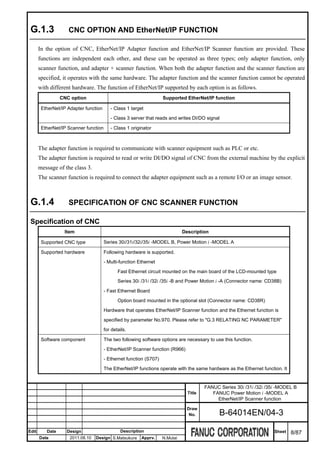
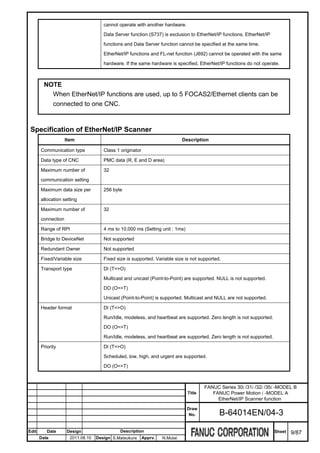
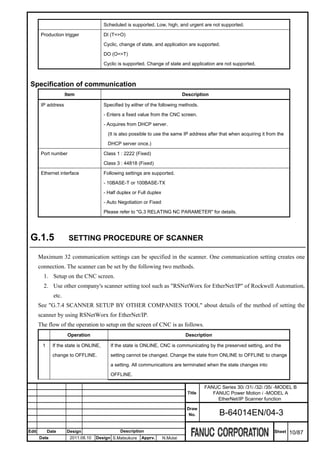
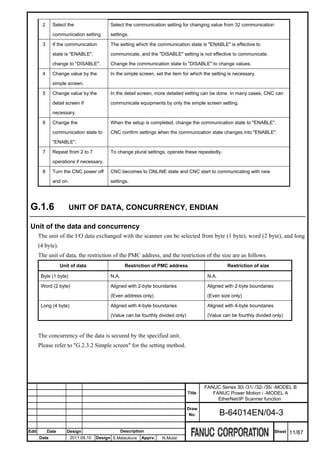
FANUC   Series   31+-MODEL A/B
FANUC   Series   32+-MODEL A/B
FANUC   Series   35+-MODEL B

                       Fast Ethernet
                    Fast Data Server
           OPERATOR'S MANUAL


                          B-64014EN/04
• No part of this manual may be reproduced in any form.
 • All specifications and designs are subject to change without notice.


The products in this manual contain software controlled based on Japan’s “Foreign
Exchange and Foreign Trade Law”.
For this reason, the export of these products is subject to an export license based on that
law.


In this manual we have tried as much as possible to describe all the various matters.
However, we cannot describe all the matters which must not be done, or which cannot be
done, because there are so many possibilities.
Therefore, matters which are not especially described as possible in this manual should be
regarded as ”impossible”.


This manual contains the program names or device names of other companies, some of
which are registered trademarks of respective owners. However, these names are not
followed by ® or ™ in the main body.
B-64014EN/04                                                                               SAFETY PRECAUTIONS

SAFETY PRECAUTIONS
   This section describes the safety precautions related to the use of CNC units, to ensure safe operation of
   machines fitted with FANUC CNC units. Read this section carefully before attempting to use any function
   described in this manual.
   Users should also read the relevant descriptions in the User’s Manual of the CNC to become fully familiar
   with the functions to be used.

                                                            Contents

   DEFINITION OF WARNING, CAUTION, AND NOTE.........................................................................s-1
   GENERAL WARNINGS AND CAUTIONS ............................................................................................s-1

DEFINITION OF WARNING, CAUTION, AND NOTE
   This manual includes safety precautions for protecting the user and preventing damage to the machine.
   Precautions are classified into Warnings and Cautions according to their bearing on safety. Also,
   supplementary information is described as Notes. Read the Warnings, Cautions, and Notes thoroughly
   before attempting to use the machine.

          WARNING
          Applied when there is a danger of the user being injured or when there is a danger
          of both the user being injured and the equipment being damaged if the approved
          procedure is not observed.

          CAUTION
          Applied when there is a danger of the equipment being damaged, if the approved
          procedure is not observed.

       NOTE
         The Note is used to indicate supplementary information other than Warning and
         Caution.

   •     Read this manual carefully, and store it in a safe place.

GENERAL WARNINGS AND CAUTIONS
         WARNING
       1 Before operating the machine, thoroughly check the entered data. Operating the
         machine with incorrectly specified data may result in the machine behaving
         unexpectedly, possibly causing damage to the workpiece and/or machine itself, or
         injury to the user.


                                                             s-1
SAFETY PRECAUTIONS                                                              B-64014EN/04


     WARNING
   2 Never attempt to machine a workpiece without first checking the programmed
     value, compensation value, current position, and external signal settings. Also,
     never attempt to machine a workpiece without first checking the operation of the
     machine. Before starting a production run, ensure that the machine is operating
     correctly by performing a trial run using, for example, the single block, feedrate
     override, or machine lock function, or by operating the machine with neither a tool
     nor workpiece mounted. Failure to confirm the correct operation of the machine
     may result in the machine behaving unexpectedly, possibly causing damage to the
     workpiece and/or machine itself, or injury to the user.
   3 Ensure that the specified feedrate is appropriate for the intended operation.
     Generally, for each machine, there is a maximum allowable feedrate. The
     appropriate feedrate varies with the intended operation. Refer to the manual
     provided with the machine to determine the maximum allowable feedrate. If a
     machine is run at other than the correct speed, it may behave unexpectedly,
     possibly causing damage to the workpiece and/or machine itself, or injury to the
     user.
   4 When using a tool compensation function, thoroughly check the direction and
     amount of compensation.
     Operating the machine with incorrectly specified data may result in the machine
     behaving unexpectedly, possibly causing damage to the workpiece and/or
     machine itself, or injury to the user.
   5 The parameters for the CNC and PMC are factory-set. Usually, there is no need to
     change them. When, however, there is no alternative other than to change a
     parameter, ensure that you fully Failure to set a parameter correctly may result in
     the machine behaving unexpectedly, possibly causing damage to the workpiece
     and/or machine itself, or injury to the user.

     CAUTION
   1 Immediately after switching on the power, do not touch any of the keys on the MDI
     panel until the position display or alarm screen appears on the CNC unit.
     Some of the keys on the MDI panel are dedicated to maintenance or other special
     operations. Pressing any of these keys may place the CNC unit in other than its
     normal state. Starting the machine in this state may cause it to behave
     unexpectedly.
   2 The operator's manual for Fast Ethernet / Fast Data Server describes all the basic
     functions of the CNC, including the optional functions. The selected optional
     functions vary with the machine. Some functions described in this manual may
     not, therefore, be supported by your machine. Check the machine specifications
     before using Fast Ethernet / Fast Data Server.


                                          s-2
B-64014EN/04                                                     SAFETY PRECAUTIONS

       CAUTION
     3 Some machine operations and screen functions are implemented by the machine
       tool builder. For an explanation of their usage and related notes, refer to the
       manual provided by the machine tool builder.
       For example:
       • On some machines, executing a tool function causes the tool change unit to
          operate. When executing a tool function on such a machine, stand well clear of
          the tool change unit. Otherwise, there is a danger of injury to the operator.
       • Many auxiliary functions trigger physical operations, such as rotation of the
          spindle. Before attempting to use an auxiliary function, therefore, ensure that
          you are fully aware of the operation to be triggered by that function.

     NOTE
       Command programs, parameters, and variables are stored in nonvolatile memory
       in the CNC. Generally, the contents of memory are not lost by a power on/off
       operation. However, the contents of memory may be erased by mistake, or
       important data in nonvolatile memory may have to be erased upon recovering
       from a failure.
       To enable the restoration of data as soon as possible if such a situation arises,
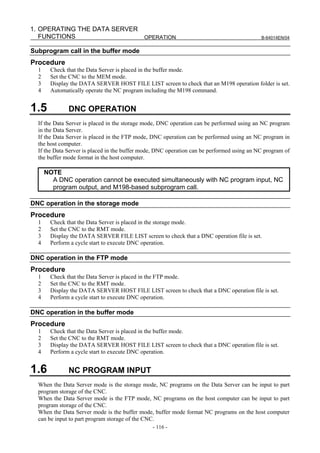
       always make a backup of the data in advance.


                                            s-3
B-64014EN/04                                                                                         TABLE OF CONTENTS

TABLE OF CONTENTS
SAFETY PRECAUTIONS............................................................................s-1
      DEFINITION OF WARNING, CAUTION, AND NOTE ............................................. s-1
      GENERAL WARNINGS AND CAUTIONS............................................................... s-1

I. GENERAL
1     GENERAL ............................................................................................... 3
      1.1      ORGANIZATION ........................................................................................... 3
      1.2      APPLICABLE MODELS................................................................................. 3
      1.3      RELATED MANUALS.................................................................................... 4

II. SPECIFICATION
1     PREFACE................................................................................................ 7
      1.1      DIFFERENCES IN FUNCTION BETWEEN THE EMBEDDED Ethernet
               AND OPTIONAL BOARD .............................................................................. 7
2     ABOUT USE WITH Series 30i/31i/32i/35i-B ......................................... 9
      2.1      HARDWARE OPTIONS................................................................................. 9
      2.2      SOFTWARE OPTIONS ................................................................................. 9
      2.3      RELATED NC PARAMETERS ...................................................................... 9
      2.4      SELECTION PROCEDURE OF HARDWARE AND SOFTWARE
               OPTIONS .................................................................................................... 10
      2.5      SCREEN LAYOUT ...................................................................................... 12
3     DATA SERVER FUNCTIONS ............................................................... 13
      3.1      DATA SERVER FILE MANAGEMENT ........................................................ 13
               3.1.1      File Names of CNC File Management ...................................................................14
               3.1.2      Number of Files Which Can Be Registered on a Data Server................................14
               3.1.3      Text Files and Binary Files ....................................................................................15
      3.2      DATA SERVER MODES ............................................................................. 15
      3.3      DETAILS OF THE BUFFER MODE............................................................. 17
      3.4      OPERATION FROM A DATA SERVER ...................................................... 20
      3.5      NC PROGRAM FORMAT............................................................................ 20
      3.6      LIST FILE FORMAT .................................................................................... 22
      3.7      DATASERVER Explorer CONNECTION ..................................................... 24
4     FOCAS2/Ethernet FUNCTIONS........................................................... 25
5     DNS/DHCP CLIENT FUNCTIONS ........................................................ 26
6     MACHINE REMOTE DIAGNOSIS FUNCTIONS................................... 27
7     UNSOLICITED MESSAGING FUNCTION ............................................ 28
8     FTP FILE TRANSFER FUNCTION ....................................................... 30

                                                               c-1
TABLE OF CONTENTS                                                                                                                 B-64014EN/04


III. SETTING
1   SETTING THE COMMUNICATION FUNCTION ................................... 33
    1.1    BACKING UP/RESTORING COMMUNICATION PARAMETERS............... 33
2   SETTING THE DATA SERVER FUNCTIONS....................................... 36
    2.1    OPERATING THE DATA SERVER SETTING SCREEN ............................. 36
    2.2    RELATED NC PARAMETERS .................................................................... 43
    2.3    EXAMPLE OF SETTING THE DATA SERVER FUNCTIONS ..................... 47
3   SETTING THE FOCAS2/Ethernet FUNCTIONS .................................. 48
    3.1    OPERATING THE FOCAS2/Ethernet SETTING SCREEN ......................... 48
    3.2    RELATED NC PARAMETERS .................................................................... 50
    3.3    EXAMPLE OF SETTING THE FOCAS2/Ethernet FUNCTIONS.................. 51
4   SETTING THE DNS/DHCP FUNCTION................................................ 52
    4.1    SETTING OF DNS....................................................................................... 52
    4.2    SETTING OF DHCP .................................................................................... 53
    4.3    RELATED NC PARAMETERS .................................................................... 55
    4.4    EXAMPLE OF SETTING DNS/DHCP.......................................................... 55
           4.4.1      When DNS/DHCP is Used with the Data Server ...................................................55
           4.4.2      When DHCP is Used with the FTP Server Function of the Data Server ...............56
           4.4.3      When DHCP is Used with the FOCAS2/Ethernet Function ..................................57

5   SETTING THE MACHINE REMOTE DIAGNOSIS FUNCTIONS .......... 60
    5.1    OPERATING THE MACHINE REMOTE DIAGNOSIS SETTING SCREEN. 60
    5.2    RELATED NC PARAMETERS .................................................................... 64
    5.3    CONTROLLING THE MACHINE REMOTE DIAGNOSIS FUNCTIONS
           FROM THE PMC ......................................................................................... 65
           5.3.1      Signals ....................................................................................................................65
           5.3.2      Signal Timing Charts..............................................................................................67
                      5.3.2.1       When the start of machine remote diagnosis is accepted................................... 67
                      5.3.2.2       When the start of machine remote diagnosis is rejected.................................... 68
                      5.3.2.3       When machine remote diagnosis is forcibly terminated .................................... 68
    5.4    EXAMPLE OF SETTING THE MACHINE REMOTE DIAGNOSIS
           FUNCTIONS................................................................................................ 69
6   SETTING THE UNSOLICITED                                    MESSAGING FUNCTION................. 70
    6.1    SETTING THE UNSOLICITED MESSAGING FUNCTION .......................... 70
           6.1.1      Selection of Mode ..................................................................................................73
           6.1.2      Setting Method by CNC Screen .............................................................................74
           6.1.3      Setting Method by Personal Computer...................................................................78
    6.2    EXECUTING THE UNSOLICITED MESSAGING FUNCTION..................... 78
           6.2.1      When Using a PMC Address for Control (Response Notice method) ...................79
           6.2.2      When Using a PMC Address for Control (Simple Method) ..................................81
           6.2.3      When Using a Macro Variable for Control (Simple Method)................................82
    6.3    RELATED NC PARAMETERS .................................................................... 84
7   SETTING THE FTP FILE TRANSFER FUNCTION............................... 86
    7.1    SETTING THE FTP FILE TRANSFER FUNCTION ..................................... 86
    7.2    RELATED NC PARAMETERS .................................................................... 89
                                                               c-2
B-64014EN/04                                                                                                   TABLE OF CONTENTS

8     ERROR MESSAGES DISPLAYED DURING PARAMETER SETTING 91

IV. OPERATION
1     OPERATING THE DATA SERVER FUNCTIONS................................. 95
      1.1      DEVICE CHANGE ON THE PROGRAM FOLDER SCREEN...................... 95
      1.2      OPERATING THE DATA SERVER FILE LIST SCREEN ............................ 96
               1.2.1      Displaying and Operating the File List ................................................................100
               1.2.2      File Transfer Operation ........................................................................................106
               1.2.3      Preparations for File Operation and Editing.........................................................107
      1.3      OPERATING THE DATA SERVER HOST FILE LIST SCREEN ............... 108
               1.3.1      Displaying and Operating the File List ................................................................110
               1.3.2      File Transfer Operation ........................................................................................113
               1.3.3      Preparations for File Operation ............................................................................114
      1.4      M198-BASED SUBPROGRAM CALL........................................................ 115
      1.5      DNC OPERATION..................................................................................... 116
      1.6      NC PROGRAM INPUT .............................................................................. 116
      1.7      NC PROGRAM OUTPUT .......................................................................... 117
      1.8      FTP SERVER FUNCTIONS ...................................................................... 118
2     OPERATING THE MACHINE REMOTE DIAGNOSIS FUNCTIONS .. 119
      2.1      OPERATING THE MACHINE REMOTE DIAGNOSIS SCREEN ............... 119
               2.1.1      Selecting an Inquiry Destination ..........................................................................120
               2.1.2      Starting Diagnosis ................................................................................................120
                          2.1.2.1       Diagnosis status ............................................................................................... 120
                          2.1.2.2       Error numbers and error messages................................................................... 121
               2.1.3      Forcibly Terminating Diagnosis...........................................................................122

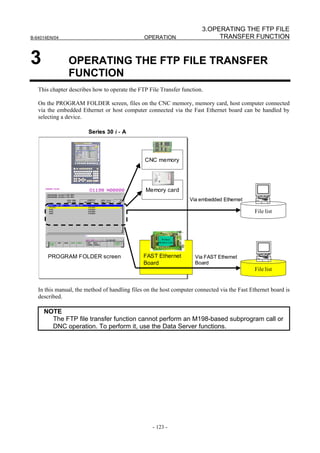
3     OPERATING THE FTP FILE TRANSFER FUNCTION....................... 123
      3.1      DEVICE CHANGE ON THE PROGRAM FOLDER SCREEN.................... 124
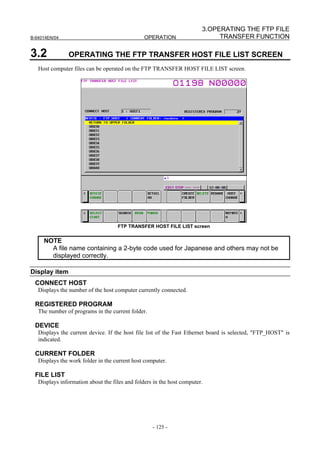
      3.2      OPERATING THE FTP TRANSFER HOST FILE LIST SCREEN.............. 125
               3.2.1      Displaying and Operating the File List ................................................................126
      3.3      NC PROGRAM INPUT .............................................................................. 129
      3.4      NC PROGRAM OUTPUT .......................................................................... 129

V. CONNECTION
1     SETTING ............................................................................................. 133
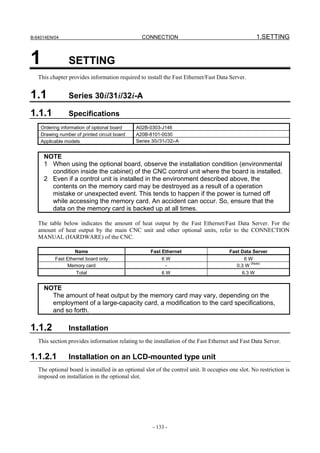
      1.1      Series 30i/31i/32i-A ................................................................................... 133
               1.1.1      Specifications .......................................................................................................133
               1.1.2      Installation ............................................................................................................133
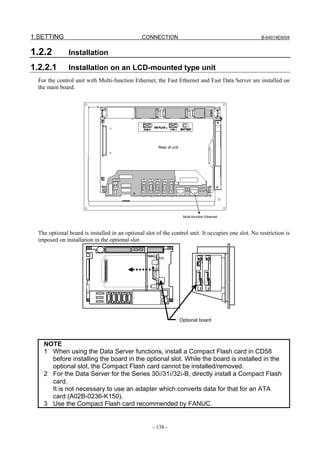
                          1.1.2.1       Installation on an LCD-mounted type unit ...................................................... 133
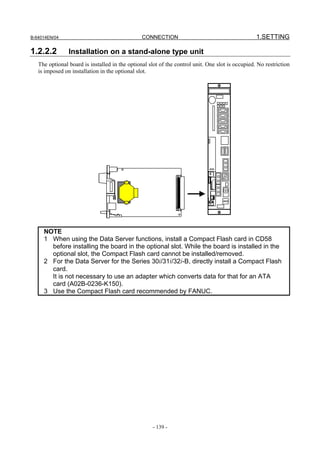
                          1.1.2.2       Installation on a stand-alone type unit ............................................................. 134
                          1.1.2.3       Total connection diagram ................................................................................ 135
                          1.1.2.4       Installing a memory card ................................................................................. 135
      1.2      Series 30i/31i/32i/35i-B ............................................................................. 137
               1.2.1      Specifications .......................................................................................................137
               1.2.2      Installation ............................................................................................................138
                          1.2.2.1       Installation on an LCD-mounted type unit ...................................................... 138
                          1.2.2.2       Installation on a stand-alone type unit ............................................................. 139
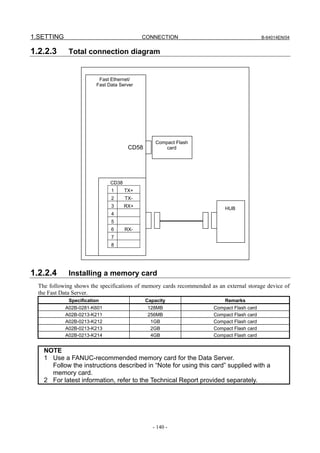
                          1.2.2.3       Total connection diagram ................................................................................ 140
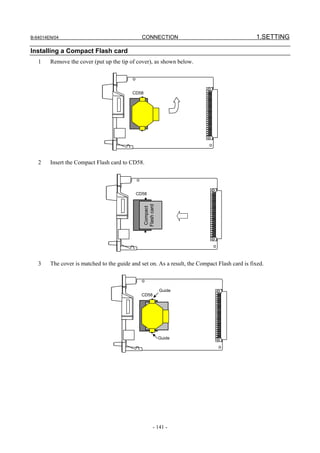
                          1.2.2.4       Installing a memory card ................................................................................. 140
                                                                    c-3
TABLE OF CONTENTS                                                                                                            B-64014EN/04


2   CABLE CONNECTION ....................................................................... 142
    2.1     CONNECTING TO Ethernet ...................................................................... 142
    2.2     LEADING OUT THE Ethernet CABLE ....................................................... 144
    2.3     RJ-45 CONNECTOR PIN ASSIGNMENTS ............................................... 144
    2.4     TWISTED-PAIR CABLE SPECIFICATION ................................................ 145
            2.4.1      Cable Connection .................................................................................................145
            2.4.2      Cable Materials.....................................................................................................145
            2.4.3      Connector Specification .......................................................................................147
    2.5     ELECTRICAL NOISE COUNTERMEASURES.......................................... 148
            2.5.1      Separating Signal Lines........................................................................................148
            2.5.2      Clamping and Shielding Cables ...........................................................................148
            2.5.3      Grounding the Network........................................................................................150
    2.6     CHECK ITEMS AT INSTALLATION .......................................................... 152

VI. MAINTENANCE
1   HARDWARE MAINTENANCE INFORMATION.................................. 157
    1.1     Series 30i/31i/32i-A ................................................................................... 157
            1.1.1      Component Layout ...............................................................................................157
            1.1.2      LED Indications and Meanings ............................................................................158
    1.2     Series 30i/31i/32i/35i-B ............................................................................. 160
            1.2.1      Component Layout ...............................................................................................160
            1.2.2      LED Indications and Meanings ............................................................................161

2   SOFTWARE MAINTENANCE INFORMATION................................... 164
    2.1     Ethernet LOG ............................................................................................ 164
    2.2     ETHERNET CONNECTION CONFIRMATION.......................................... 169
    2.3     COMMUNICATION STATE CONFIRMATION........................................... 171
    2.4     COMMUNICATION SOFTWARE CONFIRMATION.................................. 172
    2.5     FTP SERVER MAINTENANCE ................................................................. 173
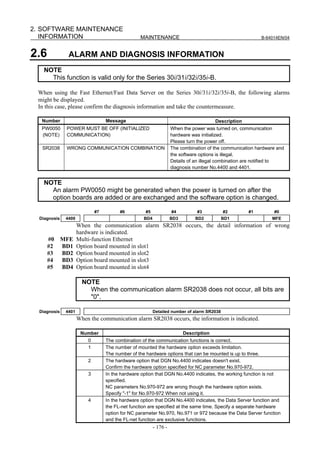
    2.6     ALARM AND DIAGNOSIS INFORMATION ............................................... 176
    2.7     COMMUNICATION RETRY MONITORING FUNCTION........................... 177

APPENDIX
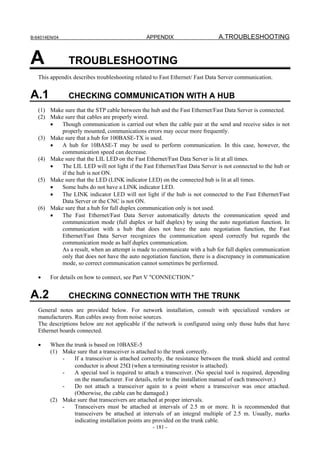
A   TROUBLESHOOTING ........................................................................ 181
    A.1     CHECKING COMMUNICATION WITH A HUB.......................................... 181
    A.2     CHECKING CONNECTION WITH THE TRUNK ....................................... 181
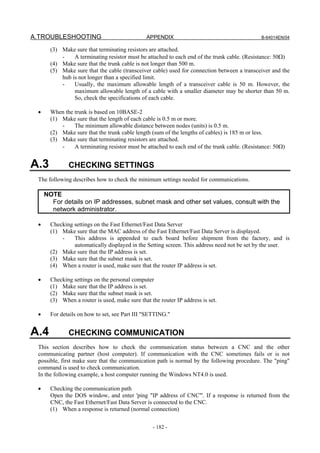
    A.3     CHECKING SETTINGS............................................................................. 182
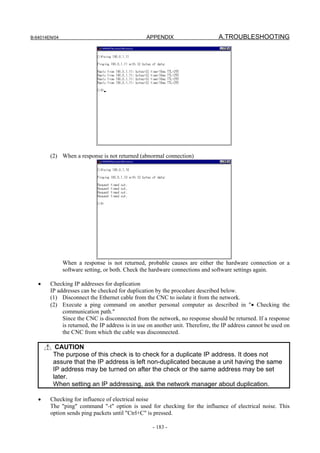
    A.4     CHECKING COMMUNICATION................................................................ 182
B   EXAMPLE OF FTP SERVER SETUP ................................................. 185
    B.1     SETTING UP FTP SERVER OF Windows 2000 Professional (FOR
            INTERNET INFORMATION SERVICE) ..................................................... 185
    B.2     SETTING UP FTP SERVER OF Windows XP Professional (FOR
            INTERNET INFORMATION SERVICE) ..................................................... 196
    B.3     SETTING UP FTP SERVER OF Windows Vista (FOR INTERNET
            INFORMATION SERVICE)........................................................................ 216


                                                              c-4
B-64014EN/04                                                                                        TABLE OF CONTENTS

      B.4      SETTING UP FTP SERVER OF Windows 7 (FOR INTERNET
               INFORMATION SERVICE)........................................................................ 233
C     EXAMPLE OF SETTING UP DNS/DHCP ........................................... 254
      C.1      EXAMPLE OF SETTING UP DHCP SERVER OF Windows 2000 Server. 255
      C.2      EXAMPLE OF SETTING UP DNS SERVER OF Windows 2000 Server ... 261
D     FTP CLIENT OPERATION.................................................................. 266
      D.1      OPERATION USING THE FTP COMMAND.............................................. 266
      D.2      OPERATION USING THE Explorer........................................................... 268
               D.2.1    Displaying the File List ........................................................................................268
               D.2.2    File Operation and File Transfer ..........................................................................281
      D.3      SECURITY UNBLOCKING IN Windows XP (Service Pack 2) / Vista ........ 283


                                                              c-5
I. GENERAL
B-64014EN/04                                       GENERAL                                       1.GENERAL


1                GENERAL
   This part explains the organization of this manual.


1.1              ORGANIZATION
   This manual consists of the following parts:

   SAFETY PRECAUTIONS
         This section describes the precautions to be observed when reading this manual.
   I. GENERAL
         This part describes the chapter organization, applicable models, and related manuals.
   II. SPECIFICATION
         This part describes the specifications of the functions that operate on the Fast Ethernet/Fast Data
         Server.
   III. SETTING
         This part describes the method of setting.
   IV. OPERATION
         This part describes the method of operating the Data Server functions, machine remote diagnosis
         functions, and FTP file transfer function.
   V. CONNECTION
         This part describes the method of connection and provides notes.
   VI. MAINTENANCE
         This part provides an Ethernet board drawing number and describes the meanings of LED
         indications.
   APPENDIX
         These appendixes describe additional information such as that related to troubleshooting, the
         operation of the FTP client, and how to set up the FTP server.


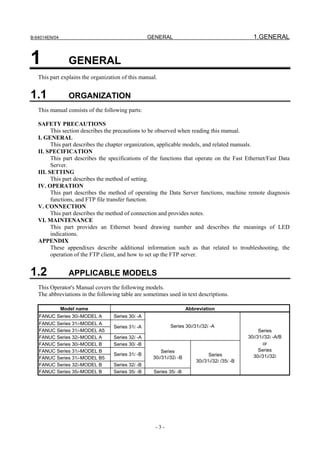
1.2              APPLICABLE MODELS
   This Operator's Manual covers the following models.
   The abbreviations in the following table are sometimes used in text descriptions.

               Model name                                            Abbreviation
   FANUC Series 30i-MODEL A        Series 30i -A
   FANUC Series 31i-MODEL A
                                   Series 31i -A            Series 30i/31i/32i -A
   FANUC Series 31i-MODEL A5                                                                        Series
   FANUC Series 32i-MODEL A        Series 32i -A                                               30i/31i/32i -A/B
   FANUC Series 30i-MODEL B        Series 30i -B                                                      or
   FANUC Series 31i-MODEL B                             Series                                      Series
                                   Series 31i -B                               Series            30i/31i/32i
   FANUC Series 31i-MODEL B5                        30i/31i/32i -B
                                                                         30i/31i/32i /35i -B
   FANUC Series 32i-MODEL B        Series 32i -B
   FANUC Series 35i-MODEL B        Series 35i -B    Series 35i -B


                                                     -3-
1.GENERAL                                     GENERAL                                           B-64014EN/04


1.3          RELATED MANUALS
 The table below lists manuals related to this manual.
 Refer to these manuals when you use this manual. This manual is indicated by an asterisk(*).

                                                                                     Specification
                                  Manual name
                                                                                       number
  Related to Series 30i/31i/32i-A
  DESCRIPTIONS                                                                   B-63942EN
  CONNECTION MANUAL (HARDWARE)                                                   B-63943EN
  CONNECTION MANUAL (FUNCTION)                                                   B-63943EN-1
  OPERATOR’S MANUAL (Common to Lathe System/Machining Center System)             B-63944EN
  OPERATOR’S MANUAL (For Lathe System)                                           B-63944EN-1
  OPERATOR’S MANUAL (For Machining Center System)                                B-63944EN-2
  MAINTENANCE MANUAL                                                             B-63945EN
  PARAMETER MANUAL                                                               B-65950EN
  Related to Series 30i/31i/32i-B
  DESCRIPTIONS                                                                   B-64482EN
  CONNECTION MANUAL (HARDWARE)                                                   B-64483EN
  CONNECTION MANUAL (FUNCTION)                                                   B-64483EN-1
  OPERATOR’S MANUAL (Common to Lathe System/Machining Center System)             B-64484EN
  OPERATOR’S MANUAL (For Lathe System)                                           B-64484EN-1
  OPERATOR’S MANUAL (For Machining Center System)                                B-64484EN-2
  MAINTENANCE MANUAL                                                             B-64485EN
  PARAMETER MANUAL                                                               B-64490EN
  Related to Series 35i-B
  DESCRIPTIONS                                                                   B-64522EN
  CONNECTION MANUAL (HARDWARE)                                                   B-64523EN
  CONNECTION MANUAL (FUNCTION)                                                   B-64523EN-1
  OPERATOR’S MANUAL                                                              B-64524EN
  MAINTENANCE MANUAL                                                             B-64525EN
  PARAMETER MANUAL                                                               B-64530EN
  PMC
  FANUC Series 30i/31i/32i-MODEL A     PMC PROGRAMMING MANUAL                    B-63983EN
  FANUC Series 30i/31i/32i/35i-MODEL B PMCPROGRAMMING MANUAL                     B-64513EN
  Network
  PROFIBUS-DP Board CONNECTION MANUAL                                            B-63993EN
  Fast Ethernet / Fast Data Server OPERATOR’S MANUAL                             B-64014EN               *
  DeviceNet Board CONNECTION MANUAL                                              B-64043EN
  FL-net Board CONNECTION MANUAL                                                 B-64163EN
  CC-Link Board CONNECTION MANUAL                                                B-64463EN
  Machine Remote Diagnosis
  Machine Remote Diagnosis Package OPERATOR’S MANUAL                             B-63734EN


                                                  -4-
II. SPECIFICATION
B-64014EN/04                                      SPECIFICATION                                   1.PREFACE


1                PREFACE
   In this manual, a board that has an ATA Flash card or a Compact Flash Card (collectively called a
   memory card hereinafter) mounted to enable the use of the Data Server functions is referred to as a "Fast
   Data Server" (or simply as a "Data Server"). On the other hand, a board that does not have a memory card
   mounted is referred to as a "Fast Ethernet".

                             Board name                                         Usable function
                                                               -   Data Server functions
                                                               -   FOCAS2/Ethernet functions
    Fast Data Server                                           -   CNC screen display functions
    (or simply referred to as "Data Server")                   -   Machine remote diagnosis functions
                                                               -   Unsolicited messaging function
                                                                   (FOCAS2/Ethernet)
                                                               -   FOCAS2/Ethernet functions
                                                               -   CNC screen display functions
                                                               -   Machine remote diagnosis functions
    Fast Ethernet
                                                               -   Unsolicited messaging function
                                                                   (FOCAS2/Ethernet)
                                                               -   FTP file transfer function


     NOTE
     1 To use the Data Server functions, the Data Server function option is required.
       To use the FOCAS2/Ethernet functions, CNC screen display functions, machine
       remote diagnosis functions, unsolicited messaging function, and FTP file transfer
       function, the Ethernet function option is required.
       To use the CNC screen display functions, the CNC screen display function
       option is additionally required.
     2 The LCD-mounted type Series 30i/31i/32i/35i-B has a Fast Ethernet circuit
       (Multi-function Ethernet) mounted on its main board. The circuit can be used as
       hardware for Fast Ethernet. For details, see Section 2.1, “HARDWARE
       OPTIONS” below.
     3 The Data Server functions cannot be used with the Series 35i-B.


1.1              DIFFERENCES IN FUNCTION BETWEEN THE EMBEDDED
                 Ethernet AND OPTIONAL BOARD
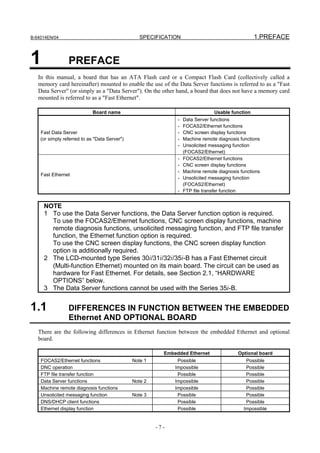
   There are the following differences in Ethernet function between the embedded Ethernet and optional
   board.

                                                          Embedded Ethernet                Optional board
    FOCAS2/Ethernet functions                  Note 1          Possible                       Possible
    DNC operation                                             Impossible                      Possible
    FTP file transfer function                                 Possible                       Possible
    Data Server functions                      Note 2         Impossible                      Possible
    Machine remote diagnosis functions                        Impossible                      Possible
    Unsolicited messaging function             Note 3          Possible                       Possible
    DNS/DHCP client functions                                  Possible                       Possible
    Ethernet display function                                  Possible                      Impossible


                                                        -7-
1.PREFACE                                    SPECIFICATION                              B-64014EN/04


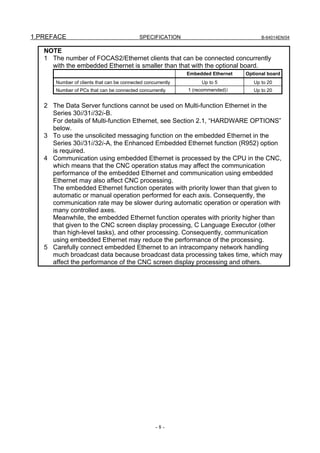
   NOTE
   1 The number of FOCAS2/Ethernet clients that can be connected concurrently
     with the embedded Ethernet is smaller than that with the optional board.
                                                              Embedded Ethernet   Optional board
       Number of clients that can be connected concurrently        Up to 5           Up to 20
       Number of PCs that can be connected concurrently       1 (recommended))       Up to 20


   2 The Data Server functions cannot be used on Multi-function Ethernet in the
     Series 30i/31i/32i-B.
     For details of Multi-function Ethernet, see Section 2.1, “HARDWARE OPTIONS”
     below.
   3 To use the unsolicited messaging function on the embedded Ethernet in the
     Series 30i/31i/32i-A, the Enhanced Embedded Ethernet function (R952) option
     is required.
   4 Communication using embedded Ethernet is processed by the CPU in the CNC,
     which means that the CNC operation status may affect the communication
     performance of the embedded Ethernet and communication using embedded
     Ethernet may also affect CNC processing.
     The embedded Ethernet function operates with priority lower than that given to
     automatic or manual operation performed for each axis. Consequently, the
     communication rate may be slower during automatic operation or operation with
     many controlled axes.
     Meanwhile, the embedded Ethernet function operates with priority higher than
     that given to the CNC screen display processing, C Language Executor (other
     than high-level tasks), and other processing. Consequently, communication
     using embedded Ethernet may reduce the performance of the processing.
   5 Carefully connect embedded Ethernet to an intracompany network handling
     much broadcast data because broadcast data processing takes time, which may
     affect the performance of the CNC screen display processing and others.


                                                    -8-
2.ABOUT USE WITH Series
B-64014EN/04                                    SPECIFICATION                               30i/31i/32i/35i-B


2                ABOUT USE WITH Series 30i/31i/32i/35i-B
   The hardware of Series 30i/31i/32i/35i-B is different from one of Series 30i/31i/32i-A.
   In this section, the difference of the specification is described.


2.1              HARDWARE OPTIONS
   In Series 30i/31i/32i/35i-B, the following hardware is prepared for Fast Ethernet.

          Kind of hardware                                              Description
                                   Fast Ethernet circuit mounted on the main board of the LCD-mounted type Series
    Multi-function Ethernet
                                   30i/31i/32i/35i-B (Connector name: CD38B)
    Fast Ethernet board            Option board mounted in the optional slot (Connector name: CD38R)

   The above hardware can be used as hardware for the FL-net according to the setting of the NC parameters
   (No.970-972).
   The information when the hardware is used as hardware for Fast Ethernet is described in this manual.
   Refer to “FL-net Board CONNECTION MANUAL” (B-64163EN) regarding the FL-net function.


2.2              SOFTWARE OPTIONS
   In Series 30i/31i/32i/35i-B, the following software functions can be used by the hardware options shown
   in section 2.1.

         Function name             Drawing                                      Description
    Ethernet function         A02B-xxxx-S707        Ethernet function (ex. FOCAS2/Ethernet) can be used.
    Data Server function      A02B-xxxx-S737        Data Server function can be used. (NOTE1)
    FL-net function           A02B-xxxx-J692        FL-net function can be used.
    FL-net PORT2 function     A02B-xxxx-R964        Two FL-net functions can be used simultaneously.


     NOTE
     1 The Data Server function cannot be used on Multi-function Ethernet.
       The Data Server function cannot be used on the Series 35i-B.
     2 In the Series 30i/31i/32i-A, the special software and software options are
       necessary to use the FL-net/Ethernet coexisting function. But, in the Series
       30i/31i/32i/35i-B, it is possible to use FL-net/Ethernet coexisting function by only
       Ethernet function and FL-net function.
       Please refer to “2.3 RELATED NC PARAMETERS” about the setting for
       FL-net/Ethernet coexisting function.


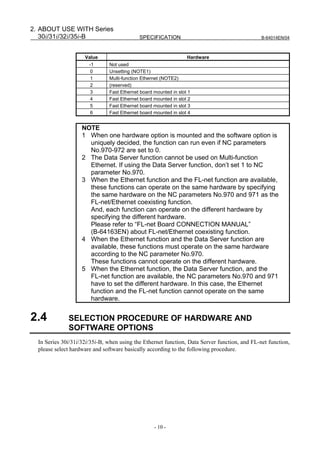
2.3              RELATED NC PARAMETERS
       0970                           Select hardware that operates Ethernet or Data Server function
       0971                                  Select hardware that operates first FL-net function
       0972                               Select hardware that operates second FL-net function
      [Input type] Parameter input
       [Data type] Byte
[Valid data range] -1 to 6
                   Hardware that operates each function is selected. Please refer to the next section, too.
                                                        -9-
2. ABOUT USE WITH Series
   30i/31i/32i/35i-B                        SPECIFICATION                                      B-64014EN/04


                     Value                                        Hardware
                       -1      Not used
                        0      Unsetting (NOTE1)
                        1      Multi-function Ethernet (NOTE2)
                        2      (reserved)
                        3      Fast Ethernet board mounted in slot 1
                        4      Fast Ethernet board mounted in slot 2
                        5      Fast Ethernet board mounted in slot 3
                        6      Fast Ethernet board mounted in slot 4


                    NOTE
                    1 When one hardware option is mounted and the software option is
                      uniquely decided, the function can run even if NC parameters
                      No.970-972 are set to 0.
                    2 The Data Server function cannot be used on Multi-function
                      Ethernet. If using the Data Server function, don’t set 1 to NC
                      parameter No.970.
                    3 When the Ethernet function and the FL-net function are available,
                      these functions can operate on the same hardware by specifying
                      the same hardware on the NC parameters No.970 and 971 as the
                      FL-net/Ethernet coexisting function.
                      And, each function can operate on the different hardware by
                      specifying the different hardware.
                      Please refer to “FL-net Board CONNECTION MANUAL”
                      (B-64163EN) about FL-net/Ethernet coexisting function.
                    4 When the Ethernet function and the Data Server function are
                      available, these functions must operate on the same hardware
                      according to the NC parameter No.970.
                      These functions cannot operate on the different hardware.
                    5 When the Ethernet function, the Data Server function, and the
                      FL-net function are available, the NC parameters No.970 and 971
                      have to set the different hardware. In this case, the Ethernet
                      function and the FL-net function cannot operate on the same
                      hardware.


2.4           SELECTION PROCEDURE OF HARDWARE AND
              SOFTWARE OPTIONS
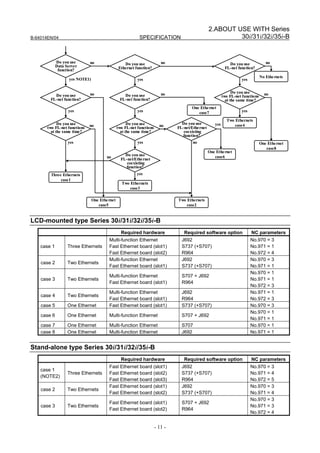
  In Series 30i/31i/32i/35i-B, when using the Ethernet function, Data Server function, and FL-net function,
  please select hardware and software basically according to the following procedure.


                                                   - 10 -
2.ABOUT USE WITH Series
B-64014EN/04                                                 SPECIFICATION                                   30i/31i/32i/35i-B


             Do you use       no                    Do you use             no                                   Do you use             no
             Data Server                         Ethernet function?                                           FL-net function?
              function?
                                                                                                                                    No Ethe rnets
                    yes NOTE1)                              yes                                                        yes


                              no                                           no                                      Do you use         no
          Do you use                                Do you use                                               two FL-net functions
        FL-net function?                          FL-net function?                                             at the same time?
                                                                                        One Ethe rnet
                   yes                                      yes                            case7                       yes

                                                                                                               Two Ethernets
             Do you use       no                       Do you use         no       Do you use          yes         case4
       two FL-net functions                      two FL-net functions            FL-net/Ethe rnet
         at the same time?                         at the same time?                coexisting
                                                                                   function?
                   yes                                      yes                          no                                         One Ethe rnet
                                                                                                                                       case8
                                                                                                    One Ethe rnet
                                         no          Do you use                                        case6
                                                   FL-net/Ethe rnet
                                                      coexisting
                                                     function?
        Three Ethernets                                    yes
             case1
                                                   Two Ethernets
                                                       case3

                                 One Ethe rnet                                   Two Ethernets
                                    case5                                            case2


LCD-mounted type Series 30i/31i/32i/35i-B
                                                   Required hardware                Required software option                 NC parameters
                                          Multi-function Ethernet                  J692                                      No.970 = 3
    case 1         Three Ethernets        Fast Ethernet board (slot1)              S737 (+S707)                              No.971 = 1
                                          Fast Ethernet board (slot2)              R964                                      No.972 = 4
                                          Multi-function Ethernet                  J692                                      No.970 = 3
    case 2         Two Ethernets
                                          Fast Ethernet board (slot1)              S737 (+S707)                              No.971 = 1
                                                                                                                             No.970 = 1
                                          Multi-function Ethernet                  S707 + J692
    case 3         Two Ethernets                                                                                             No.971 = 1
                                          Fast Ethernet board (slot1)              R964
                                                                                                                             No.972 = 3
                                          Multi-function Ethernet                  J692                                      No.971 = 1
    case 4         Two Ethernets
                                          Fast Ethernet board (slot1)              R964                                      No.972 = 3
    case 5         One Ethernet           Fast Ethernet board (slot1)              S737 (+S707)                              No.970 = 3
                                                                                                                             No.970 = 1
    case 6         One Ethernet           Multi-function Ethernet                  S707 + J692
                                                                                                                             No.971 = 1
    case 7         One Ethernet           Multi-function Ethernet                  S707                                      No.970 = 1
    case 8         One Ethernet           Multi-function Ethernet                  J692                                      No.971 = 1


Stand-alone type Series 30i/31i/32i/35i-B
                                                   Required hardware                Required software option                 NC parameters
                                          Fast Ethernet board (slot1)              J692                                      No.970 = 3
    case 1
                   Three Ethernets        Fast Ethernet board (slot2)              S737 (+S707)                              No.971 = 4
    (NOTE2)
                                          Fast Ethernet board (slot3)              R964                                      No.972 = 5
                                          Fast Ethernet board (slot1)              J692                                      No.970 = 3
    case 2         Two Ethernets
                                          Fast Ethernet board (slot2)              S737 (+S707)                              No.971 = 4
                                                                                                                             No.970 = 3
                                          Fast Ethernet board (slot1)              S707 + J692
    case 3         Two Ethernets                                                                                             No.971 = 3
                                          Fast Ethernet board (slot2)              R964
                                                                                                                             No.972 = 4


                                                                        - 11 -
2. ABOUT USE WITH Series
   30i/31i/32i/35i-B                            SPECIFICATION                                         B-64014EN/04


                                       Required hardware           Required software option      NC parameters
                                  Fast Ethernet board (slot1)     J692                           No.971 = 3
   case 4     Two Ethernets
                                  Fast Ethernet board (slot2)     R964                           No.972 = 4
   case 5     One Ethernet        Fast Ethernet board (slot1)     S737 (+S707)                   No.970 = 3
                                                                                                 No.970 = 3
   case 6     One Ethernet        Fast Ethernet board (slot1)     S707 + J692
                                                                                                 No.971 = 3
   case 7     One Ethernet        Fast Ethernet board (slot1)     S707                           No.970 = 3
   case 8     One Ethernet        Fast Ethernet board (slot1)     J692                           No.971 = 3


    NOTE
    1 When the Data Server function is selected, whether the Ethernet function is
      selected does not affect the subsequent selection procedure because the
      Ethernet and Data Server functions always operate on the same hardware.
    2 It is not selectable because only two option boards can be mounted in the
      stand-alone type of Series 35i-B.


2.5            SCREEN LAYOUT
  In this manual, each screen has described the example of the screen of Series 30i/31i/32i-A. A basic
  content is the same though a detailed layout might be different.
  The hardware can be confirmed in title part of each screen of Series 30i/31i/32i/35i-B.


  The kind of the hardware is shown on the title bar as the above example like [MULTI –FUNC ETHER].
            Title                                                Description
                             Fast Ethernet circuit mounted on the main board of the LCD-mounted type Series
   [MUTI-FUNC ETHER]
                             30i/31i/32i/35i-B
   [BOARD(SLOT1)]            Option board mounted in the optional slot 1
   [BOARD(SLOT2)]            Option board mounted in the optional slot 2
   [BOARD(SLOT3)]            Option board mounted in the optional slot 3
   [BOARD(SLOT4)]            Option board mounted in the optional slot 4


                                                       - 12 -
B-64014EN/04                                  SPECIFICATION            3.DATA SERVER FUNCTIONS


3              DATA SERVER FUNCTIONS
   The Data Server functions use a memory card built into a board for storing files and can transfer files and
   perform DNC operation using FTP.
   A Data Server can operate on both FTP client and FTP server.
   When you use a Data Server to transfer files, the Data Server operates as an FTP client and communicates
   with the FTP server on the host computer.
   When you use the host computer to transfer files, the Data Server operates as an FTP server and
   communicates with the FTP client on the host computer.

     NOTE
     1 The Data Server functions cannot be used with the Series 35i-B.
     2 Before communicating with the host computer using the Data Server functions,
       completely confirm that there is no problem with the entire system including
       communication with the personal computer because the personal computer
       environment may affect communication operation.
     3 When the host computer operates as an FTP server, FTP server software must
       be run on the host computer. When the host computer operates as an FTP
       client, FTP client software must be run on the host computer.


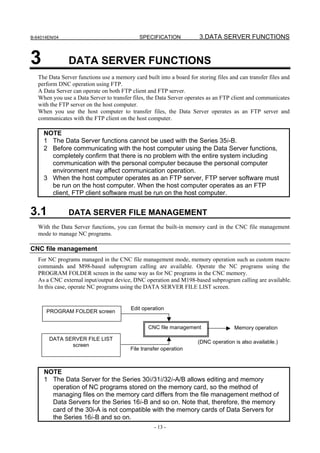
3.1            DATA SERVER FILE MANAGEMENT
   With the Data Server functions, you can format the built-in memory card in the CNC file management
   mode to manage NC programs.

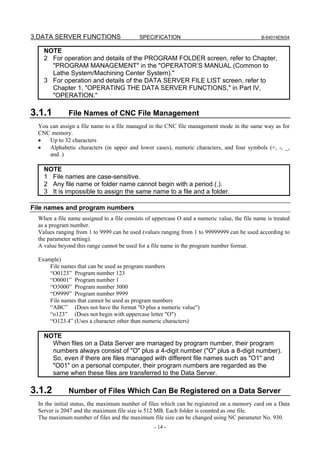
CNC file management
   For NC programs managed in the CNC file management mode, memory operation such as custom macro
   commands and M98-based subprogram calling are available. Operate the NC programs using the
   PROGRAM FOLDER screen in the same way as for NC programs in the CNC memory.
   As a CNC external input/output device, DNC operation and M198-based subprogram calling are available.
   In this case, operate NC programs using the DATA SERVER FILE LIST screen.


                                          Edit operation
      PROGRAM FOLDER screen

                                                 CNC file management                  Memory operation

       DATA SERVER FILE LIST
                                                                      (DNC operation is also available.)
              screen
                                          File transfer operation


     NOTE
     1 The Data Server for the Series 30i/31i/32i-A/B allows editing and memory
       operation of NC programs stored on the memory card, so the method of
       managing files on the memory card differs from the file management method of
       Data Servers for the Series 16i-B and so on. Note that, therefore, the memory
       card of the 30i-A is not compatible with the memory cards of Data Servers for
       the Series 16i-B and so on.
                                                    - 13 -
3.DATA SERVER FUNCTIONS                     SPECIFICATION                                      B-64014EN/04


    NOTE
    2 For operation and details of the PROGRAM FOLDER screen, refer to Chapter,
      "PROGRAM MANAGEMENT" in the "OPERATOR’S MANUAL (Common to
      Lathe System/Machining Center System)."
    3 For operation and details of the DATA SERVER FILE LIST screen, refer to
      Chapter 1, "OPERATING THE DATA SERVER FUNCTIONS," in Part IV,
      "OPERATION."

3.1.1         File Names of CNC File Management
  You can assign a file name to a file managed in the CNC file management mode in the same way as for
  CNC memory.
  •   Up to 32 characters
  •   Alphabetic characters (in upper and lower cases), numeric characters, and four symbols (+, -, _,
      and .)

    NOTE
    1 File names are case-sensitive.
    2 Any file name or folder name cannot begin with a period (.).
    3 It is impossible to assign the same name to a file and a folder.

File names and program numbers
  When a file name assigned to a file consists of uppercase O and a numeric value, the file name is treated
  as a program number.
  Values ranging from 1 to 9999 can be used (values ranging from 1 to 99999999 can be used according to
  the parameter setting).
  A value beyond this range cannot be used for a file name in the program number format.

  Example)
      File names that can be used as program numbers
      “O0123” Program number 123
      “O0001” Program number 1
      “O3000” Program number 3000
      “O9999” Program number 9999
      File names that cannot be used as program numbers
      “ABC” (Does not have the format "O plus a numeric value")
      “o123” (Does not begin with uppercase letter "O")
      “O123.4” (Uses a character other than numeric characters)

    NOTE
      When files on a Data Server are managed by program number, their program
      numbers always consist of "O" plus a 4-digit number ("O" plus a 8-digit number).
      So, even if there are files managed with different file names such as "O1" and
      "O01" on a personal computer, their program numbers are regarded as the
      same when these files are transferred to the Data Server.

3.1.2         Number of Files Which Can Be Registered on a Data Server
  In the initial status, the maximum number of files which can be registered on a memory card on a Data
  Server is 2047 and the maximum file size is 512 MB. Each folder is counted as one file.
  The maximum number of files and the maximum file size can be changed using NC parameter No. 930.
                                                  - 14 -
B-64014EN/04                                 SPECIFICATION            3.DATA SERVER FUNCTIONS
   For details, see Section 2.2, "RELATED NC PARAMETERS," in Part III, "SETTING."

3.1.3          Text Files and Binary Files
   You can store the following two types of files on a memory card on a Data Server: text files and binary
   files.
   For a text file, memory operation and edit operation as well as DNC operation can be performed by
   selecting it as a main program.
   For binary files, only DNC operation is available, but binary input operation in the high-speed remote
   buffer A format is available.
   If NC data other than an NC program is not handled as a binary file, it may not be able to be input or
   output correctly. NC data output and stored on a memory card on a Data Server from the CNC is
   automatically handled as a binary file. A file to be transferred from a personal computer to a memory card
   on a Data Server must be specified explicitly as a binary file.

   More specifically, for GET operation on a Data Server operation screen, you can use soft key [GET] or
   [BGET] to specify whether to handle the file as a text file or a binary file.
   When the Data Server is used as an FTP server, you can execute an ASCII (text file) command or a BIN
   (binary file) command on your personal computer (FTP client) to specify whether to handle the file as a
   text file or a binary file.

     NOTE
     1 An NC program stored as a text file is converted to an editable file format so that
       the file can be edited on the CNC. For this reason, when a text file is read from
       the host computer to the memory card on the Data Server, then the file is
       transferred to the host computer, binary compatibility can no longer be
       maintained.
     2 The file name of a text file and the O number or arbitrary file name in the
       program are always the same. See Section 3.5, “NC PROGRAM FORMAT” for
       details


3.2            DATA SERVER MODES
   Each Data Server mode determines the input or output destination when a Data Server is operated as a
   CNC external input/output device. You can select one of the following three modes.

     NOTE
       Data Server modes are valid only when the Data Server is operated as an
       external storage device of the CNC. In case of main program operation for
       editing and a memory operation and an M98-based subprogram call, programs
       on the memory card of the Data Server are selected regardless of the Data
       Server mode.

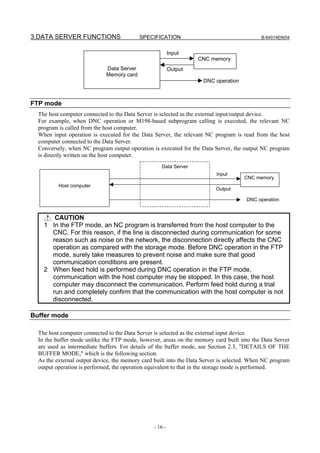
Storage mode
   The memory card built into the Data Server is selected as the external input/output device.
   For example, when DNC operation or M198-based subprogram calling is executed, the relevant NC
   program is called from the memory card built into the Data Server.
   When input operation is executed for the Data Server, the relevant NC program is read from the memory
   card built into the Data Server.
   Conversely, when NC program output operation is executed for the Data Server, the output NC program
   is written on the memory card built into the Data Server.
                                                   - 15 -
3.DATA SERVER FUNCTIONS                    SPECIFICATION                                    B-64014EN/04


                                                          Input
                                                                   CNC memory
                             Data Server                  Output
                             Memory card
                                                                     DNC operation


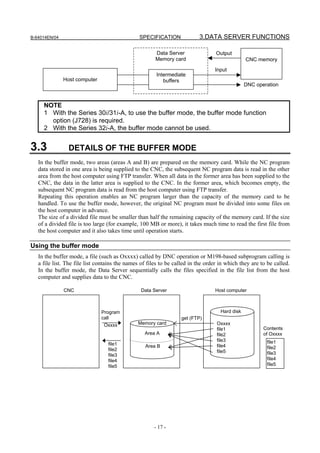
FTP mode
  The host computer connected to the Data Server is selected as the external input/output device.
  For example, when DNC operation or M198-based subprogram calling is executed, the relevant NC
  program is called from the host computer.
  When input operation is executed for the Data Server, the relevant NC program is read from the host
  computer connected to the Data Server.
  Conversely, when NC program output operation is executed for the Data Server, the output NC program
  is directly written on the host computer.
                                                    Data Server
                                                                          Input
                                                                                     CNC memory
          Host computer
                                                                          Output

                                                                                      DNC operation


       CAUTION
    1 In the FTP mode, an NC program is transferred from the host computer to the
      CNC. For this reason, if the line is disconnected during communication for some
      reason such as noise on the network, the disconnection directly affects the CNC
      operation as compared with the storage mode. Before DNC operation in the FTP
      mode, surely take measures to prevent noise and make sure that good
      communication conditions are present.
    2 When feed hold is performed during DNC operation in the FTP mode,
      communication with the host computer may be stopped. In this case, the host
      computer may disconnect the communication. Perform feed hold during a trial
      run and completely confirm that the communication with the host computer is not
      disconnected.

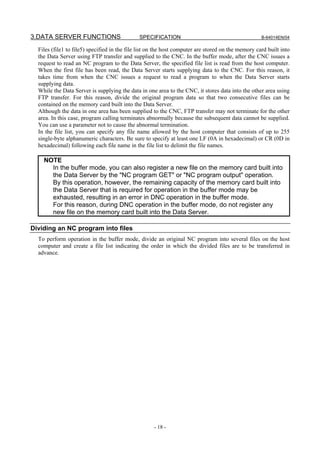
Buffer mode

  The host computer connected to the Data Server is selected as the external input device.
  In the buffer mode unlike the FTP mode, however, areas on the memory card built into the Data Server
  are used as intermediate buffers. For details of the buffer mode, see Section 2.3, "DETAILS OF THE
  BUFFER MODE," which is the following section.
  As the external output device, the memory card built into the Data Server is selected. When NC program
  output operation is performed, the operation equivalent to that in the storage mode is performed.


                                                 - 16 -
B-64014EN/04                                    SPECIFICATION             3.DATA SERVER FUNCTIONS

                                                       Data Server                Output
                                                       Memory card                              CNC memory
                                                                                 Input
                                                       Intermediate
               Host computer                              buffers
                                                                                                DNC operation


     NOTE
     1 With the Series 30i/31i-A, to use the buffer mode, the buffer mode function
       option (J728) is required.
     2 With the Series 32i-A, the buffer mode cannot be used.


3.3              DETAILS OF THE BUFFER MODE
   In the buffer mode, two areas (areas A and B) are prepared on the memory card. While the NC program
   data stored in one area is being supplied to the CNC, the subsequent NC program data is read in the other
   area from the host computer using FTP transfer. When all data in the former area has been supplied to the
   CNC, the data in the latter area is supplied to the CNC. In the former area, which becomes empty, the
   subsequent NC program data is read from the host computer using FTP transfer.
   Repeating this operation enables an NC program larger than the capacity of the memory card to be
   handled. To use the buffer mode, however, the original NC program must be divided into some files on
   the host computer in advance.
   The size of a divided file must be smaller than half the remaining capacity of the memory card. If the size
   of a divided file is too large (for example, 100 MB or more), it takes much time to read the first file from
   the host computer and it also takes time until operation starts.

Using the buffer mode
   In the buffer mode, a file (such as Oxxxx) called by DNC operation or M198-based subprogram calling is
   a file list. The file list contains the names of files to be called in the order in which they are to be called.
   In the buffer mode, the Data Server sequentially calls the files specified in the file list from the host
   computer and supplies data to the CNC.

               CNC                              Data Server                      Host computer


                               Program                                              Hard disk
                               call                               get (FTP)
                                Oxxxx          Memory card                        Oxxxx
                                                                                  file1                Contents
                                                  Area A                          file2                of Oxxxx
                                                                                  file3                 file1
                                  file1           Area B                          file4
                                  file2                                                                 file2
                                                                                  file5                 file3
                                  file3
                                  file4                                                                 file4
                                  file5                                                                 file5


                                                      - 17 -
3.DATA SERVER FUNCTIONS                       SPECIFICATION                                         B-64014EN/04

  Files (file1 to file5) specified in the file list on the host computer are stored on the memory card built into
  the Data Server using FTP transfer and supplied to the CNC. In the buffer mode, after the CNC issues a
  request to read an NC program to the Data Server, the specified file list is read from the host computer.
  When the first file has been read, the Data Server starts supplying data to the CNC. For this reason, it
  takes time from when the CNC issues a request to read a program to when the Data Server starts
  supplying data.
  While the Data Server is supplying the data in one area to the CNC, it stores data into the other area using
  FTP transfer. For this reason, divide the original program data so that two consecutive files can be
  contained on the memory card built into the Data Server.
  Although the data in one area has been supplied to the CNC, FTP transfer may not terminate for the other
  area. In this case, program calling terminates abnormally because the subsequent data cannot be supplied.
  You can use a parameter not to cause the abnormal termination.
  In the file list, you can specify any file name allowed by the host computer that consists of up to 255
  single-byte alphanumeric characters. Be sure to specify at least one LF (0A in hexadecimal) or CR (0D in
  hexadecimal) following each file name in the file list to delimit the file names.

    NOTE
      In the buffer mode, you can also register a new file on the memory card built into
      the Data Server by the "NC program GET" or "NC program output" operation.
      By this operation, however, the remaining capacity of the memory card built into
      the Data Server that is required for operation in the buffer mode may be
      exhausted, resulting in an error in DNC operation in the buffer mode.
      For this reason, during DNC operation in the buffer mode, do not register any
      new file on the memory card built into the Data Server.

Dividing an NC program into files
  To perform operation in the buffer mode, divide an original NC program into several files on the host
  computer and create a file list indicating the order in which the divided files are to be transferred in
  advance.


                                                     - 18 -
B-64014EN/04                                   SPECIFICATION               3.DATA SERVER FUNCTIONS
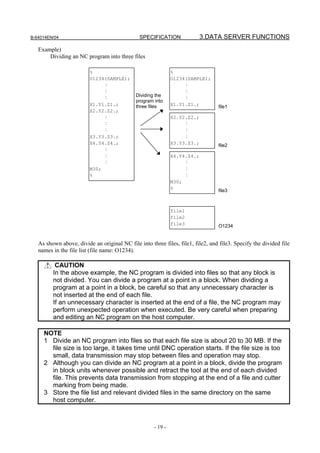
   Example)
       Dividing an NC program into three files

                         %                                    %
                         O1234(SAMPLE);                       O1234(SAMPLE);
                              :                                    :
                              :                                    :
                                             Dividing the
                              :                                    :
                                             program into
                         X1.Y1.Z1.;          three files      X1.Y1.Z1.;         file1
                         X2.Y2.Z2.;
                              :                               X2.Y2.Z2.;
                              :                                    :
                              :                                    :
                         X3.Y3.Z3.;                                :
                         X4.Y4.Z4.;                           X3.Y3.Z3.;         file2
                              :
                              :                               X4.Y4.Z4.;
                              :                                    :
                         M30;                                      :
                         %                                         :
                                                              M30;
                                                              %                  file3


                                                              file1
                                                              file2
                                                              file3              O1234


   As shown above, divide an original NC file into three files, file1, file2, and file3. Specify the divided file
   names in the file list (file name: O1234).

          CAUTION
         In the above example, the NC program is divided into files so that any block is
         not divided. You can divide a program at a point in a block. When dividing a
         program at a point in a block, be careful so that any unnecessary character is
         not inserted at the end of each file.
         If an unnecessary character is inserted at the end of a file, the NC program may
         perform unexpected operation when executed. Be very careful when preparing
         and editing an NC program on the host computer.

     NOTE
     1 Divide an NC program into files so that each file size is about 20 to 30 MB. If the
       file size is too large, it takes time until DNC operation starts. If the file size is too
       small, data transmission may stop between files and operation may stop.
     2 Although you can divide an NC program at a point in a block, divide the program
       in block units whenever possible and retract the tool at the end of each divided
       file. This prevents data transmission from stopping at the end of a file and cutter
       marking from being made.
     3 Store the file list and relevant divided files in the same directory on the same
       host computer.


                                                     - 19 -
3.DATA SERVER FUNCTIONS                     SPECIFICATION                                      B-64014EN/04


3.4           OPERATION FROM A DATA SERVER
    NOTE
      The Data Server functions produce an effect when large NC programs are
      operated. Use the Data Server Functions to handle large NC programs.

Memory operation
  You can perform memory operation for an NC program on the memory card built into a Data Server in
  the same way as for an NC program in the CNC memory.
  You can also supply an NC program simultaneously for a multipath CNC system.

    NOTE
      When memory operation is performed, a selected NC program on the Data
      Server must be a text file. It is impossible to use a binary file for memory
      operation.

M198 subprogram operation
  In the storage mode, you can perform M198 calling from the memory card built into a Data Server. In the
  FTP or buffer mode, you can perform M198 calling form the host computer.
  On the DATA SERVER FILE LIST screen, set an M198 folder in advance. When M198 calling is
  specified, the set M198 folder is searched for the target subprogram.

DNC operation
  In the storage mode, you can perform DNC operation from the memory card built into a Data Server. In
  the FTP or buffer mode, you can perform DNC operation from the host computer.
  On the DATA SERVER FILE LIST screen, set the file name for DNC operation in advance. When DNC
  operation starts, the set DNC operation file is called.


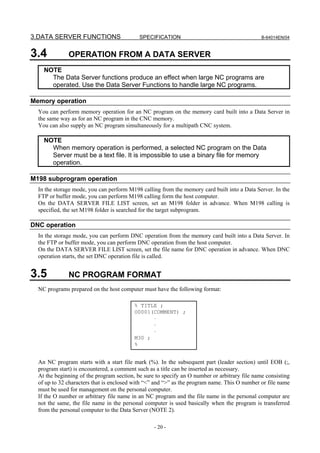
3.5           NC PROGRAM FORMAT
  NC programs prepared on the host computer must have the following format:

                                          % TITLE ;
                                          O0001(COMMENT) ;
                                                ⋅
                                                ⋅
                                                ⋅
                                          M30 ;
                                          %


  An NC program starts with a start file mark (%). In the subsequent part (leader section) until EOB (;,
  program start) is encountered, a comment such as a title can be inserted as necessary.
  At the beginning of the program section, be sure to specify an O number or arbitrary file name consisting
  of up to 32 characters that is enclosed with “<” and “>” as the program name. This O number or file name
  must be used for management on the personal computer.
  If the O number or arbitrary file name in an NC program and the file name in the personal computer are
  not the same, the file name in the personal computer is used basically when the program is transferred
  from the personal computer to the Data Server (NOTE 2).

                                                  - 20 -
B-64014EN/04                                SPECIFICATION            3.DATA SERVER FUNCTIONS
   The semicolon ";" used at the end of each block means EOB (end of block) and actually functions as LF
   (LF: 0A in hexadecimal), CR-LF (CR: 0D in hexadecimal), or LF-CR-CR.
   The NC program must end with "M code ; %".
   When performing binary input operation, insert data for binary input operation, enclosed with the start
   code and end code of binary input operation, into the part ". . ." in the above figure.
   For details of the NC program configuration and binary input operation, refer to the relevant CNC
   OPERATOR’S MANUAL.

          WARNING
         If an NC program prepared on the host computer does not use the program
         format specified by the CNC, executing the NC program can cause an
         unpredictable operation. So, special care should be taken when an NC program
         is prepared on the host computer.

     NOTE
     1 Any unrecognizable character codes in an NC program registered as a text file
       on a memory card on a Data Server are ignored. Do not use any unrecognizable
       character code.
       A 2-byte code used for Japanese and others may be recognized as an invalid
       character code when the system recognizes it on a byte-by-byte basis. Do not
       use any 2-byte code used for Japanese and others.
     2 The system always manages each text file on the memory card so that the file
       name and the O number or arbitrary file name in the program are the same. For
       this reason, if they are different, the system sets the O number or arbitrary file
       name to the file name when transferring the file. The O number or arbitrary file
       name in the program can also be set as the file name when the file is transferred
       according to the parameter setting, however.


                                                  - 21 -
3.DATA SERVER FUNCTIONS                    SPECIFICATION                                    B-64014EN/04


3.6           LIST FILE FORMAT
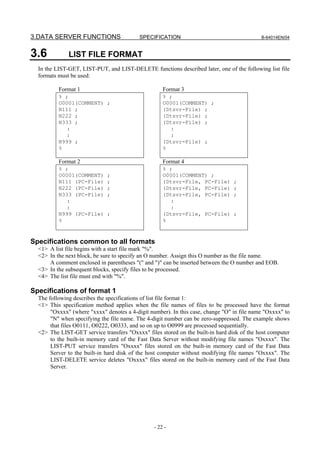
  In the LIST-GET, LIST-PUT, and LIST-DELETE functions described later, one of the following list file
  formats must be used:

          Format 1                                   Format 3
          % ;                                        % ;
          O0001(COMMENT) ;                           O0001(COMMENT) ;
          N111 ;                                     (Dtsvr-File) ;
          N222 ;                                     (Dtsvr-File) ;
          N333 ;                                     (Dtsvr-File) ;
            :                                          :
            :                                          :
          N999 ;                                     (Dtsvr-File) ;
          %                                          %

          Format 2                                   Format 4
          % ;                                        % ;
          O0001(COMMENT)     ;                       O0001(COMMENT) ;
          N111 (PC-File)     ;                       (Dtsvr-File, PC-File)       ;
          N222 (PC-File)     ;                       (Dtsvr-File, PC-File)       ;
          N333 (PC-File)     ;                       (Dtsvr-File, PC-File)       ;
            :                                          :
            :                                          :
          N999 (PC-File)     ;                       (Dtsvr-File, PC-File)       ;
          %                                          %


Specifications common to all formats
  <1> A list file begins with a start file mark "%".
  <2> In the next block, be sure to specify an O number. Assign this O number as the file name.
      A comment enclosed in parentheses "(" and ")" can be inserted between the O number and EOB.
  <3> In the subsequent blocks, specify files to be processed.
  <4> The list file must end with "%".

Specifications of format 1
  The following describes the specifications of list file format 1:
  <1> This specification method applies when the file names of files to be processed have the format
       "Oxxxx" (where "xxxx" denotes a 4-digit number). In this case, change "O" in file name "Oxxxx" to
       "N" when specifying the file name. The 4-digit number can be zero-suppressed. The example shows
       that files O0111, O0222, O0333, and so on up to O0999 are processed sequentially.
  <2> The LIST-GET service transfers "Oxxxx" files stored on the built-in hard disk of the host computer
       to the built-in memory card of the Fast Data Server without modifying file names "Oxxxx". The
       LIST-PUT service transfers "Oxxxx" files stored on the built-in memory card of the Fast Data
       Server to the built-in hard disk of the host computer without modifying file names "Oxxxx". The
       LIST-DELETE service deletes "Oxxxx" files stored on the built-in memory card of the Fast Data
       Server.


                                                 - 22 -
B-64014EN/04                                  SPECIFICATION             3.DATA SERVER FUNCTIONS

Specifications of format 2
   The following describes the specifications of list file format 2:
   <1> This specification method applies when files to be processed are named "Oxxxx" (where "xxxx"
        denotes a 4-digit number) on the built-in memory card of the Fast Data Server and are named
        arbitrary file names on the built-in hard disk of the host computer. In this case, change "O" in file
        name "Oxxxx" to "N" when specifying the file name on the Fast Data Server. The 4-digit number
        can be zero-suppressed. The example shows that files O0111, O0222, O0333, and so on up to O0999
        are processed sequentially.
        A file name on the built-in hard disk of the host computer can be specified by enclosing it with
        parentheses "(" and ")" following the corresponding "Nxxxx". The characters that can be used in file
        names depend on the OS of the host computer.
   <2> The LIST-GET service transfers files with arbitrary file names "PC-File" stored on the built-in hard
        disk of the host computer to the built-in memory card of the Fast Data Server as "Oxxxx" files. The
        LIST-PUT service transfers "Oxxxx" files stored on the built-in memory card of the Fast Data
        Server to the built-in hard disk of the host computer as files with arbitrary file names "PC-File". The
        LIST-DELETE service deletes "Oxxxx" files stored on the built-in memory card of the Fast Data
        Server.

Specifications of format 3
   The following describes the specifications of list file format 3:
   <1> This specification method applies when the file names of files to be processed are arbitrary file
        names. In this case, file names on the built-in memory card of the Fast Data Server and on the
        built-in hard disk of the host computer are assumed to be the same. Specify an arbitrary file name
        enclosed with parentheses "(" and ")". The characters that can be used in arbitrary file names are the
        following 66 ASCII characters only:
        Numeric characters 0 to 9
        Lowercase letters a to z
        Uppercase letters A to Z
        Four symbols (+, -, _, .)
   <2> The LIST-GET service transfers files with arbitrary file names "Dtsvr-File" stored on the built-in
        hard disk of the host computer to the built-in memory card of the Fast Data Server with the file
        names kept unchanged.
        The LIST-PUT service transfers "Dtsvr-File" files stored on the built-in memory card of the Fast
        Data Server to the built-in hard disk of the host computer with the file names "Dtsvr-File" kept
        unchanged. The LIST-DELETE service deletes "Dtsvr-File" files stored on the built-in memory card
        of the Fast Data Server.

Specifications of format 4
   The following describes the specifications of list file format 4:
   <1> This specification method applies when files to be processed have arbitrary file names. In this case,
        file names on the built-in memory card of the Fast Data Server and file names on the built-in hard
        disk of the host computer are assumed to be different. Specify a file name on the built-in memory
        card of the Fast Data Server and a file name on the built-in hard disk of the host computer in
        parentheses, separated by a comma ",".
        The characters that can be used in file names on the built-in memory card of the Fast Data Server are
        the following 66 ASCII characters only:
        Numeric characters 0 to 9
        Lowercase letters a to z
        Uppercase letters A to Z
        Four symbols (+, -, _, .)
        The characters that can be used in arbitrary file names on the built-in hard disk of the host computer
        depend on the OS of the host computer.
   <2> The LIST-GET service transfers files with arbitrary file names "PC-File" stored on the built-in hard
        disk of the host computer to the built-in memory card of the Fast Data Server as "Dtsvr-File" files.
                                                    - 23 -
3.DATA SERVER FUNCTIONS                      SPECIFICATION                                       B-64014EN/04

       The LIST-PUT service transfers "Dtsvr-File" files stored on the built-in memory card of the Fast
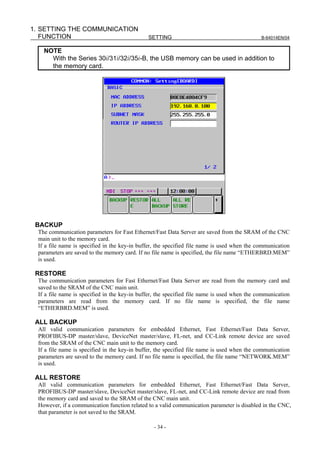
       Data Server to files with file name "PC-File" on the built-in hard disk of the host computer.
       The LIST-DELETE service deletes "Dtsvr-File" files stored on the built-in memory card of the Fast
       Data Server.

Limitations on file names in a list file
  The following limitations apply when file names are specified in a list file:
  <1> The characters that can be used in file names on the built-in memory card of the Fast Data Server are
       the following 66 ASCII characters only:
       Numeric characters 0 to 9
       Lowercase letters a to z
       Uppercase letters A to Z
       Four symbols (+, -, _, .)
       The characters that can be used in arbitrary file names on the built-in hard disk of the host computer
       depend on the OS of the host computer.
  <2> Up to 255 characters can be used as an arbitrary file name on the built-in hard disk of the host
       computer. However, the number of characters that can actually be used depends on the OS of the
       host computer.

Storage locations of list files
  The LIST-GET, LIST-PUT, and LIST-DELETE services are useful functions for managing NC programs
  in groups.
  The places where list files are prepared vary depending on the service to be executed.
  For the LIST-GET service, NC programs to be operated on are present on the built-in hard disk of the
  host computer, so list files are placed also on the built-in hard disk of the host computer.
  For the LIST-PUT and LIST-DELETE services, NC programs to be operated on are present on the
  built-in memory card of the Fast Data Server, so list files are also prepared on the built-in memory card of
  the Fast Data Server.


3.7            DATASERVER Explorer CONNECTION
  The following functions are added to FTP Server function of Data Server.
  •    Increase of FTP Server connections.
       The number of FTP server connections can be increased from five to ten by this feature.
  •    Connection with Windows Explorer.
       When you use the Windows Explorer as an FTP client software, you can make a new folder and
       overwrite a file.
       For the FTP client operation using the Explorer, see APPENDIX D.2, "OPERATION USING THE
       Explorer."
  •    Addition of maintenance screen for FTP server.
       You can monitor the state of FTP server. And you can disconnect the connection of FTP client
       forcedly.
       For the operation of the maintenance screen, see Section 2.5, "FTP SERVER MAINTENANCE" in
       Part VI, "MAINTENANCE."

    NOTE
    1 To use the DataServer Explorer connection, the DataServer Explorer connection
      option (R953) is required.
    2 Some FTP client software programs may each internally use two or more FTP
      clients. Note, therefore, that the number of FTP clients is not always equal to the
      number of applications.


                                                   - 24 -
B-64014EN/04                           SPECIFICATION      4.FOCAS2/Ethernet FUNCTIONS


4              FOCAS2/Ethernet FUNCTIONS
   The FOCAS2/Ethernet functions can remotely control and monitor the CNC by using a personal
   computer. For details, refer to the manual delivered with the FOCAS2 library software.

     NOTE
     1 In the FOCAS2/Ethernet functions, the CNC operates as a server and waits for a
       communication start request from a personal computer that operates as a client.
       As communication with the personal computer starts, two sockets are used for
       control and monitoring from the personal computer and for file transfer.
     2 For the FOCAS2/Ethernet functions, the machine tool builder or end user can
       create desired software operated on each personal computer using the FOCAS2
       library software.
       Communication timing and other factors may vary depending on the personal
       computer environment. Before starting communication, completely confirm that
       there is no problem with the entire system including communication with the
       personal computer.


                                            - 25 -
5.DNS/DHCP CLIENT FUNCTIONS SPECIFICATION                                                     B-64014EN/04


5             DNS/DHCP CLIENT FUNCTIONS
  If DNS/DHCP is used for communication setting of the Data Server functions and FOCAS2/Ethernet
  functions, Ethernet addresses (IP address and subnet mask) can be set at a time on the host computer to
  facilitate Ethernet address control.

DNS
  With the DNS function, a fully qualified domain name (e.g., www.fanuc.co.jp) can be specified instead of
  a hard-to-remember IP address just consisting of numbers (e.g., 192.168.0.10) when a TCP/IP
  communication destination is to be specified.

    NOTE
      To use the DNS function, a personal computer having the DNS server function is
      additionally required. See Chapter 4, "SETTING THE DNS/DHCP FUNCTION,"
      in Part III, "SETTING," and APPENDIX C, "EXAMPLE OF SETTING UP
      DNS/DHCP."

DHCP
  With the DHCP function, Ethernet addresses (IP address and subnet mask) that need to be set on the CNC
  can be set on the host computer.

    NOTE
      To use the DHCP function, a personal computer having the DHCP server
      function is additionally required. See Chapter 4, "SETTING THE DNS/DHCP
      FUNCTION," in Part III, "SETTING," and Appendix C, "EXAMPLE OF SETTING
      UP DNS/DHCP."


                                                 - 26 -
6.MACHINE REMOTE
B-64014EN/04                              SPECIFICATION                DIAGNOSIS FUNCTIONS


6              MACHINE REMOTE DIAGNOSIS
               FUNCTIONS
   With the machine remote diagnosis functions, checking of the internal CNC status, ladder program
   editing, and other operations can be performed as necessary by using a personal computer through a
   LAN.
   For details, refer to “Machine Remote Diagnosis Package OPERATOR’S MANUAL (B-63734EN).”


                                                - 27 -
7. UNSOLICITED MESSAGING
   FUNCTION                                      SPECIFICATION                                               B-64014EN/04


7               UNSOLICITED MESSAGING FUNCTION
  With the unsolicited messaging function, the CNC transmits messages (CNC/PMC data) in an unsolicited
  manner to application software on the personal computer according to a command from an NC program
  or ladder program. By using this function, the need for application processing on the personal computer
  to periodically inquire about the state of the CNC can be eliminated.

When the conventional function is used
                                                     Application software

                                   Inquiry
                                  Response                               Application checks for
                                                                         CNC/PMC data changes.


When the unsolicited messaging function is used
                     NC program or ladder                        Application software
                     program                                     アプリケーションソフトウェア

       NC program or ladder
       program checks for                                                           Application receives
                                             Notification
       CNC/PMC data                                                                 notification from CNC.
       changes.


      NOTE
        The unsolicited messaging function is a part of the FOCAS2/Ethernet function.

Unsolicited messaging function execution procedure
  The execution procedure for the unsolicited messaging function is described below.

  1     Preparation on the personal computer
        Create an application using the FOCAS2 function for the unsolicited messaging function and install
        the unsolicited message server on a personal computer. For the method of creating an application
        using the FOCAS2 function for the unsolicited messaging function and the method of installing the
        unsolicited message server, refer to Chapter 5, "UNSOLICITED MESSAGING FUNCTION", in
        "FANUC Open CNC FOCAS1/FOCAS2 CNC/PMC Data Window Library Operator's Manual".

  2     Preparation on the CNC
        Create an NC program or ladder program for controlling unsolicited messaging.
        For the method of creating an NC program or ladder program, see Section 6.2, "EXECUTING THE
        UNSOLICITED MESSAGING FUNCTION" in Part III, “OPERATION.”

  3     Setting of the communication parameters for the unsolicited messaging function
        To use the unsolicited messaging function, the following communication parameter settings are
        needed:
        (1) Setting for using the FOCAS2/Ethernet function
        (2) Setting of the parameters for the unsolicited messaging function


                                                        - 28 -
7.UNSOLICITED MESSAGING
B-64014EN/04                                  SPECIFICATION                            FUNCTION
        For (2), a choice can be made from two modes of setting: CNC mode for setting on the CNC
        screen and the PC mode for setting on the personal computer.
        For the setting method of (1) and (2), see Section 6.1, "SETTING OF THE UNSOLICITED
        MESSAGING FUNCTION” in Part III, “OPERATION.”

   4    Starting the NC program or ladder program
        Start the NC program or ladder program created in step 2, "Preparation on the CNC". At this time,
        no unsolicited message is transmitted to the personal computer until step 5, "Starting the unsolicited
        messaging function", is executed.
   5    Starting the unsolicited messaging function
        Execute the FOCAS2 function cnc_unsolicstart on the personal computer. This execution places
        the CNC in the state (named "Ready") where a transmission request from the NC program or ladder
        program is awaited. Each time a transmission request is made from the NC program or ladder
        program, an unsolicited message is automatically transmitted to the personal computer.
   6    Ending the unsolicited messaging function
        To end unsolicited message transmission, execute the FOCAS2 function cnc_unsolicstop on the
        personal computer. This execution places the CNC in the state (named "Not Ready") where no
        unsolicited message is transmitted even when a request for transmission is made from the NC
        program or ladder program.


                                                    - 29 -
8. FTP FILE TRANSFER
   FUNCTION                                 SPECIFICATION                                      B-64014EN/04


8             FTP FILE TRANSFER FUNCTION
  The FTP file transfer function is operated from the CNC to transfer a file. It works as an FTP client and
  communicates with the FTP server on the host computer.

    NOTE
    1 Before communicating with the host computer using the FTP file transfer
      function, completely confirm that there is no problem with the entire system
      including communication with the personal computer because the personal
      computer environment may affect communication operation.
    2 To operate the host computer as the FTP server, FTP server software must be
      operated on the host computer.


                                                  - 30 -
III. SETTING
1.SETTING THE COMMUNICATION
B-64014EN/04                                      SETTING                          FUNCTION


1               SETTING THE COMMUNICATION
                FUNCTION
   This part describes the settings required to operate the following Fast Ethernet/Fast Data Server functions:

   •    Data Server functions
   •    FOCAS2/Ethernet functions
   •    CNC screen display functions
   •    Machine remote diagnosis functions
   •    Unsolicited messaging function
   •    FTP file transfer function

Notes on using the functions for the first time
          CAUTION
         When setting the Fast Ethernet/Fast Data Server for the first time, carefully set
         data such as an IP address and conduct a sufficient communication test,
         consulting with your network administrator.
         If data such as an IP address is not set correctly, a communication failure can
         affect the entire network. Take sufficient care.
         The load on the network may become greater than expected depending on the
         performance of the personal computer. Before using the functions, completely
         confirm that there is no problem with the entire system including communication
         with the personal computer.


1.1             BACKING UP/RESTORING COMMUNICATION
                PARAMETERS
   This section explains how to back up communication parameters for Fast Ethernet/Fast Data Server to the
   memory card and to restore them from the memory card.

   1    Press the function key        .
   2    Soft key [ETHER BOARD] ([ETHER NET] for the Series 30i/31i/32i/35i-B) appear. (When there is
        no soft keys, press the continue key.)
   3    Press soft key [ETHER BOARD] to display the Ethernet Setting screen.
   4    Press the soft keys [COMMON] - [(OPRT)] and then [+]. The soft keys [BACKUP], [RESTORE],
        [ALL BACKUP], and [ALL RESTORE] for backing up or restoring communication parameters
        appear.
   5    Press the soft key [BACKUP], [RESTORE], [ALL BACKUP], or [ALL RESTORE]. The soft keys
        [EXECUTE] and [CANCEL] appear.
   6    Enter the name of a file to be backed up or restored in the key-in buffer, and press the soft key
        [EXECUTE]. The operation selected at the above step is executed.
        The character string “EXECUTING” blinks during execution.


                                                    - 33 -
1. SETTING THE COMMUNICATION
   FUNCTION                                    SETTING                                        B-64014EN/04


    NOTE
      With the Series 30i/31i/32i/35i-B, the USB memory can be used in addition to
      the memory card.


 BACKUP
  The communication parameters for Fast Ethernet/Fast Data Server are saved from the SRAM of the CNC
  main unit to the memory card.
  If a file name is specified in the key-in buffer, the specified file name is used when the communication
  parameters are saved to the memory card. If no file name is specified, the file name “ETHERBRD.MEM”
  is used.

 RESTORE
  The communication parameters for Fast Ethernet/Fast Data Server are read from the memory card and
  saved to the SRAM of the CNC main unit.
  If a file name is specified in the key-in buffer, the specified file name is used when the communication
  parameters are read from the memory card. If no file name is specified, the file name
  “ETHERBRD.MEM” is used.

 ALL BACKUP
  All valid communication parameters for embedded Ethernet, Fast Ethernet/Fast Data Server,
  PROFIBUS-DP master/slave, DeviceNet master/slave, FL-net, and CC-Link remote device are saved
  from the SRAM of the CNC main unit to the memory card.
  If a file name is specified in the key-in buffer, the specified file name is used when the communication
  parameters are saved to the memory card. If no file name is specified, the file name “NETWORK.MEM”
  is used.

 ALL RESTORE
  All valid communication parameters for embedded Ethernet, Fast Ethernet/Fast Data Server,
  PROFIBUS-DP master/slave, DeviceNet master/slave, FL-net, and CC-Link remote device are read from
  the memory card and saved to the SRAM of the CNC main unit.
  However, if a communication function related to a valid communication parameter is disabled in the CNC,
  that parameter is not saved to the SRAM.

                                                 - 34 -
1.SETTING THE COMMUNICATION
B-64014EN/04                                         SETTING                            FUNCTION
   If a file name is specified in the key-in buffer, the specified file name is used when the parameters are
   read from the memory card. If no file name is specified, the file name “NETWORK.MEM” is used.

          CAUTION
         While an external input/output device such as the memory card or USB memory
         is being accessed, do not turn the power to the CNC off or remove the external
         input/output device. Doing so may damage the external input/output device.

     NOTE
     1 A backup or restore operation for communication parameters can only be
       performed in the MDI mode, EDIT mode, or emergency stop state.
     2 When communication parameters are restored, an alarm condition occurs that
       requires power-off.

Related NC parameters
       0020         I/O CHANNEL: Input/output device selection, or interface number for a foreground input/output device

      [Input type] Setting input
       [Data type] Byte
[Valid data range] 4: Selects the memory card as the input/output device.
                   17: Selects the USB memory as the input/output device.
                   It is not possible to backup and restore the communication parameters by using other
                   devices.

                     NOTE
                       In case of Series 30i/31i/32i-A, the memory card is used
                       regardless for this NC parameter.


                                                       - 35 -
2. SETTING THE DATA SERVER
   FUNCTIONS                                     SETTING                               B-64014EN/04


2              SETTING THE DATA SERVER FUNCTIONS
  This chapter describes the communication setting for the Data Server functions.

Notes on using the Data Server functions
         CAUTION
      1 Operation cannot be guaranteed for any memory card that is not recommended
        by FANUC.
      2 When using the Fast Data Server for the first time, be sure to format the memory
        card, set parameters, then turn the power off then back on. If an attempt is made
        to use the Data Server functions without following these steps, normal operation
        is not guaranteed.
      3 Before performing FTP communication using the Fast Data Server for the first
        time, consult with your network administrator, carefully set a network address
        and other items, and conduct communication tests thoroughly. Any error in
        settings such as a network address setting can lead to an adverse influence
        such as a communication failure on the entire network.
        Be very careful about any communication failure. If a Data Server is used on a
        network involved with a communication failure, a communication failure
        intermittently occurs in the Data Server, which may cause a CNC system error.
      4 When the power to the CNC is turned off during access to the memory card, files
        stored on the memory card may be destroyed. So, be careful not to turn off the
        power to the CNC during access to the memory card.
      5 In preparation for damage to the memory card, always take backup copies of the
        files stored on the memory card to the host computer.

      NOTE
      1 With the Data Server functions (FTP client), a single CNC can connect only one
        FTP server.
      2 With the Data Server functions (FTP server), a single CNC can connect up to
        five FTP clients. However, some FTP client software programs may each
        internally use two or more FTP clients. Note, therefore, that the number of FTP
        clients is not always equal to the number of applications.
        If the DataServer Explorer connection is enabled, one CNC can connect up to
        ten FTP clients.
        For the DataServer Explorer connection, see Section 3.7, "DATASERVER
        Explorer CONNECTION," in Part II, "SPECIFICATION."
      3 The Data Server functions do not support passive mode (PASV command).


2.1            OPERATING THE DATA SERVER SETTING SCREEN
  This section describes the setting screen for operating the Data Server functions.

Procedure
  1     Press the function key       .


                                                    - 36 -
2.SETTING THE DATA SERVER
B-64014EN/04                                      SETTING                              FUNCTIONS
   2      Soft key [ETHER BOARD] ([ETHER NET] for the Series 30i/31i/32i/35i-B) appear. (When there is
          no soft keys, press the continue key.)
   3      Press soft key [ETHER BOARD] to display the Ethernet Setting screen.
   4      Press soft keys [COMMON] and [DATA SERVER] and then enter parameters for the items that
          appear.

COMMON screen (BASIC)
   Press soft key [COMMON] to display the COMMON screen (BASIC).


                                           COMMON screen (BASIC)


Setting item
                Item                                              Description
    IP ADDRESS                 Specify the IP address of the Fast Data Server.
                               (Example of specification format: "192.168.0.100")
    SUBNET MASK                Specify a mask address for the IP addresses of the network.
                               (Example of specification format: "255.255.255.0")
    ROUTER IP ADDRESS          Specify the IP address of the router.
                               Specify this item when the network contains a router.
                               (Example of specification format: "192.168.0.253")


Display item
                Item                                              Description
    MAC ADDRESS                Fast Ethernet/Fast Data Server MAC address


       NOTE
         The second page (detail screen) of the COMMON screen is to be set when the
         DNS/DHCP function is used. For details, see "SETTING THE DNS/DHCP
         FUNCTION" provided later.

Data Server screens (CONNECT 1, CONNECT 2, CONNECT 3)
   Press soft key [DATA SERVER] to display the Data Server screen.
   By using page keys             , the three host computers at connection destinations 1, 2, and 3 can be
   set.
                                                    - 37 -
2. SETTING THE DATA SERVER
   FUNCTIONS                                       SETTING                                                B-64014EN/04


                              Data Server screens (for connection destination 1)


Setting item
             Item                                                   Description
   HOST NAME                   Specify the IP address of the host computer.
                               (Example of specification format: "192.168.0.200")
   PORT NUMBER                 Specify the port number. Usually, set 21 because the FTP communication is used.
   USER NAME                   Specify the name of the user to log on to the host computer using FTP. (A user
                               name of up to 31 characters can be specified.)
   PASSWORD                    Specify the password for the above user name.
                               The password must always be specified.
   LOGIN FOLDER                Specify a work folder to be used when the user logs in to the host computer. (Up to
                               127 characters can be specified.)
                               If no data is set, the home folder set on the host computer is used as a login folder.


Operation
  Select a connection destination.

  1    Press soft key [(OPRT)] to display soft key [HOST SELECT]. Then, press soft key [HOST
       SELECT] to display soft keys [CONECT 1], [CONECT 2], and [CONECT 3].


  2    Press one of soft keys [CONECT 1], [CONECT 2], and [CONECT 3] according to the host
       computer to which you want to make a connection. The screen title of connection destination 1, 2 or
       3 is displayed in reverse video. The screen title displayed in reverse video indicates the connection
       destination host computer.


                                     When connection destination 1 is selected

                                                      - 38 -
2.SETTING THE DATA SERVER
B-64014EN/04                                           SETTING                              FUNCTIONS

Data Server screens (FTP SERVER)
   Press soft key [DATA SERVER] to display the Data Server screen.
   By using page keys                     , the FTP server setting screen is displayed after the connection
   destination 1, 2, or 3 screen.


                                           Data Server screens (FTP SERVER)


Setting item
               Item                                                    Description
    USER NAME                       Specify a user name to be used when the host computer logs in to the Data Server.
                                    (A user name of up to 31 characters can be specified.)
    PASSWORD                        Specify the password for the above user name.
                                    The password must always be specified.
    LOGIN FOLDER                    Specify a work folder to be used when the host computer logs in to the Data Server.
                                    (Up to 127 characters can be specified.)
                                    If no data is set, the home folder (home directory) is used as a login folder.


Data Server MODE screen (SETTING)
   Press soft key [DS MODE] to display the Data Server MODE screen (SETTING). The current mode can
   be checked and changed.


                                                          - 39 -
2. SETTING THE DATA SERVER
   FUNCTIONS                                      SETTING                                        B-64014EN/04


                                         Data Server screen (SETTING)


Display item
              Item                                                Description
   CHANNELS                    Displays the number of channels currently being used.
   MODE                        Displays the currently set Data Server mode.
                               STORAGE MODE
                               FTP MODE
                               BUFFER MODE


Operation
  The Data Server mode can be changed.

  1     Press soft key [(OPRT)] to display soft keys [STRAGE MODE], [FTP MODE], and [BUFFER
        MODE].


  2     To change the mode to a desired mode, press the soft key of the desired mode.

      NOTE
      1 With the Series 30i/31i-A, to use the buffer mode, the buffer mode function
        option (J728) is required.
      2 With the Series 32i-A, the buffer mode cannot be used.

Data Server MODE screen (MAINTENANCE)

  Press soft key [DS MODE] and press page keys                    to display maintenance information for each
  channel.


                                                    - 40 -
2.SETTING THE DATA SERVER
B-64014EN/04                            SETTING                             FUNCTIONS


                        Data Server MODE screen (MAINTENANCE)


Display item
               Item                                     Description
    CHANNEL           Interface number of the buffer used for transferring NC programs between the CNC
                      and Data Server.
                      For example, a channel is assigned to each path.
    EMPTY COUNTER     Used for maintenance.
                      This item indicates the number of cases where the buffer becomes empty while NC
                      programs are being transferred from the Data Server to the CNC.
    TOTAL SIZE        Used for maintenance.
                      This item indicates the total number of bytes transferred when an NC program is
                      transferred from the Data Server.
    WRITE POINTER     Used for maintenance.
    READ POINTER      This item indicates the buffer use status when NC programs are transferred from
                      the Data Server to the CNC.


                                          - 41 -
2. SETTING THE DATA SERVER
   FUNCTIONS                                    SETTING                                             B-64014EN/04


Data Server FORMAT screen
  Press soft key [DS FORMAT] to display the format screen of the memory card built into the Data Server.


                                         Data Server FORMAT screen


Display item
             Item                                               Description
   DEVICE NAME                Indicates the storage media currently being used by the Data Server.
                              "ATA" or "NONE" is indicated.
                              ATA : A memory card is mounted.
                              None : No memory card is mounted.
   FORMAT TYPE                Indicates the format type of the memory card.
                              "CNC FILE" or "---" is displayed.
                              When "---" is displayed, check whether the memory card is mounted properly and is
                              formatted correctly.
   CHECK DISK                 Indicates the check result.
                              When no check is made                : “-----“
                              When the check result is normal      : “OK”
                              When the check result is abnormal : “NG”


Procedure (CHECK DISK)
  1   Press soft key [(OPRT)] then soft key [CHECK DISK].


  2   Press soft key [EXEC] to check the format of the memory card and display the check result.

         CAUTION
        If the check result is abnormal, determine the cause of trouble from an error
        message displayed on the ETHERNET LOG screen and back up the files stored
        on the memory card immediately. Then, try to reformat the memory card.


                                                   - 42 -
2.SETTING THE DATA SERVER
B-64014EN/04                                        SETTING                             FUNCTIONS

       NOTE
       1 An error occurs if other Data Server functions are operated when a check disk is
         made.
       2 Also when a program on the memory card of the Data Server is selected as a
         main program, the check disk operation cannot be performed.

Procedure (CNC FORMAT)
   1     Press soft key [(OPRT)] then soft key [CNC FORMAT].


   2     Press soft key [EXEC] to format the memory card built into the Fast Data Server.

         CAUTION
       1 Do not turn off the power to the CNC when the memory card is being formatted.
         Otherwise, the memory card can be damaged.
       2 When the memory card is formatted, all files held on the memory card are
         erased.

       NOTE
       1 An error occurs if other Data Server functions are operated when the memory
         card is formatted.
       2 Also when a program on the memory card of the Data Server is selected as a
         main program, the memory card cannot be formatted.


2.2             RELATED NC PARAMETERS
   The NC parameters related to the Data Server functions are described below.

                         #7         #6         #5             #4        #3           #2     #1     #0
        0000                                                                                      TVC
       [Input type] Setting input
        [Data type] Bit path
         #0 TVC When a file is transferred from the personal computer to the Data Server, a TV check is:
                    0: Not performed.
                    1: Performed.

                      NOTE
                        This parameter is valid only for text files.
                        For text files, see Subsection 3.1.3, "Text Files and Binary Files" in
                        Part II, "SPECIFICATION."

        0020                                  I/O CHANNEL : Input/output device selection
      [Input type] Setting input
       [Data type] Byte
[Valid data range] 5 : Selects the Data Server as the input/output device.

                         #7         #6         #5             #4        #3           #2     #1     #0
        0100                                                           NCR          CRF     CTV
       [Input type] Setting input
                                                     - 43 -
2. SETTING THE DATA SERVER
   FUNCTIONS                                  SETTING                                      B-64014EN/04

    [Data type] Bit
     #1 CTV When a file is transferred from the personal computer to the Data Server, character
                counting for the TV check in program comment parts is:
                0: Performed.
                1: Not performed.
     #2 CRF When a file is output from the Data Server to the personal computer, EOB (end of block)
                is:
                0: Set as specified by parameter NCR (bit 3 of parameter No. 100).
                1: Set to "CR" "LF".
     #3 NCR When a file is output from the Data Server to the personal computer, EOB (end of block)
                is:
                0: Set to "LF" "CR" "CR".
                1: Set to "LF".

                  NOTE
                    This parameter is valid only for text files.
                    For text files, see Subsection 3.1.3, "Text Files and Binary Files" in
                    Part II, "SPECIFICATION."

                     #7        #6        #5             #4     #3         #2         #1         #0
    0904            LCH                                                                        BWT
   [Input type] Parameter input
    [Data type] Bit
     #0 BWT If FTP communication is behind data supply during DNC operation in the buffer mode of
                the Data Server:
                0: An error is caused.
                1: No error is caused and DNC operation continues after waiting the completion of
                     FTP communication.
     #7 LCH In the LIST-GET service of the Data Server, when a list file specifies 1025 or more files:
                0: A check for duplicated file names is performed.
                1: A check for duplicated file names is not performed.

                     #7        #6        #5             #4     #3         #2         #1         #0
    0905                                                      DSF                    PCH
   [Input type] Parameter input
    [Data type] Bit
     #1 PCH At the start of communication of the Data Server, FTP file transfer function, or machine
                remote diagnosis functions, checking for the presence of the server using PING is:
                0: Performed.
                1: Not performed.

                  NOTE
                    Usually, set Performed (0).
                    When the presence of the server using PING is not checked by
                    setting 1, it may take several tens of seconds until an error is
                    recognized due to no server on the network.
                    For mainly security reasons, a personal computer may be set so
                    that it does not respond to the PING command. Set 1 when the
                    Data Server communicates with such a personal computer.

     #3    DSF When an NC program is stored on the memory card of the Data Server:
               0: The file name takes priority.
               1: The program name in the NC program takes priority.
                                               - 44 -
2.SETTING THE DATA SERVER
B-64014EN/04                                        SETTING                             FUNCTIONS


                       NOTE
                         This parameter is valid only when files on a personal computer are
                         registered as text files on the memory card on the Data Server by
                         CNC operation.

                         #7         #6         #5             #4        #3            #2    #1       #0
       0906                                   SCM                                     OVW
      [Input type] Parameter input
       [Data type] Bit
       #2 OVW When the Data Server is operated as an FTP server, if a file having the same name as a
                   file to be transferred from the FTP client is already stored in the memory card of Data
                   Server:
                   0: An error is caused.
                   1: No error is caused and the existing file is overwritten.

                       NOTE
                         To use this parameter, the DataServer Explorer connection option
                         is required.

       #5      SCM As the mode for accessing the memory card on the Data Server:
                   0: The mode supported by the memory card that is automatically determined is used.
                   1: The conventional PIO mode 2 is used.

                       NOTE
                       1 When this parameter is set, the power must be turned off before
                         operation is continued.
                       2 This parameter is only available with the Series 30i/31i/32i-B.

       0921                                         Selects the host computer 1 OS.
       0922                                         Selects the host computer 2 OS.
       0923                                         Selects the host computer 3 OS.
      [Input type] Parameter input
       [Data type] Word
[Valid data range] 0 to 2
                   0: Windows95/98/Me/NT/2000/XP/Vista/7.
                   1: UNIX/VMS.
                   2: Linux.

                       NOTE
                         Some FTP server software may not depend on the OS. Therefore,
                         the valid file list may not be displayed by the above setting.

       0924                                   FOCAS2/Ethernet function wait time setting
      [Input type]   Parameter input
       [Data type]   Word
    [Unit of data]   msec
[Valid data range]   0 to 32767
                     Specifies the wait time (in 1 ms units) for the FOCAS2/Ethernet service when it is used
                     together with the Data Server functions.
                     If 0 is specified, a wait time of 1 ms is assumed.


                                                     - 45 -
2. SETTING THE DATA SERVER
   FUNCTIONS                                           SETTING                                                  B-64014EN/04

       0929                   Specifies the attribute of the file to be transferred in operating as an FTP server.
      [Input type] Parameter input
       [Data type] Word
[Valid data range] 0 to 2
                   Specifies whether to use the file attribute specified in the FTP TYPE command when the
                   Data Server operates as an FTP server.

                     No.929                                               Meaning
                       0        Uses the file attribute specified in the TYPE command from the FTP client.
                       1        Fixes the attribute to text.
                       2        Fixes the attribute to binary.


                    Maximum number of files that can be registered to the memory card of the Data Server and maximum
       0930
                                                    size per file that can be registered
      [Input type] Parameter input
       [Data type] Word
[Valid data range] 0, 10 to 15
                     No.930               Maximum number of files                         Maximum size per file
                       0                             2047                                         512MB
                       10                            511                                          2048MB
                       11                            1023                                         1024MB
                       12                            2047                                         512MB
                       13                            4095                                         256MB
                       14                            8191                                         128MB
                       15                           16383                                          64MB


                    NOTE
                    1 When the memory card is formatted after this parameter is set, the
                      maximum number of files and maximum size per file are changed.
                    2 Each folder is counted as one file.
                    3 This parameter is valid when the series and edition of the Data
                      Server function software are edition 11 or later of series 6569.

                       #7            #6           #5              #4         #3            #2            #1          #0
       3107                                                   SOR
      [Input type] Setting input
       [Data type] Bit path
        #4 SOR In the Data Server FILE LIST screen, files are displayed:
                   0: In the order of zero-suppressed program number.
                   1: In the order of program name.

                       #7            #6           #5              #4         #3            #2            #1          #0
       3233                                                                                            PDM
      [Input type] Parameter input
       [Data type] Bit
        #1 PDM When the Data Server FILE LIST screen is displayed:
                   0: The setting of an M198 operation folder/DNC operation file is enabled.
                   1: The setting of a foreground/background folder is enabled.


                                                         - 46 -
2.SETTING THE DATA SERVER
B-64014EN/04                                        SETTING                                FUNCTIONS

                      NOTE
                        When an M198 external subprogram call or DNC operation is
                        performed on the Data Server, set this bit to 0.
                        For the foreground and background folders, refer to Chapter,
                        "PROGRAM MANAGEMENT" in the OPERATOR’S MANUAL of
                        the CNC.


2.3               EXAMPLE OF SETTING THE DATA SERVER FUNCTIONS
   An example of setting for operating the Data Server functions is given below. In this example of setting,
   one personal computer is connected to two CNCs through a Data Server.


                                                   HUB

                                                                          100BASE-TX (or 10BASE-T)


                         CNC 1                     CNC 2                     PC 1


                                          CNC 1            CNC 2
IP ADDRESS                          192.168.0.100      192.168.0.101
                                                                                     The common setting screen is
SUBNET MASK                         255.255.255.0      255.255.255.0                 used for setting.
ROUTER IP ADDRESS                         None              None
CONNECT 1         PORT NUMBER               21                 21
                  IP ADDRESS        192.168.0.200      192.168.0.200
                  USER NAME                 user               user                  The Data Server setting screen
                                                                                     is used for setting.
                  PASSWORD                  user               user
                  LOGIN FOLDER            None              None                     The Data Server mode setting
DATA SERVER MODE                       Storage             Storage                   screen is used for setting.

NC Parameter NO. 20                          5                  5
                                                                                     NC parameter setting


                                   PC 1                          "Microsoft TCP/IP property" of the personal computer
IP address                     192.168.0.200                     (Windows2000/WindowsXP) is used for setting.
Sub-net mask                   255.255.255.0
Default gateway                    None                          "User account” of the personal computer
User name                          user                          (Windows2000/WindowsXP) is used for setting.
Password                           user
Home folder                       default                        "Internet service manager" of the personal computer
                                                                 (Windows2000/WindowsXP) is used for setting.

                                                      - 47 -
3. SETTING THE FOCAS2/Ethernet
   FUNCTIONS                                 SETTING                                      B-64014EN/04


3              SETTING THE FOCAS2/Ethernet
               FUNCTIONS
  This chapter describes the setting of parameters for the FOCAS2/Ethernet functions and CNC screen
  display functions.

          CAUTION
         Before performing communication using the FOCAS2/Ethernet functions for the
         first time, consult with your network administrator, carefully set a network
         address and other items, and conduct communication tests thoroughly. Any error
         in settings such as a network address setting can lead to an adverse influence
         such as a communication failure on the entire network.
         Be very careful about any communication failure. If the FOCAS2/Ethernet
         functions are used on a network involved with a communication failure, a
         communication failure intermittently occurs in FOCAS2/Ethernet, which may
         cause a CNC system error.

Note on using the FOCAS2/Ethernet functions
      NOTE
        With the FOCAS2/Ethernet functions, up to 20 FOCAS2/Ethernet clients can be
        connected to one CNC.

Note on using the CNC screen display functions
      NOTE
        With the CNC screen display functions, up to 1 CNC screen display function
        client can be connected to one CNC.


3.1            OPERATING THE FOCAS2/Ethernet SETTING SCREEN
  This section describes the setting screen for operating the FOCAS2/Ethernet functions and CNC screen
  display functions.

Procedure
  1     Press the function key    .
  2     Soft key [ETHER BOARD] ([ETHER NET] for the Series 30i/31i/32i/35i-B) appear. (When there is
        no soft keys, press the continue key.)
  3     Press soft key [ETHER BOARD] to display the Ethernet Setting screen.
  4     Press soft keys [COMMON] and [FOCAS2] and then enter parameters for the items that appear.


                                                - 48 -
3.SETTING THE FOCAS2/Ethernet
B-64014EN/04                                  SETTING                            FUNCTIONS

COMMON screen (BASIC)
   Press soft key [COMMON] to display the COMMON screen (BASIC).


                                       COMMON screen (BASIC)


Setting item
               Item                                           Description
    IP ADDRESS             Specify the IP address of the Fast Ethernet/ Fast Data Server.
                           (Example of specification format: "192.168.0.100")
    SUBNET MASK            Specify a mask address for the IP addresses of the network.
                           (Example of specification format: "255.255.255.0")
    ROUTER IP ADDRESS      Specify the IP address of the router.
                           Specify this item when the network contains a router.
                           (Example of specification format: "192.168.0.253")


Display item
               Item                                           Description
    MAC ADDRESS            Fast Ethernet/ Fast Data Server MAC address


     NOTE
       The second page (detail screen) of the COMMON screen is to be set when the
       DNS/DHCP function is used. For details, see Chapter 4, "SETTING THE
       DNS/DHCP FUNCTION" provided later.


                                                 - 49 -
3. SETTING THE FOCAS2/Ethernet
   FUNCTIONS                                        SETTING                                         B-64014EN/04


FOCAS2 screen
   Press soft key [FOCAS2] to display the FOCAS2 screen.


                                                 FOCAS2 screen


Setting item
               Item                                                Description
    PORT NUMBER (TCP)             Specifies the port No. to be used by the FOCAS2/Ethernet functions and CNC
                                  screen display functions, within a range of 5001 to 65535.
    PORT NUMBER (UDP)             Set 0.
    TIME INTERVAL                 Set 0.


3.2            RELATED NC PARAMETERS
       0020                                  I/O CHANNEL : Input/output device selection
      [Input type] Setting input
       [Data type] Byte
[Valid data range] 6 : Selects the FOCAS2/Ethernet as the input/output device. This parameter is required
                        only for DNC operation, however.

                         #7        #6          #5             #4       #3           #2        #1         #0
       0905                                                                                              DNE
      [Input type] Parameter input
       [Data type] Bit
        #1 DNE During DNC operation using the FOCAS2/Ethernet functions, the termination of DNC
                   operation is:
                   0: Waited.
                   1: Not waited. (FOCAS2/HSSB compatible specification)

       0924                                     FOCAS2/Ethernet waiting time setting
      [Input type]   Parameter input
       [Data type]   Word
    [Unit of data]   msec
[Valid data range]   0 to 32767
                     When the FOCAS2/Ethernet and Data Server functions are used simultaneously, this
                     parameter sets the FOCAS2/Ethernet function waiting time in milliseconds.
                                                     - 50 -
3.SETTING THE FOCAS2/Ethernet
B-64014EN/04                                            SETTING                    FUNCTIONS
                      When a value of 0 is set, the functions operate with assuming that 1 millisecond is
                      specified.


3.3                EXAMPLE OF SETTING THE FOCAS2/Ethernet
                   FUNCTIONS
   An example of setting for operating the FOCAS2/Ethernet functions is given below. In this example of
   setting, one personal computer is connected to two CNCs through a FOCAS2/Ethernet.


                                                      HUB

                                                                   100BASE-TX (or 10BASE-T)


                               CNC 1                 CNC 2            PC 1


                                CNC 1         CNC 2
IP ADDRESS                192.168.0.100 192.168.0.101
                                                                   The common setting screen is used for
SUBNET MASK               255.255.255.0 255.255.255.0              setting.
ROUTER IP ADDRESS               None          None
PORT NUMBER (TCP)               8193          8193                 The FOCAS2 setting screen is used for
PORT NUMBER (UDP)                 0             0                  setting.
TIME INTERVAL                     0             0


                                            PC 1
IP address                              192.168.0.200
                                                                   "Microsoft TCP/IP property" of the personal
Sub-net mask                            255.255.255.0              computer (Windows 95/98/NT/2000/XP) is
                                                                   used for setting.
Default gateway                             None
               NC IP address            192.168.0.100
CNC 1                                                              Specify these items with the arguments of
               NC TCP port number           8193
                                                                   the data window library function
               NC IP address            192.168.0.101              "cnc_allclibhnd13."
CNC 2
               NC TCP port number           8193


                                                         - 51 -
4.SETTING THE DNS/DHCP
   FUNCTION                                      SETTING                                           B-64014EN/04


4             SETTING THE DNS/DHCP FUNCTION
  This chapter describes the setting of the DNS/DHCP function.


4.1           SETTING OF DNS
  This section describes the setting procedure for operating DNS client function.

Procedure
  1    Enable the DNS client function according to Section 4.3, "RELATED NC PARAMETERS"
       provided later.
  2    Set up the DNS server on the host computer. For information about setup, see Appendix C,
       "EXAMPLE OF DNS/DHCP SETUP."
  3    Make a connection to the host computer where the DNS server operates (hereinafter referred to as
       the "DNS server") and restart the CNC, then press the function key           .
  4    Press soft key [ETHER BOARD] ([ETHER NET] for the Series 30i/31i/32i/35i-B), then press
       [COMMON] to display the COMMON (DETAIL) screen.
  5    As the DNS IP address, enter the IP address of the DNS server.

COMMON screen (DETAIL)

  Press soft key [COMMON] then page keys                     to display the COMMON (DETAIL) screen. Set
  the setting items for DNS IP addresses.


                                            COMMON screen (DETAIL)


Setting item
             Item                                                Description
   DNS IP ADDRESS 1, 2         Up to two DNS server IP addresses can be set.
                               The CNC searches for a DNS server in the order from DNS IP address 1 to 2.


                                                    - 52 -
4.SETTING THE DNS/DHCP
B-64014EN/04                                     SETTING                               FUNCTION

4.2            SETTING OF DHCP
   This section describes the setting procedure for operating DHCP client function.

Procedure
   1    Enable the DHCP client function according to Section 4.3 "RELATED NC PARAMETERS"
        provided later.
   2    Set up the DHCP server on the host computer. For information about setup, see Appendix C,
        "EXAMPLE OF DNS/DHCP SETUP."
   3    Make a connection to the host computer where the DHCP server operates (hereinafter referred to as
        the "DHCP server") and restart the CNC, then press the function key           .
   4    Press soft key [ETHER BOARD] ([ETHER NET] for the Series 30i/31i/32i/35i-B), then press
        [COMMON] to display the COMMON screen.
   5    If the DHCP client function of the CNC is enabled and a connection is made successfully with the
        DHCP server, the following items are set automatically from the DHCP server:
        •     IP ADDRESS
        •     SUBNET MASK
        •     ROUTER IP ADDRESS
        •     DNS IP ADDRESS
        •     DOMAIN
        If an attempt to make a connection with the DHCP server fails, "DHCP ERROR" is indicated in each
        item.
   6    Moreover, if the DNS client function is enabled at the same time and the DHCP server interacts with
        the DNS server (the DNS server supports dynamic DNS), enter a desired host name.

COMMON screens (BASIC, DETAIL)

   Press soft key [COMMON] then page keys                   to display the COMMON screens (BASIC and
   DETAIL). If a connection is made successfully with the DHCP server and setting data is acquired, the
   following is displayed:


                     When a connection with the DHCP server has been made successfully

   If no host name is set, the CNC automatically sets a host name in the format "NC-<MAC address>".
                                                   - 53 -
4.SETTING THE DNS/DHCP
   FUNCTION                                       SETTING                                              B-64014EN/04


                                    Example of host name automatically set

  If an attempt to make a connection with the DHCP server fails, the following is displayed:


                     When an attempt to make a connection with the DHCP server has failed


Check item
                 Item                                                  Description
   IP ADDRESS                           If a connection is made successfully with the DHCP server, data acquired
   SUBNET MASK                          from the DHCP server is displayed.
   ROUTER IP ADDRESS                    If an attempt to make a connection with the DHCP server fails, "DHCP
   DNS IP ADDRESS 1, 2                  ERROR" is displayed.
   DOMAIN


Setting item
              Item                                                 Description
   HOST NAME                    Enter a desired CNC host name.
                                If the DHCP server interacts with the DNS server, this host name is posted to the
                                DNS server.

                                If no host name is set, "NC-<MAC address>" is automatically set.
                                    Example of host name automatically set:
                                    NC-00E0E4004CF9


Display item
              Item                                                 Description
   MAC ADDRESS                  Fast Ethernet/Fast Data Server MAC address


                                                     - 54 -
4.SETTING THE DNS/DHCP
B-64014EN/04                                      SETTING                             FUNCTION

4.3            RELATED NC PARAMETERS
                       #7         #6         #5             #4     #3         #2         #1        #0
       0904                     DHCP        DNS
      [Input type] Parameter input
       [Data type] Bit
        #5 DNS The DNS client function is:
                   0: Not used.
                   1: Used.
        #6 DHC The DHCP client function is:
                   0: Not used.
                   1: Used.

                    NOTE
                      When at least one of these parameters is set, the power must be
                      turned off before operation is continued.


4.4            EXAMPLE OF SETTING DNS/DHCP
     NOTE
       This section provides examples of setting for Windows 2000 Server which
       supports dynamic DNS.

4.4.1          When DNS/DHCP is Used with the Data Server
   When a connection is made with the FTP server of the host computer (hereinafter referred to as the "FTP
   server") by using the Data Server function, the IP address of the CNC can be set from the DHCP server
   by enabling the DHCP client function of the CNC.
   Moreover, by enabling the DNS client function of the CNC, an FTP server can be specified with a host
   name instead of an IP address.


                Example of specifying a connection destination with a host name (FTPServer-1)


                                                   - 55 -
4.SETTING THE DNS/DHCP
   FUNCTION                                    SETTING                                        B-64014EN/04


Setting the DNS server / DHCP server
 Operating system
  It is recommended to use Windows 2000 Server as the operating system.

 Setting the DHCP server
  In the database of the DHCP server, set the following items:
  •    Range of IP addresses to be managed by the DHCP server
  •    Subnet mask to be managed by the DHCP server
  •    IP address for DNS server
  •    Domain
  The DHCP server enables the function for updating the database of the DNS server.
  For DHCP server setting, see Section C.1, "EXAMPLE OF SETTING UP DHCP SERVER OF Windows
  2000 Server" in Appendix C, "EXAMPLE OF SETTING UP DNS/DHCP."

 Setting the DNS server
  The DNS server allows the DHCP server to update the database of the DNS server.
  For DNS server setting, see Section C.2, "EXAMPLE OF SETTING UP DNS SERVER OF Windows
  2000 Server" in Appendix C, "EXAMPLE OF SETTING UP DNS/DHCP."

Setting the FTP server
  For FTP server setting, see Appendix B, "EXAMPLE OF FTP SERVER SETUP."

Setting the CNC
 Parameter
  To enable the DNS client function, set bit 5 of NC parameter No. 904 to 1.
  To enable the DHCP client function, set bit 6 of NC parameter No. 904 to 1.

4.4.2         When DHCP is Used with the FTP Server Function of the Data
              Server
  The Data Server (FTP server function) can be accessed by specifying a host name from an FTP client
  where an FTP client operates (hereinafter referred to as an "FTP client"), using the interaction between
  the DHCP server and DNS server operating with Windows 2000 Server.
  The DHCP client function of the CNC is enabled.

Flow of operation
 When the system is initialized or the system configuration is modified
  1    A host name is set on the CNC.
  2    When the power is turned on, the Data Server posts the host name to the DHCP server.
  3    The DHCP server assigns an IP address, and the table of correspondence between CNC host names
       and CNC IP addresses is updated.

 When operation is performed from an FTP client
  1    An FTP client inquires of the DNS server about the IP address of a CNC.
  2    The FTP client acquires the IP address of the CNC.
  3    The FTP client communicates with the FTP server of the CNC by using the IP address of the CNC.


                                                  - 56 -
4.SETTING THE DNS/DHCP
B-64014EN/04                                      SETTING                              FUNCTION

                             FTP client
                                            (4) Inquires about the IP
                                                address of CNC-1.
                                                                          Windows 2000 Server
             The FTP client                                                DHCP server /DNS server
             specifies a CNC
             by its name
             (CNC-1) instead
                                           (5) Returns the IP address.
             of its IP address.

                                           (6) Performs communication.
       (1) Sets the name.


                                               (2) Posts CNC-1 at
                                                   power-on time.
                             CNC-1

                                                   (3) Assigns an IP address to CNC-1.


Setting the DNS server/DHCP server
 Operating system
   It is recommended to use Windows 2000 Server as the operating system. (The DNS server and DHCP
   server supporting dynamic DNS need to operate.)

 Setting the DHCP server
   In the database of the DHCP server, set the following items:
   •    Range of IP addresses to be managed by the DHCP server
   •    Subnet mask to be managed by the DHCP server
   •    IP address for DNS server
   •    Domain
   The DHCP server enables the function for updating the database of the DNS server.
   For DHCP server setting, see Section C.1, "EXAMPLE OF SETTING UP DHCP SERVER OF Windows
   2000 Server" in Appendix C, "EXAMPLE OF SETTING UP DNS/DHCP."

 Setting the DNS server
   The DNS server allows the DHCP server to update the database of the DNS server.
   For DNS server setting, see Section C.2, "EXAMPLE OF SETTING UP DNS SERVER OF Windows
   2000 Server" in Appendix C, "EXAMPLE OF SETTING UP DNS/DHCP."

Setting the CNC
 Parameter
   To enable the DHCP client function, set bit 6 of NC parameter No. 904 to 1.
   As a host name, set a desired name. Otherwise, a name automatically set by the Fast Ethernet/Fast Data
   Server is used.

4.4.3              When DHCP is Used with the FOCAS2/Ethernet Function
   Ethernet parameters can be set with no setting performed from the CNC, using the interaction between the
   DHCP server and DNS server operating with Windows 2000 Server.
   The DHCP client function of the CNC is enabled.

Flow of operation
 When the system is initialized or the system configuration is modified
   1      A host name is set on the CNC.
                                                    - 57 -
4.SETTING THE DNS/DHCP
   FUNCTION                                     SETTING                                         B-64014EN/04

  2      When the power is turned on, the CNC posts the host name to the DHCP server.
  3      The DHCP server assigns an IP address, and the table of correspondence between CNC host names
         and CNC IP addresses is updated.

 When FOCAS2/Ethernet application software is executed
  1      The user's application inquires of the DNS server about the IP address of a CNC.
  2      The user's application acquires the IP address of the CNC.
  3      The user's application communicates with the CNC by using the IP address of the CNC.


           User's application software
              (FOCAS2/Ethernet)            (4) Inquires about the IP
                                               address of CNC-1.         Windows 2000 Server
         The application software                                        DHCP server / DNS server
         specifies a CNC by its
         name (CNC-1) instead of
         its IP address.                 (5) Returns the IP address.

                                         (6) Performs
      (1) Sets the name.                     communication.

                                             (2) Posts CNC-1 at
                                                 power-on time.
                           CNC-1

                                                              (3) Assigns an IP address to CNC-1.


Setting the DNS server/DHCP server
 Operating system
  It is recommended to use Windows 2000 Server as the operating system. (The DNS server and DHCP
  server supporting dynamic DNS need to operate.)

 Setting the DHCP server
  In the database of the DHCP server, set the following items:
  •    Range of IP addresses to be managed by the DHCP server
  •    Subnet mask to be managed by the DHCP server
  •    IP address for DNS server
  •    Domain
  The DHCP server enables the function for updating the database of the DNS server.
  For DHCP server setting, see Section C.1, "EXAMPLE OF SETTING UP DHCP SERVER OF Windows
  2000 Server" in Appendix C, "EXAMPLE OF SETTING UP DNS/DHCP."

 Setting the DNS server
  The DNS server allows the DHCP server to update the database of the DNS server.
  For DNS server setting, see Section C.2, "EXAMPLE OF SETTING UP DNS SERVER OF Windows
  2000 Server" in Appendix C, "EXAMPLE OF SETTING UP DNS/DHCP."

Setting the CNC
 Parameter
  To enable the DHCP client function, set bit 6 of NC parameter No. 904 to 1.
  As a host name, set a desired name. Otherwise, a name automatically set by the Fast Ethernet/Fast Data
  Server is used.
                                                  - 58 -
4.SETTING THE DNS/DHCP
B-64014EN/04                                     SETTING                               FUNCTION
   When the DHCP function is enabled, the FOCAS2/Ethernet-related parameters are automatically set if bit
   3 of NC parameter No. 904 is set to 0. If bit 3 of NC parameter No. 904 is set to 1, the parameters for i
   CELL communication are automatically set.


                                                   - 59 -
5. SETTING THE MACHINE REMOTE
   DIAGNOSIS FUNCTIONS                             SETTING                                        B-64014EN/04


5             SETTING THE MACHINE REMOTE
              DIAGNOSIS FUNCTIONS
  This chapter describes the setting of parameters for the machine remote diagnosis functions.
  For explanation of the entire machine remote diagnosis functions, refer to "Machine Remote Diagnosis
  Package OPERATOR'S MANUAL (B-63734EN)."


5.1           OPERATING THE MACHINE REMOTE DIAGNOSIS
              SETTING SCREEN
  This section describes the setting screen for operating the machine remote diagnosis functions.

Procedure
  1    Press the function key         .
  2    Soft key [ETHER BOARD] ([ETHER NET] for the Series 30i/31i/32i/35i-B) appear. (When there is
       no soft keys, press the continue key.)
  3    Press soft key [ETHER BOARD] to display the Ethernet Setting screen.
  4    Press soft keys [COMMON], [FOCAS2], and [REMOTE DIAG] and then enter parameters for the
       items that appear.

COMMON screen (BASIC)
  Press soft key [COMMON] to display the COMMON screen (BASIC).


                                            COMMON screen (BASIC)


Setting item
             Item                                                   Description
   IP ADDRESS                   Specify the IP address of the Fast Ethernet / Fast Data Server.
                                (Example of specification format: "192.168.0.100")
   SUBNET MASK                  Specify a mask address for the IP addresses of the network.
                                (Example of specification format: "255.255.255.0")
                                                      - 60 -
5.SETTING THE MACHINE REMOTE
B-64014EN/04                                      SETTING                 DIAGNOSIS FUNCTIONS

               Item                                                Description
    ROUTER IP ADDRESS          Specify the IP address of the router.
                               Specify this item when the network contains a router.
                               (Example of specification format: "192.168.0.253")


Display item
               Item                                                Description
    MAC ADDRESS                Fast Ethernet / Fast Data Server MAC address


     NOTE
       The second page (detail screen) of the COMMON screen is to be set when the
       DNS/DHCP function is used. For details, see Chapter 4 "SETTING THE
       DNS/DHCP FUNCTION".

COMMON screen (DETAIL)

   Press soft key [COMMON] then page keys                     to display the COMMON (DETAIL) screen. Set
   the setting items for DNS IP addresses.


                                             COMMON screen (DETAIL)


Setting item
               Item                                                Description
    DNS IP ADDRESS 1, 2        Up to two DNS server IP addresses can be set.
                               The CNC searches for a DNS server in the order from DNS IP address 1 to 2.


                                                     - 61 -
5. SETTING THE MACHINE REMOTE
   DIAGNOSIS FUNCTIONS                        SETTING                                             B-64014EN/04


FOCAS2 screen
  Press soft key [FOCAS2] to display the FOCAS2 screen.


                                             FOCAS2 screen

Setting item
             Item                                               Description
   PORT NUMBER (TCP)          Specifies the port No. to be used by the machine remote diagnosis functions
                              (FOCAS2/Ethernet functions), within a range of 5001 to 65535.
   PORT NUMBER (UDP)          Set 0.
   TIME INTERVAL              Set 0.


MACHINE REMOTE DIAG screen (COMMON)
  Press soft key [REMOTE DIAG] to display the MACHINE REMOTE DIAG screen (COMMON).


                                Machine remote diagnosis screen (BASIC)


                                                 - 62 -
5.SETTING THE MACHINE REMOTE
B-64014EN/04                                       SETTING                 DIAGNOSIS FUNCTIONS

Setting item
               Item                                              Description
    MTB ID                   This information is required by the machine remote diagnosis package to confirm that
                             the diagnosis request is issued from a machine manufactured by the machine tool
                             builder. The MTB identification information on the diagnosis accepting server of the
                             machine remote diagnosis package can be set to accept diagnosis requests only from
                             the machines manufactured by the machine tool builder.
                             (Example of specification format: "FANUC")
    MACHINE ID               Information required by the machine remote diagnosis package to identify the machine
                             under diagnosis
                             (Example of specification format: "217xxx-1011xxxxx")


MACHINE REMOTE DIAG screen (INQUIRY1, INQUIRY2, INQUIRY3)
   Press soft key [REMOTE DIAG] to display the MACHINE REMOTE DIAG screen.
   By using page keys              , the three host computers at inquiry destinations 1, 2, and 3 can be set.


                                MACHINE REMOTE DIAG screens (INQUIRY1):
          Screen when the DNS function is disabled (left) and screen when the function is enabled (right)


Setting item
               Item                                              Description
   HOST NAME                Specify the IP address of the host computer (machine remote diagnosis accepting
                            server) when the DNS function is disabled.
                            (Example of specification format: "200.201.202.203")
                            Specify the host name of the host computer (machine remote diagnosis accepting
                            server) when the DNS function is enabled. (You can specify up to 63 characters.)
                            (Example of specification format: "RMTDIAG.FANUC.CO.JP")
   PORT NUMBER              Specify a port number. Usually, specify "8194" because the machine remote diagnosis
                            functions are used.
   INQUIRY NAME             Specify information for identifying the host computer (machine remote diagnosis
                            accepting server). (You can specify up to 63 characters.)
                            (Example of specification format: "FANUC LTD.")


                                                      - 63 -
5. SETTING THE MACHINE REMOTE
   DIAGNOSIS FUNCTIONS                            SETTING                                           B-64014EN/04


5.2            RELATED NC PARAMETERS
       0024                        Setting of communication with the PMC ladder development tool
      [Input type] Setting input
       [Data type] Byte
[Valid data range] 10: The high-speed interface (Ethernet) is used for PMC online editing.

                       #7         #6         #5             #4        #3          #2           #1        #0
       0904                                 DNS
      [Input type] Parameter input
       [Data type] Bit
        #5 DNS The DNS function is:
                   0: Not used.
                   1: Used.

                     NOTE
                     1 When this parameter is set, the power must be turned off before
                       operation is continued.
                     2 To use the DNS function, set DNS IP ADDRESS 1 and DNS IP
                       ADDRESS 2 on the COMMON (DETAIL) screen.

                       #7         #6         #5             #4        #3          #2           #1        #0
       0905                                                                                   PCH
      [Input type] Parameter input
       [Data type] Bit
        #1 PCH At the start of communication of the Data Server, FTP file transfer function, or machine
                   remote diagnosis functions, checking for the presence of the server using PING is:
                   0: Performed.
                   1: Not performed.

                     NOTE
                       Usually, set Performed (0).
                       When the presence of the server using PING is not checked by
                       setting 1, it may take several tens of seconds until an error is
                       recognized due to no server on the network.
                       For mainly security reasons, a personal computer may be set so
                       that it does not respond to the PING command. Set 1 when the
                       Data Server communicates with such a personal computer.

                       #7         #6         #5             #4        #3          #2           #1        #0
       8706                      MRD
      [Input type] Parameter input
       [Data type] Bit
       #6 MRD Type of communication device to be used by the machine remote diagnosis function:
                   0: The machine remote diagnosis function is not used.
                   1: The Fast Ethernet board is used.

                     NOTE
                       When this parameter is set, the power must be turned off before
                       operation is continued.


                                                   - 64 -
5.SETTING THE MACHINE REMOTE
B-64014EN/04                                           SETTING                   DIAGNOSIS FUNCTIONS

5.3            CONTROLLING THE MACHINE REMOTE DIAGNOSIS
               FUNCTIONS FROM THE PMC
   You can use signals from the PMC to control the start and forced termination of the machine remote
   diagnosis functions and post the status of the machine remote diagnosis functions and error numbers to
   the PMC ladder.

5.3.1          Signals
        No.              #7          #6           #5             #4           #3      #2           #1            #0
       G0141                                 DIAREQ         DIASTP                   INQU2       INQU1          INQU0


        DIAREQ       <G0141.5>
          [Name]     Signal to request machine remote diagnosis
  [Classification]   Input signal
       [Function]    Requests the start of machine remote diagnosis.
      [Operation]    When this signal is set to "1", it requests the start of machine remote diagnosis to the
                     inquiry destination according to the signals indicating the number of the inquiry
                     destination (INQU0 to INQU2). When the acceptance completion signal (RMTEND) or
                     acceptance reject signal (RMTCAN) is set to "1", this signal is set to "0".

        DIASTP       <G0141.4>
          [Name]     Signal to request machine remote diagnosis cancellation
  [Classification]   Input signal
       [Function]    Requests the forced termination of machine remote diagnosis.
      [Operation]    When this signal is set to "1", it requests forced termination to the machine remote
                     diagnosis accepting server. When the completion signal for machine remote signal cancel
                     acceptance (RMTCLS) is set to "1", this signal is set to "0".

          INQU2      <G0141.2>
          INQU1      <G0141.1>
          INQU0      <G0141.0>
          [Name]     Inquiry number select signals
  [Classification]   Input signal
       [Function]    Inquiry destination for which to start machine remote diagnosis
      [Operation]    Select an item from the table below as an inquiry destination for which to start machine
                     remote signal.

                          INQU2             INQU1                     INQU0                   Status
                              0               0                         0                   No selection
                              0               0                         1               Inquiry destination 1
                              0               1                         0               Inquiry destination 2
                              0               1                         1               Inquiry destination 3

        No.              #7          #6           #5             #4           #3      #2           #1            #0
       F0082                                                                RMTCLS


      RMTCLS         <F0082.3>
          [Name]     Completion signal for machine remote diagnosis cancel acceptance
  [Classification]   Output signal
       [Function]    Notifies that a request to cancel machine remote diagnosis has been accepted.


                                                        - 65 -
5. SETTING THE MACHINE REMOTE
   DIAGNOSIS FUNCTIONS                              SETTING                                        B-64014EN/04

[Output condition] When machine remote diagnosis is canceled after the signal to request machine remote
                   diagnosis cancellation (DIASTP) is set to "1", this signal is set to "1". When the signal to
                   request machine remote diagnosis cancellation (DIASTP) is set to "0", this signal is set to
                   "0".

        No.             #7         #6          #5              #4     #3         #2         #1            #0
       F0083          RMTCAN     RMTEND      DIAST5       DIAST4    DIAST3     DIAST2     DIAST1      DIAST0


      RMTCAN <F0083.7>
          [Name] Reject signal for machine remote diagnosis acceptance
  [Classification] Output signal
       [Function] Notifies that a machine remote diagnosis request has been rejected.
[Output condition] When the signal to request machine remote diagnosis (DIAREQ) is set to "1", a request to
                   start machine remote diagnosis is issued to the machine remote diagnosis accepting server.
                   When the server rejects the request, this signal is set to "1". When the signal to request
                   machine remote diagnosis (DIAREQ) is set to "0", this signal is set to "0".

      RMTEND       <F0083.6>
          [Name]   Completion signal for machine remote diagnosis acceptance
  [Classification] Output signal
       [Function]  Notifies that a machine remote diagnosis request has been accepted by the machine
                   remote diagnosis accepting server.
[Output condition] When the signal to request machine remote diagnosis (DIAREQ) is set to "1", a request to
                   start machine remote diagnosis is issued to the machine remote diagnosis accepting server.
                   When the server accepts the request, this signal is set to "1". When the signal to request
                   machine remote diagnosis (DIAREQ) is set to "0", this signal is set to "0".

         DIAST5 <F0083.5>
         DIAST4 <F0083.4>
         DIAST3 <F0083.3>
         DIAST2 <F0083.2>
         DIAST1 <F0083.1>
         DIAST0 <F0083.0>
          [Name] Notification signals for the machine remote diagnosis status
  [Classification] Output signal
       [Function] Report the status of machine remote diagnosis.
[Output condition] The status of machine remote diagnosis is reported as listed in the following table.

                      DIAST5     DIAST4     DIAST3       DIAST2     DIAST1   DIAST0          Description
                         0          0          0               0      0         0            No status
                         0          0          0               0      0         1              OPEN
                         0          0          0               0      1         0            OPENING
                         0          0          0               0      1         1           ACCEPTED
                         0          0          0               1      0         0            REFUSED
                         0          0          0               1      0         1          DIAGNOSING
                         0          0          0               1      1         0          DIAGNOSING
                         0          0          0               1      1         1             CLOSE
                         0          0          1               0      0         0         FORCE CLOSING
                         0          0          1               0      0         1             ERROR

        No.             #7         #6          #5              #4     #3         #2         #1            #0
       F0088          DIAER7     DIAER6      DIAER5       DIAER4    DIAER3     DIAER2     DIAER1     DIAER0


        DIAER7 <F0088.7>

                                                      - 66 -
5.SETTING THE MACHINE REMOTE
B-64014EN/04                                     SETTING                    DIAGNOSIS FUNCTIONS

        DIAER6 <F0088.6>
        DIAER5 <F0088.5>
        DIAER4 <F0088.4>
        DIAER3 <F0088.3>
        DIAER2 <F0088.2>
        DIAER1 <F0088.1>
        DIAER0 <F0088.0>
          [Name] Notification signals for a machine remote diagnosis error number
  [Classification] Output signal
       [Function] Report an error number of machine remote diagnosis.
[Output condition] These signals indicate an error number of machine remote diagnosis. The error number is
                   0 to 255 in binary format.

5.3.2          Signal Timing Charts
   This section describes control of the start and forced termination of machine remote diagnosis according
   to the signals from the PMC using timing charts.

5.3.2.1        When the start of machine remote diagnosis is accepted
          INQU0 (G141.0)

          INQU1 (G141.1)

          INQU2 (G141.2)
                                                 <1>

          DIAREQ (G141.5)                                                        <4>
                                                             <2>
          RMTEND (F083.6)                                              <3>                   <5>

                                    The start of machine remote
                                    diagnosis is accepted.


   <1> Before the signal to request machine remote diagnosis (DIAREQ) is set to "1", an inquiry
       destination for which to start the remote diagnosis functions is selected using the inquiry destination
       number signals (INQU0, INQU1, and INQU2). In this example, "inquiry destination 3" is selected
       by setting INQU0 = 1, INQU1 = 1, and INQU2 = 0.
   <2> The signal to request machine remote diagnosis (DIAREQ) is set to "1".
   <3> When the machine remote diagnosis package accepts the request to start diagnosis, the completion
       signal for machine remote diagnosis acceptance (RMTEND) is set to "1".
   <4> When the completion signal for machine remote diagnosis acceptance (RMTEND) is set to "1", the
       signal to request machine remote diagnosis (DIAREQ) is set to "0".
   <5> When the signal to request machine remote diagnosis (DIAREQ) is set to "0", the completion signal
       for machine remote diagnosis acceptance (RMTEND) is set to "0".


                                                    - 67 -
5. SETTING THE MACHINE REMOTE
   DIAGNOSIS FUNCTIONS                          SETTING                                           B-64014EN/04


5.3.2.2       When the start of machine remote diagnosis is rejected
        INQU0 (G141.0)

        INQU1 (G141.1)

        INQU2 (G141.2)
                                                <1>

        DIAREQ (G141.5)                                                          <4>
                                                            <2>
        RMTCAN (F083.7)                                              <3>                    <5>

                                   The start of machine remote
                                   diagnosis is rejected.


  <1> Before the signal to request machine remote diagnosis (DIAREQ) is set to "1", an inquiry
      destination for which to start the remote diagnosis functions is selected using the inquiry destination
      number signals (INQU0, INQU1, and INQU2). In this example, "inquiry destination 3" is selected
      by setting INQU0 = 1, INQU1 = 1, and INQU2 = 0.
  <2> The signal to request machine remote diagnosis (DIAREQ) is set to "1".
  <3> When the machine remote diagnosis package rejects the request to start diagnosis, the reject signal
      for machine remote diagnosis acceptance (RMTCAN) is set to "1".
  <4> When the reject signal for machine remote diagnosis acceptance (RMTCAN) is set to "1", the signal
      to request machine remote diagnosis (DIAREQ) is set to "0".
  <5> When the signal to request machine remote diagnosis (DIAREQ) is set to "0", the reject signal for
      machine remote diagnosis acceptance (RMTCAN) is set to "0".

5.3.2.3       When machine remote diagnosis is forcibly terminated
       DIASTP (G141.4)                                                          <2>

       RMTCLS (F082.3)                                              <1>                    <3>
                                                                           Machine remote diagnosis is
                                                                           forcibly terminated.


  <1> When the signal to request machine remote diagnosis cancellation (DIASTP) is set to "1", the
      completion signal for machine remote diagnosis cancel acceptance (RMTCLS) is set to "1".
  <2> When the completion signal for machine remote diagnosis cancel acceptance (RMTCLS) is set to
      "1", the signal to request machine remote diagnosis cancellation (DIASTP) is set to "0".
  <3> When the signal to request machine remote diagnosis cancellation (DIASTP) is set to "0", the
      completion signal for machine remote diagnosis cancel acceptance (RMTCLS) is set to "0" and the
      machine remote diagnosis functions are forcibly terminated.


                                                   - 68 -
5.SETTING THE MACHINE REMOTE
B-64014EN/04                                    SETTING              DIAGNOSIS FUNCTIONS

5.4            EXAMPLE OF SETTING THE MACHINE REMOTE
               DIAGNOSIS FUNCTIONS
   An example of setting for operating the machine remote diagnosis functions is given below. In this
   example of setting, one personal computer functions as the machine remote diagnosis accepting server
   and machine remote diagnosis client and is connected to one CNC.


                                                HUB

                                                                100BASE-TX (or 10BASE-T)


                        CNC 1                                      PC 1


                                        CNC 1
IP ADDRESS                         192.168.0.100
SUBNET MASK                        255.255.255.0                 The common setting screen is used for
                                                                 setting.
ROUTER IP ADDRESS                      None
PORT NUMBER (TCP)                      8193
                                                                 The FOCAS2 setting screen is used for
PORT NUMBER (UDP)                        0
                                                                 setting.
TIME INTERVAL                            0
MTB ID                                FANUC
MACHINE ID                       217XXX-101XXXXX                 The machine remote diagnosis screen is
INQUIRY 1 : HOST NAME              192.168.0.200                 used for setting.
INQUIRY 1 : PORT NUMBER                8194


                                        PC 1                     "Microsoft TCP/IP property" of the
IP address                          192.168.0.200                personal computer (Windows
Sub-net mask                        255.255.255.0                95/98/NT/2000/XP) is used for setting.
Default gateway                         None
Accepting server : PORT NUMBER          8194                     "Diagnosis accepting server setting" of the
Proxy server : PORT NUMBER              8193                     machine remote diagnosis package is
                                 Accepts all diagnosis           used for setting.
MTB ID
                                      requests.


                                                   - 69 -
6. SETTING THE UNSOLICITED
   MESSAGING FUNCTION                              SETTING                                      B-64014EN/04


6             SETTING THE UNSOLICITED
              MESSAGING FUNCTION
  This chapter describes the setting of parameters for the Unsolicited Messaging function.


6.1           SETTING THE UNSOLICITED MESSAGING FUNCTION
  This section describes the setting screen for operating the Unsolicited Messaging function.

Procedure
  1    Press the function key         .
  2    Soft key [ETHER BOARD] ([ETHER NET] for the Series 30i/31i/32i/35i-B) appear. (When there is
       no soft keys, press the continue key.)
  3    Press soft key [ETHER BOARD] to display the Ethernet Setting screen.
  4    Press soft keys [COMMON], [FOCAS2], and [UNSOLI MSG] and then enter parameters for the
       items that appear.

COMMON screen (BASIC)
  Press soft key [COMMON] to display the COMMON screen (BASIC).


                                            COMMON screen (BASIC)


Setting item
             Item                                                  Description
   IP ADDRESS                   Specify the IP address of the Fast Ethernet/Fast Data Server.
                                (Example of specification format: "192.168.0.100")
   SUBNET MASK                  Specify a mask address for the IP addresses of the network.
                                (Example of specification format: "255.255.255.0")
   ROUTER IP ADDRESS            Specify the IP address of the router.
                                Specify this item when the network contains a router.
                                (Example of specification format: "192.168.0.253")

                                                     - 70 -
6.SETTING THE UNSOLICITED
B-64014EN/04                                      SETTING                  MESSAGING FUNCTION


Display item
               Item                                              Description
    MAC ADDRESS                Fast Ethernet/Fast Data Server MAC address


COMMON screen (DETAIL)

   Press soft key [COMMON] then page keys                    to display the COMMON screen (DETAIL). Set
   the setting items for DNS IP addresses.


                                             COMMON screen (DETAIL)


Setting item
               Item                                              Description
    DNS IP ADDRESS 1, 2        Up to two DNS server IP addresses can be set.
                               The CNC searches for a DNS server in the order from DNS IP address 1 to 2.


                                                    - 71 -
6. SETTING THE UNSOLICITED
   MESSAGING FUNCTION                          SETTING                                             B-64014EN/04


FOCAS2 screen
  Press soft key [FOCAS2] to display the FOCAS2 screen.


                                             FOCAS2 screen


Setting item
             Item                                               Description
   PORT NUMBER (TCP)          Specifies the port No. to be used by the Unsolicited Messaging function
                              (FOCAS2/Ethernet function), within a range of 5001 to 65535.
   PORT NUMBER (UDP)          Set 0.
   TIME INTERVAL              Set 0.


                                                 - 72 -
6.SETTING THE UNSOLICITED
B-64014EN/04                                        SETTING                    MESSAGING FUNCTION

6.1.1           Selection of Mode
   This Subsection describes how to select the mode for setting the Unsolicited Messaging function.

UNSOLICITED MESSAGE screen (BASIC)
   Press soft key [UNSOLI MSG] to display the UNSOLICITED MESSAGE screen (BASIC).


                                     UNSOLICITED MESSAGE screen1 (Basic)


Setting item
        Item                                                Description
    MODE         Select the mode for setting the Unsolicited Messaging function.
                 Refer to the next Operation for the setting method.
                 For “CNC MODE”:
                     This mode is for the setting by the CNC screen. In this case, the setting by the personal
                     computer is impossible. Refer to Subsection 6.1.2, “Setting method by CNC screen” for details.
                 For “PC MODE”:
                     This mode is for the setting by the personal computer. In this case, the setting by the CNC
                     screen is impossible. Refer to Subsection 6.1.3, “Setting method by personal computer” for
                     details.


       NOTE
       1 When you use this function for the first time, the mode is “PC MODE”.
       2 The change of mode is possible under only the state “Not Ready”. Refer to the
         next Display item for the state “Not Ready”.
       3 When you change from “CNC MODE” to “PC MODE”, all setting parameters of
         the Unsolicited Messaging function are cleared.

Operation
   The mode can be changed.

   1     Press soft key [(OPRT)] to display soft key [MODE].


                                                       - 73 -
6. SETTING THE UNSOLICITED
   MESSAGING FUNCTION                              SETTING                                             B-64014EN/04

  2     Press soft key [MODE] to display soft keys [CNC MODE] and [PC MODE].


  3     Press soft key of the mode that you want to change.

Display item
        Item                                                  Description
  IP ADDRESS       The IP address of the connecting personal computer as a Unsolicited Messaging Server is
                   displayed.
                   (Example of specification format: "192.168.0.1")
  STATUS           The Current status is displayed.
                   The kind of status is the following five states.
                   [1] Not Ready
                        The state that data are not transmitted even if there is a data transmission request by NC
                        program or Ladder program.
                   [2] Ready
                        The state that data are transmitted by a data transmission request by NC program or Ladder
                        program.
                   [3] Sending…
                        The state from acceptance of the request until completion of data transmission.
                   [4] Receiving…
                        The state from completion of data transmission until receiving the response data.
                   [5] Completed
                        The state from receiving the response data until completion of receiving operation.

                   <Complement>
                   -  The data transmission:
                      This means that the Unsolicited Message is transferred from the CNC to the personal
                      computer.
                   -  The response data:
                      This means that the response of Unsolicited Message is transferred from the personal
                      computer to the CNC.


      NOTE
      1 Execute the FOCAS2 function “cnc_unsolicstart” from the personal computer to
        change the status from “Not Ready” to “Ready”.
      2 Execute the FOCAS2 function “cnc_unsolicstop” from the personal computer to
        change the status from except for “Not Ready” to “Not Ready”.
      3 Refer to Section 6.2, “EXECUTING THE UNSOLICITED MESSAGING
        FUNCTION” for timing charts of status.

6.1.2          Setting Method by CNC Screen
  This section describes how to set the parameters by the UNSOLICITED MESSAGE screen.

      NOTE
      1 Operate the following procedures in order to enable the parameters and start the
        Unsolicited Message transmission.
        (1) Set all setting items of the UNSOLICITED MESSAGE screen (CONNECT).
        (2) Press soft key [(OPRT)] -> [APPLY].
        (3) Execute FOCAS2 function “cnc_unsolicstart” to start Unsolicited Messaging
            the from the personal computer.

                                                     - 74 -
6.SETTING THE UNSOLICITED
B-64014EN/04                                    SETTING                   MESSAGING FUNCTION

     NOTE
     2 The input to Setting item and the execution of soft key [(OPRT)] -> [APPLY] in
       the UNSOLICITED MESSAGE screen (CONNECT) are possible under only the
       state “Not Ready”. Refer to Display item of Subsection 6.1.1, “Selection of mode”
       for the status “Not Ready”.

UNSOLICITED MESSAGE screen (CONNECT)

   Press soft key [UNSOLI MSG] and page keys                    to display the UNSOLICITED MESSAGE
   screen (CONNECT).


       UNSOLICITED MESSAGE screen 2 (CONNECT)              UNSOLICITED MESSAGE screen 3 (CONNECT)


Setting item
          Item                                             Description
    HOST NAME       Specify the IP address of the host computer when the DNS function is disabled.
                    (Example of specification format: "192.168.0.1")
                    Specify the host name of the host computer when the DNS function is enabled. (You can
                    specify up to 63 characters.)
                    (Example of specification format: "UNSOLI-SRV.FACTORY")
    PORT NUMBER     Specify a TCP port number and a UDP port number. Usually, specify "8196".
                    Input range: 5001 to 65535
    RETRY COUNT     Specify the retry count when the server does not respond to the client message.
                    Input range: 0 to 32767
    TIMEOUT         Specify the timeout (second) for the response of the transmitted data.
                    Input range: 1 to 32767
    ALIVE TIME      Specify the time interval (in seconds) at which to send the alive signal during normal
                    operation.
                    Specify the value that is less than TIMEOUT.
                    Input range: 1 to 32767


                                                  - 75 -
6. SETTING THE UNSOLICITED
   MESSAGING FUNCTION                         SETTING                                               B-64014EN/04


       Item                                               Description
  CONTROL        Specify the type of the control parameter. The control parameter is not effective when this
  PARAMETER      parameter is “0”.
  TYPE           -    “1”: PMC address (Response Notice method)
                 -    “2”: PMC address (Simple method)
                 -    “3”: Custom macro variables (Simple method)
                 -    “4”: Volatile RTM variables (Simple method)
  CONTROL        Specify the control parameter to execute the data transmission.
  PARAMETER      In case of CONTROL PARAMETER TYPE “1”:
                     Specify a PMC address for control.
                     The available PMC area is R and E.
                     Two bytes are allowed from this PMC address.
  CONTROL        In case of CONTROL PARAMETER TYPE “2”:
  PARAMETER          Specify a PMC address for control.
                     The available PMC area is R and E.
                     One byte is allowed from this PMC address.
                 In case of CONTROL PARAMETER TYPE “3”:
                     Specify a custom macro variable number for control. The available custom macro
                     variables are the volatile common variables.
                     One variable is allowed from this variable number.
                 In case of CONTROL PARAMETER TYPE “4”:
                     Specify a RTM variable number for control.
                     The available RTM variables are the volatile RTM variables.
                     One variable is allowed from this variable number.
  TRANSMISSION   Specify a number of the transmission data.
  NUMBER         Input range: 1 to 3
  TRANSMISSION   Specify the parameter of each transmission data.
  PARAMETER
  (NO.1-3)
     TYPE        Specify the type of the transmission data. The transmission parameters are not effective
                 when this parameter is “0”.
                 -    “1” or “2”: PMC address
                 -    “3”: Custom macro variables
                 -    “4”: Volatile RTM variables
                 -    “5”: Nonvolatile RTM variables
    PMC          Specify the top of area for the transmission data.
    ADRESS, or   In case of TRANSMISSION PARAMETER TYPE “1” or “2”:
    MACRO NO.        Specify a PMC address for transmission.
                 In case of TRANSMISSION PARAMETER TYPE “3”:
                     Specify a custom macro variable number for transmission.
                 In case of TRANSMISSION PARAMETER TYPE “4” or “5”:
                     Specify a RTM variable number for transmission.
    SIZE, or     Specify a size of area or a number for the transmission data.
    NUMBER       The available maximum size is below.
                 -    For TRANSMISSION NUMBER “1”: 2890 bytes
                 -    For TRANSMISSION NUMBER “2”: 2874 bytes in total
                 -    For TRANSMISSION NUMBER “3”: 2858 bytes in total
                 Exchange one variable for eight bytes when the macro variables (the custom macro variables
                 or the RTM variables) are used.
                 In case of TRANSMISSION PARAMETER TYPE “1” or “2”:
                     Specify a size of area for the transmission data.
                 In case of TRANSMISSION PARAMETER TYPE “3”:
                     Specify a number of the macro variables for the transmission data. And, when the macro
                     variable number is larger than 1000 (a system variable), specify “1” to this parameter.
                 In case of TRANSMISSION PARAMETER TYPE “4” or “5”:
                     Specify a number of the RTM variables for the transmission data.

                                                 - 76 -
6.SETTING THE UNSOLICITED
B-64014EN/04                                    SETTING              MESSAGING FUNCTION

          CAUTION
       1 When setting a PMC address for control and transmission, keep the following in
         mind.
         (1) For a multi-path PMC, enter a PMC address as follows:
                 <Path number>:<PMC address>
             For R0500 for the second PMC path, for example, enter "2:R500". When only
             a PMC address (R500) is entered, it is assumed to be the PMC address for
             the first path (1:R0500).
             If the ":" key is not provided, the "/" or "EOB" key can be used instead.
         (2) The area of a PMC address for control cannot overlap each other area when
             other functions (FL-net, PROFIBUS-DP, DeviceNet, and CC-Link) are used.
       2 When setting a macro variable for control and transmission, keep the following in
         mind.
         (1) For a multi-path CNC, enter a macro variable as follows:
                  <Path number>:<Variable number>
              For #100 for the second CNC path, for example, enter "2:100". When only a
              variable number (100) is entered, it is assumed to be the variable number for
              the first path (1:100).
              If the ":" key is not provided, the "/" or "EOB" key can be used instead.
         (2) The macro variables for control cannot overlap the variables of use except for
             the Unsolicited Messaging function.

       NOTE
       1 In the methods to specify a PMC address for CONTROL PARAMETER TYPE,
         there are the Response Notice method and the Simple method. Refer to Section
         6.2, “EXECUTING THE UNSOLICITED MESSAGING” for details.
       2 The available range of a PMC address depends on the available PMC Memory
         Type.
       3 The available range of a custom macro variable and a RTM variable depends on
         the valid option.
         The RTM variable means a real-time custom macro variable.
         No real-time custom macro variable can be used with the Series 35i-B.
       4 Set the number of TRANSMISSION PARAMETER (NO.1-3) to TRANSMISSION
         NUMBER. For example, when TRANSMISSION NUMBER is “3”, if there are one
         or more non-effective value in TRANSMISSION PARAMETER (NO.1-3), an error
         occurs by pressing soft key [APPLY].

Operation
   The all setting items in UNSOLICITED MESSAGE screen (CONNECT) become effective.

   1     Press soft key [(OPRT)] to display soft key [APPLY].


   2     Press soft key [APPLY].


                                                   - 77 -
6. SETTING THE UNSOLICITED
   MESSAGING FUNCTION                          SETTING                                   B-64014EN/04


6.1.3         Setting Method by Personal Computer
  Create Application software by using the FOCAS2 functions if you set the parameters by the personal
  computer.
  •    cnc_wrunsolicprm2 Setting of the parameters for the Unsolicited Messaging (2)
  •    cnc_unsolicstart    Start of the Unsolicited Messaging
  Refer to “5. Unsolicited Messaging Function” in “FANUC Open CNC FOCAS1/FOCAS2 CNC/PMC
  Data window library” for details

    NOTE
    1 Execute the FOCAS2 function “cnc_unsolicstart” to start the Unsolicited
      Message transmission after you execute the FOCAS2 function
      “cnc_wrunsolicprm2”.
    2 The Execution of the FOCAS2 function “cnc_wrunsolicprm2” is possible under
      only the state “Not Ready”. Refer to Display item of Subsection 6.1.1, “Selection
      of mode” for the status “Not Ready”.
    3 The setting values set by the personal computer are displayed in the
      UNSOLICITED MESSAGE screen (CONNECT) after the FOCAS2 function
      “cnc_wrunsolicprm2” is executed.


6.2           EXECUTING THE UNSOLICITED MESSAGING FUNCTION
  This section describes how to execute the Unsolicited Messaging function.
  The method to execute the Unsolicited Messaging function is the following three ways
  •    In case of the Response Notice method by using a PMC address for control.
  •    In case of the Simple method by using a PMC address for control.
  •    In case of the Simple method by using a macro variable for control.

    NOTE
    1 When the Ladder program is used, there are the Response Notice method and
      the Simple method. A main difference is the followings. In the former, the
      response RES_CODE of the data transmission is notified to the Ladder
      program. In the latter, the response of the data transmission isn’t notified to the
      Ladder program.
      Choose the Response Notice when you want to apply the Ladder program used
      by Series 16i etc. If it is not necessary to receive the response RES_CODE, it is
      easy to use the simple method.
    2 RES_CODE is recorded in the LOG screen for the Fast Ethernet/Fast Data
      Server when “0x00” or “0x01” as RES_CODE is detected.
    3 Refer to “5. Unsolicited Messaging Function” in “FANUC Open CNC
      FOCAS1/FOCAS2 CNC/PMC Data window library” for the details of
      RES_CODE.


                                                 - 78 -
6.SETTING THE UNSOLICITED
B-64014EN/04                                         SETTING                MESSAGING FUNCTION

6.2.1           When Using a PMC Address for Control (Response Notice
                method)
   This subsection describes how to use the Response Notice method.

      NOTE
        Both a PMC address as the control parameter and a macro variable as the
        transmission parameter can be set.
        In this case, be careful not to clear which timing value to be read if the Ladder
        program transmits a macro variable.
        The following explanation describes the case that both the control parameter and
        the transmission parameter are PMC addresses.

Signals of PMC address for control
   This describes the details of the signals of a PMC address for control when the Unsolicited Messaging
   function is used. The area of a PMC address for the control is two bytes. The following indicates the case
   that “Rxxxx” is used as a PMC address for control. “Rxxxx” means a PMC address that the PMC path
   number is omitted

        No.               #7         #6         #5             #4     #3         #2        #1         #0
       Rxxxx             REQ
              REQ     <Rxxxx.7>
           [Name]     Signal to request the message transmission
   [Classification]   Input signal
        [Function]    Requests the Unsolicited Message transmission.
       [Operation]    Set “1” to this signal after the Ladder program prepares the message. Then the message
                      will be transmitted to the personal computer.

        No.               #7         #6         #5             #4     #3         #2        #1         #0
      Rxxxx+1            RES        COM                                 RES_CODE
              RES     <Rxxxx+1.7>
           [Name]     Signal to notify the response of the message
   [Classification]   Output signal
        [Function]    This signal indicates that the response of the Unsolicited Message is received.
[Output condition]    The response of the message is transmitted from the personal computer to the CNC (the
                      communication board).
                      When the CNC (the communication board) receives the response of the message, “1” is
                      set to this signal. When “1” is set to this signal, the Ladder program reads out the
                      response code (RES_CODE) and sets “0” to the signal REQ. Then the CNC (the
                      communication board) will clear RES_CODE and this signal.

             COM      <Rxxxx+1.6>
           [Name]     Signal to notify the start of the message transmission
   [Classification]   Output signal
        [Function]    This signal indicates that the Unsolicited Message transmission is starting.
[Output condition]    When the message transmission to the personal computer is started, “1” is set to this
                      signal. When the message transmission is completed, “0” is set to this signal.

     RES_CODE         <Rxxxx+1.0> to <Rxxxx+1.5>
           [Name]     Indicates the response code of the message
   [Classification]   Output signal
        [Function]    This code indicates the response code of the Unsolicited Message.

                                                      - 79 -
6. SETTING THE UNSOLICITED
   MESSAGING FUNCTION                                       SETTING                                                   B-64014EN/04

[Output condition] The response code of the message is set. The Ladder program sets “0” to the signal REQ
                   after reading out this code. Then this code will be cleared by CNC (the communication
                   board).

                       NOTE
                         Refer to “5. Unsolicited Messaging Function” in “FANUC Open
                         CNC FOCAS1/FOCAS2 CNC/PMC Data window library” for the
                         details of RES_CODE.

Timing charts of PMC address for control
   This describes the timing charts of the signals of a PMC address for control when using the Response
   Notice method.
   The following example indicates the case that the Unsolicited Message is transmitted only once after the
   FOCAS2 function “cnc_unsolicstart” was received, and FOCAS2 function “cnc_unsolicstop” is received.

                            FOCAS2 function[cnc_unsolicstart]                                 FOCAS2 function[cnc_unsolicstop]


          STATUS             Not Ready         Ready     Sending…      Receiving…             Completed       Ready     Not Ready


   REQ (Ladder -> Board)                 <1>
                                                   <2>
                                                                                                   <6>
   COM (Board -> Ladder)                                         <3>

   RES (Board -> Ladder)                                                                     <5>
                                                                                       <4>
                                                                                                           <7>
   RES_CODE (Board -> Ladder)

    Ladder : Ladder Program        The data transmission                 The response
     Board : Communication Board     has been finished                 becomes available


   <1> The Ladder program prepares the message and sets “1” to the signal REQ after its program confirms
       that the signal RES has been “0”.
   <2> The communication board sets “1” to the COM signal because “1” is set to the signal REQ, and the
       message transmission is started.
   <3> The communication board sets “0” to the signal COM when the message transmission is completed.
   <4> The communication board sets the RES_CODE and sets “1” to the signal RES when the response of
       the message is received.
   <5> The Ladder program sets “0” to the signal REQ after its program read out the RES_CODE and the
       RES signal is “1”.
   <6> The communication board clears the RES_CODE because “0” is set to the signal REQ.
   <7> The communication board sets “0” to the signal RES.

      NOTE
        Refer to Display item in Subsection 6.1.1, “Selection of mode” for the details of
        STATUS.


                                                              - 80 -
6.SETTING THE UNSOLICITED
B-64014EN/04                                                   SETTING                     MESSAGING FUNCTION

6.2.2              When Using a PMC Address for Control (Simple Method)
   This subsection describes how to use the Simple method by a PMC address for control.

     NOTE
       Both a PMC address as the control parameter and a macro variable as the
       transmission parameter can be set.
       In this case, be careful not to clear which timing value to be read if the Ladder
       program transmits a macro variable.
       The following explanation describes the case that both the control parameter and
       the transmission parameter are PMC addresses.

Signals of PMC address for control
   This describes the details of the signals of a PMC address for control to execute the Unsolicited
   Messaging function. The area of a PMC address for the control is one byte. The following indicates the
   case that “Rxxxx” is used as a PMC address for control. “Rxxxx” means a PMC address that the PMC
   path number is omitted

        No.              #7           #6                  #5             #4           #3      #2          #1          #0
       Rxxxx            REQ
             REQ     <Rxxxx.7>
          [Name]     Signal to request the message transmission
  [Classification]   Input signal/Output signal
       [Function]    Requests the Unsolicited Message transmission.
      [Operation]    Set “1” to this signal after the Ladder program prepare the message. Then the message
                     will be transmitted to the personal computer. When the response of the message is
                     received, this signal is cleared by CNC (the communication board).

Timing charts of PMC address for control
   This describes the timing charts of the signals of a PMC address for control when using the Simple
   method.
   The following example indicates the case that the Unsolicited Message is transmitted only once after the
   FOCAS2 function “cnc_unsolicstart” was received, and FOCAS2 function “cnc_unsolicstop” is received.

                              FOCAS2 function[cnc_unsolicstart]                             FOCAS2 function[cnc_unsolicstop]


          STATUS              Not Ready         Ready     Sending…       Receiving…         Completed       Ready   Not Ready


   REQ (Ladder <-> Board)                 <1>
                                                    <2>
                                                                                                   <5>
   Transmitting operation(Board)                                   <3>

   Receiving operation(Board)                                                               <4>


   Ladder : Ladder Program         The data transmission                  The response is
    Board : Communication Board      has been finished                       received


   <1> The Ladder program prepares the message and sets “1” to the signal REQ after its program confirms
       that the signal REQ has been “0”.
   <2> The communication board transmits the message because “1” is set to the signal REQ.
                                                                - 81 -
6. SETTING THE UNSOLICITED
   MESSAGING FUNCTION                             SETTING                                        B-64014EN/04

  <3> The transmitting operation of the communication board is completed.
  <4> The receiving operation of the communication board is completed after the response of the message
      is received.
  <5> The communication board sets “0” to the signal REQ after the receiving operation is completed.

     NOTE
     1 The REQ signal is also set to “0” when transmission terminates abnormally.
       When it is necessary to check the transmission result, use the Response Notice
       method described in Subsection 6.2.1.
     2 Refer to Display item in Subsection 6.1.1, “Selection of mode” for the details of
       STATUS.

6.2.3          When Using a Macro Variable for Control (Simple Method)
  This subsection describes how to use the Simple method by a macro variable for control.
  The way to use a custom macro variable and a RTM variable in the macro variables for control is the
  same.

     NOTE
       Both a macro variable as the control parameter and a PMC address as the
       transmission parameter can be set.
       In this case, be careful not to clear which timing value to be read if the NC
       program transmits a PMC data.
       The following explanation describes the case that both the control parameter and
       the transmission parameter are macro variables.

Macro Variables for control
  This describes the details of the macro variable for control to execute the Unsolicited Messaging function.
  The area of the macro variable for control is one variable. The following indicates the case that “#xxxx”
  is used as a macro variable for control. “#xxxx” means a macro variable that the CNC path number is
  omitted

             REQ     <#xxxx>
          [Name]     Variable to request the message transmission
  [Classification]   Input variable/Output variable
       [Function]    Requests the Unsolicited Message transmission.
      [Operation]    Set “1” to this variable after the NC program prepare the message. Then the message will
                     be transmitted to the personal computer. When the response of the message received, this
                     variable is cleared by CNC (the communication board).

     NOTE
       The input and output value in the variable REQ is a real number. Therefore “0”
       and “1” indicate “0.0” and “1.0”.

Timing charts of macro variables for control
  This describes the timing charts of the macro variable for control when using the Simple method.
  The following example indicates the case that the Unsolicited Message is transmitted only once after the
  FOCAS2 function “cnc_unsolicstart” was received, and FOCAS2 function “cnc_unsolicstop” is received.


                                                     - 82 -
6.SETTING THE UNSOLICITED
B-64014EN/04                                              SETTING                       MESSAGING FUNCTION
                            FOCAS2 function[cnc_unsolicstart]                            FOCAS2 function[cnc_unsolicstop]


          STATUS            Not Ready         Ready     Sending…      Receiving…         Completed       Ready   Not Ready


                                 1
   REQ (NC <-> Board)            0      <1>       <2>
                                                                                               <5>
   Transmitting operation(Board)                                <3>

   Receiving operation(Board)                                                            <4>


      NC : NC Program                The data transmission             The response is
   Board : Communication Board         has been finished                  received


   <1> The NC program prepares the message and sets “1” to the variable REQ after its program confirms
       that the variable REQ has been “0”.
   <2> The communication board transmits the message because “1” is set to the variable REQ.
   <3> The transmitting operation of the communication board is completed.
   <4> The receiving operation of the communication board is completed after the response of the message
       is received.
   <5> The communication board sets “0” to the variable REQ after the receiving operation is completed.

       NOTE
       1 The REQ signal is also set to “0” when transmission terminates abnormally.
         When it is necessary to check the transmission result, use the Response Notice
         method described in Subsection 6.2.1.
       2 Refer to Display item in Subsection 6.1.1, “Selection of mode” for the details of
         STATUS.

Example to use macro variables for control
   This describes the example to use the macro variable for control.

   •     Example
         [Contents]
             In the NC program of the CNC path number “1”, the way to transmit the date and time by using
             macro variables is explained.

         [Setting]
               The volatile RTM variable number #0 (REQ) is used as the macro variable for control. And, the
               date and time (the system variable number #3011, #3012) managed in the CNC are used as the
               macro variable for transmission.


                                                             - 83 -
6. SETTING THE UNSOLICITED
   MESSAGING FUNCTION                                SETTING                                      B-64014EN/04


                             Setting item                                Setting value
                 CONTROL PARAMETER TYPE                         4
                 CONTROL PARAMETER                              1:0
                 TRANSMISSION NUMBER                            2
                 TRANSMISSION PARAMETER (NO.1)
                           TYPE                                 3
                           MACRO NO.                            1:3011
                           NUMBER                               1
                 TRANSMISSION PARAMETER (NO.2)
                           TYPE                                 3
                           MACRO NO.                            1:3012
                           NUMBER                               1


  [Example of the NC program]
      The RTM executes the next NC command of the RTM at the same time. At this time, the RTM
      doesn't influence the operation timing of the next NC command of the RTM.
      Therefore, the date and time when the NC command 2 is executed is notified.
                                                          RTM for control of the Unsolicited Messaging

                                                               //1 ZDO;
                                                               ZWHILE[#RV[0] NE 0];        <1>
                                       NC Program              #RV[0]=1;
                                            ・                  ZEND;
                                            ・
                                            ・
                                       NC Command 1

             One cycle of the          Macro Call Command
             machining program         NC Command 2
                                            ・
                                            ・
                                            ・

  (Reference) <1> in the example corresponds to <1> in the timing charts above.

    NOTE
    1 If a custom macro variable is used as the macro variable for control, be careful
       to influence the operation timing of the NC command. For example, if the RTM
       for control of the above example is replaced to a custom macro, the NC
       command 2 isn’t executed unless the macro variable for control changes.
    2 Refer to OPERATOR’S MANUAL (Common to Lathe System/Machining Center
      System) for the details of a custom macro and a RTM.


6.3           RELATED NC PARAMETERS
                      #7         #6             #5             #4        #3           #2     #1          #0
      0904                       DHC         DNS           UNM
    [Input type] Parameter input
     [Data type] Bit
     #4 UNM The CNC Unsolicited Messaging function is:
                 0: Not used.
                 1: Used.


                                                      - 84 -
6.SETTING THE UNSOLICITED
B-64014EN/04                                     SETTING               MESSAGING FUNCTION

        #5     DNS The DNS function is:
                   0: Not used.
                   1: Used.
       #6      DHC The DHCP function is:
                   0: Not used.
                   1: Used.

                      NOTE
                      1 When at least one of these parameters is set, the power must be
                        turned off before operation is continued.
                      2 To use the DNS function, set DNS IP ADDRESS 1 and DNS IP
                        ADDRESS 2 on the COMMON (DETAIL) screen.

                        #7        #6        #5             #4    #3         #2         #1        #0
       0905                                            UNS
      [Input type] Parameter input
       [Data type] Bit
        #4 UNS In the Unsolicited Messaging function, when the stop request of the Unsolicited
                   Messaging function is received excluding the connecting Unsolicited Messaging server:
                   0: The stop request is rejected.
                   1: The stop request is accepted.


                                                  - 85 -
7. SETTING THE FTP FILE
   TRANSFER FUNCTION                             SETTING                                    B-64014EN/04


7              SETTING THE FTP FILE TRANSFER
               FUNCTION
  This chapter describes the setting of parameters for the FTP File Transfer function.

Notes on using the FTP File Transfer function
          CAUTION
         Before performing FTP communication using the Fast Ethernet for the first time,
         consult with your network administrator, carefully set a network address and
         other items, and conduct communication tests thoroughly. Any error in settings
         such as a network address setting can lead to an adverse influence such as a
         communication failure on the entire network.
         Be very careful about any communication failure. If the Ethernet is used on a
         network involved with a communication failure, a communication failure
         intermittently occurs in the Ethernet, which may cause a CNC system error.

      NOTE
      1 With the FTP File Transfer function (FTP client), a single CNC can connect only
        one FTP server.
      2 The FTP File Transfer function does not support passive mode (PASV
        command).
      3 When setting the option (S737) of the Data Server function, the FTP File
        Transfer function is unavailable.


7.1            SETTING THE FTP FILE TRANSFER FUNCTION
  This section describes the setting screen for operating the FTP File Transfer function.

Procedure
  1     Press the function key       .
  2     Soft key [ETHER BOARD] ([ETHER NET] for the Series 30i/31i/32i/35i-B) appear. (When there is
        no soft keys, press the continue key.)
  3     Press soft key [ETHER BOARD] to display the Ethernet Setting screen.
  4     Press soft keys [COMMON] and [FTP TRANS] and then enter parameters for the items that appear.


                                                   - 86 -
7.SETTING THE FTP FILE
B-64014EN/04                                  SETTING                          TRANSFER FUNCTION

COMMON screen (BASIC)
   Press soft key [COMMON] to display the COMMON screen (BASIC).


                                       COMMON screen (BASIC)


Setting item
               Item                                           Description
    IP ADDRESS             Specify the IP address of the Fast Data Server.
                           (Example of specification format: "192.168.0.100")
    SUBNET MASK            Specify a mask address for the IP addresses of the network.
                           (Example of specification format: "255.255.255.0")
    ROUTER IP ADDRESS      Specify the IP address of the router.
                           Specify this item when the network contains a router.
                           (Example of specification format: "192.168.0.253")


Display item
               Item                                           Description
    MAC ADDRESS            Fast Ethernet/Fast Data Server MAC address


     NOTE
       The second page (detail screen) of the COMMON screen is to be set when the
       DNS/DHCP function is used. For details, see "SETTING THE DNS/DHCP
       FUNCTION" provided later.


                                                - 87 -
7. SETTING THE FTP FILE
   TRANSFER FUNCTION                              SETTING                                                B-64014EN/04


FTP Trans screens (CONNECT1, CONNECT2, CONNECT3)
  Press soft key [FTP TRANS] to display the FTP Trans screen.
  By using page keys                 , the three host computers at connection destinations 1, 2, and 3 can be
  set.


                               FTP Trans screens (for connection destination 1)


Setting item
              Item                                                 Description
   HOST NAME                   Specify the IP address of the host computer.
                               (Example of specification format: "192.168.0.200")
   PORT NUMBER                 Specify the port number. Usually, set 21 because the FTP communication is used.
   USER NAME                   Specify the name of the user to log on to the host computer using FTP. (A user
                               name of up to 31 characters can be specified.)
   PASSWORD                    Specify the password for the above user name.
                               The password must always be specified.
   LOGIN FOLDER                Specify a work folder to be used when the user logs in to the host computer. (Up to
                               127 characters can be specified.)
                               If no data is set, the home folder set on the host computer is used as a login folder.


Operation
  Select a connection destination.

  1      Press soft key [(OPRT)] to display soft key [HOST SELECT]. Then, press soft key [HOST
         SELECT] to display soft keys [CONECT 1], [CONECT 2], and [CONECT 3].


                                                     - 88 -
7.SETTING THE FTP FILE
B-64014EN/04                                        SETTING                         TRANSFER FUNCTION
   2     Press one of soft keys [CONECT 1], [CONECT 2], and [CONECT 3] according to the host
         computer to which you want to make a connection. The screen title of connection destination 1, 2 or
         3 is displayed in reverse video. The screen title displayed in reverse video indicates the connection
         destination host computer.

                                    When connection destination 1 is selected


7.2             RELATED NC PARAMETERS
   The NC parameters related to the FTP File Transfer function are described below.

        0020                                  I/O CHANNEL : Input/output device selection
      [Input type] Setting input
       [Data type] Byte
[Valid data range] 5 : Selects the FTP File transfer function as the input/output device.

                        #7          #6         #5             #4        #3           #2     #1         #0
        0901                                                                                EFT
       [Input type] Parameter input
        [Data type] Bit
         #1 EFT The FTP file transfer function by the Fast Ethernet board is:
                    0: Not used.
                    1: Used.

                      NOTE
                      1 When this parameter is set, the power must be turned off before
                        operation is continued.
                      2 This parameter is valid only for Path 1.
                      3 If Data Server function is valid, FTP File Transfer function cannot
                        be used.

                        #7          #6         #5             #4        #3           #2     #1         #0
        0905                                                                                PCH
       [Input type] Parameter input
        [Data type] Bit
         #1 PCH At the start of communication of the Data Server, FTP file transfer function, or machine
                    remote diagnosis functions, checking for the presence of the server using PING is:
                    0: Performed.
                    1: Not performed.

                      NOTE
                        Usually, set Performed (0).
                        When the presence of the server using PING is not checked by
                        setting 1, it may take several tens of seconds until an error is
                        recognized due to no server on the network.
                        For mainly security reasons, a personal computer may be set so
                        that it does not respond to the PING command. Set 1 when the
                        Data Server communicates with such a personal computer.


                                                     - 89 -
7. SETTING THE FTP FILE
   TRANSFER FUNCTION                       SETTING                           B-64014EN/04

      0921                                 Selects the host computer 1 OS.
      0922                                 Selects the host computer 2 OS.
      0923                                 Selects the host computer 3 OS.
      [Input type] Parameter input
       [Data type] Word
[Valid data range] 0 to 2
                   0: Windows95/98/Me/NT/2000/XP/Vista/7.
                   1: UNIX/VMS.
                   2: Linux.

                  NOTE
                    Some FTP server software may not depend on the OS. Therefore,
                    the valid file list may not be displayed by the above setting.


                                             - 90 -
8.ERROR MESSAGES DISPLAYED
B-64014EN/04                                    SETTING             DURING PARAMETER SETTING


8                 ERROR MESSAGES DISPLAYED DURING
                  PARAMETER SETTING
   This chapter explains the error messages that are issued when Fast Ethernet/Fast Data Server parameters
   are set.


                  Messages                                 Meaning and action to be taken
    Communication Software is not     Check whether the communication software is installed.
    found
    Ethernet board is not found       Check whether the Ethernet board is installed.
    Software Version Error            The communication software version is illegal.
                                      Check the software version.
    DATA IS OUT OF RANGE              A numeric parameter value is beyond the range.
    Wrong Character(s)                An illegal character is used in a character parameter.
    Format Error                      Input data such as an IP address has an illegal input format.
    too many figures                  A value input in a numeric parameter consists of too many digits.
    Data was rejected                 A parameter error is found.
                                      Confirm the setting conditions described in the relevant manual.
    Reading from SRAM failed          SRAM may have been destroyed.
    Writing into SRAM failed          SRAM may have been destroyed.
    DHCP is available                 When the DHCP function is enabled, it is impossible to input parameters
                                      manually from the setting screen.
                                      To input parameters manually, disable the DHCP function.
    Error(xxxx)                       Other errors.
                                      Report the displayed message.


                                                  - 91 -
IV. OPERATION
1.OPERATING THE DATA SERVER
B-64014EN/04                                    OPERATION                          FUNCTIONS


1              OPERATING THE DATA SERVER
               FUNCTIONS
   This chapter describes how to operate the Data Server functions.

   On the PROGRAM FOLDER screen, files on the CNC memory, memory card, host computer connected
   via the embedded Ethernet, memory card built into the Fast Data Server, or host computer connected via
   the Fast Data Server can be handled by selecting a device.
                         Series 30i/31i/32i-A/B


                                                CNC memory


                                                Memory card
                                                                      Via embedded
                                                                      Ethernet
                                                                                                 File list


                                                FAST Data Server

                                                  Memory card
       PROGRAM FOLDER screen                                              Via FAST Data Server

                                                                                                 File list


   In this chapter, the method of handling files on the memory card built into the Fast Data Server and on the
   host computer connected via the Fast Data Server is described.


1.1            DEVICE CHANGE ON THE PROGRAM FOLDER SCREEN
Procedure
   1    Press the function key       .
   2    Press soft key [FOLDER] to display the PROGRAM FOLDER screen. (When there is no soft keys,
        press the continue key.)


                                                    - 95 -
1. OPERATING THE DATA SERVER
   FUNCTIONS                 OPERATION                                                   B-64014EN/04


                                       PROGRAM FOLDER screen

  3   Press soft key [(OPRT)] then soft key [DEVICE CHANGE] to display the soft keys for selectable
      devices.


  4   When you press soft key [DTSVR], the information displayed on the PROGRAM FOLDER screen
      is changed to the contents (DATA SERVER FILE LIST screen) of the memory card built into the
      Fast Data Server to enable file operation.
  5   When you press soft key [DTSVR HOST], the information displayed on the PROGRAM FOLDER
      screen is changed to the contents (DATA SERVER HOST FILE LIST screen) of the hard disk of the
      host computer to enable file operation.


1.2          OPERATING THE DATA SERVER FILE LIST SCREEN
  If [DTSVR] is selected to change the device on the PROGRAM FOLDER screen, the contents (DATA
  SERVER FILE LIST screen) of the memory card built into the Fast Data Server are displayed to enable
  file operation.

  The information displayed on the DATA SERVER FILE LIST screen partly changes, depending on the
  setting of bit 1 (PDM) of NC parameter No. 3233.
  When bit 1 (PDM) of parameter No. 3233 is set to 0, an M198 operation folder and DNC operation file
  can be set.
  When bit 1 (PDM) of parameter No. 3233 is set to 1, foreground/background folders can be set.


                                               - 96 -
1.OPERATING THE DATA SERVER
B-64014EN/04                                OPERATION                        FUNCTIONS


                       DATA SERVER FILE LIST screen / When PDM=0 (No.3233#1=0)


                       DATA SERVER FILE LIST screen / When PDM=1 (No.3233#1=1)


Display item
 M198 OPE FOLDER
   Displays a folder (directory) for M198-based subprogram calling. This item is displayed when bit 1
   (PDM) of parameter No. 3233 is set to 0.


                                                - 97 -
1. OPERATING THE DATA SERVER
   FUNCTIONS                 OPERATION                                                             B-64014EN/04


 DNC OPE FILE
  Displays a file name used when DNC operation is performed. This item is displayed when bit 1 (PDM) of
  parameter No. 3233 is set to 0.

 FOREGROUND FOLDER / BACKGROUND FOLDER
  Displays foreground/background folders (directories). This item is displayed when bit 1 (PDM) of
  parameter No. 3233 is set to 1.

 CONNECT HOST
  Displays the work folder and the number of the host currently connected.

 USED PAGE / FREE PAGE
  Displays the size used of the memory card built into the Fast Data Server and the size that is free.

 USED FILES / FREE FILES
  Displays the total number of folders (files) in use of the Data Server and the number of remaining free
  folders (files).

 DEVICE
  Displays the current device. If the memory card built into the Fast Data Server is selected, "DATA_SV"
  is indicated.

 CURRENT FOLDER
  Displays the current work folder.

 File list
  Displays information about the files and folders in the current work folder.

Operation list
 DEVICE CHANGE
  Enables a device for display on the PROGRAM FOLDER screen. When selecting the memory card built
  into the Fast Data Server, press soft key [DTSVR].

 DNC SET
  Specifies a file for DNC operation. This soft key can be used when bit 1 (PDM) of parameter No. 3233 is
  set to 0.

 M198 SET
  Specifies a folder for M198-based subprogram calling. This soft key can be used when bit 1 (PDM) of
  parameter No. 3233 is set to 0.

 FORE CHANGE / BACK CHNAGE
  Specifies a foreground/background folder. These soft keys can be used when bit 1 (PDM) of parameter
  No. 3233 is set to 1.

 MAIN PROGRM
  Selects a file as a main program.

 DETAIL OFF / DETAIL ON
  Switches the file list information to overall display or detail display.


                                                     - 98 -
1.OPERATING THE DATA SERVER
B-64014EN/04                                     OPERATION                           FUNCTIONS

 CREATE FOLDER
   Creates a sub-folder under the current work folder.

 DELETE
   Deletes a file or folder.

 RENAME
   Renames a file or folder.

 SELECT START
   Selects multiple files.

 COPY
   Copies a file or files.

 MOVE
   Moves a file or files from one folder to another.

 SEARCH
   Searches for a file in the current work folder.


 PUT
   Transfers a file from the Data Server to the host computer.

 MPUT
   Transfers multiple files from the Data Server to the host computer.

 LIST-PUT
   Transfers multiple files from the Data Server to the host computer according to a list file.

 LIST-DELETE
   Deletes multiple files from the Data Server according to a list file.

 READ (For the Series 30i/31i/32i-A)
 F INPUT (For the Series 30i/31i/32i-B)
   Inputs an NC program in the host computer to part program storage of the CNC. This soft key is enabled
   only when the Data Server is in the storage mode and EDIT mode, and NC parameter No. 20 is set to “5”.

 PUNCH (For the Series 30i/31i/32i-A)
 F OUTPUT (For the Series 30i/31i/32i-B)
   Outputs an NC program in part program storage of the CNC to the host computer. This soft key is
   enabled only when the Data Server is in the storage mode and EDIT mode, and NC parameter No. 20 is
   set to “5”.

 REFRESH
   Updates the display information of the PROGRAM FOLDER screen.


                                                       - 99 -
1. OPERATING THE DATA SERVER
   FUNCTIONS                 OPERATION                                                    B-64014EN/04


      NOTE
        The operations of soft keys [CREATE FOLDER], [DELETE], [RENAME],
        [COPY], [MOVE], and [LIST-DELETE] are the target operations of the memory
        protection key.
        This means that when the memory protection key is enabled, these operations
        result in a "WRITE PROTECT" error and cannot be performed.
        For information about the memory protection key, refer to the CONNECTION
        MANUAL (FUNCTION) of the CNC.

1.2.1          Displaying and Operating the File List
REFRESH, DETAIL OFF, DETAIL ON
  The contents of the file list can be updated and displayed.

  1     Press soft key [REFRESH] to update the contents of the file list.
  2     Press soft key [DETAIL OFF] to display a file name, size, and date.
  3     Press soft key [DETAIL ON] to display a file list with file attributes and comments. A comment
        statement immediately following the O number of a file is displayed. When there is no comment
        statement, the contents starting with the beginning of the file are displayed.

      NOTE
      1 For a file selected as a main program and a file being used for memory
        operation, no comment is displayed in detail display mode.
      2 The file attribute of a binary file is displayed as "R/B" to the right of the comment.

MOVE FOLDER
  A work folder can be moved.

  1     By using cursor keys             , select a folder to be moved.

  2     Press the MDI key        .


CREATE FOLDER
  A new folder can be created.

  1     Move to a new folder to be created.
  2     Enter a desired folder name.
  3     Press soft key [CREATE FOLDER].

      NOTE
      1 Up to six levels of folders can be created.
      2 No duplicate folder name is allowed within the same folder.
      3 Each time a folder is created, the number of programs that can be registered
        decreases by one.
      4 No folder may be able to be created, depending on the status such as operation
        state or protection state.


                                                   - 100 -
1.OPERATING THE DATA SERVER
B-64014EN/04                                         OPERATION                            FUNCTIONS

DELETE
 Specifying a file or folder
   A file or folder can be deleted.

   1     By using cursor keys                 , select a file or folder to be deleted.
   2     Press soft key [DELETE].
         -    Press soft key [EXEC] for execution.
         -    Press soft key [CANCEL] for cancellation.

       NOTE
       1 The initial folder cannot be deleted.
       2 A folder can be deleted only when the folder is empty.
         (An empty folder means a folder that does not contain any folder and file.)
       3 Files or folders may not be able to be deleted, depending on the status such as
         operation state or protection state.

 Specifying multiple files
   Multiple files can be deleted at a time.

   1     Press soft key [SELECT START].
   2     By using cursor keys                 , select a file to be deleted.
   3     Press soft key [SELECT].
         A selected file is displayed in reverse video.
         Repeat steps 2 and 3 for files to be deleted.
   4     Press soft key [DELETE].
         •    Press soft key [EXEC] for execution.
         •    Press soft key [CANCEL] for cancellation.

       NOTE
       1 No folder can be specified.
       2 Files may not be able to be deleted, depending on the status such as operation
         state or protection state.
       3 Up to 10 files can be selected at a time.

DELETE (new specification)
 Specifying a file or folder
   A file or folder can be deleted.

   1     Place the cursor on the name of a file or folder to be deleted.
   2     Press soft key [DELETE].
         •    Press soft key [EXEC] for execution.
         •    Press soft key [CANCEL] for cancellation.

 Selecting a range
   Multiple files or folders can be deleted.

   1     Press soft key [SELECT].
   2     Place the cursor on the name of a file to be deleted and press soft key [RANGE SELECT].


                                                         - 101 -
1. OPERATING THE DATA SERVER
   FUNCTIONS                 OPERATION                                                      B-64014EN/04


  3     By using cursor keys              , select a range of files to be deleted.
        A selected file is displayed in reverse video.
  4     When you have selected a desired range, press soft key [DELETE].
        •    Press soft key [EXEC] for execution.
        •    Press soft key [CANCEL] for cancellation.

 Selecting individual files or folders
  Multiple files or folders can be deleted.

  1     Press soft key [SELECT].
  2     Place the cursor on the name of a file to be deleted and press soft key [SELECT].
        A selected file is displayed in reverse video.
  3     Repeat step 2 for all files to be selected.
  4     When you have selected desired files, press soft key [DELETE].
        •    Press soft key [EXEC] for execution.
        •    Press soft key [CANCEL] for cancellation.

      NOTE
      1 Delete operation of the new specification is performed when bit 3 (PCP) of
        parameter No. 11374 is set to 1 for the Series 30i/31i/32i-A or bit 4 (PCB) of
        parameter No. 11374 is set to 0 for the Series 30i/31i/32i-B.
      2 The initial folder cannot be deleted.
      3 Folders can also be specified and deleted only when the folders are empty.
        (An empty folder means a folder that does not contain any folder and file.)
      4 Files or folders may not be able to be deleted, depending on the status such as
        operation state or protection state.
      5 Up to 10 files can be selected at a time.

RENAME
  A file or folder can be renamed.

  1     By using cursor keys              , select a file or folder to be renamed.
  2     Key a new file name or folder name.
  3     Press soft key [RENAME].

      NOTE
      1 The initial folder cannot be renamed.
      2 No duplicate folder name is allowed within the same folder.
      3 Files and folders may not be able to be renamed, depending on the status such
        as operation state or protection state.

SEARCH
  In the current work folder, a file can be found.

  1     Enter a desired file name.
  2     Press soft key [SEARCH].


                                                     - 102 -
1.OPERATING THE DATA SERVER
B-64014EN/04                                      OPERATION                           FUNCTIONS

COPY
 Only one file
   A file can be copied within the same folder.

   1     Place the CNC in the EDIT mode.
   2     By using cursor keys              , select a copy source file.
   3     Key the name of a copy destination file.
   4     Press soft key [COPY].

       NOTE
       1 Copy operation is impossible if the same file name is specified as a copy source
         file and copy destination file.
       2 No folder can be specified.
       3 Files may not be able to be copied, depending on the status such as operation
         state or protection state.

 Selecting individual files or folders
   Multiple files can be copied.

   1     Place the CNC in the EDIT mode.
   2     Press soft key [SELECT START].
   3     By using cursor keys              , select a copy source file.
   4     Press soft key [SELECT].
         A selected file is displayed in reverse video.
         Repeat steps 2 and 3 for files to be copied.
   5     Press soft key [SELECT END].
   6     Move to a copy destination folder.
   7     Press soft key [COPY].

       NOTE
       1 Copy operation is impossible if the same folder is specified as a copy source
         folder and copy destination folder.
       2 No folder can be specified.
       3 Files may not be able to be copied, depending on the status such as operation
         state or protection state.
       4 Up to 10 files can be selected at a time.

COPY (new specification)
 Only one file
   One file can be copied.

   1     Place the cursor on the name of a file to be copied and press soft key [COPY].
         A selected file is displayed in reverse video.
   2     Move to a copy destination folder.
   3     Press soft key [PASTE].
         To rename and copy the file, enter the new file name in the key-in buffer and press soft key
         [PASTE].


                                                      - 103 -
1. OPERATING THE DATA SERVER
   FUNCTIONS                 OPERATION                                                       B-64014EN/04


 Selecting a range
  Multiple files can be copied.

  1     Press soft key [SELECT].
  2     Place the cursor on the name of a file to be copied and press soft key [RANGE SELECT].
  3     By using cursor keys              , select a range of files to be copied.
        A selected file is displayed in reverse video.
  4     When you have selected a desired range, press soft key [COPY].
  5     Move to a copy destination folder.
  6     Press soft key [PASTE].

 Selecting individual files or folders
  Multiple files can be copied.

  1     Press soft key [SELECT].
  2     Place the cursor on the name of a file to be copied and press soft key [SELECT].
        A selected file is displayed in reverse video.
  3     Repeat step 2 for all files to be selected.
  4     When you have selected desired files, press soft key [COPY].
  5     Move to a copy destination folder.
  6     Press soft key [PASTE].

      NOTE
      1 Copy operation of the new specification is performed when bit 3 (PCP) of
        parameter No. 11374 is set to 1 for the Series 30i/31i/32i-A or bit 4 (PCB) of
        parameter No. 11374 is set to 0 for the Series 30i/31i/32i-B.
      2 With copy operation of the new specification, not only a file or files, but also a
        folder or folders can be selected. In this case, all files in the selected folder(s)
        are copied.
      3 Copy operation is impossible if the same folder is specified as a copy source
        folder and copy destination folder.
      4 Files or folders may not be able to be copied, depending on the status such as
        operation state or protection state.
      5 Up to 10 files can be selected at a time.

MOVE
  A file or files can be moved.

  1     Place the CNC in the EDIT mode.
  2     Press soft key [SELECT START].
  3     By using cursor keys              , select a move source file.
  4     Press soft key [SELECT].
        A selected file is displayed in reverse video.
        Repeat steps 2 and 3 for files to be moved.
  5     Press soft key [SELECT END].
  6     Move to a move destination folder.
  7     Press soft key [MOVE].


                                                     - 104 -
1.OPERATING THE DATA SERVER
B-64014EN/04                                   OPERATION                           FUNCTIONS

       NOTE
       1 Move operation is impossible if the same folder is specified as a move source
         folder and move destination folder.
       2 No folder can be specified.
       3 Files may not be able to be moved, depending on the status such as operation
         state or protection state.
       4 Up to 10 files can be selected at a time.

MOVE (new specification)
 Only one file
   One file can be moved.

   1     Place the cursor on the name of a file to be moved and press soft key [CUT].
         A selected file is displayed in reverse video.
   2     Move to a move destination folder.
   3     Press soft key [PASTE].
         To rename and move the file, enter the new file name in the key-in buffer and press soft key
         [PASTE].

 Selecting a range
   Multiple files can be moved.

   1     Press soft key [SELECT].
   2     Place the cursor on the name of a file to be moved and press soft key [RANGE SELECTT].
   3     By using cursor keys            , select a range of files to be moved.
         A selected file is displayed in reverse video.
   4     When you have selected a desired range, press soft key [CUT].
   5     Move to a move destination folder.
   6     Press soft key [PASTE].

 Selecting individual files or folders
   Multiple files can be moved.

   1     Press soft key [SELECT].
   2     Place the cursor on the name of a file to be moved and press soft key [SELECTT].
         A selected file is displayed in reverse video.
   3     Repeat step 2 for all files to be selected.
   4     When you have selected desired files, press soft key [CUT].
   5     Move to a move destination folder.
   6     Press soft key [PASTE].

       NOTE
       1 Move operation of the new specification is performed when bit 3 (PCP) of
         parameter No. 11374 is set to 1 for the Series 30i/31i/32i-A or bit 4 (PCB) of
         parameter No. 11374 is set to 0 for the Series 30i/31i/32i-B.
       2 With move operation of the new specification, not only a file or files, but also a
         folder or folders can be selected. In this case, all files in the selected folder(s)
         are moved.
       3 Move operation is impossible if the same folder is specified as a move source
         folder and move destination folder.

                                                   - 105 -
1. OPERATING THE DATA SERVER
   FUNCTIONS                 OPERATION                                                               B-64014EN/04


      NOTE
      4 Files or folders may not be able to be moved, depending on the status such as
        operation state or protection state.
      5 Up to 10 files can be selected at a time.

LIST-DELETE
  By using a list file, multiple files in the Data Server can be deleted.

  1     By using cursor keys              , select a list file.
  2     Press soft key [LIST-DELETE].
        •    Press soft key [EXEC] for execution.
        •    Press soft key [CANCEL] for cancellation.

  When execution is selected, the files in the Data Server are deleted according to the list file.

      NOTE
        Files cannot sometimes be deleted depending on the operation status and
        protection status.

1.2.2           File Transfer Operation
  Files can be transferred from the Data Server to the host computer.

      NOTE
        If an error occurs, check the cause of the error according to the Item,
        “ETHERNET LOG screen” in Section 2.1, ”ETHERNET LOG” in Part VI,
        “MAINTENANCE.”

PUT
  A file can be transferred from the Data Server to the host computer.

  1     By using cursor keys              , select a file to be transferred.
  2     Press soft key [PUT].
        •    Press soft key [EXEC] for execution.
        •    Press soft key [CANCEL] for cancellation.
  3     When a file is to be transferred to the host computer under a different file name, enter the desired
        transfer destination file name before pressing soft key [PUT].

MPUT
  Multiple files can be transferred from the Data Server to the host computer.

  1     Enter the names of files to be transferred. Specify the names of files using wildcards (*, ?).
  2     Press soft key [MPUT].
        •    Press soft key [EXEC] for execution.
        •    Press soft key [CANCEL] for cancellation.


                                                      - 106 -
1.OPERATING THE DATA SERVER
B-64014EN/04                                     OPERATION                          FUNCTIONS

LIST-PUT
   Multiple files can be transferred from the Data Server to the host computer according to a list file.

   1     By using cursor keys             , select a list file.
   2     Press soft key [LIST-PUT].
         •    Press soft key [EXEC] for execution.
         •    Press soft key [CANCEL] for cancellation.

         When execution is selected, the files are transferred from the Data Server to the host computer
         according to the list file.

1.2.3           Preparations for File Operation and Editing
MAIN PROGRM
   A selected file can be registered as a main program.

   1     Select the EDIT mode or MEM mode.
   2     By using cursor keys             , select a file to be registered as a main program.
   3     Press soft key [MAIN PROGRM].

   A registered main program can be executed in memory operation or edited.

       NOTE
       1 No file may be able to be selected, depending on the status such as operation
         state or protection state.
       2 Only a text file can be selected as a main program.
       3 For a file selected as a main program and a file being used for memory
         operation, no comment is displayed in detail display mode.
       4 For a file selected as a main program, other file operations are disabled.
       5 For memory operation and editing, refer to the OPERATOR’S MANUAL of the
         CNC.

M198 SET
   A folder for M198-based subprogram calling can be specified.

   1     Move to the folder containing a file to be called by M198-based subprogram calling.
   2     Press soft key [M198 SET].

       NOTE
       1 No file may be able to be set, depending on the status such as operation state or
         protection state.
       2 This setting is valid when the operating mode of the Data Server is the storage
         mode.
       3 The specified folder name is stored and can be used without specifying it at the
         next power-on.


                                                      - 107 -
1. OPERATING THE DATA SERVER
   FUNCTIONS                 OPERATION                                                   B-64014EN/04


DNC SET
  A file used for DNC operation can be selected.

  1     Move to the folder containing a file to be used for DNC operation.
  2     By using cursor keys             , select a file to be used for DNC operation.
  3     Press soft key [DNC SET].

      NOTE
      1 No file may be able to be set, depending on the status such as operation state or
        protection state.
      2 This setting is valid when the operating mode of the Data Server is the storage
        mode.
      3 The specified file name is not stored. Accordingly, specify a file again after
        turning the power off, then on again.

FORE CHANGE / BACK CHANGE
  A foreground/background folder can be specified.

  1     Move to the folder containing a foreground/background file.
  2     Press soft key [FORE CHANGE] or [BACK CHANGE].


1.3            OPERATING THE DATA SERVER HOST FILE LIST
               SCREEN
  Host computer files can be operated on the DATA SERVER HOST FILE LIST screen.


                                    DATA SERVER HOST FILE LIST screen


                                                   - 108 -
1.OPERATING THE DATA SERVER
B-64014EN/04                                      OPERATION                           FUNCTIONS

     NOTE
       A file name containing a 2-byte code used for Japanese and others may not be
       displayed correctly.

Display item
 M198 OPE FOLDER
   Displays a folder (directory) for M198-based subprogram calling.

 DNC OPE FILE
   Displays a file name used when DNC operation is performed.

 DT SERVER FOLDER
   Displays the work folder (directory) of the Data Server (memory card).

 CONNECT HOST
   Displays the number of the host computer currently connected.

 DEVICE
   Displays the current device. If the host file list of the Data Server is selected, "DTSVR_HOST" is
   indicated.

 CURRENT FOLDER
   Displays the work folder in the current host computer.

 FILE LIST
   Displays information about the files and folders in the host computer.

Operation list
 DEVICE CHANGE
   Enables a device for display on the PROGRAM FOLDER screen. When selecting the host file list of the
   Data Server, press soft key [DTSVR HOST].

 DNC SET
   Specifies a file for DNC operation.

 M198 SET
   Specifies a folder for M198-based subprogram calling.

 DETAIL OFF / DETAIL ON
   Switches the file list information to overall display or detail display.

 CREATE FOLDER
   Creates a sub-folder under the current work folder.

 DELETE
   Deletes a file or folder.

 RENAME
   Renames a file or folder.


                                                      - 109 -
1. OPERATING THE DATA SERVER
   FUNCTIONS                 OPERATION                                                           B-64014EN/04


 HOST CHANGE
  Changes the connected host computer.

 SEARCH
  Searches for a file in the current folder.

 GET
  Transfers a file from the host computer to the Data Server.

 MGET
  Transfers files from the host computer to the Data Server by specifying a file name with wildcards (*, ?).

 BGET
  Transfers a file from the host computer to the Data Server in binary format. Use this soft key to transfer a
  binary-format NC program or data other than an NC program such as NC parameter or tool data.

 LIST-GET
  Transfers multiple files from the host computer to the Data Server according to a list file.

 READ (For the Series 30i/31i/32i-A)
 F INPUT (For the Series 30i/31i/32i-B)
  Inputs an NC program in the host computer to part program storage of the CNC. This soft key is enabled
  only when the Data Server is in the FTP mode and EDIT mode, and NC parameter No. 20 is set to “5”.

 PUNCH (For the Series 30i/31i/32i-A)
 F OUTPUT (For the Series 30i/31i/32i-B)
  Outputs an NC program in part program storage of the CNC to the host computer. This soft key is
  enabled only when the Data Server is in the FTP mode and EDIT mode, and NC parameter No. 20 is set
  to “5”.

 REFRESH
  Updates the information displayed on the DATA SERVER HOST FILE LIST screen.

      NOTE
        The operations of soft keys [GET], [MGET], [BGET], and [LIST-GET] are the
        target operations of the memory protection key.
        This means that when the memory protection key is enabled, these operations
        result in a "WRITE PROTECT" error and cannot be performed.
        For information about the memory protection key, refer to the CONNECTION
        MANUAL (FUNCTION) (B-63943EN-1) of the CNC.

1.3.1          Displaying and Operating the File List
RENAME, DETAIL OFF, DETAIL ON
  The contents of the file list can be updated and displayed.

  1     Press soft key [REFRESH] to update the contents of the file list.
  2     Press soft key [DETAIL OFF] to display a file name only.
  3     Press soft key [DETAIL ON] to display a file attribute, size, date, and file name.


                                                    - 110 -
1.OPERATING THE DATA SERVER
B-64014EN/04                                         OPERATION                            FUNCTIONS

       NOTE
       1 The information displayed with soft key [DETAIL ON] depends on the setting of
         the FTP server on the host computer.
       2 When a file operation is performed in the detail display mode, the rightmost
         information displayed on the screen is handled as the file name. For this reason,
         the file operation may not be performed correctly depending on the displayed
         information or file name. In this case, set the overall display mode and perform
         the file operation.

MOVE FOLDER
   A work folder can be moved.

   1     By using cursor keys                 , select a folder to be moved.

   2     Press the MDI key        .


CREATE FOLDER
   A new folder can be created.

   1     Move to a new folder to be created.
   2     Enter a desired folder name.
   3     Press soft key [CREATE FOLDER].

DELETE
 Specifying a file or folder
   A file or folder can be deleted.

   1     By using cursor keys                 , select a file or folder to be deleted.
   2     Press soft key [DELETE].
         •    Press soft key [EXEC] for execution.
         •    Press soft key [CANCEL] for cancellation.

 Specifying multiple files
   Multiple files or folder can be deleted.

   1     Press soft key [SELECT START].
   2     By using cursor keys                 , select a file to be deleted.
   3     Press soft key [SELECT].
         A selected file is displayed in reverse video.
         Repeat steps 2 and 3 for files to be deleted.
   4     Press soft key [DELETE].
         •    Press soft key [EXEC] for execution.
         •    Press soft key [CANCEL] for cancellation.

       NOTE
         Up to 10 files can be selected at a time.


                                                         - 111 -
1. OPERATING THE DATA SERVER
   FUNCTIONS                 OPERATION                                                       B-64014EN/04


DELETE (new specification)
 Specifying a file or folder
  A file or folder can be deleted.

  1     Place the cursor on the name of a file or folder to be deleted.
  2     Press soft key [DELETE].
        •    Press soft key [EXEC] for execution.
        •    Press soft key [CANCEL] for cancellation.

 Selecting a range
  Multiple files or folders can be deleted.

  1     Press soft key [SELECT].
  2     Place the cursor on the name of a file to be deleted and press soft key [RANGE SELECT].
  3     By using cursor keys              , select a range of files to be deleted.
        A selected file is displayed in reverse video.
  4     When you have selected a desired range, press soft key [DELETE].
        •    Press soft key [EXEC] for execution.
        •    Press soft key [CANCEL] for cancellation.

 Selecting individual files or folders
  Multiple files or folders can be deleted.

  1     Press soft key [SELECT].
  2     Place the cursor on the name of a file to be deleted and press soft key [SELECT].
        A selected file is displayed in reverse video.
  3     Repeat step 2 for all files to be selected.
  4     When you have selected desired files, press soft key [DELETE].
        •    Press soft key [EXEC] for execution.
        •    Press soft key [CANCEL] for cancellation.

      NOTE
      1 Delete operation of the new specification is performed when bit 3 (PCP) of
        parameter No. 11374 is set to 1 for the Series 30i/31i/32i-A or bit 4 (PCB) of
        parameter No. 11374 is set to 0 for the Series 30i/31i/32i-B.
      2 Up to 10 files can be selected at a time.

RENAME
  A file or folder can be renamed.

  1     By using cursor keys              , select a file or folder to be renamed.
  2     Key a new file name or folder name.
  3     Press soft key [RENAME].

SEARCH
  In the current work folder, a file can be found.

  1     Enter a desired file name.
  2     Press soft key [SEARCH],
                                                     - 112 -
1.OPERATING THE DATA SERVER
B-64014EN/04                                      OPERATION                            FUNCTIONS


HOST CHANGE
   The connected host computer can be changed.

   1     Press soft key [HOST CHANGE].
         The connected host number changes in the order 1 → 2 → 3 → 1.

1.3.2            File Transfer Operation
   Files can be transferred from the host computer to the Data Server.

       NOTE
         If an error occurs, check the cause of the error according to the Item,
         “ETHERNET LOG screen” in Section 2.1, ”ETHERNET LOG” in Part VI,
         “MAINTENANCE.”

GET
   An NC program can be transferred from the host computer to the Data Server.

   1     By using cursor keys              , select a file to be transferred.
   2     Press soft key [GET].
         •    Press soft key [EXEC] for execution.
         •    Press soft key [CANCEL] for cancellation.
   3     When a file is to be transferred to the Data Server under a different file name, enter the desired
         transfer destination file name before pressing soft key [GET].

       NOTE
       1 Files cannot sometimes be transferred depending on the operation status and
         protection status.
       2 Use this operation only for text format NC programs.

MGET
   Multiple NC programs can be transferred from the host computer to the Data Server.

   1     Enter the names of files to be transferred. Specify the names of files using wildcards (*, ?).
   2     Press soft key [MGET].
         •    Press soft key [EXEC] for execution.
         •    Press soft key [CANCEL] for cancellation.

       NOTE
       1 Files cannot sometimes be transferred depending on the operation status and
         protection status.
       2 Use this operation only for text format NC programs.


                                                      - 113 -
1. OPERATING THE DATA SERVER
   FUNCTIONS                 OPERATION                                                             B-64014EN/04


BGET
  A file can be transferred from the host computer to the Data Server.

  1     By using cursor keys             , select a file to be transferred.
  2     Press soft key [BGET].
        •    Press soft key [EXEC] for execution.
        •    Press soft key [CANCEL] for cancellation.
  3     When a file is to be transferred to the Data Server under a different file name, enter the desired
        transfer destination file name before pressing soft key [BGET].

      NOTE
      1 Files cannot sometimes be transferred depending on the operation status and
        protection status.
      2 When transferring binary format NC programs and NC data such as tool offset
        data, be sure to use the binary format.

LIST-GET
  Multiple files can be transferred from the host computer to the Data Server according to a list file.

  1     By using cursor keys             , select a list file.
  2     Press soft key [LIST-GET].
        •    Press soft key [EXEC] for execution.
        •    Press soft key [CANCEL] for cancellation.

  When execution is selected, the files are transferred from the host computer to the Data Server according
  to the list file.

      NOTE
        Files cannot sometimes be transferred depending on the operation status and
        protection status.

1.3.3          Preparations for File Operation
M198 OPE
  A folder for M198-based subprogram calling can be specified.

  1     Move to the folder containing a file to be called by M198-based subprogram calling.
  2     Press soft key [M198 SET].

      NOTE
      1 No file may be able to be set, depending on the status such as operation state or
        protection state.
      2 This setting is valid when the operating mode of the Data Server is the FTP
        mode or buffer mode.
      3 The specified folder name is stored and can be used without specifying it at the
        next power-on.


                                                     - 114 -
1.OPERATING THE DATA SERVER
B-64014EN/04                                    OPERATION                           FUNCTIONS

DNC OPE
   A file used for DNC operation can be selected.

   1     Move to the folder containing a file to be used for DNC operation.
   2     By using cursor keys             , select a file to be used for DNC operation.
   3     Press soft key [DNC SET].

       NOTE
       1 No file may be able to be set, depending on the status such as operation state or
         protection state.
       2 This setting is valid when the operating mode of the Data Server is the FTP
         mode or buffer mode.
       3 The specified file name is not stored. Accordingly, specify a file again after
         turning the power off, then on again.


1.4             M198-BASED SUBPROGRAM CALL
   If the Data Server is placed in the storage mode, an M198-based subprogram call can be made using an
   NC program in the Data Server.
   If the Data Server is placed in the FTP mode, an M198-based subprogram call can be made using an NC
   program in the host computer. If the Data Server is placed in the buffer mode, an M198-based
   subprogram call can be made using an NC program of the buffer mode format in the host computer.

       NOTE
       1 An M198-based subprogram call cannot be executed simultaneously with NC
         program input, NC program output, and DNC operation.
       2 In an M198-based subprogram call, no additional M198-baesd subprogram call
         can be made.
       3 M198-based subprogram calls do not allow use of file names. Use a program
         number to make an M198-based call.

Subprogram call in the storage mode
Procedure
   1     Check that the Data Server is placed in the storage mode.
   2     Set the CNC to the MEM mode.
   3     Display the DATA SERVER FILE LIST screen to check that an M198 operation folder is set.
   4     Automatically operate the NC program including the M198 command.

Subprogram call in the FTP mode
Procedure
   1     Check that the Data Server is placed in the FTP mode.
   2     Set the CNC to the MEM mode.
   3     Display the DATA SERVER HOST FILE LIST screen to check that an M198 operation folder is set.
   4     Automatically operate the NC program including the M198 command.


                                                    - 115 -
1. OPERATING THE DATA SERVER
   FUNCTIONS                 OPERATION                                                      B-64014EN/04


Subprogram call in the buffer mode
Procedure
  1     Check that the Data Server is placed in the buffer mode.
  2     Set the CNC to the MEM mode.
  3     Display the DATA SERVER HOST FILE LIST screen to check that an M198 operation folder is set.
  4     Automatically operate the NC program including the M198 command.


1.5            DNC OPERATION
  If the Data Server is placed in the storage mode, DNC operation can be performed using an NC program
  in the Data Server.
  If the Data Server is placed in the FTP mode, DNC operation can be performed using an NC program in
  the host computer.
  If the Data Server is placed in the buffer mode, DNC operation can be performed using an NC program of
  the buffer mode format in the host computer.

      NOTE
        A DNC operation cannot be executed simultaneously with NC program input, NC
        program output, and M198-based subprogram call.

DNC operation in the storage mode
Procedure
  1     Check that the Data Server is placed in the storage mode.
  2     Set the CNC to the RMT mode.
  3     Display the DATA SERVER FILE LIST screen to check that a DNC operation file is set.
  4     Perform a cycle start to execute DNC operation.

DNC operation in the FTP mode
Procedure
  1     Check that the Data Server is placed in the FTP mode.
  2     Set the CNC to the RMT mode.
  3     Display the DATA SERVER HOST FILE LIST screen to check that a DNC operation file is set.
  4     Perform a cycle start to execute DNC operation.

DNC operation in the buffer mode
Procedure
  1     Check that the Data Server is placed in the buffer mode.
  2     Set the CNC to the RMT mode.
  3     Display the DATA SERVER HOST FILE LIST screen to check that a DNC operation file is set.
  4     Perform a cycle start to execute DNC operation.


1.6            NC PROGRAM INPUT
  When the Data Server mode is the storage mode, NC programs on the Data Server can be input to part
  program storage of the CNC.
  When the Data Server mode is the FTP mode, NC programs on the host computer can be input to part
  program storage of the CNC.
  When the Data Server mode is the buffer mode, buffer mode format NC programs on the host computer
  can be input to part program storage of the CNC.
                                                - 116 -
1.OPERATING THE DATA SERVER
B-64014EN/04                                     OPERATION                          FUNCTIONS


           CAUTION
          If bit 2 of NC parameter No. 3201 is set to 1, when an NC program having the
          same file name as an NC program to be input is already present in part program
          storage, the existing NC program is overwritten.

       NOTE
         NC programs cannot be input simultaneously with an NC program output,
         M198-based subprogram call, and DNC operation.

Procedure
   1     Place the CNC in the EDIT mode.
   2     Display the PROGRAM screen or PROGRAM FOLDER screen.
   3     Press soft key [READ] ([F INPUT] for the Series 30i/31i/32i/35i-B).
   4     In the key-in buffer, enter the name of a file to be input on the Data Server, and press soft key [F
         SET].
         When the file name on the Data Server is not set, file name "ALL-PROG.TXT" is used by default.
   5     To rename the input file and input it into part program storage, enter the new file name in the key-in
         buffer, and press soft key [P SET].
   6     Press soft key [EXEC].
   7     During inputting, "INPUT" blinks in the lower right part of the screen.


       NOTE
         In the buffer mode, a file specified with soft key [F SET] is treated as a file list.
         Therefore, NC program input processing is performed on the assumption that
         files defined in the file list are a continuous file image.


1.7             NC PROGRAM OUTPUT
   When the Data Server mode is the storage mode or buffer mode, NC programs in part program storage of
   the CNC can be output to the Data Server.
   When the Data Server mode is the FTP mode, NC programs in part program storage of the CNC can be
   output to the host computer.

       NOTE
         NC programs cannot be output simultaneously with an NC program input,
         M198-based subprogram call, and DNC operation.

Procedure
   1     Place the CNC in the EDIT mode.
   2     Display the PROGRAM screen or PROGRAM FOLDER screen.
   3     Press soft key [PUNCH] ([F OUTPUT] for the Series 30i/31i/32i/35i-B).
   4     In the key-in buffer, enter the name of a file to be output in part program storage, and press soft key
         [P SET].
         When a specific file name in part program storage is not set, all files in the foreground folder are
         assumed to be output.

                                                     - 117 -
1. OPERATING THE DATA SERVER
   FUNCTIONS                 OPERATION                                                       B-64014EN/04

  5     To rename the output file and output it to the Data Server, enter the new file name in the key-in
        buffer, and press soft key [F SET].
        When only a file in part program storage is specified, but no file name on the Data Server is
        specified, a file is created with the file name used in part program storage.
  6     Press soft key [EXEC].
  7     During outputting, "OUTPUT" blinks in the lower right part of the screen.


      NOTE
      1 When neither file in part program storage nor file name on the Data Server is
        specified, all files in the foreground folder are output with file name
        "ALL-PROG.TXT" to the Data Server.
      2 When an NC program is output in the storage mode or buffer mode, if a file with
        the same name is already present on the memory card of the Data Server, an
        error occurs.


1.8            FTP SERVER FUNCTIONS
  The FTP server functions allow communication with FTP clients on the host computer.

      NOTE
      1 Up to five FTP clients can be connected to the FTP server. Some FTP client
        software products may attempt to internally connect the FTP server as two or
        more FTP clients, however. For this reason, the number of FTP clients actually
        connected may differ from that of FTP client applications that can be connected.
        If the DataServer Explorer connection is enabled, one CNC can connect up to
        ten FTP clients.
        For the DataServer Explorer connection, see Section 3.7, "DATASERVER
        Explorer CONNECTION," in Part II, "SPECIFICATION."
      2 On the memory card on the Data Server, text files and binary files are
        distinguished from each other. You can specify text (ASCII) or binary (image)
        when transferring a file from the FTP client to use the file as a text or binary file.
        The file attribute can be fixed to text or binary regardless of which is specified
        from the FTP client according to the setting of NC parameter No. 929. For
        details, see Section 2.2, “RELATED NC PARAMETERS” in Part III, “SETTING”.
      3 The creation date and time of a folder are not managed in the Data Server. For
        this reason, the creation date and time of a folder in folder information obtained
        from a personal computer are January 1, 2000.
      4 Since the file size is managed in units of 500 bytes on the memory card on the
        Data Server, the file size in units of 500 bytes can be obtained from a personal
        computer.


                                                 - 118 -
2.OPERATING THE MACHINE
B-64014EN/04                                    OPERATION         REMOTE DIAGNOSIS FUNCTIONS


2              OPERATING THE MACHINE REMOTE
               DIAGNOSIS FUNCTIONS
   This chapter describes how to operate the machine remote diagnosis functions.


2.1            OPERATING THE MACHINE REMOTE DIAGNOSIS
               SCREEN
Procedure
   1    Press the function key       .
   2    Soft key [REMOTE DIAG] appear. (When there is no soft keys, press the continue key.)
   3    Press soft key [REMOTE DIAG] to display the machine remote diagnosis screen.


                                         Machine remote diagnosis screen

   4    Press soft key [(OPRT)] to display available soft keys.


Display item
 INQUIRY NUMBER
   Displays the inquiry number indicating the machine remote diagnosis accepting server: "INQUIRY1,"
   "INQUIRY2," or "INQUIRY3."
 INQUIRY
   Displays information for identifying the machine remote diagnosis accepting server.
 RMT DIAG STATUS
   Displays the status of machine remote diagnosis.

 RMT DIAG TIME
   Displays the time until the machine remote diagnosis status changes from "OPEN" to "CLOSE," "FORCE
   CLOSING," or "ERROR."
                                                    - 119 -
2. OPERATING THE MACHINE
   REMOTE DIAGNOSIS                               OPERATION                                           B-64014EN/04

  At each start of diagnosis, the time is accumulated from "00:00:00."
 RECEIPT NUMBER
  Displays the receipt number issued by the machine remote diagnosis accepting server.
 ERROR NUMBER
  Displays the number of an error which occurs in operation of the machine remote diagnosis functions.
 AVAILABLE DEVICE
  Displays the type of communication device for which the machine remote diagnosis functions can
  operate.
 ERROR MESSAGE
  Displays the message indicating an error which occurs in operation of the machine remote diagnosis
  functions.

Operation list
 DIAG OPEN
  Starts machine remote diagnosis.

 DIAG CLOSE
  Forcibly terminates machine remote diagnosis.

 INQUIRY1
  Selects inquiry destination 1.

 INQUIRY2
  Selects inquiry destination 2.

 INQUIRY3
  Selects inquiry destination 3.

2.1.1          Selecting an Inquiry Destination
  Select an inquiry destination among inquiry destinations 1 to 3.

  1    Press soft key [(OPRT)].
  2    Press soft key [INQUIRY1] to select inquiry destination 1.
  3    Similarly, press soft key [INQUIRY2] to select inquiry destination 2 and soft key [INQUIRY3] to
       select inquiry destination 3.

2.1.2          Starting Diagnosis
  Start diagnosis.

  1    Press soft key [(OPRT)].
  2    Press soft key [DIAG OPEN] to start diagnosis.

2.1.2.1        Diagnosis status
             Status                                                 Description
              ---                  No operation
             OPEN                  [DIAG OPEN] was pressed.
                                   An attempt is being made to connect the machine remote diagnosis accepting
            OPENING
                                   server.

                                                      - 120 -
2.OPERATING THE MACHINE
B-64014EN/04                                          OPERATION          REMOTE DIAGNOSIS FUNCTIONS

                Status                                                   Description
               ACCEPTED                The machine remote diagnosis accepting server accepted diagnosis.
                REFUSED                The machine remote diagnosis accepting server rejected diagnosis.
                                       This message flashes in synchronization with data flowing on the communication
            DIAGNOSING
                                       line.
                CLOSE                  The machine remote diagnosis accepting server terminated diagnosis.
                                       [DIAG CLOSE] was pressed. After the completion of forced termination
           FORCE CLOSING
                                       processing, "---" is indicated in the RMT DIAG STATUS field.
                ERROR                  An error occurred on the communication line.


2.1.2.2           Error numbers and error messages
    Number         Error message                                Meaning and action to be taken
       1        Diagnosis is busy         [DIAG OPEN] was pressed during diagnosis.
                                          The IP address of the router may be invalid or the power to the router may be
       2        Router isn’t alive        off. Check whether the IP address of the router is valid and whether the power
                                          to the router is on.
                                          The IP address of the machine remote diagnosis accepting server may be
                                          invalid or the machine remote diagnosis accepting server may not be
                Receipt Server isn’t
       3                                  operating. Check whether the IP address of the machine remote diagnosis
                alive
                                          accepting server is valid and whether the machine remote diagnosis accepting
                                          server is operating.
                                          A system error occurred.
       4        System error
                                          Check the log messages on the ETHERNET LOG screen and contact FANUC.
                Invalid Inquiry           A value outside the valid setting range may be set for the inquiry destination.
       5
                number.                   Check whether the correct inquiry destination is set.
       6        Invalid IP Address        Set the IP address according to the IP address specification format.
                                          A value outside the valid setting range may be set for the port number.
       7        Invalid PORT number
                                          Check whether the correct port number is set.
                Invalid Router IP         Set the IP address of the router according to the IP address specification
       8
                Address                   format.
                                          A communication error occurred due to a cause as listed below.
                                          Check the network wiring and anti-noise measures.
                                          → The network quality degraded, data could not be received from the
                                               personal computer with which to communicate, and the logical
       9        Socket error
                                               communication path was disconnected.
                                          → The software component on the personal computer with which to
                                               communicate forcibly disconnected the logical communication path.
                                          → The Ethernet cable was disconnected.
                                          An internal error related to machine remote diagnosis occurred in the CNC.
       11       Invalid Request
                                          Check the log messages on the ETHERNET LOG screen and contact FANUC.
                                          An unrecognizable packet was received.
       12       Invalid Packet
                                          Check the log messages on the ETHERNET LOG screen and contact FANUC.
                Diagnosis was             [DIAG CLOSE] was pressed not during diagnosis.
       13
                already stopped
                                          An attempt to receive data failed.
       17       Receive error
                                          See Number 9 and check the network wiring and anti-noise measures.
                                          Communication with the machine remote diagnosis accepting server stopped.
       19       HeartBeat timeout
                                          See Number 9 and check the network wiring and anti-noise measures.
                                          An attempt was failed to send a heartbeat packet for machine remote
       20       HeartBeat error           diagnosis.
                                          See Number 9 and check the network wiring and anti-noise measures.


                                                          - 121 -
2. OPERATING THE MACHINE
   REMOTE DIAGNOSIS                           OPERATION                                             B-64014EN/04


   Number      Error message                            Meaning and action to be taken
                                  An attempt was failed to connect the machine remote diagnosis accepting
                                  server using the DNS function.
      22     DNS error            The IP address of the DNS server may be invalid or the power to the DNS
                                  server may be off. Check whether the IP address of the DNS server is valid
                                  and whether the power to the DNS server is on.


2.1.3         Forcibly Terminating Diagnosis
  Forcibly terminate diagnosis.

  1    Press soft key [(OPRT)].
  2    Press soft key [DIAG CLOSE] to forcibly terminate diagnosis.


                                                  - 122 -
3.OPERATING THE FTP FILE
B-64014EN/04                                   OPERATION                     TRANSFER FUNCTION


3              OPERATING THE FTP FILE TRANSFER
               FUNCTION
   This chapter describes how to operate the FTP File Transfer function.

   On the PROGRAM FOLDER screen, files on the CNC memory, memory card, host computer connected
   via the embedded Ethernet or host computer connected via the Fast Ethernet board can be handled by
   selecting a device.

                        Series 30 i - A


                                               CNC memory


                                                Memory card
                                                                    Via embedded Ethernet

                                                                                              File list


                                                       Without
                                                     Me mory Card


       PROGRAM FOLDER screen                   FAST Ethernet          Via FAST Ethernet
                                               Board                  Board
                                                                                              File list


   In this manual, the method of handling files on the host computer connected via the Fast Ethernet board is
   described.

     NOTE
       The FTP file transfer function cannot perform an M198-based subprogram call or
       DNC operation. To perform it, use the Data Server functions.


                                                   - 123 -
3. OPERATING THE FTP FILE
   TRANSFER FUNCTION                      OPERATION                                     B-64014EN/04


3.1          DEVICE CHANGE ON THE PROGRAM FOLDER SCREEN
Procedure
  1   Press the function key    .
  2   Press soft key [FOLDER] to display the PROGRAM FOLDER screen. (When there is no soft keys,
      press the continue key.)


                                     PROGRAM FOLDER screen

  3   Press soft key [(OPRT)] then soft key [DEVICE CHANGE] to display the soft keys for selectable
      devices.


  4   When you press soft key [FTP HOST], the information displayed on the PROGRAM FOLDER
      screen is changed to the contents (FTP TRANSFER HOST FILE LIST screen) of the hard disk of
      the host computer to enable file operation.


                                             - 124 -
3.OPERATING THE FTP FILE
B-64014EN/04                                    OPERATION                    TRANSFER FUNCTION

3.2            OPERATING THE FTP TRANSFER HOST FILE LIST SCREEN
   Host computer files can be operated on the FTP TRANSFER HOST FILE LIST screen.


                                    FTP TRANSFER HOST FILE LIST screen


     NOTE
       A file name containing a 2-byte code used for Japanese and others may not be
       displayed correctly.

Display item
 CONNECT HOST
   Displays the number of the host computer currently connected.

 REGISTERED PROGRAM
   The number of programs in the current folder.

 DEVICE
   Displays the current device. If the host file list of the Fast Ethernet board is selected, "FTP_HOST" is
   indicated.

 CURRENT FOLDER
   Displays the work folder in the current host computer.

 FILE LIST
   Displays information about the files and folders in the host computer.


                                                   - 125 -
3. OPERATING THE FTP FILE
   TRANSFER FUNCTION                             OPERATION                                   B-64014EN/04


Operation list
 DEVICE CHANGE
  Enables a device for display on the PROGRAM FOLDER screen. When selecting the host file list of the
  Fast Ethernet board, press soft key [FTP HOST].

 DETAIL OFF / DETAIL ON
  Switches the file list information to overall display or detail display.

 CREATE FOLDER
  Creates a sub-folder under the current work folder.

 DELETE
  Deletes a file or folder.

 RENAME
  Renames a file or folder.

 HOST CHANGE
  Changes the connected host computer.

 SEARCH
  Searches for a file in the current folder.

 READ (For the Series 30i/31i/32i-A)
 F INPUT (For the Series 30i/31i/32i-B)
  When the CNC is placed in the EDIT mode and CNC parameter No.20 is equal 5, it is possible to input
  NC programs in the host computer to program memory of the CNC.

 PUNCH (For the Series 30i/31i/32i-A)
 F OUTPUT (For the Series 30i/31i/32i-B)
  When the CNC is placed in the EDIT mode and CNC parameter No.20 is equal 5, it is possible to output
  NC programs in program memory of the CNC to the host computer.

 REFRESH
  Updates the information displayed on the FTP TRANSFER HOST FILE LIST screen.

3.2.1          Displaying and Operating the File List
RENAME, DETAIL OFF, DETAIL ON
  The contents of the file list can be updated and displayed.

  1     Press soft key [REFRESH] to update the contents of the file list.
  2     Press soft key [DETAIL OFF] to display a file name only.
  3     Press soft key [DETAIL ON] to display a file attribute, size, date, and file name.

      NOTE
      1 The information displayed with soft key [DETAIL ON] depends on the setting of
        the FTP server on the host computer.


                                                     - 126 -
3.OPERATING THE FTP FILE
B-64014EN/04                                         OPERATION                       TRANSFER FUNCTION

       NOTE
       2 When a file operation is performed in the detail display mode, the rightmost
         information displayed on the screen is handled as the file name. For this reason,
         the file operation may not be performed correctly depending on the displayed
         information or file name. In this case, set the overall display mode and perform
         the file operation.

MOVE FOLDER
   A work folder can be moved.

   1     By using cursor keys                 , select a folder to be moved.

   2     Press the MDI key        .


CREATE FOLDER
   A new folder can be created.

   1     Move to a new folder to be created.
   2     Enter a desired folder name.
   3     Press soft key [CREATE FOLDER].

DELETE
 Specifying a file or folder
   A file or folder can be deleted.

   1     By using cursor keys                 , select a file or folder to be deleted.
   2     Press soft key [DELETE].
         •    Press soft key [EXEC] for execution.
         •    Press soft key [CANCEL] for cancellation.

 Specifying multiple files
   Multiple files or folder can be deleted.

   1     Press soft key [SELECT START].
   2     By using cursor keys                 , select a file to be deleted.
   3     Press soft key [SELECT].
         A selected file is displayed in reverse video.
         Repeat steps 2 and 3 for files to be deleted.
   4     Press soft key [DELETE].
         •    Press soft key [EXEC] for execution.
         •    Press soft key [CANCEL] for cancellation.

       NOTE
         Up to 10 files can be selected at a time.


                                                         - 127 -
3. OPERATING THE FTP FILE
   TRANSFER FUNCTION                             OPERATION                                   B-64014EN/04


DELETE (new specification)
 Specifying a file or folder
  A file or folder can be deleted.

  1     Place the cursor on the name of a file or folder to be deleted.
  2     Press soft key [DELETE].
        •    Press soft key [EXEC] for execution.
        •    Press soft key [CANCEL] for cancellation.

 Selecting a range
  Multiple files or folders can be deleted.

  1     Press soft key [SELECT].
  2     Place the cursor on the name of a file to be deleted and press soft key [RANGE SELECT].
  3     By using cursor keys              , select a range of files to be deleted.
        A selected file is displayed in reverse video.
  4     When you have selected a desired range, press soft key [DELETE].
        •    Press soft key [EXEC] for execution.
        •    Press soft key [CANCEL] for cancellation.

 Selecting individual files or folders
  Multiple files or folders can be deleted.

  1     Press soft key [SELECT].
  2     Place the cursor on the name of a file to be deleted and press soft key [SELECT].
        A selected file is displayed in reverse video.
  3     Repeat step 2 for all files to be selected.
  4     When you have selected desired files, press soft key [DELETE].
        •    Press soft key [EXEC] for execution.
        •    Press soft key [CANCEL] for cancellation.

      NOTE
      1 Delete operation of the new specification is performed when bit 3 (PCP) of
        parameter No. 11374 is set to 1 for the Series 30i/31i/32i-A or bit 4 (PCB) of
        parameter No. 11374 is set to 0 for the Series 30i/31i/32i-B.
      2 Up to 10 files can be selected at a time.

RENAME
  A file or folder can be renamed.

  1     By using cursor keys              , select a file or folder to be renamed.
  2     Key a new file name or folder name.
  3     Press soft key [RENAME].

SEARCH
  In the current work folder, a file can be found.

  1     Enter a desired file name.
  2     Press soft key [SEARCH],
                                                     - 128 -
3.OPERATING THE FTP FILE
B-64014EN/04                                     OPERATION                    TRANSFER FUNCTION


HOST CHANGE
   The connected host computer can be changed.

   1     Press soft key [HOST CHANGE].
         The connected host number changes in the order 1 → 2 → 3 → 1.


3.3             NC PROGRAM INPUT
   NC programs in the host computer can be input to program memory of the CNC.

           CAUTION
          If bit 2 of NC parameter No. 3201 is set to 1, when an NC program having the
          same file name as an NC program to be input is already present in program
          memory, the existing NC program is overwritten.

       NOTE
         NC programs cannot be input simultaneously with an NC program output.

Procedure
   1     Place the CNC in the EDIT mode.
   2     Display the PROGRAM screen, PROGRAM FOLDER screen or FTP TRANSFER HOST LIST
         screen.
   3     Press soft key [READ] ([F INPUT] for the Series 30i/31i/32i/35i-B).
   4     In the key-in buffer, enter the name of a file to be input on the host computer, and press soft key [F
         SET]. When the file name on the host computer is not set, file name "ALL-PROG.TXT" is used by
         default.
   5     To rename the input file and input it into program memory, enter the new file name in the key-in
         buffer, and press soft key [P SET].
   6     Press soft key [EXEC].
   7     During inputting, "INPUT" blinks in the lower right part of the screen.


3.4             NC PROGRAM OUTPUT
   NC programs in program memory of the CNC can be output to the host computer.

       NOTE
         NC programs cannot be output simultaneously with an NC program input.

Procedure
   1     Place the CNC in the EDIT mode.
   2     Display the PROGRAM screen, PROGRAM FOLDER screen or FTP TRANSFER HOST LIST
         screen.
   3     Press soft key [PUNCH] ([F OUTPUT] for the Series 30i/31i/32i/35i-B).


                                                    - 129 -
3. OPERATING THE FTP FILE
   TRANSFER FUNCTION                           OPERATION                                        B-64014EN/04

  4     In the key-in buffer, enter the name of a file to be output in program memory, and press soft key [P
        SET].
        When a specific file name in program memory is not set, all files in the foreground folder are
        assumed to be output.
  5     To rename the output file and output it to the host computer, enter the new file name in the key-in
        buffer, and press soft key [F SET].
        When only a file in program memory is specified, but no file name on the host computer is specified,
        a file is created with the file name used in program memory.
  6     Press soft key [EXEC].
  7     During outputting, "OUTPUT" blinks in the lower right part of the screen.


      NOTE
        When neither file in program memory nor file name on the host computer is
        specified, all files in the foreground folder are output with file name
        "ALL-PROG.TXT" to the host computer.


                                                  - 130 -
V. CONNECTION
B-64014EN/04                                     CONNECTION                                          1.SETTING


1               SETTING
   This chapter provides information required to install the Fast Ethernet/Fast Data Server.


1.1             Series 30i/31i/32i-A

1.1.1           Specifications
    Ordering information of optional board    A02B-0303-J146
    Drawing number of printed circuit board   A20B-8101-0030
    Applicable models                         Series 30i/31i/32i-A


     NOTE
     1 When using the optional board, observe the installation condition (environmental
       condition inside the cabinet) of the CNC control unit where the board is installed.
     2 Even if a control unit is installed in the environment described above, the
       contents on the memory card may be destroyed as a result of a operation
       mistake or unexpected event. This tends to happen if the power is turned off
       while accessing the memory card. An accident can occur. So, ensure that the
       data on the memory card is backed up at all times.

   The table below indicates the amount of heat output by the Fast Ethernet/Fast Data Server. For the
   amount of heat output by the main CNC unit and other optional units, refer to the CONNECTION
   MANUAL (HARDWARE) of the CNC.

                   Name                              Fast Ethernet                      Fast Data Server
          Fast Ethernet board only                        6W                                  6W
               Memory card                                 -                               0.3 W (Note)
                    Total                                 6W                                 6.3 W


     NOTE
       The amount of heat output by the memory card may vary, depending on the
       employment of a large-capacity card, a modification to the card specifications,
       and so forth.

1.1.2           Installation
   This section provides information relating to the installation of the Fast Ethernet and Fast Data Server.

1.1.2.1         Installation on an LCD-mounted type unit
   The optional board is installed in an optional slot of the control unit. It occupies one slot. No restriction is
   imposed on installation in the optional slot.


                                                      - 133 -
1.SETTING                                      CONNECTION                                          B-64014EN/04


                                                                    Optional board


    NOTE
    1 When using the Data Server functions, install a memory card in CNH6 before
      installing the board in the optional slot. While the board is installed in the optional
      slot, the memory card cannot be installed/removed.
    2 Use the memory card recommended by FANUC.

1.1.2.2        Installation on a stand-alone type unit
  The optional board is installed in the optional slot of the control unit. One slot is occupied. No restriction
  is imposed on installation in the optional slot.


    NOTE
    1 When using the Data Server functions, install a memory card in CNH6 before
      installing the board in the optional slot. While the board is installed in the optional
      slot, the memory card cannot be installed/removed.
    2 Use the memory card recommended by FANUC.


                                                    - 134 -
B-64014EN/04                                    CONNECTION                                    1.SETTING

1.1.2.3         Total connection diagram

                            Fast Ethernet/
                           Fast Data Server


                                                     Memory card
                                         CNH6


                                 CD38R
                                 1     TX+
                                 2     TX-
                                 3     RX+
                                                                                HUB
                                 4
                                 5
                                 6     RX-
                                 7
                                 8


1.1.2.4         Installing a memory card
   The following shows the specifications of memory cards recommended as an external storage device of
   the Fast Data Server.

                Specification                   Capacity                         Remarks
               A02B-0281-K601                    128MB                      Compact Flash card
               A02B-0213-K211                    256MB                      Compact Flash card
               A02B-0213-K212                     1GB                       Compact Flash card
               A02B-0213-K213                     2GB                       Compact Flash card
               A02B-0213-K214                     4GB                       Compact Flash card

   For adapters that convert data on the above Compact Flash cards to that for an ATA card, the operation of
   the following adapters has been confirmed: FANUC adapter A02B-0236-K150 and Sandisk adapters
   SDCF-31-03 and SDAD-38-J60.

     NOTE
     1 Use a FANUC-recommended memory card for the Data Server.
       Follow the instructions described in “Note for using this card” supplied with a
       memory card.
     2 For latest information, refer to the Technical Report provided separately.

                                                   - 135 -
1.SETTING                                   CONNECTION                                        B-64014EN/04


Installing a memory card
  1   Remove the screws of (1) and (2) for securing the stopper plate.

                                                                                 (1)


                                                                          (3)


                                                                                (2)


  2   Remove the stopper plate, then insert the memory card into the connector.
                                                       MEMORY

                                                                   Card


  3   Secure the memory card with the stopper plate and tighten the screws of (1) and (2) for securing the
      stopper plate.

                                                                                 (4)
                                                  MEMORY

                                                                Card


                                                                                 (5)


                                                 - 136 -
B-64014EN/04                                  CONNECTION                                  1.SETTING

1.2             Series 30i/31i/32i/35i-B

1.2.1           Specifications
   In case of using the Ethernet function, specify the control unit with Multi-function Ethernet
   (LCD-mounted type CNC) or the Fast Ethernet board.
   In case of using the Data Server function, specify the Fast Ethernet board.
    Ordering information of optional board    A02B-0323-J147
    Drawing number of printed circuit board   A20B-8101-0770
    Applicable models                         Series 30i/31i/32i/35i-B


     NOTE
     1 Refer to the order list of each CNC, for ordering information for Multi-function
       Ethernet.
     2 When using the optional board, observe the installation condition (environmental
       condition inside the cabinet) of the CNC control unit where the board is installed.
     3 Even if a control unit is installed in the environment described above, the
       contents on the Compact Flash card may be destroyed as a result of a operation
       mistake or unexpected event. This tends to happen if the power is turned off
       while accessing the Compact Flash card. An accident can occur. So, ensure that
       the data on the Compact Flash card is backed up at all times.

   The table below indicates the amount of heat output by the Fast Ethernet/Fast Data Server. For the
   amount of heat output by the main CNC unit and other optional units, refer to the CONNECTION
   MANUAL (HARDWARE) of the CNC.
                  Name                          Fast Ethernet               Fast Data Server
         Fast Ethernet board only                     3W                           3W
           Compact Flash card                         -                        0.3W (Note 2)
                  Total                               3W                          3.3W


     NOTE
     1 For the control unit with Multi-function Ethernet (LCD mounted type CNC), refer
       to the CONNECTION MANUAL of the CNC.
     2 The amount of heat output by the Compact Flash card may vary, depending on
       the employment of a large-capacity card, a modification to the card
       specifications, and so forth.


                                                    - 137 -
1.SETTING                                       CONNECTION                                           B-64014EN/04


1.2.2          Installation

1.2.2.1        Installation on an LCD-mounted type unit
  For the control unit with Multi-function Ethernet, the Fast Ethernet and Fast Data Server are installed on
  the main board.


                                                       Rear of unit


                                                                       Multi-function Ethernet


  The optional board is installed in an optional slot of the control unit. It occupies one slot. No restriction is
  imposed on installation in the optional slot.


                                                                      Optional board


    NOTE
    1 When using the Data Server functions, install a Compact Flash card in CD58
      before installing the board in the optional slot. While the board is installed in the
      optional slot, the Compact Flash card cannot be installed/removed.
    2 For the Data Server for the Series 30i/31i/32i-B, directly install a Compact Flash
      card.
      It is not necessary to use an adapter which converts data for that for an ATA
      card (A02B-0236-K150).
    3 Use the Compact Flash card recommended by FANUC.


                                                     - 138 -
B-64014EN/04                                    CONNECTION                                        1.SETTING

1.2.2.2         Installation on a stand-alone type unit
   The optional board is installed in the optional slot of the control unit. One slot is occupied. No restriction
   is imposed on installation in the optional slot.


     NOTE
     1 When using the Data Server functions, install a Compact Flash card in CD58
       before installing the board in the optional slot. While the board is installed in the
       optional slot, the Compact Flash card cannot be installed/removed.
     2 For the Data Server for the Series 30i/31i/32i-B, directly install a Compact Flash
       card.
       It is not necessary to use an adapter which converts data for that for an ATA
       card (A02B-0236-K150).
     3 Use the Compact Flash card recommended by FANUC.


                                                     - 139 -
1.SETTING                                   CONNECTION                                      B-64014EN/04


1.2.2.3       Total connection diagram


                          Fast Ethernet/
                         Fast Data Server


                                                  Compact Flash
                                       CD58           card


                               CD38
                               1      TX+
                               2      TX-
                               3      RX+                                  HUB
                               4
                               5
                               6      RX-
                               7
                               8


1.2.2.4       Installing a memory card
  The following shows the specifications of memory cards recommended as an external storage device of
  the Fast Data Server.
              Specification                   Capacity                     Remarks
            A02B-0281-K601                    128MB                    Compact Flash card
            A02B-0213-K211                    256MB                    Compact Flash card
            A02B-0213-K212                     1GB                     Compact Flash card
            A02B-0213-K213                     2GB                     Compact Flash card
            A02B-0213-K214                     4GB                     Compact Flash card


    NOTE
    1 Use a FANUC-recommended memory card for the Data Server.
      Follow the instructions described in “Note for using this card” supplied with a
      memory card.
    2 For latest information, refer to the Technical Report provided separately.


                                                 - 140 -
B-64014EN/04                                   CONNECTION                                      1.SETTING

Installing a Compact Flash card
   1    Remove the cover (put up the tip of cover), as shown below.


                                           CD58


   2    Insert the Compact Flash card to CD58.


                                            CD58
                                               Flash card
                                                Compact


   3    The cover is matched to the guide and set on. As a result, the Compact Flash card is fixed.


                                                            Guide
                                              CD58


                                                            Guide


                                                       - 141 -
2.CABLE CONNECTION                           CONNECTION                                      B-64014EN/04


2            CABLE CONNECTION
 This section describes information relating to the physical Ethernet connection.

       CAUTION
    1 Before connecting or disconnecting the cable to or from the Fast Ethernet/Fast
      Data Server, make sure that the power to the CNC is turned off.
    2 Please inquire of each manufacturer about the construction of network or the
      condition of using the equipment except the Fast Ethernet/Fast Data Server
      (hub, transceiver, cable etc.). When configuring your network, you must take
      other sources of electrical noise into consideration to prevent your network from
      being influenced by electrical noise. Make sure that network wiring is sufficiently
      separated from power lines and other sources of electrical noise such as motors,
      and ground each of the devices as necessary. Also, a high and insufficient
      ground impedance may cause interference during communications. After
      installing the machine, conduct a communications test before you actually start
      operating the machine.
      We cannot ensure operation that is influenced by network trouble caused by a
      device other than the Fast Ethernet or Fast Data Server.


2.1          CONNECTING TO Ethernet
 The Fast Ethernet or Fast Data Server is provided with a 100BASE-TX interface.
 Prepare a hub for connecting the Fast Ethernet board to the Ethernet trunk. The following shows an
 example of a general connection.

 Some devices (hub, transceiver, etc.) that are needed for building a network do not come in a dust-proof
 construction. Using such devices in an atmosphere where they are subjected to dust or oil mist will
 interfere with communications or damage the Fast Ethernet or Fast Data Server. Be sure to install such
 devices in a dust-proof cabinet.


                                                 - 142 -
B-64014EN/04                                CONNECTION                            2.CABLE CONNECTION


                                                                        HUB


                                                                 :
                                                                 :
                                                                 :
                                Twisted pair
                                      cable


                                  CNC
                              Fast
                              Ethernet or
                              Fast Data
                              Server


                                                    Max. 100m


     NOTE
     1 The cable can be up to 100 m long (for the FANUC- recommended cable for
       movable sections, up to 50 m). Do not make the cable longer than necessary.
     2 An Ethernet cable needs clamping to make system operation stable. For details
       of clamping, see Subsection 2.5.2, “Cable Clamp and Shield Processing”. The
       clamp for grounding the shield of the cable can also fix the cable.


                                               Control unit


                                   Ethernet cable


                                Clamp


                                                                Grounding plate


      3 Some of the units (hub, transceiver, etc.) required to build a network are not
        dust-proof. They should be enclosed in a dust-proof cabinet. Using them in an
        atmosphere with dust or oil mist may lead to a communication error or failure.


                                                - 143 -
2.CABLE CONNECTION                              CONNECTION                                      B-64014EN/04


2.2            LEADING OUT THE Ethernet CABLE
 (1) LCD-mounted type
     Select the control unit with Multi-function Ethernet or optional board. For the location of the
     connector, see Subsection 1.1.1 or 1.2.1, “Component Layout”, in Part VI, “MAINTENANCE”.
                                           Optional board
                                                 (CD38R)


                        Twisted-pair cable
                        The radius of the cable
                        must be 70 mm or more.
                         Clamp


                            Ground plate                      Control unit with
                                                              Multi-function Ethernet
                                                              (CD38B)


 (2) Stand-alone type
     Select the optional board. For the location of the connector, see Subsection 1.1.1 or 1.2.1,
     “Component Layout”, in Part VI, “MAINTENANCE”.


                                  The radius of the cable
                                  must be 70 mm or more.


                              Twisted-pair cable


                                        Clamp


                                                                     Ground plate


2.3            RJ-45 CONNECTOR PIN ASSIGNMENTS
        Pin No.              Signal name                                          Description
           1                      TX+              Send +
           2                      TX-              Send -
           3                      RX+              Receive +
           4                                       Not used
           5                                       Not used
           6                      RX-              Receive -
           7                                       Not used
           8                                       Not used

                                                    - 144 -
B-64014EN/04                                    CONNECTION                         2.CABLE CONNECTION


2.4             TWISTED-PAIR CABLE SPECIFICATION

2.4.1           Cable Connection
   The cable used for connection between the 100BASE-TX interface, CD38R, of the Ethernet board/Data
   Server board and the hub is connected as follows:
                            Ethernet board
                         / Data Server board                                    HUB
                                CD38
                             1       TX+         RJ-45                      1      TX+
                             2       TX-         modular connector          2      TX-
                             3      RX+                                     3      RX+
                             4                                              4
                             5                                              5
                             6       RX-                                    6      RX-
                             7                                              7
                             8                       MAX.100m               8


                            TX+     (1)                                      (1)      TX+

                            TX-     (2)                                      (2)      TX-

                            RX+     (3)                                      (3)    RX+

                            RX-     (6)                                      (6)      RX-


                                                     Shielded cable

   •    Keep the total cable length within 100 m.
        Do not extend the cable more than is necessary.
   •    The figure above shows the cable connection when cables are crossed in the hub.
        "X" is usually indicated at the port of the hub to signify that cables are crossed in the hub.
                       Ethernet board /                                         HUB
                      Data Server board                                      Cross-connected
                                                                    X            cables
                                     1 TX+                        TX+ 1

                                     2 TX-                        TX- 2

                                     3 RX+                        RX+ 3
                                     6 RX-                        RX- 6


2.4.2           Cable Materials
          CAUTION
         Unshielded cable (UTP cable) is commercially available as 100BASE-TX
         twisted-pair cable: You should, however, use shielded Category 5 twisted-pair
         cable (STP cable) to improve the resistance to electrical noise in an FA
         environment.

   Recommended cables
                       Manufacturer                             Specification                  Remarks
    FURUKAWA ELECTRIC CO., LTD.                            DTS5087C-4P                Twisted-pair cable
                                                     - 145 -
2.CABLE CONNECTION                                CONNECTION                                             B-64014EN/04


                         Manufacturer                              Specification                 Remarks
  NISSEI ELECTRIC CO., LTD.                                   F-4PFWMF                  Single-conductor cable

 Inquiries
                       Manufacturer                                            Contact address
  FURUKAWA ELECTRIC CO., LTD.                   2-6-1 Marunouchi, Chiyoda-ku. Tokyo 100-8322
                             Sales Headquarters TEL: 03-3286-3126 FAX: 03-3286-3979
  Remarks
  NISSEI ELECTRIC CO., LTD.                               3F MU Bldg., 1-9-1 Minami-narise,
                                         Machida Branch Machida City, Tokyo 194-0045
                                                          TEL: 0427-29-2531 FAX: 0427-29-3375
                                    Overseas Sales Office IWATANI International Corporation
                                                          Tokyo Head Office
                                                          21-8 Nishi-shinbashi 3-chome, Minato-ku, TOKYO,
                                                          105-8458, JAPAN
                                                          TEL: 03-5405-5810 FAX: 03-5405-5666
                                                          Telex: 2524256 IWATYO J
  Remarks                                                 A finished cable with connectors at both ends can be
                                                          offered.


    NOTE
      The above recommended cables cannot be connected to moving parts.

 Recommended cable (for movable parts)
                      Manufacturer                                    Specification                     Remarks
  Oki Electric Cable Co., Ltd.                          AWG26 4P TPMC-C5-F(SB)                      Dedicated to
  Shinko Electric Industrial Co., Ltd.                  FNC-118                                     FANUC

 Specification
 •   Electric characteristics:
     Conforms to EIA/TIA 568A Category 3 and Category 5.
     From the viewpoint of attenuation performance, ensure that the length to the hub is 50 m or less.
 •   Structure:
     Group shielded (braided shield). A drain wire is available.
     The conductor is an AWG26 annealed copper twisted wire, with a sheath thickness of 0.8 mm and
     an outer diameter of 6.7 mm ±0.3 mm.
 •   Fire retardancy
     UL1581 VW-1
 •   Oil resistance
     Conforms to the FANUC internal standards (equivalent to the conventional oil-resistant electric
     cables).
 •   Flexing resistance:
     1,000,000 times or more with a bending radius of 50 mm (U-shaped flex test)
 •   UL style No.
     AWM 20276 (80°C/30V/VW-1)

    NOTE
      Be sure to use the connector TM21CP-88P(03) manufactured by HIROSE
      ELECTRIC CO., LTD. for this cable.


                                                       - 146 -
B-64014EN/04                                        CONNECTION                         2.CABLE CONNECTION
   Inquiries
                         Manufacturer                                           Contact address
   Oki Electric Cable Co., Ltd.                          Nagano Sales Office TEL:0266-27-1597
   Remarks
   Shinko Electric Industrial Co., Ltd.                    Tokyo Sales Office TEL:03-3492-0073
   Remarks

   Cable assembly
       Oki Electric Cable Co., Ltd. can also supply the cable assembly mentioned above.
       Contact Oki Electric directly to determine the specifications (length, factory test, packing, and so
       forth) for purchase.

2.4.3            Connector Specification
   Use an 8-pin modular connector (RJ-45) with the twisted-pair cable for the Ethernet connection. The
   following connectors or equivalents must be used.

          For general use                  Specification                  Manufacturer                  Remarks
    Solid wire                        5-569530-3                   Tyco Electronics AMP K.K..
                                                                                                  Special tools
    Solid wire                        MS8-RSZT-EMC                 SK KOHKI CO., LTD.
                                                                                                  required
    Twisted-pair cable                5-569552-3                   Tyco Electronics AMP K.K..
                                                                   HIROSE ELECTRIC CO.,           Special tools
    Twisted-pair cable               TM11AP-88P
                                                                   LTD.                           required


            For movable parts                      Specification               Manufacturer              Remarks
    For cable AWG26 4P                                                    HIROSE ELECTRIC
                                          TM21CP-88P(03)                                            Note
    TPMC-C5-F(SB) or FNC-118                                              CO., LTD.


     NOTE
       Information about TM21CP-88P(03):
       Connector (standard product of the manufacturer)
       Drawing number: A63L-0001-0823#P
       Manufacturer: HIROSE ELECTRIC CO., LTD.
       Manufacturer type number: TM21CP-88P(03)
       Conforms to EIA/TIA 568A Category 3 and Category 5.
       For assembly with a cable, contact HIROSE ELECTRIC CO., LTD. directly.
       (From HIROSE ELECTRIC CO., LTD., "TM21CP-88P(03) Connection Procedure
       Manual (Technical Specification No. ATAD-E2367)" is available as a technical
       document.)


                                                         - 147 -
2.CABLE CONNECTION                              CONNECTION                                            B-64014EN/04


2.5           ELECTRICAL NOISE COUNTERMEASURES

2.5.1         Separating Signal Lines
 For signal line separation, refer to the description of noise protection in the Connection Manual
 (Hardware) of CNC. The wiring for the Ethernet cable is of group C.

2.5.2         Clamping and Shielding Cables
 Clamp an Ethernet twisted pair cable according to the method described below, as with cables that need
 to be shielded. Clamping cables provides support and shielding and is extremely important to the safe
 operation of the system. Never overlook cable clamping.
 Peel off part of the jacket as shown in the figure to expose the outer coating of the shield, and press this outer
 coating against the ground plate with the clamp fixture.
 The machine manufacturer must prepare the ground plate and install it as follows:


                                               Ground plate

                                                     Cable


                                                      Cable clamp


                                                Ground plate


                                                   Shield

                                                Peel off jacket


   NOTE
     To ensure the safe operation of the system, clamp and shield the cables.

 Connect the Ethernet board and hub with a twisted-pair cable. Shield the cable with clamp fixtures.
 This shielding is extremely important to the stable operation of the system. Be sure to shield the cable.
 Shield both ends of each cable at locations as nearest to the CNC and hub connectors as possible. When
 the CNC and hub are contained in the same power magnetics cabinet and the cable is short, shield the
 cable only at the hub side.


                                                    - 148 -
B-64014EN/04                                      CONNECTION                              2.CABLE CONNECTION


                            Power magnetics cabinet                      Power magnetics cabinet
                                         Control unit                                Control unit


                                                          Twisted-pair
                                                          cable


                                          HUB


                                                    Shielding


                                     Example of shielding of transceiver cable
                                      (When LCD-mounted type Series 30i-A)

   Prepare the following earth plate.


                          Mounting screw hole

                                                                                 Ground terminal
                                                                                 (used for grounding)
                                                                Clamp fixture
                                                                mounting hole


   Use a nickel-plated iron plate at least 2 mm thick as the ground plate.
                                                8mm                          Ground plate


                               12mm


                                                20mm


                                        Details of clamp fixture mounting holes


                                                        - 149 -
2.CABLE CONNECTION                             CONNECTION                                           B-64014EN/04


                                                  55mm max.


                                                                                   28mm


                                            6mm


                                                                                   17mm


                                     External dimensions of clamp fixture


2.5.3        Grounding the Network
 Even if the grounding condition on the machine side is satisfied, the communication line can pick up
 noise from the machine, depending on the machine installation condition and environment, thus resulting
 in a communication error. To protect against such noise, the machine should be separated and insulated
 from the Ethernet trunk cable and personal computer. Examples of connection are given below.
                                      Personal computer
                                                            Switching HUB

                                                                       Note 2


                     Note 1

                                                                                 Hub power supply
                                                         Note 2                     Note 2
                    Personal computer /            HUB                           HUB
                    HUB side
                  Electrically separated
                  by 100BASE-TX cable                   STP cable                   STP
                  connection                                                        cable
                    Machine system
                                             Ethernet               Machine              Machine
                                   Note 1                 Note 1                Note 1
                                             Machine

                                             Note 1                 Note 1               Note 1

                                              Large-Scale Network


                                                      - 150 -
B-64014EN/04                                  CONNECTION                           2.CABLE CONNECTION

                                            Personal computer
                                                                               Hub power supply
                                                                      Note 2
                                                                      HUB
                           Note 1
                                                          Note 1
                  Personal computer/Ethernet trunk side
                 Electrically separated
                   by 100BASE-TX                                            STP cable
                   cable connection
                   Machine system
                                                                      Ethernet
                                                             Note 1
                                                                      Machine

                                                                      Note 1

                                             Small-Scale Network


     NOTE
     1 The ground between PC/HUB side and machine system side must be separated.
       If it is impossible to separate the ground because there is only one grounding
       point, connect the ground cable for each system to the grounding point
       independently. (See figure below.)
       The resistance for grounding must be less than 100-ohm (Class D). The
       thickness of the ground cable is the same as the thickness of AC power cable or
       more. At least thickness of 5.5mm2 is necessary.
     2 Note that the number of allowable hub-to-hub connections depends on the type
       of hub.
     3 There is possibility that noise makes the obstacle of communication even if the
       ground is separated using the 100BASE-TX. In the case of using the Fast
       Ethernet/Fast Data Server under the worst environment, please separate
       between the PC/Trunk line side and machine system side completely using the
       100BASE-FX (Optical fiber media).


                                                   - 151 -
2.CABLE CONNECTION                                CONNECTION                                              B-64014EN/04


                               FG


                                                                       Note 2

                                                                                HUB


                                          Ground wire on personal
                                          computer and trunk sides
                                                                                Ground wire on
                                                                                machine system

                                                                        Machine
                                Ground wire on machine system


                           Ground point


                                           Wiring on a single ground point


2.6               CHECK ITEMS AT INSTALLATION
 The following table lists check items at installation.

      Check item                                             Description                                       Check
  Ethernet cable
                         Use cables which satisfies all the following conditions:
                          1) With shielding
      Type
                          2) Twisted-pair cable
                          3) Category 5
                         The cable length shall be within 100 m (50 m for a movable cable recommended
      Length
                         by FANUC).
                         For a twisted-pair cable, the following pins shall be paired:
      Connection         1) Pin No. 1 (TX+) – pin No. 2 (TX-)
                         2) Pin No. 3 (RX+) – pin No. 6 (RX-)
                         The Ethernet cables shall be bound separately from the following cables or
                         covered with an electromagnetic shield:
      Separation
                          1) Group A: AC power lines, power lines for motors, and others
                          2) Group B: Current DC (24 VDC) and others
                         For a shielded cable, the part of which outer coating is peeled off and exposed
      Shielding
                         shall be fixed to the ground plate with a clamp fixture.
                         The ground plate shall be located as nearest to the CNC as possible (to make the
      Clamping
                         cable between the ground plate and CNC hard to be affected by noise).
      Connectors         Any cable connector shall not be pulled (to prevent poor contact of the connector).
      Wiring             No cable shall be laid under a heavy object.
                         The bending radius shall be at least four times as long as the diameter of the
      Bending radius
                         cable.
      For      movable
                         For a movable part, a cable for a movable part shall be used.
      part


                                                       - 152 -
B-64014EN/04                                    CONNECTION                          2.CABLE CONNECTION

        Check item                                         Description                                        Check
    CNC and cabinet
                        The CNC ground (frame ground) shall be connected properly and the length of the
       CNC grounding
                        ground wire shall be within 300 mm.
       Ground plate     The ground plate shall be connected to the AC ground of the cabinet with wire.
       Mounting         The optional board shall be inserted in a CNC slot properly.
    HUB
                        The "cautions on use" of the hub shall be observed (A terminating resistor shall be
       Use conditions
                        mounted properly if required).
       Grounding        The hub shall be grounded.
       Cabinet          The hub shall be installed in an enclosed cabinet.
       Vibration        The hub shall be installed so that it is not affected by vibration.
                        The bending radius shall be at least four times as long as the diameter of the
       Bending radius
                        cable.


                                                     - 153 -
VI. MAINTENANCE
1.HARDWARE MAINTENANCE
B-64014EN/04                                 MAINTENANCE                        INFORMATION


1               HARDWARE MAINTENANCE
                INFORMATION
   This chapter provides hardware maintenance information related to the Fast Ethernet/Fast Data Server.


1.1             Series 30i/31i/32i-A

1.1.1           Component Layout


                                                     LSI


                                                            MPU


                                                  CNH6


                                                             CD38R


                         Name                                PCB drawing No.               Remarks
    Fast Ethernet board /
                                                    A20B-8101-0030
    Fast Data Server board


                                                  - 157 -
1. HARDWARE MAINTENANCE
   INFORMATION                                                            MAINTENANCE                                                                                                                B-64014EN/04


1.1.2          LED Indications and Meanings
  The optional board provides four green LEDs (STATUS) and one red LED (ALARM) for status
  indication, and provides three green LEDs and one red LED for communication status indication. The
  figure below shows the locations of these LEDs. The table below explains the LED lighting states.
  In the following explanations, the LED lighting states are expressed as follows:

   : Off     : On    : Blinking ◊: Don't care


                                                                                                                                                                                         CD38R
                                     ALR (RED)
                                                 COM (YELLOW)


                                                                                                                                                 LIL (GREEN)
                                                                                                                                                               COL (RED)
                                                                                                                                                                           BTX (GREEN)
                                                                4(STASUS) (GREEN)
                                                                                    3(STATUS) (GREEN)

                                                                                                         2(STATUS) (GREEN)
                                                                                                                             1(STATUS) (GREEN)


    NOTE
      The face plate is indicated using dotted lines.

LED display transition for LED1, LED2, LED3, and LED4 (during power-on)
     LED display
                                  Status                                                                                                                                                   Meaning
       L4 L3 L2 L1
                      Power-off
                                                                                                        Initial state entered immediately after power-on.
                                                                                                        If the optional board is stopped in this condition, the cause is
                      Immediately after power-on                                                        one of the following:
                                                                                                        → The software is not stored in the Flash ROM of the CNC.
                                                                                                        → The optional board is defective.
                                                                                                        The optional board has started.
                      Start of optional board                                                           If the optional board is stopped in this condition, the optional
                                                                                                        board may be defective.
                                                                                                        The software has been downloaded to the optional board.
                      Completion of software
                                                                                                        If the optional board is stopped in this condition, the optional
                      downloading
                                                                                                        board may be defective.
                                                                                                        The software OS has started.
                                                                                                        If the optional board is stopped in this condition, the cause is
                                                                                                        one of the following:
                      Firmware OS started.
                                                                                                        → The software stored in the Flash ROM of the CNC is
                                                                                                             destroyed.
                                                                                                        → The optional board is defective.


                                                                                                        - 158 -
1.HARDWARE MAINTENANCE
B-64014EN/04                                        MAINTENANCE                           INFORMATION

       LED display
                                  Status                                             Meaning
        L4 L3 L2 L1
                                                          Initialization of the software OS is completed.
                                                          If the optional board is stopped in this condition, the cause is
                        Completion of software OS         one of the following:
                        initialization                    → The software stored in the Flash ROM of the CNC is
                                                               destroyed.
                                                          → The optional board is defective.
                                                          The Ethernet parameters have been read.
                                                          If the optional board is stopped in this condition, the cause is
                        Completion of parameter
                                                          one of the following:
                        reading
                                                          → The Ethernet option or Data Server option is not installed.
                                                          → The IP address or subnet mask is not set.
                        Start completion                  The optional board has started normally.


LED display for LED1, LED2, LED3, and LED4 (during normal operation)
       LED display
                                  Status                                             Meaning
        L4 L3 L2 L1
                        Normal status                     The board is operating normally.


LED display for BTX, LIL, COM, and ALM (during normal operation)
       LED display                Status                                             Meaning
                        100BASE-TX connection in
        BTX                                               The communication rate is 100BASE-TX.
                        progress
                        10BASE-T connection in
        BTX                                               The communication rate is 10BASE-T.
                        progress
         LIL            Connected to hub                  The board is connected to the hub.
                        Transmission/
         COM                                              Data is being transmitted or received.
                        reception in progress
        ALM             No alarm                          No alarm is issued


LED display for LED1, LED2, LED3, and LED4 (when abnormality occurs)
   The STATUS LEDs are turned on and off repeatedly with long on-time and short on-time.

     LED display      LED display
       [Long           [Short
                                                 Status                                  Description
       on-time]        on-time]
        4321            4321
                                                                    A defect on another board or a problem on another
                                        Error on another board
                                                                    optional board was detected.
                                                                    Software has a problem, or the optional board is
                                        Bus error
                                                                    defective.
                                        Parity alarm                The optional board is defective.
                                        Illegal general             Software has a problem, or the optional board is
                                        instruction                 defective.
                                                                    Software has a problem, or the optional board is
                                        Illegal slot instruction
                                                                    defective.
                                                                    Software has a problem, or the optional board is
                                        CPU address error
                                                                    defective.


     NOTE
       If an error occurs with the LEDs turned on and off with long on-time and short
       on-time in a manner not indicated above, contact FANUC.


                                                          - 159 -
1. HARDWARE MAINTENANCE
   INFORMATION                                  MAINTENANCE                                             B-64014EN/04


LED display for COL, LIL, and ALM (when abnormality occurs)
       LED display                    Status                                       Description
                                                              The LED is on or blinks at short intervals when the
        COL     ■        Collision occurs.
                                                              Ethernet communication traffic (communication
        COL     ☆        (Data collision occurs.)
                                                              amount) is high or ambient noise is high.
                                                              The board is not connected to the hub properly. The
                                                              LIL LED stays off also when the power to the hub is
        LIL    □         Not connected to hub                 off.
                                                              Check whether the board is connected to the hub
                                                              properly.
                                                              A parity error occurred in memory on the optional
        ALM     ■        Parity error occurs.
                                                              board. The optional board is defective.


1.2            Series 30i/31i/32i/35i-B

1.2.1          Component Layout
Optional board (common to LCD-mounted type/Stand-alone type)


                                            CD58


                                                                 CD38R


                         Name                                    PCB drawing No.                    Remarks
   Fast Ethernet board                                            A20B-8101-0770


                                                    - 160 -
1.HARDWARE MAINTENANCE
B-64014EN/04                                                     MAINTENANCE                                                INFORMATION

Control unit with Multi-function Ethernet (LCD-mounted type)


                                                                                                  Rear of unit


                                                                                                                         CD38B


1.2.2          LED Indications and Meanings
   The board provides one green LED (STATUSF) and one yellow LED (LCOM) for status indication, and
   two red LEDs (HER, COL).
   The figure below shows the locations of these LEDs. The table below explains the LED lighting state.

Optional board (common to LCD-mounted type/Stand-alone type)


                                                                                                                 CD38R
                                     HER (red)

                                                 LCOM (yellow)

                                                                  STATUSF (green)


                                                                                      COL (red)


     NOTE
       The face plate is indicated using dotted lines.


                                                                                    - 161 -
1. HARDWARE MAINTENANCE
   INFORMATION                     MAINTENANCE                                                B-64014EN/04


Control unit with Multi-function Ethernet (LCD-mounted type)


                                             Rear of unit


                                                        Ethernet (Multi-function Ethernet)
                                                        StatusLED


                                                                              STATUSF
                                                                      LCOM
                                                              HER


                                                                                        COL
                                                            (red) (yellow) (green) (red)


                                       - 162 -
1.HARDWARE MAINTENANCE
B-64014EN/04                                      MAINTENANCE                           INFORMATION
   In the following explanations, the LED lighting states are expressed as follows:
        : Off    : On    : Blinking

 LED display transition for STATUSF (during power-on)
      LED
                               Status                                           Meaning
     display
        □      Power-off
        ■      Immediately after power-on         Initial state entered immediately after power-on.
                                                  If the board is stopped in this condition, the cause is one of the
                                                  following:
                                                  → The CNC communication software may not be running normally.
                                                        Check whether the communication software is installed properly.
                                                  → The hardware may be faulty. Replace the optional board (main
                                                        board when Multi-function Ethernet is used).
        ☆      Start completion                   The board has started normally.


 LED display for STATUSF (during normal operation)
      LED
                               Status                                           Meaning
     display
       ☆       Normal status                      The board is operating normally.


 LED display for LCOM
      LED
                               Status                                           Meaning
     display
       □       Not connected to hub               The board is not connected to the hub properly.
                                                  The LED stays off also when the power to the hub is off.
                                                  Check whether the board is connected to the hub properly.
       ■       Connected to hub                   The board is connected to the hub.
       ☆       Transmission/reception in          Data is being transmitted or received.
               progress


 LED display for COL
      LED
                               Status                                           Meaning
     display
       □       Normal status                      The board is operating normally.
       ■       Collision occurs.                  The LED is on or blinks at short intervals when the Ethernet
       ☆       (Data collision occurs.)           communication traffic (communication amount) is high or ambient
                                                  noise is high.


 LED display for HER
      LED
                               Status                                           Meaning
     display
       □       Normal status                      The board is operating normally.
       ■       Error detected in the Ethernet      The cause may be the faulty optional board (main board when
               circuit on the main board or option Multi-function Ethernet is used) or a malfunction due to noise.
               board.
       ☆       Error detected in the software


                                                       - 163 -
2. SOFTWARE MAINTENANCE
   INFORMATION                               MAINTENANCE                                      B-64014EN/04


2             SOFTWARE MAINTENANCE
              INFORMATION
 This chapter provides software maintenance information related to the Fast Ethernet/Fast Data Server.


2.1           Ethernet LOG
 A log related to the Fast Ethernet/Fast Data Server is displayed.

ETHERNET LOG screen
Procedure
 1    Press the function key      .
 2    Press soft key [BOARD LOG] ([ETHER LOG] for the Series 30i/31i/32i/35i-B) to display the LOG
      screen for the Fast Ethernet/Fast Data Server. (If the soft key is not found, press the continuous
      menu key.)


                                                 LOG screen

 The latest log information is displayed at the top of the screen. At the right end of a log item, the
 occurrence date and time of the log item is indicated. Date and time data is indicated in the format
 "MMM.DD hh:mm:ss", where MMM represents a month, DD represents a day, hh represents hours, mm
 represents minutes, and ss represents seconds.
 The top item in the example above indicates "09:36:14 on August 7".

 To clear the log information, press soft key [(OPRT)] then soft key [CLEAR].


 By operating the LOG screen of the Fast Ethernet/Fast Data Server, log information can be displayed for
 each function.

                                                  - 164 -
2.SOFTWARE MAINTENANCE
B-64014EN/04                                      MAINTENANCE                        INFORMATION
   (1) Soft key [ALL]
       This soft key displays all log information related to the Fast Ethernet/Fast Data Server.
   (2) Soft key [COMMON]
       This soft key displays log information related to the parameter setting and basic communication
       function of the Fast Ethernet/Fast Data Server.
   (3) Soft key [FOCAS2]
       This soft key displays log information related to the FOCAS2/Ethernet function.
   (4) Soft key [DATA SERVER]
       This soft key displays log information related to the Data Server.
   (5) Soft key [REMOTE DIAG]
       This soft key displays log information related to the machine remote diagnosis functions.

     NOTE
       The Ethernet log information is stored in volatile memory and is lost when the
       power to the CNC is turned off. Check the log information when an error occurs.

      Error
                             Log message                              Meaning and action to be taken
     number
    E-0118     Error occurred while wait for FOCAS2 pdu    A communication error occurred due to one of the
    E-0119                                                 following causes:
                                                           → The network quality degraded, data could not be
                                                               received from the personal computer with which to
                                                               communicate, and the logical communication path
                                                               was disconnected.
                                                           → The software component on the personal computer
                                                               with which to communicate forcibly disconnected the
                                                               logical communication path.
                                                           → The Ethernet cable was disconnected.
    E-011A     All communication paths are busy            All FOCAS2/Ethernet communication paths are being
                                                           used.
    E-0126     No response from RMT DIAG server            The IP address of the machine remote diagnosis
                                                           accepting server may be invalid or the power to the
                                                           machine remote diagnosis accepting server may be off.
                                                           Check whether the IP address of the machine remote
                                                           diagnosis accepting server is valid and whether the
                                                           power to the machine remote diagnosis accepting
                                                           server is on.
                                                           Alternatively, the machine remote diagnosis accepting
                                                           server may not respond to the PING command to
                                                           increase the security level (such as a firewall setting).
                                                           Set bit 1 of CNC parameter No. 905 to "1" and connect
                                                           the server again.
    E-012D     No response from router                     The IP address of the router may be invalid or the
                                                           power to the router may be off. Check whether the IP
                                                           address of the router is valid and whether the power to
                                                           the router is on.


                                                     - 165 -
2. SOFTWARE MAINTENANCE
   INFORMATION                                 MAINTENANCE                                               B-64014EN/04

   Error
                            Log message                               Meaning and action to be taken
  number
  E-0148   Cannot save parameter for Unsolicited          When the FOCAS2 function “cnc_wrunsolicprm2” is
           Message                                        received, the save of parameters for the Unsolicited
                                                          Messaging function failed due to one of the following
                                                          causes:
                                                          → The mode of the Unsolicited Messaging function isn’t
                                                              “PC MODE”.
                                                          → The status of the Unsolicited Messaging function isn’t
                                                              “Not Ready”.
                                                          →The wrong value exists in the argument “the
                                                               parameters for the Unsolicited Messaging” of the
                                                               FOCAS2 function “cnc_wrunsolicprm2”.
  E-0149   The received parameter for Unsolicited         When the FOCAS2 function “cnc_wrunsolicprm2”,
           Message is wrong                               “cnc_rdunsolicprm2” or “cnc_unsolicstart” is received, it
                                                          is detected that the argument “the parameter number of
                                                          the Unsolicited Messaging” is wrong.
  E-0200   (Received message from FTP server)             A message sent from the FTP server is displayed as is.
                                                          A message containing kanji, hiragana, and/or katakana
                                                          characters may not be displayed correctly.
  E-0202   Connection failed with FTP server              The FTP server software may not be running. Run the
                                                          FTP server software.
                                                          Alternatively, the setting may be made so that the FTP
                                                          server cannot be connected to increase the security
                                                          level (such as a firewall setting). Change the firewall
                                                          setting so that the FTP server can be connected.
  E-0207   The router is not found                        The IP address of the router may be invalid or the
                                                          power to the router may be off. Check whether the IP
                                                          address of the router is valid and whether the power to
                                                          the router is on.
  E-0208   The FTP server is not found                    The IP address of the FTP server may be invalid or the
                                                          power to the FTP server may be off. Check whether the
                                                          IP address of the FTP server is valid and whether the
                                                          power to the FTP server is on.
                                                          Alternatively, the FTP server may not respond to the
                                                          PING command to increase the security level (such as a
                                                          firewall setting). Set bit 1 of CNC parameter No. 905 to
                                                          "1" and connect the server again.
  E-020B   Cannot login into FTP server                   Check the user name and password for logging in to the
                                                          FTP server.
  E-020C   The parameters of FTP server are wrong         Check the user name and password for logging in to the
                                                          FTP server.
  E-020D   Changing a work folder of host failed          Check the work folder for logging in to the FTP server.
  E-0219   The DNC file is not found                      Check whether the file for DNC operation is specified
                                                          correctly.
  E-021A   The specified file is not found                Check whether the specified file is present.
  E-021B   Opening a file failed                          The file could not be opened.
                                                          Check the error code in parentheses.
  E-021F   FTP transfer is busy on BUFFER mode            FTP communication could not catch up with data
                                                          supply.
                                                          Correct the file division size. Alternatively, set bit 0 of
                                                          NC parameter No. 0904 to 1.
  E-0220   There is no file in list file                  No file is defined in the list in the buffer mode. Correct
                                                          the file list.
  E-0221   The specified file already exists              The specified file is already present on the memory card
                                                          of the Data Server. Delete the existing file. Alternatively,
                                                          change the file name.

                                                    - 166 -
2.SOFTWARE MAINTENANCE
B-64014EN/04                                     MAINTENANCE                         INFORMATION
      Error
                               Log message                            Meaning and action to be taken
     number
    E-0223     Writing data to the file failed             Data could not be written to the memory card of the
                                                           Data Server. Check the error code in parentheses.
    E-023A     The specified file is busy                  The file on the memory card of the Data Server is
                                                           currently used.
                                                           When a file on the memory card is selected as a main
                                                           program, the file is regarded as being used.
    E-0252     Contents of ATA card are broken             Format the memory card of the Data Server.
    E-02F0     ATA card is not found                       Check whether a memory card is installed in the Data
                                                           Server.
    E-02F3     ATA card is not mounted                     Check whether the memory card of the Data Server is
                                                           destroyed and whether the memory card has been
                                                           formatted.
    E-041A     Frame transmission failed (TCP)             A communication error occurred due to one of the
                                                           following causes:
                                                           → The network quality degraded, data could not be
                                                               received from the personal computer with which to
                                                               communicate, and the logical communication path
                                                               was disconnected.
                                                           → The software component on the personal computer
                                                               with which to communicate forcibly disconnected the
                                                               logical communication path.
                                                           → The Ethernet cable was disconnected.
                                                           → Data cannot be posted to the communication
                                                               destination due to a firewall setting.
    E-0A02     Cannot read MAC address                     The MAC address may not be written on the Fast
                                                           Ethernet board or Fast Data Server board or the board
                                                           may be damaged.
    E-0A06     Network is too busy                         An excessive amount of data flows over the network.
                                                           Take action such as dividing the network.
    E-0B00     The own IP address is wrong                 Set the IP address according to the IP address
                                                           specification format.
    E-0B01     The own IP address is not set               Set the IP address.
    E-0B02     Subnet mask is wrong                        Set the subnet mask according to the subnet mask
                                                           specification format.
    E-0B03     Subnet mask is not set                      Set the subnet mask.
    E-0B04     Router IP address is wrong                  There may be a conflict between the classes of the local
                                                           node and router IP addresses.
    E-0B05     IP address of DNS server is wrong           There may be a conflict between the classes of the local
                                                           node and DNS server IP addresses.
    E-0B06     The own host name is wrong                  Check the host name setting.
    E-0B07     The own domain name is wrong                Check the domain name setting.
    E-0B08     TCP port number is wrong                    A value outside the valid setting range may be set.
    E-0B09     UDP port number is wrong                    A value outside the valid setting range may be set.
    E-0B0B     IP address of remote FTP server is wrong    Set the IP address according to the IP address
                                                           specification format.
    E-0B0C     Port number of a remote FTP server is       A value outside the valid setting range may be set.
               wrong
    E-0B0D     User name of remote FTP server is wrong     A character unavailable for a user name may be used.
    E-0B0E     Password of remote FTP server is wrong      A character unavailable for a password may be used.
    E-0B0F     Login folder of remote FTP srv is wrong     A character unavailable for a login folder name may be
                                                           used.
    E-0B10     Port number of own FTP server is wrong      A value outside the valid setting range may be set.
    E-0B11     User name of own FTP server is wrong        A character unavailable for a user name may be used.
    E-0B12     Password of own FTP server is wrong         A character unavailable for a password may be used.


                                                     - 167 -
2. SOFTWARE MAINTENANCE
   INFORMATION                                     MAINTENANCE                                             B-64014EN/04

   Error
                               Log message                                Meaning and action to be taken
  number
  E-0B13        Login folder of own FTP server is wrong         A character unavailable for a login folder name may be
                                                                used.
  E-0B14        IP address of Remote Diag is wrong              Set the IP address of the machine remote diagnosis
                                                                accepting server according to the IP address
                                                                specification format.
  E-0B15        Port number of Remote Diag is wrong             A value outside the valid setting range may be set.
  E-0B18        Cannot set because DHCP is available            To set the item, disable the DHCP client function.
  E-0B27        Unsolicited Message isn't available             The software conditions to use the Unsolicited
                                                                Messaging function are not satisfied. Refer to Chapter
                                                                6, ”UNSOLICITED MESSAGING FUNCTION” in Part II,
                                                                “SPECIFICATION”.
  E-0B29        Mode of Unsolicited Message is wrong            The FOCAS2 function “cnc_wrunsolicprm2” can't be
                                                                execute in “CNC MODE”.
  E-0B2A        Status of Unsolicited Message is wrong          The application of parameters for the Unsolicited
                                                                Messaging function failed because the status of the
                                                                Unsolicited Messaging function is not “Not Ready”.
                                                                This error occurred due to one of the following causes
                                                                when the status is not “Not Ready”:
                                                                → The FOCAS2 function “cnc_wrunsolicprm2”, or
                                                                     “cnc_unsolicstart” is executed.
                                                                → The soft key [APPLY] is pressed.
  E-0B2B        Cannot refresh param of Unsolicited             The application of parameters for the Unsolicited
                Message                                         Messaging function failed due to one of the following
                                                                causes:
                                                                → The problem of E-0B29 or E-0B2A occurred.
                                                                → The invalid value exists in the parameters for the
                                                                     Unsolicited Messaging function.
  E-0B44        Invalid value exists in Transmission            The non-effective value exists in “TRANSMISSION
                parameter of Unsolicited Message                NUMBER” or “TRANSMISSION PARAMETER
                                                                (NO.1-3)”.
  E-0B45        The total of Transmission size of               The total transmission size of the parameters for the
                Unsolicited Message exceeds the limitation      Unsolicited Messaging function exceeds the available
                                                                maximum size. Refer to Subsection 6.1.2, “Setting by
                                                                CNC screen” in Part III, “SETTING” for the available
                                                                maximum size.
  E-XXXX        (No message)                                    Internal error.
                                                                Report the error number.

 The meaning of the error codes indicated in error messages E-02XX are as follows:
      Error code                                                     Meaning
           2               The available space of the memory card of the Data Server is insufficient.
           10              The specified folder cannot be found.
           11              The allowable number of entries is exceeded.
           12              Access to a folder was rejected.
           14              The specified file cannot be found.
           15              Access to a file was rejected.
           19              An attempt was made to access a file being used.
           22              The specified file name is illegal.
           28              A TV check error was detected.
           36              The specified file is already present.
           37              The folder is not empty.
           39              The specified folder is already present.
           48              The available file size is exceeded.


                                                          - 168 -
2.SOFTWARE MAINTENANCE
B-64014EN/04                                 MAINTENANCE                       INFORMATION

2.2            ETHERNET CONNECTION CONFIRMATION
   By transmitting the PING command, the CNC can check that a connection is made with the
   communication destination.

PING screen (connection state confirmation)
Procedure
   1    Press the function key      .
   2    Soft key [ETHER BOARD] ([ETHER NET] for the Series 30i/31i/32i/35i-B) is displayed. (If the
        soft key is not found, press the continuous menu key.)
   3    Press soft key [ETHER BOARD] then soft key [PING].


                                        PING (CONNECT STATE) screen

   4    Press soft key [(OPRT)] then soft key [PING FTP1] to send the PING command to host 1 to which
        the Data Server function is connected. Similarly, press soft key [PING FTP2] and soft key [PING
        FTP3] to send the PING command to connection hosts 2 and 3, respectively.


   5    Press soft key [(OPRT)] then soft key [PING RMT1] to send the PING command to inquiry
        destination 1 of the machine remote diagnosis functions. Similarly, press soft key [PING RMT2] to
        send the command to inquiry destination 2 and soft key [PING RMT3] to inquiry destination 3.


                                                 - 169 -
2. SOFTWARE MAINTENANCE
   INFORMATION                              MAINTENANCE                                   B-64014EN/04

  The results of PING execution are as follows:


                                         Execution results of PING


PING (SETTING) screen
Procedure
  1    When sending the PING command to a desired destination, enter the destination address in
       HOSTNAME (IP ADDRESS) on the PING (SETTING) screen. Moreover, set a desired execution
       repeat value in REPEAT.


                                           PING (SETTING) screen

  2    After entering a host name (IP address) and repeat value, press soft key [(OPRT)] then soft key
       [PING EXEC] to send the PING command to the specified destination.
  3    To cancel the transmission of the PING command halfway, press soft key [PING CANCEL].


                                                  - 170 -
2.SOFTWARE MAINTENANCE
B-64014EN/04                                 MAINTENANCE                            INFORMATION

2.3            COMMUNICATION STATE CONFIRMATION
   The communication state of the Fast Ethernet/Fast Data Server detected by hardware can be checked.

COM STATE (SEND / RECEIVE) screen
Procedure
   1    Press the function key      .
   2    Soft key [ETHER BOARD] ([ETHER NET] for the Series 30i/31i/32i/35i-B) is displayed. (If the
        soft key is not found, press the continuous menu key.)
   3    Press soft key [ETHER BOARD] then soft key [COM STATE] to display the COM STATE screen.


                                             COM STATE screen


Display item
               Display item                                            Description
    BAUDRATE                            Displays the communication rate and mode.
                                        Communication rate: 100 Mbps or 10 Mbps
                                        Communication mode: Full duplex or Half duplex
                                        -------- : Not connected to HUB (only for the Series 30i/31i/32i/35i-B)
    SEND PACKET                         Displays the number of sent packets.
    SEND RETRYOVER                      Displays the number of errors detected during packet sending.
    COLLISION
    CARRIER SENSE LOST
    NO CARRIER
    FRAME LENGTH ERROR
    RECEIVE PACKET                      Displays the number of received packets.
    CRC ERROR                           Displays the number of errors detected during packet reception.
    SHORT FRAME
    LONG FRAME
    ODD FRAME
    OVERFLOW
    PHY-LSI ERROR


                                                   - 171 -
2. SOFTWARE MAINTENANCE
   INFORMATION                                  MAINTENANCE                                       B-64014EN/04


2.4            COMMUNICATION SOFTWARE CONFIRMATION
  The operating status of the software of the Fast Ethernet/Fast Data Server can be checked.

TASK STATE screen
Procedure
  1    Press the function key          .
  2    Soft key [ETHER BOARD] ([ETHER NET] for the Series 30i/31i/32i/35i-B) is displayed. (If the
       soft key is not found, press the continuous menu key.)
  3    Press soft key [ETHER BOARD] then soft key [TASK STATE] to display the TASK STATE
       screen.


                                                TASK STATE screen


Display item
  The meaning of each symbol is indicated below.
                                       Symbol and meaning                   Function that can be checked
   COMMON             W   :   Data being processed (1)                   Operation status of the basic
                      D   :   Data being processed (2)                   function
                      E   :   Start of software
   FOCAS2 #0          C   :   Waiting for connection from the host       Operation status of the
                      W   :   Data being processed (1)                   FOCAS2/Ethernet functions
                      D   :   Data being processed (2)
                      N   :   FOCAS2 incapable of being executed
   FOCAS2 #1          W   :   Data being processed (1)
                      D   :   Data being processed (2)
                      X   :   Not executed yet
   FOCAS2 #2          W   :   Data being processed (1)
                      D   :   Data being processed (2)
                      X   :   Not executed yet
   SCREEN             W   :   Data being processed (1)                   Operation status of the CNC screen
                      D   :   Data being processed (2)                   display functions
                      X   :   Not executed yet


                                                     - 172 -
2.SOFTWARE MAINTENANCE
B-64014EN/04                                     MAINTENANCE                          INFORMATION

                                        Symbol and meaning                       Function that can be checked
    UDP                  W : Data being processed (1)                          Operation status of the UDP broad
                         D : Data being processed (2)                          cast
                         X : Not executed yet
    PMC                  W : Data being processed (1)                          Operation status of the FANUC
                         D : Data being processed (2)                          LADDER-III function
                         X : Not executed yet
    DATASERVER           W : Data being processed (1)                          Operation status of the Data Server
                         D : Data being processed (2)                          functions
                         X : Not executed yet
    FTP SERVER           W : Data being processed (1)
                         D : Data being processed (2)
                         Number : Number of sockets currently connected
    REMOTE DIAG          W : Data being processed (1)                          Operation status of the machine
                         D : Data being processed (2)                          remote diagnosis functions
                         X : Not executed yet
    UNSOLICITED          W   :    Data being processed (1)                     Operation status of the unsolicited
                         D   :    Data being processed (2)                     messaging function
                         N   :    Abnormal state
                         X   :    Not executed yet
                         Number : The existence signals is being transmitted
                                  during this number is being counted.
    FTP                  W   :    Data being processed (1)                     Operation status of the FTP file
                         D   :    Data being processed (2)                     transfer function
                         X   :    Not executed yet


2.5              FTP SERVER MAINTENANCE
   The state of FTP clients connected to the FTP server can be checked and the FTP connection can be
   disconnected forcedly.

       NOTE
         To use this function, the DataServer Explorer connection option (R953) is
         required.

FTP Server MAINTENANCE screen (CLIENT LIST, CLIENT DETAIL)
Procedure
   1      Press the function key        .
   2      Soft key [ETHER BOARD] ([ETHER NET] for the Series 30i/31i/32i/35i-B) is displayed. (If the
          soft key is not found, press the continuous menu key.)
   3      Press soft key [ETHER BOARD] then soft key [FTP SERVER] to display the FTP Server
          MAINTENANCE screen (CLIENT LIST).


                                                      - 173 -
2. SOFTWARE MAINTENANCE
   INFORMATION                           MAINTENANCE                                    B-64014EN/04


                            FTP Server MAINTENANCE screen (CLIENT LIST)


 4   By using cursor keys              , select a client, and press soft key [(OPRT)] then soft key
     [DETAIL] to display the FTP Server MAINTENANCE screen (CLIENT DETAIL) displaying the
     client information on the cursor.


     The CLIENT DETAIL screen is as follows:


                          FTP Server MAINTENANCE screen (CLIENT DETAIL)

 5   Press soft key [LIST] to display the CLIENT LIST screen again.


                                              - 174 -
2.SOFTWARE MAINTENANCE
B-64014EN/04                                    MAINTENANCE                           INFORMATION

Display item
               Item                                                 Description
    CLIENT                       Displays the IP address of the FTP client connected to the FTP server. (Example of
                                 display format: "192.168.0.200")
                                 -    In the CLIENT DETAIL screen:
                                      When the FTP connection is disconnected, "Disconnected" is displayed.
    CONNECT TIME                 Display the connect time of the FTP client connected to the FTP server. The format
                                 of the time is "hh:mm:ss" (hh: hour, mm: minute, ss: second).
                                 The time display is updated automatically.
                                 -    In the CLIENT DETAIL screen:
                                      When the FTP connection is disconnected, "--:--:--" is displayed.


       NOTE
       1 The CLIENT DETAIL screen cannot be displayed when any client does not exist
         on the CLIENT LIST screen.
       2 There is not the CLIENT DETAIL screen for 15-inch display unit.

Operation (DISCONNECT)
   The selected client is disconnected on the CLIENT LIST screen and the CLIENT DETAIL screen.

   1     When the CLIENT LIST screen is displayed, by using cursor keys                       , select a client to be
         disconnected.
   2     Press soft key [(OPRT)] then soft key [DISCONNECT].


   3     Press soft key [EXEC] to disconnect the selected client.
         When the CLIENT DETAIL screen is displayed, the displaying client is disconnected.

       NOTE
         An error occurs if the disconnect operation is attempted to execute when any
         client does not exist on the CLIENT LIST screen, or when the connection with
         the client is already disconnected on the CLIENT DETAIL screen.

Operation (ALL DISCONNECT)
   All clients are disconnected on the CLIENT LIST screen.

   1     Press soft key [(OPRT)] then soft key [ALL DISCON].


   2     Press soft key [EXEC] to disconnect all clients.

       NOTE
       1 This operation can be executed only on the CLIENT LIST screen.
       2 An error occurs if this operation is attempted to execute when any client does
         not exist on the CLIENT LIST screen.


                                                      - 175 -
2. SOFTWARE MAINTENANCE
   INFORMATION                                    MAINTENANCE                                              B-64014EN/04


2.6             ALARM AND DIAGNOSIS INFORMATION
    NOTE
      This function is valid only for the Series 30i/31i/32i/35i-B.

 When using the Fast Ethernet/Fast Data Server on the Series 30i/31i/32i/35i-B, the following alarms
 might be displayed.
 In this case, please confirm the diagnosis information and take the countermeasure.

   Number                          Message                                              Description
   PW0050      POWER MUST BE OFF (INITIALIZED                       When the power was turned on, communication
   (NOTE)      COMMUNICATION)                                       hardware was initialized.
                                                                    Please turn the power off.
   SR2038      WRONG COMMUNICATION COMBINATION                      The combination of the communication hardware and
                                                                    the software options is illegal.
                                                                    Details of an illegal combination are notified to
                                                                    diagnosis number No.4400 and 4401.


    NOTE
      An alarm PW0050 might be generated when the power is turned on after the
      option boards are added or are exchanged and the software option is changed.

                              #7         #6          #5             #4         #3           #2        #1        #0
  Diagnosis    4400                                 BD4             BD3        BD2          BD1                MFE
                      When the communication alarm SR2038 occurs, the detail information of wrong
                      hardware is indicated.
      #0      MFE     Multi-function Ethernet
      #2      BD1     Option board mounted in slot1
      #3      BD2     Option board mounted in slot2
      #4      BD3     Option board mounted in slot3
      #5      BD4     Option board mounted in slot4

                        NOTE
                          When the communication alarm SR2038 does not occur, all bits are
                          "0".

  Diagnosis    4401                                       Detailed number of alarm SR2038
                      When the communication alarm SR2038 occurs, the information is indicated.

                       Number                                             Description
                          0        The combination of the communication functions is correct.
                          1        The number of mounted the hardware option exceeds limitation.
                                   The number of the hardware options that can be mounted is up to three.
                          2        The hardware option that DGN No.4400 indicates doesn't exist.
                                   Confirm the hardware option specified for NC parameter No.970-972.
                          3        In the hardware option that DGN No.4400 indicates, the working function is not
                                   specified.
                                   NC parameters No.970-972 are wrong though the hardware option exists.
                                   Specify "-1" for No.970-972 When not using it.
                          4        In the hardware option that DGN No.4400 indicates, the Data Server function and
                                   the FL-net function are specified at the same time. Specify a separate hardware
                                   option for NC parameter No.970, No.971 or 972 because the Data Server function
                                   and the FL-net function are exclusive functions.
                                                          - 176 -
2.SOFTWARE MAINTENANCE
B-64014EN/04                                  MAINTENANCE                             INFORMATION

                    Number                                         Description
                       5       In the hardware option that DGN No.4400 indicates, a necessary software option is
                               not effective. The same hardware option is specified for NC parameter No.970,
                               No.971 or No.972.
                       6       In the hardware option that DGN No.4400 indicates, a necessary software option is
                               not effective.


2.7            COMMUNICATION RETRY MONITORING FUNCTION
   When the Fast Ethernet function on the Series 30i/31i/32i/35i-B is used, Fast Ethernet communication
   errors are checked at intervals of 10 seconds. If the number of errors detected during the last 1 minute
   reaches the value set for parameter No. 11533, warning signal WETF is output.
   Since the number of detected errors is checked at intervals of 10 seconds, the warning signal is also
   output at intervals of 10 seconds. The signal output is reset by turning the power off, then on again.

     NOTE
     1 This function is valid only for the Series 30i/31i/32i/35i-B.
     2 The maximum value for network error counters is 65535.
       If an overflow occurs, no warning is issued and the error count returns to 0.

 Parameter
       11533                   Warning value for the number of fast Ethernet error detection occurrences


      [Input type] Parameter input
       [Data type] Byte
    [Unit of data] Number of detection occurrences/minute
[Valid data range] 0 to 128
                   Recommended setting = 0
                   Set a warning value for the number of Fast Ethernet error detection occurrences.
                   When the number of 1- minute error detection occurrences becomes higher than or equal
                   to the setting, the warning signal is output.
                   If the setting is 0, monitoring is performed on a 10 occurrences/minute basis.

                     NOTE
                       When this parameter is set, the power must be turned off before
                       operation is continued.

 Fast Ethernet communication abnormality warning signal WETF<F0535.5>
  [Classification] Output signal
     [Operation] This signal is output when a warning occurs.
       [Function] If the total number of various errors detected by the communication hardware of the Fast
                   Ethernet function is equal to or greater than the setting of parameter No. 11533 (standard
                   setting 0, which means 10 retries per one minute), this signal is set to 1.
                   Once this signal is set to 1, the value is kept until the CNC power is turned off.


                                                    - 177 -
APPENDIX
B-64014EN/04                                    APPENDIX                      A.TROUBLESHOOTING


A              TROUBLESHOOTING
   This appendix describes troubleshooting related to Fast Ethernet/ Fast Data Server communication.


A.1            CHECKING COMMUNICATION WITH A HUB
   (1) Make sure that the STP cable between the hub and the Fast Ethernet/Fast Data Server is connected.
   (2) Make sure that cables are properly wired.
       •   Though communication is carried out when the cable pair at the send and receive sides is not
           properly mounted, communications errors may occur more frequently.
   (3) Make sure that a hub for 100BASE-TX is used.
       •   A hub for 10BASE-T may be used to perform communication. In this case, however, the
           communication speed can decrease.
   (4) Make sure that the LIL LED on the Fast Ethernet/Fast Data Server is lit at all times.
       •   The LIL LED will not light if the Fast Ethernet/Fast Data Server is not connected to the hub or
           if the hub is not ON.
   (5) Make sure that the LED (LINK indicator LED) on the connected hub is lit at all times.
       •   Some hubs do not have a LINK indicator LED.
       •   The LINK indicator LED will not light if the hub is not connected to the Fast Ethernet/Fast
           Data Server or the CNC is not ON.
   (6) Make sure that a hub for full duplex communication only is not used.
       •   The Fast Ethernet/Fast Data Server automatically detects the communication speed and
           communication mode (full duplex or half duplex) by using the auto negotiation function. In
           communication with a hub that does not have the auto negotiation function, the Fast
           Ethernet/Fast Data Server recognizes the communication speed correctly but regards the
           communication mode as half duplex communication.
           As a result, when an attempt is made to communicate with a hub for full duplex communication
           only that does not have the auto negotiation function, there is a discrepancy in communication
           mode, so correct communication cannot sometimes be performed.

   •    For details on how to connect, see Part V "CONNECTION."


A.2            CHECKING CONNECTION WITH THE TRUNK
   General notes are provided below. For network installation, consult with specialized vendors or
   manufacturers. Run cables away from noise sources.
   The descriptions below are not applicable if the network is configured using only those hubs that have
   Ethernet boards connected.

   •    When the trunk is based on 10BASE-5
        (1) Make sure that a transceiver is attached to the trunk correctly.
            -    If a transceiver is attached correctly, the resistance between the trunk shield and central
                 conductor is about 25Ω (when a terminating resistor is attached).
            -    A special tool is required to attach a transceiver. (No special tool is required, depending
                 on the manufacturer. For details, refer to the installation manual of each transceiver.)
            -    Do not attach a transceiver again to a point where a transceiver was once attached.
                 (Otherwise, the cable can be damaged.)
        (2) Make sure that transceivers are attached at proper intervals.
            -    Transceivers must be attached at intervals of 2.5 m or more. It is recommended that
                 transceivers be attached at intervals of an integral multiple of 2.5 m. Usually, marks
                 indicating installation points are provided on the trunk cable.
                                                  - 181 -
A.TROUBLESHOOTING                               APPENDIX                                       B-64014EN/04

       (3) Make sure that terminating resistors are attached.
           -    A terminating resistor must be attached to each end of the trunk cable. (Resistance: 50Ω)
       (4) Make sure that the trunk cable is not longer than 500 m.
       (5) Make sure that the cable (transceiver cable) used for connection between a transceiver and the
           hub is not longer than a specified limit.
           -    Usually, the maximum allowable length of a transceiver cable is 50 m. However, the
                maximum allowable length of a cable with a smaller diameter may be shorter than 50 m.
                So, check the specifications of each cable.

 •     When the trunk is based on 10BASE-2
       (1) Make sure that the length of each cable is 0.5 m or more.
           -    The minimum allowable distance between nodes (units) is 0.5 m.
       (2) Make sure that the trunk cable length (sum of the lengths of cables) is 185 m or less.
       (3) Make sure that terminating resistors are attached.
           -    A terminating resistor must be attached to each end of the trunk cable. (Resistance: 50Ω)


A.3           CHECKING SETTINGS
 The following describes how to check the minimum settings needed for communications.

     NOTE
       For details on IP addresses, subnet mask and other set values, consult with the
       network administrator.

 •     Checking settings on the Fast Ethernet/Fast Data Server
       (1) Make sure that the MAC address of the Fast Ethernet/Fast Data Server is displayed.
           -    This address is appended to each board before shipment from the factory, and is
                automatically displayed in the Setting screen. This address need not be set by the user.
       (2) Make sure that the IP address is set.
       (3) Make sure that the subnet mask is set.
       (4) When a router is used, make sure that the router IP address is set.

 •     Checking settings on the personal computer
       (1) Make sure that the IP address is set.
       (2) Make sure that the subnet mask is set.
       (3) When a router is used, make sure that the router IP address is set.

 •     For details on how to set, see Part III "SETTING."


A.4           CHECKING COMMUNICATION
 This section describes how to check the communication status between a CNC and the other
 communicating partner (host computer). If communication with the CNC sometimes fails or is not
 possible, first make sure that the communication path is normal by the following procedure. The "ping"
 command is used to check communication.
 In the following example, a host computer running the Windows NT4.0 is used.

 •     Checking the communication path
       Open the DOS window, and enter 'ping "IP address of CNC"'. If a response is returned from the
       CNC, the Fast Ethernet/Fast Data Server is connected to the CNC.
       (1) When a response is returned (normal connection)


                                                  - 182 -
B-64014EN/04                                     APPENDIX                       A.TROUBLESHOOTING


        (2) When a response is not returned (abnormal connection)


               When a response is not returned, probable causes are either the hardware connection or a
               software setting, or both. Check the hardware connections and software settings again.

   •    Checking IP addresses for duplication
        IP addresses can be checked for duplication by the procedure described below.
        (1) Disconnect the Ethernet cable from the CNC to isolate it from the network.
        (2) Execute a ping command on another personal computer as described in "• Checking the
             communication path."
             Since the CNC is disconnected from the network, no response should be returned. If a response
             is returned, the IP address is in use on another unit. Therefore, the IP address cannot be used on
             the CNC from which the cable was disconnected.

          CAUTION
         The purpose of this check is to check for a duplicate IP address. It does not
         assure that the IP address is left non-duplicated because a unit having the same
         IP address may be turned on after the check or the same address may be set
         later.
         When setting an IP addressing, ask the network manager about duplication.

   •    Checking for influence of electrical noise
        The "ping" command "-t" option is used for checking for the influence of electrical noise. This
        option sends ping packets until "Ctrl+C" is pressed.

                                                    - 183 -
A.TROUBLESHOOTING                            APPENDIX                                        B-64014EN/04


     1.   About the influence of electrical noise from peripheral machinery (devices)
          (1) Turn the CNC is mounted ON to enable communications.
          (2) Press the EMERGENCY STOP button on the machine with the servo/spindle amplifier
              OFF, and issue the "ping" command from the host computer.
          (3) Count the number of lost packets (packets for which a response was not returned).
              If a lost packet occurs in this state, the machine is probably being affected by electrical
              influence from peripheral machines.
              Countermeasure:
                   Pin-point the source of the electrical noise, and check the wiring again to prevent
                   the influence of electrical noise.

     2.   About the influence of electrical noise from mounted machinery
          (1) Start up the machine in the same way as 1 above.
          (2) Cancel the emergency stop on the machine with the servo/spindle amplifier ON, and issue
              the "ping" command from the host computer.
          (3) Count the number of lost packets.
              If more lost packets than in 1 above are occurring, a probable cause is the influence of
              electrical noise on the machine itself. General probable causes are the state of the ground
              on the machine or on the communicating party.
              Countermeasure:
                   Check the state of the ground on the machine or on the communicating party,
                   and insulate the communications trunk with the machine.

 •   For the method of checking the operating status and communication status of the Fast Ethernet/Fast
     Data Server, see Part VI “MAINTENANCE” as well.


                                               - 184 -
B-64014EN/04                                  APPENDIX B.EXAMPLE OF FTP SERVER SETUP


B               EXAMPLE OF FTP SERVER SETUP
   This appendix describes the method of setting up an FTP server that operates on the host computer to
   function as a communication destination for the Data Server functions.

        NOTE
          This appendix provides just setup examples.
          The actual setup may differ from these examples depending on the personal
          computer environment and other factors. When actually setting up an FTP
          server, make proper settings with referencing the personal computer manual
          and others.
          To use an FTP server in a factory network, consult with the network
          administrator of the factory.


B.1             SETTING UP FTP SERVER OF Windows 2000
                Professional (FOR INTERNET INFORMATION SERVICE)
Installing the Internet Information Service
   1.     Set the CD-ROM of Windows 2000 Professional.


                                                - 185 -
B.EXAMPLE OF FTP SERVER SETUP APPENDIX                                                          B-64014EN/04

  2.   Click [Install Add-On Components].


  3.   Select [Internet Information Services (IIS)], then click the [Details] button to display the [Internet
       Information Services (IIS)] dialog box. Next, check [File Transfer Protocol (FTP) Server].


                                                  - 186 -
B-64014EN/04                                    APPENDIX B.EXAMPLE OF FTP SERVER SETUP

   4.   Click the [OK] button, then return to the previous screen. Next, click [Next]. The necessary files are
        installed.
        The installation is completed when the following screen appears:


Setting the Internet Information Service
   1.   Select [Start] → [Settings] → [Control Panel].


                                                   - 187 -
B.EXAMPLE OF FTP SERVER SETUP APPENDIX                           B-64014EN/04

  2.   Double-click [Administrative Tools].


  3.   Double-click [Internet Service Manager] for activation.


                                                  - 188 -
B-64014EN/04                                    APPENDIX B.EXAMPLE OF FTP SERVER SETUP

   4.   Double-click the computer name. Next, select [Default FTP Site] and right-click to display the menu.
        Then, select Properties.


   5.   Select the [Home Directory] tab to display the [Home Directory] property sheet. Check [Read] and
        [Write] in [FTP Site Directory]. In [Directory Listing Style], [MS-DOS] is selected by default.
        However, it is recommended to check [UNIX]. If files are listed in UNIX format, whether each file
        is accessible can be determined.


   6.   Upon completion of setting, click the [Apply] button.
        In [Default FTP Site], the directory named "Inetpubftproot", set in [Local Path] above (in the drive
        where Windows 2000 is installed), is assumed to be the home directory. So, directories under this
        directory can be accessed.
        So, with the default setting, NC programs need to be managed under this directory.
        The home directory can be changed by setting the new directory in the [Local Path] of [FTP Site
        Directory].

                                                   - 189 -
B.EXAMPLE OF FTP SERVER SETUP APPENDIX                                                           B-64014EN/04

  7.   To access a directory other than the directories under the home directory, a virtual directory needs to
       be set.
       For details of a virtual directory, use the online help information of Windows 2000.

Login user setting
  1.   Select [Start] → [Settings] → [Control Panel].


  2.   Double-click the icon [Users and Passwords].


                                                   - 190 -
B-64014EN/04                                     APPENDIX B.EXAMPLE OF FTP SERVER SETUP

   3.   Click the [Add] button, then enter necessary items such as a user name.


   4.   Click the [Next] button, then enter a password for the specified user name. (Unless a password is set,
        access to the FTP server cannot be made correctly. So, be sure to enter a password.)


                                                   - 191 -
B.EXAMPLE OF FTP SERVER SETUP APPENDIX                                                         B-64014EN/04

  5.   Click the [Next] button, then set an access right to be granted.
       The access right set here can affect the capability to read from and write to a file in FTP-based
       communication. Use care when setting an access right.


  6.   Click the [Finish] button. The entered user name is registered, and the user can log in by using the
       user name and password.

Stopping password expiration for a login user
  If the password expiration is not stopped, when the password expires, login is disabled, preventing FTP
  communication.
  Therefore, stop the password expiration as necessary.
  When a password has expired, it is necessary to set the password again.

  1.   Select [Start] → [Settings] → [Control Panel].


                                                  - 192 -
B-64014EN/04                                   APPENDIX B.EXAMPLE OF FTP SERVER SETUP

   2.   Double-click the icon [Users and Passwords].


   3.   Click the [Advanced] tab.


                                                 - 193 -
B.EXAMPLE OF FTP SERVER SETUP APPENDIX                                  B-64014EN/04

  4.   Click the [Advanced] button.


  5.   Double-click [Users]. A list of registered users is displayed.


                                                   - 194 -
B-64014EN/04                                   APPENDIX B.EXAMPLE OF FTP SERVER SETUP

   6.   Double-click the user name for which you want to change the password setting.
        For example, double-click "dtsvr".


   7.   Check [Password never expires] and then click the [OK] button. The password expiration is stopped.


                                                  - 195 -
B.EXAMPLE OF FTP SERVER SETUP APPENDIX                                         B-64014EN/04


B.2             SETTING UP FTP SERVER OF Windows XP Professional
                (FOR INTERNET INFORMATION SERVICE)
       NOTE
         Windows XP Home Edition does not have IIS (Internet Information Service).

Installing the Internet Information Service
  1.     Open [Control Panel] of Windows XP Professional.


  2.     Double-click [Add or Remove Programs].


                                                  - 196 -
B-64014EN/04                                    APPENDIX B.EXAMPLE OF FTP SERVER SETUP

   3.   Double-click [Add/Remove Windows Components].


   4.   Select [Internet Information Services (IIS)], then click the [Details] button to display the [Internet
        Information Services (IIS)] dialog box. Next, check [File Transfer Protocol (FTP) Service].


                                                   - 197 -
B.EXAMPLE OF FTP SERVER SETUP APPENDIX                                                  B-64014EN/04

  5.   Click the [OK] button, then return to the previous screen. Next, click [Next].


  6.   The dialog box above is displayed, and the necessary files are installed.


  7.   The installation is completed when the screen above is displayed.

Setting the Internet Information Service
  1.   Open [Control Panel] of Windows XP Professional.


                                                   - 198 -
B-64014EN/04                                   APPENDIX B.EXAMPLE OF FTP SERVER SETUP


   2.   Click [Performance and Maintenance].


   3.   Click [Administrative Tools].


                                                - 199 -
B.EXAMPLE OF FTP SERVER SETUP APPENDIX                                                           B-64014EN/04

  4.   Double-click [Internet Information Services].


  5.   Double-click [FTP Site], right-click [Default FTP Site] to display a menu, then select Properties.


                                                  - 200 -
B-64014EN/04                                     APPENDIX B.EXAMPLE OF FTP SERVER SETUP

   6.   Select the [Home Directory] tab to display the [Home Directory] property sheet.
        Check [Read] and [Write] in [FTP Site Directory]. In [Directory Listing Style], [MS-DOS] is
        selected by default. However, it is recommended to check [UNIX]. If files are listed in UNIX format,
        whether each file is accessible can be determined.


   7.   Then, click the [OK] button.
        In the standard [Default FTP Site], the directory Inetputftproot (on the drive where Windows XP is
        installed) is the home directory, and only the directories under the home directory can be accessed.
        To use a directory other than the default directory as a home directory, modify the local path of [FTP
        Site Directory] mentioned in step 6 above.

   8.   To access a directory other than the directories under the home directory set in step 7 above, a
        virtual directory needs to be set.
        For details of a virtual directory, use information such as the online help information of Windows
        XP.


                                                   - 201 -
B.EXAMPLE OF FTP SERVER SETUP APPENDIX                       B-64014EN/04


Login user setting
  1.   Open [Control Panel] of Windows XP Professional.


  2.   Double-click the icon of [User Accounts].


                                                   - 202 -
B-64014EN/04                                    APPENDIX B.EXAMPLE OF FTP SERVER SETUP

   3.   Click [Create a new account], then enter a desired user name.


   4.   Click the [Next] button, then set an account type.
        The access right set here can affect the capability to read from and write to a file in FTP-based
        communication. Use care when setting an access right.


                                                   - 203 -
B.EXAMPLE OF FTP SERVER SETUP APPENDIX                                                       B-64014EN/04

  5.   Click the [Create Account] button, then the creation of an account is completed.


  6.   For password setting, click the previously created account in [or pick an account to change]. (The
       FTP server cannot be accessed without setting a password. So, be sure to execute this step.)


  7.   Click [Create a password], then enter a password for the specified user name.


                                                  - 204 -
B-64014EN/04                                      APPENDIX B.EXAMPLE OF FTP SERVER SETUP


   8.     Click the [Create Password] button to register the entered password. By using the account registered
          this time, the user can log in to the FTP server.

Stopping password expiration for a login user
   If the password expiration is not stopped, the Data Server will not be able to communicate with the FTP
   server at the time of expiring the password.
   If you are necessary, stop the password expiration.
   If the password is expired, it is necessary that you re-enter the password.

   1.     Select [Start] → [All Programs] → [Accessories] → [Command Prompt].


   2.     Input “net user login-user /expires:never”.


   3.     If the above message is displayed, the password expiration is stopped.

Confirming the Firewall function of Windows XP
   Because the Internet Connection Firewall function is included in the Windows XP Professional, the Data
   Server cannot communicate with the FTP server.
   If the FTP connection cannot be established, confirm the following setting of the Internet Connection
   Firewall function.

        NOTE
          When settings are made as described below, the FTP server functions and
          response to PING, which have been disabled by the network security function,
          are enabled.
          Therefore, when making the following settings, consult with your network
          administrator, and take special care.
          In some cases, it becomes necessary to isolate the network from the outside as
          required.


                                                     - 205 -
B.EXAMPLE OF FTP SERVER SETUP APPENDIX                         B-64014EN/04

  1.   Open [Control Panel] of Windows XP Professional.


  2.   Click the icon of [Network and Internet Connections].


  3.   Click the icon [Network Connections].


                                                 - 206 -
B-64014EN/04                                    APPENDIX B.EXAMPLE OF FTP SERVER SETUP

   4.   Right-click the icon [Local Area Connection] to display the menu. Then, select Properties.


   5.   Select the [Advanced] tab.


   6.   If [Internet Connection Firewall] is not checked, the Internet Connection Firewall function does not
        work. Then, the following confirmations are not necessary.

                                                   - 207 -
B.EXAMPLE OF FTP SERVER SETUP APPENDIX                                                   B-64014EN/04

  7.   If [Internet Connection Firewall] is checked, click the [Settings…] button.


  8.   If the [FTP Server] check-box is not checked, the FTP server function does not work. Check the
       [FTP Server] check-box.
       When the [FTP Server] check-box is checked, the following window is displayed. Then, click the
       [OK] button.


                                                  - 208 -
B-64014EN/04                     APPENDIX B.EXAMPLE OF FTP SERVER SETUP


   9.   Select the [ICMP] tab.


                                  - 209 -
B.EXAMPLE OF FTP SERVER SETUP APPENDIX                                                        B-64014EN/04

  10. If the [Allow incoming echo request] check-box is not checked, the Data Server function cannot find
      the FTP server at the start of communication.
      At the start of communication of Data Server, if the message “[FTP] (IP-address) IS NOT
      AVAILABLE” is displayed, check this check-box.


Confirming the firewall function when Windows XP (Service Pack 2) is used
  When Windows XP Professional (Service Pack 2) is used, a different firewall setting procedure is used.

  1.   Open [Control Panel] of Windows XP Professional.


                                                 - 210 -
B-64014EN/04                                      APPENDIX B.EXAMPLE OF FTP SERVER SETUP

   2.   Double-click [Security Center] to start it.


   3.   Click [Windows Firewall] displayed at the bottom.


                                                      - 211 -
B.EXAMPLE OF FTP SERVER SETUP APPENDIX                    B-64014EN/04

  4.   Select the [Advanced] tab.


  5.   Click the [Settings] button of [ICMP].


                                                - 212 -
B-64014EN/04                                    APPENDIX B.EXAMPLE OF FTP SERVER SETUP


   6.   If [Allow incoming echo request] is not checked, check it, and click the [OK] button.
        This allows a response to be made to PING from other devices.

   7.   Select the [Exceptions] tab.


   8.   Click the [Add Port] button, and make settings as follows:


                                                   - 213 -
B.EXAMPLE OF FTP SERVER SETUP APPENDIX    B-64014EN/04

  9.   Click the [OK] button.


                                - 214 -
B-64014EN/04                                  APPENDIX B.EXAMPLE OF FTP SERVER SETUP


B.3             SETTING UP FTP SERVER OF Windows Vista (FOR
                INTERNET INFORMATION SERVICE)
        NOTE
          Windows Vista Home Basic and Windows Vista Home Premium do not have IIS
          (Internet Information Service).

Installing the Internet Information Service
   1.    Open [Control Panel] of Windows Vista.


   2.    Click [Programs].


                                                  - 215 -
B.EXAMPLE OF FTP SERVER SETUP APPENDIX                                                    B-64014EN/04

  3.   Click [Turn Windows features on or off].


  4.   Expand [Internet Information Services], then check [FTP Management Console] and [FTP Server] in
       [FTP Publishing Service]. Next, click the [OK] button.


                                                  - 216 -
B-64014EN/04                                     APPENDIX B.EXAMPLE OF FTP SERVER SETUP

   5.   The dialog box below is displayed, and the necessary files are installed.


   6.   The installation is completed when the dialog box above and [Windows Features] dialog box are
        finished.

Setting the Internet Information Service
   1.   Open [Control Panel] of Windows Vista.


                                                    - 217 -
B.EXAMPLE OF FTP SERVER SETUP APPENDIX             B-64014EN/04

  2.   Click [System and Maintenance].


  3.   Click [Administrative Tools].


                                         - 218 -
B-64014EN/04                                     APPENDIX B.EXAMPLE OF FTP SERVER SETUP

   4.   Double-click [Services] to start it.


   5.   Select [FTP Publishing Service], right-click it to display a menu, then select Properties.


                                                    - 219 -
B.EXAMPLE OF FTP SERVER SETUP APPENDIX                                                       B-64014EN/04

  6.   Display the [General] property sheet.
       Change [Manual] to [Automatic] in [Startup type] and click the [Start] button in [Service status],
       then click the [OK] button.
       End [Services].


  7.   Return to [Administrative Tools], then Double-click [Internet Information Services (IIS) 6.0
       Manager] ([IIS6 Manager]) to start it.


                                                - 220 -
B-64014EN/04                                     APPENDIX B.EXAMPLE OF FTP SERVER SETUP

   8.   Double-click [FTP Sites], right-click [Default FTP Site] to display a menu, then select Properties.


   9.   Select the [Home Directory] tab to display the [Home Directory] property sheet.
        Check [Read] and [Write] in [FTP site directory]. In [Directory listing style], [MS-DOS] is selected
        by default. However, it is recommended to check [UNIX]. If files are listed in UNIX format,
        whether each file is accessible can be determined.


                                                   - 221 -
B.EXAMPLE OF FTP SERVER SETUP APPENDIX                                                           B-64014EN/04

  10. Then, click the [OK] button.
      In the standard [Default FTP Site], the directory inetpubftproot (on the drive where Windows Vista
      is installed) is the home directory, and only the directories under the home directory can be accessed.
      To use a directory other than the default directory as a home directory, modify the local path of [FTP
      site directory] mentioned in step 9 above.

  11. To access a directory other than the directories under the home directory set in step 10 above, a
      virtual directory needs to be set.
      For details of a virtual directory, use information such as the online help information of Windows
      Vista.

Login User Setting
  1.   Open [Control Panel] of Windows Vista.


  2.   Click [User Accounts].


                                                  - 222 -
B-64014EN/04                                   APPENDIX B.EXAMPLE OF FTP SERVER SETUP

   3.   Click [Add or remove user accounts].


   4.   Click [Create a new account], then enter a desired user name and set an account type.
        The access right set here can affect the right to read from and write to a file in FTP-based
        communication. Use care when setting an access right.


                                                - 223 -
B.EXAMPLE OF FTP SERVER SETUP APPENDIX                                                    B-64014EN/04

  5.   Click the [Create Account] button, then the creation of an account is completed.


  6.   For password setting, click the previously created account. (The FTP server cannot be accessed
       without setting a password. So, be sure to execute this step.)


                                                  - 224 -
B-64014EN/04                                    APPENDIX B.EXAMPLE OF FTP SERVER SETUP

   7.   Click [Create a password], then enter a password for the specified user name.


   8.   Click the [Create password] button to register the entered password. By using the account registered
        this time, the user can log in to the FTP server.

Stopping password expiration for a login user
   If the password expiration is not stopped, the Data Server will not be able to communicate with the FTP
   server at the time of expiring the password.
   If you are necessary, stop the password expiration.
   If the password is expired, it is necessary that you re-enter the password.

   1.   Select [Start] → [All Programs] → [Accessories] → [Command Prompt], right-click it to display a
        menu, then select [Run as administrator].


                                                   - 225 -
B.EXAMPLE OF FTP SERVER SETUP APPENDIX                                                       B-64014EN/04

  2.     Input “net user login-user /expires:never”.


  3.     If the above message is displayed, the password expiration is stopped.

Confirming the Firewall function of Windows Vista
  Because the Internet Connection Firewall function is included in the Windows Vista, the Data Server may
  not communicate with the FTP server.
  If the FTP connection cannot be established, confirm the following setting of the Internet Connection
  Firewall function.

       NOTE
         When settings are made as described below, the FTP server functions and
         response to PING, which have been disabled by the network security function,
         are enabled.
         Therefore, when making the following settings, consult with your network
         administrator, and take special care.
         In some cases, it becomes necessary to isolate the network from the outside as
         required.

  1.     Open [Control Panel] of Windows Vista.


                                                    - 226 -
B-64014EN/04                              APPENDIX B.EXAMPLE OF FTP SERVER SETUP

   2.   Click [System and Maintenance].


   3.   Click [Administrative Tools].


                                           - 227 -
B.EXAMPLE OF FTP SERVER SETUP APPENDIX                                                         B-64014EN/04

  4.   Double-click [Windows Firewall with Advanced Security] to start it.


  5.   Click [Inbound Rules], select [File and Printer Sharing (Echo Request - ICMPv4 - In)] from the list,
       right-click it to display a menu, then select Properties.


                                                 - 228 -
B-64014EN/04                                     APPENDIX B.EXAMPLE OF FTP SERVER SETUP

   6.   Display the [General] property sheet.
        Check [Enabled] in [General], then click the [OK] button.
        End [Windows Firewall with Advanced Security].


   7.   Return to [Control Panel], then click [Security].


                                                    - 229 -
B.EXAMPLE OF FTP SERVER SETUP APPENDIX       B-64014EN/04

  8.   Click [Windows Firewall].


  9.   Click [Change settings].


                                   - 230 -
B-64014EN/04                                  APPENDIX B.EXAMPLE OF FTP SERVER SETUP

   10. Select the [Exceptions] tab.
       Check [FTP Server], then click the [OK] button.


                                                 - 231 -
B.EXAMPLE OF FTP SERVER SETUP APPENDIX                                         B-64014EN/04


B.4             SETTING UP FTP SERVER OF Windows 7 (FOR
                INTERNET INFORMATION SERVICE)
       NOTE
         The FTP Server features depend on the Edition of Windows 7.
         Windows 7 Professional, Enterprise, and Ultimate have the FTP Server features.
         The setting described above is just an example.

Installing the Internet Information Service
  1.     Open [Control Panel] of Windows 7.


  2.     Click [Programs].


                                              - 232 -
B-64014EN/04                                   APPENDIX B.EXAMPLE OF FTP SERVER SETUP

   3.   Click [Turn Windows features on or off].


   4.   Expand [Internet Information Services], then check [FTP Service] in [FTP Server] and [IIS
        Management Console] in [Web Management Tools]. Next, click the [OK] button.


                                                   - 233 -
B.EXAMPLE OF FTP SERVER SETUP APPENDIX                                                   B-64014EN/04

  5.   The dialog box below is displayed, and the necessary files are installed.


  6.   The installation is completed when the dialog box above and [Windows Features] dialog box are
       finished.

Setting the Internet Information Service
  1.   Open [Control Panel] of Windows 7.


                                                   - 234 -
B-64014EN/04                            APPENDIX B.EXAMPLE OF FTP SERVER SETUP

   2.   Click [System and Security].


   3.   Click [Administrative Tools].


                                         - 235 -
B.EXAMPLE OF FTP SERVER SETUP APPENDIX                                                             B-64014EN/04

  4.   Double-click [Services] to start it.


  5.   Select [Microsoft FTP Service], right-click it to display a menu, then select Properties.


                                                   - 236 -
B-64014EN/04                                   APPENDIX B.EXAMPLE OF FTP SERVER SETUP


   6.   Display the [General] property sheet.
        Choose [Automatic] from [Startup type] drop-down list. Next, if [Service status] is not [Started],
        click the [Start] button to start FTP service, then click the [OK] button to end [Services].


                                                 - 237 -
B.EXAMPLE OF FTP SERVER SETUP APPENDIX                                                         B-64014EN/04


  7.   Return to [Administrative Tools], then double-click [Internet Information Services (IIS) Manager] to
       start it.


                                                 - 238 -
B-64014EN/04                                    APPENDIX B.EXAMPLE OF FTP SERVER SETUP

   8.   Right-click Computer name(“PC1” in the following figure) to display a left side menu, then select
        [Add FTP Site...].


   9.   The [Site Information] dialog box below is displayed. Input any site name in [FTP site name:] and
        physical path of the home directory in [Physical path:].
        The physical path is the home directory, and only the directories under the home directory can be
        accessed.
        Click [Next] button.


   10. The [Binding and SSL setting] dialog box below is displayed.
       Input the IP address and port number (usually 21) in [IP Address] and [Port].
       Check [Start FTP site automatically] and select [No SSL] in [SSL].
       Click [Next] button.
                                                  - 239 -
B.EXAMPLE OF FTP SERVER SETUP APPENDIX                                                   B-64014EN/04


  11. The [Authentication and Authorization Information] dialog box below is displayed.
      Check [Basic] in [Authentication], choose [All users] from [Allow access to:] drop-down list in
      [Authorization], and check [Read] and [Write] in [Permissions].
      Click [Finish] button.


  12. Expand tree in left pane and select FTP site name set in step 9.
      A feature menu of FTP site is displayed. Double-click [FTP Directory Browsing].


                                                - 240 -
B-64014EN/04                                     APPENDIX B.EXAMPLE OF FTP SERVER SETUP


   13. In [Directory Listing Style], [MS-DOS] is selected by default.
       However, it is recommended to select [UNIX]. If files are listed in UNIX format, whether each file is
       accessible can be determined.


   14. To access a directory other than the directories under the home directory set in step 9 above, a virtual
       directory needs to be set.
       For details of a virtual directory, use information such as the online help information of Windows 7.


                                                    - 241 -
B.EXAMPLE OF FTP SERVER SETUP APPENDIX                                                       B-64014EN/04


Login User Setting
  1.   Open [Control Panel] of Windows 7.


  2.   Click [Add or remove user accounts].


  3.   Click [Create a new account], then enter a desired user name and set an account type.
       The access right can affect the right to read from and write to a file in FTP-based communication.
       Use care when setting an access right.


                                                - 242 -
B-64014EN/04                                    APPENDIX B.EXAMPLE OF FTP SERVER SETUP


   4.   Click the [Create Account] button, then the creation of an account is completed.


   5.   For password setting, click the previously created account. (The FTP server cannot be accessed
        without setting a password. So, be sure to execute this step.)


                                                   - 243 -
B.EXAMPLE OF FTP SERVER SETUP APPENDIX                                                         B-64014EN/04


  6.   Click [Create a password], then enter a password for the specified user name.


  8.   Click the [Create password] button to register the entered password. By using the account registered
       this time, the user can log in to the FTP server.

Stopping password expiration for a login user
  If the password expiration is not stopped, the Data Server will not be able to communicate with the FTP
  server at the time of expiring the password. If necessary, stop the password expiration.
  If the password is expired, it is necessary that you re-enter the password.

  1.   Open [Control Panel] of Windows 7.


                                                  - 244 -
B-64014EN/04                            APPENDIX B.EXAMPLE OF FTP SERVER SETUP


   2.   Click [System and Security].


   3.   Click [Administrative Tools].


                                         - 245 -
B.EXAMPLE OF FTP SERVER SETUP APPENDIX                                                    B-64014EN/04


  4.   Double-click [Computer Management] to start it.


  5.   Expand [Local Users and Groups] in left pane, then click [Users]. A list of registered users is
       displayed.
       Double-click the user name for which you want to change the password setting.


                                                - 246 -
B-64014EN/04                                   APPENDIX B.EXAMPLE OF FTP SERVER SETUP


   6.   Check [Password never expires] and then click [OK] button.
        The password expiration is stopped.


Confirming the Firewall function of Windows 7
   Because the Internet Connection Firewall function is included in the Windows 7, the Data Server may not
   communicate with the FTP server.
   If the FTP connection cannot be established, confirm the following setting of the Internet Connection
   Firewall function.
                                                 - 247 -
B.EXAMPLE OF FTP SERVER SETUP APPENDIX                                          B-64014EN/04


       NOTE
         When settings are made as described below, the FTP server functions and
         response to PING, which have been disabled by the network security function,
         are enabled.
         Therefore, when making the following settings, consult with your network
         administrator, and take special care.
         In some cases, it becomes necessary to isolate the network from the outside as
         required.

  1.     Open [Control Panel] of Windows 7.


  2.     Click [System and Security].


                                              - 248 -
B-64014EN/04                                 APPENDIX B.EXAMPLE OF FTP SERVER SETUP

   3.   Click [Allow a program through Windows Firewall].


   4.   Click [Change settings].


                                                - 249 -
B.EXAMPLE OF FTP SERVER SETUP APPENDIX                                                      B-64014EN/04

  5.   Check [FTP Server] and network location types.
       Network location types depend on the connecting network setting and configuration.


  6.   Click [OK] button to close this window.

  7.   Return to [System and Security], then click [Windows Firewall].


                                                 - 250 -
B-64014EN/04                         APPENDIX B.EXAMPLE OF FTP SERVER SETUP

   8.   Click [Advanced settings].


   9.   Click [Inbound Rules].


                                      - 251 -
B.EXAMPLE OF FTP SERVER SETUP APPENDIX                                                      B-64014EN/04

  10. Check if [FTP Server (FTP Traffic-In)], [FTP Server Passive (FTP Passive Traffic-In)], and [File
      and Printer Sharing (Echo Request - ICMPv4-In)] are enabled. If those rules are not enable, select
      them and click [Enable Rule] in right pane. There are same name rule in [Inbound Rules], but their
      targets are different network location. The choice of rule to change enabled depend on rule’s
      [Profile] and network location types.


                                                - 252 -
C.EXAMPLE OF SETTING UP
B-64014EN/04                                   APPENDIX                            DNS/DHCP


C              EXAMPLE OF SETTING UP DNS/DHCP
   This appendix describes the method of setting up the DNS/DHCP server of Windows 2000 Server.

     NOTE
       This appendix provides just examples of setup using Windows 2000 Server. To
       use the DNS/DHCP server in an actual factory network, consult with the network
       administrator of the factory and make settings according to the actual network
       environment.

 Example of setting a simple network
   An example of setup in a network configuration that satisfies the following conditions is provided:
   1. The DHCP server and DNS server are operated using the same personal computer.
   2. The IP address of the DHCP server and DNS server is 192.168.0.254.
   3. The DHCP server controls the IP address range 192.168.0.10 to 192.168.0.29.
   4. The domain controlled by the DNS server is named "factory".
   5. The same domain includes the DHCP server, DNS server, CNCs, and a PC for FOCAS1/Ethernet
       applications.

                             Windows 2000 Server
                                       DNS server
                                      DHCP server
                                     192.168.0.254
                                    Domain : factory


                                                                   ...
                                CNC                 CNC                         PC
                           Automatic setting   Automatic setting         Automatic setting

                                      Example of network configuration


     NOTE
       The setting described above is just an example. For setup in an actual network
       configuration in the factory, consult with the network administrator of the factory.


                                                 - 253 -
C. EXAMPLE OF SETTING UP
   DNS/DHCP                                 APPENDIX          B-64014EN/04


C.1           EXAMPLE OF SETTING UP DHCP SERVER OF Windows
              2000 Server
1. Activating the Microsoft administrative console (DHCP)
  Click [Programs] → [Administrative Tools] → [DHCP].


2. Adding a scope
  Click [Action] → [New Scope] to start “New Scope Wizard”.


  Click the [Next] button.


                                              - 254 -
C.EXAMPLE OF SETTING UP
B-64014EN/04                                    APPENDIX                            DNS/DHCP
   Enter "factory" as [Name], and enter "FACTORY" as [Description].


   Click the [Next] button.

   Enter “192.168.0.10” as [Start IP address], enter “192.168.0.29” as [End IP address], enter “24” as
   [Length], and enter “255.255.255.0” as [Subnet mask].


   Click the [Next] button.


   Click the [Next] button without entering any data.


                                                   - 255 -
C. EXAMPLE OF SETTING UP
   DNS/DHCP                                    APPENDIX                                      B-64014EN/04


  Keep "8" days unchanged as Period, then click the [Next] button.


  Keep [Yes, I want to configure these options now] selected, and click the [Next] button.


  Click the [Next] button without entering any data.

  Enter “192.168.0.254” as IP Address, then click [Add].


                                                  - 256 -
C.EXAMPLE OF SETTING UP
B-64014EN/04                                     APPENDIX                             DNS/DHCP


   Click the [Next] button.


   Click the [Next] button without entering any data.


   Keep [Yes, I want to activate this scope now] selected, and click the [Next] button.


                                                    - 257 -
C. EXAMPLE OF SETTING UP
   DNS/DHCP                                   APPENDIX                                       B-64014EN/04


  Click [Finish].

3. Adding a scope option
  Click [Scope[192.168.0.0]factory], then click [Scope Options] → [Action] → [Configure Options].


  From the available options, find and check [DNS Domain Name]. Then, enter "factory" as String value.


  Click the [OK] button.

  The following setting is made:


                                                - 258 -
C.EXAMPLE OF SETTING UP
B-64014EN/04                                  APPENDIX                           DNS/DHCP


4. Enabling Dynamic DNS
   Click [Scope[192.168.0.0]factory] → [Properties] → [DNS].


   Check [Always update DNC] and [Enable updates for DNS clients that do not support dynamic update].


   Click the [OK] button.

   This completes DHCP server setting.


                                                - 259 -
C. EXAMPLE OF SETTING UP
   DNS/DHCP                                   APPENDIX                              B-64014EN/04


C.2           EXAMPLE OF SETTING UP DNS SERVER OF Windows
              2000 Server
1. Activating the Microsoft administrative console (DNS)
  Click [Programs] → [Administrative Tools] → [DNS].


2. DNS server configuration
  Click [Action] → [Configure the server] to start [Configure DNS Server Wizard].


  Click the [Next] button.


                                                - 260 -
C.EXAMPLE OF SETTING UP
B-64014EN/04                                      APPENDIX                               DNS/DHCP
   Keep [This is the first DNS server on this network] selected, and click the [Next] button.


   Keep [Yes, create a forward lookup zone], and click the [Next] button.


   Keep [Standard primary] selected, and click the [Next] button.

   Enter "factory." as Name. (Do not fail to enter "." after "factory".)


   Click the [Next] button.


                                                     - 261 -
C. EXAMPLE OF SETTING UP
   DNS/DHCP                                     APPENDIX                            B-64014EN/04


  Keep “factory.dns” unchanged, and click the [Next] button.


  Keep [Yes, create a reverse lookup zone] selected, and click the [Next] button.


  Keep [Standard primary] selected, and click the [Next] button.

  Enter “192.168.0” as Network ID.


                                                  - 262 -
C.EXAMPLE OF SETTING UP
B-64014EN/04                                   APPENDIX                            DNS/DHCP


   Click the [Next] button.


   Keep “0.168.192.in-addr.arpa.dns” unchanged, and click the [Next] button.


   Click the [Finish] button.


                                                  - 263 -
C. EXAMPLE OF SETTING UP
   DNS/DHCP                                     APPENDIX   B-64014EN/04


3. Enabling Dynamic DNS
  Right-click [Forward Lookup Zones] → [factory].


  Click [Properties].

  For [Allow dynamic updates?], select [Yes].


  Click the [OK] button.

  This completes DNS server setting.


                                                 - 264 -
B-64014EN/04                                    APPENDIX                 D.FTP CLIENT OPERATION


D              FTP CLIENT OPERATION
   This appendix describes the method of operating an FTP client that operates on the host computer to
   function as a communication destination for the Data Server functions.


D.1            OPERATION USING THE FTP COMMAND
Login
   1    Enter "ftp IP-address-of-NC or host-name" at the command prompt.
   2    Enter a user name.
   3    Enter a password.
   4    The message, "230 User logged in, proceed." indicates that the login process has been completed
        successfully.


GET (acquiring a file from the FTP server)
   1    Enter "get hard-disk-file-name."


MGET (acquiring files from the FTP server)
   1    Enter "mget hard-disk-file-name (including a wildcard character)."


                                                  - 265 -
D.FTP CLIENT OPERATION                         APPENDIX                  B-64014EN/04


PUT (sending a file to the FTP server)
  1    Enter "put host-file-name hard-disk-file-name."


MPUT (sending files to the FTP server)
  1    Enter "mput host-file-name (including a wildcard character)."


DIR (acquiring a list of files of the FTP server)
  1    Enter dir.


DEL (deleting a file from the FTP server)
  1    Enter "del hard-disk-file-name."


TYPE (confirming the transfer type of the FTP client)
  1.   Enter type.
  2.   Whether the ascii mode or binary mode is set can be determined.


                                                 - 266 -
B-64014EN/04                                    APPENDIX                 D.FTP CLIENT OPERATION

ASCII, BIN (changing the transfer type of the FTP client)

   1.   Entering bin can change the mode to the binary mode.


   2.   Entering ascii can change the mode to the ascii mode.


Logout
   1    Enter bye.


D.2            OPERATION USING THE Explorer

D.2.1          Displaying the File List
   Windows Explorer can display the file list in Data Server by adding the network shortcut that connects to
   Data Server with FTP connection.
   Display layout (such as Icon, List, or Detail etc.) of files in Data Server can be selected by standard
   operation of Windows Explorer.

Register Data Server as a Network Place (for Windows 2000 Professional)
   1.   Start an Explorer.


                                                  - 267 -
D.FTP CLIENT OPERATION                         APPENDIX                                       B-64014EN/04

  2.   Select [Map Network Drive] in the submemu of [Tools] on the menu bar.


  3.   Click “Create a shortcut to a Web folder or FTP site.” to start “Add Network Place Wizard”.


  4.   Input the user name, the password, and the IP address of Data Server for logging in to Data Server,
       then click [Next]. The format is “ftp://[user name]:[password]@[IP address of Data Server]”.


                                                 - 268 -
B-64014EN/04                                     APPENDIX             D.FTP CLIENT OPERATION
   5.   Input the name for Data Server, then click [Finish].


   6.   The file list in Data Server can be displayed by the Explorer.
        The icon of Data Server is added in My Network Places. For the next time, the file list in Data
        Server can be displayed by double-clicking this icon.


                                                    - 269 -
D.FTP CLIENT OPERATION                       APPENDIX                          B-64014EN/04


Register Data Server as a Network Place (for Windows XP Professional)
  1.   Start an Explorer.


  2.   Select [Map Network Drive] in the submemu of [Tools] on the menu bar.


                                               - 270 -
B-64014EN/04                                    APPENDIX               D.FTP CLIENT OPERATION
   3.   Click “Sign up for online storage or connect to a network server.” to start “Add Network Place
        Wizard”. Next, click [Next].


   4.   Select “Choose another network location”, then click [Next].


                                                  - 271 -
D.FTP CLIENT OPERATION                         APPENDIX                                       B-64014EN/04

  5.   Input the user name, the password, and the IP address of Data Server for logging in to Data Server,
       then click [Next]. The format is “ftp://[user name]:[password]@[IP address of Data Server]”.


  6.   Input the name for Data Server, then click [Next].


                                                  - 272 -
B-64014EN/04                                  APPENDIX                 D.FTP CLIENT OPERATION
   7.   Click [Finish].


   8    Check [Enable folder view for FTP sites] in Internet Options as follows. (This item is checked by
        default.)


                                                 - 273 -
D.FTP CLIENT OPERATION                         APPENDIX                                     B-64014EN/04


       NOTE
         If this item is not checked, the file list in Data Server is displayed as shown in the
         following figure, and the files cannot be transferred by operating drag and drop.


  9.     The file list in Data Server can be displayed by the Explorer.
         The icon of Data Server is added in My Network Places. For the next time, the file list in Data
         Server can be displayed by double-clicking this icon.


                                                 - 274 -
B-64014EN/04                                   APPENDIX                 D.FTP CLIENT OPERATION

Register Data Server as a Network Location (for Windows Vista Business or
Windows 7 Professional)
   1.   Start an Explorer.


   2.   Display the menu of [Organize], then check [Menu Bar] in [Layout] to display the menu bar.


                                                  - 275 -
D.FTP CLIENT OPERATION                        APPENDIX                                       B-64014EN/04

  3.   Select [Map Network Drive] in the submemu of [Tools] on the menu bar.


  4.   Click “Connect to a Web site that you can use to store your documents and pictures.” to start “Add
       Network Location”. Next, click [Next].


                                                - 276 -
B-64014EN/04                                   APPENDIX                 D.FTP CLIENT OPERATION
   5.   Select “Choose a custom network location”, then click [Next].


   6.   Input the user name, the password, and the IP address of Data Server for logging in to Data Server,
        then click [Next]. The format is “ftp://[user name]:[password]@[IP address of Data Server]”.


                                                  - 277 -
D.FTP CLIENT OPERATION                         APPENDIX     B-64014EN/04

  7.   Input the name for Data Server, then click [Next].


  8.   Click [Finish].


                                                  - 278 -
B-64014EN/04                                      APPENDIX                 D.FTP CLIENT OPERATION
   9.     The file list in Data Server can be displayed by the Explorer.
          The icon of Data Server is added in Computer. For the next time, the file list in Data Server can be
          displayed by double-clicking this icon.


        NOTE
        1 If Work Offline is run in Internet Explorer, when the file list in Data Server attempt
          to be displayed by the Explorer, the error shown below occurs.


           In this case, it is necessary to stop Work Offline in Internet Explorer. Remove
           check [Work Offline] in submenu of [File] on the menu bar in Internet Explorer.


        2 Even if the file list in Data Server is changed by operating CNC, it is not
          automatically updated in the Explorer. If the FTP communication with Data
          Server is not performed for five minutes or more, Data Server disconnects the
          FTP connection. Execute [Refresh] in the Explorer to acquire the latest file list in
          Data Server.

                                                    - 279 -
D.FTP CLIENT OPERATION                          APPENDIX                                        B-64014EN/04


D.2.2         File Operation and File Transfer
    NOTE
      Files in Data Server cannot be copied or moved to another folder in Data Server
      by standard operation of Windows Explorer.

MOVE FOLDER
  A work folder in Data Server can be moved by standard operation of Windows Explorer.

CREATE FOLDER
  A new folder can be created in Data Server by standard operation of Windows Explorer.

    NOTE
    1 To create a new folder in Data Server by standard operation of Windows
      Explorer, the DataServer Explorer connection option (R953) is required.
    2 The name of the folder ("New Folder") made by standard operation of Windows
      Explorer contains characters that cannot be used in Data Server. Be sure to
      rename that folder by operation of the Explorer. If not renamed, that folder
      cannot be used in Data Server.
      As shown in the following figure, characters that cannot be used in Data Server
      are displayed as ‘#’ in DATA SERVER FILE LIST screen.


    3 The limitation of Data Server is applied. For details, see Subsection 1.2.1,
      "Displaying and Operating the File List," in Part IV, "OPERATION."

DELETE
  A file or folder (multiple files or folders) in Data Server can be deleted by standard operation of Windows
  Explorer.

    NOTE
    1 The folder to be deleted need not be empty. When the folder is not empty, all
      files and sub-folders in the folder are deleted.
    2 There is not limitation of number of files or folders that can be selected at a time.
    3 The limitation of Data Server is applied. For details, see Subsection 1.2.1,
      "Displaying and Operating the File List," in Part IV, "OPERATION."

RENAME
  A file or folder in Data Server can be renamed by standard operation of Windows Explorer.

    NOTE
      The limitation of Data Server is applied. For details, see Subsection 1.2.1,
      "Displaying and Operating the File List," in Part IV, "OPERATION."


                                                  - 280 -
B-64014EN/04                                   APPENDIX                 D.FTP CLIENT OPERATION

DISPLAY FILE CONTENTS
   Contents of a file in Data Server can be displayed by standard operation of Windows Explorer.

     NOTE
       Contents of a file is displayed by Internet Explorer regardless of the relation by
       the extension.
       If a file is not downloaded to the personal computer side, the contents of the file
       cannot be edited.

FILE TRANSFER
   Start two Windows Explorers. One Explorer displays the file list in Data Server, and the other displays
   the file list in the personal computer.
   Some files can be transferred by operating drag and drop from one window to the other.
   The figure below shows the example that a file in the personal computer side is transferred to the Data
   Server side.

   File list in PC side


                                                            Operates drag & drop


                                                                         File list in Data Server side
                              Example of file transfer by using Windows Explorer


                                                  - 281 -
D.FTP CLIENT OPERATION                       APPENDIX                                     B-64014EN/04


    NOTE
    1 If an error occurs, check the cause of the error according to the Item,
      “ETHERNET LOG screen” in Section 2.1, ”ETHERNET LOG” in Part VI,
      “MAINTENANCE.”
    2 Files cannot sometimes be transferred depending on the operation status and
      protection status.
    3 The attribute of files to be transferred by using Windows Explorer is fixed to
      binary. When NC programs are transferred as text files, fix the attribute to text by
      the setting of NC parameter No.929. For details, see Section 2.2, "RELATED NC
      PARAMETERS," in Part III, "SETTING."
    4 When a file is transferred to Data Server, if a file having the same name as a file
      to be transferred from the personal computer is already present on Data Server,
      by the setting of bit 2 of NC parameter No.906, you can select whether the
      existing file is overwritten or an error is caused. For details, see Section 2.2,
      "RELATED NC PARAMETERS," in Part III, "SETTING."


D.3           SECURITY UNBLOCKING IN Windows XP (Service Pack
              2) / Vista
  When an attempt is made to start FTP communication for the first time in Windows XP (Service Pack 2)
  or Windows Vista, the security alert shown below may appear.
  If the alert appears, consult with the network administrator, and select "Unblock" as necessary.


                              Security Alert of Windows XP (Service Pack 2)


                                               - 282 -
B-64014EN/04                              APPENDIX                  D.FTP CLIENT OPERATION


                                  Security Alert of Windows Vista


          CAUTIOJN
         Since selecting "Unblock" means change in settings related to network security,
         be sure to consult with the network administrator in advance.
         If "Unblock" is selected carelessly, network security can be compromised.


                                            - 283 -
B-64014EN/04                                                                                                                                                        INDEX

INDEX
                                                                                                EXAMPLE OF SETTING DNS/DHCP.........................55
<A>                                                                                             EXAMPLE OF SETTING THE DATA SERVER
   ABOUT USE WITH Series 30i/31i/32i/35i-B .................9                                    FUNCTIONS .............................................................47
   ALARM AND DIAGNOSIS INFORMATION...........176                                                EXAMPLE OF SETTING THE FOCAS2/Ethernet
   APPLICABLE MODELS ................................................3                           FUNCTIONS .............................................................51
                                                                                                EXAMPLE OF SETTING THE MACHINE REMOTE
<B>                                                                                              DIAGNOSIS FUNCTIONS .......................................69
   BACKING UP/RESTORING COMMUNICATION                                                           EXAMPLE OF SETTING UP DHCP SERVER OF
    PARAMETERS..........................................................33                       Windows 2000 Server ..............................................255
                                                                                                EXAMPLE OF SETTING UP DNS SERVER OF
<C>                                                                                              Windows 2000 Server ..............................................261
   CABLE CONNECTION.......................................142,145                               EXAMPLE OF SETTING UP DNS/DHCP.................254
   Cable Materials ............................................................145              EXECUTING THE UNSOLICITED MESSAGING
   CHECK ITEMS AT INSTALLATION .......................152                                        FUNCTION................................................................78
   CHECKING COMMUNICATION..............................182
   CHECKING COMMUNICATION WITH A HUB .....181                                                 <F>
   CHECKING CONNECTION WITH THE TRUNK....181                                                    File Names of CNC File Management ...........................14
   CHECKING SETTINGS .............................................182                           File Operation and File Transfer ..................................281
   Clamping and Shielding Cables ...................................148                         File Transfer Operation ......................................... 106,113
   COMMUNICATION RETRY MONITORING                                                               FOCAS2/Ethernet FUNCTIONS ...................................25
     FUNCTION..............................................................177                  Forcibly Terminating Diagnosis ..................................122
   COMMUNICATION SOFTWARE                                                                       FTP CLIENT OPERATION ........................................266
     CONFIRMATION ...................................................172                        FTP FILE TRANSFER FUNCTION .............................30
   COMMUNICATION STATE CONFIRMATION.......171                                                   FTP SERVER FUNCTIONS .......................................118
   Component Layout................................................157,160                      FTP SERVER MAINTENANCE ................................173
   CONNECTING TO Ethernet .......................................142
   Connector Specification ...............................................147                 <G>
   CONTROLLING THE MACHINE REMOTE                                                               GENERAL.......................................................................3
     DIAGNOSIS FUNCTIONS FROM THE PMC .........65                                               GENERAL WARNINGS AND CAUTIONS ............... s-1
                                                                                                Grounding the Network................................................150
<D>
   DATA SERVER FILE MANAGEMENT......................13                                        <H>
   DATA SERVER FUNCTIONS .....................................13                                HARDWARE MAINTENANCE INFORMATION ....157
   DATA SERVER MODES..............................................15                            HARDWARE OPTIONS.................................................9
   DATASERVER Explorer CONNECTION....................24
   DEFINITION OF WARNING, CAUTION, AND                                                        <I>
     NOTE ........................................................................s-1           Installation ............................................................ 133,138
   DETAILS OF THE BUFFER MODE............................17                                     Installation on a stand-alone type unit .................. 134,139
   DEVICE CHANGE ON THE PROGRAM FOLDER                                                          Installation on an LCD-mounted type unit............ 133,138
     SCREEN..............................................................95,124                 Installing a memory card....................................... 135,140
   Diagnosis status............................................................120
   DIFFERENCES IN FUNCTION BETWEEN THE                                                        <L>
     EMBEDDED Ethernet AND OPTIONAL BOARD ....7                                                 LEADING OUT THE Ethernet CABLE......................144
   Displaying and Operating the File List ..........100,110,126                                 LED Indications and Meanings............................. 158,161
   Displaying the File List................................................268                  LIST FILE FORMAT ....................................................22
   DNC OPERATION......................................................116
   DNS/DHCP CLIENT FUNCTIONS..............................26                                  <M>
                                                                                                M198-BASED SUBPROGRAM CALL ......................115
<E>                                                                                             MACHINE REMOTE DIAGNOSIS FUNCTIONS ......27
   ELECTRICAL NOISE COUNTERMEASURES ........148
   ERROR MESSAGES DISPLAYED DURING                                                            <N>
     PARAMETER SETTING ..........................................91                             NC PROGRAM FORMAT ............................................20
   Error numbers and error messages ...............................121                          NC PROGRAM INPUT........................................ 116,129
   ETHERNET CONNECTION CONFIRMATION .......169                                                  NC PROGRAM OUTPUT.................................... 117,129
   Ethernet LOG...............................................................164               Number of Files Which Can Be Registered on a Data
   EXAMPLE OF FTP SERVER SETUP........................185                                        Server .........................................................................14
                                                                                        i-1
INDEX                                                                                                                                                        B-64014EN/04

<O>                                                                                           SETTING THE MACHINE REMOTE DIAGNOSIS
  OPERATING THE DATA SERVER FILE LIST                                                           FUNCTIONS .............................................................60
   SCREEN.....................................................................96              SETTING THE UNSOLICITED MESSAGING
  OPERATING THE DATA SERVER FUNCTIONS .....95                                                   FUNCTION................................................................70
  OPERATING THE DATA SERVER HOST FILE LIST                                                    SETTING THE UNSOLICITED MESSAGING
   SCREEN...................................................................108                 FUNCTION................................................................70
  OPERATING THE DATA SERVER SETTING                                                           SETTING UP FTP SERVER OF Windows 2000
   SCREEN.....................................................................36                Professional (FOR INTERNET INFORMATION
  OPERATING THE FOCAS2/Ethernet SETTING                                                         SERVICE)................................................................185
   SCREEN.....................................................................48              SETTING UP FTP SERVER OF Windows 7 (FOR
  OPERATING THE FTP FILE TRANSFER                                                               INTERNET INFORMATION SERVICE) ...............233
   FUNCTION..............................................................123                  SETTING UP FTP SERVER OF Windows Vista (FOR
  OPERATING THE FTP TRANSFER HOST FILE                                                          INTERNET INFORMATION SERVICE) ...............216
   LIST SCREEN .........................................................125                   SETTING UP FTP SERVER OF Windows XP
  OPERATING THE MACHINE REMOTE                                                                  Professional (FOR INTERNET INFORMATION
   DIAGNOSIS FUNCTIONS .....................................119                                 SERVICE)................................................................196
  OPERATING THE MACHINE REMOTE                                                                Signal Timing Charts .....................................................67
   DIAGNOSIS SCREEN ............................................119                           Signals............................................................................65
  OPERATING THE MACHINE REMOTE                                                                SOFTWARE MAINTENANCE INFORMATION......164
   DIAGNOSIS SETTING SCREEN.............................60                                    SOFTWARE OPTIONS ..................................................9
  OPERATION FROM A DATA SERVER .....................20                                        Specifications........................................................ 133,137
  OPERATION USING THE Explorer...........................268                                  Starting Diagnosis ........................................................120
  OPERATION USING THE FTP COMMAND............266
  ORGANIZATION ...........................................................3                 <T>
                                                                                              Text Files and Binary Files ............................................15
<P>                                                                                           Total connection diagram...................................... 135,140
  PREFACE ........................................................................7           TROUBLESHOOTING ...............................................181
  Preparations for File Operation ....................................114                     TWISTED-PAIR CABLE SPECIFICATION..............145
  Preparations for File Operation and Editing.................107
                                                                                            <U>
<R>                                                                                           UNSOLICITED MESSAGING FUNCTION ................28
  RELATED MANUALS ...................................................4
  RELATED NC PARAMETERS........ 9,43,50,55,64,84,89                                         <W>
  REVISION RECORD ......................................................1                     When DHCP is Used with the FOCAS2/Ethernet
  RJ-45 CONNECTOR PIN ASSIGNMENTS ...............144                                           Function......................................................................57
                                                                                              When DHCP is Used with the FTP Server Function of
<S>                                                                                            the Data Server ...........................................................56
  SAFETY PRECAUTIONS ...........................................s-1                           When DNS/DHCP is Used with the Data Server ...........55
  SCREEN LAYOUT .......................................................12                     When machine remote diagnosis is forcibly terminated 68
  SECURITY UNBLOCKING IN Windows XP (Service                                                  When the start of machine remote diagnosis is accepted67
    Pack 2) / Vista ..........................................................283             When the start of machine remote diagnosis is rejected 68
  Selecting an Inquiry Destination ..................................120                      When Using a Macro Variable for Control (Simple
  Selection of Mode ..........................................................73               Method) ......................................................................82
  SELECTION PROCEDURE OF HARDWARE AND                                                         When Using a PMC Address for Control (Response
    SOFTWARE OPTIONS.............................................10                            Notice method)...........................................................79
  Separating Signal Lines................................................148                  When Using a PMC Address for Control (Simple
  Series 30i/31i/32i/35i-B ........................................137,160                     Method) ......................................................................81
  Series 30i/31i/32i-A ..............................................133,157
  SETTING .....................................................................133
  Setting Method by CNC Screen .....................................74
  Setting Method by Personal Computer...........................78
  SETTING OF DHCP .....................................................53
  SETTING OF DNS ........................................................52
  SETTING THE COMMUNICATION FUNCTION ......33
  SETTING THE DATA SERVER FUNCTIONS ...........36
  SETTING THE DNS/DHCP FUNCTION.....................52
  SETTING THE FOCAS2/Ethernet FUNCTIONS .........48
  SETTING THE FTP FILE TRANSFER FUNCTION ...86

                                                                                      i-2
B-64014EN/04                                                                              REVISION RECORD

REVISION RECORD
 Edition       Date                                                 Contents
                        •   Addition of Series 30i/31i/32i/35i-B
   04      Nov., 2010   •   Addition of unsolicited messaging function and ftp file transfer function
                        •   Correction of errors
                        •   Addition of such as NC program input/output on the Data Server functions
   03      Aug., 2005
                        •   Correction of errors
                        •   Addition of the machine remote diagnosis function
   02      Sep., 2004   •   Addition of the Series 31i/310i-A, 32i/320i-A
                        •   Correction of errors
   01      Sep., 2003


                                                         r-1
ADDITIONAL INFORMATION
FANUC Series 30i/31i/32i–MODEL A
                                           FANUC Series 30i/31i/32i/35i–MODEL B
                                               Modbus/TCP Server function


 1. Type of applied technical documents

                                               FANUC Series 30i–MODEL A/B
                       Name
                                               FANUC Series 31i–MODEL A/B
                                               FANUC Series 32i–MODEL A/B
                                               FANUC Series 35i–MODEL B
                                               Fast Ethernet
                                               Fast Data Server OPERATOR’S MANUAL

              Spec.No./Version                 B-64014EN/04


 2. Summary of change


         Group                                            Name / Outline                                      New,      Applicable
                                                                                                              Add,         Date
                                                                                                            Correct,
                                                                                                             Delete
          Basic
        Function

        Optional        Modbus/TCP Server function is added into APPENDIX E.                                  Add      Immediately
        Function

           Unit

       Maintenance
          parts

         Notice

        Correction

         Another        This function is available for Series 30i/31i/32i/35i-B.                              Add      Immediately


                                                                                                FANUC Series 30i/31i/32i–MODEL A
                                                                                       Title   FANUC Series 30i/31i/32i/35i–MODEL B
                                                                                                   Modbus/TCP Server function

                                                                                       Draw
                                                                                        No.         B-64014EN/04-1
02      2011.06.13   Y.Honda This function is available for Series 30i/31i/32i/35i-B
Edit      Date       Design                       Description                                                             Sheet   1/11
       Date           2010.12.13    Design     Y.Honda        Apprv.     N.Mutai
E                     Modbus/TCP Server function

 E.1                   OVERVIEW

       The Server function of Modbus/TCP functions is supported.


         NOTE
         1 In this function, the client function of Modbus/TCP functions is not supported.
         2 The Ethernet function (S707) is necessary to use Modbus/TCP Server function
           (R968).


 Modbus/TCP data model
       The following four kinds of data formats are defined as Modbus/TCP data model.
                       Table name                                Object type (Data type)                 Type of READ/WRITE

                      Discrete input                                      Single bit                          READ only

                           Coils                                          Single bit                        READ-WRITE

                      Input Registers                                   16-bit word                           READ only

                     Holding Registers                                  16-bit word                         READ-WRITE


         NOTE
         1 In FANUC Modbus/TCP Server function, only ”Holding Registers” can be used.
           ”Discrete input”, Coils”, and “Input Registers” cannot be used.
         2 "READ" means the input of data from the client, and "WRITE" means the data of
           output from the client.


 Modbus/TCP function code
       In FANUC Modbus/TCP Server function, the following function codes are supported.
                                          Function code name                                                    Code

                                         Read Holding Registers                                                  03h

                                         Write Multiple Registers                                                10h

                                     Read/Write Multiple Registers                                               17h


 Modbus area (Holding Registers)
       In Modbus/TCP Server function, the Modbus area (Holding Registers) of 64K words (128K bytes) is prepared.
                                                                                                 FANUC Series 30i/31i/32i–MODEL A
                                                                                        Title   FANUC Series 30i/31i/32i/35i–MODEL B
                                                                                                    Modbus/TCP Server function

                                                                                        Draw
                                                                                         No.         B-64014EN/04-1
02      2011.06.13    Y.Honda This function is available for Series 30i/31i/32i/35i-B
Edit      Date        Design                       Description                                                             Sheet   2/11
       Date             2010.12.13   Design     Y.Honda        Apprv.     N.Mutai
And the Modbus area can be allocated to the PMC area.
       As a result, the data accessed from the client device to the Modbus area can be notified to the PMC area, and the
       user application (Ladder program etc.) can be accessed to the Modbus area through the PMC area.
       This allocation can be set up to three areas.
       The minimum access unit of Modbus area is “a word” and the range of the address is 1- 65536.


                Modbus/TCP                              Modbus/TCP                                                           User
                Client                                  Server                                                               Application

                                                            Modbus area                           PMC area
                                                            (Holding Registers)
                                                            15                      0       7                   0
                                          00001→


                                                                                                        Area1
            0                      15
                 Write Registers


                                                                                                        Area2


            0                      15

                 Read Registers
                                                                                                        Area3

                                          65536→


 Specification of Modbus/TCP Server function
       The specification of FANUC Modbus/TCP Server function is shown in the following.
       1         “Automatic TCP connection management” is implemented. This means that user application (such as
                 Ladder program) does not need to take care of TCP connection.
       2         “Non-priority connection pool” is implemented. This means that the oldest connection is disconnected
                 when the requests from the multiple clients are received and the connections are full, FANUC
                 Modbus/TCP Server function can receive the requests from the maximum 10 clients at the same time.
                 “Priority connection pool” is not implemented.
       3         “Access control service” is not implemented. This means that all of device can be accessed without
                 authorization (user name, or password).


                                                                                                           FANUC Series 30i/31i/32i–MODEL A
                                                                                                Title     FANUC Series 30i/31i/32i/35i–MODEL B
                                                                                                              Modbus/TCP Server function

                                                                                            Draw
                                                                                             No.                B-64014EN/04-1
02         2011.06.13     Y.Honda This function is available for Series 30i/31i/32i/35i-B
Edit            Date      Design                       Description                                                                   Sheet   3/11
       Date                 2010.12.13   Design     Y.Honda        Apprv.         N.Mutai
E.2                    SETTING THE Modbus/TCP SERVER FUNCTION

       This chapter describes the communication setting for the Modbus/TCP Server function.


 Notes on using the Modbus/TCP Server function


            NOTE
            1 The client of Modbus/TCP functions is not supported.
            2 The number of Modbus/TCP clients that can be connected with one CNC is
              maximum 10 at the same time. When more than ten connections are attempted,
              the oldest communication is disconnected.
            3 Please confirm that there is no problem as the entire system when
              communicating with the device of the other companies.


 E.2.1                  SETTING THE Modbus/TCP SERVER FUNCTION

       This section describes the setting screen for operating the Modbus/TCP Server function.


 Procedure
       1       Press function key                 .

       2       Soft key [ETHER BOARD] ([ETHER NET] for the Series 30i/31i/32i/35i-B) appears. (When soft key
               does not appear, press the continue key.)
       3       Press soft key [ETHER BOARD] to display the Ethernet Setting screen.
       4       Press soft keys [COMMON] and [Modbus SET], and then enter the parameters.


 COMMON screen (BASIC)

       Press soft key [COMMON] to display the COMMON screen (BASIC).


                                                                                                   FANUC Series 30i/31i/32i–MODEL A
                                                                                          Title   FANUC Series 30i/31i/32i/35i–MODEL B
                                                                                                      Modbus/TCP Server function

                                                                                          Draw
                                                                                           No.         B-64014EN/04-1
02         2011.06.13   Y.Honda This function is available for Series 30i/31i/32i/35i-B
Edit         Date       Design                        Description                                                            Sheet   4/11
       Date              2010.12.13    Design     Y.Honda        Apprv.     N.Mutai
COMMON screen (BASIC)


 Setting item
                     Item                                                              Description

       IP ADDRESS                           Specify the IP address of the Fast Ethernet.

                                            (Example of specification format "192.168.0.100")

       SUBNET MASK                          Specify a mask address for the IP addresses of the network.

                                            (Example of specification format "255.255.255.0")

       ROUTER IP ADDRESS                    Specify the IP address of the router.

                                            Specify this item when the network contains a router.

                                            (Example of specification format "192.168.0.253")


 Display item
                     Item                                                              Description

       MAC ADDRESS                          MAC address of the Fast Ethernet


 Modbus SERVER screens

       Press soft key [Modbus SET] to display the Modbus SERVER screen.


                                                                                                 FANUC Series 30i/31i/32i–MODEL A
                                                                                        Title   FANUC Series 30i/31i/32i/35i–MODEL B
                                                                                                    Modbus/TCP Server function

                                                                                       Draw
                                                                                        No.          B-64014EN/04-1
02      2011.06.13   Y.Honda This function is available for Series 30i/31i/32i/35i-B
Edit      Date       Design                       Description                                                              Sheet   5/11
       Date           2010.12.13    Design     Y.Honda        Apprv.     N.Mutai
Modbus/TCP Server screen 1 (BASIC)                          Modbus/TCP Server screen 2 (AREA1-3)


 Setting item
                     Item                                                              Description

       PORT NUMBER (TCP)                    Specify the port number for using Modbus/TCP Server function. The input range is

                                            from 0 to 65535. Usually, set 502.

                                            When 0 is set, the Modbus/TCP Server function is not operated.

       OPTION1                              Bit 0 : BCE

                                                 Byte arrangement in the Modbus area is assumed to be

                                                 0 : a little endian

                                                 1 : a big endian

                                            Bit 1 – 7 : RSV

                                                 Be sure to set 0.

       STATUS PMC ADDRESS                   The top address in the E/R area of PMC that stores status is set. The setting range

                                            depends on an effective PMC area. This status is occupied by one byte. Specify a

                                            space (blank) when not using this status. In this case, “---“ is displayed.

       DATA Modbus ADDRESS                  The top address in Modbus area (Holding registers) where I/O is exchanged for the

                                            Modbus/TCP client is set. The setting range is 1 – 65536.

       DATA PMC ADDRESS                     The top address in E/R/D area of PMC that exchanges I/O for the Modbus/TCP

                                            client is set. The setting range depends on an effective PMC area. Only the

                                            even-numbered address can be set. Specify a space (blank) when not exchanging

                                            I/O. In this case, “---“ is displayed.


                                                                                                 FANUC Series 30i/31i/32i–MODEL A
                                                                                        Title   FANUC Series 30i/31i/32i/35i–MODEL B
                                                                                                    Modbus/TCP Server function

                                                                                       Draw
                                                                                        No.          B-64014EN/04-1
02      2011.06.13   Y.Honda This function is available for Series 30i/31i/32i/35i-B
Edit      Date       Design                       Description                                                              Sheet   6/11
       Date           2010.12.13    Design     Y.Honda        Apprv.     N.Mutai
Item                                                              Description

       DATA SIZE                            The data size (unit: word size) that exchanges I/O for the Modbus/TCP client is set.

                                            The setting range depends on an effective PMC area. Set 0 when not exchanging

                                            I/O.


              CAUTION
              The E area in the PMC area is normally allocated to volatile memory. However,
              on Series 30i/31i/32i-A and Series 30i/31i/32i/35i-B it can also be used as
              nonvolatile memory by setting the option. When the area is set as nonvolatile
              memory, the contents of the area are retained even after the power is turned off.
              So, special attention should be paid not to cause an unpredictable operation
              when the power is turned on next time.


         NOTE
         1 When setting the PMC area, note the following:
           For a multi-path PMC, enter a PMC address as follows:
                <Path number>:<PMC address>
           For R0500 for the second PMC path, for example, enter "2:R500". When only a
           PMC address (R500) is entered, it is assumed to be the PMC address for the first
           path (1:R0500).
           If the ":" key is not provided, the "/" or "EOB" key can be used instead.
         2 Be careful not to cause an overlap between an area such as the input data area
           of the user program and a PMC area used for other purposes.
         3 This parameter is backed up and stored with Fast Ethernet.
           When backing up or storing the parameter, please execute it by the common
           screen of Fast Ethernet.
         4 The changed parameter is effective by turning the power off and on.
         5 Please set not to overlap the Modbus area in area 1-3. When the overlapping
           setting is done, operation is different in READ/WRITE as follows.
           In case of READ, the data in area n (n is the biggest number) is read.
           In case of WRITE, the same data as all the overlapping areas is written.


 Byte arrangement of Modbus area (Holding Registers)
       The byte arrangement in Modbus area is normally a little endian.


                                                                                                 FANUC Series 30i/31i/32i–MODEL A
                                                                                        Title   FANUC Series 30i/31i/32i/35i–MODEL B
                                                                                                    Modbus/TCP Server function

                                                                                       Draw
                                                                                        No.          B-64014EN/04-1
02      2011.06.13   Y.Honda This function is available for Series 30i/31i/32i/35i-B
Edit      Date       Design                        Description                                                             Sheet   7/11
       Date           2010.12.13    Design     Y.Honda        Apprv.     N.Mutai
On Ethernet line                                        Modbus area                                        PMC area
                                                                            (Holding Registers)

                    0                       15                         15                          0                           7         0
              +00                                                +00                                                     +00
                         12h           34h                                   34h            12h                                    34h
              +01        56h           78h                       +01         78h            56h                          +01       12h
                                                                                                                         +02       78h
                                                                                                                         +03       56h


       When Bit0 of OPTION1 is "1", byte arrangement of data becomes a big endian.


                    On Ethernet line                                        Modbus area                                        PMC area
                                                                            (Holding Registers)

                    0                       15                         0                          15                           7         0
              +00                                                +00                                                     +00
                         12h           34h                                   12h            34h                                    12h
              +01        56h           78h                       +01         56h            78h                          +01       34h
                                                                                                                         +02       56h
                                                                                                                         +03       78h


 Status
       The status detected by Modbus/TCP Server function
                                                                                                            STATUS

                        STATUS PMC ADDRESS                              Bit7         Bit6         Bit5    Bit4    Bit3    Bit2      Bit1      Bit0


       Modbus status
                Bit0                 : The serious error was detected.
                Bit1 - Bit5          : Reserved.
                Bit6                 : The initialization was completed.
                Bit7                 : Under communicating with one Modbus/TCP client or more.


 E.2.2                   MAINTENANCE SCREENS OF Modbus/TCP SERVER FUNCTION

       The connection status of the client of Modbus/TCP can be confirmed on this screen.


 Procedure
       1       Press function key                  .

       2       Soft key [ETHER BOARD] ([ETHER NET] for the Series 30i/31i/32i/35i-B) appears. (When soft key
               does not appear, press the continue key.)
                                                                                                          FANUC Series 30i/31i/32i–MODEL A
                                                                                              Title      FANUC Series 30i/31i/32i/35i–MODEL B
                                                                                                             Modbus/TCP Server function

                                                                                             Draw
                                                                                              No.             B-64014EN/04-1
02         2011.06.13    Y.Honda This function is available for Series 30i/31i/32i/35i-B
Edit         Date       Design                         Description                                                                    Sheet    8/11
       Date               2010.12.13    Design     Y.Honda        Apprv.       N.Mutai
3       Press soft key [ETHER BOARD] to display the Ethernet Setting screen.
       4       Press soft key [Modbus MAINTE], and then Modbus SERVER MAINTENANCE screen (CLIENT LIST)
               is displayed.


                                           Modbus/TCP SERVER MAINTENANCE screen (CLIENT LIST)


 Display item
            Item                                                             Description

       CLIENT           IP address of the Modbus/TCP client communicating with this Modbus/TCP Server is displayed.

                        (Example of display form "192.168.0.200")

                        It is displayed in order of communicating with this Server.

       TIME             The connecting time of the Modbus/TCP client communicating with this Server is displayed.

                        The displayed time is updated automatically.

                        The display form displays hour (hhh), minute (mm) and second (ss) in the form of "hhh:mm:ss". When

                        the maximum value is exceeded by "999: 59:59", the maximum value is not updated from "999: 59:59".


 E.2.3                  LOG SCREEN OF Modbus/TCP SERVER FUNCTION

       The communication log related to Modbus/TCP Server function is displayed.


                                                                                                   FANUC Series 30i/31i/32i–MODEL A
                                                                                          Title   FANUC Series 30i/31i/32i/35i–MODEL B
                                                                                                      Modbus/TCP Server function

                                                                                          Draw
                                                                                           No.         B-64014EN/04-1
02         2011.06.13   Y.Honda This function is available for Series 30i/31i/32i/35i-B
Edit         Date       Design                       Description                                                             Sheet   9/11
       Date              2010.12.13    Design     Y.Honda        Apprv.     N.Mutai
LOG screen for Modbus/TCP Server function

 Procedure
       1       Press function key                 .

       2       Press soft key [BOARD LOG] ([ETHER LOG] for the Series 30i/31i/32i/35i-B) to display the Ethernet
               log screen. (When soft key does not appear, press the continue key.)
       3       Press soft key [Modbus], and then the information related to the Modbus/TCP Server function is displayed.


                                                                 Modbus/TCP LOG screen


       The latest log information is displayed at the top of the screen. At the right end of a log item, the occurrence
       date and time of the log item is indicated. Date and time data is indicated in the format “MMM.DD hh:mm:ss”,
       where MMM represents a month, DD represents a day, hh represents hour, mm represents minute, and ss
       represents second.
       The top item in the example above indicates “22:32:47 on September 10”.


       To clear the log information, press soft key [(OPRT)] then soft key [CLEAR].
            NOTE
              The Modbus/TCP Server log information is stored in volatile memory and it is lost
              when the power of CNC is turned off. Check the log information when an error
              occurs.


                                                                                                   FANUC Series 30i/31i/32i–MODEL A
                                                                                          Title   FANUC Series 30i/31i/32i/35i–MODEL B
                                                                                                      Modbus/TCP Server function

                                                                                          Draw
                                                                                           No.         B-64014EN/04-1
02         2011.06.13   Y.Honda This function is available for Series 30i/31i/32i/35i-B
Edit         Date       Design                        Description                                                            Sheet   10/11
       Date              2010.12.13    Design     Y.Honda        Apprv.     N.Mutai
The following lists major log message:
       Error Code                        Log message                                      Meaning and action to be taken

       E-0B47          TCP port number of Modbus/TCP Server is                  A value outside the valid setting range might be set.

                       wrong

       E-0B48          Status PMC address of Modbus/TCP Server                  A value outside the valid setting range might be set.

                       is out of range

       E-0B49          Data PMC address of Modbus/TCP Server is                 The odd address might be set.

                       wrong

       E-0B4A          Data PMC address of Modbus/TCP Server is                 A value outside the valid setting range might be set.

                       out of range

       E-0B4B          Modbus area of Modbus/TCP Server is out of               A value outside the valid setting range might be set.

                       range

       E-1001          All Modbus communication paths are busy                  The communication destination (Modbus/TCP client)

                                                                                exceeded 10 nodes.

                                                                                For a new communication destination (Modbus/TCP

                                                                                client), the oldest connection is disconnected.

       E-1003          Version number of Modbus packet is wrong                 Please specify a correct version number according

                                                                                to the protocol of Modbus/TCP.

       E-1004          Length of Modbus packet is wrong                         Please specify a correct size according to the

                                                                                protocol of Modbus/TCP.

       E-100B          Function code of Modbus packet is wrong                  The specified function code might not be supported.

                                                                                Please refer to “1. Modbus/TCP SERVER

                                                                                FUNCTION” about the supported function code.

       E-1015          Data address of Modbus packet is wrong                   Please specify a correct data address according to

       E-1016                                                                   the protocol of Modbus/TCP.

       E-1017          Data value of Modbus packet is wrong                     Please specify a correct data value according to the

       E-1018                                                                   protocol of Modbus/TCP.

       E-1019

       E-XXXX          (No message)                                             Internal error

                                                                                Report the error number to FANUC.


                                                                                                  FANUC Series 30i/31i/32i–MODEL A
                                                                                       Title     FANUC Series 30i/31i/32i/35i–MODEL B
                                                                                                     Modbus/TCP Server function

                                                                                       Draw
                                                                                        No.           B-64014EN/04-1
02      2011.06.13   Y.Honda This function is available for Series 30i/31i/32i/35i-B
Edit      Date       Design                       Description                                                                     Sheet   11/11
       Date           2010.12.13    Design     Y.Honda        Apprv.     N.Mutai
FANUC Series 30i/31i/32i/35i –MODEL B
                                           EtherNet/IP Adapter function


 1. Type of applied technical documents

                                          FANUC Series 30i–MODEL A/B
                      Name
                                          FANUC Series 31i–MODEL A/B
                                          FANUC Series 32i–MODEL A/B
                                          FANUC Series 35i–MODEL B
                                          Fast Ethernet
                                          Fast Data Server OPERATOR’S MANUAL

              Spec.No./Version            B-64014EN/04


 2. Summary of change


         Group                                       Name / Outline                              New,      Applicable
                                                                                                 Add,         Date
                                                                                               Correct,
                                                                                                Delete
          Basic
        Function

        Optional       EtherNet/IP Adapter function is added as Appendix F.                       Add     Immediately
        Function

           Unit

       Maintenance
          parts

         Notice

        Correction

         Another


                                                                                  FANUC Series 30i/31i/32i/35i –MODEL B
                                                                          Title
                                                                                      EtherNet/IP Adapter function

                                                                          Draw
                                                                           No.         B-64014EN/04-2

Edit      Date       Design                 Description                                                       Sheet   1/45
       Date           2011.01.06   Design T.Hosaka     Apprv.   N.Mutai
F                 EtherNet/IP ADAPTER FUNCTION

 F.1               OVERVIEW


 F.1.1             INTRODUCTION

       EtherNet/IP is a industrial Ethernet network. The specification of EtherNet/IP is managed by ODVA (Open
       DeviceNet Vendor Association), and its globalization and standardization are promoted. Therefore, EtherNet/IP
       has been adopted by many vendors, and it is possible to connect to various kinds of industrial devices. Moreover,
       EtherNet/IP devices can be used together with a general-purpose Ethernet devices because a standard Ethernet
       technology is used.


         NOTE
         1 EtherNet/IP Adapter function is available for Series 30i/31i/32i/35i –B only.
         2 The Ethernet function (S707) is necessary to use EtherNet/IP Adapter function
           (R967).


         NOTE
           This chapter targets the person who has basic knowledge about EtherNet/IP.
           Therefore, it doesn't explain a basic matter of EtherNet/IP.
           For details of EtherNet/IP, please refer to Web site (http://www.odva.org) of
           ODVA that manages the specification.


                                                                              FANUC Series 30i/31i/32i/35i –MODEL B
                                                                      Title
                                                                                  EtherNet/IP Adapter function

                                                                      Draw
                                                                       No.         B-64014EN/04-2

Edit      Date     Design                 Description                                                     Sheet   2/45
       Date         2011.01.06   Design T.Hosaka   Apprv.   N.Mutai
F.1.2              TERMINOLOGY

 Direction of DI and DO
       In this chapter, the signal that CNC receives from Scanner is DI, and the signal that CNC send to Scanner is
       DO.


                    CNC (Adapter)
                                    DI
                                                                                Scanner
                                    DO


 Connection
       To exchange the DI/DO data with EtherNet/IP, first the communication path, called " connection", is established.
       When the connection is established successfully, the DI/DO data can be exchanged.
       CNC supports maximum 32 connections.


 Adapter and Scanner
       The scanner sends the adapter the connection request, and the adapter responds to the connection request. When
       the adapter returns the positive answer, the connection is established. The scanner sends the communication
       setting to the adapter by the connection request.
       CNC supports the adapter function.


 EDS file
       The adapter offers the communication setting by the text file called "EDS file". The scanner or scanner setting
       tool reads this EDS file to acquire the communication setting.
       By operating the CNC screen, EDS file can be preserved in the memory card or USB memory.


 Implicit message and Explicit message
       In EtherNet/IP, there are two types of communication, one is to transmit DI/DO data to the device regularly, and
       another is to send a request to the device and receive a response. The former is called "Implicit message" and
       the latter is called "Explicit message".
       In Implicit message, DI/DO data is transmitted regularly based on the communication setting notified when the
       connection is established. There are Class 0 and Class 1 by the difference of the communication procedure.
       CNC supports Class 1. It uses UDP of Ethernet technology. Both Point-To-Point (unicast) and multicast can be
       used.

                                                                                FANUC Series 30i/31i/32i/35i –MODEL B
                                                                        Title
                                                                                    EtherNet/IP Adapter function

                                                                        Draw
                                                                         No.         B-64014EN/04-2

Edit      Date     Design                  Description                                                      Sheet   3/45
       Date          2011.01.06   Design T.Hosaka   Apprv.   N.Mutai
The communication type of Explicit message is server/client. The client transmits the request of reading or
       writing the data to the server. The server returns the value based on the request from the client, and updates own
       value by the received value. There are Class 2 to Class 6 by the difference of the communication procedure.
       CNC supports Class 3. It uses TCP of Ethernet technology. Point-To-Point (unicast) only can be used.
       This chapter explains Implicit message in section "F.1.4 ALLOCATION SETTING AND SETTING OF
       SCANNER" and "F.1.5 EDS FILE", and explains Explicit message in section "F.1.7 EXPLICIT MESSAGE".


 Originator and Target
       At Class 1 communication (Implicit message), first, the connection is established. The scanner sends the
       connection request, and the adapter responds to this request. Therefore, the scanner is called as a originator of
       connection, and the adapter is called as a target of connection.
       CNC supports Class 1 target.


 Client and Server
       At Class 3 communication (Explicit message), the client sends the request of reading/writing the data from/to
       the server, and the server returns the requested value and updates own value by received data.
       CNC supports Class 3 server.


 RPI and API
       In the communication of Class 1, the scanner specifies the interval of the DI/DO data transmission. The interval
       that the scanner requests is called RPI (Requested Packet Interval).
       On the other hand, the interval when the DI/DO data is sent and received by an actual communication is called
       API (Actual Packet Interval).


 Exclusive Owner, Input Only and Listen Only
       In Class1 communication, there are following three types of communication.
               Type of                                                       Description

          communication

       Exclusive Owner             Both DI signal from the scanner to the adapter and DO signal from the adapter to the

                                   scanner is transmitted. To prevent the double writing, it is not allowed to write the value to

                                   the same DI signal from multiple devices.

       Input Only                  Only the DO signal from the adapter to the scanner is exchanged.

       Listen Only                 Only the DO signal from the adapter to the scanner is exchanged. It is effective only if other

                                   Exclusive Owner or Input Only connection is established.

       Exclusive Owner is used in one-by-one communication. When the adapter notifies DO signal to many scanner
       devices, Input Only is used. Listen Only is for the special purpose like the monitor and it is not used usually.


                                                                                        FANUC Series 30i/31i/32i/35i –MODEL B
                                                                                Title
                                                                                            EtherNet/IP Adapter function

                                                                                Draw
                                                                                 No.           B-64014EN/04-2

Edit      Date       Design                   Description                                                                 Sheet     4/45
       Date           2011.01.06   Design T.Hosaka       Apprv.    N.Mutai
Allocation setting
       In CNC, the data area exchanged between the scanner is specified by the setting called "allocation setting". The
       PMC data area is used. Maximum four allocation settings can be specified.


 Network composition of I/O transmission
       Both the adapter and the scanner can have multiple settings. The data area of DI/DO and the transmission
       interval can be specified separately. It is possible to communicate with a different device at each setting.
       Moreover, one DO area of the adapter can be transmitted to multiple scanners. In this case, the multicast is used.


              Multiple scanners are connected to one                         DO signal of the adapter is transmitted
              adapter                                                        by multicast
                    Scanner               Scanner                                   Scanner                   Scanner
                    Setting1               Setting1                                     Setting1               Setting1
                    DI    DO              DI     DO                                     DI                     DI


                          DO DI       DO DI                                                        DO
                           Setting1   Setting2                                                     Setting1
                          Adapter                                                                  Adapter


 F.1.3              SPECIFICATION OF CNC ADAPTER FUNCTION

 Specification of CNC
                   Item                                                       Description

        Supported CNC type            Series 30i/31i/32i/35i -MODEL B
        Supported hardware            Following hardware is supported.

                                      - Multi-function Ethernet

                                               Fast Ethernet circuit mounted on the main board of the LCD-mounted type

                                               Series 30i /31i /32i /35i -B (Connector name: CD38B)
                                      - Fast Ethernet Board
                                               Option board mounted in the optional slot (Connector name: CD38R)

                                      Hardware that operates the EtherNet/IP Adapter function and the Ethernet function is

                                      specified by parameter No.970. Please refer to "F3. RELATING NC PARAMETER" for

                                      details.

        Software component            The two following software options are necessary to use this function.

                                      - EtherNet/IP Adapter function (R967)


                                                                                             FANUC Series 30i/31i/32i/35i –MODEL B
                                                                                Title
                                                                                                 EtherNet/IP Adapter function

                                                                                Draw
                                                                                 No.               B-64014EN/04-2

Edit      Date      Design                       Description                                                              Sheet   5/45
       Date          2011.01.06   Design T.Hosaka         Apprv.   N.Mutai
- Ethernet function (S707)

                                      The EtherNet/IP Adapter function operates with the same hardware as the Ethernet

                                      function. It cannot operate with another hardware.

                                      Data Server function (S737) is exclusion to the EtherNet/IP Adapter function.

                                      EtherNet/IP Adapter function and Data Server function cannot be specified at the

                                      same time.

                                      EtherNet/IP Adapter function and FL-net function (J692) cannot operated with the

                                      same hardware. If the same hardware is specified, EtherNet/IP Adapter function does

                                      not operate.


         NOTE
           When EtherNet/IP Adapter function is used, up to 5 FOCAS2/Ethernet clients can
           be connected to one CNC.


 Specification of EtherNet/IP Adapter
                    Item                                                      Description

       Communication type             Class 1 target, Class 3 server

       Data type of CNC               PMC data (R, E and D area)

       Maximum number of              4

       allocation setting

       Maximum data size per          256 byte

       allocation setting

       Maximum number of              32

       connection

       Range of RPI                   4 ms to 10,000 ms (Setting unit : 1ms)

       Bridge to DeviceNet            Not supported


 Specification of communication
                    Item                                                      Description

       IP address                     Specified by either of the following methods.

                                      - Enters a fixed value from the CNC screen.

                                      - Acquires from DHCP server.

                                          (It is also possible to use the same IP address after that when acquiring it from the

                                          DHCP server once.)

       Port number                    Class 1 : 2222 (Fixed)


                                                                                        FANUC Series 30i/31i/32i/35i –MODEL B
                                                                                Title
                                                                                            EtherNet/IP Adapter function

                                                                                Draw
                                                                                 No.           B-64014EN/04-2

Edit      Date      Design                      Description                                                               Sheet   6/45
       Date           2011.01.06   Design T.Hosaka        Apprv.    N.Mutai
Class 3 : 44818 (Fixed)

        Ethernet interface           Following settings are supported.

                                     - 10BASE-T or 100BASE-TX

                                     - Half duplex or Full duplex

                                     - Auto Negotiation or Fixed

                                     Please refer to "F3. RELATING NC PARAMETER" for details.


 F.1.4               ALLOCATION SETTING AND SETTING OF SCANNER

       The I/O area used to exchange data with the scanner is specified in the allocation setting. The address and the
       size of the PMC area are set. Maximum four settings are specified.
       The following is the example that two allocation settings are used.
           Number of Allocation                                 PMC address                           Size

                   setting

                      1                DI          1:R1000                               8

                                       DO          1:R1008                               8

                      2                DI          1:R2000                               16

                                       DO          1:R2016                               16

                      3                DI          Not used                              Not used

                                       DO          Not used                              Not used

                      4                DI          Not used                              Not used

                                       DO          Not used                              Not used


       The scanner uses the adapter internal data number to specify the data to exchange. It is the values such as 101,
       151, 102 and 152 in the following figure. The number of this internal data is called the instance of the Assembly
       object.
       In CNC, the relation between the number of the allocation setting and the instance of the Assembly object is
       fixed, and the relation is written in the EDS file.
       The setting tool of the scanner reads the EDS file, and acquires the relation between the allocation setting and
       the instance of Assembly object. The operator specifies the number of allocation setting as the connection used
       by the communication.
       Therefore, when the scanner device is set by using EDS file, the data area of the CNC can be specified by the
       number of the allocation setting.


       The general procedure of the setting for EtherNet/IP is as follows.
       A. The value is set to the allocation setting in the CNC screen.

                                                                                      FANUC Series 30i/31i/32i/35i –MODEL B
                                                                              Title
                                                                                          EtherNet/IP Adapter function

                                                                              Draw
                                                                               No.           B-64014EN/04-2

Edit      Date      Design                   Description                                                          Sheet   7/45
       Date          2011.01.06   Design T.Hosaka      Apprv.       N.Mutai
B. EDS file is output by CNC.
       C. The setting tool of the scanner reads the EDS file.
       D. The operator selects the allocation setting of CNC by operating the setting tool of the scanner, and specifies
           the scanner setting if necessary.
       E. The setting of EtherNet/IP is transmitted from the setting tool to the scanner device. The instance of the
           Assembly object corresponding to the selected allocation setting of CNC is notified to the scanner device.
       F. The scanner device establishes the connection to CNC by using the instance of the Assembly object, and
           exchanges the DI/DO data.


                     Scanner device                                CNC
                                                                    EtherNet/IP Adapter function

                                                                    Internal data
                                                                                                  PMC area
                                                                    (Assembly object)
                                                                                                                  A.
                                                     F.                         101
                       Class 1
                       Communication
                                                                                151

                                                                       Allocation Setting 1

                                                                                                                  A.
                                                     F.
                                                                                102
                       Class 1
                       Communication
                                                                                152

                                                                       Allocation Setting 2


                                   E. (The instance of the Assembly object is notified.)
                                                                                                                       B.
              PC

                 Setting tool of Scanner           D.                 EDS file
                                                                           Allocation Setting - Instance of Assembly
                   Selection of the Allocation Setting        C.                                object
                   ->Specifies Assembly object


                                                                                              FANUC Series 30i/31i/32i/35i –MODEL B
                                                                                      Title
                                                                                                  EtherNet/IP Adapter function

                                                                                      Draw
                                                                                       No.         B-64014EN/04-2

Edit      Date      Design                      Description                                                                 Sheet   8/45
       Date           2011.01.06    Design T.Hosaka       Apprv.      N.Mutai
NOTE
         1 In this chapter, the procedures of A and B in the figure are explained. Please refer
           to the manual of the scanner device for the procedure from C to E.
         2 If either of the following case is applied, it is necessary to specify the instance of
           the Assembly object corresponding to the allocation setting of CNC at the
           scanner or the setting tool of the scanner.
           - The scanner is set without using EDS file.
           - Class 3 communication is executed to CNC.
         3 Please refer to "F.6.1 SUPPORTED CLASS AND INSTANCE" for details of the
           instance of the Assembly object.


 F.1.5               EDS FILE

       The setting of the connection that is acceptable by the adapter is described in EDS file with text format.
       By operating the CNC screen, EDS file is output to the memory card or the USB memory.


 Type
       There are following two types in EDS file.
                  Type                        How to create                                        Description

        Standard EDS file             Output EDS file after all             EDS file that can be used for the general purpose

                                      allocation settings are disabled.     The content of the allocation setting is not reflected.

        EDS file corresponding to     Output EDS file after at least        EDS file where the content of the allocation setting is

        the allocation setting        one allocation setting is             reflected

                                      enabled.                              Items to set in the setting tool of the scanner are few and

                                                                            the setting is easy.


 Contents of EDS file
       The contents other than the setting of the connection are the same between the standard EDS file and the EDS
       file corresponding to the allocation setting. This section explains the setting of the connection.


 Standard EDS file

       The setting of the following connections is preserved regardless of the content of the allocation setting of CNC.
          [Four Allocation Settings : No.01 to No.04] *
          [Three types of communication : Exclusive Owner, Input Only and Listen Only]
                 = Total 12 types
       The DI/DO data size is not preserved in EDS file.

                                                                                           FANUC Series 30i/31i/32i/35i –MODEL B
                                                                                   Title
                                                                                               EtherNet/IP Adapter function

                                                                                  Draw
                                                                                   No.             B-64014EN/04-2

Edit      Date      Design                       Description                                                                  Sheet   9/45
       Date           2011.01.06    Design T.Hosaka       Apprv.       N.Mutai
Please specify the size at the setting tool of the scanner according to the allocation setting of CNC.


 EDS file corresponding to the allocation setting

       The contents correspond to the allocation setting of CNC. Only the enabled allocation setting is preserved.
       Only the type of effective communication types are preserved based on the DI/DO size of the allocation setting
       of CNC.
                  DI/DO size
                                            Exclusive Owner               Input Only                  Listen Only
           in Allocation Setting

       DI size : 1 or more
                                                 Enabled                   Enabled                     Enabled
       DO size : 1 or more

       DI size : 0
                                                Disabled                   Enabled                     Enabled
       DO size : 1 or more

       DI size : 1 or more
                                                 Enabled                   Disabled                    Disabled
       DO size : 0


       DI/DO size specified by the allocation setting of CNC is preserved in EDS file. Therefore, the setting of the size
       by the setting tool of the scanner is unnecessary.


       Standard EDS file can be used by any CNC, and any setting is possible. However, it is necessary to specify the
       value corresponding to the allocation setting of CNC at the setting tool of the scanner.
       When EDS file corresponding to the allocation setting is used, the setting at the setting tool of the scanner is
       easy because the allocation setting of CNC is reflected. However, this EDS file can not be used with CNC of
       other setting.
       Please use it properly according to the usage.


          NOTE
            The value of ProductCode, MajRev and MinRev are the same between Standard
            EDS file and EDS file corresponding to the allocation setting. The setting tool of the
            scanner may be not able to distinguish these files.


 Selection of the connection in the setting tool of the scanner
       The setting of the connection preserved in EDS file is listed in the item of "Connection I/O type" or "Connection
       Name" in the setting tool of the scanner.


                                                                                  FANUC Series 30i/31i/32i/35i –MODEL B
                                                                          Title
                                                                                      EtherNet/IP Adapter function

                                                                          Draw
                                                                           No.         B-64014EN/04-2

Edit       Date      Design                   Description                                                       Sheet   10/45
       Date             2011.01.06   Design T.Hosaka   Apprv.   N.Mutai
Example of the scanner setting tool


       The meaning of the name of the connection displayed in the setting tool of the scanner is as follows.


              No.01 Exclusive Owner


                                     Type of communication : Exclusive Owner, Input Only or Listen Only


                                     Number of the allocation setting : No.01 to No.04


       Please select the allocation setting and the type of communication that is used by the communication with the
       adapter.


 F.1.6                  UNIT OF DATA, CONCURRENCY, ENDIAN

 Unit of the data and concurrency
       The unit of the I/O data exchanged with the scanner can be selected from byte (1 byte), word (2 byte), and long
       (4 byte).
       The unit of data, the restriction of the PMC address, and the restriction of the size are as follows.
                   Unit of data                       Restriction of PMC address                     Restriction of size

        Byte (1 byte)                        N.A.                                           N.A.

        Word (2 byte)                        Aligned with 2-byte boundaries                 Aligned with 2-byte boundaries

                                             (Even address only)                            (Even size only)

        Long (4 byte)                        Aligned with 4-byte boundaries                 Aligned with 4-byte boundaries

                                             (Value can be fourthly divided only)           (Value can be fourthly divided only)


       The concurrency of the data is secured by the specified unit.


                                                                                            FANUC Series 30i/31i/32i/35i –MODEL B
                                                                                    Title
                                                                                                EtherNet/IP Adapter function

                                                                                    Draw
                                                                                     No.           B-64014EN/04-2

Edit      Date        Design                        Description                                                              Sheet   11/45
       Date             2011.01.06    Design T.Hosaka        Apprv.   N.Mutai
Please refer to "OPTION" of "Allocation screen" in "F.2.3. EtherNet/IP ADAPTER SETTING SCREEN" for
       the setting method.


 Conversion of endian
       Whether the conversion of endian is executed or not can be specified. When the endian is not converted, the
       data is treated as a little endian. When endian is converted, the data is treated as a big endian.
       Please refer to "OPTION" of "Allocation screen" in "F.2.3. EtherNet/IP ADAPTER SETTING SCREEN" for
       the setting method.


       - Unit of data is Word (2 byte) and the endian is not converted.


                                        Ethernet line                                 PMC area
                                         0                   15                        7         0
                                  +00                                           +00
                                             12h       34h                                 34h
                                  +01        56h       78h                      +01        12h
                                                                                +02        78h
                                                                                +03        56h

       - Unit of data is Word (2 byte) and the endian is converted.

                                        Ethernet line                                 PMC area
                                        0                  15                         7          0
                                 +00                                            +00
                                             12h       34h                                 12h
                                 +01         56h       78h                      +01        34h
                                                                                +02        56h
                                                                                +03        78h

       - Unit of data is Long (4 byte) and the endian is not converted.

                                                                                      PMC area
                           Ethernet line                                               7         0
              0                                              31
                                                                                +00
       +00
                                                                                           78h
                    12h        34h           56h       78h                      +01        56h
                                                                                +02        34h
                                                                                +03        12h

       - Unit of data is Long (4 byte) and the endian is converted.

                                                                                      PMC area
                           Ethernet line                                               7         0
              0                                              31                 +00
                                                                                           12h
       +00
                    12h        34h           56h       78h                      +01        34h
                                                                                +02        56h
                                                                                +03        78h


                                                                                            FANUC Series 30i/31i/32i/35i –MODEL B
                                                                                 Title
                                                                                                EtherNet/IP Adapter function

                                                                                 Draw
                                                                                  No.                B-64014EN/04-2

Edit         Date     Design                       Description                                                          Sheet   12/45
       Date               2011.01.06    Design T.Hosaka      Apprv.   N.Mutai
F.1.7              Explicit message

       In Explicit message, there are two types of communication, connection type and non-connection type. CNC
       supports both types. But this chapter explains only the Explicit message of non-connection type because it is
       used commonly.


       In Explicit message (Class 3), the PMC area can be read and written as well as Implicit message (Class 1). In
       CNC (Explicit message server), the PMC area read and written is specified by using the allocation setting. In
       Explicit message client, the area to read and write is specified by class and instance. It is necessary to specify
       the instance of the Assembly object to read and write the PMC area of CNC. Please refer to "F.6.1
       SUPPORTED CLASS AND INSTANCE" for the relation between the allocation setting and the instance of
       Assembly object.


       The procedure to read and write the PMC area by the Explicit message is as follows.
       1. Specify the allocation setting of PMC area at the allocation screen of CNC.
       2. Confirm the instance of Assembly object corresponding to the specified allocation setting.
           Example) DO (T->O) of allocation setting No.1 is 65h and DI (O->T) of allocation setting No.1 is 97h.
       3. In the Explicit message client, execute the function, Get_Attribute_Sigle (reading) or Set_Attribute_Single
           (writing), with the argument of Assembly class (04h), instance corresponding to the allocation setting (65h
           and 97h, etc) .


                                                                              FANUC Series 30i/31i/32i/35i –MODEL B
                                                                      Title
                                                                                  EtherNet/IP Adapter function

                                                                      Draw
                                                                       No.          B-64014EN/04-2

Edit      Date     Design                 Description                                                      Sheet   13/45
       Date         2011.01.06   Design T.Hosaka   Apprv.   N.Mutai
F.2               SETTING AND MAINTENANCE

       This section explains the setting and the maintenance of the EtherNet/IP Adapter function.
       To communicate with devices by EtherNet/IP, first set IP address, then specify the setting of EtherNet/IP
       Adapter function.


 F.2.1             SETTING OF IP ADDRESS

       There are two methods of setting IP address.
       1. Inputs a fixed value from the CNC screen.
       2. Acquires a value from DHCP server
       Please select the setting method according to the operation of the network.


 Inputs a fixed value from the CNC screen.
       Please input the value to IP address, subnet mask and router IP address referring to the section "COMMON
       screen (BASIC)" in "III. SETTING 3.1 OPERATING THE FOCAS2/Ethernet SETTING SCREEN" of this
       manual. When the FOCAS2 function is not used, the input to the items PORT NUMBER (TCP), PORT
       NUMBER (UDP) and TIME INTERVAL are unnecessary.


 Acquires a value from DHCP server
       Please input the value to the necessary items referring to "III. SETTING 4.SETTING THE DNS/DHCP
       FUNCTION" of this manual.
       When IP address is acquired from the DHCP server, there are two kinds of operation procedures.
       1. Every time when the power supply is turned on, the setting is acquired from the DHCP server.
       2. When the setting is acquired from the DHCP server, the setting is preserved in the nonvolatile memory.
           When the power supply is turned on next time and after that time, the preserved setting is used, and the
           setting is not acquired from the DHCP server any longer.
       Please refer to item “OPTION 1” in “Setting item” of           “Basic screen” in “F.2.3 EtherNet/IP ADAPTER
       SETTING SCREEN” for details.


                                                                               FANUC Series 30i/31i/32i/35i –MODEL B
                                                                       Title
                                                                                   EtherNet/IP Adapter function

                                                                       Draw
                                                                        No.          B-64014EN/04-2

Edit      Date     Design                 Description                                                      Sheet   14/45
       Date         2011.01.06   Design T.Hosaka   Apprv.   N.Mutai
F.2.2              SCREEN LAYOUT

       The kind of the hardware that is used by EtherNet/IP Adapter function is shown on the title bar of each screen.


                 Title                                                   Description

                                  Fast Ethernet circuit mounted on the main board of the LCD-mounted type
        [MULTI-FUNC ETHER]
                                  Series 30i/31i/32i /35i -B

        [BOARD(SLOT1)]            Option board mounted in the optional slot 1

        [BOARD(SLOT2)]            Option board mounted in the optional slot 2

        [BOARD(SLOT3)]            Option board mounted in the optional slot 3

        [BOARD(SLOT4)]            Option board mounted in the optional slot 4


 F.2.3              EtherNet/IP ADAPTER SETTING SCREEN

       EtherNet/IP Adapter setting screen consists of the basic screen (page 1) and the allocation screens (page 2 to 5).
       A common setting to EtherNet/IP Adapter function is specified on the basic screen.
       A setting for each allocation setting is specified on allocation screens.


                                                                                    FANUC Series 30i/31i/32i/35i –MODEL B
                                                                            Title
                                                                                        EtherNet/IP Adapter function

                                                                            Draw
                                                                             No.         B-64014EN/04-2

Edit      Date     Design                   Description                                                         Sheet   15/45
       Date          2011.01.06   Design T.Hosaka     Apprv.   N.Mutai
NOTE
           1 Before changing a parameter on the EtherNet/IP Adapter setting screen, set the
             MDI mode or emergency stop state.
           2 If the Change protection level of the Ethernet function is higher than the Operation
             level in 8-level data protection function, it is not possible to change the settings.


 Procedure
       1      Press function key          .

       2      Soft key [ETHERNET] appears. (When soft key does not appear, press the continue key.)
       3      Press soft key [ETHERNET] to display Ethernet Setting screen.
       4      Press soft key [EIP A SET]. (When soft key does not appear, press the continue key.)


       5      Press Page key                  to switch the page, and then enter the parameters.


 Basic screen

       1st page is basic screen. A common setting in the EtherNet/IP Adapter function is done.


                                                EtherNet/IP Adapter setting screen (Basic)


       Press soft key [(OPRT)] as needed and then use the following soft keys.


       [DI DATA] :


                                                                                   FANUC Series 30i/31i/32i/35i –MODEL B
                                                                           Title
                                                                                       EtherNet/IP Adapter function

                                                                           Draw
                                                                            No.          B-64014EN/04-2

Edit       Date     Design                     Description                                                     Sheet   16/45
       Date           2011.01.06   Design T.Hosaka      Apprv.   N.Mutai
Setting item
              Item                                                          Description

                           Specify the operation when the update of DI area stops.

                               HOLD : DI area is held. (Nothing is done).
       DI DATA ON
                               CLEAR : DI area is cleared to be zero.
       ABNORMAL
                           Soft key is used to change the setting. Press Soft key [(OPRT)], [DI DATA], and then select [HOLD]

                           or [CLEAR].

                           Specify the top address in the R/E/D area of PMC where the status of EtherNet/IP Adapter function

                           is stored.
       STATUS
                           When status is not used, set " " (blank). "---" is displayed in STATUS ADDRESS and "0" is displayed
       ADDRESS
                           in STATUS SIZE.

                           The setting range depends on an effective PMC area. It depends on the value of STATUS SIZE too.

                           Specify the size of PMC area where status is stored. The content of status that is output to PMC

                           area is limited according to this size.

       STATUS SIZE         When status is not used, set "0". "---" is displayed in STATUS ADDRESS and "0" is displayed in

                           STATUS SIZE.

                           The setting range is either 0, 1 or 3.

                           Bit 0-1 : These bits specify the operation when IP address, subnet mask, router IP address, DNS IP

                               address 1 and 2 and domain are acquired from DHCP server by using DHCP client function

                               (No.904#6).

                               Bit 0 : Parameters acquired by DHCP client function are

                                     0 : not saved in nonvolatile memory (SRAM).

                                     1 : saved in nonvolatile memory . When succeeding in saving, Bit 1 is automatically set to 1.

                               Bit 1 : DHCP client function is

                                     0 : enabled.
       OPTION 1
                                     1 : disabled. (It is not possible to set this bit manually.)

                           Bit 2-4 : Reserved (Must be zero)

                           Bit 7 : EtherNet/IP function is

                               0 : enabled.

                               1 : disabled.

                               When disabled, the communication is not done. And in the maintenance screen, the indicators

                               of MS and NS turn off, and the value zero is displayed in all items from VENDOR ID to SERIAL

                               NO.

                           Bit 0 : When the power supply is turned on next time, the setting of EtherNet/IP is

       OPTION 2                0 : not initialized.

                               1 : initialized.


                                                                                            FANUC Series 30i/31i/32i/35i –MODEL B
                                                                                   Title
                                                                                                EtherNet/IP Adapter function

                                                                                  Draw
                                                                                   No.              B-64014EN/04-2

Edit      Date       Design                       Description                                                           Sheet   17/45
       Date           2011.01.06   Design T.Hosaka         Apprv.     N.Mutai
Bit 1-7 : Reserved (Must be zero)


             CAUTION
          1 The E area in the PMC area is normally allocated to volatile memory. However, it
            can also be used as nonvolatile memory by setting the option. When the area is set
            as nonvolatile memory, the contents of the area are retained even after the power is
            turned off. So, special attention should be paid not to cause an unpredictable
            operation when the power is turned on next time.
          2 Be careful not to cause an overlap between a specified area and a PMC area used
            for other purposes.


         NOTE
         1 When a parameter is changed, CNC becomes POWER MUST BE OFF alarm
           state. For the changed parameters to take effect, turn the CNC power off and back
           on again.
         2 For a multi-path PMC, enter a PMC address as follows:
                <Path number>:<PMC address>
           For R0500 for the second PMC path, for example, enter "2:R500". When only a
           PMC address (R500) is entered, it is assumed to be the PMC address for the first
           path (1:R0500).
           If the ":" key is not provided, the "/" or "EOB" key can be used instead.


 Display item
                     Item                                                    Description

        PORT NUMBER (TCP)                 The standard port number for EtherNet/IP TCP (44818) is displayed.

        PORT NUMBER (UDP)                 The standard port number for EtherNet/IP UDP (2222) is displayed.


 Status
       The status is a data detected by EtherNet/IP Adapter function.
       When STATUS SIZE is 1, only the first byte of status is output to PMC area, and when STATUS SIZE is 3, all
       information is output.
                                                                                    Status
                                                 #7         #6      #5        #4             #3    #2          #1       #0
                                         +0     OPE         -        -          -          -        -           -     ERR
                 Status address          +1      -          -        -          -        ENA4     ENA3        ENA2    ENA1
                                         +2      -          -        -          -         IN4      IN3         IN2     IN1


                                                                                      FANUC Series 30i/31i/32i/35i –MODEL B
                                                                            Title
                                                                                          EtherNet/IP Adapter function

                                                                           Draw
                                                                            No.               B-64014EN/04-2

Edit      Date      Design                    Description                                                            Sheet   18/45
       Date           2011.01.06   Design T.Hosaka      Apprv.   N.Mutai
Offset    Bit        Name                                            Description

                 #0        ERR         Error (MS : recoverable fault or unrecoverable fault)

        +0       #1-6                  Reserved

                 #7        OPE         Operating correctly (MS : device operational)

                 #0        ENA1        State of allocation 01 is enabled.

                 #1        ENA2        State of allocation 02 is enabled.
        +1       #2        ENA3        State of allocation 03 is enabled.

                 #3        ENA4        State of allocation 04 is enabled.

                 #4-7                  Reserved

                 #0        IN1         Exclusive owner connection is connected to allocation 01.

                 #1        IN2         Exclusive owner connection is connected to allocation 02.
        +2       #2        IN3         Exclusive owner connection is connected to allocation 03.

                 #3        IN4         Exclusive owner connection is connected to allocation 04.

                 #4-7                  Reserved


               CAUTION
              Even if the value of IN1 to IN4 is one, it is not guaranteed that the value of DI signal
              is effective. Please confirm whether the communication is effective by the value of
              an actual signal.


                                                                                       FANUC Series 30i/31i/32i/35i –MODEL B
                                                                             Title
                                                                                           EtherNet/IP Adapter function

                                                                             Draw
                                                                              No.              B-64014EN/04-2

Edit      Date    Design                     Description                                                           Sheet   19/45
       Date           2011.01.06   Design T.Hosaka     Apprv.     N.Mutai
Allocation screen

       Page 2 to 5 is allocation screen. Page 2 to 5 corresponds to allocation 01 to 04.


                                         EtherNet/IP Adapter setting screen (Allocation)

       Press soft key [(OPRT)] as needed and then use the following soft keys.


       [STATE] :


                                                                                FANUC Series 30i/31i/32i/35i –MODEL B
                                                                        Title
                                                                                    EtherNet/IP Adapter function

                                                                       Draw
                                                                        No.          B-64014EN/04-2

Edit      Date     Design                 Description                                                       Sheet   20/45
       Date         2011.01.06   Design T.Hosaka   Apprv.    N.Mutai
Setting item
               Item                                                      Description

                           Specify whether the allocation is used or not.

                               ENABLE : This allocation is used.

                               DISABLE : This allocation is not used.

                           If STATE is “ENABLE”, the setting can not be changed. When trying to change the setting, the

                           message "Change ENABLE into DISABLE" is displayed.

                           To change the setting, first set the item STATE to be "DISABLE". When the change is completed,

        STATE              set the item STATE to be "ENABLE".

                           When the item STATE is changed to "ENABLE", the conformance of the setting is confirmed. If

                           there is a problem, the message is displayed and item STATE keeps "DISABLE".

                           Moreover, when NC stands up, the conformance of the setting is confirmed. If there is a problem,

                           item STATE is changed to "DISABLE" automatically.

                           Soft key is used for setting. Press Soft key [(OPRT)], [STATE], and then select [ENABLE] or

                           [DISABLE].

                           Specify the type of area where DI/DO data is stored.
                               0 : DI/DO data is not used.

                               1 : DI/DO data is allocated to PMC area.
        TYPE
                           When the item TYPE is changed, ADDRESS is cleared to "---" and SIZE is cleared to zero.

                           If " "(Space) is set to ADDRESS or "0" is set to SIZE, "0" is displayed in TYPE, "---" is displayed in

                           ADDRESS and "0" is displayed to SIZE. The setting becomes unused.

                           Specify the address of the area where DI/DO data is stored.

                           When the item TYPE is "0", the value cannot be set.

        ADDRESS            When the item TYPE is "1", the top address of PMC area is set. R, D or E area can be specified.

                           The setting range depends on the actual range of R area, E area, and D area of PMC.

                           It is necessary to set the area specified by ADDRESS and SIZE within the range of PMC area.

                           Specify the size of area where DI/DO data is stored.

                           When TYPE is “0”, the value can not be set.

        SIZE               When TYPE is "1", the size of PMC area is set.

                           The range is 1 to 256 (byte).

                           It is necessary to set the area specified by ADDRESS and SIZE within the range of PMC area.

                           Bit 0 : Unit of data is Word (2 byte).

                               0 : Disabled

                               1 : Enabled
        OPTION
                               When enabled, both ADDREE and SIZE must be aligned with 2-byte boundaries.

                               Example) ADDRESS / SIZE = R1000/2, R1002/4, E1004/6

                           Bit 1 : Unit of data is Long (4 byte).


                                                                                        FANUC Series 30i/31i/32i/35i –MODEL B
                                                                               Title
                                                                                            EtherNet/IP Adapter function

                                                                               Draw
                                                                                No.            B-64014EN/04-2

Edit      Date        Design                   Description                                                               Sheet      21/45
       Date            2011.01.06   Design T.Hosaka        Apprv.   N.Mutai
0 : Disabled

                             1 : Enabled

                             When enabled, both ADDRESS and SIZE must be aligned with 4-byte boundaries.

                             Example) ADDRESS / SIZE = R1000/4, R1004/8, E1008/12

                             When both Bit 0 and Bit 1 are 0, unit of data is byte (1 byte).

                             When both Bit 0 and Bit 1 are 1, the setting is error.

                         Bit 2 : Endian conversion is

                             0 : disabled

                             1 : enabled

                         Bit 3-7 : Reserved (Must be zero)


             CAUTION
          1 The E area in the PMC area is normally allocated to volatile memory. However, it
            can also be used as nonvolatile memory by setting the option. When the area is set
            as nonvolatile memory, the contents of the area are retained even after the power
            is turned off. So, special attention should be paid not to cause an unpredictable
            operation when the power is turned on next time.
          2 Be careful not to cause an overlap between a specified area and a PMC area used
            for other purposes.


         NOTE
         1 When item STATE is changed, CNC becomes POWER MUST BE OFF alarm
           state. For the changed parameters to take effect, turn the CNC power off and back
           on again.
         2 For a multi-path PMC, enter a PMC address as follows:
                <Path number>:<PMC address>
           For R0500 for the second PMC path, for example, enter "2:R500". When only a
           PMC address (R500) is entered, it is assumed to be the PMC address for the first
           path (1:R0500).
           If the ":" key is not provided, the "/" or "EOB" key can be used instead.


 Conformance of the allocation setting
       When the item STATE is changed to "ENABLE", the conformance of the setting is confirmed.
       If either of the following conditions is filled, the item STATE cannot be changed to "ENABLE" because there is
       a problem.
       - For both DI and DO, the item TYPE is "0".
       - The item TYPE is set to "1", but the item ADDRESS is "---" or the item SIZE is 0.

                                                                                      FANUC Series 30i/31i/32i/35i –MODEL B
                                                                             Title
                                                                                          EtherNet/IP Adapter function

                                                                             Draw
                                                                              No.              B-64014EN/04-2

Edit      Date      Design                  Description                                                           Sheet   22/45
       Date          2011.01.06   Design T.Hosaka       Apprv.   N.Mutai
- The range of DI/DO area is out of PMC area.
       - OPTION Bit 0 and Bit 1 are both set to "1".
       - OPTION Bit 0 is set to "1", but the unit of the item ADDRESS or SIZE is not aligned with 2-byte boundaries.
       - OPTION Bit 0 is set to "1", but the unit of the item ADDRESS or SIZE is not aligned with 4-byte boundaries.


 F.2.4               BACKING UP AND RESTORING SETTING

       This section explains how to back up or restore the setting of EtherNet/IP Adapter function.
       The setting can be preserved in the memory card or USB memory.
       When backing up and restoring the setting of the EtherNet/IP Adapter function, the communication parameters
       of the Ethernet function is backed up and restored too.


 Procedure
       1      Press function key          .

       2      Soft key [ETHERNET] appears. (When soft key does not appear, press the continue key.)
       3      Press soft key [ETHERNET] to display Ethernet Setting screen.
       4      Press soft key [EIP A SET]. (When soft key does not appear, press the continue key.)
       5      Press soft key [(OPRT)], and then [+]. The soft keys [BACKUP], [RESTORE], [ALL BACKUP], and
              [ALL RESTORE] for backing up or restoring settings appear.
       6      Press the soft key [BACKUP], [RESTORE], [ALL BACKUP], or [ALL RESTORE]. The soft keys
              [EXECUTE] and [CANCEL] appear.
       7      Enter the name of a file to be backed up or restored in the key-in buffer, and press the soft key
              [EXECUTE]. The operation selected at the above step is executed.
              The character string “EXECUTING” blinks during execution.


                                                                                  FANUC Series 30i/31i/32i/35i –MODEL B
                                                                          Title
                                                                                      EtherNet/IP Adapter function

                                                                          Draw
                                                                           No.         B-64014EN/04-2

Edit       Date     Design                    Description                                                     Sheet   23/45
       Date           2011.01.06   Design T.Hosaka     Apprv.   N.Mutai
BACKUP
       The communication parameters for EtherNet/IP Adapter function and Fast Ethernet function are saved from the
       SRAM of the CNC main unit to the memory card or the USB memory.
       If a file name is specified in the key-in buffer, the specified file name is used. If no file name is specified, the
       file name “EIPADPT.MEM” is used.


 RESTORE
       The communication parameters for EtherNet/IP Adapter function and Fast Ethernet function are read from the
       memory card or the USB memory and saved to the SRAM of the CNC main unit.
       If a file name is specified in the key-in buffer, the specified file name is used. If no file name is specified, the
       file name “EIPADPT.MEM” is used.


 ALL BACKUP
       All valid communication parameters for embedded Ethernet, Fast Ethernet/Fast Data Server, PROFIBUS-DP
       master/slave, DeviceNet master/slave, FL-net, CC-Link remote device, EtherNet/IP Adapter are saved from the
       SRAM of the CNC main unit to the memory card or the USB memory.
       If a file name is specified in the key-in buffer, the specified file name is used. If no file name is specified, the
       file name “NETWORK.MEM” is used.


                                                                               FANUC Series 30i/31i/32i/35i –MODEL B
                                                                       Title
                                                                                   EtherNet/IP Adapter function

                                                                       Draw
                                                                        No.          B-64014EN/04-2

Edit      Date     Design                 Description                                                        Sheet   24/45
       Date         2011.01.06   Design T.Hosaka   Apprv.    N.Mutai
ALL RESTORE
       All valid communication parameters for embedded Ethernet, Fast Ethernet/Fast Data Server, PROFIBUS-DP
       master/slave, DeviceNet master/slave, FL-net, CC-Link remote device and EtherNet/IP adapter are read from
       the memory card or the USB memory and saved to the SRAM of the CNC main unit.
       However, if a communication function related to a valid communication parameter is disabled in the CNC, that
       parameter is not saved to the SRAM.
       If a file name is specified in the key-in buffer, the specified file name is used. If no file name is specified, the
       file name “NETWORK.MEM” is used.


                 CAUTION
                While an external input/output device such as the memory card or USB memory is
                being accessed, do not turn the power to the CNC off or remove the external
                input/output device. Doing so may damage the external input/output device.


          NOTE
          1 A backup or restore operation for communication parameters can only be
            performed in the MDI mode, EDIT mode, or emergency stop state.
          2 When communication parameters are restored, an alarm condition occurs that
            requires power-off.
          3 When the 8-level data protection function is enabled, whether back up or restore of
            the communication parameter for Ethernet function and EtherNet/IP Adapter
            function is allowed or not depends on the setting of that function.


 Related NC parameter
                             0020 I/O CHANNEL: Input/output device selection, or interface number for a foreground
          0020
                                                             input/output device
              [Input type] Setting input

              [Data type] Byte

       [Valid data range] 4: Selects the memory card as the input/output device.

                           17: Selects the USB memory as the input/output device.

                           It is not possible to backup and restore the communication parameters by using other devices.


 F.2.5                 OUTPUT OF EDS FILE

       This chapter explains the method of outputting the EDS file to the memory card or the USB memory.


                                                                                             FANUC Series 30i/31i/32i/35i –MODEL B
                                                                                    Title
                                                                                                 EtherNet/IP Adapter function

                                                                                    Draw
                                                                                     No.            B-64014EN/04-2

Edit       Date       Design                     Description                                                               Sheet   25/45
       Date             2011.01.06   Design T.Hosaka        Apprv.     N.Mutai
If the state of all allocation setting is disable, the standard EDS file is stored. If at least one of the allocation
       setting is enable, EDS file corresponding to the allocation setting is stored.


 Procedure
       1      Press function key          .

       2      Soft key [ETHERNET] appears. (When soft key does not appear, press the continue key.)
       3      Press soft key [ETHERNET] to display Ethernet Setting screen.
       4      Press soft key [EIP A SET]. (When soft key does not appear, press the continue key.)
       5      Press soft key [(OPRT)], and then [+]. The soft key [EDS OUTPUT] appears.
       6      Press the soft key [EDS OUTPUT]. The soft keys [EXECUTE] and [CANCEL] appear.
       7      Enter the file name of EDS file in the key-in buffer, and press the soft key [EXECUTE] to output EDS file.
              If the file name is not specified, the file name “F_CNC101.EDS” is used.
              The character string “EXECUTING” blinks during execution.


                CAUTION
               While an external input/output device such as the memory card or USB memory is
               being accessed, do not turn the power to the CNC off or remove the external
               input/output device. Doing so may damage the external input/output device.


                                                                                  FANUC Series 30i/31i/32i/35i –MODEL B
                                                                          Title
                                                                                      EtherNet/IP Adapter function

                                                                          Draw
                                                                           No.          B-64014EN/04-2

Edit       Date     Design                    Description                                                     Sheet   26/45
       Date           2011.01.06   Design T.Hosaka     Apprv.   N.Mutai
NOTE
           1 Output of EDS file can only be performed in the MDI mode or EDIT mode.
           2 When the 8-level data protection function is enabled, whether output of EDS file is
             allowed or not depends on the setting of that function.


 Related NC parameter
                             0020 I/O CHANNEL: Input/output device selection, or interface number for a foreground
           0020
                                                             input/output device
              [Input type] Setting input

              [Data type] Byte

       [Valid data range] 4: Selects the memory card as the input/output device.

                           17: Selects the USB memory as the input/output device.

                           It is not possible to backup and restore the communication parameters by using other devices.


 F.2.6                 EtherNet/IP ADAPTER MAINTENANCE SCREEN

       EtherNet/IP adapter maintenance screen consists of the adapter information screen (page 1), scanner list screens
       (page 2 to 5) and scanner detail screen.
       Adapter information screen shows the information about LED display of MS and NS, and information of the
       adapter such as Vendor ID, Device Type, and so on.
       Scanner list screen shows the list of connected scanners.
       Scanner detail screen shows the detailed information like RPI and API for the selected scanner.


 Procedure
       1      Press function key              .

       2      Soft key [ETHERNET] appears. (When soft key does not appear, press the continue key.)
       3      Press soft key [ETHERNET] to display Ethernet Setting screen.
       4      Press soft key [EIP A MAINTE]. (When soft key does not appear, press the continue key.)


       5      Press Page key                      to switch the page.


                                                                                             FANUC Series 30i/31i/32i/35i –MODEL B
                                                                                    Title
                                                                                                 EtherNet/IP Adapter function

                                                                                    Draw
                                                                                     No.            B-64014EN/04-2

Edit       Date       Design                       Description                                                             Sheet   27/45
       Date             2011.01.06   Design T.Hosaka        Apprv.      N.Mutai
Adapter information screen

       1st page is a adapter information screen. Information about the adapter is displayed.


                                    EtherNet/IP Adapter maintenance screen (adapter information)


 Display item
                 Item                                                       Description

        MS                         LED display of Module Status and its meaning are displayed.

        NS                         LED display of Network Status and its meaning are displayed.

        VENDOR ID                  Vendor ID of the adapter is displayed in hex.

        DEVICE TYPE                Device type of the adapter is displayed in hex.

        PRODUCT CODE               Product code of the adapter is displayed in hex.

        REVISION                   Revision of the adapter is displayed. The format is “Major revision.Minor revision”.

        SERIAL NO.                 Serial number of the adapter is displayed in hex.


       The LED display of MS and its meaning are as follows.
                 LED display of MS                                                     Meaning

        Steady Off                                 DISABLE FUNCTION

        Flashing Green                             STANDBY

        Steady Green                               DEVICE OPERATIONAL

        Flashing Red                               RECOVERABLE FAULT

        Steady Red                                 UNRECOVERABLE FAULT


                                                                                        FANUC Series 30i/31i/32i/35i –MODEL B
                                                                              Title
                                                                                            EtherNet/IP Adapter function

                                                                              Draw
                                                                               No.            B-64014EN/04-2

Edit      Date       Design                   Description                                                                 Sheet   28/45
       Date           2011.01.06   Design T.Hosaka      Apprv.    N.Mutai
The LED display of NS and its meaning is as follows.
                   LED display of NS                                                     Meaning

        Steady Off (MS is steady off too)           ---

        Steady Off                                  NO IP ADDRESS

        Flashing Green                              NO CONNECTIONS

        Steady Green                                CONNECTED

        Flashing Red                                CONNECTION TIMEOUT

        Steady Red                                  DUPLICATE IP ADDRESS


 Scanner list screen

       Page 2 to 5 is a scanner list screen. Scanner currently connected is displayed.


                                          EtherNet/IP Adapter maintenance screen (scanner list)

       Press soft key [(OPRT)] as needed and then use the following soft keys.


 Display item
                 Item                                                         Description

                                IP address of the scanner now connecting to the adapter is displayed in the list.

                                The scanner displayed in the list can be filtered by the allocation setting.

        SCANNER LIST            Press soft key [(OPRT)], and then [FILTER].

                                If the soft key [FILTER] is pressed, the end of the title changes as follows.

                                [ALL] -> [ALLOCATION01]->[ALLOCATION02]->[ALLOCATION03]->[ALLOCATION04]->[ALL]->


                                                                                            FANUC Series 30i/31i/32i/35i –MODEL B
                                                                                 Title
                                                                                                EtherNet/IP Adapter function

                                                                                 Draw
                                                                                  No.            B-64014EN/04-2

Edit      Date       Design                    Description                                                              Sheet   29/45
       Date             2011.01.06   Design T.Hosaka      Apprv.    N.Mutai
Only the scanner connected with the allocation setting of the title is displayed in the list.

                                  The connection type Explicit Message is displayed in [ALL].

        IP ADDRESS                IP address of the connected scanner is displayed.

                                  The time connected with the scanner is displayed in the form of HHH:MM:SS.
        TIME
                                  When connect time exceeds 999:59:59, the display is not updated as 999:59:59.


 Scanner detail screen

 Procedure
       1       On a scanner list screen, move the cursor to select the scanner for detail display.
       2       Press soft key [(OPRT)], and then [DETAIL]. The scanner detail screen is displayed.
       3       To return to the scanner list screen, press soft key [LIST].


                                           EtherNet/IP Adapter maintenance screen (scanner detail)


 Display item
                Item                                                            Description

                                IP address of the scanner is displayed.

                                When the connection is lost while displaying this scanner detail screen, the message "Disconnected"
       IP ADDRESS
                                is displayed beside the IP address. In this case, the value of each item is not updated. Please return

                                to the list, and select the scanner again.

       TIME                     It is the same as the item TIME in the scanner list screen.

       ALLOCATION               The number of the allocation that is used in the connection of the scanner is displayed.

                                It is a sending and receiving interval of the DI/DO data that the scanner requested to EtherNet/IP
       RPI (ms)
                                adapter.


                                                                                              FANUC Series 30i/31i/32i/35i –MODEL B
                                                                                   Title
                                                                                                  EtherNet/IP Adapter function

                                                                                   Draw
                                                                                    No.            B-64014EN/04-2

Edit       Date        Design                    Description                                                                  Sheet   30/45
        Date            2011.01.06   Design T.Hosaka        Apprv.    N.Mutai
O=>T (Originator => Target) means DI data receive interval (scanner => adapter ).

                                T=>O (Target => Originator) means DO data send interval (adapter => scanner).

                                It is a sending and receiving interval of the DI/DO data that the EtherNet/IP Adapter function actually

       API (ms)                 processed.

                                O=>T means DI data receive interval, and T=>O means DO data send interval.

                                It is a number of packets that the adapter function normally received.
       RECV
                                The range is from 0 to 65535. The value returns to 0 when it exceeds 65535.

                                It is a number of packets that were not able to receive by the adapter function.
       LOST
                                The range is from 0 to 65535. The value returns to 0 when it exceeds 65535.

                                It is a number of packets that the adapter function normally sent.
       SEND
                                The range is from 0 to 65535. The value returns to 0 when it exceeds 65535.


 F.2.7                EtherNet/IP ADAPTER FUNCTION LOG SCREEN

       The log screen shows the log data about EtherNet/IP Adapter function.


 Procedure
       1       Press function key             .

       2       Press soft key [ETHER LOG] to display the Ethernet log screen. (When soft key does not appear, press the
               continue key.)
       3       Press soft key [EIP ADAPT], and then the information related to the EtherNet/IP Adapter function is
               displayed.


                                                    EtherNet/IP Adapter function log screen


                                                                                         FANUC Series 30i/31i/32i/35i –MODEL B
                                                                                 Title
                                                                                             EtherNet/IP Adapter function

                                                                                 Draw
                                                                                  No.           B-64014EN/04-2

Edit       Date      Design                       Description                                                              Sheet   31/45
        Date           2011.01.06    Design T.Hosaka       Apprv.    N.Mutai
The latest log information is displayed at the top of the screen. At the right end of a log item, the occurrence
       date and time of the log item is indicated. Date and time data is indicated in the format “MMM.DD hh:mm:ss”,
       where MMM represents a month, DD represents a day, hh represents hour, mm represents minute, and ss
       represents second.


       To clear the log information, press soft key [(OPRT)] then soft key [CLEAR].


        NOTE
          The log information of EtherNet/IP Adapter function is stored in volatile memory
          and it is lost when the power of CNC is turned off. Check the log information when
          an error occurs.


       The following lists major log message:
       Error Code                      Log message                                Meaning and action to be taken

       E-1107        EtherNet/IP function and FL-net function cannot    It is specified that the EtherNet/IP function and

                     be used at the same time                           the FL-net function are operated with the same

                                                                        hardware.

                                                                        Please confirm the value of parameter No.970,

                                                                        971, and 972.

       E-1109        All Connections of EtherNet/IP Adapter are busy    Connections of the maximum number have

                                                                        already been made.

                                                                        The connection cannot be established exceeding

                                                                        the maximum number.

       E-110A        Connect Request from EtherNet/IP Scanner is        The unacceptable connection request was

                     refused                                            received from the scanner.

       E-110B        Connect Request from EtherNet/IP Scanner is        The unacceptable connection request was

                     refused (RPI Error)                                received from the scanner.

                                                                        RPI specified from the scanner is beyond the

                                                                        limits of value (4-10,000ms) that can be

                                                                        accepted.

       E-110C        Connect Request from EtherNet/IP Scanner is        The unacceptable connection request was

                     refused (DI/DO Size Error)                         received from the scanner.

                                                                        The size of DI or DO specified from the scanner

                                                                        is different from the size specified by the

                                                                        allocation setting..


                                                                                    FANUC Series 30i/31i/32i/35i –MODEL B
                                                                          Title
                                                                                        EtherNet/IP Adapter function

                                                                          Draw
                                                                           No.             B-64014EN/04-2

Edit      Date      Design                 Description                                                                Sheet   32/45
       Date          2011.01.06   Design T.Hosaka    Apprv.   N.Mutai
Error Code                      Log message                                Meaning and action to be taken

       E-110D        Connect Request from EtherNet/IP Scanner is        The unacceptable connection request was

                     refused (Assembly Instance Error)                  received from the scanner.

                                                                        The instance of the Assembly object specified

                                                                        from the scanner is not in the adapter function.

                                                                        The instance of the Assembly object is created if

                                                                        the allocation setting is enabled. Please confirm

                                                                        whether the allocation setting is enabled.


                                                                                    FANUC Series 30i/31i/32i/35i –MODEL B
                                                                          Title
                                                                                        EtherNet/IP Adapter function

                                                                          Draw
                                                                           No.            B-64014EN/04-2

Edit      Date      Design                 Description                                                               Sheet   33/45
       Date          2011.01.06   Design T.Hosaka    Apprv.   N.Mutai
F.3                  RELATING NC PARAMETER

       NC parameter related to EtherNet/IP Adapter function is as follows.

                              #7         #6             #5           #4            #3           #2             #1   #0
          907                                                                                  100         FUL      FIX


         NOTE
           When this parameter is set, the power must be turned off before operation is
           continued.


         [Input type] Parameter input
          [Data type] Bit
              #0     FIX : In EtherNet/IP Adapter function, the auto-negotiation of Ethernet communication is
                          0 : valid. (10Mbps/100Mbps and full duplex/half duplex is distinguished automatically.)
                          1 : invalid. (The setting is specified by the following parameters, #1 FUL and #2 100.)


                #1   FUL : In EtherNet/IP Adapter function, the communication of Ethernet is
                          0 : Half-duplex.
                          1 : Full-duplex
                          This bit is effective only if #0 FIX is 1.


                #2   100 : In EtherNet/IP Adapter function, the transmission rate of Ethernet is
                          0 : 10Mbps
                          1 : 100Mbps
                          This bit is effective only if #0 FIX is 1.

         0970                                 Select hardware that operates Ethernet or Data Server function


         0971                                       Select hardware that operates first FL-net function


         0972                                     Select hardware that operates second FL-net function


         NOTE
           When this parameter is set, the power must be turned off before operation is
           continued.


         [Input type] Parameter input

                                                                                         FANUC Series 30i/31i/32i/35i –MODEL B
                                                                                Title
                                                                                             EtherNet/IP Adapter function

                                                                                Draw
                                                                                 No.            B-64014EN/04-2

Edit      Date       Design                    Description                                                           Sheet   34/45
       Date           2011.01.06   Design T.Hosaka       Apprv.     N.Mutai
[Data type] Byte
[Valid data range] -1 to 6
                    Hardware that operates each function is selected.


                      Value                      Hardware

                          -1    Not used

                          0     Unsetting

                          1     Multi-function Ethernet

                          2     (reserved)

                          3     Fast Ethernet board mounted in slot 1

                          4     Fast Ethernet board mounted in slot 2

                          5     Fast Ethernet board mounted in slot 3

                          6     Fast Ethernet board mounted in slot 4


         NOTE
         1. EtherNet/IP Adapter function operates with Ethernet function on the same
            hardware that is specified by parameter No.970.
         2. EtherNet/IP Adapter function cannot be operated on the same hardware as the
            FL-net function. Therefore, parameter No.970 and No.971 or No.970 and No.972
            cannot be set to the same value.


                                                                                 FANUC Series 30i/31i/32i/35i –MODEL B
                                                                         Title
                                                                                     EtherNet/IP Adapter function

                                                                         Draw
                                                                          No.         B-64014EN/04-2

Edit      Date   Design                      Description                                                     Sheet   35/45
       Date       2011.01.06   Design T.Hosaka        Apprv.   N.Mutai
F.4                   COMMUNICATION CONDITION


 F.4.1                 RPI AND DATA SIZE

       In EtherNet/IP, the cycle of the data transmission is specified by RPI of each connection. The data length per
       second is calculated by the RPI and data size of each connection. CNC supports maximum four allocation
       settings. The total of data length per second is obtained by totaling these values.


              Total of data length per second (byte) =
                                                                                          1000
                  ( Size of Allocation setting No.1 (DI + DO)) (byte) *                                         )+
                                                                          RPI of Allocation setting No.1 (ms)

                                                                                          1000
                  ( Size of Allocation setting No.2 (DI + DO)) (byte) *                                         )+
                                                                          RPI of Allocation setting No.2 (ms)
                                                                                          1000
                  ( Size of Allocation setting No.3 (DI + DO)) (byte) *                                         )+
                                                                          RPI of Allocation setting No.3 (ms)

                                                                                          1000
                  ( Size of Allocation setting No.4 (DI + DO)) (byte) *                                         )
                                                                          RPI of Allocation setting No.4 (ms)


         NOTE
           Both DI size and DO size are added to the data length per second.
       The maximum value of the total of data length per second that EtherNet/IP Adapter function of CNC can
       operate is about 128,000 bytes.
       Please adjust the setting of RPI and the data size within this range.
         NOTE
           The above mentioned maximum value of the total of the data length per second is
           the value for the condition that other Ethernet function like FOCAS2/Ethernet
           function or CNC Screen Display Function than EtherNet/IP Adapter function is not
           used. There is a possibility of influencing to the performance when the
           FOCAS2/Ethernet function or CNC Screen Display Function is used together with
           the EtherNet/IP Adapter function.
           The actual load can be confirmed by the value of RPI and API displayed on the
           scanner detail screen. If the value of API is larger than RPI, the processing
           performance of CNC may be not enough. Please set the value of RPI and size so
           that the value of API is not regularly larger than RPI.


                                                                                          FANUC Series 30i/31i/32i/35i –MODEL B
                                                                                  Title
                                                                                              EtherNet/IP Adapter function

                                                                                  Draw
                                                                                   No.           B-64014EN/04-2

Edit      Date        Design                    Description                                                           Sheet   36/45
       Date            2011.01.06   Design T.Hosaka       Apprv.    N.Mutai
Example 1)
       CNC communicates with a PLC by using Allocation setting No.1 with DI=200 bytes, DO=200 bytes, and
       RPI=4ms.


               Adapter


               CNC
                                                                                Scanner
                                               DO=200 bytes, RPI=4ms
                 Allocation setting No.1                                                  PLC
                                               DI=200bytes, RPI=4ms


       Total of data length per second = (200 + 200) * 1000 / 4 = 100,000 (bytes)


       Example 2)
       CNC communicates with three PLCs by using Allocation setting No.1 to 3.
       - PLC 1 : DI=64 bytes, DO=64 bytes, RPI=4ms
       - PLC 2 : DI = 128 bytes, DO = 128 bytes, RPI=20ms
       - PLC 3 : DI = 256 bytes, DO = 256 bytes, RPI = 20ms


               Adapter


               CNC
                                                                                Scanner
                                               DO=64 bytes, RPI=4ms
                 Allocation setting No.1                                                  PLC 1
                                               DI=64 bytes, RPI=4ms

                                               DO=128 bytes, RPI=20ms
                 Allocation setting No.2                                                  PLC 2
                                               DI=128 bytes, RPI=20ms

                                               DO=256 bytes, RPI=20ms
                 Allocation setting No.3                                                  PLC 3
                                               DI=256 bytes, RPI=20ms


       Total of data length per second
              = ((64 + 64) * 1000 / 4) + ((128+128)*1000/20) + ((256+256)*1000/20))
              = 70,4000 (bytes)


                                                                                FANUC Series 30i/31i/32i/35i –MODEL B
                                                                        Title
                                                                                    EtherNet/IP Adapter function

                                                                        Draw
                                                                         No.          B-64014EN/04-2

Edit      Date       Design                 Description                                                     Sheet   37/45
       Date           2011.01.06   Design T.Hosaka   Apprv.   N.Mutai
F.4.2              INPUT/OUTPUT RESPONSE TIME

       This section explains the input/output response time seen from the scanner.
       It is assumed that input/output signal is processed by the ladder program in the scanner.
       In this case, input/output response time seen from the scanner is estimated by the following expression.
          Input/output response time seen from the scanner = Tin1 + Tin2 + Tin3 + Tin-out + Tout1 + Tout2 + Tout3


                    Scanner
                                   Ladder          Tin1
                                                              EtherNet/IP
                                   program
                                                              Scanner
                                                              function
                                                   Tout3


                                                                                            Tout2         Tin2

                    CNC Adapter
                                       PMC          Tout1
                                       Data                   EtherNet/IP
                                       area                   Adapter
                            Tin-out                           function
                                                    Tin3
                            Ladder
                            Program


 Scanner output data reading time (Tin1)
       It is the time from when the ladder program sets the value of output signal until EtherNet/IP scanner function
       receives the value of the signal in the scanner. Please refer to the manual of the scanner device for details.


 Scanner ouput processing time (Tin2)
       It is the time from when EtherNet/IP scanner function receives the value of the signal until EtherNet/IP Adapter
       function receives the value from the network. The EtherNet/IP scanner function transmits the signal to the
       network at intervals of API(RPI). It takes Ethernet transmission time from the scanner to the adapter, but it can
       be estimated as almost zero. Therefore, the maximum value is API(RPI).


                                                                                FANUC Series 30i/31i/32i/35i –MODEL B
                                                                        Title
                                                                                    EtherNet/IP Adapter function

                                                                        Draw
                                                                         No.          B-64014EN/04-2

Edit      Date     Design                  Description                                                        Sheet     38/45
       Date         2011.01.06   Design T.Hosaka    Apprv.   N.Mutai
Adapter input data writing time (Tin3)
       It is the time from when EtherNet/IP Adapter function received the value of signal from the network until
       adapter function writes the value to PMC data area. CNC copies the received data into the PMC data area
       immediately. Therefore, it can be estimated to be almost zero.


 Adapter ladder program processing time (Tin-out)
       The ladder program operates in a cycle that is a multiple of 4 ms or 8 ms depending on the size of the ladder
       program. The actual time can be measured with SCAN TIME on the PMC STAUS screen.


 Adapter output data reading time (Tout1)
       It is the time from when the ladder program sets the value of output signal to the PMC data area until
       EtherNet/IP Adapter function reads it in CNC.
       When RPI is smaller than 32ms, this time is the same time as RPI. When RPI is 32ms or more, it is fixed value
       of 32ms.


 Adapter output processing time (Tout2)
       It is the time from when EtherNet/IP Adapter function reads the value of the signal until EtherNet/IP scanner
       function receives it.
       The EtherNet/IP Adapter function transmits the signal to the network at intervals of API(RPI). It takes Ethernet
       transmission time from the adapter to the scanner, but it can be estimated as almost zero. Therefore, the
       maximum value is API(RPI).


 Scanner input data writing time (Tout3)
       It is the time from when EtherNet/IP scanner function receives the data from the network until it sends the data
       to the ladder program. Please refer to the manual of the scanner device for details.


                                                                                FANUC Series 30i/31i/32i/35i –MODEL B
                                                                        Title
                                                                                    EtherNet/IP Adapter function

                                                                        Draw
                                                                         No.         B-64014EN/04-2

Edit      Date     Design                  Description                                                      Sheet   39/45
       Date          2011.01.06   Design T.Hosaka   Apprv.   N.Mutai
NOTE
         1 In CNC, the time from when the ladder program sets the value to the signal until the
           data is sent to the network is estimated in the expression, Tout1 + Tout2. The
           maximum value is as follows.
              - When RPI is smaller than 32 ms, RPI * 2 (ms)
              - When RPI is 32 ms or more, RPI + 32 (ms)
         2 When the connection of the Class1 communication has not established it, the value
           of Tout1 is a fixed value of 32ms. Therefore, when the value is read by the Explicit
           message when Class1 is not communicated, the value is updated in each 32ms.
           When the value is written by the Explicit message, data is immediately reflected in
           the PMC data area.


                                                                            FANUC Series 30i/31i/32i/35i –MODEL B
                                                                    Title
                                                                                EtherNet/IP Adapter function

                                                                    Draw
                                                                     No.         B-64014EN/04-2

Edit      Date   Design                 Description                                                     Sheet   40/45
       Date       2011.01.06   Design T.Hosaka   Apprv.   N.Mutai
F.5                NOTES ON CREATING A LADDER PROGRAM

       The following provides notes on creating a ladder program required to construct a safety system in a system that
       uses EtherNet/IP Adapter function.


               CAUTION
              The time after the power is turned on until communication is actually started may
              vary depending on the connected device status and other factors.
              If it is necessary to strictly determine whether communication starts, use not the
              time or status, but actual communication data.


 Input and output signals

       An output signal from the CNC is written by the ladder program into the PMC data area. The reading/writing
       process of the EtherNet/IP Adapter function reads the signal and sent it to the Ethernet network. An input signal
       also flows a similar route in the opposite direction.


                                  CNC
                                   CNC
                 PMC                                                     Input signal   Output signal
                            リフレッシュ
                         Reading/writing       EtherNet/IP
                            Process
                            処理                 Adapter
                                                 DeviceNet
         Ladder program
          ラダープログラム                               マスタ機能
                                               function
         Process
          処理
                       PMC                                                       Scanner
                        レジスタ
                       data
                        (メモリ)
                       area


         Ethernet


 Ladder program process and reading/writing process by EtherNet/IP Adapter function

       Processing by the ladder program and the reading/writing process by the EtherNet/IP Adapter function operate
       asynchronously with one another. Processing by the ladder program can operate independently of
       reading/writing process by the EtherNet/IP Adapter function, so the ladder program can be repeatedly executed
       at high-speed. The following figure shows a time chart of the internal operation of the CNC with signals output
       from the ladder program.


                                                                                 FANUC Series 30i/31i/32i/35i –MODEL B
                                                                         Title
                                                                                     EtherNet/IP Adapter function

                                                                         Draw
                                                                          No.           B-64014EN/04-2

Edit      Date      Design                 Description                                                       Sheet   41/45
       Date          2011.01.06   Design T.Hosaka   Apprv.     N.Mutai
mth                      (m+1)th                         (m+2)th

        Ladder program process
                                              1         1               2          2                    3           3


        Content of data area A:         0                1                             2                             3
                                                         1                             2                             3
        Content of data area B:     0              1                        2                               3
                                                   1                        2                               3


        Reading/writing process of EtherNet/IP :             1,1                2,1                2,2                  3,3
                                                             1 1                2 1                2 2                  3 3
                                                         nth             (n+1)th              (n+2)th             (n+3)th


                                                                         Transferred to scanner


       The upper part of the figure indicates that processing by the ladder program is performed periodically and
       writing to data area A or data area B in the PMC is performed in the ladder program.
       The middle part indicates that how data area A and data area B are updated in this case. There are differences in
       the timing in which data is written to data area A or data area B even in the same execution cycle of the ladder
       program, so data area A and data area B are not updated at the same time.
       The lower part indicates that reading/writing process by the EtherNet/IP Adapter function is cyclically made to
       read data in data area A and data area B. Since data area A and data area B are not updated at the same time, for
       example, in the case of (n+1)th refreshing, the data written by one execution of the ladder program cannot be
       read as one set.
       Conversely, when input signals from a scanner are processed in the ladder program, the data written by one
       execution of writing may not be read by one execution of the ladder program.


               CAUTION
              Reading/writing process by the EtherNet/IP Adapter function is made
              asynchronously with the execution of the ladder program. Therefore, keep the
              following in mind when creating a ladder program.
              1. When a input signal from EtherNet/IP set in the specified PMC address is read
                  from two points in the ladder program, even if the ladder program can be
                  executed in one cycle, there is no guarantee that the same value can be read.
              2. When the ladder program writes an output signal to EtherNet/IP in the
                  specified PMC address, the signal may be transferred to a scanner device
                  before the ladder program is completely executed.


                                                                                                   FANUC Series 30i/31i/32i/35i –MODEL B
                                                                                           Title
                                                                                                       EtherNet/IP Adapter function

                                                                                           Draw
                                                                                            No.             B-64014EN/04-2

Edit      Date       Design                        Description                                                                 Sheet   42/45
       Date           2011.01.06    Design T.Hosaka            Apprv.   N.Mutai
Concurrency of data

       When DI data or DO data is handled with the ladder program, the concurrency of long data (4-byte data) and
       word data (2-byte data) is guaranteed (there is no data spikes) under the corresponding constraints.


                CAUTION
               If the following constraints are not satisfied, the concurrency of long data or word
               data is not guaranteed.


 Concurrency of long data (4-byte data)
       To guarantee the concurrency of data, satisfy the following two conditions.
       1.     In the ladder program, the following commands are used in units of four bytes.
              Commands:
                   MOVD, MOVN, XMOVB, SETND, XCHGD, DSCHB, TBLRD, TBLWD, DSEQD, DSNED,
                   DSGTD, DSLTD, DSGED, DSLED, DMAXD, DMIND, EQD, NED, GTD, LTD, GED, LED,
                   RNGD, COMPB, EOR, AND, OR, NOT, EORD, ANDD, ORD, NOTD, SHLD, SHRD, ROLD,
                   RORD, BSETD, BRSTD, BTSTD, BPOSD, BCNTD, CODB, DCNVB, DECB, TBCDD,
                   FBCDD, ADDB, SUBB, MULB, DIVB, NUMEB, ADDSD, SUBSD, MULSD, DIVSD,
                   MODSD, INCSD, DECSD, ABSSD, NEGSD
       2.     When DI data or DO data is assigned to PMC data area at the allocation screen of EtherNet/IP Adapter
              function, the value of item "ADDRESS" and "SIZE" are aligned with 4-byte boundaries.
              Example) ADDRESS/SIZE = 1:R0000/4, 1:R0004/8, 1:R0008/12, 1:E0000/16
       3.     By setting Bit 0 of "OPTION" as "1", and Bit 1 as "0" at the allocation screen of EtherNet/IP Adapter
              function, the data unit of four bytes is specified.


 Concurrency of word data (2-byte data)
       To guarantee the concurrency of data, satisfy the following two conditions.
       1.     In the ladder program, the following commands are used in units of two bytes.
              Commands:
                   MOVW, MOVN, XMOVB, SETNW, XCHGW, DSCHB, TBLRW, TBLWW, DSEQW,
                   DSNEW, DSGTW, DSLTW, DSGEW, DSLEW, DMAXW, DMINW, EQW, NEW, GTW,
                   LTW, GEW, LEW, RNGW, COMPB, EOR, AND, OR, NOT, EORW, ANDW, ORW, NOTW,
                   SHLW, SHRW, ROLW, RORW, BSETW, BRSTW, BTSTW, BPOSW, BCNTW, CODB,
                   DCNVB, DECB, TBCDW, FBCDW, ADDB, SUBB, MULB, DIVB, NUMEB, ADDSW,
                   SUBSW, MULSW, DIVSW, MODSW, INCSW, DECSW, ABSSW, NEGSW


                                                                                  FANUC Series 30i/31i/32i/35i –MODEL B
                                                                          Title
                                                                                      EtherNet/IP Adapter function

                                                                          Draw
                                                                           No.         B-64014EN/04-2

Edit        Date     Design                  Description                                                      Sheet   43/45
       Date           2011.01.06   Design T.Hosaka     Apprv.   N.Mutai
2.     When DI data or DO data is assigned to PMC data area at Allocation screen of EtherNet/IP Adapter
              function, the value of item "ADDRESS" and "SIZE" are aligned with 2-byte boundaries.
              Example) ADDRESS/SIZE = 1:R0000/2, 2:R0002/4, 3:R0004/6, 1:E0002/8
       3.     By setting Bit 0 of "OPTION" as "0", and Bit 1 as "1" at the allocation screen of EtherNet/IP Adapter
              function, the data unit of two bytes is specified.


 Concurrency of byte data (1-byte data)
       There are no special constraints. The concurrency is always guaranteed in 1-byte data.


                                                                                 FANUC Series 30i/31i/32i/35i –MODEL B
                                                                         Title
                                                                                     EtherNet/IP Adapter function

                                                                         Draw
                                                                          No.         B-64014EN/04-2

Edit        Date     Design                  Description                                                     Sheet   44/45
       Date           2011.01.06   Design T.Hosaka    Apprv.   N.Mutai
F.6                    ATTACHED MATERIAL


 F.6.1                  SUPPORTED CLASS AND INSTANCE

       Supported class and instance are as follows.
                     Name                      Class code                                    Instance number

         Identity                              01h             01h

         Message Router                        02h             01h

         Assembly                              04h             64h, 65h, 66h, 67h, 68h, 97h, 98h, 99h, 9Ah, FEh, FFh

         Connection Manager                    06h             01h

         Port                                  F4h             01h

         TCP/IP                                F5h             01h

         Ethernet Link                         F6h             01h


       The relation between the number of allocation setting and instance number of Assembly object is as follows.
          Number of              Output Assembly (T->O)                                 Input Assembly (O->T)

          allocation                  Exclusive Owner,
                                                                       Exclusive Owner               Input Only       Listen Only
              setting            Input Only, Listen Only

                 1                         65h (101)                        97h (151)

                                      Size : 1 to 256 byte             Size : 1 to 256 byte

                 2                         66h (102)                        98h (152)

                                      Size : 1 to 256 byte             Size : 1 to 256 byte           FEh (254)        FFh (255)

                 3                         67h (103)                        99h (153)                Size : 0 byte   Size : 0 byte

                                      Size : 1 to 256 byte             Size : 1 to 256 byte

                 4                         68h (104)                       9Ah (154)

                                      Size : 1 to 256 byte             Size : 1 to 256 byte


          Number of

          allocation                                                   Configuration Assembly

              setting

                 1

                 2                                                             64h (100)

                 3                                                            Size : 0 byte

                 4


                                                                                                FANUC Series 30i/31i/32i/35i –MODEL B
                                                                                     Title
                                                                                                    EtherNet/IP Adapter function

                                                                                     Draw
                                                                                      No.            B-64014EN/04-2

Edit      Date          Design                       Description                                                            Sheet    45/45
       Date              2011.01.06    Design T.Hosaka        Apprv.     N.Mutai
FANUC Series 30i/31i/32i/35i -MODEL B
                                          FANUC Power Motion i -MODEL A
                                            EtherNet/IP Scanner function


 1. Type of applied technical documents

                                           FANUC Series 30i–MODEL A/B
                      Name
                                           FANUC Series 31i–MODEL A/B
                                           FANUC Series 32i–MODEL A/B
                                           FANUC Series 35i–MODEL B
                                           Fast Ethernet
                                           Fast Data Server OPERATOR'S MANUAL

              Spec.No./Version             B-64014EN/04


 2. Summary of change


         Group                                      Name / Outline                                 New,       Applicable
                                                                                                    Add,          Date
                                                                                                  Correct,
                                                                                                   Delete
          Basic
        Function

        Optional       EtherNet/IP Scanner function is added as Appendix G.                         Add      Immediately
        Function

           Unit

       Maintenance
          parts

         Notice

        Correction

         Another


                                                                                   FANUC Series 30i /31i /32i /35i -MODEL B
                                                                           Title      FANUC Power Motion i -MODEL A
                                                                                        EtherNet/IP Scanner function
                                                                           Draw
                                                                            No.          B-64014EN/04-3

Edit      Date       Design                  Description                                                         Sheet   1/87
       Date           2011.08.10   Design S.Matsukura   Apprv.   N.Mutai
Index


 G            EtherNet/IP SCANNER FUNCTION ····················································································································· 3

                 G.1        OVERVIEW ········································································································································· 3

                       G.1.1      INTRODUCTION ···································································································· 3

                       G.1.2      TERMINOLOGY······································································································ 4

                       G.1.3      CNC OPTION AND EtherNet/IP FUNCTION ······························································ 8

                       G.1.4      SPECIFICATION OF CNC SCANNER FUNCTION······················································ 8

                       G.1.5      SETTING PROCEDURE OF SCANNER ····································································10

                       G.1.6      UNIT OF DATA, CONCURRENCY, ENDIAN ····························································· 11

                 G.2        SETTING AND MAINTENANCE ······································································································· 13

                       G.2.1      SETTING OF IP ADDRESS······················································································13

                       G.2.2      SCREEN LAYOUT ··································································································14

                       G.2.3      EtherNet/IP SCANNER SETTING SCREEN ······························································14

                       G.2.4      BACKING UP AND RESTORING SETTING ······························································31
                       G.2.5      OUTPUT OF EDS FILE···························································································34

                       G.2.6      Initialize ················································································································36

                       G.2.7      EtherNet/IP SCANNER MAINTENANCE SCREEN ····················································37

                       G.2.8      EtherNet/IP FUNCTIONS LOG SCREEN ··································································43

                 G.3         RELATING NC PARAMETER ··········································································································· 46

                 G.4         COMMUNICATION CONDITION······································································································· 49

                       G.4.1      RPI AND API ·········································································································49

                       G.4.2      RPI AND DATA SIZE·······························································································51

                       G.4.3      INPUT/OUTPUT RESPONSE TIME ·········································································54

                 G.5         NOTES ON CREATING A LADDER PROGRAM·············································································· 57

                 G.6         EXAMPLE OF CONNECTION ·········································································································· 61

                       G.6.1      EXAMPLE (1)·········································································································61

                       G.6.2      EXAMPLE (2)·········································································································65

                       G.6.3      EXAMPLE (3)·········································································································68

                 G.7         ATTACHED MATERIAL ···················································································································· 74

                       G.7.1      SUPPORTED CLASS AND INSTANCE ·····································································74

                       G.7.2      ERROR CODE OF EtherNet/IP ················································································75

                       G.7.3      SCANNER SETUP BY EDS FILE ·············································································77

                       G.7.4      SCANNER SETUP BY OTHER COMPANIES TOOL ···················································82


                                                                                                                     FANUC Series 30i /31i /32i /35i -MODEL B
                                                                                                          Title         FANUC Power Motion i -MODEL A
                                                                                                                          EtherNet/IP Scanner function
                                                                                                         Draw
                                                                                                          No.                  B-64014EN/04-3

Edit      Date           Design                             Description                                                                                              Sheet         2/87
       Date               2011.08.10       Design S.Matsukura             Apprv.        N.Mutai
G                 EtherNet/IP SCANNER FUNCTION

 G.1               OVERVIEW


 G.1.1             INTRODUCTION

       EtherNet/IP is an industrial Ethernet network. The specification of EtherNet/IP is managed by ODVA (Open
       DeviceNet Vendor Association), and its globalization and standardization are promoted. Therefore, EtherNet/IP
       has been adopted by many vendors, and it is possible to connect to various kinds of industrial devices. Moreover,
       EtherNet/IP devices can be used together with general-purpose Ethernet devices because a standard Ethernet
       technology is used.


         NOTE
         1 EtherNet/IP Scanner function is available for Series 30i/31i/32i/35i -B and Power
           Motion i -A.
         2 The Ethernet function (S707) is necessary to use EtherNet/IP Scanner function
           (R966).


         NOTE
           This chapter targets the person who has basic knowledge about EtherNet/IP.
           Therefore, it doesn't explain a basic matter of EtherNet/IP.
           For details of EtherNet/IP, please refer to Web site (http://www.odva.org) of
           ODVA that manages the specification.


                                                                                 FANUC Series 30i /31i /32i /35i -MODEL B
                                                                         Title      FANUC Power Motion i -MODEL A
                                                                                      EtherNet/IP Scanner function
                                                                         Draw
                                                                          No.          B-64014EN/04-3

Edit      Date     Design                  Description                                                         Sheet   3/87
       Date         2011.08.10   Design S.Matsukura   Apprv.   N.Mutai
G.1.2              TERMINOLOGY

 Direction of DI and DO
       In this chapter, the signal that CNC (scanner) receives from adapter is DI, and the signal that CNC send to
       adapter is DO.


                    CNC (Scanner)
                                    DI
                                                                                  Adapter
                                    DO


 Connection
       To exchange the DI/DO data with EtherNet/IP, first the communication path, called "connection", is established.
       When the connection is established successfully, the DI/DO data can be exchanged.
       Both EtherNet/IP Scanner function and EtherNet/IP Adapter function support maximum 32 connections.


 Adapter and Scanner
       The equipment that requests the connection to the adapter is the scanner. The equipment that responds to the
       connection request from the scanner is the adapter. When the adapter returns the positive answer, the connection
       is established. The scanner sends the communication setting to the adapter by the connection request.
       CNC supports the scanner function and the adapter function. This chapter explains about scanner function.
       In the following explanations, "EtherNet/IP functions" means both EtherNet/IP Adapter function and
       EtherNet/IP Scanner function.


 EDS file
       In EtherNet/IP, the equipment specification is provided by the text file called "EDS file". The information about
       the communication setting that the adapter can accept, or the communication control of the scanner. The scanner
       setting tool reads this EDS file to acquire the communication setting.
       EtherNet/IP functions allow preserving EDS file to the memory card or USB memory by operating the CNC
       screen.


 Implicit message and Explicit message
       In EtherNet/IP, there are two types of communication, one is to transmit DI/DO data to the device regularly, and
       another is to send a request to the device and receive a response. The former is called "Implicit message" and
       the latter is called "Explicit message".
                                                                                  FANUC Series 30i /31i /32i /35i -MODEL B
                                                                          Title      FANUC Power Motion i -MODEL A
                                                                                       EtherNet/IP Scanner function
                                                                          Draw
                                                                           No.          B-64014EN/04-3

Edit      Date     Design                   Description                                                         Sheet   4/87
       Date          2011.08.10   Design S.Matsukura   Apprv.   N.Mutai
In Implicit message, DI/DO data is transmitted regularly based on the communication setting notified when the
       connection is established. There are Class 0 and Class 1 by the difference of the communication procedure.
       CNC supports Class 1. It uses UDP of Ethernet technology. Both Point-To-Point (unicast) and multicast can be
       used.
       The communication type of Explicit message is server/client. The client transmits the request of reading or
       writing the data to the server. The server returns the value based on the request from the client, and updates own
       value by the received value. There are Class 2 to Class 6 by the difference of the communication procedure.
       CNC supports Class 3. It uses TCP of Ethernet technology. Point-To-Point (unicast) only can be used.


 Originator and Target
       At Class 1 communication (Implicit message), first, the connection is established. The scanner sends the
       connection request, and the adapter responds to this request. Therefore, the scanner is called as an originator of
       connection, and the adapter is called as a target of connection.
       EtherNet/IP Scanner function supports Class 1 originator.


 Fixed / Variable data size
       In the communication of EtherNet/IP, fixed/variable data size is specified in the connection request. In case of a
       fixed size connection, always the specified size of data will be transferred. In case of a variable size connection,
       the amount of data on each transmission may be a variable size, up to the size specified in the connection.
       Normally, Implicit message uses fixed size transmission, and Explicit message uses variable size transmission.


 Header format
       In the class 1 communication, there are following four types of transmission data format; 32-bit header format,
       modeless format, heartbeat format, and zero length data format. EtherNet/IP Scanner function calls each type as
       Run/Idle, modeless, heartbeat, and zero length. EtherNet/IP Scanner function supports Run/Idle, modeless and
       heartbeat format.
           Type of header                                                    Description

       Run/Idle                    2 byte sequence count and 4 byte header are added to the top of data.

                                   4 byte header contains Run/Idle notification.

       Modeless                    2 byte sequence count is added to the top of data.

                                   Run/Idle notification cannot be transferred.

       Heartbeat                   This type can be used when data size is zero. Only the 2 byte sequence count is

                                   transferred. Run/Idle notification cannot be transferred.

       Zero length                 This type can be used when data size is variable. The 2 byte sequence count is added to

                                   the top of data. Run/Idle notification is transferred by transmission data size. When data

                                   size is zero means Idle, and data size is one or more means Run.


                                                                                          FANUC Series 30i /31i /32i /35i -MODEL B
                                                                                  Title      FANUC Power Motion i -MODEL A
                                                                                               EtherNet/IP Scanner function
                                                                                Draw
                                                                                 No.            B-64014EN/04-3

Edit      Date       Design                   Description                                                               Sheet   5/87
       Date           2011.08.10   Design S.Matsukura    Apprv.    N.Mutai
Client and Server
       At Class 3 communication (Explicit message), the client sends the request of reading/writing the data from/to
       the server, and the server returns the requested value and updates own value by received data.


 RPI and API
       In the communication of Class 1, the scanner specifies the interval of the DI/DO data transmission. The interval
       that the scanner requests is called RPI (Requested Packet Interval).
       On the other hand, the interval when the DI/DO data is sent and received by an actual communication is called
       API (Actual Packet Interval).


 Type of communication
       In Class1 communication, there are following four types of communication. EtherNet/IP Scanner function
       supports Exclusive Owner, Input Only, and Listen Only.
                Type of                                                      Description

          Communication

       Exclusive Owner             Both DO data from the scanner to the adapter and DI data from the adapter to the scanner

                                   is transmitted. To prevent the double writing, it is not allowed to write the value to the same

                                   area of adapter from multiple scanners.

       Input Only                  Only the DI data from the adapter to the scanner is exchanged.

       Listen Only                 Only the DI data from the adapter to the scanner is exchanged. It is effective only if other

                                   Exclusive Owner or Input Only connection is established.

       Redundant Owner             Both DO data from the scanner to the adapter and DI signal from the adapter to the

                                   scanner are exchanged. It differs from Exclusive Owner, Redundant Owner is allowed to

                                   write the value to the same area of adapter from multiple scanners.

       Exclusive Owner is used in one-by-one communication. When the adapter notifies DO signal to many scanner
       devices, Input Only is used. Listen Only is for the special purpose like the monitor and it is not used usually.


 Production trigger
       Production trigger specifies the data transmission timing of adapter. Usually, scanner uses a cyclic trigger, and
       also can use same trigger of adapter. EtherNet/IP Scanner function supports all of production trigger type of
       adapter, but EtherNet/IP Scanner function only supports cyclic trigger of scanner.
           Type of trigger                                                   Description

       Cyclic                      Data is transmitted regularly according to the RPI value.

       Change of state             Data is transmitted regularly according to the RPI value.

                                   In addition, data is transmitted immediately when the state of the equipment changes.


                                                                                        FANUC Series 30i /31i /32i /35i -MODEL B
                                                                                Title      FANUC Power Motion i -MODEL A
                                                                                             EtherNet/IP Scanner function
                                                                                Draw
                                                                                 No.           B-64014EN/04-3

Edit       Date      Design                   Description                                                                 Sheet      6/87
       Date           2011.08.10   Design S.Matsukura    Apprv.    N.Mutai
Application                     Data is transmitted regularly according to the RPI value.

                                       In addition, it is also possible to transmit data according to the arbitrary timing.


 Network composition of I/O transmission
       Both the adapter and the scanner can have multiple settings. The data area of DI/DO and the transmission
       interval can be specified separately. It is possible to communicate with a different device at each setting.

              Multiple adapters are connected to one                              Multiple scanners are connected to one
              scanner                                                             adapter
                           Scanner                                                           Scanner              Scanner
                           Setting1     Setting2                                             Setting1              Setting1

                            DO DI      DO DI                                                 DI   DO              DI     DO


                     DI     DO               DI     DO                                            DO DI       DO DI
                     Setting1                 Setting1                                             Setting1   Setting2
                     Adapter                  Adapter                                             Adapter

       Moreover, one DO area of the adapter can be transmitted to multiple scanners. In this case, the multicast is used.
       If multicasting of DO is performed by all equipments when equipments support both adapter function and
       scanner function, each equipment can read the signal of other equipments.

       DO signal of the adapter is transmitted                                    DO Multicasting by all of equipments
       by multicast
                     Scanner                   Scanner
                                                                            No.1                    No.2                  No.3
                      Setting1                 Setting1

                      DI                       DI                          Adapter DO             Scanner 1 DI           Scanner 1 DI

                                                                           Scanner 1 DI           Adapter DO             Scanner 2 DI

                                                                           Scanner 2 DI           Scanner 2 DI           Adapter DO


                                  DO
                                  Setting1
                                  Adapter


 ONLINE and OFFLINE
       There are two states of ONLINE and OFFLINE in EtherNet/IP Scanner function of CNC. If a power supply is
       switched on, CNC start in the state of ONLINE. CNC communicates according to the preserved setting.
       Change the state from ONLINE to OFFLINE to change a setup. All executed communications are terminated
       when the state changes into OFFLINE. When a parameter is changed, CNC becomes POWER MUST BE OFF
       alarm state. When the changing of setup is completed, turn the CNC power off and back on again. CNC
       becomes to ONLINE state and the changed setup becomes effective.

                                                                                              FANUC Series 30i /31i /32i /35i -MODEL B
                                                                                     Title       FANUC Power Motion i -MODEL A
                                                                                                   EtherNet/IP Scanner function
                                                                                     Draw
                                                                                      No.               B-64014EN/04-3

Edit       Date      Design                         Description                                                                  Sheet   7/87
       Date               2011.08.10   Design S.Matsukura    Apprv.     N.Mutai
G.1.3              CNC OPTION AND EtherNet/IP FUNCTION

       In the option of CNC, EtherNet/IP Adapter function and EtherNet/IP Scanner function are provided. These
       functions are independent each other, and these can be operated as three types; only adapter function, only
       scanner function, and adapter + scanner function. When both the adapter function and the scanner function are
       specified, it operates with the same hardware. The adapter function and the scanner function cannot be operated
       with different hardware. The function of EtherNet/IP supported by each option is as follows.
                 CNC option                                         Supported EtherNet/IP function

        EtherNet/IP Adapter function      - Class 1 target

                                          - Class 3 server that reads and writes DI/DO signal

        EtherNet/IP Scanner function      - Class 1 originator


       The adapter function is required to communicate with scanner equipment such as PLC or etc.
       The adapter function is required to read or write DI/DO signal of CNC from the external machine by the explicit
       message of the class 3.
       The scanner function is required to connect the adapter equipment such as a remote I/O or an image sensor.


 G.1.4              SPECIFICATION OF CNC SCANNER FUNCTION

 Specification of CNC
                  Item                                                        Description

        Supported CNC type             Series 30i/31i/32i/35i -MODEL B, Power Motion i -MODEL A

        Supported hardware             Following hardware is supported.

                                       - Multi-function Ethernet

                                              Fast Ethernet circuit mounted on the main board of the LCD-mounted type
                                              Series 30i /31i /32i /35i -B and Power Motion i -A (Connector name: CD38B)

                                       - Fast Ethernet Board

                                              Option board mounted in the optional slot (Connector name: CD38R)

                                       Hardware that operates EtherNet/IP Scanner function and the Ethernet function is

                                       specified by parameter No.970. Please refer to "G.3 RELATING NC PARAMETER"

                                       for details.

        Software component             The two following software options are necessary to use this function.

                                       - EtherNet/IP Scanner function (R966)

                                       - Ethernet function (S707)

                                       The EtherNet/IP functions operate with the same hardware as the Ethernet function. It


                                                                                        FANUC Series 30i /31i /32i /35i -MODEL B
                                                                                Title      FANUC Power Motion i -MODEL A
                                                                                             EtherNet/IP Scanner function
                                                                                Draw
                                                                                 No.          B-64014EN/04-3

Edit      Date     Design                      Description                                                            Sheet    8/87
       Date          2011.08.10   Design S.Matsukura     Apprv.     N.Mutai
cannot operate with another hardware.

                                      Data Server function (S737) is exclusion to EtherNet/IP functions. EtherNet/IP

                                      functions and Data Server function cannot be specified at the same time.

                                      EtherNet/IP functions and FL-net function (J692) cannot be operated with the same

                                      hardware. If the same hardware is specified, EtherNet/IP functions do not operate.


         NOTE
           When EtherNet/IP functions are used, up to 5 FOCAS2/Ethernet clients can be
           connected to one CNC.


 Specification of EtherNet/IP Scanner
                    Item                                                      Description

       Communication type             Class 1 originator

       Data type of CNC               PMC data (R, E and D area)

       Maximum number of              32

       communication setting

       Maximum data size per          256 byte

       allocation setting

       Maximum number of              32

       connection

       Range of RPI                   4 ms to 10,000 ms (Setting unit : 1ms)

       Bridge to DeviceNet            Not supported

       Redundant Owner                Not supported

       Fixed/Variable size            Fixed size is supported. Variable size is not supported.

       Transport type                 DI (T=>O)

                                      Multicast and unicast (Point-to-Point) are supported. NULL is not supported.

                                      DO (O=>T)

                                      Unicast (Point-to-Point) is supported. Multicast and NULL are not supported.

       Header format                  DI (T=>O)

                                      Run/Idle, modeless, and heartbeat are supported. Zero length is not supported.

                                      DO (O=>T)

                                      Run/Idle, modeless, and heartbeat are supported. Zero length is not supported.

       Priority                       DI (T=>O)

                                      Scheduled, low, high, and urgent are supported.

                                      DO (O=>T)


                                                                                        FANUC Series 30i /31i /32i /35i -MODEL B
                                                                                Title      FANUC Power Motion i -MODEL A
                                                                                             EtherNet/IP Scanner function
                                                                                Draw
                                                                                 No.          B-64014EN/04-3

Edit      Date      Design                   Description                                                               Sheet   9/87
       Date           2011.08.10   Design S.Matsukura      Apprv.   N.Mutai
Scheduled is supported. Low, high, and urgent are not supported.

        Production trigger              DI (T=>O)

                                        Cyclic, change of state, and application are supported.

                                        DO (O=>T)

                                        Cyclic is supported. Change of state and application are not supported.


 Specification of communication
                     Item                                                        Description

        IP address                      Specified by either of the following methods.

                                        - Enters a fixed value from the CNC screen.

                                        - Acquires from DHCP server.

                                          (It is also possible to use the same IP address after that when acquiring it from the

                                          DHCP server once.)

        Port number                     Class 1 : 2222 (Fixed)

                                        Class 3 : 44818 (Fixed)

        Ethernet interface              Following settings are supported.

                                        - 10BASE-T or 100BASE-TX

                                        - Half duplex or Full duplex

                                        - Auto Negotiation or Fixed

                                        Please refer to "G.3 RELATING NC PARAMETER" for details.


 G.1.5                SETTING PROCEDURE OF SCANNER

       Maximum 32 communication settings can be specified in the scanner. One communication setting creates one
       connection. The scanner can be set by the following two methods.
         1. Setup on the CNC screen.
         2. Use other company's scanner setting tool such as "RSNetWorx for EtherNet/IP" of Rockwell Automation,
              etc.
       See "G.7.4 SCANNER SETUP BY OTHER COMPANIES TOOL" about details of the method of setting the
       scanner by using RSNetWorx for EtherNet/IP.
       The flow of the operation to setup on the screen of CNC is as follows.
                      Operation                                                   Description

        1     If the state is ONLINE,      If the state is ONLINE, CNC is communicating by the preserved setting, and the

              change to OFFLINE.           setting cannot be changed. Change the state from ONLINE to OFFLINE to change

                                           a setting. All communications are terminated when the state changes into

                                           OFFLINE.

                                                                                           FANUC Series 30i /31i /32i /35i -MODEL B
                                                                                   Title      FANUC Power Motion i -MODEL A
                                                                                                EtherNet/IP Scanner function
                                                                                   Draw
                                                                                    No.          B-64014EN/04-3

Edit        Date     Design                     Description                                                               Sheet   10/87
       Date            2011.08.10   Design S.Matsukura    Apprv.       N.Mutai
2     Select the                   Select the communication setting for changing value from 32 communication

               communication setting        settings.

         3     If the communication         The setting which the communication state is "ENABLE" is effective to

               state is "ENABLE",           communicate, and the "DISABLE" setting is not effective to communicate.

               change to "DISABLE".         Change the communication state to "DISABLE" to change values.

         4     Change value by the          In the simple screen, set the item for which the setting is necessary.

               simple screen.

         5     Change value by the          In the detail screen, more detailed setting can be done. In many cases, CNC can

               detail screen if             communicate equipments by only the simple screen setting.

               necessary.

         6     Change the                   When the setup is completed, change the communication state to "ENABLE".

               communication state to       CNC confirm settings when the communication state changes into "ENABLE".

               "ENABLE".

         7     Repeat from 2 to 7           To change plural settings, operate these repeatedly.

               operations if necessary.

         8     Turn the CNC power off       CNC becomes to ONLINE state and CNC start to communicating with new

               and on.                      settings.


 G.1.6                  UNIT OF DATA, CONCURRENCY, ENDIAN

 Unit of the data and concurrency
       The unit of the I/O data exchanged with the scanner can be selected from byte (1 byte), word (2 byte), and long
       (4 byte).
       The unit of data, the restriction of the PMC address, and the restriction of the size are as follows.
                    Unit of data                     Restriction of PMC address                      Restriction of size

        Byte (1 byte)                       N.A.                                            N.A.

        Word (2 byte)                       Aligned with 2-byte boundaries                  Aligned with 2-byte boundaries

                                            (Even address only)                             (Even size only)

        Long (4 byte)                       Aligned with 4-byte boundaries                  Aligned with 4-byte boundaries

                                            (Value can be fourthly divided only)            (Value can be fourthly divided only)


       The concurrency of the data is secured by the specified unit.
       Please refer to "G.2.3.2 Simple screen" for the setting method.


                                                                                           FANUC Series 30i /31i /32i /35i -MODEL B
                                                                                   Title      FANUC Power Motion i -MODEL A
                                                                                                EtherNet/IP Scanner function
                                                                                   Draw
                                                                                    No.            B-64014EN/04-3

Edit         Date      Design                      Description                                                               Sheet   11/87
       Date              2011.08.10   Design S.Matsukura    Apprv.   N.Mutai
Conversion of endian
       Whether the conversion of endian is executed or not can be specified. When the endian is not converted, the
       data is treated as a little endian. When endian is converted, the data is treated as a big endian.
       Please refer to "G.2.3.2 Simple screen" for the setting method.
       - Unit of data is Word (2 byte) and the endian is not converted.
                                        Ethernet line                                 PMC area
                                         0                   15                        7         0
                                  +00                                           +00
                                             12h       34h                                 34h
                                  +01        56h       78h                      +01        12h
                                                                                +02        78h
                                                                                +03        56h

       - Unit of data is Word (2 byte) and the endian is converted.

                                        Ethernet line                                 PMC area
                                        0                    15                       7          0
                                 +00                                            +00
                                             12h       34h                                 12h
                                 +01         56h       78h                      +01        34h
                                                                                +02        56h
                                                                                +03        78h

       - Unit of data is Long (4 byte) and the endian is not converted.
                                                                                      PMC area
                           Ethernet line                                               7         0
              0                                               31
                                                                                +00
       +00
                                                                                           78h
                    12h        34h           56h       78h                      +01        56h
                                                                                +02        34h
                                                                                +03        12h

       - Unit of data is Long (4 byte) and the endian is converted.
                                                                                      PMC area
                           Ethernet line                                               7         0
              0                                               31                +00
                                                                                           12h
       +00
                    12h        34h           56h       78h                      +01        34h
                                                                                +02        56h
                                                                                +03        78h


                                                                                            FANUC Series 30i /31i /32i /35i -MODEL B
                                                                                 Title         FANUC Power Motion i -MODEL A
                                                                                                 EtherNet/IP Scanner function
                                                                                 Draw
                                                                                  No.                B-64014EN/04-3

Edit         Date     Design                       Description                                                            Sheet   12/87
       Date               2011.08.10    Design S.Matsukura   Apprv.   N.Mutai
G.2                SETTING AND MAINTENANCE

       This section explains the setting and the maintenance of EtherNet/IP Scanner function.
       To communicate with devices by EtherNet/IP, first set IP address, then specify the setting of EtherNet/IP
       Scanner function.


 G.2.1              SETTING OF IP ADDRESS

       There are two methods of setting IP address.
       1. Inputs a fixed value from the CNC screen.
       2. Acquires a value from DHCP server
       Please select the setting method according to the operation of the network.


 Inputs a fixed value from the CNC screen.
       Please input the value to IP address, subnet mask and router IP address referring to the section "COMMON
       screen (BASIC)" in "III. SETTING 3.1 OPERATING THE FOCAS2/Ethernet SETTING SCREEN" of this
       manual. When the FOCAS2 function is not used, the input to the items PORT NUMBER (TCP), PORT
       NUMBER (UDP) and TIME INTERVAL are unnecessary.


 Acquires a value from DHCP server
       Please input the value to the necessary items referring to "III. SETTING 4.SETTING THE DNS/DHCP
       FUNCTION" of this manual.
       When IP address is acquired from the DHCP server, there are two kinds of operation procedures.
       1. Every time when the power supply is turned on, the setting is acquired from the DHCP server.
       2. When the setting is acquired from the DHCP server, the setting is preserved in the nonvolatile memory.
           When the power supply is turned on next time and after that time, the preserved setting is used, and the
           setting is not acquired from the DHCP server any longer.
       Please refer to item "Basic screen" of "G.2.3.1 Basic screen, List screen" for details.


                                                                                 FANUC Series 30i /31i /32i /35i -MODEL B
                                                                         Title      FANUC Power Motion i -MODEL A
                                                                                      EtherNet/IP Scanner function
                                                                         Draw
                                                                          No.          B-64014EN/04-3

Edit      Date     Design                  Description                                                         Sheet   13/87
       Date         2011.08.10   Design S.Matsukura   Apprv.   N.Mutai
G.2.2              SCREEN LAYOUT

       The kind of the hardware that is used by EtherNet/IP Scanner function is shown on the title bar of each screen.


                 Title                                                    Description

                                   Fast Ethernet circuit mounted on the main board of the LCD-mounted type
        [MULTI-FUNC ETHER]
                                   Series 30i/31i/32i/35i -B and Power Motion i -A

        [BOARD(SLOT1)]             Option board mounted in the optional slot 1

        [BOARD(SLOT2)]             Option board mounted in the optional slot 2

        [BOARD(SLOT3)]             Option board mounted in the optional slot 3

        [BOARD(SLOT4)]             Option board mounted in the optional slot 4


 G.2.3              EtherNet/IP SCANNER SETTING SCREEN

       This section explains setting screens for the operation of EtherNet/IP Scanner function. Setting screens consists
       of the following screens.


              Basic screen 1/2


              List screen 2/2                       Simple screen 1/2, 2/2                 Detail screen 1/4 - 4/4


                                Consist of setting screens of EtherNet/IP Scanner function


                                                                                     FANUC Series 30i /31i /32i /35i -MODEL B
                                                                             Title      FANUC Power Motion i -MODEL A
                                                                                          EtherNet/IP Scanner function
                                                                             Draw
                                                                              No.          B-64014EN/04-3

Edit      Date     Design                    Description                                                             Sheet   14/87
       Date          2011.08.10   Design S.Matsukura   Apprv.   N.Mutai
In the basic screen, basic settings of EtherNet/IP Scanner function can be set.
       The list screen shows communication setting list, and it is possible to move to the simple screen by selecting the
       communication setting to which the value should be changed.
       In the simple screen, settings to communicate with adapter equipment can be set.
       In the detail screen, detail settings can be set, if necessary.


           NOTE
           1 Before changing a parameter on the EtherNet/IP Scanner setting screen, set the
             MDI mode or emergency stop state.
           2 If the Change protection level of the Ethernet function is higher than the Operation
             level in 8-level data protection function, it is not possible to change the settings.


 G.2.3.1             Basic screen, List screen
 Procedure
       1      Press function key         .

       2      Soft key [ETHERNET] appears. (When soft key does not appear, press the continue key.)
       3      Press soft key [ETHERNET] to display Ethernet Setting screen.
       4      Press soft key [EIP S SET]. (When soft key does not appear, press the continue key.)


       5      Basic screen on the 1st page is displayed.         Press Page key              to switch the page, and then enter
              the parameters.


                                                                                     FANUC Series 30i /31i /32i /35i -MODEL B
                                                                             Title      FANUC Power Motion i -MODEL A
                                                                                          EtherNet/IP Scanner function
                                                                             Draw
                                                                              No.          B-64014EN/04-3

Edit       Date     Design                   Description                                                           Sheet   15/87
       Date           2011.08.10   Design S.Matsukura   Apprv.     N.Mutai
Basic screen

       1st page is basic screen. A common setting in EtherNet/IP Scanner function is done.


                                          EtherNet/IP Scanner setting screen (Basic)

 Operation
       Press soft key [(OPRT)] as needed and then use the following soft keys.


         [(OPRT)] :


         [OFFLINE] :


         [DI DATA] :


 Setting item
                  Item                                                    Description

                                    There are two states of ONLINE and OFFLINE.

                                       ONLINE : CNC is communicating by the preserved setting, and settings cannot be

                                                 changed.
        NETWORK
                                       OFFLINE : All communications of EtherNet/IP Scanner function are terminated.
        Initial value : ONLINE
                                                 Settings can be changed.

                                    If a power supply is switched on, CNC will start with ONLINE. Change the NETWORK from

                                    ONLINE to OFFLINE by screen operation to change a setup. Turn the CNC power off and

                                    back on again to change the NETWORK from OFFLINE to ONLINE.

                                                                                    FANUC Series 30i /31i /32i /35i -MODEL B
                                                                            Title      FANUC Power Motion i -MODEL A
                                                                                         EtherNet/IP Scanner function
                                                                            Draw
                                                                             No.          B-64014EN/04-3

Edit      Date      Design                  Description                                                           Sheet   16/87
       Date          2011.08.10   Design S.Matsukura   Apprv.   N.Mutai
Soft key is used for setting. Press soft key [(OPRT)], [OFFLINE], and then select

                                      [EXECUTE].

                                      Specify the operation when the update of DI area stops.

                                         HOLD : DI area is held when DI area isn't updated by communication error of adapter.

       DI DATA ON                                   (Nothing is done).

       ABNORMAL                          CLEAR : DI area is cleared to be zero when DI area isn't updated by communication

       Initial value : HOLD                         error of adapter.

                                      Soft key is used to change the setting. Press soft key [(OPRT)], [DI DATA], and then select

                                      [HOLD] or [CLEAR].

                                      Specify the top address in the R/E/D area of PMC where the status of EtherNet/IP Scanner

                                      function is stored. Please refer to the "STATUS", described later, for details of status.

       STATUS ADDRESS                 When status is not used, set " " (blank). "---" is displayed in STATUS ADDRESS and "0" is

       Initial value : ---            displayed in STATUS SIZE.

                                      The setting range depends on an effective PMC area. It depends on the value of STATUS

                                      SIZE too.

       STATUS SIZE                    Specify the size of PMC area where status is stored. The content of status that is output to

       Initial value : 0              PMC area is limited according to this size.

       Range of value:                When status is not used, set "0". "---" is displayed in STATUS ADDRESS and "0" is

                  0,1,4,7,10,13       displayed in STATUS SIZE.

                                      Bit 0-1 : These bits specify the operation when IP address, subnet mask, router IP address,

                                          DNS IP address 1 and 2 and domain are acquired from DHCP server by using DHCP

                                          client function (No.904#6).

                                         Bit 0 : Parameters acquired by DHCP client function are

                                              0 : not saved in nonvolatile memory (SRAM).

                                              1 : saved in nonvolatile memory. When succeeding in saving, Bit 1 is automatically

                                                  set to 1.

                                         Bit 1 : DHCP client function is

       OPTION 1                               0 : enabled.

       Initial value : 00000000               1 : disabled. (It is not possible to set this bit manually.)

                                      Bit 2 : When both the scanner function and the adapter function are available, specify the

                                           contents of output to the EDS file.

                                         0 : Output the EDS file for the scanner function when outputting it from the scanner

                                           function setting screen.

                                           Output the EDS file for the adapter function when outputting it from the adapter

                                           function setting screen.

                                         1 : Output the EDS file which include the contents for both the adapter and the scanner

                                           function regardless of the output screen.

                                                                                          FANUC Series 30i /31i /32i /35i -MODEL B
                                                                                  Title      FANUC Power Motion i -MODEL A
                                                                                               EtherNet/IP Scanner function
                                                                                  Draw
                                                                                   No.            B-64014EN/04-3

Edit      Date       Design                    Description                                                                Sheet   17/87
       Date            2011.08.10   Design S.Matsukura        Apprv.    N.Mutai
Bit 3-4 : Reserved (Must be zero)

                                    Bit 7 : EtherNet/IP functions are

                                        0 : enabled.

                                        1 : disabled.

                                        When disabled, the communication is not done. And in the scanner maintenance

                                        screen, the indicators of MS and NS turn off, and the value zero is displayed in all

                                        items from VENDOR ID to SERIAL NO.

                                    Bit 0 : When the power supply is turned on next time, initialization of the setting of

                                         EtherNet/IP scanner is
       OPTION 2
                                        0 : not executed.
       Initial value : 00000000
                                        1 : executed.

                                    Bit 1-7 : Reserved (Must be zero)


            CAUTION
         1 The D area in the PMC area is allocated to nonvolatile memory. In addition, the E
           area in the PMC area is normally allocated to volatile memory. However, it can also
           be used as nonvolatile memory by setting the option. When the area is set as
           nonvolatile memory, the contents of the area are retained even after the power is
           turned off. So, special attention should be paid not to cause an unpredictable
           operation when the power is turned on next time.
         2 Be careful not to cause an overlap between a specified area and a PMC area used
           for other purposes.


                                                                                       FANUC Series 30i /31i /32i /35i -MODEL B
                                                                              Title       FANUC Power Motion i -MODEL A
                                                                                            EtherNet/IP Scanner function
                                                                              Draw
                                                                               No.            B-64014EN/04-3

Edit      Date     Design                    Description                                                                 Sheet   18/87
       Date         2011.08.10    Design S.Matsukura    Apprv.    N.Mutai
NOTE
          1 When a parameter except the "NETWORK" is changed, CNC becomes POWER
            MUST BE OFF alarm state. For the changed parameters to take effect, turn the
            CNC power off and back on again.
          2 When the "NETWORK" is changed to OFFLINE, setting can be changed from other
            setting screens.
          3 The following items are shared with EtherNet/IP adapter and scanner functions.
            When both the scanner function and adapter function are available, the changed
            content is reflected to the other.
            - DI DATA ON ABNORMAL
            - OPTION 1
          4 The communication of the scanner function stops when "NETWORK" is changed to
            OFFLINE. When both the scanner function and the adapter function are available,
            The communication of the adapter function doesn't stop when "NETWORK" is
            changed to OFFLINE.
          5 For a multi-path PMC, enter a PMC address as follows:
                 <Path number>:<PMC address>
            For R0500 for the second PMC path, for example, enter "2:R500". When only a
            PMC address (R500) is entered, it is assumed to be the PMC address for the first
            path (1:R0500).
            If the ":" key is not provided, the "/" or "EOB" key can be used instead.


 Display item
                        Item                                                      Description

        PORT NUMBER (TCP)                    The standard port number for EtherNet/IP TCP (44818) is displayed.

        PORT NUMBER (UDP)                    The standard port number for EtherNet/IP UDP (2222) is displayed.


 Status
       The status is a data detected by EtherNet/IP Scanner function. The 1st byte is status of the entire EtherNet/IP
       Scanner function. The 2nd byte or later are the status of each communication. It uses 3 bytes for every 8
       communication settings. Output amounts of the communication settings to PMC area are specified by the status
       size.
           Status size                                                      Description

                    0            Status is not output.

                    1            The status of entire EtherNet/IP Scanner function is outputted.

               4, 7, 10, 13      The status of entire EtherNet/IP Scanner function and the status of 8, 16, 24, or 32


                                                                                          FANUC Series 30i /31i /32i /35i -MODEL B
                                                                                 Title       FANUC Power Motion i -MODEL A
                                                                                               EtherNet/IP Scanner function
                                                                                Draw
                                                                                 No.            B-64014EN/04-3

Edit       Date         Design                   Description                                                            Sheet   19/87
       Date              2011.08.10   Design S.Matsukura   Apprv.    N.Mutai
communication settings are outputted.


                                                                                          Status
                                          +0      OPE           -         -          -             -       -       -        ERR
                                          +1     ENA08        ENA07     ENA06      ENA05         ENA04   ENA03   ENA02     ENA01
                                          +2     CON08        CON07     CON06      CON05         CON04   CON03   CON02     CON01
                                          +3      IN08         IN07      IN06       IN05          IN04    IN03    IN02      IN01
                                          +4     ENA16        ENA15     ENA14      ENA13         ENA12   ENA11   ENA10     ENA09
                 Status address
                                          ---                                              ---
                                          +9      IN24         IN23      IN22       IN21          IN20    IN19    IN18      IN17
                                          +10    ENA32        ENA31     ENA30      ENA29         ENA28   ENA27   ENA26     ENA25
                                          +11    CON32        CON31     CON30      CON29         CON28   CON27   CON26     CON25
                                          +12     IN32         IN31      IN30       IN29          IN28    IN27    IN26      IN25

       The figures of two digits of the end of signal name shows the number of the communication setting, and it is
       shown as xx in the following tables.
        Signal Name                                                       Description

              ERR         Error (MS : recoverable fault or unrecoverable fault)

              OPE         Operating correctly (MS : device operational)

              ENAxx       The state specified by communication setting xx is "ENABLE".

           CONxx          Connecting with equipment specified by communication setting xx.

                          Connecting with equipment specified by communication setting xx, and DI area is updated by received
              INxx
                          data.


                                                                                           FANUC Series 30i /31i /32i /35i -MODEL B
                                                                                  Title       FANUC Power Motion i -MODEL A
                                                                                                EtherNet/IP Scanner function
                                                                                Draw
                                                                                 No.               B-64014EN/04-3

Edit      Date        Design                    Description                                                              Sheet   20/87
       Date            2011.08.10   Design S.Matsukura   Apprv.       N.Mutai
List screen

       2nd page is list screen. When the cursor is moved and the communication setting is selected, the outline of the
       setting is displayed. The STATE can be changed to "ENABLE" or "DISABLE". And it is possible to move to a
       simple screen.


                                            EtherNet/IP Scanner setting screen (List)

 Operation
       Press soft key [(OPRT)] as needed and then use the following soft keys.


         [(OPRT)] :


         [STATE] :


       Select a setting and press soft key [(OPRT)], [SIMPLE SET], then it is possible to move to a simple screen.


 Setting item
                  Item                                                      Description

                                      There are "ENABLE", "DISABLE", and "ERROR" state.

                                         ENABLE : This setting is enabled. CNC is communicating by the preserved setting.

        STATE                                       This setting cannot be changed.

        Initial value : "DISABLE"        DISABLE, ERROR : This setting is disabled and the communication is not executed.

                                                    This setting can be changed.

                                      In this screen, STATE can be changed to "ENABLE" or "DISABLE". When the item STATE

                                      is changed to "ENABLE", the setting is confirmed. If there is not a problem, item STATE


                                                                                      FANUC Series 30i /31i /32i /35i -MODEL B
                                                                              Title      FANUC Power Motion i -MODEL A
                                                                                           EtherNet/IP Scanner function
                                                                             Draw
                                                                              No.           B-64014EN/04-3

Edit      Date      Design                     Description                                                            Sheet     21/87
       Date          2011.08.10     Design S.Matsukura   Apprv.   N.Mutai
keeps "ENABLE". If there is a problem, item STATE change to "ERROR".

                                      Soft key is used for setting. Press soft key [(OPRT)], [STATE], and then select [ENABLE]

                                      or [DISABLE].


 Display item
                     Item                                                     Description

                                     Displays the state of each communication setting. This value corresponds to the "STATE"

                                     in setting item.

           LIST                          O : Enable

                                         - : Disable

                                         E : Error

           SETTING NO.               Number of the communication setting specified with the cursor.

           IP ADDRESS                IP address of the communication setting specified with the cursor.

                                     Address, size, and RPI of the communication setting specified with the cursor.
           ADDRESS, SIZE, RPI
                                     Each of DI (T=>O) and DO (O=>T) value is displayed.

                                     Data length per second, which communicates with an adapter of the communication setting
                                     specified with the cursor.
           DI+DO DATA_LEN/SEC
                                     Both DI and DO length are counted. Setting unit is [byte / second]. If STATE is not

                                     "ENABLE", this value is 0.

           DI+DO DATA_LEN/SEC        Total values of "DI+DO DATA_LEN/SEC" of all communication settings.

           (TOTAL)                   Setting unit is [byte / second].


 G.2.3.2               Simple screen
 Procedure
       1      On the list screen, move the cursor to select the communication setting.
       2      Press soft key [(OPRT)], and then [SIMPLE]. The simple screen is displayed.


       3      Press Page key                  to switch the page.
       4      Input values to all setting items.
       5      If necessary, move to detail screen to input values to detailed items.
       6      To return to the list screen, press soft key [LIST].


                                                                                       FANUC Series 30i /31i /32i /35i -MODEL B
                                                                               Title      FANUC Power Motion i -MODEL A
                                                                                            EtherNet/IP Scanner function
                                                                               Draw
                                                                                No.          B-64014EN/04-3

Edit         Date     Design                   Description                                                             Sheet   22/87
       Date            2011.08.10   Design S.Matsukura    Apprv.    N.Mutai
NOTE
            If the "NETWORK" is ONLINE or the "STATE" is ENABLE, settings can be
            displayed but setting cannot be changed. To change settings, change the
            "NETWORK" to OFFLINE and change the "STATE" to DISABLE.


 Simple screen

       Settings to communicate with adapter equipment can be set.
       1st page is a setting for the target that is the communication destination, and 2nd page is a setting for CNC that
       is the originator.


                                       EtherNet/IP Scanner setting screen (Simple 1/2, 2/2)

 Operation
       In the 2nd page, press soft key [DATA UNIT] or [ENDIAN CHANGE] as needed, then press the following soft
       key.
         [DATA UNIT] :


         [ENDIAN CHANGE] :


       To return to the list screen, press soft key [SET LIST].
       To move to the detail screen, press soft key [DETAIL SET].


                                                                                  FANUC Series 30i /31i /32i /35i -MODEL B
                                                                          Title      FANUC Power Motion i -MODEL A
                                                                                       EtherNet/IP Scanner function
                                                                          Draw
                                                                           No.          B-64014EN/04-3

Edit       Date     Design                  Description                                                         Sheet   23/87
       Date          2011.08.10   Design S.Matsukura   Apprv.   N.Mutai
Setting item
                     Item                                                          Description

                                         Specify the IP address or the hostname of the adapter equipment of the communication
        IP ADDRESS
                                         destination.
        Initial value : blank (SP)
                                         To use a hostname, the DNS client function (No.904#5) is required.

        ASSEMBLY INSTANCE
                                         Specify the input assembly number, output assembly number, and configuration
        Initial value : 0
                                         assembly number of the adapter equipment assembly class.
        Range of value:
                                         When number is not used, set " " (blank).
              0 to 65536
                                         In "T=>O" or "O=>T", T means target (adapter) and O means originator (scanner)
              or blank (SP)

        SIZE

        Initial value : 0                Specify the size (byte) of the area where input/output data is stored.

        Range of value: 0 to 256

                                         Specify the interval of sending data (packet) in EtherNet/IP.
        RPI
                                         T=>O means sending interval of Target (adapter).
        Initial value : 32
                                         O=>T means sending interval of Originator (scanner).
        Range of value: 4 to 10000
                                         Setting unit is 1ms.

                                         Select the data unit from 1, 2, or 4 byte.
        DATA UNIT
                                         Soft key is used for setting. Press soft key [(OPRT)], [DATA UNIT], and then select from
        Initial value : 1 byte
                                         [1-BYTE], [2-BYTE], or [4-BYTE].

                                         Specify whether to convert endian.

                                            DISABLE : Endian is not converted.
        ENDIAN
                                            ENABLE : Endian is converted.
        Initial value : DISABLE
                                         Soft key is used for setting. Press soft key [(OPRT)], [ENDIAN CHANGE], and then

                                         select from [ENABLE] or [DISABLE].

        TYPE                             Specify the type of area where DI/DO data is stored.
        Initial value : 0                   00 : UNUSED         DI/DO data is not stored. If input/output data size is 0, set this value.

        Range of value: 0 or 1              01 : PMC            DI/DO data is stored to PMC area.

                                         Specify the address of the area where DI/DO data is stored.

                                         When the item TYPE is "00:UNUSED ", the value cannot be set.

        ADDRESS                          When the item TYPE is "01:PMC ", the start address of PMC area, R/D/E, can be set.

        Initial value : ---              The setting range depends on the actual range of R area, E area, and D area of PMC. It

                                         is necessary to set the area specified by ADDRESS and SIZE within the range of PMC

                                         area.


                                                                                            FANUC Series 30i /31i /32i /35i -MODEL B
                                                                                   Title       FANUC Power Motion i -MODEL A
                                                                                                 EtherNet/IP Scanner function
                                                                                   Draw
                                                                                    No.            B-64014EN/04-3

Edit      Date       Design                      Description                                                                   Sheet   24/87
       Date            2011.08.10    Design S.Matsukura   Apprv.       N.Mutai
CAUTION
           1 The D area in the PMC area is allocated to nonvolatile memory. In addition, the E
             area in the PMC area is normally allocated to volatile memory. However, it can also
             be used as nonvolatile memory by setting the option. When the area is set as
             nonvolatile memory, the contents of the area are retained even after the power is
             turned off. So, special attention should be paid not to cause an unpredictable
             operation when the power is turned on next time.
           2 Be careful not to cause an overlap between a specified area and a PMC area used
             for other purposes.


           NOTE
             For a multi-path PMC, enter a PMC address as follows:
                  <Path number>:<PMC address>
             For R0500 for the second PMC path, for example, enter "2:R500". When only a
             PMC address (R500) is entered, it is assumed to be the PMC address for the first
             path (1:R0500).
             If the ":" key is not provided, the "/" or "EOB" key can be used instead.


 G.2.3.3              Detail screen
 Procedure
       1      On the simple screen, press soft key [DETAIL]. The detail screen is displayed.


       2      Press Page key                to switch the page.
       3      Input values to setting items.
       4      To return to the list screen, press soft key [LIST].


           NOTE
             If the "NETWORK" is ONLINE or the "STATE" is ENABLE, settings can be
             displayed but setting cannot be changed. To change settings, change the
             "NETWORK" to OFFLINE and change the "STATE" to DISABLE.


 Detail screen

       Detail settings to communicate with adapter equipment can be set.
       1st page is a setting of data transfer for Target to Originator, and 2nd page is a setting of data transfer for
       Originator to Target.


                                                                                    FANUC Series 30i /31i /32i /35i -MODEL B
                                                                            Title      FANUC Power Motion i -MODEL A
                                                                                         EtherNet/IP Scanner function
                                                                            Draw
                                                                             No.          B-64014EN/04-3

Edit       Date      Design                    Description                                                        Sheet   25/87
       Date           2011.08.10   Design S.Matsukura   Apprv.    N.Mutai
EtherNet/IP Scanner setting screen (Detail 1/4, 2/4)

 Operation
       Press soft key [TRANSPORT], [HEADER FORMAT], or [PRIORITY] as needed, then press the following soft
       key.


         [TRANSPORT] :


         [HEADER FORMAT] :


         [PRIORITY] :


                                                                               FANUC Series 30i /31i /32i /35i -MODEL B
                                                                       Title      FANUC Power Motion i -MODEL A
                                                                                    EtherNet/IP Scanner function
                                                                       Draw
                                                                        No.          B-64014EN/04-3

Edit      Date   Design                  Description                                                         Sheet   26/87
       Date       2011.08.10   Design S.Matsukura   Apprv.   N.Mutai
3rd page is a setting of electronic key, and 4th page is a setting of whole communication.


                                       EtherNet/IP Scanner setting screen (Detail 3/4, 3/4)


 Operation
       Press soft key [COMPATIBILITY], [TIME OUT], or [PRODUCT TRIGER] as needed, then press the
       following soft key.


         [COMPATIBILITY] :


         [TIME OUT] :


         [PRODUCT TRIGER] :


       To return to the simple screen, press soft key [SIMPLE SET].


                                                                                 FANUC Series 30i /31i /32i /35i -MODEL B
                                                                         Title      FANUC Power Motion i -MODEL A
                                                                                      EtherNet/IP Scanner function
                                                                         Draw
                                                                          No.          B-64014EN/04-3

Edit      Date     Design                  Description                                                         Sheet   27/87
       Date         2011.08.10   Design S.Matsukura   Apprv.   N.Mutai
Setting item
                   Item                                                             Description

                                         Specify the data transport type between Target (adapter) and Originator (scanner), "1 to

                                         multiple" or "1 to 1".

                                             MULTICAST : 1 to multiple
       TRANSPORT TYPE
                                             UNICAST        : 1 to 1 ("Point-to-Point")
       Initial value : UNICAST
                                         Only the T=>O transport type can be specified. The O=>T transport type is fixed as

                                         "UNICAST".

                                         Soft key is used for setting. Press soft key [TRANSPORT TYPE], and then select from

                                         [MULTICAST] or [UNICAST].

                                         Specify the header format used by data transport.

                                             RUN/IDLE             : Use 32 bit Run/Idle flag

                                             MODELESS             : Don't use Run/Idle flag, and header size is more than 1.

                                             HEARTBEAT            : Don't use Run/Idle flag, and header size is 0.

                                         If header format for "O=>T" has not been changed from initial value, this is changed

                                         automatically by the SIZE value. It is changed to "RUN/IDLE" if SIZE value is 1 or more,

                                         and is changed to "HEARTBEAT" if SIZE value is 0.

                                         When the value is specified from the screen, the specified value is used after that.
       HEADER FORMAT
                                         Soft key is used for setting. Press soft key [HEADER FORMAT], and then select from
       Initial value :
                                         [RUN/IDLE], [MODELESS], or [HEARTBEAT].
          T => O : MODELESS

          O => T : HEARTBEAT
                                         This setting is specified according to the adapter equipment, and the following

                                         combinations are frequently used

                                              Exclusive Owner

                                                   T => O: MODELESS

                                                   O => T: RUN/IDLE

                                              Input Only or Listen Only

                                                   T => O: MODELESS

                                                   O => T: HEARTBEAT

                                         Specify the priority of the data transmission of EtherNet/IP.

                                              LOW:                Data is transmitted by low priority.

                                              HIGH:               Data is transmitted by high priority.

       PRIORITY                               SCHEDULED: Data is transmitted regularly according to the specified RPI value.

       Initial value: SCHEDULED               URGENT:             Data is transmitted by urgent priority.

                                         Only the T=>O priority of the data transmission can be specified. The O=>T priority is

                                         fixed as "SCHEDULED".

                                         Soft key is used for setting. Press soft key [PRIORITY], and then select from [LOW],

                                                                                               FANUC Series 30i /31i /32i /35i -MODEL B
                                                                                     Title        FANUC Power Motion i -MODEL A
                                                                                                    EtherNet/IP Scanner function
                                                                                     Draw
                                                                                      No.            B-64014EN/04-3

Edit      Date       Design                      Description                                                                   Sheet   28/87
       Date              2011.08.10   Design S.Matsukura    Apprv.       N.Mutai
[HIGH], [SCHEDULE], or [URGENT].

                                      If it is necessary to specify the adapter equipment to avoid communicating with the

                                      adapter equipment not intended, input values to the following items from "VENDOR ID" to

                                      "COMPATIBILITY".

       ELECTRONIC KEY                 If it is not necessary to specify the adapter equipment, keep them to initialized value.

                                      The adapter equipment verifies the ELECTRONIC KEY that received from scanner

                                      equipment in the connection request and the own adapter information. If there is

                                      difference, the connection request is refused.

       VENDOR ID

       Initial value : 0000H          Specify the vendor ID of adapter equipment.

       Range of value:                Specify "0" if verification is not necessary.

              0000H to FFFFH

       DEVICE TYPE

       Initial value : 0000H          Specify the device type of adapter equipment.

       Range of value:                Specify "0" if verification is not necessary.

         0000H to FFFFH

       PRODUCT CODE

       Initial value : 0000H          Specify the product code of adapter equipment.

       Range of value:                Specify "0" if verification is not necessary.

         0000H to FFFFH

       REVISION                       Specify the revision of adapter equipment.

       Initial value : 0.000          Format is the following.

       Range of value :                    <Major number>.<Minor number>

          0.0 to 127.255              Specify "0.0" if verification is not necessary.

                                      Specify the presence of the compatibility of the specified Electronic key information

                                      verification.

                                           DISABLE (All of electronic key item has not been changed from initial value.):

                                                Electronic key information is not sent to the adapter equipment. Therefore, it is

                                                not verified.

                                           DISABLE (Some of electronic key item had been changed.):
       COMPATIBILITY
                                                Electronic key information is sent to the adapter equipment, and is verified
       Initial value : DISABLE
                                                without compatibility. It is possible to connect only when the value of all items

                                                agree with the adapter equipment.

                                           ENABLE:

                                                Electronic key information is sent to the adapter equipment, and is verified with

                                                compatibility. It is possible to connect if the adapter equipment judges it is

                                                compatible even if information of the electronic key is different.

                                                                                        FANUC Series 30i /31i /32i /35i -MODEL B
                                                                                Title      FANUC Power Motion i -MODEL A
                                                                                             EtherNet/IP Scanner function
                                                                                Draw
                                                                                 No.           B-64014EN/04-3

Edit      Date      Design                     Description                                                               Sheet   29/87
       Date           2011.08.10   Design S.Matsukura    Apprv.    N.Mutai
It is necessary to set a correct value to "VENDOR ID", "PRODUCT CODE", and

                                                    Major number of "REVISION".

                                       Soft key is used for setting. Press soft key [COMPATIBILITY], and then select from

                                       [ENABLE] or [DISABLE].

                                       Specify the multiplier used to calculate of the timeout value for the sending/receiving of

       TIMEOUT MULTIPLIER              the DI/DO data.

       Initial value : x4                   Timeout value = RPI value of DI (T=>O) * TIMEOUT MULTIPLIER

       Range of value :                When the timeout multiplier is [x4] and RPI is 10ms, if 40 ms pass from the last data

          x4 to x512                   reception and the following data is not received yet, it is judged to be a timeout.

                                       Soft key is used for setting. Press soft key [TIMEOUT], and then select from [x4] to [x512].

                                       Specify the time until reconnection is demanded when the connection is closed by some

                                       reasons. Setting unit is 1 second.

       RECONNECT                       It is reconnected after waiting the time specified again when failing in reconnection.

       Initial value : 0                    ---:

       Range of value :                             Reconnection is disabled. To specify this input " " (blank).

          0 to 60, blank                    0 to 60:

                                                    Demand reconnection when the specified time passes.

                                                    Initial value 0 means 10 seconds.

                                       Specify the timing that the adapter equipment transmits data.

                                            CYCLIC:

                                                    Data is transmitted regularly according to the specified RPI value.

                                            CHANGE STATE:

                                                    Data is transmitted regularly according to the specified RPI value.

                                                    In addition, adapter equipment transmits data when state of the equipment

       PRODUCTION TRIGGER                           changes.

       Initial value: CYCLIC                APPLICATION:

                                                    Data is transmitted regularly according to the specified RPI value.

                                                    In addition, adapter equipment can transmit data according to the arbitrary

                                                    timing.

                                       The timing that the scanner equipment transmits data is fixed as "CYCLIC".

                                       Soft key is used for setting. Press soft key [PRODUCT TRIGGER], and then select from

                                       [CYCLIC], [CHANGE STATE], and [APPLICATION].

       OPTION1                         Bit 0-7:

       Initial value: 00000000           Reserved (Must be zero)

       OPTION2                         Bit 0-7:

       Initial value: 00000000           Reserved (Must be zero)


                                                                                           FANUC Series 30i /31i /32i /35i -MODEL B
                                                                                   Title      FANUC Power Motion i -MODEL A
                                                                                                EtherNet/IP Scanner function
                                                                                   Draw
                                                                                    No.            B-64014EN/04-3

Edit      Date      Design                         Description                                                               Sheet   30/87
       Date            2011.08.10   Design S.Matsukura        Apprv.   N.Mutai
G.2.4               BACKING UP AND RESTORING SETTING

       This section explains how to back up or restore the setting of EtherNet/IP Scanner function.
       The setting can be preserved in the memory card or USB memory.
       When backing up and restoring the setting of EtherNet/IP Scanner function, the communication parameters of
       the Ethernet function is backed up and restored too.


 Procedure
       1      Press function key         .

       2      Soft key [ETHERNET] appears. (When soft key does not appear, press the continue key.)
       3      Press soft key [ETHERNET] to display Ethernet Setting screen.
       4      Press soft key [EIP S SET] to display EtherNet/IP Scanner screen. (When soft key does not appear, press
              the continue key.)
       5      Press soft key [(OPRT)], and then [+]. The soft keys [BACKUP], [RESTORE], [ALL BACKUP], and
              [ALL RESTORE] for backing up or restoring settings appear.
       6      Press the soft key [BACKUP], [RESTORE], [ALL BACKUP], or [ALL RESTORE]. The soft keys
              [EXECUTE] and [CANCEL] appear.
       7      Enter the name of a file to be backed up or restored in the key-in buffer, and press the soft key
              [EXECUTE]. The operation selected at the above step is executed.
              The character string "EXECUTING" blinks during execution.


                                                                                   FANUC Series 30i /31i /32i /35i -MODEL B
                                                                           Title      FANUC Power Motion i -MODEL A
                                                                                        EtherNet/IP Scanner function
                                                                           Draw
                                                                            No.          B-64014EN/04-3

Edit       Date      Design                  Description                                                         Sheet   31/87
       Date           2011.08.10   Design S.Matsukura   Apprv.   N.Mutai
BACKUP
       The communication parameters for EtherNet/IP Scanner function and Fast Ethernet function are saved from the
       SRAM of the CNC main unit to the memory card or the USB memory.
       If a file name is specified in the key-in buffer, the specified file name is used. If no file name is specified, the
       file name "EIPSCANR.MEM" is used.


 RESTORE
       The communication parameters for EtherNet/IP Scanner function and Fast Ethernet function are read from the
       memory card or the USB memory and saved to the SRAM of the CNC main unit.
       If a file name is specified in the key-in buffer, the specified file name is used. If no file name is specified, the
       file name "EIPSCANR.MEM" is used.


 ALL BACKUP
       All valid communication parameters for embedded Ethernet, Fast Ethernet/Fast Data Server, PROFIBUS-DP
       master/slave, DeviceNet master/slave, FL-net, CC-Link remote device, EtherNet/IP Scanner/Adapter are saved
       from the SRAM of the CNC main unit to the memory card or the USB memory.
       If a file name is specified in the key-in buffer, the specified file name is used. If no file name is specified, the
       file name "NETWORK.MEM" is used.


                                                                                 FANUC Series 30i /31i /32i /35i -MODEL B
                                                                         Title      FANUC Power Motion i -MODEL A
                                                                                      EtherNet/IP Scanner function
                                                                         Draw
                                                                          No.          B-64014EN/04-3

Edit      Date     Design                  Description                                                         Sheet   32/87
       Date         2011.08.10   Design S.Matsukura   Apprv.   N.Mutai
ALL RESTORE
       All valid communication parameters for embedded Ethernet, Fast Ethernet/Fast Data Server, PROFIBUS-DP
       master/slave, DeviceNet master/slave, FL-net, CC-Link remote device and EtherNet/IP Scanner/Adapter are
       read from the memory card or the USB memory and saved to the SRAM of the CNC main unit.
       However, if a communication function related to a valid communication parameter is disabled in the CNC, that
       parameter is not saved to the SRAM.
       If a file name is specified in the key-in buffer, the specified file name is used. If no file name is specified, the
       file name "NETWORK.MEM" is used.


               CAUTION
              While an external input/output device such as the memory card or USB memory is
              being accessed, do not turn the power to the CNC off or remove the external
              input/output device. Doing so may damage the external input/output device.


          NOTE
          1 A backup or restore operation for communication parameters can only be
            performed in the MDI mode, EDIT mode, or emergency stop state.
          2 When communication parameters are restored, an alarm condition occurs that
            requires power-off.
          3 When the output level of 8-level data protection of Ethernet function is higher than
            that of the operation level, all backup/backup cannot be done, and warning
            message "PROTECTED" is displayed. (When other communication features exist,
            all backup is possible. )
          4 When the change level of 8-level data protection of Ethernet function is higher than
            the operation level, restore/all restore cannot be done, and warning message
            "PROTECTED" is displayed. (When other communication features exist, all restore
            is possible. )


 Related NC parameter
                         0020 I/O CHANNEL: Input/output device selection, or interface number for a foreground
         0020
                                                         input/output device
         [Input type] Setting input
          [Data type] Byte
       [Valid data range] 4: Selects the memory card as the input/output device.
                            17: Selects the USB memory as the input/output device.
                            It is not possible to backup and restore the communication parameters by using other devices.


                                                                                 FANUC Series 30i /31i /32i /35i -MODEL B
                                                                         Title      FANUC Power Motion i -MODEL A
                                                                                      EtherNet/IP Scanner function
                                                                         Draw
                                                                          No.          B-64014EN/04-3

Edit      Date     Design                  Description                                                         Sheet   33/87
       Date         2011.08.10   Design S.Matsukura   Apprv.   N.Mutai
G.2.5                OUTPUT OF EDS FILE

       This chapter explains the method of outputting the EDS file to the memory card or the USB memory.
       When both the scanner function and the adapter function are available, the contents of output to the EDS file can
       be specified by the OPTION 1 Bit 2 in the basic screen.
       OPTION 1 Bit 2 value
                                         The contents of output to the EDS file
       in the basic screen

                                         Output the EDS file for the scanner function when outputting it from the scanner function

                                         setting screen. Output the EDS file for the adapter function when outputting it from the

                     0                   adapter function setting screen.

                                         Standard EDS file name for the scanner function is "FSCNC101.EDS", and standard file

                                         name for the adapter function is "F_CNC101.EDS".

                                         Output the EDS file which include the contents for both the adapter and the scanner
                     1
                                         function regardless of the output screen. Standard EDS file name is "FWCNC101.EDS".


 Procedure
       1      Press function key             .

       2      Soft key [ETHERNET] appears. (When soft key does not appear, press the continue key.)
       3      Press soft key [ETHERNET] to display Ethernet Setting screen.
       4      Press soft key [EIP S SET] to display EtherNet/IP Scanner screen. (When soft key does not appear, press
              the continue key.)
       5      Press soft key [(OPRT)], and then [+]. The soft key [EDS OUTPUT] appears.
       6      Press the soft key [EDS OUTPUT]. The soft keys [EXECUTE] and [CANCEL] appear.
       7      Enter the file name of EDS file in the key-in buffer, and press the soft key [EXECUTE] to output EDS file.
              If the file name is not specified, the standard file name is used.
              The character string "EXECUTING" blinks during execution.


                                                                                         FANUC Series 30i /31i /32i /35i -MODEL B
                                                                                 Title      FANUC Power Motion i -MODEL A
                                                                                              EtherNet/IP Scanner function
                                                                                 Draw
                                                                                  No.           B-64014EN/04-3

Edit       Date      Design                      Description                                                               Sheet    34/87
       Date              2011.08.10   Design S.Matsukura   Apprv.    N.Mutai
CAUTION
              While an external input/output device such as the memory card or USB memory is
              being accessed, do not turn the power to the CNC off or remove the external
              input/output device. Doing so may damage the external input/output device.


          NOTE
          1 Output of EDS file can only be performed in the MDI mode or EDIT mode.
          2 When the 8-level data protection function is enabled, whether output of EDS file is
            allowed or not depends on the setting of that function.


 Related NC parameter
                         0020 I/O CHANNEL: Input/output device selection, or interface number for a foreground
         0020
                                                         input/output device
         [Input type] Setting input
          [Data type] Byte
       [Valid data range] 4: Selects the memory card as the input/output device.
                           17: Selects the USB memory as the input/output device.
                           It is not possible to backup and restore the communication parameters by using other devices.


                                                                                 FANUC Series 30i /31i /32i /35i -MODEL B
                                                                         Title      FANUC Power Motion i -MODEL A
                                                                                      EtherNet/IP Scanner function
                                                                         Draw
                                                                          No.          B-64014EN/04-3

Edit      Date    Design                   Description                                                         Sheet   35/87
       Date         2011.08.10   Design S.Matsukura   Apprv.   N.Mutai
G.2.6               Initialize

       In the list screen, the communication setting specified with the cursor can be initialized


 Procedure
       1      Press function key         .

       2      Soft key [ETHERNET] appears. (When soft key does not appear, press the continue key.)
       3      Press soft key [ETHERNET] to display Ethernet Setting screen.
       4      Press soft key [EIP S SET]. (When soft key does not appear, press the continue key.)


       5      Press page key                 to display 2nd page, list screen.
       6      Press soft key [(OPRT)], press soft key [+] twice, then the soft key [INITIALIZE] for initialize appears.
       7      Move the cursor to select the communication setting to be initialized.
       8      Press soft key [INITIALIZE], soft key [EXECUTE] and [CANCEL] are displayed.
       9      Press soft key [EXECUTE] then selected communication setting is initialized.


                                                                                    FANUC Series 30i /31i /32i /35i -MODEL B
                                                                            Title      FANUC Power Motion i -MODEL A
                                                                                         EtherNet/IP Scanner function
                                                                           Draw
                                                                            No.           B-64014EN/04-3

Edit       Date      Design                   Description                                                         Sheet   36/87
       Date           2011.08.10   Design S.Matsukura   Apprv.   N.Mutai
G.2.7                EtherNet/IP SCANNER MAINTENANCE SCREEN

       This section explains maintenance screens for EtherNet/IP Scanner function. Maintenance screens consist of the
       following screens.


                  Scanner information 1/3


                  Maintenance information list    2/3             Detail information


                  Adapter information acquisition 3/3


                            Consist of maintenance screens of EtherNet/IP Scanner function


       In the scanner information screen, the scanner information can be confirmed.
       The maintenance list screen shows information list of connected adapter, and it is possible to move to detail
       information screen from this screen.
       The adapter information acquisition screen can acquire the adapter information specified by IP address and can
       show them.


 G.2.7.1              Scanner information screen, Maintenance information list screen,
                      Adapter information acquisition screen
 Procedure
       1      Press function key          .

       2      Soft key [ETHERNET] appears. (When soft key does not appear, press the continue key.)
       3      Press soft key [ETHERNET] to display Ethernet Setting screen.
       4      Press soft key [EIP S MAINTE]. (When soft key does not appear, press the continue key.)


       5      The scanner information screen on the 1st page is displayed. Press Page key                           to switch the
              page.


                                                                                       FANUC Series 30i /31i /32i /35i -MODEL B
                                                                             Title        FANUC Power Motion i -MODEL A
                                                                                            EtherNet/IP Scanner function
                                                                             Draw
                                                                              No.            B-64014EN/04-3

Edit       Date       Design                  Description                                                            Sheet   37/87
       Date            2011.08.10   Design S.Matsukura   Apprv.   N.Mutai
Scanner information screen

       1st page is the scanner information screen. The information about the scanner function of CNC such as MS or
       NS LED display, Vendor ID, Device Type, and so on can be confirmed in this screen.


                                   EtherNet/IP Scanner maintenance screen (Scanner information)


 Display item
                 Item                                                       Description

        MS                         LED display of Module Status and its meaning are displayed.

        NS                         LED display of Network Status and its meaning are displayed.

        VENDOR ID                  Vendor ID of the scanner is displayed in hex.

        DEVICE TYPE                Device type of the scanner is displayed in hex.

        PRODUCT CODE               Product code of the scanner is displayed in hex.

        REVISION                   Revision of the scanner is displayed. The format is "Major revision.Minor revision".

        SERIAL NO.                 Serial number of the scanner is displayed in hex.


       The LED display of MS and its meaning are as follows.
                 LED display of MS                                                     Meaning

        Steady Off                                 DISABLE FUNCTION

        Flashing Green                             STANDBY

        Steady Green                               DEVICE OPERATIONAL

        Flashing Red                               RECOVERABLE FAULT

        Steady Red                                 UNRECOVERABLE FAULT


                                                                                       FANUC Series 30i /31i /32i /35i -MODEL B
                                                                              Title       FANUC Power Motion i -MODEL A
                                                                                            EtherNet/IP Scanner function
                                                                              Draw
                                                                               No.           B-64014EN/04-3

Edit      Date       Design                   Description                                                                 Sheet   38/87
       Date           2011.08.10   Design S.Matsukura   Apprv.    N.Mutai
The LED display of NS and its meaning is as follows.
                  LED display of NS                                                Meaning

        Steady Off (MS is steady off too)         ---

        Steady Off                                NO IP ADDRESS

        Flashing Green                            NO CONNECTIONS

        Steady Green                              CONNECTED

        Flashing Red                              CONNECTION TIMEOUT

        Steady Red                                DUPLICATE IP ADDRESS


 Maintenance information list screen

       Page 2 is a maintenance information list screen. Each communication setting state is displayed.


                              EtherNet/IP Scanner maintenance screen (Maintenance information list)


 Operation
       When the cursor is moved and the communication setting is selected, the outline of the setting is displayed.
       Press soft key [DETAIL], it is possible to move to the detail information screen about selected communication
       setting.
       Press soft key [GET INFO], it is possible to move to the adapter information acquisition screen and can acquire
       the adapter information.


                                                                                   FANUC Series 30i /31i /32i /35i -MODEL B
                                                                           Title      FANUC Power Motion i -MODEL A
                                                                                        EtherNet/IP Scanner function
                                                                           Draw
                                                                            No.          B-64014EN/04-3

Edit       Date      Design                  Description                                                         Sheet   39/87
       Date           2011.08.10   Design S.Matsukura   Apprv.   N.Mutai
Display item
               Item                                                          Description

                               Each communication setting state is displayed.

        MAINTENANCE              O : I/O is communicating.

        LIST                     E : Communication fault occurs, I/O is not communicating.

                                 - : Communication setting status is disabled.

        SETTING NO.            Communication setting number.

                               IP address of the communication setting. If the hostname is specified in the simple setting screen,
        IP ADDRESS
                               the converted IP address will be displayed.

                               The status of the communication setting. It corresponds to the symbol of the "LIST" shown by "( )".

                                 COM OK (O) : I/O is communicating
        STATUS
                                 COM ERROR (E) : Communication fault occurs, I/O is not communicating.

                                 DISABLE (-) : Communication setting status is disabled.

        ERR GEN                Display error code that shows the cause when STATUS is a "COM ERROR".

                               "ERR GEN" means the general error code and "ERR EXT" means the extended error code.

        ERR EXT                Error code value is determined by the EtherNet/IP specification. Refer to the "G.7.2 ERROR CODE

                               OF EtherNet/IP" about these error codes and meaning.

                               The time connected with equipment is displayed in the form of HHH:MM:SS. The maximum value is
        TIME
                               999:59:59.


 Adapter information acquisition screen

       Page 3 is the adapter information acquisition screen. Communicate with the adapter equipment of specified IP
       address, and display acquired information.


                          EtherNet/IP Scanner maintenance screen (Adapter information acquisition)

                                                                                           FANUC Series 30i /31i /32i /35i -MODEL B
                                                                                  Title       FANUC Power Motion i -MODEL A
                                                                                                EtherNet/IP Scanner function
                                                                                  Draw
                                                                                   No.           B-64014EN/04-3

Edit      Date        Design                     Description                                                              Sheet   40/87
       Date            2011.08.10    Design S.Matsukura    Apprv.    N.Mutai
Operation
       1    Specify a value to "IP ADDRESS" and press [GET INFO].
       2    This screen communicates with the adapter equipment of specified IP address, and display acquired
            information.


           NOTE
             Depending on circumstances of some adapter equipment, the transmission of the
             I/O data might stop when information acquisition is executed from this screen while
             transmitting the I/O data.
             Use information acquisition of this screen only for confirming communication target
             in case of network setting.
             Do not use information acquisition of this screen when system operation is actually
             begun, and when the I/O data is transmitted.


 Setting item
                      Item                                                       Description

       IP ADDRESS                        Specify the IP address or host name of the adapter equipment to acquire information.


 Display item
               Item                                                          Description

       PRODUCT NAME             Acquired product name is displayed. "GET INFO ERROR" is displayed when acquisition fails.

       VENDOR ID                Acquired vendor ID is displayed.

       DEVICE TYPE              Acquired device type is displayed.

       PRODUCT CODE             Acquired product code is displayed.

       REVISION                 Acquired revision is displayed.

       SERIAL NO.               Acquired serial number is displayed.


 G.2.7.2                Detail information screen
 Procedure
       1      On the maintenance list screen, move the cursor to select the communication setting.
       2      Press soft key [DETAIL], detail information screen is displayed.


                                                                                           FANUC Series 30i /31i /32i /35i -MODEL B
                                                                                 Title        FANUC Power Motion i -MODEL A
                                                                                                EtherNet/IP Scanner function
                                                                                 Draw
                                                                                  No.            B-64014EN/04-3

Edit       Date        Design                    Description                                                             Sheet   41/87
       Date             2011.08.10   Design S.Matsukura    Apprv.      N.Mutai
EtherNet/IP Scanner maintenance screen (Detail information)


 Operation
       Press soft key [LIST] to return to the maintenance list screen.
       Press soft key [GET INFO], it is possible to move to the adapter information acquisition screen and can acquire
       the adapter information.


 Display item
               Item                                                           Description

       IP ADDRESS              IP address of the selected communication setting is displayed.

       STATUS

       ERR GEN
                               These are same as items in the maintenance information list screen.
       ERR EXT

       TIME

       RPI (ms)                The value of RPI set in the simple screen is displayed. Setting unit is 1ms.

                               It is a sending and receiving interval of the DI/DO data that EtherNet/IP Scanner function actually

       API (ms)                processed.

                               O=>T means DO data receive interval, and T=>O means DI data send interval. Setting unit is 1ms.

                               It is a number of packets that the Scanner function normally received.
       RECV
                               The range is from 0 to 65535. The value returns to 0 when it exceeds 65535.

                               It is a number of packets that were not able to receive by the Scanner function.
       LOST
                               The range is from 0 to 65535. The value returns to 0 when it exceeds 65535.

       SEND                    It is a number of packets that the Scanner function normally sent.

                                                                                         FANUC Series 30i /31i /32i /35i -MODEL B
                                                                                 Title      FANUC Power Motion i -MODEL A
                                                                                              EtherNet/IP Scanner function
                                                                                 Draw
                                                                                  No.           B-64014EN/04-3

Edit       Date       Design                    Description                                                              Sheet   42/87
        Date           2011.08.10   Design S.Matsukura    Apprv.    N.Mutai
The range is from 0 to 65535. The value returns to 0 when it exceeds 65535.


 G.2.8               EtherNet/IP FUNCTIONS LOG SCREEN

       The log screen shows the log data about EtherNet/IP Adapter and Scanner function.


 Procedure
       1      Press function key           .

       2      Press soft key [ETHER LOG] to display the Ethernet log screen. (When soft key does not appear, press the
              continue key.)
       3      Press soft key [ETHERNET/IP], and then the information related to EtherNet/IP functions is displayed.


                                                  EtherNet/IP functions log screen


       The latest log information is displayed at the top of the screen. At the right end of a log item, the occurrence
       date and time of the log item is indicated. Date and time data is indicated in the format "MMM.DD hh:mm:ss",
       where MMM represents a month, DD represents a day, hh represents hour, mm represents minute, and ss
       represents second.


       To clear the log information, press soft key [(OPRT)] then soft key [CLEAR].


                                                                                     FANUC Series 30i /31i /32i /35i -MODEL B
                                                                             Title      FANUC Power Motion i -MODEL A
                                                                                          EtherNet/IP Scanner function
                                                                             Draw
                                                                              No.           B-64014EN/04-3

Edit       Date     Design                     Description                                                         Sheet   43/87
       Date           2011.08.10    Design S.Matsukura   Apprv.   N.Mutai
NOTE
          The log information of EtherNet/IP functions is stored in volatile memory and it is
          lost when the power of CNC is turned off. Check the log information when an error
          occurs.


       The following lists major log message:
       In the "A/S", "A" means log of the Adapter function, and "S" means log of the Scanner function.
       XX means a general error code, and YY means an extended error code. Refer to the "G.7.2 ERROR CODE OF
       EtherNet/IP" for the detail of these error codes.


       Error Code                    Log message                     A/S               Meaning and action to be taken

       E-1107        EtherNet/IP function and FL-net function        A     It is specified that the EtherNet/IP function and the

                     cannot be used at the same time                 S     FL-net function are operated with the same

                                                                           hardware. Please confirm the value of parameter

                                                                           No.970, 971, and 972.

       E-1109        All Connections of EtherNet/IP Adapter are      A     The connection request sent from the scanner was

                     busy [General=XXH:Extended=YYH]                       refused because the connection number exceed

                                                                           maximum number(32).

                     All Connections of EtherNet/IP Adapter are      S     The scanner sent connection request to the

                     busy                                                  adapter, but it was refused because all connection

                     [General=XXH:Extended=YYH:Scanner]                    of the adapter had already been used.

       E-110A        Connect Request from EtherNet/IP Scanner        A     The unacceptable connection request was received

                     is refused                                            from the scanner.

       E-110B        Connect Request from EtherNet/IP Scanner        A     The unacceptable connection request was received

                     is refused (RPI Error)                                from the scanner.

                                                                           RPI specified from the scanner is beyond the limits

                                                                           of value (4-10,000ms) that can be accepted.

       E-110C        Connect Request from EtherNet/IP Scanner        A     The unacceptable connection request was received

                     is refused (DI/DO Size Error)                         from the scanner.

                                                                           The size of DI or DO specified from the scanner is

                                                                           different from the size specified by the allocation

                                                                           setting.


                                                                                      FANUC Series 30i /31i /32i /35i -MODEL B
                                                                           Title         FANUC Power Motion i -MODEL A
                                                                                           EtherNet/IP Scanner function
                                                                           Draw
                                                                            No.             B-64014EN/04-3

Edit      Date      Design                    Description                                                            Sheet   44/87
       Date          2011.08.10   Design S.Matsukura   Apprv.   N.Mutai
Error Code                      Log message                   A/S              Meaning and action to be taken

       E-110D        Connect Request from EtherNet/IP Scanner        A     The unacceptable connection request was received

                     is refused (Assembly Instance Error)                  from the scanner.

                                                                           The instance of the Assembly object specified from

                                                                           the scanner is not in the adapter function. The

                                                                           instance of the Assembly object is created if the

                                                                           allocation setting is enabled. Please confirm

                                                                           whether the allocation setting is enabled.

       E-110E        [Connection has timed out. (Adapter:UU)]        A     The allocation setting number UU has timed out.

                     [Connection has timed out. (Scanner:VV)]        S     The communication setting number VV has timed

                                                                           out.

       E-110F        [Connection has closed. (Adapter:UU)]           A     The allocation setting number UU has closed.

                     [Connection has closed. (Scanner:VV)]           S     The communication setting number VV has closed.

       E-1151        Response from EtherNet/IP Adapter was not       S     The connection request was sent to the adapter, but

                     received [General=XXH:Extended=YYH]                   the response from the adapter was not received.

                                                                           Confirm whether the adapter power supply is on, or

                                                                           whether the adapter is correctly connected to the

                                                                           network.

       E-1152        Error Response from EtherNet/IP Adapter         S     The error response was received from the adapter.

                     was received [General=XXH:Extended=YYH]

       E-1153        Connect Request is refused                      S     The connection request from the scanner was

                     [General=XXH:Extended=YYH]                            refused by the adapter.

       E-1154        Connect Request is refused (DI/DO Size          S     The connection request from the scanner was

                     Error) [General=XXH:Extended=YYH]                     refused by the adapter. The size of DI/DO specified

                                                                           by the scanner is different from the adapter.

       E-1155        Connect Request is refused (RPI Error)          S     The connection request from the scanner was

                     [General=XXH:Extended=YYH]                            refused by the adapter. RPI specified by the

                                                                           scanner cannot be accepted with the adapter.

       E-1156        Connect Request is refused (ElectronicKey       S     The connection request from the scanner was

                     Mismatch) [General=XXH:Extended=YYH]                  refused by the adapter. The electronic key specified

                                                                           by the scanner is different from the adapter.

       E-1157        Connect Request is refused (Assembly            S     The connection request from the scanner was

                     Instance Error)                                       refused by the adapter. The assembly instance

                     [General=XXH:Extended=YYH]                            specified by the scanner cannot be used in the

                                                                           adapter.


                                                                                   FANUC Series 30i /31i /32i /35i -MODEL B
                                                                           Title      FANUC Power Motion i -MODEL A
                                                                                        EtherNet/IP Scanner function
                                                                           Draw
                                                                            No.           B-64014EN/04-3

Edit      Date      Design                  Description                                                             Sheet    45/87
       Date          2011.08.10   Design S.Matsukura   Apprv.   N.Mutai
G.3                  RELATING NC PARAMETER

       NC parameter related to EtherNet/IP functions is as follows.

                              #7         #6             #5         #4         #3          #2          #1         #0
          904                            DHC          DNS


         NOTE
           When this parameter is set, the power must be turned off before operation is
           continued.


         [Input type] Parameter input
          [Data type] Bit
              #5     DNS : The DNS client function is:
                          0: Not used.
                          1: Used.


              #6     DHC : The DHCP client function is:
                          0: Not used.
                          1: Used.

                              #7         #6             #5         #4         #3          #2          #1         #0
          907                                                                            100         FUL         FIX


         NOTE
           When this parameter is set, the power must be turned off before operation is
           continued.


         [Input type] Parameter input
          [Data type] Bit
              #0     FIX : In a hardware where EtherNet/IP Adapter function or EtherNet/IP Scanner function
                          is running, the auto-negotiation of Ethernet communication is
                          0 : valid. (10Mbps/100Mbps and full duplex/half duplex is distinguished automatically.)
                          1 : invalid. (The setting is specified by the following parameters, #1 FUL and #2 100.)


                #1   FUL : In a hardware where EtherNet/IP Adapter function or EtherNet/IP Scanner function
                          is running, the communication of Ethernet is


                                                                                    FANUC Series 30i /31i /32i /35i -MODEL B
                                                                            Title      FANUC Power Motion i -MODEL A
                                                                                         EtherNet/IP Scanner function
                                                                            Draw
                                                                             No.          B-64014EN/04-3

Edit      Date       Design                    Description                                                        Sheet   46/87
       Date           2011.08.10   Design S.Matsukura    Apprv.   N.Mutai
0 : Half-duplex.
                         1 : Full-duplex
                         This bit is effective only if #0 FIX is 1.


                #2   100 : In a hardware where EtherNet/IP Adapter function or EtherNet/IP Scanner function
                         is running, the transmission rate of Ethernet is
                         0 : 10Mbps
                         1 : 100Mbps
                         This bit is effective only if #0 FIX is 1.

         0970                               Select hardware that operates Ethernet or Data Server function


         0971                                        Select hardware that operates first FL-net function


         0972                                      Select hardware that operates second FL-net function


         NOTE
           When this parameter is set, the power must be turned off before operation is
           continued.


         [Input type] Parameter input
         [Data type] Byte
[Valid data range] -1 to 6
                        Hardware that operates each function is selected.


                          Value                      Hardware

                              -1    Not used

                              0     Unsetting

                              1     Multi-function Ethernet

                              2     (reserved)

                              3     Fast Ethernet board mounted in slot 1

                              4     Fast Ethernet board mounted in slot 2

                              5     Fast Ethernet board mounted in slot 3

                              6     Fast Ethernet board mounted in slot 4


                                                                                          FANUC Series 30i /31i /32i /35i -MODEL B
                                                                                 Title       FANUC Power Motion i -MODEL A
                                                                                               EtherNet/IP Scanner function
                                                                                 Draw
                                                                                  No.            B-64014EN/04-3

Edit      Date       Design                      Description                                                            Sheet   47/87
       Date           2011.08.10   Design S.Matsukura     Apprv.     N.Mutai
NOTE
         1. When EtherNet/IP functions are available, these functions operate together with
            Ethernet function on the same hardware that is specified by parameter No.970.
         2. EtherNet/IP functions cannot be used with Data server function. Only Data server
            function can be used when both EtherNet/IP functions and Data server function
            option are specified.
         3. EtherNet/IP functions cannot be used on the same hardware as the FL-net
            function. Therefore, if FL-net function is used with EtherNet/IP functions, parameter
            No.970 and No.971, or No.970 and No.972 cannot be set to the same value.


                                                                               FANUC Series 30i /31i /32i /35i -MODEL B
                                                                       Title      FANUC Power Motion i -MODEL A
                                                                                    EtherNet/IP Scanner function
                                                                       Draw
                                                                        No.          B-64014EN/04-3

Edit      Date   Design                  Description                                                         Sheet   48/87
       Date       2011.08.10   Design S.Matsukura   Apprv.   N.Mutai
G.4                COMMUNICATION CONDITION

       It should be set that the load of the communication becomes within the range of the ability of equipment for
       stable EtherNet/IP communication. This chapter explains guidance for using EtherNet/IP functions under
       suitable load.

 G.4.1              RPI AND API

       RPI (Requested Packet Interval) is the interval of sending data in EtherNet/IP functions, and API (Actual Packet
       Interval) is a sending and receiving interval of the DI/DO data that EtherNet/IP functions actually processed.
       These values are confirmed in the detail screen of the scanner maintenance screen or in the scanner detail screen
       of the adapter maintenance screen.


              EtherNet/IP scanner maintenance screen (Detail)          EtherNet/IP adapter maintenance screen (Scanner detail)


                                                                                     FANUC Series 30i /31i /32i /35i -MODEL B
                                                                             Title      FANUC Power Motion i -MODEL A
                                                                                          EtherNet/IP Scanner function
                                                                             Draw
                                                                              No.          B-64014EN/04-3

Edit      Date     Design                      Description                                                         Sheet   49/87
       Date             2011.08.10   Design S.Matsukura   Apprv.   N.Mutai
Direction               Mean of RPI and API                                   Judgment of value

         Scanner       T => O      RPI : Specified value of the data-sending           The processing of adapter (destination

       maintenance                      interval for adapter.                          equipment) is:

          screen                   API : Interval when scanner received the data         RPI=API : In time

                                        from adapter.                                    RPI<API : Not in time

                       O => T      RPI : Specified value of the data-sending           The processing of scanner (CNC) is:

                                        interval for scanner.                            RPI=API : In time

                                   API : Interval when scanner sent data to              RPI<API : Not in time

                                        adapter.

         Adapter       O => T      RPI : Specified value of the data-sending           The processing of scanner (destination

       maintenance                      interval for scanner.                          equipment) is:

          screen                   API : Interval when adapter received the data         RPI=API : In time

                                        from scanner.                                    RPI<API : Not in time

                       T => O      RPI : Specified value of the data-sending           The processing of adapter (CNC) is:

                                        interval for adapter.                            RPI=API : In time

                                   API : Interval when adapter sent data to              RPI<API : Not in time

                                        scanner.


       Confirm that API and RPI of O => T is almost the same value when CNC is used as scanner. Confirm API and
       RPI of T => O is almost the same value when CNC is used as adapter. There is a possibility that the processing
       of CNC is not in time when the value of API is greatly different from RPI or the value of API changes
       periodically and it doesn't stabilize. Change RPI to a bigger value to give a margin
       There is another method to confirm the communication load; at first set a value that is smaller than the
       necessary value to RPI, then confirm that API is not greatly different from RPI.
       By this method, it can be confirmed whether there is still margin in processing when RPI is set to the necessary
       value.
       The minimum value of RPI is 4ms. A value that is smaller than this cannot be set.


         NOTE
           In CNC, EtherNet/IP functions are executed with high priority than other Ethernet
           function like FOCAS2/Ethernet function or CNC screen display function. Therefore,
           when EtherNet/IP functions are used together with other Ethernet functions, it is
           necessary to give a margin enough for processing of EtherNet/IP functions.
           Otherwise, time to process other Ethernet functions cannot be assigned, and there
           is a possibility that these functions cannot be executed correctly.


                                                                                       FANUC Series 30i /31i /32i /35i -MODEL B
                                                                               Title      FANUC Power Motion i -MODEL A
                                                                                            EtherNet/IP Scanner function
                                                                              Draw
                                                                               No.            B-64014EN/04-3

Edit      Date     Design                   Description                                                                 Sheet   50/87
       Date          2011.08.10   Design S.Matsukura    Apprv.   N.Mutai
G.4.2                 RPI AND DATA SIZE

       In EtherNet/IP, the cycle of the data transmission is specified by RPI of each connection. The data length per
       second is calculated by the RPI and data size of each connection. This data length per second can be used as a
       guidance of a setup.
       The adapter function and the scanner function are running on the same resources (hardware or software). If the
       adapter function and the scanner function are used at the same time, total of data length per second is sum of
       these values.
                 Total of data length per second (byte) =
                       Scanner function total of data length per second +
                       Adapter function total of data length per second


       The data length per second of scanner function is displayed to a screen. See "DI+DO DATA_LEN/SEC
       (TOTAL)" in the list of scanner setting screen.


                                                EtherNet/IP Scanner setting screen (List)


                                                                                    FANUC Series 30i /31i /32i /35i -MODEL B
                                                                            Title      FANUC Power Motion i -MODEL A
                                                                                         EtherNet/IP Scanner function
                                                                            Draw
                                                                             No.            B-64014EN/04-3

Edit      Date     Design                     Description                                                         Sheet   51/87
       Date            2011.08.10   Design S.Matsukura   Apprv.   N.Mutai
The data length per second of adapter function can be calculated by RPI value specified by scanner.
       The adapter function supports maximum four allocation settings. The total of data length per second is obtained
       by totaling these values.


          Total of data length of the adapter function per second (byte) =
                                                                                          1000
                 ( Size of Allocation setting No.1 (DI + DO)) (byte) *                                          )+
                                                                         RPI of Allocation setting No.1 (ms)

                                                                                          1000
                 ( Size of Allocation setting No.2 (DI + DO)) (byte) *                                          )+
                                                                         RPI of Allocation setting No.2 (ms)

                                                                                          1000
                 ( Size of Allocation setting No.3 (DI + DO)) (byte) *                                          )+
                                                                         RPI of Allocation setting No.3 (ms)

                                                                                          1000
                 ( Size of Allocation setting No.4 (DI + DO)) (byte) *                                          )
                                                                         RPI of Allocation setting No.4 (ms)


         NOTE
           Both DI size and DO size are added to the data length per second.


       The maximum value of the total of data length per second that EtherNet/IP functions of CNC can operate is
       about 128,000 bytes. Please adjust the setting of RPI and the data size within this range.
       In addition, if CNC communicates with two or more equipments, set the larger value than the value of "Number
       of connected equipment * 2 [ms]" to the RPI. If the number of connected equipment is five, set the larger value
       than 10ms to RPI. The minimum value of RPI is 4ms.


         NOTE
           The above-mentioned maximum value of the total of data length per second is
           guidance. This is not guarantee of the performance. When EtherNet/IP functions
           are used together with other Ethernet functions like "FOCAS2/Ethernet function" or
           "CNC screen display function", it is necessary to give a margin enough.


                                                                                           FANUC Series 30i /31i /32i /35i -MODEL B
                                                                                  Title       FANUC Power Motion i -MODEL A
                                                                                                EtherNet/IP Scanner function
                                                                                  Draw
                                                                                   No.           B-64014EN/04-3

Edit      Date        Design                    Description                                                              Sheet   52/87
       Date            2011.08.10   Design S.Matsukura    Apprv.     N.Mutai
The example of calculating total of data length per second of the adapter is shown as follows.


       Example 1)
       CNC communicates with a PLC by using Allocation setting No.1 with DI=200 bytes, DO=200 bytes, and
       RPI=4ms.

               Adapter

               CNC                                                                   Scanner
                                                  DO=200 bytes, RPI=4ms
                 Allocation setting No.1                                                       PLC
                                                  DI=200bytes, RPI=4ms


       Total of data length per second = (200 + 200) * 1000 / 4 = 100,000 (bytes)


       Example 2)
       CNC communicates with three PLCs by using Allocation setting No.1 to 3.
       - PLC 1 : DI = 64 bytes,         DO = 64 bytes,       RPI = 8 ms
       - PLC 2 : DI = 128 bytes,        DO = 128 bytes,      RPI = 20 ms
       - PLC 3 : DI = 256 bytes,        DO = 256 bytes,      RPI = 20 ms

              Adapter

              CNC                                                                    Scanner
                                                 DO=64 bytes, RPI=8ms
                 Allocation setting No.1                                                       PLC 1
                                                 DI=64 bytes, RPI=8ms

                                                 DO=128 bytes, RPI=20ms
                 Allocation setting No.2                                                       PLC 2
                                                 DI=128 bytes, RPI=20ms

                                                 DO=256 bytes, RPI=20ms
                 Allocation setting No.3                                                       PLC 3
                                                 DI=256 bytes, RPI=20ms


       Total of data length per second
              = ((64 + 64) * 1000 / 8) + ((128 + 128) * 1000 / 20) + ((256 + 256) * 1000 / 20))
              = 54,400 (bytes)


                                                                                     FANUC Series 30i /31i /32i /35i -MODEL B
                                                                             Title      FANUC Power Motion i -MODEL A
                                                                                          EtherNet/IP Scanner function
                                                                             Draw
                                                                              No.          B-64014EN/04-3

Edit      Date       Design                    Description                                                         Sheet   53/87
       Date             2011.08.10   Design S.Matsukura   Apprv.   N.Mutai
G.4.3                INPUT/OUTPUT RESPONSE TIME

       This section explains the input/output response time seen from the scanner when CNC is used for both adapter
       and scanner.
       The input/output response time seen from the scanner is the total time of the following sequence; output signal
       is set by the ladder program in the scanner, the signal value is notified to the adapter, processed by the ladder
       program in the adapter, and input signal is processed by the ladder program in the scanner again.
       In this case, input/output response time seen from the scanner is estimated by the following expression.
          Input/output response time seen from the scanner = Tin1 + Tin2 + Tin3 + Tin-out + Tout1 + Tout2 + Tout3


                   CNC (Scanner)
                                                        Tin1
                                         PMC                     EtherNet/IP
                                         Data                    Scanner
                                         area                    function
                                                        Tout3
                           Ladder
                           Program

                                                                                              Tout2         Tin2

                   CNC (Adapter)
                                                        Tout1
                                         PMC                     EtherNet/IP
                                         Data                    Adapter
                           Tin-out       area                    function
                                                        Tin3
                           Ladder
                           Program


 Scanner output data reading time (Tin1)
       It is the time from when the ladder program sets the value of output signal until EtherNet/IP Scanner function
       receives the value of the signal in the scanner.
       When RPI of O => T is smaller than 32ms, this time is the same time as RPI. When RPI is 32ms or more, it is
       fixed value of 32ms.


 Scanner output processing time (Tin2)
       It is the time from when EtherNet/IP Scanner function receives the value of the signal until EtherNet/IP Adapter
       function receives the value from the network. The EtherNet/IP Scanner function transmits the signal to the
                                                                                   FANUC Series 30i /31i /32i /35i -MODEL B
                                                                           Title      FANUC Power Motion i -MODEL A
                                                                                        EtherNet/IP Scanner function
                                                                           Draw
                                                                            No.          B-64014EN/04-3

Edit      Date     Design                    Description                                                         Sheet   54/87
       Date           2011.08.10   Design S.Matsukura   Apprv.   N.Mutai
network at intervals of API(RPI). It takes Ethernet transmission time from the scanner to the adapter, but it can
       be estimated as almost zero. Therefore, the maximum value is API(RPI).


 Adapter input data writing time (Tin3)
       It is the time from when EtherNet/IP Adapter function received the value of signal from the network until
       adapter function writes the value to PMC data area. CNC copies the received data into the PMC data area
       immediately. Therefore, it can be estimated to be almost zero.


 Adapter ladder program processing time (Tin-out)
       The ladder program operates in a cycle that is a multiple of 4 ms or 8 ms depending on the size of the ladder
       program. The actual time can be measured with SCAN TIME on the PMC STAUS screen.


 Adapter output data reading time (Tout1)
       It is the time from when the ladder program sets the value of output signal to the PMC data area until
       EtherNet/IP Adapter function reads it in CNC.
       When RPI is smaller than 32ms, this time is the same time as RPI. When RPI is 32ms or more, it is fixed value
       of 32ms.


 Adapter output processing time (Tout2)
       It is the time from when EtherNet/IP Adapter function reads the value of the signal until EtherNet/IP Scanner
       function receives it.
       The EtherNet/IP Adapter function transmits the signal to the network at intervals of API(RPI). It takes Ethernet
       transmission time from the adapter to the scanner, but it can be estimated as almost zero. Therefore, the
       maximum value is API(RPI).


 Scanner input data writing time (Tout3)
       It is the time from when EtherNet/IP Scanner function receives the data from the network until it sends the data
       to the ladder program. CNC copies the received data into the PMC data area immediately. Therefore, it can be
       estimated to be almost zero.


                                                                                  FANUC Series 30i /31i /32i /35i -MODEL B
                                                                          Title      FANUC Power Motion i -MODEL A
                                                                                       EtherNet/IP Scanner function
                                                                          Draw
                                                                           No.          B-64014EN/04-3

Edit      Date     Design                   Description                                                         Sheet   55/87
       Date          2011.08.10   Design S.Matsukura   Apprv.   N.Mutai
NOTE
         1 In CNC, the time from when the ladder program sets the value to the signal until
            the data is sent to the network is as follows.
             - Scanner function : Tin1+Tin2
             - Adapter function : Tout1+Tout2
            In both cases, the maxima is as follows.
             - When RPI is smaller than 32 ms, RPI * 2 (ms)
             - When RPI is 32 ms or more, RPI + 32 (ms)
         2 When the connection of the Class1 communication has not established it, the
            value of Tout1 is a fixed value of 32ms. Therefore, when the value is read by the
            Explicit message when Class1 is not communicated, the value is updated in each
            32ms. When the value is written by the Explicit message, data is immediately
            reflected in the PMC data area.


                                                                               FANUC Series 30i /31i /32i /35i -MODEL B
                                                                       Title      FANUC Power Motion i -MODEL A
                                                                                    EtherNet/IP Scanner function
                                                                       Draw
                                                                        No.          B-64014EN/04-3

Edit      Date   Design                  Description                                                         Sheet   56/87
       Date       2011.08.10   Design S.Matsukura   Apprv.   N.Mutai
G.5                 NOTES ON CREATING A LADDER PROGRAM

       The following provides notes on creating a ladder program required to construct a safety system in a system that
       uses EtherNet/IP functions.


               CAUTION
              The time after the power is turned on until communication is actually started may
              vary depending on the connected device status and other factors.
              If it is necessary to strictly determine whether communication starts, use not the
              time or status, but actual communication data.


 Input and output signals

       An output signal from the CNC is written by the ladder program into the PMC data area. The reading/writing
       process of EtherNet/IP functions reads the signal and sent it to the Ethernet network. An input signal also flows
       a similar route in the opposite direction. Though the following figures describe the adapter function, it is similar
       to the scanner function.

                                     CNC
                                      CNC
                      PMC                                                          Input signal   Output signal
                                 リフレッシュ
                              Reading/writing           EtherNet/IP
                                 Process
                                 処理                     Adapter
                                                          DeviceNet
              Ladder program
               ラダープログラム                                   マスタ機能
                                                        function
              Process
               処理
                            PMC                                                            Scanner
                             レジスタ
                            data
                             (メモリ)
                            area


              Ethernet


 Ladder program process and reading/writing process by EtherNet/IP functions

       Processing by the ladder program and the reading/writing process by EtherNet/IP functions operate
       asynchronously with one another. Processing by the ladder program can operate independently of
       reading/writing process by EtherNet/IP functions, so the ladder program can be repeatedly executed at
       high-speed.


                                                                                     FANUC Series 30i /31i /32i /35i -MODEL B
                                                                           Title        FANUC Power Motion i -MODEL A
                                                                                          EtherNet/IP Scanner function
                                                                           Draw
                                                                            No.             B-64014EN/04-3

Edit      Date       Design                  Description                                                           Sheet   57/87
       Date           2011.08.10   Design S.Matsukura   Apprv.   N.Mutai
The following figure shows a time chart of the internal operation of the CNC with signals output from the ladder
       program.
                                                       mth                       (m+1)th                      (m+2)th

                Ladder program process
                                                      1         1                2          2                 3           3


                Content of data area A:         0                 1                             2                          3
                                                                  1                             2                          3
                Content of data area B:     0              1                         2                            3
                                                           1                         2                            3


                Reading/writing process of EtherNet/IP :              1,1                2,1            2,2                   3,3
                                                                      1 1                2 1            2 2                   3 3
                                                                  nth             (n+1)th           (n+2)th             (n+3)th


                                                                                  Transferred to scanner

                                                               Time chart


       The upper part of the figure indicates that processing by the ladder program is performed periodically and
       writing to data area A or data area B in the PMC is performed in the ladder program.
       The middle part indicates that how data area A and data area B are updated in this case. There are differences in
       the timing in which data is written to data area A or data area B even in the same execution cycle of the ladder
       program, so data area A and data area B are not updated at the same time.
       The lower part indicates that reading/writing process by EtherNet/IP functions is cyclically made to read data in
       data area A and data area B. Since data area A and data area B are not updated at the same time, for example, in
       the case of (n+1) Th refreshing, the data written by one execution of the ladder program cannot be read as one
       set.
       Conversely, when input signals from a scanner are processed in the ladder program, the data written by one
       execution of writing may not be read by one execution of the ladder program.


                                                                                                    FANUC Series 30i /31i /32i /35i -MODEL B
                                                                                           Title       FANUC Power Motion i -MODEL A
                                                                                                         EtherNet/IP Scanner function
                                                                                           Draw
                                                                                            No.               B-64014EN/04-3

Edit          Date     Design                       Description                                                                     Sheet   58/87
       Date             2011.08.10    Design S.Matsukura       Apprv.       N.Mutai
CAUTION
               Reading/writing process by EtherNet/IP functions is made asynchronously with
               the execution of the ladder program. Therefore, keep the following in mind when
               creating a ladder program.
               1. When an input signal from EtherNet/IP set in the specified PMC address is
                  read from two points in the ladder program, even if the ladder program can be
                  executed in one cycle, there is no guarantee that the same value can be read.
               2. When the ladder program writes an output signal to EtherNet/IP in the
                  specified PMC address, the signal may be transferred to a scanner device
                  before the ladder program is completely executed.


 Concurrency of data

       When DI data or DO data is handled with the ladder program, the concurrency of long data (4-byte data) and
       word data (2-byte data) is guaranteed (there is no data spikes) under the corresponding constraints.


                CAUTION
               If the following constraints are not satisfied, the concurrency of long data or word
               data is not guaranteed.


 Concurrency of long data (4-byte data)
       To guarantee the concurrency of data, satisfy the following two conditions.
       1.     In the ladder program, the following commands are used in units of four bytes.
              Commands:
                   MOVD, MOVN, XMOVB, SETND, XCHGD, DSCHB, TBLRD, TBLWD, DSEQD, DSNED,
                   DSGTD, DSLTD, DSGED, DSLED, DMAXD, DMIND, EQD, NED, GTD, LTD, GED, LED,
                   RNGD, COMPB, EOR, AND, OR, NOT, EORD, ANDD, ORD, NOTD, SHLD, SHRD, ROLD,
                   RORD, BSETD, BRSTD, BTSTD, BPOSD, BCNTD, CODB, DCNVB, DECB, TBCDD,
                   FBCDD, ADDB, SUBB, MULB, DIVB, NUMEB, ADDSD, SUBSD, MULSD, DIVSD,
                   MODSD, INCSD, DECSD, ABSSD, NEGSD
       2.     When DI data or DO data is assigned to PMC data area at the allocation screen of EtherNet/IP Adapter
              function, the value of item "ADDRESS" and "SIZE" are aligned with 4-byte boundaries.
              Example) ADDRESS/SIZE = 1:R0000/4, 1:R0004/8, 1:R0008/12, 1:E0000/16
       3.     By setting Bit 0 of "OPTION" as "1", and Bit 1 as "0" at the allocation screen of EtherNet/IP functions, the
              data unit of four bytes is specified.


                                                                                   FANUC Series 30i /31i /32i /35i -MODEL B
                                                                           Title      FANUC Power Motion i -MODEL A
                                                                                        EtherNet/IP Scanner function
                                                                           Draw
                                                                            No.          B-64014EN/04-3

Edit        Date     Design                  Description                                                         Sheet   59/87
       Date           2011.08.10   Design S.Matsukura   Apprv.   N.Mutai
Concurrency of word data (2-byte data)
       To guarantee the concurrency of data, satisfy the following two conditions.
       1.     In the ladder program, the following commands are used in units of two bytes.
              Commands:
                   MOVW, MOVN, XMOVB, SETNW, XCHGW, DSCHB, TBLRW, TBLWW, DSEQW,
                   DSNEW, DSGTW, DSLTW, DSGEW, DSLEW, DMAXW, DMINW, EQW, NEW, GTW,
                   LTW, GEW, LEW, RNGW, COMPB, EOR, AND, OR, NOT, EORW, ANDW, ORW, NOTW,
                   SHLW, SHRW, ROLW, RORW, BSETW, BRSTW, BTSTW, BPOSW, BCNTW, CODB,
                   DCNVB, DECB, TBCDW, FBCDW, ADDB, SUBB, MULB, DIVB, NUMEB, ADDSW,
                   SUBSW, MULSW, DIVSW, MODSW, INCSW, DECSW, ABSSW, NEGSW
       2.     When DI data or DO data is assigned to PMC data area at Allocation screen of EtherNet/IP Adapter
              function, the value of item "ADDRESS" and "SIZE" are aligned with 2-byte boundaries.
              Example) ADDRESS/SIZE = 1:R0000/2, 2:R0002/4, 3:R0004/6, 1:E0002/8
       3.     By setting Bit 0 of "OPTION" as "0", and Bit 1 as "1" at the allocation screen of EtherNet/IP functions, the
              data unit of two bytes is specified.


 Concurrency of byte data (1-byte data)
       There are no special constraints. The concurrency is always guaranteed in 1-byte data.


                                                                                   FANUC Series 30i /31i /32i /35i -MODEL B
                                                                           Title      FANUC Power Motion i -MODEL A
                                                                                        EtherNet/IP Scanner function
                                                                           Draw
                                                                            No.          B-64014EN/04-3

Edit        Date     Design                  Description                                                         Sheet   60/87
       Date           2011.08.10   Design S.Matsukura   Apprv.   N.Mutai
G.6               EXAMPLE OF CONNECTION

       This chapter describes the example of connecting the EtherNet/IP adapter and the EtherNet/IP scanner by Series
       30i/31i/32i/35i -B and Power Motion i -A.

 G.6.1             EXAMPLE (1)

       This section describes the parameter settings to connect one EtherNet/IP scanner and two EtherNet/IP adapters.
                                                                        Equipment #2

                                                Setting 01 Setting 02
                                                DI    DO DI      DO
                                                Scan Scan Scan Scan


                  Equipment #1                                                           Equipment #3


                                           DO DI                DO DI
                                           Adpt Adpt            Adpt Adpt
                                          Allocation 01         Allocation 01


                                       Example of connection EtherNet/IP (1)


                                                                                        FANUC Series 30i /31i /32i /35i -MODEL B
                                                                                Title      FANUC Power Motion i -MODEL A
                                                                                             EtherNet/IP Scanner function
                                                                                Draw
                                                                                 No.          B-64014EN/04-3

Edit      Date     Design                  Description                                                                Sheet   61/87
       Date         2011.08.10   Design S.Matsukura    Apprv.   N.Mutai
G.6.1.1              The image of data exchange
       In the above-mentioned three equipments, the equipment #1 and #3 are running as EtherNet/IP scanner, and
       equipment #2 is running as EtherNet/IP adapter. Therefore, equipment #2 can read DO data of other two
       equipments.


                                 Setting #1                               Setting #2                          Setting #3
                                   Adapter                                 Scanner                             Adapter
                               192.168.0.101                            192.168.0.102                       192.168.0.103

              1:R0000           Adpt: Status                                                   1:R0000       Adpt: Status

              1:R0003                                                                          1:R0003

                                                          1:R0004        Scan: Status

                                                          1:R0008


              1:R0100     Adpt: DO Alloc. 01              1:R0100     Scan: DI Setting 01

              1:R0164         Adpt: DI Alloc. 01          1:R0164     Scan: DO Setting 01

              1:R0228                                     1:R0228     Scan: DI Setting 02      1:R0228    Adpt: DO Alloc. 01
                                                          1:R0292     Scan: DO Setting 02      1:R0292     Adpt: DI Alloc. 01

                                                          1:R0356


 G.6.1.2              Parameter setting example
                     Parameters for the equipment #1

                  Items of Adapter                      Parameters

        DI DATA ON ABNORMAL                        HOLD

        STATUS ADDRESS                             1:R0000

        STATUS SIZE                                3

        OPTION 1                                   00000000

        OPTION 2                                   00000000

        ALLOCATION 01                              ENABLE

        DI TYPE                                    01

        DI ADDRESS                                 1:R0164

        DI SIZE                                    64

        DO TYPE                                    01

        DO ADDRESS                                 1:R0100

        DO SIZE                                    64

                                                                                            FANUC Series 30i /31i /32i /35i -MODEL B
                                                                                   Title       FANUC Power Motion i -MODEL A
                                                                                                 EtherNet/IP Scanner function
                                                                                   Draw
                                                                                    No.           B-64014EN/04-3

Edit      Date       Design                        Description                                                              Sheet   62/87
       Date           2011.08.10    Design S.Matsukura       Apprv.     N.Mutai
OPTION                               00000000


                     Parameters for the equipment #3

                  Items of Adapter                Parameters

        DI DATA ON ABNORMAL                  HOLD

        STATUS ADDRESS                       1:R0000

        STATUS SIZE                          3

        OPTION 1                             00000000

        OPTION 2                             00000000

        ALLOCATION 01                        ENABLE

        DI TYPE                              01

        DI ADDRESS                           1:R0292

        DI SIZE                              64

        DO TYPE                              01

        DO ADDRESS                           1:R0228

        DO SIZE                              64

        OPTION                               00000000

       Parameters in the masked area are initial value.


       Parameters for the equipment #2

                  Items of Scanner                Parameters               Items of Scanner                Parameters

        DI DATA ON ABNORMAL                  HOLD

        STATUS ADDRESS                       1:R0004

        STATUS SIZE                          4

        OPTION 1                             00000000

        OPTION 2                             00000000


        SETTING 01                           ENABLE                SETTING 02                          ENABLE

        IP ADDRESS                           192.168.0.101         IP ADDRESS                          192.168.0.103

        T => O ASSEMBLY INSTANCE             101                   T => O ASSEMBLY INSTANCE            101

        T => O SIZE                          64                    T => O SIZE                         64

        T => O RPI                           4                     T => O RPI                          4

        O => T ASSEMBLY INSTANCE             151                   O => T ASSEMBLY INSTANCE            151

        O => T SIZE                          64                    O => T SIZE                         64

        O => T RPI                           4                     O => T RPI                          4

        CONFIGURATION                        100                   CONFIGURATION                       100

                                                                                   FANUC Series 30i /31i /32i /35i -MODEL B
                                                                           Title      FANUC Power Motion i -MODEL A
                                                                                        EtherNet/IP Scanner function
                                                                           Draw
                                                                            No.          B-64014EN/04-3

Edit      Date       Design                  Description                                                          Sheet   63/87
       Date           2011.08.10   Design S.Matsukura   Apprv.   N.Mutai
DATA UNIT                           1 BYTE                DATA UNIT                            1 BYTE

        ENDIAN                              DISABLE               ENDIAN                               DISABLE

        DI (T => O) TYPE                    01                    DI (T => O) TYPE                     01

        DI (T => O) ADDRESS                 1:R0100               DI (T => O) ADDRESS                  1:R0228

        DO (O => T) TYPE                    01                    DO (O => T) TYPE                     01

        DO (O => T) ADDRESS                 1:R0164               DO (O => T) ADDRESS                  1:R0292

        T => O TRANSPORT TYPE               UNICAST               T => O TRANSPORT TYPE                UNICAST

        T => O HEADER FORMAT                MODELESS              T => O HEADER FORMAT                 MODELESS

        T => O PRIORITY                     SCHEDULED             T => O PRIORITY                      SCHEDULED

        O => T TRANSPORT TYPE               UNICAST               O => T TRANSPORT TYPE                UNICAST

        O => T HEADER FORMAT                RUN/IDLE              O => T HEADER FORMAT                 RUN/IDLE

        O => T PRIORITY                     SCHEDULED             O => T PRIORITY                      SCHEDULED

        ELECTRONIC KEY VENDOR ID            0000H                 ELECTRONIC KEY VENDOR ID             0000H

        ELECTRONIC KEY DEVICE               0000H                 ELECTRONIC KEY DEVICE TYPE           0000H
        TYPE

        ELECTRONIC KEY PRODUCT              0000H                 ELECTRONIC KEY PRODUCT               0000H
        CODE                                                      CODE

        ELECTRONIC KEY REVISION             0.000                 ELECTRONIC KEY REVISION              0.000

        ELECTRONIC KEY                      DISABLE               ELECTRONIC KEY                       DISABLE
        COMPATIBILITY                                             COMPATIBILITY

        TIMEOUT MULTIPLIER                  X4                    TIMEOUT MULTIPLIER                   X4

        RECONNECT                           0                     RECONNECT                            0

        PRODUCTION TRIGGER                  CYCLIC                PRODUCTION TRIGGER                   CYCLIC

        OPTION1                             00000000              OPTION1                              00000000

        OPTION2                             00000000              OPTION2                              00000000

       Parameters in the masked area are initial value.


                                                                                   FANUC Series 30i /31i /32i /35i -MODEL B
                                                                           Title      FANUC Power Motion i -MODEL A
                                                                                        EtherNet/IP Scanner function
                                                                           Draw
                                                                            No.          B-64014EN/04-3

Edit      Date      Design                  Description                                                           Sheet   64/87
       Date          2011.08.10   Design S.Matsukura   Apprv.   N.Mutai
G.6.2             EXAMPLE (2)

       This section describes the parameter settings to connect two EtherNet/IP scanners and one EtherNet/IP adapter.
                                                                        Equipment #2

                                                Allocation Allocation
                                                    01         02
                                                DI   DO DI      DO
                                                Adpt Adpt Adpt Adpt


                  Equipment #1                                                            Equipment #3


                                            DO DI                  DO DI
                                            Scan Scan              Scan Scan
                                            Setting 01              Setting 01


                                        Example of connection EtherNet/IP (2)


 G.6.2.1           The image of data exchange
       In the above-mentioned three equipments, the equipment #1 and #3 are running as EtherNet/IP scanner, and #2
       is running as EtherNet/IP adapter. Therefore, equipment #2 can read DO data of other two equipments.


                             Setting #1                              Setting #2                            Setting #3
                              Scanner                                  Adapter                              Scanner
                            192.168.0.101                           192.168.0.102                        192.168.0.103

                                                   1:R0000           Adpt: Status

                                                   1:R0003

              1:R0004       Scan: Status                                                    1:R0004       Scan: Status

              1:R0008                                                                       1:R0008


              1:R0100   Scan: DO Setting 01        1:R0100        Adpt: DI Alloc. 01

              1:R0164   Scan: DI Setting 01        1:R0164        Adpt: DO Alloc. 01

              1:R0228                              1:R0228        Adpt: DI Alloc. 02        1:R0228   Scan: DO Setting 01
                                                   1:R0292        Adpt: DO Alloc. 02        1:R0292    Scan: DI Setting 01
                                                   1:R0356


                                                                                         FANUC Series 30i /31i /32i /35i -MODEL B
                                                                                 Title      FANUC Power Motion i -MODEL A
                                                                                              EtherNet/IP Scanner function
                                                                                 Draw
                                                                                  No.          B-64014EN/04-3

Edit      Date     Design                   Description                                                                  Sheet   65/87
       Date         2011.08.10   Design S.Matsukura      Apprv.    N.Mutai
G.6.2.2              Parameter setting example
       Parameters for the equipment #1                               Parameters for the equipment #3

                 Items of Scanner                 Parameters                Items of Scanner               Parameters

        DI DATA ON ABNORMAL                  HOLD                    DI DATA ON ABNORMAL               HOLD

        STATUS ADDRESS                       1:R0004                 STATUS ADDRESS                    1:R0004

        STATUS SIZE                          4                       STATUS SIZE                       4

        OPTION 1                             00000000                OPTION 1                          00000000

        OPTION 2                             00000000                OPTION 2                          00000000


        SETTING 01                           ENABLE                  SETTING 01                        ENABLE

        IP ADDRESS                           192.168.0.102           IP ADDRESS                        192.168.0.102

        T => O ASSEMBLY INSTANCE             101                     T => O ASSEMBLY INSTANCE          102

        T => O SIZE                          64                      T => O SIZE                       64

        T => O RPI                           4                       T => O RPI                        4

        O => T ASSEMBLY INSTANCE             151                     O => T ASSEMBLY INSTANCE          152

        O => T SIZE                          64                      O => T SIZE                       64

        O => T RPI                           4                       O => T RPI                        4

        CONFIGURATION                        100                     CONFIGURATION                     100

        DATA UNIT                            1 BYTE                  DATA UNIT                         1 BYTE

        ENDIAN                               DISABLE                 ENDIAN                            DISABLE

        DI (T => O) TYPE                     01                      DI (T => O) TYPE                  01

        DI (T => O) ADDRESS                  1:R0164                 DI (T => O) ADDRESS               1:R0292

        DO (O => T) TYPE                     01                      DO (O => T) TYPE                  01

        DO (O => T) ADDRESS                  1:R0100                 DO (O => T) ADDRESS               1:R0228

        T => O TRANSPORT TYPE                UNICAST                 T => O TRANSPORT TYPE             UNICAST

        T => O HEADER FORMAT                 MODELESS                T => O HEADER FORMAT              MODELESS

        T => O PRIORITY                      SCHEDULED               T => O PRIORITY                   SCHEDULED

        O => T TRANSPORT TYPE                UNICAST                 O => T TRANSPORT TYPE             UNICAST

        O => T HEADER FORMAT                 RUN/IDLE                O => T HEADER FORMAT              RUN/IDLE

        O => T PRIORITY                      SCHEDULED               O => T PRIORITY                   SCHEDULED

        ELECTRONIC KEY VENDOR ID             0000H                   ELECTRONIC KEY VENDOR ID          0000H

        ELECTRONIC KEY DEVICE                0000H                   ELECTRONIC KEY DEVICE             0000H
        TYPE                                                         TYPE

        ELECTRONIC KEY PRODUCT               0000H                   ELECTRONIC KEY PRODUCT            0000H
        CODE                                                         CODE


                                                                                    FANUC Series 30i /31i /32i /35i -MODEL B
                                                                            Title      FANUC Power Motion i -MODEL A
                                                                                         EtherNet/IP Scanner function
                                                                            Draw
                                                                             No.          B-64014EN/04-3

Edit      Date       Design                  Description                                                          Sheet   66/87
       Date           2011.08.10   Design S.Matsukura   Apprv.   N.Mutai
ELECTRONIC KEY REVISION              0.000                   ELECTRONIC KEY REVISION            0.000

        ELECTRONIC KEY                       DISABLE                 ELECTRONIC KEY                     DISABLE
        COMPATIBILITY                                                COMPATIBILITY

        TIMEOUT MULTIPLIER                   X4                      TIMEOUT MULTIPLIER                 X4

        RECONNECT                            0                       RECONNECT                          0

        PRODUCTION TRIGGER                   CYCLIC                  PRODUCTION TRIGGER                 CYCLIC

        OPTION1                              00000000                OPTION1                            00000000

        OPTION2                              00000000                OPTION2                            00000000

       Parameters in the masked area are initial value.


       Parameters for the equipment #2

                  Items of Adapter                Parameters                 Items of Adapter               Parameters

        DI DATA ON ABNORMAL                  HOLD

        STATUS ADDRESS                       1:R0000

        STATUS SIZE                          3

        OPTION 1                             00000000

        OPTION 2                             00000000

        ALLOCATION 01                        ENABLE                ALLOCATION 02                       ENABLE

        DI TYPE                              01                    DI TYPE                             01

        DI ADDRESS                           1:R0100               DI ADDRESS                          1:R0228

        DI SIZE                              64                    DI SIZE                             64

        DO TYPE                              01                    DO TYPE                             01

        DO ADDRESS                           1:R0164               DO ADDRESS                          1:R0292

        DO SIZE                              64                    DO SIZE                             64

        OPTION                               00000000              OPTION                              00000000

       Parameters in the masked area are initial value.


                                                                                     FANUC Series 30i /31i /32i /35i -MODEL B
                                                                             Title      FANUC Power Motion i -MODEL A
                                                                                          EtherNet/IP Scanner function
                                                                             Draw
                                                                              No.          B-64014EN/04-3

Edit      Date       Design                  Description                                                           Sheet   67/87
       Date           2011.08.10   Design S.Matsukura   Apprv.   N.Mutai
G.6.3             EXAMPLE (3)

       This section describes the parameter settings to send own DO data to the other equipments.
                                                                           Equipment #2


                                                  Setting Alloc. Setting
                                                    01     01      02
                                                   DI     DO      DI
                                                   Scan Adpt      Scan


                  Equipment #1                                                             Equipment #3

                                  Setting DI       DO               DO       DI  Setting
                                    01 Scan        Adpt             Adpt     Scan 01
                                                  Alloc. 01        Alloc. 01
                                             Setting DI              DI  Setting
                                               02 Scan               Scan 02

                                         Example of connection EtherNet/IP (3)


 G.6.3.1           The image of data exchange
       In the above-mentioned three equipments, all equipments are running as both EtherNet/IP scanner and
       EtherNet/IP adapter, and DO data are transmitted by the multicast. Therefore, all equipments can read DO data
       of other equipments.


                              Setting #1                               Setting #2                            Setting #3
                        Scanner + Adapter                          Scanner + Adapter                   Scanner + Adapter
                            192.168.0.101                            192.168.0.102                         192.168.0.103

              1:R0000         Adpt: Status           1:R0000          Adpt: Status           1:R0000         Adpt: Status

              1:R0003                                1:R0003                                 1:R0003

              1:R0004       Scan: Status             1:R0004          Scan: Status           1:R0004        Scan: Status

              1:R0008                                1:R0008                                 1:R0008


              1:R0100   Adpt: DO Alloc. 01           1:R0100       Scan: DI Setting 01       1:R0100   Scan: DI Setting 01

              1:R0164   Scan: DI Setting 01          1:R0164       Adpt: DO Alloc. 01        1:R0164   Scan: DI Setting 02

              1:R0228   Scan: DI Setting 02          1:R0228       Scan: DI Setting 02       1:R0228      Adpt: DO Alloc. 01
              1:R0292                                1:R0292                                 1:R0292


                                                                                         FANUC Series 30i /31i /32i /35i -MODEL B
                                                                                Title       FANUC Power Motion i -MODEL A
                                                                                              EtherNet/IP Scanner function
                                                                                Draw
                                                                                 No.           B-64014EN/04-3

Edit      Date     Design                      Description                                                                  Sheet   68/87
       Date         2011.08.10    Design S.Matsukura      Apprv.    N.Mutai
G.6.3.2             Parameter setting example
                                                    Parameters for the equipment #1

                 Items of Adapter                 Parameters                Items of Adapter                Parameters

       DI DATA ON ABNORMAL                  HOLD                  ALLOCATION 01                       ENABLE

       STATUS ADDRESS                       1:R0000               DI TYPE                             00

       STATUS SIZE                          3                     DI ADDRESS                          ---

       OPTION 1                             00000000              DI SIZE                             0

       OPTION 2                             00000000              DO TYPE                             01

                                                                  DO ADDRESS                          1:R0100

                                                                  DO SIZE                             64

                                                                  DI TYPE                             00000000


                 Items of Scanner                 Parameters                Items of Scanner                Parameters

       DI DATA ON ABNORMAL                  HOLD

       STATUS ADDRESS                       1:R0004

       STATUS SIZE                          4

       OPTION 1                             00000000

       OPTION 2                             00000000


       SETTING 01                           ENABLE                SETTING 02                          ENABLE

       IP ADDRESS                           192.168.0.102         IP ADDRESS                          192.168.0.103

       T => O ASSEMBLY INSTANCE             101                   T => O ASSEMBLY INSTANCE            101

       T => O SIZE                          64                    T => O SIZE                         64

       T => O RPI                           4                     T => O RPI                          4

       O => T ASSEMBLY INSTANCE             254                   O => T ASSEMBLY INSTANCE            254

       O => T SIZE                          0                     O => T SIZE                         0

       O => T RPI                           4                     O => T RPI                          4

       CONFIGURATION                        100                   CONFIGURATION                       100

       DATA UNIT                            1 BYTE                DATA UNIT                           1 BYTE

       ENDIAN                               DISABLE               ENDIAN                              DISABLE

       DI (T => O) TYPE                     01                    DI (T => O) TYPE                    01

       DI (T => O) ADDRESS                  1:R0164               DI (T => O) ADDRESS                 1:R0228

       DO (O => T) TYPE                     00                    DO (O => T) TYPE                    00

       DO (O => T) ADDRESS                  ---                   DO (O => T) ADDRESS                 ---

       T => O TRANSPORT TYPE                MULTICAST             T => O TRANSPORT TYPE               MULTICAST


                                                                                    FANUC Series 30i /31i /32i /35i -MODEL B
                                                                            Title      FANUC Power Motion i -MODEL A
                                                                                         EtherNet/IP Scanner function
                                                                            Draw
                                                                             No.          B-64014EN/04-3

Edit      Date      Design                  Description                                                            Sheet   69/87
       Date          2011.08.10   Design S.Matsukura   Apprv.   N.Mutai
T => O HEADER FORMAT                MODELESS              T => O HEADER FORMAT                MODELESS

        T => O PRIORITY                     SCHEDULED             T => O PRIORITY                     SCHEDULED

        O => T TRANSPORT TYPE               UNICAST               O => T TRANSPORT TYPE               UNICAST

        O => T HEADER FORMAT                HEARTBEAT             O => T HEADER FORMAT                HEARTBEAT

        O => T PRIORITY                     SCHEDULED             O => T PRIORITY                     SCHEDULED

        ELECTRONIC KEY VENDOR ID            0000H                 ELECTRONIC KEY VENDOR ID            0000H

        ELECTRONIC KEY DEVICE               0000H                 ELECTRONIC KEY DEVICE               0000H
        TYPE                                                      TYPE

        ELECTRONIC KEY PRODUCT              0000H                 ELECTRONIC KEY PRODUCT              0000H
        CODE                                                      CODE

        ELECTRONIC KEY REVISION             0.000                 ELECTRONIC KEY REVISION             0.000

        ELECTRONIC KEY                      DISABLE               ELECTRONIC KEY                      DISABLE
        COMPATIBILITY                                             COMPATIBILITY

        TIMEOUT MULTIPLIER                  X4                    TIMEOUT MULTIPLIER                  X4

        RECONNECT                           0                     RECONNECT                           0

        PRODUCTION TRIGGER                  CYCLIC                PRODUCTION TRIGGER                  CYCLIC

        OPTION1                             00000000              OPTION1                             00000000

        OPTION2                             00000000              OPTION2                             00000000

       Parameters in the masked area are initial value.


                                                    Parameters for the equipment #2

                 Items of Adapter                Parameters                 Items of Adapter                Parameters

        DI DATA ON ABNORMAL                 HOLD                  ALLOCATION 01                       ENABLE

        STATUS ADDRESS                      1:R0000               DI TYPE                             00

        STATUS SIZE                         3                     DI ADDRESS                          ---

        OPTION 1                            00000000              DI SIZE                             0

        OPTION 2                            00000000              DO TYPE                             01

                                                                  DO ADDRESS                          1:R0164

                                                                  DO SIZE                             64

                                                                  OPTION                              00000000


                 Items of Scanner                Parameters                 Items of Scanner                Parameters

        DI DATA ON ABNORMAL                 HOLD

        STATUS ADDRESS                      1:R0004

        STATUS SIZE                         4

        OPTION 1                            00000000

                                                                                    FANUC Series 30i /31i /32i /35i -MODEL B
                                                                            Title      FANUC Power Motion i -MODEL A
                                                                                         EtherNet/IP Scanner function
                                                                            Draw
                                                                             No.          B-64014EN/04-3

Edit      Date      Design                  Description                                                            Sheet   70/87
       Date          2011.08.10   Design S.Matsukura   Apprv.   N.Mutai
OPTION 2                             00000000


       SETTING 01                           ENABLE                SETTING 02                         ENABLE

       IP ADDRESS                           192.168.0.101         IP ADDRESS                         192.168.0.103

       T => O ASSEMBLY INSTANCE             101                   T => O ASSEMBLY INSTANCE           101

       T => O SIZE                          64                    T => O SIZE                        64

       T => O RPI                           4                     T => O RPI                         4

       O => T ASSEMBLY INSTANCE             254                   O => T ASSEMBLY INSTANCE           254

       O => T SIZE                          0                     O => T SIZE                        0

       O => T RPI                           4                     O => T RPI                         4

       CONFIGURATION                        100                   CONFIGURATION                      100

       DATA UNIT                            1 BYTE                DATA UNIT                          1 BYTE

       ENDIAN                               DISABLE               ENDIAN                             DISABLE

       DI (T => O) TYPE                     01                    DI (T => O) TYPE                   01

       DI (T => O) ADDRESS                  1:R0100               DI (T => O) ADDRESS                1:R0228

       DO (O => T) TYPE                     00                    DO (O => T) TYPE                   00

       DO (O => T) ADDRESS                  ---                   DO (O => T) ADDRESS                ---

       T => O TRANSPORT TYPE                MULTICAST             T => O TRANSPORT TYPE              MULTICAST

       T => O HEADER FORMAT                 MODELESS              T => O HEADER FORMAT               MODELESS

       T => O PRIORITY                      SCHEDULED             T => O PRIORITY                    SCHEDULED

       O => T TRANSPORT TYPE                UNICAST               O => T TRANSPORT TYPE              UNICAST

       O => T HEADER FORMAT                 HEARTBEAT             O => T HEADER FORMAT               HEARTBEAT

       O => T PRIORITY                      SCHEDULED             O => T PRIORITY                    SCHEDULED

       ELECTRONIC KEY VENDOR ID             0000H                 ELECTRONIC KEY VENDOR ID           0000H

       ELECTRONIC KEY DEVICE                0000H                 ELECTRONIC KEY DEVICE              0000H
       TYPE                                                       TYPE

       ELECTRONIC KEY PRODUCT               0000H                 ELECTRONIC KEY PRODUCT             0000H
       CODE                                                       CODE

       ELECTRONIC KEY REVISION              0.000                 ELECTRONIC KEY REVISION            0.000

       ELECTRONIC KEY                       DISABLE               ELECTRONIC KEY                     DISABLE
       COMPATIBILITY                                              COMPATIBILITY

       TIMEOUT MULTIPLIER                   X4                    TIMEOUT MULTIPLIER                 X4

       RECONNECT                            0                     RECONNECT                          0

       PRODUCTION TRIGGER                   CYCLIC                PRODUCTION TRIGGER                 CYCLIC

       OPTION1                              00000000              OPTION1                            00000000

       OPTION2                              00000000              OPTION2                            00000000


                                                                                   FANUC Series 30i /31i /32i /35i -MODEL B
                                                                           Title      FANUC Power Motion i -MODEL A
                                                                                        EtherNet/IP Scanner function
                                                                           Draw
                                                                            No.          B-64014EN/04-3

Edit      Date      Design                  Description                                                          Sheet   71/87
       Date          2011.08.10   Design S.Matsukura   Apprv.   N.Mutai
Parameters in the masked area are initial value.


                                                     Parameters for the equipment #3

                 Items of Adapter                  Parameters                Items of Adapter                Parameters

        DI DATA ON ABNORMAL                  HOLD                  ALLOCATION 01                       ENABLE

        STATUS ADDRESS                       1:R0000               DI TYPE                             00

        STATUS SIZE                          3                     DI ADDRESS                          ---

        OPTION 1                             00000000              DI SIZE                             0

        OPTION 2                             00000000              DO TYPE                             01

                                                                   DO ADDRESS                          1:R0228

                                                                   DO SIZE                             64

                                                                   OPTION                              00000000


                 Items of Scanner                  Parameters                Items of Scanner                Parameters

        DI DATA ON ABNORMAL                  HOLD

        STATUS ADDRESS                       1:R0004

        STATUS SIZE                          4

        OPTION 1                             00000000

        OPTION 2                             00000000


        SETTING 01                           ENABLE                SETTING 02                          ENABLE

        IP ADDRESS                           192.168.0.101         IP ADDRESS                          192.168.0.102

        T => O ASSEMBLY INSTANCE             101                   T => O ASSEMBLY INSTANCE            101

        T => O SIZE                          64                    T => O SIZE                         64

        T => O RPI                           4                     T => O RPI                          4

        O => T ASSEMBLY INSTANCE             254                   O => T ASSEMBLY INSTANCE            254

        O => T SIZE                          0                     O => T SIZE                         0

        O => T RPI                           4                     O => T RPI                          4

        CONFIGURATION                        100                   CONFIGURATION                       100

        DATA UNIT                            1 BYTE                DATA UNIT                           1 BYTE

        ENDIAN                               DISABLE               ENDIAN                              DISABLE

        DI (T => O) TYPE                     01                    DI (T => O) TYPE                    01

        DI (T => O) ADDRESS                  1:R0100               DI (T => O) ADDRESS                 1:R0164

        DO (O => T) TYPE                     00                    DO (O => T) TYPE                    00

        DO (O => T) ADDRESS                  ---                   DO (O => T) ADDRESS                 ---

        T => O TRANSPORT TYPE                MULTICAST             T => O TRANSPORT TYPE               MULTICAST

                                                                                     FANUC Series 30i /31i /32i /35i -MODEL B
                                                                             Title      FANUC Power Motion i -MODEL A
                                                                                          EtherNet/IP Scanner function
                                                                             Draw
                                                                              No.          B-64014EN/04-3

Edit      Date       Design                  Description                                                            Sheet   72/87
       Date           2011.08.10   Design S.Matsukura   Apprv.   N.Mutai
T => O HEADER FORMAT               MODELESS              T => O HEADER FORMAT              MODELESS

        T => O PRIORITY                    SCHEDULED             T => O PRIORITY                   SCHEDULED

        O => T TRANSPORT TYPE              UNICAST               O => T TRANSPORT TYPE             UNICAST

        O => T HEADER FORMAT               HEARTBEAT             O => T HEADER FORMAT              HEARTBEAT

        O => T PRIORITY                    SCHEDULED             O => T PRIORITY                   SCHEDULED

        ELECTRONIC KEY VENDOR ID           0000H                 ELECTRONIC KEY VENDOR ID          0000H

        ELECTRONIC KEY DEVICE              0000H                 ELECTRONIC KEY DEVICE             0000H
        TYPE                                                     TYPE

        ELECTRONIC KEY PRODUCT             0000H                 ELECTRONIC KEY PRODUCT            0000H
        CODE                                                     CODE

        ELECTRONIC KEY REVISION            0.000                 ELECTRONIC KEY REVISION           0.000

        ELECTRONIC KEY                     DISABLE               ELECTRONIC KEY                    DISABLE
        COMPATIBILITY                                            COMPATIBILITY

        TIMEOUT MULTIPLIER                 X4                    TIMEOUT MULTIPLIER                X4

        RECONNECT                          0                     RECONNECT                         0

        PRODUCTION TRIGGER                 CYCLIC                PRODUCTION TRIGGER                CYCLIC

        OPTION1                            00000000              OPTION1                           00000000

        OPTION2                            00000000              OPTION2                           00000000

       Parameters in the masked area are initial value.


                                                                                 FANUC Series 30i /31i /32i /35i -MODEL B
                                                                         Title      FANUC Power Motion i -MODEL A
                                                                                      EtherNet/IP Scanner function
                                                                         Draw
                                                                          No.          B-64014EN/04-3

Edit      Date     Design                  Description                                                         Sheet   73/87
       Date         2011.08.10   Design S.Matsukura   Apprv.   N.Mutai
G.7                    ATTACHED MATERIAL


 G.7.1                  SUPPORTED CLASS AND INSTANCE

       Supported class and instance are as follows. The line where item "A" is checked is a class supported by the
       adapter function, and where item "S" is checked is a class supported by the scanner function.
                     Name                   A    S       Class code                             Instance number

         Identity                                      01h                01h

         Message Router                                02h                01h

         Assembly                                      04h                64h, 65h, 66h, 67h, 68h, 97h, 98h, 99h, 9Ah, FEh, FFh

         Connection Manager                            06h                01h

         Connection Configuration                      F3h                01h

         Port                                          F4h                01h

         TCP/IP                                        F5h                01h

         Ethernet Link                                 F6h                01h


       The relation between the number of allocation setting and instance number of Assembly object in the adapter
       function is as follows.
          Number of              Output Assembly (T->O)                                 Input Assembly (O->T)
           allocation                 Exclusive Owner,
              setting                                                  Exclusive Owner              Input Only       Listen Only
                                 Input Only, Listen Only
                 1                         65h (101)                        97h (151)
                                      Size : 1 to 256 byte             Size : 1 to 256 byte
                 2                         66h (102)                        98h (152)
                                      Size : 1 to 256 byte             Size : 1 to 256 byte         FEh (254)         FFh (255)
                 3                         67h (103)                        99h (153)              Size : 0 byte     Size : 0 byte
                                      Size : 1 to 256 byte             Size : 1 to 256 byte
                 4                         68h (104)                       9Ah (154)
                                      Size : 1 to 256 byte             Size : 1 to 256 byte


          Number of
           allocation                                                  Configuration Assembly
              setting
                 1

                 2                                                              64h (100)
                 3                                                            Size : 0 byte

                 4


                                                                                              FANUC Series 30i /31i /32i /35i -MODEL B
                                                                                     Title       FANUC Power Motion i -MODEL A
                                                                                                   EtherNet/IP Scanner function
                                                                                     Draw
                                                                                      No.           B-64014EN/04-3

Edit      Date          Design                       Description                                                            Sheet    74/87
       Date              2011.08.10    Design S.Matsukura     Apprv.     N.Mutai
G.7.2               ERROR CODE OF EtherNet/IP

       The meaning of error code of EtherNet/IP displayed on the maintenance screen or the log screen is as follows.
        ERR GEN         ERR EXT
                                        Detected By                                     Description
             (Hex)        (Hex)

        01             0100               Adapter          Connection is in use

        01             0103               Adapter          Transport class1 or specified trigger is not supported

        01             0106               Adapter          The Exclusive Owner connection has already existed

        01             0107               Adapter          Connection is requested to be closed, but it has already closed

        01             0108               Adapter          Specified transport type is not supported

        01             0109               Adapter          Specified DI or DO size is not accepted for to the adapter

        01             0110               Adapter          Specified assembly instance is not configured

        01             0111               Adapter          Specified RPI is not supported

                                          Scanner
        01             0113                                Cannot create new connection any more
                                          Adapter

                                                           Specified vender ID or the product code is different from the value in
        01             0114               Adapter
                                                           the electronic key

        01             0115               Adapter          Specified device type is different from the value in the electronic key

        01             0116               Adapter          Specified revision is different from the value in the electronic key

        01             0117               Adapter          Specified DI or DO assembly instance is not supported

        01             0118               Adapter          Specified configuration application path is not supported

                                                           Connection request for Listen Only fails since there is no non-Listen
        01             0119               Adapter
                                                           Only connection types currently open.

        01             011A               Adapter          Cannot create new connection any more

                                                           The Adapter to Scanner RPI is smaller than the Production Inhibit
        01             011B               Adapter
                                                           Time

                                          Scanner
        01             0203                                Connection has timed out
                                          Adapter

        01             0204               Scanner          Unconnected request such as a connection request has timed out

        01             0205               Adapter          Parameter for unconnected request is error

        01             0206               Scanner          Message for unconnected transmission is too large

                                                           Acknowledge for unconnected message was received but a data
        01             0207               Scanner
                                                           response message was not received.

                                          Scanner
        01             0301                                There is not enough buffer memory
                                          Adapter


                                                                                        FANUC Series 30i /31i /32i /35i -MODEL B
                                                                                Title      FANUC Power Motion i -MODEL A
                                                                                             EtherNet/IP Scanner function
                                                                                Draw
                                                                                 No.           B-64014EN/04-3

Edit         Date    Design                  Description                                                                   Sheet     75/87
       Date           2011.08.10   Design S.Matsukura   Apprv.     N.Mutai
Scanner
       01            0302                                There is not enough network bandwidth for data
                                        Adapter

                                        Scanner
       01            0303                                There is no reception connection ID filter can be used
                                        Adapter

                                        Scanner
       01            0304                                It is not configured to send the schedule priority data.
                                        Adapter

       01            0311               Scanner          Specified port is not available

       01            0312               Scanner          Specified link address is invalid

                                        Scanner          Specified segment type or segment value in the connection path is
       01            0315
                                        Adapter          invalid

       01            0316               Adapter          Specified connection path in the connection close request is invalid

                                        Scanner
       01            0317                                Schedule is not specified
                                        Adapter

       01            0318               Scanner          Link address to self is invalid

       01            0319               Adapter          Secondary resource cannot be used

       01            031A               Adapter          Rack connection has already been established

       01            031B               Adapter          Module connection has already been established

                                        Scanner
       01            031C                                Miscellaneous error
                                        Adapter

       01            031D               Adapter          Redundant connection mismatch

                                                         In the sending side device, there is no available user configurable
       01            031E               Adapter
                                                         receiving side link reception resource anymore

                                                         In the sending side device, there is no user configurable receiving
       01            031F               Adapter
                                                         side link reception resource

       01            0800               Scanner          Network link is offline

       01            0810               Adapter          There is no target application data can be used.

       01            0811               Scanner          There is no originator application data can be used.

       01            0812               Scanner          Node address has changed since the network was scheduled

       01            0813               Adapter          It is not configured for off-subnet multicast


                                                                                        FANUC Series 30i /31i /32i /35i -MODEL B
                                                                               Title       FANUC Power Motion i -MODEL A
                                                                                             EtherNet/IP Scanner function
                                                                               Draw
                                                                                No.           B-64014EN/04-3

Edit        Date   Design                  Description                                                                 Sheet    76/87
       Date         2011.08.10   Design S.Matsukura   Apprv.       N.Mutai
G.7.3                    SCANNER SETUP BY EDS FILE

       This chapter describes the contents of the EDS file of the adapter, and the method of setting them to a setup
       screen of the scanner.


 G.7.3.1                  Structure of the EDS file
       The EDS file is classified in the section. It is possible to set two or more fields in the one section.
       The parameter is set to each field. ";" (semicolon) is placed at the end of the parameter.
       It is possible to set two or more parameters in the one field. In that case, the separator "," is placed between
       parameter and parameter.
       It is a comment from character "$" to the end of line.

         $Comment
         [Section name 1]
              Field name 1= Parameter;
              Field name 2= Parameter 1, Parameter 2, Parameter 3;
                    ---
         [Section name 2]
              ---


 G.7.3.2                  Section [Device]
       The equipment information of the adapter is described in the section [Device]. Input this value to
       "ELECTRONIC KEY" of the detail screen. However, if the confirmation of the adapter equipment is
       unnecessary, there is no need to change the value of "ELECTRONIC KEY" from the initial value.
                    Setting item of the detail screen                                   Field name in the EDS file

         VENDOR ID                                                   VendCode

         DEVICE TYPE                                                 ProdType

         PRODUCT CODE                                                ProdCode

         REVISION                                                    MajRev

                                                                     MinRev


                                                                                           FANUC Series 30i /31i /32i /35i -MODEL B
                                                                                Title         FANUC Power Motion i -MODEL A
                                                                                                EtherNet/IP Scanner function
                                                                                Draw
                                                                                 No.             B-64014EN/04-3

Edit      Date        Design                     Description                                                             Sheet   77/87
       Date               2011.08.10   Design S.Matsukura   Apprv.   N.Mutai
Example)

         [Device]
         VendCode = 591;
         ProdType = 12;
         ProdCode = 101;
         MajRev = 1;
         MinRev = 3;


       The setting value of the "ELECTRONIC KEY" is as follows in case of the above-mentioned EDS file.
                    Setting item of the detail screen                                             Parameter

         VENDOR ID                                                     591(Dec) / 24F (Hex)

         DEVICE TYPE                                                   12(Dec) /C (Hex)

         PRODUCT CODE                                                  101(Dec) /65 (Hex)

         REVISION                                                      1.3


 G.7.3.3              Section [Connection Manager]
       The specification of the connection that can be created by Adapter equipment is described in the section
       [Connection Manager].
       If more than one field is specified, select the suitable field by referring the 13th parameter, "Connection name".


       15 parameters specified in the field and the correspondences of input item of the scanner setting screen are as
       follows.
           Setting item in the       Parameter in the                 Description                             Remarks

              setting screen              EDS file

         (None)                      1st parameter             Bit 0 : Class 0                 This is the communication class.

                                     Bit 0-6                   Bit 1 : Class 1                 The scanner function supports only

                                                               Bit 2 : Class 2                 class 1.

                                                               Bit 3 : Class 3

                                                               Bit 4 : Class 4

                                                               Bit 5 : Class 5

                                                               Bit 6 : Class 6

         PRODUCTION                  1st parameter             Bit 16 : CYCLIC
         TRIGGER                     Bit 16-18                 Bit 17 : CHANGE STATE

                                                               Bit 18 : APPLICATION

         (None)                      1st parameter             Bit 24 : Listen Only            This is the communication type

                                                                                              FANUC Series 30i /31i /32i /35i -MODEL B
                                                                                      Title      FANUC Power Motion i -MODEL A
                                                                                                   EtherNet/IP Scanner function
                                                                                      Draw
                                                                                       No.          B-64014EN/04-3

Edit      Date       Design                      Description                                                                 Sheet   78/87
       Date           2011.08.10   Design S.Matsukura     Apprv.       N.Mutai
Bit 24-27                 Bit 25 : Input Only            The scanner function doesn't support

                                                             Bit 26 : Exclusive Owner       Redundant Owner.

                                                             Bit 27 : Redundant Owner

        (None)                     2nd parameter             Bit 0 : O=>T fixed size        This is the assembly data size, fixed
                                   Bit 0-3                   Bit 1 : O=>T variable size     size or variable size.

                                                             Bit 2 : T=>O fixed size        The scanner function supports only

                                                             Bit 3 : T=>O variable size     fixed size.

        O => T                     2nd parameter             0 : MODELESS
        HEADER FORMAT              Bit 8-10                  3 : HEARTBEAT

                                                             4 : RUN/IDLE

        T => O                     2nd parameter             0 : MODELESS
        HEADER FORMAT              Bit 12-14                 3 : HEARTBEAT

                                                             4 : RUN/IDLE

        O => T                     2nd parameter             Bit 16 : NULL                  The scanner function supports only
        TRANSPORT TYPE             Bit 16-19                 Bit 17 : MULTICAST             UNICAST.

                                                             Bit 18 : UNICAST

        T => O                     2nd parameter             Bit 20 : NULL                  All of Transport type bit acceptable by
        TRANSPORT TYPE             Bit 20-23                 Bit 21 : MULTICAST             the Adapter can be specified in the EDS

                                                             Bit 22 : UNICAST               file.
                                                                                            Specify the one Transport type from
                                                                                            them in the setting screen.

        O => T                     2nd parameter             Bit 24 : LOW                   The scanner function supports only
        PRIORITY                   Bit 24-27                 Bit 25 : HIGH                  SCHEDULED.

                                                             Bit 26 : SCHEDULED

                                                             Bit 27 : URGENT

        T => O                     2nd parameter             Bit 28 : LOW
        PRIORITY                   Bit 28-31                 Bit 29 : HIGH

                                                             Bit 30 : SCHEDULED

                                                             Bit 31 : URGENT

        O => T                     3rd parameter             Numerical value                If this parameter is PramN or is empty,
        RPI                                                  (Unit:μsecond)                 specify the RPI value.

                                                             ParamN


                                                                                           FANUC Series 30i /31i /32i /35i -MODEL B
                                                                                   Title      FANUC Power Motion i -MODEL A
                                                                                                EtherNet/IP Scanner function
                                                                                   Draw
                                                                                    No.             B-64014EN/04-3

Edit      Date     Design                      Description                                                                 Sheet    79/87
       Date         2011.08.10   Design S.Matsukura     Apprv.       N.Mutai
O => T                   4th parameter         Numerical value             If this parameter is "PramN" or is
        SIZE                                           (Unit:byte)                 empty, it means that the setting of input
                                                       ParamN                      size of the adapter equipment is
                                                                                   necessary.
                                                                                   At first, specify this parameter to the
                                                                                   adapter equipment, and then specify
                                                                                   the same value to the scanner
                                                                                   equipment.

        (None)                   5th parameter                                     This is the format of O => T.

        T => O                   6th parameter         Numerical                   If this parameter is PramN or is empty,
        RPI                                            value(Unit:μsecond)         specify the RPI value.
                                                       ParamN

        T => O                   7th parameter         Numerical                   If this parameter is "PramN" or is
        SIZE                                           value(Unit:μsecond)         empty, it means that the setting of
                                                       ParamN                      output size of the adapter equipment is
                                                                                   necessary.
                                                                                   At first, specify this parameter to the
                                                                                   adapter equipment, and then specify
                                                                                   the same value to the scanner
                                                                                   equipment.

        (None)                   8th parameter                                     This is the format of T => O.

        (None)                   9th parameter         Configuration #1 size       These parameters cannot be specified

        (None)                   10th parameter        Configuration #1 format     from setting screen

        (None)                   11th parameter        Configuration #2 size       If necessary, use the other companies

        (None)                   12th parameter        Configuration #2 format     setting tool.

        (None)                   13th parameter        Connection name             This is the connection name.

        (None)                   14th parameter        Help string                 This is the help string for the connection
                                                                                   name.

        O => T                   15th parameter        Numerical value (Hex)       This is the one byte value after the 1st
        ASSEMBLY INSTANCE                                                          "2C".

        T => O                   15th parameter        Numerical value (Hex)       This is the one byte value after the 2nd
        ASSEMBLY INSTANCE                                                          "2C".

        CONFIG                   15th parameter        Numerical value (Hex)       This is the one byte value after the "24".
        ASSEMBLY INSTANCE


                                                                                  FANUC Series 30i /31i /32i /35i -MODEL B
                                                                          Title      FANUC Power Motion i -MODEL A
                                                                                       EtherNet/IP Scanner function
                                                                         Draw
                                                                          No.           B-64014EN/04-3

Edit      Date   Design                  Description                                                                Sheet    80/87
       Date       2011.08.10   Design S.Matsukura   Apprv.     N.Mutai
Example)
        [Connection Manager]
        Connection1 =
                  0x04010002,
                  0x44640405,
                  Param1, Param2, ,
                  Param3, Param4, ,
                  ,,
                  ,,
                  "class1 - exclusive owner",
                  "",
                  "20 04 24 64 2C 97 2C 65";


       The setting value of scanner setting screens to communicate with the above-mentioned EDS file is as follows.
                           Setting item                       Screen                             Parameter

         Transport trigger                               Detail setting 4/4   CYCLIC

         O => T Header format                            Detail setting 2/4   RUN/IDLE

         T => O Header format                            Detail setting 1/4   MODELESS

         O => T Transport type                           Detail setting 2/4   UNICAST

         T => O Transport type                           Detail setting 1/4   UNICAST
                                                                              (Select from UNICAST or MULTICAST)

         O => T Priority                                 Detail setting 2/4   SCHEDULED (Fixed)

         T => O Priority                                 Detail setting 1/4   SCHEDULED

         O => T RPI                                      Simple setting 1/2   Specify the needed communication interval.

         O => T Size                                     Simple setting 1/2   Specify size suitable for the adapter equipment.

         T => O RPI                                      Simple setting 1/2   Specify the needed communication interval.

         T => O Size                                     Simple setting 1/2   Specify size suitable for the adapter equipment.

         O => T Assembly instance                        Simple setting 1/2   151 (Decimal)

         T => O Assembly instance                        Simple setting 1/2   101 (Decimal)

         Configuration Assembly instance                 Simple setting 1/2   100 (Decimal)


       It is necessary to specify about CNC such as PMC address, etc. in the 2/2 page of the simple screen.


                                                                                        FANUC Series 30i /31i /32i /35i -MODEL B
                                                                                Title      FANUC Power Motion i -MODEL A
                                                                                             EtherNet/IP Scanner function
                                                                               Draw
                                                                                No.            B-64014EN/04-3

Edit      Date      Design                    Description                                                               Sheet    81/87
       Date            2011.08.10   Design S.Matsukura    Apprv.    N.Mutai
G.7.4               SCANNER SETUP BY OTHER COMPANIES TOOL


 G.7.4.1             Outline
       The parameter of the scanner function can be set from the scanner setting screen of CNC, but it is possible to set
       them from the "RSNetWorx for EtherNet/IP" (hereinafter referred to as "RSNetWorx") that is personal
       computer software released by Rockwell Automation company.
       When the adapter needs a detailed setting concerning the configuration, it is not possible to set it from the
       scanner setting screen. Use the RSNetWorx. A detailed setting concerning the configuration is necessary in the
       following condition.
              - In the "Configuration Manager" section for communication in EDS file of an adapter, 9th to 12th
               parameters have some value.
       If these parameters are empty, setup can be done by both scanner setting screen and RSNetWorx.
       RSNetWorx operation in this manual was confirmed with revision 10.00.00(CPR 9 SR2).


       The setting procedure by RSNetWorx is the following.
       1.     Create setting parameter on RSNetWorx.
       2.     Transmit the parameter from RSNetWorx to CNC.
       3.     Setup PMC address in CNC.


             NOTE
            1. When both adapter CNC and scanner CNC are connected in the same network,
               setting by RSNetWorx is not possible.
               Refer to the "G.6 EXAMPLE OF CONNECTION", and setup by CNC scanner
               setting screen.
            2. If a setup is transmitted to CNC from RSNetWorx, a communication setup of CNC
               will be overwritten sequentially from No. 1.


 G.7.4.2             Operation
       In this section, the setting procedure of scanner by RSNetWorx is described.
       Refer to the Rockwell Automation manual about details of operation procedure of the Rockwell Automation's
       software.


                                                                                  FANUC Series 30i /31i /32i /35i -MODEL B
                                                                          Title      FANUC Power Motion i -MODEL A
                                                                                       EtherNet/IP Scanner function
                                                                          Draw
                                                                           No.          B-64014EN/04-3

Edit        Date    Design                  Description                                                         Sheet   82/87
       Date          2011.08.10   Design S.Matsukura   Apprv.   N.Mutai
Create setting parameter on RSNetWorx

       1.     Operate the RSLinx that is software for the personal computer released by Rockwell Automation company,
              and set IP address of CNC to the AB_ETH driver. As a result, RSNetWorx can communicate with CNC.
              Select "Communications", "Configure Drivers", from RSLinks menu. And select "Ethernet devices" from
              "Driver Types", and then add the IP address of CNC.


                                                   RSLinx Driver setting screen

       2.     Run RSNetWorx.
       3.     Register EDS files for adapter equipment and for the CNC Scanner function.
              Select "Tools", "EDS Wizard" from the menu of RSNetWork and register the EDS file according to the
              instruction of the screen.
              When an EDS file was registered, equipment is added to the tree on the left side of the screen.


            NOTE
              To register an EDS file for CNC, use the EDS file of the Scanner function. The EDS
              file which include both Adapter function and Scanner function cannot be used.
              Refer to the "G.2.5 OUTPUT OF EDS FILE" for details of EDS file output.


                                                                                   FANUC Series 30i /31i /32i /35i -MODEL B
                                                                           Title      FANUC Power Motion i -MODEL A
                                                                                        EtherNet/IP Scanner function
                                                                           Draw
                                                                            No.          B-64014EN/04-3

Edit        Date     Design                  Description                                                         Sheet   83/87
       Date           2011.08.10   Design S.Matsukura   Apprv.   N.Mutai
4.     Double-click CNC (Series 30i) from the tree at the left of RSNetWorx. When IP address is input and the
              OK button is pushed, the icon (gray cube) is displayed at the right of the screen.
              Display the icon of the adapter equipment that should be connected by the same procedure.


                                                        RSNetWorx for EtherNet/IP

       5.     Right-click the icon of CNC (Series 30i), and select "Scanlist Configuration" from the pop-up menu.
              The Scanlist Configuration screen is displayed. The line with green background color is a scanner, and the
              line with white background color is an adapter.


                                                   Scanlist Configuration screen


                                                                                    FANUC Series 30i /31i /32i /35i -MODEL B
                                                                           Title       FANUC Power Motion i -MODEL A
                                                                                         EtherNet/IP Scanner function
                                                                           Draw
                                                                            No.           B-64014EN/04-3

Edit        Date     Design                  Description                                                          Sheet   84/87
       Date           2011.08.10   Design S.Matsukura   Apprv.   N.Mutai
6.     Double-click the line of the adapter that communicates with CNC of the scanner. The Connection
              Properties screen is displayed.
              Set the value if necessary. Push the OK button when the setting ends.


                                                                                               Select connection name


                                                                                                 Specify RPI


               Specify T => O size                                                                Do not use
               Specify O => T size


       7.      Preserve the setting on the Scanlist Configuration screen, and end the screen.


                                                                                   FANUC Series 30i /31i /32i /35i -MODEL B
                                                                           Title      FANUC Power Motion i -MODEL A
                                                                                        EtherNet/IP Scanner function
                                                                           Draw
                                                                            No.          B-64014EN/04-3

Edit        Date     Design                  Description                                                         Sheet   85/87
       Date           2011.08.10   Design S.Matsukura   Apprv.   N.Mutai
Transmit the parameter from RSNetWorx to CNC

       8.     Change the "NETWORK" from ONLINE to OFFLINE on the basic screen of the Scanner setting of CNC.
       9.     Right click the icon of CNC on the screen of RSNetWorx, and select "Download To Device". Push the yes
              button to the confirmation dialog box.
       10. The setting that set by RSNetWorx is displayed as "C" in the list screen of the Scanner setting of CNC.
              And the "STATE" is displayed as "CHANGING". These mean that setting is not available, because a
              necessary item such as the PMC address etc. has not been set yet though some value had set by a setting
              tool.


 Setup PMC address in CNC.

       11. Move the cursor to the setting of the communication of "C" on the list screen. Press soft key [(OPRT)],
              [SIMPLE] to display the simple screen.


                                                                                    FANUC Series 30i /31i /32i /35i -MODEL B
                                                                            Title      FANUC Power Motion i -MODEL A
                                                                                         EtherNet/IP Scanner function
                                                                            Draw
                                                                             No.          B-64014EN/04-3

Edit        Date      Design                  Description                                                         Sheet   86/87
       Date            2011.08.10   Design S.Matsukura   Apprv.   N.Mutai
12. Set an address of PMC area to the 2nd page of the simple screen.


       13. Return to the list screen, and change the "STATE" of the communication setting to ENABLE. The "O" is
              displayed in the list screen of the Scanner setting of CNC.
       14. Turn the CNC power off and on again.


         NOTE
           When a detailed setting concerning the configuration set by RSNetWorx exists, if
           the "STATE" of such setting is changed to ENABLE, it is displayed in the list screen
           as "T". A detailed setting concerning the configuration is preserved in such setting.
           A detailed setting concerning the configuration cannot be displayed to CNC screen,
           and cannot be changed from CNC screen. To delete such a communication setting,
           execute the initializing procedure. Even if the value of items displayed on CNC
           screen is changed, a detailed setting concerning the configuration remain. Refer to
           the "G.2.6 Initialize" about details of the procedure of initialization.


                                                                                    FANUC Series 30i /31i /32i /35i -MODEL B
                                                                            Title      FANUC Power Motion i -MODEL A
                                                                                         EtherNet/IP Scanner function
                                                                           Draw
                                                                            No.           B-64014EN/04-3

Edit      Date       Design                  Description                                                          Sheet   87/87
       Date           2011.08.10   Design S.Matsukura   Apprv.   N.Mutai

B 64014 en-04

  • 1.
    FANUC Series 30+-MODEL A/B FANUC Series 31+-MODEL A/B FANUC Series 32+-MODEL A/B FANUC Series 35+-MODEL B Fast Ethernet Fast Data Server OPERATOR'S MANUAL B-64014EN/04
  • 2.
    • No partof this manual may be reproduced in any form. • All specifications and designs are subject to change without notice. The products in this manual contain software controlled based on Japan’s “Foreign Exchange and Foreign Trade Law”. For this reason, the export of these products is subject to an export license based on that law. In this manual we have tried as much as possible to describe all the various matters. However, we cannot describe all the matters which must not be done, or which cannot be done, because there are so many possibilities. Therefore, matters which are not especially described as possible in this manual should be regarded as ”impossible”. This manual contains the program names or device names of other companies, some of which are registered trademarks of respective owners. However, these names are not followed by ® or ™ in the main body.
  • 3.
    B-64014EN/04 SAFETY PRECAUTIONS SAFETY PRECAUTIONS This section describes the safety precautions related to the use of CNC units, to ensure safe operation of machines fitted with FANUC CNC units. Read this section carefully before attempting to use any function described in this manual. Users should also read the relevant descriptions in the User’s Manual of the CNC to become fully familiar with the functions to be used. Contents DEFINITION OF WARNING, CAUTION, AND NOTE.........................................................................s-1 GENERAL WARNINGS AND CAUTIONS ............................................................................................s-1 DEFINITION OF WARNING, CAUTION, AND NOTE This manual includes safety precautions for protecting the user and preventing damage to the machine. Precautions are classified into Warnings and Cautions according to their bearing on safety. Also, supplementary information is described as Notes. Read the Warnings, Cautions, and Notes thoroughly before attempting to use the machine. WARNING Applied when there is a danger of the user being injured or when there is a danger of both the user being injured and the equipment being damaged if the approved procedure is not observed. CAUTION Applied when there is a danger of the equipment being damaged, if the approved procedure is not observed. NOTE The Note is used to indicate supplementary information other than Warning and Caution. • Read this manual carefully, and store it in a safe place. GENERAL WARNINGS AND CAUTIONS WARNING 1 Before operating the machine, thoroughly check the entered data. Operating the machine with incorrectly specified data may result in the machine behaving unexpectedly, possibly causing damage to the workpiece and/or machine itself, or injury to the user. s-1
  • 4.
    SAFETY PRECAUTIONS B-64014EN/04 WARNING 2 Never attempt to machine a workpiece without first checking the programmed value, compensation value, current position, and external signal settings. Also, never attempt to machine a workpiece without first checking the operation of the machine. Before starting a production run, ensure that the machine is operating correctly by performing a trial run using, for example, the single block, feedrate override, or machine lock function, or by operating the machine with neither a tool nor workpiece mounted. Failure to confirm the correct operation of the machine may result in the machine behaving unexpectedly, possibly causing damage to the workpiece and/or machine itself, or injury to the user. 3 Ensure that the specified feedrate is appropriate for the intended operation. Generally, for each machine, there is a maximum allowable feedrate. The appropriate feedrate varies with the intended operation. Refer to the manual provided with the machine to determine the maximum allowable feedrate. If a machine is run at other than the correct speed, it may behave unexpectedly, possibly causing damage to the workpiece and/or machine itself, or injury to the user. 4 When using a tool compensation function, thoroughly check the direction and amount of compensation. Operating the machine with incorrectly specified data may result in the machine behaving unexpectedly, possibly causing damage to the workpiece and/or machine itself, or injury to the user. 5 The parameters for the CNC and PMC are factory-set. Usually, there is no need to change them. When, however, there is no alternative other than to change a parameter, ensure that you fully Failure to set a parameter correctly may result in the machine behaving unexpectedly, possibly causing damage to the workpiece and/or machine itself, or injury to the user. CAUTION 1 Immediately after switching on the power, do not touch any of the keys on the MDI panel until the position display or alarm screen appears on the CNC unit. Some of the keys on the MDI panel are dedicated to maintenance or other special operations. Pressing any of these keys may place the CNC unit in other than its normal state. Starting the machine in this state may cause it to behave unexpectedly. 2 The operator's manual for Fast Ethernet / Fast Data Server describes all the basic functions of the CNC, including the optional functions. The selected optional functions vary with the machine. Some functions described in this manual may not, therefore, be supported by your machine. Check the machine specifications before using Fast Ethernet / Fast Data Server. s-2
  • 5.
    B-64014EN/04 SAFETY PRECAUTIONS CAUTION 3 Some machine operations and screen functions are implemented by the machine tool builder. For an explanation of their usage and related notes, refer to the manual provided by the machine tool builder. For example: • On some machines, executing a tool function causes the tool change unit to operate. When executing a tool function on such a machine, stand well clear of the tool change unit. Otherwise, there is a danger of injury to the operator. • Many auxiliary functions trigger physical operations, such as rotation of the spindle. Before attempting to use an auxiliary function, therefore, ensure that you are fully aware of the operation to be triggered by that function. NOTE Command programs, parameters, and variables are stored in nonvolatile memory in the CNC. Generally, the contents of memory are not lost by a power on/off operation. However, the contents of memory may be erased by mistake, or important data in nonvolatile memory may have to be erased upon recovering from a failure. To enable the restoration of data as soon as possible if such a situation arises, always make a backup of the data in advance. s-3
  • 7.
    B-64014EN/04 TABLE OF CONTENTS TABLE OF CONTENTS SAFETY PRECAUTIONS............................................................................s-1 DEFINITION OF WARNING, CAUTION, AND NOTE ............................................. s-1 GENERAL WARNINGS AND CAUTIONS............................................................... s-1 I. GENERAL 1 GENERAL ............................................................................................... 3 1.1 ORGANIZATION ........................................................................................... 3 1.2 APPLICABLE MODELS................................................................................. 3 1.3 RELATED MANUALS.................................................................................... 4 II. SPECIFICATION 1 PREFACE................................................................................................ 7 1.1 DIFFERENCES IN FUNCTION BETWEEN THE EMBEDDED Ethernet AND OPTIONAL BOARD .............................................................................. 7 2 ABOUT USE WITH Series 30i/31i/32i/35i-B ......................................... 9 2.1 HARDWARE OPTIONS................................................................................. 9 2.2 SOFTWARE OPTIONS ................................................................................. 9 2.3 RELATED NC PARAMETERS ...................................................................... 9 2.4 SELECTION PROCEDURE OF HARDWARE AND SOFTWARE OPTIONS .................................................................................................... 10 2.5 SCREEN LAYOUT ...................................................................................... 12 3 DATA SERVER FUNCTIONS ............................................................... 13 3.1 DATA SERVER FILE MANAGEMENT ........................................................ 13 3.1.1 File Names of CNC File Management ...................................................................14 3.1.2 Number of Files Which Can Be Registered on a Data Server................................14 3.1.3 Text Files and Binary Files ....................................................................................15 3.2 DATA SERVER MODES ............................................................................. 15 3.3 DETAILS OF THE BUFFER MODE............................................................. 17 3.4 OPERATION FROM A DATA SERVER ...................................................... 20 3.5 NC PROGRAM FORMAT............................................................................ 20 3.6 LIST FILE FORMAT .................................................................................... 22 3.7 DATASERVER Explorer CONNECTION ..................................................... 24 4 FOCAS2/Ethernet FUNCTIONS........................................................... 25 5 DNS/DHCP CLIENT FUNCTIONS ........................................................ 26 6 MACHINE REMOTE DIAGNOSIS FUNCTIONS................................... 27 7 UNSOLICITED MESSAGING FUNCTION ............................................ 28 8 FTP FILE TRANSFER FUNCTION ....................................................... 30 c-1
  • 8.
    TABLE OF CONTENTS B-64014EN/04 III. SETTING 1 SETTING THE COMMUNICATION FUNCTION ................................... 33 1.1 BACKING UP/RESTORING COMMUNICATION PARAMETERS............... 33 2 SETTING THE DATA SERVER FUNCTIONS....................................... 36 2.1 OPERATING THE DATA SERVER SETTING SCREEN ............................. 36 2.2 RELATED NC PARAMETERS .................................................................... 43 2.3 EXAMPLE OF SETTING THE DATA SERVER FUNCTIONS ..................... 47 3 SETTING THE FOCAS2/Ethernet FUNCTIONS .................................. 48 3.1 OPERATING THE FOCAS2/Ethernet SETTING SCREEN ......................... 48 3.2 RELATED NC PARAMETERS .................................................................... 50 3.3 EXAMPLE OF SETTING THE FOCAS2/Ethernet FUNCTIONS.................. 51 4 SETTING THE DNS/DHCP FUNCTION................................................ 52 4.1 SETTING OF DNS....................................................................................... 52 4.2 SETTING OF DHCP .................................................................................... 53 4.3 RELATED NC PARAMETERS .................................................................... 55 4.4 EXAMPLE OF SETTING DNS/DHCP.......................................................... 55 4.4.1 When DNS/DHCP is Used with the Data Server ...................................................55 4.4.2 When DHCP is Used with the FTP Server Function of the Data Server ...............56 4.4.3 When DHCP is Used with the FOCAS2/Ethernet Function ..................................57 5 SETTING THE MACHINE REMOTE DIAGNOSIS FUNCTIONS .......... 60 5.1 OPERATING THE MACHINE REMOTE DIAGNOSIS SETTING SCREEN. 60 5.2 RELATED NC PARAMETERS .................................................................... 64 5.3 CONTROLLING THE MACHINE REMOTE DIAGNOSIS FUNCTIONS FROM THE PMC ......................................................................................... 65 5.3.1 Signals ....................................................................................................................65 5.3.2 Signal Timing Charts..............................................................................................67 5.3.2.1 When the start of machine remote diagnosis is accepted................................... 67 5.3.2.2 When the start of machine remote diagnosis is rejected.................................... 68 5.3.2.3 When machine remote diagnosis is forcibly terminated .................................... 68 5.4 EXAMPLE OF SETTING THE MACHINE REMOTE DIAGNOSIS FUNCTIONS................................................................................................ 69 6 SETTING THE UNSOLICITED MESSAGING FUNCTION................. 70 6.1 SETTING THE UNSOLICITED MESSAGING FUNCTION .......................... 70 6.1.1 Selection of Mode ..................................................................................................73 6.1.2 Setting Method by CNC Screen .............................................................................74 6.1.3 Setting Method by Personal Computer...................................................................78 6.2 EXECUTING THE UNSOLICITED MESSAGING FUNCTION..................... 78 6.2.1 When Using a PMC Address for Control (Response Notice method) ...................79 6.2.2 When Using a PMC Address for Control (Simple Method) ..................................81 6.2.3 When Using a Macro Variable for Control (Simple Method)................................82 6.3 RELATED NC PARAMETERS .................................................................... 84 7 SETTING THE FTP FILE TRANSFER FUNCTION............................... 86 7.1 SETTING THE FTP FILE TRANSFER FUNCTION ..................................... 86 7.2 RELATED NC PARAMETERS .................................................................... 89 c-2
  • 9.
    B-64014EN/04 TABLE OF CONTENTS 8 ERROR MESSAGES DISPLAYED DURING PARAMETER SETTING 91 IV. OPERATION 1 OPERATING THE DATA SERVER FUNCTIONS................................. 95 1.1 DEVICE CHANGE ON THE PROGRAM FOLDER SCREEN...................... 95 1.2 OPERATING THE DATA SERVER FILE LIST SCREEN ............................ 96 1.2.1 Displaying and Operating the File List ................................................................100 1.2.2 File Transfer Operation ........................................................................................106 1.2.3 Preparations for File Operation and Editing.........................................................107 1.3 OPERATING THE DATA SERVER HOST FILE LIST SCREEN ............... 108 1.3.1 Displaying and Operating the File List ................................................................110 1.3.2 File Transfer Operation ........................................................................................113 1.3.3 Preparations for File Operation ............................................................................114 1.4 M198-BASED SUBPROGRAM CALL........................................................ 115 1.5 DNC OPERATION..................................................................................... 116 1.6 NC PROGRAM INPUT .............................................................................. 116 1.7 NC PROGRAM OUTPUT .......................................................................... 117 1.8 FTP SERVER FUNCTIONS ...................................................................... 118 2 OPERATING THE MACHINE REMOTE DIAGNOSIS FUNCTIONS .. 119 2.1 OPERATING THE MACHINE REMOTE DIAGNOSIS SCREEN ............... 119 2.1.1 Selecting an Inquiry Destination ..........................................................................120 2.1.2 Starting Diagnosis ................................................................................................120 2.1.2.1 Diagnosis status ............................................................................................... 120 2.1.2.2 Error numbers and error messages................................................................... 121 2.1.3 Forcibly Terminating Diagnosis...........................................................................122 3 OPERATING THE FTP FILE TRANSFER FUNCTION....................... 123 3.1 DEVICE CHANGE ON THE PROGRAM FOLDER SCREEN.................... 124 3.2 OPERATING THE FTP TRANSFER HOST FILE LIST SCREEN.............. 125 3.2.1 Displaying and Operating the File List ................................................................126 3.3 NC PROGRAM INPUT .............................................................................. 129 3.4 NC PROGRAM OUTPUT .......................................................................... 129 V. CONNECTION 1 SETTING ............................................................................................. 133 1.1 Series 30i/31i/32i-A ................................................................................... 133 1.1.1 Specifications .......................................................................................................133 1.1.2 Installation ............................................................................................................133 1.1.2.1 Installation on an LCD-mounted type unit ...................................................... 133 1.1.2.2 Installation on a stand-alone type unit ............................................................. 134 1.1.2.3 Total connection diagram ................................................................................ 135 1.1.2.4 Installing a memory card ................................................................................. 135 1.2 Series 30i/31i/32i/35i-B ............................................................................. 137 1.2.1 Specifications .......................................................................................................137 1.2.2 Installation ............................................................................................................138 1.2.2.1 Installation on an LCD-mounted type unit ...................................................... 138 1.2.2.2 Installation on a stand-alone type unit ............................................................. 139 1.2.2.3 Total connection diagram ................................................................................ 140 1.2.2.4 Installing a memory card ................................................................................. 140 c-3
  • 10.
    TABLE OF CONTENTS B-64014EN/04 2 CABLE CONNECTION ....................................................................... 142 2.1 CONNECTING TO Ethernet ...................................................................... 142 2.2 LEADING OUT THE Ethernet CABLE ....................................................... 144 2.3 RJ-45 CONNECTOR PIN ASSIGNMENTS ............................................... 144 2.4 TWISTED-PAIR CABLE SPECIFICATION ................................................ 145 2.4.1 Cable Connection .................................................................................................145 2.4.2 Cable Materials.....................................................................................................145 2.4.3 Connector Specification .......................................................................................147 2.5 ELECTRICAL NOISE COUNTERMEASURES.......................................... 148 2.5.1 Separating Signal Lines........................................................................................148 2.5.2 Clamping and Shielding Cables ...........................................................................148 2.5.3 Grounding the Network........................................................................................150 2.6 CHECK ITEMS AT INSTALLATION .......................................................... 152 VI. MAINTENANCE 1 HARDWARE MAINTENANCE INFORMATION.................................. 157 1.1 Series 30i/31i/32i-A ................................................................................... 157 1.1.1 Component Layout ...............................................................................................157 1.1.2 LED Indications and Meanings ............................................................................158 1.2 Series 30i/31i/32i/35i-B ............................................................................. 160 1.2.1 Component Layout ...............................................................................................160 1.2.2 LED Indications and Meanings ............................................................................161 2 SOFTWARE MAINTENANCE INFORMATION................................... 164 2.1 Ethernet LOG ............................................................................................ 164 2.2 ETHERNET CONNECTION CONFIRMATION.......................................... 169 2.3 COMMUNICATION STATE CONFIRMATION........................................... 171 2.4 COMMUNICATION SOFTWARE CONFIRMATION.................................. 172 2.5 FTP SERVER MAINTENANCE ................................................................. 173 2.6 ALARM AND DIAGNOSIS INFORMATION ............................................... 176 2.7 COMMUNICATION RETRY MONITORING FUNCTION........................... 177 APPENDIX A TROUBLESHOOTING ........................................................................ 181 A.1 CHECKING COMMUNICATION WITH A HUB.......................................... 181 A.2 CHECKING CONNECTION WITH THE TRUNK ....................................... 181 A.3 CHECKING SETTINGS............................................................................. 182 A.4 CHECKING COMMUNICATION................................................................ 182 B EXAMPLE OF FTP SERVER SETUP ................................................. 185 B.1 SETTING UP FTP SERVER OF Windows 2000 Professional (FOR INTERNET INFORMATION SERVICE) ..................................................... 185 B.2 SETTING UP FTP SERVER OF Windows XP Professional (FOR INTERNET INFORMATION SERVICE) ..................................................... 196 B.3 SETTING UP FTP SERVER OF Windows Vista (FOR INTERNET INFORMATION SERVICE)........................................................................ 216 c-4
  • 11.
    B-64014EN/04 TABLE OF CONTENTS B.4 SETTING UP FTP SERVER OF Windows 7 (FOR INTERNET INFORMATION SERVICE)........................................................................ 233 C EXAMPLE OF SETTING UP DNS/DHCP ........................................... 254 C.1 EXAMPLE OF SETTING UP DHCP SERVER OF Windows 2000 Server. 255 C.2 EXAMPLE OF SETTING UP DNS SERVER OF Windows 2000 Server ... 261 D FTP CLIENT OPERATION.................................................................. 266 D.1 OPERATION USING THE FTP COMMAND.............................................. 266 D.2 OPERATION USING THE Explorer........................................................... 268 D.2.1 Displaying the File List ........................................................................................268 D.2.2 File Operation and File Transfer ..........................................................................281 D.3 SECURITY UNBLOCKING IN Windows XP (Service Pack 2) / Vista ........ 283 c-5
  • 13.
  • 15.
    B-64014EN/04 GENERAL 1.GENERAL 1 GENERAL This part explains the organization of this manual. 1.1 ORGANIZATION This manual consists of the following parts: SAFETY PRECAUTIONS This section describes the precautions to be observed when reading this manual. I. GENERAL This part describes the chapter organization, applicable models, and related manuals. II. SPECIFICATION This part describes the specifications of the functions that operate on the Fast Ethernet/Fast Data Server. III. SETTING This part describes the method of setting. IV. OPERATION This part describes the method of operating the Data Server functions, machine remote diagnosis functions, and FTP file transfer function. V. CONNECTION This part describes the method of connection and provides notes. VI. MAINTENANCE This part provides an Ethernet board drawing number and describes the meanings of LED indications. APPENDIX These appendixes describe additional information such as that related to troubleshooting, the operation of the FTP client, and how to set up the FTP server. 1.2 APPLICABLE MODELS This Operator's Manual covers the following models. The abbreviations in the following table are sometimes used in text descriptions. Model name Abbreviation FANUC Series 30i-MODEL A Series 30i -A FANUC Series 31i-MODEL A Series 31i -A Series 30i/31i/32i -A FANUC Series 31i-MODEL A5 Series FANUC Series 32i-MODEL A Series 32i -A 30i/31i/32i -A/B FANUC Series 30i-MODEL B Series 30i -B or FANUC Series 31i-MODEL B Series Series Series 31i -B Series 30i/31i/32i FANUC Series 31i-MODEL B5 30i/31i/32i -B 30i/31i/32i /35i -B FANUC Series 32i-MODEL B Series 32i -B FANUC Series 35i-MODEL B Series 35i -B Series 35i -B -3-
  • 16.
    1.GENERAL GENERAL B-64014EN/04 1.3 RELATED MANUALS The table below lists manuals related to this manual. Refer to these manuals when you use this manual. This manual is indicated by an asterisk(*). Specification Manual name number Related to Series 30i/31i/32i-A DESCRIPTIONS B-63942EN CONNECTION MANUAL (HARDWARE) B-63943EN CONNECTION MANUAL (FUNCTION) B-63943EN-1 OPERATOR’S MANUAL (Common to Lathe System/Machining Center System) B-63944EN OPERATOR’S MANUAL (For Lathe System) B-63944EN-1 OPERATOR’S MANUAL (For Machining Center System) B-63944EN-2 MAINTENANCE MANUAL B-63945EN PARAMETER MANUAL B-65950EN Related to Series 30i/31i/32i-B DESCRIPTIONS B-64482EN CONNECTION MANUAL (HARDWARE) B-64483EN CONNECTION MANUAL (FUNCTION) B-64483EN-1 OPERATOR’S MANUAL (Common to Lathe System/Machining Center System) B-64484EN OPERATOR’S MANUAL (For Lathe System) B-64484EN-1 OPERATOR’S MANUAL (For Machining Center System) B-64484EN-2 MAINTENANCE MANUAL B-64485EN PARAMETER MANUAL B-64490EN Related to Series 35i-B DESCRIPTIONS B-64522EN CONNECTION MANUAL (HARDWARE) B-64523EN CONNECTION MANUAL (FUNCTION) B-64523EN-1 OPERATOR’S MANUAL B-64524EN MAINTENANCE MANUAL B-64525EN PARAMETER MANUAL B-64530EN PMC FANUC Series 30i/31i/32i-MODEL A PMC PROGRAMMING MANUAL B-63983EN FANUC Series 30i/31i/32i/35i-MODEL B PMCPROGRAMMING MANUAL B-64513EN Network PROFIBUS-DP Board CONNECTION MANUAL B-63993EN Fast Ethernet / Fast Data Server OPERATOR’S MANUAL B-64014EN * DeviceNet Board CONNECTION MANUAL B-64043EN FL-net Board CONNECTION MANUAL B-64163EN CC-Link Board CONNECTION MANUAL B-64463EN Machine Remote Diagnosis Machine Remote Diagnosis Package OPERATOR’S MANUAL B-63734EN -4-
  • 17.
  • 19.
    B-64014EN/04 SPECIFICATION 1.PREFACE 1 PREFACE In this manual, a board that has an ATA Flash card or a Compact Flash Card (collectively called a memory card hereinafter) mounted to enable the use of the Data Server functions is referred to as a "Fast Data Server" (or simply as a "Data Server"). On the other hand, a board that does not have a memory card mounted is referred to as a "Fast Ethernet". Board name Usable function - Data Server functions - FOCAS2/Ethernet functions Fast Data Server - CNC screen display functions (or simply referred to as "Data Server") - Machine remote diagnosis functions - Unsolicited messaging function (FOCAS2/Ethernet) - FOCAS2/Ethernet functions - CNC screen display functions - Machine remote diagnosis functions Fast Ethernet - Unsolicited messaging function (FOCAS2/Ethernet) - FTP file transfer function NOTE 1 To use the Data Server functions, the Data Server function option is required. To use the FOCAS2/Ethernet functions, CNC screen display functions, machine remote diagnosis functions, unsolicited messaging function, and FTP file transfer function, the Ethernet function option is required. To use the CNC screen display functions, the CNC screen display function option is additionally required. 2 The LCD-mounted type Series 30i/31i/32i/35i-B has a Fast Ethernet circuit (Multi-function Ethernet) mounted on its main board. The circuit can be used as hardware for Fast Ethernet. For details, see Section 2.1, “HARDWARE OPTIONS” below. 3 The Data Server functions cannot be used with the Series 35i-B. 1.1 DIFFERENCES IN FUNCTION BETWEEN THE EMBEDDED Ethernet AND OPTIONAL BOARD There are the following differences in Ethernet function between the embedded Ethernet and optional board. Embedded Ethernet Optional board FOCAS2/Ethernet functions Note 1 Possible Possible DNC operation Impossible Possible FTP file transfer function Possible Possible Data Server functions Note 2 Impossible Possible Machine remote diagnosis functions Impossible Possible Unsolicited messaging function Note 3 Possible Possible DNS/DHCP client functions Possible Possible Ethernet display function Possible Impossible -7-
  • 20.
    1.PREFACE SPECIFICATION B-64014EN/04 NOTE 1 The number of FOCAS2/Ethernet clients that can be connected concurrently with the embedded Ethernet is smaller than that with the optional board. Embedded Ethernet Optional board Number of clients that can be connected concurrently Up to 5 Up to 20 Number of PCs that can be connected concurrently 1 (recommended)) Up to 20 2 The Data Server functions cannot be used on Multi-function Ethernet in the Series 30i/31i/32i-B. For details of Multi-function Ethernet, see Section 2.1, “HARDWARE OPTIONS” below. 3 To use the unsolicited messaging function on the embedded Ethernet in the Series 30i/31i/32i-A, the Enhanced Embedded Ethernet function (R952) option is required. 4 Communication using embedded Ethernet is processed by the CPU in the CNC, which means that the CNC operation status may affect the communication performance of the embedded Ethernet and communication using embedded Ethernet may also affect CNC processing. The embedded Ethernet function operates with priority lower than that given to automatic or manual operation performed for each axis. Consequently, the communication rate may be slower during automatic operation or operation with many controlled axes. Meanwhile, the embedded Ethernet function operates with priority higher than that given to the CNC screen display processing, C Language Executor (other than high-level tasks), and other processing. Consequently, communication using embedded Ethernet may reduce the performance of the processing. 5 Carefully connect embedded Ethernet to an intracompany network handling much broadcast data because broadcast data processing takes time, which may affect the performance of the CNC screen display processing and others. -8-
  • 21.
    2.ABOUT USE WITHSeries B-64014EN/04 SPECIFICATION 30i/31i/32i/35i-B 2 ABOUT USE WITH Series 30i/31i/32i/35i-B The hardware of Series 30i/31i/32i/35i-B is different from one of Series 30i/31i/32i-A. In this section, the difference of the specification is described. 2.1 HARDWARE OPTIONS In Series 30i/31i/32i/35i-B, the following hardware is prepared for Fast Ethernet. Kind of hardware Description Fast Ethernet circuit mounted on the main board of the LCD-mounted type Series Multi-function Ethernet 30i/31i/32i/35i-B (Connector name: CD38B) Fast Ethernet board Option board mounted in the optional slot (Connector name: CD38R) The above hardware can be used as hardware for the FL-net according to the setting of the NC parameters (No.970-972). The information when the hardware is used as hardware for Fast Ethernet is described in this manual. Refer to “FL-net Board CONNECTION MANUAL” (B-64163EN) regarding the FL-net function. 2.2 SOFTWARE OPTIONS In Series 30i/31i/32i/35i-B, the following software functions can be used by the hardware options shown in section 2.1. Function name Drawing Description Ethernet function A02B-xxxx-S707 Ethernet function (ex. FOCAS2/Ethernet) can be used. Data Server function A02B-xxxx-S737 Data Server function can be used. (NOTE1) FL-net function A02B-xxxx-J692 FL-net function can be used. FL-net PORT2 function A02B-xxxx-R964 Two FL-net functions can be used simultaneously. NOTE 1 The Data Server function cannot be used on Multi-function Ethernet. The Data Server function cannot be used on the Series 35i-B. 2 In the Series 30i/31i/32i-A, the special software and software options are necessary to use the FL-net/Ethernet coexisting function. But, in the Series 30i/31i/32i/35i-B, it is possible to use FL-net/Ethernet coexisting function by only Ethernet function and FL-net function. Please refer to “2.3 RELATED NC PARAMETERS” about the setting for FL-net/Ethernet coexisting function. 2.3 RELATED NC PARAMETERS 0970 Select hardware that operates Ethernet or Data Server function 0971 Select hardware that operates first FL-net function 0972 Select hardware that operates second FL-net function [Input type] Parameter input [Data type] Byte [Valid data range] -1 to 6 Hardware that operates each function is selected. Please refer to the next section, too. -9-
  • 22.
    2. ABOUT USEWITH Series 30i/31i/32i/35i-B SPECIFICATION B-64014EN/04 Value Hardware -1 Not used 0 Unsetting (NOTE1) 1 Multi-function Ethernet (NOTE2) 2 (reserved) 3 Fast Ethernet board mounted in slot 1 4 Fast Ethernet board mounted in slot 2 5 Fast Ethernet board mounted in slot 3 6 Fast Ethernet board mounted in slot 4 NOTE 1 When one hardware option is mounted and the software option is uniquely decided, the function can run even if NC parameters No.970-972 are set to 0. 2 The Data Server function cannot be used on Multi-function Ethernet. If using the Data Server function, don’t set 1 to NC parameter No.970. 3 When the Ethernet function and the FL-net function are available, these functions can operate on the same hardware by specifying the same hardware on the NC parameters No.970 and 971 as the FL-net/Ethernet coexisting function. And, each function can operate on the different hardware by specifying the different hardware. Please refer to “FL-net Board CONNECTION MANUAL” (B-64163EN) about FL-net/Ethernet coexisting function. 4 When the Ethernet function and the Data Server function are available, these functions must operate on the same hardware according to the NC parameter No.970. These functions cannot operate on the different hardware. 5 When the Ethernet function, the Data Server function, and the FL-net function are available, the NC parameters No.970 and 971 have to set the different hardware. In this case, the Ethernet function and the FL-net function cannot operate on the same hardware. 2.4 SELECTION PROCEDURE OF HARDWARE AND SOFTWARE OPTIONS In Series 30i/31i/32i/35i-B, when using the Ethernet function, Data Server function, and FL-net function, please select hardware and software basically according to the following procedure. - 10 -
  • 23.
    2.ABOUT USE WITHSeries B-64014EN/04 SPECIFICATION 30i/31i/32i/35i-B Do you use no Do you use no Do you use no Data Server Ethernet function? FL-net function? function? No Ethe rnets yes NOTE1) yes yes no no Do you use no Do you use Do you use two FL-net functions FL-net function? FL-net function? at the same time? One Ethe rnet yes yes case7 yes Two Ethernets Do you use no Do you use no Do you use yes case4 two FL-net functions two FL-net functions FL-net/Ethe rnet at the same time? at the same time? coexisting function? yes yes no One Ethe rnet case8 One Ethe rnet no Do you use case6 FL-net/Ethe rnet coexisting function? Three Ethernets yes case1 Two Ethernets case3 One Ethe rnet Two Ethernets case5 case2 LCD-mounted type Series 30i/31i/32i/35i-B Required hardware Required software option NC parameters Multi-function Ethernet J692 No.970 = 3 case 1 Three Ethernets Fast Ethernet board (slot1) S737 (+S707) No.971 = 1 Fast Ethernet board (slot2) R964 No.972 = 4 Multi-function Ethernet J692 No.970 = 3 case 2 Two Ethernets Fast Ethernet board (slot1) S737 (+S707) No.971 = 1 No.970 = 1 Multi-function Ethernet S707 + J692 case 3 Two Ethernets No.971 = 1 Fast Ethernet board (slot1) R964 No.972 = 3 Multi-function Ethernet J692 No.971 = 1 case 4 Two Ethernets Fast Ethernet board (slot1) R964 No.972 = 3 case 5 One Ethernet Fast Ethernet board (slot1) S737 (+S707) No.970 = 3 No.970 = 1 case 6 One Ethernet Multi-function Ethernet S707 + J692 No.971 = 1 case 7 One Ethernet Multi-function Ethernet S707 No.970 = 1 case 8 One Ethernet Multi-function Ethernet J692 No.971 = 1 Stand-alone type Series 30i/31i/32i/35i-B Required hardware Required software option NC parameters Fast Ethernet board (slot1) J692 No.970 = 3 case 1 Three Ethernets Fast Ethernet board (slot2) S737 (+S707) No.971 = 4 (NOTE2) Fast Ethernet board (slot3) R964 No.972 = 5 Fast Ethernet board (slot1) J692 No.970 = 3 case 2 Two Ethernets Fast Ethernet board (slot2) S737 (+S707) No.971 = 4 No.970 = 3 Fast Ethernet board (slot1) S707 + J692 case 3 Two Ethernets No.971 = 3 Fast Ethernet board (slot2) R964 No.972 = 4 - 11 -
  • 24.
    2. ABOUT USEWITH Series 30i/31i/32i/35i-B SPECIFICATION B-64014EN/04 Required hardware Required software option NC parameters Fast Ethernet board (slot1) J692 No.971 = 3 case 4 Two Ethernets Fast Ethernet board (slot2) R964 No.972 = 4 case 5 One Ethernet Fast Ethernet board (slot1) S737 (+S707) No.970 = 3 No.970 = 3 case 6 One Ethernet Fast Ethernet board (slot1) S707 + J692 No.971 = 3 case 7 One Ethernet Fast Ethernet board (slot1) S707 No.970 = 3 case 8 One Ethernet Fast Ethernet board (slot1) J692 No.971 = 3 NOTE 1 When the Data Server function is selected, whether the Ethernet function is selected does not affect the subsequent selection procedure because the Ethernet and Data Server functions always operate on the same hardware. 2 It is not selectable because only two option boards can be mounted in the stand-alone type of Series 35i-B. 2.5 SCREEN LAYOUT In this manual, each screen has described the example of the screen of Series 30i/31i/32i-A. A basic content is the same though a detailed layout might be different. The hardware can be confirmed in title part of each screen of Series 30i/31i/32i/35i-B. The kind of the hardware is shown on the title bar as the above example like [MULTI –FUNC ETHER]. Title Description Fast Ethernet circuit mounted on the main board of the LCD-mounted type Series [MUTI-FUNC ETHER] 30i/31i/32i/35i-B [BOARD(SLOT1)] Option board mounted in the optional slot 1 [BOARD(SLOT2)] Option board mounted in the optional slot 2 [BOARD(SLOT3)] Option board mounted in the optional slot 3 [BOARD(SLOT4)] Option board mounted in the optional slot 4 - 12 -
  • 25.
    B-64014EN/04 SPECIFICATION 3.DATA SERVER FUNCTIONS 3 DATA SERVER FUNCTIONS The Data Server functions use a memory card built into a board for storing files and can transfer files and perform DNC operation using FTP. A Data Server can operate on both FTP client and FTP server. When you use a Data Server to transfer files, the Data Server operates as an FTP client and communicates with the FTP server on the host computer. When you use the host computer to transfer files, the Data Server operates as an FTP server and communicates with the FTP client on the host computer. NOTE 1 The Data Server functions cannot be used with the Series 35i-B. 2 Before communicating with the host computer using the Data Server functions, completely confirm that there is no problem with the entire system including communication with the personal computer because the personal computer environment may affect communication operation. 3 When the host computer operates as an FTP server, FTP server software must be run on the host computer. When the host computer operates as an FTP client, FTP client software must be run on the host computer. 3.1 DATA SERVER FILE MANAGEMENT With the Data Server functions, you can format the built-in memory card in the CNC file management mode to manage NC programs. CNC file management For NC programs managed in the CNC file management mode, memory operation such as custom macro commands and M98-based subprogram calling are available. Operate the NC programs using the PROGRAM FOLDER screen in the same way as for NC programs in the CNC memory. As a CNC external input/output device, DNC operation and M198-based subprogram calling are available. In this case, operate NC programs using the DATA SERVER FILE LIST screen. Edit operation PROGRAM FOLDER screen CNC file management Memory operation DATA SERVER FILE LIST (DNC operation is also available.) screen File transfer operation NOTE 1 The Data Server for the Series 30i/31i/32i-A/B allows editing and memory operation of NC programs stored on the memory card, so the method of managing files on the memory card differs from the file management method of Data Servers for the Series 16i-B and so on. Note that, therefore, the memory card of the 30i-A is not compatible with the memory cards of Data Servers for the Series 16i-B and so on. - 13 -
  • 26.
    3.DATA SERVER FUNCTIONS SPECIFICATION B-64014EN/04 NOTE 2 For operation and details of the PROGRAM FOLDER screen, refer to Chapter, "PROGRAM MANAGEMENT" in the "OPERATOR’S MANUAL (Common to Lathe System/Machining Center System)." 3 For operation and details of the DATA SERVER FILE LIST screen, refer to Chapter 1, "OPERATING THE DATA SERVER FUNCTIONS," in Part IV, "OPERATION." 3.1.1 File Names of CNC File Management You can assign a file name to a file managed in the CNC file management mode in the same way as for CNC memory. • Up to 32 characters • Alphabetic characters (in upper and lower cases), numeric characters, and four symbols (+, -, _, and .) NOTE 1 File names are case-sensitive. 2 Any file name or folder name cannot begin with a period (.). 3 It is impossible to assign the same name to a file and a folder. File names and program numbers When a file name assigned to a file consists of uppercase O and a numeric value, the file name is treated as a program number. Values ranging from 1 to 9999 can be used (values ranging from 1 to 99999999 can be used according to the parameter setting). A value beyond this range cannot be used for a file name in the program number format. Example) File names that can be used as program numbers “O0123” Program number 123 “O0001” Program number 1 “O3000” Program number 3000 “O9999” Program number 9999 File names that cannot be used as program numbers “ABC” (Does not have the format "O plus a numeric value") “o123” (Does not begin with uppercase letter "O") “O123.4” (Uses a character other than numeric characters) NOTE When files on a Data Server are managed by program number, their program numbers always consist of "O" plus a 4-digit number ("O" plus a 8-digit number). So, even if there are files managed with different file names such as "O1" and "O01" on a personal computer, their program numbers are regarded as the same when these files are transferred to the Data Server. 3.1.2 Number of Files Which Can Be Registered on a Data Server In the initial status, the maximum number of files which can be registered on a memory card on a Data Server is 2047 and the maximum file size is 512 MB. Each folder is counted as one file. The maximum number of files and the maximum file size can be changed using NC parameter No. 930. - 14 -
  • 27.
    B-64014EN/04 SPECIFICATION 3.DATA SERVER FUNCTIONS For details, see Section 2.2, "RELATED NC PARAMETERS," in Part III, "SETTING." 3.1.3 Text Files and Binary Files You can store the following two types of files on a memory card on a Data Server: text files and binary files. For a text file, memory operation and edit operation as well as DNC operation can be performed by selecting it as a main program. For binary files, only DNC operation is available, but binary input operation in the high-speed remote buffer A format is available. If NC data other than an NC program is not handled as a binary file, it may not be able to be input or output correctly. NC data output and stored on a memory card on a Data Server from the CNC is automatically handled as a binary file. A file to be transferred from a personal computer to a memory card on a Data Server must be specified explicitly as a binary file. More specifically, for GET operation on a Data Server operation screen, you can use soft key [GET] or [BGET] to specify whether to handle the file as a text file or a binary file. When the Data Server is used as an FTP server, you can execute an ASCII (text file) command or a BIN (binary file) command on your personal computer (FTP client) to specify whether to handle the file as a text file or a binary file. NOTE 1 An NC program stored as a text file is converted to an editable file format so that the file can be edited on the CNC. For this reason, when a text file is read from the host computer to the memory card on the Data Server, then the file is transferred to the host computer, binary compatibility can no longer be maintained. 2 The file name of a text file and the O number or arbitrary file name in the program are always the same. See Section 3.5, “NC PROGRAM FORMAT” for details 3.2 DATA SERVER MODES Each Data Server mode determines the input or output destination when a Data Server is operated as a CNC external input/output device. You can select one of the following three modes. NOTE Data Server modes are valid only when the Data Server is operated as an external storage device of the CNC. In case of main program operation for editing and a memory operation and an M98-based subprogram call, programs on the memory card of the Data Server are selected regardless of the Data Server mode. Storage mode The memory card built into the Data Server is selected as the external input/output device. For example, when DNC operation or M198-based subprogram calling is executed, the relevant NC program is called from the memory card built into the Data Server. When input operation is executed for the Data Server, the relevant NC program is read from the memory card built into the Data Server. Conversely, when NC program output operation is executed for the Data Server, the output NC program is written on the memory card built into the Data Server. - 15 -
  • 28.
    3.DATA SERVER FUNCTIONS SPECIFICATION B-64014EN/04 Input CNC memory Data Server Output Memory card DNC operation FTP mode The host computer connected to the Data Server is selected as the external input/output device. For example, when DNC operation or M198-based subprogram calling is executed, the relevant NC program is called from the host computer. When input operation is executed for the Data Server, the relevant NC program is read from the host computer connected to the Data Server. Conversely, when NC program output operation is executed for the Data Server, the output NC program is directly written on the host computer. Data Server Input CNC memory Host computer Output DNC operation CAUTION 1 In the FTP mode, an NC program is transferred from the host computer to the CNC. For this reason, if the line is disconnected during communication for some reason such as noise on the network, the disconnection directly affects the CNC operation as compared with the storage mode. Before DNC operation in the FTP mode, surely take measures to prevent noise and make sure that good communication conditions are present. 2 When feed hold is performed during DNC operation in the FTP mode, communication with the host computer may be stopped. In this case, the host computer may disconnect the communication. Perform feed hold during a trial run and completely confirm that the communication with the host computer is not disconnected. Buffer mode The host computer connected to the Data Server is selected as the external input device. In the buffer mode unlike the FTP mode, however, areas on the memory card built into the Data Server are used as intermediate buffers. For details of the buffer mode, see Section 2.3, "DETAILS OF THE BUFFER MODE," which is the following section. As the external output device, the memory card built into the Data Server is selected. When NC program output operation is performed, the operation equivalent to that in the storage mode is performed. - 16 -
  • 29.
    B-64014EN/04 SPECIFICATION 3.DATA SERVER FUNCTIONS Data Server Output Memory card CNC memory Input Intermediate Host computer buffers DNC operation NOTE 1 With the Series 30i/31i-A, to use the buffer mode, the buffer mode function option (J728) is required. 2 With the Series 32i-A, the buffer mode cannot be used. 3.3 DETAILS OF THE BUFFER MODE In the buffer mode, two areas (areas A and B) are prepared on the memory card. While the NC program data stored in one area is being supplied to the CNC, the subsequent NC program data is read in the other area from the host computer using FTP transfer. When all data in the former area has been supplied to the CNC, the data in the latter area is supplied to the CNC. In the former area, which becomes empty, the subsequent NC program data is read from the host computer using FTP transfer. Repeating this operation enables an NC program larger than the capacity of the memory card to be handled. To use the buffer mode, however, the original NC program must be divided into some files on the host computer in advance. The size of a divided file must be smaller than half the remaining capacity of the memory card. If the size of a divided file is too large (for example, 100 MB or more), it takes much time to read the first file from the host computer and it also takes time until operation starts. Using the buffer mode In the buffer mode, a file (such as Oxxxx) called by DNC operation or M198-based subprogram calling is a file list. The file list contains the names of files to be called in the order in which they are to be called. In the buffer mode, the Data Server sequentially calls the files specified in the file list from the host computer and supplies data to the CNC. CNC Data Server Host computer Program Hard disk call get (FTP) Oxxxx Memory card Oxxxx file1 Contents Area A file2 of Oxxxx file3 file1 file1 Area B file4 file2 file2 file5 file3 file3 file4 file4 file5 file5 - 17 -
  • 30.
    3.DATA SERVER FUNCTIONS SPECIFICATION B-64014EN/04 Files (file1 to file5) specified in the file list on the host computer are stored on the memory card built into the Data Server using FTP transfer and supplied to the CNC. In the buffer mode, after the CNC issues a request to read an NC program to the Data Server, the specified file list is read from the host computer. When the first file has been read, the Data Server starts supplying data to the CNC. For this reason, it takes time from when the CNC issues a request to read a program to when the Data Server starts supplying data. While the Data Server is supplying the data in one area to the CNC, it stores data into the other area using FTP transfer. For this reason, divide the original program data so that two consecutive files can be contained on the memory card built into the Data Server. Although the data in one area has been supplied to the CNC, FTP transfer may not terminate for the other area. In this case, program calling terminates abnormally because the subsequent data cannot be supplied. You can use a parameter not to cause the abnormal termination. In the file list, you can specify any file name allowed by the host computer that consists of up to 255 single-byte alphanumeric characters. Be sure to specify at least one LF (0A in hexadecimal) or CR (0D in hexadecimal) following each file name in the file list to delimit the file names. NOTE In the buffer mode, you can also register a new file on the memory card built into the Data Server by the "NC program GET" or "NC program output" operation. By this operation, however, the remaining capacity of the memory card built into the Data Server that is required for operation in the buffer mode may be exhausted, resulting in an error in DNC operation in the buffer mode. For this reason, during DNC operation in the buffer mode, do not register any new file on the memory card built into the Data Server. Dividing an NC program into files To perform operation in the buffer mode, divide an original NC program into several files on the host computer and create a file list indicating the order in which the divided files are to be transferred in advance. - 18 -
  • 31.
    B-64014EN/04 SPECIFICATION 3.DATA SERVER FUNCTIONS Example) Dividing an NC program into three files % % O1234(SAMPLE); O1234(SAMPLE); : : : : Dividing the : : program into X1.Y1.Z1.; three files X1.Y1.Z1.; file1 X2.Y2.Z2.; : X2.Y2.Z2.; : : : : X3.Y3.Z3.; : X4.Y4.Z4.; X3.Y3.Z3.; file2 : : X4.Y4.Z4.; : : M30; : % : M30; % file3 file1 file2 file3 O1234 As shown above, divide an original NC file into three files, file1, file2, and file3. Specify the divided file names in the file list (file name: O1234). CAUTION In the above example, the NC program is divided into files so that any block is not divided. You can divide a program at a point in a block. When dividing a program at a point in a block, be careful so that any unnecessary character is not inserted at the end of each file. If an unnecessary character is inserted at the end of a file, the NC program may perform unexpected operation when executed. Be very careful when preparing and editing an NC program on the host computer. NOTE 1 Divide an NC program into files so that each file size is about 20 to 30 MB. If the file size is too large, it takes time until DNC operation starts. If the file size is too small, data transmission may stop between files and operation may stop. 2 Although you can divide an NC program at a point in a block, divide the program in block units whenever possible and retract the tool at the end of each divided file. This prevents data transmission from stopping at the end of a file and cutter marking from being made. 3 Store the file list and relevant divided files in the same directory on the same host computer. - 19 -
  • 32.
    3.DATA SERVER FUNCTIONS SPECIFICATION B-64014EN/04 3.4 OPERATION FROM A DATA SERVER NOTE The Data Server functions produce an effect when large NC programs are operated. Use the Data Server Functions to handle large NC programs. Memory operation You can perform memory operation for an NC program on the memory card built into a Data Server in the same way as for an NC program in the CNC memory. You can also supply an NC program simultaneously for a multipath CNC system. NOTE When memory operation is performed, a selected NC program on the Data Server must be a text file. It is impossible to use a binary file for memory operation. M198 subprogram operation In the storage mode, you can perform M198 calling from the memory card built into a Data Server. In the FTP or buffer mode, you can perform M198 calling form the host computer. On the DATA SERVER FILE LIST screen, set an M198 folder in advance. When M198 calling is specified, the set M198 folder is searched for the target subprogram. DNC operation In the storage mode, you can perform DNC operation from the memory card built into a Data Server. In the FTP or buffer mode, you can perform DNC operation from the host computer. On the DATA SERVER FILE LIST screen, set the file name for DNC operation in advance. When DNC operation starts, the set DNC operation file is called. 3.5 NC PROGRAM FORMAT NC programs prepared on the host computer must have the following format: % TITLE ; O0001(COMMENT) ; ⋅ ⋅ ⋅ M30 ; % An NC program starts with a start file mark (%). In the subsequent part (leader section) until EOB (;, program start) is encountered, a comment such as a title can be inserted as necessary. At the beginning of the program section, be sure to specify an O number or arbitrary file name consisting of up to 32 characters that is enclosed with “<” and “>” as the program name. This O number or file name must be used for management on the personal computer. If the O number or arbitrary file name in an NC program and the file name in the personal computer are not the same, the file name in the personal computer is used basically when the program is transferred from the personal computer to the Data Server (NOTE 2). - 20 -
  • 33.
    B-64014EN/04 SPECIFICATION 3.DATA SERVER FUNCTIONS The semicolon ";" used at the end of each block means EOB (end of block) and actually functions as LF (LF: 0A in hexadecimal), CR-LF (CR: 0D in hexadecimal), or LF-CR-CR. The NC program must end with "M code ; %". When performing binary input operation, insert data for binary input operation, enclosed with the start code and end code of binary input operation, into the part ". . ." in the above figure. For details of the NC program configuration and binary input operation, refer to the relevant CNC OPERATOR’S MANUAL. WARNING If an NC program prepared on the host computer does not use the program format specified by the CNC, executing the NC program can cause an unpredictable operation. So, special care should be taken when an NC program is prepared on the host computer. NOTE 1 Any unrecognizable character codes in an NC program registered as a text file on a memory card on a Data Server are ignored. Do not use any unrecognizable character code. A 2-byte code used for Japanese and others may be recognized as an invalid character code when the system recognizes it on a byte-by-byte basis. Do not use any 2-byte code used for Japanese and others. 2 The system always manages each text file on the memory card so that the file name and the O number or arbitrary file name in the program are the same. For this reason, if they are different, the system sets the O number or arbitrary file name to the file name when transferring the file. The O number or arbitrary file name in the program can also be set as the file name when the file is transferred according to the parameter setting, however. - 21 -
  • 34.
    3.DATA SERVER FUNCTIONS SPECIFICATION B-64014EN/04 3.6 LIST FILE FORMAT In the LIST-GET, LIST-PUT, and LIST-DELETE functions described later, one of the following list file formats must be used: Format 1 Format 3 % ; % ; O0001(COMMENT) ; O0001(COMMENT) ; N111 ; (Dtsvr-File) ; N222 ; (Dtsvr-File) ; N333 ; (Dtsvr-File) ; : : : : N999 ; (Dtsvr-File) ; % % Format 2 Format 4 % ; % ; O0001(COMMENT) ; O0001(COMMENT) ; N111 (PC-File) ; (Dtsvr-File, PC-File) ; N222 (PC-File) ; (Dtsvr-File, PC-File) ; N333 (PC-File) ; (Dtsvr-File, PC-File) ; : : : : N999 (PC-File) ; (Dtsvr-File, PC-File) ; % % Specifications common to all formats <1> A list file begins with a start file mark "%". <2> In the next block, be sure to specify an O number. Assign this O number as the file name. A comment enclosed in parentheses "(" and ")" can be inserted between the O number and EOB. <3> In the subsequent blocks, specify files to be processed. <4> The list file must end with "%". Specifications of format 1 The following describes the specifications of list file format 1: <1> This specification method applies when the file names of files to be processed have the format "Oxxxx" (where "xxxx" denotes a 4-digit number). In this case, change "O" in file name "Oxxxx" to "N" when specifying the file name. The 4-digit number can be zero-suppressed. The example shows that files O0111, O0222, O0333, and so on up to O0999 are processed sequentially. <2> The LIST-GET service transfers "Oxxxx" files stored on the built-in hard disk of the host computer to the built-in memory card of the Fast Data Server without modifying file names "Oxxxx". The LIST-PUT service transfers "Oxxxx" files stored on the built-in memory card of the Fast Data Server to the built-in hard disk of the host computer without modifying file names "Oxxxx". The LIST-DELETE service deletes "Oxxxx" files stored on the built-in memory card of the Fast Data Server. - 22 -
  • 35.
    B-64014EN/04 SPECIFICATION 3.DATA SERVER FUNCTIONS Specifications of format 2 The following describes the specifications of list file format 2: <1> This specification method applies when files to be processed are named "Oxxxx" (where "xxxx" denotes a 4-digit number) on the built-in memory card of the Fast Data Server and are named arbitrary file names on the built-in hard disk of the host computer. In this case, change "O" in file name "Oxxxx" to "N" when specifying the file name on the Fast Data Server. The 4-digit number can be zero-suppressed. The example shows that files O0111, O0222, O0333, and so on up to O0999 are processed sequentially. A file name on the built-in hard disk of the host computer can be specified by enclosing it with parentheses "(" and ")" following the corresponding "Nxxxx". The characters that can be used in file names depend on the OS of the host computer. <2> The LIST-GET service transfers files with arbitrary file names "PC-File" stored on the built-in hard disk of the host computer to the built-in memory card of the Fast Data Server as "Oxxxx" files. The LIST-PUT service transfers "Oxxxx" files stored on the built-in memory card of the Fast Data Server to the built-in hard disk of the host computer as files with arbitrary file names "PC-File". The LIST-DELETE service deletes "Oxxxx" files stored on the built-in memory card of the Fast Data Server. Specifications of format 3 The following describes the specifications of list file format 3: <1> This specification method applies when the file names of files to be processed are arbitrary file names. In this case, file names on the built-in memory card of the Fast Data Server and on the built-in hard disk of the host computer are assumed to be the same. Specify an arbitrary file name enclosed with parentheses "(" and ")". The characters that can be used in arbitrary file names are the following 66 ASCII characters only: Numeric characters 0 to 9 Lowercase letters a to z Uppercase letters A to Z Four symbols (+, -, _, .) <2> The LIST-GET service transfers files with arbitrary file names "Dtsvr-File" stored on the built-in hard disk of the host computer to the built-in memory card of the Fast Data Server with the file names kept unchanged. The LIST-PUT service transfers "Dtsvr-File" files stored on the built-in memory card of the Fast Data Server to the built-in hard disk of the host computer with the file names "Dtsvr-File" kept unchanged. The LIST-DELETE service deletes "Dtsvr-File" files stored on the built-in memory card of the Fast Data Server. Specifications of format 4 The following describes the specifications of list file format 4: <1> This specification method applies when files to be processed have arbitrary file names. In this case, file names on the built-in memory card of the Fast Data Server and file names on the built-in hard disk of the host computer are assumed to be different. Specify a file name on the built-in memory card of the Fast Data Server and a file name on the built-in hard disk of the host computer in parentheses, separated by a comma ",". The characters that can be used in file names on the built-in memory card of the Fast Data Server are the following 66 ASCII characters only: Numeric characters 0 to 9 Lowercase letters a to z Uppercase letters A to Z Four symbols (+, -, _, .) The characters that can be used in arbitrary file names on the built-in hard disk of the host computer depend on the OS of the host computer. <2> The LIST-GET service transfers files with arbitrary file names "PC-File" stored on the built-in hard disk of the host computer to the built-in memory card of the Fast Data Server as "Dtsvr-File" files. - 23 -
  • 36.
    3.DATA SERVER FUNCTIONS SPECIFICATION B-64014EN/04 The LIST-PUT service transfers "Dtsvr-File" files stored on the built-in memory card of the Fast Data Server to files with file name "PC-File" on the built-in hard disk of the host computer. The LIST-DELETE service deletes "Dtsvr-File" files stored on the built-in memory card of the Fast Data Server. Limitations on file names in a list file The following limitations apply when file names are specified in a list file: <1> The characters that can be used in file names on the built-in memory card of the Fast Data Server are the following 66 ASCII characters only: Numeric characters 0 to 9 Lowercase letters a to z Uppercase letters A to Z Four symbols (+, -, _, .) The characters that can be used in arbitrary file names on the built-in hard disk of the host computer depend on the OS of the host computer. <2> Up to 255 characters can be used as an arbitrary file name on the built-in hard disk of the host computer. However, the number of characters that can actually be used depends on the OS of the host computer. Storage locations of list files The LIST-GET, LIST-PUT, and LIST-DELETE services are useful functions for managing NC programs in groups. The places where list files are prepared vary depending on the service to be executed. For the LIST-GET service, NC programs to be operated on are present on the built-in hard disk of the host computer, so list files are placed also on the built-in hard disk of the host computer. For the LIST-PUT and LIST-DELETE services, NC programs to be operated on are present on the built-in memory card of the Fast Data Server, so list files are also prepared on the built-in memory card of the Fast Data Server. 3.7 DATASERVER Explorer CONNECTION The following functions are added to FTP Server function of Data Server. • Increase of FTP Server connections. The number of FTP server connections can be increased from five to ten by this feature. • Connection with Windows Explorer. When you use the Windows Explorer as an FTP client software, you can make a new folder and overwrite a file. For the FTP client operation using the Explorer, see APPENDIX D.2, "OPERATION USING THE Explorer." • Addition of maintenance screen for FTP server. You can monitor the state of FTP server. And you can disconnect the connection of FTP client forcedly. For the operation of the maintenance screen, see Section 2.5, "FTP SERVER MAINTENANCE" in Part VI, "MAINTENANCE." NOTE 1 To use the DataServer Explorer connection, the DataServer Explorer connection option (R953) is required. 2 Some FTP client software programs may each internally use two or more FTP clients. Note, therefore, that the number of FTP clients is not always equal to the number of applications. - 24 -
  • 37.
    B-64014EN/04 SPECIFICATION 4.FOCAS2/Ethernet FUNCTIONS 4 FOCAS2/Ethernet FUNCTIONS The FOCAS2/Ethernet functions can remotely control and monitor the CNC by using a personal computer. For details, refer to the manual delivered with the FOCAS2 library software. NOTE 1 In the FOCAS2/Ethernet functions, the CNC operates as a server and waits for a communication start request from a personal computer that operates as a client. As communication with the personal computer starts, two sockets are used for control and monitoring from the personal computer and for file transfer. 2 For the FOCAS2/Ethernet functions, the machine tool builder or end user can create desired software operated on each personal computer using the FOCAS2 library software. Communication timing and other factors may vary depending on the personal computer environment. Before starting communication, completely confirm that there is no problem with the entire system including communication with the personal computer. - 25 -
  • 38.
    5.DNS/DHCP CLIENT FUNCTIONSSPECIFICATION B-64014EN/04 5 DNS/DHCP CLIENT FUNCTIONS If DNS/DHCP is used for communication setting of the Data Server functions and FOCAS2/Ethernet functions, Ethernet addresses (IP address and subnet mask) can be set at a time on the host computer to facilitate Ethernet address control. DNS With the DNS function, a fully qualified domain name (e.g., www.fanuc.co.jp) can be specified instead of a hard-to-remember IP address just consisting of numbers (e.g., 192.168.0.10) when a TCP/IP communication destination is to be specified. NOTE To use the DNS function, a personal computer having the DNS server function is additionally required. See Chapter 4, "SETTING THE DNS/DHCP FUNCTION," in Part III, "SETTING," and APPENDIX C, "EXAMPLE OF SETTING UP DNS/DHCP." DHCP With the DHCP function, Ethernet addresses (IP address and subnet mask) that need to be set on the CNC can be set on the host computer. NOTE To use the DHCP function, a personal computer having the DHCP server function is additionally required. See Chapter 4, "SETTING THE DNS/DHCP FUNCTION," in Part III, "SETTING," and Appendix C, "EXAMPLE OF SETTING UP DNS/DHCP." - 26 -
  • 39.
    6.MACHINE REMOTE B-64014EN/04 SPECIFICATION DIAGNOSIS FUNCTIONS 6 MACHINE REMOTE DIAGNOSIS FUNCTIONS With the machine remote diagnosis functions, checking of the internal CNC status, ladder program editing, and other operations can be performed as necessary by using a personal computer through a LAN. For details, refer to “Machine Remote Diagnosis Package OPERATOR’S MANUAL (B-63734EN).” - 27 -
  • 40.
    7. UNSOLICITED MESSAGING FUNCTION SPECIFICATION B-64014EN/04 7 UNSOLICITED MESSAGING FUNCTION With the unsolicited messaging function, the CNC transmits messages (CNC/PMC data) in an unsolicited manner to application software on the personal computer according to a command from an NC program or ladder program. By using this function, the need for application processing on the personal computer to periodically inquire about the state of the CNC can be eliminated. When the conventional function is used Application software Inquiry Response Application checks for CNC/PMC data changes. When the unsolicited messaging function is used NC program or ladder Application software program アプリケーションソフトウェア NC program or ladder program checks for Application receives Notification CNC/PMC data notification from CNC. changes. NOTE The unsolicited messaging function is a part of the FOCAS2/Ethernet function. Unsolicited messaging function execution procedure The execution procedure for the unsolicited messaging function is described below. 1 Preparation on the personal computer Create an application using the FOCAS2 function for the unsolicited messaging function and install the unsolicited message server on a personal computer. For the method of creating an application using the FOCAS2 function for the unsolicited messaging function and the method of installing the unsolicited message server, refer to Chapter 5, "UNSOLICITED MESSAGING FUNCTION", in "FANUC Open CNC FOCAS1/FOCAS2 CNC/PMC Data Window Library Operator's Manual". 2 Preparation on the CNC Create an NC program or ladder program for controlling unsolicited messaging. For the method of creating an NC program or ladder program, see Section 6.2, "EXECUTING THE UNSOLICITED MESSAGING FUNCTION" in Part III, “OPERATION.” 3 Setting of the communication parameters for the unsolicited messaging function To use the unsolicited messaging function, the following communication parameter settings are needed: (1) Setting for using the FOCAS2/Ethernet function (2) Setting of the parameters for the unsolicited messaging function - 28 -
  • 41.
    7.UNSOLICITED MESSAGING B-64014EN/04 SPECIFICATION FUNCTION For (2), a choice can be made from two modes of setting: CNC mode for setting on the CNC screen and the PC mode for setting on the personal computer. For the setting method of (1) and (2), see Section 6.1, "SETTING OF THE UNSOLICITED MESSAGING FUNCTION” in Part III, “OPERATION.” 4 Starting the NC program or ladder program Start the NC program or ladder program created in step 2, "Preparation on the CNC". At this time, no unsolicited message is transmitted to the personal computer until step 5, "Starting the unsolicited messaging function", is executed. 5 Starting the unsolicited messaging function Execute the FOCAS2 function cnc_unsolicstart on the personal computer. This execution places the CNC in the state (named "Ready") where a transmission request from the NC program or ladder program is awaited. Each time a transmission request is made from the NC program or ladder program, an unsolicited message is automatically transmitted to the personal computer. 6 Ending the unsolicited messaging function To end unsolicited message transmission, execute the FOCAS2 function cnc_unsolicstop on the personal computer. This execution places the CNC in the state (named "Not Ready") where no unsolicited message is transmitted even when a request for transmission is made from the NC program or ladder program. - 29 -
  • 42.
    8. FTP FILETRANSFER FUNCTION SPECIFICATION B-64014EN/04 8 FTP FILE TRANSFER FUNCTION The FTP file transfer function is operated from the CNC to transfer a file. It works as an FTP client and communicates with the FTP server on the host computer. NOTE 1 Before communicating with the host computer using the FTP file transfer function, completely confirm that there is no problem with the entire system including communication with the personal computer because the personal computer environment may affect communication operation. 2 To operate the host computer as the FTP server, FTP server software must be operated on the host computer. - 30 -
  • 43.
  • 45.
    1.SETTING THE COMMUNICATION B-64014EN/04 SETTING FUNCTION 1 SETTING THE COMMUNICATION FUNCTION This part describes the settings required to operate the following Fast Ethernet/Fast Data Server functions: • Data Server functions • FOCAS2/Ethernet functions • CNC screen display functions • Machine remote diagnosis functions • Unsolicited messaging function • FTP file transfer function Notes on using the functions for the first time CAUTION When setting the Fast Ethernet/Fast Data Server for the first time, carefully set data such as an IP address and conduct a sufficient communication test, consulting with your network administrator. If data such as an IP address is not set correctly, a communication failure can affect the entire network. Take sufficient care. The load on the network may become greater than expected depending on the performance of the personal computer. Before using the functions, completely confirm that there is no problem with the entire system including communication with the personal computer. 1.1 BACKING UP/RESTORING COMMUNICATION PARAMETERS This section explains how to back up communication parameters for Fast Ethernet/Fast Data Server to the memory card and to restore them from the memory card. 1 Press the function key . 2 Soft key [ETHER BOARD] ([ETHER NET] for the Series 30i/31i/32i/35i-B) appear. (When there is no soft keys, press the continue key.) 3 Press soft key [ETHER BOARD] to display the Ethernet Setting screen. 4 Press the soft keys [COMMON] - [(OPRT)] and then [+]. The soft keys [BACKUP], [RESTORE], [ALL BACKUP], and [ALL RESTORE] for backing up or restoring communication parameters appear. 5 Press the soft key [BACKUP], [RESTORE], [ALL BACKUP], or [ALL RESTORE]. The soft keys [EXECUTE] and [CANCEL] appear. 6 Enter the name of a file to be backed up or restored in the key-in buffer, and press the soft key [EXECUTE]. The operation selected at the above step is executed. The character string “EXECUTING” blinks during execution. - 33 -
  • 46.
    1. SETTING THECOMMUNICATION FUNCTION SETTING B-64014EN/04 NOTE With the Series 30i/31i/32i/35i-B, the USB memory can be used in addition to the memory card. BACKUP The communication parameters for Fast Ethernet/Fast Data Server are saved from the SRAM of the CNC main unit to the memory card. If a file name is specified in the key-in buffer, the specified file name is used when the communication parameters are saved to the memory card. If no file name is specified, the file name “ETHERBRD.MEM” is used. RESTORE The communication parameters for Fast Ethernet/Fast Data Server are read from the memory card and saved to the SRAM of the CNC main unit. If a file name is specified in the key-in buffer, the specified file name is used when the communication parameters are read from the memory card. If no file name is specified, the file name “ETHERBRD.MEM” is used. ALL BACKUP All valid communication parameters for embedded Ethernet, Fast Ethernet/Fast Data Server, PROFIBUS-DP master/slave, DeviceNet master/slave, FL-net, and CC-Link remote device are saved from the SRAM of the CNC main unit to the memory card. If a file name is specified in the key-in buffer, the specified file name is used when the communication parameters are saved to the memory card. If no file name is specified, the file name “NETWORK.MEM” is used. ALL RESTORE All valid communication parameters for embedded Ethernet, Fast Ethernet/Fast Data Server, PROFIBUS-DP master/slave, DeviceNet master/slave, FL-net, and CC-Link remote device are read from the memory card and saved to the SRAM of the CNC main unit. However, if a communication function related to a valid communication parameter is disabled in the CNC, that parameter is not saved to the SRAM. - 34 -
  • 47.
    1.SETTING THE COMMUNICATION B-64014EN/04 SETTING FUNCTION If a file name is specified in the key-in buffer, the specified file name is used when the parameters are read from the memory card. If no file name is specified, the file name “NETWORK.MEM” is used. CAUTION While an external input/output device such as the memory card or USB memory is being accessed, do not turn the power to the CNC off or remove the external input/output device. Doing so may damage the external input/output device. NOTE 1 A backup or restore operation for communication parameters can only be performed in the MDI mode, EDIT mode, or emergency stop state. 2 When communication parameters are restored, an alarm condition occurs that requires power-off. Related NC parameters 0020 I/O CHANNEL: Input/output device selection, or interface number for a foreground input/output device [Input type] Setting input [Data type] Byte [Valid data range] 4: Selects the memory card as the input/output device. 17: Selects the USB memory as the input/output device. It is not possible to backup and restore the communication parameters by using other devices. NOTE In case of Series 30i/31i/32i-A, the memory card is used regardless for this NC parameter. - 35 -
  • 48.
    2. SETTING THEDATA SERVER FUNCTIONS SETTING B-64014EN/04 2 SETTING THE DATA SERVER FUNCTIONS This chapter describes the communication setting for the Data Server functions. Notes on using the Data Server functions CAUTION 1 Operation cannot be guaranteed for any memory card that is not recommended by FANUC. 2 When using the Fast Data Server for the first time, be sure to format the memory card, set parameters, then turn the power off then back on. If an attempt is made to use the Data Server functions without following these steps, normal operation is not guaranteed. 3 Before performing FTP communication using the Fast Data Server for the first time, consult with your network administrator, carefully set a network address and other items, and conduct communication tests thoroughly. Any error in settings such as a network address setting can lead to an adverse influence such as a communication failure on the entire network. Be very careful about any communication failure. If a Data Server is used on a network involved with a communication failure, a communication failure intermittently occurs in the Data Server, which may cause a CNC system error. 4 When the power to the CNC is turned off during access to the memory card, files stored on the memory card may be destroyed. So, be careful not to turn off the power to the CNC during access to the memory card. 5 In preparation for damage to the memory card, always take backup copies of the files stored on the memory card to the host computer. NOTE 1 With the Data Server functions (FTP client), a single CNC can connect only one FTP server. 2 With the Data Server functions (FTP server), a single CNC can connect up to five FTP clients. However, some FTP client software programs may each internally use two or more FTP clients. Note, therefore, that the number of FTP clients is not always equal to the number of applications. If the DataServer Explorer connection is enabled, one CNC can connect up to ten FTP clients. For the DataServer Explorer connection, see Section 3.7, "DATASERVER Explorer CONNECTION," in Part II, "SPECIFICATION." 3 The Data Server functions do not support passive mode (PASV command). 2.1 OPERATING THE DATA SERVER SETTING SCREEN This section describes the setting screen for operating the Data Server functions. Procedure 1 Press the function key . - 36 -
  • 49.
    2.SETTING THE DATASERVER B-64014EN/04 SETTING FUNCTIONS 2 Soft key [ETHER BOARD] ([ETHER NET] for the Series 30i/31i/32i/35i-B) appear. (When there is no soft keys, press the continue key.) 3 Press soft key [ETHER BOARD] to display the Ethernet Setting screen. 4 Press soft keys [COMMON] and [DATA SERVER] and then enter parameters for the items that appear. COMMON screen (BASIC) Press soft key [COMMON] to display the COMMON screen (BASIC). COMMON screen (BASIC) Setting item Item Description IP ADDRESS Specify the IP address of the Fast Data Server. (Example of specification format: "192.168.0.100") SUBNET MASK Specify a mask address for the IP addresses of the network. (Example of specification format: "255.255.255.0") ROUTER IP ADDRESS Specify the IP address of the router. Specify this item when the network contains a router. (Example of specification format: "192.168.0.253") Display item Item Description MAC ADDRESS Fast Ethernet/Fast Data Server MAC address NOTE The second page (detail screen) of the COMMON screen is to be set when the DNS/DHCP function is used. For details, see "SETTING THE DNS/DHCP FUNCTION" provided later. Data Server screens (CONNECT 1, CONNECT 2, CONNECT 3) Press soft key [DATA SERVER] to display the Data Server screen. By using page keys , the three host computers at connection destinations 1, 2, and 3 can be set. - 37 -
  • 50.
    2. SETTING THEDATA SERVER FUNCTIONS SETTING B-64014EN/04 Data Server screens (for connection destination 1) Setting item Item Description HOST NAME Specify the IP address of the host computer. (Example of specification format: "192.168.0.200") PORT NUMBER Specify the port number. Usually, set 21 because the FTP communication is used. USER NAME Specify the name of the user to log on to the host computer using FTP. (A user name of up to 31 characters can be specified.) PASSWORD Specify the password for the above user name. The password must always be specified. LOGIN FOLDER Specify a work folder to be used when the user logs in to the host computer. (Up to 127 characters can be specified.) If no data is set, the home folder set on the host computer is used as a login folder. Operation Select a connection destination. 1 Press soft key [(OPRT)] to display soft key [HOST SELECT]. Then, press soft key [HOST SELECT] to display soft keys [CONECT 1], [CONECT 2], and [CONECT 3]. 2 Press one of soft keys [CONECT 1], [CONECT 2], and [CONECT 3] according to the host computer to which you want to make a connection. The screen title of connection destination 1, 2 or 3 is displayed in reverse video. The screen title displayed in reverse video indicates the connection destination host computer. When connection destination 1 is selected - 38 -
  • 51.
    2.SETTING THE DATASERVER B-64014EN/04 SETTING FUNCTIONS Data Server screens (FTP SERVER) Press soft key [DATA SERVER] to display the Data Server screen. By using page keys , the FTP server setting screen is displayed after the connection destination 1, 2, or 3 screen. Data Server screens (FTP SERVER) Setting item Item Description USER NAME Specify a user name to be used when the host computer logs in to the Data Server. (A user name of up to 31 characters can be specified.) PASSWORD Specify the password for the above user name. The password must always be specified. LOGIN FOLDER Specify a work folder to be used when the host computer logs in to the Data Server. (Up to 127 characters can be specified.) If no data is set, the home folder (home directory) is used as a login folder. Data Server MODE screen (SETTING) Press soft key [DS MODE] to display the Data Server MODE screen (SETTING). The current mode can be checked and changed. - 39 -
  • 52.
    2. SETTING THEDATA SERVER FUNCTIONS SETTING B-64014EN/04 Data Server screen (SETTING) Display item Item Description CHANNELS Displays the number of channels currently being used. MODE Displays the currently set Data Server mode. STORAGE MODE FTP MODE BUFFER MODE Operation The Data Server mode can be changed. 1 Press soft key [(OPRT)] to display soft keys [STRAGE MODE], [FTP MODE], and [BUFFER MODE]. 2 To change the mode to a desired mode, press the soft key of the desired mode. NOTE 1 With the Series 30i/31i-A, to use the buffer mode, the buffer mode function option (J728) is required. 2 With the Series 32i-A, the buffer mode cannot be used. Data Server MODE screen (MAINTENANCE) Press soft key [DS MODE] and press page keys to display maintenance information for each channel. - 40 -
  • 53.
    2.SETTING THE DATASERVER B-64014EN/04 SETTING FUNCTIONS Data Server MODE screen (MAINTENANCE) Display item Item Description CHANNEL Interface number of the buffer used for transferring NC programs between the CNC and Data Server. For example, a channel is assigned to each path. EMPTY COUNTER Used for maintenance. This item indicates the number of cases where the buffer becomes empty while NC programs are being transferred from the Data Server to the CNC. TOTAL SIZE Used for maintenance. This item indicates the total number of bytes transferred when an NC program is transferred from the Data Server. WRITE POINTER Used for maintenance. READ POINTER This item indicates the buffer use status when NC programs are transferred from the Data Server to the CNC. - 41 -
  • 54.
    2. SETTING THEDATA SERVER FUNCTIONS SETTING B-64014EN/04 Data Server FORMAT screen Press soft key [DS FORMAT] to display the format screen of the memory card built into the Data Server. Data Server FORMAT screen Display item Item Description DEVICE NAME Indicates the storage media currently being used by the Data Server. "ATA" or "NONE" is indicated. ATA : A memory card is mounted. None : No memory card is mounted. FORMAT TYPE Indicates the format type of the memory card. "CNC FILE" or "---" is displayed. When "---" is displayed, check whether the memory card is mounted properly and is formatted correctly. CHECK DISK Indicates the check result. When no check is made : “-----“ When the check result is normal : “OK” When the check result is abnormal : “NG” Procedure (CHECK DISK) 1 Press soft key [(OPRT)] then soft key [CHECK DISK]. 2 Press soft key [EXEC] to check the format of the memory card and display the check result. CAUTION If the check result is abnormal, determine the cause of trouble from an error message displayed on the ETHERNET LOG screen and back up the files stored on the memory card immediately. Then, try to reformat the memory card. - 42 -
  • 55.
    2.SETTING THE DATASERVER B-64014EN/04 SETTING FUNCTIONS NOTE 1 An error occurs if other Data Server functions are operated when a check disk is made. 2 Also when a program on the memory card of the Data Server is selected as a main program, the check disk operation cannot be performed. Procedure (CNC FORMAT) 1 Press soft key [(OPRT)] then soft key [CNC FORMAT]. 2 Press soft key [EXEC] to format the memory card built into the Fast Data Server. CAUTION 1 Do not turn off the power to the CNC when the memory card is being formatted. Otherwise, the memory card can be damaged. 2 When the memory card is formatted, all files held on the memory card are erased. NOTE 1 An error occurs if other Data Server functions are operated when the memory card is formatted. 2 Also when a program on the memory card of the Data Server is selected as a main program, the memory card cannot be formatted. 2.2 RELATED NC PARAMETERS The NC parameters related to the Data Server functions are described below. #7 #6 #5 #4 #3 #2 #1 #0 0000 TVC [Input type] Setting input [Data type] Bit path #0 TVC When a file is transferred from the personal computer to the Data Server, a TV check is: 0: Not performed. 1: Performed. NOTE This parameter is valid only for text files. For text files, see Subsection 3.1.3, "Text Files and Binary Files" in Part II, "SPECIFICATION." 0020 I/O CHANNEL : Input/output device selection [Input type] Setting input [Data type] Byte [Valid data range] 5 : Selects the Data Server as the input/output device. #7 #6 #5 #4 #3 #2 #1 #0 0100 NCR CRF CTV [Input type] Setting input - 43 -
  • 56.
    2. SETTING THEDATA SERVER FUNCTIONS SETTING B-64014EN/04 [Data type] Bit #1 CTV When a file is transferred from the personal computer to the Data Server, character counting for the TV check in program comment parts is: 0: Performed. 1: Not performed. #2 CRF When a file is output from the Data Server to the personal computer, EOB (end of block) is: 0: Set as specified by parameter NCR (bit 3 of parameter No. 100). 1: Set to "CR" "LF". #3 NCR When a file is output from the Data Server to the personal computer, EOB (end of block) is: 0: Set to "LF" "CR" "CR". 1: Set to "LF". NOTE This parameter is valid only for text files. For text files, see Subsection 3.1.3, "Text Files and Binary Files" in Part II, "SPECIFICATION." #7 #6 #5 #4 #3 #2 #1 #0 0904 LCH BWT [Input type] Parameter input [Data type] Bit #0 BWT If FTP communication is behind data supply during DNC operation in the buffer mode of the Data Server: 0: An error is caused. 1: No error is caused and DNC operation continues after waiting the completion of FTP communication. #7 LCH In the LIST-GET service of the Data Server, when a list file specifies 1025 or more files: 0: A check for duplicated file names is performed. 1: A check for duplicated file names is not performed. #7 #6 #5 #4 #3 #2 #1 #0 0905 DSF PCH [Input type] Parameter input [Data type] Bit #1 PCH At the start of communication of the Data Server, FTP file transfer function, or machine remote diagnosis functions, checking for the presence of the server using PING is: 0: Performed. 1: Not performed. NOTE Usually, set Performed (0). When the presence of the server using PING is not checked by setting 1, it may take several tens of seconds until an error is recognized due to no server on the network. For mainly security reasons, a personal computer may be set so that it does not respond to the PING command. Set 1 when the Data Server communicates with such a personal computer. #3 DSF When an NC program is stored on the memory card of the Data Server: 0: The file name takes priority. 1: The program name in the NC program takes priority. - 44 -
  • 57.
    2.SETTING THE DATASERVER B-64014EN/04 SETTING FUNCTIONS NOTE This parameter is valid only when files on a personal computer are registered as text files on the memory card on the Data Server by CNC operation. #7 #6 #5 #4 #3 #2 #1 #0 0906 SCM OVW [Input type] Parameter input [Data type] Bit #2 OVW When the Data Server is operated as an FTP server, if a file having the same name as a file to be transferred from the FTP client is already stored in the memory card of Data Server: 0: An error is caused. 1: No error is caused and the existing file is overwritten. NOTE To use this parameter, the DataServer Explorer connection option is required. #5 SCM As the mode for accessing the memory card on the Data Server: 0: The mode supported by the memory card that is automatically determined is used. 1: The conventional PIO mode 2 is used. NOTE 1 When this parameter is set, the power must be turned off before operation is continued. 2 This parameter is only available with the Series 30i/31i/32i-B. 0921 Selects the host computer 1 OS. 0922 Selects the host computer 2 OS. 0923 Selects the host computer 3 OS. [Input type] Parameter input [Data type] Word [Valid data range] 0 to 2 0: Windows95/98/Me/NT/2000/XP/Vista/7. 1: UNIX/VMS. 2: Linux. NOTE Some FTP server software may not depend on the OS. Therefore, the valid file list may not be displayed by the above setting. 0924 FOCAS2/Ethernet function wait time setting [Input type] Parameter input [Data type] Word [Unit of data] msec [Valid data range] 0 to 32767 Specifies the wait time (in 1 ms units) for the FOCAS2/Ethernet service when it is used together with the Data Server functions. If 0 is specified, a wait time of 1 ms is assumed. - 45 -
  • 58.
    2. SETTING THEDATA SERVER FUNCTIONS SETTING B-64014EN/04 0929 Specifies the attribute of the file to be transferred in operating as an FTP server. [Input type] Parameter input [Data type] Word [Valid data range] 0 to 2 Specifies whether to use the file attribute specified in the FTP TYPE command when the Data Server operates as an FTP server. No.929 Meaning 0 Uses the file attribute specified in the TYPE command from the FTP client. 1 Fixes the attribute to text. 2 Fixes the attribute to binary. Maximum number of files that can be registered to the memory card of the Data Server and maximum 0930 size per file that can be registered [Input type] Parameter input [Data type] Word [Valid data range] 0, 10 to 15 No.930 Maximum number of files Maximum size per file 0 2047 512MB 10 511 2048MB 11 1023 1024MB 12 2047 512MB 13 4095 256MB 14 8191 128MB 15 16383 64MB NOTE 1 When the memory card is formatted after this parameter is set, the maximum number of files and maximum size per file are changed. 2 Each folder is counted as one file. 3 This parameter is valid when the series and edition of the Data Server function software are edition 11 or later of series 6569. #7 #6 #5 #4 #3 #2 #1 #0 3107 SOR [Input type] Setting input [Data type] Bit path #4 SOR In the Data Server FILE LIST screen, files are displayed: 0: In the order of zero-suppressed program number. 1: In the order of program name. #7 #6 #5 #4 #3 #2 #1 #0 3233 PDM [Input type] Parameter input [Data type] Bit #1 PDM When the Data Server FILE LIST screen is displayed: 0: The setting of an M198 operation folder/DNC operation file is enabled. 1: The setting of a foreground/background folder is enabled. - 46 -
  • 59.
    2.SETTING THE DATASERVER B-64014EN/04 SETTING FUNCTIONS NOTE When an M198 external subprogram call or DNC operation is performed on the Data Server, set this bit to 0. For the foreground and background folders, refer to Chapter, "PROGRAM MANAGEMENT" in the OPERATOR’S MANUAL of the CNC. 2.3 EXAMPLE OF SETTING THE DATA SERVER FUNCTIONS An example of setting for operating the Data Server functions is given below. In this example of setting, one personal computer is connected to two CNCs through a Data Server. HUB 100BASE-TX (or 10BASE-T) CNC 1 CNC 2 PC 1 CNC 1 CNC 2 IP ADDRESS 192.168.0.100 192.168.0.101 The common setting screen is SUBNET MASK 255.255.255.0 255.255.255.0 used for setting. ROUTER IP ADDRESS None None CONNECT 1 PORT NUMBER 21 21 IP ADDRESS 192.168.0.200 192.168.0.200 USER NAME user user The Data Server setting screen is used for setting. PASSWORD user user LOGIN FOLDER None None The Data Server mode setting DATA SERVER MODE Storage Storage screen is used for setting. NC Parameter NO. 20 5 5 NC parameter setting PC 1 "Microsoft TCP/IP property" of the personal computer IP address 192.168.0.200 (Windows2000/WindowsXP) is used for setting. Sub-net mask 255.255.255.0 Default gateway None "User account” of the personal computer User name user (Windows2000/WindowsXP) is used for setting. Password user Home folder default "Internet service manager" of the personal computer (Windows2000/WindowsXP) is used for setting. - 47 -
  • 60.
    3. SETTING THEFOCAS2/Ethernet FUNCTIONS SETTING B-64014EN/04 3 SETTING THE FOCAS2/Ethernet FUNCTIONS This chapter describes the setting of parameters for the FOCAS2/Ethernet functions and CNC screen display functions. CAUTION Before performing communication using the FOCAS2/Ethernet functions for the first time, consult with your network administrator, carefully set a network address and other items, and conduct communication tests thoroughly. Any error in settings such as a network address setting can lead to an adverse influence such as a communication failure on the entire network. Be very careful about any communication failure. If the FOCAS2/Ethernet functions are used on a network involved with a communication failure, a communication failure intermittently occurs in FOCAS2/Ethernet, which may cause a CNC system error. Note on using the FOCAS2/Ethernet functions NOTE With the FOCAS2/Ethernet functions, up to 20 FOCAS2/Ethernet clients can be connected to one CNC. Note on using the CNC screen display functions NOTE With the CNC screen display functions, up to 1 CNC screen display function client can be connected to one CNC. 3.1 OPERATING THE FOCAS2/Ethernet SETTING SCREEN This section describes the setting screen for operating the FOCAS2/Ethernet functions and CNC screen display functions. Procedure 1 Press the function key . 2 Soft key [ETHER BOARD] ([ETHER NET] for the Series 30i/31i/32i/35i-B) appear. (When there is no soft keys, press the continue key.) 3 Press soft key [ETHER BOARD] to display the Ethernet Setting screen. 4 Press soft keys [COMMON] and [FOCAS2] and then enter parameters for the items that appear. - 48 -
  • 61.
    3.SETTING THE FOCAS2/Ethernet B-64014EN/04 SETTING FUNCTIONS COMMON screen (BASIC) Press soft key [COMMON] to display the COMMON screen (BASIC). COMMON screen (BASIC) Setting item Item Description IP ADDRESS Specify the IP address of the Fast Ethernet/ Fast Data Server. (Example of specification format: "192.168.0.100") SUBNET MASK Specify a mask address for the IP addresses of the network. (Example of specification format: "255.255.255.0") ROUTER IP ADDRESS Specify the IP address of the router. Specify this item when the network contains a router. (Example of specification format: "192.168.0.253") Display item Item Description MAC ADDRESS Fast Ethernet/ Fast Data Server MAC address NOTE The second page (detail screen) of the COMMON screen is to be set when the DNS/DHCP function is used. For details, see Chapter 4, "SETTING THE DNS/DHCP FUNCTION" provided later. - 49 -
  • 62.
    3. SETTING THEFOCAS2/Ethernet FUNCTIONS SETTING B-64014EN/04 FOCAS2 screen Press soft key [FOCAS2] to display the FOCAS2 screen. FOCAS2 screen Setting item Item Description PORT NUMBER (TCP) Specifies the port No. to be used by the FOCAS2/Ethernet functions and CNC screen display functions, within a range of 5001 to 65535. PORT NUMBER (UDP) Set 0. TIME INTERVAL Set 0. 3.2 RELATED NC PARAMETERS 0020 I/O CHANNEL : Input/output device selection [Input type] Setting input [Data type] Byte [Valid data range] 6 : Selects the FOCAS2/Ethernet as the input/output device. This parameter is required only for DNC operation, however. #7 #6 #5 #4 #3 #2 #1 #0 0905 DNE [Input type] Parameter input [Data type] Bit #1 DNE During DNC operation using the FOCAS2/Ethernet functions, the termination of DNC operation is: 0: Waited. 1: Not waited. (FOCAS2/HSSB compatible specification) 0924 FOCAS2/Ethernet waiting time setting [Input type] Parameter input [Data type] Word [Unit of data] msec [Valid data range] 0 to 32767 When the FOCAS2/Ethernet and Data Server functions are used simultaneously, this parameter sets the FOCAS2/Ethernet function waiting time in milliseconds. - 50 -
  • 63.
    3.SETTING THE FOCAS2/Ethernet B-64014EN/04 SETTING FUNCTIONS When a value of 0 is set, the functions operate with assuming that 1 millisecond is specified. 3.3 EXAMPLE OF SETTING THE FOCAS2/Ethernet FUNCTIONS An example of setting for operating the FOCAS2/Ethernet functions is given below. In this example of setting, one personal computer is connected to two CNCs through a FOCAS2/Ethernet. HUB 100BASE-TX (or 10BASE-T) CNC 1 CNC 2 PC 1 CNC 1 CNC 2 IP ADDRESS 192.168.0.100 192.168.0.101 The common setting screen is used for SUBNET MASK 255.255.255.0 255.255.255.0 setting. ROUTER IP ADDRESS None None PORT NUMBER (TCP) 8193 8193 The FOCAS2 setting screen is used for PORT NUMBER (UDP) 0 0 setting. TIME INTERVAL 0 0 PC 1 IP address 192.168.0.200 "Microsoft TCP/IP property" of the personal Sub-net mask 255.255.255.0 computer (Windows 95/98/NT/2000/XP) is used for setting. Default gateway None NC IP address 192.168.0.100 CNC 1 Specify these items with the arguments of NC TCP port number 8193 the data window library function NC IP address 192.168.0.101 "cnc_allclibhnd13." CNC 2 NC TCP port number 8193 - 51 -
  • 64.
    4.SETTING THE DNS/DHCP FUNCTION SETTING B-64014EN/04 4 SETTING THE DNS/DHCP FUNCTION This chapter describes the setting of the DNS/DHCP function. 4.1 SETTING OF DNS This section describes the setting procedure for operating DNS client function. Procedure 1 Enable the DNS client function according to Section 4.3, "RELATED NC PARAMETERS" provided later. 2 Set up the DNS server on the host computer. For information about setup, see Appendix C, "EXAMPLE OF DNS/DHCP SETUP." 3 Make a connection to the host computer where the DNS server operates (hereinafter referred to as the "DNS server") and restart the CNC, then press the function key . 4 Press soft key [ETHER BOARD] ([ETHER NET] for the Series 30i/31i/32i/35i-B), then press [COMMON] to display the COMMON (DETAIL) screen. 5 As the DNS IP address, enter the IP address of the DNS server. COMMON screen (DETAIL) Press soft key [COMMON] then page keys to display the COMMON (DETAIL) screen. Set the setting items for DNS IP addresses. COMMON screen (DETAIL) Setting item Item Description DNS IP ADDRESS 1, 2 Up to two DNS server IP addresses can be set. The CNC searches for a DNS server in the order from DNS IP address 1 to 2. - 52 -
  • 65.
    4.SETTING THE DNS/DHCP B-64014EN/04 SETTING FUNCTION 4.2 SETTING OF DHCP This section describes the setting procedure for operating DHCP client function. Procedure 1 Enable the DHCP client function according to Section 4.3 "RELATED NC PARAMETERS" provided later. 2 Set up the DHCP server on the host computer. For information about setup, see Appendix C, "EXAMPLE OF DNS/DHCP SETUP." 3 Make a connection to the host computer where the DHCP server operates (hereinafter referred to as the "DHCP server") and restart the CNC, then press the function key . 4 Press soft key [ETHER BOARD] ([ETHER NET] for the Series 30i/31i/32i/35i-B), then press [COMMON] to display the COMMON screen. 5 If the DHCP client function of the CNC is enabled and a connection is made successfully with the DHCP server, the following items are set automatically from the DHCP server: • IP ADDRESS • SUBNET MASK • ROUTER IP ADDRESS • DNS IP ADDRESS • DOMAIN If an attempt to make a connection with the DHCP server fails, "DHCP ERROR" is indicated in each item. 6 Moreover, if the DNS client function is enabled at the same time and the DHCP server interacts with the DNS server (the DNS server supports dynamic DNS), enter a desired host name. COMMON screens (BASIC, DETAIL) Press soft key [COMMON] then page keys to display the COMMON screens (BASIC and DETAIL). If a connection is made successfully with the DHCP server and setting data is acquired, the following is displayed: When a connection with the DHCP server has been made successfully If no host name is set, the CNC automatically sets a host name in the format "NC-<MAC address>". - 53 -
  • 66.
    4.SETTING THE DNS/DHCP FUNCTION SETTING B-64014EN/04 Example of host name automatically set If an attempt to make a connection with the DHCP server fails, the following is displayed: When an attempt to make a connection with the DHCP server has failed Check item Item Description IP ADDRESS If a connection is made successfully with the DHCP server, data acquired SUBNET MASK from the DHCP server is displayed. ROUTER IP ADDRESS If an attempt to make a connection with the DHCP server fails, "DHCP DNS IP ADDRESS 1, 2 ERROR" is displayed. DOMAIN Setting item Item Description HOST NAME Enter a desired CNC host name. If the DHCP server interacts with the DNS server, this host name is posted to the DNS server. If no host name is set, "NC-<MAC address>" is automatically set. Example of host name automatically set: NC-00E0E4004CF9 Display item Item Description MAC ADDRESS Fast Ethernet/Fast Data Server MAC address - 54 -
  • 67.
    4.SETTING THE DNS/DHCP B-64014EN/04 SETTING FUNCTION 4.3 RELATED NC PARAMETERS #7 #6 #5 #4 #3 #2 #1 #0 0904 DHCP DNS [Input type] Parameter input [Data type] Bit #5 DNS The DNS client function is: 0: Not used. 1: Used. #6 DHC The DHCP client function is: 0: Not used. 1: Used. NOTE When at least one of these parameters is set, the power must be turned off before operation is continued. 4.4 EXAMPLE OF SETTING DNS/DHCP NOTE This section provides examples of setting for Windows 2000 Server which supports dynamic DNS. 4.4.1 When DNS/DHCP is Used with the Data Server When a connection is made with the FTP server of the host computer (hereinafter referred to as the "FTP server") by using the Data Server function, the IP address of the CNC can be set from the DHCP server by enabling the DHCP client function of the CNC. Moreover, by enabling the DNS client function of the CNC, an FTP server can be specified with a host name instead of an IP address. Example of specifying a connection destination with a host name (FTPServer-1) - 55 -
  • 68.
    4.SETTING THE DNS/DHCP FUNCTION SETTING B-64014EN/04 Setting the DNS server / DHCP server Operating system It is recommended to use Windows 2000 Server as the operating system. Setting the DHCP server In the database of the DHCP server, set the following items: • Range of IP addresses to be managed by the DHCP server • Subnet mask to be managed by the DHCP server • IP address for DNS server • Domain The DHCP server enables the function for updating the database of the DNS server. For DHCP server setting, see Section C.1, "EXAMPLE OF SETTING UP DHCP SERVER OF Windows 2000 Server" in Appendix C, "EXAMPLE OF SETTING UP DNS/DHCP." Setting the DNS server The DNS server allows the DHCP server to update the database of the DNS server. For DNS server setting, see Section C.2, "EXAMPLE OF SETTING UP DNS SERVER OF Windows 2000 Server" in Appendix C, "EXAMPLE OF SETTING UP DNS/DHCP." Setting the FTP server For FTP server setting, see Appendix B, "EXAMPLE OF FTP SERVER SETUP." Setting the CNC Parameter To enable the DNS client function, set bit 5 of NC parameter No. 904 to 1. To enable the DHCP client function, set bit 6 of NC parameter No. 904 to 1. 4.4.2 When DHCP is Used with the FTP Server Function of the Data Server The Data Server (FTP server function) can be accessed by specifying a host name from an FTP client where an FTP client operates (hereinafter referred to as an "FTP client"), using the interaction between the DHCP server and DNS server operating with Windows 2000 Server. The DHCP client function of the CNC is enabled. Flow of operation When the system is initialized or the system configuration is modified 1 A host name is set on the CNC. 2 When the power is turned on, the Data Server posts the host name to the DHCP server. 3 The DHCP server assigns an IP address, and the table of correspondence between CNC host names and CNC IP addresses is updated. When operation is performed from an FTP client 1 An FTP client inquires of the DNS server about the IP address of a CNC. 2 The FTP client acquires the IP address of the CNC. 3 The FTP client communicates with the FTP server of the CNC by using the IP address of the CNC. - 56 -
  • 69.
    4.SETTING THE DNS/DHCP B-64014EN/04 SETTING FUNCTION FTP client (4) Inquires about the IP address of CNC-1. Windows 2000 Server The FTP client DHCP server /DNS server specifies a CNC by its name (CNC-1) instead (5) Returns the IP address. of its IP address. (6) Performs communication. (1) Sets the name. (2) Posts CNC-1 at power-on time. CNC-1 (3) Assigns an IP address to CNC-1. Setting the DNS server/DHCP server Operating system It is recommended to use Windows 2000 Server as the operating system. (The DNS server and DHCP server supporting dynamic DNS need to operate.) Setting the DHCP server In the database of the DHCP server, set the following items: • Range of IP addresses to be managed by the DHCP server • Subnet mask to be managed by the DHCP server • IP address for DNS server • Domain The DHCP server enables the function for updating the database of the DNS server. For DHCP server setting, see Section C.1, "EXAMPLE OF SETTING UP DHCP SERVER OF Windows 2000 Server" in Appendix C, "EXAMPLE OF SETTING UP DNS/DHCP." Setting the DNS server The DNS server allows the DHCP server to update the database of the DNS server. For DNS server setting, see Section C.2, "EXAMPLE OF SETTING UP DNS SERVER OF Windows 2000 Server" in Appendix C, "EXAMPLE OF SETTING UP DNS/DHCP." Setting the CNC Parameter To enable the DHCP client function, set bit 6 of NC parameter No. 904 to 1. As a host name, set a desired name. Otherwise, a name automatically set by the Fast Ethernet/Fast Data Server is used. 4.4.3 When DHCP is Used with the FOCAS2/Ethernet Function Ethernet parameters can be set with no setting performed from the CNC, using the interaction between the DHCP server and DNS server operating with Windows 2000 Server. The DHCP client function of the CNC is enabled. Flow of operation When the system is initialized or the system configuration is modified 1 A host name is set on the CNC. - 57 -
  • 70.
    4.SETTING THE DNS/DHCP FUNCTION SETTING B-64014EN/04 2 When the power is turned on, the CNC posts the host name to the DHCP server. 3 The DHCP server assigns an IP address, and the table of correspondence between CNC host names and CNC IP addresses is updated. When FOCAS2/Ethernet application software is executed 1 The user's application inquires of the DNS server about the IP address of a CNC. 2 The user's application acquires the IP address of the CNC. 3 The user's application communicates with the CNC by using the IP address of the CNC. User's application software (FOCAS2/Ethernet) (4) Inquires about the IP address of CNC-1. Windows 2000 Server The application software DHCP server / DNS server specifies a CNC by its name (CNC-1) instead of its IP address. (5) Returns the IP address. (6) Performs (1) Sets the name. communication. (2) Posts CNC-1 at power-on time. CNC-1 (3) Assigns an IP address to CNC-1. Setting the DNS server/DHCP server Operating system It is recommended to use Windows 2000 Server as the operating system. (The DNS server and DHCP server supporting dynamic DNS need to operate.) Setting the DHCP server In the database of the DHCP server, set the following items: • Range of IP addresses to be managed by the DHCP server • Subnet mask to be managed by the DHCP server • IP address for DNS server • Domain The DHCP server enables the function for updating the database of the DNS server. For DHCP server setting, see Section C.1, "EXAMPLE OF SETTING UP DHCP SERVER OF Windows 2000 Server" in Appendix C, "EXAMPLE OF SETTING UP DNS/DHCP." Setting the DNS server The DNS server allows the DHCP server to update the database of the DNS server. For DNS server setting, see Section C.2, "EXAMPLE OF SETTING UP DNS SERVER OF Windows 2000 Server" in Appendix C, "EXAMPLE OF SETTING UP DNS/DHCP." Setting the CNC Parameter To enable the DHCP client function, set bit 6 of NC parameter No. 904 to 1. As a host name, set a desired name. Otherwise, a name automatically set by the Fast Ethernet/Fast Data Server is used. - 58 -
  • 71.
    4.SETTING THE DNS/DHCP B-64014EN/04 SETTING FUNCTION When the DHCP function is enabled, the FOCAS2/Ethernet-related parameters are automatically set if bit 3 of NC parameter No. 904 is set to 0. If bit 3 of NC parameter No. 904 is set to 1, the parameters for i CELL communication are automatically set. - 59 -
  • 72.
    5. SETTING THEMACHINE REMOTE DIAGNOSIS FUNCTIONS SETTING B-64014EN/04 5 SETTING THE MACHINE REMOTE DIAGNOSIS FUNCTIONS This chapter describes the setting of parameters for the machine remote diagnosis functions. For explanation of the entire machine remote diagnosis functions, refer to "Machine Remote Diagnosis Package OPERATOR'S MANUAL (B-63734EN)." 5.1 OPERATING THE MACHINE REMOTE DIAGNOSIS SETTING SCREEN This section describes the setting screen for operating the machine remote diagnosis functions. Procedure 1 Press the function key . 2 Soft key [ETHER BOARD] ([ETHER NET] for the Series 30i/31i/32i/35i-B) appear. (When there is no soft keys, press the continue key.) 3 Press soft key [ETHER BOARD] to display the Ethernet Setting screen. 4 Press soft keys [COMMON], [FOCAS2], and [REMOTE DIAG] and then enter parameters for the items that appear. COMMON screen (BASIC) Press soft key [COMMON] to display the COMMON screen (BASIC). COMMON screen (BASIC) Setting item Item Description IP ADDRESS Specify the IP address of the Fast Ethernet / Fast Data Server. (Example of specification format: "192.168.0.100") SUBNET MASK Specify a mask address for the IP addresses of the network. (Example of specification format: "255.255.255.0") - 60 -
  • 73.
    5.SETTING THE MACHINEREMOTE B-64014EN/04 SETTING DIAGNOSIS FUNCTIONS Item Description ROUTER IP ADDRESS Specify the IP address of the router. Specify this item when the network contains a router. (Example of specification format: "192.168.0.253") Display item Item Description MAC ADDRESS Fast Ethernet / Fast Data Server MAC address NOTE The second page (detail screen) of the COMMON screen is to be set when the DNS/DHCP function is used. For details, see Chapter 4 "SETTING THE DNS/DHCP FUNCTION". COMMON screen (DETAIL) Press soft key [COMMON] then page keys to display the COMMON (DETAIL) screen. Set the setting items for DNS IP addresses. COMMON screen (DETAIL) Setting item Item Description DNS IP ADDRESS 1, 2 Up to two DNS server IP addresses can be set. The CNC searches for a DNS server in the order from DNS IP address 1 to 2. - 61 -
  • 74.
    5. SETTING THEMACHINE REMOTE DIAGNOSIS FUNCTIONS SETTING B-64014EN/04 FOCAS2 screen Press soft key [FOCAS2] to display the FOCAS2 screen. FOCAS2 screen Setting item Item Description PORT NUMBER (TCP) Specifies the port No. to be used by the machine remote diagnosis functions (FOCAS2/Ethernet functions), within a range of 5001 to 65535. PORT NUMBER (UDP) Set 0. TIME INTERVAL Set 0. MACHINE REMOTE DIAG screen (COMMON) Press soft key [REMOTE DIAG] to display the MACHINE REMOTE DIAG screen (COMMON). Machine remote diagnosis screen (BASIC) - 62 -
  • 75.
    5.SETTING THE MACHINEREMOTE B-64014EN/04 SETTING DIAGNOSIS FUNCTIONS Setting item Item Description MTB ID This information is required by the machine remote diagnosis package to confirm that the diagnosis request is issued from a machine manufactured by the machine tool builder. The MTB identification information on the diagnosis accepting server of the machine remote diagnosis package can be set to accept diagnosis requests only from the machines manufactured by the machine tool builder. (Example of specification format: "FANUC") MACHINE ID Information required by the machine remote diagnosis package to identify the machine under diagnosis (Example of specification format: "217xxx-1011xxxxx") MACHINE REMOTE DIAG screen (INQUIRY1, INQUIRY2, INQUIRY3) Press soft key [REMOTE DIAG] to display the MACHINE REMOTE DIAG screen. By using page keys , the three host computers at inquiry destinations 1, 2, and 3 can be set. MACHINE REMOTE DIAG screens (INQUIRY1): Screen when the DNS function is disabled (left) and screen when the function is enabled (right) Setting item Item Description HOST NAME Specify the IP address of the host computer (machine remote diagnosis accepting server) when the DNS function is disabled. (Example of specification format: "200.201.202.203") Specify the host name of the host computer (machine remote diagnosis accepting server) when the DNS function is enabled. (You can specify up to 63 characters.) (Example of specification format: "RMTDIAG.FANUC.CO.JP") PORT NUMBER Specify a port number. Usually, specify "8194" because the machine remote diagnosis functions are used. INQUIRY NAME Specify information for identifying the host computer (machine remote diagnosis accepting server). (You can specify up to 63 characters.) (Example of specification format: "FANUC LTD.") - 63 -
  • 76.
    5. SETTING THEMACHINE REMOTE DIAGNOSIS FUNCTIONS SETTING B-64014EN/04 5.2 RELATED NC PARAMETERS 0024 Setting of communication with the PMC ladder development tool [Input type] Setting input [Data type] Byte [Valid data range] 10: The high-speed interface (Ethernet) is used for PMC online editing. #7 #6 #5 #4 #3 #2 #1 #0 0904 DNS [Input type] Parameter input [Data type] Bit #5 DNS The DNS function is: 0: Not used. 1: Used. NOTE 1 When this parameter is set, the power must be turned off before operation is continued. 2 To use the DNS function, set DNS IP ADDRESS 1 and DNS IP ADDRESS 2 on the COMMON (DETAIL) screen. #7 #6 #5 #4 #3 #2 #1 #0 0905 PCH [Input type] Parameter input [Data type] Bit #1 PCH At the start of communication of the Data Server, FTP file transfer function, or machine remote diagnosis functions, checking for the presence of the server using PING is: 0: Performed. 1: Not performed. NOTE Usually, set Performed (0). When the presence of the server using PING is not checked by setting 1, it may take several tens of seconds until an error is recognized due to no server on the network. For mainly security reasons, a personal computer may be set so that it does not respond to the PING command. Set 1 when the Data Server communicates with such a personal computer. #7 #6 #5 #4 #3 #2 #1 #0 8706 MRD [Input type] Parameter input [Data type] Bit #6 MRD Type of communication device to be used by the machine remote diagnosis function: 0: The machine remote diagnosis function is not used. 1: The Fast Ethernet board is used. NOTE When this parameter is set, the power must be turned off before operation is continued. - 64 -
  • 77.
    5.SETTING THE MACHINEREMOTE B-64014EN/04 SETTING DIAGNOSIS FUNCTIONS 5.3 CONTROLLING THE MACHINE REMOTE DIAGNOSIS FUNCTIONS FROM THE PMC You can use signals from the PMC to control the start and forced termination of the machine remote diagnosis functions and post the status of the machine remote diagnosis functions and error numbers to the PMC ladder. 5.3.1 Signals No. #7 #6 #5 #4 #3 #2 #1 #0 G0141 DIAREQ DIASTP INQU2 INQU1 INQU0 DIAREQ <G0141.5> [Name] Signal to request machine remote diagnosis [Classification] Input signal [Function] Requests the start of machine remote diagnosis. [Operation] When this signal is set to "1", it requests the start of machine remote diagnosis to the inquiry destination according to the signals indicating the number of the inquiry destination (INQU0 to INQU2). When the acceptance completion signal (RMTEND) or acceptance reject signal (RMTCAN) is set to "1", this signal is set to "0". DIASTP <G0141.4> [Name] Signal to request machine remote diagnosis cancellation [Classification] Input signal [Function] Requests the forced termination of machine remote diagnosis. [Operation] When this signal is set to "1", it requests forced termination to the machine remote diagnosis accepting server. When the completion signal for machine remote signal cancel acceptance (RMTCLS) is set to "1", this signal is set to "0". INQU2 <G0141.2> INQU1 <G0141.1> INQU0 <G0141.0> [Name] Inquiry number select signals [Classification] Input signal [Function] Inquiry destination for which to start machine remote diagnosis [Operation] Select an item from the table below as an inquiry destination for which to start machine remote signal. INQU2 INQU1 INQU0 Status 0 0 0 No selection 0 0 1 Inquiry destination 1 0 1 0 Inquiry destination 2 0 1 1 Inquiry destination 3 No. #7 #6 #5 #4 #3 #2 #1 #0 F0082 RMTCLS RMTCLS <F0082.3> [Name] Completion signal for machine remote diagnosis cancel acceptance [Classification] Output signal [Function] Notifies that a request to cancel machine remote diagnosis has been accepted. - 65 -
  • 78.
    5. SETTING THEMACHINE REMOTE DIAGNOSIS FUNCTIONS SETTING B-64014EN/04 [Output condition] When machine remote diagnosis is canceled after the signal to request machine remote diagnosis cancellation (DIASTP) is set to "1", this signal is set to "1". When the signal to request machine remote diagnosis cancellation (DIASTP) is set to "0", this signal is set to "0". No. #7 #6 #5 #4 #3 #2 #1 #0 F0083 RMTCAN RMTEND DIAST5 DIAST4 DIAST3 DIAST2 DIAST1 DIAST0 RMTCAN <F0083.7> [Name] Reject signal for machine remote diagnosis acceptance [Classification] Output signal [Function] Notifies that a machine remote diagnosis request has been rejected. [Output condition] When the signal to request machine remote diagnosis (DIAREQ) is set to "1", a request to start machine remote diagnosis is issued to the machine remote diagnosis accepting server. When the server rejects the request, this signal is set to "1". When the signal to request machine remote diagnosis (DIAREQ) is set to "0", this signal is set to "0". RMTEND <F0083.6> [Name] Completion signal for machine remote diagnosis acceptance [Classification] Output signal [Function] Notifies that a machine remote diagnosis request has been accepted by the machine remote diagnosis accepting server. [Output condition] When the signal to request machine remote diagnosis (DIAREQ) is set to "1", a request to start machine remote diagnosis is issued to the machine remote diagnosis accepting server. When the server accepts the request, this signal is set to "1". When the signal to request machine remote diagnosis (DIAREQ) is set to "0", this signal is set to "0". DIAST5 <F0083.5> DIAST4 <F0083.4> DIAST3 <F0083.3> DIAST2 <F0083.2> DIAST1 <F0083.1> DIAST0 <F0083.0> [Name] Notification signals for the machine remote diagnosis status [Classification] Output signal [Function] Report the status of machine remote diagnosis. [Output condition] The status of machine remote diagnosis is reported as listed in the following table. DIAST5 DIAST4 DIAST3 DIAST2 DIAST1 DIAST0 Description 0 0 0 0 0 0 No status 0 0 0 0 0 1 OPEN 0 0 0 0 1 0 OPENING 0 0 0 0 1 1 ACCEPTED 0 0 0 1 0 0 REFUSED 0 0 0 1 0 1 DIAGNOSING 0 0 0 1 1 0 DIAGNOSING 0 0 0 1 1 1 CLOSE 0 0 1 0 0 0 FORCE CLOSING 0 0 1 0 0 1 ERROR No. #7 #6 #5 #4 #3 #2 #1 #0 F0088 DIAER7 DIAER6 DIAER5 DIAER4 DIAER3 DIAER2 DIAER1 DIAER0 DIAER7 <F0088.7> - 66 -
  • 79.
    5.SETTING THE MACHINEREMOTE B-64014EN/04 SETTING DIAGNOSIS FUNCTIONS DIAER6 <F0088.6> DIAER5 <F0088.5> DIAER4 <F0088.4> DIAER3 <F0088.3> DIAER2 <F0088.2> DIAER1 <F0088.1> DIAER0 <F0088.0> [Name] Notification signals for a machine remote diagnosis error number [Classification] Output signal [Function] Report an error number of machine remote diagnosis. [Output condition] These signals indicate an error number of machine remote diagnosis. The error number is 0 to 255 in binary format. 5.3.2 Signal Timing Charts This section describes control of the start and forced termination of machine remote diagnosis according to the signals from the PMC using timing charts. 5.3.2.1 When the start of machine remote diagnosis is accepted INQU0 (G141.0) INQU1 (G141.1) INQU2 (G141.2) <1> DIAREQ (G141.5) <4> <2> RMTEND (F083.6) <3> <5> The start of machine remote diagnosis is accepted. <1> Before the signal to request machine remote diagnosis (DIAREQ) is set to "1", an inquiry destination for which to start the remote diagnosis functions is selected using the inquiry destination number signals (INQU0, INQU1, and INQU2). In this example, "inquiry destination 3" is selected by setting INQU0 = 1, INQU1 = 1, and INQU2 = 0. <2> The signal to request machine remote diagnosis (DIAREQ) is set to "1". <3> When the machine remote diagnosis package accepts the request to start diagnosis, the completion signal for machine remote diagnosis acceptance (RMTEND) is set to "1". <4> When the completion signal for machine remote diagnosis acceptance (RMTEND) is set to "1", the signal to request machine remote diagnosis (DIAREQ) is set to "0". <5> When the signal to request machine remote diagnosis (DIAREQ) is set to "0", the completion signal for machine remote diagnosis acceptance (RMTEND) is set to "0". - 67 -
  • 80.
    5. SETTING THEMACHINE REMOTE DIAGNOSIS FUNCTIONS SETTING B-64014EN/04 5.3.2.2 When the start of machine remote diagnosis is rejected INQU0 (G141.0) INQU1 (G141.1) INQU2 (G141.2) <1> DIAREQ (G141.5) <4> <2> RMTCAN (F083.7) <3> <5> The start of machine remote diagnosis is rejected. <1> Before the signal to request machine remote diagnosis (DIAREQ) is set to "1", an inquiry destination for which to start the remote diagnosis functions is selected using the inquiry destination number signals (INQU0, INQU1, and INQU2). In this example, "inquiry destination 3" is selected by setting INQU0 = 1, INQU1 = 1, and INQU2 = 0. <2> The signal to request machine remote diagnosis (DIAREQ) is set to "1". <3> When the machine remote diagnosis package rejects the request to start diagnosis, the reject signal for machine remote diagnosis acceptance (RMTCAN) is set to "1". <4> When the reject signal for machine remote diagnosis acceptance (RMTCAN) is set to "1", the signal to request machine remote diagnosis (DIAREQ) is set to "0". <5> When the signal to request machine remote diagnosis (DIAREQ) is set to "0", the reject signal for machine remote diagnosis acceptance (RMTCAN) is set to "0". 5.3.2.3 When machine remote diagnosis is forcibly terminated DIASTP (G141.4) <2> RMTCLS (F082.3) <1> <3> Machine remote diagnosis is forcibly terminated. <1> When the signal to request machine remote diagnosis cancellation (DIASTP) is set to "1", the completion signal for machine remote diagnosis cancel acceptance (RMTCLS) is set to "1". <2> When the completion signal for machine remote diagnosis cancel acceptance (RMTCLS) is set to "1", the signal to request machine remote diagnosis cancellation (DIASTP) is set to "0". <3> When the signal to request machine remote diagnosis cancellation (DIASTP) is set to "0", the completion signal for machine remote diagnosis cancel acceptance (RMTCLS) is set to "0" and the machine remote diagnosis functions are forcibly terminated. - 68 -
  • 81.
    5.SETTING THE MACHINEREMOTE B-64014EN/04 SETTING DIAGNOSIS FUNCTIONS 5.4 EXAMPLE OF SETTING THE MACHINE REMOTE DIAGNOSIS FUNCTIONS An example of setting for operating the machine remote diagnosis functions is given below. In this example of setting, one personal computer functions as the machine remote diagnosis accepting server and machine remote diagnosis client and is connected to one CNC. HUB 100BASE-TX (or 10BASE-T) CNC 1 PC 1 CNC 1 IP ADDRESS 192.168.0.100 SUBNET MASK 255.255.255.0 The common setting screen is used for setting. ROUTER IP ADDRESS None PORT NUMBER (TCP) 8193 The FOCAS2 setting screen is used for PORT NUMBER (UDP) 0 setting. TIME INTERVAL 0 MTB ID FANUC MACHINE ID 217XXX-101XXXXX The machine remote diagnosis screen is INQUIRY 1 : HOST NAME 192.168.0.200 used for setting. INQUIRY 1 : PORT NUMBER 8194 PC 1 "Microsoft TCP/IP property" of the IP address 192.168.0.200 personal computer (Windows Sub-net mask 255.255.255.0 95/98/NT/2000/XP) is used for setting. Default gateway None Accepting server : PORT NUMBER 8194 "Diagnosis accepting server setting" of the Proxy server : PORT NUMBER 8193 machine remote diagnosis package is Accepts all diagnosis used for setting. MTB ID requests. - 69 -
  • 82.
    6. SETTING THEUNSOLICITED MESSAGING FUNCTION SETTING B-64014EN/04 6 SETTING THE UNSOLICITED MESSAGING FUNCTION This chapter describes the setting of parameters for the Unsolicited Messaging function. 6.1 SETTING THE UNSOLICITED MESSAGING FUNCTION This section describes the setting screen for operating the Unsolicited Messaging function. Procedure 1 Press the function key . 2 Soft key [ETHER BOARD] ([ETHER NET] for the Series 30i/31i/32i/35i-B) appear. (When there is no soft keys, press the continue key.) 3 Press soft key [ETHER BOARD] to display the Ethernet Setting screen. 4 Press soft keys [COMMON], [FOCAS2], and [UNSOLI MSG] and then enter parameters for the items that appear. COMMON screen (BASIC) Press soft key [COMMON] to display the COMMON screen (BASIC). COMMON screen (BASIC) Setting item Item Description IP ADDRESS Specify the IP address of the Fast Ethernet/Fast Data Server. (Example of specification format: "192.168.0.100") SUBNET MASK Specify a mask address for the IP addresses of the network. (Example of specification format: "255.255.255.0") ROUTER IP ADDRESS Specify the IP address of the router. Specify this item when the network contains a router. (Example of specification format: "192.168.0.253") - 70 -
  • 83.
    6.SETTING THE UNSOLICITED B-64014EN/04 SETTING MESSAGING FUNCTION Display item Item Description MAC ADDRESS Fast Ethernet/Fast Data Server MAC address COMMON screen (DETAIL) Press soft key [COMMON] then page keys to display the COMMON screen (DETAIL). Set the setting items for DNS IP addresses. COMMON screen (DETAIL) Setting item Item Description DNS IP ADDRESS 1, 2 Up to two DNS server IP addresses can be set. The CNC searches for a DNS server in the order from DNS IP address 1 to 2. - 71 -
  • 84.
    6. SETTING THEUNSOLICITED MESSAGING FUNCTION SETTING B-64014EN/04 FOCAS2 screen Press soft key [FOCAS2] to display the FOCAS2 screen. FOCAS2 screen Setting item Item Description PORT NUMBER (TCP) Specifies the port No. to be used by the Unsolicited Messaging function (FOCAS2/Ethernet function), within a range of 5001 to 65535. PORT NUMBER (UDP) Set 0. TIME INTERVAL Set 0. - 72 -
  • 85.
    6.SETTING THE UNSOLICITED B-64014EN/04 SETTING MESSAGING FUNCTION 6.1.1 Selection of Mode This Subsection describes how to select the mode for setting the Unsolicited Messaging function. UNSOLICITED MESSAGE screen (BASIC) Press soft key [UNSOLI MSG] to display the UNSOLICITED MESSAGE screen (BASIC). UNSOLICITED MESSAGE screen1 (Basic) Setting item Item Description MODE Select the mode for setting the Unsolicited Messaging function. Refer to the next Operation for the setting method. For “CNC MODE”: This mode is for the setting by the CNC screen. In this case, the setting by the personal computer is impossible. Refer to Subsection 6.1.2, “Setting method by CNC screen” for details. For “PC MODE”: This mode is for the setting by the personal computer. In this case, the setting by the CNC screen is impossible. Refer to Subsection 6.1.3, “Setting method by personal computer” for details. NOTE 1 When you use this function for the first time, the mode is “PC MODE”. 2 The change of mode is possible under only the state “Not Ready”. Refer to the next Display item for the state “Not Ready”. 3 When you change from “CNC MODE” to “PC MODE”, all setting parameters of the Unsolicited Messaging function are cleared. Operation The mode can be changed. 1 Press soft key [(OPRT)] to display soft key [MODE]. - 73 -
  • 86.
    6. SETTING THEUNSOLICITED MESSAGING FUNCTION SETTING B-64014EN/04 2 Press soft key [MODE] to display soft keys [CNC MODE] and [PC MODE]. 3 Press soft key of the mode that you want to change. Display item Item Description IP ADDRESS The IP address of the connecting personal computer as a Unsolicited Messaging Server is displayed. (Example of specification format: "192.168.0.1") STATUS The Current status is displayed. The kind of status is the following five states. [1] Not Ready The state that data are not transmitted even if there is a data transmission request by NC program or Ladder program. [2] Ready The state that data are transmitted by a data transmission request by NC program or Ladder program. [3] Sending… The state from acceptance of the request until completion of data transmission. [4] Receiving… The state from completion of data transmission until receiving the response data. [5] Completed The state from receiving the response data until completion of receiving operation. <Complement> - The data transmission: This means that the Unsolicited Message is transferred from the CNC to the personal computer. - The response data: This means that the response of Unsolicited Message is transferred from the personal computer to the CNC. NOTE 1 Execute the FOCAS2 function “cnc_unsolicstart” from the personal computer to change the status from “Not Ready” to “Ready”. 2 Execute the FOCAS2 function “cnc_unsolicstop” from the personal computer to change the status from except for “Not Ready” to “Not Ready”. 3 Refer to Section 6.2, “EXECUTING THE UNSOLICITED MESSAGING FUNCTION” for timing charts of status. 6.1.2 Setting Method by CNC Screen This section describes how to set the parameters by the UNSOLICITED MESSAGE screen. NOTE 1 Operate the following procedures in order to enable the parameters and start the Unsolicited Message transmission. (1) Set all setting items of the UNSOLICITED MESSAGE screen (CONNECT). (2) Press soft key [(OPRT)] -> [APPLY]. (3) Execute FOCAS2 function “cnc_unsolicstart” to start Unsolicited Messaging the from the personal computer. - 74 -
  • 87.
    6.SETTING THE UNSOLICITED B-64014EN/04 SETTING MESSAGING FUNCTION NOTE 2 The input to Setting item and the execution of soft key [(OPRT)] -> [APPLY] in the UNSOLICITED MESSAGE screen (CONNECT) are possible under only the state “Not Ready”. Refer to Display item of Subsection 6.1.1, “Selection of mode” for the status “Not Ready”. UNSOLICITED MESSAGE screen (CONNECT) Press soft key [UNSOLI MSG] and page keys to display the UNSOLICITED MESSAGE screen (CONNECT). UNSOLICITED MESSAGE screen 2 (CONNECT) UNSOLICITED MESSAGE screen 3 (CONNECT) Setting item Item Description HOST NAME Specify the IP address of the host computer when the DNS function is disabled. (Example of specification format: "192.168.0.1") Specify the host name of the host computer when the DNS function is enabled. (You can specify up to 63 characters.) (Example of specification format: "UNSOLI-SRV.FACTORY") PORT NUMBER Specify a TCP port number and a UDP port number. Usually, specify "8196". Input range: 5001 to 65535 RETRY COUNT Specify the retry count when the server does not respond to the client message. Input range: 0 to 32767 TIMEOUT Specify the timeout (second) for the response of the transmitted data. Input range: 1 to 32767 ALIVE TIME Specify the time interval (in seconds) at which to send the alive signal during normal operation. Specify the value that is less than TIMEOUT. Input range: 1 to 32767 - 75 -
  • 88.
    6. SETTING THEUNSOLICITED MESSAGING FUNCTION SETTING B-64014EN/04 Item Description CONTROL Specify the type of the control parameter. The control parameter is not effective when this PARAMETER parameter is “0”. TYPE - “1”: PMC address (Response Notice method) - “2”: PMC address (Simple method) - “3”: Custom macro variables (Simple method) - “4”: Volatile RTM variables (Simple method) CONTROL Specify the control parameter to execute the data transmission. PARAMETER In case of CONTROL PARAMETER TYPE “1”: Specify a PMC address for control. The available PMC area is R and E. Two bytes are allowed from this PMC address. CONTROL In case of CONTROL PARAMETER TYPE “2”: PARAMETER Specify a PMC address for control. The available PMC area is R and E. One byte is allowed from this PMC address. In case of CONTROL PARAMETER TYPE “3”: Specify a custom macro variable number for control. The available custom macro variables are the volatile common variables. One variable is allowed from this variable number. In case of CONTROL PARAMETER TYPE “4”: Specify a RTM variable number for control. The available RTM variables are the volatile RTM variables. One variable is allowed from this variable number. TRANSMISSION Specify a number of the transmission data. NUMBER Input range: 1 to 3 TRANSMISSION Specify the parameter of each transmission data. PARAMETER (NO.1-3) TYPE Specify the type of the transmission data. The transmission parameters are not effective when this parameter is “0”. - “1” or “2”: PMC address - “3”: Custom macro variables - “4”: Volatile RTM variables - “5”: Nonvolatile RTM variables PMC Specify the top of area for the transmission data. ADRESS, or In case of TRANSMISSION PARAMETER TYPE “1” or “2”: MACRO NO. Specify a PMC address for transmission. In case of TRANSMISSION PARAMETER TYPE “3”: Specify a custom macro variable number for transmission. In case of TRANSMISSION PARAMETER TYPE “4” or “5”: Specify a RTM variable number for transmission. SIZE, or Specify a size of area or a number for the transmission data. NUMBER The available maximum size is below. - For TRANSMISSION NUMBER “1”: 2890 bytes - For TRANSMISSION NUMBER “2”: 2874 bytes in total - For TRANSMISSION NUMBER “3”: 2858 bytes in total Exchange one variable for eight bytes when the macro variables (the custom macro variables or the RTM variables) are used. In case of TRANSMISSION PARAMETER TYPE “1” or “2”: Specify a size of area for the transmission data. In case of TRANSMISSION PARAMETER TYPE “3”: Specify a number of the macro variables for the transmission data. And, when the macro variable number is larger than 1000 (a system variable), specify “1” to this parameter. In case of TRANSMISSION PARAMETER TYPE “4” or “5”: Specify a number of the RTM variables for the transmission data. - 76 -
  • 89.
    6.SETTING THE UNSOLICITED B-64014EN/04 SETTING MESSAGING FUNCTION CAUTION 1 When setting a PMC address for control and transmission, keep the following in mind. (1) For a multi-path PMC, enter a PMC address as follows: <Path number>:<PMC address> For R0500 for the second PMC path, for example, enter "2:R500". When only a PMC address (R500) is entered, it is assumed to be the PMC address for the first path (1:R0500). If the ":" key is not provided, the "/" or "EOB" key can be used instead. (2) The area of a PMC address for control cannot overlap each other area when other functions (FL-net, PROFIBUS-DP, DeviceNet, and CC-Link) are used. 2 When setting a macro variable for control and transmission, keep the following in mind. (1) For a multi-path CNC, enter a macro variable as follows: <Path number>:<Variable number> For #100 for the second CNC path, for example, enter "2:100". When only a variable number (100) is entered, it is assumed to be the variable number for the first path (1:100). If the ":" key is not provided, the "/" or "EOB" key can be used instead. (2) The macro variables for control cannot overlap the variables of use except for the Unsolicited Messaging function. NOTE 1 In the methods to specify a PMC address for CONTROL PARAMETER TYPE, there are the Response Notice method and the Simple method. Refer to Section 6.2, “EXECUTING THE UNSOLICITED MESSAGING” for details. 2 The available range of a PMC address depends on the available PMC Memory Type. 3 The available range of a custom macro variable and a RTM variable depends on the valid option. The RTM variable means a real-time custom macro variable. No real-time custom macro variable can be used with the Series 35i-B. 4 Set the number of TRANSMISSION PARAMETER (NO.1-3) to TRANSMISSION NUMBER. For example, when TRANSMISSION NUMBER is “3”, if there are one or more non-effective value in TRANSMISSION PARAMETER (NO.1-3), an error occurs by pressing soft key [APPLY]. Operation The all setting items in UNSOLICITED MESSAGE screen (CONNECT) become effective. 1 Press soft key [(OPRT)] to display soft key [APPLY]. 2 Press soft key [APPLY]. - 77 -
  • 90.
    6. SETTING THEUNSOLICITED MESSAGING FUNCTION SETTING B-64014EN/04 6.1.3 Setting Method by Personal Computer Create Application software by using the FOCAS2 functions if you set the parameters by the personal computer. • cnc_wrunsolicprm2 Setting of the parameters for the Unsolicited Messaging (2) • cnc_unsolicstart Start of the Unsolicited Messaging Refer to “5. Unsolicited Messaging Function” in “FANUC Open CNC FOCAS1/FOCAS2 CNC/PMC Data window library” for details NOTE 1 Execute the FOCAS2 function “cnc_unsolicstart” to start the Unsolicited Message transmission after you execute the FOCAS2 function “cnc_wrunsolicprm2”. 2 The Execution of the FOCAS2 function “cnc_wrunsolicprm2” is possible under only the state “Not Ready”. Refer to Display item of Subsection 6.1.1, “Selection of mode” for the status “Not Ready”. 3 The setting values set by the personal computer are displayed in the UNSOLICITED MESSAGE screen (CONNECT) after the FOCAS2 function “cnc_wrunsolicprm2” is executed. 6.2 EXECUTING THE UNSOLICITED MESSAGING FUNCTION This section describes how to execute the Unsolicited Messaging function. The method to execute the Unsolicited Messaging function is the following three ways • In case of the Response Notice method by using a PMC address for control. • In case of the Simple method by using a PMC address for control. • In case of the Simple method by using a macro variable for control. NOTE 1 When the Ladder program is used, there are the Response Notice method and the Simple method. A main difference is the followings. In the former, the response RES_CODE of the data transmission is notified to the Ladder program. In the latter, the response of the data transmission isn’t notified to the Ladder program. Choose the Response Notice when you want to apply the Ladder program used by Series 16i etc. If it is not necessary to receive the response RES_CODE, it is easy to use the simple method. 2 RES_CODE is recorded in the LOG screen for the Fast Ethernet/Fast Data Server when “0x00” or “0x01” as RES_CODE is detected. 3 Refer to “5. Unsolicited Messaging Function” in “FANUC Open CNC FOCAS1/FOCAS2 CNC/PMC Data window library” for the details of RES_CODE. - 78 -
  • 91.
    6.SETTING THE UNSOLICITED B-64014EN/04 SETTING MESSAGING FUNCTION 6.2.1 When Using a PMC Address for Control (Response Notice method) This subsection describes how to use the Response Notice method. NOTE Both a PMC address as the control parameter and a macro variable as the transmission parameter can be set. In this case, be careful not to clear which timing value to be read if the Ladder program transmits a macro variable. The following explanation describes the case that both the control parameter and the transmission parameter are PMC addresses. Signals of PMC address for control This describes the details of the signals of a PMC address for control when the Unsolicited Messaging function is used. The area of a PMC address for the control is two bytes. The following indicates the case that “Rxxxx” is used as a PMC address for control. “Rxxxx” means a PMC address that the PMC path number is omitted No. #7 #6 #5 #4 #3 #2 #1 #0 Rxxxx REQ REQ <Rxxxx.7> [Name] Signal to request the message transmission [Classification] Input signal [Function] Requests the Unsolicited Message transmission. [Operation] Set “1” to this signal after the Ladder program prepares the message. Then the message will be transmitted to the personal computer. No. #7 #6 #5 #4 #3 #2 #1 #0 Rxxxx+1 RES COM RES_CODE RES <Rxxxx+1.7> [Name] Signal to notify the response of the message [Classification] Output signal [Function] This signal indicates that the response of the Unsolicited Message is received. [Output condition] The response of the message is transmitted from the personal computer to the CNC (the communication board). When the CNC (the communication board) receives the response of the message, “1” is set to this signal. When “1” is set to this signal, the Ladder program reads out the response code (RES_CODE) and sets “0” to the signal REQ. Then the CNC (the communication board) will clear RES_CODE and this signal. COM <Rxxxx+1.6> [Name] Signal to notify the start of the message transmission [Classification] Output signal [Function] This signal indicates that the Unsolicited Message transmission is starting. [Output condition] When the message transmission to the personal computer is started, “1” is set to this signal. When the message transmission is completed, “0” is set to this signal. RES_CODE <Rxxxx+1.0> to <Rxxxx+1.5> [Name] Indicates the response code of the message [Classification] Output signal [Function] This code indicates the response code of the Unsolicited Message. - 79 -
  • 92.
    6. SETTING THEUNSOLICITED MESSAGING FUNCTION SETTING B-64014EN/04 [Output condition] The response code of the message is set. The Ladder program sets “0” to the signal REQ after reading out this code. Then this code will be cleared by CNC (the communication board). NOTE Refer to “5. Unsolicited Messaging Function” in “FANUC Open CNC FOCAS1/FOCAS2 CNC/PMC Data window library” for the details of RES_CODE. Timing charts of PMC address for control This describes the timing charts of the signals of a PMC address for control when using the Response Notice method. The following example indicates the case that the Unsolicited Message is transmitted only once after the FOCAS2 function “cnc_unsolicstart” was received, and FOCAS2 function “cnc_unsolicstop” is received. FOCAS2 function[cnc_unsolicstart] FOCAS2 function[cnc_unsolicstop] STATUS Not Ready Ready Sending… Receiving… Completed Ready Not Ready REQ (Ladder -> Board) <1> <2> <6> COM (Board -> Ladder) <3> RES (Board -> Ladder) <5> <4> <7> RES_CODE (Board -> Ladder) Ladder : Ladder Program The data transmission The response Board : Communication Board has been finished becomes available <1> The Ladder program prepares the message and sets “1” to the signal REQ after its program confirms that the signal RES has been “0”. <2> The communication board sets “1” to the COM signal because “1” is set to the signal REQ, and the message transmission is started. <3> The communication board sets “0” to the signal COM when the message transmission is completed. <4> The communication board sets the RES_CODE and sets “1” to the signal RES when the response of the message is received. <5> The Ladder program sets “0” to the signal REQ after its program read out the RES_CODE and the RES signal is “1”. <6> The communication board clears the RES_CODE because “0” is set to the signal REQ. <7> The communication board sets “0” to the signal RES. NOTE Refer to Display item in Subsection 6.1.1, “Selection of mode” for the details of STATUS. - 80 -
  • 93.
    6.SETTING THE UNSOLICITED B-64014EN/04 SETTING MESSAGING FUNCTION 6.2.2 When Using a PMC Address for Control (Simple Method) This subsection describes how to use the Simple method by a PMC address for control. NOTE Both a PMC address as the control parameter and a macro variable as the transmission parameter can be set. In this case, be careful not to clear which timing value to be read if the Ladder program transmits a macro variable. The following explanation describes the case that both the control parameter and the transmission parameter are PMC addresses. Signals of PMC address for control This describes the details of the signals of a PMC address for control to execute the Unsolicited Messaging function. The area of a PMC address for the control is one byte. The following indicates the case that “Rxxxx” is used as a PMC address for control. “Rxxxx” means a PMC address that the PMC path number is omitted No. #7 #6 #5 #4 #3 #2 #1 #0 Rxxxx REQ REQ <Rxxxx.7> [Name] Signal to request the message transmission [Classification] Input signal/Output signal [Function] Requests the Unsolicited Message transmission. [Operation] Set “1” to this signal after the Ladder program prepare the message. Then the message will be transmitted to the personal computer. When the response of the message is received, this signal is cleared by CNC (the communication board). Timing charts of PMC address for control This describes the timing charts of the signals of a PMC address for control when using the Simple method. The following example indicates the case that the Unsolicited Message is transmitted only once after the FOCAS2 function “cnc_unsolicstart” was received, and FOCAS2 function “cnc_unsolicstop” is received. FOCAS2 function[cnc_unsolicstart] FOCAS2 function[cnc_unsolicstop] STATUS Not Ready Ready Sending… Receiving… Completed Ready Not Ready REQ (Ladder <-> Board) <1> <2> <5> Transmitting operation(Board) <3> Receiving operation(Board) <4> Ladder : Ladder Program The data transmission The response is Board : Communication Board has been finished received <1> The Ladder program prepares the message and sets “1” to the signal REQ after its program confirms that the signal REQ has been “0”. <2> The communication board transmits the message because “1” is set to the signal REQ. - 81 -
  • 94.
    6. SETTING THEUNSOLICITED MESSAGING FUNCTION SETTING B-64014EN/04 <3> The transmitting operation of the communication board is completed. <4> The receiving operation of the communication board is completed after the response of the message is received. <5> The communication board sets “0” to the signal REQ after the receiving operation is completed. NOTE 1 The REQ signal is also set to “0” when transmission terminates abnormally. When it is necessary to check the transmission result, use the Response Notice method described in Subsection 6.2.1. 2 Refer to Display item in Subsection 6.1.1, “Selection of mode” for the details of STATUS. 6.2.3 When Using a Macro Variable for Control (Simple Method) This subsection describes how to use the Simple method by a macro variable for control. The way to use a custom macro variable and a RTM variable in the macro variables for control is the same. NOTE Both a macro variable as the control parameter and a PMC address as the transmission parameter can be set. In this case, be careful not to clear which timing value to be read if the NC program transmits a PMC data. The following explanation describes the case that both the control parameter and the transmission parameter are macro variables. Macro Variables for control This describes the details of the macro variable for control to execute the Unsolicited Messaging function. The area of the macro variable for control is one variable. The following indicates the case that “#xxxx” is used as a macro variable for control. “#xxxx” means a macro variable that the CNC path number is omitted REQ <#xxxx> [Name] Variable to request the message transmission [Classification] Input variable/Output variable [Function] Requests the Unsolicited Message transmission. [Operation] Set “1” to this variable after the NC program prepare the message. Then the message will be transmitted to the personal computer. When the response of the message received, this variable is cleared by CNC (the communication board). NOTE The input and output value in the variable REQ is a real number. Therefore “0” and “1” indicate “0.0” and “1.0”. Timing charts of macro variables for control This describes the timing charts of the macro variable for control when using the Simple method. The following example indicates the case that the Unsolicited Message is transmitted only once after the FOCAS2 function “cnc_unsolicstart” was received, and FOCAS2 function “cnc_unsolicstop” is received. - 82 -
  • 95.
    6.SETTING THE UNSOLICITED B-64014EN/04 SETTING MESSAGING FUNCTION FOCAS2 function[cnc_unsolicstart] FOCAS2 function[cnc_unsolicstop] STATUS Not Ready Ready Sending… Receiving… Completed Ready Not Ready 1 REQ (NC <-> Board) 0 <1> <2> <5> Transmitting operation(Board) <3> Receiving operation(Board) <4> NC : NC Program The data transmission The response is Board : Communication Board has been finished received <1> The NC program prepares the message and sets “1” to the variable REQ after its program confirms that the variable REQ has been “0”. <2> The communication board transmits the message because “1” is set to the variable REQ. <3> The transmitting operation of the communication board is completed. <4> The receiving operation of the communication board is completed after the response of the message is received. <5> The communication board sets “0” to the variable REQ after the receiving operation is completed. NOTE 1 The REQ signal is also set to “0” when transmission terminates abnormally. When it is necessary to check the transmission result, use the Response Notice method described in Subsection 6.2.1. 2 Refer to Display item in Subsection 6.1.1, “Selection of mode” for the details of STATUS. Example to use macro variables for control This describes the example to use the macro variable for control. • Example [Contents] In the NC program of the CNC path number “1”, the way to transmit the date and time by using macro variables is explained. [Setting] The volatile RTM variable number #0 (REQ) is used as the macro variable for control. And, the date and time (the system variable number #3011, #3012) managed in the CNC are used as the macro variable for transmission. - 83 -
  • 96.
    6. SETTING THEUNSOLICITED MESSAGING FUNCTION SETTING B-64014EN/04 Setting item Setting value CONTROL PARAMETER TYPE 4 CONTROL PARAMETER 1:0 TRANSMISSION NUMBER 2 TRANSMISSION PARAMETER (NO.1) TYPE 3 MACRO NO. 1:3011 NUMBER 1 TRANSMISSION PARAMETER (NO.2) TYPE 3 MACRO NO. 1:3012 NUMBER 1 [Example of the NC program] The RTM executes the next NC command of the RTM at the same time. At this time, the RTM doesn't influence the operation timing of the next NC command of the RTM. Therefore, the date and time when the NC command 2 is executed is notified. RTM for control of the Unsolicited Messaging //1 ZDO; ZWHILE[#RV[0] NE 0]; <1> NC Program #RV[0]=1; ・ ZEND; ・ ・ NC Command 1 One cycle of the Macro Call Command machining program NC Command 2 ・ ・ ・ (Reference) <1> in the example corresponds to <1> in the timing charts above. NOTE 1 If a custom macro variable is used as the macro variable for control, be careful to influence the operation timing of the NC command. For example, if the RTM for control of the above example is replaced to a custom macro, the NC command 2 isn’t executed unless the macro variable for control changes. 2 Refer to OPERATOR’S MANUAL (Common to Lathe System/Machining Center System) for the details of a custom macro and a RTM. 6.3 RELATED NC PARAMETERS #7 #6 #5 #4 #3 #2 #1 #0 0904 DHC DNS UNM [Input type] Parameter input [Data type] Bit #4 UNM The CNC Unsolicited Messaging function is: 0: Not used. 1: Used. - 84 -
  • 97.
    6.SETTING THE UNSOLICITED B-64014EN/04 SETTING MESSAGING FUNCTION #5 DNS The DNS function is: 0: Not used. 1: Used. #6 DHC The DHCP function is: 0: Not used. 1: Used. NOTE 1 When at least one of these parameters is set, the power must be turned off before operation is continued. 2 To use the DNS function, set DNS IP ADDRESS 1 and DNS IP ADDRESS 2 on the COMMON (DETAIL) screen. #7 #6 #5 #4 #3 #2 #1 #0 0905 UNS [Input type] Parameter input [Data type] Bit #4 UNS In the Unsolicited Messaging function, when the stop request of the Unsolicited Messaging function is received excluding the connecting Unsolicited Messaging server: 0: The stop request is rejected. 1: The stop request is accepted. - 85 -
  • 98.
    7. SETTING THEFTP FILE TRANSFER FUNCTION SETTING B-64014EN/04 7 SETTING THE FTP FILE TRANSFER FUNCTION This chapter describes the setting of parameters for the FTP File Transfer function. Notes on using the FTP File Transfer function CAUTION Before performing FTP communication using the Fast Ethernet for the first time, consult with your network administrator, carefully set a network address and other items, and conduct communication tests thoroughly. Any error in settings such as a network address setting can lead to an adverse influence such as a communication failure on the entire network. Be very careful about any communication failure. If the Ethernet is used on a network involved with a communication failure, a communication failure intermittently occurs in the Ethernet, which may cause a CNC system error. NOTE 1 With the FTP File Transfer function (FTP client), a single CNC can connect only one FTP server. 2 The FTP File Transfer function does not support passive mode (PASV command). 3 When setting the option (S737) of the Data Server function, the FTP File Transfer function is unavailable. 7.1 SETTING THE FTP FILE TRANSFER FUNCTION This section describes the setting screen for operating the FTP File Transfer function. Procedure 1 Press the function key . 2 Soft key [ETHER BOARD] ([ETHER NET] for the Series 30i/31i/32i/35i-B) appear. (When there is no soft keys, press the continue key.) 3 Press soft key [ETHER BOARD] to display the Ethernet Setting screen. 4 Press soft keys [COMMON] and [FTP TRANS] and then enter parameters for the items that appear. - 86 -
  • 99.
    7.SETTING THE FTPFILE B-64014EN/04 SETTING TRANSFER FUNCTION COMMON screen (BASIC) Press soft key [COMMON] to display the COMMON screen (BASIC). COMMON screen (BASIC) Setting item Item Description IP ADDRESS Specify the IP address of the Fast Data Server. (Example of specification format: "192.168.0.100") SUBNET MASK Specify a mask address for the IP addresses of the network. (Example of specification format: "255.255.255.0") ROUTER IP ADDRESS Specify the IP address of the router. Specify this item when the network contains a router. (Example of specification format: "192.168.0.253") Display item Item Description MAC ADDRESS Fast Ethernet/Fast Data Server MAC address NOTE The second page (detail screen) of the COMMON screen is to be set when the DNS/DHCP function is used. For details, see "SETTING THE DNS/DHCP FUNCTION" provided later. - 87 -
  • 100.
    7. SETTING THEFTP FILE TRANSFER FUNCTION SETTING B-64014EN/04 FTP Trans screens (CONNECT1, CONNECT2, CONNECT3) Press soft key [FTP TRANS] to display the FTP Trans screen. By using page keys , the three host computers at connection destinations 1, 2, and 3 can be set. FTP Trans screens (for connection destination 1) Setting item Item Description HOST NAME Specify the IP address of the host computer. (Example of specification format: "192.168.0.200") PORT NUMBER Specify the port number. Usually, set 21 because the FTP communication is used. USER NAME Specify the name of the user to log on to the host computer using FTP. (A user name of up to 31 characters can be specified.) PASSWORD Specify the password for the above user name. The password must always be specified. LOGIN FOLDER Specify a work folder to be used when the user logs in to the host computer. (Up to 127 characters can be specified.) If no data is set, the home folder set on the host computer is used as a login folder. Operation Select a connection destination. 1 Press soft key [(OPRT)] to display soft key [HOST SELECT]. Then, press soft key [HOST SELECT] to display soft keys [CONECT 1], [CONECT 2], and [CONECT 3]. - 88 -
  • 101.
    7.SETTING THE FTPFILE B-64014EN/04 SETTING TRANSFER FUNCTION 2 Press one of soft keys [CONECT 1], [CONECT 2], and [CONECT 3] according to the host computer to which you want to make a connection. The screen title of connection destination 1, 2 or 3 is displayed in reverse video. The screen title displayed in reverse video indicates the connection destination host computer. When connection destination 1 is selected 7.2 RELATED NC PARAMETERS The NC parameters related to the FTP File Transfer function are described below. 0020 I/O CHANNEL : Input/output device selection [Input type] Setting input [Data type] Byte [Valid data range] 5 : Selects the FTP File transfer function as the input/output device. #7 #6 #5 #4 #3 #2 #1 #0 0901 EFT [Input type] Parameter input [Data type] Bit #1 EFT The FTP file transfer function by the Fast Ethernet board is: 0: Not used. 1: Used. NOTE 1 When this parameter is set, the power must be turned off before operation is continued. 2 This parameter is valid only for Path 1. 3 If Data Server function is valid, FTP File Transfer function cannot be used. #7 #6 #5 #4 #3 #2 #1 #0 0905 PCH [Input type] Parameter input [Data type] Bit #1 PCH At the start of communication of the Data Server, FTP file transfer function, or machine remote diagnosis functions, checking for the presence of the server using PING is: 0: Performed. 1: Not performed. NOTE Usually, set Performed (0). When the presence of the server using PING is not checked by setting 1, it may take several tens of seconds until an error is recognized due to no server on the network. For mainly security reasons, a personal computer may be set so that it does not respond to the PING command. Set 1 when the Data Server communicates with such a personal computer. - 89 -
  • 102.
    7. SETTING THEFTP FILE TRANSFER FUNCTION SETTING B-64014EN/04 0921 Selects the host computer 1 OS. 0922 Selects the host computer 2 OS. 0923 Selects the host computer 3 OS. [Input type] Parameter input [Data type] Word [Valid data range] 0 to 2 0: Windows95/98/Me/NT/2000/XP/Vista/7. 1: UNIX/VMS. 2: Linux. NOTE Some FTP server software may not depend on the OS. Therefore, the valid file list may not be displayed by the above setting. - 90 -
  • 103.
    8.ERROR MESSAGES DISPLAYED B-64014EN/04 SETTING DURING PARAMETER SETTING 8 ERROR MESSAGES DISPLAYED DURING PARAMETER SETTING This chapter explains the error messages that are issued when Fast Ethernet/Fast Data Server parameters are set. Messages Meaning and action to be taken Communication Software is not Check whether the communication software is installed. found Ethernet board is not found Check whether the Ethernet board is installed. Software Version Error The communication software version is illegal. Check the software version. DATA IS OUT OF RANGE A numeric parameter value is beyond the range. Wrong Character(s) An illegal character is used in a character parameter. Format Error Input data such as an IP address has an illegal input format. too many figures A value input in a numeric parameter consists of too many digits. Data was rejected A parameter error is found. Confirm the setting conditions described in the relevant manual. Reading from SRAM failed SRAM may have been destroyed. Writing into SRAM failed SRAM may have been destroyed. DHCP is available When the DHCP function is enabled, it is impossible to input parameters manually from the setting screen. To input parameters manually, disable the DHCP function. Error(xxxx) Other errors. Report the displayed message. - 91 -
  • 105.
  • 107.
    1.OPERATING THE DATASERVER B-64014EN/04 OPERATION FUNCTIONS 1 OPERATING THE DATA SERVER FUNCTIONS This chapter describes how to operate the Data Server functions. On the PROGRAM FOLDER screen, files on the CNC memory, memory card, host computer connected via the embedded Ethernet, memory card built into the Fast Data Server, or host computer connected via the Fast Data Server can be handled by selecting a device. Series 30i/31i/32i-A/B CNC memory Memory card Via embedded Ethernet File list FAST Data Server Memory card PROGRAM FOLDER screen Via FAST Data Server File list In this chapter, the method of handling files on the memory card built into the Fast Data Server and on the host computer connected via the Fast Data Server is described. 1.1 DEVICE CHANGE ON THE PROGRAM FOLDER SCREEN Procedure 1 Press the function key . 2 Press soft key [FOLDER] to display the PROGRAM FOLDER screen. (When there is no soft keys, press the continue key.) - 95 -
  • 108.
    1. OPERATING THEDATA SERVER FUNCTIONS OPERATION B-64014EN/04 PROGRAM FOLDER screen 3 Press soft key [(OPRT)] then soft key [DEVICE CHANGE] to display the soft keys for selectable devices. 4 When you press soft key [DTSVR], the information displayed on the PROGRAM FOLDER screen is changed to the contents (DATA SERVER FILE LIST screen) of the memory card built into the Fast Data Server to enable file operation. 5 When you press soft key [DTSVR HOST], the information displayed on the PROGRAM FOLDER screen is changed to the contents (DATA SERVER HOST FILE LIST screen) of the hard disk of the host computer to enable file operation. 1.2 OPERATING THE DATA SERVER FILE LIST SCREEN If [DTSVR] is selected to change the device on the PROGRAM FOLDER screen, the contents (DATA SERVER FILE LIST screen) of the memory card built into the Fast Data Server are displayed to enable file operation. The information displayed on the DATA SERVER FILE LIST screen partly changes, depending on the setting of bit 1 (PDM) of NC parameter No. 3233. When bit 1 (PDM) of parameter No. 3233 is set to 0, an M198 operation folder and DNC operation file can be set. When bit 1 (PDM) of parameter No. 3233 is set to 1, foreground/background folders can be set. - 96 -
  • 109.
    1.OPERATING THE DATASERVER B-64014EN/04 OPERATION FUNCTIONS DATA SERVER FILE LIST screen / When PDM=0 (No.3233#1=0) DATA SERVER FILE LIST screen / When PDM=1 (No.3233#1=1) Display item M198 OPE FOLDER Displays a folder (directory) for M198-based subprogram calling. This item is displayed when bit 1 (PDM) of parameter No. 3233 is set to 0. - 97 -
  • 110.
    1. OPERATING THEDATA SERVER FUNCTIONS OPERATION B-64014EN/04 DNC OPE FILE Displays a file name used when DNC operation is performed. This item is displayed when bit 1 (PDM) of parameter No. 3233 is set to 0. FOREGROUND FOLDER / BACKGROUND FOLDER Displays foreground/background folders (directories). This item is displayed when bit 1 (PDM) of parameter No. 3233 is set to 1. CONNECT HOST Displays the work folder and the number of the host currently connected. USED PAGE / FREE PAGE Displays the size used of the memory card built into the Fast Data Server and the size that is free. USED FILES / FREE FILES Displays the total number of folders (files) in use of the Data Server and the number of remaining free folders (files). DEVICE Displays the current device. If the memory card built into the Fast Data Server is selected, "DATA_SV" is indicated. CURRENT FOLDER Displays the current work folder. File list Displays information about the files and folders in the current work folder. Operation list DEVICE CHANGE Enables a device for display on the PROGRAM FOLDER screen. When selecting the memory card built into the Fast Data Server, press soft key [DTSVR]. DNC SET Specifies a file for DNC operation. This soft key can be used when bit 1 (PDM) of parameter No. 3233 is set to 0. M198 SET Specifies a folder for M198-based subprogram calling. This soft key can be used when bit 1 (PDM) of parameter No. 3233 is set to 0. FORE CHANGE / BACK CHNAGE Specifies a foreground/background folder. These soft keys can be used when bit 1 (PDM) of parameter No. 3233 is set to 1. MAIN PROGRM Selects a file as a main program. DETAIL OFF / DETAIL ON Switches the file list information to overall display or detail display. - 98 -
  • 111.
    1.OPERATING THE DATASERVER B-64014EN/04 OPERATION FUNCTIONS CREATE FOLDER Creates a sub-folder under the current work folder. DELETE Deletes a file or folder. RENAME Renames a file or folder. SELECT START Selects multiple files. COPY Copies a file or files. MOVE Moves a file or files from one folder to another. SEARCH Searches for a file in the current work folder. PUT Transfers a file from the Data Server to the host computer. MPUT Transfers multiple files from the Data Server to the host computer. LIST-PUT Transfers multiple files from the Data Server to the host computer according to a list file. LIST-DELETE Deletes multiple files from the Data Server according to a list file. READ (For the Series 30i/31i/32i-A) F INPUT (For the Series 30i/31i/32i-B) Inputs an NC program in the host computer to part program storage of the CNC. This soft key is enabled only when the Data Server is in the storage mode and EDIT mode, and NC parameter No. 20 is set to “5”. PUNCH (For the Series 30i/31i/32i-A) F OUTPUT (For the Series 30i/31i/32i-B) Outputs an NC program in part program storage of the CNC to the host computer. This soft key is enabled only when the Data Server is in the storage mode and EDIT mode, and NC parameter No. 20 is set to “5”. REFRESH Updates the display information of the PROGRAM FOLDER screen. - 99 -
  • 112.
    1. OPERATING THEDATA SERVER FUNCTIONS OPERATION B-64014EN/04 NOTE The operations of soft keys [CREATE FOLDER], [DELETE], [RENAME], [COPY], [MOVE], and [LIST-DELETE] are the target operations of the memory protection key. This means that when the memory protection key is enabled, these operations result in a "WRITE PROTECT" error and cannot be performed. For information about the memory protection key, refer to the CONNECTION MANUAL (FUNCTION) of the CNC. 1.2.1 Displaying and Operating the File List REFRESH, DETAIL OFF, DETAIL ON The contents of the file list can be updated and displayed. 1 Press soft key [REFRESH] to update the contents of the file list. 2 Press soft key [DETAIL OFF] to display a file name, size, and date. 3 Press soft key [DETAIL ON] to display a file list with file attributes and comments. A comment statement immediately following the O number of a file is displayed. When there is no comment statement, the contents starting with the beginning of the file are displayed. NOTE 1 For a file selected as a main program and a file being used for memory operation, no comment is displayed in detail display mode. 2 The file attribute of a binary file is displayed as "R/B" to the right of the comment. MOVE FOLDER A work folder can be moved. 1 By using cursor keys , select a folder to be moved. 2 Press the MDI key . CREATE FOLDER A new folder can be created. 1 Move to a new folder to be created. 2 Enter a desired folder name. 3 Press soft key [CREATE FOLDER]. NOTE 1 Up to six levels of folders can be created. 2 No duplicate folder name is allowed within the same folder. 3 Each time a folder is created, the number of programs that can be registered decreases by one. 4 No folder may be able to be created, depending on the status such as operation state or protection state. - 100 -
  • 113.
    1.OPERATING THE DATASERVER B-64014EN/04 OPERATION FUNCTIONS DELETE Specifying a file or folder A file or folder can be deleted. 1 By using cursor keys , select a file or folder to be deleted. 2 Press soft key [DELETE]. - Press soft key [EXEC] for execution. - Press soft key [CANCEL] for cancellation. NOTE 1 The initial folder cannot be deleted. 2 A folder can be deleted only when the folder is empty. (An empty folder means a folder that does not contain any folder and file.) 3 Files or folders may not be able to be deleted, depending on the status such as operation state or protection state. Specifying multiple files Multiple files can be deleted at a time. 1 Press soft key [SELECT START]. 2 By using cursor keys , select a file to be deleted. 3 Press soft key [SELECT]. A selected file is displayed in reverse video. Repeat steps 2 and 3 for files to be deleted. 4 Press soft key [DELETE]. • Press soft key [EXEC] for execution. • Press soft key [CANCEL] for cancellation. NOTE 1 No folder can be specified. 2 Files may not be able to be deleted, depending on the status such as operation state or protection state. 3 Up to 10 files can be selected at a time. DELETE (new specification) Specifying a file or folder A file or folder can be deleted. 1 Place the cursor on the name of a file or folder to be deleted. 2 Press soft key [DELETE]. • Press soft key [EXEC] for execution. • Press soft key [CANCEL] for cancellation. Selecting a range Multiple files or folders can be deleted. 1 Press soft key [SELECT]. 2 Place the cursor on the name of a file to be deleted and press soft key [RANGE SELECT]. - 101 -
  • 114.
    1. OPERATING THEDATA SERVER FUNCTIONS OPERATION B-64014EN/04 3 By using cursor keys , select a range of files to be deleted. A selected file is displayed in reverse video. 4 When you have selected a desired range, press soft key [DELETE]. • Press soft key [EXEC] for execution. • Press soft key [CANCEL] for cancellation. Selecting individual files or folders Multiple files or folders can be deleted. 1 Press soft key [SELECT]. 2 Place the cursor on the name of a file to be deleted and press soft key [SELECT]. A selected file is displayed in reverse video. 3 Repeat step 2 for all files to be selected. 4 When you have selected desired files, press soft key [DELETE]. • Press soft key [EXEC] for execution. • Press soft key [CANCEL] for cancellation. NOTE 1 Delete operation of the new specification is performed when bit 3 (PCP) of parameter No. 11374 is set to 1 for the Series 30i/31i/32i-A or bit 4 (PCB) of parameter No. 11374 is set to 0 for the Series 30i/31i/32i-B. 2 The initial folder cannot be deleted. 3 Folders can also be specified and deleted only when the folders are empty. (An empty folder means a folder that does not contain any folder and file.) 4 Files or folders may not be able to be deleted, depending on the status such as operation state or protection state. 5 Up to 10 files can be selected at a time. RENAME A file or folder can be renamed. 1 By using cursor keys , select a file or folder to be renamed. 2 Key a new file name or folder name. 3 Press soft key [RENAME]. NOTE 1 The initial folder cannot be renamed. 2 No duplicate folder name is allowed within the same folder. 3 Files and folders may not be able to be renamed, depending on the status such as operation state or protection state. SEARCH In the current work folder, a file can be found. 1 Enter a desired file name. 2 Press soft key [SEARCH]. - 102 -
  • 115.
    1.OPERATING THE DATASERVER B-64014EN/04 OPERATION FUNCTIONS COPY Only one file A file can be copied within the same folder. 1 Place the CNC in the EDIT mode. 2 By using cursor keys , select a copy source file. 3 Key the name of a copy destination file. 4 Press soft key [COPY]. NOTE 1 Copy operation is impossible if the same file name is specified as a copy source file and copy destination file. 2 No folder can be specified. 3 Files may not be able to be copied, depending on the status such as operation state or protection state. Selecting individual files or folders Multiple files can be copied. 1 Place the CNC in the EDIT mode. 2 Press soft key [SELECT START]. 3 By using cursor keys , select a copy source file. 4 Press soft key [SELECT]. A selected file is displayed in reverse video. Repeat steps 2 and 3 for files to be copied. 5 Press soft key [SELECT END]. 6 Move to a copy destination folder. 7 Press soft key [COPY]. NOTE 1 Copy operation is impossible if the same folder is specified as a copy source folder and copy destination folder. 2 No folder can be specified. 3 Files may not be able to be copied, depending on the status such as operation state or protection state. 4 Up to 10 files can be selected at a time. COPY (new specification) Only one file One file can be copied. 1 Place the cursor on the name of a file to be copied and press soft key [COPY]. A selected file is displayed in reverse video. 2 Move to a copy destination folder. 3 Press soft key [PASTE]. To rename and copy the file, enter the new file name in the key-in buffer and press soft key [PASTE]. - 103 -
  • 116.
    1. OPERATING THEDATA SERVER FUNCTIONS OPERATION B-64014EN/04 Selecting a range Multiple files can be copied. 1 Press soft key [SELECT]. 2 Place the cursor on the name of a file to be copied and press soft key [RANGE SELECT]. 3 By using cursor keys , select a range of files to be copied. A selected file is displayed in reverse video. 4 When you have selected a desired range, press soft key [COPY]. 5 Move to a copy destination folder. 6 Press soft key [PASTE]. Selecting individual files or folders Multiple files can be copied. 1 Press soft key [SELECT]. 2 Place the cursor on the name of a file to be copied and press soft key [SELECT]. A selected file is displayed in reverse video. 3 Repeat step 2 for all files to be selected. 4 When you have selected desired files, press soft key [COPY]. 5 Move to a copy destination folder. 6 Press soft key [PASTE]. NOTE 1 Copy operation of the new specification is performed when bit 3 (PCP) of parameter No. 11374 is set to 1 for the Series 30i/31i/32i-A or bit 4 (PCB) of parameter No. 11374 is set to 0 for the Series 30i/31i/32i-B. 2 With copy operation of the new specification, not only a file or files, but also a folder or folders can be selected. In this case, all files in the selected folder(s) are copied. 3 Copy operation is impossible if the same folder is specified as a copy source folder and copy destination folder. 4 Files or folders may not be able to be copied, depending on the status such as operation state or protection state. 5 Up to 10 files can be selected at a time. MOVE A file or files can be moved. 1 Place the CNC in the EDIT mode. 2 Press soft key [SELECT START]. 3 By using cursor keys , select a move source file. 4 Press soft key [SELECT]. A selected file is displayed in reverse video. Repeat steps 2 and 3 for files to be moved. 5 Press soft key [SELECT END]. 6 Move to a move destination folder. 7 Press soft key [MOVE]. - 104 -
  • 117.
    1.OPERATING THE DATASERVER B-64014EN/04 OPERATION FUNCTIONS NOTE 1 Move operation is impossible if the same folder is specified as a move source folder and move destination folder. 2 No folder can be specified. 3 Files may not be able to be moved, depending on the status such as operation state or protection state. 4 Up to 10 files can be selected at a time. MOVE (new specification) Only one file One file can be moved. 1 Place the cursor on the name of a file to be moved and press soft key [CUT]. A selected file is displayed in reverse video. 2 Move to a move destination folder. 3 Press soft key [PASTE]. To rename and move the file, enter the new file name in the key-in buffer and press soft key [PASTE]. Selecting a range Multiple files can be moved. 1 Press soft key [SELECT]. 2 Place the cursor on the name of a file to be moved and press soft key [RANGE SELECTT]. 3 By using cursor keys , select a range of files to be moved. A selected file is displayed in reverse video. 4 When you have selected a desired range, press soft key [CUT]. 5 Move to a move destination folder. 6 Press soft key [PASTE]. Selecting individual files or folders Multiple files can be moved. 1 Press soft key [SELECT]. 2 Place the cursor on the name of a file to be moved and press soft key [SELECTT]. A selected file is displayed in reverse video. 3 Repeat step 2 for all files to be selected. 4 When you have selected desired files, press soft key [CUT]. 5 Move to a move destination folder. 6 Press soft key [PASTE]. NOTE 1 Move operation of the new specification is performed when bit 3 (PCP) of parameter No. 11374 is set to 1 for the Series 30i/31i/32i-A or bit 4 (PCB) of parameter No. 11374 is set to 0 for the Series 30i/31i/32i-B. 2 With move operation of the new specification, not only a file or files, but also a folder or folders can be selected. In this case, all files in the selected folder(s) are moved. 3 Move operation is impossible if the same folder is specified as a move source folder and move destination folder. - 105 -
  • 118.
    1. OPERATING THEDATA SERVER FUNCTIONS OPERATION B-64014EN/04 NOTE 4 Files or folders may not be able to be moved, depending on the status such as operation state or protection state. 5 Up to 10 files can be selected at a time. LIST-DELETE By using a list file, multiple files in the Data Server can be deleted. 1 By using cursor keys , select a list file. 2 Press soft key [LIST-DELETE]. • Press soft key [EXEC] for execution. • Press soft key [CANCEL] for cancellation. When execution is selected, the files in the Data Server are deleted according to the list file. NOTE Files cannot sometimes be deleted depending on the operation status and protection status. 1.2.2 File Transfer Operation Files can be transferred from the Data Server to the host computer. NOTE If an error occurs, check the cause of the error according to the Item, “ETHERNET LOG screen” in Section 2.1, ”ETHERNET LOG” in Part VI, “MAINTENANCE.” PUT A file can be transferred from the Data Server to the host computer. 1 By using cursor keys , select a file to be transferred. 2 Press soft key [PUT]. • Press soft key [EXEC] for execution. • Press soft key [CANCEL] for cancellation. 3 When a file is to be transferred to the host computer under a different file name, enter the desired transfer destination file name before pressing soft key [PUT]. MPUT Multiple files can be transferred from the Data Server to the host computer. 1 Enter the names of files to be transferred. Specify the names of files using wildcards (*, ?). 2 Press soft key [MPUT]. • Press soft key [EXEC] for execution. • Press soft key [CANCEL] for cancellation. - 106 -
  • 119.
    1.OPERATING THE DATASERVER B-64014EN/04 OPERATION FUNCTIONS LIST-PUT Multiple files can be transferred from the Data Server to the host computer according to a list file. 1 By using cursor keys , select a list file. 2 Press soft key [LIST-PUT]. • Press soft key [EXEC] for execution. • Press soft key [CANCEL] for cancellation. When execution is selected, the files are transferred from the Data Server to the host computer according to the list file. 1.2.3 Preparations for File Operation and Editing MAIN PROGRM A selected file can be registered as a main program. 1 Select the EDIT mode or MEM mode. 2 By using cursor keys , select a file to be registered as a main program. 3 Press soft key [MAIN PROGRM]. A registered main program can be executed in memory operation or edited. NOTE 1 No file may be able to be selected, depending on the status such as operation state or protection state. 2 Only a text file can be selected as a main program. 3 For a file selected as a main program and a file being used for memory operation, no comment is displayed in detail display mode. 4 For a file selected as a main program, other file operations are disabled. 5 For memory operation and editing, refer to the OPERATOR’S MANUAL of the CNC. M198 SET A folder for M198-based subprogram calling can be specified. 1 Move to the folder containing a file to be called by M198-based subprogram calling. 2 Press soft key [M198 SET]. NOTE 1 No file may be able to be set, depending on the status such as operation state or protection state. 2 This setting is valid when the operating mode of the Data Server is the storage mode. 3 The specified folder name is stored and can be used without specifying it at the next power-on. - 107 -
  • 120.
    1. OPERATING THEDATA SERVER FUNCTIONS OPERATION B-64014EN/04 DNC SET A file used for DNC operation can be selected. 1 Move to the folder containing a file to be used for DNC operation. 2 By using cursor keys , select a file to be used for DNC operation. 3 Press soft key [DNC SET]. NOTE 1 No file may be able to be set, depending on the status such as operation state or protection state. 2 This setting is valid when the operating mode of the Data Server is the storage mode. 3 The specified file name is not stored. Accordingly, specify a file again after turning the power off, then on again. FORE CHANGE / BACK CHANGE A foreground/background folder can be specified. 1 Move to the folder containing a foreground/background file. 2 Press soft key [FORE CHANGE] or [BACK CHANGE]. 1.3 OPERATING THE DATA SERVER HOST FILE LIST SCREEN Host computer files can be operated on the DATA SERVER HOST FILE LIST screen. DATA SERVER HOST FILE LIST screen - 108 -
  • 121.
    1.OPERATING THE DATASERVER B-64014EN/04 OPERATION FUNCTIONS NOTE A file name containing a 2-byte code used for Japanese and others may not be displayed correctly. Display item M198 OPE FOLDER Displays a folder (directory) for M198-based subprogram calling. DNC OPE FILE Displays a file name used when DNC operation is performed. DT SERVER FOLDER Displays the work folder (directory) of the Data Server (memory card). CONNECT HOST Displays the number of the host computer currently connected. DEVICE Displays the current device. If the host file list of the Data Server is selected, "DTSVR_HOST" is indicated. CURRENT FOLDER Displays the work folder in the current host computer. FILE LIST Displays information about the files and folders in the host computer. Operation list DEVICE CHANGE Enables a device for display on the PROGRAM FOLDER screen. When selecting the host file list of the Data Server, press soft key [DTSVR HOST]. DNC SET Specifies a file for DNC operation. M198 SET Specifies a folder for M198-based subprogram calling. DETAIL OFF / DETAIL ON Switches the file list information to overall display or detail display. CREATE FOLDER Creates a sub-folder under the current work folder. DELETE Deletes a file or folder. RENAME Renames a file or folder. - 109 -
  • 122.
    1. OPERATING THEDATA SERVER FUNCTIONS OPERATION B-64014EN/04 HOST CHANGE Changes the connected host computer. SEARCH Searches for a file in the current folder. GET Transfers a file from the host computer to the Data Server. MGET Transfers files from the host computer to the Data Server by specifying a file name with wildcards (*, ?). BGET Transfers a file from the host computer to the Data Server in binary format. Use this soft key to transfer a binary-format NC program or data other than an NC program such as NC parameter or tool data. LIST-GET Transfers multiple files from the host computer to the Data Server according to a list file. READ (For the Series 30i/31i/32i-A) F INPUT (For the Series 30i/31i/32i-B) Inputs an NC program in the host computer to part program storage of the CNC. This soft key is enabled only when the Data Server is in the FTP mode and EDIT mode, and NC parameter No. 20 is set to “5”. PUNCH (For the Series 30i/31i/32i-A) F OUTPUT (For the Series 30i/31i/32i-B) Outputs an NC program in part program storage of the CNC to the host computer. This soft key is enabled only when the Data Server is in the FTP mode and EDIT mode, and NC parameter No. 20 is set to “5”. REFRESH Updates the information displayed on the DATA SERVER HOST FILE LIST screen. NOTE The operations of soft keys [GET], [MGET], [BGET], and [LIST-GET] are the target operations of the memory protection key. This means that when the memory protection key is enabled, these operations result in a "WRITE PROTECT" error and cannot be performed. For information about the memory protection key, refer to the CONNECTION MANUAL (FUNCTION) (B-63943EN-1) of the CNC. 1.3.1 Displaying and Operating the File List RENAME, DETAIL OFF, DETAIL ON The contents of the file list can be updated and displayed. 1 Press soft key [REFRESH] to update the contents of the file list. 2 Press soft key [DETAIL OFF] to display a file name only. 3 Press soft key [DETAIL ON] to display a file attribute, size, date, and file name. - 110 -
  • 123.
    1.OPERATING THE DATASERVER B-64014EN/04 OPERATION FUNCTIONS NOTE 1 The information displayed with soft key [DETAIL ON] depends on the setting of the FTP server on the host computer. 2 When a file operation is performed in the detail display mode, the rightmost information displayed on the screen is handled as the file name. For this reason, the file operation may not be performed correctly depending on the displayed information or file name. In this case, set the overall display mode and perform the file operation. MOVE FOLDER A work folder can be moved. 1 By using cursor keys , select a folder to be moved. 2 Press the MDI key . CREATE FOLDER A new folder can be created. 1 Move to a new folder to be created. 2 Enter a desired folder name. 3 Press soft key [CREATE FOLDER]. DELETE Specifying a file or folder A file or folder can be deleted. 1 By using cursor keys , select a file or folder to be deleted. 2 Press soft key [DELETE]. • Press soft key [EXEC] for execution. • Press soft key [CANCEL] for cancellation. Specifying multiple files Multiple files or folder can be deleted. 1 Press soft key [SELECT START]. 2 By using cursor keys , select a file to be deleted. 3 Press soft key [SELECT]. A selected file is displayed in reverse video. Repeat steps 2 and 3 for files to be deleted. 4 Press soft key [DELETE]. • Press soft key [EXEC] for execution. • Press soft key [CANCEL] for cancellation. NOTE Up to 10 files can be selected at a time. - 111 -
  • 124.
    1. OPERATING THEDATA SERVER FUNCTIONS OPERATION B-64014EN/04 DELETE (new specification) Specifying a file or folder A file or folder can be deleted. 1 Place the cursor on the name of a file or folder to be deleted. 2 Press soft key [DELETE]. • Press soft key [EXEC] for execution. • Press soft key [CANCEL] for cancellation. Selecting a range Multiple files or folders can be deleted. 1 Press soft key [SELECT]. 2 Place the cursor on the name of a file to be deleted and press soft key [RANGE SELECT]. 3 By using cursor keys , select a range of files to be deleted. A selected file is displayed in reverse video. 4 When you have selected a desired range, press soft key [DELETE]. • Press soft key [EXEC] for execution. • Press soft key [CANCEL] for cancellation. Selecting individual files or folders Multiple files or folders can be deleted. 1 Press soft key [SELECT]. 2 Place the cursor on the name of a file to be deleted and press soft key [SELECT]. A selected file is displayed in reverse video. 3 Repeat step 2 for all files to be selected. 4 When you have selected desired files, press soft key [DELETE]. • Press soft key [EXEC] for execution. • Press soft key [CANCEL] for cancellation. NOTE 1 Delete operation of the new specification is performed when bit 3 (PCP) of parameter No. 11374 is set to 1 for the Series 30i/31i/32i-A or bit 4 (PCB) of parameter No. 11374 is set to 0 for the Series 30i/31i/32i-B. 2 Up to 10 files can be selected at a time. RENAME A file or folder can be renamed. 1 By using cursor keys , select a file or folder to be renamed. 2 Key a new file name or folder name. 3 Press soft key [RENAME]. SEARCH In the current work folder, a file can be found. 1 Enter a desired file name. 2 Press soft key [SEARCH], - 112 -
  • 125.
    1.OPERATING THE DATASERVER B-64014EN/04 OPERATION FUNCTIONS HOST CHANGE The connected host computer can be changed. 1 Press soft key [HOST CHANGE]. The connected host number changes in the order 1 → 2 → 3 → 1. 1.3.2 File Transfer Operation Files can be transferred from the host computer to the Data Server. NOTE If an error occurs, check the cause of the error according to the Item, “ETHERNET LOG screen” in Section 2.1, ”ETHERNET LOG” in Part VI, “MAINTENANCE.” GET An NC program can be transferred from the host computer to the Data Server. 1 By using cursor keys , select a file to be transferred. 2 Press soft key [GET]. • Press soft key [EXEC] for execution. • Press soft key [CANCEL] for cancellation. 3 When a file is to be transferred to the Data Server under a different file name, enter the desired transfer destination file name before pressing soft key [GET]. NOTE 1 Files cannot sometimes be transferred depending on the operation status and protection status. 2 Use this operation only for text format NC programs. MGET Multiple NC programs can be transferred from the host computer to the Data Server. 1 Enter the names of files to be transferred. Specify the names of files using wildcards (*, ?). 2 Press soft key [MGET]. • Press soft key [EXEC] for execution. • Press soft key [CANCEL] for cancellation. NOTE 1 Files cannot sometimes be transferred depending on the operation status and protection status. 2 Use this operation only for text format NC programs. - 113 -
  • 126.
    1. OPERATING THEDATA SERVER FUNCTIONS OPERATION B-64014EN/04 BGET A file can be transferred from the host computer to the Data Server. 1 By using cursor keys , select a file to be transferred. 2 Press soft key [BGET]. • Press soft key [EXEC] for execution. • Press soft key [CANCEL] for cancellation. 3 When a file is to be transferred to the Data Server under a different file name, enter the desired transfer destination file name before pressing soft key [BGET]. NOTE 1 Files cannot sometimes be transferred depending on the operation status and protection status. 2 When transferring binary format NC programs and NC data such as tool offset data, be sure to use the binary format. LIST-GET Multiple files can be transferred from the host computer to the Data Server according to a list file. 1 By using cursor keys , select a list file. 2 Press soft key [LIST-GET]. • Press soft key [EXEC] for execution. • Press soft key [CANCEL] for cancellation. When execution is selected, the files are transferred from the host computer to the Data Server according to the list file. NOTE Files cannot sometimes be transferred depending on the operation status and protection status. 1.3.3 Preparations for File Operation M198 OPE A folder for M198-based subprogram calling can be specified. 1 Move to the folder containing a file to be called by M198-based subprogram calling. 2 Press soft key [M198 SET]. NOTE 1 No file may be able to be set, depending on the status such as operation state or protection state. 2 This setting is valid when the operating mode of the Data Server is the FTP mode or buffer mode. 3 The specified folder name is stored and can be used without specifying it at the next power-on. - 114 -
  • 127.
    1.OPERATING THE DATASERVER B-64014EN/04 OPERATION FUNCTIONS DNC OPE A file used for DNC operation can be selected. 1 Move to the folder containing a file to be used for DNC operation. 2 By using cursor keys , select a file to be used for DNC operation. 3 Press soft key [DNC SET]. NOTE 1 No file may be able to be set, depending on the status such as operation state or protection state. 2 This setting is valid when the operating mode of the Data Server is the FTP mode or buffer mode. 3 The specified file name is not stored. Accordingly, specify a file again after turning the power off, then on again. 1.4 M198-BASED SUBPROGRAM CALL If the Data Server is placed in the storage mode, an M198-based subprogram call can be made using an NC program in the Data Server. If the Data Server is placed in the FTP mode, an M198-based subprogram call can be made using an NC program in the host computer. If the Data Server is placed in the buffer mode, an M198-based subprogram call can be made using an NC program of the buffer mode format in the host computer. NOTE 1 An M198-based subprogram call cannot be executed simultaneously with NC program input, NC program output, and DNC operation. 2 In an M198-based subprogram call, no additional M198-baesd subprogram call can be made. 3 M198-based subprogram calls do not allow use of file names. Use a program number to make an M198-based call. Subprogram call in the storage mode Procedure 1 Check that the Data Server is placed in the storage mode. 2 Set the CNC to the MEM mode. 3 Display the DATA SERVER FILE LIST screen to check that an M198 operation folder is set. 4 Automatically operate the NC program including the M198 command. Subprogram call in the FTP mode Procedure 1 Check that the Data Server is placed in the FTP mode. 2 Set the CNC to the MEM mode. 3 Display the DATA SERVER HOST FILE LIST screen to check that an M198 operation folder is set. 4 Automatically operate the NC program including the M198 command. - 115 -
  • 128.
    1. OPERATING THEDATA SERVER FUNCTIONS OPERATION B-64014EN/04 Subprogram call in the buffer mode Procedure 1 Check that the Data Server is placed in the buffer mode. 2 Set the CNC to the MEM mode. 3 Display the DATA SERVER HOST FILE LIST screen to check that an M198 operation folder is set. 4 Automatically operate the NC program including the M198 command. 1.5 DNC OPERATION If the Data Server is placed in the storage mode, DNC operation can be performed using an NC program in the Data Server. If the Data Server is placed in the FTP mode, DNC operation can be performed using an NC program in the host computer. If the Data Server is placed in the buffer mode, DNC operation can be performed using an NC program of the buffer mode format in the host computer. NOTE A DNC operation cannot be executed simultaneously with NC program input, NC program output, and M198-based subprogram call. DNC operation in the storage mode Procedure 1 Check that the Data Server is placed in the storage mode. 2 Set the CNC to the RMT mode. 3 Display the DATA SERVER FILE LIST screen to check that a DNC operation file is set. 4 Perform a cycle start to execute DNC operation. DNC operation in the FTP mode Procedure 1 Check that the Data Server is placed in the FTP mode. 2 Set the CNC to the RMT mode. 3 Display the DATA SERVER HOST FILE LIST screen to check that a DNC operation file is set. 4 Perform a cycle start to execute DNC operation. DNC operation in the buffer mode Procedure 1 Check that the Data Server is placed in the buffer mode. 2 Set the CNC to the RMT mode. 3 Display the DATA SERVER HOST FILE LIST screen to check that a DNC operation file is set. 4 Perform a cycle start to execute DNC operation. 1.6 NC PROGRAM INPUT When the Data Server mode is the storage mode, NC programs on the Data Server can be input to part program storage of the CNC. When the Data Server mode is the FTP mode, NC programs on the host computer can be input to part program storage of the CNC. When the Data Server mode is the buffer mode, buffer mode format NC programs on the host computer can be input to part program storage of the CNC. - 116 -
  • 129.
    1.OPERATING THE DATASERVER B-64014EN/04 OPERATION FUNCTIONS CAUTION If bit 2 of NC parameter No. 3201 is set to 1, when an NC program having the same file name as an NC program to be input is already present in part program storage, the existing NC program is overwritten. NOTE NC programs cannot be input simultaneously with an NC program output, M198-based subprogram call, and DNC operation. Procedure 1 Place the CNC in the EDIT mode. 2 Display the PROGRAM screen or PROGRAM FOLDER screen. 3 Press soft key [READ] ([F INPUT] for the Series 30i/31i/32i/35i-B). 4 In the key-in buffer, enter the name of a file to be input on the Data Server, and press soft key [F SET]. When the file name on the Data Server is not set, file name "ALL-PROG.TXT" is used by default. 5 To rename the input file and input it into part program storage, enter the new file name in the key-in buffer, and press soft key [P SET]. 6 Press soft key [EXEC]. 7 During inputting, "INPUT" blinks in the lower right part of the screen. NOTE In the buffer mode, a file specified with soft key [F SET] is treated as a file list. Therefore, NC program input processing is performed on the assumption that files defined in the file list are a continuous file image. 1.7 NC PROGRAM OUTPUT When the Data Server mode is the storage mode or buffer mode, NC programs in part program storage of the CNC can be output to the Data Server. When the Data Server mode is the FTP mode, NC programs in part program storage of the CNC can be output to the host computer. NOTE NC programs cannot be output simultaneously with an NC program input, M198-based subprogram call, and DNC operation. Procedure 1 Place the CNC in the EDIT mode. 2 Display the PROGRAM screen or PROGRAM FOLDER screen. 3 Press soft key [PUNCH] ([F OUTPUT] for the Series 30i/31i/32i/35i-B). 4 In the key-in buffer, enter the name of a file to be output in part program storage, and press soft key [P SET]. When a specific file name in part program storage is not set, all files in the foreground folder are assumed to be output. - 117 -
  • 130.
    1. OPERATING THEDATA SERVER FUNCTIONS OPERATION B-64014EN/04 5 To rename the output file and output it to the Data Server, enter the new file name in the key-in buffer, and press soft key [F SET]. When only a file in part program storage is specified, but no file name on the Data Server is specified, a file is created with the file name used in part program storage. 6 Press soft key [EXEC]. 7 During outputting, "OUTPUT" blinks in the lower right part of the screen. NOTE 1 When neither file in part program storage nor file name on the Data Server is specified, all files in the foreground folder are output with file name "ALL-PROG.TXT" to the Data Server. 2 When an NC program is output in the storage mode or buffer mode, if a file with the same name is already present on the memory card of the Data Server, an error occurs. 1.8 FTP SERVER FUNCTIONS The FTP server functions allow communication with FTP clients on the host computer. NOTE 1 Up to five FTP clients can be connected to the FTP server. Some FTP client software products may attempt to internally connect the FTP server as two or more FTP clients, however. For this reason, the number of FTP clients actually connected may differ from that of FTP client applications that can be connected. If the DataServer Explorer connection is enabled, one CNC can connect up to ten FTP clients. For the DataServer Explorer connection, see Section 3.7, "DATASERVER Explorer CONNECTION," in Part II, "SPECIFICATION." 2 On the memory card on the Data Server, text files and binary files are distinguished from each other. You can specify text (ASCII) or binary (image) when transferring a file from the FTP client to use the file as a text or binary file. The file attribute can be fixed to text or binary regardless of which is specified from the FTP client according to the setting of NC parameter No. 929. For details, see Section 2.2, “RELATED NC PARAMETERS” in Part III, “SETTING”. 3 The creation date and time of a folder are not managed in the Data Server. For this reason, the creation date and time of a folder in folder information obtained from a personal computer are January 1, 2000. 4 Since the file size is managed in units of 500 bytes on the memory card on the Data Server, the file size in units of 500 bytes can be obtained from a personal computer. - 118 -
  • 131.
    2.OPERATING THE MACHINE B-64014EN/04 OPERATION REMOTE DIAGNOSIS FUNCTIONS 2 OPERATING THE MACHINE REMOTE DIAGNOSIS FUNCTIONS This chapter describes how to operate the machine remote diagnosis functions. 2.1 OPERATING THE MACHINE REMOTE DIAGNOSIS SCREEN Procedure 1 Press the function key . 2 Soft key [REMOTE DIAG] appear. (When there is no soft keys, press the continue key.) 3 Press soft key [REMOTE DIAG] to display the machine remote diagnosis screen. Machine remote diagnosis screen 4 Press soft key [(OPRT)] to display available soft keys. Display item INQUIRY NUMBER Displays the inquiry number indicating the machine remote diagnosis accepting server: "INQUIRY1," "INQUIRY2," or "INQUIRY3." INQUIRY Displays information for identifying the machine remote diagnosis accepting server. RMT DIAG STATUS Displays the status of machine remote diagnosis. RMT DIAG TIME Displays the time until the machine remote diagnosis status changes from "OPEN" to "CLOSE," "FORCE CLOSING," or "ERROR." - 119 -
  • 132.
    2. OPERATING THEMACHINE REMOTE DIAGNOSIS OPERATION B-64014EN/04 At each start of diagnosis, the time is accumulated from "00:00:00." RECEIPT NUMBER Displays the receipt number issued by the machine remote diagnosis accepting server. ERROR NUMBER Displays the number of an error which occurs in operation of the machine remote diagnosis functions. AVAILABLE DEVICE Displays the type of communication device for which the machine remote diagnosis functions can operate. ERROR MESSAGE Displays the message indicating an error which occurs in operation of the machine remote diagnosis functions. Operation list DIAG OPEN Starts machine remote diagnosis. DIAG CLOSE Forcibly terminates machine remote diagnosis. INQUIRY1 Selects inquiry destination 1. INQUIRY2 Selects inquiry destination 2. INQUIRY3 Selects inquiry destination 3. 2.1.1 Selecting an Inquiry Destination Select an inquiry destination among inquiry destinations 1 to 3. 1 Press soft key [(OPRT)]. 2 Press soft key [INQUIRY1] to select inquiry destination 1. 3 Similarly, press soft key [INQUIRY2] to select inquiry destination 2 and soft key [INQUIRY3] to select inquiry destination 3. 2.1.2 Starting Diagnosis Start diagnosis. 1 Press soft key [(OPRT)]. 2 Press soft key [DIAG OPEN] to start diagnosis. 2.1.2.1 Diagnosis status Status Description --- No operation OPEN [DIAG OPEN] was pressed. An attempt is being made to connect the machine remote diagnosis accepting OPENING server. - 120 -
  • 133.
    2.OPERATING THE MACHINE B-64014EN/04 OPERATION REMOTE DIAGNOSIS FUNCTIONS Status Description ACCEPTED The machine remote diagnosis accepting server accepted diagnosis. REFUSED The machine remote diagnosis accepting server rejected diagnosis. This message flashes in synchronization with data flowing on the communication DIAGNOSING line. CLOSE The machine remote diagnosis accepting server terminated diagnosis. [DIAG CLOSE] was pressed. After the completion of forced termination FORCE CLOSING processing, "---" is indicated in the RMT DIAG STATUS field. ERROR An error occurred on the communication line. 2.1.2.2 Error numbers and error messages Number Error message Meaning and action to be taken 1 Diagnosis is busy [DIAG OPEN] was pressed during diagnosis. The IP address of the router may be invalid or the power to the router may be 2 Router isn’t alive off. Check whether the IP address of the router is valid and whether the power to the router is on. The IP address of the machine remote diagnosis accepting server may be invalid or the machine remote diagnosis accepting server may not be Receipt Server isn’t 3 operating. Check whether the IP address of the machine remote diagnosis alive accepting server is valid and whether the machine remote diagnosis accepting server is operating. A system error occurred. 4 System error Check the log messages on the ETHERNET LOG screen and contact FANUC. Invalid Inquiry A value outside the valid setting range may be set for the inquiry destination. 5 number. Check whether the correct inquiry destination is set. 6 Invalid IP Address Set the IP address according to the IP address specification format. A value outside the valid setting range may be set for the port number. 7 Invalid PORT number Check whether the correct port number is set. Invalid Router IP Set the IP address of the router according to the IP address specification 8 Address format. A communication error occurred due to a cause as listed below. Check the network wiring and anti-noise measures. → The network quality degraded, data could not be received from the personal computer with which to communicate, and the logical 9 Socket error communication path was disconnected. → The software component on the personal computer with which to communicate forcibly disconnected the logical communication path. → The Ethernet cable was disconnected. An internal error related to machine remote diagnosis occurred in the CNC. 11 Invalid Request Check the log messages on the ETHERNET LOG screen and contact FANUC. An unrecognizable packet was received. 12 Invalid Packet Check the log messages on the ETHERNET LOG screen and contact FANUC. Diagnosis was [DIAG CLOSE] was pressed not during diagnosis. 13 already stopped An attempt to receive data failed. 17 Receive error See Number 9 and check the network wiring and anti-noise measures. Communication with the machine remote diagnosis accepting server stopped. 19 HeartBeat timeout See Number 9 and check the network wiring and anti-noise measures. An attempt was failed to send a heartbeat packet for machine remote 20 HeartBeat error diagnosis. See Number 9 and check the network wiring and anti-noise measures. - 121 -
  • 134.
    2. OPERATING THEMACHINE REMOTE DIAGNOSIS OPERATION B-64014EN/04 Number Error message Meaning and action to be taken An attempt was failed to connect the machine remote diagnosis accepting server using the DNS function. 22 DNS error The IP address of the DNS server may be invalid or the power to the DNS server may be off. Check whether the IP address of the DNS server is valid and whether the power to the DNS server is on. 2.1.3 Forcibly Terminating Diagnosis Forcibly terminate diagnosis. 1 Press soft key [(OPRT)]. 2 Press soft key [DIAG CLOSE] to forcibly terminate diagnosis. - 122 -
  • 135.
    3.OPERATING THE FTPFILE B-64014EN/04 OPERATION TRANSFER FUNCTION 3 OPERATING THE FTP FILE TRANSFER FUNCTION This chapter describes how to operate the FTP File Transfer function. On the PROGRAM FOLDER screen, files on the CNC memory, memory card, host computer connected via the embedded Ethernet or host computer connected via the Fast Ethernet board can be handled by selecting a device. Series 30 i - A CNC memory Memory card Via embedded Ethernet File list Without Me mory Card PROGRAM FOLDER screen FAST Ethernet Via FAST Ethernet Board Board File list In this manual, the method of handling files on the host computer connected via the Fast Ethernet board is described. NOTE The FTP file transfer function cannot perform an M198-based subprogram call or DNC operation. To perform it, use the Data Server functions. - 123 -
  • 136.
    3. OPERATING THEFTP FILE TRANSFER FUNCTION OPERATION B-64014EN/04 3.1 DEVICE CHANGE ON THE PROGRAM FOLDER SCREEN Procedure 1 Press the function key . 2 Press soft key [FOLDER] to display the PROGRAM FOLDER screen. (When there is no soft keys, press the continue key.) PROGRAM FOLDER screen 3 Press soft key [(OPRT)] then soft key [DEVICE CHANGE] to display the soft keys for selectable devices. 4 When you press soft key [FTP HOST], the information displayed on the PROGRAM FOLDER screen is changed to the contents (FTP TRANSFER HOST FILE LIST screen) of the hard disk of the host computer to enable file operation. - 124 -
  • 137.
    3.OPERATING THE FTPFILE B-64014EN/04 OPERATION TRANSFER FUNCTION 3.2 OPERATING THE FTP TRANSFER HOST FILE LIST SCREEN Host computer files can be operated on the FTP TRANSFER HOST FILE LIST screen. FTP TRANSFER HOST FILE LIST screen NOTE A file name containing a 2-byte code used for Japanese and others may not be displayed correctly. Display item CONNECT HOST Displays the number of the host computer currently connected. REGISTERED PROGRAM The number of programs in the current folder. DEVICE Displays the current device. If the host file list of the Fast Ethernet board is selected, "FTP_HOST" is indicated. CURRENT FOLDER Displays the work folder in the current host computer. FILE LIST Displays information about the files and folders in the host computer. - 125 -
  • 138.
    3. OPERATING THEFTP FILE TRANSFER FUNCTION OPERATION B-64014EN/04 Operation list DEVICE CHANGE Enables a device for display on the PROGRAM FOLDER screen. When selecting the host file list of the Fast Ethernet board, press soft key [FTP HOST]. DETAIL OFF / DETAIL ON Switches the file list information to overall display or detail display. CREATE FOLDER Creates a sub-folder under the current work folder. DELETE Deletes a file or folder. RENAME Renames a file or folder. HOST CHANGE Changes the connected host computer. SEARCH Searches for a file in the current folder. READ (For the Series 30i/31i/32i-A) F INPUT (For the Series 30i/31i/32i-B) When the CNC is placed in the EDIT mode and CNC parameter No.20 is equal 5, it is possible to input NC programs in the host computer to program memory of the CNC. PUNCH (For the Series 30i/31i/32i-A) F OUTPUT (For the Series 30i/31i/32i-B) When the CNC is placed in the EDIT mode and CNC parameter No.20 is equal 5, it is possible to output NC programs in program memory of the CNC to the host computer. REFRESH Updates the information displayed on the FTP TRANSFER HOST FILE LIST screen. 3.2.1 Displaying and Operating the File List RENAME, DETAIL OFF, DETAIL ON The contents of the file list can be updated and displayed. 1 Press soft key [REFRESH] to update the contents of the file list. 2 Press soft key [DETAIL OFF] to display a file name only. 3 Press soft key [DETAIL ON] to display a file attribute, size, date, and file name. NOTE 1 The information displayed with soft key [DETAIL ON] depends on the setting of the FTP server on the host computer. - 126 -
  • 139.
    3.OPERATING THE FTPFILE B-64014EN/04 OPERATION TRANSFER FUNCTION NOTE 2 When a file operation is performed in the detail display mode, the rightmost information displayed on the screen is handled as the file name. For this reason, the file operation may not be performed correctly depending on the displayed information or file name. In this case, set the overall display mode and perform the file operation. MOVE FOLDER A work folder can be moved. 1 By using cursor keys , select a folder to be moved. 2 Press the MDI key . CREATE FOLDER A new folder can be created. 1 Move to a new folder to be created. 2 Enter a desired folder name. 3 Press soft key [CREATE FOLDER]. DELETE Specifying a file or folder A file or folder can be deleted. 1 By using cursor keys , select a file or folder to be deleted. 2 Press soft key [DELETE]. • Press soft key [EXEC] for execution. • Press soft key [CANCEL] for cancellation. Specifying multiple files Multiple files or folder can be deleted. 1 Press soft key [SELECT START]. 2 By using cursor keys , select a file to be deleted. 3 Press soft key [SELECT]. A selected file is displayed in reverse video. Repeat steps 2 and 3 for files to be deleted. 4 Press soft key [DELETE]. • Press soft key [EXEC] for execution. • Press soft key [CANCEL] for cancellation. NOTE Up to 10 files can be selected at a time. - 127 -
  • 140.
    3. OPERATING THEFTP FILE TRANSFER FUNCTION OPERATION B-64014EN/04 DELETE (new specification) Specifying a file or folder A file or folder can be deleted. 1 Place the cursor on the name of a file or folder to be deleted. 2 Press soft key [DELETE]. • Press soft key [EXEC] for execution. • Press soft key [CANCEL] for cancellation. Selecting a range Multiple files or folders can be deleted. 1 Press soft key [SELECT]. 2 Place the cursor on the name of a file to be deleted and press soft key [RANGE SELECT]. 3 By using cursor keys , select a range of files to be deleted. A selected file is displayed in reverse video. 4 When you have selected a desired range, press soft key [DELETE]. • Press soft key [EXEC] for execution. • Press soft key [CANCEL] for cancellation. Selecting individual files or folders Multiple files or folders can be deleted. 1 Press soft key [SELECT]. 2 Place the cursor on the name of a file to be deleted and press soft key [SELECT]. A selected file is displayed in reverse video. 3 Repeat step 2 for all files to be selected. 4 When you have selected desired files, press soft key [DELETE]. • Press soft key [EXEC] for execution. • Press soft key [CANCEL] for cancellation. NOTE 1 Delete operation of the new specification is performed when bit 3 (PCP) of parameter No. 11374 is set to 1 for the Series 30i/31i/32i-A or bit 4 (PCB) of parameter No. 11374 is set to 0 for the Series 30i/31i/32i-B. 2 Up to 10 files can be selected at a time. RENAME A file or folder can be renamed. 1 By using cursor keys , select a file or folder to be renamed. 2 Key a new file name or folder name. 3 Press soft key [RENAME]. SEARCH In the current work folder, a file can be found. 1 Enter a desired file name. 2 Press soft key [SEARCH], - 128 -
  • 141.
    3.OPERATING THE FTPFILE B-64014EN/04 OPERATION TRANSFER FUNCTION HOST CHANGE The connected host computer can be changed. 1 Press soft key [HOST CHANGE]. The connected host number changes in the order 1 → 2 → 3 → 1. 3.3 NC PROGRAM INPUT NC programs in the host computer can be input to program memory of the CNC. CAUTION If bit 2 of NC parameter No. 3201 is set to 1, when an NC program having the same file name as an NC program to be input is already present in program memory, the existing NC program is overwritten. NOTE NC programs cannot be input simultaneously with an NC program output. Procedure 1 Place the CNC in the EDIT mode. 2 Display the PROGRAM screen, PROGRAM FOLDER screen or FTP TRANSFER HOST LIST screen. 3 Press soft key [READ] ([F INPUT] for the Series 30i/31i/32i/35i-B). 4 In the key-in buffer, enter the name of a file to be input on the host computer, and press soft key [F SET]. When the file name on the host computer is not set, file name "ALL-PROG.TXT" is used by default. 5 To rename the input file and input it into program memory, enter the new file name in the key-in buffer, and press soft key [P SET]. 6 Press soft key [EXEC]. 7 During inputting, "INPUT" blinks in the lower right part of the screen. 3.4 NC PROGRAM OUTPUT NC programs in program memory of the CNC can be output to the host computer. NOTE NC programs cannot be output simultaneously with an NC program input. Procedure 1 Place the CNC in the EDIT mode. 2 Display the PROGRAM screen, PROGRAM FOLDER screen or FTP TRANSFER HOST LIST screen. 3 Press soft key [PUNCH] ([F OUTPUT] for the Series 30i/31i/32i/35i-B). - 129 -
  • 142.
    3. OPERATING THEFTP FILE TRANSFER FUNCTION OPERATION B-64014EN/04 4 In the key-in buffer, enter the name of a file to be output in program memory, and press soft key [P SET]. When a specific file name in program memory is not set, all files in the foreground folder are assumed to be output. 5 To rename the output file and output it to the host computer, enter the new file name in the key-in buffer, and press soft key [F SET]. When only a file in program memory is specified, but no file name on the host computer is specified, a file is created with the file name used in program memory. 6 Press soft key [EXEC]. 7 During outputting, "OUTPUT" blinks in the lower right part of the screen. NOTE When neither file in program memory nor file name on the host computer is specified, all files in the foreground folder are output with file name "ALL-PROG.TXT" to the host computer. - 130 -
  • 143.
  • 145.
    B-64014EN/04 CONNECTION 1.SETTING 1 SETTING This chapter provides information required to install the Fast Ethernet/Fast Data Server. 1.1 Series 30i/31i/32i-A 1.1.1 Specifications Ordering information of optional board A02B-0303-J146 Drawing number of printed circuit board A20B-8101-0030 Applicable models Series 30i/31i/32i-A NOTE 1 When using the optional board, observe the installation condition (environmental condition inside the cabinet) of the CNC control unit where the board is installed. 2 Even if a control unit is installed in the environment described above, the contents on the memory card may be destroyed as a result of a operation mistake or unexpected event. This tends to happen if the power is turned off while accessing the memory card. An accident can occur. So, ensure that the data on the memory card is backed up at all times. The table below indicates the amount of heat output by the Fast Ethernet/Fast Data Server. For the amount of heat output by the main CNC unit and other optional units, refer to the CONNECTION MANUAL (HARDWARE) of the CNC. Name Fast Ethernet Fast Data Server Fast Ethernet board only 6W 6W Memory card - 0.3 W (Note) Total 6W 6.3 W NOTE The amount of heat output by the memory card may vary, depending on the employment of a large-capacity card, a modification to the card specifications, and so forth. 1.1.2 Installation This section provides information relating to the installation of the Fast Ethernet and Fast Data Server. 1.1.2.1 Installation on an LCD-mounted type unit The optional board is installed in an optional slot of the control unit. It occupies one slot. No restriction is imposed on installation in the optional slot. - 133 -
  • 146.
    1.SETTING CONNECTION B-64014EN/04 Optional board NOTE 1 When using the Data Server functions, install a memory card in CNH6 before installing the board in the optional slot. While the board is installed in the optional slot, the memory card cannot be installed/removed. 2 Use the memory card recommended by FANUC. 1.1.2.2 Installation on a stand-alone type unit The optional board is installed in the optional slot of the control unit. One slot is occupied. No restriction is imposed on installation in the optional slot. NOTE 1 When using the Data Server functions, install a memory card in CNH6 before installing the board in the optional slot. While the board is installed in the optional slot, the memory card cannot be installed/removed. 2 Use the memory card recommended by FANUC. - 134 -
  • 147.
    B-64014EN/04 CONNECTION 1.SETTING 1.1.2.3 Total connection diagram Fast Ethernet/ Fast Data Server Memory card CNH6 CD38R 1 TX+ 2 TX- 3 RX+ HUB 4 5 6 RX- 7 8 1.1.2.4 Installing a memory card The following shows the specifications of memory cards recommended as an external storage device of the Fast Data Server. Specification Capacity Remarks A02B-0281-K601 128MB Compact Flash card A02B-0213-K211 256MB Compact Flash card A02B-0213-K212 1GB Compact Flash card A02B-0213-K213 2GB Compact Flash card A02B-0213-K214 4GB Compact Flash card For adapters that convert data on the above Compact Flash cards to that for an ATA card, the operation of the following adapters has been confirmed: FANUC adapter A02B-0236-K150 and Sandisk adapters SDCF-31-03 and SDAD-38-J60. NOTE 1 Use a FANUC-recommended memory card for the Data Server. Follow the instructions described in “Note for using this card” supplied with a memory card. 2 For latest information, refer to the Technical Report provided separately. - 135 -
  • 148.
    1.SETTING CONNECTION B-64014EN/04 Installing a memory card 1 Remove the screws of (1) and (2) for securing the stopper plate. (1) (3) (2) 2 Remove the stopper plate, then insert the memory card into the connector. MEMORY Card 3 Secure the memory card with the stopper plate and tighten the screws of (1) and (2) for securing the stopper plate. (4) MEMORY Card (5) - 136 -
  • 149.
    B-64014EN/04 CONNECTION 1.SETTING 1.2 Series 30i/31i/32i/35i-B 1.2.1 Specifications In case of using the Ethernet function, specify the control unit with Multi-function Ethernet (LCD-mounted type CNC) or the Fast Ethernet board. In case of using the Data Server function, specify the Fast Ethernet board. Ordering information of optional board A02B-0323-J147 Drawing number of printed circuit board A20B-8101-0770 Applicable models Series 30i/31i/32i/35i-B NOTE 1 Refer to the order list of each CNC, for ordering information for Multi-function Ethernet. 2 When using the optional board, observe the installation condition (environmental condition inside the cabinet) of the CNC control unit where the board is installed. 3 Even if a control unit is installed in the environment described above, the contents on the Compact Flash card may be destroyed as a result of a operation mistake or unexpected event. This tends to happen if the power is turned off while accessing the Compact Flash card. An accident can occur. So, ensure that the data on the Compact Flash card is backed up at all times. The table below indicates the amount of heat output by the Fast Ethernet/Fast Data Server. For the amount of heat output by the main CNC unit and other optional units, refer to the CONNECTION MANUAL (HARDWARE) of the CNC. Name Fast Ethernet Fast Data Server Fast Ethernet board only 3W 3W Compact Flash card - 0.3W (Note 2) Total 3W 3.3W NOTE 1 For the control unit with Multi-function Ethernet (LCD mounted type CNC), refer to the CONNECTION MANUAL of the CNC. 2 The amount of heat output by the Compact Flash card may vary, depending on the employment of a large-capacity card, a modification to the card specifications, and so forth. - 137 -
  • 150.
    1.SETTING CONNECTION B-64014EN/04 1.2.2 Installation 1.2.2.1 Installation on an LCD-mounted type unit For the control unit with Multi-function Ethernet, the Fast Ethernet and Fast Data Server are installed on the main board. Rear of unit Multi-function Ethernet The optional board is installed in an optional slot of the control unit. It occupies one slot. No restriction is imposed on installation in the optional slot. Optional board NOTE 1 When using the Data Server functions, install a Compact Flash card in CD58 before installing the board in the optional slot. While the board is installed in the optional slot, the Compact Flash card cannot be installed/removed. 2 For the Data Server for the Series 30i/31i/32i-B, directly install a Compact Flash card. It is not necessary to use an adapter which converts data for that for an ATA card (A02B-0236-K150). 3 Use the Compact Flash card recommended by FANUC. - 138 -
  • 151.
    B-64014EN/04 CONNECTION 1.SETTING 1.2.2.2 Installation on a stand-alone type unit The optional board is installed in the optional slot of the control unit. One slot is occupied. No restriction is imposed on installation in the optional slot. NOTE 1 When using the Data Server functions, install a Compact Flash card in CD58 before installing the board in the optional slot. While the board is installed in the optional slot, the Compact Flash card cannot be installed/removed. 2 For the Data Server for the Series 30i/31i/32i-B, directly install a Compact Flash card. It is not necessary to use an adapter which converts data for that for an ATA card (A02B-0236-K150). 3 Use the Compact Flash card recommended by FANUC. - 139 -
  • 152.
    1.SETTING CONNECTION B-64014EN/04 1.2.2.3 Total connection diagram Fast Ethernet/ Fast Data Server Compact Flash CD58 card CD38 1 TX+ 2 TX- 3 RX+ HUB 4 5 6 RX- 7 8 1.2.2.4 Installing a memory card The following shows the specifications of memory cards recommended as an external storage device of the Fast Data Server. Specification Capacity Remarks A02B-0281-K601 128MB Compact Flash card A02B-0213-K211 256MB Compact Flash card A02B-0213-K212 1GB Compact Flash card A02B-0213-K213 2GB Compact Flash card A02B-0213-K214 4GB Compact Flash card NOTE 1 Use a FANUC-recommended memory card for the Data Server. Follow the instructions described in “Note for using this card” supplied with a memory card. 2 For latest information, refer to the Technical Report provided separately. - 140 -
  • 153.
    B-64014EN/04 CONNECTION 1.SETTING Installing a Compact Flash card 1 Remove the cover (put up the tip of cover), as shown below. CD58 2 Insert the Compact Flash card to CD58. CD58 Flash card Compact 3 The cover is matched to the guide and set on. As a result, the Compact Flash card is fixed. Guide CD58 Guide - 141 -
  • 154.
    2.CABLE CONNECTION CONNECTION B-64014EN/04 2 CABLE CONNECTION This section describes information relating to the physical Ethernet connection. CAUTION 1 Before connecting or disconnecting the cable to or from the Fast Ethernet/Fast Data Server, make sure that the power to the CNC is turned off. 2 Please inquire of each manufacturer about the construction of network or the condition of using the equipment except the Fast Ethernet/Fast Data Server (hub, transceiver, cable etc.). When configuring your network, you must take other sources of electrical noise into consideration to prevent your network from being influenced by electrical noise. Make sure that network wiring is sufficiently separated from power lines and other sources of electrical noise such as motors, and ground each of the devices as necessary. Also, a high and insufficient ground impedance may cause interference during communications. After installing the machine, conduct a communications test before you actually start operating the machine. We cannot ensure operation that is influenced by network trouble caused by a device other than the Fast Ethernet or Fast Data Server. 2.1 CONNECTING TO Ethernet The Fast Ethernet or Fast Data Server is provided with a 100BASE-TX interface. Prepare a hub for connecting the Fast Ethernet board to the Ethernet trunk. The following shows an example of a general connection. Some devices (hub, transceiver, etc.) that are needed for building a network do not come in a dust-proof construction. Using such devices in an atmosphere where they are subjected to dust or oil mist will interfere with communications or damage the Fast Ethernet or Fast Data Server. Be sure to install such devices in a dust-proof cabinet. - 142 -
  • 155.
    B-64014EN/04 CONNECTION 2.CABLE CONNECTION HUB : : : Twisted pair cable CNC Fast Ethernet or Fast Data Server Max. 100m NOTE 1 The cable can be up to 100 m long (for the FANUC- recommended cable for movable sections, up to 50 m). Do not make the cable longer than necessary. 2 An Ethernet cable needs clamping to make system operation stable. For details of clamping, see Subsection 2.5.2, “Cable Clamp and Shield Processing”. The clamp for grounding the shield of the cable can also fix the cable. Control unit Ethernet cable Clamp Grounding plate 3 Some of the units (hub, transceiver, etc.) required to build a network are not dust-proof. They should be enclosed in a dust-proof cabinet. Using them in an atmosphere with dust or oil mist may lead to a communication error or failure. - 143 -
  • 156.
    2.CABLE CONNECTION CONNECTION B-64014EN/04 2.2 LEADING OUT THE Ethernet CABLE (1) LCD-mounted type Select the control unit with Multi-function Ethernet or optional board. For the location of the connector, see Subsection 1.1.1 or 1.2.1, “Component Layout”, in Part VI, “MAINTENANCE”. Optional board (CD38R) Twisted-pair cable The radius of the cable must be 70 mm or more. Clamp Ground plate Control unit with Multi-function Ethernet (CD38B) (2) Stand-alone type Select the optional board. For the location of the connector, see Subsection 1.1.1 or 1.2.1, “Component Layout”, in Part VI, “MAINTENANCE”. The radius of the cable must be 70 mm or more. Twisted-pair cable Clamp Ground plate 2.3 RJ-45 CONNECTOR PIN ASSIGNMENTS Pin No. Signal name Description 1 TX+ Send + 2 TX- Send - 3 RX+ Receive + 4 Not used 5 Not used 6 RX- Receive - 7 Not used 8 Not used - 144 -
  • 157.
    B-64014EN/04 CONNECTION 2.CABLE CONNECTION 2.4 TWISTED-PAIR CABLE SPECIFICATION 2.4.1 Cable Connection The cable used for connection between the 100BASE-TX interface, CD38R, of the Ethernet board/Data Server board and the hub is connected as follows: Ethernet board / Data Server board HUB CD38 1 TX+ RJ-45 1 TX+ 2 TX- modular connector 2 TX- 3 RX+ 3 RX+ 4 4 5 5 6 RX- 6 RX- 7 7 8 MAX.100m 8 TX+ (1) (1) TX+ TX- (2) (2) TX- RX+ (3) (3) RX+ RX- (6) (6) RX- Shielded cable • Keep the total cable length within 100 m. Do not extend the cable more than is necessary. • The figure above shows the cable connection when cables are crossed in the hub. "X" is usually indicated at the port of the hub to signify that cables are crossed in the hub. Ethernet board / HUB Data Server board Cross-connected X cables 1 TX+ TX+ 1 2 TX- TX- 2 3 RX+ RX+ 3 6 RX- RX- 6 2.4.2 Cable Materials CAUTION Unshielded cable (UTP cable) is commercially available as 100BASE-TX twisted-pair cable: You should, however, use shielded Category 5 twisted-pair cable (STP cable) to improve the resistance to electrical noise in an FA environment. Recommended cables Manufacturer Specification Remarks FURUKAWA ELECTRIC CO., LTD. DTS5087C-4P Twisted-pair cable - 145 -
  • 158.
    2.CABLE CONNECTION CONNECTION B-64014EN/04 Manufacturer Specification Remarks NISSEI ELECTRIC CO., LTD. F-4PFWMF Single-conductor cable Inquiries Manufacturer Contact address FURUKAWA ELECTRIC CO., LTD. 2-6-1 Marunouchi, Chiyoda-ku. Tokyo 100-8322 Sales Headquarters TEL: 03-3286-3126 FAX: 03-3286-3979 Remarks NISSEI ELECTRIC CO., LTD. 3F MU Bldg., 1-9-1 Minami-narise, Machida Branch Machida City, Tokyo 194-0045 TEL: 0427-29-2531 FAX: 0427-29-3375 Overseas Sales Office IWATANI International Corporation Tokyo Head Office 21-8 Nishi-shinbashi 3-chome, Minato-ku, TOKYO, 105-8458, JAPAN TEL: 03-5405-5810 FAX: 03-5405-5666 Telex: 2524256 IWATYO J Remarks A finished cable with connectors at both ends can be offered. NOTE The above recommended cables cannot be connected to moving parts. Recommended cable (for movable parts) Manufacturer Specification Remarks Oki Electric Cable Co., Ltd. AWG26 4P TPMC-C5-F(SB) Dedicated to Shinko Electric Industrial Co., Ltd. FNC-118 FANUC Specification • Electric characteristics: Conforms to EIA/TIA 568A Category 3 and Category 5. From the viewpoint of attenuation performance, ensure that the length to the hub is 50 m or less. • Structure: Group shielded (braided shield). A drain wire is available. The conductor is an AWG26 annealed copper twisted wire, with a sheath thickness of 0.8 mm and an outer diameter of 6.7 mm ±0.3 mm. • Fire retardancy UL1581 VW-1 • Oil resistance Conforms to the FANUC internal standards (equivalent to the conventional oil-resistant electric cables). • Flexing resistance: 1,000,000 times or more with a bending radius of 50 mm (U-shaped flex test) • UL style No. AWM 20276 (80°C/30V/VW-1) NOTE Be sure to use the connector TM21CP-88P(03) manufactured by HIROSE ELECTRIC CO., LTD. for this cable. - 146 -
  • 159.
    B-64014EN/04 CONNECTION 2.CABLE CONNECTION Inquiries Manufacturer Contact address Oki Electric Cable Co., Ltd. Nagano Sales Office TEL:0266-27-1597 Remarks Shinko Electric Industrial Co., Ltd. Tokyo Sales Office TEL:03-3492-0073 Remarks Cable assembly Oki Electric Cable Co., Ltd. can also supply the cable assembly mentioned above. Contact Oki Electric directly to determine the specifications (length, factory test, packing, and so forth) for purchase. 2.4.3 Connector Specification Use an 8-pin modular connector (RJ-45) with the twisted-pair cable for the Ethernet connection. The following connectors or equivalents must be used. For general use Specification Manufacturer Remarks Solid wire 5-569530-3 Tyco Electronics AMP K.K.. Special tools Solid wire MS8-RSZT-EMC SK KOHKI CO., LTD. required Twisted-pair cable 5-569552-3 Tyco Electronics AMP K.K.. HIROSE ELECTRIC CO., Special tools Twisted-pair cable TM11AP-88P LTD. required For movable parts Specification Manufacturer Remarks For cable AWG26 4P HIROSE ELECTRIC TM21CP-88P(03) Note TPMC-C5-F(SB) or FNC-118 CO., LTD. NOTE Information about TM21CP-88P(03): Connector (standard product of the manufacturer) Drawing number: A63L-0001-0823#P Manufacturer: HIROSE ELECTRIC CO., LTD. Manufacturer type number: TM21CP-88P(03) Conforms to EIA/TIA 568A Category 3 and Category 5. For assembly with a cable, contact HIROSE ELECTRIC CO., LTD. directly. (From HIROSE ELECTRIC CO., LTD., "TM21CP-88P(03) Connection Procedure Manual (Technical Specification No. ATAD-E2367)" is available as a technical document.) - 147 -
  • 160.
    2.CABLE CONNECTION CONNECTION B-64014EN/04 2.5 ELECTRICAL NOISE COUNTERMEASURES 2.5.1 Separating Signal Lines For signal line separation, refer to the description of noise protection in the Connection Manual (Hardware) of CNC. The wiring for the Ethernet cable is of group C. 2.5.2 Clamping and Shielding Cables Clamp an Ethernet twisted pair cable according to the method described below, as with cables that need to be shielded. Clamping cables provides support and shielding and is extremely important to the safe operation of the system. Never overlook cable clamping. Peel off part of the jacket as shown in the figure to expose the outer coating of the shield, and press this outer coating against the ground plate with the clamp fixture. The machine manufacturer must prepare the ground plate and install it as follows: Ground plate Cable Cable clamp Ground plate Shield Peel off jacket NOTE To ensure the safe operation of the system, clamp and shield the cables. Connect the Ethernet board and hub with a twisted-pair cable. Shield the cable with clamp fixtures. This shielding is extremely important to the stable operation of the system. Be sure to shield the cable. Shield both ends of each cable at locations as nearest to the CNC and hub connectors as possible. When the CNC and hub are contained in the same power magnetics cabinet and the cable is short, shield the cable only at the hub side. - 148 -
  • 161.
    B-64014EN/04 CONNECTION 2.CABLE CONNECTION Power magnetics cabinet Power magnetics cabinet Control unit Control unit Twisted-pair cable HUB Shielding Example of shielding of transceiver cable (When LCD-mounted type Series 30i-A) Prepare the following earth plate. Mounting screw hole Ground terminal (used for grounding) Clamp fixture mounting hole Use a nickel-plated iron plate at least 2 mm thick as the ground plate. 8mm Ground plate 12mm 20mm Details of clamp fixture mounting holes - 149 -
  • 162.
    2.CABLE CONNECTION CONNECTION B-64014EN/04 55mm max. 28mm 6mm 17mm External dimensions of clamp fixture 2.5.3 Grounding the Network Even if the grounding condition on the machine side is satisfied, the communication line can pick up noise from the machine, depending on the machine installation condition and environment, thus resulting in a communication error. To protect against such noise, the machine should be separated and insulated from the Ethernet trunk cable and personal computer. Examples of connection are given below. Personal computer Switching HUB Note 2 Note 1 Hub power supply Note 2 Note 2 Personal computer / HUB HUB HUB side Electrically separated by 100BASE-TX cable STP cable STP connection cable Machine system Ethernet Machine Machine Note 1 Note 1 Note 1 Machine Note 1 Note 1 Note 1 Large-Scale Network - 150 -
  • 163.
    B-64014EN/04 CONNECTION 2.CABLE CONNECTION Personal computer Hub power supply Note 2 HUB Note 1 Note 1 Personal computer/Ethernet trunk side Electrically separated by 100BASE-TX STP cable cable connection Machine system Ethernet Note 1 Machine Note 1 Small-Scale Network NOTE 1 The ground between PC/HUB side and machine system side must be separated. If it is impossible to separate the ground because there is only one grounding point, connect the ground cable for each system to the grounding point independently. (See figure below.) The resistance for grounding must be less than 100-ohm (Class D). The thickness of the ground cable is the same as the thickness of AC power cable or more. At least thickness of 5.5mm2 is necessary. 2 Note that the number of allowable hub-to-hub connections depends on the type of hub. 3 There is possibility that noise makes the obstacle of communication even if the ground is separated using the 100BASE-TX. In the case of using the Fast Ethernet/Fast Data Server under the worst environment, please separate between the PC/Trunk line side and machine system side completely using the 100BASE-FX (Optical fiber media). - 151 -
  • 164.
    2.CABLE CONNECTION CONNECTION B-64014EN/04 FG Note 2 HUB Ground wire on personal computer and trunk sides Ground wire on machine system Machine Ground wire on machine system Ground point Wiring on a single ground point 2.6 CHECK ITEMS AT INSTALLATION The following table lists check items at installation. Check item Description Check Ethernet cable Use cables which satisfies all the following conditions: 1) With shielding Type 2) Twisted-pair cable 3) Category 5 The cable length shall be within 100 m (50 m for a movable cable recommended Length by FANUC). For a twisted-pair cable, the following pins shall be paired: Connection 1) Pin No. 1 (TX+) – pin No. 2 (TX-) 2) Pin No. 3 (RX+) – pin No. 6 (RX-) The Ethernet cables shall be bound separately from the following cables or covered with an electromagnetic shield: Separation 1) Group A: AC power lines, power lines for motors, and others 2) Group B: Current DC (24 VDC) and others For a shielded cable, the part of which outer coating is peeled off and exposed Shielding shall be fixed to the ground plate with a clamp fixture. The ground plate shall be located as nearest to the CNC as possible (to make the Clamping cable between the ground plate and CNC hard to be affected by noise). Connectors Any cable connector shall not be pulled (to prevent poor contact of the connector). Wiring No cable shall be laid under a heavy object. The bending radius shall be at least four times as long as the diameter of the Bending radius cable. For movable For a movable part, a cable for a movable part shall be used. part - 152 -
  • 165.
    B-64014EN/04 CONNECTION 2.CABLE CONNECTION Check item Description Check CNC and cabinet The CNC ground (frame ground) shall be connected properly and the length of the CNC grounding ground wire shall be within 300 mm. Ground plate The ground plate shall be connected to the AC ground of the cabinet with wire. Mounting The optional board shall be inserted in a CNC slot properly. HUB The "cautions on use" of the hub shall be observed (A terminating resistor shall be Use conditions mounted properly if required). Grounding The hub shall be grounded. Cabinet The hub shall be installed in an enclosed cabinet. Vibration The hub shall be installed so that it is not affected by vibration. The bending radius shall be at least four times as long as the diameter of the Bending radius cable. - 153 -
  • 167.
  • 169.
    1.HARDWARE MAINTENANCE B-64014EN/04 MAINTENANCE INFORMATION 1 HARDWARE MAINTENANCE INFORMATION This chapter provides hardware maintenance information related to the Fast Ethernet/Fast Data Server. 1.1 Series 30i/31i/32i-A 1.1.1 Component Layout LSI MPU CNH6 CD38R Name PCB drawing No. Remarks Fast Ethernet board / A20B-8101-0030 Fast Data Server board - 157 -
  • 170.
    1. HARDWARE MAINTENANCE INFORMATION MAINTENANCE B-64014EN/04 1.1.2 LED Indications and Meanings The optional board provides four green LEDs (STATUS) and one red LED (ALARM) for status indication, and provides three green LEDs and one red LED for communication status indication. The figure below shows the locations of these LEDs. The table below explains the LED lighting states. In the following explanations, the LED lighting states are expressed as follows: : Off : On : Blinking ◊: Don't care CD38R ALR (RED) COM (YELLOW) LIL (GREEN) COL (RED) BTX (GREEN) 4(STASUS) (GREEN) 3(STATUS) (GREEN) 2(STATUS) (GREEN) 1(STATUS) (GREEN) NOTE The face plate is indicated using dotted lines. LED display transition for LED1, LED2, LED3, and LED4 (during power-on) LED display Status Meaning L4 L3 L2 L1 Power-off Initial state entered immediately after power-on. If the optional board is stopped in this condition, the cause is Immediately after power-on one of the following: → The software is not stored in the Flash ROM of the CNC. → The optional board is defective. The optional board has started. Start of optional board If the optional board is stopped in this condition, the optional board may be defective. The software has been downloaded to the optional board. Completion of software If the optional board is stopped in this condition, the optional downloading board may be defective. The software OS has started. If the optional board is stopped in this condition, the cause is one of the following: Firmware OS started. → The software stored in the Flash ROM of the CNC is destroyed. → The optional board is defective. - 158 -
  • 171.
    1.HARDWARE MAINTENANCE B-64014EN/04 MAINTENANCE INFORMATION LED display Status Meaning L4 L3 L2 L1 Initialization of the software OS is completed. If the optional board is stopped in this condition, the cause is Completion of software OS one of the following: initialization → The software stored in the Flash ROM of the CNC is destroyed. → The optional board is defective. The Ethernet parameters have been read. If the optional board is stopped in this condition, the cause is Completion of parameter one of the following: reading → The Ethernet option or Data Server option is not installed. → The IP address or subnet mask is not set. Start completion The optional board has started normally. LED display for LED1, LED2, LED3, and LED4 (during normal operation) LED display Status Meaning L4 L3 L2 L1 Normal status The board is operating normally. LED display for BTX, LIL, COM, and ALM (during normal operation) LED display Status Meaning 100BASE-TX connection in BTX The communication rate is 100BASE-TX. progress 10BASE-T connection in BTX The communication rate is 10BASE-T. progress LIL Connected to hub The board is connected to the hub. Transmission/ COM Data is being transmitted or received. reception in progress ALM No alarm No alarm is issued LED display for LED1, LED2, LED3, and LED4 (when abnormality occurs) The STATUS LEDs are turned on and off repeatedly with long on-time and short on-time. LED display LED display [Long [Short Status Description on-time] on-time] 4321 4321 A defect on another board or a problem on another Error on another board optional board was detected. Software has a problem, or the optional board is Bus error defective. Parity alarm The optional board is defective. Illegal general Software has a problem, or the optional board is instruction defective. Software has a problem, or the optional board is Illegal slot instruction defective. Software has a problem, or the optional board is CPU address error defective. NOTE If an error occurs with the LEDs turned on and off with long on-time and short on-time in a manner not indicated above, contact FANUC. - 159 -
  • 172.
    1. HARDWARE MAINTENANCE INFORMATION MAINTENANCE B-64014EN/04 LED display for COL, LIL, and ALM (when abnormality occurs) LED display Status Description The LED is on or blinks at short intervals when the COL ■ Collision occurs. Ethernet communication traffic (communication COL ☆ (Data collision occurs.) amount) is high or ambient noise is high. The board is not connected to the hub properly. The LIL LED stays off also when the power to the hub is LIL □ Not connected to hub off. Check whether the board is connected to the hub properly. A parity error occurred in memory on the optional ALM ■ Parity error occurs. board. The optional board is defective. 1.2 Series 30i/31i/32i/35i-B 1.2.1 Component Layout Optional board (common to LCD-mounted type/Stand-alone type) CD58 CD38R Name PCB drawing No. Remarks Fast Ethernet board A20B-8101-0770 - 160 -
  • 173.
    1.HARDWARE MAINTENANCE B-64014EN/04 MAINTENANCE INFORMATION Control unit with Multi-function Ethernet (LCD-mounted type) Rear of unit CD38B 1.2.2 LED Indications and Meanings The board provides one green LED (STATUSF) and one yellow LED (LCOM) for status indication, and two red LEDs (HER, COL). The figure below shows the locations of these LEDs. The table below explains the LED lighting state. Optional board (common to LCD-mounted type/Stand-alone type) CD38R HER (red) LCOM (yellow) STATUSF (green) COL (red) NOTE The face plate is indicated using dotted lines. - 161 -
  • 174.
    1. HARDWARE MAINTENANCE INFORMATION MAINTENANCE B-64014EN/04 Control unit with Multi-function Ethernet (LCD-mounted type) Rear of unit Ethernet (Multi-function Ethernet) StatusLED STATUSF LCOM HER COL (red) (yellow) (green) (red) - 162 -
  • 175.
    1.HARDWARE MAINTENANCE B-64014EN/04 MAINTENANCE INFORMATION In the following explanations, the LED lighting states are expressed as follows: : Off : On : Blinking LED display transition for STATUSF (during power-on) LED Status Meaning display □ Power-off ■ Immediately after power-on Initial state entered immediately after power-on. If the board is stopped in this condition, the cause is one of the following: → The CNC communication software may not be running normally. Check whether the communication software is installed properly. → The hardware may be faulty. Replace the optional board (main board when Multi-function Ethernet is used). ☆ Start completion The board has started normally. LED display for STATUSF (during normal operation) LED Status Meaning display ☆ Normal status The board is operating normally. LED display for LCOM LED Status Meaning display □ Not connected to hub The board is not connected to the hub properly. The LED stays off also when the power to the hub is off. Check whether the board is connected to the hub properly. ■ Connected to hub The board is connected to the hub. ☆ Transmission/reception in Data is being transmitted or received. progress LED display for COL LED Status Meaning display □ Normal status The board is operating normally. ■ Collision occurs. The LED is on or blinks at short intervals when the Ethernet ☆ (Data collision occurs.) communication traffic (communication amount) is high or ambient noise is high. LED display for HER LED Status Meaning display □ Normal status The board is operating normally. ■ Error detected in the Ethernet The cause may be the faulty optional board (main board when circuit on the main board or option Multi-function Ethernet is used) or a malfunction due to noise. board. ☆ Error detected in the software - 163 -
  • 176.
    2. SOFTWARE MAINTENANCE INFORMATION MAINTENANCE B-64014EN/04 2 SOFTWARE MAINTENANCE INFORMATION This chapter provides software maintenance information related to the Fast Ethernet/Fast Data Server. 2.1 Ethernet LOG A log related to the Fast Ethernet/Fast Data Server is displayed. ETHERNET LOG screen Procedure 1 Press the function key . 2 Press soft key [BOARD LOG] ([ETHER LOG] for the Series 30i/31i/32i/35i-B) to display the LOG screen for the Fast Ethernet/Fast Data Server. (If the soft key is not found, press the continuous menu key.) LOG screen The latest log information is displayed at the top of the screen. At the right end of a log item, the occurrence date and time of the log item is indicated. Date and time data is indicated in the format "MMM.DD hh:mm:ss", where MMM represents a month, DD represents a day, hh represents hours, mm represents minutes, and ss represents seconds. The top item in the example above indicates "09:36:14 on August 7". To clear the log information, press soft key [(OPRT)] then soft key [CLEAR]. By operating the LOG screen of the Fast Ethernet/Fast Data Server, log information can be displayed for each function. - 164 -
  • 177.
    2.SOFTWARE MAINTENANCE B-64014EN/04 MAINTENANCE INFORMATION (1) Soft key [ALL] This soft key displays all log information related to the Fast Ethernet/Fast Data Server. (2) Soft key [COMMON] This soft key displays log information related to the parameter setting and basic communication function of the Fast Ethernet/Fast Data Server. (3) Soft key [FOCAS2] This soft key displays log information related to the FOCAS2/Ethernet function. (4) Soft key [DATA SERVER] This soft key displays log information related to the Data Server. (5) Soft key [REMOTE DIAG] This soft key displays log information related to the machine remote diagnosis functions. NOTE The Ethernet log information is stored in volatile memory and is lost when the power to the CNC is turned off. Check the log information when an error occurs. Error Log message Meaning and action to be taken number E-0118 Error occurred while wait for FOCAS2 pdu A communication error occurred due to one of the E-0119 following causes: → The network quality degraded, data could not be received from the personal computer with which to communicate, and the logical communication path was disconnected. → The software component on the personal computer with which to communicate forcibly disconnected the logical communication path. → The Ethernet cable was disconnected. E-011A All communication paths are busy All FOCAS2/Ethernet communication paths are being used. E-0126 No response from RMT DIAG server The IP address of the machine remote diagnosis accepting server may be invalid or the power to the machine remote diagnosis accepting server may be off. Check whether the IP address of the machine remote diagnosis accepting server is valid and whether the power to the machine remote diagnosis accepting server is on. Alternatively, the machine remote diagnosis accepting server may not respond to the PING command to increase the security level (such as a firewall setting). Set bit 1 of CNC parameter No. 905 to "1" and connect the server again. E-012D No response from router The IP address of the router may be invalid or the power to the router may be off. Check whether the IP address of the router is valid and whether the power to the router is on. - 165 -
  • 178.
    2. SOFTWARE MAINTENANCE INFORMATION MAINTENANCE B-64014EN/04 Error Log message Meaning and action to be taken number E-0148 Cannot save parameter for Unsolicited When the FOCAS2 function “cnc_wrunsolicprm2” is Message received, the save of parameters for the Unsolicited Messaging function failed due to one of the following causes: → The mode of the Unsolicited Messaging function isn’t “PC MODE”. → The status of the Unsolicited Messaging function isn’t “Not Ready”. →The wrong value exists in the argument “the parameters for the Unsolicited Messaging” of the FOCAS2 function “cnc_wrunsolicprm2”. E-0149 The received parameter for Unsolicited When the FOCAS2 function “cnc_wrunsolicprm2”, Message is wrong “cnc_rdunsolicprm2” or “cnc_unsolicstart” is received, it is detected that the argument “the parameter number of the Unsolicited Messaging” is wrong. E-0200 (Received message from FTP server) A message sent from the FTP server is displayed as is. A message containing kanji, hiragana, and/or katakana characters may not be displayed correctly. E-0202 Connection failed with FTP server The FTP server software may not be running. Run the FTP server software. Alternatively, the setting may be made so that the FTP server cannot be connected to increase the security level (such as a firewall setting). Change the firewall setting so that the FTP server can be connected. E-0207 The router is not found The IP address of the router may be invalid or the power to the router may be off. Check whether the IP address of the router is valid and whether the power to the router is on. E-0208 The FTP server is not found The IP address of the FTP server may be invalid or the power to the FTP server may be off. Check whether the IP address of the FTP server is valid and whether the power to the FTP server is on. Alternatively, the FTP server may not respond to the PING command to increase the security level (such as a firewall setting). Set bit 1 of CNC parameter No. 905 to "1" and connect the server again. E-020B Cannot login into FTP server Check the user name and password for logging in to the FTP server. E-020C The parameters of FTP server are wrong Check the user name and password for logging in to the FTP server. E-020D Changing a work folder of host failed Check the work folder for logging in to the FTP server. E-0219 The DNC file is not found Check whether the file for DNC operation is specified correctly. E-021A The specified file is not found Check whether the specified file is present. E-021B Opening a file failed The file could not be opened. Check the error code in parentheses. E-021F FTP transfer is busy on BUFFER mode FTP communication could not catch up with data supply. Correct the file division size. Alternatively, set bit 0 of NC parameter No. 0904 to 1. E-0220 There is no file in list file No file is defined in the list in the buffer mode. Correct the file list. E-0221 The specified file already exists The specified file is already present on the memory card of the Data Server. Delete the existing file. Alternatively, change the file name. - 166 -
  • 179.
    2.SOFTWARE MAINTENANCE B-64014EN/04 MAINTENANCE INFORMATION Error Log message Meaning and action to be taken number E-0223 Writing data to the file failed Data could not be written to the memory card of the Data Server. Check the error code in parentheses. E-023A The specified file is busy The file on the memory card of the Data Server is currently used. When a file on the memory card is selected as a main program, the file is regarded as being used. E-0252 Contents of ATA card are broken Format the memory card of the Data Server. E-02F0 ATA card is not found Check whether a memory card is installed in the Data Server. E-02F3 ATA card is not mounted Check whether the memory card of the Data Server is destroyed and whether the memory card has been formatted. E-041A Frame transmission failed (TCP) A communication error occurred due to one of the following causes: → The network quality degraded, data could not be received from the personal computer with which to communicate, and the logical communication path was disconnected. → The software component on the personal computer with which to communicate forcibly disconnected the logical communication path. → The Ethernet cable was disconnected. → Data cannot be posted to the communication destination due to a firewall setting. E-0A02 Cannot read MAC address The MAC address may not be written on the Fast Ethernet board or Fast Data Server board or the board may be damaged. E-0A06 Network is too busy An excessive amount of data flows over the network. Take action such as dividing the network. E-0B00 The own IP address is wrong Set the IP address according to the IP address specification format. E-0B01 The own IP address is not set Set the IP address. E-0B02 Subnet mask is wrong Set the subnet mask according to the subnet mask specification format. E-0B03 Subnet mask is not set Set the subnet mask. E-0B04 Router IP address is wrong There may be a conflict between the classes of the local node and router IP addresses. E-0B05 IP address of DNS server is wrong There may be a conflict between the classes of the local node and DNS server IP addresses. E-0B06 The own host name is wrong Check the host name setting. E-0B07 The own domain name is wrong Check the domain name setting. E-0B08 TCP port number is wrong A value outside the valid setting range may be set. E-0B09 UDP port number is wrong A value outside the valid setting range may be set. E-0B0B IP address of remote FTP server is wrong Set the IP address according to the IP address specification format. E-0B0C Port number of a remote FTP server is A value outside the valid setting range may be set. wrong E-0B0D User name of remote FTP server is wrong A character unavailable for a user name may be used. E-0B0E Password of remote FTP server is wrong A character unavailable for a password may be used. E-0B0F Login folder of remote FTP srv is wrong A character unavailable for a login folder name may be used. E-0B10 Port number of own FTP server is wrong A value outside the valid setting range may be set. E-0B11 User name of own FTP server is wrong A character unavailable for a user name may be used. E-0B12 Password of own FTP server is wrong A character unavailable for a password may be used. - 167 -
  • 180.
    2. SOFTWARE MAINTENANCE INFORMATION MAINTENANCE B-64014EN/04 Error Log message Meaning and action to be taken number E-0B13 Login folder of own FTP server is wrong A character unavailable for a login folder name may be used. E-0B14 IP address of Remote Diag is wrong Set the IP address of the machine remote diagnosis accepting server according to the IP address specification format. E-0B15 Port number of Remote Diag is wrong A value outside the valid setting range may be set. E-0B18 Cannot set because DHCP is available To set the item, disable the DHCP client function. E-0B27 Unsolicited Message isn't available The software conditions to use the Unsolicited Messaging function are not satisfied. Refer to Chapter 6, ”UNSOLICITED MESSAGING FUNCTION” in Part II, “SPECIFICATION”. E-0B29 Mode of Unsolicited Message is wrong The FOCAS2 function “cnc_wrunsolicprm2” can't be execute in “CNC MODE”. E-0B2A Status of Unsolicited Message is wrong The application of parameters for the Unsolicited Messaging function failed because the status of the Unsolicited Messaging function is not “Not Ready”. This error occurred due to one of the following causes when the status is not “Not Ready”: → The FOCAS2 function “cnc_wrunsolicprm2”, or “cnc_unsolicstart” is executed. → The soft key [APPLY] is pressed. E-0B2B Cannot refresh param of Unsolicited The application of parameters for the Unsolicited Message Messaging function failed due to one of the following causes: → The problem of E-0B29 or E-0B2A occurred. → The invalid value exists in the parameters for the Unsolicited Messaging function. E-0B44 Invalid value exists in Transmission The non-effective value exists in “TRANSMISSION parameter of Unsolicited Message NUMBER” or “TRANSMISSION PARAMETER (NO.1-3)”. E-0B45 The total of Transmission size of The total transmission size of the parameters for the Unsolicited Message exceeds the limitation Unsolicited Messaging function exceeds the available maximum size. Refer to Subsection 6.1.2, “Setting by CNC screen” in Part III, “SETTING” for the available maximum size. E-XXXX (No message) Internal error. Report the error number. The meaning of the error codes indicated in error messages E-02XX are as follows: Error code Meaning 2 The available space of the memory card of the Data Server is insufficient. 10 The specified folder cannot be found. 11 The allowable number of entries is exceeded. 12 Access to a folder was rejected. 14 The specified file cannot be found. 15 Access to a file was rejected. 19 An attempt was made to access a file being used. 22 The specified file name is illegal. 28 A TV check error was detected. 36 The specified file is already present. 37 The folder is not empty. 39 The specified folder is already present. 48 The available file size is exceeded. - 168 -
  • 181.
    2.SOFTWARE MAINTENANCE B-64014EN/04 MAINTENANCE INFORMATION 2.2 ETHERNET CONNECTION CONFIRMATION By transmitting the PING command, the CNC can check that a connection is made with the communication destination. PING screen (connection state confirmation) Procedure 1 Press the function key . 2 Soft key [ETHER BOARD] ([ETHER NET] for the Series 30i/31i/32i/35i-B) is displayed. (If the soft key is not found, press the continuous menu key.) 3 Press soft key [ETHER BOARD] then soft key [PING]. PING (CONNECT STATE) screen 4 Press soft key [(OPRT)] then soft key [PING FTP1] to send the PING command to host 1 to which the Data Server function is connected. Similarly, press soft key [PING FTP2] and soft key [PING FTP3] to send the PING command to connection hosts 2 and 3, respectively. 5 Press soft key [(OPRT)] then soft key [PING RMT1] to send the PING command to inquiry destination 1 of the machine remote diagnosis functions. Similarly, press soft key [PING RMT2] to send the command to inquiry destination 2 and soft key [PING RMT3] to inquiry destination 3. - 169 -
  • 182.
    2. SOFTWARE MAINTENANCE INFORMATION MAINTENANCE B-64014EN/04 The results of PING execution are as follows: Execution results of PING PING (SETTING) screen Procedure 1 When sending the PING command to a desired destination, enter the destination address in HOSTNAME (IP ADDRESS) on the PING (SETTING) screen. Moreover, set a desired execution repeat value in REPEAT. PING (SETTING) screen 2 After entering a host name (IP address) and repeat value, press soft key [(OPRT)] then soft key [PING EXEC] to send the PING command to the specified destination. 3 To cancel the transmission of the PING command halfway, press soft key [PING CANCEL]. - 170 -
  • 183.
    2.SOFTWARE MAINTENANCE B-64014EN/04 MAINTENANCE INFORMATION 2.3 COMMUNICATION STATE CONFIRMATION The communication state of the Fast Ethernet/Fast Data Server detected by hardware can be checked. COM STATE (SEND / RECEIVE) screen Procedure 1 Press the function key . 2 Soft key [ETHER BOARD] ([ETHER NET] for the Series 30i/31i/32i/35i-B) is displayed. (If the soft key is not found, press the continuous menu key.) 3 Press soft key [ETHER BOARD] then soft key [COM STATE] to display the COM STATE screen. COM STATE screen Display item Display item Description BAUDRATE Displays the communication rate and mode. Communication rate: 100 Mbps or 10 Mbps Communication mode: Full duplex or Half duplex -------- : Not connected to HUB (only for the Series 30i/31i/32i/35i-B) SEND PACKET Displays the number of sent packets. SEND RETRYOVER Displays the number of errors detected during packet sending. COLLISION CARRIER SENSE LOST NO CARRIER FRAME LENGTH ERROR RECEIVE PACKET Displays the number of received packets. CRC ERROR Displays the number of errors detected during packet reception. SHORT FRAME LONG FRAME ODD FRAME OVERFLOW PHY-LSI ERROR - 171 -
  • 184.
    2. SOFTWARE MAINTENANCE INFORMATION MAINTENANCE B-64014EN/04 2.4 COMMUNICATION SOFTWARE CONFIRMATION The operating status of the software of the Fast Ethernet/Fast Data Server can be checked. TASK STATE screen Procedure 1 Press the function key . 2 Soft key [ETHER BOARD] ([ETHER NET] for the Series 30i/31i/32i/35i-B) is displayed. (If the soft key is not found, press the continuous menu key.) 3 Press soft key [ETHER BOARD] then soft key [TASK STATE] to display the TASK STATE screen. TASK STATE screen Display item The meaning of each symbol is indicated below. Symbol and meaning Function that can be checked COMMON W : Data being processed (1) Operation status of the basic D : Data being processed (2) function E : Start of software FOCAS2 #0 C : Waiting for connection from the host Operation status of the W : Data being processed (1) FOCAS2/Ethernet functions D : Data being processed (2) N : FOCAS2 incapable of being executed FOCAS2 #1 W : Data being processed (1) D : Data being processed (2) X : Not executed yet FOCAS2 #2 W : Data being processed (1) D : Data being processed (2) X : Not executed yet SCREEN W : Data being processed (1) Operation status of the CNC screen D : Data being processed (2) display functions X : Not executed yet - 172 -
  • 185.
    2.SOFTWARE MAINTENANCE B-64014EN/04 MAINTENANCE INFORMATION Symbol and meaning Function that can be checked UDP W : Data being processed (1) Operation status of the UDP broad D : Data being processed (2) cast X : Not executed yet PMC W : Data being processed (1) Operation status of the FANUC D : Data being processed (2) LADDER-III function X : Not executed yet DATASERVER W : Data being processed (1) Operation status of the Data Server D : Data being processed (2) functions X : Not executed yet FTP SERVER W : Data being processed (1) D : Data being processed (2) Number : Number of sockets currently connected REMOTE DIAG W : Data being processed (1) Operation status of the machine D : Data being processed (2) remote diagnosis functions X : Not executed yet UNSOLICITED W : Data being processed (1) Operation status of the unsolicited D : Data being processed (2) messaging function N : Abnormal state X : Not executed yet Number : The existence signals is being transmitted during this number is being counted. FTP W : Data being processed (1) Operation status of the FTP file D : Data being processed (2) transfer function X : Not executed yet 2.5 FTP SERVER MAINTENANCE The state of FTP clients connected to the FTP server can be checked and the FTP connection can be disconnected forcedly. NOTE To use this function, the DataServer Explorer connection option (R953) is required. FTP Server MAINTENANCE screen (CLIENT LIST, CLIENT DETAIL) Procedure 1 Press the function key . 2 Soft key [ETHER BOARD] ([ETHER NET] for the Series 30i/31i/32i/35i-B) is displayed. (If the soft key is not found, press the continuous menu key.) 3 Press soft key [ETHER BOARD] then soft key [FTP SERVER] to display the FTP Server MAINTENANCE screen (CLIENT LIST). - 173 -
  • 186.
    2. SOFTWARE MAINTENANCE INFORMATION MAINTENANCE B-64014EN/04 FTP Server MAINTENANCE screen (CLIENT LIST) 4 By using cursor keys , select a client, and press soft key [(OPRT)] then soft key [DETAIL] to display the FTP Server MAINTENANCE screen (CLIENT DETAIL) displaying the client information on the cursor. The CLIENT DETAIL screen is as follows: FTP Server MAINTENANCE screen (CLIENT DETAIL) 5 Press soft key [LIST] to display the CLIENT LIST screen again. - 174 -
  • 187.
    2.SOFTWARE MAINTENANCE B-64014EN/04 MAINTENANCE INFORMATION Display item Item Description CLIENT Displays the IP address of the FTP client connected to the FTP server. (Example of display format: "192.168.0.200") - In the CLIENT DETAIL screen: When the FTP connection is disconnected, "Disconnected" is displayed. CONNECT TIME Display the connect time of the FTP client connected to the FTP server. The format of the time is "hh:mm:ss" (hh: hour, mm: minute, ss: second). The time display is updated automatically. - In the CLIENT DETAIL screen: When the FTP connection is disconnected, "--:--:--" is displayed. NOTE 1 The CLIENT DETAIL screen cannot be displayed when any client does not exist on the CLIENT LIST screen. 2 There is not the CLIENT DETAIL screen for 15-inch display unit. Operation (DISCONNECT) The selected client is disconnected on the CLIENT LIST screen and the CLIENT DETAIL screen. 1 When the CLIENT LIST screen is displayed, by using cursor keys , select a client to be disconnected. 2 Press soft key [(OPRT)] then soft key [DISCONNECT]. 3 Press soft key [EXEC] to disconnect the selected client. When the CLIENT DETAIL screen is displayed, the displaying client is disconnected. NOTE An error occurs if the disconnect operation is attempted to execute when any client does not exist on the CLIENT LIST screen, or when the connection with the client is already disconnected on the CLIENT DETAIL screen. Operation (ALL DISCONNECT) All clients are disconnected on the CLIENT LIST screen. 1 Press soft key [(OPRT)] then soft key [ALL DISCON]. 2 Press soft key [EXEC] to disconnect all clients. NOTE 1 This operation can be executed only on the CLIENT LIST screen. 2 An error occurs if this operation is attempted to execute when any client does not exist on the CLIENT LIST screen. - 175 -
  • 188.
    2. SOFTWARE MAINTENANCE INFORMATION MAINTENANCE B-64014EN/04 2.6 ALARM AND DIAGNOSIS INFORMATION NOTE This function is valid only for the Series 30i/31i/32i/35i-B. When using the Fast Ethernet/Fast Data Server on the Series 30i/31i/32i/35i-B, the following alarms might be displayed. In this case, please confirm the diagnosis information and take the countermeasure. Number Message Description PW0050 POWER MUST BE OFF (INITIALIZED When the power was turned on, communication (NOTE) COMMUNICATION) hardware was initialized. Please turn the power off. SR2038 WRONG COMMUNICATION COMBINATION The combination of the communication hardware and the software options is illegal. Details of an illegal combination are notified to diagnosis number No.4400 and 4401. NOTE An alarm PW0050 might be generated when the power is turned on after the option boards are added or are exchanged and the software option is changed. #7 #6 #5 #4 #3 #2 #1 #0 Diagnosis 4400 BD4 BD3 BD2 BD1 MFE When the communication alarm SR2038 occurs, the detail information of wrong hardware is indicated. #0 MFE Multi-function Ethernet #2 BD1 Option board mounted in slot1 #3 BD2 Option board mounted in slot2 #4 BD3 Option board mounted in slot3 #5 BD4 Option board mounted in slot4 NOTE When the communication alarm SR2038 does not occur, all bits are "0". Diagnosis 4401 Detailed number of alarm SR2038 When the communication alarm SR2038 occurs, the information is indicated. Number Description 0 The combination of the communication functions is correct. 1 The number of mounted the hardware option exceeds limitation. The number of the hardware options that can be mounted is up to three. 2 The hardware option that DGN No.4400 indicates doesn't exist. Confirm the hardware option specified for NC parameter No.970-972. 3 In the hardware option that DGN No.4400 indicates, the working function is not specified. NC parameters No.970-972 are wrong though the hardware option exists. Specify "-1" for No.970-972 When not using it. 4 In the hardware option that DGN No.4400 indicates, the Data Server function and the FL-net function are specified at the same time. Specify a separate hardware option for NC parameter No.970, No.971 or 972 because the Data Server function and the FL-net function are exclusive functions. - 176 -
  • 189.
    2.SOFTWARE MAINTENANCE B-64014EN/04 MAINTENANCE INFORMATION Number Description 5 In the hardware option that DGN No.4400 indicates, a necessary software option is not effective. The same hardware option is specified for NC parameter No.970, No.971 or No.972. 6 In the hardware option that DGN No.4400 indicates, a necessary software option is not effective. 2.7 COMMUNICATION RETRY MONITORING FUNCTION When the Fast Ethernet function on the Series 30i/31i/32i/35i-B is used, Fast Ethernet communication errors are checked at intervals of 10 seconds. If the number of errors detected during the last 1 minute reaches the value set for parameter No. 11533, warning signal WETF is output. Since the number of detected errors is checked at intervals of 10 seconds, the warning signal is also output at intervals of 10 seconds. The signal output is reset by turning the power off, then on again. NOTE 1 This function is valid only for the Series 30i/31i/32i/35i-B. 2 The maximum value for network error counters is 65535. If an overflow occurs, no warning is issued and the error count returns to 0. Parameter 11533 Warning value for the number of fast Ethernet error detection occurrences [Input type] Parameter input [Data type] Byte [Unit of data] Number of detection occurrences/minute [Valid data range] 0 to 128 Recommended setting = 0 Set a warning value for the number of Fast Ethernet error detection occurrences. When the number of 1- minute error detection occurrences becomes higher than or equal to the setting, the warning signal is output. If the setting is 0, monitoring is performed on a 10 occurrences/minute basis. NOTE When this parameter is set, the power must be turned off before operation is continued. Fast Ethernet communication abnormality warning signal WETF<F0535.5> [Classification] Output signal [Operation] This signal is output when a warning occurs. [Function] If the total number of various errors detected by the communication hardware of the Fast Ethernet function is equal to or greater than the setting of parameter No. 11533 (standard setting 0, which means 10 retries per one minute), this signal is set to 1. Once this signal is set to 1, the value is kept until the CNC power is turned off. - 177 -
  • 191.
  • 193.
    B-64014EN/04 APPENDIX A.TROUBLESHOOTING A TROUBLESHOOTING This appendix describes troubleshooting related to Fast Ethernet/ Fast Data Server communication. A.1 CHECKING COMMUNICATION WITH A HUB (1) Make sure that the STP cable between the hub and the Fast Ethernet/Fast Data Server is connected. (2) Make sure that cables are properly wired. • Though communication is carried out when the cable pair at the send and receive sides is not properly mounted, communications errors may occur more frequently. (3) Make sure that a hub for 100BASE-TX is used. • A hub for 10BASE-T may be used to perform communication. In this case, however, the communication speed can decrease. (4) Make sure that the LIL LED on the Fast Ethernet/Fast Data Server is lit at all times. • The LIL LED will not light if the Fast Ethernet/Fast Data Server is not connected to the hub or if the hub is not ON. (5) Make sure that the LED (LINK indicator LED) on the connected hub is lit at all times. • Some hubs do not have a LINK indicator LED. • The LINK indicator LED will not light if the hub is not connected to the Fast Ethernet/Fast Data Server or the CNC is not ON. (6) Make sure that a hub for full duplex communication only is not used. • The Fast Ethernet/Fast Data Server automatically detects the communication speed and communication mode (full duplex or half duplex) by using the auto negotiation function. In communication with a hub that does not have the auto negotiation function, the Fast Ethernet/Fast Data Server recognizes the communication speed correctly but regards the communication mode as half duplex communication. As a result, when an attempt is made to communicate with a hub for full duplex communication only that does not have the auto negotiation function, there is a discrepancy in communication mode, so correct communication cannot sometimes be performed. • For details on how to connect, see Part V "CONNECTION." A.2 CHECKING CONNECTION WITH THE TRUNK General notes are provided below. For network installation, consult with specialized vendors or manufacturers. Run cables away from noise sources. The descriptions below are not applicable if the network is configured using only those hubs that have Ethernet boards connected. • When the trunk is based on 10BASE-5 (1) Make sure that a transceiver is attached to the trunk correctly. - If a transceiver is attached correctly, the resistance between the trunk shield and central conductor is about 25Ω (when a terminating resistor is attached). - A special tool is required to attach a transceiver. (No special tool is required, depending on the manufacturer. For details, refer to the installation manual of each transceiver.) - Do not attach a transceiver again to a point where a transceiver was once attached. (Otherwise, the cable can be damaged.) (2) Make sure that transceivers are attached at proper intervals. - Transceivers must be attached at intervals of 2.5 m or more. It is recommended that transceivers be attached at intervals of an integral multiple of 2.5 m. Usually, marks indicating installation points are provided on the trunk cable. - 181 -
  • 194.
    A.TROUBLESHOOTING APPENDIX B-64014EN/04 (3) Make sure that terminating resistors are attached. - A terminating resistor must be attached to each end of the trunk cable. (Resistance: 50Ω) (4) Make sure that the trunk cable is not longer than 500 m. (5) Make sure that the cable (transceiver cable) used for connection between a transceiver and the hub is not longer than a specified limit. - Usually, the maximum allowable length of a transceiver cable is 50 m. However, the maximum allowable length of a cable with a smaller diameter may be shorter than 50 m. So, check the specifications of each cable. • When the trunk is based on 10BASE-2 (1) Make sure that the length of each cable is 0.5 m or more. - The minimum allowable distance between nodes (units) is 0.5 m. (2) Make sure that the trunk cable length (sum of the lengths of cables) is 185 m or less. (3) Make sure that terminating resistors are attached. - A terminating resistor must be attached to each end of the trunk cable. (Resistance: 50Ω) A.3 CHECKING SETTINGS The following describes how to check the minimum settings needed for communications. NOTE For details on IP addresses, subnet mask and other set values, consult with the network administrator. • Checking settings on the Fast Ethernet/Fast Data Server (1) Make sure that the MAC address of the Fast Ethernet/Fast Data Server is displayed. - This address is appended to each board before shipment from the factory, and is automatically displayed in the Setting screen. This address need not be set by the user. (2) Make sure that the IP address is set. (3) Make sure that the subnet mask is set. (4) When a router is used, make sure that the router IP address is set. • Checking settings on the personal computer (1) Make sure that the IP address is set. (2) Make sure that the subnet mask is set. (3) When a router is used, make sure that the router IP address is set. • For details on how to set, see Part III "SETTING." A.4 CHECKING COMMUNICATION This section describes how to check the communication status between a CNC and the other communicating partner (host computer). If communication with the CNC sometimes fails or is not possible, first make sure that the communication path is normal by the following procedure. The "ping" command is used to check communication. In the following example, a host computer running the Windows NT4.0 is used. • Checking the communication path Open the DOS window, and enter 'ping "IP address of CNC"'. If a response is returned from the CNC, the Fast Ethernet/Fast Data Server is connected to the CNC. (1) When a response is returned (normal connection) - 182 -
  • 195.
    B-64014EN/04 APPENDIX A.TROUBLESHOOTING (2) When a response is not returned (abnormal connection) When a response is not returned, probable causes are either the hardware connection or a software setting, or both. Check the hardware connections and software settings again. • Checking IP addresses for duplication IP addresses can be checked for duplication by the procedure described below. (1) Disconnect the Ethernet cable from the CNC to isolate it from the network. (2) Execute a ping command on another personal computer as described in "• Checking the communication path." Since the CNC is disconnected from the network, no response should be returned. If a response is returned, the IP address is in use on another unit. Therefore, the IP address cannot be used on the CNC from which the cable was disconnected. CAUTION The purpose of this check is to check for a duplicate IP address. It does not assure that the IP address is left non-duplicated because a unit having the same IP address may be turned on after the check or the same address may be set later. When setting an IP addressing, ask the network manager about duplication. • Checking for influence of electrical noise The "ping" command "-t" option is used for checking for the influence of electrical noise. This option sends ping packets until "Ctrl+C" is pressed. - 183 -
  • 196.
    A.TROUBLESHOOTING APPENDIX B-64014EN/04 1. About the influence of electrical noise from peripheral machinery (devices) (1) Turn the CNC is mounted ON to enable communications. (2) Press the EMERGENCY STOP button on the machine with the servo/spindle amplifier OFF, and issue the "ping" command from the host computer. (3) Count the number of lost packets (packets for which a response was not returned). If a lost packet occurs in this state, the machine is probably being affected by electrical influence from peripheral machines. Countermeasure: Pin-point the source of the electrical noise, and check the wiring again to prevent the influence of electrical noise. 2. About the influence of electrical noise from mounted machinery (1) Start up the machine in the same way as 1 above. (2) Cancel the emergency stop on the machine with the servo/spindle amplifier ON, and issue the "ping" command from the host computer. (3) Count the number of lost packets. If more lost packets than in 1 above are occurring, a probable cause is the influence of electrical noise on the machine itself. General probable causes are the state of the ground on the machine or on the communicating party. Countermeasure: Check the state of the ground on the machine or on the communicating party, and insulate the communications trunk with the machine. • For the method of checking the operating status and communication status of the Fast Ethernet/Fast Data Server, see Part VI “MAINTENANCE” as well. - 184 -
  • 197.
    B-64014EN/04 APPENDIX B.EXAMPLE OF FTP SERVER SETUP B EXAMPLE OF FTP SERVER SETUP This appendix describes the method of setting up an FTP server that operates on the host computer to function as a communication destination for the Data Server functions. NOTE This appendix provides just setup examples. The actual setup may differ from these examples depending on the personal computer environment and other factors. When actually setting up an FTP server, make proper settings with referencing the personal computer manual and others. To use an FTP server in a factory network, consult with the network administrator of the factory. B.1 SETTING UP FTP SERVER OF Windows 2000 Professional (FOR INTERNET INFORMATION SERVICE) Installing the Internet Information Service 1. Set the CD-ROM of Windows 2000 Professional. - 185 -
  • 198.
    B.EXAMPLE OF FTPSERVER SETUP APPENDIX B-64014EN/04 2. Click [Install Add-On Components]. 3. Select [Internet Information Services (IIS)], then click the [Details] button to display the [Internet Information Services (IIS)] dialog box. Next, check [File Transfer Protocol (FTP) Server]. - 186 -
  • 199.
    B-64014EN/04 APPENDIX B.EXAMPLE OF FTP SERVER SETUP 4. Click the [OK] button, then return to the previous screen. Next, click [Next]. The necessary files are installed. The installation is completed when the following screen appears: Setting the Internet Information Service 1. Select [Start] → [Settings] → [Control Panel]. - 187 -
  • 200.
    B.EXAMPLE OF FTPSERVER SETUP APPENDIX B-64014EN/04 2. Double-click [Administrative Tools]. 3. Double-click [Internet Service Manager] for activation. - 188 -
  • 201.
    B-64014EN/04 APPENDIX B.EXAMPLE OF FTP SERVER SETUP 4. Double-click the computer name. Next, select [Default FTP Site] and right-click to display the menu. Then, select Properties. 5. Select the [Home Directory] tab to display the [Home Directory] property sheet. Check [Read] and [Write] in [FTP Site Directory]. In [Directory Listing Style], [MS-DOS] is selected by default. However, it is recommended to check [UNIX]. If files are listed in UNIX format, whether each file is accessible can be determined. 6. Upon completion of setting, click the [Apply] button. In [Default FTP Site], the directory named "Inetpubftproot", set in [Local Path] above (in the drive where Windows 2000 is installed), is assumed to be the home directory. So, directories under this directory can be accessed. So, with the default setting, NC programs need to be managed under this directory. The home directory can be changed by setting the new directory in the [Local Path] of [FTP Site Directory]. - 189 -
  • 202.
    B.EXAMPLE OF FTPSERVER SETUP APPENDIX B-64014EN/04 7. To access a directory other than the directories under the home directory, a virtual directory needs to be set. For details of a virtual directory, use the online help information of Windows 2000. Login user setting 1. Select [Start] → [Settings] → [Control Panel]. 2. Double-click the icon [Users and Passwords]. - 190 -
  • 203.
    B-64014EN/04 APPENDIX B.EXAMPLE OF FTP SERVER SETUP 3. Click the [Add] button, then enter necessary items such as a user name. 4. Click the [Next] button, then enter a password for the specified user name. (Unless a password is set, access to the FTP server cannot be made correctly. So, be sure to enter a password.) - 191 -
  • 204.
    B.EXAMPLE OF FTPSERVER SETUP APPENDIX B-64014EN/04 5. Click the [Next] button, then set an access right to be granted. The access right set here can affect the capability to read from and write to a file in FTP-based communication. Use care when setting an access right. 6. Click the [Finish] button. The entered user name is registered, and the user can log in by using the user name and password. Stopping password expiration for a login user If the password expiration is not stopped, when the password expires, login is disabled, preventing FTP communication. Therefore, stop the password expiration as necessary. When a password has expired, it is necessary to set the password again. 1. Select [Start] → [Settings] → [Control Panel]. - 192 -
  • 205.
    B-64014EN/04 APPENDIX B.EXAMPLE OF FTP SERVER SETUP 2. Double-click the icon [Users and Passwords]. 3. Click the [Advanced] tab. - 193 -
  • 206.
    B.EXAMPLE OF FTPSERVER SETUP APPENDIX B-64014EN/04 4. Click the [Advanced] button. 5. Double-click [Users]. A list of registered users is displayed. - 194 -
  • 207.
    B-64014EN/04 APPENDIX B.EXAMPLE OF FTP SERVER SETUP 6. Double-click the user name for which you want to change the password setting. For example, double-click "dtsvr". 7. Check [Password never expires] and then click the [OK] button. The password expiration is stopped. - 195 -
  • 208.
    B.EXAMPLE OF FTPSERVER SETUP APPENDIX B-64014EN/04 B.2 SETTING UP FTP SERVER OF Windows XP Professional (FOR INTERNET INFORMATION SERVICE) NOTE Windows XP Home Edition does not have IIS (Internet Information Service). Installing the Internet Information Service 1. Open [Control Panel] of Windows XP Professional. 2. Double-click [Add or Remove Programs]. - 196 -
  • 209.
    B-64014EN/04 APPENDIX B.EXAMPLE OF FTP SERVER SETUP 3. Double-click [Add/Remove Windows Components]. 4. Select [Internet Information Services (IIS)], then click the [Details] button to display the [Internet Information Services (IIS)] dialog box. Next, check [File Transfer Protocol (FTP) Service]. - 197 -
  • 210.
    B.EXAMPLE OF FTPSERVER SETUP APPENDIX B-64014EN/04 5. Click the [OK] button, then return to the previous screen. Next, click [Next]. 6. The dialog box above is displayed, and the necessary files are installed. 7. The installation is completed when the screen above is displayed. Setting the Internet Information Service 1. Open [Control Panel] of Windows XP Professional. - 198 -
  • 211.
    B-64014EN/04 APPENDIX B.EXAMPLE OF FTP SERVER SETUP 2. Click [Performance and Maintenance]. 3. Click [Administrative Tools]. - 199 -
  • 212.
    B.EXAMPLE OF FTPSERVER SETUP APPENDIX B-64014EN/04 4. Double-click [Internet Information Services]. 5. Double-click [FTP Site], right-click [Default FTP Site] to display a menu, then select Properties. - 200 -
  • 213.
    B-64014EN/04 APPENDIX B.EXAMPLE OF FTP SERVER SETUP 6. Select the [Home Directory] tab to display the [Home Directory] property sheet. Check [Read] and [Write] in [FTP Site Directory]. In [Directory Listing Style], [MS-DOS] is selected by default. However, it is recommended to check [UNIX]. If files are listed in UNIX format, whether each file is accessible can be determined. 7. Then, click the [OK] button. In the standard [Default FTP Site], the directory Inetputftproot (on the drive where Windows XP is installed) is the home directory, and only the directories under the home directory can be accessed. To use a directory other than the default directory as a home directory, modify the local path of [FTP Site Directory] mentioned in step 6 above. 8. To access a directory other than the directories under the home directory set in step 7 above, a virtual directory needs to be set. For details of a virtual directory, use information such as the online help information of Windows XP. - 201 -
  • 214.
    B.EXAMPLE OF FTPSERVER SETUP APPENDIX B-64014EN/04 Login user setting 1. Open [Control Panel] of Windows XP Professional. 2. Double-click the icon of [User Accounts]. - 202 -
  • 215.
    B-64014EN/04 APPENDIX B.EXAMPLE OF FTP SERVER SETUP 3. Click [Create a new account], then enter a desired user name. 4. Click the [Next] button, then set an account type. The access right set here can affect the capability to read from and write to a file in FTP-based communication. Use care when setting an access right. - 203 -
  • 216.
    B.EXAMPLE OF FTPSERVER SETUP APPENDIX B-64014EN/04 5. Click the [Create Account] button, then the creation of an account is completed. 6. For password setting, click the previously created account in [or pick an account to change]. (The FTP server cannot be accessed without setting a password. So, be sure to execute this step.) 7. Click [Create a password], then enter a password for the specified user name. - 204 -
  • 217.
    B-64014EN/04 APPENDIX B.EXAMPLE OF FTP SERVER SETUP 8. Click the [Create Password] button to register the entered password. By using the account registered this time, the user can log in to the FTP server. Stopping password expiration for a login user If the password expiration is not stopped, the Data Server will not be able to communicate with the FTP server at the time of expiring the password. If you are necessary, stop the password expiration. If the password is expired, it is necessary that you re-enter the password. 1. Select [Start] → [All Programs] → [Accessories] → [Command Prompt]. 2. Input “net user login-user /expires:never”. 3. If the above message is displayed, the password expiration is stopped. Confirming the Firewall function of Windows XP Because the Internet Connection Firewall function is included in the Windows XP Professional, the Data Server cannot communicate with the FTP server. If the FTP connection cannot be established, confirm the following setting of the Internet Connection Firewall function. NOTE When settings are made as described below, the FTP server functions and response to PING, which have been disabled by the network security function, are enabled. Therefore, when making the following settings, consult with your network administrator, and take special care. In some cases, it becomes necessary to isolate the network from the outside as required. - 205 -
  • 218.
    B.EXAMPLE OF FTPSERVER SETUP APPENDIX B-64014EN/04 1. Open [Control Panel] of Windows XP Professional. 2. Click the icon of [Network and Internet Connections]. 3. Click the icon [Network Connections]. - 206 -
  • 219.
    B-64014EN/04 APPENDIX B.EXAMPLE OF FTP SERVER SETUP 4. Right-click the icon [Local Area Connection] to display the menu. Then, select Properties. 5. Select the [Advanced] tab. 6. If [Internet Connection Firewall] is not checked, the Internet Connection Firewall function does not work. Then, the following confirmations are not necessary. - 207 -
  • 220.
    B.EXAMPLE OF FTPSERVER SETUP APPENDIX B-64014EN/04 7. If [Internet Connection Firewall] is checked, click the [Settings…] button. 8. If the [FTP Server] check-box is not checked, the FTP server function does not work. Check the [FTP Server] check-box. When the [FTP Server] check-box is checked, the following window is displayed. Then, click the [OK] button. - 208 -
  • 221.
    B-64014EN/04 APPENDIX B.EXAMPLE OF FTP SERVER SETUP 9. Select the [ICMP] tab. - 209 -
  • 222.
    B.EXAMPLE OF FTPSERVER SETUP APPENDIX B-64014EN/04 10. If the [Allow incoming echo request] check-box is not checked, the Data Server function cannot find the FTP server at the start of communication. At the start of communication of Data Server, if the message “[FTP] (IP-address) IS NOT AVAILABLE” is displayed, check this check-box. Confirming the firewall function when Windows XP (Service Pack 2) is used When Windows XP Professional (Service Pack 2) is used, a different firewall setting procedure is used. 1. Open [Control Panel] of Windows XP Professional. - 210 -
  • 223.
    B-64014EN/04 APPENDIX B.EXAMPLE OF FTP SERVER SETUP 2. Double-click [Security Center] to start it. 3. Click [Windows Firewall] displayed at the bottom. - 211 -
  • 224.
    B.EXAMPLE OF FTPSERVER SETUP APPENDIX B-64014EN/04 4. Select the [Advanced] tab. 5. Click the [Settings] button of [ICMP]. - 212 -
  • 225.
    B-64014EN/04 APPENDIX B.EXAMPLE OF FTP SERVER SETUP 6. If [Allow incoming echo request] is not checked, check it, and click the [OK] button. This allows a response to be made to PING from other devices. 7. Select the [Exceptions] tab. 8. Click the [Add Port] button, and make settings as follows: - 213 -
  • 226.
    B.EXAMPLE OF FTPSERVER SETUP APPENDIX B-64014EN/04 9. Click the [OK] button. - 214 -
  • 227.
    B-64014EN/04 APPENDIX B.EXAMPLE OF FTP SERVER SETUP B.3 SETTING UP FTP SERVER OF Windows Vista (FOR INTERNET INFORMATION SERVICE) NOTE Windows Vista Home Basic and Windows Vista Home Premium do not have IIS (Internet Information Service). Installing the Internet Information Service 1. Open [Control Panel] of Windows Vista. 2. Click [Programs]. - 215 -
  • 228.
    B.EXAMPLE OF FTPSERVER SETUP APPENDIX B-64014EN/04 3. Click [Turn Windows features on or off]. 4. Expand [Internet Information Services], then check [FTP Management Console] and [FTP Server] in [FTP Publishing Service]. Next, click the [OK] button. - 216 -
  • 229.
    B-64014EN/04 APPENDIX B.EXAMPLE OF FTP SERVER SETUP 5. The dialog box below is displayed, and the necessary files are installed. 6. The installation is completed when the dialog box above and [Windows Features] dialog box are finished. Setting the Internet Information Service 1. Open [Control Panel] of Windows Vista. - 217 -
  • 230.
    B.EXAMPLE OF FTPSERVER SETUP APPENDIX B-64014EN/04 2. Click [System and Maintenance]. 3. Click [Administrative Tools]. - 218 -
  • 231.
    B-64014EN/04 APPENDIX B.EXAMPLE OF FTP SERVER SETUP 4. Double-click [Services] to start it. 5. Select [FTP Publishing Service], right-click it to display a menu, then select Properties. - 219 -
  • 232.
    B.EXAMPLE OF FTPSERVER SETUP APPENDIX B-64014EN/04 6. Display the [General] property sheet. Change [Manual] to [Automatic] in [Startup type] and click the [Start] button in [Service status], then click the [OK] button. End [Services]. 7. Return to [Administrative Tools], then Double-click [Internet Information Services (IIS) 6.0 Manager] ([IIS6 Manager]) to start it. - 220 -
  • 233.
    B-64014EN/04 APPENDIX B.EXAMPLE OF FTP SERVER SETUP 8. Double-click [FTP Sites], right-click [Default FTP Site] to display a menu, then select Properties. 9. Select the [Home Directory] tab to display the [Home Directory] property sheet. Check [Read] and [Write] in [FTP site directory]. In [Directory listing style], [MS-DOS] is selected by default. However, it is recommended to check [UNIX]. If files are listed in UNIX format, whether each file is accessible can be determined. - 221 -
  • 234.
    B.EXAMPLE OF FTPSERVER SETUP APPENDIX B-64014EN/04 10. Then, click the [OK] button. In the standard [Default FTP Site], the directory inetpubftproot (on the drive where Windows Vista is installed) is the home directory, and only the directories under the home directory can be accessed. To use a directory other than the default directory as a home directory, modify the local path of [FTP site directory] mentioned in step 9 above. 11. To access a directory other than the directories under the home directory set in step 10 above, a virtual directory needs to be set. For details of a virtual directory, use information such as the online help information of Windows Vista. Login User Setting 1. Open [Control Panel] of Windows Vista. 2. Click [User Accounts]. - 222 -
  • 235.
    B-64014EN/04 APPENDIX B.EXAMPLE OF FTP SERVER SETUP 3. Click [Add or remove user accounts]. 4. Click [Create a new account], then enter a desired user name and set an account type. The access right set here can affect the right to read from and write to a file in FTP-based communication. Use care when setting an access right. - 223 -
  • 236.
    B.EXAMPLE OF FTPSERVER SETUP APPENDIX B-64014EN/04 5. Click the [Create Account] button, then the creation of an account is completed. 6. For password setting, click the previously created account. (The FTP server cannot be accessed without setting a password. So, be sure to execute this step.) - 224 -
  • 237.
    B-64014EN/04 APPENDIX B.EXAMPLE OF FTP SERVER SETUP 7. Click [Create a password], then enter a password for the specified user name. 8. Click the [Create password] button to register the entered password. By using the account registered this time, the user can log in to the FTP server. Stopping password expiration for a login user If the password expiration is not stopped, the Data Server will not be able to communicate with the FTP server at the time of expiring the password. If you are necessary, stop the password expiration. If the password is expired, it is necessary that you re-enter the password. 1. Select [Start] → [All Programs] → [Accessories] → [Command Prompt], right-click it to display a menu, then select [Run as administrator]. - 225 -
  • 238.
    B.EXAMPLE OF FTPSERVER SETUP APPENDIX B-64014EN/04 2. Input “net user login-user /expires:never”. 3. If the above message is displayed, the password expiration is stopped. Confirming the Firewall function of Windows Vista Because the Internet Connection Firewall function is included in the Windows Vista, the Data Server may not communicate with the FTP server. If the FTP connection cannot be established, confirm the following setting of the Internet Connection Firewall function. NOTE When settings are made as described below, the FTP server functions and response to PING, which have been disabled by the network security function, are enabled. Therefore, when making the following settings, consult with your network administrator, and take special care. In some cases, it becomes necessary to isolate the network from the outside as required. 1. Open [Control Panel] of Windows Vista. - 226 -
  • 239.
    B-64014EN/04 APPENDIX B.EXAMPLE OF FTP SERVER SETUP 2. Click [System and Maintenance]. 3. Click [Administrative Tools]. - 227 -
  • 240.
    B.EXAMPLE OF FTPSERVER SETUP APPENDIX B-64014EN/04 4. Double-click [Windows Firewall with Advanced Security] to start it. 5. Click [Inbound Rules], select [File and Printer Sharing (Echo Request - ICMPv4 - In)] from the list, right-click it to display a menu, then select Properties. - 228 -
  • 241.
    B-64014EN/04 APPENDIX B.EXAMPLE OF FTP SERVER SETUP 6. Display the [General] property sheet. Check [Enabled] in [General], then click the [OK] button. End [Windows Firewall with Advanced Security]. 7. Return to [Control Panel], then click [Security]. - 229 -
  • 242.
    B.EXAMPLE OF FTPSERVER SETUP APPENDIX B-64014EN/04 8. Click [Windows Firewall]. 9. Click [Change settings]. - 230 -
  • 243.
    B-64014EN/04 APPENDIX B.EXAMPLE OF FTP SERVER SETUP 10. Select the [Exceptions] tab. Check [FTP Server], then click the [OK] button. - 231 -
  • 244.
    B.EXAMPLE OF FTPSERVER SETUP APPENDIX B-64014EN/04 B.4 SETTING UP FTP SERVER OF Windows 7 (FOR INTERNET INFORMATION SERVICE) NOTE The FTP Server features depend on the Edition of Windows 7. Windows 7 Professional, Enterprise, and Ultimate have the FTP Server features. The setting described above is just an example. Installing the Internet Information Service 1. Open [Control Panel] of Windows 7. 2. Click [Programs]. - 232 -
  • 245.
    B-64014EN/04 APPENDIX B.EXAMPLE OF FTP SERVER SETUP 3. Click [Turn Windows features on or off]. 4. Expand [Internet Information Services], then check [FTP Service] in [FTP Server] and [IIS Management Console] in [Web Management Tools]. Next, click the [OK] button. - 233 -
  • 246.
    B.EXAMPLE OF FTPSERVER SETUP APPENDIX B-64014EN/04 5. The dialog box below is displayed, and the necessary files are installed. 6. The installation is completed when the dialog box above and [Windows Features] dialog box are finished. Setting the Internet Information Service 1. Open [Control Panel] of Windows 7. - 234 -
  • 247.
    B-64014EN/04 APPENDIX B.EXAMPLE OF FTP SERVER SETUP 2. Click [System and Security]. 3. Click [Administrative Tools]. - 235 -
  • 248.
    B.EXAMPLE OF FTPSERVER SETUP APPENDIX B-64014EN/04 4. Double-click [Services] to start it. 5. Select [Microsoft FTP Service], right-click it to display a menu, then select Properties. - 236 -
  • 249.
    B-64014EN/04 APPENDIX B.EXAMPLE OF FTP SERVER SETUP 6. Display the [General] property sheet. Choose [Automatic] from [Startup type] drop-down list. Next, if [Service status] is not [Started], click the [Start] button to start FTP service, then click the [OK] button to end [Services]. - 237 -
  • 250.
    B.EXAMPLE OF FTPSERVER SETUP APPENDIX B-64014EN/04 7. Return to [Administrative Tools], then double-click [Internet Information Services (IIS) Manager] to start it. - 238 -
  • 251.
    B-64014EN/04 APPENDIX B.EXAMPLE OF FTP SERVER SETUP 8. Right-click Computer name(“PC1” in the following figure) to display a left side menu, then select [Add FTP Site...]. 9. The [Site Information] dialog box below is displayed. Input any site name in [FTP site name:] and physical path of the home directory in [Physical path:]. The physical path is the home directory, and only the directories under the home directory can be accessed. Click [Next] button. 10. The [Binding and SSL setting] dialog box below is displayed. Input the IP address and port number (usually 21) in [IP Address] and [Port]. Check [Start FTP site automatically] and select [No SSL] in [SSL]. Click [Next] button. - 239 -
  • 252.
    B.EXAMPLE OF FTPSERVER SETUP APPENDIX B-64014EN/04 11. The [Authentication and Authorization Information] dialog box below is displayed. Check [Basic] in [Authentication], choose [All users] from [Allow access to:] drop-down list in [Authorization], and check [Read] and [Write] in [Permissions]. Click [Finish] button. 12. Expand tree in left pane and select FTP site name set in step 9. A feature menu of FTP site is displayed. Double-click [FTP Directory Browsing]. - 240 -
  • 253.
    B-64014EN/04 APPENDIX B.EXAMPLE OF FTP SERVER SETUP 13. In [Directory Listing Style], [MS-DOS] is selected by default. However, it is recommended to select [UNIX]. If files are listed in UNIX format, whether each file is accessible can be determined. 14. To access a directory other than the directories under the home directory set in step 9 above, a virtual directory needs to be set. For details of a virtual directory, use information such as the online help information of Windows 7. - 241 -
  • 254.
    B.EXAMPLE OF FTPSERVER SETUP APPENDIX B-64014EN/04 Login User Setting 1. Open [Control Panel] of Windows 7. 2. Click [Add or remove user accounts]. 3. Click [Create a new account], then enter a desired user name and set an account type. The access right can affect the right to read from and write to a file in FTP-based communication. Use care when setting an access right. - 242 -
  • 255.
    B-64014EN/04 APPENDIX B.EXAMPLE OF FTP SERVER SETUP 4. Click the [Create Account] button, then the creation of an account is completed. 5. For password setting, click the previously created account. (The FTP server cannot be accessed without setting a password. So, be sure to execute this step.) - 243 -
  • 256.
    B.EXAMPLE OF FTPSERVER SETUP APPENDIX B-64014EN/04 6. Click [Create a password], then enter a password for the specified user name. 8. Click the [Create password] button to register the entered password. By using the account registered this time, the user can log in to the FTP server. Stopping password expiration for a login user If the password expiration is not stopped, the Data Server will not be able to communicate with the FTP server at the time of expiring the password. If necessary, stop the password expiration. If the password is expired, it is necessary that you re-enter the password. 1. Open [Control Panel] of Windows 7. - 244 -
  • 257.
    B-64014EN/04 APPENDIX B.EXAMPLE OF FTP SERVER SETUP 2. Click [System and Security]. 3. Click [Administrative Tools]. - 245 -
  • 258.
    B.EXAMPLE OF FTPSERVER SETUP APPENDIX B-64014EN/04 4. Double-click [Computer Management] to start it. 5. Expand [Local Users and Groups] in left pane, then click [Users]. A list of registered users is displayed. Double-click the user name for which you want to change the password setting. - 246 -
  • 259.
    B-64014EN/04 APPENDIX B.EXAMPLE OF FTP SERVER SETUP 6. Check [Password never expires] and then click [OK] button. The password expiration is stopped. Confirming the Firewall function of Windows 7 Because the Internet Connection Firewall function is included in the Windows 7, the Data Server may not communicate with the FTP server. If the FTP connection cannot be established, confirm the following setting of the Internet Connection Firewall function. - 247 -
  • 260.
    B.EXAMPLE OF FTPSERVER SETUP APPENDIX B-64014EN/04 NOTE When settings are made as described below, the FTP server functions and response to PING, which have been disabled by the network security function, are enabled. Therefore, when making the following settings, consult with your network administrator, and take special care. In some cases, it becomes necessary to isolate the network from the outside as required. 1. Open [Control Panel] of Windows 7. 2. Click [System and Security]. - 248 -
  • 261.
    B-64014EN/04 APPENDIX B.EXAMPLE OF FTP SERVER SETUP 3. Click [Allow a program through Windows Firewall]. 4. Click [Change settings]. - 249 -
  • 262.
    B.EXAMPLE OF FTPSERVER SETUP APPENDIX B-64014EN/04 5. Check [FTP Server] and network location types. Network location types depend on the connecting network setting and configuration. 6. Click [OK] button to close this window. 7. Return to [System and Security], then click [Windows Firewall]. - 250 -
  • 263.
    B-64014EN/04 APPENDIX B.EXAMPLE OF FTP SERVER SETUP 8. Click [Advanced settings]. 9. Click [Inbound Rules]. - 251 -
  • 264.
    B.EXAMPLE OF FTPSERVER SETUP APPENDIX B-64014EN/04 10. Check if [FTP Server (FTP Traffic-In)], [FTP Server Passive (FTP Passive Traffic-In)], and [File and Printer Sharing (Echo Request - ICMPv4-In)] are enabled. If those rules are not enable, select them and click [Enable Rule] in right pane. There are same name rule in [Inbound Rules], but their targets are different network location. The choice of rule to change enabled depend on rule’s [Profile] and network location types. - 252 -
  • 265.
    C.EXAMPLE OF SETTINGUP B-64014EN/04 APPENDIX DNS/DHCP C EXAMPLE OF SETTING UP DNS/DHCP This appendix describes the method of setting up the DNS/DHCP server of Windows 2000 Server. NOTE This appendix provides just examples of setup using Windows 2000 Server. To use the DNS/DHCP server in an actual factory network, consult with the network administrator of the factory and make settings according to the actual network environment. Example of setting a simple network An example of setup in a network configuration that satisfies the following conditions is provided: 1. The DHCP server and DNS server are operated using the same personal computer. 2. The IP address of the DHCP server and DNS server is 192.168.0.254. 3. The DHCP server controls the IP address range 192.168.0.10 to 192.168.0.29. 4. The domain controlled by the DNS server is named "factory". 5. The same domain includes the DHCP server, DNS server, CNCs, and a PC for FOCAS1/Ethernet applications. Windows 2000 Server DNS server DHCP server 192.168.0.254 Domain : factory ... CNC CNC PC Automatic setting Automatic setting Automatic setting Example of network configuration NOTE The setting described above is just an example. For setup in an actual network configuration in the factory, consult with the network administrator of the factory. - 253 -
  • 266.
    C. EXAMPLE OFSETTING UP DNS/DHCP APPENDIX B-64014EN/04 C.1 EXAMPLE OF SETTING UP DHCP SERVER OF Windows 2000 Server 1. Activating the Microsoft administrative console (DHCP) Click [Programs] → [Administrative Tools] → [DHCP]. 2. Adding a scope Click [Action] → [New Scope] to start “New Scope Wizard”. Click the [Next] button. - 254 -
  • 267.
    C.EXAMPLE OF SETTINGUP B-64014EN/04 APPENDIX DNS/DHCP Enter "factory" as [Name], and enter "FACTORY" as [Description]. Click the [Next] button. Enter “192.168.0.10” as [Start IP address], enter “192.168.0.29” as [End IP address], enter “24” as [Length], and enter “255.255.255.0” as [Subnet mask]. Click the [Next] button. Click the [Next] button without entering any data. - 255 -
  • 268.
    C. EXAMPLE OFSETTING UP DNS/DHCP APPENDIX B-64014EN/04 Keep "8" days unchanged as Period, then click the [Next] button. Keep [Yes, I want to configure these options now] selected, and click the [Next] button. Click the [Next] button without entering any data. Enter “192.168.0.254” as IP Address, then click [Add]. - 256 -
  • 269.
    C.EXAMPLE OF SETTINGUP B-64014EN/04 APPENDIX DNS/DHCP Click the [Next] button. Click the [Next] button without entering any data. Keep [Yes, I want to activate this scope now] selected, and click the [Next] button. - 257 -
  • 270.
    C. EXAMPLE OFSETTING UP DNS/DHCP APPENDIX B-64014EN/04 Click [Finish]. 3. Adding a scope option Click [Scope[192.168.0.0]factory], then click [Scope Options] → [Action] → [Configure Options]. From the available options, find and check [DNS Domain Name]. Then, enter "factory" as String value. Click the [OK] button. The following setting is made: - 258 -
  • 271.
    C.EXAMPLE OF SETTINGUP B-64014EN/04 APPENDIX DNS/DHCP 4. Enabling Dynamic DNS Click [Scope[192.168.0.0]factory] → [Properties] → [DNS]. Check [Always update DNC] and [Enable updates for DNS clients that do not support dynamic update]. Click the [OK] button. This completes DHCP server setting. - 259 -
  • 272.
    C. EXAMPLE OFSETTING UP DNS/DHCP APPENDIX B-64014EN/04 C.2 EXAMPLE OF SETTING UP DNS SERVER OF Windows 2000 Server 1. Activating the Microsoft administrative console (DNS) Click [Programs] → [Administrative Tools] → [DNS]. 2. DNS server configuration Click [Action] → [Configure the server] to start [Configure DNS Server Wizard]. Click the [Next] button. - 260 -
  • 273.
    C.EXAMPLE OF SETTINGUP B-64014EN/04 APPENDIX DNS/DHCP Keep [This is the first DNS server on this network] selected, and click the [Next] button. Keep [Yes, create a forward lookup zone], and click the [Next] button. Keep [Standard primary] selected, and click the [Next] button. Enter "factory." as Name. (Do not fail to enter "." after "factory".) Click the [Next] button. - 261 -
  • 274.
    C. EXAMPLE OFSETTING UP DNS/DHCP APPENDIX B-64014EN/04 Keep “factory.dns” unchanged, and click the [Next] button. Keep [Yes, create a reverse lookup zone] selected, and click the [Next] button. Keep [Standard primary] selected, and click the [Next] button. Enter “192.168.0” as Network ID. - 262 -
  • 275.
    C.EXAMPLE OF SETTINGUP B-64014EN/04 APPENDIX DNS/DHCP Click the [Next] button. Keep “0.168.192.in-addr.arpa.dns” unchanged, and click the [Next] button. Click the [Finish] button. - 263 -
  • 276.
    C. EXAMPLE OFSETTING UP DNS/DHCP APPENDIX B-64014EN/04 3. Enabling Dynamic DNS Right-click [Forward Lookup Zones] → [factory]. Click [Properties]. For [Allow dynamic updates?], select [Yes]. Click the [OK] button. This completes DNS server setting. - 264 -
  • 277.
    B-64014EN/04 APPENDIX D.FTP CLIENT OPERATION D FTP CLIENT OPERATION This appendix describes the method of operating an FTP client that operates on the host computer to function as a communication destination for the Data Server functions. D.1 OPERATION USING THE FTP COMMAND Login 1 Enter "ftp IP-address-of-NC or host-name" at the command prompt. 2 Enter a user name. 3 Enter a password. 4 The message, "230 User logged in, proceed." indicates that the login process has been completed successfully. GET (acquiring a file from the FTP server) 1 Enter "get hard-disk-file-name." MGET (acquiring files from the FTP server) 1 Enter "mget hard-disk-file-name (including a wildcard character)." - 265 -
  • 278.
    D.FTP CLIENT OPERATION APPENDIX B-64014EN/04 PUT (sending a file to the FTP server) 1 Enter "put host-file-name hard-disk-file-name." MPUT (sending files to the FTP server) 1 Enter "mput host-file-name (including a wildcard character)." DIR (acquiring a list of files of the FTP server) 1 Enter dir. DEL (deleting a file from the FTP server) 1 Enter "del hard-disk-file-name." TYPE (confirming the transfer type of the FTP client) 1. Enter type. 2. Whether the ascii mode or binary mode is set can be determined. - 266 -
  • 279.
    B-64014EN/04 APPENDIX D.FTP CLIENT OPERATION ASCII, BIN (changing the transfer type of the FTP client) 1. Entering bin can change the mode to the binary mode. 2. Entering ascii can change the mode to the ascii mode. Logout 1 Enter bye. D.2 OPERATION USING THE Explorer D.2.1 Displaying the File List Windows Explorer can display the file list in Data Server by adding the network shortcut that connects to Data Server with FTP connection. Display layout (such as Icon, List, or Detail etc.) of files in Data Server can be selected by standard operation of Windows Explorer. Register Data Server as a Network Place (for Windows 2000 Professional) 1. Start an Explorer. - 267 -
  • 280.
    D.FTP CLIENT OPERATION APPENDIX B-64014EN/04 2. Select [Map Network Drive] in the submemu of [Tools] on the menu bar. 3. Click “Create a shortcut to a Web folder or FTP site.” to start “Add Network Place Wizard”. 4. Input the user name, the password, and the IP address of Data Server for logging in to Data Server, then click [Next]. The format is “ftp://[user name]:[password]@[IP address of Data Server]”. - 268 -
  • 281.
    B-64014EN/04 APPENDIX D.FTP CLIENT OPERATION 5. Input the name for Data Server, then click [Finish]. 6. The file list in Data Server can be displayed by the Explorer. The icon of Data Server is added in My Network Places. For the next time, the file list in Data Server can be displayed by double-clicking this icon. - 269 -
  • 282.
    D.FTP CLIENT OPERATION APPENDIX B-64014EN/04 Register Data Server as a Network Place (for Windows XP Professional) 1. Start an Explorer. 2. Select [Map Network Drive] in the submemu of [Tools] on the menu bar. - 270 -
  • 283.
    B-64014EN/04 APPENDIX D.FTP CLIENT OPERATION 3. Click “Sign up for online storage or connect to a network server.” to start “Add Network Place Wizard”. Next, click [Next]. 4. Select “Choose another network location”, then click [Next]. - 271 -
  • 284.
    D.FTP CLIENT OPERATION APPENDIX B-64014EN/04 5. Input the user name, the password, and the IP address of Data Server for logging in to Data Server, then click [Next]. The format is “ftp://[user name]:[password]@[IP address of Data Server]”. 6. Input the name for Data Server, then click [Next]. - 272 -
  • 285.
    B-64014EN/04 APPENDIX D.FTP CLIENT OPERATION 7. Click [Finish]. 8 Check [Enable folder view for FTP sites] in Internet Options as follows. (This item is checked by default.) - 273 -
  • 286.
    D.FTP CLIENT OPERATION APPENDIX B-64014EN/04 NOTE If this item is not checked, the file list in Data Server is displayed as shown in the following figure, and the files cannot be transferred by operating drag and drop. 9. The file list in Data Server can be displayed by the Explorer. The icon of Data Server is added in My Network Places. For the next time, the file list in Data Server can be displayed by double-clicking this icon. - 274 -
  • 287.
    B-64014EN/04 APPENDIX D.FTP CLIENT OPERATION Register Data Server as a Network Location (for Windows Vista Business or Windows 7 Professional) 1. Start an Explorer. 2. Display the menu of [Organize], then check [Menu Bar] in [Layout] to display the menu bar. - 275 -
  • 288.
    D.FTP CLIENT OPERATION APPENDIX B-64014EN/04 3. Select [Map Network Drive] in the submemu of [Tools] on the menu bar. 4. Click “Connect to a Web site that you can use to store your documents and pictures.” to start “Add Network Location”. Next, click [Next]. - 276 -
  • 289.
    B-64014EN/04 APPENDIX D.FTP CLIENT OPERATION 5. Select “Choose a custom network location”, then click [Next]. 6. Input the user name, the password, and the IP address of Data Server for logging in to Data Server, then click [Next]. The format is “ftp://[user name]:[password]@[IP address of Data Server]”. - 277 -
  • 290.
    D.FTP CLIENT OPERATION APPENDIX B-64014EN/04 7. Input the name for Data Server, then click [Next]. 8. Click [Finish]. - 278 -
  • 291.
    B-64014EN/04 APPENDIX D.FTP CLIENT OPERATION 9. The file list in Data Server can be displayed by the Explorer. The icon of Data Server is added in Computer. For the next time, the file list in Data Server can be displayed by double-clicking this icon. NOTE 1 If Work Offline is run in Internet Explorer, when the file list in Data Server attempt to be displayed by the Explorer, the error shown below occurs. In this case, it is necessary to stop Work Offline in Internet Explorer. Remove check [Work Offline] in submenu of [File] on the menu bar in Internet Explorer. 2 Even if the file list in Data Server is changed by operating CNC, it is not automatically updated in the Explorer. If the FTP communication with Data Server is not performed for five minutes or more, Data Server disconnects the FTP connection. Execute [Refresh] in the Explorer to acquire the latest file list in Data Server. - 279 -
  • 292.
    D.FTP CLIENT OPERATION APPENDIX B-64014EN/04 D.2.2 File Operation and File Transfer NOTE Files in Data Server cannot be copied or moved to another folder in Data Server by standard operation of Windows Explorer. MOVE FOLDER A work folder in Data Server can be moved by standard operation of Windows Explorer. CREATE FOLDER A new folder can be created in Data Server by standard operation of Windows Explorer. NOTE 1 To create a new folder in Data Server by standard operation of Windows Explorer, the DataServer Explorer connection option (R953) is required. 2 The name of the folder ("New Folder") made by standard operation of Windows Explorer contains characters that cannot be used in Data Server. Be sure to rename that folder by operation of the Explorer. If not renamed, that folder cannot be used in Data Server. As shown in the following figure, characters that cannot be used in Data Server are displayed as ‘#’ in DATA SERVER FILE LIST screen. 3 The limitation of Data Server is applied. For details, see Subsection 1.2.1, "Displaying and Operating the File List," in Part IV, "OPERATION." DELETE A file or folder (multiple files or folders) in Data Server can be deleted by standard operation of Windows Explorer. NOTE 1 The folder to be deleted need not be empty. When the folder is not empty, all files and sub-folders in the folder are deleted. 2 There is not limitation of number of files or folders that can be selected at a time. 3 The limitation of Data Server is applied. For details, see Subsection 1.2.1, "Displaying and Operating the File List," in Part IV, "OPERATION." RENAME A file or folder in Data Server can be renamed by standard operation of Windows Explorer. NOTE The limitation of Data Server is applied. For details, see Subsection 1.2.1, "Displaying and Operating the File List," in Part IV, "OPERATION." - 280 -
  • 293.
    B-64014EN/04 APPENDIX D.FTP CLIENT OPERATION DISPLAY FILE CONTENTS Contents of a file in Data Server can be displayed by standard operation of Windows Explorer. NOTE Contents of a file is displayed by Internet Explorer regardless of the relation by the extension. If a file is not downloaded to the personal computer side, the contents of the file cannot be edited. FILE TRANSFER Start two Windows Explorers. One Explorer displays the file list in Data Server, and the other displays the file list in the personal computer. Some files can be transferred by operating drag and drop from one window to the other. The figure below shows the example that a file in the personal computer side is transferred to the Data Server side. File list in PC side Operates drag & drop File list in Data Server side Example of file transfer by using Windows Explorer - 281 -
  • 294.
    D.FTP CLIENT OPERATION APPENDIX B-64014EN/04 NOTE 1 If an error occurs, check the cause of the error according to the Item, “ETHERNET LOG screen” in Section 2.1, ”ETHERNET LOG” in Part VI, “MAINTENANCE.” 2 Files cannot sometimes be transferred depending on the operation status and protection status. 3 The attribute of files to be transferred by using Windows Explorer is fixed to binary. When NC programs are transferred as text files, fix the attribute to text by the setting of NC parameter No.929. For details, see Section 2.2, "RELATED NC PARAMETERS," in Part III, "SETTING." 4 When a file is transferred to Data Server, if a file having the same name as a file to be transferred from the personal computer is already present on Data Server, by the setting of bit 2 of NC parameter No.906, you can select whether the existing file is overwritten or an error is caused. For details, see Section 2.2, "RELATED NC PARAMETERS," in Part III, "SETTING." D.3 SECURITY UNBLOCKING IN Windows XP (Service Pack 2) / Vista When an attempt is made to start FTP communication for the first time in Windows XP (Service Pack 2) or Windows Vista, the security alert shown below may appear. If the alert appears, consult with the network administrator, and select "Unblock" as necessary. Security Alert of Windows XP (Service Pack 2) - 282 -
  • 295.
    B-64014EN/04 APPENDIX D.FTP CLIENT OPERATION Security Alert of Windows Vista CAUTIOJN Since selecting "Unblock" means change in settings related to network security, be sure to consult with the network administrator in advance. If "Unblock" is selected carelessly, network security can be compromised. - 283 -
  • 297.
    B-64014EN/04 INDEX INDEX EXAMPLE OF SETTING DNS/DHCP.........................55 <A> EXAMPLE OF SETTING THE DATA SERVER ABOUT USE WITH Series 30i/31i/32i/35i-B .................9 FUNCTIONS .............................................................47 ALARM AND DIAGNOSIS INFORMATION...........176 EXAMPLE OF SETTING THE FOCAS2/Ethernet APPLICABLE MODELS ................................................3 FUNCTIONS .............................................................51 EXAMPLE OF SETTING THE MACHINE REMOTE <B> DIAGNOSIS FUNCTIONS .......................................69 BACKING UP/RESTORING COMMUNICATION EXAMPLE OF SETTING UP DHCP SERVER OF PARAMETERS..........................................................33 Windows 2000 Server ..............................................255 EXAMPLE OF SETTING UP DNS SERVER OF <C> Windows 2000 Server ..............................................261 CABLE CONNECTION.......................................142,145 EXAMPLE OF SETTING UP DNS/DHCP.................254 Cable Materials ............................................................145 EXECUTING THE UNSOLICITED MESSAGING CHECK ITEMS AT INSTALLATION .......................152 FUNCTION................................................................78 CHECKING COMMUNICATION..............................182 CHECKING COMMUNICATION WITH A HUB .....181 <F> CHECKING CONNECTION WITH THE TRUNK....181 File Names of CNC File Management ...........................14 CHECKING SETTINGS .............................................182 File Operation and File Transfer ..................................281 Clamping and Shielding Cables ...................................148 File Transfer Operation ......................................... 106,113 COMMUNICATION RETRY MONITORING FOCAS2/Ethernet FUNCTIONS ...................................25 FUNCTION..............................................................177 Forcibly Terminating Diagnosis ..................................122 COMMUNICATION SOFTWARE FTP CLIENT OPERATION ........................................266 CONFIRMATION ...................................................172 FTP FILE TRANSFER FUNCTION .............................30 COMMUNICATION STATE CONFIRMATION.......171 FTP SERVER FUNCTIONS .......................................118 Component Layout................................................157,160 FTP SERVER MAINTENANCE ................................173 CONNECTING TO Ethernet .......................................142 Connector Specification ...............................................147 <G> CONTROLLING THE MACHINE REMOTE GENERAL.......................................................................3 DIAGNOSIS FUNCTIONS FROM THE PMC .........65 GENERAL WARNINGS AND CAUTIONS ............... s-1 Grounding the Network................................................150 <D> DATA SERVER FILE MANAGEMENT......................13 <H> DATA SERVER FUNCTIONS .....................................13 HARDWARE MAINTENANCE INFORMATION ....157 DATA SERVER MODES..............................................15 HARDWARE OPTIONS.................................................9 DATASERVER Explorer CONNECTION....................24 DEFINITION OF WARNING, CAUTION, AND <I> NOTE ........................................................................s-1 Installation ............................................................ 133,138 DETAILS OF THE BUFFER MODE............................17 Installation on a stand-alone type unit .................. 134,139 DEVICE CHANGE ON THE PROGRAM FOLDER Installation on an LCD-mounted type unit............ 133,138 SCREEN..............................................................95,124 Installing a memory card....................................... 135,140 Diagnosis status............................................................120 DIFFERENCES IN FUNCTION BETWEEN THE <L> EMBEDDED Ethernet AND OPTIONAL BOARD ....7 LEADING OUT THE Ethernet CABLE......................144 Displaying and Operating the File List ..........100,110,126 LED Indications and Meanings............................. 158,161 Displaying the File List................................................268 LIST FILE FORMAT ....................................................22 DNC OPERATION......................................................116 DNS/DHCP CLIENT FUNCTIONS..............................26 <M> M198-BASED SUBPROGRAM CALL ......................115 <E> MACHINE REMOTE DIAGNOSIS FUNCTIONS ......27 ELECTRICAL NOISE COUNTERMEASURES ........148 ERROR MESSAGES DISPLAYED DURING <N> PARAMETER SETTING ..........................................91 NC PROGRAM FORMAT ............................................20 Error numbers and error messages ...............................121 NC PROGRAM INPUT........................................ 116,129 ETHERNET CONNECTION CONFIRMATION .......169 NC PROGRAM OUTPUT.................................... 117,129 Ethernet LOG...............................................................164 Number of Files Which Can Be Registered on a Data EXAMPLE OF FTP SERVER SETUP........................185 Server .........................................................................14 i-1
  • 298.
    INDEX B-64014EN/04 <O> SETTING THE MACHINE REMOTE DIAGNOSIS OPERATING THE DATA SERVER FILE LIST FUNCTIONS .............................................................60 SCREEN.....................................................................96 SETTING THE UNSOLICITED MESSAGING OPERATING THE DATA SERVER FUNCTIONS .....95 FUNCTION................................................................70 OPERATING THE DATA SERVER HOST FILE LIST SETTING THE UNSOLICITED MESSAGING SCREEN...................................................................108 FUNCTION................................................................70 OPERATING THE DATA SERVER SETTING SETTING UP FTP SERVER OF Windows 2000 SCREEN.....................................................................36 Professional (FOR INTERNET INFORMATION OPERATING THE FOCAS2/Ethernet SETTING SERVICE)................................................................185 SCREEN.....................................................................48 SETTING UP FTP SERVER OF Windows 7 (FOR OPERATING THE FTP FILE TRANSFER INTERNET INFORMATION SERVICE) ...............233 FUNCTION..............................................................123 SETTING UP FTP SERVER OF Windows Vista (FOR OPERATING THE FTP TRANSFER HOST FILE INTERNET INFORMATION SERVICE) ...............216 LIST SCREEN .........................................................125 SETTING UP FTP SERVER OF Windows XP OPERATING THE MACHINE REMOTE Professional (FOR INTERNET INFORMATION DIAGNOSIS FUNCTIONS .....................................119 SERVICE)................................................................196 OPERATING THE MACHINE REMOTE Signal Timing Charts .....................................................67 DIAGNOSIS SCREEN ............................................119 Signals............................................................................65 OPERATING THE MACHINE REMOTE SOFTWARE MAINTENANCE INFORMATION......164 DIAGNOSIS SETTING SCREEN.............................60 SOFTWARE OPTIONS ..................................................9 OPERATION FROM A DATA SERVER .....................20 Specifications........................................................ 133,137 OPERATION USING THE Explorer...........................268 Starting Diagnosis ........................................................120 OPERATION USING THE FTP COMMAND............266 ORGANIZATION ...........................................................3 <T> Text Files and Binary Files ............................................15 <P> Total connection diagram...................................... 135,140 PREFACE ........................................................................7 TROUBLESHOOTING ...............................................181 Preparations for File Operation ....................................114 TWISTED-PAIR CABLE SPECIFICATION..............145 Preparations for File Operation and Editing.................107 <U> <R> UNSOLICITED MESSAGING FUNCTION ................28 RELATED MANUALS ...................................................4 RELATED NC PARAMETERS........ 9,43,50,55,64,84,89 <W> REVISION RECORD ......................................................1 When DHCP is Used with the FOCAS2/Ethernet RJ-45 CONNECTOR PIN ASSIGNMENTS ...............144 Function......................................................................57 When DHCP is Used with the FTP Server Function of <S> the Data Server ...........................................................56 SAFETY PRECAUTIONS ...........................................s-1 When DNS/DHCP is Used with the Data Server ...........55 SCREEN LAYOUT .......................................................12 When machine remote diagnosis is forcibly terminated 68 SECURITY UNBLOCKING IN Windows XP (Service When the start of machine remote diagnosis is accepted67 Pack 2) / Vista ..........................................................283 When the start of machine remote diagnosis is rejected 68 Selecting an Inquiry Destination ..................................120 When Using a Macro Variable for Control (Simple Selection of Mode ..........................................................73 Method) ......................................................................82 SELECTION PROCEDURE OF HARDWARE AND When Using a PMC Address for Control (Response SOFTWARE OPTIONS.............................................10 Notice method)...........................................................79 Separating Signal Lines................................................148 When Using a PMC Address for Control (Simple Series 30i/31i/32i/35i-B ........................................137,160 Method) ......................................................................81 Series 30i/31i/32i-A ..............................................133,157 SETTING .....................................................................133 Setting Method by CNC Screen .....................................74 Setting Method by Personal Computer...........................78 SETTING OF DHCP .....................................................53 SETTING OF DNS ........................................................52 SETTING THE COMMUNICATION FUNCTION ......33 SETTING THE DATA SERVER FUNCTIONS ...........36 SETTING THE DNS/DHCP FUNCTION.....................52 SETTING THE FOCAS2/Ethernet FUNCTIONS .........48 SETTING THE FTP FILE TRANSFER FUNCTION ...86 i-2
  • 299.
    B-64014EN/04 REVISION RECORD REVISION RECORD Edition Date Contents • Addition of Series 30i/31i/32i/35i-B 04 Nov., 2010 • Addition of unsolicited messaging function and ftp file transfer function • Correction of errors • Addition of such as NC program input/output on the Data Server functions 03 Aug., 2005 • Correction of errors • Addition of the machine remote diagnosis function 02 Sep., 2004 • Addition of the Series 31i/310i-A, 32i/320i-A • Correction of errors 01 Sep., 2003 r-1
  • 301.
  • 302.
    FANUC Series 30i/31i/32i–MODELA FANUC Series 30i/31i/32i/35i–MODEL B Modbus/TCP Server function 1. Type of applied technical documents FANUC Series 30i–MODEL A/B Name FANUC Series 31i–MODEL A/B FANUC Series 32i–MODEL A/B FANUC Series 35i–MODEL B Fast Ethernet Fast Data Server OPERATOR’S MANUAL Spec.No./Version B-64014EN/04 2. Summary of change Group Name / Outline New, Applicable Add, Date Correct, Delete Basic Function Optional Modbus/TCP Server function is added into APPENDIX E. Add Immediately Function Unit Maintenance parts Notice Correction Another This function is available for Series 30i/31i/32i/35i-B. Add Immediately FANUC Series 30i/31i/32i–MODEL A Title FANUC Series 30i/31i/32i/35i–MODEL B Modbus/TCP Server function Draw No. B-64014EN/04-1 02 2011.06.13 Y.Honda This function is available for Series 30i/31i/32i/35i-B Edit Date Design Description Sheet 1/11 Date 2010.12.13 Design Y.Honda Apprv. N.Mutai
  • 303.
    E Modbus/TCP Server function E.1 OVERVIEW The Server function of Modbus/TCP functions is supported. NOTE 1 In this function, the client function of Modbus/TCP functions is not supported. 2 The Ethernet function (S707) is necessary to use Modbus/TCP Server function (R968). Modbus/TCP data model The following four kinds of data formats are defined as Modbus/TCP data model. Table name Object type (Data type) Type of READ/WRITE Discrete input Single bit READ only Coils Single bit READ-WRITE Input Registers 16-bit word READ only Holding Registers 16-bit word READ-WRITE NOTE 1 In FANUC Modbus/TCP Server function, only ”Holding Registers” can be used. ”Discrete input”, Coils”, and “Input Registers” cannot be used. 2 "READ" means the input of data from the client, and "WRITE" means the data of output from the client. Modbus/TCP function code In FANUC Modbus/TCP Server function, the following function codes are supported. Function code name Code Read Holding Registers 03h Write Multiple Registers 10h Read/Write Multiple Registers 17h Modbus area (Holding Registers) In Modbus/TCP Server function, the Modbus area (Holding Registers) of 64K words (128K bytes) is prepared. FANUC Series 30i/31i/32i–MODEL A Title FANUC Series 30i/31i/32i/35i–MODEL B Modbus/TCP Server function Draw No. B-64014EN/04-1 02 2011.06.13 Y.Honda This function is available for Series 30i/31i/32i/35i-B Edit Date Design Description Sheet 2/11 Date 2010.12.13 Design Y.Honda Apprv. N.Mutai
  • 304.
    And the Modbusarea can be allocated to the PMC area. As a result, the data accessed from the client device to the Modbus area can be notified to the PMC area, and the user application (Ladder program etc.) can be accessed to the Modbus area through the PMC area. This allocation can be set up to three areas. The minimum access unit of Modbus area is “a word” and the range of the address is 1- 65536. Modbus/TCP Modbus/TCP User Client Server Application Modbus area PMC area (Holding Registers) 15 0 7 0 00001→ Area1 0 15 Write Registers Area2 0 15 Read Registers Area3 65536→ Specification of Modbus/TCP Server function The specification of FANUC Modbus/TCP Server function is shown in the following. 1 “Automatic TCP connection management” is implemented. This means that user application (such as Ladder program) does not need to take care of TCP connection. 2 “Non-priority connection pool” is implemented. This means that the oldest connection is disconnected when the requests from the multiple clients are received and the connections are full, FANUC Modbus/TCP Server function can receive the requests from the maximum 10 clients at the same time. “Priority connection pool” is not implemented. 3 “Access control service” is not implemented. This means that all of device can be accessed without authorization (user name, or password). FANUC Series 30i/31i/32i–MODEL A Title FANUC Series 30i/31i/32i/35i–MODEL B Modbus/TCP Server function Draw No. B-64014EN/04-1 02 2011.06.13 Y.Honda This function is available for Series 30i/31i/32i/35i-B Edit Date Design Description Sheet 3/11 Date 2010.12.13 Design Y.Honda Apprv. N.Mutai
  • 305.
    E.2 SETTING THE Modbus/TCP SERVER FUNCTION This chapter describes the communication setting for the Modbus/TCP Server function. Notes on using the Modbus/TCP Server function NOTE 1 The client of Modbus/TCP functions is not supported. 2 The number of Modbus/TCP clients that can be connected with one CNC is maximum 10 at the same time. When more than ten connections are attempted, the oldest communication is disconnected. 3 Please confirm that there is no problem as the entire system when communicating with the device of the other companies. E.2.1 SETTING THE Modbus/TCP SERVER FUNCTION This section describes the setting screen for operating the Modbus/TCP Server function. Procedure 1 Press function key . 2 Soft key [ETHER BOARD] ([ETHER NET] for the Series 30i/31i/32i/35i-B) appears. (When soft key does not appear, press the continue key.) 3 Press soft key [ETHER BOARD] to display the Ethernet Setting screen. 4 Press soft keys [COMMON] and [Modbus SET], and then enter the parameters. COMMON screen (BASIC) Press soft key [COMMON] to display the COMMON screen (BASIC). FANUC Series 30i/31i/32i–MODEL A Title FANUC Series 30i/31i/32i/35i–MODEL B Modbus/TCP Server function Draw No. B-64014EN/04-1 02 2011.06.13 Y.Honda This function is available for Series 30i/31i/32i/35i-B Edit Date Design Description Sheet 4/11 Date 2010.12.13 Design Y.Honda Apprv. N.Mutai
  • 306.
    COMMON screen (BASIC) Setting item Item Description IP ADDRESS Specify the IP address of the Fast Ethernet. (Example of specification format "192.168.0.100") SUBNET MASK Specify a mask address for the IP addresses of the network. (Example of specification format "255.255.255.0") ROUTER IP ADDRESS Specify the IP address of the router. Specify this item when the network contains a router. (Example of specification format "192.168.0.253") Display item Item Description MAC ADDRESS MAC address of the Fast Ethernet Modbus SERVER screens Press soft key [Modbus SET] to display the Modbus SERVER screen. FANUC Series 30i/31i/32i–MODEL A Title FANUC Series 30i/31i/32i/35i–MODEL B Modbus/TCP Server function Draw No. B-64014EN/04-1 02 2011.06.13 Y.Honda This function is available for Series 30i/31i/32i/35i-B Edit Date Design Description Sheet 5/11 Date 2010.12.13 Design Y.Honda Apprv. N.Mutai
  • 307.
    Modbus/TCP Server screen1 (BASIC) Modbus/TCP Server screen 2 (AREA1-3) Setting item Item Description PORT NUMBER (TCP) Specify the port number for using Modbus/TCP Server function. The input range is from 0 to 65535. Usually, set 502. When 0 is set, the Modbus/TCP Server function is not operated. OPTION1 Bit 0 : BCE Byte arrangement in the Modbus area is assumed to be 0 : a little endian 1 : a big endian Bit 1 – 7 : RSV Be sure to set 0. STATUS PMC ADDRESS The top address in the E/R area of PMC that stores status is set. The setting range depends on an effective PMC area. This status is occupied by one byte. Specify a space (blank) when not using this status. In this case, “---“ is displayed. DATA Modbus ADDRESS The top address in Modbus area (Holding registers) where I/O is exchanged for the Modbus/TCP client is set. The setting range is 1 – 65536. DATA PMC ADDRESS The top address in E/R/D area of PMC that exchanges I/O for the Modbus/TCP client is set. The setting range depends on an effective PMC area. Only the even-numbered address can be set. Specify a space (blank) when not exchanging I/O. In this case, “---“ is displayed. FANUC Series 30i/31i/32i–MODEL A Title FANUC Series 30i/31i/32i/35i–MODEL B Modbus/TCP Server function Draw No. B-64014EN/04-1 02 2011.06.13 Y.Honda This function is available for Series 30i/31i/32i/35i-B Edit Date Design Description Sheet 6/11 Date 2010.12.13 Design Y.Honda Apprv. N.Mutai
  • 308.
    Item Description DATA SIZE The data size (unit: word size) that exchanges I/O for the Modbus/TCP client is set. The setting range depends on an effective PMC area. Set 0 when not exchanging I/O. CAUTION The E area in the PMC area is normally allocated to volatile memory. However, on Series 30i/31i/32i-A and Series 30i/31i/32i/35i-B it can also be used as nonvolatile memory by setting the option. When the area is set as nonvolatile memory, the contents of the area are retained even after the power is turned off. So, special attention should be paid not to cause an unpredictable operation when the power is turned on next time. NOTE 1 When setting the PMC area, note the following: For a multi-path PMC, enter a PMC address as follows: <Path number>:<PMC address> For R0500 for the second PMC path, for example, enter "2:R500". When only a PMC address (R500) is entered, it is assumed to be the PMC address for the first path (1:R0500). If the ":" key is not provided, the "/" or "EOB" key can be used instead. 2 Be careful not to cause an overlap between an area such as the input data area of the user program and a PMC area used for other purposes. 3 This parameter is backed up and stored with Fast Ethernet. When backing up or storing the parameter, please execute it by the common screen of Fast Ethernet. 4 The changed parameter is effective by turning the power off and on. 5 Please set not to overlap the Modbus area in area 1-3. When the overlapping setting is done, operation is different in READ/WRITE as follows. In case of READ, the data in area n (n is the biggest number) is read. In case of WRITE, the same data as all the overlapping areas is written. Byte arrangement of Modbus area (Holding Registers) The byte arrangement in Modbus area is normally a little endian. FANUC Series 30i/31i/32i–MODEL A Title FANUC Series 30i/31i/32i/35i–MODEL B Modbus/TCP Server function Draw No. B-64014EN/04-1 02 2011.06.13 Y.Honda This function is available for Series 30i/31i/32i/35i-B Edit Date Design Description Sheet 7/11 Date 2010.12.13 Design Y.Honda Apprv. N.Mutai
  • 309.
    On Ethernet line Modbus area PMC area (Holding Registers) 0 15 15 0 7 0 +00 +00 +00 12h 34h 34h 12h 34h +01 56h 78h +01 78h 56h +01 12h +02 78h +03 56h When Bit0 of OPTION1 is "1", byte arrangement of data becomes a big endian. On Ethernet line Modbus area PMC area (Holding Registers) 0 15 0 15 7 0 +00 +00 +00 12h 34h 12h 34h 12h +01 56h 78h +01 56h 78h +01 34h +02 56h +03 78h Status The status detected by Modbus/TCP Server function STATUS STATUS PMC ADDRESS Bit7 Bit6 Bit5 Bit4 Bit3 Bit2 Bit1 Bit0 Modbus status Bit0 : The serious error was detected. Bit1 - Bit5 : Reserved. Bit6 : The initialization was completed. Bit7 : Under communicating with one Modbus/TCP client or more. E.2.2 MAINTENANCE SCREENS OF Modbus/TCP SERVER FUNCTION The connection status of the client of Modbus/TCP can be confirmed on this screen. Procedure 1 Press function key . 2 Soft key [ETHER BOARD] ([ETHER NET] for the Series 30i/31i/32i/35i-B) appears. (When soft key does not appear, press the continue key.) FANUC Series 30i/31i/32i–MODEL A Title FANUC Series 30i/31i/32i/35i–MODEL B Modbus/TCP Server function Draw No. B-64014EN/04-1 02 2011.06.13 Y.Honda This function is available for Series 30i/31i/32i/35i-B Edit Date Design Description Sheet 8/11 Date 2010.12.13 Design Y.Honda Apprv. N.Mutai
  • 310.
    3 Press soft key [ETHER BOARD] to display the Ethernet Setting screen. 4 Press soft key [Modbus MAINTE], and then Modbus SERVER MAINTENANCE screen (CLIENT LIST) is displayed. Modbus/TCP SERVER MAINTENANCE screen (CLIENT LIST) Display item Item Description CLIENT IP address of the Modbus/TCP client communicating with this Modbus/TCP Server is displayed. (Example of display form "192.168.0.200") It is displayed in order of communicating with this Server. TIME The connecting time of the Modbus/TCP client communicating with this Server is displayed. The displayed time is updated automatically. The display form displays hour (hhh), minute (mm) and second (ss) in the form of "hhh:mm:ss". When the maximum value is exceeded by "999: 59:59", the maximum value is not updated from "999: 59:59". E.2.3 LOG SCREEN OF Modbus/TCP SERVER FUNCTION The communication log related to Modbus/TCP Server function is displayed. FANUC Series 30i/31i/32i–MODEL A Title FANUC Series 30i/31i/32i/35i–MODEL B Modbus/TCP Server function Draw No. B-64014EN/04-1 02 2011.06.13 Y.Honda This function is available for Series 30i/31i/32i/35i-B Edit Date Design Description Sheet 9/11 Date 2010.12.13 Design Y.Honda Apprv. N.Mutai
  • 311.
    LOG screen forModbus/TCP Server function Procedure 1 Press function key . 2 Press soft key [BOARD LOG] ([ETHER LOG] for the Series 30i/31i/32i/35i-B) to display the Ethernet log screen. (When soft key does not appear, press the continue key.) 3 Press soft key [Modbus], and then the information related to the Modbus/TCP Server function is displayed. Modbus/TCP LOG screen The latest log information is displayed at the top of the screen. At the right end of a log item, the occurrence date and time of the log item is indicated. Date and time data is indicated in the format “MMM.DD hh:mm:ss”, where MMM represents a month, DD represents a day, hh represents hour, mm represents minute, and ss represents second. The top item in the example above indicates “22:32:47 on September 10”. To clear the log information, press soft key [(OPRT)] then soft key [CLEAR]. NOTE The Modbus/TCP Server log information is stored in volatile memory and it is lost when the power of CNC is turned off. Check the log information when an error occurs. FANUC Series 30i/31i/32i–MODEL A Title FANUC Series 30i/31i/32i/35i–MODEL B Modbus/TCP Server function Draw No. B-64014EN/04-1 02 2011.06.13 Y.Honda This function is available for Series 30i/31i/32i/35i-B Edit Date Design Description Sheet 10/11 Date 2010.12.13 Design Y.Honda Apprv. N.Mutai
  • 312.
    The following listsmajor log message: Error Code Log message Meaning and action to be taken E-0B47 TCP port number of Modbus/TCP Server is A value outside the valid setting range might be set. wrong E-0B48 Status PMC address of Modbus/TCP Server A value outside the valid setting range might be set. is out of range E-0B49 Data PMC address of Modbus/TCP Server is The odd address might be set. wrong E-0B4A Data PMC address of Modbus/TCP Server is A value outside the valid setting range might be set. out of range E-0B4B Modbus area of Modbus/TCP Server is out of A value outside the valid setting range might be set. range E-1001 All Modbus communication paths are busy The communication destination (Modbus/TCP client) exceeded 10 nodes. For a new communication destination (Modbus/TCP client), the oldest connection is disconnected. E-1003 Version number of Modbus packet is wrong Please specify a correct version number according to the protocol of Modbus/TCP. E-1004 Length of Modbus packet is wrong Please specify a correct size according to the protocol of Modbus/TCP. E-100B Function code of Modbus packet is wrong The specified function code might not be supported. Please refer to “1. Modbus/TCP SERVER FUNCTION” about the supported function code. E-1015 Data address of Modbus packet is wrong Please specify a correct data address according to E-1016 the protocol of Modbus/TCP. E-1017 Data value of Modbus packet is wrong Please specify a correct data value according to the E-1018 protocol of Modbus/TCP. E-1019 E-XXXX (No message) Internal error Report the error number to FANUC. FANUC Series 30i/31i/32i–MODEL A Title FANUC Series 30i/31i/32i/35i–MODEL B Modbus/TCP Server function Draw No. B-64014EN/04-1 02 2011.06.13 Y.Honda This function is available for Series 30i/31i/32i/35i-B Edit Date Design Description Sheet 11/11 Date 2010.12.13 Design Y.Honda Apprv. N.Mutai
  • 313.
    FANUC Series 30i/31i/32i/35i–MODEL B EtherNet/IP Adapter function 1. Type of applied technical documents FANUC Series 30i–MODEL A/B Name FANUC Series 31i–MODEL A/B FANUC Series 32i–MODEL A/B FANUC Series 35i–MODEL B Fast Ethernet Fast Data Server OPERATOR’S MANUAL Spec.No./Version B-64014EN/04 2. Summary of change Group Name / Outline New, Applicable Add, Date Correct, Delete Basic Function Optional EtherNet/IP Adapter function is added as Appendix F. Add Immediately Function Unit Maintenance parts Notice Correction Another FANUC Series 30i/31i/32i/35i –MODEL B Title EtherNet/IP Adapter function Draw No. B-64014EN/04-2 Edit Date Design Description Sheet 1/45 Date 2011.01.06 Design T.Hosaka Apprv. N.Mutai
  • 314.
    F EtherNet/IP ADAPTER FUNCTION F.1 OVERVIEW F.1.1 INTRODUCTION EtherNet/IP is a industrial Ethernet network. The specification of EtherNet/IP is managed by ODVA (Open DeviceNet Vendor Association), and its globalization and standardization are promoted. Therefore, EtherNet/IP has been adopted by many vendors, and it is possible to connect to various kinds of industrial devices. Moreover, EtherNet/IP devices can be used together with a general-purpose Ethernet devices because a standard Ethernet technology is used. NOTE 1 EtherNet/IP Adapter function is available for Series 30i/31i/32i/35i –B only. 2 The Ethernet function (S707) is necessary to use EtherNet/IP Adapter function (R967). NOTE This chapter targets the person who has basic knowledge about EtherNet/IP. Therefore, it doesn't explain a basic matter of EtherNet/IP. For details of EtherNet/IP, please refer to Web site (http://www.odva.org) of ODVA that manages the specification. FANUC Series 30i/31i/32i/35i –MODEL B Title EtherNet/IP Adapter function Draw No. B-64014EN/04-2 Edit Date Design Description Sheet 2/45 Date 2011.01.06 Design T.Hosaka Apprv. N.Mutai
  • 315.
    F.1.2 TERMINOLOGY Direction of DI and DO In this chapter, the signal that CNC receives from Scanner is DI, and the signal that CNC send to Scanner is DO. CNC (Adapter) DI Scanner DO Connection To exchange the DI/DO data with EtherNet/IP, first the communication path, called " connection", is established. When the connection is established successfully, the DI/DO data can be exchanged. CNC supports maximum 32 connections. Adapter and Scanner The scanner sends the adapter the connection request, and the adapter responds to the connection request. When the adapter returns the positive answer, the connection is established. The scanner sends the communication setting to the adapter by the connection request. CNC supports the adapter function. EDS file The adapter offers the communication setting by the text file called "EDS file". The scanner or scanner setting tool reads this EDS file to acquire the communication setting. By operating the CNC screen, EDS file can be preserved in the memory card or USB memory. Implicit message and Explicit message In EtherNet/IP, there are two types of communication, one is to transmit DI/DO data to the device regularly, and another is to send a request to the device and receive a response. The former is called "Implicit message" and the latter is called "Explicit message". In Implicit message, DI/DO data is transmitted regularly based on the communication setting notified when the connection is established. There are Class 0 and Class 1 by the difference of the communication procedure. CNC supports Class 1. It uses UDP of Ethernet technology. Both Point-To-Point (unicast) and multicast can be used. FANUC Series 30i/31i/32i/35i –MODEL B Title EtherNet/IP Adapter function Draw No. B-64014EN/04-2 Edit Date Design Description Sheet 3/45 Date 2011.01.06 Design T.Hosaka Apprv. N.Mutai
  • 316.
    The communication typeof Explicit message is server/client. The client transmits the request of reading or writing the data to the server. The server returns the value based on the request from the client, and updates own value by the received value. There are Class 2 to Class 6 by the difference of the communication procedure. CNC supports Class 3. It uses TCP of Ethernet technology. Point-To-Point (unicast) only can be used. This chapter explains Implicit message in section "F.1.4 ALLOCATION SETTING AND SETTING OF SCANNER" and "F.1.5 EDS FILE", and explains Explicit message in section "F.1.7 EXPLICIT MESSAGE". Originator and Target At Class 1 communication (Implicit message), first, the connection is established. The scanner sends the connection request, and the adapter responds to this request. Therefore, the scanner is called as a originator of connection, and the adapter is called as a target of connection. CNC supports Class 1 target. Client and Server At Class 3 communication (Explicit message), the client sends the request of reading/writing the data from/to the server, and the server returns the requested value and updates own value by received data. CNC supports Class 3 server. RPI and API In the communication of Class 1, the scanner specifies the interval of the DI/DO data transmission. The interval that the scanner requests is called RPI (Requested Packet Interval). On the other hand, the interval when the DI/DO data is sent and received by an actual communication is called API (Actual Packet Interval). Exclusive Owner, Input Only and Listen Only In Class1 communication, there are following three types of communication. Type of Description communication Exclusive Owner Both DI signal from the scanner to the adapter and DO signal from the adapter to the scanner is transmitted. To prevent the double writing, it is not allowed to write the value to the same DI signal from multiple devices. Input Only Only the DO signal from the adapter to the scanner is exchanged. Listen Only Only the DO signal from the adapter to the scanner is exchanged. It is effective only if other Exclusive Owner or Input Only connection is established. Exclusive Owner is used in one-by-one communication. When the adapter notifies DO signal to many scanner devices, Input Only is used. Listen Only is for the special purpose like the monitor and it is not used usually. FANUC Series 30i/31i/32i/35i –MODEL B Title EtherNet/IP Adapter function Draw No. B-64014EN/04-2 Edit Date Design Description Sheet 4/45 Date 2011.01.06 Design T.Hosaka Apprv. N.Mutai
  • 317.
    Allocation setting In CNC, the data area exchanged between the scanner is specified by the setting called "allocation setting". The PMC data area is used. Maximum four allocation settings can be specified. Network composition of I/O transmission Both the adapter and the scanner can have multiple settings. The data area of DI/DO and the transmission interval can be specified separately. It is possible to communicate with a different device at each setting. Moreover, one DO area of the adapter can be transmitted to multiple scanners. In this case, the multicast is used. Multiple scanners are connected to one DO signal of the adapter is transmitted adapter by multicast Scanner Scanner Scanner Scanner Setting1 Setting1 Setting1 Setting1 DI DO DI DO DI DI DO DI DO DI DO Setting1 Setting2 Setting1 Adapter Adapter F.1.3 SPECIFICATION OF CNC ADAPTER FUNCTION Specification of CNC Item Description Supported CNC type Series 30i/31i/32i/35i -MODEL B Supported hardware Following hardware is supported. - Multi-function Ethernet Fast Ethernet circuit mounted on the main board of the LCD-mounted type Series 30i /31i /32i /35i -B (Connector name: CD38B) - Fast Ethernet Board Option board mounted in the optional slot (Connector name: CD38R) Hardware that operates the EtherNet/IP Adapter function and the Ethernet function is specified by parameter No.970. Please refer to "F3. RELATING NC PARAMETER" for details. Software component The two following software options are necessary to use this function. - EtherNet/IP Adapter function (R967) FANUC Series 30i/31i/32i/35i –MODEL B Title EtherNet/IP Adapter function Draw No. B-64014EN/04-2 Edit Date Design Description Sheet 5/45 Date 2011.01.06 Design T.Hosaka Apprv. N.Mutai
  • 318.
    - Ethernet function(S707) The EtherNet/IP Adapter function operates with the same hardware as the Ethernet function. It cannot operate with another hardware. Data Server function (S737) is exclusion to the EtherNet/IP Adapter function. EtherNet/IP Adapter function and Data Server function cannot be specified at the same time. EtherNet/IP Adapter function and FL-net function (J692) cannot operated with the same hardware. If the same hardware is specified, EtherNet/IP Adapter function does not operate. NOTE When EtherNet/IP Adapter function is used, up to 5 FOCAS2/Ethernet clients can be connected to one CNC. Specification of EtherNet/IP Adapter Item Description Communication type Class 1 target, Class 3 server Data type of CNC PMC data (R, E and D area) Maximum number of 4 allocation setting Maximum data size per 256 byte allocation setting Maximum number of 32 connection Range of RPI 4 ms to 10,000 ms (Setting unit : 1ms) Bridge to DeviceNet Not supported Specification of communication Item Description IP address Specified by either of the following methods. - Enters a fixed value from the CNC screen. - Acquires from DHCP server. (It is also possible to use the same IP address after that when acquiring it from the DHCP server once.) Port number Class 1 : 2222 (Fixed) FANUC Series 30i/31i/32i/35i –MODEL B Title EtherNet/IP Adapter function Draw No. B-64014EN/04-2 Edit Date Design Description Sheet 6/45 Date 2011.01.06 Design T.Hosaka Apprv. N.Mutai
  • 319.
    Class 3 :44818 (Fixed) Ethernet interface Following settings are supported. - 10BASE-T or 100BASE-TX - Half duplex or Full duplex - Auto Negotiation or Fixed Please refer to "F3. RELATING NC PARAMETER" for details. F.1.4 ALLOCATION SETTING AND SETTING OF SCANNER The I/O area used to exchange data with the scanner is specified in the allocation setting. The address and the size of the PMC area are set. Maximum four settings are specified. The following is the example that two allocation settings are used. Number of Allocation PMC address Size setting 1 DI 1:R1000 8 DO 1:R1008 8 2 DI 1:R2000 16 DO 1:R2016 16 3 DI Not used Not used DO Not used Not used 4 DI Not used Not used DO Not used Not used The scanner uses the adapter internal data number to specify the data to exchange. It is the values such as 101, 151, 102 and 152 in the following figure. The number of this internal data is called the instance of the Assembly object. In CNC, the relation between the number of the allocation setting and the instance of the Assembly object is fixed, and the relation is written in the EDS file. The setting tool of the scanner reads the EDS file, and acquires the relation between the allocation setting and the instance of Assembly object. The operator specifies the number of allocation setting as the connection used by the communication. Therefore, when the scanner device is set by using EDS file, the data area of the CNC can be specified by the number of the allocation setting. The general procedure of the setting for EtherNet/IP is as follows. A. The value is set to the allocation setting in the CNC screen. FANUC Series 30i/31i/32i/35i –MODEL B Title EtherNet/IP Adapter function Draw No. B-64014EN/04-2 Edit Date Design Description Sheet 7/45 Date 2011.01.06 Design T.Hosaka Apprv. N.Mutai
  • 320.
    B. EDS fileis output by CNC. C. The setting tool of the scanner reads the EDS file. D. The operator selects the allocation setting of CNC by operating the setting tool of the scanner, and specifies the scanner setting if necessary. E. The setting of EtherNet/IP is transmitted from the setting tool to the scanner device. The instance of the Assembly object corresponding to the selected allocation setting of CNC is notified to the scanner device. F. The scanner device establishes the connection to CNC by using the instance of the Assembly object, and exchanges the DI/DO data. Scanner device CNC EtherNet/IP Adapter function Internal data PMC area (Assembly object) A. F. 101 Class 1 Communication 151 Allocation Setting 1 A. F. 102 Class 1 Communication 152 Allocation Setting 2 E. (The instance of the Assembly object is notified.) B. PC Setting tool of Scanner D. EDS file Allocation Setting - Instance of Assembly Selection of the Allocation Setting C. object ->Specifies Assembly object FANUC Series 30i/31i/32i/35i –MODEL B Title EtherNet/IP Adapter function Draw No. B-64014EN/04-2 Edit Date Design Description Sheet 8/45 Date 2011.01.06 Design T.Hosaka Apprv. N.Mutai
  • 321.
    NOTE 1 In this chapter, the procedures of A and B in the figure are explained. Please refer to the manual of the scanner device for the procedure from C to E. 2 If either of the following case is applied, it is necessary to specify the instance of the Assembly object corresponding to the allocation setting of CNC at the scanner or the setting tool of the scanner. - The scanner is set without using EDS file. - Class 3 communication is executed to CNC. 3 Please refer to "F.6.1 SUPPORTED CLASS AND INSTANCE" for details of the instance of the Assembly object. F.1.5 EDS FILE The setting of the connection that is acceptable by the adapter is described in EDS file with text format. By operating the CNC screen, EDS file is output to the memory card or the USB memory. Type There are following two types in EDS file. Type How to create Description Standard EDS file Output EDS file after all EDS file that can be used for the general purpose allocation settings are disabled. The content of the allocation setting is not reflected. EDS file corresponding to Output EDS file after at least EDS file where the content of the allocation setting is the allocation setting one allocation setting is reflected enabled. Items to set in the setting tool of the scanner are few and the setting is easy. Contents of EDS file The contents other than the setting of the connection are the same between the standard EDS file and the EDS file corresponding to the allocation setting. This section explains the setting of the connection. Standard EDS file The setting of the following connections is preserved regardless of the content of the allocation setting of CNC. [Four Allocation Settings : No.01 to No.04] * [Three types of communication : Exclusive Owner, Input Only and Listen Only] = Total 12 types The DI/DO data size is not preserved in EDS file. FANUC Series 30i/31i/32i/35i –MODEL B Title EtherNet/IP Adapter function Draw No. B-64014EN/04-2 Edit Date Design Description Sheet 9/45 Date 2011.01.06 Design T.Hosaka Apprv. N.Mutai
  • 322.
    Please specify thesize at the setting tool of the scanner according to the allocation setting of CNC. EDS file corresponding to the allocation setting The contents correspond to the allocation setting of CNC. Only the enabled allocation setting is preserved. Only the type of effective communication types are preserved based on the DI/DO size of the allocation setting of CNC. DI/DO size Exclusive Owner Input Only Listen Only in Allocation Setting DI size : 1 or more Enabled Enabled Enabled DO size : 1 or more DI size : 0 Disabled Enabled Enabled DO size : 1 or more DI size : 1 or more Enabled Disabled Disabled DO size : 0 DI/DO size specified by the allocation setting of CNC is preserved in EDS file. Therefore, the setting of the size by the setting tool of the scanner is unnecessary. Standard EDS file can be used by any CNC, and any setting is possible. However, it is necessary to specify the value corresponding to the allocation setting of CNC at the setting tool of the scanner. When EDS file corresponding to the allocation setting is used, the setting at the setting tool of the scanner is easy because the allocation setting of CNC is reflected. However, this EDS file can not be used with CNC of other setting. Please use it properly according to the usage. NOTE The value of ProductCode, MajRev and MinRev are the same between Standard EDS file and EDS file corresponding to the allocation setting. The setting tool of the scanner may be not able to distinguish these files. Selection of the connection in the setting tool of the scanner The setting of the connection preserved in EDS file is listed in the item of "Connection I/O type" or "Connection Name" in the setting tool of the scanner. FANUC Series 30i/31i/32i/35i –MODEL B Title EtherNet/IP Adapter function Draw No. B-64014EN/04-2 Edit Date Design Description Sheet 10/45 Date 2011.01.06 Design T.Hosaka Apprv. N.Mutai
  • 323.
    Example of thescanner setting tool The meaning of the name of the connection displayed in the setting tool of the scanner is as follows. No.01 Exclusive Owner Type of communication : Exclusive Owner, Input Only or Listen Only Number of the allocation setting : No.01 to No.04 Please select the allocation setting and the type of communication that is used by the communication with the adapter. F.1.6 UNIT OF DATA, CONCURRENCY, ENDIAN Unit of the data and concurrency The unit of the I/O data exchanged with the scanner can be selected from byte (1 byte), word (2 byte), and long (4 byte). The unit of data, the restriction of the PMC address, and the restriction of the size are as follows. Unit of data Restriction of PMC address Restriction of size Byte (1 byte) N.A. N.A. Word (2 byte) Aligned with 2-byte boundaries Aligned with 2-byte boundaries (Even address only) (Even size only) Long (4 byte) Aligned with 4-byte boundaries Aligned with 4-byte boundaries (Value can be fourthly divided only) (Value can be fourthly divided only) The concurrency of the data is secured by the specified unit. FANUC Series 30i/31i/32i/35i –MODEL B Title EtherNet/IP Adapter function Draw No. B-64014EN/04-2 Edit Date Design Description Sheet 11/45 Date 2011.01.06 Design T.Hosaka Apprv. N.Mutai
  • 324.
    Please refer to"OPTION" of "Allocation screen" in "F.2.3. EtherNet/IP ADAPTER SETTING SCREEN" for the setting method. Conversion of endian Whether the conversion of endian is executed or not can be specified. When the endian is not converted, the data is treated as a little endian. When endian is converted, the data is treated as a big endian. Please refer to "OPTION" of "Allocation screen" in "F.2.3. EtherNet/IP ADAPTER SETTING SCREEN" for the setting method. - Unit of data is Word (2 byte) and the endian is not converted. Ethernet line PMC area 0 15 7 0 +00 +00 12h 34h 34h +01 56h 78h +01 12h +02 78h +03 56h - Unit of data is Word (2 byte) and the endian is converted. Ethernet line PMC area 0 15 7 0 +00 +00 12h 34h 12h +01 56h 78h +01 34h +02 56h +03 78h - Unit of data is Long (4 byte) and the endian is not converted. PMC area Ethernet line 7 0 0 31 +00 +00 78h 12h 34h 56h 78h +01 56h +02 34h +03 12h - Unit of data is Long (4 byte) and the endian is converted. PMC area Ethernet line 7 0 0 31 +00 12h +00 12h 34h 56h 78h +01 34h +02 56h +03 78h FANUC Series 30i/31i/32i/35i –MODEL B Title EtherNet/IP Adapter function Draw No. B-64014EN/04-2 Edit Date Design Description Sheet 12/45 Date 2011.01.06 Design T.Hosaka Apprv. N.Mutai
  • 325.
    F.1.7 Explicit message In Explicit message, there are two types of communication, connection type and non-connection type. CNC supports both types. But this chapter explains only the Explicit message of non-connection type because it is used commonly. In Explicit message (Class 3), the PMC area can be read and written as well as Implicit message (Class 1). In CNC (Explicit message server), the PMC area read and written is specified by using the allocation setting. In Explicit message client, the area to read and write is specified by class and instance. It is necessary to specify the instance of the Assembly object to read and write the PMC area of CNC. Please refer to "F.6.1 SUPPORTED CLASS AND INSTANCE" for the relation between the allocation setting and the instance of Assembly object. The procedure to read and write the PMC area by the Explicit message is as follows. 1. Specify the allocation setting of PMC area at the allocation screen of CNC. 2. Confirm the instance of Assembly object corresponding to the specified allocation setting. Example) DO (T->O) of allocation setting No.1 is 65h and DI (O->T) of allocation setting No.1 is 97h. 3. In the Explicit message client, execute the function, Get_Attribute_Sigle (reading) or Set_Attribute_Single (writing), with the argument of Assembly class (04h), instance corresponding to the allocation setting (65h and 97h, etc) . FANUC Series 30i/31i/32i/35i –MODEL B Title EtherNet/IP Adapter function Draw No. B-64014EN/04-2 Edit Date Design Description Sheet 13/45 Date 2011.01.06 Design T.Hosaka Apprv. N.Mutai
  • 326.
    F.2 SETTING AND MAINTENANCE This section explains the setting and the maintenance of the EtherNet/IP Adapter function. To communicate with devices by EtherNet/IP, first set IP address, then specify the setting of EtherNet/IP Adapter function. F.2.1 SETTING OF IP ADDRESS There are two methods of setting IP address. 1. Inputs a fixed value from the CNC screen. 2. Acquires a value from DHCP server Please select the setting method according to the operation of the network. Inputs a fixed value from the CNC screen. Please input the value to IP address, subnet mask and router IP address referring to the section "COMMON screen (BASIC)" in "III. SETTING 3.1 OPERATING THE FOCAS2/Ethernet SETTING SCREEN" of this manual. When the FOCAS2 function is not used, the input to the items PORT NUMBER (TCP), PORT NUMBER (UDP) and TIME INTERVAL are unnecessary. Acquires a value from DHCP server Please input the value to the necessary items referring to "III. SETTING 4.SETTING THE DNS/DHCP FUNCTION" of this manual. When IP address is acquired from the DHCP server, there are two kinds of operation procedures. 1. Every time when the power supply is turned on, the setting is acquired from the DHCP server. 2. When the setting is acquired from the DHCP server, the setting is preserved in the nonvolatile memory. When the power supply is turned on next time and after that time, the preserved setting is used, and the setting is not acquired from the DHCP server any longer. Please refer to item “OPTION 1” in “Setting item” of “Basic screen” in “F.2.3 EtherNet/IP ADAPTER SETTING SCREEN” for details. FANUC Series 30i/31i/32i/35i –MODEL B Title EtherNet/IP Adapter function Draw No. B-64014EN/04-2 Edit Date Design Description Sheet 14/45 Date 2011.01.06 Design T.Hosaka Apprv. N.Mutai
  • 327.
    F.2.2 SCREEN LAYOUT The kind of the hardware that is used by EtherNet/IP Adapter function is shown on the title bar of each screen. Title Description Fast Ethernet circuit mounted on the main board of the LCD-mounted type [MULTI-FUNC ETHER] Series 30i/31i/32i /35i -B [BOARD(SLOT1)] Option board mounted in the optional slot 1 [BOARD(SLOT2)] Option board mounted in the optional slot 2 [BOARD(SLOT3)] Option board mounted in the optional slot 3 [BOARD(SLOT4)] Option board mounted in the optional slot 4 F.2.3 EtherNet/IP ADAPTER SETTING SCREEN EtherNet/IP Adapter setting screen consists of the basic screen (page 1) and the allocation screens (page 2 to 5). A common setting to EtherNet/IP Adapter function is specified on the basic screen. A setting for each allocation setting is specified on allocation screens. FANUC Series 30i/31i/32i/35i –MODEL B Title EtherNet/IP Adapter function Draw No. B-64014EN/04-2 Edit Date Design Description Sheet 15/45 Date 2011.01.06 Design T.Hosaka Apprv. N.Mutai
  • 328.
    NOTE 1 Before changing a parameter on the EtherNet/IP Adapter setting screen, set the MDI mode or emergency stop state. 2 If the Change protection level of the Ethernet function is higher than the Operation level in 8-level data protection function, it is not possible to change the settings. Procedure 1 Press function key . 2 Soft key [ETHERNET] appears. (When soft key does not appear, press the continue key.) 3 Press soft key [ETHERNET] to display Ethernet Setting screen. 4 Press soft key [EIP A SET]. (When soft key does not appear, press the continue key.) 5 Press Page key to switch the page, and then enter the parameters. Basic screen 1st page is basic screen. A common setting in the EtherNet/IP Adapter function is done. EtherNet/IP Adapter setting screen (Basic) Press soft key [(OPRT)] as needed and then use the following soft keys. [DI DATA] : FANUC Series 30i/31i/32i/35i –MODEL B Title EtherNet/IP Adapter function Draw No. B-64014EN/04-2 Edit Date Design Description Sheet 16/45 Date 2011.01.06 Design T.Hosaka Apprv. N.Mutai
  • 329.
    Setting item Item Description Specify the operation when the update of DI area stops. HOLD : DI area is held. (Nothing is done). DI DATA ON CLEAR : DI area is cleared to be zero. ABNORMAL Soft key is used to change the setting. Press Soft key [(OPRT)], [DI DATA], and then select [HOLD] or [CLEAR]. Specify the top address in the R/E/D area of PMC where the status of EtherNet/IP Adapter function is stored. STATUS When status is not used, set " " (blank). "---" is displayed in STATUS ADDRESS and "0" is displayed ADDRESS in STATUS SIZE. The setting range depends on an effective PMC area. It depends on the value of STATUS SIZE too. Specify the size of PMC area where status is stored. The content of status that is output to PMC area is limited according to this size. STATUS SIZE When status is not used, set "0". "---" is displayed in STATUS ADDRESS and "0" is displayed in STATUS SIZE. The setting range is either 0, 1 or 3. Bit 0-1 : These bits specify the operation when IP address, subnet mask, router IP address, DNS IP address 1 and 2 and domain are acquired from DHCP server by using DHCP client function (No.904#6). Bit 0 : Parameters acquired by DHCP client function are 0 : not saved in nonvolatile memory (SRAM). 1 : saved in nonvolatile memory . When succeeding in saving, Bit 1 is automatically set to 1. Bit 1 : DHCP client function is 0 : enabled. OPTION 1 1 : disabled. (It is not possible to set this bit manually.) Bit 2-4 : Reserved (Must be zero) Bit 7 : EtherNet/IP function is 0 : enabled. 1 : disabled. When disabled, the communication is not done. And in the maintenance screen, the indicators of MS and NS turn off, and the value zero is displayed in all items from VENDOR ID to SERIAL NO. Bit 0 : When the power supply is turned on next time, the setting of EtherNet/IP is OPTION 2 0 : not initialized. 1 : initialized. FANUC Series 30i/31i/32i/35i –MODEL B Title EtherNet/IP Adapter function Draw No. B-64014EN/04-2 Edit Date Design Description Sheet 17/45 Date 2011.01.06 Design T.Hosaka Apprv. N.Mutai
  • 330.
    Bit 1-7 :Reserved (Must be zero) CAUTION 1 The E area in the PMC area is normally allocated to volatile memory. However, it can also be used as nonvolatile memory by setting the option. When the area is set as nonvolatile memory, the contents of the area are retained even after the power is turned off. So, special attention should be paid not to cause an unpredictable operation when the power is turned on next time. 2 Be careful not to cause an overlap between a specified area and a PMC area used for other purposes. NOTE 1 When a parameter is changed, CNC becomes POWER MUST BE OFF alarm state. For the changed parameters to take effect, turn the CNC power off and back on again. 2 For a multi-path PMC, enter a PMC address as follows: <Path number>:<PMC address> For R0500 for the second PMC path, for example, enter "2:R500". When only a PMC address (R500) is entered, it is assumed to be the PMC address for the first path (1:R0500). If the ":" key is not provided, the "/" or "EOB" key can be used instead. Display item Item Description PORT NUMBER (TCP) The standard port number for EtherNet/IP TCP (44818) is displayed. PORT NUMBER (UDP) The standard port number for EtherNet/IP UDP (2222) is displayed. Status The status is a data detected by EtherNet/IP Adapter function. When STATUS SIZE is 1, only the first byte of status is output to PMC area, and when STATUS SIZE is 3, all information is output. Status #7 #6 #5 #4 #3 #2 #1 #0 +0 OPE - - - - - - ERR Status address +1 - - - - ENA4 ENA3 ENA2 ENA1 +2 - - - - IN4 IN3 IN2 IN1 FANUC Series 30i/31i/32i/35i –MODEL B Title EtherNet/IP Adapter function Draw No. B-64014EN/04-2 Edit Date Design Description Sheet 18/45 Date 2011.01.06 Design T.Hosaka Apprv. N.Mutai
  • 331.
    Offset Bit Name Description #0 ERR Error (MS : recoverable fault or unrecoverable fault) +0 #1-6 Reserved #7 OPE Operating correctly (MS : device operational) #0 ENA1 State of allocation 01 is enabled. #1 ENA2 State of allocation 02 is enabled. +1 #2 ENA3 State of allocation 03 is enabled. #3 ENA4 State of allocation 04 is enabled. #4-7 Reserved #0 IN1 Exclusive owner connection is connected to allocation 01. #1 IN2 Exclusive owner connection is connected to allocation 02. +2 #2 IN3 Exclusive owner connection is connected to allocation 03. #3 IN4 Exclusive owner connection is connected to allocation 04. #4-7 Reserved CAUTION Even if the value of IN1 to IN4 is one, it is not guaranteed that the value of DI signal is effective. Please confirm whether the communication is effective by the value of an actual signal. FANUC Series 30i/31i/32i/35i –MODEL B Title EtherNet/IP Adapter function Draw No. B-64014EN/04-2 Edit Date Design Description Sheet 19/45 Date 2011.01.06 Design T.Hosaka Apprv. N.Mutai
  • 332.
    Allocation screen Page 2 to 5 is allocation screen. Page 2 to 5 corresponds to allocation 01 to 04. EtherNet/IP Adapter setting screen (Allocation) Press soft key [(OPRT)] as needed and then use the following soft keys. [STATE] : FANUC Series 30i/31i/32i/35i –MODEL B Title EtherNet/IP Adapter function Draw No. B-64014EN/04-2 Edit Date Design Description Sheet 20/45 Date 2011.01.06 Design T.Hosaka Apprv. N.Mutai
  • 333.
    Setting item Item Description Specify whether the allocation is used or not. ENABLE : This allocation is used. DISABLE : This allocation is not used. If STATE is “ENABLE”, the setting can not be changed. When trying to change the setting, the message "Change ENABLE into DISABLE" is displayed. To change the setting, first set the item STATE to be "DISABLE". When the change is completed, STATE set the item STATE to be "ENABLE". When the item STATE is changed to "ENABLE", the conformance of the setting is confirmed. If there is a problem, the message is displayed and item STATE keeps "DISABLE". Moreover, when NC stands up, the conformance of the setting is confirmed. If there is a problem, item STATE is changed to "DISABLE" automatically. Soft key is used for setting. Press Soft key [(OPRT)], [STATE], and then select [ENABLE] or [DISABLE]. Specify the type of area where DI/DO data is stored. 0 : DI/DO data is not used. 1 : DI/DO data is allocated to PMC area. TYPE When the item TYPE is changed, ADDRESS is cleared to "---" and SIZE is cleared to zero. If " "(Space) is set to ADDRESS or "0" is set to SIZE, "0" is displayed in TYPE, "---" is displayed in ADDRESS and "0" is displayed to SIZE. The setting becomes unused. Specify the address of the area where DI/DO data is stored. When the item TYPE is "0", the value cannot be set. ADDRESS When the item TYPE is "1", the top address of PMC area is set. R, D or E area can be specified. The setting range depends on the actual range of R area, E area, and D area of PMC. It is necessary to set the area specified by ADDRESS and SIZE within the range of PMC area. Specify the size of area where DI/DO data is stored. When TYPE is “0”, the value can not be set. SIZE When TYPE is "1", the size of PMC area is set. The range is 1 to 256 (byte). It is necessary to set the area specified by ADDRESS and SIZE within the range of PMC area. Bit 0 : Unit of data is Word (2 byte). 0 : Disabled 1 : Enabled OPTION When enabled, both ADDREE and SIZE must be aligned with 2-byte boundaries. Example) ADDRESS / SIZE = R1000/2, R1002/4, E1004/6 Bit 1 : Unit of data is Long (4 byte). FANUC Series 30i/31i/32i/35i –MODEL B Title EtherNet/IP Adapter function Draw No. B-64014EN/04-2 Edit Date Design Description Sheet 21/45 Date 2011.01.06 Design T.Hosaka Apprv. N.Mutai
  • 334.
    0 : Disabled 1 : Enabled When enabled, both ADDRESS and SIZE must be aligned with 4-byte boundaries. Example) ADDRESS / SIZE = R1000/4, R1004/8, E1008/12 When both Bit 0 and Bit 1 are 0, unit of data is byte (1 byte). When both Bit 0 and Bit 1 are 1, the setting is error. Bit 2 : Endian conversion is 0 : disabled 1 : enabled Bit 3-7 : Reserved (Must be zero) CAUTION 1 The E area in the PMC area is normally allocated to volatile memory. However, it can also be used as nonvolatile memory by setting the option. When the area is set as nonvolatile memory, the contents of the area are retained even after the power is turned off. So, special attention should be paid not to cause an unpredictable operation when the power is turned on next time. 2 Be careful not to cause an overlap between a specified area and a PMC area used for other purposes. NOTE 1 When item STATE is changed, CNC becomes POWER MUST BE OFF alarm state. For the changed parameters to take effect, turn the CNC power off and back on again. 2 For a multi-path PMC, enter a PMC address as follows: <Path number>:<PMC address> For R0500 for the second PMC path, for example, enter "2:R500". When only a PMC address (R500) is entered, it is assumed to be the PMC address for the first path (1:R0500). If the ":" key is not provided, the "/" or "EOB" key can be used instead. Conformance of the allocation setting When the item STATE is changed to "ENABLE", the conformance of the setting is confirmed. If either of the following conditions is filled, the item STATE cannot be changed to "ENABLE" because there is a problem. - For both DI and DO, the item TYPE is "0". - The item TYPE is set to "1", but the item ADDRESS is "---" or the item SIZE is 0. FANUC Series 30i/31i/32i/35i –MODEL B Title EtherNet/IP Adapter function Draw No. B-64014EN/04-2 Edit Date Design Description Sheet 22/45 Date 2011.01.06 Design T.Hosaka Apprv. N.Mutai
  • 335.
    - The rangeof DI/DO area is out of PMC area. - OPTION Bit 0 and Bit 1 are both set to "1". - OPTION Bit 0 is set to "1", but the unit of the item ADDRESS or SIZE is not aligned with 2-byte boundaries. - OPTION Bit 0 is set to "1", but the unit of the item ADDRESS or SIZE is not aligned with 4-byte boundaries. F.2.4 BACKING UP AND RESTORING SETTING This section explains how to back up or restore the setting of EtherNet/IP Adapter function. The setting can be preserved in the memory card or USB memory. When backing up and restoring the setting of the EtherNet/IP Adapter function, the communication parameters of the Ethernet function is backed up and restored too. Procedure 1 Press function key . 2 Soft key [ETHERNET] appears. (When soft key does not appear, press the continue key.) 3 Press soft key [ETHERNET] to display Ethernet Setting screen. 4 Press soft key [EIP A SET]. (When soft key does not appear, press the continue key.) 5 Press soft key [(OPRT)], and then [+]. The soft keys [BACKUP], [RESTORE], [ALL BACKUP], and [ALL RESTORE] for backing up or restoring settings appear. 6 Press the soft key [BACKUP], [RESTORE], [ALL BACKUP], or [ALL RESTORE]. The soft keys [EXECUTE] and [CANCEL] appear. 7 Enter the name of a file to be backed up or restored in the key-in buffer, and press the soft key [EXECUTE]. The operation selected at the above step is executed. The character string “EXECUTING” blinks during execution. FANUC Series 30i/31i/32i/35i –MODEL B Title EtherNet/IP Adapter function Draw No. B-64014EN/04-2 Edit Date Design Description Sheet 23/45 Date 2011.01.06 Design T.Hosaka Apprv. N.Mutai
  • 336.
    BACKUP The communication parameters for EtherNet/IP Adapter function and Fast Ethernet function are saved from the SRAM of the CNC main unit to the memory card or the USB memory. If a file name is specified in the key-in buffer, the specified file name is used. If no file name is specified, the file name “EIPADPT.MEM” is used. RESTORE The communication parameters for EtherNet/IP Adapter function and Fast Ethernet function are read from the memory card or the USB memory and saved to the SRAM of the CNC main unit. If a file name is specified in the key-in buffer, the specified file name is used. If no file name is specified, the file name “EIPADPT.MEM” is used. ALL BACKUP All valid communication parameters for embedded Ethernet, Fast Ethernet/Fast Data Server, PROFIBUS-DP master/slave, DeviceNet master/slave, FL-net, CC-Link remote device, EtherNet/IP Adapter are saved from the SRAM of the CNC main unit to the memory card or the USB memory. If a file name is specified in the key-in buffer, the specified file name is used. If no file name is specified, the file name “NETWORK.MEM” is used. FANUC Series 30i/31i/32i/35i –MODEL B Title EtherNet/IP Adapter function Draw No. B-64014EN/04-2 Edit Date Design Description Sheet 24/45 Date 2011.01.06 Design T.Hosaka Apprv. N.Mutai
  • 337.
    ALL RESTORE All valid communication parameters for embedded Ethernet, Fast Ethernet/Fast Data Server, PROFIBUS-DP master/slave, DeviceNet master/slave, FL-net, CC-Link remote device and EtherNet/IP adapter are read from the memory card or the USB memory and saved to the SRAM of the CNC main unit. However, if a communication function related to a valid communication parameter is disabled in the CNC, that parameter is not saved to the SRAM. If a file name is specified in the key-in buffer, the specified file name is used. If no file name is specified, the file name “NETWORK.MEM” is used. CAUTION While an external input/output device such as the memory card or USB memory is being accessed, do not turn the power to the CNC off or remove the external input/output device. Doing so may damage the external input/output device. NOTE 1 A backup or restore operation for communication parameters can only be performed in the MDI mode, EDIT mode, or emergency stop state. 2 When communication parameters are restored, an alarm condition occurs that requires power-off. 3 When the 8-level data protection function is enabled, whether back up or restore of the communication parameter for Ethernet function and EtherNet/IP Adapter function is allowed or not depends on the setting of that function. Related NC parameter 0020 I/O CHANNEL: Input/output device selection, or interface number for a foreground 0020 input/output device [Input type] Setting input [Data type] Byte [Valid data range] 4: Selects the memory card as the input/output device. 17: Selects the USB memory as the input/output device. It is not possible to backup and restore the communication parameters by using other devices. F.2.5 OUTPUT OF EDS FILE This chapter explains the method of outputting the EDS file to the memory card or the USB memory. FANUC Series 30i/31i/32i/35i –MODEL B Title EtherNet/IP Adapter function Draw No. B-64014EN/04-2 Edit Date Design Description Sheet 25/45 Date 2011.01.06 Design T.Hosaka Apprv. N.Mutai
  • 338.
    If the stateof all allocation setting is disable, the standard EDS file is stored. If at least one of the allocation setting is enable, EDS file corresponding to the allocation setting is stored. Procedure 1 Press function key . 2 Soft key [ETHERNET] appears. (When soft key does not appear, press the continue key.) 3 Press soft key [ETHERNET] to display Ethernet Setting screen. 4 Press soft key [EIP A SET]. (When soft key does not appear, press the continue key.) 5 Press soft key [(OPRT)], and then [+]. The soft key [EDS OUTPUT] appears. 6 Press the soft key [EDS OUTPUT]. The soft keys [EXECUTE] and [CANCEL] appear. 7 Enter the file name of EDS file in the key-in buffer, and press the soft key [EXECUTE] to output EDS file. If the file name is not specified, the file name “F_CNC101.EDS” is used. The character string “EXECUTING” blinks during execution. CAUTION While an external input/output device such as the memory card or USB memory is being accessed, do not turn the power to the CNC off or remove the external input/output device. Doing so may damage the external input/output device. FANUC Series 30i/31i/32i/35i –MODEL B Title EtherNet/IP Adapter function Draw No. B-64014EN/04-2 Edit Date Design Description Sheet 26/45 Date 2011.01.06 Design T.Hosaka Apprv. N.Mutai
  • 339.
    NOTE 1 Output of EDS file can only be performed in the MDI mode or EDIT mode. 2 When the 8-level data protection function is enabled, whether output of EDS file is allowed or not depends on the setting of that function. Related NC parameter 0020 I/O CHANNEL: Input/output device selection, or interface number for a foreground 0020 input/output device [Input type] Setting input [Data type] Byte [Valid data range] 4: Selects the memory card as the input/output device. 17: Selects the USB memory as the input/output device. It is not possible to backup and restore the communication parameters by using other devices. F.2.6 EtherNet/IP ADAPTER MAINTENANCE SCREEN EtherNet/IP adapter maintenance screen consists of the adapter information screen (page 1), scanner list screens (page 2 to 5) and scanner detail screen. Adapter information screen shows the information about LED display of MS and NS, and information of the adapter such as Vendor ID, Device Type, and so on. Scanner list screen shows the list of connected scanners. Scanner detail screen shows the detailed information like RPI and API for the selected scanner. Procedure 1 Press function key . 2 Soft key [ETHERNET] appears. (When soft key does not appear, press the continue key.) 3 Press soft key [ETHERNET] to display Ethernet Setting screen. 4 Press soft key [EIP A MAINTE]. (When soft key does not appear, press the continue key.) 5 Press Page key to switch the page. FANUC Series 30i/31i/32i/35i –MODEL B Title EtherNet/IP Adapter function Draw No. B-64014EN/04-2 Edit Date Design Description Sheet 27/45 Date 2011.01.06 Design T.Hosaka Apprv. N.Mutai
  • 340.
    Adapter information screen 1st page is a adapter information screen. Information about the adapter is displayed. EtherNet/IP Adapter maintenance screen (adapter information) Display item Item Description MS LED display of Module Status and its meaning are displayed. NS LED display of Network Status and its meaning are displayed. VENDOR ID Vendor ID of the adapter is displayed in hex. DEVICE TYPE Device type of the adapter is displayed in hex. PRODUCT CODE Product code of the adapter is displayed in hex. REVISION Revision of the adapter is displayed. The format is “Major revision.Minor revision”. SERIAL NO. Serial number of the adapter is displayed in hex. The LED display of MS and its meaning are as follows. LED display of MS Meaning Steady Off DISABLE FUNCTION Flashing Green STANDBY Steady Green DEVICE OPERATIONAL Flashing Red RECOVERABLE FAULT Steady Red UNRECOVERABLE FAULT FANUC Series 30i/31i/32i/35i –MODEL B Title EtherNet/IP Adapter function Draw No. B-64014EN/04-2 Edit Date Design Description Sheet 28/45 Date 2011.01.06 Design T.Hosaka Apprv. N.Mutai
  • 341.
    The LED displayof NS and its meaning is as follows. LED display of NS Meaning Steady Off (MS is steady off too) --- Steady Off NO IP ADDRESS Flashing Green NO CONNECTIONS Steady Green CONNECTED Flashing Red CONNECTION TIMEOUT Steady Red DUPLICATE IP ADDRESS Scanner list screen Page 2 to 5 is a scanner list screen. Scanner currently connected is displayed. EtherNet/IP Adapter maintenance screen (scanner list) Press soft key [(OPRT)] as needed and then use the following soft keys. Display item Item Description IP address of the scanner now connecting to the adapter is displayed in the list. The scanner displayed in the list can be filtered by the allocation setting. SCANNER LIST Press soft key [(OPRT)], and then [FILTER]. If the soft key [FILTER] is pressed, the end of the title changes as follows. [ALL] -> [ALLOCATION01]->[ALLOCATION02]->[ALLOCATION03]->[ALLOCATION04]->[ALL]-> FANUC Series 30i/31i/32i/35i –MODEL B Title EtherNet/IP Adapter function Draw No. B-64014EN/04-2 Edit Date Design Description Sheet 29/45 Date 2011.01.06 Design T.Hosaka Apprv. N.Mutai
  • 342.
    Only the scannerconnected with the allocation setting of the title is displayed in the list. The connection type Explicit Message is displayed in [ALL]. IP ADDRESS IP address of the connected scanner is displayed. The time connected with the scanner is displayed in the form of HHH:MM:SS. TIME When connect time exceeds 999:59:59, the display is not updated as 999:59:59. Scanner detail screen Procedure 1 On a scanner list screen, move the cursor to select the scanner for detail display. 2 Press soft key [(OPRT)], and then [DETAIL]. The scanner detail screen is displayed. 3 To return to the scanner list screen, press soft key [LIST]. EtherNet/IP Adapter maintenance screen (scanner detail) Display item Item Description IP address of the scanner is displayed. When the connection is lost while displaying this scanner detail screen, the message "Disconnected" IP ADDRESS is displayed beside the IP address. In this case, the value of each item is not updated. Please return to the list, and select the scanner again. TIME It is the same as the item TIME in the scanner list screen. ALLOCATION The number of the allocation that is used in the connection of the scanner is displayed. It is a sending and receiving interval of the DI/DO data that the scanner requested to EtherNet/IP RPI (ms) adapter. FANUC Series 30i/31i/32i/35i –MODEL B Title EtherNet/IP Adapter function Draw No. B-64014EN/04-2 Edit Date Design Description Sheet 30/45 Date 2011.01.06 Design T.Hosaka Apprv. N.Mutai
  • 343.
    O=>T (Originator =>Target) means DI data receive interval (scanner => adapter ). T=>O (Target => Originator) means DO data send interval (adapter => scanner). It is a sending and receiving interval of the DI/DO data that the EtherNet/IP Adapter function actually API (ms) processed. O=>T means DI data receive interval, and T=>O means DO data send interval. It is a number of packets that the adapter function normally received. RECV The range is from 0 to 65535. The value returns to 0 when it exceeds 65535. It is a number of packets that were not able to receive by the adapter function. LOST The range is from 0 to 65535. The value returns to 0 when it exceeds 65535. It is a number of packets that the adapter function normally sent. SEND The range is from 0 to 65535. The value returns to 0 when it exceeds 65535. F.2.7 EtherNet/IP ADAPTER FUNCTION LOG SCREEN The log screen shows the log data about EtherNet/IP Adapter function. Procedure 1 Press function key . 2 Press soft key [ETHER LOG] to display the Ethernet log screen. (When soft key does not appear, press the continue key.) 3 Press soft key [EIP ADAPT], and then the information related to the EtherNet/IP Adapter function is displayed. EtherNet/IP Adapter function log screen FANUC Series 30i/31i/32i/35i –MODEL B Title EtherNet/IP Adapter function Draw No. B-64014EN/04-2 Edit Date Design Description Sheet 31/45 Date 2011.01.06 Design T.Hosaka Apprv. N.Mutai
  • 344.
    The latest loginformation is displayed at the top of the screen. At the right end of a log item, the occurrence date and time of the log item is indicated. Date and time data is indicated in the format “MMM.DD hh:mm:ss”, where MMM represents a month, DD represents a day, hh represents hour, mm represents minute, and ss represents second. To clear the log information, press soft key [(OPRT)] then soft key [CLEAR]. NOTE The log information of EtherNet/IP Adapter function is stored in volatile memory and it is lost when the power of CNC is turned off. Check the log information when an error occurs. The following lists major log message: Error Code Log message Meaning and action to be taken E-1107 EtherNet/IP function and FL-net function cannot It is specified that the EtherNet/IP function and be used at the same time the FL-net function are operated with the same hardware. Please confirm the value of parameter No.970, 971, and 972. E-1109 All Connections of EtherNet/IP Adapter are busy Connections of the maximum number have already been made. The connection cannot be established exceeding the maximum number. E-110A Connect Request from EtherNet/IP Scanner is The unacceptable connection request was refused received from the scanner. E-110B Connect Request from EtherNet/IP Scanner is The unacceptable connection request was refused (RPI Error) received from the scanner. RPI specified from the scanner is beyond the limits of value (4-10,000ms) that can be accepted. E-110C Connect Request from EtherNet/IP Scanner is The unacceptable connection request was refused (DI/DO Size Error) received from the scanner. The size of DI or DO specified from the scanner is different from the size specified by the allocation setting.. FANUC Series 30i/31i/32i/35i –MODEL B Title EtherNet/IP Adapter function Draw No. B-64014EN/04-2 Edit Date Design Description Sheet 32/45 Date 2011.01.06 Design T.Hosaka Apprv. N.Mutai
  • 345.
    Error Code Log message Meaning and action to be taken E-110D Connect Request from EtherNet/IP Scanner is The unacceptable connection request was refused (Assembly Instance Error) received from the scanner. The instance of the Assembly object specified from the scanner is not in the adapter function. The instance of the Assembly object is created if the allocation setting is enabled. Please confirm whether the allocation setting is enabled. FANUC Series 30i/31i/32i/35i –MODEL B Title EtherNet/IP Adapter function Draw No. B-64014EN/04-2 Edit Date Design Description Sheet 33/45 Date 2011.01.06 Design T.Hosaka Apprv. N.Mutai
  • 346.
    F.3 RELATING NC PARAMETER NC parameter related to EtherNet/IP Adapter function is as follows. #7 #6 #5 #4 #3 #2 #1 #0 907 100 FUL FIX NOTE When this parameter is set, the power must be turned off before operation is continued. [Input type] Parameter input [Data type] Bit #0 FIX : In EtherNet/IP Adapter function, the auto-negotiation of Ethernet communication is 0 : valid. (10Mbps/100Mbps and full duplex/half duplex is distinguished automatically.) 1 : invalid. (The setting is specified by the following parameters, #1 FUL and #2 100.) #1 FUL : In EtherNet/IP Adapter function, the communication of Ethernet is 0 : Half-duplex. 1 : Full-duplex This bit is effective only if #0 FIX is 1. #2 100 : In EtherNet/IP Adapter function, the transmission rate of Ethernet is 0 : 10Mbps 1 : 100Mbps This bit is effective only if #0 FIX is 1. 0970 Select hardware that operates Ethernet or Data Server function 0971 Select hardware that operates first FL-net function 0972 Select hardware that operates second FL-net function NOTE When this parameter is set, the power must be turned off before operation is continued. [Input type] Parameter input FANUC Series 30i/31i/32i/35i –MODEL B Title EtherNet/IP Adapter function Draw No. B-64014EN/04-2 Edit Date Design Description Sheet 34/45 Date 2011.01.06 Design T.Hosaka Apprv. N.Mutai
  • 347.
    [Data type] Byte [Validdata range] -1 to 6 Hardware that operates each function is selected. Value Hardware -1 Not used 0 Unsetting 1 Multi-function Ethernet 2 (reserved) 3 Fast Ethernet board mounted in slot 1 4 Fast Ethernet board mounted in slot 2 5 Fast Ethernet board mounted in slot 3 6 Fast Ethernet board mounted in slot 4 NOTE 1. EtherNet/IP Adapter function operates with Ethernet function on the same hardware that is specified by parameter No.970. 2. EtherNet/IP Adapter function cannot be operated on the same hardware as the FL-net function. Therefore, parameter No.970 and No.971 or No.970 and No.972 cannot be set to the same value. FANUC Series 30i/31i/32i/35i –MODEL B Title EtherNet/IP Adapter function Draw No. B-64014EN/04-2 Edit Date Design Description Sheet 35/45 Date 2011.01.06 Design T.Hosaka Apprv. N.Mutai
  • 348.
    F.4 COMMUNICATION CONDITION F.4.1 RPI AND DATA SIZE In EtherNet/IP, the cycle of the data transmission is specified by RPI of each connection. The data length per second is calculated by the RPI and data size of each connection. CNC supports maximum four allocation settings. The total of data length per second is obtained by totaling these values. Total of data length per second (byte) = 1000 ( Size of Allocation setting No.1 (DI + DO)) (byte) * )+ RPI of Allocation setting No.1 (ms) 1000 ( Size of Allocation setting No.2 (DI + DO)) (byte) * )+ RPI of Allocation setting No.2 (ms) 1000 ( Size of Allocation setting No.3 (DI + DO)) (byte) * )+ RPI of Allocation setting No.3 (ms) 1000 ( Size of Allocation setting No.4 (DI + DO)) (byte) * ) RPI of Allocation setting No.4 (ms) NOTE Both DI size and DO size are added to the data length per second. The maximum value of the total of data length per second that EtherNet/IP Adapter function of CNC can operate is about 128,000 bytes. Please adjust the setting of RPI and the data size within this range. NOTE The above mentioned maximum value of the total of the data length per second is the value for the condition that other Ethernet function like FOCAS2/Ethernet function or CNC Screen Display Function than EtherNet/IP Adapter function is not used. There is a possibility of influencing to the performance when the FOCAS2/Ethernet function or CNC Screen Display Function is used together with the EtherNet/IP Adapter function. The actual load can be confirmed by the value of RPI and API displayed on the scanner detail screen. If the value of API is larger than RPI, the processing performance of CNC may be not enough. Please set the value of RPI and size so that the value of API is not regularly larger than RPI. FANUC Series 30i/31i/32i/35i –MODEL B Title EtherNet/IP Adapter function Draw No. B-64014EN/04-2 Edit Date Design Description Sheet 36/45 Date 2011.01.06 Design T.Hosaka Apprv. N.Mutai
  • 349.
    Example 1) CNC communicates with a PLC by using Allocation setting No.1 with DI=200 bytes, DO=200 bytes, and RPI=4ms. Adapter CNC Scanner DO=200 bytes, RPI=4ms Allocation setting No.1 PLC DI=200bytes, RPI=4ms Total of data length per second = (200 + 200) * 1000 / 4 = 100,000 (bytes) Example 2) CNC communicates with three PLCs by using Allocation setting No.1 to 3. - PLC 1 : DI=64 bytes, DO=64 bytes, RPI=4ms - PLC 2 : DI = 128 bytes, DO = 128 bytes, RPI=20ms - PLC 3 : DI = 256 bytes, DO = 256 bytes, RPI = 20ms Adapter CNC Scanner DO=64 bytes, RPI=4ms Allocation setting No.1 PLC 1 DI=64 bytes, RPI=4ms DO=128 bytes, RPI=20ms Allocation setting No.2 PLC 2 DI=128 bytes, RPI=20ms DO=256 bytes, RPI=20ms Allocation setting No.3 PLC 3 DI=256 bytes, RPI=20ms Total of data length per second = ((64 + 64) * 1000 / 4) + ((128+128)*1000/20) + ((256+256)*1000/20)) = 70,4000 (bytes) FANUC Series 30i/31i/32i/35i –MODEL B Title EtherNet/IP Adapter function Draw No. B-64014EN/04-2 Edit Date Design Description Sheet 37/45 Date 2011.01.06 Design T.Hosaka Apprv. N.Mutai
  • 350.
    F.4.2 INPUT/OUTPUT RESPONSE TIME This section explains the input/output response time seen from the scanner. It is assumed that input/output signal is processed by the ladder program in the scanner. In this case, input/output response time seen from the scanner is estimated by the following expression. Input/output response time seen from the scanner = Tin1 + Tin2 + Tin3 + Tin-out + Tout1 + Tout2 + Tout3 Scanner Ladder Tin1 EtherNet/IP program Scanner function Tout3 Tout2 Tin2 CNC Adapter PMC Tout1 Data EtherNet/IP area Adapter Tin-out function Tin3 Ladder Program Scanner output data reading time (Tin1) It is the time from when the ladder program sets the value of output signal until EtherNet/IP scanner function receives the value of the signal in the scanner. Please refer to the manual of the scanner device for details. Scanner ouput processing time (Tin2) It is the time from when EtherNet/IP scanner function receives the value of the signal until EtherNet/IP Adapter function receives the value from the network. The EtherNet/IP scanner function transmits the signal to the network at intervals of API(RPI). It takes Ethernet transmission time from the scanner to the adapter, but it can be estimated as almost zero. Therefore, the maximum value is API(RPI). FANUC Series 30i/31i/32i/35i –MODEL B Title EtherNet/IP Adapter function Draw No. B-64014EN/04-2 Edit Date Design Description Sheet 38/45 Date 2011.01.06 Design T.Hosaka Apprv. N.Mutai
  • 351.
    Adapter input datawriting time (Tin3) It is the time from when EtherNet/IP Adapter function received the value of signal from the network until adapter function writes the value to PMC data area. CNC copies the received data into the PMC data area immediately. Therefore, it can be estimated to be almost zero. Adapter ladder program processing time (Tin-out) The ladder program operates in a cycle that is a multiple of 4 ms or 8 ms depending on the size of the ladder program. The actual time can be measured with SCAN TIME on the PMC STAUS screen. Adapter output data reading time (Tout1) It is the time from when the ladder program sets the value of output signal to the PMC data area until EtherNet/IP Adapter function reads it in CNC. When RPI is smaller than 32ms, this time is the same time as RPI. When RPI is 32ms or more, it is fixed value of 32ms. Adapter output processing time (Tout2) It is the time from when EtherNet/IP Adapter function reads the value of the signal until EtherNet/IP scanner function receives it. The EtherNet/IP Adapter function transmits the signal to the network at intervals of API(RPI). It takes Ethernet transmission time from the adapter to the scanner, but it can be estimated as almost zero. Therefore, the maximum value is API(RPI). Scanner input data writing time (Tout3) It is the time from when EtherNet/IP scanner function receives the data from the network until it sends the data to the ladder program. Please refer to the manual of the scanner device for details. FANUC Series 30i/31i/32i/35i –MODEL B Title EtherNet/IP Adapter function Draw No. B-64014EN/04-2 Edit Date Design Description Sheet 39/45 Date 2011.01.06 Design T.Hosaka Apprv. N.Mutai
  • 352.
    NOTE 1 In CNC, the time from when the ladder program sets the value to the signal until the data is sent to the network is estimated in the expression, Tout1 + Tout2. The maximum value is as follows. - When RPI is smaller than 32 ms, RPI * 2 (ms) - When RPI is 32 ms or more, RPI + 32 (ms) 2 When the connection of the Class1 communication has not established it, the value of Tout1 is a fixed value of 32ms. Therefore, when the value is read by the Explicit message when Class1 is not communicated, the value is updated in each 32ms. When the value is written by the Explicit message, data is immediately reflected in the PMC data area. FANUC Series 30i/31i/32i/35i –MODEL B Title EtherNet/IP Adapter function Draw No. B-64014EN/04-2 Edit Date Design Description Sheet 40/45 Date 2011.01.06 Design T.Hosaka Apprv. N.Mutai
  • 353.
    F.5 NOTES ON CREATING A LADDER PROGRAM The following provides notes on creating a ladder program required to construct a safety system in a system that uses EtherNet/IP Adapter function. CAUTION The time after the power is turned on until communication is actually started may vary depending on the connected device status and other factors. If it is necessary to strictly determine whether communication starts, use not the time or status, but actual communication data. Input and output signals An output signal from the CNC is written by the ladder program into the PMC data area. The reading/writing process of the EtherNet/IP Adapter function reads the signal and sent it to the Ethernet network. An input signal also flows a similar route in the opposite direction. CNC CNC PMC Input signal Output signal リフレッシュ Reading/writing EtherNet/IP Process 処理 Adapter DeviceNet Ladder program ラダープログラム マスタ機能 function Process 処理 PMC Scanner レジスタ data (メモリ) area Ethernet Ladder program process and reading/writing process by EtherNet/IP Adapter function Processing by the ladder program and the reading/writing process by the EtherNet/IP Adapter function operate asynchronously with one another. Processing by the ladder program can operate independently of reading/writing process by the EtherNet/IP Adapter function, so the ladder program can be repeatedly executed at high-speed. The following figure shows a time chart of the internal operation of the CNC with signals output from the ladder program. FANUC Series 30i/31i/32i/35i –MODEL B Title EtherNet/IP Adapter function Draw No. B-64014EN/04-2 Edit Date Design Description Sheet 41/45 Date 2011.01.06 Design T.Hosaka Apprv. N.Mutai
  • 354.
    mth (m+1)th (m+2)th Ladder program process 1 1 2 2 3 3 Content of data area A: 0 1 2 3 1 2 3 Content of data area B: 0 1 2 3 1 2 3 Reading/writing process of EtherNet/IP : 1,1 2,1 2,2 3,3 1 1 2 1 2 2 3 3 nth (n+1)th (n+2)th (n+3)th Transferred to scanner The upper part of the figure indicates that processing by the ladder program is performed periodically and writing to data area A or data area B in the PMC is performed in the ladder program. The middle part indicates that how data area A and data area B are updated in this case. There are differences in the timing in which data is written to data area A or data area B even in the same execution cycle of the ladder program, so data area A and data area B are not updated at the same time. The lower part indicates that reading/writing process by the EtherNet/IP Adapter function is cyclically made to read data in data area A and data area B. Since data area A and data area B are not updated at the same time, for example, in the case of (n+1)th refreshing, the data written by one execution of the ladder program cannot be read as one set. Conversely, when input signals from a scanner are processed in the ladder program, the data written by one execution of writing may not be read by one execution of the ladder program. CAUTION Reading/writing process by the EtherNet/IP Adapter function is made asynchronously with the execution of the ladder program. Therefore, keep the following in mind when creating a ladder program. 1. When a input signal from EtherNet/IP set in the specified PMC address is read from two points in the ladder program, even if the ladder program can be executed in one cycle, there is no guarantee that the same value can be read. 2. When the ladder program writes an output signal to EtherNet/IP in the specified PMC address, the signal may be transferred to a scanner device before the ladder program is completely executed. FANUC Series 30i/31i/32i/35i –MODEL B Title EtherNet/IP Adapter function Draw No. B-64014EN/04-2 Edit Date Design Description Sheet 42/45 Date 2011.01.06 Design T.Hosaka Apprv. N.Mutai
  • 355.
    Concurrency of data When DI data or DO data is handled with the ladder program, the concurrency of long data (4-byte data) and word data (2-byte data) is guaranteed (there is no data spikes) under the corresponding constraints. CAUTION If the following constraints are not satisfied, the concurrency of long data or word data is not guaranteed. Concurrency of long data (4-byte data) To guarantee the concurrency of data, satisfy the following two conditions. 1. In the ladder program, the following commands are used in units of four bytes. Commands: MOVD, MOVN, XMOVB, SETND, XCHGD, DSCHB, TBLRD, TBLWD, DSEQD, DSNED, DSGTD, DSLTD, DSGED, DSLED, DMAXD, DMIND, EQD, NED, GTD, LTD, GED, LED, RNGD, COMPB, EOR, AND, OR, NOT, EORD, ANDD, ORD, NOTD, SHLD, SHRD, ROLD, RORD, BSETD, BRSTD, BTSTD, BPOSD, BCNTD, CODB, DCNVB, DECB, TBCDD, FBCDD, ADDB, SUBB, MULB, DIVB, NUMEB, ADDSD, SUBSD, MULSD, DIVSD, MODSD, INCSD, DECSD, ABSSD, NEGSD 2. When DI data or DO data is assigned to PMC data area at the allocation screen of EtherNet/IP Adapter function, the value of item "ADDRESS" and "SIZE" are aligned with 4-byte boundaries. Example) ADDRESS/SIZE = 1:R0000/4, 1:R0004/8, 1:R0008/12, 1:E0000/16 3. By setting Bit 0 of "OPTION" as "1", and Bit 1 as "0" at the allocation screen of EtherNet/IP Adapter function, the data unit of four bytes is specified. Concurrency of word data (2-byte data) To guarantee the concurrency of data, satisfy the following two conditions. 1. In the ladder program, the following commands are used in units of two bytes. Commands: MOVW, MOVN, XMOVB, SETNW, XCHGW, DSCHB, TBLRW, TBLWW, DSEQW, DSNEW, DSGTW, DSLTW, DSGEW, DSLEW, DMAXW, DMINW, EQW, NEW, GTW, LTW, GEW, LEW, RNGW, COMPB, EOR, AND, OR, NOT, EORW, ANDW, ORW, NOTW, SHLW, SHRW, ROLW, RORW, BSETW, BRSTW, BTSTW, BPOSW, BCNTW, CODB, DCNVB, DECB, TBCDW, FBCDW, ADDB, SUBB, MULB, DIVB, NUMEB, ADDSW, SUBSW, MULSW, DIVSW, MODSW, INCSW, DECSW, ABSSW, NEGSW FANUC Series 30i/31i/32i/35i –MODEL B Title EtherNet/IP Adapter function Draw No. B-64014EN/04-2 Edit Date Design Description Sheet 43/45 Date 2011.01.06 Design T.Hosaka Apprv. N.Mutai
  • 356.
    2. When DI data or DO data is assigned to PMC data area at Allocation screen of EtherNet/IP Adapter function, the value of item "ADDRESS" and "SIZE" are aligned with 2-byte boundaries. Example) ADDRESS/SIZE = 1:R0000/2, 2:R0002/4, 3:R0004/6, 1:E0002/8 3. By setting Bit 0 of "OPTION" as "0", and Bit 1 as "1" at the allocation screen of EtherNet/IP Adapter function, the data unit of two bytes is specified. Concurrency of byte data (1-byte data) There are no special constraints. The concurrency is always guaranteed in 1-byte data. FANUC Series 30i/31i/32i/35i –MODEL B Title EtherNet/IP Adapter function Draw No. B-64014EN/04-2 Edit Date Design Description Sheet 44/45 Date 2011.01.06 Design T.Hosaka Apprv. N.Mutai
  • 357.
    F.6 ATTACHED MATERIAL F.6.1 SUPPORTED CLASS AND INSTANCE Supported class and instance are as follows. Name Class code Instance number Identity 01h 01h Message Router 02h 01h Assembly 04h 64h, 65h, 66h, 67h, 68h, 97h, 98h, 99h, 9Ah, FEh, FFh Connection Manager 06h 01h Port F4h 01h TCP/IP F5h 01h Ethernet Link F6h 01h The relation between the number of allocation setting and instance number of Assembly object is as follows. Number of Output Assembly (T->O) Input Assembly (O->T) allocation Exclusive Owner, Exclusive Owner Input Only Listen Only setting Input Only, Listen Only 1 65h (101) 97h (151) Size : 1 to 256 byte Size : 1 to 256 byte 2 66h (102) 98h (152) Size : 1 to 256 byte Size : 1 to 256 byte FEh (254) FFh (255) 3 67h (103) 99h (153) Size : 0 byte Size : 0 byte Size : 1 to 256 byte Size : 1 to 256 byte 4 68h (104) 9Ah (154) Size : 1 to 256 byte Size : 1 to 256 byte Number of allocation Configuration Assembly setting 1 2 64h (100) 3 Size : 0 byte 4 FANUC Series 30i/31i/32i/35i –MODEL B Title EtherNet/IP Adapter function Draw No. B-64014EN/04-2 Edit Date Design Description Sheet 45/45 Date 2011.01.06 Design T.Hosaka Apprv. N.Mutai
  • 358.
    FANUC Series 30i/31i/32i/35i-MODEL B FANUC Power Motion i -MODEL A EtherNet/IP Scanner function 1. Type of applied technical documents FANUC Series 30i–MODEL A/B Name FANUC Series 31i–MODEL A/B FANUC Series 32i–MODEL A/B FANUC Series 35i–MODEL B Fast Ethernet Fast Data Server OPERATOR'S MANUAL Spec.No./Version B-64014EN/04 2. Summary of change Group Name / Outline New, Applicable Add, Date Correct, Delete Basic Function Optional EtherNet/IP Scanner function is added as Appendix G. Add Immediately Function Unit Maintenance parts Notice Correction Another FANUC Series 30i /31i /32i /35i -MODEL B Title FANUC Power Motion i -MODEL A EtherNet/IP Scanner function Draw No. B-64014EN/04-3 Edit Date Design Description Sheet 1/87 Date 2011.08.10 Design S.Matsukura Apprv. N.Mutai
  • 359.
    Index G EtherNet/IP SCANNER FUNCTION ····················································································································· 3 G.1 OVERVIEW ········································································································································· 3 G.1.1 INTRODUCTION ···································································································· 3 G.1.2 TERMINOLOGY······································································································ 4 G.1.3 CNC OPTION AND EtherNet/IP FUNCTION ······························································ 8 G.1.4 SPECIFICATION OF CNC SCANNER FUNCTION······················································ 8 G.1.5 SETTING PROCEDURE OF SCANNER ····································································10 G.1.6 UNIT OF DATA, CONCURRENCY, ENDIAN ····························································· 11 G.2 SETTING AND MAINTENANCE ······································································································· 13 G.2.1 SETTING OF IP ADDRESS······················································································13 G.2.2 SCREEN LAYOUT ··································································································14 G.2.3 EtherNet/IP SCANNER SETTING SCREEN ······························································14 G.2.4 BACKING UP AND RESTORING SETTING ······························································31 G.2.5 OUTPUT OF EDS FILE···························································································34 G.2.6 Initialize ················································································································36 G.2.7 EtherNet/IP SCANNER MAINTENANCE SCREEN ····················································37 G.2.8 EtherNet/IP FUNCTIONS LOG SCREEN ··································································43 G.3 RELATING NC PARAMETER ··········································································································· 46 G.4 COMMUNICATION CONDITION······································································································· 49 G.4.1 RPI AND API ·········································································································49 G.4.2 RPI AND DATA SIZE·······························································································51 G.4.3 INPUT/OUTPUT RESPONSE TIME ·········································································54 G.5 NOTES ON CREATING A LADDER PROGRAM·············································································· 57 G.6 EXAMPLE OF CONNECTION ·········································································································· 61 G.6.1 EXAMPLE (1)·········································································································61 G.6.2 EXAMPLE (2)·········································································································65 G.6.3 EXAMPLE (3)·········································································································68 G.7 ATTACHED MATERIAL ···················································································································· 74 G.7.1 SUPPORTED CLASS AND INSTANCE ·····································································74 G.7.2 ERROR CODE OF EtherNet/IP ················································································75 G.7.3 SCANNER SETUP BY EDS FILE ·············································································77 G.7.4 SCANNER SETUP BY OTHER COMPANIES TOOL ···················································82 FANUC Series 30i /31i /32i /35i -MODEL B Title FANUC Power Motion i -MODEL A EtherNet/IP Scanner function Draw No. B-64014EN/04-3 Edit Date Design Description Sheet 2/87 Date 2011.08.10 Design S.Matsukura Apprv. N.Mutai
  • 360.
    G EtherNet/IP SCANNER FUNCTION G.1 OVERVIEW G.1.1 INTRODUCTION EtherNet/IP is an industrial Ethernet network. The specification of EtherNet/IP is managed by ODVA (Open DeviceNet Vendor Association), and its globalization and standardization are promoted. Therefore, EtherNet/IP has been adopted by many vendors, and it is possible to connect to various kinds of industrial devices. Moreover, EtherNet/IP devices can be used together with general-purpose Ethernet devices because a standard Ethernet technology is used. NOTE 1 EtherNet/IP Scanner function is available for Series 30i/31i/32i/35i -B and Power Motion i -A. 2 The Ethernet function (S707) is necessary to use EtherNet/IP Scanner function (R966). NOTE This chapter targets the person who has basic knowledge about EtherNet/IP. Therefore, it doesn't explain a basic matter of EtherNet/IP. For details of EtherNet/IP, please refer to Web site (http://www.odva.org) of ODVA that manages the specification. FANUC Series 30i /31i /32i /35i -MODEL B Title FANUC Power Motion i -MODEL A EtherNet/IP Scanner function Draw No. B-64014EN/04-3 Edit Date Design Description Sheet 3/87 Date 2011.08.10 Design S.Matsukura Apprv. N.Mutai
  • 361.
    G.1.2 TERMINOLOGY Direction of DI and DO In this chapter, the signal that CNC (scanner) receives from adapter is DI, and the signal that CNC send to adapter is DO. CNC (Scanner) DI Adapter DO Connection To exchange the DI/DO data with EtherNet/IP, first the communication path, called "connection", is established. When the connection is established successfully, the DI/DO data can be exchanged. Both EtherNet/IP Scanner function and EtherNet/IP Adapter function support maximum 32 connections. Adapter and Scanner The equipment that requests the connection to the adapter is the scanner. The equipment that responds to the connection request from the scanner is the adapter. When the adapter returns the positive answer, the connection is established. The scanner sends the communication setting to the adapter by the connection request. CNC supports the scanner function and the adapter function. This chapter explains about scanner function. In the following explanations, "EtherNet/IP functions" means both EtherNet/IP Adapter function and EtherNet/IP Scanner function. EDS file In EtherNet/IP, the equipment specification is provided by the text file called "EDS file". The information about the communication setting that the adapter can accept, or the communication control of the scanner. The scanner setting tool reads this EDS file to acquire the communication setting. EtherNet/IP functions allow preserving EDS file to the memory card or USB memory by operating the CNC screen. Implicit message and Explicit message In EtherNet/IP, there are two types of communication, one is to transmit DI/DO data to the device regularly, and another is to send a request to the device and receive a response. The former is called "Implicit message" and the latter is called "Explicit message". FANUC Series 30i /31i /32i /35i -MODEL B Title FANUC Power Motion i -MODEL A EtherNet/IP Scanner function Draw No. B-64014EN/04-3 Edit Date Design Description Sheet 4/87 Date 2011.08.10 Design S.Matsukura Apprv. N.Mutai
  • 362.
    In Implicit message,DI/DO data is transmitted regularly based on the communication setting notified when the connection is established. There are Class 0 and Class 1 by the difference of the communication procedure. CNC supports Class 1. It uses UDP of Ethernet technology. Both Point-To-Point (unicast) and multicast can be used. The communication type of Explicit message is server/client. The client transmits the request of reading or writing the data to the server. The server returns the value based on the request from the client, and updates own value by the received value. There are Class 2 to Class 6 by the difference of the communication procedure. CNC supports Class 3. It uses TCP of Ethernet technology. Point-To-Point (unicast) only can be used. Originator and Target At Class 1 communication (Implicit message), first, the connection is established. The scanner sends the connection request, and the adapter responds to this request. Therefore, the scanner is called as an originator of connection, and the adapter is called as a target of connection. EtherNet/IP Scanner function supports Class 1 originator. Fixed / Variable data size In the communication of EtherNet/IP, fixed/variable data size is specified in the connection request. In case of a fixed size connection, always the specified size of data will be transferred. In case of a variable size connection, the amount of data on each transmission may be a variable size, up to the size specified in the connection. Normally, Implicit message uses fixed size transmission, and Explicit message uses variable size transmission. Header format In the class 1 communication, there are following four types of transmission data format; 32-bit header format, modeless format, heartbeat format, and zero length data format. EtherNet/IP Scanner function calls each type as Run/Idle, modeless, heartbeat, and zero length. EtherNet/IP Scanner function supports Run/Idle, modeless and heartbeat format. Type of header Description Run/Idle 2 byte sequence count and 4 byte header are added to the top of data. 4 byte header contains Run/Idle notification. Modeless 2 byte sequence count is added to the top of data. Run/Idle notification cannot be transferred. Heartbeat This type can be used when data size is zero. Only the 2 byte sequence count is transferred. Run/Idle notification cannot be transferred. Zero length This type can be used when data size is variable. The 2 byte sequence count is added to the top of data. Run/Idle notification is transferred by transmission data size. When data size is zero means Idle, and data size is one or more means Run. FANUC Series 30i /31i /32i /35i -MODEL B Title FANUC Power Motion i -MODEL A EtherNet/IP Scanner function Draw No. B-64014EN/04-3 Edit Date Design Description Sheet 5/87 Date 2011.08.10 Design S.Matsukura Apprv. N.Mutai
  • 363.
    Client and Server At Class 3 communication (Explicit message), the client sends the request of reading/writing the data from/to the server, and the server returns the requested value and updates own value by received data. RPI and API In the communication of Class 1, the scanner specifies the interval of the DI/DO data transmission. The interval that the scanner requests is called RPI (Requested Packet Interval). On the other hand, the interval when the DI/DO data is sent and received by an actual communication is called API (Actual Packet Interval). Type of communication In Class1 communication, there are following four types of communication. EtherNet/IP Scanner function supports Exclusive Owner, Input Only, and Listen Only. Type of Description Communication Exclusive Owner Both DO data from the scanner to the adapter and DI data from the adapter to the scanner is transmitted. To prevent the double writing, it is not allowed to write the value to the same area of adapter from multiple scanners. Input Only Only the DI data from the adapter to the scanner is exchanged. Listen Only Only the DI data from the adapter to the scanner is exchanged. It is effective only if other Exclusive Owner or Input Only connection is established. Redundant Owner Both DO data from the scanner to the adapter and DI signal from the adapter to the scanner are exchanged. It differs from Exclusive Owner, Redundant Owner is allowed to write the value to the same area of adapter from multiple scanners. Exclusive Owner is used in one-by-one communication. When the adapter notifies DO signal to many scanner devices, Input Only is used. Listen Only is for the special purpose like the monitor and it is not used usually. Production trigger Production trigger specifies the data transmission timing of adapter. Usually, scanner uses a cyclic trigger, and also can use same trigger of adapter. EtherNet/IP Scanner function supports all of production trigger type of adapter, but EtherNet/IP Scanner function only supports cyclic trigger of scanner. Type of trigger Description Cyclic Data is transmitted regularly according to the RPI value. Change of state Data is transmitted regularly according to the RPI value. In addition, data is transmitted immediately when the state of the equipment changes. FANUC Series 30i /31i /32i /35i -MODEL B Title FANUC Power Motion i -MODEL A EtherNet/IP Scanner function Draw No. B-64014EN/04-3 Edit Date Design Description Sheet 6/87 Date 2011.08.10 Design S.Matsukura Apprv. N.Mutai
  • 364.
    Application Data is transmitted regularly according to the RPI value. In addition, it is also possible to transmit data according to the arbitrary timing. Network composition of I/O transmission Both the adapter and the scanner can have multiple settings. The data area of DI/DO and the transmission interval can be specified separately. It is possible to communicate with a different device at each setting. Multiple adapters are connected to one Multiple scanners are connected to one scanner adapter Scanner Scanner Scanner Setting1 Setting2 Setting1 Setting1 DO DI DO DI DI DO DI DO DI DO DI DO DO DI DO DI Setting1 Setting1 Setting1 Setting2 Adapter Adapter Adapter Moreover, one DO area of the adapter can be transmitted to multiple scanners. In this case, the multicast is used. If multicasting of DO is performed by all equipments when equipments support both adapter function and scanner function, each equipment can read the signal of other equipments. DO signal of the adapter is transmitted DO Multicasting by all of equipments by multicast Scanner Scanner No.1 No.2 No.3 Setting1 Setting1 DI DI Adapter DO Scanner 1 DI Scanner 1 DI Scanner 1 DI Adapter DO Scanner 2 DI Scanner 2 DI Scanner 2 DI Adapter DO DO Setting1 Adapter ONLINE and OFFLINE There are two states of ONLINE and OFFLINE in EtherNet/IP Scanner function of CNC. If a power supply is switched on, CNC start in the state of ONLINE. CNC communicates according to the preserved setting. Change the state from ONLINE to OFFLINE to change a setup. All executed communications are terminated when the state changes into OFFLINE. When a parameter is changed, CNC becomes POWER MUST BE OFF alarm state. When the changing of setup is completed, turn the CNC power off and back on again. CNC becomes to ONLINE state and the changed setup becomes effective. FANUC Series 30i /31i /32i /35i -MODEL B Title FANUC Power Motion i -MODEL A EtherNet/IP Scanner function Draw No. B-64014EN/04-3 Edit Date Design Description Sheet 7/87 Date 2011.08.10 Design S.Matsukura Apprv. N.Mutai
  • 365.
    G.1.3 CNC OPTION AND EtherNet/IP FUNCTION In the option of CNC, EtherNet/IP Adapter function and EtherNet/IP Scanner function are provided. These functions are independent each other, and these can be operated as three types; only adapter function, only scanner function, and adapter + scanner function. When both the adapter function and the scanner function are specified, it operates with the same hardware. The adapter function and the scanner function cannot be operated with different hardware. The function of EtherNet/IP supported by each option is as follows. CNC option Supported EtherNet/IP function EtherNet/IP Adapter function - Class 1 target - Class 3 server that reads and writes DI/DO signal EtherNet/IP Scanner function - Class 1 originator The adapter function is required to communicate with scanner equipment such as PLC or etc. The adapter function is required to read or write DI/DO signal of CNC from the external machine by the explicit message of the class 3. The scanner function is required to connect the adapter equipment such as a remote I/O or an image sensor. G.1.4 SPECIFICATION OF CNC SCANNER FUNCTION Specification of CNC Item Description Supported CNC type Series 30i/31i/32i/35i -MODEL B, Power Motion i -MODEL A Supported hardware Following hardware is supported. - Multi-function Ethernet Fast Ethernet circuit mounted on the main board of the LCD-mounted type Series 30i /31i /32i /35i -B and Power Motion i -A (Connector name: CD38B) - Fast Ethernet Board Option board mounted in the optional slot (Connector name: CD38R) Hardware that operates EtherNet/IP Scanner function and the Ethernet function is specified by parameter No.970. Please refer to "G.3 RELATING NC PARAMETER" for details. Software component The two following software options are necessary to use this function. - EtherNet/IP Scanner function (R966) - Ethernet function (S707) The EtherNet/IP functions operate with the same hardware as the Ethernet function. It FANUC Series 30i /31i /32i /35i -MODEL B Title FANUC Power Motion i -MODEL A EtherNet/IP Scanner function Draw No. B-64014EN/04-3 Edit Date Design Description Sheet 8/87 Date 2011.08.10 Design S.Matsukura Apprv. N.Mutai
  • 366.
    cannot operate withanother hardware. Data Server function (S737) is exclusion to EtherNet/IP functions. EtherNet/IP functions and Data Server function cannot be specified at the same time. EtherNet/IP functions and FL-net function (J692) cannot be operated with the same hardware. If the same hardware is specified, EtherNet/IP functions do not operate. NOTE When EtherNet/IP functions are used, up to 5 FOCAS2/Ethernet clients can be connected to one CNC. Specification of EtherNet/IP Scanner Item Description Communication type Class 1 originator Data type of CNC PMC data (R, E and D area) Maximum number of 32 communication setting Maximum data size per 256 byte allocation setting Maximum number of 32 connection Range of RPI 4 ms to 10,000 ms (Setting unit : 1ms) Bridge to DeviceNet Not supported Redundant Owner Not supported Fixed/Variable size Fixed size is supported. Variable size is not supported. Transport type DI (T=>O) Multicast and unicast (Point-to-Point) are supported. NULL is not supported. DO (O=>T) Unicast (Point-to-Point) is supported. Multicast and NULL are not supported. Header format DI (T=>O) Run/Idle, modeless, and heartbeat are supported. Zero length is not supported. DO (O=>T) Run/Idle, modeless, and heartbeat are supported. Zero length is not supported. Priority DI (T=>O) Scheduled, low, high, and urgent are supported. DO (O=>T) FANUC Series 30i /31i /32i /35i -MODEL B Title FANUC Power Motion i -MODEL A EtherNet/IP Scanner function Draw No. B-64014EN/04-3 Edit Date Design Description Sheet 9/87 Date 2011.08.10 Design S.Matsukura Apprv. N.Mutai
  • 367.
    Scheduled is supported.Low, high, and urgent are not supported. Production trigger DI (T=>O) Cyclic, change of state, and application are supported. DO (O=>T) Cyclic is supported. Change of state and application are not supported. Specification of communication Item Description IP address Specified by either of the following methods. - Enters a fixed value from the CNC screen. - Acquires from DHCP server. (It is also possible to use the same IP address after that when acquiring it from the DHCP server once.) Port number Class 1 : 2222 (Fixed) Class 3 : 44818 (Fixed) Ethernet interface Following settings are supported. - 10BASE-T or 100BASE-TX - Half duplex or Full duplex - Auto Negotiation or Fixed Please refer to "G.3 RELATING NC PARAMETER" for details. G.1.5 SETTING PROCEDURE OF SCANNER Maximum 32 communication settings can be specified in the scanner. One communication setting creates one connection. The scanner can be set by the following two methods. 1. Setup on the CNC screen. 2. Use other company's scanner setting tool such as "RSNetWorx for EtherNet/IP" of Rockwell Automation, etc. See "G.7.4 SCANNER SETUP BY OTHER COMPANIES TOOL" about details of the method of setting the scanner by using RSNetWorx for EtherNet/IP. The flow of the operation to setup on the screen of CNC is as follows. Operation Description 1 If the state is ONLINE, If the state is ONLINE, CNC is communicating by the preserved setting, and the change to OFFLINE. setting cannot be changed. Change the state from ONLINE to OFFLINE to change a setting. All communications are terminated when the state changes into OFFLINE. FANUC Series 30i /31i /32i /35i -MODEL B Title FANUC Power Motion i -MODEL A EtherNet/IP Scanner function Draw No. B-64014EN/04-3 Edit Date Design Description Sheet 10/87 Date 2011.08.10 Design S.Matsukura Apprv. N.Mutai
  • 368.
    2 Select the Select the communication setting for changing value from 32 communication communication setting settings. 3 If the communication The setting which the communication state is "ENABLE" is effective to state is "ENABLE", communicate, and the "DISABLE" setting is not effective to communicate. change to "DISABLE". Change the communication state to "DISABLE" to change values. 4 Change value by the In the simple screen, set the item for which the setting is necessary. simple screen. 5 Change value by the In the detail screen, more detailed setting can be done. In many cases, CNC can detail screen if communicate equipments by only the simple screen setting. necessary. 6 Change the When the setup is completed, change the communication state to "ENABLE". communication state to CNC confirm settings when the communication state changes into "ENABLE". "ENABLE". 7 Repeat from 2 to 7 To change plural settings, operate these repeatedly. operations if necessary. 8 Turn the CNC power off CNC becomes to ONLINE state and CNC start to communicating with new and on. settings. G.1.6 UNIT OF DATA, CONCURRENCY, ENDIAN Unit of the data and concurrency The unit of the I/O data exchanged with the scanner can be selected from byte (1 byte), word (2 byte), and long (4 byte). The unit of data, the restriction of the PMC address, and the restriction of the size are as follows. Unit of data Restriction of PMC address Restriction of size Byte (1 byte) N.A. N.A. Word (2 byte) Aligned with 2-byte boundaries Aligned with 2-byte boundaries (Even address only) (Even size only) Long (4 byte) Aligned with 4-byte boundaries Aligned with 4-byte boundaries (Value can be fourthly divided only) (Value can be fourthly divided only) The concurrency of the data is secured by the specified unit. Please refer to "G.2.3.2 Simple screen" for the setting method. FANUC Series 30i /31i /32i /35i -MODEL B Title FANUC Power Motion i -MODEL A EtherNet/IP Scanner function Draw No. B-64014EN/04-3 Edit Date Design Description Sheet 11/87 Date 2011.08.10 Design S.Matsukura Apprv. N.Mutai
  • 369.
    Conversion of endian Whether the conversion of endian is executed or not can be specified. When the endian is not converted, the data is treated as a little endian. When endian is converted, the data is treated as a big endian. Please refer to "G.2.3.2 Simple screen" for the setting method. - Unit of data is Word (2 byte) and the endian is not converted. Ethernet line PMC area 0 15 7 0 +00 +00 12h 34h 34h +01 56h 78h +01 12h +02 78h +03 56h - Unit of data is Word (2 byte) and the endian is converted. Ethernet line PMC area 0 15 7 0 +00 +00 12h 34h 12h +01 56h 78h +01 34h +02 56h +03 78h - Unit of data is Long (4 byte) and the endian is not converted. PMC area Ethernet line 7 0 0 31 +00 +00 78h 12h 34h 56h 78h +01 56h +02 34h +03 12h - Unit of data is Long (4 byte) and the endian is converted. PMC area Ethernet line 7 0 0 31 +00 12h +00 12h 34h 56h 78h +01 34h +02 56h +03 78h FANUC Series 30i /31i /32i /35i -MODEL B Title FANUC Power Motion i -MODEL A EtherNet/IP Scanner function Draw No. B-64014EN/04-3 Edit Date Design Description Sheet 12/87 Date 2011.08.10 Design S.Matsukura Apprv. N.Mutai
  • 370.
    G.2 SETTING AND MAINTENANCE This section explains the setting and the maintenance of EtherNet/IP Scanner function. To communicate with devices by EtherNet/IP, first set IP address, then specify the setting of EtherNet/IP Scanner function. G.2.1 SETTING OF IP ADDRESS There are two methods of setting IP address. 1. Inputs a fixed value from the CNC screen. 2. Acquires a value from DHCP server Please select the setting method according to the operation of the network. Inputs a fixed value from the CNC screen. Please input the value to IP address, subnet mask and router IP address referring to the section "COMMON screen (BASIC)" in "III. SETTING 3.1 OPERATING THE FOCAS2/Ethernet SETTING SCREEN" of this manual. When the FOCAS2 function is not used, the input to the items PORT NUMBER (TCP), PORT NUMBER (UDP) and TIME INTERVAL are unnecessary. Acquires a value from DHCP server Please input the value to the necessary items referring to "III. SETTING 4.SETTING THE DNS/DHCP FUNCTION" of this manual. When IP address is acquired from the DHCP server, there are two kinds of operation procedures. 1. Every time when the power supply is turned on, the setting is acquired from the DHCP server. 2. When the setting is acquired from the DHCP server, the setting is preserved in the nonvolatile memory. When the power supply is turned on next time and after that time, the preserved setting is used, and the setting is not acquired from the DHCP server any longer. Please refer to item "Basic screen" of "G.2.3.1 Basic screen, List screen" for details. FANUC Series 30i /31i /32i /35i -MODEL B Title FANUC Power Motion i -MODEL A EtherNet/IP Scanner function Draw No. B-64014EN/04-3 Edit Date Design Description Sheet 13/87 Date 2011.08.10 Design S.Matsukura Apprv. N.Mutai
  • 371.
    G.2.2 SCREEN LAYOUT The kind of the hardware that is used by EtherNet/IP Scanner function is shown on the title bar of each screen. Title Description Fast Ethernet circuit mounted on the main board of the LCD-mounted type [MULTI-FUNC ETHER] Series 30i/31i/32i/35i -B and Power Motion i -A [BOARD(SLOT1)] Option board mounted in the optional slot 1 [BOARD(SLOT2)] Option board mounted in the optional slot 2 [BOARD(SLOT3)] Option board mounted in the optional slot 3 [BOARD(SLOT4)] Option board mounted in the optional slot 4 G.2.3 EtherNet/IP SCANNER SETTING SCREEN This section explains setting screens for the operation of EtherNet/IP Scanner function. Setting screens consists of the following screens. Basic screen 1/2 List screen 2/2 Simple screen 1/2, 2/2 Detail screen 1/4 - 4/4 Consist of setting screens of EtherNet/IP Scanner function FANUC Series 30i /31i /32i /35i -MODEL B Title FANUC Power Motion i -MODEL A EtherNet/IP Scanner function Draw No. B-64014EN/04-3 Edit Date Design Description Sheet 14/87 Date 2011.08.10 Design S.Matsukura Apprv. N.Mutai
  • 372.
    In the basicscreen, basic settings of EtherNet/IP Scanner function can be set. The list screen shows communication setting list, and it is possible to move to the simple screen by selecting the communication setting to which the value should be changed. In the simple screen, settings to communicate with adapter equipment can be set. In the detail screen, detail settings can be set, if necessary. NOTE 1 Before changing a parameter on the EtherNet/IP Scanner setting screen, set the MDI mode or emergency stop state. 2 If the Change protection level of the Ethernet function is higher than the Operation level in 8-level data protection function, it is not possible to change the settings. G.2.3.1 Basic screen, List screen Procedure 1 Press function key . 2 Soft key [ETHERNET] appears. (When soft key does not appear, press the continue key.) 3 Press soft key [ETHERNET] to display Ethernet Setting screen. 4 Press soft key [EIP S SET]. (When soft key does not appear, press the continue key.) 5 Basic screen on the 1st page is displayed. Press Page key to switch the page, and then enter the parameters. FANUC Series 30i /31i /32i /35i -MODEL B Title FANUC Power Motion i -MODEL A EtherNet/IP Scanner function Draw No. B-64014EN/04-3 Edit Date Design Description Sheet 15/87 Date 2011.08.10 Design S.Matsukura Apprv. N.Mutai
  • 373.
    Basic screen 1st page is basic screen. A common setting in EtherNet/IP Scanner function is done. EtherNet/IP Scanner setting screen (Basic) Operation Press soft key [(OPRT)] as needed and then use the following soft keys. [(OPRT)] : [OFFLINE] : [DI DATA] : Setting item Item Description There are two states of ONLINE and OFFLINE. ONLINE : CNC is communicating by the preserved setting, and settings cannot be changed. NETWORK OFFLINE : All communications of EtherNet/IP Scanner function are terminated. Initial value : ONLINE Settings can be changed. If a power supply is switched on, CNC will start with ONLINE. Change the NETWORK from ONLINE to OFFLINE by screen operation to change a setup. Turn the CNC power off and back on again to change the NETWORK from OFFLINE to ONLINE. FANUC Series 30i /31i /32i /35i -MODEL B Title FANUC Power Motion i -MODEL A EtherNet/IP Scanner function Draw No. B-64014EN/04-3 Edit Date Design Description Sheet 16/87 Date 2011.08.10 Design S.Matsukura Apprv. N.Mutai
  • 374.
    Soft key isused for setting. Press soft key [(OPRT)], [OFFLINE], and then select [EXECUTE]. Specify the operation when the update of DI area stops. HOLD : DI area is held when DI area isn't updated by communication error of adapter. DI DATA ON (Nothing is done). ABNORMAL CLEAR : DI area is cleared to be zero when DI area isn't updated by communication Initial value : HOLD error of adapter. Soft key is used to change the setting. Press soft key [(OPRT)], [DI DATA], and then select [HOLD] or [CLEAR]. Specify the top address in the R/E/D area of PMC where the status of EtherNet/IP Scanner function is stored. Please refer to the "STATUS", described later, for details of status. STATUS ADDRESS When status is not used, set " " (blank). "---" is displayed in STATUS ADDRESS and "0" is Initial value : --- displayed in STATUS SIZE. The setting range depends on an effective PMC area. It depends on the value of STATUS SIZE too. STATUS SIZE Specify the size of PMC area where status is stored. The content of status that is output to Initial value : 0 PMC area is limited according to this size. Range of value: When status is not used, set "0". "---" is displayed in STATUS ADDRESS and "0" is 0,1,4,7,10,13 displayed in STATUS SIZE. Bit 0-1 : These bits specify the operation when IP address, subnet mask, router IP address, DNS IP address 1 and 2 and domain are acquired from DHCP server by using DHCP client function (No.904#6). Bit 0 : Parameters acquired by DHCP client function are 0 : not saved in nonvolatile memory (SRAM). 1 : saved in nonvolatile memory. When succeeding in saving, Bit 1 is automatically set to 1. Bit 1 : DHCP client function is OPTION 1 0 : enabled. Initial value : 00000000 1 : disabled. (It is not possible to set this bit manually.) Bit 2 : When both the scanner function and the adapter function are available, specify the contents of output to the EDS file. 0 : Output the EDS file for the scanner function when outputting it from the scanner function setting screen. Output the EDS file for the adapter function when outputting it from the adapter function setting screen. 1 : Output the EDS file which include the contents for both the adapter and the scanner function regardless of the output screen. FANUC Series 30i /31i /32i /35i -MODEL B Title FANUC Power Motion i -MODEL A EtherNet/IP Scanner function Draw No. B-64014EN/04-3 Edit Date Design Description Sheet 17/87 Date 2011.08.10 Design S.Matsukura Apprv. N.Mutai
  • 375.
    Bit 3-4 :Reserved (Must be zero) Bit 7 : EtherNet/IP functions are 0 : enabled. 1 : disabled. When disabled, the communication is not done. And in the scanner maintenance screen, the indicators of MS and NS turn off, and the value zero is displayed in all items from VENDOR ID to SERIAL NO. Bit 0 : When the power supply is turned on next time, initialization of the setting of EtherNet/IP scanner is OPTION 2 0 : not executed. Initial value : 00000000 1 : executed. Bit 1-7 : Reserved (Must be zero) CAUTION 1 The D area in the PMC area is allocated to nonvolatile memory. In addition, the E area in the PMC area is normally allocated to volatile memory. However, it can also be used as nonvolatile memory by setting the option. When the area is set as nonvolatile memory, the contents of the area are retained even after the power is turned off. So, special attention should be paid not to cause an unpredictable operation when the power is turned on next time. 2 Be careful not to cause an overlap between a specified area and a PMC area used for other purposes. FANUC Series 30i /31i /32i /35i -MODEL B Title FANUC Power Motion i -MODEL A EtherNet/IP Scanner function Draw No. B-64014EN/04-3 Edit Date Design Description Sheet 18/87 Date 2011.08.10 Design S.Matsukura Apprv. N.Mutai
  • 376.
    NOTE 1 When a parameter except the "NETWORK" is changed, CNC becomes POWER MUST BE OFF alarm state. For the changed parameters to take effect, turn the CNC power off and back on again. 2 When the "NETWORK" is changed to OFFLINE, setting can be changed from other setting screens. 3 The following items are shared with EtherNet/IP adapter and scanner functions. When both the scanner function and adapter function are available, the changed content is reflected to the other. - DI DATA ON ABNORMAL - OPTION 1 4 The communication of the scanner function stops when "NETWORK" is changed to OFFLINE. When both the scanner function and the adapter function are available, The communication of the adapter function doesn't stop when "NETWORK" is changed to OFFLINE. 5 For a multi-path PMC, enter a PMC address as follows: <Path number>:<PMC address> For R0500 for the second PMC path, for example, enter "2:R500". When only a PMC address (R500) is entered, it is assumed to be the PMC address for the first path (1:R0500). If the ":" key is not provided, the "/" or "EOB" key can be used instead. Display item Item Description PORT NUMBER (TCP) The standard port number for EtherNet/IP TCP (44818) is displayed. PORT NUMBER (UDP) The standard port number for EtherNet/IP UDP (2222) is displayed. Status The status is a data detected by EtherNet/IP Scanner function. The 1st byte is status of the entire EtherNet/IP Scanner function. The 2nd byte or later are the status of each communication. It uses 3 bytes for every 8 communication settings. Output amounts of the communication settings to PMC area are specified by the status size. Status size Description 0 Status is not output. 1 The status of entire EtherNet/IP Scanner function is outputted. 4, 7, 10, 13 The status of entire EtherNet/IP Scanner function and the status of 8, 16, 24, or 32 FANUC Series 30i /31i /32i /35i -MODEL B Title FANUC Power Motion i -MODEL A EtherNet/IP Scanner function Draw No. B-64014EN/04-3 Edit Date Design Description Sheet 19/87 Date 2011.08.10 Design S.Matsukura Apprv. N.Mutai
  • 377.
    communication settings areoutputted. Status +0 OPE - - - - - - ERR +1 ENA08 ENA07 ENA06 ENA05 ENA04 ENA03 ENA02 ENA01 +2 CON08 CON07 CON06 CON05 CON04 CON03 CON02 CON01 +3 IN08 IN07 IN06 IN05 IN04 IN03 IN02 IN01 +4 ENA16 ENA15 ENA14 ENA13 ENA12 ENA11 ENA10 ENA09 Status address --- --- +9 IN24 IN23 IN22 IN21 IN20 IN19 IN18 IN17 +10 ENA32 ENA31 ENA30 ENA29 ENA28 ENA27 ENA26 ENA25 +11 CON32 CON31 CON30 CON29 CON28 CON27 CON26 CON25 +12 IN32 IN31 IN30 IN29 IN28 IN27 IN26 IN25 The figures of two digits of the end of signal name shows the number of the communication setting, and it is shown as xx in the following tables. Signal Name Description ERR Error (MS : recoverable fault or unrecoverable fault) OPE Operating correctly (MS : device operational) ENAxx The state specified by communication setting xx is "ENABLE". CONxx Connecting with equipment specified by communication setting xx. Connecting with equipment specified by communication setting xx, and DI area is updated by received INxx data. FANUC Series 30i /31i /32i /35i -MODEL B Title FANUC Power Motion i -MODEL A EtherNet/IP Scanner function Draw No. B-64014EN/04-3 Edit Date Design Description Sheet 20/87 Date 2011.08.10 Design S.Matsukura Apprv. N.Mutai
  • 378.
    List screen 2nd page is list screen. When the cursor is moved and the communication setting is selected, the outline of the setting is displayed. The STATE can be changed to "ENABLE" or "DISABLE". And it is possible to move to a simple screen. EtherNet/IP Scanner setting screen (List) Operation Press soft key [(OPRT)] as needed and then use the following soft keys. [(OPRT)] : [STATE] : Select a setting and press soft key [(OPRT)], [SIMPLE SET], then it is possible to move to a simple screen. Setting item Item Description There are "ENABLE", "DISABLE", and "ERROR" state. ENABLE : This setting is enabled. CNC is communicating by the preserved setting. STATE This setting cannot be changed. Initial value : "DISABLE" DISABLE, ERROR : This setting is disabled and the communication is not executed. This setting can be changed. In this screen, STATE can be changed to "ENABLE" or "DISABLE". When the item STATE is changed to "ENABLE", the setting is confirmed. If there is not a problem, item STATE FANUC Series 30i /31i /32i /35i -MODEL B Title FANUC Power Motion i -MODEL A EtherNet/IP Scanner function Draw No. B-64014EN/04-3 Edit Date Design Description Sheet 21/87 Date 2011.08.10 Design S.Matsukura Apprv. N.Mutai
  • 379.
    keeps "ENABLE". Ifthere is a problem, item STATE change to "ERROR". Soft key is used for setting. Press soft key [(OPRT)], [STATE], and then select [ENABLE] or [DISABLE]. Display item Item Description Displays the state of each communication setting. This value corresponds to the "STATE" in setting item. LIST O : Enable - : Disable E : Error SETTING NO. Number of the communication setting specified with the cursor. IP ADDRESS IP address of the communication setting specified with the cursor. Address, size, and RPI of the communication setting specified with the cursor. ADDRESS, SIZE, RPI Each of DI (T=>O) and DO (O=>T) value is displayed. Data length per second, which communicates with an adapter of the communication setting specified with the cursor. DI+DO DATA_LEN/SEC Both DI and DO length are counted. Setting unit is [byte / second]. If STATE is not "ENABLE", this value is 0. DI+DO DATA_LEN/SEC Total values of "DI+DO DATA_LEN/SEC" of all communication settings. (TOTAL) Setting unit is [byte / second]. G.2.3.2 Simple screen Procedure 1 On the list screen, move the cursor to select the communication setting. 2 Press soft key [(OPRT)], and then [SIMPLE]. The simple screen is displayed. 3 Press Page key to switch the page. 4 Input values to all setting items. 5 If necessary, move to detail screen to input values to detailed items. 6 To return to the list screen, press soft key [LIST]. FANUC Series 30i /31i /32i /35i -MODEL B Title FANUC Power Motion i -MODEL A EtherNet/IP Scanner function Draw No. B-64014EN/04-3 Edit Date Design Description Sheet 22/87 Date 2011.08.10 Design S.Matsukura Apprv. N.Mutai
  • 380.
    NOTE If the "NETWORK" is ONLINE or the "STATE" is ENABLE, settings can be displayed but setting cannot be changed. To change settings, change the "NETWORK" to OFFLINE and change the "STATE" to DISABLE. Simple screen Settings to communicate with adapter equipment can be set. 1st page is a setting for the target that is the communication destination, and 2nd page is a setting for CNC that is the originator. EtherNet/IP Scanner setting screen (Simple 1/2, 2/2) Operation In the 2nd page, press soft key [DATA UNIT] or [ENDIAN CHANGE] as needed, then press the following soft key. [DATA UNIT] : [ENDIAN CHANGE] : To return to the list screen, press soft key [SET LIST]. To move to the detail screen, press soft key [DETAIL SET]. FANUC Series 30i /31i /32i /35i -MODEL B Title FANUC Power Motion i -MODEL A EtherNet/IP Scanner function Draw No. B-64014EN/04-3 Edit Date Design Description Sheet 23/87 Date 2011.08.10 Design S.Matsukura Apprv. N.Mutai
  • 381.
    Setting item Item Description Specify the IP address or the hostname of the adapter equipment of the communication IP ADDRESS destination. Initial value : blank (SP) To use a hostname, the DNS client function (No.904#5) is required. ASSEMBLY INSTANCE Specify the input assembly number, output assembly number, and configuration Initial value : 0 assembly number of the adapter equipment assembly class. Range of value: When number is not used, set " " (blank). 0 to 65536 In "T=>O" or "O=>T", T means target (adapter) and O means originator (scanner) or blank (SP) SIZE Initial value : 0 Specify the size (byte) of the area where input/output data is stored. Range of value: 0 to 256 Specify the interval of sending data (packet) in EtherNet/IP. RPI T=>O means sending interval of Target (adapter). Initial value : 32 O=>T means sending interval of Originator (scanner). Range of value: 4 to 10000 Setting unit is 1ms. Select the data unit from 1, 2, or 4 byte. DATA UNIT Soft key is used for setting. Press soft key [(OPRT)], [DATA UNIT], and then select from Initial value : 1 byte [1-BYTE], [2-BYTE], or [4-BYTE]. Specify whether to convert endian. DISABLE : Endian is not converted. ENDIAN ENABLE : Endian is converted. Initial value : DISABLE Soft key is used for setting. Press soft key [(OPRT)], [ENDIAN CHANGE], and then select from [ENABLE] or [DISABLE]. TYPE Specify the type of area where DI/DO data is stored. Initial value : 0 00 : UNUSED DI/DO data is not stored. If input/output data size is 0, set this value. Range of value: 0 or 1 01 : PMC DI/DO data is stored to PMC area. Specify the address of the area where DI/DO data is stored. When the item TYPE is "00:UNUSED ", the value cannot be set. ADDRESS When the item TYPE is "01:PMC ", the start address of PMC area, R/D/E, can be set. Initial value : --- The setting range depends on the actual range of R area, E area, and D area of PMC. It is necessary to set the area specified by ADDRESS and SIZE within the range of PMC area. FANUC Series 30i /31i /32i /35i -MODEL B Title FANUC Power Motion i -MODEL A EtherNet/IP Scanner function Draw No. B-64014EN/04-3 Edit Date Design Description Sheet 24/87 Date 2011.08.10 Design S.Matsukura Apprv. N.Mutai
  • 382.
    CAUTION 1 The D area in the PMC area is allocated to nonvolatile memory. In addition, the E area in the PMC area is normally allocated to volatile memory. However, it can also be used as nonvolatile memory by setting the option. When the area is set as nonvolatile memory, the contents of the area are retained even after the power is turned off. So, special attention should be paid not to cause an unpredictable operation when the power is turned on next time. 2 Be careful not to cause an overlap between a specified area and a PMC area used for other purposes. NOTE For a multi-path PMC, enter a PMC address as follows: <Path number>:<PMC address> For R0500 for the second PMC path, for example, enter "2:R500". When only a PMC address (R500) is entered, it is assumed to be the PMC address for the first path (1:R0500). If the ":" key is not provided, the "/" or "EOB" key can be used instead. G.2.3.3 Detail screen Procedure 1 On the simple screen, press soft key [DETAIL]. The detail screen is displayed. 2 Press Page key to switch the page. 3 Input values to setting items. 4 To return to the list screen, press soft key [LIST]. NOTE If the "NETWORK" is ONLINE or the "STATE" is ENABLE, settings can be displayed but setting cannot be changed. To change settings, change the "NETWORK" to OFFLINE and change the "STATE" to DISABLE. Detail screen Detail settings to communicate with adapter equipment can be set. 1st page is a setting of data transfer for Target to Originator, and 2nd page is a setting of data transfer for Originator to Target. FANUC Series 30i /31i /32i /35i -MODEL B Title FANUC Power Motion i -MODEL A EtherNet/IP Scanner function Draw No. B-64014EN/04-3 Edit Date Design Description Sheet 25/87 Date 2011.08.10 Design S.Matsukura Apprv. N.Mutai
  • 383.
    EtherNet/IP Scanner settingscreen (Detail 1/4, 2/4) Operation Press soft key [TRANSPORT], [HEADER FORMAT], or [PRIORITY] as needed, then press the following soft key. [TRANSPORT] : [HEADER FORMAT] : [PRIORITY] : FANUC Series 30i /31i /32i /35i -MODEL B Title FANUC Power Motion i -MODEL A EtherNet/IP Scanner function Draw No. B-64014EN/04-3 Edit Date Design Description Sheet 26/87 Date 2011.08.10 Design S.Matsukura Apprv. N.Mutai
  • 384.
    3rd page isa setting of electronic key, and 4th page is a setting of whole communication. EtherNet/IP Scanner setting screen (Detail 3/4, 3/4) Operation Press soft key [COMPATIBILITY], [TIME OUT], or [PRODUCT TRIGER] as needed, then press the following soft key. [COMPATIBILITY] : [TIME OUT] : [PRODUCT TRIGER] : To return to the simple screen, press soft key [SIMPLE SET]. FANUC Series 30i /31i /32i /35i -MODEL B Title FANUC Power Motion i -MODEL A EtherNet/IP Scanner function Draw No. B-64014EN/04-3 Edit Date Design Description Sheet 27/87 Date 2011.08.10 Design S.Matsukura Apprv. N.Mutai
  • 385.
    Setting item Item Description Specify the data transport type between Target (adapter) and Originator (scanner), "1 to multiple" or "1 to 1". MULTICAST : 1 to multiple TRANSPORT TYPE UNICAST : 1 to 1 ("Point-to-Point") Initial value : UNICAST Only the T=>O transport type can be specified. The O=>T transport type is fixed as "UNICAST". Soft key is used for setting. Press soft key [TRANSPORT TYPE], and then select from [MULTICAST] or [UNICAST]. Specify the header format used by data transport. RUN/IDLE : Use 32 bit Run/Idle flag MODELESS : Don't use Run/Idle flag, and header size is more than 1. HEARTBEAT : Don't use Run/Idle flag, and header size is 0. If header format for "O=>T" has not been changed from initial value, this is changed automatically by the SIZE value. It is changed to "RUN/IDLE" if SIZE value is 1 or more, and is changed to "HEARTBEAT" if SIZE value is 0. When the value is specified from the screen, the specified value is used after that. HEADER FORMAT Soft key is used for setting. Press soft key [HEADER FORMAT], and then select from Initial value : [RUN/IDLE], [MODELESS], or [HEARTBEAT]. T => O : MODELESS O => T : HEARTBEAT This setting is specified according to the adapter equipment, and the following combinations are frequently used Exclusive Owner T => O: MODELESS O => T: RUN/IDLE Input Only or Listen Only T => O: MODELESS O => T: HEARTBEAT Specify the priority of the data transmission of EtherNet/IP. LOW: Data is transmitted by low priority. HIGH: Data is transmitted by high priority. PRIORITY SCHEDULED: Data is transmitted regularly according to the specified RPI value. Initial value: SCHEDULED URGENT: Data is transmitted by urgent priority. Only the T=>O priority of the data transmission can be specified. The O=>T priority is fixed as "SCHEDULED". Soft key is used for setting. Press soft key [PRIORITY], and then select from [LOW], FANUC Series 30i /31i /32i /35i -MODEL B Title FANUC Power Motion i -MODEL A EtherNet/IP Scanner function Draw No. B-64014EN/04-3 Edit Date Design Description Sheet 28/87 Date 2011.08.10 Design S.Matsukura Apprv. N.Mutai
  • 386.
    [HIGH], [SCHEDULE], or[URGENT]. If it is necessary to specify the adapter equipment to avoid communicating with the adapter equipment not intended, input values to the following items from "VENDOR ID" to "COMPATIBILITY". ELECTRONIC KEY If it is not necessary to specify the adapter equipment, keep them to initialized value. The adapter equipment verifies the ELECTRONIC KEY that received from scanner equipment in the connection request and the own adapter information. If there is difference, the connection request is refused. VENDOR ID Initial value : 0000H Specify the vendor ID of adapter equipment. Range of value: Specify "0" if verification is not necessary. 0000H to FFFFH DEVICE TYPE Initial value : 0000H Specify the device type of adapter equipment. Range of value: Specify "0" if verification is not necessary. 0000H to FFFFH PRODUCT CODE Initial value : 0000H Specify the product code of adapter equipment. Range of value: Specify "0" if verification is not necessary. 0000H to FFFFH REVISION Specify the revision of adapter equipment. Initial value : 0.000 Format is the following. Range of value : <Major number>.<Minor number> 0.0 to 127.255 Specify "0.0" if verification is not necessary. Specify the presence of the compatibility of the specified Electronic key information verification. DISABLE (All of electronic key item has not been changed from initial value.): Electronic key information is not sent to the adapter equipment. Therefore, it is not verified. DISABLE (Some of electronic key item had been changed.): COMPATIBILITY Electronic key information is sent to the adapter equipment, and is verified Initial value : DISABLE without compatibility. It is possible to connect only when the value of all items agree with the adapter equipment. ENABLE: Electronic key information is sent to the adapter equipment, and is verified with compatibility. It is possible to connect if the adapter equipment judges it is compatible even if information of the electronic key is different. FANUC Series 30i /31i /32i /35i -MODEL B Title FANUC Power Motion i -MODEL A EtherNet/IP Scanner function Draw No. B-64014EN/04-3 Edit Date Design Description Sheet 29/87 Date 2011.08.10 Design S.Matsukura Apprv. N.Mutai
  • 387.
    It is necessaryto set a correct value to "VENDOR ID", "PRODUCT CODE", and Major number of "REVISION". Soft key is used for setting. Press soft key [COMPATIBILITY], and then select from [ENABLE] or [DISABLE]. Specify the multiplier used to calculate of the timeout value for the sending/receiving of TIMEOUT MULTIPLIER the DI/DO data. Initial value : x4 Timeout value = RPI value of DI (T=>O) * TIMEOUT MULTIPLIER Range of value : When the timeout multiplier is [x4] and RPI is 10ms, if 40 ms pass from the last data x4 to x512 reception and the following data is not received yet, it is judged to be a timeout. Soft key is used for setting. Press soft key [TIMEOUT], and then select from [x4] to [x512]. Specify the time until reconnection is demanded when the connection is closed by some reasons. Setting unit is 1 second. RECONNECT It is reconnected after waiting the time specified again when failing in reconnection. Initial value : 0 ---: Range of value : Reconnection is disabled. To specify this input " " (blank). 0 to 60, blank 0 to 60: Demand reconnection when the specified time passes. Initial value 0 means 10 seconds. Specify the timing that the adapter equipment transmits data. CYCLIC: Data is transmitted regularly according to the specified RPI value. CHANGE STATE: Data is transmitted regularly according to the specified RPI value. In addition, adapter equipment transmits data when state of the equipment PRODUCTION TRIGGER changes. Initial value: CYCLIC APPLICATION: Data is transmitted regularly according to the specified RPI value. In addition, adapter equipment can transmit data according to the arbitrary timing. The timing that the scanner equipment transmits data is fixed as "CYCLIC". Soft key is used for setting. Press soft key [PRODUCT TRIGGER], and then select from [CYCLIC], [CHANGE STATE], and [APPLICATION]. OPTION1 Bit 0-7: Initial value: 00000000 Reserved (Must be zero) OPTION2 Bit 0-7: Initial value: 00000000 Reserved (Must be zero) FANUC Series 30i /31i /32i /35i -MODEL B Title FANUC Power Motion i -MODEL A EtherNet/IP Scanner function Draw No. B-64014EN/04-3 Edit Date Design Description Sheet 30/87 Date 2011.08.10 Design S.Matsukura Apprv. N.Mutai
  • 388.
    G.2.4 BACKING UP AND RESTORING SETTING This section explains how to back up or restore the setting of EtherNet/IP Scanner function. The setting can be preserved in the memory card or USB memory. When backing up and restoring the setting of EtherNet/IP Scanner function, the communication parameters of the Ethernet function is backed up and restored too. Procedure 1 Press function key . 2 Soft key [ETHERNET] appears. (When soft key does not appear, press the continue key.) 3 Press soft key [ETHERNET] to display Ethernet Setting screen. 4 Press soft key [EIP S SET] to display EtherNet/IP Scanner screen. (When soft key does not appear, press the continue key.) 5 Press soft key [(OPRT)], and then [+]. The soft keys [BACKUP], [RESTORE], [ALL BACKUP], and [ALL RESTORE] for backing up or restoring settings appear. 6 Press the soft key [BACKUP], [RESTORE], [ALL BACKUP], or [ALL RESTORE]. The soft keys [EXECUTE] and [CANCEL] appear. 7 Enter the name of a file to be backed up or restored in the key-in buffer, and press the soft key [EXECUTE]. The operation selected at the above step is executed. The character string "EXECUTING" blinks during execution. FANUC Series 30i /31i /32i /35i -MODEL B Title FANUC Power Motion i -MODEL A EtherNet/IP Scanner function Draw No. B-64014EN/04-3 Edit Date Design Description Sheet 31/87 Date 2011.08.10 Design S.Matsukura Apprv. N.Mutai
  • 389.
    BACKUP The communication parameters for EtherNet/IP Scanner function and Fast Ethernet function are saved from the SRAM of the CNC main unit to the memory card or the USB memory. If a file name is specified in the key-in buffer, the specified file name is used. If no file name is specified, the file name "EIPSCANR.MEM" is used. RESTORE The communication parameters for EtherNet/IP Scanner function and Fast Ethernet function are read from the memory card or the USB memory and saved to the SRAM of the CNC main unit. If a file name is specified in the key-in buffer, the specified file name is used. If no file name is specified, the file name "EIPSCANR.MEM" is used. ALL BACKUP All valid communication parameters for embedded Ethernet, Fast Ethernet/Fast Data Server, PROFIBUS-DP master/slave, DeviceNet master/slave, FL-net, CC-Link remote device, EtherNet/IP Scanner/Adapter are saved from the SRAM of the CNC main unit to the memory card or the USB memory. If a file name is specified in the key-in buffer, the specified file name is used. If no file name is specified, the file name "NETWORK.MEM" is used. FANUC Series 30i /31i /32i /35i -MODEL B Title FANUC Power Motion i -MODEL A EtherNet/IP Scanner function Draw No. B-64014EN/04-3 Edit Date Design Description Sheet 32/87 Date 2011.08.10 Design S.Matsukura Apprv. N.Mutai
  • 390.
    ALL RESTORE All valid communication parameters for embedded Ethernet, Fast Ethernet/Fast Data Server, PROFIBUS-DP master/slave, DeviceNet master/slave, FL-net, CC-Link remote device and EtherNet/IP Scanner/Adapter are read from the memory card or the USB memory and saved to the SRAM of the CNC main unit. However, if a communication function related to a valid communication parameter is disabled in the CNC, that parameter is not saved to the SRAM. If a file name is specified in the key-in buffer, the specified file name is used. If no file name is specified, the file name "NETWORK.MEM" is used. CAUTION While an external input/output device such as the memory card or USB memory is being accessed, do not turn the power to the CNC off or remove the external input/output device. Doing so may damage the external input/output device. NOTE 1 A backup or restore operation for communication parameters can only be performed in the MDI mode, EDIT mode, or emergency stop state. 2 When communication parameters are restored, an alarm condition occurs that requires power-off. 3 When the output level of 8-level data protection of Ethernet function is higher than that of the operation level, all backup/backup cannot be done, and warning message "PROTECTED" is displayed. (When other communication features exist, all backup is possible. ) 4 When the change level of 8-level data protection of Ethernet function is higher than the operation level, restore/all restore cannot be done, and warning message "PROTECTED" is displayed. (When other communication features exist, all restore is possible. ) Related NC parameter 0020 I/O CHANNEL: Input/output device selection, or interface number for a foreground 0020 input/output device [Input type] Setting input [Data type] Byte [Valid data range] 4: Selects the memory card as the input/output device. 17: Selects the USB memory as the input/output device. It is not possible to backup and restore the communication parameters by using other devices. FANUC Series 30i /31i /32i /35i -MODEL B Title FANUC Power Motion i -MODEL A EtherNet/IP Scanner function Draw No. B-64014EN/04-3 Edit Date Design Description Sheet 33/87 Date 2011.08.10 Design S.Matsukura Apprv. N.Mutai
  • 391.
    G.2.5 OUTPUT OF EDS FILE This chapter explains the method of outputting the EDS file to the memory card or the USB memory. When both the scanner function and the adapter function are available, the contents of output to the EDS file can be specified by the OPTION 1 Bit 2 in the basic screen. OPTION 1 Bit 2 value The contents of output to the EDS file in the basic screen Output the EDS file for the scanner function when outputting it from the scanner function setting screen. Output the EDS file for the adapter function when outputting it from the 0 adapter function setting screen. Standard EDS file name for the scanner function is "FSCNC101.EDS", and standard file name for the adapter function is "F_CNC101.EDS". Output the EDS file which include the contents for both the adapter and the scanner 1 function regardless of the output screen. Standard EDS file name is "FWCNC101.EDS". Procedure 1 Press function key . 2 Soft key [ETHERNET] appears. (When soft key does not appear, press the continue key.) 3 Press soft key [ETHERNET] to display Ethernet Setting screen. 4 Press soft key [EIP S SET] to display EtherNet/IP Scanner screen. (When soft key does not appear, press the continue key.) 5 Press soft key [(OPRT)], and then [+]. The soft key [EDS OUTPUT] appears. 6 Press the soft key [EDS OUTPUT]. The soft keys [EXECUTE] and [CANCEL] appear. 7 Enter the file name of EDS file in the key-in buffer, and press the soft key [EXECUTE] to output EDS file. If the file name is not specified, the standard file name is used. The character string "EXECUTING" blinks during execution. FANUC Series 30i /31i /32i /35i -MODEL B Title FANUC Power Motion i -MODEL A EtherNet/IP Scanner function Draw No. B-64014EN/04-3 Edit Date Design Description Sheet 34/87 Date 2011.08.10 Design S.Matsukura Apprv. N.Mutai
  • 392.
    CAUTION While an external input/output device such as the memory card or USB memory is being accessed, do not turn the power to the CNC off or remove the external input/output device. Doing so may damage the external input/output device. NOTE 1 Output of EDS file can only be performed in the MDI mode or EDIT mode. 2 When the 8-level data protection function is enabled, whether output of EDS file is allowed or not depends on the setting of that function. Related NC parameter 0020 I/O CHANNEL: Input/output device selection, or interface number for a foreground 0020 input/output device [Input type] Setting input [Data type] Byte [Valid data range] 4: Selects the memory card as the input/output device. 17: Selects the USB memory as the input/output device. It is not possible to backup and restore the communication parameters by using other devices. FANUC Series 30i /31i /32i /35i -MODEL B Title FANUC Power Motion i -MODEL A EtherNet/IP Scanner function Draw No. B-64014EN/04-3 Edit Date Design Description Sheet 35/87 Date 2011.08.10 Design S.Matsukura Apprv. N.Mutai
  • 393.
    G.2.6 Initialize In the list screen, the communication setting specified with the cursor can be initialized Procedure 1 Press function key . 2 Soft key [ETHERNET] appears. (When soft key does not appear, press the continue key.) 3 Press soft key [ETHERNET] to display Ethernet Setting screen. 4 Press soft key [EIP S SET]. (When soft key does not appear, press the continue key.) 5 Press page key to display 2nd page, list screen. 6 Press soft key [(OPRT)], press soft key [+] twice, then the soft key [INITIALIZE] for initialize appears. 7 Move the cursor to select the communication setting to be initialized. 8 Press soft key [INITIALIZE], soft key [EXECUTE] and [CANCEL] are displayed. 9 Press soft key [EXECUTE] then selected communication setting is initialized. FANUC Series 30i /31i /32i /35i -MODEL B Title FANUC Power Motion i -MODEL A EtherNet/IP Scanner function Draw No. B-64014EN/04-3 Edit Date Design Description Sheet 36/87 Date 2011.08.10 Design S.Matsukura Apprv. N.Mutai
  • 394.
    G.2.7 EtherNet/IP SCANNER MAINTENANCE SCREEN This section explains maintenance screens for EtherNet/IP Scanner function. Maintenance screens consist of the following screens. Scanner information 1/3 Maintenance information list 2/3 Detail information Adapter information acquisition 3/3 Consist of maintenance screens of EtherNet/IP Scanner function In the scanner information screen, the scanner information can be confirmed. The maintenance list screen shows information list of connected adapter, and it is possible to move to detail information screen from this screen. The adapter information acquisition screen can acquire the adapter information specified by IP address and can show them. G.2.7.1 Scanner information screen, Maintenance information list screen, Adapter information acquisition screen Procedure 1 Press function key . 2 Soft key [ETHERNET] appears. (When soft key does not appear, press the continue key.) 3 Press soft key [ETHERNET] to display Ethernet Setting screen. 4 Press soft key [EIP S MAINTE]. (When soft key does not appear, press the continue key.) 5 The scanner information screen on the 1st page is displayed. Press Page key to switch the page. FANUC Series 30i /31i /32i /35i -MODEL B Title FANUC Power Motion i -MODEL A EtherNet/IP Scanner function Draw No. B-64014EN/04-3 Edit Date Design Description Sheet 37/87 Date 2011.08.10 Design S.Matsukura Apprv. N.Mutai
  • 395.
    Scanner information screen 1st page is the scanner information screen. The information about the scanner function of CNC such as MS or NS LED display, Vendor ID, Device Type, and so on can be confirmed in this screen. EtherNet/IP Scanner maintenance screen (Scanner information) Display item Item Description MS LED display of Module Status and its meaning are displayed. NS LED display of Network Status and its meaning are displayed. VENDOR ID Vendor ID of the scanner is displayed in hex. DEVICE TYPE Device type of the scanner is displayed in hex. PRODUCT CODE Product code of the scanner is displayed in hex. REVISION Revision of the scanner is displayed. The format is "Major revision.Minor revision". SERIAL NO. Serial number of the scanner is displayed in hex. The LED display of MS and its meaning are as follows. LED display of MS Meaning Steady Off DISABLE FUNCTION Flashing Green STANDBY Steady Green DEVICE OPERATIONAL Flashing Red RECOVERABLE FAULT Steady Red UNRECOVERABLE FAULT FANUC Series 30i /31i /32i /35i -MODEL B Title FANUC Power Motion i -MODEL A EtherNet/IP Scanner function Draw No. B-64014EN/04-3 Edit Date Design Description Sheet 38/87 Date 2011.08.10 Design S.Matsukura Apprv. N.Mutai
  • 396.
    The LED displayof NS and its meaning is as follows. LED display of NS Meaning Steady Off (MS is steady off too) --- Steady Off NO IP ADDRESS Flashing Green NO CONNECTIONS Steady Green CONNECTED Flashing Red CONNECTION TIMEOUT Steady Red DUPLICATE IP ADDRESS Maintenance information list screen Page 2 is a maintenance information list screen. Each communication setting state is displayed. EtherNet/IP Scanner maintenance screen (Maintenance information list) Operation When the cursor is moved and the communication setting is selected, the outline of the setting is displayed. Press soft key [DETAIL], it is possible to move to the detail information screen about selected communication setting. Press soft key [GET INFO], it is possible to move to the adapter information acquisition screen and can acquire the adapter information. FANUC Series 30i /31i /32i /35i -MODEL B Title FANUC Power Motion i -MODEL A EtherNet/IP Scanner function Draw No. B-64014EN/04-3 Edit Date Design Description Sheet 39/87 Date 2011.08.10 Design S.Matsukura Apprv. N.Mutai
  • 397.
    Display item Item Description Each communication setting state is displayed. MAINTENANCE O : I/O is communicating. LIST E : Communication fault occurs, I/O is not communicating. - : Communication setting status is disabled. SETTING NO. Communication setting number. IP address of the communication setting. If the hostname is specified in the simple setting screen, IP ADDRESS the converted IP address will be displayed. The status of the communication setting. It corresponds to the symbol of the "LIST" shown by "( )". COM OK (O) : I/O is communicating STATUS COM ERROR (E) : Communication fault occurs, I/O is not communicating. DISABLE (-) : Communication setting status is disabled. ERR GEN Display error code that shows the cause when STATUS is a "COM ERROR". "ERR GEN" means the general error code and "ERR EXT" means the extended error code. ERR EXT Error code value is determined by the EtherNet/IP specification. Refer to the "G.7.2 ERROR CODE OF EtherNet/IP" about these error codes and meaning. The time connected with equipment is displayed in the form of HHH:MM:SS. The maximum value is TIME 999:59:59. Adapter information acquisition screen Page 3 is the adapter information acquisition screen. Communicate with the adapter equipment of specified IP address, and display acquired information. EtherNet/IP Scanner maintenance screen (Adapter information acquisition) FANUC Series 30i /31i /32i /35i -MODEL B Title FANUC Power Motion i -MODEL A EtherNet/IP Scanner function Draw No. B-64014EN/04-3 Edit Date Design Description Sheet 40/87 Date 2011.08.10 Design S.Matsukura Apprv. N.Mutai
  • 398.
    Operation 1 Specify a value to "IP ADDRESS" and press [GET INFO]. 2 This screen communicates with the adapter equipment of specified IP address, and display acquired information. NOTE Depending on circumstances of some adapter equipment, the transmission of the I/O data might stop when information acquisition is executed from this screen while transmitting the I/O data. Use information acquisition of this screen only for confirming communication target in case of network setting. Do not use information acquisition of this screen when system operation is actually begun, and when the I/O data is transmitted. Setting item Item Description IP ADDRESS Specify the IP address or host name of the adapter equipment to acquire information. Display item Item Description PRODUCT NAME Acquired product name is displayed. "GET INFO ERROR" is displayed when acquisition fails. VENDOR ID Acquired vendor ID is displayed. DEVICE TYPE Acquired device type is displayed. PRODUCT CODE Acquired product code is displayed. REVISION Acquired revision is displayed. SERIAL NO. Acquired serial number is displayed. G.2.7.2 Detail information screen Procedure 1 On the maintenance list screen, move the cursor to select the communication setting. 2 Press soft key [DETAIL], detail information screen is displayed. FANUC Series 30i /31i /32i /35i -MODEL B Title FANUC Power Motion i -MODEL A EtherNet/IP Scanner function Draw No. B-64014EN/04-3 Edit Date Design Description Sheet 41/87 Date 2011.08.10 Design S.Matsukura Apprv. N.Mutai
  • 399.
    EtherNet/IP Scanner maintenancescreen (Detail information) Operation Press soft key [LIST] to return to the maintenance list screen. Press soft key [GET INFO], it is possible to move to the adapter information acquisition screen and can acquire the adapter information. Display item Item Description IP ADDRESS IP address of the selected communication setting is displayed. STATUS ERR GEN These are same as items in the maintenance information list screen. ERR EXT TIME RPI (ms) The value of RPI set in the simple screen is displayed. Setting unit is 1ms. It is a sending and receiving interval of the DI/DO data that EtherNet/IP Scanner function actually API (ms) processed. O=>T means DO data receive interval, and T=>O means DI data send interval. Setting unit is 1ms. It is a number of packets that the Scanner function normally received. RECV The range is from 0 to 65535. The value returns to 0 when it exceeds 65535. It is a number of packets that were not able to receive by the Scanner function. LOST The range is from 0 to 65535. The value returns to 0 when it exceeds 65535. SEND It is a number of packets that the Scanner function normally sent. FANUC Series 30i /31i /32i /35i -MODEL B Title FANUC Power Motion i -MODEL A EtherNet/IP Scanner function Draw No. B-64014EN/04-3 Edit Date Design Description Sheet 42/87 Date 2011.08.10 Design S.Matsukura Apprv. N.Mutai
  • 400.
    The range isfrom 0 to 65535. The value returns to 0 when it exceeds 65535. G.2.8 EtherNet/IP FUNCTIONS LOG SCREEN The log screen shows the log data about EtherNet/IP Adapter and Scanner function. Procedure 1 Press function key . 2 Press soft key [ETHER LOG] to display the Ethernet log screen. (When soft key does not appear, press the continue key.) 3 Press soft key [ETHERNET/IP], and then the information related to EtherNet/IP functions is displayed. EtherNet/IP functions log screen The latest log information is displayed at the top of the screen. At the right end of a log item, the occurrence date and time of the log item is indicated. Date and time data is indicated in the format "MMM.DD hh:mm:ss", where MMM represents a month, DD represents a day, hh represents hour, mm represents minute, and ss represents second. To clear the log information, press soft key [(OPRT)] then soft key [CLEAR]. FANUC Series 30i /31i /32i /35i -MODEL B Title FANUC Power Motion i -MODEL A EtherNet/IP Scanner function Draw No. B-64014EN/04-3 Edit Date Design Description Sheet 43/87 Date 2011.08.10 Design S.Matsukura Apprv. N.Mutai
  • 401.
    NOTE The log information of EtherNet/IP functions is stored in volatile memory and it is lost when the power of CNC is turned off. Check the log information when an error occurs. The following lists major log message: In the "A/S", "A" means log of the Adapter function, and "S" means log of the Scanner function. XX means a general error code, and YY means an extended error code. Refer to the "G.7.2 ERROR CODE OF EtherNet/IP" for the detail of these error codes. Error Code Log message A/S Meaning and action to be taken E-1107 EtherNet/IP function and FL-net function A It is specified that the EtherNet/IP function and the cannot be used at the same time S FL-net function are operated with the same hardware. Please confirm the value of parameter No.970, 971, and 972. E-1109 All Connections of EtherNet/IP Adapter are A The connection request sent from the scanner was busy [General=XXH:Extended=YYH] refused because the connection number exceed maximum number(32). All Connections of EtherNet/IP Adapter are S The scanner sent connection request to the busy adapter, but it was refused because all connection [General=XXH:Extended=YYH:Scanner] of the adapter had already been used. E-110A Connect Request from EtherNet/IP Scanner A The unacceptable connection request was received is refused from the scanner. E-110B Connect Request from EtherNet/IP Scanner A The unacceptable connection request was received is refused (RPI Error) from the scanner. RPI specified from the scanner is beyond the limits of value (4-10,000ms) that can be accepted. E-110C Connect Request from EtherNet/IP Scanner A The unacceptable connection request was received is refused (DI/DO Size Error) from the scanner. The size of DI or DO specified from the scanner is different from the size specified by the allocation setting. FANUC Series 30i /31i /32i /35i -MODEL B Title FANUC Power Motion i -MODEL A EtherNet/IP Scanner function Draw No. B-64014EN/04-3 Edit Date Design Description Sheet 44/87 Date 2011.08.10 Design S.Matsukura Apprv. N.Mutai
  • 402.
    Error Code Log message A/S Meaning and action to be taken E-110D Connect Request from EtherNet/IP Scanner A The unacceptable connection request was received is refused (Assembly Instance Error) from the scanner. The instance of the Assembly object specified from the scanner is not in the adapter function. The instance of the Assembly object is created if the allocation setting is enabled. Please confirm whether the allocation setting is enabled. E-110E [Connection has timed out. (Adapter:UU)] A The allocation setting number UU has timed out. [Connection has timed out. (Scanner:VV)] S The communication setting number VV has timed out. E-110F [Connection has closed. (Adapter:UU)] A The allocation setting number UU has closed. [Connection has closed. (Scanner:VV)] S The communication setting number VV has closed. E-1151 Response from EtherNet/IP Adapter was not S The connection request was sent to the adapter, but received [General=XXH:Extended=YYH] the response from the adapter was not received. Confirm whether the adapter power supply is on, or whether the adapter is correctly connected to the network. E-1152 Error Response from EtherNet/IP Adapter S The error response was received from the adapter. was received [General=XXH:Extended=YYH] E-1153 Connect Request is refused S The connection request from the scanner was [General=XXH:Extended=YYH] refused by the adapter. E-1154 Connect Request is refused (DI/DO Size S The connection request from the scanner was Error) [General=XXH:Extended=YYH] refused by the adapter. The size of DI/DO specified by the scanner is different from the adapter. E-1155 Connect Request is refused (RPI Error) S The connection request from the scanner was [General=XXH:Extended=YYH] refused by the adapter. RPI specified by the scanner cannot be accepted with the adapter. E-1156 Connect Request is refused (ElectronicKey S The connection request from the scanner was Mismatch) [General=XXH:Extended=YYH] refused by the adapter. The electronic key specified by the scanner is different from the adapter. E-1157 Connect Request is refused (Assembly S The connection request from the scanner was Instance Error) refused by the adapter. The assembly instance [General=XXH:Extended=YYH] specified by the scanner cannot be used in the adapter. FANUC Series 30i /31i /32i /35i -MODEL B Title FANUC Power Motion i -MODEL A EtherNet/IP Scanner function Draw No. B-64014EN/04-3 Edit Date Design Description Sheet 45/87 Date 2011.08.10 Design S.Matsukura Apprv. N.Mutai
  • 403.
    G.3 RELATING NC PARAMETER NC parameter related to EtherNet/IP functions is as follows. #7 #6 #5 #4 #3 #2 #1 #0 904 DHC DNS NOTE When this parameter is set, the power must be turned off before operation is continued. [Input type] Parameter input [Data type] Bit #5 DNS : The DNS client function is: 0: Not used. 1: Used. #6 DHC : The DHCP client function is: 0: Not used. 1: Used. #7 #6 #5 #4 #3 #2 #1 #0 907 100 FUL FIX NOTE When this parameter is set, the power must be turned off before operation is continued. [Input type] Parameter input [Data type] Bit #0 FIX : In a hardware where EtherNet/IP Adapter function or EtherNet/IP Scanner function is running, the auto-negotiation of Ethernet communication is 0 : valid. (10Mbps/100Mbps and full duplex/half duplex is distinguished automatically.) 1 : invalid. (The setting is specified by the following parameters, #1 FUL and #2 100.) #1 FUL : In a hardware where EtherNet/IP Adapter function or EtherNet/IP Scanner function is running, the communication of Ethernet is FANUC Series 30i /31i /32i /35i -MODEL B Title FANUC Power Motion i -MODEL A EtherNet/IP Scanner function Draw No. B-64014EN/04-3 Edit Date Design Description Sheet 46/87 Date 2011.08.10 Design S.Matsukura Apprv. N.Mutai
  • 404.
    0 : Half-duplex. 1 : Full-duplex This bit is effective only if #0 FIX is 1. #2 100 : In a hardware where EtherNet/IP Adapter function or EtherNet/IP Scanner function is running, the transmission rate of Ethernet is 0 : 10Mbps 1 : 100Mbps This bit is effective only if #0 FIX is 1. 0970 Select hardware that operates Ethernet or Data Server function 0971 Select hardware that operates first FL-net function 0972 Select hardware that operates second FL-net function NOTE When this parameter is set, the power must be turned off before operation is continued. [Input type] Parameter input [Data type] Byte [Valid data range] -1 to 6 Hardware that operates each function is selected. Value Hardware -1 Not used 0 Unsetting 1 Multi-function Ethernet 2 (reserved) 3 Fast Ethernet board mounted in slot 1 4 Fast Ethernet board mounted in slot 2 5 Fast Ethernet board mounted in slot 3 6 Fast Ethernet board mounted in slot 4 FANUC Series 30i /31i /32i /35i -MODEL B Title FANUC Power Motion i -MODEL A EtherNet/IP Scanner function Draw No. B-64014EN/04-3 Edit Date Design Description Sheet 47/87 Date 2011.08.10 Design S.Matsukura Apprv. N.Mutai
  • 405.
    NOTE 1. When EtherNet/IP functions are available, these functions operate together with Ethernet function on the same hardware that is specified by parameter No.970. 2. EtherNet/IP functions cannot be used with Data server function. Only Data server function can be used when both EtherNet/IP functions and Data server function option are specified. 3. EtherNet/IP functions cannot be used on the same hardware as the FL-net function. Therefore, if FL-net function is used with EtherNet/IP functions, parameter No.970 and No.971, or No.970 and No.972 cannot be set to the same value. FANUC Series 30i /31i /32i /35i -MODEL B Title FANUC Power Motion i -MODEL A EtherNet/IP Scanner function Draw No. B-64014EN/04-3 Edit Date Design Description Sheet 48/87 Date 2011.08.10 Design S.Matsukura Apprv. N.Mutai
  • 406.
    G.4 COMMUNICATION CONDITION It should be set that the load of the communication becomes within the range of the ability of equipment for stable EtherNet/IP communication. This chapter explains guidance for using EtherNet/IP functions under suitable load. G.4.1 RPI AND API RPI (Requested Packet Interval) is the interval of sending data in EtherNet/IP functions, and API (Actual Packet Interval) is a sending and receiving interval of the DI/DO data that EtherNet/IP functions actually processed. These values are confirmed in the detail screen of the scanner maintenance screen or in the scanner detail screen of the adapter maintenance screen. EtherNet/IP scanner maintenance screen (Detail) EtherNet/IP adapter maintenance screen (Scanner detail) FANUC Series 30i /31i /32i /35i -MODEL B Title FANUC Power Motion i -MODEL A EtherNet/IP Scanner function Draw No. B-64014EN/04-3 Edit Date Design Description Sheet 49/87 Date 2011.08.10 Design S.Matsukura Apprv. N.Mutai
  • 407.
    Direction Mean of RPI and API Judgment of value Scanner T => O RPI : Specified value of the data-sending The processing of adapter (destination maintenance interval for adapter. equipment) is: screen API : Interval when scanner received the data RPI=API : In time from adapter. RPI<API : Not in time O => T RPI : Specified value of the data-sending The processing of scanner (CNC) is: interval for scanner. RPI=API : In time API : Interval when scanner sent data to RPI<API : Not in time adapter. Adapter O => T RPI : Specified value of the data-sending The processing of scanner (destination maintenance interval for scanner. equipment) is: screen API : Interval when adapter received the data RPI=API : In time from scanner. RPI<API : Not in time T => O RPI : Specified value of the data-sending The processing of adapter (CNC) is: interval for adapter. RPI=API : In time API : Interval when adapter sent data to RPI<API : Not in time scanner. Confirm that API and RPI of O => T is almost the same value when CNC is used as scanner. Confirm API and RPI of T => O is almost the same value when CNC is used as adapter. There is a possibility that the processing of CNC is not in time when the value of API is greatly different from RPI or the value of API changes periodically and it doesn't stabilize. Change RPI to a bigger value to give a margin There is another method to confirm the communication load; at first set a value that is smaller than the necessary value to RPI, then confirm that API is not greatly different from RPI. By this method, it can be confirmed whether there is still margin in processing when RPI is set to the necessary value. The minimum value of RPI is 4ms. A value that is smaller than this cannot be set. NOTE In CNC, EtherNet/IP functions are executed with high priority than other Ethernet function like FOCAS2/Ethernet function or CNC screen display function. Therefore, when EtherNet/IP functions are used together with other Ethernet functions, it is necessary to give a margin enough for processing of EtherNet/IP functions. Otherwise, time to process other Ethernet functions cannot be assigned, and there is a possibility that these functions cannot be executed correctly. FANUC Series 30i /31i /32i /35i -MODEL B Title FANUC Power Motion i -MODEL A EtherNet/IP Scanner function Draw No. B-64014EN/04-3 Edit Date Design Description Sheet 50/87 Date 2011.08.10 Design S.Matsukura Apprv. N.Mutai
  • 408.
    G.4.2 RPI AND DATA SIZE In EtherNet/IP, the cycle of the data transmission is specified by RPI of each connection. The data length per second is calculated by the RPI and data size of each connection. This data length per second can be used as a guidance of a setup. The adapter function and the scanner function are running on the same resources (hardware or software). If the adapter function and the scanner function are used at the same time, total of data length per second is sum of these values. Total of data length per second (byte) = Scanner function total of data length per second + Adapter function total of data length per second The data length per second of scanner function is displayed to a screen. See "DI+DO DATA_LEN/SEC (TOTAL)" in the list of scanner setting screen. EtherNet/IP Scanner setting screen (List) FANUC Series 30i /31i /32i /35i -MODEL B Title FANUC Power Motion i -MODEL A EtherNet/IP Scanner function Draw No. B-64014EN/04-3 Edit Date Design Description Sheet 51/87 Date 2011.08.10 Design S.Matsukura Apprv. N.Mutai
  • 409.
    The data lengthper second of adapter function can be calculated by RPI value specified by scanner. The adapter function supports maximum four allocation settings. The total of data length per second is obtained by totaling these values. Total of data length of the adapter function per second (byte) = 1000 ( Size of Allocation setting No.1 (DI + DO)) (byte) * )+ RPI of Allocation setting No.1 (ms) 1000 ( Size of Allocation setting No.2 (DI + DO)) (byte) * )+ RPI of Allocation setting No.2 (ms) 1000 ( Size of Allocation setting No.3 (DI + DO)) (byte) * )+ RPI of Allocation setting No.3 (ms) 1000 ( Size of Allocation setting No.4 (DI + DO)) (byte) * ) RPI of Allocation setting No.4 (ms) NOTE Both DI size and DO size are added to the data length per second. The maximum value of the total of data length per second that EtherNet/IP functions of CNC can operate is about 128,000 bytes. Please adjust the setting of RPI and the data size within this range. In addition, if CNC communicates with two or more equipments, set the larger value than the value of "Number of connected equipment * 2 [ms]" to the RPI. If the number of connected equipment is five, set the larger value than 10ms to RPI. The minimum value of RPI is 4ms. NOTE The above-mentioned maximum value of the total of data length per second is guidance. This is not guarantee of the performance. When EtherNet/IP functions are used together with other Ethernet functions like "FOCAS2/Ethernet function" or "CNC screen display function", it is necessary to give a margin enough. FANUC Series 30i /31i /32i /35i -MODEL B Title FANUC Power Motion i -MODEL A EtherNet/IP Scanner function Draw No. B-64014EN/04-3 Edit Date Design Description Sheet 52/87 Date 2011.08.10 Design S.Matsukura Apprv. N.Mutai
  • 410.
    The example ofcalculating total of data length per second of the adapter is shown as follows. Example 1) CNC communicates with a PLC by using Allocation setting No.1 with DI=200 bytes, DO=200 bytes, and RPI=4ms. Adapter CNC Scanner DO=200 bytes, RPI=4ms Allocation setting No.1 PLC DI=200bytes, RPI=4ms Total of data length per second = (200 + 200) * 1000 / 4 = 100,000 (bytes) Example 2) CNC communicates with three PLCs by using Allocation setting No.1 to 3. - PLC 1 : DI = 64 bytes, DO = 64 bytes, RPI = 8 ms - PLC 2 : DI = 128 bytes, DO = 128 bytes, RPI = 20 ms - PLC 3 : DI = 256 bytes, DO = 256 bytes, RPI = 20 ms Adapter CNC Scanner DO=64 bytes, RPI=8ms Allocation setting No.1 PLC 1 DI=64 bytes, RPI=8ms DO=128 bytes, RPI=20ms Allocation setting No.2 PLC 2 DI=128 bytes, RPI=20ms DO=256 bytes, RPI=20ms Allocation setting No.3 PLC 3 DI=256 bytes, RPI=20ms Total of data length per second = ((64 + 64) * 1000 / 8) + ((128 + 128) * 1000 / 20) + ((256 + 256) * 1000 / 20)) = 54,400 (bytes) FANUC Series 30i /31i /32i /35i -MODEL B Title FANUC Power Motion i -MODEL A EtherNet/IP Scanner function Draw No. B-64014EN/04-3 Edit Date Design Description Sheet 53/87 Date 2011.08.10 Design S.Matsukura Apprv. N.Mutai
  • 411.
    G.4.3 INPUT/OUTPUT RESPONSE TIME This section explains the input/output response time seen from the scanner when CNC is used for both adapter and scanner. The input/output response time seen from the scanner is the total time of the following sequence; output signal is set by the ladder program in the scanner, the signal value is notified to the adapter, processed by the ladder program in the adapter, and input signal is processed by the ladder program in the scanner again. In this case, input/output response time seen from the scanner is estimated by the following expression. Input/output response time seen from the scanner = Tin1 + Tin2 + Tin3 + Tin-out + Tout1 + Tout2 + Tout3 CNC (Scanner) Tin1 PMC EtherNet/IP Data Scanner area function Tout3 Ladder Program Tout2 Tin2 CNC (Adapter) Tout1 PMC EtherNet/IP Data Adapter Tin-out area function Tin3 Ladder Program Scanner output data reading time (Tin1) It is the time from when the ladder program sets the value of output signal until EtherNet/IP Scanner function receives the value of the signal in the scanner. When RPI of O => T is smaller than 32ms, this time is the same time as RPI. When RPI is 32ms or more, it is fixed value of 32ms. Scanner output processing time (Tin2) It is the time from when EtherNet/IP Scanner function receives the value of the signal until EtherNet/IP Adapter function receives the value from the network. The EtherNet/IP Scanner function transmits the signal to the FANUC Series 30i /31i /32i /35i -MODEL B Title FANUC Power Motion i -MODEL A EtherNet/IP Scanner function Draw No. B-64014EN/04-3 Edit Date Design Description Sheet 54/87 Date 2011.08.10 Design S.Matsukura Apprv. N.Mutai
  • 412.
    network at intervalsof API(RPI). It takes Ethernet transmission time from the scanner to the adapter, but it can be estimated as almost zero. Therefore, the maximum value is API(RPI). Adapter input data writing time (Tin3) It is the time from when EtherNet/IP Adapter function received the value of signal from the network until adapter function writes the value to PMC data area. CNC copies the received data into the PMC data area immediately. Therefore, it can be estimated to be almost zero. Adapter ladder program processing time (Tin-out) The ladder program operates in a cycle that is a multiple of 4 ms or 8 ms depending on the size of the ladder program. The actual time can be measured with SCAN TIME on the PMC STAUS screen. Adapter output data reading time (Tout1) It is the time from when the ladder program sets the value of output signal to the PMC data area until EtherNet/IP Adapter function reads it in CNC. When RPI is smaller than 32ms, this time is the same time as RPI. When RPI is 32ms or more, it is fixed value of 32ms. Adapter output processing time (Tout2) It is the time from when EtherNet/IP Adapter function reads the value of the signal until EtherNet/IP Scanner function receives it. The EtherNet/IP Adapter function transmits the signal to the network at intervals of API(RPI). It takes Ethernet transmission time from the adapter to the scanner, but it can be estimated as almost zero. Therefore, the maximum value is API(RPI). Scanner input data writing time (Tout3) It is the time from when EtherNet/IP Scanner function receives the data from the network until it sends the data to the ladder program. CNC copies the received data into the PMC data area immediately. Therefore, it can be estimated to be almost zero. FANUC Series 30i /31i /32i /35i -MODEL B Title FANUC Power Motion i -MODEL A EtherNet/IP Scanner function Draw No. B-64014EN/04-3 Edit Date Design Description Sheet 55/87 Date 2011.08.10 Design S.Matsukura Apprv. N.Mutai
  • 413.
    NOTE 1 In CNC, the time from when the ladder program sets the value to the signal until the data is sent to the network is as follows. - Scanner function : Tin1+Tin2 - Adapter function : Tout1+Tout2 In both cases, the maxima is as follows. - When RPI is smaller than 32 ms, RPI * 2 (ms) - When RPI is 32 ms or more, RPI + 32 (ms) 2 When the connection of the Class1 communication has not established it, the value of Tout1 is a fixed value of 32ms. Therefore, when the value is read by the Explicit message when Class1 is not communicated, the value is updated in each 32ms. When the value is written by the Explicit message, data is immediately reflected in the PMC data area. FANUC Series 30i /31i /32i /35i -MODEL B Title FANUC Power Motion i -MODEL A EtherNet/IP Scanner function Draw No. B-64014EN/04-3 Edit Date Design Description Sheet 56/87 Date 2011.08.10 Design S.Matsukura Apprv. N.Mutai
  • 414.
    G.5 NOTES ON CREATING A LADDER PROGRAM The following provides notes on creating a ladder program required to construct a safety system in a system that uses EtherNet/IP functions. CAUTION The time after the power is turned on until communication is actually started may vary depending on the connected device status and other factors. If it is necessary to strictly determine whether communication starts, use not the time or status, but actual communication data. Input and output signals An output signal from the CNC is written by the ladder program into the PMC data area. The reading/writing process of EtherNet/IP functions reads the signal and sent it to the Ethernet network. An input signal also flows a similar route in the opposite direction. Though the following figures describe the adapter function, it is similar to the scanner function. CNC CNC PMC Input signal Output signal リフレッシュ Reading/writing EtherNet/IP Process 処理 Adapter DeviceNet Ladder program ラダープログラム マスタ機能 function Process 処理 PMC Scanner レジスタ data (メモリ) area Ethernet Ladder program process and reading/writing process by EtherNet/IP functions Processing by the ladder program and the reading/writing process by EtherNet/IP functions operate asynchronously with one another. Processing by the ladder program can operate independently of reading/writing process by EtherNet/IP functions, so the ladder program can be repeatedly executed at high-speed. FANUC Series 30i /31i /32i /35i -MODEL B Title FANUC Power Motion i -MODEL A EtherNet/IP Scanner function Draw No. B-64014EN/04-3 Edit Date Design Description Sheet 57/87 Date 2011.08.10 Design S.Matsukura Apprv. N.Mutai
  • 415.
    The following figureshows a time chart of the internal operation of the CNC with signals output from the ladder program. mth (m+1)th (m+2)th Ladder program process 1 1 2 2 3 3 Content of data area A: 0 1 2 3 1 2 3 Content of data area B: 0 1 2 3 1 2 3 Reading/writing process of EtherNet/IP : 1,1 2,1 2,2 3,3 1 1 2 1 2 2 3 3 nth (n+1)th (n+2)th (n+3)th Transferred to scanner Time chart The upper part of the figure indicates that processing by the ladder program is performed periodically and writing to data area A or data area B in the PMC is performed in the ladder program. The middle part indicates that how data area A and data area B are updated in this case. There are differences in the timing in which data is written to data area A or data area B even in the same execution cycle of the ladder program, so data area A and data area B are not updated at the same time. The lower part indicates that reading/writing process by EtherNet/IP functions is cyclically made to read data in data area A and data area B. Since data area A and data area B are not updated at the same time, for example, in the case of (n+1) Th refreshing, the data written by one execution of the ladder program cannot be read as one set. Conversely, when input signals from a scanner are processed in the ladder program, the data written by one execution of writing may not be read by one execution of the ladder program. FANUC Series 30i /31i /32i /35i -MODEL B Title FANUC Power Motion i -MODEL A EtherNet/IP Scanner function Draw No. B-64014EN/04-3 Edit Date Design Description Sheet 58/87 Date 2011.08.10 Design S.Matsukura Apprv. N.Mutai
  • 416.
    CAUTION Reading/writing process by EtherNet/IP functions is made asynchronously with the execution of the ladder program. Therefore, keep the following in mind when creating a ladder program. 1. When an input signal from EtherNet/IP set in the specified PMC address is read from two points in the ladder program, even if the ladder program can be executed in one cycle, there is no guarantee that the same value can be read. 2. When the ladder program writes an output signal to EtherNet/IP in the specified PMC address, the signal may be transferred to a scanner device before the ladder program is completely executed. Concurrency of data When DI data or DO data is handled with the ladder program, the concurrency of long data (4-byte data) and word data (2-byte data) is guaranteed (there is no data spikes) under the corresponding constraints. CAUTION If the following constraints are not satisfied, the concurrency of long data or word data is not guaranteed. Concurrency of long data (4-byte data) To guarantee the concurrency of data, satisfy the following two conditions. 1. In the ladder program, the following commands are used in units of four bytes. Commands: MOVD, MOVN, XMOVB, SETND, XCHGD, DSCHB, TBLRD, TBLWD, DSEQD, DSNED, DSGTD, DSLTD, DSGED, DSLED, DMAXD, DMIND, EQD, NED, GTD, LTD, GED, LED, RNGD, COMPB, EOR, AND, OR, NOT, EORD, ANDD, ORD, NOTD, SHLD, SHRD, ROLD, RORD, BSETD, BRSTD, BTSTD, BPOSD, BCNTD, CODB, DCNVB, DECB, TBCDD, FBCDD, ADDB, SUBB, MULB, DIVB, NUMEB, ADDSD, SUBSD, MULSD, DIVSD, MODSD, INCSD, DECSD, ABSSD, NEGSD 2. When DI data or DO data is assigned to PMC data area at the allocation screen of EtherNet/IP Adapter function, the value of item "ADDRESS" and "SIZE" are aligned with 4-byte boundaries. Example) ADDRESS/SIZE = 1:R0000/4, 1:R0004/8, 1:R0008/12, 1:E0000/16 3. By setting Bit 0 of "OPTION" as "1", and Bit 1 as "0" at the allocation screen of EtherNet/IP functions, the data unit of four bytes is specified. FANUC Series 30i /31i /32i /35i -MODEL B Title FANUC Power Motion i -MODEL A EtherNet/IP Scanner function Draw No. B-64014EN/04-3 Edit Date Design Description Sheet 59/87 Date 2011.08.10 Design S.Matsukura Apprv. N.Mutai
  • 417.
    Concurrency of worddata (2-byte data) To guarantee the concurrency of data, satisfy the following two conditions. 1. In the ladder program, the following commands are used in units of two bytes. Commands: MOVW, MOVN, XMOVB, SETNW, XCHGW, DSCHB, TBLRW, TBLWW, DSEQW, DSNEW, DSGTW, DSLTW, DSGEW, DSLEW, DMAXW, DMINW, EQW, NEW, GTW, LTW, GEW, LEW, RNGW, COMPB, EOR, AND, OR, NOT, EORW, ANDW, ORW, NOTW, SHLW, SHRW, ROLW, RORW, BSETW, BRSTW, BTSTW, BPOSW, BCNTW, CODB, DCNVB, DECB, TBCDW, FBCDW, ADDB, SUBB, MULB, DIVB, NUMEB, ADDSW, SUBSW, MULSW, DIVSW, MODSW, INCSW, DECSW, ABSSW, NEGSW 2. When DI data or DO data is assigned to PMC data area at Allocation screen of EtherNet/IP Adapter function, the value of item "ADDRESS" and "SIZE" are aligned with 2-byte boundaries. Example) ADDRESS/SIZE = 1:R0000/2, 2:R0002/4, 3:R0004/6, 1:E0002/8 3. By setting Bit 0 of "OPTION" as "0", and Bit 1 as "1" at the allocation screen of EtherNet/IP functions, the data unit of two bytes is specified. Concurrency of byte data (1-byte data) There are no special constraints. The concurrency is always guaranteed in 1-byte data. FANUC Series 30i /31i /32i /35i -MODEL B Title FANUC Power Motion i -MODEL A EtherNet/IP Scanner function Draw No. B-64014EN/04-3 Edit Date Design Description Sheet 60/87 Date 2011.08.10 Design S.Matsukura Apprv. N.Mutai
  • 418.
    G.6 EXAMPLE OF CONNECTION This chapter describes the example of connecting the EtherNet/IP adapter and the EtherNet/IP scanner by Series 30i/31i/32i/35i -B and Power Motion i -A. G.6.1 EXAMPLE (1) This section describes the parameter settings to connect one EtherNet/IP scanner and two EtherNet/IP adapters. Equipment #2 Setting 01 Setting 02 DI DO DI DO Scan Scan Scan Scan Equipment #1 Equipment #3 DO DI DO DI Adpt Adpt Adpt Adpt Allocation 01 Allocation 01 Example of connection EtherNet/IP (1) FANUC Series 30i /31i /32i /35i -MODEL B Title FANUC Power Motion i -MODEL A EtherNet/IP Scanner function Draw No. B-64014EN/04-3 Edit Date Design Description Sheet 61/87 Date 2011.08.10 Design S.Matsukura Apprv. N.Mutai
  • 419.
    G.6.1.1 The image of data exchange In the above-mentioned three equipments, the equipment #1 and #3 are running as EtherNet/IP scanner, and equipment #2 is running as EtherNet/IP adapter. Therefore, equipment #2 can read DO data of other two equipments. Setting #1 Setting #2 Setting #3 Adapter Scanner Adapter 192.168.0.101 192.168.0.102 192.168.0.103 1:R0000 Adpt: Status 1:R0000 Adpt: Status 1:R0003 1:R0003 1:R0004 Scan: Status 1:R0008 1:R0100 Adpt: DO Alloc. 01 1:R0100 Scan: DI Setting 01 1:R0164 Adpt: DI Alloc. 01 1:R0164 Scan: DO Setting 01 1:R0228 1:R0228 Scan: DI Setting 02 1:R0228 Adpt: DO Alloc. 01 1:R0292 Scan: DO Setting 02 1:R0292 Adpt: DI Alloc. 01 1:R0356 G.6.1.2 Parameter setting example Parameters for the equipment #1 Items of Adapter Parameters DI DATA ON ABNORMAL HOLD STATUS ADDRESS 1:R0000 STATUS SIZE 3 OPTION 1 00000000 OPTION 2 00000000 ALLOCATION 01 ENABLE DI TYPE 01 DI ADDRESS 1:R0164 DI SIZE 64 DO TYPE 01 DO ADDRESS 1:R0100 DO SIZE 64 FANUC Series 30i /31i /32i /35i -MODEL B Title FANUC Power Motion i -MODEL A EtherNet/IP Scanner function Draw No. B-64014EN/04-3 Edit Date Design Description Sheet 62/87 Date 2011.08.10 Design S.Matsukura Apprv. N.Mutai
  • 420.
    OPTION 00000000 Parameters for the equipment #3 Items of Adapter Parameters DI DATA ON ABNORMAL HOLD STATUS ADDRESS 1:R0000 STATUS SIZE 3 OPTION 1 00000000 OPTION 2 00000000 ALLOCATION 01 ENABLE DI TYPE 01 DI ADDRESS 1:R0292 DI SIZE 64 DO TYPE 01 DO ADDRESS 1:R0228 DO SIZE 64 OPTION 00000000 Parameters in the masked area are initial value. Parameters for the equipment #2 Items of Scanner Parameters Items of Scanner Parameters DI DATA ON ABNORMAL HOLD STATUS ADDRESS 1:R0004 STATUS SIZE 4 OPTION 1 00000000 OPTION 2 00000000 SETTING 01 ENABLE SETTING 02 ENABLE IP ADDRESS 192.168.0.101 IP ADDRESS 192.168.0.103 T => O ASSEMBLY INSTANCE 101 T => O ASSEMBLY INSTANCE 101 T => O SIZE 64 T => O SIZE 64 T => O RPI 4 T => O RPI 4 O => T ASSEMBLY INSTANCE 151 O => T ASSEMBLY INSTANCE 151 O => T SIZE 64 O => T SIZE 64 O => T RPI 4 O => T RPI 4 CONFIGURATION 100 CONFIGURATION 100 FANUC Series 30i /31i /32i /35i -MODEL B Title FANUC Power Motion i -MODEL A EtherNet/IP Scanner function Draw No. B-64014EN/04-3 Edit Date Design Description Sheet 63/87 Date 2011.08.10 Design S.Matsukura Apprv. N.Mutai
  • 421.
    DATA UNIT 1 BYTE DATA UNIT 1 BYTE ENDIAN DISABLE ENDIAN DISABLE DI (T => O) TYPE 01 DI (T => O) TYPE 01 DI (T => O) ADDRESS 1:R0100 DI (T => O) ADDRESS 1:R0228 DO (O => T) TYPE 01 DO (O => T) TYPE 01 DO (O => T) ADDRESS 1:R0164 DO (O => T) ADDRESS 1:R0292 T => O TRANSPORT TYPE UNICAST T => O TRANSPORT TYPE UNICAST T => O HEADER FORMAT MODELESS T => O HEADER FORMAT MODELESS T => O PRIORITY SCHEDULED T => O PRIORITY SCHEDULED O => T TRANSPORT TYPE UNICAST O => T TRANSPORT TYPE UNICAST O => T HEADER FORMAT RUN/IDLE O => T HEADER FORMAT RUN/IDLE O => T PRIORITY SCHEDULED O => T PRIORITY SCHEDULED ELECTRONIC KEY VENDOR ID 0000H ELECTRONIC KEY VENDOR ID 0000H ELECTRONIC KEY DEVICE 0000H ELECTRONIC KEY DEVICE TYPE 0000H TYPE ELECTRONIC KEY PRODUCT 0000H ELECTRONIC KEY PRODUCT 0000H CODE CODE ELECTRONIC KEY REVISION 0.000 ELECTRONIC KEY REVISION 0.000 ELECTRONIC KEY DISABLE ELECTRONIC KEY DISABLE COMPATIBILITY COMPATIBILITY TIMEOUT MULTIPLIER X4 TIMEOUT MULTIPLIER X4 RECONNECT 0 RECONNECT 0 PRODUCTION TRIGGER CYCLIC PRODUCTION TRIGGER CYCLIC OPTION1 00000000 OPTION1 00000000 OPTION2 00000000 OPTION2 00000000 Parameters in the masked area are initial value. FANUC Series 30i /31i /32i /35i -MODEL B Title FANUC Power Motion i -MODEL A EtherNet/IP Scanner function Draw No. B-64014EN/04-3 Edit Date Design Description Sheet 64/87 Date 2011.08.10 Design S.Matsukura Apprv. N.Mutai
  • 422.
    G.6.2 EXAMPLE (2) This section describes the parameter settings to connect two EtherNet/IP scanners and one EtherNet/IP adapter. Equipment #2 Allocation Allocation 01 02 DI DO DI DO Adpt Adpt Adpt Adpt Equipment #1 Equipment #3 DO DI DO DI Scan Scan Scan Scan Setting 01 Setting 01 Example of connection EtherNet/IP (2) G.6.2.1 The image of data exchange In the above-mentioned three equipments, the equipment #1 and #3 are running as EtherNet/IP scanner, and #2 is running as EtherNet/IP adapter. Therefore, equipment #2 can read DO data of other two equipments. Setting #1 Setting #2 Setting #3 Scanner Adapter Scanner 192.168.0.101 192.168.0.102 192.168.0.103 1:R0000 Adpt: Status 1:R0003 1:R0004 Scan: Status 1:R0004 Scan: Status 1:R0008 1:R0008 1:R0100 Scan: DO Setting 01 1:R0100 Adpt: DI Alloc. 01 1:R0164 Scan: DI Setting 01 1:R0164 Adpt: DO Alloc. 01 1:R0228 1:R0228 Adpt: DI Alloc. 02 1:R0228 Scan: DO Setting 01 1:R0292 Adpt: DO Alloc. 02 1:R0292 Scan: DI Setting 01 1:R0356 FANUC Series 30i /31i /32i /35i -MODEL B Title FANUC Power Motion i -MODEL A EtherNet/IP Scanner function Draw No. B-64014EN/04-3 Edit Date Design Description Sheet 65/87 Date 2011.08.10 Design S.Matsukura Apprv. N.Mutai
  • 423.
    G.6.2.2 Parameter setting example Parameters for the equipment #1 Parameters for the equipment #3 Items of Scanner Parameters Items of Scanner Parameters DI DATA ON ABNORMAL HOLD DI DATA ON ABNORMAL HOLD STATUS ADDRESS 1:R0004 STATUS ADDRESS 1:R0004 STATUS SIZE 4 STATUS SIZE 4 OPTION 1 00000000 OPTION 1 00000000 OPTION 2 00000000 OPTION 2 00000000 SETTING 01 ENABLE SETTING 01 ENABLE IP ADDRESS 192.168.0.102 IP ADDRESS 192.168.0.102 T => O ASSEMBLY INSTANCE 101 T => O ASSEMBLY INSTANCE 102 T => O SIZE 64 T => O SIZE 64 T => O RPI 4 T => O RPI 4 O => T ASSEMBLY INSTANCE 151 O => T ASSEMBLY INSTANCE 152 O => T SIZE 64 O => T SIZE 64 O => T RPI 4 O => T RPI 4 CONFIGURATION 100 CONFIGURATION 100 DATA UNIT 1 BYTE DATA UNIT 1 BYTE ENDIAN DISABLE ENDIAN DISABLE DI (T => O) TYPE 01 DI (T => O) TYPE 01 DI (T => O) ADDRESS 1:R0164 DI (T => O) ADDRESS 1:R0292 DO (O => T) TYPE 01 DO (O => T) TYPE 01 DO (O => T) ADDRESS 1:R0100 DO (O => T) ADDRESS 1:R0228 T => O TRANSPORT TYPE UNICAST T => O TRANSPORT TYPE UNICAST T => O HEADER FORMAT MODELESS T => O HEADER FORMAT MODELESS T => O PRIORITY SCHEDULED T => O PRIORITY SCHEDULED O => T TRANSPORT TYPE UNICAST O => T TRANSPORT TYPE UNICAST O => T HEADER FORMAT RUN/IDLE O => T HEADER FORMAT RUN/IDLE O => T PRIORITY SCHEDULED O => T PRIORITY SCHEDULED ELECTRONIC KEY VENDOR ID 0000H ELECTRONIC KEY VENDOR ID 0000H ELECTRONIC KEY DEVICE 0000H ELECTRONIC KEY DEVICE 0000H TYPE TYPE ELECTRONIC KEY PRODUCT 0000H ELECTRONIC KEY PRODUCT 0000H CODE CODE FANUC Series 30i /31i /32i /35i -MODEL B Title FANUC Power Motion i -MODEL A EtherNet/IP Scanner function Draw No. B-64014EN/04-3 Edit Date Design Description Sheet 66/87 Date 2011.08.10 Design S.Matsukura Apprv. N.Mutai
  • 424.
    ELECTRONIC KEY REVISION 0.000 ELECTRONIC KEY REVISION 0.000 ELECTRONIC KEY DISABLE ELECTRONIC KEY DISABLE COMPATIBILITY COMPATIBILITY TIMEOUT MULTIPLIER X4 TIMEOUT MULTIPLIER X4 RECONNECT 0 RECONNECT 0 PRODUCTION TRIGGER CYCLIC PRODUCTION TRIGGER CYCLIC OPTION1 00000000 OPTION1 00000000 OPTION2 00000000 OPTION2 00000000 Parameters in the masked area are initial value. Parameters for the equipment #2 Items of Adapter Parameters Items of Adapter Parameters DI DATA ON ABNORMAL HOLD STATUS ADDRESS 1:R0000 STATUS SIZE 3 OPTION 1 00000000 OPTION 2 00000000 ALLOCATION 01 ENABLE ALLOCATION 02 ENABLE DI TYPE 01 DI TYPE 01 DI ADDRESS 1:R0100 DI ADDRESS 1:R0228 DI SIZE 64 DI SIZE 64 DO TYPE 01 DO TYPE 01 DO ADDRESS 1:R0164 DO ADDRESS 1:R0292 DO SIZE 64 DO SIZE 64 OPTION 00000000 OPTION 00000000 Parameters in the masked area are initial value. FANUC Series 30i /31i /32i /35i -MODEL B Title FANUC Power Motion i -MODEL A EtherNet/IP Scanner function Draw No. B-64014EN/04-3 Edit Date Design Description Sheet 67/87 Date 2011.08.10 Design S.Matsukura Apprv. N.Mutai
  • 425.
    G.6.3 EXAMPLE (3) This section describes the parameter settings to send own DO data to the other equipments. Equipment #2 Setting Alloc. Setting 01 01 02 DI DO DI Scan Adpt Scan Equipment #1 Equipment #3 Setting DI DO DO DI Setting 01 Scan Adpt Adpt Scan 01 Alloc. 01 Alloc. 01 Setting DI DI Setting 02 Scan Scan 02 Example of connection EtherNet/IP (3) G.6.3.1 The image of data exchange In the above-mentioned three equipments, all equipments are running as both EtherNet/IP scanner and EtherNet/IP adapter, and DO data are transmitted by the multicast. Therefore, all equipments can read DO data of other equipments. Setting #1 Setting #2 Setting #3 Scanner + Adapter Scanner + Adapter Scanner + Adapter 192.168.0.101 192.168.0.102 192.168.0.103 1:R0000 Adpt: Status 1:R0000 Adpt: Status 1:R0000 Adpt: Status 1:R0003 1:R0003 1:R0003 1:R0004 Scan: Status 1:R0004 Scan: Status 1:R0004 Scan: Status 1:R0008 1:R0008 1:R0008 1:R0100 Adpt: DO Alloc. 01 1:R0100 Scan: DI Setting 01 1:R0100 Scan: DI Setting 01 1:R0164 Scan: DI Setting 01 1:R0164 Adpt: DO Alloc. 01 1:R0164 Scan: DI Setting 02 1:R0228 Scan: DI Setting 02 1:R0228 Scan: DI Setting 02 1:R0228 Adpt: DO Alloc. 01 1:R0292 1:R0292 1:R0292 FANUC Series 30i /31i /32i /35i -MODEL B Title FANUC Power Motion i -MODEL A EtherNet/IP Scanner function Draw No. B-64014EN/04-3 Edit Date Design Description Sheet 68/87 Date 2011.08.10 Design S.Matsukura Apprv. N.Mutai
  • 426.
    G.6.3.2 Parameter setting example Parameters for the equipment #1 Items of Adapter Parameters Items of Adapter Parameters DI DATA ON ABNORMAL HOLD ALLOCATION 01 ENABLE STATUS ADDRESS 1:R0000 DI TYPE 00 STATUS SIZE 3 DI ADDRESS --- OPTION 1 00000000 DI SIZE 0 OPTION 2 00000000 DO TYPE 01 DO ADDRESS 1:R0100 DO SIZE 64 DI TYPE 00000000 Items of Scanner Parameters Items of Scanner Parameters DI DATA ON ABNORMAL HOLD STATUS ADDRESS 1:R0004 STATUS SIZE 4 OPTION 1 00000000 OPTION 2 00000000 SETTING 01 ENABLE SETTING 02 ENABLE IP ADDRESS 192.168.0.102 IP ADDRESS 192.168.0.103 T => O ASSEMBLY INSTANCE 101 T => O ASSEMBLY INSTANCE 101 T => O SIZE 64 T => O SIZE 64 T => O RPI 4 T => O RPI 4 O => T ASSEMBLY INSTANCE 254 O => T ASSEMBLY INSTANCE 254 O => T SIZE 0 O => T SIZE 0 O => T RPI 4 O => T RPI 4 CONFIGURATION 100 CONFIGURATION 100 DATA UNIT 1 BYTE DATA UNIT 1 BYTE ENDIAN DISABLE ENDIAN DISABLE DI (T => O) TYPE 01 DI (T => O) TYPE 01 DI (T => O) ADDRESS 1:R0164 DI (T => O) ADDRESS 1:R0228 DO (O => T) TYPE 00 DO (O => T) TYPE 00 DO (O => T) ADDRESS --- DO (O => T) ADDRESS --- T => O TRANSPORT TYPE MULTICAST T => O TRANSPORT TYPE MULTICAST FANUC Series 30i /31i /32i /35i -MODEL B Title FANUC Power Motion i -MODEL A EtherNet/IP Scanner function Draw No. B-64014EN/04-3 Edit Date Design Description Sheet 69/87 Date 2011.08.10 Design S.Matsukura Apprv. N.Mutai
  • 427.
    T => OHEADER FORMAT MODELESS T => O HEADER FORMAT MODELESS T => O PRIORITY SCHEDULED T => O PRIORITY SCHEDULED O => T TRANSPORT TYPE UNICAST O => T TRANSPORT TYPE UNICAST O => T HEADER FORMAT HEARTBEAT O => T HEADER FORMAT HEARTBEAT O => T PRIORITY SCHEDULED O => T PRIORITY SCHEDULED ELECTRONIC KEY VENDOR ID 0000H ELECTRONIC KEY VENDOR ID 0000H ELECTRONIC KEY DEVICE 0000H ELECTRONIC KEY DEVICE 0000H TYPE TYPE ELECTRONIC KEY PRODUCT 0000H ELECTRONIC KEY PRODUCT 0000H CODE CODE ELECTRONIC KEY REVISION 0.000 ELECTRONIC KEY REVISION 0.000 ELECTRONIC KEY DISABLE ELECTRONIC KEY DISABLE COMPATIBILITY COMPATIBILITY TIMEOUT MULTIPLIER X4 TIMEOUT MULTIPLIER X4 RECONNECT 0 RECONNECT 0 PRODUCTION TRIGGER CYCLIC PRODUCTION TRIGGER CYCLIC OPTION1 00000000 OPTION1 00000000 OPTION2 00000000 OPTION2 00000000 Parameters in the masked area are initial value. Parameters for the equipment #2 Items of Adapter Parameters Items of Adapter Parameters DI DATA ON ABNORMAL HOLD ALLOCATION 01 ENABLE STATUS ADDRESS 1:R0000 DI TYPE 00 STATUS SIZE 3 DI ADDRESS --- OPTION 1 00000000 DI SIZE 0 OPTION 2 00000000 DO TYPE 01 DO ADDRESS 1:R0164 DO SIZE 64 OPTION 00000000 Items of Scanner Parameters Items of Scanner Parameters DI DATA ON ABNORMAL HOLD STATUS ADDRESS 1:R0004 STATUS SIZE 4 OPTION 1 00000000 FANUC Series 30i /31i /32i /35i -MODEL B Title FANUC Power Motion i -MODEL A EtherNet/IP Scanner function Draw No. B-64014EN/04-3 Edit Date Design Description Sheet 70/87 Date 2011.08.10 Design S.Matsukura Apprv. N.Mutai
  • 428.
    OPTION 2 00000000 SETTING 01 ENABLE SETTING 02 ENABLE IP ADDRESS 192.168.0.101 IP ADDRESS 192.168.0.103 T => O ASSEMBLY INSTANCE 101 T => O ASSEMBLY INSTANCE 101 T => O SIZE 64 T => O SIZE 64 T => O RPI 4 T => O RPI 4 O => T ASSEMBLY INSTANCE 254 O => T ASSEMBLY INSTANCE 254 O => T SIZE 0 O => T SIZE 0 O => T RPI 4 O => T RPI 4 CONFIGURATION 100 CONFIGURATION 100 DATA UNIT 1 BYTE DATA UNIT 1 BYTE ENDIAN DISABLE ENDIAN DISABLE DI (T => O) TYPE 01 DI (T => O) TYPE 01 DI (T => O) ADDRESS 1:R0100 DI (T => O) ADDRESS 1:R0228 DO (O => T) TYPE 00 DO (O => T) TYPE 00 DO (O => T) ADDRESS --- DO (O => T) ADDRESS --- T => O TRANSPORT TYPE MULTICAST T => O TRANSPORT TYPE MULTICAST T => O HEADER FORMAT MODELESS T => O HEADER FORMAT MODELESS T => O PRIORITY SCHEDULED T => O PRIORITY SCHEDULED O => T TRANSPORT TYPE UNICAST O => T TRANSPORT TYPE UNICAST O => T HEADER FORMAT HEARTBEAT O => T HEADER FORMAT HEARTBEAT O => T PRIORITY SCHEDULED O => T PRIORITY SCHEDULED ELECTRONIC KEY VENDOR ID 0000H ELECTRONIC KEY VENDOR ID 0000H ELECTRONIC KEY DEVICE 0000H ELECTRONIC KEY DEVICE 0000H TYPE TYPE ELECTRONIC KEY PRODUCT 0000H ELECTRONIC KEY PRODUCT 0000H CODE CODE ELECTRONIC KEY REVISION 0.000 ELECTRONIC KEY REVISION 0.000 ELECTRONIC KEY DISABLE ELECTRONIC KEY DISABLE COMPATIBILITY COMPATIBILITY TIMEOUT MULTIPLIER X4 TIMEOUT MULTIPLIER X4 RECONNECT 0 RECONNECT 0 PRODUCTION TRIGGER CYCLIC PRODUCTION TRIGGER CYCLIC OPTION1 00000000 OPTION1 00000000 OPTION2 00000000 OPTION2 00000000 FANUC Series 30i /31i /32i /35i -MODEL B Title FANUC Power Motion i -MODEL A EtherNet/IP Scanner function Draw No. B-64014EN/04-3 Edit Date Design Description Sheet 71/87 Date 2011.08.10 Design S.Matsukura Apprv. N.Mutai
  • 429.
    Parameters in themasked area are initial value. Parameters for the equipment #3 Items of Adapter Parameters Items of Adapter Parameters DI DATA ON ABNORMAL HOLD ALLOCATION 01 ENABLE STATUS ADDRESS 1:R0000 DI TYPE 00 STATUS SIZE 3 DI ADDRESS --- OPTION 1 00000000 DI SIZE 0 OPTION 2 00000000 DO TYPE 01 DO ADDRESS 1:R0228 DO SIZE 64 OPTION 00000000 Items of Scanner Parameters Items of Scanner Parameters DI DATA ON ABNORMAL HOLD STATUS ADDRESS 1:R0004 STATUS SIZE 4 OPTION 1 00000000 OPTION 2 00000000 SETTING 01 ENABLE SETTING 02 ENABLE IP ADDRESS 192.168.0.101 IP ADDRESS 192.168.0.102 T => O ASSEMBLY INSTANCE 101 T => O ASSEMBLY INSTANCE 101 T => O SIZE 64 T => O SIZE 64 T => O RPI 4 T => O RPI 4 O => T ASSEMBLY INSTANCE 254 O => T ASSEMBLY INSTANCE 254 O => T SIZE 0 O => T SIZE 0 O => T RPI 4 O => T RPI 4 CONFIGURATION 100 CONFIGURATION 100 DATA UNIT 1 BYTE DATA UNIT 1 BYTE ENDIAN DISABLE ENDIAN DISABLE DI (T => O) TYPE 01 DI (T => O) TYPE 01 DI (T => O) ADDRESS 1:R0100 DI (T => O) ADDRESS 1:R0164 DO (O => T) TYPE 00 DO (O => T) TYPE 00 DO (O => T) ADDRESS --- DO (O => T) ADDRESS --- T => O TRANSPORT TYPE MULTICAST T => O TRANSPORT TYPE MULTICAST FANUC Series 30i /31i /32i /35i -MODEL B Title FANUC Power Motion i -MODEL A EtherNet/IP Scanner function Draw No. B-64014EN/04-3 Edit Date Design Description Sheet 72/87 Date 2011.08.10 Design S.Matsukura Apprv. N.Mutai
  • 430.
    T => OHEADER FORMAT MODELESS T => O HEADER FORMAT MODELESS T => O PRIORITY SCHEDULED T => O PRIORITY SCHEDULED O => T TRANSPORT TYPE UNICAST O => T TRANSPORT TYPE UNICAST O => T HEADER FORMAT HEARTBEAT O => T HEADER FORMAT HEARTBEAT O => T PRIORITY SCHEDULED O => T PRIORITY SCHEDULED ELECTRONIC KEY VENDOR ID 0000H ELECTRONIC KEY VENDOR ID 0000H ELECTRONIC KEY DEVICE 0000H ELECTRONIC KEY DEVICE 0000H TYPE TYPE ELECTRONIC KEY PRODUCT 0000H ELECTRONIC KEY PRODUCT 0000H CODE CODE ELECTRONIC KEY REVISION 0.000 ELECTRONIC KEY REVISION 0.000 ELECTRONIC KEY DISABLE ELECTRONIC KEY DISABLE COMPATIBILITY COMPATIBILITY TIMEOUT MULTIPLIER X4 TIMEOUT MULTIPLIER X4 RECONNECT 0 RECONNECT 0 PRODUCTION TRIGGER CYCLIC PRODUCTION TRIGGER CYCLIC OPTION1 00000000 OPTION1 00000000 OPTION2 00000000 OPTION2 00000000 Parameters in the masked area are initial value. FANUC Series 30i /31i /32i /35i -MODEL B Title FANUC Power Motion i -MODEL A EtherNet/IP Scanner function Draw No. B-64014EN/04-3 Edit Date Design Description Sheet 73/87 Date 2011.08.10 Design S.Matsukura Apprv. N.Mutai
  • 431.
    G.7 ATTACHED MATERIAL G.7.1 SUPPORTED CLASS AND INSTANCE Supported class and instance are as follows. The line where item "A" is checked is a class supported by the adapter function, and where item "S" is checked is a class supported by the scanner function. Name A S Class code Instance number Identity 01h 01h Message Router 02h 01h Assembly 04h 64h, 65h, 66h, 67h, 68h, 97h, 98h, 99h, 9Ah, FEh, FFh Connection Manager 06h 01h Connection Configuration F3h 01h Port F4h 01h TCP/IP F5h 01h Ethernet Link F6h 01h The relation between the number of allocation setting and instance number of Assembly object in the adapter function is as follows. Number of Output Assembly (T->O) Input Assembly (O->T) allocation Exclusive Owner, setting Exclusive Owner Input Only Listen Only Input Only, Listen Only 1 65h (101) 97h (151) Size : 1 to 256 byte Size : 1 to 256 byte 2 66h (102) 98h (152) Size : 1 to 256 byte Size : 1 to 256 byte FEh (254) FFh (255) 3 67h (103) 99h (153) Size : 0 byte Size : 0 byte Size : 1 to 256 byte Size : 1 to 256 byte 4 68h (104) 9Ah (154) Size : 1 to 256 byte Size : 1 to 256 byte Number of allocation Configuration Assembly setting 1 2 64h (100) 3 Size : 0 byte 4 FANUC Series 30i /31i /32i /35i -MODEL B Title FANUC Power Motion i -MODEL A EtherNet/IP Scanner function Draw No. B-64014EN/04-3 Edit Date Design Description Sheet 74/87 Date 2011.08.10 Design S.Matsukura Apprv. N.Mutai
  • 432.
    G.7.2 ERROR CODE OF EtherNet/IP The meaning of error code of EtherNet/IP displayed on the maintenance screen or the log screen is as follows. ERR GEN ERR EXT Detected By Description (Hex) (Hex) 01 0100 Adapter Connection is in use 01 0103 Adapter Transport class1 or specified trigger is not supported 01 0106 Adapter The Exclusive Owner connection has already existed 01 0107 Adapter Connection is requested to be closed, but it has already closed 01 0108 Adapter Specified transport type is not supported 01 0109 Adapter Specified DI or DO size is not accepted for to the adapter 01 0110 Adapter Specified assembly instance is not configured 01 0111 Adapter Specified RPI is not supported Scanner 01 0113 Cannot create new connection any more Adapter Specified vender ID or the product code is different from the value in 01 0114 Adapter the electronic key 01 0115 Adapter Specified device type is different from the value in the electronic key 01 0116 Adapter Specified revision is different from the value in the electronic key 01 0117 Adapter Specified DI or DO assembly instance is not supported 01 0118 Adapter Specified configuration application path is not supported Connection request for Listen Only fails since there is no non-Listen 01 0119 Adapter Only connection types currently open. 01 011A Adapter Cannot create new connection any more The Adapter to Scanner RPI is smaller than the Production Inhibit 01 011B Adapter Time Scanner 01 0203 Connection has timed out Adapter 01 0204 Scanner Unconnected request such as a connection request has timed out 01 0205 Adapter Parameter for unconnected request is error 01 0206 Scanner Message for unconnected transmission is too large Acknowledge for unconnected message was received but a data 01 0207 Scanner response message was not received. Scanner 01 0301 There is not enough buffer memory Adapter FANUC Series 30i /31i /32i /35i -MODEL B Title FANUC Power Motion i -MODEL A EtherNet/IP Scanner function Draw No. B-64014EN/04-3 Edit Date Design Description Sheet 75/87 Date 2011.08.10 Design S.Matsukura Apprv. N.Mutai
  • 433.
    Scanner 01 0302 There is not enough network bandwidth for data Adapter Scanner 01 0303 There is no reception connection ID filter can be used Adapter Scanner 01 0304 It is not configured to send the schedule priority data. Adapter 01 0311 Scanner Specified port is not available 01 0312 Scanner Specified link address is invalid Scanner Specified segment type or segment value in the connection path is 01 0315 Adapter invalid 01 0316 Adapter Specified connection path in the connection close request is invalid Scanner 01 0317 Schedule is not specified Adapter 01 0318 Scanner Link address to self is invalid 01 0319 Adapter Secondary resource cannot be used 01 031A Adapter Rack connection has already been established 01 031B Adapter Module connection has already been established Scanner 01 031C Miscellaneous error Adapter 01 031D Adapter Redundant connection mismatch In the sending side device, there is no available user configurable 01 031E Adapter receiving side link reception resource anymore In the sending side device, there is no user configurable receiving 01 031F Adapter side link reception resource 01 0800 Scanner Network link is offline 01 0810 Adapter There is no target application data can be used. 01 0811 Scanner There is no originator application data can be used. 01 0812 Scanner Node address has changed since the network was scheduled 01 0813 Adapter It is not configured for off-subnet multicast FANUC Series 30i /31i /32i /35i -MODEL B Title FANUC Power Motion i -MODEL A EtherNet/IP Scanner function Draw No. B-64014EN/04-3 Edit Date Design Description Sheet 76/87 Date 2011.08.10 Design S.Matsukura Apprv. N.Mutai
  • 434.
    G.7.3 SCANNER SETUP BY EDS FILE This chapter describes the contents of the EDS file of the adapter, and the method of setting them to a setup screen of the scanner. G.7.3.1 Structure of the EDS file The EDS file is classified in the section. It is possible to set two or more fields in the one section. The parameter is set to each field. ";" (semicolon) is placed at the end of the parameter. It is possible to set two or more parameters in the one field. In that case, the separator "," is placed between parameter and parameter. It is a comment from character "$" to the end of line. $Comment [Section name 1] Field name 1= Parameter; Field name 2= Parameter 1, Parameter 2, Parameter 3; --- [Section name 2] --- G.7.3.2 Section [Device] The equipment information of the adapter is described in the section [Device]. Input this value to "ELECTRONIC KEY" of the detail screen. However, if the confirmation of the adapter equipment is unnecessary, there is no need to change the value of "ELECTRONIC KEY" from the initial value. Setting item of the detail screen Field name in the EDS file VENDOR ID VendCode DEVICE TYPE ProdType PRODUCT CODE ProdCode REVISION MajRev MinRev FANUC Series 30i /31i /32i /35i -MODEL B Title FANUC Power Motion i -MODEL A EtherNet/IP Scanner function Draw No. B-64014EN/04-3 Edit Date Design Description Sheet 77/87 Date 2011.08.10 Design S.Matsukura Apprv. N.Mutai
  • 435.
    Example) [Device] VendCode = 591; ProdType = 12; ProdCode = 101; MajRev = 1; MinRev = 3; The setting value of the "ELECTRONIC KEY" is as follows in case of the above-mentioned EDS file. Setting item of the detail screen Parameter VENDOR ID 591(Dec) / 24F (Hex) DEVICE TYPE 12(Dec) /C (Hex) PRODUCT CODE 101(Dec) /65 (Hex) REVISION 1.3 G.7.3.3 Section [Connection Manager] The specification of the connection that can be created by Adapter equipment is described in the section [Connection Manager]. If more than one field is specified, select the suitable field by referring the 13th parameter, "Connection name". 15 parameters specified in the field and the correspondences of input item of the scanner setting screen are as follows. Setting item in the Parameter in the Description Remarks setting screen EDS file (None) 1st parameter Bit 0 : Class 0 This is the communication class. Bit 0-6 Bit 1 : Class 1 The scanner function supports only Bit 2 : Class 2 class 1. Bit 3 : Class 3 Bit 4 : Class 4 Bit 5 : Class 5 Bit 6 : Class 6 PRODUCTION 1st parameter Bit 16 : CYCLIC TRIGGER Bit 16-18 Bit 17 : CHANGE STATE Bit 18 : APPLICATION (None) 1st parameter Bit 24 : Listen Only This is the communication type FANUC Series 30i /31i /32i /35i -MODEL B Title FANUC Power Motion i -MODEL A EtherNet/IP Scanner function Draw No. B-64014EN/04-3 Edit Date Design Description Sheet 78/87 Date 2011.08.10 Design S.Matsukura Apprv. N.Mutai
  • 436.
    Bit 24-27 Bit 25 : Input Only The scanner function doesn't support Bit 26 : Exclusive Owner Redundant Owner. Bit 27 : Redundant Owner (None) 2nd parameter Bit 0 : O=>T fixed size This is the assembly data size, fixed Bit 0-3 Bit 1 : O=>T variable size size or variable size. Bit 2 : T=>O fixed size The scanner function supports only Bit 3 : T=>O variable size fixed size. O => T 2nd parameter 0 : MODELESS HEADER FORMAT Bit 8-10 3 : HEARTBEAT 4 : RUN/IDLE T => O 2nd parameter 0 : MODELESS HEADER FORMAT Bit 12-14 3 : HEARTBEAT 4 : RUN/IDLE O => T 2nd parameter Bit 16 : NULL The scanner function supports only TRANSPORT TYPE Bit 16-19 Bit 17 : MULTICAST UNICAST. Bit 18 : UNICAST T => O 2nd parameter Bit 20 : NULL All of Transport type bit acceptable by TRANSPORT TYPE Bit 20-23 Bit 21 : MULTICAST the Adapter can be specified in the EDS Bit 22 : UNICAST file. Specify the one Transport type from them in the setting screen. O => T 2nd parameter Bit 24 : LOW The scanner function supports only PRIORITY Bit 24-27 Bit 25 : HIGH SCHEDULED. Bit 26 : SCHEDULED Bit 27 : URGENT T => O 2nd parameter Bit 28 : LOW PRIORITY Bit 28-31 Bit 29 : HIGH Bit 30 : SCHEDULED Bit 31 : URGENT O => T 3rd parameter Numerical value If this parameter is PramN or is empty, RPI (Unit:μsecond) specify the RPI value. ParamN FANUC Series 30i /31i /32i /35i -MODEL B Title FANUC Power Motion i -MODEL A EtherNet/IP Scanner function Draw No. B-64014EN/04-3 Edit Date Design Description Sheet 79/87 Date 2011.08.10 Design S.Matsukura Apprv. N.Mutai
  • 437.
    O => T 4th parameter Numerical value If this parameter is "PramN" or is SIZE (Unit:byte) empty, it means that the setting of input ParamN size of the adapter equipment is necessary. At first, specify this parameter to the adapter equipment, and then specify the same value to the scanner equipment. (None) 5th parameter This is the format of O => T. T => O 6th parameter Numerical If this parameter is PramN or is empty, RPI value(Unit:μsecond) specify the RPI value. ParamN T => O 7th parameter Numerical If this parameter is "PramN" or is SIZE value(Unit:μsecond) empty, it means that the setting of ParamN output size of the adapter equipment is necessary. At first, specify this parameter to the adapter equipment, and then specify the same value to the scanner equipment. (None) 8th parameter This is the format of T => O. (None) 9th parameter Configuration #1 size These parameters cannot be specified (None) 10th parameter Configuration #1 format from setting screen (None) 11th parameter Configuration #2 size If necessary, use the other companies (None) 12th parameter Configuration #2 format setting tool. (None) 13th parameter Connection name This is the connection name. (None) 14th parameter Help string This is the help string for the connection name. O => T 15th parameter Numerical value (Hex) This is the one byte value after the 1st ASSEMBLY INSTANCE "2C". T => O 15th parameter Numerical value (Hex) This is the one byte value after the 2nd ASSEMBLY INSTANCE "2C". CONFIG 15th parameter Numerical value (Hex) This is the one byte value after the "24". ASSEMBLY INSTANCE FANUC Series 30i /31i /32i /35i -MODEL B Title FANUC Power Motion i -MODEL A EtherNet/IP Scanner function Draw No. B-64014EN/04-3 Edit Date Design Description Sheet 80/87 Date 2011.08.10 Design S.Matsukura Apprv. N.Mutai
  • 438.
    Example) [Connection Manager] Connection1 = 0x04010002, 0x44640405, Param1, Param2, , Param3, Param4, , ,, ,, "class1 - exclusive owner", "", "20 04 24 64 2C 97 2C 65"; The setting value of scanner setting screens to communicate with the above-mentioned EDS file is as follows. Setting item Screen Parameter Transport trigger Detail setting 4/4 CYCLIC O => T Header format Detail setting 2/4 RUN/IDLE T => O Header format Detail setting 1/4 MODELESS O => T Transport type Detail setting 2/4 UNICAST T => O Transport type Detail setting 1/4 UNICAST (Select from UNICAST or MULTICAST) O => T Priority Detail setting 2/4 SCHEDULED (Fixed) T => O Priority Detail setting 1/4 SCHEDULED O => T RPI Simple setting 1/2 Specify the needed communication interval. O => T Size Simple setting 1/2 Specify size suitable for the adapter equipment. T => O RPI Simple setting 1/2 Specify the needed communication interval. T => O Size Simple setting 1/2 Specify size suitable for the adapter equipment. O => T Assembly instance Simple setting 1/2 151 (Decimal) T => O Assembly instance Simple setting 1/2 101 (Decimal) Configuration Assembly instance Simple setting 1/2 100 (Decimal) It is necessary to specify about CNC such as PMC address, etc. in the 2/2 page of the simple screen. FANUC Series 30i /31i /32i /35i -MODEL B Title FANUC Power Motion i -MODEL A EtherNet/IP Scanner function Draw No. B-64014EN/04-3 Edit Date Design Description Sheet 81/87 Date 2011.08.10 Design S.Matsukura Apprv. N.Mutai
  • 439.
    G.7.4 SCANNER SETUP BY OTHER COMPANIES TOOL G.7.4.1 Outline The parameter of the scanner function can be set from the scanner setting screen of CNC, but it is possible to set them from the "RSNetWorx for EtherNet/IP" (hereinafter referred to as "RSNetWorx") that is personal computer software released by Rockwell Automation company. When the adapter needs a detailed setting concerning the configuration, it is not possible to set it from the scanner setting screen. Use the RSNetWorx. A detailed setting concerning the configuration is necessary in the following condition. - In the "Configuration Manager" section for communication in EDS file of an adapter, 9th to 12th parameters have some value. If these parameters are empty, setup can be done by both scanner setting screen and RSNetWorx. RSNetWorx operation in this manual was confirmed with revision 10.00.00(CPR 9 SR2). The setting procedure by RSNetWorx is the following. 1. Create setting parameter on RSNetWorx. 2. Transmit the parameter from RSNetWorx to CNC. 3. Setup PMC address in CNC. NOTE 1. When both adapter CNC and scanner CNC are connected in the same network, setting by RSNetWorx is not possible. Refer to the "G.6 EXAMPLE OF CONNECTION", and setup by CNC scanner setting screen. 2. If a setup is transmitted to CNC from RSNetWorx, a communication setup of CNC will be overwritten sequentially from No. 1. G.7.4.2 Operation In this section, the setting procedure of scanner by RSNetWorx is described. Refer to the Rockwell Automation manual about details of operation procedure of the Rockwell Automation's software. FANUC Series 30i /31i /32i /35i -MODEL B Title FANUC Power Motion i -MODEL A EtherNet/IP Scanner function Draw No. B-64014EN/04-3 Edit Date Design Description Sheet 82/87 Date 2011.08.10 Design S.Matsukura Apprv. N.Mutai
  • 440.
    Create setting parameteron RSNetWorx 1. Operate the RSLinx that is software for the personal computer released by Rockwell Automation company, and set IP address of CNC to the AB_ETH driver. As a result, RSNetWorx can communicate with CNC. Select "Communications", "Configure Drivers", from RSLinks menu. And select "Ethernet devices" from "Driver Types", and then add the IP address of CNC. RSLinx Driver setting screen 2. Run RSNetWorx. 3. Register EDS files for adapter equipment and for the CNC Scanner function. Select "Tools", "EDS Wizard" from the menu of RSNetWork and register the EDS file according to the instruction of the screen. When an EDS file was registered, equipment is added to the tree on the left side of the screen. NOTE To register an EDS file for CNC, use the EDS file of the Scanner function. The EDS file which include both Adapter function and Scanner function cannot be used. Refer to the "G.2.5 OUTPUT OF EDS FILE" for details of EDS file output. FANUC Series 30i /31i /32i /35i -MODEL B Title FANUC Power Motion i -MODEL A EtherNet/IP Scanner function Draw No. B-64014EN/04-3 Edit Date Design Description Sheet 83/87 Date 2011.08.10 Design S.Matsukura Apprv. N.Mutai
  • 441.
    4. Double-click CNC (Series 30i) from the tree at the left of RSNetWorx. When IP address is input and the OK button is pushed, the icon (gray cube) is displayed at the right of the screen. Display the icon of the adapter equipment that should be connected by the same procedure. RSNetWorx for EtherNet/IP 5. Right-click the icon of CNC (Series 30i), and select "Scanlist Configuration" from the pop-up menu. The Scanlist Configuration screen is displayed. The line with green background color is a scanner, and the line with white background color is an adapter. Scanlist Configuration screen FANUC Series 30i /31i /32i /35i -MODEL B Title FANUC Power Motion i -MODEL A EtherNet/IP Scanner function Draw No. B-64014EN/04-3 Edit Date Design Description Sheet 84/87 Date 2011.08.10 Design S.Matsukura Apprv. N.Mutai
  • 442.
    6. Double-click the line of the adapter that communicates with CNC of the scanner. The Connection Properties screen is displayed. Set the value if necessary. Push the OK button when the setting ends. Select connection name Specify RPI Specify T => O size Do not use Specify O => T size 7. Preserve the setting on the Scanlist Configuration screen, and end the screen. FANUC Series 30i /31i /32i /35i -MODEL B Title FANUC Power Motion i -MODEL A EtherNet/IP Scanner function Draw No. B-64014EN/04-3 Edit Date Design Description Sheet 85/87 Date 2011.08.10 Design S.Matsukura Apprv. N.Mutai
  • 443.
    Transmit the parameterfrom RSNetWorx to CNC 8. Change the "NETWORK" from ONLINE to OFFLINE on the basic screen of the Scanner setting of CNC. 9. Right click the icon of CNC on the screen of RSNetWorx, and select "Download To Device". Push the yes button to the confirmation dialog box. 10. The setting that set by RSNetWorx is displayed as "C" in the list screen of the Scanner setting of CNC. And the "STATE" is displayed as "CHANGING". These mean that setting is not available, because a necessary item such as the PMC address etc. has not been set yet though some value had set by a setting tool. Setup PMC address in CNC. 11. Move the cursor to the setting of the communication of "C" on the list screen. Press soft key [(OPRT)], [SIMPLE] to display the simple screen. FANUC Series 30i /31i /32i /35i -MODEL B Title FANUC Power Motion i -MODEL A EtherNet/IP Scanner function Draw No. B-64014EN/04-3 Edit Date Design Description Sheet 86/87 Date 2011.08.10 Design S.Matsukura Apprv. N.Mutai
  • 444.
    12. Set anaddress of PMC area to the 2nd page of the simple screen. 13. Return to the list screen, and change the "STATE" of the communication setting to ENABLE. The "O" is displayed in the list screen of the Scanner setting of CNC. 14. Turn the CNC power off and on again. NOTE When a detailed setting concerning the configuration set by RSNetWorx exists, if the "STATE" of such setting is changed to ENABLE, it is displayed in the list screen as "T". A detailed setting concerning the configuration is preserved in such setting. A detailed setting concerning the configuration cannot be displayed to CNC screen, and cannot be changed from CNC screen. To delete such a communication setting, execute the initializing procedure. Even if the value of items displayed on CNC screen is changed, a detailed setting concerning the configuration remain. Refer to the "G.2.6 Initialize" about details of the procedure of initialization. FANUC Series 30i /31i /32i /35i -MODEL B Title FANUC Power Motion i -MODEL A EtherNet/IP Scanner function Draw No. B-64014EN/04-3 Edit Date Design Description Sheet 87/87 Date 2011.08.10 Design S.Matsukura Apprv. N.Mutai