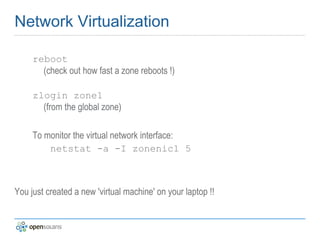
OpenSolaris 2009.06 A Workshop for some key Technologies Markus Weber Sun Microsystems, Inc. Iban Nieto OpenSolaris Community
Agenda Install OpenSolaris 2009.06
Sun VirtualBox
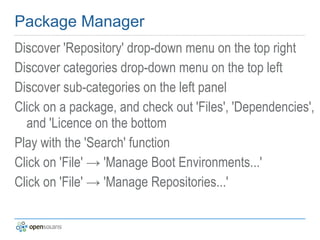
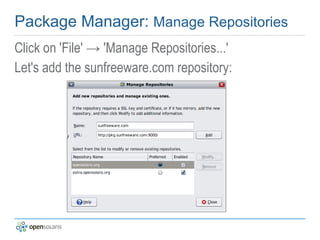
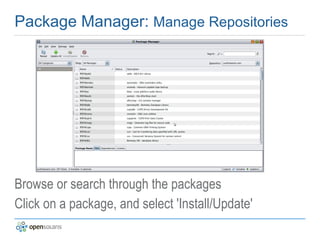
IPS, Package Manager, and Repositories
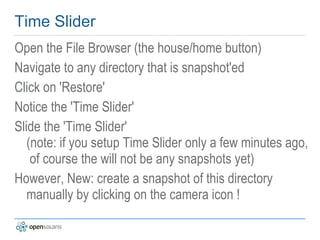
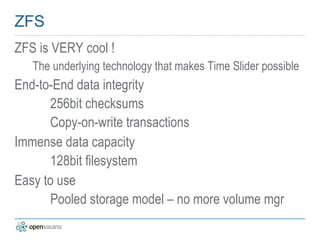
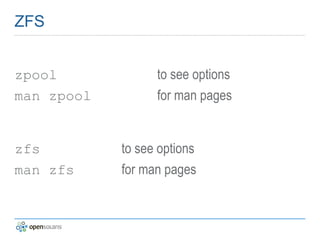
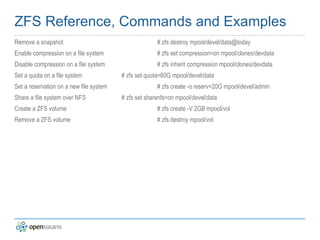
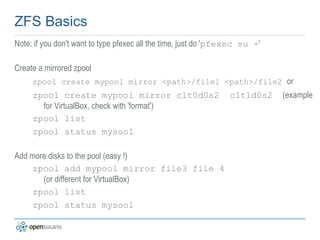
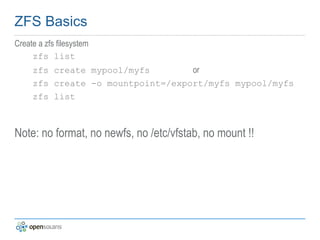
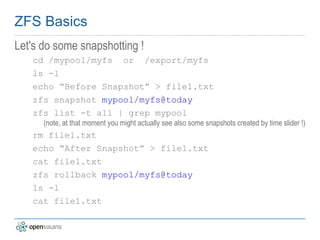
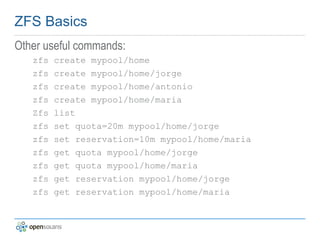
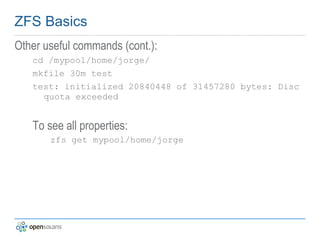
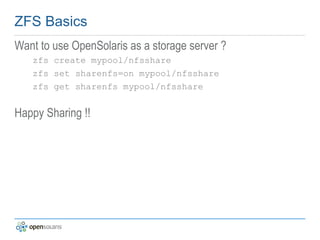
ZFS & Time Slider
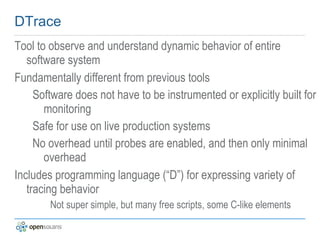
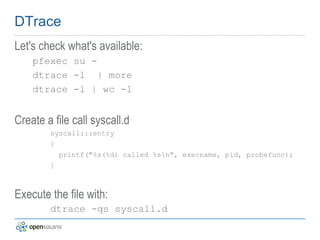
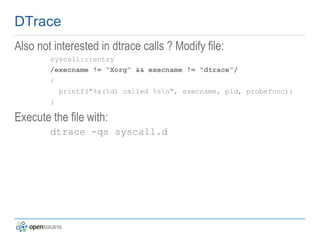
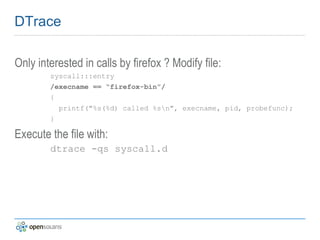
DTrace
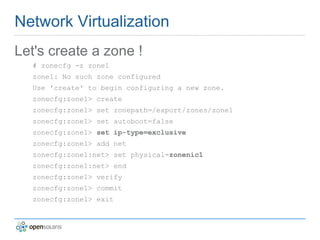
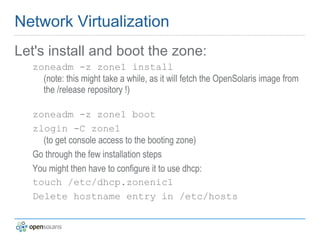
If time permits: Crossbow & Containers
Install OpenSolaris 2009.06 Options: Upgrade from a previous version
Natively on your laptop
In a partition on your laptop
In VirtualBox
Install OpenSolaris 2009.06 Basic System Requirements: At least 512MB memory, more is better
Recommended at least 9GB disk space
Upgrade to OpenSolaris 2009.06 Package Manager “Update All”
Follow instructions Command Line: pfexec su
pkg image-update [-nv]
Follow instructions
Install OpenSolaris 2009.06 Natively Boot from  OpenSolaris LiveCD
OpenSolaris LiveUSB Use “Device Driver Utility” To check support for your devices If ok, install Go through easy installation wizard
Reboot
Done !
Install OpenSolaris 2009.06 in Partition Notes if running Windows:
If you have Windows installed, and you set up sufficient space for installing the OpenSolaris 2009.06 operating system, the installation should be straightforward. All versions of the OpenSolaris software for the x86 platform use the GNU Grand Unified Bootloader (GRUB). The OpenSolaris software recognizes Windows and ensures that the Windows partitions remain unchanged during an installation. When the OpenSolaris installation completes, and the system reboots, the GRUB menu displays both the Windows and the OpenSolaris boot entries.
Install OpenSolaris 2009.06 in Partition Notes if running Linux:
If you have either the Linux or Windows operating systems installed on your system, before installing the OpenSolaris operating system, save a copy of the menu.lst file. You will need to manually update the menu.lst file to add the Linux information after the OpenSolaris installation completes. For instructions on that, please check: http://dlc.sun.com/osol/docs/content/2009.06/getstart/linuxgrub.html#linuxgrubtask
Install OpenSolaris 2009.06 in Partition Notes if running Solaris 10:
The installer cannot be used to multiboot the OpenSolaris operating system. However, the installer can be used to replace the Solaris 10 1/06 and later releases in an existing multiboot Solaris system.
Notes on Extended Partitions: If you have another operating system installed on an extended partition, the existing extended partition is neither changed nor lost during an OpenSolaris installation. Existing extended partitions are not visible during the installation, but the primary fdisk partition in which the extended partition resides is visible. No data in these partitions is lost as a result of the installation. The operating system on an extended partition is not displayed in the GRUB menu.
Install OpenSolaris 2009.06 in Partition For more information on how to install OpenSolaris 2009.06 in a multiboot environment, please check:
http://dlc.sun.com/osol/docs/content/2009.06/getstart/partition.html
Install OpenSolaris 2009.06 in VirtualBox http://www.virtualbox.org Download and install binaries according to your OS For any Windows, Linux, Solaris/OpenSolaris,  Mac OS X (Intel) http://www.opensolaris/get Download OpenSolaris .iso file
Or use LiveCD
Install OpenSolaris 2009.06 in VirtualBox In VirtualBox:  “New” Choose OS, a name, memory size, (virtual) disk image, Finish
Change graphic memory, attached .iso or LiveCD.
“Start”
Install OpenSolaris
Install Guest Additions !! “Devices” -> “Install Guest Additions...”
As root, cd /media,  pkgadd -d .pkg
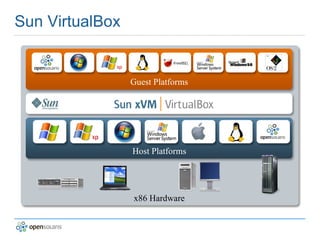
Sun VirtualBox Host Platforms Guest Platforms x86 Hardware
Sun VirtualBox Broad platform support Hosts: Windows, Solaris, Linux, OS X
Guests: Support for practically any x86-based OS Powerful virtual hardware and device support
Versatile Networking options
Rich host/guest integration
Virtual SATA or IDE:  u p to 32 disks
Virtual NICs:  g igabit ethernet E1000
Virtual USB Controller:  USB 1.1 and 2.0 (with USB device filter)
Full ACPI Support:  g uests reflect power status of host
Virtual CD/DVD:  p assthru for CD/DVD writing
Processor:  32-bit and 64-bit guests;  PAE support
Graphics Acceleration:   OpenGL for Windows Guests
Sun VirtualBox: a useful example
Sun VirtualBox: the main window Check out all the Configuration options. And play around with it !!
What is IPS ? Image Packaging System Repositories
Easy to package  for the developer
Determine, control and resolve dependencies
Rapid delivery of fixes
Upgrade and rollback with ZFS snapshots
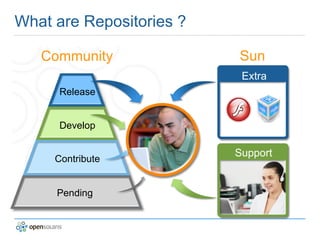
What are Repositories ? Community Sun Release Develop Contribute Pending Extra Support
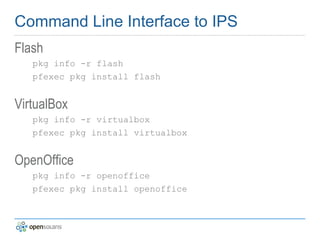
Command Line Interface to IPS beadm (boot environment administration) beadm get a list of option (some require pfexec / root)
man beadm for man pages
beadm list list current boot environments pkg (image packaging retrieval client) pkg   get a list of options (some require pfexec / root)
man pkg for man pages
pkg publisher check current publishing authorities
pkg history some history information
pkg info [ |more ] check all packages installed (long  output !)
Command Line Interface to IPS Curious or adventerous ? Let's add the /dev repository: pkg publisher

OpenSolaris 2009.06 Workshop

Editor's Notes

  • #3 This presentation will show how the OpenSolaris OS ties into how open source OS technologies have been evolving over the last couple of decades, and show how the innovative features in the Solaris OS have laid the foundation for even more great new projects, making for an OS that's easy to use and support, and is an ideal platform for leading edge development and deployment.