5th Grade
Digital Citizenship
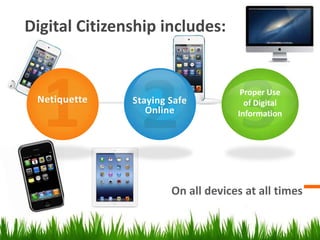
Digital Citizenship includes:
On all devices at all times
Netiquette Staying Safe
Online
Proper Use
of Digital
Information
What is Netiquette?
It is etiquette you should always follow when you are on the internet.
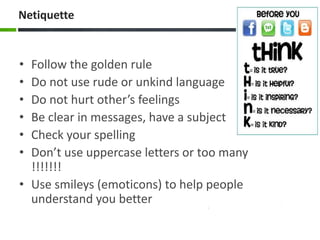
Netiquette
• Follow the golden rule
• Do not use rude or unkind language
• Do not hurt other’s feelings
• Be clear in messages, have a subject
• Check your spelling
• Don’t use uppercase letters or too many
!!!!!!!
• Use smileys (emoticons) to help people
understand you better
WhyisthisImportant?
Digital Footprints
• Digital
Footprints
• public
• Permanent
• Cyber
bullying
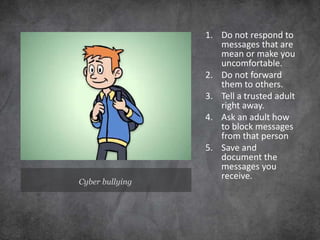
Cyber bullying
1. Do not respond to
messages that are
mean or make you
uncomfortable.
2. Do not forward
them to others.
3. Tell a trusted adult
right away.
4. Ask an adult how
to block messages
from that person
5. Save and
document the
messages you
receive.
Online Safety
Protecting Our Identity, Keeping our Devices Safe,
Keeping Ourselves Safe
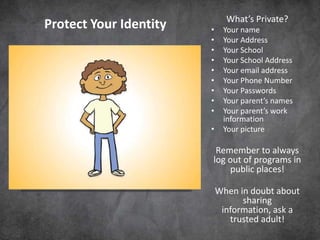
What’s Private?
• Your name
• Your Address
• Your School
• Your School Address
• Your email address
• Your Phone Number
• Your Passwords
• Your parent’s names
• Your parent’s work
information
• Your picture
Remember to always
log out of programs in
public places!
When in doubt about
sharing
information, ask a
trusted adult!
Protect Your Identity
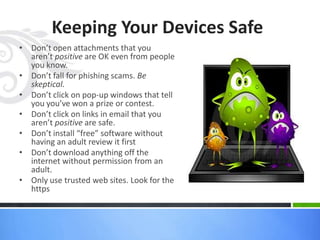
Keeping Your Devices Safe
• Don’t open attachments that you
aren’t positive are OK even from people
you know.
• Don’t fall for phishing scams. Be
skeptical.
• Don’t click on pop-up windows that tell
you you’ve won a prize or contest.
• Don’t click on links in email that you
aren’t positive are safe.
• Don’t install “free” software without
having an adult review it first
• Don’t download anything off the
internet without permission from an
adult.
• Only use trusted web sites. Look for the
https
Some illnesses you could encounter…
• Adware – tracks your browsing habits and then
sends you pop-up advertisements
• Malware – Malicious software that affects your
computer’s operation and allows hackers the
chance to get in and get your personal info
• Spyware – Downloads onto your computer and
scans your hard drive for personal info
• Virus – it is a piece of code which deletes or
corrupts files or can replicate to fill up your
computer memory
• Worms – a virus which can duplicate itself and
spread to others through your email and
messages
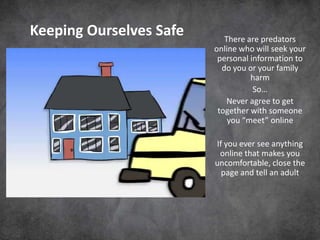
There are predators
online who will seek your
personal information to
do you or your family
harm
So…
Never agree to get
together with someone
you “meet” online
If you ever see anything
online that makes you
uncomfortable, close the
page and tell an adult
Keeping Ourselves Safe
Using Information Wisely
Avoiding Plagiarism, Analyzing Sites
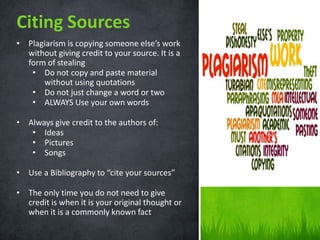
• Plagiarism is copying someone else’s work
without giving credit to your source. It is a
form of stealing
• Do not copy and paste material
without using quotations
• Do not just change a word or two
• ALWAYS Use your own words
• Always give credit to the authors of:
• Ideas
• Pictures
• Songs
• Use a Bibliography to “cite your sources”
• The only time you do not need to give
credit is when it is your original thought or
when it is a commonly known fact
Citing Sources
» Can you trust everything on the internet?
» Look at their domain suffix: .com, .edu, .gov, .org, .net
» Ask yourself the following questions:
» Does the site have authority? Can you find the author of the page? Is
he/she credible? Is the site sponsored by a legitimate organization?
» Is the site accurate? Does it agree with other sites? Does it cite sources?
Is it free from typos and a lot of ads? Does it look professional?
» Is the site objective? Is it trying to persuade you? Is it trying to sell you
something? Does it only represent one point of view?
» Is the website current? Look for the last time it was updated.
» Is it complete? Is it finished? Doe all the links work and does it have an
index or links to other reputable sites?
» If you are uncertain, ask a teacher or grown-up
» If anything makes you uncomfortable, close the page and tell an
adult.
Evaluating Websites
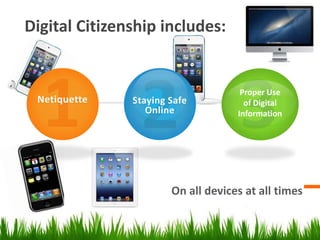
Digital Citizenship includes:
On all devices at all times
Netiquette Staying Safe
Online
Proper Use
of Digital
Information
Are you Ready to be a Digital Citizen?
• We the Vichy 5th Graders pledge to:
– Only go online when a parent or adult says it’s O.K.
– Not give out personal information online
– Never let anyone know our passwords, except our parents
– Tell an adult if we see information that makes us uncomfortable
– Never get together with anyone we “meet” online
– Never respond or forward mean or inappropriate messages. If
we get one, we’ll tell an adult.
– Never download anything from the internet without permission
– Never open files, attachments, or links from anyone we don’t
know and trust
– Log off of email and any online programs we are using when we
are done
– Be good online citizens, treating others as we wish to be treated
– Never post or write anything online that we would be
embarrassed to have anyone see

Online Safety Lesson 5th grade

  • 1.
  • 2.
    Digital Citizenship includes: Onall devices at all times Netiquette Staying Safe Online Proper Use of Digital Information
  • 3.
    What is Netiquette? Itis etiquette you should always follow when you are on the internet.
  • 4.
    Netiquette • Follow thegolden rule • Do not use rude or unkind language • Do not hurt other’s feelings • Be clear in messages, have a subject • Check your spelling • Don’t use uppercase letters or too many !!!!!!! • Use smileys (emoticons) to help people understand you better
  • 5.
  • 6.
    Cyber bullying 1. Donot respond to messages that are mean or make you uncomfortable. 2. Do not forward them to others. 3. Tell a trusted adult right away. 4. Ask an adult how to block messages from that person 5. Save and document the messages you receive.
  • 7.
    Online Safety Protecting OurIdentity, Keeping our Devices Safe, Keeping Ourselves Safe
  • 8.
    What’s Private? • Yourname • Your Address • Your School • Your School Address • Your email address • Your Phone Number • Your Passwords • Your parent’s names • Your parent’s work information • Your picture Remember to always log out of programs in public places! When in doubt about sharing information, ask a trusted adult! Protect Your Identity
  • 9.
    Keeping Your DevicesSafe • Don’t open attachments that you aren’t positive are OK even from people you know. • Don’t fall for phishing scams. Be skeptical. • Don’t click on pop-up windows that tell you you’ve won a prize or contest. • Don’t click on links in email that you aren’t positive are safe. • Don’t install “free” software without having an adult review it first • Don’t download anything off the internet without permission from an adult. • Only use trusted web sites. Look for the https
  • 10.
    Some illnesses youcould encounter… • Adware – tracks your browsing habits and then sends you pop-up advertisements • Malware – Malicious software that affects your computer’s operation and allows hackers the chance to get in and get your personal info • Spyware – Downloads onto your computer and scans your hard drive for personal info • Virus – it is a piece of code which deletes or corrupts files or can replicate to fill up your computer memory • Worms – a virus which can duplicate itself and spread to others through your email and messages
  • 11.
    There are predators onlinewho will seek your personal information to do you or your family harm So… Never agree to get together with someone you “meet” online If you ever see anything online that makes you uncomfortable, close the page and tell an adult Keeping Ourselves Safe
  • 12.
    Using Information Wisely AvoidingPlagiarism, Analyzing Sites
  • 13.
    • Plagiarism iscopying someone else’s work without giving credit to your source. It is a form of stealing • Do not copy and paste material without using quotations • Do not just change a word or two • ALWAYS Use your own words • Always give credit to the authors of: • Ideas • Pictures • Songs • Use a Bibliography to “cite your sources” • The only time you do not need to give credit is when it is your original thought or when it is a commonly known fact Citing Sources
  • 14.
    » Can youtrust everything on the internet? » Look at their domain suffix: .com, .edu, .gov, .org, .net » Ask yourself the following questions: » Does the site have authority? Can you find the author of the page? Is he/she credible? Is the site sponsored by a legitimate organization? » Is the site accurate? Does it agree with other sites? Does it cite sources? Is it free from typos and a lot of ads? Does it look professional? » Is the site objective? Is it trying to persuade you? Is it trying to sell you something? Does it only represent one point of view? » Is the website current? Look for the last time it was updated. » Is it complete? Is it finished? Doe all the links work and does it have an index or links to other reputable sites? » If you are uncertain, ask a teacher or grown-up » If anything makes you uncomfortable, close the page and tell an adult. Evaluating Websites
  • 15.
    Digital Citizenship includes: Onall devices at all times Netiquette Staying Safe Online Proper Use of Digital Information
  • 16.
    Are you Readyto be a Digital Citizen? • We the Vichy 5th Graders pledge to: – Only go online when a parent or adult says it’s O.K. – Not give out personal information online – Never let anyone know our passwords, except our parents – Tell an adult if we see information that makes us uncomfortable – Never get together with anyone we “meet” online – Never respond or forward mean or inappropriate messages. If we get one, we’ll tell an adult. – Never download anything from the internet without permission – Never open files, attachments, or links from anyone we don’t know and trust – Log off of email and any online programs we are using when we are done – Be good online citizens, treating others as we wish to be treated – Never post or write anything online that we would be embarrassed to have anyone see

Editor's Notes

  • #2 This presentation demonstrates the new capabilities of PowerPoint and it is best viewed in Slide Show. These slides are designed to give you great ideas for the presentations you’ll create in PowerPoint 2011!For more sample templates, click the File menu, and then click New From Template. Under Templates, click Presentations.