Using OneNote as a
Laboratory Notebook
v2022-06
Jo Montgomery
babraham.bioinformatics@babraham.ac.uk
Laboratory Notebooks
What should we be doing?
• Expectations and responsibilities
– Document what we are doing
– Be able to find results
– Timely/traceable/retrievable
– Checked
• Legal responsibilities
Why OneNote?
• Digital Notebook
• Gathers notes – handwritten or typed –
drawings, screen clippings, images and audio
content
• Notes can be shared
OneNote
OneNote
Storing notebooks
• Where can we save OneNote notebooks?
–Local drives (OneNote 2016)
–Microsoft
•OneDrive
•SharePoint
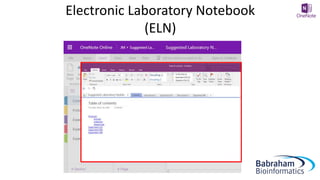
Electronic Laboratory Notebook
(ELN)
https://babraham.sharepoint.com/sites/ELN/SitePages/Home.aspx
or go to Office.com and search Sharepoint/ELN
Electronic Laboratory Notebook
(ELN)
Electronic Laboratory Notebook
(ELN)
Electronic Laboratory Notebook
(ELN)
Electronic Laboratory Notebook
(ELN)
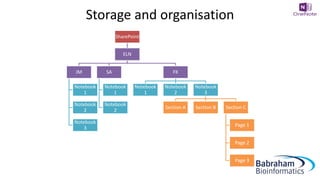
Storage and organisation
SharePoint
JM
Notebook
1
Notebook
2
Notebook
3
SA
Notebook
1
Notebook
2
FK
Notebook
1
Notebook
2
Notebook
3
ELN
Storage and organisation
SharePoint
JM
Notebook
1
Notebook
2
Notebook
3
SA
Notebook
1
Notebook
2
FK
Notebook
1
Notebook
2
Notebook
3
Section A Section B Section C
Page 1
Page 2
Page 3
ELN
Storage and organisation
SharePoint
JM
Notebook
1
Notebook
2
Notebook
3
SA
Notebook
1
Notebook
2
FK
Notebook
1
Notebook
2
Notebook
3
Section A Section B Section C
Page 1
Sub Page 1
Sub-sub-
page
Sub-page 2
Page 2 Page 3
ELN
Exercise 1
Accessing the
Electronic Laboratory Notebook (ELN)
area on Sharepoint
https://babraham.sharepoint.com/sites/ELN/SitePages/Home.aspx
Getting started
What is a Page?
“It’s not a word document…
… It’s a stream of consciousness…”
Simon Andrews, Head of Bioinformatics
What is a Page?
Add Sections and Pages
Add Sections
Add Sections
Add Sections
Add Sections
Pages
Pages
Add sub pages
Exercise 2
Opening a new OneNote (Online)
notebook and setting it up
Exercise 2
Create a Notebook to
look like this –
sections, colours, pages,
titles and levels of
organisation
What can you do in OneNote?
• Add text
• Make tables
• Insert images
• Insert/attach files
• Add links
Stuff you don’t need
• Audio
• Translation tool
• Stickers
• Emojis 
• …things you don’t need
in a laboratory
notebook
How to add things
Text
Tables
Images
• File
• Web search
• Clipboard
– copy & paste
– screen grab/clip
Images
Images
+ Shift + S + Shift + 4
Exercise 3
Adding text, tables, formatting and
images
Exercise 3
Add files and links
• File
– Attachment
– File printout
• Link
– Point elsewhere
Insert a File
Insert a File
Add links
Add links
• Link to files stored elsewhere
– Large datasets
– Obligations regarding finding data
Add links
• Link to files stored elsewhere
– Direct link doesn’t work – tries to make the file
path a URL
– 2 options
Add links
1. Give file location
• Shift + Right Click on file in finder > copy as path
• (mac: control and click on file, then press option
and select copy as pathname)
• Paste text into OneNote as a record of where the
file is stored
• Make sure the file location doesn’t change
Add links
Add links
Add links
2. Turn the path into a URL
• Remove ‘http’ and type ‘file://’ at the start,
remove all backslashes () and replace with
forward slashes (/)
• Remove spaces and replace with %20
• Not a dynamic link
• Copy this link into browser and it should go to
file location
Add links
file://O:/Training/One%20Note/OneNote%20ELN%20key%20facts.docx
"O:TrainingOne NoteOneNote ELN key facts.docx"
Exercise 4
Adding files and links
http://www.bioinformatics.babraham.ac.uk/training.html#onenote
OneNote Course Data files (zip)
Other useful stuff
• Draw
• To Do list
• Quick note
Draw
Write notes on slides
Annotate images
Annotate images
To Do list
Table of Contents
• Create a Table of Contents with Links
• 2016: Insert > Link > My Notebook
and navigate through the Sections/pages
to add
• OneNote 2016, 10 and mac
[[pagetitleofexistingpage]]
• OneNote Online – copy URL for
notebook/section/page and add this as a link
Table of Contents
Page backgrounds and lines
• View > Paper Style
• View > Paper color
Other hints and tips
• Maths functions
OneNote 10
Search Text
Search Text in an Image
References
• OneNote is not a reference management system
• You can link to a reference management system such as
Reference Manager or EndNote if you must
Exercise 5
Other useful tools
Sharing OneNote notebooks
• Sharepoint ELN
• OneDrive
• Other locations
Sharing a page - OneNote 2016
Sharing a page - OneNote 10
Sharing OneNote notebooks
Versions
Versions
Versions
Exercise 6
Share your notebook with someone in
the room
https://tinyurl.com/test-lab-book
Suggestions for use as a Laboratory
Notebook
Example Laboratory Notebook
https://tinyurl.com/template-lab-book
Exercise 7
Set up an outline for a laboratory
notebook to suit your experiments
The future: Windows 10
and Office 2019
• Microsoft is ‘sunsetting’ OneNote2016
• OneNote for Windows10 looks more like the mac or online
version
OneNote for Windows 10
Further help
https://support.office.com

OneNote Slides.pptx

Editor's Notes

  • #3 The big picture – why are we here? Lab books are changing. Old paper lab books are no longer fit for purpose – today’s research produces too many documents, data is too big and is most often created as digital/electronic files. We need a new way.
  • #4 Before we start, a few words on the legal responsibilities. Policies can be found on the intranet www.campus.babraham.ac.uk Follow links to: >Quality Assurance of Research (QAR) >To read the Babraham Institute Guidelines for the use of laboratory notebooks click here The purpose of a lab book is to document what we are doing – date and initials, experiment number Comprehensive record clear and accurate records Data is retrievable Kept securely 10 years It should also be checked by your line manager every two weeks – this is much easier with an electronic notebook. Lab books are changing. Old paper lab books are no longer fit for purpose – today’s research produces too many documents, data is too big and is most often created as digital/electronic files. We need a new way.
  • #5 OneNote is the nearest equivalent to a paper notebook It’s a note taking app, not a bespoke lab book but…it is flexible – allows for different structures, different projects/groups/ways of working Allows us to include data from a range of sources Not prescriptive Microsoft – so well supported and future longevity Safe, compliant storage (more on this later)
  • #6 OneNote is not a single entity. There are different versions and different platforms with different features and functionality depending on the platform/version. Currently (as of 5/2019), OneNote 2016 has the most features/functionality but is being ‘sunsetted’ – no longer developing and starting to stop supporting. It is a dead product. Mac and online versions are very similar. OneNote 10 is being developed and new features are being added all the time. At the moment it is a basic version similar to OneNote online. The thinking is that in the future, the functionality will be more similar across platforms. OneNote10 has the same appearance as mac and online versions, which look different to OneNote 2016. OneNote 10 is likely to be a wrap around app so other versions will be broadly similar. Today we’ll be looking at OneNote Online – it is completely cross platform and accessible form anywhere. It is our current universal framework. You don’t need the additional features on OneNote2016 but you can always open your OneNote Online notebooks in OneNote 2016 if you have it on your computer and you’re used to working in that version.
  • #7 If your computer has been upgraded to Windows 10, you may also have the version of OneNote10 as well as OneNote 2016 (both versions remain on your machine) If you’re a mac user then the online version is very similar to OneNote for macs. Although the online version is accessible anywhere and works across platform, it does have more limited functionality at the moment and can be slow.
  • #8 The online version and mac version cannot be stored to local drives. Notebooks must be online/cloud storage. The computing supported storage area is the ELN – Electronic Laboratory Notebook area on SharePoint. This is BI controlled and data is stored within UK as legally required It is automatically synced, so you don’t need to worry about saving. It’s also backed up locally onsite daily. This is the safest way of keeping your data. We do not support storing it on local drives/drop box/googledrive etc.
  • #9 Let’s start at the ELN as this is where data will reside. If you wish to have a collaborative Electronic Laboratory Notebook (ELN), Group leaders will need to request IT to set up a Group ELN on SharePoint. This Group ELN has a “document library”. Sub folders can be put in here, owned by individual members of the group, and sharing preferences set up to allow collaboration, read only etc. Individual members can have multiple notebooks in their folder. You can copy an existing notebook into the ELN by making a new notebook and copying in section by section – this is computing’s recommended safest way. Create a local backup before you start copying and moving. You can link the desktop and ELN version and it will sync and keep up to date. Whenever changes are made, it will be saved to the OneNote version, or rather cached as an offline version ‘backup’ on the computer and then immediately saved/synced to OneDrive/Sharepoint. If you don’t want to, you never have to look at Office 365/OneDrive/ELN site ever again once you’ve opened your notebook on the ELN for the first time and then clicked “Open with OneNote”. Those group members with access to/collaborating with your notebook will need to access it through the ELN.
  • #10 9
  • #11 10
  • #12 11
  • #13 You can see the difference in the online version compared to the desktop Office2016 version of One Note once you click open in OneNote.
  • #14 Let’s take a step back from the software for a minute and think about storage and organisation. There is a hierarchy to the structure of a OneNote notebook – different levels of organisation. I’ll show you the hierarchical structure, then we will look at the operational tools to use OneNote and then I’ll come back to suggest ways to use the structure to make a laboratory notebook. Within Sharepoint, there is an area called ELN – Electronic Laboratory Notebook Your group has a repository in here, then each group member has a folder which contains their notebooks.
  • #15 Each group member can have multiple notebooks. Each notebook can then be further divided into sections (tabs) Each section can then have multiple pages.
  • #16 Each group member can have multiple notebooks. Each notebook can then be further subdivided into sections (tabs) Each section can then have multiple pages. Pages can then be given further levels of indentation or subdivision
  • #17 Exercise 1 Have a go at accessing the ELN on Sharepoint and opening a notebook. https://babraham.sharepoint.com/sites/ELN/SitePages/Home.aspx Open with One Note (online). NB If you don’t yet have the ELN set up for your group, we will run this course directly in Office 365 online.
  • #18 First tip – simplify ribbon. This course will have some lecture style, showing you how to do things, interspersed with lots of practical exercises. I will show you first – don’t follow along with me or you might miss something; wait for the exercises. There will be plenty of opportunities to have a go. I promise not to make you listen and concentrate for long periods! In View – you can check or uncheck simplify ribbon to show more or less functionality
  • #19 Before we start, let’s take a quick deviation. What is a page in OneNote? “It’s not a word document; it’s a stream of consciousness” – Simon Andrews, 2019.
  • #20 But, it is just like a sheet of paper you can write, draw and scribble on – anywhere within that page. You are not required to work top to bottom or left to right. It is an (almost) infinitely sized piece of ‘paper’ in which you can have whatever structure you like.
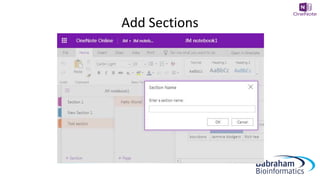
  • #21 Add a New Section/Folder/tab by clicking on the + Section/Folder/tab You can add pages to a Notebook Section/Folder/tab by clicking on the +Add Page function at the left hand side of the window.
  • #22 When you click on add section, a Section name dialogue box pops up.
  • #23 Right click rename section
  • #24 You can change the colour of the section/tab – useful to colour code experiment types etc. Right click on section tab, select section color
  • #25 Rearrange order Click and drag sections into the order you want, just as with pages.
  • #26 At the top of each page, there is space for a title or page name. Add a title here and it automatically becomes the name of that page (you’ll see it appear on the left hand side of the screen)
  • #27 You can rearrange the page order by clicking on and dragging the page titles up or down at the left hand side of the screen.
  • #28 There are additional levels of organisation or indentation – subpages Add subpages by first creating another page, right clicking on a page and selecting make sub page. You cannot make a sub page without there being another page above it. You can even make sub-sub pages.
  • #29 Exercise 2 Create a basic laboratory notebook that looks like this, with these features, colours, sections, pages, titles, levels of organisation etc. (see over)
  • #30 Exercise 2 Create a notebook that looks like this, with these:   section names tab colours pages page names subpages
  • #31 We’ll look at some of the functions of OneNote.
  • #32 Add text, Tables, files, images, links
  • #33 There are also other functions in OneNote that aren’t relevant to a laboratory notebook, such as stickers and emojis! You don’t need to use these.
  • #34 You add things simply by clicking on an appropriate place in the notebook and using the relevant insert tool NB Things don’t move out of the way/move down automatically, so make sure you add top to bottom (mostly) and that there’s enough space. You can pick up objects/text boxes etc and move around later. It’s a bit like a scrap book – each time you insert text or a picture etc, imagine it is stuck in on a virtual piece of paper. If you keep writing above something else, it will just layer over the top – you would have to move the other piece of ‘paper’ out of the way to make room.
  • #35 Click anywhere on the page to begin typing. Text appears in text boxes which you can move around. You can format text and styles.
  • #36 Make tables automatically. Just hit the Tab button to turn what you’ve just typed into the first cell of a table. Delineate further columns with Tab, and just press Enter to start filling in the next line.
  • #37 You can insert pictures from files or the internet.
  • #38 Insert pictures – from file or from the internet, or use snip/grab tools to insert screen shots.
  • #39 Use snip or grab tools
  • #40  Exercise 3 Create a page that looks like this with: a similar layout and information text (this can be any text – just play about with fonts, sizes etc), table formatting images - try inserting an image from file (see course data) and also searching for images online. note the text styles in the Protocol.
  • #41 Exercise 3 Create a page that looks similar to this with: a similar layout and information text (this can be any text – just play about with fonts, sizes etc), table formatting images - try inserting an image from file (see course data) and also searching for images online. note the text styles/formatting in the Protocol.
  • #42 As well as adding text and images, you can also add files and hyperlinks.
  • #43 There are a couple of ways to include a file in your Onenote notebook: Insert File Attachment, it will add/embed all file types. You just see the file icon, it will open elsewhere (eg. excel) You can also drag and drop files to embed
  • #44 2. File Printout You can include a file in your one note notebook using Insert > File Printout and navigating to the file you wish to include It gives you the file icon but also a pdf-like display/view of the file inside your notebook. You can only add word or pdf files as a file printout (in the online version). (2016 you can add other file types eg. excel)
  • #45 You can add hyperlinks to your notebook to link to webpages or to other pages, sections or notebooks (just copy the URL for the page/section/notebook). Go to Insert > Link and then you can add the text you’d like to display along with the actual web address. Pages, sections or notebooks: Just copy the URL for the page you want and type the text you would like to appear to create a hyperlink.
  • #46 For data stored on websites, such as Sierra, you can create a hyperlink. We need to think about what to do regarding large datasets which are too big to insert into One Note, but be mindful of the legal requirements for data to be retrievable (more on specific data types later).
  • #47 There are two ways to include information on file stored elsewhere.
  • #48 You can simply report the location of where files/data is stored. Give file location: Shift + Right Click on file in finder > copy as path Paste text into OneNote as a record of where the file is stored Make sure the file location doesn’t change
  • #50 This inserts a copy of the file location – but not a link. It is simply a record of where your data is stored.
  • #51 2. You could turn this path into a URL (but not a dynamic link).
  • #52 This inserts a copy of the file location – but not a link. It is simply a record of where your data is stored.
  • #53 Exercise 4 You will find files in the course data file.   Add an excel file as an attachment Add a word document as a file printout. Insert a link to a webpage. Create a link to another page of your notebook. Using copy to path, create a non-dynamic link to a file in a saved location.   In the finder/document library, Shift + right click on a file of your choice and select copy as path. Paste this path into OneNote – this is just a reference to the location  Possibly: Remove ‘http’ at the beginning and replace with ‘file//’, then change all of the backslashes to forward slashes Copy and paste this into your browser – it should now direct you to the file
  • #54 Some other tools which might be useful in a laboratory notebook are Drawing tools Creating to-do lists Quick notes Time and date Table of contents Page backgrounds and lines Maths
  • #55  Go to draw menu to choose a pen and draw with your mouse or finger/stylus on a touch screen. You can use this to draw freehand on the screen.
  • #56 Windows + S to take a clipping (send to a location or to clipboard) You can insert file printout – but only word or pdf file! (so you’ll need to convert)– and then annotate using the Draw tool.
  • #57 You can use the Draw tool to annotate/mark up gel images etc. However, be aware that the image and annotations are not ‘grouped’ so could become dissociated (especially if you move things around). Many find it easier - especially if you are labelling - to annotate in a different programme, e.g. Powerpoint, and then insert the compound image. Remember that the high quality may not be preserved when you insert an image into OneNote so you’ll need to store the original image somewhere and note how and where to find it as well.
  • #58 You can type in a text box and then move it over the image, change font colour/size etc as appropriate, but the same issues exist – the text and image are not ‘grouped’ so can move independently. Many recommend annotating images in another programme eg powerpoint and then importing that into OneNote (remembering to keep a copy and record of the actual file somewhere safe and retrievable).
  • #59 Add a to do list, mark as done, flag for follow up, mark as important, a question , an idea etc… There are many tags to choose from.
  • #60 Create a Table of Contents with Links 2016: Insert > Link > My Notebook and navigate through the Sections/pages to add OneNote 2016, 10 and mac – use double square brackets around page title to create a dynamic link eg. [[pagetitleofexistingpage]] (not in OneNote online) OneNote Online – copy URL for notebook/section/page and add this as a link
  • #61 Copy the URL for the page/section/notebook you wish to link to, then paste into the address bar.
  • #62 OneNote 2016: has lines/grids and page template options OneNote for mac: Lines etc. can be found in View > Paper Style Can change the page colour on a mac, but no page templates. This is not a function in OneNote online!! As with other features, if you have added them in the OneNote 2016 or mac versions, they are hidden when viewing in the browser, but are preserved.
  • #63 Maths functions – these wok best in OneNote 10. You can also insert pre-made equations in OneNote 2016. The Mac version will turn typed text into mathematical text eg curly x. OneNote Online doesn’t have these functions.
  • #64 Search text Type in the search box (magnifying glass icon at top of menu on left hand side) This brings up a window and asks if you want to search a page or a section but there is no option to search an entire notebook. (Ctrl +F also allows you to search current section or page but not whole notebook)
  • #65 Search text in an image: OneNote 2016: Search anywhere—even in images. You can right click on any image and select “Make text in image searchable.” From then on, when you search for text, the image will show up in the results. Great for methods sections of scanned papers from the 1940s. Not in OneNote online or mac!
  • #66 OneNote is not a reference management system You can link to a reference management system such as Reference Manager or EndNote if you must You can also include hyperlinks.
  • #67 Exercise 5 Using other useful tools Go to the Draw menu and select a pen type, thickness and colour. Draw a flower with at least 3 colours/pen thicknesses/types. Insert a gel image or powerpoint slide screenshot and annotate (see course data folder). Create a to-do list with at least 3 different functions (eg flag for follow up, mark as a question, highlight, mark as completed etc). Explore the options available. Create a table of contents using your insert link skills Search the text for a word you know you’ve included – you can search by section or page in OneNote online.
  • #68 Who can see your lab book? Your group leader and group members – depending on permissions you have: read or read-write access to your notebooks. You can also share notebooks with people outside your group by share, invite people or sending a link This sharing link only works within BI (from OneNote Online or OneNote 2016 shared on SharePoint) – check with computing if you need to configure external sharing. If it’s stored on OneDrive (storing on ELN on SharePoint is recommended by computing) you can share externally.
  • #69 You can email a page and share a page, section or notebook in OneNote 2016 You can only share an entire notebook in OneNote online or OneNote for windows 10
  • #72 Who can see your lab book? Your group leader and group members – depending on permissions you have: read or read-write access to your notebooks. You can also share notebooks with people outside your group by share, invite people or sending a link This sharing link only works within BI (from OneNote Online or OneNote 2016 shared on SharePoint) – check with computing if you need to configure external sharing. If it’s stored on OneDrive (storing on ELN on SharePoint is recommended by computing) you can share externally.
  • #73 Right click on a page and select show versions. This can tell you modifications/versions made with dates and authors. You can also go to the View menu to see versions and authors
  • #74 It shows the date when entered and the author.
  • #75 It shows the date when entered and the author.
  • #76 Exercise 6 Share your notebook with someone in the room (who wouldn’t normally have access to your notebook). Example: share with the person to your left. Share a notebook with someone in the room – check they can see your notebook Open a notebook shared with you – make a new tab and type the owner a message Check you can receive the message in a new tab which someone has sent to you Can you track the changes to see when they were made and by whom? (Versions)
  • #77 MOVE INTO ONENOTE Each main project is a notebook – can span more than one year this way (others set up a notebook for each year and have separate projects as tabs – need to find what works for you and your group) Each tab can be a technique, mouse strain or a sub-project, depending on the nature of your research. Having a standard protocol tab can be a good idea – then you can link to it whenever you use it and not have to write it out repeatedly. Or you could have a group protocols notebook and link to this. We will take a look at this suggested layout and explore how to add things, where etc..
  • #78 Put your new skills into practice: Now create a new notebook and set up a suitable layout and style for a basic laboratory notebook new sections for separate projects/experiment types/mouse strains etc. as per your requirements You don’t need to populate it with any real data but have a play inserting files or images, creating tables and anything else you think might be useful for you Use the example laboratory notebook as a guide
  • #79 The future: One Note for Windows 10 and Office 2019 Microsoft is ‘sunsetting’ OneNote2016 OneNote for Windows10 looks more like the mac or online version. Updates and new features are being constantly added.
  • #81 Support at Office has lots of quick short video tutorials (30 seconds – 2 minutes). Also includes some basic tips for OneNote for Mac. Less available for OneNote for mac…but there are many vocal forum members and it is very similar to the OneNote online version. OneNote is also available for free to download and via Office 365. (Remember that you are also able to log into your BI office 365 account at home).