Odoo UPS Connector
Odoo UPS Shipping Integration helps you to maintain all you’re shipping from
Odoo ERP itself. This connector buys postage from UPS provides the tracking
number which can be easily updated on the site. Apart from UPS, our team has
also integrated USPS connector, FedEx Connector, and PostMaster Delivery. UPS
is one of the most popular and highly used shipping services in today’s world.
Odoo is Integrated with UPS to seamlessly carry out Shipping within Odoo.
You can generate Quotes for different shipping services and choose the best
shipping service.
It has the ability to Generate Labels and Tracking Information to save in Odoo
against each delivery order.
The functionality of Odoo – UPS Connector:
Odoo – UPS connector provides both Domestic as well as International Service.
Odoo – UPS connector provides single abstract service configuration, domestic
service and international service configuration in Odoo.
Configuration and setup flow of Odoo – UPS:
-After configuring the UPS shipping module, we will be able to see the
UPS Delivery in the delivery method list of the Sales order option.
-For using UPS service, We will select customers and then add a product in
the sale order line.
-After that, we will select UPS delivery as the delivery method for the sales
order. Then we will update it, will list the delivery charges.
-Then, we will click on Quote to add these delivery charges to the sale
order.
–In Odoo-UPS integration, the user can see the UPS Delivery option in the
Delivery Method List before making the final payment.
-Get Shipping label, Order Tracking Number from UPS to Odoo
-Generate a complete Shipping Report
Configurations:
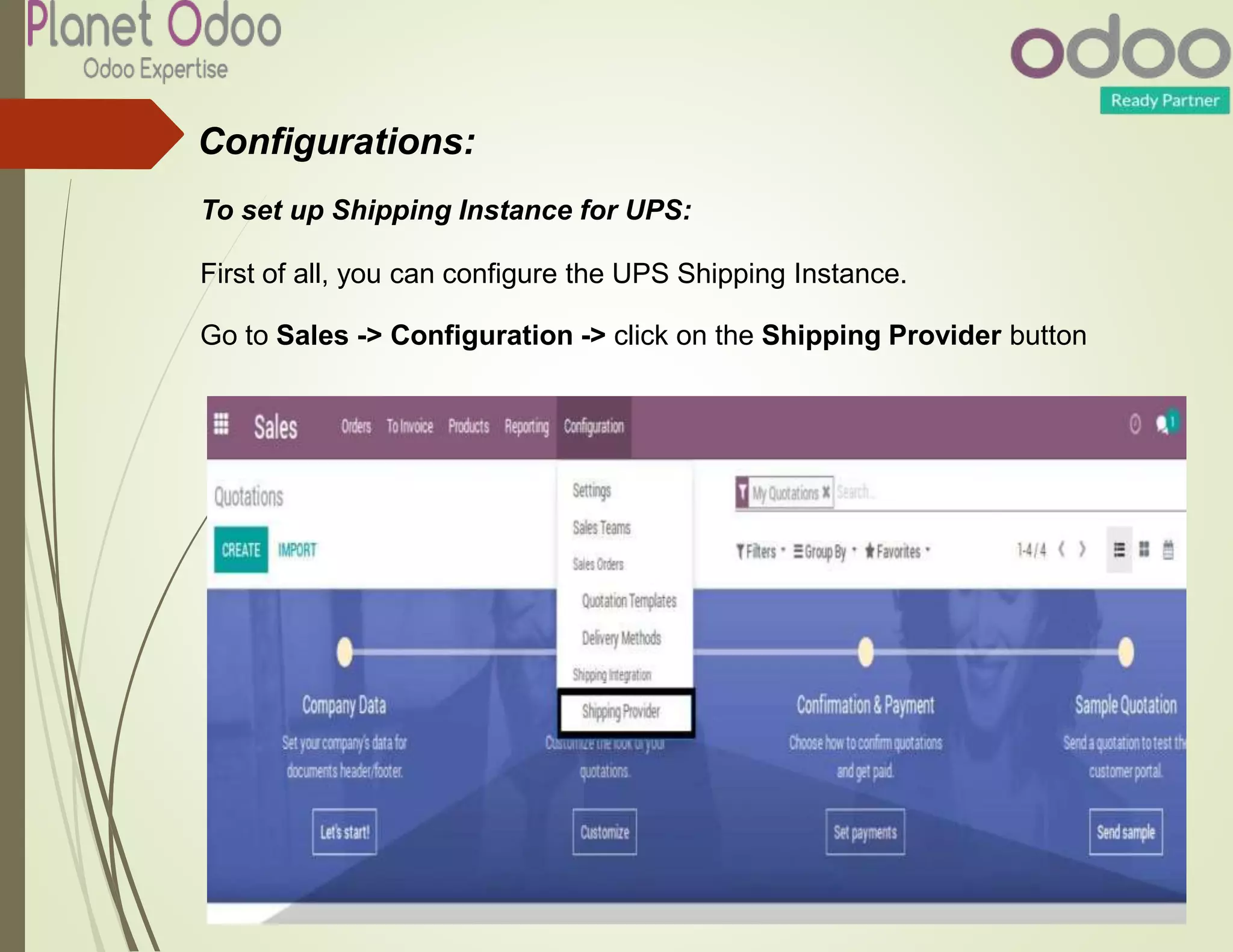
To set up Shipping Instance for UPS:
First of all, you can configure the UPS Shipping Instance.
Go to Sales -> Configuration -> click on the Shipping Provider button
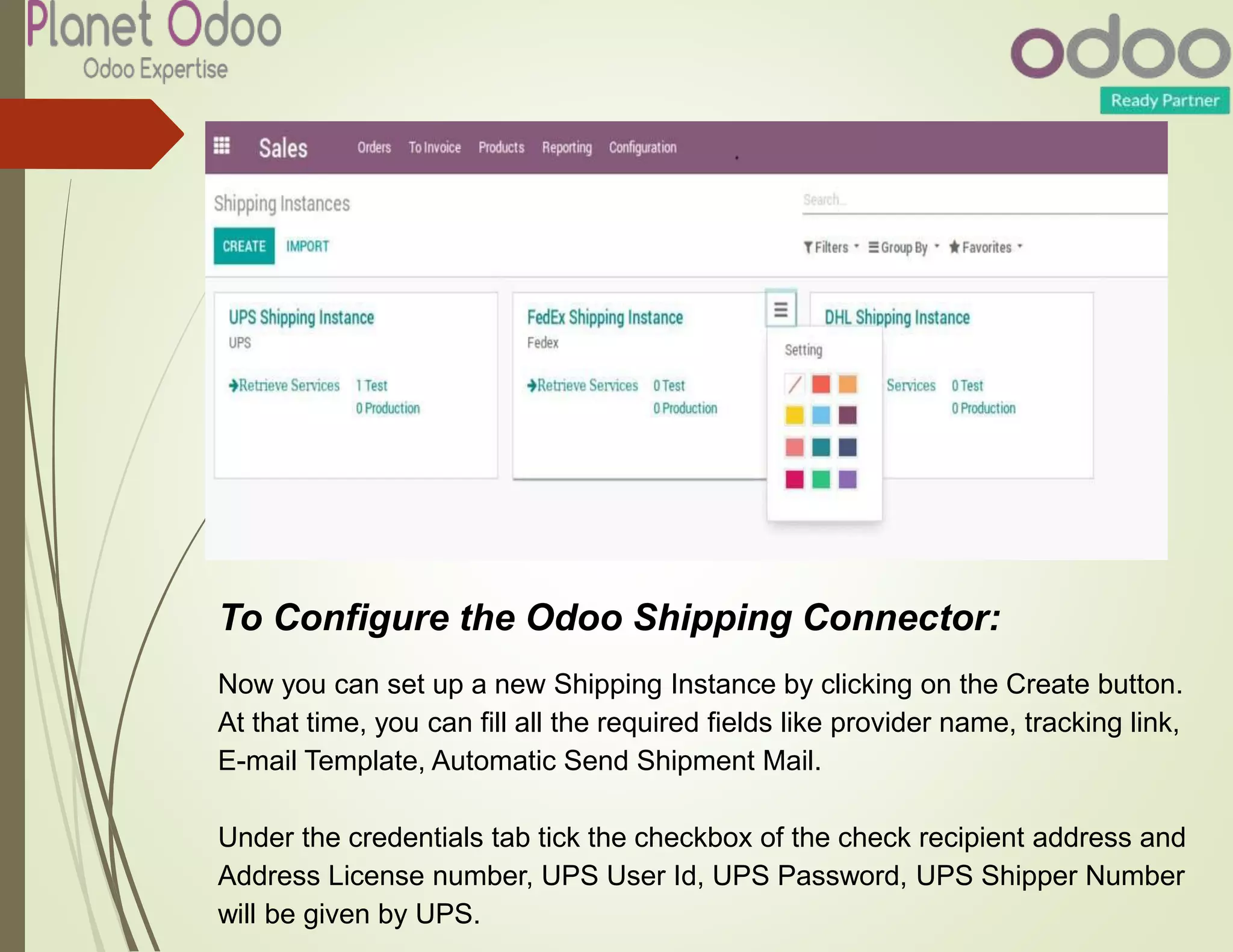
To Configure the Odoo Shipping Connector:
Now you can set up a new Shipping Instance by clicking on the Create button.
At that time, you can fill all the required fields like provider name, tracking link,
E-mail Template, Automatic Send Shipment Mail.
Under the credentials tab tick the checkbox of the check recipient address and
Address License number, UPS User Id, UPS Password, UPS Shipper Number
will be given by UPS.
To Configure Retrieving Services from UPS:
After entering the Credentials of the UPS Shipping Instance. Now you will
see all the services from the shipping provider
Now you can go to the Shipping Services tab and fill all the required fields
then click on the Retrieve Services button.
At the same time, your Shipping Services have been Retrieved successfully, a
new message will be presented on the window.
To Configure Delivery Methods for UPS
Now you can configure the delivery method:
Go to Sales -> Configuration -> Delivery Methods and click on the Create
button. At that time, you can fill all the required fields and click on the Save
button.
To use the Delivery Cost in Sales Order and Get rate
Now go to the Sales Order and select the Delivery method then click on the Get
rate button you will see the shipping rates directly from the server of UPS.
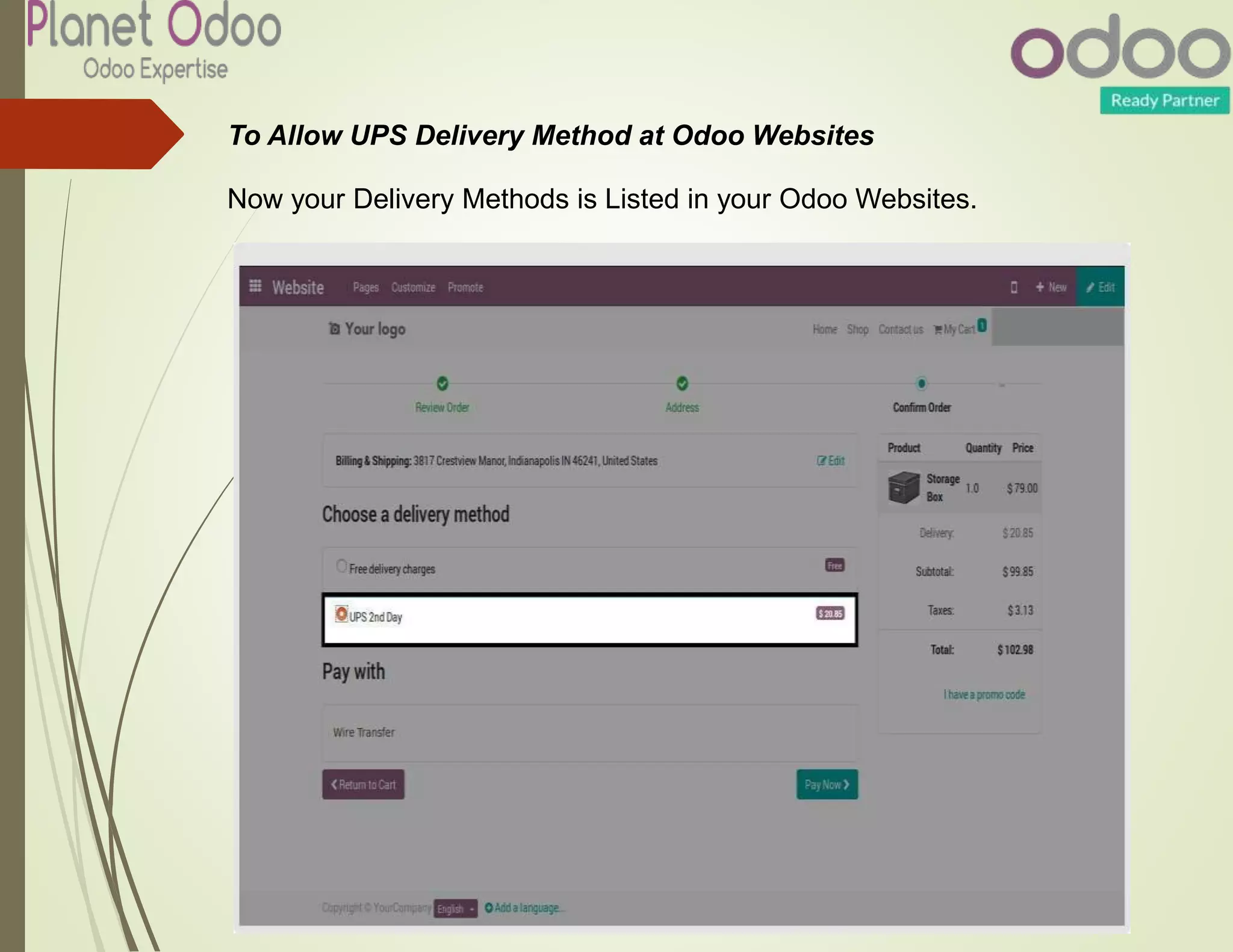
To Allow UPS Delivery Method at Odoo Websites
Now your Delivery Methods is Listed in your Odoo Websites.
After successfully selecting the UPS Service, the shipping price gets
automatically obtained from the UPS server and added to the order.
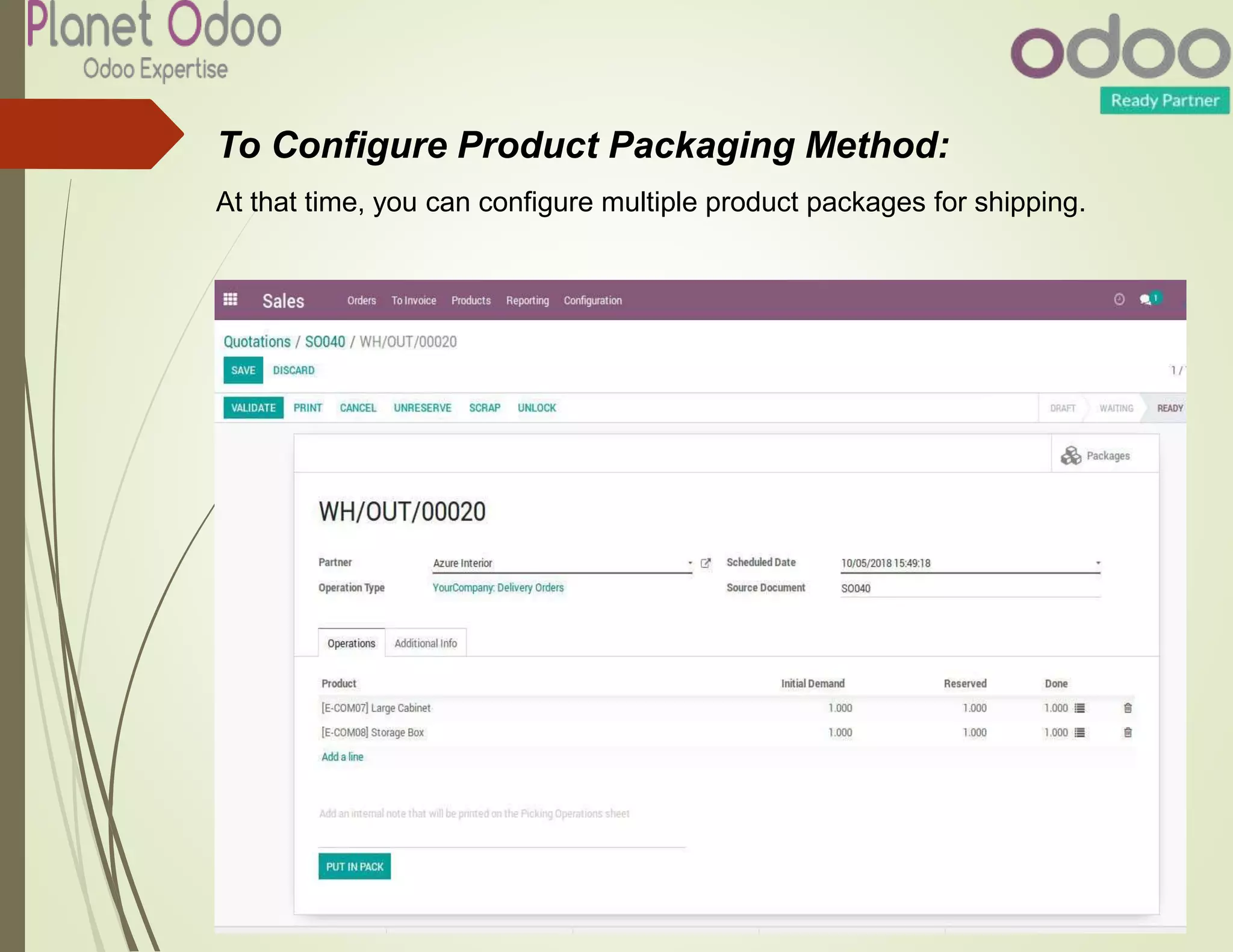
To Configure Product Packaging Method:
At that time, you can configure multiple product packages for shipping.
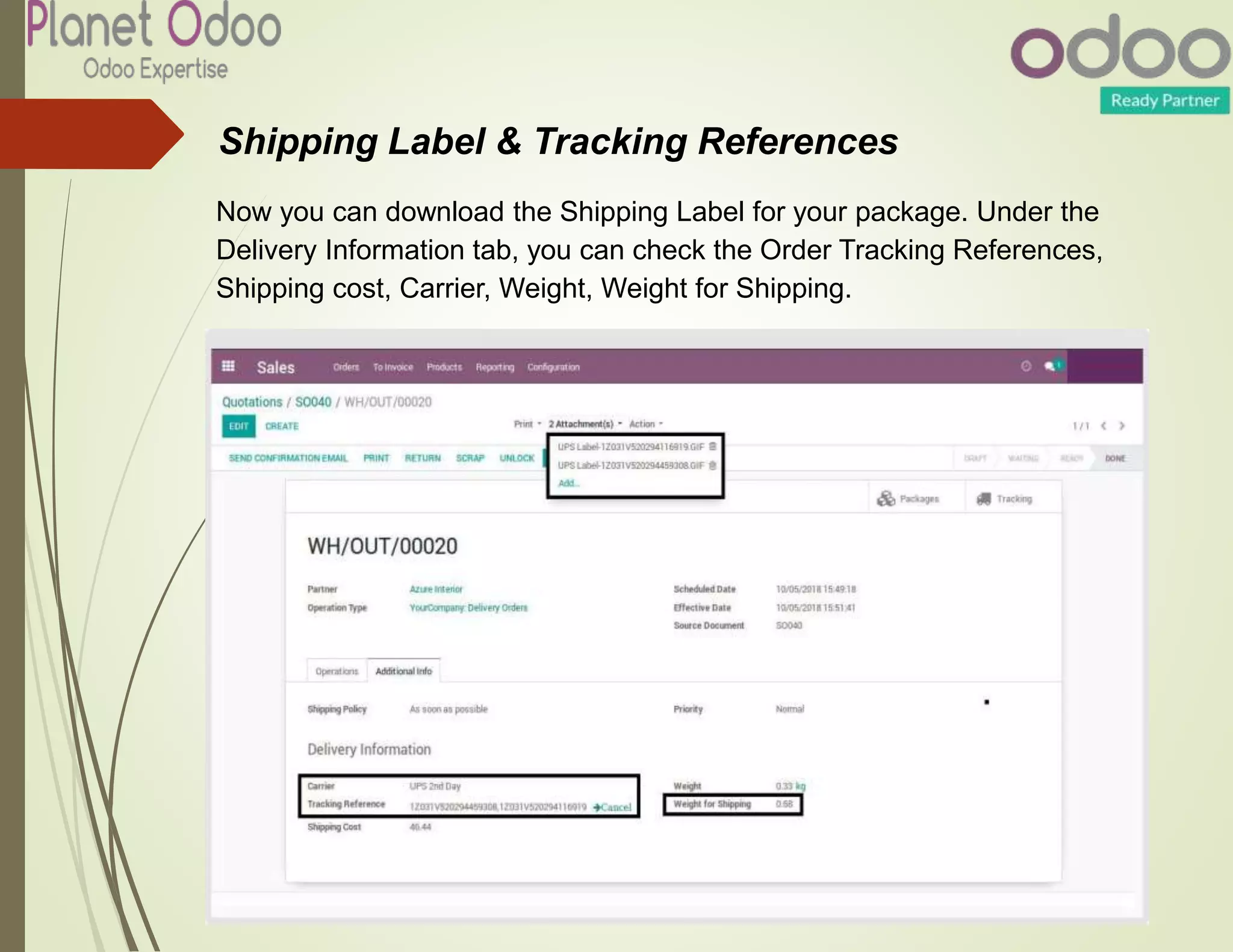
Shipping Label & Tracking References
Now you can download the Shipping Label for your package. Under the
Delivery Information tab, you can check the Order Tracking References,
Shipping cost, Carrier, Weight, Weight for Shipping.
To Configure Batch Picking for UPS
Now your Batch order is ready to be processed then click on the Confirm
button.
In Batch, you can send your package Shipping details to Shipper by clicking on
the SEND TO SHIPPER button.
At that time, you can view your Shipping Label.
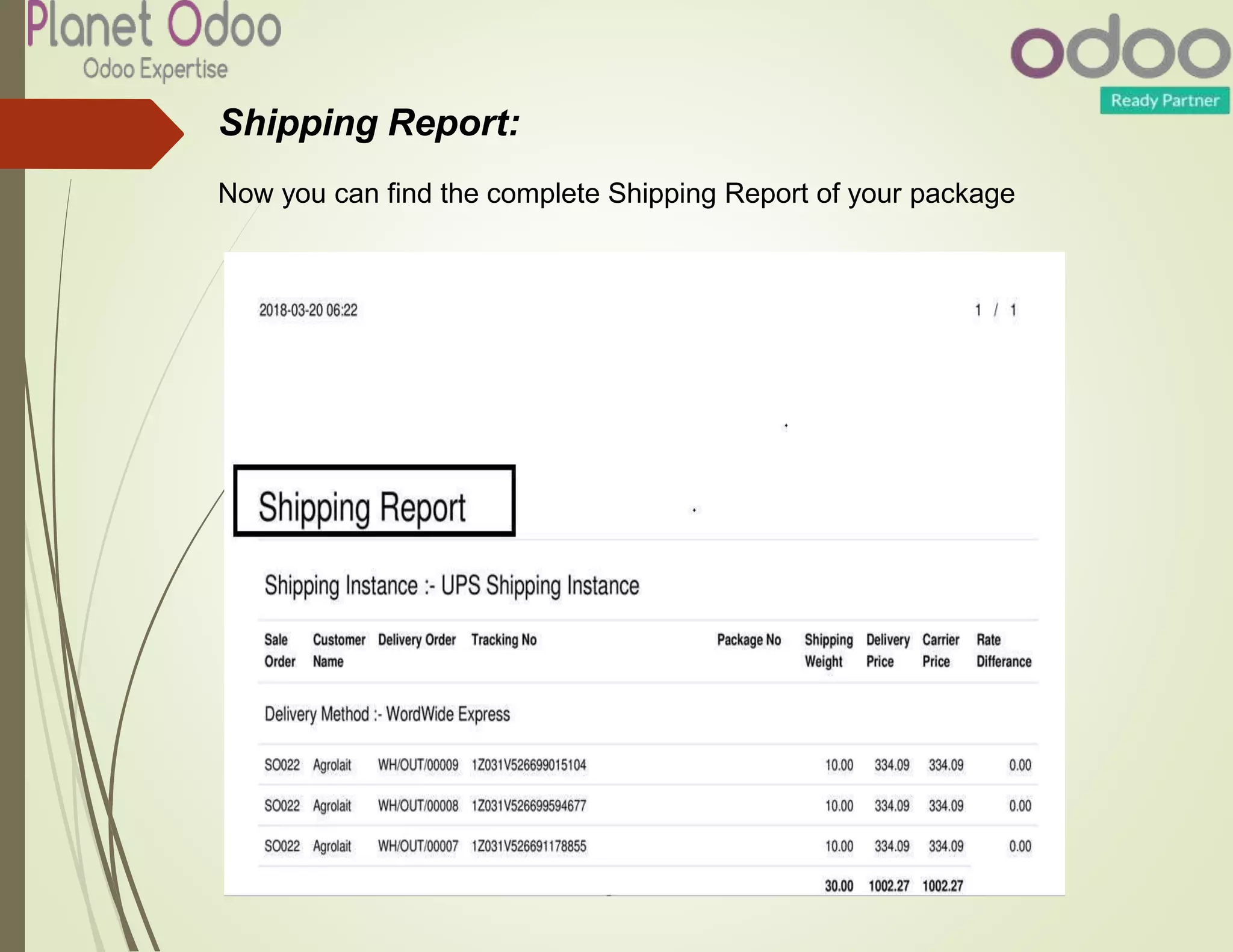
Shipping Report:
Now you can find the complete Shipping Report of your package
Odoo ups connector

Odoo ups connector

  • 2.
    Odoo UPS Connector OdooUPS Shipping Integration helps you to maintain all you’re shipping from Odoo ERP itself. This connector buys postage from UPS provides the tracking number which can be easily updated on the site. Apart from UPS, our team has also integrated USPS connector, FedEx Connector, and PostMaster Delivery. UPS is one of the most popular and highly used shipping services in today’s world. Odoo is Integrated with UPS to seamlessly carry out Shipping within Odoo. You can generate Quotes for different shipping services and choose the best shipping service. It has the ability to Generate Labels and Tracking Information to save in Odoo against each delivery order. The functionality of Odoo – UPS Connector: Odoo – UPS connector provides both Domestic as well as International Service. Odoo – UPS connector provides single abstract service configuration, domestic service and international service configuration in Odoo.
  • 3.
    Configuration and setupflow of Odoo – UPS: -After configuring the UPS shipping module, we will be able to see the UPS Delivery in the delivery method list of the Sales order option. -For using UPS service, We will select customers and then add a product in the sale order line. -After that, we will select UPS delivery as the delivery method for the sales order. Then we will update it, will list the delivery charges. -Then, we will click on Quote to add these delivery charges to the sale order. –In Odoo-UPS integration, the user can see the UPS Delivery option in the Delivery Method List before making the final payment. -Get Shipping label, Order Tracking Number from UPS to Odoo -Generate a complete Shipping Report
  • 4.
    Configurations: To set upShipping Instance for UPS: First of all, you can configure the UPS Shipping Instance. Go to Sales -> Configuration -> click on the Shipping Provider button
  • 5.
    To Configure theOdoo Shipping Connector: Now you can set up a new Shipping Instance by clicking on the Create button. At that time, you can fill all the required fields like provider name, tracking link, E-mail Template, Automatic Send Shipment Mail. Under the credentials tab tick the checkbox of the check recipient address and Address License number, UPS User Id, UPS Password, UPS Shipper Number will be given by UPS.
  • 6.
    To Configure RetrievingServices from UPS: After entering the Credentials of the UPS Shipping Instance. Now you will see all the services from the shipping provider
  • 7.
    Now you cango to the Shipping Services tab and fill all the required fields then click on the Retrieve Services button. At the same time, your Shipping Services have been Retrieved successfully, a new message will be presented on the window.
  • 9.
    To Configure DeliveryMethods for UPS Now you can configure the delivery method: Go to Sales -> Configuration -> Delivery Methods and click on the Create button. At that time, you can fill all the required fields and click on the Save button.
  • 10.
    To use theDelivery Cost in Sales Order and Get rate Now go to the Sales Order and select the Delivery method then click on the Get rate button you will see the shipping rates directly from the server of UPS.
  • 11.
    To Allow UPSDelivery Method at Odoo Websites Now your Delivery Methods is Listed in your Odoo Websites.
  • 12.
    After successfully selectingthe UPS Service, the shipping price gets automatically obtained from the UPS server and added to the order.
  • 13.
    To Configure ProductPackaging Method: At that time, you can configure multiple product packages for shipping.
  • 14.
    Shipping Label &Tracking References Now you can download the Shipping Label for your package. Under the Delivery Information tab, you can check the Order Tracking References, Shipping cost, Carrier, Weight, Weight for Shipping.
  • 15.
    To Configure BatchPicking for UPS Now your Batch order is ready to be processed then click on the Confirm button.
  • 16.
    In Batch, youcan send your package Shipping details to Shipper by clicking on the SEND TO SHIPPER button.
  • 17.
    At that time,you can view your Shipping Label.
  • 18.
    Shipping Report: Now youcan find the complete Shipping Report of your package