Shipping Connector
Shiprocket in Odoo 17
Enterprise
Introduction
Enterprise
Shiprocket is India’s largest e-commerce logistics and shipping
software solution company. Shipping connector is a physical
connector for container shipping and it will simplify the shipping
process. And shipping connectors will integrate with different
shipping providers and services. Shiprocket is a new feature in
Odoo 17. So this slide will show more about shipping connector
Shiprocket in Odoo 17.
Enterprise
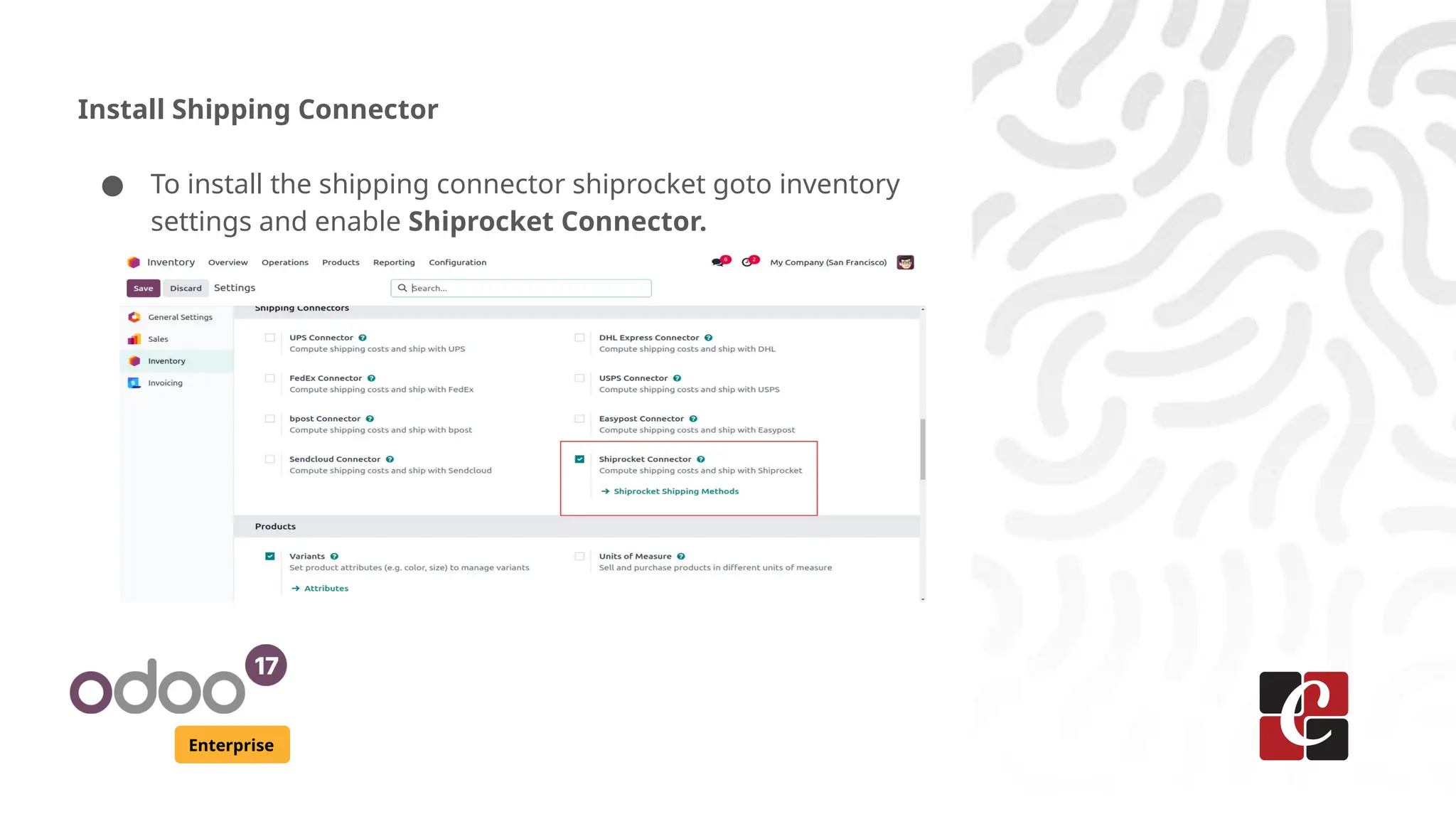
Install Shipping Connector
● To install the shipping connector shiprocket goto inventory
settings and enable Shiprocket Connector.
Enterprise
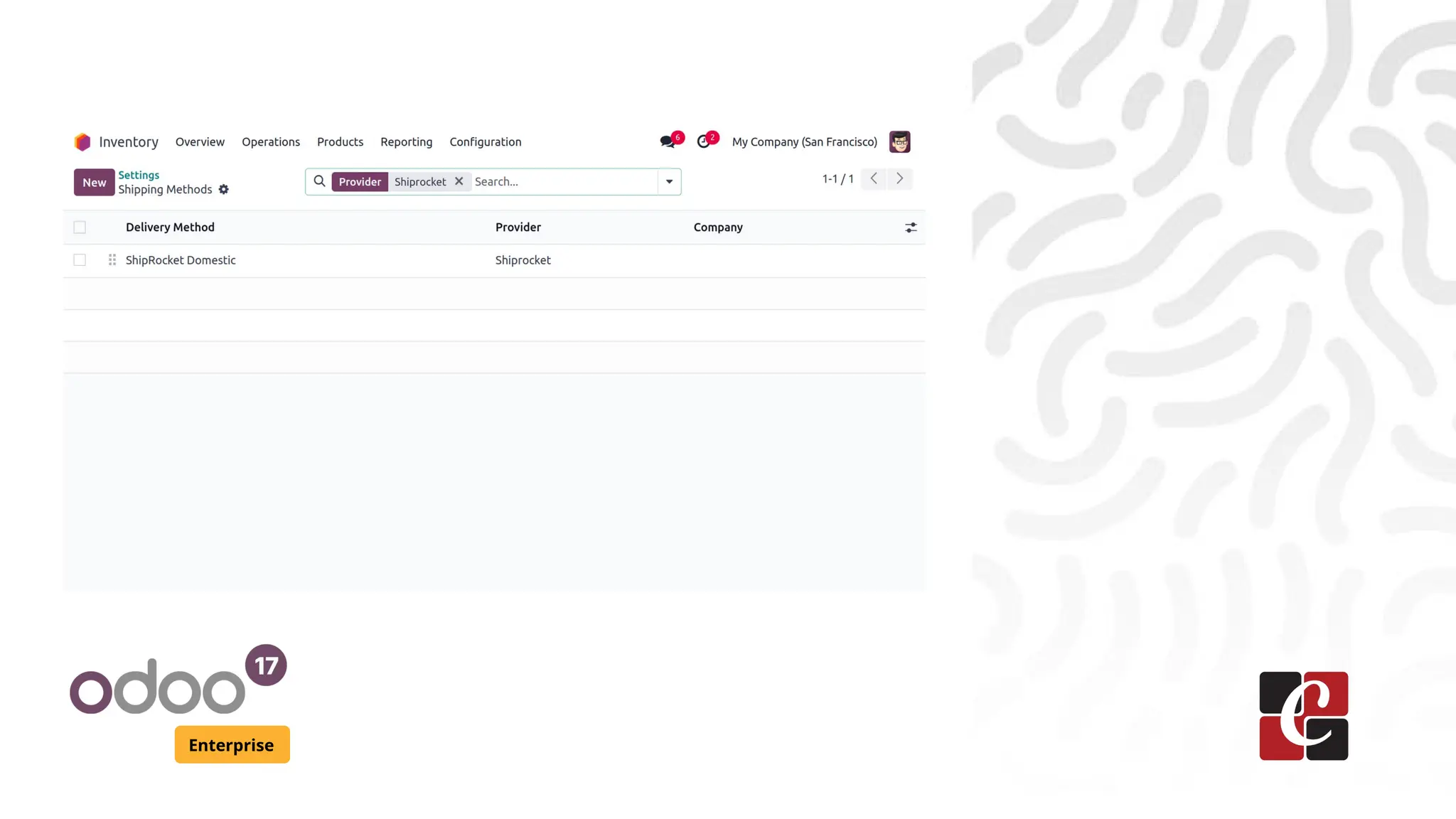
● When clicking on Shiprocket Shipping Methods, it will
goto the shipping methods of shiprocket.
● From there we can create new delivery method for
shiprocket
● There already exists a shipping method ShipRocket
Domestic. We can add the changes on it.
Enterprise
Enterprise
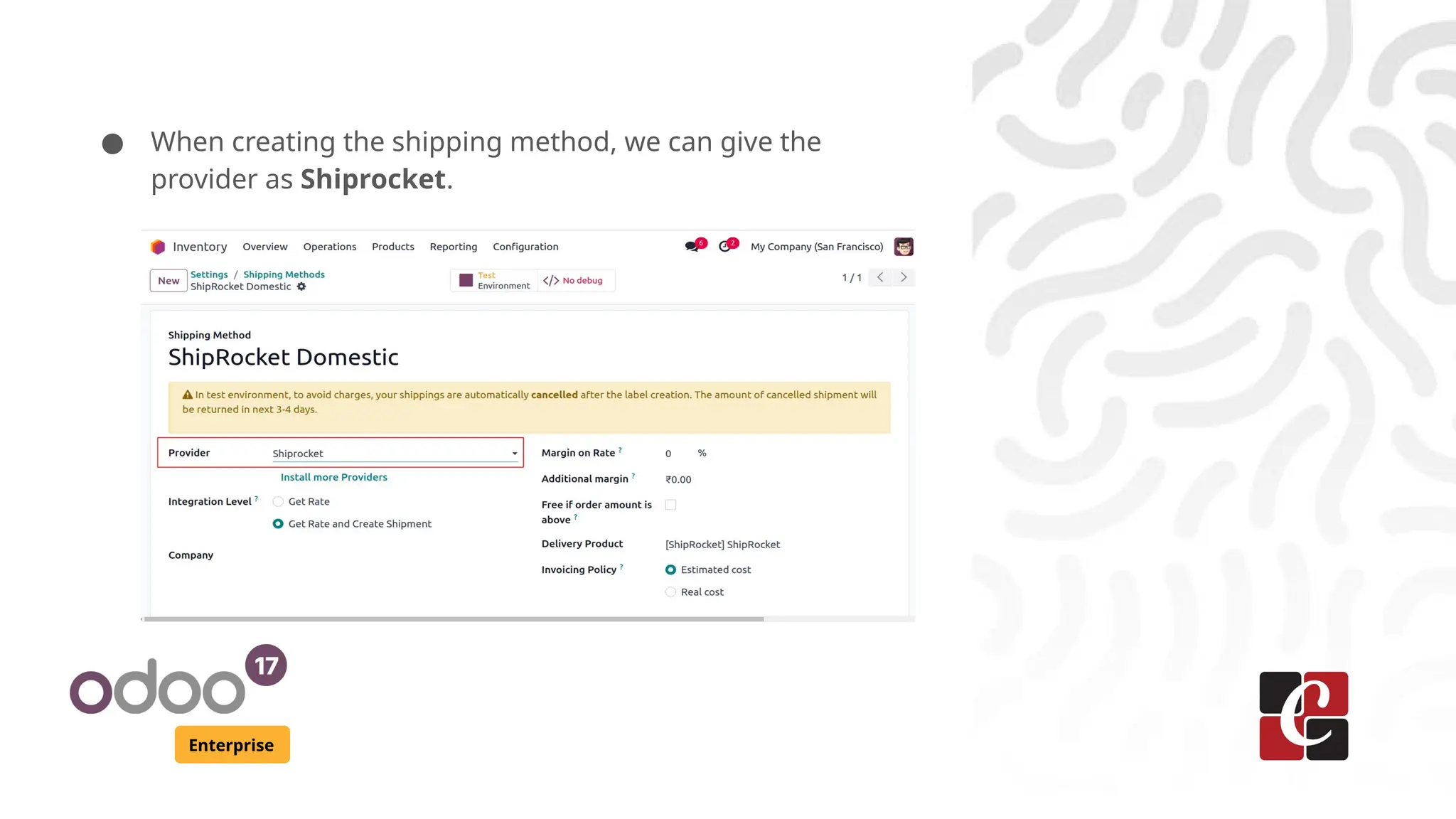
● When creating the shipping method, we can give the
provider as Shiprocket.
Enterprise
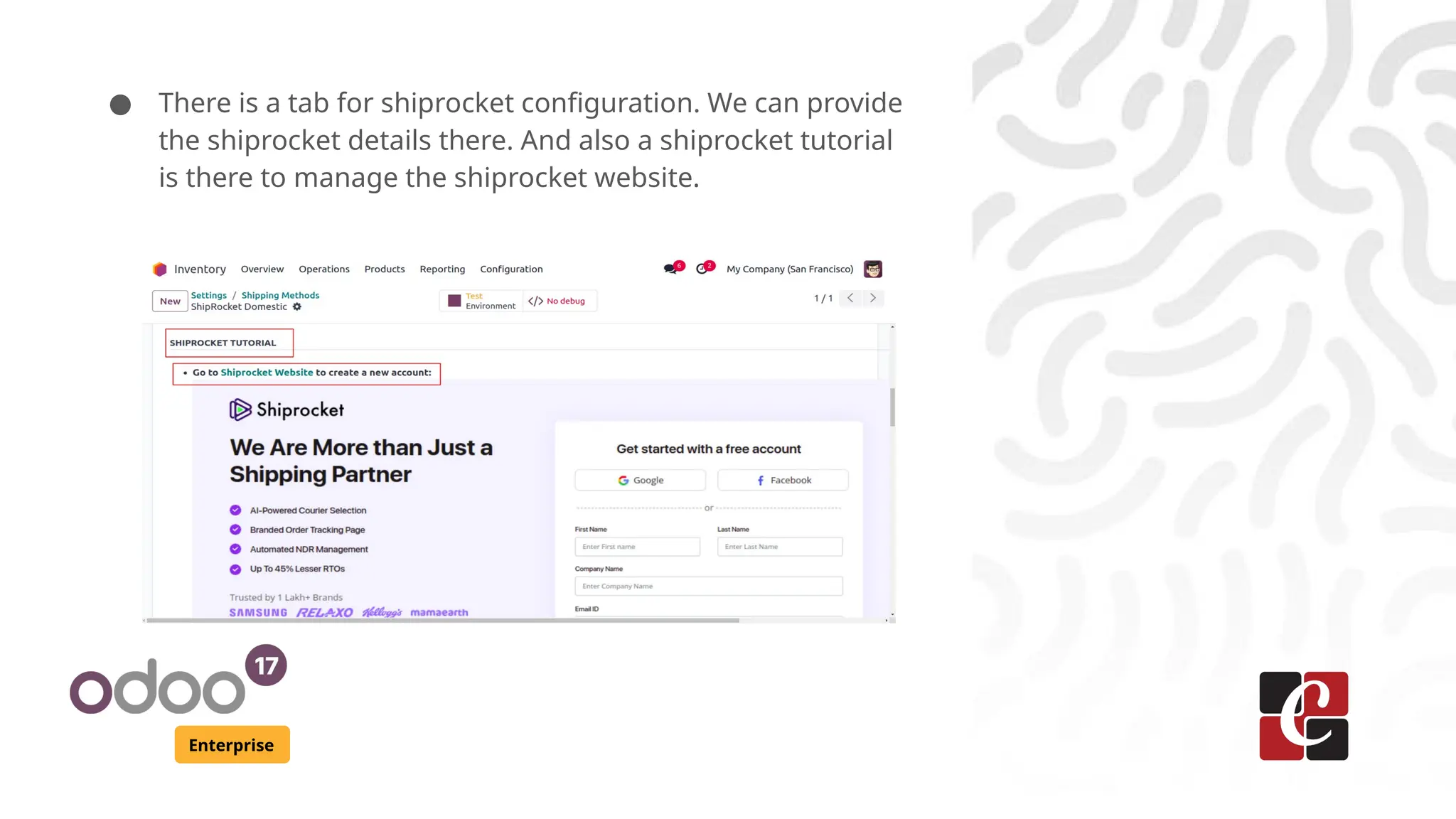
● There is a tab for shiprocket configuration. We can provide
the shiprocket details there. And also a shiprocket tutorial
is there to manage the shiprocket website.
Enterprise
Login to Shiprocket
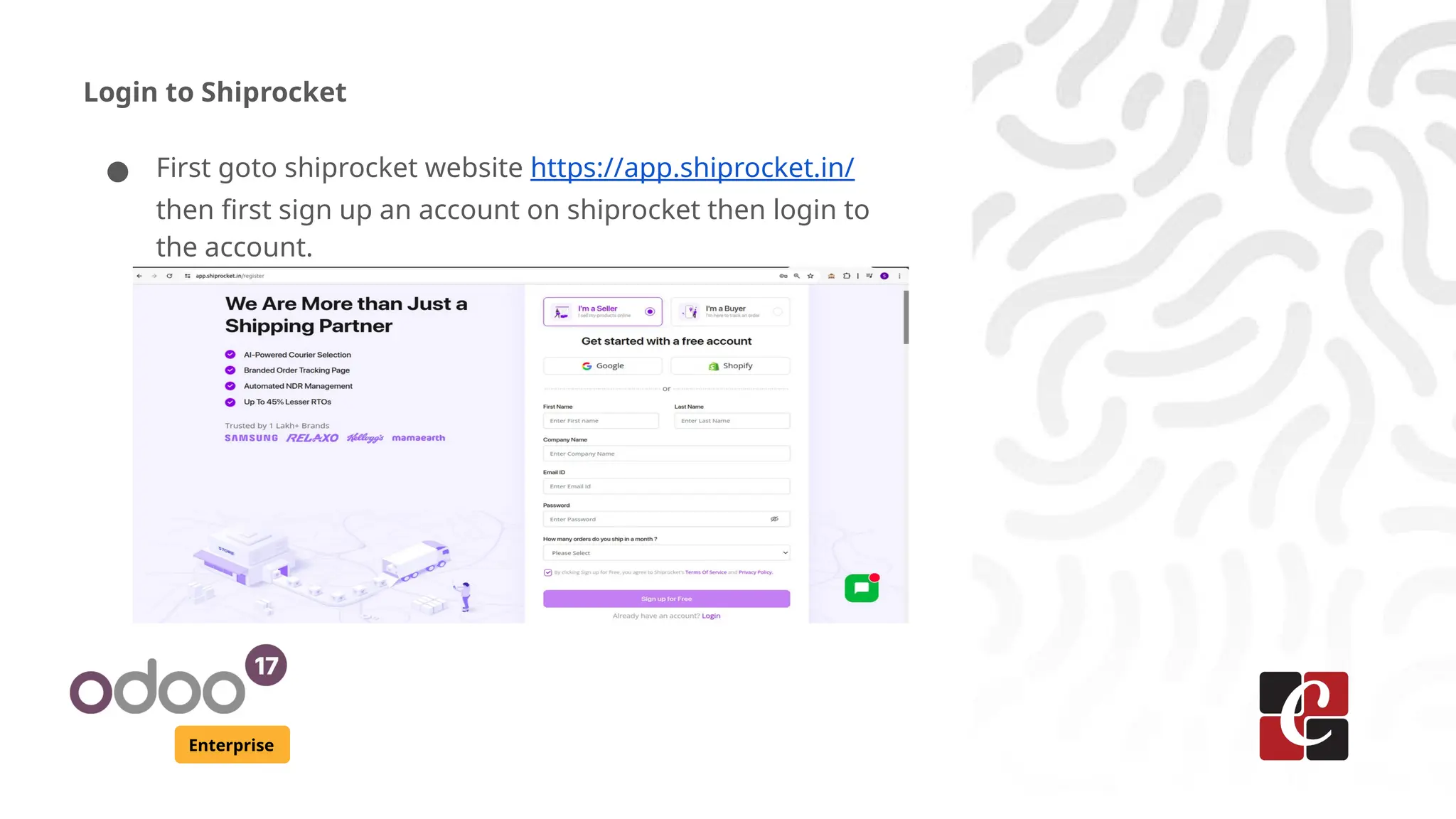
● First goto shiprocket website https://app.shiprocket.in/
then first sign up an account on shiprocket then login to
the account.
Enterprise
Configure API
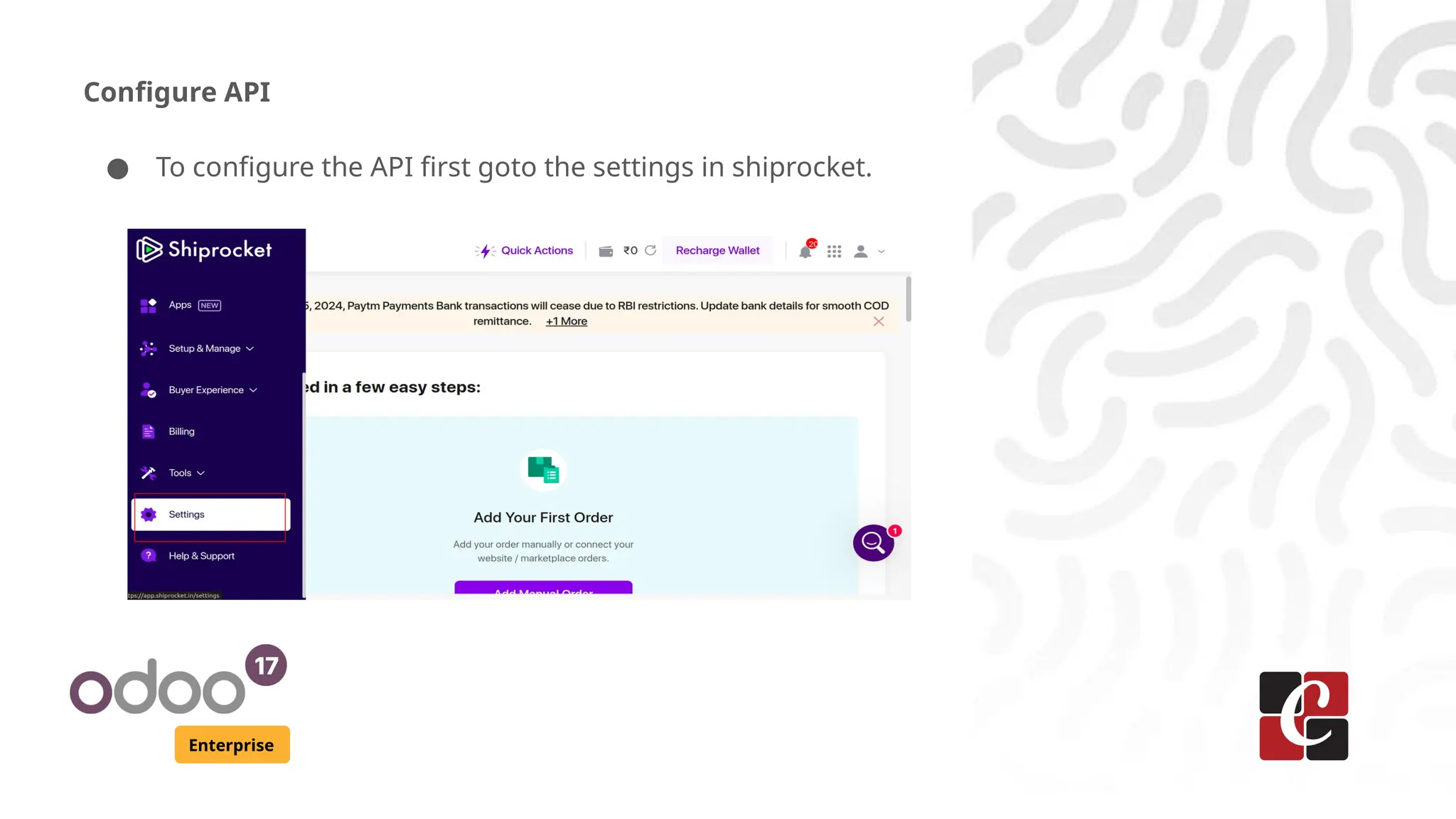
● To configure the API first goto the settings in shiprocket.
Enterprise
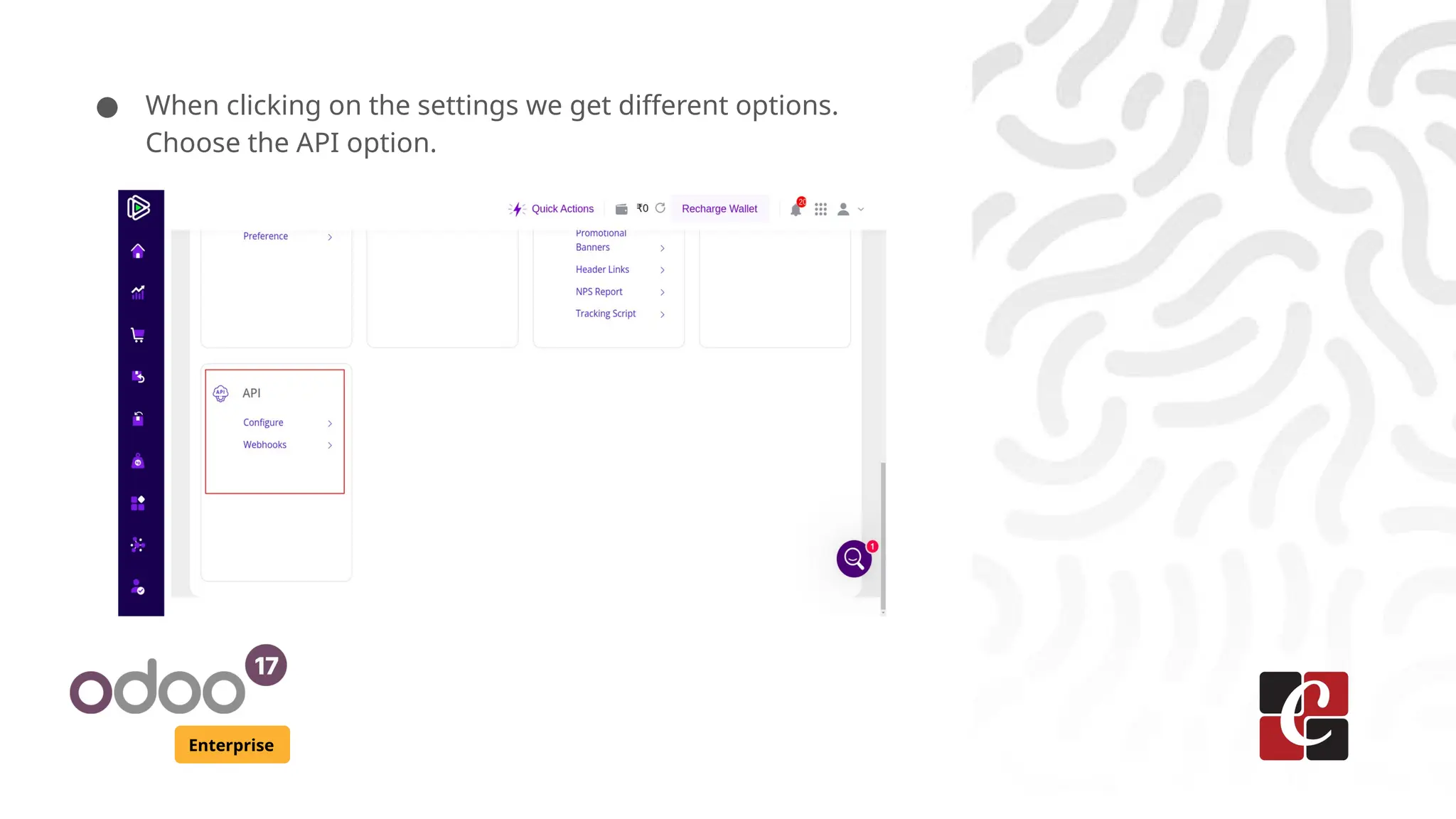
● When clicking on the settings we get different options.
Choose the API option.
Enterprise
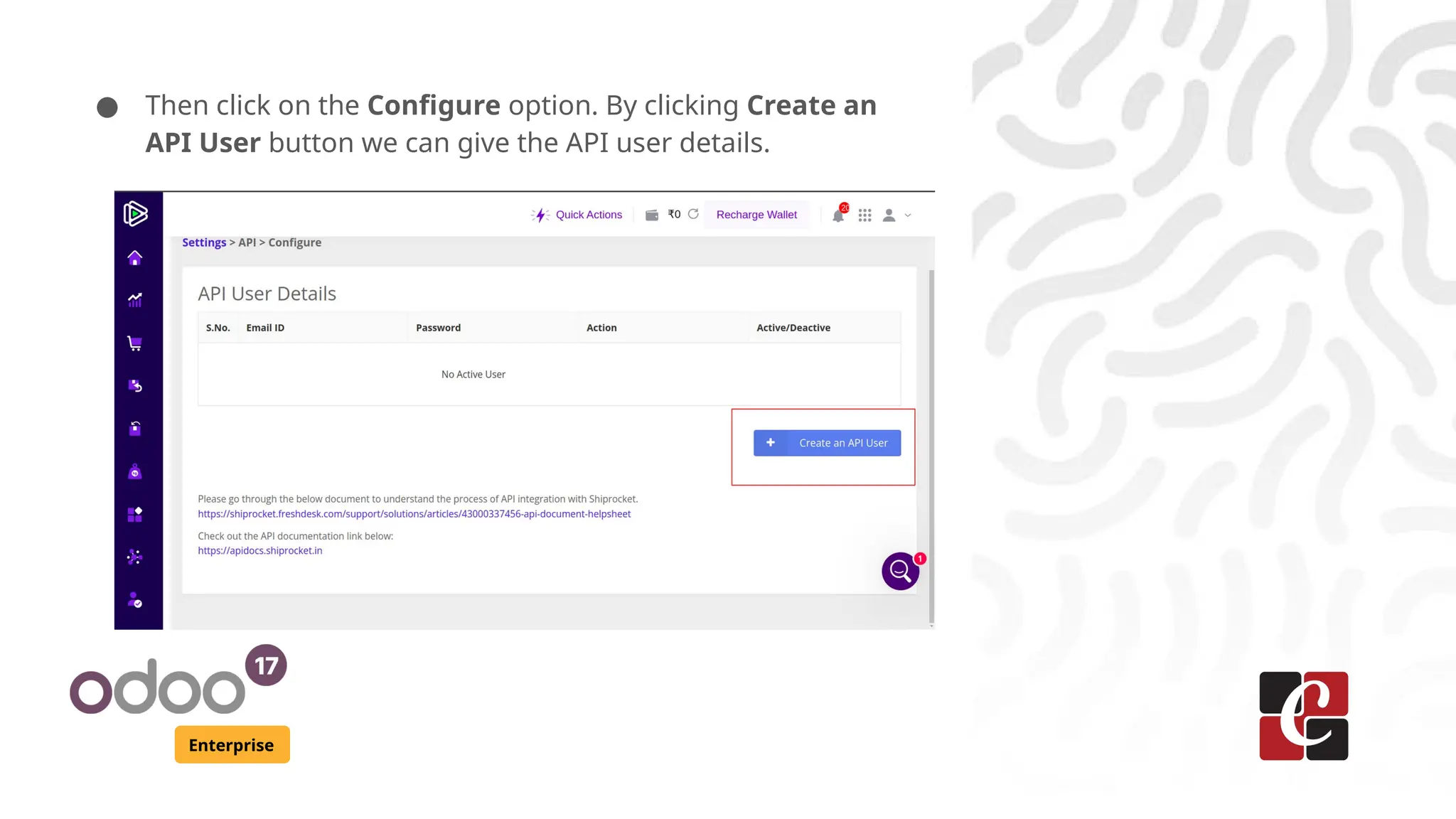
● Then click on the Configure option. By clicking Create an
API User button we can give the API user details.
Enterprise
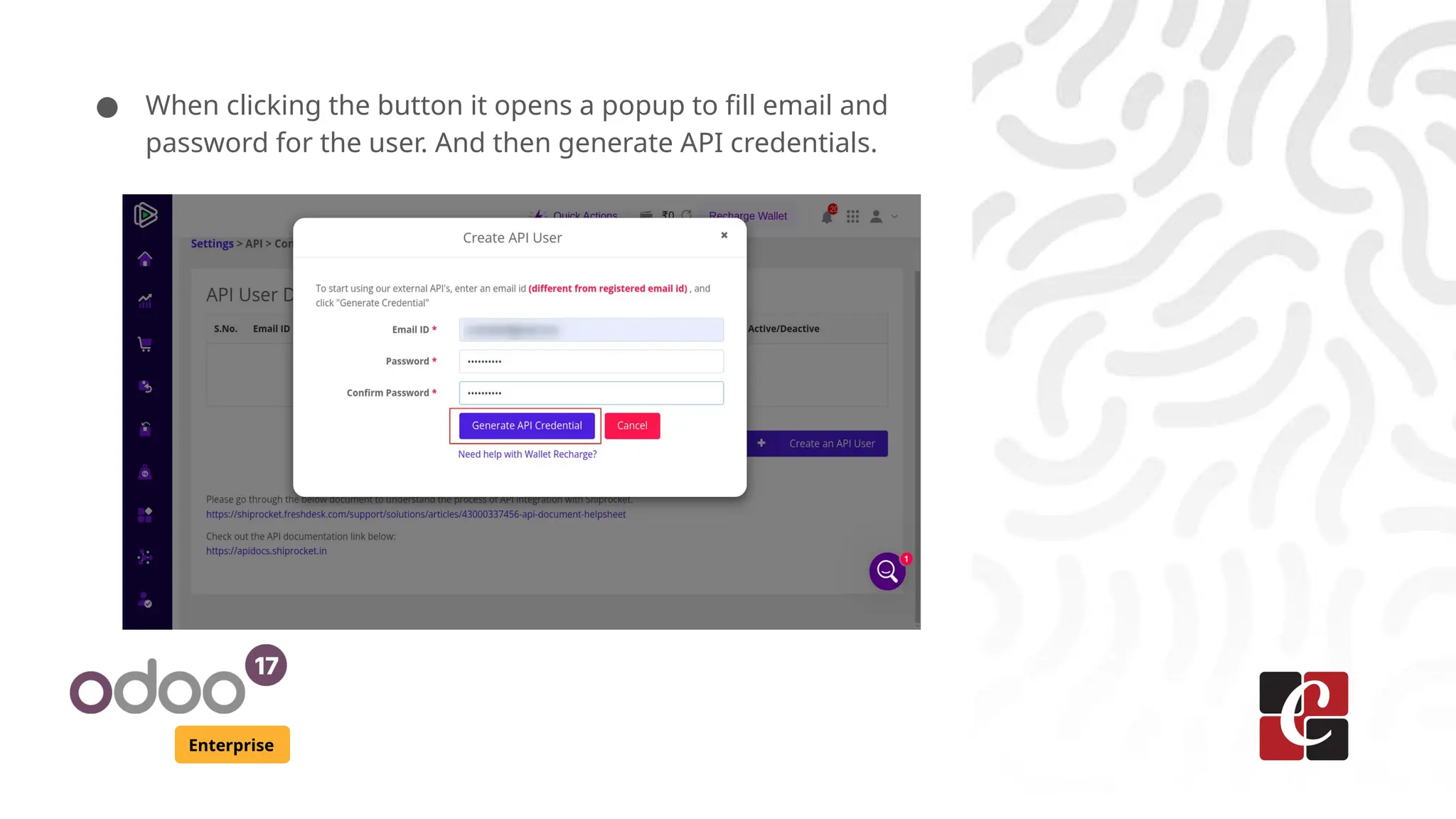
● When clicking the button it opens a popup to fill email and
password for the user. And then generate API credentials.
Enterprise
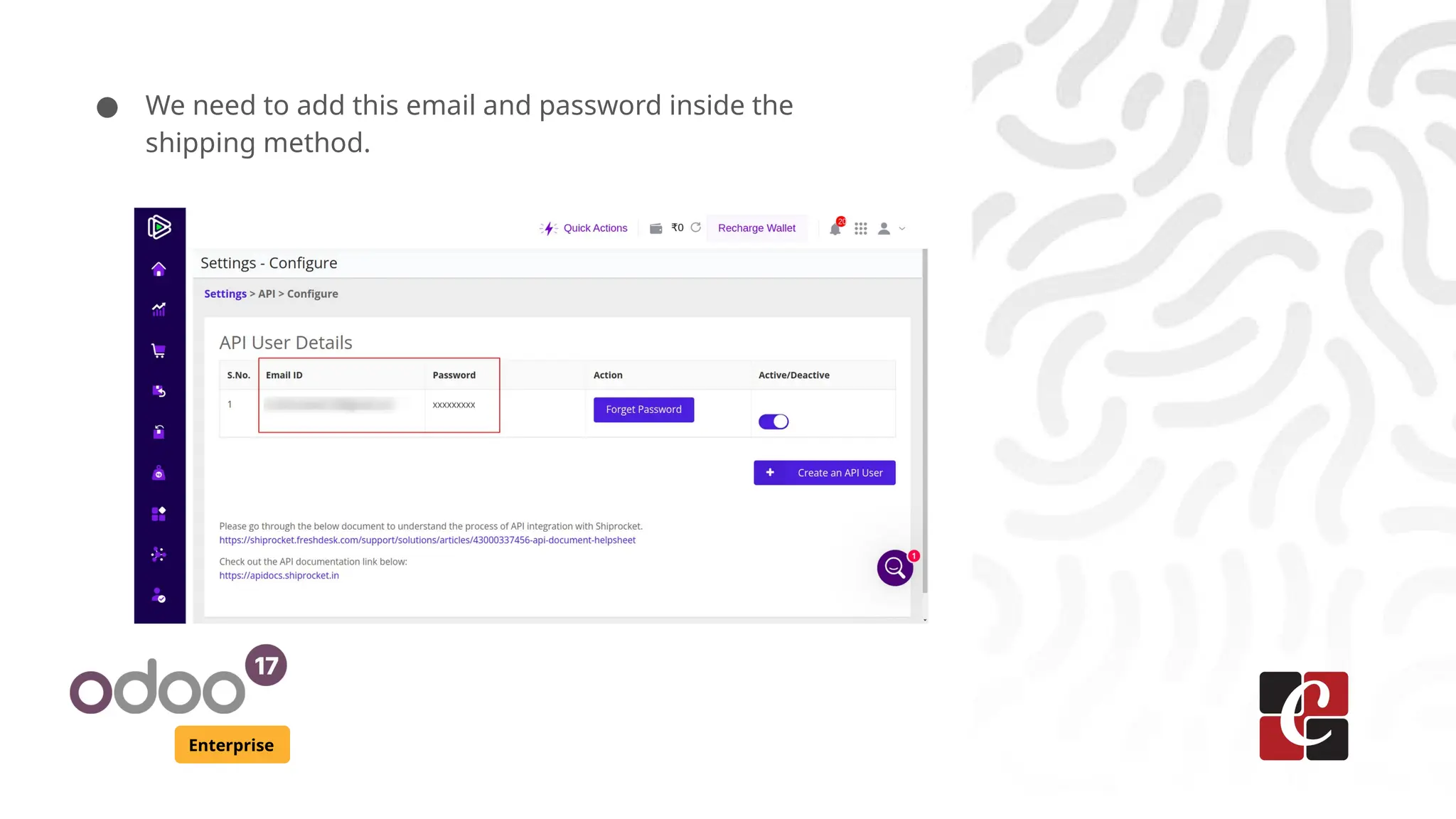
● We need to add this email and password inside the
shipping method.
Enterprise
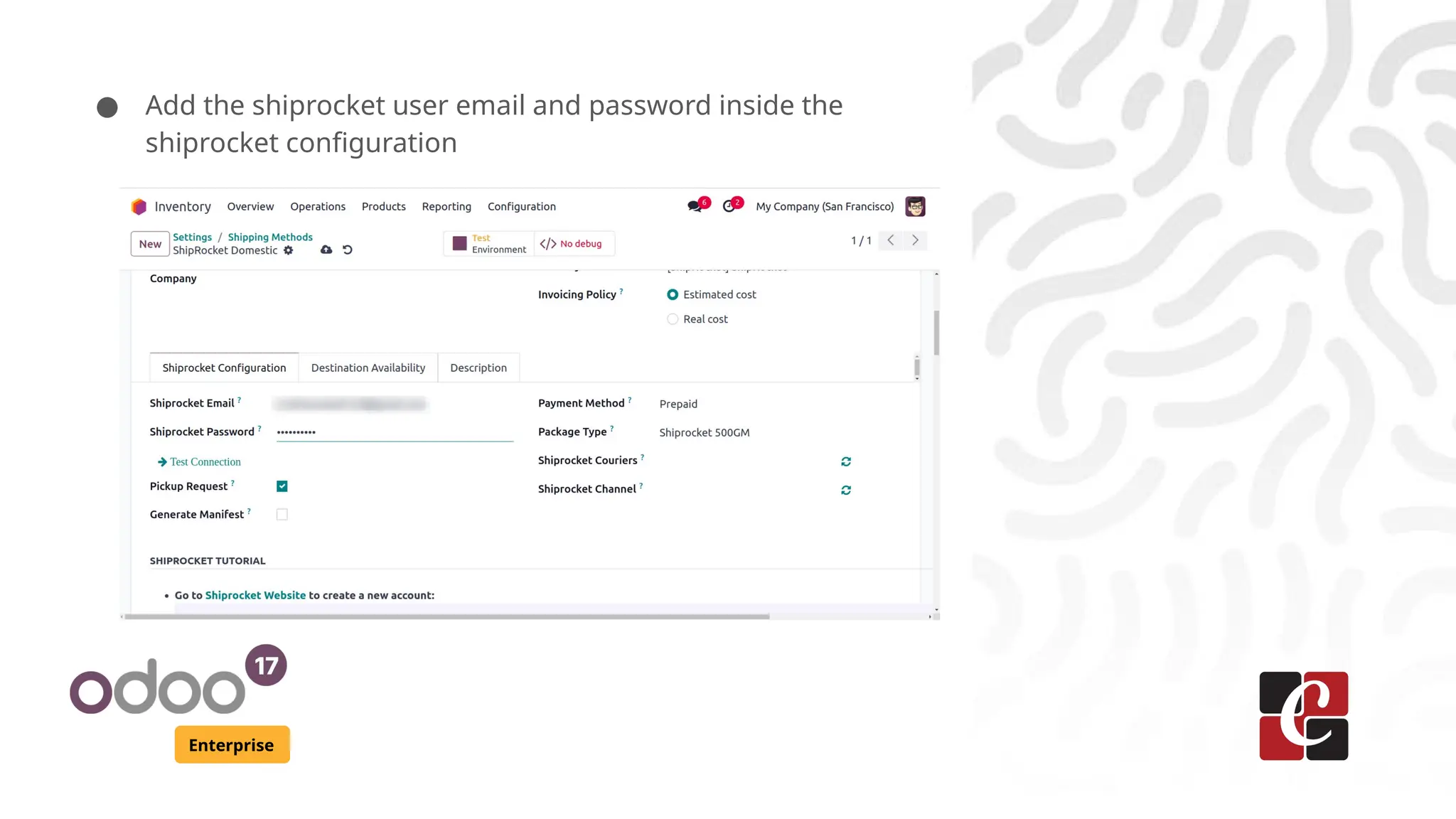
● Add the shiprocket user email and password inside the
shiprocket configuration
Enterprise
Create Shiprocket Channels
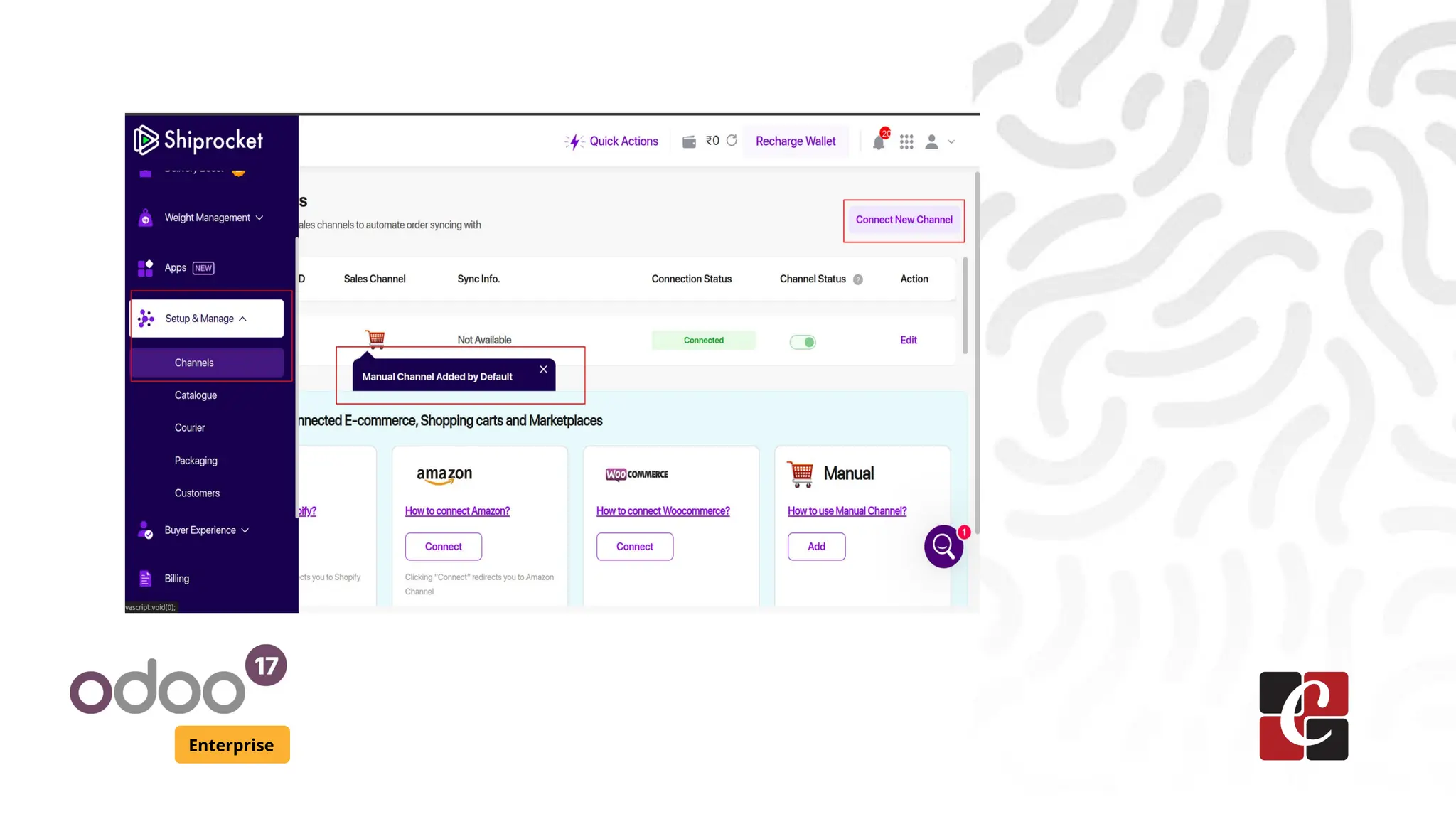
● Goto the shiprocket website for creating channels. We can
select channels under the menu Setup & Manage.
● Inside channels we can see a default channel. If we want to
create a new one click on the button Connect New
Channel.
Enterprise
Enterprise
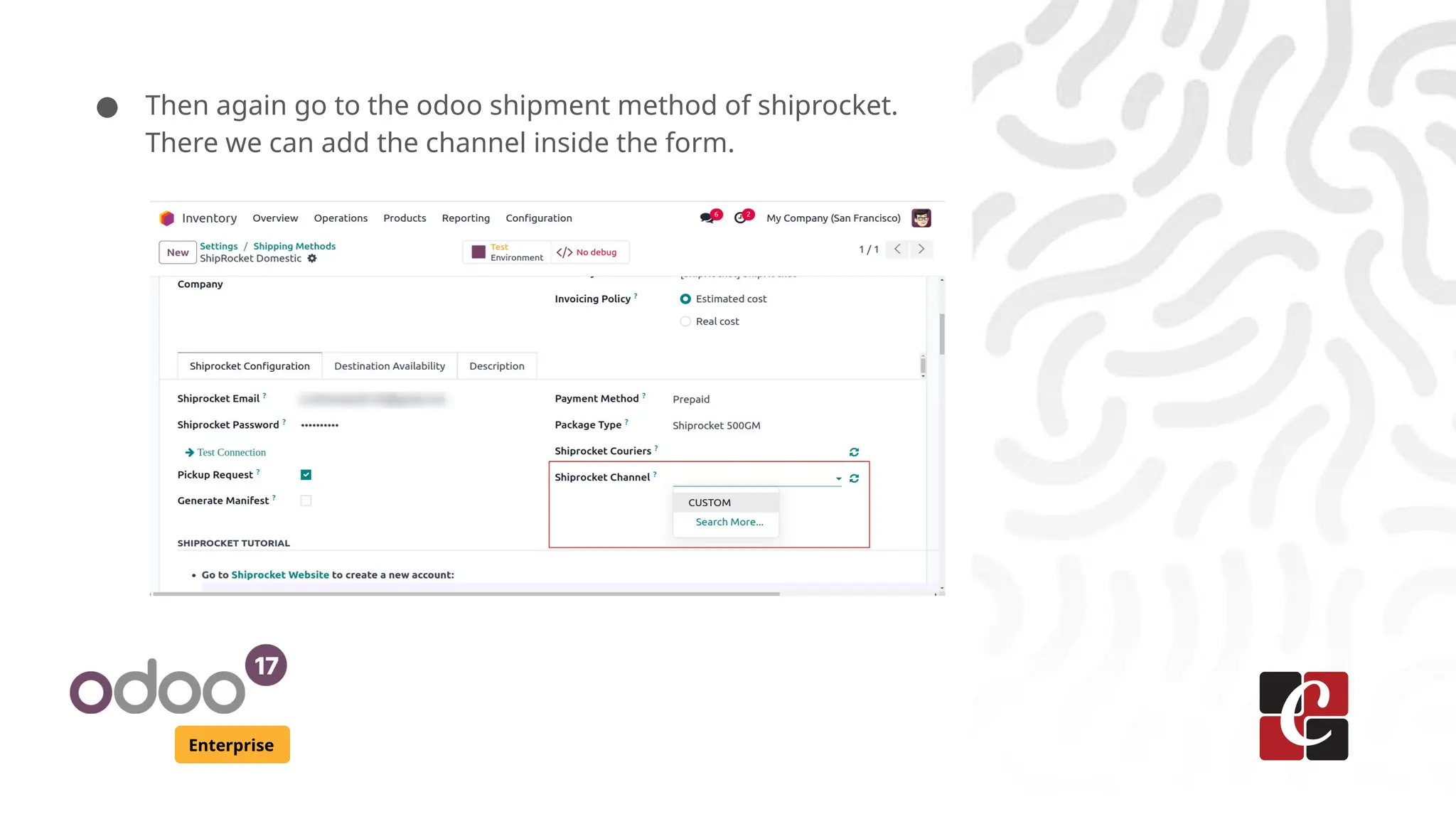
● Then again go to the odoo shipment method of shiprocket.
There we can add the channel inside the form.
Enterprise
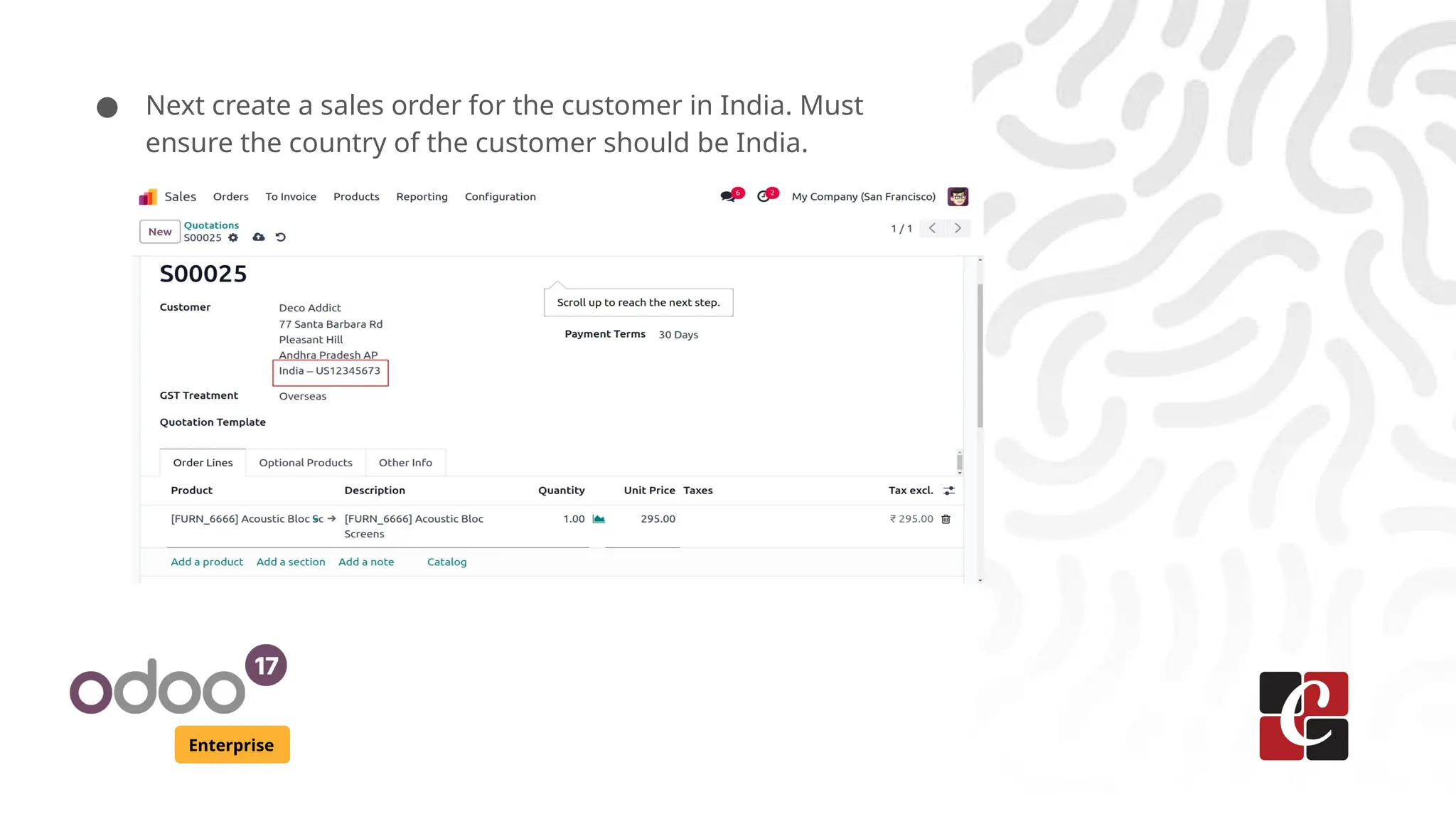
● Next create a sales order for the customer in India. Must
ensure the country of the customer should be India.
Enterprise
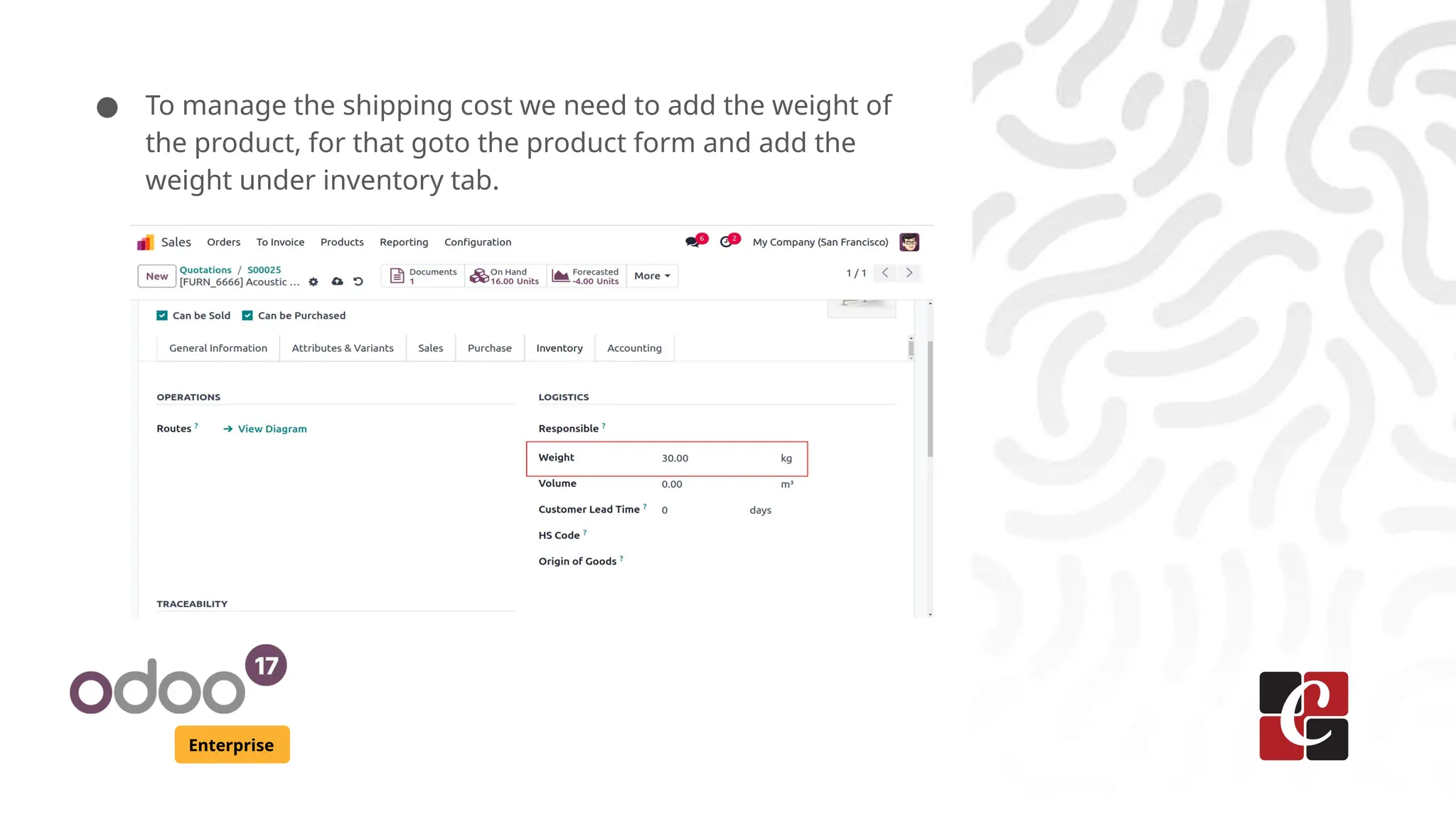
● To manage the shipping cost we need to add the weight of
the product, for that goto the product form and add the
weight under inventory tab.
Enterprise
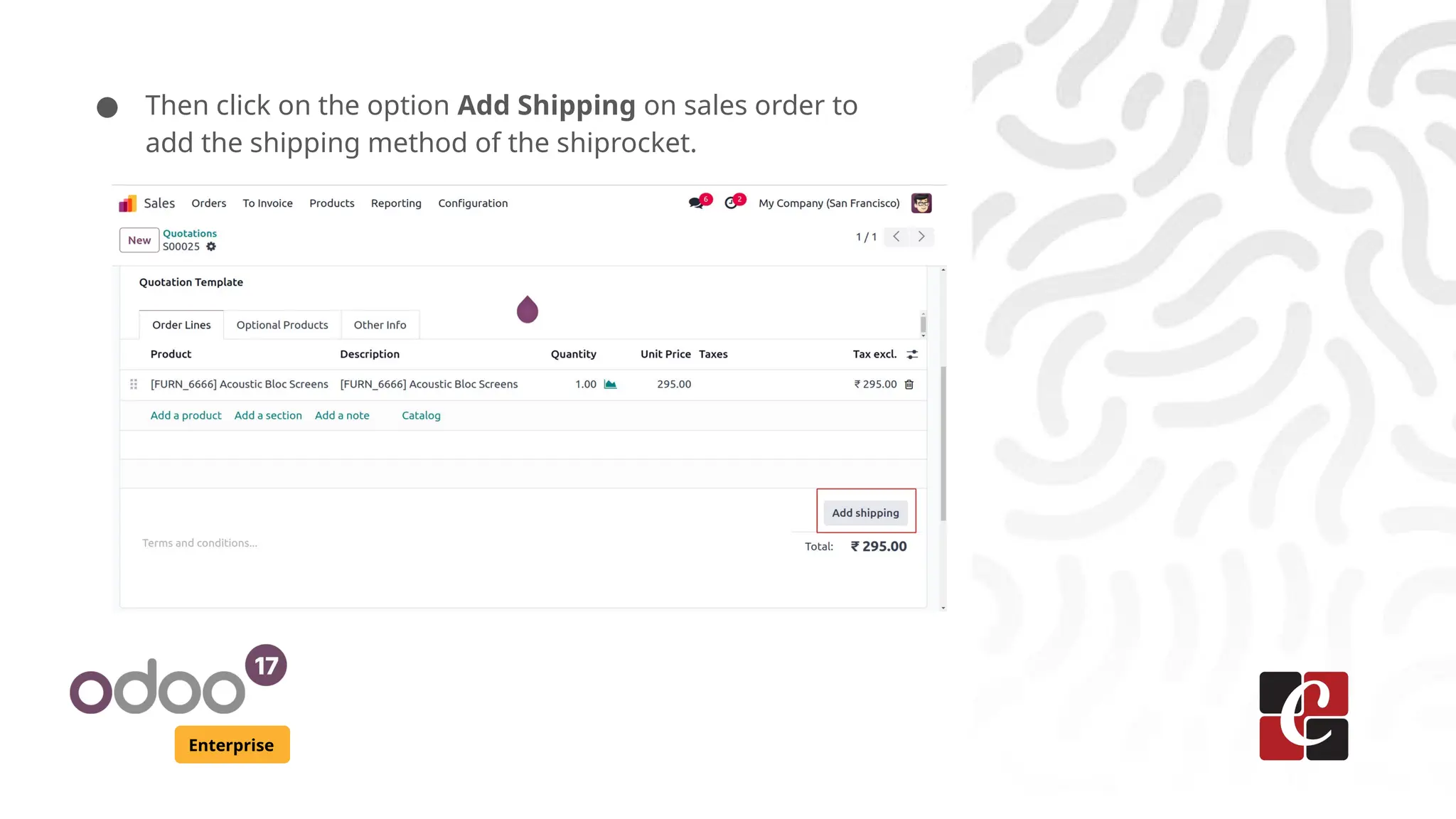
● Then click on the option Add Shipping on sales order to
add the shipping method of the shiprocket.
Enterprise
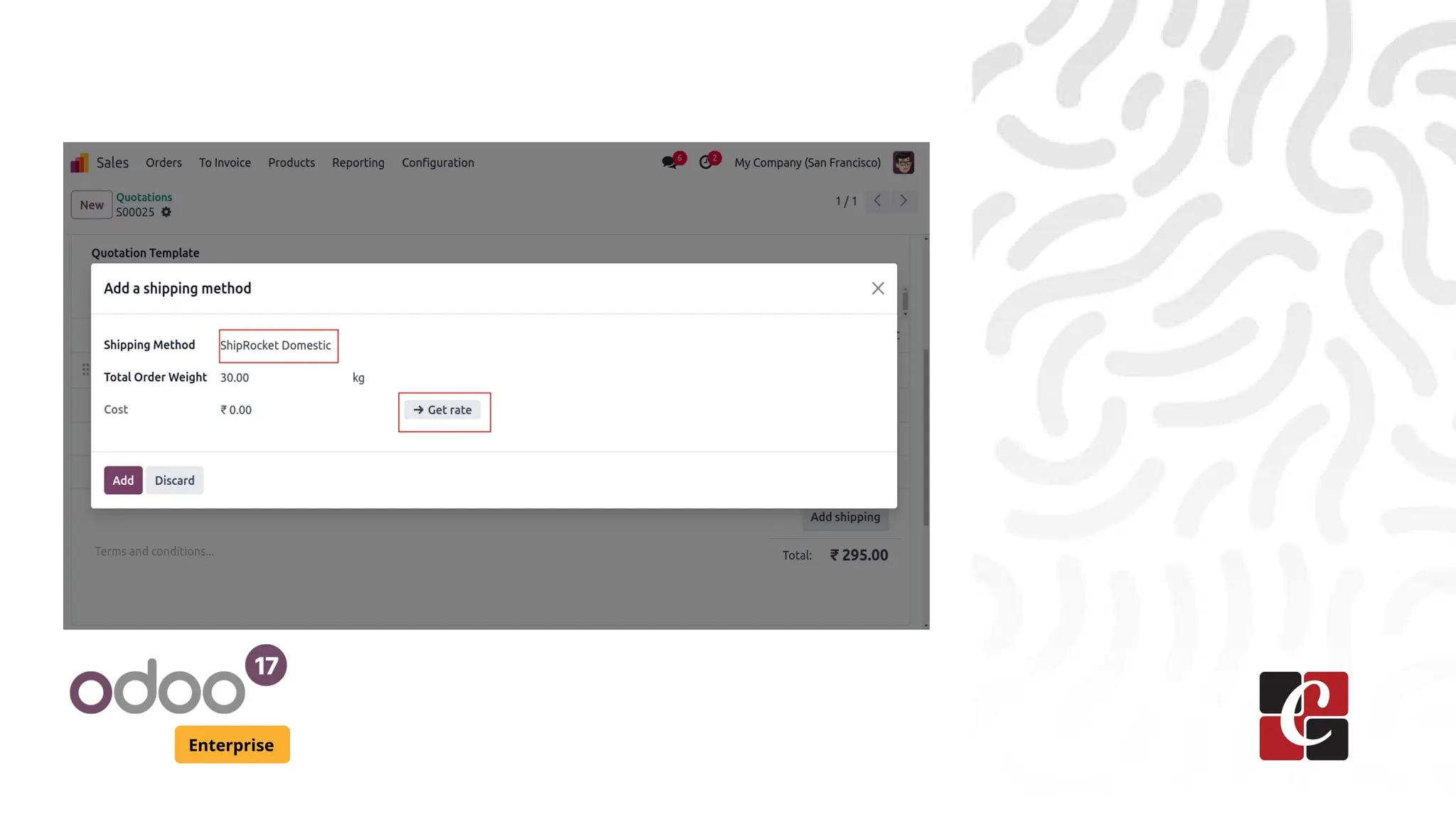
● Then will appear a popup to add the shipping method.
● From there we can give the shipping method already
created for shirocket.
● Total order weight can be seen there.
● To get the cost we can click on Get rate. we must need
essential credits on the shiprocket account to get the rate
or will get an error. Otherwise we can add the cost
manually on the order line.
Enterprise
Enterprise
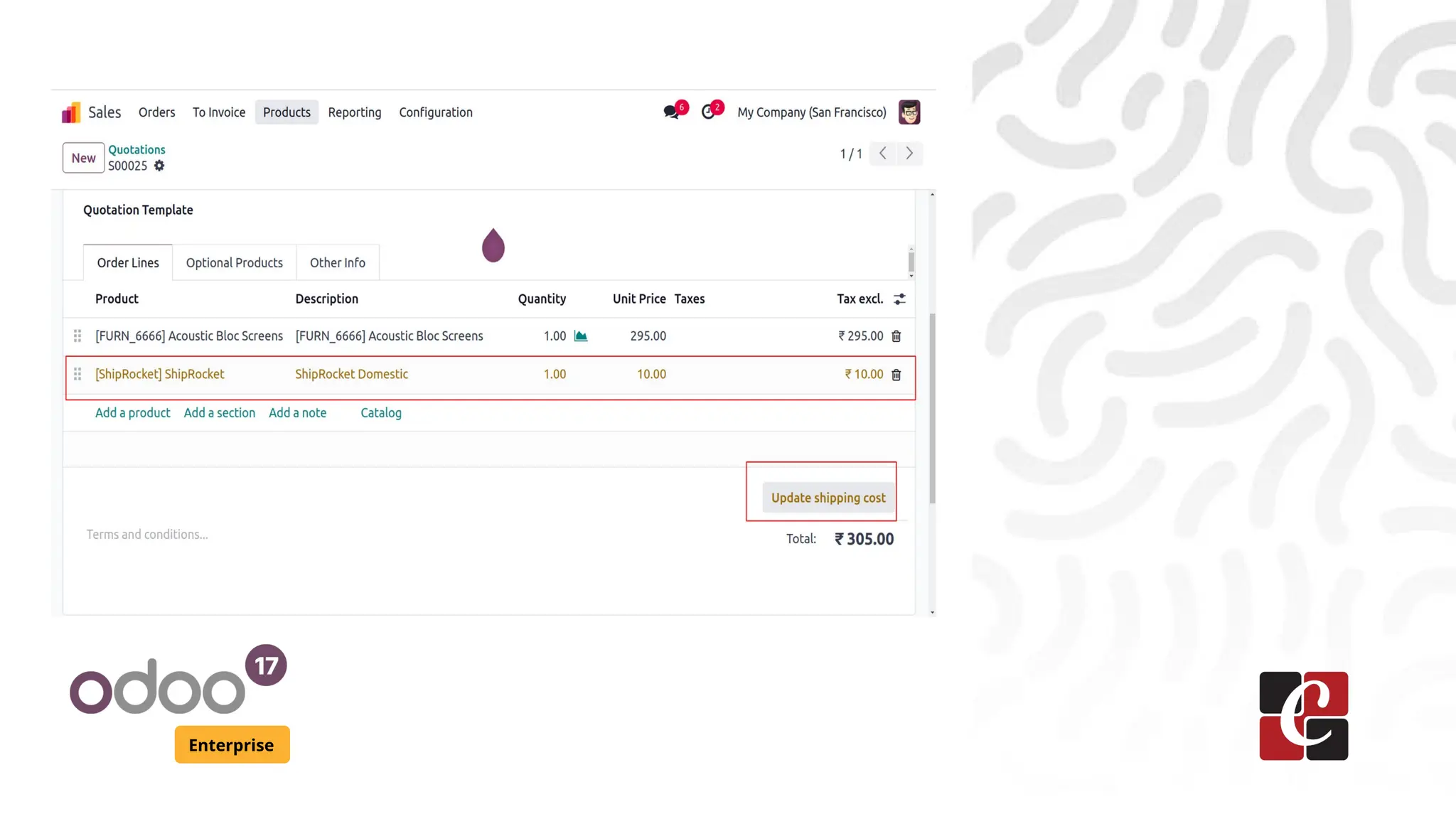
● When clicking on the Add button on the popup will add a
new line for shiprocket cost in the order line. If there are no
credits on our shiprocket account, then we can manually
add the cost.
● We can update the shipping cost by clicking the option
Update shipping cost. If there are no credits in our
account we will get an error.
Enterprise
For More Info.
Check our company website for related blogs
and Odoo book.
Check our YouTube channel for
functional and technical videos in Odoo.
Enterprise
www.cybrosys.com

Shipping Connector Shiprocket in Odoo 17

  • 1.
  • 2.
    Introduction Enterprise Shiprocket is India’slargest e-commerce logistics and shipping software solution company. Shipping connector is a physical connector for container shipping and it will simplify the shipping process. And shipping connectors will integrate with different shipping providers and services. Shiprocket is a new feature in Odoo 17. So this slide will show more about shipping connector Shiprocket in Odoo 17.
  • 3.
    Enterprise Install Shipping Connector ●To install the shipping connector shiprocket goto inventory settings and enable Shiprocket Connector.
  • 4.
    Enterprise ● When clickingon Shiprocket Shipping Methods, it will goto the shipping methods of shiprocket. ● From there we can create new delivery method for shiprocket ● There already exists a shipping method ShipRocket Domestic. We can add the changes on it.
  • 5.
  • 6.
    Enterprise ● When creatingthe shipping method, we can give the provider as Shiprocket.
  • 7.
    Enterprise ● There isa tab for shiprocket configuration. We can provide the shiprocket details there. And also a shiprocket tutorial is there to manage the shiprocket website.
  • 8.
    Enterprise Login to Shiprocket ●First goto shiprocket website https://app.shiprocket.in/ then first sign up an account on shiprocket then login to the account.
  • 9.
    Enterprise Configure API ● Toconfigure the API first goto the settings in shiprocket.
  • 10.
    Enterprise ● When clickingon the settings we get different options. Choose the API option.
  • 11.
    Enterprise ● Then clickon the Configure option. By clicking Create an API User button we can give the API user details.
  • 12.
    Enterprise ● When clickingthe button it opens a popup to fill email and password for the user. And then generate API credentials.
  • 13.
    Enterprise ● We needto add this email and password inside the shipping method.
  • 14.
    Enterprise ● Add theshiprocket user email and password inside the shiprocket configuration
  • 15.
    Enterprise Create Shiprocket Channels ●Goto the shiprocket website for creating channels. We can select channels under the menu Setup & Manage. ● Inside channels we can see a default channel. If we want to create a new one click on the button Connect New Channel.
  • 16.
  • 17.
    Enterprise ● Then againgo to the odoo shipment method of shiprocket. There we can add the channel inside the form.
  • 18.
    Enterprise ● Next createa sales order for the customer in India. Must ensure the country of the customer should be India.
  • 19.
    Enterprise ● To managethe shipping cost we need to add the weight of the product, for that goto the product form and add the weight under inventory tab.
  • 20.
    Enterprise ● Then clickon the option Add Shipping on sales order to add the shipping method of the shiprocket.
  • 21.
    Enterprise ● Then willappear a popup to add the shipping method. ● From there we can give the shipping method already created for shirocket. ● Total order weight can be seen there. ● To get the cost we can click on Get rate. we must need essential credits on the shiprocket account to get the rate or will get an error. Otherwise we can add the cost manually on the order line.
  • 22.
  • 23.
    Enterprise ● When clickingon the Add button on the popup will add a new line for shiprocket cost in the order line. If there are no credits on our shiprocket account, then we can manually add the cost. ● We can update the shipping cost by clicking the option Update shipping cost. If there are no credits in our account we will get an error.
  • 24.
  • 25.
    For More Info. Checkour company website for related blogs and Odoo book. Check our YouTube channel for functional and technical videos in Odoo. Enterprise www.cybrosys.com