How to Configure Outgoing Shipment in 1 Step Using Odoo 18.pptx
In Odoo, the concept of 'one-step outgoing shipment' refers to a streamlined process where products are directly transferred from stock to the customer without intermediate steps like staging or additional quality checks.
How to Configure Outgoing Shipment in 1 Step Using Odoo 18.pptx
1.
How to ConfigureOutgoing
Shipment in 1 Step Using
Odoo 18
Enterprise
2.
Enterprise
Introduction
In Odoo, theconcept of 'one-step outgoing shipment' refers to a
streamlined process where products are directly transferred from
stock to the customer without intermediate steps like staging or
additional quality checks. This approach can significantly reduce
processing time, labor costs, and potential errors.
Let’s see how we can manage the outgoing shipment in a single
step in Odoo 18 inventory.
3.
Enterprise
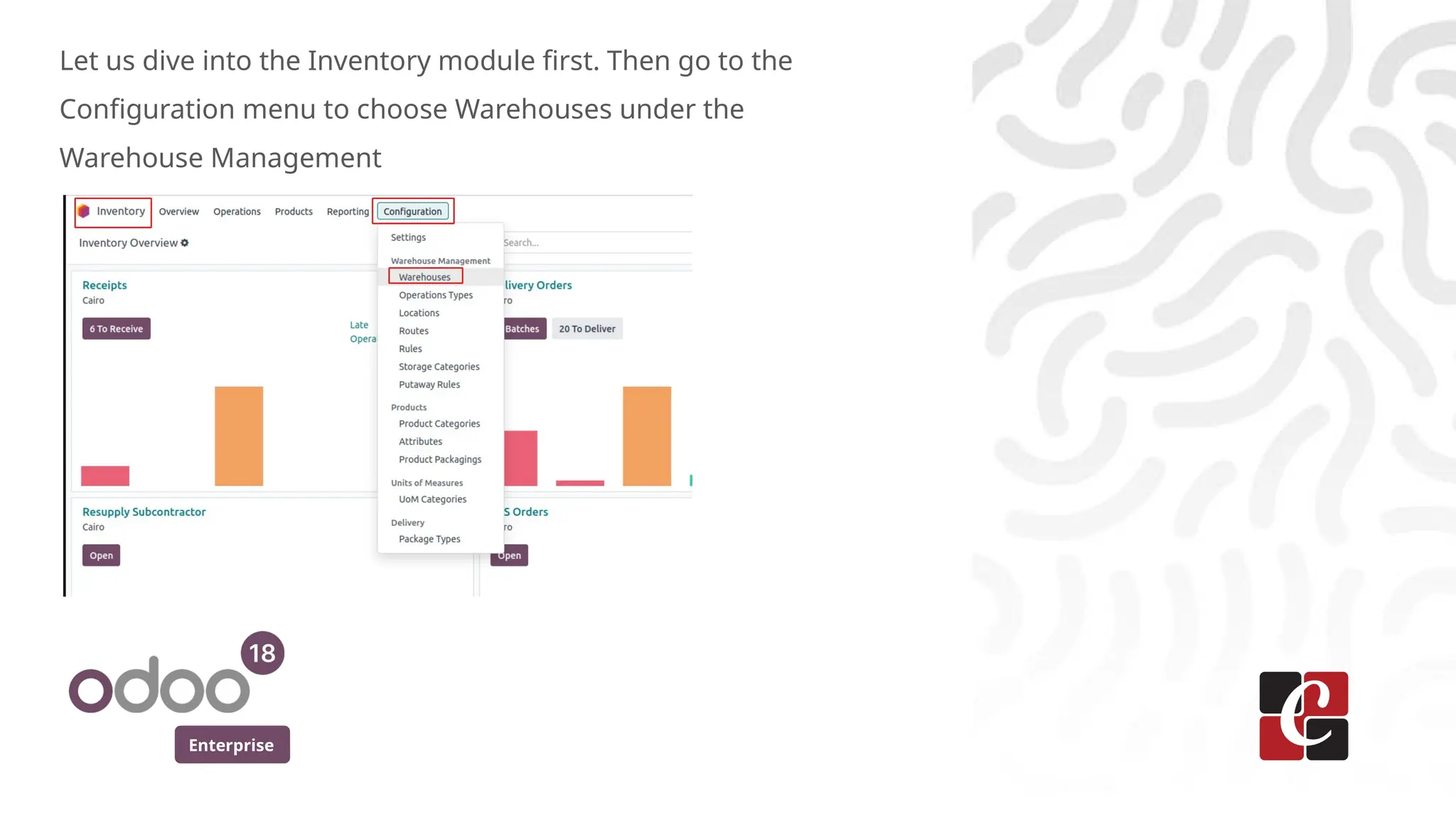
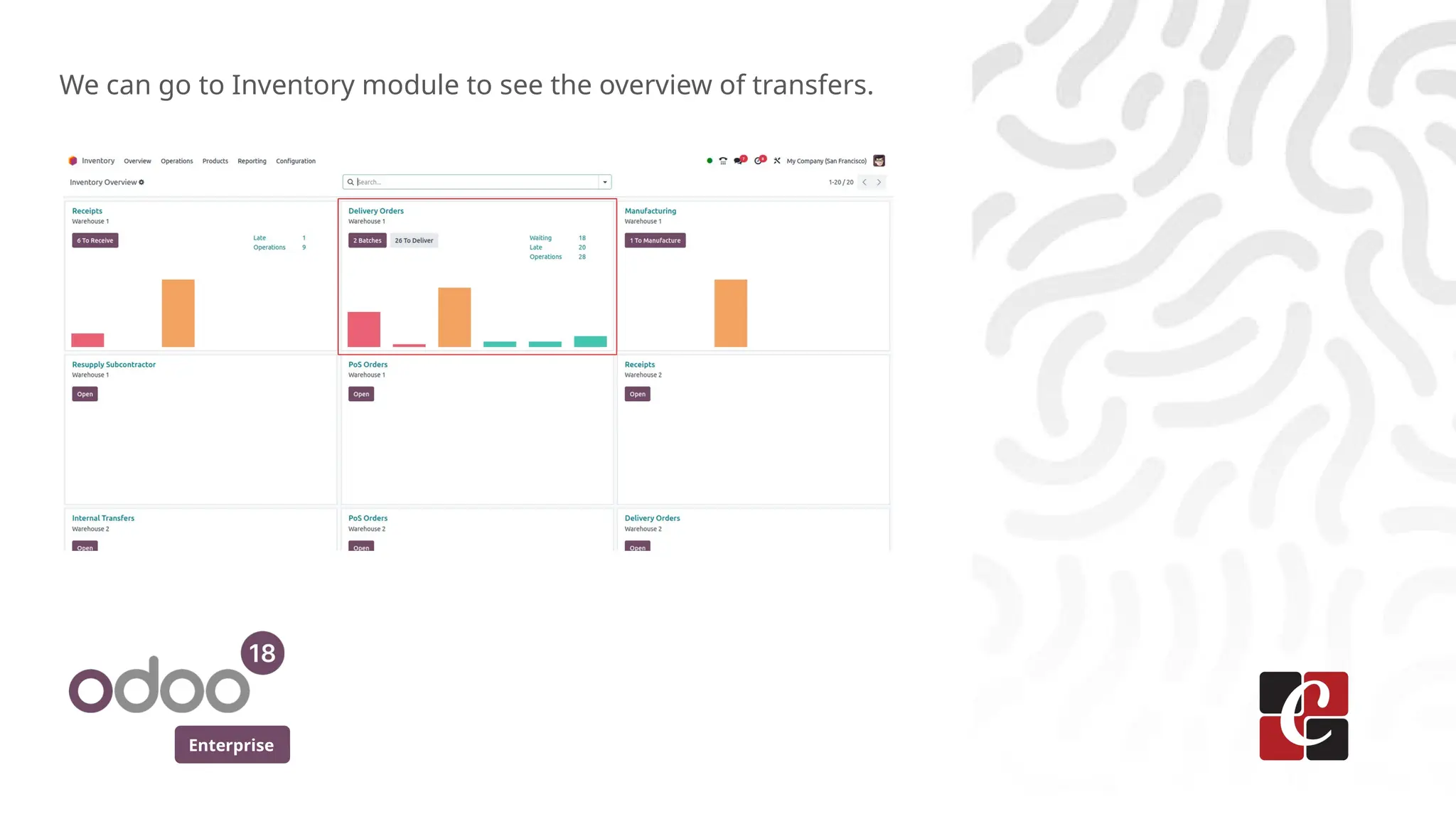
Let us diveinto the Inventory module first. Then go to the
Configuration menu to choose Warehouses under the
Warehouse Management
Enterprise
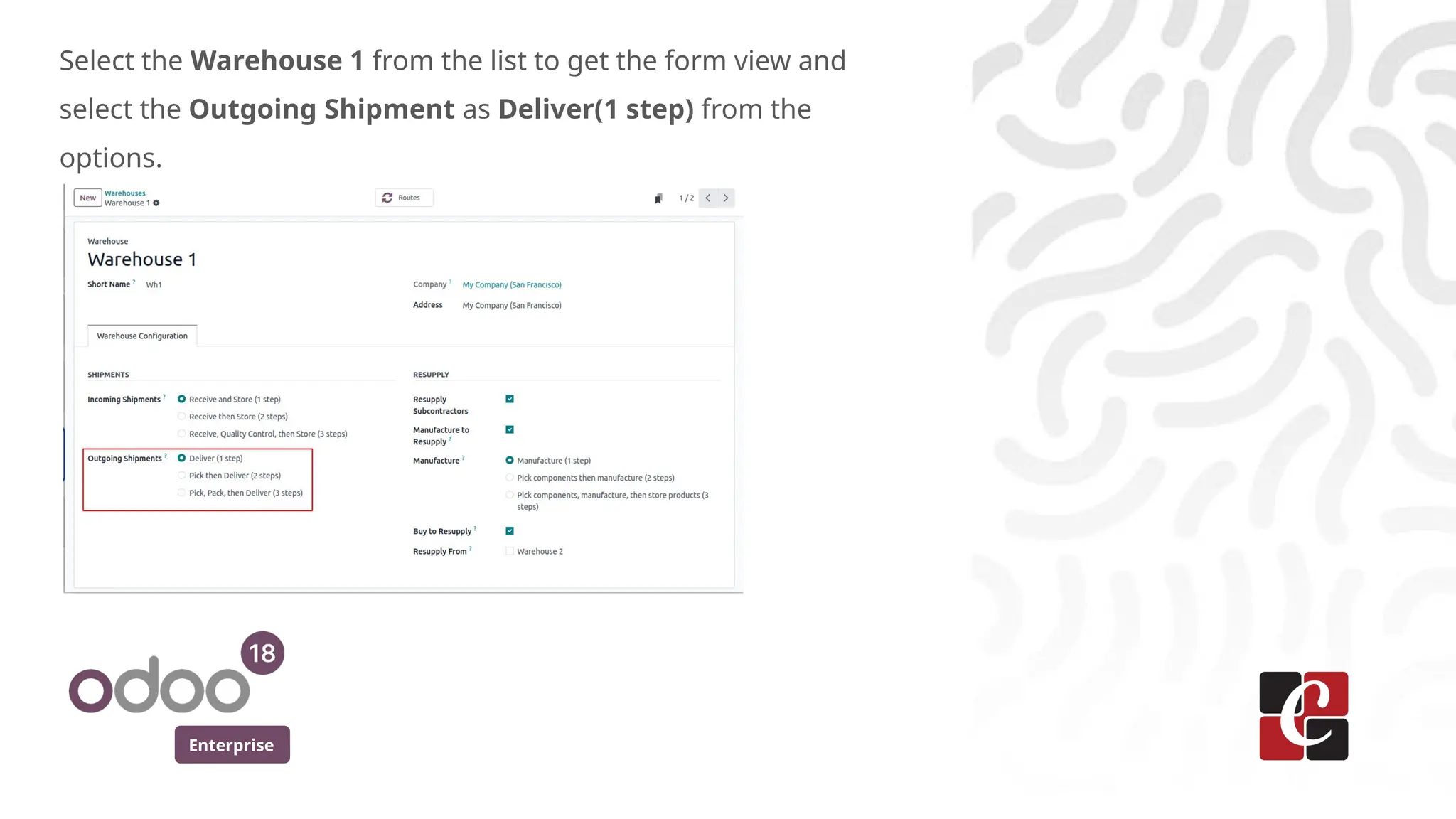
Select the Warehouse1 from the list to get the form view and
select the Outgoing Shipment as Deliver(1 step) from the
options.
6.
Enterprise
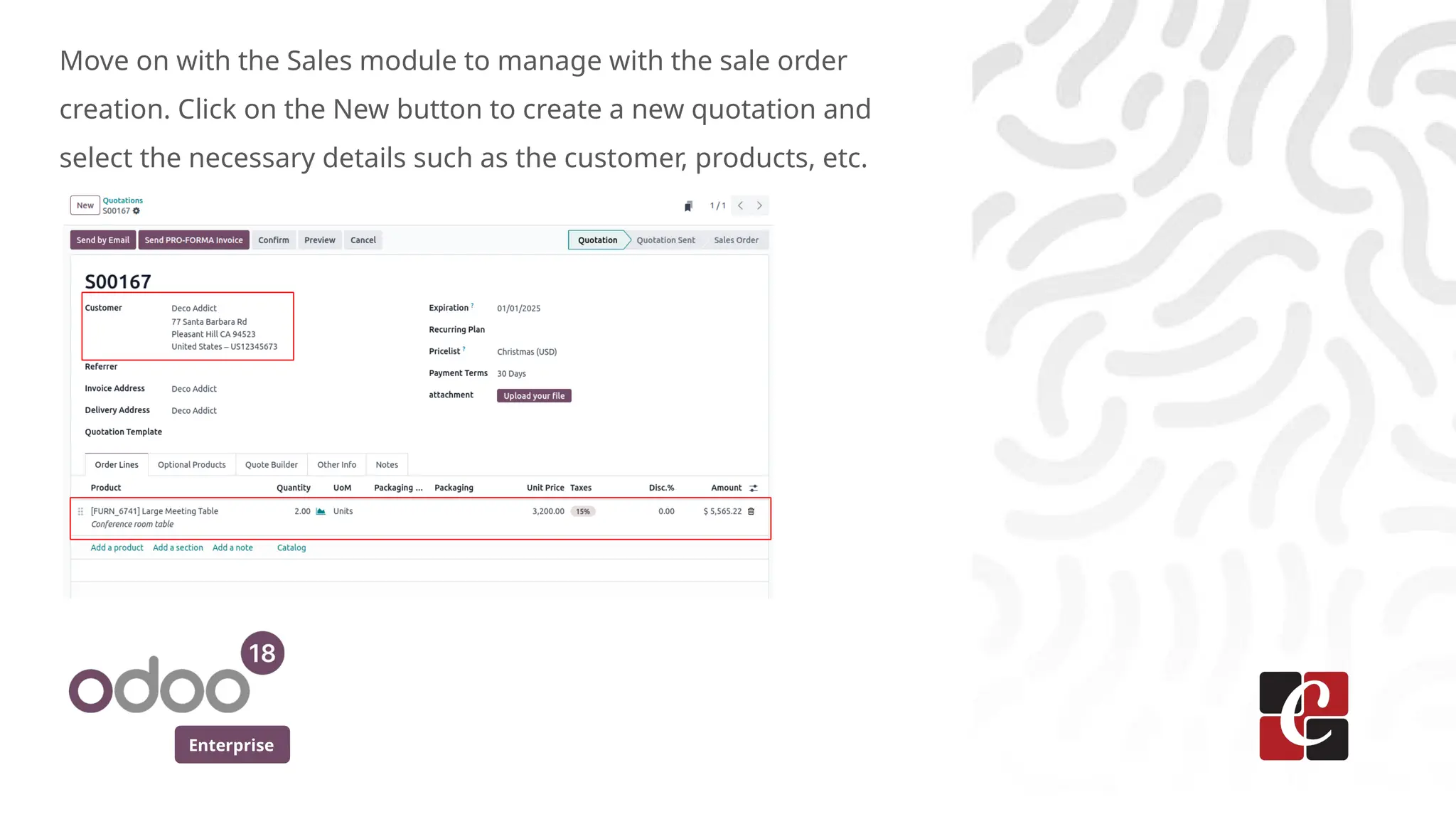
Move on withthe Sales module to manage with the sale order
creation. Click on the New button to create a new quotation and
select the necessary details such as the customer, products, etc.
7.
Enterprise
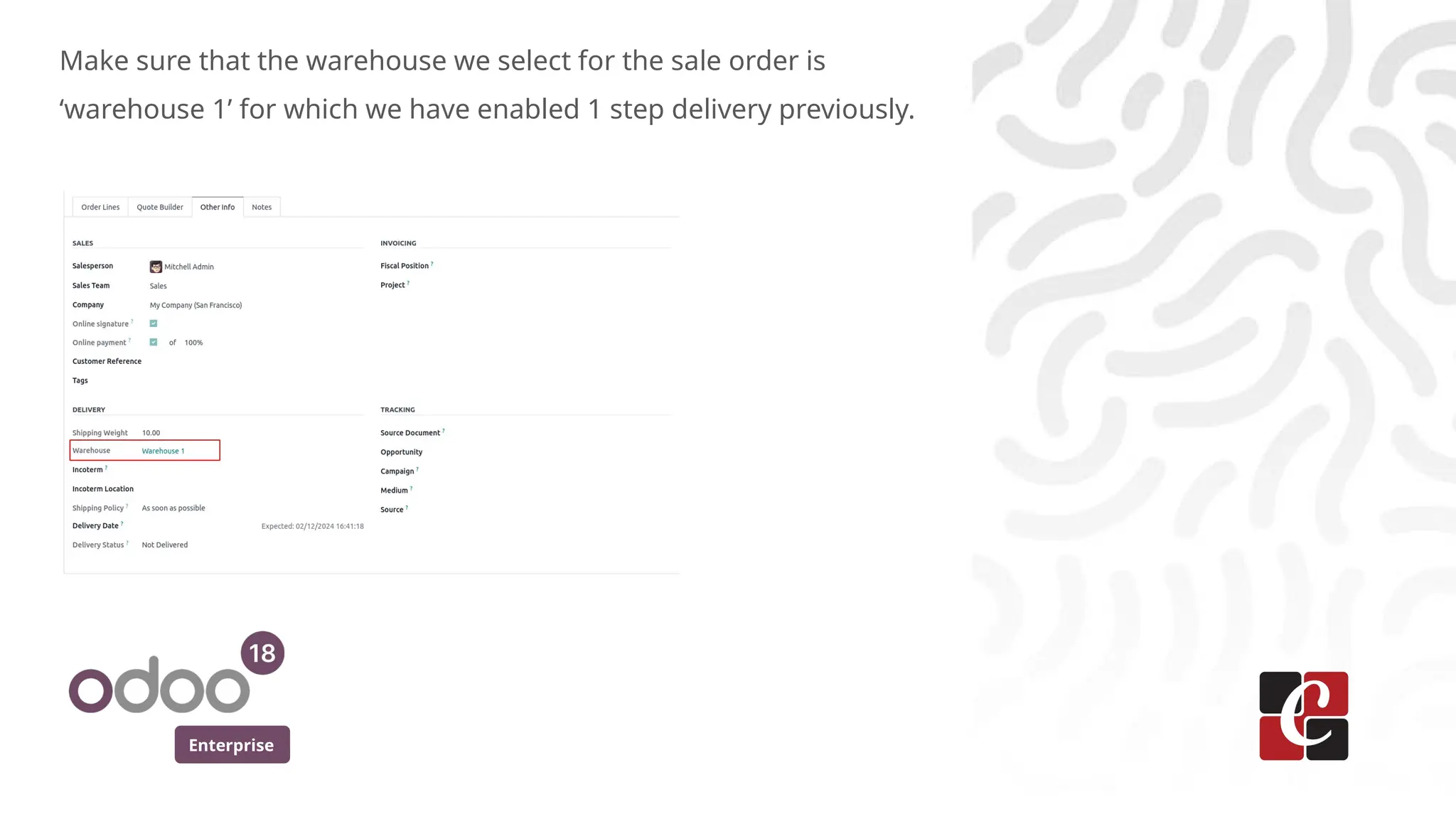
Make sure thatthe warehouse we select for the sale order is
‘warehouse 1’ for which we have enabled 1 step delivery previously.
8.
Enterprise
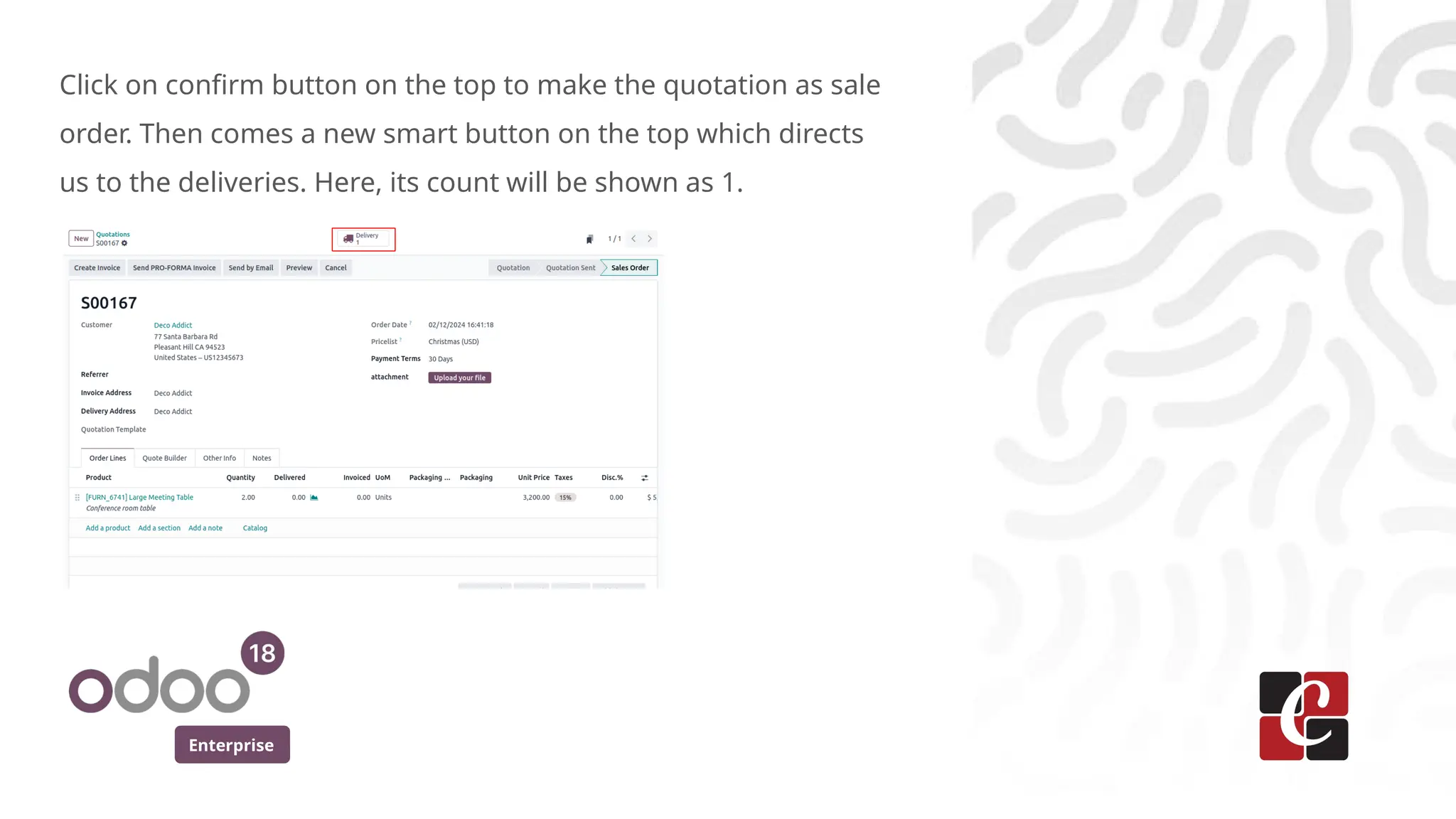
Click on confirmbutton on the top to make the quotation as sale
order. Then comes a new smart button on the top which directs
us to the deliveries. Here, its count will be shown as 1.
9.
Enterprise
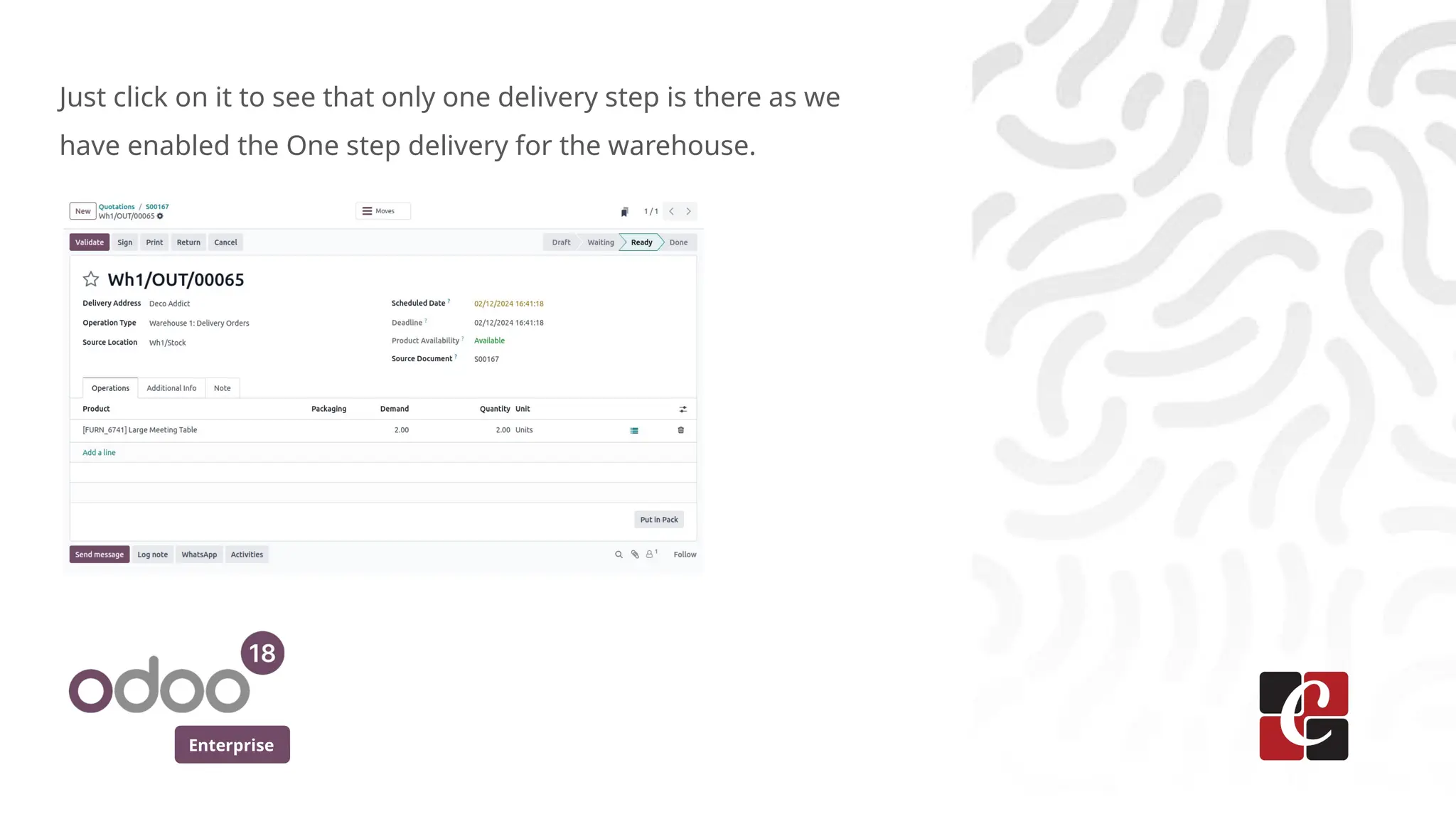
Just click onit to see that only one delivery step is there as we
have enabled the One step delivery for the warehouse.
Enterprise
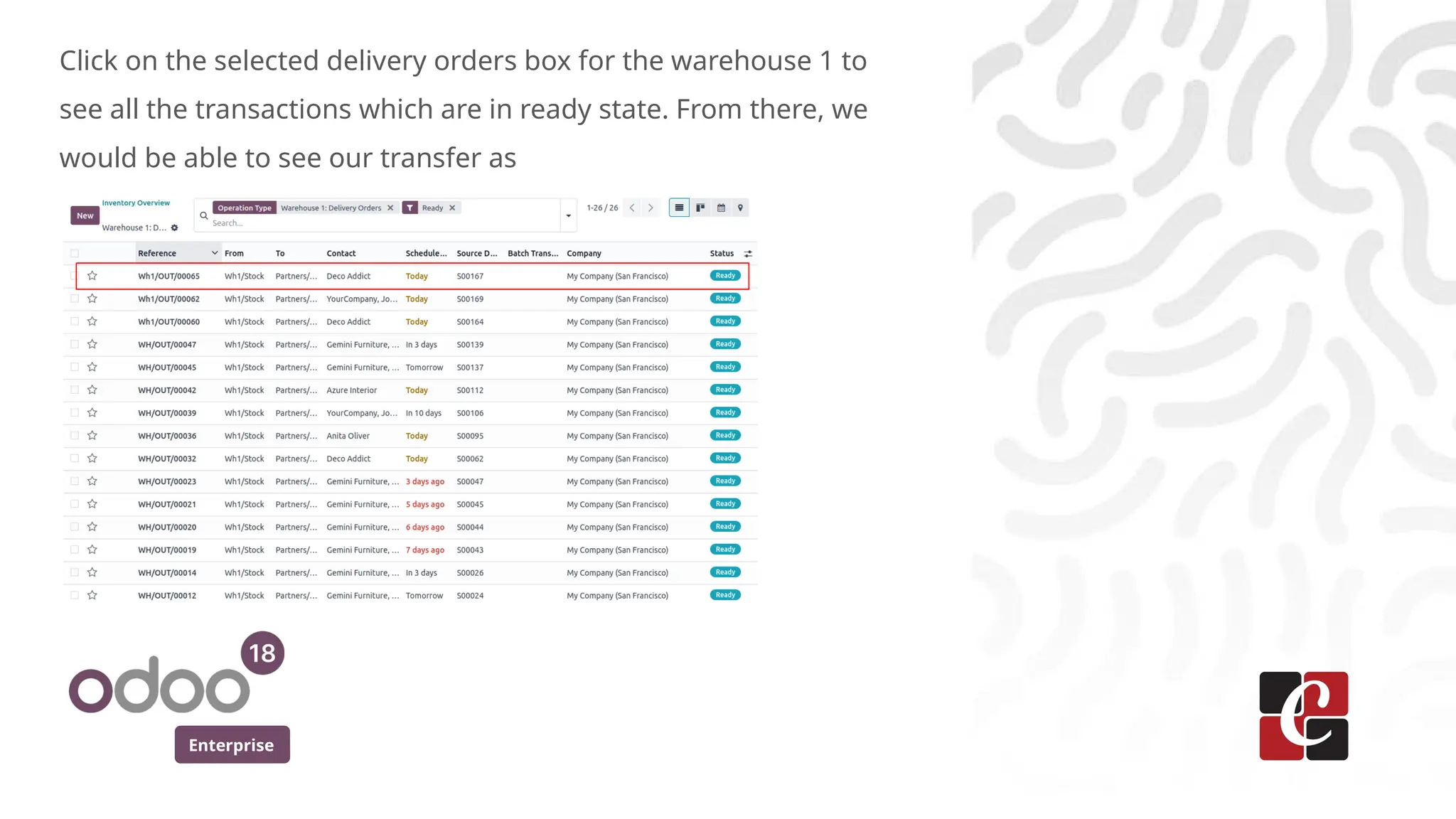
Click on theselected delivery orders box for the warehouse 1 to
see all the transactions which are in ready state. From there, we
would be able to see our transfer as
12.
Enterprise
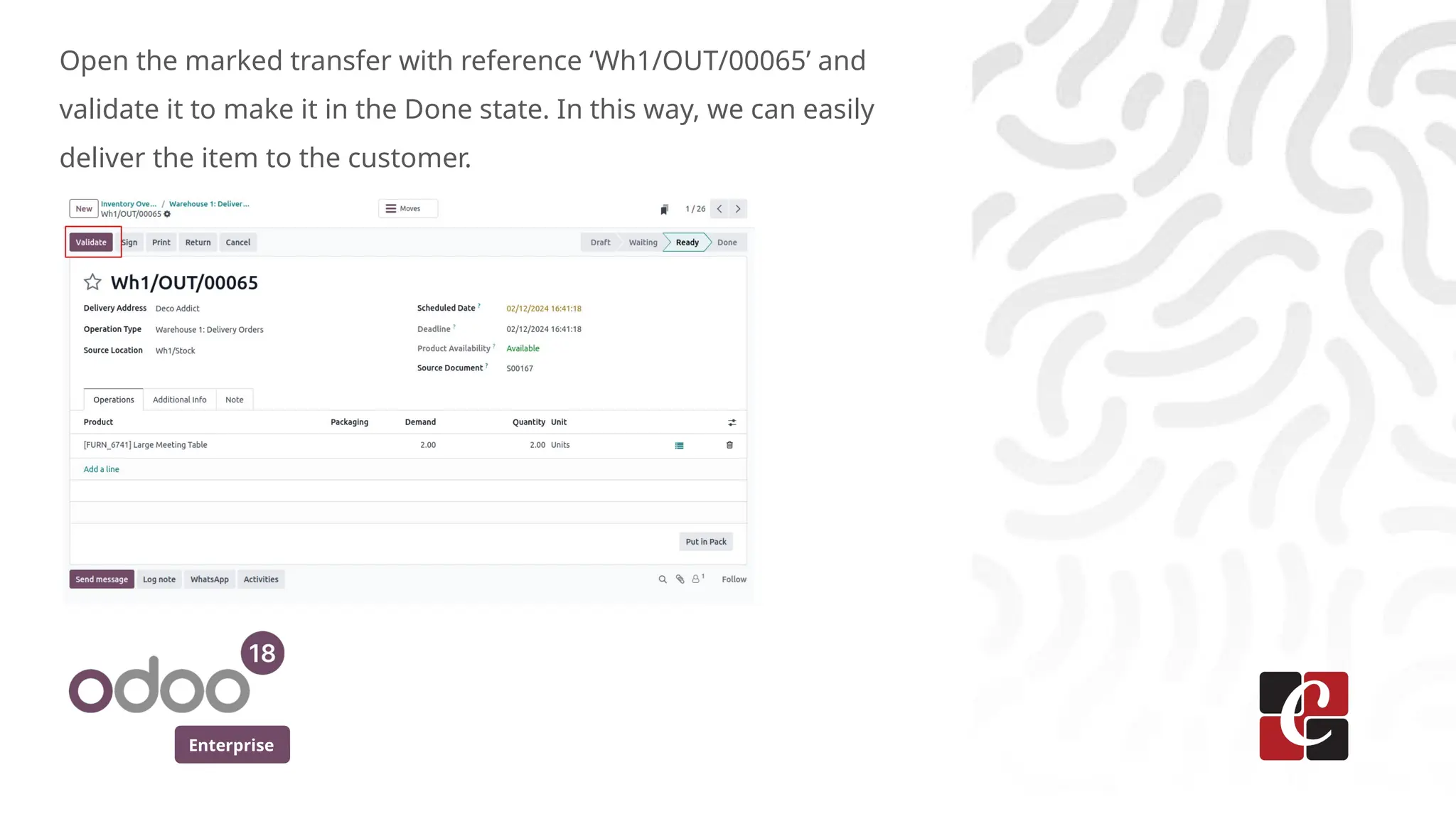
Open the markedtransfer with reference ‘Wh1/OUT/00065’ and
validate it to make it in the Done state. In this way, we can easily
deliver the item to the customer.
13.
Enterprise
With the carefulplanning and implementation of these strategies, we
can significantly improve the efficiency and accuracy of the outgoing
shipments leading to more streamlined and cost effective operations
in Odoo 18.
14.
For More Info.
Checkour company website for related blogs
and Odoo book.
Check our YouTube channel for
functional and technical videos in Odoo.
Enterprise
www.cybrosys.com