1
RECORD OF EMERGENCY (RED)
AND
DEPENDENCY APPLICATION (DA)
Brief
Mr. John Courtney
PERS-2
8 & 10 November 2016
2
RED and DA
RED DA User Roles
How to Add/Modify Dependent
How to Perform a Divorce
How to Add Legal Guardian/Custodian
How to Add Child Support
How to Perform Member Self-Service
Address Change
 Tentative Implementation Plan
 Point of Contact
DEFINED RED DA USER ROLES
3
 Member Self-Service via NSIPS Electronic Service
Record (ESR).
 RED/DA Command– CPPA User Role.
 PERS Clerk – PSD have this User Role
 CPPA User Role – To create a RED/DA transaction for a
Service Member for Digital Signature
 PERS Supervisor – PSD only
 Reserve PERS Clerk – NOSC and Reserve Units
 Reserve PERS Supervisor – NOSC only
 PERS-2 & PERS-13 Corporate RED/DA User Roles
 RED/DA OPNAV/PERS
 RED/DA Administrator
 RED/DA Command
4
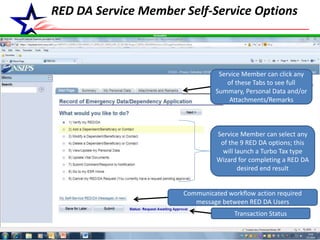
RED DA Service Member Self-Service Options
Service Member can select any
of the 9 RED DA options; this
will launch a Turbo Tax type
Wizard for completing a RED DA
desired end result
Communicated workflow action required
message between RED DA Users
Transaction Status
Service Member can click any
of these Tabs to see full
Summary, Personal Data and/or
Attachments/Remarks
5
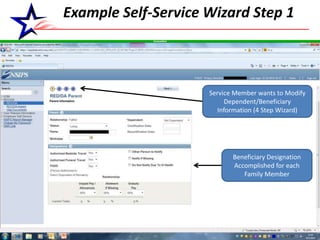
Example Self-Service Wizard Step 1
Service Member wants to Modify
Dependent/Beneficiary
Information (4 Step Wizard)
Beneficiary Designation
Accomplished for each
Family Member
6
Example Self-Service Wizard Step 2
Options a Service Member can select if the Family
Member shares same address or phone number
as the Service Member or other Family Member
Service Member has the option to edit
address, phone and official email address
7
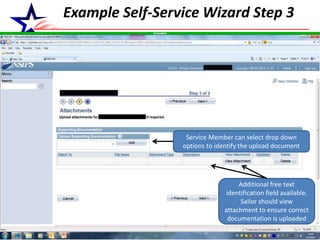
Example Self-Service Wizard Step 3
Service Member can select drop down
options to identify the upload document
Additional free text
identification field available.
Sailor should view
attachment to ensure correct
documentation is uploaded
8
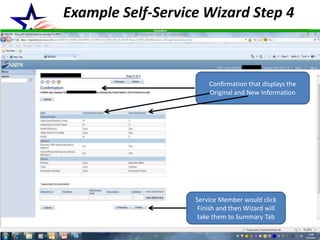
Example Self-Service Wizard Step 4
Confirmation that displays the
Original and New Information
Service Member would click
Finish and then Wizard will
take them to Summary Tab
9
Service Member Summary Tab
Service Member would then Open and
Digitally Sign each Document and Click the
Submit button inside Each PDF Document
10
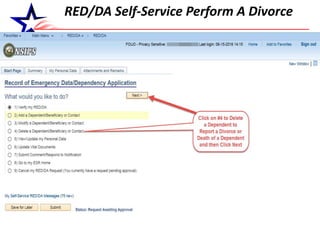
RED/DA Self-Service Perform A Divorce
11
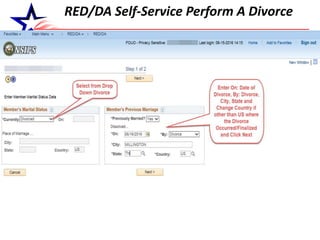
RED/DA Self-Service Perform A Divorce
12
RED/DA Self-Service Perform A Divorce
13
RED/DA Self-Service Perform A Divorce
14
RED/DA Self-Service Perform A Divorce
15
RED/DA Self-Service Perform A Divorce
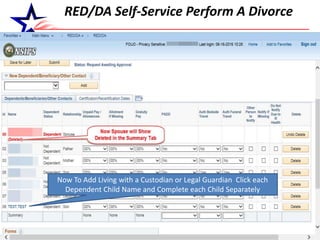
Now To Add Living with a Custodian or Legal Guardian Click each
Dependent Child Name and Complete each Child Separately
16
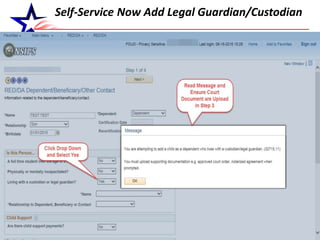
Self-Service Now Add Legal Guardian/Custodian
17
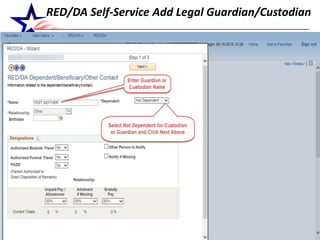
RED/DA Self-Service Add Legal Guardian/Custodian
18
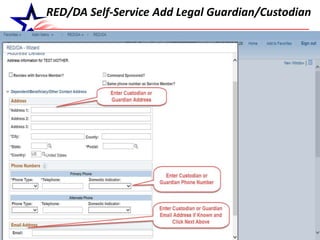
RED/DA Self-Service Add Legal Guardian/Custodian
19
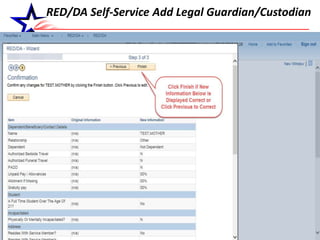
RED/DA Self-Service Add Legal Guardian/Custodian
20
RED/DA Self-Service Add Legal Guardian/Custodian
21
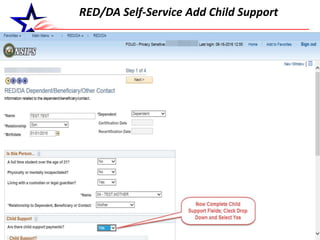
RED/DA Self-Service Add Child Support
22
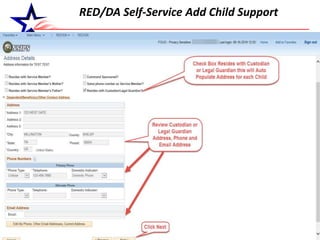
RED/DA Self-Service Add Child Support
23
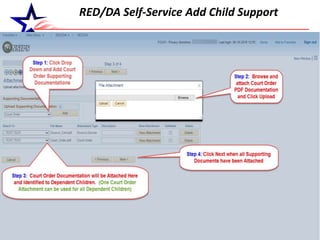
RED/DA Self-Service Add Child Support
24
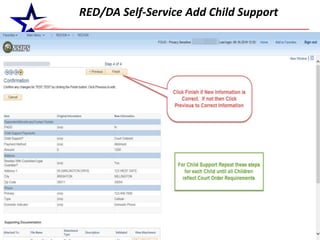
RED/DA Self-Service Add Child Support
25
RED/DA Self-Service Add Child Support
26
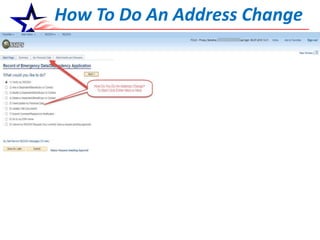
How To Do An Address Change
27
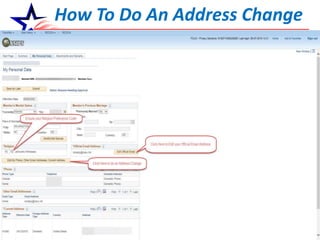
How To Do An Address Change
28
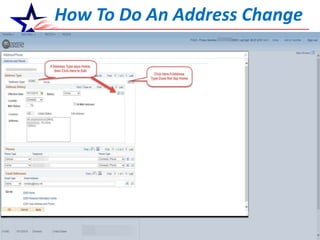
How To Do An Address Change
29
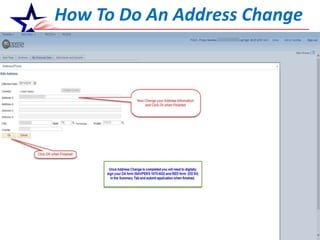
How To Do An Address Change
30
How To Do An Address Change
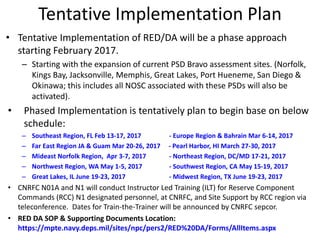
Tentative Implementation Plan
• Tentative Implementation of RED/DA will be a phase approach
starting February 2017.
– Starting with the expansion of current PSD Bravo assessment sites. (Norfolk,
Kings Bay, Jacksonville, Memphis, Great Lakes, Port Hueneme, San Diego &
Okinawa; this includes all NOSC associated with these PSDs will also be
activated).
• Phased Implementation is tentatively plan to begin base on below
schedule:
– Southeast Region, FL Feb 13-17, 2017 - Europe Region & Bahrain Mar 6-14, 2017
– Far East Region JA & Guam Mar 20-26, 2017 - Pearl Harbor, HI March 27-30, 2017
– Mideast Norfolk Region, Apr 3-7, 2017 - Northeast Region, DC/MD 17-21, 2017
– Northwest Region, WA May 1-5, 2017 - Southwest Region, CA May 15-19, 2017
– Great Lakes, IL June 19-23, 2017 - Midwest Region, TX June 19-23, 2017
• CNRFC N01A and N1 will conduct Instructor Led Training (ILT) for Reserve Component
Commands (RCC) N1 designated personnel, at CNRFC, and Site Support by RCC region via
teleconference. Dates for Train-the-Trainer will be announced by CNRFC sepcor.
• RED DA SOP & Supporting Documents Location:
https://mpte.navy.deps.mil/sites/npc/pers2/RED%20DA/Forms/AllItems.aspx
32
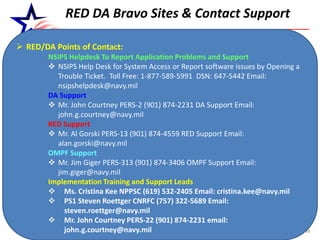
RED DA Bravo Sites & Contact Support
 RED/DA Points of Contact:
NSIPS Helpdesk To Report Application Problems and Support
 NSIPS Help Desk for System Access or Report software issues by Opening a
Trouble Ticket. Toll Free: 1-877-589-5991 DSN: 647-5442 Email:
nsipshelpdesk@navy.mil
DA Support
 Mr. John Courtney PERS-2 (901) 874-2231 DA Support Email:
john.g.courtney@navy.mil
RED Support
 Mr. Al Gorski PERS-13 (901) 874-4559 RED Support Email:
alan.gorski@navy.mil
OMPF Support
 Mr. Jim Giger PERS-313 (901) 874-3406 OMPF Support Email:
jim.giger@navy.mil
Implementation Training and Support Leads
 Ms. Cristina Kee NPPSC (619) 532-2405 Email: cristina.kee@navy.mil
 PS1 Steven Roettger CNRFC (757) 322-5689 Email:
steven.roettger@navy.mil
 Mr. John Courtney PERS-22 (901) 874-2231 email:
john.g.courtney@navy.mil
33
QUESTIONS?
RED and DA

(NSIPS) DEPENDENCY APPLICATION - PERS 2

  • 1.
    1 RECORD OF EMERGENCY(RED) AND DEPENDENCY APPLICATION (DA) Brief Mr. John Courtney PERS-2 8 & 10 November 2016
  • 2.
    2 RED and DA REDDA User Roles How to Add/Modify Dependent How to Perform a Divorce How to Add Legal Guardian/Custodian How to Add Child Support How to Perform Member Self-Service Address Change  Tentative Implementation Plan  Point of Contact
  • 3.
    DEFINED RED DAUSER ROLES 3  Member Self-Service via NSIPS Electronic Service Record (ESR).  RED/DA Command– CPPA User Role.  PERS Clerk – PSD have this User Role  CPPA User Role – To create a RED/DA transaction for a Service Member for Digital Signature  PERS Supervisor – PSD only  Reserve PERS Clerk – NOSC and Reserve Units  Reserve PERS Supervisor – NOSC only  PERS-2 & PERS-13 Corporate RED/DA User Roles  RED/DA OPNAV/PERS  RED/DA Administrator  RED/DA Command
  • 4.
    4 RED DA ServiceMember Self-Service Options Service Member can select any of the 9 RED DA options; this will launch a Turbo Tax type Wizard for completing a RED DA desired end result Communicated workflow action required message between RED DA Users Transaction Status Service Member can click any of these Tabs to see full Summary, Personal Data and/or Attachments/Remarks
  • 5.
    5 Example Self-Service WizardStep 1 Service Member wants to Modify Dependent/Beneficiary Information (4 Step Wizard) Beneficiary Designation Accomplished for each Family Member
  • 6.
    6 Example Self-Service WizardStep 2 Options a Service Member can select if the Family Member shares same address or phone number as the Service Member or other Family Member Service Member has the option to edit address, phone and official email address
  • 7.
    7 Example Self-Service WizardStep 3 Service Member can select drop down options to identify the upload document Additional free text identification field available. Sailor should view attachment to ensure correct documentation is uploaded
  • 8.
    8 Example Self-Service WizardStep 4 Confirmation that displays the Original and New Information Service Member would click Finish and then Wizard will take them to Summary Tab
  • 9.
    9 Service Member SummaryTab Service Member would then Open and Digitally Sign each Document and Click the Submit button inside Each PDF Document
  • 10.
  • 11.
  • 12.
  • 13.
  • 14.
  • 15.
    15 RED/DA Self-Service PerformA Divorce Now To Add Living with a Custodian or Legal Guardian Click each Dependent Child Name and Complete each Child Separately
  • 16.
    16 Self-Service Now AddLegal Guardian/Custodian
  • 17.
    17 RED/DA Self-Service AddLegal Guardian/Custodian
  • 18.
    18 RED/DA Self-Service AddLegal Guardian/Custodian
  • 19.
    19 RED/DA Self-Service AddLegal Guardian/Custodian
  • 20.
    20 RED/DA Self-Service AddLegal Guardian/Custodian
  • 21.
  • 22.
  • 23.
  • 24.
  • 25.
  • 26.
    26 How To DoAn Address Change
  • 27.
    27 How To DoAn Address Change
  • 28.
    28 How To DoAn Address Change
  • 29.
    29 How To DoAn Address Change
  • 30.
    30 How To DoAn Address Change
  • 31.
    Tentative Implementation Plan •Tentative Implementation of RED/DA will be a phase approach starting February 2017. – Starting with the expansion of current PSD Bravo assessment sites. (Norfolk, Kings Bay, Jacksonville, Memphis, Great Lakes, Port Hueneme, San Diego & Okinawa; this includes all NOSC associated with these PSDs will also be activated). • Phased Implementation is tentatively plan to begin base on below schedule: – Southeast Region, FL Feb 13-17, 2017 - Europe Region & Bahrain Mar 6-14, 2017 – Far East Region JA & Guam Mar 20-26, 2017 - Pearl Harbor, HI March 27-30, 2017 – Mideast Norfolk Region, Apr 3-7, 2017 - Northeast Region, DC/MD 17-21, 2017 – Northwest Region, WA May 1-5, 2017 - Southwest Region, CA May 15-19, 2017 – Great Lakes, IL June 19-23, 2017 - Midwest Region, TX June 19-23, 2017 • CNRFC N01A and N1 will conduct Instructor Led Training (ILT) for Reserve Component Commands (RCC) N1 designated personnel, at CNRFC, and Site Support by RCC region via teleconference. Dates for Train-the-Trainer will be announced by CNRFC sepcor. • RED DA SOP & Supporting Documents Location: https://mpte.navy.deps.mil/sites/npc/pers2/RED%20DA/Forms/AllItems.aspx
  • 32.
    32 RED DA BravoSites & Contact Support  RED/DA Points of Contact: NSIPS Helpdesk To Report Application Problems and Support  NSIPS Help Desk for System Access or Report software issues by Opening a Trouble Ticket. Toll Free: 1-877-589-5991 DSN: 647-5442 Email: nsipshelpdesk@navy.mil DA Support  Mr. John Courtney PERS-2 (901) 874-2231 DA Support Email: john.g.courtney@navy.mil RED Support  Mr. Al Gorski PERS-13 (901) 874-4559 RED Support Email: alan.gorski@navy.mil OMPF Support  Mr. Jim Giger PERS-313 (901) 874-3406 OMPF Support Email: jim.giger@navy.mil Implementation Training and Support Leads  Ms. Cristina Kee NPPSC (619) 532-2405 Email: cristina.kee@navy.mil  PS1 Steven Roettger CNRFC (757) 322-5689 Email: steven.roettger@navy.mil  Mr. John Courtney PERS-22 (901) 874-2231 email: john.g.courtney@navy.mil
  • 33.