Consuming Web ServicesUsing HTTP
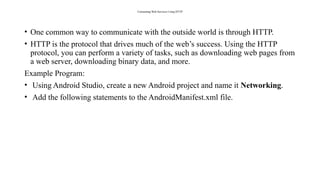
• One common way to communicate with the outside world is through HTTP.
• HTTP is the protocol that drives much of the web’s success. Using the HTTP
protocol, you can perform a variety of tasks, such as downloading web pages from
a web server, downloading binary data, and more.
Example Program:
• Using Android Studio, create a new Android project and name it Networking.
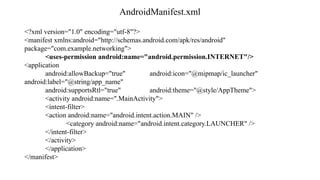
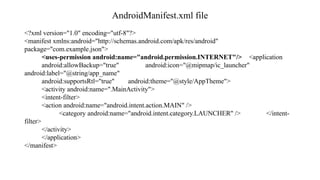
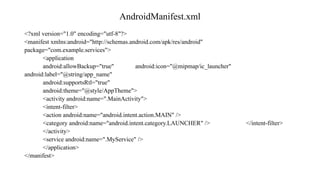
• Add the following statements to the AndroidManifest.xml file.
Downloading binary Data
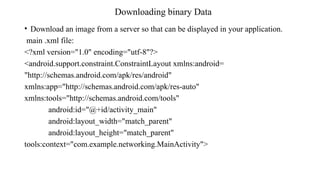
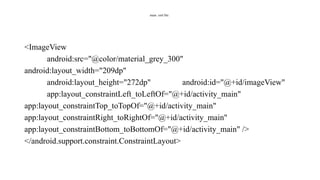
•Download an image from a server so that can be displayed in your application.
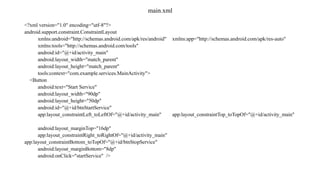
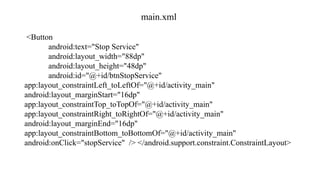
main .xml file:
<?xml version="1.0" encoding="utf-8"?>
<android.support.constraint.ConstraintLayout xmlns:android=
"http://schemas.android.com/apk/res/android"
xmlns:app="http://schemas.android.com/apk/res-auto"
xmlns:tools="http://schemas.android.com/tools"
android:id="@+id/activity_main"
android:layout_width="match_parent"
android:layout_height="match_parent"
tools:context="com.example.networking.MainActivity">
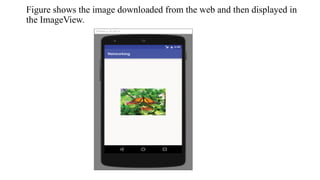
Figure shows theimage downloaded from the web and then displayed in
the ImageView.
16.
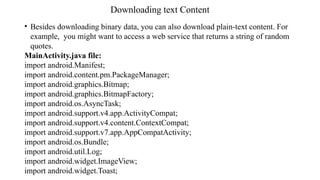
Downloading text Content
•Besides downloading binary data, you can also download plain-text content. For
example, you might want to access a web service that returns a string of random
quotes.
MainActivity.java file:
import android.Manifest;
import android.content.pm.PackageManager;
import android.graphics.Bitmap;
import android.graphics.BitmapFactory;
import android.os.AsyncTask;
import android.support.v4.app.ActivityCompat;
import android.support.v4.content.ContextCompat;
import android.support.v7.app.AppCompatActivity;
import android.os.Bundle;
import android.util.Log;
import android.widget.ImageView;
import android.widget.Toast;
17.
MainActivity.java file:
import java.io.IOException;
importjava.io.InputStream;
import java.io.InputStreamReader;
import java.net.HttpURLConnection;
import java.net.URL;
import java.net.URLConnection;
public class MainActivity extends AppCompatActivity {
ImageView img;
final private int REQUEST_INTERNET = 123;
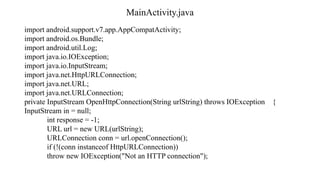
private InputStream OpenHttpConnection(String urlString) throws IOException {
InputStream in = null;
int response = -1;
URL url = new URL(urlString);
URLConnection conn = url.openConnection();
18.
MainActivity.java file:
if (!(conninstanceof HttpURLConnection))
throw new IOException("Not an HTTP connection");
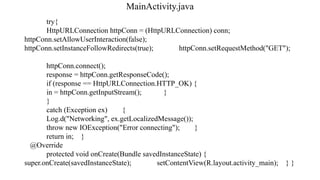
try{
HttpURLConnection httpConn = (HttpURLConnection) conn;
httpConn.setAllowUserInteraction(false);
httpConn.setInstanceFollowRedirects(true); httpConn.setRequestMethod("GET");
httpConn.connect();
response = httpConn.getResponseCode();
if (response == HttpURLConnection.HTTP_OK) {
in = httpConn.getInputStream();
} }
catch (Exception ex) {
Log.d("Networking", ex.getLocalizedMessage()); throw new
IOException("Error connecting"); } return in;
}
19.
MainActivity.java file:
private StringDownloadText(String URL) {
int BUFFER_SIZE = 2000;
InputStream in = null;
try {
in = OpenHttpConnection(URL); }
catch (IOException e) {
Log.d("Networking", e.getLocalizedMessage());
return "";
}
InputStreamReader isr = new InputStreamReader(in);
int charRead;
String str = "";
char[] inputBuffer = new char[BUFFER_SIZE];
try {
while ((charRead = isr.read(inputBuffer))>0) {
//---convert the chars to a String--
String readString = String.copyValueOf(inputBuffer, 0, charRead); str += readString;
inputBuffer = new char[BUFFER_SIZE]; }
in.close(); }
catch (IOException e) {
Log.d("Networking", e.getLocalizedMessage());
return ""; }
return str;
}
MainActivity.java file:
if (ContextCompat.checkSelfPermission(this,Manifest.permission.INTERNET)
!= PackageManager.PERMISSION_GRANTED) {
ActivityCompat.requestPermissions(this, new String[]
{Manifest.permission.INTERNET},REQUEST_INTERNET);
}
else{
new DownloadTextTask().execute("http://domainname.com/test.htm");
}
}
}
22.
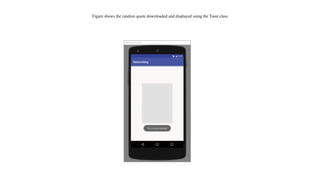
Figure shows therandom quote downloaded and displayed using the Toast class.
23.
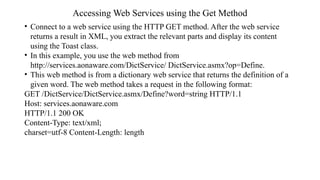
Accessing Web Servicesusing the Get Method
• Connect to a web service using the HTTP GET method. After the web service
returns a result in XML, you extract the relevant parts and display its content
using the Toast class.
• In this example, you use the web method from
http://services.aonaware.com/DictService/ DictService.asmx?op=Define.
• This web method is from a dictionary web service that returns the definition of a
given word. The web method takes a request in the following format:
GET /DictService/DictService.asmx/Define?word=string HTTP/1.1
Host: services.aonaware.com
HTTP/1.1 200 OK
Content-Type: text/xml;
charset=utf-8 Content-Length: length
24.
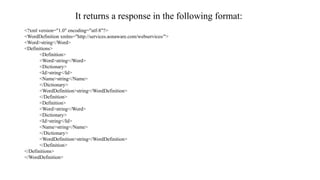
It returns aresponse in the following format:
<?xml version="1.0" encoding="utf-8"?>
<WordDefinition xmlns="http://services.aonaware.com/webservices/">
<Word>string</Word>
<Definitions>
<Definition>
<Word>string</Word>
<Dictionary>
<Id>string</Id>
<Name>string</Name>
</Dictionary>
<WordDefinition>string</WordDefinition>
</Definition>
<Definition>
<Word>string</Word>
<Dictionary>
<Id>string</Id>
<Name>string</Name>
</Dictionary>
<WordDefinition>string</WordDefinition>
</Definition>
</Definitions>
</WordDefinition>
25.
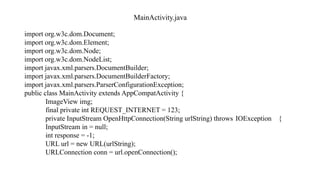
MainActivity.java
import org.w3c.dom.Document;
import org.w3c.dom.Element;
importorg.w3c.dom.Node;
import org.w3c.dom.NodeList;
import javax.xml.parsers.DocumentBuilder;
import javax.xml.parsers.DocumentBuilderFactory;
import javax.xml.parsers.ParserConfigurationException;
public class MainActivity extends AppCompatActivity {
ImageView img;
final private int REQUEST_INTERNET = 123;
private InputStream OpenHttpConnection(String urlString) throws IOException {
InputStream in = null;
int response = -1;
URL url = new URL(urlString);
URLConnection conn = url.openConnection();
26.
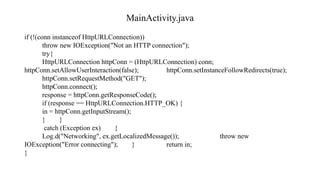
MainActivity.java
if (!(conn instanceofHttpURLConnection))
throw new IOException("Not an HTTP connection");
try{
HttpURLConnection httpConn = (HttpURLConnection) conn;
httpConn.setAllowUserInteraction(false); httpConn.setInstanceFollowRedirects(true);
httpConn.setRequestMethod("GET");
httpConn.connect();
response = httpConn.getResponseCode();
if (response == HttpURLConnection.HTTP_OK) {
in = httpConn.getInputStream();
} }
catch (Exception ex) {
Log.d("Networking", ex.getLocalizedMessage()); throw new
IOException("Error connecting"); } return in;
}
MainActivity.java
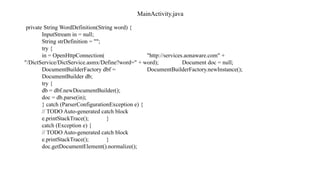
//---retrieve all the<Definition> elements--
NodeList definitionElements = doc.getElementsByTagName("Definition");
//---iterate through each <Definition> elements--
for (int i = 0; i < definitionElements.getLength(); i++) {
Node itemNode = definitionElements.item(i);
if (itemNode.getNodeType() == Node.ELEMENT_NODE) {
//---convert the Definition node into an Element-- Element
definitionElement = (Element) itemNode;
//---get all the <WordDefinition> elements under
// the <Definition> element--
NodeList wordDefinitionElements = (definitionElement).getElementsByTagName(
"WordDefinition");
strDefinition = "";
//---iterate through each <WordDefinition> elements-- for (int j = 0; j <
wordDefinitionElements.getLength(); j++) { //---convert a <WordDefinition> node into an
Element-- Element wordDefinitionElement = (Element)
wordDefinitionElements.item(j);
//---get all the child nodes under the
// <WordDefinition> element--
MainActivity.java
@Override
protected void onCreate(BundlesavedInstanceState) {
super.onCreate(savedInstanceState);
setContentView(R.layout.activity_main);
if (ContextCompat.checkSelfPermission(this,
Manifest.permission.INTERNET) !=
PackageManager.PERMISSION_GRANTED) {
ActivityCompat.requestPermissions(this, new String[]
{Manifest.permission.INTERNET}, REQUEST_INTERNET);
}
else{ new AccessWebServiceTask().execute("apple"); }
}
}
31.
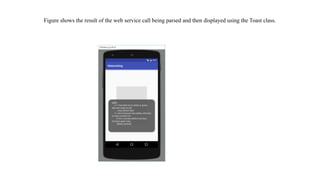
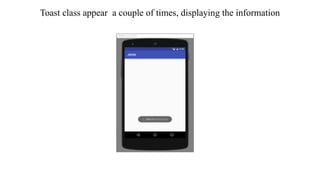
Figure shows theresult of the web service call being parsed and then displayed using the Toast class.
32.
Consuming Json Services
ManipulatingXML documents is a computationally expensive operation for mobile
devices, for the following reasons:
• XML documents are lengthy. They use tags to embed information, and the size of an
XML document can pretty quickly become large. A large XML document means
that your device must use more bandwidth to download it, which translates into
higher cost.
• XML documents are more difficult to process. When using the
DocumentBuilderFactory, you must use DOM to traverse the tree in order to locate
the information you want. In addition, DOM itself has to build the entire document
in memory as a tree structure before you can traverse it. This is both memory and
CPU intensive.
• A much more efficient way to represent information exists in the form of JSON
(JavaScript Object Notation). JSON is a lightweight data-interchange format that is
easy for humans to read and write. It is also easy for machines to parse and generate.
33.
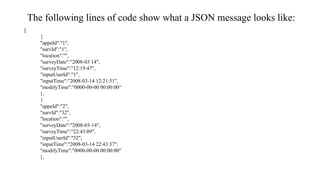
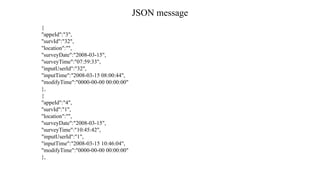
The following linesof code show what a JSON message looks like:
[
{
"appeId":"1",
"survId":"1",
"location":"",
"surveyDate":"2008-03 14",
"surveyTime":"12:19:47",
"inputUserId":"1",
"inputTime":"2008-03-14 12:21:51",
"modifyTime":"0000-00-00 00:00:00“
},
{
"appeId":"2",
"survId":"32",
"location":"",
"surveyDate":"2008-03-14",
"surveyTime":"22:43:09",
"inputUserId":"32",
"inputTime":"2008-03-14 22:43:37",
"modifyTime":"0000-00-00 00:00:00"
},
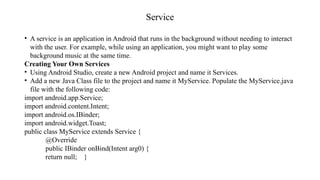
Service
• A serviceis an application in Android that runs in the background without needing to interact
with the user. For example, while using an application, you might want to play some
background music at the same time.
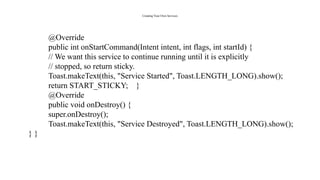
Creating Your Own Services
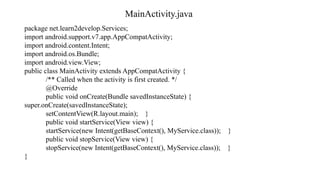
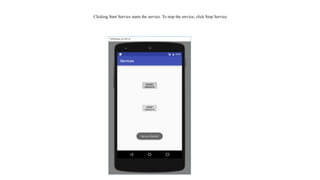
• Using Android Studio, create a new Android project and name it Services.
• Add a new Java Class file to the project and name it MyService. Populate the MyService.java
file with the following code:
import android.app.Service;
import android.content.Intent;
import android.os.IBinder;
import android.widget.Toast;
public class MyService extends Service {
@Override
public IBinder onBind(Intent arg0) {
return null; }
44.
Creating Your OwnServices
@Override
public int onStartCommand(Intent intent, int flags, int startId) {
// We want this service to continue running until it is explicitly
// stopped, so return sticky.
Toast.makeText(this, "Service Started", Toast.LENGTH_LONG).show();
return START_STICKY; }
@Override
public void onDestroy() {
super.onDestroy();
Toast.makeText(this, "Service Destroyed", Toast.LENGTH_LONG).show();
} }
Start a service
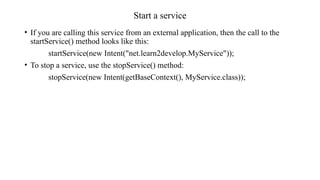
•If you are calling this service from an external application, then the call to the
startService() method looks like this:
startService(new Intent("net.learn2develop.MyService"));
• To stop a service, use the stopService() method:
stopService(new Intent(getBaseContext(), MyService.class));
51.
Performing Long-running Tasksin a Service(simulate the service of
downloading a file from the Internet.)
import android.app.Service;
import android.content.Intent;
import android.os.IBinder;
import android.widget.Toast;
import java.net.MalformedURLException;
import java.net.URL;
public class MyService extends Service {
@Override
public IBinder onBind(Intent arg0) {
return null; }
52.
Performing Long-running Tasksin a Service(simulate the service of
downloading a file from the Internet.)
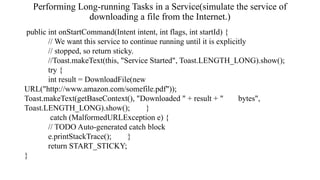
public int onStartCommand(Intent intent, int flags, int startId) {
// We want this service to continue running until it is explicitly
// stopped, so return sticky.
//Toast.makeText(this, "Service Started", Toast.LENGTH_LONG).show();
try {
int result = DownloadFile(new
URL("http://www.amazon.com/somefile.pdf"));
Toast.makeText(getBaseContext(), "Downloaded " + result + " bytes",
Toast.LENGTH_LONG).show(); }
catch (MalformedURLException e) {
// TODO Auto-generated catch block
e.printStackTrace(); }
return START_STICKY;
}
53.
Performing Long-running Tasksin a Service(simulate the service of
downloading a file from the Internet.)
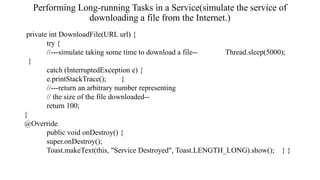
private int DownloadFile(URL url) {
try {
//---simulate taking some time to download a file-- Thread.sleep(5000);
}
catch (InterruptedException e) {
e.printStackTrace(); }
//---return an arbitrary number representing
// the size of the file downloaded--
return 100;
}
@Override
public void onDestroy() {
super.onDestroy();
Toast.makeText(this, "Service Destroyed", Toast.LENGTH_LONG).show(); } }
54.
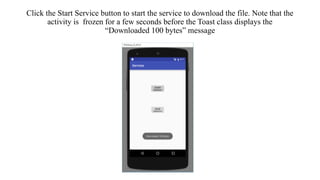
Click the StartService button to start the service to download the file. Note that the
activity is frozen for a few seconds before the Toast class displays the
“Downloaded 100 bytes” message
55.
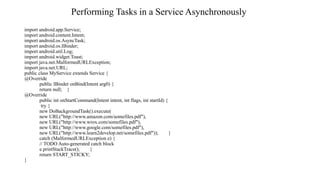
Performing Tasks ina Service Asynchronously
import android.app.Service;
import android.content.Intent;
import android.os.AsyncTask;
import android.os.IBinder;
import android.util.Log;
import android.widget.Toast;
import java.net.MalformedURLException;
import java.net.URL;
public class MyService extends Service {
@Override
public IBinder onBind(Intent arg0) {
return null; }
@Override
public int onStartCommand(Intent intent, int flags, int startId) {
try {
new DoBackgroundTask().execute(
new URL("http://www.amazon.com/somefiles.pdf"),
new URL("http://www.wrox.com/somefiles.pdf"),
new URL("http://www.google.com/somefiles.pdf"),
new URL("http://www.learn2develop.net/somefiles.pdf")); }
catch (MalformedURLException e) {
// TODO Auto-generated catch block
e.printStackTrace(); }
return START_STICKY;
}
56.
Performing Tasks ina Service Asynchronously
private int DownloadFile(URL url) {
try {
//---simulate taking some time to download a file-- Thread.sleep(5000); }
catch (InterruptedException e) {
e.printStackTrace(); }
//---return an arbitrary number representing
// the size of the file downloaded--
return 100; }
private class DoBackgroundTask extends AsyncTask<URL, Integer, Long> { protected Long
doInBackground(URL... urls) {
int count = urls.length;
long totalBytesDownloaded = 0;
for (int i = 0; i < count; i++) {
totalBytesDownloaded += DownloadFile(urls[i]);
//---calculate percentage downloaded and report its progress--
publishProgress((int) (((i+1) / (float) count) * 100)); }
return totalBytesDownloaded;
}
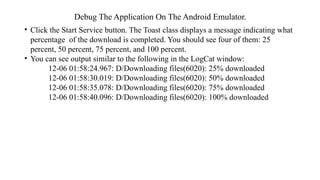
Debug The ApplicationOn The Android Emulator.
• Click the Start Service button. The Toast class displays a message indicating what
percentage of the download is completed. You should see four of them: 25
percent, 50 percent, 75 percent, and 100 percent.
• You can see output similar to the following in the LogCat window:
12-06 01:58:24.967: D/Downloading files(6020): 25% downloaded
12-06 01:58:30.019: D/Downloading files(6020): 50% downloaded
12-06 01:58:35.078: D/Downloading files(6020): 75% downloaded
12-06 01:58:40.096: D/Downloading files(6020): 100% downloaded
59.
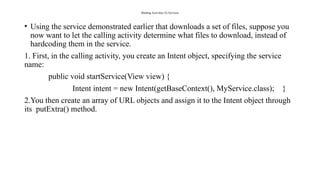
Binding Activities ToServices
• Using the service demonstrated earlier that downloads a set of files, suppose you
now want to let the calling activity determine what files to download, instead of
hardcoding them in the service.
1. First, in the calling activity, you create an Intent object, specifying the service
name:
public void startService(View view) {
Intent intent = new Intent(getBaseContext(), MyService.class); }
2.You then create an array of URL objects and assign it to the Intent object through
its putExtra() method.
60.
Binding Activities ToServices
3. You start the service using the Intent object:
public void startService(View view) {
Intent intent = new Intent(getBaseContext(), MyService.class);
try {
URL[] urls = new URL[] {
new URL("http://www.amazon.com/somefiles.pdf"),
new URL("http://www.wrox.com/somefiles.pdf"),
new URL("http://www.google.com/somefiles.pdf"),
new URL("http://www.learn2develop.net/somefiles.pdf")};
intent.putExtra("URLs", urls); }
catch (MalformedURLException e) {
e.printStackTrace(); }
startService(intent); }
4. Note that the URL array is assigned to the Intent object as an Object array.
61.
Binding Activities ToServices
On the service’s end, you need to extract the data passed in through the Intent object
in the onStartCommand() method:
@Override
public int onStartCommand(Intent intent, int flags, int startId) {
// We want this service to continue running until it is explicitly
// stopped, so return sticky.
Toast.makeText(this, "Service Started", Toast.LENGTH_LONG).show();
Object[] objUrls = (Object[]) intent.getExtras().get("URLs");
URL[] urls = new URL[objUrls.length];
for (int i=0; i<objUrls.length-1; i++) {
urls[i] = (URL) objUrls[i]; }
new DoBackgroundTask().execute(urls);
return START_STICKY; }
62.
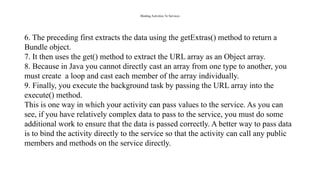
Binding Activities ToServices
6. The preceding first extracts the data using the getExtras() method to return a
Bundle object.
7. It then uses the get() method to extract the URL array as an Object array.
8. Because in Java you cannot directly cast an array from one type to another, you
must create a loop and cast each member of the array individually.
9. Finally, you execute the background task by passing the URL array into the
execute() method.
This is one way in which your activity can pass values to the service. As you can
see, if you have relatively complex data to pass to the service, you must do some
additional work to ensure that the data is passed correctly. A better way to pass data
is to bind the activity directly to the service so that the activity can call any public
members and methods on the service directly.
63.
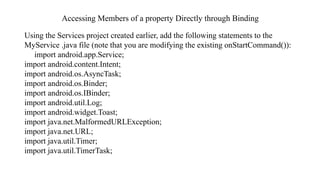
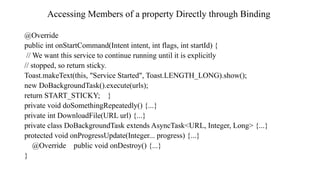
Accessing Members ofa property Directly through Binding
Using the Services project created earlier, add the following statements to the
MyService .java file (note that you are modifying the existing onStartCommand()):
import android.app.Service;
import android.content.Intent;
import android.os.AsyncTask;
import android.os.Binder;
import android.os.IBinder;
import android.util.Log;
import android.widget.Toast;
import java.net.MalformedURLException;
import java.net.URL;
import java.util.Timer;
import java.util.TimerTask;
64.
Accessing Members ofa property Directly through Binding
public class MyService extends Service {
int counter = 0; URL[] urls;
static final int UPDATE_INTERVAL = 1000;
private Timer timer = new Timer();
private final IBinder binder = new MyBinder();
public class MyBinder extends Binder {
MyService getService() {
return MyService.this;
} }
@Override
public IBinder onBind(Intent arg0) {
return binder; }
65.
Accessing Members ofa property Directly through Binding
@Override
public int onStartCommand(Intent intent, int flags, int startId) {
// We want this service to continue running until it is explicitly
// stopped, so return sticky.
Toast.makeText(this, "Service Started", Toast.LENGTH_LONG).show();
new DoBackgroundTask().execute(urls);
return START_STICKY; }
private void doSomethingRepeatedly() {...}
private int DownloadFile(URL url) {...}
private class DoBackgroundTask extends AsyncTask<URL, Integer, Long> {...}
protected void onProgressUpdate(Integer... progress) {...}
@Override public void onDestroy() {...}
}
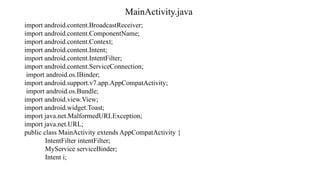
MainActivity.java
private ServiceConnection connection= new ServiceConnection() {
public void onServiceConnected(ComponentName className, IBinder service) {
//—-called when the connection is made—
serviceBinder = ((MyService.MyBinder)service).getService();
try {
URL[] urls = new URL[] {
new URL("http://www.amazon.com/somefiles.pdf"), new
URL("http://www.wrox.com/somefiles.pdf"),
new URL("http://www.google.com/somefiles.pdf"), new
URL("http://www.learn2develop.net/somefiles.pdf")}; //---assign the URLs to the service through
the
// serviceBinder object--
serviceBinder.urls = urls;
}
catch (MalformedURLException e) {
e.printStackTrace(); }
startService(i);
}
68.
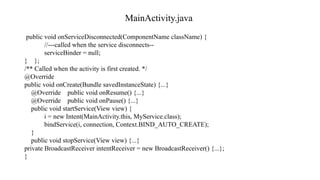
MainActivity.java
public void onServiceDisconnected(ComponentNameclassName) {
//---called when the service disconnects--
serviceBinder = null;
} };
/** Called when the activity is first created. */
@Override
public void onCreate(Bundle savedInstanceState) {...}
@Override public void onResume() {...}
@Override public void onPause() {...}
public void startService(View view) {
i = new Intent(MainActivity.this, MyService.class);
bindService(i, connection, Context.BIND_AUTO_CREATE);
}
public void stopService(View view) {...}
private BroadcastReceiver intentReceiver = new BroadcastReceiver() {...};
}
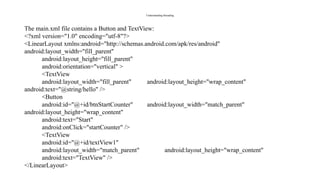
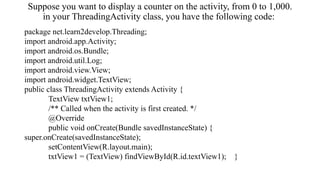
Suppose you wantto display a counter on the activity, from 0 to 1,000.
in your ThreadingActivity class, you have the following code:
package net.learn2develop.Threading;
import android.app.Activity;
import android.os.Bundle;
import android.util.Log;
import android.view.View;
import android.widget.TextView;
public class ThreadingActivity extends Activity {
TextView txtView1;
/** Called when the activity is first created. */
@Override
public void onCreate(Bundle savedInstanceState) {
super.onCreate(savedInstanceState);
setContentView(R.layout.main);
txtView1 = (TextView) findViewById(R.id.textView1); }
71.
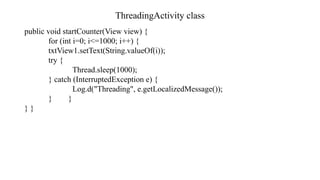
ThreadingActivity class
public voidstartCounter(View view) {
for (int i=0; i<=1000; i++) {
txtView1.setText(String.valueOf(i));
try {
Thread.sleep(1000);
} catch (InterruptedException e) {
Log.d("Threading", e.getLocalizedMessage());
} }
} }
72.
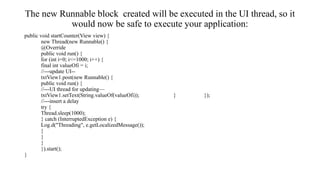
The new Runnableblock created will be executed in the UI thread, so it
would now be safe to execute your application:
public void startCounter(View view) {
new Thread(new Runnable() {
@Override
public void run() {
for (int i=0; i<=1000; i++) {
final int valueOfi = i;
//---update UI--
txtView1.post(new Runnable() {
public void run() {
//---UI thread for updating—
txtView1.setText(String.valueOf(valueOfi)); } });
//---insert a delay
try {
Thread.sleep(1000);
} catch (InterruptedException e) {
Log.d("Threading", e.getLocalizedMessage());
}
}
}
}).start();
}
73.
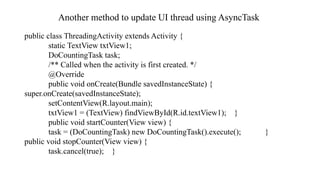
Another method toupdate UI thread using AsyncTask
public class ThreadingActivity extends Activity {
static TextView txtView1;
DoCountingTask task;
/** Called when the activity is first created. */
@Override
public void onCreate(Bundle savedInstanceState) {
super.onCreate(savedInstanceState);
setContentView(R.layout.main);
txtView1 = (TextView) findViewById(R.id.textView1); }
public void startCounter(View view) {
task = (DoCountingTask) new DoCountingTask().execute(); }
public void stopCounter(View view) {
task.cancel(true); }
74.
Another method toupdate UI thread using AsyncTask
private class DoCountingTask extends AsyncTask<Void, Integer, Void> {
protected Void doInBackground(Void... params) {
for (int i = 0; i < 1000; i++) {
//---report its progress--
publishProgress(i);
try {
Thread.sleep(1000); }
catch (InterruptedException e) { Log.d("Threading", e.getLocalizedMessage());
}
if (isCancelled()) break; }
return null; }
protected void onProgressUpdate(Integer... progress) {
txtView1.setText(progress[0].toString());
Log.d("Threading", "updating..."); }
}
@Override protected void onPause() {
super.onPause();
stopCounter(txtView1);
} }

![MainActivity.java file:
private Bitmap DownloadImage(String URL) {
Bitmap bitmap = null;
InputStream in = null;
try {
in = OpenHttpConnection(URL);
bitmap = BitmapFactory.decodeStream(in);
in.close();
}
catch (IOException e1) {
Log.d("NetworkingActivity", e1.getLocalizedMessage()); }
return bitmap; }
private class DownloadImageTask extends AsyncTask<String, Void, Bitmap> { protected Bitmap
doInBackground(String... urls) {
return DownloadImage(urls[0]); }
protected void onPostExecute(Bitmap result) {
ImageView img = (ImageView) findViewById(R.id.imageView);
img.setImageBitmap(result);
} }](https://image.slidesharecdn.com/networking-250917110212-54308bfb/85/Networking-topics-in-Mobile-Application-Development-12-320.jpg)
![MainActivity.java file:
@Override
protected void onCreate(Bundle savedInstanceState) {
super.onCreate(savedInstanceState); setContentView(R.layout.activity_main);
if (ContextCompat.checkSelfPermission(this,
Manifest.permission.INTERNET)!=
PackageManager.PERMISSION_GRANTED) {
ActivityCompat.requestPermissions(this, new String[]
{Manifest.permission.INTERNET}, REQUEST_INTERNET);
}
else{
new DownloadImageTask().execute(
"http://www.domainname.com/butterfly.png"); }
}](https://image.slidesharecdn.com/networking-250917110212-54308bfb/85/Networking-topics-in-Mobile-Application-Development-13-320.jpg)
![MainActivity.java file:
@Override
public void onRequestPermissionsResult(int requestCode, String[] permissions,
int[] grantResults) {
switch (requestCode) {
case REQUEST_INTERNET:
if (grantResults[0] == PackageManager.PERMISSION_GRANTED) {new
DownloadImageTask().execute( "http://www.domainname.com/butterfly.png");
} else {
Toast.makeText(MainActivity.this, "Permission Denied",
Toast.LENGTH_SHORT).show(); }
break;
default:
super.onRequestPermissionsResult(requestCode, permissions,grantResults); }
} }](https://image.slidesharecdn.com/networking-250917110212-54308bfb/85/Networking-topics-in-Mobile-Application-Development-14-320.jpg)
![MainActivity.java file:
private String DownloadText(String URL) {
int BUFFER_SIZE = 2000;
InputStream in = null;
try {
in = OpenHttpConnection(URL); }
catch (IOException e) {
Log.d("Networking", e.getLocalizedMessage());
return "";
}
InputStreamReader isr = new InputStreamReader(in);
int charRead;
String str = "";
char[] inputBuffer = new char[BUFFER_SIZE];
try {
while ((charRead = isr.read(inputBuffer))>0) {
//---convert the chars to a String--
String readString = String.copyValueOf(inputBuffer, 0, charRead); str += readString;
inputBuffer = new char[BUFFER_SIZE]; }
in.close(); }
catch (IOException e) {
Log.d("Networking", e.getLocalizedMessage());
return ""; }
return str;
}](https://image.slidesharecdn.com/networking-250917110212-54308bfb/85/Networking-topics-in-Mobile-Application-Development-19-320.jpg)
![MainActivity.java file:
private class DownloadTextTask extends AsyncTask<String, Void, String> {
protected String doInBackground(String... urls) {
return DownloadText(urls[0]); }
@Override
protected void onPostExecute(String result) {
Toast.makeText(getBaseContext(), result,
Toast.LENGTH_LONG).show(); } }
@Override
protected void onCreate(Bundle savedInstanceState) {
super.onCreate(savedInstanceState);
setContentView(R.layout.activity_main);](https://image.slidesharecdn.com/networking-250917110212-54308bfb/85/Networking-topics-in-Mobile-Application-Development-20-320.jpg)
![MainActivity.java file:
if (ContextCompat.checkSelfPermission(this, Manifest.permission.INTERNET)
!= PackageManager.PERMISSION_GRANTED) {
ActivityCompat.requestPermissions(this, new String[]
{Manifest.permission.INTERNET},REQUEST_INTERNET);
}
else{
new DownloadTextTask().execute("http://domainname.com/test.htm");
}
}
}](https://image.slidesharecdn.com/networking-250917110212-54308bfb/85/Networking-topics-in-Mobile-Application-Development-21-320.jpg)
![MainActivity.java
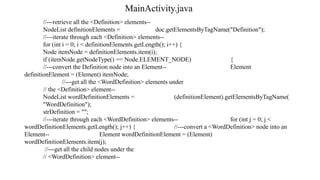
NodeList textNodes =((Node) wordDefinitionElement).getChildNodes();
strDefinition +=((Node) textNodes.item(0)).getNodeValue() + ". n";
}
}
}
} catch (IOException e1) {
Log.d("NetworkingActivity", e1.getLocalizedMessage()); } //---
return the definitions of the word--
return strDefinition; }
private class AccessWebServiceTask extends AsyncTask<String, Void, String> {
protected String doInBackground(String... urls) {
return WordDefinition(urls[0]); }
protected void onPostExecute(String result) {
Toast.makeText(getBaseContext(), result, Toast.LENGTH_LONG).show(); } }](https://image.slidesharecdn.com/networking-250917110212-54308bfb/85/Networking-topics-in-Mobile-Application-Development-29-320.jpg)
![MainActivity.java
@Override
protected void onCreate(Bundle savedInstanceState) {
super.onCreate(savedInstanceState);
setContentView(R.layout.activity_main);
if (ContextCompat.checkSelfPermission(this,
Manifest.permission.INTERNET) !=
PackageManager.PERMISSION_GRANTED) {
ActivityCompat.requestPermissions(this, new String[]
{Manifest.permission.INTERNET}, REQUEST_INTERNET);
}
else{ new AccessWebServiceTask().execute("apple"); }
}
}](https://image.slidesharecdn.com/networking-250917110212-54308bfb/85/Networking-topics-in-Mobile-Application-Development-30-320.jpg)

![JSON message
{
"appeId":"5",
"survId":"32",
"location":"",
"surveyDate":"2008-03-16",
"surveyTime":"08:04:49",
"inputUserId":"32",
"inputTime":"2008-03-16 08:05:26",
"modifyTime":"0000-00-00 00:00:00"
},
{
"appeId":"6",
"survId":"32",
"location":"",
"surveyDate":"2008-03-20",
"surveyTime":"20:19:01",
"inputUserId":"32",
"inputTime":"2008-03-20 20:19:32",
"modifyTime":"0000-00-00 00:00:00"
}
]
• Note that the information is represented as a collection of key/value pairs, and that each key/value pair is grouped into an
ordered list of objects. Unlike XML, there are no lengthy tag names. Instead, there are only brackets and braces.](https://image.slidesharecdn.com/networking-250917110212-54308bfb/85/Networking-topics-in-Mobile-Application-Development-35-320.jpg)
![MainActivity.java file:
private class ReadJSONFeedTask extends AsyncTask<String, Void, String> {
protected String doInBackground(String... urls) {
return readJSONFeed(urls[0]); }
protected void onPostExecute(String result) {
try {
JSONArray jsonArray = new JSONArray(result); Log.i("JSON",
"Number of surveys in feed: " + jsonArray.length());
//---print out the content of the json feed--
for (int i = 0; i < jsonArray.length(); i++) {
JSONObject jsonObject = jsonArray.getJSONObject(i);
Toast.makeText(getBaseContext(), jsonObject.getString("appeId") + " - "
+ jsonObject.getString("inputTime"),
Toast.LENGTH_SHORT).show(); }
} catch (Exception e) {
e.printStackTrace(); }
}
}](https://image.slidesharecdn.com/networking-250917110212-54308bfb/85/Networking-topics-in-Mobile-Application-Development-40-320.jpg)
![Performing Tasks in a Service Asynchronously
private int DownloadFile(URL url) {
try {
//---simulate taking some time to download a file-- Thread.sleep(5000); }
catch (InterruptedException e) {
e.printStackTrace(); }
//---return an arbitrary number representing
// the size of the file downloaded--
return 100; }
private class DoBackgroundTask extends AsyncTask<URL, Integer, Long> { protected Long
doInBackground(URL... urls) {
int count = urls.length;
long totalBytesDownloaded = 0;
for (int i = 0; i < count; i++) {
totalBytesDownloaded += DownloadFile(urls[i]);
//---calculate percentage downloaded and report its progress--
publishProgress((int) (((i+1) / (float) count) * 100)); }
return totalBytesDownloaded;
}](https://image.slidesharecdn.com/networking-250917110212-54308bfb/85/Networking-topics-in-Mobile-Application-Development-56-320.jpg)
![Performing Tasks in a Service Asynchronously
protected void onProgressUpdate(Integer... progress) {
Log.d("Downloading files",
String.valueOf(progress[0]) + "% downloaded");
Toast.makeText(getBaseContext(), String.valueOf(progress[0]) + "% downloaded",
Toast.LENGTH_LONG).show(); }
protected void onPostExecute(Long result) { Toast.makeText(getBaseContext(),
"Downloaded " + result + " bytes", Toast.LENGTH_LONG).show();
stopSelf(); }
}
@Override
public void onDestroy() {
super.onDestroy();
Toast.makeText(this, "Service Destroyed", Toast.LENGTH_LONG).show();
}
}](https://image.slidesharecdn.com/networking-250917110212-54308bfb/85/Networking-topics-in-Mobile-Application-Development-57-320.jpg)
![Binding Activities To Services
3. You start the service using the Intent object:
public void startService(View view) {
Intent intent = new Intent(getBaseContext(), MyService.class);
try {
URL[] urls = new URL[] {
new URL("http://www.amazon.com/somefiles.pdf"),
new URL("http://www.wrox.com/somefiles.pdf"),
new URL("http://www.google.com/somefiles.pdf"),
new URL("http://www.learn2develop.net/somefiles.pdf")};
intent.putExtra("URLs", urls); }
catch (MalformedURLException e) {
e.printStackTrace(); }
startService(intent); }
4. Note that the URL array is assigned to the Intent object as an Object array.](https://image.slidesharecdn.com/networking-250917110212-54308bfb/85/Networking-topics-in-Mobile-Application-Development-60-320.jpg)
![Binding Activities To Services
On the service’s end, you need to extract the data passed in through the Intent object
in the onStartCommand() method:
@Override
public int onStartCommand(Intent intent, int flags, int startId) {
// We want this service to continue running until it is explicitly
// stopped, so return sticky.
Toast.makeText(this, "Service Started", Toast.LENGTH_LONG).show();
Object[] objUrls = (Object[]) intent.getExtras().get("URLs");
URL[] urls = new URL[objUrls.length];
for (int i=0; i<objUrls.length-1; i++) {
urls[i] = (URL) objUrls[i]; }
new DoBackgroundTask().execute(urls);
return START_STICKY; }](https://image.slidesharecdn.com/networking-250917110212-54308bfb/85/Networking-topics-in-Mobile-Application-Development-61-320.jpg)
![Accessing Members of a property Directly through Binding
public class MyService extends Service {
int counter = 0; URL[] urls;
static final int UPDATE_INTERVAL = 1000;
private Timer timer = new Timer();
private final IBinder binder = new MyBinder();
public class MyBinder extends Binder {
MyService getService() {
return MyService.this;
} }
@Override
public IBinder onBind(Intent arg0) {
return binder; }](https://image.slidesharecdn.com/networking-250917110212-54308bfb/85/Networking-topics-in-Mobile-Application-Development-64-320.jpg)
![MainActivity.java
private ServiceConnection connection = new ServiceConnection() {
public void onServiceConnected(ComponentName className, IBinder service) {
//—-called when the connection is made—
serviceBinder = ((MyService.MyBinder)service).getService();
try {
URL[] urls = new URL[] {
new URL("http://www.amazon.com/somefiles.pdf"), new
URL("http://www.wrox.com/somefiles.pdf"),
new URL("http://www.google.com/somefiles.pdf"), new
URL("http://www.learn2develop.net/somefiles.pdf")}; //---assign the URLs to the service through
the
// serviceBinder object--
serviceBinder.urls = urls;
}
catch (MalformedURLException e) {
e.printStackTrace(); }
startService(i);
}](https://image.slidesharecdn.com/networking-250917110212-54308bfb/85/Networking-topics-in-Mobile-Application-Development-67-320.jpg)
![Another method to update UI thread using AsyncTask
private class DoCountingTask extends AsyncTask<Void, Integer, Void> {
protected Void doInBackground(Void... params) {
for (int i = 0; i < 1000; i++) {
//---report its progress--
publishProgress(i);
try {
Thread.sleep(1000); }
catch (InterruptedException e) { Log.d("Threading", e.getLocalizedMessage());
}
if (isCancelled()) break; }
return null; }
protected void onProgressUpdate(Integer... progress) {
txtView1.setText(progress[0].toString());
Log.d("Threading", "updating..."); }
}
@Override protected void onPause() {
super.onPause();
stopCounter(txtView1);
} }](https://image.slidesharecdn.com/networking-250917110212-54308bfb/85/Networking-topics-in-Mobile-Application-Development-74-320.jpg)


