
1
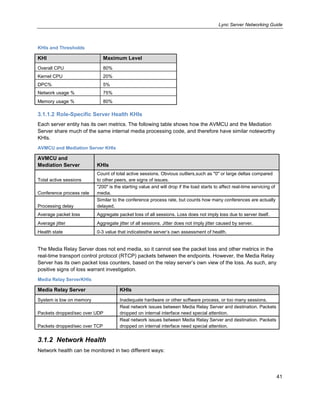
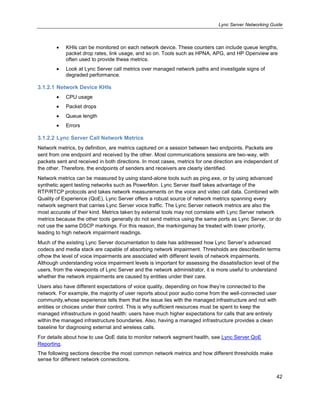
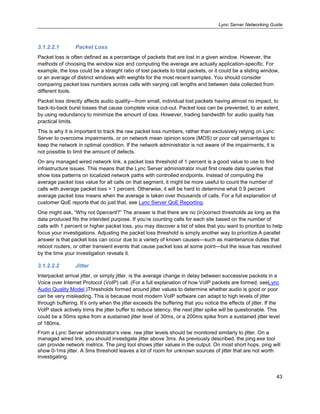
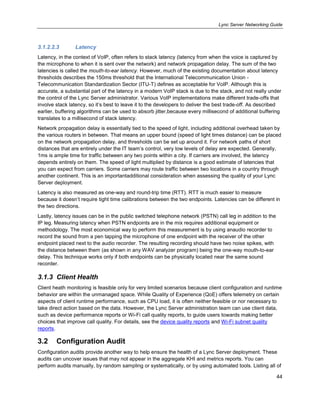
Networking Guide
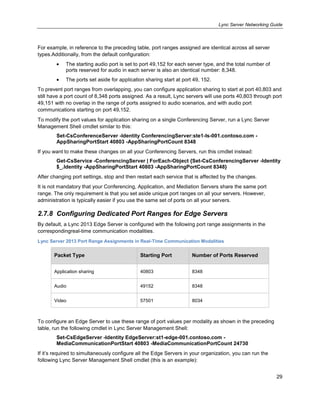
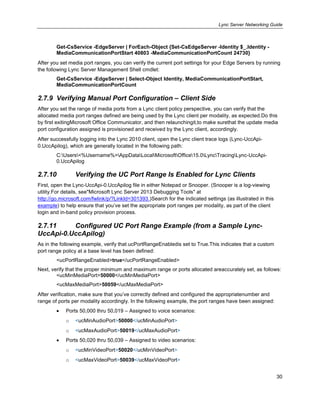
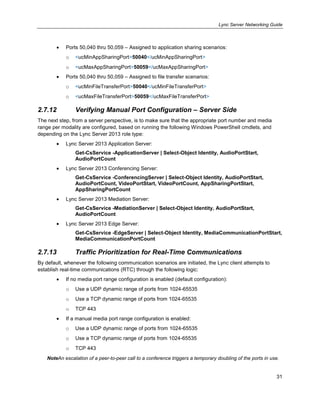
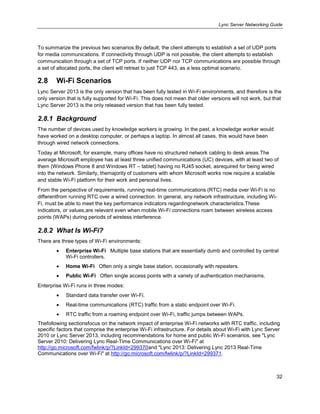
Network Planning, Monitoring, and Troubleshooting with
Lync Server
Published:May2013
Authors: Jigar Dani, Craig Hill, Jack Wight, Wei Zhong
Contributors: Brandon Bernier, Robert Burnett, Jason Collier, Paul Cullimore, Daniel Hernandez, James
Hornby, Dave Jennings, Jonathan Lewis, Jens Trier Rasmussen, Juha Saarinen, Marc Sanders, Joel
Sisko, Nick Smith, Andrew Sniderman, Jamie Stark, Aaron Steele, Connie Welsh
Editor:June Rugh
Abstract:Microsoft Lync Server 2013 communications software is a real-time unified communications
application that enables peer-to-peer audio and video (A/V) calling, conferencing, and collaboration and
relies on an optimized, reliable network infrastructure to deliver high-quality media sessions between
clients.This guide provides a model for managing the network infrastructure for Lync Server 2013,
consisting of three phases—planning, monitoring, and troubleshooting. These phases can apply to new
Lync Server deployments or to existing deployments. In new Lync Server deployments, your organization
must begin from the planning phase. In existing deployments, your organization can start at the planning
phase for major upgrades or for integrating new sites into the Lync Server ecosystem. Organizations with
existing deployments can also begin from the monitoring or troubleshootingphases, if you are trying to
achieve a healthy state.
This document is provided ―as-is‖. Information and views expressed in this document, including
URL and other Internet Web site references, may change without notice.
Some examples depicted herein are provided for illustration only and are fictitious. No real
association or connection is intended or should be inferred.
This document does not provide you with any legal rights to any intellectual property in any
Microsoft product. You may copy and use this document for your internal, reference purposes.
Copyright © 2013 Microsoft Corporation. All rights reserved.
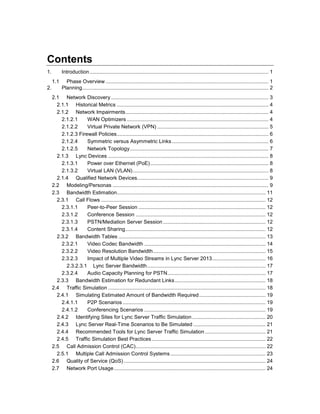
Contents
1. Introduction............................................................................................................................ 1
1.1 Phase Overview................................................................................................................. 1
2. Planning................................................................................................................................. 2
2.1 Network Discovery ............................................................................................................. 3
2.1.1 Historical Metrics ......................................................................................................... 4
2.1.2 Network Impairments................................................................................................... 4
2.1.2.1 WAN Optimizers .................................................................................................. 4
2.1.2.2 Virtual Private Network (VPN) ............................................................................. 5
2.1.2.3 Firewall Policies......................................................................................................... 6
2.1.2.4 Symmetric versus Asymmetric Links................................................................... 6
2.1.2.5 Network Topology................................................................................................ 7
2.1.3 Lync Devices ............................................................................................................... 8
2.1.3.1 Power over Ethernet (PoE).................................................................................. 8
2.1.3.2 Virtual LAN (VLAN).............................................................................................. 8
2.1.4 Qualified Network Devices........................................................................................... 9
2.2 Modeling/Personas ............................................................................................................ 9
2.3 Bandwidth Estimation....................................................................................................... 11
2.3.1 Call Flows .................................................................................................................. 12
2.3.1.1 Peer-to-Peer Session ........................................................................................ 12
2.3.1.2 Conference Session .......................................................................................... 12
2.3.1.3 PSTN/Mediation Server Session ....................................................................... 12
2.3.1.4 Content Sharing................................................................................................. 12
2.3.2 Bandwidth Tables ...................................................................................................... 13
2.3.2.1 Video Codec Bandwidth .................................................................................... 14
2.3.2.2 Video Resolution Bandwidth.............................................................................. 15
2.3.2.3 Impact of Multiple Video Streams in Lync Server 2013..................................... 16
2.3.2.3.1 Lync Server Bandwidth.................................................................................. 17
2.3.2.4 Audio Capacity Planning for PSTN.................................................................... 17
2.3.3 Bandwidth Estimation for Redundant Links............................................................... 18
2.4 Traffic Simulation ............................................................................................................. 18
2.4.1 Simulating Estimated Amount of Bandwidth Required.............................................. 19
2.4.1.1 P2P Scenarios ................................................................................................... 19
2.4.1.2 Conferencing Scenarios .................................................................................... 19
2.4.2 Identifying Sites for Lync Server Traffic Simulation................................................... 20
2.4.3 Lync Server Real-Time Scenarios to Be Simulated .................................................. 21
2.4.4 Recommended Tools for Lync Server Traffic Simulation .......................................... 21
2.4.5 Traffic Simulation Best Practices............................................................................... 22
2.5 Call Admission Control (CAC).......................................................................................... 22
2.5.1 Multiple Call Admission Control Systems.................................................................. 23
2.6 Quality of Service (QoS) .................................................................................................. 24
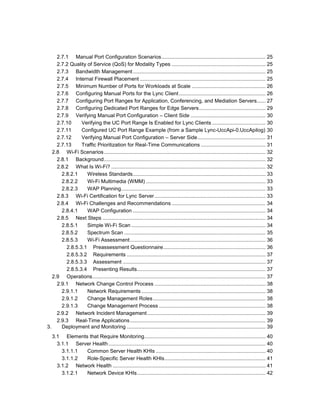
2.7 Network Port Usage......................................................................................................... 24
2.7.1 Manual Port Configuration Scenarios........................................................................ 25
2.7.2 Quality of Service (QoS) for Modality Types ................................................................. 25
2.7.3 Bandwidth Management............................................................................................ 25
2.7.4 Internal Firewall Placement ....................................................................................... 25
2.7.5 Minimum Number of Ports for Workloads at Scale ................................................... 26
2.7.6 Configuring Manual Ports for the Lync Client............................................................ 26
2.7.7 Configuring Port Ranges for Application, Conferencing, and Mediation Servers...... 27
2.7.8 Configuring Dedicated Port Ranges for Edge Servers.............................................. 29
2.7.9 Verifying Manual Port Configuration – Client Side .................................................... 30
2.7.10 Verifying the UC Port Range Is Enabled for Lync Clients ..................................... 30
2.7.11 Configured UC Port Range Example (from a Sample Lync-UccApi-0.UccApilog) 30
2.7.12 Verifying Manual Port Configuration – Server Side............................................... 31
2.7.13 Traffic Prioritization for Real-Time Communications ............................................. 31
2.8 Wi-Fi Scenarios................................................................................................................ 32
2.8.1 Background................................................................................................................ 32
2.8.2 What Is Wi-Fi? ........................................................................................................... 32
2.8.2.1 Wireless Standards............................................................................................ 33
2.8.2.2 Wi-Fi Multimedia (WMM) ................................................................................... 33
2.8.2.3 WAP Planning.................................................................................................... 33
2.8.3 Wi-Fi Certification for Lync Server............................................................................. 33
2.8.4 Wi-Fi Challenges and Recommendations ................................................................. 34
2.8.4.1 WAP Configuration ............................................................................................ 34
2.8.5 Next Steps ................................................................................................................. 34
2.8.5.1 Simple Wi-Fi Scan ............................................................................................. 34
2.8.5.2 Spectrum Scan .................................................................................................. 35
2.8.5.3 Wi-Fi Assessment.............................................................................................. 36
2.8.5.3.1 Preassessment Questionnaire....................................................................... 36
2.8.5.3.2 Requirements ................................................................................................ 37
2.8.5.3.3 Assessment ................................................................................................... 37
2.8.5.3.4 Presenting Results......................................................................................... 37
2.9 Operations........................................................................................................................ 37
2.9.1 Network Change Control Process ............................................................................. 38
2.9.1.1 Network Requirements ...................................................................................... 38
2.9.1.2 Change Management Roles.............................................................................. 38
2.9.1.3 Change Management Process .......................................................................... 38
2.9.2 Network Incident Management.................................................................................. 39
2.9.3 Real-Time Applications.............................................................................................. 39
3. Deployment and Monitoring ................................................................................................ 39
3.1 Elements that Require Monitoring.................................................................................... 40
3.1.1 Server Health............................................................................................................. 40
3.1.1.1 Common Server Health KHIs ............................................................................ 40
3.1.1.2 Role-Specific Server Health KHIs...................................................................... 41
3.1.2 Network Health .......................................................................................................... 41
3.1.2.1 Network Device KHIs......................................................................................... 42
3.1.2.2 Lync Server Call Network Metrics ..................................................................... 42
3.1.2.2.1 Packet Loss ................................................................................................... 43
3.1.2.2.2 Jitter ............................................................................................................... 43
3.1.2.2.3 Latency .......................................................................................................... 44
3.1.3 Client Health .............................................................................................................. 44
3.2 Configuration Audit........................................................................................................... 44
3.2.1 IP-PSTN Gateway Configuration Drift ....................................................................... 45
3.2.2 Lync Server Configuration Drift ................................................................................. 45
3.2.3 Network Configuration Drift........................................................................................ 45
3.3 Usage Trend Reporting.................................................................................................... 46
3.4 Product Features that Provide Monitoring Data............................................................... 46
3.5 Third-Party Solutions that Provide Monitoring ................................................................. 47
4. Troubleshooting................................................................................................................... 47
4.1 Troubleshooting Scenarios........................................................................................... 47
4.1.1 Troubleshooting a Site-Wide Issue: Lync Voice Quality - A Site Suddenly Reports
Poor Audio Quality............................................................................................................... 47
4.1.1.1 Problem Report Scenario .................................................................................. 47
4.1.1.2 Initial Assessment.............................................................................................. 47
4.1.1.3 Data Collection .................................................................................................. 48
4.1.1.4 Problem Isolation and Root Cause Analysis ..................................................... 48
4.1.2 Troubleshooting an Individual Lync Voice Quality Issue........................................... 49
4.1.2.1 Problem Report Scenario .................................................................................. 49
4.1.2.2 Initial Assessment.............................................................................................. 49
4.1.2.3 Data Collection .................................................................................................. 51
4.1.2.4 Problem Isolation and Root Cause Analysis ..................................................... 52
4.2 Troubleshooting Methodologies....................................................................................... 52
4.2.1 Troubleshooting a Network Segment ........................................................................ 52
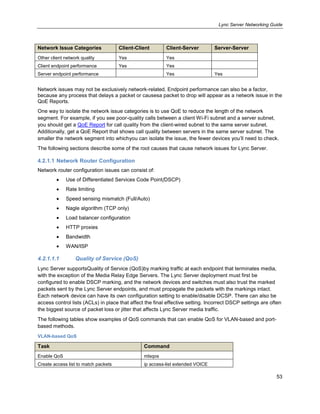
4.2.1.1 Network Router Configuration ........................................................................... 53
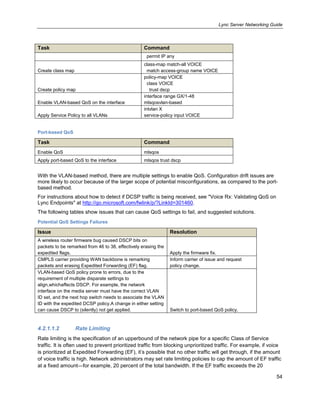
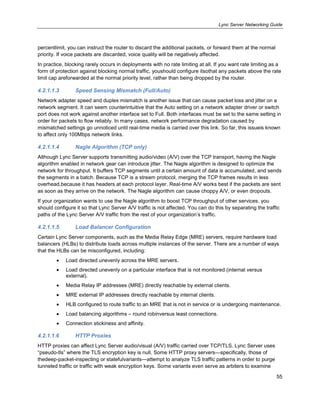
4.2.1.1.1 Quality of Service (QoS)................................................................................ 53
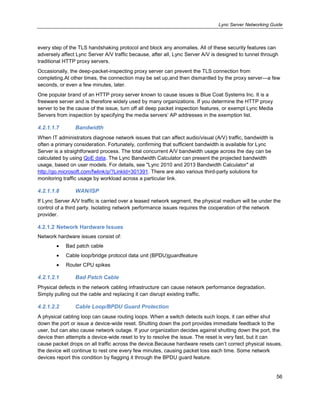
4.2.1.1.2 Rate Limiting.................................................................................................. 54
4.2.1.1.3 Speed Sensing Mismatch (Full/Auto) ............................................................ 55
4.2.1.1.4 Nagle Algorithm (TCP only)........................................................................... 55
4.2.1.1.5 Load Balancer Configuration ......................................................................... 55
4.2.1.1.6 HTTP Proxies ................................................................................................ 55
4.2.1.1.7 Bandwidth ...................................................................................................... 56
4.2.1.1.8 WAN/ISP........................................................................................................ 56
4.2.1.2 Network Hardware Issues.................................................................................. 56
4.2.1.2.1 Bad Patch Cable............................................................................................ 56
4.2.1.2.2 Cable Loop/BPDU Guard Protection ............................................................. 56
4.2.1.2.3 Router CPU Spikes........................................................................................ 57
4.2.1.3 Wi-Fi Quality ...................................................................................................... 57
4.2.1.3.1 Interference.................................................................................................... 57
4.2.1.3.2 Access Point Density..................................................................................... 57
4.2.1.3.3 Roaming......................................................................................................... 57
4.2.1.3.4 Wi-Fi Network Adapter and Driver................................................................. 57
4.2.1.4 Other Client Network Quality Issues.................................................................. 57
4.2.1.4.1 Mobile Broadband.......................................................................................... 58
4.2.1.4.2 IPSec ............................................................................................................. 58
4.2.1.4.3 Virtual Private Network (VPN) ....................................................................... 58
4.2.1.4.4 Forced TCP Connection ................................................................................ 58
4.2.1.4.5 ISP/Internet.................................................................................................... 58
4.2.1.5 Client Endpoint Performance............................................................................. 58
4.2.1.5.1 Power-Saving Mode ...................................................................................... 59
4.2.1.5.2 USB Hub/Cable ............................................................................................. 59
4.2.1.5.3 Drivers/DPC Storm ........................................................................................ 59
4.2.1.6 Server Endpoint Performance ........................................................................... 59
4.2.1.6.1 Antivirus/Port Scanning Software .................................................................. 59
4.2.1.6.2 Performance Counter Collection and Logging............................................... 59
4.2.1.6.3 Network Adapter Configuration...................................................................... 60
4.2.1.6.4 Concurrent Call Load..................................................................................... 60
4.2.1.6.5 Virtualization .................................................................................................. 60
4.2.2 Troubleshooting Device Issues ................................................................................. 60
4.2.2.1 Built-in Sound Cards.......................................................................................... 61
4.2.2.1.1 Microphone Boost.......................................................................................... 61
4.2.2.1.2 Digital Signal Processing (DSP) .................................................................... 62
4.2.2.2.3 Noise.............................................................................................................. 62
4.2.2.2 USB Devices...................................................................................................... 62
4.2.2.2.1 USB Host Device Driver ................................................................................ 62
4.2.2.2.2 USB Hubs and Cabling.................................................................................. 63
4.2.2.2.3 PC BIOS ........................................................................................................ 63
4.2.2.3 Other Device Issues .......................................................................................... 63
4.2.2.3.1 Harmonics...................................................................................................... 63
4.2.2.3.2 Acoustic Isolation........................................................................................... 63
4.2.2.3.3 Electrical Isolation.......................................................................................... 63
4.2.3 Troubleshooting Environmental Issues ..................................................................... 63
4.2.3.1 Noise.................................................................................................................. 63
4.2.3.1.1 Heating, Ventilating, and Air Conditioning (HVAC) Noise ............................. 64
4.2.3.1.2 Laptop Fan/Hard Drive .................................................................................. 64
4.2.3.1.3 Typing ............................................................................................................ 64
4.2.3.2 Microphone Positioning and Audio Device Selection ........................................ 64
Appendix A. Lync Audio Quality Model...................................................................................... 65
A.1 Lync Audio Pipeline.......................................................................................................... 65
A.1.1 Analog Audio Source................................................................................................. 66
A.1.2 Analog Audio Capture................................................................................................ 66
A.1.3 Analog-to-Digital Conversion (ADC).......................................................................... 66
A.1.4 Digital Signal Packet Capture.................................................................................... 67
A.1.5 Digital Signal Preprocessing (DSP)........................................................................... 67
A.1.6 Encoding.................................................................................................................... 67
A.1.7 Encryption.................................................................................................................. 68
A.1.8 Protocol Encapsulation.............................................................................................. 68
A.1.9 Transmission ............................................................................................................. 68
A.1.9.1 Jitter ................................................................................................................... 68
A.1.9.2 Loss ................................................................................................................... 69
A.1.9.3 Delay.................................................................................................................. 69
A.1.10 Reception............................................................................................................... 69
A.1.11 Decryption.............................................................................................................. 69
A.1.12 Decoding................................................................................................................ 70
A.1.13 Reassembly, Buffering, and Healing ..................................................................... 70
A.1.15 Postprocessing ...................................................................................................... 70
A.1.16 Playback ................................................................................................................ 70
A.1.17 Digital-to-Analog Conversion (DAC)...................................................................... 70
A.1.18 Analog Audio Render............................................................................................. 70
Appendix B. Lync Server QoE Reporting................................................................................... 71
B.1 Lync 2010 QoE Database Schema.................................................................................. 71
B.2 QoE Table Join View Example ........................................................................................ 72
B.3 QoE Metrics Review......................................................................................................... 73
B.3.1 End-to-End Metrics.................................................................................................... 73
B.3.2 Endpoint Metrics ........................................................................................................ 74
B.3.3 Configuration Parameters.......................................................................................... 74
B.3.3.1 UserAgent Field ................................................................................................. 74
B.3.4 Event Ratios .............................................................................................................. 74
B.4 Managing Lync Server Quality......................................................................................... 74
B.4.1 Corporate Average Audio Quality.............................................................................. 74
B.4.2 ClassifiedPoorCall ..................................................................................................... 75
B.4.3 Media Quality Summary Report ................................................................................ 75
B.4.4 Managed versus Unmanaged Infrastructure Reporting ............................................ 78
B.5 Server-Server Reports ..................................................................................................... 79
B.5.1 AVMCU...................................................................................................................... 79
B.5.2 Mediation Server........................................................................................................ 79
B.5.3 IP-PSTN Gateway ..................................................................................................... 80
B.5.4 AVMCU-Mediation Server Report Example .............................................................. 80
B.5.4.1 Temporary Views............................................................................................... 82
B.5.4.2 Counting Poor Calls........................................................................................... 82
B.5.4.3 Caller/Callee Handling....................................................................................... 82
B.5.5 Mediation Server-IP PSTN Gateway Report Example................................................. 83
B.6 Subnet Reports ................................................................................................................ 85
B.6.1 Wired Subnet Report Example .................................................................................. 85
B.6.2 Wireless Subnet Report Example.............................................................................. 88
B.7 Linking to External Data Sources..................................................................................... 88
B.8 Trending and Data Retention........................................................................................... 89
B.9 Using User Experience Metrics........................................................................................ 89
B.9.1 Mean Opinion Score (MOS) ...................................................................................... 92
B.9.2 Network MOS (NMOS) versus NMOS Degradation.................................................. 92
B.10 Other Reporting Examples ........................................................................................... 93
B.10.1 Device Queries ...................................................................................................... 93
Appendix C. Troubleshooting Duplex and Speed Sensing Mismatch (Full/Auto) ......................... 96
Appendix D. Tools ...................................................................................................................... 97
D.1 Collect Logs ..................................................................................................................... 97
D.2 Debugging Tools for Windows ......................................................................................... 97
D.3 err.exe .............................................................................................................................. 97
D.4 Error String Display (CSError.exe)................................................................................... 97
D.5 Microsoft Exchange Troubleshooting Assistant............................................................... 98
D.6 Log Parser........................................................................................................................ 99
D.7 Lync Best Practices Analyzer .......................................................................................... 99
D.8 Lync Client Logging.......................................................................................................... 99
D.9 Lync Server 2010 Logging Tool....................................................................................... 99
D.10 Microsoft Product Support (MPS) Reports ................................................................. 100
D.11 Network Monitor.......................................................................................................... 101
D.12 Network Monitor Parsers ............................................................................................ 101
D.13 OCStracer.exe ............................................................................................................ 101
D.14 PortQryUI.................................................................................................................... 102
D.15 ProcDump................................................................................................................... 102
D.16 Process Explorer ........................................................................................................ 102
D.17 Process Monitor.......................................................................................................... 102
D.18 Remote Connectivity Analyzer ................................................................................... 102
D.19 Snooper ...................................................................................................................... 102
D.20 TextAnalysisTool.NET ................................................................................................ 103
D.21 Unified Messaging Diagnostics Logging .................................................................... 103
D.22 XMLNotePad .............................................................................................................. 104
Lync Server Networking Guide
1
1. Introduction
Microsoft Lync Server 2013communications software is a real-time unified communications application
that enables peer-to-peer audio and video (A/V) calling, conferencing, and collaboration and relies on
anoptimized, reliable network infrastructure to deliver high-quality media sessions between clients.
This paper provides a model for managing the network infrastructure for Lync Server 2013, consisting of
three phases:
Planning
Monitoring
Troubleshooting
These phases can apply to new Lync Server deployments or to existing deployments. In new LyncServer
deployments, your organization must begin from the planning phase. In existing deployments, your
organization can start at the planning phase for major upgrades or for integrating new sites into the Lync
2013 ecosystem. Organizations with existing deployments can also begin from the monitoring or
troubleshooting phases, if you are trying to achieve a healthy state.
1.1 Phase Overview
During the planning phase, your organization must determine the requirements of deployment either for
the entire organization, or for specific sites when they are added. This guide assumes that little or no Lync
Server infrastructure exists to generate the data for projections and for health and capacity assessments.
Therefore, this phase generally involves modeling the user requirements and using tools to assess
capacity and health. For example, your organization may decide that a site requires a certain amount of
bandwidth for Lync Server voice and video traffic. You may then choose to use Quality of Service (QoS)
data to help ensure adequate priority for this traffic.
During the monitoring phase, your organization maintains the health of the deployment,uses existing Lync
Server telemetry where possible, and fills the gaps by using third-party tools. The process involves
identifying the elements that need monitoring, and creating action plans for reacting to alerts based on
key health indicators (KHIs) and network quality views. If you find issues, the organization enters the
troubleshooting phase. Following the earlierexample from the planning phase, your organization may
decide to use Lync ServerQuality of Experience (QoE) data to help ensure that a site’s network health is
within designated targets. You may also decide to use third-party network management tools to help
ensure that QoS settings are continuously configured to specification.
During the troubleshootingphase, your organization determines the root causes of any issues arising from
monitored entities or from end-user support escalations. If appropriate monitoring solutions are in place,
your troubleshooting efforts will be significantly reduced. Continuing with the earlier example, if most of
the core Lync Server and network infrastructure is correctly provisioned and monitored, you can start
troubleshooting at the point closest to where the issueisoccurring, rather than from the core
infrastructure.For example, if a user complains about a poor audio experience, the troubleshooting will
start from the user’s endpoint.
As thesescenarios show, the planning, monitoring, and troubleshooting phases are strategies to deal with
the same set of issues by using the tools and data available at each respective phase. The information
contained in this guide will apply to an organization in any phase orscope of a Lync Server deployment.
Lync Server Networking Guide
2
Finally, this guide describes the primaryconcept of breaking down the Lync Server deployment and
network infrastructure into managed and unmanaged spaces. The managed space includes your entire
inside wired network and server infrastructure. The unmanaged space is the wireless infrastructure and
the outside network infrastructure. Dividing the deployment and infrastructure into these two spaces
significantly increases the clarity of your data and helps your organization focus on workloads that will
have a measurable impact on your users’ voice and video quality. This is because your users have a
different expectation of quality if the call is placed on infrastructure that you own (managed) versus
infrastructure that is partly under the control of some other entity (unmanaged). This is not to say that
wireless users are left to their own devices to have excellentLync Server experiences. As with the
dependency between the planning, monitoring, and troubleshooting phases, improving voice quality in the
unmanaged space requires you to have high quality in the managed space. Whether wireless (Wi-Fi) is
considered managed or unmanaged space is up to your organization. The techniques to achieve a
healthy environment are different in the two spaces, as are the solutions. This paper includes examples of
managing unmanaged call quality.
The following table showsexamples of Lync Server call scenarios and their classification into the
managed and unmanaged spaces.
Lync Server Call Scenarios in Managed and Unmanaged Spaces
Scenario Classification
User calls from a hotel Wi-Fi connection Unmanaged
Two users call each other from their wired desktop PCs inside the corporate firewall Managed
User makes a PSTN call from his wired desktop PC inside the corporate firewall Managed
User joins a conference from her wired desktop PC inside the corporate firewall Managed
User on Wi-Fi calls another user Unmanaged
User from home joins a conference Unmanaged
2. Planning
In exploring topics related to network planning, two primary questions will be addressed:
How does Lync Server affect my network?
How does my network affect Lync Server?
The goal of this networking guide is not to teach you to become a Lync Server expert, nor to teach you
how to become a networking expert. Rather, this guide describes areas related to enterprise data
networking that you should consider during the predeployment planning phase of your Lync Server
adoption.
As a key area in any networking planning activity related to bandwidth planning, we investigate the
exploratory questions that you should be asking your organization to in order to model user behavior. We
also direct you to the public bandwidth calculator as a tool available for use, and to the default usage
models, defined in the bandwidth calculator, as starting points.
In addition, we describe how your existing environment canaffect the behavior of Lync Server. For
example, topology choices, multiple Multiprotocol Label Switching (MPLS) suppliers, or infrastructure
such as WAN optimization devices—particularly if overlooked during the planning process—canbecome
real challenges as your deployment evolves.
Lync Server Networking Guide
3
We also discusshow to make use of the Microsoft Partner Community in order to deliver the Lync Server
Network Readiness assessment methodology in your environment. This methodology quantitatively
assesses your organization’s ability to use Lync Server by walking you through the network discovery,
usage modeling, traffic simulation, and analysis phases, during your engagement.
Network planning for Lync Server consists of the following areas:
Network assessment methodology
o Network discovery
o Modeling/personas
o Bandwidth estimation
o Traffic simulation
Call Admission Control (CAC)
Quality of Experience (QoE)
Quality of Service (QoS)
Network port usage
Wi-Fi scenarios
Operations
Miscellaneous planning questions
We highly recommend a network assessment as a first step before deploying Lync Server. A network
assessment provides youwith insight into the readiness of your network infrastructure for supporting an
excellent user experience, while using Lync Server for real-time communications.Our customers often
ask, "Is my network infrastructure ready to support Lync Server?‖ Our approach helps to answer this
critical predeployment question. The network assessment uses a proven methodology to:
Discover your environment.
Model your usage patterns and usage scenarios by using information collected during
discovery, with the help of the Lync Bandwidth Calculator.
Simulate the anticipated Lync Server traffic volumes by using real media streams for a full
seven days.
Analyze the underlying network infrastructure performance characteristics to determine your
readiness in deploying Lync Server.
The outcome of the network assessment answers the question, ―Is my network infrastructure ready to
support Lync Server?‖ by providing a quantitative analysis of your network infrastructure’s performance.
2.1 Network Discovery
The objective ofnetwork discovery is to ascertain, discuss, and document the current state of your
corporate network. With discovery, the goals are to reveal potential sources of network impairments, raise
awareness ofLync Server traffic flows, and offer guidelines for network devices.
Lync Server Networking Guide
4
2.1.1 Historical Metrics
Before you can understand the impact that additional Lync Server traffic will have on your network, you
need to determine your baseline values. How much traffic is already on your network? Are your fixed-size
priority queues fully used, but your overall links are not? Collecting historical usage data for each WAN
link is very important. For each WAN link, you should collect:
Link speed/link type
Bandwidth monitoring per WAN link
Number of traffic queues, and queue sizes
Number of users per network site
Historical data provides valuable information for usagelevels and reveals potentially oversubscribed links.
This kind of information acts as a warning for serious network congestion and dropped calls, both of
which can have a direct impact on Lync Server as a real-time traffic application. When gathering historical
measurements for a WAN link, make sure that you’re able to collect data from each QoS queue on that
WAN link. You may find that your WAN link overall usage is satisfactory, but that your fixed-size priority
queue doesn’t have enough additional capacity to accommodate the additional proposed Lync Server
traffic volumes. You should also collect the following monitoring data for analysis:
Bandwidth usage over the past three months
o Average busy hour traffic
o Peak bandwidth usage
Network issues over the past 12 months
2.1.2 Network Impairments
The following topics describe different network conditions that can affect Lync Server traffic.
2.1.2.1 WAN Optimizers
WAN optimizers (or packet shapers) are typically used for mitigating issues caused by high delays or low
network bandwidth.
WAN optimization is a term generally used for devices that employ different techniques to enhance data
transfer efficiency across WANs. Traditionally used optimization methods include caching, compression,
protocol substitution, different forms of bandwidth throttling, and forward error correction (FEC).
It’s critical for Lync Server media traffic that all WAN optimizers are bypassed, and that any outside
attempt to control Lync Server media traffic is disabled. It’s also important to note that we’ve seen WAN
optimization devices with outdated firmware/software cause packet loss in one-direction traffic, due to
high CPU usage.
When establishing a media session, Lync Server uses Session Description Protocol (SDP) for setting up
the initial codec between endpoints. During the media session between endpoints, real-time transport
protocol (RTP) is used for transferring the media stream, and real-time transport control protocol (RTCP)
is used for controlling media flow. The RTCP monitors RTP traffic.This information is used, among other
things, to negotiate possible codec changes during the session.
Lync Server Networking Guide
5
Lync Server includes a bandwidth management mechanism—call admission control (CAC)—that
determines whether to enable audio/video sessions, based on available network capacity. CAC is able to
reroute call flows by using the Internet or the Public Switched Telephone Network (PSTN), if available.
In addition, WAN optimizers can cause network delays by inspecting, queuing, and buffering packets at
network ingress points.
2.1.2.2 Virtual Private Network (VPN)
Virtual private networks (VPNs)—specifically, split-tunnel VPNs—are commonly used for securing
external connections when users are outside the corporate network. VPNs technically extend an
organization’s private network by transferring encrypted traffic with tunneling protocols.
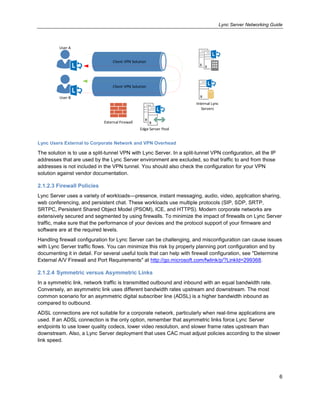
When users initiate a VPN connection, the traffic is sent through the VPN tunnel. This additional tunneling
layer affects Lync Server traffic by increasing network latency and jitter. Encrypting and decrypting Lync
Server traffic can potentially degrade a VPN concentrator, and can also affect the user experience.
All Lync Server traffic is encrypted. SIP signaling uses Transport Layer Security (TLS) for client-server
connections, and all media traffic is encrypted by using secure real-time transfer protocol (SRTP). Lync
traffic does not need an extra encryption layer through a VPN tunnel, unless there is a specific need for
dual-layer security.
Lync Server uses Interactive Connectivity Establishment (ICE) protocol to provide different media paths
between Lync Server endpoints and servers. Because an endpoint-initiated media session is not aware of
the receiving endpoint’s location, ICE protocol helps by providing a list of candidates based on IP
addresses and media ports and attempting to create media sessions between them. There is a specific
candidate order, as follows, in which an ICE protocol tries to validate the media path. If a connection is
validated, ICE protocol stops checking, and the media session is opened:
1. User Datagram Protocol (UDP) local or host IP address.
2. UDP network address translation (NAT) public IP address.
3. UDP relay through public IP of Lync audio/visual (A/V) Edge.
4. Transport Control Protocol (TCP) relay through public IP of Lync A/V Edge, if UDP is not
available.
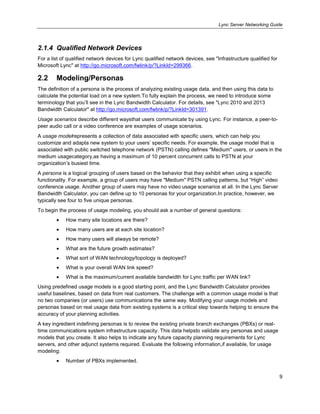
Consider the scenario where both Lync users are located outside the corporate network. They each have
their own individual VPN tunnels, and so Lync Server media traffic is affected twice by the VPN overhead.
Lync Server Networking Guide
6
Client VPN Solution
Client VPN Solution
External Firewall
User B
User A
Edge Server Pool
Internal Lync
Servers
Lync Users External to Corporate Network and VPN Overhead
The solution is to use a split-tunnel VPN with Lync Server. In a split-tunnel VPN configuration, all the IP
addresses that are used by the Lync Server environment are excluded, so that traffic to and from those
addresses is not included in the VPN tunnel. You should also check the configuration for your VPN
solution against vendor documentation.
2.1.2.3 Firewall Policies
Lync Server uses a variety of workloads—presence, instant messaging, audio, video, application sharing,
web conferencing, and persistent chat. These workloads use multiple protocols (SIP, SDP, SRTP,
SRTPC, Persistent Shared Object Model (PSOM), ICE, and HTTPS). Modern corporate networks are
extensively secured and segmented by using firewalls. To minimize the impact of firewalls on Lync Server
traffic, make sure that the performance of your devices and the protocol support of your firmware and
software are at the required levels.
Handling firewall configuration for Lync Server can be challenging, and misconfiguration can cause issues
with Lync Server traffic flows. You can minimize this risk by properly planning port configuration and by
documenting it in detail. For several useful tools that can help with firewall configuration, see "Determine
External A/V Firewall and Port Requirements" at http://go.microsoft.com/fwlink/p/?LinkId=299368.
2.1.2.4 Symmetric versus Asymmetric Links
In a symmetric link, network traffic is transmitted outbound and inbound with an equal bandwidth rate.
Conversely, an asymmetric link uses different bandwidth rates upstream and downstream. The most
common scenario for an asymmetric digital subscriber line (ADSL) is a higher bandwidth inbound as
compared to outbound.
ADSL connections are not suitable for a corporate network, particularly when real-time applications are
used. If an ADSL connection is the only option, remember that asymmetric links force Lync Server
endpoints to use lower quality codecs, lower video resolution, and slower frame rates upstream than
downstream. Also, a Lync Server deployment that uses CAC must adjust policies according to the slower
link speed.
Lync Server Networking Guide
7
2.1.2.5 Network Topology
Understanding your network topology is essential when planning for Lync Server. Lync Server uses the
following specific traffic call flows:
Peer: This traffic flow uses a site-to-site connection in scenarios where both participants are
internal Lync users. If external or federated users are involved, peer-to-peer connections are
routed through the Internet connection.
Conferencing: This traffic flow is created between the network’s site to a data center.
PSTN: This traffic flow initiates from a Lync client to thePSTN.
The topology of your corporate network determines how Lync Server traffic flows influence bandwidth
requirements. The two topologies that follow are examples of how different topologies are affected by
Lync Server traffic flows.
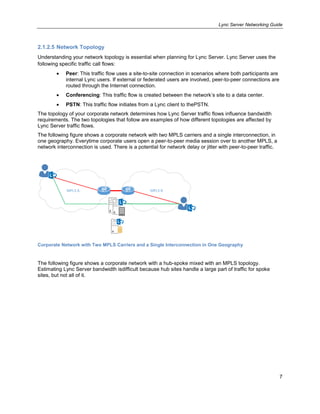
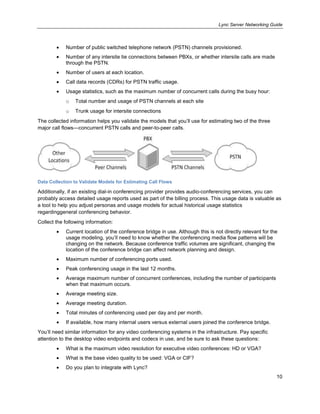
The following figure shows a corporate network with two MPLS carriers and a single interconnection, in
one geography. Everytime corporate users open a peer-to-peer media session over to another MPLS, a
network interconnection is used. There is a potential for network delay or jitter with peer-to-peer traffic.
MPLS A MPLS B
Corporate Network with Two MPLS Carriers and a Single Interconnection in One Geography
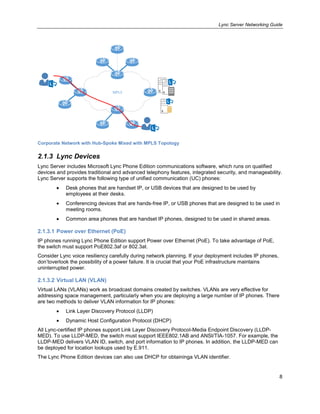
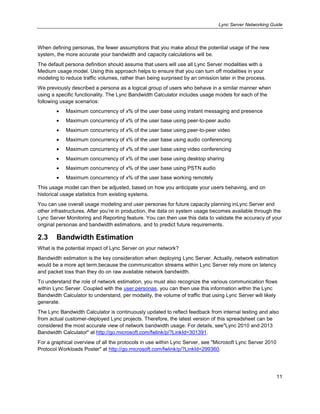
The following figure shows a corporate network with a hub-spoke mixed with an MPLS topology.
Estimating Lync Server bandwidth isdifficult because hub sites handle a large part of traffic for spoke
sites, but not all of it.
Lync Server Networking Guide
8
MPLS
Corporate Network with Hub-Spoke Mixed with MPLS Topology
2.1.3 Lync Devices
Lync Server includes Microsoft Lync Phone Edition communications software, which runs on qualified
devices and provides traditional and advanced telephony features, integrated security, and manageability.
Lync Server supports the following type of unified communication (UC) phones:
Desk phones that are handset IP, or USB devices that are designed to be used by
employees at their desks.
Conferencing devices that are hands-free IP, or USB phones that are designed to be used in
meeting rooms.
Common area phones that are handset IP phones, designed to be used in shared areas.
2.1.3.1 Power over Ethernet (PoE)
IP phones running Lync Phone Edition support Power over Ethernet (PoE). To take advantage of PoE,
the switch must support PoE802.3af or 802.3at.
Consider Lync voice resiliency carefully during network planning. If your deployment includes IP phones,
don’toverlook the possibility of a power failure. It is crucial that your PoE infrastructure maintains
uninterrupted power.
2.1.3.2 Virtual LAN (VLAN)
Virtual LANs (VLANs) work as broadcast domains created by switches. VLANs are very effective for
addressing space management, particularly when you are deploying a large number of IP phones. There
are two methods to deliver VLAN information for IP phones:
Link Layer Discovery Protocol (LLDP)
Dynamic Host Configuration Protocol (DHCP)
All Lync-certified IP phones support Link Layer Discovery Protocol-Media Endpoint Discovery (LLDP-
MED). To use LLDP-MED, the switch must support IEEE802.1AB and ANSI/TIA-1057. For example, the
LLDP-MED delivers VLAN ID, switch, and port information to IP phones. In addition, the LLDP-MED can
be deployed for location lookups used by E.911.
The Lync Phone Edition devices can also use DHCP for obtaininga VLAN identifier.
Lync Server Networking Guide
9
2.1.4 Qualified Network Devices
For a list of qualified network devices for Lync qualified network devices, see "Infrastructure qualified for
Microsoft Lync" at http://go.microsoft.com/fwlink/p/?LinkId=299366.
2.2 Modeling/Personas
The definition of a persona is the process of analyzing existing usage data, and then using this data to
calculate the potential load on a new system.To fully explain the process, we need to introduce some
terminology that you’ll see in the Lync Bandwidth Calculator. For details, see "Lync 2010 and 2013
Bandwidth Calculator" at http://go.microsoft.com/fwlink/p/?LinkId=301391.
Usage scenarios describe different waysthat users communicate by using Lync. For instance, a peer-to-
peer audio call or a video conference are examples of usage scenarios.
A usage modelrepresents a collection of data associated with specific users, which can help you
customize and adapta new system to your users’ specific needs. For example, the usage model that is
associated with public switched telephone network (PSTN) calling defines "Medium" users, or users in the
medium usagecategory,as having a maximum of 10 percent concurrent calls to PSTN at your
organization’s busiest time.
A persona is a logical grouping of users based on the behavior that they exhibit when using a specific
functionality. For example, a group of users may have "Medium" PSTN calling patterns, but ―High‖ video
conference usage. Another group of users may have no video usage scenarios at all. In the Lync Server
Bandwidth Calculator, you can define up to 10 personas for your organization.In practice, however, we
typically see four to five unique personas.
To begin the process of usage modeling, you should ask a number of general questions:
How many site locations are there?
How many users are at each site location?
How many users will always be remote?
What are the future growth estimates?
What sort of WAN technology/topology is deployed?
What is your overall WAN link speed?
What is the maximum/current available bandwidth for Lync traffic per WAN link?
Using predefined usage models is a good starting point, and the Lync Bandwidth Calculator provides
useful baselines, based on data from real customers. The challenge with a common usage model is that
no two companies (or users) use communications the same way. Modifying your usage models and
personas based on real usage data from existing systems is a critical step towards helping to ensure the
accuracy of your planning activities.
A key ingredient indefining personas is to review the existing private branch exchanges (PBXs) or real-
time communications system infrastructure capacity. This data helpsto validate any personas and usage
models that you create. It also helps to indicate any future capacity planning requirements for Lync
servers, and other adjunct systems required. Evaluate the following information,if available, for usage
modeling:
Number of PBXs implemented.
Lync Server Networking Guide
10
Number of public switched telephone network (PSTN) channels provisioned.
Number of any intersite tie connections between PBXs, or whether intersite calls are made
through the PSTN.
Number of users at each location.
Call data records (CDRs) for PSTN traffic usage.
Usage statistics, such as the maximum number of concurrent calls during the busy hour:
o Total number and usage of PSTN channels at each site
o Trunk usage for intersite connections
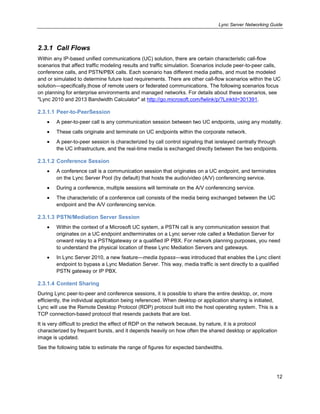
The collected information helps you validate the models that you’ll use for estimating two of the three
major call flows—concurrent PSTN calls and peer-to-peer calls.
Data Collection to Validate Models for Estimating Call Flows
Additionally, if an existing dial-in conferencing provider provides audio-conferencing services, you can
probably access detailed usage reports used as part of the billing process. This usage data is valuable as
a tool to help you adjust personas and usage models for actual historical usage statistics
regardinggeneral conferencing behavior.
Collect the following information:
Current location of the conference bridge in use. Although this is not directly relevant for the
usage modeling, you’ll need to know whether the conferencing media flow patterns will be
changing on the network. Because conference traffic volumes are significant, changing the
location of the conference bridge can affect network planning and design.
Maximum number of conferencing ports used.
Peak conferencing usage in the last 12 months.
Average maximum number of concurrent conferences, including the number of participants
when that maximum occurs.
Average meeting size.
Average meeting duration.
Total minutes of conferencing used per day and per month.
If available, how many internal users versus external users joined the conference bridge.
You’ll need similar information for any video conferencing systems in the infrastructure. Pay specific
attention to the desktop video endpoints and codecs in use, and be sure to ask these questions:
What is the maximum video resolution for executive video conferences: HD or VGA?
What is the base video quality to be used: VGA or CIF?
Do you plan to integrate with Lync?
Lync Server Networking Guide
11
When defining personas, the fewer assumptions that you make about the potential usage of the new
system, the more accurate your bandwidth and capacity calculations will be.
The default persona definition should assume that users will use all Lync Server modalities with a
Medium usage model. Using this approach helps to ensure that you can turn off modalities in your
modeling to reduce traffic volumes, rather than being surprised by an omission later in the process.
We previously described a persona as a logical group of users who behave in a similar manner when
using a specific functionality. The Lync Bandwidth Calculator includes usage models for each of the
following usage scenarios:
Maximum concurrency of x% of the user base using instant messaging and presence
Maximum concurrency of x% of the user base using peer-to-peer audio
Maximum concurrency of x% of the user base using peer-to-peer video
Maximum concurrency of x% of the user base using audio conferencing
Maximum concurrency of x% of the user base using video conferencing
Maximum concurrency of x% of the user base using desktop sharing
Maximum concurrency of x% of the user base using PSTN audio
Maximum concurrency of x% of the user base working remotely
This usage model can then be adjusted, based on how you anticipate your users behaving, and on
historical usage statistics from existing systems.
You can use overall usage modeling and user personas for future capacity planning inLync Server and
other infrastructures. After you’re in production, the data on system usage becomes available through the
Lync Server Monitoring and Reporting feature. You can then use this data to validate the accuracy of your
original personas and bandwidth estimations, and to predict future requirements.
2.3 Bandwidth Estimation
What is the potential impact of Lync Server on your network?
Bandwidth estimation is the key consideration when deploying Lync Server. Actually, network estimation
would be a more apt term,because the communication streams within Lync Server rely more on latency
and packet loss than they do on raw available network bandwidth.
To understand the role of network estimation, you must also recognize the various communication flows
within Lync Server. Coupled with the user personas, you can then use this information within the Lync
Bandwidth Calculator to understand, per modality, the volume of traffic that using Lync Server will likely
generate.
The Lync Bandwidth Calculator is continuously updated to reflect feedback from internal testing and also
from actual customer-deployed Lync projects. Therefore, the latest version of this spreadsheet can be
considered the most accurate view of network bandwidth usage. For details, see"Lync 2010 and 2013
Bandwidth Calculator" at http://go.microsoft.com/fwlink/p/?LinkId=301391.
For a graphical overview of all the protocols in use within Lync Server, see "Microsoft Lync Server 2010
Protocol Workloads Poster" at http://go.microsoft.com/fwlink/p/?LinkId=299360.
Lync Server Networking Guide
12
2.3.1 Call Flows
Within any IP-based unified communications (UC) solution, there are certain characteristic call-flow
scenarios that affect traffic modeling results and traffic simulation. Scenarios include peer-to-peer calls,
conference calls, and PSTN/PBX calls. Each scenario has different media paths, and must be modeled
and or simulated to determine future load requirements. There are other call-flow scenarios within the UC
solution—specifically,those of remote users or federated communications. The following scenarios focus
on planning for enterprise environments and managed networks. For details about these scenarios, see
"Lync 2010 and 2013 Bandwidth Calculator" at http://go.microsoft.com/fwlink/p/?LinkId=301391.
2.3.1.1 Peer-to-PeerSession
A peer-to-peer call is any communication session between two UC endpoints, using any modality.
These calls originate and terminate on UC endpoints within the corporate network.
A peer-to-peer session is characterized by call control signaling that isrelayed centrally through
the UC infrastructure, and the real-time media is exchanged directly between the two endpoints.
2.3.1.2 Conference Session
A conference call is a communication session that originates on a UC endpoint, and terminates
on the Lync Server Pool (by default) that hosts the audio/video (A/V) conferencing service.
During a conference, multiple sessions will terminate on the A/V conferencing service.
The characteristic of a conference call consists of the media being exchanged between the UC
endpoint and the A/V conferencing service.
2.3.1.3 PSTN/Mediation Server Session
Within the context of a Microsoft UC system, a PSTN call is any communication session that
originates on a UC endpoint andterminates on a Lync server role called a Mediation Server for
onward relay to a PSTNgateway or a qualified IP PBX. For network planning purposes, you need
to understand the physical location of these Lync Mediation Servers and gateways.
In Lync Server 2010, a new feature—media bypass—was introduced that enables the Lync client
endpoint to bypass a Lync Mediation Server. This way, media traffic is sent directly to a qualified
PSTN gateway or IP PBX.
2.3.1.4 Content Sharing
During Lync peer-to-peer and conference sessions, it is possible to share the entire desktop, or, more
efficiently, the individual application being referenced. When desktop or application sharing is initiated,
Lync will use the Remote Desktop Protocol (RDP) protocol built into the host operating system. This is a
TCP connection-based protocol that resends packets that are lost.
It is very difficult to predict the effect of RDP on the network because, by nature, it is a protocol
characterized by frequent bursts, and it depends heavily on how often the shared desktop or application
image is updated.
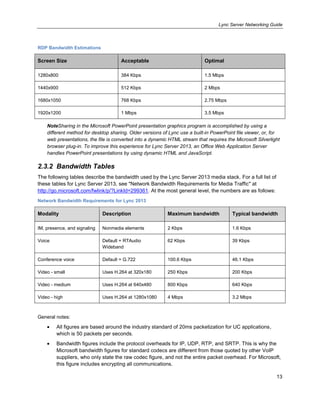
See the following table to estimate the range of figures for expected bandwidths.
Lync Server Networking Guide
13
RDP Bandwidth Estimations
Screen Size Acceptable Optimal
1280x800 384 Kbps 1.5 Mbps
1440x900 512 Kbps 2 Mbps
1680x1050 768 Kbps 2.75 Mbps
1920x1200 1 Mbps 3.5 Mbps
NoteSharing in the Microsoft PowerPoint presentation graphics program is accomplished by using a
different method for desktop sharing. Older versions of Lync use a built-in PowerPoint file viewer, or, for
web presentations, the file is converted into a dynamic HTML stream that requires the Microsoft Silverlight
browser plug-in. To improve this experience for Lync Server 2013, an Office Web Application Server
handles PowerPoint presentations by using dynamic HTML and JavaScript.
2.3.2 Bandwidth Tables
The following tables describe the bandwidth used by the Lync Server 2013 media stack. For a full list of
these tables for Lync Server 2013, see "Network Bandwidth Requirements for Media Traffic" at
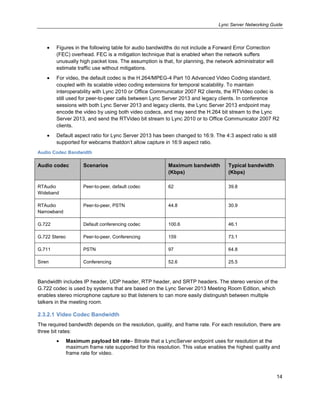
http://go.microsoft.com/fwlink/p/?LinkId=299361. At the most general level, the numbers are as follows:
Network Bandwidth Requirements for Lync 2013
Modality Description Maximum bandwidth Typical bandwidth
IM, presence, and signaling Nonmedia elements 2 Kbps 1.6 Kbps
Voice Default = RTAudio
Wideband
62 Kbps 39 Kbps
Conference voice Default = G.722 100.6 Kbps 46.1 Kbps
Video - small Uses H.264 at 320x180 250 Kbps 200 Kbps
Video - medium Uses H.264 at 640x480 800 Kbps 640 Kbps
Video - high Uses H.264 at 1280x1080 4 Mbps 3.2 Mbps
General notes:
All figures are based around the industry standard of 20ms packetization for UC applications,
which is 50 packets per seconds.
Bandwidth figures include the protocol overheads for IP, UDP, RTP, and SRTP. This is why the
Microsoft bandwidth figures for standard codecs are different from those quoted by other VoIP
suppliers, who only state the raw codec figure, and not the entire packet overhead. For Microsoft,
this figure includes encrypting all communications.
Lync Server Networking Guide
14
Figures in the following table for audio bandwidths do not include a Forward Error Correction
(FEC) overhead. FEC is a mitigation technique that is enabled when the network suffers
unusually high packet loss. The assumption is that, for planning, the network administrator will
estimate traffic use without mitigations.
For video, the default codec is the H.264/MPEG-4 Part 10 Advanced Video Coding standard,
coupled with its scalable video coding extensions for temporal scalability. To maintain
interoperability with Lync 2010 or Office Communicator 2007 R2 clients, the RTVideo codec is
still used for peer-to-peer calls between Lync Server 2013 and legacy clients. In conference
sessions with both Lync Server 2013 and legacy clients, the Lync Server 2013 endpoint may
encode the video by using both video codecs, and may send the H.264 bit stream to the Lync
Server 2013, and send the RTVideo bit stream to Lync 2010 or to Office Communicator 2007 R2
clients.
Default aspect ratio for Lync Server 2013 has been changed to 16:9. The 4:3 aspect ratio is still
supported for webcams thatdon’t allow capture in 16:9 aspect ratio.
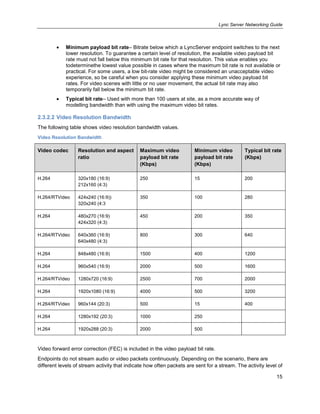
Audio Codec Bandwidth
Audio codec Scenarios Maximum bandwidth
(Kbps)
Typical bandwidth
(Kbps)
RTAudio
Wideband
Peer-to-peer, default codec 62 39.8
RTAudio
Narrowband
Peer-to-peer, PSTN 44.8 30.9
G.722 Default conferencing codec 100.6 46.1
G.722 Stereo Peer-to-peer, Conferencing 159 73.1
G.711 PSTN 97 64.8
Siren Conferencing 52.6 25.5
Bandwidth includes IP header, UDP header, RTP header, and SRTP headers. The stereo version of the
G.722 codec is used by systems that are based on the Lync Server 2013 Meeting Room Edition, which
enables stereo microphone capture so that listeners to can more easily distinguish between multiple
talkers in the meeting room.
2.3.2.1 Video Codec Bandwidth
The required bandwidth depends on the resolution, quality, and frame rate. For each resolution, there are
three bit rates:
Maximum payload bit rate– Bitrate that a LyncServer endpoint uses for resolution at the
maximum frame rate supported for this resolution. This value enables the highest quality and
frame rate for video.
Lync Server Networking Guide
15
Minimum payload bit rate– Bitrate below which a LyncServer endpoint switches to the next
lower resolution. To guarantee a certain level of resolution, the available video payload bit
rate must not fall below this minimum bit rate for that resolution. This value enables you
todeterminethe lowest value possible in cases where the maximum bit rate is not available or
practical. For some users, a low bit-rate video might be considered an unacceptable video
experience, so be careful when you consider applying these minimum video payload bit
rates. For video scenes with little or no user movement, the actual bit rate may also
temporarily fall below the minimum bit rate.
Typical bit rate– Used with more than 100 users at site, as a more accurate way of
modelling bandwidth than with using the maximum video bit rates.
2.3.2.2 Video Resolution Bandwidth
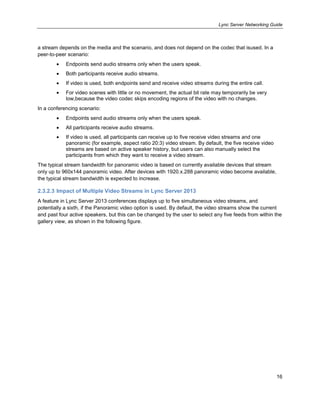
The following table shows video resolution bandwidth values.
Video Resolution Bandwidth
Video codec Resolution and aspect
ratio
Maximum video
payload bit rate
(Kbps)
Minimum video
payload bit rate
(Kbps)
Typical bit rate
(Kbps)
H.264 320x180 (16:9)
212x160 (4:3)
250 15 200
H.264/RTVideo 424x240 (16:9))
320x240 (4:3
350 100 280
H.264 480x270 (16:9)
424x320 (4:3)
450 200 350
H.264/RTVideo 640x360 (16:9)
640x480 (4:3)
800 300 640
H.264 848x480 (16:9) 1500 400 1200
H.264 960x540 (16:9) 2000 500 1600
H.264/RTVideo 1280x720 (16:9) 2500 700 2000
H.264 1920x1080 (16:9) 4000 500 3200
H.264/RTVideo 960x144 (20:3) 500 15 400
H.264 1280x192 (20:3) 1000 250
H.264 1920x288 (20:3) 2000 500
Video forward error correction (FEC) is included in the video payload bit rate.
Endpoints do not stream audio or video packets continuously. Depending on the scenario, there are
different levels of stream activity that indicate how often packets are sent for a stream. The activity level of
Lync Server Networking Guide
16
a stream depends on the media and the scenario, and does not depend on the codec that isused. In a
peer-to-peer scenario:
Endpoints send audio streams only when the users speak.
Both participants receive audio streams.
If video is used, both endpoints send and receive video streams during the entire call.
For video scenes with little or no movement, the actual bit rate may temporarily be very
low,because the video codec skips encoding regions of the video with no changes.
In a conferencing scenario:
Endpoints send audio streams only when the users speak.
All participants receive audio streams.
If video is used, all participants can receive up to five receive video streams and one
panoramic (for example, aspect ratio 20:3) video stream. By default, the five receive video
streams are based on active speaker history, but users can also manually select the
participants from which they want to receive a video stream.
The typical stream bandwidth for panoramic video is based on currently available devices that stream
only up to 960x144 panoramic video. After devices with 1920.x.288 panoramic video become available,
the typical stream bandwidth is expected to increase.
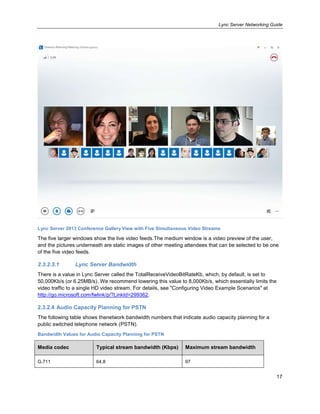
2.3.2.3 Impact of Multiple Video Streams in Lync Server 2013
A feature in Lync Server 2013 conferences displays up to five simultaneous video streams, and
potentially a sixth, if the Panoramic video option is used. By default, the video streams show the current
and past four active speakers, but this can be changed by the user to select any five feeds from within the
gallery view, as shown in the following figure.
Lync Server Networking Guide
17
Lync Server 2013 Conference Gallery View with Five Simultaneous Video Streams
The five larger windows show the live video feeds.The medium window is a video preview of the user,
and the pictures underneath are static images of other meeting attendees that can be selected to be one
of the five video feeds.
2.3.2.3.1 Lync Server Bandwidth
There is a value in Lync Server called the TotalReceiveVideoBitRateKb, which, by default, is set to
50,000Kb/s (or 6.25MB/s). We recommend lowering this value to 8,000Kb/s, which essentially limits the
video traffic to a single HD video stream. For details, see "Configuring Video Example Scenarios" at
http://go.microsoft.com/fwlink/p/?LinkId=299362.
2.3.2.4 Audio Capacity Planning for PSTN
The following table shows thenetwork bandwidth numbers that indicate audio capacity planning for a
public switched telephone network (PSTN).
Bandwidth Values for Audio Capacity Planning for PSTN
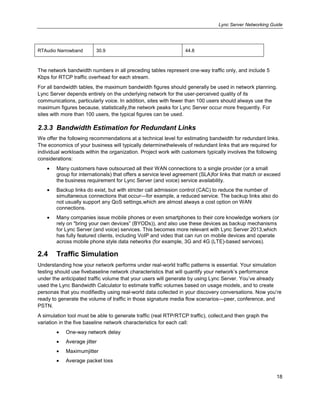
Media codec Typical stream bandwidth (Kbps) Maximum stream bandwidth
G.711 64.8 97
Lync Server Networking Guide
18
RTAudio Narrowband 30.9 44.8
The network bandwidth numbers in all preceding tables represent one-way traffic only, and include 5
Kbps for RTCP traffic overhead for each stream.
For all bandwidth tables, the maximum bandwidth figures should generally be used in network planning.
Lync Server depends entirely on the underlying network for the user-perceived quality of its
communications, particularly voice. In addition, sites with fewer than 100 users should always use the
maximum figures because, statistically,the network peaks for Lync Server occur more frequently. For
sites with more than 100 users, the typical figures can be used.
2.3.3 Bandwidth Estimation for Redundant Links
We offer the following recommendations at a technical level for estimating bandwidth for redundant links.
The economics of your business will typically determinethelevels of redundant links that are required for
individual workloads within the organization. Project work with customers typically involves the following
considerations:
Many customers have outsourced all their WAN connections to a single provider (or a small
group for internationals) that offers a service level agreement (SLA)for links that match or exceed
the business requirement for Lync Server (and voice) service availability.
Backup links do exist, but with stricter call admission control (CAC) to reduce the number of
simultaneous connections that occur—for example, a reduced service. The backup links also do
not usually support any QoS settings,which are almost always a cost option on WAN
connections.
Many companies issue mobile phones or even smartphones to their core knowledge workers (or
rely on "bring your own devices‖ (BYODs)), and also use these devices as backup mechanisms
for Lync Server (and voice) services. This becomes more relevant with Lync Server 2013,which
has fully featured clients, including VoIP and video that can run on mobile devices and operate
across mobile phone style data networks (for example, 3G and 4G (LTE)-based services).
2.4 Traffic Simulation
Understanding how your network performs under real-world traffic patterns is essential. Your simulation
testing should use fivebaseline network characteristics that will quantify your network’s performance
under the anticipated traffic volume that your users will generate by using Lync Server. You’ve already
used the Lync Bandwidth Calculator to estimate traffic volumes based on usage models, and to create
personas that you modifiedby using real-world data collected in your discovery conversations. Now you’re
ready to generate the volume of traffic in those signature media flow scenarios—peer, conference, and
PSTN.
A simulation tool must be able to generate traffic (real RTP/RTCP traffic), collect,and then graph the
variation in the five baseline network characteristics for each call:
One-way network delay
Average jitter
Maximumjitter
Average packet loss
Lync Server Networking Guide
19
Burst packet loss (peak consecutive packets lost)
When simulating traffic, make surethat you have:
Modeled the amount of bandwidth required.
Identified sites for Lync Server traffic simulation.
Collected Lync Server real-time scenarios to be simulated.
2.4.1 Simulating Estimated Amount of Bandwidth Required
As you prepare to introduce Lync Server real-time services to your organization’s network infrastructure, it
iscrucial to accurately simulate and evaluate the anticipated load and the impact that Lync Server
services may have in a given site or between sites.
Even if you’ve already documented and planned anticipated usage models and the associated amount of
bandwidth, unless your organization can apply and simulate the anticipated load of Lync Server real-time
traffic on its network, you won’t be able to fully evaluate and verify the network’s ability to respond at peak
times of Lync Server services usage.
When performing a traffic simulation for validating Lync Server supportability, the simulation itself needs
to be focused on the anticipated amount of bandwidth required in support of Lync Server modalities to be
used, local to a given site.This is important because,although you must consider the potential bandwidth
associated with a particular codec from a capacity planning perspective,it’s more important to estimate
the amount of bandwidth required in total, given the potential maximum concurrent Lync Server
modalities and scenarios. Thesescenarios are discussed in the following sections.
2.4.1.1 P2P Scenarios
Peer-to-peer (P2P) scenarios consist of:
Audio
Video
Desktop sharing
Web collaboration
2.4.1.2 Conferencing Scenarios
Conferencing scenarios consist of:
Audio
Video
Web
Another key factorto identify when designing or performing traffic simulation scenarios is modeling
anticipated usage, along with the associated bandwidth impact on a local site or between sites. For
details, see Modeling/Personas and Bandwidth Estimation.
In some cases,modelingcanbe based on estimated guesses for the expected usage level or scenario for
a particular site. Additionally, by using usage models as part of the actual traffic simulation process, you
can incorporate additional anticipated assumptions to determine potential gaps.
Lync Server Networking Guide
20
The next consideration: what is the best approach for properly assessing and simulating Lync Server
traffic, along with its potential impact in a given network environment? To determine this, think about how
the anticipated Lync Server traffic should be simulated.Be sure to includethe evaluation and sampling
periods required for representing how the network is able to respond and perform.
As a best practice, Lync Server traffic simulation scenarios for a specific site should include:
Running for a minimum of one week.
Running 24 hours a day.
As an additional part of this recommended test profile, consider factoring in the maximum anticipated
sessions, following the bandwidth calculator sizing example in the Matrix Distribution tab, as follows:
Matrix Distribution Tab in Bandwidth Calculator
Awell-designed traffic simulation sampling scenario enables you to:
Determine if any congestion patterns develop within the network after Lync Server real-time
services are introduced.
Determine if the QoS policies in place are effective and being correctly applied.
Gauge the network response during certain periods of congestion (for example, dropped
packets, delay and jitter effects, and so on).
2.4.2 Identifying Sites for Lync Server Traffic Simulation
After you identify the scenarios to simulate traffic, coupled with the anticipated total bandwidth required,
you’llneed to determine which sites or locations to use for agent placement to simulate Lync Server traffic.
You should always place a simulation probe at the location where your Lync Conferencing services
reside.Next, you’ll need to decide which remote locations (WAN sites) you’re going to test.
Lync Server Networking Guide
21
You should categorize your locations, usually based on WAN link speed/type, number of users in the site,
and geographic location. Even enterprise customers generally have fewer than 6-10 categories of sites.
In practice, choose up to 20 sites to test, evenly distributed between geographic regions. Be sure to
choose a sample from each category in each region. For example, let’s assume that your
organizationspansthreeregions (Americas, Europe, the Middle East and Africa (EMEA) and Asia Pacific
(APAC)).We’ll also assume that your enterprise has six categories of sites. You would end up testing with
18 remote locations because you’d get a sampling of 3 sites from each category split between the
regions.
Finally, be sure totake a look at locations/regions with previous connectivity issues, or where users have
raised concerns about media quality issues.
2.4.3 Lync Server Real-Time Scenarios to Be Simulated
Up to this point, you’ve identified the usage scenarios, test cases, bandwidth estimation, and site
locations to be evaluated. Your final step is to determinewhich Lync Server real-time scenarios should be
considered as part of your traffic simulation testing criteria.
For this effort, you should use the output of the Lync Bandwidth Calculator. The Bandwidth Calculator’s
outputidentifies the following traffic volumes on a site-by-site basis:
Peer (traffic should be evenly distributed between other remote location probes)
o Audio traffic volume
o Video traffic volume
Conference (traffic should be between the remote probe and the data center probe)
o Audio traffic volume
o Video traffic volume
PSTN (traffic should be between the remote probe and the data center probe)
o Audio traffic volume
For details, see "Lync 2010 and 2013 Bandwidth Calculator" at
http://go.microsoft.com/fwlink/p/?LinkId=301391.
Generally, we don’t recommend simulating app-sharing traffic because it’s TCP-based, typically
unmarked for QoS, and characterized by frequent bursts. The theoretical modeling activities you’ve
already completed, combined with your historical metrics, will help you determine any potential risks. If
you feel strongly about simulatingapp-sharing traffic, we recommend using a TCP-based traffic simulation
package.
2.4.4 Recommended Tools for Lync Server Traffic Simulation
There are many tools available today on the market, and any of these tools can be used with this
methodology. Make sure that the tool includes the following critical elements:
Ability to generate real RTP/RTCP traffic, for audio and video.
Ability to centrally manage the probes.
Ability to mark traffic with QoS markings.
Lync Server Networking Guide
22
Ability to collect and graphically present the five baseline network characteristics mapped over
time. Important:Look for variations in those baseline characteristics over time, not simply a
threshold number that’s good or bad.
Support for all five baseline characteristics:
o One-way network delay
o Average jitter
o Maximumjitter
o Average packet loss
o Burst packet loss (peak consecutive packets lost)
Additional features in various tools include the ability to generate automated reports based on the
collection data, the ability to schedule tests, and the ability to flag when QoS markings are being stripped.
2.4.5 Traffic Simulation Best Practices
In summary, as you prepare to evaluate your networks against primary Lync Server traffic simulation
scenarios, it’s important to:
Verify site selection based on where you anticipate Lync Server real-time services to be
used.
Decide on the level of traffic distribution and allocation required (for example, flows and
amount of traffic to simulate).
Know the key sites, and bandwidth in between them, for how Lync Server traffic scenarios
should be best simulated.
Keep the list of sites to evaluate to 20 sites or fewer.
Test representative sites that will use Lync Server real-time communication services.
Focus on potential weak points within the network (for example, areas where bandwidth may
be thin).
Determine potential packet loss and delay for connections that travel in between continents.
Inquire about existing organizational knowledge regarding bad quality,to determine where to
perform traffic simulation scenarios.
Consider site selection input other thantechnical factors (for example, the location of the
Chief Information Officer’s office).
Consider traffic distribution and allocation between sites.
Perform initial modeling with the "Lync 2010 and 2013 Bandwidth Calculator" at
http://go.microsoft.com/fwlink/p/?LinkId=301391 at the site level (for example, in traffic from
and to the site) to use as input for finalizingthe anticipated traffic simulation criteria.
2.5 Call Admission Control (CAC)
Call admission control (CAC) is an application layer mechanism that determines whether there is
sufficient network bandwidth to provide a high-quality experience for users when they place an audio call
or a video call throughthe network. CAC is solely configured within Lync Server and does not know
enough about the underlying network infrastructure to reserve bandwidth, or to help ensure that
Lync Server Networking Guide
23
bandwidth is actually available outside of its own configured values. However, CACcan enable you, as a
system administrator, to define potential network capacity limitations between sites.Additionally, from a
user perspective, CACprovides a better experience by rejecting or rerouting a call andvisually indicating
the reason, rather than allowing a call to go ahead with poor quality on the defined network path.
In Lync Server, call admission controlcan be configured to define the maximum concurrent bandwidth to
be used for real-time audio and video modalities. CAC can also be configured to define the maximum
bandwidth for a single call of each modality. CAC does not limit the bandwidth of other traffic. It can’t
prevent other data traffic, such as a large file transfer or music streaming, from using all the network
bandwidth. CACalso can’t be used to define the codec used by a call.However, CAC can be configured to
limit the option of higher bandwidth for the call.
As an additional measure to protect the necessary bandwidth, deploy Quality of Service (QoS). As a best
practice configuration, be sure to coordinate CAC bandwidth policies with QoS settings deployed to the
physical network.
Call admission control policies can be defined by using either the Lync Server Control Panel or the Lync
Management Shell. The Lync Server Management Shellenables scriptingof the configurations, which we
recommend with multiple site specifications. Monitoring the usage of CAC is available through call detail
recording (CDR) data and Quality of Experience (QoE) data in the Monitoring reports. Be sure to use
monitoring functions to help ensure that CAC polices are neither underprovisionednor overprovisioned for
specific sites. Configuring CAC alone does not provide optimal bandwidth usage for site-to-site links;it just
protects real time traffic from itself.
To configure CAC within Lync Server, it is very important to identify the IP subnets that are assigned to
each site. The IP subnets specified during network configuration on the server must match the format
provided by client computers to be usable for the media bypass feature of Lync Server. In other words,
the IP subnets configured in CAC should match the subnets provided by Dynamic Host Configuration
Protocol(DHCP) servers or statically assigned to clients, rather than created for summary purposes.
If the organizationprovides media through a virtual private network (VPN) connection, thenthe media
stream and the signaling stream go through the VPN, or both are routed through the Internet. However,
call admission controlis not enforced for remote users where the network traffic flows through the Internet.
Because the media traffic is traversing the Internet, which is not managed by Lync Server, CAC cannot
be applied. CACchecks are performed on the portion of the call leg that flows through the organization’s
network.
2.5.1 Multiple Call Admission Control Systems
Because real-time communications system lifecycles vary, it’s likely that multiple real-time
communications systems will be operating at the same time on the enterprise network. This could be due
to specific modalities being controlled by one communications system, or by other specific islands of
technology being available in certain regions, or through coexistence or migration. At these times,
multiple CAC mechanisms are available through the individual systems. These mechanisms are separate
from each other, so it’s important to validate modeling profiles and bandwidth estimation for potential use.
Specifically, for CAC, you’ll need to make allowances for traffic from multiple systems across WAN links,
and you’ll need to use consistent, regular monitoring to facilitate necessary adjustments in any specified
values.
In this scenario, call admission control is used to protect Lync Server real-time traffic and other systems’
real-time traffic from interfering with each other in the context of the underlying network topology, and
Quality of Service (QoS) marking. To illustrate the point, imagine your voice QoS queue as a large pipe,
Lync Server Networking Guide
24
with two smaller pipes within the larger pipe. The Lync Server CAC—one of the small pipes—would limit
the volume of the Lync Server traffic in the voice queue, and the other system’s CAC—the other small
pipe—would need to limit the volume of its traffic in the voice queue . To help ensure that both systems
coexist without affecting each other , determine the appropriate size of CAC limits and of queues before
deployment, and validate these data regularly as part of operational excellence
2.6 Quality of Service (QoS)
Quality of Service (QoS) is the mechanism that enables classification, marking, and prioritization of traffic
on the network.
QoS helps to guarantee the bandwidth available for configured traffic flows. As a best practice, you’ll
need to coordinate CAC bandwidth policies with QoS settings deployed to the physical network.
QoS classification encompasses many different types of network traffic, with port-based and protocol-
based traffic as the most common classification methods. You can also configure your network
infrastructure to trust DSCP markings on network traffic that it receives from the endpoint.
Lync Server 2013 enables both defined port ranges and DSCP marking. To help ensure the best user
experience, you should configure Lync Server 2013 to mark all traffic for transmission onto the network.
A good starting point would be to configure all voice real-time traffic to use DiffServer Code Point 46, with
video configured for 34. Configure SIP Signaling traffic to use 24. Mark other modalities according to
business requirements. Because these are only recommendations, make sure that you’re using the
markings that have been agreed upon as part of your enterprise’s existing QoS strategy.
Pay attention to the QoS policies implemented on existing switch infrastructures to help ensure that client
DSCP markings are not stripped, or reset.
Configure QoS end-to-end, and verify that the QoS markings in place throughout the network are
legitimate to avoid any configuration issues on the switch infrastructure. Otherwise, this mismatch could
cause remarking of packets to a less than optimal value, which could cause them to miss priority queuing
configured on the network.
2.7 Network Port Usage
When using network ports, be sure thatyou’ve completed the following planning requirements:
Configuring manual port scenarios.
Quality of Service (QoS).
Managing bandwidth.
Placement of internal firewalls.
Minimum number of ports for workloads at scale.
Effect of manual port range assignment on SRTP communications.
Configuring manual ports for the Lync client.
Configuring port ranges for your Conferencing Server, Application Server, and Mediation
Server.
Verifying manual port configuration on the client side.
Verifying aunified communications (UC) port range that is enabled for Lync clients.
Lync Server Networking Guide
25
Verifying manual port configuration on the server side.
Prioritizing traffic for real-time communications.
2.7.1 Manual Port Configuration Scenarios
With enterprise deployments for Lync Server 2013, one of the most common questions from customers
is:"Is it possible to assign a dedicated number and range of ports per Lync Server modality?‖ and ―What
are some of scenarios in which you’d recommend this?"
It is indeed possible to assign a dedicated number and range of ports per Lync Server modality, but,as
withother network planning considerations supporting Lync Server 2013, it’s important to understand the
scenarios and the potential impact of these configurations.
These scenarios, detailed in the following sections, typically include:
Quality of Service (QoS)
Bandwidth management
Internal firewall placement
2.7.2Quality of Service (QoS) for Modality Types
To support an organization QoS policy that can differentiate between real-time communication modality
types, we recommend that you allocate a separate and dedicated range for each Lync Server modality(for
example, voice,video, orapplication sharing). Depending on the port range assigned, the QoS policy in
place inspects the traffic and designatespriority, based on the processing prioritization classifications in
place for a particular network device.
2.7.3 Bandwidth Management
As a complement to a QoS policy already in place, some organizations may want to add traffic
management policies for allocating a maximum amount of bandwidth per Lync Server modality type. In
this case, the policy is configured to allocate bandwidth based on how the affected network device is
configured.
2.7.4 Internal Firewall Placement
Security-conscious organizationsoftenhave a regulatory or compliance requirement that mandates placing
an internal firewall between client-to-client and client-to-server communications, for management and
monitoring capabilities. In many cases, because a firewall is limited by the IP address assigned to the
interfaces’ routing traffic, the list of ports available to support a range of communication scenarios is from
1024 to 65535. As a result, some organizations may need to allocate the minimum number of ports
required, due to the TCP/IP port allocation limitations for routing Lync Server 2013 client-to-client and
client-to-server traffic.
NoteBecause this scenario is not officially supported by Lync Server 2013 deployment, the capabilities of
Microsoft for providing assistance, if required,will be best-effort. If the issues can’t be resolved, you may be
asked to temporarily remove the firewall, in order to moveto a supported scenario to find a solution.
Lync Server Networking Guide
26
2.7.5 Minimum Number of Ports for Workloads at Scale
To support a dedicated number of port ranges per Lync Server modality so that you can provide the
minimum number of ports needed per server and per client to enable all workloads at scale, you must first
allocate a range of ports to be unique per modality, as shown in the following table.
Allocation of Port Range
Lync Modality Type Port Start Range of Ports Required
Audio 50020 20
Video 58000 20
Application sharing 42000 20
File transfer 42020 20
NoteBy configuring a minimum of 20 ports per modality type, you enable the Lync client to evaluate the
candidate transport addresses that it can use to stream audio, video, and desktop sharing to another client,
as described in the Internet Engineering Task Force (IETF) Interactive Connectivity Establishment (ICE)
protocol at http://go.microsoft.com/fwlink/p/?LinkID=227945. The candidate addresses include a local
address and an address on the A/V Access Edge Server. A minimum of 20 ports per modality type also
accommodates any escalations from a peer-to-peer call to a conference.
Another point to consider when defining manual Lync Server modality port configurations: a range of
ports assigned to client ports canbe different from the range of ports configured on Lync Server. For
example,in terms ofthe preceding table, you could have Lync clients configured to use ports 42000
through 42019 (for application sharing scenarios).Or you could have Lync Server configured, by default,
to the following set of ports instead: 40803 through 49151 (for application sharing scenarios).
The range of client ports assigned does not needto represent a subset of the ports used by Lync Server
itself.The main difference is that Lync Server needs a broader range or ports available to best support the
range of clients required at scale.
Note We recommend that you make your client port ranges a subset of your server port ranges.
To assign the port ranges shown in the preceding table to your global collection of conferencing
configuration settings, use the following Lync Server Management Shell cmdlet:
Set-CsConferencingConfiguration -Identity global -ClientAudioPort 50020 -
ClientAudioPortRange 20 -ClientVideoPort 58000 -ClientVideoPortRange 20 -
ClientAppSharingPort 42000 -ClientAppSharingPortRange 20 - ClientFileTransferPort
42020 -ClientFileTransferPortRange 20
2.7.6 Configuring Manual Ports for the Lync Client
By default, the Lync client applications will use any port between 1024 and 65535 when implementing the
following real-time communication modalities:
Voice
Lync Server Networking Guide
27
Video
Application (media) sharing
Web collaboration
File transfer
If you mustmanually assign and specify a range of ports—which we recommend,if you plan on
implementing QoS—you must first enable client media port ranges. Do this by running the following
Windows PowerShell cmdlet:
Set-CsConferencingConfiguration -ClientMediaPortRangeEnabled $True
To manually assign dedicated port ranges for the various traffic types (audio, video, media, application
sharing, and file transfer) to a series of unique port ranges, run the following WindowsPowerShell cmdlet:
Set-CsConferencingConfiguration
Note The preceding cmdletenables client media port ranges for the global collection of conferencing
configuration settings.However, these settings can also be applied at a Lync site scope and/or the service
scope (for the Conferencing Server service only) levels. To enable client media port ranges for a specific
site or server, specify the identity of that site or server when running the
Set-CsConferencingConfiguration cmdlet:
Set-CsConferencingConfiguration -Identity "site:CentralSite1" -
ClientMediaPortRangeEnabled $True
By default, if no manual media port range (through conference configuration settings) has been defined,
define the following property values:
Media Port Range Property Value Definitions
ClientMediaPortRangeEnabled False
ClientAudioPort 5350
ClientAudioPortRange 40
ClientVideoPort 5350
ClientVideoPortRange 40
ClientAppSharingPort 5350
ClientAppSharingPortRange 40
ClientFileTransferPort 5350
ClientTransferPortRange 40
From the previous results, the following property set is configured asFalse by default:
ClientMediaPortRangeEnabled
When this property is set to False, Lync clients can use any range of User Datagram Protocol(UDP) or
TCP ports available from a range of 1024 through 65535 when establishing Lync media communications.
2.7.7 Configuring Port Ranges for Application, Conferencing, and
Mediation Servers
By default, the Lync 2013 Application, Conferencing, and Mediation Servers use any port between 1024
and 65535 when implementing the following real-time communication modalities:
Voice
Lync Server Networking Guide
28
Video
Application (media) sharing
Web collaboration
To verify thatthe existing port ranges for your Conferencing, Application, and Mediation servers are
configured as expected, run the following Lync Server Management Shell cmdlets:
Get-CsService -ConferencingServer | Select-Object Identity, AudioPortStart,
AudioPortCount, VideoPortStart, VideoPortCount, AppSharingPortStart,
AppSharingPortCount
Get-CsService -ApplicationServer | Select-Object Identity, AudioPortStart, AudioPortCount
Get-CsService -MediationServer | Select-Object Identity, AudioPortStart, AudioPortCount
The following table lists the default port ranges assigned to Lync Server 2013:
Default Port Ranges for Lync Server 2013
Property Conferencing Server Application Server Mediation Server
AudioPortStart 49152 49152 49152
AudioPortCount 8348 8348 8348
VideoPortStart 57501 -- --
VideoPortCount 8034 -- --
ApplicationSharingPortStart 49152 -- --
ApplicationSharingPortCount 16383 -- --
As the preceding table shows, for each modality listed—audio, video, and application sharing—two
separate property values are assigned:the port start and the port count. The port start value indicates the
first port from the range assigned that should be used for that specific modality.
For example, when you are using an audio port communication scenario, if the defined audio port start is
equal to 50,000, this means that the first port that is used for audio traffic will be port 50,000. If the audio
port count is set to 20, this means that only 20 ports willbe allocated as audio call scenarios.
NoteBecauseports from an assigned range are used for a specificmodality, the range of ports used for a
specific modality scenario will be contiguous. For example, 50,000, 50,001 through 50,019 indicates up to
20 continuous audio sessions that the Lync client will be able to participate in and support.
When configuring manual port ranges for Lync Server roles, make sure that:
Audio port settings are identical across your Conferencing, Application, and Mediation
Servers.
Port ranges assigned per modality do not overlap.
Lync Server Networking Guide
29
For example, in reference to the preceding table, port ranges assigned are identical across all server
types.Additionally, from the default configuration:
The starting audio port is set to port 49,152 for each server type, and the total number of
ports reserved for audio in each server is also an identical number: 8,348.
The ports set aside for application sharing start at port 49, 152.
To prevent port ranges from overlapping, you can configure application sharing to start at port 40,803 and
still have a port count of 8,348 ports assigned. As a result, Lync servers will use ports 40,803 through port
49,151 with no overlap in the range of ports assigned to audio scenarios, and with audio port
communications starting on port 49,152.
To modify the port values for application sharing on a single Conferencing Server, run a Lync Server
Management Shell cmdlet similar to this:
Set-CsConferenceServer -Identity ConferencingServer:ste1-ls-001.contoso.com -
AppSharingPortStart 40803 -AppSharingPortCount 8348
If you want to make these changes on all your Conferencing Servers, run this cmdlet instead:
Get-CsService -ConferencingServer | ForEach-Object {Set-CsConferencingServer -Identity
$_.Identity -AppSharingPortStart 40803 -AppSharingPortCount 8348}
After changing port settings, stop and then restart each service that is affected by the changes.
It is not mandatory that your Conferencing, Application, and Mediation Servers share the same port
range. The only requirement is that you set aside unique port ranges on all your servers. However,
administration is typically easier if you use the same set of ports on all your servers.
2.7.8 Configuring Dedicated Port Ranges for Edge Servers
By default, a Lync 2013 Edge Server is configured with the following port range assignments in the
correspondingreal-time communication modalities.
Lync Server 2013 Port Range Assignments in Real-Time Communication Modalities
Packet Type Starting Port Number of Ports Reserved
Application sharing 40803 8348
Audio 49152 8348
Video 57501 8034
To configure an Edge Server to use these range of port values per modality as shown in the preceding
table, run the following cmdlet in Lync Server Management Shell:
Set-CsEdgeServer -Identity EdgeServer:st1-edge-001.contoso.com -
MediaCommunicationPortStart 40803 -MediaCommunicationPortCount 24730
If it’s required to simultaneously configure all the Edge Servers in your organization, you can run the
following Lync Server Management Shell cmdlet (this is an example):
Lync Server Networking Guide
30
Get-CsService -EdgeServer | ForEach-Object {Set-CsEdgeServer -Identity $_.Identity -
MediaCommunicationPortStart 40803 -MediaCommunicationPortCount 24730}
After you set media port ranges, you can verify the current port settings for your Edge Servers by running
the following Lync Server Management Shell cmdlet:
Get-CsService -EdgeServer | Select-Object Identity, MediaCommunicationPortStart,
MediaCommunicationPortCount
2.7.9 Verifying Manual Port Configuration – Client Side
After you set the range of media ports from a Lync client policy perspective, you can verify that the
allocated media port ranges defined are being used by the Lync client per modality, as expected.Do this
by first exitingMicrosoft Office Communicator, and then relaunchingit,to make surethat the update media
port configuration assigned is provisioned and received by the Lync client, accordingly.
After successfully logging into the Lync 2010 client, open the Lync client trace logs (Lync-UccApi-
0.UccApilog), which are generally located in the following path:
C:Users<%Username%>AppDataLocalMicrosoftOffice15.0LyncTracingLync-UccApi-
0.UccApilog
2.7.10 Verifying the UC Port Range Is Enabled for Lync Clients
First, open the Lync-UccApi-0.UccApilog file in either Notepad or Snooper. (Snooper is a log-viewing
utility.For details, see"Microsoft Lync Server 2013 Debugging Tools" at
http://go.microsoft.com/fwlink/p/?LinkId=301393.)Search for the indicated settings (as illustrated in this
example) to help ensure that you’ve set the appropriate port ranges per modality, as part of the client
login and in-band policy provision process.
2.7.11 Configured UC Port Range Example (from a Sample Lync-
UccApi-0.UccApilog)
As in the following example, verify that ucPortRangeEnabledis set to True.This indicates that a custom
port range policy at a base level has been defined:
<ucPortRangeEnabled>true</ucPortRangeEnabled>
Next, verify that the proper minimum and maximum range or ports allocated areaccurately set, as follows:
<ucMinMediaPort>50000</ucMinMediaPort>
<ucMaxMediaPort>50059</ucMaxMediaPort>
After verification, make sure that you’ve correctly defined and configured the appropriatenumber and
range of ports per modality accordingly. In the following example, the port ranges have been assigned:
Ports 50,000 thru 50,019 – Assigned to voice scenarios:
o <ucMinAudioPort>50000</ucMinAudioPort>
o <ucMaxAudioPort>50019</ucMaxAudioPort>
Ports 50,020 thru 50,039 – Assigned to video scenarios:
o <ucMinVideoPort>50020</ucMinVideoPort>
o <ucMaxVideoPort>50039</ucMaxVideoPort>
Lync Server Networking Guide
31
Ports 50,040 thru 50,059 – Assigned to application sharing scenarios:
o <ucMinAppSharingPort>50040</ucMinAppSharingPort>
o <ucMaxAppSharingPort>50059</ucMaxAppSharingPort>
Ports 50,040 thru 50,059 – Assigned to file transfer scenarios:
o <ucMinFileTransferPort>50040</ucMinFileTransferPort>
o <ucMaxFileTransferPort>50059</ucMaxFileTransferPort>
2.7.12 Verifying Manual Port Configuration – Server Side
The next step, from a server perspective, is to make sure that the appropriate port number and media
range per modality are configured, based on running the following Windows PowerShell cmdlets, and
depending on the Lync Server 2013 role type:
Lync Server 2013 Application Server:
Get-CsService -ApplicationServer | Select-Object Identity, AudioPortStart,
AudioPortCount
Lync Server 2013 Conferencing Server:
Get-CsService -ConferencingServer | Select-Object Identity, AudioPortStart,
AudioPortCount, VideoPortStart, VideoPortCount, AppSharingPortStart,
AppSharingPortCount
Lync Server 2013 Mediation Server:
Get-CsService -MediationServer | Select-Object Identity, AudioPortStart,
AudioPortCount
Lync Server 2013 Edge Server:
Get-CsService -EdgeServer | Select-Object Identity, MediaCommunicationPortStart,
MediaCommunicationPortCount
2.7.13 Traffic Prioritization for Real-Time Communications
By default, whenever the following communication scenarios are initiated, the Lync client attempts to
establish real-time communications (RTC) through the following logic:
If no media port range configuration is enabled (default configuration):
o Use a UDP dynamic range of ports from 1024-65535
o Use a TCP dynamic range of ports from 1024-65535
o TCP 443
If a manual media port range configuration is enabled:
o Use a UDP dynamic range of ports from 1024-65535
o Use a TCP dynamic range of ports from 1024-65535
o TCP 443
NoteAn escalation of a peer-to-peer call to a conference triggers a temporary doubling of the ports in use.
Lync Server Networking Guide
32
To summarize the previous two scenarios:By default, the client attempts to establish a set of UDP ports
for media communications. If connectivity through UDP is not possible, the client attempts to establish
communication through a set of TCP ports. If neither UDP nor TCP communications are possible through
a set of allocated ports, the client will retreat to just TCP 443, as a less optimal scenario.
2.8 Wi-Fi Scenarios
Lync Server 2013 is the only version that has been fully tested in Wi-Fi environments, and therefore is the
only version that is fully supported for Wi-Fi. This does not mean that older versions will not work, but that
Lync Server 2013 is the only released version that has been fully tested.
2.8.1 Background
The number of devices used by knowledge workers is growing. In the past, a knowledge worker would
have worked on a desktop computer, or perhaps a laptop. In almost all cases, this would have been
through wired network connections.
Today at Microsoft, for example, many offices have no structured network cabling to desk areas.The
average Microsoft employee has at least three unified communications (UC) devices, with at least two of
them (Windows Phone 8 and Windows RT – tablet) having no RJ45 socket, asrequired for being wired
into the network. Similarly, themajority of customers with whom Microsoft works now require a scalable
and stable Wi-Fi platform for their work and personal lives.
From the perspective of requirements, running real-time communications (RTC) media over Wi-Fi is no
differentfrom running RTC over a wired connection. In general, any network infrastructure, including Wi-
Fi, must be able to meet the key performance indicators regardingnetwork characteristics.These
indicators, or values,are relevant even when mobile Wi-Fi connections roam between wireless access
points (WAPs) during periods of wireless interference.
2.8.2 What Is Wi-Fi?
There are three types of Wi-Fi environments:
Enterprise Wi-Fi Multiple base stations that are essentially dumb and controlled by central
Wi-Fi controllers.
Home Wi-Fi Often only a single base station, occasionally with repeaters.
Public Wi-Fi Often single access points with a variety of authentication mechanisms.
Enterprise Wi-Fi runs in three modes:
Standard data transfer over Wi-Fi.
Real-time communications (RTC) traffic from a static endpoint over Wi-Fi.
RTC traffic from a roaming endpoint over Wi-Fi, traffic jumps between WAPs.
Thefollowing sectionsfocus on the network impact of enterprise Wi-Fi networks with RTC traffic, including
specific factors that comprise the enterprise Wi-Fi infrastructure. For details about Wi-Fi with Lync Server
2010 or Lync Server 2013, including recommendations for home and public Wi-Fi scenarios, see "Lync
Server 2010: Delivering Lync Real-Time Communications over Wi-Fi" at
http://go.microsoft.com/fwlink/p/?LinkId=299370and "Lync 2013: Delivering Lync 2013 Real-Time
Communications over Wi-Fi" at http://go.microsoft.com/fwlink/p/?LinkId=299371.
Lync Server Networking Guide
33
2.8.2.1 Wireless Standards
The oldest wireless standard is 802.11a, which used the 5 GHz band for transmissions. These days, it is
rarely used inside, or even outside,an organization. The next standard, 802.11b, uses congested 2.4
GHz, and quickly became the default Wi-Fi standard. These standards were both launched in 1999.
By 2003, 802.11g had appeared,bringing 802.11a data rates (54 Mbps) to the 2.4 GHz band, which was
previously limited to 11Mbps.
In 2009, the current default standard of 802.11n became ratified.This enables data rates of up to 600
Mbps, and increases the range of the wireless signal over earlier standards. 802.11n works in both the
2.4 GHz and 5 GHz bands. The high speed and coverage upgrades were possible due to the
implementation of multiple input/output (MIMO) antennas thatenabledthe same total power output to
spread across multiple antennas, increasing frequency efficiency, and, therefore, also increasingbit rate
and coverage.
2.8.2.2 Wi-Fi Multimedia (WMM)
Wi-Fi Multimedia (WMM) is a Wi-Fi Alliance initiative that provides basic Quality of Service (QoS) features
to 801.11 networks, in a similar way that Differentiated Services Code Point(DSCP) markings work with
wired networks.
WMM-capable wireless access points translate DSCP markings into the equivalent WMM tag value.
However, many wireless manufacturers do not rely on this method.Instead, they identify the traffic
streams used by Lync Server and carry out packet prioritization based on this identification.
Lync Server supports four classes of QoS via WMM for Wi-Fi.The most critical class is audio traffic, which
has the highest priority. For details about all the supported classes, see "Delivering Lync 2013 Real-Time
Communications over Wi-Fi" at http://go.microsoft.com/fwlink/p/?LinkId=299371.
2.8.2.3 WAP Planning
The density and transmission power of the wireless access points (WAPs) is crucial to the success of a
Wi-Fi environment supported by Lync Server. As previously described, real-time communications (RTC)
traffic places greater demands on the network compared to standard data traffic. Specifically, RTC traffic
needs a stronger signal than plain data. A receive signal strength (RSS) of less than 65 dBm and a
signal-to-noise ratio (SNR) of under 30 dB is required to help ensure a consistently strong Lync Server
experience across wireless networks.
It’s also important to considerhow employees use the wireless network, and in what densities.When
planning WAP locations, for example, it’s important to not overlook large meeting rooms.
Many manufacturers also support a degree of automatic coverage and hardware failure healing. These
methods are based on intelligent algorithms that detect the presence of neighboring WAPs and local
sources of interference. They can boost transmission power to overcome interference or a local WAP
failure, or dial back transmission power to enable more WAPs to cover a high-density Wi-Fi area.
2.8.3 Wi-Fi Certification for Lync Server
Ixia has been selected by Microsoft as the official test house to qualify Lync Server against Wi-Fi
infrastructure elements, such as base stations, and also client devices. One of the core areas tested is
whether Microsoft partners’ Wi-Fi WMM (QoS) settings work as expected—specifically, with the encrypted
applications flows that Lync Server uses.
Lync Server Networking Guide
34
The testing program itself consists of a 200+ page document that describes a wide range of testing
scenarios. This large test suite helps to ensure that Lync Server traffic is treated appropriately by the
wireless environment, without compromising performance or security.
For a list of certified Wi-Fi equipment, see "Infrastructure qualified for Microsoft Lync"
athttp://go.microsoft.com/fwlink/p/?LinkId=299366.
2.8.4 Wi-Fi Challenges and Recommendations
Wi-Fi challenges and recommendations include latency, WAP configuration, and location tracking.
2.8.4.1 WAP Configuration
The Lync Server white papers, "Lync Server 2010: Delivering Lync Real-Time Communications over Wi-
Fi"at http://go.microsoft.com/fwlink/p/?LinkId=299370and "Lync 2013: Delivering Lync 2013 Real-Time
Communications over Wi-Fi"at http://go.microsoft.com/fwlink/p/?LinkId=299371,addressrecommendations
and explanations regarding W-Fi, with highlights as follows:
Make surethat the density of the WAP reflects where Wi-Fi devices will connect from. Particularly,
check that there’s sufficient density for large meeting areas.
Disable 802.11b. This standard is 14 years old and uses a frequency that 802.11n can use much
more effectively. The maximum speed that 802.11b devices reach is 11Mbps. 802.11n can do
300Mbps with the same frequency range.
Default support to 802.11n only. More efficient use of the frequencies available in both radio
stacks (2.4 & 5 GHz), and better coverage than older standards.
Enable WMM (QoS) on the wireless and wired infrastructure because the backhaul wired network
must also support the QoS marking (not just the Wi-Fi WAPs).
Make sure that the WAP supports both radio stacks (2.4 & 5 GHz), and that clients are steered
toward a bandwidth of 5 GHz. This allows for greater WAP density and has less interference from
other radio devices that operate in the 2.4 GHz band—for example, Digital Enhanced Cordless
Telecommunications (DECT) phones, microwaves, wireless keyboards, wireless gaming
controllers, and Bluetooth devices.
2.8.5 Next Steps
There are three options for you, as anetwork administrator, to help you understand your
organization’swireless infrastructure and to determine if upgrades are needed. The options escalate in
price:
Simple Wi-Fi scan
Spectrum scan
Wi-Fi assessment
2.8.5.1 Simple Wi-Fi Scan
There are many tools that analyze the local wireless environment and provide a list of all the Wi-Fi access
points and the Wi-Fi network types that they support.
One of the better examples: A free tool, InSSIDer, from MetaGeek.
Lync Server Networking Guide
35
The following figure shows a simple scan with the InSSIDer, taken from a home location—a small village
in the United Kingdom (UK). The scan shows a fairly busy 2.4 GHz spectrum with nothing being used in
the 5 GHz spectrum. It also shows the Wi-Fi type, encryption, and manufacturer, complete with channel
usage, to indicate how congested the airwaves are. This information helps in planning an improved Wi-Fi
service. In this example, a move to the 5 GHz spectrum would bring obvious advantages.
The figure also shows that the WAP for the highlighted Wi-Fi network (Core) is using 802.11n, complete
with MIMO,because two Wi-Fi channels are being used to give a maximum connection speed of 300
Mb/s.
Simple Wi-Fi Scan Using InSSIDer Tool from MetaGeek
2.8.5.2 Spectrum Scan
Next, you’ll need to check for wireless interference, including non-Wi-Fi radio devices. Because specialist
hardware is required to analyze the spectrum, costs are typically involved. In the following figure, a
spectrum scan that uses the Chanalyzer from MetaGeek shows an expected spike in bandwidth usage
around channel 1 in the 2.4 GHz spectrum, which corresponds to the core network in the preceding
figure. The spikes in the 10–13 channel range are likely from cordless phones, wireless keyboards, and
mouse devices in the vicinity. The use of Bluetooth and cordless headsets can have a significant impact
on Wi-Fi, leading to poor audio quality.
Lync Server Networking Guide
36
Spectrum Scan Using Chanalyzer from MetaGeek
2.8.5.3 Wi-Fi Assessment
The third option—a full assessment provided by a wireless assessment professional, including a formal
report--requires the largest financial investment, but this option is also he most comprehensive one,
addressing everything from the client device drivers to the WAP design, including heat maps for voice
and video coverage throughout customers’ offices. If you’re thinking of having a Wi-Fi assessment carried
out on your wireless infrastructure, consider the following areas:
Preassessment questionnaire
Requirements
Assessment
Presentation of results
2.8.5.3.1 Preassessment Questionnaire
A questionnaire is distributed, accompanied by a conference meeting, in which the following information
is obtained:
A detailed floor plan of all floors for assessment.
Exact goal(s) of the assessment.What do you want to achieve?
The type of traffic that you want to test—in this case, Lync Server traffic.
The number of devices that you want tested, the brand(s), typical usage of those devices,
and any additional relevant information about the devices.
Lync Server Networking Guide
37
Design parameters of the Wi-Fi and the Wi-Fi design.For example, 2.4GHz or 5GHz?
Specific design and configuration parameters that the customer uses?
Placement and brand of the access points installed.
Is testing with live traffic permitted?
Wireless controller configurations.
Any traffic shapingfirewall configurations that might affect wireless traffic.
2.8.5.3.2 Requirements
Before the actual assessment begins, the following is required:
A patch port into the wireless controller or the Wi-Fi for a Monitoring Server. This port must
be as close to the controller as possible.
Any firewall settings that the customer has enabled and that the assessment tool requires.
A set of customer devices running the customer build for the assessment. This is an essential
step to help ensure that the company’s standard hardware will be compatible with Lync
Server traffic flows.
2.8.5.3.3 Assessment
During the assessment, two or more assessors go on-site and perform the following tasks:
Walk the customer through the assessment and the potential areas of impact.
Attach the assessment management server (endpoint for traffic generation) onto the controller or
wireless network.
Install the assessment software on the customer-provided devices. This can be a laptop, a
MacBook, a phone, or any device that connects over Wi-Fi.
Place the devices on a cart, and move the cart to predefined places in the building to perform a
three-minute test. The locations of these tests are noted on the detailed floor plan (already
created, as part of the preassessment questionnaire), and are used for the traffic end results.
Depending on the type of assessment (snapshot or continuous assessment), each spot is visited
once or multiple times, over a period of time.
2.8.5.3.4 Presenting Results
A report is prepared, along with a customer-ready presentation that highlights how the wireless network
fits the customer’s stated goals. Key measurement items focus onreal-time transport protocol(RTP) traffic
and include WAP stickiness, WAP coverage, WAP overlap, channel interference, QoS configuration, and
anything that could affect the quality of calls over the Wi-Fi.
2.9 Operations
Network operations consists of the following planning considerations:
Network change control process
Network incident management
Real-time applications
Lync Server Networking Guide
38
2.9.1 Network Change Control Process
Predefined processes provide consistent and effective ways of handling changes that affect your
organization's network infrastructure. This is particularly critical when working with real-time traffic.
You should be able to describe the following change management-related questions:
How is change management for network infrastructure handled in your organization?
What is the approximate lead time for network-related changes in your organization?
The following sections describe the change process in general terms.
2.9.1.1 Network Requirements
Network infrastructure should be based on your organization's business objectives. To achieve necessary
service quality for network operations, these requirements should be clearly described.The following list
outlines some of the requirementsthat could affect network operations:
Business requirements
Security requirements
Quality of Service (QoS) requirements
Quality of Experience (QoE) requirements
Technical requirements
2.9.1.2 Change Management Roles
Clearly define and communicate roles in the network change process within the organization. This helps
to minimize the risk of uncontrolled changes. A network-related change process could include the
following roles and responsibilities:
Change manager – Compile change requests, organize change management team meetings,
own network-related documents, handle communication related to network changes.
Change management team – Prioritize change requests and evaluate whether requests are
in line with the organization’s network requirements.
Network operational team – Responsible for implementing network changes.
2.9.1.3 Change Management Process
The change management process generally includes the following activities:
Start planning for change.
Document the request for change (RFC).
Deliver the RFC for review.
Verify the RFC’s effect on previously implemented services.
Approve and prioritize the RFC in your queue.
Schedule network change.
Implement the network change.
Review and monitor the change.
Lync Server Networking Guide
39
A request for change could include, for example, the following information:
The type of change.
The schedule for implementation.
The approver for the RFC.
A detailed description of the change.
2.9.2 Network Incident Management
Recognizing the importance of a well-defined process for handling network incidents is crucial in a real-
time application environment. This process is used for identifying, containing, troubleshooting, and
recovering from network outages. With a predefined process, you are also able to follow up on incidents
in a more manageable way. One critical aspect of incident management is monitoring and detecting early
signs of issues before an actual outage occurs.
Successfully implementing Lync Server and achieving the best possible user experience are strongly
related to your network infrastructure’s performance. You should be able to describe the following
questions related to network incident management:
How many network outages has the organizationexperienced in the last 12 months?
What were the consequences of the outages?
How did the outages affect Lync Server traffic?
Are there plans to mitigate risks of similar outages in future?
2.9.3 Real-Time Applications
Applications that depend on real-time traffic are the most demanding ones for network infrastructure to
handle. It’s crucial that a network operational team is aware of these applications and the characteristics
related to each application.
Real-time applications share the same network infrastructure resources. Take this into consideration
when designing, making changes, or adding new applications to the network.
3. Deployment and Monitoring
The deployment and monitoring phase of the Lync Server lifecycle is where you, as a Lync Server
administrator, keep the Lync Server infrastructure running at optimal conditions. If the planning phase
was properly handled, you will not be expected to fix a backlog of infrastructure issues.Instead, you’ll be
watching for new signs of service degradation and usage trends.
Getting to a "clean" state is not just idealistic, but necessary, in order to monitor deviations from that clean
state. However, due to the realities of business requirements, an organization may start assigning
resources to monitor the Lync Server deployment after a substantial population of users have already
been deployed and the service is mission-critical for the organization. In fact, during the pilot stages of the
Lync Server deployment, there may not have been sufficient resources to properly assess network
infrastructure or even accurately size the server hardware. In these situations, you can expect to alternate
between monitoring and troubleshooting tasks. For example, the first time a wired subnet Quality of
Experience (QoE) report is run, there may be sites with issues, as well as issues in the core network and
Lync Server infrastructure. After each issue is identified and fixed, the report can be rerun, launching the
search for the next issue. This process is similar to the one that the planning phase specifies, except
Lync Server Networking Guide
40
thatlive call quality data is used in place of simulation data. Your users will experience less-than-optimal
performance while the investigation and fix cycles are in progress.
The followingsection describes:
Elements in the Lync Server service infrastructure that you should monitor to maintain
optimal health.
Ways to monitor for usage growth trends.
These two broad categories generally cover all monitoring tasks. Also described are the various Lync
Server product features and tools that can provide insight into the state of the deployment, and how they
can contribute to monitoring infrastructure elements or usage trends.
3.1 Elements that Require Monitoring
There are specific network entities in the Lync Server topology that directly affect Lync Server voice
quality. Lync Server voice is carried over the IP network between two Lync Server endpoints. The
endpoints can be either server or client endpoints. The IP traffic traverses various network devices,
firewalls, proxy servers, and other elements. Each entity has its own unique criteria that can impair the
timely or reliable delivery of IP traffic between the Lync Server endpoints. It is vital to know which entities
are relevant to the voice path in any scenario because—based on this information—performance and key
health indicators (KHIs) can either be measured across the entire call path (end-to-end metrics), or
measured from the entities themselves.
3.1.1 Server Health
Media Servers include the Audio/Video Multipoint Control Units (AVMCUs), the Mediation Servers, IP-
PSTN Gateways, Audio-Video, Exchange Unified Messaging Servers, Conference Auto-Attendant, and
Conference Announcement Servers. There are other server entities that end voice, as well, such as the
Test Call Service, the Synthetic Transaction Agent, and the Response Group Server. However, almost all
Lync Server traffic ends with the first three types of servers.
IP-PSTN gateways do not use the Lync Server media stack, and therefore do not report the same types
of KHIs as the AVMCU and the Mediation Server. Each gateway vendor also develops their own set of
KHIs.
3.1.1.1 Common Server Health KHIs
Almost all Media Servers have common health indicators, such as CPU usage, kernel mode CPU,
Deferred Procedure Call (DPC) count, network usage, memory usage, and so on, which need to be within
tolerances for the servers to operate under optimal conditions. There are no firmly established rules about
what these thresholds should be, so the 80 percent rule (no usage counter should be above the 80
percent mark) is generally used. Certain thresholds, such as kernel CPU rate and DPC percentage, must
be set lower because they’re subsets of the overall CPU KHI. Obviously, not all CPU can be taken up by
system processes. Of course, there are exceptions, such as with the Media Relay (MR) Edge Server,
where all IP routing processing takes place in the kernel mode driver—and, therefore, the kernel CPU is
expected to be much higher.
The following table shows the primary KHIs and their maximum level thresholds.
Lync Server Networking Guide
41
KHIs and Thresholds
KHI Maximum Level
Overall CPU 80%
Kernel CPU 20%
DPC% 5%
Network usage % 75%
Memory usage % 80%
3.1.1.2 Role-Specific Server Health KHIs
Each server entity has its own metrics. The following table shows how the AVMCU and the Mediation
Server share much of the same internal media processing code, and therefore have similar noteworthy
KHIs.
AVMCU and Mediation Server KHIs
AVMCU and
Mediation Server KHIs
Total active sessions
Count of total active sessions. Obvious outliers,such as "0" or large deltas compared
to other peers, are signs of issues.
Conference process rate
"200" is the starting value and will drop if the load starts to affect real-time servicing of
media.
Processing delay
Similar to the conference process rate, but counts how many conferences are actually
delayed.
Average packet loss Aggregate packet loss of all sessions. Loss does not imply loss due to server itself.
Average jitter Aggregate jitter of all sessions. Jitter does not imply jitter caused by server.
Health state 0-3 value that indicatesthe server’s own assessment of health.
The Media Relay Server does not end media, so it cannot see the packet loss and other metrics in the
real-time transport control protocol (RTCP) packets between the endpoints. However, the Media Relay
Server has its own packet loss counters, based on the relay server’s own view of the loss. As such, any
positive signs of loss warrant investigation.
Media Relay ServerKHIs
Media Relay Server KHIs
System is low on memory Inadequate hardware or other software process, or too many sessions.
Packets dropped/sec over UDP
Real network issues between Media Relay Server and destination. Packets
dropped on internal interface need special attention.
Packets dropped/sec over TCP
Real network issues between Media Relay Server and destination. Packets
dropped on internal interface need special attention.
3.1.2 Network Health
Network health can be monitored in two different ways:
Lync Server Networking Guide
42
KHIs can be monitored on each network device. These counters can include queue lengths,
packet drop rates, link usage, and so on. Tools such as HPNA, APG, and HP Openview are
often used to provide these metrics.
Look at Lync Server call metrics over managed network paths and investigate signs of
degraded performance.
3.1.2.1 Network Device KHIs
CPU usage
Packet drops
Queue length
Errors
3.1.2.2 Lync Server Call Network Metrics
Network metrics, by definition, are metrics captured on a session between two endpoints. Packets are
sent from one endpoint and received by the other. Most communications sessions are two-way, with
packets sent and received in both directions. In most cases, metrics for one direction are independent of
the other. Therefore, the endpoints of senders and receivers are clearly identified.
Network metrics can be measured by using stand-alone tools such as ping.exe, or by using advanced
synthetic agent testing networks such as PowerMon. Lync Server itself takes advantage of the
RTP/RTCP protocols and takes network measurements on the voice and video call data. Combined with
Quality of Experience (QoE), Lync Server offers a robust source of network metrics spanning every
network segment that carries Lync Server voice traffic. The Lync Server network metrics are also the
most accurate of their kind. Metrics taken by external tools may not correlate with Lync Server network
metrics because the other tools generally do not send metrics using the same ports as Lync Server, or do
not use the same DSCP markings. For this reason, the markingsmay be treated with lower priority,
leading to high network impairment readings.
Much of the existing Lync Server documentation to date has addressed how Lync Server’s advanced
codecs and media stack are capable of absorbing network impairment. Thresholds are describedin terms
ofhow the level of voice impairments are associated with different levels of network impairments.
Although understanding voice impairment levels is important for assessing the dissatisfaction level of the
users, from the viewpoints of Lync Server and the network administrator, it is more useful to understand
whether the network impairments are caused by entities under their care.
Users also have different expectations of voice quality, depending on how they’re connected to the
network. For example, the majority of user reports about poor audio come from the well-connected user
community,whose experience tells them that the issue lies with the managed infrastructure and not with
entities or choices under their control. This is why sufficient resources must be spent to keep the
managed infrastructure in good health: users have much higher expectations for calls that are entirely
within the managed infrastructure boundaries. Also, having a managed infrastructure provides a clean
baseline for diagnosing external and wireless calls.
For details about how to use QoE data to monitor network segment health, see Lync Server QoE
Reporting.
The following sections describe the most common network metrics and how different thresholds make
sense for different network connections.
Lync Server Networking Guide
43
3.1.2.2.1 Packet Loss
Packet loss is often defined as a percentage of packets that are lost in a given window. However, the
methods of choosing the window size and computing the average are actually application-specific. For
example, the loss could be a straight ratio of lost packets to total packets, or it could be a sliding window,
or an average of distinct windows with weights for the most recent samples. You should consider
comparing packet loss numbers across calls with varying call lengths and between data collected from
different tools.
Packet loss directly affects audio quality—from small, individual lost packets having almost no impact, to
back-to-back burst losses that cause complete voice cut-out. Packet loss can be prevented, to an extent,
by using redundancy to minimize the amount of loss. However, trading bandwidth for audio quality has
practical limits.
This is why it is important to track the raw packet loss numbers, rather than exclusively relying on Lync
Server to overcome impairments, or on network mean opinion score (MOS) or poor call percentages to
keep the network in optimal condition. If the network administrator is not aware of the impairments, it is
not possible to limit the amount of defects.
On any managed wired network link, a packet loss threshold of 1 percent is a good value to use to find
infrastructure issues. This means that the Lync Server administrator must first create data queries that
show loss patterns on localized network paths with controlled endpoints. Instead of computing the
average packet loss value for all calls on that segment, it might be more useful to count the number of
calls with average packet loss > 1 percent. Otherwise, it will be hard to determine what 0.9 percent
average packet loss means when the average is taken over thousands of calls. For a full explanation of
customer QoE reports that do just that, see Lync Server QoE Reporting.
One might ask, ―Why not 0percent?‖ The answer is that there are no (in)correct thresholds as long as the
data produced fits the intended purpose. If you’re counting calls for each site based on the number of
calls with 1 percent or higher packet loss, you may discover a list of sites that you want to prioritize to help
focus your investigations. Adjusting the packet loss threshold is simply another way to prioritize.A parallel
answer is that packet loss can occur due to a variety of known causes—such as maintenance duties that
reboot routers, or other transient events that cause packet loss at some point—but the issue has resolved
by the time your investigation reveals it.
3.1.2.2.2 Jitter
Interpacket arrival jitter, or simply jitter, is the average change in delay between successive packets in a
Voice over Internet Protocol (VoIP) call. (For a full explanation of how VoIP packets are formed, seeLync
Audio Quality Model.)Thresholds formed around jitter values to determine whether audio is good or poor
can be very misleading. This is because most modern VoIP software can adapt to high levels of jitter
through buffering. It’s only when the jitter exceeds the buffering that you notice the effects of jitter. If the
VoIP stack actively trims the jitter buffer to reduce latency, the next jitter spike will be questionable. This
could be a 50ms spike from a sustained jitter level of 30ms, or a 200ms spike from a sustained jitter level
of 180ms.
From a Lync Server administrator’s view, raw jitter levels should be monitored similarly to jitter. On a
managed wired link, you should investigate jitter above 3ms. As previously described, the ping.exe tool
can provide network metrics. The ping tool shows jitter values in the output. On most short hops, ping will
show 0-1ms jitter. A 3ms threshold leaves a lot of room for unknown sources of jitter that are not worth
investigating.
Lync Server Networking Guide
44
3.1.2.2.3 Latency
Latency, in the context of VoIP, often refers to stack latency (latency from when the voice is captured by
the microphone to when it is sent over the network) and network propagation delay. The sum of the two
latencies is called the mouth-to-ear latency. However, much of the existing documentation about latency
thresholds describes the 150ms threshold that the International Telecommunication Union -
Telecommunication Standardization Sector (ITU-T) defines as acceptable for VoIP. Although this is
accurate, a substantial part of the latency in a modern VoIP stack is due to the stack, and not really under
the control of the Lync Server administrator. Various VoIP implementations make different trade-offs that
involve stack latency, so it’s best to leave it to the developers to deliver the best trade-off. As described
earlier, buffering algorithms can be used to absorb jitter,because every millisecond of additional buffering
translates to a millisecond of stack latency.
Network propagation delay is essentially tied to the speed of light, including additional overhead taken by
the various routers in between. That means an upper bound (speed of light times distance) can be placed
on the network propagation delay, and thresholds can be set up around it. For network paths of short
distances that are entirely under the IT team’s control, very low levels of delay are expected. Generally,
1ms is ample time for traffic between any two points within a city. If carriers are involved, the latency
depends entirely on them. The speed of light multiplied by distance is a good estimate of latencies that
you can expect from carriers. Some carriers may route traffic between two locations in a country through
another continent. This is an importantadditional consideration when assessing the quality of your Lync
Server deployment.
Latency is also measured as one-way and round-trip time (RTT). RTT is much easier to measure
because it doesn’t require tight time calibrations between the two endpoints. Latencies can be different in
the two directions.
Lastly, latency issues can be in the public switched telephone network (PSTN) call leg in addition to the
IP leg. Measuring latency when PSTN endpoints are in the mix requires additional equipment or
methodology. The most economical way to perform this measurement is by using anaudio recorder to
record the sound from a pen tapping the microphone of one endpoint with the receiver of the other
endpoint placed next to the audio recorder. The resulting recording should have two noise spikes, with
the distance between them (as shown in any WAV analyzer program) being the one-way mouth-to-ear
delay. This technique works only if both endpoints can be physically located near the same sound
recorder.
3.1.3 Client Health
Client heath monitoring is feasible only for very limited scenarios because client configuration and runtime
behavior are within the unmanaged space. While Quality of Experience (QoE) offers telemetry on certain
aspects of client runtime performance, such as CPU load, it is often neither feasible or nor necessary to
take direct action based on the data. However, the Lync Server administration team can use client data,
such as device performance reports or Wi-Fi call quality reports, to guide users towards making better
choices that improve call quality. For details, see the device quality reports and Wi-Fi subnet quality
reports.
3.2 Configuration Audit
Configuration audits provide another way to help ensure the health of a Lync Server deployment. These
audits can uncover issues that may not appear in the aggregate KHI and metrics reports. You can
perform audits manually, by random sampling or systematically, or by using automated tools. Listing all of
Lync Server Networking Guide
45
the configuration parameters that can go wrong is beyond the scope of this guide. Instead, this section
offers real-world examples of configuration issues that were discovered through audits or through
investigations escalated by users.
3.2.1 IP-PSTN Gateway Configuration Drift
IP-PSTN gateways often require manual audit processes because these server entities frequently have
manufacturer-specific management interfaces. The types of configurable parameters include both
telephony-centric concepts as well as networking-related settings, adding additional layers of complexity
that make it challenging for any one group of administrators to understand their interactions.
Example: Gateway Configuration Changes after Firmware Update
Sometimes, audits can turn up mysterious configuration parameter changes. One theory is that firmware
updates can reset certain values to their default states.
3.2.2 Lync Server Configuration Drift
In Lync Server configuration drift, deployment changes that are implemented by expansion processes
affect the existing deployment negatively.Existing monitoring safeguards may be turned off in anticipation
of alert triggers, and unintended configuration settings could creep into the system.
Example: Call admission control settings
Call admission control (CAC) is designed to prevent voice traffic from exceeding a certain preset
threshold and routing additional calls to local IP-PSTN gateways. CAC, like any feature that is designed
to put limits on the normal operations of a feature, can cause service issues if it is deployed incorrectly or
inadvertently.For example, if the subnets specified in the CAC list do not contain the expected set of
users, issues may occur.
Example: Rogue servers
It is common practice to add new servers of a particular role to a pool and then make them operational at
a later time. Occasionally, however, servers may become operational right away because the settings to
control their statuses are not understood. The servers may not be fully configured, which can negatively
affect the deployment. In one example, new Edge Servers were routed requests even though they
weren’t configured with the proper network policies to route packets correctly.
Example: Expired certificates
Renewing certificates before their expiration can seem like a trivial task. However, the issue of expired
certificatestypically causes several failures in an organization each year. Such failures can result in total
or partial loss of functionality in individual Lync Server features, or can even make it impossible to sign
into the service. For example, if the certificates are not renewed on the Media Relay Servers, external
clients cannot make calls or connect to conferences.
3.2.3 Network Configuration Drift
In network configuration drift,network device parameters deviate from the intended values and degrade
the performance of Lync Server deployment. Network device KHIs will not catch these issues because
the devices will still be operating under normal conditions, in terms of the device itself. Lync Server call
metrics, as captured by QoE, may detect issues, but only if there are calls, and enough calls to draw the
attention of the administrators. Network configuration audits, however, can find out-of-place settings
Lync Server Networking Guide
46
quickly. Of course, not all network impairment issues are caused by misconfiguration. For this reason,
end-to-end metrics monitoring is necessary.
The types of parameters that are often found to affect Lync Server performance include:
Differentiated Services Code Point(DSCP)
Rate limiting
Speed sensing mismatch (Full/Auto)
Nagle (TCP only)
Load balancer configuration
HTTP proxies
Bandwidth
For details about how each of these settings can affect Lync Server performance, seeTroubleshooting a
Network Segment.
3.3 Usage Trend Reporting
Overall usage
Scenarios-based usage
Conferencing
Peer-to-peer (P2P)
PSTN
Video
Others (for example, Microsoft Exchange Unified Messaging)
Location-based usage
Bandwidthusage
Wired versus Wireless
Internal versus External
VPN
Federation
3.4 Product Features that Provide Monitoring Data
System Center Operations Manager (SCOM)alerts
Event logs
Synthetic transactions
Performance counters
Call detail recording (CDR)
Lync Server Networking Guide
47
3.5 Third-Party Solutions that Provide Monitoring
Apneta
HPNA
APG
SMART
NetIQ
4. Troubleshooting
This section is divided into two core parts: troubleshooting scenarios that offer guidance about how to
troubleshoot each end-to-end user scenario, most of it derived from real-life experiences, and
troubleshooting methodologies that offer in-depth investigation into some of the most technically
challenging network issues.
We assume that you have followed the best practices advisories in the previous topics.
4.1 Troubleshooting Scenarios
The following troubleshooting scenarios are described in detail: a site-wide issue of Lync voice quality (a
site suddenly reports poor audio quality), and an individual Lync voice quality issue.
4.1.1 Troubleshooting a Site-Wide Issue: Lync Voice Quality - A Site
Suddenly Reports Poor Audio Quality
Troubleshoot a site that suddenly reports poor audio quality by using the following procedure:
Define the problem report scenario.
Provide an initial assessment.
Collect data.
Isolate the problem and analyze the root cause.
4.1.1.1 Problem Report Scenario
This scenario specifically targets the case where a site or a group of users is experiencing audio quality
issues.
4.1.1.2 Initial Assessment
The first step is to assess the issue from the initial report. If all you have in terms of a description of the
issue is ―audio is poor at a site,‖ you can still use the process of elimination to try to isolate the issue.
Lync Audio Quality Modeldescribes the different types of audio quality issues and their causes, such as
environmental, device, codec, and network-related causes. Assuming that the audio quality problem is
localized to a site, you can probably eliminate all potential causes, except network issues. There’s always
the slight possibility of a non-network issue—for example a software update—but the likelihood islow. The
most efficient approach is to start your investigation with the highest probable potential cause.
Lync Audio Quality Model describes how network issues include not only actual network issues, butalso
client endpoint and server performance issues.
Lync Server Networking Guide
48
4.1.1.3 Data Collection
The next step is to collect the data needed to confirm network issues as the likely cause. Specifically,
check to see if user reports about specific issues are available from the help desk.
Lync Audio Quality Model describes how audio quality issues can be classified into rigorous categories,
which helps the troubleshooting process. Assuming that the helpdesk team follows the taxonomy
described in Lync Audio Quality Model, you can review the user reports to determine if there are network
issues. Look forreports of distortions, fast or slow speech, or audio cutouts.
If users report noise, echo, low quality audio, or other issues, consult these articles for troubleshooting
guidance:"Lync Troubleshooting: Your audio device may cause an echo" at
http://go.microsoft.com/fwlink/p/?LinkId=301452and "Lync Troubleshooting: Your Microphone Is
Capturing Too Much Noise" at http://go.microsoft.com/fwlink/p/?LinkId=301456.
If users complain about call setup failures or call drops, there’s still a chance that network issues are
present.However, you should expect distortion issues,as well.
Next, review specific scenarios fromuser reports. For example, did the poor quality occur in peer-to-peer
(P2P) calls, conference calls, PC-to-phone (PC2Phone) calls,or in all of these call types? This
investigative inquiry can help you determine if there are specific entities that need investigation.
Lastly, be sure to check the when the issueoccurred—just recently, or over a period time. This will clue
you in to whether you’re looking for a sudden change in the system or a gradual degradation.
Studying the user reports will help you determine if you’re on the right track in chasing down your initial
assessment. Assuming that you followed the guidelines in the "Lync 2013Technical Documentation"
athttp://go.microsoft.com/fwlink/p/?LinkID=254806, including the Deployment Guide and Operations
Guide, you’ll be able to gather additional empirical data, as well.
If the audio quality issue is localized to a site, review the Wired and Wireless Subnets Report in Subnet
Reports, which can be very useful. If trending reports are available, you may see an increase in the
number of poor calls for the site. The issue may be in the wired or wireless networks, so check both sets
of reports.
If a Mediation Server is deployed to the site, check the call quality between the Mediation Server and the
AVMCU. Because these are both managed server endpoints, there should be little, if any, packet loss
and jitter. If you find a sharp inflectionin any of these reports, you may discover corroborative data
matching the user reports.
If users complain about PC2Phone quality, you’ll need to check the MS-GW Reports for any sudden
changes in packet loss and jitter.
If the trend reports don’t show anything out of the ordinary, you’ll need to find the right signature for the
issue. For example, if the report site does not match the user report site, you’ll need additional filtering.
Acquiring individual user aliases is important,so that you can compare the users’ QoE metrics to those of
the rest of the population. In one case study, a buggy network adapter driver in a certain model of laptops
caused network issues for laptop users. Because the same model of laptop was ordered for a group of
users, the issueinitially appeared to be a site-based issue.
4.1.1.4 Problem Isolation and Root Cause Analysis
If QoE Reports are able to capture the inflection in the quality metrics from a before-the-issue to an after-
issue-resolution period, the subnet IP can be passed to the networking team to investigate further. For
details about how to fix common network issues that affect Lync audio quality, seeTroubleshooting a
Network Segment.
Lync Server Networking Guide
49
4.1.2 Troubleshooting an Individual Lync Voice Quality Issue
Troubleshoot an individual Lync voice quality issue by using the following procedure:
Define the problem report scenario.
Provide an initial assessment.
Collect data.
Reproduce the scenario and analyze the root cause.
4.1.2.1 Problem Report Scenario
In the typical help desk scenario, a user reports an audio quality issue that they recently experienced. If
the user mentions that several individualsare experiencing similar issues at a certain location,
seeTroubleshooting a Sitewide Issue: Lync Voice Quality - A Site Suddenly Reports Poor Audio Qualityfor
useful guidance.
4.1.2.2 Initial Assessment
Because most users don’t know the cause of their audio quality issue, it’s generally up to the frontline
support engineer at the help desk to ask clarifying questions to classify the type of issue. Often, carefully
directed questioning is all that’s required to determine the type of issue. After you’ve determined the type
of issue, you can apply the appropriate troubleshooting methodology.All Lync audio quality issues fall into
the following categories:
Distortion (metallic-sounding, fast speech, slow speech)
o Certain types of distortions, such as those that are described "metallic-sounding," contain
"twangs,"—speech that accelerates and/or slows down—that are caused by network
impairment. If the network degrades beyond a certain threshold, the audio healer
operates at extreme recovery modes and creates certain types of distortions in the
process. If you determine that the user is experiencing these distortions, the next step is
to collect information about the call scenario and the appropriate network metrics.
Distortion (other)
o These distortions can include "metallic-sounding audio,""low quality voice,""fuzzy
sounding speech," or some similar variation. Generally, these distortions are caused by
poor quality audio at by the source—that is, the audio quality is already poor before it is
transmitted over VoIP. In these cases, the causes can be device-related (a low-quality
and/or inappropriate device for the situation—unidirectional microphone used as a
conferencing device, bad device drivers, or DSP software), environmental (noisy
location), or PSTN (poor cell phone reception or IP-PSTN GW misconfiguration).By
reproducing the scenario and patterns, and asking clarifying questions, you’ll get closer
tothe cause.
Speech cut-out
o Speech cut-outs can be caused by severe network impairment, devices, or environmental
causes. To determine if network issues are the cause, ask if the distortions are of the
metallic-soundingtype or the fast speech and/or slow speech type. Also find out if a new
device has recently beenadded. Lastly, inquire about environmental or user error
issues—for example, noise, or poor placement of a microphone.
Lync Server Networking Guide
50
Glitch (pops, clicks)
o Glitches—brief, minor malfunctions, sometimes with noise effects—are almost always
due to device issues. Device issues can also include host PC, issues because CPU
processing delays can cause pops and clicks.
Noise
o Noise issues can be caused by device issues or environmental conditions. The Lync
client contains noise suppression features, and can remove a significant amount of
background noise. However, excessive noise can lead to distortion and some noise
leaks. Certain types of artificial noise,such as clicks or unusual machine noise, are not
filtered. PSTN endpoints do not have the Lync noise removal processes in place and can
send noisy audio into a Lync conversation.
Volume issues (low or varying)
o Low volume audio or varying volume levels are caused by the sender side of the
conversation. If the sender is using Lync, examine the device. USB audio devices
designed for VoIP are typically precalibrated. Built-in sound devices or sound cards may
require additional configuration changes to be suitable for VoIP. Loud bursts of audio
sent by the sender or PSTN caller, followed by low-volume speech, can cause the
receiving Lync client to lower the volume for a short duration.
Echo
o Echo issues are typically caused by bad devices and/or PC hardware or drivers, or can
originate from external sources, such as PSTN endpoints. Echoes can also be caused by
a user moving a speakerphone, or by multiple users with speakerphones joined into the
same conference from the same room. Investigating the call scenario can help you
determine the cause.
No audio or one-way audio
o Network issues can cause an audio blackout or one-way audio, if an intermediate
network device, such as a proxy server or firewall, blocks packets. This may occur after
the initial connection is set up. Device issues and device misconfiguration issues are also
common causes. For example, the user may think they are using a particular device, but
another device may be the actively configured one.
The following table summarizes the issue types and potential causes. Be aware that multiple causes can
exist. Be sure to check all potential causes.
Lync Audio Issue Types and Potential Causes
Issue Type Network Device Environmental PSTN User Error
Distortion (metallic-sounding, fast
speech, slow speech) Y
Distortion (other) Y Y Y
Speech cut-out Y Y Y Y
Glitch (pops, clicks) Y
Noise Y Y Y
Volume issues (low or varying) Y Y Y Y
Lync Server Networking Guide
51
Issue Type Network Device Environmental PSTN User Error
Echo Y Y Y Y
No audio or one-way audio Y Y Y
4.1.2.3 Data Collection
For each potential cause, use its unique own set of logs, metrics, or line of questioning to collect data.
The specific data items can include:
Network
o QoE metrics from the Call Details Report
 NMOS degradation, packet loss, jitter, and burst loss metrics for the direction of
interest
o VQReport XML binary large object (blob) from UCCAPI logs
o Precall diagnostics tool metrics log
o Scenario questions:
 Were you calling from a Wi-Fi network?
 Were you calling from outside the corporate network?
 Were you calling from a VPN?
 If it was a P2P call, what was the other person’s network connection?
Device
o QoE metrics from the Call Details Report
 SendListenMOS for send-side device metrics
 Noise level and SNR metrics for send and receive side
o VQReport XML blob from UCCAPI logs, if the device in question is from the local user
o Obtain a recording of the audio that shows the type of distortion or noise experienced by
the user
o Scenario questions:
 Does it only reproduce with this device if you were the one causing the issue?
 Does it only reproduce with a specific caller if you were the one hearing the issue?
Environmental
o QoE metrics from the Call Details Report
 Noise level and SNR metrics
o Scenario questions:
 Was it noisy when you made the call?
 What device was used for the conference room?
 How far away were you from the microphone?
Lync Server Networking Guide
52
 Were there multiple calls using speakerphone devices from the same room joined in
the same conference?
4.1.2.4 Problem Isolation and Root Cause Analysis
Use the collected datato eliminate as many potential causes as possible. After a potential cause has been
determined, the next step is to find the root cause. Potential causes are grouped into the categories of
network, device, and environmental. Within each category, there can be multiple issues that qualify asroot
causes.See the following topics for troubleshooting steps for each category:
Network – Troubleshooting a Network Segment or Troubleshooting External Network Issues,
depending on whether the issue is internal or external to the corporate firewall.
Device – Troubleshooting Device Issues
Environmental – Troubleshooting Environmental Issues
4.2 Troubleshooting Methodologies
Troubleshooting methodologies are common procedures used to find the root cause of symptoms
discovered by any of the frequently used methods—help desk user reports, monitoring alerts, or other ad
hoc sources. The following methodologies are scoped so that they apply to many escalation paths, yet
contain enough details to help discover the root cause.
For example, theTroubleshooting a Network Segment helps you troubleshoot network impairment issues
in a specific segment of the network, rather in than the entire network. If this methodology attempted to
cover all network issues, there would be too many starting points, making the subject unwieldy. If it only
covered specific entities in the network, you’d need to know in advance which entities were relevant to
your investigation.
4.2.1 Troubleshooting a Network Segment
Because all voice quality troubleshooting cases can be associated with the network path involved, the
network path is the optimal level at which tobegin troubleshooting. For example, if the case involves a
user report of a single call, you can find the call path in QoE by examining the caller and callee endpoint
information, such as the IP addresses and subnet IPs, to determine the network path. If the case
originates from a Subnet Report alert, the subnet IP is known, and you can look at the call paths from the
subnet to known good servers, as well as calls within the subnet itself.
At this point, you should already have QoE, PING protocol, and other network measurements that
indicate either packet loss or jitter exist on the network segment of interest. If not, refer to Subnet
Reportsor Troubleshooting a Sitewide Issue: Lync Voice Quality - A Site suddenly Reports Poor Audio
Quality,depending on how you encountered the original issue escalation.
Begin your investigation from the network segment involving two Lync endpoints. This means that you
may be looking at two client endpoints, two server endpoints, or one client endpoint and one server
endpoint. The following table shows what types of issue categories can exist, depending on the mix of
endpoints straddling the network segment.
Network Issue Category Mix
Network Issue Categories Client-Client Client-Server Server-Server
Network router configuration Yes Yes Yes
Network hardware Issues Yes Yes Yes
Wi-Fi quality Yes Yes
Lync Server Networking Guide
53
Network Issue Categories Client-Client Client-Server Server-Server
Other client network quality Yes Yes
Client endpoint performance Yes Yes
Server endpoint performance Yes Yes
Network issues may not be exclusively network-related. Endpoint performance can also be a factor,
because any process that delays a packet or causesa packet to drop will appear as a network issue in the
QoE Reports.
One way to isolate the network issue categories is to use QoE to reduce the length of the network
segment. For example, if you see poor-quality calls between a client Wi-Fi subnet and a server subnet,
you should get a QoE Report for call quality from the client-wired subnet to the same server subnet.
Additionally, get a QoE Report that shows call quality between servers in the same server subnet. The
smaller the network segment into whichyou can isolate the issue, the fewer devices you’ll need to check.
The following sections describe some of the root causes that cause network issues for Lync Server.
4.2.1.1 Network Router Configuration
Network router configuration issues can consist of:
Use of Differentiated Services Code Point(DSCP)
Rate limiting
Speed sensing mismatch (Full/Auto)
Nagle algorithm (TCP only)
Load balancer configuration
HTTP proxies
Bandwidth
WAN/ISP
4.2.1.1.1 Quality of Service (QoS)
Lync Server supportsQuality of Service (QoS)by marking traffic at each endpoint that terminates media,
with the exception of the Media Relay Edge Servers. The Lync Server deployment must first be
configured to enable DSCP marking, and the network devices and switches must also trust the marked
packets sent by the Lync Server endpoints, and must propagate the packets with the markings intact.
Each network device can have its own configuration setting to enable/disable DCSP. There can also be
access control lists (ACLs) in place that affect the final effective setting. Incorrect DSCP settings are often
the biggest source of packet loss or jitter that affects Lync Server media traffic.
The following tables show examples of QoS commands that can enable QoS for VLAN-based and port-
based methods.
VLAN-based QoS
Task Command
Enable QoS mlsqos
Create access list to match packets ip access-list extended VOICE
Lync Server Networking Guide
54
Task Command
permit IP any
Create class map
class-map match-all VOICE
match access-group name VOICE
Create policy map
policy-map VOICE
class VOICE
trust dscp
Enable VLAN-based QoS on the interface
interface range GX/1-48
mlsqosvlan-based
Apply Service Policy to all VLANs
intvlan X
service-policy input VOICE
Port-based QoS
Task Command
Enable QoS mlsqos
Apply port-based QoS to the interface mlsqos trust dscp
With the VLAN-based method, there are multiple settings to enable QoS. Configuration drift issues are
more likely to occur because of the larger scope of potential misconfigurations, as compared to the port-
based method.
For instructions about how to detect if DCSP traffic is being received, see "Voice Rx: Validating QoS on
Lync Endpoints" at http://go.microsoft.com/fwlink/p/?LinkId=301460.
The following tables show issues that can cause QoS settings to fail, and suggested solutions.
Potential QoS Settings Failures
Issue Resolution
A wireless router firmware bug caused DSCP bits on
packets to be remarked from 46 to 38, effectively erasing the
expedited flags. Apply the firmware fix.
CMPLS carrier providing WAN backbone is remarking
packets and erasing Expedited Forwarding (EF) flag.
Inform carrier of issue and request
policy change.
VLAN-based QoS policy prone to errors, due to the
requirement of multiple disparate settings to
align,whichaffects DSCP. For example, the network
interface on the media server must have the correct VLAN
ID set, and the next hop switch needs to associate the VLAN
ID with the expedited DCSP policy.A change in either setting
can cause DSCP to (silently) not get applied. Switch to port-based QoS policy.
4.2.1.1.2 Rate Limiting
Rate limiting is the specification of an upperbound of the network pipe for a specific Class of Service
traffic. It is often used to prevent prioritized traffic from blocking unprioritized traffic. For example, if voice
is prioritized at Expedited Forwarding (EF), it’s possible that no other traffic will get through, if the amount
of voice traffic is high. Network administrators may set rate limiting policies to cap the amount of EF traffic
at a fixed amount—for example, 20 percent of the total bandwidth. If the EF traffic exceeds the 20
Lync Server Networking Guide
55
percentlimit, you can instruct the router to discard the additional packets, or forward them at the normal
priority. If voice packets are discarded, voice quality will be negatively affected.
In practice, blocking rarely occurs in deployments with no rate limiting at all. If you want rate limiting as a
form of protection against blocking normal traffic, youshould configure itsothat any packets above the rate
limit cap areforwarded at the normal priority level, rather than being dropped by the router.
4.2.1.1.3 Speed Sensing Mismatch (Full/Auto)
Network adapter speed and duplex mismatch is another issue that can cause packet loss and jitter on a
network segment. It can seem counterintuitive that the Auto setting on a network adapter driver or switch
port does not work against another interface set to Full. Both interfaces must be set to the same setting in
order for packets to flow reliably. In many cases, network performance degradation caused by
mismatched settings go unnoticed until real-time media is carried over this link. So far, this issueis known
to affect only 100Mbps network links.
4.2.1.1.4 Nagle Algorithm (TCP only)
Although Lync Server supports transmitting audio/video (A/V) over the TCP transport, having the Nagle
algorithm enabled in network gear can introduce jitter. The Nagle algorithm is designed to optimize the
network for throughput. It buffers TCP segments until a certain amount of data is accumulated, and sends
the segments in a batch. Because TCP is a stream protocol, merging the TCP frames results in less
overhead,because it has headers at each protocol layer. Real-time A/V works best if the packets are sent
as soon as they arrive on the network. The Nagle algorithm can cause choppy A/V, or even dropouts.
If your organization wants to use the Nagle algorithm to boost TCP throughput of other services, you
should configure it so that Lync Server A/V traffic is not affected. You can do this by separating the traffic
paths of the Lync Server A/V traffic from the rest of your organization’s traffic.
4.2.1.1.5 Load Balancer Configuration
Certain Lync Server components, such as the Media Relay Edge (MRE) servers, require hardware load
balancers (HLBs) to distribute loads across multiple instances of the server. There are a number of ways
that the HLBs can be misconfigured, including:
Load directed unevenly across the MRE servers.
Load directed unevenly on a particular interface that is not monitored (internal versus
external).
Media Relay IP addresses (MRE) directly reachable by external clients.
MRE external IP addresses directly reachable by internal clients.
HLB configured to route traffic to an MRE that is not in service or is undergoing maintenance.
Load balancing algorithms – round robinversus least connections.
Connection stickiness and affinity.
4.2.1.1.6 HTTP Proxies
HTTP proxies can affect Lync Server audio/visual (A/V) traffic carried over TCP/TLS. Lync Server uses
―pseudo-tls‖ where the TLS encryption key is null. Some HTTP proxy servers—specifically, those of
thedeep-packet-inspecting or statefulvariants—attempt to analyze TLS traffic patterns in order to purge
tunneled traffic or traffic with weak encryption keys. Some variants even serve as arbiters to examine
Lync Server Networking Guide
56
every step of the TLS handshaking protocol and block any anomalies. All of these security features can
adversely affect Lync Server A/V traffic because, after all, Lync Server A/V is designed to tunnel through
traditional HTTP proxy servers.
Occasionally, the deep-packet-inspecting proxy server can prevent the TLS connection from
completing.At other times, the connection may be set up,and then dismantled by the proxy server—a few
seconds, or even a few minutes, later.
One popular brand of an HTTP proxy server known to cause issues is Blue Coat Systems Inc. It is a
freeware server and is therefore widely used by many organizations. If you determine the HTTP proxy
server to be the cause of the issue, turn off all deep packet inspection features, or exempt Lync Media
Servers from inspection by specifying the media servers’ AP addresses in the exemption list.
4.2.1.1.7 Bandwidth
When IT administrators diagnose network issues that can affect audio/visual (A/V) traffic, bandwidth is
often a primary consideration. Fortunately, confirming that sufficient bandwidth is available for Lync
Server is a straightforward process. The total concurrent A/V bandwidth usage across the day can be
calculated by using QoE data. The Lync Bandwidth Calculator can present the projected bandwidth
usage, based on user models. For details, see "Lync 2010 and 2013 Bandwidth Calculator" at
http://go.microsoft.com/fwlink/p/?LinkId=301391. There are also various third-party solutions for
monitoring traffic usage by workload across a particular link.
4.2.1.1.8 WAN/ISP
If Lync Server A/V traffic is carried over a leased network segment, the physical medium will be under the
control of a third party. Isolating network performance issues requires the cooperation of the network
provider.
4.2.1.2 Network Hardware Issues
Network hardware issues consist of:
Bad patch cable
Cable loop/bridge protocol data unit (BPDU)guardfeature
Router CPU spikes
4.2.1.2.1 Bad Patch Cable
Physical defects in the network cabling infrastructure can cause network performance degradation.
Simply pulling out the cable and replacing it can disrupt existing traffic.
4.2.1.2.2 Cable Loop/BPDU Guard Protection
A physical cabling loop can cause routing loops. When a switch detects such loops, it can either shut
down the port or issue a device-wide reset. Shutting down the port provides immediate feedback to the
user, but can also cause network outage. If your organization decides against shutting down the port, the
device then attempts a device-wide reset to try to resolve the issue. The reset is very fast, but it can
cause packet drops on all traffic across the device.Because hardware resets can’t correct physical issues,
the device will continue to rest one every few minutes, causing packet loss each time. Some network
devices report this condition by flagging it through the BPDU guard feature.
Lync Server Networking Guide
57
4.2.1.2.3 Router CPU Spikes
Network router devices can experience dynamic load factors, such as CPU spikes,that cause packet loss
or jitter. Finding the root cause of this depends on the specific device.
4.2.1.3 Wi-Fi Quality
Wi-Fi quality issues consist of:
Interference
AP density
Roaming
Wi-Finetwork adapter and driver
For a complete explanation of the issues and guidelines for deploying Wi-Fi in an organization,
see"Delivering Lync 2013 Real-Time Communications over Wi-Fi" at
http://go.microsoft.com/fwlink/p/?LinkId=299371.
4.2.1.3.1 Interference
Radio interference is probably the biggest source of network performance degradation in Wi-Fi networks.
Interference can come from a variety of sources, including:
Static structures, such as walls, pillars, and furniture
Human movement
Other radio frequency sources
Poor antenna placement/design
4.2.1.3.2 Access Point Density
Radio wave signal strength is inversely proportional to the distance between the transmitter and the
receiver. To overcome any interference, the Wi-Fiaccess point should be as close to the Lync Server
endpoint as possible. Increasing access point density helps to shorten the distance between the Lync
Server endpoint and the nearest access point.
4.2.1.3.3 Roaming
Mobile Lync clients can also experience network performance degradation when a user moves around
and the Wi-Fi connection is handed off from one AP to another. At this point, all traffic can be dropped.
4.2.1.3.4 Wi-Fi Network Adapter and Driver
Buggy network adapters and drivers can degrade network performance. Some network adapters and
drivers also perform scanning periodically to update the Wi-Fiaccess point list. This scanning can interrupt
other ongoing traffic, such as a Lync Server call.
4.2.1.4 Other Client Network Quality Issues
Other client network quality issues include:
Mobile Broadband
IPSec
Lync Server Networking Guide
58
VPN
Forced TCP connection
ISP/Internet
4.2.1.4.1 Mobile Broadband
Many of the issues affecting Wi-Fi connections also affect mobile broadband connections.
4.2.1.4.2 IPSec
IPSec requires key exchanges between the two endpoints at either end of the IP conversation. Usually,
the key exchange occurs between two endpoints communicating for the first time. Subsequently, the keys
are cached and reused if traffic between the two endpoints keeps the IPSec tunnel active. If the keys
expire, a new round of key exchanges must occur. Some implementations of IPSec can let a few
unencrypted packets go through,but none during the key exchange phase. After the key exchange phase,
packets are allowed to flow again. However, some packets could be lost. This loss can cause call failures
or audio dropouts.
4.2.1.4.3 Virtual Private Network (VPN)
A major aspect of virtual private networks (VPNs) are that they are equated with any private packet
encapsulation technology. Most VPN solutions are designed for TCP and optimized for throughput, rather
than for real-time delivery of media traffic. As such, rate limits or server performance can affect Lync
Server performance.
4.2.1.4.4 Forced TCP Connection
Although Lync Server supports sending media over Transmission Control Protocol (TCP) connections, it
is not an optimal solution. Small network performance degradations can cause noticeable issues for real-
time traffic carried over TCP. One major reason is that the TCP protocol is lossless,meaning the TCP
stack will retransmit the missing segments. During the retransmission, all subsequent data is queued.
After the retransmission, the receiving endpoint will have experienced several times the RTT of delay.
Buffering is often used to combat this issue, but it comes at the expense of providing a two-way, full
duplex experience.
4.2.1.4.5 ISP/Internet
Residential Internet connections often have minimal service level agreements (SLAs)and support to
troubleshoot user network issues. Typically, almost all Lync Server audio/visual (A/V) performance
degradation is caused by external Internet users. Because these connections are unmanaged, the best
mitigation is to offer the users tools such as the Transport Reliability IP Probe (TRIPP) and Microsoft Pre
Call Diagnostic Tool to test their ―last hop‖ connection quality. For details, see "Lync Online - Transport
Reliability IP Probe (TRIPP Tool)" at http://go.microsoft.com/fwlink/p/?LinkId=304032, and "Microsoft Pre
Call Diagnostic Tool" at http://go.microsoft.com/fwlink/p/?LinkId=304035.
4.2.1.5 Client Endpoint Performance
Packet loss and jitter are not always caused by network entities beyond the client and server endpoints.
Sometimes, the client endpoint itself is the source of the network impairment. Packets are transmitted by
the client endpoint based on a timer and picked from the receive queue by live threads. If the sender or
receiver process is blocked, the packet loss and jitter will be just as real. Because Lync Server runs at the
Lync Server Networking Guide
59
highest-priority thread level, only driver issues or other high-priority processes can interfere with normal
processing functions in Lync Server.
Client endpoint performance issues consist of:
Power-saving mode
USB hub/cable
Drivers/deferred procedure calls (DPC)storm
4.2.1.5.1 Power-Saving Mode
If the client endpoint is on battery power, the operating system can throttle the CPU share for Lync Server
processing functions and affect its ability to send or receive packets in a timely manner.
4.2.1.5.2 USB Hub/Cable
Low-quality USB hubs or cables can trigger deferred procedure calls (DPC) storms that preempt Lync
Server processes from operating smoothly. Poorly shielded USB cables (even if the cables are inside a
laptop or a PC case) can cause USB drivers to require more frequent servicing than usual.
4.2.1.5.3 Drivers/DPC Storm
As previously described, low-quality drivers can preempt Lync Server processes, due to their privileged
execution status in the operating system. The privileged code execution can come in the form of deferred
procedure calls (DPCs). On client operating systems, use the DPC/second counters in the task manager
to see if poor audio is associated with an increase in DPCs.
4.2.1.6 Server Endpoint Performance
Server endpoint performance issues include:
Antivirus/port scanning software
Performance counter collection and logging
Network adapter configuration
Concurrent call load
Virtualization
4.2.1.6.1 Antivirus/Port Scanning Software
Some corporate security policies require the installation of client endpoint security software on all
corporate PCs, including those running Lync Server applications. This endpoint security software may
have network firewall components that also actively scan traffic. Because Lync Media Servers, such as
the AVMCU, and Edge Servers, such as the Media Relay Edge Servers, can process large volumes of
packet traffic to support A/V/AppSharing modalities, any additional processing of network packets by port
scanning software processes can affect the performance of the host computers, and therefore affect Lync
Server performance. The performance impact occurs in the form of packet loss or higher jitter.
4.2.1.6.2 Performance Counter Collection and Logging
Performance counter collection is an important part of monitoring the health and state of Lync servers.
Collecting too many counters and collecting them at high frequencies can displace Lync Server
Lync Server Networking Guide
60
processes from their CPU access, due to the high thread priority of the performance counter collection
process. Because several Lync Server services can run on the same host computer and some counters
run per CPU instance, the combination of application-specific counters and CPU cores can create large
numbers of unique counters that need collection.
4.2.1.6.3 Network Adapter Configuration
Network adapter configuration issues include:
Network adapterteaming/driver
TCP offloading
CPU affinity
Network AdapterTeaming/Driver
Although Lync Server deployment guidelines recommend against the use of network adapter teaming,
some organizations may choose to follow their own guidelines around high-availability. Network adapter
teaming bugs have been found in a few occasions. These bugs may affect only real-time traffic, such as
audio/video/applicationsharing. Because most organizations do not run the host and network hardware
through any benchmarks, latent issues in the hardware and drivers can remain undetected until the
system is put into full production and real load is placed on the system.
TCP Offloading
TCP offloading is another feature that can affect real-time traffic under load.
CPU Affinity
Some network adapter drivers use only one CPU core on a multicore server to process network traffic.
This can cause performance degradations if Lync Server uses the core to process media.
4.2.1.6.4 Concurrent Call Load
Most Lync Server 2013 Media Quality Diagnostic Reports at
http://go.microsoft.com/fwlink/p/?LinkId=304027 (or Lync Server 2010 Media Quality Diagnostic Reports
at http://go.microsoft.com/fwlink/p/?LinkId=304029)show the number of calls per day or maybe per hour.
If there are too many concurrent calls at any one time, the server performance may be impaired to the
point of degrading packet performance. There are performance counters and SCOM alerts to warn of this
scenario.However, monitoring peak concurrent call load at the most detailed, customized level can
provide early alerts on usage trends. QoE can provide this data through custom reports.
4.2.1.6.5 Virtualization
While Lync Server supports virtualization technologies, packet performance should be monitored to avoid
any issues with untested hardware and software interaction.
4.2.2 Troubleshooting Device Issues
Getting an issue statement from the user is the best way to start troubleshooting a device issue. For
example, knowing that the user is experiencing distortion can help isolate your search for the root cause.
Learning the troubleshooting steps that the user has already taken can also help you find the root cause.
For example, if the user tried swapping one USB headset for another and the same issue persists, the
issueis probably with the PC USB subsystem or the BIOS firmware.
Lync Server Networking Guide
61
The following sections describe the known causes of device issues and remedies.
4.2.2.1 Built-in Sound Cards
Built-in sound devices in laptops and sound cards in PCs exist within a broad category of hardware.
They’re often designed for general multimedia use, which may conflict with VoIP communication use
scenarios. Laptop devices also have particular physical constraints, which makes them a poor substitute
for open-air speakerphones or conferencing devices. Analog speakers and headsets can be used with
sound cards to improve audio capture fidelity. However, the user must be aware of how the volume
settings work to help ensure the best audio experience.
4.2.2.1.1 Microphone Boost
Many sounds cards have a separate microphone boost setting that you must modify from the default
setting to help ensure that human speech volumes are captured. Too low a setting for the microphone
boost can make speech unintelligible, even if the volume settings are at the maximum level. Too high a
setting can cause clipping (a sound distortion generated when theaudio signal is too large to be
represented), which can lead to echo issues. By using the tuning wizard in the Lync client, you can
monitor microphone levels while modifying the boost setting. The following figure shows an example of
the microphone boost setting from the Microphone Properties dialog box in the Sound Device settings.
Lync Microphone Properties Dialog Box
Lync Server Networking Guide
62
4.2.2.1.2 Digital Signal Processing (DSP)
Some sound cards offer digital signal processing (DSP) features to improve music or game audio sound.
These features alter the audio signal played by Lync and can cause echo issues. Disabling these features
fixes the issue.
4.2.2.2.3 Noise
In many laptops, built-in sound devices are often the least optimized components. Some sound devices
are found to have obvious issues when marketed. The following figure shows noise in the left channel of
the sound device, but not in the right channel. Using noise removal processes after the audio is captured
can help, to some degree, but there still may be distortion.
Noise in Sound Device: Left Channel versus Right Channel
4.2.2.2 USB Devices
USB devices combine the sound card, microphone, and speakers into one device. This gives the
manufacturer more control over the device’s functionality, and tailors it for specific scenarios, such as
communications or conferencing. However, USB devices can have electrical or USB host issues.
In addition to requiring glitch-free and noise-free playback and capture performance from the USB
subsystem, Lync Server requires the subsystem to provide accurate timing for the audio samples. The
Call Details Report contains microphone and speaker glitch rates. If rates are in the thousands range,
there is an issue in the USB subsystem.
Determining which component in the USB subsystem is causing issues requires a scientific method of
investigation, and different components to swap and test. Issues can affect entire classes of devices or
laptops, or individual devices and laptops.
4.2.2.2.1 USB Host Device Driver
The USB host device driver is one component of the USB subsystem that can cause poor capture or
render suboptimal performance. For this reason, we recommend updating to the latest driver version as a
troubleshooting step. At this level of troubleshooting, you can only determine the root cause if a change
eliminates the problem so it’s easier to try many changes to see if any of them work.
Lync Server Networking Guide
63
4.2.2.2.2 USB Hubs and Cabling
Inexpensive, low-quality USB hubs and cables can cause many USB device-related issues. Removing
hubs, including laptop docking stations and swapping cables, are useful troubleshooting steps. Internal
cabling in PCs can also be defective.
4.2.2.2.3 PC BIOS
PC BIOS settings and firmware have been known to cause issues with USB audio devices.
Troubleshooting the issue to this component level often occurs in large organizations with many models
of similar laptops, where patterns emerge over many occurrences and user reports.
4.2.2.3 Other Device Issues
Physical characteristics of audio devices can also affect voice quality. These characteristics include the
devices’ physical and electrical properties, and design features. Because the characteristics are often
associated with a specific make and model of a particular device, from a troubleshooting perspective,
swapping devices can eliminate issues or rule them out.
4.2.2.3.1 Harmonics
All materials have natural harmonic resonance frequencies. If the frequency is within normal speech
frequencies, the device can vibrate and generate distortions. If the issue is inherent in the device, replace
the device.
4.2.2.3.2 Acoustic Isolation
Acoustic isolation minimizes the amount of feedback between the speaker or earpiece and the
microphone. Poor isolation results in greater quantities of echo leaking into the microphone. While Lync
has built-in software echo cancellation, requiring the software to remove the echo always results in
distortion. The amount of distortion is proportional to the amount of echo that needs to be cancelled. Also,
leaked acoustic signal can be band-limited because of harmonics, and can cause the echo canceller to
leak the echo in its entirety.
4.2.2.3.3 Electrical Isolation
Many devices have common electrical connections between the microphone and speaker. Solid-state
components separate the incoming and outgoing signals. However, strong signals in the incoming signals
can lead to signal leakage in the outgoing signals (and vice versa), causing echo and distortion.
4.2.3 Troubleshooting Environmental Issues
Environmental issues can affect how the audio is captured at the source. For example, simply having the
user move to a quieter location may resolve poor audio quality. This section examines some of the
environmental causes of low-quality audio.
4.2.3.1 Noise
Lync has a noise canceller that removes common background noise, which goes unnoticed by the
receiver. However, moderate amounts of noise can lead to distortion, and excessive noise can lead to
distortion, audio cutouts, and volume fluctuations. Additionally, artificial sources of noise, such as
computer-generated sounds can evade the noise canceller profiles.
Lync Server Networking Guide
64
4.2.3.1.1 Heating, Ventilating, and Air Conditioning (HVAC) Noise
Heating, ventilating, and air-conditioning (HVAC) noise is often cancelled. However, this is also the type
of noise that users don’t generally notice, and so they may not mention it when asked if there were noise
sources in the room.
4.2.3.1.2 Laptop Fan/Hard Drive
Laptops often pack microphones close to other mechanical components that generate noise, such as
fans and hard drives. These sounds often don’t fit the noise profile in the noise canceller and may be
excessively loud to the receiver. Using headsets with built-in sound cards on laptops can eliminate this
issue.
4.2.3.1.3 Typing
Typing sounds are also cancelled by the noise canceller. However, if the user who is typing is also
talking, the noise canceller will not suppress the audio. Typing sounds are often recognized by the
receiver as such, and so this issue is often not often reported to help desk.
4.2.3.2 Microphone Positioning and Audio Device Selection
Microphone positioning and the appropriate choice of an audio device is often overlooked as a cause of
audio quality issues. For example, a unidirectional microphone should be aimed toward the speaker’s
mouth, and is therefore not suitable for multiple speakers in a conference setting.
Omnidirectional microphones must have adequate noise cancellation and echo removal
features.Typically, built-in sound devices do not perform well as conference devices. The Audio Test
service feature in the Lync client is a powerful tool, enabling users to test how their audio sounds to
remote participants before the actual call is made. This helps to ensure that there aren't any major
network issues or other issues that could affect call quality.
Lync Server Networking Guide
65
Appendix A. Lync Audio Quality Model
Understanding the Lync Audio Quality Model will help anyone involved in deploying, monitoring, or
troubleshooting Lync Server. An Audio Quality model can explain what factors can modify audio and in
what ways, and, more importantly, what factors cannot modify audio. The following sections describe the
basics of sound, digital representation and transmission of voice, the various signal processing stages,
and finally, the issues that can occur in each stage.
A.1 Lync Audio Pipeline
The audio pipeline consists of discrete stages from which audio signals are captured and transmitted from
one Lync Server endpoint to another, where the audio is received and rendered.
The pipeline consists of the following stages:
Analog audio source
Analog audio capture
Analog-to-digital conversion (ADC)
Digital signal packet capture
Digital signal preprocessing
Encoding
Protocol encapsulation
Encryption
Transmission
Reception
Decryption
Decoding
Reassembly and buffering
Healing
Postprocessing
Playback
Digital-to-analog conversion
Analog audio render
As the audio signal gets transformed and moved along the audio pipeline, the signal can be subjected to
certain forms of distortion or attenuation, but can also be immune to others. Understanding which types of
distortions are possible at each stage can greatly improve the speed by which issues are isolated and
diagnosed.
The following topics describe each of these stages, how the audio can be modified, and what effects the
various stages have on the subjective quality of audio.
Lync Server Networking Guide
66
A.1.1 Analog Audio Source
Analog audio, or sound, is a series of sound pressure waves. In a telephony call scenario, sound is
generated by the speaker as well as by sources, such as other speakers in the room, air conditioning
units, CPU fans, cars rolling by, and so on. The term signal refers to the desired audio in any given
context, and the term noise refers to everything else that coexists with the signal. Generally, unless the
speaker is in a sound chamber, sounds in typical environments are often a mix of signal and noise. The
term signal-to-noise, or SNR, refers to the amount of desired sound relative to unwanted noise. If the
SNR is low, it’s hard to distinguish the preferred audio from the noise. For example, if a person is calling
from a crowded trading floor with many other people talking at the same time in close proximity, it’s hard
to distinguish and comprehend the speaker’s words. However, if the speaker is in a noisy server room
with loud fan noise, the speech may be decipherable, and signal processing elements may be able to
clean up the signal to a certain degree.
Basically, the source audio should have as high an SNR as possible to help ensure good conversation
quality.
A.1.2 Analog Audio Capture
Sound waves are captured when they strike the surface of the microphone membrane, which, in turn,
vibrates with the pressure of the individual waves. The vibration is picked up by an electric coil that
converts the waves to an analog voltage. The voltage is then transmitted to the analog-to-digital
conversion (ADC) described in the next stage. During this stage, the design and placement of the capture
device, usually a microphone, can affect the quality of the captured audio. The following characteristics
can influence the captured audio:
Microphone type: Omnidirectional vs. unidirectional
Microphone placement relative to noise sources
Microphone placement and orientation relative to the speaker
Microphone frequency response
Wind or breath shielding
Microphone and surrounding material harmonics
Acoustic signal isolation between the microphone and speaker
Electrical noise shielding
Electrical signal isolation between microphone and speaker
The audio tuning wizard in the Lync client enables users to test their audio device, and it can also be
used to diagnose microphone and source issues.
A.1.3 Analog-to-Digital Conversion (ADC)
The analog-to-digital conversion (ADC) process, also called sampling, converts the analog voltage from
the microphone to a digital or binary representation of the waveform. There are two parameters in the
ADC process that affect the quality of the digitized signal—sampling rate and bit depth. The sampling rate
should be twice that of the highest frequency that needs to be preserved. For human speech, that sound
frequency is 4kHz, so an 8kHz sampling rate is sufficient. This is the rate that traditional telephony has
used for decades. Lync Server provides wideband audio and samples at 16kHz, and therefore can
Lync Server Networking Guide
67
capture even more frequencies, resulting in a more natural sounding conversation. The second
parameter is the bit depth. Generally, 16 bits is enough to adequately represent each sampled value.
Even CD audio uses only 16 bits per sample. If the sampling rate or bit depth is too low, the speech
quality is significantly impaired. The audio sounds like it’s coming through a walkie-talkie or a CB radio.
Additionally, after the audio has been digitized, many distortions that can affect the signal in the analog
form have no effect on the digital form. For example, you won’t hear any other noise, such as car noise,
introduced into the signal after this point.
A.1.4 Digital Signal Packet Capture
After the audio is digitized, it must still be copied into the Lync client’s memory buffers. Lync must
determine how often to read the data from the sound device, and how much of the data to read at one
time. Reading too frequently results in excess CPU usage, but lower latency; reading not often enough
results in high latency. The delay from which an audio sample is available to be read to when it is actually
read is called the framing delay. Generally, this delay is 10-20ms, because most codecs operate at 20ms
frame sizes. If, for some reason, the data is not available when Lync Server attempts to read it, a glitch
might occur. A glitch occurs when Lync Server presents a frame of zeros to the next stage in the pipeline,
and the zeros cause a discontinuity in the audio waveform. Physically, the rendering device may be
pulled hard from its last location to the center and a sharp sound, or a click or a pop, is heard.
A.1.5 Digital Signal Preprocessing (DSP)
Digital Signal Pre-processing (DSP) can be applied to the audio waveform before encoding. Certain
processing is most optimal at the sender side because other metadata is available to help in the
processing. These processes can include:
Noise reduction
Typing suppression
Acoustic echo cancellation
Automatic gain control
Silence suppression
Some of these processes can introduce distortions if the source audio requires significant correction. For
example, in the earlier scenario where a speaker is in a noisy server room, the noise reduction process
may remove much of the noise but cause some distortion in return. Compared to the noisy audio, almost
all users prefer the cleaned but distorted audio. However, the listener in a call may not be aware of what
the alternative unprocessed audio would sound like had a noise suppression algorithm not been run.
Therefore the listener may judge the call based on the distortion and not the underlying conditions of the
call. Lync Server addresses this awareness issue by letting the speaker know that they are in a noisy
environment. The speaker must still volunteer that bit of information to the caller at the other end.
Troubleshooting distortion issues generally involve looking at the call metrics in the Quality of Experience
(QoE), or listening to samples of source audio, if available.
A.1.6 Encoding
Encoding the audio before sending it is done only for conserving bandwidth. Uncompressed audio
sampled at 16kHz with 16 bits per sample has a bit rate of 256kbps. That can be compressed to about
1/8 of size by using a good encoder. The choice of the encoder depends on the available bandwidth,
Lync Server Networking Guide
68
available CPU, and capabilities of receiving endpoint. There are a few things to keep in mind in
determining if codecs are causing voice quality escalations.
Users making calls with one codec and then another may experience a difference in quality
and think that the system is unstable. In fact, the specific call scenarios dictate the codec
choice.
Call admission control (CAC) may be in effect, so that even Lync-Lync calls get routed
through the public switched telephone network (PSTN) without warning to the user, and so
the user experiences the lower quality GW CODEC unexpectedly.
Complex call routes result in transcoding or multiple encoding stages with losses at each
stage.
Unexpected low bandwidth situations where a lower bit rate codec is selected.
A.1.7 Encryption
The encoded audio packet is encoded for privacy reasons. Lync Server uses secure real-time transport
protocol (SRTP), an encryption scheme that helps to ensure against packet loss. There should be no
quality degradation associated with SRTP, other than packets that can be discarded if the sender and
receiver have bugs in their implementation of the encryption process.
A.1.8 Protocol Encapsulation
Lastly, the encrypted audio is placed in a protocol suitable for real-time transmission. Lync Server uses
real-time transport protocol (RTP) and real-time transport control protocol(RTCP) to frame the packets.
The RTP protocol contains several advanced features to facilitate the transmission and recovery of audio
and video. First, the sequence number in each packet helps the receiver know immediately if a packet is
received out of order, or lost. The marker bit tells the receiver when a talkspurt—a continuous segment of
speech between silent intervals where only background noise can be heard—starts.
The RTCP channel transmits metrics about the call, and this channel the basis for much of the network-
related metrics seen on QoE reports.
A.1.9 Transmission
The transmission stage involves many devices and individual steps. It is also the most significant stage
for this guide’s intended audience, the network administrator. Most of this guide focuses on ways to
prevent issues in the transmission of audio and video, so the issues that can affect packets in transit are
not described here. Rather, this section addresses the three ways in which packet transit performance
can be degraded—jitter, loss, and delay.
A.1.9.1 Jitter
Jitter is the change in delay from packet to packet. The expected delay is equal to the packetization time,
or p-time. For example, if 20ms of data is sent at a time, a packet of data is sent every 20ms. Any
deviation from the 20ms mark is considered jitter. A jitter value of 5ms means, on average, that the
packet was early or late 5ms from the expected arrival time.
Jitter can cause poor audio performance because the receiving endpoint attempts to minimize delay by
playing the audio as soon as it is received. If a packet is delayed, the endpoint can either play a frame of
zeros and glitch, or stretch out the previous frame to buy more time. Smart endpoints like Lync Server will
also use an adaptive jitter buffer so that the first time a large glitch is experienced, the buffer grows to
Lync Server Networking Guide
69
accommodate any additional jitter. If no jitter is experienced for some time, the buffer slowly shrinks. This
means sustained high jitter is better than sporadic high jitter.
For Transmission Control Protocol (TCP)-based audio sessions, jitter is also the only impairment because
losses are removed by retransmission.
A.1.9.2 Loss
Packet loss results directly in the receiver attempting to recover from the loss by using advanced
corrective, or healing, algorithms. Single packet losses can be healed with minimal distortion. Back-to-
back packet losses may cause distortion. Larger bursts of loss result in speech cutout. Of course, the
actual speech content plays a big role in how the listener perceives the healed audio. For example, lost
packets containing silence will not be missed, but lost packets containing important syllables will be
missed much more.
Forward error correction algorithms provide redundancy to help recover the lost packets. However,
redundancy comes at the expense of added bandwidth. Forward error correction (FEC) distance
generally does not go greater than one, so back-to-back packet losses are still hard to recover from.
You’ll have a high packet loss rate and very little noticeable call quality degradation if the losses are
uniform, or if FEC is enabled. In practice, losses are not uniform, so a high loss rate generally translates
to poor audio experience.
In this guide, we discuss two different thresholds that are used in QoE reports. A loss threshold of 10
percent is at a high enough mark so that, most likely, the callers have a poor experience. This type of
reporting is used for gauging the amount of user listening dissatisfaction. A threshold of 1 percent packet
loss, on the other hand, is used to discover infrastructure issues between well-connected endpoints on
managed networks.
A.1.9.3 Delay
Delay is often measured by using the round-trip delay calculation via the RTCP channel. Delay should be
directly correlated to the distance between the callers; therefore, absolute thresholds are not useful for
determining whether an issue exists. Although delay figures in the users’ perception of overall quality,
issues caused by loss and jitter generally supersede those caused by delay.
In some cases, long delays can cause Line Echo Cancellers to fail when PSTN endpoints are involved in
calls.
A.1.10 Reception
As packets arrive on the receiving endpoint, they must be read by the Lync client or server process in a
timely manner. If the Lync Server transport threads that are running in user context (as opposed to
kernel) are blocked or delayed, the appearance of jitter, loss, or delay may exist in the end-to-end
metrics, such as QoE network metrics.
A.1.11 Decryption
Decrypting the packets is the counterpart of encrypting them. The only issue that can occur at this stage
is the system fails to decrypt the packets, which results in packets being discarded. The result is no audio
or audio loss midway through the call.
Lync Server Networking Guide
70
A.1.12 Decoding
The decoding stage is the counterpart of the encoding stage. Similar to the decryption stage, if the wrong
codec is in use, it can result in audio loss. In addition, bugs in the encoder or decoder can cause math
errors, which sound like glitches or other unnatural, machine-made noises. For example, the G.711 bit flip
is a common coding mistake in G.711 implementations, which produces a distinctive distortion.
A.1.13 Reassembly, Buffering, and Healing
After decoding, the audio is in uncompressed digital form. The audio is stored in a large buffer and may
contain spaces for missing packets. If the missing packets arrive in time, they can be inserted into the
holes with no detrimental effect on quality. If they arrive too late, the algorithmic healer extrapolates the
missing data by using the surrounding data. The healing process can produce metallic sounding artifacts,
if pushed to extremes. Such artifacts are sure indications that network impairments exist. These are also
the only types of artifacts introduced by this processing stage.
A.1.15 Postprocessing
Before sending the healed audio to the sound device to play back, the audio is run through digital signal
processing (DSP) again to improve the audio one last time. Generally, this involves applying gain
algorithms because the audio could have come from non-Lync sources that don’t have the benefit of
automatic gain control (AGC) at the source.
A.1.16 Playback
Lastly, the audio samples are written to the sound device’s render buffer at prescribed intervals. There is
a chance that the Lync client can be interrupted by system events or bad drivers so that glitches are
created. Glitches on the render side can be diagnosed by examining a Microsoft Network Monitor or
Wireshark capture to determine if the audio arriving on the local endpoint is glitch-free. There are also
speaker glitch counters in QoE for each client endpoint.
A.1.17 Digital-to-Analog Conversion (DAC)
The digital-to-analog conversion (DAC) stage is straightforward and does not have any potential to
degrade the audio. We mention it here for complete coverage of the stages.
A.1.18 Analog Audio Render
The render stage can distort the audio if the speaker device is low quality. However, most of these issues
can be easily discovered by the user because they affect all audio coming out of the device. The audio
tuning wizard in the Lync client enables users to test their audio device, and can be used to diagnose
speaker issues.
Lync Server Networking Guide
71
Appendix B. Lync Server QoE Reporting
Lync Server ships with a Monitoring Server that includes several reports for monitoring the usage and
health of the Lync Server deployment. The reports range from examining individual users’ call details to
viewing aggregate call quality across various parameters and date ranges. The Monitoring Server
provides two types of data: Call Detail Record (CDR) and Quality of Experience (QoE). CDR provides IM,
Voice/video, and app-sharing records and associated diagnostic codecs; QoE provides call quality
metrics. CDR and QoE data are collected differently but the Monitoring Server offers methods to correlate
data between the CDR and QoE databases.
―Microsoft Lync Server 2010: Work Smart Guide for Monitoring Server Reports‖ at
http://go.microsoft.com/fwlink/p/?LinkId=301442 is an excellent source of information about using the QoE
and CDR Reports that ship with Lync Server.
Occasionally, you may want to create custom reports against the Monitoring Server for the following
reasons:
Creating data views not covered by the shipping reports.
Merging Lync Server data with external data sources.
Controlling the parameters of the reports in ways not offered by the shipping reporting UI.
Incorporating the Lync Server data into custom workflows.
Creating archives of the Lync Server data for longer retention times.
The following topics review the data schema of the QoE database and also construct custom queries
using the T-SQL language. A conceptual model also exists for monitoring the health of your Lync Server
deployment. Data presentation tasks are not covered, although some examples of Lync Server data
visualization are included.
B.1 Lync 2010 QoE Database Schema
The Lync 2010 QoE database is a relational database that optimizes the amount of storage needed to
house the call details. As such, there is usually one way to join the individual tables back together to form
a full view. The Lync Monitoring Server ships with several views created for the bundled reports. These
views can be readily used for custom queries.
The following diagram shows sample T-SQL code joining some of the key tables together into a flat view.
Lync Server Networking Guide
72
Sample T-SQL code joins key tables
B.2 QoE Table Join View Example
The following query demonstrates how the Session, MediaLine, and UserAgent tables can be joined
together. The join is tagged with a name so that it can be reused in the rest of the query.
USE QoEMetrics;
DECLARE @beginTime DateTime='2013-1-14';
Lync Server Networking Guide
73
DECLARE @endTime DateTime='2013-1-15';
WITH MyLyncJoinView AS
(
SELECT
s.ConferenceDateTime as ConferenceDateTime
,s.StartTime as StartTime
,s.SessionSeq as SessionSeq
,a.StreamID as StreamID
,CallerUA.UAType AS CallerUAType
,CalleeUA.UAType AS CalleeUAType
,dbo.pIPIntToString(m.CallerSubnet)AS CallerSubnet
,dbo.pIPIntToString(m.CalleeSubnet)AS CalleeSubnet
FROM [Session] s WITH (NOLOCK)
INNERJOIN [MediaLine] AS m WITH (NOLOCK)ON
m.ConferenceDateTime = s.ConferenceDateTime
AND m.SessionSeq = s.SessionSeq
INNERJOIN [AudioStream] AS a WITH (NOLOCK)ON
a.MediaLineLabel = m.MediaLineLabel
and a.ConferenceDateTime = m.ConferenceDateTime
and a.SessionSeq = m.SessionSeq
INNERJOIN [UserAgent] AS CallerUA WITH (NOLOCK)ON
CallerUA.UserAgentKey = s.CallerUserAgent
INNERJOIN [UserAgent] AS CalleeUA WITH (NOLOCK)ON
CalleeUA.UserAgentKey = s.CalleeUserAgent
WHERE
s.StartTime >=(@beginTime)and s.StartTime <(@endTime)
)
SELECT * FROM MyLyncJoinView
Note A best practice is highlighted in this query: the use of the ―WITH (NOLOCK)‖ clause in the table
JOIN statements. Because most reports are run against the production Monitoring Server, using the
―WITH (NOLOCK)‖ clause prevents any unnecessary performance degradations on the server. There is
no reason to expect updates to the records needed, so locking the tables should be avoided.
B.3 QoE Metrics Review
"Microsoft Lync Server 2010: Work Smart Guide for Monitoring Server Reports" at
http://go.microsoft.com/fwlink/p/?LinkId=301442 describes four categories of information collected by
QoE: end-to-end metrics, endpoint metrics, configuration parameters, and event ratios. These are
functional categories, meaning that they organize the metrics into groups based on how they can be used
for various monitoring and reporting workflows.
B.3.1 End-to-End Metrics
End-to-end metrics are named this because they are measured by the network from Lync Server
endpoints, whether server or client endpoints. They are comprised of packet loss, network jitter, and
delay, and various statistical and derivative metrics. Combined with configuration metrics, a variety of
monitoring scenarios can be created based on these end-to-end metrics.
Lync Server Networking Guide
74
B.3.2 Endpoint Metrics
Endpoint metrics are collected solely by the client endpoint. As such, these are mainly comprised of
device, environmental, and payload metrics. Device metrics are separated into capture and render
subtypes, and payload metrics are often split into sender and receiver subtypes.
B.3.3 Configuration Parameters
Configuration parameters are comprised of endpoint network, user agent, user, conference, and device
information. Virtually all of the information about a call can be derived from the configuration metrics of
both endpoints in any call or conference leg.
B.3.3.1 UserAgent Field
The CallerUserAgent and CalleeUserAgent fields and their associated UserAgentType fields are often the
only way to derive the call scenario, such as peer-to-peer, conferencing, PSTN, voice mail, and so on.
This is because the UserAgentType maps directly to the endpoint roles, such as client, conferencing
server, mediation server, IP-PSTN Gateway, Exchange Unified Messaging Server, and many others. The
call scenario, then, is just the specific combination of User Agent Types involved in the call. For example,
a conference call session is a session with theaudio/video multipoint conferencing unit(AVMCU) as one
endpoint and a client as the other endpoint. It is up to the report’s author to determine which client
endpoints should be counted as conferencing sessions.
B.3.4 Event Ratios
Event ratio metrics record the percentage of time that user-facing diagnostic warnings (UFDs), appear on
the Lync client. Because all diagnostic data are derived from the network or endpoint metrics for network
issues or endpoint issues, respectively, these metrics should correlate to the underlying metrics in the call
record.
B.4 Managing Lync Server Quality
The following conceptual model describes how to monitor the quality of a Lync Server deployment. See
Lync Audio Quality Modelfor descriptions of many of the Lync audio quality monitoring concepts that
follow.
B.4.1 Corporate Average Audio Quality
Similar to what the automobile industry uses to register fuel consumption—the Corporate Average Fuel
Economy (CAFE)—Lync Server administrators have relied on their Corporate Average Audio Quality
(CAAQ) metrics provided by the Monitoring Server to gauge the health of their Lync Server deployment. If
the organization does not have Wi-Fi or users calling from outside the corporation, then the CAAQ
becomes a good measure of the infrastructure health. However, because most organizations have Wi-Fi
and outside calls, the CAAQ is not a good indicator of infrastructure health. The CAAQ is still accurate in
reporting aggregate call quality, but the average quality can rise and fall due to a variety of expected and
unexpected factors. Being able to separate the managed infrastructure health from the unmanaged
infrastructure call quality volatility is useful for network administrators who are responsible for managing
Lync audio quality health.
Lync Server Networking Guide
75
B.4.2 ClassifiedPoorCall
CAAQ Reports rely on the QoE metric, ClassifiedPoorCall. Classified poor call is a binary flag that is set
to 1 if any of the following conditions are met:
RatioConcealedSamplesAvg > 7%
PacketLossRate > 10%
JitterInterArrival> 30ms
RoundTrip> 500ms
DegradationAvg> 1.0
The concept is that if any of these conditions are met, the user is very likely to experience poor audio.
Although such simplification is useful for reporting CAAQ, it is not helpful for reporting infrastructure
health.
B.4.3 Media Quality Summary Report
The Media Quality Summary Report provides a typical example of a report that presents CAAQ metrics.
The report breaks down calls by scenario (peer-to-peer (P2P) conferencing, PSTN conferencing, and so
on). The report also estimates the amount of types of calls over virtual private network (VPN) and Wi-Fi.
Any first-time viewers of this report might be shocked by the number of poor calls. They would be likely to
ask, ―Why are there so many poor calls?‖
The following figure shows an example of a Media Quality Summary Report.
Example of a Media Quality Summary Report
To answer the previous question of why there are so many poor calls, you’ll need to systematically define
the poor call numbers into different subcategories, showing both the quantity and percentage of poor
Lync Server Networking Guide
76
calls. Certain distinct patterns emerge that can either reinforce your assumptions about audio quality or
cause you to further refine them.
A simple custom query can shed more light on the composition of the CAAQ poor call number. The
following query example defines poor calls by category for P2P calls.
USE QoeMetrics
DECLARE @START_DATE DATETIME='1/21/2013 11:21:06 PM'
DECLARE @END_DATE DATETIME='1/28/2013 11:21:06 PM';
WITH P2P_Audio_FullJoin AS
(
SELECT
CallerInside, CalleeInside, CallerNetworkConnectionType,
CalleeNetworkConnectionType,
CASE
WHEN (CallerInside = 1 AND CalleeInside =
1)THEN'BothInside'
WHEN (CallerInside = 0 AND CalleeInside =
0)THEN'BothOutside'
ELSE'Inside-Outside'
ENDAS Location,
CASE
WHEN (CallerNetworkConnectionType = 0 AND
CalleeNetworkConnectionType = 0)THEN'BothWired'
WHEN (CallerNetworkConnectionType = 1 AND
CalleeNetworkConnectionType = 1)THEN'BothWireless'
ELSE'Wired-Wireless'
ENDAS ConnectionType,
CASEWHEN (Session.ClassifiedPoorCall = 1)THEN 1 ELSENULLENDAS
IsPoorCall,
Session.ClassifiedPoorCall
FROM Session
INNERJOIN UserAgent AS CallerUA WITH(NOLOCK)
ON Session.CallerUserAgent = CallerUA.UserAgentKey
INNERJOIN UserAgent AS CalleeUA WITH(NOLOCK)
ON Session.CalleeUserAgent = CalleeUA.UserAgentKey
INNERJOIN UserAgentDef AS CallerUADef WITH(NOLOCK)
ON CallerUADef.UAType = CallerUA.UAType
INNERJOIN UserAgentDef AS CalleeUADef WITH(NOLOCK)
ON CalleeUADef.UAType = CalleeUA.UAType
INNERJOIN MediaLine AS AudioLine WITH(NOLOCK)
ON AudioLine.ConferenceDateTime
=Session.ConferenceDateTime
AND AudioLine.SessionSeq =Session.SessionSeq
AND AudioLine.MediaLineLabel = 0
WHERE Session.StartTime >= @START_DATE ANDSession.EndTime < @END_DATE
AND(
CallerUA.UAType = 4 OR --OC
CallerUA.UAType = 8 OR --OCPhone
CallerUA.UAType = 16 OR --LMC
Lync Server Networking Guide
77
CallerUA.UAType = 64 OR --Mac Messenger
CallerUA.UAType = 128 OR --Attendant
CallerUA.UAType = 512 OR --CAA
CallerUA.UAType = 1024 OR --RGS
CallerUA.UAType = 16386 OR --Como
CallerUA.UAType =16387 --CWA
)
AND
(
CalleeUA.UAType = 4 OR --OC
CalleeUA.UAType = 8 OR --OCPhone
CalleeUA.UAType = 16 OR --LMC
CalleeUA.UAType = 64 OR --Mac Messenger
CalleeUA.UAType = 128 OR --Attendant
CalleeUA.UAType = 512 OR --CAA
CalleeUA.UAType = 1024 OR --RGS
CalleeUA.UAType = 16386 OR --Como
CalleeUA.UAType =16387 --CWA
)
)
),
Totals as
(
SELECTCOUNT(*)AS NumSessions FROM P2P_Audio_FullJoin
)
SELECT
DISTINCT Location, ConnectionType,COUNT(*)AS NumSessions,COUNT(IsPoorCall)AS
PoorSessions
FROM P2P_Audio_FullJoin
GROUPBY Location, ConnectionType
ORDERBY Location, ConnectionType
Example of a custom query for poor calls by category of P2P calls
The sample output follows.
Location ConnectionType NumSessions PoorSessions % poor % poor of total
BothInside BothWired 74682 442 0.6% 0.2%
BothInside BothWireless 7072 437 6.2% 0.2%
BothInside Wired-Wireless 23080 1202 5.2% 0.5%
BothOutside BothWired 4572 687 15.0% 0.3%
BothOutside BothWireless 9254 1440 15.6% 0.6%
BothOutside Wired-Wireless 9429 1330 14.1% 0.6%
Inside-Outside BothWired 14329 1652 11.5% 0.7%
Inside-Outside BothWireless 10356 1330 12.8% 0.6%
Inside-Outside Wired-Wireless 70236 5912 8.4% 2.7%
Lync Server Networking Guide
78
Total Sessions 223,010 14432 6.47%
Sample output of a custom query for poor calls by category of P2P calls
From this query output, almost all the poor calls were due to at least one outside caller or one Wi-Fi caller.
For quality reporting, it is useful to include this level of detail in any report that contains quality metrics, so
that the ―why‖ query can be answered immediately.
The data also suggests that tracking CAAQ as a quality metric may not be appropriate for the network
operations team because they make not be able to fix poor calls caused by external network impairments.
However, the subset of calls that are BothInside and BothWired do traverse infrastructure that is
managed by the network operations team.
This query is designed to take an existing report from Lync Server and further analyze its components.
For troubleshooting workflows, you must further customize the report. For example, you need to start by
examining the user-agent types that are included in the P2P scenario. Currently, both client and server
endpoints are in the mix. A poor call, even on a wired network, can be caused by the client, or the server,
or both. The clients are also spread globally in a large Lync Server deployment. If there are issues with
the corporate infrastructure, the network administrators will want to know what they are, and where. The
following topic examines some systematic approaches to reporting, analyzing, and managing network
health.
B.4.4 Managed versus Unmanaged Infrastructure Reporting
The term, Managed, refers to the infrastructure components under the control and responsibility of the
Lync Server administrators. These components include Lync media servers, such as the AVMCU and the
Mediation Server, networking gear, any corporate LAN and WAN segments, network providers, and their
comprehensive configuration. Simply put, if any of these components are found to degrade Lync audio
quality, there is good reason to fix them. Conversely, the term, Unmanaged, refers to the network
infrastructure not under the care and responsibility of the Lync Server administrators. These include home
broadband connections, Wi-Fi hotspots, 3G/4G, and hotel Internet. Corporate Wi-Fi connections may be
considered managed or unmanaged, depending on the policy of the Lync Server administrators.
By reporting managed and unmanaged audio quality separately, it is entirely feasible to create workflows
around the data. Lync Server administrators will no longer have to wonder whether a sharp downturn in
their CAAQ is due to failures in the managed network or if it’s simply due to the flu season, when most
calls are placed from home.
There are only a couple of filter conditions that can turn a CAAQ Report into a reliable report on managed
infrastructure health. First, the configuration parameters in QoE can be used to distill the calls between
Lync media servers or between Lync media servers and Lync clients. The Server-Server Reports,
discussed in Server-Server Reports, can confirm server health.‖ For details, see Troubleshooting a
Network Segment. The Server-Client Reports can then confirm client subnet health because the servers
will be assumed to have no degradations. The Server-Client Reports are often scoped to client subnets,
and therefore, are referred to as Subnet Reports. Client-Client Reports, where both clients are on the
managed infrastructure, are useful for finding peering issues, but simply acquiring the Server-Server and
Server-Client Reports covers the most common causes of audio quality issues.
After the filters are set, the next task is to lower the metrics thresholds to appropriate levels for confirming
managed infrastructure health. You’ll need a much tighter metrics threshold for determining when a call is
considered poor’ The ClassifiedPoorCall flag is too loose for your requirements. Start with stating some
assumptions about the capability of the network infrastructure between two managed endpoints.
Lync Server Networking Guide
79
It’s quite reasonable to confirm that there should be almost zero packet loss and very low jitter on
managed networks under ideal conditions. Through trial and error, by using much lower packet loss
thresholds, real hardware, software, load, and configurations issues can be detected. Under most
conditions, Lync Server administrators should be able to confirm that packet loss between two servers, or
between a server and a client on a wired corporate network should be less than 1 percent on average
and less than 5 percent maximum. The goal with using such tight thresholds is to detect infrastructure
issues and not to report user experience. Most calls with 1 percent packet loss do not contain any
noticeable degradation. However, the existence of such calls is a good indicator that there is a latent
issue that is either causing issues or will cause issues in the future. As a bonus, the same report that
reveals the poor calls can also point to the network segment with the issue.
B.5 Server-Server Reports
Server-Server Reports present the network health of network paths between various types of Lync media
servers. Only certain Lync Server roles can terminate media. They include the AVMCU, Mediation Server,
IP-PSTN Gateway, Exchange Unified Messaging Server, Conference Auto Attendant, Conference
Announcement Service, Audio Test Service, and others. The most widely used servers that terminate
media in a typical Lync Server deployment are the AVMCU, Mediation Server, and IP-PSTN Gateway.
These servers also conduct media sessions with each other so they’re perfect endpoints for Server-
Server Reports. Additionally, these server roles are usually not collocated on the same physical boxes, so
the media traffic must traverse some part of the network infrastructure.
The following topics describe the characteristics of each of the three server roles and how they can be
used for monitoring your managed infrastructure health.
B.5.1 AVMCU
The AVMCU is the heart of the audio-video conferencing infrastructure. The server is designed to hold
thousands of simultaneous audio and video sessions, so any performance degradation in the software,
hardware, and associated network infrastructure affects many users. The AVMCU is generally the focus
of capacity planning efforts in the predeployment stages, and runs on some of the best hardware in a
Lync Server deployment. The AVMCU is integrated with System Center Operations Manager (SCOM)
alerting, so certain issues that are not network-related will be discovered and resolved. This is why
network performance can be confirmed with Server-Server and Client-Server Reports where the AVMCU
is one of the endpoints. In large enterprises, AVMCUs are typically located centrally in data centers. If the
Mediation Servers are located in the data center as well, the AVMCU-Mediation Server (MS) (or AVMCU-
MS) Reports can confirm the path within the data center. If the Mediation Servers are located at remote
sites, you can obtain a broader view of the network quality.
B.5.2 Mediation Server
The Mediation Server streams audio to the IP-PSTN gateway on one side, and to Lync clients or AVMCU
servers on the other. The Mediation Server is usually deployed in a location close to the IP-PSTN
gateway to provide the maximum benefit of healing poor audio for the gateway-bound streams. As such,
in large Enterprise Voice deployments, Mediation Servers are deployed to the individual sites. This makes
the AVMCU-MS Reports particularly valuable for showing the quality of the managed WAN links. Barring
any network defects, zero or low-level packet loss on such links can still be confirmed. If the Mediation
Servers are located centrally in data centers, such as those serving the needs of the corporate
headquarters, they are still valuable in asserting intra-data center network quality.
Lync Server Networking Guide
80
B.5.3 IP-PSTN Gateway
The IP-PSTN gateways have only one VoIP connection in the Lync Server deployment, and that is to the
Mediation Server. The gateways are useful for asserting the network path to the Mediation Server. If the
Mediation Servers are located in the data center and their paired gateways are in the site offices, the
WAN link can be asserted with the MS-GW Reports.
B.5.4 AVMCU-Mediation Server Report Example
The following example shows an AVMCU-MS Report.
USE QoEMetrics;
DECLARE @beginTime DateTime='2013-1-14';
DECLARE @endTime DateTime='2013-1-15';
WITH FullLyncJoinView AS
(
SELECT
s.ConferenceDateTime AS ConferenceDateTime
,s.StartTime AS StartTime
,s.SessionSeq AS SessionSeq
,a.StreamID AS StreamID
,CallerUA.UAType AS CallerUAType
,CalleeUA.UAType AS CalleeUAType
,CallerEP.Name AS CallerEndpoint
,CalleeEP.Name AS CalleeEndpoint
,(casewhen (PacketLossRate > .01 OR PacketLossRateMax > .05)
then 1 elsenullend)AS IsBadStream
FROM [Session] s WITH (NOLOCK)
INNERJOIN [MediaLine] AS m WITH (NOLOCK)ON
m.ConferenceDateTime = s.ConferenceDateTime
AND m.SessionSeq = s.SessionSeq
INNERJOIN [AudioStream] AS a WITH (NOLOCK)ON
a.MediaLineLabel = m.MediaLineLabel
and a.ConferenceDateTime = m.ConferenceDateTime
and a.SessionSeq = m.SessionSeq
INNERJOIN [UserAgent] AS CallerUA WITH (NOLOCK)ON
CallerUA.UserAgentKey = s.CallerUserAgent
INNERJOIN [UserAgent] AS CalleeUA WITH (NOLOCK)ON
CalleeUA.UserAgentKey = s.CalleeUserAgent
INNERJOIN [Endpoint] AS CallerEP WITH (NOLOCK)ON
CallerEP.EndpointKey = s.CallerEndpoint
INNERJOIN [Endpoint] AS CalleeEP WITH (NOLOCK)ON
CalleeEP.EndpointKey = s.CalleeEndpoint
WHERE
AND s.StartTime >=(@beginTime)AND s.StartTime <(@endTime)
and CallerUA.UAType in(1, 2)
and CalleeUA.UAType in(1, 2)
)
,AllVOIPStreams AS
Lync Server Networking Guide
81
(
SELECT
CallerEndpoint AS AVMCU_Endpoint
,CalleeEndpoint AS MS_Endpoint
,ConferenceDateTime
,SessionSeq
,StreamID
,IsBadStream
FROM
FullLyncJoinView
WHERE
CallerUAType in(2)
AND CalleeUAType in(1)
UNIONALL
SELECT
CalleeEndpoint AS AVMCU_Endpoint
,CallerEndpoint as MS_Endpoint
,ConferenceDateTime
,SessionSeq
,StreamID
,IsBadStream
FROM
FullLyncJoinView
WHERE
CalleeUAType in(2)
AND CallerUAType in(1)
)
,PoorStreamsSummary AS
(
SELECTDISTINCT
AVMCU_Endpoint
,MS_Endpoint
,count(*)as AllStreams
,count(IsBadStream)as BadStreams
,cast(100.0
*cast(count(IsBadStream)asfloat)/cast(count(*)asfloat)asdecimal(4, 1))as
BadStreamsRatio
FROM
AllVOIPStreams
GROUPBY
AVMCU_Endpoint
,MS_Endpoint
)
SELECT*
FROM
PoorStreamsSummary
ORDERBY
Lync Server Networking Guide
82
AVMCU_Endpoint,
MS_Endpoint
Example of an AVMCU-MS report
The report’s example output follows.
ReportDate AVMCU_Endpoint MS_Endpoint AllStreams BadStreams BadStreamsRatio
1/1/2013 ATLYNCAV1 ATLYNCMS2 3,215 6 0.00
1/1/2013 ATLYNCAV2 ATLYNCMS2 3,004 13 0.00
1/2/2013 ATLYNCAV1 ATLYNCMS2 3,390 6 0.00
1/2/2013 ATLYNCAV2 ATLYNCMS2 2,960 10 0.00
Sample output of AVMCU-Mediation Server report
Descriptions of the various elements of this query follow. The elements are common to all the Server-to-
Server queries and Subnet queries in this section.
B.5.4.1 Temporary Views
Before you proceed to the next query, examine some of the coding styles used in the AVMCU-MS query.
There are two additional views, AllVOIPStreams and PoorStreamsSummary,as well. The views are
actually subqueries and exist only during the lifetime of the query’s execution. The views help you
manipulate the data in a linear and logical manner, and they make debugging and validating the queries
much easier. The first view, FullLyncJoinView, is partially a misnomer; the view is full only in the sense
that only those tables that are needed for the query are included. Other than that, the view does what the
name implies—it presents a fully joined view of the data.
The second view, AllVOIPStreams, unites the caller and callee records, and normalizes the data by role
(AVMCU or MS), rather than by the endpoint that initiated the call. This is because the call initiation
direction does not affect call quality; rather, the role does. For example, if one AVMCU is behaving poorly
and causing poor calls with all Mediation Servers it shares sessions with, you’ll want to see all calls to and
from that AVMCU, but it won’t matter whether the call originated from the AVMCU. For certain scenarios,
call initiation direction does matter; for this report, it does not.
Lastly, the last view, PoorStreamsSummary, simply filters for those streams from the AllVOIPStreams
view that are poor. This lets you compute the poor streams ratio by joining the two views together in the
final query.
B.5.4.2 Counting Poor Calls
Another characteristic of the AVMCU-MS query is that instead of averaging packet loss or other metrics, it
defines a threshold, and counts the number of calls that exceed that threshold. This is because it is
looking for very small impairments in a few calls out of hundreds, or even thousands, of good calls. If the
query simply averaged the packet loss across all calls per AVMCU-MS pair, it could miss any subtle
impairments that exist in the network. False positives are also avoided, where one or a few calls with high
packet loss can artificially raise an average metric. Using the count of poor calls and the ratio of poor calls
to total calls, you can find several real-world network impairments.
B.5.4.3 Caller/Callee Handling
As described in Temporary Views, you can remove Caller/Callee prefixes in the table columns by
mapping them to roles. Because the Caller and Callee prefixes exist for Endpoint Names, User Agents
Lync Server Networking Guide
83
and User Agent Types, as well as for IP and subnet addresses, you can remap them to any of these
configuration parameters, as needed. The Subnet Reports (query) does exactly that—calls are
normalized to the subnet by location. In fact, the other endpoint is not even exposed, because you only
need to focus on the subnet in question.
B.5.5 Mediation Server-IP PSTN Gateway Report Example
The following example shows a Mediation Server-IP PSTN Gateway Report.
USE QoEMetrics;
DECLARE @beginTime DateTime=‘1-1-2013';
DECLARE @endTime DateTime='2-1-2013';
WITH FullLyncJoinView AS
(
SELECT
s.ConferenceDateTime AS ConferenceDateTime
,s.StartTime AS StartTime
,s.SessionSeq AS SessionSeq
,a.StreamID AS StreamID
,CallerUA.UAType AS CallerUAType
,CalleeUA.UAType AS CalleeUAType
,CallerEP.Name AS CallerEndpoint
,CalleeEP.Name AS CalleeEndpoint
,(casewhen (PacketLossRate > .01 OR PacketLossRateMax > .05)
then 1 elsenullend)AS IsBadStream
FROM [Session] s WITH (NOLOCK)
INNERJOIN [MediaLine] AS m WITH (NOLOCK)ON
m.ConferenceDateTime = s.ConferenceDateTime
AND m.SessionSeq = s.SessionSeq
INNERJOIN [AudioStream] AS a WITH (NOLOCK)ON
a.MediaLineLabel = m.MediaLineLabel
and a.ConferenceDateTime = m.ConferenceDateTime
and a.SessionSeq = m.SessionSeq
INNERJOIN [UserAgent] AS CallerUA WITH (NOLOCK)ON
CallerUA.UserAgentKey = s.CallerUserAgent
INNERJOIN [UserAgent] AS CalleeUA WITH (NOLOCK)ON
CalleeUA.UserAgentKey = s.CalleeUserAgent
INNERJOIN [Endpoint] AS CallerEP WITH (NOLOCK)ON
CallerEP.EndpointKey = s.CallerEndpoint
INNERJOIN [Endpoint] AS CalleeEP WITH (NOLOCK)ON
CalleeEP.EndpointKey = s.CalleeEndpoint
WHERE
AND s.StartTime >=(@beginTime)AND s.StartTime <(@endTime)
and CallerUA.UAType in(1, 32769)
and CalleeUA.UAType in(1, 32769)
)
,AllVOIPStreams AS
(
SELECT
Lync Server Networking Guide
84
CallerEndpoint AS MS_Endpoint
,CalleeEndpoint AS GW_Endpoint
,ConferenceDateTime
,SessionSeq
,StreamID
,IsBadStream
FROM
FullLyncJoinView
WHERE
CallerUAType in(1)
AND CalleeUAType in(32769)
UNIONALL
SELECT
CalleeEndpoint AS MS_Endpoint
,CallerEndpoint as GW_Endpoint
,ConferenceDateTime
,SessionSeq
,StreamID
,IsBadStream
FROM
FullLyncJoinView
WHERE
CalleeUAType in(1)
AND CallerUAType in(32769)
)
,PoorStreamsSummary AS
(
SELECTDISTINCT
MS_Endpoint
,GW_Endpoint
,count(*)as AllStreams
,count(IsBadStream)as BadStreams
,cast(100.0
*cast(count(IsBadStream)asfloat)/cast(count(*)asfloat)asdecimal(4, 1))as
BadStreamsRatio
FROM
AllVOIPStreams
GROUPBY
MS_Endpoint
,GW_Endpoint
)
SELECT*
FROM
PoorStreamsSummary
ORDERBY
MS_Endpoint,
GW_Endpoint
Lync Server Networking Guide
85
Example of a Mediation Server-IP PSTN Gateway report
The report’s example output follows.
ReportDate MS_Endpoint GW_Endpoint AllStreams BadStreams BadStreamsRatio
1/1/2013 ATLYNCMS2 ATLYNCMS2 1,279 6 0.00
1/1/2013 ATLYNCMS2 ATLYNCMS2 1,046 13 0.01
1/2/2013 ATLYNCMS2 ATLYNCMS2 1,340 6 0.00
1/2/2013 ATLYNCMS2 ATLYNCMS2 1,963 10 0.01
Sample output of Mediation Server-IP PSTN Gateway report
B.6 Subnet Reports
After the network and infrastructure health of the servers in a Lync Server data center has been
confirmed, you can monitor the health of individual user corporate subnets that terminate Lync A/V traffic.
Look only at calls between endpoints in a user subnet and a Lync media server. In other words, examine
only the conference calls and PSTN call logs between the client and the Mediation Server. Any degraded
network metrics can be attributed to the subnet or intermediaries in the path from the subnet to the Lync
media server.
The user subnets can be further divided into two types: wired subnets and wireless subnets. The division
is necessary because bundling wireless call metrics with wired call metrics creates too much noise. It’s
easy to assert that packet loss and jitter should be low from a wired client endpoint to a Lync Server
endpoint. After you’ve asserted wired subnet health, you can monitor any degraded network metrics in
wireless calls from the subnet that can be attributed to the wireless infrastructure of the site. This
systematic approach can produce strong, action-oriented troubleshooting workflows.
B.6.1 Wired Subnet Report Example
The following example shows a Wired Subnet Report.
USE QoEMetrics;
declare @beginTime datetime='2/1/2013';
declare @endTime datetime='1/1/2013';
WITH FullLyncJoinView AS
(
SELECT
s.ConferenceDateTime as ConferenceDateTime
,s.StartTime as StartTime
,s.SessionSeq as SessionSeq
,a.StreamID as StreamID
,CallerUA.UAType AS CallerUAType
,CalleeUA.UAType AS CalleeUAType
,m.CallerNetworkConnectionType AS CallerNetworkConnectionType
,m.CalleeNetworkConnectionType AS CalleeNetworkConnectionType
,dbo.pIPIntToString(m.CallerSubnet)AS CallerSubnet
,dbo.pIPIntToString(m.CalleeSubnet)AS CalleeSubnet
,(casewhen (PacketLossRate > .01 OR PacketLossRateMax > .05)then
1 elsenullend)AS IsBadStream
FROM [servername].[QoEMetrics].dbo.[Session] s WITH (NOLOCK)
Lync Server Networking Guide
86
INNERJOIN [servername].[QoEMetrics].dbo.[MediaLine] AS m WITH
(NOLOCK)ON
m.ConferenceDateTime = s.ConferenceDateTime
AND m.SessionSeq = s.SessionSeq
INNERJOIN [servername].[QoEMetrics].dbo.[AudioStream] AS A WITH
(NOLOCK)ON
a.MediaLineLabel = m.MediaLineLabel
and a.ConferenceDateTime = m.ConferenceDateTime
and a.SessionSeq = m.SessionSeq
INNERJOIN [servername].[QoEMetrics].dbo.UserAgent AS CallerUA
WITH (NOLOCK)ON
CallerUA.UserAgentKey = s.CallerUserAgent
INNERJOIN [servername].[QoEMetrics].dbo.UserAgent AS CalleeUA
WITH (NOLOCK)ON
CalleeUA.UserAgentKey = s.CalleeUserAgent
WHERE
s.StartTime >=(@beginTime)and s.StartTime <(@endTime)
and m.CallerInside = 1
and m.CalleeInside = 1
)
,AllVOIPStreams as
(
SELECT
CONVERT(DATETIME,
CONVERT(VARCHAR,DATEPART(MONTH, StartTime))+'/'+
CONVERT(VARCHAR,DATEPART(DAY, StartTime))+'/'+
CONVERT(VARCHAR,DATEPART(YEAR, StartTime)))AS ReportDate
,CallerSubnet As Subnet
,ConferenceDateTime
,SessionSeq
,StreamID
,IsBadStream
,CallerUAType as UA1 --for testing
,CalleeUAType as UA2
FROM
FullLyncJoinView
WHERE
CallerUAType = 4 --OC
AND CalleeUAType in(1,2)--MS, AVMCU
AND CallerNetworkConnectionType = 0 --Wired
UNIONALL
SELECT
CONVERT(DATETIME,
CONVERT(VARCHAR,DATEPART(MONTH, StartTime))+'/'+
CONVERT(VARCHAR,DATEPART(DAY, StartTime))+'/'+
CONVERT(VARCHAR,DATEPART(YEAR, StartTime)))AS ReportDate
,CalleeSubnet as Subnet
,ConferenceDateTime
,SessionSeq
Lync Server Networking Guide
87
,StreamID
,IsBadStream
,CalleeUAType as UA1 --for testing
,CallerUAType as UA2
FROM
FullLyncJoinView
WHERE
CalleeUAType = 4 --OC
AND CallerUAType in(1,2)--MS, AVMCU
AND CalleeNetworkConnectionType = 0
)
,PoorStreamsSummary AS
(
SELECTDISTINCT
ReportDate
,Subnet
,count(*)as AllStreams
,count(IsBadStream)as BadStreams
,cast(100.0
*cast(count(IsBadStream)asfloat)/cast(count(*)asfloat)asdecimal(4, 1))as
BadStreamsRatio
FROM
AllVOIPStreams
GROUPBY
ReportDate
,Subnet
)
SELECT
ReportDate,
PoorStreamsSummary.Subnet,
AllStreams,
BadStreams,
BadStreamsRatio
FROM
PoorStreamsSummary
GROUPBY
ReportDate,
PoorStreamsSummary.Subnet,
AllStreams,
BadStreams,
BadStreamsRatio
ORDERBY
ReportDate,
Subnet
Example of a Wired Subnet report
The report’s example output follows.
ReportDate Subnet AllStreams BadStreams BadStreamsRatio
1/1/2013 157.59.63.1 1,456 6 0.00
Lync Server Networking Guide
88
1/1/2013 157.59.90.2 322 13 0.04
1/2/2013 157.59.63.1 1,390 6 0.00
1/2/2013 157.59.90.2 250 10 0.04
Sample output of Wired Subnet report
B.6.2 Wireless Subnet Report Example
The Wireless Subnet Report will be exactly identical to the Wired Subnet Report, except that the Caller
and Callee NetworkConnectionType are set to 1.
AND CallerNetworkConnectionType = 1 –Wireless
It may be necessary to adjust the packet loss thresholds from 1 percent to something higher. Otherwise,
the data might indicate high numbers of poor calls everywhere, and reduce the value of the report. Adjust
the threshold so that only a few sites show up as poor. Investigate those sites to find capacity or
misconfiguration issues. If you discover real issues, you will know that the threshold did a good job in
separating the healthy and poor sites. Adjust the threshold until your investigations no longer uncover any
issues.
B.7 Linking to External Data Sources
Occasionally, the Server-to-Server Reports and Subnet Reports are used by more than just the network
engineering team. The dotted-decimal subnet IP addresses and server names may be cryptic for Lync
administrators and project managers. You can augment the Server-to-Server Reports and Subnet
Reports by referencing other corporate IT assets, such as the location data of Lync servers, and simple
names of corporate subnets.
You should construct a table of subnets-to-network names or server names-to-location names, as shown
in the following tables.
Subnet Network Name
157.59.63.1 Atlanta site 1
157.59.90.2 Houston sales flr2
172.5.63.22 Redmond R&D
Subnets-to-Network Names Reference
Server Name Location
ATLYNCAV1 Atlanta, GA
ATLYNCMS2 Atlanta, GA
Server Names-to-Location Reference
This data can subsequently be combined with the Lync Server QoE data to create a readable report.
The following table shows a Subnet Report example’s output with simple network names.
ReportDate SubnetName AllStreams BadStreams BadStreamsRatio
1/1/2013 Atlanta site 1 1,456 6 0.00
1/1/2013 Houston sales 322 13 0.04
1/2/2013 Atlanta site 1 1,390 6 0.00
1/2/2013 Houston sales 250 10 0.04
Lync Server Networking Guide
89
Sample output of Subnets-to-Network Names report
B.8 Trending and Data Retention
The Server-to-Server Reports and Subnet Reports, shown in previous sections, contain date information.
This information enables you to plot the data across several days. When you’re examining the data for
strange patterns, it’s useful to see the data over multiple days or even months. If a spike in poor calls is
detected, you’d want to know if the issue occurred just recently, or if it’s been around for a while.
Obviously, the amount of historic quality metrics that can be pulled depends on how much data is
available on the production QoE server. Typically, due to the volume of call data that is generated, that
amount is limited to only three months. If longer trending ranges are needed, several additional solutions
are possible. For example, rolling out new Lync Server components or upgrading existing components
can take months. The project manager may want to track quality metrics across major infrastructure
change events. One way to retain historic data is to simply save the quality data on a regular basis. The
previously documented queries produce data that can be cached. As long as the queries don’t change,
there is no need to rerun the query against the production QoE server again. The amount of data that
needs to be kept is small, and the limits to how much of the report data can be kept is limitless.
If keeping just the report data is insufficient, a data warehousing solution is needed. There are several
ways of implementing a warehousing solution, with one solution described later in this topic.
B.9 Using User Experience Metrics
The QoE database contains several metrics designed to track user experience with media quality. These
metrics include audio healer metrics, such as RatioConcealedSamples, as well as various mean opinion
score (MOS) metrics, such as OverallAvgNetworkMOS and ReceiveListenMOS. The following table lists
more examples of these metrics.
User Experience Metrics
Metric Type
RatioConcealedSamplesAvg Audio Healer
RatioStretchedSamplesAvg Audio Healer
RatioCompressedSamplesAvg Audio Healer
OverallAvgNetworkMOS MOS
OverallMinNetworkMOS MOS
DegradationAvg MOS
DegradationMax MOS
DegradationJitterAvg MOS
DegrationPacketLossAvg MOS
User experience metrics can be added to the Server-Server or Subnet Trend queries to give an additional
view of the network impairments. Knowing how much network impairment users are experiencing may
help IT administrators gain additional insights behind the raw packet loss metrics. The following subnet
trend query has been modified to include the Network Mean Opinion score (MOS) metric. The Network
MOS is averaged per subnet. It’s completely feasible to look at Minimum Network MOS or use other
aggregation functions such as MIN(), and so on.
USE QoEMetrics;
Lync Server Networking Guide
90
declare @beginTime datetime='2/1/2013';
declare @endTime datetime='1/1/2013';
WITH FullLyncJoinView AS
(
SELECT
s.ConferenceDateTime as ConferenceDateTime
,s.StartTime as StartTime
,s.SessionSeq as SessionSeq
,a.StreamID as StreamID
,CallerUA.UAType AS CallerUAType
,CalleeUA.UAType AS CalleeUAType
,m.CallerNetworkConnectionType AS CallerNetworkConnectionType
,m.CalleeNetworkConnectionType AS CalleeNetworkConnectionType
,dbo.pIPIntToString(m.CallerSubnet)AS CallerSubnet
,dbo.pIPIntToString(m.CalleeSubnet)AS CalleeSubnet
,(casewhen (PacketLossRate > .01 OR PacketLossRateMax > .05)then
1 elsenullend)AS IsBadStream
,DegradationAvg
FROM [servername].[QoEMetrics].dbo.[Session] s WITH (NOLOCK)
INNERJOIN [servername].[QoEMetrics].dbo.[MediaLine] AS m WITH
(NOLOCK)ON
m.ConferenceDateTime = s.ConferenceDateTime
AND m.SessionSeq = s.SessionSeq
INNERJOIN [servername].[QoEMetrics].dbo.[AudioStream] AS a WITH
(NOLOCK)ON
a.MediaLineLabel = m.MediaLineLabel
and a.ConferenceDateTime = m.ConferenceDateTime
and a.SessionSeq = m.SessionSeq
INNERJOIN [servername].[QoEMetrics].dbo.UserAgent AS CallerUA
WITH (NOLOCK)ON
CallerUA.UserAgentKey = s.CallerUserAgent
INNERJOIN [servername].[QoEMetrics].dbo.UserAgent AS CalleeUA
WITH (NOLOCK)ON
CalleeUA.UserAgentKey = s.CalleeUserAgent
WHERE
s.StartTime >=(@beginTime)and s.StartTime <(@endTime)
and m.CallerInside = 1
and m.CalleeInside = 1
)
,AllVOIPStreams as
(
SELECT
CONVERT(DATETIME,
CONVERT(VARCHAR,DATEPART(MONTH, StartTime))+'/'+
CONVERT(VARCHAR,DATEPART(DAY, StartTime))+'/'+
CONVERT(VARCHAR,DATEPART(YEAR, StartTime)))AS ReportDate
,CallerSubnet As Subnet
,ConferenceDateTime
,SessionSeq
,StreamID
Lync Server Networking Guide
91
,IsBadStream
,DegradationAvg
,CallerUAType as UA1 --for testing
,CalleeUAType as UA2
FROM
FullLyncJoinView
WHERE
CallerUAType = 4 --OC
AND CalleeUAType in(1,2)--MS, AVMCU
AND CallerNetworkConnectionType = 0 --Wired
UNIONALL
SELECT
CONVERT(DATETIME,
CONVERT(VARCHAR,DATEPART(MONTH, StartTime))+'/'+
CONVERT(VARCHAR,DATEPART(DAY, StartTime))+'/'+
CONVERT(VARCHAR,DATEPART(YEAR, StartTime)))AS ReportDate
,CalleeSubnet as Subnet
,ConferenceDateTime
,SessionSeq
,StreamID
,IsBadStream
,DegradationAvg
,CalleeUAType as UA1 --for testing
,CallerUAType as UA2
FROM
FullLyncJoinView
WHERE
CalleeUAType = 4 --OC
AND CallerUAType in(1,2)--MS, AVMCU
AND CalleeNetworkConnectionType = 0
)
,PoorStreamsSummary AS
(
SELECTDISTINCT
ReportDate
,Subnet
,count(*)as AllStreams
,count(IsBadStream)as BadStreams
,cast(100.0
*cast(count(IsBadStream)asfloat)/cast(count(*)asfloat)asdecimal(4, 1))as
BadStreamsRatio
,avg(DegradationAvg)as AvgNMOSDeg
FROM
AllVOIPStreams
GROUPBY
ReportDate
,Subnet
)
Lync Server Networking Guide
92
SELECT
ReportDate,
PoorStreamsSummary.Subnet,
AllStreams,
BadStreams,
BadStreamsRatio,
AvgNMOSDeg
FROM
PoorStreamsSummary
ORDERBY
ReportDate,
Subnet
Example of Subnet Trend query modified to include the Network Mean Opinion Score (MOS) metric
B.9.1 Mean Opinion Score (MOS)
Mean Opinion Score (MOS) is the most commonly used metric to measure voice quality. Because any
measure of quality is subjective, including MOS, the MOS measurement methodology was developed to
standardize the testing procedures. Real MOS measurement relies on individuals to provide their opinion
of quality regarding audio clips of standardized lengths. Over the years, computer algorithms and
databases have been developed to try to estimate MOS programmatically, based on payload analysis or
network metrics analysis. These models are generally very accurate if the test audio samples are also of
fixed lengths. Typically, these samples are around eight seconds long. Individuals can generally reach a
consistent consensus in evaluating audio quality for short audio samples.
However, if the algorithms are used to calculate MOS for entire calls, the metric starts to deviate from
real-world opinions of quality. For example, users experiencing audio distortions in calls might also
consider the convenience or novelty of being able to place a call from their mobile application and
disregard any actual issues. On the other hand, if the distortions interrupted an important conversation,
even for a brief moment, individuals might not be so inclined to dismiss them. In large metrics database
systems such as QoE, aggregating MOS using statistical functions such as AVERAGE() or MIN() can
distort the view even further.
As long as the right expectations are set, using aggregate MOS can be a convenient, time-saving
technique. For example, Network MOS (NMOS), as implemented in Lync Server, depends wholly on
packet loss and jitter. Instead of looking at two metrics, packet loss and jitter, to arrive at a combined
estimation of quality, Network MOS can be used as an alternative.
B.9.2 Network MOS (NMOS) versus NMOS Degradation
Network MOS (NMOS) attempts to give an MOS value based on network impairment metrics. If there are
no impairments (for example, 0 percent packet loss and 0ms jitter), the NMOS value would be the
maximum value for that codec. Any payload distortions are not accounted for by NMOS, so a perfect
NMOS value on a speech sample may still be considered distorted by the listener. Because NMOS is
codec dependent, the maximum values for NMOS is different for each codec. It is also different for each
class of codec, narrowband, and wideband.
This is why NMOS degradation is often useful to compare network degradation across codecs. As the
term implies, degradation refers to the amount of impairment from the maximum best quality. NMOS
degradation, therefore, can be considered as an inverse of NMOS. In QoE parlance, NMOS degradation
Lync Server Networking Guide
93
is represented by the DegradationAvg metric. The Avg suffix implies that the metric is an average of the
entire call.
B.10 Other Reporting Examples
The Server-Server and Subnet Trend queries previously described can provide views over the corporate
network segments. This leaves open other potential issue areas that can cause voice quality
impairments, such as poorly performing audio devices, or compromised home or public hotspots. The
following sections provide examples of QoE queries that can fill that gap.
B.10.1 Device Queries
The following query pulls all the devices used in calls in a 24-hour period. Similar devices are grouped
together, and the number of times they were used is tallied. The data is sorted by the SendListenMOS
metric. SendListenMOS is the payload MOS of the audio before the audio is sent on the network. This
means that the only factors that can contribute to the degradation of the audio are environmental or
device issues. With statistically large samples, you can rule out environmental effects, leaving device
issues as the main contributor of the degradation.
DECLARE @BeginTime as DateTime2 ='3/10/2013';
DECLARE @EndTime as DateTime2 =DATEADD(DAY, 1,@BeginTime);
USE QoEMetrics;
WITH FullLyncDeviceJoinView AS
(
SELECT
CallerCaptureDevice.DeviceName AS CallerCaptureDeviceName,
CalleeCaptureDevice.DeviceName as CalleeCaptureDeviceName,
SendNoiseLevel,
SendSignalLevel,
EchoReturn,
EchoPercentMicIn,
EchoPercentSend,
AudioMicGlitchRate,
SendListenMOS,
SendListenMOSMin,
SenderIsCallerPAI
FROM [Session]
INNERJOINMediaLine AS AudioLine WITH (NOLOCK) ON
AudioLine.ConferenceDateTime= Session.ConferenceDateTimeAND
AudioLine.SessionSeq= Session.SessionSeq
INNERJOINAudioStream WITH (NOLOCK) ON
AudioStream.ConferenceDateTime=AudioLine.ConferenceDateTimeAND
AudioStream.SessionSeq=AudioLine.SessionSeqAND
AudioStream.MediaLineLabel=AudioLine.MediaLineLabel
INNERJOINAudioSignal WITH (NOLOCK) ON
AudioSignal.ConferenceDateTime= Session.ConferenceDateTimeAND
AudioSignal.SessionSeq= Session.SessionSeqAND
AudioSignal.MediaLineLabel=AudioLine.MediaLineLabel
Lync Server Networking Guide
94
INNERJOINDevice AS CallerCaptureDevice WITH (NOLOCK) ON
CallerCaptureDevice.DeviceKey=AudioLine.CallerCaptureDev
INNERJOINDevice AS CalleeCaptureDevice WITH (NOLOCK) ON
CalleeCaptureDevice.DeviceKey=AudioLine.CalleeCaptureDev
WHERE
Session.StartTime > @BeginTime AND Session.StartTime < @EndTime
ANDSendListenMOSISNOTNULL
),
AllVOIPStreams as
(
SELECT DISTINCT CallerCaptureDeviceName AS CaptureDeviceName,
SendNoiseLevel,
SendSignalLevel,
EchoReturn,
EchoPercentMicIn,
EchoPercentSend,
AudioMicGlitchRate,
SendListenMOS,
SendListenMOSMin
FROM FullLyncDeviceJoinView
WHERE SenderIsCallerPAI= 1
UNION
SELECT DISTINCT CalleeCaptureDeviceName AS CaptureDeviceName,
SendNoiseLevel,
SendSignalLevel,
EchoReturn,
EchoPercentMicIn,
EchoPercentSend,
AudioMicGlitchRate,
SendListenMOS,
SendListenMOSMin
FROM FullLyncDeviceJoinView
WHERE SenderIsCallerPAI= 0
)
SELECT DISTINCT CaptureDeviceName,
Avg(SendNoiseLevel) AS AvgSendNoiseLevel,
AVG(SendSignalLevel) AS AvgSendSignalLevel,
AVG(EchoReturn) AS AvgEchoReturn,
AVG(EchoPercentMicIn) AS AvgEchoPercentMicIn,
AVG(EchoPercentSend) AS AvgEchoPercentSend,
AVG(AudioMicGlitchRate) AS AvgAudioMicGlitchRate,
AVG(SendListenMOS) AS AvgSendListenMOS,
AVG(SendListenMOSMin) AS AvgSendListenMOSMin,
COUNT(*) AS NumStreams
FROM AllVOIPStreams
GROUP BY CaptureDeviceName
ORDER by AVG(SendListenMOS)
Lync Server Networking Guide
95
Device query
The query’s output follows.
CaptureDeviceName AvgSendListenMOS NumStreams
Internal Microphone (Conexant 20585 SmartAudio HD) 2.88 130
Microphone (SoundMAX Integrated Digital HD Audio) 2.97 124
Internal Microphone (Conexant 20561 SmartAudio HD) 3.15 74
Internal Microphone (Conexant 20672 SmartAudio HD) 3.22 188
Integrated Microphone Array (IDT High Definition Audio
CODEC) 3.35 66
Microphone Array (IDT High Definition Audio CODEC) 3.53 46
Echo Cancelling Speakerphone (Jabra SPEAK 410 USB) 3.60 48
Microphone (Realtek High Definition Audio) 3.63 152
Internal Mic (IDT High Definition Audio CODEC) 3.70 56
Microphone (High Definition Audio Device) 3.71 422
Microphone (2- High Definition Audio Device) 3.86 164
Headset Microphone (Microsoft LifeChat LX-6000) 3.99 220
Headset Microphone (2- Microsoft LifeChat LX-6000) 4.04 124
Headset Microphone (Jabra UC VOICE 550 MS USB) 4.13 46
Headset Microphone (3- GN 2000 USB OC) 4.19 82
Headset Microphone (GN 2000 USB OC) 4.26 416
Headset Microphone (2- GN 2000 USB OC) 4.36 136
Headset Microphone (4- GN 2000 USB OC) 4.38 76
Headset Microphone (Microsoft LifeChat LX-4000) 4.42 40
Headset Microphone (Jabra BIZ 620 USB) 4.49 34
Output of device query
The most poorly performing devices are built-in sound devices on laptops and desktops. The best
performing devices are headsets. This is in line with expectations. However, seeing the data firsthand can
motivate Lync Server administrators to tell users that their choice of devices can greatly influence call
quality.Lync administrators should communicate this fact even before they investigate network
impairments that could further degrade the audio.
The data does have some issues, such as showing the device ordinals assigned by the operating system.
Multiple instances of the same device are scattered but in different positions in the operating system
numbering scheme, and therefore appear as different devices. This makes collating metrics by the same
actual device more difficult. You can resolve this issue with some clever string parsing.
Lync Server Networking Guide
96
Appendix C. Troubleshooting Duplex and Speed
Sensing Mismatch (Full/Auto)
Duplex and link speed sensing configuration mismatches are a common and recurring problem in many
networks. Sometimes, your organization may attempt to standardize the speed and duplex settings on the
100/Full setting because that is the highest speed and the most throughput setting on a network device.
This can lead to several unexpected issues with network devices on both sides of an etherlink that is
configured with mismatched settings. These issues include:
Network team sending and/or replacing gateways with new models that are set to Auto
Negotiate, and technicians not discovering the issue during installation.
Inappropriately setting the network device to Auto Negotiate during installation.
Automated scripts potentially changing switch ports to Auto Negotiatedue to a mismatched
standard.
Unknown issues that cause an upgrade to the gateway or the switch, and automatically reset
the port to Auto Negotiate.
Duplex mismatches occur when one network device is set to Auto, and the other device is hardcoded—
usually as Full. This is because the sensing mechanism is passive.When it lacks data, it is designed to
use the simpler methodology, sacrificing a poor link for no link at all.
Determining speed is easy. The transmission of data from one network adapter card (NAC) to another
NAC starts at the highest speed and works down to successfully lower speeds until the transmission is
readable, and the receiving party sends an acknowledgement. A human analogy would be speeding up
the sounds of speech on a record player and subsequently reducing the speed until it can be understood
by the listener. Configuration mismatches are rarelydue to mismatches on speed, and these mismatches
are more common on duplex.
Using Auto Negotiate on both devicesuses all of the protocols available to the NAC so that it can make
anaccuratedetermination of link speed and duplex without the possibility of a mismatch. The link speed
may end up slower, but will not be complicated by collisions.
By using Auto Negotiate, you canprevent almost all of the issues with mismatched settings. The only
exception is when a device that sits between a SIP gateway and a switch causes the link to be negotiated
to a lower setting.This is due to the middleman device not understanding the Auto Negotiate protocol.
These cases should be reviewed by your engineering team to determine a way to remove the middleman
device, and/or to set both sides of the middleman device to 100/Full (for example, with apersonal switch
or hub).
Lync Server Networking Guide
97
Appendix D. Tools
The followings sections provide the Lync Server 2010/Exchange Unified Messaging (UM) 2010 tools.
D.1 Collect Logs
Description: A tool in Lync Server that adds a Collect Logs button to the Lync client. This enables users
to collect logs when an issue is occurring. This is an extremely useful tool and should be used whenever
possible when troubleshooting audio/video issues. The tool is disabled by default, but can be enabled by
policy.
To enable/disable this feature on a per-client basis,see the following two figures.
HKEY_LOCAL_MACHINESOFTWAREPoliciesMicrosoftCommunicator
"EnableTracing"=dword:00000001
"EnableEventLogging"=dword:00000001
"EnableDiagnosticsLogsCollection"=dword:00000002
Enable "Collect Logs"
 
HKEY_LOCAL_MACHINESOFTWAREPoliciesMicrosoftCommunicator
"EnableTracing"=dword:00000000
"EnableEventLogging"=dword:00000000
"EnableDiagnosticsLogsCollection"=dword:00000000
Disable "Collect Logs"
After the user has collected the logs, a CAB file is created in the %userprofile%Tracing folder. The file
has the following naming convention: MediaLog_2258E90C-3979-4915-AA3E-9D996A6C81E0-2010-12-
10_099-09-58_4.0.7536.0000.cab.
For details about this tool, see"Collect Logs in Microsoft Lync" at
http://go.microsoft.com/fwlink/p/?LinkId=299372on the Lync Server PowerShell TechNet blog.
D.2 Debugging Tools for Windows
Description: The Debugging Tools for Windows is a tool set used to debug drivers, applications, and
services in Windows. For details, see "Download and Install Debugging Tools for Windows" at
http://go.microsoft.com/fwlink/p/?LinkId=299373.
D.3 err.exe
Description: Determine error values from decimal and hexadecimal error codes in Windows operating
systems. For details, see ―Microsoft Exchange Server Error Code Look-up‖ at
http://go.microsoft.com/fwlink/p/?LinkId=299374.
D.4 Error String Display (CSError.exe)
Description: The command-line tool, CSError.exe, helps to troubleshoot event log errors that do not
display any descriptive text. The tool attempts to map the error code to a description of the error. When
possible, it prints the cause of the error and recommends a resolution. For details, see ―Microsoft Lync
Server 2010 Resource Kit Tools‖ at http://go.microsoft.com/fwlink/p/?LinkId=299375.
Lync Server Networking Guide
98
D.5 Microsoft Exchange Troubleshooting Assistant
Description: The Exchange Troubleshooting Assistant (see following figure) is a tool that is included
within the Exchange Management Console and that lets administrators enable diagnostics logging.
Microsoft Exchange Troubleshooting Assistant
To launch the Troubleshooting Assistant to enable tracing, do the following:
1. Launch the Exchange Management Console.
2. Select Toolbox.
3. Double-click Performance Troubleshooter.
4. Click Select a Task.
5. Click Trace Control.
6. On the Configure Trace File page, accept the defaults for:
a. Trace File Location.
b. Trace File Name.
c. Max trace file size.
7. Select Sequential Logging.
8. Click Set manual trace tags.
The specific components to trace differ by scenario.
Lync Server Networking Guide
99
These steps create a binary trace file called ExchangeDebugTraces.ETL. The default location for this
file is Program FilesMicrosoftExchange Server.
D.6 Log Parser
Description: ―Log parser‖at http://go.microsoft.com/fwlink/p/?LinkId=299376 is a powerful, versatile tool
that provides universal query access to text-based data, such as log files, XML files, and CSV files, as
well as key data sources on the Windows operating system, such as the Event Log, the Registry, the file
system, and Active Directory Domain Services.
D.7 Lync Best Practices Analyzer
Description: The ―Lync Server 2010, Best Practices Analyzer‖at
http://go.microsoft.com/fwlink/p/?linkId=266539is designed for administrators who want to determine the
overall health of their Lync Server environment. A similar version exists for ―Lync Server 2010, Best
Practices Analyzer‖at http://go.microsoft.com/fwlink/p/?LinkId=256358.
D.8 Lync Client Logging
Description: ―Lync Client-side logging‖ at http://go.microsoft.com/fwlink/p/?LinkId=299377 is a valuable
troubleshooting tool that can be enabled with the following steps:
1. In the upper right corner of the Lync main window, click Options (gear icon). In the Lync -
Options dialog box, click General.
2. Under Logging, select the Turn on logging in Lync and Turn on Windows Event logging for
Lync check boxes, and click OK.
3. Restart Lync, and then try to reproduce the issue.
The result produces a Communicator-uccp.log file, as well as some Windows ETL files, all located in
usernametracing.
D.9 Lync Server 2010 Logging Tool
Description: The ―Lync Server 2010 Logging Tool‖at
http://go.microsoft.com/fwlink/p/?LinkId=299378facilitates troubleshooting by capturing and logging
tracing information from Lync Serverwhile it is running. The Logging Tool along with the Lync Server
administrative tools can be used to troubleshoot issues on any Lync Server role.
Lync Server 2010 Logging Tool generates log files on a per-server basis, so it must be actively running
and tracing on each computer for which you want to generate a log.
Lync Server Networking Guide
100
Lync Server 2010 Logging Tool
Unless otherwise noted, use the following values when gathering traces:
Level: All
Flags: Check All
Type: New File
Maximum Size: 100 MB
D.10 Microsoft Product Support(MPS) Reports
Description: The ―Microsoft Product Support (MPS) Reports‖ utility at
http://go.microsoft.com/fwlink/p/?LinkId=299379 helps gather critical system and logging information used
in troubleshooting support issues. For Lync issues, select General and Internet and Networking.
Lync Server Networking Guide
101
MPSReports Diagnostics Selection
D.11 Network Monitor
Description: The ―Network Monitor‖ tool at http://go.microsoft.com/fwlink/p/?LinkId=299380 enables
capture and protocol analysis of network traffic.
D.12 Network Monitor Parsers
Description: The ―Network Monitor Parsers‖at http://go.microsoft.com/fwlink/p/?LinkId=299381 is a set of
files that extend the parsers in Network Monitor. The Network Monitor tool loads these files and uses the
rules defined in them to analyze network traffic. You must first install the baseline parsers from Network
Monitor Open Source Parsers.
D.13 OCStracer.exe
Description: ―OCSTracer.exe‖at http://go.microsoft.com/fwlink/p/?LinkId=299382is command-line tool
that starts and stops trace sessions for Microsoft Office Communications Server 2007/Microsoft Lync
Server components. This tool is most relevant in Unified Messaging/Lync Server integrated environments
where SIP traffic is encrypted.
To collect S4 logging on an Exchange Unified Messaging Server:
Lync Server Networking Guide
102
1. From the command prompt, browse to C:program filesMicrosoft UCMA 2.0Core
RuntimeTracing.
2. To start detailed logging, type: ocstracer start /component:S4,6,0xffff
3. After the issue has been reproduced, type the following to stop logging: ocstracer stop
4. To format the trace: Ocstracer format /logfilepath:c:windowstracingS4.etl
/OutputFile:S4.txt
D.14 PortQryUI
Description: ―PortQryUI‖at http://go.microsoft.com/fwlink/p/?LinkId=299383is the graphical version of
portqry.exe, which helpsto troubleshoot TCP/IP connectivity issues.
D.15 ProcDump
Description: ―ProcDump‖ at http://go.microsoft.com/fwlink/p/?LinkId=299384 is a command-line utility
whose primary dual purpose is to monitor an application for CPU spikes, and to generate crash dumps
during a spike that an administrator or developer can use to determine the cause of the spike. ProcDump
also includes unresponsive window monitoring (using the same definition of a window hang that Windows
and Task Manager use) and unhandled exception monitoring, and can generate dumps based on the
values of system performance counters.
D.16 Process Explorer
Description: ―Process Explorer‖ at http://go.microsoft.com/fwlink/p/?LinkId=299385displays information
about which handles and DLLs processes have opened or loaded.
D.17 Process Monitor
Description: ―Process Monitor‖ at http://go.microsoft.com/fwlink/p/?LinkId=299387 is an advanced
monitoring tool for Windows that shows real-time file system, registry, and process/thread activity.
D.18 Remote Connectivity Analyzer
Description: The Lync ―Remote Connectivity Analyzer‖ at
http://go.microsoft.com/fwlink/p/?LinkId=301700 enables administrators to test remote connectivity to their
Lync deployment through a web interface. Remote connectivity can be tested with or without
AutoDiscover.
D.19 Snooper
Description: Snooper is a multipurpose debugging tool for Lync Server 2010 communications software. It
parses server and client trace log files and makes protocol (for example, SIP and HTTP) messages and
traces easier to read. It can also read call details and stored procedure execution reports for errors. In
addition, Snooper can display reports about users, conferences, and conferencing servers (also known as
multipoint control units (MCUs)).
For details, see the ―Microsoft Lync Server 2010 Resource Kit Tools‖ document at
http://go.microsoft.com/fwlink/p/?LinkId=299375.
Lync Server Networking Guide
103
D.20 TextAnalysisTool.NET
Description: ―TextAnalysisTool.NET‖ at http://go.microsoft.com/fwlink/p/?LinkId=299388 is a tool that
analyzes large amounts of textual data. It is designed to view, search, and navigate these large files
quickly and efficiently. This tool also enables you to create and save filters. The two following figures
show two sample filters. To use this filter, copy the text to a text file called lyncfilter.tat. Next, load the filter
from within TextAnalysisTool.NET by going to File>Load Filter.
<?xml version="1.0" encoding="utf-8" standalone="yes"?>
<TextAnalysisTool.NET version="2006-12-04" showOnlyFilteredLines="True">
<filters>
<filter enabled="y" excluding="n" color="b22222" type="matches_text"
case_sensitive="y" regex="n" text="TL_ERROR" />
<filter enabled="y" excluding="n" color="b22222" type="matches_text"
case_sensitive="y" regex="n" text="TL_WARN" />
<filter enabled="y" excluding="n" color="b22222" type="matches_text"
case_sensitive="y" regex="n" text="TRACE_LEVEL_ERROR" />
<filter enabled="y" excluding="n" color="ffa500" type="matches_text"
case_sensitive="y" regex="n" text="TRACE_LEVEL_WARNING" />
</filters>
</TextAnalysisTool.NET>
TextAnalysisTool.NET Sample Filter (Error/Warnings)
<?xml version="1.0" encoding="utf-8" standalone="yes"?>
<TextAnalysisTool.NET version="2006-12-04" showOnlyFilteredLines="True">
<filters>
<filter enabled="y" excluding="n" color="b22222" type="matches_text"
case_sensitive="y" regex="n" text="TL_ERROR" />
<filter enabled="y" excluding="n" color="b22222" type="matches_text"
case_sensitive="y" regex="n" text="TL_WARN" />
<filter enabled="y" excluding="n" color="b22222" type="matches_text"
case_sensitive="y" regex="n" text="TRACE_LEVEL_ERROR" />
<filter enabled="y" excluding="n" color="ffa500" type="matches_text"
case_sensitive="y" regex="n" text="TRACE_LEVEL_WARNING" />
<filter enabled="y" excluding="n" color="b22222" type="matches_text"
case_sensitive="n" regex="n" text="400 Bad Request" />
<filter enabled="y" excluding="n" color="b22222" type="matches_text"
case_sensitive="n" regex="n" text="483 Too Many Hops" />
<filter enabled="y" excluding="n" color="b22222" type="matches_text"
case_sensitive="n" regex="n" text="486 Busy Here" />
<filter enabled="y" excluding="n" color="b22222" type="matches_text"
case_sensitive="n" regex="n" text="488 Not Acceptable Here" />
</filters>
</TextAnalysisTool.NET>
TextAnalysisTool.NET Sample Filter (Common SIP Error Codes)
D.21 Unified Messaging Diagnostics Logging
Description: By default, diagnostic logging is enabled on a Unified Messaging server (see ―How to
Enable Diagnostic Logging on a Unified Messaging Server‖
athttp://go.microsoft.com/fwlink/p/?LinkId=299389), but is set to the lowest level. However, if you are
troubleshooting an issue on a Unified Messaging server, you may have to increase the diagnostic logging
Lync Server Networking Guide
104
level in order to locate the source of the issue. This can be done either by the registry, or by using the
Exchange Management Shell. For the Unified Messaging scenarios described in this guide, set the
logging level to Expertfor all six components (UMCore, UMWorkerProcess, UMManagement, UMService,
UMClientAccess and UMCallData).
After the data collection, you should set the logging level back to what it was previously set to (default:
Lowest).
D.22 XMLNotePad
Description: ―XMLNotePad‖ at http://go.microsoft.com/fwlink/p/?LinkId=299390 provides an intuitive
interface for viewing and editing XML documents.

Networking guide lync_server

  • 1.
    1 Networking Guide Network Planning,Monitoring, and Troubleshooting with Lync Server Published:May2013 Authors: Jigar Dani, Craig Hill, Jack Wight, Wei Zhong Contributors: Brandon Bernier, Robert Burnett, Jason Collier, Paul Cullimore, Daniel Hernandez, James Hornby, Dave Jennings, Jonathan Lewis, Jens Trier Rasmussen, Juha Saarinen, Marc Sanders, Joel Sisko, Nick Smith, Andrew Sniderman, Jamie Stark, Aaron Steele, Connie Welsh Editor:June Rugh Abstract:Microsoft Lync Server 2013 communications software is a real-time unified communications application that enables peer-to-peer audio and video (A/V) calling, conferencing, and collaboration and relies on an optimized, reliable network infrastructure to deliver high-quality media sessions between clients.This guide provides a model for managing the network infrastructure for Lync Server 2013, consisting of three phases—planning, monitoring, and troubleshooting. These phases can apply to new Lync Server deployments or to existing deployments. In new Lync Server deployments, your organization must begin from the planning phase. In existing deployments, your organization can start at the planning phase for major upgrades or for integrating new sites into the Lync Server ecosystem. Organizations with existing deployments can also begin from the monitoring or troubleshootingphases, if you are trying to achieve a healthy state.
  • 2.
    This document isprovided ―as-is‖. Information and views expressed in this document, including URL and other Internet Web site references, may change without notice. Some examples depicted herein are provided for illustration only and are fictitious. No real association or connection is intended or should be inferred. This document does not provide you with any legal rights to any intellectual property in any Microsoft product. You may copy and use this document for your internal, reference purposes. Copyright © 2013 Microsoft Corporation. All rights reserved.
  • 3.
    Contents 1. Introduction............................................................................................................................ 1 1.1Phase Overview................................................................................................................. 1 2. Planning................................................................................................................................. 2 2.1 Network Discovery ............................................................................................................. 3 2.1.1 Historical Metrics ......................................................................................................... 4 2.1.2 Network Impairments................................................................................................... 4 2.1.2.1 WAN Optimizers .................................................................................................. 4 2.1.2.2 Virtual Private Network (VPN) ............................................................................. 5 2.1.2.3 Firewall Policies......................................................................................................... 6 2.1.2.4 Symmetric versus Asymmetric Links................................................................... 6 2.1.2.5 Network Topology................................................................................................ 7 2.1.3 Lync Devices ............................................................................................................... 8 2.1.3.1 Power over Ethernet (PoE).................................................................................. 8 2.1.3.2 Virtual LAN (VLAN).............................................................................................. 8 2.1.4 Qualified Network Devices........................................................................................... 9 2.2 Modeling/Personas ............................................................................................................ 9 2.3 Bandwidth Estimation....................................................................................................... 11 2.3.1 Call Flows .................................................................................................................. 12 2.3.1.1 Peer-to-Peer Session ........................................................................................ 12 2.3.1.2 Conference Session .......................................................................................... 12 2.3.1.3 PSTN/Mediation Server Session ....................................................................... 12 2.3.1.4 Content Sharing................................................................................................. 12 2.3.2 Bandwidth Tables ...................................................................................................... 13 2.3.2.1 Video Codec Bandwidth .................................................................................... 14 2.3.2.2 Video Resolution Bandwidth.............................................................................. 15 2.3.2.3 Impact of Multiple Video Streams in Lync Server 2013..................................... 16 2.3.2.3.1 Lync Server Bandwidth.................................................................................. 17 2.3.2.4 Audio Capacity Planning for PSTN.................................................................... 17 2.3.3 Bandwidth Estimation for Redundant Links............................................................... 18 2.4 Traffic Simulation ............................................................................................................. 18 2.4.1 Simulating Estimated Amount of Bandwidth Required.............................................. 19 2.4.1.1 P2P Scenarios ................................................................................................... 19 2.4.1.2 Conferencing Scenarios .................................................................................... 19 2.4.2 Identifying Sites for Lync Server Traffic Simulation................................................... 20 2.4.3 Lync Server Real-Time Scenarios to Be Simulated .................................................. 21 2.4.4 Recommended Tools for Lync Server Traffic Simulation .......................................... 21 2.4.5 Traffic Simulation Best Practices............................................................................... 22 2.5 Call Admission Control (CAC).......................................................................................... 22 2.5.1 Multiple Call Admission Control Systems.................................................................. 23 2.6 Quality of Service (QoS) .................................................................................................. 24 2.7 Network Port Usage......................................................................................................... 24
  • 4.
    2.7.1 Manual PortConfiguration Scenarios........................................................................ 25 2.7.2 Quality of Service (QoS) for Modality Types ................................................................. 25 2.7.3 Bandwidth Management............................................................................................ 25 2.7.4 Internal Firewall Placement ....................................................................................... 25 2.7.5 Minimum Number of Ports for Workloads at Scale ................................................... 26 2.7.6 Configuring Manual Ports for the Lync Client............................................................ 26 2.7.7 Configuring Port Ranges for Application, Conferencing, and Mediation Servers...... 27 2.7.8 Configuring Dedicated Port Ranges for Edge Servers.............................................. 29 2.7.9 Verifying Manual Port Configuration – Client Side .................................................... 30 2.7.10 Verifying the UC Port Range Is Enabled for Lync Clients ..................................... 30 2.7.11 Configured UC Port Range Example (from a Sample Lync-UccApi-0.UccApilog) 30 2.7.12 Verifying Manual Port Configuration – Server Side............................................... 31 2.7.13 Traffic Prioritization for Real-Time Communications ............................................. 31 2.8 Wi-Fi Scenarios................................................................................................................ 32 2.8.1 Background................................................................................................................ 32 2.8.2 What Is Wi-Fi? ........................................................................................................... 32 2.8.2.1 Wireless Standards............................................................................................ 33 2.8.2.2 Wi-Fi Multimedia (WMM) ................................................................................... 33 2.8.2.3 WAP Planning.................................................................................................... 33 2.8.3 Wi-Fi Certification for Lync Server............................................................................. 33 2.8.4 Wi-Fi Challenges and Recommendations ................................................................. 34 2.8.4.1 WAP Configuration ............................................................................................ 34 2.8.5 Next Steps ................................................................................................................. 34 2.8.5.1 Simple Wi-Fi Scan ............................................................................................. 34 2.8.5.2 Spectrum Scan .................................................................................................. 35 2.8.5.3 Wi-Fi Assessment.............................................................................................. 36 2.8.5.3.1 Preassessment Questionnaire....................................................................... 36 2.8.5.3.2 Requirements ................................................................................................ 37 2.8.5.3.3 Assessment ................................................................................................... 37 2.8.5.3.4 Presenting Results......................................................................................... 37 2.9 Operations........................................................................................................................ 37 2.9.1 Network Change Control Process ............................................................................. 38 2.9.1.1 Network Requirements ...................................................................................... 38 2.9.1.2 Change Management Roles.............................................................................. 38 2.9.1.3 Change Management Process .......................................................................... 38 2.9.2 Network Incident Management.................................................................................. 39 2.9.3 Real-Time Applications.............................................................................................. 39 3. Deployment and Monitoring ................................................................................................ 39 3.1 Elements that Require Monitoring.................................................................................... 40 3.1.1 Server Health............................................................................................................. 40 3.1.1.1 Common Server Health KHIs ............................................................................ 40 3.1.1.2 Role-Specific Server Health KHIs...................................................................... 41 3.1.2 Network Health .......................................................................................................... 41 3.1.2.1 Network Device KHIs......................................................................................... 42
  • 5.
    3.1.2.2 Lync ServerCall Network Metrics ..................................................................... 42 3.1.2.2.1 Packet Loss ................................................................................................... 43 3.1.2.2.2 Jitter ............................................................................................................... 43 3.1.2.2.3 Latency .......................................................................................................... 44 3.1.3 Client Health .............................................................................................................. 44 3.2 Configuration Audit........................................................................................................... 44 3.2.1 IP-PSTN Gateway Configuration Drift ....................................................................... 45 3.2.2 Lync Server Configuration Drift ................................................................................. 45 3.2.3 Network Configuration Drift........................................................................................ 45 3.3 Usage Trend Reporting.................................................................................................... 46 3.4 Product Features that Provide Monitoring Data............................................................... 46 3.5 Third-Party Solutions that Provide Monitoring ................................................................. 47 4. Troubleshooting................................................................................................................... 47 4.1 Troubleshooting Scenarios........................................................................................... 47 4.1.1 Troubleshooting a Site-Wide Issue: Lync Voice Quality - A Site Suddenly Reports Poor Audio Quality............................................................................................................... 47 4.1.1.1 Problem Report Scenario .................................................................................. 47 4.1.1.2 Initial Assessment.............................................................................................. 47 4.1.1.3 Data Collection .................................................................................................. 48 4.1.1.4 Problem Isolation and Root Cause Analysis ..................................................... 48 4.1.2 Troubleshooting an Individual Lync Voice Quality Issue........................................... 49 4.1.2.1 Problem Report Scenario .................................................................................. 49 4.1.2.2 Initial Assessment.............................................................................................. 49 4.1.2.3 Data Collection .................................................................................................. 51 4.1.2.4 Problem Isolation and Root Cause Analysis ..................................................... 52 4.2 Troubleshooting Methodologies....................................................................................... 52 4.2.1 Troubleshooting a Network Segment ........................................................................ 52 4.2.1.1 Network Router Configuration ........................................................................... 53 4.2.1.1.1 Quality of Service (QoS)................................................................................ 53 4.2.1.1.2 Rate Limiting.................................................................................................. 54 4.2.1.1.3 Speed Sensing Mismatch (Full/Auto) ............................................................ 55 4.2.1.1.4 Nagle Algorithm (TCP only)........................................................................... 55 4.2.1.1.5 Load Balancer Configuration ......................................................................... 55 4.2.1.1.6 HTTP Proxies ................................................................................................ 55 4.2.1.1.7 Bandwidth ...................................................................................................... 56 4.2.1.1.8 WAN/ISP........................................................................................................ 56 4.2.1.2 Network Hardware Issues.................................................................................. 56 4.2.1.2.1 Bad Patch Cable............................................................................................ 56 4.2.1.2.2 Cable Loop/BPDU Guard Protection ............................................................. 56 4.2.1.2.3 Router CPU Spikes........................................................................................ 57 4.2.1.3 Wi-Fi Quality ...................................................................................................... 57 4.2.1.3.1 Interference.................................................................................................... 57 4.2.1.3.2 Access Point Density..................................................................................... 57 4.2.1.3.3 Roaming......................................................................................................... 57
  • 6.
    4.2.1.3.4 Wi-Fi NetworkAdapter and Driver................................................................. 57 4.2.1.4 Other Client Network Quality Issues.................................................................. 57 4.2.1.4.1 Mobile Broadband.......................................................................................... 58 4.2.1.4.2 IPSec ............................................................................................................. 58 4.2.1.4.3 Virtual Private Network (VPN) ....................................................................... 58 4.2.1.4.4 Forced TCP Connection ................................................................................ 58 4.2.1.4.5 ISP/Internet.................................................................................................... 58 4.2.1.5 Client Endpoint Performance............................................................................. 58 4.2.1.5.1 Power-Saving Mode ...................................................................................... 59 4.2.1.5.2 USB Hub/Cable ............................................................................................. 59 4.2.1.5.3 Drivers/DPC Storm ........................................................................................ 59 4.2.1.6 Server Endpoint Performance ........................................................................... 59 4.2.1.6.1 Antivirus/Port Scanning Software .................................................................. 59 4.2.1.6.2 Performance Counter Collection and Logging............................................... 59 4.2.1.6.3 Network Adapter Configuration...................................................................... 60 4.2.1.6.4 Concurrent Call Load..................................................................................... 60 4.2.1.6.5 Virtualization .................................................................................................. 60 4.2.2 Troubleshooting Device Issues ................................................................................. 60 4.2.2.1 Built-in Sound Cards.......................................................................................... 61 4.2.2.1.1 Microphone Boost.......................................................................................... 61 4.2.2.1.2 Digital Signal Processing (DSP) .................................................................... 62 4.2.2.2.3 Noise.............................................................................................................. 62 4.2.2.2 USB Devices...................................................................................................... 62 4.2.2.2.1 USB Host Device Driver ................................................................................ 62 4.2.2.2.2 USB Hubs and Cabling.................................................................................. 63 4.2.2.2.3 PC BIOS ........................................................................................................ 63 4.2.2.3 Other Device Issues .......................................................................................... 63 4.2.2.3.1 Harmonics...................................................................................................... 63 4.2.2.3.2 Acoustic Isolation........................................................................................... 63 4.2.2.3.3 Electrical Isolation.......................................................................................... 63 4.2.3 Troubleshooting Environmental Issues ..................................................................... 63 4.2.3.1 Noise.................................................................................................................. 63 4.2.3.1.1 Heating, Ventilating, and Air Conditioning (HVAC) Noise ............................. 64 4.2.3.1.2 Laptop Fan/Hard Drive .................................................................................. 64 4.2.3.1.3 Typing ............................................................................................................ 64 4.2.3.2 Microphone Positioning and Audio Device Selection ........................................ 64 Appendix A. Lync Audio Quality Model...................................................................................... 65 A.1 Lync Audio Pipeline.......................................................................................................... 65 A.1.1 Analog Audio Source................................................................................................. 66 A.1.2 Analog Audio Capture................................................................................................ 66 A.1.3 Analog-to-Digital Conversion (ADC).......................................................................... 66 A.1.4 Digital Signal Packet Capture.................................................................................... 67 A.1.5 Digital Signal Preprocessing (DSP)........................................................................... 67 A.1.6 Encoding.................................................................................................................... 67
  • 7.
    A.1.7 Encryption.................................................................................................................. 68 A.1.8Protocol Encapsulation.............................................................................................. 68 A.1.9 Transmission ............................................................................................................. 68 A.1.9.1 Jitter ................................................................................................................... 68 A.1.9.2 Loss ................................................................................................................... 69 A.1.9.3 Delay.................................................................................................................. 69 A.1.10 Reception............................................................................................................... 69 A.1.11 Decryption.............................................................................................................. 69 A.1.12 Decoding................................................................................................................ 70 A.1.13 Reassembly, Buffering, and Healing ..................................................................... 70 A.1.15 Postprocessing ...................................................................................................... 70 A.1.16 Playback ................................................................................................................ 70 A.1.17 Digital-to-Analog Conversion (DAC)...................................................................... 70 A.1.18 Analog Audio Render............................................................................................. 70 Appendix B. Lync Server QoE Reporting................................................................................... 71 B.1 Lync 2010 QoE Database Schema.................................................................................. 71 B.2 QoE Table Join View Example ........................................................................................ 72 B.3 QoE Metrics Review......................................................................................................... 73 B.3.1 End-to-End Metrics.................................................................................................... 73 B.3.2 Endpoint Metrics ........................................................................................................ 74 B.3.3 Configuration Parameters.......................................................................................... 74 B.3.3.1 UserAgent Field ................................................................................................. 74 B.3.4 Event Ratios .............................................................................................................. 74 B.4 Managing Lync Server Quality......................................................................................... 74 B.4.1 Corporate Average Audio Quality.............................................................................. 74 B.4.2 ClassifiedPoorCall ..................................................................................................... 75 B.4.3 Media Quality Summary Report ................................................................................ 75 B.4.4 Managed versus Unmanaged Infrastructure Reporting ............................................ 78 B.5 Server-Server Reports ..................................................................................................... 79 B.5.1 AVMCU...................................................................................................................... 79 B.5.2 Mediation Server........................................................................................................ 79 B.5.3 IP-PSTN Gateway ..................................................................................................... 80 B.5.4 AVMCU-Mediation Server Report Example .............................................................. 80 B.5.4.1 Temporary Views............................................................................................... 82 B.5.4.2 Counting Poor Calls........................................................................................... 82 B.5.4.3 Caller/Callee Handling....................................................................................... 82 B.5.5 Mediation Server-IP PSTN Gateway Report Example................................................. 83 B.6 Subnet Reports ................................................................................................................ 85 B.6.1 Wired Subnet Report Example .................................................................................. 85 B.6.2 Wireless Subnet Report Example.............................................................................. 88 B.7 Linking to External Data Sources..................................................................................... 88 B.8 Trending and Data Retention........................................................................................... 89 B.9 Using User Experience Metrics........................................................................................ 89 B.9.1 Mean Opinion Score (MOS) ...................................................................................... 92
  • 8.
    B.9.2 Network MOS(NMOS) versus NMOS Degradation.................................................. 92 B.10 Other Reporting Examples ........................................................................................... 93 B.10.1 Device Queries ...................................................................................................... 93 Appendix C. Troubleshooting Duplex and Speed Sensing Mismatch (Full/Auto) ......................... 96 Appendix D. Tools ...................................................................................................................... 97 D.1 Collect Logs ..................................................................................................................... 97 D.2 Debugging Tools for Windows ......................................................................................... 97 D.3 err.exe .............................................................................................................................. 97 D.4 Error String Display (CSError.exe)................................................................................... 97 D.5 Microsoft Exchange Troubleshooting Assistant............................................................... 98 D.6 Log Parser........................................................................................................................ 99 D.7 Lync Best Practices Analyzer .......................................................................................... 99 D.8 Lync Client Logging.......................................................................................................... 99 D.9 Lync Server 2010 Logging Tool....................................................................................... 99 D.10 Microsoft Product Support (MPS) Reports ................................................................. 100 D.11 Network Monitor.......................................................................................................... 101 D.12 Network Monitor Parsers ............................................................................................ 101 D.13 OCStracer.exe ............................................................................................................ 101 D.14 PortQryUI.................................................................................................................... 102 D.15 ProcDump................................................................................................................... 102 D.16 Process Explorer ........................................................................................................ 102 D.17 Process Monitor.......................................................................................................... 102 D.18 Remote Connectivity Analyzer ................................................................................... 102 D.19 Snooper ...................................................................................................................... 102 D.20 TextAnalysisTool.NET ................................................................................................ 103 D.21 Unified Messaging Diagnostics Logging .................................................................... 103 D.22 XMLNotePad .............................................................................................................. 104
  • 9.
    Lync Server NetworkingGuide 1 1. Introduction Microsoft Lync Server 2013communications software is a real-time unified communications application that enables peer-to-peer audio and video (A/V) calling, conferencing, and collaboration and relies on anoptimized, reliable network infrastructure to deliver high-quality media sessions between clients. This paper provides a model for managing the network infrastructure for Lync Server 2013, consisting of three phases: Planning Monitoring Troubleshooting These phases can apply to new Lync Server deployments or to existing deployments. In new LyncServer deployments, your organization must begin from the planning phase. In existing deployments, your organization can start at the planning phase for major upgrades or for integrating new sites into the Lync 2013 ecosystem. Organizations with existing deployments can also begin from the monitoring or troubleshooting phases, if you are trying to achieve a healthy state. 1.1 Phase Overview During the planning phase, your organization must determine the requirements of deployment either for the entire organization, or for specific sites when they are added. This guide assumes that little or no Lync Server infrastructure exists to generate the data for projections and for health and capacity assessments. Therefore, this phase generally involves modeling the user requirements and using tools to assess capacity and health. For example, your organization may decide that a site requires a certain amount of bandwidth for Lync Server voice and video traffic. You may then choose to use Quality of Service (QoS) data to help ensure adequate priority for this traffic. During the monitoring phase, your organization maintains the health of the deployment,uses existing Lync Server telemetry where possible, and fills the gaps by using third-party tools. The process involves identifying the elements that need monitoring, and creating action plans for reacting to alerts based on key health indicators (KHIs) and network quality views. If you find issues, the organization enters the troubleshooting phase. Following the earlierexample from the planning phase, your organization may decide to use Lync ServerQuality of Experience (QoE) data to help ensure that a site’s network health is within designated targets. You may also decide to use third-party network management tools to help ensure that QoS settings are continuously configured to specification. During the troubleshootingphase, your organization determines the root causes of any issues arising from monitored entities or from end-user support escalations. If appropriate monitoring solutions are in place, your troubleshooting efforts will be significantly reduced. Continuing with the earlier example, if most of the core Lync Server and network infrastructure is correctly provisioned and monitored, you can start troubleshooting at the point closest to where the issueisoccurring, rather than from the core infrastructure.For example, if a user complains about a poor audio experience, the troubleshooting will start from the user’s endpoint. As thesescenarios show, the planning, monitoring, and troubleshooting phases are strategies to deal with the same set of issues by using the tools and data available at each respective phase. The information contained in this guide will apply to an organization in any phase orscope of a Lync Server deployment.
  • 10.
    Lync Server NetworkingGuide 2 Finally, this guide describes the primaryconcept of breaking down the Lync Server deployment and network infrastructure into managed and unmanaged spaces. The managed space includes your entire inside wired network and server infrastructure. The unmanaged space is the wireless infrastructure and the outside network infrastructure. Dividing the deployment and infrastructure into these two spaces significantly increases the clarity of your data and helps your organization focus on workloads that will have a measurable impact on your users’ voice and video quality. This is because your users have a different expectation of quality if the call is placed on infrastructure that you own (managed) versus infrastructure that is partly under the control of some other entity (unmanaged). This is not to say that wireless users are left to their own devices to have excellentLync Server experiences. As with the dependency between the planning, monitoring, and troubleshooting phases, improving voice quality in the unmanaged space requires you to have high quality in the managed space. Whether wireless (Wi-Fi) is considered managed or unmanaged space is up to your organization. The techniques to achieve a healthy environment are different in the two spaces, as are the solutions. This paper includes examples of managing unmanaged call quality. The following table showsexamples of Lync Server call scenarios and their classification into the managed and unmanaged spaces. Lync Server Call Scenarios in Managed and Unmanaged Spaces Scenario Classification User calls from a hotel Wi-Fi connection Unmanaged Two users call each other from their wired desktop PCs inside the corporate firewall Managed User makes a PSTN call from his wired desktop PC inside the corporate firewall Managed User joins a conference from her wired desktop PC inside the corporate firewall Managed User on Wi-Fi calls another user Unmanaged User from home joins a conference Unmanaged 2. Planning In exploring topics related to network planning, two primary questions will be addressed: How does Lync Server affect my network? How does my network affect Lync Server? The goal of this networking guide is not to teach you to become a Lync Server expert, nor to teach you how to become a networking expert. Rather, this guide describes areas related to enterprise data networking that you should consider during the predeployment planning phase of your Lync Server adoption. As a key area in any networking planning activity related to bandwidth planning, we investigate the exploratory questions that you should be asking your organization to in order to model user behavior. We also direct you to the public bandwidth calculator as a tool available for use, and to the default usage models, defined in the bandwidth calculator, as starting points. In addition, we describe how your existing environment canaffect the behavior of Lync Server. For example, topology choices, multiple Multiprotocol Label Switching (MPLS) suppliers, or infrastructure such as WAN optimization devices—particularly if overlooked during the planning process—canbecome real challenges as your deployment evolves.
  • 11.
    Lync Server NetworkingGuide 3 We also discusshow to make use of the Microsoft Partner Community in order to deliver the Lync Server Network Readiness assessment methodology in your environment. This methodology quantitatively assesses your organization’s ability to use Lync Server by walking you through the network discovery, usage modeling, traffic simulation, and analysis phases, during your engagement. Network planning for Lync Server consists of the following areas: Network assessment methodology o Network discovery o Modeling/personas o Bandwidth estimation o Traffic simulation Call Admission Control (CAC) Quality of Experience (QoE) Quality of Service (QoS) Network port usage Wi-Fi scenarios Operations Miscellaneous planning questions We highly recommend a network assessment as a first step before deploying Lync Server. A network assessment provides youwith insight into the readiness of your network infrastructure for supporting an excellent user experience, while using Lync Server for real-time communications.Our customers often ask, "Is my network infrastructure ready to support Lync Server?‖ Our approach helps to answer this critical predeployment question. The network assessment uses a proven methodology to: Discover your environment. Model your usage patterns and usage scenarios by using information collected during discovery, with the help of the Lync Bandwidth Calculator. Simulate the anticipated Lync Server traffic volumes by using real media streams for a full seven days. Analyze the underlying network infrastructure performance characteristics to determine your readiness in deploying Lync Server. The outcome of the network assessment answers the question, ―Is my network infrastructure ready to support Lync Server?‖ by providing a quantitative analysis of your network infrastructure’s performance. 2.1 Network Discovery The objective ofnetwork discovery is to ascertain, discuss, and document the current state of your corporate network. With discovery, the goals are to reveal potential sources of network impairments, raise awareness ofLync Server traffic flows, and offer guidelines for network devices.
  • 12.
    Lync Server NetworkingGuide 4 2.1.1 Historical Metrics Before you can understand the impact that additional Lync Server traffic will have on your network, you need to determine your baseline values. How much traffic is already on your network? Are your fixed-size priority queues fully used, but your overall links are not? Collecting historical usage data for each WAN link is very important. For each WAN link, you should collect: Link speed/link type Bandwidth monitoring per WAN link Number of traffic queues, and queue sizes Number of users per network site Historical data provides valuable information for usagelevels and reveals potentially oversubscribed links. This kind of information acts as a warning for serious network congestion and dropped calls, both of which can have a direct impact on Lync Server as a real-time traffic application. When gathering historical measurements for a WAN link, make sure that you’re able to collect data from each QoS queue on that WAN link. You may find that your WAN link overall usage is satisfactory, but that your fixed-size priority queue doesn’t have enough additional capacity to accommodate the additional proposed Lync Server traffic volumes. You should also collect the following monitoring data for analysis: Bandwidth usage over the past three months o Average busy hour traffic o Peak bandwidth usage Network issues over the past 12 months 2.1.2 Network Impairments The following topics describe different network conditions that can affect Lync Server traffic. 2.1.2.1 WAN Optimizers WAN optimizers (or packet shapers) are typically used for mitigating issues caused by high delays or low network bandwidth. WAN optimization is a term generally used for devices that employ different techniques to enhance data transfer efficiency across WANs. Traditionally used optimization methods include caching, compression, protocol substitution, different forms of bandwidth throttling, and forward error correction (FEC). It’s critical for Lync Server media traffic that all WAN optimizers are bypassed, and that any outside attempt to control Lync Server media traffic is disabled. It’s also important to note that we’ve seen WAN optimization devices with outdated firmware/software cause packet loss in one-direction traffic, due to high CPU usage. When establishing a media session, Lync Server uses Session Description Protocol (SDP) for setting up the initial codec between endpoints. During the media session between endpoints, real-time transport protocol (RTP) is used for transferring the media stream, and real-time transport control protocol (RTCP) is used for controlling media flow. The RTCP monitors RTP traffic.This information is used, among other things, to negotiate possible codec changes during the session.
  • 13.
    Lync Server NetworkingGuide 5 Lync Server includes a bandwidth management mechanism—call admission control (CAC)—that determines whether to enable audio/video sessions, based on available network capacity. CAC is able to reroute call flows by using the Internet or the Public Switched Telephone Network (PSTN), if available. In addition, WAN optimizers can cause network delays by inspecting, queuing, and buffering packets at network ingress points. 2.1.2.2 Virtual Private Network (VPN) Virtual private networks (VPNs)—specifically, split-tunnel VPNs—are commonly used for securing external connections when users are outside the corporate network. VPNs technically extend an organization’s private network by transferring encrypted traffic with tunneling protocols. When users initiate a VPN connection, the traffic is sent through the VPN tunnel. This additional tunneling layer affects Lync Server traffic by increasing network latency and jitter. Encrypting and decrypting Lync Server traffic can potentially degrade a VPN concentrator, and can also affect the user experience. All Lync Server traffic is encrypted. SIP signaling uses Transport Layer Security (TLS) for client-server connections, and all media traffic is encrypted by using secure real-time transfer protocol (SRTP). Lync traffic does not need an extra encryption layer through a VPN tunnel, unless there is a specific need for dual-layer security. Lync Server uses Interactive Connectivity Establishment (ICE) protocol to provide different media paths between Lync Server endpoints and servers. Because an endpoint-initiated media session is not aware of the receiving endpoint’s location, ICE protocol helps by providing a list of candidates based on IP addresses and media ports and attempting to create media sessions between them. There is a specific candidate order, as follows, in which an ICE protocol tries to validate the media path. If a connection is validated, ICE protocol stops checking, and the media session is opened: 1. User Datagram Protocol (UDP) local or host IP address. 2. UDP network address translation (NAT) public IP address. 3. UDP relay through public IP of Lync audio/visual (A/V) Edge. 4. Transport Control Protocol (TCP) relay through public IP of Lync A/V Edge, if UDP is not available. Consider the scenario where both Lync users are located outside the corporate network. They each have their own individual VPN tunnels, and so Lync Server media traffic is affected twice by the VPN overhead.
  • 14.
    Lync Server NetworkingGuide 6 Client VPN Solution Client VPN Solution External Firewall User B User A Edge Server Pool Internal Lync Servers Lync Users External to Corporate Network and VPN Overhead The solution is to use a split-tunnel VPN with Lync Server. In a split-tunnel VPN configuration, all the IP addresses that are used by the Lync Server environment are excluded, so that traffic to and from those addresses is not included in the VPN tunnel. You should also check the configuration for your VPN solution against vendor documentation. 2.1.2.3 Firewall Policies Lync Server uses a variety of workloads—presence, instant messaging, audio, video, application sharing, web conferencing, and persistent chat. These workloads use multiple protocols (SIP, SDP, SRTP, SRTPC, Persistent Shared Object Model (PSOM), ICE, and HTTPS). Modern corporate networks are extensively secured and segmented by using firewalls. To minimize the impact of firewalls on Lync Server traffic, make sure that the performance of your devices and the protocol support of your firmware and software are at the required levels. Handling firewall configuration for Lync Server can be challenging, and misconfiguration can cause issues with Lync Server traffic flows. You can minimize this risk by properly planning port configuration and by documenting it in detail. For several useful tools that can help with firewall configuration, see "Determine External A/V Firewall and Port Requirements" at http://go.microsoft.com/fwlink/p/?LinkId=299368. 2.1.2.4 Symmetric versus Asymmetric Links In a symmetric link, network traffic is transmitted outbound and inbound with an equal bandwidth rate. Conversely, an asymmetric link uses different bandwidth rates upstream and downstream. The most common scenario for an asymmetric digital subscriber line (ADSL) is a higher bandwidth inbound as compared to outbound. ADSL connections are not suitable for a corporate network, particularly when real-time applications are used. If an ADSL connection is the only option, remember that asymmetric links force Lync Server endpoints to use lower quality codecs, lower video resolution, and slower frame rates upstream than downstream. Also, a Lync Server deployment that uses CAC must adjust policies according to the slower link speed.
  • 15.
    Lync Server NetworkingGuide 7 2.1.2.5 Network Topology Understanding your network topology is essential when planning for Lync Server. Lync Server uses the following specific traffic call flows: Peer: This traffic flow uses a site-to-site connection in scenarios where both participants are internal Lync users. If external or federated users are involved, peer-to-peer connections are routed through the Internet connection. Conferencing: This traffic flow is created between the network’s site to a data center. PSTN: This traffic flow initiates from a Lync client to thePSTN. The topology of your corporate network determines how Lync Server traffic flows influence bandwidth requirements. The two topologies that follow are examples of how different topologies are affected by Lync Server traffic flows. The following figure shows a corporate network with two MPLS carriers and a single interconnection, in one geography. Everytime corporate users open a peer-to-peer media session over to another MPLS, a network interconnection is used. There is a potential for network delay or jitter with peer-to-peer traffic. MPLS A MPLS B Corporate Network with Two MPLS Carriers and a Single Interconnection in One Geography The following figure shows a corporate network with a hub-spoke mixed with an MPLS topology. Estimating Lync Server bandwidth isdifficult because hub sites handle a large part of traffic for spoke sites, but not all of it.
  • 16.
    Lync Server NetworkingGuide 8 MPLS Corporate Network with Hub-Spoke Mixed with MPLS Topology 2.1.3 Lync Devices Lync Server includes Microsoft Lync Phone Edition communications software, which runs on qualified devices and provides traditional and advanced telephony features, integrated security, and manageability. Lync Server supports the following type of unified communication (UC) phones: Desk phones that are handset IP, or USB devices that are designed to be used by employees at their desks. Conferencing devices that are hands-free IP, or USB phones that are designed to be used in meeting rooms. Common area phones that are handset IP phones, designed to be used in shared areas. 2.1.3.1 Power over Ethernet (PoE) IP phones running Lync Phone Edition support Power over Ethernet (PoE). To take advantage of PoE, the switch must support PoE802.3af or 802.3at. Consider Lync voice resiliency carefully during network planning. If your deployment includes IP phones, don’toverlook the possibility of a power failure. It is crucial that your PoE infrastructure maintains uninterrupted power. 2.1.3.2 Virtual LAN (VLAN) Virtual LANs (VLANs) work as broadcast domains created by switches. VLANs are very effective for addressing space management, particularly when you are deploying a large number of IP phones. There are two methods to deliver VLAN information for IP phones: Link Layer Discovery Protocol (LLDP) Dynamic Host Configuration Protocol (DHCP) All Lync-certified IP phones support Link Layer Discovery Protocol-Media Endpoint Discovery (LLDP- MED). To use LLDP-MED, the switch must support IEEE802.1AB and ANSI/TIA-1057. For example, the LLDP-MED delivers VLAN ID, switch, and port information to IP phones. In addition, the LLDP-MED can be deployed for location lookups used by E.911. The Lync Phone Edition devices can also use DHCP for obtaininga VLAN identifier.
  • 17.
    Lync Server NetworkingGuide 9 2.1.4 Qualified Network Devices For a list of qualified network devices for Lync qualified network devices, see "Infrastructure qualified for Microsoft Lync" at http://go.microsoft.com/fwlink/p/?LinkId=299366. 2.2 Modeling/Personas The definition of a persona is the process of analyzing existing usage data, and then using this data to calculate the potential load on a new system.To fully explain the process, we need to introduce some terminology that you’ll see in the Lync Bandwidth Calculator. For details, see "Lync 2010 and 2013 Bandwidth Calculator" at http://go.microsoft.com/fwlink/p/?LinkId=301391. Usage scenarios describe different waysthat users communicate by using Lync. For instance, a peer-to- peer audio call or a video conference are examples of usage scenarios. A usage modelrepresents a collection of data associated with specific users, which can help you customize and adapta new system to your users’ specific needs. For example, the usage model that is associated with public switched telephone network (PSTN) calling defines "Medium" users, or users in the medium usagecategory,as having a maximum of 10 percent concurrent calls to PSTN at your organization’s busiest time. A persona is a logical grouping of users based on the behavior that they exhibit when using a specific functionality. For example, a group of users may have "Medium" PSTN calling patterns, but ―High‖ video conference usage. Another group of users may have no video usage scenarios at all. In the Lync Server Bandwidth Calculator, you can define up to 10 personas for your organization.In practice, however, we typically see four to five unique personas. To begin the process of usage modeling, you should ask a number of general questions: How many site locations are there? How many users are at each site location? How many users will always be remote? What are the future growth estimates? What sort of WAN technology/topology is deployed? What is your overall WAN link speed? What is the maximum/current available bandwidth for Lync traffic per WAN link? Using predefined usage models is a good starting point, and the Lync Bandwidth Calculator provides useful baselines, based on data from real customers. The challenge with a common usage model is that no two companies (or users) use communications the same way. Modifying your usage models and personas based on real usage data from existing systems is a critical step towards helping to ensure the accuracy of your planning activities. A key ingredient indefining personas is to review the existing private branch exchanges (PBXs) or real- time communications system infrastructure capacity. This data helpsto validate any personas and usage models that you create. It also helps to indicate any future capacity planning requirements for Lync servers, and other adjunct systems required. Evaluate the following information,if available, for usage modeling: Number of PBXs implemented.
  • 18.
    Lync Server NetworkingGuide 10 Number of public switched telephone network (PSTN) channels provisioned. Number of any intersite tie connections between PBXs, or whether intersite calls are made through the PSTN. Number of users at each location. Call data records (CDRs) for PSTN traffic usage. Usage statistics, such as the maximum number of concurrent calls during the busy hour: o Total number and usage of PSTN channels at each site o Trunk usage for intersite connections The collected information helps you validate the models that you’ll use for estimating two of the three major call flows—concurrent PSTN calls and peer-to-peer calls. Data Collection to Validate Models for Estimating Call Flows Additionally, if an existing dial-in conferencing provider provides audio-conferencing services, you can probably access detailed usage reports used as part of the billing process. This usage data is valuable as a tool to help you adjust personas and usage models for actual historical usage statistics regardinggeneral conferencing behavior. Collect the following information: Current location of the conference bridge in use. Although this is not directly relevant for the usage modeling, you’ll need to know whether the conferencing media flow patterns will be changing on the network. Because conference traffic volumes are significant, changing the location of the conference bridge can affect network planning and design. Maximum number of conferencing ports used. Peak conferencing usage in the last 12 months. Average maximum number of concurrent conferences, including the number of participants when that maximum occurs. Average meeting size. Average meeting duration. Total minutes of conferencing used per day and per month. If available, how many internal users versus external users joined the conference bridge. You’ll need similar information for any video conferencing systems in the infrastructure. Pay specific attention to the desktop video endpoints and codecs in use, and be sure to ask these questions: What is the maximum video resolution for executive video conferences: HD or VGA? What is the base video quality to be used: VGA or CIF? Do you plan to integrate with Lync?
  • 19.
    Lync Server NetworkingGuide 11 When defining personas, the fewer assumptions that you make about the potential usage of the new system, the more accurate your bandwidth and capacity calculations will be. The default persona definition should assume that users will use all Lync Server modalities with a Medium usage model. Using this approach helps to ensure that you can turn off modalities in your modeling to reduce traffic volumes, rather than being surprised by an omission later in the process. We previously described a persona as a logical group of users who behave in a similar manner when using a specific functionality. The Lync Bandwidth Calculator includes usage models for each of the following usage scenarios: Maximum concurrency of x% of the user base using instant messaging and presence Maximum concurrency of x% of the user base using peer-to-peer audio Maximum concurrency of x% of the user base using peer-to-peer video Maximum concurrency of x% of the user base using audio conferencing Maximum concurrency of x% of the user base using video conferencing Maximum concurrency of x% of the user base using desktop sharing Maximum concurrency of x% of the user base using PSTN audio Maximum concurrency of x% of the user base working remotely This usage model can then be adjusted, based on how you anticipate your users behaving, and on historical usage statistics from existing systems. You can use overall usage modeling and user personas for future capacity planning inLync Server and other infrastructures. After you’re in production, the data on system usage becomes available through the Lync Server Monitoring and Reporting feature. You can then use this data to validate the accuracy of your original personas and bandwidth estimations, and to predict future requirements. 2.3 Bandwidth Estimation What is the potential impact of Lync Server on your network? Bandwidth estimation is the key consideration when deploying Lync Server. Actually, network estimation would be a more apt term,because the communication streams within Lync Server rely more on latency and packet loss than they do on raw available network bandwidth. To understand the role of network estimation, you must also recognize the various communication flows within Lync Server. Coupled with the user personas, you can then use this information within the Lync Bandwidth Calculator to understand, per modality, the volume of traffic that using Lync Server will likely generate. The Lync Bandwidth Calculator is continuously updated to reflect feedback from internal testing and also from actual customer-deployed Lync projects. Therefore, the latest version of this spreadsheet can be considered the most accurate view of network bandwidth usage. For details, see"Lync 2010 and 2013 Bandwidth Calculator" at http://go.microsoft.com/fwlink/p/?LinkId=301391. For a graphical overview of all the protocols in use within Lync Server, see "Microsoft Lync Server 2010 Protocol Workloads Poster" at http://go.microsoft.com/fwlink/p/?LinkId=299360.
  • 20.
    Lync Server NetworkingGuide 12 2.3.1 Call Flows Within any IP-based unified communications (UC) solution, there are certain characteristic call-flow scenarios that affect traffic modeling results and traffic simulation. Scenarios include peer-to-peer calls, conference calls, and PSTN/PBX calls. Each scenario has different media paths, and must be modeled and or simulated to determine future load requirements. There are other call-flow scenarios within the UC solution—specifically,those of remote users or federated communications. The following scenarios focus on planning for enterprise environments and managed networks. For details about these scenarios, see "Lync 2010 and 2013 Bandwidth Calculator" at http://go.microsoft.com/fwlink/p/?LinkId=301391. 2.3.1.1 Peer-to-PeerSession A peer-to-peer call is any communication session between two UC endpoints, using any modality. These calls originate and terminate on UC endpoints within the corporate network. A peer-to-peer session is characterized by call control signaling that isrelayed centrally through the UC infrastructure, and the real-time media is exchanged directly between the two endpoints. 2.3.1.2 Conference Session A conference call is a communication session that originates on a UC endpoint, and terminates on the Lync Server Pool (by default) that hosts the audio/video (A/V) conferencing service. During a conference, multiple sessions will terminate on the A/V conferencing service. The characteristic of a conference call consists of the media being exchanged between the UC endpoint and the A/V conferencing service. 2.3.1.3 PSTN/Mediation Server Session Within the context of a Microsoft UC system, a PSTN call is any communication session that originates on a UC endpoint andterminates on a Lync server role called a Mediation Server for onward relay to a PSTNgateway or a qualified IP PBX. For network planning purposes, you need to understand the physical location of these Lync Mediation Servers and gateways. In Lync Server 2010, a new feature—media bypass—was introduced that enables the Lync client endpoint to bypass a Lync Mediation Server. This way, media traffic is sent directly to a qualified PSTN gateway or IP PBX. 2.3.1.4 Content Sharing During Lync peer-to-peer and conference sessions, it is possible to share the entire desktop, or, more efficiently, the individual application being referenced. When desktop or application sharing is initiated, Lync will use the Remote Desktop Protocol (RDP) protocol built into the host operating system. This is a TCP connection-based protocol that resends packets that are lost. It is very difficult to predict the effect of RDP on the network because, by nature, it is a protocol characterized by frequent bursts, and it depends heavily on how often the shared desktop or application image is updated. See the following table to estimate the range of figures for expected bandwidths.
  • 21.
    Lync Server NetworkingGuide 13 RDP Bandwidth Estimations Screen Size Acceptable Optimal 1280x800 384 Kbps 1.5 Mbps 1440x900 512 Kbps 2 Mbps 1680x1050 768 Kbps 2.75 Mbps 1920x1200 1 Mbps 3.5 Mbps NoteSharing in the Microsoft PowerPoint presentation graphics program is accomplished by using a different method for desktop sharing. Older versions of Lync use a built-in PowerPoint file viewer, or, for web presentations, the file is converted into a dynamic HTML stream that requires the Microsoft Silverlight browser plug-in. To improve this experience for Lync Server 2013, an Office Web Application Server handles PowerPoint presentations by using dynamic HTML and JavaScript. 2.3.2 Bandwidth Tables The following tables describe the bandwidth used by the Lync Server 2013 media stack. For a full list of these tables for Lync Server 2013, see "Network Bandwidth Requirements for Media Traffic" at http://go.microsoft.com/fwlink/p/?LinkId=299361. At the most general level, the numbers are as follows: Network Bandwidth Requirements for Lync 2013 Modality Description Maximum bandwidth Typical bandwidth IM, presence, and signaling Nonmedia elements 2 Kbps 1.6 Kbps Voice Default = RTAudio Wideband 62 Kbps 39 Kbps Conference voice Default = G.722 100.6 Kbps 46.1 Kbps Video - small Uses H.264 at 320x180 250 Kbps 200 Kbps Video - medium Uses H.264 at 640x480 800 Kbps 640 Kbps Video - high Uses H.264 at 1280x1080 4 Mbps 3.2 Mbps General notes: All figures are based around the industry standard of 20ms packetization for UC applications, which is 50 packets per seconds. Bandwidth figures include the protocol overheads for IP, UDP, RTP, and SRTP. This is why the Microsoft bandwidth figures for standard codecs are different from those quoted by other VoIP suppliers, who only state the raw codec figure, and not the entire packet overhead. For Microsoft, this figure includes encrypting all communications.
  • 22.
    Lync Server NetworkingGuide 14 Figures in the following table for audio bandwidths do not include a Forward Error Correction (FEC) overhead. FEC is a mitigation technique that is enabled when the network suffers unusually high packet loss. The assumption is that, for planning, the network administrator will estimate traffic use without mitigations. For video, the default codec is the H.264/MPEG-4 Part 10 Advanced Video Coding standard, coupled with its scalable video coding extensions for temporal scalability. To maintain interoperability with Lync 2010 or Office Communicator 2007 R2 clients, the RTVideo codec is still used for peer-to-peer calls between Lync Server 2013 and legacy clients. In conference sessions with both Lync Server 2013 and legacy clients, the Lync Server 2013 endpoint may encode the video by using both video codecs, and may send the H.264 bit stream to the Lync Server 2013, and send the RTVideo bit stream to Lync 2010 or to Office Communicator 2007 R2 clients. Default aspect ratio for Lync Server 2013 has been changed to 16:9. The 4:3 aspect ratio is still supported for webcams thatdon’t allow capture in 16:9 aspect ratio. Audio Codec Bandwidth Audio codec Scenarios Maximum bandwidth (Kbps) Typical bandwidth (Kbps) RTAudio Wideband Peer-to-peer, default codec 62 39.8 RTAudio Narrowband Peer-to-peer, PSTN 44.8 30.9 G.722 Default conferencing codec 100.6 46.1 G.722 Stereo Peer-to-peer, Conferencing 159 73.1 G.711 PSTN 97 64.8 Siren Conferencing 52.6 25.5 Bandwidth includes IP header, UDP header, RTP header, and SRTP headers. The stereo version of the G.722 codec is used by systems that are based on the Lync Server 2013 Meeting Room Edition, which enables stereo microphone capture so that listeners to can more easily distinguish between multiple talkers in the meeting room. 2.3.2.1 Video Codec Bandwidth The required bandwidth depends on the resolution, quality, and frame rate. For each resolution, there are three bit rates: Maximum payload bit rate– Bitrate that a LyncServer endpoint uses for resolution at the maximum frame rate supported for this resolution. This value enables the highest quality and frame rate for video.
  • 23.
    Lync Server NetworkingGuide 15 Minimum payload bit rate– Bitrate below which a LyncServer endpoint switches to the next lower resolution. To guarantee a certain level of resolution, the available video payload bit rate must not fall below this minimum bit rate for that resolution. This value enables you todeterminethe lowest value possible in cases where the maximum bit rate is not available or practical. For some users, a low bit-rate video might be considered an unacceptable video experience, so be careful when you consider applying these minimum video payload bit rates. For video scenes with little or no user movement, the actual bit rate may also temporarily fall below the minimum bit rate. Typical bit rate– Used with more than 100 users at site, as a more accurate way of modelling bandwidth than with using the maximum video bit rates. 2.3.2.2 Video Resolution Bandwidth The following table shows video resolution bandwidth values. Video Resolution Bandwidth Video codec Resolution and aspect ratio Maximum video payload bit rate (Kbps) Minimum video payload bit rate (Kbps) Typical bit rate (Kbps) H.264 320x180 (16:9) 212x160 (4:3) 250 15 200 H.264/RTVideo 424x240 (16:9)) 320x240 (4:3 350 100 280 H.264 480x270 (16:9) 424x320 (4:3) 450 200 350 H.264/RTVideo 640x360 (16:9) 640x480 (4:3) 800 300 640 H.264 848x480 (16:9) 1500 400 1200 H.264 960x540 (16:9) 2000 500 1600 H.264/RTVideo 1280x720 (16:9) 2500 700 2000 H.264 1920x1080 (16:9) 4000 500 3200 H.264/RTVideo 960x144 (20:3) 500 15 400 H.264 1280x192 (20:3) 1000 250 H.264 1920x288 (20:3) 2000 500 Video forward error correction (FEC) is included in the video payload bit rate. Endpoints do not stream audio or video packets continuously. Depending on the scenario, there are different levels of stream activity that indicate how often packets are sent for a stream. The activity level of
  • 24.
    Lync Server NetworkingGuide 16 a stream depends on the media and the scenario, and does not depend on the codec that isused. In a peer-to-peer scenario: Endpoints send audio streams only when the users speak. Both participants receive audio streams. If video is used, both endpoints send and receive video streams during the entire call. For video scenes with little or no movement, the actual bit rate may temporarily be very low,because the video codec skips encoding regions of the video with no changes. In a conferencing scenario: Endpoints send audio streams only when the users speak. All participants receive audio streams. If video is used, all participants can receive up to five receive video streams and one panoramic (for example, aspect ratio 20:3) video stream. By default, the five receive video streams are based on active speaker history, but users can also manually select the participants from which they want to receive a video stream. The typical stream bandwidth for panoramic video is based on currently available devices that stream only up to 960x144 panoramic video. After devices with 1920.x.288 panoramic video become available, the typical stream bandwidth is expected to increase. 2.3.2.3 Impact of Multiple Video Streams in Lync Server 2013 A feature in Lync Server 2013 conferences displays up to five simultaneous video streams, and potentially a sixth, if the Panoramic video option is used. By default, the video streams show the current and past four active speakers, but this can be changed by the user to select any five feeds from within the gallery view, as shown in the following figure.
  • 25.
    Lync Server NetworkingGuide 17 Lync Server 2013 Conference Gallery View with Five Simultaneous Video Streams The five larger windows show the live video feeds.The medium window is a video preview of the user, and the pictures underneath are static images of other meeting attendees that can be selected to be one of the five video feeds. 2.3.2.3.1 Lync Server Bandwidth There is a value in Lync Server called the TotalReceiveVideoBitRateKb, which, by default, is set to 50,000Kb/s (or 6.25MB/s). We recommend lowering this value to 8,000Kb/s, which essentially limits the video traffic to a single HD video stream. For details, see "Configuring Video Example Scenarios" at http://go.microsoft.com/fwlink/p/?LinkId=299362. 2.3.2.4 Audio Capacity Planning for PSTN The following table shows thenetwork bandwidth numbers that indicate audio capacity planning for a public switched telephone network (PSTN). Bandwidth Values for Audio Capacity Planning for PSTN Media codec Typical stream bandwidth (Kbps) Maximum stream bandwidth G.711 64.8 97
  • 26.
    Lync Server NetworkingGuide 18 RTAudio Narrowband 30.9 44.8 The network bandwidth numbers in all preceding tables represent one-way traffic only, and include 5 Kbps for RTCP traffic overhead for each stream. For all bandwidth tables, the maximum bandwidth figures should generally be used in network planning. Lync Server depends entirely on the underlying network for the user-perceived quality of its communications, particularly voice. In addition, sites with fewer than 100 users should always use the maximum figures because, statistically,the network peaks for Lync Server occur more frequently. For sites with more than 100 users, the typical figures can be used. 2.3.3 Bandwidth Estimation for Redundant Links We offer the following recommendations at a technical level for estimating bandwidth for redundant links. The economics of your business will typically determinethelevels of redundant links that are required for individual workloads within the organization. Project work with customers typically involves the following considerations: Many customers have outsourced all their WAN connections to a single provider (or a small group for internationals) that offers a service level agreement (SLA)for links that match or exceed the business requirement for Lync Server (and voice) service availability. Backup links do exist, but with stricter call admission control (CAC) to reduce the number of simultaneous connections that occur—for example, a reduced service. The backup links also do not usually support any QoS settings,which are almost always a cost option on WAN connections. Many companies issue mobile phones or even smartphones to their core knowledge workers (or rely on "bring your own devices‖ (BYODs)), and also use these devices as backup mechanisms for Lync Server (and voice) services. This becomes more relevant with Lync Server 2013,which has fully featured clients, including VoIP and video that can run on mobile devices and operate across mobile phone style data networks (for example, 3G and 4G (LTE)-based services). 2.4 Traffic Simulation Understanding how your network performs under real-world traffic patterns is essential. Your simulation testing should use fivebaseline network characteristics that will quantify your network’s performance under the anticipated traffic volume that your users will generate by using Lync Server. You’ve already used the Lync Bandwidth Calculator to estimate traffic volumes based on usage models, and to create personas that you modifiedby using real-world data collected in your discovery conversations. Now you’re ready to generate the volume of traffic in those signature media flow scenarios—peer, conference, and PSTN. A simulation tool must be able to generate traffic (real RTP/RTCP traffic), collect,and then graph the variation in the five baseline network characteristics for each call: One-way network delay Average jitter Maximumjitter Average packet loss
  • 27.
    Lync Server NetworkingGuide 19 Burst packet loss (peak consecutive packets lost) When simulating traffic, make surethat you have: Modeled the amount of bandwidth required. Identified sites for Lync Server traffic simulation. Collected Lync Server real-time scenarios to be simulated. 2.4.1 Simulating Estimated Amount of Bandwidth Required As you prepare to introduce Lync Server real-time services to your organization’s network infrastructure, it iscrucial to accurately simulate and evaluate the anticipated load and the impact that Lync Server services may have in a given site or between sites. Even if you’ve already documented and planned anticipated usage models and the associated amount of bandwidth, unless your organization can apply and simulate the anticipated load of Lync Server real-time traffic on its network, you won’t be able to fully evaluate and verify the network’s ability to respond at peak times of Lync Server services usage. When performing a traffic simulation for validating Lync Server supportability, the simulation itself needs to be focused on the anticipated amount of bandwidth required in support of Lync Server modalities to be used, local to a given site.This is important because,although you must consider the potential bandwidth associated with a particular codec from a capacity planning perspective,it’s more important to estimate the amount of bandwidth required in total, given the potential maximum concurrent Lync Server modalities and scenarios. Thesescenarios are discussed in the following sections. 2.4.1.1 P2P Scenarios Peer-to-peer (P2P) scenarios consist of: Audio Video Desktop sharing Web collaboration 2.4.1.2 Conferencing Scenarios Conferencing scenarios consist of: Audio Video Web Another key factorto identify when designing or performing traffic simulation scenarios is modeling anticipated usage, along with the associated bandwidth impact on a local site or between sites. For details, see Modeling/Personas and Bandwidth Estimation. In some cases,modelingcanbe based on estimated guesses for the expected usage level or scenario for a particular site. Additionally, by using usage models as part of the actual traffic simulation process, you can incorporate additional anticipated assumptions to determine potential gaps.
  • 28.
    Lync Server NetworkingGuide 20 The next consideration: what is the best approach for properly assessing and simulating Lync Server traffic, along with its potential impact in a given network environment? To determine this, think about how the anticipated Lync Server traffic should be simulated.Be sure to includethe evaluation and sampling periods required for representing how the network is able to respond and perform. As a best practice, Lync Server traffic simulation scenarios for a specific site should include: Running for a minimum of one week. Running 24 hours a day. As an additional part of this recommended test profile, consider factoring in the maximum anticipated sessions, following the bandwidth calculator sizing example in the Matrix Distribution tab, as follows: Matrix Distribution Tab in Bandwidth Calculator Awell-designed traffic simulation sampling scenario enables you to: Determine if any congestion patterns develop within the network after Lync Server real-time services are introduced. Determine if the QoS policies in place are effective and being correctly applied. Gauge the network response during certain periods of congestion (for example, dropped packets, delay and jitter effects, and so on). 2.4.2 Identifying Sites for Lync Server Traffic Simulation After you identify the scenarios to simulate traffic, coupled with the anticipated total bandwidth required, you’llneed to determine which sites or locations to use for agent placement to simulate Lync Server traffic. You should always place a simulation probe at the location where your Lync Conferencing services reside.Next, you’ll need to decide which remote locations (WAN sites) you’re going to test.
  • 29.
    Lync Server NetworkingGuide 21 You should categorize your locations, usually based on WAN link speed/type, number of users in the site, and geographic location. Even enterprise customers generally have fewer than 6-10 categories of sites. In practice, choose up to 20 sites to test, evenly distributed between geographic regions. Be sure to choose a sample from each category in each region. For example, let’s assume that your organizationspansthreeregions (Americas, Europe, the Middle East and Africa (EMEA) and Asia Pacific (APAC)).We’ll also assume that your enterprise has six categories of sites. You would end up testing with 18 remote locations because you’d get a sampling of 3 sites from each category split between the regions. Finally, be sure totake a look at locations/regions with previous connectivity issues, or where users have raised concerns about media quality issues. 2.4.3 Lync Server Real-Time Scenarios to Be Simulated Up to this point, you’ve identified the usage scenarios, test cases, bandwidth estimation, and site locations to be evaluated. Your final step is to determinewhich Lync Server real-time scenarios should be considered as part of your traffic simulation testing criteria. For this effort, you should use the output of the Lync Bandwidth Calculator. The Bandwidth Calculator’s outputidentifies the following traffic volumes on a site-by-site basis: Peer (traffic should be evenly distributed between other remote location probes) o Audio traffic volume o Video traffic volume Conference (traffic should be between the remote probe and the data center probe) o Audio traffic volume o Video traffic volume PSTN (traffic should be between the remote probe and the data center probe) o Audio traffic volume For details, see "Lync 2010 and 2013 Bandwidth Calculator" at http://go.microsoft.com/fwlink/p/?LinkId=301391. Generally, we don’t recommend simulating app-sharing traffic because it’s TCP-based, typically unmarked for QoS, and characterized by frequent bursts. The theoretical modeling activities you’ve already completed, combined with your historical metrics, will help you determine any potential risks. If you feel strongly about simulatingapp-sharing traffic, we recommend using a TCP-based traffic simulation package. 2.4.4 Recommended Tools for Lync Server Traffic Simulation There are many tools available today on the market, and any of these tools can be used with this methodology. Make sure that the tool includes the following critical elements: Ability to generate real RTP/RTCP traffic, for audio and video. Ability to centrally manage the probes. Ability to mark traffic with QoS markings.
  • 30.
    Lync Server NetworkingGuide 22 Ability to collect and graphically present the five baseline network characteristics mapped over time. Important:Look for variations in those baseline characteristics over time, not simply a threshold number that’s good or bad. Support for all five baseline characteristics: o One-way network delay o Average jitter o Maximumjitter o Average packet loss o Burst packet loss (peak consecutive packets lost) Additional features in various tools include the ability to generate automated reports based on the collection data, the ability to schedule tests, and the ability to flag when QoS markings are being stripped. 2.4.5 Traffic Simulation Best Practices In summary, as you prepare to evaluate your networks against primary Lync Server traffic simulation scenarios, it’s important to: Verify site selection based on where you anticipate Lync Server real-time services to be used. Decide on the level of traffic distribution and allocation required (for example, flows and amount of traffic to simulate). Know the key sites, and bandwidth in between them, for how Lync Server traffic scenarios should be best simulated. Keep the list of sites to evaluate to 20 sites or fewer. Test representative sites that will use Lync Server real-time communication services. Focus on potential weak points within the network (for example, areas where bandwidth may be thin). Determine potential packet loss and delay for connections that travel in between continents. Inquire about existing organizational knowledge regarding bad quality,to determine where to perform traffic simulation scenarios. Consider site selection input other thantechnical factors (for example, the location of the Chief Information Officer’s office). Consider traffic distribution and allocation between sites. Perform initial modeling with the "Lync 2010 and 2013 Bandwidth Calculator" at http://go.microsoft.com/fwlink/p/?LinkId=301391 at the site level (for example, in traffic from and to the site) to use as input for finalizingthe anticipated traffic simulation criteria. 2.5 Call Admission Control (CAC) Call admission control (CAC) is an application layer mechanism that determines whether there is sufficient network bandwidth to provide a high-quality experience for users when they place an audio call or a video call throughthe network. CAC is solely configured within Lync Server and does not know enough about the underlying network infrastructure to reserve bandwidth, or to help ensure that
  • 31.
    Lync Server NetworkingGuide 23 bandwidth is actually available outside of its own configured values. However, CACcan enable you, as a system administrator, to define potential network capacity limitations between sites.Additionally, from a user perspective, CACprovides a better experience by rejecting or rerouting a call andvisually indicating the reason, rather than allowing a call to go ahead with poor quality on the defined network path. In Lync Server, call admission controlcan be configured to define the maximum concurrent bandwidth to be used for real-time audio and video modalities. CAC can also be configured to define the maximum bandwidth for a single call of each modality. CAC does not limit the bandwidth of other traffic. It can’t prevent other data traffic, such as a large file transfer or music streaming, from using all the network bandwidth. CACalso can’t be used to define the codec used by a call.However, CAC can be configured to limit the option of higher bandwidth for the call. As an additional measure to protect the necessary bandwidth, deploy Quality of Service (QoS). As a best practice configuration, be sure to coordinate CAC bandwidth policies with QoS settings deployed to the physical network. Call admission control policies can be defined by using either the Lync Server Control Panel or the Lync Management Shell. The Lync Server Management Shellenables scriptingof the configurations, which we recommend with multiple site specifications. Monitoring the usage of CAC is available through call detail recording (CDR) data and Quality of Experience (QoE) data in the Monitoring reports. Be sure to use monitoring functions to help ensure that CAC polices are neither underprovisionednor overprovisioned for specific sites. Configuring CAC alone does not provide optimal bandwidth usage for site-to-site links;it just protects real time traffic from itself. To configure CAC within Lync Server, it is very important to identify the IP subnets that are assigned to each site. The IP subnets specified during network configuration on the server must match the format provided by client computers to be usable for the media bypass feature of Lync Server. In other words, the IP subnets configured in CAC should match the subnets provided by Dynamic Host Configuration Protocol(DHCP) servers or statically assigned to clients, rather than created for summary purposes. If the organizationprovides media through a virtual private network (VPN) connection, thenthe media stream and the signaling stream go through the VPN, or both are routed through the Internet. However, call admission controlis not enforced for remote users where the network traffic flows through the Internet. Because the media traffic is traversing the Internet, which is not managed by Lync Server, CAC cannot be applied. CACchecks are performed on the portion of the call leg that flows through the organization’s network. 2.5.1 Multiple Call Admission Control Systems Because real-time communications system lifecycles vary, it’s likely that multiple real-time communications systems will be operating at the same time on the enterprise network. This could be due to specific modalities being controlled by one communications system, or by other specific islands of technology being available in certain regions, or through coexistence or migration. At these times, multiple CAC mechanisms are available through the individual systems. These mechanisms are separate from each other, so it’s important to validate modeling profiles and bandwidth estimation for potential use. Specifically, for CAC, you’ll need to make allowances for traffic from multiple systems across WAN links, and you’ll need to use consistent, regular monitoring to facilitate necessary adjustments in any specified values. In this scenario, call admission control is used to protect Lync Server real-time traffic and other systems’ real-time traffic from interfering with each other in the context of the underlying network topology, and Quality of Service (QoS) marking. To illustrate the point, imagine your voice QoS queue as a large pipe,
  • 32.
    Lync Server NetworkingGuide 24 with two smaller pipes within the larger pipe. The Lync Server CAC—one of the small pipes—would limit the volume of the Lync Server traffic in the voice queue, and the other system’s CAC—the other small pipe—would need to limit the volume of its traffic in the voice queue . To help ensure that both systems coexist without affecting each other , determine the appropriate size of CAC limits and of queues before deployment, and validate these data regularly as part of operational excellence 2.6 Quality of Service (QoS) Quality of Service (QoS) is the mechanism that enables classification, marking, and prioritization of traffic on the network. QoS helps to guarantee the bandwidth available for configured traffic flows. As a best practice, you’ll need to coordinate CAC bandwidth policies with QoS settings deployed to the physical network. QoS classification encompasses many different types of network traffic, with port-based and protocol- based traffic as the most common classification methods. You can also configure your network infrastructure to trust DSCP markings on network traffic that it receives from the endpoint. Lync Server 2013 enables both defined port ranges and DSCP marking. To help ensure the best user experience, you should configure Lync Server 2013 to mark all traffic for transmission onto the network. A good starting point would be to configure all voice real-time traffic to use DiffServer Code Point 46, with video configured for 34. Configure SIP Signaling traffic to use 24. Mark other modalities according to business requirements. Because these are only recommendations, make sure that you’re using the markings that have been agreed upon as part of your enterprise’s existing QoS strategy. Pay attention to the QoS policies implemented on existing switch infrastructures to help ensure that client DSCP markings are not stripped, or reset. Configure QoS end-to-end, and verify that the QoS markings in place throughout the network are legitimate to avoid any configuration issues on the switch infrastructure. Otherwise, this mismatch could cause remarking of packets to a less than optimal value, which could cause them to miss priority queuing configured on the network. 2.7 Network Port Usage When using network ports, be sure thatyou’ve completed the following planning requirements: Configuring manual port scenarios. Quality of Service (QoS). Managing bandwidth. Placement of internal firewalls. Minimum number of ports for workloads at scale. Effect of manual port range assignment on SRTP communications. Configuring manual ports for the Lync client. Configuring port ranges for your Conferencing Server, Application Server, and Mediation Server. Verifying manual port configuration on the client side. Verifying aunified communications (UC) port range that is enabled for Lync clients.
  • 33.
    Lync Server NetworkingGuide 25 Verifying manual port configuration on the server side. Prioritizing traffic for real-time communications. 2.7.1 Manual Port Configuration Scenarios With enterprise deployments for Lync Server 2013, one of the most common questions from customers is:"Is it possible to assign a dedicated number and range of ports per Lync Server modality?‖ and ―What are some of scenarios in which you’d recommend this?" It is indeed possible to assign a dedicated number and range of ports per Lync Server modality, but,as withother network planning considerations supporting Lync Server 2013, it’s important to understand the scenarios and the potential impact of these configurations. These scenarios, detailed in the following sections, typically include: Quality of Service (QoS) Bandwidth management Internal firewall placement 2.7.2Quality of Service (QoS) for Modality Types To support an organization QoS policy that can differentiate between real-time communication modality types, we recommend that you allocate a separate and dedicated range for each Lync Server modality(for example, voice,video, orapplication sharing). Depending on the port range assigned, the QoS policy in place inspects the traffic and designatespriority, based on the processing prioritization classifications in place for a particular network device. 2.7.3 Bandwidth Management As a complement to a QoS policy already in place, some organizations may want to add traffic management policies for allocating a maximum amount of bandwidth per Lync Server modality type. In this case, the policy is configured to allocate bandwidth based on how the affected network device is configured. 2.7.4 Internal Firewall Placement Security-conscious organizationsoftenhave a regulatory or compliance requirement that mandates placing an internal firewall between client-to-client and client-to-server communications, for management and monitoring capabilities. In many cases, because a firewall is limited by the IP address assigned to the interfaces’ routing traffic, the list of ports available to support a range of communication scenarios is from 1024 to 65535. As a result, some organizations may need to allocate the minimum number of ports required, due to the TCP/IP port allocation limitations for routing Lync Server 2013 client-to-client and client-to-server traffic. NoteBecause this scenario is not officially supported by Lync Server 2013 deployment, the capabilities of Microsoft for providing assistance, if required,will be best-effort. If the issues can’t be resolved, you may be asked to temporarily remove the firewall, in order to moveto a supported scenario to find a solution.
  • 34.
    Lync Server NetworkingGuide 26 2.7.5 Minimum Number of Ports for Workloads at Scale To support a dedicated number of port ranges per Lync Server modality so that you can provide the minimum number of ports needed per server and per client to enable all workloads at scale, you must first allocate a range of ports to be unique per modality, as shown in the following table. Allocation of Port Range Lync Modality Type Port Start Range of Ports Required Audio 50020 20 Video 58000 20 Application sharing 42000 20 File transfer 42020 20 NoteBy configuring a minimum of 20 ports per modality type, you enable the Lync client to evaluate the candidate transport addresses that it can use to stream audio, video, and desktop sharing to another client, as described in the Internet Engineering Task Force (IETF) Interactive Connectivity Establishment (ICE) protocol at http://go.microsoft.com/fwlink/p/?LinkID=227945. The candidate addresses include a local address and an address on the A/V Access Edge Server. A minimum of 20 ports per modality type also accommodates any escalations from a peer-to-peer call to a conference. Another point to consider when defining manual Lync Server modality port configurations: a range of ports assigned to client ports canbe different from the range of ports configured on Lync Server. For example,in terms ofthe preceding table, you could have Lync clients configured to use ports 42000 through 42019 (for application sharing scenarios).Or you could have Lync Server configured, by default, to the following set of ports instead: 40803 through 49151 (for application sharing scenarios). The range of client ports assigned does not needto represent a subset of the ports used by Lync Server itself.The main difference is that Lync Server needs a broader range or ports available to best support the range of clients required at scale. Note We recommend that you make your client port ranges a subset of your server port ranges. To assign the port ranges shown in the preceding table to your global collection of conferencing configuration settings, use the following Lync Server Management Shell cmdlet: Set-CsConferencingConfiguration -Identity global -ClientAudioPort 50020 - ClientAudioPortRange 20 -ClientVideoPort 58000 -ClientVideoPortRange 20 - ClientAppSharingPort 42000 -ClientAppSharingPortRange 20 - ClientFileTransferPort 42020 -ClientFileTransferPortRange 20 2.7.6 Configuring Manual Ports for the Lync Client By default, the Lync client applications will use any port between 1024 and 65535 when implementing the following real-time communication modalities: Voice
  • 35.
    Lync Server NetworkingGuide 27 Video Application (media) sharing Web collaboration File transfer If you mustmanually assign and specify a range of ports—which we recommend,if you plan on implementing QoS—you must first enable client media port ranges. Do this by running the following Windows PowerShell cmdlet: Set-CsConferencingConfiguration -ClientMediaPortRangeEnabled $True To manually assign dedicated port ranges for the various traffic types (audio, video, media, application sharing, and file transfer) to a series of unique port ranges, run the following WindowsPowerShell cmdlet: Set-CsConferencingConfiguration Note The preceding cmdletenables client media port ranges for the global collection of conferencing configuration settings.However, these settings can also be applied at a Lync site scope and/or the service scope (for the Conferencing Server service only) levels. To enable client media port ranges for a specific site or server, specify the identity of that site or server when running the Set-CsConferencingConfiguration cmdlet: Set-CsConferencingConfiguration -Identity "site:CentralSite1" - ClientMediaPortRangeEnabled $True By default, if no manual media port range (through conference configuration settings) has been defined, define the following property values: Media Port Range Property Value Definitions ClientMediaPortRangeEnabled False ClientAudioPort 5350 ClientAudioPortRange 40 ClientVideoPort 5350 ClientVideoPortRange 40 ClientAppSharingPort 5350 ClientAppSharingPortRange 40 ClientFileTransferPort 5350 ClientTransferPortRange 40 From the previous results, the following property set is configured asFalse by default: ClientMediaPortRangeEnabled When this property is set to False, Lync clients can use any range of User Datagram Protocol(UDP) or TCP ports available from a range of 1024 through 65535 when establishing Lync media communications. 2.7.7 Configuring Port Ranges for Application, Conferencing, and Mediation Servers By default, the Lync 2013 Application, Conferencing, and Mediation Servers use any port between 1024 and 65535 when implementing the following real-time communication modalities: Voice
  • 36.
    Lync Server NetworkingGuide 28 Video Application (media) sharing Web collaboration To verify thatthe existing port ranges for your Conferencing, Application, and Mediation servers are configured as expected, run the following Lync Server Management Shell cmdlets: Get-CsService -ConferencingServer | Select-Object Identity, AudioPortStart, AudioPortCount, VideoPortStart, VideoPortCount, AppSharingPortStart, AppSharingPortCount Get-CsService -ApplicationServer | Select-Object Identity, AudioPortStart, AudioPortCount Get-CsService -MediationServer | Select-Object Identity, AudioPortStart, AudioPortCount The following table lists the default port ranges assigned to Lync Server 2013: Default Port Ranges for Lync Server 2013 Property Conferencing Server Application Server Mediation Server AudioPortStart 49152 49152 49152 AudioPortCount 8348 8348 8348 VideoPortStart 57501 -- -- VideoPortCount 8034 -- -- ApplicationSharingPortStart 49152 -- -- ApplicationSharingPortCount 16383 -- -- As the preceding table shows, for each modality listed—audio, video, and application sharing—two separate property values are assigned:the port start and the port count. The port start value indicates the first port from the range assigned that should be used for that specific modality. For example, when you are using an audio port communication scenario, if the defined audio port start is equal to 50,000, this means that the first port that is used for audio traffic will be port 50,000. If the audio port count is set to 20, this means that only 20 ports willbe allocated as audio call scenarios. NoteBecauseports from an assigned range are used for a specificmodality, the range of ports used for a specific modality scenario will be contiguous. For example, 50,000, 50,001 through 50,019 indicates up to 20 continuous audio sessions that the Lync client will be able to participate in and support. When configuring manual port ranges for Lync Server roles, make sure that: Audio port settings are identical across your Conferencing, Application, and Mediation Servers. Port ranges assigned per modality do not overlap.
  • 37.
    Lync Server NetworkingGuide 29 For example, in reference to the preceding table, port ranges assigned are identical across all server types.Additionally, from the default configuration: The starting audio port is set to port 49,152 for each server type, and the total number of ports reserved for audio in each server is also an identical number: 8,348. The ports set aside for application sharing start at port 49, 152. To prevent port ranges from overlapping, you can configure application sharing to start at port 40,803 and still have a port count of 8,348 ports assigned. As a result, Lync servers will use ports 40,803 through port 49,151 with no overlap in the range of ports assigned to audio scenarios, and with audio port communications starting on port 49,152. To modify the port values for application sharing on a single Conferencing Server, run a Lync Server Management Shell cmdlet similar to this: Set-CsConferenceServer -Identity ConferencingServer:ste1-ls-001.contoso.com - AppSharingPortStart 40803 -AppSharingPortCount 8348 If you want to make these changes on all your Conferencing Servers, run this cmdlet instead: Get-CsService -ConferencingServer | ForEach-Object {Set-CsConferencingServer -Identity $_.Identity -AppSharingPortStart 40803 -AppSharingPortCount 8348} After changing port settings, stop and then restart each service that is affected by the changes. It is not mandatory that your Conferencing, Application, and Mediation Servers share the same port range. The only requirement is that you set aside unique port ranges on all your servers. However, administration is typically easier if you use the same set of ports on all your servers. 2.7.8 Configuring Dedicated Port Ranges for Edge Servers By default, a Lync 2013 Edge Server is configured with the following port range assignments in the correspondingreal-time communication modalities. Lync Server 2013 Port Range Assignments in Real-Time Communication Modalities Packet Type Starting Port Number of Ports Reserved Application sharing 40803 8348 Audio 49152 8348 Video 57501 8034 To configure an Edge Server to use these range of port values per modality as shown in the preceding table, run the following cmdlet in Lync Server Management Shell: Set-CsEdgeServer -Identity EdgeServer:st1-edge-001.contoso.com - MediaCommunicationPortStart 40803 -MediaCommunicationPortCount 24730 If it’s required to simultaneously configure all the Edge Servers in your organization, you can run the following Lync Server Management Shell cmdlet (this is an example):
  • 38.
    Lync Server NetworkingGuide 30 Get-CsService -EdgeServer | ForEach-Object {Set-CsEdgeServer -Identity $_.Identity - MediaCommunicationPortStart 40803 -MediaCommunicationPortCount 24730} After you set media port ranges, you can verify the current port settings for your Edge Servers by running the following Lync Server Management Shell cmdlet: Get-CsService -EdgeServer | Select-Object Identity, MediaCommunicationPortStart, MediaCommunicationPortCount 2.7.9 Verifying Manual Port Configuration – Client Side After you set the range of media ports from a Lync client policy perspective, you can verify that the allocated media port ranges defined are being used by the Lync client per modality, as expected.Do this by first exitingMicrosoft Office Communicator, and then relaunchingit,to make surethat the update media port configuration assigned is provisioned and received by the Lync client, accordingly. After successfully logging into the Lync 2010 client, open the Lync client trace logs (Lync-UccApi- 0.UccApilog), which are generally located in the following path: C:Users<%Username%>AppDataLocalMicrosoftOffice15.0LyncTracingLync-UccApi- 0.UccApilog 2.7.10 Verifying the UC Port Range Is Enabled for Lync Clients First, open the Lync-UccApi-0.UccApilog file in either Notepad or Snooper. (Snooper is a log-viewing utility.For details, see"Microsoft Lync Server 2013 Debugging Tools" at http://go.microsoft.com/fwlink/p/?LinkId=301393.)Search for the indicated settings (as illustrated in this example) to help ensure that you’ve set the appropriate port ranges per modality, as part of the client login and in-band policy provision process. 2.7.11 Configured UC Port Range Example (from a Sample Lync- UccApi-0.UccApilog) As in the following example, verify that ucPortRangeEnabledis set to True.This indicates that a custom port range policy at a base level has been defined: <ucPortRangeEnabled>true</ucPortRangeEnabled> Next, verify that the proper minimum and maximum range or ports allocated areaccurately set, as follows: <ucMinMediaPort>50000</ucMinMediaPort> <ucMaxMediaPort>50059</ucMaxMediaPort> After verification, make sure that you’ve correctly defined and configured the appropriatenumber and range of ports per modality accordingly. In the following example, the port ranges have been assigned: Ports 50,000 thru 50,019 – Assigned to voice scenarios: o <ucMinAudioPort>50000</ucMinAudioPort> o <ucMaxAudioPort>50019</ucMaxAudioPort> Ports 50,020 thru 50,039 – Assigned to video scenarios: o <ucMinVideoPort>50020</ucMinVideoPort> o <ucMaxVideoPort>50039</ucMaxVideoPort>
  • 39.
    Lync Server NetworkingGuide 31 Ports 50,040 thru 50,059 – Assigned to application sharing scenarios: o <ucMinAppSharingPort>50040</ucMinAppSharingPort> o <ucMaxAppSharingPort>50059</ucMaxAppSharingPort> Ports 50,040 thru 50,059 – Assigned to file transfer scenarios: o <ucMinFileTransferPort>50040</ucMinFileTransferPort> o <ucMaxFileTransferPort>50059</ucMaxFileTransferPort> 2.7.12 Verifying Manual Port Configuration – Server Side The next step, from a server perspective, is to make sure that the appropriate port number and media range per modality are configured, based on running the following Windows PowerShell cmdlets, and depending on the Lync Server 2013 role type: Lync Server 2013 Application Server: Get-CsService -ApplicationServer | Select-Object Identity, AudioPortStart, AudioPortCount Lync Server 2013 Conferencing Server: Get-CsService -ConferencingServer | Select-Object Identity, AudioPortStart, AudioPortCount, VideoPortStart, VideoPortCount, AppSharingPortStart, AppSharingPortCount Lync Server 2013 Mediation Server: Get-CsService -MediationServer | Select-Object Identity, AudioPortStart, AudioPortCount Lync Server 2013 Edge Server: Get-CsService -EdgeServer | Select-Object Identity, MediaCommunicationPortStart, MediaCommunicationPortCount 2.7.13 Traffic Prioritization for Real-Time Communications By default, whenever the following communication scenarios are initiated, the Lync client attempts to establish real-time communications (RTC) through the following logic: If no media port range configuration is enabled (default configuration): o Use a UDP dynamic range of ports from 1024-65535 o Use a TCP dynamic range of ports from 1024-65535 o TCP 443 If a manual media port range configuration is enabled: o Use a UDP dynamic range of ports from 1024-65535 o Use a TCP dynamic range of ports from 1024-65535 o TCP 443 NoteAn escalation of a peer-to-peer call to a conference triggers a temporary doubling of the ports in use.
  • 40.
    Lync Server NetworkingGuide 32 To summarize the previous two scenarios:By default, the client attempts to establish a set of UDP ports for media communications. If connectivity through UDP is not possible, the client attempts to establish communication through a set of TCP ports. If neither UDP nor TCP communications are possible through a set of allocated ports, the client will retreat to just TCP 443, as a less optimal scenario. 2.8 Wi-Fi Scenarios Lync Server 2013 is the only version that has been fully tested in Wi-Fi environments, and therefore is the only version that is fully supported for Wi-Fi. This does not mean that older versions will not work, but that Lync Server 2013 is the only released version that has been fully tested. 2.8.1 Background The number of devices used by knowledge workers is growing. In the past, a knowledge worker would have worked on a desktop computer, or perhaps a laptop. In almost all cases, this would have been through wired network connections. Today at Microsoft, for example, many offices have no structured network cabling to desk areas.The average Microsoft employee has at least three unified communications (UC) devices, with at least two of them (Windows Phone 8 and Windows RT – tablet) having no RJ45 socket, asrequired for being wired into the network. Similarly, themajority of customers with whom Microsoft works now require a scalable and stable Wi-Fi platform for their work and personal lives. From the perspective of requirements, running real-time communications (RTC) media over Wi-Fi is no differentfrom running RTC over a wired connection. In general, any network infrastructure, including Wi- Fi, must be able to meet the key performance indicators regardingnetwork characteristics.These indicators, or values,are relevant even when mobile Wi-Fi connections roam between wireless access points (WAPs) during periods of wireless interference. 2.8.2 What Is Wi-Fi? There are three types of Wi-Fi environments: Enterprise Wi-Fi Multiple base stations that are essentially dumb and controlled by central Wi-Fi controllers. Home Wi-Fi Often only a single base station, occasionally with repeaters. Public Wi-Fi Often single access points with a variety of authentication mechanisms. Enterprise Wi-Fi runs in three modes: Standard data transfer over Wi-Fi. Real-time communications (RTC) traffic from a static endpoint over Wi-Fi. RTC traffic from a roaming endpoint over Wi-Fi, traffic jumps between WAPs. Thefollowing sectionsfocus on the network impact of enterprise Wi-Fi networks with RTC traffic, including specific factors that comprise the enterprise Wi-Fi infrastructure. For details about Wi-Fi with Lync Server 2010 or Lync Server 2013, including recommendations for home and public Wi-Fi scenarios, see "Lync Server 2010: Delivering Lync Real-Time Communications over Wi-Fi" at http://go.microsoft.com/fwlink/p/?LinkId=299370and "Lync 2013: Delivering Lync 2013 Real-Time Communications over Wi-Fi" at http://go.microsoft.com/fwlink/p/?LinkId=299371.
  • 41.
    Lync Server NetworkingGuide 33 2.8.2.1 Wireless Standards The oldest wireless standard is 802.11a, which used the 5 GHz band for transmissions. These days, it is rarely used inside, or even outside,an organization. The next standard, 802.11b, uses congested 2.4 GHz, and quickly became the default Wi-Fi standard. These standards were both launched in 1999. By 2003, 802.11g had appeared,bringing 802.11a data rates (54 Mbps) to the 2.4 GHz band, which was previously limited to 11Mbps. In 2009, the current default standard of 802.11n became ratified.This enables data rates of up to 600 Mbps, and increases the range of the wireless signal over earlier standards. 802.11n works in both the 2.4 GHz and 5 GHz bands. The high speed and coverage upgrades were possible due to the implementation of multiple input/output (MIMO) antennas thatenabledthe same total power output to spread across multiple antennas, increasing frequency efficiency, and, therefore, also increasingbit rate and coverage. 2.8.2.2 Wi-Fi Multimedia (WMM) Wi-Fi Multimedia (WMM) is a Wi-Fi Alliance initiative that provides basic Quality of Service (QoS) features to 801.11 networks, in a similar way that Differentiated Services Code Point(DSCP) markings work with wired networks. WMM-capable wireless access points translate DSCP markings into the equivalent WMM tag value. However, many wireless manufacturers do not rely on this method.Instead, they identify the traffic streams used by Lync Server and carry out packet prioritization based on this identification. Lync Server supports four classes of QoS via WMM for Wi-Fi.The most critical class is audio traffic, which has the highest priority. For details about all the supported classes, see "Delivering Lync 2013 Real-Time Communications over Wi-Fi" at http://go.microsoft.com/fwlink/p/?LinkId=299371. 2.8.2.3 WAP Planning The density and transmission power of the wireless access points (WAPs) is crucial to the success of a Wi-Fi environment supported by Lync Server. As previously described, real-time communications (RTC) traffic places greater demands on the network compared to standard data traffic. Specifically, RTC traffic needs a stronger signal than plain data. A receive signal strength (RSS) of less than 65 dBm and a signal-to-noise ratio (SNR) of under 30 dB is required to help ensure a consistently strong Lync Server experience across wireless networks. It’s also important to considerhow employees use the wireless network, and in what densities.When planning WAP locations, for example, it’s important to not overlook large meeting rooms. Many manufacturers also support a degree of automatic coverage and hardware failure healing. These methods are based on intelligent algorithms that detect the presence of neighboring WAPs and local sources of interference. They can boost transmission power to overcome interference or a local WAP failure, or dial back transmission power to enable more WAPs to cover a high-density Wi-Fi area. 2.8.3 Wi-Fi Certification for Lync Server Ixia has been selected by Microsoft as the official test house to qualify Lync Server against Wi-Fi infrastructure elements, such as base stations, and also client devices. One of the core areas tested is whether Microsoft partners’ Wi-Fi WMM (QoS) settings work as expected—specifically, with the encrypted applications flows that Lync Server uses.
  • 42.
    Lync Server NetworkingGuide 34 The testing program itself consists of a 200+ page document that describes a wide range of testing scenarios. This large test suite helps to ensure that Lync Server traffic is treated appropriately by the wireless environment, without compromising performance or security. For a list of certified Wi-Fi equipment, see "Infrastructure qualified for Microsoft Lync" athttp://go.microsoft.com/fwlink/p/?LinkId=299366. 2.8.4 Wi-Fi Challenges and Recommendations Wi-Fi challenges and recommendations include latency, WAP configuration, and location tracking. 2.8.4.1 WAP Configuration The Lync Server white papers, "Lync Server 2010: Delivering Lync Real-Time Communications over Wi- Fi"at http://go.microsoft.com/fwlink/p/?LinkId=299370and "Lync 2013: Delivering Lync 2013 Real-Time Communications over Wi-Fi"at http://go.microsoft.com/fwlink/p/?LinkId=299371,addressrecommendations and explanations regarding W-Fi, with highlights as follows: Make surethat the density of the WAP reflects where Wi-Fi devices will connect from. Particularly, check that there’s sufficient density for large meeting areas. Disable 802.11b. This standard is 14 years old and uses a frequency that 802.11n can use much more effectively. The maximum speed that 802.11b devices reach is 11Mbps. 802.11n can do 300Mbps with the same frequency range. Default support to 802.11n only. More efficient use of the frequencies available in both radio stacks (2.4 & 5 GHz), and better coverage than older standards. Enable WMM (QoS) on the wireless and wired infrastructure because the backhaul wired network must also support the QoS marking (not just the Wi-Fi WAPs). Make sure that the WAP supports both radio stacks (2.4 & 5 GHz), and that clients are steered toward a bandwidth of 5 GHz. This allows for greater WAP density and has less interference from other radio devices that operate in the 2.4 GHz band—for example, Digital Enhanced Cordless Telecommunications (DECT) phones, microwaves, wireless keyboards, wireless gaming controllers, and Bluetooth devices. 2.8.5 Next Steps There are three options for you, as anetwork administrator, to help you understand your organization’swireless infrastructure and to determine if upgrades are needed. The options escalate in price: Simple Wi-Fi scan Spectrum scan Wi-Fi assessment 2.8.5.1 Simple Wi-Fi Scan There are many tools that analyze the local wireless environment and provide a list of all the Wi-Fi access points and the Wi-Fi network types that they support. One of the better examples: A free tool, InSSIDer, from MetaGeek.
  • 43.
    Lync Server NetworkingGuide 35 The following figure shows a simple scan with the InSSIDer, taken from a home location—a small village in the United Kingdom (UK). The scan shows a fairly busy 2.4 GHz spectrum with nothing being used in the 5 GHz spectrum. It also shows the Wi-Fi type, encryption, and manufacturer, complete with channel usage, to indicate how congested the airwaves are. This information helps in planning an improved Wi-Fi service. In this example, a move to the 5 GHz spectrum would bring obvious advantages. The figure also shows that the WAP for the highlighted Wi-Fi network (Core) is using 802.11n, complete with MIMO,because two Wi-Fi channels are being used to give a maximum connection speed of 300 Mb/s. Simple Wi-Fi Scan Using InSSIDer Tool from MetaGeek 2.8.5.2 Spectrum Scan Next, you’ll need to check for wireless interference, including non-Wi-Fi radio devices. Because specialist hardware is required to analyze the spectrum, costs are typically involved. In the following figure, a spectrum scan that uses the Chanalyzer from MetaGeek shows an expected spike in bandwidth usage around channel 1 in the 2.4 GHz spectrum, which corresponds to the core network in the preceding figure. The spikes in the 10–13 channel range are likely from cordless phones, wireless keyboards, and mouse devices in the vicinity. The use of Bluetooth and cordless headsets can have a significant impact on Wi-Fi, leading to poor audio quality.
  • 44.
    Lync Server NetworkingGuide 36 Spectrum Scan Using Chanalyzer from MetaGeek 2.8.5.3 Wi-Fi Assessment The third option—a full assessment provided by a wireless assessment professional, including a formal report--requires the largest financial investment, but this option is also he most comprehensive one, addressing everything from the client device drivers to the WAP design, including heat maps for voice and video coverage throughout customers’ offices. If you’re thinking of having a Wi-Fi assessment carried out on your wireless infrastructure, consider the following areas: Preassessment questionnaire Requirements Assessment Presentation of results 2.8.5.3.1 Preassessment Questionnaire A questionnaire is distributed, accompanied by a conference meeting, in which the following information is obtained: A detailed floor plan of all floors for assessment. Exact goal(s) of the assessment.What do you want to achieve? The type of traffic that you want to test—in this case, Lync Server traffic. The number of devices that you want tested, the brand(s), typical usage of those devices, and any additional relevant information about the devices.
  • 45.
    Lync Server NetworkingGuide 37 Design parameters of the Wi-Fi and the Wi-Fi design.For example, 2.4GHz or 5GHz? Specific design and configuration parameters that the customer uses? Placement and brand of the access points installed. Is testing with live traffic permitted? Wireless controller configurations. Any traffic shapingfirewall configurations that might affect wireless traffic. 2.8.5.3.2 Requirements Before the actual assessment begins, the following is required: A patch port into the wireless controller or the Wi-Fi for a Monitoring Server. This port must be as close to the controller as possible. Any firewall settings that the customer has enabled and that the assessment tool requires. A set of customer devices running the customer build for the assessment. This is an essential step to help ensure that the company’s standard hardware will be compatible with Lync Server traffic flows. 2.8.5.3.3 Assessment During the assessment, two or more assessors go on-site and perform the following tasks: Walk the customer through the assessment and the potential areas of impact. Attach the assessment management server (endpoint for traffic generation) onto the controller or wireless network. Install the assessment software on the customer-provided devices. This can be a laptop, a MacBook, a phone, or any device that connects over Wi-Fi. Place the devices on a cart, and move the cart to predefined places in the building to perform a three-minute test. The locations of these tests are noted on the detailed floor plan (already created, as part of the preassessment questionnaire), and are used for the traffic end results. Depending on the type of assessment (snapshot or continuous assessment), each spot is visited once or multiple times, over a period of time. 2.8.5.3.4 Presenting Results A report is prepared, along with a customer-ready presentation that highlights how the wireless network fits the customer’s stated goals. Key measurement items focus onreal-time transport protocol(RTP) traffic and include WAP stickiness, WAP coverage, WAP overlap, channel interference, QoS configuration, and anything that could affect the quality of calls over the Wi-Fi. 2.9 Operations Network operations consists of the following planning considerations: Network change control process Network incident management Real-time applications
  • 46.
    Lync Server NetworkingGuide 38 2.9.1 Network Change Control Process Predefined processes provide consistent and effective ways of handling changes that affect your organization's network infrastructure. This is particularly critical when working with real-time traffic. You should be able to describe the following change management-related questions: How is change management for network infrastructure handled in your organization? What is the approximate lead time for network-related changes in your organization? The following sections describe the change process in general terms. 2.9.1.1 Network Requirements Network infrastructure should be based on your organization's business objectives. To achieve necessary service quality for network operations, these requirements should be clearly described.The following list outlines some of the requirementsthat could affect network operations: Business requirements Security requirements Quality of Service (QoS) requirements Quality of Experience (QoE) requirements Technical requirements 2.9.1.2 Change Management Roles Clearly define and communicate roles in the network change process within the organization. This helps to minimize the risk of uncontrolled changes. A network-related change process could include the following roles and responsibilities: Change manager – Compile change requests, organize change management team meetings, own network-related documents, handle communication related to network changes. Change management team – Prioritize change requests and evaluate whether requests are in line with the organization’s network requirements. Network operational team – Responsible for implementing network changes. 2.9.1.3 Change Management Process The change management process generally includes the following activities: Start planning for change. Document the request for change (RFC). Deliver the RFC for review. Verify the RFC’s effect on previously implemented services. Approve and prioritize the RFC in your queue. Schedule network change. Implement the network change. Review and monitor the change.
  • 47.
    Lync Server NetworkingGuide 39 A request for change could include, for example, the following information: The type of change. The schedule for implementation. The approver for the RFC. A detailed description of the change. 2.9.2 Network Incident Management Recognizing the importance of a well-defined process for handling network incidents is crucial in a real- time application environment. This process is used for identifying, containing, troubleshooting, and recovering from network outages. With a predefined process, you are also able to follow up on incidents in a more manageable way. One critical aspect of incident management is monitoring and detecting early signs of issues before an actual outage occurs. Successfully implementing Lync Server and achieving the best possible user experience are strongly related to your network infrastructure’s performance. You should be able to describe the following questions related to network incident management: How many network outages has the organizationexperienced in the last 12 months? What were the consequences of the outages? How did the outages affect Lync Server traffic? Are there plans to mitigate risks of similar outages in future? 2.9.3 Real-Time Applications Applications that depend on real-time traffic are the most demanding ones for network infrastructure to handle. It’s crucial that a network operational team is aware of these applications and the characteristics related to each application. Real-time applications share the same network infrastructure resources. Take this into consideration when designing, making changes, or adding new applications to the network. 3. Deployment and Monitoring The deployment and monitoring phase of the Lync Server lifecycle is where you, as a Lync Server administrator, keep the Lync Server infrastructure running at optimal conditions. If the planning phase was properly handled, you will not be expected to fix a backlog of infrastructure issues.Instead, you’ll be watching for new signs of service degradation and usage trends. Getting to a "clean" state is not just idealistic, but necessary, in order to monitor deviations from that clean state. However, due to the realities of business requirements, an organization may start assigning resources to monitor the Lync Server deployment after a substantial population of users have already been deployed and the service is mission-critical for the organization. In fact, during the pilot stages of the Lync Server deployment, there may not have been sufficient resources to properly assess network infrastructure or even accurately size the server hardware. In these situations, you can expect to alternate between monitoring and troubleshooting tasks. For example, the first time a wired subnet Quality of Experience (QoE) report is run, there may be sites with issues, as well as issues in the core network and Lync Server infrastructure. After each issue is identified and fixed, the report can be rerun, launching the search for the next issue. This process is similar to the one that the planning phase specifies, except
  • 48.
    Lync Server NetworkingGuide 40 thatlive call quality data is used in place of simulation data. Your users will experience less-than-optimal performance while the investigation and fix cycles are in progress. The followingsection describes: Elements in the Lync Server service infrastructure that you should monitor to maintain optimal health. Ways to monitor for usage growth trends. These two broad categories generally cover all monitoring tasks. Also described are the various Lync Server product features and tools that can provide insight into the state of the deployment, and how they can contribute to monitoring infrastructure elements or usage trends. 3.1 Elements that Require Monitoring There are specific network entities in the Lync Server topology that directly affect Lync Server voice quality. Lync Server voice is carried over the IP network between two Lync Server endpoints. The endpoints can be either server or client endpoints. The IP traffic traverses various network devices, firewalls, proxy servers, and other elements. Each entity has its own unique criteria that can impair the timely or reliable delivery of IP traffic between the Lync Server endpoints. It is vital to know which entities are relevant to the voice path in any scenario because—based on this information—performance and key health indicators (KHIs) can either be measured across the entire call path (end-to-end metrics), or measured from the entities themselves. 3.1.1 Server Health Media Servers include the Audio/Video Multipoint Control Units (AVMCUs), the Mediation Servers, IP- PSTN Gateways, Audio-Video, Exchange Unified Messaging Servers, Conference Auto-Attendant, and Conference Announcement Servers. There are other server entities that end voice, as well, such as the Test Call Service, the Synthetic Transaction Agent, and the Response Group Server. However, almost all Lync Server traffic ends with the first three types of servers. IP-PSTN gateways do not use the Lync Server media stack, and therefore do not report the same types of KHIs as the AVMCU and the Mediation Server. Each gateway vendor also develops their own set of KHIs. 3.1.1.1 Common Server Health KHIs Almost all Media Servers have common health indicators, such as CPU usage, kernel mode CPU, Deferred Procedure Call (DPC) count, network usage, memory usage, and so on, which need to be within tolerances for the servers to operate under optimal conditions. There are no firmly established rules about what these thresholds should be, so the 80 percent rule (no usage counter should be above the 80 percent mark) is generally used. Certain thresholds, such as kernel CPU rate and DPC percentage, must be set lower because they’re subsets of the overall CPU KHI. Obviously, not all CPU can be taken up by system processes. Of course, there are exceptions, such as with the Media Relay (MR) Edge Server, where all IP routing processing takes place in the kernel mode driver—and, therefore, the kernel CPU is expected to be much higher. The following table shows the primary KHIs and their maximum level thresholds.
  • 49.
    Lync Server NetworkingGuide 41 KHIs and Thresholds KHI Maximum Level Overall CPU 80% Kernel CPU 20% DPC% 5% Network usage % 75% Memory usage % 80% 3.1.1.2 Role-Specific Server Health KHIs Each server entity has its own metrics. The following table shows how the AVMCU and the Mediation Server share much of the same internal media processing code, and therefore have similar noteworthy KHIs. AVMCU and Mediation Server KHIs AVMCU and Mediation Server KHIs Total active sessions Count of total active sessions. Obvious outliers,such as "0" or large deltas compared to other peers, are signs of issues. Conference process rate "200" is the starting value and will drop if the load starts to affect real-time servicing of media. Processing delay Similar to the conference process rate, but counts how many conferences are actually delayed. Average packet loss Aggregate packet loss of all sessions. Loss does not imply loss due to server itself. Average jitter Aggregate jitter of all sessions. Jitter does not imply jitter caused by server. Health state 0-3 value that indicatesthe server’s own assessment of health. The Media Relay Server does not end media, so it cannot see the packet loss and other metrics in the real-time transport control protocol (RTCP) packets between the endpoints. However, the Media Relay Server has its own packet loss counters, based on the relay server’s own view of the loss. As such, any positive signs of loss warrant investigation. Media Relay ServerKHIs Media Relay Server KHIs System is low on memory Inadequate hardware or other software process, or too many sessions. Packets dropped/sec over UDP Real network issues between Media Relay Server and destination. Packets dropped on internal interface need special attention. Packets dropped/sec over TCP Real network issues between Media Relay Server and destination. Packets dropped on internal interface need special attention. 3.1.2 Network Health Network health can be monitored in two different ways:
  • 50.
    Lync Server NetworkingGuide 42 KHIs can be monitored on each network device. These counters can include queue lengths, packet drop rates, link usage, and so on. Tools such as HPNA, APG, and HP Openview are often used to provide these metrics. Look at Lync Server call metrics over managed network paths and investigate signs of degraded performance. 3.1.2.1 Network Device KHIs CPU usage Packet drops Queue length Errors 3.1.2.2 Lync Server Call Network Metrics Network metrics, by definition, are metrics captured on a session between two endpoints. Packets are sent from one endpoint and received by the other. Most communications sessions are two-way, with packets sent and received in both directions. In most cases, metrics for one direction are independent of the other. Therefore, the endpoints of senders and receivers are clearly identified. Network metrics can be measured by using stand-alone tools such as ping.exe, or by using advanced synthetic agent testing networks such as PowerMon. Lync Server itself takes advantage of the RTP/RTCP protocols and takes network measurements on the voice and video call data. Combined with Quality of Experience (QoE), Lync Server offers a robust source of network metrics spanning every network segment that carries Lync Server voice traffic. The Lync Server network metrics are also the most accurate of their kind. Metrics taken by external tools may not correlate with Lync Server network metrics because the other tools generally do not send metrics using the same ports as Lync Server, or do not use the same DSCP markings. For this reason, the markingsmay be treated with lower priority, leading to high network impairment readings. Much of the existing Lync Server documentation to date has addressed how Lync Server’s advanced codecs and media stack are capable of absorbing network impairment. Thresholds are describedin terms ofhow the level of voice impairments are associated with different levels of network impairments. Although understanding voice impairment levels is important for assessing the dissatisfaction level of the users, from the viewpoints of Lync Server and the network administrator, it is more useful to understand whether the network impairments are caused by entities under their care. Users also have different expectations of voice quality, depending on how they’re connected to the network. For example, the majority of user reports about poor audio come from the well-connected user community,whose experience tells them that the issue lies with the managed infrastructure and not with entities or choices under their control. This is why sufficient resources must be spent to keep the managed infrastructure in good health: users have much higher expectations for calls that are entirely within the managed infrastructure boundaries. Also, having a managed infrastructure provides a clean baseline for diagnosing external and wireless calls. For details about how to use QoE data to monitor network segment health, see Lync Server QoE Reporting. The following sections describe the most common network metrics and how different thresholds make sense for different network connections.
  • 51.
    Lync Server NetworkingGuide 43 3.1.2.2.1 Packet Loss Packet loss is often defined as a percentage of packets that are lost in a given window. However, the methods of choosing the window size and computing the average are actually application-specific. For example, the loss could be a straight ratio of lost packets to total packets, or it could be a sliding window, or an average of distinct windows with weights for the most recent samples. You should consider comparing packet loss numbers across calls with varying call lengths and between data collected from different tools. Packet loss directly affects audio quality—from small, individual lost packets having almost no impact, to back-to-back burst losses that cause complete voice cut-out. Packet loss can be prevented, to an extent, by using redundancy to minimize the amount of loss. However, trading bandwidth for audio quality has practical limits. This is why it is important to track the raw packet loss numbers, rather than exclusively relying on Lync Server to overcome impairments, or on network mean opinion score (MOS) or poor call percentages to keep the network in optimal condition. If the network administrator is not aware of the impairments, it is not possible to limit the amount of defects. On any managed wired network link, a packet loss threshold of 1 percent is a good value to use to find infrastructure issues. This means that the Lync Server administrator must first create data queries that show loss patterns on localized network paths with controlled endpoints. Instead of computing the average packet loss value for all calls on that segment, it might be more useful to count the number of calls with average packet loss > 1 percent. Otherwise, it will be hard to determine what 0.9 percent average packet loss means when the average is taken over thousands of calls. For a full explanation of customer QoE reports that do just that, see Lync Server QoE Reporting. One might ask, ―Why not 0percent?‖ The answer is that there are no (in)correct thresholds as long as the data produced fits the intended purpose. If you’re counting calls for each site based on the number of calls with 1 percent or higher packet loss, you may discover a list of sites that you want to prioritize to help focus your investigations. Adjusting the packet loss threshold is simply another way to prioritize.A parallel answer is that packet loss can occur due to a variety of known causes—such as maintenance duties that reboot routers, or other transient events that cause packet loss at some point—but the issue has resolved by the time your investigation reveals it. 3.1.2.2.2 Jitter Interpacket arrival jitter, or simply jitter, is the average change in delay between successive packets in a Voice over Internet Protocol (VoIP) call. (For a full explanation of how VoIP packets are formed, seeLync Audio Quality Model.)Thresholds formed around jitter values to determine whether audio is good or poor can be very misleading. This is because most modern VoIP software can adapt to high levels of jitter through buffering. It’s only when the jitter exceeds the buffering that you notice the effects of jitter. If the VoIP stack actively trims the jitter buffer to reduce latency, the next jitter spike will be questionable. This could be a 50ms spike from a sustained jitter level of 30ms, or a 200ms spike from a sustained jitter level of 180ms. From a Lync Server administrator’s view, raw jitter levels should be monitored similarly to jitter. On a managed wired link, you should investigate jitter above 3ms. As previously described, the ping.exe tool can provide network metrics. The ping tool shows jitter values in the output. On most short hops, ping will show 0-1ms jitter. A 3ms threshold leaves a lot of room for unknown sources of jitter that are not worth investigating.
  • 52.
    Lync Server NetworkingGuide 44 3.1.2.2.3 Latency Latency, in the context of VoIP, often refers to stack latency (latency from when the voice is captured by the microphone to when it is sent over the network) and network propagation delay. The sum of the two latencies is called the mouth-to-ear latency. However, much of the existing documentation about latency thresholds describes the 150ms threshold that the International Telecommunication Union - Telecommunication Standardization Sector (ITU-T) defines as acceptable for VoIP. Although this is accurate, a substantial part of the latency in a modern VoIP stack is due to the stack, and not really under the control of the Lync Server administrator. Various VoIP implementations make different trade-offs that involve stack latency, so it’s best to leave it to the developers to deliver the best trade-off. As described earlier, buffering algorithms can be used to absorb jitter,because every millisecond of additional buffering translates to a millisecond of stack latency. Network propagation delay is essentially tied to the speed of light, including additional overhead taken by the various routers in between. That means an upper bound (speed of light times distance) can be placed on the network propagation delay, and thresholds can be set up around it. For network paths of short distances that are entirely under the IT team’s control, very low levels of delay are expected. Generally, 1ms is ample time for traffic between any two points within a city. If carriers are involved, the latency depends entirely on them. The speed of light multiplied by distance is a good estimate of latencies that you can expect from carriers. Some carriers may route traffic between two locations in a country through another continent. This is an importantadditional consideration when assessing the quality of your Lync Server deployment. Latency is also measured as one-way and round-trip time (RTT). RTT is much easier to measure because it doesn’t require tight time calibrations between the two endpoints. Latencies can be different in the two directions. Lastly, latency issues can be in the public switched telephone network (PSTN) call leg in addition to the IP leg. Measuring latency when PSTN endpoints are in the mix requires additional equipment or methodology. The most economical way to perform this measurement is by using anaudio recorder to record the sound from a pen tapping the microphone of one endpoint with the receiver of the other endpoint placed next to the audio recorder. The resulting recording should have two noise spikes, with the distance between them (as shown in any WAV analyzer program) being the one-way mouth-to-ear delay. This technique works only if both endpoints can be physically located near the same sound recorder. 3.1.3 Client Health Client heath monitoring is feasible only for very limited scenarios because client configuration and runtime behavior are within the unmanaged space. While Quality of Experience (QoE) offers telemetry on certain aspects of client runtime performance, such as CPU load, it is often neither feasible or nor necessary to take direct action based on the data. However, the Lync Server administration team can use client data, such as device performance reports or Wi-Fi call quality reports, to guide users towards making better choices that improve call quality. For details, see the device quality reports and Wi-Fi subnet quality reports. 3.2 Configuration Audit Configuration audits provide another way to help ensure the health of a Lync Server deployment. These audits can uncover issues that may not appear in the aggregate KHI and metrics reports. You can perform audits manually, by random sampling or systematically, or by using automated tools. Listing all of
  • 53.
    Lync Server NetworkingGuide 45 the configuration parameters that can go wrong is beyond the scope of this guide. Instead, this section offers real-world examples of configuration issues that were discovered through audits or through investigations escalated by users. 3.2.1 IP-PSTN Gateway Configuration Drift IP-PSTN gateways often require manual audit processes because these server entities frequently have manufacturer-specific management interfaces. The types of configurable parameters include both telephony-centric concepts as well as networking-related settings, adding additional layers of complexity that make it challenging for any one group of administrators to understand their interactions. Example: Gateway Configuration Changes after Firmware Update Sometimes, audits can turn up mysterious configuration parameter changes. One theory is that firmware updates can reset certain values to their default states. 3.2.2 Lync Server Configuration Drift In Lync Server configuration drift, deployment changes that are implemented by expansion processes affect the existing deployment negatively.Existing monitoring safeguards may be turned off in anticipation of alert triggers, and unintended configuration settings could creep into the system. Example: Call admission control settings Call admission control (CAC) is designed to prevent voice traffic from exceeding a certain preset threshold and routing additional calls to local IP-PSTN gateways. CAC, like any feature that is designed to put limits on the normal operations of a feature, can cause service issues if it is deployed incorrectly or inadvertently.For example, if the subnets specified in the CAC list do not contain the expected set of users, issues may occur. Example: Rogue servers It is common practice to add new servers of a particular role to a pool and then make them operational at a later time. Occasionally, however, servers may become operational right away because the settings to control their statuses are not understood. The servers may not be fully configured, which can negatively affect the deployment. In one example, new Edge Servers were routed requests even though they weren’t configured with the proper network policies to route packets correctly. Example: Expired certificates Renewing certificates before their expiration can seem like a trivial task. However, the issue of expired certificatestypically causes several failures in an organization each year. Such failures can result in total or partial loss of functionality in individual Lync Server features, or can even make it impossible to sign into the service. For example, if the certificates are not renewed on the Media Relay Servers, external clients cannot make calls or connect to conferences. 3.2.3 Network Configuration Drift In network configuration drift,network device parameters deviate from the intended values and degrade the performance of Lync Server deployment. Network device KHIs will not catch these issues because the devices will still be operating under normal conditions, in terms of the device itself. Lync Server call metrics, as captured by QoE, may detect issues, but only if there are calls, and enough calls to draw the attention of the administrators. Network configuration audits, however, can find out-of-place settings
  • 54.
    Lync Server NetworkingGuide 46 quickly. Of course, not all network impairment issues are caused by misconfiguration. For this reason, end-to-end metrics monitoring is necessary. The types of parameters that are often found to affect Lync Server performance include: Differentiated Services Code Point(DSCP) Rate limiting Speed sensing mismatch (Full/Auto) Nagle (TCP only) Load balancer configuration HTTP proxies Bandwidth For details about how each of these settings can affect Lync Server performance, seeTroubleshooting a Network Segment. 3.3 Usage Trend Reporting Overall usage Scenarios-based usage Conferencing Peer-to-peer (P2P) PSTN Video Others (for example, Microsoft Exchange Unified Messaging) Location-based usage Bandwidthusage Wired versus Wireless Internal versus External VPN Federation 3.4 Product Features that Provide Monitoring Data System Center Operations Manager (SCOM)alerts Event logs Synthetic transactions Performance counters Call detail recording (CDR)
  • 55.
    Lync Server NetworkingGuide 47 3.5 Third-Party Solutions that Provide Monitoring Apneta HPNA APG SMART NetIQ 4. Troubleshooting This section is divided into two core parts: troubleshooting scenarios that offer guidance about how to troubleshoot each end-to-end user scenario, most of it derived from real-life experiences, and troubleshooting methodologies that offer in-depth investigation into some of the most technically challenging network issues. We assume that you have followed the best practices advisories in the previous topics. 4.1 Troubleshooting Scenarios The following troubleshooting scenarios are described in detail: a site-wide issue of Lync voice quality (a site suddenly reports poor audio quality), and an individual Lync voice quality issue. 4.1.1 Troubleshooting a Site-Wide Issue: Lync Voice Quality - A Site Suddenly Reports Poor Audio Quality Troubleshoot a site that suddenly reports poor audio quality by using the following procedure: Define the problem report scenario. Provide an initial assessment. Collect data. Isolate the problem and analyze the root cause. 4.1.1.1 Problem Report Scenario This scenario specifically targets the case where a site or a group of users is experiencing audio quality issues. 4.1.1.2 Initial Assessment The first step is to assess the issue from the initial report. If all you have in terms of a description of the issue is ―audio is poor at a site,‖ you can still use the process of elimination to try to isolate the issue. Lync Audio Quality Modeldescribes the different types of audio quality issues and their causes, such as environmental, device, codec, and network-related causes. Assuming that the audio quality problem is localized to a site, you can probably eliminate all potential causes, except network issues. There’s always the slight possibility of a non-network issue—for example a software update—but the likelihood islow. The most efficient approach is to start your investigation with the highest probable potential cause. Lync Audio Quality Model describes how network issues include not only actual network issues, butalso client endpoint and server performance issues.
  • 56.
    Lync Server NetworkingGuide 48 4.1.1.3 Data Collection The next step is to collect the data needed to confirm network issues as the likely cause. Specifically, check to see if user reports about specific issues are available from the help desk. Lync Audio Quality Model describes how audio quality issues can be classified into rigorous categories, which helps the troubleshooting process. Assuming that the helpdesk team follows the taxonomy described in Lync Audio Quality Model, you can review the user reports to determine if there are network issues. Look forreports of distortions, fast or slow speech, or audio cutouts. If users report noise, echo, low quality audio, or other issues, consult these articles for troubleshooting guidance:"Lync Troubleshooting: Your audio device may cause an echo" at http://go.microsoft.com/fwlink/p/?LinkId=301452and "Lync Troubleshooting: Your Microphone Is Capturing Too Much Noise" at http://go.microsoft.com/fwlink/p/?LinkId=301456. If users complain about call setup failures or call drops, there’s still a chance that network issues are present.However, you should expect distortion issues,as well. Next, review specific scenarios fromuser reports. For example, did the poor quality occur in peer-to-peer (P2P) calls, conference calls, PC-to-phone (PC2Phone) calls,or in all of these call types? This investigative inquiry can help you determine if there are specific entities that need investigation. Lastly, be sure to check the when the issueoccurred—just recently, or over a period time. This will clue you in to whether you’re looking for a sudden change in the system or a gradual degradation. Studying the user reports will help you determine if you’re on the right track in chasing down your initial assessment. Assuming that you followed the guidelines in the "Lync 2013Technical Documentation" athttp://go.microsoft.com/fwlink/p/?LinkID=254806, including the Deployment Guide and Operations Guide, you’ll be able to gather additional empirical data, as well. If the audio quality issue is localized to a site, review the Wired and Wireless Subnets Report in Subnet Reports, which can be very useful. If trending reports are available, you may see an increase in the number of poor calls for the site. The issue may be in the wired or wireless networks, so check both sets of reports. If a Mediation Server is deployed to the site, check the call quality between the Mediation Server and the AVMCU. Because these are both managed server endpoints, there should be little, if any, packet loss and jitter. If you find a sharp inflectionin any of these reports, you may discover corroborative data matching the user reports. If users complain about PC2Phone quality, you’ll need to check the MS-GW Reports for any sudden changes in packet loss and jitter. If the trend reports don’t show anything out of the ordinary, you’ll need to find the right signature for the issue. For example, if the report site does not match the user report site, you’ll need additional filtering. Acquiring individual user aliases is important,so that you can compare the users’ QoE metrics to those of the rest of the population. In one case study, a buggy network adapter driver in a certain model of laptops caused network issues for laptop users. Because the same model of laptop was ordered for a group of users, the issueinitially appeared to be a site-based issue. 4.1.1.4 Problem Isolation and Root Cause Analysis If QoE Reports are able to capture the inflection in the quality metrics from a before-the-issue to an after- issue-resolution period, the subnet IP can be passed to the networking team to investigate further. For details about how to fix common network issues that affect Lync audio quality, seeTroubleshooting a Network Segment.
  • 57.
    Lync Server NetworkingGuide 49 4.1.2 Troubleshooting an Individual Lync Voice Quality Issue Troubleshoot an individual Lync voice quality issue by using the following procedure: Define the problem report scenario. Provide an initial assessment. Collect data. Reproduce the scenario and analyze the root cause. 4.1.2.1 Problem Report Scenario In the typical help desk scenario, a user reports an audio quality issue that they recently experienced. If the user mentions that several individualsare experiencing similar issues at a certain location, seeTroubleshooting a Sitewide Issue: Lync Voice Quality - A Site Suddenly Reports Poor Audio Qualityfor useful guidance. 4.1.2.2 Initial Assessment Because most users don’t know the cause of their audio quality issue, it’s generally up to the frontline support engineer at the help desk to ask clarifying questions to classify the type of issue. Often, carefully directed questioning is all that’s required to determine the type of issue. After you’ve determined the type of issue, you can apply the appropriate troubleshooting methodology.All Lync audio quality issues fall into the following categories: Distortion (metallic-sounding, fast speech, slow speech) o Certain types of distortions, such as those that are described "metallic-sounding," contain "twangs,"—speech that accelerates and/or slows down—that are caused by network impairment. If the network degrades beyond a certain threshold, the audio healer operates at extreme recovery modes and creates certain types of distortions in the process. If you determine that the user is experiencing these distortions, the next step is to collect information about the call scenario and the appropriate network metrics. Distortion (other) o These distortions can include "metallic-sounding audio,""low quality voice,""fuzzy sounding speech," or some similar variation. Generally, these distortions are caused by poor quality audio at by the source—that is, the audio quality is already poor before it is transmitted over VoIP. In these cases, the causes can be device-related (a low-quality and/or inappropriate device for the situation—unidirectional microphone used as a conferencing device, bad device drivers, or DSP software), environmental (noisy location), or PSTN (poor cell phone reception or IP-PSTN GW misconfiguration).By reproducing the scenario and patterns, and asking clarifying questions, you’ll get closer tothe cause. Speech cut-out o Speech cut-outs can be caused by severe network impairment, devices, or environmental causes. To determine if network issues are the cause, ask if the distortions are of the metallic-soundingtype or the fast speech and/or slow speech type. Also find out if a new device has recently beenadded. Lastly, inquire about environmental or user error issues—for example, noise, or poor placement of a microphone.
  • 58.
    Lync Server NetworkingGuide 50 Glitch (pops, clicks) o Glitches—brief, minor malfunctions, sometimes with noise effects—are almost always due to device issues. Device issues can also include host PC, issues because CPU processing delays can cause pops and clicks. Noise o Noise issues can be caused by device issues or environmental conditions. The Lync client contains noise suppression features, and can remove a significant amount of background noise. However, excessive noise can lead to distortion and some noise leaks. Certain types of artificial noise,such as clicks or unusual machine noise, are not filtered. PSTN endpoints do not have the Lync noise removal processes in place and can send noisy audio into a Lync conversation. Volume issues (low or varying) o Low volume audio or varying volume levels are caused by the sender side of the conversation. If the sender is using Lync, examine the device. USB audio devices designed for VoIP are typically precalibrated. Built-in sound devices or sound cards may require additional configuration changes to be suitable for VoIP. Loud bursts of audio sent by the sender or PSTN caller, followed by low-volume speech, can cause the receiving Lync client to lower the volume for a short duration. Echo o Echo issues are typically caused by bad devices and/or PC hardware or drivers, or can originate from external sources, such as PSTN endpoints. Echoes can also be caused by a user moving a speakerphone, or by multiple users with speakerphones joined into the same conference from the same room. Investigating the call scenario can help you determine the cause. No audio or one-way audio o Network issues can cause an audio blackout or one-way audio, if an intermediate network device, such as a proxy server or firewall, blocks packets. This may occur after the initial connection is set up. Device issues and device misconfiguration issues are also common causes. For example, the user may think they are using a particular device, but another device may be the actively configured one. The following table summarizes the issue types and potential causes. Be aware that multiple causes can exist. Be sure to check all potential causes. Lync Audio Issue Types and Potential Causes Issue Type Network Device Environmental PSTN User Error Distortion (metallic-sounding, fast speech, slow speech) Y Distortion (other) Y Y Y Speech cut-out Y Y Y Y Glitch (pops, clicks) Y Noise Y Y Y Volume issues (low or varying) Y Y Y Y
  • 59.
    Lync Server NetworkingGuide 51 Issue Type Network Device Environmental PSTN User Error Echo Y Y Y Y No audio or one-way audio Y Y Y 4.1.2.3 Data Collection For each potential cause, use its unique own set of logs, metrics, or line of questioning to collect data. The specific data items can include: Network o QoE metrics from the Call Details Report  NMOS degradation, packet loss, jitter, and burst loss metrics for the direction of interest o VQReport XML binary large object (blob) from UCCAPI logs o Precall diagnostics tool metrics log o Scenario questions:  Were you calling from a Wi-Fi network?  Were you calling from outside the corporate network?  Were you calling from a VPN?  If it was a P2P call, what was the other person’s network connection? Device o QoE metrics from the Call Details Report  SendListenMOS for send-side device metrics  Noise level and SNR metrics for send and receive side o VQReport XML blob from UCCAPI logs, if the device in question is from the local user o Obtain a recording of the audio that shows the type of distortion or noise experienced by the user o Scenario questions:  Does it only reproduce with this device if you were the one causing the issue?  Does it only reproduce with a specific caller if you were the one hearing the issue? Environmental o QoE metrics from the Call Details Report  Noise level and SNR metrics o Scenario questions:  Was it noisy when you made the call?  What device was used for the conference room?  How far away were you from the microphone?
  • 60.
    Lync Server NetworkingGuide 52  Were there multiple calls using speakerphone devices from the same room joined in the same conference? 4.1.2.4 Problem Isolation and Root Cause Analysis Use the collected datato eliminate as many potential causes as possible. After a potential cause has been determined, the next step is to find the root cause. Potential causes are grouped into the categories of network, device, and environmental. Within each category, there can be multiple issues that qualify asroot causes.See the following topics for troubleshooting steps for each category: Network – Troubleshooting a Network Segment or Troubleshooting External Network Issues, depending on whether the issue is internal or external to the corporate firewall. Device – Troubleshooting Device Issues Environmental – Troubleshooting Environmental Issues 4.2 Troubleshooting Methodologies Troubleshooting methodologies are common procedures used to find the root cause of symptoms discovered by any of the frequently used methods—help desk user reports, monitoring alerts, or other ad hoc sources. The following methodologies are scoped so that they apply to many escalation paths, yet contain enough details to help discover the root cause. For example, theTroubleshooting a Network Segment helps you troubleshoot network impairment issues in a specific segment of the network, rather in than the entire network. If this methodology attempted to cover all network issues, there would be too many starting points, making the subject unwieldy. If it only covered specific entities in the network, you’d need to know in advance which entities were relevant to your investigation. 4.2.1 Troubleshooting a Network Segment Because all voice quality troubleshooting cases can be associated with the network path involved, the network path is the optimal level at which tobegin troubleshooting. For example, if the case involves a user report of a single call, you can find the call path in QoE by examining the caller and callee endpoint information, such as the IP addresses and subnet IPs, to determine the network path. If the case originates from a Subnet Report alert, the subnet IP is known, and you can look at the call paths from the subnet to known good servers, as well as calls within the subnet itself. At this point, you should already have QoE, PING protocol, and other network measurements that indicate either packet loss or jitter exist on the network segment of interest. If not, refer to Subnet Reportsor Troubleshooting a Sitewide Issue: Lync Voice Quality - A Site suddenly Reports Poor Audio Quality,depending on how you encountered the original issue escalation. Begin your investigation from the network segment involving two Lync endpoints. This means that you may be looking at two client endpoints, two server endpoints, or one client endpoint and one server endpoint. The following table shows what types of issue categories can exist, depending on the mix of endpoints straddling the network segment. Network Issue Category Mix Network Issue Categories Client-Client Client-Server Server-Server Network router configuration Yes Yes Yes Network hardware Issues Yes Yes Yes Wi-Fi quality Yes Yes
  • 61.
    Lync Server NetworkingGuide 53 Network Issue Categories Client-Client Client-Server Server-Server Other client network quality Yes Yes Client endpoint performance Yes Yes Server endpoint performance Yes Yes Network issues may not be exclusively network-related. Endpoint performance can also be a factor, because any process that delays a packet or causesa packet to drop will appear as a network issue in the QoE Reports. One way to isolate the network issue categories is to use QoE to reduce the length of the network segment. For example, if you see poor-quality calls between a client Wi-Fi subnet and a server subnet, you should get a QoE Report for call quality from the client-wired subnet to the same server subnet. Additionally, get a QoE Report that shows call quality between servers in the same server subnet. The smaller the network segment into whichyou can isolate the issue, the fewer devices you’ll need to check. The following sections describe some of the root causes that cause network issues for Lync Server. 4.2.1.1 Network Router Configuration Network router configuration issues can consist of: Use of Differentiated Services Code Point(DSCP) Rate limiting Speed sensing mismatch (Full/Auto) Nagle algorithm (TCP only) Load balancer configuration HTTP proxies Bandwidth WAN/ISP 4.2.1.1.1 Quality of Service (QoS) Lync Server supportsQuality of Service (QoS)by marking traffic at each endpoint that terminates media, with the exception of the Media Relay Edge Servers. The Lync Server deployment must first be configured to enable DSCP marking, and the network devices and switches must also trust the marked packets sent by the Lync Server endpoints, and must propagate the packets with the markings intact. Each network device can have its own configuration setting to enable/disable DCSP. There can also be access control lists (ACLs) in place that affect the final effective setting. Incorrect DSCP settings are often the biggest source of packet loss or jitter that affects Lync Server media traffic. The following tables show examples of QoS commands that can enable QoS for VLAN-based and port- based methods. VLAN-based QoS Task Command Enable QoS mlsqos Create access list to match packets ip access-list extended VOICE
  • 62.
    Lync Server NetworkingGuide 54 Task Command permit IP any Create class map class-map match-all VOICE match access-group name VOICE Create policy map policy-map VOICE class VOICE trust dscp Enable VLAN-based QoS on the interface interface range GX/1-48 mlsqosvlan-based Apply Service Policy to all VLANs intvlan X service-policy input VOICE Port-based QoS Task Command Enable QoS mlsqos Apply port-based QoS to the interface mlsqos trust dscp With the VLAN-based method, there are multiple settings to enable QoS. Configuration drift issues are more likely to occur because of the larger scope of potential misconfigurations, as compared to the port- based method. For instructions about how to detect if DCSP traffic is being received, see "Voice Rx: Validating QoS on Lync Endpoints" at http://go.microsoft.com/fwlink/p/?LinkId=301460. The following tables show issues that can cause QoS settings to fail, and suggested solutions. Potential QoS Settings Failures Issue Resolution A wireless router firmware bug caused DSCP bits on packets to be remarked from 46 to 38, effectively erasing the expedited flags. Apply the firmware fix. CMPLS carrier providing WAN backbone is remarking packets and erasing Expedited Forwarding (EF) flag. Inform carrier of issue and request policy change. VLAN-based QoS policy prone to errors, due to the requirement of multiple disparate settings to align,whichaffects DSCP. For example, the network interface on the media server must have the correct VLAN ID set, and the next hop switch needs to associate the VLAN ID with the expedited DCSP policy.A change in either setting can cause DSCP to (silently) not get applied. Switch to port-based QoS policy. 4.2.1.1.2 Rate Limiting Rate limiting is the specification of an upperbound of the network pipe for a specific Class of Service traffic. It is often used to prevent prioritized traffic from blocking unprioritized traffic. For example, if voice is prioritized at Expedited Forwarding (EF), it’s possible that no other traffic will get through, if the amount of voice traffic is high. Network administrators may set rate limiting policies to cap the amount of EF traffic at a fixed amount—for example, 20 percent of the total bandwidth. If the EF traffic exceeds the 20
  • 63.
    Lync Server NetworkingGuide 55 percentlimit, you can instruct the router to discard the additional packets, or forward them at the normal priority. If voice packets are discarded, voice quality will be negatively affected. In practice, blocking rarely occurs in deployments with no rate limiting at all. If you want rate limiting as a form of protection against blocking normal traffic, youshould configure itsothat any packets above the rate limit cap areforwarded at the normal priority level, rather than being dropped by the router. 4.2.1.1.3 Speed Sensing Mismatch (Full/Auto) Network adapter speed and duplex mismatch is another issue that can cause packet loss and jitter on a network segment. It can seem counterintuitive that the Auto setting on a network adapter driver or switch port does not work against another interface set to Full. Both interfaces must be set to the same setting in order for packets to flow reliably. In many cases, network performance degradation caused by mismatched settings go unnoticed until real-time media is carried over this link. So far, this issueis known to affect only 100Mbps network links. 4.2.1.1.4 Nagle Algorithm (TCP only) Although Lync Server supports transmitting audio/video (A/V) over the TCP transport, having the Nagle algorithm enabled in network gear can introduce jitter. The Nagle algorithm is designed to optimize the network for throughput. It buffers TCP segments until a certain amount of data is accumulated, and sends the segments in a batch. Because TCP is a stream protocol, merging the TCP frames results in less overhead,because it has headers at each protocol layer. Real-time A/V works best if the packets are sent as soon as they arrive on the network. The Nagle algorithm can cause choppy A/V, or even dropouts. If your organization wants to use the Nagle algorithm to boost TCP throughput of other services, you should configure it so that Lync Server A/V traffic is not affected. You can do this by separating the traffic paths of the Lync Server A/V traffic from the rest of your organization’s traffic. 4.2.1.1.5 Load Balancer Configuration Certain Lync Server components, such as the Media Relay Edge (MRE) servers, require hardware load balancers (HLBs) to distribute loads across multiple instances of the server. There are a number of ways that the HLBs can be misconfigured, including: Load directed unevenly across the MRE servers. Load directed unevenly on a particular interface that is not monitored (internal versus external). Media Relay IP addresses (MRE) directly reachable by external clients. MRE external IP addresses directly reachable by internal clients. HLB configured to route traffic to an MRE that is not in service or is undergoing maintenance. Load balancing algorithms – round robinversus least connections. Connection stickiness and affinity. 4.2.1.1.6 HTTP Proxies HTTP proxies can affect Lync Server audio/visual (A/V) traffic carried over TCP/TLS. Lync Server uses ―pseudo-tls‖ where the TLS encryption key is null. Some HTTP proxy servers—specifically, those of thedeep-packet-inspecting or statefulvariants—attempt to analyze TLS traffic patterns in order to purge tunneled traffic or traffic with weak encryption keys. Some variants even serve as arbiters to examine
  • 64.
    Lync Server NetworkingGuide 56 every step of the TLS handshaking protocol and block any anomalies. All of these security features can adversely affect Lync Server A/V traffic because, after all, Lync Server A/V is designed to tunnel through traditional HTTP proxy servers. Occasionally, the deep-packet-inspecting proxy server can prevent the TLS connection from completing.At other times, the connection may be set up,and then dismantled by the proxy server—a few seconds, or even a few minutes, later. One popular brand of an HTTP proxy server known to cause issues is Blue Coat Systems Inc. It is a freeware server and is therefore widely used by many organizations. If you determine the HTTP proxy server to be the cause of the issue, turn off all deep packet inspection features, or exempt Lync Media Servers from inspection by specifying the media servers’ AP addresses in the exemption list. 4.2.1.1.7 Bandwidth When IT administrators diagnose network issues that can affect audio/visual (A/V) traffic, bandwidth is often a primary consideration. Fortunately, confirming that sufficient bandwidth is available for Lync Server is a straightforward process. The total concurrent A/V bandwidth usage across the day can be calculated by using QoE data. The Lync Bandwidth Calculator can present the projected bandwidth usage, based on user models. For details, see "Lync 2010 and 2013 Bandwidth Calculator" at http://go.microsoft.com/fwlink/p/?LinkId=301391. There are also various third-party solutions for monitoring traffic usage by workload across a particular link. 4.2.1.1.8 WAN/ISP If Lync Server A/V traffic is carried over a leased network segment, the physical medium will be under the control of a third party. Isolating network performance issues requires the cooperation of the network provider. 4.2.1.2 Network Hardware Issues Network hardware issues consist of: Bad patch cable Cable loop/bridge protocol data unit (BPDU)guardfeature Router CPU spikes 4.2.1.2.1 Bad Patch Cable Physical defects in the network cabling infrastructure can cause network performance degradation. Simply pulling out the cable and replacing it can disrupt existing traffic. 4.2.1.2.2 Cable Loop/BPDU Guard Protection A physical cabling loop can cause routing loops. When a switch detects such loops, it can either shut down the port or issue a device-wide reset. Shutting down the port provides immediate feedback to the user, but can also cause network outage. If your organization decides against shutting down the port, the device then attempts a device-wide reset to try to resolve the issue. The reset is very fast, but it can cause packet drops on all traffic across the device.Because hardware resets can’t correct physical issues, the device will continue to rest one every few minutes, causing packet loss each time. Some network devices report this condition by flagging it through the BPDU guard feature.
  • 65.
    Lync Server NetworkingGuide 57 4.2.1.2.3 Router CPU Spikes Network router devices can experience dynamic load factors, such as CPU spikes,that cause packet loss or jitter. Finding the root cause of this depends on the specific device. 4.2.1.3 Wi-Fi Quality Wi-Fi quality issues consist of: Interference AP density Roaming Wi-Finetwork adapter and driver For a complete explanation of the issues and guidelines for deploying Wi-Fi in an organization, see"Delivering Lync 2013 Real-Time Communications over Wi-Fi" at http://go.microsoft.com/fwlink/p/?LinkId=299371. 4.2.1.3.1 Interference Radio interference is probably the biggest source of network performance degradation in Wi-Fi networks. Interference can come from a variety of sources, including: Static structures, such as walls, pillars, and furniture Human movement Other radio frequency sources Poor antenna placement/design 4.2.1.3.2 Access Point Density Radio wave signal strength is inversely proportional to the distance between the transmitter and the receiver. To overcome any interference, the Wi-Fiaccess point should be as close to the Lync Server endpoint as possible. Increasing access point density helps to shorten the distance between the Lync Server endpoint and the nearest access point. 4.2.1.3.3 Roaming Mobile Lync clients can also experience network performance degradation when a user moves around and the Wi-Fi connection is handed off from one AP to another. At this point, all traffic can be dropped. 4.2.1.3.4 Wi-Fi Network Adapter and Driver Buggy network adapters and drivers can degrade network performance. Some network adapters and drivers also perform scanning periodically to update the Wi-Fiaccess point list. This scanning can interrupt other ongoing traffic, such as a Lync Server call. 4.2.1.4 Other Client Network Quality Issues Other client network quality issues include: Mobile Broadband IPSec
  • 66.
    Lync Server NetworkingGuide 58 VPN Forced TCP connection ISP/Internet 4.2.1.4.1 Mobile Broadband Many of the issues affecting Wi-Fi connections also affect mobile broadband connections. 4.2.1.4.2 IPSec IPSec requires key exchanges between the two endpoints at either end of the IP conversation. Usually, the key exchange occurs between two endpoints communicating for the first time. Subsequently, the keys are cached and reused if traffic between the two endpoints keeps the IPSec tunnel active. If the keys expire, a new round of key exchanges must occur. Some implementations of IPSec can let a few unencrypted packets go through,but none during the key exchange phase. After the key exchange phase, packets are allowed to flow again. However, some packets could be lost. This loss can cause call failures or audio dropouts. 4.2.1.4.3 Virtual Private Network (VPN) A major aspect of virtual private networks (VPNs) are that they are equated with any private packet encapsulation technology. Most VPN solutions are designed for TCP and optimized for throughput, rather than for real-time delivery of media traffic. As such, rate limits or server performance can affect Lync Server performance. 4.2.1.4.4 Forced TCP Connection Although Lync Server supports sending media over Transmission Control Protocol (TCP) connections, it is not an optimal solution. Small network performance degradations can cause noticeable issues for real- time traffic carried over TCP. One major reason is that the TCP protocol is lossless,meaning the TCP stack will retransmit the missing segments. During the retransmission, all subsequent data is queued. After the retransmission, the receiving endpoint will have experienced several times the RTT of delay. Buffering is often used to combat this issue, but it comes at the expense of providing a two-way, full duplex experience. 4.2.1.4.5 ISP/Internet Residential Internet connections often have minimal service level agreements (SLAs)and support to troubleshoot user network issues. Typically, almost all Lync Server audio/visual (A/V) performance degradation is caused by external Internet users. Because these connections are unmanaged, the best mitigation is to offer the users tools such as the Transport Reliability IP Probe (TRIPP) and Microsoft Pre Call Diagnostic Tool to test their ―last hop‖ connection quality. For details, see "Lync Online - Transport Reliability IP Probe (TRIPP Tool)" at http://go.microsoft.com/fwlink/p/?LinkId=304032, and "Microsoft Pre Call Diagnostic Tool" at http://go.microsoft.com/fwlink/p/?LinkId=304035. 4.2.1.5 Client Endpoint Performance Packet loss and jitter are not always caused by network entities beyond the client and server endpoints. Sometimes, the client endpoint itself is the source of the network impairment. Packets are transmitted by the client endpoint based on a timer and picked from the receive queue by live threads. If the sender or receiver process is blocked, the packet loss and jitter will be just as real. Because Lync Server runs at the
  • 67.
    Lync Server NetworkingGuide 59 highest-priority thread level, only driver issues or other high-priority processes can interfere with normal processing functions in Lync Server. Client endpoint performance issues consist of: Power-saving mode USB hub/cable Drivers/deferred procedure calls (DPC)storm 4.2.1.5.1 Power-Saving Mode If the client endpoint is on battery power, the operating system can throttle the CPU share for Lync Server processing functions and affect its ability to send or receive packets in a timely manner. 4.2.1.5.2 USB Hub/Cable Low-quality USB hubs or cables can trigger deferred procedure calls (DPC) storms that preempt Lync Server processes from operating smoothly. Poorly shielded USB cables (even if the cables are inside a laptop or a PC case) can cause USB drivers to require more frequent servicing than usual. 4.2.1.5.3 Drivers/DPC Storm As previously described, low-quality drivers can preempt Lync Server processes, due to their privileged execution status in the operating system. The privileged code execution can come in the form of deferred procedure calls (DPCs). On client operating systems, use the DPC/second counters in the task manager to see if poor audio is associated with an increase in DPCs. 4.2.1.6 Server Endpoint Performance Server endpoint performance issues include: Antivirus/port scanning software Performance counter collection and logging Network adapter configuration Concurrent call load Virtualization 4.2.1.6.1 Antivirus/Port Scanning Software Some corporate security policies require the installation of client endpoint security software on all corporate PCs, including those running Lync Server applications. This endpoint security software may have network firewall components that also actively scan traffic. Because Lync Media Servers, such as the AVMCU, and Edge Servers, such as the Media Relay Edge Servers, can process large volumes of packet traffic to support A/V/AppSharing modalities, any additional processing of network packets by port scanning software processes can affect the performance of the host computers, and therefore affect Lync Server performance. The performance impact occurs in the form of packet loss or higher jitter. 4.2.1.6.2 Performance Counter Collection and Logging Performance counter collection is an important part of monitoring the health and state of Lync servers. Collecting too many counters and collecting them at high frequencies can displace Lync Server
  • 68.
    Lync Server NetworkingGuide 60 processes from their CPU access, due to the high thread priority of the performance counter collection process. Because several Lync Server services can run on the same host computer and some counters run per CPU instance, the combination of application-specific counters and CPU cores can create large numbers of unique counters that need collection. 4.2.1.6.3 Network Adapter Configuration Network adapter configuration issues include: Network adapterteaming/driver TCP offloading CPU affinity Network AdapterTeaming/Driver Although Lync Server deployment guidelines recommend against the use of network adapter teaming, some organizations may choose to follow their own guidelines around high-availability. Network adapter teaming bugs have been found in a few occasions. These bugs may affect only real-time traffic, such as audio/video/applicationsharing. Because most organizations do not run the host and network hardware through any benchmarks, latent issues in the hardware and drivers can remain undetected until the system is put into full production and real load is placed on the system. TCP Offloading TCP offloading is another feature that can affect real-time traffic under load. CPU Affinity Some network adapter drivers use only one CPU core on a multicore server to process network traffic. This can cause performance degradations if Lync Server uses the core to process media. 4.2.1.6.4 Concurrent Call Load Most Lync Server 2013 Media Quality Diagnostic Reports at http://go.microsoft.com/fwlink/p/?LinkId=304027 (or Lync Server 2010 Media Quality Diagnostic Reports at http://go.microsoft.com/fwlink/p/?LinkId=304029)show the number of calls per day or maybe per hour. If there are too many concurrent calls at any one time, the server performance may be impaired to the point of degrading packet performance. There are performance counters and SCOM alerts to warn of this scenario.However, monitoring peak concurrent call load at the most detailed, customized level can provide early alerts on usage trends. QoE can provide this data through custom reports. 4.2.1.6.5 Virtualization While Lync Server supports virtualization technologies, packet performance should be monitored to avoid any issues with untested hardware and software interaction. 4.2.2 Troubleshooting Device Issues Getting an issue statement from the user is the best way to start troubleshooting a device issue. For example, knowing that the user is experiencing distortion can help isolate your search for the root cause. Learning the troubleshooting steps that the user has already taken can also help you find the root cause. For example, if the user tried swapping one USB headset for another and the same issue persists, the issueis probably with the PC USB subsystem or the BIOS firmware.
  • 69.
    Lync Server NetworkingGuide 61 The following sections describe the known causes of device issues and remedies. 4.2.2.1 Built-in Sound Cards Built-in sound devices in laptops and sound cards in PCs exist within a broad category of hardware. They’re often designed for general multimedia use, which may conflict with VoIP communication use scenarios. Laptop devices also have particular physical constraints, which makes them a poor substitute for open-air speakerphones or conferencing devices. Analog speakers and headsets can be used with sound cards to improve audio capture fidelity. However, the user must be aware of how the volume settings work to help ensure the best audio experience. 4.2.2.1.1 Microphone Boost Many sounds cards have a separate microphone boost setting that you must modify from the default setting to help ensure that human speech volumes are captured. Too low a setting for the microphone boost can make speech unintelligible, even if the volume settings are at the maximum level. Too high a setting can cause clipping (a sound distortion generated when theaudio signal is too large to be represented), which can lead to echo issues. By using the tuning wizard in the Lync client, you can monitor microphone levels while modifying the boost setting. The following figure shows an example of the microphone boost setting from the Microphone Properties dialog box in the Sound Device settings. Lync Microphone Properties Dialog Box
  • 70.
    Lync Server NetworkingGuide 62 4.2.2.1.2 Digital Signal Processing (DSP) Some sound cards offer digital signal processing (DSP) features to improve music or game audio sound. These features alter the audio signal played by Lync and can cause echo issues. Disabling these features fixes the issue. 4.2.2.2.3 Noise In many laptops, built-in sound devices are often the least optimized components. Some sound devices are found to have obvious issues when marketed. The following figure shows noise in the left channel of the sound device, but not in the right channel. Using noise removal processes after the audio is captured can help, to some degree, but there still may be distortion. Noise in Sound Device: Left Channel versus Right Channel 4.2.2.2 USB Devices USB devices combine the sound card, microphone, and speakers into one device. This gives the manufacturer more control over the device’s functionality, and tailors it for specific scenarios, such as communications or conferencing. However, USB devices can have electrical or USB host issues. In addition to requiring glitch-free and noise-free playback and capture performance from the USB subsystem, Lync Server requires the subsystem to provide accurate timing for the audio samples. The Call Details Report contains microphone and speaker glitch rates. If rates are in the thousands range, there is an issue in the USB subsystem. Determining which component in the USB subsystem is causing issues requires a scientific method of investigation, and different components to swap and test. Issues can affect entire classes of devices or laptops, or individual devices and laptops. 4.2.2.2.1 USB Host Device Driver The USB host device driver is one component of the USB subsystem that can cause poor capture or render suboptimal performance. For this reason, we recommend updating to the latest driver version as a troubleshooting step. At this level of troubleshooting, you can only determine the root cause if a change eliminates the problem so it’s easier to try many changes to see if any of them work.
  • 71.
    Lync Server NetworkingGuide 63 4.2.2.2.2 USB Hubs and Cabling Inexpensive, low-quality USB hubs and cables can cause many USB device-related issues. Removing hubs, including laptop docking stations and swapping cables, are useful troubleshooting steps. Internal cabling in PCs can also be defective. 4.2.2.2.3 PC BIOS PC BIOS settings and firmware have been known to cause issues with USB audio devices. Troubleshooting the issue to this component level often occurs in large organizations with many models of similar laptops, where patterns emerge over many occurrences and user reports. 4.2.2.3 Other Device Issues Physical characteristics of audio devices can also affect voice quality. These characteristics include the devices’ physical and electrical properties, and design features. Because the characteristics are often associated with a specific make and model of a particular device, from a troubleshooting perspective, swapping devices can eliminate issues or rule them out. 4.2.2.3.1 Harmonics All materials have natural harmonic resonance frequencies. If the frequency is within normal speech frequencies, the device can vibrate and generate distortions. If the issue is inherent in the device, replace the device. 4.2.2.3.2 Acoustic Isolation Acoustic isolation minimizes the amount of feedback between the speaker or earpiece and the microphone. Poor isolation results in greater quantities of echo leaking into the microphone. While Lync has built-in software echo cancellation, requiring the software to remove the echo always results in distortion. The amount of distortion is proportional to the amount of echo that needs to be cancelled. Also, leaked acoustic signal can be band-limited because of harmonics, and can cause the echo canceller to leak the echo in its entirety. 4.2.2.3.3 Electrical Isolation Many devices have common electrical connections between the microphone and speaker. Solid-state components separate the incoming and outgoing signals. However, strong signals in the incoming signals can lead to signal leakage in the outgoing signals (and vice versa), causing echo and distortion. 4.2.3 Troubleshooting Environmental Issues Environmental issues can affect how the audio is captured at the source. For example, simply having the user move to a quieter location may resolve poor audio quality. This section examines some of the environmental causes of low-quality audio. 4.2.3.1 Noise Lync has a noise canceller that removes common background noise, which goes unnoticed by the receiver. However, moderate amounts of noise can lead to distortion, and excessive noise can lead to distortion, audio cutouts, and volume fluctuations. Additionally, artificial sources of noise, such as computer-generated sounds can evade the noise canceller profiles.
  • 72.
    Lync Server NetworkingGuide 64 4.2.3.1.1 Heating, Ventilating, and Air Conditioning (HVAC) Noise Heating, ventilating, and air-conditioning (HVAC) noise is often cancelled. However, this is also the type of noise that users don’t generally notice, and so they may not mention it when asked if there were noise sources in the room. 4.2.3.1.2 Laptop Fan/Hard Drive Laptops often pack microphones close to other mechanical components that generate noise, such as fans and hard drives. These sounds often don’t fit the noise profile in the noise canceller and may be excessively loud to the receiver. Using headsets with built-in sound cards on laptops can eliminate this issue. 4.2.3.1.3 Typing Typing sounds are also cancelled by the noise canceller. However, if the user who is typing is also talking, the noise canceller will not suppress the audio. Typing sounds are often recognized by the receiver as such, and so this issue is often not often reported to help desk. 4.2.3.2 Microphone Positioning and Audio Device Selection Microphone positioning and the appropriate choice of an audio device is often overlooked as a cause of audio quality issues. For example, a unidirectional microphone should be aimed toward the speaker’s mouth, and is therefore not suitable for multiple speakers in a conference setting. Omnidirectional microphones must have adequate noise cancellation and echo removal features.Typically, built-in sound devices do not perform well as conference devices. The Audio Test service feature in the Lync client is a powerful tool, enabling users to test how their audio sounds to remote participants before the actual call is made. This helps to ensure that there aren't any major network issues or other issues that could affect call quality.
  • 73.
    Lync Server NetworkingGuide 65 Appendix A. Lync Audio Quality Model Understanding the Lync Audio Quality Model will help anyone involved in deploying, monitoring, or troubleshooting Lync Server. An Audio Quality model can explain what factors can modify audio and in what ways, and, more importantly, what factors cannot modify audio. The following sections describe the basics of sound, digital representation and transmission of voice, the various signal processing stages, and finally, the issues that can occur in each stage. A.1 Lync Audio Pipeline The audio pipeline consists of discrete stages from which audio signals are captured and transmitted from one Lync Server endpoint to another, where the audio is received and rendered. The pipeline consists of the following stages: Analog audio source Analog audio capture Analog-to-digital conversion (ADC) Digital signal packet capture Digital signal preprocessing Encoding Protocol encapsulation Encryption Transmission Reception Decryption Decoding Reassembly and buffering Healing Postprocessing Playback Digital-to-analog conversion Analog audio render As the audio signal gets transformed and moved along the audio pipeline, the signal can be subjected to certain forms of distortion or attenuation, but can also be immune to others. Understanding which types of distortions are possible at each stage can greatly improve the speed by which issues are isolated and diagnosed. The following topics describe each of these stages, how the audio can be modified, and what effects the various stages have on the subjective quality of audio.
  • 74.
    Lync Server NetworkingGuide 66 A.1.1 Analog Audio Source Analog audio, or sound, is a series of sound pressure waves. In a telephony call scenario, sound is generated by the speaker as well as by sources, such as other speakers in the room, air conditioning units, CPU fans, cars rolling by, and so on. The term signal refers to the desired audio in any given context, and the term noise refers to everything else that coexists with the signal. Generally, unless the speaker is in a sound chamber, sounds in typical environments are often a mix of signal and noise. The term signal-to-noise, or SNR, refers to the amount of desired sound relative to unwanted noise. If the SNR is low, it’s hard to distinguish the preferred audio from the noise. For example, if a person is calling from a crowded trading floor with many other people talking at the same time in close proximity, it’s hard to distinguish and comprehend the speaker’s words. However, if the speaker is in a noisy server room with loud fan noise, the speech may be decipherable, and signal processing elements may be able to clean up the signal to a certain degree. Basically, the source audio should have as high an SNR as possible to help ensure good conversation quality. A.1.2 Analog Audio Capture Sound waves are captured when they strike the surface of the microphone membrane, which, in turn, vibrates with the pressure of the individual waves. The vibration is picked up by an electric coil that converts the waves to an analog voltage. The voltage is then transmitted to the analog-to-digital conversion (ADC) described in the next stage. During this stage, the design and placement of the capture device, usually a microphone, can affect the quality of the captured audio. The following characteristics can influence the captured audio: Microphone type: Omnidirectional vs. unidirectional Microphone placement relative to noise sources Microphone placement and orientation relative to the speaker Microphone frequency response Wind or breath shielding Microphone and surrounding material harmonics Acoustic signal isolation between the microphone and speaker Electrical noise shielding Electrical signal isolation between microphone and speaker The audio tuning wizard in the Lync client enables users to test their audio device, and it can also be used to diagnose microphone and source issues. A.1.3 Analog-to-Digital Conversion (ADC) The analog-to-digital conversion (ADC) process, also called sampling, converts the analog voltage from the microphone to a digital or binary representation of the waveform. There are two parameters in the ADC process that affect the quality of the digitized signal—sampling rate and bit depth. The sampling rate should be twice that of the highest frequency that needs to be preserved. For human speech, that sound frequency is 4kHz, so an 8kHz sampling rate is sufficient. This is the rate that traditional telephony has used for decades. Lync Server provides wideband audio and samples at 16kHz, and therefore can
  • 75.
    Lync Server NetworkingGuide 67 capture even more frequencies, resulting in a more natural sounding conversation. The second parameter is the bit depth. Generally, 16 bits is enough to adequately represent each sampled value. Even CD audio uses only 16 bits per sample. If the sampling rate or bit depth is too low, the speech quality is significantly impaired. The audio sounds like it’s coming through a walkie-talkie or a CB radio. Additionally, after the audio has been digitized, many distortions that can affect the signal in the analog form have no effect on the digital form. For example, you won’t hear any other noise, such as car noise, introduced into the signal after this point. A.1.4 Digital Signal Packet Capture After the audio is digitized, it must still be copied into the Lync client’s memory buffers. Lync must determine how often to read the data from the sound device, and how much of the data to read at one time. Reading too frequently results in excess CPU usage, but lower latency; reading not often enough results in high latency. The delay from which an audio sample is available to be read to when it is actually read is called the framing delay. Generally, this delay is 10-20ms, because most codecs operate at 20ms frame sizes. If, for some reason, the data is not available when Lync Server attempts to read it, a glitch might occur. A glitch occurs when Lync Server presents a frame of zeros to the next stage in the pipeline, and the zeros cause a discontinuity in the audio waveform. Physically, the rendering device may be pulled hard from its last location to the center and a sharp sound, or a click or a pop, is heard. A.1.5 Digital Signal Preprocessing (DSP) Digital Signal Pre-processing (DSP) can be applied to the audio waveform before encoding. Certain processing is most optimal at the sender side because other metadata is available to help in the processing. These processes can include: Noise reduction Typing suppression Acoustic echo cancellation Automatic gain control Silence suppression Some of these processes can introduce distortions if the source audio requires significant correction. For example, in the earlier scenario where a speaker is in a noisy server room, the noise reduction process may remove much of the noise but cause some distortion in return. Compared to the noisy audio, almost all users prefer the cleaned but distorted audio. However, the listener in a call may not be aware of what the alternative unprocessed audio would sound like had a noise suppression algorithm not been run. Therefore the listener may judge the call based on the distortion and not the underlying conditions of the call. Lync Server addresses this awareness issue by letting the speaker know that they are in a noisy environment. The speaker must still volunteer that bit of information to the caller at the other end. Troubleshooting distortion issues generally involve looking at the call metrics in the Quality of Experience (QoE), or listening to samples of source audio, if available. A.1.6 Encoding Encoding the audio before sending it is done only for conserving bandwidth. Uncompressed audio sampled at 16kHz with 16 bits per sample has a bit rate of 256kbps. That can be compressed to about 1/8 of size by using a good encoder. The choice of the encoder depends on the available bandwidth,
  • 76.
    Lync Server NetworkingGuide 68 available CPU, and capabilities of receiving endpoint. There are a few things to keep in mind in determining if codecs are causing voice quality escalations. Users making calls with one codec and then another may experience a difference in quality and think that the system is unstable. In fact, the specific call scenarios dictate the codec choice. Call admission control (CAC) may be in effect, so that even Lync-Lync calls get routed through the public switched telephone network (PSTN) without warning to the user, and so the user experiences the lower quality GW CODEC unexpectedly. Complex call routes result in transcoding or multiple encoding stages with losses at each stage. Unexpected low bandwidth situations where a lower bit rate codec is selected. A.1.7 Encryption The encoded audio packet is encoded for privacy reasons. Lync Server uses secure real-time transport protocol (SRTP), an encryption scheme that helps to ensure against packet loss. There should be no quality degradation associated with SRTP, other than packets that can be discarded if the sender and receiver have bugs in their implementation of the encryption process. A.1.8 Protocol Encapsulation Lastly, the encrypted audio is placed in a protocol suitable for real-time transmission. Lync Server uses real-time transport protocol (RTP) and real-time transport control protocol(RTCP) to frame the packets. The RTP protocol contains several advanced features to facilitate the transmission and recovery of audio and video. First, the sequence number in each packet helps the receiver know immediately if a packet is received out of order, or lost. The marker bit tells the receiver when a talkspurt—a continuous segment of speech between silent intervals where only background noise can be heard—starts. The RTCP channel transmits metrics about the call, and this channel the basis for much of the network- related metrics seen on QoE reports. A.1.9 Transmission The transmission stage involves many devices and individual steps. It is also the most significant stage for this guide’s intended audience, the network administrator. Most of this guide focuses on ways to prevent issues in the transmission of audio and video, so the issues that can affect packets in transit are not described here. Rather, this section addresses the three ways in which packet transit performance can be degraded—jitter, loss, and delay. A.1.9.1 Jitter Jitter is the change in delay from packet to packet. The expected delay is equal to the packetization time, or p-time. For example, if 20ms of data is sent at a time, a packet of data is sent every 20ms. Any deviation from the 20ms mark is considered jitter. A jitter value of 5ms means, on average, that the packet was early or late 5ms from the expected arrival time. Jitter can cause poor audio performance because the receiving endpoint attempts to minimize delay by playing the audio as soon as it is received. If a packet is delayed, the endpoint can either play a frame of zeros and glitch, or stretch out the previous frame to buy more time. Smart endpoints like Lync Server will also use an adaptive jitter buffer so that the first time a large glitch is experienced, the buffer grows to
  • 77.
    Lync Server NetworkingGuide 69 accommodate any additional jitter. If no jitter is experienced for some time, the buffer slowly shrinks. This means sustained high jitter is better than sporadic high jitter. For Transmission Control Protocol (TCP)-based audio sessions, jitter is also the only impairment because losses are removed by retransmission. A.1.9.2 Loss Packet loss results directly in the receiver attempting to recover from the loss by using advanced corrective, or healing, algorithms. Single packet losses can be healed with minimal distortion. Back-to- back packet losses may cause distortion. Larger bursts of loss result in speech cutout. Of course, the actual speech content plays a big role in how the listener perceives the healed audio. For example, lost packets containing silence will not be missed, but lost packets containing important syllables will be missed much more. Forward error correction algorithms provide redundancy to help recover the lost packets. However, redundancy comes at the expense of added bandwidth. Forward error correction (FEC) distance generally does not go greater than one, so back-to-back packet losses are still hard to recover from. You’ll have a high packet loss rate and very little noticeable call quality degradation if the losses are uniform, or if FEC is enabled. In practice, losses are not uniform, so a high loss rate generally translates to poor audio experience. In this guide, we discuss two different thresholds that are used in QoE reports. A loss threshold of 10 percent is at a high enough mark so that, most likely, the callers have a poor experience. This type of reporting is used for gauging the amount of user listening dissatisfaction. A threshold of 1 percent packet loss, on the other hand, is used to discover infrastructure issues between well-connected endpoints on managed networks. A.1.9.3 Delay Delay is often measured by using the round-trip delay calculation via the RTCP channel. Delay should be directly correlated to the distance between the callers; therefore, absolute thresholds are not useful for determining whether an issue exists. Although delay figures in the users’ perception of overall quality, issues caused by loss and jitter generally supersede those caused by delay. In some cases, long delays can cause Line Echo Cancellers to fail when PSTN endpoints are involved in calls. A.1.10 Reception As packets arrive on the receiving endpoint, they must be read by the Lync client or server process in a timely manner. If the Lync Server transport threads that are running in user context (as opposed to kernel) are blocked or delayed, the appearance of jitter, loss, or delay may exist in the end-to-end metrics, such as QoE network metrics. A.1.11 Decryption Decrypting the packets is the counterpart of encrypting them. The only issue that can occur at this stage is the system fails to decrypt the packets, which results in packets being discarded. The result is no audio or audio loss midway through the call.
  • 78.
    Lync Server NetworkingGuide 70 A.1.12 Decoding The decoding stage is the counterpart of the encoding stage. Similar to the decryption stage, if the wrong codec is in use, it can result in audio loss. In addition, bugs in the encoder or decoder can cause math errors, which sound like glitches or other unnatural, machine-made noises. For example, the G.711 bit flip is a common coding mistake in G.711 implementations, which produces a distinctive distortion. A.1.13 Reassembly, Buffering, and Healing After decoding, the audio is in uncompressed digital form. The audio is stored in a large buffer and may contain spaces for missing packets. If the missing packets arrive in time, they can be inserted into the holes with no detrimental effect on quality. If they arrive too late, the algorithmic healer extrapolates the missing data by using the surrounding data. The healing process can produce metallic sounding artifacts, if pushed to extremes. Such artifacts are sure indications that network impairments exist. These are also the only types of artifacts introduced by this processing stage. A.1.15 Postprocessing Before sending the healed audio to the sound device to play back, the audio is run through digital signal processing (DSP) again to improve the audio one last time. Generally, this involves applying gain algorithms because the audio could have come from non-Lync sources that don’t have the benefit of automatic gain control (AGC) at the source. A.1.16 Playback Lastly, the audio samples are written to the sound device’s render buffer at prescribed intervals. There is a chance that the Lync client can be interrupted by system events or bad drivers so that glitches are created. Glitches on the render side can be diagnosed by examining a Microsoft Network Monitor or Wireshark capture to determine if the audio arriving on the local endpoint is glitch-free. There are also speaker glitch counters in QoE for each client endpoint. A.1.17 Digital-to-Analog Conversion (DAC) The digital-to-analog conversion (DAC) stage is straightforward and does not have any potential to degrade the audio. We mention it here for complete coverage of the stages. A.1.18 Analog Audio Render The render stage can distort the audio if the speaker device is low quality. However, most of these issues can be easily discovered by the user because they affect all audio coming out of the device. The audio tuning wizard in the Lync client enables users to test their audio device, and can be used to diagnose speaker issues.
  • 79.
    Lync Server NetworkingGuide 71 Appendix B. Lync Server QoE Reporting Lync Server ships with a Monitoring Server that includes several reports for monitoring the usage and health of the Lync Server deployment. The reports range from examining individual users’ call details to viewing aggregate call quality across various parameters and date ranges. The Monitoring Server provides two types of data: Call Detail Record (CDR) and Quality of Experience (QoE). CDR provides IM, Voice/video, and app-sharing records and associated diagnostic codecs; QoE provides call quality metrics. CDR and QoE data are collected differently but the Monitoring Server offers methods to correlate data between the CDR and QoE databases. ―Microsoft Lync Server 2010: Work Smart Guide for Monitoring Server Reports‖ at http://go.microsoft.com/fwlink/p/?LinkId=301442 is an excellent source of information about using the QoE and CDR Reports that ship with Lync Server. Occasionally, you may want to create custom reports against the Monitoring Server for the following reasons: Creating data views not covered by the shipping reports. Merging Lync Server data with external data sources. Controlling the parameters of the reports in ways not offered by the shipping reporting UI. Incorporating the Lync Server data into custom workflows. Creating archives of the Lync Server data for longer retention times. The following topics review the data schema of the QoE database and also construct custom queries using the T-SQL language. A conceptual model also exists for monitoring the health of your Lync Server deployment. Data presentation tasks are not covered, although some examples of Lync Server data visualization are included. B.1 Lync 2010 QoE Database Schema The Lync 2010 QoE database is a relational database that optimizes the amount of storage needed to house the call details. As such, there is usually one way to join the individual tables back together to form a full view. The Lync Monitoring Server ships with several views created for the bundled reports. These views can be readily used for custom queries. The following diagram shows sample T-SQL code joining some of the key tables together into a flat view.
  • 80.
    Lync Server NetworkingGuide 72 Sample T-SQL code joins key tables B.2 QoE Table Join View Example The following query demonstrates how the Session, MediaLine, and UserAgent tables can be joined together. The join is tagged with a name so that it can be reused in the rest of the query. USE QoEMetrics; DECLARE @beginTime DateTime='2013-1-14';
  • 81.
    Lync Server NetworkingGuide 73 DECLARE @endTime DateTime='2013-1-15'; WITH MyLyncJoinView AS ( SELECT s.ConferenceDateTime as ConferenceDateTime ,s.StartTime as StartTime ,s.SessionSeq as SessionSeq ,a.StreamID as StreamID ,CallerUA.UAType AS CallerUAType ,CalleeUA.UAType AS CalleeUAType ,dbo.pIPIntToString(m.CallerSubnet)AS CallerSubnet ,dbo.pIPIntToString(m.CalleeSubnet)AS CalleeSubnet FROM [Session] s WITH (NOLOCK) INNERJOIN [MediaLine] AS m WITH (NOLOCK)ON m.ConferenceDateTime = s.ConferenceDateTime AND m.SessionSeq = s.SessionSeq INNERJOIN [AudioStream] AS a WITH (NOLOCK)ON a.MediaLineLabel = m.MediaLineLabel and a.ConferenceDateTime = m.ConferenceDateTime and a.SessionSeq = m.SessionSeq INNERJOIN [UserAgent] AS CallerUA WITH (NOLOCK)ON CallerUA.UserAgentKey = s.CallerUserAgent INNERJOIN [UserAgent] AS CalleeUA WITH (NOLOCK)ON CalleeUA.UserAgentKey = s.CalleeUserAgent WHERE s.StartTime >=(@beginTime)and s.StartTime <(@endTime) ) SELECT * FROM MyLyncJoinView Note A best practice is highlighted in this query: the use of the ―WITH (NOLOCK)‖ clause in the table JOIN statements. Because most reports are run against the production Monitoring Server, using the ―WITH (NOLOCK)‖ clause prevents any unnecessary performance degradations on the server. There is no reason to expect updates to the records needed, so locking the tables should be avoided. B.3 QoE Metrics Review "Microsoft Lync Server 2010: Work Smart Guide for Monitoring Server Reports" at http://go.microsoft.com/fwlink/p/?LinkId=301442 describes four categories of information collected by QoE: end-to-end metrics, endpoint metrics, configuration parameters, and event ratios. These are functional categories, meaning that they organize the metrics into groups based on how they can be used for various monitoring and reporting workflows. B.3.1 End-to-End Metrics End-to-end metrics are named this because they are measured by the network from Lync Server endpoints, whether server or client endpoints. They are comprised of packet loss, network jitter, and delay, and various statistical and derivative metrics. Combined with configuration metrics, a variety of monitoring scenarios can be created based on these end-to-end metrics.
  • 82.
    Lync Server NetworkingGuide 74 B.3.2 Endpoint Metrics Endpoint metrics are collected solely by the client endpoint. As such, these are mainly comprised of device, environmental, and payload metrics. Device metrics are separated into capture and render subtypes, and payload metrics are often split into sender and receiver subtypes. B.3.3 Configuration Parameters Configuration parameters are comprised of endpoint network, user agent, user, conference, and device information. Virtually all of the information about a call can be derived from the configuration metrics of both endpoints in any call or conference leg. B.3.3.1 UserAgent Field The CallerUserAgent and CalleeUserAgent fields and their associated UserAgentType fields are often the only way to derive the call scenario, such as peer-to-peer, conferencing, PSTN, voice mail, and so on. This is because the UserAgentType maps directly to the endpoint roles, such as client, conferencing server, mediation server, IP-PSTN Gateway, Exchange Unified Messaging Server, and many others. The call scenario, then, is just the specific combination of User Agent Types involved in the call. For example, a conference call session is a session with theaudio/video multipoint conferencing unit(AVMCU) as one endpoint and a client as the other endpoint. It is up to the report’s author to determine which client endpoints should be counted as conferencing sessions. B.3.4 Event Ratios Event ratio metrics record the percentage of time that user-facing diagnostic warnings (UFDs), appear on the Lync client. Because all diagnostic data are derived from the network or endpoint metrics for network issues or endpoint issues, respectively, these metrics should correlate to the underlying metrics in the call record. B.4 Managing Lync Server Quality The following conceptual model describes how to monitor the quality of a Lync Server deployment. See Lync Audio Quality Modelfor descriptions of many of the Lync audio quality monitoring concepts that follow. B.4.1 Corporate Average Audio Quality Similar to what the automobile industry uses to register fuel consumption—the Corporate Average Fuel Economy (CAFE)—Lync Server administrators have relied on their Corporate Average Audio Quality (CAAQ) metrics provided by the Monitoring Server to gauge the health of their Lync Server deployment. If the organization does not have Wi-Fi or users calling from outside the corporation, then the CAAQ becomes a good measure of the infrastructure health. However, because most organizations have Wi-Fi and outside calls, the CAAQ is not a good indicator of infrastructure health. The CAAQ is still accurate in reporting aggregate call quality, but the average quality can rise and fall due to a variety of expected and unexpected factors. Being able to separate the managed infrastructure health from the unmanaged infrastructure call quality volatility is useful for network administrators who are responsible for managing Lync audio quality health.
  • 83.
    Lync Server NetworkingGuide 75 B.4.2 ClassifiedPoorCall CAAQ Reports rely on the QoE metric, ClassifiedPoorCall. Classified poor call is a binary flag that is set to 1 if any of the following conditions are met: RatioConcealedSamplesAvg > 7% PacketLossRate > 10% JitterInterArrival> 30ms RoundTrip> 500ms DegradationAvg> 1.0 The concept is that if any of these conditions are met, the user is very likely to experience poor audio. Although such simplification is useful for reporting CAAQ, it is not helpful for reporting infrastructure health. B.4.3 Media Quality Summary Report The Media Quality Summary Report provides a typical example of a report that presents CAAQ metrics. The report breaks down calls by scenario (peer-to-peer (P2P) conferencing, PSTN conferencing, and so on). The report also estimates the amount of types of calls over virtual private network (VPN) and Wi-Fi. Any first-time viewers of this report might be shocked by the number of poor calls. They would be likely to ask, ―Why are there so many poor calls?‖ The following figure shows an example of a Media Quality Summary Report. Example of a Media Quality Summary Report To answer the previous question of why there are so many poor calls, you’ll need to systematically define the poor call numbers into different subcategories, showing both the quantity and percentage of poor
  • 84.
    Lync Server NetworkingGuide 76 calls. Certain distinct patterns emerge that can either reinforce your assumptions about audio quality or cause you to further refine them. A simple custom query can shed more light on the composition of the CAAQ poor call number. The following query example defines poor calls by category for P2P calls. USE QoeMetrics DECLARE @START_DATE DATETIME='1/21/2013 11:21:06 PM' DECLARE @END_DATE DATETIME='1/28/2013 11:21:06 PM'; WITH P2P_Audio_FullJoin AS ( SELECT CallerInside, CalleeInside, CallerNetworkConnectionType, CalleeNetworkConnectionType, CASE WHEN (CallerInside = 1 AND CalleeInside = 1)THEN'BothInside' WHEN (CallerInside = 0 AND CalleeInside = 0)THEN'BothOutside' ELSE'Inside-Outside' ENDAS Location, CASE WHEN (CallerNetworkConnectionType = 0 AND CalleeNetworkConnectionType = 0)THEN'BothWired' WHEN (CallerNetworkConnectionType = 1 AND CalleeNetworkConnectionType = 1)THEN'BothWireless' ELSE'Wired-Wireless' ENDAS ConnectionType, CASEWHEN (Session.ClassifiedPoorCall = 1)THEN 1 ELSENULLENDAS IsPoorCall, Session.ClassifiedPoorCall FROM Session INNERJOIN UserAgent AS CallerUA WITH(NOLOCK) ON Session.CallerUserAgent = CallerUA.UserAgentKey INNERJOIN UserAgent AS CalleeUA WITH(NOLOCK) ON Session.CalleeUserAgent = CalleeUA.UserAgentKey INNERJOIN UserAgentDef AS CallerUADef WITH(NOLOCK) ON CallerUADef.UAType = CallerUA.UAType INNERJOIN UserAgentDef AS CalleeUADef WITH(NOLOCK) ON CalleeUADef.UAType = CalleeUA.UAType INNERJOIN MediaLine AS AudioLine WITH(NOLOCK) ON AudioLine.ConferenceDateTime =Session.ConferenceDateTime AND AudioLine.SessionSeq =Session.SessionSeq AND AudioLine.MediaLineLabel = 0 WHERE Session.StartTime >= @START_DATE ANDSession.EndTime < @END_DATE AND( CallerUA.UAType = 4 OR --OC CallerUA.UAType = 8 OR --OCPhone CallerUA.UAType = 16 OR --LMC
  • 85.
    Lync Server NetworkingGuide 77 CallerUA.UAType = 64 OR --Mac Messenger CallerUA.UAType = 128 OR --Attendant CallerUA.UAType = 512 OR --CAA CallerUA.UAType = 1024 OR --RGS CallerUA.UAType = 16386 OR --Como CallerUA.UAType =16387 --CWA ) AND ( CalleeUA.UAType = 4 OR --OC CalleeUA.UAType = 8 OR --OCPhone CalleeUA.UAType = 16 OR --LMC CalleeUA.UAType = 64 OR --Mac Messenger CalleeUA.UAType = 128 OR --Attendant CalleeUA.UAType = 512 OR --CAA CalleeUA.UAType = 1024 OR --RGS CalleeUA.UAType = 16386 OR --Como CalleeUA.UAType =16387 --CWA ) ) ), Totals as ( SELECTCOUNT(*)AS NumSessions FROM P2P_Audio_FullJoin ) SELECT DISTINCT Location, ConnectionType,COUNT(*)AS NumSessions,COUNT(IsPoorCall)AS PoorSessions FROM P2P_Audio_FullJoin GROUPBY Location, ConnectionType ORDERBY Location, ConnectionType Example of a custom query for poor calls by category of P2P calls The sample output follows. Location ConnectionType NumSessions PoorSessions % poor % poor of total BothInside BothWired 74682 442 0.6% 0.2% BothInside BothWireless 7072 437 6.2% 0.2% BothInside Wired-Wireless 23080 1202 5.2% 0.5% BothOutside BothWired 4572 687 15.0% 0.3% BothOutside BothWireless 9254 1440 15.6% 0.6% BothOutside Wired-Wireless 9429 1330 14.1% 0.6% Inside-Outside BothWired 14329 1652 11.5% 0.7% Inside-Outside BothWireless 10356 1330 12.8% 0.6% Inside-Outside Wired-Wireless 70236 5912 8.4% 2.7%
  • 86.
    Lync Server NetworkingGuide 78 Total Sessions 223,010 14432 6.47% Sample output of a custom query for poor calls by category of P2P calls From this query output, almost all the poor calls were due to at least one outside caller or one Wi-Fi caller. For quality reporting, it is useful to include this level of detail in any report that contains quality metrics, so that the ―why‖ query can be answered immediately. The data also suggests that tracking CAAQ as a quality metric may not be appropriate for the network operations team because they make not be able to fix poor calls caused by external network impairments. However, the subset of calls that are BothInside and BothWired do traverse infrastructure that is managed by the network operations team. This query is designed to take an existing report from Lync Server and further analyze its components. For troubleshooting workflows, you must further customize the report. For example, you need to start by examining the user-agent types that are included in the P2P scenario. Currently, both client and server endpoints are in the mix. A poor call, even on a wired network, can be caused by the client, or the server, or both. The clients are also spread globally in a large Lync Server deployment. If there are issues with the corporate infrastructure, the network administrators will want to know what they are, and where. The following topic examines some systematic approaches to reporting, analyzing, and managing network health. B.4.4 Managed versus Unmanaged Infrastructure Reporting The term, Managed, refers to the infrastructure components under the control and responsibility of the Lync Server administrators. These components include Lync media servers, such as the AVMCU and the Mediation Server, networking gear, any corporate LAN and WAN segments, network providers, and their comprehensive configuration. Simply put, if any of these components are found to degrade Lync audio quality, there is good reason to fix them. Conversely, the term, Unmanaged, refers to the network infrastructure not under the care and responsibility of the Lync Server administrators. These include home broadband connections, Wi-Fi hotspots, 3G/4G, and hotel Internet. Corporate Wi-Fi connections may be considered managed or unmanaged, depending on the policy of the Lync Server administrators. By reporting managed and unmanaged audio quality separately, it is entirely feasible to create workflows around the data. Lync Server administrators will no longer have to wonder whether a sharp downturn in their CAAQ is due to failures in the managed network or if it’s simply due to the flu season, when most calls are placed from home. There are only a couple of filter conditions that can turn a CAAQ Report into a reliable report on managed infrastructure health. First, the configuration parameters in QoE can be used to distill the calls between Lync media servers or between Lync media servers and Lync clients. The Server-Server Reports, discussed in Server-Server Reports, can confirm server health.‖ For details, see Troubleshooting a Network Segment. The Server-Client Reports can then confirm client subnet health because the servers will be assumed to have no degradations. The Server-Client Reports are often scoped to client subnets, and therefore, are referred to as Subnet Reports. Client-Client Reports, where both clients are on the managed infrastructure, are useful for finding peering issues, but simply acquiring the Server-Server and Server-Client Reports covers the most common causes of audio quality issues. After the filters are set, the next task is to lower the metrics thresholds to appropriate levels for confirming managed infrastructure health. You’ll need a much tighter metrics threshold for determining when a call is considered poor’ The ClassifiedPoorCall flag is too loose for your requirements. Start with stating some assumptions about the capability of the network infrastructure between two managed endpoints.
  • 87.
    Lync Server NetworkingGuide 79 It’s quite reasonable to confirm that there should be almost zero packet loss and very low jitter on managed networks under ideal conditions. Through trial and error, by using much lower packet loss thresholds, real hardware, software, load, and configurations issues can be detected. Under most conditions, Lync Server administrators should be able to confirm that packet loss between two servers, or between a server and a client on a wired corporate network should be less than 1 percent on average and less than 5 percent maximum. The goal with using such tight thresholds is to detect infrastructure issues and not to report user experience. Most calls with 1 percent packet loss do not contain any noticeable degradation. However, the existence of such calls is a good indicator that there is a latent issue that is either causing issues or will cause issues in the future. As a bonus, the same report that reveals the poor calls can also point to the network segment with the issue. B.5 Server-Server Reports Server-Server Reports present the network health of network paths between various types of Lync media servers. Only certain Lync Server roles can terminate media. They include the AVMCU, Mediation Server, IP-PSTN Gateway, Exchange Unified Messaging Server, Conference Auto Attendant, Conference Announcement Service, Audio Test Service, and others. The most widely used servers that terminate media in a typical Lync Server deployment are the AVMCU, Mediation Server, and IP-PSTN Gateway. These servers also conduct media sessions with each other so they’re perfect endpoints for Server- Server Reports. Additionally, these server roles are usually not collocated on the same physical boxes, so the media traffic must traverse some part of the network infrastructure. The following topics describe the characteristics of each of the three server roles and how they can be used for monitoring your managed infrastructure health. B.5.1 AVMCU The AVMCU is the heart of the audio-video conferencing infrastructure. The server is designed to hold thousands of simultaneous audio and video sessions, so any performance degradation in the software, hardware, and associated network infrastructure affects many users. The AVMCU is generally the focus of capacity planning efforts in the predeployment stages, and runs on some of the best hardware in a Lync Server deployment. The AVMCU is integrated with System Center Operations Manager (SCOM) alerting, so certain issues that are not network-related will be discovered and resolved. This is why network performance can be confirmed with Server-Server and Client-Server Reports where the AVMCU is one of the endpoints. In large enterprises, AVMCUs are typically located centrally in data centers. If the Mediation Servers are located in the data center as well, the AVMCU-Mediation Server (MS) (or AVMCU- MS) Reports can confirm the path within the data center. If the Mediation Servers are located at remote sites, you can obtain a broader view of the network quality. B.5.2 Mediation Server The Mediation Server streams audio to the IP-PSTN gateway on one side, and to Lync clients or AVMCU servers on the other. The Mediation Server is usually deployed in a location close to the IP-PSTN gateway to provide the maximum benefit of healing poor audio for the gateway-bound streams. As such, in large Enterprise Voice deployments, Mediation Servers are deployed to the individual sites. This makes the AVMCU-MS Reports particularly valuable for showing the quality of the managed WAN links. Barring any network defects, zero or low-level packet loss on such links can still be confirmed. If the Mediation Servers are located centrally in data centers, such as those serving the needs of the corporate headquarters, they are still valuable in asserting intra-data center network quality.
  • 88.
    Lync Server NetworkingGuide 80 B.5.3 IP-PSTN Gateway The IP-PSTN gateways have only one VoIP connection in the Lync Server deployment, and that is to the Mediation Server. The gateways are useful for asserting the network path to the Mediation Server. If the Mediation Servers are located in the data center and their paired gateways are in the site offices, the WAN link can be asserted with the MS-GW Reports. B.5.4 AVMCU-Mediation Server Report Example The following example shows an AVMCU-MS Report. USE QoEMetrics; DECLARE @beginTime DateTime='2013-1-14'; DECLARE @endTime DateTime='2013-1-15'; WITH FullLyncJoinView AS ( SELECT s.ConferenceDateTime AS ConferenceDateTime ,s.StartTime AS StartTime ,s.SessionSeq AS SessionSeq ,a.StreamID AS StreamID ,CallerUA.UAType AS CallerUAType ,CalleeUA.UAType AS CalleeUAType ,CallerEP.Name AS CallerEndpoint ,CalleeEP.Name AS CalleeEndpoint ,(casewhen (PacketLossRate > .01 OR PacketLossRateMax > .05) then 1 elsenullend)AS IsBadStream FROM [Session] s WITH (NOLOCK) INNERJOIN [MediaLine] AS m WITH (NOLOCK)ON m.ConferenceDateTime = s.ConferenceDateTime AND m.SessionSeq = s.SessionSeq INNERJOIN [AudioStream] AS a WITH (NOLOCK)ON a.MediaLineLabel = m.MediaLineLabel and a.ConferenceDateTime = m.ConferenceDateTime and a.SessionSeq = m.SessionSeq INNERJOIN [UserAgent] AS CallerUA WITH (NOLOCK)ON CallerUA.UserAgentKey = s.CallerUserAgent INNERJOIN [UserAgent] AS CalleeUA WITH (NOLOCK)ON CalleeUA.UserAgentKey = s.CalleeUserAgent INNERJOIN [Endpoint] AS CallerEP WITH (NOLOCK)ON CallerEP.EndpointKey = s.CallerEndpoint INNERJOIN [Endpoint] AS CalleeEP WITH (NOLOCK)ON CalleeEP.EndpointKey = s.CalleeEndpoint WHERE AND s.StartTime >=(@beginTime)AND s.StartTime <(@endTime) and CallerUA.UAType in(1, 2) and CalleeUA.UAType in(1, 2) ) ,AllVOIPStreams AS
  • 89.
    Lync Server NetworkingGuide 81 ( SELECT CallerEndpoint AS AVMCU_Endpoint ,CalleeEndpoint AS MS_Endpoint ,ConferenceDateTime ,SessionSeq ,StreamID ,IsBadStream FROM FullLyncJoinView WHERE CallerUAType in(2) AND CalleeUAType in(1) UNIONALL SELECT CalleeEndpoint AS AVMCU_Endpoint ,CallerEndpoint as MS_Endpoint ,ConferenceDateTime ,SessionSeq ,StreamID ,IsBadStream FROM FullLyncJoinView WHERE CalleeUAType in(2) AND CallerUAType in(1) ) ,PoorStreamsSummary AS ( SELECTDISTINCT AVMCU_Endpoint ,MS_Endpoint ,count(*)as AllStreams ,count(IsBadStream)as BadStreams ,cast(100.0 *cast(count(IsBadStream)asfloat)/cast(count(*)asfloat)asdecimal(4, 1))as BadStreamsRatio FROM AllVOIPStreams GROUPBY AVMCU_Endpoint ,MS_Endpoint ) SELECT* FROM PoorStreamsSummary ORDERBY
  • 90.
    Lync Server NetworkingGuide 82 AVMCU_Endpoint, MS_Endpoint Example of an AVMCU-MS report The report’s example output follows. ReportDate AVMCU_Endpoint MS_Endpoint AllStreams BadStreams BadStreamsRatio 1/1/2013 ATLYNCAV1 ATLYNCMS2 3,215 6 0.00 1/1/2013 ATLYNCAV2 ATLYNCMS2 3,004 13 0.00 1/2/2013 ATLYNCAV1 ATLYNCMS2 3,390 6 0.00 1/2/2013 ATLYNCAV2 ATLYNCMS2 2,960 10 0.00 Sample output of AVMCU-Mediation Server report Descriptions of the various elements of this query follow. The elements are common to all the Server-to- Server queries and Subnet queries in this section. B.5.4.1 Temporary Views Before you proceed to the next query, examine some of the coding styles used in the AVMCU-MS query. There are two additional views, AllVOIPStreams and PoorStreamsSummary,as well. The views are actually subqueries and exist only during the lifetime of the query’s execution. The views help you manipulate the data in a linear and logical manner, and they make debugging and validating the queries much easier. The first view, FullLyncJoinView, is partially a misnomer; the view is full only in the sense that only those tables that are needed for the query are included. Other than that, the view does what the name implies—it presents a fully joined view of the data. The second view, AllVOIPStreams, unites the caller and callee records, and normalizes the data by role (AVMCU or MS), rather than by the endpoint that initiated the call. This is because the call initiation direction does not affect call quality; rather, the role does. For example, if one AVMCU is behaving poorly and causing poor calls with all Mediation Servers it shares sessions with, you’ll want to see all calls to and from that AVMCU, but it won’t matter whether the call originated from the AVMCU. For certain scenarios, call initiation direction does matter; for this report, it does not. Lastly, the last view, PoorStreamsSummary, simply filters for those streams from the AllVOIPStreams view that are poor. This lets you compute the poor streams ratio by joining the two views together in the final query. B.5.4.2 Counting Poor Calls Another characteristic of the AVMCU-MS query is that instead of averaging packet loss or other metrics, it defines a threshold, and counts the number of calls that exceed that threshold. This is because it is looking for very small impairments in a few calls out of hundreds, or even thousands, of good calls. If the query simply averaged the packet loss across all calls per AVMCU-MS pair, it could miss any subtle impairments that exist in the network. False positives are also avoided, where one or a few calls with high packet loss can artificially raise an average metric. Using the count of poor calls and the ratio of poor calls to total calls, you can find several real-world network impairments. B.5.4.3 Caller/Callee Handling As described in Temporary Views, you can remove Caller/Callee prefixes in the table columns by mapping them to roles. Because the Caller and Callee prefixes exist for Endpoint Names, User Agents
  • 91.
    Lync Server NetworkingGuide 83 and User Agent Types, as well as for IP and subnet addresses, you can remap them to any of these configuration parameters, as needed. The Subnet Reports (query) does exactly that—calls are normalized to the subnet by location. In fact, the other endpoint is not even exposed, because you only need to focus on the subnet in question. B.5.5 Mediation Server-IP PSTN Gateway Report Example The following example shows a Mediation Server-IP PSTN Gateway Report. USE QoEMetrics; DECLARE @beginTime DateTime=‘1-1-2013'; DECLARE @endTime DateTime='2-1-2013'; WITH FullLyncJoinView AS ( SELECT s.ConferenceDateTime AS ConferenceDateTime ,s.StartTime AS StartTime ,s.SessionSeq AS SessionSeq ,a.StreamID AS StreamID ,CallerUA.UAType AS CallerUAType ,CalleeUA.UAType AS CalleeUAType ,CallerEP.Name AS CallerEndpoint ,CalleeEP.Name AS CalleeEndpoint ,(casewhen (PacketLossRate > .01 OR PacketLossRateMax > .05) then 1 elsenullend)AS IsBadStream FROM [Session] s WITH (NOLOCK) INNERJOIN [MediaLine] AS m WITH (NOLOCK)ON m.ConferenceDateTime = s.ConferenceDateTime AND m.SessionSeq = s.SessionSeq INNERJOIN [AudioStream] AS a WITH (NOLOCK)ON a.MediaLineLabel = m.MediaLineLabel and a.ConferenceDateTime = m.ConferenceDateTime and a.SessionSeq = m.SessionSeq INNERJOIN [UserAgent] AS CallerUA WITH (NOLOCK)ON CallerUA.UserAgentKey = s.CallerUserAgent INNERJOIN [UserAgent] AS CalleeUA WITH (NOLOCK)ON CalleeUA.UserAgentKey = s.CalleeUserAgent INNERJOIN [Endpoint] AS CallerEP WITH (NOLOCK)ON CallerEP.EndpointKey = s.CallerEndpoint INNERJOIN [Endpoint] AS CalleeEP WITH (NOLOCK)ON CalleeEP.EndpointKey = s.CalleeEndpoint WHERE AND s.StartTime >=(@beginTime)AND s.StartTime <(@endTime) and CallerUA.UAType in(1, 32769) and CalleeUA.UAType in(1, 32769) ) ,AllVOIPStreams AS ( SELECT
  • 92.
    Lync Server NetworkingGuide 84 CallerEndpoint AS MS_Endpoint ,CalleeEndpoint AS GW_Endpoint ,ConferenceDateTime ,SessionSeq ,StreamID ,IsBadStream FROM FullLyncJoinView WHERE CallerUAType in(1) AND CalleeUAType in(32769) UNIONALL SELECT CalleeEndpoint AS MS_Endpoint ,CallerEndpoint as GW_Endpoint ,ConferenceDateTime ,SessionSeq ,StreamID ,IsBadStream FROM FullLyncJoinView WHERE CalleeUAType in(1) AND CallerUAType in(32769) ) ,PoorStreamsSummary AS ( SELECTDISTINCT MS_Endpoint ,GW_Endpoint ,count(*)as AllStreams ,count(IsBadStream)as BadStreams ,cast(100.0 *cast(count(IsBadStream)asfloat)/cast(count(*)asfloat)asdecimal(4, 1))as BadStreamsRatio FROM AllVOIPStreams GROUPBY MS_Endpoint ,GW_Endpoint ) SELECT* FROM PoorStreamsSummary ORDERBY MS_Endpoint, GW_Endpoint
  • 93.
    Lync Server NetworkingGuide 85 Example of a Mediation Server-IP PSTN Gateway report The report’s example output follows. ReportDate MS_Endpoint GW_Endpoint AllStreams BadStreams BadStreamsRatio 1/1/2013 ATLYNCMS2 ATLYNCMS2 1,279 6 0.00 1/1/2013 ATLYNCMS2 ATLYNCMS2 1,046 13 0.01 1/2/2013 ATLYNCMS2 ATLYNCMS2 1,340 6 0.00 1/2/2013 ATLYNCMS2 ATLYNCMS2 1,963 10 0.01 Sample output of Mediation Server-IP PSTN Gateway report B.6 Subnet Reports After the network and infrastructure health of the servers in a Lync Server data center has been confirmed, you can monitor the health of individual user corporate subnets that terminate Lync A/V traffic. Look only at calls between endpoints in a user subnet and a Lync media server. In other words, examine only the conference calls and PSTN call logs between the client and the Mediation Server. Any degraded network metrics can be attributed to the subnet or intermediaries in the path from the subnet to the Lync media server. The user subnets can be further divided into two types: wired subnets and wireless subnets. The division is necessary because bundling wireless call metrics with wired call metrics creates too much noise. It’s easy to assert that packet loss and jitter should be low from a wired client endpoint to a Lync Server endpoint. After you’ve asserted wired subnet health, you can monitor any degraded network metrics in wireless calls from the subnet that can be attributed to the wireless infrastructure of the site. This systematic approach can produce strong, action-oriented troubleshooting workflows. B.6.1 Wired Subnet Report Example The following example shows a Wired Subnet Report. USE QoEMetrics; declare @beginTime datetime='2/1/2013'; declare @endTime datetime='1/1/2013'; WITH FullLyncJoinView AS ( SELECT s.ConferenceDateTime as ConferenceDateTime ,s.StartTime as StartTime ,s.SessionSeq as SessionSeq ,a.StreamID as StreamID ,CallerUA.UAType AS CallerUAType ,CalleeUA.UAType AS CalleeUAType ,m.CallerNetworkConnectionType AS CallerNetworkConnectionType ,m.CalleeNetworkConnectionType AS CalleeNetworkConnectionType ,dbo.pIPIntToString(m.CallerSubnet)AS CallerSubnet ,dbo.pIPIntToString(m.CalleeSubnet)AS CalleeSubnet ,(casewhen (PacketLossRate > .01 OR PacketLossRateMax > .05)then 1 elsenullend)AS IsBadStream FROM [servername].[QoEMetrics].dbo.[Session] s WITH (NOLOCK)
  • 94.
    Lync Server NetworkingGuide 86 INNERJOIN [servername].[QoEMetrics].dbo.[MediaLine] AS m WITH (NOLOCK)ON m.ConferenceDateTime = s.ConferenceDateTime AND m.SessionSeq = s.SessionSeq INNERJOIN [servername].[QoEMetrics].dbo.[AudioStream] AS A WITH (NOLOCK)ON a.MediaLineLabel = m.MediaLineLabel and a.ConferenceDateTime = m.ConferenceDateTime and a.SessionSeq = m.SessionSeq INNERJOIN [servername].[QoEMetrics].dbo.UserAgent AS CallerUA WITH (NOLOCK)ON CallerUA.UserAgentKey = s.CallerUserAgent INNERJOIN [servername].[QoEMetrics].dbo.UserAgent AS CalleeUA WITH (NOLOCK)ON CalleeUA.UserAgentKey = s.CalleeUserAgent WHERE s.StartTime >=(@beginTime)and s.StartTime <(@endTime) and m.CallerInside = 1 and m.CalleeInside = 1 ) ,AllVOIPStreams as ( SELECT CONVERT(DATETIME, CONVERT(VARCHAR,DATEPART(MONTH, StartTime))+'/'+ CONVERT(VARCHAR,DATEPART(DAY, StartTime))+'/'+ CONVERT(VARCHAR,DATEPART(YEAR, StartTime)))AS ReportDate ,CallerSubnet As Subnet ,ConferenceDateTime ,SessionSeq ,StreamID ,IsBadStream ,CallerUAType as UA1 --for testing ,CalleeUAType as UA2 FROM FullLyncJoinView WHERE CallerUAType = 4 --OC AND CalleeUAType in(1,2)--MS, AVMCU AND CallerNetworkConnectionType = 0 --Wired UNIONALL SELECT CONVERT(DATETIME, CONVERT(VARCHAR,DATEPART(MONTH, StartTime))+'/'+ CONVERT(VARCHAR,DATEPART(DAY, StartTime))+'/'+ CONVERT(VARCHAR,DATEPART(YEAR, StartTime)))AS ReportDate ,CalleeSubnet as Subnet ,ConferenceDateTime ,SessionSeq
  • 95.
    Lync Server NetworkingGuide 87 ,StreamID ,IsBadStream ,CalleeUAType as UA1 --for testing ,CallerUAType as UA2 FROM FullLyncJoinView WHERE CalleeUAType = 4 --OC AND CallerUAType in(1,2)--MS, AVMCU AND CalleeNetworkConnectionType = 0 ) ,PoorStreamsSummary AS ( SELECTDISTINCT ReportDate ,Subnet ,count(*)as AllStreams ,count(IsBadStream)as BadStreams ,cast(100.0 *cast(count(IsBadStream)asfloat)/cast(count(*)asfloat)asdecimal(4, 1))as BadStreamsRatio FROM AllVOIPStreams GROUPBY ReportDate ,Subnet ) SELECT ReportDate, PoorStreamsSummary.Subnet, AllStreams, BadStreams, BadStreamsRatio FROM PoorStreamsSummary GROUPBY ReportDate, PoorStreamsSummary.Subnet, AllStreams, BadStreams, BadStreamsRatio ORDERBY ReportDate, Subnet Example of a Wired Subnet report The report’s example output follows. ReportDate Subnet AllStreams BadStreams BadStreamsRatio 1/1/2013 157.59.63.1 1,456 6 0.00
  • 96.
    Lync Server NetworkingGuide 88 1/1/2013 157.59.90.2 322 13 0.04 1/2/2013 157.59.63.1 1,390 6 0.00 1/2/2013 157.59.90.2 250 10 0.04 Sample output of Wired Subnet report B.6.2 Wireless Subnet Report Example The Wireless Subnet Report will be exactly identical to the Wired Subnet Report, except that the Caller and Callee NetworkConnectionType are set to 1. AND CallerNetworkConnectionType = 1 –Wireless It may be necessary to adjust the packet loss thresholds from 1 percent to something higher. Otherwise, the data might indicate high numbers of poor calls everywhere, and reduce the value of the report. Adjust the threshold so that only a few sites show up as poor. Investigate those sites to find capacity or misconfiguration issues. If you discover real issues, you will know that the threshold did a good job in separating the healthy and poor sites. Adjust the threshold until your investigations no longer uncover any issues. B.7 Linking to External Data Sources Occasionally, the Server-to-Server Reports and Subnet Reports are used by more than just the network engineering team. The dotted-decimal subnet IP addresses and server names may be cryptic for Lync administrators and project managers. You can augment the Server-to-Server Reports and Subnet Reports by referencing other corporate IT assets, such as the location data of Lync servers, and simple names of corporate subnets. You should construct a table of subnets-to-network names or server names-to-location names, as shown in the following tables. Subnet Network Name 157.59.63.1 Atlanta site 1 157.59.90.2 Houston sales flr2 172.5.63.22 Redmond R&D Subnets-to-Network Names Reference Server Name Location ATLYNCAV1 Atlanta, GA ATLYNCMS2 Atlanta, GA Server Names-to-Location Reference This data can subsequently be combined with the Lync Server QoE data to create a readable report. The following table shows a Subnet Report example’s output with simple network names. ReportDate SubnetName AllStreams BadStreams BadStreamsRatio 1/1/2013 Atlanta site 1 1,456 6 0.00 1/1/2013 Houston sales 322 13 0.04 1/2/2013 Atlanta site 1 1,390 6 0.00 1/2/2013 Houston sales 250 10 0.04
  • 97.
    Lync Server NetworkingGuide 89 Sample output of Subnets-to-Network Names report B.8 Trending and Data Retention The Server-to-Server Reports and Subnet Reports, shown in previous sections, contain date information. This information enables you to plot the data across several days. When you’re examining the data for strange patterns, it’s useful to see the data over multiple days or even months. If a spike in poor calls is detected, you’d want to know if the issue occurred just recently, or if it’s been around for a while. Obviously, the amount of historic quality metrics that can be pulled depends on how much data is available on the production QoE server. Typically, due to the volume of call data that is generated, that amount is limited to only three months. If longer trending ranges are needed, several additional solutions are possible. For example, rolling out new Lync Server components or upgrading existing components can take months. The project manager may want to track quality metrics across major infrastructure change events. One way to retain historic data is to simply save the quality data on a regular basis. The previously documented queries produce data that can be cached. As long as the queries don’t change, there is no need to rerun the query against the production QoE server again. The amount of data that needs to be kept is small, and the limits to how much of the report data can be kept is limitless. If keeping just the report data is insufficient, a data warehousing solution is needed. There are several ways of implementing a warehousing solution, with one solution described later in this topic. B.9 Using User Experience Metrics The QoE database contains several metrics designed to track user experience with media quality. These metrics include audio healer metrics, such as RatioConcealedSamples, as well as various mean opinion score (MOS) metrics, such as OverallAvgNetworkMOS and ReceiveListenMOS. The following table lists more examples of these metrics. User Experience Metrics Metric Type RatioConcealedSamplesAvg Audio Healer RatioStretchedSamplesAvg Audio Healer RatioCompressedSamplesAvg Audio Healer OverallAvgNetworkMOS MOS OverallMinNetworkMOS MOS DegradationAvg MOS DegradationMax MOS DegradationJitterAvg MOS DegrationPacketLossAvg MOS User experience metrics can be added to the Server-Server or Subnet Trend queries to give an additional view of the network impairments. Knowing how much network impairment users are experiencing may help IT administrators gain additional insights behind the raw packet loss metrics. The following subnet trend query has been modified to include the Network Mean Opinion score (MOS) metric. The Network MOS is averaged per subnet. It’s completely feasible to look at Minimum Network MOS or use other aggregation functions such as MIN(), and so on. USE QoEMetrics;
  • 98.
    Lync Server NetworkingGuide 90 declare @beginTime datetime='2/1/2013'; declare @endTime datetime='1/1/2013'; WITH FullLyncJoinView AS ( SELECT s.ConferenceDateTime as ConferenceDateTime ,s.StartTime as StartTime ,s.SessionSeq as SessionSeq ,a.StreamID as StreamID ,CallerUA.UAType AS CallerUAType ,CalleeUA.UAType AS CalleeUAType ,m.CallerNetworkConnectionType AS CallerNetworkConnectionType ,m.CalleeNetworkConnectionType AS CalleeNetworkConnectionType ,dbo.pIPIntToString(m.CallerSubnet)AS CallerSubnet ,dbo.pIPIntToString(m.CalleeSubnet)AS CalleeSubnet ,(casewhen (PacketLossRate > .01 OR PacketLossRateMax > .05)then 1 elsenullend)AS IsBadStream ,DegradationAvg FROM [servername].[QoEMetrics].dbo.[Session] s WITH (NOLOCK) INNERJOIN [servername].[QoEMetrics].dbo.[MediaLine] AS m WITH (NOLOCK)ON m.ConferenceDateTime = s.ConferenceDateTime AND m.SessionSeq = s.SessionSeq INNERJOIN [servername].[QoEMetrics].dbo.[AudioStream] AS a WITH (NOLOCK)ON a.MediaLineLabel = m.MediaLineLabel and a.ConferenceDateTime = m.ConferenceDateTime and a.SessionSeq = m.SessionSeq INNERJOIN [servername].[QoEMetrics].dbo.UserAgent AS CallerUA WITH (NOLOCK)ON CallerUA.UserAgentKey = s.CallerUserAgent INNERJOIN [servername].[QoEMetrics].dbo.UserAgent AS CalleeUA WITH (NOLOCK)ON CalleeUA.UserAgentKey = s.CalleeUserAgent WHERE s.StartTime >=(@beginTime)and s.StartTime <(@endTime) and m.CallerInside = 1 and m.CalleeInside = 1 ) ,AllVOIPStreams as ( SELECT CONVERT(DATETIME, CONVERT(VARCHAR,DATEPART(MONTH, StartTime))+'/'+ CONVERT(VARCHAR,DATEPART(DAY, StartTime))+'/'+ CONVERT(VARCHAR,DATEPART(YEAR, StartTime)))AS ReportDate ,CallerSubnet As Subnet ,ConferenceDateTime ,SessionSeq ,StreamID
  • 99.
    Lync Server NetworkingGuide 91 ,IsBadStream ,DegradationAvg ,CallerUAType as UA1 --for testing ,CalleeUAType as UA2 FROM FullLyncJoinView WHERE CallerUAType = 4 --OC AND CalleeUAType in(1,2)--MS, AVMCU AND CallerNetworkConnectionType = 0 --Wired UNIONALL SELECT CONVERT(DATETIME, CONVERT(VARCHAR,DATEPART(MONTH, StartTime))+'/'+ CONVERT(VARCHAR,DATEPART(DAY, StartTime))+'/'+ CONVERT(VARCHAR,DATEPART(YEAR, StartTime)))AS ReportDate ,CalleeSubnet as Subnet ,ConferenceDateTime ,SessionSeq ,StreamID ,IsBadStream ,DegradationAvg ,CalleeUAType as UA1 --for testing ,CallerUAType as UA2 FROM FullLyncJoinView WHERE CalleeUAType = 4 --OC AND CallerUAType in(1,2)--MS, AVMCU AND CalleeNetworkConnectionType = 0 ) ,PoorStreamsSummary AS ( SELECTDISTINCT ReportDate ,Subnet ,count(*)as AllStreams ,count(IsBadStream)as BadStreams ,cast(100.0 *cast(count(IsBadStream)asfloat)/cast(count(*)asfloat)asdecimal(4, 1))as BadStreamsRatio ,avg(DegradationAvg)as AvgNMOSDeg FROM AllVOIPStreams GROUPBY ReportDate ,Subnet )
  • 100.
    Lync Server NetworkingGuide 92 SELECT ReportDate, PoorStreamsSummary.Subnet, AllStreams, BadStreams, BadStreamsRatio, AvgNMOSDeg FROM PoorStreamsSummary ORDERBY ReportDate, Subnet Example of Subnet Trend query modified to include the Network Mean Opinion Score (MOS) metric B.9.1 Mean Opinion Score (MOS) Mean Opinion Score (MOS) is the most commonly used metric to measure voice quality. Because any measure of quality is subjective, including MOS, the MOS measurement methodology was developed to standardize the testing procedures. Real MOS measurement relies on individuals to provide their opinion of quality regarding audio clips of standardized lengths. Over the years, computer algorithms and databases have been developed to try to estimate MOS programmatically, based on payload analysis or network metrics analysis. These models are generally very accurate if the test audio samples are also of fixed lengths. Typically, these samples are around eight seconds long. Individuals can generally reach a consistent consensus in evaluating audio quality for short audio samples. However, if the algorithms are used to calculate MOS for entire calls, the metric starts to deviate from real-world opinions of quality. For example, users experiencing audio distortions in calls might also consider the convenience or novelty of being able to place a call from their mobile application and disregard any actual issues. On the other hand, if the distortions interrupted an important conversation, even for a brief moment, individuals might not be so inclined to dismiss them. In large metrics database systems such as QoE, aggregating MOS using statistical functions such as AVERAGE() or MIN() can distort the view even further. As long as the right expectations are set, using aggregate MOS can be a convenient, time-saving technique. For example, Network MOS (NMOS), as implemented in Lync Server, depends wholly on packet loss and jitter. Instead of looking at two metrics, packet loss and jitter, to arrive at a combined estimation of quality, Network MOS can be used as an alternative. B.9.2 Network MOS (NMOS) versus NMOS Degradation Network MOS (NMOS) attempts to give an MOS value based on network impairment metrics. If there are no impairments (for example, 0 percent packet loss and 0ms jitter), the NMOS value would be the maximum value for that codec. Any payload distortions are not accounted for by NMOS, so a perfect NMOS value on a speech sample may still be considered distorted by the listener. Because NMOS is codec dependent, the maximum values for NMOS is different for each codec. It is also different for each class of codec, narrowband, and wideband. This is why NMOS degradation is often useful to compare network degradation across codecs. As the term implies, degradation refers to the amount of impairment from the maximum best quality. NMOS degradation, therefore, can be considered as an inverse of NMOS. In QoE parlance, NMOS degradation
  • 101.
    Lync Server NetworkingGuide 93 is represented by the DegradationAvg metric. The Avg suffix implies that the metric is an average of the entire call. B.10 Other Reporting Examples The Server-Server and Subnet Trend queries previously described can provide views over the corporate network segments. This leaves open other potential issue areas that can cause voice quality impairments, such as poorly performing audio devices, or compromised home or public hotspots. The following sections provide examples of QoE queries that can fill that gap. B.10.1 Device Queries The following query pulls all the devices used in calls in a 24-hour period. Similar devices are grouped together, and the number of times they were used is tallied. The data is sorted by the SendListenMOS metric. SendListenMOS is the payload MOS of the audio before the audio is sent on the network. This means that the only factors that can contribute to the degradation of the audio are environmental or device issues. With statistically large samples, you can rule out environmental effects, leaving device issues as the main contributor of the degradation. DECLARE @BeginTime as DateTime2 ='3/10/2013'; DECLARE @EndTime as DateTime2 =DATEADD(DAY, 1,@BeginTime); USE QoEMetrics; WITH FullLyncDeviceJoinView AS ( SELECT CallerCaptureDevice.DeviceName AS CallerCaptureDeviceName, CalleeCaptureDevice.DeviceName as CalleeCaptureDeviceName, SendNoiseLevel, SendSignalLevel, EchoReturn, EchoPercentMicIn, EchoPercentSend, AudioMicGlitchRate, SendListenMOS, SendListenMOSMin, SenderIsCallerPAI FROM [Session] INNERJOINMediaLine AS AudioLine WITH (NOLOCK) ON AudioLine.ConferenceDateTime= Session.ConferenceDateTimeAND AudioLine.SessionSeq= Session.SessionSeq INNERJOINAudioStream WITH (NOLOCK) ON AudioStream.ConferenceDateTime=AudioLine.ConferenceDateTimeAND AudioStream.SessionSeq=AudioLine.SessionSeqAND AudioStream.MediaLineLabel=AudioLine.MediaLineLabel INNERJOINAudioSignal WITH (NOLOCK) ON AudioSignal.ConferenceDateTime= Session.ConferenceDateTimeAND AudioSignal.SessionSeq= Session.SessionSeqAND AudioSignal.MediaLineLabel=AudioLine.MediaLineLabel
  • 102.
    Lync Server NetworkingGuide 94 INNERJOINDevice AS CallerCaptureDevice WITH (NOLOCK) ON CallerCaptureDevice.DeviceKey=AudioLine.CallerCaptureDev INNERJOINDevice AS CalleeCaptureDevice WITH (NOLOCK) ON CalleeCaptureDevice.DeviceKey=AudioLine.CalleeCaptureDev WHERE Session.StartTime > @BeginTime AND Session.StartTime < @EndTime ANDSendListenMOSISNOTNULL ), AllVOIPStreams as ( SELECT DISTINCT CallerCaptureDeviceName AS CaptureDeviceName, SendNoiseLevel, SendSignalLevel, EchoReturn, EchoPercentMicIn, EchoPercentSend, AudioMicGlitchRate, SendListenMOS, SendListenMOSMin FROM FullLyncDeviceJoinView WHERE SenderIsCallerPAI= 1 UNION SELECT DISTINCT CalleeCaptureDeviceName AS CaptureDeviceName, SendNoiseLevel, SendSignalLevel, EchoReturn, EchoPercentMicIn, EchoPercentSend, AudioMicGlitchRate, SendListenMOS, SendListenMOSMin FROM FullLyncDeviceJoinView WHERE SenderIsCallerPAI= 0 ) SELECT DISTINCT CaptureDeviceName, Avg(SendNoiseLevel) AS AvgSendNoiseLevel, AVG(SendSignalLevel) AS AvgSendSignalLevel, AVG(EchoReturn) AS AvgEchoReturn, AVG(EchoPercentMicIn) AS AvgEchoPercentMicIn, AVG(EchoPercentSend) AS AvgEchoPercentSend, AVG(AudioMicGlitchRate) AS AvgAudioMicGlitchRate, AVG(SendListenMOS) AS AvgSendListenMOS, AVG(SendListenMOSMin) AS AvgSendListenMOSMin, COUNT(*) AS NumStreams FROM AllVOIPStreams GROUP BY CaptureDeviceName ORDER by AVG(SendListenMOS)
  • 103.
    Lync Server NetworkingGuide 95 Device query The query’s output follows. CaptureDeviceName AvgSendListenMOS NumStreams Internal Microphone (Conexant 20585 SmartAudio HD) 2.88 130 Microphone (SoundMAX Integrated Digital HD Audio) 2.97 124 Internal Microphone (Conexant 20561 SmartAudio HD) 3.15 74 Internal Microphone (Conexant 20672 SmartAudio HD) 3.22 188 Integrated Microphone Array (IDT High Definition Audio CODEC) 3.35 66 Microphone Array (IDT High Definition Audio CODEC) 3.53 46 Echo Cancelling Speakerphone (Jabra SPEAK 410 USB) 3.60 48 Microphone (Realtek High Definition Audio) 3.63 152 Internal Mic (IDT High Definition Audio CODEC) 3.70 56 Microphone (High Definition Audio Device) 3.71 422 Microphone (2- High Definition Audio Device) 3.86 164 Headset Microphone (Microsoft LifeChat LX-6000) 3.99 220 Headset Microphone (2- Microsoft LifeChat LX-6000) 4.04 124 Headset Microphone (Jabra UC VOICE 550 MS USB) 4.13 46 Headset Microphone (3- GN 2000 USB OC) 4.19 82 Headset Microphone (GN 2000 USB OC) 4.26 416 Headset Microphone (2- GN 2000 USB OC) 4.36 136 Headset Microphone (4- GN 2000 USB OC) 4.38 76 Headset Microphone (Microsoft LifeChat LX-4000) 4.42 40 Headset Microphone (Jabra BIZ 620 USB) 4.49 34 Output of device query The most poorly performing devices are built-in sound devices on laptops and desktops. The best performing devices are headsets. This is in line with expectations. However, seeing the data firsthand can motivate Lync Server administrators to tell users that their choice of devices can greatly influence call quality.Lync administrators should communicate this fact even before they investigate network impairments that could further degrade the audio. The data does have some issues, such as showing the device ordinals assigned by the operating system. Multiple instances of the same device are scattered but in different positions in the operating system numbering scheme, and therefore appear as different devices. This makes collating metrics by the same actual device more difficult. You can resolve this issue with some clever string parsing.
  • 104.
    Lync Server NetworkingGuide 96 Appendix C. Troubleshooting Duplex and Speed Sensing Mismatch (Full/Auto) Duplex and link speed sensing configuration mismatches are a common and recurring problem in many networks. Sometimes, your organization may attempt to standardize the speed and duplex settings on the 100/Full setting because that is the highest speed and the most throughput setting on a network device. This can lead to several unexpected issues with network devices on both sides of an etherlink that is configured with mismatched settings. These issues include: Network team sending and/or replacing gateways with new models that are set to Auto Negotiate, and technicians not discovering the issue during installation. Inappropriately setting the network device to Auto Negotiate during installation. Automated scripts potentially changing switch ports to Auto Negotiatedue to a mismatched standard. Unknown issues that cause an upgrade to the gateway or the switch, and automatically reset the port to Auto Negotiate. Duplex mismatches occur when one network device is set to Auto, and the other device is hardcoded— usually as Full. This is because the sensing mechanism is passive.When it lacks data, it is designed to use the simpler methodology, sacrificing a poor link for no link at all. Determining speed is easy. The transmission of data from one network adapter card (NAC) to another NAC starts at the highest speed and works down to successfully lower speeds until the transmission is readable, and the receiving party sends an acknowledgement. A human analogy would be speeding up the sounds of speech on a record player and subsequently reducing the speed until it can be understood by the listener. Configuration mismatches are rarelydue to mismatches on speed, and these mismatches are more common on duplex. Using Auto Negotiate on both devicesuses all of the protocols available to the NAC so that it can make anaccuratedetermination of link speed and duplex without the possibility of a mismatch. The link speed may end up slower, but will not be complicated by collisions. By using Auto Negotiate, you canprevent almost all of the issues with mismatched settings. The only exception is when a device that sits between a SIP gateway and a switch causes the link to be negotiated to a lower setting.This is due to the middleman device not understanding the Auto Negotiate protocol. These cases should be reviewed by your engineering team to determine a way to remove the middleman device, and/or to set both sides of the middleman device to 100/Full (for example, with apersonal switch or hub).
  • 105.
    Lync Server NetworkingGuide 97 Appendix D. Tools The followings sections provide the Lync Server 2010/Exchange Unified Messaging (UM) 2010 tools. D.1 Collect Logs Description: A tool in Lync Server that adds a Collect Logs button to the Lync client. This enables users to collect logs when an issue is occurring. This is an extremely useful tool and should be used whenever possible when troubleshooting audio/video issues. The tool is disabled by default, but can be enabled by policy. To enable/disable this feature on a per-client basis,see the following two figures. HKEY_LOCAL_MACHINESOFTWAREPoliciesMicrosoftCommunicator "EnableTracing"=dword:00000001 "EnableEventLogging"=dword:00000001 "EnableDiagnosticsLogsCollection"=dword:00000002 Enable "Collect Logs"   HKEY_LOCAL_MACHINESOFTWAREPoliciesMicrosoftCommunicator "EnableTracing"=dword:00000000 "EnableEventLogging"=dword:00000000 "EnableDiagnosticsLogsCollection"=dword:00000000 Disable "Collect Logs" After the user has collected the logs, a CAB file is created in the %userprofile%Tracing folder. The file has the following naming convention: MediaLog_2258E90C-3979-4915-AA3E-9D996A6C81E0-2010-12- 10_099-09-58_4.0.7536.0000.cab. For details about this tool, see"Collect Logs in Microsoft Lync" at http://go.microsoft.com/fwlink/p/?LinkId=299372on the Lync Server PowerShell TechNet blog. D.2 Debugging Tools for Windows Description: The Debugging Tools for Windows is a tool set used to debug drivers, applications, and services in Windows. For details, see "Download and Install Debugging Tools for Windows" at http://go.microsoft.com/fwlink/p/?LinkId=299373. D.3 err.exe Description: Determine error values from decimal and hexadecimal error codes in Windows operating systems. For details, see ―Microsoft Exchange Server Error Code Look-up‖ at http://go.microsoft.com/fwlink/p/?LinkId=299374. D.4 Error String Display (CSError.exe) Description: The command-line tool, CSError.exe, helps to troubleshoot event log errors that do not display any descriptive text. The tool attempts to map the error code to a description of the error. When possible, it prints the cause of the error and recommends a resolution. For details, see ―Microsoft Lync Server 2010 Resource Kit Tools‖ at http://go.microsoft.com/fwlink/p/?LinkId=299375.
  • 106.
    Lync Server NetworkingGuide 98 D.5 Microsoft Exchange Troubleshooting Assistant Description: The Exchange Troubleshooting Assistant (see following figure) is a tool that is included within the Exchange Management Console and that lets administrators enable diagnostics logging. Microsoft Exchange Troubleshooting Assistant To launch the Troubleshooting Assistant to enable tracing, do the following: 1. Launch the Exchange Management Console. 2. Select Toolbox. 3. Double-click Performance Troubleshooter. 4. Click Select a Task. 5. Click Trace Control. 6. On the Configure Trace File page, accept the defaults for: a. Trace File Location. b. Trace File Name. c. Max trace file size. 7. Select Sequential Logging. 8. Click Set manual trace tags. The specific components to trace differ by scenario.
  • 107.
    Lync Server NetworkingGuide 99 These steps create a binary trace file called ExchangeDebugTraces.ETL. The default location for this file is Program FilesMicrosoftExchange Server. D.6 Log Parser Description: ―Log parser‖at http://go.microsoft.com/fwlink/p/?LinkId=299376 is a powerful, versatile tool that provides universal query access to text-based data, such as log files, XML files, and CSV files, as well as key data sources on the Windows operating system, such as the Event Log, the Registry, the file system, and Active Directory Domain Services. D.7 Lync Best Practices Analyzer Description: The ―Lync Server 2010, Best Practices Analyzer‖at http://go.microsoft.com/fwlink/p/?linkId=266539is designed for administrators who want to determine the overall health of their Lync Server environment. A similar version exists for ―Lync Server 2010, Best Practices Analyzer‖at http://go.microsoft.com/fwlink/p/?LinkId=256358. D.8 Lync Client Logging Description: ―Lync Client-side logging‖ at http://go.microsoft.com/fwlink/p/?LinkId=299377 is a valuable troubleshooting tool that can be enabled with the following steps: 1. In the upper right corner of the Lync main window, click Options (gear icon). In the Lync - Options dialog box, click General. 2. Under Logging, select the Turn on logging in Lync and Turn on Windows Event logging for Lync check boxes, and click OK. 3. Restart Lync, and then try to reproduce the issue. The result produces a Communicator-uccp.log file, as well as some Windows ETL files, all located in usernametracing. D.9 Lync Server 2010 Logging Tool Description: The ―Lync Server 2010 Logging Tool‖at http://go.microsoft.com/fwlink/p/?LinkId=299378facilitates troubleshooting by capturing and logging tracing information from Lync Serverwhile it is running. The Logging Tool along with the Lync Server administrative tools can be used to troubleshoot issues on any Lync Server role. Lync Server 2010 Logging Tool generates log files on a per-server basis, so it must be actively running and tracing on each computer for which you want to generate a log.
  • 108.
    Lync Server NetworkingGuide 100 Lync Server 2010 Logging Tool Unless otherwise noted, use the following values when gathering traces: Level: All Flags: Check All Type: New File Maximum Size: 100 MB D.10 Microsoft Product Support(MPS) Reports Description: The ―Microsoft Product Support (MPS) Reports‖ utility at http://go.microsoft.com/fwlink/p/?LinkId=299379 helps gather critical system and logging information used in troubleshooting support issues. For Lync issues, select General and Internet and Networking.
  • 109.
    Lync Server NetworkingGuide 101 MPSReports Diagnostics Selection D.11 Network Monitor Description: The ―Network Monitor‖ tool at http://go.microsoft.com/fwlink/p/?LinkId=299380 enables capture and protocol analysis of network traffic. D.12 Network Monitor Parsers Description: The ―Network Monitor Parsers‖at http://go.microsoft.com/fwlink/p/?LinkId=299381 is a set of files that extend the parsers in Network Monitor. The Network Monitor tool loads these files and uses the rules defined in them to analyze network traffic. You must first install the baseline parsers from Network Monitor Open Source Parsers. D.13 OCStracer.exe Description: ―OCSTracer.exe‖at http://go.microsoft.com/fwlink/p/?LinkId=299382is command-line tool that starts and stops trace sessions for Microsoft Office Communications Server 2007/Microsoft Lync Server components. This tool is most relevant in Unified Messaging/Lync Server integrated environments where SIP traffic is encrypted. To collect S4 logging on an Exchange Unified Messaging Server:
  • 110.
    Lync Server NetworkingGuide 102 1. From the command prompt, browse to C:program filesMicrosoft UCMA 2.0Core RuntimeTracing. 2. To start detailed logging, type: ocstracer start /component:S4,6,0xffff 3. After the issue has been reproduced, type the following to stop logging: ocstracer stop 4. To format the trace: Ocstracer format /logfilepath:c:windowstracingS4.etl /OutputFile:S4.txt D.14 PortQryUI Description: ―PortQryUI‖at http://go.microsoft.com/fwlink/p/?LinkId=299383is the graphical version of portqry.exe, which helpsto troubleshoot TCP/IP connectivity issues. D.15 ProcDump Description: ―ProcDump‖ at http://go.microsoft.com/fwlink/p/?LinkId=299384 is a command-line utility whose primary dual purpose is to monitor an application for CPU spikes, and to generate crash dumps during a spike that an administrator or developer can use to determine the cause of the spike. ProcDump also includes unresponsive window monitoring (using the same definition of a window hang that Windows and Task Manager use) and unhandled exception monitoring, and can generate dumps based on the values of system performance counters. D.16 Process Explorer Description: ―Process Explorer‖ at http://go.microsoft.com/fwlink/p/?LinkId=299385displays information about which handles and DLLs processes have opened or loaded. D.17 Process Monitor Description: ―Process Monitor‖ at http://go.microsoft.com/fwlink/p/?LinkId=299387 is an advanced monitoring tool for Windows that shows real-time file system, registry, and process/thread activity. D.18 Remote Connectivity Analyzer Description: The Lync ―Remote Connectivity Analyzer‖ at http://go.microsoft.com/fwlink/p/?LinkId=301700 enables administrators to test remote connectivity to their Lync deployment through a web interface. Remote connectivity can be tested with or without AutoDiscover. D.19 Snooper Description: Snooper is a multipurpose debugging tool for Lync Server 2010 communications software. It parses server and client trace log files and makes protocol (for example, SIP and HTTP) messages and traces easier to read. It can also read call details and stored procedure execution reports for errors. In addition, Snooper can display reports about users, conferences, and conferencing servers (also known as multipoint control units (MCUs)). For details, see the ―Microsoft Lync Server 2010 Resource Kit Tools‖ document at http://go.microsoft.com/fwlink/p/?LinkId=299375.
  • 111.
    Lync Server NetworkingGuide 103 D.20 TextAnalysisTool.NET Description: ―TextAnalysisTool.NET‖ at http://go.microsoft.com/fwlink/p/?LinkId=299388 is a tool that analyzes large amounts of textual data. It is designed to view, search, and navigate these large files quickly and efficiently. This tool also enables you to create and save filters. The two following figures show two sample filters. To use this filter, copy the text to a text file called lyncfilter.tat. Next, load the filter from within TextAnalysisTool.NET by going to File>Load Filter. <?xml version="1.0" encoding="utf-8" standalone="yes"?> <TextAnalysisTool.NET version="2006-12-04" showOnlyFilteredLines="True"> <filters> <filter enabled="y" excluding="n" color="b22222" type="matches_text" case_sensitive="y" regex="n" text="TL_ERROR" /> <filter enabled="y" excluding="n" color="b22222" type="matches_text" case_sensitive="y" regex="n" text="TL_WARN" /> <filter enabled="y" excluding="n" color="b22222" type="matches_text" case_sensitive="y" regex="n" text="TRACE_LEVEL_ERROR" /> <filter enabled="y" excluding="n" color="ffa500" type="matches_text" case_sensitive="y" regex="n" text="TRACE_LEVEL_WARNING" /> </filters> </TextAnalysisTool.NET> TextAnalysisTool.NET Sample Filter (Error/Warnings) <?xml version="1.0" encoding="utf-8" standalone="yes"?> <TextAnalysisTool.NET version="2006-12-04" showOnlyFilteredLines="True"> <filters> <filter enabled="y" excluding="n" color="b22222" type="matches_text" case_sensitive="y" regex="n" text="TL_ERROR" /> <filter enabled="y" excluding="n" color="b22222" type="matches_text" case_sensitive="y" regex="n" text="TL_WARN" /> <filter enabled="y" excluding="n" color="b22222" type="matches_text" case_sensitive="y" regex="n" text="TRACE_LEVEL_ERROR" /> <filter enabled="y" excluding="n" color="ffa500" type="matches_text" case_sensitive="y" regex="n" text="TRACE_LEVEL_WARNING" /> <filter enabled="y" excluding="n" color="b22222" type="matches_text" case_sensitive="n" regex="n" text="400 Bad Request" /> <filter enabled="y" excluding="n" color="b22222" type="matches_text" case_sensitive="n" regex="n" text="483 Too Many Hops" /> <filter enabled="y" excluding="n" color="b22222" type="matches_text" case_sensitive="n" regex="n" text="486 Busy Here" /> <filter enabled="y" excluding="n" color="b22222" type="matches_text" case_sensitive="n" regex="n" text="488 Not Acceptable Here" /> </filters> </TextAnalysisTool.NET> TextAnalysisTool.NET Sample Filter (Common SIP Error Codes) D.21 Unified Messaging Diagnostics Logging Description: By default, diagnostic logging is enabled on a Unified Messaging server (see ―How to Enable Diagnostic Logging on a Unified Messaging Server‖ athttp://go.microsoft.com/fwlink/p/?LinkId=299389), but is set to the lowest level. However, if you are troubleshooting an issue on a Unified Messaging server, you may have to increase the diagnostic logging
  • 112.
    Lync Server NetworkingGuide 104 level in order to locate the source of the issue. This can be done either by the registry, or by using the Exchange Management Shell. For the Unified Messaging scenarios described in this guide, set the logging level to Expertfor all six components (UMCore, UMWorkerProcess, UMManagement, UMService, UMClientAccess and UMCallData). After the data collection, you should set the logging level back to what it was previously set to (default: Lowest). D.22 XMLNotePad Description: ―XMLNotePad‖ at http://go.microsoft.com/fwlink/p/?LinkId=299390 provides an intuitive interface for viewing and editing XML documents.