Planning for Enterprise Voice in
Microsoft Lync Server 2010
Published: September 2010
This document is provided “as-is”. Information and views expressed in this document, including
URL and other Internet Web site references, may change without notice. You bear the risk of
using it.
Some examples depicted herein are provided for illustration only and are fictitious. No real
association or connection is intended or should be inferred.
This document does not provide you with any legal rights to any intellectual property in any
Microsoft product. You may copy and use this document for your internal, reference purposes.
This document is confidential and proprietary to Microsoft. It is disclosed and can be used only
pursuant to a non-disclosure agreement.
Copyright © 2010 Microsoft Corporation. All rights reserved.
Microsoft, Active Directory, ActiveSync, ActiveX, Excel, Forefront, Groove, Hyper-V, Internet
Explorer, Lync, MSDN, MSN, OneNote, Outlook, PowerPoint, RoundTable, SharePoint,
Silverlight, SQL Server, Visio, Visual C++, Windows, Windows Media, Windows PowerShell,
Windows Server, and Windows Vista are trademarks of the Microsoft group of companies. All
other trademarks are property of their respective owners.
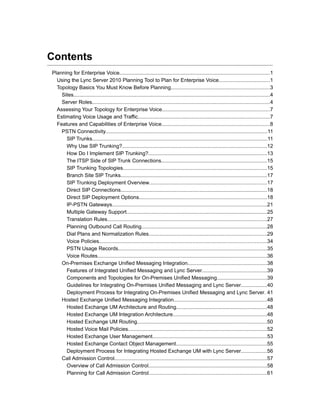
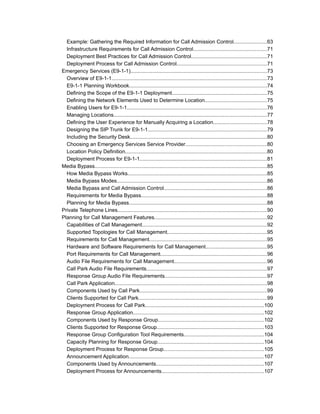
Contents
Planning for Enterprise Voice......................................................................................................1
  Using the Lync Server 2010 Planning Tool to Plan for Enterprise Voice...................................1
  Topology Basics You Must Know Before Planning...................................................................3
    Sites......................................................................................................................................4
    Server Roles.........................................................................................................................4
  Assessing Your Topology for Enterprise Voice.........................................................................7
  Estimating Voice Usage and Traffic..........................................................................................7
  Features and Capabilities of Enterprise Voice..........................................................................8
    PSTN Connectivity..............................................................................................................11
      SIP Trunks.......................................................................................................................11
      Why Use SIP Trunking?...................................................................................................12
      How Do I Implement SIP Trunking?.................................................................................13
      The ITSP Side of SIP Trunk Connections........................................................................15
      SIP Trunking Topologies..................................................................................................15
      Branch Site SIP Trunks....................................................................................................17
      SIP Trunking Deployment Overview................................................................................17
      Direct SIP Connections....................................................................................................18
      Direct SIP Deployment Options.......................................................................................18
      IP-PSTN Gateways..........................................................................................................21
      Multiple Gateway Support................................................................................................25
      Translation Rules.............................................................................................................27
      Planning Outbound Call Routing.....................................................................................28
      Dial Plans and Normalization Rules................................................................................29
      Voice Policies..................................................................................................................34
      PSTN Usage Records.....................................................................................................35
      Voice Routes...................................................................................................................36
    On-Premises Exchange Unified Messaging Integration......................................................38
      Features of Integrated Unified Messaging and Lync Server............................................39
      Components and Topologies for On-Premises Unified Messaging..................................39
      Guidelines for Integrating On-Premises Unified Messaging and Lync Server..................40
      Deployment Process for Integrating On-Premises Unified Messaging and Lync Server. 41
    Hosted Exchange Unified Messaging Integration...............................................................48
      Hosted Exchange UM Architecture and Routing..............................................................48
      Hosted Exchange UM Integration Architecture................................................................48
      Hosted Exchange UM Routing........................................................................................50
      Hosted Voice Mail Policies...............................................................................................52
      Hosted Exchange User Management..............................................................................53
      Hosted Exchange Contact Object Management..............................................................55
      Deployment Process for Integrating Hosted Exchange UM with Lync Server..................56
    Call Admission Control........................................................................................................57
      Overview of Call Admission Control.................................................................................58
      Planning for Call Admission Control................................................................................61
Example: Gathering the Required Information for Call Admission Control.......................63
  Infrastructure Requirements for Call Admission Control..................................................71
  Deployment Best Practices for Call Admission Control....................................................71
  Deployment Process for Call Admission Control.............................................................71
Emergency Services (E9-1-1).............................................................................................73
  Overview of E9-1-1..........................................................................................................73
  E9-1-1 Planning Workbook..............................................................................................74
  Defining the Scope of the E9-1-1 Deployment.................................................................75
  Defining the Network Elements Used to Determine Location..........................................75
  Enabling Users for E9-1-1...............................................................................................76
  Managing Locations........................................................................................................77
  Defining the User Experience for Manually Acquiring a Location....................................78
  Designing the SIP Trunk for E9-1-1.................................................................................79
  Including the Security Desk.............................................................................................80
  Choosing an Emergency Services Service Provider.......................................................80
  Location Policy Definition.................................................................................................80
  Deployment Process for E9-1-1.......................................................................................81
Media Bypass.....................................................................................................................85
  How Media Bypass Works...............................................................................................85
  Media Bypass Modes......................................................................................................86
  Media Bypass and Call Admission Control......................................................................86
  Requirements for Media Bypass......................................................................................88
  Planning for Media Bypass..............................................................................................88
Private Telephone Lines......................................................................................................90
Planning for Call Management Features.............................................................................92
  Capabilities of Call Management.....................................................................................92
  Supported Topologies for Call Management....................................................................95
  Requirements for Call Management................................................................................95
  Hardware and Software Requirements for Call Management..........................................95
  Port Requirements for Call Management.........................................................................96
  Audio File Requirements for Call Management...............................................................96
  Call Park Audio File Requirements..................................................................................97
  Response Group Audio File Requirements......................................................................97
  Call Park Application........................................................................................................98
  Components Used by Call Park.......................................................................................99
  Clients Supported for Call Park.......................................................................................99
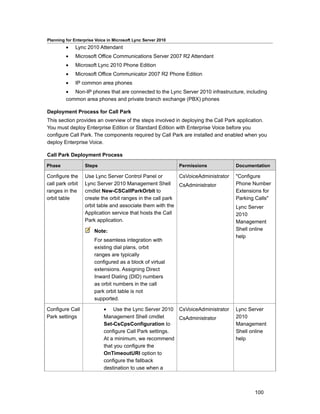
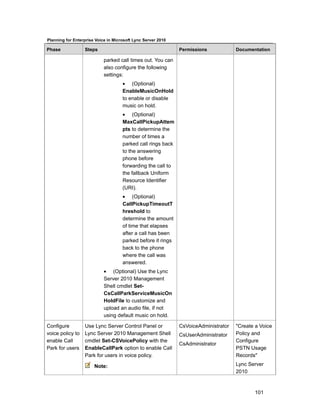
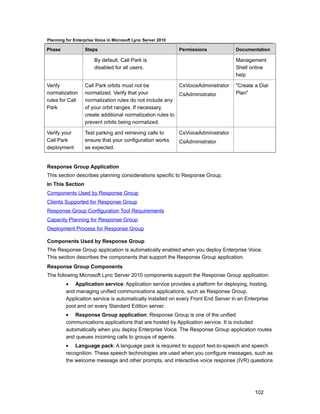
  Deployment Process for Call Park.................................................................................100
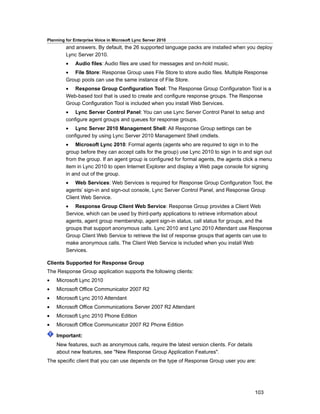
  Response Group Application.........................................................................................102
  Components Used by Response Group........................................................................102
  Clients Supported for Response Group.........................................................................103
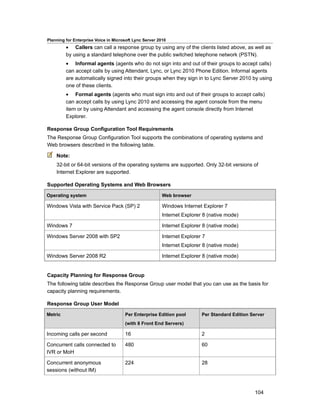
  Response Group Configuration Tool Requirements.......................................................104
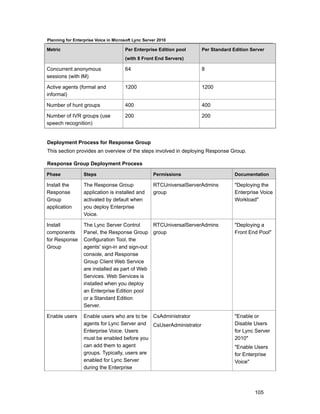
  Capacity Planning for Response Group.........................................................................104
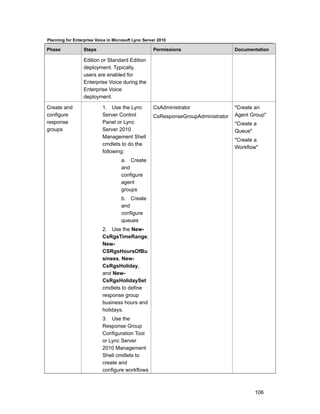
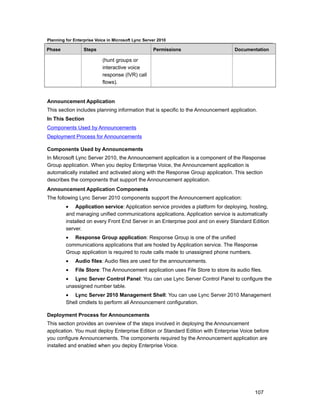
  Deployment Process for Response Group....................................................................105
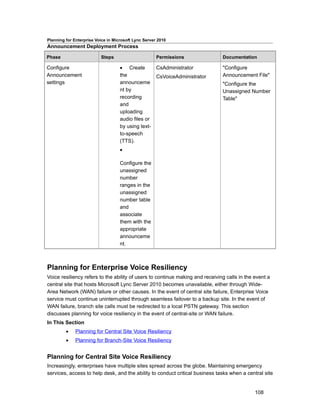
  Announcement Application............................................................................................107
  Components Used by Announcements..........................................................................107
  Deployment Process for Announcements......................................................................107
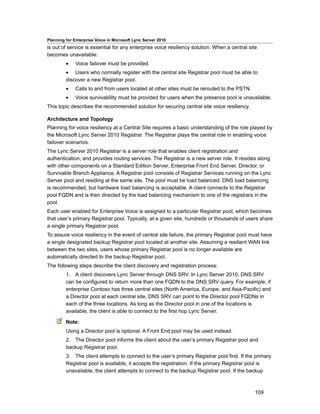
Planning for Enterprise Voice Resiliency..............................................................................108
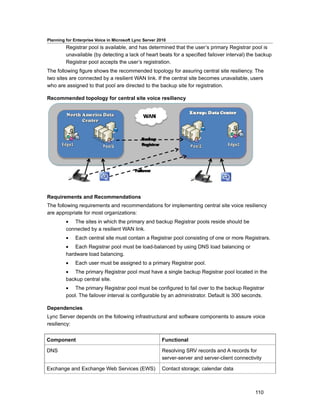
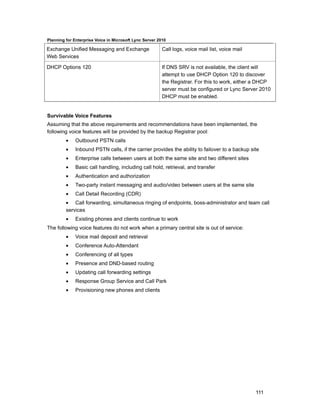
       Planning for Central Site Voice Resiliency........................................................................108
       Planning for Branch-Site Voice Resiliency........................................................................112
         Branch-Site Resiliency Features....................................................................................112
         Branch-Site Resiliency Solutions...................................................................................113
         Branch-Site Resiliency Requirements............................................................................116
         Configuring a Failover Route.........................................................................................119
     Components Required for Enterprise Voice.........................................................................120
       Front End Server VoIP Components.................................................................................120
       Mediation Server Component...........................................................................................122
         Multiple Gateway Support..............................................................................................123

Call Admission Control and Mediation Server.............................................................................125

Enhanced 9-1-1 (E9-1-1) and Mediation Server.........................................................................127

Media Bypass and Mediation Server..........................................................................................127

Components and Topologies for Mediation Server......................................................................127

Deployment Guidelines for Mediation Server..............................................................................129

PSTN Connectivity Components.................................................................................................130

Perimeter Network VoIP Components.........................................................................................131

Quality Considerations for Enterprise Voice................................................................................131

Planning for Monitoring...............................................................................................................131

Deployment Guidelines for Enterprise Voice...............................................................................136

Deployment Process Overview for Enterprise Voice...................................................................138

Moving Users to Enterprise Voice...............................................................................................138
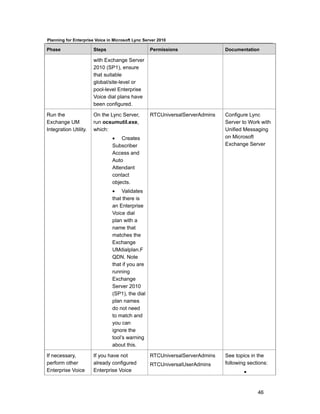
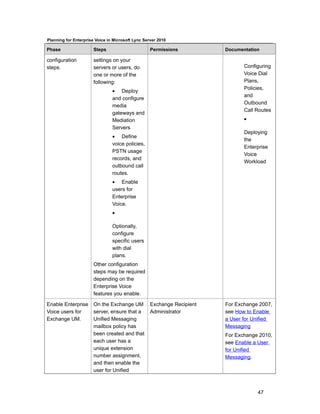
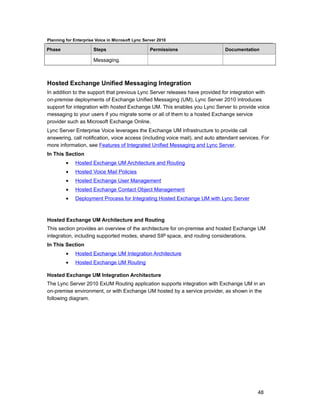
Planning for Enterprise Voice
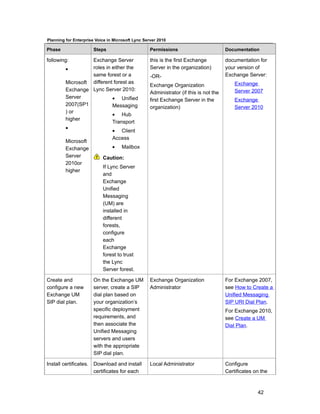
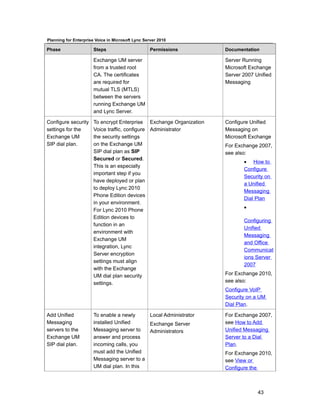
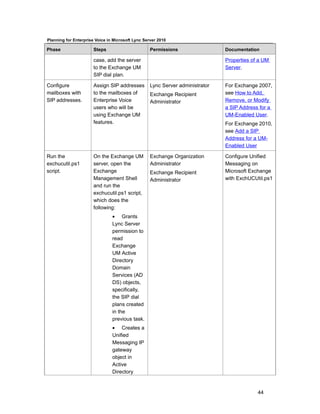
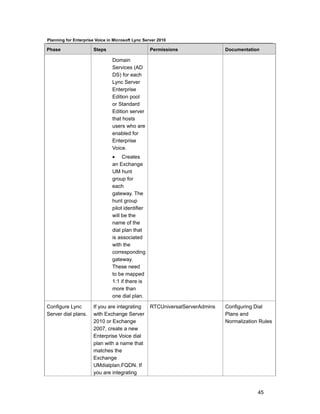
The steps that you follow in your deployment of Enterprise Voice depend on your existing
topology, infrastructure, and the Enterprise Voice functionality you want to support for users in
your topology. While the required steps are different depending on what features you choose,
there are considerations that you must make at a high level.
In general, consider the type and number of sites you have deployed and their geographical
locations, the call volume of each site, the types of network links you have between sites, whether
you want to provide redundancy and failover for Voice functionality for each site, and whether you
want to use existing PBX equipment. Certain considerations, such as high availability, are taken
into account when you plan for the Microsoft Lync Server 2010 communications software as a
whole and are reiterated in topics throughout this section as needed.


Planning Considerations
For planning decisions that pertain to the deployment of a particular Enterprise Voice capability or
deployment scenario or component, consult the topics in this section:
        •   Using the Lync Server 2010 Planning Tool to Plan for Enterprise Voice
        •   Topology Basics You Must Know Before Planning
        •   Assessing Your Topology for Enterprise Voice
        •   Estimating Voice Usage and Traffic
        •   PSTN Connectivity
        •   On-Premises Exchange Unified Messaging Integration
        •   Hosted Exchange Unified Messaging Integration
        •   Call Admission Control
        •   Emergency Services (E9-1-1)
        •   Media Bypass
        •   Private Telephone Lines
        •   Planning for Call Management Features
        •   Moving Users to Enterprise Voice


Using the Lync Server 2010 Planning Tool to Plan for Enterprise
Voice
Microsoft Lync Server 2010, Planning Tool is a wizard that interactively asks you a series of
questions about your organization, the Lync Server 2010 features you want to enable, and your
capacity planning needs. It then creates a recommended deployment topology based on your
answers, and produces several forms of output that helps your planning and installation.
We recommend that you use the planning tool to design your Enterprise Voice topology. You can
run the planning tool to familiarize yourself with some of the Enterprise Voice capabilities offered
by Lync Server 2010 before you begin reviewing the planning documentation. (The tool does not


                                                                                                       1
Planning for Enterprise Voice in Microsoft Lync Server 2010
ask questions about all Enterprise Voice features. Rather, the planning tool focuses on the
Enterprise Voice features that have an impact on your infrastructure.) The tool can help you
review the documentation with more of an eye toward the specific requirements of the features
and functionality you are interested in. In the documentation, detailed information about
capabilities and components, including those not included in the planning tool, can help you to
make informed decisions when you run the planning tool again immediately prior to deployment
to design Enterprise Voice deployment at the sites in your organization.


Installation Requirements for the Planning Tool
The Lync Server 2010 planning tool is available as a download that is separate from the Lync
Server 2010 Enterprise Edition or Lync Server 2010 Standard Edition installation media.

    Note:
    Ensure that you remove all earlier versions of the Lync Server 2010 planning tool before
    you install the version provided for this release.
To install the planning tool, you must install the following:
         • Operating system (one of the following): Windows Server 2008 with Service Pack 2
         (SP2), Windows Server 2008 R2, Windows 7, Windows Vista with SP2, either 32-bit or
         64-bit
         •    .NET Framework 3.5 with SP1


Planning Tool Considerations
As recommended in Beginning the Planning Process in the Planning documentation, at the start
of the planning process you may have run the planning tool to get a sense of the kind of
questions you would need to think about while planning your Lync Server 2010 deployment.
For the Enterprise Voice workload, in addition to highlighting available Enterprise Voice features
and capabilities, the planning tool will also alert you to the mitigating factors that you need to
account for in your environment. For example, if you indicate that you plan to deploy SIP trunking
to provide PSTN connectivity, but that the SIP trunk does not support media bypass, then the tool
asks you to provide the hardware specifications for the Mediation Server that will be required to
process media for calls that use the SIP trunk. If the SIP trunk supports media bypass, then
media from a user at a branch site can flow directly to a gateway or other media termination point
without requiring you to deploy a Mediation Server at the branch site or without having to flow
over the WAN link to the central site that has the Mediation Server that controls the gateway.
The planning tool considerations include:
         • the number of sites in your deployment and the type of network connection between
         them
         • the number of users, including the number or percentage of users that will be
         enabled for Enterprise Voice, at each of the sites in your deployment
         •    the number of calls that you expect Enterprise Voice users to generate at each site
         •    Enterprise Voice features that you want to provide to your users, including:
                  a. Exchange Unified Messaging voice mail


                                                                                               2
Planning for Enterprise Voice in Microsoft Lync Server 2010
                  b. Call Admission Control over WAN links between sites
                  c.   Media bypass
         •    the PSTN connectivity options that you will incorporate, for example:
                  •    the type of PSTN gateway
                  •    the SIP Trunk to an Internet Telephony Service Provider (ITSP)
                  •    the type of PBX you will deploy
                  • whether the PSTN connectivity option that you choose supports the new
                  DNS load balancing and media bypass functionality that have been added to
                  Lync Server for this release
                  •    the type of network line or primary rate interface (PRI) used by those devices
         •    Mediation Server specifications
Using the deployment preferences you identified during the Enterprise Voice planning process (as
a result of reviewing the documentation and running the planning tool), re-run the planning tool to
design a topology that will now include a Mediation Server collocated with each Front End Server,
settings for your preferred Enterprise Voice capabilities, and Enterprise Voice support for users at
the appropriate sites in your Lync Server environment.


Next Steps for Planning Tool Output
Output the planning tool’s recommended topology to an XML file that is readable by Topology
Builder. Then, in Topology Builder, configure the fully qualified domain name (FQDN) or Internet
protocol (IP) address, port, and transport protocol for the Mediation Server and media gateways
that you have deployed for Enterprise Voice. Use Topology Builder to publish your configuration
settings to the Central Management store.
After the central management store is updated with your new Enterprise Voice settings, running
the setup files for Lync Server on each server in your deployment will install Mediation Server and
configure the PSTN gateway associations with the appropriate settings.


Topology Basics You Must Know Before Planning
You do not have to be an expert on Microsoft Lync Server 2010 communications software to run
the Microsoft Lync Server 2010, Planning Tool. In fact, running the Lync Server 2010, Planning
Tool multiple times, answering questions differently, and comparing the output is a good way to
learn about Lync Server 2010.
Before you learn about the various components in more depth, you should understand the
following basic aspects of Lync Server topologies.
In This Section
         •    Sites
         •    Server Roles


                                                                                                3
Planning for Enterprise Voice in Microsoft Lync Server 2010
Sites
In Microsoft Lync Server 2010, you define sites on your network that contain Lync Server 2010
components. A site is a set of computers that are well-connected by a high-speed, low-latency
network, such as a single local area network (LAN) or two networks connected by a high-speed
fiber optic network. Note that Lync Server sites are a separate concept from Active Directory
Domain Services (AD DS) sites and Microsoft Exchange Server sites. Your Lync Server 2010
sites do not have to correspond to your Active Directory sites.

Site Types
Each site is either a central site, which contains at least one Front End pool or Standard Edition
server, or a branch site. Each branch site is associated with exactly one central site, and the
users at the branch site get most of their Lync Server functionality from the servers at the
associated central site.
Each branch site contains one of the following:
         • A Survivable Branch Appliance, which is a new device introduced in Lync Server
         2010 that combines a public switched telephone network (PSTN) gateway with some
         Lync Server functionality.
         •    A PSTN gateway and, optionally, a Mediation Server.
A branch site with a resilient wide area network (WAN) link to a central site can use the second
option, a PSTN gateway and optionally a Mediation Server. Branch site sites with less-resilient
links should use a Survivable Branch Appliance, which provide resiliency in times of wide-area
network failures. For example, in a site with a Survivable Branch Appliance deployed, users can
still make and receive Enterprise Voice calls if the WAN connecting the branch site to the central
site is down. For details about the Survivable Branch Appliance and resiliency, see Branch site
Resiliency.

Site Topologies
Your deployment must include at least one central site, and can include zero to many branch
sites. Each branch site is affiliated with one central site. The central site provides the Lync Server
2010 services to the branch site that are not located locally at the branch site.


Server Roles
Each server running Microsoft Lync Server 2010 runs one or more server roles. A server role is a
defined set of Lync Server 2010 functionality provided by that server. You do not need to deploy
all available server roles in your network. Install only the server roles that contain the functionality
that you want.
Even if you are not familiar with server roles in Lync Server, the Microsoft Lync Server 2010,
Planning Tool can guide you to the best solution for the servers you need to deploy, based on the
features that you want. This section provides a brief overview of the server roles and the general
features they provide:
         •    Front End Server and Back End Server
         •    A/V Conferencing Server


                                                                                                  4
Planning for Enterprise Voice in Microsoft Lync Server 2010
         •    Edge Server
         •    Mediation Server
         •    Monitoring Server
         •    Archiving Server
         •    Director
For most server roles, for scalability and high availability you can deploy pools of multiple servers
all running the same server role. Each server in a pool must run an identical server role or roles.
For some types of pools in Lync Server, you must deploy a load balancer to spread traffic
between the various servers in the pool.

Standard Edition Server
The Standard Edition server is designed for small organizations, and for pilot projects of large
organizations. It enables many of the features of Lync Server 2010, as well as the necessary
databases, to run on a single server. This enables you to have Lync Server functionality for a
lesser cost, but does not provide a true high-availability solution.
Standard Edition server enables you to use instant messaging (IM), presence, conferencing, and
Enterprise Voice, all running on one server.
For a high-availability solution, use Lync Server 2010 Enterprise Edition.

Front End Server and Back End Server
The Front End Server is the core server role, and runs many basic Lync Server functions. The
Front End Server, along with the Back End Servers that provide the database, are the only server
roles required to be in any Lync Server Enterprise Edition deployment.
A Front End pool is a set of Front End Servers, configured identically, that work together to
provide services for a common group of users. A pool provides scalability and failover capability
your users.
Front End Server includes the following functionality:
         •    User authentication and registration
         •    Presence information and contact card exchange
         •    Address book services and distribution list expansion
         •    IM functionality, including multi-party IM conferences
         •    Web conferencing and application sharing (if deployed)
         • Application hosting services, for both applications included with Lync Server (for
         example, Conferencing Attendant and Response Group application) and third-party
         applications
         • Application services for application hosting and hosts applications (for example,
         Response Group Application, and several others)
Additionally, one Front End pool in the deployment also runs the Central Management Server,
which manages and deploys basic configuration data to all servers running Lync Server 2010.
The Central Management Server also provides Lync Server 2010 Management Shell and file
transfer capabilities.


                                                                                                5
Planning for Enterprise Voice in Microsoft Lync Server 2010
The Back End Servers are database servers running the Microsoft SQL Server database software
that provide the database services for the Front End pool. You can have a single Back End
Server, but a cluster of two or more servers is recommended for failover. Back End Servers do
not run any Lync Server software. If you already have a SQL Server cluster that you are using for
other applications, you can also use this cluster for Lync Server 2010, if performance allows.
Information stored in the Back End Server databases includes presence information, user’s
contact lists, conferencing data including persistent data about the state of all current
conferences, and conference scheduling data.

A/V Conferencing Server
A/V Conferencing Server provides A/V conferencing functionality to your deployment. It can be
collocated with Front End Server, or deployed separately as a single server or A/V Conferencing
Server pool.

Edge Server
Edge Server enables your users to communicate and collaborate with users outside the
organization’s firewalls. These external users can include the organization’s own users who are
currently working offsite, users from federated partner organizations, and outside users who have
been invited to join conferences hosted on your Lync Server deployment. Edge Server also
enables connectivity to public IM connectivity services, including the Windows Live network of
Internet services, AOL, and Yahoo!.

Mediation Server
Mediation Server is a necessary component for implementing Enterprise Voice and dial-in
conferencing. Mediation Server translates signaling and, in some configurations, media between
your internal Lync Server infrastructure and an Internet Protocol/Public Switched Telephone
Network (IP-PSTN) gateway or a Session Initiation Protocol (SIP) trunk.
For details, see Mediation Server Component.

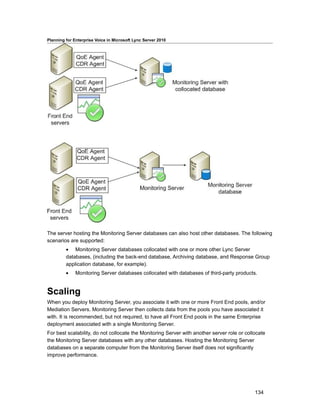
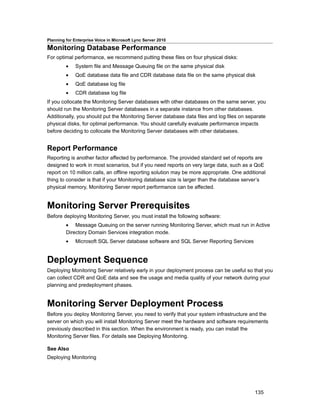
Monitoring Server
Monitoring Server collects data about the quality of your network media, in both Enterprise Voice
calls and A/V conferences. This information can help you provide the best possible media
experience for your users. It also collects call error records (CERs), which you can use to
troubleshoot failed calls. Additionally, it collects usage information in the form of call detail records
(CDRs) about various Lync Server features so that you can calculate return on investment of your
deployment, and plan the future growth of your deployment.
For details, see Planning for Monitoring.

Archiving Server
Archiving Server enables you to archive IM communications and meeting content for compliance
reasons. If you do not have legal compliance concerns, you do not need to deploy Archiving
Server.


                                                                                                   6
Planning for Enterprise Voice in Microsoft Lync Server 2010
Director
Directors can authenticate Lync Server user requests, but do not home user accounts, or provide
presence or conferencing services. Directors are most useful in deployments that enable external
user access, where the Director can authenticate requests before sending them on to internal
servers. Directors can also improve performance in organizations with multiple Front End pools.
For details, see “Director” in the “Planning for External User Access in Lync Server 2010”
document.


Assessing Your Topology for Enterprise Voice
This section describes the considerations you need to make about the regions, sites, and the
links between sites in your topology and how those are important when you deploy Enterprise
Voice.

    Note:
    In this release, the documentation addresses only a few of the topology considerations
    you need to make.


Sites and Regions
First, identify the sites in your topology where you will deploy Enterprise Voice and the regions to
which those sites belong. In particular, consider how you will provide PSTN connectivity to
various sites. For manageability and logistical reasons, the regions to which these sites belong
can be a deciding factor. Decide where gateways will be deployed locally, where Survivable
Branch Appliances (SBAs) will be deployed, and where you can configure SIP Trunks (either
locally or at the central site) to an Internet telephony service provider (ITSP).


Network Links Between Sites
You also need to consider the bandwidth usage that you expect on the network links between
your central site and branch sites. If you have or plan to deploy resilient WAN links between sites,
we recommend that you deploy a gateway at each branch site to provide local direct inward dial
(DID) termination for users at those sites. If you have resilient WAN links, but the bandwidth on a
WAN link is likely to be constrained, configure Call Admission Control for that link. Consider also
enabling media bypass on constrained links if you have a gateway peer that supports media
bypass.


Estimating Voice Usage and Traffic
The Microsoft Lync Server 2010, Planning Tool uses the following metric to estimate user traffic at
each site and the number of media ports that are required to support that traffic. The number of
media ports in turn determines the number of Mediation Servers and gateways that will be
required. The media gateways that most organizations consider deploying range in size from 2 to
as many as 960 ports. (There are even larger gateways, but these are used mainly by telephone
service providers.)
    •    For Light traffic (one PSTN call per hour) figure 15 users per port
    •    For Medium traffic (2 PSTN calls per hour) figure 10 users per port


                                                                                               7
Planning for Enterprise Voice in Microsoft Lync Server 2010
    •    For Heavy traffic (3 or more PSTN calls per hour) figure 5 users per port
For example, an organization with 10,000 users and medium traffic would require 1000 ports. The
number of gateways required would equal the total number of ports required as determined by
the total capacity of the gateways.
Enabling media to bypass the Mediation Server reduces the number of ports required. The
planning tool takes this into account when making its recommendations. For more information,
see Media Bypass later in this document.


Features and Capabilities of Enterprise Voice
Microsoft Lync Server 2010 Enterprise Voice features and capabilities each have their own set of
planning considerations, deployment requirements, and configuration steps. The topics later in
this section are grouped by feature or capability such that you can plan to deploy each separately
(either in a phased deployment or at some sites and not others) without having to concern
yourself with information and requirements that pertain to features or capabilities that you are not
planning to deploy.
The following are features that persist from versions released prior to Lync Server 2010:
         •    PSTN Connectivity
         •    Exchange Unified Messaging Voice Mail

         Note:
         The ability to use a hosted Exchange service provider to provide voice messaging to
         users is new to Lync Server 2010
The following list includes Enterprise Voice functionality that is new to or has been enhanced for
Lync Server 2010:
         •    Call Admission Control
         •    Emergency Services (E9-1-1)
         •    Media Bypass
         •    Multiple Gateway Support
         •    Caller ID Manipulation
         •    Outbound Route Translation
         •    Private Telephone Lines
         •    Common Area Phones
         •    Analog Devices
         •    Voice Resiliency
         •    Call Management and Call Handling


PSTN Connectivity
A Lync Server Enterprise Voice deployment supports calls to and from the public switched
telephone network (PSTN). PSTN calls require that you configure a SIP Trunk that connects Lync
Server to an Internet telephony service provider (ITSP), to an IP-PBX on your local network, or to


                                                                                               8
Planning for Enterprise Voice in Microsoft Lync Server 2010
an IP-PSTN gateway by way of the Mediation Server or a supported hardware Survivable Branch
Appliance.
For details about the PSTN connectivity options supported by Lync Server, see PSTN
Connectivity. For details about the outbound call routes that need to be configured between Lync
Server and ITSPs, IP-PBXes, or IP-PSTN gateways, see Planning Outbound Call Routing.


Exchange Unified Messaging Voice Mail
If you have deployed or plan to deploy Microsoft Exchange Server in your organization, you can
use Exchange Unified Messaging (UM) features to provide voice mail to Enterprise Voice users.
For details about integrating Exchange UM, see On-Premises Exchange Unified Messaging
Integration and Hosted Exchange Unified Messaging Integration.


Call Admission Control
Lync Server 2010 introduces call admission control as a way to manage whether calls can be
established based on available network bandwidth. For details about assessing your network
sites, your network bandwidth, and configuring call admission control policies to manage
bandwidth, see Call Admission Control.


Emergency Services
Also new to Lync Server is support for enhanced 9-1-1 (E9-1-1), a feature that provides location
information to dispatchers of emergency services. For details about E9-1-1 and associating
Enterprise Voice users’ phone numbers with their physical locations, see Emergency Services
(E9-1-1).


Media Bypass
Media bypass is a new feature of Lync Server that enables media to bypass the Mediation Server
in order to be processed by a SIP trunk’s site-consolidated media termination points (MTP)
instead. Media bypass is only available for certain types of calls. For details about configuring
support for media bypass in your Enterprise Voice deployment, see Media Bypass.


Multiple Gateway Support
In Lync Server 2010, a single Mediation Server can now control multiple IP-PSTN gateways. In
previous releases, there was a 1:1 ratio of Mediation Server to Gateways. In this release, when
defining a call route, you specify the gateways associated with that route, but you do not specify
which Mediation Servers are associated with the route. Instead, you use Topology Builder to
associate gateways, and therefore routes, with one or more Mediation Servers. For details, see
Multiple Gateway Support.


Caller ID Manipulation
Lync Server 2010 provides you with the ability to manipulate the caller ID for outbound calls. As
you plan outbound call routes, consider whether to manipulate the caller ID for calls placed by
certain users, groups, sites, or all users.


                                                                                              9
Planning for Enterprise Voice in Microsoft Lync Server 2010
Outbound Route Translation
In Lync Server 2010, you can help streamline outbound routing by creating one or more
translation rules that are associated with the gateway during trunk configuration and which
manipulate the Request URI of a call prior to routing it to the gateway. By performing outbound
route translation on the server, you can reduce the configuration required on the gateway to
manipulate phone numbers into a local dialing format.


Private Telephone Lines
Another new feature of Lync Server is the ability for Enterprise Voice users to have a second,
unlisted telephone number for receiving incoming calls. For details about private telephone lines,
see Private Telephone Lines.


Common Area Phones
Lync Server introduces support for common area phones which make it possible, for the first time,
to use Lync Server to provide phone service in and to enable unified communications functionality
from common areas, such as building lobbies. For details about planning for common area
phones in your Lync Server environment, see Preparing for Devices.


Analog Devices
Lync Server now supports analog devices in the Enterprise Voice environment. Analog devices
include analog phones or analog fax machines connected to an analog port of a gateway or a
PBX, ATA gateways with 2 to 4 analog ports into which analog devices can connect and which are
connected to a SIP-PSTN gateway, and SIP-PSTN analog gateways (IP-PSTN gateways with
native analog ports).

    Note:
    In the Beta release, no documentation is available to describe how to plan for integrating
    analog devices into your Enterprise Voice deployment.


Voice Resiliency
Lync Server now includes support for Enterprise Voice users to continue making and receiving
calls in the event a central site becomes unavailable by connecting to secondary central sites.
Branch site resilience is the ability of a branch site to provide continuous Enterprise Voice service
to its employees in the event the WAN link to its central site becomes unavailable. For details
about planning for a resilient Enterprise Voice deployment, see Planning for Enterprise Voice
Resiliency, Planning for Central Site Voice Resiliency, and Planning for Branch-Site Voice
Resiliency.


Call Management and Call Handling
Lync Server includes call management features that affect how incoming calls are routed and
answered. For example, you can enable call parking and specify what happens to incoming calls
to unassigned phone numbers.


                                                                                              10
Planning for Enterprise Voice in Microsoft Lync Server 2010
You can continue to use the feature from Microsoft Office Communications Server 2007 R2 in
which you configure users to act as delegates for their manager’s incoming calls. You can also
continue to configure routing and queuing of incoming calls to groups of designated users (called
response groups). New functionality for response groups includes the ability for agents to handle
incoming and outgoing calls anonymously, for agents using Microsoft Lync 2010 Attendant to
answer waiting calls in any order, integrated manageability, more flexible IVR configurations and
prompts, and a Web service that supports customized agent consoles.
For details about planning for these call management features, see Planning for Call
Management Features.


PSTN Connectivity
An enterprise-grade VoIP solution must provide for calls to and from the Public Switched
Telephone Network (PSTN) without any decline in quality of service. Users placing and receiving
calls should not be aware of the underlying technology. From the user's perspective, a call
between the Enterprise Voice infrastructure and the PSTN should seem like just another phone
call.
Microsoft Lync Server 2010 provides reliable, transparent PSTN connectivity using the following
options:
         •    SIP Trunks to an Internet telephony service provider (ITSP)
         •    Direct SIP Connections to an IP-PSTN gateway
         •    Direct SIP Connections to a PBX
Depending on its size, geographic coverage, and existing voice infrastructure, a given enterprise
may use one, two, or even all three of these options at various locations.
In This Section
         •    SIP Trunks
         •    Direct SIP Connections
         •    Multiple Gateway Support
         •    Translation Rules
         •    Planning Outbound Call Routing

SIP Trunks
Session Initiation Protocol (SIP) is used to initiate and manage voice over IP (VoIP)
communications sessions for basic telephone service as well as many additional real-time
communication services, such as instant messaging, conferencing, presence detection, and
multimedia. This section provides planning information for implementing SIP trunks, a type of SIP
connection that extends beyond the boundary of your local network.
What is SIP Trunking?
A SIP trunk is an IP connection that establishes a SIP communications link between your
organization and an Internet telephony service provider (ITSP) beyond your firewall. Typically, a
SIP trunk is used to connect your organization’s central site and an ITSP. In some cases, you
may also opt to use SIP trunking to connect your central site to a branch site.


                                                                                            11
Planning for Enterprise Voice in Microsoft Lync Server 2010
SIP Trunks vs. Direct SIP Connections
The term trunk, derived from legacy circuit-switched technology, refers to a dedicated physical
line that connects telephone switching equipment. Similar to the predecessor TDM trunks, SIP
trunks are connections between two separate SIP networks (the Microsoft Lync Server 2010
enterprise and the ITSP). But unlike circuit-switched trunks, SIP trunks are virtual connections
that can be established over any of the supported SIP trunking connection types. For more
information about the supported connection types, see How Do I Implement SIP Trunking?.
Direct SIP connections, on the other hand, are SIP connections that do not cross the local
network boundary. For more information about how you can use direct SIP connections with Lync
Server 2010, see Direct SIP Connections.

Why Use SIP Trunking?
Deploying SIP trunking can be a big step toward simplifying your organization’s
telecommunications and preparing for the latest real-time communications enhancements. One of
the primary advantages of SIP trunking is that it allows you to consolidate your organizations
connections to the PSTN at a central site, as opposed to legacy TDM trunking, which typically
requires a separate trunk from each branch site.
SIP Trunking in Lync Server 2010
The Microsoft Lync Server 2010 SIP trunking capabilities enable the following scenarios:
         • An enterprise user inside or outside the corporate firewall can make a local or long-
         distance call specified by an E.164-compliant number that is terminated on the PSTN as
         a service of the corresponding service provider.
         • Any PSTN subscriber can contact an enterprise user inside or outside the corporate
         firewall by dialing a Direct Inward Dialing (DID) number associated with that enterprise
         user.
Cost Savings
The cost savings associated with SIP trunking can be substantial:
         •    Long distance calls typically cost much less through a SIP trunk.
         •    You can cut manageability costs and reduce the complexity of deployment.
         • Basic Rate Interface (BRI) and Primary Rate Interface (PRI) fees can be eliminated if
         you connect a SIP trunk directly to your ITSP at significantly lower cost. In legacy TDM
         trunking, service providers charge for calls by the minute. The cost of SIP trunking may
         be based on bandwidth usage, which you can buy in smaller, more economical
         increments. (The actual cost is dependent on the service model of the ITSP you choose.)
SIP Trunking vs. Hosting an IP-PSTN Gateway or IP-PBX
Because SIP trunks connect directly to your service provider without traversing the PSTN, you
can eliminate your IP-PSTN gateways and their attendant cost and complexity. Some ITSPs offer
to host a PBX for you if you choose. This can lead to substantial cost savings through reduced
maintenance and administration.
Expanded VoIP Services
Voice features are often the primary motivation for deploying SIP trunking, but voice support
alone is just the first step. With SIP trunking, you can extend VoIP capabilities and enable Lync


                                                                                             12
Planning for Enterprise Voice in Microsoft Lync Server 2010
Server 2010 to deliver a richer set of services than you can get with legacy technology. For
example, the same SIP trunk that delivers your telephone service and other VoIP communications
services may now provide:
         • Enhanced presence detection for devices that are not running Microsoft Lync Server
         2010 can provide better integration with mobile phones, allowing you to see when a user
         is on a cell phone call.
         • E-911 emergency calling enables the authorities who answer 911 calls to determine
         the caller’s location based on their telephone number.
         • GPS locations can be integrated with your Location Information Server to track
         mobile user location.

    Note:
    Follow up with your ITSP for a list of services that they support and can enable for your
    organization.

How Do I Implement SIP Trunking?
To implement SIP trunking, you must route the connection through a Mediation Server, which
proxies communications sessions between Lync Server 2010 clients and the service provider and
transcodes media when necessary.
Each Mediation Server is required to have two Network Interface Cards (NICs), which provide an
internal and an external network interface. The internal interface connects to the Front End
servers. The external interface is commonly called the gateway interface because traditionally it
has been used to connect to an IP-PSTN gateway or an IP-PBX. To implement a SIP trunk, you
connect the external interface of the Mediation Server to the external edge component of the
ITSP.

    Note:
    The external edge component of the ITSP could be a session border controller (SBC), a
    router, or a gateway.
For more information about Mediation Servers, see Mediation Server Component.
Centralized vs. Distributed SIP Trunking
Centralized SIP trunking routes all VoIP traffic, including branch site traffic, through your central
site. The centralized deployment model is simple, cost-effective, and generally the preferred
approach for implementing SIP trunks with Lync Server 2010.
Distributed SIP trunking is a deployment model in which you implement a local SIP trunk at one or
more branch sites. VoIP traffic is then routed from the branch site directly to their service provider,
without going through your data center.
Distributed SIP trunking is required only in the following cases:
         • The branch site requires survivable phone connectivity (for example, if the WAN goes
         down). This should be analyzed for each branch site. Some of your branches may require
         redundancy and failover, while others do not.
         • The branch site and central site are in different countries or regions. For compatibility
         and legal reasons, you need at least one SIP trunk per country or region. For example, in


                                                                                                13
Planning for Enterprise Voice in Microsoft Lync Server 2010
         EU countries, communications cannot leave a country or region without terminating
         locally at a centralized point.
Depending on the geographical location of sites and how much traffic you anticipate within your
enterprise, you may not want to route all users through the central SIP trunk, or you may opt to
route some users through a SIP trunk at their branch site. To analyze your needs, answer the
following questions:
         •    How big is each site? How many users?
         •    Which Direct Inward Dialing (DID) numbers at each site get the most phone calls?
The decision about whether to deploy centralized or distributed SIP trunking requires a cost-
benefit analysis. In some cases, it may be advantageous to opt for the distributed deployment
model even if it is not required. In a completely centralized deployment, all branch site traffic is
routed over WAN links. Instead of paying for the bandwidth required for WAN linking, you may
want to use distributed SIP trunking.

    Note:
    For more information about why and how you might use distributed SIP trunking, see
    Branch Site SIP Trunks.
Supported SIP Trunking Connection Types
Lync Server supports the following connection types for SIP trunking:
         • Multiprotocol Label Switching (MPLS) is a private network that directs and carries
         data from one network node to the next. The bandwidth in an MPLS network is shared
         with other subscribers, and each data packet is assigned a label to distinguish one
         subscriber’s data from another’s. This connection type does not require VPN. A potential
         drawback is that excessive IP traffic can interfere with VoIP operation unless VoIP traffic
         is given priority.
         • A private connection with no other traffic, for example a leased fiber-optic connection
         or T1 line, is typically the most reliable and secure connection type. This connection type
         provides the highest call-carrying capacity, but is typically the most expensive. VPN is not
         required. Private connections are appropriate for organizations with high call volumes or
         stringent security and availability requirements.
         •    The public Internet is the least expensive connection type, but also the least reliable.

         Note:
          Internet connection is the only Lync Server SIP trunking connection type that
         requires VPN.
Selecting a Connection Type
The most appropriate SIP trunking connection type for your enterprise depends on your needs
and your budget.
         • For mid-size or larger enterprise, generally an MPLS network provides the most
         value. It can provide the necessary bandwidth at a cheaper rate than a specialized
         private network.
         •    Large enterprises may require a private fiber-optic, T1, T3 or higher connection.


                                                                                                14
Planning for Enterprise Voice in Microsoft Lync Server 2010
         • For a small enterprise or branch site with low call volume, SIP trunking through the
         Internet may be the best choice, however this connection type is not recommended for
         mid-size or larger sites.
Bandwidth Requirements
The amount of bandwidth your implementation requires depends on call capacity (the number of
concurrent calls you must be able to support). Bandwidth availability needs to be taken into
account so that you can take full advantage of the peak capacity that you have paid for. Use the
following formula to calculate SIP trunk peak bandwidth requirement:
SIP Trunk Peak Bandwidth = Max Simultaneous Calls x (64 kbps + header size)
Codec Support
Lync Server 2010 supports only the following codecs:
         1. G.711 a-law (if in EU countries)
         2. G.711 µ-law (if in North America)

The ITSP Side of SIP Trunk Connections
The details about how to implement the service provider side of a SIP trunk connection vary from
one ITSP to another. For deployment information, contact your service provider.
For information about Microsoft certified SIP trunking providers, contact your Microsoft
representative.

    Important:
    It is imperative that you use a Microsoft certified service provider to ensure that your ITSP
    supports all of the functionality that traverses the SIP trunk (for example, setting up and
    managing sessions, and supporting all of the extended VoIP services). Microsoft
    technical support does not extend to configurations that use non-certified providers. If you
    currently use an Internet service provider that is not certified for SIP trunking, you can opt
    to continue using that provider as your ISP and use a Microsoft certified provider for SIP
    trunking.

SIP Trunking Topologies
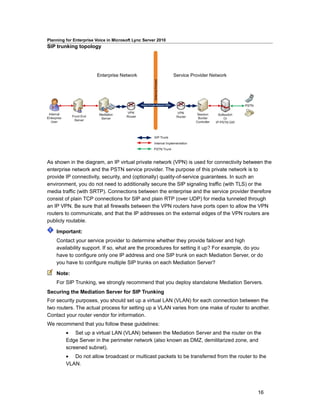
The following figure depicts the SIP trunking topology in Lync Server 2010.


                                                                                               15
Planning for Enterprise Voice in Microsoft Lync Server 2010
SIP trunking topology


As shown in the diagram, an IP virtual private network (VPN) is used for connectivity between the
enterprise network and the PSTN service provider. The purpose of this private network is to
provide IP connectivity, security, and (optionally) quality-of-service guarantees. In such an
environment, you do not need to additionally secure the SIP signaling traffic (with TLS) or the
media traffic (with SRTP). Connections between the enterprise and the service provider therefore
consist of plain TCP connections for SIP and plain RTP (over UDP) for media tunneled through
an IP VPN. Be sure that all firewalls between the VPN routers have ports open to allow the VPN
routers to communicate, and that the IP addresses on the external edges of the VPN routers are
publicly routable.

    Important:
    Contact your service provider to determine whether they provide failover and high
    availability support. If so, what are the procedures for setting it up? For example, do you
    have to configure only one IP address and one SIP trunk on each Mediation Server, or do
    you have to configure multiple SIP trunks on each Mediation Server?

    Note:
    For SIP Trunking, we strongly recommend that you deploy standalone Mediation Servers.
Securing the Mediation Server for SIP Trunking
For security purposes, you should set up a virtual LAN (VLAN) for each connection between the
two routers. The actual process for setting up a VLAN varies from one make of router to another.
Contact your router vendor for information.
We recommend that you follow these guidelines:
         • Set up a virtual LAN (VLAN) between the Mediation Server and the router on the
         Edge Server in the perimeter network (also known as DMZ, demilitarized zone, and
         screened subnet).
         • Do not allow broadcast or multicast packets to be transferred from the router to the
         VLAN.


                                                                                            16
Planning for Enterprise Voice in Microsoft Lync Server 2010
         • Block any routing rules that route traffic from the router to anywhere but the
         Mediation Server.
If you use a VPN server, we recommend that you follow these guidelines:
         •    Set up a VLAN between the VPN server and the Mediation Server.
         • Do not allow broadcast or multicast packets to be transmitted from the VPN server to
         the VLAN.
         • Block any routing rule that routes VPN server traffic to anywhere but the Mediation
         Server.
         •    Encrypt data on the VPN by using Generic Routing Encapsulation (GRE).
For more information, see http://go.microsoft.com/fwlink/?LinkId=192496.

Branch Site SIP Trunks
In some cases you may need to use the distributed model, to implement SIP trunks at selected
branch sites. To determine whether a SIP trunk is needed for a branch site, review the information
in How Do I Implement SIP Trunking?
For information about the supported topology options for deploying SIP trunks in branch sites,
see Branch Site Voice Resilience.
Example Branch Site SIP Trunk Requirements Analysis
The decision about deploying a branch site SIP trunk requires a site-specific cost analysis. For
example, an enterprise that has a central site in Redmond, Washington and a branch site in New
York should do an analysis to determine whether to implement a SIP trunk from the New York site
to a local service provider.
To determine whether a distributed SIP trunk in New York is cost-effective, identify which DIDs will
use the SIP trunk, and analyze the number of calls New York makes to areas other than
Redmond (425). If the cost of implementing a distributed SIP trunk is less than the cost of those
calls, consider implementing a SIP trunk at the New York branch site.

SIP Trunking Deployment Overview
Before you can deploy a SIP trunk, you and your service provider must exchange some basic
connection information about your respective SIP trunk end points.
Get the following information for each ITSP gateway you will connect to:
         •    IP address
         •    FQDN

    Note:
    The service provider may have you connect to more than one ITSP gateway. In that case,
    you must configure a connection between each ITSP gateway and each Mediation
    Server in your pool.
The information you give to your service provider depends on your SIP trunk connection type:
         • For MPLS or private network connections, give them the publicly routable IP Address
         of your perimeter network (also known as demilitarized zone, DMZ, and screened subnet)


                                                                                             17
Planning for Enterprise Voice in Microsoft Lync Server 2010
         router. Verify that the SPP can reach this address. Also give them the SIP domain FQDN
         (the FQDN of your server pool).
         •    For VPN connections, give them the IP address of your VPN server.

    Note:
    You must set up at least one SIP trunk connection for every Mediation Server in your
    pool.
Certificate Considerations
To determine whether you need a certificate for SIP trunking, check with your service provider
about protocol support:
         1. If your service provider supports TCP only, you do not need a certificate.
         2. If your service provider supports TLS they must provide you with a certificate.

    Note:
    SIP works in conjunction with RTP or SRTP, the protocols that manage the actual voice
    data in VoIP calls.
Deployment Process
To implement the Lync Server 2010 side of the SIP trunk connection, follow these steps:
         1. Using the Lync Server Topology Builder, create and configure the SIP domain
         topology. For details, see Define and Configure a Topology in Topology Builder.
         2. Using the Lync Server Control Panel, configure voice routing for the new SIP domain.
         For details, see Configuring Trunks and Translation Rules.
         3. Test connectivity.

Direct SIP Connections
You can use direct SIP connections to connect Lync Server 2010 to either of the following:
         •    An IP-PBX (see Direct SIP Deployment Options)
         •    An IP-PSTN gateway (see IP-PSTN Gateways)
To implement a direct SIP connection, you follow essentially the same deployment steps as you
would to implement a SIP trunk. In either case, you implement the connection by using the
external interface of a Mediation Server. The only difference is that you connect SIP trunks to an
external entity, such as an ITSP gateway, and you connect direct SIP connections to an internal
entity within your local network, such as an IP-PBX or an IP-PSTN gateway.

Direct SIP Deployment Options
This topic provides example topologies for deploying direct SIP connections.
Lync Server Stand-Alone
If your organization uses one of the deployments described in this section, you can use Microsoft
Lync Server 2010 communications software as the sole telephony solution for part or all of an
organization. This section describes the following deployments in detail:
         •    Incremental deployment
         •    VoIP-only deployment


                                                                                              18
Planning for Enterprise Voice in Microsoft Lync Server 2010
Incremental Deployment
In incremental deployment, Lync Server 2010 is the sole telephony solution for individual teams
or departments, while the rest of the users in an organization continue to use a PBX. This
incremental deployment strategy provides one way to introduce IP telephony into your enterprise
through controlled pilot programs. Workgroups whose communication needs are best served by
Microsoft Unified Communications are moved to Enterprise Voice, while other users remain on
the existing PBX. Additional workgroups can be migrated to VoIP as needed.
The incremental option is best if you have clearly defined user groups that share communication
requirements in common and lend themselves to centralized management. This option is also
attractive if you have teams or departments that are spread over wide geographic areas, where
the savings in long-distance charges can be significant. In fact, this option is useful for creating
virtual teams whose members may be scattered across the globe. You can create, amend, or
disband such teams in rapid response to shifting business requirements.
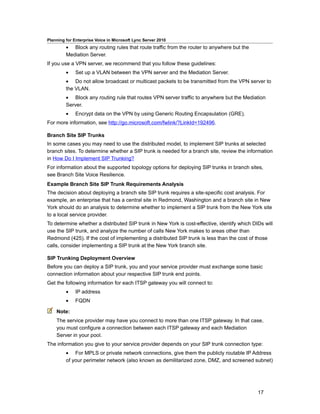
The following figure shows the generic topology for deployment of Enterprise Voice behind a
PBX. This is the recommended topology for incremental deployment.

Incremental deployment option


In this topology, selected departments or workgroups are enabled for VoIP. A media gateway links
the VoIP-enabled workgroup to the PBX. Users enabled for VoIP, including remote workers
(workers who do not work on-site), communicate across the IP network. Calls by VoIP users to
the PSTN and to coworkers who are not enabled for VoIP are routed to the appropriate media
gateway. Calls from colleagues who are still on the PBX system, or from callers on the PSTN, are
routed to the media gateway, which forwards them to Lync Server 2010 for routing.
There are two recommended topologies for connecting Enterprise Voice with an existing PBX
infrastructure for interoperability: Enterprise Voice behind the PBX and Enterprise Voice in front of
the PBX.
Enterprise Voice Behind the PBX
In this topology, all calls from the PSTN arrive at the PBX, which routes calls to Enterprise Voice
users to a media gateway, and calls to PBX users in the usual way. The following table shows the
advantages and disadvantages of this topology.


                                                                                              19
Planning for Enterprise Voice in Microsoft Lync Server 2010
Advantages and Disadvantages of Deploying Enterprise Voice Behind PBX

Advantages                                               Disadvantages

PBX still serves users not enabled for                   If necessary, tie line board in PBX must be
Enterprise Voice.                                        added for gateway connection.

PBX handles all legacy devices and PSTN                  PBX must be configured to route Enterprise
connectivity.                                            Voice numbers to gateway.

Enterprise Voice users keep same phone
numbers.


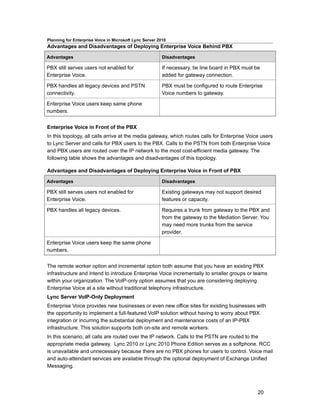
Enterprise Voice in Front of the PBX
In this topology, all calls arrive at the media gateway, which routes calls for Enterprise Voice users
to Lync Server and calls for PBX users to the PBX. Calls to the PSTN from both Enterprise Voice
and PBX users are routed over the IP network to the most cost-efficient media gateway. The
following table shows the advantages and disadvantages of this topology.

Advantages and Disadvantages of Deploying Enterprise Voice in Front of PBX

Advantages                                               Disadvantages

PBX still serves users not enabled for                   Existing gateways may not support desired
Enterprise Voice.                                        features or capacity.

PBX handles all legacy devices.                          Requires a trunk from gateway to the PBX and
                                                         from the gateway to the Mediation Server. You
                                                         may need more trunks from the service
                                                         provider.

Enterprise Voice users keep the same phone
numbers.


The remote worker option and incremental option both assume that you have an existing PBX
infrastructure and intend to introduce Enterprise Voice incrementally to smaller groups or teams
within your organization. The VoIP-only option assumes that you are considering deploying
Enterprise Voice at a site without traditional telephony infrastructure.
Lync Server VoIP-Only Deployment
Enterprise Voice provides new businesses or even new office sites for existing businesses with
the opportunity to implement a full-featured VoIP solution without having to worry about PBX
integration or incurring the substantial deployment and maintenance costs of an IP-PBX
infrastructure. This solution supports both on-site and remote workers.
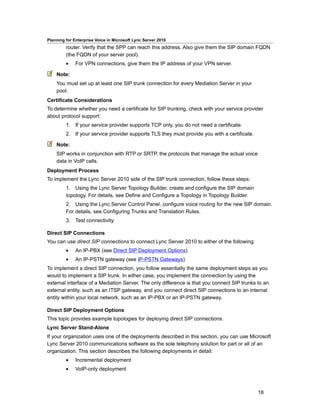
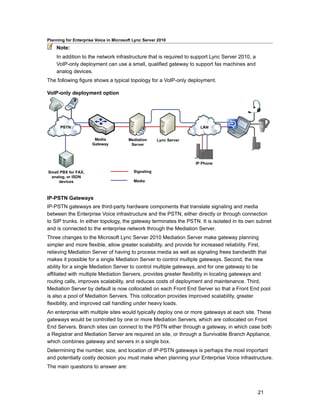
In this scenario, all calls are routed over the IP network. Calls to the PSTN are routed to the
appropriate media gateway. Lync 2010 or Lync 2010 Phone Edition serves as a softphone. RCC
is unavailable and unnecessary because there are no PBX phones for users to control. Voice mail
and auto-attendant services are available through the optional deployment of Exchange Unified
Messaging.


                                                                                                   20
Planning for Enterprise Voice in Microsoft Lync Server 2010
    Note:
    In addition to the network infrastructure that is required to support Lync Server 2010, a
    VoIP-only deployment can use a small, qualified gateway to support fax machines and
    analog devices.
The following figure shows a typical topology for a VoIP-only deployment.

VoIP-only deployment option


IP-PSTN Gateways
IP-PSTN gateways are third-party hardware components that translate signaling and media
between the Enterprise Voice infrastructure and the PSTN, either directly or through connection
to SIP trunks. In either topology, the gateway terminates the PSTN. It is isolated in its own subnet
and is connected to the enterprise network through the Mediation Server.
Three changes to the Microsoft Lync Server 2010 Mediation Server make gateway planning
simpler and more flexible, allow greater scalability, and provide for increased reliability. First,
relieving Mediation Server of having to process media as well as signaling frees bandwidth that
makes it possible for a single Mediation Server to control multiple gateways. Second, the new
ability for a single Mediation Server to control multiple gateways, and for one gateway to be
affiliated with multiple Mediation Servers, provides greater flexibility in locating gateways and
routing calls, improves scalability, and reduces costs of deployment and maintenance. Third,
Mediation Server by default is now collocated on each Front End Server so that a Front End pool
is also a pool of Mediation Servers. This collocation provides improved scalability, greater
flexibility, and improved call handling under heavy loads.
An enterprise with multiple sites would typically deploy one or more gateways at each site. These
gateways would be controlled by one or more Mediation Servers, which are collocated on Front
End Servers. Branch sites can connect to the PSTN either through a gateway, in which case both
a Registrar and Mediation Server are required on site, or through a Survivable Branch Appliance,
which combines gateway and servers in a single box.
Determining the number, size, and location of IP-PSTN gateways is perhaps the most important
and potentially costly decision you must make when planning your Enterprise Voice infrastructure.
The main questions to answer are:


                                                                                                21
Planning for Enterprise Voice in Microsoft Lync Server 2010
         • How many media gateways are needed? The answer depends on the number of
         users, the anticipated number of simultaneous calls (traffic load), and the number of
         sites (each site needs one).
         • What size should the gateways be? The answer depends on the number of users at
         the site and the traffic load.
         • Where should the gateways be located? The answer depends in part on the topology
         and geographic distribution of your organization.
In other words, no one of the previous questions can be answered independently of the other two.
Answers to all three depend ultimately on how much telephone traffic you anticipate and how that
traffic is distributed across your organization. But that is only the beginning: the base data, so to
speak. You must also consider your gateway topology options.
Multiple Gateway Support
The Mediation Servers in a Lync Server 2010 pool can control multiple gateways, Service
Boundary Controllers (SBCs) provided by telephony service providers, or some combination
thereof. Additionally, multiple Mediation Servers in the pool can interact with a single gateway.
When an internal user places a PSTN call, outbound routing logic on the Front End Server
chooses which Mediation Server and gateway combination to use out of all possible combinations
that may be available for routing that particular call. With DNS load balancing, if your call fails the
Mediation Server will retry the call using other gateways.
For more information on planning for multiple gateways, see Multiple Gateway Support.
For information on other outbound routing enhancements, see Voice Routes.
Gateway Topologies
When attempting to answer the fundamental questions of gateway deployment, take the following
approach:
         1. Count the sites at which you want to provide PSTN connectivity using Enterprise
         Voice.
         2. Estimate the traffic at each site (number of users and average number of calls per
         hour per user).
         3. Deploy one or more gateways at each site to handle the anticipated traffic.
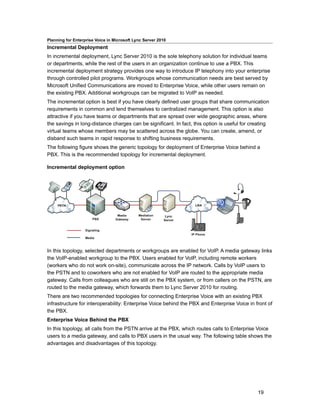
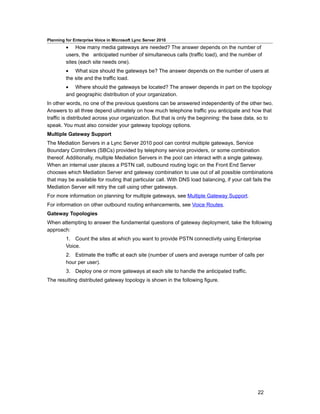
The resulting distributed gateway topology is shown in the following figure.


                                                                                                22
Planning for Enterprise Voice in Microsoft Lync Server 2010
Distributed gateway topology


With this topology, calls among workers at each site and between the sites are all routed over the
company intranet. Calls to the PSTN are routed over the enterprise IP network to the gateways
that are closest to the location of the destination numbers. But what if your organization supports
dozens or hundreds or even thousands of sites spread across one or more continents, as many
financial institutions and other large enterprises do? In such cases deploying a separate gateway
at each site is impractical.
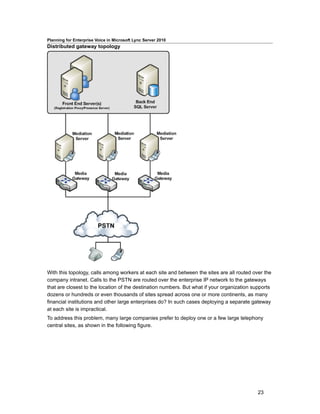
To address this problem, many large companies prefer to deploy one or a few large telephony
central sites, as shown in the following figure.


                                                                                             23
Planning for Enterprise Voice in Microsoft Lync Server 2010
Telephony central site topology


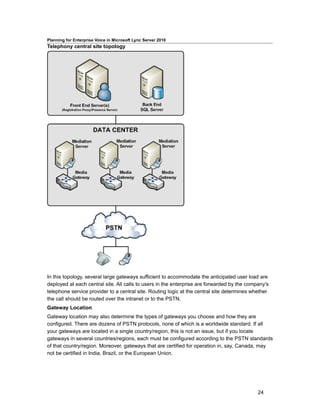
In this topology, several large gateways sufficient to accommodate the anticipated user load are
deployed at each central site. All calls to users in the enterprise are forwarded by the company's
telephone service provider to a central site. Routing logic at the central site determines whether
the call should be routed over the intranet or to the PSTN.
Gateway Location
Gateway location may also determine the types of gateways you choose and how they are
configured. There are dozens of PSTN protocols, none of which is a worldwide standard. If all
your gateways are located in a single country/region, this is not an issue, but if you locate
gateways in several countries/regions, each must be configured according to the PSTN standards
of that country/region. Moreover, gateways that are certified for operation in, say, Canada, may
not be certified in India, Brazil, or the European Union.


                                                                                             24
Planning for Enterprise Voice in Microsoft Lync Server 2010
Gateway Size and Number
The media gateways that most organizations will consider deploying range in size from 2 to as
many as 960 ports. (There are even larger gateways, but these are used mainly by telephone
service providers.) When estimating the number of ports your organization requires, use the
following guidelines:
         • Organizations with light telephony users (one PSTN call per hour) should allocate
         one port for every 15 users. For example, if you have 20 users, you will require a
         gateway with two ports.
         • Organizations with moderate telephony users (two PSTN calls per hour) should
         allocate one port for every 10 users. For example, if you have 100 users, you will require
         a total of 10 ports allocated among one or more gateways.
         • Organizations with heavy telephony users (three or more PSTN calls per hour)
         should allocate one port for every five users. For example, if you have 47,000 users, you
         will require a total of 9,400 ports allocated among at least 10 large gateways.
         • Additional ports can be acquired as the number of users or amount of traffic in your
         organization increases.
For any given number of users you must support, you have the choice of deploying fewer, larger
gateways, or smaller ones. As a rule, a minimum of two gateways for an organization is
recommended in the event one goes down. Beyond that, the number and size of gateways that
an organization deploys are going to vary widely, based on a careful analysis of each
organization’s volume of telephone traffic.
Each media gateway that you deploy must have at least one corresponding Mediation Server.

Multiple Gateway Support
New for the Mediation Server in Lync Server 2010 is the ability for a single Mediation Server to
control multiple (N) gateways. In previous releases, there was a 1:1 ratio of Mediation Servers to
Gateways. Also new for Lync Server 2010 is the ability for a Mediation Server to be deployed as a
pool; this pool can be collocated with the Registrar on an Enterprise Front End pool, or can be a
standalone pool. When collocated with the Registrar, the pool size can be at most 10 (limit of the
Registrar pool size). Taken together, these new capabilities increase the reliability and
deployment flexibility for Mediation Servers, but they require associated capabilities in the
following peer entities:
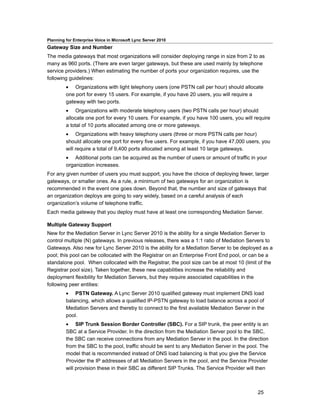
         • PSTN Gateway. A Lync Server 2010 qualified gateway must implement DNS load
         balancing, which allows a qualified IP-PSTN gateway to load balance across a pool of
         Mediation Servers and thereby to connect to the first available Mediation Server in the
         pool.
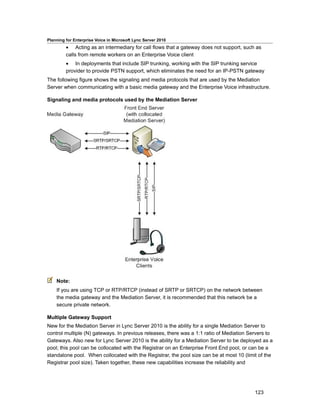
         • SIP Trunk Session Border Controller (SBC). For a SIP trunk, the peer entity is an
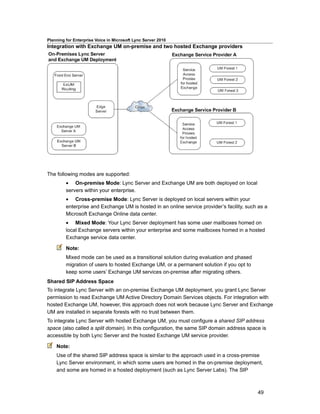
         SBC at a Service Provider. In the direction from the Mediation Server pool to the SBC,
         the SBC can receive connections from any Mediation Server in the pool. In the direction
         from the SBC to the pool, traffic should be sent to any Mediation Server in the pool. The
         model that is recommended instead of DNS load balancing is that you give the Service
         Provider the IP addresses of all Mediation Servers in the pool, and the Service Provider
         will provision these in their SBC as different SIP Trunks. The Service Provider will then


                                                                                             25
Planning for Enterprise Voice in Microsoft Lync Server 2010
         handle the load balancing at its end. Not all Service Providers or SBCs may support
         these capabilities. Furthermore, the Service Provider may charge extra for this capability.
         (Note that SBC redundancy could be achieved if the IP of the SBC is a Virtual IP (VIP)
         that can terminate at different physical SBCs, so that if an SBC goes down, there is a
         recovery mechanism.)
         • IP-PBX. For an IP-PBX peer, the peer entity is a SIP control entity associated with
         the IP-PBX. In the direction from the Mediation Server pool to this IP-PBX SIP
         termination, the IP-PBX can receive connections from any Mediation Server in the pool.
         In the direction from the IP-PBX to the pool, want traffic to be sent to any Mediation
         Server in the pool. The model that is recommended of DNS load balancing is that
         individual direct SIP connections are defined from the IP-PBX to each Mediation Server in
         the pool. The IP-PBX will then handle the load balancing at its end by distributing traffic
         over the trunk group. The assumption is that the trunk group has a consistent set of
         routing rules at the IP-PBX. Whether a particular IP-PBX supports this trunk group
         concept, and how it intersects with the IP-PBXs own redundancy/clustering architecture
         needs to be determined before a decision can be made as to whether a Mediation Server
         cluster can interact correctly with an IP-PBX.
A Mediation Server pool must have a uniform view of the peer gateway entity that it interacts with.
This means that ALL members of the pool access the same definition of the peer gateway entity
from configuration, and are equally likely to interact with it for outgoing calls. Thus, there is no
capability to segment the pool such that some Mediation Servers only talk to certain gateway
peers for outgoing calls. If such segmentation is necessary, a separate pool of Mediation Servers
must be used. This would be the case, for example, if the associated capabilities in IP-PSTN
gateways, SIP Trunks, or IP-PBXs to interact with a pool as detailed above are not present.
A Lync Server 2010 deployment assumes that a particular IP-PSTN gateway, IP-PBX, or SIP
Trunk peer depends on only a single Mediation Server pool; calls are routed to that pool by the
Lync Server 2010 Front End so that they can get to that gateway peer.
For SIP Trunks, IP-PBXs, and IP-PSTN gateways where a separate pool of Mediation Servers
must be used (due to the fact that these entities do not support the correct capabilities to interact
with a pool), the following scheme can be used to achieve redundancy:
         • To solve multiple Mediation Servers interacting with the same gateway peer entity,
         the administrator needs to configure multiple virtual gateways. Each gateway would be
         associated with a different FQDN, which would resolve in DNS to the same IP address
         • Individual standalone Mediation Servers (for example, a pool of one Mediation
         Server) would be used, and a trunk would be defined from a Mediation Server to a virtual
         gateway; each redundant Mediation Server would be responsible for a trunk connection
         to a different virtual gateway.
         • For this scheme to work for gateway peers that support TLS, the FQDN for each
         virtual gateway needs to be in the Subject Name or Subject Alternate Name part of the
         certificate provided by the gateway peer.
         • Note that the policy applied for interaction with the gateway peer will be the policy
         associated with the first gateway object in the configuration store that matches. This


                                                                                               26
Planning for Enterprise Voice in Microsoft Lync Server 2010
         should not be an issue, since the policy associated with all virtual gateways should be
         identical (they all correspond to the same physical hardware).
         • Lync Server 2010 routes will use different virtual gateways. Each virtual gateway will
         depend on a different Mediation Server.
The number of gateways that a particular pool of Mediation Servers can control is dependent on
the number of calls that are media bypass calls. Bypass calls imply that the media does not flow
through any Mediation Server in the pool. This in turn implies that a Mediation Server in the pool
can handle many more calls, since only signaling layer processing is necessary.

Translation Rules
Microsoft Lync Server 2010 Enterprise Voice requires that all dial strings be normalized to E.164
format for the purpose of performing reverse number lookup (RNL). The trunk peer (that is, the
associated gateway, PBX, or SIP trunk) may require that numbers be in a local dialing format. To
translate numbers from E.164 format to a local dialing format, you can define one or more
translation rules to manipulate the Request URI before routing it to the trunk peer. For example,
you could write a translation rule to remove +44 from the beginning of a dial string and replace it
with 0144.
By performing outbound route translation on the server, you can reduce the configuration
requirements on each individual trunk peer to manipulate phone numbers into a local dialing
format. In planning which and how many gateways to associate with a given Mediation Server
cluster, it may prove useful to group trunk peers with similar local dialing requirements so as to
reduce the number of required translation rules and the time it takes to write them.

    Important:
    The ability to associate one or more translation rules with an Enterprise Voice trunk
    configuration is intended to be used as an alternative to configuring translation rules on
    the trunk peer. Do not associate translation rules with an Enterprise Voice trunk
    configuration if you have configured translation rules on the trunk peer because the two
    rules might conflict.
Example Translation Rules
The following examples of translation rules show how you can develop rules on the server to
perform translation of numbers from E.164 format to a local format for the trunk peer.
For information about how to implement translation rules, see “Defining Translation Rules” in the
Operations documentation.


                                     Digits
                                     to          Digit
                Startin              Remov       s to    Matching
Description     g Digits   Length    e           Add     Pattern         Translation Example

Normal long +1             Exactl    1           0       ^+(1d{10})$   $1         +14255551010
distance                   y 12                                                     becomes
dialing in                                                                          14255551010
US


                                                                                               27
Planning for Enterprise Voice in Microsoft Lync Server 2010

                                     Digits
                                     to          Digit
                 Startin             Remov       s to    Matching
Description      g Digits   Length   e           Add     Pattern          Translation Example

(strip out
the ‘+’)

US               +          At       1           011     ^+(d{9}d+)    011$1         +441235551010
Internationa                least                        $                              becomes
l long-                     11                                                          011441235551010
distance
dialing
(strip out ‘+’
and add
011)


Planning Outbound Call Routing
Outbound call routing applies to calls that are destined for an IP-PSTN Gateway, SIP Trunk, or
PBX. When a user places a call, the server, if necessary, normalizes the phone number to E.164
format and attempts to match it to a SIP URI. If the server is unable to make the match, it applies
outbound call routing logic based on the supplied dial string. You define that logic by configuring
the server settings described in the following table.

Lync Server 2010 Outbound Call Routing Server Settings

Object                                                   Description

Dial Plan                                                A dial plan defines all phone numbers that can
                                                         be dialed from a named location. A location
                                                         contains one or, typically, more normalization
                                                         rules.

Normalization rule                                       A normalization rule is a .NET regular
                                                         expression that defines a phone number
                                                         pattern. A set of normalization rules associated
                                                         with a particular location constitutes a dial plan.

Voice policy                                             A voice policy associates one or more PSTN
                                                         usage records with one user or a group of
                                                         users. A voice policy also provides a list of
                                                         calling features that you can enable or disable.

PSTN usage record                                        A PSTN usage record specifies a class of call
                                                         (such as internal, local, or long distance) that
                                                         can be made by various users, or groups of
                                                         users, in an organization.


                                                                                                     28
Planning for Enterprise Voice in Microsoft Lync Server 2010

Object                                                   Description

Call Route                                               A call route associates target phone numbers
                                                         with particular IP-PSTN gateways and PSTN
                                                         usage records.


In This Section
This section provides guidelines for configuring the following outbound call routing server
settings:
    Dial Plans and Normalization Rules
    Voice Policies
    PSTN Usage Records
    Voice Routes
See Also
SIP Trunks
Direct SIP Connections

Dial Plans and Normalization Rules
A dial plan is a named set of normalization rules that translates phone numbers for a named
location, individual user, or contact object into a single standard (E.164) format for purposes of
phone authorization and call routing.
Normalization rules define how phone numbers expressed in various formats are to be routed for
each specified location, user, or contact object. The same dial string may be interpreted and
translated differently depending on the location from which it is dialed and the person or contact
object making the call.
Dial Plan Scope
A dial plan’s scope determines the hierarchical level at which the dial plan can be applied. In Lync
Server 2010, a user can be assigned a specific per-user dial plan. If a user dial plan is not
assigned, the registrar pool dial plan is applied. If there is no registrar pool dial plan, the site dial
plan is applied. Finally, if there is no other dial plan applicable to the user, the global dial plan is
applied.

    Note:
    The service level PSTN gateway dial plan is applied to the incoming calls from a
    particular gateway.
Dial plan scope levels are defined as follows:
         • User dial plan: can be assigned to individual users, groups, or contact objects. Voice
         applications can look up and use a per-user dial plan when a phone-context value of
         user-default is received. Note that for the purpose of assigning a dial plan, a contact
         object is treated as an individual user.


                                                                                                  29
Planning for Enterprise Voice in Microsoft Lync Server 2010
         • Pool dial plan: can be created at the service level for any PSTN gateway or registrar
         in your topology. To define a Pool dial plan, you must specify the particular service (PSTN
         gateway or registrar pool) to which the dial plan applies.
         • Site dial plan: can be created for an entire site, except for any users, groups, or
         contact objects that are assigned a Pool dial plan or User dial plan. To define a Site dial
         plan, you must specify the site to which the dial plan applies.
         • Global dial plan: is the default dial plan installed with the product. You can edit the
         Global dial plan, but you cannot delete it. This dial plan applies to all Enterprise Voice
         users, groups, and contact objects in your deployment unless you configure and assign a
         dial plan with more specific scope.
Planning for Dial Plans
Planning dial plans consists of:
         •    Listing all the locales in which your organization has an office.
    In a large multinational company with numerous small branch sites this can be a time-
    consuming task. The list must be up to date and complete. It will need to be revised as
    company organization evolves.
         •    Identifying valid number patterns for each site.
    The most time-consuming part of planning your dial plans is identifying the valid number
    patterns for each site. In some cases, you may be able to copy normalization rules that you
    have written for one dial plan to other dial plans, especially if the corresponding sites are
    within the same country, region or even continent. In other cases, small changes to numbers
    in one dial plan may be enough to use them in other dial plans.
         •    Developing an organization-wide scheme for naming dial plans.
    Adopting a standard naming scheme assures consistency across an organization and makes
    maintenance and updates easier.
         •    Deciding whether multiple dial plans are required for a single location.
    If your organization maintains a single dial plan across multiple locations, you may still need
    to create a separate dial plan for Enterprise Voice users who are migrating from a PBX and
    need to have their existing extensions retained.
         • Deciding whether per-user dial plans are required. For example, if you have users at
         a branch site who are registered with the central site deployment or if you have users
         who are registered on a Survivable Branch Appliance.
         • Assigning dial plan scope to Lync Server Front End Servers, Enterprise pools, and
         Mediation Servers.
To create a dial plan, you specify values in the following fields, as required.
Name and Simple Name
For User dial plans, you should specify a descriptive name that identifies the users, groups, or
contact objects to which the dial plan will be assigned. For site dial plans, the Name field is
prepopulated with the site name and cannot be changed. For pool dial plans, the Name field is
prepopulated with the PSTN gateway or registrar name and cannot be changed.


                                                                                               30
Planning for Enterprise Voice in Microsoft Lync Server 2010
The dial plan Simple Name is prepopulated with a string that is derived from the dial plan name.
The Simple Name field is editable, and is intended to enable you to devise a more descriptive
naming convention for your dial plans. Best practice is to develop a naming scheme for your
entire organization and use this scheme consistently across all sites and users.
Description
We recommend that you type the common, recognizable name of the geographic location to
which the corresponding dial plan applies. For example, if the dial plan name is
London.Contoso.com, the recommended description would be London. If you have deployed
Microsoft Lync 2010 Phone Edition, the name in this field will be displayed to users for the
purpose of allowing them to select the appropriate dial plan for a call.
Dial-in Conferencing Region
If you are deploying dial-in conferencing, you will need to specify a dial-in conferencing region to
associate dial-in conferencing access numbers with a dial plan. For more information, see Dial-In
Conferencing in Lync Server 2010.
External Access Prefix
You can specify an external access prefix of up to four characters (#, *, and 0-9) if users need to
dial one or more additional leading digits (for example, 9) to get an external line.

    Note:
    If you specify an external access prefix, you do not need to create an additional
    normalization rule to accommodate the prefix.
Normalization Rules
Normalization rules define how phone numbers expressed in various formats are to be routed for
the named location. The same number string may be interpreted and translated differently
depending on the locale from which it is dialed. Normalization rules are necessary for call routing
and authorization because users can, and do, use various formats when entering phone numbers
in their contact lists.
Normalizing user-supplied phone numbers provides a consistent format that facilitates:
         •    Matching a dialed number to the intended recipient’s SIP URI.
         •    Applying dialing authorization rules to the calling party.
The following number fields are among those that your normalization rules may need to account
for:
         •    Dial plan
         •    Country Code
         •    Area Code
         •    Length of extension
         •    Site prefix
Creating Normalization Rules
Normalization rules use .NET Framework regular expressions to specify numeric match patterns
that the server uses to translate dial strings to E.164 format for the purpose of performing reverse
number lookup. You create normalization rules in the Lync Server Control Panel either by entering


                                                                                              31
Planning for Enterprise Voice in Microsoft Lync Server 2010
the expressions manually or by entering the starting digits and the length of the dial strings to be
matched and letting the Control Panel generate the corresponding regular expression for you.
Either way, when you finish, you can enter a test number to verify that the normalization rule
works as expected.
For details about using .NET Framework regular expressions, see ".NET Framework Regular
Expressions" at http://go.microsoft.com/fwlink/?LinkId=140927.
Sample Normalization Rules
The following table shows sample normalization rules that are written as .NET Framework regular
expressions. The samples are examples only and are not meant to be a prescriptive reference for
creating your own normalization rules.

Table 1.Normalization Rules Using .NET Framework Regular Expressions

Rule name                   Description        Number pattern   Translation      Example

4digitExtension             Translates 4-      ^(d{4})$        +1425555$1       0100 is translated
                            digit                                                to +14255550100
                            extensions

5digitExtension             Translates 5-      ^5(d{4})$       +1425555$1       50100 is translated
                            digit                                                to +14255550100
                            extensions

7digitcallingRedmond        Translates 7-      ^(d{7})$        +1425$1          5550100 is
                            digit numbers                                        translated to
                            to Redmond                                           +14255550100
                            local numbers

7digitcallingDallas         Translates 7-      ^(d{7})$        +1972$1          5550100 is
                            digit numbers                                        translated to
                            to Dallas local                                      +19725550100
                            numbers

10digitcallingUS            Translates 10- ^(d{10})$           +1$1             2065550100 is
                            digit numbers                                        translated to
                            in the United                                        +12065550100
                            States

LDCallingUS                 Translates         ^1(d{10})$      +$1              12145550100 is
                            numbers with                                         translated to
                            long distance                                        +12145550100
                            prefixes in the
                            United States

IntlCallingUS               Translates         ^011(d*)$       +$1              01191445550100 is
                            numbers with                                         translated to
                            international                                        +91445550100
                            prefixes in the
                            United States


                                                                                              32
Planning for Enterprise Voice in Microsoft Lync Server 2010

Rule name                   Description        Number pattern   Translation    Example

RedmondOperator             Translates 0       ^0$              +14255550100   0 is translated to
                            to Redmond                                         +14255550100
                            Operator

RedmondSitePrefix           Translates         ^6222(d{4})$    +1425555$1     62220100 is
                            numbers with                                       translated to
                            on-net prefix                                      +14255550100
                            (6) and
                            Redmond site
                            code (222)

NYSitePrefix                Translates         ^6333(d{4})$    +1202555$1     63330100 is
                            numbers with                                       translated to
                            on-net prefix                                      +12025550100
                            (6) and NY
                            site code
                            (333)

DallasSitePrefix            Translates         ^6444(d{4})$    +1972555$1     64440100 is
                            numbers with                                       translated to
                            on-net prefix                                      +19725550100
                            (6) and Dallas
                            site code
                            (444)


The following table illustrates a sample dial plan for Redmond, Washington, United States, based
on the normalization rules shown in the previous table.

Table 2. Redmond Dial Plan Based on Normalization Rules Shown in Table 1

Redmond.forestFQDN

5digitExtension

7digitcallingRedmond

10digitcallingUS

IntlCallingUS

RedmondSitePrefix

NYSitePrefix

DallasSitePrefix

RedmondOperator


                                                                                             33
Planning for Enterprise Voice in Microsoft Lync Server 2010
    Note:
    The normalization rules names shown in the preceding table do not include spaces, but
    this is a matter of choice. The first name in the table, for example, could have been
    written "5 digit extension" or "5-digit Extension" and still be valid.

Voice Policies
Microsoft Lync Server 2010 voice policies define the following for each user, site, or organization
that is assigned the policy:
         • A set of calling features that can be enabled or disabled to determine the Enterprise
         Voice functionality available to users
         •    A set of PSTN usage records that define the call permissions available
Planning for Voice Policies
To plan the voice policies you will need for your Enterprise Voice deployment:
         • Determine how you will configure your default Global voice policy. This policy will
         apply to all Enterprise Voice users who are not explicitly assigned a site-level or per-user
         policy.
         •    Identify any site-level voice policies you might need.
         •    Identify any per-user voice policies you might need.
         •    Decide which call features to enable for each voice policy.
         •    Determine what PSTN usage records to configure for each voice policy.
Voice Policy Scope
Voice policy scope determines the hierarchical level at which the policy can be applied. In Lync
Server 2010, you can configure voice policies with the following scope levels (listed from the most
specific to the most general).
         • User voice policy: can be assigned to individual users, groups, or contact objects.
         This is the lowest level policy. Note that for the purpose of assigning a voice policy, a
         contact object is treated as an individual user. We recommend that branch site users who
         are registered with the central site deployment or users who are registered on a
         Survivable Branch Appliance.
         • Site voice policy: applies to an entire site, except for any users, groups, or contact
         objects that are assigned a User voice policy. To define a Site voice policy, you must
         specify the site to which the policy applies. If a User voice policy is not assigned, the Site
         default is used.
         • Global voice policy: is the default voice policy installed with the product. You can
         edit the Global voice policy to meet the specific needs of your organization, but you
         cannot rename or delete it. This voice policy applies to all Enterprise Voice users, groups,
         and contact objects in your deployment unless you configure and assign a voice policy
         with more specific scope. If you wish to disable this policy entirely, make sure that all sites
         and users have custom policies assigned to them.
Call Features
You can enable or disable the following call features for each voice policy:


                                                                                                 34
Planning for Enterprise Voice in Microsoft Lync Server 2010
         • Call forwarding enables users to forward calls to other phones and client devices.
         Enabled by default.
         • Delegation enables users to specify other users to send and receive calls on their
         behalf. Enabled by default.
         •    Call transfer enables users to transfer calls to other users. Enabled by default.
         • Call park enables users to park calls on hold and then pick up the call from a
         different phone or client. Disabled by default.
         • Simultaneous ringing enables incoming calls to ring on additional phones (for
         example, a cell phone) or other endpoint devices. Enabled by default.
         • Team call enables users on a defined team to answer calls for other members of the
         team. Enabled by default.
         • PSTN re-route enables calls made by users who are assigned this policy to other
         enterprise users to be re-routed on the public switched telephone network (PSTN) if the
         WAN is congested or unavailable. Enabled by default.
         • Bandwidth policy override enables administrators to override Call Admission
         Control policy decisions for a particular user. Disabled by default.
         • Malicious call tracing enables users to report malicious calls (such as bomb
         threats) using the client UI, and that in turn flags the calls in the call detail records (CDR).
         Disabled by default.
PSTN Usage Records
Each voice policy must have one or more associated PSTN usage records. For information about
planning PSTN usage records, see PSTN Usage Records.

    Note:
    PSTN usage order is critical because in matching users to routes, the server compares
    PSTN usages from top to bottom. If the first usage matches the call route, that route is
    used. If not, the server looks at the next PSTN usage on the list and continues until a
    match is found. In effect, the subsequent PSTN usages provide backup in the event the
    first one on the list is unavailable.

PSTN Usage Records
Planning PSTN usage records consists mainly of listing all the call permissions that are currently
in force in your organization, from the CEO down to temporary workers, consultants, and
contingent staff. This process also provides an opportunity to reexamine existing permissions and
revise them if desired. You can create PSTN usage records only for those permissions that apply
to your anticipated Enterprise Voice users, but a better long-range solution might be to simply
create PSTN usage records for all permissions regardless of whether some may not currently
apply to the group of users to be enabled for Enterprise Voice. If permissions change or new
users with different permissions are added, you will have already created the required PSTN
usage records.
The following table shows a typical PSTN usage table.


                                                                                                  35
Planning for Enterprise Voice in Microsoft Lync Server 2010
PSTN Usage Records

Phone attribute                                          Description

Local                                                    Local calls

Long-Distance                                            Long distance calls

International                                            International calls

Delhi                                                    Delhi full-time employees

Redmond                                                  Redmond full-time employees

RedmondTemps                                             Redmond temporary employees

Zurich                                                   Zurich full-time employees


By themselves, PSTN usage records do not do anything. For them to work, you must associate
them with:
         •    Voice policies, which are assigned to users.
         •    Routes, which are assigned to phone numbers.
For details about voice policies and routes, see Voice Policies and Voice Routes. For details
about how to create and configure them, see the Operations documentation.

Voice Routes
Call routes specify how Microsoft Lync Server 2010 communications software handles outbound
calls placed by Enterprise Voice users. When a user dials a number, the server, if necessary,
normalizes the dial string to E.164 format and attempts to match it to a SIP URI. If the server is
unable to make the match, it applies outgoing call routing logic based on the number. The final
step in defining that logic is creating a separate named call route for each set of target phone
numbers that are listed in each dial plan.
Before you define outbound call routes, you should complete the following steps:
         • Deploy one or more media gateways or SIP trunking connections and Lync Server
         2010 Mediation Servers.
         •    Create dial plans, as needed for sites, individuals, and contact objects.
         •    Create PSTN usage records.
In addition, to enable outbound call routing, you must also create and assign one or more voice
policies, but this step can be done either before or after you define outbound call routes.
For each route, you must specify:
         •    A name by which it can be readily identified.
         • An optional description in cases where the name alone may not be sufficient to
         describe the route.
         • The regular expression matching pattern that identifies the target phone numbers to
         which the route is applied, along with exceptions to which the matching pattern is not to
         be applied
         •    The FQDN of one or more the gateways that you want to assign to the route.


                                                                                             36
Planning for Enterprise Voice in Microsoft Lync Server 2010
         • The PSTN usage records that users must have in order to call numbers matching the
         target phone number regular expression.
You can specify call routes in the Microsoft Lync Server 2010 Control Panel. These call routes
populate the server routing table, which Lync Server uses to route calls that are destined for the
PSTN.
Multiple Gateway Support
Lync Server 2010 provides improved flexibility in deploying IP-PSTN gateways. A given gateway
can be assigned to multiple call routes and associated with one Mediation Server or a pool of
Mediation Servers. Multiple gateways can be associated with either a single Mediation Server or
a pool of multiple Mediation Servers. When defining a call route, you specify the gateways
associated with that route, but you do not specify which Mediation Servers are associated with
the route. Instead, you use Topology Builder to associate gateways, and therefore routes, with
Mediation Servers.
Least Cost Routing
The ability to specify the PSTN gateways to which various numbers are routed enables you to
determine which routes incur the lowest costs and implement them accordingly. The rule of thumb
in selecting gateways is to choose the one closest to the location of the destination number in
order to minimize long-distance charges. For example, if you are in New York and calling a
number in Rome, you would carry the call over the IP network to the gateway in your Rome office,
thereby incurring a charge only for a local call.
Translating Outbound Dial Strings
Lync Server 2010, like its immediate predecessors, requires all dial strings to be normalized to
E.164 format for the purpose of performing reverse number lookup (RNL). Downstream
components such as gateways, PBXs, or SIP trunks, however, may require numbers in local
dialing formats. As a result, in Microsoft Office Communications Server 2007 R2, it was
sometimes necessary to individually configure downstream components or even reroute calls in
order to accept the E.164 dial strings. Unlike its predecessor, however, Lync Server 2010 allows
you to create one or more rules that assist in manipulating the Request URI prior to routing it to
the gateway. For example, you could write a rule to remove +44 from the head of a dial string and
replace it with 0144.
In planning which and how many gateways to associate with a given Mediation Server cluster, it
may prove useful to group gateways with similar local dialing requirements so as to reduce the
number of required translation rules and the time it takes to write them.
Configuring Caller ID
Lync Server 2010 provides a way to manipulate the caller ID for outbound calls. For example, if
an organization wants to mask employees’ direct-dial extensions and replace them with the
generic corporate or departmental number, an administrator can now do that by using Microsoft
Lync Server 2010 Control Panel to suppress the caller ID and replace it with a specified
alternative caller ID. In planning your routing logic, you will at least need to consider whether
caller ID replaced is desirable for certain individuals, groups, or sites or, perhaps even, for all
employees.
Additional Routing Logic


                                                                                              37
Planning for Enterprise Voice in Microsoft Lync Server 2010
In creating outbound call routes, you should be aware of the following factors affecting routing
logic:
         • If the domain portion of the Request URI does not contain a supported domain for the
         enterprise, the outbound routing component on the server does not process the call. For
         example, in certain scenarios where a call is established over a federated boundary, the
         domain portion of the URI is used to route the call over to the enterprise that is
         responsible for applying the outbound routing logic.
         • If a user is not enabled for Enterprise Voice, the server applies other routing logic as
         appropriate.
         • If a call is routed to a gateway that is fully occupied (all trunk lines are busy), the
         gateway rejects the call and the outbound routing logic redirects the call to the next-least-
         cost route. Careful consideration should be given to this because a gateway sized for a
         small office overseas (for example, Zurich), may actually carry a significant amount of
         nonlocal traffic for international calls to Switzerland. If the gateway is not correctly sized
         for this additional traffic, calls to Switzerland may be routed by way of a gateway in
         Germany, resulting in larger toll charges.


On-Premises Exchange Unified Messaging Integration
Microsoft Lync Server 2010 supports integration with Exchange Unified Messaging (UM) for
combining voice messaging and email messaging into a single messaging infrastructure.
Exchange Unified Messaging (UM) is one of several server roles that you can install and
configure on a computer that is running Microsoft Exchange Server. For Lync Server Enterprise
Voice deployments, Unified Messaging combines voice messaging and email messaging into a
single store that is accessible from a telephone (Microsoft Outlook Voice Access) or a computer.
Unified Messaging and Lync Server work together to provide call answering, Microsoft Outlook
Voice Access, and auto attendant services to users of Enterprise Voice.
For these features to be supported, you must be running either Microsoft Exchange Server 2007
Service Pack 1 (SP1) or Microsoft Exchange Server 2010.

    Note:
    Exchange UM may not be required for Enterprise Voice deployments that have a PBX
    deployed, because the PBX can continue to provide voice mail and related services to all
    users. If you eventually retire the PBX, (for example, if you deploy SIP trunking for public
    switched telephone network (PSTN) connectivity) you must reconfigure Exchange UM to
    provide voice mail to users who previously used the PBX voice mail system.
In This Section
         •    Features of Integrated Unified Messaging and Lync Server
         •    Components and Topologies for On-Premises Unified Messaging
         •    Guidelines for Integrating On-Premises Unified Messaging and Lync Server
         • Deployment Process for Integrating On-Premises Unified Messaging and Lync
         Server


                                                                                                38
Planning for Enterprise Voice in Microsoft Lync Server 2010
Features of Integrated Unified Messaging and Lync Server
Lync Server Enterprise Voice leverages the Exchange UM infrastructure to provide call
answering, call notification, voice access (including voice mail), and auto attendant services.
Call Answering
Call answering is the taking of voice messages on behalf of users whose calls are not answered
or are busy. It includes playing a personal greeting, recording a message, and submitting the
message to the Exchange Hub Transport Server to be queued up for delivery to the user's
mailbox, which is stored on the Exchange mailbox server.
If a caller leaves a message, the message shows up in the user's inbox. If a caller chooses not to
leave a message, a missed call notification is stored in the user's mailbox. Users can then access
their inboxes using the Microsoft Outlook messaging and collaboration client, Outlook Web
Access, the Exchange ActiveSync technology, or Outlook Voice Access. The subject and priority
of calls can be displayed in a way similar to that of email.
Outlook Voice Access
Outlook Voice Access enables an Enterprise Voice user to access not just voice mail, but also the
Exchange inbox, including email, calendar, and contacts from a telephony interface. The
subscriber access number is assigned by an Exchange UM administrator.
Auto Attendant
Auto attendant is an Exchange UM feature that can be used to configure a phone number that
outside users can dial to reach company representatives. In particular, it provides a series of
voice prompts that assist an external caller in navigating a menu system. The list of available
options is configured on the Exchange UM server by the Exchange UM administrator.
Fax Services
Exchange UM includes fax features, which enable users to receive incoming faxes in their
Exchange mailboxes. For details, see "Unified Messaging" in the Microsoft Exchange Server
documentation at http://go.microsoft.com/fwlink/?LinkId=135652.

    Note:
    Fax services are not available in Exchange Server 2010.

Components and Topologies for On-Premises Unified Messaging
This topic describes the Microsoft Exchange Server components required to provide Exchange
Unified Messaging (UM) features to Microsoft Lync Server 2010 communications software
Enterprise Voice users whose mailboxes are homed on an on-premises Microsoft Exchange
deployment. It also describes the supported topologies for on-premises Exchange UM integration.
Exchange Server Components
To provide the Exchange UM features and services described earlier in this section to Enterprise
Voice users in your organization, you must deploy the following Microsoft Exchange Server roles:
         • Exchange UM Server, which provides a single storage location for email and voice
         mail. The Exchange UM Server connects Microsoft Exchange Server with Lync Server
         2010.


                                                                                              39
Planning for Enterprise Voice in Microsoft Lync Server 2010
         • Hub Transport Server, which routes email messages from the Exchange UM Server
         to user mailboxes.
         • Client Access Server, which hosts client protocols and services, such as Post Office
         Protocol version 3 (POP3), Internet Message Access Protocol 4 (IMAP4), Secure
         Hypertext Transfer Protocol (HTTPS), Outlook Anywhere, Availability service, and
         Autodiscover service. The Client Access Server also hosts web services.
         •    Mailbox Server, which hosts user mailboxes.
Supported Topologies
Microsoft Exchange and Lync Server 2010 must be deployed in a shared Active Directory Domain
Services (AD DS) topology for Exchange UM integration to succeed.
You can deploy Lync Server and Exchange UM in the same forest or multiple forests. If you
deploy them in multiple forests, you must perform the Exchange integration steps for each
Exchange UM forest. Furthermore, if you deploy Lync Server and Exchange UM in different
forests, you must configure each Microsoft Exchange forest to trust the Lync Server forest and
you must configure each Lync Server forest to trust each Exchange UM forest. In addition to this
forest trust, the Exchange UM settings for all users must be set on the user objects in the Lync
Server forest.
Lync Server supports the following topologies for Exchange UM integration:
         •    Single forest
         • Single domain (that is, a single forest with a single domain). Lync Server, Microsoft
         Exchange, and users all reside in the same domain.
         • Multiple domain (that is, a root domain with one or more child domains). Lync Server,
         and Microsoft Exchange servers are deployed in different domains from the domain
         where you create users. Exchange UM servers can be deployed in different domains
         from the Lync Server pool they support.
         • Multiple forest (that is, resource forest). Lync Server is deployed in a single forest,
         and then users are distributed across multiple forests.

Guidelines for Integrating On-Premises Unified Messaging and Lync Server
The following are guidelines and best practices to consider when deploying Enterprise Voice:
         • Deploy a Microsoft Lync Server 2010 Standard Edition server or Enterprise pool. For
         details about installation information, see Deploying Lync Server 2010.
         • Work with Exchange administrators to confirm which tasks each of you will perform to
         assure a smooth and successful integration.
         • Deploy the Exchange Mailbox, Hub Transport, Client Access, and Unified Messaging
         server roles in each Exchange UM forest where you want to enable users for Exchange
         Unified Messaging (UM). For details about installing Exchange server roles, see topics in
         the Deployment section of the Microsoft Exchange Server 2007 documentation.

         Important
                  • When Exchange Unified Messaging (UM) is installed, it is configured to use a
                  self-signed certificate.


                                                                                               40
Planning for Enterprise Voice in Microsoft Lync Server 2010
                  • Do not delete the self-signed certificate. Without it, Exchange UM cannot
                  communicate with other Exchange server roles including the Hub Transport
                  Server, which sends voice mail notifications.
                  • The self-signed certificate, however, does not enable Lync Server and
                  Exchange UM to trust each other, which is why it is necessary to request a
                  separate certificate from a CA that both servers trust.

         Important:
         We recommend that you deploy a minimum of two Exchange UM servers for each
         Exchange UM SIP URI dial plan that you configure for your organization. In addition
         to providing expanded capacity, deploying redundant Exchange UM servers provides
         high availability. In the event of an Exchange UM server failure, Lync Server
         automatically fails over to the other server.
         • If Lync Server and Exchange UM are installed in different forests, configure each
         Exchange forest to trust the Lync Server forest and the Lync Server forest to trust each
         Exchange forest. Also, set the users’ Exchange UM settings on the user objects in the
         Lync Server forest. This is typically done by using a script or a cross-forest tool such as
         Identity Lifecycle Manager (ILM).
         • If necessary, install the Exchange Management Console to manage your Unified
         Messaging servers.
         •    Obtain valid phone numbers for Outlook Voice Access and auto attendant.
         • Coordinate names for Exchange UM SIP URI dial plans and Enterprise Voice dial
         plans. Note that coordination of these names is required only if you are using a version of
         Exchange UM earlier than Microsoft Exchange Server 2010 (SP1).
See Also
Deployment Process for Integrating On-Premises Unified Messaging and Lync Server

Deployment Process for Integrating On-Premises Unified Messaging and Lync Server
 If you want to integrate Exchange Unified Messaging (UM) with Lync Server 2010, you must
perform the tasks described in this topic. Also ensure that you review the planning and
deployment best practices described in Guidelines for Integrating On-Premises Unified
Messaging and Lync Server. This topic assumes that you have deployed Lync Server 2010 with a
collocated Mediation Server and enabled users for Lync Server, but not necessarily that you have
performed all deployment and configuration steps to enable Enterprise Voice (as described in
Deploying the Enterprise Voice Workload).
Unified Messaging Integration Process

    Important:
    It is important that you coordinate with your organization’s Exchange administrators to
    confirm the tasks that each of you will perform to assure a smooth, successful integration.


Phase                  Steps                       Permissions                     Documentation

Deploy one of the      Install the following       Enterprise Administrators (if   See the appropriate


                                                                                                41
Planning for Enterprise Voice in Microsoft Lync Server 2010

Phase                   Steps                      Permissions                         Documentation

following:         Exchange Server                 this is the first Exchange          documentation for
         •         roles in either the             Server in the organization)         your version of
                   same forest or a                -OR-                                Exchange Server:
         Microsoft different forest as                                                     Exchange
                                                   Exchange Organization
         Exchange Lync Server 2010:                                                        Server 2007
                                                   Administrator (if this is not the
         Server             • Unified              first Exchange Server in the            Exchange
         2007(SP1           Messaging              organization)                           Server 2010
         ) or
                            • Hub
         higher
                            Transport
         •
                            • Client
                            Access
         Microsoft
         Exchange           • Mailbox
         Server             Caution:
         2010or
                            If Lync Server
         higher
                            and
                            Exchange
                            Unified
                            Messaging
                            (UM) are
                            installed in
                            different
                            forests,
                            configure
                            each
                            Exchange
                            forest to trust
                            the Lync
                            Server forest.

Create and              On the Exchange UM         Exchange Organization               For Exchange 2007,
configure a new         server, create a SIP       Administrator                       see How to Create a
Exchange UM             dial plan based on                                             Unified Messaging
SIP dial plan.          your organization’s                                            SIP URI Dial Plan.
                        specific deployment                                            For Exchange 2010,
                        requirements, and                                              see Create a UM
                        then associate the                                             Dial Plan.
                        Unified Messaging
                        servers and users
                        with the appropriate
                        SIP dial plan.

Install certificates.   Download and install       Local Administrator                 Configure
                        certificates for each                                          Certificates on the


                                                                                                     42
Planning for Enterprise Voice in Microsoft Lync Server 2010

Phase                  Steps                       Permissions       Documentation

                       Exchange UM server                            Server Running
                       from a trusted root                           Microsoft Exchange
                       CA. The certificates                          Server 2007 Unified
                       are required for                              Messaging
                       mutual TLS (MTLS)
                       between the servers
                       running Exchange UM
                       and Lync Server.

Configure security     To encrypt Enterprise Exchange Organization   Configure Unified
settings for the       Voice traffic, configure Administrator        Messaging on
Exchange UM            the security settings                         Microsoft Exchange
SIP dial plan.         on the Exchange UM                            For Exchange 2007,
                       SIP dial plan as SIP                          see also:
                       Secured or Secured.
                                                                            • How to
                       This is an especially
                                                                            Configure
                       important step if you
                                                                            Security on
                       have deployed or plan
                                                                            a Unified
                       to deploy Lync 2010
                                                                            Messaging
                       Phone Edition devices
                                                                            Dial Plan
                       in your environment.
                                                                            •
                       For Lync 2010 Phone
                       Edition devices to
                                                                            Configuring
                       function in an
                                                                            Unified
                       environment with
                                                                            Messaging
                       Exchange UM
                                                                            and Office
                       integration, Lync
                                                                            Communicat
                       Server encryption
                                                                            ions Server
                       settings must align
                                                                            2007
                       with the Exchange
                       UM dial plan security                         For Exchange 2010,
                       settings.                                     see also:
                                                                     Configure VoIP
                                                                     Security on a UM
                                                                     Dial Plan.

Add Unified            To enable a newly     Local Administrator     For Exchange 2007,
Messaging              installed Unified     Exchange Server         see How to Add
servers to the         Messaging server to   Administrators          Unified Messaging
Exchange UM            answer and process                            Server to a Dial
SIP dial plan.         incoming calls, you                           Plan.
                       must add the Unified                          For Exchange 2010,
                       Messaging server to a                         see View or
                       UM dial plan. In this                         Configure the


                                                                                  43
Planning for Enterprise Voice in Microsoft Lync Server 2010

Phase                  Steps                       Permissions                 Documentation

                       case, add the server                                    Properties of a UM
                       to the Exchange UM                                      Server.
                       SIP dial plan.

Configure              Assign SIP addresses        Lync Server administrator   For Exchange 2007,
mailboxes with         to the mailboxes of         Exchange Recipient          see How to Add,
SIP addresses.         Enterprise Voice            Administrator               Remove, or Modify
                       users who will be                                       a SIP Address for a
                       using Exchange UM                                       UM-Enabled User.
                       features.                                               For Exchange 2010,
                                                                               see Add a SIP
                                                                               Address for a UM-
                                                                               Enabled User

Run the                On the Exchange UM          Exchange Organization       Configure Unified
exchucutil.ps1         server, open the            Administrator               Messaging on
script.                Exchange                    Exchange Recipient          Microsoft Exchange
                       Management Shell            Administrator               with ExchUCUtil.ps1
                       and run the
                       exchucutil.ps1 script,
                       which does the
                       following:
                                • Grants
                                Lync Server
                                permission to
                                read
                                Exchange
                                UM Active
                                Directory
                                Domain
                                Services (AD
                                DS) objects,
                                specifically,
                                the SIP dial
                                plans created
                                in the
                                previous task.
                                • Creates a
                                Unified
                                Messaging IP
                                gateway
                                object in
                                Active
                                Directory


                                                                                            44
Planning for Enterprise Voice in Microsoft Lync Server 2010

Phase                  Steps                       Permissions                Documentation

                                Domain
                                Services (AD
                                DS) for each
                                Lync Server
                                Enterprise
                                Edition pool
                                or Standard
                                Edition server
                                that hosts
                                users who are
                                enabled for
                                Enterprise
                                Voice.
                                • Creates
                                an Exchange
                                UM hunt
                                group for
                                each
                                gateway. The
                                hunt group
                                pilot identifier
                                will be the
                                name of the
                                dial plan that
                                is associated
                                with the
                                corresponding
                                gateway.
                                These need
                                to be mapped
                                1:1 if there is
                                more than
                                one dial plan.

Configure Lync         If you are integrating      RTCUniversalServerAdmins   Configuring Dial
Server dial plans.     with Exchange Server                                   Plans and
                       2010 or Exchange                                       Normalization Rules
                       2007, create a new
                       Enterprise Voice dial
                       plan with a name that
                       matches the
                       Exchange
                       UMdialplan.FQDN. If
                       you are integrating


                                                                                           45
Planning for Enterprise Voice in Microsoft Lync Server 2010

Phase                  Steps                       Permissions                Documentation

                       with Exchange Server
                       2010 (SP1), ensure
                       that suitable
                       global/site-level or
                       pool-level Enterprise
                       Voice dial plans have
                       been configured.

Run the                On the Lync Server,         RTCUniversalServerAdmins   Configure Lync
Exchange UM            run ocsumutil.exe,                                     Server to Work with
Integration Utility.   which:                                                 Unified Messaging
                                • Creates                                     on Microsoft
                                Subscriber                                    Exchange Server
                                Access and
                                Auto
                                Attendant
                                contact
                                objects.
                                • Validates
                                that there is
                                an Enterprise
                                Voice dial
                                plan with a
                                name that
                                matches the
                                Exchange
                                UMdialplan.F
                                QDN. Note
                                that if you are
                                running
                                Exchange
                                Server 2010
                                (SP1), the dial
                                plan names
                                do not need
                                to match and
                                you can
                                ignore the
                                tool’s warning
                                about this.

If necessary,          If you have not             RTCUniversalServerAdmins   See topics in the
perform other          already configured          RTCUniversalUserAdmins     following sections:
Enterprise Voice       Enterprise Voice                                               •


                                                                                            46
Planning for Enterprise Voice in Microsoft Lync Server 2010

Phase                  Steps                       Permissions          Documentation

configuration          settings on your
steps.                 servers or users, do                                    Configuring
                       one or more of the                                      Voice Dial
                       following:                                              Plans,
                                                                               Policies,
                                • Deploy
                                                                               and
                                and configure
                                                                               Outbound
                                media
                                                                               Call Routes
                                gateways and
                                Mediation                                      •
                                Servers
                                                                               Deploying
                                • Define
                                                                               the
                                voice policies,
                                                                               Enterprise
                                PSTN usage
                                                                               Voice
                                records, and
                                                                               Workload
                                outbound call
                                routes.
                                • Enable
                                users for
                                Enterprise
                                Voice.
                                •

                                Optionally,
                                configure
                                specific users
                                with dial
                                plans.
                       Other configuration
                       steps may be required
                       depending on the
                       Enterprise Voice
                       features you enable.

Enable Enterprise      On the Exchange UM          Exchange Recipient   For Exchange 2007,
Voice users for        server, ensure that a       Administrator        see How to Enable
Exchange UM.           Unified Messaging                                a User for Unified
                       mailbox policy has                               Messaging
                       been created and that                            For Exchange 2010,
                       each user has a                                  see Enable a User
                       unique extension                                 for Unified
                       number assignment,                               Messaging.
                       and then enable the
                       user for Unified


                                                                                    47
Planning for Enterprise Voice in Microsoft Lync Server 2010

Phase                  Steps                       Permissions                 Documentation

                       Messaging.


Hosted Exchange Unified Messaging Integration
In addition to the support that previous Lync Server releases have provided for integration with
on-premise deployments of Exchange Unified Messaging (UM), Lync Server 2010 introduces
support for integration with hosted Exchange UM. This enables you Lync Server to provide voice
messaging to your users if you migrate some or all of them to a hosted Exchange service
provider such as Microsoft Exchange Online.
Lync Server Enterprise Voice leverages the Exchange UM infrastructure to provide call
answering, call notification, voice access (including voice mail), and auto attendant services. For
more information, see Features of Integrated Unified Messaging and Lync Server.
In This Section
         •    Hosted Exchange UM Architecture and Routing
         •    Hosted Voice Mail Policies
         •    Hosted Exchange User Management
         •    Hosted Exchange Contact Object Management
         •    Deployment Process for Integrating Hosted Exchange UM with Lync Server


Hosted Exchange UM Architecture and Routing
This section provides an overview of the architecture for on-premise and hosted Exchange UM
integration, including supported modes, shared SIP space, and routing considerations.
In This Section
         •    Hosted Exchange UM Integration Architecture
         •    Hosted Exchange UM Routing

Hosted Exchange UM Integration Architecture
The Lync Server 2010 ExUM Routing application supports integration with Exchange UM in an
on-premise environment, or with Exchange UM hosted by a service provider, as shown in the
following diagram.


                                                                                             48
Planning for Enterprise Voice in Microsoft Lync Server 2010
Integration with Exchange UM on-premise and two hosted Exchange providers


The following modes are supported:
         • On-premise Mode: Lync Server and Exchange UM are both deployed on local
         servers within your enterprise.
         • Cross-premise Mode: Lync Server is deployed on local servers within your
         enterprise and Exchange UM is hosted in an online service provider’s facility, such as a
         Microsoft Exchange Online data center.
         • Mixed Mode: Your Lync Server deployment has some user mailboxes homed on
         local Exchange servers within your enterprise and some mailboxes homed in a hosted
         Exchange service data center.

         Note:
         Mixed mode can be used as a transitional solution during evaluation and phased
         migration of users to hosted Exchange UM, or a permanent solution if you opt to
         keep some users’ Exchange UM services on-premise after migrating others.
Shared SIP Address Space
To integrate Lync Server with an on-premise Exchange UM deployment, you grant Lync Server
permission to read Exchange UM Active Directory Domain Services objects. For integration with
hosted Exchange UM, however, this approach does not work because Lync Server and Exchange
UM are installed in separate forests with no trust between them.
To integrate Lync Server with hosted Exchange UM, you must configure a shared SIP address
space (also called a split domain). In this configuration, the same SIP domain address space is
accessible by both Lync Server and the hosted Exchange UM service provider.

    Note:
    Use of the shared SIP address space is similar to the approach used in a cross-premise
    Lync Server environment, in which some users are homed in the on-premise deployment,
    and some are homed in a hosted deployment (such as Lync Server Labs). The SIP


                                                                                            49
Planning for Enterprise Voice in Microsoft Lync Server 2010
    domain is split between them. When integrating Lync Server with hosted Exchange UM,
    however, you put the Exchange UM service provider in the shared SIP address space.
To configure the shared SIP address space for integrating with an Exchange UM service provider,
you need to configure your Edge Server as follows:
         1. Configure the Edge Server for federation by running the Set-
         CsAccessEdgeConfiguration cmdlet to set the following parameters:
                  • UseDnsSrvRouting specifies that Edge Servers will rely on DNS SRV
                  records when sending and receiving federation requests.
                  • AllowOutsideUsers specifies whether users can access Lync Server across
                  the Internet. This includes both anonymous users and remote users who are
                  trying to log on to the system.
                  • AllowFederatedUsers specifies whether internal users are allowed to
                  communicate with users from federated domains. This property also determines
                  whether internal users can communicate with users in a split domain scenario.
                  • EnablePartnerDiscovery specifies whether Lync Server will use DNS
                  records to try to discover partner domains not listed in the Active Directory
                  allowed domains list. If False, Lync Server will federate only with domains found
                  on the allowed domains list. This parameter is required if you use DNS service
                  routing.
         2. Replicate the Central Management database to the Edge Server and verify the
         replication.
         3. Configure a hosting provider on the Edge Server by running the New-
         CsHostingProvider cmdlet to set the following parameters:
                  • Identity specifies a unique string value identifier for the hosting provider you
                  are creating, for example, fabrikam.com.
                  • Enabled indicates whether the network connection between your domain
                  and the hosting provider is enabled. Must be set to True.
                  • EnabledSharedAddressSpace indicates whether the hosting provider will
                  be used in a shared SIP address space scenario. Must be set to True.
                  • HostsOCSUsers indicates whether the hosting provider is used to host Lync
                  Server accounts. Must be set to False.
                  • ProxyFQDN specifies the fully qualified domain name for the proxy server
                  used by the hosting provider, for example, proxyserver.fabrikam.com. Note that
                  this value cannot be modified. If the hosting provider changes its proxy server
                  you will need to delete and then recreate the entry for that provider.
                  • IsLocal indicates whether the proxy server used by the hosting provider is
                  contained within your Lync Server topology. Must be set to False.


Hosted Exchange UM Routing
The ExUM Routing application runs on the Front End server to route calls, either to an on-
premise Exchange UM deployment or to hosted Exchange UM.


                                                                                              50
Planning for Enterprise Voice in Microsoft Lync Server 2010
The ExUM Routing Application
The Lync Server 2010 ExUM Routing application uses information from user account settings and
policy parameters to determine how to route calls for hosted voice messaging, as shown in the
following diagram.

Example routing of calls from on-premises deployment to hosted voice messaging


Routing can be to users enabled for on-premise Exchange UM, or users enabled for hosted
Exchange UM.
Roy’s mailbox and Exchange UM service are homed in an on-premise Exchange deployment.
         • The Proxy Address information from Roy’s user account provides the information
         ExUM Routing uses to route his calls to a local Exchange UM server.
Alice’s mailbox and Exchange UM service are located in a hosted Exchange service provider’s
data center.
         • The values set in the ms-Exch-UC-Voicemail-Settings attribute of Alice’s user
         account tell ExUM Routing to check for routing details in a hosted voice mail policy. Note
         that the value of this attribute may have been set either by the Exchange service
         provider, or by the Lync Server Administrator. For more information, see Hosted
         Exchange User Management.
         • The hosted voice mail policy assigned to Alice’s user account provides routing details
         for the Destination (the ocs.um.outlook.com hosted Exchange UM service). It also


                                                                                             51
Planning for Enterprise Voice in Microsoft Lync Server 2010
         includes routing details for the Organizations, also known as the tenant IDs, (the
         corp1.contoso.com and corp2.fabrikam.com routing FQDNs for SIP messages for
         Exchange Server tenants located on ocs.um.outlook.com). For more information, see
         Hosted Voice Mail Policies.

    Note:
    If both the ms-Exch-UC-Voicemail-Settings attribute and the UM Proxy Address settings
    are present in a user account, the ms-Exch-UC-Voicemail-Settings attribute takes
    precedence.

Hosted Voice Mail Policies
A hosted voice mail policy provides information to the Lync Server 2010 ExUM Routing
application about where to route calls for users whose mailboxes are located on a hosted
Exchange service.

    Note:
    Hosted voice mail policies are required only for Lync Server integration with hosted
    Exchange UM. They are not needed for integration with on-premise Exchange UM.
Hosted Voice Mail Policy Scope
Hosted voice mail policy scope determines the hierarchical level at which the policy applies. You
can configure hosted voice mail policies with the following scope levels.
         • The global policy can potentially impact all users in the Lync Server deployment. If a
         user is enabled for hosted Exchange UM access, has not been assigned a per-user
         policy, and a site-level policy has not been deployed for the user’s site, the global policy
         applies. The global policy is installed with Lync Server. You can modify it to meet your
         needs, but cannot rename or delete it.
         • A site policy can impact all users that are homed on the site for which the policy is
         defined. If a user is configured for hosted Exchange UM access and has not been
         assigned a per-user policy, the site policy applies.
         • A per-user policy can only impact individual users or groups. To deploy a per-user
         policy, you must explicitly assign the policy to individual users, groups, and contact
         objects.

    Note:
    Typically, only one hosted voice mail policy is required. In many cases, you can modify
    the global policy to meet all your needs. If you deploy multiple hosted voice mail policies,
    the policies must be assigned on a per-user basis.
Hosted Voice Mail Policy Attributes
A voice mail policy defines two attributes that the Lync Server ExUM Routing application inserts in
the Request URI of an INVITE sent to the hosted Exchange UM implementation:
         • Destination: The fully qualified domain name (FQDN) of the hosted Exchange UM
         service. This value is used by the on-premise Lync Server Edge Server for routing
         purposes.


                                                                                               52
Planning for Enterprise Voice in Microsoft Lync Server 2010
         • Organization: The FQDN of the tenant on the hosted Exchange UM service that
         homes your Lync Server users’ mailboxes. A voice mail policy can contain multiple
         organizations. If more than one organization is included in the policy, this attribute must
         be a comma-separated list of the Exchange Server tenants that home your Lync Server
         user mailboxes.

    Note:
    The tenant administrator of your hosted Exchange UM service will provide the necessary
    values for your Destination and Organization attribute settings. To configure your policy,
    you must run the New-CsHostedVoicemailPolicy cmdlet, or use the Set-
    CsHostedVoicemailPolicy cmdlet to modify one that exists (for example, the global
    policy).
For more information about managing hosted voice mail policies, see the Lync Server 2010
Management Shell documentation for the following cmdlets:
         •    New-CsHostedVoicemailPolicy
         •    Set-CsHostedVoicemailPolicy
         •    Get-CsHostedVoicemailPolicy
Per-User Voice Mail Policy Assignment
If your hosted voice mail policy is defined with User scope, you must explicitly assign it. You can
run the Grant-CsHostedVoicemailPolicy cmdlet to assign the policy to individual users or groups.
For more information about assigning or removing a per-user hosted voice mail policy, see the
Lync Server 2010 Management Shell documentation for the following cmdlets:
         •    Grant-CsHostedVoicemailPolicy
         •    Remove-CsHostedVoicemailPolicy

Hosted Exchange User Management
To provide voice mail services for Lync Server 2010 users whose mailboxes are located on a
hosted Exchange service, you must enable their user account for hosted voice mail.

    Note:
    Before a Lync Server user can be enabled for hosted voice mail, a hosted voice mail
    policy that applies to their user account must be deployed. The policy can be global, site,
    or per-user in scope, as long as it applies to the user you want to enable. For more
    information, see Hosted Voice Mail Policies.
Enabling Users for Hosted Voice Mail
To enable a user’s voice mail calls to be routed to hosted Exchange UM, you must run the Set-
CsUser cmdlet to set the value of the HostedVoiceMail parameter. This parameter also signals
Lync 2010 to light up the “call voice mail” indicator.
         •    The following example enables Pilar Ackerman’s user account for hosted voice mail:
    Set-CsUser -Identity “Pilar Ackerman” –HostedVoiceMail $True
    A check is done to ensure that a hosted voice mail policy (global, site-level or per-user)
    applies to this user. If no policy applies, the command fails.


                                                                                                 53
Planning for Enterprise Voice in Microsoft Lync Server 2010
         •    The following example disables Pilar Ackerman’s user account for hosted voice mail:
    Set-CsUser -Identity “Pilar Ackerman” –HostedVoiceMail $False
    A check is done to ensure that no hosted voice mail policy (global, site-level or per-user)
    applies to this user. If a policy does apply, the command fails.
For more information about using the Set-CsUser cmdlet, see the Lync Server 2010 Management
Shell documentation.
The ms-Exch-UC-Voicemail-Settings Attribute
Lync Server 2010 introduced a new user attribute named ms-Exch-UC-Voicemail-Settings,
which is created as part of the Lync Server Active Directory schema preparation. This multi-
valued attribute holds voice mail settings that are shared by Lync Server and the hosted
Exchange service.
The hosted Exchange service may in some cases set the value of the ms-Exch-UC-Voicemail-
Settings attribute as part of Exchange UM enablement, or during the process of migrating
mailboxes to a hosted Exchange Server. If this attribute is not set by Exchange, the Lync Server
administrator must set it by running the Set-CsUser cmdlet, as described above.
The attribute’s key/value pairs and their authors are shown in the following table.

The ms-Exch-UC-Voicemail-Settings Attribute Key/Value Pairs

Value                                        Author                    Meaning

ExchangeHostedVoiceMail=1                    Exchange                  User has been enabled for
                                                                       hosted UM access by
                                                                       Exchange Server. The Lync
                                                                       Server ExUM Routing
                                                                       application will check the
                                                                       user’s hosted voice mail
                                                                       policy for routing details.

ExchangeHostedVoiceMail=0                    Exchange                  User has been disabled for
                                                                       hosted UM access by
                                                                       Exchange Server.

CsHostedVoiceMailPolicy=1                    Lync Server               User has been enabled for
                                                                       hosted UM access by Lync
                                                                       Server. The Lync Server
                                                                       ExUM Routing application
                                                                       will check the user’s hosted
                                                                       voice mail policy for routing
                                                                       details.

CsHostedVoiceMailPolicy=0                    Lync Server               User has been disabled for
                                                                       hosted UM access by Lync
                                                                       Server.


                                                                                              54
Planning for Enterprise Voice in Microsoft Lync Server 2010
    Note:
    If the attribute already has values other than one of the Lync Server key/value pairs
    (CSHostedVoiceMailPolicy=0 or CSHostedVoiceMailPolicy=1), a warning will indicate
    that the attribute may be managed by a different application. For example, if the
    key/value pair ExchangeHostedVoiceMail=0 or ExchangeHostedVoiceMail=1 is already
    present, you will have to acknowledge that the attribute should be overwritten.

Hosted Exchange Contact Object Management
You need to configure a contact object for each Auto Attendant (AA) and Subscriber Access (SA)
in your cross-premise environment.
When integrating with an on-premise Exchange deployment, the Lync Server Exchange UM
Integration Utility (ocsumutil.exe) allows you to create contact objects. This utility works by
scanning the Active Directory Domain Services for Exchange UM settings and allowing the Lync
Server administrator to view, create, and edit contact objects.
For integration with hosted Exchange UM, however, ocsumutil.exe cannot be used for contact
object management because of its Active Directory dependency. In a cross-premise environment,
Lync Server and hosted Exchange UM are installed in separate forests with no trust between
them. For security reasons, Lync Server administrators have no direct access to Exchange UM
Active Directory settings. So, Lync Server 2010 provides a different model for managing contact
objects in a shared SIP address space that is accessible to both Lync Server and the hosted
Exchange UM service.
Hosted Contact Object Workflow
The following are the general steps for working with your hosted Exchange tenant administrator
to manage contact objects:
         • The Exchange administrator requests phone numbers for the Exchange UM SA and
         AA objects.
         • The Lync Server administrator creates a contact object for each phone number, and
         assigns a hosted voice mail policy to each contact object.
         • The Lync Server administrator provides the phone numbers to the Exchange
         administrator.
         • The Exchange administrator assigns the phone numbers to appropriate Exchange
         UM Dial Plans and Auto Attendants.

    Note:
    There is no need to configure any Lync Server dial plan settings on the contact objects,
    as you do with on-premise deployments.
Configuring Hosted Contact Objects

    Note:
    Before Lync Server contact objects can be enabled for hosted Exchange UM, a hosted
    voice mail policy that applies to them must be deployed. The policy can be of global, site-
    level, or per-user scope, as long as it applies to the contact object you want to enable.
    For more information, see Hosted Voice Mail Policies.


                                                                                               55
Planning for Enterprise Voice in Microsoft Lync Server 2010
To configure hosted Auto Attendant (AA) and Subscriber Access (SA) contact objects in a cross-
premise environment, you must use the following Windows PowerShell cmdlets:
         •    New-CsExUmContact creates a new contact object for hosted UM.
         •    Set-CsExUmContact modifies an existing contact object for hosted Exchange UM.
For more information about these cmdlets, see the Lync Server 2010 Management Shell
documentation.

Deployment Process for Integrating Hosted Exchange UM with Lync Server
Effective planning for integrating hosted Exchange Unified Messaging (UM) requires that you take
into account the following:
         •    Prerequisites for integrating Lync Server 2010 with hosted Exchange UM
         •    Steps required during the integration process
Deployment Prerequisites for Integrating with Hosted Exchange UM
Before you can begin the integration process, you must already have deployed your Lync Server
servers (Enterprise pool or a Standard Edition server), an Edge Server, and Office
Communications Server 2007 R2 or Lync Server 2010 clients.
Integration Process
The following table provides an overview of the hosted Exchange UM integration process. For
details about deployment steps, see Providing Lync Server Users Voice Mail on Hosted
Exchange UM in the Deployment documentation.


Phase                    Steps                        Permissions            Documentation

Configure the Edge                 1. Configure       Local Administrators   Configure the Edge
Server.                            the Edge           group                  Server for Integration
                                   Server for                                with Hosted Exchange
                                   federation.                               UM
                                   2. Manually
                                   replicate data
                                   to the Edge
                                   Server.
                                   3. Configure
                                   the hosting
                                   provider on
                                   the Edge
                                   Server.

Configure hosted                   1. Either          Local Administrators   Manage Hosted Voice
voice mail policy.                 modify the         group                  Mail Policies
                                   global hosted
                                   voice mail
                                   policy, or
                                   create a new
                                   hosted voice


                                                                                              56
Planning for Enterprise Voice in Microsoft Lync Server 2010

Phase                    Steps                        Permissions            Documentation

                                   mail policy
                                   with Site or
                                   User scope.
                                   2. For
                                   policies with
                                   User scope,
                                   assign the
                                   policy to users
                                   or groups.

Enable users for                   • Configure        Administrators group   Enable Users for
hosted voice mail.                 user accounts                             Hosted Voice Mail
                                   for users
                                   whose
                                   mailboxes are
                                   on a hosted
                                   Exchange
                                   service.

Configure hosted                   1. Create          Administrators group   Create Contact Objects
contact objects.                   Auto                                      for Hosted Exchange
                                   Attendant                                 UM
                                   contact
                                   objects for
                                   hosted
                                   Exchange
                                   UM.
                                   2. Create
                                   Subscriber
                                   Access
                                   contact
                                   objects for
                                   hosted
                                   Exchange
                                   UM.


Call Admission Control
For Unified Communications (UC) applications that are IP based such as telephony, video and
application sharing, the available bandwidth of enterprise networks is generally not considered a
limiting factor within LAN environments. However, on WAN links that interconnect sites network
bandwidth is limited. When an influx of network traffic oversubscribes a WAN link, current
mechanisms such as queuing, buffering, and packet dropping are used to resolve the congestion.
The extra traffic is typically delayed until the network is decongested or if necessary the traffic is


                                                                                               57
Planning for Enterprise Voice in Microsoft Lync Server 2010
dropped. For data traffic, the receiving client application can recover in such situations. For real-
time traffic, as in the case of UC applications, such mechanisms are ineffective. Network
congestion cannot be resolved in this manner because the UC traffic is sensitive to both latency
and packet loss. This results in very poor quality of experience for end users. For real-time traffic,
it is better to deny calls under congested conditions.
Call admission control (CAC) is a solution that determines whether or not a real-time session can
be established based on the available bandwidth to help prevent poor quality of experience for
users on congested networks. Lync Server 2010 CAC controls real-time traffic only for audio and
video, but does not affect data traffic. CAC may route the call through an Internet path when the
default WAN path does not have the required bandwidth. CAC is only available in Lync Server
2010.
This section describes the call admission control functionality and it explains how to plan for it.
In This Section
         •    Overview of Call Admission Control
         •    Planning for Call Admission Control
         •    Example: Gathering the Required Information for Call Admission Control
         •    Infrastructure Requirements for Call Admission Control
         •    Deployment Best Practices for Call Admission Control
         •    Deployment Process for Call Admission Control

Overview of Call Admission Control
Real-time communications are sensitive to the latency and packet loss that can occur on
congested networks. Call admission control (CAC) determines, based on available network
bandwidth, whether to allow real-time communications sessions such as voice or video calls to be
established. The CAC design in Lync Server 2010 offers four main attributes:
         • It is simple to deploy and manage without requiring additional equipment such as
         specially configured routers.
         • It addresses critical Unified Communications scenarios such as roaming users and
         multiple points of presence. CAC policies are enforced based on where the endpoint is
         located, not where the user is homed.
         • In addition to voice calls, it can be applied to other traffic such as video calls and
         conferencing sessions.
         • It provides the flexibility to define a logical network that is different from your physical
         network topology.
If a new voice or video session exceeds the bandwidth limits that you have set on a WAN, the
session is either blocked or (for phone calls only) is rerouted to the PSTN.
CAC controls real-time traffic for voice and video only. It does not control data traffic.
Administrators define CAC policies, which are enforced by the Bandwidth Policy Services
installed with every Lync Server 2010 pool. CAC settings automatically propagate to all Lync
Server 2010 servers in your network.
For calls that fail due to CAC policies, the failover order is as follows:


                                                                                                 58
Planning for Enterprise Voice in Microsoft Lync Server 2010
         1. Internet
         2. PSTN
         3. Voice mail
Call data recording (CDR) captures information about calls that are rerouted to the PSTN or to
voice mail. CDR does not capture information about calls that are rerouted to the Internet
because it is handled as an alternate path rather than a secondary option. If all three of the above
routes fail, session establishment fails.
The Bandwidth Policy Services generates two types of log files in comma separated values
(CSV) format. The check failures log file captures information when bandwidth requests are
denied. The link utilization log file captures a snapshot of the network topology and the WAN
link bandwidth utilization. Both of these log files can assist you in fine-tuning your CAC policies
based on utilization.
Call Admission Control Considerations
There are certain considerations to keep in mind when planning CAC for Lync Server 2010.
Please review them before proceeding to planning.
Network Considerations
It is important to keep in mind that although bandwidth restriction for audio and video is enforced
by the Bandwidth Policy Service in Lync Server 2010, this restriction is not enforced at the
network router (layer 2 and 3). Lync Server 2010 CAC cannot prevent a data application, for
example, from consuming the entire network bandwidth on a WAN link including the bandwidth
reserved for audio and video by your CAC policy. To prevent this problem, quality of service
(QoS), such as DiffServ can be deployed. Therefore, a best practice is to coordinate the Lync
Server 2010 CAC bandwidth policies you define with any QoS settings you might deploy.
Another consideration to be mindful of is given that CAC is not enforced at the networking layer,
Lync Server 2010 CAC does not deterministically route traffic when there is more than one
network path from one site to another. For example, there could be 2 next hops from a branch
site to 2 network hubs. Even though CAC policies are configured on both links, the Bandwidth
Policy Service may reserve bandwidth on the first link while the media traffic could flow across the
second link. One option is to configure the CAC policies to average the bandwidth utilization
across the two links.
Call Admission Control of Outside Users
Call admission control is not enforced for remote users where the network traffic flows through
the Internet. Since the media traffic is traversing the Internet, which is not managed by Lync
Server, CAC cannot be applied. However, once the media traffic enters the enterprise network,
Lync Server will enforce CAC.
Call Admission Control of PSTN Connections
Call admission control is enforceable on the Meditation Server regardless of whether it is
connected to an IP/PBX, a gateway or a SIP trunk. Because the Mediation Server is a back-to-
back user agent (B2BUA), it terminates media. It has two connection sides: a side that is
connected to Lync Server and a gateway side, which connects to gateways, IP/PBXs or SIP
trunks. For more information about PSTN connections, see PSTN Connectivity.


                                                                                               59
Planning for Enterprise Voice in Microsoft Lync Server 2010
CAC can be enforced on both sides of the Mediation Server unless media bypass is enabled. If
media bypass is enabled, the media traffic doesn’t traverse the Mediation Server, but instead
flows directly between the Lync 2010 client and the gateway. In this case, CAC is not needed.
For more information, see Media Bypass.
The following figure illustrates how CAC is enforced on PSTN connections with and without
media bypass enabled.

Call admission control enforcement on connections to the PSTN


Compatibility of Call Admission Control with Earlier Versions of Office Communications
Server
Call admission control can be enabled only on endpoints that are enabled for Lync Server 2010.
Call admission control cannot be enabled on endpoints running earlier versions (that is, Office
Communicator 2007 R2 or earlier).

Application of CAC on different Lync Server versions


                                                                                            60
Planning for Enterprise Voice in Microsoft Lync Server 2010
Planning for Call Admission Control
Planning for CAC requires that you fully understand your enterprise network topology before you
begin defining policies. Follow these steps to help plan your call admission control policies.
         1. Identify the hubs/backbones (called network regions) within your enterprise network.
         2. Identify the offices or locations (called network sites) within each network region.
         3. Determine the network route between every pair of network regions.
         4. Determine bandwidth limits.
         5. Identify the IP subnets assigned to each network site.
To explain these concepts, we’ll use the example network topology shown in the following figure.

Example topology for call admission control


Identify Network Regions
A network region represents a network backbone or a network hub.
A network backbone or hub is a part of computer network infrastructure that interconnects various
pieces of network, providing a path for the exchange of information between different LANs or
sub-networks. A backbone can tie together diverse networks extending from a smaller geographic
area to a much wider geographic area. The backbone's capacity is typically greater than the
networks connected to it.
Our example topology has three network regions: North America, EMEA, and APAC. A network
region comprises of a collection of network sites (see definition of network sites below). Work with
your network operations team to identify your network regions.
Associating a Central Site with each Network Region
The CAC system requires every network region to be managed and owned by a central site. This
allows each network region to be managed autonomously from the central site. The example
network topology above shows three network regions, each with a central site that has a Lync
Server 2010 deployment. A network region’s central site is chosen by the geographic vicinity.


                                                                                              61
Planning for Enterprise Voice in Microsoft Lync Server 2010
Given that the media traffic is heaviest within network regions, ownership by geographic vicinity
makes it self-contained; it will continue to be functional even if other central sites are down for any
reason. From the example above, the appropriate association is as shown in the following table.

Network regions and central sites

Network Region                                           Central Site

North America                                            Chicago

EMEA                                                     London

APAC                                                     Beijing


Identify Network Sites
A network site represents a branch location, a set of buildings or a campus. Network sites
represent collections of subnets with similar bandwidth. Start by inventorying all of your enterprise
offices. Policies are assigned to network sites to enable CAC, Enhanced 9-1-1, and Media
Bypass. In our example topology, the North America network region consists of three network
sites: New York, Chicago, and Detroit.
Network sites further refine bandwidth limitations within a region. Where a subset of a region has
different bandwidth than the rest of the region, defining this subset as a network site provides the
ability to apply different CAC policies to that site. For more information about CAC policies and
the bandwidth limits you define by using them, see the “Identify Bandwidth Limits” section later in
this topic. You configure CAC by associating network sites with network regions, and then
creating bandwidth-limiting policies to apply to the bandwidth-constrained WANs that connect the
sites and regions.
Identify Network Links
Network links represent the physical WAN connections between regions and sites. In our
example topology, there are two regional network links, five network links between regions and
sites, and one network link between two sites.
The two regional links are between North America and EMEA, represented as NA-EMEA-LINK,
and between APAC and EMEA, represented as EMEA-APAC-LINK.
The site links are indicated by the lines connecting Portland, Reno, and Albuquerque to the North
America region, Manila to the APAC region, and Cologne to the EMEA region. The line between
Reno and Albuquerque shows a direct network link between these two sites.
Identify Bandwidth Limits
After you have determined the maximum bandwidth capacity of the network connection to each
site (referred to as a network link), decide how much bandwidth (CAC policy) to allocate for voice
and video calls. CAC policies can be created to define the following limits:
         •    Maximum total bandwidth to allocate for audio
         •    Maximum total bandwidth to allocate for video
         • Maximum bandwidth that can be allocated for two-way traffic on a single audio call
         (session)


                                                                                                62
Planning for Enterprise Voice in Microsoft Lync Server 2010
         • Maximum bandwidth that can be allocated for two-way traffic on a single video call
         (session)
To optimize bandwidth utilization on a per session basis, it’s important to consider the type of
audio and video codecs used. It is important to avoid under-allocating sufficient bandwidth for a
codec. Conversely, if you want to limit media from using a codec that requires more bandwidth,
you don’t want to over-allocate the bandwidth by setting the maximum bandwidth per session too
high. Use the following table to help optimize the maximum per session bandwidth settings.

Bandwidth utilization by codecs

Codec                      Typical bandwidth            Upper bandwidth limit   Upper bandwidth limit
                           usage                        with no forward error   with forward error
                                                        correction (FEC)        correction (FEC)

RTAudio (8khz)             25.9 kbps                    39.8 kbps               51.6 kbps

RTAudio (16khz)            34.8 kbps                    57 kbps                 86 kbps

Siren                      22 kbps                      51.6 kbps               67.6 kbps

G.711                      59.8 kbps                    92 kbps                 156 kbps

G.722                      42.8 kbps                    99.6 kbps               163.6 kbps

RTVideo (CIF 15 fps)       203 kbps                     250 kbps                N/A

RTVideo (VGA 30 fps) 492 kbps                           600 kbps                N/A


Identify IP Subnets
For each network site, you will need to work with your network administrator to determine what IP
subnets are assigned to each site. If your network administrator has already organized the IP
subnets into regions and sites, then your work is significantly simplified.
In our example, the New York site in the North America region is assigned the following IP
subnets: 172.29.80.0/23, 157.57.216.0/25, 172.29.91.0/23, 172.29.81.0/24. Suppose Bob, who
normally works in Detroit, travels to the New York office for training. When he turns on his
computer and connects to the network, his computer will get an IP address in one of the four
ranges, for example 172.29.80.103.

Example: Gathering the Required Information for Call Admission Control
Let’s walk through an example of how to plan for and implement call admission control. At a high
level, this consists of the following activities:
         1. Identify all of your network hubs/backbones (called network regions in Lync Server
         2010 CAC terminology).
         2. Identify the central site for each network region.
         3. Identify the offices or locations (network sites) that connect to each network region,
         and define the network site.
         4. For each network site that has a bandwidth-constrained WAN connection, describe
         the bandwidth capacities of the WAN and the bandwidth limits that you want to set for


                                                                                                   63
Planning for Enterprise Voice in Microsoft Lync Server 2010
         audio and video traffic, if applicable. You do not need to define the link between the
         network sites for sites that do not have a bandwidth-constrained WAN connection.
         5. For every subnet in your network, specify its associated network site.
         6. Map the links between the network regions and describe their bandwidth capacities
         and the bandwidth limits.
         7. Define a route between every pair of network regions.
Gather the Required Information
To prepare for call admission control, gather the information described in the following steps:
         1. Identify your network regions. A network region represents a network backbone or a
         network hub.
    A network backbone or a network hub is a part of computer network infrastructure that
    interconnects various pieces of network, providing a path for the exchange of information
    between different LANs or sub-networks. A backbone can tie together diverse networks
    spanning from smaller geographic area to a much wider geographic area. The backbone's
    capacity is typically greater than the networks connected to it.
    Our example topology has three network regions: North America, EMEA, and APAC. A
    network region comprises of a collection of network sites (see definition of network sites
    below). Work with your network operations team to define the network regions for your
    enterprise.
         2. Identify each network region’s associated central site. A central site contains at least
         one Lync Server 2010 Front End Server and is the Lync Server deployment at which all
         users in the network region are homed.
    The CAC system requires every network region to be managed and owned by a central site.
    This allows every network region to be managed autonomously by the appropriate central
    site.

    An example enterprise network divided into three network regions


                                                                                                  64
Planning for Enterprise Voice in Microsoft Lync Server 2010
    In the example network topology above, there are three network regions and three central
    sites where Lync Server 2010 is deployed. The appropriate central site for a network region is
    chosen by the geographic vicinity. Given that the media traffic will be heaviest within network
    regions, the ownership by geographic vicinity makes it self-contained and will continue to be
    functional even if other central sites are down for any reason.
    In this example, a Lync Server deployment named Chicago is the central site for the North
    America region.
    All Lync Server users in North America are homed on servers in the Chicago deployment.
    The following table shows central sites for all three network regions.

    Network Regions and their Associated Central Sites

    Network Region                                            Central Site

    North America                                             Chicago

    EMEA                                                      London

    APAC                                                      Beijing


         Note:
         Depending on your topology, the same central site can be assigned to multiple
         network regions.
         3. For each network region, identify all of the network sites (offices or locations) that are
         not constrained by WAN bandwidth.
    Because these sites are not bandwidth constrained, their WANs do not need to be monitored
    and they do not need CAC bandwidth policies that limit media (voice or video) traffic flow to
    and from the network region.
    In the example shown in the following table, there are three network sites that are not
    constrained by WAN bandwidth: New York, Chicago, and Detroit.

    Network Sites not Constrained by WAN Bandwidth

    Network Site                                              Network Region

    New York                                                  North America

    Chicago                                                   North America

    Detroit                                                   North America


         4. For each network region, identify all of the network sites (offices or locations) that
         connect to the network region through bandwidth-constrained WAN links.
    To ensure audio and video quality, we recommend that these bandwidth-constrained network
    sites have their WANs monitored and CAC bandwidth policies that limit media (voice or
    video) traffic flow to and from the network region.
    In the example shown in the following table, there are three network sites that are constrained
    by WAN bandwidth: Portland, Reno and Albuquerque.


                                                                                               65
Planning for Enterprise Voice in Microsoft Lync Server 2010
    Network Sites Constrained by WAN Bandwidth

    Network Site                                              Network Region

    Albuquerque                                               North America

    Reno                                                      North America

    Portland                                                  North America


    CAC network region North America with three network sites that are unconstrained by
    bandwidth (Chicago, New York, and Detroit) and three network sites that are
    constrained by WAN bandwidth (Portland, Reno, and Albuquerque)


         5. For each bandwidth-constrained WAN connection, determine the following:
                   • Overall bandwidth limit that you want to set for all concurrent audio sessions.
                   If a new audio session will cause this limit to be exceeded, Lync Server does not
                   allow the session to start.
                   • Bandwidth limit that you want to set for each individual audio session. The
                   default CAC bandwidth limit is 175 kbps, but it can be modified by the
                   administrator.
                   • Overall bandwidth limit that you want to set all concurrent video sessions. If a
                   new video session will cause this limit to be exceeded, Lync Server does not
                   allow the session to start.
                   • Bandwidth limit that you want to set for each individual video session. The
                   default CAC bandwidth limit is 700 kbps, but it can be modified by the
                   administrator.


                                                                                              66
Planning for Enterprise Voice in Microsoft Lync Server 2010
    Network Sites with WAN Bandwidth Constraint Information (Bandwidth in kbps)

    Network Site         Network         BW Limit       Audio        Audio        Video        Video
                         Region                         Limit        Session      Limit        Session
                                                                     Limit                     Limit

    Albuquerque          North           5,000          2,000        175          1,400        700
                         America

    Reno                 North           10,000         4,000        175          2,800        700
                         America

    Portland             North           5,000          4,000        175          2,800        700
                         America

    New York             North           (no limit)     (no limit)   (no limit)   (no limit)   (no limit)
                         America

    Chicago              North           (no limit)     (no limit)   (no limit)   (no limit)   (no limit)
                         America

    Detroit              North           (no limit)     (no limit)   (no limit)   (no limit)   (no limit)
                         America


         6. For every subnet in your network, specify its associated network site.

         Important
                   • Every subnet in your network must be associated with a network site, even if
                   the network site is not bandwidth constrained. This is because call admission
                   control uses subnet information to determine at which network site an endpoint is
                   located. When the locations of both parties in the session are determined, call
                   admission control can determine if there is sufficient bandwidth to establish a call.
                   When a session is established over a link that has no bandwidth limits, an alert is
                   generated.
                   • If you deploy Audio/Video Edge Servers, the public IP addresses of each
                   Edge Server must be associated with the network site where the Edge Server is
                   deployed. Each public IP address of the A/V Edge Server must be added to your
                   network configuration settings as a subnet with a subnet mask of 32. For
                   example, if you deploy A/V Edge Servers in Chicago, then for each external IP
                   address of those servers create a subnet with a subnet mask of 32 and associate
                   network site Chicago with those subnets. For more information about public IP
                   addresses, see “Firewall and Port Requirements for External User Access” in the
                   Planning documentation.


                                                                                                       67
Planning for Enterprise Voice in Microsoft Lync Server 2010
    Network Sites and Associated Subnets (Bandwidth in kbps)

    Network Site      Network     BW          Audio    Audio     Video    Video     Subnets
                      Region      Limit       Limit    Session   Limit    Session
                                                       Limit              Limit

    Albuquerque       North       5,000       2,000    175       1,400    700       172.29.79.0/23,
                      America                                                       157.57.215.0/25,
                                                                                    172.29.90.0/23,
                                                                                    172.29.80.0/24

    Reno              North       10,000      4,000    175       2,800    700       157.57.210.0/23,
                      America                                                       172.28.151.128/25

    Portland          North       5,000       4,000    175       2,800    700       172.29.77.0/24
                      America                                                       10.71.108.0/24,
                                                                                    157.57.208.0/23

    New York          North       (no         (no      (no       (no      (no       172.29.80.0/23,
                      America     limit)      limit)   limit)    limit)   limit)    157.57.216.0/25,
                                                                                    172.29.91.0/23,
                                                                                    172.29.81.0/24

    Chicago           North       (no         (no      (no       (no      (no       157.57.211.0/23,
                      America     limit)      limit)   limit)    limit)   limit)    172.28.152.128/25

    Detroit           North       (no         (no      (no       (no      (no       172.29.78.0/24
                      America     limit)      limit)   limit)    limit)   limit)    10.71.109.0/24,
                                                                                    157.57.209.0/23


         7. In Lync Server 2010 call admission control, the connections between network regions
         are called region links. For each region link, determine the following, just as you did for
         the network sites:
                   • Overall bandwidth limit that you want to set for all concurrent audio sessions.
                   If a new audio session will cause this limit to be exceeded, Lync Server does not
                   allow the session to start.
                   • Bandwidth limit that you want to set for each individual audio session. The
                   default CAC bandwidth limit is 175 kbps, but it can be modified by the
                   administrator.
                   • Overall bandwidth limit that you want to set for all concurrent video sessions.
                   If a new video session will cause this limit to be exceeded, Lync Server does not
                   allow the session to start.
                   • Bandwidth limit that you want to set for each individual video session. The
                   default CAC bandwidth limit is 700 kbps, but it can be modified by the
                   administrator.


                                                                                                68
Planning for Enterprise Voice in Microsoft Lync Server 2010
    Network Region links with associated bandwidth limits


    Region Link Bandwidth Information (Bandwidth in kbps)

    Region         First        Second        BW Limit        Audio    Audio     Video    Video
    Link           Region       Region                        Limit    Session   Limit    Session
    Name                                                               Limit              Limit

    NA-            North        EMEA          50,000          20,000   175       14,000   700
    EMEA-          America
    LINK

    EMEA-          EMEA         APAC          25,000          10,000   175       7,000    700
    APAC-
    LINK


           8. Define a route between every pair of network regions.

           Note:
           Two links are required for the route between the North America and APAC regions
           because there is no region link that directly connects them.


                                                                                                69
Planning for Enterprise Voice in Microsoft Lync Server 2010
    Region Routes

    Region Route Name           First Region                  Second Region             Region Links

    NA-EMEA-ROUTE               North America                 EMEA                      NA-EMEA-LINK

    EMEA-APAC-ROUTE EMEA                                      APAC                      EMEA-APAC-LINK

    NA-APAC-ROUTE               North America                 APAC                      NA-EMEA-LINK,
                                                                                        EMEA-APAC-LINK


         9. For every pair of network sites that are directly connected by a single link (called an
         inter-site link), determine the following:
                  • Overall bandwidth limit that you want to set for all concurrent audio sessions.
                  If a new audio session will cause this limit to be exceeded, Lync Server does not
                  allow the session to start.
                  • Bandwidth limit that you want to set for each individual audio session. The
                  default CAC bandwidth limit is 175 kbps, but it can be modified by the
                  administrator.
                  • Overall bandwidth limit that you want to set for all concurrent video sessions.
                  If a new video session will cause this limit to be exceeded, Lync Server does not
                  allow the session to start.
                  • Bandwidth limit that you want to set for each individual video session. The
                  default CAC bandwidth limit is 700 kbps, but it can be modified by the
                  administrator.

    Bandwidth Information for an Inter-Site Link between Two Network Sites (Bandwidth in
    kbps)

    Crosslink          First      Second Site       BW           Audio        Audio       Video    Video
    Name               Site                         Limit        Limit        Session     Limit    Session
                                                                              Limit                Limit

    RENO-ALBU-         Reno       Albuquerque       20,000       12,000       175         5,000    700
    CROSSLINK


Next Steps
After you have gathered the required information, you can perform CAC deployment either by
using the Lync Server 2010 Management Shell or Lync Server Control Panel.

    Note:
    Some network configuration tasks cannot be performed by using Lync Server Control
    Panel. For example, to create subnets and inter-site links, refer to the Lync Server 2010
    Management Shell documentation for the New-CsNetworkSubnet and New-
    CsNetworkIntersitePolicy.


                                                                                                       70
Planning for Enterprise Voice in Microsoft Lync Server 2010
Infrastructure Requirements for Call Admission Control
No additional infrastructure requirements such as special network routers are necessary.
Deploying Microsoft Lync Server 2010 will automatically install the Bandwidth Policy Service used
to enforce call admission control policies. Call admission control works only with clients running
Microsoft Lync 2010.

Deployment Best Practices for Call Admission Control
To enhance performance and facilitate deployment, apply the following best practices when you
deploy call admission control:
         • Ensure that WANs are adequately provisioned for current and anticipated media
         traffic.

         Note:
         We recommend that you factor in a buffer to your bandwidth limits. There are
         scenarios such as race conditions that affect the total bandwidth used and can result
         in situations where the bandwidth limit is exceeded. For example, if two calls try to
         start while media traffic is approaching a bandwidth limit, one of them may be denied
         because the other managed to start first.
         • Monitor network usage and call detail records so that you can choose optimal CAC
         settings and update CAC settings as network usage changes.
         •    Use CAC bandwidth policies to complement QoS settings.
         • If you want to re-route blocked calls onto the PSTN, verify PSTN functionality and
         capacity. For more information, see Planning Outbound Call Routing.

         Note:
         Capacity refers to the number of ports you need to open to support potential PSTN
         re-routing.

Deployment Process for Call Admission Control
Effective planning for call admission control requires that you take into account the following:
         •    Prerequisites for deploying call admission control
         • Information required to deploy call admission control and configuration decisions that
         you must make so that all required information is available when you begin deployment
         •    Steps that are required to deploy call admission control and related components
Deployment Prerequisites for Call Admission Control
Before you deploy call admission control, you must already have deployed your Microsoft Lync
Server 2010 internal servers, including either an Enterprise pool or a Standard Edition server.
Information Requirements for Call Admission Control
Planning for call admission control requires understanding what information is required to deploy
it and related components, as well as making all decisions required to ensure that all deployment
options are addressed. Understanding these requirements and making the required decisions is
essential to having all the information that you need to start and complete deployment. The
following table summarizes the information requirements for deploying call admission control.


                                                                                              71
Planning for Enterprise Voice in Microsoft Lync Server 2010
Information Requirements for Call Admission Control Deployment

Information                          Summary of Information            Documentation
                                     Required

Lync Server capabilities                      • Capabilities to be     Planning for Call Admission
required by your organization                 supported by your        Control
                                              organization
                                              • Capabilities to be
                                              enabled for individual
                                              users

Topologies and components                     • Required Lync          Planning for Call Admission
to be deployed                                Server and other         Control
                                              components


System requirements                           • Hardware               Preparing Your Environment
                                              requirements
                                              • Software
                                              requirements
                                              • Collocation
                                              requirements


Infrastructure requirements                   • Infrastructure         Infrastructure Requirements for
                                              Requirements for Call    Call Admission Control
                                              Admission Control

Network interface                             • Internal and           Network Interface and Routing
requirements                                  external interface       Requirements for External
                                              information              User Access
                                              • Routing information
                                              (including next hop)

Deployment strategy                           • Deployment             Deployment Best Practices for
                                              sequence                 Call Admission Control
                                              • Workgroup or
                                              domain
                                              •    Security
                                              • Monitoring and
                                              auditing
                                              • Hardware
                                              considerations

Deployment process                            •    Prerequisites       This section
                                              •    Information


                                                                                               72
Planning for Enterprise Voice in Microsoft Lync Server 2010

Information                          Summary of Information         Documentation
                                     Required

                                              requirements
                                              • Process and
                                              procedures


Emergency Services (E9-1-1)
Microsoft Lync Server 2010 supports Enhanced 9-1-1 (E9-1-1) as part of an enterprise
deployment. E9-1-1 is an emergency notification feature that associates the calling party’s
telephone number with a civic or street address. Using the location information, the Public Safety
Answering Point (PSAP) can immediately dispatch emergency services to the caller in distress.
In This Section
         •    Overview of E9-1-1
         •    E9-1-1 Planning Workbook
         •    Deployment Process for E9-1-1

Overview of E9-1-1
In order to support Enhanced 9-1-1 (E9-1-1), Microsoft Lync Server 2010 can be configured to
include location information with each emergency call originating from an E9-1-1 enabled Lync
Server 2010 client. When a user places an emergency call, Lync Server routes the call along with
location and callback information through the Mediation Server to an Emergency Services
Service Provider. The Emergency Services Service Provider then routes the call to the correct
Public-safety Answer Point (PSAP) based on the location information contained within the call.
The Emergency Services Service Provider ensures that no matter where a client is located, the
emergency call will be routed to the PSAP that serves to the location of the client. For example, if
the main office is located in Redmond, but the user places an emergency call from a branch site
in Wichita, the Emergency Services Service Provider will route the call to the PSAP in Wichita,
not Redmond.
E9-1-1 Support in Lync Server
In a Lync Server E9-1-1 deployment the client actively acquires its own location. After registration,
the client includes all of the network connectivity information that it knows about itself it in a
location request to the Location Information Server. The Location Information Server then uses
this information to query the published locations for a location. If there is a match, the Location
Information Server returns a location to the client. If there is not a match, the user may be
prompted to enter a location manually (depending on Location Policy settings). The location is
then included as part of an emergency call, and used by the Emergency Services Service
Provider to route the call to the correct PSAP.
This approach can be broken up into two separate processes:
         •    Acquiring a location
         •    Routing an emergency call to the Emergency Services Service Provider


                                                                                              73
Planning for Enterprise Voice in Microsoft Lync Server 2010
Acquiring a location
The following steps show how the client acquires a location.
         1. The administrator populates the Location database with the network wiremap.
         2. The administrator validates addresses with the Emergency Services Service
         Provider.
         3. The client sends a location request, containing network elements, to the Location
         Information Server.
         4. The Location Information Server queries the published locations for a location and, if
         a match is found, returns the information to the client.
Routing an emergency call to the Emergency Services Service Provider
When an emergency call is placed from a compatible Lync Server client:
         1. An Invite is routed to Lync Server containing the location and the callback number.
         2. Lync Server matches the emergency header, and routes the call, based on the PSTN
         Usage value defined in the location policy, through the Mediation Server to the
         Emergency Services Service Provider using a SIP Trunk.
         3. The Emergency Services Service Provider routes the emergency call to the correct
         PSAP based on the location that is associated with the call.
         4. If configured, security is sent an IM notification.
         5. If configured, and supported by the Emergency Services Service Provider, security is
         conferenced into the call.
         6. If necessary, the PSAP uses the callback number to contact the client directly.
When the client includes a validated address with the emergency call, the provider immediately
directs the call to the PSAP. If the included address was manually entered by the user, the
provider first verifies the accuracy of the location with the caller before routing the emergency call
to the PSAP.

E9-1-1 Planning Workbook
Before you begin a Microsoft Lync Server 2010 E9-1-1 deployment, you should first be able to
answer the following questions. The following sections provide more information about each
question.
In This Section
         •    Defining the Scope of the E9-1-1 Deployment
         •    Defining the Network Elements Used to Determine Location
         •    Enabling Users for E9-1-1
         •    Managing Locations
         •    Defining the User Experience for Manually Acquiring a Location
         •    Designing the SIP Trunk for E9-1-1
         •    Including the Security Desk
         •    Choosing an Emergency Services Service Provider
         •    Location Policy Definition


                                                                                               74
Planning for Enterprise Voice in Microsoft Lync Server 2010
Defining the Scope of the E9-1-1 Deployment
Before you configure Microsoft Lync Server 2010 for E9-1-1, you need to decide how broad your
deployment will be. Some of the questions to consider include:
What areas within your enterprise need to be enabled for E9-1-1?
  You can enable E9-1-1 for selected locations or across the entire enterprise. For
  example, you may want to limit E9-1-1 support to a specific number of buildings, or
  even a specific number of floors within a building. You may also have different E9-1-1
  requirements for offices located in different states or countries.

Will you deploy E9-1-1 to branch sites?
  Branch-site voice resiliency is an important concept to understand when deploying
  E9-1-1 at a Branch site. If you have centralized SIP trunks and a WAN outage, clients
  signing in may not be able to obtain a location, or connect to the Emergency Services
  Service Provider. Lync Server 2010 provides several strategies for handling Voice
  resiliency in branch sites including: having resilient data networks, deploying a SIP trunk
  at each branch, or pushing calls out to the local gateway during outages. For more
  information, see Planning for Branch-Site Voice Resiliency.

Will you enable E9-1-1 for users working outside of the network?
  For example, will you enable users if they are working from home, from the airport, from
  home, etc.? If a client is located outside of the enterprise network, the client can be
  configured to prompt the user for a location. Automatic location acquisition is only
  available for clients located inside of the network.

Do you want to provide emergency call routing based on network location?
  You may want to provide emergency routing to areas of your company not served by an
  Emergency Services Service Provider (for example, international locations). To do this,
  create new site, and then assign dial plans to the sites that refer to a PSTN usage that
  is routed out through the local gateway.


Defining the Network Elements Used to Determine Location
If you are setting up your infrastructure to support automatic client location detection, you first
need to decide which network elements you are going to use to correlate to locations. In Microsoft
Lync Server 2010 communications software, you can associate the following network elements
with locations:
         •    Wireless access point (BSSID)
         •    LLDP Port
         •    LLDP Switch
         •    Subnet
         •    MAC
The network elements are listed in order of precedence. If a client can be located using for more
than one network element, Lync Server 2010 will use the order of precedence to determine which
mechanism to use. The following sections provide more details using each network element.


                                                                                                75
Planning for Enterprise Voice in Microsoft Lync Server 2010
Wireless Access Point
When a client connects to the network wirelessly, the Location Request determines the location
using the WAP that the client is connected to. If the client is roaming, this may not be the closest
WAP. One method to accommodate this is to prepend the location (such as a room number) with
“Near” or “Close” to signify that the location is not exact.
LLDP Ports and Switches
Link Layer Discovery Protocol-Media Endpoint Discover (LLDP-MED) allows the network to
advertise the switch and port information to a compatible Communication Phone Edition client,
which Location Information Server can then correlate to a location.
Lync Server only supports using LLDP-MED for determining locations for Microsoft Lync 2010
Phone Edition. If you plan on supporting other Lync Server clients, you will need to provide an
alternative mechanism such as using the WAP or subnet.
Subnet
A subnet is a common mechanism, supported by all Lync Server clients, that is used to
automatically detect client location. Before deciding to use subnets, you should use the following
questions to help determine if the granularity of the subnet is fine enough to accurately locate a
client:
         •    Does the subnet cover multiple floors?
         •    Does the subnet cover more than one building?
         •    How many offices are included in a single subnet?
If the subnet covers too wide of an area, you may need to use another mechanism to locate
clients.
MAC
In order to use a MAC address to locate a client, you must first deploy a third-party SNMP
application. An SNMP application takes a MAC address from the Location Information Server and
returns matching port and switch information. The Location Information Server then uses this
information to query the published locations for a matching location. If you use this option, make
sure that the port information is in synch between the SNMP application and the published
locations.

Enabling Users for E9-1-1
Microsoft Lync Server 2010 uses a Location Policy to enable Lync Server 2010 clients for E9-1-1
during client registration. A Location Policy contains the settings that define how E9-1-1 will be
implemented. For example, the Location Policy contains information such as the emergency dial
string, and whether or not a user is required to manually enter a location if the Location
Information Server does not automatically provide one. For a complete definition of a Location
Policy, see Location Policy Definition.
Lync Server can assign a Location Policy to clients by a subnet or directly to the user through a
user policy. To help decide how you will enable users, you should first answer the following
questions.


                                                                                              76
Planning for Enterprise Voice in Microsoft Lync Server 2010
Do you plan on enabling all users, or limiting support to specific geographic areas
of the enterprise?
  You can enable all users by using a global Location Policy. By assigning a Location
  Policy to a network site, and then adding subnets to the site, you can limit E9-1-1
  support so select locations within the enterprise. Note that if you use the global location
  policy to enable users, users will always be enabled for E9-1-1 outside of the enterprise.

Do you plan on enabling individual users through a user policy?
  You can assign Location Policies directly to users if you would like to customize their
  E9-1-1 support.

When clients roam outside of the network, or are located in a subnet not defined in
the network site, should the clients still be enabled for E9-1-1?
  Users are required to manually enter a location into the client if the client is not located
  within a defined subnet. For more information, see Defining the User Experience for
  Manually Acquiring a Location.


Managing Locations
In order to configure Microsoft Lync Server 2010 to automatically locate clients within a network,
you need to either populate the Location database with a network wiremap and publish the
locations, or define an external database that already contains the correct mapping. As part of
this process, you validate the addresses with the E9-1-1 Services Service Provider. For more
information, see Configure the Location Database in the deployment guide.

    Note:
    Locations added to the Location database are not available to the client until they have
    been published. For more information, see Publishing the Location Database.
The following sections discuss considerations you need to take into account when populating and
maintaining the Location database.
Populating the Location Database
To help determine how you will populate the Location database, you should first answer the
following questions.
What process will you use to populate the Location database?
  Where does the data exist, and what steps do you need to take to convert the data into
  the format required by the location database? Will you add locations individually, in bulk
  using a CSV file?

Do you have a third party database that already contains a mapping of locations?
  By using the Secondary Location Information Service to connect to a third party
  database, you can group and manage locations using an offline platform. A benefit to
  this approach is that in addition to associating locations to network identifiers, you can
  associate locations to a user. This means that the Location Information Server can
  return multiple addresses, originating from the Secondary Location Information Server,
  to a Lync Server 2010 client. The user can then choose the most appropriate location.


                                                                                                 77
Planning for Enterprise Voice in Microsoft Lync Server 2010

  In order to integrate with the Location Information Server, the third party database must
  follow the Lync Server Location Request/Response schema. For information about
  deploying a Secondary Location Information Service, see Configure a Secondary
  Location Information Service.

For a more detailed description on populating the Location database, see Configure the Location
Database.
Maintaining the Location Database
Once you have populated the Location database, you need to develop a strategy for updating the
database as the network configuration changes. To help determine how you will maintain the
Location database, you should first answer the following questions.
How will you update the Location database?
  There are several scenarios which require an update to the Location database,
  including office re-cabling (resulting in new ports) and subnet expansion. Will you
  directly update each individual location, or will you perform a bulk update of all the
  locations using a CSV file?

Will you use an SNMP application to match MAC addresses to port and switch
information?
  If you use an SNMP application, you need to develop a process for keeping the port
  and switch information in synch between the SNMP application and the Location
  database. If the SNMP application returns a port that is not included in the Location
  database, the Location Information Server will not be able to return a location to the
  client.


Defining the User Experience for Manually Acquiring a Location
If a client is located outside of the network, or in an undefined subnet, the user can manually
enter a location. If the user does not enter a location, the Emergency Services Service Provider
will query the caller for a location before forwarding an emergency call to the PSAP.
Should users be prompted to enter a location when one is not automatically provide
by the Location Information Server?
  For example, if a client is located in an undefined subnet, at home, in a coffee shop, or
  anywhere else outside of the network, should the user be required to enter a location?
  You can configure the Location Required setting in the location policy do define the
  client behavior. Setting to No means that the user will not be prompted for a location.
  Setting to Yes mean that the user will be prompted for a location, but can dismiss the
  prompt. Setting to Disclaimer means that the user will be prompted for a location, and
  shown a disclaimer if they try to dismiss the prompt. In all cases the user can continue
  to use the client normally.

When a user enters a location, the location is mapped, based on the MAC address of the default
gateway of the client’s network, and stored to a local users table located on the client. When the
client returns to any previously stored location, the client is automatically set to that location. A


                                                                                               78
Planning for Enterprise Voice in Microsoft Lync Server 2010
user can also manually select any location stored in the local users table and manage existing
entries.

    Note:
    You can only modify the current location of your client.

Designing the SIP Trunk for E9-1-1
Microsoft Lync Server 2010 uses a SIP trunk, routed through the Mediation Server, to connect an
emergency call to the Emergency Services Service Provider. For more information about
deploying a SIP trunk in Lync Server 2010, see How Do I Implement SIP Trunking?. To help
deploy the SIP trunks for E9-1-1, you should first answer the following questions.
Should you configure a stand-alone Mediation Server for E9-1-1?
  An E9-1-1 SIP Trunk can only receive calls from a single Mediation Server. If you have
  consolidated multiple Mediation Servers onto the Front End Server, you must deploy a
  stand-alone Mediation Server to support E9-1-1.

Should you deploy the SIP trunk over a dedicated leased or a shared internet
connection?
  It is important that emergency calls always connect. A dedicated line will provide a
  connection that will not be pre-empted by other traffic on the network, and the ability to
  implement QoS. If connecting over the public internet, a VPN is required.

Is your E9-1-1 deployment designed for disaster tolerance?
  Since this is an emergency solution, resiliency is important. Deploy your primary and
  secondary Mediation Servers and SIP trunks in disaster tolerant locations. It is a good
  idea to deploy your primary Mediation Server closest to the users that it is supporting,
  and route failover calls through the secondary Mediation Server (located in a different
  geographic location).

Should you deploy a separate SIP trunk for each branch site?
  Lync Server provides several strategies for handling Voice resiliency in branch sites
  including: having resilient data networks, deploying a SIP trunk at each branch, or
  pushing calls out to the local gateway during outages. For more information, see Branch
  Site SIP Trunks.

Is Call Admissions Control (CAC) enabled?
  Lync Server does not handle emergency calls any differently than a normal call. For this
  reason, bandwidth management, or Call Admissions Control (CAC) can have a negative
  impact on an E9-1-1 configuration. Emergency calls can be blocked or routed to the
  local PSTN gateway if a CAC is enabled and the configured limit is exceeded on a link
  where emergency calls are being routed.


                                                                                               79
Planning for Enterprise Voice in Microsoft Lync Server 2010
Including the Security Desk
Your company may require the security desk to become involved in an emergency call. To help
decide how to integrate the Security Desk into you E9-1-1 deployment, you should answer the
following questions.
Do you want the security desk to be notified when there is an emergency call?
  You can configure the location policy so that Microsoft Lync Server 2010 sends an IM
  alert (including the location of the caller) connecting the person placing the emergency
  call to security personnel. Security can then confirm that an emergency exists.

Do you want to conference the security desk in on each emergency call?
  If supported by the Emergency Services Service Provider, you can configure the
  location policy to include a callback number with each emergency call. This number is
  then used by the provider to conference security personnel in on each emergency call.

    Note:
    If necessary, you can configure different emergency personnel for each location policy.
    This allows you to customize the response for different areas within your company, or
    create different behavior for emergency calls that originate from inside as opposed to
    outside of the network.

Choosing an Emergency Services Service Provider
The Emergency Services Service Provider routes emergency calls originating from Microsoft Lync
Server 2010 to the correct Public-safety Answer Point (PSAP) based on the location information
contained within the call.
In order to support E9-1-1 as part of a Microsoft Lync Server 2010 deployment, you must obtain
E9-1-1 routing service from a certified Emergency Services Service Provider. Choose the
provider the best fits your organizational requirements.

Location Policy Definition
Each Location Policy contains the following information:
Emergency Services Enabled
  Setting to Yes enables the client for E9-1-1. The client will acquire a location on
  registration and will include the location information as part of an emergency call.

Location Required
  Only used when Emergence Services Enabled is set to Yes.
  Setting to No means that the user will not be prompted for a location. Setting to Yes
  mean that the user will be prompted for a location, but can dismiss the prompt. Setting
  to Disclaimer means that the user will be prompted for a location, and cannot dismiss
  the prompt until a location has been entered. In both cases the user can continue to use
  the client.

Emergency Dial String
  The dial string that that signifies that a call is an emergency call. The Emergency Dial
  String causes the client to include location and callback information with the call.


                                                                                              80
Planning for Enterprise Voice in Microsoft Lync Server 2010
Emergency Dial String Masks
  A semicolon separated list of dial strings to be translated into the specified Emergency
  Dial String.

PSTN Usage
  A string containing the routing path that determines which SIP trunk an emergency call
  will be routed through.

Notification URI
  Specifies the SIP URIs of the security personnel to receive an IM notification when an
  emergency call is placed.

Conference URI
  Specifies the telephone number of the security personnel that should be conferenced in
  when an emergency call is placed.

Conference Mode
  Specifies if the emergency contact will be conferenced into the emergency call using
  one way or two way communication.


Deployment Process for E9-1-1
Effective planning for Enhanced 9-1-1 requires that you take into account the following:
         •    Prerequisites for deploying E9-1-1.
         •    Steps that are required to deploy E9-1-1.
Deployment Prerequisites for E9-1-1
Before you deploy E9-1-1, you must already have deployed your Microsoft Lync Server 2010
internal servers, including either an Enterprise pool or a Standard Edition server, and Lync Server
2010 clients. In addition, an E9-1-1 deployment requires a SIP trunk to a certified Emergency
Service Provider. Lync Server only supports using E9-1-1 with certified Emergency Services
Providers located inside of the United States.
Deployment Process
The following table provides an overview of the E9-1-1 deployment process. For details about
deployment steps, see Configure Enhanced 9-1-1 in the deployment documentation.


Phase                    Steps                       Permissions                  Documentation

Configure Voice                   1. Create a   CSVoiceAdmin                      Configure an E9-1-1
Routes                            new PSTN                                        Voice Route
                                  usage record.
                                  This is the
                                  same name
                                  that is used
                                  for the PSTN
                                  Usage setting


                                                                                                  81
Planning for Enterprise Voice in Microsoft Lync Server 2010

Phase                    Steps                       Permissions            Documentation

                                  in the
                                  Location
                                  Policy.
                                  2. Create a
                                  new voice
                                  route using
                                  the PSTN
                                  usage record
                                  created in the
                                  previous step
                                  and point to
                                  the SIP trunk.
                                  3.

                                  Optionally,
                                  create a local
                                  route for calls
                                  that are not
                                  handled by
                                  the
                                  Emergency
                                  Services
                                  Service
                                  Provider’s
                                  SIP Trunk.

Create Location                   1. Review          CSVoiceAdmin           Create Location
Policies and assign               the global         CSLocationAdmin        Policies
them to users and                 Location           (except for creating   Adding a Location
subnets                           Policy             Location Policies)     Policy to a Network
                                  2. Create a                               Site
                                  Location                                  Associate Subnets with
                                  Policy with a                             Network Sites for
                                  tagged scope.                             E9-1-1
                             Tagged scope
                             means that the
                             Location Policy
                             can be assigned
                             to either a user or
                             a network site.
                                  3. Assign
                                  the Location
                                  Policy to


                                                                                              82
Planning for Enterprise Voice in Microsoft Lync Server 2010

Phase                    Steps                       Permissions       Documentation

                                  Network Sites
                                  4. Add the
                                  appropriate
                                  subnets to the
                                  network site.
                                  5.

                                  (optionally)
                                  Assign the
                                  location policy
                                  to user
                                  policies.


Configure the                     1. Populate        CSVoiceAdmin      Configure the Location
Location Database                 the database       CSLocationAdmin   Database
                                  with a
                                  mapping of
                                  network
                                  elements to
                                  locations.
                                  2. Configure
                                  the
                                  connection to
                                  the
                                  Emergency
                                  Services
                                  Service
                                  Provider.
                                  3. Validate
                                  the addresses
                                  with the
                                  Emergency
                                  Services
                                  Service
                                  Provider.
                                  4. Publish
                                  the updated
                                  database.

Configure                         1. Configure       CSVoiceAdmin      Configure an SNMP
Advanced Features                 the URL for                          Application
(Optional)                        the SNMP                             Configure a Secondary


                                                                                       83
Planning for Enterprise Voice in Microsoft Lync Server 2010

Phase                    Steps                       Permissions   Documentation

                                  application.                     Location Database
                                  2. Configure
                                  the URL for
                                  the location of
                                  the
                                  Secondary
                                  Location
                                  Information
                                  Service.


                                                                                   84
Planning for Enterprise Voice in Microsoft Lync Server 2010


Media Bypass
Media bypass refers to removing the Mediation Server from the media path whenever possible for
calls whose signaling traverses the Mediation Server. This feature is new for Lync Server 2010.
Media bypass can improve voice quality by reducing latency, needless translation, possibility of
packet loss, and the number of points of potential failure. Scalability can be improved because
elimination of media processing for bypassed calls reduces the load on the Mediation Server,
which complements its ability to control multiple gateways.
Where a remote site without a Mediation Server is connected to a central site by one or more
WAN links with constrained bandwidth, media bypass lowers the bandwidth requirement by
allowing media from a client at a remote site to flow directly to its local gateway without first
having to flow across the WAN link to a Mediation Server at the central site and back.
By relieving the Mediation Server from media processing, media bypass may also reduce the
number of Mediation Servers that an Enterprise Voice infrastructure requires.
As a general rule, enable media bypass wherever possible.
In This Section
         •    How Media Bypass Works
         •    Media Bypass Modes
         •    Media Bypass and Call Admission Control
         •    Requirements for Media Bypass
         •    Planning for Media Bypass
Related Sections
Deploying Advanced Enterprise Voice Features
See Also
Configure Media Bypass on a Trunk
Global Media Bypass Options

How Media Bypass Works
When you enable media bypass, a unique bypass ID is automatically generated for a network
region and for all network sites without bandwidth constraints within that region. Sites with
bandwidth constraints within the region, and sites connected to the region over WAN links with
bandwidth constraints, are each assigned their own unique bypass IDs.
When a user makes a call to the PSTN, Mediation Server compares the bypass ID of the client
subnet with the bypass ID of the gateway subnet. If the two bypass IDs match, media bypass is
used for the call. If the bypass IDs do not match, media for the call must flow through the
Mediation Server.
When a user receives a call from the PSTN, the user’s client compares its bypass ID to that of the
PSTN gateway. If the two bypass IDs match, media flows directly from the gateway to the client,
bypassing the Mediation Server.
In Lync Server 2010, only Lync 2010 clients and devices support media bypass interactions with
a Lync 2010 Mediation Server.


                                                                                              85
Planning for Enterprise Voice in Microsoft Lync Server 2010
    Important:
    If you want to force bypass in certain cases, you can use Windows PowerShell cmdlets to
    overwrite automatically assigned bypass IDs. The need to do this, however, should be
    very rare.
See Also
Media Bypass Modes
Media Bypass and Call Admission Control
Requirements for Media Bypass
Planning for Media Bypass

Media Bypass Modes
You must configure media bypass both globally and for each individual PSTN trunk. When
enabling media bypass globally, you have two choices: Always Bypass and Use Site and
Region Information.
As the name suggests, Always Bypass means that bypass will be attempted for all PSTN calls.
Always Bypass is used for deployments where there is no need to enable call admission control
nor is there a need to specify detailed configuration information regarding when to attempt media
bypass. Furthermore, Always Bypass is used when there is full connectivity between clients and
PSTN gateways. In this configuration, all subnets are mapped to one and only one bypass ID,
which is computed by the system.
With the Use Site and Region Information mode, the bypass ID associated with site and region
configuration is used to make the bypass decision. This mode allows the flexibility to configure
bypass for the majority of common topologies, as it allows the administrator to have fine-grained
control over when bypass happens, as well as supporting interactions with Call Admission Control
(CAC). The system tries to ease the administrator’s task by automatically assigning bypass IDs
as follows.
         •    The system automatically assigns a single unique bypass ID to each region.
         • Any site connected to a region over a WAN link without bandwidth constraints inherits
         the same bypass ID as the region.
         • A site associated with the region over a WAN link with constrained bandwidth is
         assigned a different bypass ID than the region.
         •    Subnets associated with each site inherit the bypass ID for that site.
See Also
How Media Bypass Works
Media Bypass and Call Admission Control
Requirements for Media Bypass
Planning for Media Bypass

Media Bypass and Call Admission Control
Media Bypass and Call Admission Control (CAC) work together to manage bandwidth control for
call media. Media bypass facilitates media flow over well-connected links; CAC manages traffic


                                                                                           86
Planning for Enterprise Voice in Microsoft Lync Server 2010
on links with bandwidth constraints. Because Media Bypass and CAC are mutually exclusive, you
must be mindful of one when planning for the other. The following combinations are supported:
         • CAC and Media Bypass are both enabled. Media Bypass must be set to Use Site
         and Region Information. This site and region information is the same as that used for
         CAC.


    If you enable CAC, the system does not allow you to select Always Bypass, and vice-versa,
    because the two configurations are mutually exclusive. That is, only one of the two will apply
    to any given PSTN call. First, a check is made to determine if media bypass applies to the
    call. If it does, then CAC is not used. This makes sense because if a call is eligible for
    bypass, it is by definition using a connection where CAC is not needed. If bypass cannot be
    applied to the call (that is, in cases where the client’s and gateway’s bypass IDs do not
    match), then CAC is applied to the call.


         •    CAC not enabled and Media Bypass set to Always Bypass.


    In this configuration, both client and trunk subnets are mapped to one and only one bypass
    ID, which is computed by the system.


         •    CAC not enabled and Media Bypass set to Use Site and Region Information.


    Where Use Site and Region Information is enabled, bypass determination works essentially
    the same way, regardless of whether CAC is enabled or not. That is, for any given PSTN call,
    the client’s subnet is mapped to a particular site, and the bypass ID for that subnet is
    extracted. Similarly, the gateway’s subnet is mapped to a particular site, and the bypass ID
    for that subnet is extracted. Only if the two bypass IDs are identical will bypass happen for the
    call. If they are not identical, media bypass will not occur.


    Note that even though CAC is disabled globally, bandwidth policy needs to be defined for
    each site and link if the administrator wants to use site-and-region configuration to control the
    bypass decision. The actual value of the bandwidth constraint or its modality doesn’t matter.
    The ultimate goal is to have the system automatically calculate different bypass IDs to
    associate with different locales that are not well connected. Defining a bandwidth constraint
    by definition means a link is not well connected.


                                                                                              87
Planning for Enterprise Voice in Microsoft Lync Server 2010

•   CAC is enabled and media bypass is not enabled. This would apply only where all gateways
    and IP-PBXs are not well connected or do not meet other requirements for media bypass. For
    more information on requirements for media bypass, see Requirements for Media Bypass.
See Also
How Media Bypass Works
Media Bypass Modes
Requirements for Media Bypass
Planning for Media Bypass

Requirements for Media Bypass
For each call to the PSTN, the Mediation Server determines whether media from the endpoint of
origin can be sent directly to a Mediation Server peer without needing to traverse the Mediation
Server. The peer can be an IP-PSTN gateway, IP-PBX, or Session Border Controller (SBC) at an
Internet Telephony Service Provider (ITSP). For details about defining Mediation Server peers,
see Define a Peer of the Mediation Server for a Site.
Media bypass can be employed when the following requirements are met:
         • A Mediation Server peer must support the necessary capabilities for media bypass,
         the most important being the ability to handle multiple forked responses (known as “early
         dialogs”). Contact the manufacturer of your gateway or PBX, or your ITSP, to obtain the
         value for the maximum number of early dialogs that the gateway, PBX, or SBC can
         accept.
         • The Mediation Server peer must accept media traffic directly from Lync Server 2010
         endpoints. Many ITSPs allow their SBC to receive traffic only from the Mediation Server.
         Contact your ITSP to determine whether its SBC accepts media traffic directly from Lync
         Server 2010 endpoints.
         • Lync Server 2010 clients and a Mediation Server peer must be well connected,
         meaning that they are either located in the same network region or at network sites that
         connect to the region over WAN links that have no bandwidth constraints
See Also
Media Bypass Modes
Media Bypass and Call Admission Control
Planning for Media Bypass
How Media Bypass Works

Planning for Media Bypass
Media bypass is useful when one wants to minimize the number of Mediation Servers deployed.
Typically, a Mediation Server pool will be deployed at a central site, and will control gateways at
branch sites. Enabling media bypass allows media for PSTN calls from clients at branch sites to
flow directly through the gateways at those sites. Lync Server 2010 outbound call routes and
Enterprise Voice policies must be properly configured so that PSTN calls from clients at a branch
site are routed to the appropriate gateway.


                                                                                             88
Planning for Enterprise Voice in Microsoft Lync Server 2010
Wi-Fi networks typically experience more packet loss than wired networks. Recovery from this
packet loss is typically not something that can be accommodated by gateways. Thus, we
recommend that you evaluate the quality of a Wi-Fi network before determining whether bypass
should be enabled for a wireless subnet. There is a tradeoff in latency reduction versus recovery
from packet loss to consider, as well. RTAudio, a codec which is available for calls that do not
bypass the Mediation Server, is better suited for handling packet loss.
Once your Enterprise Voice structure is in place, planning for media bypass is straightforward.
         • If you have a centralized topology without WAN links to branch sites, you can simply
         enable global media bypass because fine-grained control is unnecessary.
         • If you have a distributed topology consisting of one or more network regions and their
         affiliated branch sites, determine the following:
                  • Whether your Mediation Server peers are able to support the capabilities
                  required for media bypass.
                  •    Which sites in each network region are well-connected.
                  • Which combination of media bypass and call admission control is appropriate
                  for your network.

    Important:
    Bypass IDs are computed (either directly or indirectly) based on configuration by the
    administrator. It is important to remember that in addition to enabling bypass globally, it
    must be enabled individually on each PSTN trunk. If bypass is enabled globally but is not
    enabled for a particular PSTN trunk, no calls involving that PSTN trunk will have media
    bypass invoked. In addition, when media bypass is set to Use Site and Region
    Information, you must associate all routable subnets with the sites in which they are
    located. If there are routable subnets within a site for which bypass is not desired, these
    subnets should be grouped within a new site prior to enabling bypass. This will assure
    that the unroutable subnets are assigned a different bypass ID.
For information on configuring media bypass for your network, see “Configure Media Bypass on a
Trunk” and “Global Media Bypass Options” in the Deployment documentation.
See Also
How Media Bypass Works
Media Bypass Modes
Media Bypass and Call Admission Control
Requirements for Media Bypass


                                                                                             89
Planning for Enterprise Voice in Microsoft Lync Server 2010


Private Telephone Lines
Microsoft Lync Server 2010 communications software introduces the ability to give users a
second, private telephone line in addition to their primary telephone line. Private telephone lines
are often assigned to executives and others who want an unlisted telephone number at which
they can be reached directly.
Private telephone lines can only be configured with the Lync Server 2010 Management Shell. You
cannot configure private telephone lines with the Lync Server Control Panel. Private telephone
lines should be configured only in deployments of Lync Server 2010 and not in mixed
deployments.

Characteristics of Private Telephone Lines
Although the concept of a second, private telephone line is fundamentally simple, it is important to
understand the characteristics of private lines and the ways in which they are similar to and
different from users’ primary telephone lines.
General Characteristics of Private Telephone Lines
         •    A user can have only one private telephone line.
         • A user with a private telephone line has only one voice mailbox and receives missed
         call notifications at a single email address.
         • A user with a private telephone line does not have a second SIP address, and a
         second, private telephone line does not give a user a second presence on the network
         (such as a second instant messaging identity).
         • Private telephone lines are available for on-premises deployments only. They are not
         available with hosted deployments of Lync Server.
How Private Telephone Lines Differ from Primary Telephone Lines
         • The telephone numbers for private telephone lines do not appear in the telephone
         directories or contact lists that are derived from Active Directory Domain Services.
         • None of the following features are available with a private telephone line: call
         forwarding, boss/admin, team call, delegation, team ring, and Response Group Service.
         • Calls to a private telephone line have a special ring, and the pop-up message for the
         call tells the user that the incoming call is on their private line.
         • Calls to the private telephone line always ring through. They do not follow "do not
         disturb" rules.
         • Private telephone lines are inbound only and cannot be used to make outgoing calls.
         When a user with a private telephone line makes a call, the call originates from the user’s
         primary telephone line and does not hide the user’s name or the user’s primary telephone
         number from the person called.
How Private Telephone Lines Are Similar to Primary Telephone Lines
         • Unanswered calls to a private telephone line are routed to the same voicemail inbox
         as for the primary telephone line (if voicemail is enabled).


                                                                                              90
Planning for Enterprise Voice in Microsoft Lync Server 2010
         • Call park and call pickup work with private telephone lines in exactly the same
         manner as they do with the user’s primary telephone line.
         • When simultaneous ringing is enabled on a user’s primary telephone line, it is also
         enabled on the private telephone line.
         • The telephone number for a private telephone line is recorded in the call detail record
         in the same manner as the telephone number for a user’s primary telephone line, but with
         an indication that it is a private telephone number.
         • After a user answers a call on a private telephone line, the call is treated the same as
         a call on the user’s primary telephone line. For example, if a user who receives a call on
         a private telephone line forwards the call or invites others to a conference call, the user’s
         name appears in Lync 2010, and the telephone number for the user’s primary telephone
         line appears in caller ID.
         • A user can deflect a call (redirect the call to another destination, such as a mobile or
         home phone, before answering) from the private telephone line in the same manner as
         with a primary telephone line.

         Note:
         When a call to a private line is routed to an alternate telephone number, the
         telephone number for the private telephone line is made available to the alternate
         telephone number and may be displayed in the logs for that number.

         Note:
         Calls from a conference to the private telephone line will not have a private-line
         indication in the incoming system alert.

Administering Private Telephone Lines
In addition to the technical aspects of creating and managing private telephone lines, you will
need to establish administrative procedures for them. This includes determining policies for who
in the organization is eligible for a private line, creating and maintaining lists of people and their
telephone lines (particularly since the telephone numbers for private telephone lines are not
stored in Active Directory Domain Services), possibly creating a private telephone directory for
executives, arranging for user training, and related tasks.
Assigning Telephone Numbers
Accounts for new users who need private telephone lines are created in the same manner as
accounts without private telephone lines, using Lync Server Control Panel or Lync Server 2010
Management Shell.
Use the Set-CsUser cmdlet in the Lync Server 2010 Management Shell to assign a telephone
number to a private telephone line for a user, for example, Set-CsUser -Identity
"sip:joe@contoso.com" -PrivateLine "Tel:+14255551212".
Telephone numbers for private telephone lines can be between 3 and 15 numbers in length and
must be preceded with the "TEL:" prefix. They can have any area code and any country code as
long as your organization has direct inward dialing for that area code and country code.
For more information about cmdlets and Lync Server 2010 Management Shell, see Lync Server
2010 Management Shell.


                                                                                                 91
Planning for Enterprise Voice in Microsoft Lync Server 2010
Private Telephone Lines in Mixed Deployments
Private telephone lines should be configured only for deployments of Lync Server 2010. In a
deployment in which there are both Lync Server 2010 and Office Communications Server 2007 or
Office Communications Server 2007 R2 servers, when a user on earlier version attempts to call a
private telephone line, routing of the call fails because the server cannot perform a reverse
number lookup on a private telephone line.


Planning for Call Management Features
Enterprise Voice call management features control how incoming calls are routed and answered.
Microsoft Lync Server 2010 provides the following call management features:
         • Call Park: Allows voice users to temporarily park a call and then pick it up from the
         same or another phone.
         • Response Group: Routes incoming calls to groups of agents by using hunt groups
         or interactive voice response (IVR) questions and answers.
         • Announcement: Plays a message for calls made to an unassigned number, or
         routes the call elsewhere, or both.
If you plan to deploy Enterprise Voice, you can choose to implement any or all of these call
management features.
In This Section
         •    Capabilities of Call Management
         •    Supported Topologies for Call Management
         •    Requirements for Call Management
         •    Call Park Application
         •    Response Group Application
         •    Announcement Application

Capabilities of Call Management
This section describes the background concepts you should know for planning to deploy
Enterprise Voice call management features.
Call Park
Deploy Call Park if you want Enterprise Voice users to be able to do any of the following:
         •    Put a call on hold and then retrieve the call from the same or another phone.
         • Put a call on hold to transfer it to a department or general area, for example, to a
         sales department or a warehouse where there is a common area phone.
         •    Put a call on hold and keep the original answering phone free for other calls.
When a user parks a call, Lync Server 2010 transfers the call to a temporary number, called an
orbit, where the call is held until it is retrieved or it times out. Lync Server sends the orbit to the
user who parked the call. To retrieve the parked call, the user can dial the orbit number or click
the orbit link or button in the conversation window or in conversation history.
The user who parked a call can notify someone to retrieve the call by using an external
mechanism, such as instant messaging (IM) or a paging system, to communicate the orbit


                                                                                                   92
Planning for Enterprise Voice in Microsoft Lync Server 2010
number to someone else. The user who parked the call can leave the conversation window open
to receive notification when the call is retrieved.
Because orbit ranges are globally unique, it is possible to retrieve calls from any Lync Server site
or PBX phone if routing is configured appropriately. If no one retrieves the call within a
configurable amount of time, the call rings back to the person who parked it. If that person does
not answer the ring-back, the call is transferred to a fallback destination, such as to an operator. If
no one answers the transferred call, the call is disconnected. The orbit is freed when the call is
retrieved or disconnected.
When you deploy Call Park, you need to reserve ranges of extension numbers (orbits) for parking
calls. These extensions need to be virtual extensions: extensions that have no user or phone
assigned to them. You then configure the call park orbit table with the orbit ranges and specify
which Application service hosts the Call Park application that handles each range. Each Lync
Server 2010 pool where the Call Park application is deployed and configured can have one or
more orbit ranges. Orbit ranges must be globally unique across the Lync Server 2010
deployment.
An administrator also configures other Call Park settings, such as where calls are redirected if
they time out and whether the caller hears music while parked. The administrator can also specify
the music file to play while the call is on hold.
The Call Park application is a component of Enterprise Voice. When you deploy Enterprise Voice,
the Call Park application is installed and activated automatically. Before you can use Call Park,
however, the Enterprise Voice administrator must configure it and enable it for users through
voice policy.
Response Group
If your organization has groups of people who answer and manage certain types of calls, such as
for customer service, an internal help desk, or general telephone support for a department, you
can deploy Response Group to manage these types of calls. The Response Group application
routes and queues incoming calls to designated persons, who are known as agents. You can
increase the use of telephone support services and reduce the overhead of running these
services by using Response Group.
When a caller calls a response group, the call is routed to an agent based on a hunt group or the
caller's answers to Interactive Voice Response (IVR) questions. The Response Group application
uses standard response group routing methods to route the call to the next available agent. Call
routing methods include serial, longest-idle, parallel, round robin, and the new Attendant routing,
in which all agents are called at the same time for every incoming call, regardless of their current
presence. If no agents are available, the call is held in a queue until an agent is available. While
in the queue, the caller hears music until an available agent accepts the call. If the queue is full,
or if the call times out while in the queue, the caller might hear a message and then is either
disconnected or transferred to a different destination. When an agent accepts the call, the caller
might or might not be able to see the agent's identity, depending on how the administrator
configures the response group. Agents can either be formal, which means that they must sign in
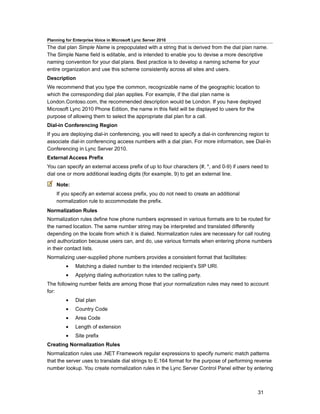
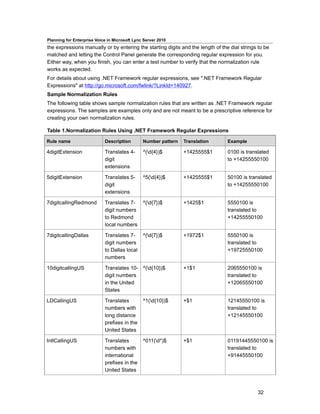
to the group before they can accept calls routed to the group, or informal, which means that they
do not sign into and out of the group to accept calls.


                                                                                                93
Planning for Enterprise Voice in Microsoft Lync Server 2010
    Note:
    The Response Group application uses an internal service, called Match Making, to queue
    calls and find available agents. Each computer that runs the Response Group application
    runs the Match Making service, but only one Match Making service per Lync Server pool
    is active at a time--the others are passive. If the active Match Making service becomes
    unavailable during an unplanned outage, one of the passive Match Making services
    becomes active. The Response Group application does its best to make sure that call
    routing and queuing continues uninterrupted. However, when a Match Making service
    transition occurs, any calls that are in transfer at the time are lost. For example, if the
    transition is due to the Front End Server going down, any calls currently being handled by
    the active Match Making service on that Front End Server are also lost.
Response Group scales well to departmental or workgroup environments (for more details, see
Capacity Planning for Response Group) and can be deployed in entirely new telephony
installations. It supports incoming calls from the Enterprise Voice deployment as well as from the
local carrier network. Agents can use Microsoft Lync 2010, Microsoft Lync 2010 Phone Edition or
Microsoft Lync 2010 Attendant to take the calls routed to them.
The Response Group application is a component of Enterprise Voice. When you deploy
Enterprise Voice, the Response Group application is installed and activated automatically.
Announcement
Deploy the Announcement application if you want to configure how incoming phone calls are
handled when the dialed number is valid for your organization but is not assigned to a user or
phone. You can configure the Announcement application to transfer these calls to a
predetermined destination (phone number, SIP URI, or voicemail) or play an audio
announcement or both. Using the Announcement application avoids the situation in which a caller
misdials and hears a busy tone or the SIP client receives an error message.
When you deploy the Announcement application, you need to configure the unassigned number
table. The unassigned number table contains ranges of phone numbers that are valid for the
organization and specifies which Announcement application handles each range. When a caller
dials a telephone number that is valid for your organization but is not assigned to anyone, Lync
Server 2010 looks up the number in the unassigned number routing table, identifies which range
the number falls in, and routes the call to the Announcement application specified for that range.
The Announcement application answers the call and plays an audio message (if you configured it
to do so) and then either disconnects the call or transfers it to a predetermined destination, such
as to an operator. You can use Lync Server 2010 Management Shell cmdlets to configure multiple
audio messages or transfer target destinations.
How you configure the unassigned number table depends on how you want to use it. If you have
specific numbers that are no longer in use and you want to play messages that are tailored for
each number, you can enter those specific numbers in the unassigned number table. For
example, if you changed the number for your customer service desk, you can enter the old
customer service number and associate it with an announcement that gives the new number. If
you want to play a general message to anyone who calls a number that is not assigned, such as
for employees who have left your organization, you can enter ranges for all the valid extensions in


                                                                                             94
Planning for Enterprise Voice in Microsoft Lync Server 2010
your organization. The unassigned number table is invoked whenever the caller dials a number
that is not currently assigned.
In Lync Server 2010, the Announcement application is automatically installed with the Response
Group application. The Announcement and Response Group applications are standard
components of an Enterprise Voice deployment: When you deploy Enterprise Voice, both of these
applications are automatically deployed.

Supported Topologies for Call Management
You can deploy the Call Park, Response Group, and Announcement applications in the following
topologies and configurations:
         •    On Standard Edition
         •    On Enterprise Edition
You can deploy the Call Park, Response Group, and Announcement applications in a central site,
but not in a branch site.

    Note:
    Call Park, Response Group, and Announcement are not available in resiliency mode.
These call management applications always run on Front End Servers when Enterprise Voice is
deployed.

Requirements for Call Management
This section describes the requirements common to Call Park, Response Group, and
Announcements.
In This Section
Hardware and Software Requirements for Call Management
Port Requirements for Call Management
Audio File Requirements for Call Management

Hardware and Software Requirements for Call Management
Call Park, Response Group, and Announcement applications are standard Front End Server
components and, therefore, have the same basic hardware and software requirements as Front
End Servers.
Hardware Requirements
Call Park, Response Group, and Announcement applications have the same hardware
requirements as Front End Servers. For details about hardware requirements, see "Server
Hardware Platforms" in the Supportability documentation.
Software Requirements
Call Park, Response Group, and Announcement applications have the same operating system
requirements and software prerequisites as Front End Servers. For details about software
requirements, see "Server and Tools Operating System Support" in the Supportability
documentation.
Call Park, Response Group, and Announcement applications require that Windows Media Format
Runtime is installed on Front End Servers running Windows Server 2008 and Windows Server


                                                                                          95
Planning for Enterprise Voice in Microsoft Lync Server 2010
2008 R2. The Windows Media Format Runtime is required for Windows Media Audio (WMA) files
that these applications play for announcements and music. The Windows Media Format Runtime
is installed automatically when you run Setup, but it might require you to restart the computer.
Therefore, it is recommended that you install the runtime before you run Setup. You can install
Windows Media Format Runtime from the command line, as follows.
pkgmgr.exe /ip /m:"C:WindowsservicingPackagesMicrosoft-Windows-
Media-Format-Package~31bf3856ad364e35~amd64~en-US~6.1.7600.16385.mum"


See Also
Requirements for IM and Presence
Determining Your System Requirements

Port Requirements for Call Management
The following table describes the ports that are used by call management features:

Ports used by call management features

Call management feature                Port number             Description

Call Park                              5075                    Used for SIP listening requests

Announcements                          5071                    Used for SIP listening requests

Response Group                         5071                    Used for SIP listening requests

                                       8404                    Used for interserver
                                                               communications

                                                                   Note:
                                                                   This port is used for the
                                                                   Match Making service
                                                                   and is required when the
                                                                   Response Group
                                                                   application is deployed in
                                                                   a pool that has more than
                                                                   one Front End Server.


Audio File Requirements for Call Management
The Call Park application supports only WMA files for music on hold. The Announcement and
Response Group applications support WAV and WMA files for music and announcements.
Announcements have the same audio file requirements as response group workflows. This
section describes the audio file requirements for the Call Park application and for the
Announcement and Response Group applications.
In This Section
Call Park Audio File Requirements
Response Group Audio File Requirements


                                                                                          96
Planning for Enterprise Voice in Microsoft Lync Server 2010
Call Park Audio File Requirements
The Call Park application supports only WMA files for music on hold. You can use the Windows
Media Encoder 9 Series tool available from http://go.microsoft.com/fwlink/?linkid=144677 to
customize files for music on hold. Use the tool to convert the file to a WMA format. The
recommended format for Call Park music-on-hold files is Media Audio 9, 44 kHz, 16 bits, Mono,
CBR, 32 kbps.

    Note:
    The converted file plays over the phone only at 16 kHz, even if it was recorded at 44 kHz.

Response Group Audio File Requirements
You can use Windows Media Audio (.wma) file format or Wave (.wav) file format for unassigned
number Announcements or for Response Group messages, on-hold music, or Interactive Voice
Response (IVR) questions.
The Windows Media Audio file format requires that the Windows Media Format Runtime is
installed. For details, see Hardware and Software Requirements for Call Management.
Supported WAV File Formats
All Wave files must meet the following requirements:
         •    8-bit or 16-bit file
         •    Linear pulse code modulation (LPCM), A-Law, or mu-Law format
         •    Mono or stereo
         •    4MB or less
For the best performance of Wave files, a 16 kHz, mono, 16-bit Wave file is recommended.
The following table describes the supported Wave file formats.


Standard PCM Formats

SAFT8kHz8BitMono                                         SAFT8kHz8BitStereo

SAFT8kHz16BitMono                                        SAFT8kHz16BitStereo

SAFT11kHz8BitMono                                        SAFT11kHz8BitStereo

SAFT11kHz16BitMono                                       SAFT11kHz16BitStereo

SAFT12kHz8BitMono                                        SAFT12kHz8BitStereo

SAFT12kHz16BitMono                                       SAFT12kHz16BitStereo

SAFT16kHz8BitMono                                        SAFT16kHz8BitStereo

SAFT16kHz16BitMono                                       SAFT16kHz16BitStereo

SAFT22kHz8BitMono                                        SAFT22kHz8BitStereo

SAFT22kHz16BitMono                                       SAFT22kHz16BitStereo

SAFT24kHz8BitMono                                        SAFT24kHz8BitStereo

SAFT24kHz16BitMono                                       SAFT24kHz16BitStereo


                                                                                           97
Planning for Enterprise Voice in Microsoft Lync Server 2010


SAFT32kHz8BitMono                                        SAFT32kHz8BitStereo

SAFT32kHz16BitMono                                       SAFT32kHz16BitStereo

SAFT44kHz8BitMono                                        SAFT44kHz8BitStereo

SAFT44kHz16BitMono                                       SAFT44kHz16BitStereo

SAFT48kHz8BitMono                                        SAFT48kHz8BitStereo

SAFT48kHz16BitMono                                       SAFT48kHz16BitStereo

A-Law Formats

SAFTCCITT_ALaw8kHzMono                                   SAFTCCITT_ALaw8kHzStereo

SAFTCCITT_ALaw11kHzMono                                  SAFTCCITT_ALaw11kHzStereo

SAFTCCITT_ALaw22kHzMono                                  SAFTCCITT_ALaw22kHzStereo

SAFTCCITT_ALaw44kHzMono                                  SAFTCCITT_ALaw44kHzStereo

u-Law Formats

SAFTCCITT_uLaw_8kHzMono                                  SAFTCCITT_uLaw_8kHzStereo

SAFTCCITT_uLaw_11kHzMono                                 SAFTCCITT_uLaw_11kHzStereo

SAFTCCITT_uLaw_22kHzMono                                 SAFTCCITT_uLaw_22kHzStereo

SAFTCCITT_uLaw_44kHzMono                                 SAFTCCITT_uLaw_44kHzStereo


The following list contains the exact sampling frequencies required for 11kHz, 22kHz, and 44kHz
files (that is, an 11000Hz file is not supported by the system):
         •    11kHZ=11025Hz
         •    22kHz=22050Hz
         •    44kHz=44100Hz
Supported Windows Media Audio File Formats
You can use the Windows Media Encoder 9 Series tool available from
http://go.microsoft.com/fwlink/?linkid=144677 to convert a file to the Windows Media Audio
format. The recommended format is Windows Media Audio 9, 44 kHz, 16 bits, Mono, CBR, 32
kbps.

Call Park Application
This section includes planning information that is specific to Call Park.
In This Section
Components Used by Call Park
Clients Supported for Call Park
Deployment Process for Call Park


                                                                                         98
Planning for Enterprise Voice in Microsoft Lync Server 2010
Components Used by Call Park
The Call Park application is automatically enabled when you deploy Enterprise Voice. The
following Microsoft Lync Server 2010 components support the Call Park application:
         • Application service: Application service provides a platform for deploying, hosting,
         and managing unified communications applications, such as the Call Park application.
         Application service is automatically installed on every Front End Server in an Enterprise
         pool and on every Standard Edition server.
         • Call Park application: The Call Park application is one of the unified
         communications applications that are hosted by Application service. It is included
         automatically when you deploy Enterprise Voice. Call Park parks and retrieves calls and
         manages call park orbits.
         • Music on hold file: If music in enabled, the music file is played while a call is parked.
         A default music file is included when the Call Park application is installed.
         •    File Store: The Call Park application uses File Store to hold custom audio files.
         • Lync Server Control Panel: You can use Microsoft Lync Server 2010 Control Panel
         to configure the call park orbit table and to enable Call Park for users.
         • Lync Server 2010 Management Shell: All Call Park application configuration can be
         performed by using Lync Server 2010 Management Shell cmdlets.

Clients Supported for Call Park
This section identifies the clients that can be used to park calls and the clients that can be used to
retrieve parked calls.
Clients Supported for Parking Calls
Calls from any IP, PBX, or PSTN phone can be parked.

    Note:
    Only audio calls can be parked. Instant messages and conferences cannot be parked.
The following clients can use Call Park to park calls:
         •    Microsoft Lync 2010
         •    Microsoft Lync 2010 Attendant
         •    Microsoft Lync 2010 Phone Edition

    Note:
    Mobile phones cannot use Call Park to park calls.
Clients Supported for Retrieving Calls
Orbit ranges are configured as blocks of virtual extensions (extensions without an assigned user
or phone). When you configure orbits as virtual extensions, mobile phones and PSTN phones
cannot retrieve parked calls.
Federated users cannot retrieve parked calls.
The following clients can retrieve calls that are parked on Call Park:
         •    Lync 2010
         •    Microsoft Office Communicator 2007 R2


                                                                                               99
Planning for Enterprise Voice in Microsoft Lync Server 2010
         •    Lync 2010 Attendant
         •    Microsoft Office Communications Server 2007 R2 Attendant
         •    Microsoft Lync 2010 Phone Edition
         •    Microsoft Office Communicator 2007 R2 Phone Edition
         •    IP common area phones
         • Non-IP phones that are connected to the Lync Server 2010 infrastructure, including
         common area phones and private branch exchange (PBX) phones

Deployment Process for Call Park
This section provides an overview of the steps involved in deploying the Call Park application.
You must deploy Enterprise Edition or Standard Edition with Enterprise Voice before you
configure Call Park. The components required by Call Park are installed and enabled when you
deploy Enterprise Voice.

Call Park Deployment Process

Phase             Steps                                       Permissions         Documentation

Configure the     Use Lync Server Control Panel or         CsVoiceAdministrator   "Configure
call park orbit   Lync Server 2010 Management Shell        CsAdministrator        Phone Number
ranges in the     cmdlet New-CSCallParkOrbit to                                   Extensions for
orbit table       create the orbit ranges in the call park                        Parking Calls"
                  orbit table and associate them with the                         Lync Server
                  Application service that hosts the Call                         2010
                  Park application.                                               Management
                       Note:                                                      Shell online
                                                                                  help
                       For seamless integration with
                       existing dial plans, orbit
                       ranges are typically
                       configured as a block of virtual
                       extensions. Assigning Direct
                       Inward Dialing (DID) numbers
                       as orbit numbers in the call
                       park orbit table is not
                       supported.

Configure Call              • Use the Lync Server 2010 CsVoiceAdministrator       Lync Server
Park settings               Management Shell cmdlet       CsAdministrator         2010
                            Set-CsCpsConfiguration to                             Management
                            configure Call Park settings.                         Shell online
                            At a minimum, we recommend                            help
                            that you configure the
                            OnTimeoutURI option to
                            configure the fallback
                            destination to use when a


                                                                                         100
Planning for Enterprise Voice in Microsoft Lync Server 2010

Phase             Steps                                       Permissions            Documentation

                            parked call times out. You can
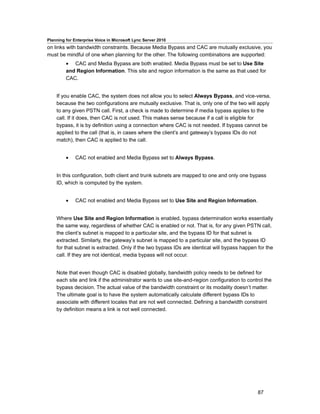
                            also configure the following
                            settings:
                                     • (Optional)
                                     EnableMusicOnHold
                                     to enable or disable
                                     music on hold.
                                     • (Optional)
                                     MaxCallPickupAttem
                                     pts to determine the
                                     number of times a
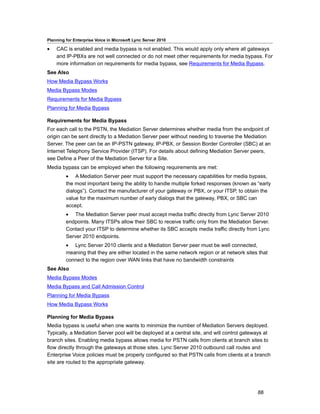
                                     parked call rings back
                                     to the answering
                                     phone before
                                     forwarding the call to
                                     the fallback Uniform
                                     Resource Identifier
                                     (URI).
                                     • (Optional)
                                     CallPickupTimeoutT
                                     hreshold to
                                     determine the amount
                                     of time that elapses
                                     after a call has been
                                     parked before it rings
                                     back to the phone
                                     where the call was
                                     answered.
                            • (Optional) Use the Lync
                            Server 2010 Management
                            Shell cmdlet Set-
                            CsCallParkServiceMusicOn
                            HoldFile to customize and
                            upload an audio file, if not
                            using default music on hold.

Configure         Use Lync Server Control Panel or            CsVoiceAdministrator   "Create a Voice
voice policy to   Lync Server 2010 Management Shell           CsUserAdministrator    Policy and
enable Call       cmdlet Set-CSVoicePolicy with the                                  Configure
                                                              CsAdministrator
Park for users    EnableCallPark option to enable Call                               PSTN Usage
                  Park for users in voice policy.                                    Records"

                       Note:                                                         Lync Server
                                                                                     2010


                                                                                            101
Planning for Enterprise Voice in Microsoft Lync Server 2010

Phase             Steps                                       Permissions            Documentation

                       By default, Call Park is                                      Management
                       disabled for all users.                                       Shell online
                                                                                     help

Verify            Call Park orbits must not be             CsVoiceAdministrator      "Create a Dial
normalization     normalized. Verify that your             CsAdministrator           Plan"
rules for Call    normalization rules do not include any
Park              of your orbit ranges. If necessary,
                  create additional normalization rules to
                  prevent orbits being normalized.

Verify your       Test parking and retrieving calls to        CsVoiceAdministrator
Call Park         ensure that your configuration works        CsAdministrator
deployment        as expected.


Response Group Application
This section describes planning considerations specific to Response Group.
In This Section
Components Used by Response Group
Clients Supported for Response Group
Response Group Configuration Tool Requirements
Capacity Planning for Response Group
Deployment Process for Response Group

Components Used by Response Group
The Response Group application is automatically enabled when you deploy Enterprise Voice.
This section describes the components that support the Response Group application.
Response Group Components
The following Microsoft Lync Server 2010 components support the Response Group application:
         • Application service: Application service provides a platform for deploying, hosting,
         and managing unified communications applications, such as Response Group.
         Application service is automatically installed on every Front End Server in an Enterprise
         pool and on every Standard Edition server.
         • Response Group application: Response Group is one of the unified
         communications applications that are hosted by Application service. It is included
         automatically when you deploy Enterprise Voice. The Response Group application routes
         and queues incoming calls to groups of agents.
         • Language pack: A language pack is required to support text-to-speech and speech
         recognition. These speech technologies are used when you configure messages, such as
         the welcome message and other prompts, and interactive voice response (IVR) questions


                                                                                             102
Planning for Enterprise Voice in Microsoft Lync Server 2010
         and answers. By default, the 26 supported language packs are installed when you deploy
         Lync Server 2010.
         •    Audio files: Audio files are used for messages and on-hold music.
         • File Store: Response Group uses File Store to store audio files. Multiple Response
         Group pools can use the same instance of File Store.
         • Response Group Configuration Tool: The Response Group Configuration Tool is a
         Web-based tool that is used to create and configure response groups. The Response
         Group Configuration Tool is included when you install Web Services.
         • Lync Server Control Panel: You can use Lync Server Control Panel to setup and
         configure agent groups and queues for response groups.
         • Lync Server 2010 Management Shell: All Response Group settings can be
         configured by using Lync Server 2010 Management Shell cmdlets.
         • Microsoft Lync 2010: Formal agents (agents who are required to sign in to the
         group before they can accept calls for the group) use Lync 2010 to sign in to and sign out
         from the group. If an agent group is configured for formal agents, the agents click a menu
         item in Lync 2010 to open Internet Explorer and display a Web page console for signing
         in and out of the group.
         • Web Services: Web Services is required for Response Group Configuration Tool, the
         agents’ sign-in and sign-out console, Lync Server Control Panel, and Response Group
         Client Web Service.
         • Response Group Client Web Service: Response Group provides a Client Web
         Service, which can be used by third-party applications to retrieve information about
         agents, agent group membership, agent sign-in status, call status for groups, and the
         groups that support anonymous calls. Lync 2010 and Lync 2010 Attendant use Response
         Group Client Web Service to retrieve the list of response groups that agents can use to
         make anonymous calls. The Client Web Service is included when you install Web
         Services.

Clients Supported for Response Group
The Response Group application supports the following clients:
•   Microsoft Lync 2010
•   Microsoft Office Communicator 2007 R2
•   Microsoft Lync 2010 Attendant
•   Microsoft Office Communications Server 2007 R2 Attendant
•   Microsoft Lync 2010 Phone Edition
•   Microsoft Office Communicator 2007 R2 Phone Edition

    Important:
    New features, such as anonymous calls, require the latest version clients. For details
    about new features, see "New Response Group Application Features".
The specific client that you can use depends on the type of Response Group user you are:


                                                                                             103
Planning for Enterprise Voice in Microsoft Lync Server 2010
         • Callers can call a response group by using any of the clients listed above, as well as
         by using a standard telephone over the public switched telephone network (PSTN).
         • Informal agents (agents who do not sign into and out of their groups to accept calls)
         can accept calls by using Attendant, Lync, or Lync 2010 Phone Edition. Informal agents
         are automatically signed into their groups when they sign in to Lync Server 2010 by using
         one of these clients.
         • Formal agents (agents who must sign into and out of their groups to accept calls)
         can accept calls by using Lync 2010 and accessing the agent console from the menu
         item or by using Attendant and accessing the agent console directly from Internet
         Explorer.

Response Group Configuration Tool Requirements
The Response Group Configuration Tool supports the combinations of operating systems and
Web browsers described in the following table.

    Note:
    32-bit or 64-bit versions of the operating systems are supported. Only 32-bit versions of
    Internet Explorer are supported.

Supported Operating Systems and Web Browsers

Operating system                                         Web browser

Windows Vista with Service Pack (SP) 2                   Windows Internet Explorer 7
                                                         Internet Explorer 8 (native mode)

Windows 7                                                Internet Explorer 8 (native mode)

Windows Server 2008 with SP2                             Internet Explorer 7
                                                         Internet Explorer 8 (native mode)

Windows Server 2008 R2                                   Internet Explorer 8 (native mode)


Capacity Planning for Response Group
The following table describes the Response Group user model that you can use as the basis for
capacity planning requirements.

Response Group User Model

Metric                                Per Enterprise Edition pool         Per Standard Edition Server
                                      (with 8 Front End Servers)

Incoming calls per second             16                                  2

Concurrent calls connected to         480                                 60
IVR or MoH

Concurrent anonymous                  224                                 28
sessions (without IM)


                                                                                                104
Planning for Enterprise Voice in Microsoft Lync Server 2010

Metric                                Per Enterprise Edition pool    Per Standard Edition Server
                                      (with 8 Front End Servers)

Concurrent anonymous                  64                             8
sessions (with IM)

Active agents (formal and             1200                           1200
informal)

Number of hunt groups                 400                            400

Number of IVR groups (use             200                            200
speech recognition)


Deployment Process for Response Group
This section provides an overview of the steps involved in deploying Response Group.

Response Group Deployment Process

Phase             Steps                             Permissions                    Documentation

Install the       The Response Group                RTCUniversalServerAdmins       "Deploying the
Response          application is installed and      group                          Enterprise Voice
Group             activated by default when                                        Workload"
application       you deploy Enterprise
                  Voice.

Install           The Lync Server Control      RTCUniversalServerAdmins            "Deploying a
components        Panel, the Response Group group                                  Front End Pool"
for Response      Configuration Tool, the
Group             agents' sign-in and sign-out
                  console, and Response
                  Group Client Web Service
                  are installed as part of Web
                  Services. Web Services is
                  installed when you deploy
                  an Enterprise Edition pool
                  or a Standard Edition
                  Server.

Enable users      Enable users who are to be CsAdministrator                       "Enable or
                  agents for Lync Server and CsUserAdministrator                   Disable Users
                  Enterprise Voice. Users                                          for Lync Server
                  must be enabled before you                                       2010"
                  can add them to agent                                            "Enable Users
                  groups. Typically, users are                                     for Enterprise
                  enabled for Lync Server                                          Voice"
                  during the Enterprise


                                                                                           105
Planning for Enterprise Voice in Microsoft Lync Server 2010

Phase             Steps                             Permissions                    Documentation

                  Edition or Standard Edition
                  deployment. Typically,
                  users are enabled for
                  Enterprise Voice during the
                  Enterprise Voice
                  deployment.

Create and                 1. Use the Lync          CsAdministrator                "Create an
configure                  Server Control           CsResponseGroupAdministrator   Agent Group"
response                   Panel or Lync                                           "Create a
groups                     Server 2010                                             Queue"
                           Management Shell
                                                                                   "Create a
                           cmdlets to do the
                                                                                   Workflow"
                           following:
                                    a. Create
                                    and
                                    configure
                                    agent
                                    groups
                                    b. Create
                                    and
                                    configure
                                    queues
                           2. Use the New-
                           CsRgsTimeRange,
                           New-
                           CSRgsHoursOfBu
                           siness, New-
                           CsRgsHoliday,
                           and New-
                           CsRgsHolidaySet
                           cmdlets to define
                           response group
                           business hours and
                           holidays.
                           3. Use the
                           Response Group
                           Configuration Tool
                           or Lync Server
                           2010 Management
                           Shell cmdlets to
                           create and
                           configure workflows


                                                                                           106
Planning for Enterprise Voice in Microsoft Lync Server 2010

Phase             Steps                             Permissions                    Documentation

                           (hunt groups or
                           interactive voice
                           response (IVR) call
                           flows).


Announcement Application
This section includes planning information that is specific to the Announcement application.
In This Section
Components Used by Announcements
Deployment Process for Announcements

Components Used by Announcements
In Microsoft Lync Server 2010, the Announcement application is a component of the Response
Group application. When you deploy Enterprise Voice, the Announcement application is
automatically installed and activated along with the Response Group application. This section
describes the components that support the Announcement application.
Announcement Application Components
The following Lync Server 2010 components support the Announcement application:
         • Application service: Application service provides a platform for deploying, hosting,
         and managing unified communications applications. Application service is automatically
         installed on every Front End Server in an Enterprise pool and on every Standard Edition
         server.
         • Response Group application: Response Group is one of the unified
         communications applications that are hosted by Application service. The Response
         Group application is required to route calls made to unassigned phone numbers.
         •    Audio files: Audio files are used for the announcements.
         •    File Store: The Announcement application uses File Store to store its audio files.
         • Lync Server Control Panel: You can use Lync Server Control Panel to configure the
         unassigned number table.
         • Lync Server 2010 Management Shell: You can use Lync Server 2010 Management
         Shell cmdlets to perform all Announcement configuration.

Deployment Process for Announcements
This section provides an overview of the steps involved in deploying the Announcement
application. You must deploy Enterprise Edition or Standard Edition with Enterprise Voice before
you configure Announcements. The components required by the Announcement application are
installed and enabled when you deploy Enterprise Voice.


                                                                                            107
Planning for Enterprise Voice in Microsoft Lync Server 2010
Announcement Deployment Process

Phase                     Steps                       Permissions              Documentation

Configure                           • Create       CsAdministrator             "Configure
Announcement                        the            CsVoiceAdministrator        Announcement File"
settings                            announceme                                 "Configure the
                                    nt by                                      Unassigned Number
                                    recording                                  Table"
                                    and
                                    uploading
                                    audio files or
                                    by using text-
                                    to-speech
                                    (TTS).
                                    •

                                    Configure the
                                    unassigned
                                    number
                                    ranges in the
                                    unassigned
                                    number table
                                    and
                                    associate
                                    them with the
                                    appropriate
                                    announceme
                                    nt.


Planning for Enterprise Voice Resiliency
Voice resiliency refers to the ability of users to continue making and receiving calls in the event a
central site that hosts Microsoft Lync Server 2010 becomes unavailable, either through Wide-
Area Network (WAN) failure or other causes. In the event of central site failure, Enterprise Voice
service must continue uninterrupted through seamless failover to a backup site. In the event of
WAN failure, branch site calls must be redirected to a local PSTN gateway. This section
discusses planning for voice resiliency in the event of central-site or WAN failure.
In This Section
         •    Planning for Central Site Voice Resiliency
         •    Planning for Branch-Site Voice Resiliency


Planning for Central Site Voice Resiliency
Increasingly, enterprises have multiple sites spread across the globe. Maintaining emergency
services, access to help desk, and the ability to conduct critical business tasks when a central site


                                                                                              108
Planning for Enterprise Voice in Microsoft Lync Server 2010
is out of service is essential for any enterprise voice resiliency solution. When a central site
becomes unavailable:
         •    Voice failover must be provided.
         • Users who normally register with the central site Registrar pool must be able to
         discover a new Registrar pool.
         •    Calls to and from users located at other sites must be rerouted to the PSTN.
         •    Voice survivability must be provided for users when the presence pool is unavailable.
This topic describes the recommended solution for securing central site voice resiliency.

Architecture and Topology
Planning for voice resiliency at a Central Site requires a basic understanding of the role played by
the Microsoft Lync Server 2010 Registrar. The Registrar plays the central role in enabling voice
failover scenarios.
The Lync Server 2010 Registrar is a server role that enables client registration and
authentication, and provides routing services. The Registrar is a new server role. It resides along
with other components on a Standard Edition Server, Enterprise Front End Server, Director, or
Survivable Branch Appliance. A Registrar pool consists of Registrar Services running on the Lync
Server pool and residing at the same site. The pool must be load balanced. DNS load balancing
is recommended, but hardware load balancing is acceptable. A client connects to the Registrar
pool FQDN and is then directed by the load balancing mechanism to one of the registrars in the
pool.
Each user enabled for Enterprise Voice is assigned to a particular Registrar pool, which becomes
that user’s primary Registrar pool. Typically, at a given site, hundreds or thousands of users share
a single primary Registrar pool.
To assure voice resiliency in the event of central site failure, the primary Registrar pool must have
a single designated backup Registrar pool located at another site. Assuming a resilient WAN link
between the two sites, users whose primary Registrar pool is no longer available are
automatically directed to the backup Registrar pool.
The following steps describe the client discovery and registration process:
         1. A client discovers Lync Server through DNS SRV. In Lync Server 2010, DNS SRV
         can be configured to return more than one FQDN to the DNS SRV query. For example, if
         enterprise Contoso has three central sites (North America, Europe, and Asia-Pacific) and
         a Director pool at each central site, DNS SRV can point to the Director pool FQDNs in
         each of the three locations. As long as the Director pool in one of the locations is
         available, the client is able to connect to the first hop Lync Server.

         Note:
         Using a Director pool is optional. A Front End pool may be used instead.
         2. The Director pool informs the client about the user’s primary Registrar pool and
         backup Registrar pool.
         3. The client attempts to connect to the user’s primary Registrar pool first. If the primary
         Registrar pool is available, it accepts the registration. If the primary Registrar pool is
         unavailable, the client attempts to connect to the backup Registrar pool. If the backup


                                                                                               109
Planning for Enterprise Voice in Microsoft Lync Server 2010
         Registrar pool is available, and has determined that the user’s primary Registrar pool is
         unavailable (by detecting a lack of heart beats for a specified failover interval) the backup
         Registrar pool accepts the user’s registration.
The following figure shows the recommended topology for assuring central site resiliency. The
two sites are connected by a resilient WAN link. If the central site becomes unavailable, users
who are assigned to that pool are directed to the backup site for registration.

Recommended topology for central site voice resiliency


Requirements and Recommendations
The following requirements and recommendations for implementing central site voice resiliency
are appropriate for most organizations:
         • The sites in which the primary and backup Registrar pools reside should be
         connected by a resilient WAN link.
         •    Each central site must contain a Registrar pool consisting of one or more Registrars.
         • Each Registrar pool must be load-balanced by using DNS load balancing or
         hardware load balancing.
         •    Each user must be assigned to a primary Registrar pool.
         • The primary Registrar pool must have a single backup Registrar pool located in the
         backup central site.
         • The primary Registrar pool must be configured to fail over to the backup Registrar
         pool. The failover interval is configurable by an administrator. Default is 300 seconds.

Dependencies
Lync Server depends on the following infrastructural and software components to assure voice
resiliency:


Component                                                Functional

DNS                                                      Resolving SRV records and A records for
                                                         server-server and server-client connectivity

Exchange and Exchange Web Services (EWS)                 Contact storage; calendar data


                                                                                                  110
Planning for Enterprise Voice in Microsoft Lync Server 2010

Exchange Unified Messaging and Exchange                  Call logs, voice mail list, voice mail
Web Services

DHCP Options 120                                         If DNS SRV is not available, the client will
                                                         attempt to use DHCP Option 120 to discover
                                                         the Registrar. For this to work, either a DHCP
                                                         server must be configured or Lync Server 2010
                                                         DHCP must be enabled.


Survivable Voice Features
Assuming that the above requirements and recommendations have been implemented, the
following voice features will be provided by the backup Registrar pool:
         •    Outbound PSTN calls
         •    Inbound PSTN calls, if the carrier provides the ability to failover to a backup site
         •    Enterprise calls between users at both the same site and two different sites
         •    Basic call handling, including call hold, retrieval, and transfer
         •    Authentication and authorization
         •    Two-party instant messaging and audio/video between users at the same site
         •    Call Detail Recording (CDR)
         • Call forwarding, simultaneous ringing of endpoints, boss-administrator and team call
         services
         •    Existing phones and clients continue to work
The following voice features do not work when a primary central site is out of service:
         •    Voice mail deposit and retrieval
         •    Conference Auto-Attendant
         •    Conferencing of all types
         •    Presence and DND-based routing
         •    Updating call forwarding settings
         •    Response Group Service and Call Park
         •    Provisioning new phones and clients


                                                                                                  111
Planning for Enterprise Voice in Microsoft Lync Server 2010


Planning for Branch-Site Voice Resiliency
If you want to provide branch-site resiliency, that is, high-availability Enterprise Voice service, you
have three options for doing so:
         •    Survivable Branch Appliance
         •    Survivable Branch Server
         •    A full Lync Server 2010 deployment at the branch site
This guide will help you evaluate which resiliency solution is best for your organization and, based
on your resiliency solution, which PSTN-connectivity solution to use. It will also help you prepare
to deploy the solution that you choose by describing prerequisites and other planning
considerations.
In This Section
         •    Branch-Site Resiliency Features
         •    Branch-Site Resiliency Solutions
         •    Branch-Site Resiliency Requirements

Branch-Site Resiliency Features
If you provide branch-site resiliency, if a branch site’s WAN connection to a central site fails or if
the central site is unreachable, the following voice features should continue to be available:


         •    Inbound and outbound PSTN calls
         •    Intra-site and inter-site calls
         •    Call hold, retrieve, and transfer
         •    User authentication and authorization
         •    Depositing and retrieving voicemail
         • Call forwarding, simultaneous ringing, and boss-administrator and team calling
         features
         •    Call Detail Records
         •    Two-party intra-site instant messaging and audio-video conferencing
         •    PSTN dial-in conferencing with Conferencing Auto-Attendant
         • Voicemail capabilities, if you configure voicemail rerouting settings. (For more
         information, see Branch-Site Resiliency Requirements.)
The following features will be available only if your resiliency solution is a full-scale Microsoft Lync
Server 2010 deployment at the branch site:
         •    IM, Web and A/V conferencing
         •    Presence and DND-based routing
         •    Updating call forwarding settings
         •    Response Group Service and Call Park
         •    Provisioning new phones and clients


                                                                                                112
Planning for Enterprise Voice in Microsoft Lync Server 2010
Branch-Site Resiliency Solutions
There are obvious advantages to providing branch-site resiliency to your organization, namely
that if you lose the connection to the central site, branch site users will continue to have
Enterprise Voice service and voicemail (if you configure voicemail rerouting settings; for more
information, see Branch-Site Resiliency Requirements). However, for sites with fewer than 25
users a resiliency solution may not provide return on investment.
If you decide to provide branch-site resiliency, you have three options for how to do so. Use the
following table to help you determine which option is right for you.


If you…                                                  We recommend that you use a…

Host between 25 and 1000 users at your                   Survivable Branch Appliance
branch site, and if the return on investment
does not support a full deployment or where              The Survivable Branch Appliance is an industry-
local administrative support is unavailable              standard blade server with a Microsoft Lync
                                                         Server 2010 Registrar and Mediation Server
                                                         running on Windows Server 2008 R2. The
                                                         Survivable Branch Appliance also contains an
                                                         IP-IP/PSTN gateway. This non-Microsoft device
                                                         provides a continuous PSTN connection in the
                                                         event of WAN failure, but it does not provide
                                                         resilient presence and conferencing because
                                                         these features depend on Front End servers at
                                                         the central site.

                                                         Note: If you decide to also use a SIP trunk with
                                                         your Survivable Branch Appliance, contact your
                                                         Survivable Branch Appliance vendor to learn
                                                         about which service provider is right for your
                                                         organization.

Host between 1000 and 5000 users at your                 Survivable Branch Server
branch site, lack a resilient WAN connection,
and have trained Lync Server admins available            The Survivable Branch Server is a Windows
                                                         server that has Lync Server 2010 Registrar and
                                                         Mediation Server software installed on it. It must
                                                         connect to either an IP/PSTN gateway or a SIP
                                                         trunk to a telephone service provider.

Host more than 5000 users at your branch site            Deploy as a central site with a Standard Edition
and have trained Lync Server admins available            Server rather than as a branch site.

                                                         A full-scale Lync Server deployment provides a
                                                         continuous PSTN connection in the event of
                                                         WAN failure, as well as resilient presence and


                                                                                                  113
Planning for Enterprise Voice in Microsoft Lync Server 2010

If you…                                                  We recommend that you use a…

                                                         conferencing.

                                                         For more information about preparing for this
                                                         solution, see “Planning for Your Organization,
                                                         Preparing Your Environment” and “Determining
                                                         Your Infrastructure Requirements” in “Planning
                                                         for Your Organization: Lync Server 2010” and
                                                         “Determining Your Infrastructure Requirements
                                                         for Lync Server 2010” documents.


Resiliency Topologies
The following figure shows the recommended topologies for branch-site resiliency.

Topologies enabling voice survivability in a branch site


Survivable Branch Appliance Details
The Lync Server 2010 Survivable Branch Appliance includes the following components:
          •   A Registrar for user authentication, registration and call routing
          • A Mediation Server for handling signaling between the Registrar and an IP-PSTN
          gateway
          • An IP-PSTN gateway for routing calls to the PSTN as a fallback transport in the event
          of a WAN outage
          •   SQL Server Express Edition for local user data storage
The Survivable Branch Appliance also includes PSTN trunks, analog ports, and an Ethernet
adapter.
The following figure shows the basic architecture of the Survivable Branch Appliance.


                                                                                                114
Planning for Enterprise Voice in Microsoft Lync Server 2010


Survivable Branch Appliance components and connectivity


If the branch site’s WAN connection to a central site becomes unavailable, internal branch users
should continue to be registered with the Survivable Branch Appliance Registrar and obtain
uninterrupted voice service using the Survivable Branch Appliance’s connection to the PSTN.
Remote branch site users should be able to register with a Registrar server at a central site.
When the WAN connection becomes available, full functionality should be restored to branch site
users. Neither the failover to the Survivable Branch Appliance nor the restoration of service
requires the presence of an IT administrator.
Survivable Branch Appliance Deployment Overview
The Survivable Branch Appliance is manufactured by original equipment manufacturers in
partnership with Microsoft and deployed on their behalf by value added retailers. This deployment
should occur only after Lync Server 2010 has been deployed at the central site, a WAN
connection to the branch site is in place, and branch site users are enabled for Enterprise Voice.
For detailed information about these phases, see Deploying a Survivable Branch Appliance or
Server, in the Deployment Guide.


Phase                            Steps                           Permissions

Install prerequisite software At the central site:               The technician must belong to the
                                           1. Install Lync       RTCUniversalSBATechnicians group.
                                           Server 2010 at the
                                           central site.         The computer must belong to the
                                                                 RTCSBAUniversalServices group,
                                           2. Set up
                                                                 which happens automatically when
                                           permissions for an
                                                                 you use Topology Builder.
                                           installation
                                           technician at the
                                           branch site.
                                           3. Create a
                                           Survivable Branch
                                           Appliance
                                           computer account
                                           in Active Directory


                                                                                             115
Planning for Enterprise Voice in Microsoft Lync Server 2010

Phase                            Steps                           Permissions

                                           Domain Services
                                           and add Survivable
                                           Branch Appliance
                                           to topology.

Install, and activate the        At the branch site:             The technician must belong to the
Survivable Branch                          1. Connect the        RTCUniversalSBATechnicians group.
Appliance.                                 Survivable Branch
                                           Appliance to an
                                           Ethernet port, and
                                           turn it on.
                                           2. Log on to the
                                           Survivable Branch
                                           Appliance, and join
                                           it to domain.
                                           3. Use the Web
                                           UI to install and
                                           activate the
                                           Survivable Branch
                                           Appliance.
                                           4. Test PSTN
                                           connectivity.


Survivable Branch Server Details
Install the Survivable Branch Server the same way you install any Lync Server role.
See Also
Deploying Lync Server 2010

Branch-Site Resiliency Requirements
This topic provides information about preparing users for branch-site resiliency, preparing for
voice mail survivability, and the relevant hardware and software requirements.
Preparing for Branch Users for Branch-Site Resiliency
Prepare users for branch-site resiliency by assigning them to a primary and backup Registrar and
configuring voice routing policies and plans.
Registrar Assignments for Branch Users
Whichever branch-site resiliency solution you choose, you will need to assign a primary Microsoft
Lync Server 2010 Registrar to each user. Branch site users should always register with the
Registrar at the branch site, regardless whether that Registrar resides in the Survivable Branch
Appliance, Survivable Branch Server, or stand-alone Lync Server 2010 Standard or Enterprise
Edition Server. It is recommended that each user also be assigned a backup Registrar. A DNS
SRV record is required to direct users from the primary registrar to the backup registrar. If the


                                                                                            116
Planning for Enterprise Voice in Microsoft Lync Server 2010
Survivable Branch Appliance goes down, branch site users are thereby able to register
seamlessly with the backup Registrar.
Voice Routing for Branch Users
Creating a separate user-level VoIP policy for users in a branch site is recommended. This policy
should include a primary route using the Survivable Branch Appliance or branch server gateway
and one or more backup route using a PSTN gateway at the central site. The routes are used in
the order in which they are listed. Therefore the primary route, using the branch site gateway,
should be listed first. If the primary route is unavailable, the backup routes, using one or more
central site gateways is used instead. In this way, regardless of where a user is registered, either
on the branch site Registrar or the backup Registrar cluster at the central site, the user’s VoIP
policy is always in effect.

    Important:
    When creating a branch site backup route, the recommendation is to add two PSTN
    phone usage records to the branch site user policy and assign separate routes to each
    one. The first, or primary route, would direct calls to the gateway associated with the SBA
    or branch server; the second, or backup route would direct calls to the gateway at the
    central site. In directing calls, the SBA or branch server will attempt all routes assigned to
    the first PSTN usage record before attempting the second usage record.
To ensure that inbound calls to branch users will work when the branch gateway is unavailable
(as would happen, for example, if the Survivable Branch Appliance or branch gateway were down
for maintenance), instruct your Direct Inward Dialing provider to create a failover route that
redirects incoming calls to a gateway at the central site. From there the calls will be routed over
the WAN link to branch users. For more information on creating a failover route, see Configuring
a Failover Route.
We recommend creating a user-level dial plan and assigning it to branch users. For more
information, see “Create the VoIP Routing Policy for Branch Users” in the Deployment
documentation.
Preparing for Voicemail Survivability
Exchange UM is usually installed only at a central site and not at branch sites. A caller should be
able to deposit a voicemail message, even if the WAN link between branch site and central site is
unavailable.
Survivable Branch Appliances and branch servers provide voicemail survivability for branch users
during a WAN outage. Specifically, if you are using a Survivable Branch Appliance or server,
when the WAN is unavailable the Survivable Branch Appliance or server re-routes unanswered
calls over the PSTN to Exchange UM at the central site. The Survivable Branch Appliance or
Server also enables a user to retrieve voicemail messages through the PSTN during a WAN
outage. Lastly, during a WAN outage the Survivable Branch Appliance or server queues missed-
call notifications and then uploads them to the Exchange UM server when the WAN is restored.
To enable voice mail survivability for branch site users, the following configurations are
recommended:
         • An Exchange administrator should configure Exchange UM Auto Attendant (AA) to
         Message Taking Mode. This is a special type of AA that disables all other generic


                                                                                              117
Planning for Enterprise Voice in Microsoft Lync Server 2010
         functionality, such as transfer to a user or transfer to an operator, and limits the AA to only
         accept messages. Alternatively, the Exchange administrator may choose to use a generic
         AA, or an AA customized to route the call to an operator.
         • The Lync Server administrator should set the AA phone number as the Exchange
         UM Auto Attendant phone number when configuring voice mail rerouting for either the
         Survivable Branch Appliance or branch server.
         • The Lync Server administrator should set the Exchange UM subscriber access
         number that corresponds to the branch user’s Exchange UM dial plan as the Exchange
         UM subscriber access number when configuring voice mail rerouting on the Survivable
         Branch Appliance.
         • The Exchange administrator should configure Exchange UM so that only one dial
         plan is associated with all branch users who need access to voicemail during a WAN
         outage.

    Important
                  • To assure prompt rerouting of voice mail during a WAN outage, DNS records
                  must be cached at the branch site. There are two ways to do this:
Hardware and Software Requirements for Branch-Site Resiliency
The hardware and software requirements vary depending on our resiliency solution.
Requirements for Survivable Branch Appliances
Required hardware and software is built into the Survivable Branch Appliance. However, it is also
recommended that each branch site deploy a DHCP server to obtain client IP addresses.
Otherwise, when the DHCP lease expires, clients will not have IP connectivity.
If the enterprise DNS servers are only located in central sites, they will not be accessible to
branch users during a WAN outage and therefore Lync Server discovery using DNS SRV will fail.
Lync Server 2010 clients can discover the Lync Server using DHCP Option 120 (SIP Registrar
Option). This can be configured in one of two ways:
         • Configure the DHCP server to reply to DHCP 120 queries, which return the FQDN of
         the Registrar, OR
         • Enable Lync Server DHCP. When this is enabled the Lync Server Registrar responds
         to DHCP Option 120 queries. Note that the Lync Server Registrar does not respond to
         any DHCP queries other than DHCP Options 120, so it is safe to enable Lync Server
         DHCP.
Additionally, for larger Branch sites that have multiple subnets, DHCP relay agents should be
enabled to forward DHCP Option 120 queries to the DHCP Server (configuration 1 above) or the
Lync Server Registrar (configuration 2 above).
Finally, branch site users must be enabled for Enterprise Voice and provisioned with an
appropriate Unified Communications endpoint.
Requirements for Survivable Branch Servers
The requirements for Survivable Branch Servers are the same as the requirements for any Lync
Server server role. For more information, see “Determining Your Infrastructure Requirements” in
“Determining Your Infrastructure Requirements for Lync Server 2010”.


                                                                                                118
Planning for Enterprise Voice in Microsoft Lync Server 2010
Requirements for Full-Scale Lync Server Branch-Site Deployments
See “Determining Your Infrastructure Requirements” in “Determining Your Infrastructure
Requirements for Lync Server 2010”.

Configuring a Failover Route
 The following example shows how an administrator can define a failover route for use in the
event the Dallas-GW1 is brought down for maintenance, or is otherwise unavailable. The
following tables illustrate the required configuration change.

Table 1. User Policy

User policy                                              Phone usage

Default Calling Policy                                   Local
                                                         GlobalPSTNHopoff

Redmond Local Policy                                     RedmondLocal

Dallas Calling Policy                                    DallasUsers
                                                         GlobalPSTNHopoff


Table 2. Routes

Route name             Number pattern                         Phone usage         Gateway

Redmond Local          ^+1(425|206|253)(d{7})$              Local               Red-GW1
Route                                                         RedmondLocal        Red-GW2

Dallas Local           ^+1(972|214|469)(d{7})$              Local               Dallas-GW1
Route

Universal Route        ^+?(d*)$                             GlobalPSTNHopoff    Red-GW1
                                                                                  Red-GW2
                                                                                  Dallas-GW1

Dallas Users           ^+?(d*)$                             DallasUsers         Dallas-GW1
Route


         • In the previous example, a phone usage of GlobalPSTNHopoff is added after the
         DallasUsers phone usage in the Dallas Calling Policy.
         • This enables calls with the Dallas Calling policy to use routes that are configured for
         the GlobalPSTNHopoff phone usage if a route for the DallasUsers phone usage is
         unavailable.


                                                                                            119
Planning for Enterprise Voice in Microsoft Lync Server 2010


Components Required for Enterprise Voice
This section describes all components that are used by one or more Enterprise Voice features.
They include the following:
         •    Front End Server VoIP Components
         •    Mediation Server Component
         •    PSTN Connectivity Components
         •    Perimeter Network VoIP Components


Front End Server VoIP Components
The VoIP components located on Front End Servers are as follows:
         •    Translation Service
         •    Inbound Routing component
         •    Outbound Routing component
         •    Exchange UM Routing component
         •    Intercluster Routing component
         •    Mediation Server Component

Translation Service
The Translation Service is the server component that is responsible for translating a dialed
number into the E.164 format or another format, according to the normalization rules that are
defined by the administrator. The Translation Service can translate to formats other than E.164 if
your organization uses a private numbering system or uses a gateway or PBX that does not
support E.164.

Inbound Routing Component
The Inbound Routing component handles incoming calls largely according to preferences that are
specified by users on their Enterprise Voice clients. For example, users specify whether
unanswered calls are forwarded or simply logged for notification. If call forwarding is enabled,
users can specify whether unanswered calls should be forwarded to another number or to a
Microsoft Exchange Unified Messaging server that has been configured to provide call answering.
The Inbound Routing component is installed by default on all Standard Edition servers and Front
End Servers.

Outbound Routing Component
The Outbound Routing component routes calls to PBX or PSTN destinations. It applies call
authorization rules to callers and determines the optimal media gateway for routing each call. The
Outbound Routing component is installed by default on all Standard Edition servers and Front
End Servers.
The routing logic that is used by the Outbound Routing component is in large measure configured
by network or telephony administrators according to the requirements of their organizations.


                                                                                           120
Planning for Enterprise Voice in Microsoft Lync Server 2010
Exchange UM Routing Component
The Exchange UM routing component handles routing between Microsoft Lync Server 2010 and
servers running Microsoft Exchange Unified Messaging (UM), to integrate Lync Server with
Unified Messaging features.
The Exchange UM routing component also handles rerouting of voice mail. If you have Enterprise
Voice users at branch sites that do not have a resilient WAN link to a central site, the Survivable
Branch Appliance (SBA) that you deploy at the branch site provides voicemail survivability for
branch users during a WAN outage. When the WAN link is unavailable, the SBA does the
following:
         • Reroutes unanswered calls over the PSTN to the Exchange Unified Messaging
         server in the central site
         •    Provides the ability for a user to retrieve voice mail messages over the PSTN
         • Queues missed call notifications, and then uploads them to the Exchange UM server
         when the WAN link is restored.
To enable voice mail rerouting, it is recommended that your Exchange administrator provisions an
Exchange UM Message Taking Mode Auto Attendant (AA).

Intercluster Routing Component
Lync Server 2010 supports Enterprise Voice resilience for central site and branch sites. The
intercluster routing component routes all calls made by a user homed on one pool to a user
homed on another pool.
Users in a branch connect and register with the Enhanced Registrar in the branch. When the
WAN link is unavailable, these users remain connected to the Enhanced Registrar in the branch
site. Any calls made by the branch users to users located at other sites are automatically rerouted
over the PSTN to the other user’s phone number by the Intercluster Routing component running
on the Enhanced Registrar in the branch. Similarly, for calls made by users located at other sites
to the branch user, the Intercluster Routing component at the branch site will reroute those calls
over the PSTN.
Users in a central site connect and register with the Lync Server Front End pool or Standard
Edition server in the central site. This pool is also the user’s primary Enhanced Registrar pool. If
this pool is unavailable, users can failover to a backup Enhanced Registrar pool which then
handles user registration and routing of calls. If a user makes a call to a central site user that fails
over to the backup Enhanced Registrar pool, the Intercluster routing component running on the
callers Enhanced Registrar pool facilitates call establishment by first calling the central site user’s
primary Enhanced Registrar pool, and if that is unavailable by calling the user’s backup
Enhanced Registrar pool. If both the pools are unavailable, the Intercluster routing component
reroutes the call over the PSTN network to the user’s telephone number.

Other Front End Server Components Required for VoIP
Other components residing on the Front End Server or Director that provide essential support for
VoIP, but are not themselves VoIP components, include the following:
         • User Services. Perform reverse number lookup on the target phone number of each
         incoming call and match that number to the SIP URI of the destination user. Using this


                                                                                                121
Planning for Enterprise Voice in Microsoft Lync Server 2010
         information, the Inbound Routing component distributes the call to that user’s registered
         SIP endpoints. User Services is a core component on all Front End Servers and
         Directors.
         • User Replicator. Extracts user phone numbers from Active Directory Domain
         Services (AD DS) and writes them to tables in the RTC database, where they are
         available to User Services and Address Book Server. User Replicator is a core
         component on all Front End Servers.
         • Address Book Service. Provides global address list information from Active
         Directory Domain Services to Lync 2010 clients. It also retrieves user and contact
         information from the RTC database, writes the information to the Address Book files, and
         then stores the files on a shared folder where they are downloaded by Lync 2010 clients.
         The Address Book Server writes the information to the RTCAb database, which is used
         by the Address Book Web Query service to respond to user search queries from the
         Microsoft Lync 2010 Mobile. It optionally normalizes enterprise user phone numbers that
         are written to the RTC database for the purpose of provisioning user contacts in . The
         Address Book Server is installed by default on all Front End Servers. The Address Book
         Web Query service is installed by default with the Web services on each Front End
         Server.


Mediation Server Component
You must deploy Lync Server 2010 Mediation Server if you choose to deploy the Enterprise Voice
workload. In Lync Server 2010, the Mediation Server is collocated with the Front End Server by
default. The Mediation Server can also be deployed as a standalone server or separate pool for
performance reasons. This topic describes basic functionality, dependencies, basic topologies,
and planning guidelines.
Mediation Server translates signaling and, in some configurations, media between your internal
Lync Server VoIP infrastructure and an Internet Protocol/Public Switched Telephone Network (IP-
PSTN) gateway or a Session Initiation Protocol (SIP) trunk. On the Lync Server side, Mediation
Server listens on a single mutual TLS (MTLS) transport address. On the gateway side, Mediation
Server listens on a single TCP and single TLS transport address or a single TLS transport
address. TLS is recommended, but TCP is supported for gateways that do not support TLS.
If you also have an existing Public Branch Exchange (PBX) in your environment, Mediation
Server handles calls between Enterprise Voice users and the PBX. If your PBX is an IP-PBX, you
can create a direct SIP connection between the PBX and Mediation Server. If your PBX is a Time
Division Multiplex (TDM) PBX, you must also deploy an IP-PSTN Gateway between Mediation
Server and the PBX.
The main functions of the Mediation Server are as follows:
         •    Encrypting and decrypting SRTP on the Lync Server side
         • Translating SIP over TCP (for gateways that do not support TLS) to SIP over mutual
         TLS
         •    Translating media streams between Lync Server and the media gateway
         • Connecting clients that are outside the network to internal ICE components, which
         enable media traversal of NAT and firewalls


                                                                                            122
Planning for Enterprise Voice in Microsoft Lync Server 2010
         • Acting as an intermediary for call flows that a gateway does not support, such as
         calls from remote workers on an Enterprise Voice client
         • In deployments that include SIP trunking, working with the SIP trunking service
         provider to provide PSTN support, which eliminates the need for an IP-PSTN gateway
The following figure shows the signaling and media protocols that are used by the Mediation
Server when communicating with a basic media gateway and the Enterprise Voice infrastructure.

Signaling and media protocols used by the Mediation Server


    Note:
    If you are using TCP or RTP/RTCP (instead of SRTP or SRTCP) on the network between
    the media gateway and the Mediation Server, it is recommended that this network be a
    secure private network.

Multiple Gateway Support
New for the Mediation Server in Lync Server 2010 is the ability for a single Mediation Server to
control multiple (N) gateways. In previous releases, there was a 1:1 ratio of Mediation Servers to
Gateways. Also new for Lync Server 2010 is the ability for a Mediation Server to be deployed as a
pool; this pool can be collocated with the Registrar on an Enterprise Front End pool, or can be a
standalone pool. When collocated with the Registrar, the pool size can be at most 10 (limit of the
Registrar pool size). Taken together, these new capabilities increase the reliability and


                                                                                          123
Planning for Enterprise Voice in Microsoft Lync Server 2010
deployment flexibility for Mediation Servers, but they require associated capabilities in the
following peer entities:
         • PSTN Gateway. A Lync Server 2010 qualified gateway must implement DNS load
         balancing, which allows a qualified IP-PSTN gateway to load balance across a pool of
         Mediation Servers and thereby to connect to the first available Mediation Server in the
         pool.
         • SIP Trunk Session Border Controller (SBC). For a SIP trunk, the peer entity is an
         SBC at a Service Provider. In the direction from the Mediation Server pool to the SBC,
         the SBC can receive connections from any Mediation Server in the pool. In the direction
         from the SBC to the pool, traffic should be sent to any Mediation Server in the pool. The
         model that is recommended instead of DNS load balancing is that you give the Service
         Provider the IP addresses of all Mediation Servers in the pool, and the Service Provider
         will provision these in their SBC as different SIP Trunks. The Service Provider will then
         handle the load balancing at its end. Not all Service Providers or SBCs may support
         these capabilities. Furthermore, the Service Provider may charge extra for this capability.
         (Note that SBC redundancy could be achieved if the IP of the SBC is a Virtual IP (VIP)
         that can terminate at different physical SBCs, so that if an SBC goes down, there is a
         recovery mechanism.)
         • IP-PBX. For an IP-PBX peer, the peer entity is a SIP control entity associated with
         the IP-PBX. In the direction from the Mediation Server pool to this IP-PBX SIP
         termination, the IP-PBX can receive connections from any Mediation Server in the pool.
         In the direction from the IP-PBX to the pool, want traffic to be sent to any Mediation
         Server in the pool. The model that is recommended of DNS load balancing is that
         individual direct SIP connections are defined from the IP-PBX to each Mediation Server in
         the pool. The IP-PBX will then handle the load balancing at its end by distributing traffic
         over the trunk group. The assumption is that the trunk group has a consistent set of
         routing rules at the IP-PBX. Whether a particular IP-PBX supports this trunk group
         concept, and how it intersects with the IP-PBXs own redundancy/clustering architecture
         needs to be determined before a decision can be made as to whether a Mediation Server
         cluster can interact correctly with an IP-PBX.
A Mediation Server pool must have a uniform view of the peer gateway entity that it interacts with.
This means that ALL members of the pool access the same definition of the peer gateway entity
from configuration, and are equally likely to interact with it for outgoing calls. Thus, there is no
capability to segment the pool such that some Mediation Servers only talk to certain gateway
peers for outgoing calls. If such segmentation is necessary, a separate pool of Mediation Servers
must be used. This would be the case, for example, if the associated capabilities in IP-PSTN
gateways, SIP Trunks, or IP-PBXs to interact with a pool as detailed above are not present.
A Lync Server 2010 deployment assumes that a particular IP-PSTN gateway, IP-PBX, or SIP
Trunk peer depends on only a single Mediation Server pool; calls are routed to that pool by the
Lync Server 2010 Front End so that they can get to that gateway peer.
For SIP Trunks, IP-PBXes, and IP-PSTN gateways where a separate pool of Mediation Servers
must be used (due to the fact that these entities do not support the correct capabilities to interact
with a pool), the following scheme can be used to achieve redundancy:


                                                                                                124
Planning for Enterprise Voice in Microsoft Lync Server 2010
         • To solve multiple Mediation Servers interacting with the same gateway peer entity,
         the administrator needs to configure multiple virtual gateways. Each gateway would be
         associated with a different FQDN, which would resolve in DNS to the same IP address
         • Individual standalone Mediation Servers (for example, a pool of one Mediation
         Server) would be used, and a trunk would be defined from a Mediation Server to a virtual
         gateway; each redundant Mediation Server would be responsible for a trunk connection
         to a different virtual gateway.
         • For this scheme to work for gateway peers that support TLS, the FQDN for each
         virtual gateway needs to be in the Subject Name or Subject Alternate Name part of the
         certificate provided by the gateway peer.
         • Note that the policy applied for interaction with the gateway peer will be the policy
         associated with the first gateway object in the configuration store that matches. This
         should not be an issue, since the policy associated with all virtual gateways should be
         identical (they all correspond to the same physical hardware).
         • Lync Server 2010 routes will use different virtual gateways. Each virtual gateway will
         depend on a different Mediation Server.
The number of gateways that a particular pool of Mediation Servers can control is dependent on
the number of calls that are media bypass calls. Bypass calls imply that the media does not flow
through any Mediation Server in the pool. This in turn implies that a Mediation Server in the pool
can handle many more calls, since only signaling layer processing is necessary.


Call Admission Control and Mediation Server
Call Admission Control (CAC) is a new Lync Server 2010 capability that manages real-time
session establishment based on available bandwidth to help prevent poor quality of experience
for users on congested networks. To support this capability, the Mediation Server, which provides
signaling and media translation between the Lync Server VoIP infrastructure and a gateway or
SIP trunking provider, is responsible for bandwidth management for its two interactions on the
Lync Server side and on the gateway side. The philosophy for bandwidth management is that the
terminating entity for a call handles the bandwidth reservation. The gateway peers (IP-PSTN
gateway, IP-PBX, SBC) that the Mediation Server interacts with on the gateway side do not
support Lync Server 2010 bandwidth management. Thus, the Mediation Server has to handle
bandwidth interactions on behalf of its gateway peer. Whenever possible, the Mediation Server
will do a-priori bandwidth reservation. If this is not possible (for example, the locality of the
ultimate media endpoint on the gateway side is unknown for an outgoing call to the gateway
peer), post-facto bandwidth reservation is done. This may result in over-subscription, but is the
only way to prevent false ring scenarios.
Media bypass and bandwidth reservation are mutually exclusive. If a media bypass is employed
for a call, call admission control is not performed for that call. The assumption here is that there
are no links with constrained bandwidth involved in the call. If call admission control is used for a
particular call that involves the Mediation Server, that call cannot employ media bypass.


                                                                                              125
Planning for Enterprise Voice in Microsoft Lync Server 2010
For more information about media bypass or call admission control, see Media Bypass or Call
Admission Control.


                                                                                       126
Planning for Enterprise Voice in Microsoft Lync Server 2010


Enhanced 9-1-1 (E9-1-1) and Mediation
Server
The Mediation Server has extended capabilities so that it can correctly interact with Enhanced
9-1-1 (E9-1-1) service providers. No special configuration is needed on the Mediation Server; the
SIP extensions required for E9-1-1 interaction are, by default, included in the Mediation Server’s
SIP protocol for its interactions with a gateway peer (IP-PSTN gateway, IP-PBX, or the SBC of an
Internet Telephony Service Provider, including E9-1-1 Service Providers)
Whether the SIP trunk to an E9-1-1 Service Provider can be terminated on an existing Mediation
Server pool or will require standalone Mediation Servers will depend on whether the E9-1-1 SBC
can interact with a pool of Mediation Servers as detailed in Multiple Gateway Support.


Media Bypass and Mediation Server
Media bypass is a new Lync Server 2010 capability that enables an administrator to configure call
routing to flow directly between user endpoint and PSTN gateway without having to traverse the
Mediation Server. Media bypass improves call quality by reducing latency, needless translation,
possibility of packet loss, and the number of potential points of failure. Where a remote site
without a Mediation Server is connected to a central site by one or more WAN links with
constrained bandwidth, media bypass lowers the bandwidth requirement by allowing media from
a client at a remote site to flow directly to its local gateway without first having to flow across the
WAN link to a Mediation Server at the central site and back. Reduced media processing also
complements the Lync Server 2010Mediation Server’s ability to control multiple gateways.
Media bypass and Call Admission Control (CAC) are mutually exclusive. If media bypass is
employed for a call, CAC is not performed for that call. The assumption is that there are no links
with constrained bandwidth involved in the call.

See Also
Media Bypass


Components and Topologies for Mediation
Server
This topic describes the components on which the Mediation Server is dependent and the
topologies in which the Mediation Server can be deployed.


Dependencies
The Mediation Server has the following dependencies:


                                                                                               127
Planning for Enterprise Voice in Microsoft Lync Server 2010
         • Registrar. Required. The Registrar is the next hop for signaling in the Mediation
         Server’s interactions with the Lync Server 2010 network. Note that Mediation Server can
         be collocated on a Front End Server along with the Registrar, as well as being installed in
         a standalone pool consisting only of Mediation Servers. The Registrar is collocated with a
         Mediation Server and PSTN Gateway on a Survivable Branch Appliance.
         • Monitoring Server. Optional but highly recommended. The Monitoring Server allows
         the Mediation Server to record quality metrics associated with its media sessions.
         • Edge Server. Required for external user support. The Edge Server allows the
         Mediation Server to interact with users who are located behind a NAT or firewall.


Topologies
The Lync Server 2010 Mediation Server is by default collocated with an instance of the Lync
Server Registrar on a Standard Edition Server, a Front End Server in an Enterprise pool, or
Survivable Branch Appliance. All Mediation Servers in an Enterprise pool must be configured
identically.
Where performance is an issue, it may be preferable to deploy one or more Mediation Servers in
a dedicated standalone pool. For guidelines on which topology to deploy, see Deployment
Guidelines for Mediation Server.
The following figure shows a simple topology consisting of two sites connected by a WAN link.
Mediation Server is collocated with the Registrar on an Enterprise pool at Site 1. The Mediation
Servers at Site 1 controls both the IP-PSTN gateway at Site 1 and the gateway at Site 2. In this
topology, media bypass is enabled globally to use site and region information, and the trunks to
each PSTN Gateway (GW1 and GW2) have bypass enabled.


The next figure shows a simple topology where the Mediation Server is collocated with the
Registrar on an Enterprise pool at Site 1 and has a Direct SIP connection to the IP-PBX at Site 1.
In this figure, the Mediation Server also controls an IP-PSTN gateway at Site 2. Assume that
Microsoft Lync 2010 users exist at both Sites 1 and 2. Also assume that the IP-PBX has an
associated media processor that must be traversed by all media originating from Lync Server
endpoints before being sent to media endpoints controlled by the IP-PBX. In this topology, media
bypass is enabled globally to use site and region information, and the trunks to the PBX and IP-
PSTN gateway have media bypass enabled.


For information on planning for PBX topologies, see Deployment Guidelines for Mediation Server
and Direct SIP Deployment Options.
The last figure in this topic shows a topology where the Mediation Server is connected to the SBC
of an Internet Telephony Service Provider. For more information on SIP trunking topologies, see
SIP Trunks.


                                                                                             128
Planning for Enterprise Voice in Microsoft Lync Server 2010

Deployment Guidelines for Mediation Server
Following are some planning guidelines for Mediation Server deployment. After reviewing these
guidelines, it is recommended that you use the Planning Tool to create and view possible
alternative topologies, which can serve as models for what the final tailored topology you decide
to deploy could look like. For details about how to access and use the Planning Tool, see “Using
the Planning Tool to Design the Topology (Optional)” in the Deployment documentation.
         • By default, the Mediation Server is collocated on the Enterprise Pool Front End
         Server at central sites. The number of PSTN calls that can be handled and the number of
         machines required in the pool will depend on the number of gateway peers that the
         Mediation Server pool controls, the busy hour traffic through those gateways, and the
         percentage of calls that are bypass calls. When planning, make sure that after taking into
         account the processing requirements for non-bypass PSTN calls and for the A/V
         Conferencing service (if it is running on the same pool), there is enough processing to
         handle signaling interactions (allow at least 30% of CPU for this) for the number of busy
         hour calls that need to be supported. If there is not, then a separate standalone pool of
         Mediation Servers will need to be deployed, and PSTN gateways, IP-PBXs, and SBCs
         will need to be split into subsets that are controlled by the collocated Mediation Servers
         (pool 1) and the standalone Mediation Servers (pool 2).
         • If there are PSTN Gateways, IP-PBXs, SBCs that do not support the correct
         capabilities to interact with a pool of Mediation Servers, then such entities will need to be
         associated with a standalone pool consisting of a single Mediation Server. Additionally, if
         redundancy is needed in such cases, virtual gateways will need to be created
         corresponding to the same physical gateway as described earlier; each redundant
         Mediation Server would be responsible for a trunk to a different virtual gateway.
         • The Mediation Servers at the central site can be used to control IP-PBXs or PSTN
         gateways at remote sites. Note that SIP trunks require a Mediation Server at the site
         where they terminate. Having a Mediation Server at the central site control an IP-PBX or
         PSTN gateway at a remote site does not require the use of bypass. However, if bypass
         can be used, it will result in improved media quality via the elimination of the non-bypass
         call requirement that the media path follow the signaling path, meaning reduced media
         path latency. It will also decrease the processing load on the pool.
         • If remote site branch site resiliency is required, a Survivable Branch Appliance or
         combination of a Front End Server and a Mediation Server and a gateway must be
         deployed at the remote site. (The assumption with branch site resiliency is that there is
         no resilient presence or conferencing at the site.) For guidance on branch site planning
         for voice, see Branch Site Voice Resiliency.
         • For interactions with an IP-PBX, if the IP-PBX does not correctly support early media
         interactions with multiple early dialogs and RFC 3960 interactions, there can be clipping
         of the first "Hello" for incoming calls from the IP-PBX to Lync Server 2010 endpoints. This
         problem could be made more severe if a Mediation Server at a central site is controlling
         an IP-PBX with media termination point at a remote site since the time for signaling


                                                                                              129
Planning for Enterprise Voice in Microsoft Lync Server 2010
         completion is increased. If this is an issue, then deploying a Mediation Server at the
         remote site is the only choice to reduce clipping of the first "Hello".
         • If your central site has a TDM PBX, or if your IP-PBX does not eliminate the need for
         an IP-PSTN gateway, then you must deploy a gateway on the call route connecting
         Mediation Server and the PBX.


PSTN Connectivity Components
An enterprise-grade VoIP solution must provide for calls to and from the PSTN without any
decline in quality of service. In addition, users should not be aware of the underlying technology
when they place and receive calls. From the user's perspective, a call between the Enterprise
Voice infrastructure and the PSTN should seem like just another SIP session.
For PSTN connections, you can either deploy SIP trunking or a media gateway (with a PBX, also
known as a Direct SIP link, or without a PBX).


SIP Trunking
As an alternative to using media gateways, you can connect your Enterprise Voice solution to the
PSTN by using SIP trunking. SIP trunking enables the following scenarios:
         • An enterprise user inside or outside the corporate firewall can make a local or long-
         distance call specified by an E.164-compliant number that is terminated on the PSTN as
         a service of the corresponding service provider.
         • Any PSTN subscriber can contact an enterprise user inside or outside the corporate
         firewall by dialing a Direct Inward Dialing (DID) number associated with that enterprise
         user.
The use of this deployment solution requires a SIP trunking service provider.


Media Gateways
Media gateways are third-party devices that translate signaling and media between the Enterprise
Voice infrastructure and a PSTN or a PBX. Media gateways work with the Mediation Server to
present a PSTN or PBX call to an Enterprise Voice client. The Mediation Server also presents
calls from Enterprise Voice clients to the media gateway for routing to the PSTN or PBX. For a list
of partners who work with Microsoft to provide devices that work with Lync Server, see the
Microsoft Unified Communications Partners Web site at http://go.microsoft.com/fwlink/?
LinkId=125756.


Private Branch Exchanges (PBXs)
If you have an existing voice infrastructure that uses a Private Branch Exchange (PBX), you can
use your PBX with Lync Server Enterprise Voice.
The supported Enterprise Voice-PBX integration scenarios are as follows:


                                                                                            130
Planning for Enterprise Voice in Microsoft Lync Server 2010
         •    IP-PBX that supports DNS load balancing, with a Mediation Server.
         •    IP-PBX that supports media bypass, with a Mediation Server.
         •    IP-PBX that supports both DNS load balancing and media bypass.
         •    IP-PBX that requires a standalone IP-PSTN gateway.
         •    Time division multiplexing (TDM) PBX, with a standalone IP-PSTN gateway.
For details about partners who offer Enterprise Voice solutions, see the Microsoft Unified
Communications Partners page at http://go.microsoft.com/fwlink/?LinkId=125756.
For details about partners who offer Enterprise Voice hardware solutions, including media
gateways, see http://go.microsoft.com/fwlink/?LinkId=125757.


Perimeter Network VoIP Components
Outside callers who use unified communications clients for individual or conference calls rely on
Edge Servers for voice communication with coworkers.
On an Edge Server, the Access Edge service provides SIP signaling for calls from Microsoft
Lync 2010 communications software users who are outside your organization’s firewall. The A/V
Edge service enables media traversal of NAT and firewalls. A caller who uses a UC client from
outside the corporate firewall relies on the A/V Edge service for both individual and conference
calls.
The A/V Authentication Service is collocated with, and provides authentication services for, the A/
V Edge service. Outside users who attempt to connect to the A/V Edge service require an
authentication token that is provided by the A/V Authentication Service before their calls can go
through.


Quality Considerations for Enterprise Voice
[TBD]


Planning for Monitoring
This section describes what is required to enable Call Detail Record (CDR) and Quality of
Experience (QoE) data collection and reporting in a Microsoft Lync Server 2010 deployment,
including components, supported topologies, recommended deployment sequence, prerequisites
for deployment, and the deployment process.


Feature Components
To enable CDR and QoE data collection and reporting, deploy Monitoring Server, which is a
server role in Lync Server 2010. To do so, define the deployment using Topology Builder, and


                                                                                             131
Planning for Enterprise Voice in Microsoft Lync Server 2010
then run the Lync Server deployment tool using the configuration information defined by Topology
Builder.
Monitoring Server also requires Monitoring Server databases that use Microsoft SQL Server
database software. The databases can be collocated on the same computer as Monitoring
Server, or on a different computer. For more information about deploying Monitoring Server,
including requirements, see Deploying Monitoring.
In order to deploy Monitoring Server Reports, you need to deploy SQL Server Reporting Services.
Reporting Services can be installed on the same instance of the SQL Server that hosts the
Monitoring Server database, or on a different instance of SQL Server.


Supported Topologies
The Monitoring Server feature includes the following components:
         • The Data Collection Agents, which are installed automatically on every Front End
         Server. The CDR agent intercepts SIP messages and uses them to send data to the
         destination queue on the Monitoring Server. The QoE agent receives QoE data reports
         from endpoints through SIP SERVICE requests, and sends the data to the destination
         queue on the Monitoring Server and/or to third-party consumers using HTTP POST.
         • The Monitoring Server, which persists data to the SQL Server Monitoring Server
         database. This includes two parts: The CDR service and the QoE service. In order to
         collect data from Registrar pool, you must use Topology Builder to associate the
         Monitoring Server with the Registrar pool.
         • The Monitoring Server databases, which run on SQL Server and store the captured
         data. There are separate databases for CDR and QoE information, but both always run
         on the same instance of SQL Server. Monitoring Server databases require the full edition
         of SQL Server; SQL Server Express Edition is not supported.
         • Message Queuing, which must run on each Monitoring Server and on each Front
         End Server that reports data to Monitoring Server. For each server, Message Queuing
         must be installed as Active Directory Domain Services integration mode so that the data
         can be delivered from Data Collection Agents to Monitoring Server.
         • The Systems Center Operation Management pack is an optional component. This
         component can use Monitoring Server CDR and QoE data to generate near real-time
         alerts showing the health of the deployment, including A/V Conferencing Server,
         Mediation Servers, and network locations.
         • The Monitoring Server Reports is an optional component. This component contains
         out-of-the-box reports providing usage, call diagnostic information and media quality
         information, based on CDR/CER and QoE data stored in the CDR and QoE databases.
         The reports are generated with SQL Server Reporting Services.
For details, including a list of hardware and software requirements for Monitoring Server and the
server running the Monitoring Server database, see Components Required for Enterprise Voice.
Each Monitoring Server can capture data from one or more Standard or Enterprise Edition pools,
Standard Edition servers, and Mediation Servers. When you deploy a Monitoring Server, you


                                                                                          132
Planning for Enterprise Voice in Microsoft Lync Server 2010
associate it with the pools or servers that it is to monitor. The following figure illustrates two
possible Monitoring Server topologies.
Monitoring Server topologies


Supported Collocation
Lync Server 2010 supports a variety of collocation scenarios, allowing you flexibility to save
hardware costs by running multiple components on one physical server, if you have a small
organization, or to separate components onto different servers, if you have a larger organization
that needs scalability and performance. Scalability factors should certainly be considered before
you decide to collocate Monitoring Server or its databases with other server roles or databases.
Monitoring Server can be collocated with Archiving Server. If Monitoring Server and Archiving
Server are collocated, their databases can be hosted on that same server as well, or located
together on another server, or separated onto different database servers.
The Monitoring Server and the Monitoring Server databases can be collocated on the same
server or installed on separate servers, as illustrated in the following figure.
Monitoring Server database collocation


                                                                                                 133
Planning for Enterprise Voice in Microsoft Lync Server 2010


The server hosting the Monitoring Server databases can also host other databases. The following
scenarios are supported:
         • Monitoring Server databases collocated with one or more other Lync Server
         databases, (including the back-end database, Archiving database, and Response Group
         application database, for example).
         •    Monitoring Server databases collocated with databases of third-party products.


Scaling
When you deploy Monitoring Server, you associate it with one or more Front End pools, and/or
Mediation Servers. Monitoring Server then collects data from the pools you have associated it
with. It is recommended, but not required, to have all Front End pools in the same Enterprise
deployment associated with a single Monitoring Server.
For best scalability, do not collocate the Monitoring Server with another server role or collocate
the Monitoring Server databases with any other databases. Hosting the Monitoring Server
databases on a separate computer from the Monitoring Server itself does not significantly
improve performance.


                                                                                             134
Planning for Enterprise Voice in Microsoft Lync Server 2010

Monitoring Database Performance
For optimal performance, we recommend putting these files on four physical disks:
         •    System file and Message Queuing file on the same physical disk
         •    QoE database data file and CDR database data file on the same physical disk
         •    QoE database log file
         •    CDR database log file
If you collocate the Monitoring Server databases with other databases on the same server, you
should run the Monitoring Server databases in a separate instance from other databases.
Additionally, you should put the Monitoring Server database data files and log files on separate
physical disks, for optimal performance. You should carefully evaluate performance impacts
before deciding to collocate the Monitoring Server databases with other databases.


Report Performance
Reporting is another factor affected by performance. The provided standard set of reports are
designed to work in most scenarios, but if you need reports on very large data, such as a QoE
report on 10 million calls, an offline reporting solution may be more appropriate. One additional
thing to consider is that if your Monitoring database size is larger than the database server’s
physical memory, Monitoring Server report performance can be affected.


Monitoring Server Prerequisites
Before deploying Monitoring Server, you must install the following software:
         • Message Queuing on the server running Monitoring Server, which must run in Active
         Directory Domain Services integration mode.
         •    Microsoft SQL Server database software and SQL Server Reporting Services


Deployment Sequence
Deploying Monitoring Server relatively early in your deployment process can be useful so that you
can collect CDR and QoE data and see the usage and media quality of your network during your
planning and predeployment phases.


Monitoring Server Deployment Process
Before you deploy Monitoring Server, you need to verify that your system infrastructure and the
server on which you will install Monitoring Server meet the hardware and software requirements
previously described in this section. When the environment is ready, you can install the
Monitoring Server files. For details see Deploying Monitoring.

See Also
Deploying Monitoring


                                                                                            135
Planning for Enterprise Voice in Microsoft Lync Server 2010

Deployment Guidelines for Enterprise Voice
This topic describes prerequisites and other guidelines you should consider when planning to
deploy Microsoft Lync Server 2010 and the Enterprise Voice workload.


Deployment Prerequisites
For an optimum experience when deploying Enterprise Voice, make sure that your IT
infrastructure, network, and systems meet the following prerequisites:
         • Lync Server 2010 Standard Edition or Enterprise Edition is installed and operational
         on your network.
         • All Edge services are deployed and operational in your perimeter network, including
         Access Edge service, A/V Edge service, and Web Conferencing Edge service. You will
         also need a reverse proxy.
         • One or more users have been created and enabled for or Microsoft Exchange
         Server 2010 is required for integrating Exchange Unified Messaging (UM) with Lync
         Server and to provide rich notifications and call log information to client endpoints.
         • A unique primary phone number has been designated, normalized, and copied to the
         msRTCSIP-line attribute for each user who is to be enabled for Enterprise Voice.

         Note:
         Lync Server supports E.164 numbers as well as non-Direct Inward Dialing (DID)
         numbers. Non-DID numbers can be represented in the format
         <E.164>;ext=<extension> or as a string of digits, with the requirement that the
         private extension is unique across the enterprise. For example, a private number of
         1001 can be represented as +1425550100;ext=1001, or as 1001. When represented
         as 1001, the expectation is that this private number is unique across the enterprise.
         • Administrators deploying Enterprise Voice should be members of the
         RTCUniversalServerAdmins group.
         • At a minimum, Office Communicator 2007 is successfully deployed. To use features
         new to this release, Microsoft Lync 2010 is deployed.
         • MKI (Managed Key Infrastructure) is deployed and configured, using either a
         Microsoft or a third-party certification authority (CA) infrastructure.
         •    Each computer on which you install Mediation Server must be:
                  • A member server of a domain, and prepared for Active Directory Domain
                  Services (AD DS). For Active Directory preparation procedures, see Preparing
                  Active Directory Domain Services for Lync Server 2010.
                  •    Running one of the following operating systems:
         The 64-bit edition of the Windows Server 2008 Standard operating system
         The 64-bit edition of the Windows Server 2008 Enterprise operating system


                                                                                             136
Planning for Enterprise Voice in Microsoft Lync Server 2010
         • If the connection to the PSTN or PBX is by means of a Time Division Multiplexing
         (TDM) connection, one or more media gateways are available for deployment. (If the
         connection is by means of a SIP trunk, a media gateway is not required.)


Power, Network, or Telephone Service Outages
If there is an outage, disruption, or other degradation of the power, network, or telephone services
at your location, the voice, instant messaging, presence, and other features of Lync Server and
any device connected to Lync Server may not work properly.


Enterprise Voice Depends on Server Availability
and Voice Client and Hardware Operability
Voice communications with Lync Server depend upon the availability of the server software and
the proper functioning of the voice clients or the hardware phone devices connecting to the server
software.


Alternative Means of Accessing Emergency
Services
For those locations where you install a voice client (for example, a PC running Lync 2010 or an
Microsoft Lync 2010 Phone Edition device), it is recommended that you maintain a backup option
for users to call emergency services (for example, 911, 999, and so on) in case of a power failure,
network connectivity degradation, telephone service outage, or other problem that may inhibit
operation of Lync Server, Lync 2010, or the Phone Edition devices. Such alternative options could
include a telephone connected to a standard public switched telephone network (PSTN) line or a
cell phone.


Emergency Calls and Multi-Line Telephone
Systems
Please note that the use of a multi-line telephone system (MLTS) may be subject to U.S. (state
and/or federal) and other national/regional MLTS laws that require the MLTS to provide a callers
telephone number, extension, and/or physical location to applicable emergency services when a
caller makes a call to emergency services (for example, when dialing an emergency access
number such as 911 or 999).In this release, Microsoft Lync Server 2010 can be configured to
provide a caller’s physical location to an emergency services provider, as described in
Emergency Services (E9-1-1). Compliance with MLTS laws is the sole responsibility of the
purchaser of Microsoft Lync Server 2010, Microsoft Lync 2010, and Microsoft Lync 2010 Phone
Edition devices.


                                                                                            137
Planning for Enterprise Voice in Microsoft Lync Server 2010

Deployment Process Overview for Enterprise
Voice
The deployment and configuration steps that you need to follow are dependent on the Enterprise
Voice feature or functionality you are adding to your Lync Server environment.


Feature Deployment Overviews
For an overview of deploying PSTN connectivity, see the following:
         •    SIP Trunking Deployment Overview
         •    Direct SIP Deployment Options
         •    Planning Outbound Call Routing
For an overview of deploying Exchange Unified Messaging (UM), see the following:
         • Deployment Process for Integrating On-Premises Unified Messaging and Lync
         Server
For an overview of deploying Call Admission Control, see the following:
         •    Deployment Process for Call Admission Control
For an overview of the deployment process for Emergency Services, see the following:
         •    E9-1-1 Deployment Scenarios
         •    Routing to an Emergency Service Provider
For an overview of deploying private telephone lines, see the “Private Telephone Lines in Mixed
Deployments” section of Private Telephone Lines.
For an overview of the deployment of call handling features (call park, announcement application,
response groups, and team call), see the following:
         •    Deployment Process for Call Park
         •    Deployment Process for Announcements
         •    Deployment Process for Response Group
For an overview of the deployment of common area phones, see the following:
         •    Preparing to Deploy Common Area Phones


Moving Users to Enterprise Voice
If you are moving users from an existing PBX telephony infrastructure to Enterprise Voice, the
deployment process includes some steps that are not part of the planning process already
described in Planning for Enterprise Voice. For information about migrating users from an earlier
Enterprise Voice deployment, see the migration documents that were included with your
installation media.
The process of moving users from an existing telephony infrastructure to Enterprise Voice
consists of the following steps:


                                                                                            138
Planning for Enterprise Voice in Microsoft Lync Server 2010
         1. Designate primary phone numbers.
         2. Enable users for Enterprise Voice.
         3. Prepare dial plans for users.
         4. Plan user voice policies.
         5. Plan call routes.
         6. Configure PBX or SIP Trunk to reroute calls for users enabled for Enterprise Voice.
         7. Move users to Exchange Unified Messaging (recommended).
This topic describes the planning that is necessary for each of these steps.


Step 1. Designate primary phone numbers
Enterprise Voice integrates voice with other messaging media, such that when an incoming call
arrives at the server, the server maps the number to the user’s SIP-URI and then forks the call to
all the client endpoints associated with that SIP-URI. This process requires that each user be
associated with a primary phone number.
A primary phone number must be:
         •    Globally unique or, in the case of internal extensions, unique in the enterprise.
         •    Owned by and routable in the enterprise. Personal numbers should not be used.
Enterprise users can have two or more telephone numbers listed for them in Active
Directory Domain Services (AD DS). All the telephone numbers associated with a particular user
can be viewed or changed on the property sheet for that user in the Active Directory Users and
Computers snap-in.
The Telephone number box on the General tab of the User Properties dialog box should
contain the user’s main work number. This number will usually be designated as the user's
Primary Phone Number.
Some users may have special requirements (for example, an executive who wants all incoming
calls routed through an administrative assistant), but such exceptions should be limited only to
those where the need is clear and critical.
After a primary number is chosen, it must be:
         •    Normalized to E.164 format, wherever possible.
         •    Copied to the Active Directory msRTCSIP-line attribute.

         Notes:
                  •    Coexisting with remote call control (RCC)
                  • RCC is the ability to use Office Communicator to monitor and control a
                  desktop PBX phone. Control is routed through the server, which acts as a
                  gateway to the PBX. RCC first became available with Live Communications
                  Server 2005 with Service Pack 1 (SP1) and Communicator 1.0. Office
                  Communications Server 2007 R2 and Office Communications Server 2007
                  together continue to provide RCC to users who are not enabled for Enterprise
                  Voice.


                                                                                              139
Planning for Enterprise Voice in Microsoft Lync Server 2010
                  • If you have enabled RCC in your organization, you know that RCC also uses
                  the msRTCSIP-line attribute to designate the primary phone number for users. If
                  your organization will have some users enabled for Enterprise Voice and others,
                  perhaps most, still connected to a PBX, you may be concerned about whether
                  Enterprise Voice and RCC can coexist.
There are three methods for populating the msRTCSIP-line attribute:
         •    Microsoft Identity Integration Server (recommended)
         •    The Users page in the Lync Server Control Panel
Where many phone numbers must be processed, a script is the obvious choice. Depending on
how your organization represents telephone numbers in Active Directory Domain Services, the
script may have to normalize primary phone numbers to E.164 format before copying them to the
msRTCSIP-line attribute.
         • If your organization maintains all telephone numbers in Active Directory Domain
         Services in a single format, and if that format is E.164, your script only needs to write
         each Primary Telephone Number to the msRTCSIP-line attribute.
         • If your organization maintains all telephone numbers in Active Directory Domain
         Services in a single format, but that format is not E.164, your script should define an
         appropriate normalization rule to convert Primary Telephone Numbers from their existing
         format to E.164 before writing them to the msRTCSIP-line attribute.
         • If your organization does not enforce a standard format for telephone numbers in
         Active Directory Domain Services, your script should define appropriate normalization
         rules to convert Primary Phone Numbers from their various formats to E.164 compliance
         before writing the Primary Telephone Numbers to the msRTCSIP-line attribute.
Your script will also have to insert the prefix Tel: before each primary number before writing it to
the msRTCSIP-line attribute.
The expected format of the number specified in this attribute is:
         •    Tel:+14255550100;ext=50100.
         •    Tel:5550100 (for unique enterprise wide extensions)

         Important:
         The normalization performed by the Address Book Service (ABS) does not replace or
         otherwise eliminate the need to normalize each user's primary phone number in
         Active Directory Domain Services because ABS does not have access to Active
         Directory Domain Services and therefore cannot copy primary numbers to the
         msRTCSIP-line attribute.


Step 2. Enable users for Enterprise Voice
Other than identifying which users are to be enabled, no special planning is required to complete
this step.


                                                                                              140
Planning for Enterprise Voice in Microsoft Lync Server 2010

Step 3. Prepare dial plans for users.
Users who are enabled for Enterprise Voice will not be able to make calls to the PSTN without
dial plans in place. A dial plan is a named set of normalization rules that translates phone
numbers for a named location, individual user, or contact object into a single standard (E.164)
format for purposes of phone authorization and call routing. Normalization rules define how phone
numbers expressed in various formats are to be routed for each specified location, user, or
contact object.
For information about preparing dial plans, see Dial Plans and Normalization Rules.

Step 4. Plan user voice policies
User class-of-service settings on a legacy PBX, such as the right to make long-distance or
international calls from company phones, must be reconfigured as VoIP policies for users moved
to Enterprise Voice. For details about planning and creating policies for Enterprise Voice, see
Voice Policies.

Step 5. Plan outbound call routes
Call routes specify how Lync Server 2010 handles outbound calls placed by Enterprise Voice
users. When a user dials a number, the server, if necessary, normalizes the dial string to E.164
format and attempts to match it to a SIP URI. If the server is unable to make the match, it applies
outgoing call routing logic based on the number. The final step in defining that logic is creating a
separate named call route for each set of target phone numbers that are listed in each dial plan.
For details about planning call routes, see Voice Routes.

Step 6. Configure PBX or SIP Trunk to reroute
calls for Enterprise Voice users
Users who formerly were hosted on a traditional PBX or on a SIP Trunk connection to an Internet
Telephony Service Provider (ITSP) retain their phone numbers after the move. The only
requirement is that after the move, the PBX or SIP Trunk must be reconfigured to route incoming
calls for Enterprise Voice users to the media gateway or the Mediation Server that connects to the
Lync Server 2010infrastructure. Contact your PBX vendor or ITSP for details about how to
configure dual forking.

Step 7. Move users to Exchange Unified
Messaging (recommended)
Moving users to Exchange Unified Messaging consists of the following tasks:
         •    Configure Exchange Unified Messaging and Lync Server to work together.
         • Enable users for Exchange Unified Messaging call answering and Outlook Voice
         Access. This task is performed on the Exchange Unified Messaging server. For details,
         see the Exchange Server 2007 product documentation at http://go.microsoft.com/fwlink/?
         LinkID=139372.


                                                                                             141

Planning for enterprise voice lync server 2010 (rc)

  • 1.
    Planning for EnterpriseVoice in Microsoft Lync Server 2010 Published: September 2010
  • 2.
    This document isprovided “as-is”. Information and views expressed in this document, including URL and other Internet Web site references, may change without notice. You bear the risk of using it. Some examples depicted herein are provided for illustration only and are fictitious. No real association or connection is intended or should be inferred. This document does not provide you with any legal rights to any intellectual property in any Microsoft product. You may copy and use this document for your internal, reference purposes. This document is confidential and proprietary to Microsoft. It is disclosed and can be used only pursuant to a non-disclosure agreement. Copyright © 2010 Microsoft Corporation. All rights reserved. Microsoft, Active Directory, ActiveSync, ActiveX, Excel, Forefront, Groove, Hyper-V, Internet Explorer, Lync, MSDN, MSN, OneNote, Outlook, PowerPoint, RoundTable, SharePoint, Silverlight, SQL Server, Visio, Visual C++, Windows, Windows Media, Windows PowerShell, Windows Server, and Windows Vista are trademarks of the Microsoft group of companies. All other trademarks are property of their respective owners.
  • 3.
    Contents Planning for EnterpriseVoice......................................................................................................1 Using the Lync Server 2010 Planning Tool to Plan for Enterprise Voice...................................1 Topology Basics You Must Know Before Planning...................................................................3 Sites......................................................................................................................................4 Server Roles.........................................................................................................................4 Assessing Your Topology for Enterprise Voice.........................................................................7 Estimating Voice Usage and Traffic..........................................................................................7 Features and Capabilities of Enterprise Voice..........................................................................8 PSTN Connectivity..............................................................................................................11 SIP Trunks.......................................................................................................................11 Why Use SIP Trunking?...................................................................................................12 How Do I Implement SIP Trunking?.................................................................................13 The ITSP Side of SIP Trunk Connections........................................................................15 SIP Trunking Topologies..................................................................................................15 Branch Site SIP Trunks....................................................................................................17 SIP Trunking Deployment Overview................................................................................17 Direct SIP Connections....................................................................................................18 Direct SIP Deployment Options.......................................................................................18 IP-PSTN Gateways..........................................................................................................21 Multiple Gateway Support................................................................................................25 Translation Rules.............................................................................................................27 Planning Outbound Call Routing.....................................................................................28 Dial Plans and Normalization Rules................................................................................29 Voice Policies..................................................................................................................34 PSTN Usage Records.....................................................................................................35 Voice Routes...................................................................................................................36 On-Premises Exchange Unified Messaging Integration......................................................38 Features of Integrated Unified Messaging and Lync Server............................................39 Components and Topologies for On-Premises Unified Messaging..................................39 Guidelines for Integrating On-Premises Unified Messaging and Lync Server..................40 Deployment Process for Integrating On-Premises Unified Messaging and Lync Server. 41 Hosted Exchange Unified Messaging Integration...............................................................48 Hosted Exchange UM Architecture and Routing..............................................................48 Hosted Exchange UM Integration Architecture................................................................48 Hosted Exchange UM Routing........................................................................................50 Hosted Voice Mail Policies...............................................................................................52 Hosted Exchange User Management..............................................................................53 Hosted Exchange Contact Object Management..............................................................55 Deployment Process for Integrating Hosted Exchange UM with Lync Server..................56 Call Admission Control........................................................................................................57 Overview of Call Admission Control.................................................................................58 Planning for Call Admission Control................................................................................61
  • 4.
    Example: Gathering theRequired Information for Call Admission Control.......................63 Infrastructure Requirements for Call Admission Control..................................................71 Deployment Best Practices for Call Admission Control....................................................71 Deployment Process for Call Admission Control.............................................................71 Emergency Services (E9-1-1).............................................................................................73 Overview of E9-1-1..........................................................................................................73 E9-1-1 Planning Workbook..............................................................................................74 Defining the Scope of the E9-1-1 Deployment.................................................................75 Defining the Network Elements Used to Determine Location..........................................75 Enabling Users for E9-1-1...............................................................................................76 Managing Locations........................................................................................................77 Defining the User Experience for Manually Acquiring a Location....................................78 Designing the SIP Trunk for E9-1-1.................................................................................79 Including the Security Desk.............................................................................................80 Choosing an Emergency Services Service Provider.......................................................80 Location Policy Definition.................................................................................................80 Deployment Process for E9-1-1.......................................................................................81 Media Bypass.....................................................................................................................85 How Media Bypass Works...............................................................................................85 Media Bypass Modes......................................................................................................86 Media Bypass and Call Admission Control......................................................................86 Requirements for Media Bypass......................................................................................88 Planning for Media Bypass..............................................................................................88 Private Telephone Lines......................................................................................................90 Planning for Call Management Features.............................................................................92 Capabilities of Call Management.....................................................................................92 Supported Topologies for Call Management....................................................................95 Requirements for Call Management................................................................................95 Hardware and Software Requirements for Call Management..........................................95 Port Requirements for Call Management.........................................................................96 Audio File Requirements for Call Management...............................................................96 Call Park Audio File Requirements..................................................................................97 Response Group Audio File Requirements......................................................................97 Call Park Application........................................................................................................98 Components Used by Call Park.......................................................................................99 Clients Supported for Call Park.......................................................................................99 Deployment Process for Call Park.................................................................................100 Response Group Application.........................................................................................102 Components Used by Response Group........................................................................102 Clients Supported for Response Group.........................................................................103 Response Group Configuration Tool Requirements.......................................................104 Capacity Planning for Response Group.........................................................................104 Deployment Process for Response Group....................................................................105 Announcement Application............................................................................................107 Components Used by Announcements..........................................................................107 Deployment Process for Announcements......................................................................107
  • 5.
    Planning for EnterpriseVoice Resiliency..............................................................................108 Planning for Central Site Voice Resiliency........................................................................108 Planning for Branch-Site Voice Resiliency........................................................................112 Branch-Site Resiliency Features....................................................................................112 Branch-Site Resiliency Solutions...................................................................................113 Branch-Site Resiliency Requirements............................................................................116 Configuring a Failover Route.........................................................................................119 Components Required for Enterprise Voice.........................................................................120 Front End Server VoIP Components.................................................................................120 Mediation Server Component...........................................................................................122 Multiple Gateway Support..............................................................................................123 Call Admission Control and Mediation Server.............................................................................125 Enhanced 9-1-1 (E9-1-1) and Mediation Server.........................................................................127 Media Bypass and Mediation Server..........................................................................................127 Components and Topologies for Mediation Server......................................................................127 Deployment Guidelines for Mediation Server..............................................................................129 PSTN Connectivity Components.................................................................................................130 Perimeter Network VoIP Components.........................................................................................131 Quality Considerations for Enterprise Voice................................................................................131 Planning for Monitoring...............................................................................................................131 Deployment Guidelines for Enterprise Voice...............................................................................136 Deployment Process Overview for Enterprise Voice...................................................................138 Moving Users to Enterprise Voice...............................................................................................138
  • 7.
    Planning for EnterpriseVoice The steps that you follow in your deployment of Enterprise Voice depend on your existing topology, infrastructure, and the Enterprise Voice functionality you want to support for users in your topology. While the required steps are different depending on what features you choose, there are considerations that you must make at a high level. In general, consider the type and number of sites you have deployed and their geographical locations, the call volume of each site, the types of network links you have between sites, whether you want to provide redundancy and failover for Voice functionality for each site, and whether you want to use existing PBX equipment. Certain considerations, such as high availability, are taken into account when you plan for the Microsoft Lync Server 2010 communications software as a whole and are reiterated in topics throughout this section as needed. Planning Considerations For planning decisions that pertain to the deployment of a particular Enterprise Voice capability or deployment scenario or component, consult the topics in this section: • Using the Lync Server 2010 Planning Tool to Plan for Enterprise Voice • Topology Basics You Must Know Before Planning • Assessing Your Topology for Enterprise Voice • Estimating Voice Usage and Traffic • PSTN Connectivity • On-Premises Exchange Unified Messaging Integration • Hosted Exchange Unified Messaging Integration • Call Admission Control • Emergency Services (E9-1-1) • Media Bypass • Private Telephone Lines • Planning for Call Management Features • Moving Users to Enterprise Voice Using the Lync Server 2010 Planning Tool to Plan for Enterprise Voice Microsoft Lync Server 2010, Planning Tool is a wizard that interactively asks you a series of questions about your organization, the Lync Server 2010 features you want to enable, and your capacity planning needs. It then creates a recommended deployment topology based on your answers, and produces several forms of output that helps your planning and installation. We recommend that you use the planning tool to design your Enterprise Voice topology. You can run the planning tool to familiarize yourself with some of the Enterprise Voice capabilities offered by Lync Server 2010 before you begin reviewing the planning documentation. (The tool does not 1
  • 8.
    Planning for EnterpriseVoice in Microsoft Lync Server 2010 ask questions about all Enterprise Voice features. Rather, the planning tool focuses on the Enterprise Voice features that have an impact on your infrastructure.) The tool can help you review the documentation with more of an eye toward the specific requirements of the features and functionality you are interested in. In the documentation, detailed information about capabilities and components, including those not included in the planning tool, can help you to make informed decisions when you run the planning tool again immediately prior to deployment to design Enterprise Voice deployment at the sites in your organization. Installation Requirements for the Planning Tool The Lync Server 2010 planning tool is available as a download that is separate from the Lync Server 2010 Enterprise Edition or Lync Server 2010 Standard Edition installation media. Note: Ensure that you remove all earlier versions of the Lync Server 2010 planning tool before you install the version provided for this release. To install the planning tool, you must install the following: • Operating system (one of the following): Windows Server 2008 with Service Pack 2 (SP2), Windows Server 2008 R2, Windows 7, Windows Vista with SP2, either 32-bit or 64-bit • .NET Framework 3.5 with SP1 Planning Tool Considerations As recommended in Beginning the Planning Process in the Planning documentation, at the start of the planning process you may have run the planning tool to get a sense of the kind of questions you would need to think about while planning your Lync Server 2010 deployment. For the Enterprise Voice workload, in addition to highlighting available Enterprise Voice features and capabilities, the planning tool will also alert you to the mitigating factors that you need to account for in your environment. For example, if you indicate that you plan to deploy SIP trunking to provide PSTN connectivity, but that the SIP trunk does not support media bypass, then the tool asks you to provide the hardware specifications for the Mediation Server that will be required to process media for calls that use the SIP trunk. If the SIP trunk supports media bypass, then media from a user at a branch site can flow directly to a gateway or other media termination point without requiring you to deploy a Mediation Server at the branch site or without having to flow over the WAN link to the central site that has the Mediation Server that controls the gateway. The planning tool considerations include: • the number of sites in your deployment and the type of network connection between them • the number of users, including the number or percentage of users that will be enabled for Enterprise Voice, at each of the sites in your deployment • the number of calls that you expect Enterprise Voice users to generate at each site • Enterprise Voice features that you want to provide to your users, including: a. Exchange Unified Messaging voice mail 2
  • 9.
    Planning for EnterpriseVoice in Microsoft Lync Server 2010 b. Call Admission Control over WAN links between sites c. Media bypass • the PSTN connectivity options that you will incorporate, for example: • the type of PSTN gateway • the SIP Trunk to an Internet Telephony Service Provider (ITSP) • the type of PBX you will deploy • whether the PSTN connectivity option that you choose supports the new DNS load balancing and media bypass functionality that have been added to Lync Server for this release • the type of network line or primary rate interface (PRI) used by those devices • Mediation Server specifications Using the deployment preferences you identified during the Enterprise Voice planning process (as a result of reviewing the documentation and running the planning tool), re-run the planning tool to design a topology that will now include a Mediation Server collocated with each Front End Server, settings for your preferred Enterprise Voice capabilities, and Enterprise Voice support for users at the appropriate sites in your Lync Server environment. Next Steps for Planning Tool Output Output the planning tool’s recommended topology to an XML file that is readable by Topology Builder. Then, in Topology Builder, configure the fully qualified domain name (FQDN) or Internet protocol (IP) address, port, and transport protocol for the Mediation Server and media gateways that you have deployed for Enterprise Voice. Use Topology Builder to publish your configuration settings to the Central Management store. After the central management store is updated with your new Enterprise Voice settings, running the setup files for Lync Server on each server in your deployment will install Mediation Server and configure the PSTN gateway associations with the appropriate settings. Topology Basics You Must Know Before Planning You do not have to be an expert on Microsoft Lync Server 2010 communications software to run the Microsoft Lync Server 2010, Planning Tool. In fact, running the Lync Server 2010, Planning Tool multiple times, answering questions differently, and comparing the output is a good way to learn about Lync Server 2010. Before you learn about the various components in more depth, you should understand the following basic aspects of Lync Server topologies. In This Section • Sites • Server Roles 3
  • 10.
    Planning for EnterpriseVoice in Microsoft Lync Server 2010 Sites In Microsoft Lync Server 2010, you define sites on your network that contain Lync Server 2010 components. A site is a set of computers that are well-connected by a high-speed, low-latency network, such as a single local area network (LAN) or two networks connected by a high-speed fiber optic network. Note that Lync Server sites are a separate concept from Active Directory Domain Services (AD DS) sites and Microsoft Exchange Server sites. Your Lync Server 2010 sites do not have to correspond to your Active Directory sites. Site Types Each site is either a central site, which contains at least one Front End pool or Standard Edition server, or a branch site. Each branch site is associated with exactly one central site, and the users at the branch site get most of their Lync Server functionality from the servers at the associated central site. Each branch site contains one of the following: • A Survivable Branch Appliance, which is a new device introduced in Lync Server 2010 that combines a public switched telephone network (PSTN) gateway with some Lync Server functionality. • A PSTN gateway and, optionally, a Mediation Server. A branch site with a resilient wide area network (WAN) link to a central site can use the second option, a PSTN gateway and optionally a Mediation Server. Branch site sites with less-resilient links should use a Survivable Branch Appliance, which provide resiliency in times of wide-area network failures. For example, in a site with a Survivable Branch Appliance deployed, users can still make and receive Enterprise Voice calls if the WAN connecting the branch site to the central site is down. For details about the Survivable Branch Appliance and resiliency, see Branch site Resiliency. Site Topologies Your deployment must include at least one central site, and can include zero to many branch sites. Each branch site is affiliated with one central site. The central site provides the Lync Server 2010 services to the branch site that are not located locally at the branch site. Server Roles Each server running Microsoft Lync Server 2010 runs one or more server roles. A server role is a defined set of Lync Server 2010 functionality provided by that server. You do not need to deploy all available server roles in your network. Install only the server roles that contain the functionality that you want. Even if you are not familiar with server roles in Lync Server, the Microsoft Lync Server 2010, Planning Tool can guide you to the best solution for the servers you need to deploy, based on the features that you want. This section provides a brief overview of the server roles and the general features they provide: • Front End Server and Back End Server • A/V Conferencing Server 4
  • 11.
    Planning for EnterpriseVoice in Microsoft Lync Server 2010 • Edge Server • Mediation Server • Monitoring Server • Archiving Server • Director For most server roles, for scalability and high availability you can deploy pools of multiple servers all running the same server role. Each server in a pool must run an identical server role or roles. For some types of pools in Lync Server, you must deploy a load balancer to spread traffic between the various servers in the pool. Standard Edition Server The Standard Edition server is designed for small organizations, and for pilot projects of large organizations. It enables many of the features of Lync Server 2010, as well as the necessary databases, to run on a single server. This enables you to have Lync Server functionality for a lesser cost, but does not provide a true high-availability solution. Standard Edition server enables you to use instant messaging (IM), presence, conferencing, and Enterprise Voice, all running on one server. For a high-availability solution, use Lync Server 2010 Enterprise Edition. Front End Server and Back End Server The Front End Server is the core server role, and runs many basic Lync Server functions. The Front End Server, along with the Back End Servers that provide the database, are the only server roles required to be in any Lync Server Enterprise Edition deployment. A Front End pool is a set of Front End Servers, configured identically, that work together to provide services for a common group of users. A pool provides scalability and failover capability your users. Front End Server includes the following functionality: • User authentication and registration • Presence information and contact card exchange • Address book services and distribution list expansion • IM functionality, including multi-party IM conferences • Web conferencing and application sharing (if deployed) • Application hosting services, for both applications included with Lync Server (for example, Conferencing Attendant and Response Group application) and third-party applications • Application services for application hosting and hosts applications (for example, Response Group Application, and several others) Additionally, one Front End pool in the deployment also runs the Central Management Server, which manages and deploys basic configuration data to all servers running Lync Server 2010. The Central Management Server also provides Lync Server 2010 Management Shell and file transfer capabilities. 5
  • 12.
    Planning for EnterpriseVoice in Microsoft Lync Server 2010 The Back End Servers are database servers running the Microsoft SQL Server database software that provide the database services for the Front End pool. You can have a single Back End Server, but a cluster of two or more servers is recommended for failover. Back End Servers do not run any Lync Server software. If you already have a SQL Server cluster that you are using for other applications, you can also use this cluster for Lync Server 2010, if performance allows. Information stored in the Back End Server databases includes presence information, user’s contact lists, conferencing data including persistent data about the state of all current conferences, and conference scheduling data. A/V Conferencing Server A/V Conferencing Server provides A/V conferencing functionality to your deployment. It can be collocated with Front End Server, or deployed separately as a single server or A/V Conferencing Server pool. Edge Server Edge Server enables your users to communicate and collaborate with users outside the organization’s firewalls. These external users can include the organization’s own users who are currently working offsite, users from federated partner organizations, and outside users who have been invited to join conferences hosted on your Lync Server deployment. Edge Server also enables connectivity to public IM connectivity services, including the Windows Live network of Internet services, AOL, and Yahoo!. Mediation Server Mediation Server is a necessary component for implementing Enterprise Voice and dial-in conferencing. Mediation Server translates signaling and, in some configurations, media between your internal Lync Server infrastructure and an Internet Protocol/Public Switched Telephone Network (IP-PSTN) gateway or a Session Initiation Protocol (SIP) trunk. For details, see Mediation Server Component. Monitoring Server Monitoring Server collects data about the quality of your network media, in both Enterprise Voice calls and A/V conferences. This information can help you provide the best possible media experience for your users. It also collects call error records (CERs), which you can use to troubleshoot failed calls. Additionally, it collects usage information in the form of call detail records (CDRs) about various Lync Server features so that you can calculate return on investment of your deployment, and plan the future growth of your deployment. For details, see Planning for Monitoring. Archiving Server Archiving Server enables you to archive IM communications and meeting content for compliance reasons. If you do not have legal compliance concerns, you do not need to deploy Archiving Server. 6
  • 13.
    Planning for EnterpriseVoice in Microsoft Lync Server 2010 Director Directors can authenticate Lync Server user requests, but do not home user accounts, or provide presence or conferencing services. Directors are most useful in deployments that enable external user access, where the Director can authenticate requests before sending them on to internal servers. Directors can also improve performance in organizations with multiple Front End pools. For details, see “Director” in the “Planning for External User Access in Lync Server 2010” document. Assessing Your Topology for Enterprise Voice This section describes the considerations you need to make about the regions, sites, and the links between sites in your topology and how those are important when you deploy Enterprise Voice. Note: In this release, the documentation addresses only a few of the topology considerations you need to make. Sites and Regions First, identify the sites in your topology where you will deploy Enterprise Voice and the regions to which those sites belong. In particular, consider how you will provide PSTN connectivity to various sites. For manageability and logistical reasons, the regions to which these sites belong can be a deciding factor. Decide where gateways will be deployed locally, where Survivable Branch Appliances (SBAs) will be deployed, and where you can configure SIP Trunks (either locally or at the central site) to an Internet telephony service provider (ITSP). Network Links Between Sites You also need to consider the bandwidth usage that you expect on the network links between your central site and branch sites. If you have or plan to deploy resilient WAN links between sites, we recommend that you deploy a gateway at each branch site to provide local direct inward dial (DID) termination for users at those sites. If you have resilient WAN links, but the bandwidth on a WAN link is likely to be constrained, configure Call Admission Control for that link. Consider also enabling media bypass on constrained links if you have a gateway peer that supports media bypass. Estimating Voice Usage and Traffic The Microsoft Lync Server 2010, Planning Tool uses the following metric to estimate user traffic at each site and the number of media ports that are required to support that traffic. The number of media ports in turn determines the number of Mediation Servers and gateways that will be required. The media gateways that most organizations consider deploying range in size from 2 to as many as 960 ports. (There are even larger gateways, but these are used mainly by telephone service providers.) • For Light traffic (one PSTN call per hour) figure 15 users per port • For Medium traffic (2 PSTN calls per hour) figure 10 users per port 7
  • 14.
    Planning for EnterpriseVoice in Microsoft Lync Server 2010 • For Heavy traffic (3 or more PSTN calls per hour) figure 5 users per port For example, an organization with 10,000 users and medium traffic would require 1000 ports. The number of gateways required would equal the total number of ports required as determined by the total capacity of the gateways. Enabling media to bypass the Mediation Server reduces the number of ports required. The planning tool takes this into account when making its recommendations. For more information, see Media Bypass later in this document. Features and Capabilities of Enterprise Voice Microsoft Lync Server 2010 Enterprise Voice features and capabilities each have their own set of planning considerations, deployment requirements, and configuration steps. The topics later in this section are grouped by feature or capability such that you can plan to deploy each separately (either in a phased deployment or at some sites and not others) without having to concern yourself with information and requirements that pertain to features or capabilities that you are not planning to deploy. The following are features that persist from versions released prior to Lync Server 2010: • PSTN Connectivity • Exchange Unified Messaging Voice Mail Note: The ability to use a hosted Exchange service provider to provide voice messaging to users is new to Lync Server 2010 The following list includes Enterprise Voice functionality that is new to or has been enhanced for Lync Server 2010: • Call Admission Control • Emergency Services (E9-1-1) • Media Bypass • Multiple Gateway Support • Caller ID Manipulation • Outbound Route Translation • Private Telephone Lines • Common Area Phones • Analog Devices • Voice Resiliency • Call Management and Call Handling PSTN Connectivity A Lync Server Enterprise Voice deployment supports calls to and from the public switched telephone network (PSTN). PSTN calls require that you configure a SIP Trunk that connects Lync Server to an Internet telephony service provider (ITSP), to an IP-PBX on your local network, or to 8
  • 15.
    Planning for EnterpriseVoice in Microsoft Lync Server 2010 an IP-PSTN gateway by way of the Mediation Server or a supported hardware Survivable Branch Appliance. For details about the PSTN connectivity options supported by Lync Server, see PSTN Connectivity. For details about the outbound call routes that need to be configured between Lync Server and ITSPs, IP-PBXes, or IP-PSTN gateways, see Planning Outbound Call Routing. Exchange Unified Messaging Voice Mail If you have deployed or plan to deploy Microsoft Exchange Server in your organization, you can use Exchange Unified Messaging (UM) features to provide voice mail to Enterprise Voice users. For details about integrating Exchange UM, see On-Premises Exchange Unified Messaging Integration and Hosted Exchange Unified Messaging Integration. Call Admission Control Lync Server 2010 introduces call admission control as a way to manage whether calls can be established based on available network bandwidth. For details about assessing your network sites, your network bandwidth, and configuring call admission control policies to manage bandwidth, see Call Admission Control. Emergency Services Also new to Lync Server is support for enhanced 9-1-1 (E9-1-1), a feature that provides location information to dispatchers of emergency services. For details about E9-1-1 and associating Enterprise Voice users’ phone numbers with their physical locations, see Emergency Services (E9-1-1). Media Bypass Media bypass is a new feature of Lync Server that enables media to bypass the Mediation Server in order to be processed by a SIP trunk’s site-consolidated media termination points (MTP) instead. Media bypass is only available for certain types of calls. For details about configuring support for media bypass in your Enterprise Voice deployment, see Media Bypass. Multiple Gateway Support In Lync Server 2010, a single Mediation Server can now control multiple IP-PSTN gateways. In previous releases, there was a 1:1 ratio of Mediation Server to Gateways. In this release, when defining a call route, you specify the gateways associated with that route, but you do not specify which Mediation Servers are associated with the route. Instead, you use Topology Builder to associate gateways, and therefore routes, with one or more Mediation Servers. For details, see Multiple Gateway Support. Caller ID Manipulation Lync Server 2010 provides you with the ability to manipulate the caller ID for outbound calls. As you plan outbound call routes, consider whether to manipulate the caller ID for calls placed by certain users, groups, sites, or all users. 9
  • 16.
    Planning for EnterpriseVoice in Microsoft Lync Server 2010 Outbound Route Translation In Lync Server 2010, you can help streamline outbound routing by creating one or more translation rules that are associated with the gateway during trunk configuration and which manipulate the Request URI of a call prior to routing it to the gateway. By performing outbound route translation on the server, you can reduce the configuration required on the gateway to manipulate phone numbers into a local dialing format. Private Telephone Lines Another new feature of Lync Server is the ability for Enterprise Voice users to have a second, unlisted telephone number for receiving incoming calls. For details about private telephone lines, see Private Telephone Lines. Common Area Phones Lync Server introduces support for common area phones which make it possible, for the first time, to use Lync Server to provide phone service in and to enable unified communications functionality from common areas, such as building lobbies. For details about planning for common area phones in your Lync Server environment, see Preparing for Devices. Analog Devices Lync Server now supports analog devices in the Enterprise Voice environment. Analog devices include analog phones or analog fax machines connected to an analog port of a gateway or a PBX, ATA gateways with 2 to 4 analog ports into which analog devices can connect and which are connected to a SIP-PSTN gateway, and SIP-PSTN analog gateways (IP-PSTN gateways with native analog ports). Note: In the Beta release, no documentation is available to describe how to plan for integrating analog devices into your Enterprise Voice deployment. Voice Resiliency Lync Server now includes support for Enterprise Voice users to continue making and receiving calls in the event a central site becomes unavailable by connecting to secondary central sites. Branch site resilience is the ability of a branch site to provide continuous Enterprise Voice service to its employees in the event the WAN link to its central site becomes unavailable. For details about planning for a resilient Enterprise Voice deployment, see Planning for Enterprise Voice Resiliency, Planning for Central Site Voice Resiliency, and Planning for Branch-Site Voice Resiliency. Call Management and Call Handling Lync Server includes call management features that affect how incoming calls are routed and answered. For example, you can enable call parking and specify what happens to incoming calls to unassigned phone numbers. 10
  • 17.
    Planning for EnterpriseVoice in Microsoft Lync Server 2010 You can continue to use the feature from Microsoft Office Communications Server 2007 R2 in which you configure users to act as delegates for their manager’s incoming calls. You can also continue to configure routing and queuing of incoming calls to groups of designated users (called response groups). New functionality for response groups includes the ability for agents to handle incoming and outgoing calls anonymously, for agents using Microsoft Lync 2010 Attendant to answer waiting calls in any order, integrated manageability, more flexible IVR configurations and prompts, and a Web service that supports customized agent consoles. For details about planning for these call management features, see Planning for Call Management Features. PSTN Connectivity An enterprise-grade VoIP solution must provide for calls to and from the Public Switched Telephone Network (PSTN) without any decline in quality of service. Users placing and receiving calls should not be aware of the underlying technology. From the user's perspective, a call between the Enterprise Voice infrastructure and the PSTN should seem like just another phone call. Microsoft Lync Server 2010 provides reliable, transparent PSTN connectivity using the following options: • SIP Trunks to an Internet telephony service provider (ITSP) • Direct SIP Connections to an IP-PSTN gateway • Direct SIP Connections to a PBX Depending on its size, geographic coverage, and existing voice infrastructure, a given enterprise may use one, two, or even all three of these options at various locations. In This Section • SIP Trunks • Direct SIP Connections • Multiple Gateway Support • Translation Rules • Planning Outbound Call Routing SIP Trunks Session Initiation Protocol (SIP) is used to initiate and manage voice over IP (VoIP) communications sessions for basic telephone service as well as many additional real-time communication services, such as instant messaging, conferencing, presence detection, and multimedia. This section provides planning information for implementing SIP trunks, a type of SIP connection that extends beyond the boundary of your local network. What is SIP Trunking? A SIP trunk is an IP connection that establishes a SIP communications link between your organization and an Internet telephony service provider (ITSP) beyond your firewall. Typically, a SIP trunk is used to connect your organization’s central site and an ITSP. In some cases, you may also opt to use SIP trunking to connect your central site to a branch site. 11
  • 18.
    Planning for EnterpriseVoice in Microsoft Lync Server 2010 SIP Trunks vs. Direct SIP Connections The term trunk, derived from legacy circuit-switched technology, refers to a dedicated physical line that connects telephone switching equipment. Similar to the predecessor TDM trunks, SIP trunks are connections between two separate SIP networks (the Microsoft Lync Server 2010 enterprise and the ITSP). But unlike circuit-switched trunks, SIP trunks are virtual connections that can be established over any of the supported SIP trunking connection types. For more information about the supported connection types, see How Do I Implement SIP Trunking?. Direct SIP connections, on the other hand, are SIP connections that do not cross the local network boundary. For more information about how you can use direct SIP connections with Lync Server 2010, see Direct SIP Connections. Why Use SIP Trunking? Deploying SIP trunking can be a big step toward simplifying your organization’s telecommunications and preparing for the latest real-time communications enhancements. One of the primary advantages of SIP trunking is that it allows you to consolidate your organizations connections to the PSTN at a central site, as opposed to legacy TDM trunking, which typically requires a separate trunk from each branch site. SIP Trunking in Lync Server 2010 The Microsoft Lync Server 2010 SIP trunking capabilities enable the following scenarios: • An enterprise user inside or outside the corporate firewall can make a local or long- distance call specified by an E.164-compliant number that is terminated on the PSTN as a service of the corresponding service provider. • Any PSTN subscriber can contact an enterprise user inside or outside the corporate firewall by dialing a Direct Inward Dialing (DID) number associated with that enterprise user. Cost Savings The cost savings associated with SIP trunking can be substantial: • Long distance calls typically cost much less through a SIP trunk. • You can cut manageability costs and reduce the complexity of deployment. • Basic Rate Interface (BRI) and Primary Rate Interface (PRI) fees can be eliminated if you connect a SIP trunk directly to your ITSP at significantly lower cost. In legacy TDM trunking, service providers charge for calls by the minute. The cost of SIP trunking may be based on bandwidth usage, which you can buy in smaller, more economical increments. (The actual cost is dependent on the service model of the ITSP you choose.) SIP Trunking vs. Hosting an IP-PSTN Gateway or IP-PBX Because SIP trunks connect directly to your service provider without traversing the PSTN, you can eliminate your IP-PSTN gateways and their attendant cost and complexity. Some ITSPs offer to host a PBX for you if you choose. This can lead to substantial cost savings through reduced maintenance and administration. Expanded VoIP Services Voice features are often the primary motivation for deploying SIP trunking, but voice support alone is just the first step. With SIP trunking, you can extend VoIP capabilities and enable Lync 12
  • 19.
    Planning for EnterpriseVoice in Microsoft Lync Server 2010 Server 2010 to deliver a richer set of services than you can get with legacy technology. For example, the same SIP trunk that delivers your telephone service and other VoIP communications services may now provide: • Enhanced presence detection for devices that are not running Microsoft Lync Server 2010 can provide better integration with mobile phones, allowing you to see when a user is on a cell phone call. • E-911 emergency calling enables the authorities who answer 911 calls to determine the caller’s location based on their telephone number. • GPS locations can be integrated with your Location Information Server to track mobile user location. Note: Follow up with your ITSP for a list of services that they support and can enable for your organization. How Do I Implement SIP Trunking? To implement SIP trunking, you must route the connection through a Mediation Server, which proxies communications sessions between Lync Server 2010 clients and the service provider and transcodes media when necessary. Each Mediation Server is required to have two Network Interface Cards (NICs), which provide an internal and an external network interface. The internal interface connects to the Front End servers. The external interface is commonly called the gateway interface because traditionally it has been used to connect to an IP-PSTN gateway or an IP-PBX. To implement a SIP trunk, you connect the external interface of the Mediation Server to the external edge component of the ITSP. Note: The external edge component of the ITSP could be a session border controller (SBC), a router, or a gateway. For more information about Mediation Servers, see Mediation Server Component. Centralized vs. Distributed SIP Trunking Centralized SIP trunking routes all VoIP traffic, including branch site traffic, through your central site. The centralized deployment model is simple, cost-effective, and generally the preferred approach for implementing SIP trunks with Lync Server 2010. Distributed SIP trunking is a deployment model in which you implement a local SIP trunk at one or more branch sites. VoIP traffic is then routed from the branch site directly to their service provider, without going through your data center. Distributed SIP trunking is required only in the following cases: • The branch site requires survivable phone connectivity (for example, if the WAN goes down). This should be analyzed for each branch site. Some of your branches may require redundancy and failover, while others do not. • The branch site and central site are in different countries or regions. For compatibility and legal reasons, you need at least one SIP trunk per country or region. For example, in 13
  • 20.
    Planning for EnterpriseVoice in Microsoft Lync Server 2010 EU countries, communications cannot leave a country or region without terminating locally at a centralized point. Depending on the geographical location of sites and how much traffic you anticipate within your enterprise, you may not want to route all users through the central SIP trunk, or you may opt to route some users through a SIP trunk at their branch site. To analyze your needs, answer the following questions: • How big is each site? How many users? • Which Direct Inward Dialing (DID) numbers at each site get the most phone calls? The decision about whether to deploy centralized or distributed SIP trunking requires a cost- benefit analysis. In some cases, it may be advantageous to opt for the distributed deployment model even if it is not required. In a completely centralized deployment, all branch site traffic is routed over WAN links. Instead of paying for the bandwidth required for WAN linking, you may want to use distributed SIP trunking. Note: For more information about why and how you might use distributed SIP trunking, see Branch Site SIP Trunks. Supported SIP Trunking Connection Types Lync Server supports the following connection types for SIP trunking: • Multiprotocol Label Switching (MPLS) is a private network that directs and carries data from one network node to the next. The bandwidth in an MPLS network is shared with other subscribers, and each data packet is assigned a label to distinguish one subscriber’s data from another’s. This connection type does not require VPN. A potential drawback is that excessive IP traffic can interfere with VoIP operation unless VoIP traffic is given priority. • A private connection with no other traffic, for example a leased fiber-optic connection or T1 line, is typically the most reliable and secure connection type. This connection type provides the highest call-carrying capacity, but is typically the most expensive. VPN is not required. Private connections are appropriate for organizations with high call volumes or stringent security and availability requirements. • The public Internet is the least expensive connection type, but also the least reliable. Note: Internet connection is the only Lync Server SIP trunking connection type that requires VPN. Selecting a Connection Type The most appropriate SIP trunking connection type for your enterprise depends on your needs and your budget. • For mid-size or larger enterprise, generally an MPLS network provides the most value. It can provide the necessary bandwidth at a cheaper rate than a specialized private network. • Large enterprises may require a private fiber-optic, T1, T3 or higher connection. 14
  • 21.
    Planning for EnterpriseVoice in Microsoft Lync Server 2010 • For a small enterprise or branch site with low call volume, SIP trunking through the Internet may be the best choice, however this connection type is not recommended for mid-size or larger sites. Bandwidth Requirements The amount of bandwidth your implementation requires depends on call capacity (the number of concurrent calls you must be able to support). Bandwidth availability needs to be taken into account so that you can take full advantage of the peak capacity that you have paid for. Use the following formula to calculate SIP trunk peak bandwidth requirement: SIP Trunk Peak Bandwidth = Max Simultaneous Calls x (64 kbps + header size) Codec Support Lync Server 2010 supports only the following codecs: 1. G.711 a-law (if in EU countries) 2. G.711 µ-law (if in North America) The ITSP Side of SIP Trunk Connections The details about how to implement the service provider side of a SIP trunk connection vary from one ITSP to another. For deployment information, contact your service provider. For information about Microsoft certified SIP trunking providers, contact your Microsoft representative. Important: It is imperative that you use a Microsoft certified service provider to ensure that your ITSP supports all of the functionality that traverses the SIP trunk (for example, setting up and managing sessions, and supporting all of the extended VoIP services). Microsoft technical support does not extend to configurations that use non-certified providers. If you currently use an Internet service provider that is not certified for SIP trunking, you can opt to continue using that provider as your ISP and use a Microsoft certified provider for SIP trunking. SIP Trunking Topologies The following figure depicts the SIP trunking topology in Lync Server 2010. 15
  • 22.
    Planning for EnterpriseVoice in Microsoft Lync Server 2010 SIP trunking topology As shown in the diagram, an IP virtual private network (VPN) is used for connectivity between the enterprise network and the PSTN service provider. The purpose of this private network is to provide IP connectivity, security, and (optionally) quality-of-service guarantees. In such an environment, you do not need to additionally secure the SIP signaling traffic (with TLS) or the media traffic (with SRTP). Connections between the enterprise and the service provider therefore consist of plain TCP connections for SIP and plain RTP (over UDP) for media tunneled through an IP VPN. Be sure that all firewalls between the VPN routers have ports open to allow the VPN routers to communicate, and that the IP addresses on the external edges of the VPN routers are publicly routable. Important: Contact your service provider to determine whether they provide failover and high availability support. If so, what are the procedures for setting it up? For example, do you have to configure only one IP address and one SIP trunk on each Mediation Server, or do you have to configure multiple SIP trunks on each Mediation Server? Note: For SIP Trunking, we strongly recommend that you deploy standalone Mediation Servers. Securing the Mediation Server for SIP Trunking For security purposes, you should set up a virtual LAN (VLAN) for each connection between the two routers. The actual process for setting up a VLAN varies from one make of router to another. Contact your router vendor for information. We recommend that you follow these guidelines: • Set up a virtual LAN (VLAN) between the Mediation Server and the router on the Edge Server in the perimeter network (also known as DMZ, demilitarized zone, and screened subnet). • Do not allow broadcast or multicast packets to be transferred from the router to the VLAN. 16
  • 23.
    Planning for EnterpriseVoice in Microsoft Lync Server 2010 • Block any routing rules that route traffic from the router to anywhere but the Mediation Server. If you use a VPN server, we recommend that you follow these guidelines: • Set up a VLAN between the VPN server and the Mediation Server. • Do not allow broadcast or multicast packets to be transmitted from the VPN server to the VLAN. • Block any routing rule that routes VPN server traffic to anywhere but the Mediation Server. • Encrypt data on the VPN by using Generic Routing Encapsulation (GRE). For more information, see http://go.microsoft.com/fwlink/?LinkId=192496. Branch Site SIP Trunks In some cases you may need to use the distributed model, to implement SIP trunks at selected branch sites. To determine whether a SIP trunk is needed for a branch site, review the information in How Do I Implement SIP Trunking? For information about the supported topology options for deploying SIP trunks in branch sites, see Branch Site Voice Resilience. Example Branch Site SIP Trunk Requirements Analysis The decision about deploying a branch site SIP trunk requires a site-specific cost analysis. For example, an enterprise that has a central site in Redmond, Washington and a branch site in New York should do an analysis to determine whether to implement a SIP trunk from the New York site to a local service provider. To determine whether a distributed SIP trunk in New York is cost-effective, identify which DIDs will use the SIP trunk, and analyze the number of calls New York makes to areas other than Redmond (425). If the cost of implementing a distributed SIP trunk is less than the cost of those calls, consider implementing a SIP trunk at the New York branch site. SIP Trunking Deployment Overview Before you can deploy a SIP trunk, you and your service provider must exchange some basic connection information about your respective SIP trunk end points. Get the following information for each ITSP gateway you will connect to: • IP address • FQDN Note: The service provider may have you connect to more than one ITSP gateway. In that case, you must configure a connection between each ITSP gateway and each Mediation Server in your pool. The information you give to your service provider depends on your SIP trunk connection type: • For MPLS or private network connections, give them the publicly routable IP Address of your perimeter network (also known as demilitarized zone, DMZ, and screened subnet) 17
  • 24.
    Planning for EnterpriseVoice in Microsoft Lync Server 2010 router. Verify that the SPP can reach this address. Also give them the SIP domain FQDN (the FQDN of your server pool). • For VPN connections, give them the IP address of your VPN server. Note: You must set up at least one SIP trunk connection for every Mediation Server in your pool. Certificate Considerations To determine whether you need a certificate for SIP trunking, check with your service provider about protocol support: 1. If your service provider supports TCP only, you do not need a certificate. 2. If your service provider supports TLS they must provide you with a certificate. Note: SIP works in conjunction with RTP or SRTP, the protocols that manage the actual voice data in VoIP calls. Deployment Process To implement the Lync Server 2010 side of the SIP trunk connection, follow these steps: 1. Using the Lync Server Topology Builder, create and configure the SIP domain topology. For details, see Define and Configure a Topology in Topology Builder. 2. Using the Lync Server Control Panel, configure voice routing for the new SIP domain. For details, see Configuring Trunks and Translation Rules. 3. Test connectivity. Direct SIP Connections You can use direct SIP connections to connect Lync Server 2010 to either of the following: • An IP-PBX (see Direct SIP Deployment Options) • An IP-PSTN gateway (see IP-PSTN Gateways) To implement a direct SIP connection, you follow essentially the same deployment steps as you would to implement a SIP trunk. In either case, you implement the connection by using the external interface of a Mediation Server. The only difference is that you connect SIP trunks to an external entity, such as an ITSP gateway, and you connect direct SIP connections to an internal entity within your local network, such as an IP-PBX or an IP-PSTN gateway. Direct SIP Deployment Options This topic provides example topologies for deploying direct SIP connections. Lync Server Stand-Alone If your organization uses one of the deployments described in this section, you can use Microsoft Lync Server 2010 communications software as the sole telephony solution for part or all of an organization. This section describes the following deployments in detail: • Incremental deployment • VoIP-only deployment 18
  • 25.
    Planning for EnterpriseVoice in Microsoft Lync Server 2010 Incremental Deployment In incremental deployment, Lync Server 2010 is the sole telephony solution for individual teams or departments, while the rest of the users in an organization continue to use a PBX. This incremental deployment strategy provides one way to introduce IP telephony into your enterprise through controlled pilot programs. Workgroups whose communication needs are best served by Microsoft Unified Communications are moved to Enterprise Voice, while other users remain on the existing PBX. Additional workgroups can be migrated to VoIP as needed. The incremental option is best if you have clearly defined user groups that share communication requirements in common and lend themselves to centralized management. This option is also attractive if you have teams or departments that are spread over wide geographic areas, where the savings in long-distance charges can be significant. In fact, this option is useful for creating virtual teams whose members may be scattered across the globe. You can create, amend, or disband such teams in rapid response to shifting business requirements. The following figure shows the generic topology for deployment of Enterprise Voice behind a PBX. This is the recommended topology for incremental deployment. Incremental deployment option In this topology, selected departments or workgroups are enabled for VoIP. A media gateway links the VoIP-enabled workgroup to the PBX. Users enabled for VoIP, including remote workers (workers who do not work on-site), communicate across the IP network. Calls by VoIP users to the PSTN and to coworkers who are not enabled for VoIP are routed to the appropriate media gateway. Calls from colleagues who are still on the PBX system, or from callers on the PSTN, are routed to the media gateway, which forwards them to Lync Server 2010 for routing. There are two recommended topologies for connecting Enterprise Voice with an existing PBX infrastructure for interoperability: Enterprise Voice behind the PBX and Enterprise Voice in front of the PBX. Enterprise Voice Behind the PBX In this topology, all calls from the PSTN arrive at the PBX, which routes calls to Enterprise Voice users to a media gateway, and calls to PBX users in the usual way. The following table shows the advantages and disadvantages of this topology. 19
  • 26.
    Planning for EnterpriseVoice in Microsoft Lync Server 2010 Advantages and Disadvantages of Deploying Enterprise Voice Behind PBX Advantages Disadvantages PBX still serves users not enabled for If necessary, tie line board in PBX must be Enterprise Voice. added for gateway connection. PBX handles all legacy devices and PSTN PBX must be configured to route Enterprise connectivity. Voice numbers to gateway. Enterprise Voice users keep same phone numbers. Enterprise Voice in Front of the PBX In this topology, all calls arrive at the media gateway, which routes calls for Enterprise Voice users to Lync Server and calls for PBX users to the PBX. Calls to the PSTN from both Enterprise Voice and PBX users are routed over the IP network to the most cost-efficient media gateway. The following table shows the advantages and disadvantages of this topology. Advantages and Disadvantages of Deploying Enterprise Voice in Front of PBX Advantages Disadvantages PBX still serves users not enabled for Existing gateways may not support desired Enterprise Voice. features or capacity. PBX handles all legacy devices. Requires a trunk from gateway to the PBX and from the gateway to the Mediation Server. You may need more trunks from the service provider. Enterprise Voice users keep the same phone numbers. The remote worker option and incremental option both assume that you have an existing PBX infrastructure and intend to introduce Enterprise Voice incrementally to smaller groups or teams within your organization. The VoIP-only option assumes that you are considering deploying Enterprise Voice at a site without traditional telephony infrastructure. Lync Server VoIP-Only Deployment Enterprise Voice provides new businesses or even new office sites for existing businesses with the opportunity to implement a full-featured VoIP solution without having to worry about PBX integration or incurring the substantial deployment and maintenance costs of an IP-PBX infrastructure. This solution supports both on-site and remote workers. In this scenario, all calls are routed over the IP network. Calls to the PSTN are routed to the appropriate media gateway. Lync 2010 or Lync 2010 Phone Edition serves as a softphone. RCC is unavailable and unnecessary because there are no PBX phones for users to control. Voice mail and auto-attendant services are available through the optional deployment of Exchange Unified Messaging. 20
  • 27.
    Planning for EnterpriseVoice in Microsoft Lync Server 2010 Note: In addition to the network infrastructure that is required to support Lync Server 2010, a VoIP-only deployment can use a small, qualified gateway to support fax machines and analog devices. The following figure shows a typical topology for a VoIP-only deployment. VoIP-only deployment option IP-PSTN Gateways IP-PSTN gateways are third-party hardware components that translate signaling and media between the Enterprise Voice infrastructure and the PSTN, either directly or through connection to SIP trunks. In either topology, the gateway terminates the PSTN. It is isolated in its own subnet and is connected to the enterprise network through the Mediation Server. Three changes to the Microsoft Lync Server 2010 Mediation Server make gateway planning simpler and more flexible, allow greater scalability, and provide for increased reliability. First, relieving Mediation Server of having to process media as well as signaling frees bandwidth that makes it possible for a single Mediation Server to control multiple gateways. Second, the new ability for a single Mediation Server to control multiple gateways, and for one gateway to be affiliated with multiple Mediation Servers, provides greater flexibility in locating gateways and routing calls, improves scalability, and reduces costs of deployment and maintenance. Third, Mediation Server by default is now collocated on each Front End Server so that a Front End pool is also a pool of Mediation Servers. This collocation provides improved scalability, greater flexibility, and improved call handling under heavy loads. An enterprise with multiple sites would typically deploy one or more gateways at each site. These gateways would be controlled by one or more Mediation Servers, which are collocated on Front End Servers. Branch sites can connect to the PSTN either through a gateway, in which case both a Registrar and Mediation Server are required on site, or through a Survivable Branch Appliance, which combines gateway and servers in a single box. Determining the number, size, and location of IP-PSTN gateways is perhaps the most important and potentially costly decision you must make when planning your Enterprise Voice infrastructure. The main questions to answer are: 21
  • 28.
    Planning for EnterpriseVoice in Microsoft Lync Server 2010 • How many media gateways are needed? The answer depends on the number of users, the anticipated number of simultaneous calls (traffic load), and the number of sites (each site needs one). • What size should the gateways be? The answer depends on the number of users at the site and the traffic load. • Where should the gateways be located? The answer depends in part on the topology and geographic distribution of your organization. In other words, no one of the previous questions can be answered independently of the other two. Answers to all three depend ultimately on how much telephone traffic you anticipate and how that traffic is distributed across your organization. But that is only the beginning: the base data, so to speak. You must also consider your gateway topology options. Multiple Gateway Support The Mediation Servers in a Lync Server 2010 pool can control multiple gateways, Service Boundary Controllers (SBCs) provided by telephony service providers, or some combination thereof. Additionally, multiple Mediation Servers in the pool can interact with a single gateway. When an internal user places a PSTN call, outbound routing logic on the Front End Server chooses which Mediation Server and gateway combination to use out of all possible combinations that may be available for routing that particular call. With DNS load balancing, if your call fails the Mediation Server will retry the call using other gateways. For more information on planning for multiple gateways, see Multiple Gateway Support. For information on other outbound routing enhancements, see Voice Routes. Gateway Topologies When attempting to answer the fundamental questions of gateway deployment, take the following approach: 1. Count the sites at which you want to provide PSTN connectivity using Enterprise Voice. 2. Estimate the traffic at each site (number of users and average number of calls per hour per user). 3. Deploy one or more gateways at each site to handle the anticipated traffic. The resulting distributed gateway topology is shown in the following figure. 22
  • 29.
    Planning for EnterpriseVoice in Microsoft Lync Server 2010 Distributed gateway topology With this topology, calls among workers at each site and between the sites are all routed over the company intranet. Calls to the PSTN are routed over the enterprise IP network to the gateways that are closest to the location of the destination numbers. But what if your organization supports dozens or hundreds or even thousands of sites spread across one or more continents, as many financial institutions and other large enterprises do? In such cases deploying a separate gateway at each site is impractical. To address this problem, many large companies prefer to deploy one or a few large telephony central sites, as shown in the following figure. 23
  • 30.
    Planning for EnterpriseVoice in Microsoft Lync Server 2010 Telephony central site topology In this topology, several large gateways sufficient to accommodate the anticipated user load are deployed at each central site. All calls to users in the enterprise are forwarded by the company's telephone service provider to a central site. Routing logic at the central site determines whether the call should be routed over the intranet or to the PSTN. Gateway Location Gateway location may also determine the types of gateways you choose and how they are configured. There are dozens of PSTN protocols, none of which is a worldwide standard. If all your gateways are located in a single country/region, this is not an issue, but if you locate gateways in several countries/regions, each must be configured according to the PSTN standards of that country/region. Moreover, gateways that are certified for operation in, say, Canada, may not be certified in India, Brazil, or the European Union. 24
  • 31.
    Planning for EnterpriseVoice in Microsoft Lync Server 2010 Gateway Size and Number The media gateways that most organizations will consider deploying range in size from 2 to as many as 960 ports. (There are even larger gateways, but these are used mainly by telephone service providers.) When estimating the number of ports your organization requires, use the following guidelines: • Organizations with light telephony users (one PSTN call per hour) should allocate one port for every 15 users. For example, if you have 20 users, you will require a gateway with two ports. • Organizations with moderate telephony users (two PSTN calls per hour) should allocate one port for every 10 users. For example, if you have 100 users, you will require a total of 10 ports allocated among one or more gateways. • Organizations with heavy telephony users (three or more PSTN calls per hour) should allocate one port for every five users. For example, if you have 47,000 users, you will require a total of 9,400 ports allocated among at least 10 large gateways. • Additional ports can be acquired as the number of users or amount of traffic in your organization increases. For any given number of users you must support, you have the choice of deploying fewer, larger gateways, or smaller ones. As a rule, a minimum of two gateways for an organization is recommended in the event one goes down. Beyond that, the number and size of gateways that an organization deploys are going to vary widely, based on a careful analysis of each organization’s volume of telephone traffic. Each media gateway that you deploy must have at least one corresponding Mediation Server. Multiple Gateway Support New for the Mediation Server in Lync Server 2010 is the ability for a single Mediation Server to control multiple (N) gateways. In previous releases, there was a 1:1 ratio of Mediation Servers to Gateways. Also new for Lync Server 2010 is the ability for a Mediation Server to be deployed as a pool; this pool can be collocated with the Registrar on an Enterprise Front End pool, or can be a standalone pool. When collocated with the Registrar, the pool size can be at most 10 (limit of the Registrar pool size). Taken together, these new capabilities increase the reliability and deployment flexibility for Mediation Servers, but they require associated capabilities in the following peer entities: • PSTN Gateway. A Lync Server 2010 qualified gateway must implement DNS load balancing, which allows a qualified IP-PSTN gateway to load balance across a pool of Mediation Servers and thereby to connect to the first available Mediation Server in the pool. • SIP Trunk Session Border Controller (SBC). For a SIP trunk, the peer entity is an SBC at a Service Provider. In the direction from the Mediation Server pool to the SBC, the SBC can receive connections from any Mediation Server in the pool. In the direction from the SBC to the pool, traffic should be sent to any Mediation Server in the pool. The model that is recommended instead of DNS load balancing is that you give the Service Provider the IP addresses of all Mediation Servers in the pool, and the Service Provider will provision these in their SBC as different SIP Trunks. The Service Provider will then 25
  • 32.
    Planning for EnterpriseVoice in Microsoft Lync Server 2010 handle the load balancing at its end. Not all Service Providers or SBCs may support these capabilities. Furthermore, the Service Provider may charge extra for this capability. (Note that SBC redundancy could be achieved if the IP of the SBC is a Virtual IP (VIP) that can terminate at different physical SBCs, so that if an SBC goes down, there is a recovery mechanism.) • IP-PBX. For an IP-PBX peer, the peer entity is a SIP control entity associated with the IP-PBX. In the direction from the Mediation Server pool to this IP-PBX SIP termination, the IP-PBX can receive connections from any Mediation Server in the pool. In the direction from the IP-PBX to the pool, want traffic to be sent to any Mediation Server in the pool. The model that is recommended of DNS load balancing is that individual direct SIP connections are defined from the IP-PBX to each Mediation Server in the pool. The IP-PBX will then handle the load balancing at its end by distributing traffic over the trunk group. The assumption is that the trunk group has a consistent set of routing rules at the IP-PBX. Whether a particular IP-PBX supports this trunk group concept, and how it intersects with the IP-PBXs own redundancy/clustering architecture needs to be determined before a decision can be made as to whether a Mediation Server cluster can interact correctly with an IP-PBX. A Mediation Server pool must have a uniform view of the peer gateway entity that it interacts with. This means that ALL members of the pool access the same definition of the peer gateway entity from configuration, and are equally likely to interact with it for outgoing calls. Thus, there is no capability to segment the pool such that some Mediation Servers only talk to certain gateway peers for outgoing calls. If such segmentation is necessary, a separate pool of Mediation Servers must be used. This would be the case, for example, if the associated capabilities in IP-PSTN gateways, SIP Trunks, or IP-PBXs to interact with a pool as detailed above are not present. A Lync Server 2010 deployment assumes that a particular IP-PSTN gateway, IP-PBX, or SIP Trunk peer depends on only a single Mediation Server pool; calls are routed to that pool by the Lync Server 2010 Front End so that they can get to that gateway peer. For SIP Trunks, IP-PBXs, and IP-PSTN gateways where a separate pool of Mediation Servers must be used (due to the fact that these entities do not support the correct capabilities to interact with a pool), the following scheme can be used to achieve redundancy: • To solve multiple Mediation Servers interacting with the same gateway peer entity, the administrator needs to configure multiple virtual gateways. Each gateway would be associated with a different FQDN, which would resolve in DNS to the same IP address • Individual standalone Mediation Servers (for example, a pool of one Mediation Server) would be used, and a trunk would be defined from a Mediation Server to a virtual gateway; each redundant Mediation Server would be responsible for a trunk connection to a different virtual gateway. • For this scheme to work for gateway peers that support TLS, the FQDN for each virtual gateway needs to be in the Subject Name or Subject Alternate Name part of the certificate provided by the gateway peer. • Note that the policy applied for interaction with the gateway peer will be the policy associated with the first gateway object in the configuration store that matches. This 26
  • 33.
    Planning for EnterpriseVoice in Microsoft Lync Server 2010 should not be an issue, since the policy associated with all virtual gateways should be identical (they all correspond to the same physical hardware). • Lync Server 2010 routes will use different virtual gateways. Each virtual gateway will depend on a different Mediation Server. The number of gateways that a particular pool of Mediation Servers can control is dependent on the number of calls that are media bypass calls. Bypass calls imply that the media does not flow through any Mediation Server in the pool. This in turn implies that a Mediation Server in the pool can handle many more calls, since only signaling layer processing is necessary. Translation Rules Microsoft Lync Server 2010 Enterprise Voice requires that all dial strings be normalized to E.164 format for the purpose of performing reverse number lookup (RNL). The trunk peer (that is, the associated gateway, PBX, or SIP trunk) may require that numbers be in a local dialing format. To translate numbers from E.164 format to a local dialing format, you can define one or more translation rules to manipulate the Request URI before routing it to the trunk peer. For example, you could write a translation rule to remove +44 from the beginning of a dial string and replace it with 0144. By performing outbound route translation on the server, you can reduce the configuration requirements on each individual trunk peer to manipulate phone numbers into a local dialing format. In planning which and how many gateways to associate with a given Mediation Server cluster, it may prove useful to group trunk peers with similar local dialing requirements so as to reduce the number of required translation rules and the time it takes to write them. Important: The ability to associate one or more translation rules with an Enterprise Voice trunk configuration is intended to be used as an alternative to configuring translation rules on the trunk peer. Do not associate translation rules with an Enterprise Voice trunk configuration if you have configured translation rules on the trunk peer because the two rules might conflict. Example Translation Rules The following examples of translation rules show how you can develop rules on the server to perform translation of numbers from E.164 format to a local format for the trunk peer. For information about how to implement translation rules, see “Defining Translation Rules” in the Operations documentation. Digits to Digit Startin Remov s to Matching Description g Digits Length e Add Pattern Translation Example Normal long +1 Exactl 1 0 ^+(1d{10})$ $1 +14255551010 distance y 12 becomes dialing in 14255551010 US 27
  • 34.
    Planning for EnterpriseVoice in Microsoft Lync Server 2010 Digits to Digit Startin Remov s to Matching Description g Digits Length e Add Pattern Translation Example (strip out the ‘+’) US + At 1 011 ^+(d{9}d+) 011$1 +441235551010 Internationa least $ becomes l long- 11 011441235551010 distance dialing (strip out ‘+’ and add 011) Planning Outbound Call Routing Outbound call routing applies to calls that are destined for an IP-PSTN Gateway, SIP Trunk, or PBX. When a user places a call, the server, if necessary, normalizes the phone number to E.164 format and attempts to match it to a SIP URI. If the server is unable to make the match, it applies outbound call routing logic based on the supplied dial string. You define that logic by configuring the server settings described in the following table. Lync Server 2010 Outbound Call Routing Server Settings Object Description Dial Plan A dial plan defines all phone numbers that can be dialed from a named location. A location contains one or, typically, more normalization rules. Normalization rule A normalization rule is a .NET regular expression that defines a phone number pattern. A set of normalization rules associated with a particular location constitutes a dial plan. Voice policy A voice policy associates one or more PSTN usage records with one user or a group of users. A voice policy also provides a list of calling features that you can enable or disable. PSTN usage record A PSTN usage record specifies a class of call (such as internal, local, or long distance) that can be made by various users, or groups of users, in an organization. 28
  • 35.
    Planning for EnterpriseVoice in Microsoft Lync Server 2010 Object Description Call Route A call route associates target phone numbers with particular IP-PSTN gateways and PSTN usage records. In This Section This section provides guidelines for configuring the following outbound call routing server settings: Dial Plans and Normalization Rules Voice Policies PSTN Usage Records Voice Routes See Also SIP Trunks Direct SIP Connections Dial Plans and Normalization Rules A dial plan is a named set of normalization rules that translates phone numbers for a named location, individual user, or contact object into a single standard (E.164) format for purposes of phone authorization and call routing. Normalization rules define how phone numbers expressed in various formats are to be routed for each specified location, user, or contact object. The same dial string may be interpreted and translated differently depending on the location from which it is dialed and the person or contact object making the call. Dial Plan Scope A dial plan’s scope determines the hierarchical level at which the dial plan can be applied. In Lync Server 2010, a user can be assigned a specific per-user dial plan. If a user dial plan is not assigned, the registrar pool dial plan is applied. If there is no registrar pool dial plan, the site dial plan is applied. Finally, if there is no other dial plan applicable to the user, the global dial plan is applied. Note: The service level PSTN gateway dial plan is applied to the incoming calls from a particular gateway. Dial plan scope levels are defined as follows: • User dial plan: can be assigned to individual users, groups, or contact objects. Voice applications can look up and use a per-user dial plan when a phone-context value of user-default is received. Note that for the purpose of assigning a dial plan, a contact object is treated as an individual user. 29
  • 36.
    Planning for EnterpriseVoice in Microsoft Lync Server 2010 • Pool dial plan: can be created at the service level for any PSTN gateway or registrar in your topology. To define a Pool dial plan, you must specify the particular service (PSTN gateway or registrar pool) to which the dial plan applies. • Site dial plan: can be created for an entire site, except for any users, groups, or contact objects that are assigned a Pool dial plan or User dial plan. To define a Site dial plan, you must specify the site to which the dial plan applies. • Global dial plan: is the default dial plan installed with the product. You can edit the Global dial plan, but you cannot delete it. This dial plan applies to all Enterprise Voice users, groups, and contact objects in your deployment unless you configure and assign a dial plan with more specific scope. Planning for Dial Plans Planning dial plans consists of: • Listing all the locales in which your organization has an office. In a large multinational company with numerous small branch sites this can be a time- consuming task. The list must be up to date and complete. It will need to be revised as company organization evolves. • Identifying valid number patterns for each site. The most time-consuming part of planning your dial plans is identifying the valid number patterns for each site. In some cases, you may be able to copy normalization rules that you have written for one dial plan to other dial plans, especially if the corresponding sites are within the same country, region or even continent. In other cases, small changes to numbers in one dial plan may be enough to use them in other dial plans. • Developing an organization-wide scheme for naming dial plans. Adopting a standard naming scheme assures consistency across an organization and makes maintenance and updates easier. • Deciding whether multiple dial plans are required for a single location. If your organization maintains a single dial plan across multiple locations, you may still need to create a separate dial plan for Enterprise Voice users who are migrating from a PBX and need to have their existing extensions retained. • Deciding whether per-user dial plans are required. For example, if you have users at a branch site who are registered with the central site deployment or if you have users who are registered on a Survivable Branch Appliance. • Assigning dial plan scope to Lync Server Front End Servers, Enterprise pools, and Mediation Servers. To create a dial plan, you specify values in the following fields, as required. Name and Simple Name For User dial plans, you should specify a descriptive name that identifies the users, groups, or contact objects to which the dial plan will be assigned. For site dial plans, the Name field is prepopulated with the site name and cannot be changed. For pool dial plans, the Name field is prepopulated with the PSTN gateway or registrar name and cannot be changed. 30
  • 37.
    Planning for EnterpriseVoice in Microsoft Lync Server 2010 The dial plan Simple Name is prepopulated with a string that is derived from the dial plan name. The Simple Name field is editable, and is intended to enable you to devise a more descriptive naming convention for your dial plans. Best practice is to develop a naming scheme for your entire organization and use this scheme consistently across all sites and users. Description We recommend that you type the common, recognizable name of the geographic location to which the corresponding dial plan applies. For example, if the dial plan name is London.Contoso.com, the recommended description would be London. If you have deployed Microsoft Lync 2010 Phone Edition, the name in this field will be displayed to users for the purpose of allowing them to select the appropriate dial plan for a call. Dial-in Conferencing Region If you are deploying dial-in conferencing, you will need to specify a dial-in conferencing region to associate dial-in conferencing access numbers with a dial plan. For more information, see Dial-In Conferencing in Lync Server 2010. External Access Prefix You can specify an external access prefix of up to four characters (#, *, and 0-9) if users need to dial one or more additional leading digits (for example, 9) to get an external line. Note: If you specify an external access prefix, you do not need to create an additional normalization rule to accommodate the prefix. Normalization Rules Normalization rules define how phone numbers expressed in various formats are to be routed for the named location. The same number string may be interpreted and translated differently depending on the locale from which it is dialed. Normalization rules are necessary for call routing and authorization because users can, and do, use various formats when entering phone numbers in their contact lists. Normalizing user-supplied phone numbers provides a consistent format that facilitates: • Matching a dialed number to the intended recipient’s SIP URI. • Applying dialing authorization rules to the calling party. The following number fields are among those that your normalization rules may need to account for: • Dial plan • Country Code • Area Code • Length of extension • Site prefix Creating Normalization Rules Normalization rules use .NET Framework regular expressions to specify numeric match patterns that the server uses to translate dial strings to E.164 format for the purpose of performing reverse number lookup. You create normalization rules in the Lync Server Control Panel either by entering 31
  • 38.
    Planning for EnterpriseVoice in Microsoft Lync Server 2010 the expressions manually or by entering the starting digits and the length of the dial strings to be matched and letting the Control Panel generate the corresponding regular expression for you. Either way, when you finish, you can enter a test number to verify that the normalization rule works as expected. For details about using .NET Framework regular expressions, see ".NET Framework Regular Expressions" at http://go.microsoft.com/fwlink/?LinkId=140927. Sample Normalization Rules The following table shows sample normalization rules that are written as .NET Framework regular expressions. The samples are examples only and are not meant to be a prescriptive reference for creating your own normalization rules. Table 1.Normalization Rules Using .NET Framework Regular Expressions Rule name Description Number pattern Translation Example 4digitExtension Translates 4- ^(d{4})$ +1425555$1 0100 is translated digit to +14255550100 extensions 5digitExtension Translates 5- ^5(d{4})$ +1425555$1 50100 is translated digit to +14255550100 extensions 7digitcallingRedmond Translates 7- ^(d{7})$ +1425$1 5550100 is digit numbers translated to to Redmond +14255550100 local numbers 7digitcallingDallas Translates 7- ^(d{7})$ +1972$1 5550100 is digit numbers translated to to Dallas local +19725550100 numbers 10digitcallingUS Translates 10- ^(d{10})$ +1$1 2065550100 is digit numbers translated to in the United +12065550100 States LDCallingUS Translates ^1(d{10})$ +$1 12145550100 is numbers with translated to long distance +12145550100 prefixes in the United States IntlCallingUS Translates ^011(d*)$ +$1 01191445550100 is numbers with translated to international +91445550100 prefixes in the United States 32
  • 39.
    Planning for EnterpriseVoice in Microsoft Lync Server 2010 Rule name Description Number pattern Translation Example RedmondOperator Translates 0 ^0$ +14255550100 0 is translated to to Redmond +14255550100 Operator RedmondSitePrefix Translates ^6222(d{4})$ +1425555$1 62220100 is numbers with translated to on-net prefix +14255550100 (6) and Redmond site code (222) NYSitePrefix Translates ^6333(d{4})$ +1202555$1 63330100 is numbers with translated to on-net prefix +12025550100 (6) and NY site code (333) DallasSitePrefix Translates ^6444(d{4})$ +1972555$1 64440100 is numbers with translated to on-net prefix +19725550100 (6) and Dallas site code (444) The following table illustrates a sample dial plan for Redmond, Washington, United States, based on the normalization rules shown in the previous table. Table 2. Redmond Dial Plan Based on Normalization Rules Shown in Table 1 Redmond.forestFQDN 5digitExtension 7digitcallingRedmond 10digitcallingUS IntlCallingUS RedmondSitePrefix NYSitePrefix DallasSitePrefix RedmondOperator 33
  • 40.
    Planning for EnterpriseVoice in Microsoft Lync Server 2010 Note: The normalization rules names shown in the preceding table do not include spaces, but this is a matter of choice. The first name in the table, for example, could have been written "5 digit extension" or "5-digit Extension" and still be valid. Voice Policies Microsoft Lync Server 2010 voice policies define the following for each user, site, or organization that is assigned the policy: • A set of calling features that can be enabled or disabled to determine the Enterprise Voice functionality available to users • A set of PSTN usage records that define the call permissions available Planning for Voice Policies To plan the voice policies you will need for your Enterprise Voice deployment: • Determine how you will configure your default Global voice policy. This policy will apply to all Enterprise Voice users who are not explicitly assigned a site-level or per-user policy. • Identify any site-level voice policies you might need. • Identify any per-user voice policies you might need. • Decide which call features to enable for each voice policy. • Determine what PSTN usage records to configure for each voice policy. Voice Policy Scope Voice policy scope determines the hierarchical level at which the policy can be applied. In Lync Server 2010, you can configure voice policies with the following scope levels (listed from the most specific to the most general). • User voice policy: can be assigned to individual users, groups, or contact objects. This is the lowest level policy. Note that for the purpose of assigning a voice policy, a contact object is treated as an individual user. We recommend that branch site users who are registered with the central site deployment or users who are registered on a Survivable Branch Appliance. • Site voice policy: applies to an entire site, except for any users, groups, or contact objects that are assigned a User voice policy. To define a Site voice policy, you must specify the site to which the policy applies. If a User voice policy is not assigned, the Site default is used. • Global voice policy: is the default voice policy installed with the product. You can edit the Global voice policy to meet the specific needs of your organization, but you cannot rename or delete it. This voice policy applies to all Enterprise Voice users, groups, and contact objects in your deployment unless you configure and assign a voice policy with more specific scope. If you wish to disable this policy entirely, make sure that all sites and users have custom policies assigned to them. Call Features You can enable or disable the following call features for each voice policy: 34
  • 41.
    Planning for EnterpriseVoice in Microsoft Lync Server 2010 • Call forwarding enables users to forward calls to other phones and client devices. Enabled by default. • Delegation enables users to specify other users to send and receive calls on their behalf. Enabled by default. • Call transfer enables users to transfer calls to other users. Enabled by default. • Call park enables users to park calls on hold and then pick up the call from a different phone or client. Disabled by default. • Simultaneous ringing enables incoming calls to ring on additional phones (for example, a cell phone) or other endpoint devices. Enabled by default. • Team call enables users on a defined team to answer calls for other members of the team. Enabled by default. • PSTN re-route enables calls made by users who are assigned this policy to other enterprise users to be re-routed on the public switched telephone network (PSTN) if the WAN is congested or unavailable. Enabled by default. • Bandwidth policy override enables administrators to override Call Admission Control policy decisions for a particular user. Disabled by default. • Malicious call tracing enables users to report malicious calls (such as bomb threats) using the client UI, and that in turn flags the calls in the call detail records (CDR). Disabled by default. PSTN Usage Records Each voice policy must have one or more associated PSTN usage records. For information about planning PSTN usage records, see PSTN Usage Records. Note: PSTN usage order is critical because in matching users to routes, the server compares PSTN usages from top to bottom. If the first usage matches the call route, that route is used. If not, the server looks at the next PSTN usage on the list and continues until a match is found. In effect, the subsequent PSTN usages provide backup in the event the first one on the list is unavailable. PSTN Usage Records Planning PSTN usage records consists mainly of listing all the call permissions that are currently in force in your organization, from the CEO down to temporary workers, consultants, and contingent staff. This process also provides an opportunity to reexamine existing permissions and revise them if desired. You can create PSTN usage records only for those permissions that apply to your anticipated Enterprise Voice users, but a better long-range solution might be to simply create PSTN usage records for all permissions regardless of whether some may not currently apply to the group of users to be enabled for Enterprise Voice. If permissions change or new users with different permissions are added, you will have already created the required PSTN usage records. The following table shows a typical PSTN usage table. 35
  • 42.
    Planning for EnterpriseVoice in Microsoft Lync Server 2010 PSTN Usage Records Phone attribute Description Local Local calls Long-Distance Long distance calls International International calls Delhi Delhi full-time employees Redmond Redmond full-time employees RedmondTemps Redmond temporary employees Zurich Zurich full-time employees By themselves, PSTN usage records do not do anything. For them to work, you must associate them with: • Voice policies, which are assigned to users. • Routes, which are assigned to phone numbers. For details about voice policies and routes, see Voice Policies and Voice Routes. For details about how to create and configure them, see the Operations documentation. Voice Routes Call routes specify how Microsoft Lync Server 2010 communications software handles outbound calls placed by Enterprise Voice users. When a user dials a number, the server, if necessary, normalizes the dial string to E.164 format and attempts to match it to a SIP URI. If the server is unable to make the match, it applies outgoing call routing logic based on the number. The final step in defining that logic is creating a separate named call route for each set of target phone numbers that are listed in each dial plan. Before you define outbound call routes, you should complete the following steps: • Deploy one or more media gateways or SIP trunking connections and Lync Server 2010 Mediation Servers. • Create dial plans, as needed for sites, individuals, and contact objects. • Create PSTN usage records. In addition, to enable outbound call routing, you must also create and assign one or more voice policies, but this step can be done either before or after you define outbound call routes. For each route, you must specify: • A name by which it can be readily identified. • An optional description in cases where the name alone may not be sufficient to describe the route. • The regular expression matching pattern that identifies the target phone numbers to which the route is applied, along with exceptions to which the matching pattern is not to be applied • The FQDN of one or more the gateways that you want to assign to the route. 36
  • 43.
    Planning for EnterpriseVoice in Microsoft Lync Server 2010 • The PSTN usage records that users must have in order to call numbers matching the target phone number regular expression. You can specify call routes in the Microsoft Lync Server 2010 Control Panel. These call routes populate the server routing table, which Lync Server uses to route calls that are destined for the PSTN. Multiple Gateway Support Lync Server 2010 provides improved flexibility in deploying IP-PSTN gateways. A given gateway can be assigned to multiple call routes and associated with one Mediation Server or a pool of Mediation Servers. Multiple gateways can be associated with either a single Mediation Server or a pool of multiple Mediation Servers. When defining a call route, you specify the gateways associated with that route, but you do not specify which Mediation Servers are associated with the route. Instead, you use Topology Builder to associate gateways, and therefore routes, with Mediation Servers. Least Cost Routing The ability to specify the PSTN gateways to which various numbers are routed enables you to determine which routes incur the lowest costs and implement them accordingly. The rule of thumb in selecting gateways is to choose the one closest to the location of the destination number in order to minimize long-distance charges. For example, if you are in New York and calling a number in Rome, you would carry the call over the IP network to the gateway in your Rome office, thereby incurring a charge only for a local call. Translating Outbound Dial Strings Lync Server 2010, like its immediate predecessors, requires all dial strings to be normalized to E.164 format for the purpose of performing reverse number lookup (RNL). Downstream components such as gateways, PBXs, or SIP trunks, however, may require numbers in local dialing formats. As a result, in Microsoft Office Communications Server 2007 R2, it was sometimes necessary to individually configure downstream components or even reroute calls in order to accept the E.164 dial strings. Unlike its predecessor, however, Lync Server 2010 allows you to create one or more rules that assist in manipulating the Request URI prior to routing it to the gateway. For example, you could write a rule to remove +44 from the head of a dial string and replace it with 0144. In planning which and how many gateways to associate with a given Mediation Server cluster, it may prove useful to group gateways with similar local dialing requirements so as to reduce the number of required translation rules and the time it takes to write them. Configuring Caller ID Lync Server 2010 provides a way to manipulate the caller ID for outbound calls. For example, if an organization wants to mask employees’ direct-dial extensions and replace them with the generic corporate or departmental number, an administrator can now do that by using Microsoft Lync Server 2010 Control Panel to suppress the caller ID and replace it with a specified alternative caller ID. In planning your routing logic, you will at least need to consider whether caller ID replaced is desirable for certain individuals, groups, or sites or, perhaps even, for all employees. Additional Routing Logic 37
  • 44.
    Planning for EnterpriseVoice in Microsoft Lync Server 2010 In creating outbound call routes, you should be aware of the following factors affecting routing logic: • If the domain portion of the Request URI does not contain a supported domain for the enterprise, the outbound routing component on the server does not process the call. For example, in certain scenarios where a call is established over a federated boundary, the domain portion of the URI is used to route the call over to the enterprise that is responsible for applying the outbound routing logic. • If a user is not enabled for Enterprise Voice, the server applies other routing logic as appropriate. • If a call is routed to a gateway that is fully occupied (all trunk lines are busy), the gateway rejects the call and the outbound routing logic redirects the call to the next-least- cost route. Careful consideration should be given to this because a gateway sized for a small office overseas (for example, Zurich), may actually carry a significant amount of nonlocal traffic for international calls to Switzerland. If the gateway is not correctly sized for this additional traffic, calls to Switzerland may be routed by way of a gateway in Germany, resulting in larger toll charges. On-Premises Exchange Unified Messaging Integration Microsoft Lync Server 2010 supports integration with Exchange Unified Messaging (UM) for combining voice messaging and email messaging into a single messaging infrastructure. Exchange Unified Messaging (UM) is one of several server roles that you can install and configure on a computer that is running Microsoft Exchange Server. For Lync Server Enterprise Voice deployments, Unified Messaging combines voice messaging and email messaging into a single store that is accessible from a telephone (Microsoft Outlook Voice Access) or a computer. Unified Messaging and Lync Server work together to provide call answering, Microsoft Outlook Voice Access, and auto attendant services to users of Enterprise Voice. For these features to be supported, you must be running either Microsoft Exchange Server 2007 Service Pack 1 (SP1) or Microsoft Exchange Server 2010. Note: Exchange UM may not be required for Enterprise Voice deployments that have a PBX deployed, because the PBX can continue to provide voice mail and related services to all users. If you eventually retire the PBX, (for example, if you deploy SIP trunking for public switched telephone network (PSTN) connectivity) you must reconfigure Exchange UM to provide voice mail to users who previously used the PBX voice mail system. In This Section • Features of Integrated Unified Messaging and Lync Server • Components and Topologies for On-Premises Unified Messaging • Guidelines for Integrating On-Premises Unified Messaging and Lync Server • Deployment Process for Integrating On-Premises Unified Messaging and Lync Server 38
  • 45.
    Planning for EnterpriseVoice in Microsoft Lync Server 2010 Features of Integrated Unified Messaging and Lync Server Lync Server Enterprise Voice leverages the Exchange UM infrastructure to provide call answering, call notification, voice access (including voice mail), and auto attendant services. Call Answering Call answering is the taking of voice messages on behalf of users whose calls are not answered or are busy. It includes playing a personal greeting, recording a message, and submitting the message to the Exchange Hub Transport Server to be queued up for delivery to the user's mailbox, which is stored on the Exchange mailbox server. If a caller leaves a message, the message shows up in the user's inbox. If a caller chooses not to leave a message, a missed call notification is stored in the user's mailbox. Users can then access their inboxes using the Microsoft Outlook messaging and collaboration client, Outlook Web Access, the Exchange ActiveSync technology, or Outlook Voice Access. The subject and priority of calls can be displayed in a way similar to that of email. Outlook Voice Access Outlook Voice Access enables an Enterprise Voice user to access not just voice mail, but also the Exchange inbox, including email, calendar, and contacts from a telephony interface. The subscriber access number is assigned by an Exchange UM administrator. Auto Attendant Auto attendant is an Exchange UM feature that can be used to configure a phone number that outside users can dial to reach company representatives. In particular, it provides a series of voice prompts that assist an external caller in navigating a menu system. The list of available options is configured on the Exchange UM server by the Exchange UM administrator. Fax Services Exchange UM includes fax features, which enable users to receive incoming faxes in their Exchange mailboxes. For details, see "Unified Messaging" in the Microsoft Exchange Server documentation at http://go.microsoft.com/fwlink/?LinkId=135652. Note: Fax services are not available in Exchange Server 2010. Components and Topologies for On-Premises Unified Messaging This topic describes the Microsoft Exchange Server components required to provide Exchange Unified Messaging (UM) features to Microsoft Lync Server 2010 communications software Enterprise Voice users whose mailboxes are homed on an on-premises Microsoft Exchange deployment. It also describes the supported topologies for on-premises Exchange UM integration. Exchange Server Components To provide the Exchange UM features and services described earlier in this section to Enterprise Voice users in your organization, you must deploy the following Microsoft Exchange Server roles: • Exchange UM Server, which provides a single storage location for email and voice mail. The Exchange UM Server connects Microsoft Exchange Server with Lync Server 2010. 39
  • 46.
    Planning for EnterpriseVoice in Microsoft Lync Server 2010 • Hub Transport Server, which routes email messages from the Exchange UM Server to user mailboxes. • Client Access Server, which hosts client protocols and services, such as Post Office Protocol version 3 (POP3), Internet Message Access Protocol 4 (IMAP4), Secure Hypertext Transfer Protocol (HTTPS), Outlook Anywhere, Availability service, and Autodiscover service. The Client Access Server also hosts web services. • Mailbox Server, which hosts user mailboxes. Supported Topologies Microsoft Exchange and Lync Server 2010 must be deployed in a shared Active Directory Domain Services (AD DS) topology for Exchange UM integration to succeed. You can deploy Lync Server and Exchange UM in the same forest or multiple forests. If you deploy them in multiple forests, you must perform the Exchange integration steps for each Exchange UM forest. Furthermore, if you deploy Lync Server and Exchange UM in different forests, you must configure each Microsoft Exchange forest to trust the Lync Server forest and you must configure each Lync Server forest to trust each Exchange UM forest. In addition to this forest trust, the Exchange UM settings for all users must be set on the user objects in the Lync Server forest. Lync Server supports the following topologies for Exchange UM integration: • Single forest • Single domain (that is, a single forest with a single domain). Lync Server, Microsoft Exchange, and users all reside in the same domain. • Multiple domain (that is, a root domain with one or more child domains). Lync Server, and Microsoft Exchange servers are deployed in different domains from the domain where you create users. Exchange UM servers can be deployed in different domains from the Lync Server pool they support. • Multiple forest (that is, resource forest). Lync Server is deployed in a single forest, and then users are distributed across multiple forests. Guidelines for Integrating On-Premises Unified Messaging and Lync Server The following are guidelines and best practices to consider when deploying Enterprise Voice: • Deploy a Microsoft Lync Server 2010 Standard Edition server or Enterprise pool. For details about installation information, see Deploying Lync Server 2010. • Work with Exchange administrators to confirm which tasks each of you will perform to assure a smooth and successful integration. • Deploy the Exchange Mailbox, Hub Transport, Client Access, and Unified Messaging server roles in each Exchange UM forest where you want to enable users for Exchange Unified Messaging (UM). For details about installing Exchange server roles, see topics in the Deployment section of the Microsoft Exchange Server 2007 documentation. Important • When Exchange Unified Messaging (UM) is installed, it is configured to use a self-signed certificate. 40
  • 47.
    Planning for EnterpriseVoice in Microsoft Lync Server 2010 • Do not delete the self-signed certificate. Without it, Exchange UM cannot communicate with other Exchange server roles including the Hub Transport Server, which sends voice mail notifications. • The self-signed certificate, however, does not enable Lync Server and Exchange UM to trust each other, which is why it is necessary to request a separate certificate from a CA that both servers trust. Important: We recommend that you deploy a minimum of two Exchange UM servers for each Exchange UM SIP URI dial plan that you configure for your organization. In addition to providing expanded capacity, deploying redundant Exchange UM servers provides high availability. In the event of an Exchange UM server failure, Lync Server automatically fails over to the other server. • If Lync Server and Exchange UM are installed in different forests, configure each Exchange forest to trust the Lync Server forest and the Lync Server forest to trust each Exchange forest. Also, set the users’ Exchange UM settings on the user objects in the Lync Server forest. This is typically done by using a script or a cross-forest tool such as Identity Lifecycle Manager (ILM). • If necessary, install the Exchange Management Console to manage your Unified Messaging servers. • Obtain valid phone numbers for Outlook Voice Access and auto attendant. • Coordinate names for Exchange UM SIP URI dial plans and Enterprise Voice dial plans. Note that coordination of these names is required only if you are using a version of Exchange UM earlier than Microsoft Exchange Server 2010 (SP1). See Also Deployment Process for Integrating On-Premises Unified Messaging and Lync Server Deployment Process for Integrating On-Premises Unified Messaging and Lync Server If you want to integrate Exchange Unified Messaging (UM) with Lync Server 2010, you must perform the tasks described in this topic. Also ensure that you review the planning and deployment best practices described in Guidelines for Integrating On-Premises Unified Messaging and Lync Server. This topic assumes that you have deployed Lync Server 2010 with a collocated Mediation Server and enabled users for Lync Server, but not necessarily that you have performed all deployment and configuration steps to enable Enterprise Voice (as described in Deploying the Enterprise Voice Workload). Unified Messaging Integration Process Important: It is important that you coordinate with your organization’s Exchange administrators to confirm the tasks that each of you will perform to assure a smooth, successful integration. Phase Steps Permissions Documentation Deploy one of the Install the following Enterprise Administrators (if See the appropriate 41
  • 48.
    Planning for EnterpriseVoice in Microsoft Lync Server 2010 Phase Steps Permissions Documentation following: Exchange Server this is the first Exchange documentation for • roles in either the Server in the organization) your version of same forest or a -OR- Exchange Server: Microsoft different forest as Exchange Exchange Organization Exchange Lync Server 2010: Server 2007 Administrator (if this is not the Server • Unified first Exchange Server in the Exchange 2007(SP1 Messaging organization) Server 2010 ) or • Hub higher Transport • • Client Access Microsoft Exchange • Mailbox Server Caution: 2010or If Lync Server higher and Exchange Unified Messaging (UM) are installed in different forests, configure each Exchange forest to trust the Lync Server forest. Create and On the Exchange UM Exchange Organization For Exchange 2007, configure a new server, create a SIP Administrator see How to Create a Exchange UM dial plan based on Unified Messaging SIP dial plan. your organization’s SIP URI Dial Plan. specific deployment For Exchange 2010, requirements, and see Create a UM then associate the Dial Plan. Unified Messaging servers and users with the appropriate SIP dial plan. Install certificates. Download and install Local Administrator Configure certificates for each Certificates on the 42
  • 49.
    Planning for EnterpriseVoice in Microsoft Lync Server 2010 Phase Steps Permissions Documentation Exchange UM server Server Running from a trusted root Microsoft Exchange CA. The certificates Server 2007 Unified are required for Messaging mutual TLS (MTLS) between the servers running Exchange UM and Lync Server. Configure security To encrypt Enterprise Exchange Organization Configure Unified settings for the Voice traffic, configure Administrator Messaging on Exchange UM the security settings Microsoft Exchange SIP dial plan. on the Exchange UM For Exchange 2007, SIP dial plan as SIP see also: Secured or Secured. • How to This is an especially Configure important step if you Security on have deployed or plan a Unified to deploy Lync 2010 Messaging Phone Edition devices Dial Plan in your environment. • For Lync 2010 Phone Edition devices to Configuring function in an Unified environment with Messaging Exchange UM and Office integration, Lync Communicat Server encryption ions Server settings must align 2007 with the Exchange UM dial plan security For Exchange 2010, settings. see also: Configure VoIP Security on a UM Dial Plan. Add Unified To enable a newly Local Administrator For Exchange 2007, Messaging installed Unified Exchange Server see How to Add servers to the Messaging server to Administrators Unified Messaging Exchange UM answer and process Server to a Dial SIP dial plan. incoming calls, you Plan. must add the Unified For Exchange 2010, Messaging server to a see View or UM dial plan. In this Configure the 43
  • 50.
    Planning for EnterpriseVoice in Microsoft Lync Server 2010 Phase Steps Permissions Documentation case, add the server Properties of a UM to the Exchange UM Server. SIP dial plan. Configure Assign SIP addresses Lync Server administrator For Exchange 2007, mailboxes with to the mailboxes of Exchange Recipient see How to Add, SIP addresses. Enterprise Voice Administrator Remove, or Modify users who will be a SIP Address for a using Exchange UM UM-Enabled User. features. For Exchange 2010, see Add a SIP Address for a UM- Enabled User Run the On the Exchange UM Exchange Organization Configure Unified exchucutil.ps1 server, open the Administrator Messaging on script. Exchange Exchange Recipient Microsoft Exchange Management Shell Administrator with ExchUCUtil.ps1 and run the exchucutil.ps1 script, which does the following: • Grants Lync Server permission to read Exchange UM Active Directory Domain Services (AD DS) objects, specifically, the SIP dial plans created in the previous task. • Creates a Unified Messaging IP gateway object in Active Directory 44
  • 51.
    Planning for EnterpriseVoice in Microsoft Lync Server 2010 Phase Steps Permissions Documentation Domain Services (AD DS) for each Lync Server Enterprise Edition pool or Standard Edition server that hosts users who are enabled for Enterprise Voice. • Creates an Exchange UM hunt group for each gateway. The hunt group pilot identifier will be the name of the dial plan that is associated with the corresponding gateway. These need to be mapped 1:1 if there is more than one dial plan. Configure Lync If you are integrating RTCUniversalServerAdmins Configuring Dial Server dial plans. with Exchange Server Plans and 2010 or Exchange Normalization Rules 2007, create a new Enterprise Voice dial plan with a name that matches the Exchange UMdialplan.FQDN. If you are integrating 45
  • 52.
    Planning for EnterpriseVoice in Microsoft Lync Server 2010 Phase Steps Permissions Documentation with Exchange Server 2010 (SP1), ensure that suitable global/site-level or pool-level Enterprise Voice dial plans have been configured. Run the On the Lync Server, RTCUniversalServerAdmins Configure Lync Exchange UM run ocsumutil.exe, Server to Work with Integration Utility. which: Unified Messaging • Creates on Microsoft Subscriber Exchange Server Access and Auto Attendant contact objects. • Validates that there is an Enterprise Voice dial plan with a name that matches the Exchange UMdialplan.F QDN. Note that if you are running Exchange Server 2010 (SP1), the dial plan names do not need to match and you can ignore the tool’s warning about this. If necessary, If you have not RTCUniversalServerAdmins See topics in the perform other already configured RTCUniversalUserAdmins following sections: Enterprise Voice Enterprise Voice • 46
  • 53.
    Planning for EnterpriseVoice in Microsoft Lync Server 2010 Phase Steps Permissions Documentation configuration settings on your steps. servers or users, do Configuring one or more of the Voice Dial following: Plans, Policies, • Deploy and and configure Outbound media Call Routes gateways and Mediation • Servers Deploying • Define the voice policies, Enterprise PSTN usage Voice records, and Workload outbound call routes. • Enable users for Enterprise Voice. • Optionally, configure specific users with dial plans. Other configuration steps may be required depending on the Enterprise Voice features you enable. Enable Enterprise On the Exchange UM Exchange Recipient For Exchange 2007, Voice users for server, ensure that a Administrator see How to Enable Exchange UM. Unified Messaging a User for Unified mailbox policy has Messaging been created and that For Exchange 2010, each user has a see Enable a User unique extension for Unified number assignment, Messaging. and then enable the user for Unified 47
  • 54.
    Planning for EnterpriseVoice in Microsoft Lync Server 2010 Phase Steps Permissions Documentation Messaging. Hosted Exchange Unified Messaging Integration In addition to the support that previous Lync Server releases have provided for integration with on-premise deployments of Exchange Unified Messaging (UM), Lync Server 2010 introduces support for integration with hosted Exchange UM. This enables you Lync Server to provide voice messaging to your users if you migrate some or all of them to a hosted Exchange service provider such as Microsoft Exchange Online. Lync Server Enterprise Voice leverages the Exchange UM infrastructure to provide call answering, call notification, voice access (including voice mail), and auto attendant services. For more information, see Features of Integrated Unified Messaging and Lync Server. In This Section • Hosted Exchange UM Architecture and Routing • Hosted Voice Mail Policies • Hosted Exchange User Management • Hosted Exchange Contact Object Management • Deployment Process for Integrating Hosted Exchange UM with Lync Server Hosted Exchange UM Architecture and Routing This section provides an overview of the architecture for on-premise and hosted Exchange UM integration, including supported modes, shared SIP space, and routing considerations. In This Section • Hosted Exchange UM Integration Architecture • Hosted Exchange UM Routing Hosted Exchange UM Integration Architecture The Lync Server 2010 ExUM Routing application supports integration with Exchange UM in an on-premise environment, or with Exchange UM hosted by a service provider, as shown in the following diagram. 48
  • 55.
    Planning for EnterpriseVoice in Microsoft Lync Server 2010 Integration with Exchange UM on-premise and two hosted Exchange providers The following modes are supported: • On-premise Mode: Lync Server and Exchange UM are both deployed on local servers within your enterprise. • Cross-premise Mode: Lync Server is deployed on local servers within your enterprise and Exchange UM is hosted in an online service provider’s facility, such as a Microsoft Exchange Online data center. • Mixed Mode: Your Lync Server deployment has some user mailboxes homed on local Exchange servers within your enterprise and some mailboxes homed in a hosted Exchange service data center. Note: Mixed mode can be used as a transitional solution during evaluation and phased migration of users to hosted Exchange UM, or a permanent solution if you opt to keep some users’ Exchange UM services on-premise after migrating others. Shared SIP Address Space To integrate Lync Server with an on-premise Exchange UM deployment, you grant Lync Server permission to read Exchange UM Active Directory Domain Services objects. For integration with hosted Exchange UM, however, this approach does not work because Lync Server and Exchange UM are installed in separate forests with no trust between them. To integrate Lync Server with hosted Exchange UM, you must configure a shared SIP address space (also called a split domain). In this configuration, the same SIP domain address space is accessible by both Lync Server and the hosted Exchange UM service provider. Note: Use of the shared SIP address space is similar to the approach used in a cross-premise Lync Server environment, in which some users are homed in the on-premise deployment, and some are homed in a hosted deployment (such as Lync Server Labs). The SIP 49
  • 56.
    Planning for EnterpriseVoice in Microsoft Lync Server 2010 domain is split between them. When integrating Lync Server with hosted Exchange UM, however, you put the Exchange UM service provider in the shared SIP address space. To configure the shared SIP address space for integrating with an Exchange UM service provider, you need to configure your Edge Server as follows: 1. Configure the Edge Server for federation by running the Set- CsAccessEdgeConfiguration cmdlet to set the following parameters: • UseDnsSrvRouting specifies that Edge Servers will rely on DNS SRV records when sending and receiving federation requests. • AllowOutsideUsers specifies whether users can access Lync Server across the Internet. This includes both anonymous users and remote users who are trying to log on to the system. • AllowFederatedUsers specifies whether internal users are allowed to communicate with users from federated domains. This property also determines whether internal users can communicate with users in a split domain scenario. • EnablePartnerDiscovery specifies whether Lync Server will use DNS records to try to discover partner domains not listed in the Active Directory allowed domains list. If False, Lync Server will federate only with domains found on the allowed domains list. This parameter is required if you use DNS service routing. 2. Replicate the Central Management database to the Edge Server and verify the replication. 3. Configure a hosting provider on the Edge Server by running the New- CsHostingProvider cmdlet to set the following parameters: • Identity specifies a unique string value identifier for the hosting provider you are creating, for example, fabrikam.com. • Enabled indicates whether the network connection between your domain and the hosting provider is enabled. Must be set to True. • EnabledSharedAddressSpace indicates whether the hosting provider will be used in a shared SIP address space scenario. Must be set to True. • HostsOCSUsers indicates whether the hosting provider is used to host Lync Server accounts. Must be set to False. • ProxyFQDN specifies the fully qualified domain name for the proxy server used by the hosting provider, for example, proxyserver.fabrikam.com. Note that this value cannot be modified. If the hosting provider changes its proxy server you will need to delete and then recreate the entry for that provider. • IsLocal indicates whether the proxy server used by the hosting provider is contained within your Lync Server topology. Must be set to False. Hosted Exchange UM Routing The ExUM Routing application runs on the Front End server to route calls, either to an on- premise Exchange UM deployment or to hosted Exchange UM. 50
  • 57.
    Planning for EnterpriseVoice in Microsoft Lync Server 2010 The ExUM Routing Application The Lync Server 2010 ExUM Routing application uses information from user account settings and policy parameters to determine how to route calls for hosted voice messaging, as shown in the following diagram. Example routing of calls from on-premises deployment to hosted voice messaging Routing can be to users enabled for on-premise Exchange UM, or users enabled for hosted Exchange UM. Roy’s mailbox and Exchange UM service are homed in an on-premise Exchange deployment. • The Proxy Address information from Roy’s user account provides the information ExUM Routing uses to route his calls to a local Exchange UM server. Alice’s mailbox and Exchange UM service are located in a hosted Exchange service provider’s data center. • The values set in the ms-Exch-UC-Voicemail-Settings attribute of Alice’s user account tell ExUM Routing to check for routing details in a hosted voice mail policy. Note that the value of this attribute may have been set either by the Exchange service provider, or by the Lync Server Administrator. For more information, see Hosted Exchange User Management. • The hosted voice mail policy assigned to Alice’s user account provides routing details for the Destination (the ocs.um.outlook.com hosted Exchange UM service). It also 51
  • 58.
    Planning for EnterpriseVoice in Microsoft Lync Server 2010 includes routing details for the Organizations, also known as the tenant IDs, (the corp1.contoso.com and corp2.fabrikam.com routing FQDNs for SIP messages for Exchange Server tenants located on ocs.um.outlook.com). For more information, see Hosted Voice Mail Policies. Note: If both the ms-Exch-UC-Voicemail-Settings attribute and the UM Proxy Address settings are present in a user account, the ms-Exch-UC-Voicemail-Settings attribute takes precedence. Hosted Voice Mail Policies A hosted voice mail policy provides information to the Lync Server 2010 ExUM Routing application about where to route calls for users whose mailboxes are located on a hosted Exchange service. Note: Hosted voice mail policies are required only for Lync Server integration with hosted Exchange UM. They are not needed for integration with on-premise Exchange UM. Hosted Voice Mail Policy Scope Hosted voice mail policy scope determines the hierarchical level at which the policy applies. You can configure hosted voice mail policies with the following scope levels. • The global policy can potentially impact all users in the Lync Server deployment. If a user is enabled for hosted Exchange UM access, has not been assigned a per-user policy, and a site-level policy has not been deployed for the user’s site, the global policy applies. The global policy is installed with Lync Server. You can modify it to meet your needs, but cannot rename or delete it. • A site policy can impact all users that are homed on the site for which the policy is defined. If a user is configured for hosted Exchange UM access and has not been assigned a per-user policy, the site policy applies. • A per-user policy can only impact individual users or groups. To deploy a per-user policy, you must explicitly assign the policy to individual users, groups, and contact objects. Note: Typically, only one hosted voice mail policy is required. In many cases, you can modify the global policy to meet all your needs. If you deploy multiple hosted voice mail policies, the policies must be assigned on a per-user basis. Hosted Voice Mail Policy Attributes A voice mail policy defines two attributes that the Lync Server ExUM Routing application inserts in the Request URI of an INVITE sent to the hosted Exchange UM implementation: • Destination: The fully qualified domain name (FQDN) of the hosted Exchange UM service. This value is used by the on-premise Lync Server Edge Server for routing purposes. 52
  • 59.
    Planning for EnterpriseVoice in Microsoft Lync Server 2010 • Organization: The FQDN of the tenant on the hosted Exchange UM service that homes your Lync Server users’ mailboxes. A voice mail policy can contain multiple organizations. If more than one organization is included in the policy, this attribute must be a comma-separated list of the Exchange Server tenants that home your Lync Server user mailboxes. Note: The tenant administrator of your hosted Exchange UM service will provide the necessary values for your Destination and Organization attribute settings. To configure your policy, you must run the New-CsHostedVoicemailPolicy cmdlet, or use the Set- CsHostedVoicemailPolicy cmdlet to modify one that exists (for example, the global policy). For more information about managing hosted voice mail policies, see the Lync Server 2010 Management Shell documentation for the following cmdlets: • New-CsHostedVoicemailPolicy • Set-CsHostedVoicemailPolicy • Get-CsHostedVoicemailPolicy Per-User Voice Mail Policy Assignment If your hosted voice mail policy is defined with User scope, you must explicitly assign it. You can run the Grant-CsHostedVoicemailPolicy cmdlet to assign the policy to individual users or groups. For more information about assigning or removing a per-user hosted voice mail policy, see the Lync Server 2010 Management Shell documentation for the following cmdlets: • Grant-CsHostedVoicemailPolicy • Remove-CsHostedVoicemailPolicy Hosted Exchange User Management To provide voice mail services for Lync Server 2010 users whose mailboxes are located on a hosted Exchange service, you must enable their user account for hosted voice mail. Note: Before a Lync Server user can be enabled for hosted voice mail, a hosted voice mail policy that applies to their user account must be deployed. The policy can be global, site, or per-user in scope, as long as it applies to the user you want to enable. For more information, see Hosted Voice Mail Policies. Enabling Users for Hosted Voice Mail To enable a user’s voice mail calls to be routed to hosted Exchange UM, you must run the Set- CsUser cmdlet to set the value of the HostedVoiceMail parameter. This parameter also signals Lync 2010 to light up the “call voice mail” indicator. • The following example enables Pilar Ackerman’s user account for hosted voice mail: Set-CsUser -Identity “Pilar Ackerman” –HostedVoiceMail $True A check is done to ensure that a hosted voice mail policy (global, site-level or per-user) applies to this user. If no policy applies, the command fails. 53
  • 60.
    Planning for EnterpriseVoice in Microsoft Lync Server 2010 • The following example disables Pilar Ackerman’s user account for hosted voice mail: Set-CsUser -Identity “Pilar Ackerman” –HostedVoiceMail $False A check is done to ensure that no hosted voice mail policy (global, site-level or per-user) applies to this user. If a policy does apply, the command fails. For more information about using the Set-CsUser cmdlet, see the Lync Server 2010 Management Shell documentation. The ms-Exch-UC-Voicemail-Settings Attribute Lync Server 2010 introduced a new user attribute named ms-Exch-UC-Voicemail-Settings, which is created as part of the Lync Server Active Directory schema preparation. This multi- valued attribute holds voice mail settings that are shared by Lync Server and the hosted Exchange service. The hosted Exchange service may in some cases set the value of the ms-Exch-UC-Voicemail- Settings attribute as part of Exchange UM enablement, or during the process of migrating mailboxes to a hosted Exchange Server. If this attribute is not set by Exchange, the Lync Server administrator must set it by running the Set-CsUser cmdlet, as described above. The attribute’s key/value pairs and their authors are shown in the following table. The ms-Exch-UC-Voicemail-Settings Attribute Key/Value Pairs Value Author Meaning ExchangeHostedVoiceMail=1 Exchange User has been enabled for hosted UM access by Exchange Server. The Lync Server ExUM Routing application will check the user’s hosted voice mail policy for routing details. ExchangeHostedVoiceMail=0 Exchange User has been disabled for hosted UM access by Exchange Server. CsHostedVoiceMailPolicy=1 Lync Server User has been enabled for hosted UM access by Lync Server. The Lync Server ExUM Routing application will check the user’s hosted voice mail policy for routing details. CsHostedVoiceMailPolicy=0 Lync Server User has been disabled for hosted UM access by Lync Server. 54
  • 61.
    Planning for EnterpriseVoice in Microsoft Lync Server 2010 Note: If the attribute already has values other than one of the Lync Server key/value pairs (CSHostedVoiceMailPolicy=0 or CSHostedVoiceMailPolicy=1), a warning will indicate that the attribute may be managed by a different application. For example, if the key/value pair ExchangeHostedVoiceMail=0 or ExchangeHostedVoiceMail=1 is already present, you will have to acknowledge that the attribute should be overwritten. Hosted Exchange Contact Object Management You need to configure a contact object for each Auto Attendant (AA) and Subscriber Access (SA) in your cross-premise environment. When integrating with an on-premise Exchange deployment, the Lync Server Exchange UM Integration Utility (ocsumutil.exe) allows you to create contact objects. This utility works by scanning the Active Directory Domain Services for Exchange UM settings and allowing the Lync Server administrator to view, create, and edit contact objects. For integration with hosted Exchange UM, however, ocsumutil.exe cannot be used for contact object management because of its Active Directory dependency. In a cross-premise environment, Lync Server and hosted Exchange UM are installed in separate forests with no trust between them. For security reasons, Lync Server administrators have no direct access to Exchange UM Active Directory settings. So, Lync Server 2010 provides a different model for managing contact objects in a shared SIP address space that is accessible to both Lync Server and the hosted Exchange UM service. Hosted Contact Object Workflow The following are the general steps for working with your hosted Exchange tenant administrator to manage contact objects: • The Exchange administrator requests phone numbers for the Exchange UM SA and AA objects. • The Lync Server administrator creates a contact object for each phone number, and assigns a hosted voice mail policy to each contact object. • The Lync Server administrator provides the phone numbers to the Exchange administrator. • The Exchange administrator assigns the phone numbers to appropriate Exchange UM Dial Plans and Auto Attendants. Note: There is no need to configure any Lync Server dial plan settings on the contact objects, as you do with on-premise deployments. Configuring Hosted Contact Objects Note: Before Lync Server contact objects can be enabled for hosted Exchange UM, a hosted voice mail policy that applies to them must be deployed. The policy can be of global, site- level, or per-user scope, as long as it applies to the contact object you want to enable. For more information, see Hosted Voice Mail Policies. 55
  • 62.
    Planning for EnterpriseVoice in Microsoft Lync Server 2010 To configure hosted Auto Attendant (AA) and Subscriber Access (SA) contact objects in a cross- premise environment, you must use the following Windows PowerShell cmdlets: • New-CsExUmContact creates a new contact object for hosted UM. • Set-CsExUmContact modifies an existing contact object for hosted Exchange UM. For more information about these cmdlets, see the Lync Server 2010 Management Shell documentation. Deployment Process for Integrating Hosted Exchange UM with Lync Server Effective planning for integrating hosted Exchange Unified Messaging (UM) requires that you take into account the following: • Prerequisites for integrating Lync Server 2010 with hosted Exchange UM • Steps required during the integration process Deployment Prerequisites for Integrating with Hosted Exchange UM Before you can begin the integration process, you must already have deployed your Lync Server servers (Enterprise pool or a Standard Edition server), an Edge Server, and Office Communications Server 2007 R2 or Lync Server 2010 clients. Integration Process The following table provides an overview of the hosted Exchange UM integration process. For details about deployment steps, see Providing Lync Server Users Voice Mail on Hosted Exchange UM in the Deployment documentation. Phase Steps Permissions Documentation Configure the Edge 1. Configure Local Administrators Configure the Edge Server. the Edge group Server for Integration Server for with Hosted Exchange federation. UM 2. Manually replicate data to the Edge Server. 3. Configure the hosting provider on the Edge Server. Configure hosted 1. Either Local Administrators Manage Hosted Voice voice mail policy. modify the group Mail Policies global hosted voice mail policy, or create a new hosted voice 56
  • 63.
    Planning for EnterpriseVoice in Microsoft Lync Server 2010 Phase Steps Permissions Documentation mail policy with Site or User scope. 2. For policies with User scope, assign the policy to users or groups. Enable users for • Configure Administrators group Enable Users for hosted voice mail. user accounts Hosted Voice Mail for users whose mailboxes are on a hosted Exchange service. Configure hosted 1. Create Administrators group Create Contact Objects contact objects. Auto for Hosted Exchange Attendant UM contact objects for hosted Exchange UM. 2. Create Subscriber Access contact objects for hosted Exchange UM. Call Admission Control For Unified Communications (UC) applications that are IP based such as telephony, video and application sharing, the available bandwidth of enterprise networks is generally not considered a limiting factor within LAN environments. However, on WAN links that interconnect sites network bandwidth is limited. When an influx of network traffic oversubscribes a WAN link, current mechanisms such as queuing, buffering, and packet dropping are used to resolve the congestion. The extra traffic is typically delayed until the network is decongested or if necessary the traffic is 57
  • 64.
    Planning for EnterpriseVoice in Microsoft Lync Server 2010 dropped. For data traffic, the receiving client application can recover in such situations. For real- time traffic, as in the case of UC applications, such mechanisms are ineffective. Network congestion cannot be resolved in this manner because the UC traffic is sensitive to both latency and packet loss. This results in very poor quality of experience for end users. For real-time traffic, it is better to deny calls under congested conditions. Call admission control (CAC) is a solution that determines whether or not a real-time session can be established based on the available bandwidth to help prevent poor quality of experience for users on congested networks. Lync Server 2010 CAC controls real-time traffic only for audio and video, but does not affect data traffic. CAC may route the call through an Internet path when the default WAN path does not have the required bandwidth. CAC is only available in Lync Server 2010. This section describes the call admission control functionality and it explains how to plan for it. In This Section • Overview of Call Admission Control • Planning for Call Admission Control • Example: Gathering the Required Information for Call Admission Control • Infrastructure Requirements for Call Admission Control • Deployment Best Practices for Call Admission Control • Deployment Process for Call Admission Control Overview of Call Admission Control Real-time communications are sensitive to the latency and packet loss that can occur on congested networks. Call admission control (CAC) determines, based on available network bandwidth, whether to allow real-time communications sessions such as voice or video calls to be established. The CAC design in Lync Server 2010 offers four main attributes: • It is simple to deploy and manage without requiring additional equipment such as specially configured routers. • It addresses critical Unified Communications scenarios such as roaming users and multiple points of presence. CAC policies are enforced based on where the endpoint is located, not where the user is homed. • In addition to voice calls, it can be applied to other traffic such as video calls and conferencing sessions. • It provides the flexibility to define a logical network that is different from your physical network topology. If a new voice or video session exceeds the bandwidth limits that you have set on a WAN, the session is either blocked or (for phone calls only) is rerouted to the PSTN. CAC controls real-time traffic for voice and video only. It does not control data traffic. Administrators define CAC policies, which are enforced by the Bandwidth Policy Services installed with every Lync Server 2010 pool. CAC settings automatically propagate to all Lync Server 2010 servers in your network. For calls that fail due to CAC policies, the failover order is as follows: 58
  • 65.
    Planning for EnterpriseVoice in Microsoft Lync Server 2010 1. Internet 2. PSTN 3. Voice mail Call data recording (CDR) captures information about calls that are rerouted to the PSTN or to voice mail. CDR does not capture information about calls that are rerouted to the Internet because it is handled as an alternate path rather than a secondary option. If all three of the above routes fail, session establishment fails. The Bandwidth Policy Services generates two types of log files in comma separated values (CSV) format. The check failures log file captures information when bandwidth requests are denied. The link utilization log file captures a snapshot of the network topology and the WAN link bandwidth utilization. Both of these log files can assist you in fine-tuning your CAC policies based on utilization. Call Admission Control Considerations There are certain considerations to keep in mind when planning CAC for Lync Server 2010. Please review them before proceeding to planning. Network Considerations It is important to keep in mind that although bandwidth restriction for audio and video is enforced by the Bandwidth Policy Service in Lync Server 2010, this restriction is not enforced at the network router (layer 2 and 3). Lync Server 2010 CAC cannot prevent a data application, for example, from consuming the entire network bandwidth on a WAN link including the bandwidth reserved for audio and video by your CAC policy. To prevent this problem, quality of service (QoS), such as DiffServ can be deployed. Therefore, a best practice is to coordinate the Lync Server 2010 CAC bandwidth policies you define with any QoS settings you might deploy. Another consideration to be mindful of is given that CAC is not enforced at the networking layer, Lync Server 2010 CAC does not deterministically route traffic when there is more than one network path from one site to another. For example, there could be 2 next hops from a branch site to 2 network hubs. Even though CAC policies are configured on both links, the Bandwidth Policy Service may reserve bandwidth on the first link while the media traffic could flow across the second link. One option is to configure the CAC policies to average the bandwidth utilization across the two links. Call Admission Control of Outside Users Call admission control is not enforced for remote users where the network traffic flows through the Internet. Since the media traffic is traversing the Internet, which is not managed by Lync Server, CAC cannot be applied. However, once the media traffic enters the enterprise network, Lync Server will enforce CAC. Call Admission Control of PSTN Connections Call admission control is enforceable on the Meditation Server regardless of whether it is connected to an IP/PBX, a gateway or a SIP trunk. Because the Mediation Server is a back-to- back user agent (B2BUA), it terminates media. It has two connection sides: a side that is connected to Lync Server and a gateway side, which connects to gateways, IP/PBXs or SIP trunks. For more information about PSTN connections, see PSTN Connectivity. 59
  • 66.
    Planning for EnterpriseVoice in Microsoft Lync Server 2010 CAC can be enforced on both sides of the Mediation Server unless media bypass is enabled. If media bypass is enabled, the media traffic doesn’t traverse the Mediation Server, but instead flows directly between the Lync 2010 client and the gateway. In this case, CAC is not needed. For more information, see Media Bypass. The following figure illustrates how CAC is enforced on PSTN connections with and without media bypass enabled. Call admission control enforcement on connections to the PSTN Compatibility of Call Admission Control with Earlier Versions of Office Communications Server Call admission control can be enabled only on endpoints that are enabled for Lync Server 2010. Call admission control cannot be enabled on endpoints running earlier versions (that is, Office Communicator 2007 R2 or earlier). Application of CAC on different Lync Server versions 60
  • 67.
    Planning for EnterpriseVoice in Microsoft Lync Server 2010 Planning for Call Admission Control Planning for CAC requires that you fully understand your enterprise network topology before you begin defining policies. Follow these steps to help plan your call admission control policies. 1. Identify the hubs/backbones (called network regions) within your enterprise network. 2. Identify the offices or locations (called network sites) within each network region. 3. Determine the network route between every pair of network regions. 4. Determine bandwidth limits. 5. Identify the IP subnets assigned to each network site. To explain these concepts, we’ll use the example network topology shown in the following figure. Example topology for call admission control Identify Network Regions A network region represents a network backbone or a network hub. A network backbone or hub is a part of computer network infrastructure that interconnects various pieces of network, providing a path for the exchange of information between different LANs or sub-networks. A backbone can tie together diverse networks extending from a smaller geographic area to a much wider geographic area. The backbone's capacity is typically greater than the networks connected to it. Our example topology has three network regions: North America, EMEA, and APAC. A network region comprises of a collection of network sites (see definition of network sites below). Work with your network operations team to identify your network regions. Associating a Central Site with each Network Region The CAC system requires every network region to be managed and owned by a central site. This allows each network region to be managed autonomously from the central site. The example network topology above shows three network regions, each with a central site that has a Lync Server 2010 deployment. A network region’s central site is chosen by the geographic vicinity. 61
  • 68.
    Planning for EnterpriseVoice in Microsoft Lync Server 2010 Given that the media traffic is heaviest within network regions, ownership by geographic vicinity makes it self-contained; it will continue to be functional even if other central sites are down for any reason. From the example above, the appropriate association is as shown in the following table. Network regions and central sites Network Region Central Site North America Chicago EMEA London APAC Beijing Identify Network Sites A network site represents a branch location, a set of buildings or a campus. Network sites represent collections of subnets with similar bandwidth. Start by inventorying all of your enterprise offices. Policies are assigned to network sites to enable CAC, Enhanced 9-1-1, and Media Bypass. In our example topology, the North America network region consists of three network sites: New York, Chicago, and Detroit. Network sites further refine bandwidth limitations within a region. Where a subset of a region has different bandwidth than the rest of the region, defining this subset as a network site provides the ability to apply different CAC policies to that site. For more information about CAC policies and the bandwidth limits you define by using them, see the “Identify Bandwidth Limits” section later in this topic. You configure CAC by associating network sites with network regions, and then creating bandwidth-limiting policies to apply to the bandwidth-constrained WANs that connect the sites and regions. Identify Network Links Network links represent the physical WAN connections between regions and sites. In our example topology, there are two regional network links, five network links between regions and sites, and one network link between two sites. The two regional links are between North America and EMEA, represented as NA-EMEA-LINK, and between APAC and EMEA, represented as EMEA-APAC-LINK. The site links are indicated by the lines connecting Portland, Reno, and Albuquerque to the North America region, Manila to the APAC region, and Cologne to the EMEA region. The line between Reno and Albuquerque shows a direct network link between these two sites. Identify Bandwidth Limits After you have determined the maximum bandwidth capacity of the network connection to each site (referred to as a network link), decide how much bandwidth (CAC policy) to allocate for voice and video calls. CAC policies can be created to define the following limits: • Maximum total bandwidth to allocate for audio • Maximum total bandwidth to allocate for video • Maximum bandwidth that can be allocated for two-way traffic on a single audio call (session) 62
  • 69.
    Planning for EnterpriseVoice in Microsoft Lync Server 2010 • Maximum bandwidth that can be allocated for two-way traffic on a single video call (session) To optimize bandwidth utilization on a per session basis, it’s important to consider the type of audio and video codecs used. It is important to avoid under-allocating sufficient bandwidth for a codec. Conversely, if you want to limit media from using a codec that requires more bandwidth, you don’t want to over-allocate the bandwidth by setting the maximum bandwidth per session too high. Use the following table to help optimize the maximum per session bandwidth settings. Bandwidth utilization by codecs Codec Typical bandwidth Upper bandwidth limit Upper bandwidth limit usage with no forward error with forward error correction (FEC) correction (FEC) RTAudio (8khz) 25.9 kbps 39.8 kbps 51.6 kbps RTAudio (16khz) 34.8 kbps 57 kbps 86 kbps Siren 22 kbps 51.6 kbps 67.6 kbps G.711 59.8 kbps 92 kbps 156 kbps G.722 42.8 kbps 99.6 kbps 163.6 kbps RTVideo (CIF 15 fps) 203 kbps 250 kbps N/A RTVideo (VGA 30 fps) 492 kbps 600 kbps N/A Identify IP Subnets For each network site, you will need to work with your network administrator to determine what IP subnets are assigned to each site. If your network administrator has already organized the IP subnets into regions and sites, then your work is significantly simplified. In our example, the New York site in the North America region is assigned the following IP subnets: 172.29.80.0/23, 157.57.216.0/25, 172.29.91.0/23, 172.29.81.0/24. Suppose Bob, who normally works in Detroit, travels to the New York office for training. When he turns on his computer and connects to the network, his computer will get an IP address in one of the four ranges, for example 172.29.80.103. Example: Gathering the Required Information for Call Admission Control Let’s walk through an example of how to plan for and implement call admission control. At a high level, this consists of the following activities: 1. Identify all of your network hubs/backbones (called network regions in Lync Server 2010 CAC terminology). 2. Identify the central site for each network region. 3. Identify the offices or locations (network sites) that connect to each network region, and define the network site. 4. For each network site that has a bandwidth-constrained WAN connection, describe the bandwidth capacities of the WAN and the bandwidth limits that you want to set for 63
  • 70.
    Planning for EnterpriseVoice in Microsoft Lync Server 2010 audio and video traffic, if applicable. You do not need to define the link between the network sites for sites that do not have a bandwidth-constrained WAN connection. 5. For every subnet in your network, specify its associated network site. 6. Map the links between the network regions and describe their bandwidth capacities and the bandwidth limits. 7. Define a route between every pair of network regions. Gather the Required Information To prepare for call admission control, gather the information described in the following steps: 1. Identify your network regions. A network region represents a network backbone or a network hub. A network backbone or a network hub is a part of computer network infrastructure that interconnects various pieces of network, providing a path for the exchange of information between different LANs or sub-networks. A backbone can tie together diverse networks spanning from smaller geographic area to a much wider geographic area. The backbone's capacity is typically greater than the networks connected to it. Our example topology has three network regions: North America, EMEA, and APAC. A network region comprises of a collection of network sites (see definition of network sites below). Work with your network operations team to define the network regions for your enterprise. 2. Identify each network region’s associated central site. A central site contains at least one Lync Server 2010 Front End Server and is the Lync Server deployment at which all users in the network region are homed. The CAC system requires every network region to be managed and owned by a central site. This allows every network region to be managed autonomously by the appropriate central site. An example enterprise network divided into three network regions 64
  • 71.
    Planning for EnterpriseVoice in Microsoft Lync Server 2010 In the example network topology above, there are three network regions and three central sites where Lync Server 2010 is deployed. The appropriate central site for a network region is chosen by the geographic vicinity. Given that the media traffic will be heaviest within network regions, the ownership by geographic vicinity makes it self-contained and will continue to be functional even if other central sites are down for any reason. In this example, a Lync Server deployment named Chicago is the central site for the North America region. All Lync Server users in North America are homed on servers in the Chicago deployment. The following table shows central sites for all three network regions. Network Regions and their Associated Central Sites Network Region Central Site North America Chicago EMEA London APAC Beijing Note: Depending on your topology, the same central site can be assigned to multiple network regions. 3. For each network region, identify all of the network sites (offices or locations) that are not constrained by WAN bandwidth. Because these sites are not bandwidth constrained, their WANs do not need to be monitored and they do not need CAC bandwidth policies that limit media (voice or video) traffic flow to and from the network region. In the example shown in the following table, there are three network sites that are not constrained by WAN bandwidth: New York, Chicago, and Detroit. Network Sites not Constrained by WAN Bandwidth Network Site Network Region New York North America Chicago North America Detroit North America 4. For each network region, identify all of the network sites (offices or locations) that connect to the network region through bandwidth-constrained WAN links. To ensure audio and video quality, we recommend that these bandwidth-constrained network sites have their WANs monitored and CAC bandwidth policies that limit media (voice or video) traffic flow to and from the network region. In the example shown in the following table, there are three network sites that are constrained by WAN bandwidth: Portland, Reno and Albuquerque. 65
  • 72.
    Planning for EnterpriseVoice in Microsoft Lync Server 2010 Network Sites Constrained by WAN Bandwidth Network Site Network Region Albuquerque North America Reno North America Portland North America CAC network region North America with three network sites that are unconstrained by bandwidth (Chicago, New York, and Detroit) and three network sites that are constrained by WAN bandwidth (Portland, Reno, and Albuquerque) 5. For each bandwidth-constrained WAN connection, determine the following: • Overall bandwidth limit that you want to set for all concurrent audio sessions. If a new audio session will cause this limit to be exceeded, Lync Server does not allow the session to start. • Bandwidth limit that you want to set for each individual audio session. The default CAC bandwidth limit is 175 kbps, but it can be modified by the administrator. • Overall bandwidth limit that you want to set all concurrent video sessions. If a new video session will cause this limit to be exceeded, Lync Server does not allow the session to start. • Bandwidth limit that you want to set for each individual video session. The default CAC bandwidth limit is 700 kbps, but it can be modified by the administrator. 66
  • 73.
    Planning for EnterpriseVoice in Microsoft Lync Server 2010 Network Sites with WAN Bandwidth Constraint Information (Bandwidth in kbps) Network Site Network BW Limit Audio Audio Video Video Region Limit Session Limit Session Limit Limit Albuquerque North 5,000 2,000 175 1,400 700 America Reno North 10,000 4,000 175 2,800 700 America Portland North 5,000 4,000 175 2,800 700 America New York North (no limit) (no limit) (no limit) (no limit) (no limit) America Chicago North (no limit) (no limit) (no limit) (no limit) (no limit) America Detroit North (no limit) (no limit) (no limit) (no limit) (no limit) America 6. For every subnet in your network, specify its associated network site. Important • Every subnet in your network must be associated with a network site, even if the network site is not bandwidth constrained. This is because call admission control uses subnet information to determine at which network site an endpoint is located. When the locations of both parties in the session are determined, call admission control can determine if there is sufficient bandwidth to establish a call. When a session is established over a link that has no bandwidth limits, an alert is generated. • If you deploy Audio/Video Edge Servers, the public IP addresses of each Edge Server must be associated with the network site where the Edge Server is deployed. Each public IP address of the A/V Edge Server must be added to your network configuration settings as a subnet with a subnet mask of 32. For example, if you deploy A/V Edge Servers in Chicago, then for each external IP address of those servers create a subnet with a subnet mask of 32 and associate network site Chicago with those subnets. For more information about public IP addresses, see “Firewall and Port Requirements for External User Access” in the Planning documentation. 67
  • 74.
    Planning for EnterpriseVoice in Microsoft Lync Server 2010 Network Sites and Associated Subnets (Bandwidth in kbps) Network Site Network BW Audio Audio Video Video Subnets Region Limit Limit Session Limit Session Limit Limit Albuquerque North 5,000 2,000 175 1,400 700 172.29.79.0/23, America 157.57.215.0/25, 172.29.90.0/23, 172.29.80.0/24 Reno North 10,000 4,000 175 2,800 700 157.57.210.0/23, America 172.28.151.128/25 Portland North 5,000 4,000 175 2,800 700 172.29.77.0/24 America 10.71.108.0/24, 157.57.208.0/23 New York North (no (no (no (no (no 172.29.80.0/23, America limit) limit) limit) limit) limit) 157.57.216.0/25, 172.29.91.0/23, 172.29.81.0/24 Chicago North (no (no (no (no (no 157.57.211.0/23, America limit) limit) limit) limit) limit) 172.28.152.128/25 Detroit North (no (no (no (no (no 172.29.78.0/24 America limit) limit) limit) limit) limit) 10.71.109.0/24, 157.57.209.0/23 7. In Lync Server 2010 call admission control, the connections between network regions are called region links. For each region link, determine the following, just as you did for the network sites: • Overall bandwidth limit that you want to set for all concurrent audio sessions. If a new audio session will cause this limit to be exceeded, Lync Server does not allow the session to start. • Bandwidth limit that you want to set for each individual audio session. The default CAC bandwidth limit is 175 kbps, but it can be modified by the administrator. • Overall bandwidth limit that you want to set for all concurrent video sessions. If a new video session will cause this limit to be exceeded, Lync Server does not allow the session to start. • Bandwidth limit that you want to set for each individual video session. The default CAC bandwidth limit is 700 kbps, but it can be modified by the administrator. 68
  • 75.
    Planning for EnterpriseVoice in Microsoft Lync Server 2010 Network Region links with associated bandwidth limits Region Link Bandwidth Information (Bandwidth in kbps) Region First Second BW Limit Audio Audio Video Video Link Region Region Limit Session Limit Session Name Limit Limit NA- North EMEA 50,000 20,000 175 14,000 700 EMEA- America LINK EMEA- EMEA APAC 25,000 10,000 175 7,000 700 APAC- LINK 8. Define a route between every pair of network regions. Note: Two links are required for the route between the North America and APAC regions because there is no region link that directly connects them. 69
  • 76.
    Planning for EnterpriseVoice in Microsoft Lync Server 2010 Region Routes Region Route Name First Region Second Region Region Links NA-EMEA-ROUTE North America EMEA NA-EMEA-LINK EMEA-APAC-ROUTE EMEA APAC EMEA-APAC-LINK NA-APAC-ROUTE North America APAC NA-EMEA-LINK, EMEA-APAC-LINK 9. For every pair of network sites that are directly connected by a single link (called an inter-site link), determine the following: • Overall bandwidth limit that you want to set for all concurrent audio sessions. If a new audio session will cause this limit to be exceeded, Lync Server does not allow the session to start. • Bandwidth limit that you want to set for each individual audio session. The default CAC bandwidth limit is 175 kbps, but it can be modified by the administrator. • Overall bandwidth limit that you want to set for all concurrent video sessions. If a new video session will cause this limit to be exceeded, Lync Server does not allow the session to start. • Bandwidth limit that you want to set for each individual video session. The default CAC bandwidth limit is 700 kbps, but it can be modified by the administrator. Bandwidth Information for an Inter-Site Link between Two Network Sites (Bandwidth in kbps) Crosslink First Second Site BW Audio Audio Video Video Name Site Limit Limit Session Limit Session Limit Limit RENO-ALBU- Reno Albuquerque 20,000 12,000 175 5,000 700 CROSSLINK Next Steps After you have gathered the required information, you can perform CAC deployment either by using the Lync Server 2010 Management Shell or Lync Server Control Panel. Note: Some network configuration tasks cannot be performed by using Lync Server Control Panel. For example, to create subnets and inter-site links, refer to the Lync Server 2010 Management Shell documentation for the New-CsNetworkSubnet and New- CsNetworkIntersitePolicy. 70
  • 77.
    Planning for EnterpriseVoice in Microsoft Lync Server 2010 Infrastructure Requirements for Call Admission Control No additional infrastructure requirements such as special network routers are necessary. Deploying Microsoft Lync Server 2010 will automatically install the Bandwidth Policy Service used to enforce call admission control policies. Call admission control works only with clients running Microsoft Lync 2010. Deployment Best Practices for Call Admission Control To enhance performance and facilitate deployment, apply the following best practices when you deploy call admission control: • Ensure that WANs are adequately provisioned for current and anticipated media traffic. Note: We recommend that you factor in a buffer to your bandwidth limits. There are scenarios such as race conditions that affect the total bandwidth used and can result in situations where the bandwidth limit is exceeded. For example, if two calls try to start while media traffic is approaching a bandwidth limit, one of them may be denied because the other managed to start first. • Monitor network usage and call detail records so that you can choose optimal CAC settings and update CAC settings as network usage changes. • Use CAC bandwidth policies to complement QoS settings. • If you want to re-route blocked calls onto the PSTN, verify PSTN functionality and capacity. For more information, see Planning Outbound Call Routing. Note: Capacity refers to the number of ports you need to open to support potential PSTN re-routing. Deployment Process for Call Admission Control Effective planning for call admission control requires that you take into account the following: • Prerequisites for deploying call admission control • Information required to deploy call admission control and configuration decisions that you must make so that all required information is available when you begin deployment • Steps that are required to deploy call admission control and related components Deployment Prerequisites for Call Admission Control Before you deploy call admission control, you must already have deployed your Microsoft Lync Server 2010 internal servers, including either an Enterprise pool or a Standard Edition server. Information Requirements for Call Admission Control Planning for call admission control requires understanding what information is required to deploy it and related components, as well as making all decisions required to ensure that all deployment options are addressed. Understanding these requirements and making the required decisions is essential to having all the information that you need to start and complete deployment. The following table summarizes the information requirements for deploying call admission control. 71
  • 78.
    Planning for EnterpriseVoice in Microsoft Lync Server 2010 Information Requirements for Call Admission Control Deployment Information Summary of Information Documentation Required Lync Server capabilities • Capabilities to be Planning for Call Admission required by your organization supported by your Control organization • Capabilities to be enabled for individual users Topologies and components • Required Lync Planning for Call Admission to be deployed Server and other Control components System requirements • Hardware Preparing Your Environment requirements • Software requirements • Collocation requirements Infrastructure requirements • Infrastructure Infrastructure Requirements for Requirements for Call Call Admission Control Admission Control Network interface • Internal and Network Interface and Routing requirements external interface Requirements for External information User Access • Routing information (including next hop) Deployment strategy • Deployment Deployment Best Practices for sequence Call Admission Control • Workgroup or domain • Security • Monitoring and auditing • Hardware considerations Deployment process • Prerequisites This section • Information 72
  • 79.
    Planning for EnterpriseVoice in Microsoft Lync Server 2010 Information Summary of Information Documentation Required requirements • Process and procedures Emergency Services (E9-1-1) Microsoft Lync Server 2010 supports Enhanced 9-1-1 (E9-1-1) as part of an enterprise deployment. E9-1-1 is an emergency notification feature that associates the calling party’s telephone number with a civic or street address. Using the location information, the Public Safety Answering Point (PSAP) can immediately dispatch emergency services to the caller in distress. In This Section • Overview of E9-1-1 • E9-1-1 Planning Workbook • Deployment Process for E9-1-1 Overview of E9-1-1 In order to support Enhanced 9-1-1 (E9-1-1), Microsoft Lync Server 2010 can be configured to include location information with each emergency call originating from an E9-1-1 enabled Lync Server 2010 client. When a user places an emergency call, Lync Server routes the call along with location and callback information through the Mediation Server to an Emergency Services Service Provider. The Emergency Services Service Provider then routes the call to the correct Public-safety Answer Point (PSAP) based on the location information contained within the call. The Emergency Services Service Provider ensures that no matter where a client is located, the emergency call will be routed to the PSAP that serves to the location of the client. For example, if the main office is located in Redmond, but the user places an emergency call from a branch site in Wichita, the Emergency Services Service Provider will route the call to the PSAP in Wichita, not Redmond. E9-1-1 Support in Lync Server In a Lync Server E9-1-1 deployment the client actively acquires its own location. After registration, the client includes all of the network connectivity information that it knows about itself it in a location request to the Location Information Server. The Location Information Server then uses this information to query the published locations for a location. If there is a match, the Location Information Server returns a location to the client. If there is not a match, the user may be prompted to enter a location manually (depending on Location Policy settings). The location is then included as part of an emergency call, and used by the Emergency Services Service Provider to route the call to the correct PSAP. This approach can be broken up into two separate processes: • Acquiring a location • Routing an emergency call to the Emergency Services Service Provider 73
  • 80.
    Planning for EnterpriseVoice in Microsoft Lync Server 2010 Acquiring a location The following steps show how the client acquires a location. 1. The administrator populates the Location database with the network wiremap. 2. The administrator validates addresses with the Emergency Services Service Provider. 3. The client sends a location request, containing network elements, to the Location Information Server. 4. The Location Information Server queries the published locations for a location and, if a match is found, returns the information to the client. Routing an emergency call to the Emergency Services Service Provider When an emergency call is placed from a compatible Lync Server client: 1. An Invite is routed to Lync Server containing the location and the callback number. 2. Lync Server matches the emergency header, and routes the call, based on the PSTN Usage value defined in the location policy, through the Mediation Server to the Emergency Services Service Provider using a SIP Trunk. 3. The Emergency Services Service Provider routes the emergency call to the correct PSAP based on the location that is associated with the call. 4. If configured, security is sent an IM notification. 5. If configured, and supported by the Emergency Services Service Provider, security is conferenced into the call. 6. If necessary, the PSAP uses the callback number to contact the client directly. When the client includes a validated address with the emergency call, the provider immediately directs the call to the PSAP. If the included address was manually entered by the user, the provider first verifies the accuracy of the location with the caller before routing the emergency call to the PSAP. E9-1-1 Planning Workbook Before you begin a Microsoft Lync Server 2010 E9-1-1 deployment, you should first be able to answer the following questions. The following sections provide more information about each question. In This Section • Defining the Scope of the E9-1-1 Deployment • Defining the Network Elements Used to Determine Location • Enabling Users for E9-1-1 • Managing Locations • Defining the User Experience for Manually Acquiring a Location • Designing the SIP Trunk for E9-1-1 • Including the Security Desk • Choosing an Emergency Services Service Provider • Location Policy Definition 74
  • 81.
    Planning for EnterpriseVoice in Microsoft Lync Server 2010 Defining the Scope of the E9-1-1 Deployment Before you configure Microsoft Lync Server 2010 for E9-1-1, you need to decide how broad your deployment will be. Some of the questions to consider include: What areas within your enterprise need to be enabled for E9-1-1? You can enable E9-1-1 for selected locations or across the entire enterprise. For example, you may want to limit E9-1-1 support to a specific number of buildings, or even a specific number of floors within a building. You may also have different E9-1-1 requirements for offices located in different states or countries. Will you deploy E9-1-1 to branch sites? Branch-site voice resiliency is an important concept to understand when deploying E9-1-1 at a Branch site. If you have centralized SIP trunks and a WAN outage, clients signing in may not be able to obtain a location, or connect to the Emergency Services Service Provider. Lync Server 2010 provides several strategies for handling Voice resiliency in branch sites including: having resilient data networks, deploying a SIP trunk at each branch, or pushing calls out to the local gateway during outages. For more information, see Planning for Branch-Site Voice Resiliency. Will you enable E9-1-1 for users working outside of the network? For example, will you enable users if they are working from home, from the airport, from home, etc.? If a client is located outside of the enterprise network, the client can be configured to prompt the user for a location. Automatic location acquisition is only available for clients located inside of the network. Do you want to provide emergency call routing based on network location? You may want to provide emergency routing to areas of your company not served by an Emergency Services Service Provider (for example, international locations). To do this, create new site, and then assign dial plans to the sites that refer to a PSTN usage that is routed out through the local gateway. Defining the Network Elements Used to Determine Location If you are setting up your infrastructure to support automatic client location detection, you first need to decide which network elements you are going to use to correlate to locations. In Microsoft Lync Server 2010 communications software, you can associate the following network elements with locations: • Wireless access point (BSSID) • LLDP Port • LLDP Switch • Subnet • MAC The network elements are listed in order of precedence. If a client can be located using for more than one network element, Lync Server 2010 will use the order of precedence to determine which mechanism to use. The following sections provide more details using each network element. 75
  • 82.
    Planning for EnterpriseVoice in Microsoft Lync Server 2010 Wireless Access Point When a client connects to the network wirelessly, the Location Request determines the location using the WAP that the client is connected to. If the client is roaming, this may not be the closest WAP. One method to accommodate this is to prepend the location (such as a room number) with “Near” or “Close” to signify that the location is not exact. LLDP Ports and Switches Link Layer Discovery Protocol-Media Endpoint Discover (LLDP-MED) allows the network to advertise the switch and port information to a compatible Communication Phone Edition client, which Location Information Server can then correlate to a location. Lync Server only supports using LLDP-MED for determining locations for Microsoft Lync 2010 Phone Edition. If you plan on supporting other Lync Server clients, you will need to provide an alternative mechanism such as using the WAP or subnet. Subnet A subnet is a common mechanism, supported by all Lync Server clients, that is used to automatically detect client location. Before deciding to use subnets, you should use the following questions to help determine if the granularity of the subnet is fine enough to accurately locate a client: • Does the subnet cover multiple floors? • Does the subnet cover more than one building? • How many offices are included in a single subnet? If the subnet covers too wide of an area, you may need to use another mechanism to locate clients. MAC In order to use a MAC address to locate a client, you must first deploy a third-party SNMP application. An SNMP application takes a MAC address from the Location Information Server and returns matching port and switch information. The Location Information Server then uses this information to query the published locations for a matching location. If you use this option, make sure that the port information is in synch between the SNMP application and the published locations. Enabling Users for E9-1-1 Microsoft Lync Server 2010 uses a Location Policy to enable Lync Server 2010 clients for E9-1-1 during client registration. A Location Policy contains the settings that define how E9-1-1 will be implemented. For example, the Location Policy contains information such as the emergency dial string, and whether or not a user is required to manually enter a location if the Location Information Server does not automatically provide one. For a complete definition of a Location Policy, see Location Policy Definition. Lync Server can assign a Location Policy to clients by a subnet or directly to the user through a user policy. To help decide how you will enable users, you should first answer the following questions. 76
  • 83.
    Planning for EnterpriseVoice in Microsoft Lync Server 2010 Do you plan on enabling all users, or limiting support to specific geographic areas of the enterprise? You can enable all users by using a global Location Policy. By assigning a Location Policy to a network site, and then adding subnets to the site, you can limit E9-1-1 support so select locations within the enterprise. Note that if you use the global location policy to enable users, users will always be enabled for E9-1-1 outside of the enterprise. Do you plan on enabling individual users through a user policy? You can assign Location Policies directly to users if you would like to customize their E9-1-1 support. When clients roam outside of the network, or are located in a subnet not defined in the network site, should the clients still be enabled for E9-1-1? Users are required to manually enter a location into the client if the client is not located within a defined subnet. For more information, see Defining the User Experience for Manually Acquiring a Location. Managing Locations In order to configure Microsoft Lync Server 2010 to automatically locate clients within a network, you need to either populate the Location database with a network wiremap and publish the locations, or define an external database that already contains the correct mapping. As part of this process, you validate the addresses with the E9-1-1 Services Service Provider. For more information, see Configure the Location Database in the deployment guide. Note: Locations added to the Location database are not available to the client until they have been published. For more information, see Publishing the Location Database. The following sections discuss considerations you need to take into account when populating and maintaining the Location database. Populating the Location Database To help determine how you will populate the Location database, you should first answer the following questions. What process will you use to populate the Location database? Where does the data exist, and what steps do you need to take to convert the data into the format required by the location database? Will you add locations individually, in bulk using a CSV file? Do you have a third party database that already contains a mapping of locations? By using the Secondary Location Information Service to connect to a third party database, you can group and manage locations using an offline platform. A benefit to this approach is that in addition to associating locations to network identifiers, you can associate locations to a user. This means that the Location Information Server can return multiple addresses, originating from the Secondary Location Information Server, to a Lync Server 2010 client. The user can then choose the most appropriate location. 77
  • 84.
    Planning for EnterpriseVoice in Microsoft Lync Server 2010 In order to integrate with the Location Information Server, the third party database must follow the Lync Server Location Request/Response schema. For information about deploying a Secondary Location Information Service, see Configure a Secondary Location Information Service. For a more detailed description on populating the Location database, see Configure the Location Database. Maintaining the Location Database Once you have populated the Location database, you need to develop a strategy for updating the database as the network configuration changes. To help determine how you will maintain the Location database, you should first answer the following questions. How will you update the Location database? There are several scenarios which require an update to the Location database, including office re-cabling (resulting in new ports) and subnet expansion. Will you directly update each individual location, or will you perform a bulk update of all the locations using a CSV file? Will you use an SNMP application to match MAC addresses to port and switch information? If you use an SNMP application, you need to develop a process for keeping the port and switch information in synch between the SNMP application and the Location database. If the SNMP application returns a port that is not included in the Location database, the Location Information Server will not be able to return a location to the client. Defining the User Experience for Manually Acquiring a Location If a client is located outside of the network, or in an undefined subnet, the user can manually enter a location. If the user does not enter a location, the Emergency Services Service Provider will query the caller for a location before forwarding an emergency call to the PSAP. Should users be prompted to enter a location when one is not automatically provide by the Location Information Server? For example, if a client is located in an undefined subnet, at home, in a coffee shop, or anywhere else outside of the network, should the user be required to enter a location? You can configure the Location Required setting in the location policy do define the client behavior. Setting to No means that the user will not be prompted for a location. Setting to Yes mean that the user will be prompted for a location, but can dismiss the prompt. Setting to Disclaimer means that the user will be prompted for a location, and shown a disclaimer if they try to dismiss the prompt. In all cases the user can continue to use the client normally. When a user enters a location, the location is mapped, based on the MAC address of the default gateway of the client’s network, and stored to a local users table located on the client. When the client returns to any previously stored location, the client is automatically set to that location. A 78
  • 85.
    Planning for EnterpriseVoice in Microsoft Lync Server 2010 user can also manually select any location stored in the local users table and manage existing entries. Note: You can only modify the current location of your client. Designing the SIP Trunk for E9-1-1 Microsoft Lync Server 2010 uses a SIP trunk, routed through the Mediation Server, to connect an emergency call to the Emergency Services Service Provider. For more information about deploying a SIP trunk in Lync Server 2010, see How Do I Implement SIP Trunking?. To help deploy the SIP trunks for E9-1-1, you should first answer the following questions. Should you configure a stand-alone Mediation Server for E9-1-1? An E9-1-1 SIP Trunk can only receive calls from a single Mediation Server. If you have consolidated multiple Mediation Servers onto the Front End Server, you must deploy a stand-alone Mediation Server to support E9-1-1. Should you deploy the SIP trunk over a dedicated leased or a shared internet connection? It is important that emergency calls always connect. A dedicated line will provide a connection that will not be pre-empted by other traffic on the network, and the ability to implement QoS. If connecting over the public internet, a VPN is required. Is your E9-1-1 deployment designed for disaster tolerance? Since this is an emergency solution, resiliency is important. Deploy your primary and secondary Mediation Servers and SIP trunks in disaster tolerant locations. It is a good idea to deploy your primary Mediation Server closest to the users that it is supporting, and route failover calls through the secondary Mediation Server (located in a different geographic location). Should you deploy a separate SIP trunk for each branch site? Lync Server provides several strategies for handling Voice resiliency in branch sites including: having resilient data networks, deploying a SIP trunk at each branch, or pushing calls out to the local gateway during outages. For more information, see Branch Site SIP Trunks. Is Call Admissions Control (CAC) enabled? Lync Server does not handle emergency calls any differently than a normal call. For this reason, bandwidth management, or Call Admissions Control (CAC) can have a negative impact on an E9-1-1 configuration. Emergency calls can be blocked or routed to the local PSTN gateway if a CAC is enabled and the configured limit is exceeded on a link where emergency calls are being routed. 79
  • 86.
    Planning for EnterpriseVoice in Microsoft Lync Server 2010 Including the Security Desk Your company may require the security desk to become involved in an emergency call. To help decide how to integrate the Security Desk into you E9-1-1 deployment, you should answer the following questions. Do you want the security desk to be notified when there is an emergency call? You can configure the location policy so that Microsoft Lync Server 2010 sends an IM alert (including the location of the caller) connecting the person placing the emergency call to security personnel. Security can then confirm that an emergency exists. Do you want to conference the security desk in on each emergency call? If supported by the Emergency Services Service Provider, you can configure the location policy to include a callback number with each emergency call. This number is then used by the provider to conference security personnel in on each emergency call. Note: If necessary, you can configure different emergency personnel for each location policy. This allows you to customize the response for different areas within your company, or create different behavior for emergency calls that originate from inside as opposed to outside of the network. Choosing an Emergency Services Service Provider The Emergency Services Service Provider routes emergency calls originating from Microsoft Lync Server 2010 to the correct Public-safety Answer Point (PSAP) based on the location information contained within the call. In order to support E9-1-1 as part of a Microsoft Lync Server 2010 deployment, you must obtain E9-1-1 routing service from a certified Emergency Services Service Provider. Choose the provider the best fits your organizational requirements. Location Policy Definition Each Location Policy contains the following information: Emergency Services Enabled Setting to Yes enables the client for E9-1-1. The client will acquire a location on registration and will include the location information as part of an emergency call. Location Required Only used when Emergence Services Enabled is set to Yes. Setting to No means that the user will not be prompted for a location. Setting to Yes mean that the user will be prompted for a location, but can dismiss the prompt. Setting to Disclaimer means that the user will be prompted for a location, and cannot dismiss the prompt until a location has been entered. In both cases the user can continue to use the client. Emergency Dial String The dial string that that signifies that a call is an emergency call. The Emergency Dial String causes the client to include location and callback information with the call. 80
  • 87.
    Planning for EnterpriseVoice in Microsoft Lync Server 2010 Emergency Dial String Masks A semicolon separated list of dial strings to be translated into the specified Emergency Dial String. PSTN Usage A string containing the routing path that determines which SIP trunk an emergency call will be routed through. Notification URI Specifies the SIP URIs of the security personnel to receive an IM notification when an emergency call is placed. Conference URI Specifies the telephone number of the security personnel that should be conferenced in when an emergency call is placed. Conference Mode Specifies if the emergency contact will be conferenced into the emergency call using one way or two way communication. Deployment Process for E9-1-1 Effective planning for Enhanced 9-1-1 requires that you take into account the following: • Prerequisites for deploying E9-1-1. • Steps that are required to deploy E9-1-1. Deployment Prerequisites for E9-1-1 Before you deploy E9-1-1, you must already have deployed your Microsoft Lync Server 2010 internal servers, including either an Enterprise pool or a Standard Edition server, and Lync Server 2010 clients. In addition, an E9-1-1 deployment requires a SIP trunk to a certified Emergency Service Provider. Lync Server only supports using E9-1-1 with certified Emergency Services Providers located inside of the United States. Deployment Process The following table provides an overview of the E9-1-1 deployment process. For details about deployment steps, see Configure Enhanced 9-1-1 in the deployment documentation. Phase Steps Permissions Documentation Configure Voice 1. Create a CSVoiceAdmin Configure an E9-1-1 Routes new PSTN Voice Route usage record. This is the same name that is used for the PSTN Usage setting 81
  • 88.
    Planning for EnterpriseVoice in Microsoft Lync Server 2010 Phase Steps Permissions Documentation in the Location Policy. 2. Create a new voice route using the PSTN usage record created in the previous step and point to the SIP trunk. 3. Optionally, create a local route for calls that are not handled by the Emergency Services Service Provider’s SIP Trunk. Create Location 1. Review CSVoiceAdmin Create Location Policies and assign the global CSLocationAdmin Policies them to users and Location (except for creating Adding a Location subnets Policy Location Policies) Policy to a Network 2. Create a Site Location Associate Subnets with Policy with a Network Sites for tagged scope. E9-1-1 Tagged scope means that the Location Policy can be assigned to either a user or a network site. 3. Assign the Location Policy to 82
  • 89.
    Planning for EnterpriseVoice in Microsoft Lync Server 2010 Phase Steps Permissions Documentation Network Sites 4. Add the appropriate subnets to the network site. 5. (optionally) Assign the location policy to user policies. Configure the 1. Populate CSVoiceAdmin Configure the Location Location Database the database CSLocationAdmin Database with a mapping of network elements to locations. 2. Configure the connection to the Emergency Services Service Provider. 3. Validate the addresses with the Emergency Services Service Provider. 4. Publish the updated database. Configure 1. Configure CSVoiceAdmin Configure an SNMP Advanced Features the URL for Application (Optional) the SNMP Configure a Secondary 83
  • 90.
    Planning for EnterpriseVoice in Microsoft Lync Server 2010 Phase Steps Permissions Documentation application. Location Database 2. Configure the URL for the location of the Secondary Location Information Service. 84
  • 91.
    Planning for EnterpriseVoice in Microsoft Lync Server 2010 Media Bypass Media bypass refers to removing the Mediation Server from the media path whenever possible for calls whose signaling traverses the Mediation Server. This feature is new for Lync Server 2010. Media bypass can improve voice quality by reducing latency, needless translation, possibility of packet loss, and the number of points of potential failure. Scalability can be improved because elimination of media processing for bypassed calls reduces the load on the Mediation Server, which complements its ability to control multiple gateways. Where a remote site without a Mediation Server is connected to a central site by one or more WAN links with constrained bandwidth, media bypass lowers the bandwidth requirement by allowing media from a client at a remote site to flow directly to its local gateway without first having to flow across the WAN link to a Mediation Server at the central site and back. By relieving the Mediation Server from media processing, media bypass may also reduce the number of Mediation Servers that an Enterprise Voice infrastructure requires. As a general rule, enable media bypass wherever possible. In This Section • How Media Bypass Works • Media Bypass Modes • Media Bypass and Call Admission Control • Requirements for Media Bypass • Planning for Media Bypass Related Sections Deploying Advanced Enterprise Voice Features See Also Configure Media Bypass on a Trunk Global Media Bypass Options How Media Bypass Works When you enable media bypass, a unique bypass ID is automatically generated for a network region and for all network sites without bandwidth constraints within that region. Sites with bandwidth constraints within the region, and sites connected to the region over WAN links with bandwidth constraints, are each assigned their own unique bypass IDs. When a user makes a call to the PSTN, Mediation Server compares the bypass ID of the client subnet with the bypass ID of the gateway subnet. If the two bypass IDs match, media bypass is used for the call. If the bypass IDs do not match, media for the call must flow through the Mediation Server. When a user receives a call from the PSTN, the user’s client compares its bypass ID to that of the PSTN gateway. If the two bypass IDs match, media flows directly from the gateway to the client, bypassing the Mediation Server. In Lync Server 2010, only Lync 2010 clients and devices support media bypass interactions with a Lync 2010 Mediation Server. 85
  • 92.
    Planning for EnterpriseVoice in Microsoft Lync Server 2010 Important: If you want to force bypass in certain cases, you can use Windows PowerShell cmdlets to overwrite automatically assigned bypass IDs. The need to do this, however, should be very rare. See Also Media Bypass Modes Media Bypass and Call Admission Control Requirements for Media Bypass Planning for Media Bypass Media Bypass Modes You must configure media bypass both globally and for each individual PSTN trunk. When enabling media bypass globally, you have two choices: Always Bypass and Use Site and Region Information. As the name suggests, Always Bypass means that bypass will be attempted for all PSTN calls. Always Bypass is used for deployments where there is no need to enable call admission control nor is there a need to specify detailed configuration information regarding when to attempt media bypass. Furthermore, Always Bypass is used when there is full connectivity between clients and PSTN gateways. In this configuration, all subnets are mapped to one and only one bypass ID, which is computed by the system. With the Use Site and Region Information mode, the bypass ID associated with site and region configuration is used to make the bypass decision. This mode allows the flexibility to configure bypass for the majority of common topologies, as it allows the administrator to have fine-grained control over when bypass happens, as well as supporting interactions with Call Admission Control (CAC). The system tries to ease the administrator’s task by automatically assigning bypass IDs as follows. • The system automatically assigns a single unique bypass ID to each region. • Any site connected to a region over a WAN link without bandwidth constraints inherits the same bypass ID as the region. • A site associated with the region over a WAN link with constrained bandwidth is assigned a different bypass ID than the region. • Subnets associated with each site inherit the bypass ID for that site. See Also How Media Bypass Works Media Bypass and Call Admission Control Requirements for Media Bypass Planning for Media Bypass Media Bypass and Call Admission Control Media Bypass and Call Admission Control (CAC) work together to manage bandwidth control for call media. Media bypass facilitates media flow over well-connected links; CAC manages traffic 86
  • 93.
    Planning for EnterpriseVoice in Microsoft Lync Server 2010 on links with bandwidth constraints. Because Media Bypass and CAC are mutually exclusive, you must be mindful of one when planning for the other. The following combinations are supported: • CAC and Media Bypass are both enabled. Media Bypass must be set to Use Site and Region Information. This site and region information is the same as that used for CAC. If you enable CAC, the system does not allow you to select Always Bypass, and vice-versa, because the two configurations are mutually exclusive. That is, only one of the two will apply to any given PSTN call. First, a check is made to determine if media bypass applies to the call. If it does, then CAC is not used. This makes sense because if a call is eligible for bypass, it is by definition using a connection where CAC is not needed. If bypass cannot be applied to the call (that is, in cases where the client’s and gateway’s bypass IDs do not match), then CAC is applied to the call. • CAC not enabled and Media Bypass set to Always Bypass. In this configuration, both client and trunk subnets are mapped to one and only one bypass ID, which is computed by the system. • CAC not enabled and Media Bypass set to Use Site and Region Information. Where Use Site and Region Information is enabled, bypass determination works essentially the same way, regardless of whether CAC is enabled or not. That is, for any given PSTN call, the client’s subnet is mapped to a particular site, and the bypass ID for that subnet is extracted. Similarly, the gateway’s subnet is mapped to a particular site, and the bypass ID for that subnet is extracted. Only if the two bypass IDs are identical will bypass happen for the call. If they are not identical, media bypass will not occur. Note that even though CAC is disabled globally, bandwidth policy needs to be defined for each site and link if the administrator wants to use site-and-region configuration to control the bypass decision. The actual value of the bandwidth constraint or its modality doesn’t matter. The ultimate goal is to have the system automatically calculate different bypass IDs to associate with different locales that are not well connected. Defining a bandwidth constraint by definition means a link is not well connected. 87
  • 94.
    Planning for EnterpriseVoice in Microsoft Lync Server 2010 • CAC is enabled and media bypass is not enabled. This would apply only where all gateways and IP-PBXs are not well connected or do not meet other requirements for media bypass. For more information on requirements for media bypass, see Requirements for Media Bypass. See Also How Media Bypass Works Media Bypass Modes Requirements for Media Bypass Planning for Media Bypass Requirements for Media Bypass For each call to the PSTN, the Mediation Server determines whether media from the endpoint of origin can be sent directly to a Mediation Server peer without needing to traverse the Mediation Server. The peer can be an IP-PSTN gateway, IP-PBX, or Session Border Controller (SBC) at an Internet Telephony Service Provider (ITSP). For details about defining Mediation Server peers, see Define a Peer of the Mediation Server for a Site. Media bypass can be employed when the following requirements are met: • A Mediation Server peer must support the necessary capabilities for media bypass, the most important being the ability to handle multiple forked responses (known as “early dialogs”). Contact the manufacturer of your gateway or PBX, or your ITSP, to obtain the value for the maximum number of early dialogs that the gateway, PBX, or SBC can accept. • The Mediation Server peer must accept media traffic directly from Lync Server 2010 endpoints. Many ITSPs allow their SBC to receive traffic only from the Mediation Server. Contact your ITSP to determine whether its SBC accepts media traffic directly from Lync Server 2010 endpoints. • Lync Server 2010 clients and a Mediation Server peer must be well connected, meaning that they are either located in the same network region or at network sites that connect to the region over WAN links that have no bandwidth constraints See Also Media Bypass Modes Media Bypass and Call Admission Control Planning for Media Bypass How Media Bypass Works Planning for Media Bypass Media bypass is useful when one wants to minimize the number of Mediation Servers deployed. Typically, a Mediation Server pool will be deployed at a central site, and will control gateways at branch sites. Enabling media bypass allows media for PSTN calls from clients at branch sites to flow directly through the gateways at those sites. Lync Server 2010 outbound call routes and Enterprise Voice policies must be properly configured so that PSTN calls from clients at a branch site are routed to the appropriate gateway. 88
  • 95.
    Planning for EnterpriseVoice in Microsoft Lync Server 2010 Wi-Fi networks typically experience more packet loss than wired networks. Recovery from this packet loss is typically not something that can be accommodated by gateways. Thus, we recommend that you evaluate the quality of a Wi-Fi network before determining whether bypass should be enabled for a wireless subnet. There is a tradeoff in latency reduction versus recovery from packet loss to consider, as well. RTAudio, a codec which is available for calls that do not bypass the Mediation Server, is better suited for handling packet loss. Once your Enterprise Voice structure is in place, planning for media bypass is straightforward. • If you have a centralized topology without WAN links to branch sites, you can simply enable global media bypass because fine-grained control is unnecessary. • If you have a distributed topology consisting of one or more network regions and their affiliated branch sites, determine the following: • Whether your Mediation Server peers are able to support the capabilities required for media bypass. • Which sites in each network region are well-connected. • Which combination of media bypass and call admission control is appropriate for your network. Important: Bypass IDs are computed (either directly or indirectly) based on configuration by the administrator. It is important to remember that in addition to enabling bypass globally, it must be enabled individually on each PSTN trunk. If bypass is enabled globally but is not enabled for a particular PSTN trunk, no calls involving that PSTN trunk will have media bypass invoked. In addition, when media bypass is set to Use Site and Region Information, you must associate all routable subnets with the sites in which they are located. If there are routable subnets within a site for which bypass is not desired, these subnets should be grouped within a new site prior to enabling bypass. This will assure that the unroutable subnets are assigned a different bypass ID. For information on configuring media bypass for your network, see “Configure Media Bypass on a Trunk” and “Global Media Bypass Options” in the Deployment documentation. See Also How Media Bypass Works Media Bypass Modes Media Bypass and Call Admission Control Requirements for Media Bypass 89
  • 96.
    Planning for EnterpriseVoice in Microsoft Lync Server 2010 Private Telephone Lines Microsoft Lync Server 2010 communications software introduces the ability to give users a second, private telephone line in addition to their primary telephone line. Private telephone lines are often assigned to executives and others who want an unlisted telephone number at which they can be reached directly. Private telephone lines can only be configured with the Lync Server 2010 Management Shell. You cannot configure private telephone lines with the Lync Server Control Panel. Private telephone lines should be configured only in deployments of Lync Server 2010 and not in mixed deployments. Characteristics of Private Telephone Lines Although the concept of a second, private telephone line is fundamentally simple, it is important to understand the characteristics of private lines and the ways in which they are similar to and different from users’ primary telephone lines. General Characteristics of Private Telephone Lines • A user can have only one private telephone line. • A user with a private telephone line has only one voice mailbox and receives missed call notifications at a single email address. • A user with a private telephone line does not have a second SIP address, and a second, private telephone line does not give a user a second presence on the network (such as a second instant messaging identity). • Private telephone lines are available for on-premises deployments only. They are not available with hosted deployments of Lync Server. How Private Telephone Lines Differ from Primary Telephone Lines • The telephone numbers for private telephone lines do not appear in the telephone directories or contact lists that are derived from Active Directory Domain Services. • None of the following features are available with a private telephone line: call forwarding, boss/admin, team call, delegation, team ring, and Response Group Service. • Calls to a private telephone line have a special ring, and the pop-up message for the call tells the user that the incoming call is on their private line. • Calls to the private telephone line always ring through. They do not follow "do not disturb" rules. • Private telephone lines are inbound only and cannot be used to make outgoing calls. When a user with a private telephone line makes a call, the call originates from the user’s primary telephone line and does not hide the user’s name or the user’s primary telephone number from the person called. How Private Telephone Lines Are Similar to Primary Telephone Lines • Unanswered calls to a private telephone line are routed to the same voicemail inbox as for the primary telephone line (if voicemail is enabled). 90
  • 97.
    Planning for EnterpriseVoice in Microsoft Lync Server 2010 • Call park and call pickup work with private telephone lines in exactly the same manner as they do with the user’s primary telephone line. • When simultaneous ringing is enabled on a user’s primary telephone line, it is also enabled on the private telephone line. • The telephone number for a private telephone line is recorded in the call detail record in the same manner as the telephone number for a user’s primary telephone line, but with an indication that it is a private telephone number. • After a user answers a call on a private telephone line, the call is treated the same as a call on the user’s primary telephone line. For example, if a user who receives a call on a private telephone line forwards the call or invites others to a conference call, the user’s name appears in Lync 2010, and the telephone number for the user’s primary telephone line appears in caller ID. • A user can deflect a call (redirect the call to another destination, such as a mobile or home phone, before answering) from the private telephone line in the same manner as with a primary telephone line. Note: When a call to a private line is routed to an alternate telephone number, the telephone number for the private telephone line is made available to the alternate telephone number and may be displayed in the logs for that number. Note: Calls from a conference to the private telephone line will not have a private-line indication in the incoming system alert. Administering Private Telephone Lines In addition to the technical aspects of creating and managing private telephone lines, you will need to establish administrative procedures for them. This includes determining policies for who in the organization is eligible for a private line, creating and maintaining lists of people and their telephone lines (particularly since the telephone numbers for private telephone lines are not stored in Active Directory Domain Services), possibly creating a private telephone directory for executives, arranging for user training, and related tasks. Assigning Telephone Numbers Accounts for new users who need private telephone lines are created in the same manner as accounts without private telephone lines, using Lync Server Control Panel or Lync Server 2010 Management Shell. Use the Set-CsUser cmdlet in the Lync Server 2010 Management Shell to assign a telephone number to a private telephone line for a user, for example, Set-CsUser -Identity "sip:joe@contoso.com" -PrivateLine "Tel:+14255551212". Telephone numbers for private telephone lines can be between 3 and 15 numbers in length and must be preceded with the "TEL:" prefix. They can have any area code and any country code as long as your organization has direct inward dialing for that area code and country code. For more information about cmdlets and Lync Server 2010 Management Shell, see Lync Server 2010 Management Shell. 91
  • 98.
    Planning for EnterpriseVoice in Microsoft Lync Server 2010 Private Telephone Lines in Mixed Deployments Private telephone lines should be configured only for deployments of Lync Server 2010. In a deployment in which there are both Lync Server 2010 and Office Communications Server 2007 or Office Communications Server 2007 R2 servers, when a user on earlier version attempts to call a private telephone line, routing of the call fails because the server cannot perform a reverse number lookup on a private telephone line. Planning for Call Management Features Enterprise Voice call management features control how incoming calls are routed and answered. Microsoft Lync Server 2010 provides the following call management features: • Call Park: Allows voice users to temporarily park a call and then pick it up from the same or another phone. • Response Group: Routes incoming calls to groups of agents by using hunt groups or interactive voice response (IVR) questions and answers. • Announcement: Plays a message for calls made to an unassigned number, or routes the call elsewhere, or both. If you plan to deploy Enterprise Voice, you can choose to implement any or all of these call management features. In This Section • Capabilities of Call Management • Supported Topologies for Call Management • Requirements for Call Management • Call Park Application • Response Group Application • Announcement Application Capabilities of Call Management This section describes the background concepts you should know for planning to deploy Enterprise Voice call management features. Call Park Deploy Call Park if you want Enterprise Voice users to be able to do any of the following: • Put a call on hold and then retrieve the call from the same or another phone. • Put a call on hold to transfer it to a department or general area, for example, to a sales department or a warehouse where there is a common area phone. • Put a call on hold and keep the original answering phone free for other calls. When a user parks a call, Lync Server 2010 transfers the call to a temporary number, called an orbit, where the call is held until it is retrieved or it times out. Lync Server sends the orbit to the user who parked the call. To retrieve the parked call, the user can dial the orbit number or click the orbit link or button in the conversation window or in conversation history. The user who parked a call can notify someone to retrieve the call by using an external mechanism, such as instant messaging (IM) or a paging system, to communicate the orbit 92
  • 99.
    Planning for EnterpriseVoice in Microsoft Lync Server 2010 number to someone else. The user who parked the call can leave the conversation window open to receive notification when the call is retrieved. Because orbit ranges are globally unique, it is possible to retrieve calls from any Lync Server site or PBX phone if routing is configured appropriately. If no one retrieves the call within a configurable amount of time, the call rings back to the person who parked it. If that person does not answer the ring-back, the call is transferred to a fallback destination, such as to an operator. If no one answers the transferred call, the call is disconnected. The orbit is freed when the call is retrieved or disconnected. When you deploy Call Park, you need to reserve ranges of extension numbers (orbits) for parking calls. These extensions need to be virtual extensions: extensions that have no user or phone assigned to them. You then configure the call park orbit table with the orbit ranges and specify which Application service hosts the Call Park application that handles each range. Each Lync Server 2010 pool where the Call Park application is deployed and configured can have one or more orbit ranges. Orbit ranges must be globally unique across the Lync Server 2010 deployment. An administrator also configures other Call Park settings, such as where calls are redirected if they time out and whether the caller hears music while parked. The administrator can also specify the music file to play while the call is on hold. The Call Park application is a component of Enterprise Voice. When you deploy Enterprise Voice, the Call Park application is installed and activated automatically. Before you can use Call Park, however, the Enterprise Voice administrator must configure it and enable it for users through voice policy. Response Group If your organization has groups of people who answer and manage certain types of calls, such as for customer service, an internal help desk, or general telephone support for a department, you can deploy Response Group to manage these types of calls. The Response Group application routes and queues incoming calls to designated persons, who are known as agents. You can increase the use of telephone support services and reduce the overhead of running these services by using Response Group. When a caller calls a response group, the call is routed to an agent based on a hunt group or the caller's answers to Interactive Voice Response (IVR) questions. The Response Group application uses standard response group routing methods to route the call to the next available agent. Call routing methods include serial, longest-idle, parallel, round robin, and the new Attendant routing, in which all agents are called at the same time for every incoming call, regardless of their current presence. If no agents are available, the call is held in a queue until an agent is available. While in the queue, the caller hears music until an available agent accepts the call. If the queue is full, or if the call times out while in the queue, the caller might hear a message and then is either disconnected or transferred to a different destination. When an agent accepts the call, the caller might or might not be able to see the agent's identity, depending on how the administrator configures the response group. Agents can either be formal, which means that they must sign in to the group before they can accept calls routed to the group, or informal, which means that they do not sign into and out of the group to accept calls. 93
  • 100.
    Planning for EnterpriseVoice in Microsoft Lync Server 2010 Note: The Response Group application uses an internal service, called Match Making, to queue calls and find available agents. Each computer that runs the Response Group application runs the Match Making service, but only one Match Making service per Lync Server pool is active at a time--the others are passive. If the active Match Making service becomes unavailable during an unplanned outage, one of the passive Match Making services becomes active. The Response Group application does its best to make sure that call routing and queuing continues uninterrupted. However, when a Match Making service transition occurs, any calls that are in transfer at the time are lost. For example, if the transition is due to the Front End Server going down, any calls currently being handled by the active Match Making service on that Front End Server are also lost. Response Group scales well to departmental or workgroup environments (for more details, see Capacity Planning for Response Group) and can be deployed in entirely new telephony installations. It supports incoming calls from the Enterprise Voice deployment as well as from the local carrier network. Agents can use Microsoft Lync 2010, Microsoft Lync 2010 Phone Edition or Microsoft Lync 2010 Attendant to take the calls routed to them. The Response Group application is a component of Enterprise Voice. When you deploy Enterprise Voice, the Response Group application is installed and activated automatically. Announcement Deploy the Announcement application if you want to configure how incoming phone calls are handled when the dialed number is valid for your organization but is not assigned to a user or phone. You can configure the Announcement application to transfer these calls to a predetermined destination (phone number, SIP URI, or voicemail) or play an audio announcement or both. Using the Announcement application avoids the situation in which a caller misdials and hears a busy tone or the SIP client receives an error message. When you deploy the Announcement application, you need to configure the unassigned number table. The unassigned number table contains ranges of phone numbers that are valid for the organization and specifies which Announcement application handles each range. When a caller dials a telephone number that is valid for your organization but is not assigned to anyone, Lync Server 2010 looks up the number in the unassigned number routing table, identifies which range the number falls in, and routes the call to the Announcement application specified for that range. The Announcement application answers the call and plays an audio message (if you configured it to do so) and then either disconnects the call or transfers it to a predetermined destination, such as to an operator. You can use Lync Server 2010 Management Shell cmdlets to configure multiple audio messages or transfer target destinations. How you configure the unassigned number table depends on how you want to use it. If you have specific numbers that are no longer in use and you want to play messages that are tailored for each number, you can enter those specific numbers in the unassigned number table. For example, if you changed the number for your customer service desk, you can enter the old customer service number and associate it with an announcement that gives the new number. If you want to play a general message to anyone who calls a number that is not assigned, such as for employees who have left your organization, you can enter ranges for all the valid extensions in 94
  • 101.
    Planning for EnterpriseVoice in Microsoft Lync Server 2010 your organization. The unassigned number table is invoked whenever the caller dials a number that is not currently assigned. In Lync Server 2010, the Announcement application is automatically installed with the Response Group application. The Announcement and Response Group applications are standard components of an Enterprise Voice deployment: When you deploy Enterprise Voice, both of these applications are automatically deployed. Supported Topologies for Call Management You can deploy the Call Park, Response Group, and Announcement applications in the following topologies and configurations: • On Standard Edition • On Enterprise Edition You can deploy the Call Park, Response Group, and Announcement applications in a central site, but not in a branch site. Note: Call Park, Response Group, and Announcement are not available in resiliency mode. These call management applications always run on Front End Servers when Enterprise Voice is deployed. Requirements for Call Management This section describes the requirements common to Call Park, Response Group, and Announcements. In This Section Hardware and Software Requirements for Call Management Port Requirements for Call Management Audio File Requirements for Call Management Hardware and Software Requirements for Call Management Call Park, Response Group, and Announcement applications are standard Front End Server components and, therefore, have the same basic hardware and software requirements as Front End Servers. Hardware Requirements Call Park, Response Group, and Announcement applications have the same hardware requirements as Front End Servers. For details about hardware requirements, see "Server Hardware Platforms" in the Supportability documentation. Software Requirements Call Park, Response Group, and Announcement applications have the same operating system requirements and software prerequisites as Front End Servers. For details about software requirements, see "Server and Tools Operating System Support" in the Supportability documentation. Call Park, Response Group, and Announcement applications require that Windows Media Format Runtime is installed on Front End Servers running Windows Server 2008 and Windows Server 95
  • 102.
    Planning for EnterpriseVoice in Microsoft Lync Server 2010 2008 R2. The Windows Media Format Runtime is required for Windows Media Audio (WMA) files that these applications play for announcements and music. The Windows Media Format Runtime is installed automatically when you run Setup, but it might require you to restart the computer. Therefore, it is recommended that you install the runtime before you run Setup. You can install Windows Media Format Runtime from the command line, as follows. pkgmgr.exe /ip /m:"C:WindowsservicingPackagesMicrosoft-Windows- Media-Format-Package~31bf3856ad364e35~amd64~en-US~6.1.7600.16385.mum" See Also Requirements for IM and Presence Determining Your System Requirements Port Requirements for Call Management The following table describes the ports that are used by call management features: Ports used by call management features Call management feature Port number Description Call Park 5075 Used for SIP listening requests Announcements 5071 Used for SIP listening requests Response Group 5071 Used for SIP listening requests 8404 Used for interserver communications Note: This port is used for the Match Making service and is required when the Response Group application is deployed in a pool that has more than one Front End Server. Audio File Requirements for Call Management The Call Park application supports only WMA files for music on hold. The Announcement and Response Group applications support WAV and WMA files for music and announcements. Announcements have the same audio file requirements as response group workflows. This section describes the audio file requirements for the Call Park application and for the Announcement and Response Group applications. In This Section Call Park Audio File Requirements Response Group Audio File Requirements 96
  • 103.
    Planning for EnterpriseVoice in Microsoft Lync Server 2010 Call Park Audio File Requirements The Call Park application supports only WMA files for music on hold. You can use the Windows Media Encoder 9 Series tool available from http://go.microsoft.com/fwlink/?linkid=144677 to customize files for music on hold. Use the tool to convert the file to a WMA format. The recommended format for Call Park music-on-hold files is Media Audio 9, 44 kHz, 16 bits, Mono, CBR, 32 kbps. Note: The converted file plays over the phone only at 16 kHz, even if it was recorded at 44 kHz. Response Group Audio File Requirements You can use Windows Media Audio (.wma) file format or Wave (.wav) file format for unassigned number Announcements or for Response Group messages, on-hold music, or Interactive Voice Response (IVR) questions. The Windows Media Audio file format requires that the Windows Media Format Runtime is installed. For details, see Hardware and Software Requirements for Call Management. Supported WAV File Formats All Wave files must meet the following requirements: • 8-bit or 16-bit file • Linear pulse code modulation (LPCM), A-Law, or mu-Law format • Mono or stereo • 4MB or less For the best performance of Wave files, a 16 kHz, mono, 16-bit Wave file is recommended. The following table describes the supported Wave file formats. Standard PCM Formats SAFT8kHz8BitMono SAFT8kHz8BitStereo SAFT8kHz16BitMono SAFT8kHz16BitStereo SAFT11kHz8BitMono SAFT11kHz8BitStereo SAFT11kHz16BitMono SAFT11kHz16BitStereo SAFT12kHz8BitMono SAFT12kHz8BitStereo SAFT12kHz16BitMono SAFT12kHz16BitStereo SAFT16kHz8BitMono SAFT16kHz8BitStereo SAFT16kHz16BitMono SAFT16kHz16BitStereo SAFT22kHz8BitMono SAFT22kHz8BitStereo SAFT22kHz16BitMono SAFT22kHz16BitStereo SAFT24kHz8BitMono SAFT24kHz8BitStereo SAFT24kHz16BitMono SAFT24kHz16BitStereo 97
  • 104.
    Planning for EnterpriseVoice in Microsoft Lync Server 2010 SAFT32kHz8BitMono SAFT32kHz8BitStereo SAFT32kHz16BitMono SAFT32kHz16BitStereo SAFT44kHz8BitMono SAFT44kHz8BitStereo SAFT44kHz16BitMono SAFT44kHz16BitStereo SAFT48kHz8BitMono SAFT48kHz8BitStereo SAFT48kHz16BitMono SAFT48kHz16BitStereo A-Law Formats SAFTCCITT_ALaw8kHzMono SAFTCCITT_ALaw8kHzStereo SAFTCCITT_ALaw11kHzMono SAFTCCITT_ALaw11kHzStereo SAFTCCITT_ALaw22kHzMono SAFTCCITT_ALaw22kHzStereo SAFTCCITT_ALaw44kHzMono SAFTCCITT_ALaw44kHzStereo u-Law Formats SAFTCCITT_uLaw_8kHzMono SAFTCCITT_uLaw_8kHzStereo SAFTCCITT_uLaw_11kHzMono SAFTCCITT_uLaw_11kHzStereo SAFTCCITT_uLaw_22kHzMono SAFTCCITT_uLaw_22kHzStereo SAFTCCITT_uLaw_44kHzMono SAFTCCITT_uLaw_44kHzStereo The following list contains the exact sampling frequencies required for 11kHz, 22kHz, and 44kHz files (that is, an 11000Hz file is not supported by the system): • 11kHZ=11025Hz • 22kHz=22050Hz • 44kHz=44100Hz Supported Windows Media Audio File Formats You can use the Windows Media Encoder 9 Series tool available from http://go.microsoft.com/fwlink/?linkid=144677 to convert a file to the Windows Media Audio format. The recommended format is Windows Media Audio 9, 44 kHz, 16 bits, Mono, CBR, 32 kbps. Call Park Application This section includes planning information that is specific to Call Park. In This Section Components Used by Call Park Clients Supported for Call Park Deployment Process for Call Park 98
  • 105.
    Planning for EnterpriseVoice in Microsoft Lync Server 2010 Components Used by Call Park The Call Park application is automatically enabled when you deploy Enterprise Voice. The following Microsoft Lync Server 2010 components support the Call Park application: • Application service: Application service provides a platform for deploying, hosting, and managing unified communications applications, such as the Call Park application. Application service is automatically installed on every Front End Server in an Enterprise pool and on every Standard Edition server. • Call Park application: The Call Park application is one of the unified communications applications that are hosted by Application service. It is included automatically when you deploy Enterprise Voice. Call Park parks and retrieves calls and manages call park orbits. • Music on hold file: If music in enabled, the music file is played while a call is parked. A default music file is included when the Call Park application is installed. • File Store: The Call Park application uses File Store to hold custom audio files. • Lync Server Control Panel: You can use Microsoft Lync Server 2010 Control Panel to configure the call park orbit table and to enable Call Park for users. • Lync Server 2010 Management Shell: All Call Park application configuration can be performed by using Lync Server 2010 Management Shell cmdlets. Clients Supported for Call Park This section identifies the clients that can be used to park calls and the clients that can be used to retrieve parked calls. Clients Supported for Parking Calls Calls from any IP, PBX, or PSTN phone can be parked. Note: Only audio calls can be parked. Instant messages and conferences cannot be parked. The following clients can use Call Park to park calls: • Microsoft Lync 2010 • Microsoft Lync 2010 Attendant • Microsoft Lync 2010 Phone Edition Note: Mobile phones cannot use Call Park to park calls. Clients Supported for Retrieving Calls Orbit ranges are configured as blocks of virtual extensions (extensions without an assigned user or phone). When you configure orbits as virtual extensions, mobile phones and PSTN phones cannot retrieve parked calls. Federated users cannot retrieve parked calls. The following clients can retrieve calls that are parked on Call Park: • Lync 2010 • Microsoft Office Communicator 2007 R2 99
  • 106.
    Planning for EnterpriseVoice in Microsoft Lync Server 2010 • Lync 2010 Attendant • Microsoft Office Communications Server 2007 R2 Attendant • Microsoft Lync 2010 Phone Edition • Microsoft Office Communicator 2007 R2 Phone Edition • IP common area phones • Non-IP phones that are connected to the Lync Server 2010 infrastructure, including common area phones and private branch exchange (PBX) phones Deployment Process for Call Park This section provides an overview of the steps involved in deploying the Call Park application. You must deploy Enterprise Edition or Standard Edition with Enterprise Voice before you configure Call Park. The components required by Call Park are installed and enabled when you deploy Enterprise Voice. Call Park Deployment Process Phase Steps Permissions Documentation Configure the Use Lync Server Control Panel or CsVoiceAdministrator "Configure call park orbit Lync Server 2010 Management Shell CsAdministrator Phone Number ranges in the cmdlet New-CSCallParkOrbit to Extensions for orbit table create the orbit ranges in the call park Parking Calls" orbit table and associate them with the Lync Server Application service that hosts the Call 2010 Park application. Management Note: Shell online help For seamless integration with existing dial plans, orbit ranges are typically configured as a block of virtual extensions. Assigning Direct Inward Dialing (DID) numbers as orbit numbers in the call park orbit table is not supported. Configure Call • Use the Lync Server 2010 CsVoiceAdministrator Lync Server Park settings Management Shell cmdlet CsAdministrator 2010 Set-CsCpsConfiguration to Management configure Call Park settings. Shell online At a minimum, we recommend help that you configure the OnTimeoutURI option to configure the fallback destination to use when a 100
  • 107.
    Planning for EnterpriseVoice in Microsoft Lync Server 2010 Phase Steps Permissions Documentation parked call times out. You can also configure the following settings: • (Optional) EnableMusicOnHold to enable or disable music on hold. • (Optional) MaxCallPickupAttem pts to determine the number of times a parked call rings back to the answering phone before forwarding the call to the fallback Uniform Resource Identifier (URI). • (Optional) CallPickupTimeoutT hreshold to determine the amount of time that elapses after a call has been parked before it rings back to the phone where the call was answered. • (Optional) Use the Lync Server 2010 Management Shell cmdlet Set- CsCallParkServiceMusicOn HoldFile to customize and upload an audio file, if not using default music on hold. Configure Use Lync Server Control Panel or CsVoiceAdministrator "Create a Voice voice policy to Lync Server 2010 Management Shell CsUserAdministrator Policy and enable Call cmdlet Set-CSVoicePolicy with the Configure CsAdministrator Park for users EnableCallPark option to enable Call PSTN Usage Park for users in voice policy. Records" Note: Lync Server 2010 101
  • 108.
    Planning for EnterpriseVoice in Microsoft Lync Server 2010 Phase Steps Permissions Documentation By default, Call Park is Management disabled for all users. Shell online help Verify Call Park orbits must not be CsVoiceAdministrator "Create a Dial normalization normalized. Verify that your CsAdministrator Plan" rules for Call normalization rules do not include any Park of your orbit ranges. If necessary, create additional normalization rules to prevent orbits being normalized. Verify your Test parking and retrieving calls to CsVoiceAdministrator Call Park ensure that your configuration works CsAdministrator deployment as expected. Response Group Application This section describes planning considerations specific to Response Group. In This Section Components Used by Response Group Clients Supported for Response Group Response Group Configuration Tool Requirements Capacity Planning for Response Group Deployment Process for Response Group Components Used by Response Group The Response Group application is automatically enabled when you deploy Enterprise Voice. This section describes the components that support the Response Group application. Response Group Components The following Microsoft Lync Server 2010 components support the Response Group application: • Application service: Application service provides a platform for deploying, hosting, and managing unified communications applications, such as Response Group. Application service is automatically installed on every Front End Server in an Enterprise pool and on every Standard Edition server. • Response Group application: Response Group is one of the unified communications applications that are hosted by Application service. It is included automatically when you deploy Enterprise Voice. The Response Group application routes and queues incoming calls to groups of agents. • Language pack: A language pack is required to support text-to-speech and speech recognition. These speech technologies are used when you configure messages, such as the welcome message and other prompts, and interactive voice response (IVR) questions 102
  • 109.
    Planning for EnterpriseVoice in Microsoft Lync Server 2010 and answers. By default, the 26 supported language packs are installed when you deploy Lync Server 2010. • Audio files: Audio files are used for messages and on-hold music. • File Store: Response Group uses File Store to store audio files. Multiple Response Group pools can use the same instance of File Store. • Response Group Configuration Tool: The Response Group Configuration Tool is a Web-based tool that is used to create and configure response groups. The Response Group Configuration Tool is included when you install Web Services. • Lync Server Control Panel: You can use Lync Server Control Panel to setup and configure agent groups and queues for response groups. • Lync Server 2010 Management Shell: All Response Group settings can be configured by using Lync Server 2010 Management Shell cmdlets. • Microsoft Lync 2010: Formal agents (agents who are required to sign in to the group before they can accept calls for the group) use Lync 2010 to sign in to and sign out from the group. If an agent group is configured for formal agents, the agents click a menu item in Lync 2010 to open Internet Explorer and display a Web page console for signing in and out of the group. • Web Services: Web Services is required for Response Group Configuration Tool, the agents’ sign-in and sign-out console, Lync Server Control Panel, and Response Group Client Web Service. • Response Group Client Web Service: Response Group provides a Client Web Service, which can be used by third-party applications to retrieve information about agents, agent group membership, agent sign-in status, call status for groups, and the groups that support anonymous calls. Lync 2010 and Lync 2010 Attendant use Response Group Client Web Service to retrieve the list of response groups that agents can use to make anonymous calls. The Client Web Service is included when you install Web Services. Clients Supported for Response Group The Response Group application supports the following clients: • Microsoft Lync 2010 • Microsoft Office Communicator 2007 R2 • Microsoft Lync 2010 Attendant • Microsoft Office Communications Server 2007 R2 Attendant • Microsoft Lync 2010 Phone Edition • Microsoft Office Communicator 2007 R2 Phone Edition Important: New features, such as anonymous calls, require the latest version clients. For details about new features, see "New Response Group Application Features". The specific client that you can use depends on the type of Response Group user you are: 103
  • 110.
    Planning for EnterpriseVoice in Microsoft Lync Server 2010 • Callers can call a response group by using any of the clients listed above, as well as by using a standard telephone over the public switched telephone network (PSTN). • Informal agents (agents who do not sign into and out of their groups to accept calls) can accept calls by using Attendant, Lync, or Lync 2010 Phone Edition. Informal agents are automatically signed into their groups when they sign in to Lync Server 2010 by using one of these clients. • Formal agents (agents who must sign into and out of their groups to accept calls) can accept calls by using Lync 2010 and accessing the agent console from the menu item or by using Attendant and accessing the agent console directly from Internet Explorer. Response Group Configuration Tool Requirements The Response Group Configuration Tool supports the combinations of operating systems and Web browsers described in the following table. Note: 32-bit or 64-bit versions of the operating systems are supported. Only 32-bit versions of Internet Explorer are supported. Supported Operating Systems and Web Browsers Operating system Web browser Windows Vista with Service Pack (SP) 2 Windows Internet Explorer 7 Internet Explorer 8 (native mode) Windows 7 Internet Explorer 8 (native mode) Windows Server 2008 with SP2 Internet Explorer 7 Internet Explorer 8 (native mode) Windows Server 2008 R2 Internet Explorer 8 (native mode) Capacity Planning for Response Group The following table describes the Response Group user model that you can use as the basis for capacity planning requirements. Response Group User Model Metric Per Enterprise Edition pool Per Standard Edition Server (with 8 Front End Servers) Incoming calls per second 16 2 Concurrent calls connected to 480 60 IVR or MoH Concurrent anonymous 224 28 sessions (without IM) 104
  • 111.
    Planning for EnterpriseVoice in Microsoft Lync Server 2010 Metric Per Enterprise Edition pool Per Standard Edition Server (with 8 Front End Servers) Concurrent anonymous 64 8 sessions (with IM) Active agents (formal and 1200 1200 informal) Number of hunt groups 400 400 Number of IVR groups (use 200 200 speech recognition) Deployment Process for Response Group This section provides an overview of the steps involved in deploying Response Group. Response Group Deployment Process Phase Steps Permissions Documentation Install the The Response Group RTCUniversalServerAdmins "Deploying the Response application is installed and group Enterprise Voice Group activated by default when Workload" application you deploy Enterprise Voice. Install The Lync Server Control RTCUniversalServerAdmins "Deploying a components Panel, the Response Group group Front End Pool" for Response Configuration Tool, the Group agents' sign-in and sign-out console, and Response Group Client Web Service are installed as part of Web Services. Web Services is installed when you deploy an Enterprise Edition pool or a Standard Edition Server. Enable users Enable users who are to be CsAdministrator "Enable or agents for Lync Server and CsUserAdministrator Disable Users Enterprise Voice. Users for Lync Server must be enabled before you 2010" can add them to agent "Enable Users groups. Typically, users are for Enterprise enabled for Lync Server Voice" during the Enterprise 105
  • 112.
    Planning for EnterpriseVoice in Microsoft Lync Server 2010 Phase Steps Permissions Documentation Edition or Standard Edition deployment. Typically, users are enabled for Enterprise Voice during the Enterprise Voice deployment. Create and 1. Use the Lync CsAdministrator "Create an configure Server Control CsResponseGroupAdministrator Agent Group" response Panel or Lync "Create a groups Server 2010 Queue" Management Shell "Create a cmdlets to do the Workflow" following: a. Create and configure agent groups b. Create and configure queues 2. Use the New- CsRgsTimeRange, New- CSRgsHoursOfBu siness, New- CsRgsHoliday, and New- CsRgsHolidaySet cmdlets to define response group business hours and holidays. 3. Use the Response Group Configuration Tool or Lync Server 2010 Management Shell cmdlets to create and configure workflows 106
  • 113.
    Planning for EnterpriseVoice in Microsoft Lync Server 2010 Phase Steps Permissions Documentation (hunt groups or interactive voice response (IVR) call flows). Announcement Application This section includes planning information that is specific to the Announcement application. In This Section Components Used by Announcements Deployment Process for Announcements Components Used by Announcements In Microsoft Lync Server 2010, the Announcement application is a component of the Response Group application. When you deploy Enterprise Voice, the Announcement application is automatically installed and activated along with the Response Group application. This section describes the components that support the Announcement application. Announcement Application Components The following Lync Server 2010 components support the Announcement application: • Application service: Application service provides a platform for deploying, hosting, and managing unified communications applications. Application service is automatically installed on every Front End Server in an Enterprise pool and on every Standard Edition server. • Response Group application: Response Group is one of the unified communications applications that are hosted by Application service. The Response Group application is required to route calls made to unassigned phone numbers. • Audio files: Audio files are used for the announcements. • File Store: The Announcement application uses File Store to store its audio files. • Lync Server Control Panel: You can use Lync Server Control Panel to configure the unassigned number table. • Lync Server 2010 Management Shell: You can use Lync Server 2010 Management Shell cmdlets to perform all Announcement configuration. Deployment Process for Announcements This section provides an overview of the steps involved in deploying the Announcement application. You must deploy Enterprise Edition or Standard Edition with Enterprise Voice before you configure Announcements. The components required by the Announcement application are installed and enabled when you deploy Enterprise Voice. 107
  • 114.
    Planning for EnterpriseVoice in Microsoft Lync Server 2010 Announcement Deployment Process Phase Steps Permissions Documentation Configure • Create CsAdministrator "Configure Announcement the CsVoiceAdministrator Announcement File" settings announceme "Configure the nt by Unassigned Number recording Table" and uploading audio files or by using text- to-speech (TTS). • Configure the unassigned number ranges in the unassigned number table and associate them with the appropriate announceme nt. Planning for Enterprise Voice Resiliency Voice resiliency refers to the ability of users to continue making and receiving calls in the event a central site that hosts Microsoft Lync Server 2010 becomes unavailable, either through Wide- Area Network (WAN) failure or other causes. In the event of central site failure, Enterprise Voice service must continue uninterrupted through seamless failover to a backup site. In the event of WAN failure, branch site calls must be redirected to a local PSTN gateway. This section discusses planning for voice resiliency in the event of central-site or WAN failure. In This Section • Planning for Central Site Voice Resiliency • Planning for Branch-Site Voice Resiliency Planning for Central Site Voice Resiliency Increasingly, enterprises have multiple sites spread across the globe. Maintaining emergency services, access to help desk, and the ability to conduct critical business tasks when a central site 108
  • 115.
    Planning for EnterpriseVoice in Microsoft Lync Server 2010 is out of service is essential for any enterprise voice resiliency solution. When a central site becomes unavailable: • Voice failover must be provided. • Users who normally register with the central site Registrar pool must be able to discover a new Registrar pool. • Calls to and from users located at other sites must be rerouted to the PSTN. • Voice survivability must be provided for users when the presence pool is unavailable. This topic describes the recommended solution for securing central site voice resiliency. Architecture and Topology Planning for voice resiliency at a Central Site requires a basic understanding of the role played by the Microsoft Lync Server 2010 Registrar. The Registrar plays the central role in enabling voice failover scenarios. The Lync Server 2010 Registrar is a server role that enables client registration and authentication, and provides routing services. The Registrar is a new server role. It resides along with other components on a Standard Edition Server, Enterprise Front End Server, Director, or Survivable Branch Appliance. A Registrar pool consists of Registrar Services running on the Lync Server pool and residing at the same site. The pool must be load balanced. DNS load balancing is recommended, but hardware load balancing is acceptable. A client connects to the Registrar pool FQDN and is then directed by the load balancing mechanism to one of the registrars in the pool. Each user enabled for Enterprise Voice is assigned to a particular Registrar pool, which becomes that user’s primary Registrar pool. Typically, at a given site, hundreds or thousands of users share a single primary Registrar pool. To assure voice resiliency in the event of central site failure, the primary Registrar pool must have a single designated backup Registrar pool located at another site. Assuming a resilient WAN link between the two sites, users whose primary Registrar pool is no longer available are automatically directed to the backup Registrar pool. The following steps describe the client discovery and registration process: 1. A client discovers Lync Server through DNS SRV. In Lync Server 2010, DNS SRV can be configured to return more than one FQDN to the DNS SRV query. For example, if enterprise Contoso has three central sites (North America, Europe, and Asia-Pacific) and a Director pool at each central site, DNS SRV can point to the Director pool FQDNs in each of the three locations. As long as the Director pool in one of the locations is available, the client is able to connect to the first hop Lync Server. Note: Using a Director pool is optional. A Front End pool may be used instead. 2. The Director pool informs the client about the user’s primary Registrar pool and backup Registrar pool. 3. The client attempts to connect to the user’s primary Registrar pool first. If the primary Registrar pool is available, it accepts the registration. If the primary Registrar pool is unavailable, the client attempts to connect to the backup Registrar pool. If the backup 109
  • 116.
    Planning for EnterpriseVoice in Microsoft Lync Server 2010 Registrar pool is available, and has determined that the user’s primary Registrar pool is unavailable (by detecting a lack of heart beats for a specified failover interval) the backup Registrar pool accepts the user’s registration. The following figure shows the recommended topology for assuring central site resiliency. The two sites are connected by a resilient WAN link. If the central site becomes unavailable, users who are assigned to that pool are directed to the backup site for registration. Recommended topology for central site voice resiliency Requirements and Recommendations The following requirements and recommendations for implementing central site voice resiliency are appropriate for most organizations: • The sites in which the primary and backup Registrar pools reside should be connected by a resilient WAN link. • Each central site must contain a Registrar pool consisting of one or more Registrars. • Each Registrar pool must be load-balanced by using DNS load balancing or hardware load balancing. • Each user must be assigned to a primary Registrar pool. • The primary Registrar pool must have a single backup Registrar pool located in the backup central site. • The primary Registrar pool must be configured to fail over to the backup Registrar pool. The failover interval is configurable by an administrator. Default is 300 seconds. Dependencies Lync Server depends on the following infrastructural and software components to assure voice resiliency: Component Functional DNS Resolving SRV records and A records for server-server and server-client connectivity Exchange and Exchange Web Services (EWS) Contact storage; calendar data 110
  • 117.
    Planning for EnterpriseVoice in Microsoft Lync Server 2010 Exchange Unified Messaging and Exchange Call logs, voice mail list, voice mail Web Services DHCP Options 120 If DNS SRV is not available, the client will attempt to use DHCP Option 120 to discover the Registrar. For this to work, either a DHCP server must be configured or Lync Server 2010 DHCP must be enabled. Survivable Voice Features Assuming that the above requirements and recommendations have been implemented, the following voice features will be provided by the backup Registrar pool: • Outbound PSTN calls • Inbound PSTN calls, if the carrier provides the ability to failover to a backup site • Enterprise calls between users at both the same site and two different sites • Basic call handling, including call hold, retrieval, and transfer • Authentication and authorization • Two-party instant messaging and audio/video between users at the same site • Call Detail Recording (CDR) • Call forwarding, simultaneous ringing of endpoints, boss-administrator and team call services • Existing phones and clients continue to work The following voice features do not work when a primary central site is out of service: • Voice mail deposit and retrieval • Conference Auto-Attendant • Conferencing of all types • Presence and DND-based routing • Updating call forwarding settings • Response Group Service and Call Park • Provisioning new phones and clients 111
  • 118.
    Planning for EnterpriseVoice in Microsoft Lync Server 2010 Planning for Branch-Site Voice Resiliency If you want to provide branch-site resiliency, that is, high-availability Enterprise Voice service, you have three options for doing so: • Survivable Branch Appliance • Survivable Branch Server • A full Lync Server 2010 deployment at the branch site This guide will help you evaluate which resiliency solution is best for your organization and, based on your resiliency solution, which PSTN-connectivity solution to use. It will also help you prepare to deploy the solution that you choose by describing prerequisites and other planning considerations. In This Section • Branch-Site Resiliency Features • Branch-Site Resiliency Solutions • Branch-Site Resiliency Requirements Branch-Site Resiliency Features If you provide branch-site resiliency, if a branch site’s WAN connection to a central site fails or if the central site is unreachable, the following voice features should continue to be available: • Inbound and outbound PSTN calls • Intra-site and inter-site calls • Call hold, retrieve, and transfer • User authentication and authorization • Depositing and retrieving voicemail • Call forwarding, simultaneous ringing, and boss-administrator and team calling features • Call Detail Records • Two-party intra-site instant messaging and audio-video conferencing • PSTN dial-in conferencing with Conferencing Auto-Attendant • Voicemail capabilities, if you configure voicemail rerouting settings. (For more information, see Branch-Site Resiliency Requirements.) The following features will be available only if your resiliency solution is a full-scale Microsoft Lync Server 2010 deployment at the branch site: • IM, Web and A/V conferencing • Presence and DND-based routing • Updating call forwarding settings • Response Group Service and Call Park • Provisioning new phones and clients 112
  • 119.
    Planning for EnterpriseVoice in Microsoft Lync Server 2010 Branch-Site Resiliency Solutions There are obvious advantages to providing branch-site resiliency to your organization, namely that if you lose the connection to the central site, branch site users will continue to have Enterprise Voice service and voicemail (if you configure voicemail rerouting settings; for more information, see Branch-Site Resiliency Requirements). However, for sites with fewer than 25 users a resiliency solution may not provide return on investment. If you decide to provide branch-site resiliency, you have three options for how to do so. Use the following table to help you determine which option is right for you. If you… We recommend that you use a… Host between 25 and 1000 users at your Survivable Branch Appliance branch site, and if the return on investment does not support a full deployment or where The Survivable Branch Appliance is an industry- local administrative support is unavailable standard blade server with a Microsoft Lync Server 2010 Registrar and Mediation Server running on Windows Server 2008 R2. The Survivable Branch Appliance also contains an IP-IP/PSTN gateway. This non-Microsoft device provides a continuous PSTN connection in the event of WAN failure, but it does not provide resilient presence and conferencing because these features depend on Front End servers at the central site. Note: If you decide to also use a SIP trunk with your Survivable Branch Appliance, contact your Survivable Branch Appliance vendor to learn about which service provider is right for your organization. Host between 1000 and 5000 users at your Survivable Branch Server branch site, lack a resilient WAN connection, and have trained Lync Server admins available The Survivable Branch Server is a Windows server that has Lync Server 2010 Registrar and Mediation Server software installed on it. It must connect to either an IP/PSTN gateway or a SIP trunk to a telephone service provider. Host more than 5000 users at your branch site Deploy as a central site with a Standard Edition and have trained Lync Server admins available Server rather than as a branch site. A full-scale Lync Server deployment provides a continuous PSTN connection in the event of WAN failure, as well as resilient presence and 113
  • 120.
    Planning for EnterpriseVoice in Microsoft Lync Server 2010 If you… We recommend that you use a… conferencing. For more information about preparing for this solution, see “Planning for Your Organization, Preparing Your Environment” and “Determining Your Infrastructure Requirements” in “Planning for Your Organization: Lync Server 2010” and “Determining Your Infrastructure Requirements for Lync Server 2010” documents. Resiliency Topologies The following figure shows the recommended topologies for branch-site resiliency. Topologies enabling voice survivability in a branch site Survivable Branch Appliance Details The Lync Server 2010 Survivable Branch Appliance includes the following components: • A Registrar for user authentication, registration and call routing • A Mediation Server for handling signaling between the Registrar and an IP-PSTN gateway • An IP-PSTN gateway for routing calls to the PSTN as a fallback transport in the event of a WAN outage • SQL Server Express Edition for local user data storage The Survivable Branch Appliance also includes PSTN trunks, analog ports, and an Ethernet adapter. The following figure shows the basic architecture of the Survivable Branch Appliance. 114
  • 121.
    Planning for EnterpriseVoice in Microsoft Lync Server 2010 Survivable Branch Appliance components and connectivity If the branch site’s WAN connection to a central site becomes unavailable, internal branch users should continue to be registered with the Survivable Branch Appliance Registrar and obtain uninterrupted voice service using the Survivable Branch Appliance’s connection to the PSTN. Remote branch site users should be able to register with a Registrar server at a central site. When the WAN connection becomes available, full functionality should be restored to branch site users. Neither the failover to the Survivable Branch Appliance nor the restoration of service requires the presence of an IT administrator. Survivable Branch Appliance Deployment Overview The Survivable Branch Appliance is manufactured by original equipment manufacturers in partnership with Microsoft and deployed on their behalf by value added retailers. This deployment should occur only after Lync Server 2010 has been deployed at the central site, a WAN connection to the branch site is in place, and branch site users are enabled for Enterprise Voice. For detailed information about these phases, see Deploying a Survivable Branch Appliance or Server, in the Deployment Guide. Phase Steps Permissions Install prerequisite software At the central site: The technician must belong to the 1. Install Lync RTCUniversalSBATechnicians group. Server 2010 at the central site. The computer must belong to the RTCSBAUniversalServices group, 2. Set up which happens automatically when permissions for an you use Topology Builder. installation technician at the branch site. 3. Create a Survivable Branch Appliance computer account in Active Directory 115
  • 122.
    Planning for EnterpriseVoice in Microsoft Lync Server 2010 Phase Steps Permissions Domain Services and add Survivable Branch Appliance to topology. Install, and activate the At the branch site: The technician must belong to the Survivable Branch 1. Connect the RTCUniversalSBATechnicians group. Appliance. Survivable Branch Appliance to an Ethernet port, and turn it on. 2. Log on to the Survivable Branch Appliance, and join it to domain. 3. Use the Web UI to install and activate the Survivable Branch Appliance. 4. Test PSTN connectivity. Survivable Branch Server Details Install the Survivable Branch Server the same way you install any Lync Server role. See Also Deploying Lync Server 2010 Branch-Site Resiliency Requirements This topic provides information about preparing users for branch-site resiliency, preparing for voice mail survivability, and the relevant hardware and software requirements. Preparing for Branch Users for Branch-Site Resiliency Prepare users for branch-site resiliency by assigning them to a primary and backup Registrar and configuring voice routing policies and plans. Registrar Assignments for Branch Users Whichever branch-site resiliency solution you choose, you will need to assign a primary Microsoft Lync Server 2010 Registrar to each user. Branch site users should always register with the Registrar at the branch site, regardless whether that Registrar resides in the Survivable Branch Appliance, Survivable Branch Server, or stand-alone Lync Server 2010 Standard or Enterprise Edition Server. It is recommended that each user also be assigned a backup Registrar. A DNS SRV record is required to direct users from the primary registrar to the backup registrar. If the 116
  • 123.
    Planning for EnterpriseVoice in Microsoft Lync Server 2010 Survivable Branch Appliance goes down, branch site users are thereby able to register seamlessly with the backup Registrar. Voice Routing for Branch Users Creating a separate user-level VoIP policy for users in a branch site is recommended. This policy should include a primary route using the Survivable Branch Appliance or branch server gateway and one or more backup route using a PSTN gateway at the central site. The routes are used in the order in which they are listed. Therefore the primary route, using the branch site gateway, should be listed first. If the primary route is unavailable, the backup routes, using one or more central site gateways is used instead. In this way, regardless of where a user is registered, either on the branch site Registrar or the backup Registrar cluster at the central site, the user’s VoIP policy is always in effect. Important: When creating a branch site backup route, the recommendation is to add two PSTN phone usage records to the branch site user policy and assign separate routes to each one. The first, or primary route, would direct calls to the gateway associated with the SBA or branch server; the second, or backup route would direct calls to the gateway at the central site. In directing calls, the SBA or branch server will attempt all routes assigned to the first PSTN usage record before attempting the second usage record. To ensure that inbound calls to branch users will work when the branch gateway is unavailable (as would happen, for example, if the Survivable Branch Appliance or branch gateway were down for maintenance), instruct your Direct Inward Dialing provider to create a failover route that redirects incoming calls to a gateway at the central site. From there the calls will be routed over the WAN link to branch users. For more information on creating a failover route, see Configuring a Failover Route. We recommend creating a user-level dial plan and assigning it to branch users. For more information, see “Create the VoIP Routing Policy for Branch Users” in the Deployment documentation. Preparing for Voicemail Survivability Exchange UM is usually installed only at a central site and not at branch sites. A caller should be able to deposit a voicemail message, even if the WAN link between branch site and central site is unavailable. Survivable Branch Appliances and branch servers provide voicemail survivability for branch users during a WAN outage. Specifically, if you are using a Survivable Branch Appliance or server, when the WAN is unavailable the Survivable Branch Appliance or server re-routes unanswered calls over the PSTN to Exchange UM at the central site. The Survivable Branch Appliance or Server also enables a user to retrieve voicemail messages through the PSTN during a WAN outage. Lastly, during a WAN outage the Survivable Branch Appliance or server queues missed- call notifications and then uploads them to the Exchange UM server when the WAN is restored. To enable voice mail survivability for branch site users, the following configurations are recommended: • An Exchange administrator should configure Exchange UM Auto Attendant (AA) to Message Taking Mode. This is a special type of AA that disables all other generic 117
  • 124.
    Planning for EnterpriseVoice in Microsoft Lync Server 2010 functionality, such as transfer to a user or transfer to an operator, and limits the AA to only accept messages. Alternatively, the Exchange administrator may choose to use a generic AA, or an AA customized to route the call to an operator. • The Lync Server administrator should set the AA phone number as the Exchange UM Auto Attendant phone number when configuring voice mail rerouting for either the Survivable Branch Appliance or branch server. • The Lync Server administrator should set the Exchange UM subscriber access number that corresponds to the branch user’s Exchange UM dial plan as the Exchange UM subscriber access number when configuring voice mail rerouting on the Survivable Branch Appliance. • The Exchange administrator should configure Exchange UM so that only one dial plan is associated with all branch users who need access to voicemail during a WAN outage. Important • To assure prompt rerouting of voice mail during a WAN outage, DNS records must be cached at the branch site. There are two ways to do this: Hardware and Software Requirements for Branch-Site Resiliency The hardware and software requirements vary depending on our resiliency solution. Requirements for Survivable Branch Appliances Required hardware and software is built into the Survivable Branch Appliance. However, it is also recommended that each branch site deploy a DHCP server to obtain client IP addresses. Otherwise, when the DHCP lease expires, clients will not have IP connectivity. If the enterprise DNS servers are only located in central sites, they will not be accessible to branch users during a WAN outage and therefore Lync Server discovery using DNS SRV will fail. Lync Server 2010 clients can discover the Lync Server using DHCP Option 120 (SIP Registrar Option). This can be configured in one of two ways: • Configure the DHCP server to reply to DHCP 120 queries, which return the FQDN of the Registrar, OR • Enable Lync Server DHCP. When this is enabled the Lync Server Registrar responds to DHCP Option 120 queries. Note that the Lync Server Registrar does not respond to any DHCP queries other than DHCP Options 120, so it is safe to enable Lync Server DHCP. Additionally, for larger Branch sites that have multiple subnets, DHCP relay agents should be enabled to forward DHCP Option 120 queries to the DHCP Server (configuration 1 above) or the Lync Server Registrar (configuration 2 above). Finally, branch site users must be enabled for Enterprise Voice and provisioned with an appropriate Unified Communications endpoint. Requirements for Survivable Branch Servers The requirements for Survivable Branch Servers are the same as the requirements for any Lync Server server role. For more information, see “Determining Your Infrastructure Requirements” in “Determining Your Infrastructure Requirements for Lync Server 2010”. 118
  • 125.
    Planning for EnterpriseVoice in Microsoft Lync Server 2010 Requirements for Full-Scale Lync Server Branch-Site Deployments See “Determining Your Infrastructure Requirements” in “Determining Your Infrastructure Requirements for Lync Server 2010”. Configuring a Failover Route The following example shows how an administrator can define a failover route for use in the event the Dallas-GW1 is brought down for maintenance, or is otherwise unavailable. The following tables illustrate the required configuration change. Table 1. User Policy User policy Phone usage Default Calling Policy Local GlobalPSTNHopoff Redmond Local Policy RedmondLocal Dallas Calling Policy DallasUsers GlobalPSTNHopoff Table 2. Routes Route name Number pattern Phone usage Gateway Redmond Local ^+1(425|206|253)(d{7})$ Local Red-GW1 Route RedmondLocal Red-GW2 Dallas Local ^+1(972|214|469)(d{7})$ Local Dallas-GW1 Route Universal Route ^+?(d*)$ GlobalPSTNHopoff Red-GW1 Red-GW2 Dallas-GW1 Dallas Users ^+?(d*)$ DallasUsers Dallas-GW1 Route • In the previous example, a phone usage of GlobalPSTNHopoff is added after the DallasUsers phone usage in the Dallas Calling Policy. • This enables calls with the Dallas Calling policy to use routes that are configured for the GlobalPSTNHopoff phone usage if a route for the DallasUsers phone usage is unavailable. 119
  • 126.
    Planning for EnterpriseVoice in Microsoft Lync Server 2010 Components Required for Enterprise Voice This section describes all components that are used by one or more Enterprise Voice features. They include the following: • Front End Server VoIP Components • Mediation Server Component • PSTN Connectivity Components • Perimeter Network VoIP Components Front End Server VoIP Components The VoIP components located on Front End Servers are as follows: • Translation Service • Inbound Routing component • Outbound Routing component • Exchange UM Routing component • Intercluster Routing component • Mediation Server Component Translation Service The Translation Service is the server component that is responsible for translating a dialed number into the E.164 format or another format, according to the normalization rules that are defined by the administrator. The Translation Service can translate to formats other than E.164 if your organization uses a private numbering system or uses a gateway or PBX that does not support E.164. Inbound Routing Component The Inbound Routing component handles incoming calls largely according to preferences that are specified by users on their Enterprise Voice clients. For example, users specify whether unanswered calls are forwarded or simply logged for notification. If call forwarding is enabled, users can specify whether unanswered calls should be forwarded to another number or to a Microsoft Exchange Unified Messaging server that has been configured to provide call answering. The Inbound Routing component is installed by default on all Standard Edition servers and Front End Servers. Outbound Routing Component The Outbound Routing component routes calls to PBX or PSTN destinations. It applies call authorization rules to callers and determines the optimal media gateway for routing each call. The Outbound Routing component is installed by default on all Standard Edition servers and Front End Servers. The routing logic that is used by the Outbound Routing component is in large measure configured by network or telephony administrators according to the requirements of their organizations. 120
  • 127.
    Planning for EnterpriseVoice in Microsoft Lync Server 2010 Exchange UM Routing Component The Exchange UM routing component handles routing between Microsoft Lync Server 2010 and servers running Microsoft Exchange Unified Messaging (UM), to integrate Lync Server with Unified Messaging features. The Exchange UM routing component also handles rerouting of voice mail. If you have Enterprise Voice users at branch sites that do not have a resilient WAN link to a central site, the Survivable Branch Appliance (SBA) that you deploy at the branch site provides voicemail survivability for branch users during a WAN outage. When the WAN link is unavailable, the SBA does the following: • Reroutes unanswered calls over the PSTN to the Exchange Unified Messaging server in the central site • Provides the ability for a user to retrieve voice mail messages over the PSTN • Queues missed call notifications, and then uploads them to the Exchange UM server when the WAN link is restored. To enable voice mail rerouting, it is recommended that your Exchange administrator provisions an Exchange UM Message Taking Mode Auto Attendant (AA). Intercluster Routing Component Lync Server 2010 supports Enterprise Voice resilience for central site and branch sites. The intercluster routing component routes all calls made by a user homed on one pool to a user homed on another pool. Users in a branch connect and register with the Enhanced Registrar in the branch. When the WAN link is unavailable, these users remain connected to the Enhanced Registrar in the branch site. Any calls made by the branch users to users located at other sites are automatically rerouted over the PSTN to the other user’s phone number by the Intercluster Routing component running on the Enhanced Registrar in the branch. Similarly, for calls made by users located at other sites to the branch user, the Intercluster Routing component at the branch site will reroute those calls over the PSTN. Users in a central site connect and register with the Lync Server Front End pool or Standard Edition server in the central site. This pool is also the user’s primary Enhanced Registrar pool. If this pool is unavailable, users can failover to a backup Enhanced Registrar pool which then handles user registration and routing of calls. If a user makes a call to a central site user that fails over to the backup Enhanced Registrar pool, the Intercluster routing component running on the callers Enhanced Registrar pool facilitates call establishment by first calling the central site user’s primary Enhanced Registrar pool, and if that is unavailable by calling the user’s backup Enhanced Registrar pool. If both the pools are unavailable, the Intercluster routing component reroutes the call over the PSTN network to the user’s telephone number. Other Front End Server Components Required for VoIP Other components residing on the Front End Server or Director that provide essential support for VoIP, but are not themselves VoIP components, include the following: • User Services. Perform reverse number lookup on the target phone number of each incoming call and match that number to the SIP URI of the destination user. Using this 121
  • 128.
    Planning for EnterpriseVoice in Microsoft Lync Server 2010 information, the Inbound Routing component distributes the call to that user’s registered SIP endpoints. User Services is a core component on all Front End Servers and Directors. • User Replicator. Extracts user phone numbers from Active Directory Domain Services (AD DS) and writes them to tables in the RTC database, where they are available to User Services and Address Book Server. User Replicator is a core component on all Front End Servers. • Address Book Service. Provides global address list information from Active Directory Domain Services to Lync 2010 clients. It also retrieves user and contact information from the RTC database, writes the information to the Address Book files, and then stores the files on a shared folder where they are downloaded by Lync 2010 clients. The Address Book Server writes the information to the RTCAb database, which is used by the Address Book Web Query service to respond to user search queries from the Microsoft Lync 2010 Mobile. It optionally normalizes enterprise user phone numbers that are written to the RTC database for the purpose of provisioning user contacts in . The Address Book Server is installed by default on all Front End Servers. The Address Book Web Query service is installed by default with the Web services on each Front End Server. Mediation Server Component You must deploy Lync Server 2010 Mediation Server if you choose to deploy the Enterprise Voice workload. In Lync Server 2010, the Mediation Server is collocated with the Front End Server by default. The Mediation Server can also be deployed as a standalone server or separate pool for performance reasons. This topic describes basic functionality, dependencies, basic topologies, and planning guidelines. Mediation Server translates signaling and, in some configurations, media between your internal Lync Server VoIP infrastructure and an Internet Protocol/Public Switched Telephone Network (IP- PSTN) gateway or a Session Initiation Protocol (SIP) trunk. On the Lync Server side, Mediation Server listens on a single mutual TLS (MTLS) transport address. On the gateway side, Mediation Server listens on a single TCP and single TLS transport address or a single TLS transport address. TLS is recommended, but TCP is supported for gateways that do not support TLS. If you also have an existing Public Branch Exchange (PBX) in your environment, Mediation Server handles calls between Enterprise Voice users and the PBX. If your PBX is an IP-PBX, you can create a direct SIP connection between the PBX and Mediation Server. If your PBX is a Time Division Multiplex (TDM) PBX, you must also deploy an IP-PSTN Gateway between Mediation Server and the PBX. The main functions of the Mediation Server are as follows: • Encrypting and decrypting SRTP on the Lync Server side • Translating SIP over TCP (for gateways that do not support TLS) to SIP over mutual TLS • Translating media streams between Lync Server and the media gateway • Connecting clients that are outside the network to internal ICE components, which enable media traversal of NAT and firewalls 122
  • 129.
    Planning for EnterpriseVoice in Microsoft Lync Server 2010 • Acting as an intermediary for call flows that a gateway does not support, such as calls from remote workers on an Enterprise Voice client • In deployments that include SIP trunking, working with the SIP trunking service provider to provide PSTN support, which eliminates the need for an IP-PSTN gateway The following figure shows the signaling and media protocols that are used by the Mediation Server when communicating with a basic media gateway and the Enterprise Voice infrastructure. Signaling and media protocols used by the Mediation Server Note: If you are using TCP or RTP/RTCP (instead of SRTP or SRTCP) on the network between the media gateway and the Mediation Server, it is recommended that this network be a secure private network. Multiple Gateway Support New for the Mediation Server in Lync Server 2010 is the ability for a single Mediation Server to control multiple (N) gateways. In previous releases, there was a 1:1 ratio of Mediation Servers to Gateways. Also new for Lync Server 2010 is the ability for a Mediation Server to be deployed as a pool; this pool can be collocated with the Registrar on an Enterprise Front End pool, or can be a standalone pool. When collocated with the Registrar, the pool size can be at most 10 (limit of the Registrar pool size). Taken together, these new capabilities increase the reliability and 123
  • 130.
    Planning for EnterpriseVoice in Microsoft Lync Server 2010 deployment flexibility for Mediation Servers, but they require associated capabilities in the following peer entities: • PSTN Gateway. A Lync Server 2010 qualified gateway must implement DNS load balancing, which allows a qualified IP-PSTN gateway to load balance across a pool of Mediation Servers and thereby to connect to the first available Mediation Server in the pool. • SIP Trunk Session Border Controller (SBC). For a SIP trunk, the peer entity is an SBC at a Service Provider. In the direction from the Mediation Server pool to the SBC, the SBC can receive connections from any Mediation Server in the pool. In the direction from the SBC to the pool, traffic should be sent to any Mediation Server in the pool. The model that is recommended instead of DNS load balancing is that you give the Service Provider the IP addresses of all Mediation Servers in the pool, and the Service Provider will provision these in their SBC as different SIP Trunks. The Service Provider will then handle the load balancing at its end. Not all Service Providers or SBCs may support these capabilities. Furthermore, the Service Provider may charge extra for this capability. (Note that SBC redundancy could be achieved if the IP of the SBC is a Virtual IP (VIP) that can terminate at different physical SBCs, so that if an SBC goes down, there is a recovery mechanism.) • IP-PBX. For an IP-PBX peer, the peer entity is a SIP control entity associated with the IP-PBX. In the direction from the Mediation Server pool to this IP-PBX SIP termination, the IP-PBX can receive connections from any Mediation Server in the pool. In the direction from the IP-PBX to the pool, want traffic to be sent to any Mediation Server in the pool. The model that is recommended of DNS load balancing is that individual direct SIP connections are defined from the IP-PBX to each Mediation Server in the pool. The IP-PBX will then handle the load balancing at its end by distributing traffic over the trunk group. The assumption is that the trunk group has a consistent set of routing rules at the IP-PBX. Whether a particular IP-PBX supports this trunk group concept, and how it intersects with the IP-PBXs own redundancy/clustering architecture needs to be determined before a decision can be made as to whether a Mediation Server cluster can interact correctly with an IP-PBX. A Mediation Server pool must have a uniform view of the peer gateway entity that it interacts with. This means that ALL members of the pool access the same definition of the peer gateway entity from configuration, and are equally likely to interact with it for outgoing calls. Thus, there is no capability to segment the pool such that some Mediation Servers only talk to certain gateway peers for outgoing calls. If such segmentation is necessary, a separate pool of Mediation Servers must be used. This would be the case, for example, if the associated capabilities in IP-PSTN gateways, SIP Trunks, or IP-PBXs to interact with a pool as detailed above are not present. A Lync Server 2010 deployment assumes that a particular IP-PSTN gateway, IP-PBX, or SIP Trunk peer depends on only a single Mediation Server pool; calls are routed to that pool by the Lync Server 2010 Front End so that they can get to that gateway peer. For SIP Trunks, IP-PBXes, and IP-PSTN gateways where a separate pool of Mediation Servers must be used (due to the fact that these entities do not support the correct capabilities to interact with a pool), the following scheme can be used to achieve redundancy: 124
  • 131.
    Planning for EnterpriseVoice in Microsoft Lync Server 2010 • To solve multiple Mediation Servers interacting with the same gateway peer entity, the administrator needs to configure multiple virtual gateways. Each gateway would be associated with a different FQDN, which would resolve in DNS to the same IP address • Individual standalone Mediation Servers (for example, a pool of one Mediation Server) would be used, and a trunk would be defined from a Mediation Server to a virtual gateway; each redundant Mediation Server would be responsible for a trunk connection to a different virtual gateway. • For this scheme to work for gateway peers that support TLS, the FQDN for each virtual gateway needs to be in the Subject Name or Subject Alternate Name part of the certificate provided by the gateway peer. • Note that the policy applied for interaction with the gateway peer will be the policy associated with the first gateway object in the configuration store that matches. This should not be an issue, since the policy associated with all virtual gateways should be identical (they all correspond to the same physical hardware). • Lync Server 2010 routes will use different virtual gateways. Each virtual gateway will depend on a different Mediation Server. The number of gateways that a particular pool of Mediation Servers can control is dependent on the number of calls that are media bypass calls. Bypass calls imply that the media does not flow through any Mediation Server in the pool. This in turn implies that a Mediation Server in the pool can handle many more calls, since only signaling layer processing is necessary. Call Admission Control and Mediation Server Call Admission Control (CAC) is a new Lync Server 2010 capability that manages real-time session establishment based on available bandwidth to help prevent poor quality of experience for users on congested networks. To support this capability, the Mediation Server, which provides signaling and media translation between the Lync Server VoIP infrastructure and a gateway or SIP trunking provider, is responsible for bandwidth management for its two interactions on the Lync Server side and on the gateway side. The philosophy for bandwidth management is that the terminating entity for a call handles the bandwidth reservation. The gateway peers (IP-PSTN gateway, IP-PBX, SBC) that the Mediation Server interacts with on the gateway side do not support Lync Server 2010 bandwidth management. Thus, the Mediation Server has to handle bandwidth interactions on behalf of its gateway peer. Whenever possible, the Mediation Server will do a-priori bandwidth reservation. If this is not possible (for example, the locality of the ultimate media endpoint on the gateway side is unknown for an outgoing call to the gateway peer), post-facto bandwidth reservation is done. This may result in over-subscription, but is the only way to prevent false ring scenarios. Media bypass and bandwidth reservation are mutually exclusive. If a media bypass is employed for a call, call admission control is not performed for that call. The assumption here is that there are no links with constrained bandwidth involved in the call. If call admission control is used for a particular call that involves the Mediation Server, that call cannot employ media bypass. 125
  • 132.
    Planning for EnterpriseVoice in Microsoft Lync Server 2010 For more information about media bypass or call admission control, see Media Bypass or Call Admission Control. 126
  • 133.
    Planning for EnterpriseVoice in Microsoft Lync Server 2010 Enhanced 9-1-1 (E9-1-1) and Mediation Server The Mediation Server has extended capabilities so that it can correctly interact with Enhanced 9-1-1 (E9-1-1) service providers. No special configuration is needed on the Mediation Server; the SIP extensions required for E9-1-1 interaction are, by default, included in the Mediation Server’s SIP protocol for its interactions with a gateway peer (IP-PSTN gateway, IP-PBX, or the SBC of an Internet Telephony Service Provider, including E9-1-1 Service Providers) Whether the SIP trunk to an E9-1-1 Service Provider can be terminated on an existing Mediation Server pool or will require standalone Mediation Servers will depend on whether the E9-1-1 SBC can interact with a pool of Mediation Servers as detailed in Multiple Gateway Support. Media Bypass and Mediation Server Media bypass is a new Lync Server 2010 capability that enables an administrator to configure call routing to flow directly between user endpoint and PSTN gateway without having to traverse the Mediation Server. Media bypass improves call quality by reducing latency, needless translation, possibility of packet loss, and the number of potential points of failure. Where a remote site without a Mediation Server is connected to a central site by one or more WAN links with constrained bandwidth, media bypass lowers the bandwidth requirement by allowing media from a client at a remote site to flow directly to its local gateway without first having to flow across the WAN link to a Mediation Server at the central site and back. Reduced media processing also complements the Lync Server 2010Mediation Server’s ability to control multiple gateways. Media bypass and Call Admission Control (CAC) are mutually exclusive. If media bypass is employed for a call, CAC is not performed for that call. The assumption is that there are no links with constrained bandwidth involved in the call. See Also Media Bypass Components and Topologies for Mediation Server This topic describes the components on which the Mediation Server is dependent and the topologies in which the Mediation Server can be deployed. Dependencies The Mediation Server has the following dependencies: 127
  • 134.
    Planning for EnterpriseVoice in Microsoft Lync Server 2010 • Registrar. Required. The Registrar is the next hop for signaling in the Mediation Server’s interactions with the Lync Server 2010 network. Note that Mediation Server can be collocated on a Front End Server along with the Registrar, as well as being installed in a standalone pool consisting only of Mediation Servers. The Registrar is collocated with a Mediation Server and PSTN Gateway on a Survivable Branch Appliance. • Monitoring Server. Optional but highly recommended. The Monitoring Server allows the Mediation Server to record quality metrics associated with its media sessions. • Edge Server. Required for external user support. The Edge Server allows the Mediation Server to interact with users who are located behind a NAT or firewall. Topologies The Lync Server 2010 Mediation Server is by default collocated with an instance of the Lync Server Registrar on a Standard Edition Server, a Front End Server in an Enterprise pool, or Survivable Branch Appliance. All Mediation Servers in an Enterprise pool must be configured identically. Where performance is an issue, it may be preferable to deploy one or more Mediation Servers in a dedicated standalone pool. For guidelines on which topology to deploy, see Deployment Guidelines for Mediation Server. The following figure shows a simple topology consisting of two sites connected by a WAN link. Mediation Server is collocated with the Registrar on an Enterprise pool at Site 1. The Mediation Servers at Site 1 controls both the IP-PSTN gateway at Site 1 and the gateway at Site 2. In this topology, media bypass is enabled globally to use site and region information, and the trunks to each PSTN Gateway (GW1 and GW2) have bypass enabled. The next figure shows a simple topology where the Mediation Server is collocated with the Registrar on an Enterprise pool at Site 1 and has a Direct SIP connection to the IP-PBX at Site 1. In this figure, the Mediation Server also controls an IP-PSTN gateway at Site 2. Assume that Microsoft Lync 2010 users exist at both Sites 1 and 2. Also assume that the IP-PBX has an associated media processor that must be traversed by all media originating from Lync Server endpoints before being sent to media endpoints controlled by the IP-PBX. In this topology, media bypass is enabled globally to use site and region information, and the trunks to the PBX and IP- PSTN gateway have media bypass enabled. For information on planning for PBX topologies, see Deployment Guidelines for Mediation Server and Direct SIP Deployment Options. The last figure in this topic shows a topology where the Mediation Server is connected to the SBC of an Internet Telephony Service Provider. For more information on SIP trunking topologies, see SIP Trunks. 128
  • 135.
    Planning for EnterpriseVoice in Microsoft Lync Server 2010 Deployment Guidelines for Mediation Server Following are some planning guidelines for Mediation Server deployment. After reviewing these guidelines, it is recommended that you use the Planning Tool to create and view possible alternative topologies, which can serve as models for what the final tailored topology you decide to deploy could look like. For details about how to access and use the Planning Tool, see “Using the Planning Tool to Design the Topology (Optional)” in the Deployment documentation. • By default, the Mediation Server is collocated on the Enterprise Pool Front End Server at central sites. The number of PSTN calls that can be handled and the number of machines required in the pool will depend on the number of gateway peers that the Mediation Server pool controls, the busy hour traffic through those gateways, and the percentage of calls that are bypass calls. When planning, make sure that after taking into account the processing requirements for non-bypass PSTN calls and for the A/V Conferencing service (if it is running on the same pool), there is enough processing to handle signaling interactions (allow at least 30% of CPU for this) for the number of busy hour calls that need to be supported. If there is not, then a separate standalone pool of Mediation Servers will need to be deployed, and PSTN gateways, IP-PBXs, and SBCs will need to be split into subsets that are controlled by the collocated Mediation Servers (pool 1) and the standalone Mediation Servers (pool 2). • If there are PSTN Gateways, IP-PBXs, SBCs that do not support the correct capabilities to interact with a pool of Mediation Servers, then such entities will need to be associated with a standalone pool consisting of a single Mediation Server. Additionally, if redundancy is needed in such cases, virtual gateways will need to be created corresponding to the same physical gateway as described earlier; each redundant Mediation Server would be responsible for a trunk to a different virtual gateway. • The Mediation Servers at the central site can be used to control IP-PBXs or PSTN gateways at remote sites. Note that SIP trunks require a Mediation Server at the site where they terminate. Having a Mediation Server at the central site control an IP-PBX or PSTN gateway at a remote site does not require the use of bypass. However, if bypass can be used, it will result in improved media quality via the elimination of the non-bypass call requirement that the media path follow the signaling path, meaning reduced media path latency. It will also decrease the processing load on the pool. • If remote site branch site resiliency is required, a Survivable Branch Appliance or combination of a Front End Server and a Mediation Server and a gateway must be deployed at the remote site. (The assumption with branch site resiliency is that there is no resilient presence or conferencing at the site.) For guidance on branch site planning for voice, see Branch Site Voice Resiliency. • For interactions with an IP-PBX, if the IP-PBX does not correctly support early media interactions with multiple early dialogs and RFC 3960 interactions, there can be clipping of the first "Hello" for incoming calls from the IP-PBX to Lync Server 2010 endpoints. This problem could be made more severe if a Mediation Server at a central site is controlling an IP-PBX with media termination point at a remote site since the time for signaling 129
  • 136.
    Planning for EnterpriseVoice in Microsoft Lync Server 2010 completion is increased. If this is an issue, then deploying a Mediation Server at the remote site is the only choice to reduce clipping of the first "Hello". • If your central site has a TDM PBX, or if your IP-PBX does not eliminate the need for an IP-PSTN gateway, then you must deploy a gateway on the call route connecting Mediation Server and the PBX. PSTN Connectivity Components An enterprise-grade VoIP solution must provide for calls to and from the PSTN without any decline in quality of service. In addition, users should not be aware of the underlying technology when they place and receive calls. From the user's perspective, a call between the Enterprise Voice infrastructure and the PSTN should seem like just another SIP session. For PSTN connections, you can either deploy SIP trunking or a media gateway (with a PBX, also known as a Direct SIP link, or without a PBX). SIP Trunking As an alternative to using media gateways, you can connect your Enterprise Voice solution to the PSTN by using SIP trunking. SIP trunking enables the following scenarios: • An enterprise user inside or outside the corporate firewall can make a local or long- distance call specified by an E.164-compliant number that is terminated on the PSTN as a service of the corresponding service provider. • Any PSTN subscriber can contact an enterprise user inside or outside the corporate firewall by dialing a Direct Inward Dialing (DID) number associated with that enterprise user. The use of this deployment solution requires a SIP trunking service provider. Media Gateways Media gateways are third-party devices that translate signaling and media between the Enterprise Voice infrastructure and a PSTN or a PBX. Media gateways work with the Mediation Server to present a PSTN or PBX call to an Enterprise Voice client. The Mediation Server also presents calls from Enterprise Voice clients to the media gateway for routing to the PSTN or PBX. For a list of partners who work with Microsoft to provide devices that work with Lync Server, see the Microsoft Unified Communications Partners Web site at http://go.microsoft.com/fwlink/? LinkId=125756. Private Branch Exchanges (PBXs) If you have an existing voice infrastructure that uses a Private Branch Exchange (PBX), you can use your PBX with Lync Server Enterprise Voice. The supported Enterprise Voice-PBX integration scenarios are as follows: 130
  • 137.
    Planning for EnterpriseVoice in Microsoft Lync Server 2010 • IP-PBX that supports DNS load balancing, with a Mediation Server. • IP-PBX that supports media bypass, with a Mediation Server. • IP-PBX that supports both DNS load balancing and media bypass. • IP-PBX that requires a standalone IP-PSTN gateway. • Time division multiplexing (TDM) PBX, with a standalone IP-PSTN gateway. For details about partners who offer Enterprise Voice solutions, see the Microsoft Unified Communications Partners page at http://go.microsoft.com/fwlink/?LinkId=125756. For details about partners who offer Enterprise Voice hardware solutions, including media gateways, see http://go.microsoft.com/fwlink/?LinkId=125757. Perimeter Network VoIP Components Outside callers who use unified communications clients for individual or conference calls rely on Edge Servers for voice communication with coworkers. On an Edge Server, the Access Edge service provides SIP signaling for calls from Microsoft Lync 2010 communications software users who are outside your organization’s firewall. The A/V Edge service enables media traversal of NAT and firewalls. A caller who uses a UC client from outside the corporate firewall relies on the A/V Edge service for both individual and conference calls. The A/V Authentication Service is collocated with, and provides authentication services for, the A/ V Edge service. Outside users who attempt to connect to the A/V Edge service require an authentication token that is provided by the A/V Authentication Service before their calls can go through. Quality Considerations for Enterprise Voice [TBD] Planning for Monitoring This section describes what is required to enable Call Detail Record (CDR) and Quality of Experience (QoE) data collection and reporting in a Microsoft Lync Server 2010 deployment, including components, supported topologies, recommended deployment sequence, prerequisites for deployment, and the deployment process. Feature Components To enable CDR and QoE data collection and reporting, deploy Monitoring Server, which is a server role in Lync Server 2010. To do so, define the deployment using Topology Builder, and 131
  • 138.
    Planning for EnterpriseVoice in Microsoft Lync Server 2010 then run the Lync Server deployment tool using the configuration information defined by Topology Builder. Monitoring Server also requires Monitoring Server databases that use Microsoft SQL Server database software. The databases can be collocated on the same computer as Monitoring Server, or on a different computer. For more information about deploying Monitoring Server, including requirements, see Deploying Monitoring. In order to deploy Monitoring Server Reports, you need to deploy SQL Server Reporting Services. Reporting Services can be installed on the same instance of the SQL Server that hosts the Monitoring Server database, or on a different instance of SQL Server. Supported Topologies The Monitoring Server feature includes the following components: • The Data Collection Agents, which are installed automatically on every Front End Server. The CDR agent intercepts SIP messages and uses them to send data to the destination queue on the Monitoring Server. The QoE agent receives QoE data reports from endpoints through SIP SERVICE requests, and sends the data to the destination queue on the Monitoring Server and/or to third-party consumers using HTTP POST. • The Monitoring Server, which persists data to the SQL Server Monitoring Server database. This includes two parts: The CDR service and the QoE service. In order to collect data from Registrar pool, you must use Topology Builder to associate the Monitoring Server with the Registrar pool. • The Monitoring Server databases, which run on SQL Server and store the captured data. There are separate databases for CDR and QoE information, but both always run on the same instance of SQL Server. Monitoring Server databases require the full edition of SQL Server; SQL Server Express Edition is not supported. • Message Queuing, which must run on each Monitoring Server and on each Front End Server that reports data to Monitoring Server. For each server, Message Queuing must be installed as Active Directory Domain Services integration mode so that the data can be delivered from Data Collection Agents to Monitoring Server. • The Systems Center Operation Management pack is an optional component. This component can use Monitoring Server CDR and QoE data to generate near real-time alerts showing the health of the deployment, including A/V Conferencing Server, Mediation Servers, and network locations. • The Monitoring Server Reports is an optional component. This component contains out-of-the-box reports providing usage, call diagnostic information and media quality information, based on CDR/CER and QoE data stored in the CDR and QoE databases. The reports are generated with SQL Server Reporting Services. For details, including a list of hardware and software requirements for Monitoring Server and the server running the Monitoring Server database, see Components Required for Enterprise Voice. Each Monitoring Server can capture data from one or more Standard or Enterprise Edition pools, Standard Edition servers, and Mediation Servers. When you deploy a Monitoring Server, you 132
  • 139.
    Planning for EnterpriseVoice in Microsoft Lync Server 2010 associate it with the pools or servers that it is to monitor. The following figure illustrates two possible Monitoring Server topologies. Monitoring Server topologies Supported Collocation Lync Server 2010 supports a variety of collocation scenarios, allowing you flexibility to save hardware costs by running multiple components on one physical server, if you have a small organization, or to separate components onto different servers, if you have a larger organization that needs scalability and performance. Scalability factors should certainly be considered before you decide to collocate Monitoring Server or its databases with other server roles or databases. Monitoring Server can be collocated with Archiving Server. If Monitoring Server and Archiving Server are collocated, their databases can be hosted on that same server as well, or located together on another server, or separated onto different database servers. The Monitoring Server and the Monitoring Server databases can be collocated on the same server or installed on separate servers, as illustrated in the following figure. Monitoring Server database collocation 133
  • 140.
    Planning for EnterpriseVoice in Microsoft Lync Server 2010 The server hosting the Monitoring Server databases can also host other databases. The following scenarios are supported: • Monitoring Server databases collocated with one or more other Lync Server databases, (including the back-end database, Archiving database, and Response Group application database, for example). • Monitoring Server databases collocated with databases of third-party products. Scaling When you deploy Monitoring Server, you associate it with one or more Front End pools, and/or Mediation Servers. Monitoring Server then collects data from the pools you have associated it with. It is recommended, but not required, to have all Front End pools in the same Enterprise deployment associated with a single Monitoring Server. For best scalability, do not collocate the Monitoring Server with another server role or collocate the Monitoring Server databases with any other databases. Hosting the Monitoring Server databases on a separate computer from the Monitoring Server itself does not significantly improve performance. 134
  • 141.
    Planning for EnterpriseVoice in Microsoft Lync Server 2010 Monitoring Database Performance For optimal performance, we recommend putting these files on four physical disks: • System file and Message Queuing file on the same physical disk • QoE database data file and CDR database data file on the same physical disk • QoE database log file • CDR database log file If you collocate the Monitoring Server databases with other databases on the same server, you should run the Monitoring Server databases in a separate instance from other databases. Additionally, you should put the Monitoring Server database data files and log files on separate physical disks, for optimal performance. You should carefully evaluate performance impacts before deciding to collocate the Monitoring Server databases with other databases. Report Performance Reporting is another factor affected by performance. The provided standard set of reports are designed to work in most scenarios, but if you need reports on very large data, such as a QoE report on 10 million calls, an offline reporting solution may be more appropriate. One additional thing to consider is that if your Monitoring database size is larger than the database server’s physical memory, Monitoring Server report performance can be affected. Monitoring Server Prerequisites Before deploying Monitoring Server, you must install the following software: • Message Queuing on the server running Monitoring Server, which must run in Active Directory Domain Services integration mode. • Microsoft SQL Server database software and SQL Server Reporting Services Deployment Sequence Deploying Monitoring Server relatively early in your deployment process can be useful so that you can collect CDR and QoE data and see the usage and media quality of your network during your planning and predeployment phases. Monitoring Server Deployment Process Before you deploy Monitoring Server, you need to verify that your system infrastructure and the server on which you will install Monitoring Server meet the hardware and software requirements previously described in this section. When the environment is ready, you can install the Monitoring Server files. For details see Deploying Monitoring. See Also Deploying Monitoring 135
  • 142.
    Planning for EnterpriseVoice in Microsoft Lync Server 2010 Deployment Guidelines for Enterprise Voice This topic describes prerequisites and other guidelines you should consider when planning to deploy Microsoft Lync Server 2010 and the Enterprise Voice workload. Deployment Prerequisites For an optimum experience when deploying Enterprise Voice, make sure that your IT infrastructure, network, and systems meet the following prerequisites: • Lync Server 2010 Standard Edition or Enterprise Edition is installed and operational on your network. • All Edge services are deployed and operational in your perimeter network, including Access Edge service, A/V Edge service, and Web Conferencing Edge service. You will also need a reverse proxy. • One or more users have been created and enabled for or Microsoft Exchange Server 2010 is required for integrating Exchange Unified Messaging (UM) with Lync Server and to provide rich notifications and call log information to client endpoints. • A unique primary phone number has been designated, normalized, and copied to the msRTCSIP-line attribute for each user who is to be enabled for Enterprise Voice. Note: Lync Server supports E.164 numbers as well as non-Direct Inward Dialing (DID) numbers. Non-DID numbers can be represented in the format <E.164>;ext=<extension> or as a string of digits, with the requirement that the private extension is unique across the enterprise. For example, a private number of 1001 can be represented as +1425550100;ext=1001, or as 1001. When represented as 1001, the expectation is that this private number is unique across the enterprise. • Administrators deploying Enterprise Voice should be members of the RTCUniversalServerAdmins group. • At a minimum, Office Communicator 2007 is successfully deployed. To use features new to this release, Microsoft Lync 2010 is deployed. • MKI (Managed Key Infrastructure) is deployed and configured, using either a Microsoft or a third-party certification authority (CA) infrastructure. • Each computer on which you install Mediation Server must be: • A member server of a domain, and prepared for Active Directory Domain Services (AD DS). For Active Directory preparation procedures, see Preparing Active Directory Domain Services for Lync Server 2010. • Running one of the following operating systems: The 64-bit edition of the Windows Server 2008 Standard operating system The 64-bit edition of the Windows Server 2008 Enterprise operating system 136
  • 143.
    Planning for EnterpriseVoice in Microsoft Lync Server 2010 • If the connection to the PSTN or PBX is by means of a Time Division Multiplexing (TDM) connection, one or more media gateways are available for deployment. (If the connection is by means of a SIP trunk, a media gateway is not required.) Power, Network, or Telephone Service Outages If there is an outage, disruption, or other degradation of the power, network, or telephone services at your location, the voice, instant messaging, presence, and other features of Lync Server and any device connected to Lync Server may not work properly. Enterprise Voice Depends on Server Availability and Voice Client and Hardware Operability Voice communications with Lync Server depend upon the availability of the server software and the proper functioning of the voice clients or the hardware phone devices connecting to the server software. Alternative Means of Accessing Emergency Services For those locations where you install a voice client (for example, a PC running Lync 2010 or an Microsoft Lync 2010 Phone Edition device), it is recommended that you maintain a backup option for users to call emergency services (for example, 911, 999, and so on) in case of a power failure, network connectivity degradation, telephone service outage, or other problem that may inhibit operation of Lync Server, Lync 2010, or the Phone Edition devices. Such alternative options could include a telephone connected to a standard public switched telephone network (PSTN) line or a cell phone. Emergency Calls and Multi-Line Telephone Systems Please note that the use of a multi-line telephone system (MLTS) may be subject to U.S. (state and/or federal) and other national/regional MLTS laws that require the MLTS to provide a callers telephone number, extension, and/or physical location to applicable emergency services when a caller makes a call to emergency services (for example, when dialing an emergency access number such as 911 or 999).In this release, Microsoft Lync Server 2010 can be configured to provide a caller’s physical location to an emergency services provider, as described in Emergency Services (E9-1-1). Compliance with MLTS laws is the sole responsibility of the purchaser of Microsoft Lync Server 2010, Microsoft Lync 2010, and Microsoft Lync 2010 Phone Edition devices. 137
  • 144.
    Planning for EnterpriseVoice in Microsoft Lync Server 2010 Deployment Process Overview for Enterprise Voice The deployment and configuration steps that you need to follow are dependent on the Enterprise Voice feature or functionality you are adding to your Lync Server environment. Feature Deployment Overviews For an overview of deploying PSTN connectivity, see the following: • SIP Trunking Deployment Overview • Direct SIP Deployment Options • Planning Outbound Call Routing For an overview of deploying Exchange Unified Messaging (UM), see the following: • Deployment Process for Integrating On-Premises Unified Messaging and Lync Server For an overview of deploying Call Admission Control, see the following: • Deployment Process for Call Admission Control For an overview of the deployment process for Emergency Services, see the following: • E9-1-1 Deployment Scenarios • Routing to an Emergency Service Provider For an overview of deploying private telephone lines, see the “Private Telephone Lines in Mixed Deployments” section of Private Telephone Lines. For an overview of the deployment of call handling features (call park, announcement application, response groups, and team call), see the following: • Deployment Process for Call Park • Deployment Process for Announcements • Deployment Process for Response Group For an overview of the deployment of common area phones, see the following: • Preparing to Deploy Common Area Phones Moving Users to Enterprise Voice If you are moving users from an existing PBX telephony infrastructure to Enterprise Voice, the deployment process includes some steps that are not part of the planning process already described in Planning for Enterprise Voice. For information about migrating users from an earlier Enterprise Voice deployment, see the migration documents that were included with your installation media. The process of moving users from an existing telephony infrastructure to Enterprise Voice consists of the following steps: 138
  • 145.
    Planning for EnterpriseVoice in Microsoft Lync Server 2010 1. Designate primary phone numbers. 2. Enable users for Enterprise Voice. 3. Prepare dial plans for users. 4. Plan user voice policies. 5. Plan call routes. 6. Configure PBX or SIP Trunk to reroute calls for users enabled for Enterprise Voice. 7. Move users to Exchange Unified Messaging (recommended). This topic describes the planning that is necessary for each of these steps. Step 1. Designate primary phone numbers Enterprise Voice integrates voice with other messaging media, such that when an incoming call arrives at the server, the server maps the number to the user’s SIP-URI and then forks the call to all the client endpoints associated with that SIP-URI. This process requires that each user be associated with a primary phone number. A primary phone number must be: • Globally unique or, in the case of internal extensions, unique in the enterprise. • Owned by and routable in the enterprise. Personal numbers should not be used. Enterprise users can have two or more telephone numbers listed for them in Active Directory Domain Services (AD DS). All the telephone numbers associated with a particular user can be viewed or changed on the property sheet for that user in the Active Directory Users and Computers snap-in. The Telephone number box on the General tab of the User Properties dialog box should contain the user’s main work number. This number will usually be designated as the user's Primary Phone Number. Some users may have special requirements (for example, an executive who wants all incoming calls routed through an administrative assistant), but such exceptions should be limited only to those where the need is clear and critical. After a primary number is chosen, it must be: • Normalized to E.164 format, wherever possible. • Copied to the Active Directory msRTCSIP-line attribute. Notes: • Coexisting with remote call control (RCC) • RCC is the ability to use Office Communicator to monitor and control a desktop PBX phone. Control is routed through the server, which acts as a gateway to the PBX. RCC first became available with Live Communications Server 2005 with Service Pack 1 (SP1) and Communicator 1.0. Office Communications Server 2007 R2 and Office Communications Server 2007 together continue to provide RCC to users who are not enabled for Enterprise Voice. 139
  • 146.
    Planning for EnterpriseVoice in Microsoft Lync Server 2010 • If you have enabled RCC in your organization, you know that RCC also uses the msRTCSIP-line attribute to designate the primary phone number for users. If your organization will have some users enabled for Enterprise Voice and others, perhaps most, still connected to a PBX, you may be concerned about whether Enterprise Voice and RCC can coexist. There are three methods for populating the msRTCSIP-line attribute: • Microsoft Identity Integration Server (recommended) • The Users page in the Lync Server Control Panel Where many phone numbers must be processed, a script is the obvious choice. Depending on how your organization represents telephone numbers in Active Directory Domain Services, the script may have to normalize primary phone numbers to E.164 format before copying them to the msRTCSIP-line attribute. • If your organization maintains all telephone numbers in Active Directory Domain Services in a single format, and if that format is E.164, your script only needs to write each Primary Telephone Number to the msRTCSIP-line attribute. • If your organization maintains all telephone numbers in Active Directory Domain Services in a single format, but that format is not E.164, your script should define an appropriate normalization rule to convert Primary Telephone Numbers from their existing format to E.164 before writing them to the msRTCSIP-line attribute. • If your organization does not enforce a standard format for telephone numbers in Active Directory Domain Services, your script should define appropriate normalization rules to convert Primary Phone Numbers from their various formats to E.164 compliance before writing the Primary Telephone Numbers to the msRTCSIP-line attribute. Your script will also have to insert the prefix Tel: before each primary number before writing it to the msRTCSIP-line attribute. The expected format of the number specified in this attribute is: • Tel:+14255550100;ext=50100. • Tel:5550100 (for unique enterprise wide extensions) Important: The normalization performed by the Address Book Service (ABS) does not replace or otherwise eliminate the need to normalize each user's primary phone number in Active Directory Domain Services because ABS does not have access to Active Directory Domain Services and therefore cannot copy primary numbers to the msRTCSIP-line attribute. Step 2. Enable users for Enterprise Voice Other than identifying which users are to be enabled, no special planning is required to complete this step. 140
  • 147.
    Planning for EnterpriseVoice in Microsoft Lync Server 2010 Step 3. Prepare dial plans for users. Users who are enabled for Enterprise Voice will not be able to make calls to the PSTN without dial plans in place. A dial plan is a named set of normalization rules that translates phone numbers for a named location, individual user, or contact object into a single standard (E.164) format for purposes of phone authorization and call routing. Normalization rules define how phone numbers expressed in various formats are to be routed for each specified location, user, or contact object. For information about preparing dial plans, see Dial Plans and Normalization Rules. Step 4. Plan user voice policies User class-of-service settings on a legacy PBX, such as the right to make long-distance or international calls from company phones, must be reconfigured as VoIP policies for users moved to Enterprise Voice. For details about planning and creating policies for Enterprise Voice, see Voice Policies. Step 5. Plan outbound call routes Call routes specify how Lync Server 2010 handles outbound calls placed by Enterprise Voice users. When a user dials a number, the server, if necessary, normalizes the dial string to E.164 format and attempts to match it to a SIP URI. If the server is unable to make the match, it applies outgoing call routing logic based on the number. The final step in defining that logic is creating a separate named call route for each set of target phone numbers that are listed in each dial plan. For details about planning call routes, see Voice Routes. Step 6. Configure PBX or SIP Trunk to reroute calls for Enterprise Voice users Users who formerly were hosted on a traditional PBX or on a SIP Trunk connection to an Internet Telephony Service Provider (ITSP) retain their phone numbers after the move. The only requirement is that after the move, the PBX or SIP Trunk must be reconfigured to route incoming calls for Enterprise Voice users to the media gateway or the Mediation Server that connects to the Lync Server 2010infrastructure. Contact your PBX vendor or ITSP for details about how to configure dual forking. Step 7. Move users to Exchange Unified Messaging (recommended) Moving users to Exchange Unified Messaging consists of the following tasks: • Configure Exchange Unified Messaging and Lync Server to work together. • Enable users for Exchange Unified Messaging call answering and Outlook Voice Access. This task is performed on the Exchange Unified Messaging server. For details, see the Exchange Server 2007 product documentation at http://go.microsoft.com/fwlink/? LinkID=139372. 141