basics.bk : BasicsTitle.doc 1 Mon Apr 28 12:26:12 1997
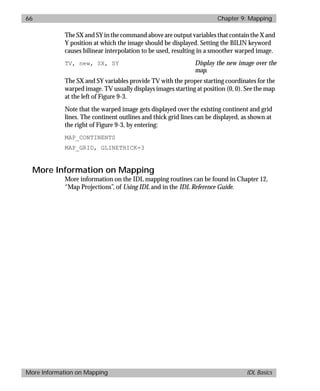
IDL Basics
IDL Version 5.0
March, 1997 Edition
Copyright © Research Systems, Inc.
All Rights Reserved
basics.bk : BasicsTitle.doc 2 Mon Apr 28 12:26:12 1997
Restricted Rights Notice
The IDL® software program and the accompanying procedures, functions, and
documentation described herein are sold under license agreement. Their use,
duplication, and disclosure are subject to the restrictions stated in the license
agreement.
Limitation of Warranty
Research Systems, Inc. makes no warranties, either express or implied, as to any
matter not expressly set forth in the license agreement, including without
limitation the condition of the software, merchantability, or fitness for any
particular purpose.
Research Systems, Inc. shall not be liable for any direct, consequential, or other
damages suffered by the Licensee or any others resulting from use of the IDL
software package or its documentation.
Most Current Documentation
Because changes may be made to IDL after documentation has gone to press,
please consult IDL’s hypertext online help system for the most current version of
this document.
Permission to Reproduce this Manual
Purchasers of IDL licenses are given limited permission to reproduce this manual
provided such copies are for their use only and are not sold or distributed to third
parties. All such copies must contain the title page and this notice page in their
entirety.
Acknowledgments
IDL® is a trademark of Research Systems Inc., registered in the United States
Patent and Trademark Office, for the computer program described herein. All
other brand or product names are trademarks of their respective holders.
Numerical Recipes™ is a trademark of Numerical Recipes Software. Numerical
Recipes routines are used by permission.
IDL documentation is printed on recycled paper. Our paper has a minimum
20% post-consumer waste content and meets all EPA guidelines.
basics.bk : basicsTOC.doc i Mon Apr 28 12:26:12 1997
i
Contents
Chapter 1:
The Power of IDL . . . . . . . . . . . . . . . . . . . . . . . . . . 1
Using the Tutorials ...................................................................................................... 2
Simple Commands Yield Powerful Results ................................................................ 3
Getting Help with IDL ................................................................................................. 5
IDL Example Code ....................................................................................................... 6
Object Graphics ............................................................................................................ 7
About Insight ............................................................................................................... 7
Chapter 2:
Introduction to IDL . . . . . . . . . . . . . . . . . . . . . . . . 9
Starting IDL .................................................................................................................. 9
Interrupting IDL ........................................................................................................ 10
Quitting IDL ............................................................................................................... 10
Starting Insight ........................................................................................................... 11
basics.bk : basicsTOC.doc ii Mon Apr 28 12:26:12 1997
ii Contents
Contents IDL Basics
Chapter 3:
Getting Started with IDL . . . . . . . . . . . . . . . . . . . . 13
Program Files .............................................................................................................. 13
Preparing Programs .................................................................................................... 14
Printing & Hardcopy Output ..................................................................................... 18
Insight .......................................................................................................................... 18
More Information on Running IDL .......................................................................... 20
Chapter 4:
Two-Dimensional Plotting . . . . . . . . . . . . . . . . . . . 21
Making a Dataset ........................................................................................................ 22
Signal Processing with SMOOTH ............................................................................. 23
Frequency Domain Filtering ...................................................................................... 23
Displaying the Results ................................................................................................ 24
Plotting with Missing or Bad Data ............................................................................ 26
Velocity Field Plotting ................................................................................................ 27
Insight .......................................................................................................................... 27
More Information on 2D Plotting ............................................................................. 28
Chapter 5:
Surface Plotting . . . . . . . . . . . . . . . . . . . . . . . . . . . 29
Making a Dataset ........................................................................................................ 30
Plotting with SURFACE ............................................................................................. 30
Displaying Data as a Shaded Surface ......................................................................... 31
Plotting with CONTOUR .......................................................................................... 32
Plotting with SHOW3 ................................................................................................ 34
Insight .......................................................................................................................... 34
More Information on 3D Plotting ............................................................................. 35
Chapter 6:
Reading and Writing Formatted Data . . . . . . . . . . . 37
Start Insight and Import an Image File ..................................................................... 38
Import Data from a Structured Binary File ............................................................... 38
Import Data from an ASCII File ................................................................................ 39
Export Data back to IDL ............................................................................................ 39
Writing Data to a File Using IDL Statements ........................................................... 40
Reading Data from a File Using IDL Statements ...................................................... 40
More Information about IDL Input/Output ............................................................ 41
basics.bk : basicsTOC.doc iii Mon Apr 28 12:26:12 1997
Contents iii
IDL Basics Contents
Chapter 7:
Image Processing . . . . . . . . . . . . . . . . . . . . . . . . . 43
Reading an Image ....................................................................................................... 44
Displaying an Image .................................................................................................. 44
Contrast Enhancement .............................................................................................. 46
Smoothing and Sharpening ....................................................................................... 48
Other Image Manipulations ...................................................................................... 50
Extracting Profiles ...................................................................................................... 51
Insight ......................................................................................................................... 51
More Information on Image Processing ................................................................... 53
Chapter 8:
Plotting Irregularly-Gridded Data . . . . . . . . . . . . . 55
Create a Dataset .......................................................................................................... 56
The TRIANGULATE Procedure ............................................................................... 57
Plotting the Results with TRIGRID .......................................................................... 57
More Information about Gridding ........................................................................... 58
Chapter 9:
Mapping . . . . . . . . . . . . . . . . . . . . . . . . . . . . . . . 59
Drawing Map Projections .......................................................................................... 60
Drawing an Orthographic Projection ....................................................................... 61
Plotting a Portion of the Globe ................................................................................. 61
Plotting Data on Maps ............................................................................................... 62
Reading Latitudes and Longitudes with the Cursor ................................................. 63
Plotting Contours Over Maps ................................................................................... 64
Warping Images to Maps ........................................................................................... 64
More Information on Mapping ................................................................................ 66
Chapter 10:
Using Insight to Analyze Data . . . . . . . . . . . . . . . 67
Starting Insight ........................................................................................................... 67
Compare Two Plot Lines ........................................................................................... 68
Correlate the Plot Lines ............................................................................................. 69
Smooth the Plot Lines ................................................................................................ 70
Correlate the Smoothed Data .................................................................................... 71
More Information on Insight .................................................................................... 71
basics.bk : basicsTOC.doc iv Mon Apr 28 12:26:12 1997
iv Contents
Contents IDL Basics
Chapter 11:
Volume Visualization . . . . . . . . . . . . . . . . . . . . . . . 73
3D Transformations ................................................................................................... 74
Create a Dataset .......................................................................................................... 74
Visualizing an Iso-Surface .......................................................................................... 75
A More Complex Dataset ........................................................................................... 76
The IDL Slicer ............................................................................................................. 77
Displaying an Iso-Surface with the Slicer .................................................................. 79
Making Slices .............................................................................................................. 79
More Information on 3D Volume Visualization ...................................................... 81
Chapter 12:
Animation . . . . . . . . . . . . . . . . . . . . . . . . . . . . . . . 83
Displaying a Series of Images ..................................................................................... 84
Displaying the Animation as a Wire Mesh Surface .................................................. 85
Animation with XINTERANIMATE ......................................................................... 86
Clean up the Animation Windows ............................................................................ 87
More Information on Animation with IDL .............................................................. 87
Chapter 13:
IDL’s User Interface Toolkit . . . . . . . . . . . . . . . . . . . 89
User Interface Examples ............................................................................................. 90
Using Widget Applications from the IDL Command Line ...................................... 90
A Sample Widget Application .................................................................................... 92
Using the New Widget Routine ................................................................................. 93
More Information on Widgets .................................................................................. 94
basics.bk : power.doc 1 Mon Apr 28 12:26:12 1997
1
Chapter 1
The Power
of IDL
IDL (Interactive Data Language) is a complete computing environment for the
interactive analysis and visualization of data. IDL integrates a powerful, array-
oriented language with numerous mathematical analysis and graphical display
techniques. Programming in IDL is a time-saving alternative to programming in
FORTRAN or C—using IDL, tasks which require days or weeks of programming
with traditional languages can be accomplished in hours. Users can explore data
interactively using IDL commands and then create complete applications by
writing IDL programs.
Advantages of IDL include:
• IDL is a complete, structured language that can be used both interactively and to
create sophisticated functions, procedures, and applications.
• Operators and functions work on entire arrays (without using loops), simplifying
interactive analysis and reducing programming time.
basics.bk : power.doc 2 Mon Apr 28 12:26:12 1997
2 Chapter 1: The Power of IDL
Using the Tutorials IDL Basics
• Immediate compilation and execution of IDL commands provides instant
feedback and “hands-on” interaction.
• Rapid 2D plotting, multi-dimensional plotting, volume visualization, image
display, and animation allow you to observe the results of your computations
immediately.
• Many numerical and statistical analysis routines—including Numerical Recipes
routines—are provided for analysis and simulation of data.
• IDL’s flexible input/output facilities allow you to read any type of custom data
format. Support is also provided for common image standards (including BMP,
GIF, JPEG, and XWD) and scientific data formats (CDF, HDF, and NetCDF).
• IDLwidgetscanbeusedtoquicklycreatemulti-platformgraphicaluserinterfaces
for your IDL programs.
• IDLprogramsrunthesameacrossallsupportedplatforms(Unix,VMS,Microsoft
Windows,andMacintoshsystems)withlittleornomodification.Thisapplication
portability allows you to easily support a variety of computers.
• Existing FORTRAN and C routines can be dynamically linked into IDL to add
specialized functionality. Alternatively, C and FORTRAN programs can call IDL
routines as a subroutine library or display “engine”.
Using the Tutorials
The short tutorials included in this book provide a “hands-on” way to learn basic
IDL concepts and techniques. IDL Basics demonstrates a number of common
IDL applications: 2D plotting, 3D plotting, image processing, mapping,
animation, reading and writing data, programming, plotting irregularly-gridded
data, volume visualization, and use of IDL’s user interface toolkit. Each section
introduces basic IDL concepts and highlights some of the commonly used IDL
commands.
You don’t have to read all of the descriptive passages that accompany each
tutorial. Simply enter the IDL commands shown in courier type at the IDL
Command Input Line (the “IDL>” prompt) and observe the results. Unless
otherwise noted, each line shown is a complete IDL command (press RETURN
after typing each command). If you want more information about a specific
command, you can read the explanations. You can quit IDL and return to the
operating system at any time by entering the command EXIT at the IDL
Command Input Line.
basics.bk : power.doc 3 Mon Apr 28 12:26:12 1997
Chapter 1: The Power of IDL 3
IDL Basics Simple Commands Yield Powerful Results
Each tutorial (or chapter) is a discrete demonstration of a particular IDL feature.
It is recommended that you walk through the short, individual tutorials,
preserving continuity, since many commands rely upon previous commands.
However, the beginning of each tutorial assumes a clean slate.
Note For best performance when using these tutorials, instruct IDL to create a
bitmap buffer for your graphic windows and to use a maximum of 256 colors.
Enter the following command at the IDL command prompt:
DEVICE, RETAIN=2, DECOMPOSED=0
A complete list of IDL functions and procedures can be found in the IDL online
help or the IDL HandiGuide quick reference guide.
Simple Commands Yield Powerful Results
In addition to being a complete programming language, IDL is an interactive
compiler, enabling users to quickly perform complex tasks by entering just a few
simple commands. Even very simple, one-line IDL commands can be used to
achieve powerful results. Start IDL as described in the installation instructions
(double-click on the IDL icon, enter idlde at the Unix prompt, or enter
idl /de at the VMS DCL prompt), enter the following commands (shown in
courier type) at the IDL prompt, and observe the results. IDL commands are
not case sensitive, but are shown in capital letters in this manual.
Note On most machines, the “up-arrow” key recalls the most recent line of input
to IDL. This feature is convenient when you have entered a command incor-
rectly and would like to edit it instead of typing it again.
PRINT, 3*5 This command prints the integer
15, the result of 3 multiplied by 5.
A=3*5 Variables can be dynamically cre-
ated in IDL. This command as-
signs an integer with the value of
3*5 to the variable A.
HELP, A TheHELProutineconfirmsthatA
is a scalar, integer variable with
the value 15.
A=SQRT(A) & HELP, A Redefine A to be the square root of
its previous value (15) and dis-
play information about A. The
ampersand (&) joins multiple
statements on one line. Executing
basics.bk : power.doc 4 Mon Apr 28 12:26:12 1997
4 Chapter 1: The Power of IDL
Simple Commands Yield Powerful Results IDL Basics
the SQRT command makes A a
floating-point variable.
A = [1, 2, 3, 4, 5, 6] Make A a 6-element array con-
taining the integer values 1
through 6.
PRINT, A, 2*A IDL operators and functions work
on both scalar and array data
types with no change in notation.
B = SQRT(A) Take the square root of each ele-
ment of array A and put those val-
ues into the variable B.
HELP, A, B Show that A and B are arrays of 6
dimensions. The elements of A are
integerswhiletheelementsofB are
floating-point values.
PRINT, B Display the 6 floating-point ele-
ments in array B.
A = FLTARR(100) Define A as an array of 100 float-
ing-point elements.
FOR i = 0,99 DO A[i] = i This FOR loop stores in each ele-
mentofA thevalueofitssubscript.
Forexample,thevalueofA[0]=0
and A[40]=40.
PRINT, A[0], A[99] IDLsubscriptsbeginat0andgoto
one less than the number of ele-
ments. This command prints the
first and last elements of our 100-
element array.
PRINT, A[10:19] Subarrays can be specified by us-
ing subscript ranges. This com-
mand prints the values of A[10]
through A[19].
B = SIN(A/5)/EXP(A/50) Create a 100-element floating-
point vector describing a damped
sine wave.
PLOT, B Make a two-dimensional plot of
the vector B.
PLOT, B, COS(A/5) Plot the vector B versus the vector
described by the cosine of (A/5).
basics.bk : power.doc 5 Mon Apr 28 12:26:12 1997
Chapter 1: The Power of IDL 5
IDL Basics Getting Help with IDL
PLOT,/YLOG,SHIFT(ABS(FFT(B,1)),50) Plot the power spectrum of the
damped sine wave B. The YLOG
keyword plots Y values with
linear-log scaling.
A = FINDGEN(50) This command demonstrates an
easy way to redefine A to be a 50-
element array where each element
holds the value of its subscript.
Z = B # A Use IDL’s matrix multiplication
operator (#) to set Z equal to the
outer product of vectors A and B.
HELP, Z Confirm that Z istwo-dimension-
al array of floating-point values.
CONTOUR, Z Display a simple contour plot of
the array Z.
SURFACE, Z Display a wire-frame surface of
the array Z.
SHADE_SURF, Z Display Z as a light-source shaded
surface.
SHOW3, Z DisplayZ asanimage,wire-frame
surface, and contour plot simulta-
neously.
MAP_SET, /GRID, /CONTINENTS, /MERCATOR
DisplayaMercatorprojectionofthe
globeshowingcontinentoutlines.
Getting Help with IDL
IDL is equipped with extensive on-line help facilities that provide two kinds of
information: documentation of IDL procedures, functions, and keywords, and
information on the status of the IDL environment.
The Question Mark
A hypertext version of the complete set of IDL manuals is available online by
entering a question mark (?) at the IDL prompt. The IDL Online Help window
appears. The most current documentation on any aspect of IDL is available
through this command.
Although the help window has buttons for performing searches, you can also
perform a keyword search from the command line by entering “?” followed by a
basics.bk : power.doc 6 Mon Apr 28 12:26:12 1997
6 Chapter 1: The Power of IDL
IDL Example Code IDL Basics
keyword for which you want to search. For example, to search for topics related
to contouring when starting the help system, you could enter:
? CONTOUR
HELP
The HELP procedure gives information about the IDL session. Enter:
HELP
with no additional parameters to display an overview of the current IDL session
including one-line descriptions of all variables and the names of all compiled
procedures and functions. Enter:
HELP, variable
to display information about that variable’s type.
Many keyword parameters can be used with the HELP procedure to retrieve more
specific information. For more information on getting help with IDL, see
Chapter 7 of Using IDL.
IDL Example Code
The IDL distribution includes a large number of example programs written in the
IDL language. In fact, many of IDL’s basic features are written in the IDL
language, and the IDL code for these features is available for your perusal. The
following are some sections of the IDL distribution you may wish to explore as
you learn about IDL. The directories described here are located in the main IDL
directory. You choose the location of the main IDL directory when you install
IDL; consult your IDL installation guide for details.
The examples Directory
The examples directory contains several subdirectories. Of particular interest
are the files in the doc and the object subdirectories; files in both of these
subdirectories are used as examples in IDL documentation. Files in the demo
subdirectory are used by the IDL demonstration programs. Files in the insight
subdirectory illustrate parts of Insight. Files in the data subdirectory are used by
the various example programs. Finally, the misc subdirectory contains files that
are interesting, but don’t fit elsewhere.
The lib Directory
The lib directory contains IDL .pro files for procedures and functions that are
part of IDL itself. While we encourage you to inspect these files, we strongly
suggest that you not alter them. If you wish to change one of the lib routines,
basics.bk : power.doc 7 Mon Apr 28 12:26:12 1997
Chapter 1: The Power of IDL 7
IDL Basics Object Graphics
save the .pro file elsewhere, with a different name, then alter it and call it
explicitly.
Object Graphics
Beginning in version 5, IDL provides a set of tools for developing object-oriented
applications. Object-oriented programming allows you to build robust
applications from groups of reusable elements. The IDL Object Graphics engine
is object-oriented, allowing you to use a class library of graphics objects to create
applications that provide equivalent graphics functionality regardless of the
computer platform, output devices, etc. By contrast, IDL’s Direct Graphics engine
is extremely well suited for quick, ad hoc analysis and exploration.
The implementation of object-oriented graphics is beyond the scope of the
tutorials in this manual, which is an introductory tour of common IDL features.
We have, however, included several examples of applications that use Object
Graphics here, for comparison with more traditional Direct Graphics
applications. For further information, see Objects and Object Graphics, the IDL
manual describing IDL’s object-oriented functionality.
About Insight
Insight is an application for analyzing, visualizing, and working with data in a
variety of ways. Insight is written in the IDL language, and allows you to take
advantage of IDL’s computing environment —powerful, array-oriented
language, mathematical analysis, and graphical display techniques —without
having to deal directly with the IDL command line or be familiar with IDL’s
function set and command syntax.
Easy Data Management
Insight provides a graphical user interface that gives you the ability to quickly and
easily visualize your data in many different ways. Insight provides a Data
Manager that helps you import data into Insight, either from IDL variables or
from data files stored elsewhere on your computer system. The Data Manager
allows you to keep track of your data easily, to create new data items within
Insight, and to perform simple data conditioning tasks (sorting, finding unique
elements, etc.).
Powerful Data Analysis
IDL provides a wide variety of data analysis routines, many of which are
accessible through Insight’s interface. Insight dialogs allow you to “try out”
different types of data analysis quickly and efficiently, without the need to write
basics.bk : power.doc 8 Mon Apr 28 12:26:12 1997
8 Chapter 1: The Power of IDL
About Insight IDL Basics
IDL programs or repeat commands. Once you’ve created a visualization in
Insight, you can control many aspects of the visualization’s appearance — colors,
line styles, even size and orientation — interactively, without the need to re-
create the visualization after each change. The Insight Project: Data and
Visualizations in a Convenient Package
Insight introduces the concept of a project. An Insight project is a special file that
combines your data, visualizations, and any customizations of the Insight
interface you may have made into a single compact unit. When you open a
project that you’ve worked on previously, you can immediately pick up where you
left off. Insight projects are perfect for sharing your data — and your analysis of
data — with other Insight users.
basics.bk : intro.doc 9 Mon Apr 28 12:26:12 1997
9
Chapter 2
Introduction
to IDL
Starting IDL
To run the IDL Development Environment graphical user interface, enter idlde
at the Unix prompt, or idl/de at the VMS DCL prompt. To run IDL under
Windows or the Macintosh OS, double-click on the IDL icon. For a description
of the IDL graphical user interface, see chapters 3, 4, and 5 of Using IDL. To run
IDL under Unix or VMS in command-line mode, enter idl at the operating
system prompt.
When IDL is ready to accept a command, it prompts with the string IDL> . If
IDL does not start, take the following action depending upon the operating
system you are running:
♦ Unix: Be sure that your PATH environment variable includes the directory that
contains IDL.
basics.bk : intro.doc 10 Mon Apr 28 12:26:12 1997
10 Chapter 2: Introduction to IDL
Interrupting IDL IDL Basics
♦ VMS: See your system manager (or the IDL installation instructions) for the
proper commands to include in your LOGIN.COM file.
♦ Windows or Macintosh:Make sure your system meets IDL’s minimum require-
ments. If you use Windows 3.11, make sure the Win32s subsystem is installed (see
your Installation booklet for details on Win32s.)
Command Line Interface
IDL for Unix and VMS platforms can be used with one of two different interfaces.
Starting IDL with the command idl begins a traditional IDL session using a
simple tty (text) command line interface. If you are running the X Window
system, however, IDL can also be started with the command idlde (or idl/de
under VMS), which invokes a convenient multiple-document interface called the
IDL Development Environment (IDLDE). Starting IDL on a Windows computer
or a Macintosh automatically invokes the IDLDE.
Interrupting IDL
To stop execution of a command or procedure, press CTRL+C (Unix and VMS),
CTRL+BREAK (Windows), or COMMAND+. (Macintosh). To resume program
execution, use the .CONTINUE executive command at the IDL prompt or select
“Go” from the Run menu of the IDLDE.
The Mystery of the Disappearing Variables
After an error or interrupt occurs inside an IDL procedure or function, you may
find that your variables seem to have disappeared. This happens because IDL’s
context is still inside the called procedure, not at the main program level. As a
result, variables defined at the main level are not available.
Typing RETALL at the IDL prompt returns IDL’s context to the main program
level, causing the variables to “reappear.” Alternately, use the RETURN command
to return IDL’s context to the next highest level (in the case of nested procedures).
RETALL issues RETURNs until the main program level is reached.
Quitting IDL
To quit the current IDL session and return to the operating system, select “Exit”
from the File menu of the IDL Development Environment. You can also type
EXIT at the IDL Command Input Line:
IDL> EXIT
basics.bk : intro.doc 11 Mon Apr 28 12:26:12 1997
Chapter 2: Introduction to IDL 11
IDL Basics Starting Insight
Aborting IDL
Properly written applications allow the user to interrupt execution if something
goes wrong or if an operation is too time consuming. If you encounter a poorly-
behaved application written in IDL—one that does not allow you to “break”
using the normal IDL interrupt commands (CTRL-C, CTRL-BREAK, COMMAND-.),
you may find it necessary to abort IDL rather than exiting cleanly using the EXIT
command. In these cases, you can use one of the following methods. These
actions cause a very abrupt exit—all variables are lost, and the state of open files
will be uncertain. As a result, you should use these methods only in an emergency.
• Unix: Press CTRL+ (backslash).
• VMS: Press CTRL+Y.
♦ Windows: Press CTRL+ALT+DEL to bring up the Windows task manager. Click on
IDL and click “End Task”. On Windows 3.11 systems, pressing CTRL+ALT+DEL
exits Windows immediately.
♦ Macintosh: Press the restart button.
Starting Insight
Start Insight by entering INSIGHT at the IDL command prompt. You can also
start Insight by entering INSIGHT at the Unix shell or VMS DLL prompt or by
double-clicking on the Insight icon (Windows and Macintosh systems).
After initially starting the Insight application, you are given a choice of opening
either a new or an existing project. A new project involves importing existing data
or creating new data. The existing example projects allow you to immediately
manipulate data, visualizations, and styles. You can also save the example data to
another name.
More specific information about how to import data and work with Insight is
addressed in following chapters.
basics.bk : intro.doc 12 Mon Apr 28 12:26:12 1997
12 Chapter 2: Introduction to IDL
Starting Insight IDL Basics
basics.bk : running.doc 13 Mon Apr 28 12:26:12 1997
13
Chapter 3
Getting Started
with IDL
One of the most powerful aspects of IDL is the built-in library of procedures and
functions encompassing various areas of data analysis. You can customize files
included in the distribution or create your own procedures or functions.
Program Files
There are four types of code units in files that contain IDL statements:
• Procedure: A self-contained code unit with a unique name that is called by other
code units to perform a desired function. The calling code unit and the procedure
communicate via passed arguments.
• Function: A self-contained code unit similar to a procedure. The only difference
is that a function returns a value and can therefore be used in expressions.
basics.bk : running.doc 14 Mon Apr 28 12:26:12 1997
14 Chapter 3: Getting Started with IDL
Preparing Programs IDL Basics
• Main-Level Program: A series of statements that are not preceded by a procedure
or function heading. They do, however, require an END statement. Since there is
no heading, a main-level program cannot be called from other routines and
cannot be passed arguments.
• Batch File: A batch file contains one or more IDL statements or commands. Each
line of the batch file is read and executed before proceeding to the next. This is
different from procedures, functions, and programs, in which all the modules
contained in the file are compiled as a unit before beginning execution. Run a
batch file from the IDL command prompt or include it in another file by prefacing
the file name with the “@” character. For more information on batch files, see
“Batch Execution” in Chapter 2 of Using IDL.
Preparing Programs
Whether you are interested in testing a small data set or setting up a large
application, IDL accommodates several different ways to manipulate your data.
See Chapter 8, “Defining Procedures and Functions” in Building IDL Applications
for more information on creating programs in IDL.
Writing Main-Level Programs
When you enter IDL commands directly at the IDL Command Input Line, you
are working at the IDL main level. Variables you create at the main level are
available to any procedure or function run at the main level. By contrast,
variables created within a named procedure or function are available only within
that procedure or function. IDL is structured so that you can work either directly
from the command line or by creating and executing a file. Main-level programs
are ideal for procedures of few lines or to quickly and interactively test data.
You can create short procedures at the IDL command line with the .RUN and
.RNEW executive commands. The .RNEW executive command acts exactly like
.RUN, but it also erases any variables.
Start the IDLDE as indicated in “Starting IDL” on page 9 and locate the
Command Input Line, containing the IDL command prompt, at the bottom of
the IDLDE.
Note For best performance when using these tutorials, instruct IDL to create a
bitmap buffer for your graphic windows and to use a maximum of 256 colors.
Enter the following command at the IDL command prompt:
DEVICE, RETAIN=2, DECOMPOSED=0
basics.bk : running.doc 15 Mon Apr 28 12:26:12 1997
Chapter 3: Getting Started with IDL 15
IDL Basics Preparing Programs
Type the following lines at the command prompt. IDL will prompt you with a
dash until you enter the word “END”.
IDL> .RUN
- Z=DIST(50)
- SURFACE, Z
- END
This creates a main-level program, which is entered and compiled before it is
executed. The most recent main program that has been compiled within an IDL
session can be run again by typing .GO at the command line.
Writing an IDL File
You can use any text editor to prepare programs of more than a few lines. The
IDLDE includes a built-in text editor that offers easy compilation and debugging
of program files, but you can use your own text editor or word processor if you
prefer.
To open a new file with the built-in IDLDE editor, select “New” from the File
menu. Type the code portions of the following lines in the new editor window.
Lines of code are shown in courier type, with comments following in italics. If
you would like to include the comments in your file, type a semicolon in front of
the italicized portions.
PRO winsize
window, 2, xsize=350, ysize=250 Resize the graphics window.
END
PRO bas01
winsize Call the winsize procedure.
Z=DIST(50) Create a rectangular array.
SURFACE, Z Use the array Z to make a surface.
END
The default position of an IDL graphics window is the upper right corner of the
screen, and the default size of the window is one quarter of the screen size. The
first procedure we define, winsize, defines a new window size. Once the
procedure has been compiled, you can use it elsewhere.
basics.bk : running.doc 16 Mon Apr 28 12:26:12 1997
16 Chapter 3: Getting Started with IDL
Preparing Programs IDL Basics
Saving and Compiling
To save the file, select “Save” from the File menu. The Save As dialog will appear.
Save the file as bas01.pro in a convenient test directory. In order to use the
Run menu items “Compile”, “Compile from Memory”, and “Run”, the filename
must be the same as the last procedure in the file, with an added .pro. Any files
containing IDL programs, procedures, and functions are assumed to have the
extension name .pro. If you used your own editor, open your file in the IDLDE by
selecting “Open” from the File menu and save it as bas01.pro.
To compile the file bas01.pro, select “Compile” from the Run menu. You can also
type .RUN or .RNEW at the Command Input Line, the IDL prompt located at the
bottom of the IDLDE. The .RUN executive command, followed by the filename,
compiles the file. The .RNEW executive command also compiles the file, but it
additionally erases any previously compiled main program variables.
IDL> .RNEW bas01.pro
Caution IfyousavedthefileinadirectorynotspecifiedbythePathtabin“Preferences”
from the File menu, you must include the entire path with the filename. For
example, on a Unix system, the full path name to your file might look like:
/usr/temp/billyjo/test/bas01.pro.
Executing an IDL File
Now the file is ready to be executed. Select “Run” from the Run menu or enter the
name of the procedure at the Command Input Line.
IDL> bas01
The surface plot shown to the
right should appear.
The bas01 procedure calls an
IDL function and an IDL
procedure. The DIST function
creates a rectangular array in
which the value of each of the 50
elements is proportional to its
frequency. The SURFACE
procedure draws a wire-mesh
representation of a 2D array
projected into two dimensions, in this case using the 50 x 50 array that is the
output of the DIST function as its required argument.
basics.bk : running.doc 17 Mon Apr 28 12:26:12 1997
Chapter 3: Getting Started with IDL 17
IDL Basics Preparing Programs
IDL Keywords
Many IDL functions and procedures accept keywords that control their execution.
For example, the SURFACE command accepts keywords that specify the style of
the plot, the type of line to be used, and many other attributes. Keywords should
be placed after the function or procedure name, separated by commas. To add
keywords to bas01.pro, change the line invoking SURFACE to the following lines:
SURFACE, Z, $
/HORIZONTAL, AZ=-45 Add two keywords.
The IDL continuation character ($) in the first line of this command tells IDL
that the two lines are a single IDL command. HORIZONTAL draws the surface
with horizontal lines instead of the default wire mesh. AZ specifies the
counterclockwise angle of rotation of the surface about the Z-axis.
More information on graphics and plotting keywords can be found in the IDL
Reference Guide and in the online documentation.
“Setting” Keywords
Prefacing a keyword with a slash (/) is the same as setting the value of that
keyword equal to 1. For example, the commands:
SURFACE, Z, HORIZONTAL=1
and
SURFACE, Z, /HORIZONTAL
are equivalent. Using both at the same time (i.e., /HORIZONTAL=1) will cause
an error. Using a slash in front of a keyword is called “setting” the keyword in the
IDL documentation.
Command Recall
IDL saves lines of input from the Command Input Line to a buffer so they can be
recalled and edited. Each platform has a different default number of lines to be
saved, which can be changed for the IDLDE with the General Preferences dialog
tab from “Preferences” in the File Menu. Press the “up-arrow” key to recall the
most recent line of input. Repeated presses step backward through the saved lines.
Once displayed, the command lines can be edited or simply re-entered. If this
technique does not work as expected, enter:
SETUP_KEYS
to assign the correct functions to the current keyboard. Try the “up-arrow” key
again. The “up-arrow” will not work with some Sun console windows.
basics.bk : running.doc 18 Mon Apr 28 12:26:12 1997
18 Chapter 3: Getting Started with IDL
Printing & Hardcopy Output IDL Basics
To see all of the lines saved in the input buffer enter:
HELP, /RECALL_COMMANDS
Printing & Hardcopy Output
Graphics output created with IDL can be saved for hardcopy output to a wide
range of devices. The SET_PLOT command tells IDL where to send graphics
output. The DEVICE command controls various plotting options. If the plotting
device specified is “PRINTER”, IDL will direct any graphics output to a the
currently selected system default printer. For example, to print the SURFACE
plot created in the example of the previous section, enter the following
commands at the Command Input Line:
SET_PLOT, 'PRINTER' Sendoutputdirectlytotheprinter.
SURFACE, Z
DEVICE, /CLOSE
The first command selects the default printer as the plotting device. The
SURFACE command sends the surface plot to the printer instead of to the screen.
Then the DEVICE, /CLOSE command sends the job to the printer.
Note If you did not run the main-level program, which creates the main-level IDL
variable Z, the Z variable will not be recognized. Type the following at the
Command Input Line and re-type the SURFACE command.
Z = DIST(50)
To redirect plotting to the screen after you have created hardcopy output, enter:
SET_PLOT, 'device'
where device is the appropriate IDL device name for your display type. Substitute
X for device if you are using the X Windows System, WIN for IDL for Windows, or
MAC for IDL for Macintosh.
For more information on IDL graphics devices and graphics output, see
Chapter 8, “IDL Graphics Devices”, in the IDL Reference Guide.
Insight
The Insight application, included with IDL, provides a graphical user interface to
help you visualize your data, quickly and easily.
basics.bk : running.doc 19 Mon Apr 28 12:26:12 1997
Chapter 3: Getting Started with IDL 19
IDL Basics Insight
Start Insight by typing INSIGHT at the IDL Command Input Line. The Getting
Started with Insight dialog will appear. Select “New Project” and click on “OK”.
The Select Data to Import dialog will appear. Click on “IDL Variables”.
Note If you did not run the main-level program, which creates the main-level IDL
variableZ,youwillgetawarningthatnodataisdefinedontheIDLCommand
Line when you click on “IDL Variables”. Click “OK” for the Warning dialog
and for the Select Data to Import dialog. Go to the IDL Command Input Line
and enter the following to create the Z variable:
Z = DIST(50)
Now select “Import IDL Variables” from Insight’s File menu.
The Import IDL Variables dialog will show Z, the 50x50 DIST array created in the
main program file, in the Choose IDL Data field. Select Z and click on “OK”.
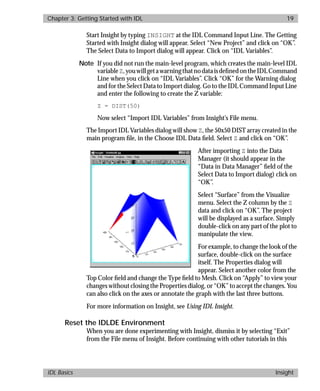
After importing Z into the Data
Manager (it should appear in the
“Data in Data Manager” field of the
Select Data to Import dialog) click on
“OK”.
Select “Surface” from the Visualize
menu. Select the Z column by the Z
data and click on “OK”. The project
will be displayed as a surface. Simply
double-click on any part of the plot to
manipulate the view.
For example, to change the look of the
surface, double-click on the surface
itself. The Properties dialog will
appear. Select another color from the
Top Color field and change the Type field to Mesh. Click on “Apply” to view your
changes without closing the Properties dialog, or “OK” to accept the changes. You
can also click on the axes or annotate the graph with the last three buttons.
For more information on Insight, see Using IDL Insight.
Reset the IDLDE Environment
When you are done experimenting with Insight, dismiss it by selecting “Exit”
from the File menu of Insight. Before continuing with other tutorials in this
basics.bk : running.doc 20 Mon Apr 28 12:26:12 1997
20 Chapter 3: Getting Started with IDL
More Information on Running IDL IDL Basics
book, remove the graphics window by entering the following at the Command
Input Line:
WDELETE
More Information on Running IDL
More information on working with IDL can be found in Chapter 2, “Running
IDL”, of Using IDL.
basics.bk : 2d.doc 21 Mon Apr 28 12:26:12 1997
21
Chapter 4
Two-Dimensional
Plotting
IDL makes plotting data easy. X versus Y plots can be displayed with a single
command and multiple plots can be viewed at the same time. This tutorial
demonstrates some of IDL’s plotting and signal processing capabilities.
Instead of creating a .pro file, as we did in the Getting Started with IDL tutorial,
we will enter statements at the IDL Command Input Line. This demonstrates
IDL’s interactive capability, and shows how easy it is to manipulate your data.
Note For best performance when using these tutorials, instruct IDL to create a
bitmap buffer for your graphic windows and to use a maximum of 256 colors.
Enter the following command at the IDL command prompt:
DEVICE, RETAIN=2, DECOMPOSED=0
basics.bk : 2d.doc 22 Mon Apr 28 12:26:12 1997
22 Chapter 4: Two-Dimensional Plotting
Making a Dataset IDL Basics
Making a Dataset
First, we need to make a dataset to display. Enter the following command to
create a sinewave function with a frequency that increases over time and store it
in a variable called original:
original = SIN((FINDGEN(200)/35)^2.5)
The FINDGEN function returns a floating-point array in which each element
holds the value of its subscript, giving us the increasing “time” values upon which
the sinewave is based. The sine function of each “time” value divided by 35 and
raised to the 2.5 power is stored in an element of the variable original. To view
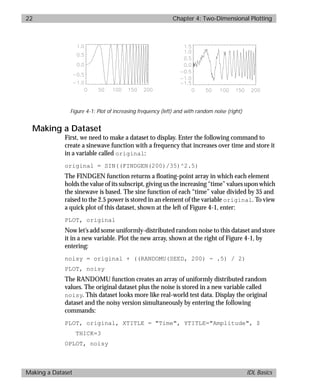
a quick plot of this dataset, shown at the left of Figure 4-1, enter:
PLOT, original
Now let’s add some uniformly-distributed random noise to this dataset and store
it in a new variable. Plot the new array, shown at the right of Figure 4-1, by
entering:
noisy = original + ((RANDOMU(SEED, 200) - .5) / 2)
PLOT, noisy
The RANDOMU function creates an array of uniformly distributed random
values. The original dataset plus the noise is stored in a new variable called
noisy. This dataset looks more like real-world test data. Display the original
dataset and the noisy version simultaneously by entering the following
commands:
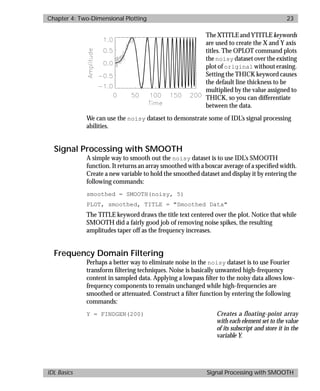
PLOT, original, XTITLE = "Time", YTITLE="Amplitude", $
THICK=3
OPLOT, noisy
Figure 4-1: Plot of increasing frequency (left) and with random noise (right)
basics.bk : 2d.doc 23 Mon Apr 28 12:26:12 1997
Chapter 4: Two-Dimensional Plotting 23
IDL Basics Signal Processing with SMOOTH
The XTITLE and YTITLE keywords
are used to create the X and Y axis
titles. The OPLOT command plots
the noisy dataset over the existing
plot of original without erasing.
Setting the THICK keyword causes
the default line thickness to be
multiplied by the value assigned to
THICK, so you can differentiate
between the data.
We can use the noisy dataset to demonstrate some of IDL’s signal processing
abilities.
Signal Processing with SMOOTH
A simple way to smooth out the noisy dataset is to use IDL’s SMOOTH
function. It returns an array smoothed with a boxcar average of a specified width.
Create a new variable to hold the smoothed dataset and display it by entering the
following commands:
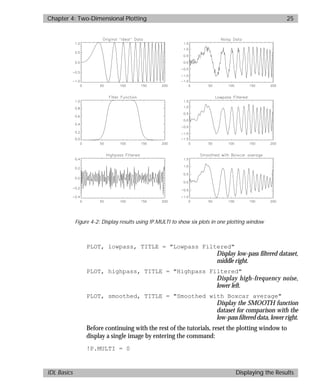
smoothed = SMOOTH(noisy, 5)
PLOT, smoothed, TITLE = "Smoothed Data"
The TITLE keyword draws the title text centered over the plot. Notice that while
SMOOTH did a fairly good job of removing noise spikes, the resulting
amplitudes taper off as the frequency increases.
Frequency Domain Filtering
Perhaps a better way to eliminate noise in the noisy dataset is to use Fourier
transform filtering techniques. Noise is basically unwanted high-frequency
content in sampled data. Applying a lowpass filter to the noisy data allows low-
frequency components to remain unchanged while high-frequencies are
smoothed or attenuated. Construct a filter function by entering the following
commands:
Y = FINDGEN(200) Creates a floating-point array
with each element set to the value
of its subscript and store it in the
variable Y.
basics.bk : 2d.doc 24 Mon Apr 28 12:26:12 1997
24 Chapter 4: Two-Dimensional Plotting
Displaying the Results IDL Basics
Y[101:199] = - REVERSE(Y[1:99]) Make the last 99 elements of Y a
mirror image of the first 99 ele-
ments.
filter = 1.0 / (1 + (Y/40)^10) Create a variable filter to hold
the filter function based on Y.
PLOT, filter Plot a fifth-order Butterworth fil-
terwithacutoffof40cyclesperto-
tal sampling period,.
To filter data in the frequency domain, we multiply the Fourier transform of the
data by the frequency response of a filter and then apply an inverse Fourier
transform to return the data to the spatial domain. Now we can use a lowpass
filter on the noisy dataset and store the filtered data in the variable lowpass by
entering:
lowpass = FFT(FFT(noisy, 1) * filter, -1)
PLOT, lowpass
The same filter function can be used as a high-pass filter (allowing only the high
frequency or noise components through) by entering:
highpass = FFT(FFT(noisy, 1) * (1.0 - filter), -1)
PLOT, highpass
Displaying the Results
Now let’s look at all of the results at the same time. We can split the plotting
window into six sections, and make each section display a different plot. The
system variable !P.MULTI tells IDL how many plots to put on a single page.
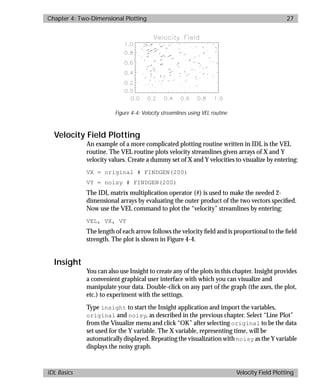
Enter the following lines to display the plotting window shown in Figure 4-2.
!P.MULTI = [0,2,3] Display all plots at the same time
with 2 columns and 3 rows.
PLOT, original, TITLE = 'Original "Ideal" Data'
Display original dataset, upper
left.
PLOT, noisy, TITLE="Noisy Data" Displaynoisydataset,upperright.
PLOT, SHIFT(FILTER, 100), TITLE = "Filter Function"
Displayfilterfunction,middleleft.
The SHIFT function was used to
show the filter’s peak as centered.
basics.bk : 2d.doc 25 Mon Apr 28 12:26:12 1997
Chapter 4: Two-Dimensional Plotting 25
IDL Basics Displaying the Results
PLOT, lowpass, TITLE = "Lowpass Filtered"
Display low-pass filtered dataset,
middle right.
PLOT, highpass, TITLE = "Highpass Filtered"
Display high-frequency noise,
lower left.
PLOT, smoothed, TITLE = "Smoothed with Boxcar average"
Display the SMOOTH function
dataset for comparison with the
low-pass filtered data, lower right.
Before continuing with the rest of the tutorials, reset the plotting window to
display a single image by entering the command:
!P.MULTI = 0
Figure 4-2: Display results using !P.MULTI to show six plots in one plotting window
basics.bk : 2d.doc 26 Mon Apr 28 12:26:12 1997
26 Chapter 4: Two-Dimensional Plotting
Plotting with Missing or Bad Data IDL Basics
Plotting with Missing or Bad Data
The PLOT routine can be used to easily create plots where values for some data
points are missing.
Suppose that you have a dataset that contains “bad” values. For example, a device
that measures sun intensity may produce meaningless data when a cloud
obscures its view. To simulate such a dataset, enter the following commands from
the IDL prompt:
A = INDGEN(50)
A[RANDOMU(SEED, 10) * 50] = 999
The first command creates a 50-element array where each element is set to the
value of its subscript (i.e., the value of A[0] is 0, the value of A[30] is 30). The
second command sets the values of ten randomly selected points to the “bad”
value, 999. Display this dataset, the plot at the left of Figure 4-3, with the PLOT
command:
PLOT, A
The problem is immediately apparent. The bad data values cause the plot to be
scaled such that the good data values can hardly be read. Using the MAX_VALUE
keyword to PLOT, we can avoid plotting the noise values and scale the good data
values accordingly.
The MAX_VALUE keyword is set to the largest data value to be plotted. Data
larger than this value are treated as missing data and are not plotted. Create the
missing data plot of A, the plot at the right of Figure 4-3, by entering:
PLOT, A, MAX_VALUE=998
Figure 4-3: Plot with “bad” values (left) and plot using MAX_VALUE (right)
basics.bk : 2d.doc 27 Mon Apr 28 12:26:12 1997
Chapter 4: Two-Dimensional Plotting 27
IDL Basics Velocity Field Plotting
Velocity Field Plotting
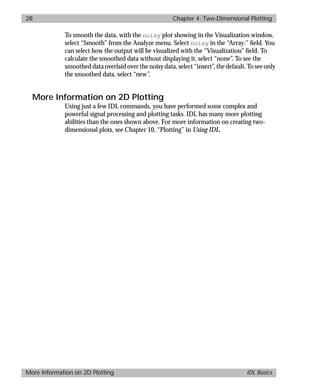
An example of a more complicated plotting routine written in IDL is the VEL
routine. The VEL routine plots velocity streamlines given arrays of X and Y
velocity values. Create a dummy set of X and Y velocities to visualize by entering:
VX = original # FINDGEN(200)
VY = noisy # FINDGEN(200)
The IDL matrix multiplication operator (#) is used to make the needed 2-
dimensional arrays by evaluating the outer product of the two vectors specified.
Now use the VEL command to plot the “velocity” streamlines by entering:
VEL, VX, VY
The length of each arrow follows the velocity field and is proportional to the field
strength. The plot is shown in Figure 4-4.
Insight
You can also use Insight to create any of the plots in this chapter. Insight provides
a convenient graphical user interface with which you can visualize and
manipulate your data. Double-click on any part of the graph (the axes, the plot,
etc.) to experiment with the settings.
Type insight to start the Insight application and import the variables,
original and noisy, as described in the previous chapter. Select “Line Plot”
from the Visualize menu and click “OK” after selecting original to be the data
set used for the Y variable. The X variable, representing time, will be
automatically displayed. Repeating the visualization with noisy as the Y variable
displays the noisy graph.
Figure 4-4: Velocity streamlines using VEL routine
basics.bk : 2d.doc 28 Mon Apr 28 12:26:12 1997
28 Chapter 4: Two-Dimensional Plotting
More Information on 2D Plotting IDL Basics
To smooth the data, with the noisy plot showing in the Visualization window,
select “Smooth” from the Analyze menu. Select noisy in the “Array:” field. You
can select how the output will be visualized with the “Visualization” field. To
calculate the smoothed data without displaying it, select “none”. To see the
smoothed data overlaid over the noisy data, select “insert”, the default. To see only
the smoothed data, select “new”.
More Information on 2D Plotting
Using just a few IDL commands, you have performed some complex and
powerful signal processing and plotting tasks. IDL has many more plotting
abilities than the ones shown above. For more information on creating two-
dimensional plots, see Chapter 10, “Plotting” in Using IDL.
basics.bk : 3d.doc 29 Mon Apr 28 12:26:12 1997
29
Chapter 5
Surface Plotting
IDL provides many techniques for visualizing two-dimensional arrays, including
contour plots, wire-mesh surfaces, and shaded surfaces. This tutorial
demonstrates just a few of the commands for visualizing data in three
dimensions.
Instead of creating a .pro file, as we did in the Getting Started with IDL tutorial,
we will enter statements at the IDL Command Input Line. This demonstrates
IDL’s interactive capability, and shows how easy it is to manipulate your data.
Note For best performance when using these tutorials, instruct IDL to create a
bitmap buffer for your graphic windows and to use a maximum of 256 colors.
Enter the following command at the IDL command prompt:
DEVICE, RETAIN=2, DECOMPOSED=0
basics.bk : 3d.doc 30 Mon Apr 28 12:26:12 1997
30 Chapter 5: Surface Plotting
Making a Dataset IDL Basics
Making a Dataset
First, we need a two-dimensional dataset to visualize. You can quickly create a
Gaussian distribution (a sort of 3D bell curve) by entering the following
commands at the IDL prompt:
Z = SHIFT(DIST(40), 20, 20)
Z = EXP( - (Z/10)^2)
The first command creates a 40-element by 40-element array where each element
holds a value equal to its Euclidean distance from the origin and then shifts the
origin to the center. The second command makes a Gaussian with a “1/e” width
of 10. Of course, you can read in and visualize almost any type and size of two-
dimensional data.
Plotting with SURFACE
To view the array Z as a three-dimensional, “wire-mesh” surface, just enter the
command:
SURFACE, Z
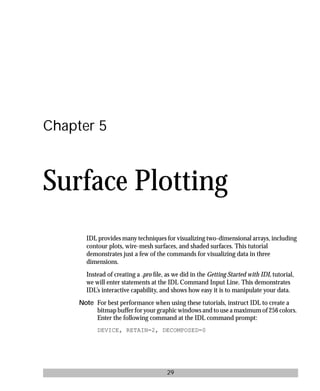
and a representation of the array is displayed, shown at the left of Figure 5-1.
The SURFACE command can be used to view your data from any arbitrary angle.
View the array from a different angle, shown at the right of Figure 5-1, by
entering the following command:
SURFACE, Z, AX = 70, AZ = 25
AX and AZ are plotting keywords that are used to control the SURFACE
command. The keyword AX specifies the angle of rotation of the surface (in
degrees towards the viewer) about the X axis. The AZ keyword specifies the
rotation of the surface in degrees counterclockwise around the Z axis.
Figure 5-1: Surface plot, default angles(left) and surface plot with different angles (right)
basics.bk : 3d.doc 31 Mon Apr 28 12:26:12 1997
Chapter 5: Surface Plotting 31
IDL Basics Displaying Data as a Shaded Surface
Displaying Data as a Shaded Surface
You can also view a two-dimensional array as a light-source shaded surface. First,
load one of the pre-defined IDL color tables by entering:
LOADCT, 3
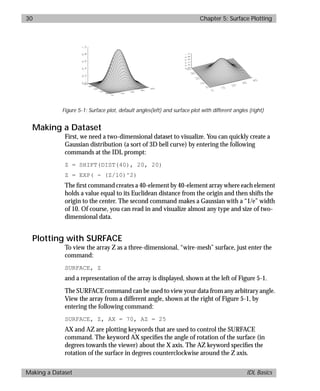
To view the light-source shaded surface, shown at the left of Figure 5-2, simply
enter the command:
SHADE_SURF, Z
To look at the array from another angle, enlarge the label text, and add a title,
shown at the right of Figure 5-2, enter the following:
SHADE_SURF, Z, AX = 45, AZ = 20, CHARSIZE = 1.5, $
TITLE = 'Shaded Surface Representation'
Again, keywords are used to control certain features of the shaded surface plot.
The AX and AZ keywords control the viewing angle, just as they did with the
SURFACE command. The CHARSIZE keyword controls the size of plotted text.
The TITLE keyword was used to add the title “Shaded Surface Representation”.
The dollar sign ($) at the end of the first line is the IDL continuation character. It
allows you to enter long IDL commands as multiple lines.
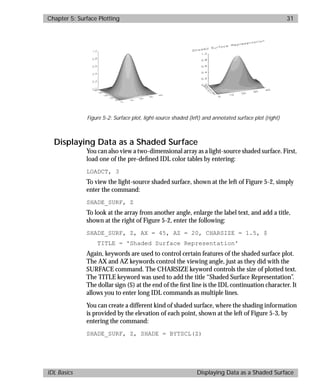
You can create a different kind of shaded surface, where the shading information
is provided by the elevation of each point, shown at the left of Figure 5-3, by
entering the command:
SHADE_SURF, Z, SHADE = BYTSCL(Z)
Figure 5-2: Surface plot, light-source shaded (left) and annotated surface plot (right)
basics.bk : 3d.doc 32 Mon Apr 28 12:26:12 1997
32 Chapter 5: Surface Plotting
Plotting with CONTOUR IDL Basics
Now different shading colors on the plot correspond to different elevations (the
BYTSCL function scales the data values into the range of bytes). You could also
specify a different array for the shading colors. You can plot a wire-frame surface
of the Gaussian right over the existing plot, shown at the right of Figure 5-3, by
entering:
SURFACE, Z, XSTYLE = 4, YSTYLE = 4, $
ZSTYLE = 4, /NOERASE
The XSTYLE, YSTYLE, and ZSTYLE keywords are used to select different styles
of axes. Here, SURFACE is set to not draw the X, Y, and Z axes because they were
already drawn by the SHADE_SURF command. The /NOERASE keyword allows
the SURFACE plot to be drawn over the existing SHADE_SURF plot.
Plotting with CONTOUR
Another way to view a 2-dimensional array is as a contour plot. A simple contour
plot of the Gaussian can be created by entering:
CONTOUR, Z
That command was very simple, but the resulting plot wasn’t as informative as it
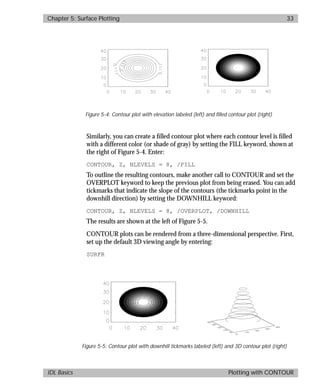
could be. Create a customized CONTOUR plot, shown at the left of Figure 5-4
with more elevations and labels by entering:
CONTOUR, Z, NLEVELS = 8, /FOLLOW
By using the NLEVELS keyword, CONTOUR was told to plot eight equally-
spaced elevation levels. The /FOLLOW keyword produced the labels on the
contours.
Figure 5-3: Byte-scaled surface plot (left) and with an overlaid wire-frame (right)
basics.bk : 3d.doc 33 Mon Apr 28 12:26:12 1997
Chapter 5: Surface Plotting 33
IDL Basics Plotting with CONTOUR
Similarly, you can create a filled contour plot where each contour level is filled
with a different color (or shade of gray) by setting the FILL keyword, shown at
the right of Figure 5-4. Enter:
CONTOUR, Z, NLEVELS = 8, /FILL
To outline the resulting contours, make another call to CONTOUR and set the
OVERPLOT keyword to keep the previous plot from being erased. You can add
tickmarks that indicate the slope of the contours (the tickmarks point in the
downhill direction) by setting the DOWNHILL keyword:
CONTOUR, Z, NLEVELS = 8, /OVERPLOT, /DOWNHILL
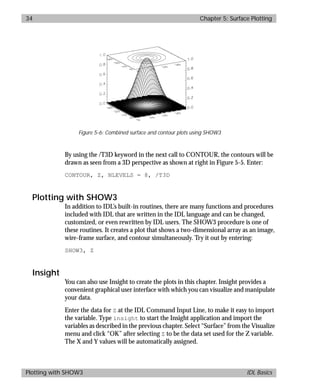
The results are shown at the left of Figure 5-5.
CONTOUR plots can be rendered from a three-dimensional perspective. First,
set up the default 3D viewing angle by entering:
SURFR
Figure 5-4: Contour plot with elevation labeled (left) and filled contour plot (right)
Figure 5-5: Contour plot with downhill tickmarks labeled (left) and 3D contour plot (right)
basics.bk : 3d.doc 34 Mon Apr 28 12:26:12 1997
34 Chapter 5: Surface Plotting
Plotting with SHOW3 IDL Basics
By using the /T3D keyword in the next call to CONTOUR, the contours will be
drawn as seen from a 3D perspective as shown at right in Figure 5-5. Enter:
CONTOUR, Z, NLEVELS = 8, /T3D
Plotting with SHOW3
In addition to IDL’s built-in routines, there are many functions and procedures
included with IDL that are written in the IDL language and can be changed,
customized, or even rewritten by IDL users. The SHOW3 procedure is one of
these routines. It creates a plot that shows a two-dimensional array as an image,
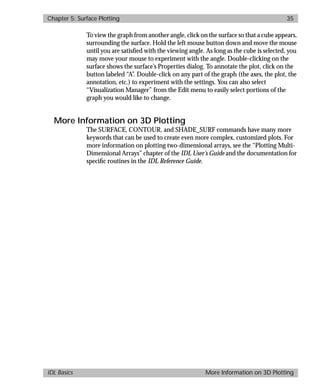
wire-frame surface, and contour simultaneously. Try it out by entering:
SHOW3, Z
Insight
You can also use Insight to create the plots in this chapter. Insight provides a
convenient graphical user interface with which you can visualize and manipulate
your data.
Enter the data for Z at the IDL Command Input Line, to make it easy to import
the variable. Type insight to start the Insight application and import the
variables as described in the previous chapter. Select “Surface” from the Visualize
menu and click “OK” after selecting Z to be the data set used for the Z variable.
The X and Y values will be automatically assigned.
Figure 5-6: Combined surface and contour plots using SHOW3
basics.bk : 3d.doc 35 Mon Apr 28 12:26:12 1997
Chapter 5: Surface Plotting 35
IDL Basics More Information on 3D Plotting
To view the graph from another angle, click on the surface so that a cube appears,
surrounding the surface. Hold the left mouse button down and move the mouse
until you are satisfied with the viewing angle. As long as the cube is selected, you
may move your mouse to experiment with the angle. Double-clicking on the
surface shows the surface’s Properties dialog. To annotate the plot, click on the
button labeled “A”. Double-click on any part of the graph (the axes, the plot, the
annotation, etc.) to experiment with the settings. You can also select
“Visualization Manager” from the Edit menu to easily select portions of the
graph you would like to change.
More Information on 3D Plotting
The SURFACE, CONTOUR, and SHADE_SURF commands have many more
keywords that can be used to create even more complex, customized plots. For
more information on plotting two-dimensional arrays, see the “Plotting Multi-
Dimensional Arrays” chapter of the IDL User’s Guide and the documentation for
specific routines in the IDL Reference Guide.
basics.bk : 3d.doc 36 Mon Apr 28 12:26:12 1997
36 Chapter 5: Surface Plotting
More Information on 3D Plotting IDL Basics
basics.bk : reading.doc 37 Mon Apr 28 12:26:12 1997
37
Chapter 6
Reading and Writing
Formatted Data
IDL’s flexible input and output capabilities allow you to read and write any data
format. One of the most common ways to store information is as formatted data.
Formatted data files are text files in which data elements are separated by spaces
or tabs. These files are both human-readable and portable between platforms.
When IDL reads a formatted data file, the characters in the file are converted to
the appropriate data type. Similarly, when writing formatted data, the
appropriate IDL variables are converted to plain characters.
In this tutorial, you’ll import some existing formatted data using Insight’s file
import feature, import data stored in an ASCII file, and learn how to read
formatted files directly from the IDL command line.
basics.bk : reading.doc 38 Mon Apr 28 12:26:12 1997
38 Chapter 6: Reading and Writing Formatted Data
Start Insight and Import an Image File IDL Basics
Start Insight and Import an Image File
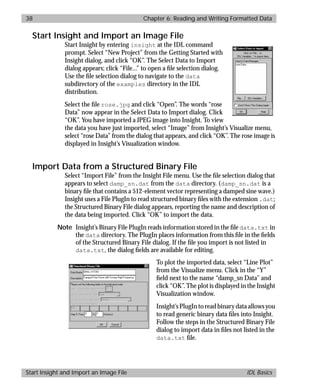
Start Insight by entering insight at the IDL command
prompt. Select “New Project” from the Getting Started with
Insight dialog, and click “OK”. The Select Data to Import
dialog appears; click “File...” to open a file selection dialog.
Use the file selection dialog to navigate to the data
subdirectory of the examples directory in the IDL
distribution.
Select the file rose.jpg and click “Open”. The words “rose
Data” now appear in the Select Data to Import dialog. Click
“OK”. You have imported a JPEG image into Insight. To view
the data you have just imported, select “Image” from Insight’s Visualize menu,
select “rose Data” from the dialog that appears, and click “OK”. The rose image is
displayed in Insight’s Visualization window.
Import Data from a Structured Binary File
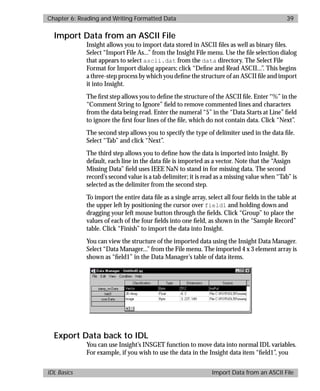
Select “Import File” from the Insight File menu. Use the file selection dialog that
appears to select damp_sn.dat from the data directory. (damp_sn.dat is a
binary file that contains a 512-element vector representing a damped sine wave.)
Insight uses a File PlugIn to read structured binary files with the extension .dat;
the Structured Binary File dialog appears, reporting the name and description of
the data being imported. Click “OK” to import the data.
Note Insight’s Binary File PlugIn reads information stored in the file data.txt in
the data directory. The PlugIn places information from this file in the fields
of the Structured Binary File dialog. If the file you import is not listed in
data.txt, the dialog fields are available for editing.
To plot the imported data, select “Line Plot”
from the Visualize menu. Click in the “Y”
field next to the name “damp_sn Data” and
click “OK”. The plot is displayed in the Insight
Visualization window.
Insight’s PlugIn to read binary data allows you
to read generic binary data files into Insight.
Follow the steps in the Structured Binary File
dialog to import data in files not listed in the
data.txt file.
basics.bk : reading.doc 39 Mon Apr 28 12:26:12 1997
Chapter 6: Reading and Writing Formatted Data 39
IDL Basics Import Data from an ASCII File
Import Data from an ASCII File
Insight allows you to import data stored in ASCII files as well as binary files.
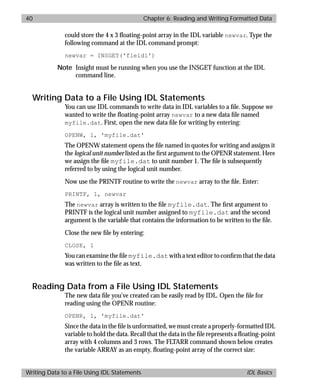
Select “Import File As...” from the Insight File menu. Use the file selection dialog
that appears to select ascii.dat from the data directory. The Select File
Format for Import dialog appears; click “Define and Read ASCII...”. This begins
a three-step process by which you define the structure of an ASCII file and import
it into Insight.
The first step allows you to define the structure of the ASCII file. Enter “%” in the
“Comment String to Ignore” field to remove commented lines and characters
from the data being read. Enter the numeral “5” in the “Data Starts at Line” field
to ignore the first four lines of the file, which do not contain data. Click “Next”.
The second step allows you to specify the type of delimiter used in the data file.
Select “Tab” and click “Next”.
The third step allows you to define how the data is imported into Insight. By
default, each line in the data file is imported as a vector. Note that the “Assign
Missing Data” field uses IEEE NaN to stand in for missing data. The second
record’s second value is a tab delimiter; it is read as a missing value when “Tab” is
selected as the delimiter from the second step.
To import the entire data file as a single array, select all four fields in the table at
the upper left by positioning the cursor over field1 and holding down and
dragging your left mouse button through the fields. Click “Group” to place the
values of each of the four fields into one field, as shown in the “Sample Record”
table. Click “Finish” to import the data into Insight.
You can view the structure of the imported data using the Insight Data Manager.
Select “Data Manager...” from the File menu. The imported 4 x 3 element array is
shown as “field1” in the Data Manager’s table of data items.
Export Data back to IDL
You can use Insight’s INSGET function to move data into normal IDL variables.
For example, if you wish to use the data in the Insight data item “field1”, you
basics.bk : reading.doc 40 Mon Apr 28 12:26:12 1997
40 Chapter 6: Reading and Writing Formatted Data
Writing Data to a File Using IDL Statements IDL Basics
could store the 4 x 3 floating-point array in the IDL variable newvar. Type the
following command at the IDL command prompt:
newvar = INSGET('field1')
Note Insight must be running when you use the INSGET function at the IDL
command line.
Writing Data to a File Using IDL Statements
You can use IDL commands to write data in IDL variables to a file. Suppose we
wanted to write the floating-point array newvar to a new data file named
myfile.dat. First, open the new data file for writing by entering:
OPENW, 1, 'myfile.dat'
The OPENW statement opens the file named in quotes for writing and assigns it
the logical unit number listed as the first argument to the OPENR statement. Here
we assign the file myfile.dat to unit number 1. The file is subsequently
referred to by using the logical unit number.
Now use the PRINTF routine to write the newvar array to the file. Enter:
PRINTF, 1, newvar
The newvar array is written to the file myfile.dat. The first argument to
PRINTF is the logical unit number assigned to myfile.dat and the second
argument is the variable that contains the information to be written to the file.
Close the new file by entering:
CLOSE, 1
You can examine the file myfile.dat with a text editor to confirm that the data
was written to the file as text.
Reading Data from a File Using IDL Statements
The new data file you’ve created can be easily read by IDL. Open the file for
reading using the OPENR routine:
OPENR, 1, 'myfile.dat'
Since the data in the file is unformatted, we must create a properly-formatted IDL
variable to hold the data. Recall that the data in the file represents a floating-point
array with 4 columns and 3 rows. The FLTARR command shown below creates
the variable ARRAY as an empty, floating-point array of the correct size:
basics.bk : reading.doc 41 Mon Apr 28 12:26:12 1997
Chapter 6: Reading and Writing Formatted Data 41
IDL Basics More Information about IDL Input/Output
array = FLTARR(4,3)
The READF command is used to read unformatted data from a file. Read the
contents of the file opened as unit 1 into array and close the file by entering:
READF, 1, array
CLOSE, 1
More Information about IDL Input/Output
For more information about IDL’s input/output capabilities, see Chapter 11,
“Files and Input/Output”, of Building IDL Applications. IDL also has built-in
routines to read and write many popular graphics file formats (GIF, TIFF, XWD,
JPEG, etc.) and scientific data formats (HDF, CDF, netCDF). See the IDL
HandiGuide or online help for a complete list of input/output routines.
basics.bk : reading.doc 42 Mon Apr 28 12:26:12 1997
42 Chapter 6: Reading and Writing Formatted Data
More Information about IDL Input/Output IDL Basics
basics.bk : image.doc 43 Mon Apr 28 12:26:12 1997
43
Chapter 7
Image Processing
This tutorial demonstrates some basic image processing and display techniques
using IDL. IDL is an ideal tool for image processing because of its interactive
operation, uniform notation, and array-oriented operators and functions.
Images are easily represented as two-dimensional arrays in IDL and can be
processed just like any other array. IDL also contains many procedures and
functions specifically designed for image display and processing.
Instead of creating a .pro file, we will enter statements at the IDL Command Input
Line. This demonstrates IDL’s interactive capability, and shows how easy it is to
manipulate your data.
Note For best performance when using these tutorials, instruct IDL to create a
bitmap buffer for your graphic windows and to use a maximum of 256 colors.
Enter the following command at the IDL command prompt:
DEVICE, RETAIN=2, DECOMPOSED=0
basics.bk : image.doc 44 Mon Apr 28 12:26:12 1997
44 Chapter 7: Image Processing
Reading an Image IDL Basics
Reading an Image
First we must import an image to be processed. Reading data files into IDL is easy
if you know the format in which the data is stored. Often, images are stored as
arrays of bytes. The file that we will read contains an image of an aerial view above
New York City stored as a byte array.
Opening an Image File
Open the file for reading by entering:
OPENR, 1, FILEPATH('nyny.dat', SUBDIR = ['examples', 'data'])
The OPENR statement opens the file named in quotes for reading and assigns it
the logical unit number listed as the first argument to the OPENR statement. Here
we assign the file nyny.dat to unit number 1. The file is subsequently referred
to by using the logical unit number. Unit numbers can range from 1 to 128. The
FILEPATH function, used as an argument to OPENR, returns the full path for the
file nyny.dat located in the data subdirectory of the examples
subdirectory of the IDL distribution.
Images as Arrays of Data
When images are stored as multiple arrays of unformatted binary data, it is
convenient to use the ASSOC function to establish an association between a
sequence of arrays and the data file. The image in the file nyny.dat is a 768-
element by 512-element array of bytes, so we will associate the resulting
rectangular array called A with file unit number 1 by entering:
A=ASSOC(1, BYTARR(768, 512))
Now A[0] corresponds to the first 768 by 512-byte image in the file nyny.dat,
which happens to be the only image. You can include several images in a file. For
example, the third image in a file, after being extracted exactly as described above,
is specified as A[2].
B=A[0] Read the image into variable B.
CLOSE, 1 Close the file.
Note Every reference to A[0] rereads the image from disk. To hold the file in
memory, store it in the memory-resident array B.
Displaying an Image
You can view an image in IDL with two different routines. The TV procedure
writes an array to the display as an image without scaling. The TVSCL procedure
basics.bk : image.doc 45 Mon Apr 28 12:26:12 1997
Chapter 7: Image Processing 45
IDL Basics Displaying an Image
displays the image with the color values scaled to use the whole color table. Enter
the commands below at the IDL Command Input Line:
TV, B Display the image.
WDELETE Dismiss the graphics window.
TVSCL, B Display the scaled image.
You can enter WDELETE at the Command Input Line whenever you would like
to dismiss the graphics window.
Resizing an Image
The REBIN command can be used to resize an array. Enter the following:
C = REBIN(B, 768*2, 512*2) Resize the image using REBIN.
TVSCL, C Display the scaled image.
The original array is resized to be 1536 by 1024 elements. Since the window size
remains the same, the image appears to be magnified. REBIN can only magnify
or reduce an array in integer multiples. Bilinear interpolation is used to smooth
the jagged edges caused by magnifying the image.
The TV and TVSCL commands can also accept array expressions as arguments.
For example, the following command multiplies each element of the resized array
B by 2 and sends the result to the display:
TV, B*2
The data in variable B remains unchanged. For some images, the colors may look
strange, since values that are greater than 255 “wrap around” the color palette.
Figure 7-1: Displaying an image with TV (left) and with TVSCL (right)
basics.bk : image.doc 46 Mon Apr 28 12:26:12 1997
46 Chapter 7: Image Processing
Contrast Enhancement IDL Basics
Resizing a Graphics Window
IDL automatically creates a window for displayed graphics if one doesn’t already
exist. You can use the WINDOW command to create new windows with custom
sizes.
To display Upper New York Bay, the lower left quarter of the magnified image,
enter:
WINDOW, 0, XSIZE=768, YSIZE=512
TV, C
The WINDOW command above creates a new version of window number 0 that
is 768 pixels wide (specified with the XSIZE keyword) and 512 pixels tall
(specified with the YSIZE keyword). You can create a window that is exactly the
size of image C, XSIZE=1536, YSIZE=1024. However, this window may exceed
the display capabilities of your monitor.
Contrast Enhancement
In order to improve the look of an image, sometimes all that’s necessary is a
change in how the colors are represented. IDL provides several ways to
manipulate the contrast.
Thresholding
One of the simplest contrast enhancements that can be performed on an image
is thresholding. Thresholding produces a two-level mapping from all of the
possible intensities into black and white. The IDL relational operators, EQ, NE,
GE, GT, LE, and LT, return a value of 1 if the relation is true and 0 if the relation
Figure 7-2: Image with all values greater than 140 shown as white (left)
Image with all values less than 140 shown as white (left)
basics.bk : image.doc 47 Mon Apr 28 12:26:12 1997
Chapter 7: Image Processing 47
IDL Basics Contrast Enhancement
is false. When applied to images, the relation is evaluated for each pixel and an
image of 1’s and 0’s results.
To display the pixels in the image B that have values greater than 140 as white and
all others as black, as shown at the left of Figure 7-2, enter:
TVSCL, B GT 140
Similarly, the pixels that have values less than 140 can be displayed as white, as
shown at the right of Figure 7-2, by entering the command:
TVSCL, B LT 140
In many images, the pixels have values that
are only a small subrange of the possible
values. By spreading the distribution so that
each range of pixel values contains an
approximately equal number of members,
the information content of the display is
maximized, as shown to the left.
The HIST_EQUAL function performs this redistribution on an array. Enter the
following:
TV, HIST_EQUAL(B) Display a histogram-equalized
version of B.
Scaling Pixel Values
Another way to enhance the contrast of an image is to scale a subrange of pixel
values to fill the entire range of displayed brightnesses. The > operator, the IDL
maximum operator, returns a result equal to the larger of its two parameters. The
Figure 7-3: Image with pixels >100 scaled to full range of brightness(left)
Image with pixels <140 scaled to full range of brightness (right)
basics.bk : image.doc 48 Mon Apr 28 12:26:12 1997
48 Chapter 7: Image Processing
Smoothing and Sharpening IDL Basics
following commands contrast the maximum and minimum operators, as shown
in Figure 7-3:
TVSCL, B > 100 Scale pixels with a value of 100 or
greater into the full range of dis-
played brightnesses.
TVSCL, B < 140 Scale pixels with a value less than
140 into the full range of bright-
nesses.
The minimum and maximum
operators can be used together for
more complicated contrast
enhancements. Set the minimum
brightness to 140, set the maximum
brightness to 200, scale image B and
display it by entering:
TVSCL, B>140<200
Although this command illustrates the use of the IDL minimum and maximum
operators, the same function can be executed more efficiently by IDL with the
command:
TV, BYTSCL(B, MIN=140, MAX=200, TOP=!D.N_COLORS-1)
Smoothing and Sharpening
Images can be rapidly smoothed to soften edges or compensate for random noise
in an image using IDL’s SMOOTH function. SMOOTH performs an equally
weighted smoothing using a square neighborhood of an arbitrary odd width, as
show in at the left of Figure 7-4. Enter the following:
TVSCL, SMOOTH(B, 7) Display the image in array B
smoothedusinga7by7neighbor-
hood.
Unsharp Masking
The image at the left of Figure 7-4 looks a bit blurry and contains only the low
frequency components of the original image. Often, an image needs to be
sharpened so that edges or high spatial frequency components of the image are
enhanced. One way to sharpen an image is to subtract a smoothed image
basics.bk : image.doc 49 Mon Apr 28 12:26:12 1997
Chapter 7: Image Processing 49
IDL Basics Smoothing and Sharpening
containing only low-frequency components from the original image. This
technique is called unsharp masking. Enter the following:
TVSCL, FIX(B - SMOOTH(B, 7)) Unsharpmaskanddisplayimage.
This command subtracts a smoothed version of the image from the original,
scales the result, and displays it, as shown at the right of Figure 7-4. The FIX
command is used to ensure that the values after the byte subtraction are valid
(i.e., non-negative) byte values.
Sharpening Images with Differentiation
IDL has other built-in sharpening functions that use differentiation to sharpen
images. The ROBERTS function returns the Roberts gradient of an image. Type
the following command:
R=ROBERTS(B) Createanewvariable,R,thatcon-
tainstheRobertsgradientofimage
B.
TVSCL, R Display array R.
Loading Different Color Tables
Try loading some of the pre-defined IDL color tables to make this image more
visible. While the graphics window is visible, type XLOADCT at the IDL
CommandInputLine.TheXLoadctwidgetapplicationappears.Selectacolor
table from the field; the window will reflect the color scheme. Click “Done”
toacceptacolortable.Whenyouarefinishedlookingattheeffectsofdifferent
tables, click on the first color table in the field, B-W Linear, and click “Done”
to load the original black and white color table.
Figure 7-4: Smoothing with SMOOTH (left) and Unsharp masking (right)
basics.bk : image.doc 50 Mon Apr 28 12:26:12 1997
50 Chapter 7: Image Processing
Other Image Manipulations IDL Basics
Another commonly used gradient operator is the Sobel operator. IDL’s SOBEL
function operates over a 3 by 3 region, making it less sensitive to noise than some
other methods. Enter the following:
SO=SOBEL(B) Create a Sobel sharpened version
of the image.
TV, SO Display the sharper image.
Other Image Manipulations
Sections of images can be easily displayed by using subarrays. Erase the current
display, create a new array that contains Upper New York Bay and display it by
entering:
ERASE
E = B[100:300, 150:250]
TV, E
Resizing with CONGRID
Resize Upper New York Bay using CONGRID. Unlike the REBIN command,
CONGRID can resize arrays to any arbitrary size. Set each dimension of E to 500
elements and display the result, as shown at the left of Figure 7-5, by entering:
E = CONGRID(E, 500, 500, /INTERP)
TV, E
The /INTERP keyword causes bilinear interpolation to be used.
Figure 7-5: Using CONGRID to resize an image (left) and Rotating an image (right)
basics.bk : image.doc 51 Mon Apr 28 12:26:12 1997
Chapter 7: Image Processing 51
IDL Basics Extracting Profiles
Rotating an Image
Simple rotation in multiples of 90 degrees can be accomplished with the ROTATE
function. Display the magnified image rotated by 90 degrees, as shown at the
right of Figure 7-5, by entering:
R = ROTATE(E, 1)
TVSCL, R
The second parameter of ROTATE is an integer from 1 to 8 that specifies which
one of the eight possible combinations of rotation and axis reversal to use. Use
the ROT function to rotate and/or magnify an image by any arbitrary amount.
Extracting Profiles
Another useful image processing tool is the PROFILES routine. This routine
interactively draws row or column profiles of an image. It allows you to view an
image and an X-Y plot of the pixel brightnesses in any row or column of the
image simultaneously. Use the PROFILES routine with the rotated image that
you just displayed by entering the following:
PROFILES, R
A new window for displaying the
profiles appears. Move the cursor in the
window containing the image R to
display the profiles of different rows
and columns. Click the left mouse
button while the cursor is in the image
window to switch between displaying
row and column profiles. Click the
right mouse button while the cursor is
in the image window to exit the
PROFILES routine.
IDL for Macintosh users can hold the command key and click to simulate a right
mouse button click.
Insight
You can also use Insight to process the images in this chapter. Insight further
increases control over your data by providing a convenient graphical user
interface with which you can visualize and manipulate your data. Double-click
basics.bk : image.doc 52 Mon Apr 28 12:26:12 1997
52 Chapter 7: Image Processing
Insight IDL Basics
on any part of the graph (the axes, the image, etc.) to experiment with the
settings.
Reading an Image
Start Insight by entering insight at the IDL command prompt. Select “New
Project” from the Getting Started with Insight dialog, and click “OK”. The Select
Data to Import dialog appears; click “File...” to open a file selection dialog. Use
the file selection dialog to navigate to the data subdirectory of the examples
directory in the IDL distribution.
Select the file nyny.dat and click “Open”. The Structured Binary File dialog
gives you information about nyny.dat. Click “OK”. The words “nyny Data” now
appear in the Select Data to Import dialog. Click “OK”. You have imported a
binary image into Insight.
Displaying an Image
To view the data you have just imported, select “Image” from Insight’s Visualize
menu, select “nyny Data” from the Image dialog that appears, and click “OK”. An
image of the aerial view above New York City is displayed in Insight’s
Visualization window.
By default, Insight byte scales image data. To see the data without byte scaling,
select “<nyny Data Image> Properties...” from the Edit menu and select the
“Inhibit Byte Scaling” checkbox. You can also change the color table used for the
image with this dialog. If you would like to experiment, click “Apply” after
highlighting a color table. Click “OK” when you are satisfied with your choice.
Resizing an Image
To maximize an image with Insight, click “Zoom In” from the View menu. You
can also minimize the image by clicking “Zoom Out” from the View Menu.
Restore the image to its initial state by clicking “Fit To Window”, also in the View
menu.
Smoothing and Sharpening
Select “Smooth...” from the Analyze menu. The Smooth dialog appears. Click on
the “Browse...” button next to the “Array” field, select “nyny Data” and click “OK”.
By default, the smoothed image’s edges are truncated. You can disable edge
truncation by clicking on (un-checking) the Edge Truncate checkbox.
You can also perform unsharp masking on the smoothed image. Select “Process
Images...” from the Analyze menu and select the “Subtract” function from the
“Algorithm” field. The “Image” field should contain the “nyny Data”. If it doesn’t,
basics.bk : image.doc 53 Mon Apr 28 12:26:12 1997
Chapter 7: Image Processing 53
IDL Basics More Information on Image Processing
click “Browse...” and select it. Click “Browse...” next to the “Image 2” field and
select “Smoothed Data”. Click “OK” to see the byte-subtracted image.
Insight also includes other image-sharpening functions. First, display the original
image by clicking “Image” from the Visualize menu and select “nyny Data”.
Insight saves each differently processed image with a different name. Click “OK”
to view the original image.
Select “Process Images...” from the Analyze menu and highlight “Roberts Edge
Enhance” from the “Algorithm” droplist. Click “OK” to see the Roberts gradient
of the image. Another gradient operator is the Sobel operator. Select “Process
Images...” from the Analyze menu and highlight “Sobel Edge Enhance” from the
“Algorithm” droplist. Click “OK” to view the image.
Note You can load different color tables to make the differentiated images more
visible by double-clicking on the image to display the Properties dialog.
Other Image Manipulations
To rotate an image, Select “Process Images...” from the Analyze menu and select
“Rotate Image” from the “Algorithm” droplist. Specify how many degrees
clockwise you would like to rotate the image and click “OK”. The “Algorithm”
droplist contains many other image processing functions.
More Information on Image Processing
For more information on image display and image processing, see Chapter 13,
“Image Display Routines”, of Using IDL. For more information on image
processing with Insight, see Using IDL Insight.
basics.bk : image.doc 54 Mon Apr 28 12:26:12 1997
54 Chapter 7: Image Processing
More Information on Image Processing IDL Basics
basics.bk : grid.doc 55 Mon Apr 28 12:26:12 1997
55
Chapter 8
Plotting Irregularly-
Gridded Data
IDL can be used to display and analyze irregularly-gridded data. The TRIANGULATE
andTRIGRIDroutinesallowyoutoeasilyfitirregularly-sampleddatatoaregulargrid.
This regularly-gridded data can then be sent to IDL’s plotting routines.
Instead of creating a .pro file, as we did in the Getting Started with IDL tutorial,
we will enter statements at the IDL Command Input Line. This demonstrates
IDL’s interactive capability, and shows how easy it is to manipulate your data.
Note For best performance when using these tutorials, instruct IDL to create a
bitmap buffer for your graphic windows and to use a maximum of 256 colors.
Enter the following command at the IDL command prompt:
DEVICE, RETAIN=2, DECOMPOSED=0
basics.bk : grid.doc 56 Mon Apr 28 12:26:12 1997
56 Chapter 8: Plotting Irregularly-Gridded Data
Create a Dataset IDL Basics
Create a Dataset
Create a set of 32 irregularly-gridded data points in 3D space that we can use as
arguments to the TRIGRID and TRIANGULATE functions, as shown by entering
the following:
SEED = 1L Set SEED to the longword value 1.
SEED is used to generate random
points .
N=32 Set the number of points to be
randomly generated.
X = RANDOMU(SEED, N) Create a set of X values for each of
the 32 data points.
Y = RANDOMU(SEED, N) Create a set of Y values for each of
the 32 data points.
Z = EXP(-3*((X-0.5)^2 + (Y-0.5)^2))
Create a set of Z values for each of
the 32 data points from the X and
Y values.
PLOT, X, Y, PSYM = 1, TITLE = 'Random XY Points'
Plot the XY positions of the ran-
dom points.
The plot of random points is displayed at the left of Figure 8-1.
Figure 8-1: Plot of random values (left) and triangulation of the random values (right)
basics.bk : grid.doc 57 Mon Apr 28 12:26:12 1997
Chapter 8: Plotting Irregularly-Gridded Data 57
IDL Basics The TRIANGULATE Procedure
The TRIANGULATE Procedure
The TRIANGULATE procedure constructs a Delaunay triangulation of a planar
set of points. After a triangulation has been found for a set of irregularly-gridded
data points, the TRIGRID function can be used to interpolate surface values to a
regular grid.
To return a triangulation in the variable TR, enter the command:
TRIANGULATE, X, Y, TR
The variable TR now contains a 3-element by 54-element longword array. To
produce a plot of the triangulation, shown at the right of Figure 8-1, enter the
following commands:
PLOT, X, Y, PSYM = 1, TITLE = 'Triangulation'
FOR i=0, N_ELEMENTS(TR)/3 - 1 DO BEGIN & $
T = [TR[*, i], TR[0, i]] & $
PLOTS, X[T], Y[T] & ENDFOR
Plotting the Results with TRIGRID
Now that we have the triangulation TR, the TRIGRID function can be used to
return a regular grid of interpolated Z values.
Display a surface plot of the gridded data using the default interpolation
technique and add a title to the plot, shown at the left of Figure 8-2, by entering:
SURFACE, TRIGRID(X, Y, Z, TR)
XYOUTS, .5, .9, 'Linear Interpolation', $
ALIGN=.5, /NORMAL
Figure 8-2: Linear interpolation of triangulated data (left) and Quintic interpolation (right)
basics.bk : grid.doc 58 Mon Apr 28 12:26:12 1997
58 Chapter 8: Plotting Irregularly-Gridded Data
More Information about Gridding IDL Basics
The TRIGRID function can also return a smoothed interpolation. Set the
QUINTIC keyword to use a quintic polynomial method when interpolating the
grid. Display the results of the quintic gridding method, shown at the right of
Figure 8-2, by entering:
SURFACE, TRIGRID(X, Y, Z, TR, /QUINTIC)
XYOUTS, .5, .9, 'Quintic Interpolation', $
ALIGN=.5, /NORMAL
More Information about Gridding
More information on the TRIGRID and TRIANGULATE routines can be found
in the IDL Reference Guide or the on-line help.
basics.bk : map.doc 59 Mon Apr 28 12:26:12 1997
59
Chapter 9
Mapping
IDL’s mapping facilities allow you to plot data over different projections of the
globe. This tutorial shows how to display various map projections and plot data
over them.
Instead of creating a .pro file, as we did in the Getting Started with IDL tutorial,
we will enter statements at the IDL Command Input Line. This demonstrates
IDL’s interactive capability, and shows how easy it is to manipulate your data.
Note For best performance when using these tutorials, instruct IDL to create a
bitmap buffer for your graphic windows and to use a maximum of 256 colors.
Enter the following command at the IDL command prompt:
DEVICE, RETAIN=2, DECOMPOSED=0
basics.bk : map.doc 60 Mon Apr 28 12:26:12 1997
60 Chapter 9: Mapping
Drawing Map Projections IDL Basics
Drawing Map Projections
Drawing continental outlines and plotting data in different projections is easy
using IDL’s mapping routines. The MAP_SET routine is the heart of the mapping
package. It controls the type of projection and the limits of the global region to
be mapped.
Enter the following at the Command Input Line:
WINDOW Reset graphics window to default
size.
MAP_SET, /CYLINDRICAL, /GRID, /CONTINENT, /LABEL
Display a cylindrical projection
map of the world.
The /CYLINDRICAL keyword tells MAP_SET to use the cylindrical projection.
The /GRID keyword causes the latitude and longitude lines to be drawn. The
/LABEL keyword adds the latitude and longitude labels. The /CONTINENT
keyword tells MAP_SET to draw continental outlines.
A similar map could be created by entering a series of separate commands to set
up the type of projection, draw the continent outlines, and then draw the grid
lines. See the map at the right of Figure 9-1. Although the single-line MAP_SET
command is quicker to enter, by using the separate MAP_SET, MAP_GRID, and
MAP_CONTINENTS commands, you exercise more control over the map
colors. Enter the following at the Command Input Line:
LOADCT, 39 Load a new color table.
MAP_SET, /MILLER Display a Miller cylindrical pro-
jection of the world.
Figure 9-1: Cylindrical projection (left)
Miller cylindrical projection with MAP_CONTINENTS and MAP_GRID (right)
basics.bk : map.doc 61 Mon Apr 28 12:26:12 1997
Chapter 9: Mapping 61
IDL Basics Drawing an Orthographic Projection
MAP_CONTINENTS, COLOR = 220, /FILL Draw the continent outlines. The
FILL keyword fills in the conti-
nents using the color specified by
the COLOR keyword.
MAP_GRID, COLOR = 160, /LABEL Draw the grid lines. The COLOR
keyword specifies the color of the
gridlines.TheLABELkeywordla-
bels the lines.
The order of MAP_GRID and MAP_CONTINENTS depends on how you wish
to display your map. In the above example, if you call MAP_GRID before
MAP_CONTINENTS, the filled continents are drawn over the labeled grid lines.
Drawing an Orthographic Projection
To draw a map that looks more like a globe, use the orthographic projection.
Enter the following at the Command Input Line:
MAP_SET, 30, -100, 0, /ORTHO, /ISOTROPIC, /GRID, $
/CONT, /LABEL, /HORIZON
The orthographic projection to the left shows
North America at the center.
ThenumbersfollowingtheMAP_SETcommand(30,-
100,and0)arethelatitudeandlongitudetobecentered
and the angle of rotation for the North direction. The
ISOTROPIC keyword creates a map that has the same
scale in the vertical and horizontal directions, so we get
acircularmapinarectangularwindow.Notethatwe’ve
abbreviatedtheCONTINENTSkeywordtoCONTand
the ORTHOGRAPHIC keyword to ORTHO. IDL keywords (but not function and
procedure names) can always be abbreviated to their minimum unique length. The
GRID, COLOR, and LABEL keywords work the same as before. The HORIZON
keyword draws the line at which the horizon exists. Without the HORIZON keyword,
MAP_SET only draws the grid and the continents.
Plotting a Portion of the Globe
You don’t always have to plot the entire globe. The LIMIT keyword specifies a
region of the globe to plot. Enter the following at the Command Input Line:
MAP_SET, 32, -100, /AZIM, LIMIT=[10, -130, 55, -70], /GRID, $
/CONT, /LABEL
basics.bk : map.doc 62 Mon Apr 28 12:26:12 1997
62 Chapter 9: Mapping
Plotting Data on Maps IDL Basics
The azimuthal equidistant projection to
the left shows the United States and
Mexico. The AZIM keyword selects the
azimuthal equidistant projection. The
keyword LIMIT is set equal to a four-
element vector containing the minimum
latitude, minimum longitude, maximum
latitude, and maximum longitude.
You can also limit the section of the map you are viewing by using the SCALE
keyword, which constructs an isotropic map with the given scale, set to the ratio
of 1:scale at the center of the map. If SCALE is not specified, the map is fit to the
window.
Plotting Data on Maps
You can annotate plots easily in IDL. To plot the location of selected cities in
North America, as shown at the left of Figure 9-2, you need to create three arrays:
one to hold latitudes, one to hold longitudes, and one to hold the names of the
cities being plotted. Enter the following at the Command Input Line:
LATS = [40.02, 34.00, 38.55, 48.25, 17.29]
Create a 5-element array of float-
ing-point values representing lati-
tudes in degrees North of zero.
LONS = [-105.16, -119.40, -77.00, -114.21, -88.10]
The values in LONS are negative
because they represent degrees
West of zero longitude.
CITIES = ['Boulder, CO', 'Santa Cruz, CA', $
'Washington, DC', 'Whitefish, MT', 'Belize, Belize']
Create a five-element array of
string values. Text strings can be
enclosed in either single quotes
('text') or double quotes ("text").
MAP_SET, /MERCATOR, /GRID, /CONTINENT, $
LIMIT = [10, -130, 60, -70] Draw a Mercator projection fea-
turing the United States and
Mexico.
basics.bk : map.doc 63 Mon Apr 28 12:26:12 1997
Chapter 9: Mapping 63
IDL Basics Reading Latitudes and Longitudes with the Cursor
PLOTS, LONS, LATS, PSYM = 4, SYMSIZE = 1.4, COLOR = 220
Place a plotting symbol at the lo-
cation of each city.
XYOUTS, LONS, LATS, CITIES, COLOR=80, CHARTHICK=2, $
CHARSIZE=1.25, ALIGN=0.5 Place the names of the cities near
their respective symbols.
The PSYM keyword makes PLOTS use diamond-shaped plotting symbols instead
of connecting lines. The SYMSIZE keyword controls the size of the plotting
symbols. XYOUTS draws the characters for each element of the array CITIES at
the corresponding location specified by the array elements of LONS and LATS.
The CHARTHICK keyword controls the thickness of the text characters and the
CHARSIZE keyword controls their size (1.0 is the default size). Setting the
ALIGN keyword to 0.5 centers the city names over their corresponding data
points.
Reading Latitudes and Longitudes with the Cursor
If a map projection is displayed, IDL can return the position of the cursor over
the map in latitude and longitude coordinates. Enter the command:
CURSOR, LON, LAT & PRINT, LAT, LON
The CURSOR command reads the “X” and “Y” positions of the cursor when the
mouse button is pressed and returns those values in the LON and LAT variables.
Use the mouse to move the cursor over the map window and click on any point.
The latitude and longitude of that point on the map are printed in the Output
Log above the Command Input Line.
Figure 9-2: Annotating a map projection (left) and Plotting contours over maps (right)
basics.bk : map.doc 64 Mon Apr 28 12:26:12 1997
64 Chapter 9: Mapping
Plotting Contours Over Maps IDL Basics
Plotting Contours Over Maps
Contour plots can easily be drawn over map projections by using the OVERPLOT
keyword to the CONTOUR routine. See the map at the right of Figure 9-2. Enter
the following at the Command Input Line:
A = DIST(91) Create a dataset to plot.
LAT = FINDGEN(91) * 2 - 90 Create an X value vector contain-
ing 91 values that range from -90
to 90 in 2 degree increments.
LON = FINDGEN(91) * 4 - 180 Createa Yvaluevector containing
91 values that range from -180 to
180 in 4 degree increments.
MAP_SET, /GRID, /CONTINENTS, /SINUSOIDAL, /HORIZON
Create a new sinusoidal map pro-
jectionoverwhichtoplotthedata.
CONTOUR, A, LON, LAT, /OVERPLOT, NLEVELS = 12
Draw a twelve-level contour plot
of array A over the map.
Since latitudes range from -90 to 90 degrees and longitudes range from -180 to
180 degrees, you created two vectors containing the “X” and “Y” values for
CONTOUR to use in displaying the array A. If the X and Y values are not
explicitly specified, CONTOUR will plot the array A over only a small portion of
the globe.
Warping Images to Maps
Image data can also be displayed on maps. The MAP_IMAGE function returns a
warped version of an original image that can be displayed over a map projection.
In this example, elevation data for the entire globe is displayed as an image with
continent outlines and grid lines overlaid. Enter the following at the Command
Input Line:
OPENR, 1, FILEPATH('worldelv.dat', SUB=['examples', 'data'])
Open the elevation data file,
worldelv.dat. This file contains a
360-element square array of byte
values.
elev = BYTARR(360, 360) Create the appropriately-sized
byte array.
READU, 1, elev Readthedatafromthefileintothe
variable elev.
basics.bk : map.doc 65 Mon Apr 28 12:26:12 1997
Chapter 9: Mapping 65
IDL Basics Warping Images to Maps
CLOSE, 1 Close the file.
ERASE Erase the current display.
LOADCT, 26 Load a color table.
TV, elev View elev as an image.
The first column of data in this image corresponds to 0 degrees longitude.
Because MAP_IMAGE assumes that the first column of the image being warped
corresponds to -180 degrees, we’ll use the SHIFT function on the dataset before
proceeding. Enter the following:
elev = SHIFT(elev, 180, 0) Shift the array 180 elements in the
row direction and 0 elements in
thecolumndirectiontomake-180
degrees the first column in the ar-
ray.
TV, ELEV View elev as an image.
From the image contained in elev, we can create a warped image to fit any of the
available map projections. A map projection must be defined before using
MAP_IMAGE, because MAP_IMAGE uses the currently defined map
parameters.
MAP_SET, /MOLLWEIDE, /CONT, /GRID, COLOR=100
Create a Mollweide projection
with continents and gridlines.
new = MAP_IMAGE(elev, SX, SY, /BILIN)
Warp the image using bilinear in-
terpolation and save the result in
the variable new.
Figure 9-3: Warping an image to a map (left) and showing gridlines and continents (right)
basics.bk : map.doc 66 Mon Apr 28 12:26:12 1997
66 Chapter 9: Mapping
More Information on Mapping IDL Basics
The SX and SY in the command above are output variables that contain the X and
Y position at which the image should be displayed. Setting the BILIN keyword
causes bilinear interpolation to be used, resulting in a smoother warped image.
TV, new, SX, SY Display the new image over the
map.
The SX and SY variables provide TV with the proper starting coordinates for the
warped image. TV usually displays images starting at position (0, 0). See the map
at the left of Figure 9-3.
Note that the warped image gets displayed over the existing continent and grid
lines. The continent outlines and thick grid lines can be displayed, as shown at
the right of Figure 9-3, by entering:
MAP_CONTINENTS
MAP_GRID, GLINETHICK=3
More Information on Mapping
More information on the IDL mapping routines can be found in Chapter 12,
“Map Projections”, of Using IDL and in the IDL Reference Guide.
basics.bk : insight.doc 67 Mon Apr 28 12:26:12 1997
67
Chapter 10
Using Insight to
Analyze Data
Insight makes data analysis and visualization easy. This chapter uses Insight to
analyze stock price data for several large computer makers.
Starting Insight
Start Insight by entering insight at the IDL
command prompt. You can also start Insight by
entering insight at the Unix shell or VMS DLL
prompt or by double-clicking on the Insight icon
(Windows and Macintosh systems).
When the Getting Started with Insight dialog
appears, select example1.ipj and click “OK”. This
will load an Insight project that contains stock
price data for Digital Equipment Corp., Hewlett-
Packard, Silicon Graphics, and Sun Computers.
basics.bk : insight.doc 68 Mon Apr 28 12:26:12 1997
68 Chapter 10: Using Insight to Analyze Data
Compare Two Plot Lines IDL Basics
When the project opens, it displays four graphs, one for each of the computer
makers, along with some analysis.
To preserve the example project in its current state and work on a copy, select
“Save Project As...” from the File menu. Use the file selection dialog that appears
to navigate to a convenient directory, and save the project file with the name
stocks.ipj. Next, select “Clear” from the View menu, followed by “1 by 1
(Rows by Columns)”, also from the View menu. This sets up the Insight
visualization window to display a single plot.
Compare Two Plot Lines
Let’s compare just two of the plot lines. Select “Line Plot...” from the Visualize
menu, and click in the “Y” checkbox next to the “SUN” data item that shows up
in the data browser. Click “OK” to plot the data in the visualization window.
Before we continue, let’s add some
labels to the plot. First, select the Y
axis by clicking once on the axis
line. The axis should be
highlighted. Select “Y Axis
Properties...” from the Edit menu;
the Properties dialog for the axis
appears. In the “Title” field, enter
“Stock Price” and click “OK”. Next,
select the X axis and open its
properties dialog. Enter “Days” in
the “Title” field and click “OK”.
Finally, let’s add an annotation that
reminds us that the plot line
represents the price of Sun stock.
Click once on the Annotation
button on the Insight toolbar (it
looks like the capital letter “A”). A
text annotation appears in the
center of the visualization window.
Use the mouse to drag the text annotation to the right end of the plot line, then
double-click on the annotation to bring up its Properties dialog. Change the text
in the “Text” field to “Sun” and click “OK”. The result should look like Figure 10-1.
Figure 10-1: Plotting the price of Sun stock.
basics.bk : insight.doc 69 Mon Apr 28 12:26:12 1997
Chapter 10: Using Insight to Analyze Data 69
IDL Basics Correlate the Plot Lines
Add the Second Plot Line
Now let’s add another data set to our display. Select “Insert Plot...” from the Edit
menu, and click the checkbox next to the data item “HP”. If you click “OK” now,
you will notice that the new plot line extends above the top of the existing line
plot. Select “Undo” from the Edit menu and select “Insert Plot...” again. This
time, check both the “SUN” data item and the checkbox labelled “Adjust range”
before clicking “OK”. Insight will adjust the plot range to accommodate the full
range of data for both the “HP” and “SUN” stock prices in a single plot.
Notice that the text annotation did
not move along with the plot “Sun”
plot line. Click on the annotation
now and drag it down to align with
the new position of the “Sun” plot
line. Let’s add an annotation for the
“HP” line as well; click once on the
Annotation button and add an
annotation with the text “HP”,
positioned to the right of the “HP”
plot line. Notice also that the
second plot line is a different color
than the first. We’ll be overlaying
another line on top of these two
lines, so change the color of both
lines to black. Change the color by
double-clicking on the each line to
bring up its Properties dialog,
selecting “Black” from the “Color”
droplist, and clicking “OK”. The
result should look like Figure 10-2.
Correlate the Plot Lines
The correlation between the price of Sun and Hewlett-Packard stock over the time
period shown appears to be quite good. We can determine just how good using
Insight’s correlation analysis feature. Select “Correlate...” from the Analyze menu.
The Correlate dialog appears. Select “Linear Correlation” from the “Algorithm”
droplist. Click the “Browse” button next to the “Independent” field and select
“SUN” from the data browser that appears. Click “OK” to enter your choice in the
“Independent” field. Similarly, select “HP” for the “Independent 2” variable.
Figure 10-2: Plotting the price of HP and Sun
stocks together.
basics.bk : insight.doc 70 Mon Apr 28 12:26:12 1997
70 Chapter 10: Using Insight to Analyze Data
Smooth the Plot Lines IDL Basics
Click “OK” to perform the correlation analysis.
Insight displays a dialog that reports that the
correlation between the two plotted lines is 0.87.
(Despite the appearance of the two lines, this is not a
particularly strong correlation.)
Smooth the Plot Lines
We may hypothesize that small daily variations in the stock prices are hiding the
correlation. To try to account for the daily fluctuations, we might try smoothing
the stock price data.
Click once on the “Sun” plot line to
select it, then select “Smooth...”
from the Analyze menu. The
Smooth dialog appears, with the
“SUN” data item already entered in
the “Array” field. Click the “More”
button on the Smooth dialog and
enter “Sun Smoothed Data” in the
“Output” field. (The example1.ipj
project already contains a data item
named “Sun_Smoothed”, but we’ll
generate a new data item.) Make
sure “Insert” is selected from the
“Visualization” droplist in the
dialog, and click “OK”.
Insight plots the smoothed data as
an overlay on the original data. If
the smoothed plot line is difficult to
see on your monitor because it is
too light, double-click on the
smoothed line to bring up its Properties dialog and change the color of the line
to red.
Next, create a smoothed version of the HP stock price data. Select the “HP” line
and follow the same steps, entering “HP Smoothed Data” in the “Output” field of
the Smooth dialog. The result should look like Figure 10-3.
Figure 10-3: HP and Sun stock price data with
smoothed data overlays.
basics.bk : insight.doc 71 Mon Apr 28 12:26:12 1997
Chapter 10: Using Insight to Analyze Data 71
IDL Basics Correlate the Smoothed Data
Correlate the Smoothed Data
We can now do a correlation analysis on the smoothed data to see if a stronger
correlation emerges. Select “Correlate...” from the Analyze menu. The Correlate
dialog appears. Select “Linear Correlation” from the algorithm droplist. Click the
“Browse” button next to the “Independent” field and select “Sun Smoothed
Data” from the data browser that appears. Similarly, select “HP Smoothed Data”
for the “Independent 2” variable.
Click “OK” to perform the correlation analysis. Insight displays a dialog that
reports that the correlation between the two smoothed lines, at 0.88, is slightly
better than the correlation between the unsmoothed lines. Determining whether
the correlations are significant would require further investigation and detailed
knowledge of the way the data were sampled and collected.
More Information on Insight
For more information on using Insight, see Using IDL Insight.
basics.bk : insight.doc 72 Mon Apr 28 12:26:12 1997
72 Chapter 10: Using Insight to Analyze Data
More Information on Insight IDL Basics
basics.bk : volume.doc 73 Mon Apr 28 12:26:12 1997
73
Chapter 11
Volume
Visualization
IDL can be used to visualize 3D volume datasets. Given a 3D grid of density
measurements,IDLcandisplayashadedsurfacerepresentationofaconstant-density
surface (also called an iso-surface). For example, in medical imaging applications, a
series of 2D images can be created by computed tomography or magnetic resonance
imaging. When stacked, these images create a grid of density measurements that can
be contoured to display the surfaces of anatomical structures.
This tutorial demonstrates the use of the SHADE_VOLUME and POLYSHADE
commands for iso-surface visualization. You will create a .pro file to demonstrate
how to work with data in a file. To immediately begin working with IDL, skip to
“Create a Dataset” on page 75.
Note For best performance when using these tutorials, instruct IDL to create a
bitmap buffer for your graphic windows and to use a maximum of 256 colors.
Enter the following command at the IDL command prompt:
DEVICE, RETAIN=2, DECOMPOSED=0
basics.bk : volume.doc 74 Mon Apr 28 12:26:12 1997
74 Chapter 11: Volume Visualization
3D Transformations IDL Basics
3D Transformations
When creating “3D” plots (e.g., surfaces, shaded surfaces, and volume
visualizations), a three-dimensional transformation needs to be set up. The 3D
transformation applies the requested translation, rotation, and scaling to a 3D
plot before displaying it. The system variable !P.T holds a 4-element by 4-element
transformation matrix.
Three-dimensional transformations are especially important when using the
POLYSHADE routine. Unless the transformation is set up such that the entire
volume is visible, the volume will not be rendered correctly. Once a 3D
transformation has been established, most IDL plotting routines can be made to
use it by including the /T3D keyword.
There are a number of ways to set up a transformation matrix in IDL:
A transformation matrix can be entered explicitly into the system variable !P.T.
This method is rather difficult, because you have to figure out the transformation
yourself. More information about the transformation matrix can be found in
Chapter 11, “Plotting Multi-Dimensional Arrays”, of Using IDL.
The SURFACE and SHADE_SURF commands automatically create a 3D
transformation based on the datasets being visualized. The transformation they
create can be modified using the AX, AZ, XRANGE, YRANGE, and ZRANGE
keywords. This 3D transformation is only temporary, however, unless the /SAVE
keyword is included in the call to SURFACE or SHADE_SURF. For example, the
command:
SURFACE, Z, AX = 15, AZ = 76, /SAVE
would create a wire-mesh surface of the array Z, rotated 76 degrees about the Z
axis and 15 degrees about the X axis, and retain the required 3D transformation
in the system variable !P.T.
A number of different IDL procedures that simplify the creation of 3D
transformations can be used. Keyword arguments to some of these procedures
allow you to set viewing angles and data ranges. The procedures then create the
appropriate transformation matrix for you and store it in !P.T. These procedures
include T3D, SCALE3, SCALE3D, and SURFR. For more information on these
routines, consult the IDL Reference Guide or the on-line documentation.
basics.bk : volume.doc 75 Mon Apr 28 12:26:12 1997
Chapter 11: Volume Visualization 75
IDL Basics Create a Dataset
Create a Dataset
Open a new editor window as described in “Writing an IDL File” on page 15.
You will create a 3D volume dataset that has 20 elements in each of the X, Y, and
Z directions. The value of each point within the volume is equal to that point’s
distance from the center of the volume, point (10, 10, 10). Write the following in
the editor window:
PRO sphere
WINDOW, 0, XSIZE=600, YSIZE=600 Make a square graphics window.
SPHERE = FLTARR(20, 20, 20)
FOR X=0,19 DO BEGIN
FOR Y=0,19 DO BEGIN
FOR Z=0,19 DO SPHERE[X, Y, Z] = $
SQRT((X-10)^2+(Y-10)^2+(Z-10)^2)
ENDFOR
ENDFOR
The first command creates an empty, floating-point array. The three nested FOR
loops of the second command compute the value of each point within the array.
In this array, all points with the same value are at approximately the same
distance from the center of the volume. Each constant-density surface (iso-
surface) is roughly spherical.
Visualizing an Iso-Surface
Two IDL commands, SHADE_VOLUME and
POLYSHADE, are used together to visualize an iso-
surface. SHADE_VOLUME generates a list of polygons
that define a 3D surface given a volume dataset and a
contour (or density) level. The procedure POLYSHADE
can then be used to create a shaded-surface
representation of the iso-surface from those polygons,
shown to the left.
Like many other IDL commands, POLYSHADE accepts the T3D keyword that
makes POLYSHADE use a user-defined 3D transformation. Before you can use
POLYSHADE to render the final image, you need to set up an appropriate three-
dimensional transformation, described in more detail in “3D Transformations”
on page 74. The XRANGE, YRANGE, and ZRANGE keywords accept 2-element
basics.bk : volume.doc 76 Mon Apr 28 12:26:12 1997
76 Chapter 11: Volume Visualization
A More Complex Dataset IDL Basics
vectors, representing the minimum and maximum axis values, as arguments.The
POLYSHADE function returns an image based upon the list of vertices, V, and list
of polygons, P. The /T3D keyword tells POLYSHADE to use the previously-
defined 3D transformation. The TV procedure displays the shaded-surface
image.
Add the following lines to the sphere procedure:
SHADE_VOLUME, SPHERE, 8, V, P Create the polygons and vertices
that define the iso-surface with a
value of 8. Return the vertices in V
and the polygons in P.
SCALE3, XRANGE=[0,20], YRANGE=[0,20], ZRANGE=[0,20]
Set appropriate limits for the X, Y,
and Z axes with the SCALE3 pro-
cedure.
TV, POLYSHADE(V, P, /T3D) Displayashaded-surfacerepresen-
tation of the previously generated
arrays of vertices and polygons.
END
Save the procedure as sphere.pro and compile and execute as described in
“Preparing Programs” on page 14. You should see the graphic depicted at the
beginning of this section.
A More Complex Dataset
Create a more complicated volume dataset by performing some trigonometric
operations on the array SPHERE. Add the following line in front of the call to
SHADE_VOLUME:
S = COS(SIN(SPHERE))
This new volume dataset is interesting at the
density value 0.6. To see the iso-surface defined
by the value 0.6, change the call to
SHADE_VOLUME to the line below:
SHADE_VOLUME, S, 0.6, V, P
The SCALE3 and TV commands remain valid.
Save, compile, and execute sphere.pro. You
should see the graphic at the left.
basics.bk : volume.doc 77 Mon Apr 28 12:26:12 1997
Chapter 11: Volume Visualization 77
IDL Basics The IDL Slicer
You can view the iso-surface defined by the value 0.6 from a different perspective,
shown at the left of Figure 11-1, by changing the call to SCALE3:
SCALE3, AX=60, AZ=65
Save, compile, and execute sphere.pro. The AX and AZ keywords to SCALE3 first
rotate the viewing area 65 degrees counterclockwise about the Z axis and then
rotate it 60 degrees about the X axis towards the viewer.
To see a very different iso-surface defined by the value 0.7, change the call to
SHADE_VOLUME to the following:
SHADE_VOLUME, S, 0.7, V, P
Save, compile, and execute sphere.pro. You should see the graphic shown at the
right of Figure 11-1.
The IDL Slicer
Another useful volume visualization tool is IDL’s SLICER procedure. The slicer is
a widget-based application that allows you to create iso-surfaces and pass cutting
planes through 3D datasets.
Instead of accepting a dataset as an argument to the SLICER procedure (e.g., like
the SURFACE procedure), the IDL slicer procedure uses a COMMON block to
access volume data. The SLICER procedure accesses a common block called
VOLUME_DATA that contains a single variable representing the volume to be
visualized. Before calling the SLICER procedure, you must define the
VOLUME_DATA common block.
Figure 11-1: Rotated Iso-surface with complex dataset, density value 0.6 (left)
Iso-surface with density value 0.7 (right)
basics.bk : volume.doc 78 Mon Apr 28 12:26:12 1997
78 Chapter 11: Volume Visualization
The IDL Slicer IDL Basics
First, delete the lines with calls to WINDOW and TV. SHADE_VOLUME and
SCALE3 are unnecessary, but will not interfere with the slicer. You can also
comment these lines out by placing a semicolon in front of each line. The only
lines that need to remain active in your procedure are the ones defining the
variables sphere and S. To use the slicer with dataset S, enter the commands:
COMMON VOLUME_DATA, A
A = S
SLICER
The first command makes the variable A common to any program unit (such as
the SLICER procedure) that declares the common block VOLUME_DATA. The
second command makes A a copy of dataset S. Since A is declared in the
COMMON block VOLUME_DATA, it will be made available to the slicer.
Data is transferred to the slicer through a common block because volume
datasets can be so large that duplicating them, by passing them as a parameter to
the slicer routine, is memory inefficient. Note that in the example above we have
duplicated the dataset (by setting A equal to S). Usually, you would define the
VOLUME_DATA common block before creating or reading the volume dataset
into the common variable.
Save, compile, and execute sphere.pro. The IDL slicer should appear, as shown in
Figure 11-2.
Figure 11-2: IDL Slicer
basics.bk : volume.doc 79 Mon Apr 28 12:26:12 1997
Chapter 11: Volume Visualization 79
IDL Basics Displaying an Iso-Surface with the Slicer
Displaying an Iso-Surface with the Slicer
To create an iso-surface similar to the one you created previously, click on the
“Isosurface” button. A histogram window, a slider, and a number of new buttons
should appear. Click on the button labeled “High Side”, move the “Isosurface
Threshold” slider to 17 and press the “GO” button. A status window in the lower
left corner of the slicer reports on the number of vertices and polygons generated
and then the iso-surface appears, as in Figure 11-3.
Making Slices
The IDL Slicer provides many other volume visualization techniques. As the
name implies, the slicer allows you to look at slices through a volume dataset.
Erase the current slicer display by clicking on the “Erase” button. Click on the
“Slices” button. Where the histogram window appeared previously, a cube with
a grid inside appears. This display shows the current orientation of the cutting
plane. Move the cursor into the large drawing window. Hold down the left mouse
button and move the mouse. (In IDL for Macintosh, the mouse button is
interpreted as the left mouse button.) An outline of the cutting plane appears.
This plane moves only in the direction indicated by the orientation display. Move
the cutting plane to the center of the volume and release the mouse button. A
cross-section of the volume is displayed. Some example slices of the iso-surface
are shown in Figure 11-4.
Figure 11-3: IDL Slicer with an iso-surface
basics.bk : volume.doc 80 Mon Apr 28 12:26:12 1997
80 Chapter 11: Volume Visualization
Making Slices IDL Basics
Note These slices look smoothed because the slicer uses bilinear interpolation by
default. Smoothing can be turned on and off by clicking on the “Interpola-
tion” buttons.
To make slices in different orientations, move the cursor into the large drawing
window and press the right mouse button. To simulate a right mouse button
press, IDL for Macintosh users can hold down the command key and click the
mouse. The orientation display changes to show the new direction of the cutting
plane. Click the right button a second time to see the third possible orientation.
Make slices in these orientations by clicking on the left mouse button and
dragging the cutting plane outline to the desired location.
Dismiss the Slicer and Volume Windows
When you are done experimenting with the Slicer, it can be dismissed by clicking
its “Done” button. Before continuing with other tutorials in this book, you
should also remove the window that we used for displaying the SPHERE
isosurfaces. Delete that window by entering the following at the Command Input
Line:
WDELETE
Figure 11-4: Making slices with the IDL Slicer
basics.bk : volume.doc 81 Mon Apr 28 12:26:12 1997
Chapter 11: Volume Visualization 81
IDL Basics More Information on 3D Volume Visualization
More Information on 3D Volume Visualization
More information on the SHADE_VOLUME procedure can be found in Chapter
11, “Plotting Multi-Dimensional Arrays”, of Using IDL. Information about the
SCALE3, SHADE_VOLUME, and TV procedures can be found in the IDL
Reference Guide.
A complete description of the slicer’s capabilities is beyond the scope of this
tutorial. Click the Slicer’s “Help” button and see its documentation in the IDL
Reference Guide or online help for more information.
basics.bk : volume.doc 82 Mon Apr 28 12:26:12 1997
82 Chapter 11: Volume Visualization
More Information on 3D Volume Visualization IDL Basics
basics.bk : animate.doc 83 Mon Apr 28 12:26:12 1997
83
Chapter 12
Animation
IDL can help you visualize your data dynamically by using animation. An
animation is just a series of still frames shown sequentially. In IDL, a series of
frames can be represented by a three-dimensional array (for example, a three-
dimensional array could hold forty, 300 pixel by 300 pixel images). This tutorial
shows you how to create an array of images and play them back as an animated
sequence.
Instead of creating a .pro file, we will enter statements at the IDL Command Input
Line. This demonstrates IDL’s interactive capability, and shows how easy it is to
manipulate your data.
Note For best performance when using these tutorials, instruct IDL to create a
bitmap buffer for your graphic windows and to use a maximum of 256 colors.
Enter the following command at the IDL command prompt:
DEVICE, RETAIN=2, DECOMPOSED=0
basics.bk : animate.doc 84 Mon Apr 28 12:26:12 1997
84 Chapter 12: Animation
Displaying a Series of Images IDL Basics
Displaying a Series of Images
Let’s create an animation that shows a series of images that represent an abnormal
heartbeat. First, read in the images to be displayed. The file abnorm.dat holds
a series of 16 images. Open the file and prepare it for reading by entering the
following commands at the IDL prompt:
OPENR, 1, FILEPATH('abnorm.dat', SUBDIR = ['examples', 'data'])
This command opens the file abnorm.dat for
reading. The FILEPATH command, used as an
argument to OPENR, returns the complete path
to abnorm.dat.
The file holds 16 images of a human heart as 64
by 64 element arrays of bytes, as shown to the
left. Enter the following commands at the IDL
Command Input Line:
H = BYTARR(64, 64, 16) Create a variable to hold the im-
ages.
READU, 1, H Read the images into variable H.
CLOSE, 1 Close the file.
The first command defines H as a 64 by 64 by 16 element array of bytes. The
second uses the unformatted read command to read the images into the variable
H. Load an appropriate color table and display the first image in the array H by
entering:
LOADCT, 3
ERASE
TV, H[*, *, 0]
The asterisks (*) in the first two element positions tell IDL to use all of the
elements in those positions. Hence, the TV command displays a 64 by 64 byte
image. The image is rather small, so resize each image in the array with bilinear
interpolation by entering:
H = REBIN(H, 320, 320, 16)
TV, H[*, *, 0]
Each image in H is 5 times its previous size.
basics.bk : animate.doc 85 Mon Apr 28 12:26:12 1997
Chapter 12: Animation 85
IDL Basics Displaying the Animation as a Wire Mesh Surface
Now we can use a simple FOR statement to “animate” the images. (A more robust
and convenient animation routine, XINTERANIMATE, is described below.)
Enter:
FOR, i = 0, 15 DO TVSCL, H[*,*,i]
IDL displays the 16 images in the array H sequentially. To repeat the animation,
press the “up arrow” key to recall the command and press “Return.”
Displaying the Animation as a Wire Mesh Surface
The same series of images can be displayed as different types of animations. For
example, each frame of the animation could be displayed as a SURFACE plot.
Enter the :
S=REBIN(H, 32, 32, 16) Create a new array to hold the
heartbeat data.
S now holds 32 byte by 32 byte versions of the
heartbeat images. SURFACE plots are often
more legible when made from a resized
version of the dataset with fewer data points
in it. Display the first image in S, shown to the
left, as a wire-mesh surface by entering:
SURFACE, S[*,*,0]
Now create a whole series of SURFACE plots,
one for each image in the original dataset. First, create a 3-dimensional array to
hold all of the images by entering:
FRAMES = BYTARR(300, 300, 16)
The variable FRAMES will hold sixteen, 300 by 300 byte images. Now create a 300
by 300 pixel window in which to display the images:
WINDOW, 1, TITLE='IDL Animation', XSIZE=300, YSIZE=300
The next command draws each frame of the animation. A SURFACE plot is
drawn in the window and then the TVRD command is used to read the image
from the plotting window into the FRAMES array. The FOR loop is used to
increment the array indices. The lines below are actually a single IDL command.
The dollar sign ($) works as a continuation character in IDL and the ampersand
(&) allows multiple commands in the same line. Enter:
FOR i = 0, 15 DO BEGIN SURFACE, S[*,*,i], ZRANGE=[0,250] $
& FRAMES[0,0,i] = TVRD() & END
basics.bk : animate.doc 86 Mon Apr 28 12:26:12 1997
86 Chapter 12: Animation
Animation with XINTERANIMATE IDL Basics
You should see a series of SURFACE plots being drawn in the animation window,
as shown in Figure 12-1. The ZRANGE keyword is used to keep the “height” axis
the same for each plot. Now display the new images in series by entering:
FOR i = 0, 15 DO TV, frames[*,*,i]
Animation with XINTERANIMATE
IDL includes a powerful, widget-based animation tool called
XINTERANIMATE. Sometimes it is useful to view a single wire-mesh surface or
shaded surface from a number of different angles. Let’s make a SURFACE plot
from one of the S dataset frames and view it rotating through 360 degrees. by
entering:
A = S[*,*,0] Save the first frame of the S
datasetinthevariableA tosimpli-
fy the next set of commands.
SURFACE, A, XSTYLE = 4, YSTYLE = 4, ZSTYLE = 4
Display A as a wire-mesh surface.
Setting the XSTYLE, YSTYLE, and ZSTYLE keywords equal to 4 turns axis
drawing off. Usually, IDL automatically scales the axes of plots to best display all
of the data points sent to the plotting routine. However, for this sequence of
images, it is best if each SURFACE plot is drawn with the same size axes. The
SCALE3 procedure can be used to control various aspects of the 3-dimensional
transformation used to display plots. Enter the following:
SCALE3, XRANGE = [0, 31], YRANGE = [0, 31], ZRANGE = [0, 250]
Force the X and Y axis ranges to
run from 0 to 32 and the Z axis
range to run from 0 to 250.
Figure 12-1: SURFACE plots of animation window
basics.bk : animate.doc 87 Mon Apr 28 12:26:12 1997
Chapter 12: Animation 87
IDL Basics Clean up the Animation Windows
XINTERANIMATE, SET = [300, 300, 40] Set up the XINTERANIMATE
routinetohold40,300by300byte
images.
FOR i = 0, 39 DO BEGIN SCALE3, AZ = -i * 9 & SURFACE, A, /T3D, $
XST=4, YST=4, ZST=4 & XINTERANIMATE, FRAME=i, WIN=1 & END
Generate each frame of the ani-
mation and store it for the
XINTERANIMATE routine
XINTERANIMATE Play images back as an animation
after all the images have been
saved in the XINTERNIMATE
routine.
The XINTERANIMATE window
should appear, as shown to the left.
“Tape recorder” style controls can be
used to play the animation forward,
play it backward, or stop. Individual
frames can also be selected by moving
the “Animation Frame” slider. The
“Options” menu controls the style and
direction of image playback. Click on
“End Animation” when you are ready
to return to the IDL command line.
Clean up the Animation Windows
Before continuing with the rest of the tutorials, delete the two windows you used
to create the animations. The WDELETE command is used to delete IDL
windows. Delete both window 0 and window 1 by entering:
WDELETE, 0
WDELETE, 1
More Information on Animation with IDL
With just a few IDL commands, you’ve created a number of different types of
animation. For a list of other animation related commands, see the online help
or the IDL HandiGuide quick reference.
basics.bk : animate.doc 88 Mon Apr 28 12:26:12 1997
88 Chapter 12: Animation
More Information on Animation with IDL IDL Basics
basics.bk : widgets.doc 89 Mon Apr 28 12:26:12 1997
89
Chapter 13
IDL’s User Interface
Toolkit
IDL includes a set of tools for creating customized graphical user interfaces to your
IDL programs. IDL’s graphical user interface elements are called widgets—they are
created and controlled using IDL routines with names like WIDGET_BUTTON
and WIDGET_TABLE. The widget routines work with the Motif, Microsoft
Windows, and Macintosh toolkits to create graphical interface elements such as
menus, dialog boxes, buttons, and sliders that can control IDL program functions.
IDL also includes a set of small widget programs which themselves act like
widgets. These compound widgets provide interface elements that are slightly
more complex than the widgets—groups of buttons and text-field, label
combinations, for example. You can use compound widgets as elements in your
graphical user interface in the same way you use widgets, you can alter the IDL
code of a compound widget to suit your needs, or you can create your own
compound widgets for specialized tasks.
basics.bk : widgets.doc 90 Mon Apr 28 12:26:12 1997
90 Chapter 13: IDL’s User Interface Toolkit
User Interface Examples IDL Basics
User Interface Examples
The IDL Demonstration program uses IDL widgets to create its graphical user
interface. To run the demonstrations, enter:
DEMO
at the IDL command prompt. (You must
have installed the IDL demonstrations
module when you installed IDL.) If you
are running IDL from the CD-ROM, you
can enter
sh /cdrom/unix/idldemo.sh
at the Unix command prompt, run the
DEMO.EXE program on Windows, or
double-click on the IDL Demonstrations
icon on the Macintosh.
A set of simple, well-documented, example widget programs is also available on-
line. To see these examples enter WEXMASTER at the IDL prompt. A graphical
interface to the examples should appear, allowing you to see both the widgets and
the IDL code used to create them.
Using Widget Applications from the IDL Command Line
Several simple tools that use IDL’s user interface toolkit
are included with IDL. This section shows two of these
simple widget tools. To interactively select IDL
colortables and perform basic editing on them, use the
XLOADCT routine. Enter the following commands to
display an image and bring up the color table editing tool:
TVSCL, DIST(512)
XLOADCT
Different color tables can be selected from the displayed
list. Click on the “Done” button to dismiss the
application.
Another useful Widget tool is the XSURFACE routine.
This routine works as a graphical interface to the
SURFACE and SHADE_SURF commands. Create a
dataset to visualize and start the XSURFACE routine by
entering:
basics.bk : widgets.doc 91 Mon Apr 28 12:26:12 1997
Chapter 13: IDL’s User Interface Toolkit 91
IDL Basics Using Widget Applications from the IDL Command Line
Z = DIST(40)
XSURFACE, Z
The XSURFACE window should
appear. Click on the buttons on the left
side of the window to rotate and scale
the displayed surface. Experiment with
the other buttons at the bottom of the
window. Click on the “Tools” button to
display a menu that allows access to the
XPALETTE and XLOADCT tools.
Click on “Done” to dismiss the
application.
The XSURFACE routine uses IDL
Direct Graphics to display the surface
in the widget applications. The example routine SURF_TRACK uses IDL Object
Graphics to render surfaces in a widget applications that allows you to rotate the
surface using the mouse. Enter:
SURF_TRACK, Z
to display the same data used above. You can rotate the surface by positioning the
mouse pointer over it, holding down the left mouse button, and dragging the
mouse pointer. Click the system “close” control in the upper left corner of the
application window to dismiss the application.
basics.bk : widgets.doc 92 Mon Apr 28 12:26:12 1997
92 Chapter 13: IDL’s User Interface Toolkit
A Sample Widget Application IDL Basics
A Sample Widget Application
The IDL code listed below describes a widget-based application that allows you
to select an image file and display it using a graphical interface. Open an editor
window (or use your own text editor), enter the following lines, and save them in
your current directory with the filename wexample.pro. (If you create your
own routines, you will probably want to create a new subdirectory in which to
store them. When you upgrade to a new version of IDL, the IDL library
subdirectories are updated, so never store your own routines there.) The code for
the routine wexample.pro is shown below:
PRO example_event, event
CASE event.value OF
'Quit Example' : WIDGET_CONTROL, event.top, /DESTROY
'View an Image' : BEGIN
path = FILEPATH('', SUB=['examples', 'data'])
filename = DIALOG_PICKFILE(PATH=path)
IF (STRLEN(filename) EQ 0) THEN RETURN
OPENR, unit, filename, /GET_LUN
fileinfo = FSTAT(unit)
dim = SQRT(fileinfo.size)
image = BYTARR(dim, dim)
READU, unit, image
FREE_LUN, unit
SLIDE_IMAGE, REBIN(image, dim*2, dim*2), $
GROUP = event.top, /REGISTER, RETAIN=2
END
ENDCASE
END
PRO wexample
base = WIDGET_BASE(/COLUMN, XPAD=10, YPAD=10)
menu = CW_BGROUP(base, ['View an Image', 'Quit Example'], $
/COLUMN, /RETURN_NAME)
WIDGET_CONTROL, base, /REALIZE
XMANAGER, 'example', base
END
basics.bk : widgets.doc 93 Mon Apr 28 12:26:12 1997
Chapter 13: IDL’s User Interface Toolkit 93
IDL Basics Using the New Widget Routine
Using the New Widget Routine
Once you have saved the file wexample.pro, select “Compile” from the Run
menu, then select “Run” to run the program. If you are not using the IDLDE,
enter the following command at the IDL prompt:
WEXAMPLE
A window with two buttons, labelled “View an Image” and “Quit Example”,
should appear. If the routine does not work as expected, use the editor to correct
any errors in the file wexample.pro. Save the file and select “Reset” from the
Run menu, then compile and run the program as explained above. If you are not
using the IDLDE, enter the commands:
RETALL
.RUN WEXAMPLE
WEXAMPLE
When the main menu for WEXAMPLE appears, click the
“View an Image” button. A file selection window should
appear. Select the file galaxy.dat from the list. Once the
file has been selected, a new window (titled “Slide Image”)
appears showing a full-size view on the left and a magnified
view on the right. Use the scroll bars to see different parts of
the magnified image.
When you are finished viewing the file, click on the “Done” button. You can select
other image files to view, but not all of them will display properly. To exit the
widget example, select the “Quit Example” button.
basics.bk : widgets.doc 94 Mon Apr 28 12:26:12 1997
94 Chapter 13: IDL’s User Interface Toolkit
More Information on Widgets IDL Basics
More Information on Widgets
In just a few lines of IDL code, you have created a complex graphical interface.
Entire applications written in IDL can be given a convenient “point and click”
interface by using the Widget routines. For more information on the IDL
Widgets, see the IDL User’s Guide and documentation on specific widget routines
in the IDL Reference Guide.

Idl basics

  • 1.
    basics.bk : BasicsTitle.doc1 Mon Apr 28 12:26:12 1997 IDL Basics IDL Version 5.0 March, 1997 Edition Copyright © Research Systems, Inc. All Rights Reserved
  • 2.
    basics.bk : BasicsTitle.doc2 Mon Apr 28 12:26:12 1997 Restricted Rights Notice The IDL® software program and the accompanying procedures, functions, and documentation described herein are sold under license agreement. Their use, duplication, and disclosure are subject to the restrictions stated in the license agreement. Limitation of Warranty Research Systems, Inc. makes no warranties, either express or implied, as to any matter not expressly set forth in the license agreement, including without limitation the condition of the software, merchantability, or fitness for any particular purpose. Research Systems, Inc. shall not be liable for any direct, consequential, or other damages suffered by the Licensee or any others resulting from use of the IDL software package or its documentation. Most Current Documentation Because changes may be made to IDL after documentation has gone to press, please consult IDL’s hypertext online help system for the most current version of this document. Permission to Reproduce this Manual Purchasers of IDL licenses are given limited permission to reproduce this manual provided such copies are for their use only and are not sold or distributed to third parties. All such copies must contain the title page and this notice page in their entirety. Acknowledgments IDL® is a trademark of Research Systems Inc., registered in the United States Patent and Trademark Office, for the computer program described herein. All other brand or product names are trademarks of their respective holders. Numerical Recipes™ is a trademark of Numerical Recipes Software. Numerical Recipes routines are used by permission. IDL documentation is printed on recycled paper. Our paper has a minimum 20% post-consumer waste content and meets all EPA guidelines.
  • 3.
    basics.bk : basicsTOC.doci Mon Apr 28 12:26:12 1997 i Contents Chapter 1: The Power of IDL . . . . . . . . . . . . . . . . . . . . . . . . . . 1 Using the Tutorials ...................................................................................................... 2 Simple Commands Yield Powerful Results ................................................................ 3 Getting Help with IDL ................................................................................................. 5 IDL Example Code ....................................................................................................... 6 Object Graphics ............................................................................................................ 7 About Insight ............................................................................................................... 7 Chapter 2: Introduction to IDL . . . . . . . . . . . . . . . . . . . . . . . . 9 Starting IDL .................................................................................................................. 9 Interrupting IDL ........................................................................................................ 10 Quitting IDL ............................................................................................................... 10 Starting Insight ........................................................................................................... 11
  • 4.
    basics.bk : basicsTOC.docii Mon Apr 28 12:26:12 1997 ii Contents Contents IDL Basics Chapter 3: Getting Started with IDL . . . . . . . . . . . . . . . . . . . . 13 Program Files .............................................................................................................. 13 Preparing Programs .................................................................................................... 14 Printing & Hardcopy Output ..................................................................................... 18 Insight .......................................................................................................................... 18 More Information on Running IDL .......................................................................... 20 Chapter 4: Two-Dimensional Plotting . . . . . . . . . . . . . . . . . . . 21 Making a Dataset ........................................................................................................ 22 Signal Processing with SMOOTH ............................................................................. 23 Frequency Domain Filtering ...................................................................................... 23 Displaying the Results ................................................................................................ 24 Plotting with Missing or Bad Data ............................................................................ 26 Velocity Field Plotting ................................................................................................ 27 Insight .......................................................................................................................... 27 More Information on 2D Plotting ............................................................................. 28 Chapter 5: Surface Plotting . . . . . . . . . . . . . . . . . . . . . . . . . . . 29 Making a Dataset ........................................................................................................ 30 Plotting with SURFACE ............................................................................................. 30 Displaying Data as a Shaded Surface ......................................................................... 31 Plotting with CONTOUR .......................................................................................... 32 Plotting with SHOW3 ................................................................................................ 34 Insight .......................................................................................................................... 34 More Information on 3D Plotting ............................................................................. 35 Chapter 6: Reading and Writing Formatted Data . . . . . . . . . . . 37 Start Insight and Import an Image File ..................................................................... 38 Import Data from a Structured Binary File ............................................................... 38 Import Data from an ASCII File ................................................................................ 39 Export Data back to IDL ............................................................................................ 39 Writing Data to a File Using IDL Statements ........................................................... 40 Reading Data from a File Using IDL Statements ...................................................... 40 More Information about IDL Input/Output ............................................................ 41
  • 5.
    basics.bk : basicsTOC.dociii Mon Apr 28 12:26:12 1997 Contents iii IDL Basics Contents Chapter 7: Image Processing . . . . . . . . . . . . . . . . . . . . . . . . . 43 Reading an Image ....................................................................................................... 44 Displaying an Image .................................................................................................. 44 Contrast Enhancement .............................................................................................. 46 Smoothing and Sharpening ....................................................................................... 48 Other Image Manipulations ...................................................................................... 50 Extracting Profiles ...................................................................................................... 51 Insight ......................................................................................................................... 51 More Information on Image Processing ................................................................... 53 Chapter 8: Plotting Irregularly-Gridded Data . . . . . . . . . . . . . 55 Create a Dataset .......................................................................................................... 56 The TRIANGULATE Procedure ............................................................................... 57 Plotting the Results with TRIGRID .......................................................................... 57 More Information about Gridding ........................................................................... 58 Chapter 9: Mapping . . . . . . . . . . . . . . . . . . . . . . . . . . . . . . . 59 Drawing Map Projections .......................................................................................... 60 Drawing an Orthographic Projection ....................................................................... 61 Plotting a Portion of the Globe ................................................................................. 61 Plotting Data on Maps ............................................................................................... 62 Reading Latitudes and Longitudes with the Cursor ................................................. 63 Plotting Contours Over Maps ................................................................................... 64 Warping Images to Maps ........................................................................................... 64 More Information on Mapping ................................................................................ 66 Chapter 10: Using Insight to Analyze Data . . . . . . . . . . . . . . . 67 Starting Insight ........................................................................................................... 67 Compare Two Plot Lines ........................................................................................... 68 Correlate the Plot Lines ............................................................................................. 69 Smooth the Plot Lines ................................................................................................ 70 Correlate the Smoothed Data .................................................................................... 71 More Information on Insight .................................................................................... 71
  • 6.
    basics.bk : basicsTOC.dociv Mon Apr 28 12:26:12 1997 iv Contents Contents IDL Basics Chapter 11: Volume Visualization . . . . . . . . . . . . . . . . . . . . . . . 73 3D Transformations ................................................................................................... 74 Create a Dataset .......................................................................................................... 74 Visualizing an Iso-Surface .......................................................................................... 75 A More Complex Dataset ........................................................................................... 76 The IDL Slicer ............................................................................................................. 77 Displaying an Iso-Surface with the Slicer .................................................................. 79 Making Slices .............................................................................................................. 79 More Information on 3D Volume Visualization ...................................................... 81 Chapter 12: Animation . . . . . . . . . . . . . . . . . . . . . . . . . . . . . . . 83 Displaying a Series of Images ..................................................................................... 84 Displaying the Animation as a Wire Mesh Surface .................................................. 85 Animation with XINTERANIMATE ......................................................................... 86 Clean up the Animation Windows ............................................................................ 87 More Information on Animation with IDL .............................................................. 87 Chapter 13: IDL’s User Interface Toolkit . . . . . . . . . . . . . . . . . . . 89 User Interface Examples ............................................................................................. 90 Using Widget Applications from the IDL Command Line ...................................... 90 A Sample Widget Application .................................................................................... 92 Using the New Widget Routine ................................................................................. 93 More Information on Widgets .................................................................................. 94
  • 7.
    basics.bk : power.doc1 Mon Apr 28 12:26:12 1997 1 Chapter 1 The Power of IDL IDL (Interactive Data Language) is a complete computing environment for the interactive analysis and visualization of data. IDL integrates a powerful, array- oriented language with numerous mathematical analysis and graphical display techniques. Programming in IDL is a time-saving alternative to programming in FORTRAN or C—using IDL, tasks which require days or weeks of programming with traditional languages can be accomplished in hours. Users can explore data interactively using IDL commands and then create complete applications by writing IDL programs. Advantages of IDL include: • IDL is a complete, structured language that can be used both interactively and to create sophisticated functions, procedures, and applications. • Operators and functions work on entire arrays (without using loops), simplifying interactive analysis and reducing programming time.
  • 8.
    basics.bk : power.doc2 Mon Apr 28 12:26:12 1997 2 Chapter 1: The Power of IDL Using the Tutorials IDL Basics • Immediate compilation and execution of IDL commands provides instant feedback and “hands-on” interaction. • Rapid 2D plotting, multi-dimensional plotting, volume visualization, image display, and animation allow you to observe the results of your computations immediately. • Many numerical and statistical analysis routines—including Numerical Recipes routines—are provided for analysis and simulation of data. • IDL’s flexible input/output facilities allow you to read any type of custom data format. Support is also provided for common image standards (including BMP, GIF, JPEG, and XWD) and scientific data formats (CDF, HDF, and NetCDF). • IDLwidgetscanbeusedtoquicklycreatemulti-platformgraphicaluserinterfaces for your IDL programs. • IDLprogramsrunthesameacrossallsupportedplatforms(Unix,VMS,Microsoft Windows,andMacintoshsystems)withlittleornomodification.Thisapplication portability allows you to easily support a variety of computers. • Existing FORTRAN and C routines can be dynamically linked into IDL to add specialized functionality. Alternatively, C and FORTRAN programs can call IDL routines as a subroutine library or display “engine”. Using the Tutorials The short tutorials included in this book provide a “hands-on” way to learn basic IDL concepts and techniques. IDL Basics demonstrates a number of common IDL applications: 2D plotting, 3D plotting, image processing, mapping, animation, reading and writing data, programming, plotting irregularly-gridded data, volume visualization, and use of IDL’s user interface toolkit. Each section introduces basic IDL concepts and highlights some of the commonly used IDL commands. You don’t have to read all of the descriptive passages that accompany each tutorial. Simply enter the IDL commands shown in courier type at the IDL Command Input Line (the “IDL>” prompt) and observe the results. Unless otherwise noted, each line shown is a complete IDL command (press RETURN after typing each command). If you want more information about a specific command, you can read the explanations. You can quit IDL and return to the operating system at any time by entering the command EXIT at the IDL Command Input Line.
  • 9.
    basics.bk : power.doc3 Mon Apr 28 12:26:12 1997 Chapter 1: The Power of IDL 3 IDL Basics Simple Commands Yield Powerful Results Each tutorial (or chapter) is a discrete demonstration of a particular IDL feature. It is recommended that you walk through the short, individual tutorials, preserving continuity, since many commands rely upon previous commands. However, the beginning of each tutorial assumes a clean slate. Note For best performance when using these tutorials, instruct IDL to create a bitmap buffer for your graphic windows and to use a maximum of 256 colors. Enter the following command at the IDL command prompt: DEVICE, RETAIN=2, DECOMPOSED=0 A complete list of IDL functions and procedures can be found in the IDL online help or the IDL HandiGuide quick reference guide. Simple Commands Yield Powerful Results In addition to being a complete programming language, IDL is an interactive compiler, enabling users to quickly perform complex tasks by entering just a few simple commands. Even very simple, one-line IDL commands can be used to achieve powerful results. Start IDL as described in the installation instructions (double-click on the IDL icon, enter idlde at the Unix prompt, or enter idl /de at the VMS DCL prompt), enter the following commands (shown in courier type) at the IDL prompt, and observe the results. IDL commands are not case sensitive, but are shown in capital letters in this manual. Note On most machines, the “up-arrow” key recalls the most recent line of input to IDL. This feature is convenient when you have entered a command incor- rectly and would like to edit it instead of typing it again. PRINT, 3*5 This command prints the integer 15, the result of 3 multiplied by 5. A=3*5 Variables can be dynamically cre- ated in IDL. This command as- signs an integer with the value of 3*5 to the variable A. HELP, A TheHELProutineconfirmsthatA is a scalar, integer variable with the value 15. A=SQRT(A) & HELP, A Redefine A to be the square root of its previous value (15) and dis- play information about A. The ampersand (&) joins multiple statements on one line. Executing
  • 10.
    basics.bk : power.doc4 Mon Apr 28 12:26:12 1997 4 Chapter 1: The Power of IDL Simple Commands Yield Powerful Results IDL Basics the SQRT command makes A a floating-point variable. A = [1, 2, 3, 4, 5, 6] Make A a 6-element array con- taining the integer values 1 through 6. PRINT, A, 2*A IDL operators and functions work on both scalar and array data types with no change in notation. B = SQRT(A) Take the square root of each ele- ment of array A and put those val- ues into the variable B. HELP, A, B Show that A and B are arrays of 6 dimensions. The elements of A are integerswhiletheelementsofB are floating-point values. PRINT, B Display the 6 floating-point ele- ments in array B. A = FLTARR(100) Define A as an array of 100 float- ing-point elements. FOR i = 0,99 DO A[i] = i This FOR loop stores in each ele- mentofA thevalueofitssubscript. Forexample,thevalueofA[0]=0 and A[40]=40. PRINT, A[0], A[99] IDLsubscriptsbeginat0andgoto one less than the number of ele- ments. This command prints the first and last elements of our 100- element array. PRINT, A[10:19] Subarrays can be specified by us- ing subscript ranges. This com- mand prints the values of A[10] through A[19]. B = SIN(A/5)/EXP(A/50) Create a 100-element floating- point vector describing a damped sine wave. PLOT, B Make a two-dimensional plot of the vector B. PLOT, B, COS(A/5) Plot the vector B versus the vector described by the cosine of (A/5).
  • 11.
    basics.bk : power.doc5 Mon Apr 28 12:26:12 1997 Chapter 1: The Power of IDL 5 IDL Basics Getting Help with IDL PLOT,/YLOG,SHIFT(ABS(FFT(B,1)),50) Plot the power spectrum of the damped sine wave B. The YLOG keyword plots Y values with linear-log scaling. A = FINDGEN(50) This command demonstrates an easy way to redefine A to be a 50- element array where each element holds the value of its subscript. Z = B # A Use IDL’s matrix multiplication operator (#) to set Z equal to the outer product of vectors A and B. HELP, Z Confirm that Z istwo-dimension- al array of floating-point values. CONTOUR, Z Display a simple contour plot of the array Z. SURFACE, Z Display a wire-frame surface of the array Z. SHADE_SURF, Z Display Z as a light-source shaded surface. SHOW3, Z DisplayZ asanimage,wire-frame surface, and contour plot simulta- neously. MAP_SET, /GRID, /CONTINENTS, /MERCATOR DisplayaMercatorprojectionofthe globeshowingcontinentoutlines. Getting Help with IDL IDL is equipped with extensive on-line help facilities that provide two kinds of information: documentation of IDL procedures, functions, and keywords, and information on the status of the IDL environment. The Question Mark A hypertext version of the complete set of IDL manuals is available online by entering a question mark (?) at the IDL prompt. The IDL Online Help window appears. The most current documentation on any aspect of IDL is available through this command. Although the help window has buttons for performing searches, you can also perform a keyword search from the command line by entering “?” followed by a
  • 12.
    basics.bk : power.doc6 Mon Apr 28 12:26:12 1997 6 Chapter 1: The Power of IDL IDL Example Code IDL Basics keyword for which you want to search. For example, to search for topics related to contouring when starting the help system, you could enter: ? CONTOUR HELP The HELP procedure gives information about the IDL session. Enter: HELP with no additional parameters to display an overview of the current IDL session including one-line descriptions of all variables and the names of all compiled procedures and functions. Enter: HELP, variable to display information about that variable’s type. Many keyword parameters can be used with the HELP procedure to retrieve more specific information. For more information on getting help with IDL, see Chapter 7 of Using IDL. IDL Example Code The IDL distribution includes a large number of example programs written in the IDL language. In fact, many of IDL’s basic features are written in the IDL language, and the IDL code for these features is available for your perusal. The following are some sections of the IDL distribution you may wish to explore as you learn about IDL. The directories described here are located in the main IDL directory. You choose the location of the main IDL directory when you install IDL; consult your IDL installation guide for details. The examples Directory The examples directory contains several subdirectories. Of particular interest are the files in the doc and the object subdirectories; files in both of these subdirectories are used as examples in IDL documentation. Files in the demo subdirectory are used by the IDL demonstration programs. Files in the insight subdirectory illustrate parts of Insight. Files in the data subdirectory are used by the various example programs. Finally, the misc subdirectory contains files that are interesting, but don’t fit elsewhere. The lib Directory The lib directory contains IDL .pro files for procedures and functions that are part of IDL itself. While we encourage you to inspect these files, we strongly suggest that you not alter them. If you wish to change one of the lib routines,
  • 13.
    basics.bk : power.doc7 Mon Apr 28 12:26:12 1997 Chapter 1: The Power of IDL 7 IDL Basics Object Graphics save the .pro file elsewhere, with a different name, then alter it and call it explicitly. Object Graphics Beginning in version 5, IDL provides a set of tools for developing object-oriented applications. Object-oriented programming allows you to build robust applications from groups of reusable elements. The IDL Object Graphics engine is object-oriented, allowing you to use a class library of graphics objects to create applications that provide equivalent graphics functionality regardless of the computer platform, output devices, etc. By contrast, IDL’s Direct Graphics engine is extremely well suited for quick, ad hoc analysis and exploration. The implementation of object-oriented graphics is beyond the scope of the tutorials in this manual, which is an introductory tour of common IDL features. We have, however, included several examples of applications that use Object Graphics here, for comparison with more traditional Direct Graphics applications. For further information, see Objects and Object Graphics, the IDL manual describing IDL’s object-oriented functionality. About Insight Insight is an application for analyzing, visualizing, and working with data in a variety of ways. Insight is written in the IDL language, and allows you to take advantage of IDL’s computing environment —powerful, array-oriented language, mathematical analysis, and graphical display techniques —without having to deal directly with the IDL command line or be familiar with IDL’s function set and command syntax. Easy Data Management Insight provides a graphical user interface that gives you the ability to quickly and easily visualize your data in many different ways. Insight provides a Data Manager that helps you import data into Insight, either from IDL variables or from data files stored elsewhere on your computer system. The Data Manager allows you to keep track of your data easily, to create new data items within Insight, and to perform simple data conditioning tasks (sorting, finding unique elements, etc.). Powerful Data Analysis IDL provides a wide variety of data analysis routines, many of which are accessible through Insight’s interface. Insight dialogs allow you to “try out” different types of data analysis quickly and efficiently, without the need to write
  • 14.
    basics.bk : power.doc8 Mon Apr 28 12:26:12 1997 8 Chapter 1: The Power of IDL About Insight IDL Basics IDL programs or repeat commands. Once you’ve created a visualization in Insight, you can control many aspects of the visualization’s appearance — colors, line styles, even size and orientation — interactively, without the need to re- create the visualization after each change. The Insight Project: Data and Visualizations in a Convenient Package Insight introduces the concept of a project. An Insight project is a special file that combines your data, visualizations, and any customizations of the Insight interface you may have made into a single compact unit. When you open a project that you’ve worked on previously, you can immediately pick up where you left off. Insight projects are perfect for sharing your data — and your analysis of data — with other Insight users.
  • 15.
    basics.bk : intro.doc9 Mon Apr 28 12:26:12 1997 9 Chapter 2 Introduction to IDL Starting IDL To run the IDL Development Environment graphical user interface, enter idlde at the Unix prompt, or idl/de at the VMS DCL prompt. To run IDL under Windows or the Macintosh OS, double-click on the IDL icon. For a description of the IDL graphical user interface, see chapters 3, 4, and 5 of Using IDL. To run IDL under Unix or VMS in command-line mode, enter idl at the operating system prompt. When IDL is ready to accept a command, it prompts with the string IDL> . If IDL does not start, take the following action depending upon the operating system you are running: ♦ Unix: Be sure that your PATH environment variable includes the directory that contains IDL.
  • 16.
    basics.bk : intro.doc10 Mon Apr 28 12:26:12 1997 10 Chapter 2: Introduction to IDL Interrupting IDL IDL Basics ♦ VMS: See your system manager (or the IDL installation instructions) for the proper commands to include in your LOGIN.COM file. ♦ Windows or Macintosh:Make sure your system meets IDL’s minimum require- ments. If you use Windows 3.11, make sure the Win32s subsystem is installed (see your Installation booklet for details on Win32s.) Command Line Interface IDL for Unix and VMS platforms can be used with one of two different interfaces. Starting IDL with the command idl begins a traditional IDL session using a simple tty (text) command line interface. If you are running the X Window system, however, IDL can also be started with the command idlde (or idl/de under VMS), which invokes a convenient multiple-document interface called the IDL Development Environment (IDLDE). Starting IDL on a Windows computer or a Macintosh automatically invokes the IDLDE. Interrupting IDL To stop execution of a command or procedure, press CTRL+C (Unix and VMS), CTRL+BREAK (Windows), or COMMAND+. (Macintosh). To resume program execution, use the .CONTINUE executive command at the IDL prompt or select “Go” from the Run menu of the IDLDE. The Mystery of the Disappearing Variables After an error or interrupt occurs inside an IDL procedure or function, you may find that your variables seem to have disappeared. This happens because IDL’s context is still inside the called procedure, not at the main program level. As a result, variables defined at the main level are not available. Typing RETALL at the IDL prompt returns IDL’s context to the main program level, causing the variables to “reappear.” Alternately, use the RETURN command to return IDL’s context to the next highest level (in the case of nested procedures). RETALL issues RETURNs until the main program level is reached. Quitting IDL To quit the current IDL session and return to the operating system, select “Exit” from the File menu of the IDL Development Environment. You can also type EXIT at the IDL Command Input Line: IDL> EXIT
  • 17.
    basics.bk : intro.doc11 Mon Apr 28 12:26:12 1997 Chapter 2: Introduction to IDL 11 IDL Basics Starting Insight Aborting IDL Properly written applications allow the user to interrupt execution if something goes wrong or if an operation is too time consuming. If you encounter a poorly- behaved application written in IDL—one that does not allow you to “break” using the normal IDL interrupt commands (CTRL-C, CTRL-BREAK, COMMAND-.), you may find it necessary to abort IDL rather than exiting cleanly using the EXIT command. In these cases, you can use one of the following methods. These actions cause a very abrupt exit—all variables are lost, and the state of open files will be uncertain. As a result, you should use these methods only in an emergency. • Unix: Press CTRL+ (backslash). • VMS: Press CTRL+Y. ♦ Windows: Press CTRL+ALT+DEL to bring up the Windows task manager. Click on IDL and click “End Task”. On Windows 3.11 systems, pressing CTRL+ALT+DEL exits Windows immediately. ♦ Macintosh: Press the restart button. Starting Insight Start Insight by entering INSIGHT at the IDL command prompt. You can also start Insight by entering INSIGHT at the Unix shell or VMS DLL prompt or by double-clicking on the Insight icon (Windows and Macintosh systems). After initially starting the Insight application, you are given a choice of opening either a new or an existing project. A new project involves importing existing data or creating new data. The existing example projects allow you to immediately manipulate data, visualizations, and styles. You can also save the example data to another name. More specific information about how to import data and work with Insight is addressed in following chapters.
  • 18.
    basics.bk : intro.doc12 Mon Apr 28 12:26:12 1997 12 Chapter 2: Introduction to IDL Starting Insight IDL Basics
  • 19.
    basics.bk : running.doc13 Mon Apr 28 12:26:12 1997 13 Chapter 3 Getting Started with IDL One of the most powerful aspects of IDL is the built-in library of procedures and functions encompassing various areas of data analysis. You can customize files included in the distribution or create your own procedures or functions. Program Files There are four types of code units in files that contain IDL statements: • Procedure: A self-contained code unit with a unique name that is called by other code units to perform a desired function. The calling code unit and the procedure communicate via passed arguments. • Function: A self-contained code unit similar to a procedure. The only difference is that a function returns a value and can therefore be used in expressions.
  • 20.
    basics.bk : running.doc14 Mon Apr 28 12:26:12 1997 14 Chapter 3: Getting Started with IDL Preparing Programs IDL Basics • Main-Level Program: A series of statements that are not preceded by a procedure or function heading. They do, however, require an END statement. Since there is no heading, a main-level program cannot be called from other routines and cannot be passed arguments. • Batch File: A batch file contains one or more IDL statements or commands. Each line of the batch file is read and executed before proceeding to the next. This is different from procedures, functions, and programs, in which all the modules contained in the file are compiled as a unit before beginning execution. Run a batch file from the IDL command prompt or include it in another file by prefacing the file name with the “@” character. For more information on batch files, see “Batch Execution” in Chapter 2 of Using IDL. Preparing Programs Whether you are interested in testing a small data set or setting up a large application, IDL accommodates several different ways to manipulate your data. See Chapter 8, “Defining Procedures and Functions” in Building IDL Applications for more information on creating programs in IDL. Writing Main-Level Programs When you enter IDL commands directly at the IDL Command Input Line, you are working at the IDL main level. Variables you create at the main level are available to any procedure or function run at the main level. By contrast, variables created within a named procedure or function are available only within that procedure or function. IDL is structured so that you can work either directly from the command line or by creating and executing a file. Main-level programs are ideal for procedures of few lines or to quickly and interactively test data. You can create short procedures at the IDL command line with the .RUN and .RNEW executive commands. The .RNEW executive command acts exactly like .RUN, but it also erases any variables. Start the IDLDE as indicated in “Starting IDL” on page 9 and locate the Command Input Line, containing the IDL command prompt, at the bottom of the IDLDE. Note For best performance when using these tutorials, instruct IDL to create a bitmap buffer for your graphic windows and to use a maximum of 256 colors. Enter the following command at the IDL command prompt: DEVICE, RETAIN=2, DECOMPOSED=0
  • 21.
    basics.bk : running.doc15 Mon Apr 28 12:26:12 1997 Chapter 3: Getting Started with IDL 15 IDL Basics Preparing Programs Type the following lines at the command prompt. IDL will prompt you with a dash until you enter the word “END”. IDL> .RUN - Z=DIST(50) - SURFACE, Z - END This creates a main-level program, which is entered and compiled before it is executed. The most recent main program that has been compiled within an IDL session can be run again by typing .GO at the command line. Writing an IDL File You can use any text editor to prepare programs of more than a few lines. The IDLDE includes a built-in text editor that offers easy compilation and debugging of program files, but you can use your own text editor or word processor if you prefer. To open a new file with the built-in IDLDE editor, select “New” from the File menu. Type the code portions of the following lines in the new editor window. Lines of code are shown in courier type, with comments following in italics. If you would like to include the comments in your file, type a semicolon in front of the italicized portions. PRO winsize window, 2, xsize=350, ysize=250 Resize the graphics window. END PRO bas01 winsize Call the winsize procedure. Z=DIST(50) Create a rectangular array. SURFACE, Z Use the array Z to make a surface. END The default position of an IDL graphics window is the upper right corner of the screen, and the default size of the window is one quarter of the screen size. The first procedure we define, winsize, defines a new window size. Once the procedure has been compiled, you can use it elsewhere.
  • 22.
    basics.bk : running.doc16 Mon Apr 28 12:26:12 1997 16 Chapter 3: Getting Started with IDL Preparing Programs IDL Basics Saving and Compiling To save the file, select “Save” from the File menu. The Save As dialog will appear. Save the file as bas01.pro in a convenient test directory. In order to use the Run menu items “Compile”, “Compile from Memory”, and “Run”, the filename must be the same as the last procedure in the file, with an added .pro. Any files containing IDL programs, procedures, and functions are assumed to have the extension name .pro. If you used your own editor, open your file in the IDLDE by selecting “Open” from the File menu and save it as bas01.pro. To compile the file bas01.pro, select “Compile” from the Run menu. You can also type .RUN or .RNEW at the Command Input Line, the IDL prompt located at the bottom of the IDLDE. The .RUN executive command, followed by the filename, compiles the file. The .RNEW executive command also compiles the file, but it additionally erases any previously compiled main program variables. IDL> .RNEW bas01.pro Caution IfyousavedthefileinadirectorynotspecifiedbythePathtabin“Preferences” from the File menu, you must include the entire path with the filename. For example, on a Unix system, the full path name to your file might look like: /usr/temp/billyjo/test/bas01.pro. Executing an IDL File Now the file is ready to be executed. Select “Run” from the Run menu or enter the name of the procedure at the Command Input Line. IDL> bas01 The surface plot shown to the right should appear. The bas01 procedure calls an IDL function and an IDL procedure. The DIST function creates a rectangular array in which the value of each of the 50 elements is proportional to its frequency. The SURFACE procedure draws a wire-mesh representation of a 2D array projected into two dimensions, in this case using the 50 x 50 array that is the output of the DIST function as its required argument.
  • 23.
    basics.bk : running.doc17 Mon Apr 28 12:26:12 1997 Chapter 3: Getting Started with IDL 17 IDL Basics Preparing Programs IDL Keywords Many IDL functions and procedures accept keywords that control their execution. For example, the SURFACE command accepts keywords that specify the style of the plot, the type of line to be used, and many other attributes. Keywords should be placed after the function or procedure name, separated by commas. To add keywords to bas01.pro, change the line invoking SURFACE to the following lines: SURFACE, Z, $ /HORIZONTAL, AZ=-45 Add two keywords. The IDL continuation character ($) in the first line of this command tells IDL that the two lines are a single IDL command. HORIZONTAL draws the surface with horizontal lines instead of the default wire mesh. AZ specifies the counterclockwise angle of rotation of the surface about the Z-axis. More information on graphics and plotting keywords can be found in the IDL Reference Guide and in the online documentation. “Setting” Keywords Prefacing a keyword with a slash (/) is the same as setting the value of that keyword equal to 1. For example, the commands: SURFACE, Z, HORIZONTAL=1 and SURFACE, Z, /HORIZONTAL are equivalent. Using both at the same time (i.e., /HORIZONTAL=1) will cause an error. Using a slash in front of a keyword is called “setting” the keyword in the IDL documentation. Command Recall IDL saves lines of input from the Command Input Line to a buffer so they can be recalled and edited. Each platform has a different default number of lines to be saved, which can be changed for the IDLDE with the General Preferences dialog tab from “Preferences” in the File Menu. Press the “up-arrow” key to recall the most recent line of input. Repeated presses step backward through the saved lines. Once displayed, the command lines can be edited or simply re-entered. If this technique does not work as expected, enter: SETUP_KEYS to assign the correct functions to the current keyboard. Try the “up-arrow” key again. The “up-arrow” will not work with some Sun console windows.
  • 24.
    basics.bk : running.doc18 Mon Apr 28 12:26:12 1997 18 Chapter 3: Getting Started with IDL Printing & Hardcopy Output IDL Basics To see all of the lines saved in the input buffer enter: HELP, /RECALL_COMMANDS Printing & Hardcopy Output Graphics output created with IDL can be saved for hardcopy output to a wide range of devices. The SET_PLOT command tells IDL where to send graphics output. The DEVICE command controls various plotting options. If the plotting device specified is “PRINTER”, IDL will direct any graphics output to a the currently selected system default printer. For example, to print the SURFACE plot created in the example of the previous section, enter the following commands at the Command Input Line: SET_PLOT, 'PRINTER' Sendoutputdirectlytotheprinter. SURFACE, Z DEVICE, /CLOSE The first command selects the default printer as the plotting device. The SURFACE command sends the surface plot to the printer instead of to the screen. Then the DEVICE, /CLOSE command sends the job to the printer. Note If you did not run the main-level program, which creates the main-level IDL variable Z, the Z variable will not be recognized. Type the following at the Command Input Line and re-type the SURFACE command. Z = DIST(50) To redirect plotting to the screen after you have created hardcopy output, enter: SET_PLOT, 'device' where device is the appropriate IDL device name for your display type. Substitute X for device if you are using the X Windows System, WIN for IDL for Windows, or MAC for IDL for Macintosh. For more information on IDL graphics devices and graphics output, see Chapter 8, “IDL Graphics Devices”, in the IDL Reference Guide. Insight The Insight application, included with IDL, provides a graphical user interface to help you visualize your data, quickly and easily.
  • 25.
    basics.bk : running.doc19 Mon Apr 28 12:26:12 1997 Chapter 3: Getting Started with IDL 19 IDL Basics Insight Start Insight by typing INSIGHT at the IDL Command Input Line. The Getting Started with Insight dialog will appear. Select “New Project” and click on “OK”. The Select Data to Import dialog will appear. Click on “IDL Variables”. Note If you did not run the main-level program, which creates the main-level IDL variableZ,youwillgetawarningthatnodataisdefinedontheIDLCommand Line when you click on “IDL Variables”. Click “OK” for the Warning dialog and for the Select Data to Import dialog. Go to the IDL Command Input Line and enter the following to create the Z variable: Z = DIST(50) Now select “Import IDL Variables” from Insight’s File menu. The Import IDL Variables dialog will show Z, the 50x50 DIST array created in the main program file, in the Choose IDL Data field. Select Z and click on “OK”. After importing Z into the Data Manager (it should appear in the “Data in Data Manager” field of the Select Data to Import dialog) click on “OK”. Select “Surface” from the Visualize menu. Select the Z column by the Z data and click on “OK”. The project will be displayed as a surface. Simply double-click on any part of the plot to manipulate the view. For example, to change the look of the surface, double-click on the surface itself. The Properties dialog will appear. Select another color from the Top Color field and change the Type field to Mesh. Click on “Apply” to view your changes without closing the Properties dialog, or “OK” to accept the changes. You can also click on the axes or annotate the graph with the last three buttons. For more information on Insight, see Using IDL Insight. Reset the IDLDE Environment When you are done experimenting with Insight, dismiss it by selecting “Exit” from the File menu of Insight. Before continuing with other tutorials in this
  • 26.
    basics.bk : running.doc20 Mon Apr 28 12:26:12 1997 20 Chapter 3: Getting Started with IDL More Information on Running IDL IDL Basics book, remove the graphics window by entering the following at the Command Input Line: WDELETE More Information on Running IDL More information on working with IDL can be found in Chapter 2, “Running IDL”, of Using IDL.
  • 27.
    basics.bk : 2d.doc21 Mon Apr 28 12:26:12 1997 21 Chapter 4 Two-Dimensional Plotting IDL makes plotting data easy. X versus Y plots can be displayed with a single command and multiple plots can be viewed at the same time. This tutorial demonstrates some of IDL’s plotting and signal processing capabilities. Instead of creating a .pro file, as we did in the Getting Started with IDL tutorial, we will enter statements at the IDL Command Input Line. This demonstrates IDL’s interactive capability, and shows how easy it is to manipulate your data. Note For best performance when using these tutorials, instruct IDL to create a bitmap buffer for your graphic windows and to use a maximum of 256 colors. Enter the following command at the IDL command prompt: DEVICE, RETAIN=2, DECOMPOSED=0
  • 28.
    basics.bk : 2d.doc22 Mon Apr 28 12:26:12 1997 22 Chapter 4: Two-Dimensional Plotting Making a Dataset IDL Basics Making a Dataset First, we need to make a dataset to display. Enter the following command to create a sinewave function with a frequency that increases over time and store it in a variable called original: original = SIN((FINDGEN(200)/35)^2.5) The FINDGEN function returns a floating-point array in which each element holds the value of its subscript, giving us the increasing “time” values upon which the sinewave is based. The sine function of each “time” value divided by 35 and raised to the 2.5 power is stored in an element of the variable original. To view a quick plot of this dataset, shown at the left of Figure 4-1, enter: PLOT, original Now let’s add some uniformly-distributed random noise to this dataset and store it in a new variable. Plot the new array, shown at the right of Figure 4-1, by entering: noisy = original + ((RANDOMU(SEED, 200) - .5) / 2) PLOT, noisy The RANDOMU function creates an array of uniformly distributed random values. The original dataset plus the noise is stored in a new variable called noisy. This dataset looks more like real-world test data. Display the original dataset and the noisy version simultaneously by entering the following commands: PLOT, original, XTITLE = "Time", YTITLE="Amplitude", $ THICK=3 OPLOT, noisy Figure 4-1: Plot of increasing frequency (left) and with random noise (right)
  • 29.
    basics.bk : 2d.doc23 Mon Apr 28 12:26:12 1997 Chapter 4: Two-Dimensional Plotting 23 IDL Basics Signal Processing with SMOOTH The XTITLE and YTITLE keywords are used to create the X and Y axis titles. The OPLOT command plots the noisy dataset over the existing plot of original without erasing. Setting the THICK keyword causes the default line thickness to be multiplied by the value assigned to THICK, so you can differentiate between the data. We can use the noisy dataset to demonstrate some of IDL’s signal processing abilities. Signal Processing with SMOOTH A simple way to smooth out the noisy dataset is to use IDL’s SMOOTH function. It returns an array smoothed with a boxcar average of a specified width. Create a new variable to hold the smoothed dataset and display it by entering the following commands: smoothed = SMOOTH(noisy, 5) PLOT, smoothed, TITLE = "Smoothed Data" The TITLE keyword draws the title text centered over the plot. Notice that while SMOOTH did a fairly good job of removing noise spikes, the resulting amplitudes taper off as the frequency increases. Frequency Domain Filtering Perhaps a better way to eliminate noise in the noisy dataset is to use Fourier transform filtering techniques. Noise is basically unwanted high-frequency content in sampled data. Applying a lowpass filter to the noisy data allows low- frequency components to remain unchanged while high-frequencies are smoothed or attenuated. Construct a filter function by entering the following commands: Y = FINDGEN(200) Creates a floating-point array with each element set to the value of its subscript and store it in the variable Y.
  • 30.
    basics.bk : 2d.doc24 Mon Apr 28 12:26:12 1997 24 Chapter 4: Two-Dimensional Plotting Displaying the Results IDL Basics Y[101:199] = - REVERSE(Y[1:99]) Make the last 99 elements of Y a mirror image of the first 99 ele- ments. filter = 1.0 / (1 + (Y/40)^10) Create a variable filter to hold the filter function based on Y. PLOT, filter Plot a fifth-order Butterworth fil- terwithacutoffof40cyclesperto- tal sampling period,. To filter data in the frequency domain, we multiply the Fourier transform of the data by the frequency response of a filter and then apply an inverse Fourier transform to return the data to the spatial domain. Now we can use a lowpass filter on the noisy dataset and store the filtered data in the variable lowpass by entering: lowpass = FFT(FFT(noisy, 1) * filter, -1) PLOT, lowpass The same filter function can be used as a high-pass filter (allowing only the high frequency or noise components through) by entering: highpass = FFT(FFT(noisy, 1) * (1.0 - filter), -1) PLOT, highpass Displaying the Results Now let’s look at all of the results at the same time. We can split the plotting window into six sections, and make each section display a different plot. The system variable !P.MULTI tells IDL how many plots to put on a single page. Enter the following lines to display the plotting window shown in Figure 4-2. !P.MULTI = [0,2,3] Display all plots at the same time with 2 columns and 3 rows. PLOT, original, TITLE = 'Original "Ideal" Data' Display original dataset, upper left. PLOT, noisy, TITLE="Noisy Data" Displaynoisydataset,upperright. PLOT, SHIFT(FILTER, 100), TITLE = "Filter Function" Displayfilterfunction,middleleft. The SHIFT function was used to show the filter’s peak as centered.
  • 31.
    basics.bk : 2d.doc25 Mon Apr 28 12:26:12 1997 Chapter 4: Two-Dimensional Plotting 25 IDL Basics Displaying the Results PLOT, lowpass, TITLE = "Lowpass Filtered" Display low-pass filtered dataset, middle right. PLOT, highpass, TITLE = "Highpass Filtered" Display high-frequency noise, lower left. PLOT, smoothed, TITLE = "Smoothed with Boxcar average" Display the SMOOTH function dataset for comparison with the low-pass filtered data, lower right. Before continuing with the rest of the tutorials, reset the plotting window to display a single image by entering the command: !P.MULTI = 0 Figure 4-2: Display results using !P.MULTI to show six plots in one plotting window
  • 32.
    basics.bk : 2d.doc26 Mon Apr 28 12:26:12 1997 26 Chapter 4: Two-Dimensional Plotting Plotting with Missing or Bad Data IDL Basics Plotting with Missing or Bad Data The PLOT routine can be used to easily create plots where values for some data points are missing. Suppose that you have a dataset that contains “bad” values. For example, a device that measures sun intensity may produce meaningless data when a cloud obscures its view. To simulate such a dataset, enter the following commands from the IDL prompt: A = INDGEN(50) A[RANDOMU(SEED, 10) * 50] = 999 The first command creates a 50-element array where each element is set to the value of its subscript (i.e., the value of A[0] is 0, the value of A[30] is 30). The second command sets the values of ten randomly selected points to the “bad” value, 999. Display this dataset, the plot at the left of Figure 4-3, with the PLOT command: PLOT, A The problem is immediately apparent. The bad data values cause the plot to be scaled such that the good data values can hardly be read. Using the MAX_VALUE keyword to PLOT, we can avoid plotting the noise values and scale the good data values accordingly. The MAX_VALUE keyword is set to the largest data value to be plotted. Data larger than this value are treated as missing data and are not plotted. Create the missing data plot of A, the plot at the right of Figure 4-3, by entering: PLOT, A, MAX_VALUE=998 Figure 4-3: Plot with “bad” values (left) and plot using MAX_VALUE (right)
  • 33.
    basics.bk : 2d.doc27 Mon Apr 28 12:26:12 1997 Chapter 4: Two-Dimensional Plotting 27 IDL Basics Velocity Field Plotting Velocity Field Plotting An example of a more complicated plotting routine written in IDL is the VEL routine. The VEL routine plots velocity streamlines given arrays of X and Y velocity values. Create a dummy set of X and Y velocities to visualize by entering: VX = original # FINDGEN(200) VY = noisy # FINDGEN(200) The IDL matrix multiplication operator (#) is used to make the needed 2- dimensional arrays by evaluating the outer product of the two vectors specified. Now use the VEL command to plot the “velocity” streamlines by entering: VEL, VX, VY The length of each arrow follows the velocity field and is proportional to the field strength. The plot is shown in Figure 4-4. Insight You can also use Insight to create any of the plots in this chapter. Insight provides a convenient graphical user interface with which you can visualize and manipulate your data. Double-click on any part of the graph (the axes, the plot, etc.) to experiment with the settings. Type insight to start the Insight application and import the variables, original and noisy, as described in the previous chapter. Select “Line Plot” from the Visualize menu and click “OK” after selecting original to be the data set used for the Y variable. The X variable, representing time, will be automatically displayed. Repeating the visualization with noisy as the Y variable displays the noisy graph. Figure 4-4: Velocity streamlines using VEL routine
  • 34.
    basics.bk : 2d.doc28 Mon Apr 28 12:26:12 1997 28 Chapter 4: Two-Dimensional Plotting More Information on 2D Plotting IDL Basics To smooth the data, with the noisy plot showing in the Visualization window, select “Smooth” from the Analyze menu. Select noisy in the “Array:” field. You can select how the output will be visualized with the “Visualization” field. To calculate the smoothed data without displaying it, select “none”. To see the smoothed data overlaid over the noisy data, select “insert”, the default. To see only the smoothed data, select “new”. More Information on 2D Plotting Using just a few IDL commands, you have performed some complex and powerful signal processing and plotting tasks. IDL has many more plotting abilities than the ones shown above. For more information on creating two- dimensional plots, see Chapter 10, “Plotting” in Using IDL.
  • 35.
    basics.bk : 3d.doc29 Mon Apr 28 12:26:12 1997 29 Chapter 5 Surface Plotting IDL provides many techniques for visualizing two-dimensional arrays, including contour plots, wire-mesh surfaces, and shaded surfaces. This tutorial demonstrates just a few of the commands for visualizing data in three dimensions. Instead of creating a .pro file, as we did in the Getting Started with IDL tutorial, we will enter statements at the IDL Command Input Line. This demonstrates IDL’s interactive capability, and shows how easy it is to manipulate your data. Note For best performance when using these tutorials, instruct IDL to create a bitmap buffer for your graphic windows and to use a maximum of 256 colors. Enter the following command at the IDL command prompt: DEVICE, RETAIN=2, DECOMPOSED=0
  • 36.
    basics.bk : 3d.doc30 Mon Apr 28 12:26:12 1997 30 Chapter 5: Surface Plotting Making a Dataset IDL Basics Making a Dataset First, we need a two-dimensional dataset to visualize. You can quickly create a Gaussian distribution (a sort of 3D bell curve) by entering the following commands at the IDL prompt: Z = SHIFT(DIST(40), 20, 20) Z = EXP( - (Z/10)^2) The first command creates a 40-element by 40-element array where each element holds a value equal to its Euclidean distance from the origin and then shifts the origin to the center. The second command makes a Gaussian with a “1/e” width of 10. Of course, you can read in and visualize almost any type and size of two- dimensional data. Plotting with SURFACE To view the array Z as a three-dimensional, “wire-mesh” surface, just enter the command: SURFACE, Z and a representation of the array is displayed, shown at the left of Figure 5-1. The SURFACE command can be used to view your data from any arbitrary angle. View the array from a different angle, shown at the right of Figure 5-1, by entering the following command: SURFACE, Z, AX = 70, AZ = 25 AX and AZ are plotting keywords that are used to control the SURFACE command. The keyword AX specifies the angle of rotation of the surface (in degrees towards the viewer) about the X axis. The AZ keyword specifies the rotation of the surface in degrees counterclockwise around the Z axis. Figure 5-1: Surface plot, default angles(left) and surface plot with different angles (right)
  • 37.
    basics.bk : 3d.doc31 Mon Apr 28 12:26:12 1997 Chapter 5: Surface Plotting 31 IDL Basics Displaying Data as a Shaded Surface Displaying Data as a Shaded Surface You can also view a two-dimensional array as a light-source shaded surface. First, load one of the pre-defined IDL color tables by entering: LOADCT, 3 To view the light-source shaded surface, shown at the left of Figure 5-2, simply enter the command: SHADE_SURF, Z To look at the array from another angle, enlarge the label text, and add a title, shown at the right of Figure 5-2, enter the following: SHADE_SURF, Z, AX = 45, AZ = 20, CHARSIZE = 1.5, $ TITLE = 'Shaded Surface Representation' Again, keywords are used to control certain features of the shaded surface plot. The AX and AZ keywords control the viewing angle, just as they did with the SURFACE command. The CHARSIZE keyword controls the size of plotted text. The TITLE keyword was used to add the title “Shaded Surface Representation”. The dollar sign ($) at the end of the first line is the IDL continuation character. It allows you to enter long IDL commands as multiple lines. You can create a different kind of shaded surface, where the shading information is provided by the elevation of each point, shown at the left of Figure 5-3, by entering the command: SHADE_SURF, Z, SHADE = BYTSCL(Z) Figure 5-2: Surface plot, light-source shaded (left) and annotated surface plot (right)
  • 38.
    basics.bk : 3d.doc32 Mon Apr 28 12:26:12 1997 32 Chapter 5: Surface Plotting Plotting with CONTOUR IDL Basics Now different shading colors on the plot correspond to different elevations (the BYTSCL function scales the data values into the range of bytes). You could also specify a different array for the shading colors. You can plot a wire-frame surface of the Gaussian right over the existing plot, shown at the right of Figure 5-3, by entering: SURFACE, Z, XSTYLE = 4, YSTYLE = 4, $ ZSTYLE = 4, /NOERASE The XSTYLE, YSTYLE, and ZSTYLE keywords are used to select different styles of axes. Here, SURFACE is set to not draw the X, Y, and Z axes because they were already drawn by the SHADE_SURF command. The /NOERASE keyword allows the SURFACE plot to be drawn over the existing SHADE_SURF plot. Plotting with CONTOUR Another way to view a 2-dimensional array is as a contour plot. A simple contour plot of the Gaussian can be created by entering: CONTOUR, Z That command was very simple, but the resulting plot wasn’t as informative as it could be. Create a customized CONTOUR plot, shown at the left of Figure 5-4 with more elevations and labels by entering: CONTOUR, Z, NLEVELS = 8, /FOLLOW By using the NLEVELS keyword, CONTOUR was told to plot eight equally- spaced elevation levels. The /FOLLOW keyword produced the labels on the contours. Figure 5-3: Byte-scaled surface plot (left) and with an overlaid wire-frame (right)
  • 39.
    basics.bk : 3d.doc33 Mon Apr 28 12:26:12 1997 Chapter 5: Surface Plotting 33 IDL Basics Plotting with CONTOUR Similarly, you can create a filled contour plot where each contour level is filled with a different color (or shade of gray) by setting the FILL keyword, shown at the right of Figure 5-4. Enter: CONTOUR, Z, NLEVELS = 8, /FILL To outline the resulting contours, make another call to CONTOUR and set the OVERPLOT keyword to keep the previous plot from being erased. You can add tickmarks that indicate the slope of the contours (the tickmarks point in the downhill direction) by setting the DOWNHILL keyword: CONTOUR, Z, NLEVELS = 8, /OVERPLOT, /DOWNHILL The results are shown at the left of Figure 5-5. CONTOUR plots can be rendered from a three-dimensional perspective. First, set up the default 3D viewing angle by entering: SURFR Figure 5-4: Contour plot with elevation labeled (left) and filled contour plot (right) Figure 5-5: Contour plot with downhill tickmarks labeled (left) and 3D contour plot (right)
  • 40.
    basics.bk : 3d.doc34 Mon Apr 28 12:26:12 1997 34 Chapter 5: Surface Plotting Plotting with SHOW3 IDL Basics By using the /T3D keyword in the next call to CONTOUR, the contours will be drawn as seen from a 3D perspective as shown at right in Figure 5-5. Enter: CONTOUR, Z, NLEVELS = 8, /T3D Plotting with SHOW3 In addition to IDL’s built-in routines, there are many functions and procedures included with IDL that are written in the IDL language and can be changed, customized, or even rewritten by IDL users. The SHOW3 procedure is one of these routines. It creates a plot that shows a two-dimensional array as an image, wire-frame surface, and contour simultaneously. Try it out by entering: SHOW3, Z Insight You can also use Insight to create the plots in this chapter. Insight provides a convenient graphical user interface with which you can visualize and manipulate your data. Enter the data for Z at the IDL Command Input Line, to make it easy to import the variable. Type insight to start the Insight application and import the variables as described in the previous chapter. Select “Surface” from the Visualize menu and click “OK” after selecting Z to be the data set used for the Z variable. The X and Y values will be automatically assigned. Figure 5-6: Combined surface and contour plots using SHOW3
  • 41.
    basics.bk : 3d.doc35 Mon Apr 28 12:26:12 1997 Chapter 5: Surface Plotting 35 IDL Basics More Information on 3D Plotting To view the graph from another angle, click on the surface so that a cube appears, surrounding the surface. Hold the left mouse button down and move the mouse until you are satisfied with the viewing angle. As long as the cube is selected, you may move your mouse to experiment with the angle. Double-clicking on the surface shows the surface’s Properties dialog. To annotate the plot, click on the button labeled “A”. Double-click on any part of the graph (the axes, the plot, the annotation, etc.) to experiment with the settings. You can also select “Visualization Manager” from the Edit menu to easily select portions of the graph you would like to change. More Information on 3D Plotting The SURFACE, CONTOUR, and SHADE_SURF commands have many more keywords that can be used to create even more complex, customized plots. For more information on plotting two-dimensional arrays, see the “Plotting Multi- Dimensional Arrays” chapter of the IDL User’s Guide and the documentation for specific routines in the IDL Reference Guide.
  • 42.
    basics.bk : 3d.doc36 Mon Apr 28 12:26:12 1997 36 Chapter 5: Surface Plotting More Information on 3D Plotting IDL Basics
  • 43.
    basics.bk : reading.doc37 Mon Apr 28 12:26:12 1997 37 Chapter 6 Reading and Writing Formatted Data IDL’s flexible input and output capabilities allow you to read and write any data format. One of the most common ways to store information is as formatted data. Formatted data files are text files in which data elements are separated by spaces or tabs. These files are both human-readable and portable between platforms. When IDL reads a formatted data file, the characters in the file are converted to the appropriate data type. Similarly, when writing formatted data, the appropriate IDL variables are converted to plain characters. In this tutorial, you’ll import some existing formatted data using Insight’s file import feature, import data stored in an ASCII file, and learn how to read formatted files directly from the IDL command line.
  • 44.
    basics.bk : reading.doc38 Mon Apr 28 12:26:12 1997 38 Chapter 6: Reading and Writing Formatted Data Start Insight and Import an Image File IDL Basics Start Insight and Import an Image File Start Insight by entering insight at the IDL command prompt. Select “New Project” from the Getting Started with Insight dialog, and click “OK”. The Select Data to Import dialog appears; click “File...” to open a file selection dialog. Use the file selection dialog to navigate to the data subdirectory of the examples directory in the IDL distribution. Select the file rose.jpg and click “Open”. The words “rose Data” now appear in the Select Data to Import dialog. Click “OK”. You have imported a JPEG image into Insight. To view the data you have just imported, select “Image” from Insight’s Visualize menu, select “rose Data” from the dialog that appears, and click “OK”. The rose image is displayed in Insight’s Visualization window. Import Data from a Structured Binary File Select “Import File” from the Insight File menu. Use the file selection dialog that appears to select damp_sn.dat from the data directory. (damp_sn.dat is a binary file that contains a 512-element vector representing a damped sine wave.) Insight uses a File PlugIn to read structured binary files with the extension .dat; the Structured Binary File dialog appears, reporting the name and description of the data being imported. Click “OK” to import the data. Note Insight’s Binary File PlugIn reads information stored in the file data.txt in the data directory. The PlugIn places information from this file in the fields of the Structured Binary File dialog. If the file you import is not listed in data.txt, the dialog fields are available for editing. To plot the imported data, select “Line Plot” from the Visualize menu. Click in the “Y” field next to the name “damp_sn Data” and click “OK”. The plot is displayed in the Insight Visualization window. Insight’s PlugIn to read binary data allows you to read generic binary data files into Insight. Follow the steps in the Structured Binary File dialog to import data in files not listed in the data.txt file.
  • 45.
    basics.bk : reading.doc39 Mon Apr 28 12:26:12 1997 Chapter 6: Reading and Writing Formatted Data 39 IDL Basics Import Data from an ASCII File Import Data from an ASCII File Insight allows you to import data stored in ASCII files as well as binary files. Select “Import File As...” from the Insight File menu. Use the file selection dialog that appears to select ascii.dat from the data directory. The Select File Format for Import dialog appears; click “Define and Read ASCII...”. This begins a three-step process by which you define the structure of an ASCII file and import it into Insight. The first step allows you to define the structure of the ASCII file. Enter “%” in the “Comment String to Ignore” field to remove commented lines and characters from the data being read. Enter the numeral “5” in the “Data Starts at Line” field to ignore the first four lines of the file, which do not contain data. Click “Next”. The second step allows you to specify the type of delimiter used in the data file. Select “Tab” and click “Next”. The third step allows you to define how the data is imported into Insight. By default, each line in the data file is imported as a vector. Note that the “Assign Missing Data” field uses IEEE NaN to stand in for missing data. The second record’s second value is a tab delimiter; it is read as a missing value when “Tab” is selected as the delimiter from the second step. To import the entire data file as a single array, select all four fields in the table at the upper left by positioning the cursor over field1 and holding down and dragging your left mouse button through the fields. Click “Group” to place the values of each of the four fields into one field, as shown in the “Sample Record” table. Click “Finish” to import the data into Insight. You can view the structure of the imported data using the Insight Data Manager. Select “Data Manager...” from the File menu. The imported 4 x 3 element array is shown as “field1” in the Data Manager’s table of data items. Export Data back to IDL You can use Insight’s INSGET function to move data into normal IDL variables. For example, if you wish to use the data in the Insight data item “field1”, you
  • 46.
    basics.bk : reading.doc40 Mon Apr 28 12:26:12 1997 40 Chapter 6: Reading and Writing Formatted Data Writing Data to a File Using IDL Statements IDL Basics could store the 4 x 3 floating-point array in the IDL variable newvar. Type the following command at the IDL command prompt: newvar = INSGET('field1') Note Insight must be running when you use the INSGET function at the IDL command line. Writing Data to a File Using IDL Statements You can use IDL commands to write data in IDL variables to a file. Suppose we wanted to write the floating-point array newvar to a new data file named myfile.dat. First, open the new data file for writing by entering: OPENW, 1, 'myfile.dat' The OPENW statement opens the file named in quotes for writing and assigns it the logical unit number listed as the first argument to the OPENR statement. Here we assign the file myfile.dat to unit number 1. The file is subsequently referred to by using the logical unit number. Now use the PRINTF routine to write the newvar array to the file. Enter: PRINTF, 1, newvar The newvar array is written to the file myfile.dat. The first argument to PRINTF is the logical unit number assigned to myfile.dat and the second argument is the variable that contains the information to be written to the file. Close the new file by entering: CLOSE, 1 You can examine the file myfile.dat with a text editor to confirm that the data was written to the file as text. Reading Data from a File Using IDL Statements The new data file you’ve created can be easily read by IDL. Open the file for reading using the OPENR routine: OPENR, 1, 'myfile.dat' Since the data in the file is unformatted, we must create a properly-formatted IDL variable to hold the data. Recall that the data in the file represents a floating-point array with 4 columns and 3 rows. The FLTARR command shown below creates the variable ARRAY as an empty, floating-point array of the correct size:
  • 47.
    basics.bk : reading.doc41 Mon Apr 28 12:26:12 1997 Chapter 6: Reading and Writing Formatted Data 41 IDL Basics More Information about IDL Input/Output array = FLTARR(4,3) The READF command is used to read unformatted data from a file. Read the contents of the file opened as unit 1 into array and close the file by entering: READF, 1, array CLOSE, 1 More Information about IDL Input/Output For more information about IDL’s input/output capabilities, see Chapter 11, “Files and Input/Output”, of Building IDL Applications. IDL also has built-in routines to read and write many popular graphics file formats (GIF, TIFF, XWD, JPEG, etc.) and scientific data formats (HDF, CDF, netCDF). See the IDL HandiGuide or online help for a complete list of input/output routines.
  • 48.
    basics.bk : reading.doc42 Mon Apr 28 12:26:12 1997 42 Chapter 6: Reading and Writing Formatted Data More Information about IDL Input/Output IDL Basics
  • 49.
    basics.bk : image.doc43 Mon Apr 28 12:26:12 1997 43 Chapter 7 Image Processing This tutorial demonstrates some basic image processing and display techniques using IDL. IDL is an ideal tool for image processing because of its interactive operation, uniform notation, and array-oriented operators and functions. Images are easily represented as two-dimensional arrays in IDL and can be processed just like any other array. IDL also contains many procedures and functions specifically designed for image display and processing. Instead of creating a .pro file, we will enter statements at the IDL Command Input Line. This demonstrates IDL’s interactive capability, and shows how easy it is to manipulate your data. Note For best performance when using these tutorials, instruct IDL to create a bitmap buffer for your graphic windows and to use a maximum of 256 colors. Enter the following command at the IDL command prompt: DEVICE, RETAIN=2, DECOMPOSED=0
  • 50.
    basics.bk : image.doc44 Mon Apr 28 12:26:12 1997 44 Chapter 7: Image Processing Reading an Image IDL Basics Reading an Image First we must import an image to be processed. Reading data files into IDL is easy if you know the format in which the data is stored. Often, images are stored as arrays of bytes. The file that we will read contains an image of an aerial view above New York City stored as a byte array. Opening an Image File Open the file for reading by entering: OPENR, 1, FILEPATH('nyny.dat', SUBDIR = ['examples', 'data']) The OPENR statement opens the file named in quotes for reading and assigns it the logical unit number listed as the first argument to the OPENR statement. Here we assign the file nyny.dat to unit number 1. The file is subsequently referred to by using the logical unit number. Unit numbers can range from 1 to 128. The FILEPATH function, used as an argument to OPENR, returns the full path for the file nyny.dat located in the data subdirectory of the examples subdirectory of the IDL distribution. Images as Arrays of Data When images are stored as multiple arrays of unformatted binary data, it is convenient to use the ASSOC function to establish an association between a sequence of arrays and the data file. The image in the file nyny.dat is a 768- element by 512-element array of bytes, so we will associate the resulting rectangular array called A with file unit number 1 by entering: A=ASSOC(1, BYTARR(768, 512)) Now A[0] corresponds to the first 768 by 512-byte image in the file nyny.dat, which happens to be the only image. You can include several images in a file. For example, the third image in a file, after being extracted exactly as described above, is specified as A[2]. B=A[0] Read the image into variable B. CLOSE, 1 Close the file. Note Every reference to A[0] rereads the image from disk. To hold the file in memory, store it in the memory-resident array B. Displaying an Image You can view an image in IDL with two different routines. The TV procedure writes an array to the display as an image without scaling. The TVSCL procedure
  • 51.
    basics.bk : image.doc45 Mon Apr 28 12:26:12 1997 Chapter 7: Image Processing 45 IDL Basics Displaying an Image displays the image with the color values scaled to use the whole color table. Enter the commands below at the IDL Command Input Line: TV, B Display the image. WDELETE Dismiss the graphics window. TVSCL, B Display the scaled image. You can enter WDELETE at the Command Input Line whenever you would like to dismiss the graphics window. Resizing an Image The REBIN command can be used to resize an array. Enter the following: C = REBIN(B, 768*2, 512*2) Resize the image using REBIN. TVSCL, C Display the scaled image. The original array is resized to be 1536 by 1024 elements. Since the window size remains the same, the image appears to be magnified. REBIN can only magnify or reduce an array in integer multiples. Bilinear interpolation is used to smooth the jagged edges caused by magnifying the image. The TV and TVSCL commands can also accept array expressions as arguments. For example, the following command multiplies each element of the resized array B by 2 and sends the result to the display: TV, B*2 The data in variable B remains unchanged. For some images, the colors may look strange, since values that are greater than 255 “wrap around” the color palette. Figure 7-1: Displaying an image with TV (left) and with TVSCL (right)
  • 52.
    basics.bk : image.doc46 Mon Apr 28 12:26:12 1997 46 Chapter 7: Image Processing Contrast Enhancement IDL Basics Resizing a Graphics Window IDL automatically creates a window for displayed graphics if one doesn’t already exist. You can use the WINDOW command to create new windows with custom sizes. To display Upper New York Bay, the lower left quarter of the magnified image, enter: WINDOW, 0, XSIZE=768, YSIZE=512 TV, C The WINDOW command above creates a new version of window number 0 that is 768 pixels wide (specified with the XSIZE keyword) and 512 pixels tall (specified with the YSIZE keyword). You can create a window that is exactly the size of image C, XSIZE=1536, YSIZE=1024. However, this window may exceed the display capabilities of your monitor. Contrast Enhancement In order to improve the look of an image, sometimes all that’s necessary is a change in how the colors are represented. IDL provides several ways to manipulate the contrast. Thresholding One of the simplest contrast enhancements that can be performed on an image is thresholding. Thresholding produces a two-level mapping from all of the possible intensities into black and white. The IDL relational operators, EQ, NE, GE, GT, LE, and LT, return a value of 1 if the relation is true and 0 if the relation Figure 7-2: Image with all values greater than 140 shown as white (left) Image with all values less than 140 shown as white (left)
  • 53.
    basics.bk : image.doc47 Mon Apr 28 12:26:12 1997 Chapter 7: Image Processing 47 IDL Basics Contrast Enhancement is false. When applied to images, the relation is evaluated for each pixel and an image of 1’s and 0’s results. To display the pixels in the image B that have values greater than 140 as white and all others as black, as shown at the left of Figure 7-2, enter: TVSCL, B GT 140 Similarly, the pixels that have values less than 140 can be displayed as white, as shown at the right of Figure 7-2, by entering the command: TVSCL, B LT 140 In many images, the pixels have values that are only a small subrange of the possible values. By spreading the distribution so that each range of pixel values contains an approximately equal number of members, the information content of the display is maximized, as shown to the left. The HIST_EQUAL function performs this redistribution on an array. Enter the following: TV, HIST_EQUAL(B) Display a histogram-equalized version of B. Scaling Pixel Values Another way to enhance the contrast of an image is to scale a subrange of pixel values to fill the entire range of displayed brightnesses. The > operator, the IDL maximum operator, returns a result equal to the larger of its two parameters. The Figure 7-3: Image with pixels >100 scaled to full range of brightness(left) Image with pixels <140 scaled to full range of brightness (right)
  • 54.
    basics.bk : image.doc48 Mon Apr 28 12:26:12 1997 48 Chapter 7: Image Processing Smoothing and Sharpening IDL Basics following commands contrast the maximum and minimum operators, as shown in Figure 7-3: TVSCL, B > 100 Scale pixels with a value of 100 or greater into the full range of dis- played brightnesses. TVSCL, B < 140 Scale pixels with a value less than 140 into the full range of bright- nesses. The minimum and maximum operators can be used together for more complicated contrast enhancements. Set the minimum brightness to 140, set the maximum brightness to 200, scale image B and display it by entering: TVSCL, B>140<200 Although this command illustrates the use of the IDL minimum and maximum operators, the same function can be executed more efficiently by IDL with the command: TV, BYTSCL(B, MIN=140, MAX=200, TOP=!D.N_COLORS-1) Smoothing and Sharpening Images can be rapidly smoothed to soften edges or compensate for random noise in an image using IDL’s SMOOTH function. SMOOTH performs an equally weighted smoothing using a square neighborhood of an arbitrary odd width, as show in at the left of Figure 7-4. Enter the following: TVSCL, SMOOTH(B, 7) Display the image in array B smoothedusinga7by7neighbor- hood. Unsharp Masking The image at the left of Figure 7-4 looks a bit blurry and contains only the low frequency components of the original image. Often, an image needs to be sharpened so that edges or high spatial frequency components of the image are enhanced. One way to sharpen an image is to subtract a smoothed image
  • 55.
    basics.bk : image.doc49 Mon Apr 28 12:26:12 1997 Chapter 7: Image Processing 49 IDL Basics Smoothing and Sharpening containing only low-frequency components from the original image. This technique is called unsharp masking. Enter the following: TVSCL, FIX(B - SMOOTH(B, 7)) Unsharpmaskanddisplayimage. This command subtracts a smoothed version of the image from the original, scales the result, and displays it, as shown at the right of Figure 7-4. The FIX command is used to ensure that the values after the byte subtraction are valid (i.e., non-negative) byte values. Sharpening Images with Differentiation IDL has other built-in sharpening functions that use differentiation to sharpen images. The ROBERTS function returns the Roberts gradient of an image. Type the following command: R=ROBERTS(B) Createanewvariable,R,thatcon- tainstheRobertsgradientofimage B. TVSCL, R Display array R. Loading Different Color Tables Try loading some of the pre-defined IDL color tables to make this image more visible. While the graphics window is visible, type XLOADCT at the IDL CommandInputLine.TheXLoadctwidgetapplicationappears.Selectacolor table from the field; the window will reflect the color scheme. Click “Done” toacceptacolortable.Whenyouarefinishedlookingattheeffectsofdifferent tables, click on the first color table in the field, B-W Linear, and click “Done” to load the original black and white color table. Figure 7-4: Smoothing with SMOOTH (left) and Unsharp masking (right)
  • 56.
    basics.bk : image.doc50 Mon Apr 28 12:26:12 1997 50 Chapter 7: Image Processing Other Image Manipulations IDL Basics Another commonly used gradient operator is the Sobel operator. IDL’s SOBEL function operates over a 3 by 3 region, making it less sensitive to noise than some other methods. Enter the following: SO=SOBEL(B) Create a Sobel sharpened version of the image. TV, SO Display the sharper image. Other Image Manipulations Sections of images can be easily displayed by using subarrays. Erase the current display, create a new array that contains Upper New York Bay and display it by entering: ERASE E = B[100:300, 150:250] TV, E Resizing with CONGRID Resize Upper New York Bay using CONGRID. Unlike the REBIN command, CONGRID can resize arrays to any arbitrary size. Set each dimension of E to 500 elements and display the result, as shown at the left of Figure 7-5, by entering: E = CONGRID(E, 500, 500, /INTERP) TV, E The /INTERP keyword causes bilinear interpolation to be used. Figure 7-5: Using CONGRID to resize an image (left) and Rotating an image (right)
  • 57.
    basics.bk : image.doc51 Mon Apr 28 12:26:12 1997 Chapter 7: Image Processing 51 IDL Basics Extracting Profiles Rotating an Image Simple rotation in multiples of 90 degrees can be accomplished with the ROTATE function. Display the magnified image rotated by 90 degrees, as shown at the right of Figure 7-5, by entering: R = ROTATE(E, 1) TVSCL, R The second parameter of ROTATE is an integer from 1 to 8 that specifies which one of the eight possible combinations of rotation and axis reversal to use. Use the ROT function to rotate and/or magnify an image by any arbitrary amount. Extracting Profiles Another useful image processing tool is the PROFILES routine. This routine interactively draws row or column profiles of an image. It allows you to view an image and an X-Y plot of the pixel brightnesses in any row or column of the image simultaneously. Use the PROFILES routine with the rotated image that you just displayed by entering the following: PROFILES, R A new window for displaying the profiles appears. Move the cursor in the window containing the image R to display the profiles of different rows and columns. Click the left mouse button while the cursor is in the image window to switch between displaying row and column profiles. Click the right mouse button while the cursor is in the image window to exit the PROFILES routine. IDL for Macintosh users can hold the command key and click to simulate a right mouse button click. Insight You can also use Insight to process the images in this chapter. Insight further increases control over your data by providing a convenient graphical user interface with which you can visualize and manipulate your data. Double-click
  • 58.
    basics.bk : image.doc52 Mon Apr 28 12:26:12 1997 52 Chapter 7: Image Processing Insight IDL Basics on any part of the graph (the axes, the image, etc.) to experiment with the settings. Reading an Image Start Insight by entering insight at the IDL command prompt. Select “New Project” from the Getting Started with Insight dialog, and click “OK”. The Select Data to Import dialog appears; click “File...” to open a file selection dialog. Use the file selection dialog to navigate to the data subdirectory of the examples directory in the IDL distribution. Select the file nyny.dat and click “Open”. The Structured Binary File dialog gives you information about nyny.dat. Click “OK”. The words “nyny Data” now appear in the Select Data to Import dialog. Click “OK”. You have imported a binary image into Insight. Displaying an Image To view the data you have just imported, select “Image” from Insight’s Visualize menu, select “nyny Data” from the Image dialog that appears, and click “OK”. An image of the aerial view above New York City is displayed in Insight’s Visualization window. By default, Insight byte scales image data. To see the data without byte scaling, select “<nyny Data Image> Properties...” from the Edit menu and select the “Inhibit Byte Scaling” checkbox. You can also change the color table used for the image with this dialog. If you would like to experiment, click “Apply” after highlighting a color table. Click “OK” when you are satisfied with your choice. Resizing an Image To maximize an image with Insight, click “Zoom In” from the View menu. You can also minimize the image by clicking “Zoom Out” from the View Menu. Restore the image to its initial state by clicking “Fit To Window”, also in the View menu. Smoothing and Sharpening Select “Smooth...” from the Analyze menu. The Smooth dialog appears. Click on the “Browse...” button next to the “Array” field, select “nyny Data” and click “OK”. By default, the smoothed image’s edges are truncated. You can disable edge truncation by clicking on (un-checking) the Edge Truncate checkbox. You can also perform unsharp masking on the smoothed image. Select “Process Images...” from the Analyze menu and select the “Subtract” function from the “Algorithm” field. The “Image” field should contain the “nyny Data”. If it doesn’t,
  • 59.
    basics.bk : image.doc53 Mon Apr 28 12:26:12 1997 Chapter 7: Image Processing 53 IDL Basics More Information on Image Processing click “Browse...” and select it. Click “Browse...” next to the “Image 2” field and select “Smoothed Data”. Click “OK” to see the byte-subtracted image. Insight also includes other image-sharpening functions. First, display the original image by clicking “Image” from the Visualize menu and select “nyny Data”. Insight saves each differently processed image with a different name. Click “OK” to view the original image. Select “Process Images...” from the Analyze menu and highlight “Roberts Edge Enhance” from the “Algorithm” droplist. Click “OK” to see the Roberts gradient of the image. Another gradient operator is the Sobel operator. Select “Process Images...” from the Analyze menu and highlight “Sobel Edge Enhance” from the “Algorithm” droplist. Click “OK” to view the image. Note You can load different color tables to make the differentiated images more visible by double-clicking on the image to display the Properties dialog. Other Image Manipulations To rotate an image, Select “Process Images...” from the Analyze menu and select “Rotate Image” from the “Algorithm” droplist. Specify how many degrees clockwise you would like to rotate the image and click “OK”. The “Algorithm” droplist contains many other image processing functions. More Information on Image Processing For more information on image display and image processing, see Chapter 13, “Image Display Routines”, of Using IDL. For more information on image processing with Insight, see Using IDL Insight.
  • 60.
    basics.bk : image.doc54 Mon Apr 28 12:26:12 1997 54 Chapter 7: Image Processing More Information on Image Processing IDL Basics
  • 61.
    basics.bk : grid.doc55 Mon Apr 28 12:26:12 1997 55 Chapter 8 Plotting Irregularly- Gridded Data IDL can be used to display and analyze irregularly-gridded data. The TRIANGULATE andTRIGRIDroutinesallowyoutoeasilyfitirregularly-sampleddatatoaregulargrid. This regularly-gridded data can then be sent to IDL’s plotting routines. Instead of creating a .pro file, as we did in the Getting Started with IDL tutorial, we will enter statements at the IDL Command Input Line. This demonstrates IDL’s interactive capability, and shows how easy it is to manipulate your data. Note For best performance when using these tutorials, instruct IDL to create a bitmap buffer for your graphic windows and to use a maximum of 256 colors. Enter the following command at the IDL command prompt: DEVICE, RETAIN=2, DECOMPOSED=0
  • 62.
    basics.bk : grid.doc56 Mon Apr 28 12:26:12 1997 56 Chapter 8: Plotting Irregularly-Gridded Data Create a Dataset IDL Basics Create a Dataset Create a set of 32 irregularly-gridded data points in 3D space that we can use as arguments to the TRIGRID and TRIANGULATE functions, as shown by entering the following: SEED = 1L Set SEED to the longword value 1. SEED is used to generate random points . N=32 Set the number of points to be randomly generated. X = RANDOMU(SEED, N) Create a set of X values for each of the 32 data points. Y = RANDOMU(SEED, N) Create a set of Y values for each of the 32 data points. Z = EXP(-3*((X-0.5)^2 + (Y-0.5)^2)) Create a set of Z values for each of the 32 data points from the X and Y values. PLOT, X, Y, PSYM = 1, TITLE = 'Random XY Points' Plot the XY positions of the ran- dom points. The plot of random points is displayed at the left of Figure 8-1. Figure 8-1: Plot of random values (left) and triangulation of the random values (right)
  • 63.
    basics.bk : grid.doc57 Mon Apr 28 12:26:12 1997 Chapter 8: Plotting Irregularly-Gridded Data 57 IDL Basics The TRIANGULATE Procedure The TRIANGULATE Procedure The TRIANGULATE procedure constructs a Delaunay triangulation of a planar set of points. After a triangulation has been found for a set of irregularly-gridded data points, the TRIGRID function can be used to interpolate surface values to a regular grid. To return a triangulation in the variable TR, enter the command: TRIANGULATE, X, Y, TR The variable TR now contains a 3-element by 54-element longword array. To produce a plot of the triangulation, shown at the right of Figure 8-1, enter the following commands: PLOT, X, Y, PSYM = 1, TITLE = 'Triangulation' FOR i=0, N_ELEMENTS(TR)/3 - 1 DO BEGIN & $ T = [TR[*, i], TR[0, i]] & $ PLOTS, X[T], Y[T] & ENDFOR Plotting the Results with TRIGRID Now that we have the triangulation TR, the TRIGRID function can be used to return a regular grid of interpolated Z values. Display a surface plot of the gridded data using the default interpolation technique and add a title to the plot, shown at the left of Figure 8-2, by entering: SURFACE, TRIGRID(X, Y, Z, TR) XYOUTS, .5, .9, 'Linear Interpolation', $ ALIGN=.5, /NORMAL Figure 8-2: Linear interpolation of triangulated data (left) and Quintic interpolation (right)
  • 64.
    basics.bk : grid.doc58 Mon Apr 28 12:26:12 1997 58 Chapter 8: Plotting Irregularly-Gridded Data More Information about Gridding IDL Basics The TRIGRID function can also return a smoothed interpolation. Set the QUINTIC keyword to use a quintic polynomial method when interpolating the grid. Display the results of the quintic gridding method, shown at the right of Figure 8-2, by entering: SURFACE, TRIGRID(X, Y, Z, TR, /QUINTIC) XYOUTS, .5, .9, 'Quintic Interpolation', $ ALIGN=.5, /NORMAL More Information about Gridding More information on the TRIGRID and TRIANGULATE routines can be found in the IDL Reference Guide or the on-line help.
  • 65.
    basics.bk : map.doc59 Mon Apr 28 12:26:12 1997 59 Chapter 9 Mapping IDL’s mapping facilities allow you to plot data over different projections of the globe. This tutorial shows how to display various map projections and plot data over them. Instead of creating a .pro file, as we did in the Getting Started with IDL tutorial, we will enter statements at the IDL Command Input Line. This demonstrates IDL’s interactive capability, and shows how easy it is to manipulate your data. Note For best performance when using these tutorials, instruct IDL to create a bitmap buffer for your graphic windows and to use a maximum of 256 colors. Enter the following command at the IDL command prompt: DEVICE, RETAIN=2, DECOMPOSED=0
  • 66.
    basics.bk : map.doc60 Mon Apr 28 12:26:12 1997 60 Chapter 9: Mapping Drawing Map Projections IDL Basics Drawing Map Projections Drawing continental outlines and plotting data in different projections is easy using IDL’s mapping routines. The MAP_SET routine is the heart of the mapping package. It controls the type of projection and the limits of the global region to be mapped. Enter the following at the Command Input Line: WINDOW Reset graphics window to default size. MAP_SET, /CYLINDRICAL, /GRID, /CONTINENT, /LABEL Display a cylindrical projection map of the world. The /CYLINDRICAL keyword tells MAP_SET to use the cylindrical projection. The /GRID keyword causes the latitude and longitude lines to be drawn. The /LABEL keyword adds the latitude and longitude labels. The /CONTINENT keyword tells MAP_SET to draw continental outlines. A similar map could be created by entering a series of separate commands to set up the type of projection, draw the continent outlines, and then draw the grid lines. See the map at the right of Figure 9-1. Although the single-line MAP_SET command is quicker to enter, by using the separate MAP_SET, MAP_GRID, and MAP_CONTINENTS commands, you exercise more control over the map colors. Enter the following at the Command Input Line: LOADCT, 39 Load a new color table. MAP_SET, /MILLER Display a Miller cylindrical pro- jection of the world. Figure 9-1: Cylindrical projection (left) Miller cylindrical projection with MAP_CONTINENTS and MAP_GRID (right)
  • 67.
    basics.bk : map.doc61 Mon Apr 28 12:26:12 1997 Chapter 9: Mapping 61 IDL Basics Drawing an Orthographic Projection MAP_CONTINENTS, COLOR = 220, /FILL Draw the continent outlines. The FILL keyword fills in the conti- nents using the color specified by the COLOR keyword. MAP_GRID, COLOR = 160, /LABEL Draw the grid lines. The COLOR keyword specifies the color of the gridlines.TheLABELkeywordla- bels the lines. The order of MAP_GRID and MAP_CONTINENTS depends on how you wish to display your map. In the above example, if you call MAP_GRID before MAP_CONTINENTS, the filled continents are drawn over the labeled grid lines. Drawing an Orthographic Projection To draw a map that looks more like a globe, use the orthographic projection. Enter the following at the Command Input Line: MAP_SET, 30, -100, 0, /ORTHO, /ISOTROPIC, /GRID, $ /CONT, /LABEL, /HORIZON The orthographic projection to the left shows North America at the center. ThenumbersfollowingtheMAP_SETcommand(30,- 100,and0)arethelatitudeandlongitudetobecentered and the angle of rotation for the North direction. The ISOTROPIC keyword creates a map that has the same scale in the vertical and horizontal directions, so we get acircularmapinarectangularwindow.Notethatwe’ve abbreviatedtheCONTINENTSkeywordtoCONTand the ORTHOGRAPHIC keyword to ORTHO. IDL keywords (but not function and procedure names) can always be abbreviated to their minimum unique length. The GRID, COLOR, and LABEL keywords work the same as before. The HORIZON keyword draws the line at which the horizon exists. Without the HORIZON keyword, MAP_SET only draws the grid and the continents. Plotting a Portion of the Globe You don’t always have to plot the entire globe. The LIMIT keyword specifies a region of the globe to plot. Enter the following at the Command Input Line: MAP_SET, 32, -100, /AZIM, LIMIT=[10, -130, 55, -70], /GRID, $ /CONT, /LABEL
  • 68.
    basics.bk : map.doc62 Mon Apr 28 12:26:12 1997 62 Chapter 9: Mapping Plotting Data on Maps IDL Basics The azimuthal equidistant projection to the left shows the United States and Mexico. The AZIM keyword selects the azimuthal equidistant projection. The keyword LIMIT is set equal to a four- element vector containing the minimum latitude, minimum longitude, maximum latitude, and maximum longitude. You can also limit the section of the map you are viewing by using the SCALE keyword, which constructs an isotropic map with the given scale, set to the ratio of 1:scale at the center of the map. If SCALE is not specified, the map is fit to the window. Plotting Data on Maps You can annotate plots easily in IDL. To plot the location of selected cities in North America, as shown at the left of Figure 9-2, you need to create three arrays: one to hold latitudes, one to hold longitudes, and one to hold the names of the cities being plotted. Enter the following at the Command Input Line: LATS = [40.02, 34.00, 38.55, 48.25, 17.29] Create a 5-element array of float- ing-point values representing lati- tudes in degrees North of zero. LONS = [-105.16, -119.40, -77.00, -114.21, -88.10] The values in LONS are negative because they represent degrees West of zero longitude. CITIES = ['Boulder, CO', 'Santa Cruz, CA', $ 'Washington, DC', 'Whitefish, MT', 'Belize, Belize'] Create a five-element array of string values. Text strings can be enclosed in either single quotes ('text') or double quotes ("text"). MAP_SET, /MERCATOR, /GRID, /CONTINENT, $ LIMIT = [10, -130, 60, -70] Draw a Mercator projection fea- turing the United States and Mexico.
  • 69.
    basics.bk : map.doc63 Mon Apr 28 12:26:12 1997 Chapter 9: Mapping 63 IDL Basics Reading Latitudes and Longitudes with the Cursor PLOTS, LONS, LATS, PSYM = 4, SYMSIZE = 1.4, COLOR = 220 Place a plotting symbol at the lo- cation of each city. XYOUTS, LONS, LATS, CITIES, COLOR=80, CHARTHICK=2, $ CHARSIZE=1.25, ALIGN=0.5 Place the names of the cities near their respective symbols. The PSYM keyword makes PLOTS use diamond-shaped plotting symbols instead of connecting lines. The SYMSIZE keyword controls the size of the plotting symbols. XYOUTS draws the characters for each element of the array CITIES at the corresponding location specified by the array elements of LONS and LATS. The CHARTHICK keyword controls the thickness of the text characters and the CHARSIZE keyword controls their size (1.0 is the default size). Setting the ALIGN keyword to 0.5 centers the city names over their corresponding data points. Reading Latitudes and Longitudes with the Cursor If a map projection is displayed, IDL can return the position of the cursor over the map in latitude and longitude coordinates. Enter the command: CURSOR, LON, LAT & PRINT, LAT, LON The CURSOR command reads the “X” and “Y” positions of the cursor when the mouse button is pressed and returns those values in the LON and LAT variables. Use the mouse to move the cursor over the map window and click on any point. The latitude and longitude of that point on the map are printed in the Output Log above the Command Input Line. Figure 9-2: Annotating a map projection (left) and Plotting contours over maps (right)
  • 70.
    basics.bk : map.doc64 Mon Apr 28 12:26:12 1997 64 Chapter 9: Mapping Plotting Contours Over Maps IDL Basics Plotting Contours Over Maps Contour plots can easily be drawn over map projections by using the OVERPLOT keyword to the CONTOUR routine. See the map at the right of Figure 9-2. Enter the following at the Command Input Line: A = DIST(91) Create a dataset to plot. LAT = FINDGEN(91) * 2 - 90 Create an X value vector contain- ing 91 values that range from -90 to 90 in 2 degree increments. LON = FINDGEN(91) * 4 - 180 Createa Yvaluevector containing 91 values that range from -180 to 180 in 4 degree increments. MAP_SET, /GRID, /CONTINENTS, /SINUSOIDAL, /HORIZON Create a new sinusoidal map pro- jectionoverwhichtoplotthedata. CONTOUR, A, LON, LAT, /OVERPLOT, NLEVELS = 12 Draw a twelve-level contour plot of array A over the map. Since latitudes range from -90 to 90 degrees and longitudes range from -180 to 180 degrees, you created two vectors containing the “X” and “Y” values for CONTOUR to use in displaying the array A. If the X and Y values are not explicitly specified, CONTOUR will plot the array A over only a small portion of the globe. Warping Images to Maps Image data can also be displayed on maps. The MAP_IMAGE function returns a warped version of an original image that can be displayed over a map projection. In this example, elevation data for the entire globe is displayed as an image with continent outlines and grid lines overlaid. Enter the following at the Command Input Line: OPENR, 1, FILEPATH('worldelv.dat', SUB=['examples', 'data']) Open the elevation data file, worldelv.dat. This file contains a 360-element square array of byte values. elev = BYTARR(360, 360) Create the appropriately-sized byte array. READU, 1, elev Readthedatafromthefileintothe variable elev.
  • 71.
    basics.bk : map.doc65 Mon Apr 28 12:26:12 1997 Chapter 9: Mapping 65 IDL Basics Warping Images to Maps CLOSE, 1 Close the file. ERASE Erase the current display. LOADCT, 26 Load a color table. TV, elev View elev as an image. The first column of data in this image corresponds to 0 degrees longitude. Because MAP_IMAGE assumes that the first column of the image being warped corresponds to -180 degrees, we’ll use the SHIFT function on the dataset before proceeding. Enter the following: elev = SHIFT(elev, 180, 0) Shift the array 180 elements in the row direction and 0 elements in thecolumndirectiontomake-180 degrees the first column in the ar- ray. TV, ELEV View elev as an image. From the image contained in elev, we can create a warped image to fit any of the available map projections. A map projection must be defined before using MAP_IMAGE, because MAP_IMAGE uses the currently defined map parameters. MAP_SET, /MOLLWEIDE, /CONT, /GRID, COLOR=100 Create a Mollweide projection with continents and gridlines. new = MAP_IMAGE(elev, SX, SY, /BILIN) Warp the image using bilinear in- terpolation and save the result in the variable new. Figure 9-3: Warping an image to a map (left) and showing gridlines and continents (right)
  • 72.
    basics.bk : map.doc66 Mon Apr 28 12:26:12 1997 66 Chapter 9: Mapping More Information on Mapping IDL Basics The SX and SY in the command above are output variables that contain the X and Y position at which the image should be displayed. Setting the BILIN keyword causes bilinear interpolation to be used, resulting in a smoother warped image. TV, new, SX, SY Display the new image over the map. The SX and SY variables provide TV with the proper starting coordinates for the warped image. TV usually displays images starting at position (0, 0). See the map at the left of Figure 9-3. Note that the warped image gets displayed over the existing continent and grid lines. The continent outlines and thick grid lines can be displayed, as shown at the right of Figure 9-3, by entering: MAP_CONTINENTS MAP_GRID, GLINETHICK=3 More Information on Mapping More information on the IDL mapping routines can be found in Chapter 12, “Map Projections”, of Using IDL and in the IDL Reference Guide.
  • 73.
    basics.bk : insight.doc67 Mon Apr 28 12:26:12 1997 67 Chapter 10 Using Insight to Analyze Data Insight makes data analysis and visualization easy. This chapter uses Insight to analyze stock price data for several large computer makers. Starting Insight Start Insight by entering insight at the IDL command prompt. You can also start Insight by entering insight at the Unix shell or VMS DLL prompt or by double-clicking on the Insight icon (Windows and Macintosh systems). When the Getting Started with Insight dialog appears, select example1.ipj and click “OK”. This will load an Insight project that contains stock price data for Digital Equipment Corp., Hewlett- Packard, Silicon Graphics, and Sun Computers.
  • 74.
    basics.bk : insight.doc68 Mon Apr 28 12:26:12 1997 68 Chapter 10: Using Insight to Analyze Data Compare Two Plot Lines IDL Basics When the project opens, it displays four graphs, one for each of the computer makers, along with some analysis. To preserve the example project in its current state and work on a copy, select “Save Project As...” from the File menu. Use the file selection dialog that appears to navigate to a convenient directory, and save the project file with the name stocks.ipj. Next, select “Clear” from the View menu, followed by “1 by 1 (Rows by Columns)”, also from the View menu. This sets up the Insight visualization window to display a single plot. Compare Two Plot Lines Let’s compare just two of the plot lines. Select “Line Plot...” from the Visualize menu, and click in the “Y” checkbox next to the “SUN” data item that shows up in the data browser. Click “OK” to plot the data in the visualization window. Before we continue, let’s add some labels to the plot. First, select the Y axis by clicking once on the axis line. The axis should be highlighted. Select “Y Axis Properties...” from the Edit menu; the Properties dialog for the axis appears. In the “Title” field, enter “Stock Price” and click “OK”. Next, select the X axis and open its properties dialog. Enter “Days” in the “Title” field and click “OK”. Finally, let’s add an annotation that reminds us that the plot line represents the price of Sun stock. Click once on the Annotation button on the Insight toolbar (it looks like the capital letter “A”). A text annotation appears in the center of the visualization window. Use the mouse to drag the text annotation to the right end of the plot line, then double-click on the annotation to bring up its Properties dialog. Change the text in the “Text” field to “Sun” and click “OK”. The result should look like Figure 10-1. Figure 10-1: Plotting the price of Sun stock.
  • 75.
    basics.bk : insight.doc69 Mon Apr 28 12:26:12 1997 Chapter 10: Using Insight to Analyze Data 69 IDL Basics Correlate the Plot Lines Add the Second Plot Line Now let’s add another data set to our display. Select “Insert Plot...” from the Edit menu, and click the checkbox next to the data item “HP”. If you click “OK” now, you will notice that the new plot line extends above the top of the existing line plot. Select “Undo” from the Edit menu and select “Insert Plot...” again. This time, check both the “SUN” data item and the checkbox labelled “Adjust range” before clicking “OK”. Insight will adjust the plot range to accommodate the full range of data for both the “HP” and “SUN” stock prices in a single plot. Notice that the text annotation did not move along with the plot “Sun” plot line. Click on the annotation now and drag it down to align with the new position of the “Sun” plot line. Let’s add an annotation for the “HP” line as well; click once on the Annotation button and add an annotation with the text “HP”, positioned to the right of the “HP” plot line. Notice also that the second plot line is a different color than the first. We’ll be overlaying another line on top of these two lines, so change the color of both lines to black. Change the color by double-clicking on the each line to bring up its Properties dialog, selecting “Black” from the “Color” droplist, and clicking “OK”. The result should look like Figure 10-2. Correlate the Plot Lines The correlation between the price of Sun and Hewlett-Packard stock over the time period shown appears to be quite good. We can determine just how good using Insight’s correlation analysis feature. Select “Correlate...” from the Analyze menu. The Correlate dialog appears. Select “Linear Correlation” from the “Algorithm” droplist. Click the “Browse” button next to the “Independent” field and select “SUN” from the data browser that appears. Click “OK” to enter your choice in the “Independent” field. Similarly, select “HP” for the “Independent 2” variable. Figure 10-2: Plotting the price of HP and Sun stocks together.
  • 76.
    basics.bk : insight.doc70 Mon Apr 28 12:26:12 1997 70 Chapter 10: Using Insight to Analyze Data Smooth the Plot Lines IDL Basics Click “OK” to perform the correlation analysis. Insight displays a dialog that reports that the correlation between the two plotted lines is 0.87. (Despite the appearance of the two lines, this is not a particularly strong correlation.) Smooth the Plot Lines We may hypothesize that small daily variations in the stock prices are hiding the correlation. To try to account for the daily fluctuations, we might try smoothing the stock price data. Click once on the “Sun” plot line to select it, then select “Smooth...” from the Analyze menu. The Smooth dialog appears, with the “SUN” data item already entered in the “Array” field. Click the “More” button on the Smooth dialog and enter “Sun Smoothed Data” in the “Output” field. (The example1.ipj project already contains a data item named “Sun_Smoothed”, but we’ll generate a new data item.) Make sure “Insert” is selected from the “Visualization” droplist in the dialog, and click “OK”. Insight plots the smoothed data as an overlay on the original data. If the smoothed plot line is difficult to see on your monitor because it is too light, double-click on the smoothed line to bring up its Properties dialog and change the color of the line to red. Next, create a smoothed version of the HP stock price data. Select the “HP” line and follow the same steps, entering “HP Smoothed Data” in the “Output” field of the Smooth dialog. The result should look like Figure 10-3. Figure 10-3: HP and Sun stock price data with smoothed data overlays.
  • 77.
    basics.bk : insight.doc71 Mon Apr 28 12:26:12 1997 Chapter 10: Using Insight to Analyze Data 71 IDL Basics Correlate the Smoothed Data Correlate the Smoothed Data We can now do a correlation analysis on the smoothed data to see if a stronger correlation emerges. Select “Correlate...” from the Analyze menu. The Correlate dialog appears. Select “Linear Correlation” from the algorithm droplist. Click the “Browse” button next to the “Independent” field and select “Sun Smoothed Data” from the data browser that appears. Similarly, select “HP Smoothed Data” for the “Independent 2” variable. Click “OK” to perform the correlation analysis. Insight displays a dialog that reports that the correlation between the two smoothed lines, at 0.88, is slightly better than the correlation between the unsmoothed lines. Determining whether the correlations are significant would require further investigation and detailed knowledge of the way the data were sampled and collected. More Information on Insight For more information on using Insight, see Using IDL Insight.
  • 78.
    basics.bk : insight.doc72 Mon Apr 28 12:26:12 1997 72 Chapter 10: Using Insight to Analyze Data More Information on Insight IDL Basics
  • 79.
    basics.bk : volume.doc73 Mon Apr 28 12:26:12 1997 73 Chapter 11 Volume Visualization IDL can be used to visualize 3D volume datasets. Given a 3D grid of density measurements,IDLcandisplayashadedsurfacerepresentationofaconstant-density surface (also called an iso-surface). For example, in medical imaging applications, a series of 2D images can be created by computed tomography or magnetic resonance imaging. When stacked, these images create a grid of density measurements that can be contoured to display the surfaces of anatomical structures. This tutorial demonstrates the use of the SHADE_VOLUME and POLYSHADE commands for iso-surface visualization. You will create a .pro file to demonstrate how to work with data in a file. To immediately begin working with IDL, skip to “Create a Dataset” on page 75. Note For best performance when using these tutorials, instruct IDL to create a bitmap buffer for your graphic windows and to use a maximum of 256 colors. Enter the following command at the IDL command prompt: DEVICE, RETAIN=2, DECOMPOSED=0
  • 80.
    basics.bk : volume.doc74 Mon Apr 28 12:26:12 1997 74 Chapter 11: Volume Visualization 3D Transformations IDL Basics 3D Transformations When creating “3D” plots (e.g., surfaces, shaded surfaces, and volume visualizations), a three-dimensional transformation needs to be set up. The 3D transformation applies the requested translation, rotation, and scaling to a 3D plot before displaying it. The system variable !P.T holds a 4-element by 4-element transformation matrix. Three-dimensional transformations are especially important when using the POLYSHADE routine. Unless the transformation is set up such that the entire volume is visible, the volume will not be rendered correctly. Once a 3D transformation has been established, most IDL plotting routines can be made to use it by including the /T3D keyword. There are a number of ways to set up a transformation matrix in IDL: A transformation matrix can be entered explicitly into the system variable !P.T. This method is rather difficult, because you have to figure out the transformation yourself. More information about the transformation matrix can be found in Chapter 11, “Plotting Multi-Dimensional Arrays”, of Using IDL. The SURFACE and SHADE_SURF commands automatically create a 3D transformation based on the datasets being visualized. The transformation they create can be modified using the AX, AZ, XRANGE, YRANGE, and ZRANGE keywords. This 3D transformation is only temporary, however, unless the /SAVE keyword is included in the call to SURFACE or SHADE_SURF. For example, the command: SURFACE, Z, AX = 15, AZ = 76, /SAVE would create a wire-mesh surface of the array Z, rotated 76 degrees about the Z axis and 15 degrees about the X axis, and retain the required 3D transformation in the system variable !P.T. A number of different IDL procedures that simplify the creation of 3D transformations can be used. Keyword arguments to some of these procedures allow you to set viewing angles and data ranges. The procedures then create the appropriate transformation matrix for you and store it in !P.T. These procedures include T3D, SCALE3, SCALE3D, and SURFR. For more information on these routines, consult the IDL Reference Guide or the on-line documentation.
  • 81.
    basics.bk : volume.doc75 Mon Apr 28 12:26:12 1997 Chapter 11: Volume Visualization 75 IDL Basics Create a Dataset Create a Dataset Open a new editor window as described in “Writing an IDL File” on page 15. You will create a 3D volume dataset that has 20 elements in each of the X, Y, and Z directions. The value of each point within the volume is equal to that point’s distance from the center of the volume, point (10, 10, 10). Write the following in the editor window: PRO sphere WINDOW, 0, XSIZE=600, YSIZE=600 Make a square graphics window. SPHERE = FLTARR(20, 20, 20) FOR X=0,19 DO BEGIN FOR Y=0,19 DO BEGIN FOR Z=0,19 DO SPHERE[X, Y, Z] = $ SQRT((X-10)^2+(Y-10)^2+(Z-10)^2) ENDFOR ENDFOR The first command creates an empty, floating-point array. The three nested FOR loops of the second command compute the value of each point within the array. In this array, all points with the same value are at approximately the same distance from the center of the volume. Each constant-density surface (iso- surface) is roughly spherical. Visualizing an Iso-Surface Two IDL commands, SHADE_VOLUME and POLYSHADE, are used together to visualize an iso- surface. SHADE_VOLUME generates a list of polygons that define a 3D surface given a volume dataset and a contour (or density) level. The procedure POLYSHADE can then be used to create a shaded-surface representation of the iso-surface from those polygons, shown to the left. Like many other IDL commands, POLYSHADE accepts the T3D keyword that makes POLYSHADE use a user-defined 3D transformation. Before you can use POLYSHADE to render the final image, you need to set up an appropriate three- dimensional transformation, described in more detail in “3D Transformations” on page 74. The XRANGE, YRANGE, and ZRANGE keywords accept 2-element
  • 82.
    basics.bk : volume.doc76 Mon Apr 28 12:26:12 1997 76 Chapter 11: Volume Visualization A More Complex Dataset IDL Basics vectors, representing the minimum and maximum axis values, as arguments.The POLYSHADE function returns an image based upon the list of vertices, V, and list of polygons, P. The /T3D keyword tells POLYSHADE to use the previously- defined 3D transformation. The TV procedure displays the shaded-surface image. Add the following lines to the sphere procedure: SHADE_VOLUME, SPHERE, 8, V, P Create the polygons and vertices that define the iso-surface with a value of 8. Return the vertices in V and the polygons in P. SCALE3, XRANGE=[0,20], YRANGE=[0,20], ZRANGE=[0,20] Set appropriate limits for the X, Y, and Z axes with the SCALE3 pro- cedure. TV, POLYSHADE(V, P, /T3D) Displayashaded-surfacerepresen- tation of the previously generated arrays of vertices and polygons. END Save the procedure as sphere.pro and compile and execute as described in “Preparing Programs” on page 14. You should see the graphic depicted at the beginning of this section. A More Complex Dataset Create a more complicated volume dataset by performing some trigonometric operations on the array SPHERE. Add the following line in front of the call to SHADE_VOLUME: S = COS(SIN(SPHERE)) This new volume dataset is interesting at the density value 0.6. To see the iso-surface defined by the value 0.6, change the call to SHADE_VOLUME to the line below: SHADE_VOLUME, S, 0.6, V, P The SCALE3 and TV commands remain valid. Save, compile, and execute sphere.pro. You should see the graphic at the left.
  • 83.
    basics.bk : volume.doc77 Mon Apr 28 12:26:12 1997 Chapter 11: Volume Visualization 77 IDL Basics The IDL Slicer You can view the iso-surface defined by the value 0.6 from a different perspective, shown at the left of Figure 11-1, by changing the call to SCALE3: SCALE3, AX=60, AZ=65 Save, compile, and execute sphere.pro. The AX and AZ keywords to SCALE3 first rotate the viewing area 65 degrees counterclockwise about the Z axis and then rotate it 60 degrees about the X axis towards the viewer. To see a very different iso-surface defined by the value 0.7, change the call to SHADE_VOLUME to the following: SHADE_VOLUME, S, 0.7, V, P Save, compile, and execute sphere.pro. You should see the graphic shown at the right of Figure 11-1. The IDL Slicer Another useful volume visualization tool is IDL’s SLICER procedure. The slicer is a widget-based application that allows you to create iso-surfaces and pass cutting planes through 3D datasets. Instead of accepting a dataset as an argument to the SLICER procedure (e.g., like the SURFACE procedure), the IDL slicer procedure uses a COMMON block to access volume data. The SLICER procedure accesses a common block called VOLUME_DATA that contains a single variable representing the volume to be visualized. Before calling the SLICER procedure, you must define the VOLUME_DATA common block. Figure 11-1: Rotated Iso-surface with complex dataset, density value 0.6 (left) Iso-surface with density value 0.7 (right)
  • 84.
    basics.bk : volume.doc78 Mon Apr 28 12:26:12 1997 78 Chapter 11: Volume Visualization The IDL Slicer IDL Basics First, delete the lines with calls to WINDOW and TV. SHADE_VOLUME and SCALE3 are unnecessary, but will not interfere with the slicer. You can also comment these lines out by placing a semicolon in front of each line. The only lines that need to remain active in your procedure are the ones defining the variables sphere and S. To use the slicer with dataset S, enter the commands: COMMON VOLUME_DATA, A A = S SLICER The first command makes the variable A common to any program unit (such as the SLICER procedure) that declares the common block VOLUME_DATA. The second command makes A a copy of dataset S. Since A is declared in the COMMON block VOLUME_DATA, it will be made available to the slicer. Data is transferred to the slicer through a common block because volume datasets can be so large that duplicating them, by passing them as a parameter to the slicer routine, is memory inefficient. Note that in the example above we have duplicated the dataset (by setting A equal to S). Usually, you would define the VOLUME_DATA common block before creating or reading the volume dataset into the common variable. Save, compile, and execute sphere.pro. The IDL slicer should appear, as shown in Figure 11-2. Figure 11-2: IDL Slicer
  • 85.
    basics.bk : volume.doc79 Mon Apr 28 12:26:12 1997 Chapter 11: Volume Visualization 79 IDL Basics Displaying an Iso-Surface with the Slicer Displaying an Iso-Surface with the Slicer To create an iso-surface similar to the one you created previously, click on the “Isosurface” button. A histogram window, a slider, and a number of new buttons should appear. Click on the button labeled “High Side”, move the “Isosurface Threshold” slider to 17 and press the “GO” button. A status window in the lower left corner of the slicer reports on the number of vertices and polygons generated and then the iso-surface appears, as in Figure 11-3. Making Slices The IDL Slicer provides many other volume visualization techniques. As the name implies, the slicer allows you to look at slices through a volume dataset. Erase the current slicer display by clicking on the “Erase” button. Click on the “Slices” button. Where the histogram window appeared previously, a cube with a grid inside appears. This display shows the current orientation of the cutting plane. Move the cursor into the large drawing window. Hold down the left mouse button and move the mouse. (In IDL for Macintosh, the mouse button is interpreted as the left mouse button.) An outline of the cutting plane appears. This plane moves only in the direction indicated by the orientation display. Move the cutting plane to the center of the volume and release the mouse button. A cross-section of the volume is displayed. Some example slices of the iso-surface are shown in Figure 11-4. Figure 11-3: IDL Slicer with an iso-surface
  • 86.
    basics.bk : volume.doc80 Mon Apr 28 12:26:12 1997 80 Chapter 11: Volume Visualization Making Slices IDL Basics Note These slices look smoothed because the slicer uses bilinear interpolation by default. Smoothing can be turned on and off by clicking on the “Interpola- tion” buttons. To make slices in different orientations, move the cursor into the large drawing window and press the right mouse button. To simulate a right mouse button press, IDL for Macintosh users can hold down the command key and click the mouse. The orientation display changes to show the new direction of the cutting plane. Click the right button a second time to see the third possible orientation. Make slices in these orientations by clicking on the left mouse button and dragging the cutting plane outline to the desired location. Dismiss the Slicer and Volume Windows When you are done experimenting with the Slicer, it can be dismissed by clicking its “Done” button. Before continuing with other tutorials in this book, you should also remove the window that we used for displaying the SPHERE isosurfaces. Delete that window by entering the following at the Command Input Line: WDELETE Figure 11-4: Making slices with the IDL Slicer
  • 87.
    basics.bk : volume.doc81 Mon Apr 28 12:26:12 1997 Chapter 11: Volume Visualization 81 IDL Basics More Information on 3D Volume Visualization More Information on 3D Volume Visualization More information on the SHADE_VOLUME procedure can be found in Chapter 11, “Plotting Multi-Dimensional Arrays”, of Using IDL. Information about the SCALE3, SHADE_VOLUME, and TV procedures can be found in the IDL Reference Guide. A complete description of the slicer’s capabilities is beyond the scope of this tutorial. Click the Slicer’s “Help” button and see its documentation in the IDL Reference Guide or online help for more information.
  • 88.
    basics.bk : volume.doc82 Mon Apr 28 12:26:12 1997 82 Chapter 11: Volume Visualization More Information on 3D Volume Visualization IDL Basics
  • 89.
    basics.bk : animate.doc83 Mon Apr 28 12:26:12 1997 83 Chapter 12 Animation IDL can help you visualize your data dynamically by using animation. An animation is just a series of still frames shown sequentially. In IDL, a series of frames can be represented by a three-dimensional array (for example, a three- dimensional array could hold forty, 300 pixel by 300 pixel images). This tutorial shows you how to create an array of images and play them back as an animated sequence. Instead of creating a .pro file, we will enter statements at the IDL Command Input Line. This demonstrates IDL’s interactive capability, and shows how easy it is to manipulate your data. Note For best performance when using these tutorials, instruct IDL to create a bitmap buffer for your graphic windows and to use a maximum of 256 colors. Enter the following command at the IDL command prompt: DEVICE, RETAIN=2, DECOMPOSED=0
  • 90.
    basics.bk : animate.doc84 Mon Apr 28 12:26:12 1997 84 Chapter 12: Animation Displaying a Series of Images IDL Basics Displaying a Series of Images Let’s create an animation that shows a series of images that represent an abnormal heartbeat. First, read in the images to be displayed. The file abnorm.dat holds a series of 16 images. Open the file and prepare it for reading by entering the following commands at the IDL prompt: OPENR, 1, FILEPATH('abnorm.dat', SUBDIR = ['examples', 'data']) This command opens the file abnorm.dat for reading. The FILEPATH command, used as an argument to OPENR, returns the complete path to abnorm.dat. The file holds 16 images of a human heart as 64 by 64 element arrays of bytes, as shown to the left. Enter the following commands at the IDL Command Input Line: H = BYTARR(64, 64, 16) Create a variable to hold the im- ages. READU, 1, H Read the images into variable H. CLOSE, 1 Close the file. The first command defines H as a 64 by 64 by 16 element array of bytes. The second uses the unformatted read command to read the images into the variable H. Load an appropriate color table and display the first image in the array H by entering: LOADCT, 3 ERASE TV, H[*, *, 0] The asterisks (*) in the first two element positions tell IDL to use all of the elements in those positions. Hence, the TV command displays a 64 by 64 byte image. The image is rather small, so resize each image in the array with bilinear interpolation by entering: H = REBIN(H, 320, 320, 16) TV, H[*, *, 0] Each image in H is 5 times its previous size.
  • 91.
    basics.bk : animate.doc85 Mon Apr 28 12:26:12 1997 Chapter 12: Animation 85 IDL Basics Displaying the Animation as a Wire Mesh Surface Now we can use a simple FOR statement to “animate” the images. (A more robust and convenient animation routine, XINTERANIMATE, is described below.) Enter: FOR, i = 0, 15 DO TVSCL, H[*,*,i] IDL displays the 16 images in the array H sequentially. To repeat the animation, press the “up arrow” key to recall the command and press “Return.” Displaying the Animation as a Wire Mesh Surface The same series of images can be displayed as different types of animations. For example, each frame of the animation could be displayed as a SURFACE plot. Enter the : S=REBIN(H, 32, 32, 16) Create a new array to hold the heartbeat data. S now holds 32 byte by 32 byte versions of the heartbeat images. SURFACE plots are often more legible when made from a resized version of the dataset with fewer data points in it. Display the first image in S, shown to the left, as a wire-mesh surface by entering: SURFACE, S[*,*,0] Now create a whole series of SURFACE plots, one for each image in the original dataset. First, create a 3-dimensional array to hold all of the images by entering: FRAMES = BYTARR(300, 300, 16) The variable FRAMES will hold sixteen, 300 by 300 byte images. Now create a 300 by 300 pixel window in which to display the images: WINDOW, 1, TITLE='IDL Animation', XSIZE=300, YSIZE=300 The next command draws each frame of the animation. A SURFACE plot is drawn in the window and then the TVRD command is used to read the image from the plotting window into the FRAMES array. The FOR loop is used to increment the array indices. The lines below are actually a single IDL command. The dollar sign ($) works as a continuation character in IDL and the ampersand (&) allows multiple commands in the same line. Enter: FOR i = 0, 15 DO BEGIN SURFACE, S[*,*,i], ZRANGE=[0,250] $ & FRAMES[0,0,i] = TVRD() & END
  • 92.
    basics.bk : animate.doc86 Mon Apr 28 12:26:12 1997 86 Chapter 12: Animation Animation with XINTERANIMATE IDL Basics You should see a series of SURFACE plots being drawn in the animation window, as shown in Figure 12-1. The ZRANGE keyword is used to keep the “height” axis the same for each plot. Now display the new images in series by entering: FOR i = 0, 15 DO TV, frames[*,*,i] Animation with XINTERANIMATE IDL includes a powerful, widget-based animation tool called XINTERANIMATE. Sometimes it is useful to view a single wire-mesh surface or shaded surface from a number of different angles. Let’s make a SURFACE plot from one of the S dataset frames and view it rotating through 360 degrees. by entering: A = S[*,*,0] Save the first frame of the S datasetinthevariableA tosimpli- fy the next set of commands. SURFACE, A, XSTYLE = 4, YSTYLE = 4, ZSTYLE = 4 Display A as a wire-mesh surface. Setting the XSTYLE, YSTYLE, and ZSTYLE keywords equal to 4 turns axis drawing off. Usually, IDL automatically scales the axes of plots to best display all of the data points sent to the plotting routine. However, for this sequence of images, it is best if each SURFACE plot is drawn with the same size axes. The SCALE3 procedure can be used to control various aspects of the 3-dimensional transformation used to display plots. Enter the following: SCALE3, XRANGE = [0, 31], YRANGE = [0, 31], ZRANGE = [0, 250] Force the X and Y axis ranges to run from 0 to 32 and the Z axis range to run from 0 to 250. Figure 12-1: SURFACE plots of animation window
  • 93.
    basics.bk : animate.doc87 Mon Apr 28 12:26:12 1997 Chapter 12: Animation 87 IDL Basics Clean up the Animation Windows XINTERANIMATE, SET = [300, 300, 40] Set up the XINTERANIMATE routinetohold40,300by300byte images. FOR i = 0, 39 DO BEGIN SCALE3, AZ = -i * 9 & SURFACE, A, /T3D, $ XST=4, YST=4, ZST=4 & XINTERANIMATE, FRAME=i, WIN=1 & END Generate each frame of the ani- mation and store it for the XINTERANIMATE routine XINTERANIMATE Play images back as an animation after all the images have been saved in the XINTERNIMATE routine. The XINTERANIMATE window should appear, as shown to the left. “Tape recorder” style controls can be used to play the animation forward, play it backward, or stop. Individual frames can also be selected by moving the “Animation Frame” slider. The “Options” menu controls the style and direction of image playback. Click on “End Animation” when you are ready to return to the IDL command line. Clean up the Animation Windows Before continuing with the rest of the tutorials, delete the two windows you used to create the animations. The WDELETE command is used to delete IDL windows. Delete both window 0 and window 1 by entering: WDELETE, 0 WDELETE, 1 More Information on Animation with IDL With just a few IDL commands, you’ve created a number of different types of animation. For a list of other animation related commands, see the online help or the IDL HandiGuide quick reference.
  • 94.
    basics.bk : animate.doc88 Mon Apr 28 12:26:12 1997 88 Chapter 12: Animation More Information on Animation with IDL IDL Basics
  • 95.
    basics.bk : widgets.doc89 Mon Apr 28 12:26:12 1997 89 Chapter 13 IDL’s User Interface Toolkit IDL includes a set of tools for creating customized graphical user interfaces to your IDL programs. IDL’s graphical user interface elements are called widgets—they are created and controlled using IDL routines with names like WIDGET_BUTTON and WIDGET_TABLE. The widget routines work with the Motif, Microsoft Windows, and Macintosh toolkits to create graphical interface elements such as menus, dialog boxes, buttons, and sliders that can control IDL program functions. IDL also includes a set of small widget programs which themselves act like widgets. These compound widgets provide interface elements that are slightly more complex than the widgets—groups of buttons and text-field, label combinations, for example. You can use compound widgets as elements in your graphical user interface in the same way you use widgets, you can alter the IDL code of a compound widget to suit your needs, or you can create your own compound widgets for specialized tasks.
  • 96.
    basics.bk : widgets.doc90 Mon Apr 28 12:26:12 1997 90 Chapter 13: IDL’s User Interface Toolkit User Interface Examples IDL Basics User Interface Examples The IDL Demonstration program uses IDL widgets to create its graphical user interface. To run the demonstrations, enter: DEMO at the IDL command prompt. (You must have installed the IDL demonstrations module when you installed IDL.) If you are running IDL from the CD-ROM, you can enter sh /cdrom/unix/idldemo.sh at the Unix command prompt, run the DEMO.EXE program on Windows, or double-click on the IDL Demonstrations icon on the Macintosh. A set of simple, well-documented, example widget programs is also available on- line. To see these examples enter WEXMASTER at the IDL prompt. A graphical interface to the examples should appear, allowing you to see both the widgets and the IDL code used to create them. Using Widget Applications from the IDL Command Line Several simple tools that use IDL’s user interface toolkit are included with IDL. This section shows two of these simple widget tools. To interactively select IDL colortables and perform basic editing on them, use the XLOADCT routine. Enter the following commands to display an image and bring up the color table editing tool: TVSCL, DIST(512) XLOADCT Different color tables can be selected from the displayed list. Click on the “Done” button to dismiss the application. Another useful Widget tool is the XSURFACE routine. This routine works as a graphical interface to the SURFACE and SHADE_SURF commands. Create a dataset to visualize and start the XSURFACE routine by entering:
  • 97.
    basics.bk : widgets.doc91 Mon Apr 28 12:26:12 1997 Chapter 13: IDL’s User Interface Toolkit 91 IDL Basics Using Widget Applications from the IDL Command Line Z = DIST(40) XSURFACE, Z The XSURFACE window should appear. Click on the buttons on the left side of the window to rotate and scale the displayed surface. Experiment with the other buttons at the bottom of the window. Click on the “Tools” button to display a menu that allows access to the XPALETTE and XLOADCT tools. Click on “Done” to dismiss the application. The XSURFACE routine uses IDL Direct Graphics to display the surface in the widget applications. The example routine SURF_TRACK uses IDL Object Graphics to render surfaces in a widget applications that allows you to rotate the surface using the mouse. Enter: SURF_TRACK, Z to display the same data used above. You can rotate the surface by positioning the mouse pointer over it, holding down the left mouse button, and dragging the mouse pointer. Click the system “close” control in the upper left corner of the application window to dismiss the application.
  • 98.
    basics.bk : widgets.doc92 Mon Apr 28 12:26:12 1997 92 Chapter 13: IDL’s User Interface Toolkit A Sample Widget Application IDL Basics A Sample Widget Application The IDL code listed below describes a widget-based application that allows you to select an image file and display it using a graphical interface. Open an editor window (or use your own text editor), enter the following lines, and save them in your current directory with the filename wexample.pro. (If you create your own routines, you will probably want to create a new subdirectory in which to store them. When you upgrade to a new version of IDL, the IDL library subdirectories are updated, so never store your own routines there.) The code for the routine wexample.pro is shown below: PRO example_event, event CASE event.value OF 'Quit Example' : WIDGET_CONTROL, event.top, /DESTROY 'View an Image' : BEGIN path = FILEPATH('', SUB=['examples', 'data']) filename = DIALOG_PICKFILE(PATH=path) IF (STRLEN(filename) EQ 0) THEN RETURN OPENR, unit, filename, /GET_LUN fileinfo = FSTAT(unit) dim = SQRT(fileinfo.size) image = BYTARR(dim, dim) READU, unit, image FREE_LUN, unit SLIDE_IMAGE, REBIN(image, dim*2, dim*2), $ GROUP = event.top, /REGISTER, RETAIN=2 END ENDCASE END PRO wexample base = WIDGET_BASE(/COLUMN, XPAD=10, YPAD=10) menu = CW_BGROUP(base, ['View an Image', 'Quit Example'], $ /COLUMN, /RETURN_NAME) WIDGET_CONTROL, base, /REALIZE XMANAGER, 'example', base END
  • 99.
    basics.bk : widgets.doc93 Mon Apr 28 12:26:12 1997 Chapter 13: IDL’s User Interface Toolkit 93 IDL Basics Using the New Widget Routine Using the New Widget Routine Once you have saved the file wexample.pro, select “Compile” from the Run menu, then select “Run” to run the program. If you are not using the IDLDE, enter the following command at the IDL prompt: WEXAMPLE A window with two buttons, labelled “View an Image” and “Quit Example”, should appear. If the routine does not work as expected, use the editor to correct any errors in the file wexample.pro. Save the file and select “Reset” from the Run menu, then compile and run the program as explained above. If you are not using the IDLDE, enter the commands: RETALL .RUN WEXAMPLE WEXAMPLE When the main menu for WEXAMPLE appears, click the “View an Image” button. A file selection window should appear. Select the file galaxy.dat from the list. Once the file has been selected, a new window (titled “Slide Image”) appears showing a full-size view on the left and a magnified view on the right. Use the scroll bars to see different parts of the magnified image. When you are finished viewing the file, click on the “Done” button. You can select other image files to view, but not all of them will display properly. To exit the widget example, select the “Quit Example” button.
  • 100.
    basics.bk : widgets.doc94 Mon Apr 28 12:26:12 1997 94 Chapter 13: IDL’s User Interface Toolkit More Information on Widgets IDL Basics More Information on Widgets In just a few lines of IDL code, you have created a complex graphical interface. Entire applications written in IDL can be given a convenient “point and click” interface by using the Widget routines. For more information on the IDL Widgets, see the IDL User’s Guide and documentation on specific widget routines in the IDL Reference Guide.