7 November 2017
Some slides adapted from QSR International guide to use Nvivo and IS workbook of
introduction to use NVivo
Outline:
Introduction
NVivo interface orientation
Creating a new project
Organizing your sources
Importing sources
Coding text sources with Nodes
Visualizing nodes and sources
Word count, word tree and word
cloud query
Exporting simple reports
Analysis
What is Nvivo ?
It is a software tool produced by QSR international for storing,
organizing and querying non-numerical or un-structured data
(Qualitative research).
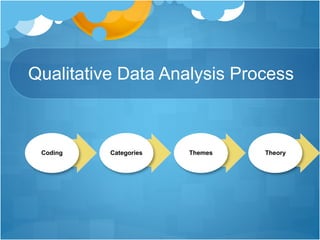
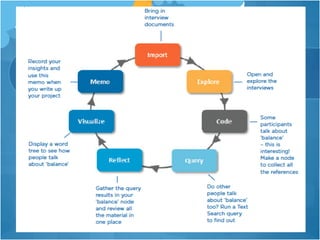
Qualitative Data Analysis Process
Coding Categories Themes Theory
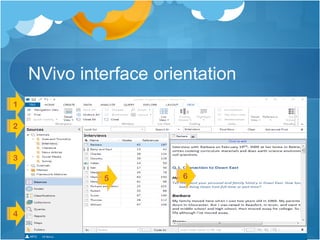
NVivo interface orientation
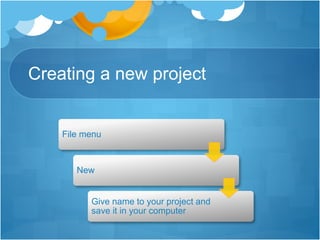
Creating a new project
File menu
New
Give name to your project and
save it in your computer
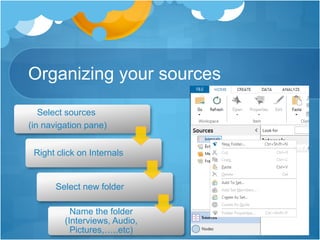
Organizing your sources
Select sources
(in navigation pane)
Right click on Internals
Select new folder
Name the folder
(Interviews, Audio,
Pictures,…..etc)
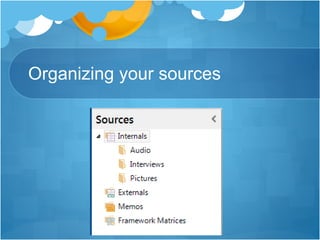
Organizing your sources
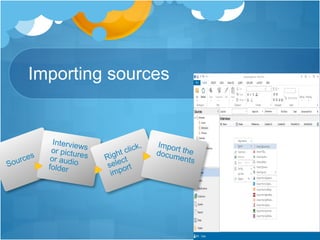
Importing sources
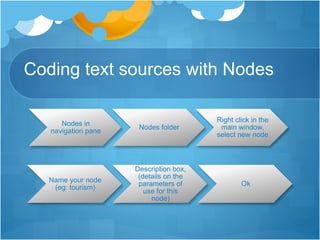
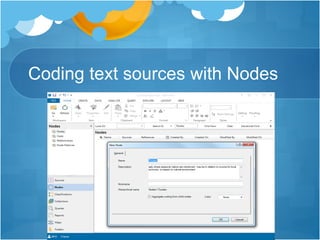
Coding text sources with Nodes
Nodes in
navigation pane
Nodes folder
Right click in the
main window,
select new node
Name your node
(eg: tourism)
Description box,
(details on the
parameters of
use for this
node)
Ok
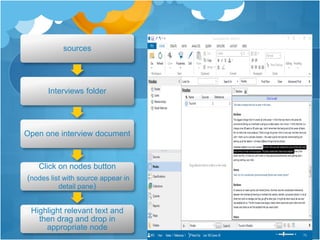
Coding text sources with Nodes
sources
Interviews folder
Open one interview document
Click on nodes button
(nodes list with source appear in
detail pane)
Highlight relevant text and
then drag and drop in
appropriate node
Auto-coding
It will code your data based on eg: interview
question.
Take care that not all information related to the node
will be presented by participant under one question.
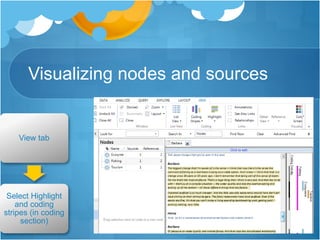
Visualizing nodes and sources
View tab
Select Highlight
and coding
stripes (in coding
section)
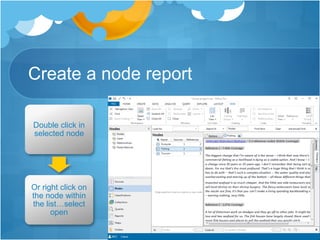
Create a node report
Double click in
selected node
Or right click on
the node within
the list…select
open
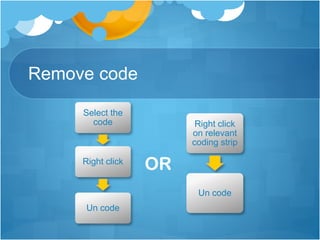
Remove code
Select the
code
Right click
Un code
Right click
on relevant
coding strip
Un code
OR
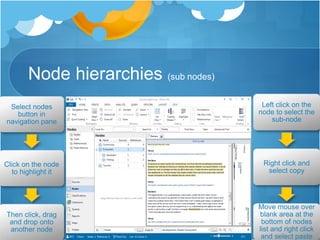
Node hierarchies (sub nodes)
Select nodes
button in
navigation pane
Click on the node
to highlight it
Then click, drag
and drop onto
another node
Left click on the
node to select the
sub-node
Right click and
select copy
Move mouse over
blank area at the
bottom of nodes
list and right click
and select paste
Coding image, Video and Audio
sources
Usually used in documentary projects.
Visualizing nodes and sources
Visualization: is to generate a graph of nodes
associated with a particular source.
These created models may give you a new insights on
your data.
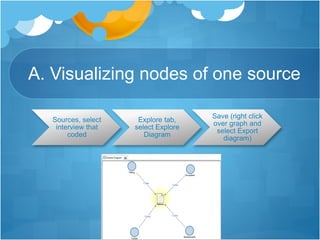
A. Visualizing nodes of one source
Sources, select
interview that
coded
Explore tab,
select Explore
Diagram
Save (right click
over graph and
select Export
diagram)
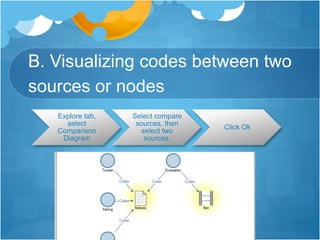
B. Visualizing codes between two
sources or nodes
Explore tab,
select
Comparison
Diagram
Select compare
sources, then
select two
sources.
Click Ok
Word frequency, word cloud and
word tree query
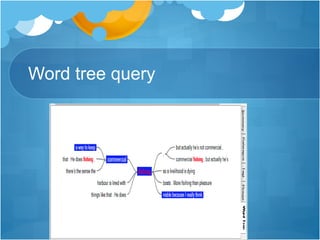
It help you to see unexpected associations in transcripts.
It help you to see contexts of use of particular words that
could give insight for analysis.
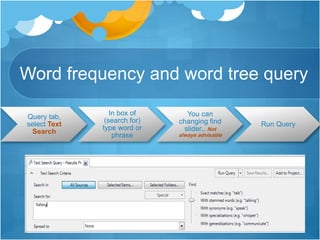
Word frequency and word tree query
Query tab,
select Text
Search
In box of
(search for)
type word or
phrase
You can
changing find
slider.. Not
always advisable
Run Query
Word tree query
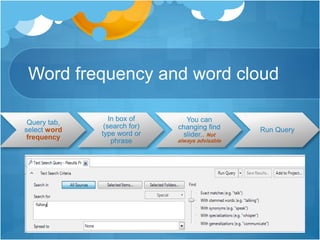
Word frequency and word cloud
Query tab,
select word
frequency
In box of
(search for)
type word or
phrase
You can
changing find
slider.. Not
always advisable
Run Query
Word cloud query
Exporting simple reports
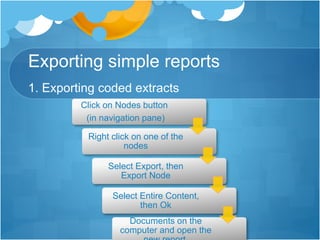
1. Exporting coded extracts
Click on Nodes button
(in navigation pane)
Right click on one of the
nodes
Select Export, then
Export Node
Select Entire Content,
then Ok
Documents on the
computer and open the
Exporting simple reports
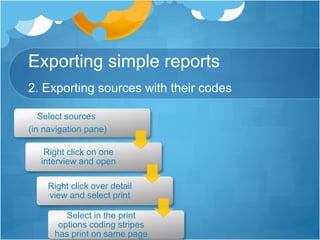
2. Exporting sources with their codes
Select sources
(in navigation pane)
Right click on one
interview and open
Right click over detail
view and select print
Select in the print
options coding stripes
has print on same page
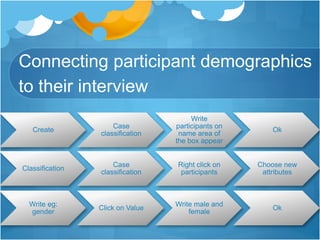
Connecting participant demographics
to their interview
Create
Case
classification
Write
participants on
name area of
the box appear
Ok
Classification
Case
classification
Right click on
participants
Choose new
attributes
Write eg:
gender
Click on Value
Write male and
female
Ok
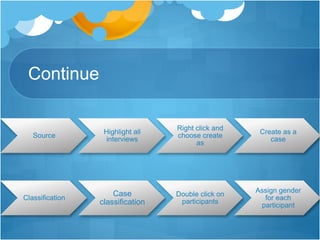
Continue
Source
Highlight all
interviews
Right click and
choose create
as
Create as a
case
Classification
Case
classification
Double click on
participants
Assign gender
for each
participant
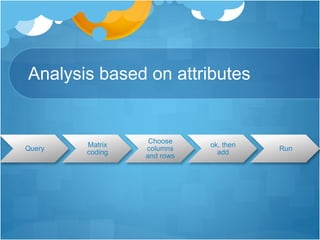
Analysis based on attributes
Query
Matrix
coding
Choose
columns
and rows
ok, then
add
Run
Further Resources
QSR video tutorials: http://www.qsrinternational.com/support_tutorials.aspx
Follow QSR on twitter for information about free training seminars, updates and tips: @QSRInt
Mantra practical on research data management (data files are in NVivo 9):
http://datalib.edina.ac.uk/mantra/softwarepracticals.html
Bazeley, P. Resources for qualitative data analysis and users of NVivo
http://www.researchsupport.com.au/ (website with freely available resources)
Bazeley, P. and Jackson, K. (2013). Doing qualitative data analysis with NVivo. 2nd Ed. London:
SAGE.
LinkedIn NVivo Users Group – good source of advice from experienced users. Free, but requires
a LinkedIn account and application to join the grouhttps://www.linkedin.com/groups/NVivo-Users-
Group-145388/about
Learn Nvivo: the basics [video tutorial course]. Lynda. Released 23 Nov 2016. (uses the basic
NVivo 11 Starter version) https://www.lynda.com/NVivo-tutorials/Learn-NVivo-Basics/530082-
2.html?org=ed.ac.uk

برنامج التحليل النوعي N vivo program د نهى العلولا

  • 1.
    7 November 2017 Someslides adapted from QSR International guide to use Nvivo and IS workbook of introduction to use NVivo
  • 2.
    Outline: Introduction NVivo interface orientation Creatinga new project Organizing your sources Importing sources Coding text sources with Nodes Visualizing nodes and sources Word count, word tree and word cloud query Exporting simple reports Analysis
  • 3.
    What is Nvivo? It is a software tool produced by QSR international for storing, organizing and querying non-numerical or un-structured data (Qualitative research).
  • 4.
    Qualitative Data AnalysisProcess Coding Categories Themes Theory
  • 5.
  • 6.
    Creating a newproject File menu New Give name to your project and save it in your computer
  • 7.
    Organizing your sources Selectsources (in navigation pane) Right click on Internals Select new folder Name the folder (Interviews, Audio, Pictures,…..etc)
  • 8.
  • 9.
  • 10.
    Coding text sourceswith Nodes Nodes in navigation pane Nodes folder Right click in the main window, select new node Name your node (eg: tourism) Description box, (details on the parameters of use for this node) Ok
  • 11.
  • 12.
    sources Interviews folder Open oneinterview document Click on nodes button (nodes list with source appear in detail pane) Highlight relevant text and then drag and drop in appropriate node
  • 13.
    Auto-coding It will codeyour data based on eg: interview question. Take care that not all information related to the node will be presented by participant under one question.
  • 14.
    Visualizing nodes andsources View tab Select Highlight and coding stripes (in coding section)
  • 15.
    Create a nodereport Double click in selected node Or right click on the node within the list…select open
  • 16.
    Remove code Select the code Rightclick Un code Right click on relevant coding strip Un code OR
  • 17.
    Node hierarchies (subnodes) Select nodes button in navigation pane Click on the node to highlight it Then click, drag and drop onto another node Left click on the node to select the sub-node Right click and select copy Move mouse over blank area at the bottom of nodes list and right click and select paste
  • 18.
    Coding image, Videoand Audio sources Usually used in documentary projects.
  • 19.
    Visualizing nodes andsources Visualization: is to generate a graph of nodes associated with a particular source. These created models may give you a new insights on your data.
  • 20.
    A. Visualizing nodesof one source Sources, select interview that coded Explore tab, select Explore Diagram Save (right click over graph and select Export diagram)
  • 21.
    B. Visualizing codesbetween two sources or nodes Explore tab, select Comparison Diagram Select compare sources, then select two sources. Click Ok
  • 22.
    Word frequency, wordcloud and word tree query It help you to see unexpected associations in transcripts. It help you to see contexts of use of particular words that could give insight for analysis.
  • 23.
    Word frequency andword tree query Query tab, select Text Search In box of (search for) type word or phrase You can changing find slider.. Not always advisable Run Query
  • 24.
  • 25.
    Word frequency andword cloud Query tab, select word frequency In box of (search for) type word or phrase You can changing find slider.. Not always advisable Run Query
  • 26.
  • 27.
    Exporting simple reports 1.Exporting coded extracts Click on Nodes button (in navigation pane) Right click on one of the nodes Select Export, then Export Node Select Entire Content, then Ok Documents on the computer and open the
  • 28.
    Exporting simple reports 2.Exporting sources with their codes Select sources (in navigation pane) Right click on one interview and open Right click over detail view and select print Select in the print options coding stripes has print on same page
  • 29.
    Connecting participant demographics totheir interview Create Case classification Write participants on name area of the box appear Ok Classification Case classification Right click on participants Choose new attributes Write eg: gender Click on Value Write male and female Ok
  • 30.
    Continue Source Highlight all interviews Right clickand choose create as Create as a case Classification Case classification Double click on participants Assign gender for each participant
  • 31.
    Analysis based onattributes Query Matrix coding Choose columns and rows ok, then add Run
  • 34.
    Further Resources QSR videotutorials: http://www.qsrinternational.com/support_tutorials.aspx Follow QSR on twitter for information about free training seminars, updates and tips: @QSRInt Mantra practical on research data management (data files are in NVivo 9): http://datalib.edina.ac.uk/mantra/softwarepracticals.html Bazeley, P. Resources for qualitative data analysis and users of NVivo http://www.researchsupport.com.au/ (website with freely available resources) Bazeley, P. and Jackson, K. (2013). Doing qualitative data analysis with NVivo. 2nd Ed. London: SAGE. LinkedIn NVivo Users Group – good source of advice from experienced users. Free, but requires a LinkedIn account and application to join the grouhttps://www.linkedin.com/groups/NVivo-Users- Group-145388/about Learn Nvivo: the basics [video tutorial course]. Lynda. Released 23 Nov 2016. (uses the basic NVivo 11 Starter version) https://www.lynda.com/NVivo-tutorials/Learn-NVivo-Basics/530082- 2.html?org=ed.ac.uk