Anders Karlsson
anders@skysql.com
MySQL on Amazon AWS 101
Free as in
Free Beer
SkySQL
Solutions Day
Agenda
• About Anders Karlsson
• Who is this for?
• Amazon database options
• Amazon AWS EC2 basics
• Getting dirty!
• Preparing EC2 for MySQL
• Installing MySQL on EC2
• EC2 features for the MySQL DBA
• Backing up MySQL using EC2
• Provisioning a new slave using EC2
• Questions? Answers?
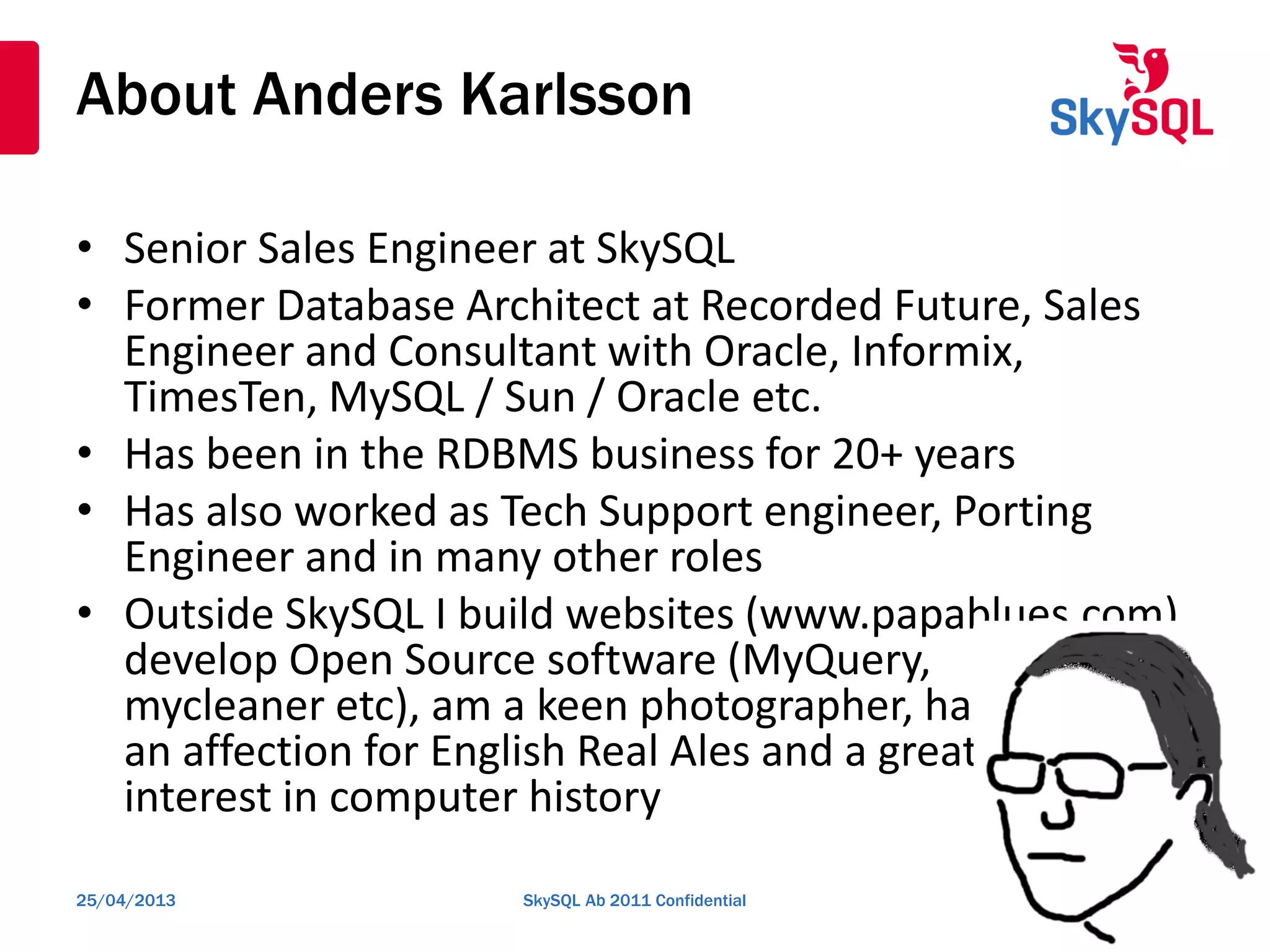
About Anders Karlsson
• Senior Sales Engineer at SkySQL
• Former Database Architect at Recorded Future, Sales
Engineer and Consultant with Oracle, Informix,
TimesTen, MySQL / Sun / Oracle etc.
• Has been in the RDBMS business for 20+ years
• Has also worked as Tech Support engineer, Porting
Engineer and in many other roles
• Outside SkySQL I build websites (www.papablues.com),
develop Open Source software (MyQuery,
mycleaner etc), am a keen photographer, has
an affection for English Real Ales and a great
interest in computer history
25/04/2013 SkySQL Ab 2011 Confidential 3
Who is this for?
• If you are a newcomer to MySQL? Maybe,
and maybe not. But I make some
assumptions on what you know about
MySQL and MariaDB
• If you know EC2 really well and has used it
for a long time? Probably not, you will most
likely not learn anything new
• If you are a MySQL DBA that wants to
explore the Amazon cloud or want to know
more about it? Stay just where you are,
don't touch that dial!
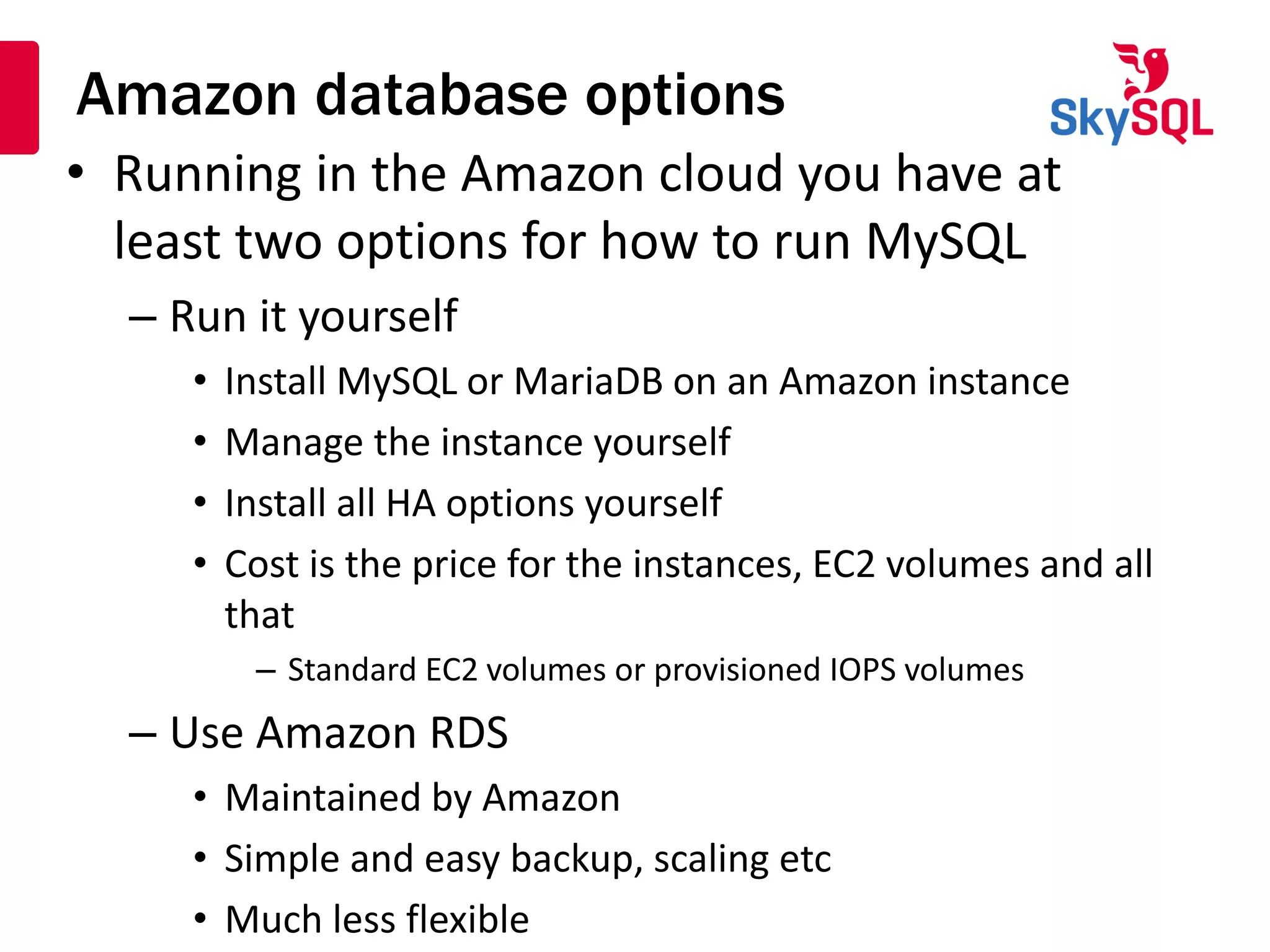
Amazon database options
• Running in the Amazon cloud you have at
least two options for how to run MySQL
– Run it yourself
• Install MySQL or MariaDB on an Amazon instance
• Manage the instance yourself
• Install all HA options yourself
• Cost is the price for the instances, EC2 volumes and all
that
– Standard EC2 volumes or provisioned IOPS volumes
– Use Amazon RDS
• Maintained by Amazon
• Simple and easy backup, scaling etc
• Much less flexible
Amazon database options
• This talk is not about Amazon RDS service
• This talk is about installing MariaDB in your
own Amazon AWS instance
– We will be using EC2 disks
– We will be looking at setting up replication
– We will be using Ubuntu (a standard Ubuntu
provided by Amazon)
– We will be using mostly Amazon EC2 command
line tools
• No GUI stuff!
Amazon EC2 – The basics
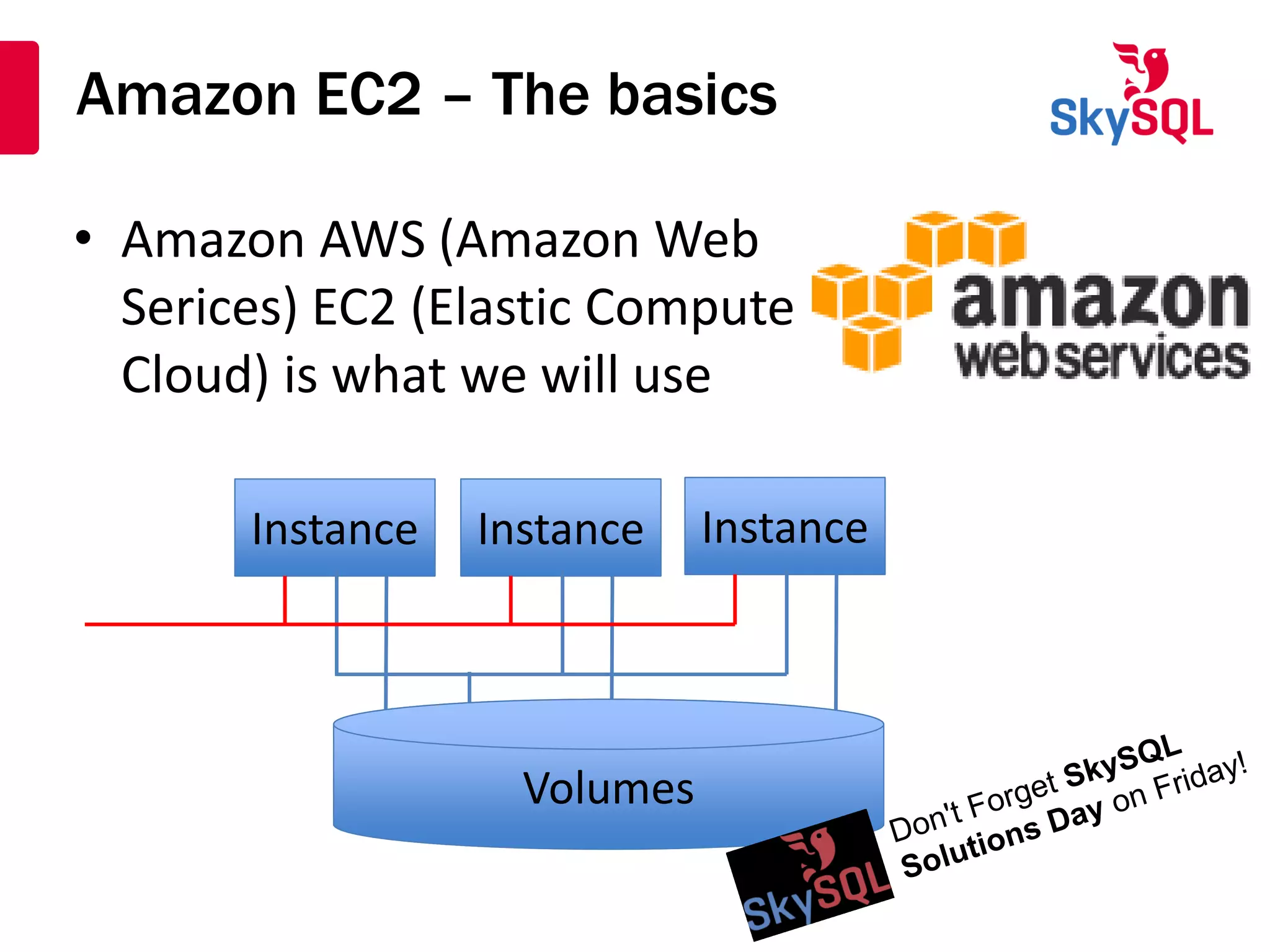
• Amazon AWS (Amazon Web
Serices) EC2 (Elastic Compute
Cloud) is what we will use
InstanceInstance InstanceInstance InstanceInstance
VolumesVolumes
Amazon EC2 – Instances
• Instance – A virtual machine
• Is identified by an instance id
• Has 2 network interfaces, 1 internal and 1 public
• May have a "local" Ephermal disk that is tied to
the instance: If the instance goes, the data goes!
• Is of a type which determines amount of
memory, CPU power and some other things
• Is part of a security group which determines
network security
• Is located in an Availability Zone
Amazon EC2 – Volumes
• EC2 disks are called volumes
• Are identified by a Volume id
• EC2 disks appear much as normal disks to
Linux
• EC2 disks are either:
– Standard – Using the internal network
– Provisioned IOPS – Using a separate network
• Are located in an Availability Zone
• May be attached to an instance
Amazon EC2 - Snapshots
• Snapshots are "copies" of EC2 volumes
• Are identified by a Snapshot id
• New Volumes can be created from Snapshots
• Snapshots are located in an Availability Zone
– New volumes has to be in the same AZ as the
Snapshot it is created from
• Taking a snapshot is fast
– Done at the Volume level, not at the Instance
level. So this is different from an LVM Snapshot
Time to get our hands dirty!
• I have created 2 m3.xlarge instances for us to
play with
– 15 Gb RAM
– 4 "Cores"
– No ephermal disk
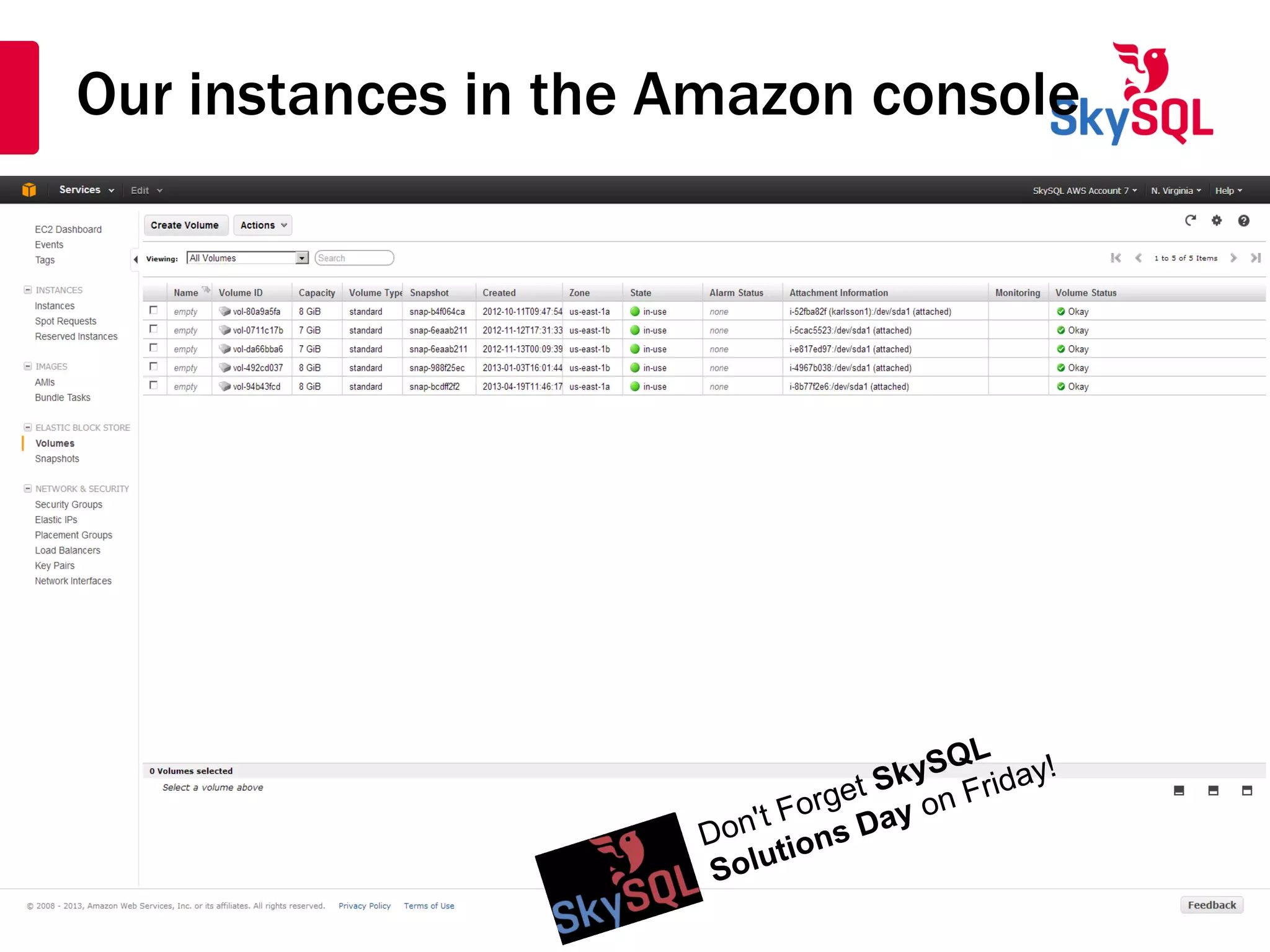
• Let's have a look at the
AWS console – We should
see 2 instances and 2 EBS disks
Our instances in the Amazon console
Hey, you said "no GUI"! Stop doing that!
• To begin with, log on to the instance using the
certificate key-pair from when the instance was
created
– No, you cannot get at it later. You can't.
– If you are on Windows and Putty, use puttygen to
convert the certificate to one that putty understands
OK, OK! Lets go
command line
mode then!
OK, OK! Lets go
command line
mode then!
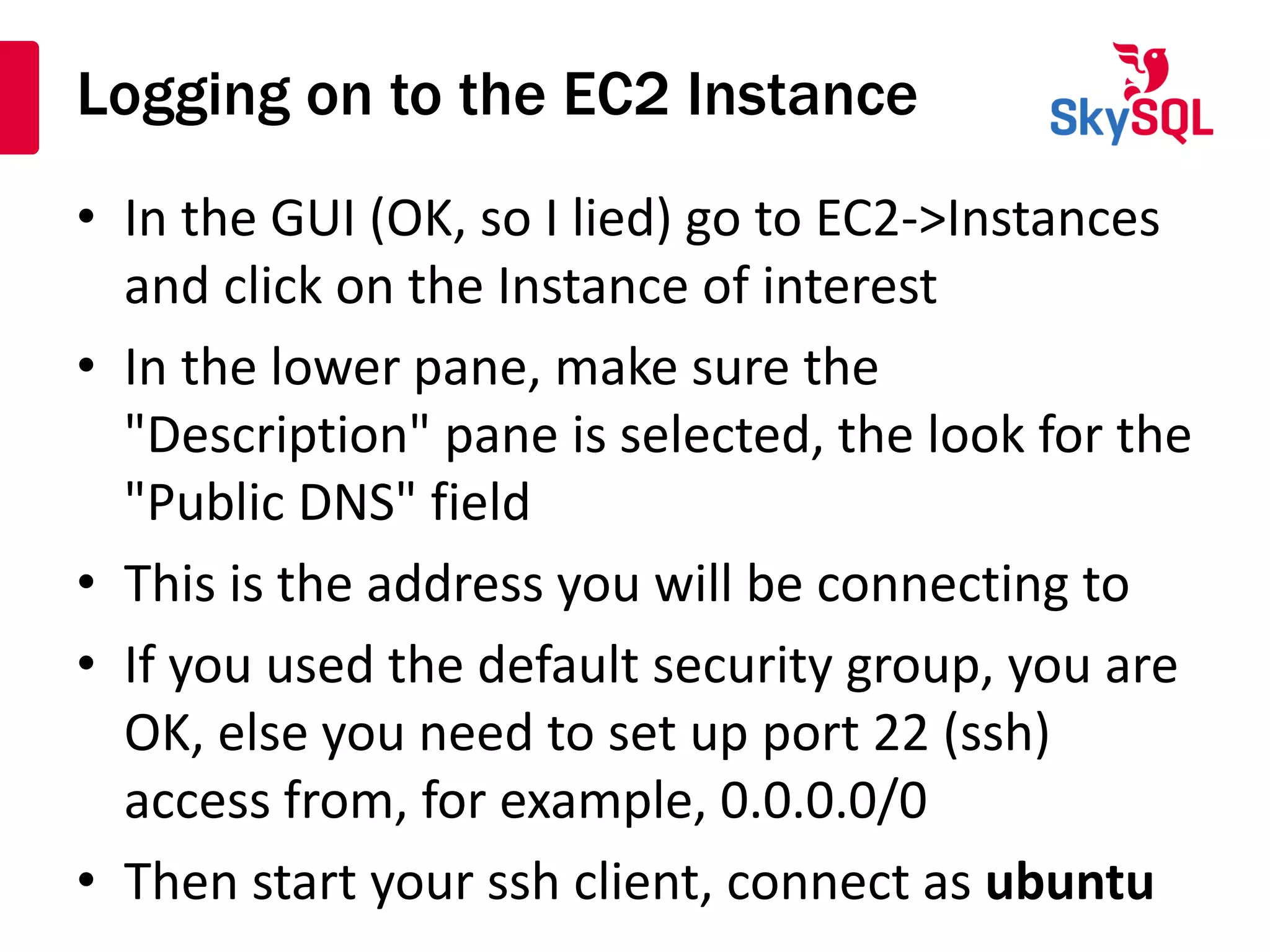
Logging on to the EC2 Instance
• In the GUI (OK, so I lied) go to EC2->Instances
and click on the Instance of interest
• In the lower pane, make sure the
"Description" pane is selected, the look for the
"Public DNS" field
• This is the address you will be connecting to
• If you used the default security group, you are
OK, else you need to set up port 22 (ssh)
access from, for example, 0.0.0.0/0
• Then start your ssh client, connect as ubuntu
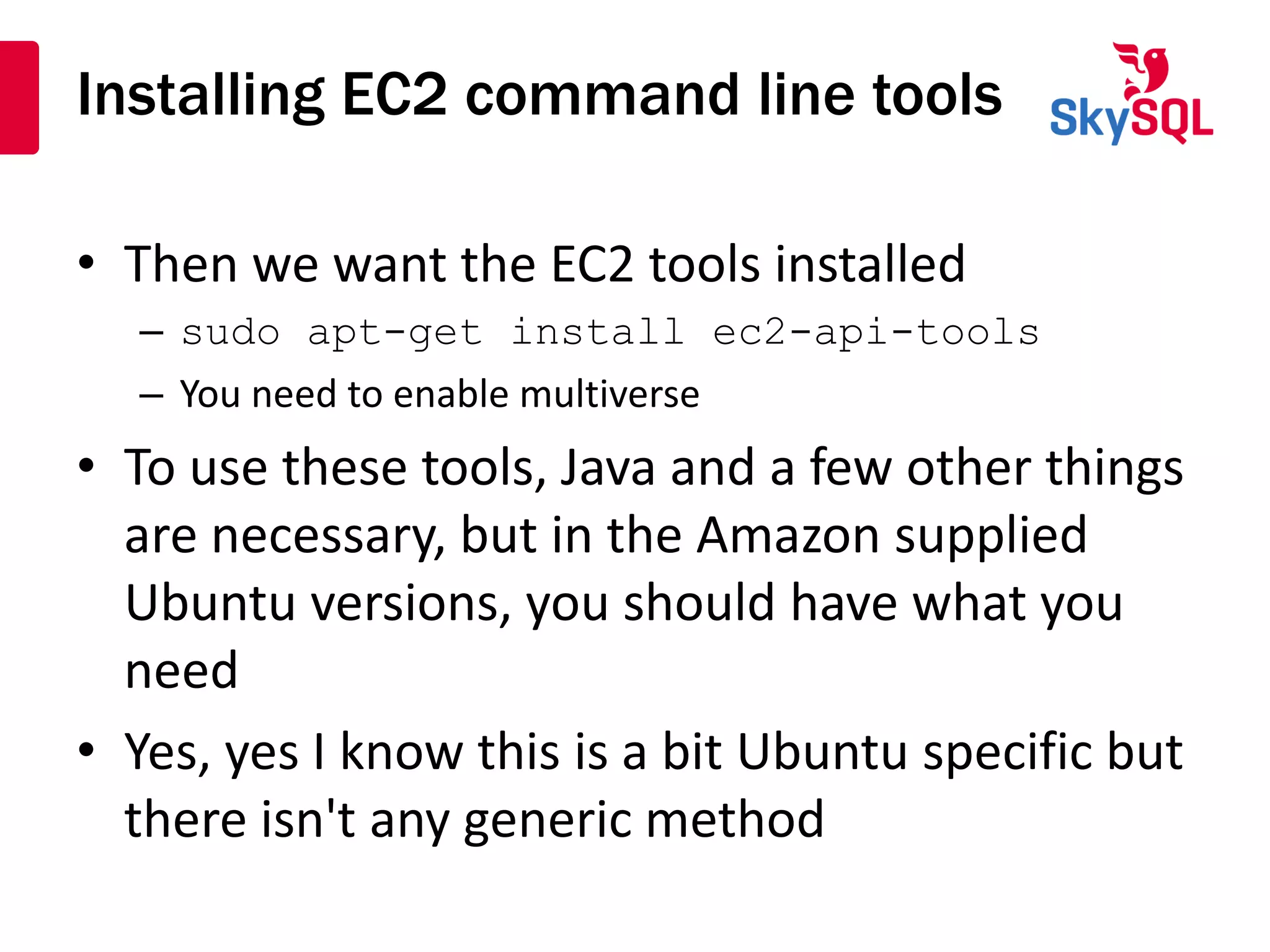
Installing EC2 command line tools
• Then we want the EC2 tools installed
– sudo apt-get install ec2-api-tools
– You need to enable multiverse
• To use these tools, Java and a few other things
are necessary, but in the Amazon supplied
Ubuntu versions, you should have what you
need
• Yes, yes I know this is a bit Ubuntu specific but
there isn't any generic method
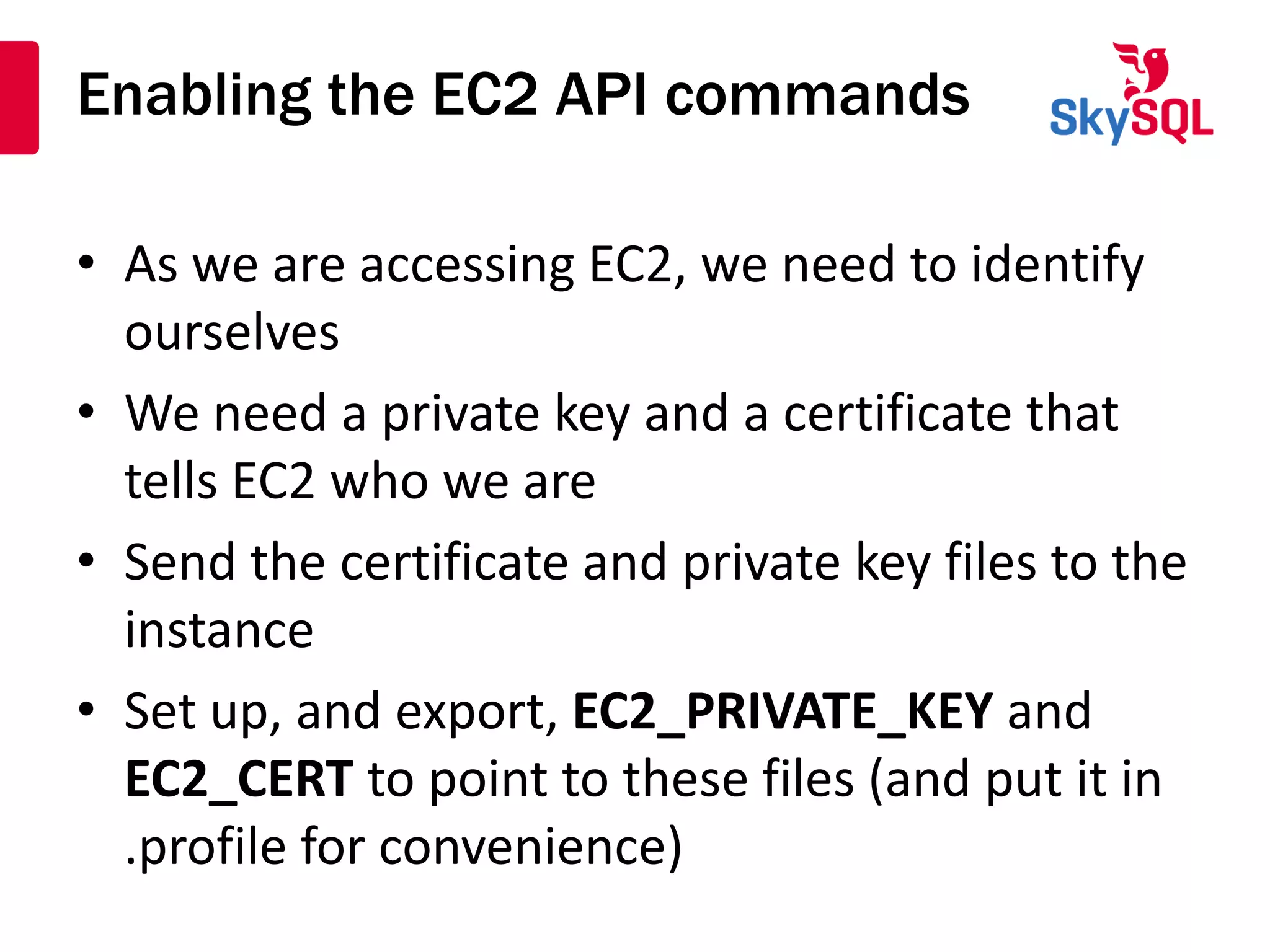
Enabling the EC2 API commands
• As we are accessing EC2, we need to identify
ourselves
• We need a private key and a certificate that
tells EC2 who we are
• Send the certificate and private key files to the
instance
• Set up, and export, EC2_PRIVATE_KEY and
EC2_CERT to point to these files (and put it in
.profile for convenience)
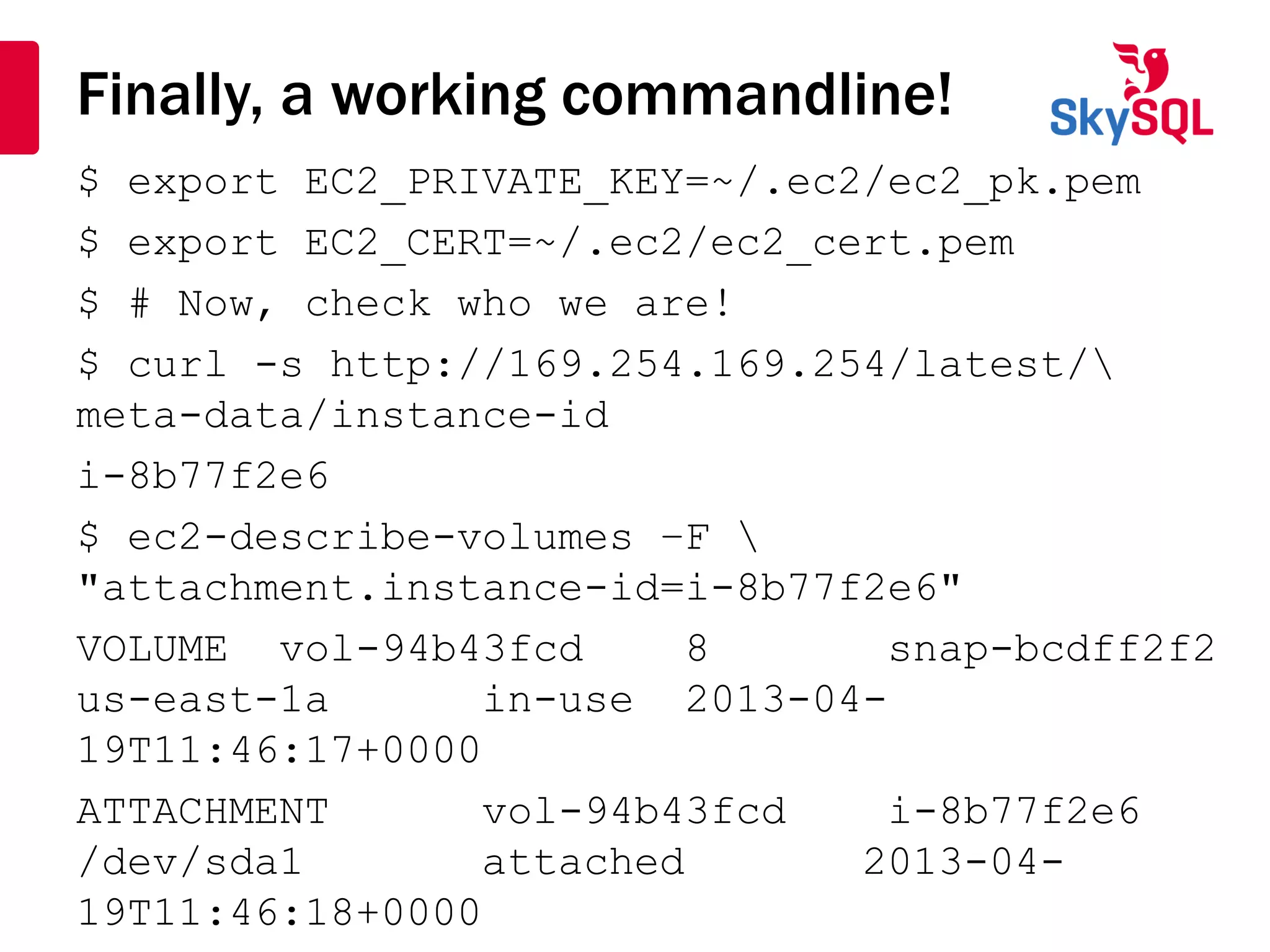
Finally, a working commandline!
$ export EC2_PRIVATE_KEY=~/.ec2/ec2_pk.pem
$ export EC2_CERT=~/.ec2/ec2_cert.pem
$ # Now, check who we are!
$ curl -s http://169.254.169.254/latest/
meta-data/instance-id
i-8b77f2e6
$ ec2-describe-volumes –F 
"attachment.instance-id=i-8b77f2e6"
VOLUME vol-94b43fcd 8 snap-bcdff2f2
us-east-1a in-use 2013-04-
19T11:46:17+0000
ATTACHMENT vol-94b43fcd i-8b77f2e6
/dev/sda1 attached 2013-04-
19T11:46:18+0000
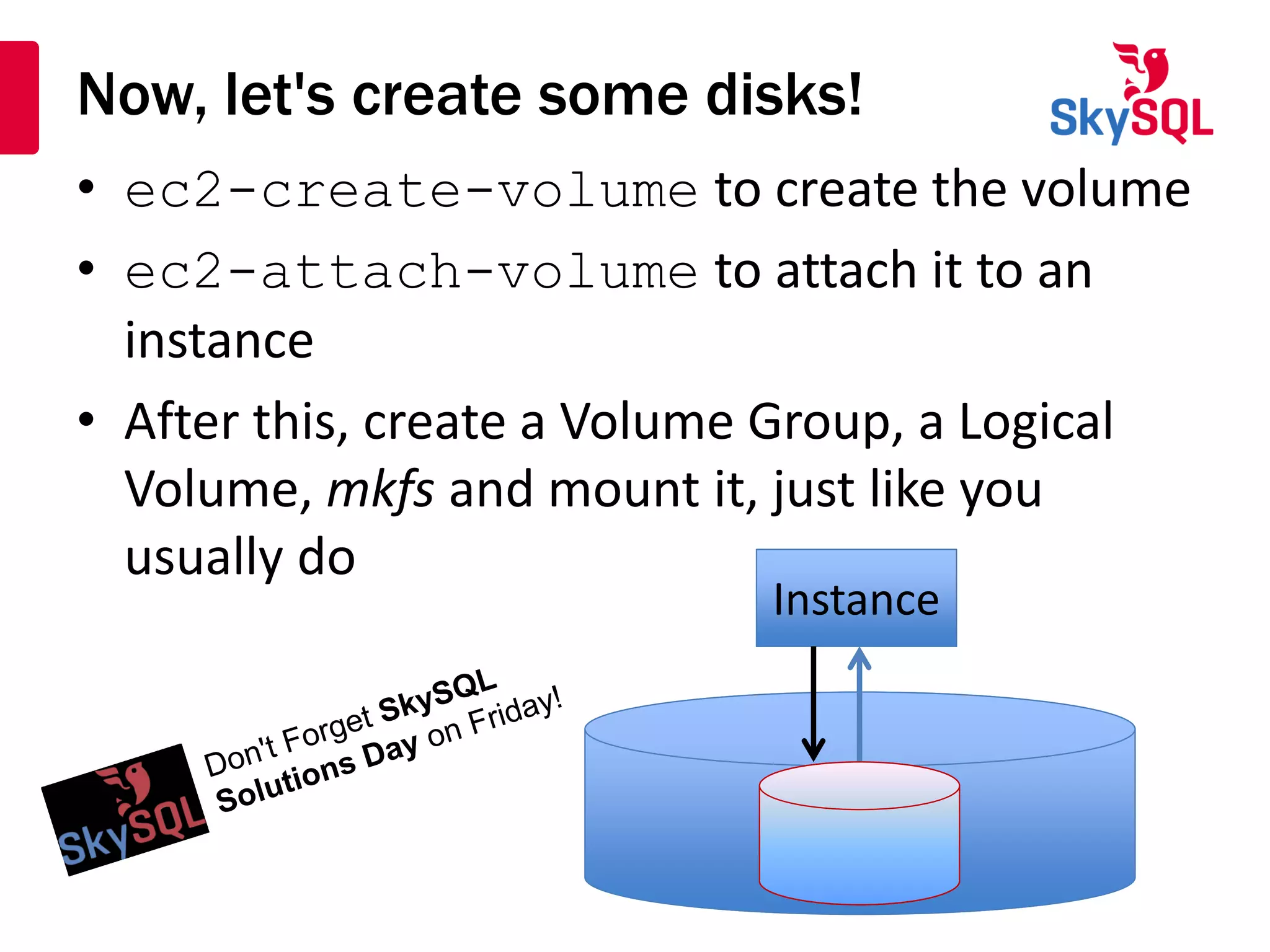
Now, let's create some disks!
• ec2-create-volume to create the volume
• ec2-attach-volume to attach it to an
instance
• After this, create a Volume Group, a Logical
Volume, mkfs and mount it, just like you
usually do
InstanceInstance
Disk creation for MySQL in EC2
INSTANCE=`curl -s http://169.254.169.254/latest/meta-
data/instance-id`
AZ=`curl -s http://169.254.169.254/latest/meta-
data/placement/availability-zone`
VOLID=`ec2-create-volume --size 200 -z $AZ | awk '{print $2}'`
ec2-create-tags $VOLID --tag role=mysqlmaster
ec2-attach-volume $VOLID -i $INSTANCE -d =/dev/sdb1
while [ ! -b /dev/xvdb1 ]; do
echo "Waiting for /dev/xvdb1 to become available"
sleep 5
done
sudo pvcreate /dev/xvdb1
sudo vgcreate vg_mysql /dev/xvdb1
sudo lvcreate -L $195G -n lv_mysql vg_mysql
sudo mkfs -t xfs /dev/vg_mysql/lv_mysql
sudo mount -t xfs /dev/vb_mysqk/lv_mysql /data
sudo chown -R mysql:mysql /data
Time to start MySQL
• MySQL binaries are in /usr/local/mariadb1001
cd /usr/local/mariadb1001
scripts/mysql_install_db --defaults-file=my.cnf
bin/mysqld_safe --defaults-file=my.cnf &
• Now, insert some test data. This
script will create a table t1 and
start inserting into it
cd
./gendata.sh &
Now, Backups! Fun!
• Backups are best done with EC2 snapshots
• I tend to like xfs as we can do a freeze there,
so we can have a consistent backup "below"
LVM
• I also use FLUSH TABLES
• Let's see it in action!
Creating the snapshot – Part 1
#!/bin/bash
#
mysql --skip-column-names -u root <<!EOF
flush tables with read lock;
! mysql --skip-column-names -u root -e "show master status" >
/data/snappos.dat
! $HOME/snapvol.sh
unlock tables;
!EOF
Creating the snapshot – Part 2
sync; sync
sudo xfs_freeze -f /data
VOLID=`cat $HOME/volid.dat`
SNAPID=`ec2-create-snapshot $VOLID -d
mysql_master_backup | awk '{print $2}'`
SNAPSTAT=`ec2-describe-snapshots $SNAPID | awk
'{print $4}'`
while [ "x$SNAPSTAT" != "xcompleted" ]; do
echo "Waiting for snapshot to complete"
sleep 1
SNAPSTAT=`ec2-describe-snapshots $SNAPID | awk
'{print $4}'`
done
sudo xfs_freeze -u /data
Provisioning a slave from a backup
• Provisioning a slave is done by
– Creating a volume from a snapshot of the
corresponding master
– Mount that on the slave
– Start MySQL
– Configure the slave
– Start the slave
– Wait for the slave to catch up…
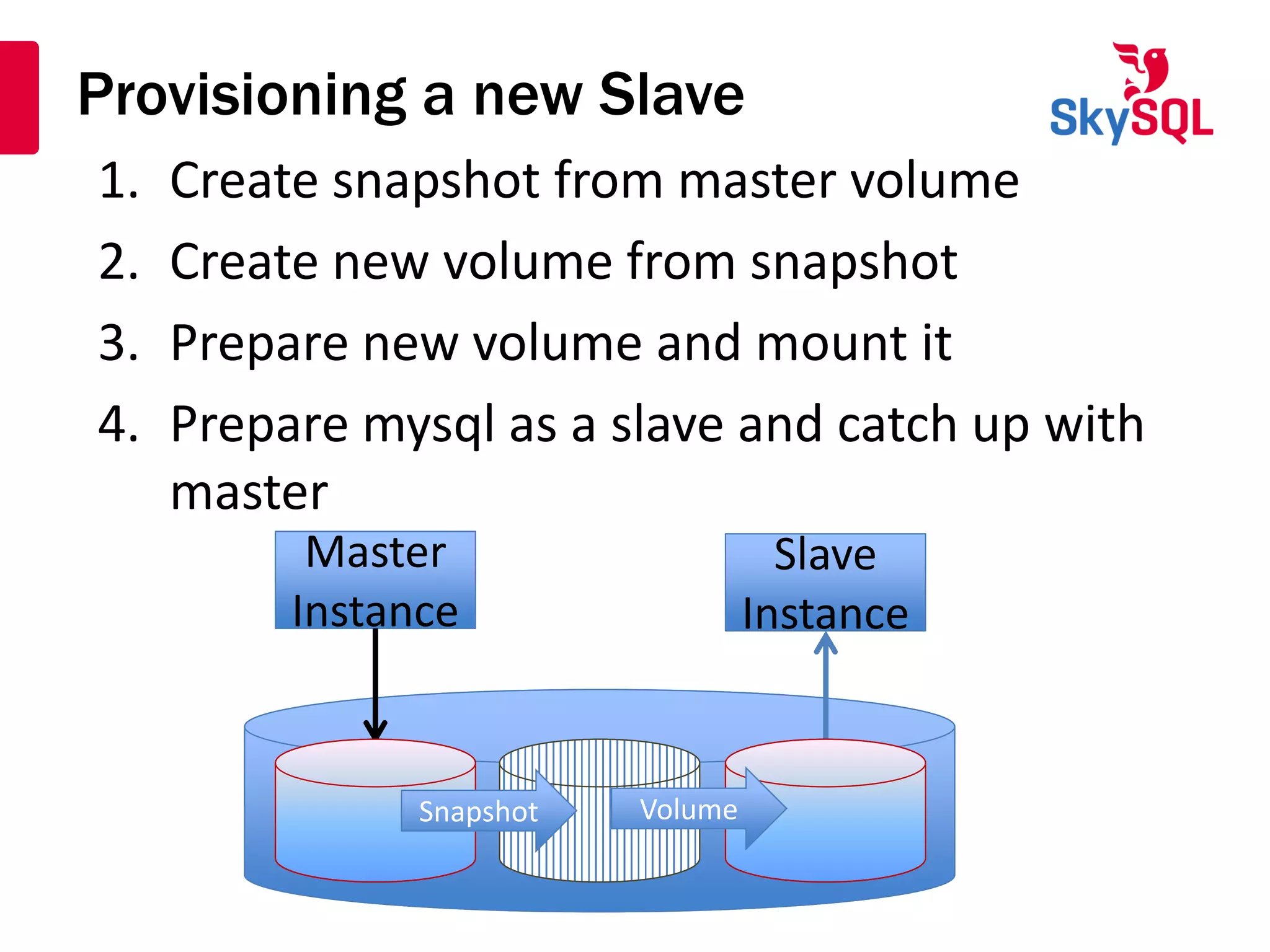
Provisioning a new Slave
Master
Instance
Master
Instance
Slave
Instance
Slave
Instance
SnapshotSnapshot VolumeVolume
1. Create snapshot from master volume
2. Create new volume from snapshot
3. Prepare new volume and mount it
4. Prepare mysql as a slave and catch up with
master
Provisioning a slave – Create Volume
INSTANCE=`curl -s http://169.254.169.254/latest/meta-
data/instance-id`
AZ=`curl -s http://169.254.169.254/latest/meta-
data/placement/availability-zone`
SNAPID=`ec2-describe-snapshots -F
description=mysql_master_backup | awk '{print $2}'`
VOLID=`ec2-create-volume --snapshot $SNAPID --
availability-zone $AZ | awk '{print $2}'`
ec2-attach-volume $VOLID -i $INSTANCE -d /dev/sdb1
while [ ! -b /dev/xvdb1 ]; do
echo "Waiting for /dev/xvdb1 to become available"
sleep 5
done
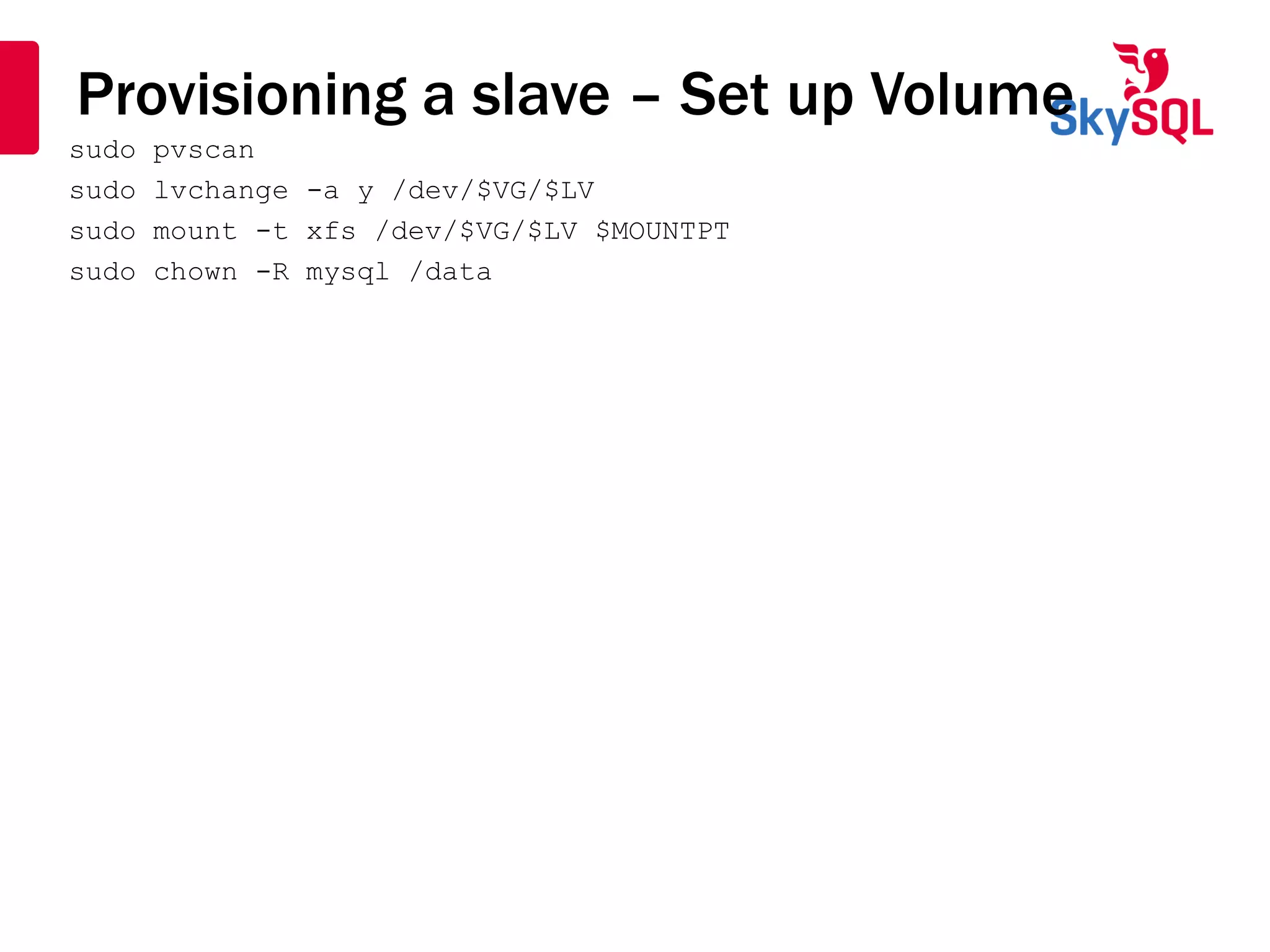
Provisioning a slave – Set up Volume
sudo pvscan
sudo lvchange -a y /dev/$VG/$LV
sudo mount -t xfs /dev/$VG/$LV $MOUNTPT
sudo chown -R mysql /data
Provisioning a slave – Set up MySQL
cd /usr/local/mariadb1001
sudo bin/mysqld_safe --defaults-
file=/usr/local/mariadb1001/my.cnf &
while [ ! -S /tmp/mysql.sock ]; do
sleep 3
done
MASTERFILE=`awk '{print $1}' < /data/snappos.dat`
MASTERPOS=`awk '{print $2}' < /data/snappos.dat`
echo "CHANGE MASTER TO MASTER_LOG_FILE='$MASTERFILE',
master_log_pos=$MASTERPOS,
master_host='aws101_1',
master_port=3306,
master_user='repl',
master_password='repl';" | mysql -u root
mysql -u root -e "start slave"
Questions? Answers!
Anders Karlsson
anders@skysql.com
http://karlssonondatabases.blogspot.com
The question is not “What is the
answer?”, the question is “What is the
question?”.
Henri Poincaré
The question is not “What is the
answer?”, the question is “What is the
question?”.
Henri Poincaré

MySQL on AWS 101

  • 1.
    Anders Karlsson anders@skysql.com MySQL onAmazon AWS 101 Free as in Free Beer SkySQL Solutions Day
  • 2.
    Agenda • About AndersKarlsson • Who is this for? • Amazon database options • Amazon AWS EC2 basics • Getting dirty! • Preparing EC2 for MySQL • Installing MySQL on EC2 • EC2 features for the MySQL DBA • Backing up MySQL using EC2 • Provisioning a new slave using EC2 • Questions? Answers?
  • 3.
    About Anders Karlsson •Senior Sales Engineer at SkySQL • Former Database Architect at Recorded Future, Sales Engineer and Consultant with Oracle, Informix, TimesTen, MySQL / Sun / Oracle etc. • Has been in the RDBMS business for 20+ years • Has also worked as Tech Support engineer, Porting Engineer and in many other roles • Outside SkySQL I build websites (www.papablues.com), develop Open Source software (MyQuery, mycleaner etc), am a keen photographer, has an affection for English Real Ales and a great interest in computer history 25/04/2013 SkySQL Ab 2011 Confidential 3
  • 4.
    Who is thisfor? • If you are a newcomer to MySQL? Maybe, and maybe not. But I make some assumptions on what you know about MySQL and MariaDB • If you know EC2 really well and has used it for a long time? Probably not, you will most likely not learn anything new • If you are a MySQL DBA that wants to explore the Amazon cloud or want to know more about it? Stay just where you are, don't touch that dial!
  • 5.
    Amazon database options •Running in the Amazon cloud you have at least two options for how to run MySQL – Run it yourself • Install MySQL or MariaDB on an Amazon instance • Manage the instance yourself • Install all HA options yourself • Cost is the price for the instances, EC2 volumes and all that – Standard EC2 volumes or provisioned IOPS volumes – Use Amazon RDS • Maintained by Amazon • Simple and easy backup, scaling etc • Much less flexible
  • 6.
    Amazon database options •This talk is not about Amazon RDS service • This talk is about installing MariaDB in your own Amazon AWS instance – We will be using EC2 disks – We will be looking at setting up replication – We will be using Ubuntu (a standard Ubuntu provided by Amazon) – We will be using mostly Amazon EC2 command line tools • No GUI stuff!
  • 7.
    Amazon EC2 –The basics • Amazon AWS (Amazon Web Serices) EC2 (Elastic Compute Cloud) is what we will use InstanceInstance InstanceInstance InstanceInstance VolumesVolumes
  • 8.
    Amazon EC2 –Instances • Instance – A virtual machine • Is identified by an instance id • Has 2 network interfaces, 1 internal and 1 public • May have a "local" Ephermal disk that is tied to the instance: If the instance goes, the data goes! • Is of a type which determines amount of memory, CPU power and some other things • Is part of a security group which determines network security • Is located in an Availability Zone
  • 9.
    Amazon EC2 –Volumes • EC2 disks are called volumes • Are identified by a Volume id • EC2 disks appear much as normal disks to Linux • EC2 disks are either: – Standard – Using the internal network – Provisioned IOPS – Using a separate network • Are located in an Availability Zone • May be attached to an instance
  • 10.
    Amazon EC2 -Snapshots • Snapshots are "copies" of EC2 volumes • Are identified by a Snapshot id • New Volumes can be created from Snapshots • Snapshots are located in an Availability Zone – New volumes has to be in the same AZ as the Snapshot it is created from • Taking a snapshot is fast – Done at the Volume level, not at the Instance level. So this is different from an LVM Snapshot
  • 11.
    Time to getour hands dirty! • I have created 2 m3.xlarge instances for us to play with – 15 Gb RAM – 4 "Cores" – No ephermal disk • Let's have a look at the AWS console – We should see 2 instances and 2 EBS disks
  • 12.
    Our instances inthe Amazon console
  • 13.
    Hey, you said"no GUI"! Stop doing that! • To begin with, log on to the instance using the certificate key-pair from when the instance was created – No, you cannot get at it later. You can't. – If you are on Windows and Putty, use puttygen to convert the certificate to one that putty understands OK, OK! Lets go command line mode then! OK, OK! Lets go command line mode then!
  • 14.
    Logging on tothe EC2 Instance • In the GUI (OK, so I lied) go to EC2->Instances and click on the Instance of interest • In the lower pane, make sure the "Description" pane is selected, the look for the "Public DNS" field • This is the address you will be connecting to • If you used the default security group, you are OK, else you need to set up port 22 (ssh) access from, for example, 0.0.0.0/0 • Then start your ssh client, connect as ubuntu
  • 15.
    Installing EC2 commandline tools • Then we want the EC2 tools installed – sudo apt-get install ec2-api-tools – You need to enable multiverse • To use these tools, Java and a few other things are necessary, but in the Amazon supplied Ubuntu versions, you should have what you need • Yes, yes I know this is a bit Ubuntu specific but there isn't any generic method
  • 16.
    Enabling the EC2API commands • As we are accessing EC2, we need to identify ourselves • We need a private key and a certificate that tells EC2 who we are • Send the certificate and private key files to the instance • Set up, and export, EC2_PRIVATE_KEY and EC2_CERT to point to these files (and put it in .profile for convenience)
  • 17.
    Finally, a workingcommandline! $ export EC2_PRIVATE_KEY=~/.ec2/ec2_pk.pem $ export EC2_CERT=~/.ec2/ec2_cert.pem $ # Now, check who we are! $ curl -s http://169.254.169.254/latest/ meta-data/instance-id i-8b77f2e6 $ ec2-describe-volumes –F "attachment.instance-id=i-8b77f2e6" VOLUME vol-94b43fcd 8 snap-bcdff2f2 us-east-1a in-use 2013-04- 19T11:46:17+0000 ATTACHMENT vol-94b43fcd i-8b77f2e6 /dev/sda1 attached 2013-04- 19T11:46:18+0000
  • 18.
    Now, let's createsome disks! • ec2-create-volume to create the volume • ec2-attach-volume to attach it to an instance • After this, create a Volume Group, a Logical Volume, mkfs and mount it, just like you usually do InstanceInstance
  • 19.
    Disk creation forMySQL in EC2 INSTANCE=`curl -s http://169.254.169.254/latest/meta- data/instance-id` AZ=`curl -s http://169.254.169.254/latest/meta- data/placement/availability-zone` VOLID=`ec2-create-volume --size 200 -z $AZ | awk '{print $2}'` ec2-create-tags $VOLID --tag role=mysqlmaster ec2-attach-volume $VOLID -i $INSTANCE -d =/dev/sdb1 while [ ! -b /dev/xvdb1 ]; do echo "Waiting for /dev/xvdb1 to become available" sleep 5 done sudo pvcreate /dev/xvdb1 sudo vgcreate vg_mysql /dev/xvdb1 sudo lvcreate -L $195G -n lv_mysql vg_mysql sudo mkfs -t xfs /dev/vg_mysql/lv_mysql sudo mount -t xfs /dev/vb_mysqk/lv_mysql /data sudo chown -R mysql:mysql /data
  • 20.
    Time to startMySQL • MySQL binaries are in /usr/local/mariadb1001 cd /usr/local/mariadb1001 scripts/mysql_install_db --defaults-file=my.cnf bin/mysqld_safe --defaults-file=my.cnf & • Now, insert some test data. This script will create a table t1 and start inserting into it cd ./gendata.sh &
  • 21.
    Now, Backups! Fun! •Backups are best done with EC2 snapshots • I tend to like xfs as we can do a freeze there, so we can have a consistent backup "below" LVM • I also use FLUSH TABLES • Let's see it in action!
  • 22.
    Creating the snapshot– Part 1 #!/bin/bash # mysql --skip-column-names -u root <<!EOF flush tables with read lock; ! mysql --skip-column-names -u root -e "show master status" > /data/snappos.dat ! $HOME/snapvol.sh unlock tables; !EOF
  • 23.
    Creating the snapshot– Part 2 sync; sync sudo xfs_freeze -f /data VOLID=`cat $HOME/volid.dat` SNAPID=`ec2-create-snapshot $VOLID -d mysql_master_backup | awk '{print $2}'` SNAPSTAT=`ec2-describe-snapshots $SNAPID | awk '{print $4}'` while [ "x$SNAPSTAT" != "xcompleted" ]; do echo "Waiting for snapshot to complete" sleep 1 SNAPSTAT=`ec2-describe-snapshots $SNAPID | awk '{print $4}'` done sudo xfs_freeze -u /data
  • 24.
    Provisioning a slavefrom a backup • Provisioning a slave is done by – Creating a volume from a snapshot of the corresponding master – Mount that on the slave – Start MySQL – Configure the slave – Start the slave – Wait for the slave to catch up…
  • 25.
    Provisioning a newSlave Master Instance Master Instance Slave Instance Slave Instance SnapshotSnapshot VolumeVolume 1. Create snapshot from master volume 2. Create new volume from snapshot 3. Prepare new volume and mount it 4. Prepare mysql as a slave and catch up with master
  • 26.
    Provisioning a slave– Create Volume INSTANCE=`curl -s http://169.254.169.254/latest/meta- data/instance-id` AZ=`curl -s http://169.254.169.254/latest/meta- data/placement/availability-zone` SNAPID=`ec2-describe-snapshots -F description=mysql_master_backup | awk '{print $2}'` VOLID=`ec2-create-volume --snapshot $SNAPID -- availability-zone $AZ | awk '{print $2}'` ec2-attach-volume $VOLID -i $INSTANCE -d /dev/sdb1 while [ ! -b /dev/xvdb1 ]; do echo "Waiting for /dev/xvdb1 to become available" sleep 5 done
  • 27.
    Provisioning a slave– Set up Volume sudo pvscan sudo lvchange -a y /dev/$VG/$LV sudo mount -t xfs /dev/$VG/$LV $MOUNTPT sudo chown -R mysql /data
  • 28.
    Provisioning a slave– Set up MySQL cd /usr/local/mariadb1001 sudo bin/mysqld_safe --defaults- file=/usr/local/mariadb1001/my.cnf & while [ ! -S /tmp/mysql.sock ]; do sleep 3 done MASTERFILE=`awk '{print $1}' < /data/snappos.dat` MASTERPOS=`awk '{print $2}' < /data/snappos.dat` echo "CHANGE MASTER TO MASTER_LOG_FILE='$MASTERFILE', master_log_pos=$MASTERPOS, master_host='aws101_1', master_port=3306, master_user='repl', master_password='repl';" | mysql -u root mysql -u root -e "start slave"
  • 29.
    Questions? Answers! Anders Karlsson anders@skysql.com http://karlssonondatabases.blogspot.com Thequestion is not “What is the answer?”, the question is “What is the question?”. Henri Poincaré The question is not “What is the answer?”, the question is “What is the question?”. Henri Poincaré