Why Use AWSServices?
* We can use AWS services to build, run, and scale applications quickly, securely,
and cost-effectively — without managing physical hardware — by leveraging
various cloud services
AWS Compute Services
•Compute service refers to a cloud service that provides the processing power
needed to run applications, perform calculations, and handle workloads.
• Here AWS Compute Services are:
Amazon EC2 (Elastic Compute Cloud)
AWS Lambda
Amazon Lightsail
Amazon ECS (Elastic Container Service)
Amazon EKS (Elastic Kubernetes Service)
AWS Batch
AWS Fargate
AWS Outposts
5.
Amazon EC2 (ElasticCompute Cloud)
• Amazon EC2 provides virtual servers in the cloud that you can use to
run applications, just like a physical computer — but scalable and
managed by AWS.
• Key Features:
Choose your operating system (Linux/Windows)
Set CPU, memory, storage (customize instance type)
Start, stop, resize anytime
Auto Scaling to handle traffic changes
Pay-as-you-go pricing
6.
• Real-Life Example:
You’relaunching a blogging website. You can:
Use EC2 to run a web server (like Apache or Nginx)
Install your CMS (like WordPress)
Handle user traffic dynamically by auto-scaling instances
• Think of EC2 as:
️
🖥️A virtual computer in the cloud that you control and can use
however you like — for websites, apps, APIs, or background processing.
7.
Benefits of AmazonEC2 (Elastic Compute
Cloud)
• Scalability
You can easily increase or decrease compute capacity based on your needs using Auto
Scaling and Elastic Load Balancing.
E.g:- If your app gets more users during a sale, EC2 can automatically add more servers.
• Flexibility & Customization
You can choose:
OS (Linux, Windows)
Instance type (CPU, RAM, storage)
Software (you install whatever you want)
E.g:- You can run a Python app on Ubuntu or a .NET app on Windows Server — your
choice.
8.
Contd…..
• Pay-as-You-Go
You onlypay for what you use — per second or per hour — and can
stop instances when not needed.
E.g:- Run a server for 2 hours? You only pay for those 2 hours.
• Reliability
EC2 runs in multiple Availability Zones, providing high availability and
fault tolerance.
E.g:- If one data center fails, your app keeps running from another.
9.
Contd…
• Integration withAWS Services
EC2 works well with services like:
Amazon RDS for databases
S3 for storage
CloudWatch for monitoring
IAM for security
10.
Contd…
• Variety ofPricing Options
Choose based on your workload:
On-Demand – for short-term, flexible workloads
Reserved – for long-term, steady usage (up to 75% cheaper)
Spot – for cost-sensitive, flexible tasks (up to 90% cheaper)
• Global Reach
Launch instances in multiple AWS regions and availability zones for
global performance and compliance.
11.
When to useEC2?
• We use Amazon EC2 when we need full control over a virtual server to run
applications, host websites, or perform backend processing that requires
consistent compute power or custom configurations.
• Real-time examples:
Hosting a Website or Web App.
Running Backend Servers or APIs
Custom Software or Legacy Applications
Machine Learning Model Training
Batch Processing or Scheduled Jobs
Game Server Hosting
12.
Use Cases forAmazon EC2
• ️
🖥️Web Hosting – Host websites or web applications (e.g., WordPress,
e-commerce sites).
• 🔁 Backend Servers & APIs – Run backend services and RESTful APIs for
mobile/web apps.
• 🧠 Machine Learning Training – Train ML models using GPU-based EC2
instances.
• 🧮 Batch Processing – Perform scheduled tasks like data analysis, report
generation, or media conversion.
• ️🕹️Game Server Hosting – Run multiplayer game servers (e.g.,
Minecraft, Unreal).
13.
Contd…
• 🧱 Customor Legacy Applications – Migrate and run software that needs a specific
OS or environment.
• 🎥 Media Processing – Transcode videos, compress images, or edit large media
files.
• 🔐 Security Applications – Run custom VPNs, firewalls, or intrusion detection
systems.
• 🌍 High-Performance Computing (HPC) – Simulate scientific or engineering
workloads (e.g., genomics, CFD).
• 📁 File Servers or Storage Gateways – Use EC2 with EBS for file sharing or backups.
• 📦 Containers (with EC2 + ECS/EKS) – Host Docker containers when you need
control over the host.
14.
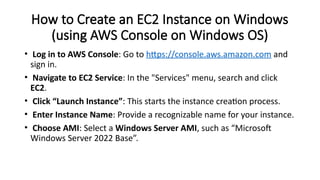
How to Createan EC2 Instance on Windows
(using AWS Console on Windows OS)
• Log in to AWS Console: Go to https://console.aws.amazon.com and
sign in.
• Navigate to EC2 Service: In the "Services" menu, search and click
EC2.
• Click “Launch Instance”: This starts the instance creation process.
• Enter Instance Name: Provide a recognizable name for your instance.
• Choose AMI: Select a Windows Server AMI, such as “Microsoft
Windows Server 2022 Base”.
15.
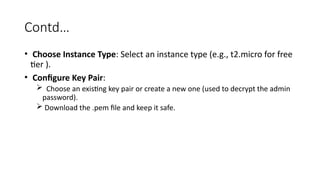
Contd…
• Choose InstanceType: Select an instance type (e.g., t2.micro for free
tier ).
• Configure Key Pair:
Choose an existing key pair or create a new one (used to decrypt the admin
password).
Download the .pem file and keep it safe.
16.
Contd….
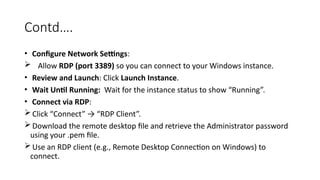
• Configure NetworkSettings:
Allow RDP (port 3389) so you can connect to your Windows instance.
• Review and Launch: Click Launch Instance.
• Wait Until Running: Wait for the instance status to show “Running”.
• Connect via RDP:
Click “Connect” → “RDP Client”.
Download the remote desktop file and retrieve the Administrator password
using your .pem file.
Use an RDP client (e.g., Remote Desktop Connection on Windows) to
connect.
17.
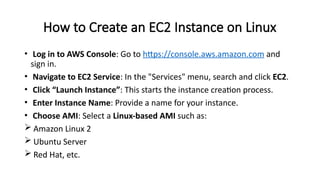
How to Createan EC2 Instance on Linux
• Log in to AWS Console: Go to https://console.aws.amazon.com and
sign in.
• Navigate to EC2 Service: In the "Services" menu, search and click EC2.
• Click “Launch Instance”: This starts the instance creation process.
• Enter Instance Name: Provide a name for your instance.
• Choose AMI: Select a Linux-based AMI such as:
Amazon Linux 2
Ubuntu Server
Red Hat, etc.
18.
Contd…
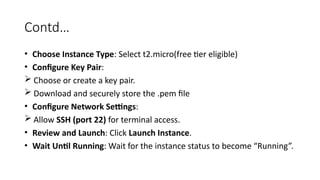
• Choose InstanceType: Select t2.micro(free tier eligible)
• Configure Key Pair:
Choose or create a key pair.
Download and securely store the .pem file
• Configure Network Settings:
Allow SSH (port 22) for terminal access.
• Review and Launch: Click Launch Instance.
• Wait Until Running: Wait for the instance status to become “Running”.
19.
Contd…
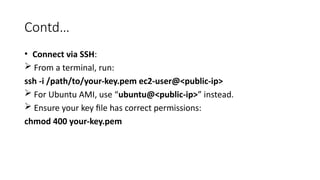
• Connect viaSSH:
From a terminal, run:
ssh -i /path/to/your-key.pem ec2-user@<public-ip>
For Ubuntu AMI, use “ubuntu@<public-ip>” instead.
Ensure your key file has correct permissions:
chmod 400 your-key.pem
20.
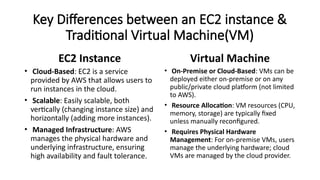
Key Differences betweenan EC2 instance &
Traditional Virtual Machine(VM)
EC2 Instance
• Cloud-Based: EC2 is a service
provided by AWS that allows users to
run instances in the cloud.
• Scalable: Easily scalable, both
vertically (changing instance size) and
horizontally (adding more instances).
• Managed Infrastructure: AWS
manages the physical hardware and
underlying infrastructure, ensuring
high availability and fault tolerance.
Virtual Machine
• On-Premise or Cloud-Based: VMs can be
deployed either on-premise or on any
public/private cloud platform (not limited
to AWS).
• Resource Allocation: VM resources (CPU,
memory, storage) are typically fixed
unless manually reconfigured.
• Requires Physical Hardware
Management: For on-premise VMs, users
manage the underlying hardware; cloud
VMs are managed by the cloud provider.
21.
Contd…
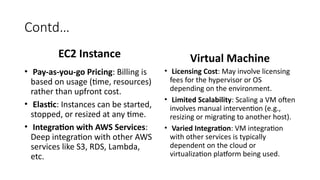
EC2 Instance
• Pay-as-you-goPricing: Billing is
based on usage (time, resources)
rather than upfront cost.
• Elastic: Instances can be started,
stopped, or resized at any time.
• Integration with AWS Services:
Deep integration with other AWS
services like S3, RDS, Lambda,
etc.
Virtual Machine
• Licensing Cost: May involve licensing
fees for the hypervisor or OS
depending on the environment.
• Limited Scalability: Scaling a VM often
involves manual intervention (e.g.,
resizing or migrating to another host).
• Varied Integration: VM integration
with other services is typically
dependent on the cloud or
virtualization platform being used.
22.
Contd…
EC2 Instance
• AutoScaling: Can automatically
adjust the number of instances
based on load.
• Security & Monitoring: Built-in
features for monitoring
(CloudWatch), security (IAM
roles, Security Groups), and
management.
Virtual Machine
• Static: Once provisioned, VMs
are typically more static and
require manual intervention for
resizing or scaling.
• Security & Monitoring: Security
and monitoring tools may
require additional setup
depending on the platform (e.g.,
VMware, Hyper-V).
23.
AWS Lambda
• AWSLambda is a serverless compute service that runs your code in
response to events and automatically manages the infrastructure. You
only pay for the compute time your code uses—no need to provision or
manage servers.
• Real life Example:-
When someone uploads a photo to an S3 bucket, AWS Lambda can
automatically resize the image.
It runs only during the upload and image processing, saving costs and
time.
24.
Benefits
• Serverless Architecture:No need to manage servers—Lambda
handles all infrastructure automatically.
• Cost Efficiency: You only pay for the compute time used, with no
charges when code isn't running.
• Automatic Scaling: Lambda automatically scales based on the number
of incoming requests.
• Event-Driven: Easily integrates with AWS services to trigger functions
on specific events (e.g., S3 uploads, API calls).
• Quick Deployment: Simplifies development and deployment of
microservices and lightweight tasks.
25.
When to use?
• Event-driven tasks: When you want code to run automatically in
response to events (e.g., S3 file upload, DynamoDB change, or API call).
• Short, stateless functions: Ideal for lightweight tasks that don’t need to
remember previous state (e.g., data processing, notifications).
• Microservices architecture: Perfect for deploying individual functions
that work independently as part of a larger system.
• Cost-sensitive workloads: Great when you want to avoid paying for idle
server time—Lambda charges only when code runs.
• Rapid prototyping or automation: Useful for quickly building and
deploying small automation scripts or backend services.
26.
Use cases ofLambda
• ️
🖼️Image Processing on Upload
When a user uploads an image to
Amazon S3, Lambda resizes or
converts the image automatically.
• 🌐 Serverless API Backend
Using API Gateway + Lambda to
run backend logic (e.g., user login,
data fetch) without managing
servers.
• 🔔 Notification & Alerts
Trigger notifications via SNS or
email when an event occurs (e.g.,
unusual login, failed job, S3 file
change).
27.
Create an AWSLambda Function
• Sign in to AWS Console: Go to https://aws.amazon.com/console/ and log in
with your AWS account.
• Open Lambda Service: In the Services menu, search for and select Lambda.
• Create Function: Click the Create function button.
• Choose Function Type: Select Author from scratch.
• Configure Basic Settings:
Enter a Function name ((e.g., MyFirstLambda)
Choose a Runtime (e.g., Python 3.9, Node.js 18.x).
• Set Permissions: You can use the default execution role or create a new one
with permissions Lambda needs.
28.
Contd….
• Create Function:Click Create function at the bottom.
• Write Your Code: In the code editor that appears, write or paste your
Lambda function code.
• Configure Test Event (optional): Click Test, create a test event to
simulate an input event, and save it.
• Test the Function: Click Test again to run your Lambda and see the
results.
• Deploy: Your function is now created and ready to trigger via events
or API calls.
29.
Creation of AWSLambda Function on Linux
• Open your preferred web browser on Linux (like Firefox or Chrome).
• Go to https://aws.amazon.com/console/ and sign in.
• Navigate to Services → search for Lambda and open it.
• Click Create function → choose Author from scratch
• Enter the Function name and select the Runtime (e.g., Python, Node.js).
• Set the Execution role (default or create new).
• Click Create function.
• Write or upload your code in the editor.
• Configure a test event and click Test to run your Lambda.
30.
AWS Content &Networking Services
• It provide tools to securely deliver, connect, and manage network traffic and content
across the internet and AWS cloud.
• Real-time example: Using Amazon CloudFront to deliver website images quickly to
users worldwide with low latency.
• Key Services Included:
Amazon VPC (Virtual Private Cloud)
Amazon CloudFront (Content Delivery Network)
Elastic Load Balancing (ELB)
AWS Direct Connect
Amazon Route 53 (DNS service)
AWS Global Accelerator
31.
AWS VPC Service
•AWS VPC (Virtual Private Cloud) lets you create a private, isolated
virtual network in the AWS cloud to launch and manage your
resources securely.
• Real Time Example:
A company uses AWS VPC to host its web application servers in a
private subnet, restricting public internet access and enhancing
security.
32.
Benefits
• Isolation: Providesa logically isolated network for your AWS resources.
• Security: Control inbound and outbound traffic with security groups
and network ACLs.
• Customizable Network: Define IP address ranges, subnets, route
tables, and gateways.
• Scalability: Easily add or remove subnets and route configurations as
your network grows.
• Hybrid Connectivity: Connect your on-premises data center securely
using VPN or AWS Direct Connect.
33.
When to use?
•When you need to run resources in a secure, isolated network
environment.
• To control network traffic using fine-grained security rules.
• When setting up hybrid cloud environments integrating on-premises
with AWS.
• For compliance requirements demanding private network
segmentation.
• To configure multi-tier applications with public and private subnets.
34.
Use Cases
• Hostinga secure multi-tier web application with public front-end and
private backend servers.
• Creating isolated environments for development, testing, and
production workloads.
• Establishing VPN connections to extend your corporate network to
AWS.
• Deploying sensitive workloads that require strict network access
controls.
• Building scalable microservices architecture with private
communication.
35.
Create AWS VPCon Windows
• Open your preferred browser (e.g., Chrome, Edge) on Windows.
• Go to https://console.aws.amazon.com and log in.
• In the top search bar, type and select VPC service.
• On the left menu, click Your VPCs, then click Create VPC.
• Choose VPC only option (for custom setup).
• Enter:
Name tag: MyWindowsVPC
IPv4 CIDR block: 10.0.0.0/16
IPv6: None (optional)
Tenancy: Default
36.
Contd…..
• Click CreateVPC.
• After it's created, go to Subnets → click Create subnet → select your VPC, define
availability zones and CIDR blocks (e.g., 10.0.1.0/24 )
• Go to Internet Gateways → click Create internet gateway, then attach it to your
VPC.
• Update Route Tables to add internet access for public subnets.
• Use this VPC when launching EC2 or other services.
Note:-
Creating a VPC via the AWS Console is identical across platforms because it’s
browser-based. The only difference is which OS/browser you’re using to access the
web interface.
37.
AWS Storage Services
•AWS Storage Services provide
scalable, secure, and durable
cloud storage solutions for data
backup, archiving, file storage,
and data transfer.
• Real-time Example:
A media company stores and
streams high-resolution videos
using Amazon S3, reducing the
need for on-premises servers.
• Key Services:
Amazon S3 (Simple Storage Service)
Amazon EBS (Elastic Block Store)
Amazon EFS (Elastic File System)
Amazon FSx
AWS Backup
AWS Storage Gateway
Amazon Glacier / S3 Glacier
Amazon Data Lifecycle Manager
38.
AWS S3(Simple StorageService)
• Amazon S3 is an object storage service that lets you store and
retrieve any amount of data from anywhere on the web.
• Real-Life Example:
A photo-sharing app stores user-uploaded images in Amazon S3 for
high availability and global access.
The app automatically fetches the images from S3 when users view
them.
39.
Benefits
• Scalable –Automatically handles growing amounts of data without
user intervention.
• Durable – Designed for 99.999999999% durability over a year.
• Highly Available – Ensures data is accessible when needed, with
multiple copies across zones.
• Secure – Offers encryption, access control, and integration with IAM.
• Cost-effective – Pay only for what you use, with tiered storage classes
(e.g., S3 Standard, Glacier).
40.
When to Use?
• When you need a durable and
scalable place to store files like
images, videos, backups, or logs.
• Ideal for serving static website
content, storing big data for
analytics, or as a data lake
foundation.
• Use it to archive data cost-
efficiently with Glacier or tiered
storage.
Use Cases
• Static website hosting
• Backup and disaster recovery
• Media storage (videos, images,
audio)
• Data lake and analytics input
• Mobile and web application file
storage
41.
Create an AWSS3 Bucket On windows
• Open a Web Browser (e.g., Chrome, Edge) in Windows.
• Go to: https://console.aws.amazon.com/s3
• Sign in with your AWS credentials.
• Click on the Create bucket button.
• Enter a unique bucket name (e.g., my-windows-bucket).
• Select your AWS Region (e.g., US East (N. Virginia)).
• (Optional) Configure settings like:
Versioning (to keep multiple versions of files)
Encryption (for secure storage)
Tags (for organizing and tracking)
42.
• Set permissions:
Block public access (recommended by default)
Optionally uncheck if the bucket needs to be publicly accessible (e.g.,
for static websites)
• Click Create bucket at the bottom.
S3 bucket is now created and ready for file uploads.
Note:-
Since the AWS Management Console is web-based, there’s no technical
difference between creating an S3 bucket on Windows vs. Linux—just
the browser and OS interface change.
43.
🔐 AWS Security,Identity, and Compliance
Services
• These services help protect your
AWS environment by managing
user access, enforcing security
policies, encrypting data, and
ensuring regulatory compliance.
Real-Life Example:-
• An e-commerce company uses
AWS IAM to give developers access
only to specific S3 buckets and
uses AWS Shield to protect their
website from DDoS attacks.
• Key Services Included:-
AWS IAM (Identity and Access
Management)
AWS Cognito
AWS KMS (Key Management
Service)
AWS Shield
AWS WAF (Web Application
Firewall)
AWS CloudTrail
44.
Benefits
• Granular AccessControl – IAM allows fine-tuned permissions for
users, roles, and services.
• Threat Protection – Services like AWS Shield and GuardDuty help
detect and stop attacks.
• Data Protection – Encrypt data at rest and in transit using AWS KMS
and Secrets Manager.
• Audit and Compliance – Tools like CloudTrail and AWS Config help
meet compliance needs and track changes.
• Scalable Security – Apply consistent security policies as your cloud
environment grows.
45.
When to use?
•When managing multiple users, teams, or applications needing restricted
access.
• When storing sensitive customer or financial data that requires encryption.
• When meeting compliance standards (e.g., HIPAA[Health Insurance
Portability and Accountability Act], GDPR[General Data Protection
Regulation], PCI DSS[Payment Card Industry Data Security Standard]).
• When defending your application against threats (e.g., DDoS[Distributed
Denial of Service], SQL injection).
• When monitoring activity and changes across your AWS environment for
audit or security reviews.
46.
Common Use Cases
•User Access Control – Use IAM to define who can access what and
how (e.g., developers only accessing dev S3 buckets).
• API Key Management – Use Secrets Manager to store and rotate
sensitive keys securely.
• Compliance Auditing – Use CloudTrail to track all user and service
activities for review.
• DDoS Protection – Use AWS Shield to defend a public-facing website
from denial-of-service attacks.
• Data Discovery – Use Amazon Macie to find and protect personal or
financial data in S3.
48.
️
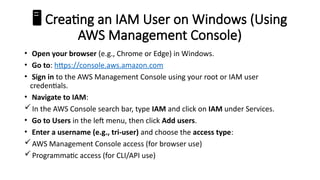
🖥️Creating an IAMUser on Windows (Using
AWS Management Console)
• Open your browser (e.g., Chrome or Edge) in Windows.
• Go to: https://console.aws.amazon.com
• Sign in to the AWS Management Console using your root or IAM user
credentials.
• Navigate to IAM:
In the AWS Console search bar, type IAM and click on IAM under Services.
• Go to Users in the left menu, then click Add users.
• Enter a username (e.g., tri-user) and choose the access type:
AWS Management Console access (for browser use)
Programmatic access (for CLI/API use)
49.
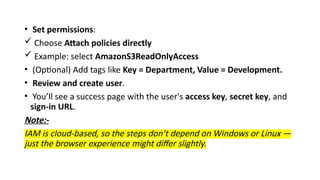
• Set permissions:
Choose Attach policies directly
Example: select AmazonS3ReadOnlyAccess
• (Optional) Add tags like Key = Department, Value = Development.
• Review and create user.
• You’ll see a success page with the user's access key, secret key, and
sign-in URL.
Note:-
IAM is cloud-based, so the steps don’t depend on Windows or Linux —
just the browser experience might differ slightly.
50.
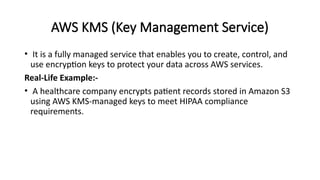
AWS KMS (KeyManagement Service)
• It is a fully managed service that enables you to create, control, and
use encryption keys to protect your data across AWS services.
Real-Life Example:-
• A healthcare company encrypts patient records stored in Amazon S3
using AWS KMS-managed keys to meet HIPAA compliance
requirements.
51.
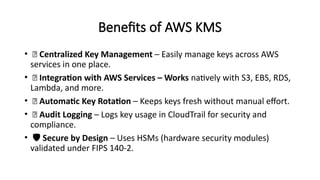
Benefits of AWSKMS
• 🔐 Centralized Key Management – Easily manage keys across AWS
services in one place.
• 🧩 Integration with AWS Services – Works natively with S3, EBS, RDS,
Lambda, and more.
• 🔁 Automatic Key Rotation – Keeps keys fresh without manual effort.
• 📜 Audit Logging – Logs key usage in CloudTrail for security and
compliance.
• ️🛡️Secure by Design – Uses HSMs (hardware security modules)
validated under FIPS 140-2.
52.
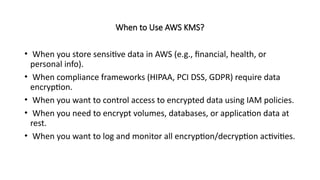
When to UseAWS KMS?
• When you store sensitive data in AWS (e.g., financial, health, or
personal info).
• When compliance frameworks (HIPAA, PCI DSS, GDPR) require data
encryption.
• When you want to control access to encrypted data using IAM policies.
• When you need to encrypt volumes, databases, or application data at
rest.
• When you want to log and monitor all encryption/decryption activities.
53.
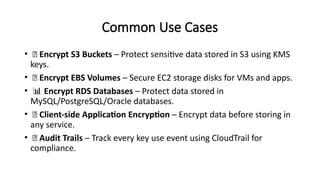
Common Use Cases
•🔐 Encrypt S3 Buckets – Protect sensitive data stored in S3 using KMS
keys.
• 💾 Encrypt EBS Volumes – Secure EC2 storage disks for VMs and apps.
• 📊 Encrypt RDS Databases – Protect data stored in
MySQL/PostgreSQL/Oracle databases.
• 🔐 Client-side Application Encryption – Encrypt data before storing in
any service.
• 🧾 Audit Trails – Track every key use event using CloudTrail for
compliance.
54.
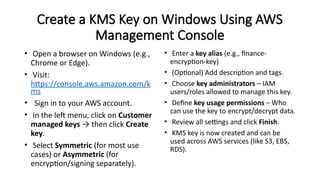
Create a KMSKey on Windows Using AWS
Management Console
• Open a browser on Windows (e.g.,
Chrome or Edge).
• Visit:
https://console.aws.amazon.com/k
ms
• Sign in to your AWS account.
• In the left menu, click on Customer
managed keys → then click Create
key.
• Select Symmetric (for most use
cases) or Asymmetric (for
encryption/signing separately).
• Enter a key alias (e.g., finance-
encryption-key)
• (Optional) Add description and tags.
• Choose key administrators – IAM
users/roles allowed to manage this key.
• Define key usage permissions – Who
can use the key to encrypt/decrypt data.
• Review all settings and click Finish.
• KMS key is now created and can be
used across AWS services (like S3, EBS,
RDS).
55.
Note:-
• Creating aKMS Key using the AWS Management Console is the same whether
you're on:
️
🖥️Windows
💻 Linux
macOS
• That’s because the AWS Management Console is browser-based — all actions
happen in the cloud via a web interface, not on your local operating system.
56.
AWS Database Services
•AWS Database Services offer fully
managed, scalable, and secure
database solutions for relational,
non-relational, in-memory, graph,
and other data models in the cloud.
Real-Life Example:-
• A ride-sharing app uses Amazon RDS
(Relational Database Service) to store
customer and trip data, while using
Amazon DynamoDB to manage real-
time driver availability across cities.
• Key Services Included:-
Amazon RDS
Amazon Aurora
Amazon DynamoDB
Amazon ElastiCache
Amazon Neptune
Amazon Timestream
Amazon Keyspaces
57.
Amazon DynamoDB
• Afully managed, serverless NoSQL database service that provides
fast and predictable performance with seamless scalability.
• Real-Life Example:-
An e-commerce website uses DynamoDB to store and retrieve user
session data, product catalogs, and order histories in milliseconds.
58.
Benefits of DynamoDB
•High Performance: Single-digit
millisecond response times at any
scale.
• Scalability: Automatically scales
throughput capacity up or down
based on demand.
• Fully Managed: No need to
manage servers, software patching,
or replication.
• Serverless: Pay only for the
resources you use.
• Durability & Availability: Data
replicated across multiple
Availability Zones.
• Flexible Data Model: Supports
key-value and document data
structures.
• Built-in Security: Encryption at
rest, fine-grained access control.
59.
When to UseDynamoDB?
• Applications requiring low latency, high throughput at scale.
• Use cases needing serverless, managed NoSQL storage.
• When your data access pattern fits key-value or document models.
• Systems that require automatic scaling without downtime.
• Apps needing high availability and durability across regions.
60.
Common Use Cases
•Real-time bidding platforms
• Gaming leaderboards and player data storage
• IoT telemetry data storage
• Mobile apps backend
• Session Management
• Catalogs and inventory management
• User profiles and preferences
61.
How to Createa DynamoDB Table on
Windows Using AWS Management Console
• Sign in to your AWS Management
Console (
https://aws.amazon.com/console/).
• Navigate to Services > DynamoDB.
• Click Create table.
• Enter a Table name (e.g., Users)
• Define the Primary key:
Partition key (e.g., UserID of type String).
(Optional) Sort key if needed.
• Configure Table settings (default is fine
for most cases).
• Choose Provisioned capacity or On-
demand capacity mode.
• (Optional) Configure encryption,
autoscaling, tags, and indexes.
• Click Create.
• DynamoDB table is now ready to use.
Note:-
Windows and Linux are fundamentally
the same for accessing AWS
Management Console; only the browser
settings or environment might differ.

![When to use?
• When managing multiple users, teams, or applications needing restricted
access.
• When storing sensitive customer or financial data that requires encryption.
• When meeting compliance standards (e.g., HIPAA[Health Insurance
Portability and Accountability Act], GDPR[General Data Protection
Regulation], PCI DSS[Payment Card Industry Data Security Standard]).
• When defending your application against threats (e.g., DDoS[Distributed
Denial of Service], SQL injection).
• When monitoring activity and changes across your AWS environment for
audit or security reviews.](https://image.slidesharecdn.com/awsservices-250704163845-35c85ae6/85/AWS-Services-pptx-45-320.jpg)