DATAWEAVE
AN INTRODUCTION
Dataweave
• A mule component that can transform any
data format to any data format.
• Introduced since mule 3.7, a replacement for
datamapper.
• Datamapper is already depracated since mule
3.7
2
Language
• JSON like scripting language
• Datasense
• Retains drag n drop feature of datamapper
• Can be coded manually
The drag and drop features basically just
generate a script language, no difference than
coding the transformation yourself
3
Example
• Suppose you have a JSON data, and you want
to transform this into XML format.
4
Credits: https://docs.mulesoft.com
Example
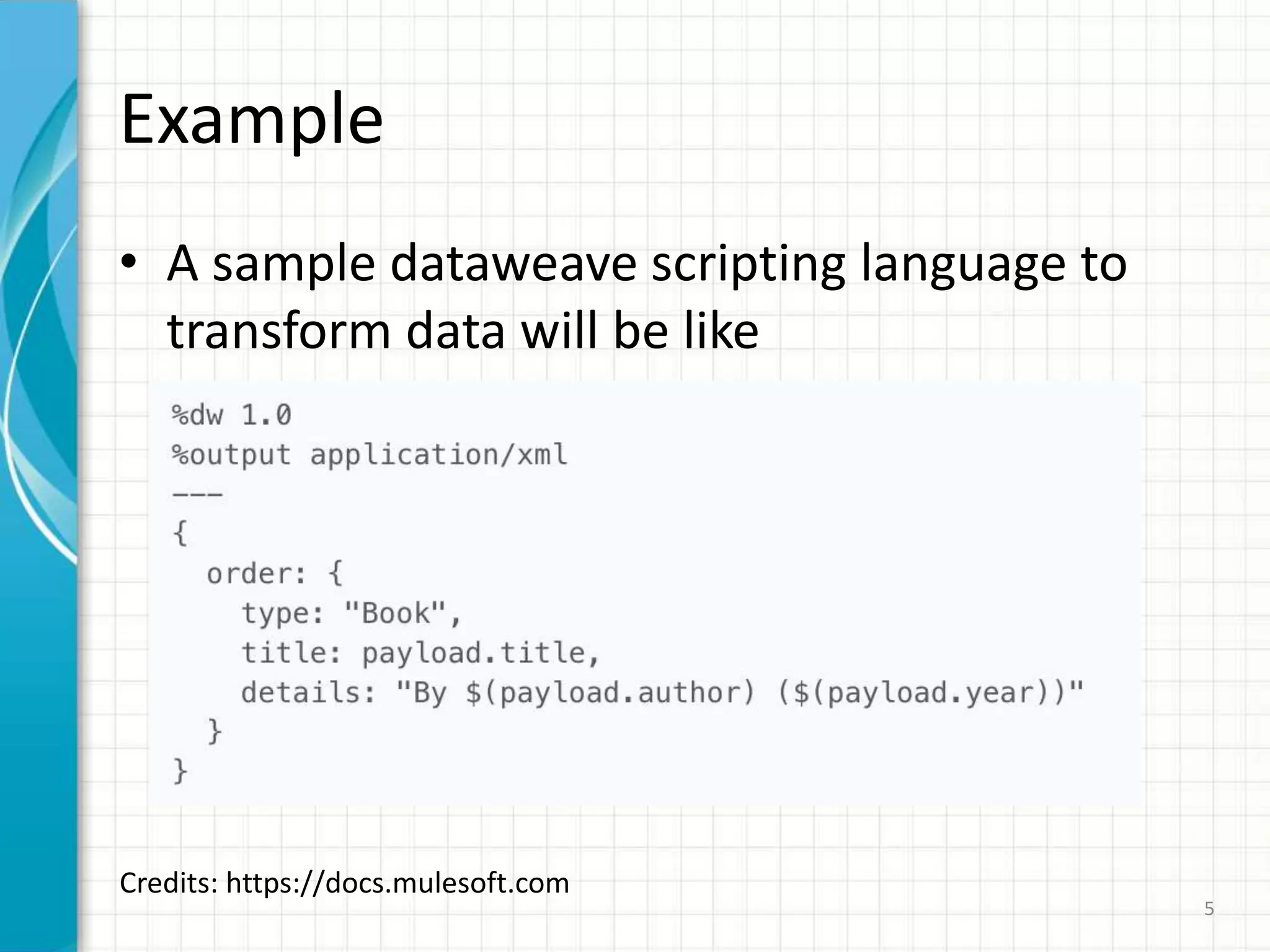
• A sample dataweave scripting language to
transform data will be like
5
Credits: https://docs.mulesoft.com
Example
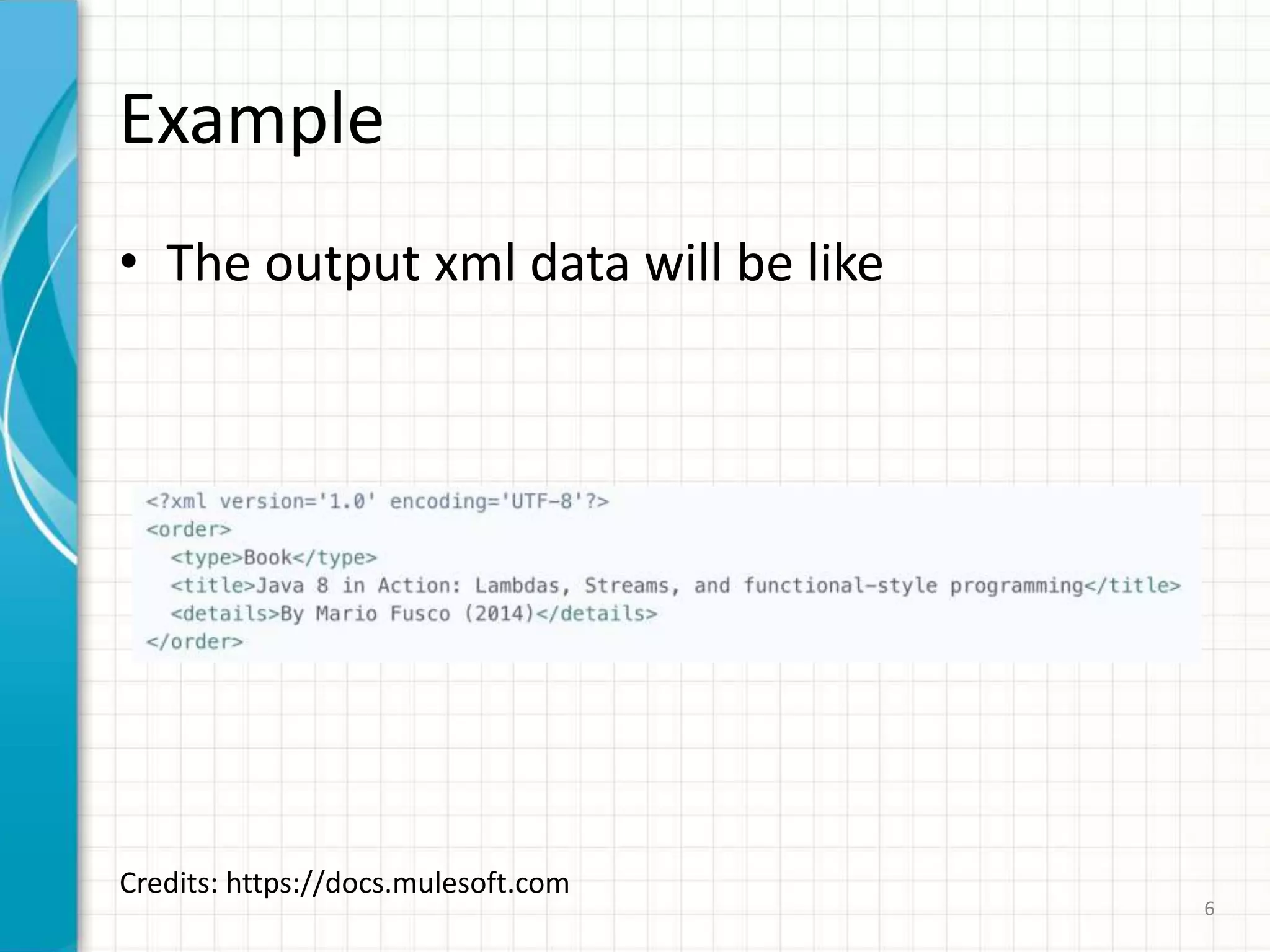
• The output xml data will be like
6
Credits: https://docs.mulesoft.com
… next topic
• Variables
• String manipulation
• Conditional statement
• Accessing collection
• .. and many more

mule introduction to dataweave

  • 1.
  • 2.
    Dataweave • A mulecomponent that can transform any data format to any data format. • Introduced since mule 3.7, a replacement for datamapper. • Datamapper is already depracated since mule 3.7 2
  • 3.
    Language • JSON likescripting language • Datasense • Retains drag n drop feature of datamapper • Can be coded manually The drag and drop features basically just generate a script language, no difference than coding the transformation yourself 3
  • 4.
    Example • Suppose youhave a JSON data, and you want to transform this into XML format. 4 Credits: https://docs.mulesoft.com
  • 5.
    Example • A sampledataweave scripting language to transform data will be like 5 Credits: https://docs.mulesoft.com
  • 6.
    Example • The outputxml data will be like 6 Credits: https://docs.mulesoft.com
  • 7.
    … next topic •Variables • String manipulation • Conditional statement • Accessing collection • .. and many more

Editor's Notes

  • #2 This template can be used as a starter file for presenting training materials in a group setting. Sections Sections can help to organize your slides or facilitate collaboration between multiple authors. On the Home tab under Slides, click Section, and then click Add Section. Notes Use the Notes pane for delivery notes or to provide additional details for the audience. You can see these notes in Presenter View during your presentation. Keep in mind the font size (important for accessibility, visibility, videotaping, and online production) Coordinated colors Pay particular attention to the graphs, charts, and text boxes. Consider that attendees will print in black and white or grayscale. Run a test print to make sure your colors work when printed in pure black and white and grayscale. Graphics, tables, and graphs Keep it simple: If possible, use consistent, non-distracting styles and colors. Label all graphs and tables.