Building the User Interface by Using
HTML5: Text, Graphics, and Media
Lesson 2
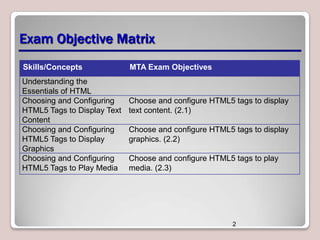
Exam Objective Matrix
Skills/Concepts
Understanding the
Essentials of HTML
Choosing and Configuring
HTML5 Tags to Display Text
Content
Choosing and Configuring
HTML5 Tags to Display
Graphics
Choosing and Configuring
HTML5 Tags to Play Media

MTA Exam Objectives

Choose and configure HTML5 tags to display
text content. (2.1)
Choose and configure HTML5 tags to display
graphics. (2.2)
Choose and configure HTML5 tags to play
media. (2.3)

2
HTML Documents
• Hypertext Markup Language (HTML) is a
markup language
• HTML is used to mark up pieces of
content to display on a Web page
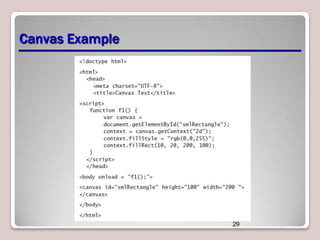
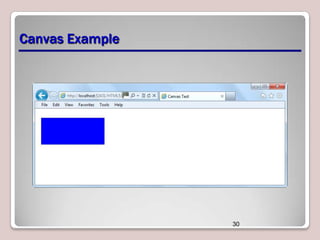
• A Web page is a type of HTML document

3
Tag Pairs
• Keywords that help to give an HTML page
structure
• Keyword is surrounded by angled brackets
• Most tags come in pairs
– Opening or start tag
– Closing or end tag

<h1>Pet Care 101</h1>

• Closing tag must have same case as
opening tag
4
Empty Tags
• Empty tags don’t require an end tag
• Examples:
– <br /> for a line break
– <hr /> for a horizontal line

5
Common HTML Tags
• <html>: Identifies the page as an HTML document
• <head>: Contains markup and code used by the

browser, such as scripts that add interactivity, and
keywords to help search engines find the page
• <title>: Displays the title of the Web page, which
appears at the top of the Web browser, usually on
the page’s tab in a tabbed browser
• <body>: Surrounds content that’s visible on the Web
page when viewed in a Web browser

6
Common HTML Tags (Continued)
• <a href=URL>: Generally used to anchor a URL to

text or an image; can create a named anchor within
a document to allow for linking to sections of the
document
• <b>: Applies boldface to text
• <hx>: Creates a heading, which can be first level

(h1) through sixth level (h6)
• <img>: Inserts an image from a file or another Web
site
• <p>: Defines text as a paragraph
7
Required HTML Tags
• Tags required on every Web page:
– <html>
– <head>
– <title>
– <body>

8
Elements
• A tag pair or an empty tag is also called an
element.
• An element can describe content, insert
graphics, and create hyperlinks.

9
Attributes
• Modifiers of HTML elements that provide
additional information
• Are extensions of elements
• Syntax: <tag attribute="value">

10
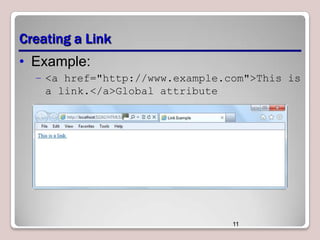
Creating a Link
• Example:
– <a href="http://www.example.com">This is
a link.</a>Global attribute

11
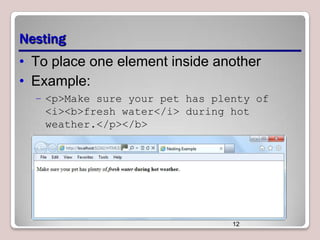
Nesting
• To place one element inside another
• Example:
– <p>Make sure your pet has plenty of
<i><b>fresh water</i> during hot
weather.</p></b>

12
Entities
• A special character, such as the dollar
symbol, the registered trademark (a capital
R within a circle), and accented letters
• Begins with an ampersand (&) and ends
with a semicolon (;)
• Examples:
– entity &reg; represents the registered
trademark symbol
– Its numerical code is &#174;
13
Entities (Continued)
• Called character encoding
• Use UTF-8 encoding whenever possible
• Add the following declaration to the head
element:
<meta charset="UTF-8">

14
Doctype
• A declaration found at the very top of
almost every HTML document
• Specifies the language or rules the page
uses

15
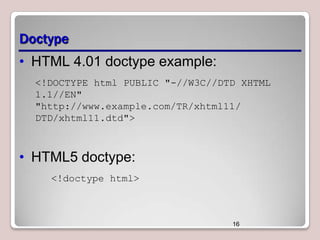
Doctype
• HTML 4.01 doctype example:
<!DOCTYPE html PUBLIC "-//W3C//DTD XHTML
1.1//EN"
"http://www.example.com/TR/xhtml11/
DTD/xhtml11.dtd">

• HTML5 doctype:
<!doctype html>

16
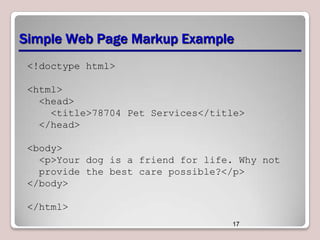
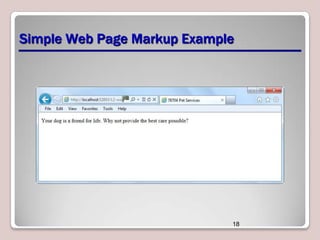
Simple Web Page Markup Example
<!doctype html>
<html>
<head>
<title>78704 Pet Services</title>
</head>
<body>
<p>Your dog is a friend for life. Why not
provide the best care possible?</p>
</body>
</html>
17
Simple Web Page Markup Example

18
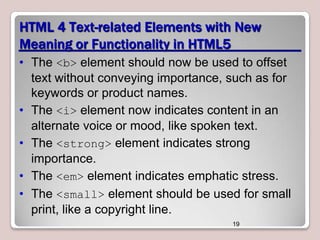
HTML 4 Text-related Elements with New
Meaning or Functionality in HTML5
• The <b> element should now be used to offset
text without conveying importance, such as for
keywords or product names.
• The <i> element now indicates content in an
alternate voice or mood, like spoken text.
• The <strong> element indicates strong
importance.
• The <em> element indicates emphatic stress.
• The <small> element should be used for small
print, like a copyright line.
19
New HTML5 Elements
• The <command> element creates a command button.
When the user clicks a command button, a
command executes.
• The <mark> element highlights text on a page,
similar to the highlighting feature in Microsoft Word.
• The <time> element displays a machine-readable
time and date, such as 10:10 A.M., CST, July 19,
2012, which is handy for blogs and calendars, and
potentially helps search engines provide better
results when time and date are part of the search
criteria.
20
Deprecation
• While new elements become available, the
W3C earmarks other elements for
eventual removal because their
functionality is no longer useful.
• Removing elements from the list of
available HTML elements is referred to as
deprecation.
• Note: The same thing applies to attributes and CSS
properties.
21
Examples of Deprecated HTML Elements
• <big>: Makes text bigger relative to the

current font size
• <center>: Center-aligns text and content
• The fix: Use CSS instead

22
Image Basics
• A raster image is made up of pixels.
– Example: A photograph
– Formats: JPG, PNG, GIF, BMP

• A vector image is made up of lines and
curves based on mathematical
expressions.
– Example: Adobe Illustrator AI file
– Formats: PNG or GIF for Web display
23
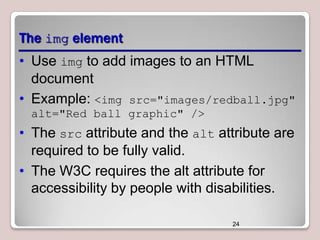
The img element
• Use img to add images to an HTML
document
• Example: <img src="images/redball.jpg"
alt="Red ball graphic" />

• The src attribute and the alt attribute are
required to be fully valid.
• The W3C requires the alt attribute for
accessibility by people with disabilities.
24
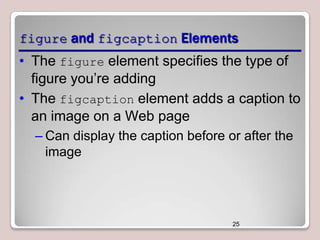
figure and figcaption Elements

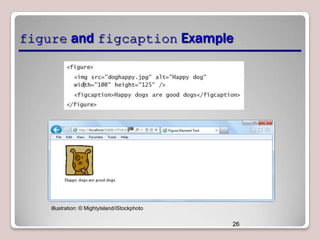
• The figure element specifies the type of
figure you’re adding
• The figcaption element adds a caption to
an image on a Web page
– Can display the caption before or after the
image

25
figure and figcaption Example

Illustration: © MightyIsland/iStockphoto

26
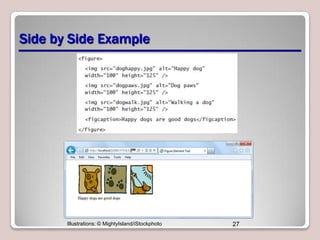
Side by Side Example

Illustrations: © MightyIsland/iStockphoto

27
Canvas
• Use JavaScript to draw pixel-based shapes on a
canvas
• Include color, gradients, and pattern fills
• Render text with various embellishments
• Animate objects by making them move, change
scale, and so on
• Basic syntax for the canvas element:
<canvas id="smlRectangle" height="100"
width="200"></canvas>
28
Canvas Example

29
Canvas Example

30
Fallback
• “Backup” content that displays if primary
content cannot
• Can be a problem with some older
browsers
– Cannot render canvas drawings or
animation, for example

• Fallback adds an image, text, or some
other HTML content within the canvas
element that displays if the drawing cannot
31
Scalable Vector Graphics (SVG)
• A language for describing 2D vector
graphics in Extensible Markup Language
(XML)
• SVG graphics referred to as objects
• SVG loads into the DOM
• Vector graphic changes size to fit screen,
whether 32-inch PC monitor or
smartphone
• SVG is not new, but HTML5 can embed
32
SVG objects in Web pages without using
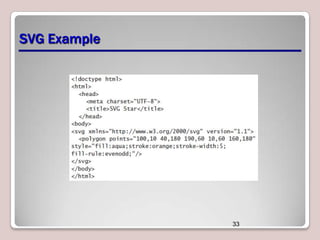
SVG Example

33
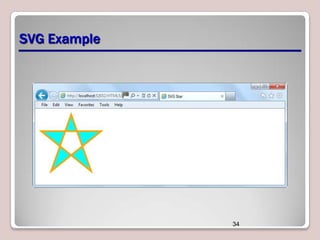
SVG Example

34
When to Use Canvas Instead of SVG
• If the drawing is relatively small, use canvas.
• If the drawing requires a large number of objects,
use canvas; SVG degrades as it continually adds
objects to the DOM
• Generally, use canvas for small screens and SVG
for larger screens.
• If you must create highly detailed vector documents
that must scale well, go with SVG.
• If you are displaying real-time data output, such as
maps, map overlays, weather data, and so on, use
canvas.
35
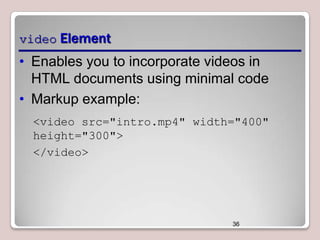
video Element

• Enables you to incorporate videos in
HTML documents using minimal code
• Markup example:
<video src="intro.mp4" width="400"
height="300">
</video>

36
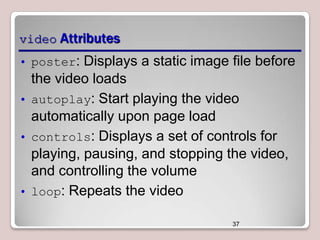
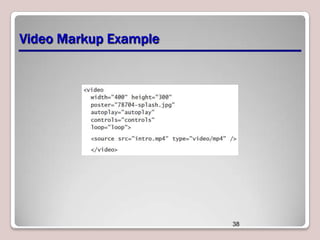
video Attributes
• poster: Displays a static image file before

the video loads
• autoplay: Start playing the video
automatically upon page load
• controls: Displays a set of controls for
playing, pausing, and stopping the video,
and controlling the volume
• loop: Repeats the video
37
Video Markup Example

38
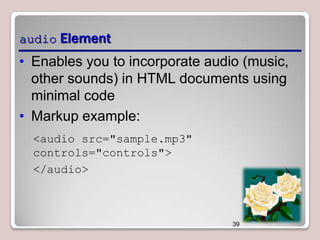
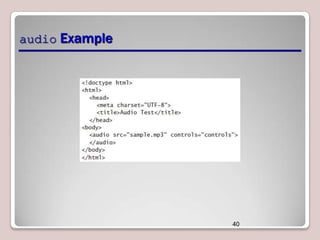
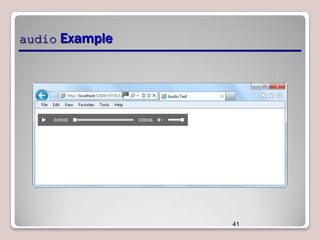
audio Element

• Enables you to incorporate audio (music,
other sounds) in HTML documents using
minimal code
• Markup example:
<audio src="sample.mp3"
controls="controls">
</audio>

39
audio Example

40
audio Example

41
Recap
•
•
•
•
•
•
•
•
•
•
•

Tags
Elements
Attributes
Nesting
Entities
Doctype
Modified HTML 4.01 elements and new HTML5 elements
Deprecation
Figures and figure captions
Canvas and SVG
Audio and video

42

MTA html5 text_graphics_media

  • 1.
    Building the UserInterface by Using HTML5: Text, Graphics, and Media Lesson 2
  • 2.
    Exam Objective Matrix Skills/Concepts Understandingthe Essentials of HTML Choosing and Configuring HTML5 Tags to Display Text Content Choosing and Configuring HTML5 Tags to Display Graphics Choosing and Configuring HTML5 Tags to Play Media MTA Exam Objectives Choose and configure HTML5 tags to display text content. (2.1) Choose and configure HTML5 tags to display graphics. (2.2) Choose and configure HTML5 tags to play media. (2.3) 2
  • 3.
    HTML Documents • HypertextMarkup Language (HTML) is a markup language • HTML is used to mark up pieces of content to display on a Web page • A Web page is a type of HTML document 3
  • 4.
    Tag Pairs • Keywordsthat help to give an HTML page structure • Keyword is surrounded by angled brackets • Most tags come in pairs – Opening or start tag – Closing or end tag <h1>Pet Care 101</h1> • Closing tag must have same case as opening tag 4
  • 5.
    Empty Tags • Emptytags don’t require an end tag • Examples: – <br /> for a line break – <hr /> for a horizontal line 5
  • 6.
    Common HTML Tags •<html>: Identifies the page as an HTML document • <head>: Contains markup and code used by the browser, such as scripts that add interactivity, and keywords to help search engines find the page • <title>: Displays the title of the Web page, which appears at the top of the Web browser, usually on the page’s tab in a tabbed browser • <body>: Surrounds content that’s visible on the Web page when viewed in a Web browser 6
  • 7.
    Common HTML Tags(Continued) • <a href=URL>: Generally used to anchor a URL to text or an image; can create a named anchor within a document to allow for linking to sections of the document • <b>: Applies boldface to text • <hx>: Creates a heading, which can be first level (h1) through sixth level (h6) • <img>: Inserts an image from a file or another Web site • <p>: Defines text as a paragraph 7
  • 8.
    Required HTML Tags •Tags required on every Web page: – <html> – <head> – <title> – <body> 8
  • 9.
    Elements • A tagpair or an empty tag is also called an element. • An element can describe content, insert graphics, and create hyperlinks. 9
  • 10.
    Attributes • Modifiers ofHTML elements that provide additional information • Are extensions of elements • Syntax: <tag attribute="value"> 10
  • 11.
    Creating a Link •Example: – <a href="http://www.example.com">This is a link.</a>Global attribute 11
  • 12.
    Nesting • To placeone element inside another • Example: – <p>Make sure your pet has plenty of <i><b>fresh water</i> during hot weather.</p></b> 12
  • 13.
    Entities • A specialcharacter, such as the dollar symbol, the registered trademark (a capital R within a circle), and accented letters • Begins with an ampersand (&) and ends with a semicolon (;) • Examples: – entity &reg; represents the registered trademark symbol – Its numerical code is &#174; 13
  • 14.
    Entities (Continued) • Calledcharacter encoding • Use UTF-8 encoding whenever possible • Add the following declaration to the head element: <meta charset="UTF-8"> 14
  • 15.
    Doctype • A declarationfound at the very top of almost every HTML document • Specifies the language or rules the page uses 15
  • 16.
    Doctype • HTML 4.01doctype example: <!DOCTYPE html PUBLIC "-//W3C//DTD XHTML 1.1//EN" "http://www.example.com/TR/xhtml11/ DTD/xhtml11.dtd"> • HTML5 doctype: <!doctype html> 16
  • 17.
    Simple Web PageMarkup Example <!doctype html> <html> <head> <title>78704 Pet Services</title> </head> <body> <p>Your dog is a friend for life. Why not provide the best care possible?</p> </body> </html> 17
  • 18.
    Simple Web PageMarkup Example 18
  • 19.
    HTML 4 Text-relatedElements with New Meaning or Functionality in HTML5 • The <b> element should now be used to offset text without conveying importance, such as for keywords or product names. • The <i> element now indicates content in an alternate voice or mood, like spoken text. • The <strong> element indicates strong importance. • The <em> element indicates emphatic stress. • The <small> element should be used for small print, like a copyright line. 19
  • 20.
    New HTML5 Elements •The <command> element creates a command button. When the user clicks a command button, a command executes. • The <mark> element highlights text on a page, similar to the highlighting feature in Microsoft Word. • The <time> element displays a machine-readable time and date, such as 10:10 A.M., CST, July 19, 2012, which is handy for blogs and calendars, and potentially helps search engines provide better results when time and date are part of the search criteria. 20
  • 21.
    Deprecation • While newelements become available, the W3C earmarks other elements for eventual removal because their functionality is no longer useful. • Removing elements from the list of available HTML elements is referred to as deprecation. • Note: The same thing applies to attributes and CSS properties. 21
  • 22.
    Examples of DeprecatedHTML Elements • <big>: Makes text bigger relative to the current font size • <center>: Center-aligns text and content • The fix: Use CSS instead 22
  • 23.
    Image Basics • Araster image is made up of pixels. – Example: A photograph – Formats: JPG, PNG, GIF, BMP • A vector image is made up of lines and curves based on mathematical expressions. – Example: Adobe Illustrator AI file – Formats: PNG or GIF for Web display 23
  • 24.
    The img element •Use img to add images to an HTML document • Example: <img src="images/redball.jpg" alt="Red ball graphic" /> • The src attribute and the alt attribute are required to be fully valid. • The W3C requires the alt attribute for accessibility by people with disabilities. 24
  • 25.
    figure and figcaptionElements • The figure element specifies the type of figure you’re adding • The figcaption element adds a caption to an image on a Web page – Can display the caption before or after the image 25
  • 26.
    figure and figcaptionExample Illustration: © MightyIsland/iStockphoto 26
  • 27.
    Side by SideExample Illustrations: © MightyIsland/iStockphoto 27
  • 28.
    Canvas • Use JavaScriptto draw pixel-based shapes on a canvas • Include color, gradients, and pattern fills • Render text with various embellishments • Animate objects by making them move, change scale, and so on • Basic syntax for the canvas element: <canvas id="smlRectangle" height="100" width="200"></canvas> 28
  • 29.
  • 30.
  • 31.
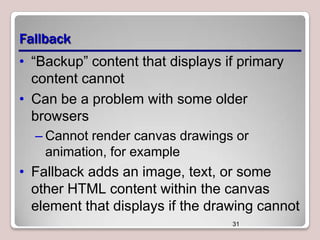
    Fallback • “Backup” contentthat displays if primary content cannot • Can be a problem with some older browsers – Cannot render canvas drawings or animation, for example • Fallback adds an image, text, or some other HTML content within the canvas element that displays if the drawing cannot 31
  • 32.
    Scalable Vector Graphics(SVG) • A language for describing 2D vector graphics in Extensible Markup Language (XML) • SVG graphics referred to as objects • SVG loads into the DOM • Vector graphic changes size to fit screen, whether 32-inch PC monitor or smartphone • SVG is not new, but HTML5 can embed 32 SVG objects in Web pages without using
  • 33.
  • 34.
  • 35.
    When to UseCanvas Instead of SVG • If the drawing is relatively small, use canvas. • If the drawing requires a large number of objects, use canvas; SVG degrades as it continually adds objects to the DOM • Generally, use canvas for small screens and SVG for larger screens. • If you must create highly detailed vector documents that must scale well, go with SVG. • If you are displaying real-time data output, such as maps, map overlays, weather data, and so on, use canvas. 35
  • 36.
    video Element • Enablesyou to incorporate videos in HTML documents using minimal code • Markup example: <video src="intro.mp4" width="400" height="300"> </video> 36
  • 37.
    video Attributes • poster:Displays a static image file before the video loads • autoplay: Start playing the video automatically upon page load • controls: Displays a set of controls for playing, pausing, and stopping the video, and controlling the volume • loop: Repeats the video 37
  • 38.
  • 39.
    audio Element • Enablesyou to incorporate audio (music, other sounds) in HTML documents using minimal code • Markup example: <audio src="sample.mp3" controls="controls"> </audio> 39
  • 40.
  • 41.
  • 42.
    Recap • • • • • • • • • • • Tags Elements Attributes Nesting Entities Doctype Modified HTML 4.01elements and new HTML5 elements Deprecation Figures and figure captions Canvas and SVG Audio and video 42

Editor's Notes

  • #3 Tip: Add your own speaker notes here.
  • #4 Tip: Add your own speaker notes here.
  • #5 Tip: Add your own speaker notes here.
  • #6 Tip: Add your own speaker notes here.
  • #7 Tip: Add your own speaker notes here.
  • #8 Tip: Add your own speaker notes here.
  • #9 Tip: Add your own speaker notes here.
  • #11 Tip: Add your own speaker notes here.
  • #12 Tip: Add your own speaker notes here.
  • #13 Tip: Add your own speaker notes here.
  • #14 Tip: Add your own speaker notes here.
  • #15 Tip: Add your own speaker notes here.
  • #16 Tip: Add your own speaker notes here.
  • #17 Tip: Add your own speaker notes here.
  • #18 Tip: Add your own speaker notes here.
  • #19 Tip: Add your own speaker notes here.
  • #20 Tip: Add your own speaker notes here.
  • #21 Tip: Add your own speaker notes here.
  • #22 Tip: Add your own speaker notes here.
  • #23 Tip: Add your own speaker notes here.
  • #24 Tip: Add your own speaker notes here.
  • #25 Tip: Add your own speaker notes here.
  • #26 Tip: Add your own speaker notes here.
  • #27 Tip: Add your own speaker notes here.
  • #28 Tip: Add your own speaker notes here.
  • #29 Tip: Add your own speaker notes here.
  • #30 Tip: Add your own speaker notes here.
  • #31 Tip: Add your own speaker notes here.
  • #32 Tip: Add your own speaker notes here.
  • #33 Tip: Add your own speaker notes here.
  • #34 Tip: Add your own speaker notes here.
  • #35 Tip: Add your own speaker notes here.
  • #36 Tip: Add your own speaker notes here.
  • #37 Tip: Add your own speaker notes here.
  • #38 Tip: Add your own speaker notes here.
  • #39 Tip: Add your own speaker notes here.
  • #40 Tip: Add your own speaker notes here.
  • #41 Tip: Add your own speaker notes here.
  • #42 Tip: Add your own speaker notes here.