LEARNING OUTCOMES
1. Identifythe
components and functions
of a hypervisor and how
it controls the virtual
machines.
1
2. Understand how
virtual machines are used
in the cloud and server
environments and how
they affect the
performance and security
of the systems.
2
3. Write and
execute simple commands
to create and manage
virtual machines using a
hypervisor.
3
3.
WHAT IS VIRTUALMACHINE?
• A virtual machine, commonly shortened to just VM, is no different than any
other physical computer like a laptop, smart phone, or server. It has a CPU,
memory, disks to store your files, and can connect to the internet if needed.
While the parts that make up your computer (called hardware) are
physical and tangible, VMs are often thought of as virtual computers or
software-defined computers within physical servers, existing only as code.
4.
HOW DOES AVIRTUAL MACHINE WORK ?
Virtualization is the process of creating a software-based, or "virtual" version of a
computer, with dedicated amounts of CPU, memory, and storage that are
"borrowed" from a physical host computer—such as your personal computer—
and/or a remote server—such as a server in a cloud provider's datacenter. A
virtual machine is a computer file, typically called an image, that behaves like an
actual computer. It can run in a window as a separate computing environment,
often to run a different operating system—or even to function as the user's entire
computer experience—as is common on many people's work computers. The virtual
machine is partitioned from the rest of the system, meaning that the software inside
a VM can't interfere with the host computer's primary operating system.
5.
WHAT ARE VMSUSED FOR ?
• Building and deploying apps to the cloud.
• Trying out a new operating system (OS), including beta releases.
• Spinning up a new environment to make it simpler and quicker for
developers to run dev-test scenarios.
• Backing up your existing OS.
• Accessing virus-infected data or running an old application by installing an
older OS.
• Running software or apps on operating systems that they weren't originally
intended for.
6.
WHAT ARE THEBENEFITS OF USING VMS
•Cost savings
•Agility and speed
•Lowered downtime
•Scalability
•Security benefits
7.
ADVANTAGES OVER PHYSICALOS
• Multiple OS environments can exist simultaneously on the
same machine, isolated from each other
• Virtual machine can offer an instruction set architecture that
differs from real computers
• Easy maintenance, application provisioning, availability and
convenient recovery
• Virtualization makes it easy to move instances between physical
servers
• Virtual machines provide flexibility and portability
8.
HYPERVISOR
•A hypervisor isa form of virtualization software used in Cloud
hosting to divide and allocate the resources on various pieces
of hardware. The program which provides partitioning,
isolation, or abstraction is called a virtualization hypervisor.
TYPE 1 HYPERVISOR
•Thehypervisor runs directly on the underlying host system. It is
also known as a “Native Hypervisor” or “Bare metal
hypervisor”. It does not require any base server operating
system. It has direct access to hardware resources. Examples
of Type 1 hypervisors include VMware ESXi, Citrix XenServer,
and Microsoft Hyper-V hypervisor.
11.
TYPE-2 HYPERVISOR
• AHost operating system runs on the underlying host system. It
is also known as ‘Hosted Hypervisor”. Such kind of hypervisors
doesn’t run directly over the underlying hardware rather they
run as an application in a Host system(physical machine).
Basically, the software is installed on an operating system.
Hypervisor asks the operating system to make hardware calls.
An example of a Type 2 hypervisor includes VMware Player or
Parallels Desktop. Hosted hypervisors are often found on
endpoints like PCs. The type-2 hypervisor is very useful for
engineers, and security analysts (for checking malware, or
malicious source code and newly developed applications).
12.
CHOOSING THE RIGHTHYPERVISOR :
1. Understand your needs
2. The cost of a hypervisor
3. Virtual machine performance
4. Ecosystem
5. Test for yourself
PARAVIRTUALIZATION
•a virtualization techniquethat presents a software interface to
the virtual machines which is similar, yet not identical, to the
underlying hardware–software interface.
15.
EMULATION
• The communicationbetween the guest OS and the hypervisor is done through hypercalls,
which are instructions that the guest OS uses to request services from the hypervisor 1.
The hypervisor acts as a middleman between the guest OS and the physical hardware
which will be assigned to the VM where the guest OS operates 1. The hypervisor is
responsible for the management of the physical resources of a data center, server, or
device, and allocates them to a guest OS 1. In paravirtualization, because the OS can
communicate with the hypervisor via hypercalls, it can request resources “on demand.”
This flexible approach allows the guest OS to scale up or down depending on need and
better manage resources while increasing performance and security
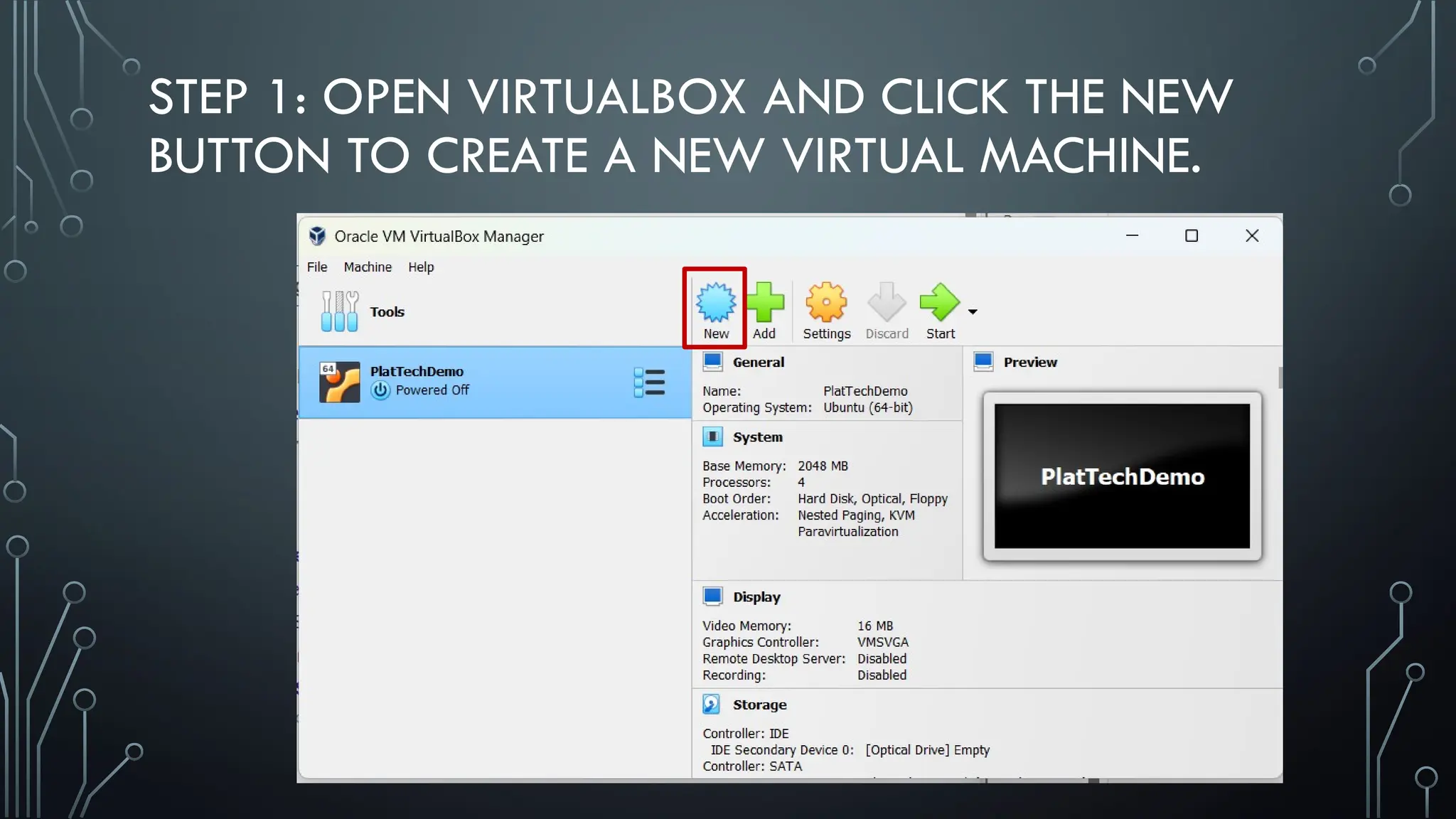
STEP 1: OPENVIRTUALBOX AND CLICK THE NEW
BUTTON TO CREATE A NEW VIRTUAL MACHINE.
19.
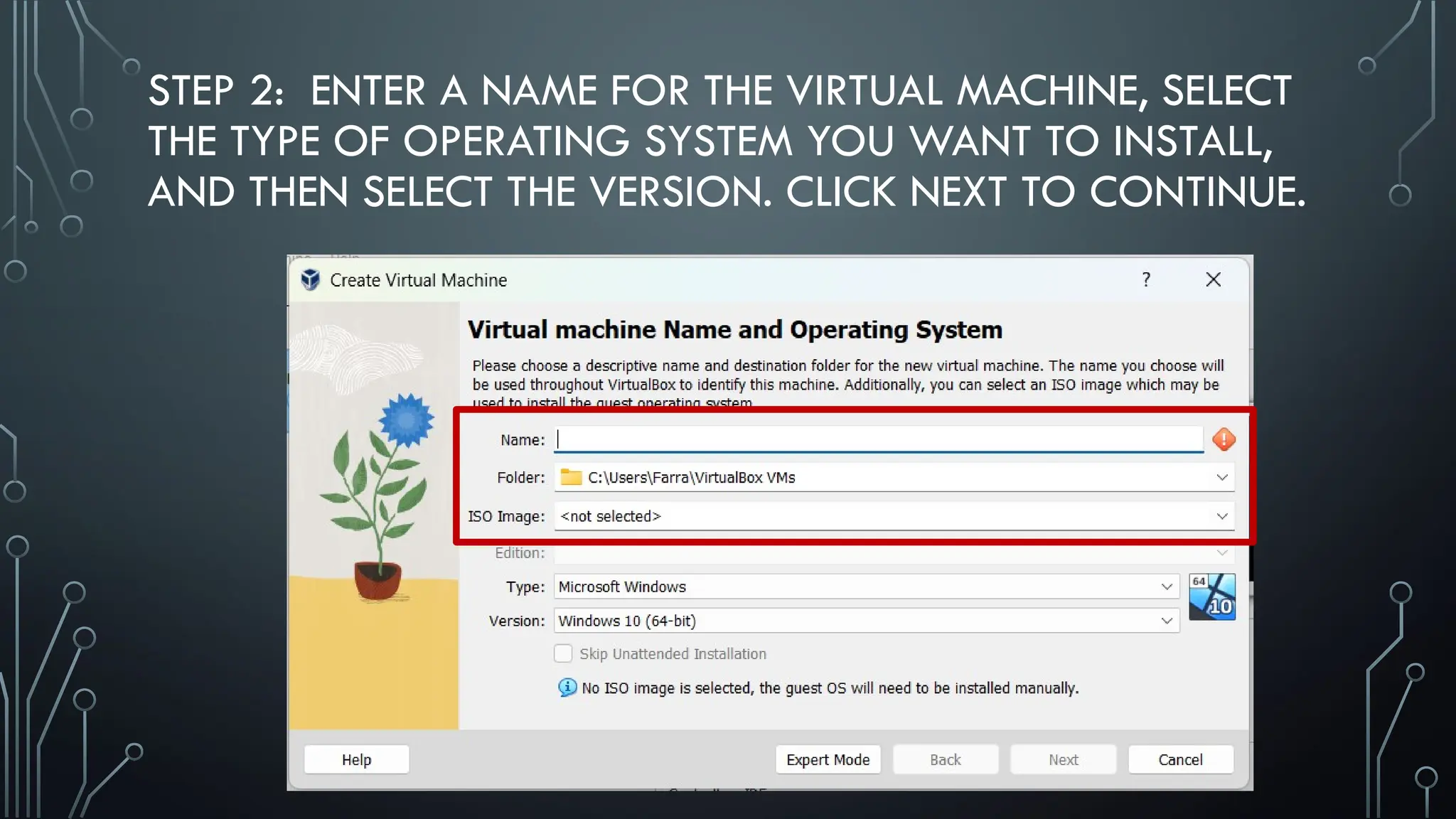
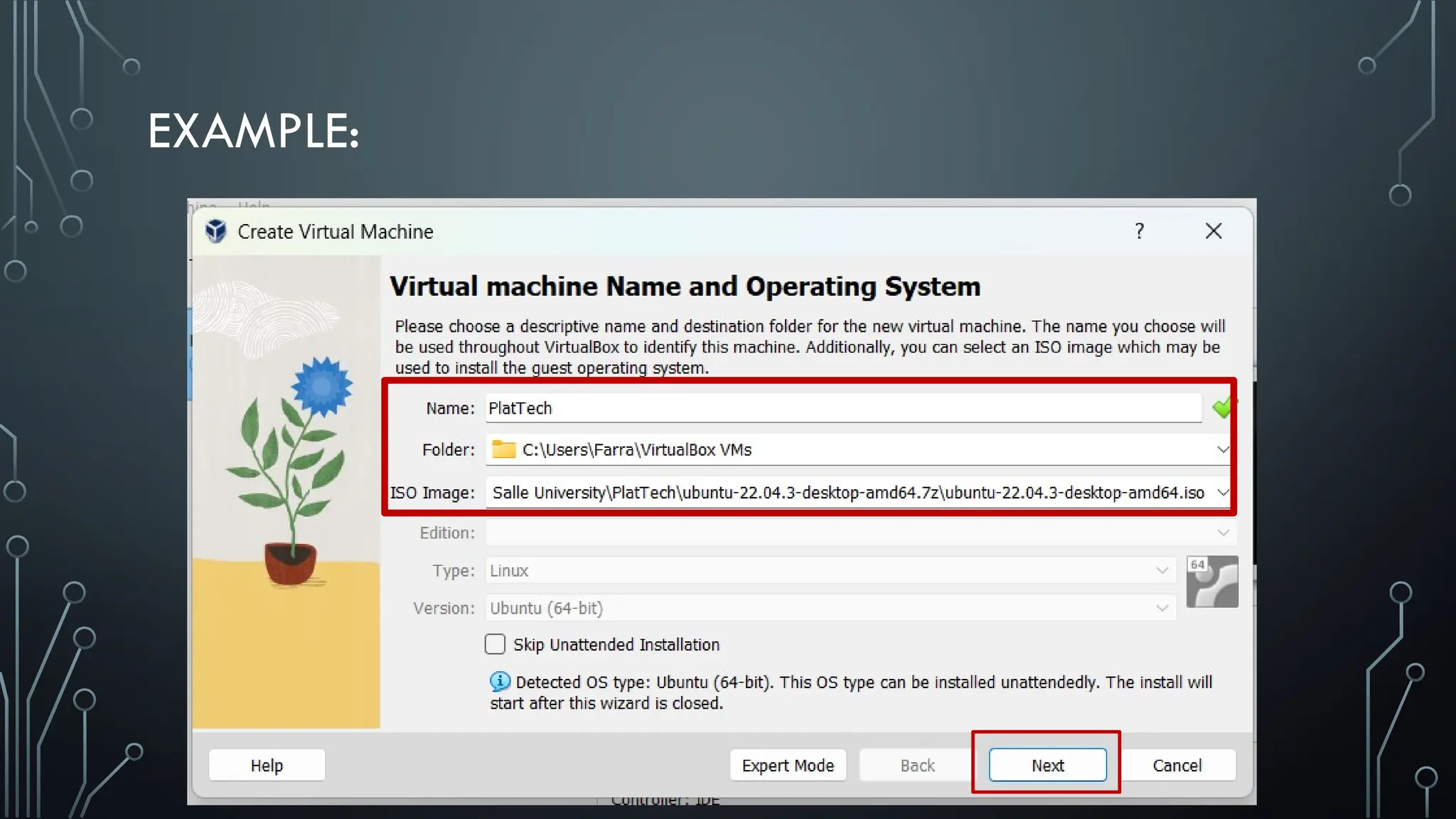
STEP 2: ENTERA NAME FOR THE VIRTUAL MACHINE, SELECT
THE TYPE OF OPERATING SYSTEM YOU WANT TO INSTALL,
AND THEN SELECT THE VERSION. CLICK NEXT TO CONTINUE.
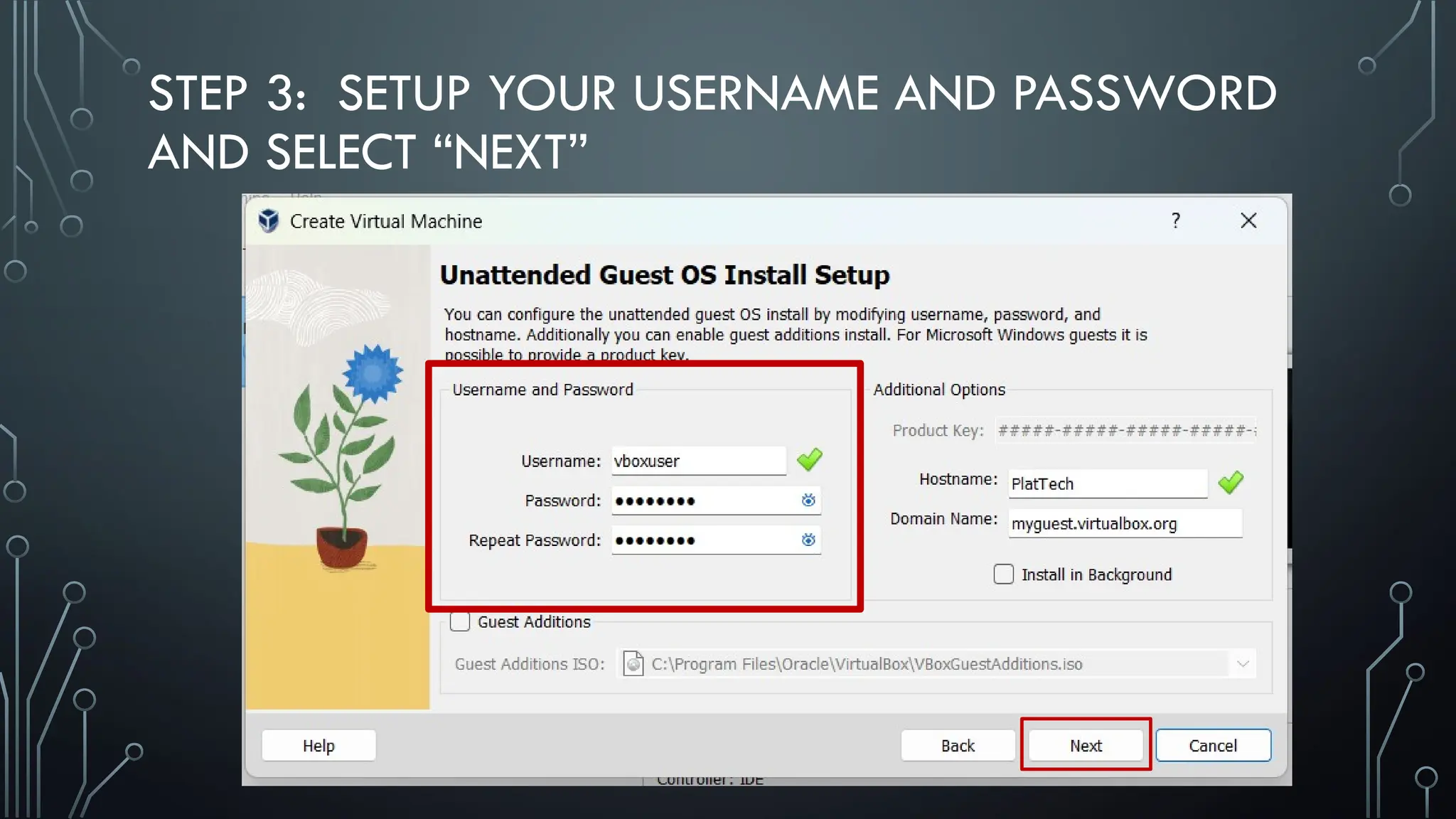
STEP 3: SETUPYOUR USERNAME AND PASSWORD
AND SELECT “NEXT”
22.
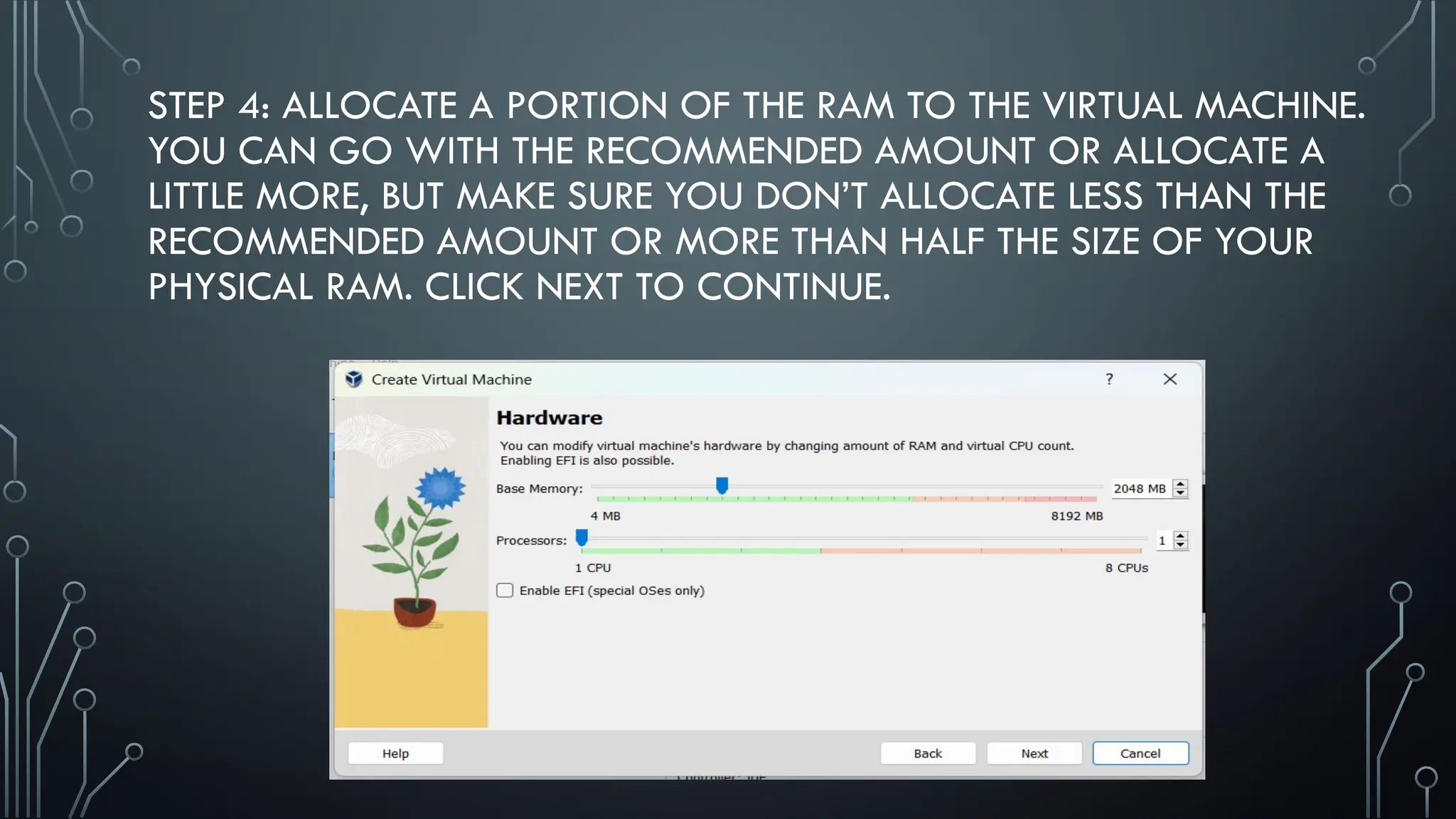
STEP 4: ALLOCATEA PORTION OF THE RAM TO THE VIRTUAL MACHINE.
YOU CAN GO WITH THE RECOMMENDED AMOUNT OR ALLOCATE A
LITTLE MORE, BUT MAKE SURE YOU DON’T ALLOCATE LESS THAN THE
RECOMMENDED AMOUNT OR MORE THAN HALF THE SIZE OF YOUR
PHYSICAL RAM. CLICK NEXT TO CONTINUE.
23.
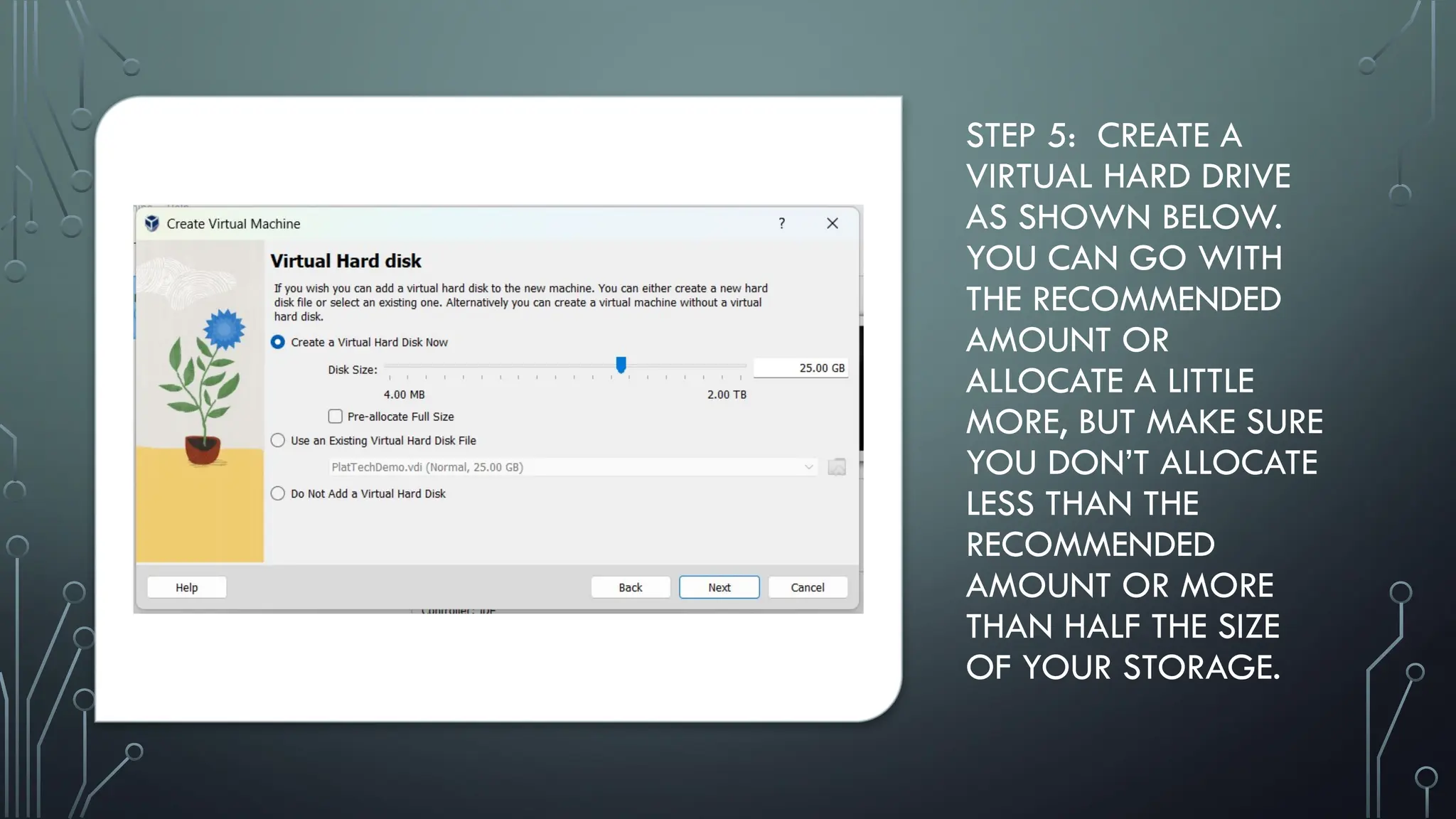
STEP 5: CREATEA
VIRTUAL HARD DRIVE
AS SHOWN BELOW.
YOU CAN GO WITH
THE RECOMMENDED
AMOUNT OR
ALLOCATE A LITTLE
MORE, BUT MAKE SURE
YOU DON’T ALLOCATE
LESS THAN THE
RECOMMENDED
AMOUNT OR MORE
THAN HALF THE SIZE
OF YOUR STORAGE.
24.
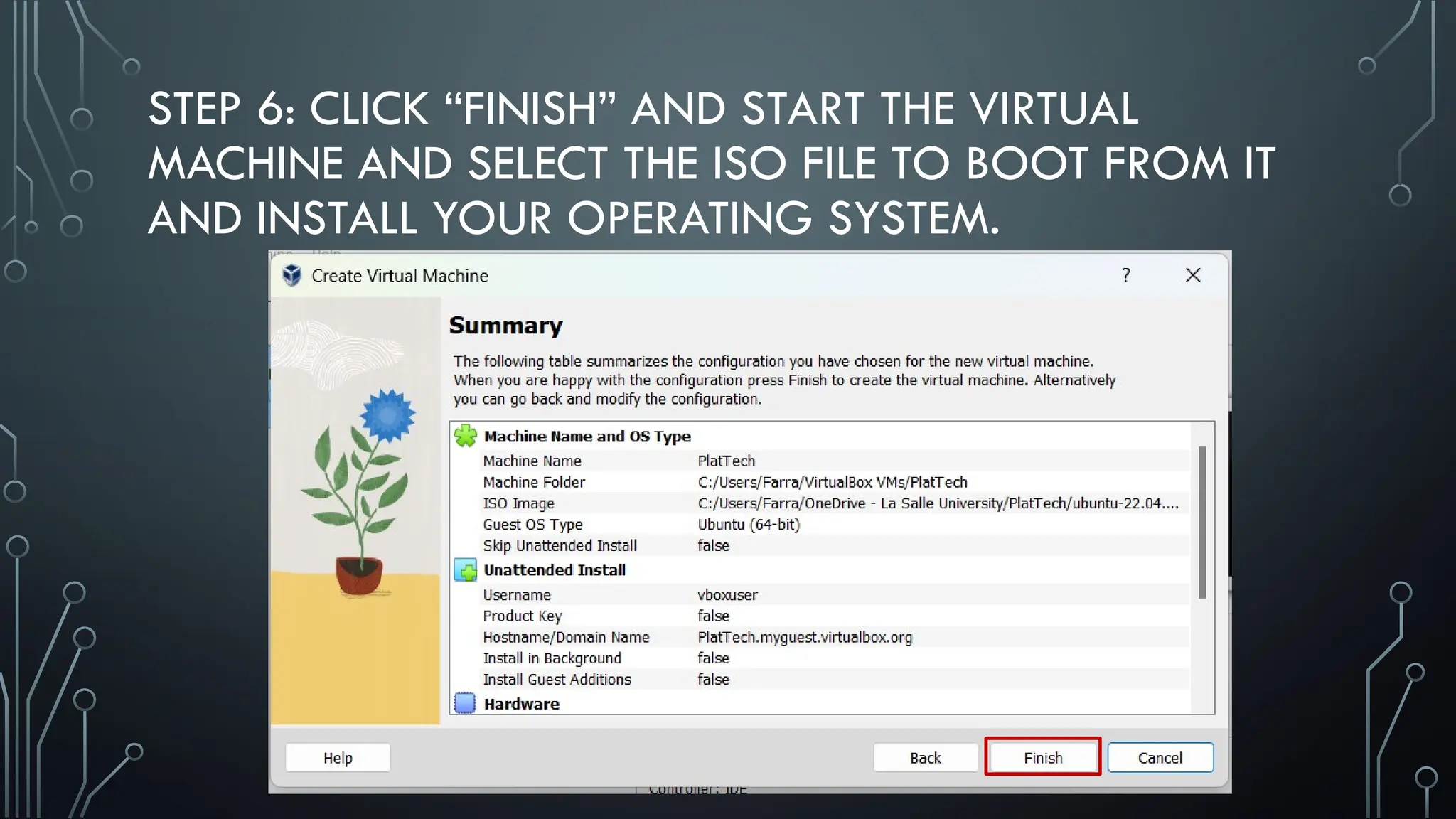
STEP 6: CLICK“FINISH” AND START THE VIRTUAL
MACHINE AND SELECT THE ISO FILE TO BOOT FROM IT
AND INSTALL YOUR OPERATING SYSTEM.
Editor's Notes
#6 While virtual machines run like individual computers with individual operating systems and applications, they have the advantage of remaining completely independent of one another and the physical host machine. A piece of software called a hypervisor, or virtual machine manager, lets you run different operating systems on different virtual machines at the same time. This makes it possible to run Linux VMs, for example, on a Windows OS, or to run an earlier version of Windows on more current Windows OS.
And, because VMs are independent of each other, they're also extremely portable. You can move a VM on a hypervisor to another hypervisor on a completely different machine almost instantaneously.
Because of their flexibility and portability, virtual machines provide many benefits, such as:
#12 The following factors should be examined before choosing a suitable hypervisor:
1. Understand your needs: The company and its applications are the reason for the data center (and your job). Besides your company’s needs, you (and your co-workers in IT) also have your own needs. Needs for a virtualization hypervisor are:
a. Flexibility
b. Scalability
c. Usability
d. Availability
e. Reliability
f. Efficiency
g. Reliable support
2. The cost of a hypervisor: For many buyers, the toughest part of choosing a hypervisor is striking the right balance between cost and functionality. While a number of entry-level solutions are free, or practically free, the prices at the opposite end of the market can be staggering. Licensing frameworks also vary, so it’s important to be aware of exactly what you’re getting for your money.
3. Virtual machine performance: Virtual systems should meet or exceed the performance of their physical counterparts, at least in relation to the applications within each server. Everything beyond meeting this benchmark is profit.
4. Ecosystem: It’s tempting to overlook the role of a hypervisor’s ecosystem – that is, the availability of documentation, support, training, third-party developers and consultancies, and so on – in determining whether or not a solution is cost-effective in the long term.
5. Test for yourself: You can gain basic experience from your existing desktop or laptop. You can run both VMware vSphere and Microsoft Hyper-V in either VMware Workstation or VMware Fusion to create a nice virtual learning and testing environment.
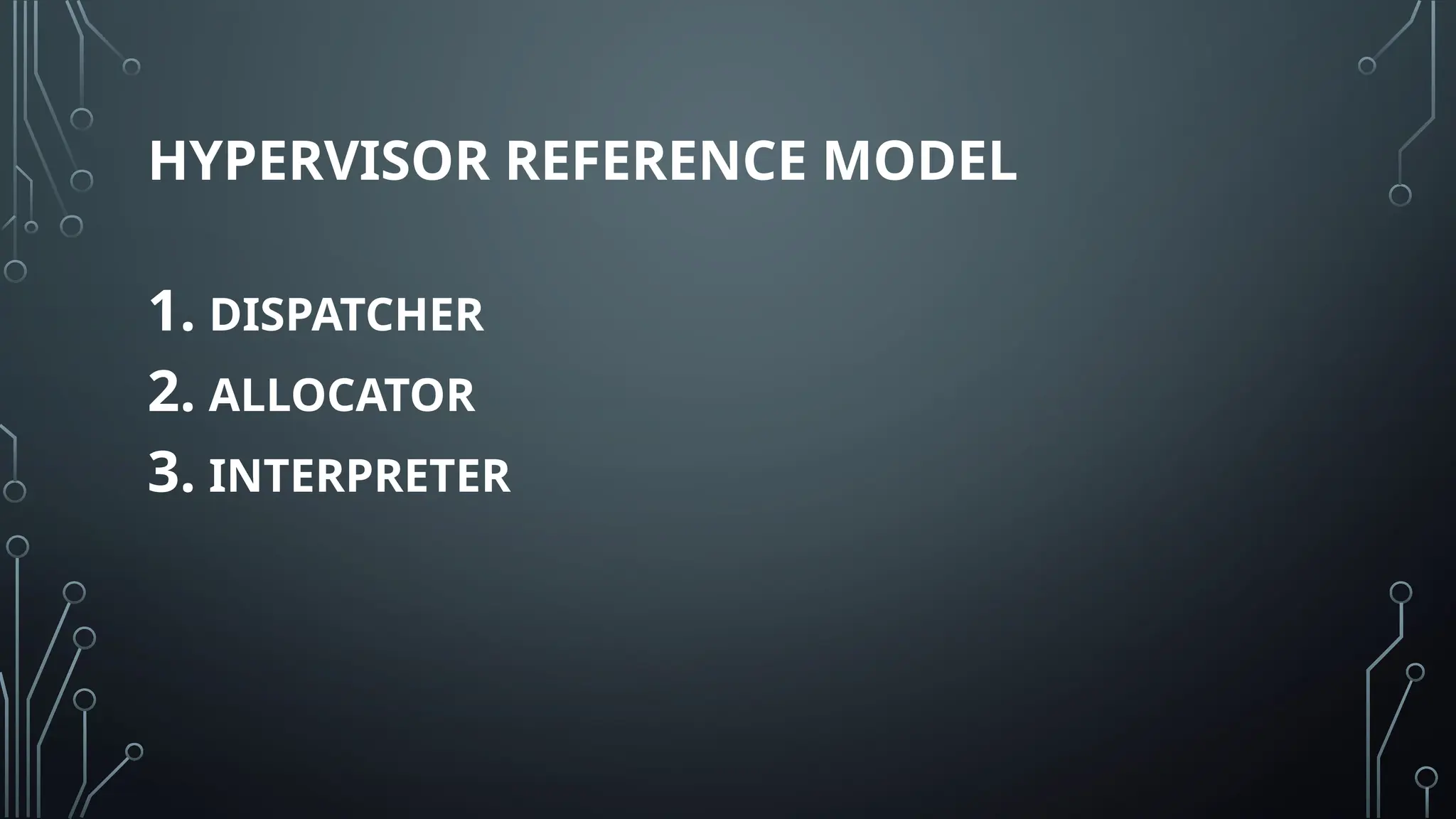
#13 DISPATCHER:
The dispatcher behaves like the entry point of the monitor and reroutes the instructions of the virtual machine instance to one of the other two modules.
ALLOCATOR:
The allocator is responsible for deciding the system resources to be provided to the virtual machine instance. It means whenever a virtual machine tries to execute an instruction that results in changing the machine resources associated with the virtual machine, the allocator is invoked by the dispatcher.
INTERPRETER:
The interpreter module consists of interpreter routines. These are executed, whenever a virtual machine executes a privileged instruction.
#14 Paravirtualization is a type of virtualization that allows guest operating systems (OSs) installed on a virtual machine (VM) to communicate and manage resources with the hypervisor, creating a collaboration environment 1. This collaboration between the guest OS and the hypervisor can improve performance and efficiency. VMs in paravirtualization are therefore not fully isolated, because they share resources and can modify their usage according to their needs.
The communication between the guest OS and the hypervisor is done through hypercalls, which are instructions that the guest OS uses to request services from the hypervisor 1. The hypervisor acts as a middleman between the guest OS and the physical hardware which will be assigned to the VM where the guest OS operates 1. The hypervisor is responsible for the management of the physical resources of a data center, server, or device, and allocates them to a guest OS 1. In paravirtualization, because the OS can communicate with the hypervisor via hypercalls, it can request resources “on demand.” This flexible approach allows the guest OS to scale up or down depending on need and better manage resources while increasing performance and security
#15 Emulation works by handling the behavior of the processor and the individual components1. Emulators are a class of computer software that allow one computer system to simulate a different operating system, in order to run an application meant for the foreign system
#16 Low-level emulation (LLE) simulates the hardware of the target system as closely as possible, while high-level emulation (HLE) simulates the functions of the hardware3. LLE is more accurate but also more demanding, while HLE is faster but less compatible3.