Microsoft Word
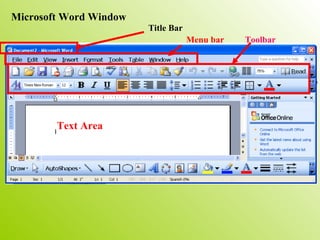
Microsoft Word Window Title Bar Menu bar Toolbar Text Area
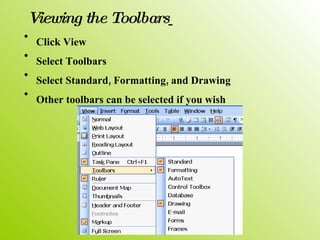
Click  View   Select  Toolbars   Select  Standard, Formatting, and Drawing   Other toolbars can be selected if you wish  Viewing the Toolbars
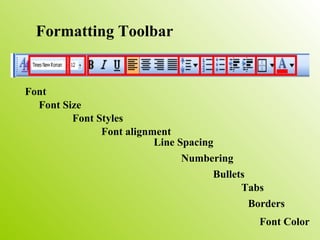
Formatting Toolbar Font  Font Size Font Styles Font alignment Line Spacing Numbering Bullets Tabs Borders Font Color
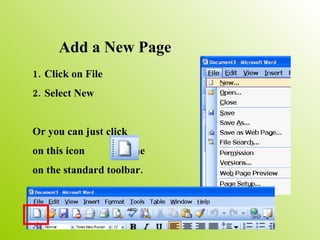
Add a New Page Click on File  Select New Or you can just click on this icon  on the  on the standard toolbar.
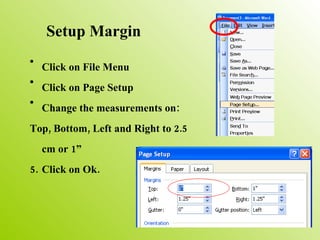
Setup Margin Click on File Menu Click on Page Setup Change the measurements on: Top, Bottom, Left and Right to 2.5 cm or 1” Click on Ok.
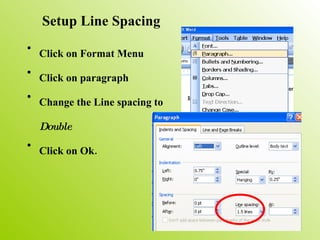
Setup Line Spacing Click on Format Menu Click on paragraph Change the Line spacing to  Double Click on Ok.
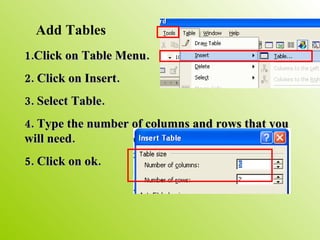
Add Tables 1.Click on Table Menu. 2. Click on Insert. 3. Select Table. 4. Type the number of columns and rows that you will need. 5. Click on ok.
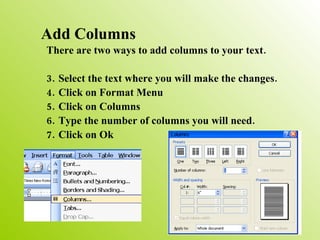
Add Columns There are two ways to add columns to your text. Select the text where you will make the changes. Click on Format Menu Click on Columns Type the number of columns you will need. Click on Ok
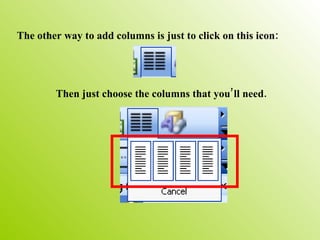
The other way to add columns is just to click on this icon:  Then just choose the columns that you’ll need.
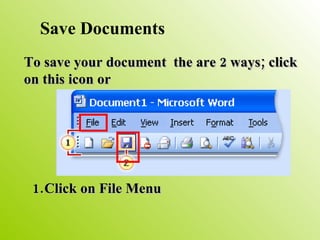
Save Documents To save your document  the are 2 ways; click on this icon or  Click on File Menu
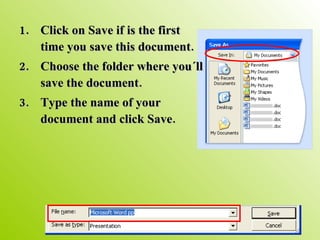
Click on Save if is the first time you save this document. Choose the folder where you´ll save the document. Type the name of your document and click Save.

Microsoft Word Pp

  • 1.
  • 2.
    Microsoft Word WindowTitle Bar Menu bar Toolbar Text Area
  • 3.
    Click View Select Toolbars Select Standard, Formatting, and Drawing Other toolbars can be selected if you wish Viewing the Toolbars
  • 4.
    Formatting Toolbar Font Font Size Font Styles Font alignment Line Spacing Numbering Bullets Tabs Borders Font Color
  • 5.
    Add a NewPage Click on File Select New Or you can just click on this icon on the on the standard toolbar.
  • 6.
    Setup Margin Clickon File Menu Click on Page Setup Change the measurements on: Top, Bottom, Left and Right to 2.5 cm or 1” Click on Ok.
  • 7.
    Setup Line SpacingClick on Format Menu Click on paragraph Change the Line spacing to Double Click on Ok.
  • 8.
    Add Tables 1.Clickon Table Menu. 2. Click on Insert. 3. Select Table. 4. Type the number of columns and rows that you will need. 5. Click on ok.
  • 9.
    Add Columns Thereare two ways to add columns to your text. Select the text where you will make the changes. Click on Format Menu Click on Columns Type the number of columns you will need. Click on Ok
  • 10.
    The other wayto add columns is just to click on this icon: Then just choose the columns that you’ll need.
  • 11.
    Save Documents Tosave your document the are 2 ways; click on this icon or Click on File Menu
  • 12.
    Click on Saveif is the first time you save this document. Choose the folder where you´ll save the document. Type the name of your document and click Save.