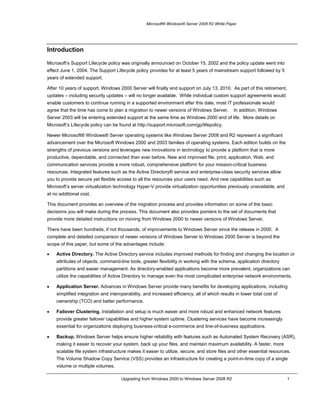
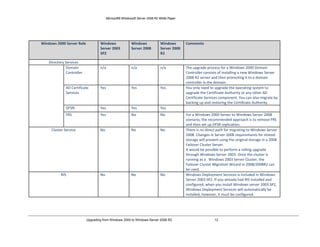
Upgrading from Windows 2000 to Windows Server 2008 R2<br />Microsoft Corporation<br />Published: December 2009<br />Abstract<br />The Microsoft® Windows® Server 2008 R2 provides significant enhancements over the Windows 2000 family of server products. This document provides an overview of the reasons to move to more recent versions of the operating system as well as information on the migration process, including references to various tools and resources.<br />© 2009 Microsoft Corporation. All rights reserved. The information contained in this document represents the current view of Microsoft Corporation on the issues discussed as of December, 2009.  Because Microsoft must respond to changing market conditions, it should not be interpreted to be a commitment on the part of Microsoft and Microsoft cannot guarantee the accuracy of any information presented after the date of publication. <br />Microsoft, Active Directory, BitLocker, Hyper-V, MSDN, Silverlight, Visual Studio, Windows, the Windows logo, Windows PowerShell, Windows Vista, and Windows Server are either registered trademarks or trademarks of Microsoft Corporation in the United States and/or other countries.<br />All other trademarks are property of their respective owners.<br />Contents<br /> TOC \o \"
2-3\"
 \h \z \t \"
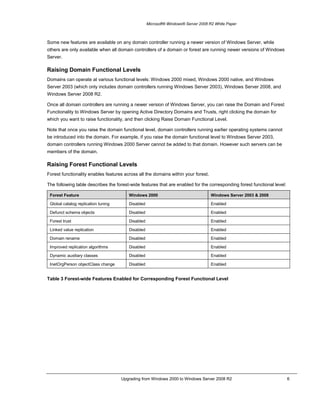
Heading 1,1\"
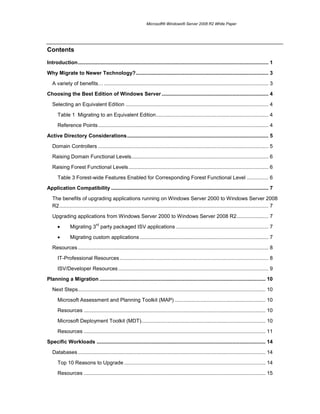
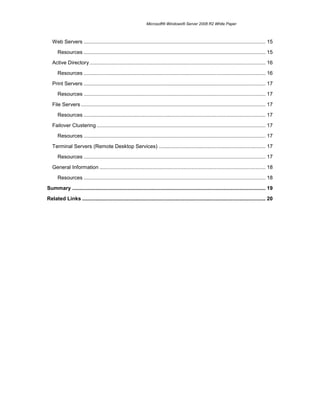
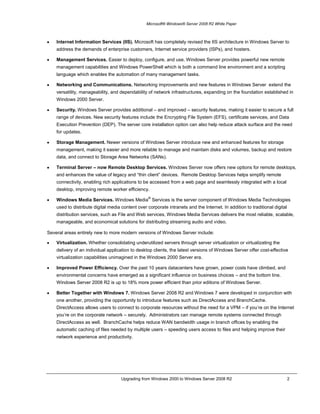
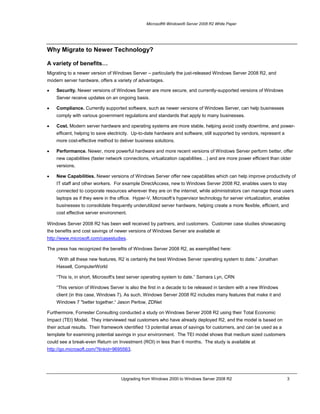
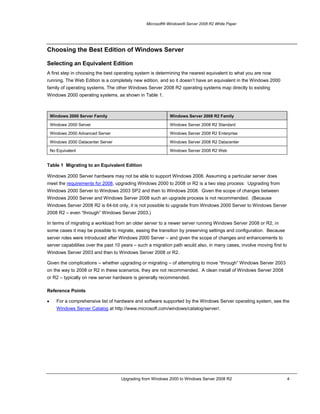
 Introduction PAGEREF _Toc248221477 \h 1<br />Why Migrate to Newer Technology? PAGEREF _Toc248221478 \h 3<br />A variety of benefits… PAGEREF _Toc248221479 \h 3<br />Choosing the Best Edition of Windows Server PAGEREF _Toc248221480 \h 4<br />Selecting an Equivalent Edition PAGEREF _Toc248221481 \h 4<br />Table 1  Migrating to an Equivalent Edition PAGEREF _Toc248221482 \h 4<br />Reference Points PAGEREF _Toc248221483 \h 4<br />Active Directory Considerations PAGEREF _Toc248221484 \h 5<br />Domain Controllers PAGEREF _Toc248221485 \h 5<br />Raising Domain Functional Levels PAGEREF _Toc248221486 \h 6<br />Raising Forest Functional Levels PAGEREF _Toc248221487 \h 6<br />Table 3 Forest-wide Features Enabled for Corresponding Forest Functional Level PAGEREF _Toc248221488 \h 6<br />Application Compatibility PAGEREF _Toc248221489 \h 7<br />The benefits of upgrading applications running on Windows Server 2000 to Windows Server 2008 R2 PAGEREF _Toc248221490 \h 7<br />Upgrading applications from Windows Server 2000 to Windows Server 2008 R2 PAGEREF _Toc248221491 \h 7<br />Migrating 3rd party packaged ISV applications PAGEREF _Toc248221492 \h 7<br />Migrating custom applications PAGEREF _Toc248221493 \h 7<br />Resources PAGEREF _Toc248221494 \h 8<br />IT-Professional Resources PAGEREF _Toc248221495 \h 8<br />ISV/Developer Resources PAGEREF _Toc248221496 \h 9<br />Planning a Migration PAGEREF _Toc248221497 \h 10<br />Next Steps PAGEREF _Toc248221498 \h 10<br />Microsoft Assessment and Planning Toolkit (MAP) PAGEREF _Toc248221499 \h 10<br />Resources PAGEREF _Toc248221500 \h 10<br />Microsoft Deployment Toolkit (MDT) PAGEREF _Toc248221501 \h 10<br />Resources PAGEREF _Toc248221502 \h 11<br />Specific Workloads PAGEREF _Toc248221503 \h 14<br />Databases PAGEREF _Toc248221504 \h 14<br />Top 10 Reasons to Upgrade PAGEREF _Toc248221505 \h 14<br />Resources PAGEREF _Toc248221506 \h 15<br />Web Servers PAGEREF _Toc248221507 \h 15<br />Resources PAGEREF _Toc248221508 \h 15<br />Active Directory PAGEREF _Toc248221509 \h 16<br />Resources PAGEREF _Toc248221510 \h 16<br />Print Servers PAGEREF _Toc248221511 \h 17<br />Resources PAGEREF _Toc248221512 \h 17<br />File Servers PAGEREF _Toc248221513 \h 17<br />Resources PAGEREF _Toc248221514 \h 17<br />Failover Clustering PAGEREF _Toc248221515 \h 17<br />Resources PAGEREF _Toc248221516 \h 17<br />Terminal Servers (Remote Desktop Services) PAGEREF _Toc248221517 \h 17<br />Resources PAGEREF _Toc248221518 \h 17<br />General Information PAGEREF _Toc248221519 \h 18<br />Resources PAGEREF _Toc248221520 \h 18<br />Summary PAGEREF _Toc248221521 \h 19<br />Related Links PAGEREF _Toc248221522 \h 20<br />Introduction<br />Microsoft’s Support Lifecycle policy was originally announced on October 15, 2002 and the policy update went into effect June 1, 2004. The Support Lifecycle policy provides for at least 5 years of mainstream support followed by 5 years of extended support.<br />After 10 years of support, Windows 2000 Server will finally end support on July 13, 2010.  As part of this retirement, updates – including security updates – will no longer available.  While individual custom support agreements would enable customers to continue running in a supported environment after this date, most IT professionals would agree that the time has come to plan a migration to newer versions of Windows Server.    In addition, Windows Server 2003 will be entering extended support at the same time as Windows 2000 end of life.  More details on Microsoft’s Lifecycle policy can be found at http://support.microsoft.com/gp/lifepolicy.<br />Newer Microsoft® Windows® Server operating systems like Windows Server 2008 and R2 represent a significant advancement over the Microsoft Windows 2000 and 2003 families of operating systems. Each edition builds on the strengths of previous versions and leverages new innovations in technology to provide a platform that is more productive, dependable, and connected than ever before. New and improved file, print, application, Web, and communication services provide a more robust, comprehensive platform for your mission-critical business resources. Integrated features such as the Active Directory® service and enterprise-class security services allow you to provide secure yet flexible access to all the resources your users need. And new capabilities such as Microsoft’s server virtualization technology Hyper-V provide virtualization opportunities previously unavailable, and at no additional cost.<br />This document provides an overview of the migration process and provides information on some of the basic decisions you will make during the process. This document also provides pointers to the set of documents that provide more detailed instructions on moving from Windows 2000 to newer versions of Windows Server. <br />There have been hundreds, if not thousands, of improvements to Windows Server since the release in 2000.  A complete and detailed comparison of newer versions of Windows Server to Windows 2000 Server is beyond the scope of this paper, but some of the advantages include:<br />Active Directory. The Active Directory service includes improved methods for finding and changing the location or attributes of objects, command-line tools, greater flexibility in working with the schema, application directory partitions and easier management. As directory-enabled applications become more prevalent, organizations can utilize the capabilities of Active Directory to manage even the most complicated enterprise network environments.<br />Application Server. Advances in Windows Server provide many benefits for developing applications, including simplified integration and interoperability, and increased efficiency, all of which results in lower total cost of ownership (TCO) and better performance.<br />Failover Clustering. Installation and setup is much easier and more robust and enhanced network features provide greater failover capabilities and higher system uptime. Clustering services have become increasingly essential for organizations deploying business-critical e-commerce and line-of-business applications.<br />Backup. Windows Server helps ensure higher reliability with features such as Automated System Recovery (ASR), making it easier to recover your system, back up your files, and maintain maximum availability. A faster, more scalable file system infrastructure makes it easier to utilize, secure, and store files and other essential resources. The Volume Shadow Copy Service (VSS) provides an infrastructure for creating a point-in-time copy of a single volume or multiple volumes. <br />Internet Information Services (IIS). Microsoft has completely revised the IIS architecture in Windows Server to address the demands of enterprise customers, Internet service providers (ISPs), and hosters.<br />Management Services. Easier to deploy, configure, and use, Windows Server provides powerful new remote management capabilities and Windows PowerShell which is both a command line environment and a scripting language which enables the automation of many management tasks.<br />Networking and Communications. Networking improvements and new features in Windows Server  extend the versatility, manageability, and dependability of network infrastructures, expanding on the foundation established in Windows 2000 Server.<br />Security. Windows Server provides additional – and improved – security features, making it easier to secure a full range of devices. New security features include the Encrypting File System (EFS), certificate services, and Data Execution Prevention (DEP). The server core installation option can also help reduce attack surface and the need for updates.<br />Storage Management. Newer versions of Windows Server introduce new and enhanced features for storage management, making it easier and more reliable to manage and maintain disks and volumes, backup and restore data, and connect to Storage Area Networks (SANs).<br />Terminal Server – now Remote Desktop Services. Windows Server now offers new options for remote desktops, and enhances the value of legacy and “thin client” devices.  Remote Desktop Services helps simplify remote connectivity, enabling rich applications to be accessed from a web page and seamlessly integrated with a local desktop, improving remote worker efficiency.<br />Windows Media Services. Windows Media® Services is the server component of Windows Media Technologies used to distribute digital media content over corporate intranets and the Internet. In addition to traditional digital distribution services, such as File and Web services, Windows Media Services delivers the most reliable, scalable, manageable, and economical solutions for distributing streaming audio and video.<br />Several areas entirely new to more modern versions of Windows Server include:<br />Virtualization. Whether consolidating underutilized servers through server virtualization or virtualizating the delivery of an individual application to desktop clients, the latest versions of Windows Server offer cost-effective virtualization capabilities unimagined in the Windows 2000 Server era.<br />Improved Power Efficiency. Over the past 10 years datacenters have grown, power costs have climbed, and environmental concerns have emerged as a significant influence on business choices – and the bottom line.  Windows Server 2008 R2 is up to 18% more power efficient than prior editions of Windows Server.<br />Better Together with Windows 7. Windows Server 2008 R2 and Windows 7 were developed in conjunction with one another, providing the opportunity to introduce features such as DirectAccess and BranchCache.  DirectAccess allows users to connect to corporate resources without the need for a VPM – if you’re on the Internet you’re on the corporate network – securely.  Administrators can manage remote systems connected through DirectAccess as well.  BranchCache helps reduce WAN bandwidth usage in branch offices by enabling the automatic caching of files needed by multiple users – speeding users access to files and helping improve their network experience and productivity.<br />Why Migrate to Newer Technology?<br />A variety of benefits…<br />Migrating to a newer version of Windows Server – particularly the just-released Windows Server 2008 R2, and modern server hardware, offers a variety of advantages.<br />Security. Newer versions of Windows Server are more secure, and currently-supported versions of Windows Server receive updates on an ongoing basis.<br />Compliance. Currently supported software, such as newer versions of Windows Server, can help businesses comply with various government regulations and standards that apply to many businesses.<br />Cost. Modern server hardware and operating systems are more stable, helping avoid costly downtime, and power-efficent, helping to save electricity.  Up-to-date hardware and software, still supported by vendors, represent a more cost-effective method to deliver business solutions.<br />Performance. Newer, more powerful hardware and more recent versions of Windows Server perform better, offer new capabilities (faster network connections, virtualization capabilities…) and are more power efficient than older versions.<br />New Capabilities. Newer versions of Windows Server offer new capabilities which can help improve productivity of IT staff and other workers.  For example DirectAccess, new to Windows Server 2008 R2, enables users to stay connected to corporate resources wherever they are on the internet, while administrators can manage those users laptops as if they were in the office.  Hyper-V, Microsoft’s hypervisor technology for server virtualization, enables businesses to consolidate frequently underutilized server hardware, helping create a more flexible, efficient, and cost effective server environment.<br />Windows Server 2008 R2 has been well received by partners, and customers.  Customer case studies showcasing the benefits and cost savings of newer versions of Windows Server are available at http://www.microsoft.com/casestudies.<br />The press has recognized the benefits of Windows Server 2008 R2, as exemplified here:<br /> “With all these new features, R2 is certainly the best Windows Server operating system to date.” Jonathan Hassell, ComputerWorld<br />“This is, in short, Microsoft's best server operating system to date.” Samara Lyn, CRN<br />“This version of Windows Server is also the first in a decade to be released in tandem with a new Windows client (in this case, Windows 7). As such, Windows Server 2008 R2 includes many features that make it and Windows 7 \"
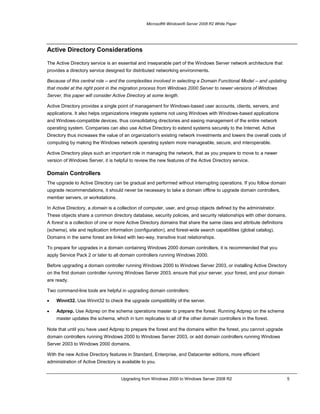
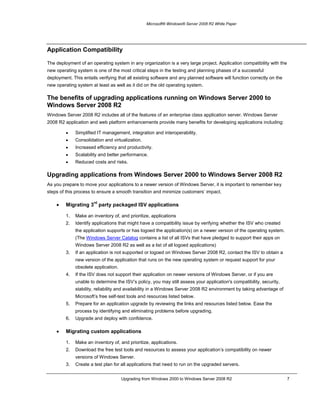
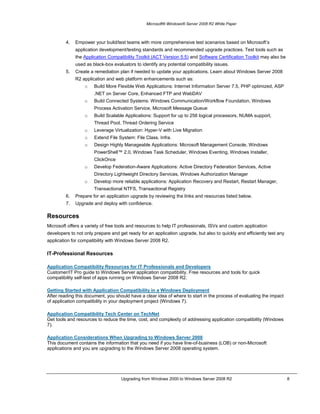
better together.“ Jason Perlow, ZDNet<br />Furthermore, Forrester Consulting conducted a study on Windows Server 2008 R2 using their Total Economic Impact (TEI) Model.  They interviewed real customers who have already deployed R2, and the model is based on their actual results.  Their framework identified 13 potential areas of savings for customers, and can be used as a template for examining potential savings in your environment.  The TEI model shows that medium sized customers could see a break-even Return on Investment (ROI) in less than 6 months.  The study is available at http://go.microsoft.com/?linkid=9695563.<br />Choosing the Best Edition of Windows Server <br />Selecting an Equivalent Edition <br />A first step in choosing the best operating system is determining the nearest equivalent to what you are now running. The Web Edition is a completely new edition, and so it doesn’t have an equivalent in the Windows 2000 family of operating systems. The other Windows Server 2008 R2 operating systems map directly to existing Windows 2000 operating systems, as shown in Table 1.<br />Windows 2000 Server FamilyWindows Server 2008 R2 FamilyWindows 2000 ServerWindows Server 2008 R2 StandardWindows 2000 Advanced ServerWindows Server 2008 R2 EnterpriseWindows 2000 Datacenter ServerWindows Server 2008 R2 DatacenterNo EquivalentWindows Server 2008 R2 Web<br />Table 1  Migrating to an Equivalent Edition<br />Windows 2000 Server hardware may not be able to support Windows 2008. Assuming a particular server does meet the requirements for 2008, upgrading Windows 2000 to 2008 or R2 is a two step process:  Upgrading from Windows 2000 Server to Windows 2003 SP2 and then to Windows 2008.  Given the scope of changes between Windows 2000 Server and Windows Server 2008 such an upgrade process is not recommended.  (Because Windows Server 2008 R2 is 64-bit only, it is not possible to upgrade from Windows 2000 Server to Windows Server 2008 R2 – even “through” Windows Server 2003.)<br />In terms of migrating a workload from an older server to a newer server running Windows Server 2008 or R2, in some cases it may be possible to migrate, easing the transition by preserving settings and configuration.  Because server roles were introduced after Windows 2000 Server – and given the scope of changes and enhancements to server capabilities over the past 10 years – such a migration path would also, in many cases, involve moving first to Windows Server 2003 and then to Windows Server 2008 or R2.<br />Given the complications – whether upgrading or migrating – of attempting to move “through” Windows Server 2003 on the way to 2008 or R2 in these scenarios, they are not recommended.  A clean install of Windows Server 2008 or R2 – typically on new server hardware is generally recommended.<br />Reference Points<br />For a comprehensive list of hardware and software supported by the Windows Server operating system, see the Windows Server Catalog at http://www.microsoft.com/windows/catalog/server/. <br />Active Directory Considerations<br />The Active Directory service is an essential and inseparable part of the Windows Server network architecture that provides a directory service designed for distributed networking environments. <br />Because of this central role – and the complexities involved in selecting a Domain Functional Model – and updating that model at the right point in the migration process from Windows 2000 Server to newer versions of Windows Server, this paper will consider Active Directory at some length.<br />Active Directory provides a single point of management for Windows-based user accounts, clients, servers, and applications. It also helps organizations integrate systems not using Windows with Windows-based applications and Windows-compatible devices, thus consolidating directories and easing management of the entire network operating system. Companies can also use Active Directory to extend systems securely to the Internet. Active Directory thus increases the value of an organization's existing network investments and lowers the overall costs of computing by making the Windows network operating system more manageable, secure, and interoperable. <br />Active Directory plays such an important role in managing the network, that as you prepare to move to a newer version of Windows Server, it is helpful to review the new features of the Active Directory service.<br />Domain Controllers<br />The upgrade to Active Directory can be gradual and performed without interrupting operations. If you follow domain upgrade recommendations, it should never be necessary to take a domain offline to upgrade domain controllers, member servers, or workstations. <br />In Active Directory, a domain is a collection of computer, user, and group objects defined by the administrator. These objects share a common directory database, security policies, and security relationships with other domains. A forest is a collection of one or more Active Directory domains that share the same class and attribute definitions (schema), site and replication information (configuration), and forest-wide search capabilities (global catalog). Domains in the same forest are linked with two-way, transitive trust relationships.<br />To prepare for upgrades in a domain containing Windows 2000 domain controllers, it is recommended that you apply Service Pack 2 or later to all domain controllers running Windows 2000.<br />Before upgrading a domain controller running Windows 2000 to Windows Server 2003, or installing Active Directory on the first domain controller running Windows Server 2003, ensure that your server, your forest, and your domain are ready. <br />Two command-line tools are helpful in upgrading domain controllers:<br />Winnt32. Use Winnt32 to check the upgrade compatibility of the server.<br />Adprep. Use Adprep on the schema operations master to prepare the forest. Running Adprep on the schema master updates the schema, which in turn replicates to all of the other domain controllers in the forest.<br />Note that until you have used Adprep to prepare the forest and the domains within the forest, you cannot upgrade domain controllers running Windows 2000 to Windows Server 2003, or add domain controllers running Windows Server 2003 to Windows 2000 domains.<br />With the new Active Directory features in Standard, Enterprise, and Datacenter editions, more efficient administration of Active Directory is available to you. <br />Some new features are available on any domain controller running a newer version of Windows Server, while others are only available when all domain controllers of a domain or forest are running newer versions of Windows Server.<br />Raising Domain Functional Levels<br />Domains can operate at various functional levels: Windows 2000 mixed, Windows 2000 native, and Windows Server 2003 (which only includes domain controllers running Windows Server 2003), Windows Server 2008, and Windows Server 2008 R2.<br />Once all domain controllers are running a newer version of Windows Server, you can raise the Domain and Forest Functionality to Windows Server by opening Active Directory Domains and Trusts, right clicking the domain for which you want to raise functionality, and then clicking Raise Domain Functional Level.<br />Note that once you raise the domain functional level, domain controllers running earlier operating systems cannot be introduced into the domain. For example, if you raise the domain functional level to Windows Server 2003, domain controllers running Windows 2000 Server cannot be added to that domain. However such servers can be members of the domain.<br />Raising Forest Functional Levels<br />Forest functionality enables features across all the domains within your forest.<br />The following table describes the forest-wide features that are enabled for the corresponding forest functional level:<br />Forest FeatureWindows 2000Windows Server 2003 & 2008Global catalog replication tuningDisabledEnabledDefunct schema objectsDisabledEnabledForest trustDisabledEnabledLinked value replicationDisabledEnabledDomain renameDisabledEnabledImproved replication algorithmsDisabledEnabledDynamic auxiliary classesDisabledEnabledInetOrgPerson objectClass changeDisabledEnabled<br />Table 3 Forest-wide Features Enabled for Corresponding Forest Functional Level<br />Application Compatibility<br />The deployment of an operating system in any organization is a very large project. Application compatibility with the new operating system is one of the most critical steps in the testing and planning phases of a successful deployment. This entails verifying that all existing software and any planned software will function correctly on the new operating system at least as well as it did on the old operating system.<br />The benefits of upgrading applications running on Windows Server 2000 to Windows Server 2008 R2<br />Windows Server 2008 R2 includes all of the features of an enterprise class application server. Windows Server 2008 R2 application and web platform enhancements provide many benefits for developing applications including:<br />Simplified IT management, integration and interoperability.
Consolidation and virtualization.
Increased efficiency and productivity.
Scalability and better performance.
Reduced costs and risks.Upgrading applications from Windows Server 2000 to Windows Server 2008 R2<br />As you prepare to move your applications to a newer version of Windows Server, it is important to remember key steps of this process to ensure a smooth transition and minimize customers’ impact.<br />Migrating 3rd party packaged ISV applications<br />Make an inventory of, and prioritize, applications
Identify applications that might have a compatibility issue by verifying whether the ISV who created the application supports or has logoed the application(s) on a newer version of the operating system. (The Windows Server Catalog contains a list of all ISVs that have pledged to support their apps on Windows Server 2008 R2 as well as a list of all logoed applications)
If an application is not supported or logoed on Windows Server 2008 R2, contact the ISV to obtain a new version of the application that runs on the new operating system or request support for your obsolete application.
If the ISV does not support their application on newer versions of Windows Server, or if you are unable to determine the ISV’s policy, you may still assess your application's compatibility, security, stability, reliability and availability in a Windows Server 2008 R2 environment by taking advantage of Microsoft’s free self-test tools and resources listed below.
Prepare for an application upgrade by reviewing the links and resources listed below. Ease the process by identifying and eliminating problems before upgrading.
Upgrade and deploy with confidence.Migrating custom applications<br />Make an inventory of, and prioritize, applications.
Download the free test tools and resources to assess your application’s compatibility on newer versions of Windows Server.
Create a test plan for all applications that need to run on the upgraded servers.
Empower your build/test teams with more comprehensive test scenarios based on Microsoft’s application development/testing standards and recommended upgrade practices. Test tools such as the Application Compatibility Toolkit (ACT Version 5.5) and Software Certification Toolkit may also be used as black-box evaluators to identify any potential compatibility issues.
Create a remediation plan if needed to update your applications. Learn about Windows Server 2008 R2 application and web platform enhancements such as:
Build More Flexible Web Applications: Internet Information Server 7.5, PHP optimized, ASP .NET on Server Core, Enhanced FTP and WebDAV
Build Connected Systems: Windows Communication/Workflow Foundation, Windows Process Activation Service, Microsoft Message Queue
Build Scalable Applications: Support for up to 256 logical processors, NUMA support, Thread Pool, Thread Ordering Service
Leverage Virtualization: Hyper-V with Live Migration
Extend File System: File Class. Infra.
Design Highly Manageable Applications: Microsoft Management Console, Windows PowerShell™ 2.0, Windows Task Scheduler, Windows Eventing, Windows Installer, ClickOnce
Develop Federation-Aware Applications: Active Directory Federation Services, Active Directory Lightweight Directory Services, Windows Authorization Manager
Develop more reliable applications: Application Recovery and Restart, Restart Manager, Transactional NTFS, Transactional Registry
Prepare for an application upgrade by reviewing the links and resources listed below.

Microsoft Windows Server 2008 R2 - Upgrading from Windows 2000 to Server 2008 R2 Whitepaper

  • 1.
    Upgrading from Windows2000 to Windows Server 2008 R2<br />Microsoft Corporation<br />Published: December 2009<br />Abstract<br />The Microsoft® Windows® Server 2008 R2 provides significant enhancements over the Windows 2000 family of server products. This document provides an overview of the reasons to move to more recent versions of the operating system as well as information on the migration process, including references to various tools and resources.<br />© 2009 Microsoft Corporation. All rights reserved. The information contained in this document represents the current view of Microsoft Corporation on the issues discussed as of December, 2009. Because Microsoft must respond to changing market conditions, it should not be interpreted to be a commitment on the part of Microsoft and Microsoft cannot guarantee the accuracy of any information presented after the date of publication. <br />Microsoft, Active Directory, BitLocker, Hyper-V, MSDN, Silverlight, Visual Studio, Windows, the Windows logo, Windows PowerShell, Windows Vista, and Windows Server are either registered trademarks or trademarks of Microsoft Corporation in the United States and/or other countries.<br />All other trademarks are property of their respective owners.<br />Contents<br /> TOC \o \" 2-3\" \h \z \t \" Heading 1,1\" Introduction PAGEREF _Toc248221477 \h 1<br />Why Migrate to Newer Technology? PAGEREF _Toc248221478 \h 3<br />A variety of benefits… PAGEREF _Toc248221479 \h 3<br />Choosing the Best Edition of Windows Server PAGEREF _Toc248221480 \h 4<br />Selecting an Equivalent Edition PAGEREF _Toc248221481 \h 4<br />Table 1 Migrating to an Equivalent Edition PAGEREF _Toc248221482 \h 4<br />Reference Points PAGEREF _Toc248221483 \h 4<br />Active Directory Considerations PAGEREF _Toc248221484 \h 5<br />Domain Controllers PAGEREF _Toc248221485 \h 5<br />Raising Domain Functional Levels PAGEREF _Toc248221486 \h 6<br />Raising Forest Functional Levels PAGEREF _Toc248221487 \h 6<br />Table 3 Forest-wide Features Enabled for Corresponding Forest Functional Level PAGEREF _Toc248221488 \h 6<br />Application Compatibility PAGEREF _Toc248221489 \h 7<br />The benefits of upgrading applications running on Windows Server 2000 to Windows Server 2008 R2 PAGEREF _Toc248221490 \h 7<br />Upgrading applications from Windows Server 2000 to Windows Server 2008 R2 PAGEREF _Toc248221491 \h 7<br />Migrating 3rd party packaged ISV applications PAGEREF _Toc248221492 \h 7<br />Migrating custom applications PAGEREF _Toc248221493 \h 7<br />Resources PAGEREF _Toc248221494 \h 8<br />IT-Professional Resources PAGEREF _Toc248221495 \h 8<br />ISV/Developer Resources PAGEREF _Toc248221496 \h 9<br />Planning a Migration PAGEREF _Toc248221497 \h 10<br />Next Steps PAGEREF _Toc248221498 \h 10<br />Microsoft Assessment and Planning Toolkit (MAP) PAGEREF _Toc248221499 \h 10<br />Resources PAGEREF _Toc248221500 \h 10<br />Microsoft Deployment Toolkit (MDT) PAGEREF _Toc248221501 \h 10<br />Resources PAGEREF _Toc248221502 \h 11<br />Specific Workloads PAGEREF _Toc248221503 \h 14<br />Databases PAGEREF _Toc248221504 \h 14<br />Top 10 Reasons to Upgrade PAGEREF _Toc248221505 \h 14<br />Resources PAGEREF _Toc248221506 \h 15<br />Web Servers PAGEREF _Toc248221507 \h 15<br />Resources PAGEREF _Toc248221508 \h 15<br />Active Directory PAGEREF _Toc248221509 \h 16<br />Resources PAGEREF _Toc248221510 \h 16<br />Print Servers PAGEREF _Toc248221511 \h 17<br />Resources PAGEREF _Toc248221512 \h 17<br />File Servers PAGEREF _Toc248221513 \h 17<br />Resources PAGEREF _Toc248221514 \h 17<br />Failover Clustering PAGEREF _Toc248221515 \h 17<br />Resources PAGEREF _Toc248221516 \h 17<br />Terminal Servers (Remote Desktop Services) PAGEREF _Toc248221517 \h 17<br />Resources PAGEREF _Toc248221518 \h 17<br />General Information PAGEREF _Toc248221519 \h 18<br />Resources PAGEREF _Toc248221520 \h 18<br />Summary PAGEREF _Toc248221521 \h 19<br />Related Links PAGEREF _Toc248221522 \h 20<br />Introduction<br />Microsoft’s Support Lifecycle policy was originally announced on October 15, 2002 and the policy update went into effect June 1, 2004. The Support Lifecycle policy provides for at least 5 years of mainstream support followed by 5 years of extended support.<br />After 10 years of support, Windows 2000 Server will finally end support on July 13, 2010. As part of this retirement, updates – including security updates – will no longer available. While individual custom support agreements would enable customers to continue running in a supported environment after this date, most IT professionals would agree that the time has come to plan a migration to newer versions of Windows Server. In addition, Windows Server 2003 will be entering extended support at the same time as Windows 2000 end of life. More details on Microsoft’s Lifecycle policy can be found at http://support.microsoft.com/gp/lifepolicy.<br />Newer Microsoft® Windows® Server operating systems like Windows Server 2008 and R2 represent a significant advancement over the Microsoft Windows 2000 and 2003 families of operating systems. Each edition builds on the strengths of previous versions and leverages new innovations in technology to provide a platform that is more productive, dependable, and connected than ever before. New and improved file, print, application, Web, and communication services provide a more robust, comprehensive platform for your mission-critical business resources. Integrated features such as the Active Directory® service and enterprise-class security services allow you to provide secure yet flexible access to all the resources your users need. And new capabilities such as Microsoft’s server virtualization technology Hyper-V provide virtualization opportunities previously unavailable, and at no additional cost.<br />This document provides an overview of the migration process and provides information on some of the basic decisions you will make during the process. This document also provides pointers to the set of documents that provide more detailed instructions on moving from Windows 2000 to newer versions of Windows Server. <br />There have been hundreds, if not thousands, of improvements to Windows Server since the release in 2000. A complete and detailed comparison of newer versions of Windows Server to Windows 2000 Server is beyond the scope of this paper, but some of the advantages include:<br />Active Directory. The Active Directory service includes improved methods for finding and changing the location or attributes of objects, command-line tools, greater flexibility in working with the schema, application directory partitions and easier management. As directory-enabled applications become more prevalent, organizations can utilize the capabilities of Active Directory to manage even the most complicated enterprise network environments.<br />Application Server. Advances in Windows Server provide many benefits for developing applications, including simplified integration and interoperability, and increased efficiency, all of which results in lower total cost of ownership (TCO) and better performance.<br />Failover Clustering. Installation and setup is much easier and more robust and enhanced network features provide greater failover capabilities and higher system uptime. Clustering services have become increasingly essential for organizations deploying business-critical e-commerce and line-of-business applications.<br />Backup. Windows Server helps ensure higher reliability with features such as Automated System Recovery (ASR), making it easier to recover your system, back up your files, and maintain maximum availability. A faster, more scalable file system infrastructure makes it easier to utilize, secure, and store files and other essential resources. The Volume Shadow Copy Service (VSS) provides an infrastructure for creating a point-in-time copy of a single volume or multiple volumes. <br />Internet Information Services (IIS). Microsoft has completely revised the IIS architecture in Windows Server to address the demands of enterprise customers, Internet service providers (ISPs), and hosters.<br />Management Services. Easier to deploy, configure, and use, Windows Server provides powerful new remote management capabilities and Windows PowerShell which is both a command line environment and a scripting language which enables the automation of many management tasks.<br />Networking and Communications. Networking improvements and new features in Windows Server extend the versatility, manageability, and dependability of network infrastructures, expanding on the foundation established in Windows 2000 Server.<br />Security. Windows Server provides additional – and improved – security features, making it easier to secure a full range of devices. New security features include the Encrypting File System (EFS), certificate services, and Data Execution Prevention (DEP). The server core installation option can also help reduce attack surface and the need for updates.<br />Storage Management. Newer versions of Windows Server introduce new and enhanced features for storage management, making it easier and more reliable to manage and maintain disks and volumes, backup and restore data, and connect to Storage Area Networks (SANs).<br />Terminal Server – now Remote Desktop Services. Windows Server now offers new options for remote desktops, and enhances the value of legacy and “thin client” devices. Remote Desktop Services helps simplify remote connectivity, enabling rich applications to be accessed from a web page and seamlessly integrated with a local desktop, improving remote worker efficiency.<br />Windows Media Services. Windows Media® Services is the server component of Windows Media Technologies used to distribute digital media content over corporate intranets and the Internet. In addition to traditional digital distribution services, such as File and Web services, Windows Media Services delivers the most reliable, scalable, manageable, and economical solutions for distributing streaming audio and video.<br />Several areas entirely new to more modern versions of Windows Server include:<br />Virtualization. Whether consolidating underutilized servers through server virtualization or virtualizating the delivery of an individual application to desktop clients, the latest versions of Windows Server offer cost-effective virtualization capabilities unimagined in the Windows 2000 Server era.<br />Improved Power Efficiency. Over the past 10 years datacenters have grown, power costs have climbed, and environmental concerns have emerged as a significant influence on business choices – and the bottom line. Windows Server 2008 R2 is up to 18% more power efficient than prior editions of Windows Server.<br />Better Together with Windows 7. Windows Server 2008 R2 and Windows 7 were developed in conjunction with one another, providing the opportunity to introduce features such as DirectAccess and BranchCache. DirectAccess allows users to connect to corporate resources without the need for a VPM – if you’re on the Internet you’re on the corporate network – securely. Administrators can manage remote systems connected through DirectAccess as well. BranchCache helps reduce WAN bandwidth usage in branch offices by enabling the automatic caching of files needed by multiple users – speeding users access to files and helping improve their network experience and productivity.<br />Why Migrate to Newer Technology?<br />A variety of benefits…<br />Migrating to a newer version of Windows Server – particularly the just-released Windows Server 2008 R2, and modern server hardware, offers a variety of advantages.<br />Security. Newer versions of Windows Server are more secure, and currently-supported versions of Windows Server receive updates on an ongoing basis.<br />Compliance. Currently supported software, such as newer versions of Windows Server, can help businesses comply with various government regulations and standards that apply to many businesses.<br />Cost. Modern server hardware and operating systems are more stable, helping avoid costly downtime, and power-efficent, helping to save electricity. Up-to-date hardware and software, still supported by vendors, represent a more cost-effective method to deliver business solutions.<br />Performance. Newer, more powerful hardware and more recent versions of Windows Server perform better, offer new capabilities (faster network connections, virtualization capabilities…) and are more power efficient than older versions.<br />New Capabilities. Newer versions of Windows Server offer new capabilities which can help improve productivity of IT staff and other workers. For example DirectAccess, new to Windows Server 2008 R2, enables users to stay connected to corporate resources wherever they are on the internet, while administrators can manage those users laptops as if they were in the office. Hyper-V, Microsoft’s hypervisor technology for server virtualization, enables businesses to consolidate frequently underutilized server hardware, helping create a more flexible, efficient, and cost effective server environment.<br />Windows Server 2008 R2 has been well received by partners, and customers. Customer case studies showcasing the benefits and cost savings of newer versions of Windows Server are available at http://www.microsoft.com/casestudies.<br />The press has recognized the benefits of Windows Server 2008 R2, as exemplified here:<br /> “With all these new features, R2 is certainly the best Windows Server operating system to date.” Jonathan Hassell, ComputerWorld<br />“This is, in short, Microsoft's best server operating system to date.” Samara Lyn, CRN<br />“This version of Windows Server is also the first in a decade to be released in tandem with a new Windows client (in this case, Windows 7). As such, Windows Server 2008 R2 includes many features that make it and Windows 7 \" better together.“ Jason Perlow, ZDNet<br />Furthermore, Forrester Consulting conducted a study on Windows Server 2008 R2 using their Total Economic Impact (TEI) Model. They interviewed real customers who have already deployed R2, and the model is based on their actual results. Their framework identified 13 potential areas of savings for customers, and can be used as a template for examining potential savings in your environment. The TEI model shows that medium sized customers could see a break-even Return on Investment (ROI) in less than 6 months. The study is available at http://go.microsoft.com/?linkid=9695563.<br />Choosing the Best Edition of Windows Server <br />Selecting an Equivalent Edition <br />A first step in choosing the best operating system is determining the nearest equivalent to what you are now running. The Web Edition is a completely new edition, and so it doesn’t have an equivalent in the Windows 2000 family of operating systems. The other Windows Server 2008 R2 operating systems map directly to existing Windows 2000 operating systems, as shown in Table 1.<br />Windows 2000 Server FamilyWindows Server 2008 R2 FamilyWindows 2000 ServerWindows Server 2008 R2 StandardWindows 2000 Advanced ServerWindows Server 2008 R2 EnterpriseWindows 2000 Datacenter ServerWindows Server 2008 R2 DatacenterNo EquivalentWindows Server 2008 R2 Web<br />Table 1 Migrating to an Equivalent Edition<br />Windows 2000 Server hardware may not be able to support Windows 2008. Assuming a particular server does meet the requirements for 2008, upgrading Windows 2000 to 2008 or R2 is a two step process: Upgrading from Windows 2000 Server to Windows 2003 SP2 and then to Windows 2008. Given the scope of changes between Windows 2000 Server and Windows Server 2008 such an upgrade process is not recommended. (Because Windows Server 2008 R2 is 64-bit only, it is not possible to upgrade from Windows 2000 Server to Windows Server 2008 R2 – even “through” Windows Server 2003.)<br />In terms of migrating a workload from an older server to a newer server running Windows Server 2008 or R2, in some cases it may be possible to migrate, easing the transition by preserving settings and configuration. Because server roles were introduced after Windows 2000 Server – and given the scope of changes and enhancements to server capabilities over the past 10 years – such a migration path would also, in many cases, involve moving first to Windows Server 2003 and then to Windows Server 2008 or R2.<br />Given the complications – whether upgrading or migrating – of attempting to move “through” Windows Server 2003 on the way to 2008 or R2 in these scenarios, they are not recommended. A clean install of Windows Server 2008 or R2 – typically on new server hardware is generally recommended.<br />Reference Points<br />For a comprehensive list of hardware and software supported by the Windows Server operating system, see the Windows Server Catalog at http://www.microsoft.com/windows/catalog/server/. <br />Active Directory Considerations<br />The Active Directory service is an essential and inseparable part of the Windows Server network architecture that provides a directory service designed for distributed networking environments. <br />Because of this central role – and the complexities involved in selecting a Domain Functional Model – and updating that model at the right point in the migration process from Windows 2000 Server to newer versions of Windows Server, this paper will consider Active Directory at some length.<br />Active Directory provides a single point of management for Windows-based user accounts, clients, servers, and applications. It also helps organizations integrate systems not using Windows with Windows-based applications and Windows-compatible devices, thus consolidating directories and easing management of the entire network operating system. Companies can also use Active Directory to extend systems securely to the Internet. Active Directory thus increases the value of an organization's existing network investments and lowers the overall costs of computing by making the Windows network operating system more manageable, secure, and interoperable. <br />Active Directory plays such an important role in managing the network, that as you prepare to move to a newer version of Windows Server, it is helpful to review the new features of the Active Directory service.<br />Domain Controllers<br />The upgrade to Active Directory can be gradual and performed without interrupting operations. If you follow domain upgrade recommendations, it should never be necessary to take a domain offline to upgrade domain controllers, member servers, or workstations. <br />In Active Directory, a domain is a collection of computer, user, and group objects defined by the administrator. These objects share a common directory database, security policies, and security relationships with other domains. A forest is a collection of one or more Active Directory domains that share the same class and attribute definitions (schema), site and replication information (configuration), and forest-wide search capabilities (global catalog). Domains in the same forest are linked with two-way, transitive trust relationships.<br />To prepare for upgrades in a domain containing Windows 2000 domain controllers, it is recommended that you apply Service Pack 2 or later to all domain controllers running Windows 2000.<br />Before upgrading a domain controller running Windows 2000 to Windows Server 2003, or installing Active Directory on the first domain controller running Windows Server 2003, ensure that your server, your forest, and your domain are ready. <br />Two command-line tools are helpful in upgrading domain controllers:<br />Winnt32. Use Winnt32 to check the upgrade compatibility of the server.<br />Adprep. Use Adprep on the schema operations master to prepare the forest. Running Adprep on the schema master updates the schema, which in turn replicates to all of the other domain controllers in the forest.<br />Note that until you have used Adprep to prepare the forest and the domains within the forest, you cannot upgrade domain controllers running Windows 2000 to Windows Server 2003, or add domain controllers running Windows Server 2003 to Windows 2000 domains.<br />With the new Active Directory features in Standard, Enterprise, and Datacenter editions, more efficient administration of Active Directory is available to you. <br />Some new features are available on any domain controller running a newer version of Windows Server, while others are only available when all domain controllers of a domain or forest are running newer versions of Windows Server.<br />Raising Domain Functional Levels<br />Domains can operate at various functional levels: Windows 2000 mixed, Windows 2000 native, and Windows Server 2003 (which only includes domain controllers running Windows Server 2003), Windows Server 2008, and Windows Server 2008 R2.<br />Once all domain controllers are running a newer version of Windows Server, you can raise the Domain and Forest Functionality to Windows Server by opening Active Directory Domains and Trusts, right clicking the domain for which you want to raise functionality, and then clicking Raise Domain Functional Level.<br />Note that once you raise the domain functional level, domain controllers running earlier operating systems cannot be introduced into the domain. For example, if you raise the domain functional level to Windows Server 2003, domain controllers running Windows 2000 Server cannot be added to that domain. However such servers can be members of the domain.<br />Raising Forest Functional Levels<br />Forest functionality enables features across all the domains within your forest.<br />The following table describes the forest-wide features that are enabled for the corresponding forest functional level:<br />Forest FeatureWindows 2000Windows Server 2003 & 2008Global catalog replication tuningDisabledEnabledDefunct schema objectsDisabledEnabledForest trustDisabledEnabledLinked value replicationDisabledEnabledDomain renameDisabledEnabledImproved replication algorithmsDisabledEnabledDynamic auxiliary classesDisabledEnabledInetOrgPerson objectClass changeDisabledEnabled<br />Table 3 Forest-wide Features Enabled for Corresponding Forest Functional Level<br />Application Compatibility<br />The deployment of an operating system in any organization is a very large project. Application compatibility with the new operating system is one of the most critical steps in the testing and planning phases of a successful deployment. This entails verifying that all existing software and any planned software will function correctly on the new operating system at least as well as it did on the old operating system.<br />The benefits of upgrading applications running on Windows Server 2000 to Windows Server 2008 R2<br />Windows Server 2008 R2 includes all of the features of an enterprise class application server. Windows Server 2008 R2 application and web platform enhancements provide many benefits for developing applications including:<br />Simplified IT management, integration and interoperability.
  • 2.
  • 3.
  • 4.
  • 5.
    Reduced costs andrisks.Upgrading applications from Windows Server 2000 to Windows Server 2008 R2<br />As you prepare to move your applications to a newer version of Windows Server, it is important to remember key steps of this process to ensure a smooth transition and minimize customers’ impact.<br />Migrating 3rd party packaged ISV applications<br />Make an inventory of, and prioritize, applications
  • 6.
    Identify applications thatmight have a compatibility issue by verifying whether the ISV who created the application supports or has logoed the application(s) on a newer version of the operating system. (The Windows Server Catalog contains a list of all ISVs that have pledged to support their apps on Windows Server 2008 R2 as well as a list of all logoed applications)
  • 7.
    If an applicationis not supported or logoed on Windows Server 2008 R2, contact the ISV to obtain a new version of the application that runs on the new operating system or request support for your obsolete application.
  • 8.
    If the ISVdoes not support their application on newer versions of Windows Server, or if you are unable to determine the ISV’s policy, you may still assess your application's compatibility, security, stability, reliability and availability in a Windows Server 2008 R2 environment by taking advantage of Microsoft’s free self-test tools and resources listed below.
  • 9.
    Prepare for anapplication upgrade by reviewing the links and resources listed below. Ease the process by identifying and eliminating problems before upgrading.
  • 10.
    Upgrade and deploywith confidence.Migrating custom applications<br />Make an inventory of, and prioritize, applications.
  • 11.
    Download the freetest tools and resources to assess your application’s compatibility on newer versions of Windows Server.
  • 12.
    Create a testplan for all applications that need to run on the upgraded servers.
  • 13.
    Empower your build/testteams with more comprehensive test scenarios based on Microsoft’s application development/testing standards and recommended upgrade practices. Test tools such as the Application Compatibility Toolkit (ACT Version 5.5) and Software Certification Toolkit may also be used as black-box evaluators to identify any potential compatibility issues.
  • 14.
    Create a remediationplan if needed to update your applications. Learn about Windows Server 2008 R2 application and web platform enhancements such as:
  • 15.
    Build More FlexibleWeb Applications: Internet Information Server 7.5, PHP optimized, ASP .NET on Server Core, Enhanced FTP and WebDAV
  • 16.
    Build Connected Systems:Windows Communication/Workflow Foundation, Windows Process Activation Service, Microsoft Message Queue
  • 17.
    Build Scalable Applications:Support for up to 256 logical processors, NUMA support, Thread Pool, Thread Ordering Service
  • 18.
  • 19.
    Extend File System:File Class. Infra.
  • 20.
    Design Highly ManageableApplications: Microsoft Management Console, Windows PowerShell™ 2.0, Windows Task Scheduler, Windows Eventing, Windows Installer, ClickOnce
  • 21.
    Develop Federation-Aware Applications:Active Directory Federation Services, Active Directory Lightweight Directory Services, Windows Authorization Manager
  • 22.
    Develop more reliableapplications: Application Recovery and Restart, Restart Manager, Transactional NTFS, Transactional Registry
  • 23.
    Prepare for anapplication upgrade by reviewing the links and resources listed below.