– Guide


Use this guide to organize awesome meetings
– Guide                                               2/10


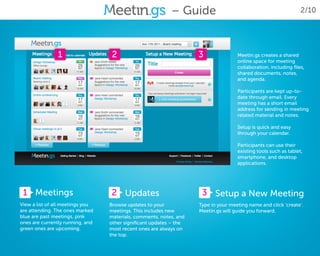
                1                  2                                3               Meetin.gs creates a shared
                                                                                    online space for meeting
                                                                                    collaboration, including files,
                                                                                    shared documents, notes,
                                                                                    and agenda.

                                                                                    Participants are kept up-to-
                                                                                    date through email. Every
                                                                                    meeting has a short email
                                                                                    address for sending in meeting
                                                                                    related material and notes.

                                                                                    Setup is quick and easy
                                                                                    through your calendar.

                                                                                    Participants can use their
                                                                                    existing tools such as tablet,
                                                                                    smartphone, and desktop
                                                                                    applications.


 1 Meetings                       2 Updates                          3 Setup a New Meeting
View a list of all meetings you   Browse updates to your            Type in your meeting name and click ‘create’.
are attending. The ones marked    meetings. This includes new       Meetin.gs will guide you forward.
blue are past meetings, pink      materials, comments, notes, and
ones are currently running, and   other significant updates – the
green ones are upcoming.          most recent ones are always on
                                  the top.
– Guide                                                3/10


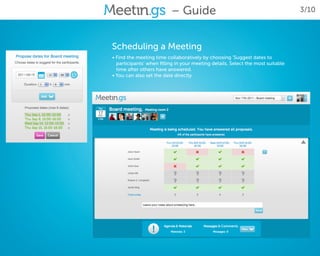
Scheduling a Meeting
• Find the meeting time collaboratively by choosing ‘Suggest dates to
  participants’ when filling in your meeting details. Select the most suitable
  time after others have answered.
• You can also set the date directly.
– Guide   4/10


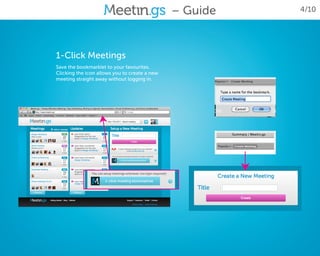
1-Click Meetings
Save the bookmarklet to your favourites.
Clicking the icon allows you to create a new
meeting straight away without logging in.
– Guide                                             5/10


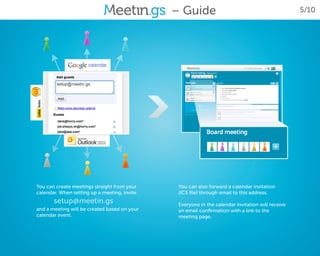
You can create meetings straight from your      You can also forward a calendar invitation
calendar. When setting up a meeting, invite:    (ICS file) through email to this address.
       setup@meetin.gs                          Everyone in the calendar invitation will receive
and a meeting will be created based on your     an email confirmation with a link to the
calendar event.                                 meeting page.
– Guide                                 6/10


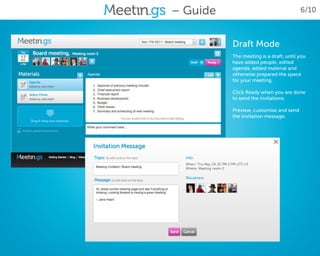
          Draft Mode
          The meeting is a draft, until you
          have added people, edited
          agenda, added material and
          otherwise prepared the space
          for your meeting.

          Click Ready when you are done
          to send the invitations.

          Preview, customise and send
          the invitation message.
– Guide                                    7/10


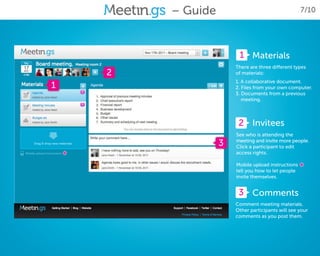
                           1 Materials
                          There are three different types
        2                 of materials:
                          1. A collaborative document.
1                         2. Files from your own computer.
                          3. Documents from a previous
                             meeting.


                           2 Invitees
                          See who is attending the
                      3   meeting and invite more people.
                          Click a participant to edit
    *                     access rights.

                          Mobile upload instructions
                          tell you how to let people
                                                       *
                          invite themselves.


                           3 Comments
                          Comment meeting materials.
                          Other participants will see your
                          comments as you post them.
– Guide                        8/10


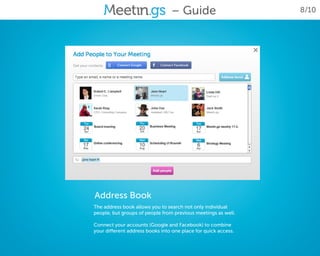
Address Book
The address book allows you to search not only individual
people, but groups of people from previous meetings as well.

Connect your accounts (Google and Facebook) to combine
your different address books into one place for quick access.
– Guide                                9/10


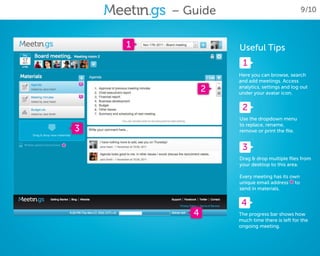
        1              Useful Tips
                        1
                       Here you can browse, search
                       and add meetings. Access
                   2   analytics, settings and log out
                       under your avatar icon.


                        2
                       Use the dropdown menu
                       to replace, rename,
    3                  remove or print the file.


*                       3
                       Drag & drop multiple files from
                       your desktop to this area.

                       Every meeting has its own
                                             *
                       unique email address to
                       send in materials.


                        4
               4       The progress bar shows how
                       much time there is left for the
                       ongoing meeting.
– Guide                                       10/10


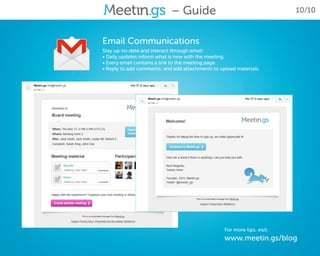
Email Communications
Stay up-to-date and interact through email:
• Daily updates inform what is new with the meeting.
• Every email contains a link to the meeting page.
• Reply to add comments, and add attachments to upload materials.


                                                  For more tips, visit:
                                                  www.meetin.gs/blog

Meetin.gs - Getting started v2

  • 1.
    – Guide Use thisguide to organize awesome meetings
  • 2.
    – Guide 2/10 1 2 3 Meetin.gs creates a shared online space for meeting collaboration, including files, shared documents, notes, and agenda. Participants are kept up-to- date through email. Every meeting has a short email address for sending in meeting related material and notes. Setup is quick and easy through your calendar. Participants can use their existing tools such as tablet, smartphone, and desktop applications. 1 Meetings 2 Updates 3 Setup a New Meeting View a list of all meetings you Browse updates to your Type in your meeting name and click ‘create’. are attending. The ones marked meetings. This includes new Meetin.gs will guide you forward. blue are past meetings, pink materials, comments, notes, and ones are currently running, and other significant updates – the green ones are upcoming. most recent ones are always on the top.
  • 3.
    – Guide 3/10 Scheduling a Meeting • Find the meeting time collaboratively by choosing ‘Suggest dates to participants’ when filling in your meeting details. Select the most suitable time after others have answered. • You can also set the date directly.
  • 4.
    – Guide 4/10 1-Click Meetings Save the bookmarklet to your favourites. Clicking the icon allows you to create a new meeting straight away without logging in.
  • 5.
    – Guide 5/10 You can create meetings straight from your You can also forward a calendar invitation calendar. When setting up a meeting, invite: (ICS file) through email to this address. setup@meetin.gs Everyone in the calendar invitation will receive and a meeting will be created based on your an email confirmation with a link to the calendar event. meeting page.
  • 6.
    – Guide 6/10 Draft Mode The meeting is a draft, until you have added people, edited agenda, added material and otherwise prepared the space for your meeting. Click Ready when you are done to send the invitations. Preview, customise and send the invitation message.
  • 7.
    – Guide 7/10 1 Materials There are three different types 2 of materials: 1. A collaborative document. 1 2. Files from your own computer. 3. Documents from a previous meeting. 2 Invitees See who is attending the 3 meeting and invite more people. Click a participant to edit * access rights. Mobile upload instructions tell you how to let people * invite themselves. 3 Comments Comment meeting materials. Other participants will see your comments as you post them.
  • 8.
    – Guide 8/10 Address Book The address book allows you to search not only individual people, but groups of people from previous meetings as well. Connect your accounts (Google and Facebook) to combine your different address books into one place for quick access.
  • 9.
    – Guide 9/10 1 Useful Tips 1 Here you can browse, search and add meetings. Access 2 analytics, settings and log out under your avatar icon. 2 Use the dropdown menu to replace, rename, 3 remove or print the file. * 3 Drag & drop multiple files from your desktop to this area. Every meeting has its own * unique email address to send in materials. 4 4 The progress bar shows how much time there is left for the ongoing meeting.
  • 10.
    – Guide 10/10 Email Communications Stay up-to-date and interact through email: • Daily updates inform what is new with the meeting. • Every email contains a link to the meeting page. • Reply to add comments, and add attachments to upload materials. For more tips, visit: www.meetin.gs/blog