
Meet the New TypePadAndy Wibbels, Six Apart
AgendaWhat’s ChangedWhat’s NewCool Stuff We Think You’ll LoveQ & A
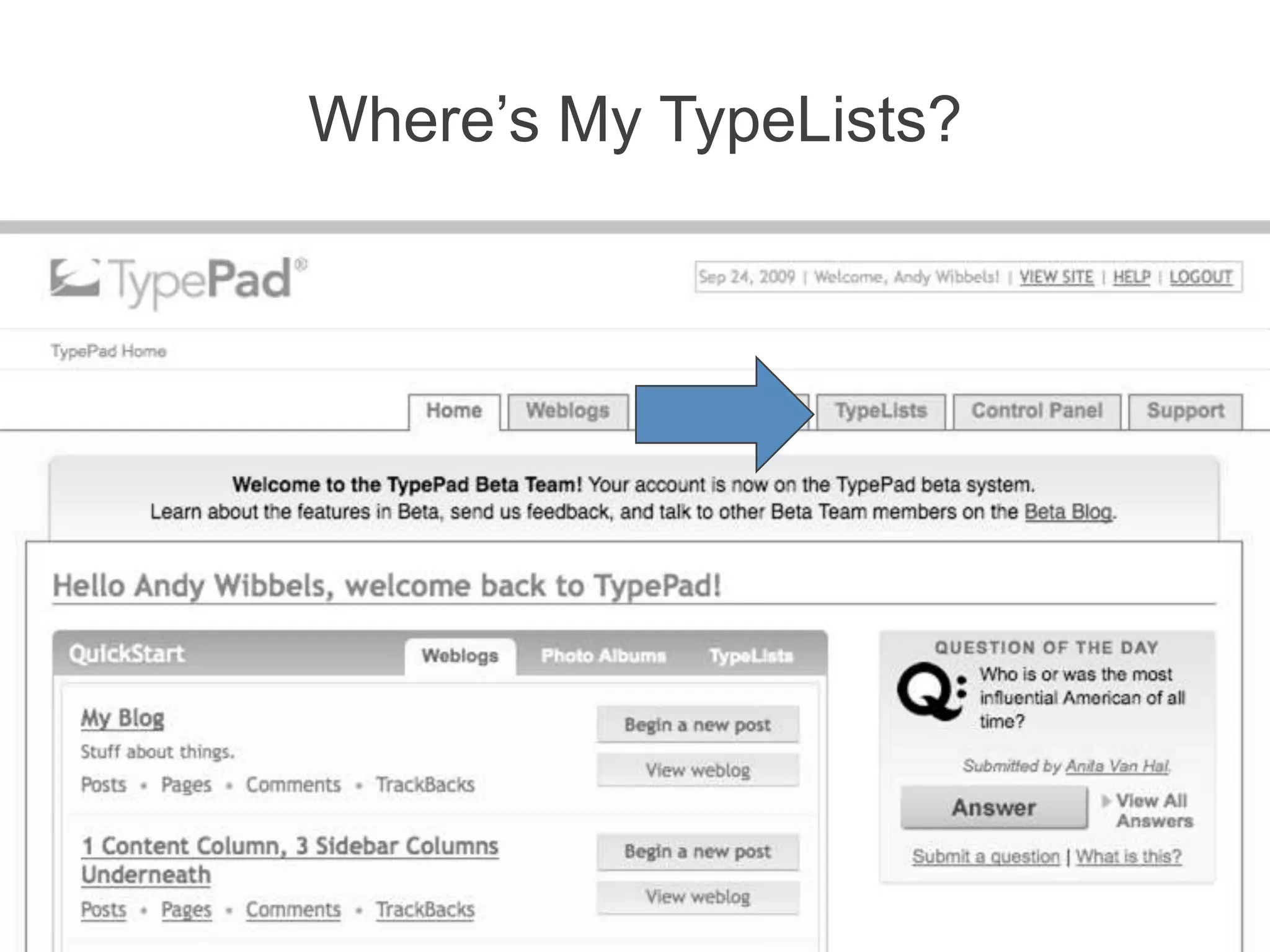
Where’s My TypeLists?
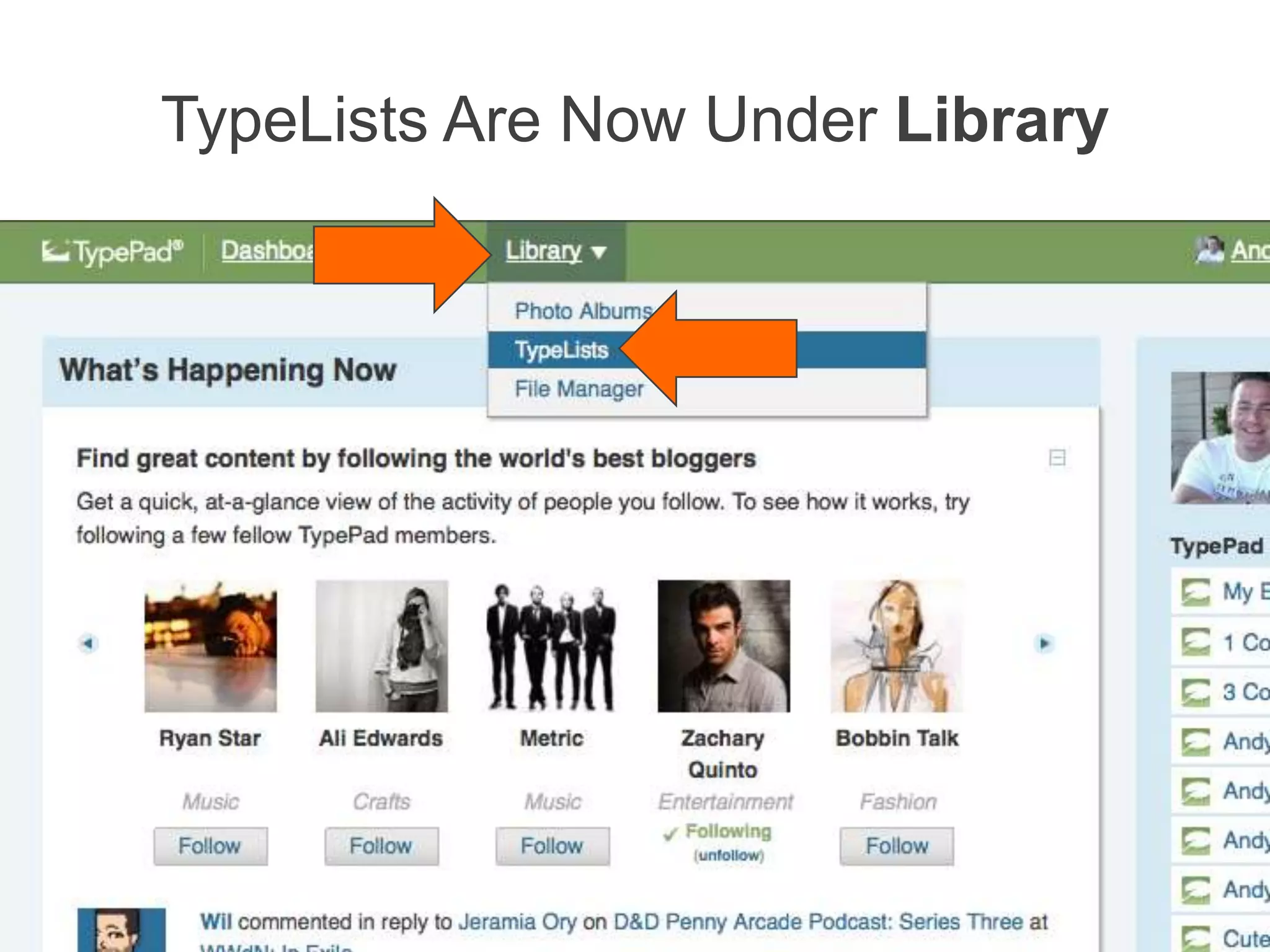
TypeLists Are Now Under Library
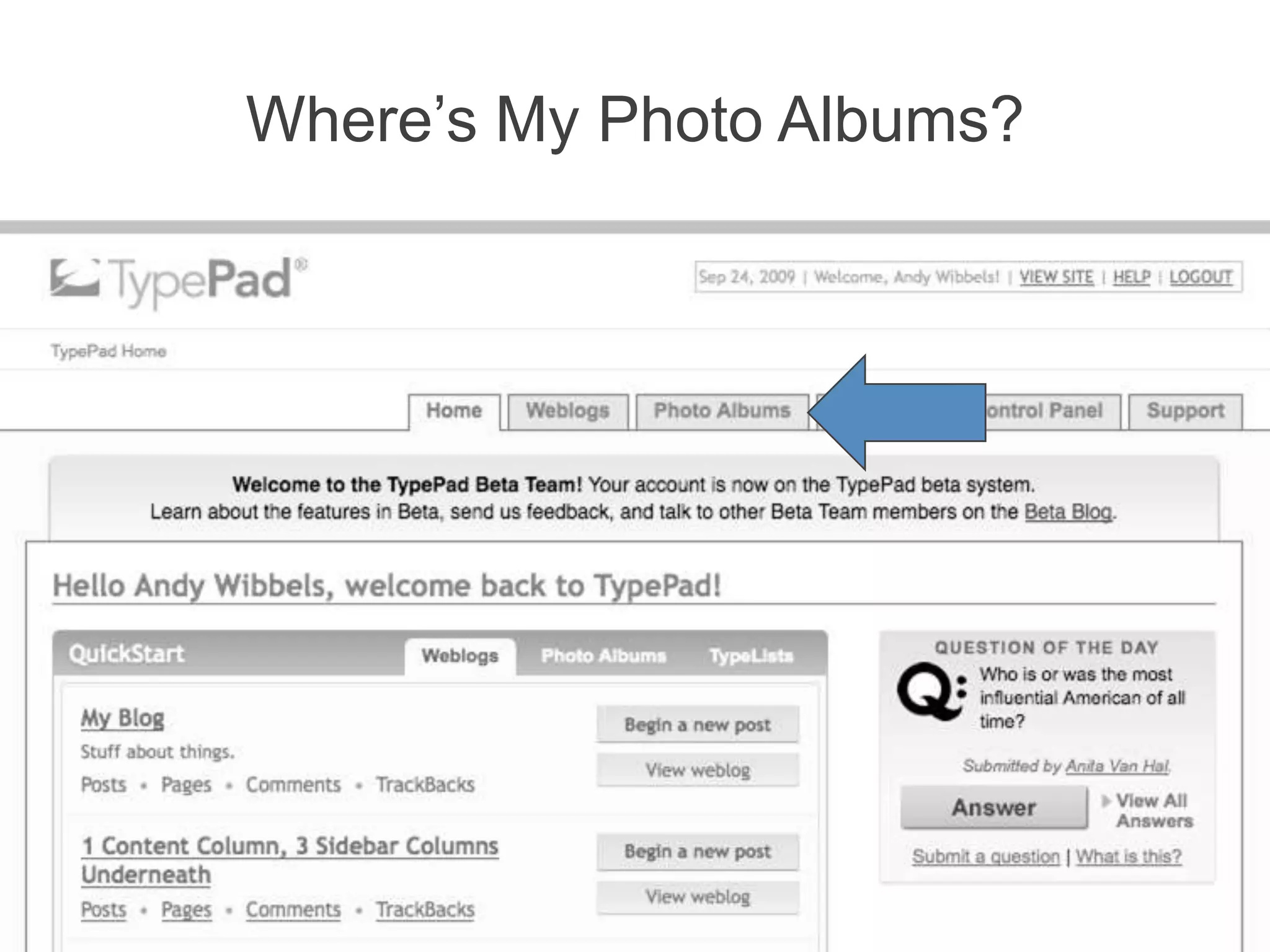
Where’s My Photo Albums?
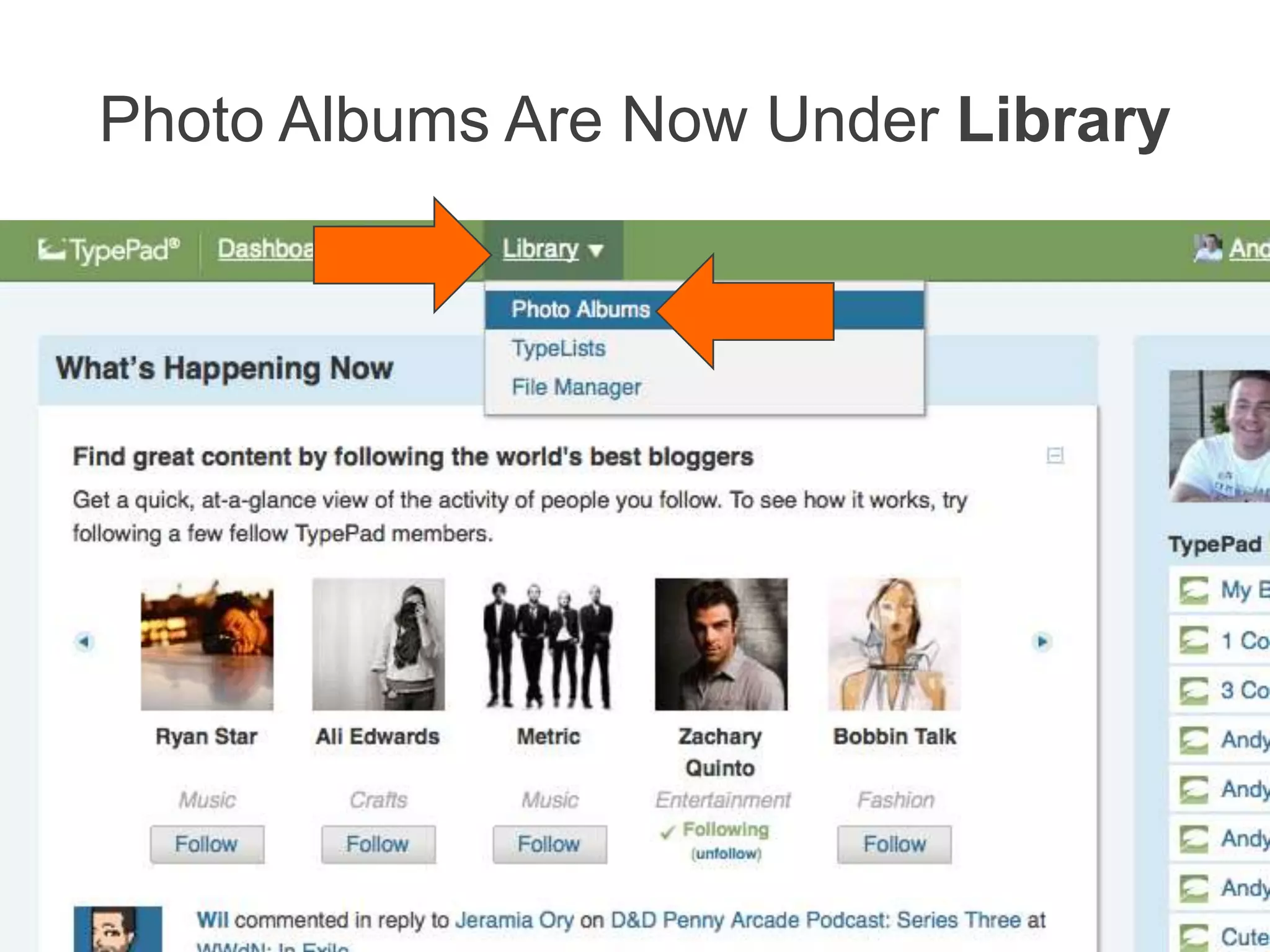
Photo Albums Are Now Under Library
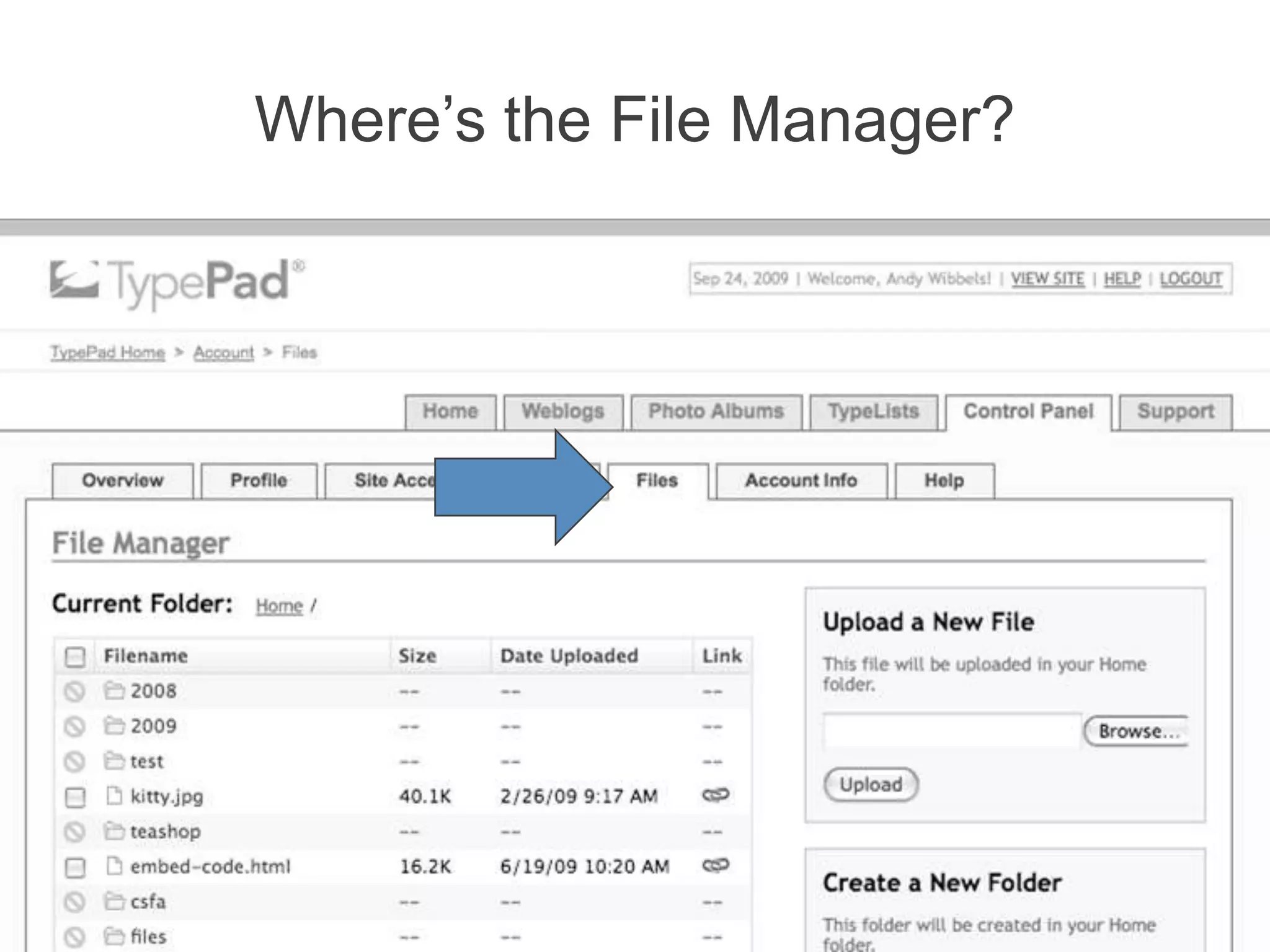
Where’s the File Manager?
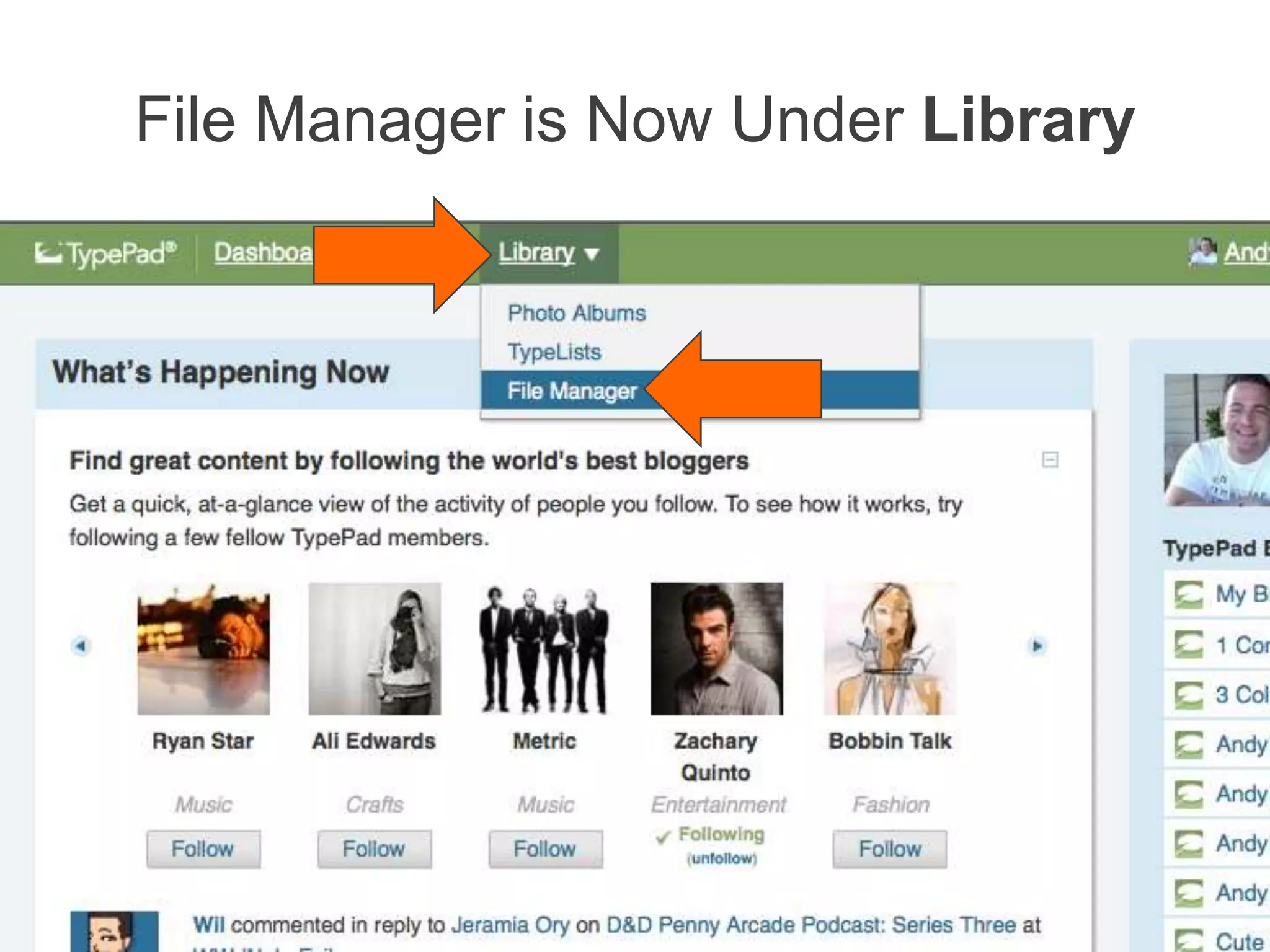
File Manager is Now Under Library
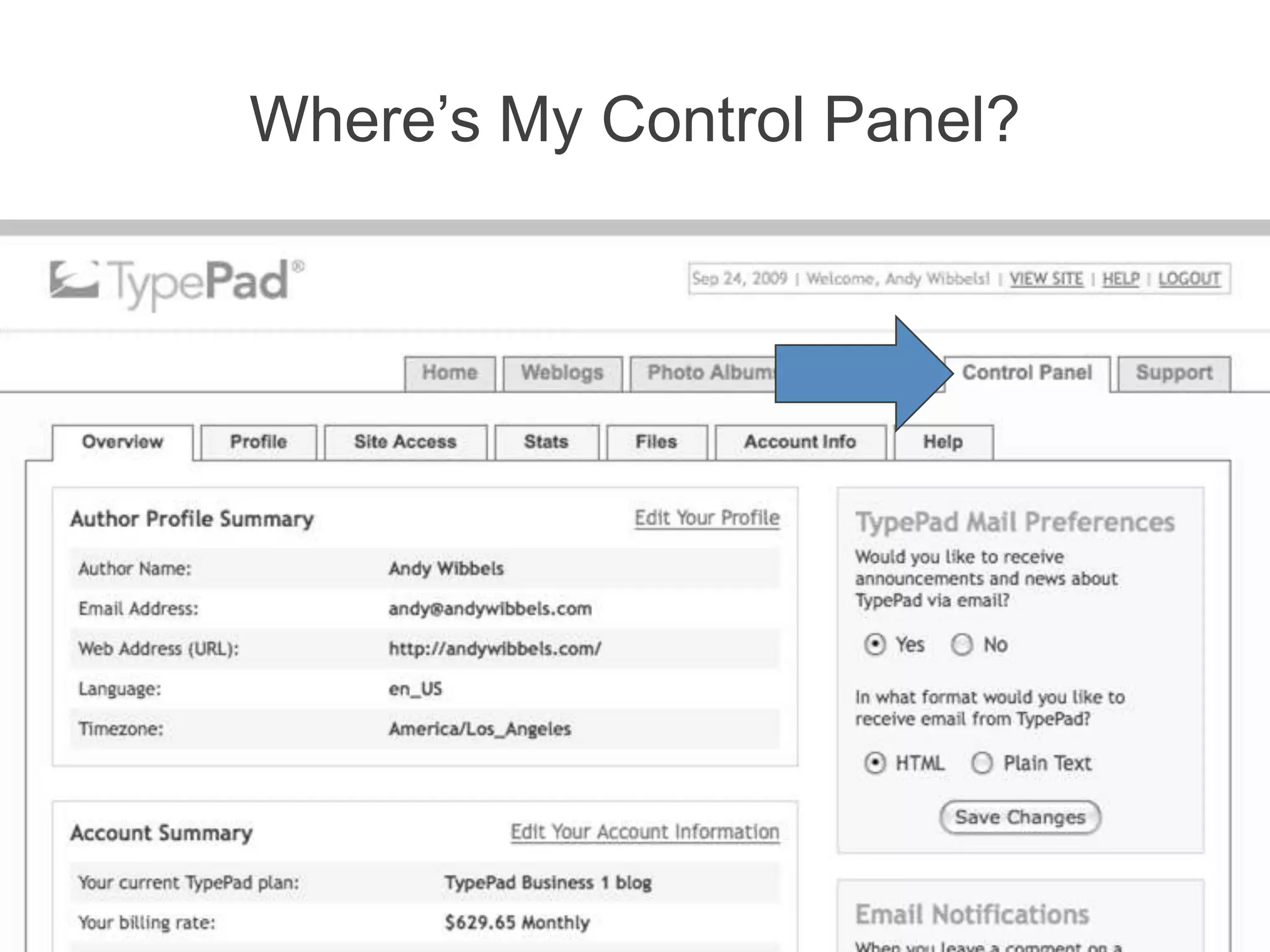
Where’s My Control Panel?
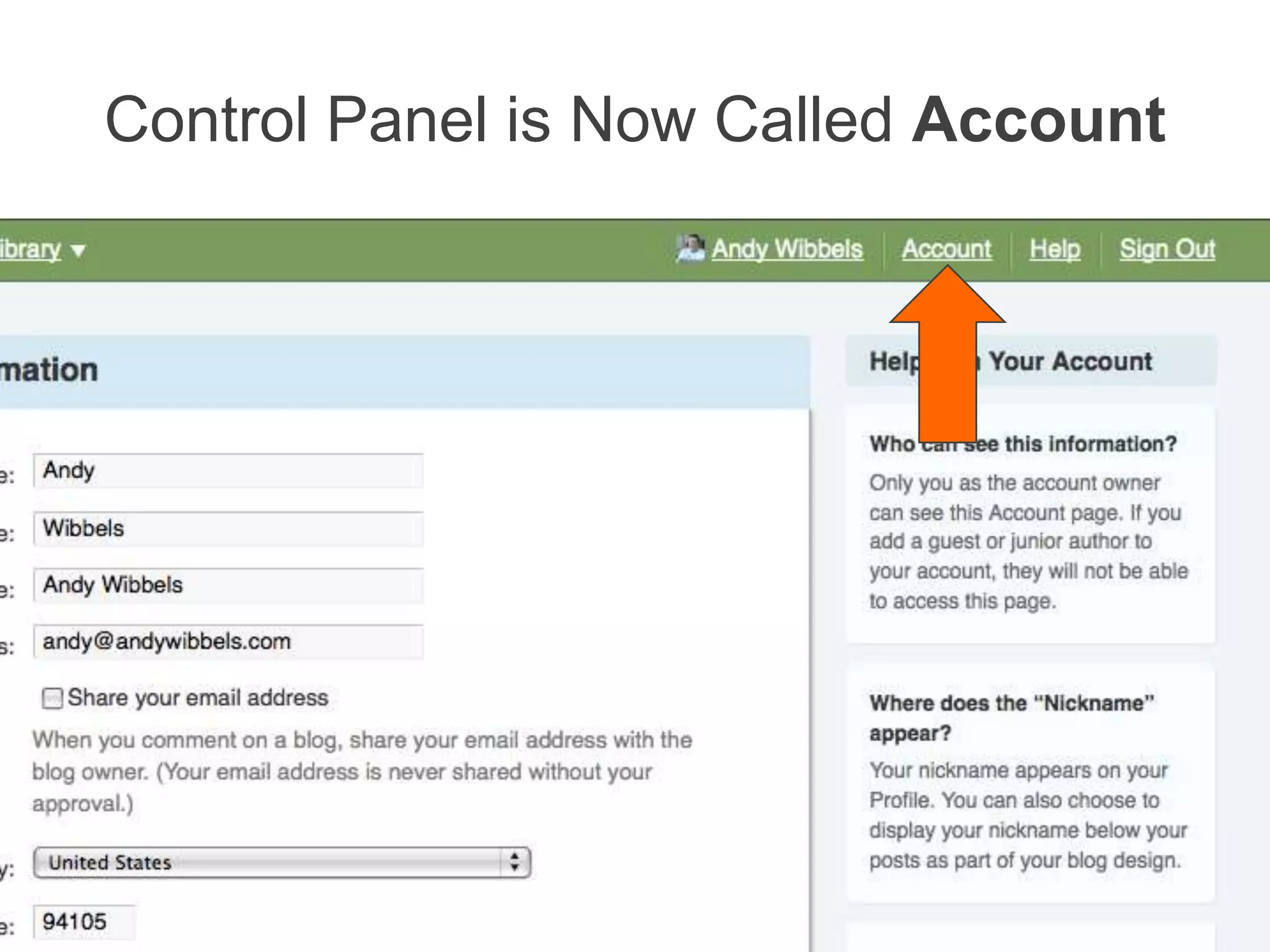
Control Panel is Now Called Account
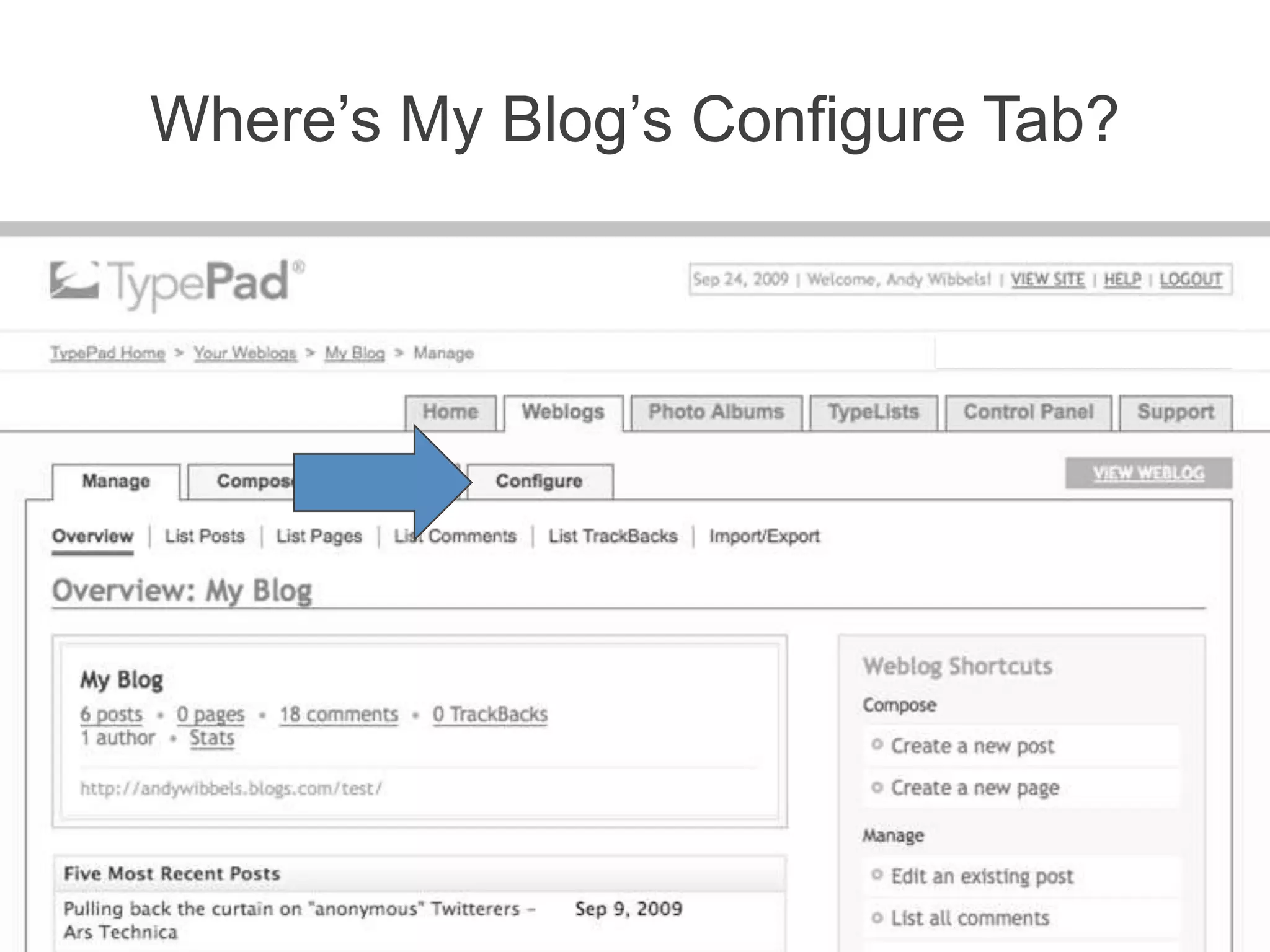
Where’s My Blog’s Configure Tab?
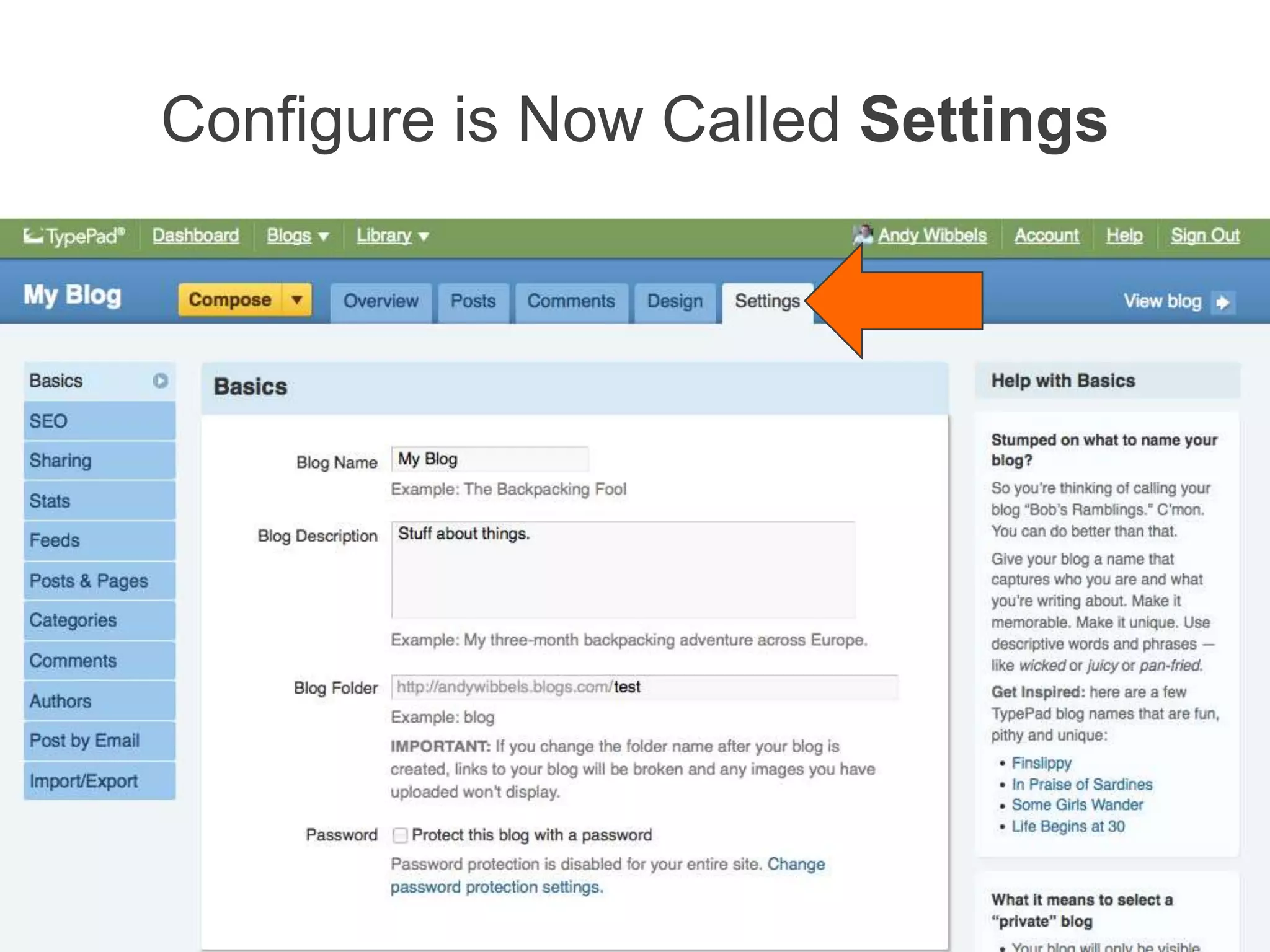
Configure is Now Called Settings
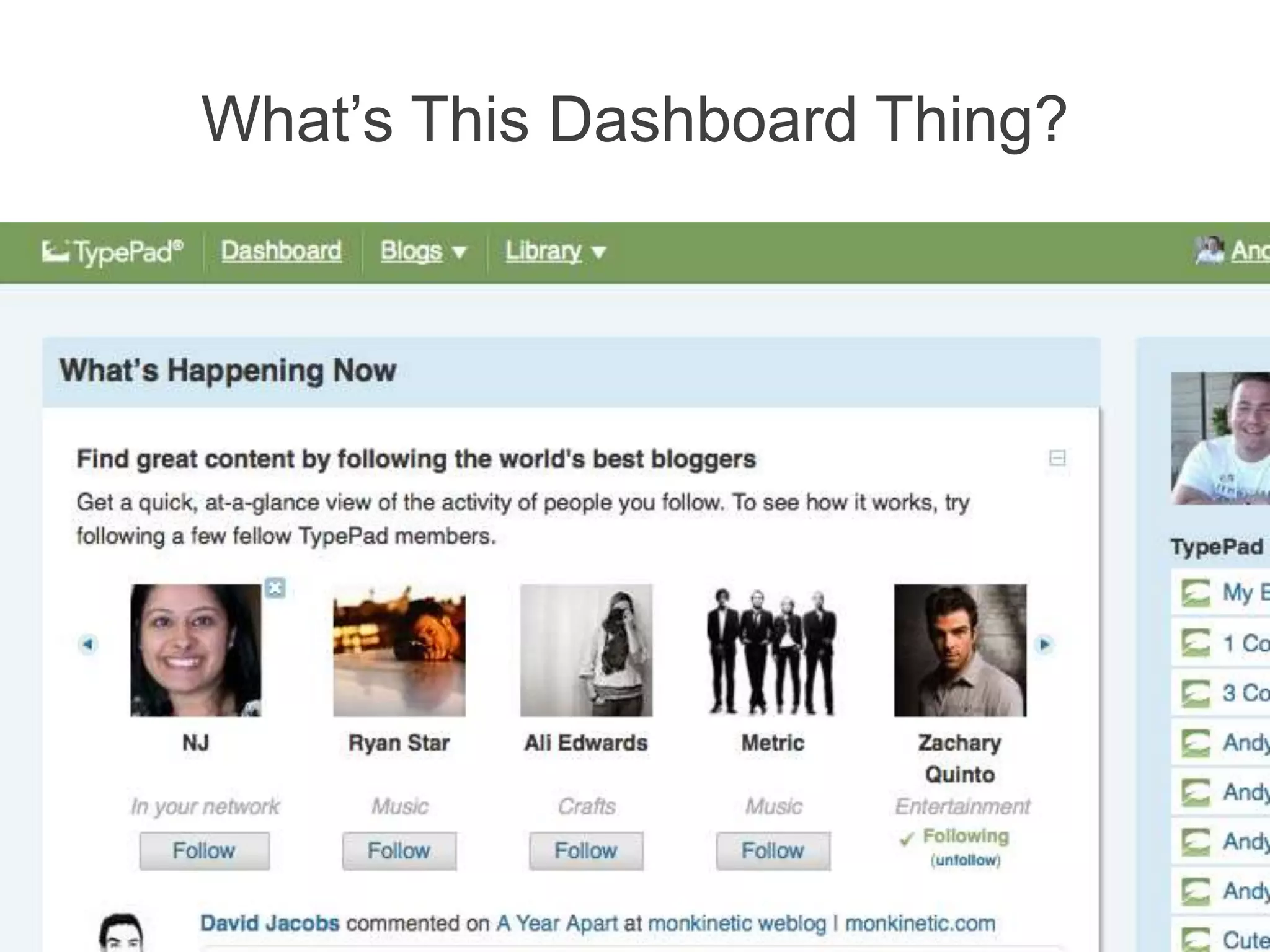
What’s This Dashboard Thing?
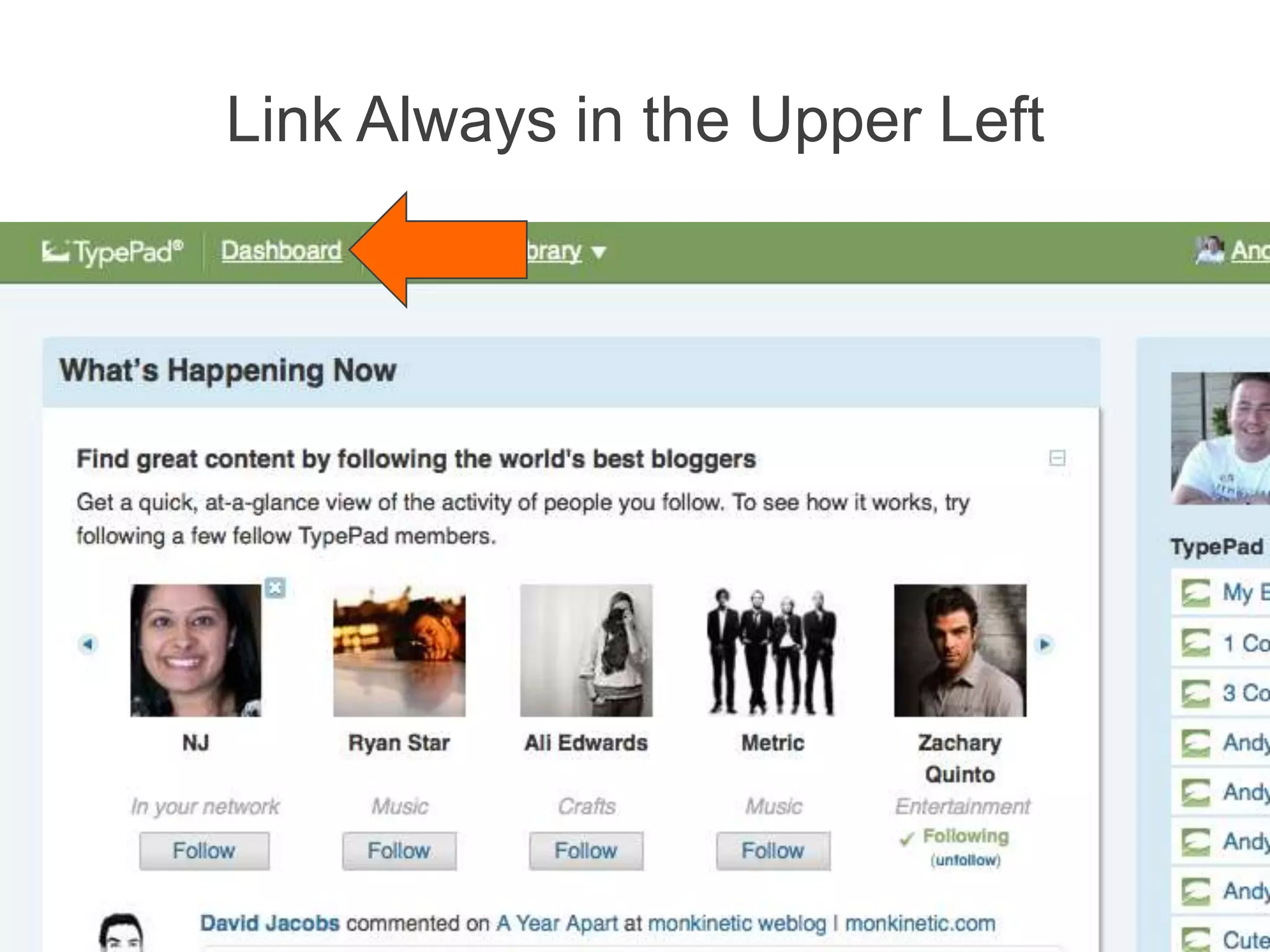
Link Always in the Upper Left
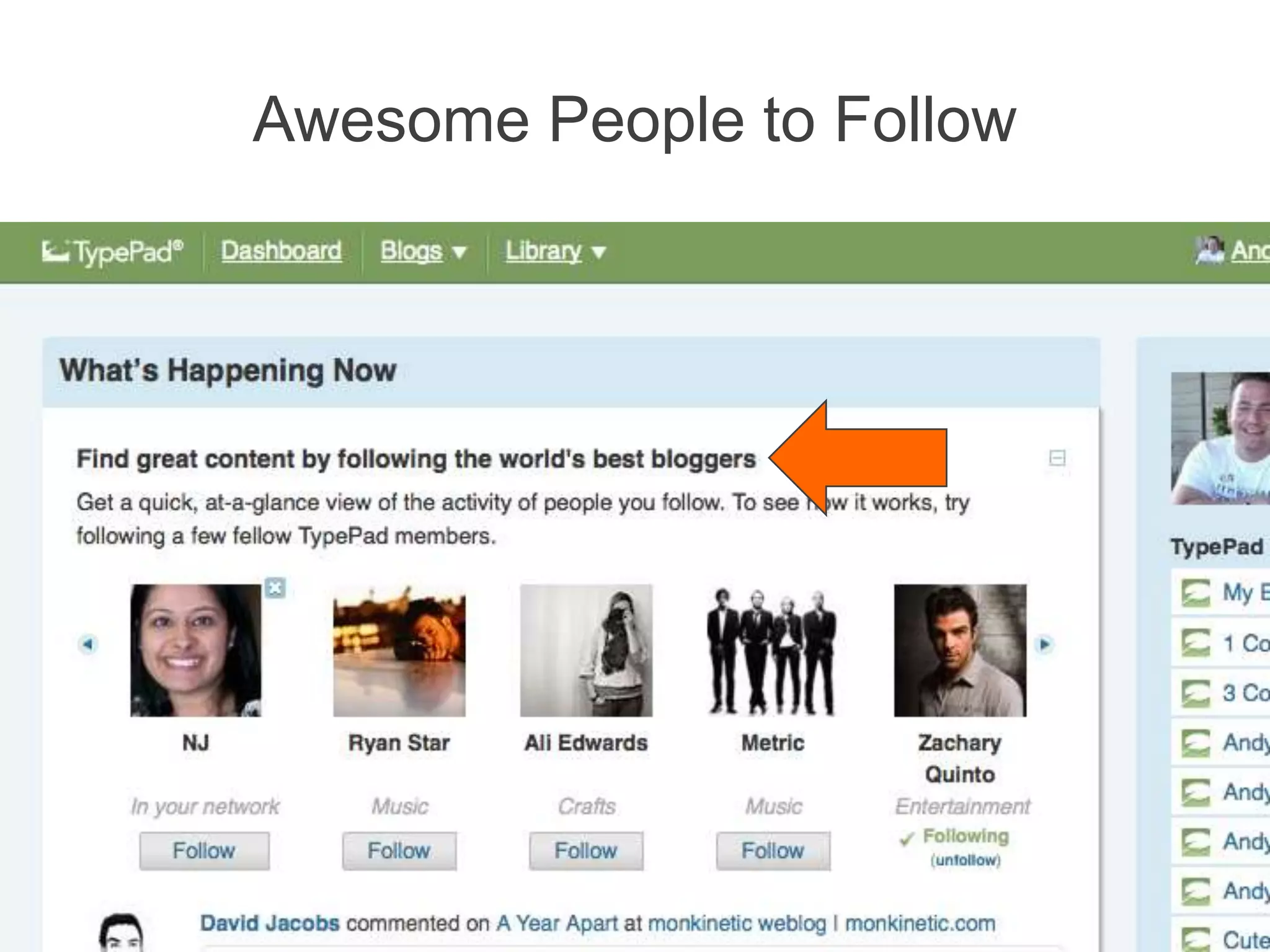
Awesome People to Follow
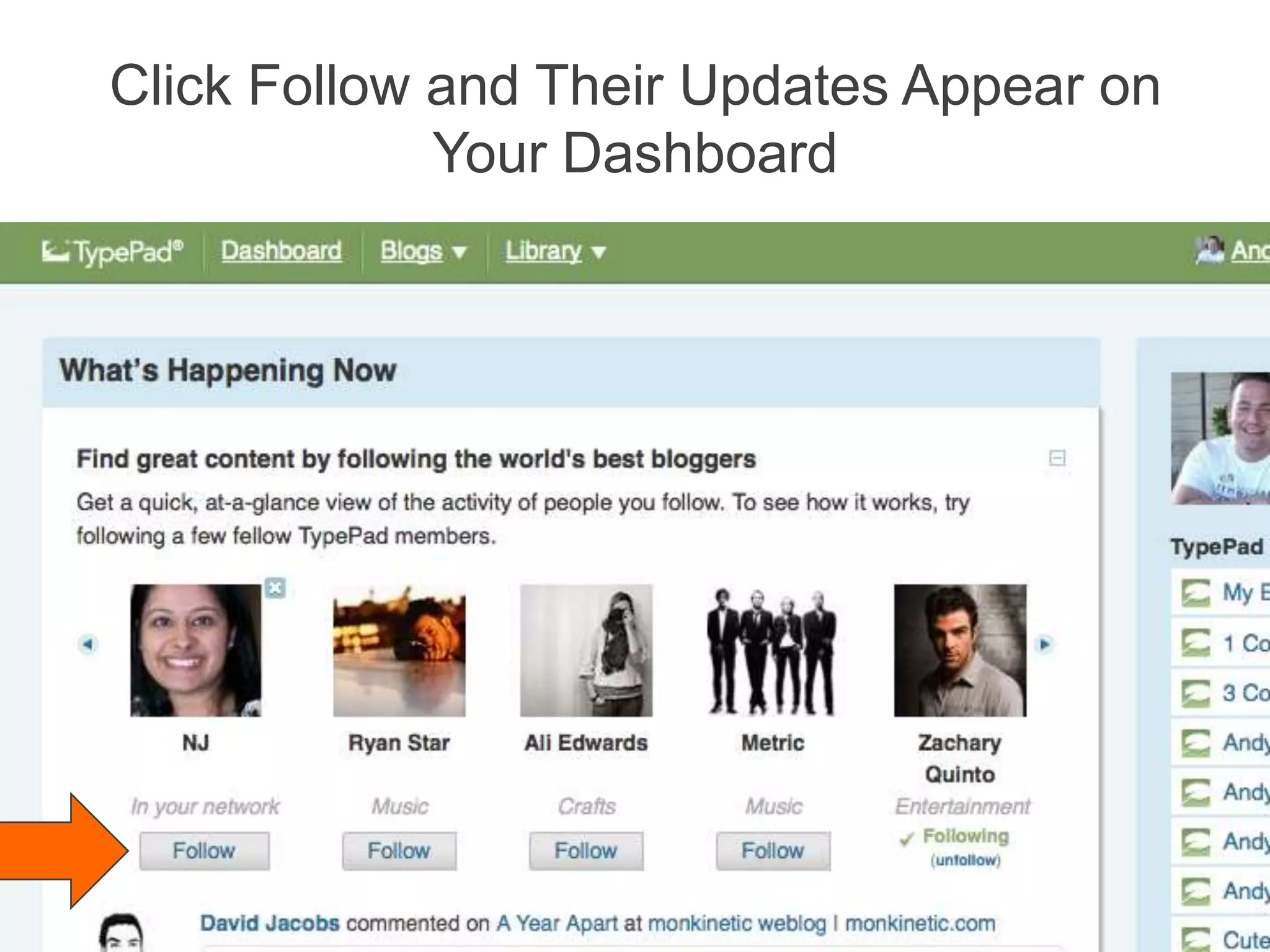
Click Follow and Their Updates Appear on Your Dashboard
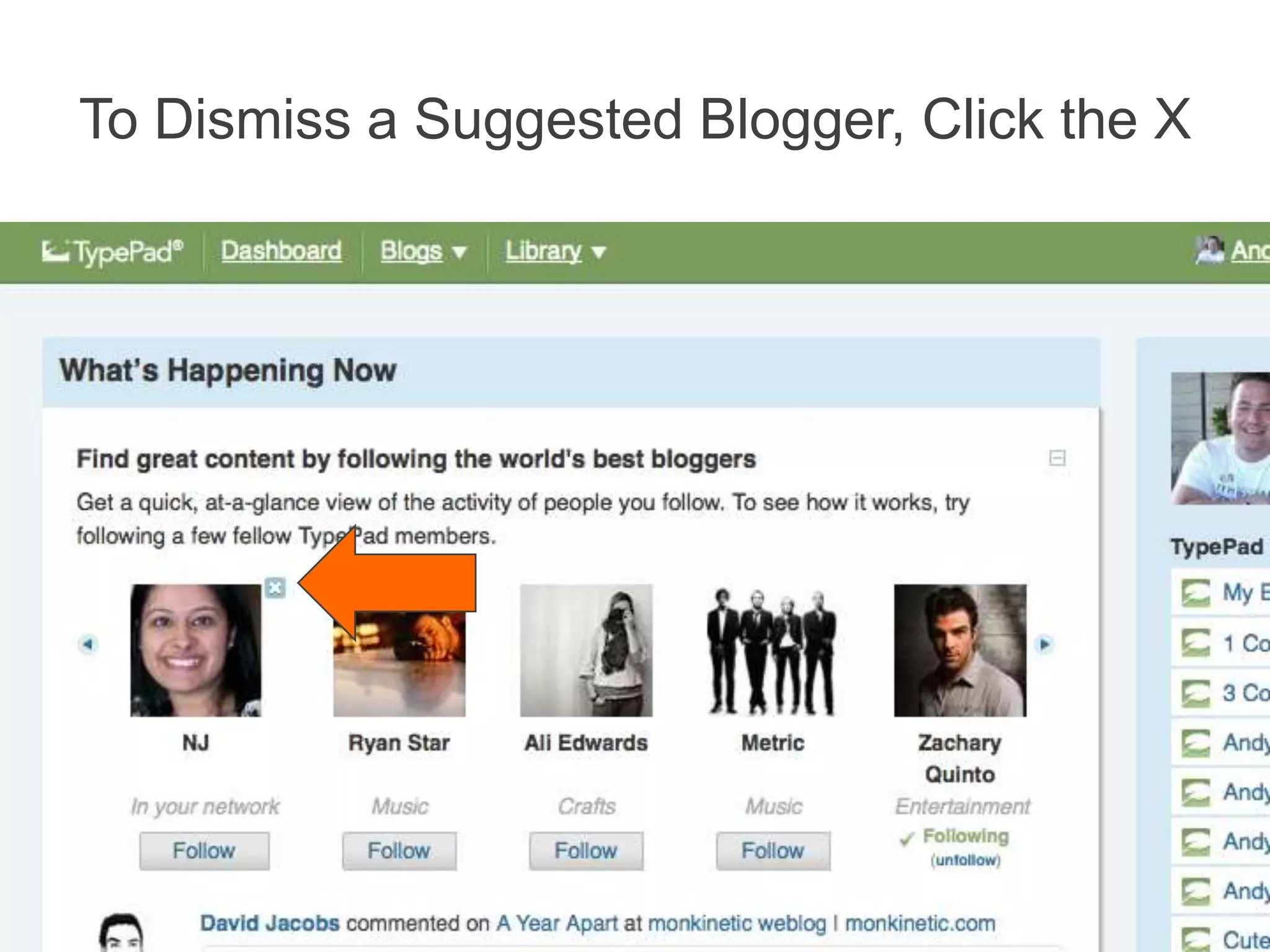
To Dismiss a Suggested Blogger, Click the X
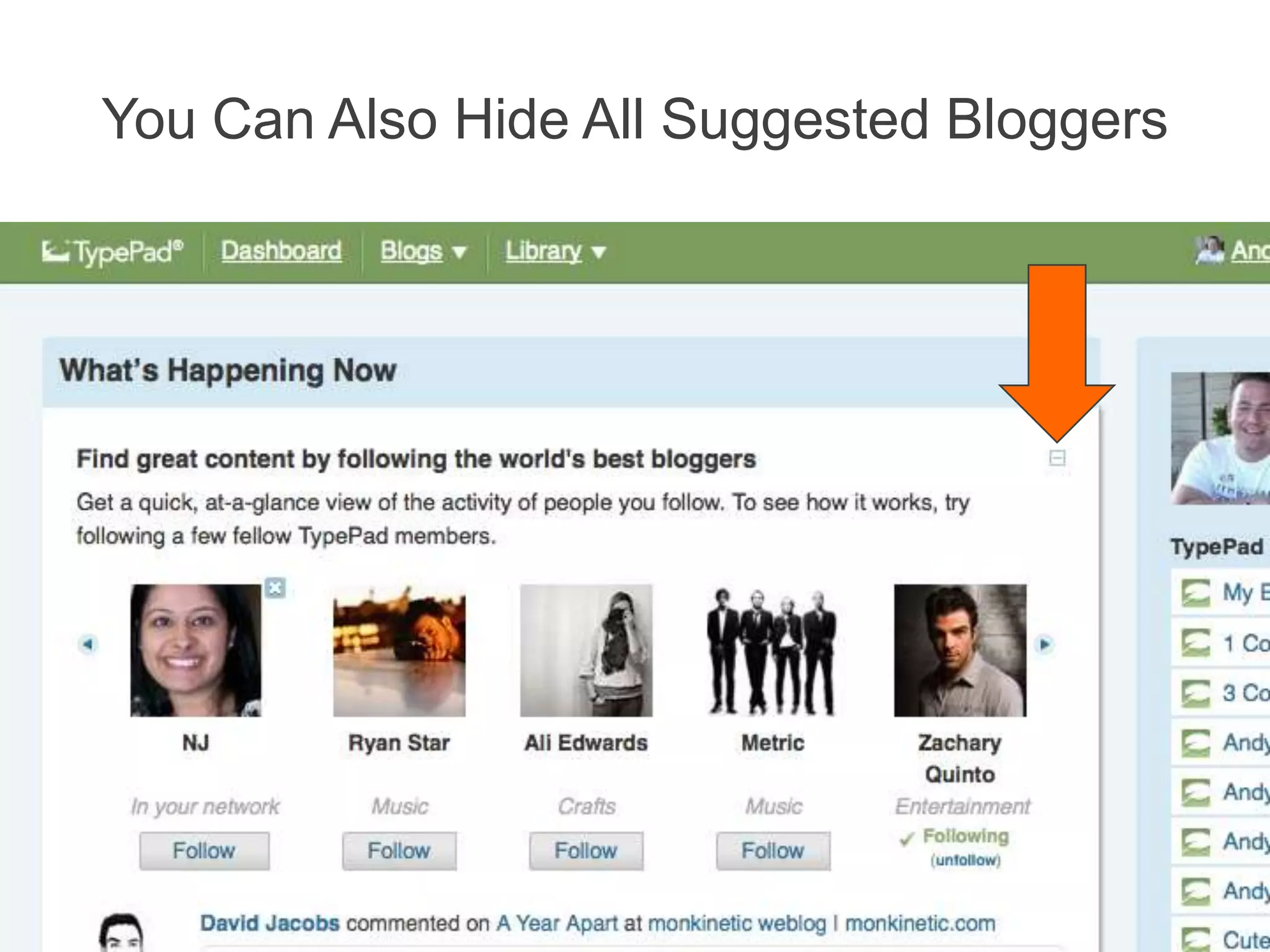
You Can Also Hide All Suggested Bloggers
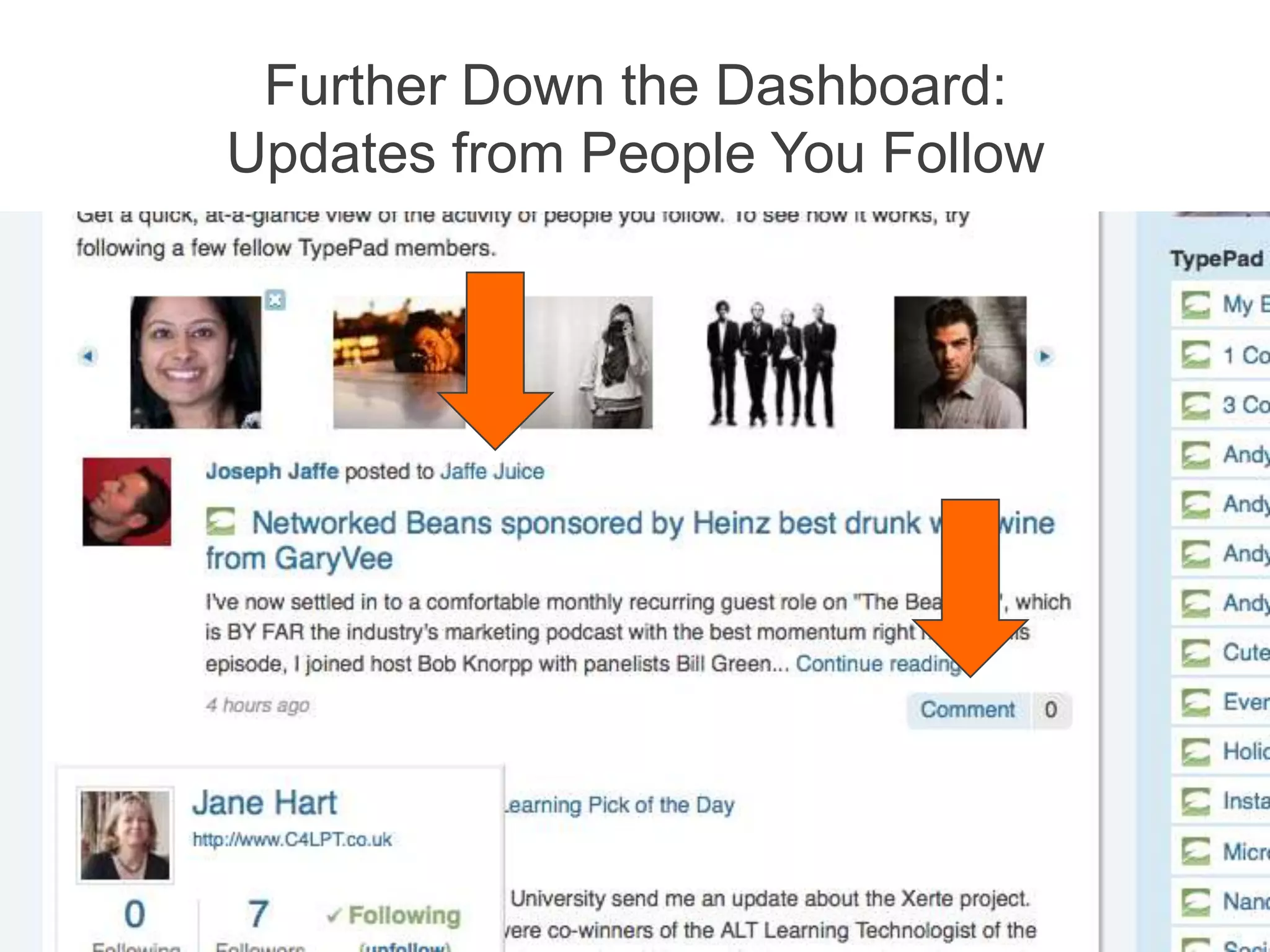
Further Down the Dashboard:Updates from People You Follow√
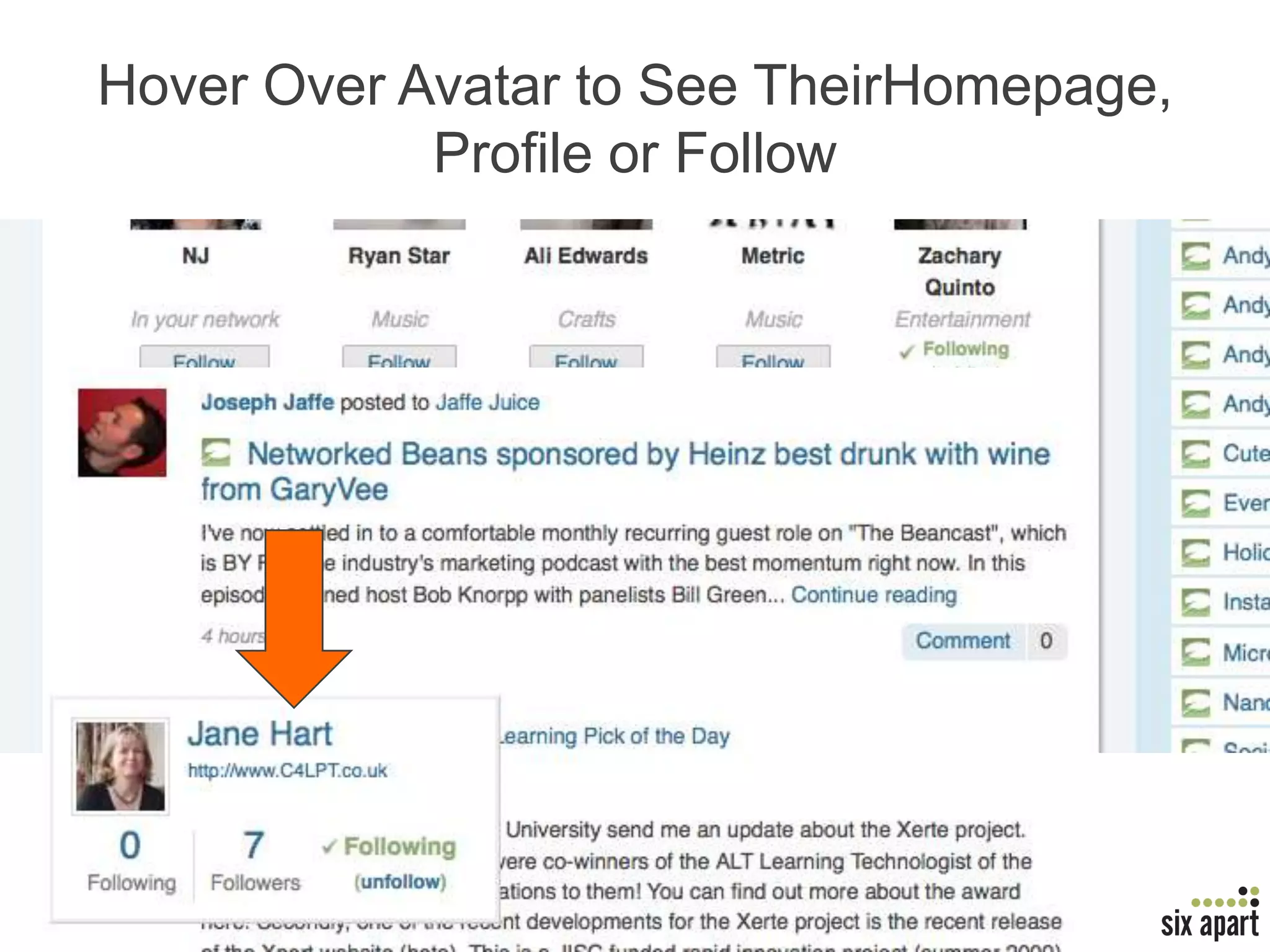
Hover Over Avatar to See Their Homepage, Profile or Follow√
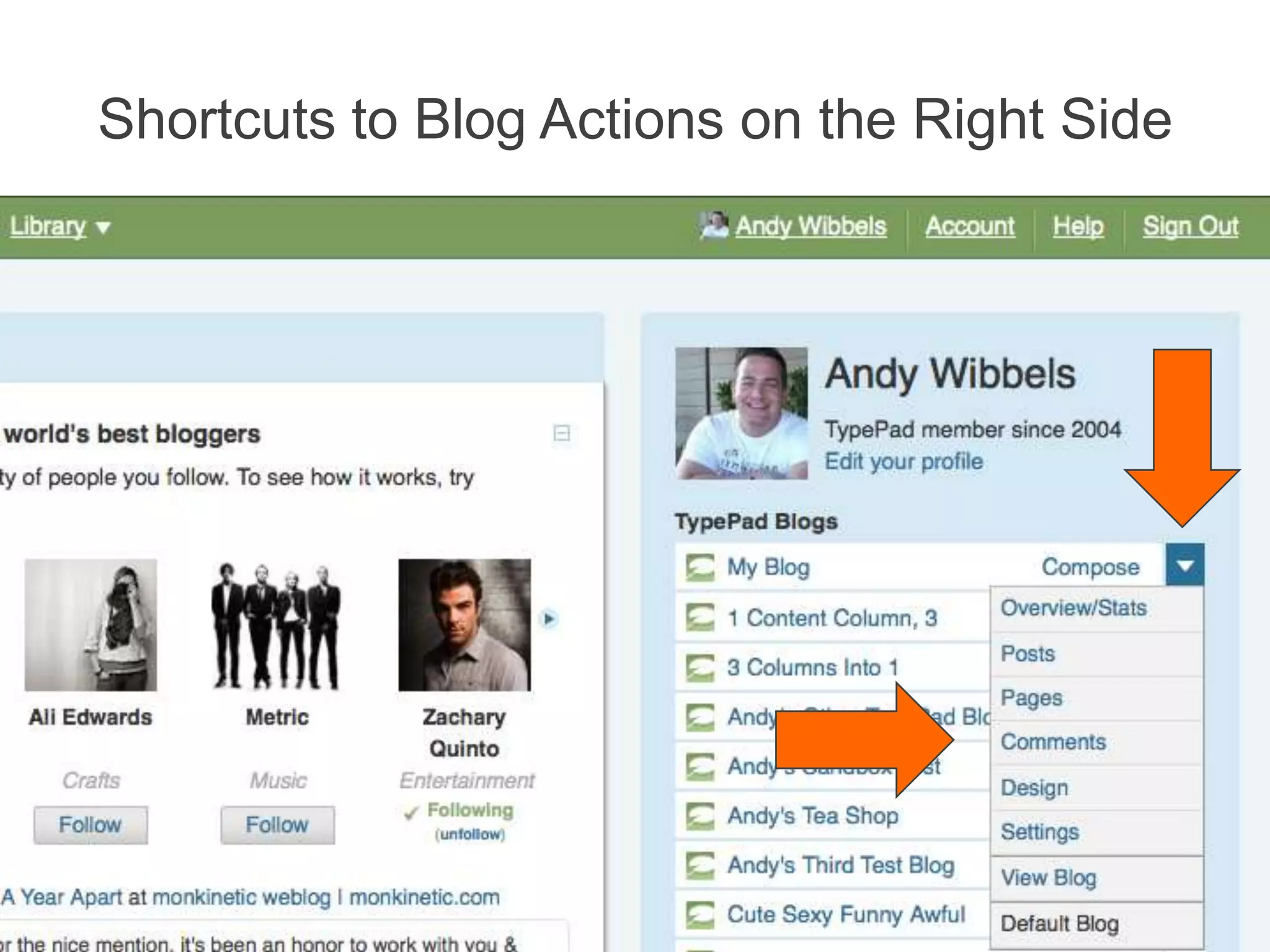
Shortcuts to Blog Actions on the Right Side
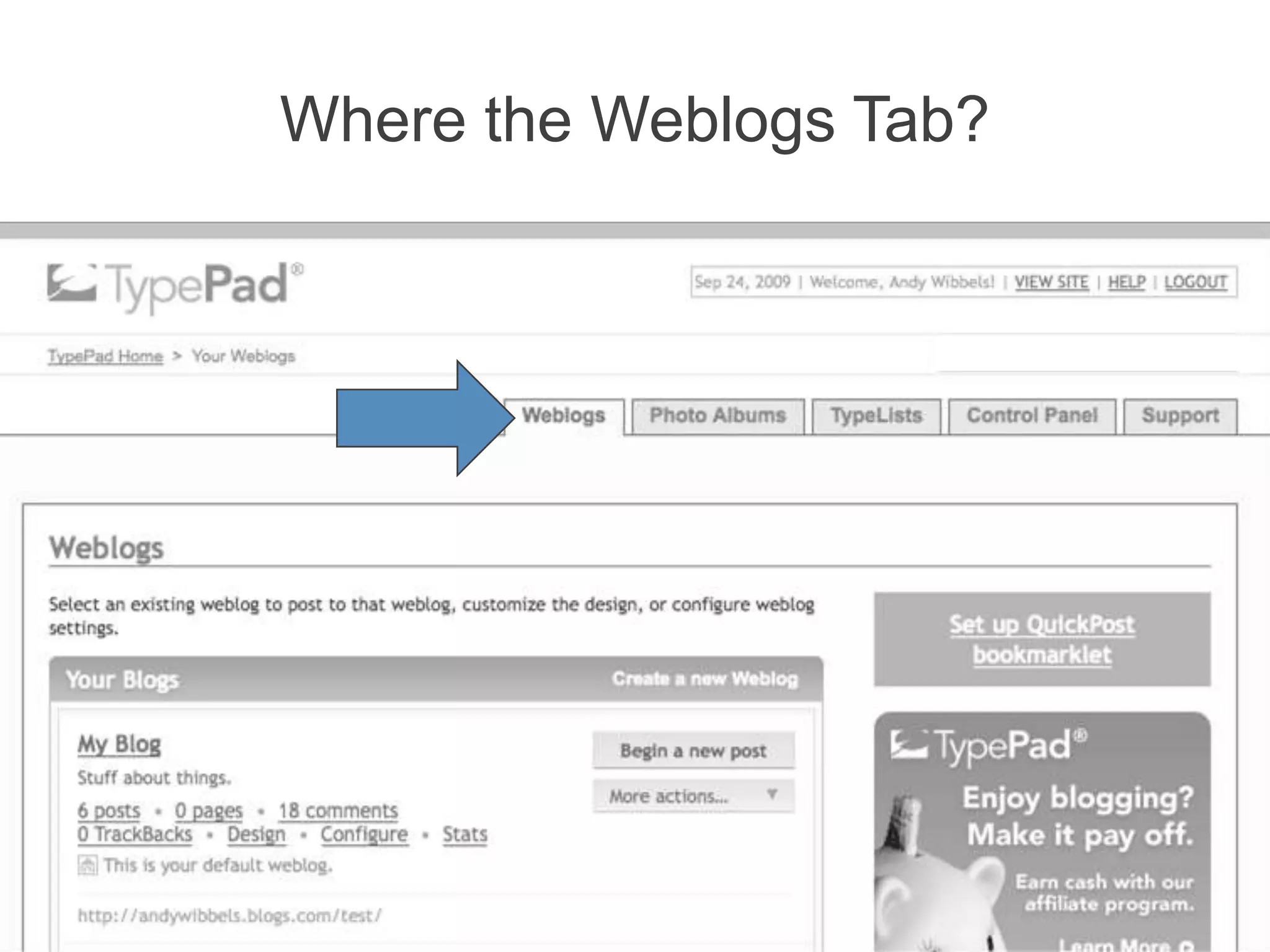
Where the Weblogs Tab?
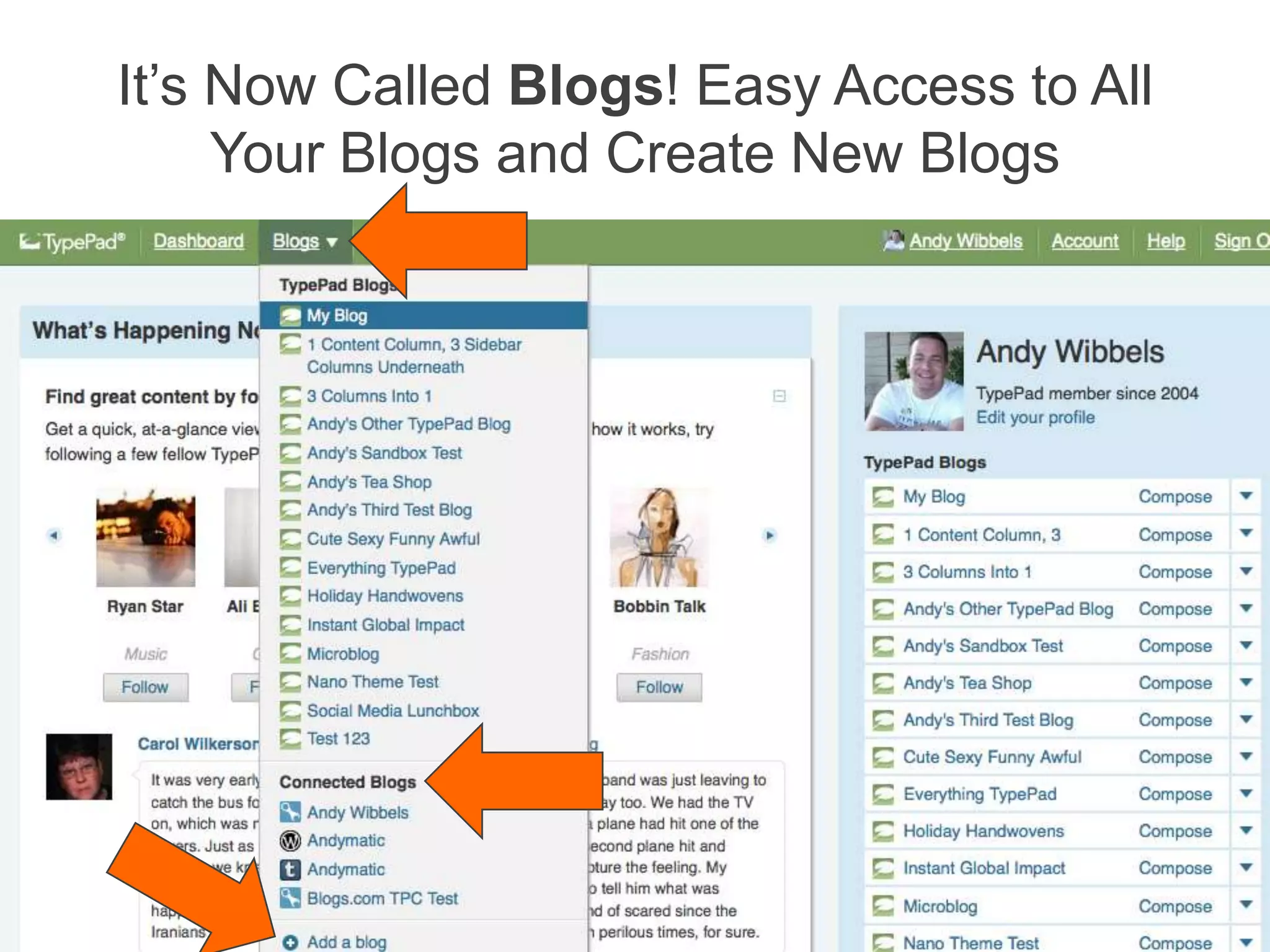
It’s Now Called Blogs! Easy Access to All Your Blogs and Create New Blogs
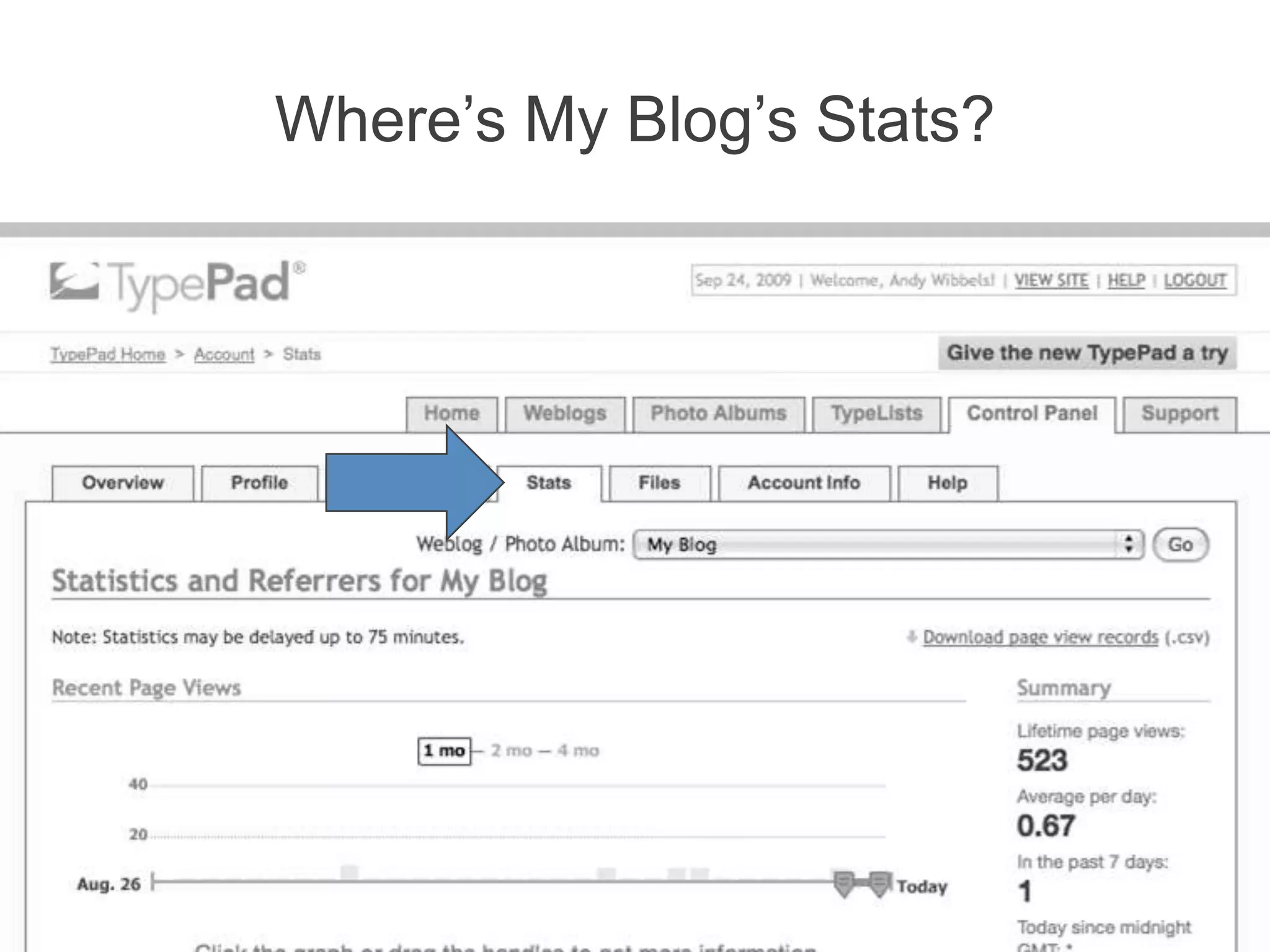
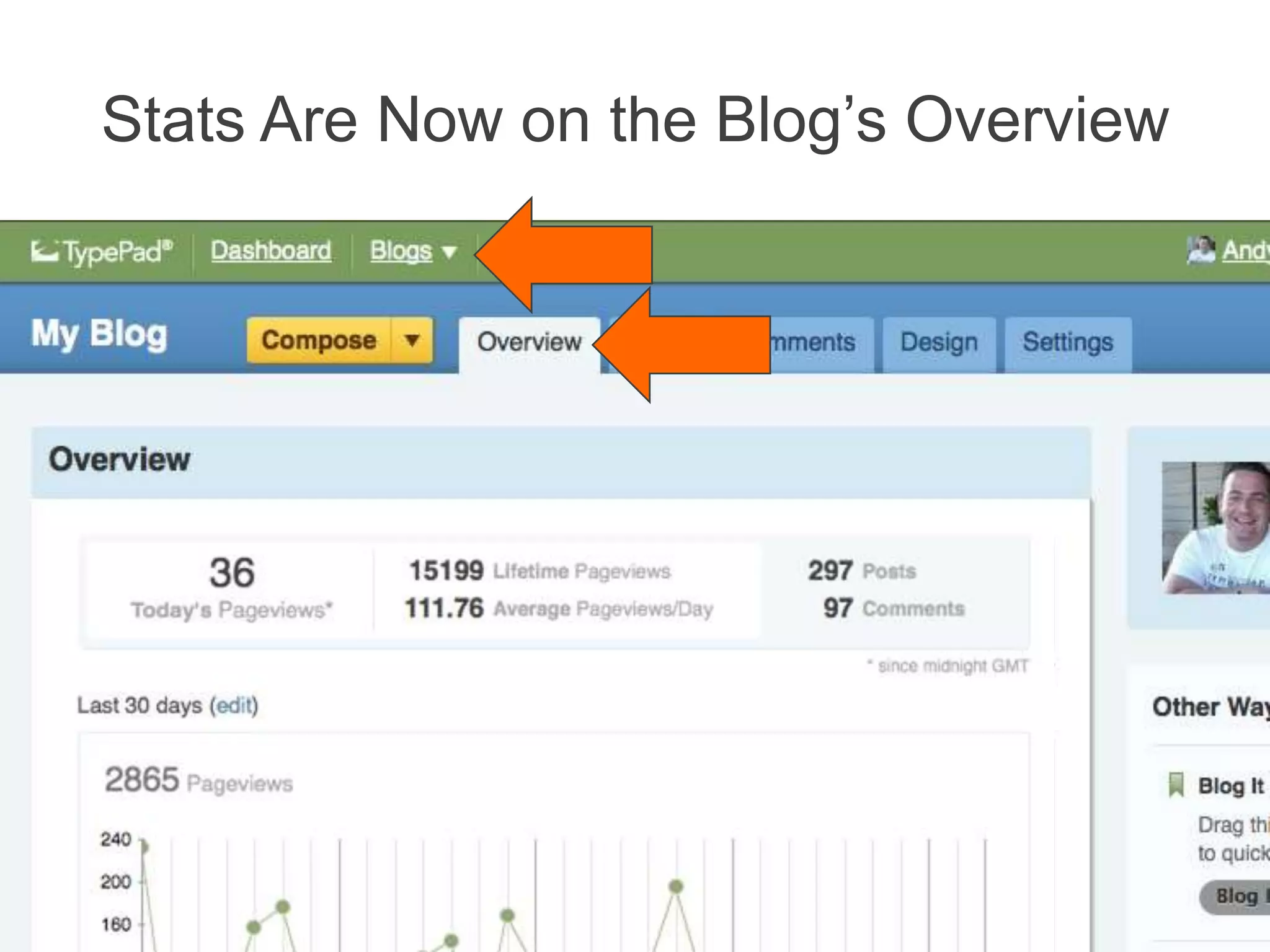
Where’s My Blog’s Stats?
Stats Are Now on the Blog’s Overview
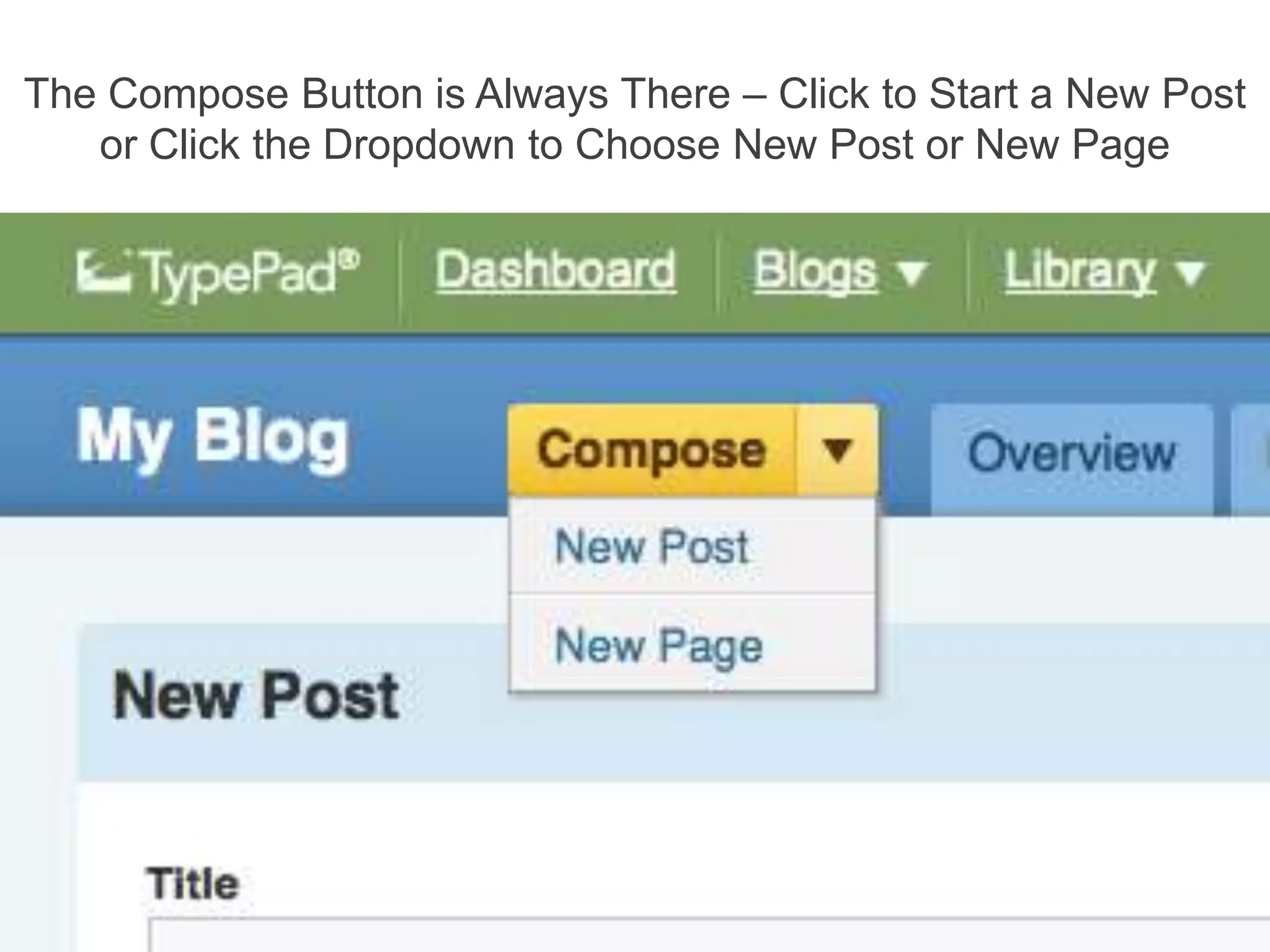
The Compose Button is Always There – Click to Start a New Post or Click the Dropdown to Choose New Post or New Page
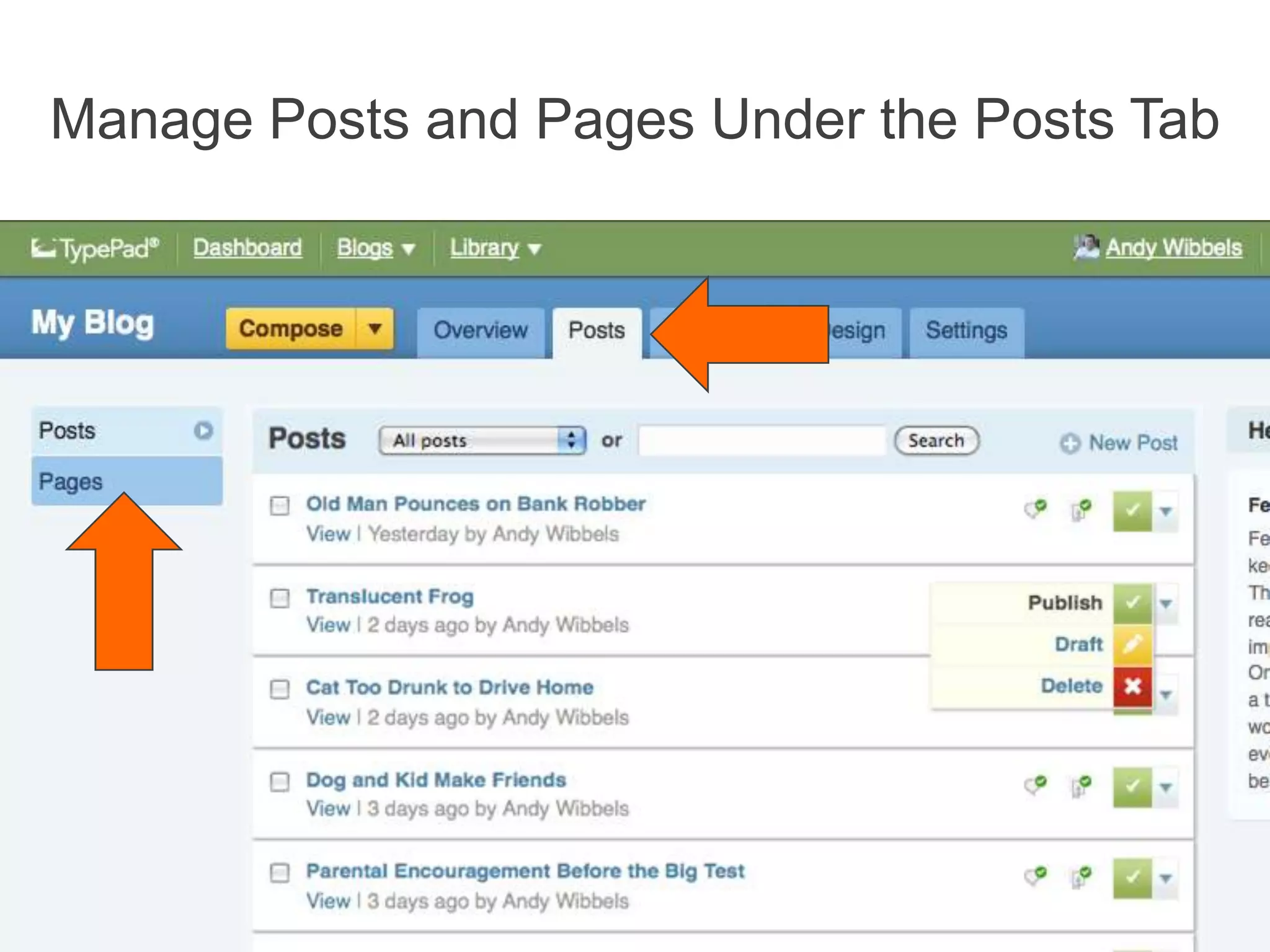
Manage Posts and Pages Under the Posts Tab
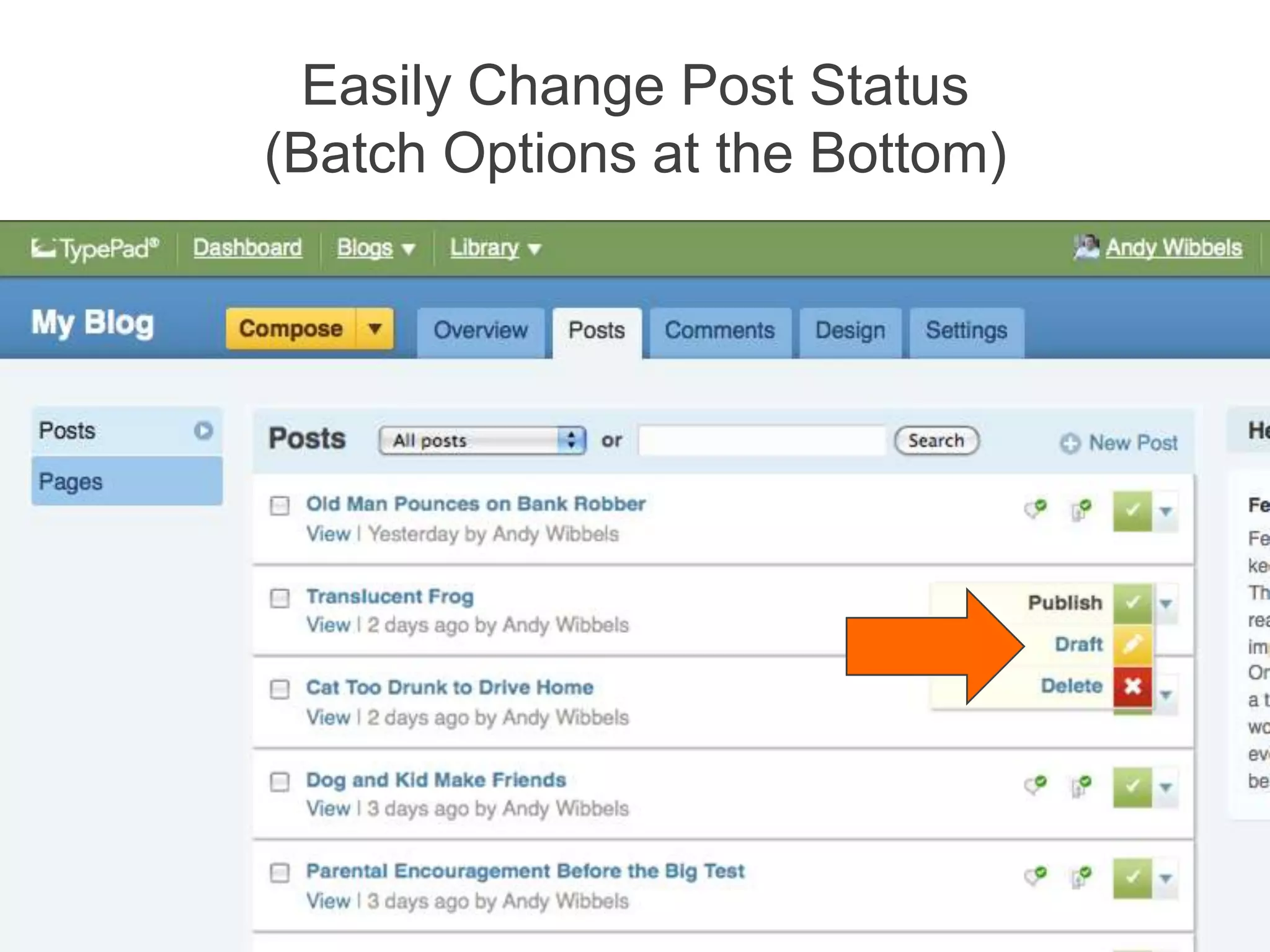
Easily Change Post Status(Batch Options at the Bottom)
AgendaWhat’s ChangedWhat’s NewCool Stuff We Think You’ll LoveQ & A
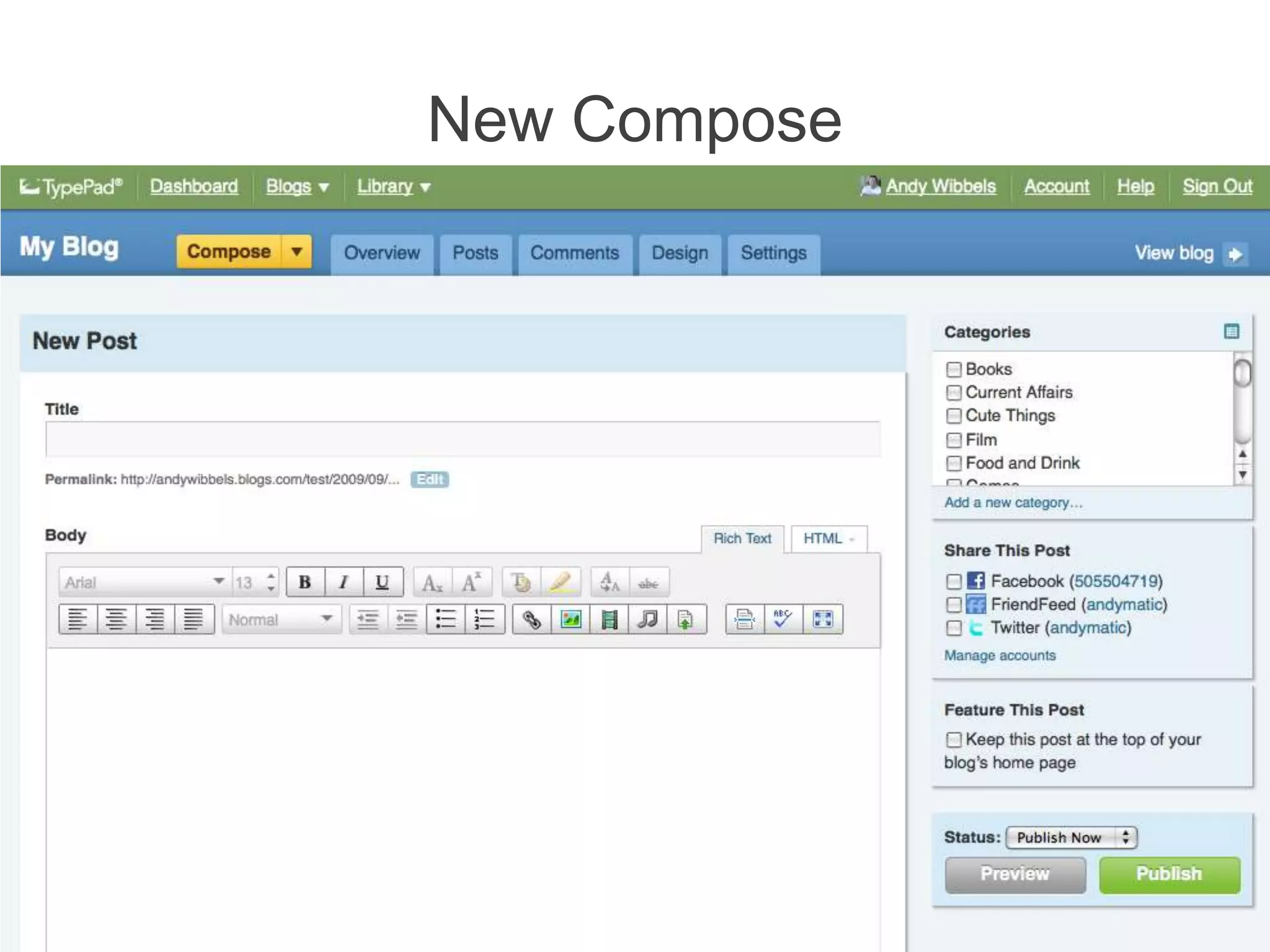
New Compose
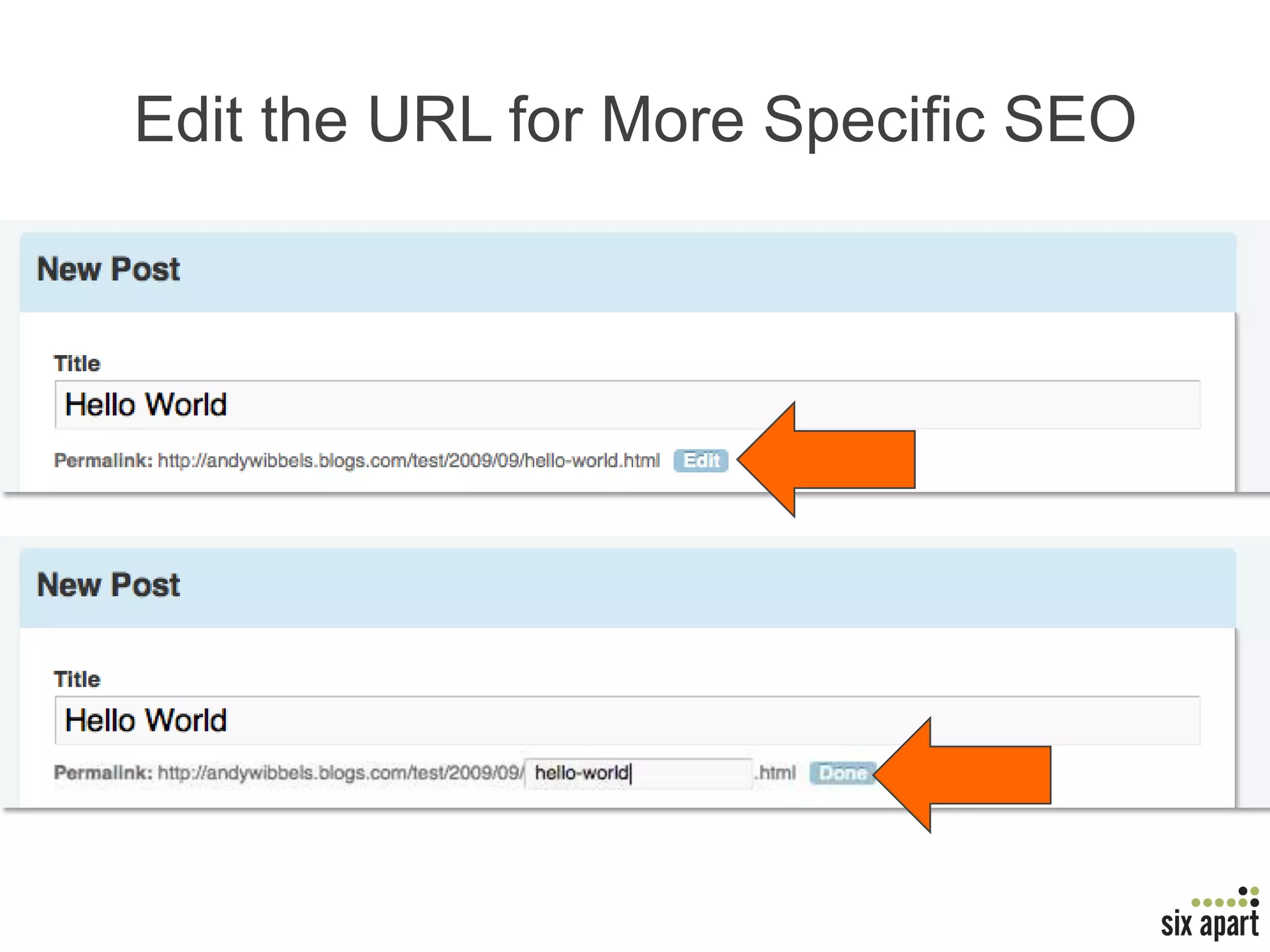
Edit the URL for More Specific SEO
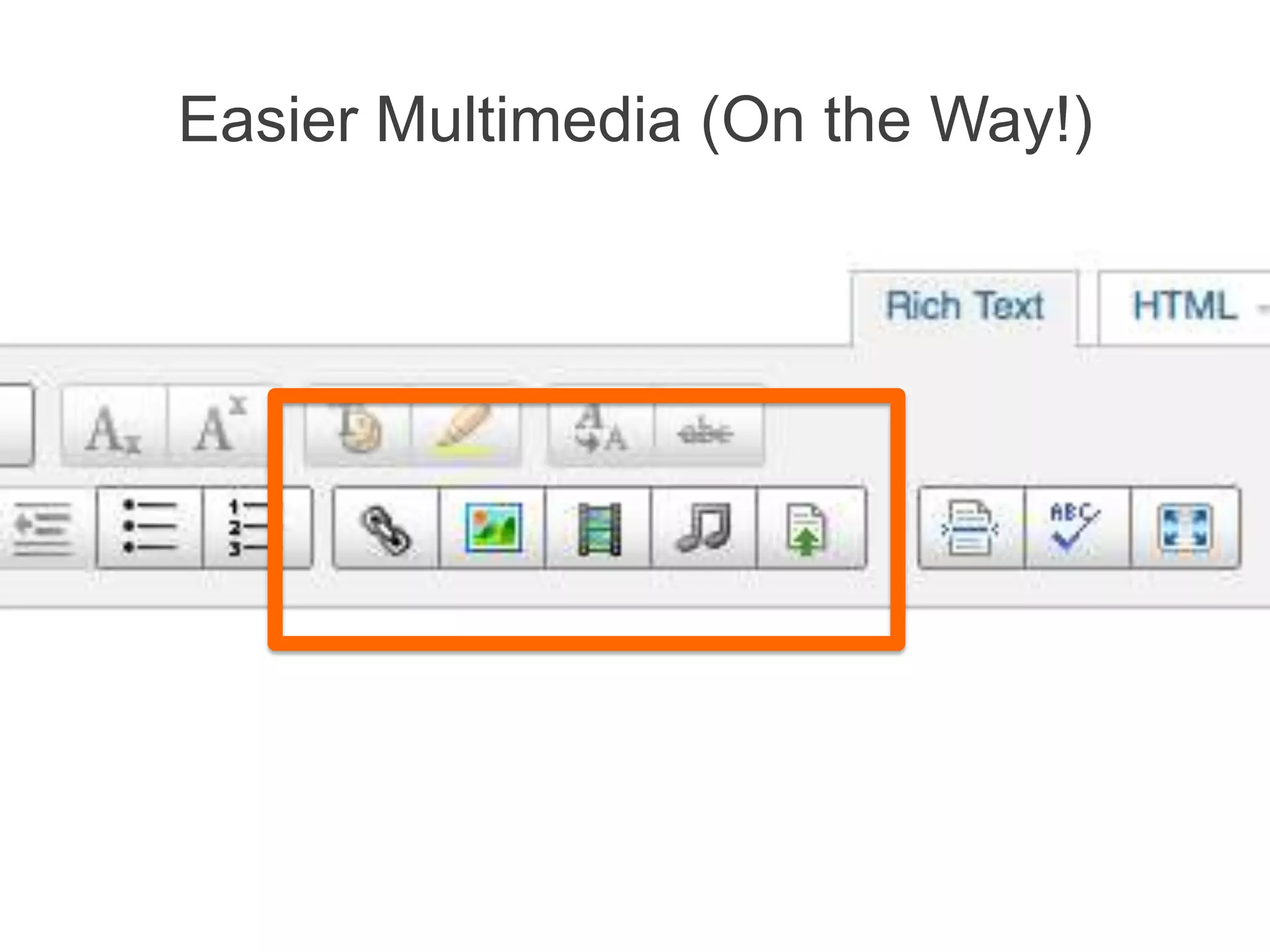
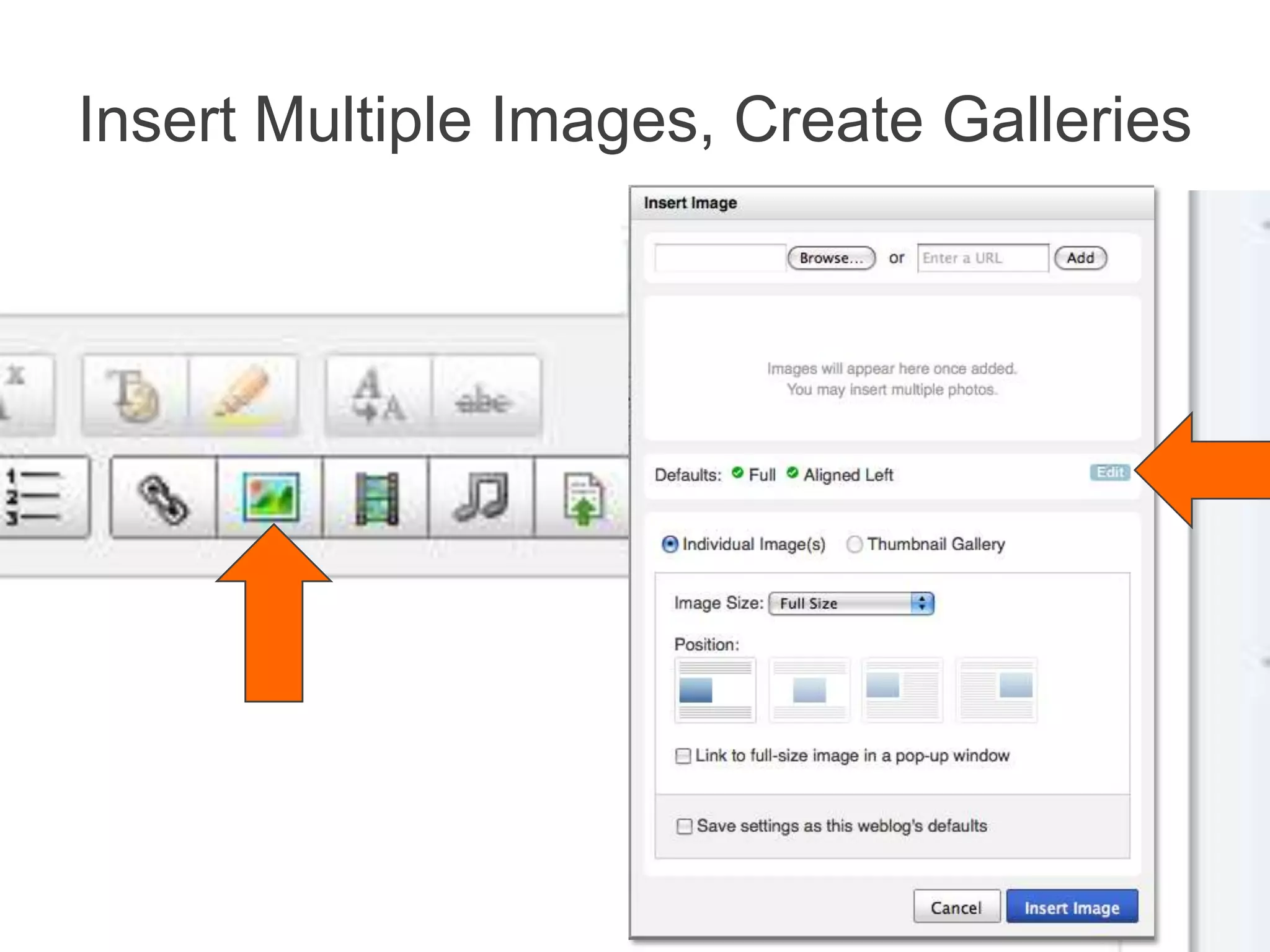
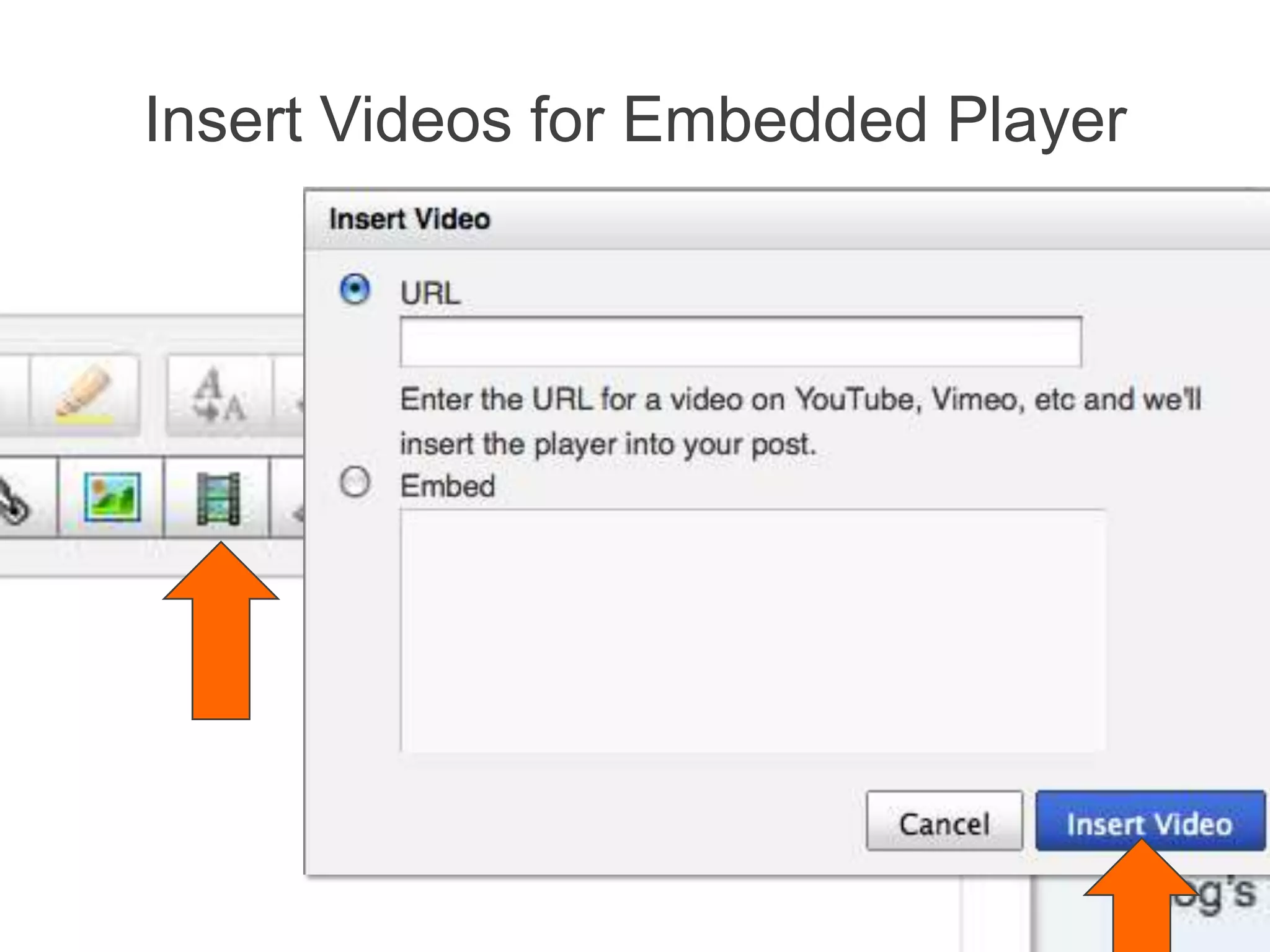
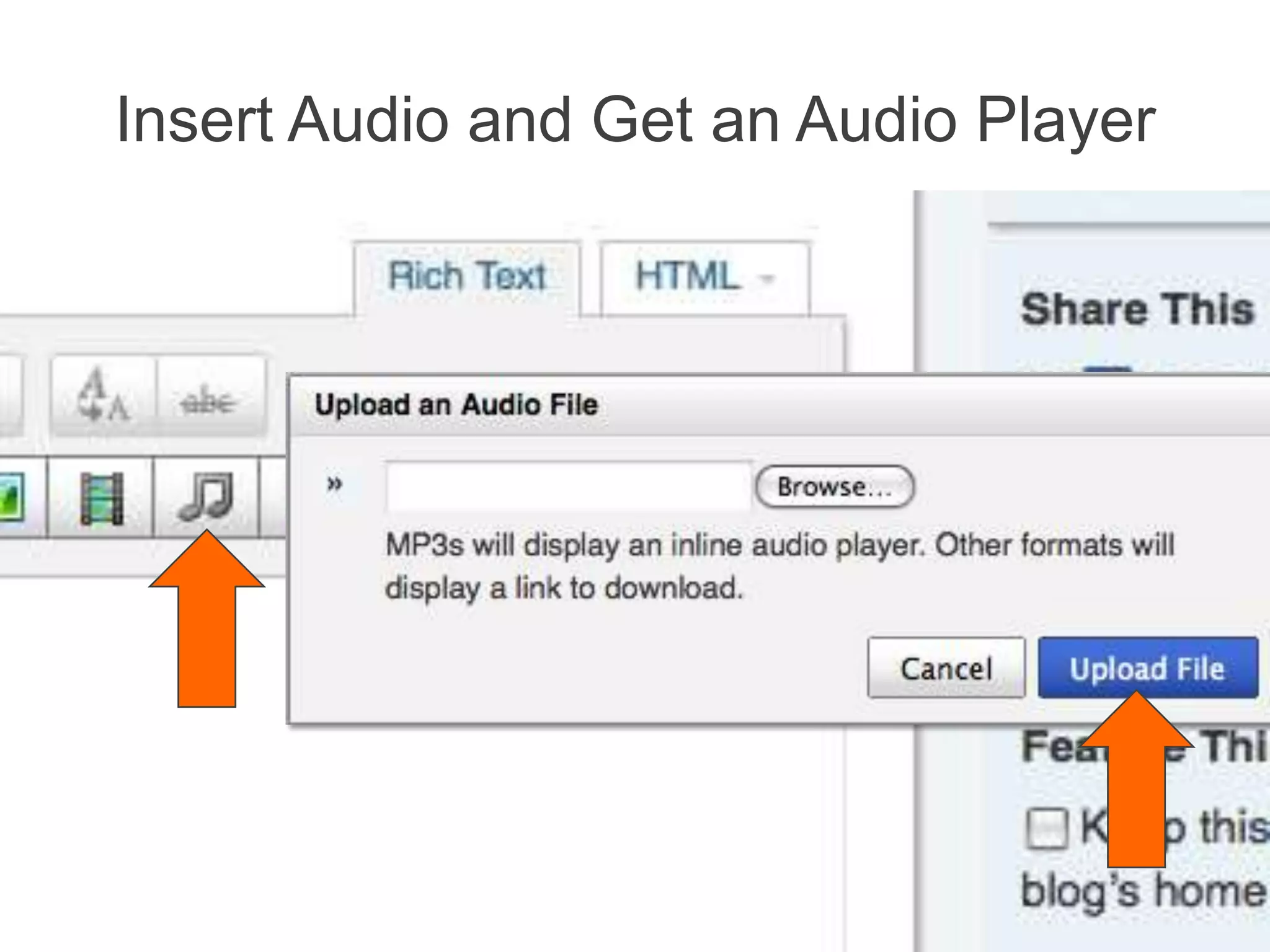
Easier Multimedia (On the Way!)
Insert Multiple Images, Create Galleries
Insert Videos for Embedded Player
Insert Audio and Get an Audio Player
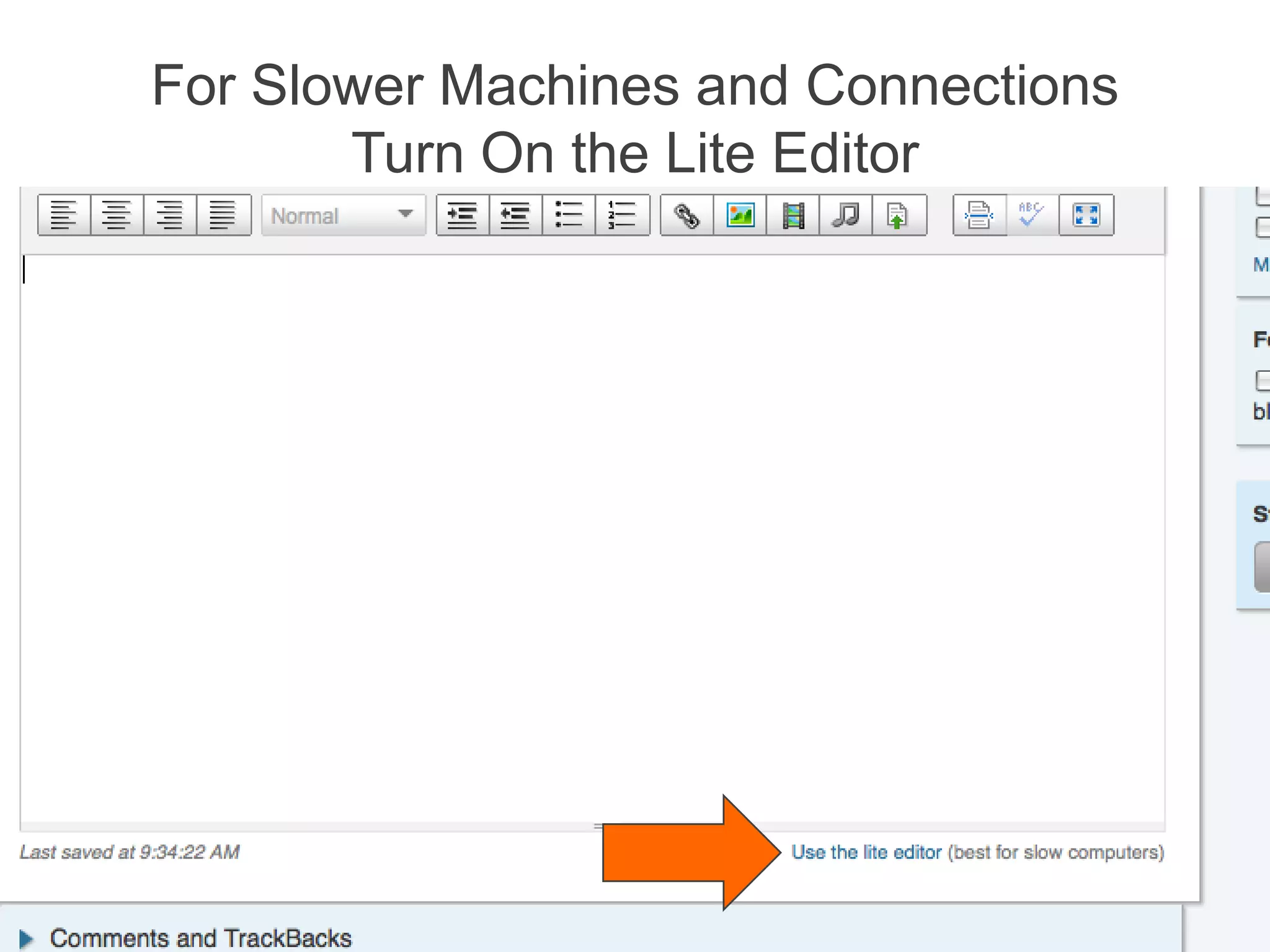
For Slower Machines and ConnectionsTurn On the Lite Editor
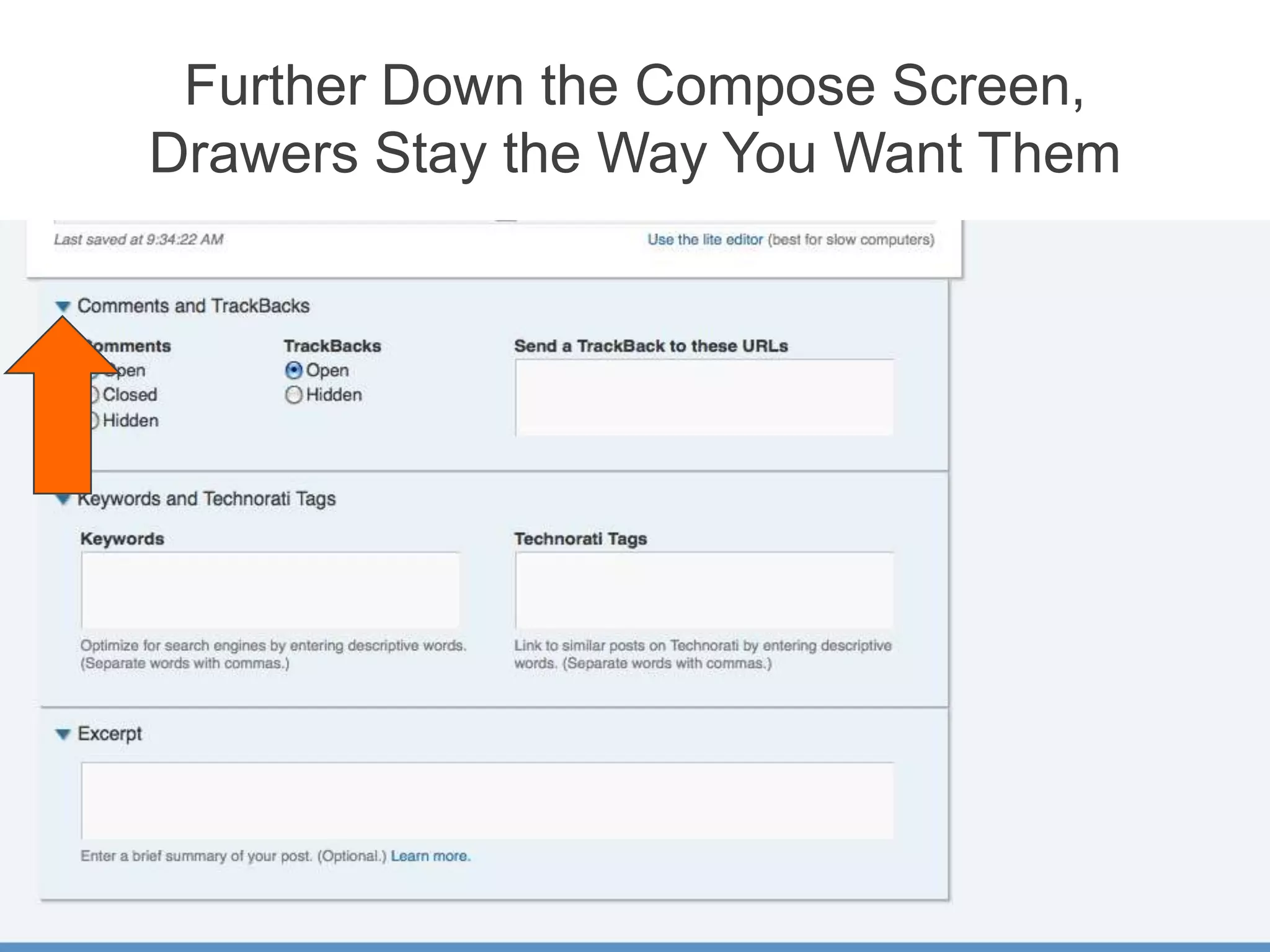
Further Down the Compose Screen, Drawers Stay the Way You Want Them
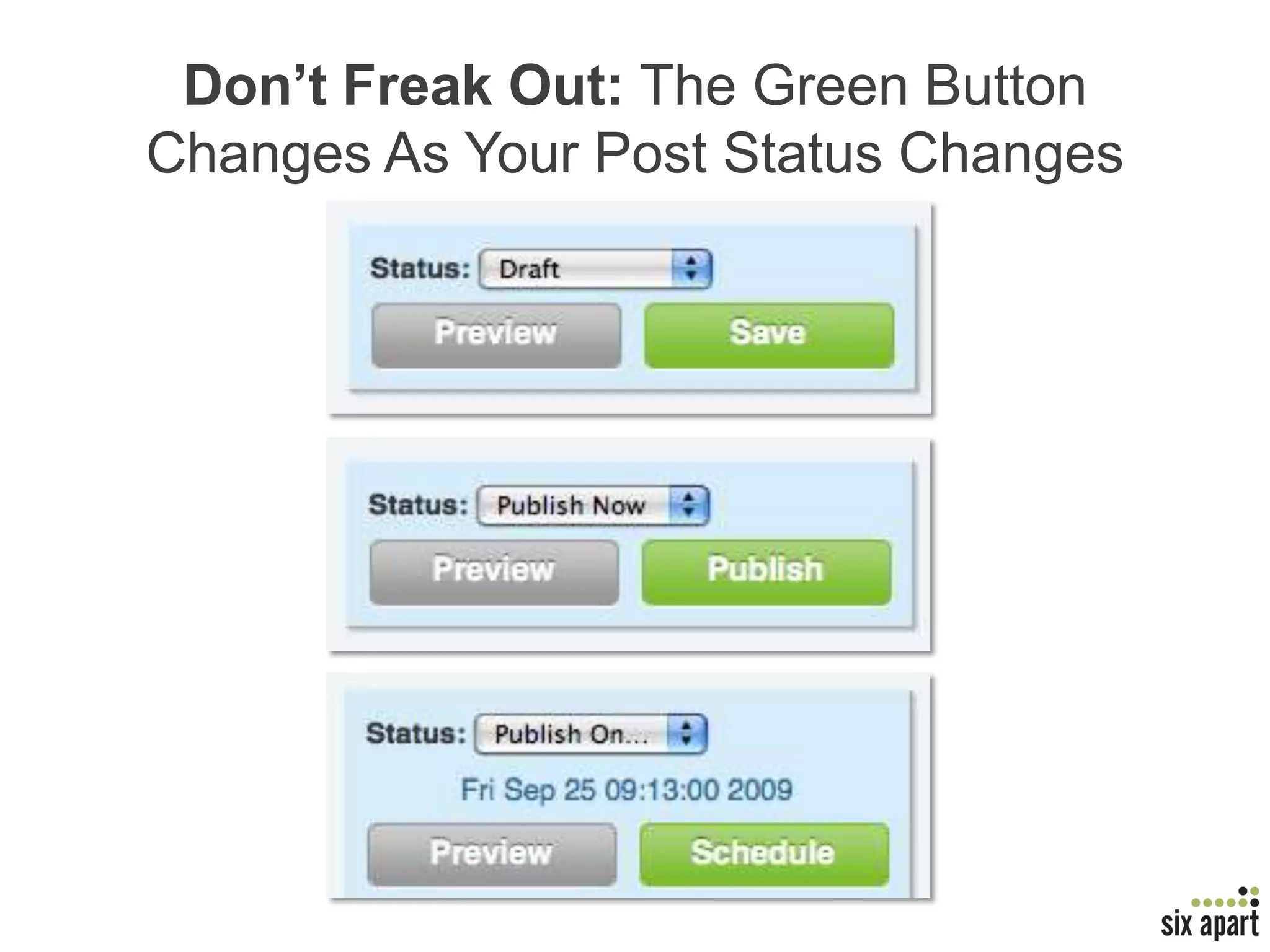
Don’t Freak Out: The Green Button Changes As Your Post Status Changes
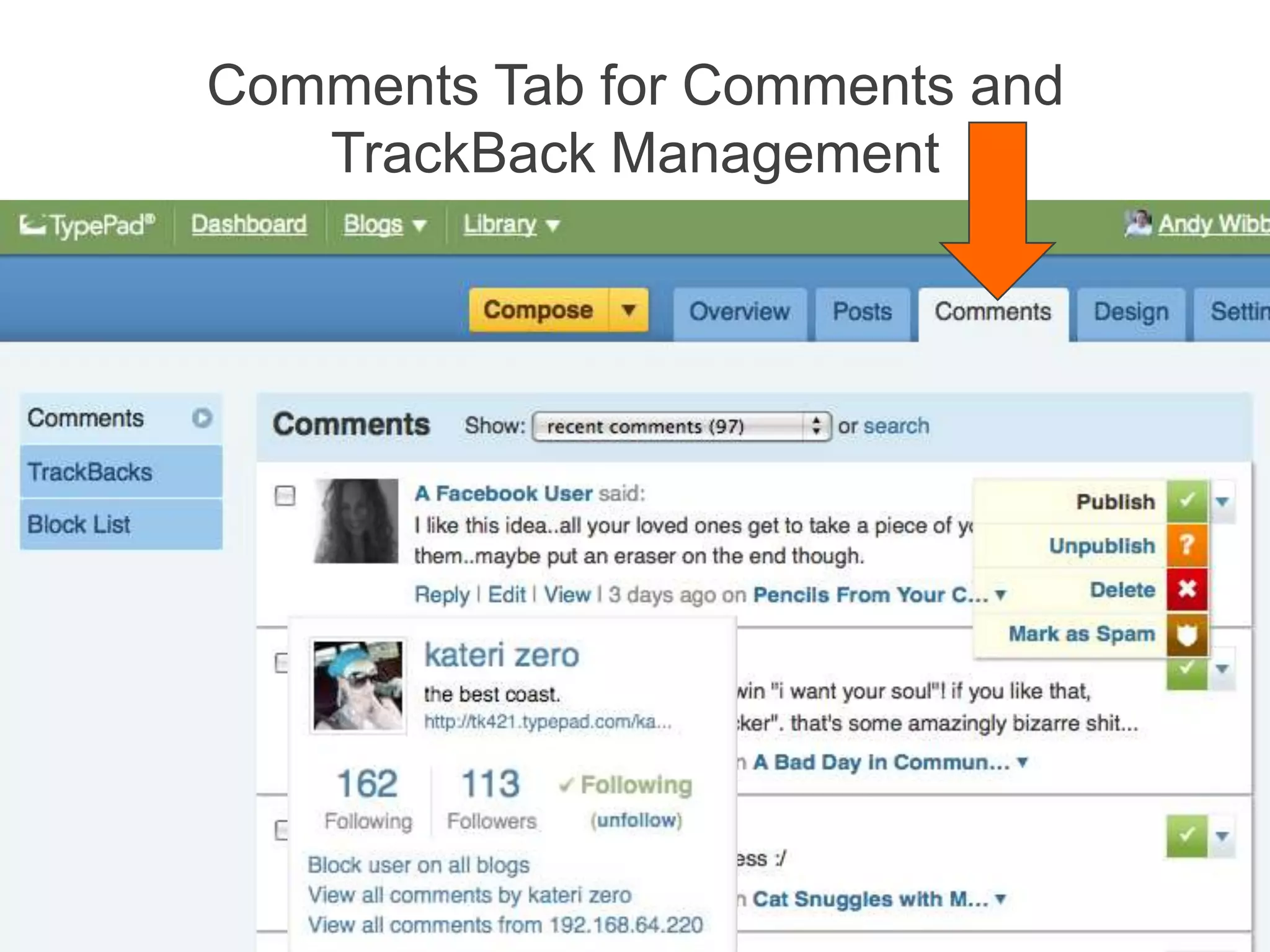
Comments Tab for Comments and TrackBack Management
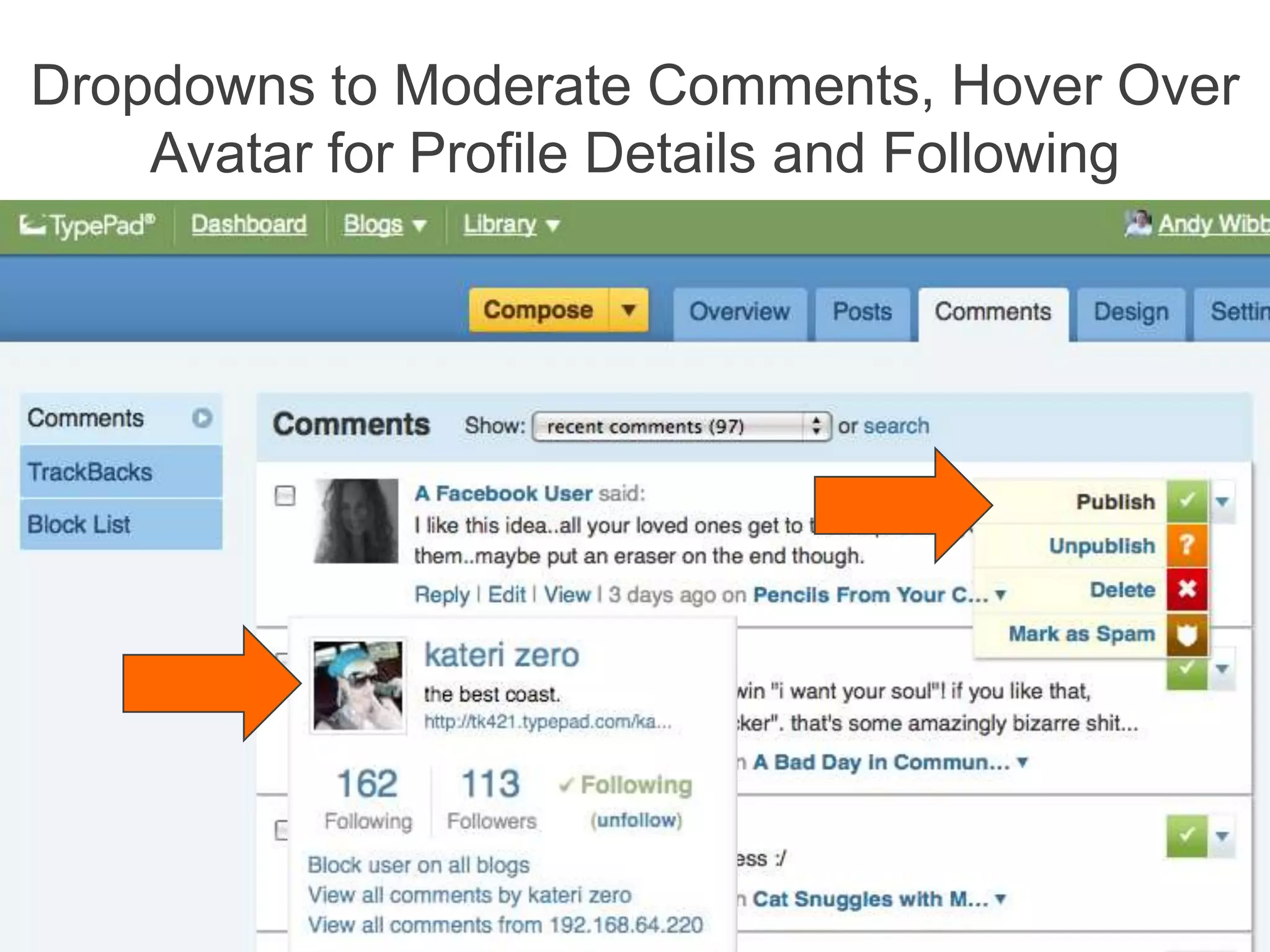
Dropdowns to Moderate Comments, Hover Over Avatar for Profile Details and Following
AgendaWhat’s ChangedWhat’s NewCool Stuff We Think You’ll LoveQ & A
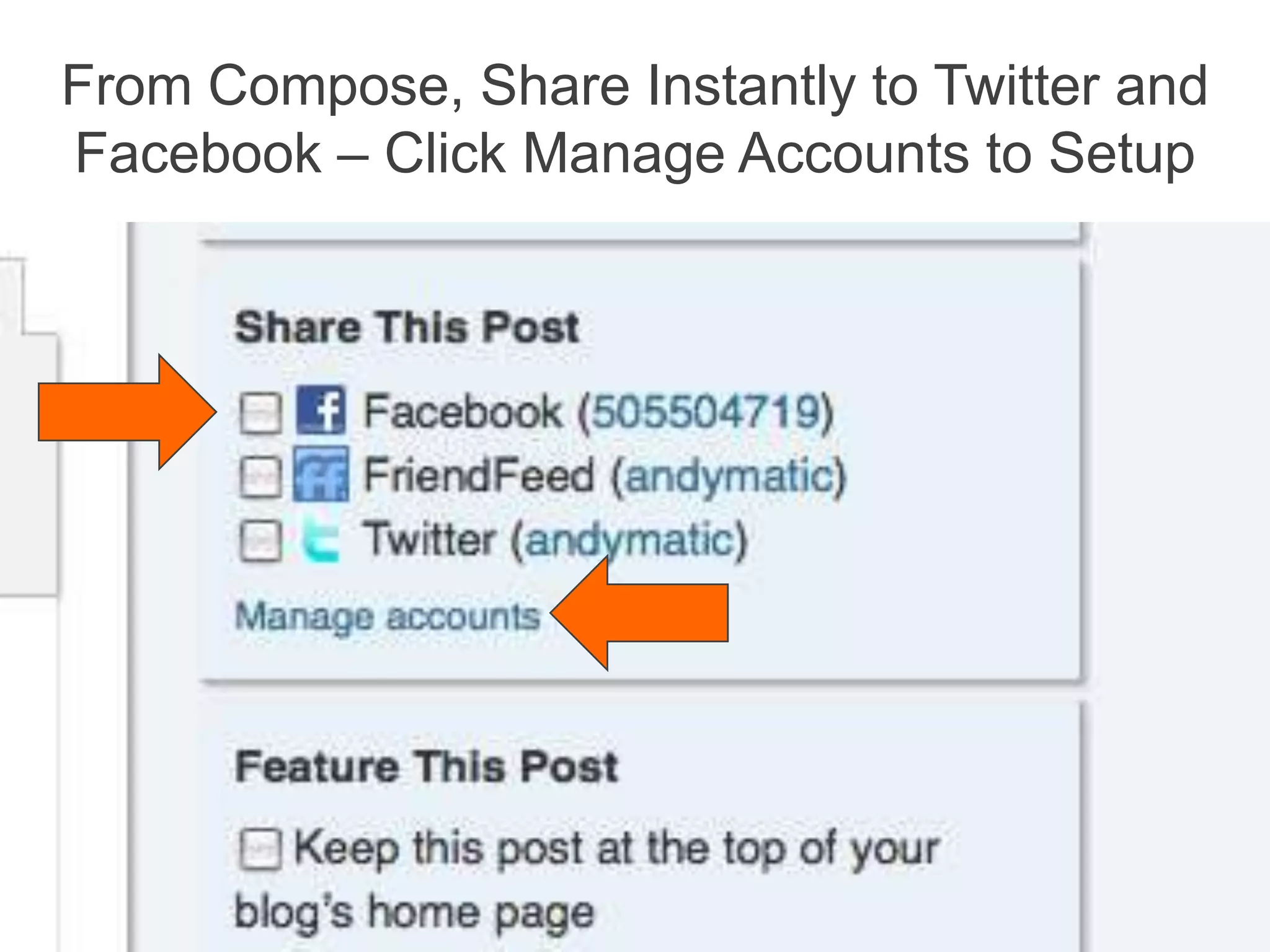
From Compose, Share Instantly to Twitter and Facebook – Click Manage Accounts to Setup
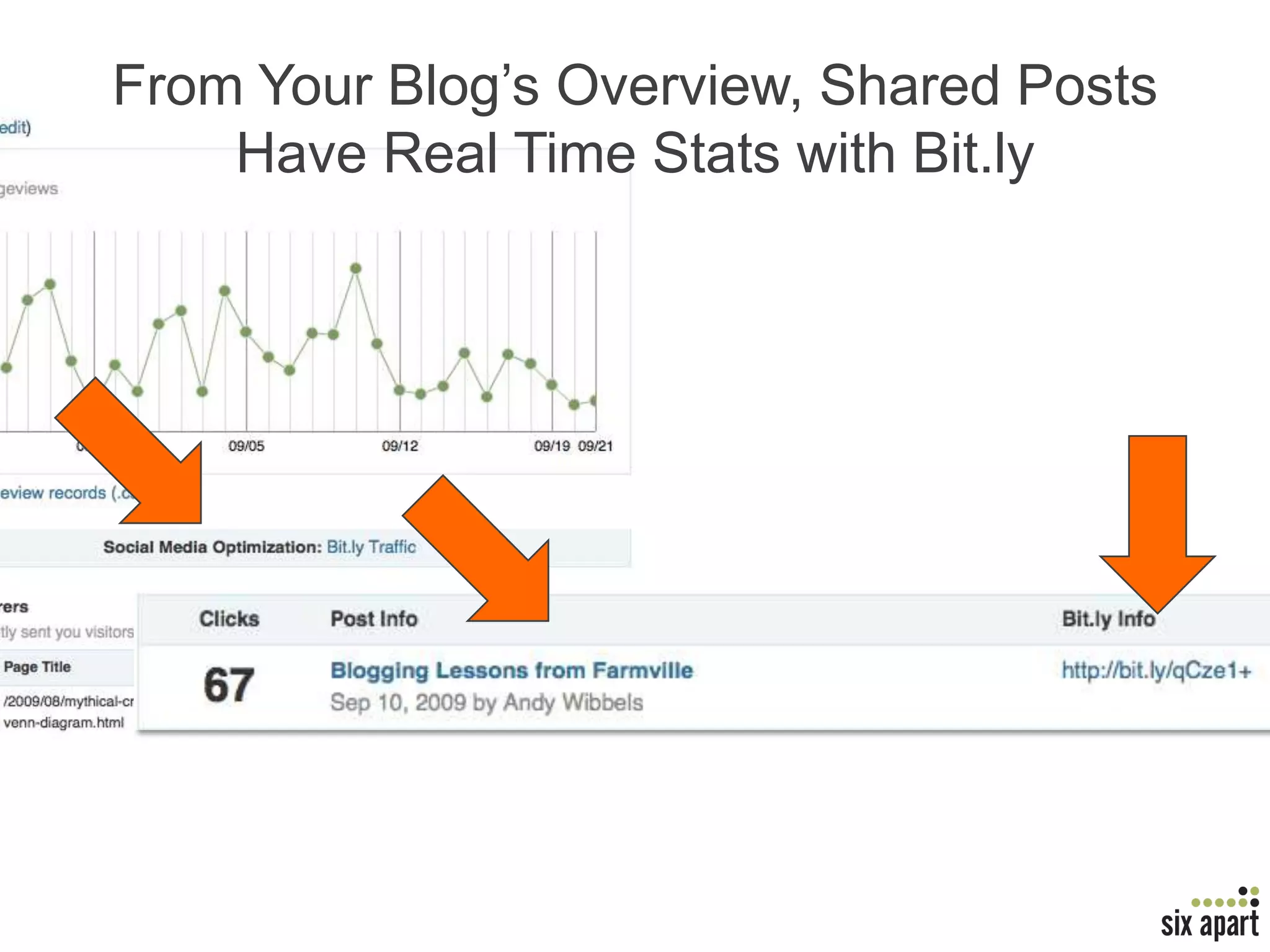
From Your Blog’s Overview, Shared Posts Have Real Time Stats with Bit.ly
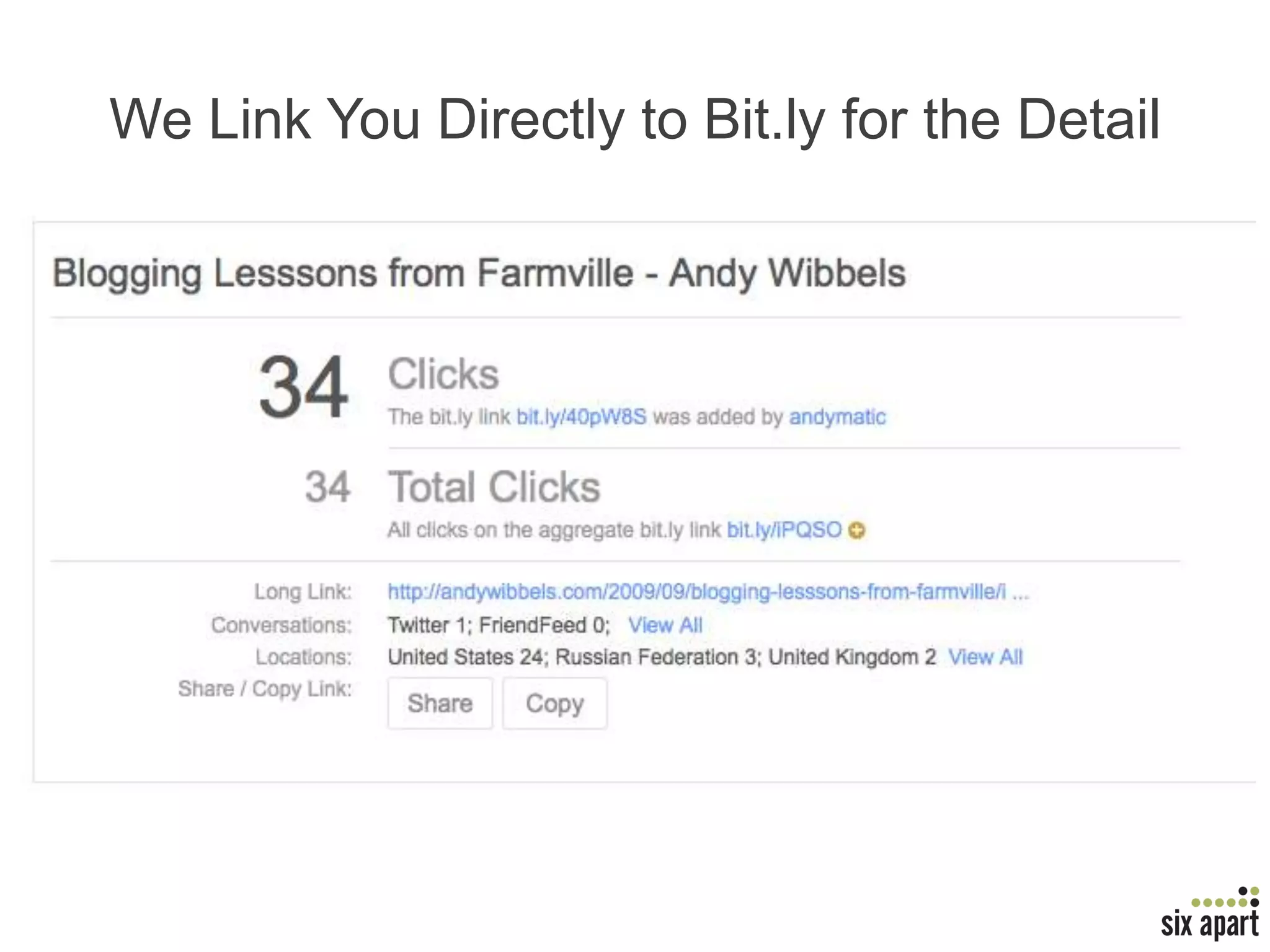
We Link You Directly to Bit.ly for the Detail
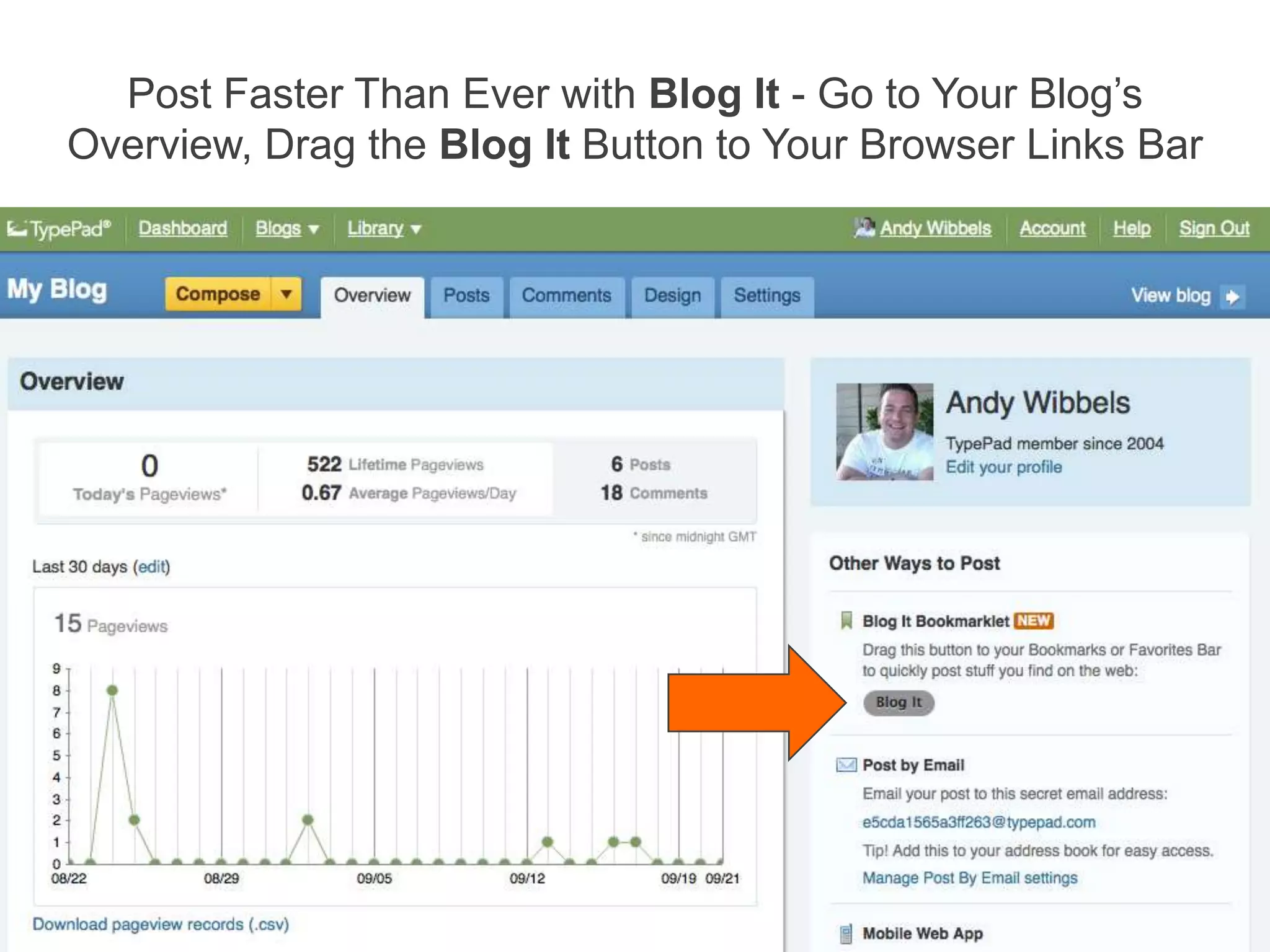
Post Faster Than Ever with Blog It - Go to Your Blog’s Overview, Drag the Blog It Button to Your Browser’s Links or Bookmarks Bar
Don’t See the Bookmarks or Links Bar?FirefoxIESafari
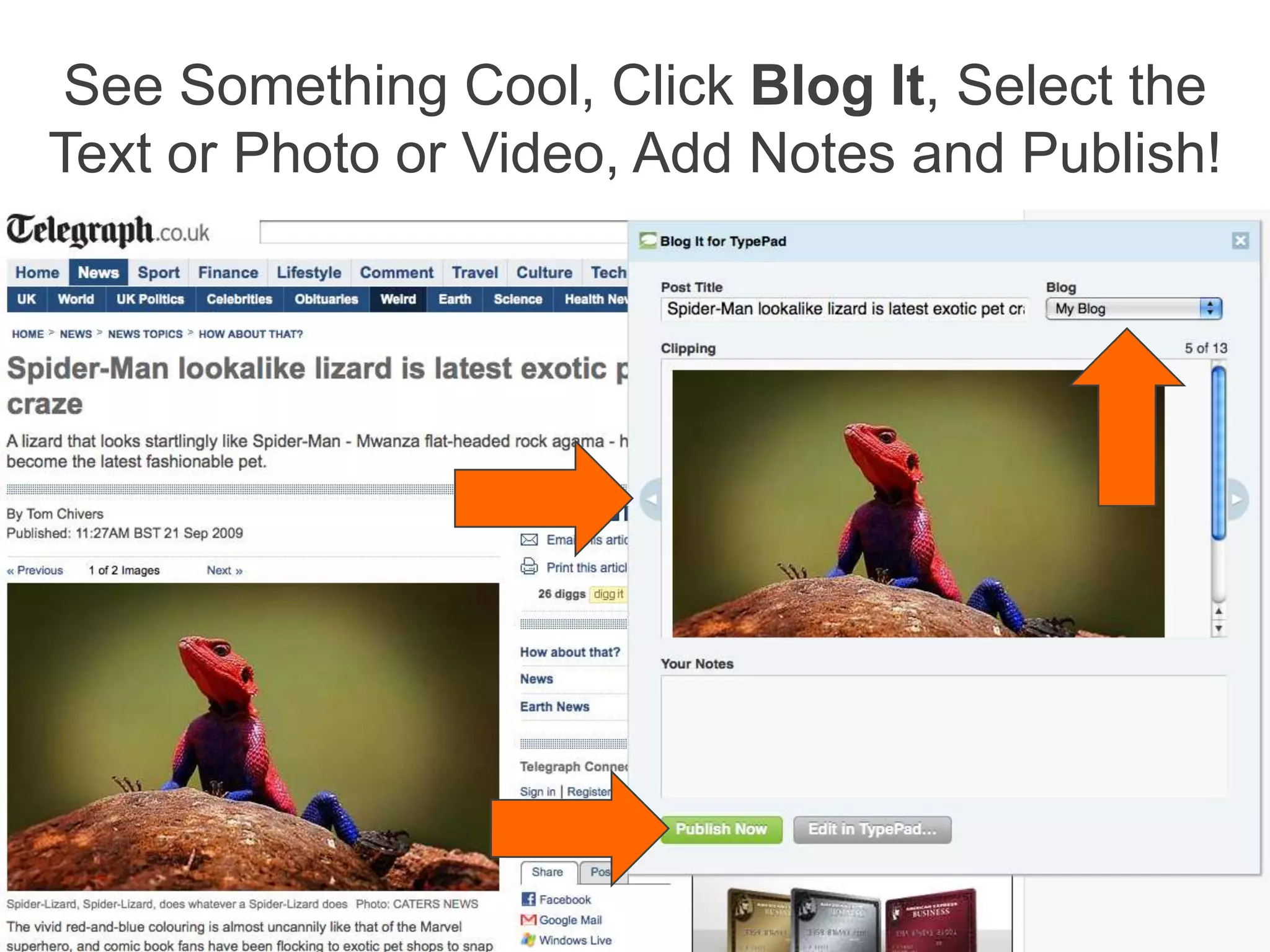
See Something Cool, Click Blog It, Select the Text or Photo or Video, Add Notes and Publish!
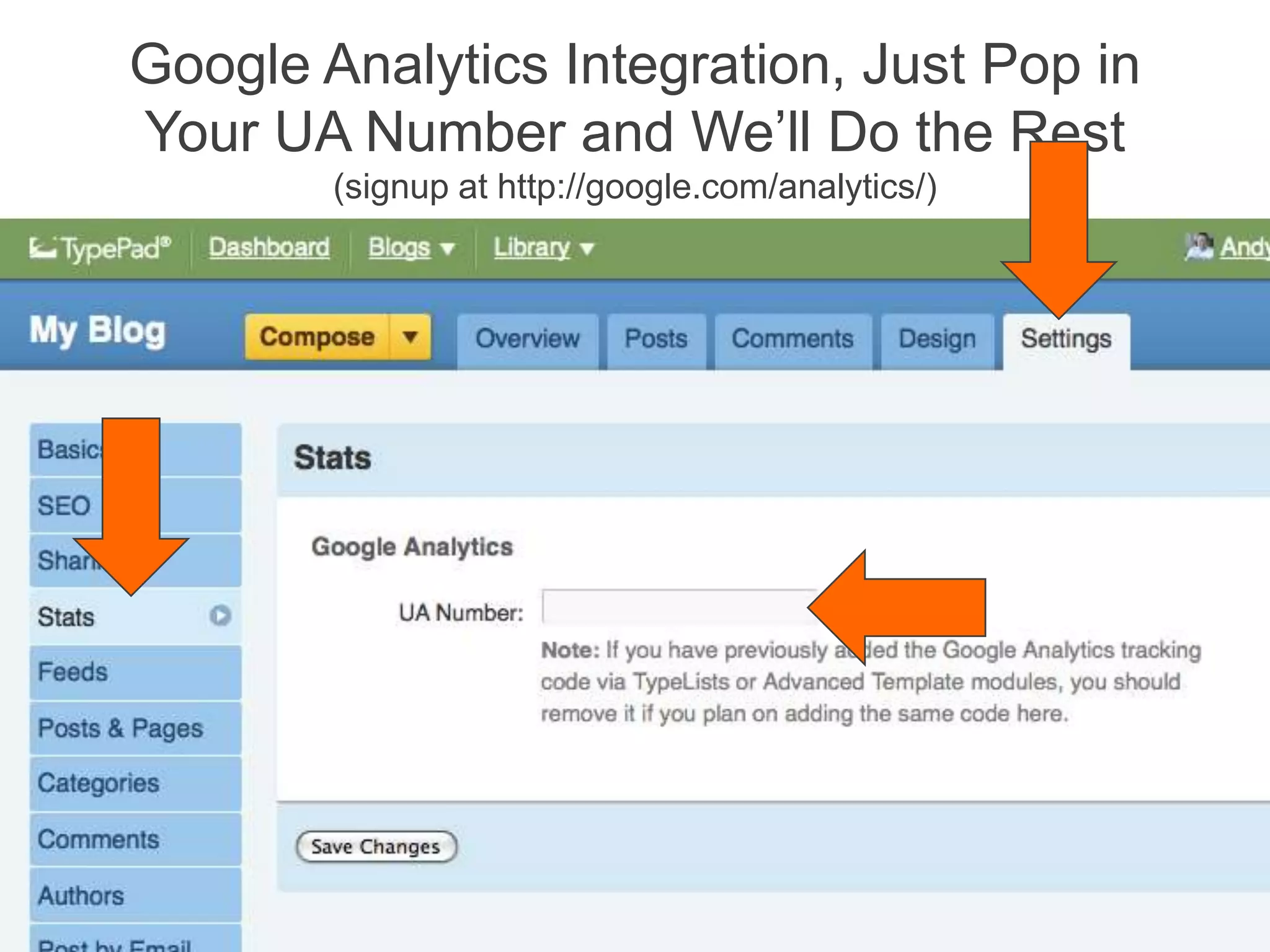
Google Analytics Integration, Just Pop inYour UA Number and We’ll Do the Rest(signup at http://google.com/analytics/)
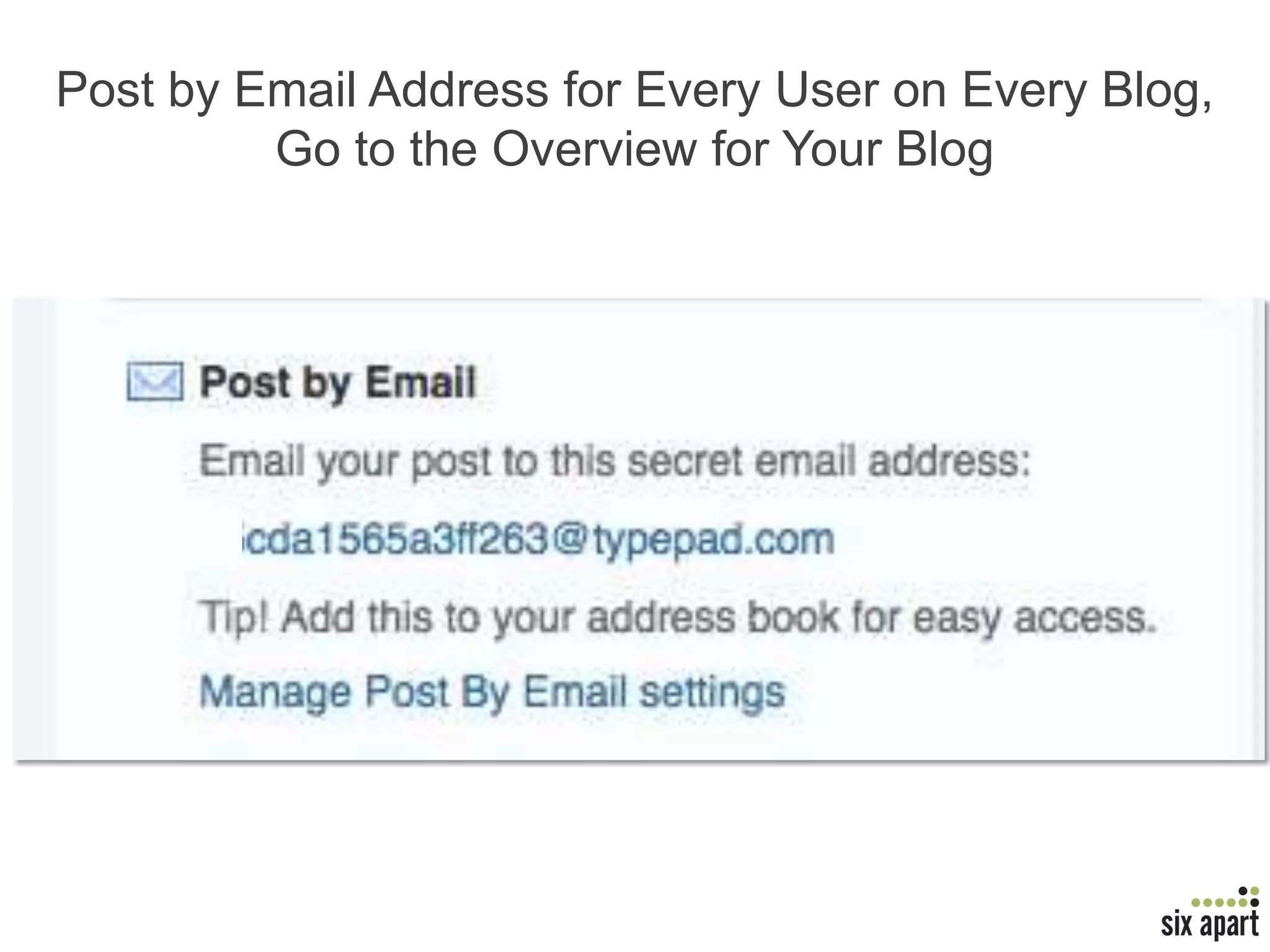
Post by Email Address for Every User on Every Blog,Go to the Overview for Your Blog
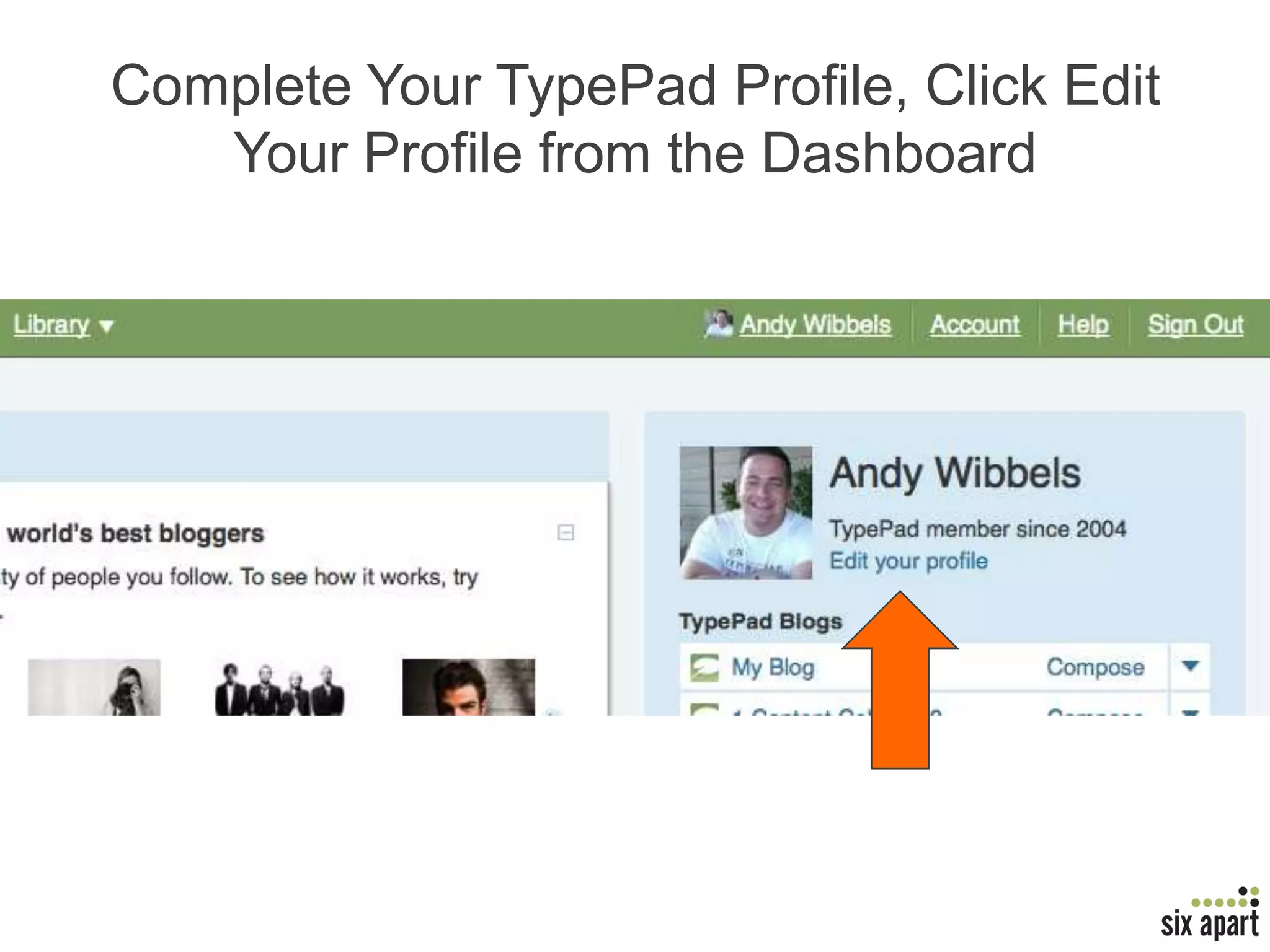
Complete Your TypePad Profile, Click Edit Your Profile from the Dashboard
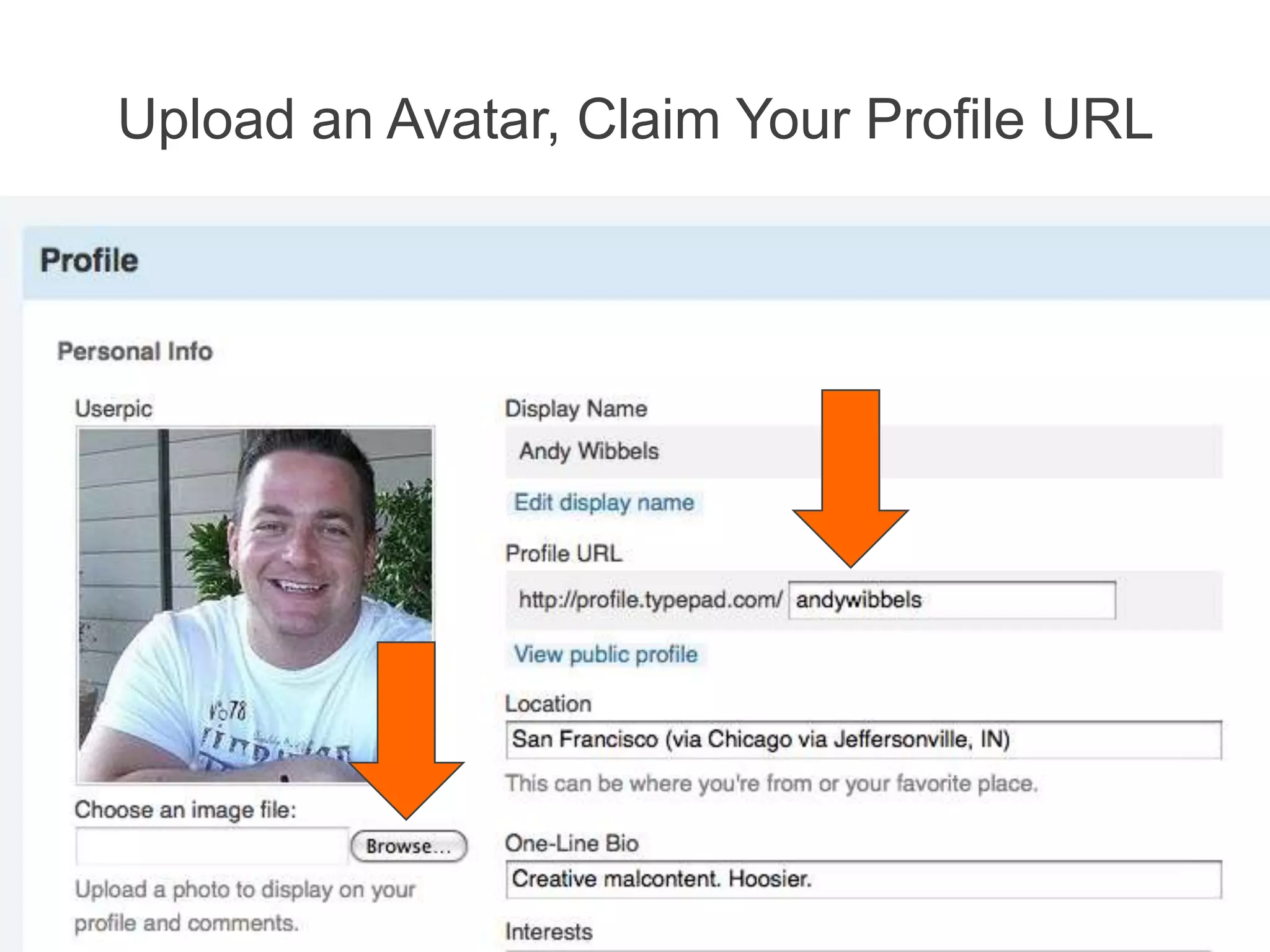
Upload an Avatar, Claim Your Profile URL
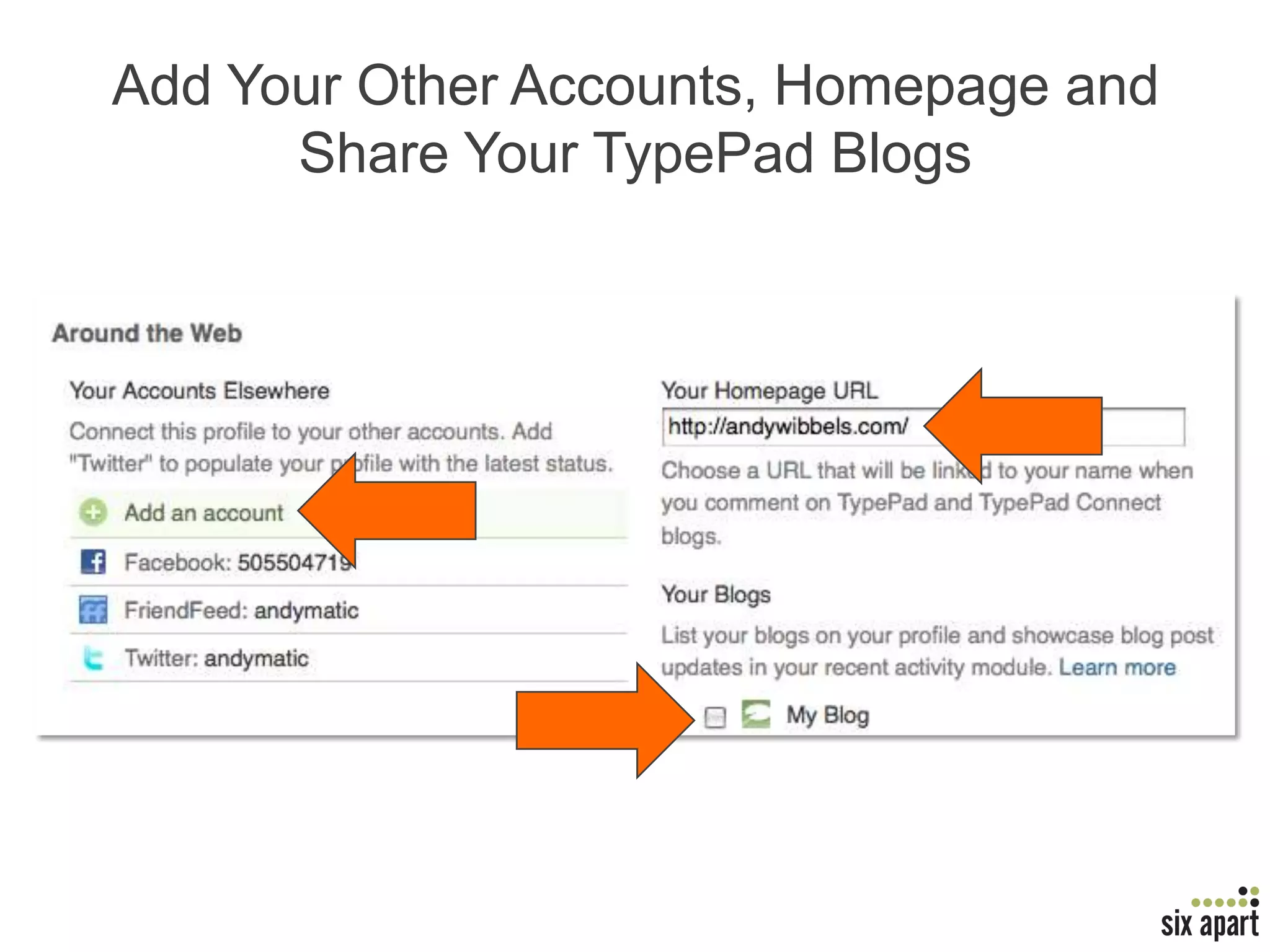
Add Your Other Accounts, Homepage and Share Your TypePad Blogs
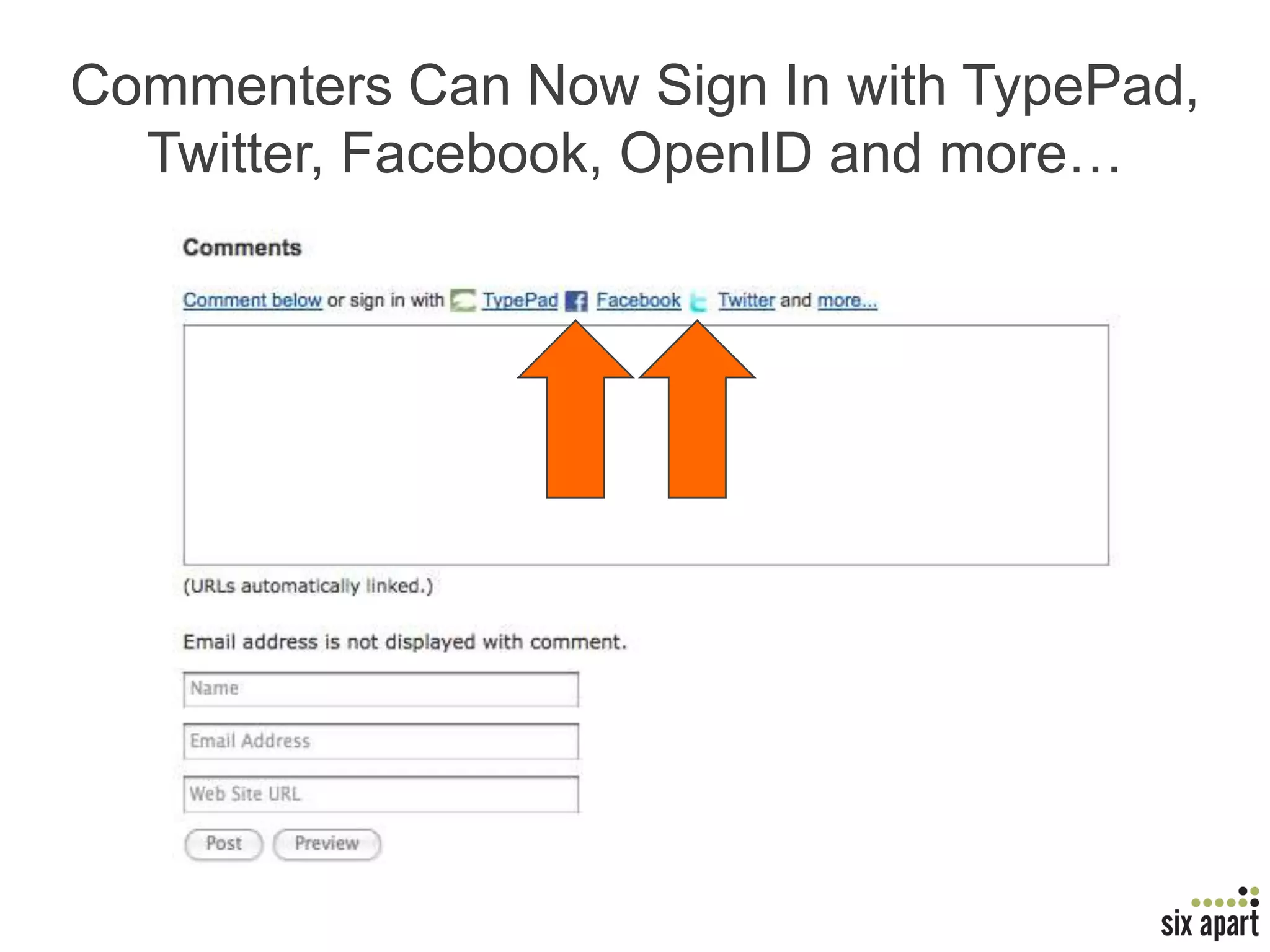
Commenters Can Now Sign In with TypePad, Twitter, Facebook, OpenID and more…
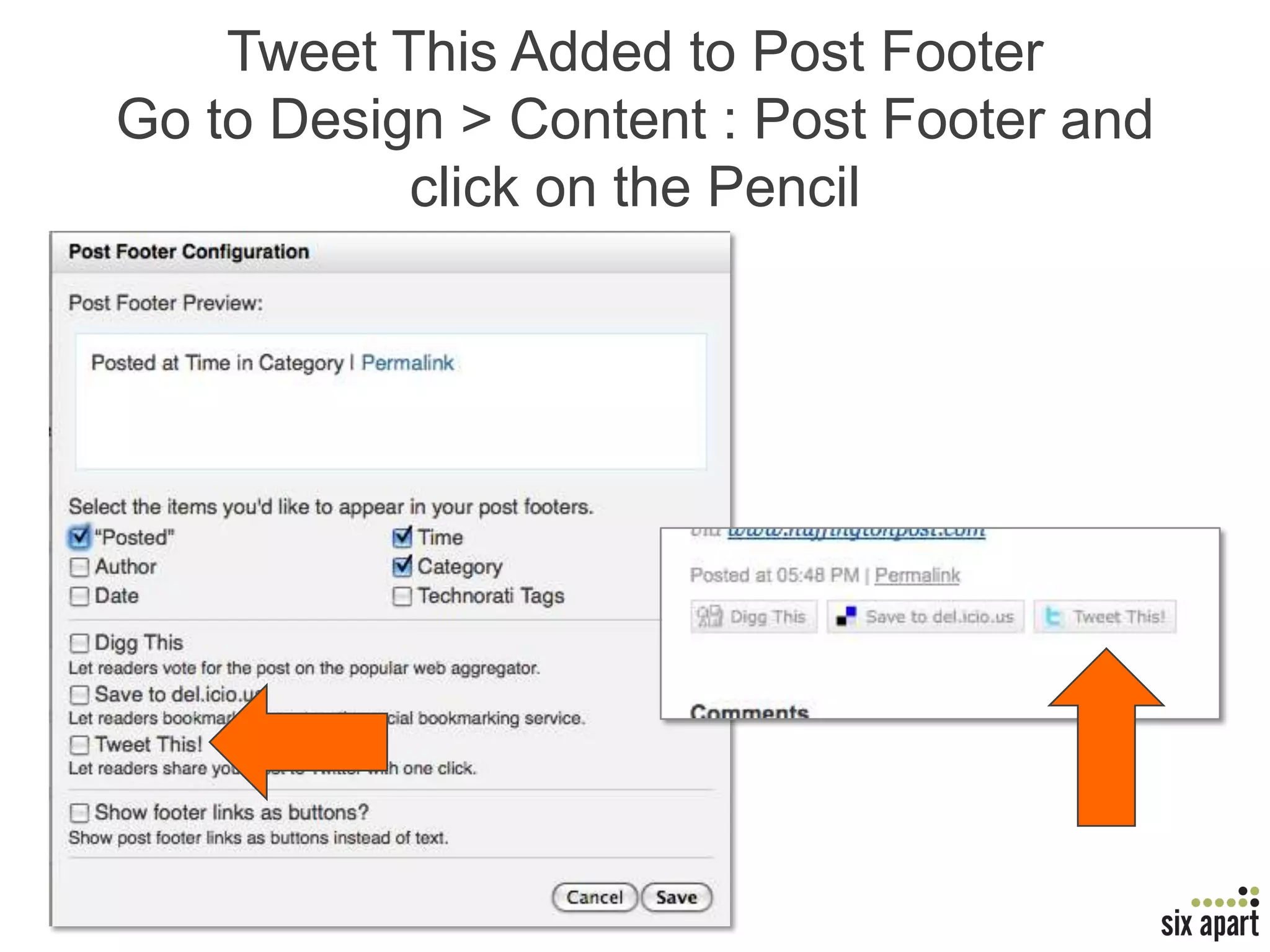
Tweet This Added to Post FootersGo to Design > Content : Post Footer and click on the Pencil
Add the Favorite Button and Encourage Your Readers to Spread Your Awesomeness
Here’s How to Add Favorites to Your BlogGo to Design > ContentBe sure you have Post Footer checkedClick on the little pencil iconCheck the checkbox for FavoriteClick OK, Save Changes and refresh your blog!
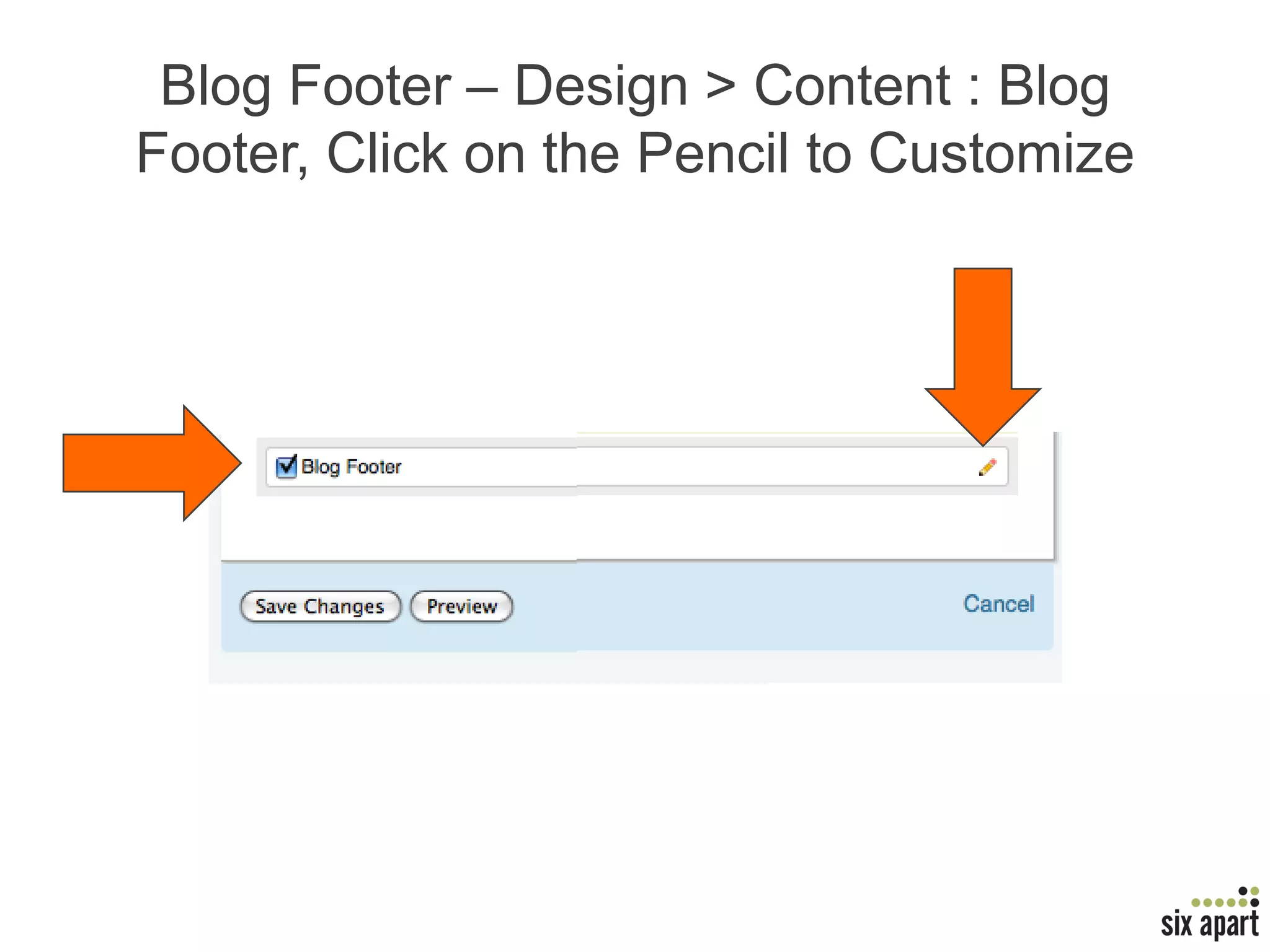
Blog Footer – Design > Content : Blog Footer, Click on the Pencil to Customize
AgendaWhat’s ChangedWhat’s NewCool Stuff We Think You’ll LoveQ & A Stay up to date everything.typepad.comJoin the beta beta.typepad.com
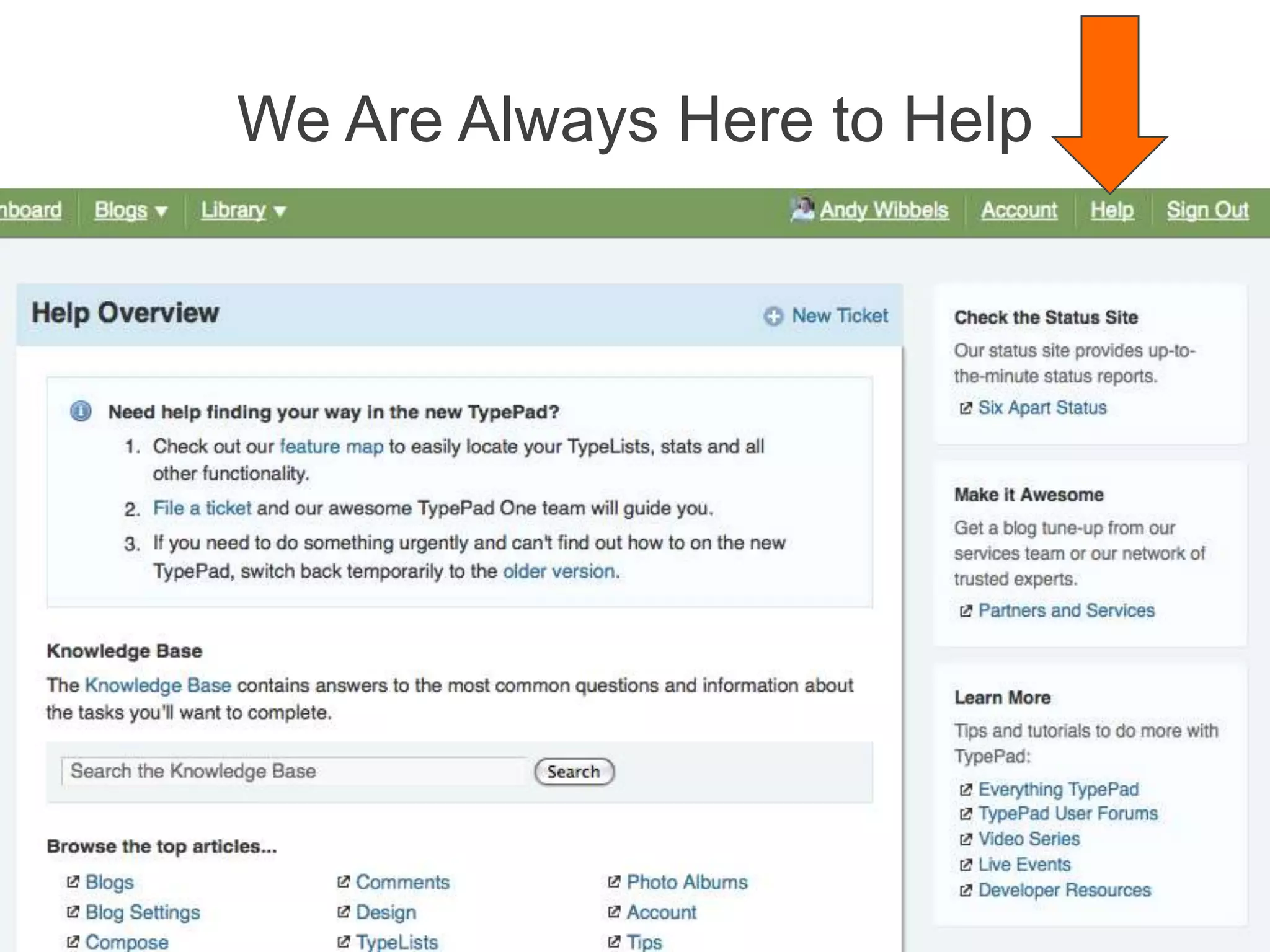
We Are Always Here to Help
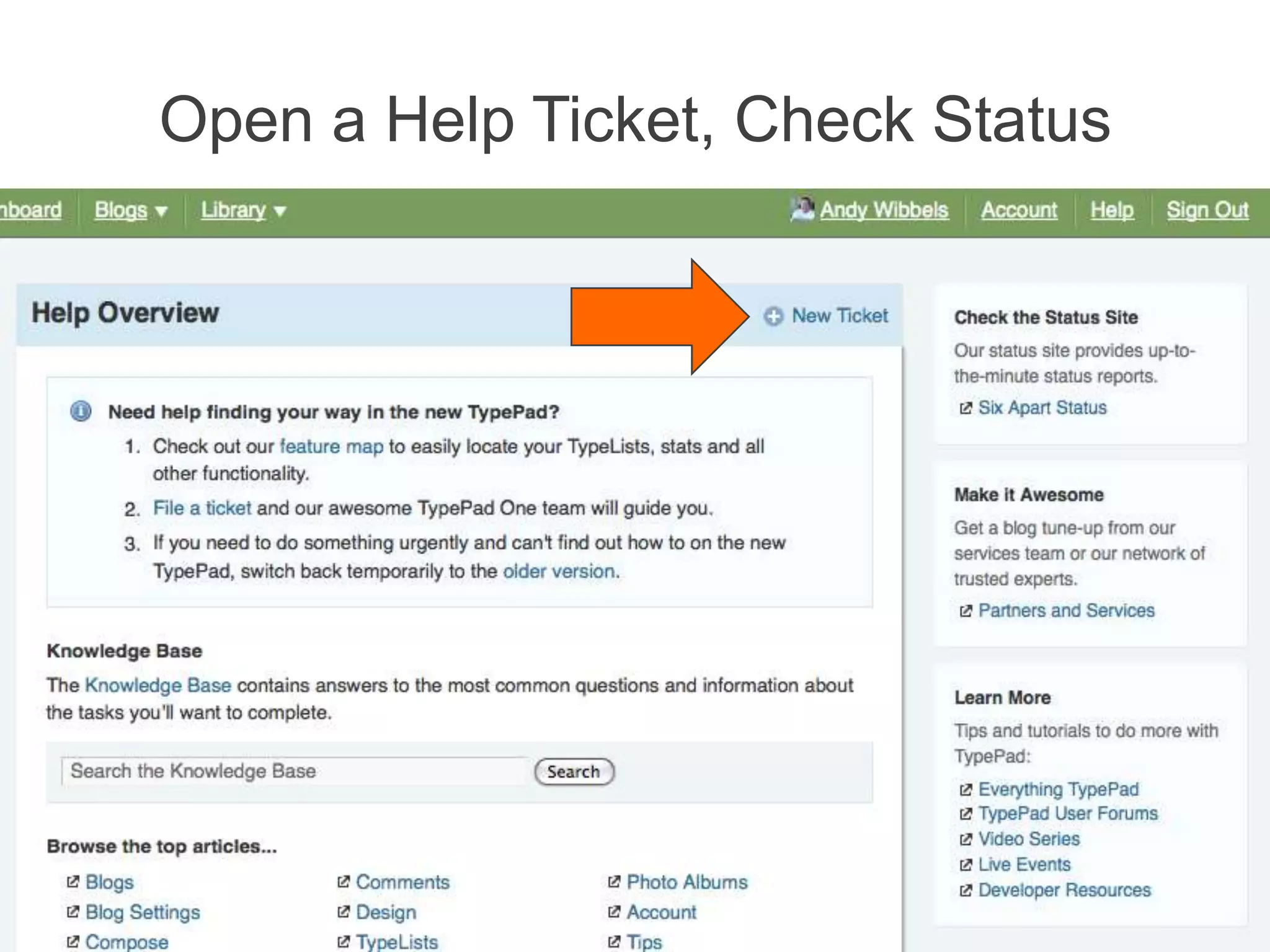
Open a Help Ticket, Check Status
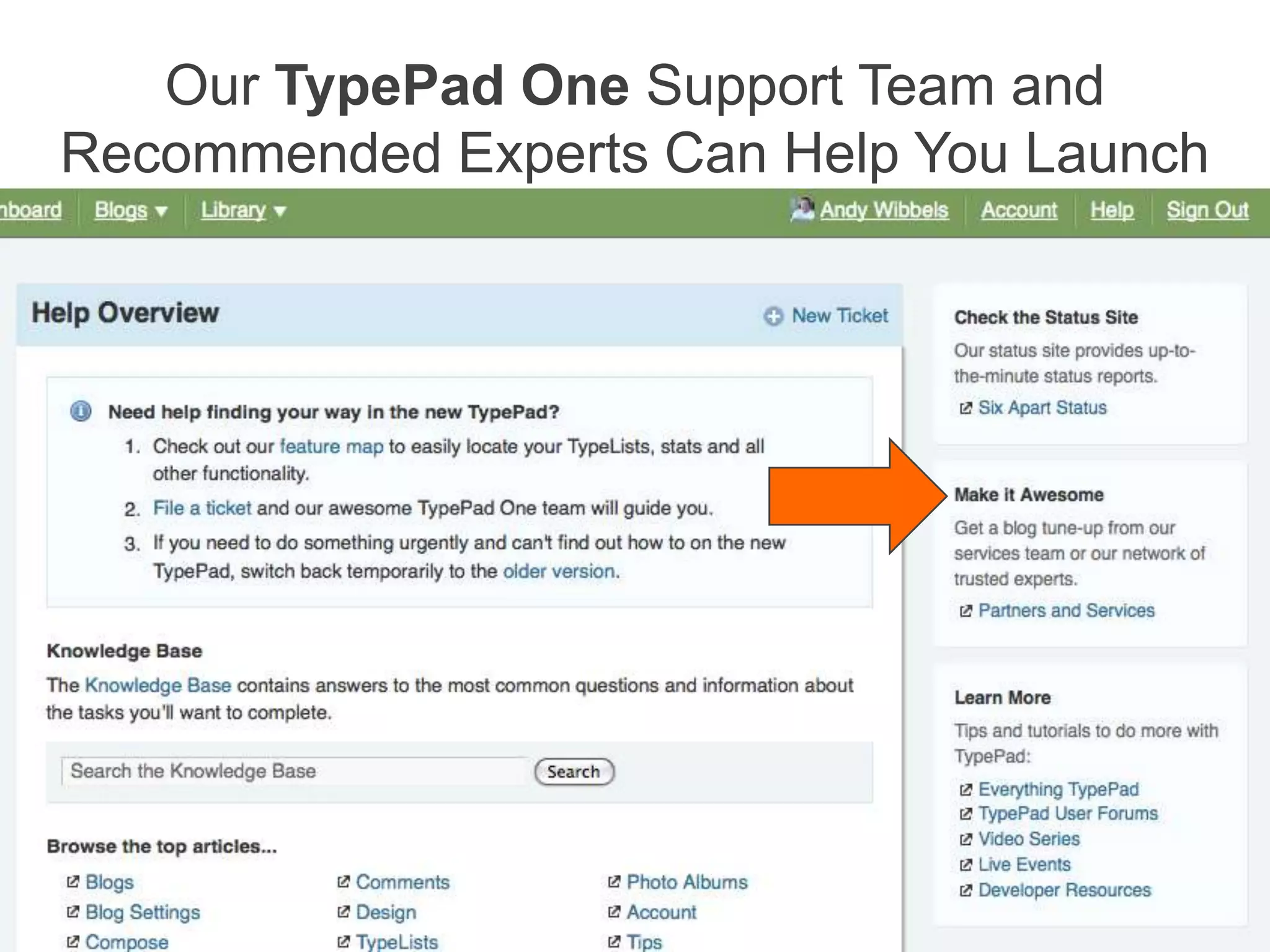
Our TypePad One Support Team and Recommended Experts Can Help You Launch
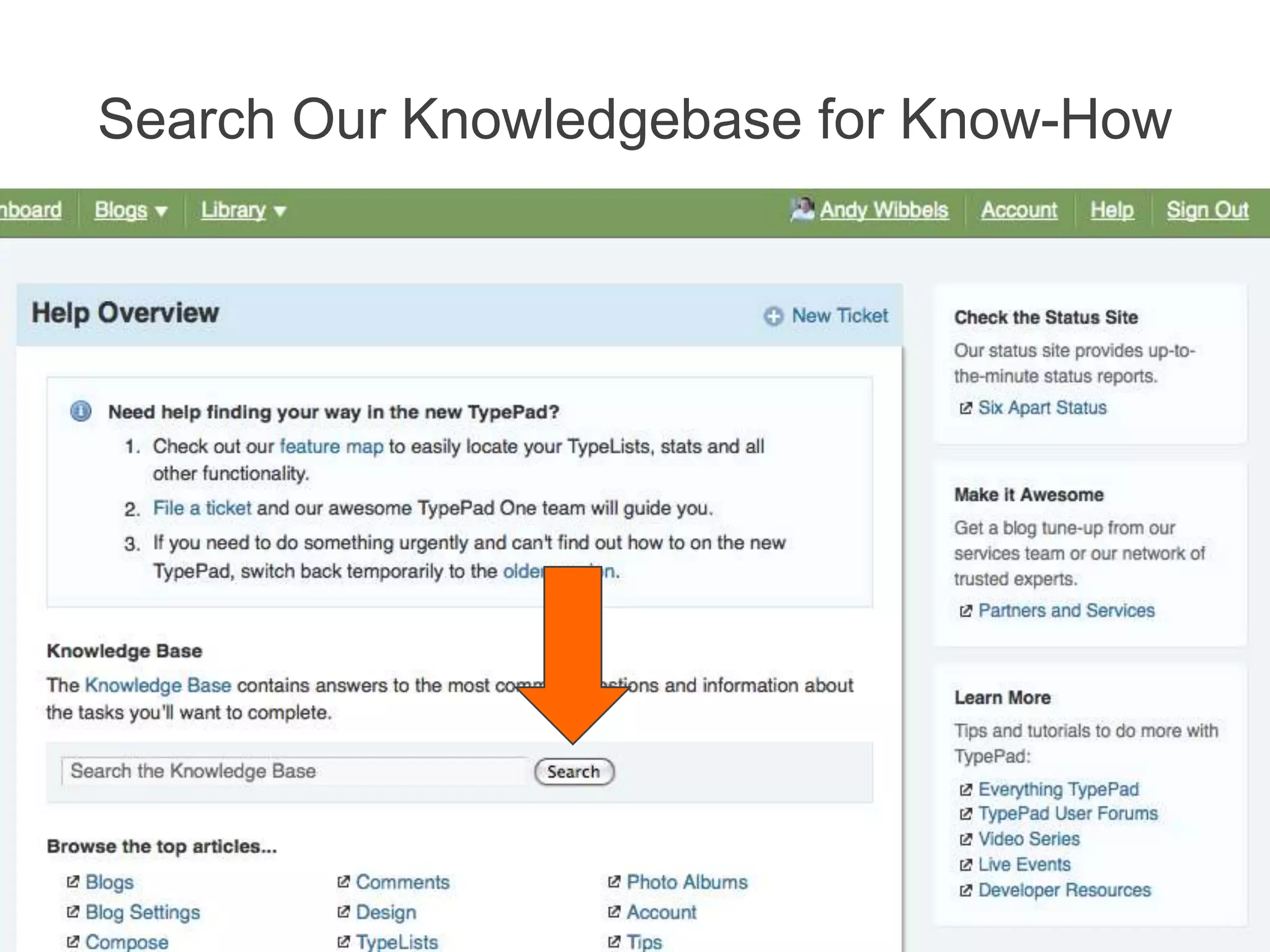
Search Our Knowledgebase for Know-How
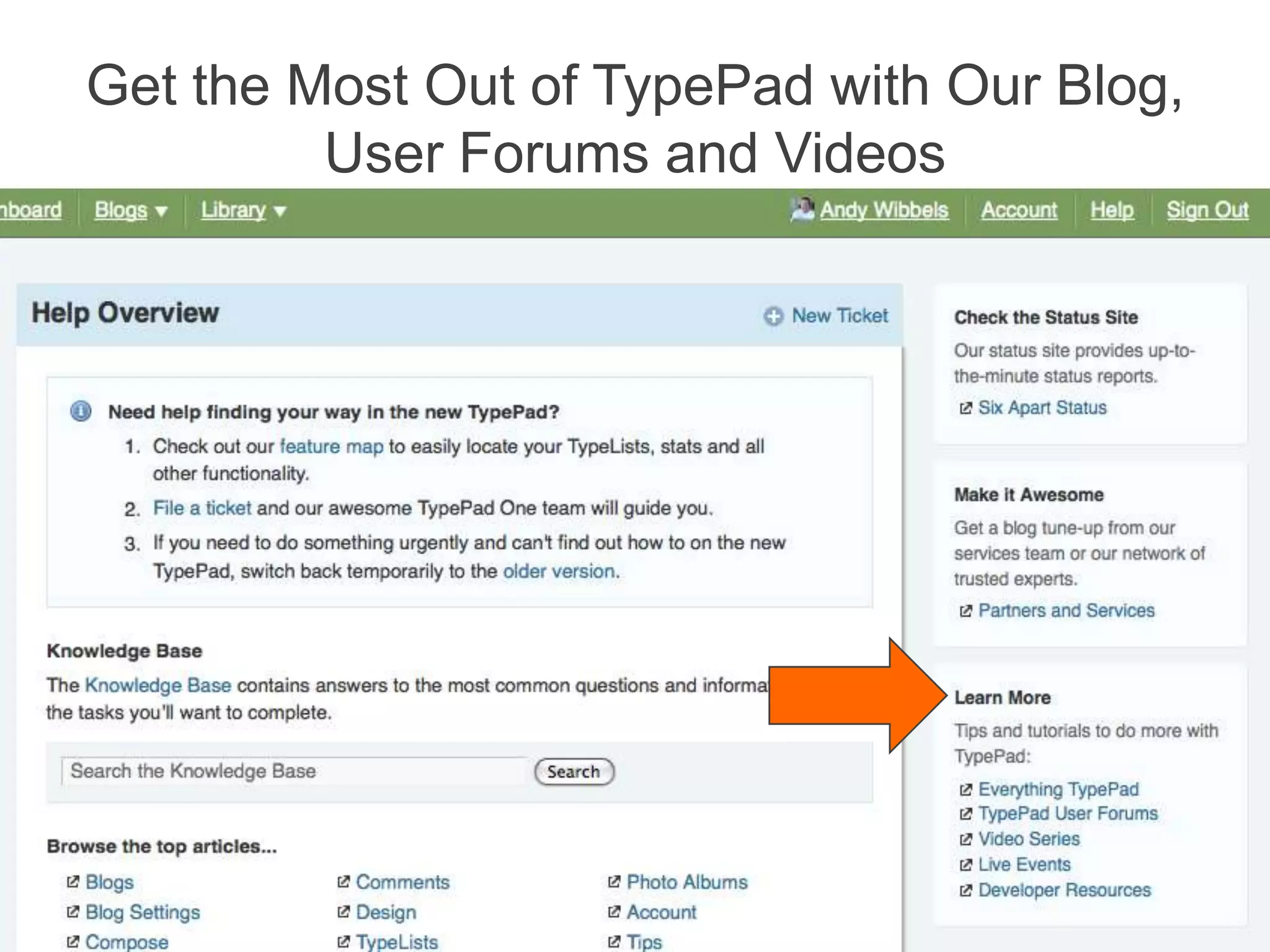
Get the Most Out of TypePad with Our Blog, User Forums and Videos
Thanks!http://typepad.com/one/

Meet The New TypePad

Editor's Notes

  • #3 Pages are for content that doesn’t change as often and typically has fewer of them.
  • #4 Pages are for content that doesn’t change as often and typically has fewer of them.