user’s guide – Maxwell 3D
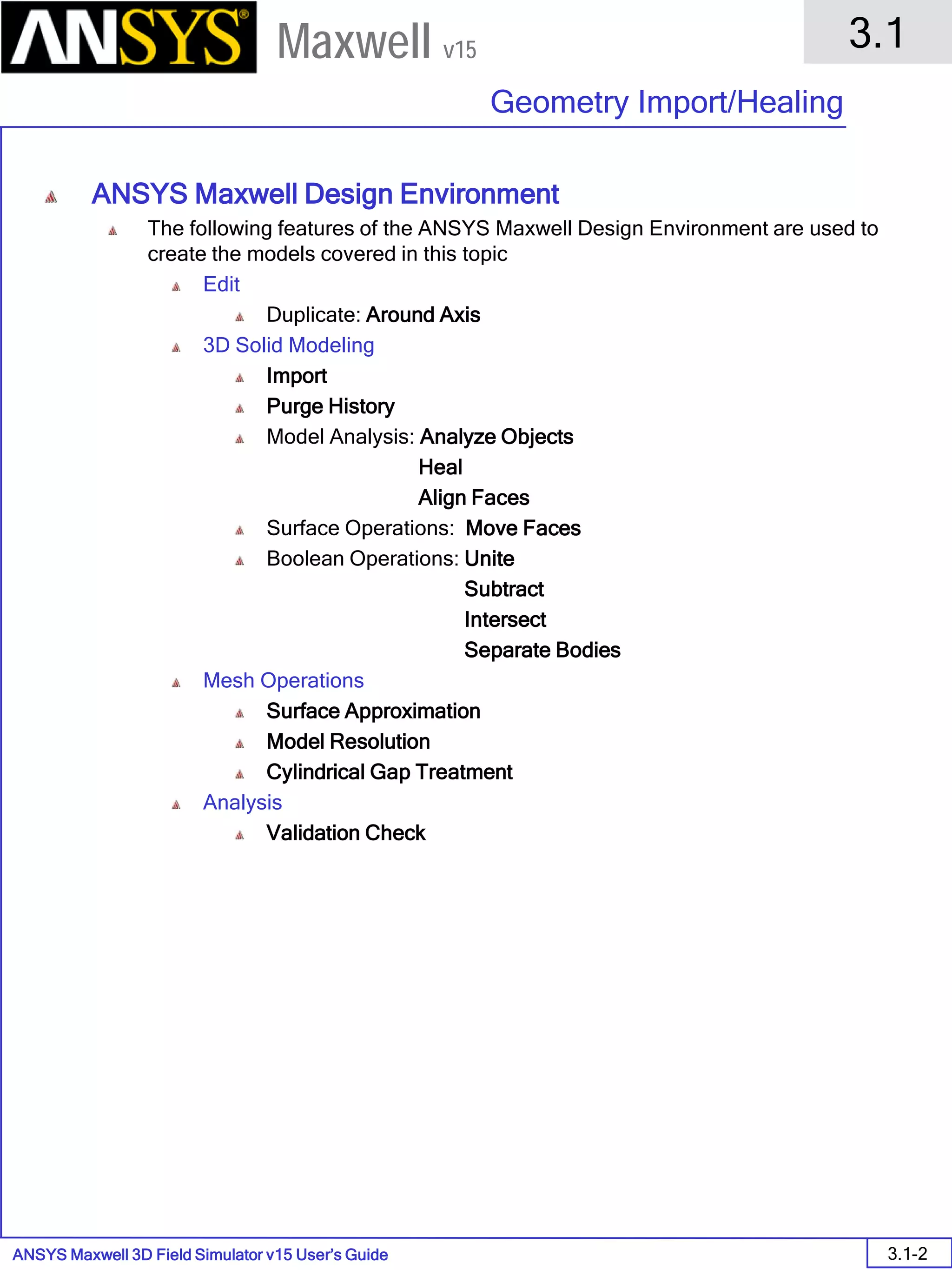
Electromagnetic and Electromechanical Analysis
ANSYS Inc • Southpointe • 275 Technology Drive • Canonsburg, PA 15317
Maxwell 3D
electronic design automation software
The information contained in this document is subject to change without notice.
ANSYS Inc. makes no warranty of any kind with regard to this material, including, but
not limited to, the implied warranties of merchantability and fitness for a particular
purpose. ANSYS Inc. shall not be liable for errors contained herein or for incidental or
consequential damages in connection with the furnishing, performance, or use of this
material.
© 2010 ANSYS Inc. All rights reserved.
ANSYS Inc.
Southpointe
275 Technology Drive
Canonsburg, PA 15317
ansysinfo@ansys.com
http://www.ansys.com
(T) 724-746-3304 (F) 724-514-9494
Ansoft Maxwell, Simplorer, RMxprt and Optimetrics and any and all ANSYS, Inc.
brand, product, service and feature names, logos and slogans are registered
trademarks or trademarks of ANSYS, Inc. or its subsidiaries in the United States or
other countries. All other brand, product, service and feature names or trademarks are
the property of their respective owners.
New editions of this manual will incorporate all material updated since the previous
edition. The manual printing date, which indicates the manual’s current edition,
changes when a new edition is printed. Minor corrections and updates which are
incorporated at reprint do not cause the date to change. Update packages may be
issued between editions and contain additional and/or replacement pages to be
merged into the manual by the user. Note that pages which are rearranged due to
changes on a previous page are not considered to be revised.
Edition: REV6.0
Date: 13 March 2012
Software Version: 15
Maxwell 3D User’s Guide
Contents
This document discusses some basic concepts and terminology used throughout
the ANSYS Maxwell application. It provides an overview of the following topics:
1. Overview
2. Solution Types
2.0 - General Finite Element Information
2.1 - Magnetostatic Analysis
2.2 - Eddy Current Analysis
2.3 - Transient Magnetic Analysis
2.4 - Electrostatic Analysis
2.5 - DC Conduction Analysis
2.6- Electric Transient Analysis
3. Mesh Overview
3.0 - Meshing Process and Operations
3.1 - Geometry Import & Healing
3.2 - Mesh Operation Examples
3.3 - Adaptive Meshing
4. Data Reporting
4.0 - Data Plotting
4.1 - Field Calculator
5. Examples – Magnetostatic
5.1 – Magnetic Force
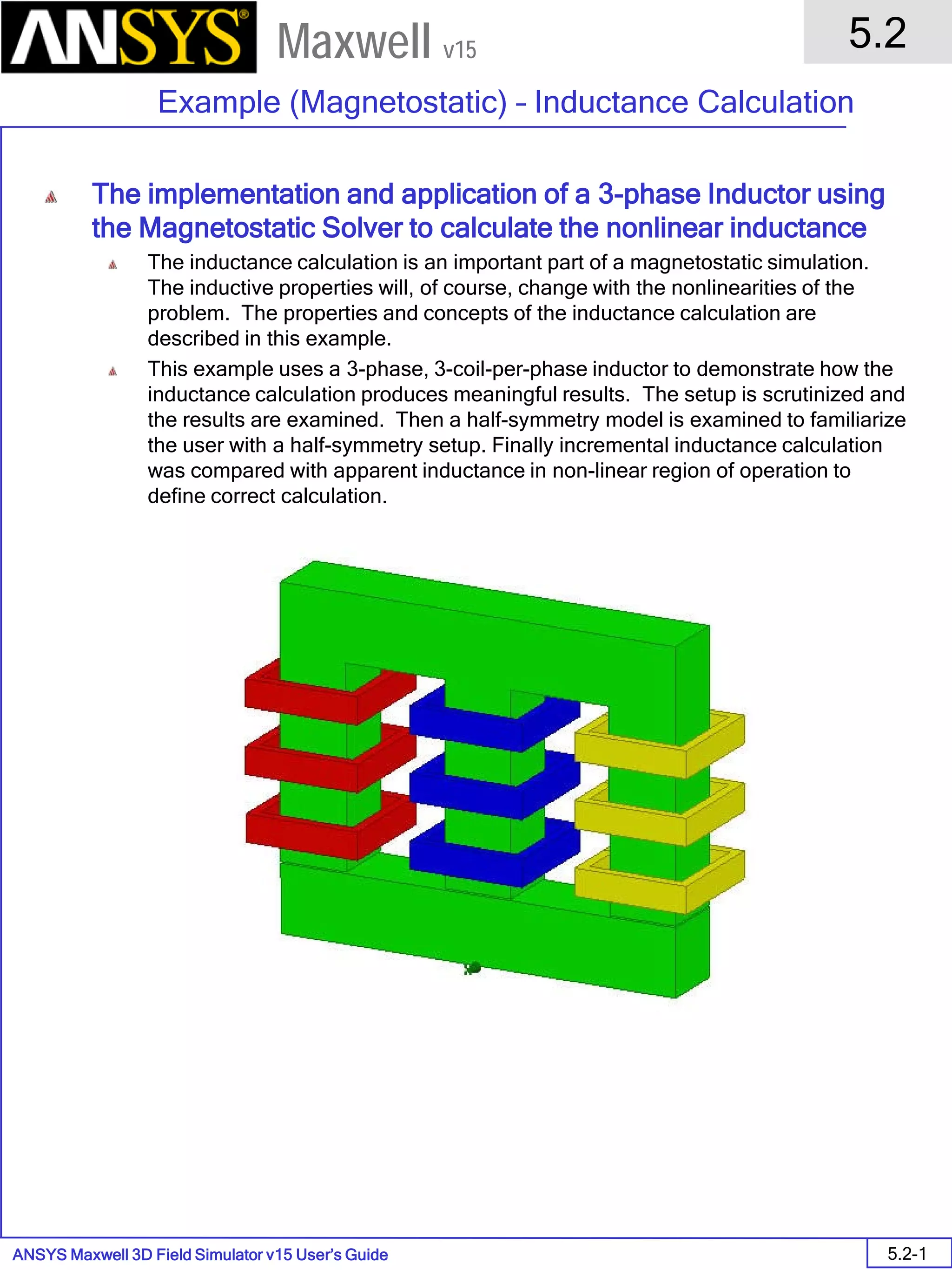
5.2 – Inductance Calculation
5.3 – Stranded Conductors
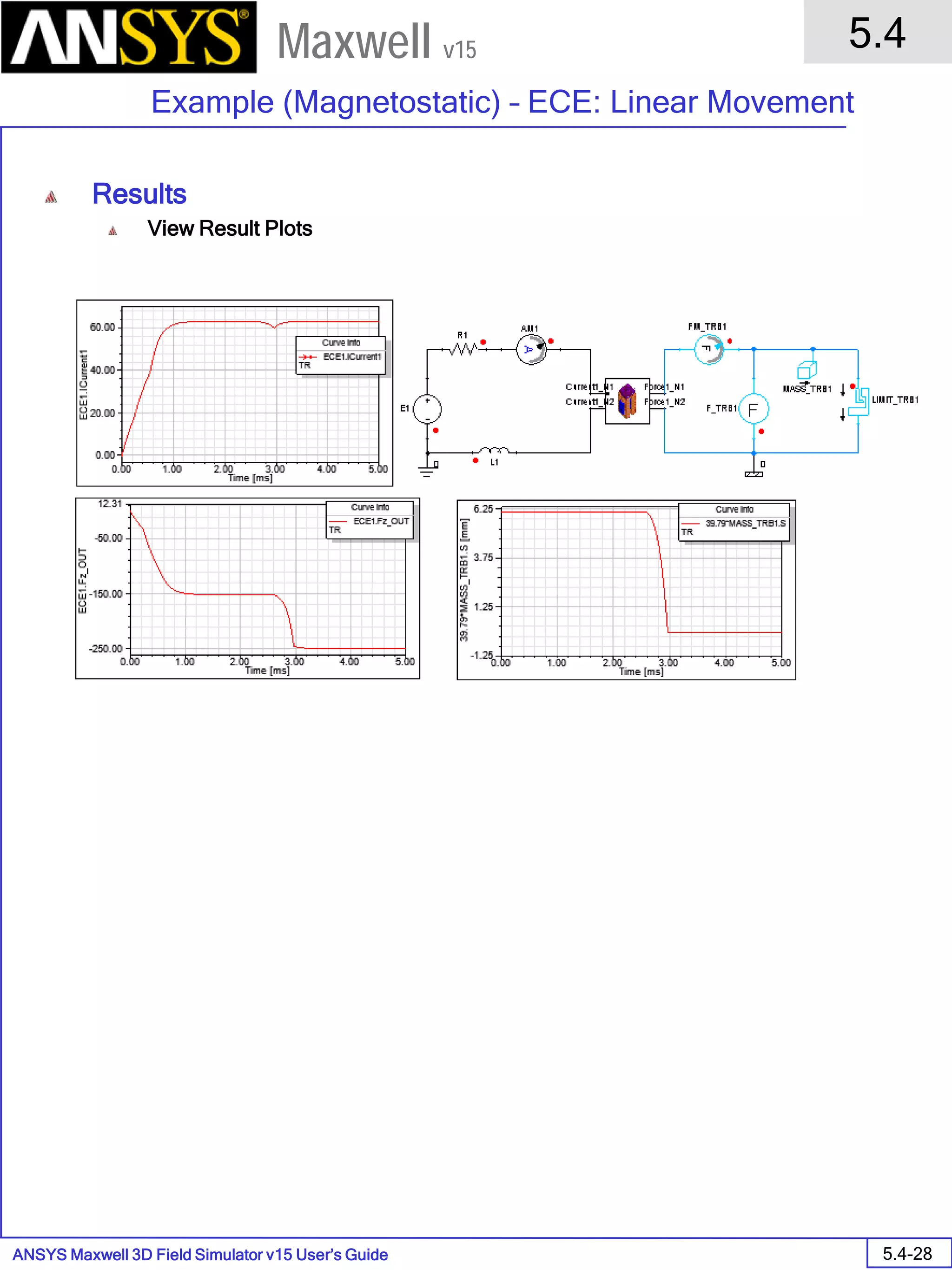
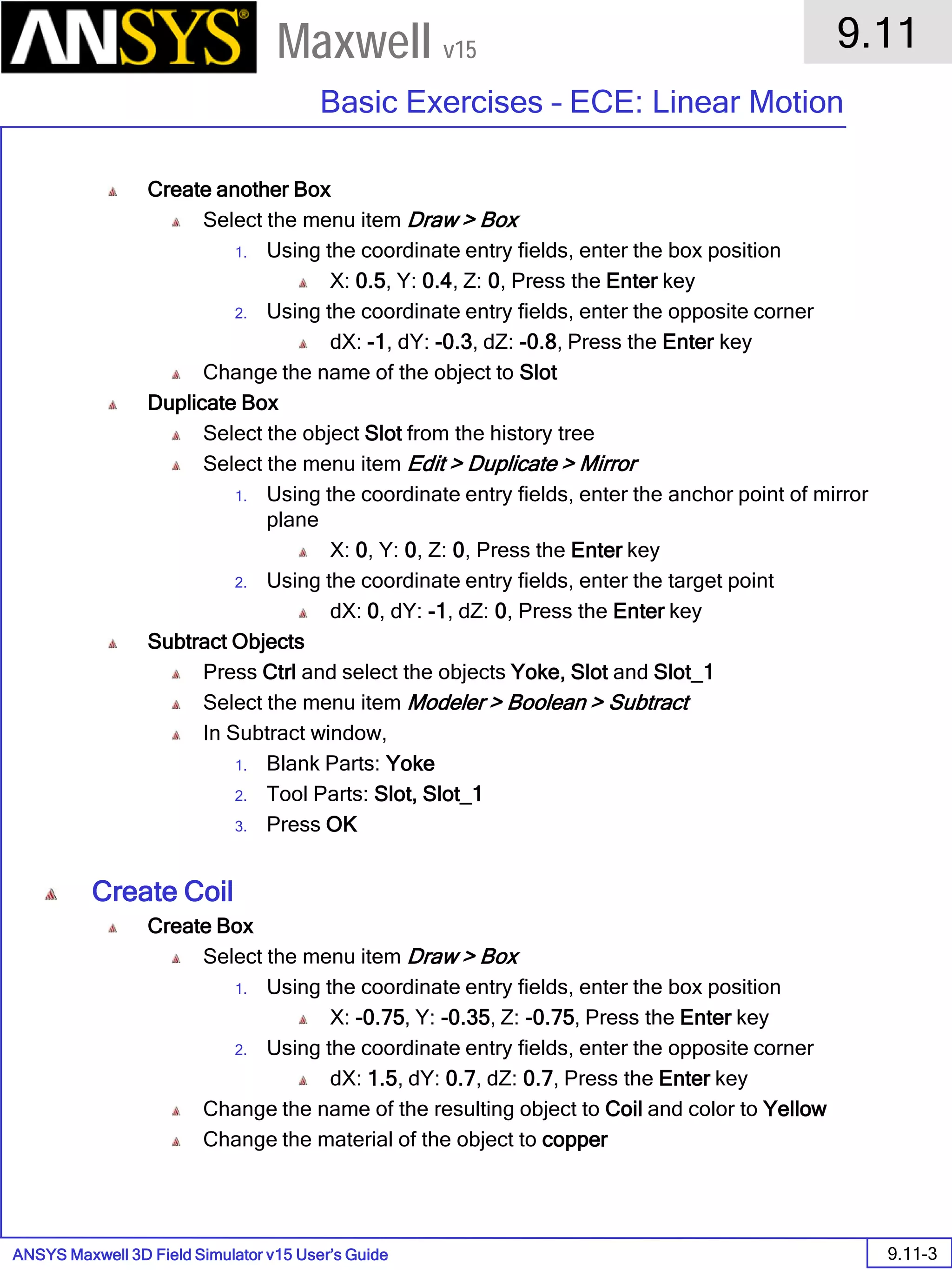
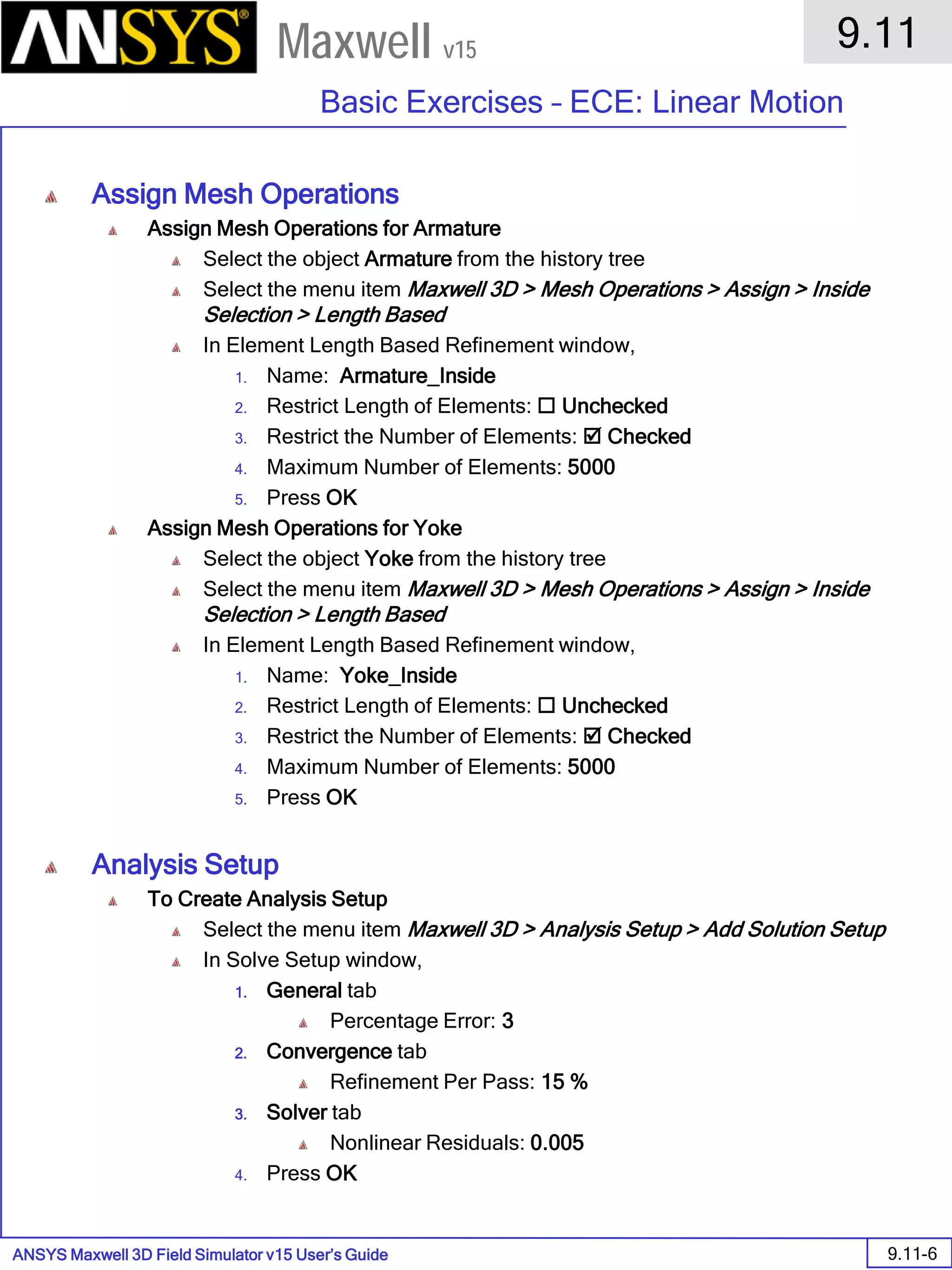
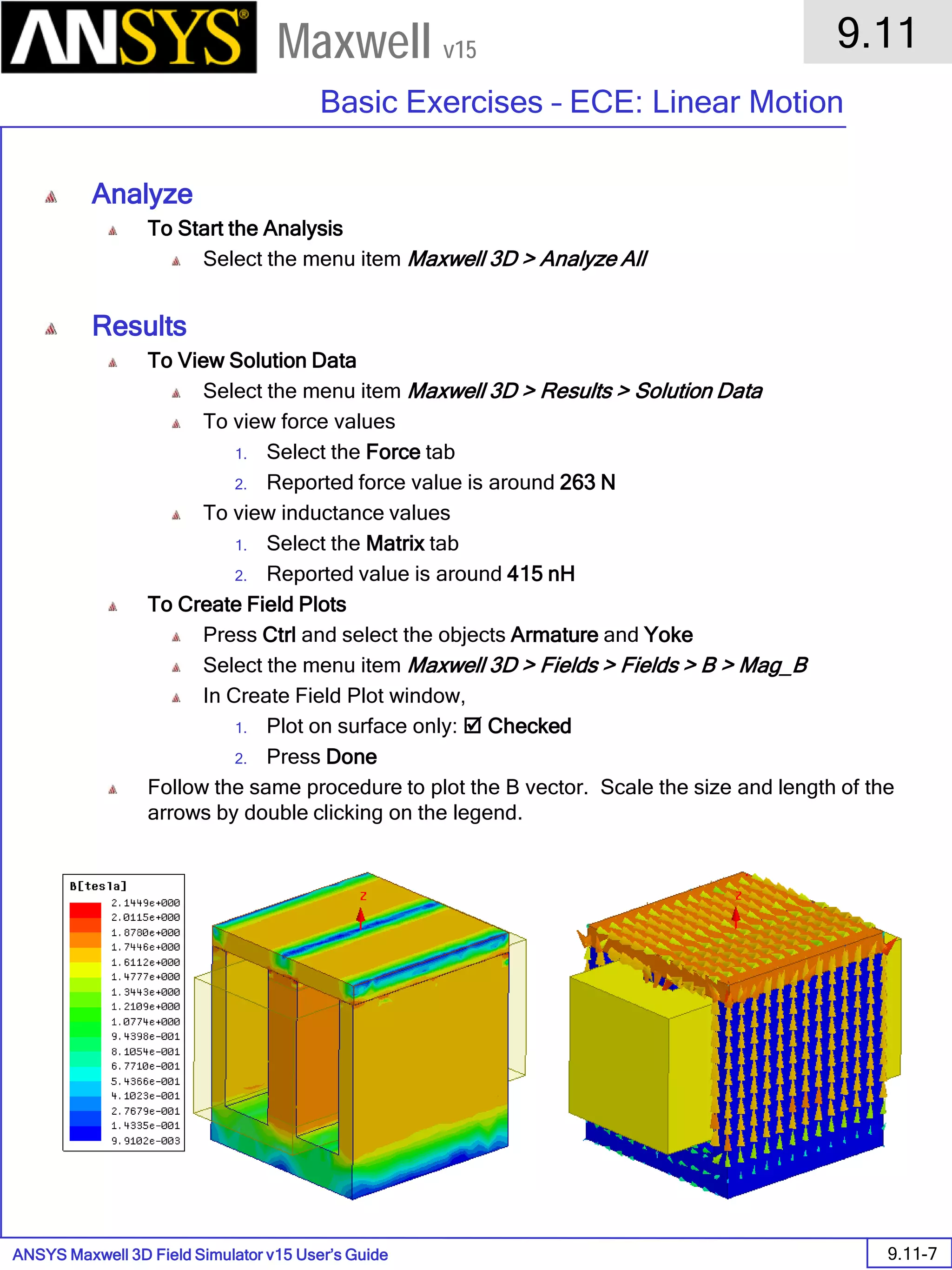
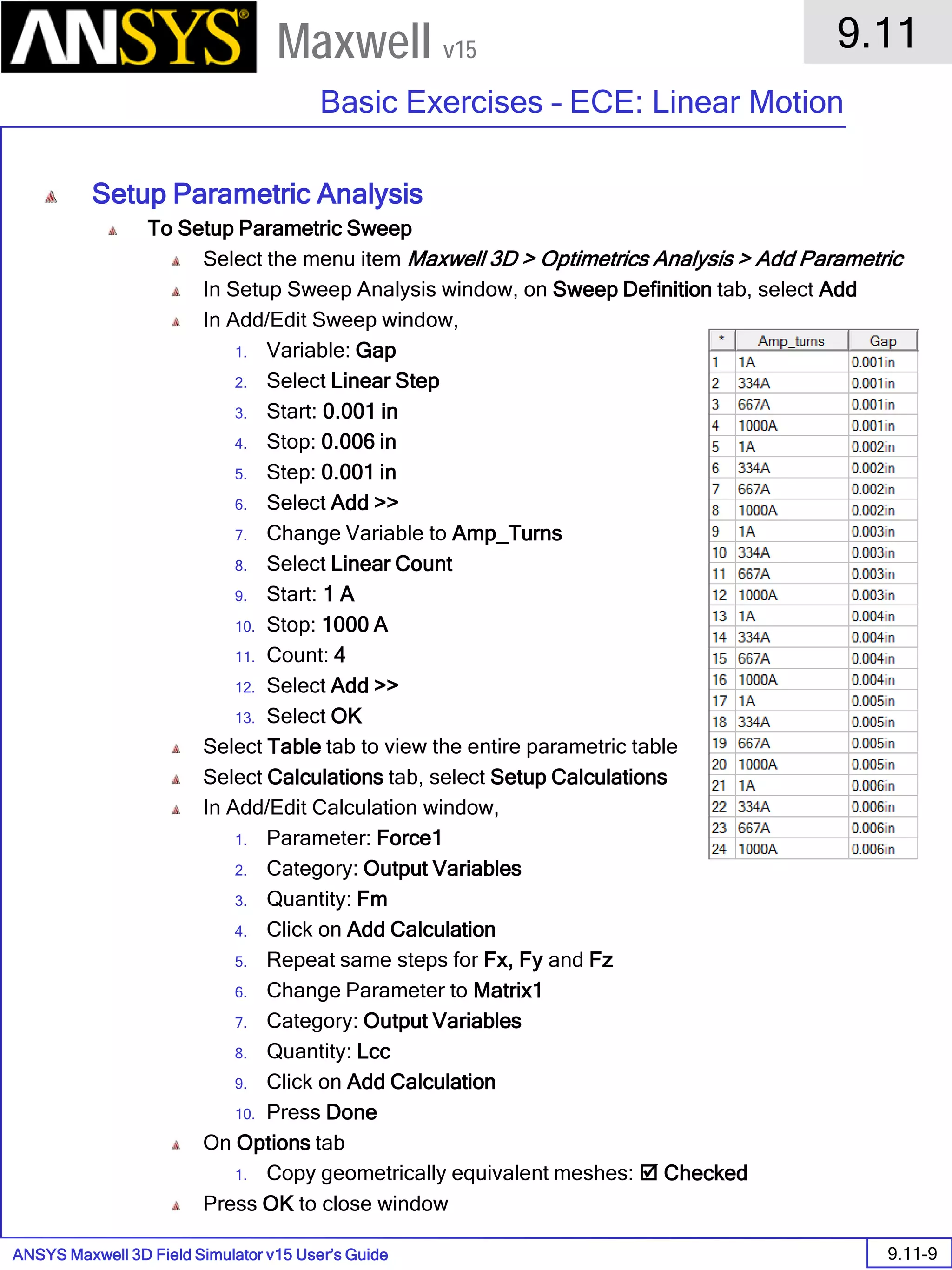
5.4 – Equivalent Circuit Extraction (ECE) Linear Movement
5.5 – Anisotropic Materials
5.6 – Symmetry Boundaries
5.7 – Permanent Magnet Magnetization
5.8 – Master/Slave boundaries
6. Examples – Eddy Current
6.1 – Asymmetrical Conductor with a Hole
6.2 – Radiation Boundary
6.3 - Instantaneous Forces on Busbars
Maxwell 3D User’s Guide
7. Examples – Transient
7.1 – Switched Reluctance Motor (Stranded Conductors)
7.2 – Rotational Motion
7.3 – Translational Motion
7.4 – Core Loss
8. Examples – Electric
8.1 – Mass Spectrometer
9. Examples – Basic Exercises
9.1 – Electrostatic
9.2 – DC Conduction
9.3 – Magnetostatic
9.4 – Parametrics
9.5 – Magnetic Transient
9.6 – Magnetic Transient with Circuit Editor
9.7 – Post Processing
9.8 – Optimetrics
9.9 – Meshing
9.10 – Scripting
9.11 – Linear ECE
9.12 – Eddy Current with ANSYS Mechanical
9.13 – Rotational Transient Motion
9.14 – Basic Electric Transient
9.15 – Permanent Magnet Assignment
9.16 – Electric Transient High Voltage Line
10. Examples – Optimetrics
10.1 – Gapped Inductor
11. Examples – Motors
11.1 – Motor Application Note – Prius Motor
12.Examples – Multiphysics Coupling
12.1 – Maxwell Magnetostatic to Mechanical Coupling (IGBT)
12.2 - Maxwell Eddy Current to FLUENT Coupling
12.3 – Maxwell Transient to FLUENT Coupling
12.4 – Maxwell Electrostatic to Mechanical Coupling (Capacitor)
ANSYS Maxwell Field Simulator v15 – Training Seminar P1-1
Overview
Presentation
1
Maxwell v15
Maxwell 3D is a high-performance interactive software
package that uses finite element analysis (FEA) to solve
electric, magnetostatic, eddy current, and transient
problems.
v15
ANSYS Maxwell Field Simulator v15 – Training Seminar P1-2
Overview
Presentation
1
Maxwell v15
Maxwell solves the electromagnetic field problems by solving Maxwell's
equations in a finite region of space with appropriate boundary conditions and
— when necessary — with user-specified initial conditions in order to obtain a
solution with guaranteed uniqueness.
Electric fields:
Electrostatic fields in dielectrics
Electric fields in conductors
A combination of the first two with conduction solutions being used as
boundary conditions for an electrostatic problem.
Magnetostatic fields
Eddy current fields
Transient fields
v15
ANSYS Maxwell Field Simulator v15 – Training Seminar P1-3
Overview
Presentation
1
Maxwell v15
In order to obtain the set of
algebraic equations to be solved,
the geometry of the problem is
discretized automatically into
small elements (e.g., tetrahedra
in 3D).
All the model solids are meshed
automatically by the mesher.
The assembly of all tetrahedra is
referred to as the finite element
mesh of the model or simply the
mesh.
Start
Field Solution
Generate
Initial Mesh
Compute
Fields
Perform
Error Analysis
Stop
Field Solution
Has
Stopping
Criteria been
met?
Refine
Mesh
Yes
No
FEM and adaptive meshing
ANSYS Maxwell Field Simulator v15 – Training Seminar P1-4
Overview
Presentation
1
Maxwell v15
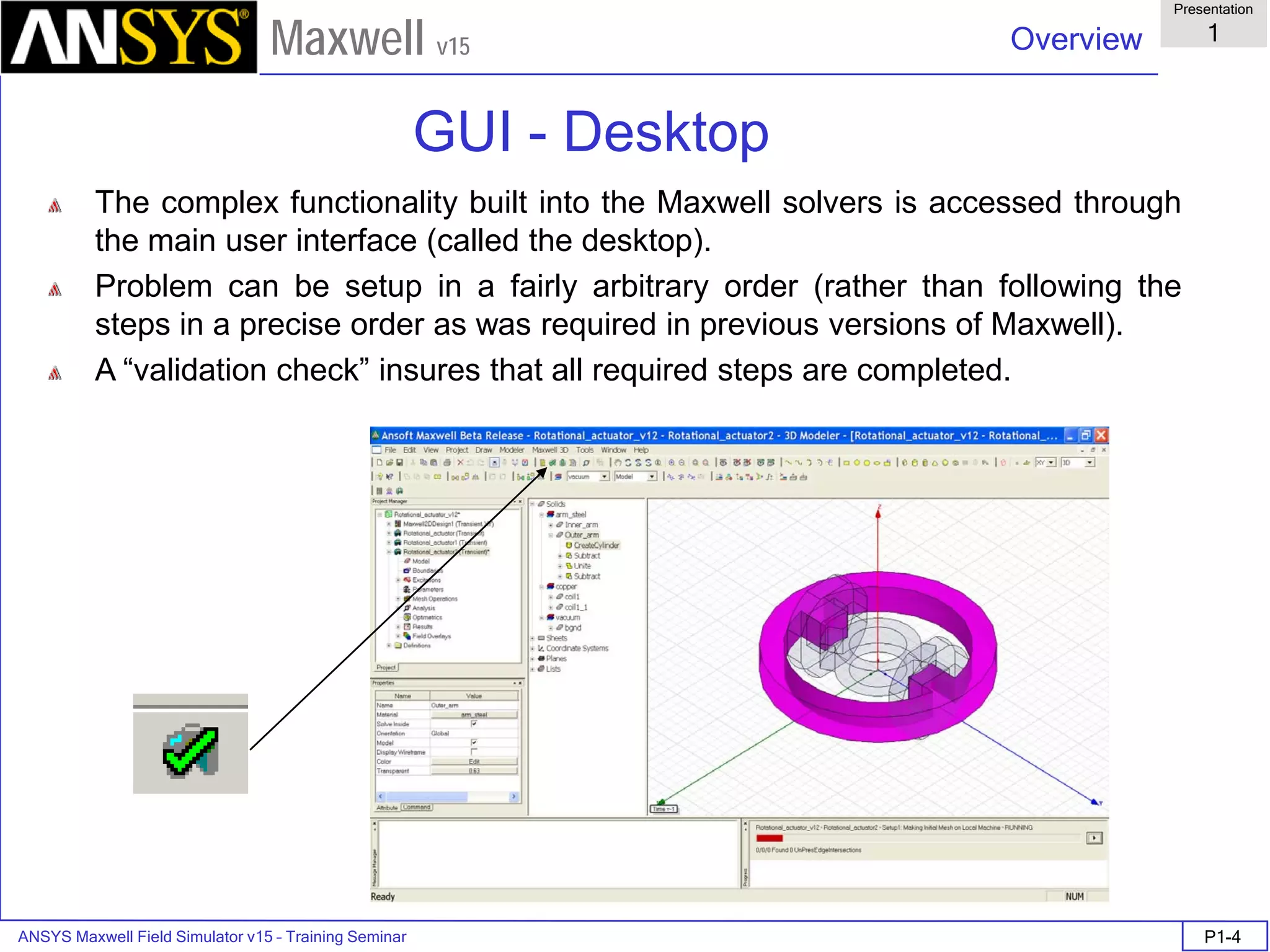
The complex functionality built into the Maxwell solvers is accessed through
the main user interface (called the desktop).
Problem can be setup in a fairly arbitrary order (rather than following the
steps in a precise order as was required in previous versions of Maxwell).
A “validation check” insures that all required steps are completed.
GUI - Desktop
ANSYS Maxwell Field Simulator v15 – Training Seminar P1-5
Overview
Presentation
1
Maxwell v15
ACIS solid modeling kernel
The underlying solid modeling technology used by Maxwell products is
provided by ACIS geometric modeler. ACIS version 21 is used in
Maxwell v15.
Users can create directly models using primitives and operations on
primitives.
In addition, users can import models saved in a variety of formats (sm2
.gds .sm3 .sat .step .iges .dxf .dwg .sld .geo .stl .prt .asm)
When users import models into Maxwell products, translators are
invoked that convert the models to an ACIS native format (sat format).
Maxwell can also import CAD files (CATIA, Pro-E and Unigraphics)
files directly. The import can be parametric or non-parametric
Exports directly .sat, .dxf, .sm3, .sm2, .step, .iges
ANSYS Maxwell Field Simulator v15 – Training Seminar P1-6
Overview
Presentation
1
Maxwell v15
Curved vs. Faceted Surfaces
The Maxwell 3D interface encourages the use of curved surfaces
Many CAD programs use curved surfaces
Curved surfaces do not directly translate into a better solution, due to
the nature of the finite tetrahedral mesh elements – there is always
some deviation from the curved surface and the meshed surface
Using faceted surfaces can be more robust in many cases
Faceted surfaces may converge in fewer iterations and may use fewer
mesh elements – therefore, there is a possible large speed
improvement!
Curved Faceted
ANSYS Maxwell Field Simulator v15 – Training Seminar P1-7
Overview
Presentation
1
Maxwell v15
v15 Supported platforms
Windows XP 32-bit Service Pack 2
Windows Server 2003 32-bit Service Pack 1
Windows XP 64-bit Service Pack 2
Windows Server 2003 64-bit Service Pack 1
Windows HPC Server 2008
Windows 7 Business Editions (32-bit and 64-bit
versions)
Red Hat (32 and 64 bit) v.4, v.5
SuSE (32 and 64 bit) v10, v11
ANSYS Maxwell Field Simulator v15 – Training Seminar P1-8
Overview
Presentation
1
Maxwell v15
System requirements (Windows)
32-Bit System Requirements
Minimum System Requirements:
Processor: All fully compatible 686 (or later) instruction set processors, 500 MHz
Hard Drive Space (for Maxwell software): 200 MB, RAM: 512 MB
Recommended Minimum Configuration (for Optimal Performance):
Processor: All fully compatible 786 (or later) instruction set processors, 1 GHz
Video card: 128-bit SVGA or PCI Express video card
Hard Drive Space (for Maxwell software and temporary files): 500 MB, RAM: 2 GB
64-bit System Requirements
Minimum System Requirements:
Supported processors: AMD Athlon 64, AMD Opteron, Intel Xeon with Intel EM64T support,
Intel Pentium 4 with Intel EM64T support
Hard Drive Space (for Maxwell software): 200 MB, RAM: 2 GB
Recommended Minimum Configuration (for Optimal Performance):
Supported processors: AMD Athlon 64, AMD Opteron, Intel Xeon with Intel EM64T support,
Intel Pentium 4 with Intel EM64T support
Video card: 128-bit SVGA or PCI Express video card
Hard Drive Space (for Maxwell software and temporary files): 700 MB, RAM: 8 GB
ANSYS Maxwell Field Simulator v15 – Training Seminar P1-9
Overview
Presentation
1
Maxwell v15
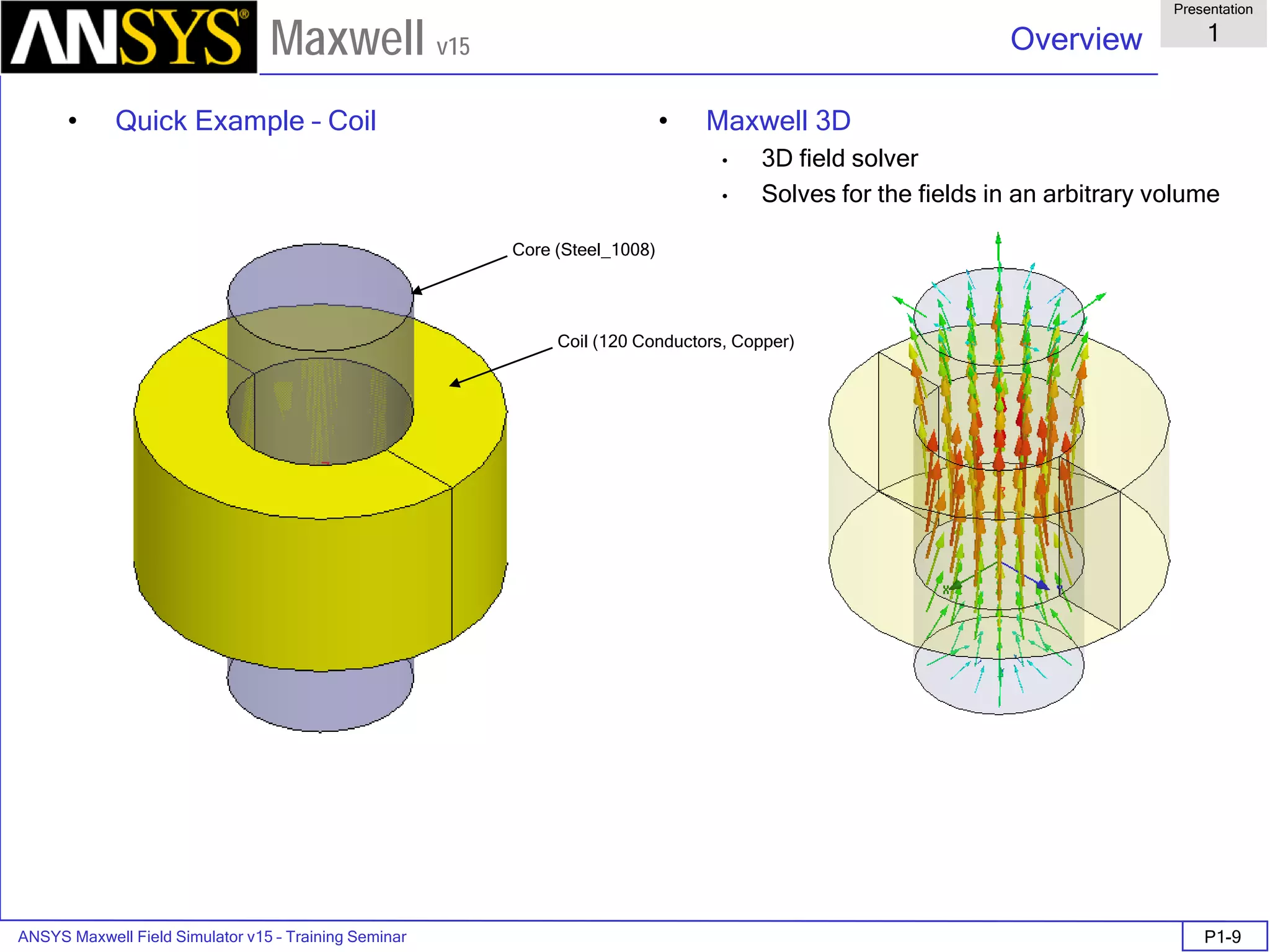
• Quick Example – Coil • Maxwell 3D
• 3D field solver
• Solves for the fields in an arbitrary volume
Coil (120 Conductors, Copper)
Core (Steel_1008)
ANSYS Maxwell Field Simulator v15 – Training Seminar P1-10
Overview
Presentation
1
Maxwell v15
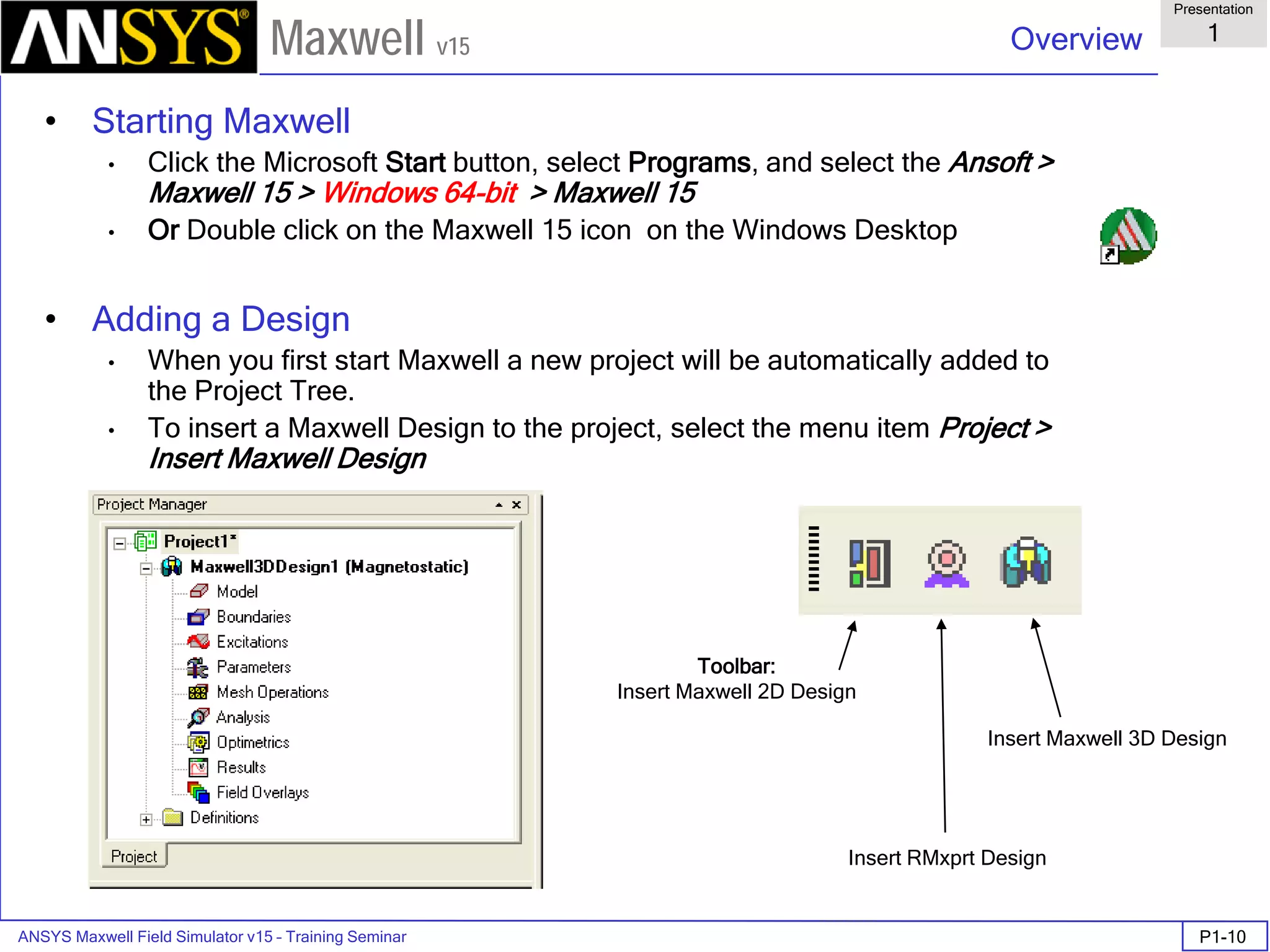
• Starting Maxwell
• Click the Microsoft Start button, select Programs, and select the Ansoft >
Maxwell 15 > Windows 64-bit > Maxwell 15
• Or Double click on the Maxwell 15 icon on the Windows Desktop
• Adding a Design
• When you first start Maxwell a new project will be automatically added to
the Project Tree.
• To insert a Maxwell Design to the project, select the menu item Project >
Insert Maxwell Design
Toolbar:
Insert Maxwell 2D Design
Insert RMxprt Design
Insert Maxwell 3D Design
ANSYS Maxwell Field Simulator v15 – Training Seminar P1-11
Overview
Presentation
1
Maxwell v15
• Maxwell Desktop
Menu
bar
Property
Window
Message
Manager
Project
Manager
with project
tree
Status
bar
Coordinate Entry Fields
Progress
Window
3D Modeler
Window
Toolbars
ANSYS Maxwell Field Simulator v15 – Training Seminar P1-12
Overview
Presentation
1
Maxwell v15
• Maxwell Desktop – Project Manager
• Multiple Designs per Project
• Multiple Projects per Desktop
• Integrated Optimetrics Setup (requires license for analysis)
Project
Project Manager Window
Design
Design Results
Design Setup
Design Automation
•Parametric
•Optimization
•Sensitivity
•Statistical
ANSYS Maxwell Field Simulator v15 – Training Seminar P1-13
Overview
Presentation
1
Maxwell v15
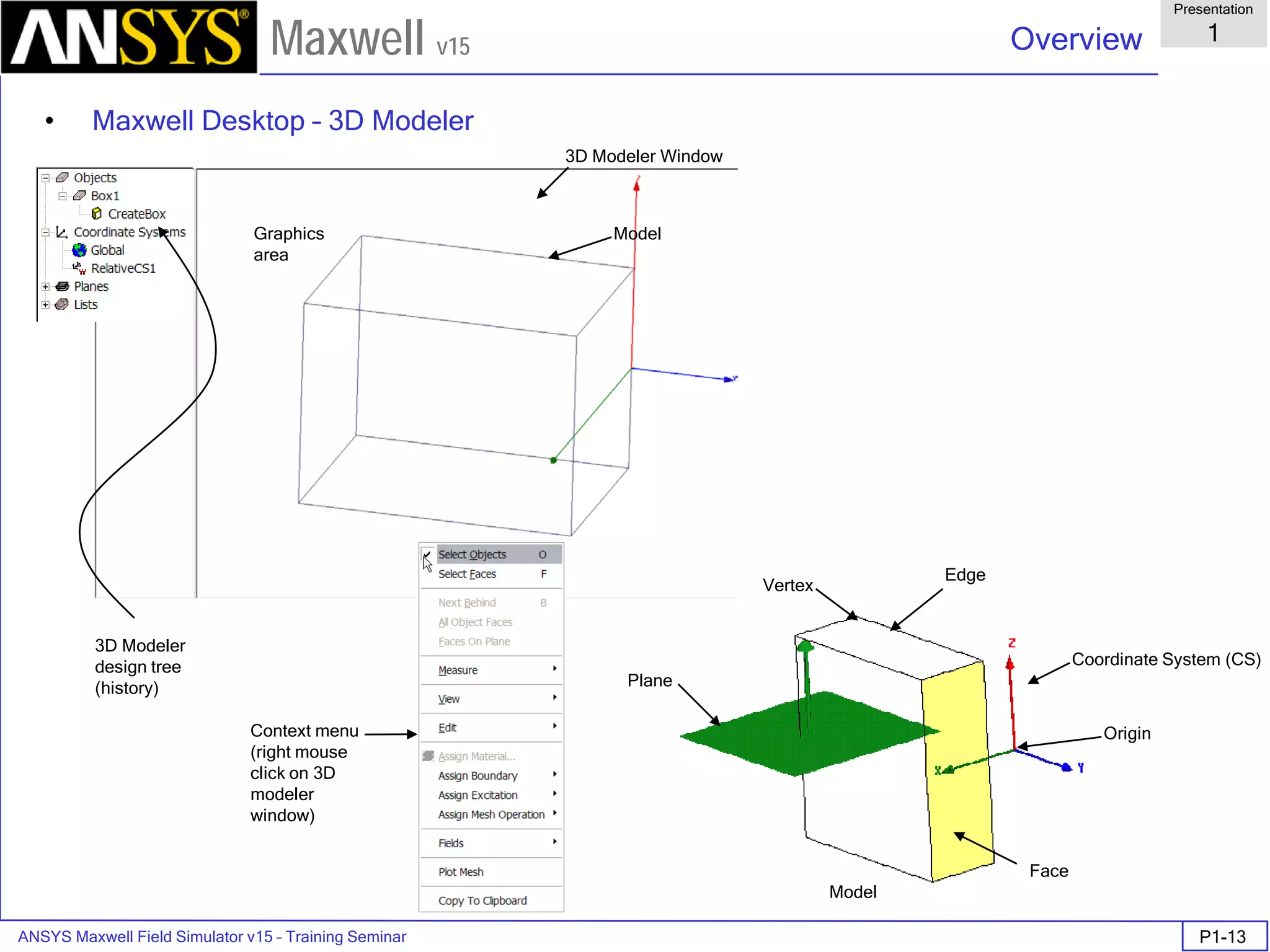
• Maxwell Desktop – 3D Modeler
Edge
Vertex
Plane
Coordinate System (CS)
Origin
Face
Model
3D Modeler Window
Graphics
area
Model
3D Modeler
design tree
(history)
Context menu
(right mouse
click on 3D
modeler
window)
ANSYS Maxwell Field Simulator v15 – Training Seminar P1-14
Overview
Presentation
1
Maxwell v15
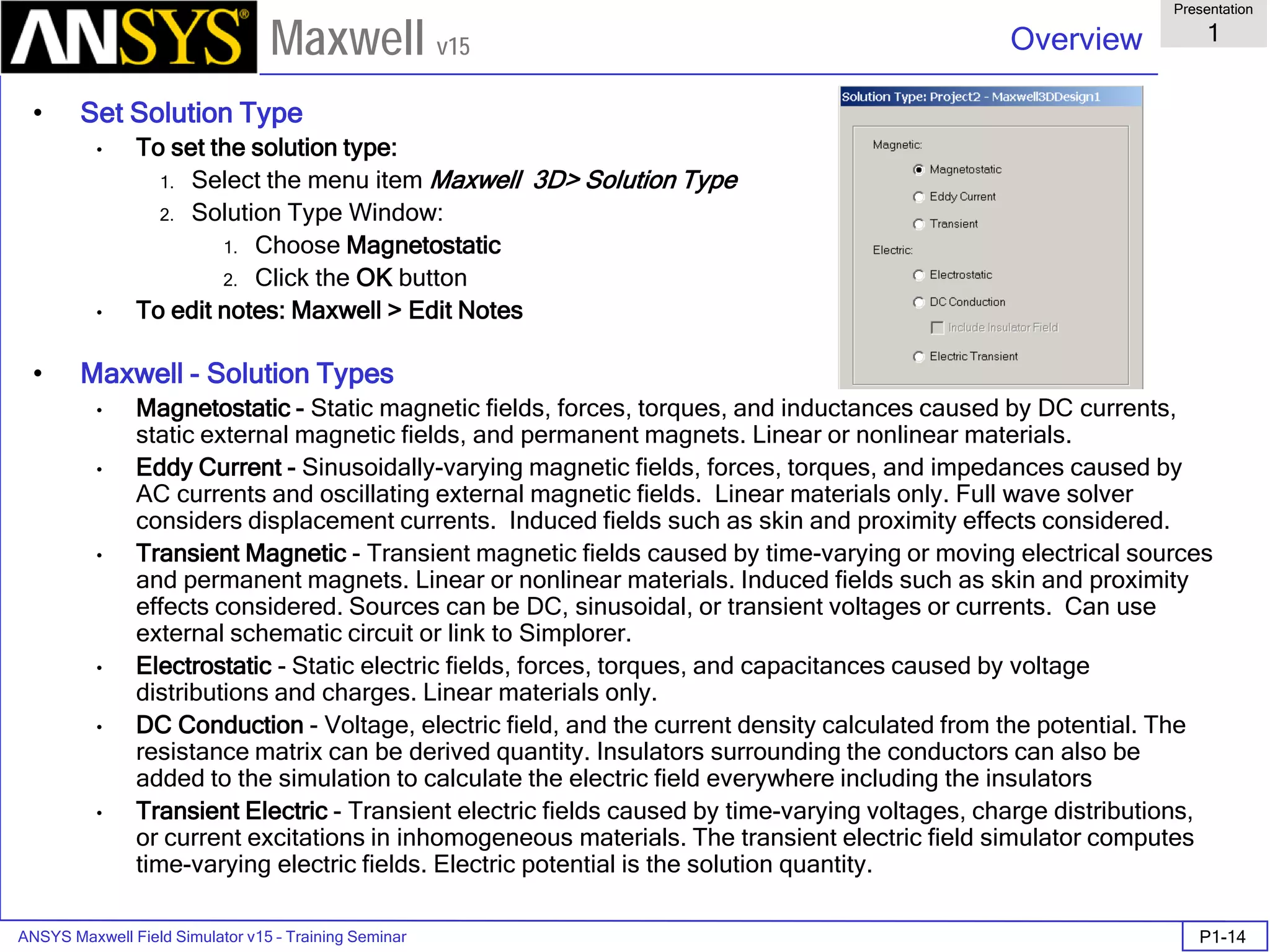
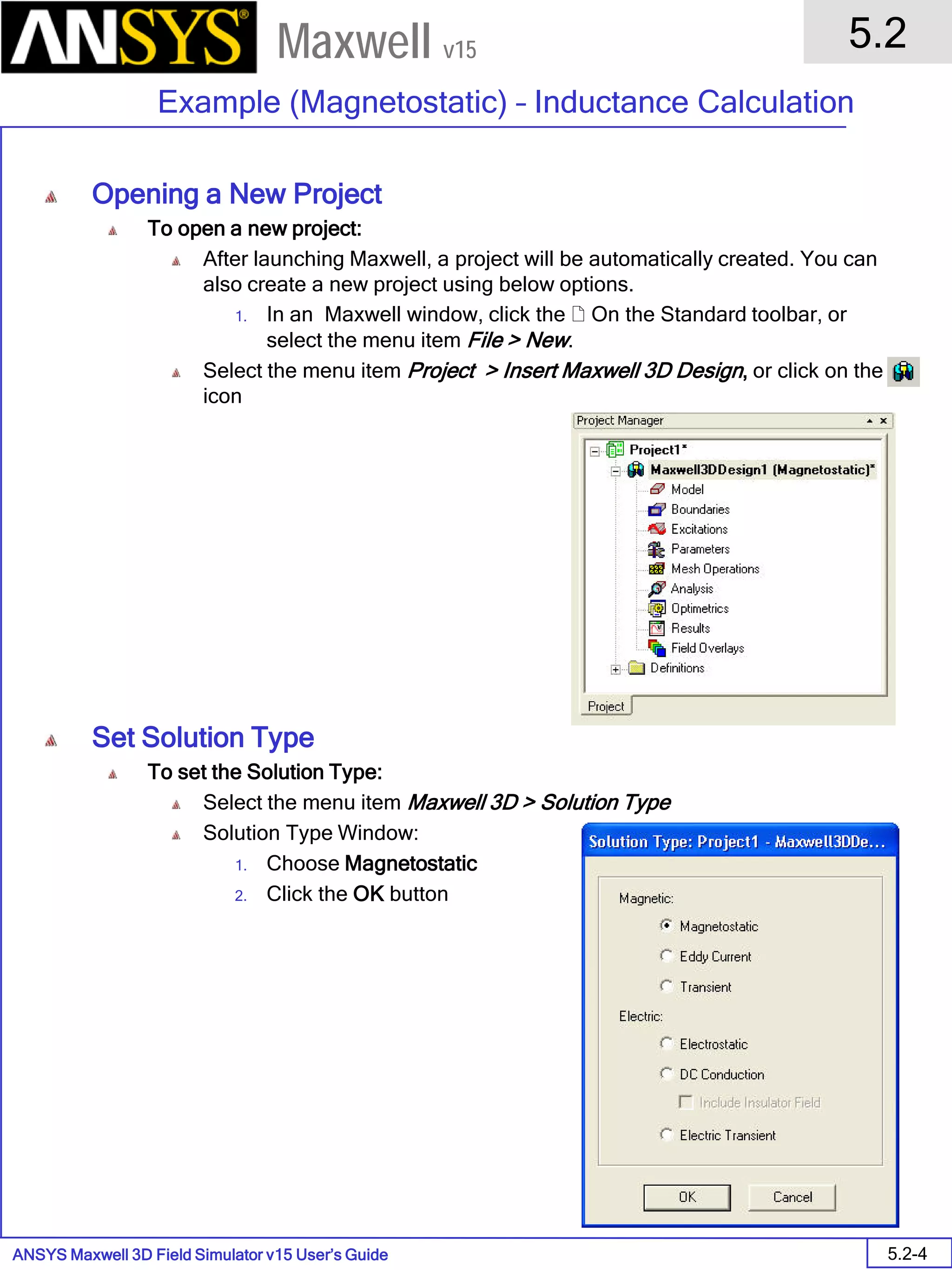
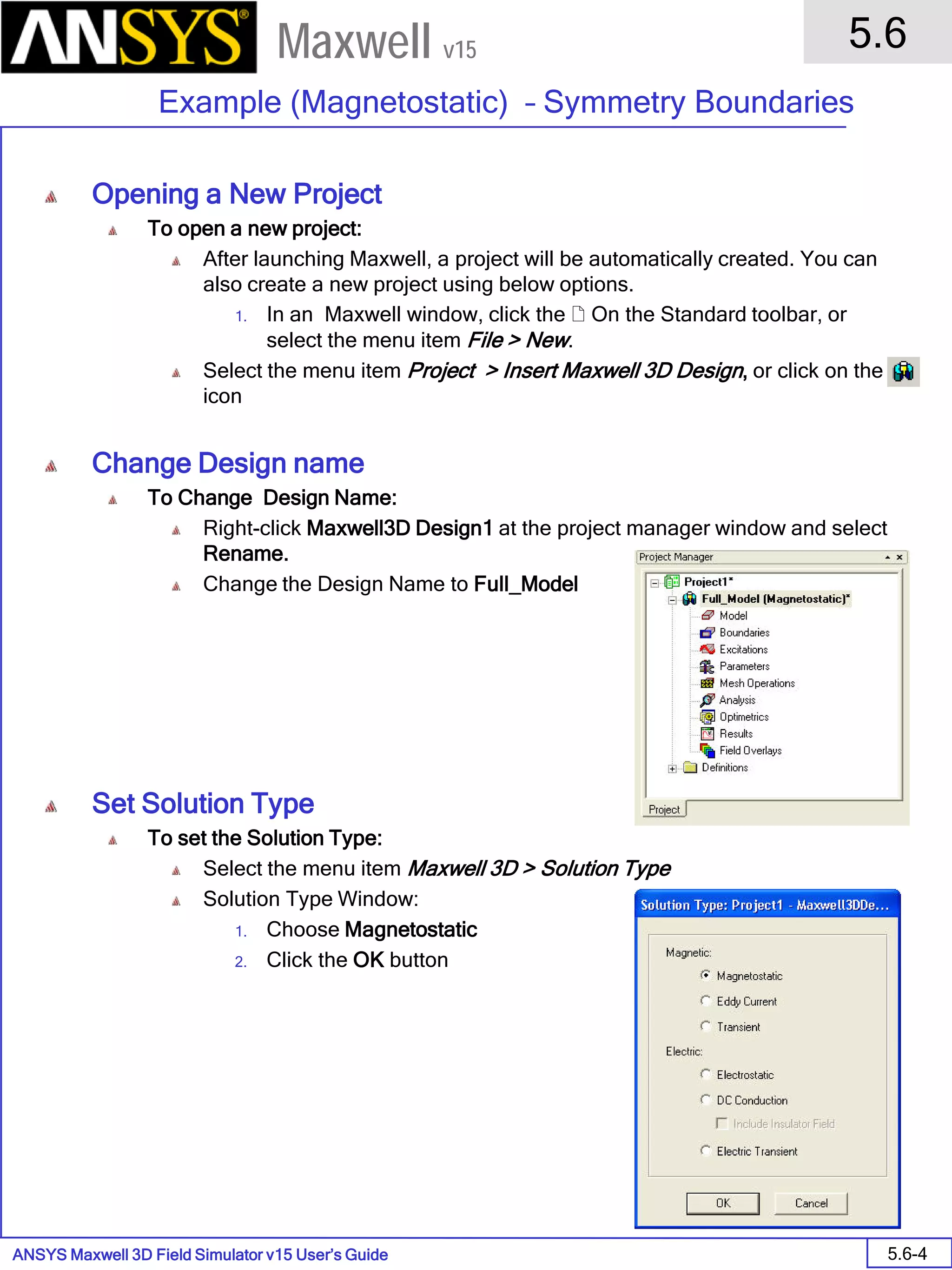
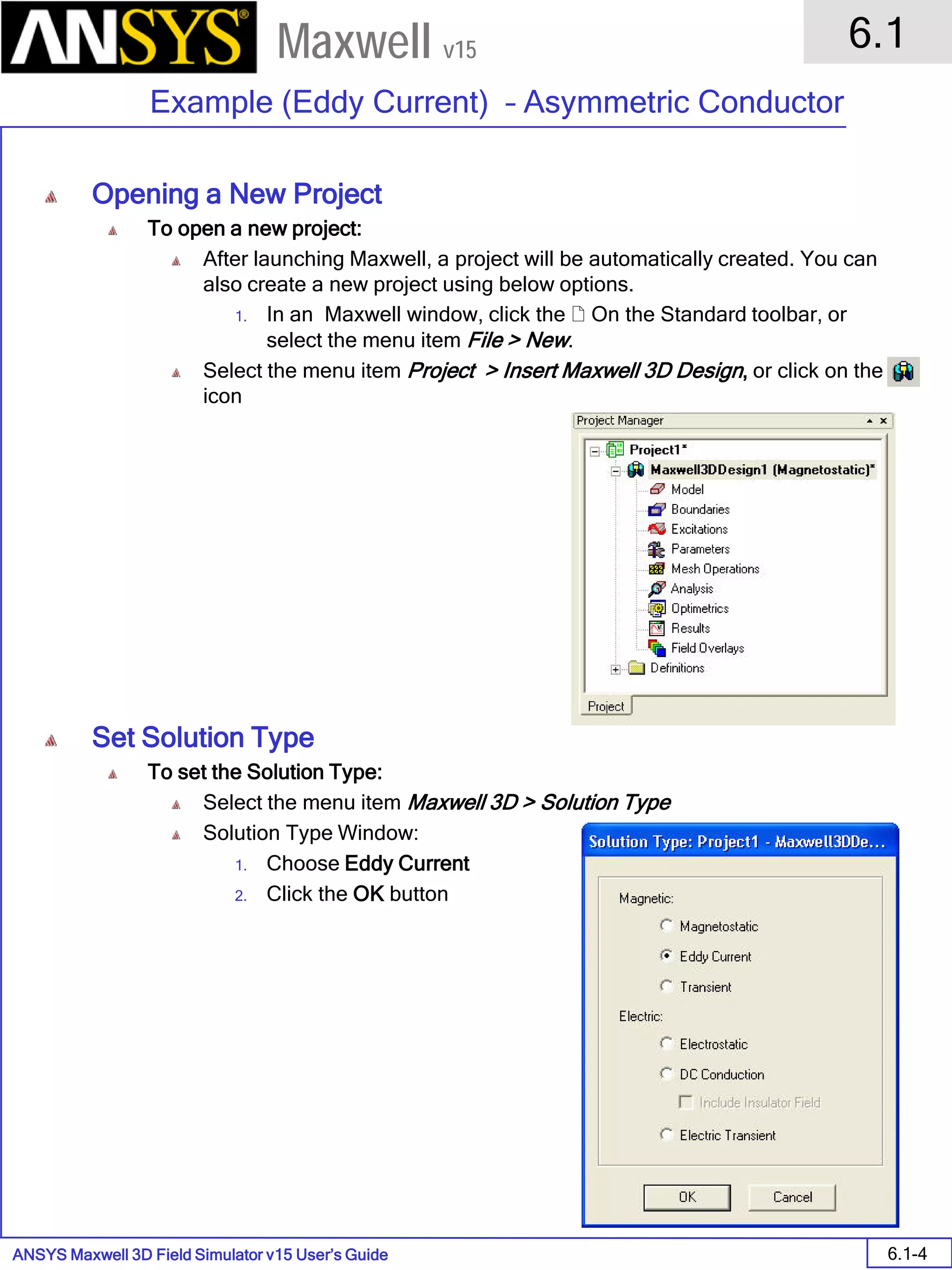
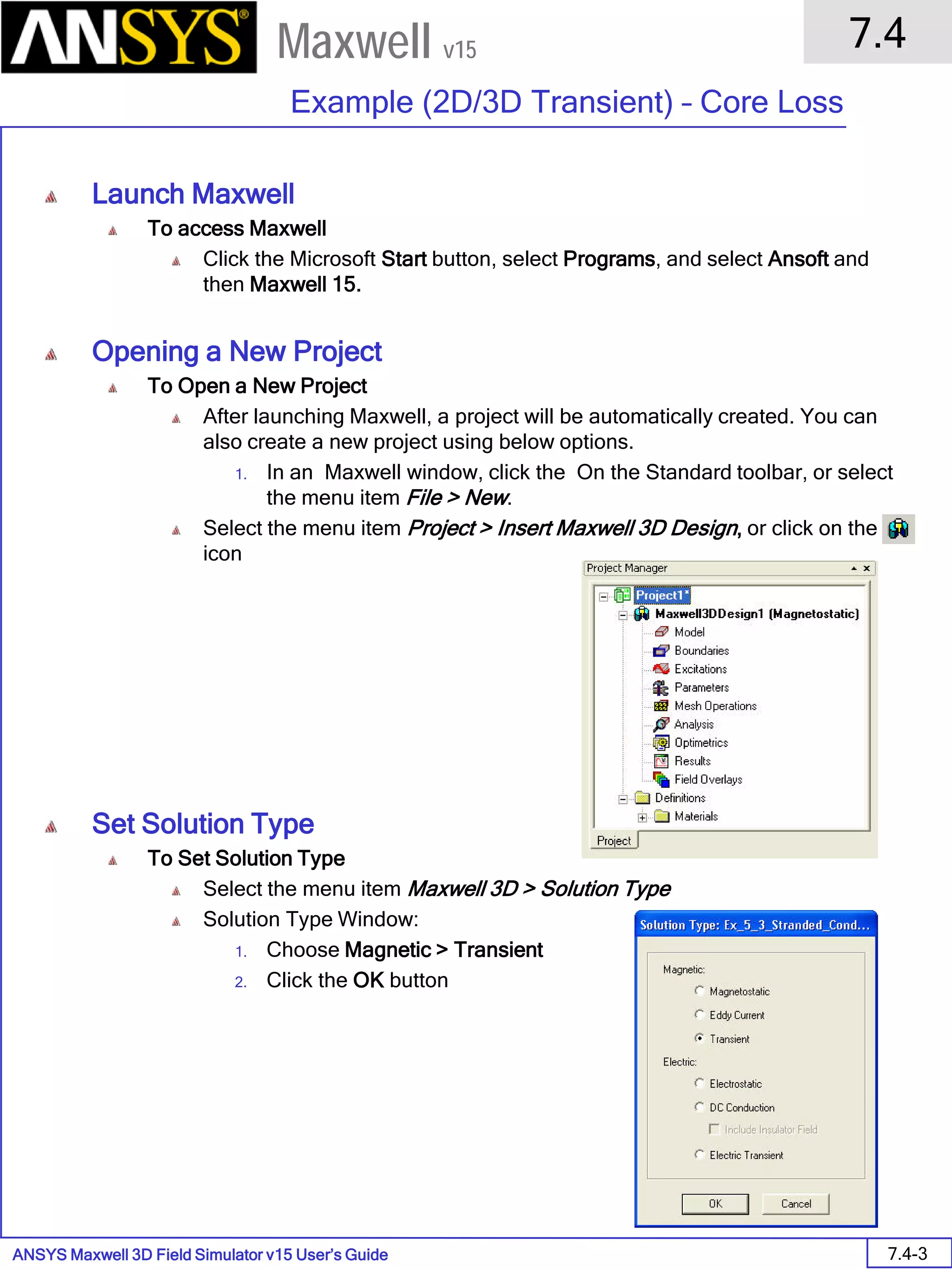
• Set Solution Type
• To set the solution type:
1. Select the menu item Maxwell 3D> Solution Type
2. Solution Type Window:
1. Choose Magnetostatic
2. Click the OK button
• To edit notes: Maxwell > Edit Notes
• Maxwell - Solution Types
• Magnetostatic - Static magnetic fields, forces, torques, and inductances caused by DC currents,
static external magnetic fields, and permanent magnets. Linear or nonlinear materials.
• Eddy Current - Sinusoidally-varying magnetic fields, forces, torques, and impedances caused by
AC currents and oscillating external magnetic fields. Linear materials only. Full wave solver
considers displacement currents. Induced fields such as skin and proximity effects considered.
• Transient Magnetic - Transient magnetic fields caused by time-varying or moving electrical sources
and permanent magnets. Linear or nonlinear materials. Induced fields such as skin and proximity
effects considered. Sources can be DC, sinusoidal, or transient voltages or currents. Can use
external schematic circuit or link to Simplorer.
• Electrostatic - Static electric fields, forces, torques, and capacitances caused by voltage
distributions and charges. Linear materials only.
• DC Conduction - Voltage, electric field, and the current density calculated from the potential. The
resistance matrix can be derived quantity. Insulators surrounding the conductors can also be
added to the simulation to calculate the electric field everywhere including the insulators
• Transient Electric - Transient electric fields caused by time-varying voltages, charge distributions,
or current excitations in inhomogeneous materials. The transient electric field simulator computes
time-varying electric fields. Electric potential is the solution quantity.
ANSYS Maxwell Field Simulator v15 – Training Seminar P1-15
Overview
Presentation
1
Maxwell v15
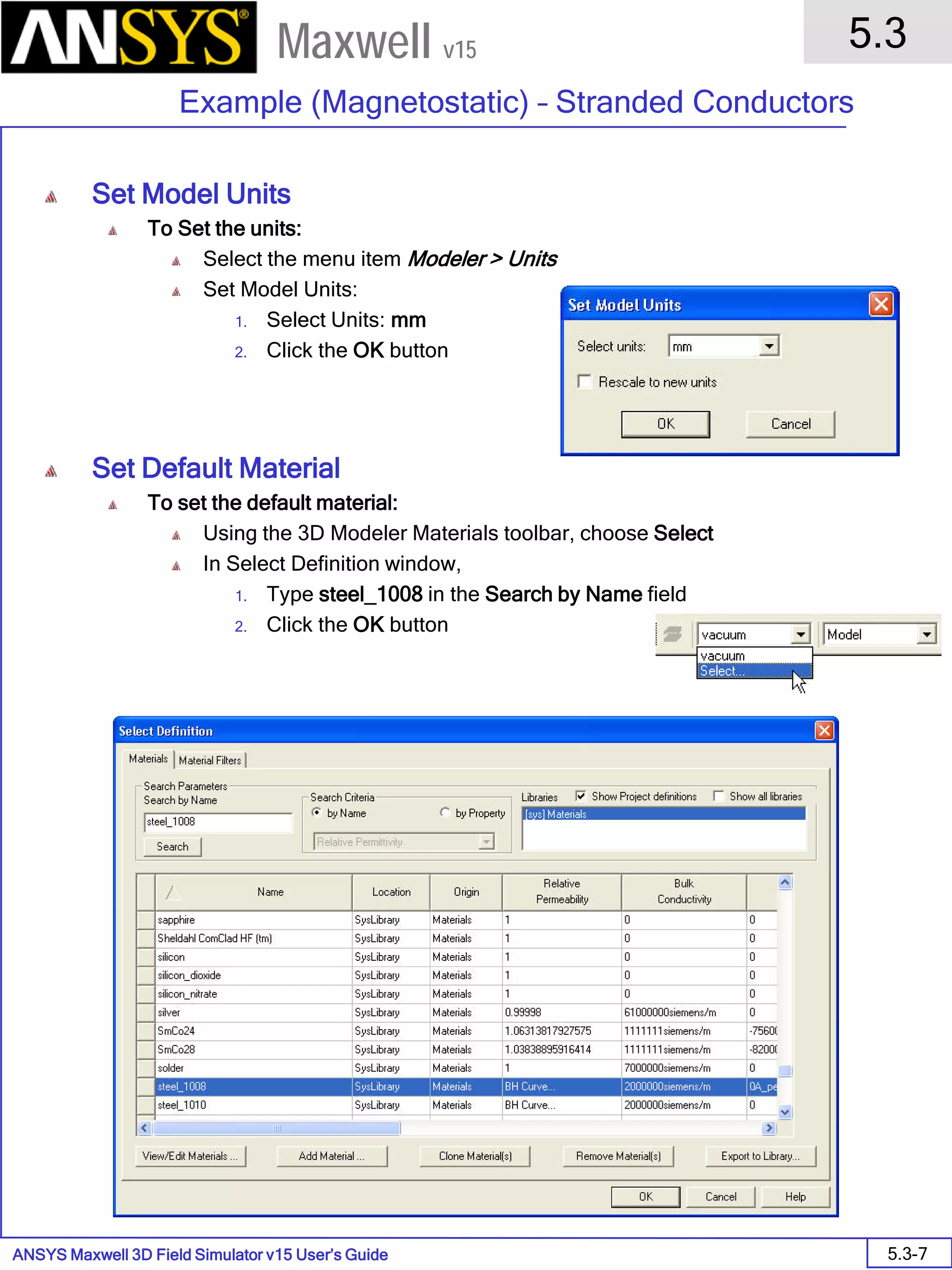
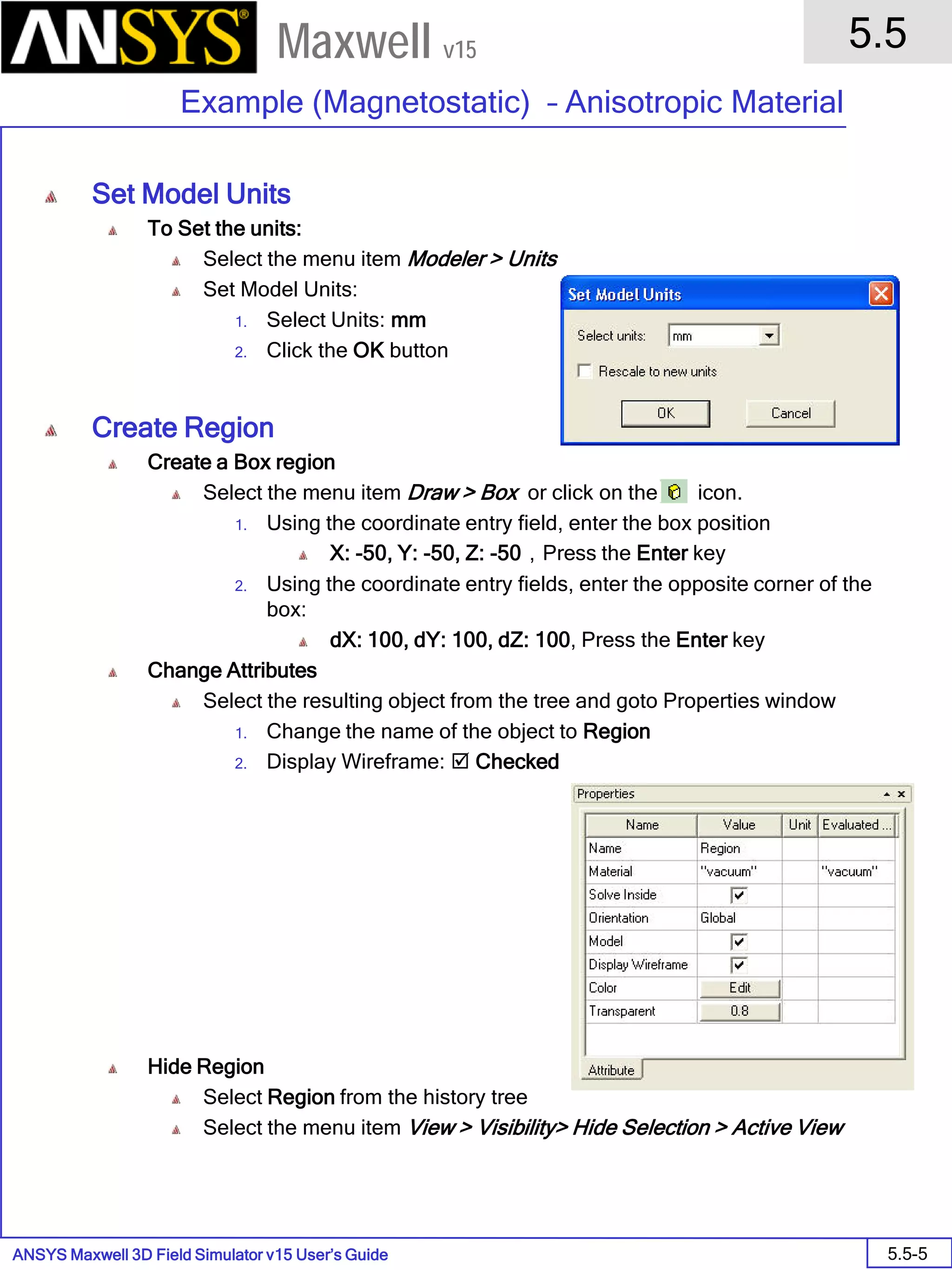
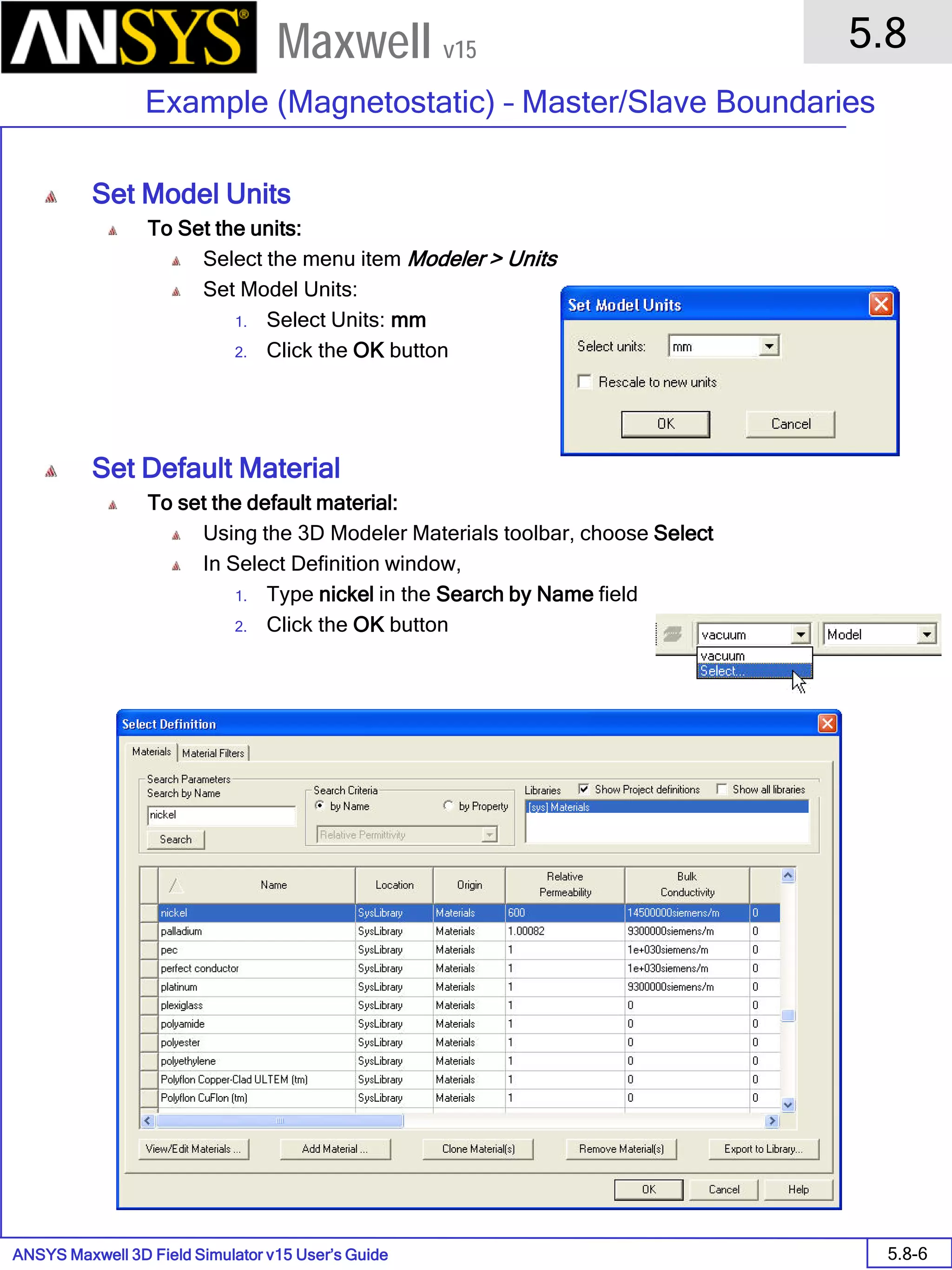
• Set Model Units
• To set the units:
1. Select the menu item Modeler >
Units
2. Set Model Units:
1. Select Units: mm
2. Click the OK button
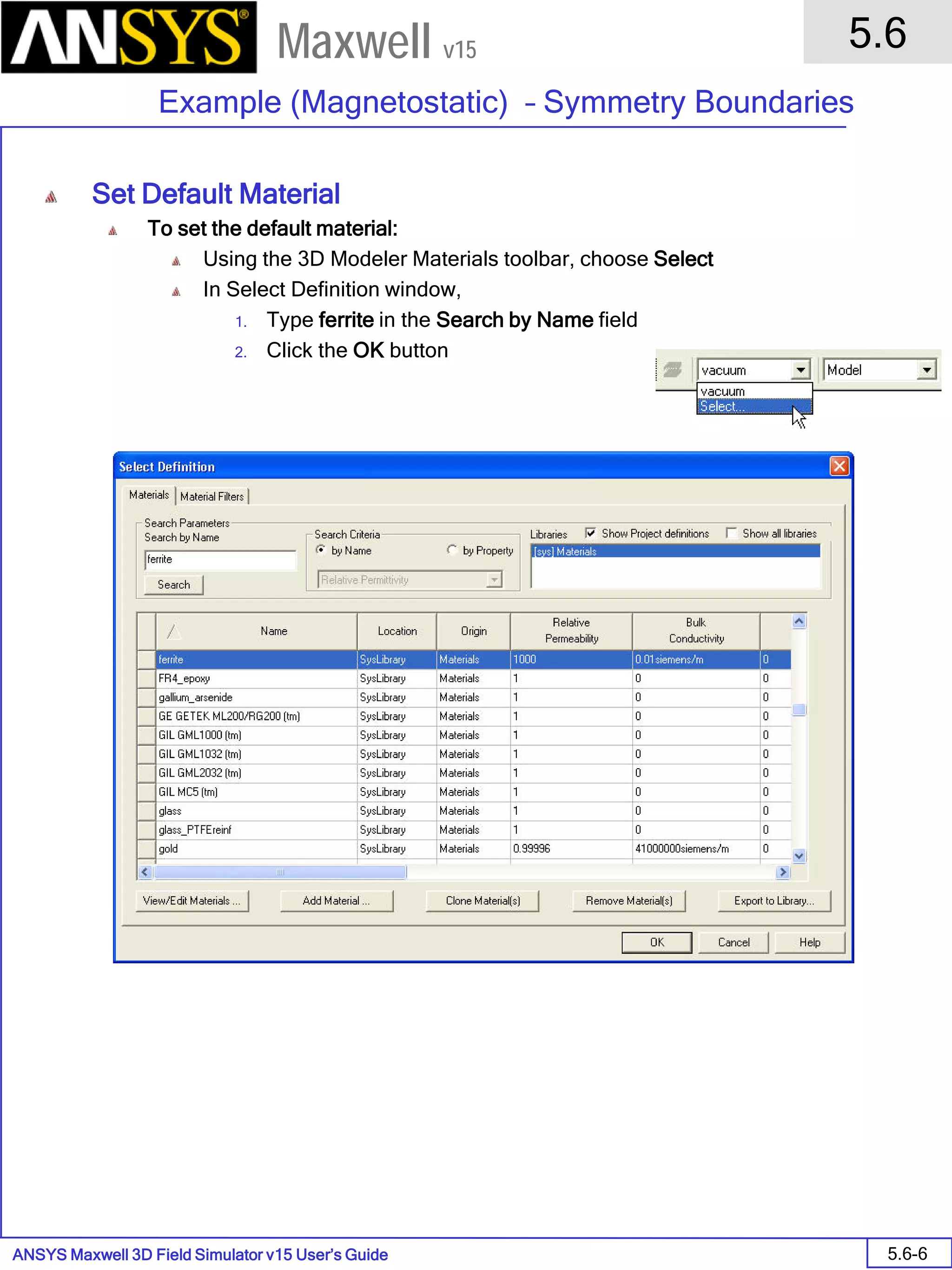
• Set Default Material
• To set the default material:
1. Using the Modeler Materials
toolbar, choose Select
2. Select Definition Window:
1. Type steel_1008 in the
Search by Name field
2. Click the OK button
ANSYS Maxwell Field Simulator v15 – Training Seminar P1-16
Overview
Presentation
1
Maxwell v15
• Modeler – Create a Primitive
Point 2
Point 3
Point 1
Grid Plane
Base Rectangle
Point 1
Point 2
Point 3
Coordinate Entry Fields
The Coordinate Entry fields allow equations to be entered for position values.
Examples: 2*5, 2+6+8, 2*cos(10*(pi/180)).
Variables are not allowed in the Coordinate Entry Field
Note: Trig functions are in radians. Need to specify extension deg if specified in degrees.
Ex. Sin(90deg)
Note: Point 1 and Point 2
are drawn in the grid
plane, while Point 3 is
drawn in the 3rd direction
ANSYS Maxwell Field Simulator v15 – Training Seminar P1-17
Overview
Presentation
1
Maxwell v15
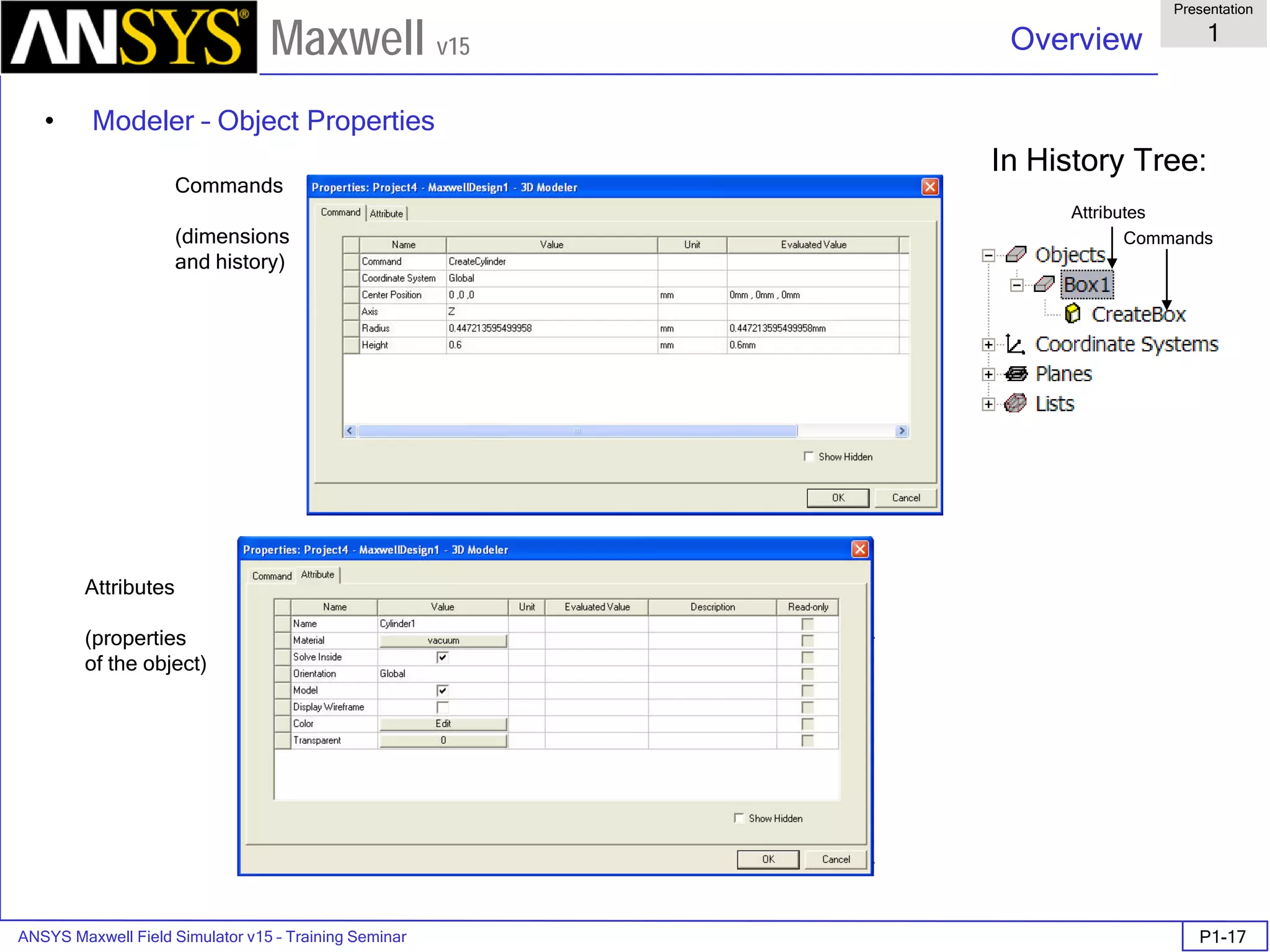
• Modeler – Object Properties
Attributes
(properties
of the object)
Commands
(dimensions
and history)
Attributes
Commands
In History Tree:
ANSYS Maxwell Field Simulator v15 – Training Seminar P1-18
Overview
Presentation
1
Maxwell v15
• Modeler – Attributes
Solve Inside – if unchecked
meshes but no solution inside
(like the old exclude feature in
material manager)
Model – if unchecked, the object is
totally ignored outside of modeler with
no mesh and no solution
ANSYS Maxwell Field Simulator v15 – Training Seminar P1-19
Overview
Presentation
1
Maxwell v15
• Set Grid Plane
• To set the Grid Plane:
• Select the menu item Modeler > Grid Plane > XY
• Create Core
• To create the coax pin:
1. Select the menu item Draw > Cylinder
2. Using the coordinate entry fields, enter the center position
• X: 0.0, Y: 0.0, Z: -3.0, Press the Enter key
4. Using the coordinate entry fields, enter the radius of the cylinder
• dX: 0.0, dY: 2.0, dZ: 0.0, Press the Enter key
5. Using the coordinate entry fields, enter the height of the cylinder
• dX: 0.0, dY: 0.0 dZ: 10.0, Press the Enter key
• Continued on Next Page
ANSYS Maxwell Field Simulator v15 – Training Seminar P1-20
Overview
Presentation
1
Maxwell v15
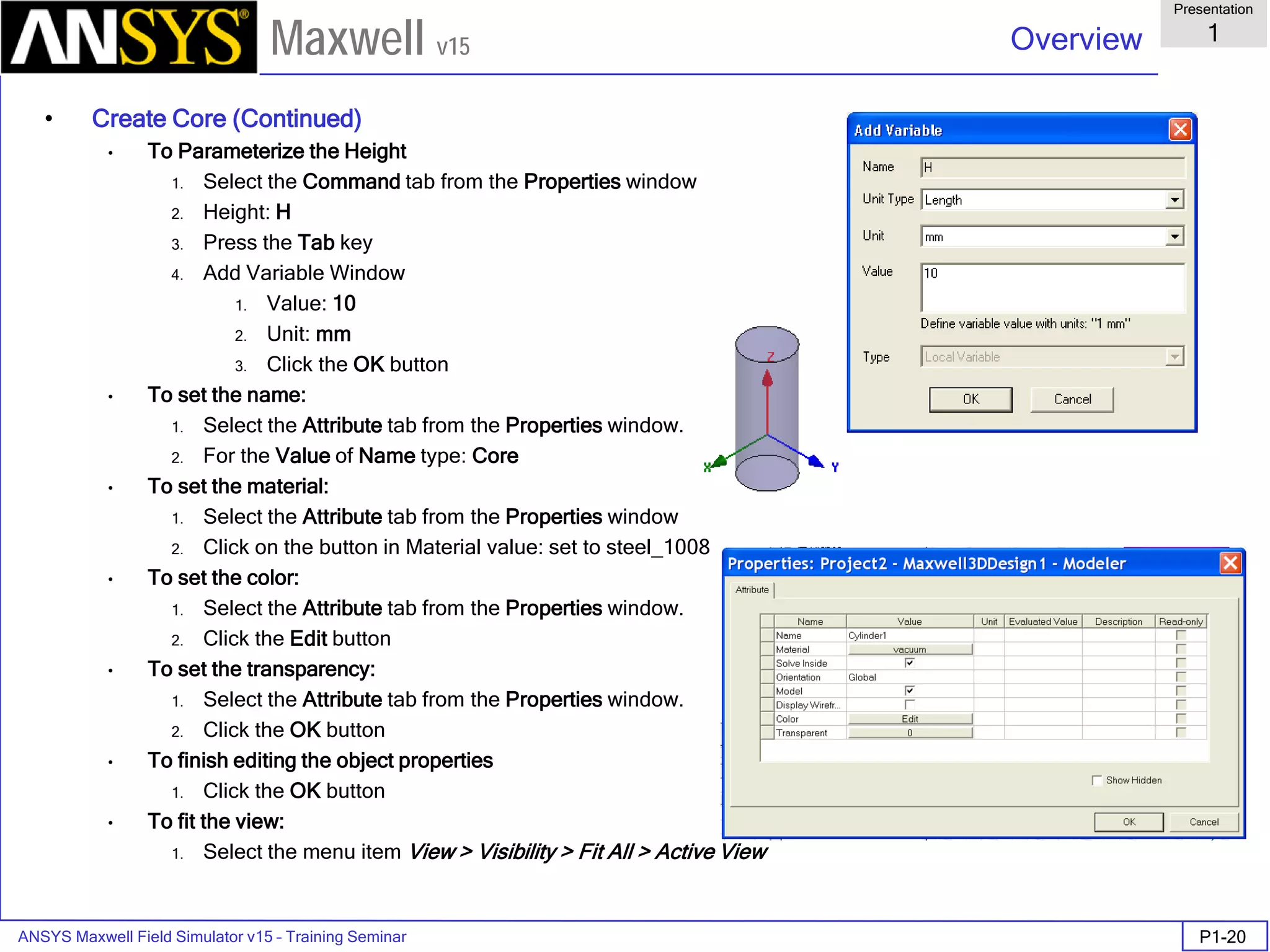
• Create Core (Continued)
• To Parameterize the Height
1. Select the Command tab from the Properties window
2. Height: H
3. Press the Tab key
4. Add Variable Window
1. Value: 10
2. Unit: mm
3. Click the OK button
• To set the name:
1. Select the Attribute tab from the Properties window.
2. For the Value of Name type: Core
• To set the material:
1. Select the Attribute tab from the Properties window
2. Click on the button in Material value: set to steel_1008
• To set the color:
1. Select the Attribute tab from the Properties window.
2. Click the Edit button
• To set the transparency:
1. Select the Attribute tab from the Properties window.
2. Click the OK button
• To finish editing the object properties
1. Click the OK button
• To fit the view:
1. Select the menu item View > Visibility > Fit All > Active View
ANSYS Maxwell Field Simulator v15 – Training Seminar P1-21
Overview
Presentation
1
Maxwell v15
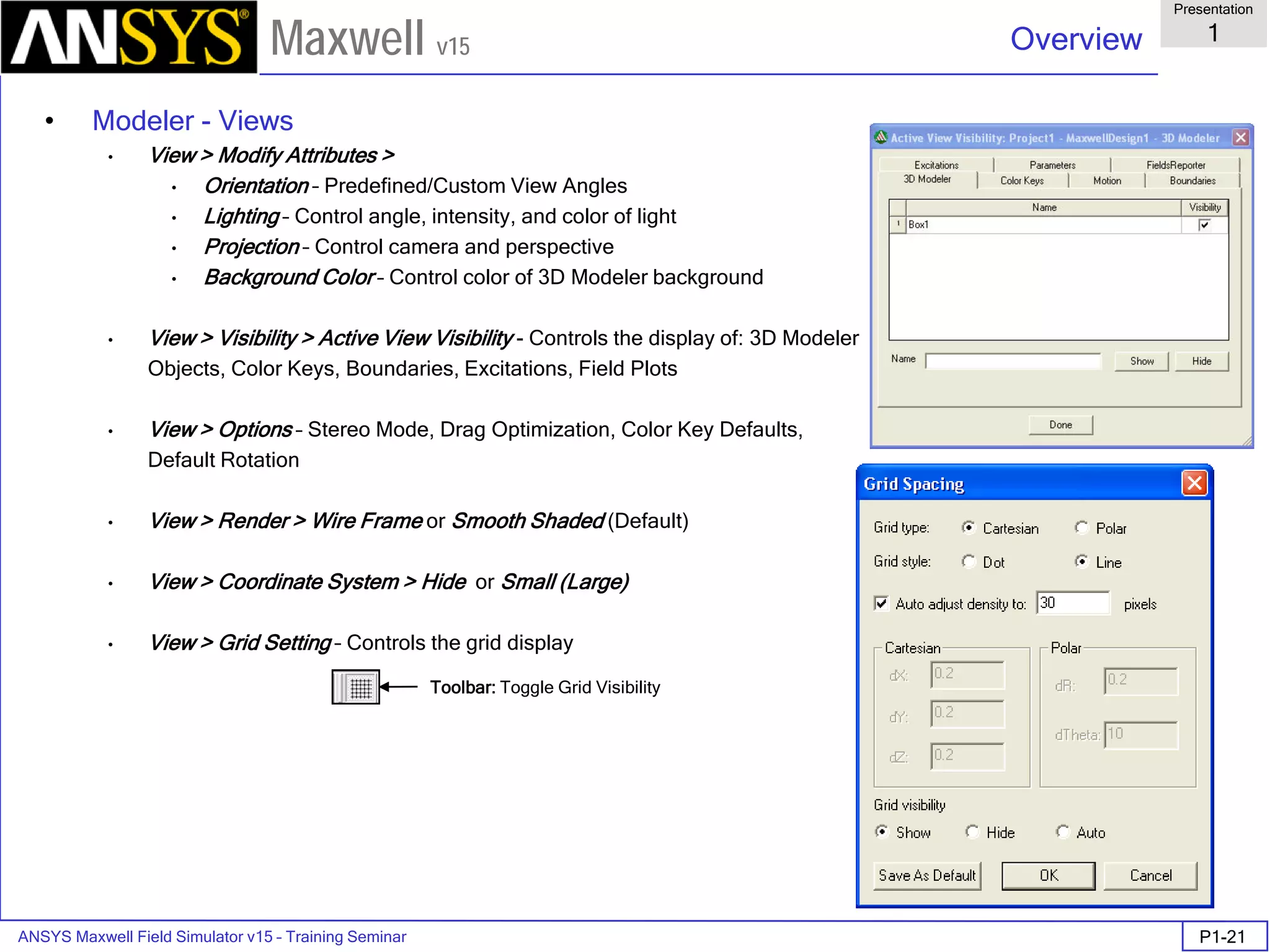
• Modeler - Views
• View > Modify Attributes >
• Orientation – Predefined/Custom View Angles
• Lighting – Control angle, intensity, and color of light
• Projection – Control camera and perspective
• Background Color – Control color of 3D Modeler background
• View > Visibility > Active View Visibility - Controls the display of: 3D Modeler
Objects, Color Keys, Boundaries, Excitations, Field Plots
• View > Options – Stereo Mode, Drag Optimization, Color Key Defaults,
Default Rotation
• View > Render > Wire Frame or Smooth Shaded (Default)
• View > Coordinate System > Hide or Small (Large)
• View > Grid Setting – Controls the grid display
Toolbar: Toggle Grid Visibility
ANSYS Maxwell Field Simulator v15 – Training Seminar P1-22
Overview
Presentation
1
Maxwell v15
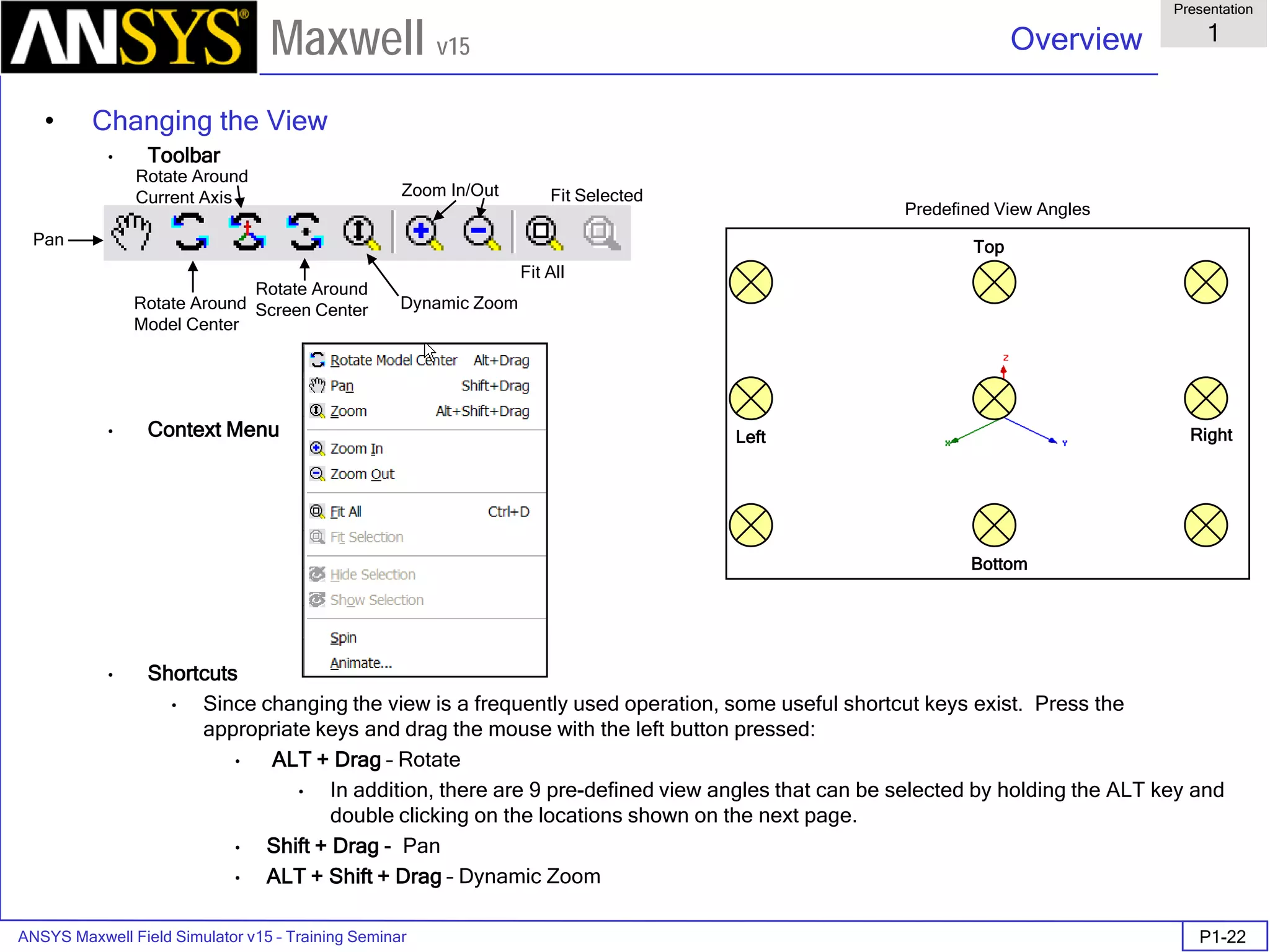
• Changing the View
• Toolbar
• Context Menu
• Shortcuts
• Since changing the view is a frequently used operation, some useful shortcut keys exist. Press the
appropriate keys and drag the mouse with the left button pressed:
• ALT + Drag – Rotate
• In addition, there are 9 pre-defined view angles that can be selected by holding the ALT key and
double clicking on the locations shown on the next page.
• Shift + Drag - Pan
• ALT + Shift + Drag – Dynamic Zoom
Pan
Rotate Around
Model Center
Dynamic Zoom
Zoom In/Out
Top
Bottom
Right
Predefined View Angles
Left
Rotate Around
Current Axis
Rotate Around
Screen Center
Fit All
Fit Selected
ANSYS Maxwell Field Simulator v15 – Training Seminar P1-23
Overview
Presentation
1
Maxwell v15
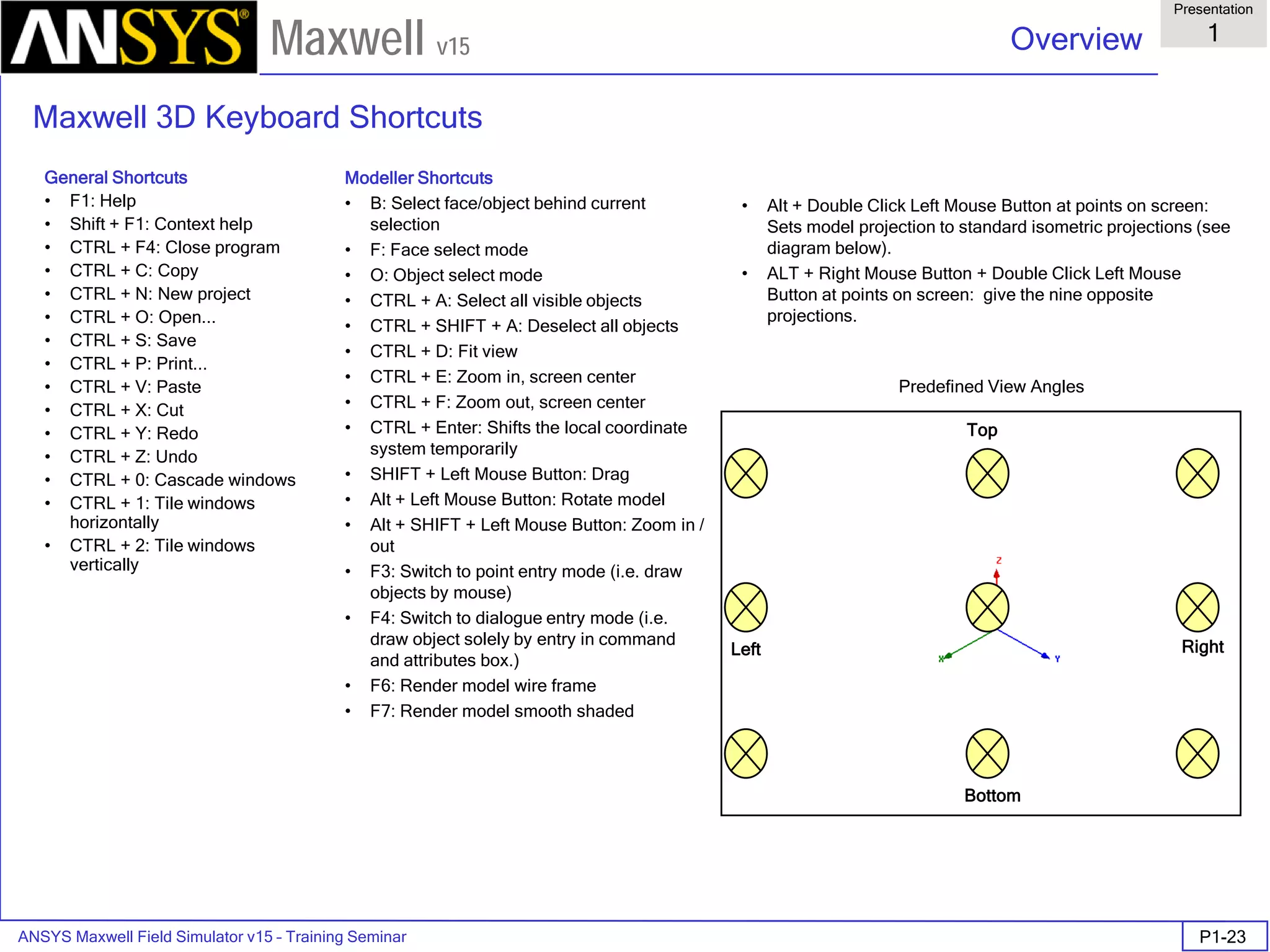
Maxwell 3D Keyboard Shortcuts
General Shortcuts
• F1: Help
• Shift + F1: Context help
• CTRL + F4: Close program
• CTRL + C: Copy
• CTRL + N: New project
• CTRL + O: Open...
• CTRL + S: Save
• CTRL + P: Print...
• CTRL + V: Paste
• CTRL + X: Cut
• CTRL + Y: Redo
• CTRL + Z: Undo
• CTRL + 0: Cascade windows
• CTRL + 1: Tile windows
horizontally
• CTRL + 2: Tile windows
vertically
Modeller Shortcuts
• B: Select face/object behind current
selection
• F: Face select mode
• O: Object select mode
• CTRL + A: Select all visible objects
• CTRL + SHIFT + A: Deselect all objects
• CTRL + D: Fit view
• CTRL + E: Zoom in, screen center
• CTRL + F: Zoom out, screen center
• CTRL + Enter: Shifts the local coordinate
system temporarily
• SHIFT + Left Mouse Button: Drag
• Alt + Left Mouse Button: Rotate model
• Alt + SHIFT + Left Mouse Button: Zoom in /
out
• F3: Switch to point entry mode (i.e. draw
objects by mouse)
• F4: Switch to dialogue entry mode (i.e.
draw object solely by entry in command
and attributes box.)
• F6: Render model wire frame
• F7: Render model smooth shaded
• Alt + Double Click Left Mouse Button at points on screen:
Sets model projection to standard isometric projections (see
diagram below).
• ALT + Right Mouse Button + Double Click Left Mouse
Button at points on screen: give the nine opposite
projections.
Top
Bottom
Right
Predefined View Angles
Left
ANSYS Maxwell Field Simulator v15 – Training Seminar P1-24
Overview
Presentation
1
Maxwell v15
• Set Default Material
• To set the default material:
1. Using the 3D Modeler Materials toolbar, choose Select
2. Select Definition Window:
1. Type copper in the Search by Name field
2. Click the OK button
• Create Coil
• To create the coil for the current to flow:
1. Select the menu item Draw > Cylinder
2. Using the coordinate entry fields, enter the center position
• X: 0.0, Y: 0.0, Z: 0.0, Press the Enter key
4. Using the coordinate entry fields, enter the radius of the cylinder
• dX: 0.0, dY: 4.0, dZ: 0.0, Press the Enter key
5. Using the coordinate entry fields, enter the height of the cylinder
• dX: 0.0, dY: 0.0 dZ: 4.0, Press the Enter key
• To set the name:
1. Select the Attribute tab from the Properties window.
2. For the Value of Name type: Coil
3. Click the OK button
• To fit the view:
1. Select the menu item View > Fit All > Active View
ANSYS Maxwell Field Simulator v15 – Training Seminar P1-25
Overview
Presentation
1
Maxwell v15
• Overlapping Objects
• About Overlapping Objects
• When the volume of a 3D object occupies the same space as two or more objects you will receive an overlap
error during the validation process. This occurs because the solver can not determine which material
properties to apply in the area of overlap. To correct this problem, Boolean operations can be used to
subtract one object from the other or the overlapping object can be split into smaller pieces that are
completely enclosed within the volume of another object. When an object is completely enclosed there will
be no overlap errors. In this case, the material of the interior object is used in the area of overlap.
• Complete the Coil
• To select the objects Core and Coil:
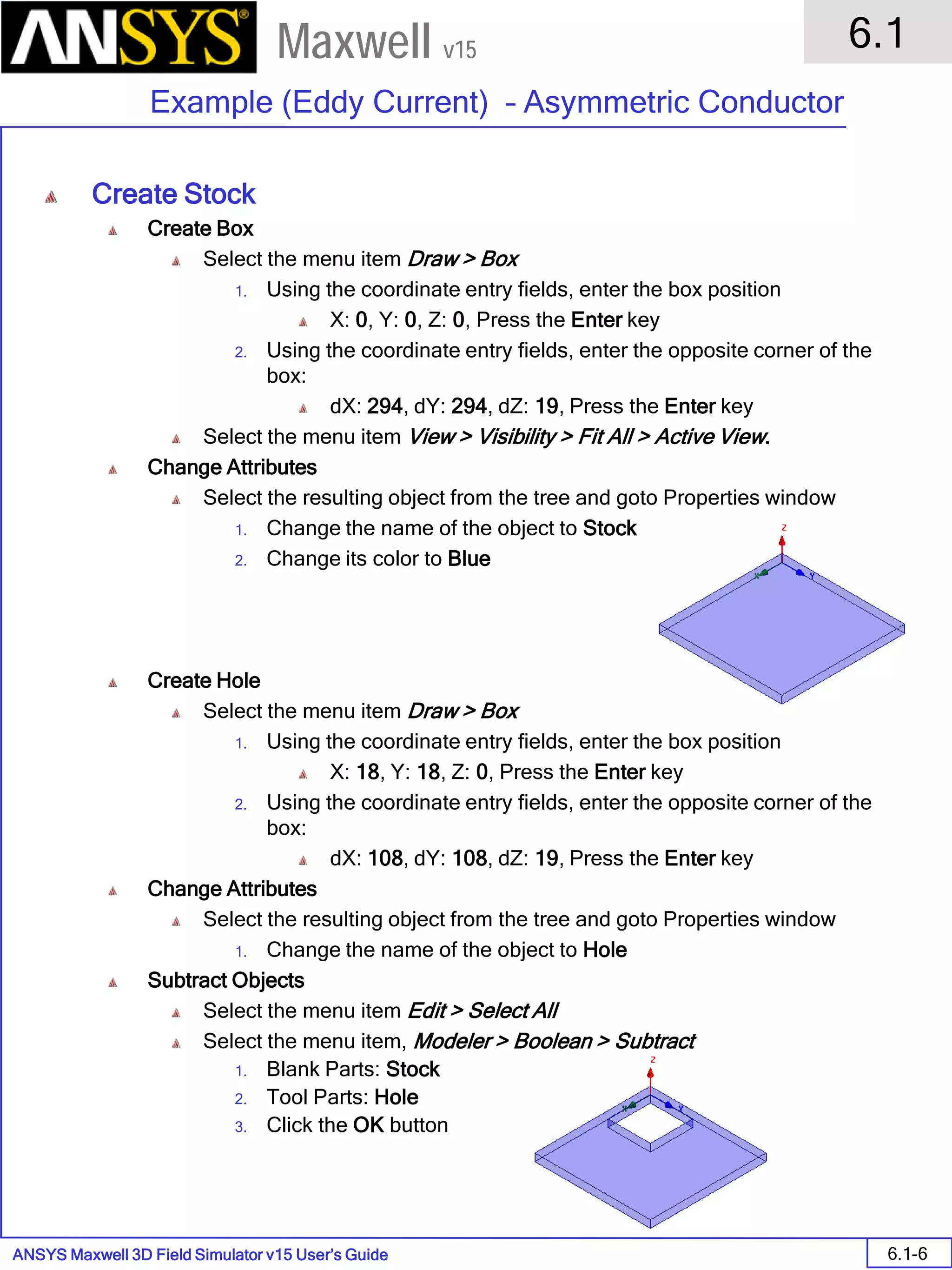
1. Select the menu item Edit > Select All
• To complete the Coil:
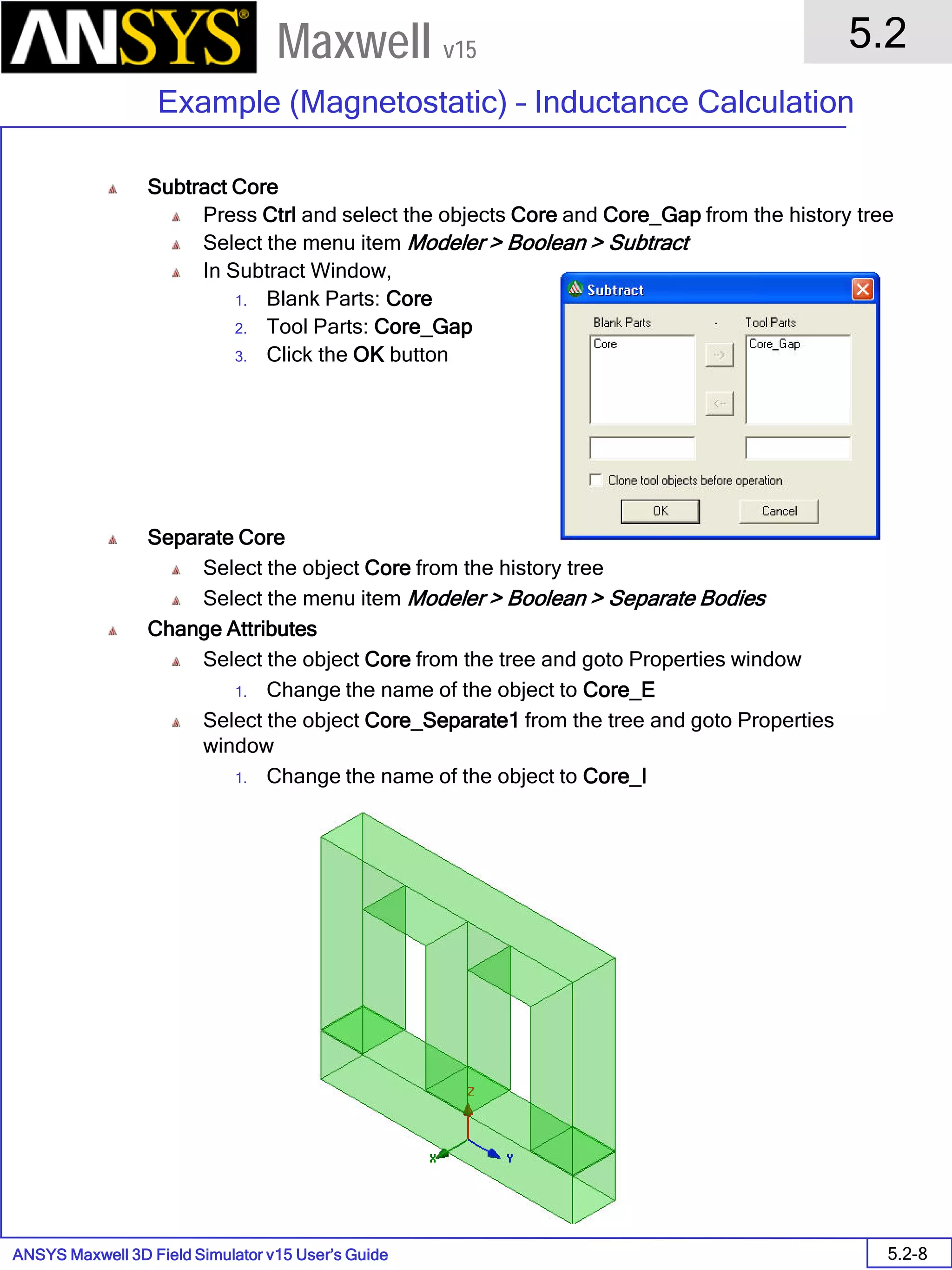
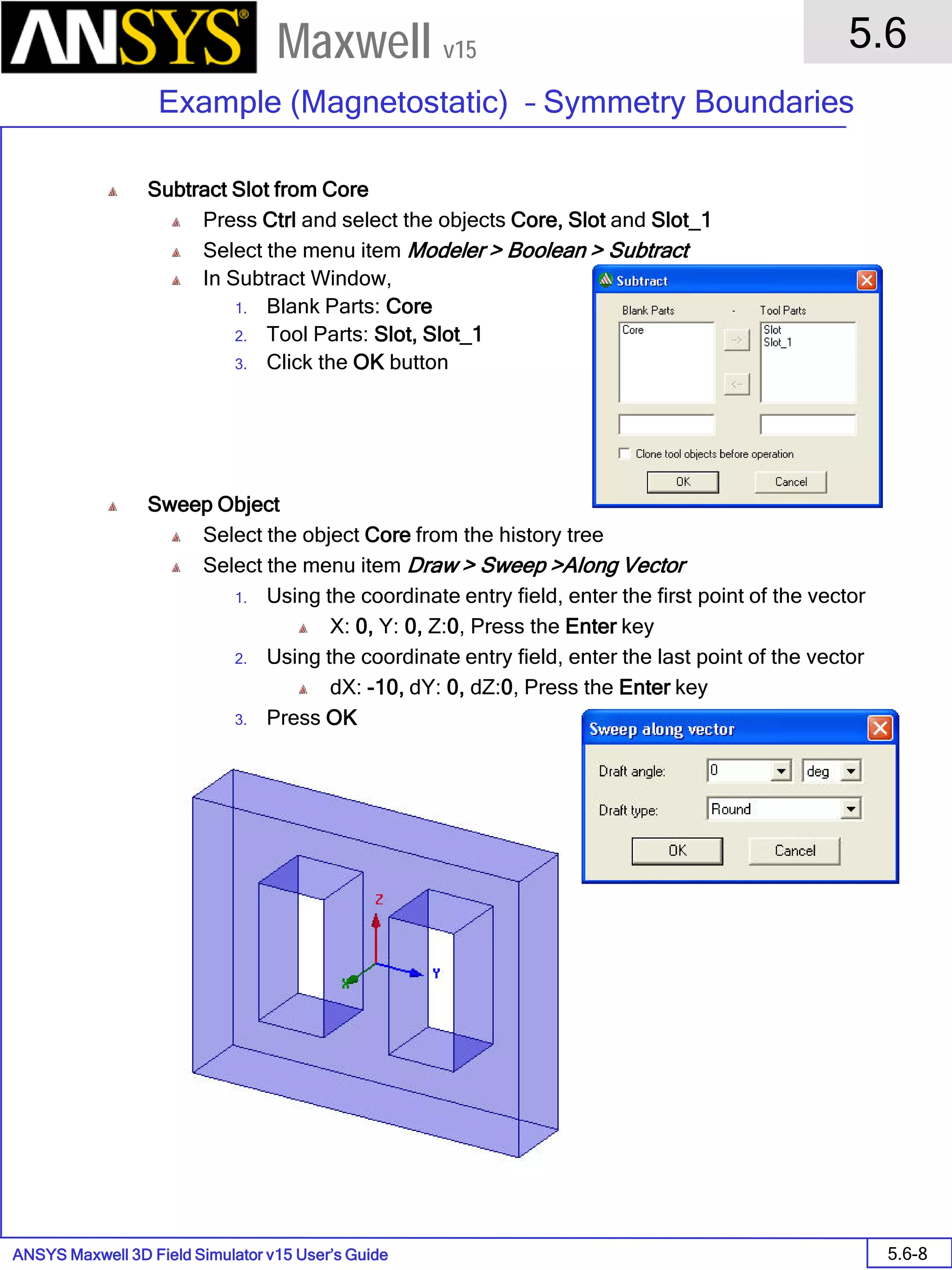
1. Select the menu item Modeler > Boolean > Subtract
2. Subtract Window
• Blank Parts: Coil
• Tool Parts: Core
• Clone tool objects before subtract:  Checked
• Click the OK button
ANSYS Maxwell Field Simulator v15 – Training Seminar P1-26
Overview
Presentation
1
Maxwell v15
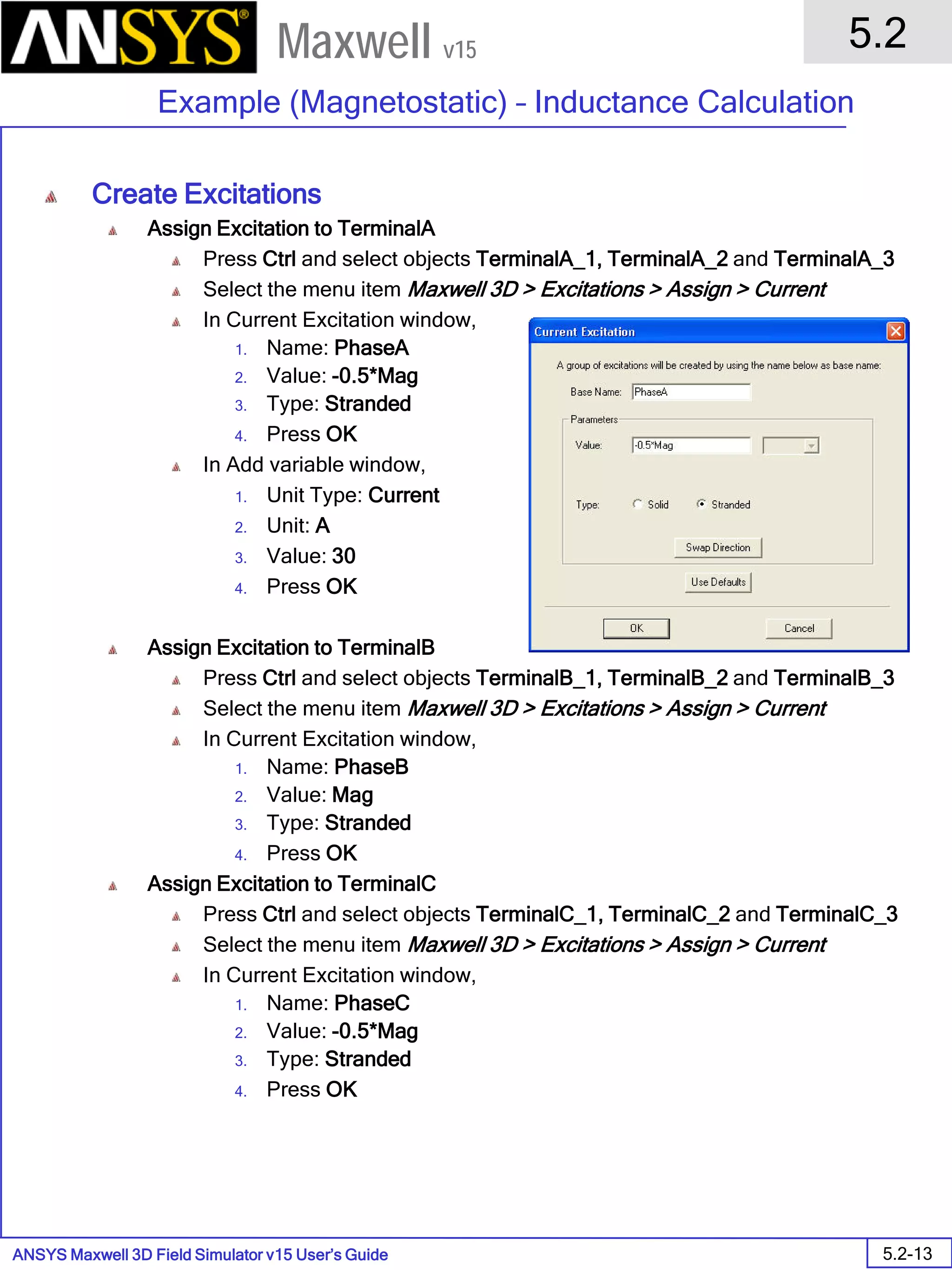
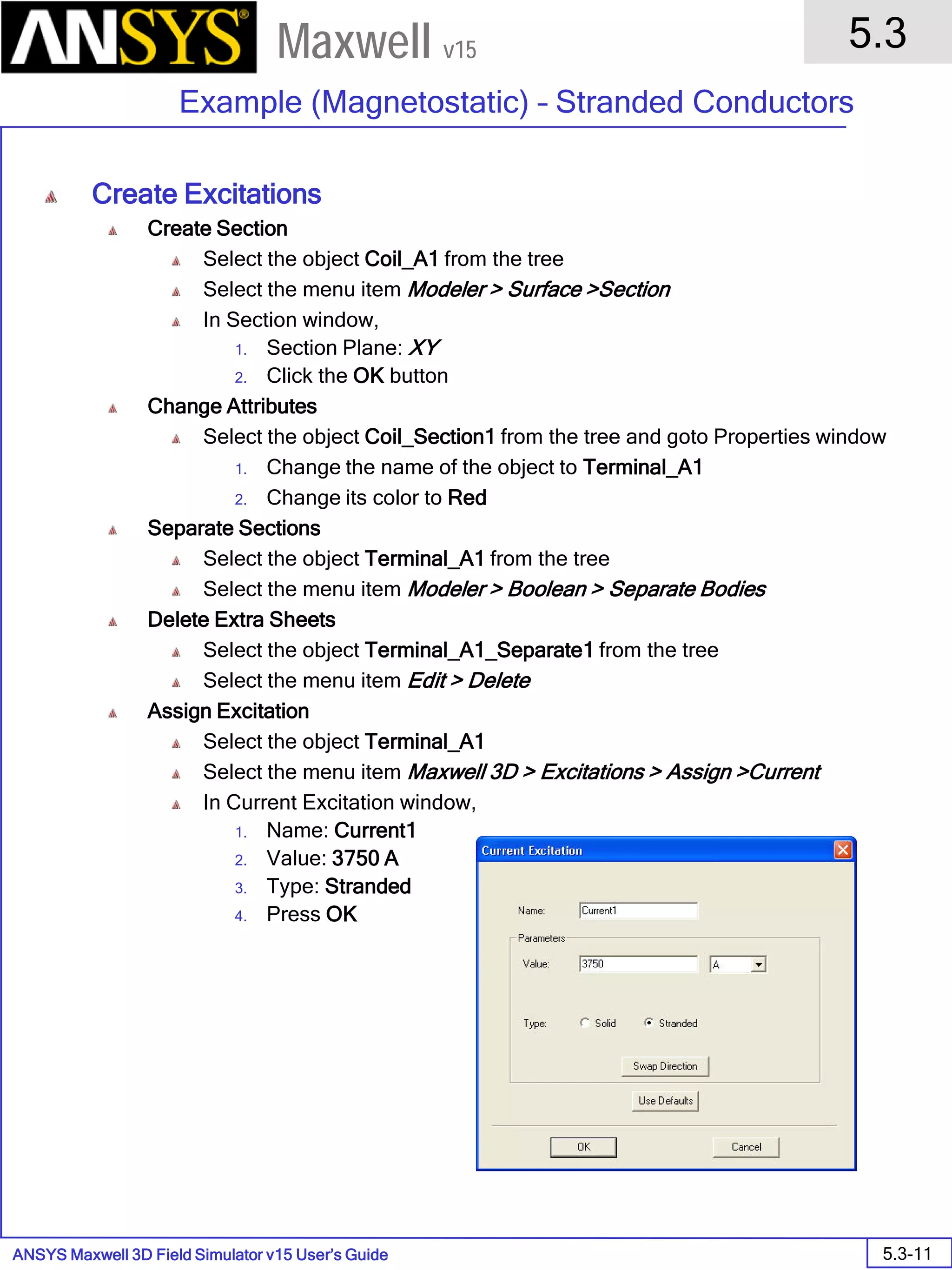
• Create Excitation
• Object Selection
1. Select the menu item Edit > Select > By Name
2. Select Object Dialog,
1. Select the objects named: Coil
2. Click the OK button
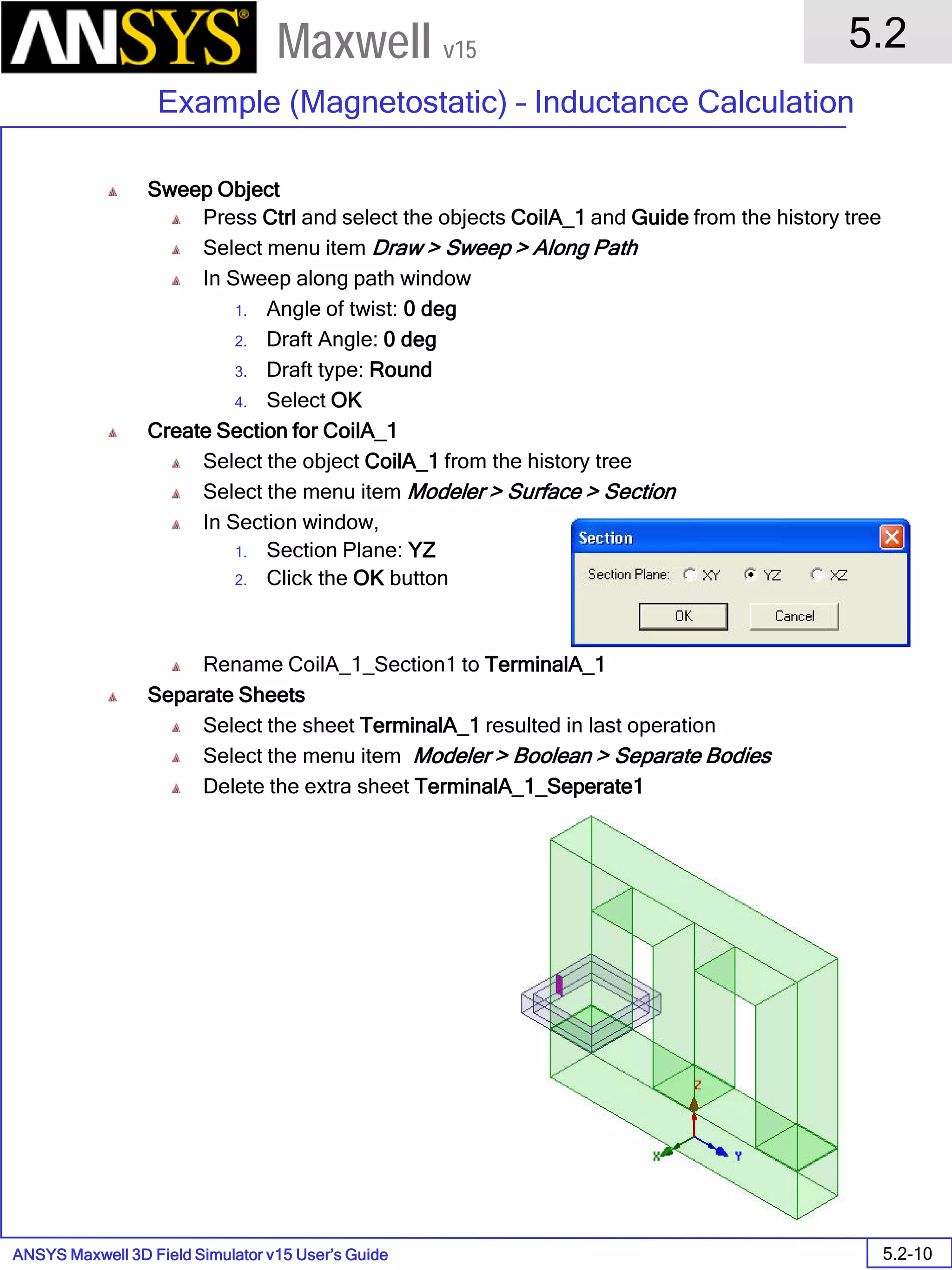
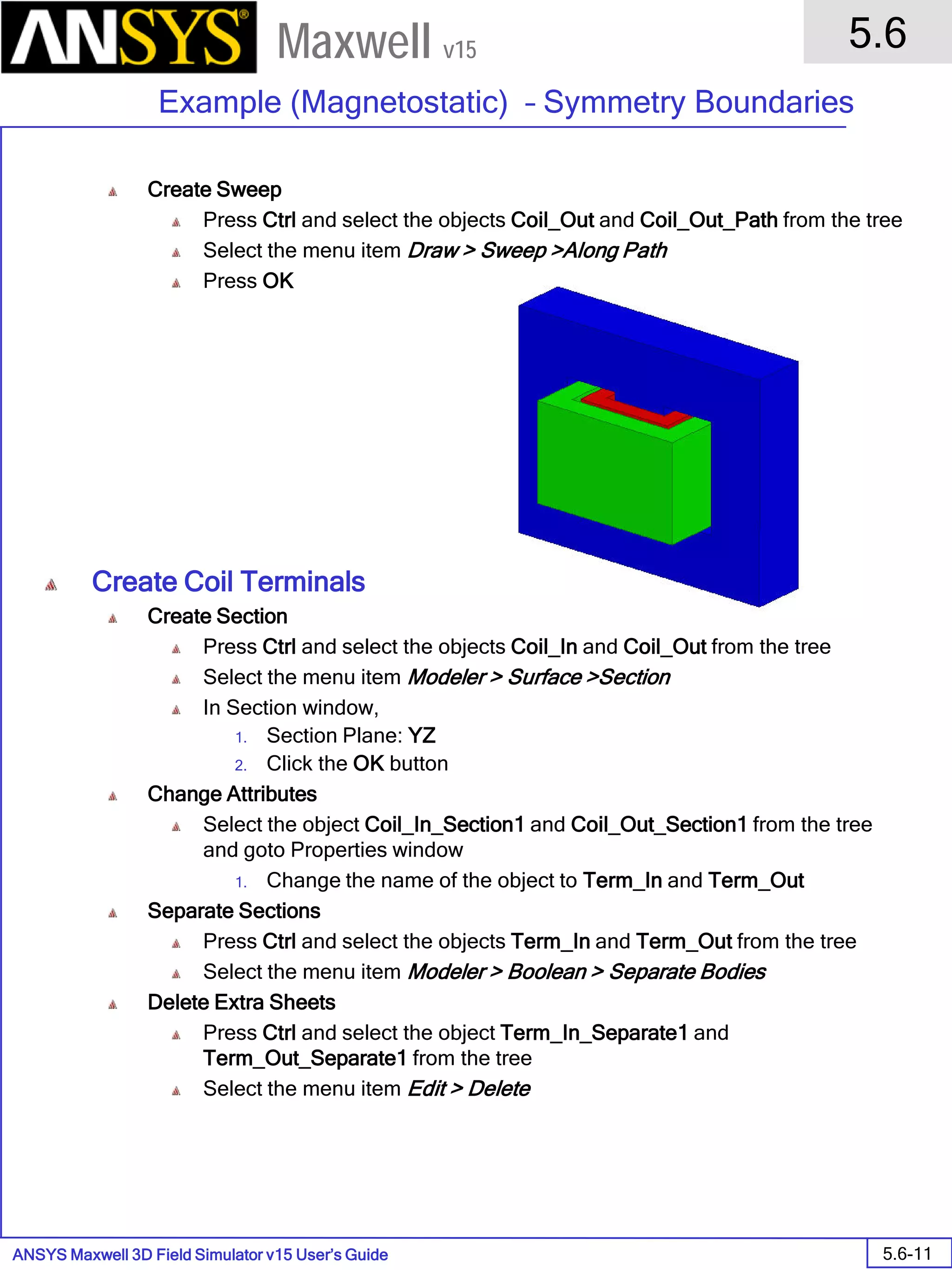
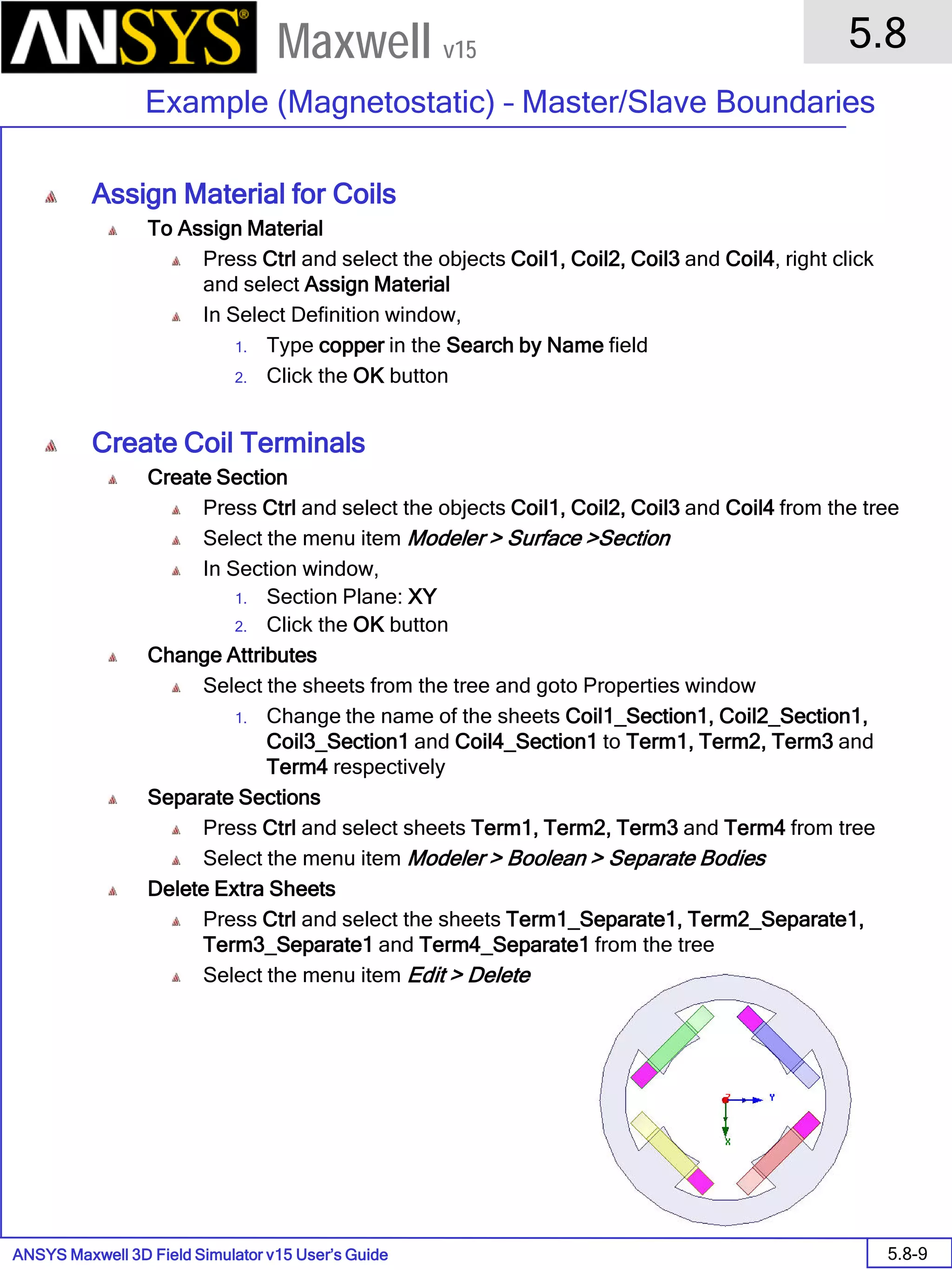
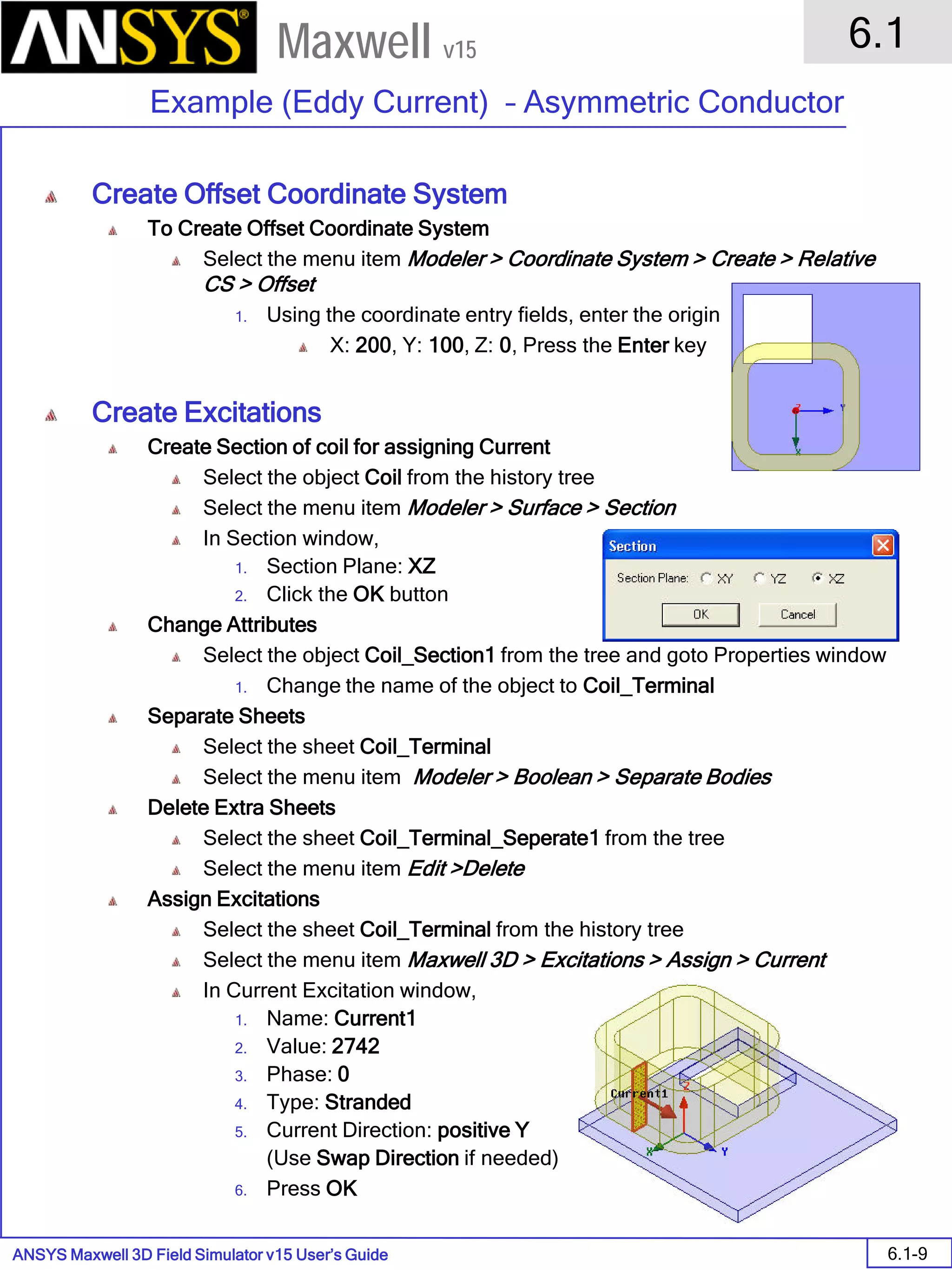
• Section Object
1. Select the menu item Modeler > Surface > Section
1. Section Plane: YZ
2. Click the OK button
• Separate Bodies
1. Select the menu item Modeler > Boolean > Separate Bodies
2. Delete the extra sheet which is not needed
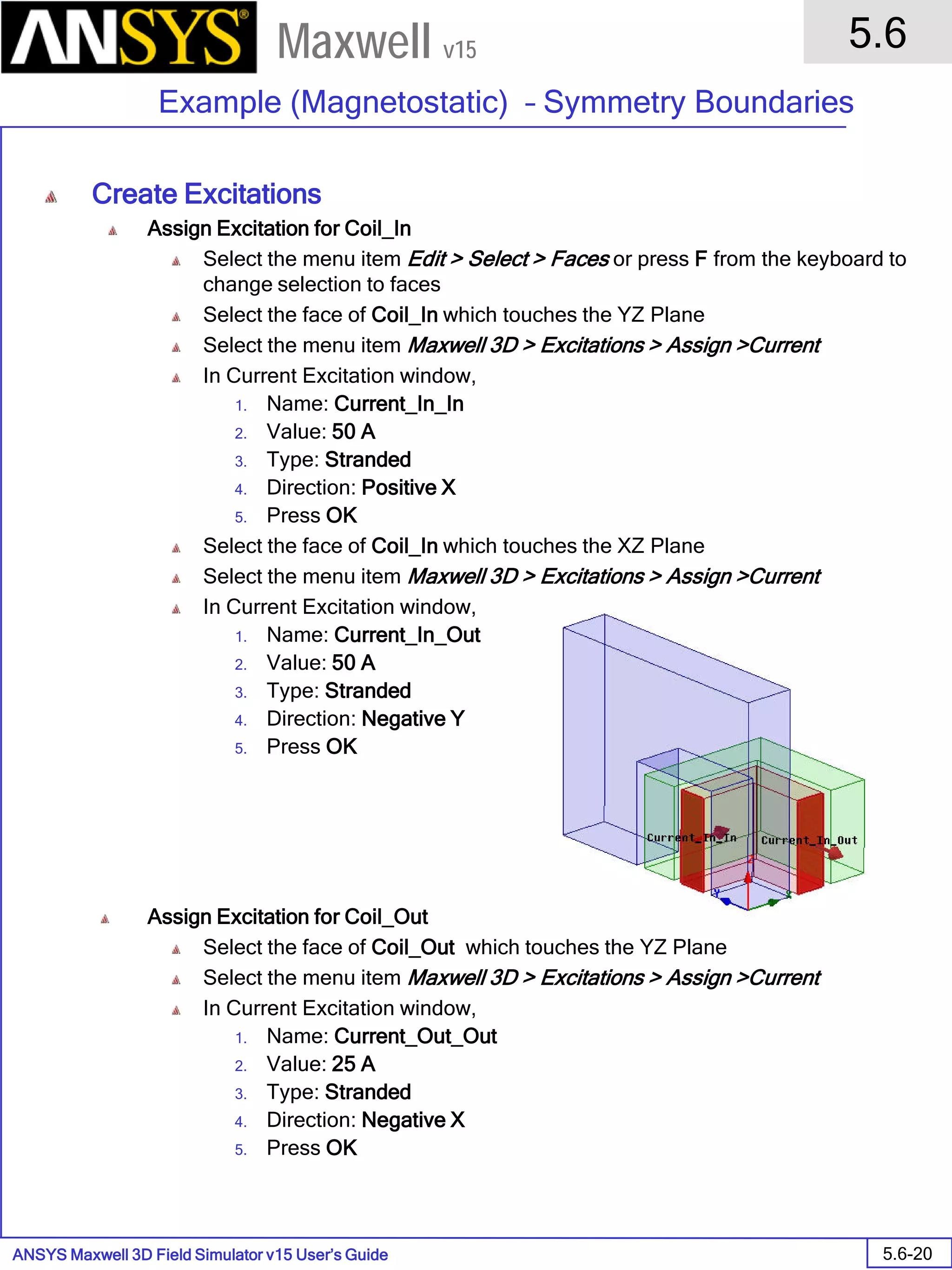
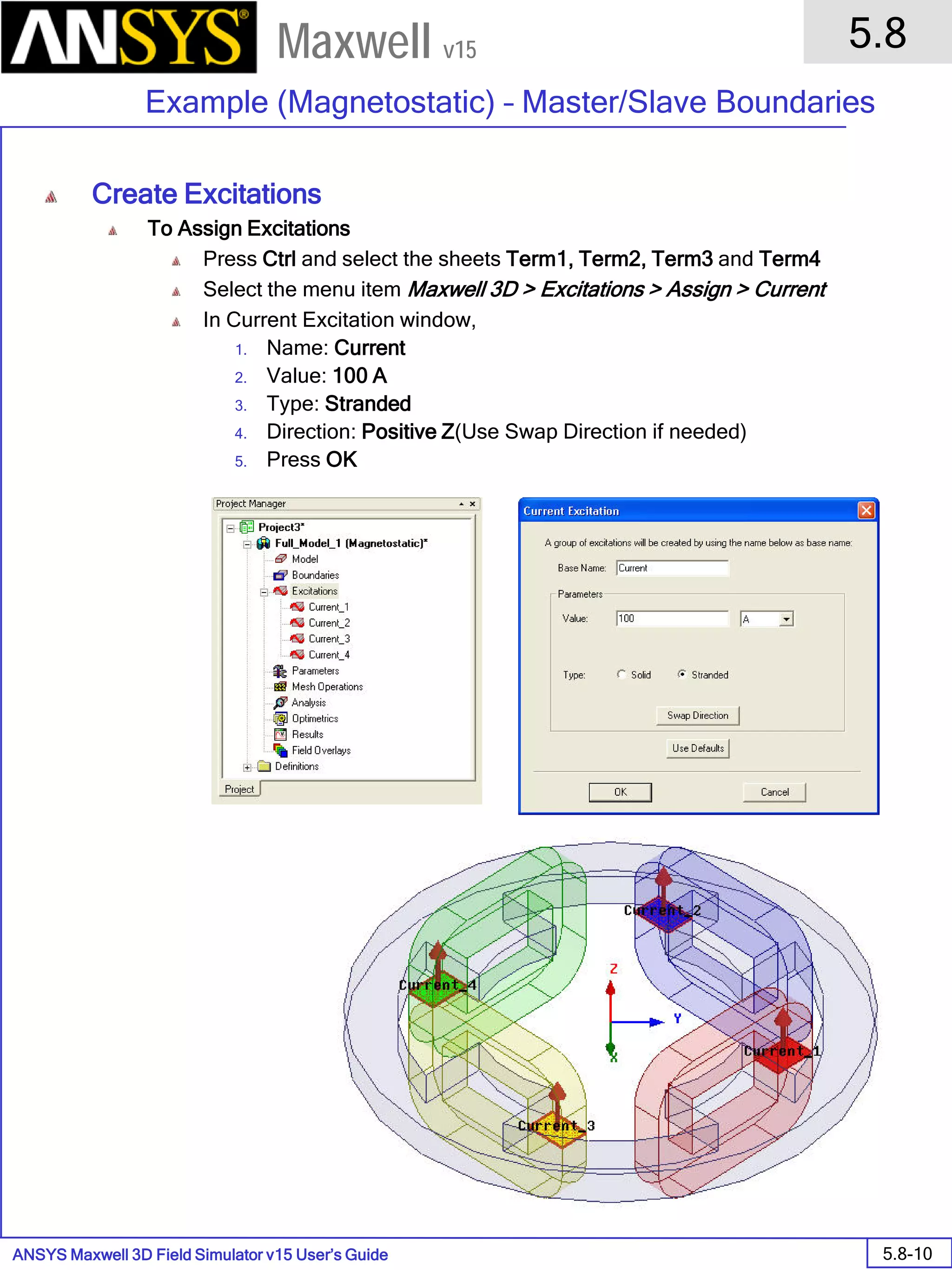
• Assign Excitation
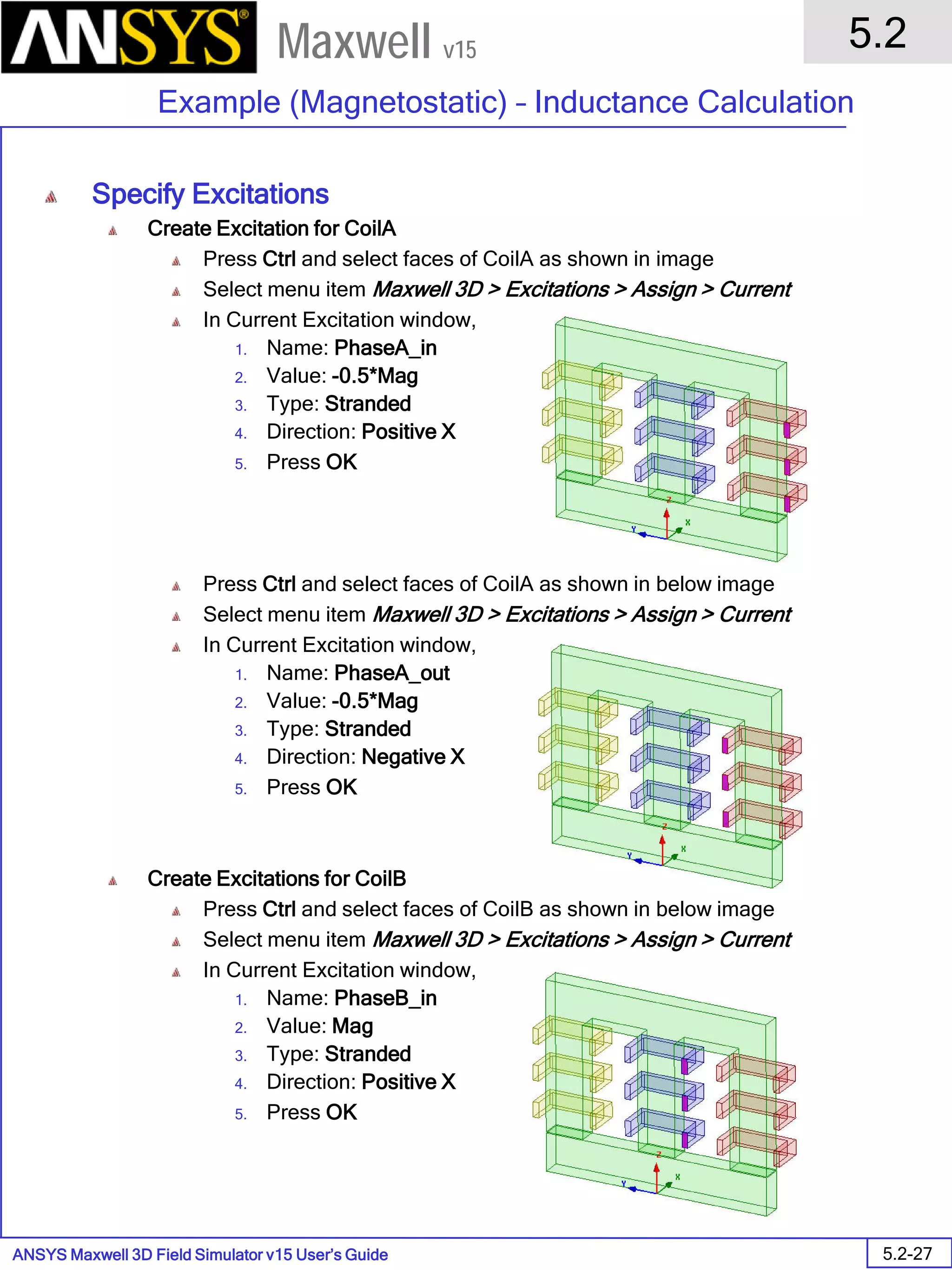
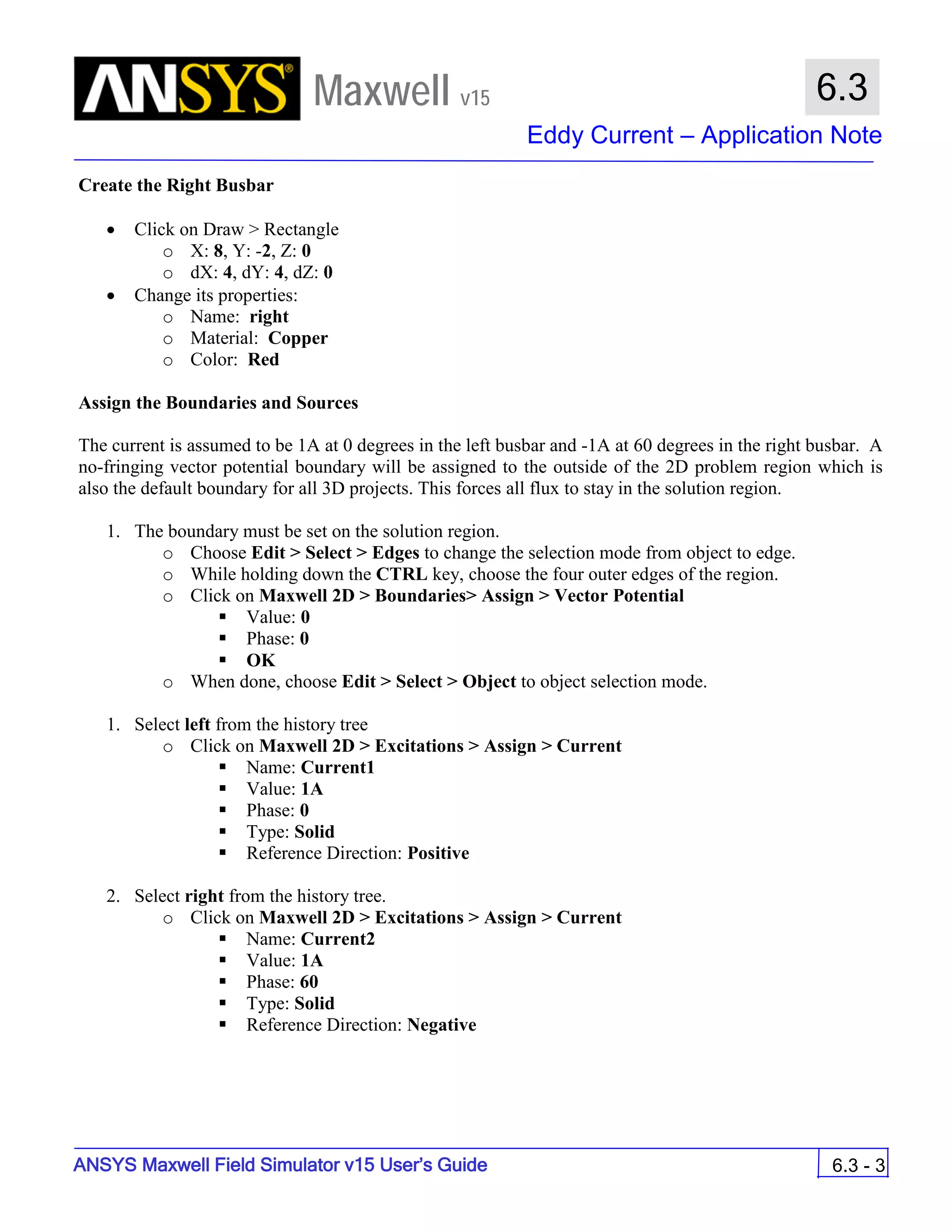
1. Select the menu item Maxwell 3D> Excitations > Assign > Current
2. Current Excitation : General
1. Name: Current1
2. Value: 120 A
3. Type: Stranded
3. Click the OK button
ANSYS Maxwell Field Simulator v15 – Training Seminar P1-27
Overview
Presentation
1
Maxwell v15
• Show Conduction Path
1. Select the menu item Maxwell 3D> Excitations > Conduction Path > Show Conduction Path
2. From the Conduction Path Visualization dialog, select the row1 to visualize the conduction path in on the 3D
Model.
3. Click the Close button
• Fix Conduction Path
• To solve this isolation problem an insulating boundary condition will be used.
1. Select the outer face of the core by typing f on the keyboard and
select the outer face of the core.
2. Select the menu item Maxwell 3D> Boundaries > Assign > Insulating
3. Insulating Boundary
1. Name: Insulating1
2. Click the OK button
4. Follow the instructions from above to redisplay the Conduction Path
ANSYS Maxwell Field Simulator v15 – Training Seminar P1-28
Overview
Presentation
1
Maxwell v15
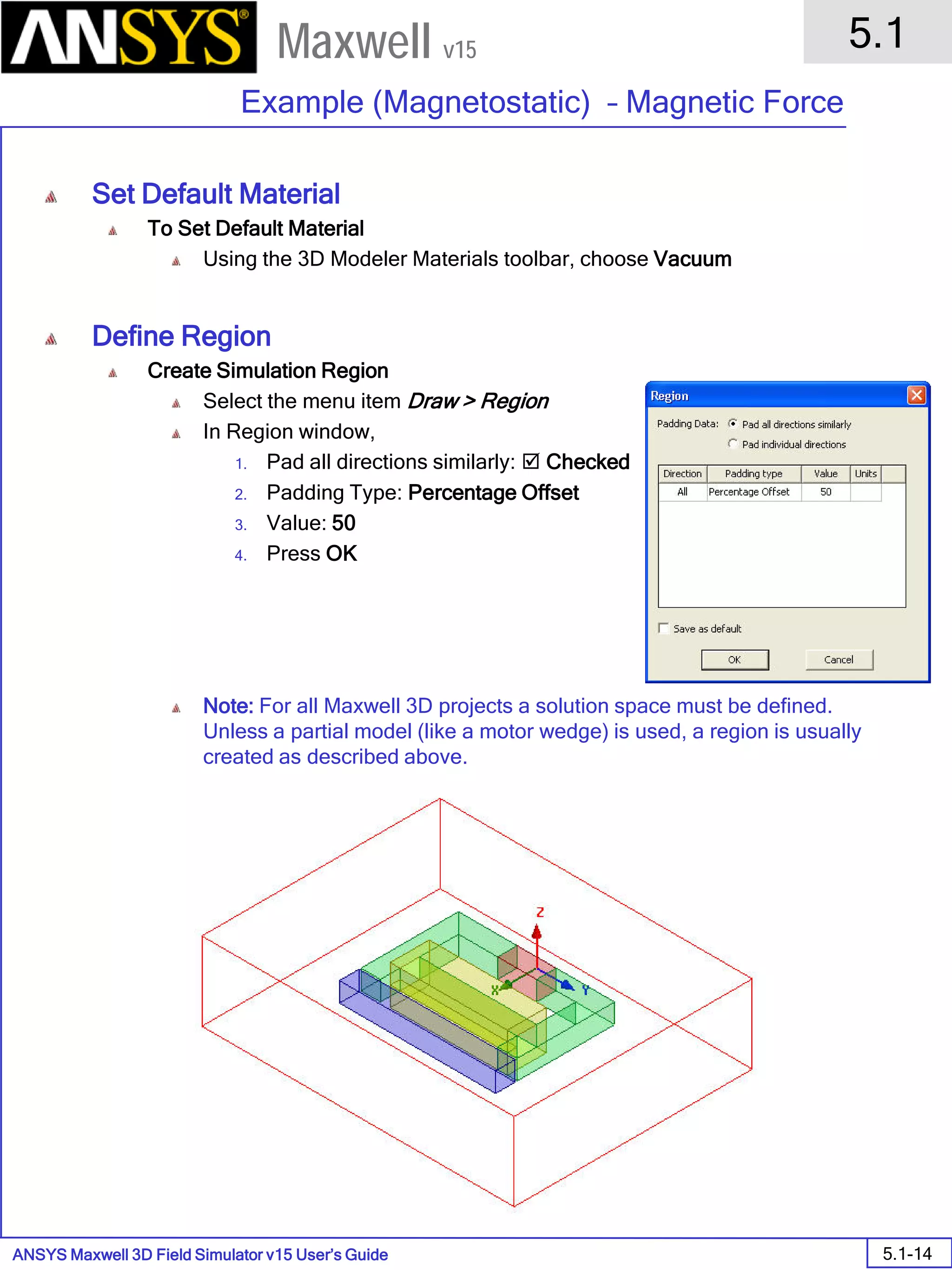
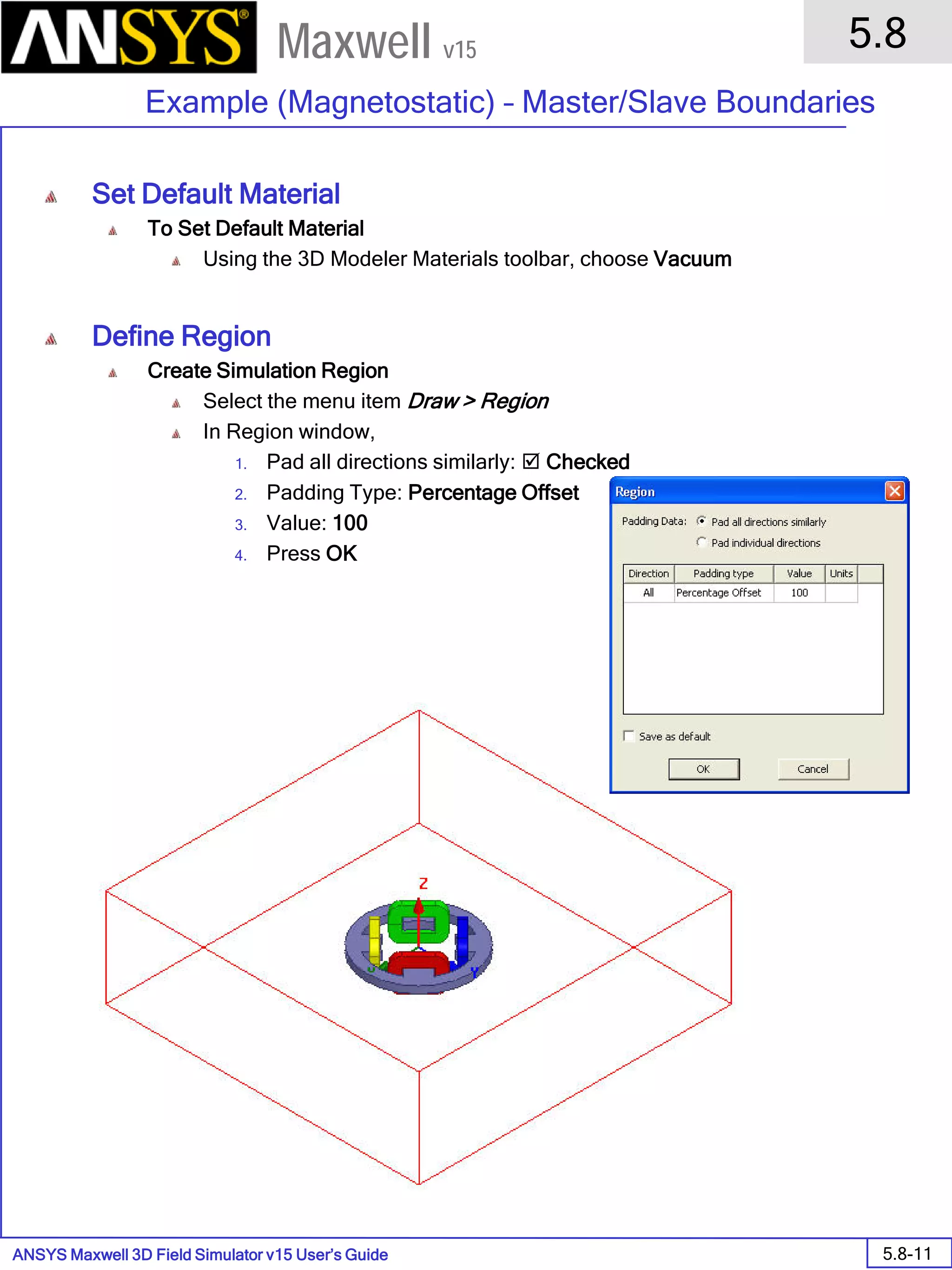
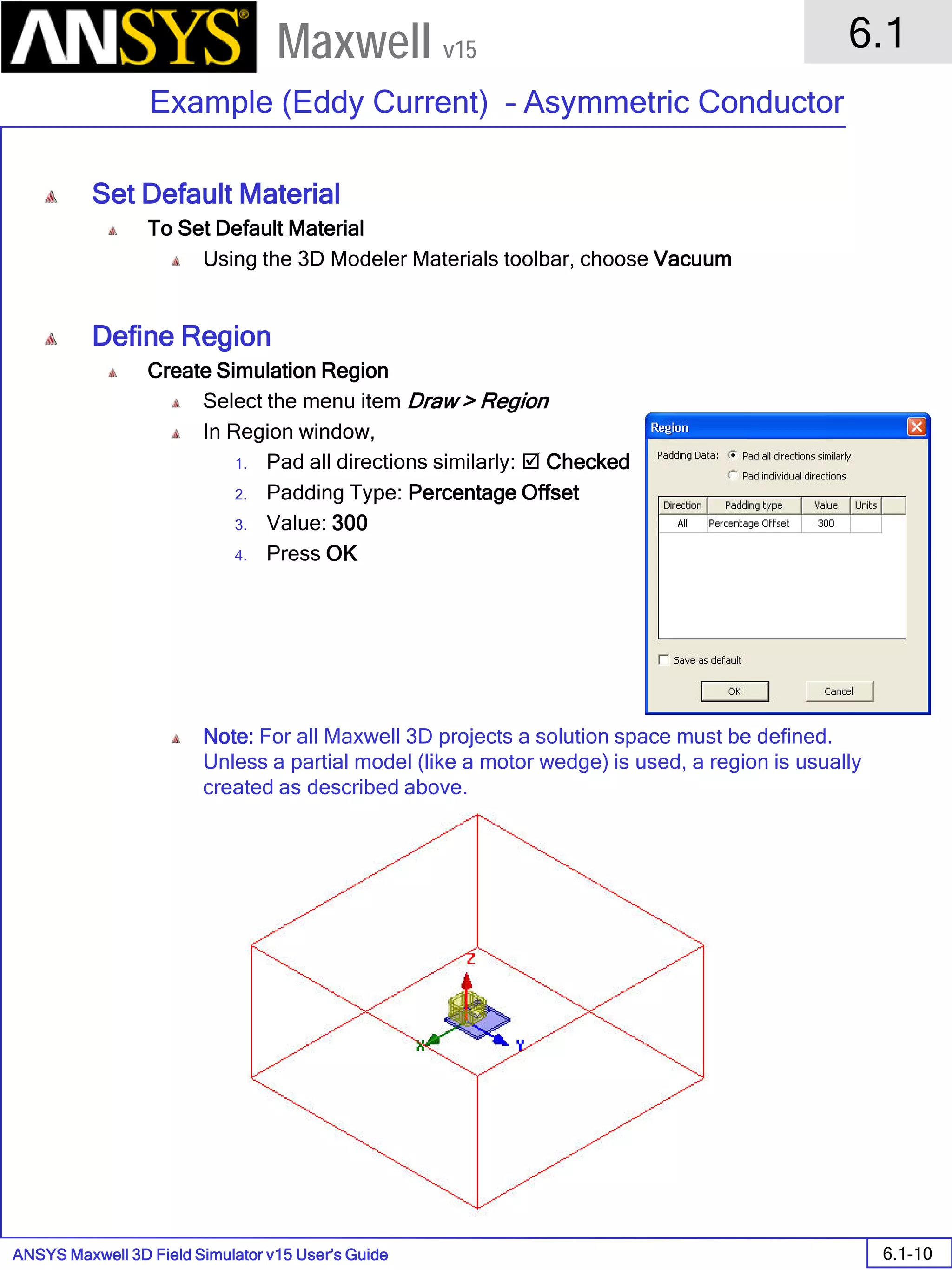
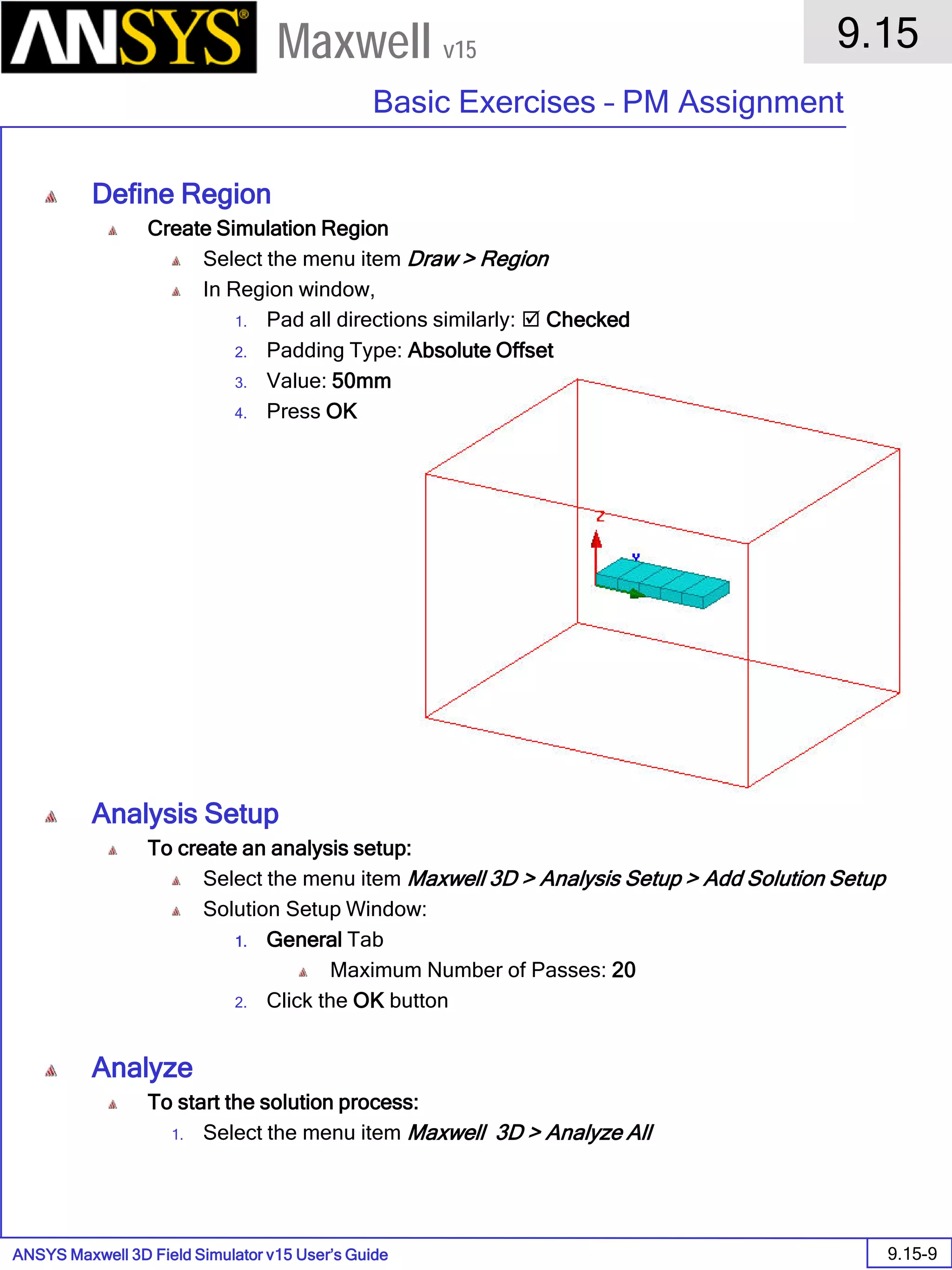
• Define a Region
• Before solving a project a region has to be defined. A region is basically an outermost object that contains all other
objects. The region can be defined by a special object in Draw > Region. This special region object will be resized
automatically if your model changes size.
• A ratio in percents has to be entered that specifies how much distance should be left from the model.
• To define a Region:
1. Select the menu item Draw > Region
1. Padding Data: One
2. Padding Percentage: 200
3. Click the OK button
Note: Since there will be considerable fringing
in this device, a padding percentage of at least
2 times, or 200% is recommended
ANSYS Maxwell Field Simulator v15 – Training Seminar P1-29
Overview
Presentation
1
Maxwell v15
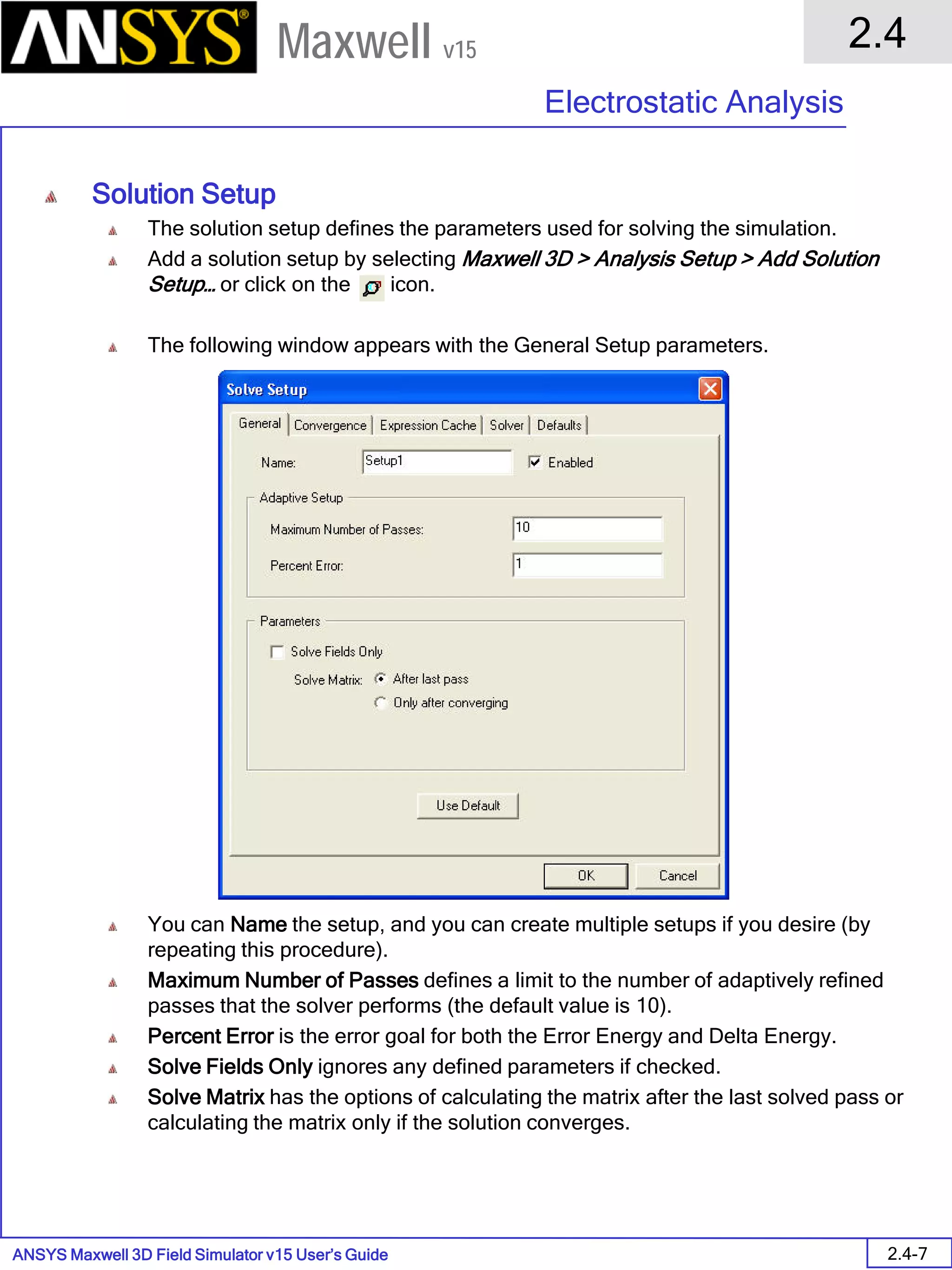
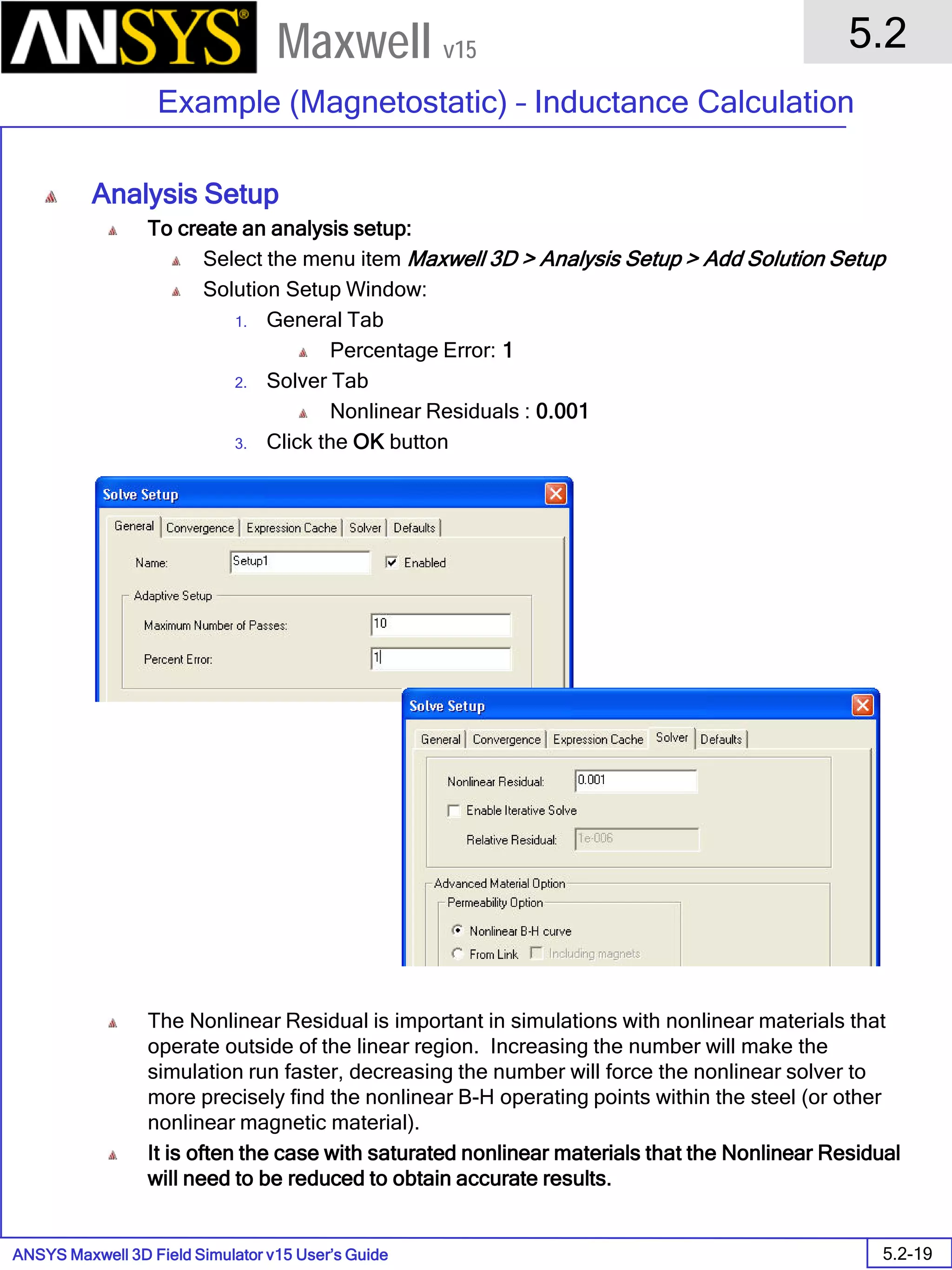
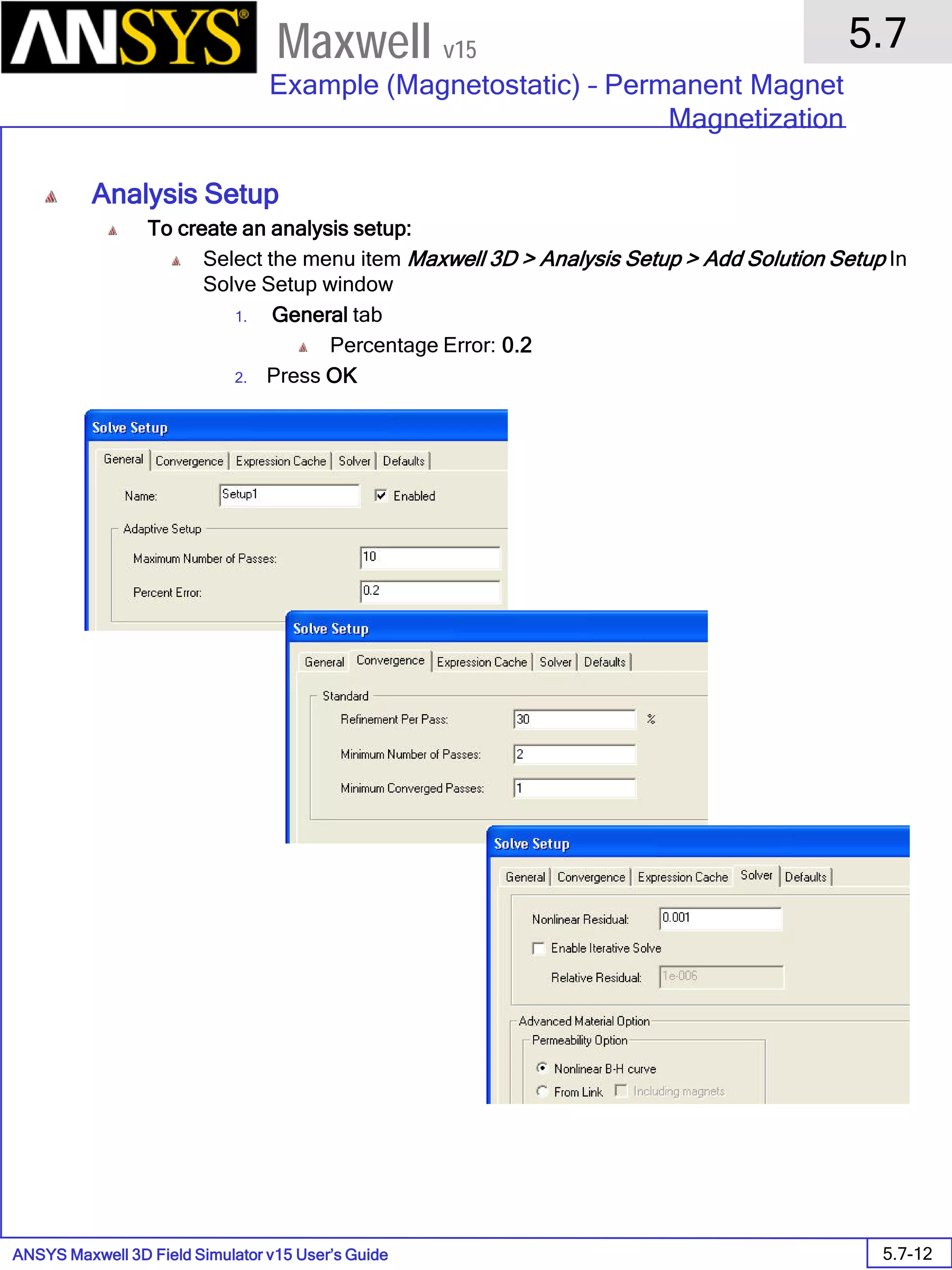
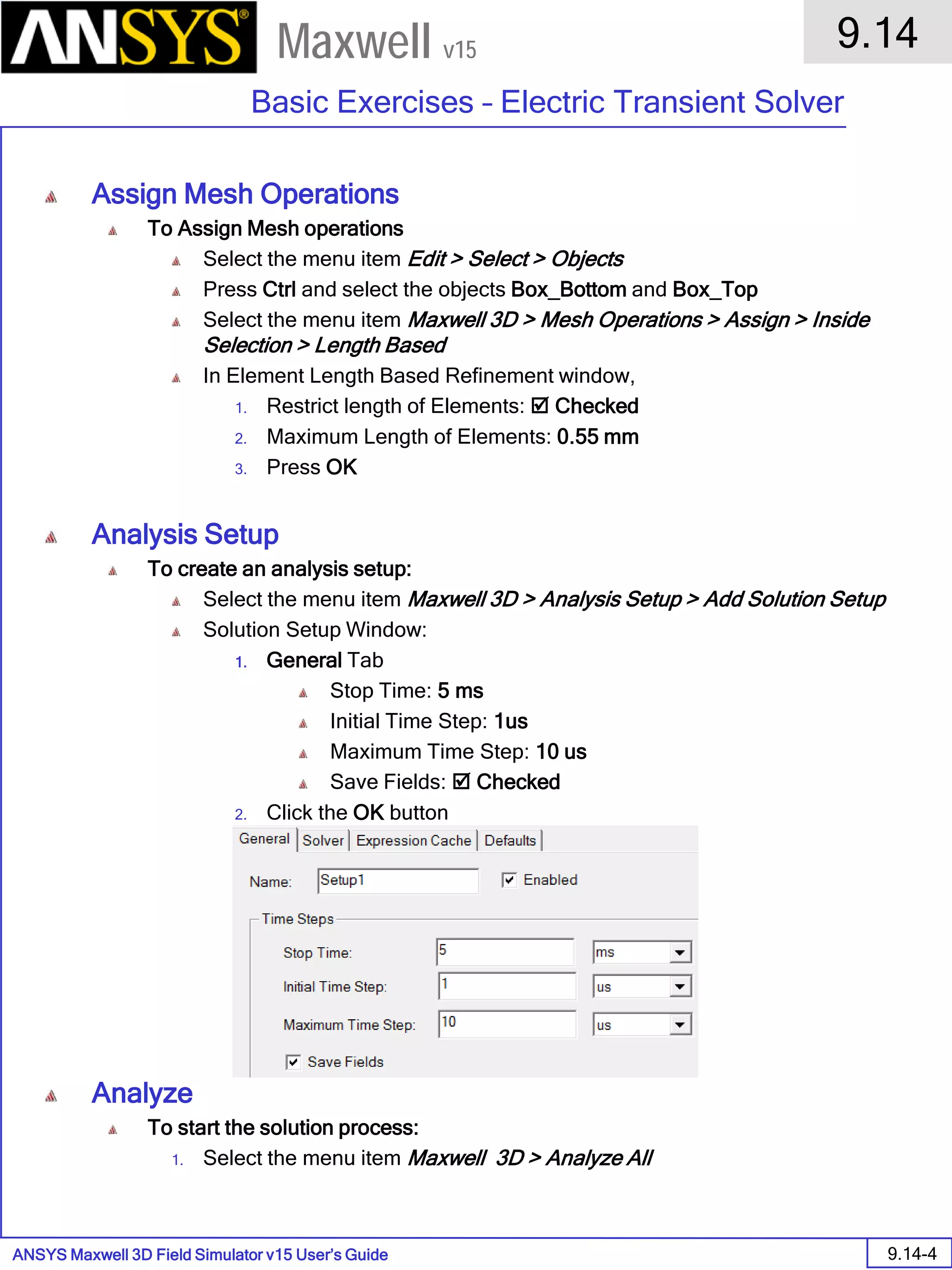
• Maxwell - Solution Setup
• Creating an Analysis Setup
• To create an analysis setup:
1. Select the menu item Maxwell 3D> Analysis Setup > Add Solution
Setup
2. Solution Setup Window:
1. Click the General tab:
• Maximum Number of Passes: 10
• Percent Error: 1
2. Click the OK button
Add Solution Setup
ANSYS Maxwell Field Simulator v15 – Training Seminar P1-30
Overview
Presentation
1
Maxwell v15
• Save Project
• To save the project:
1. In an Maxwell window, select the menu item File > Save As.
2. From the Save As window, type the Filename: maxwell_coil
3. Click the Save button
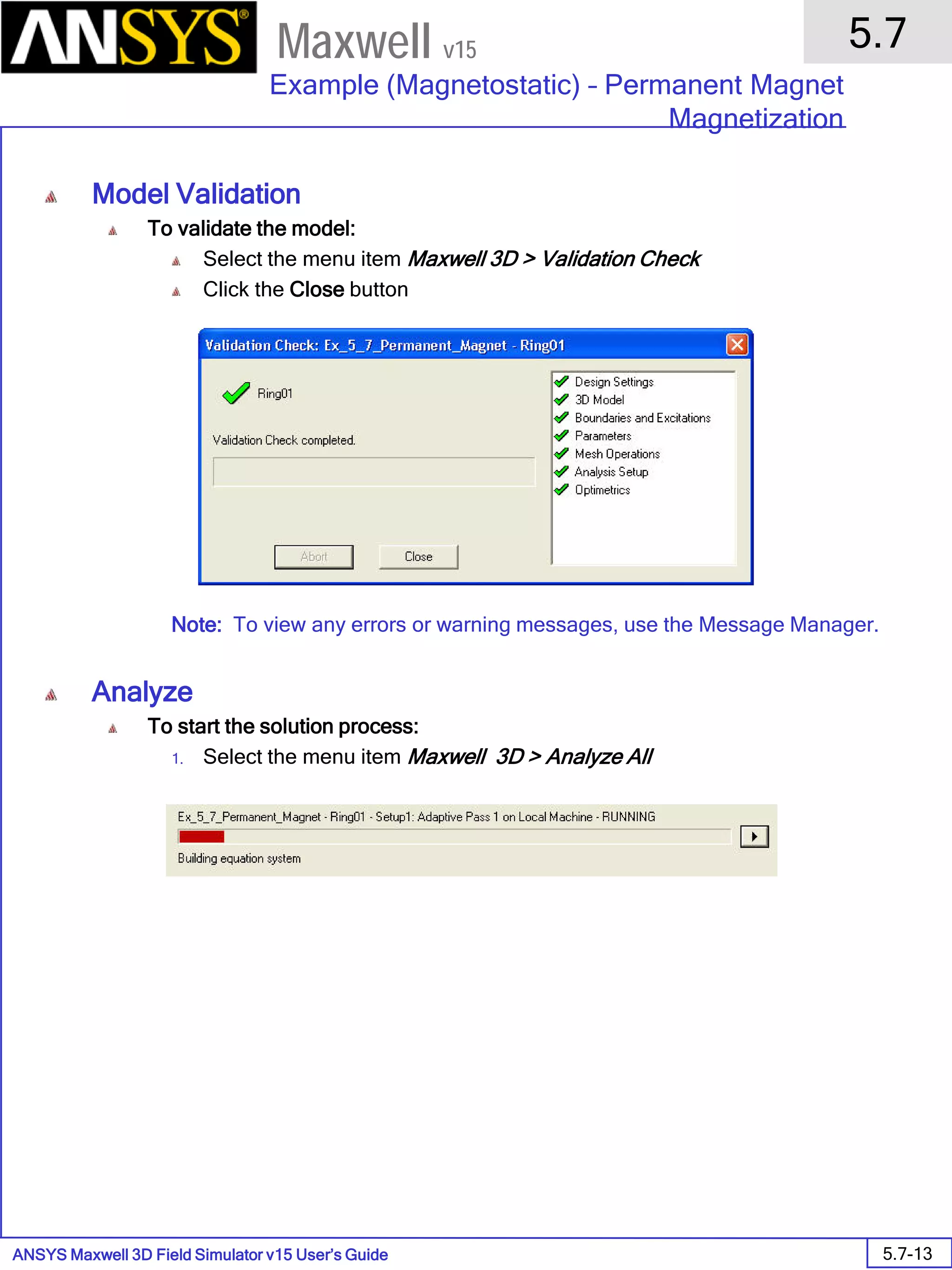
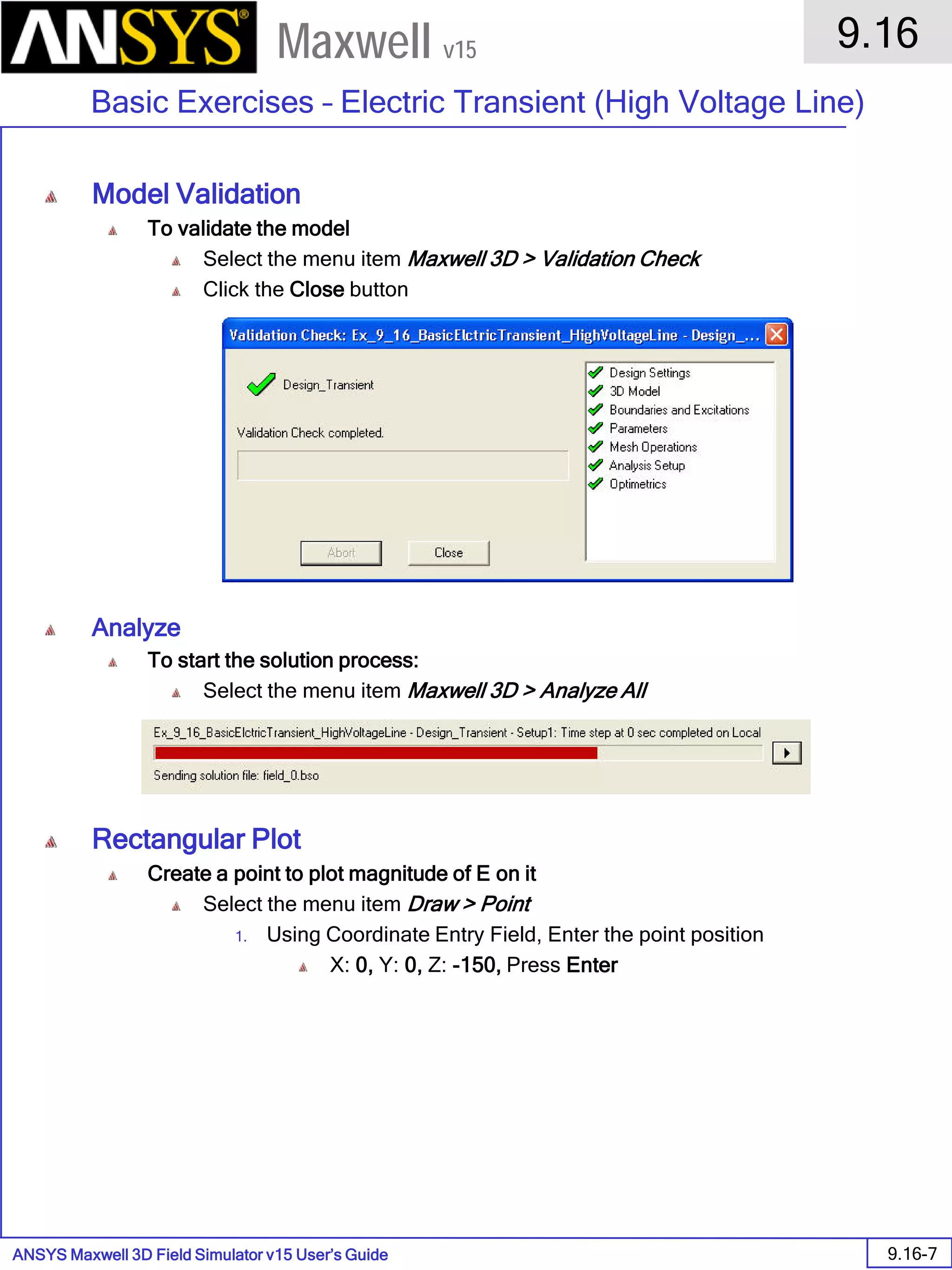
• Analyze
• Model Validation
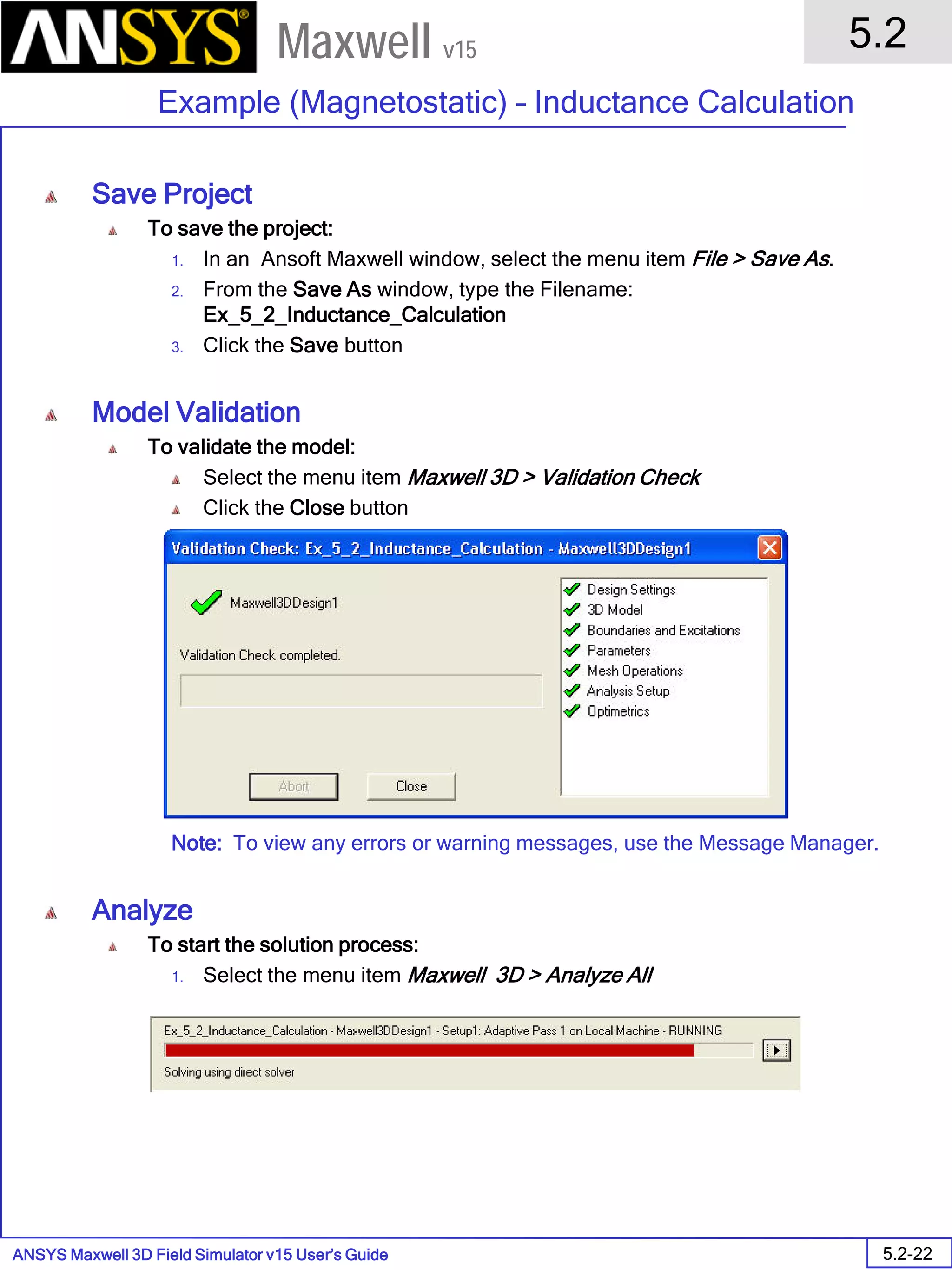
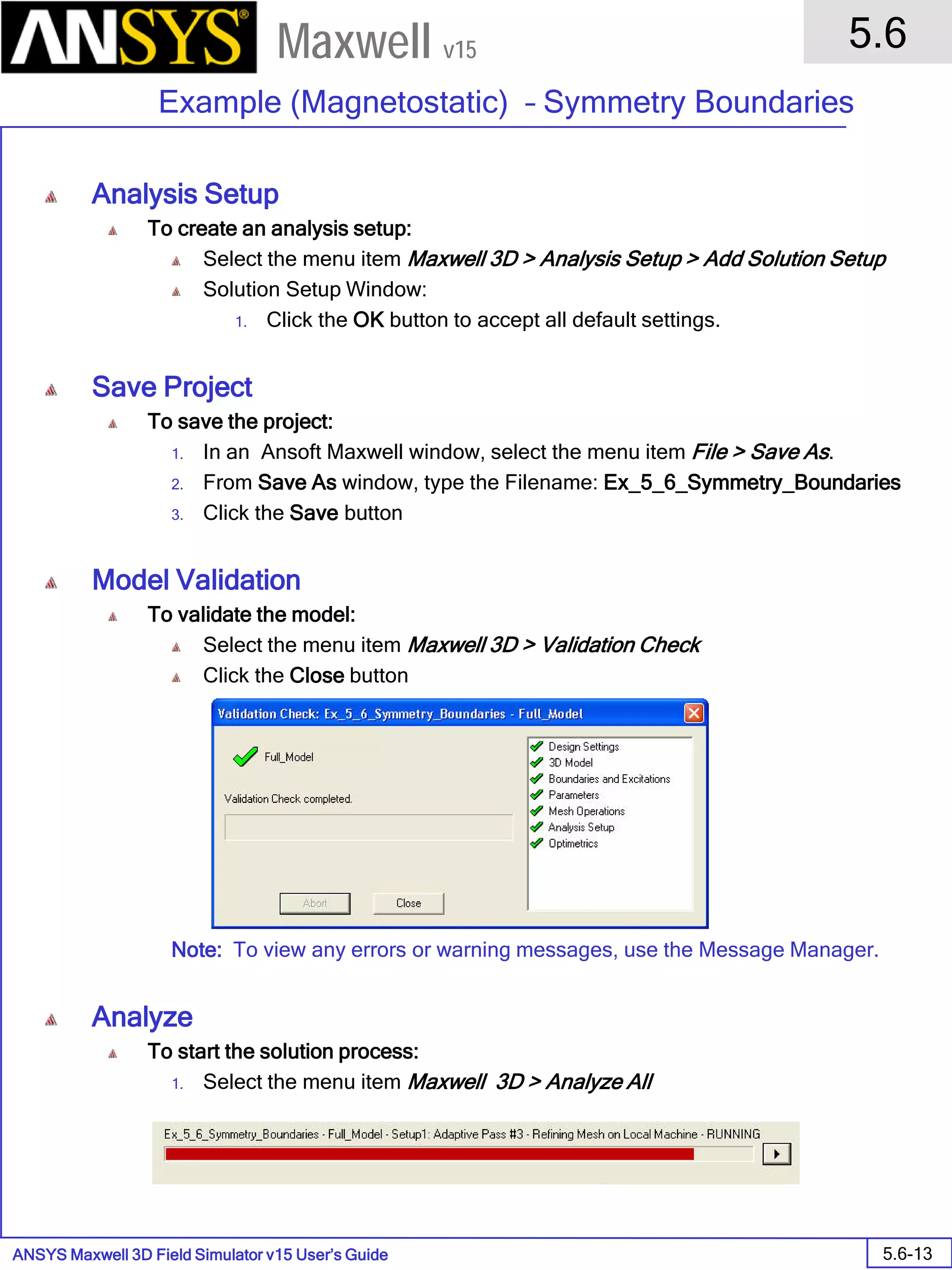
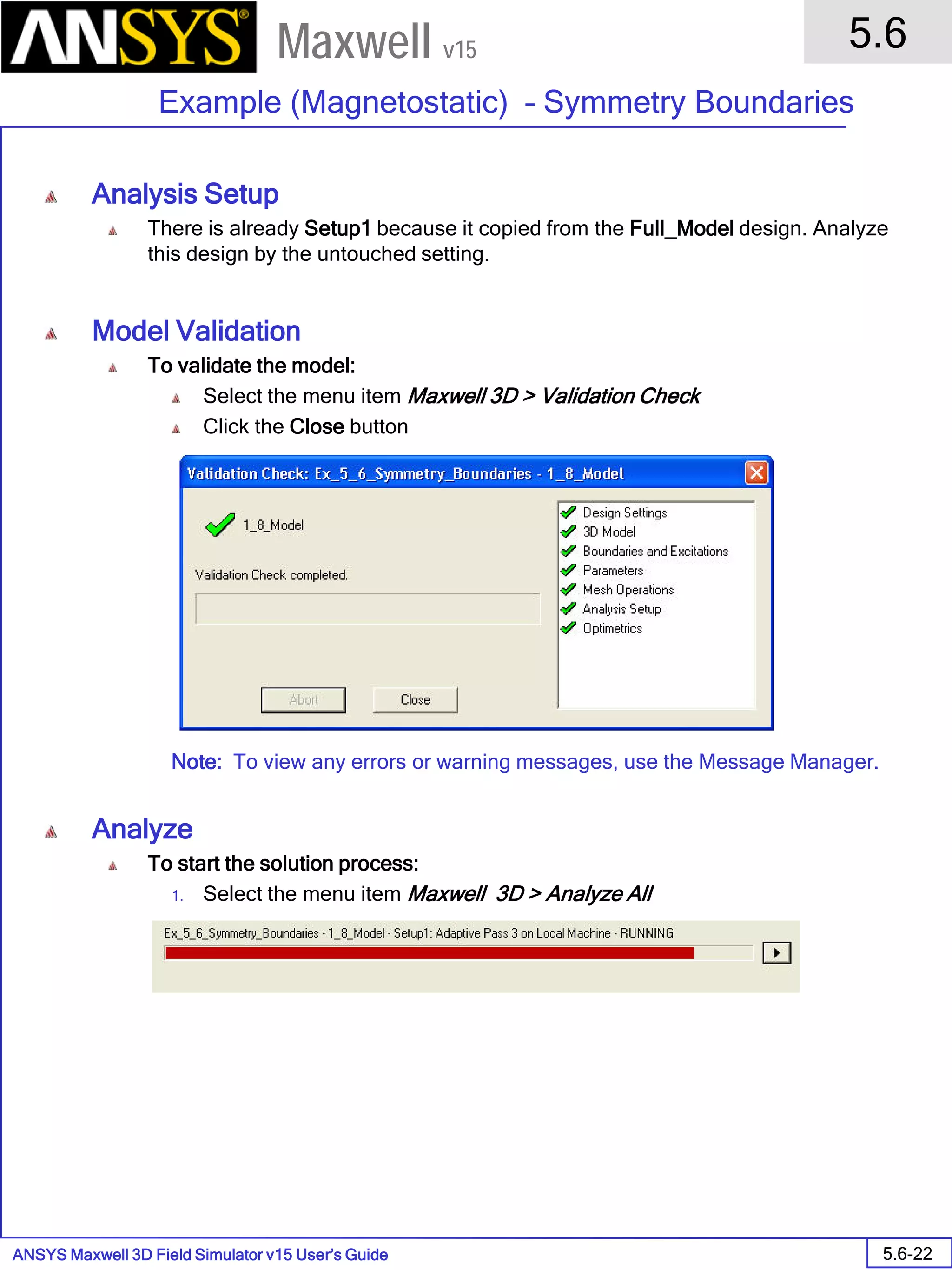
• To validate the model:
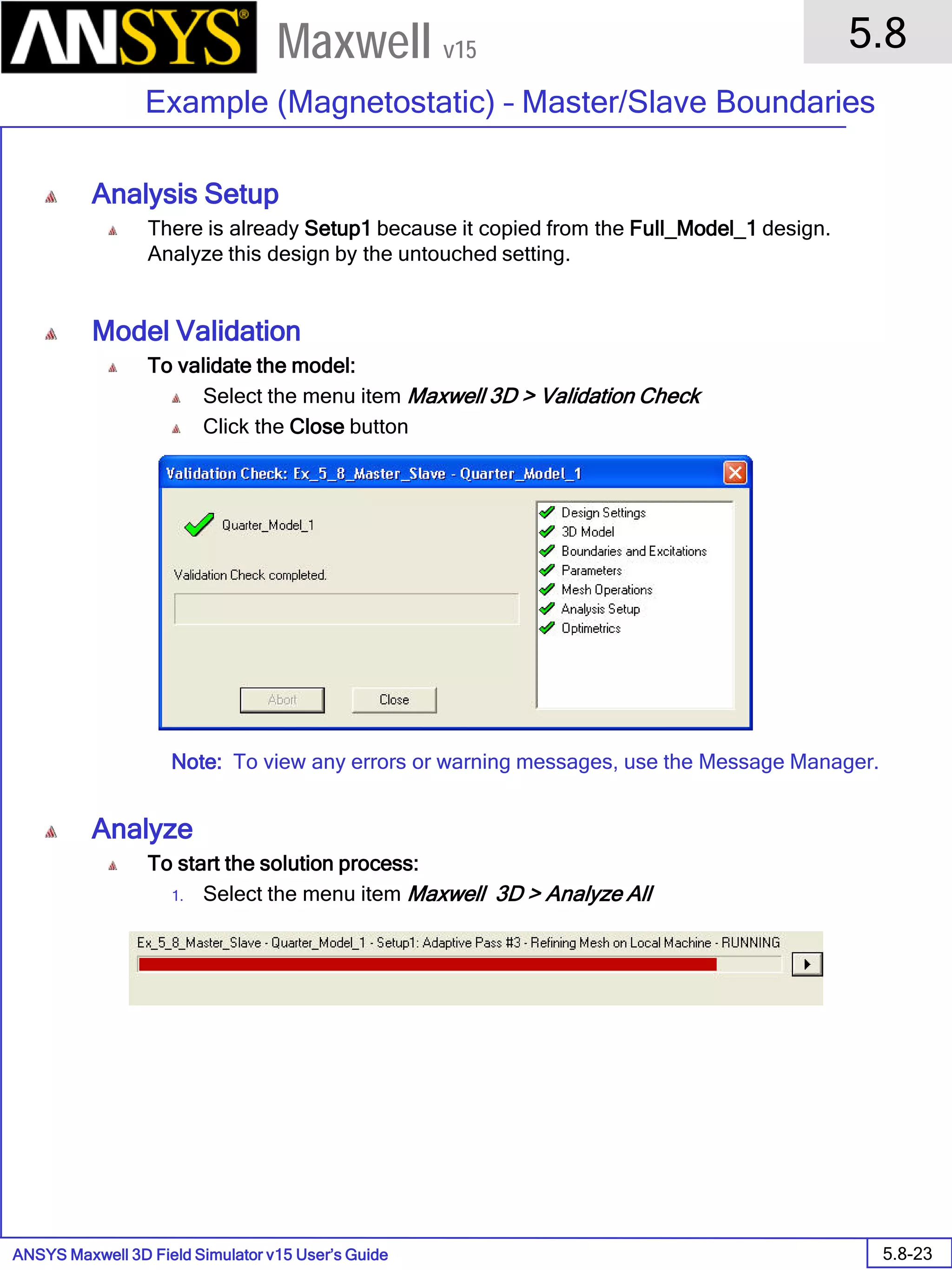
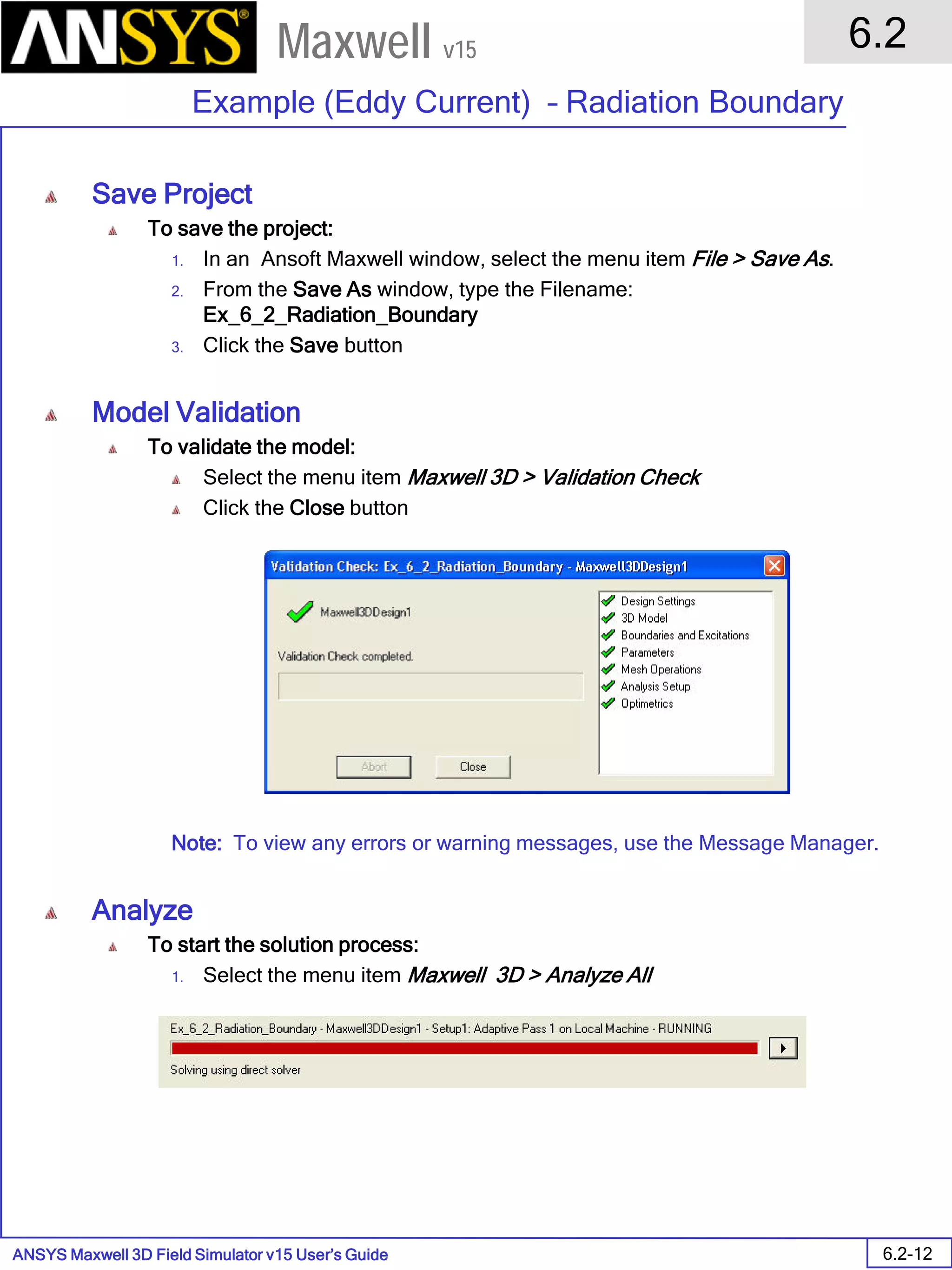
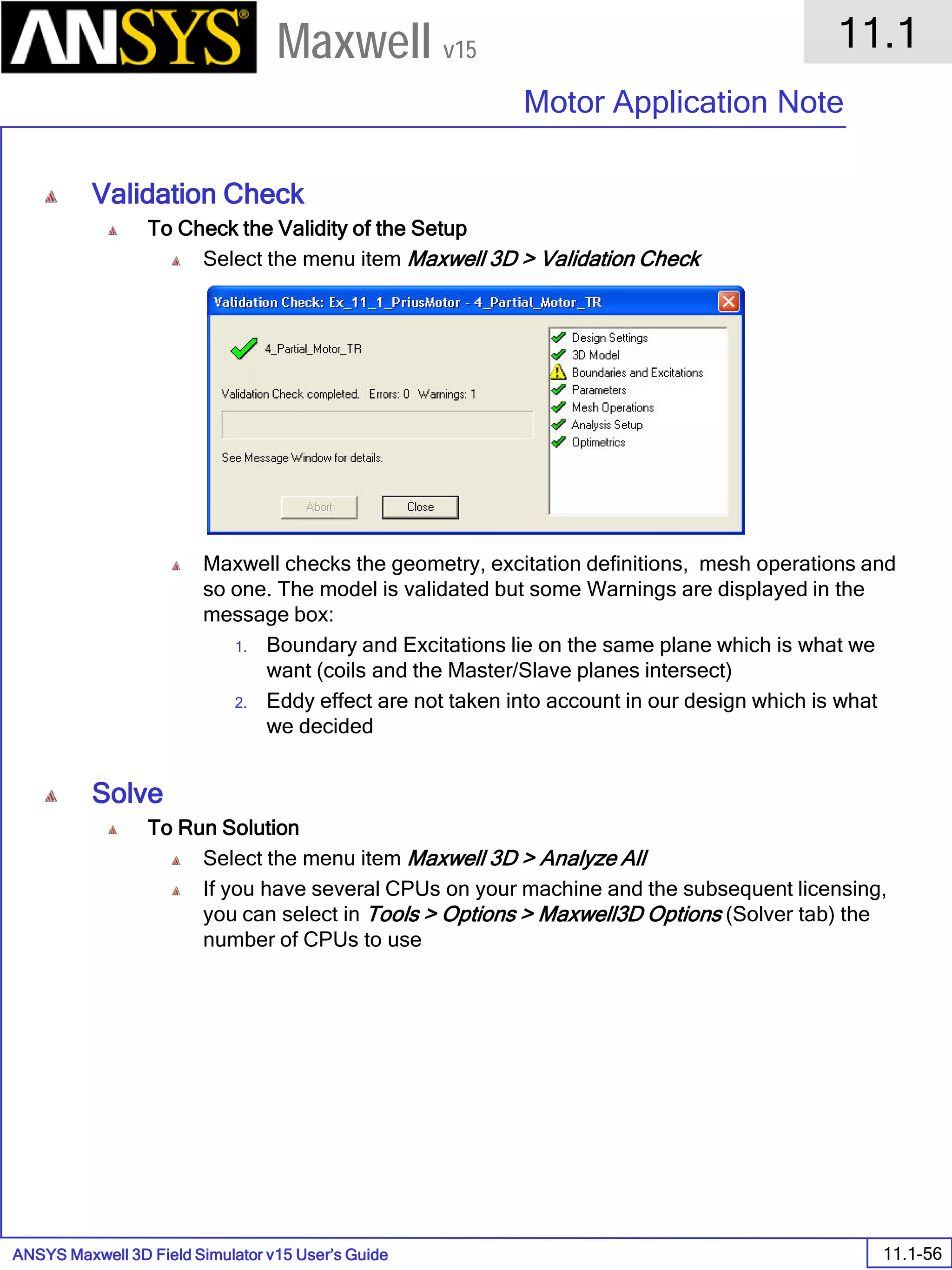
1. Select the menu item Maxwell 3D> Validation Check
2. Click the Close button
• Note: To view any errors or warning messages, use the Message Manager.
• Analyze
• To start the solution process:
1. Select the menu item Maxwell 3D> Analyze All
Validate Analyze All
ANSYS Maxwell Field Simulator v15 – Training Seminar P1-31
Overview
Presentation
1
Maxwell v15
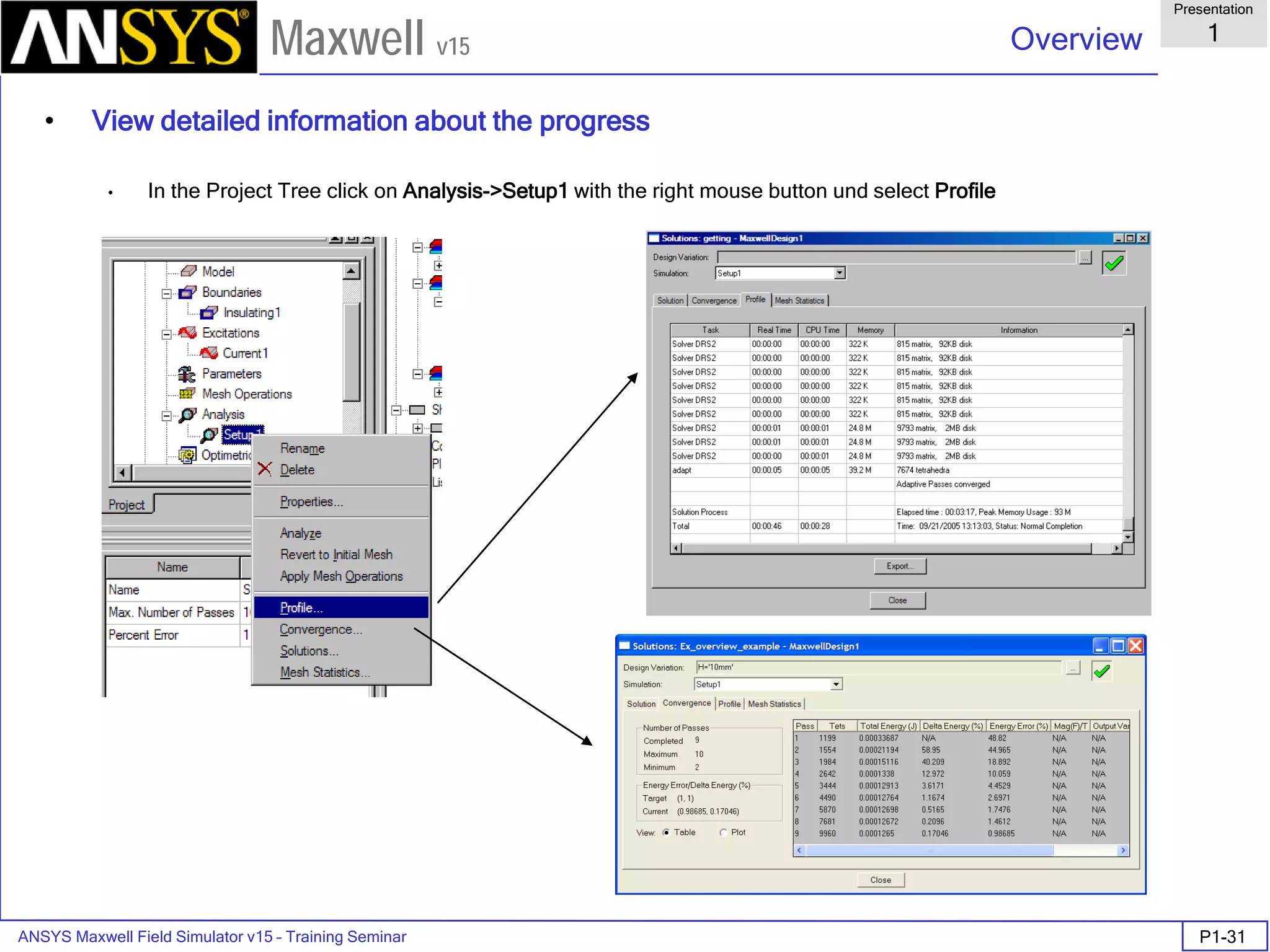
• View detailed information about the progress
• In the Project Tree click on Analysis->Setup1 with the right mouse button und select Profile
ANSYS Maxwell Field Simulator v15 – Training Seminar P1-32
Overview
Presentation
1
Maxwell v15
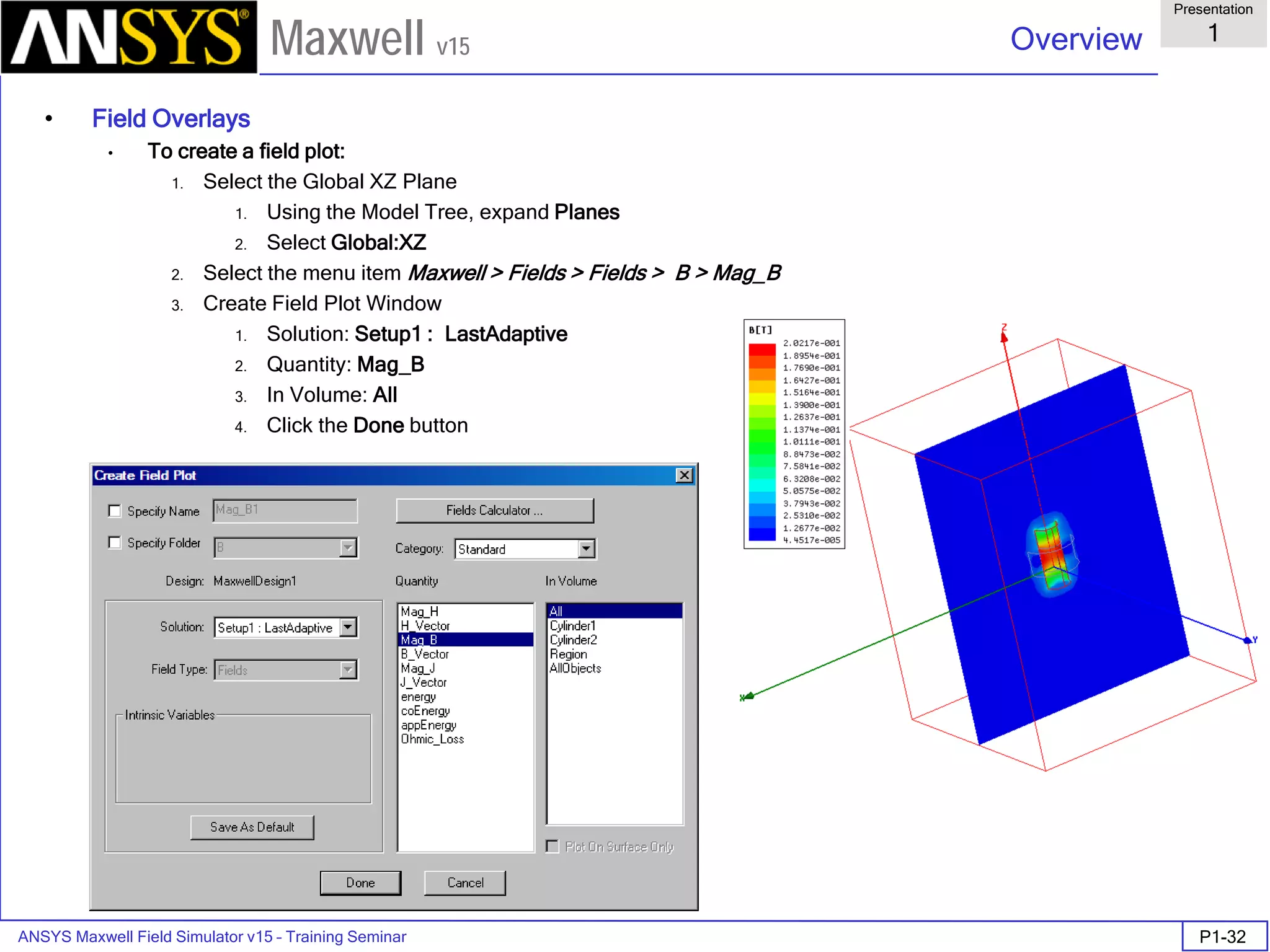
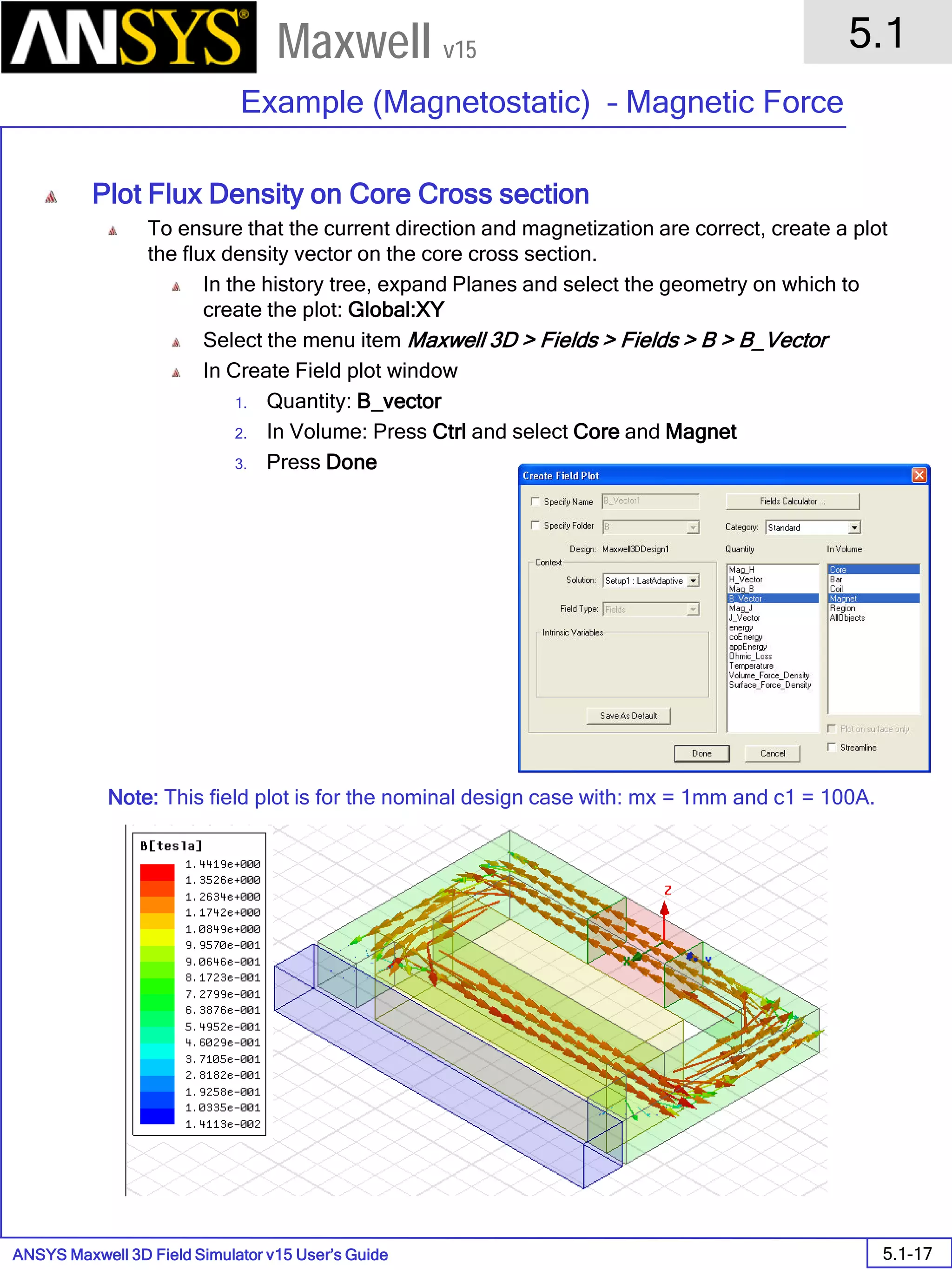
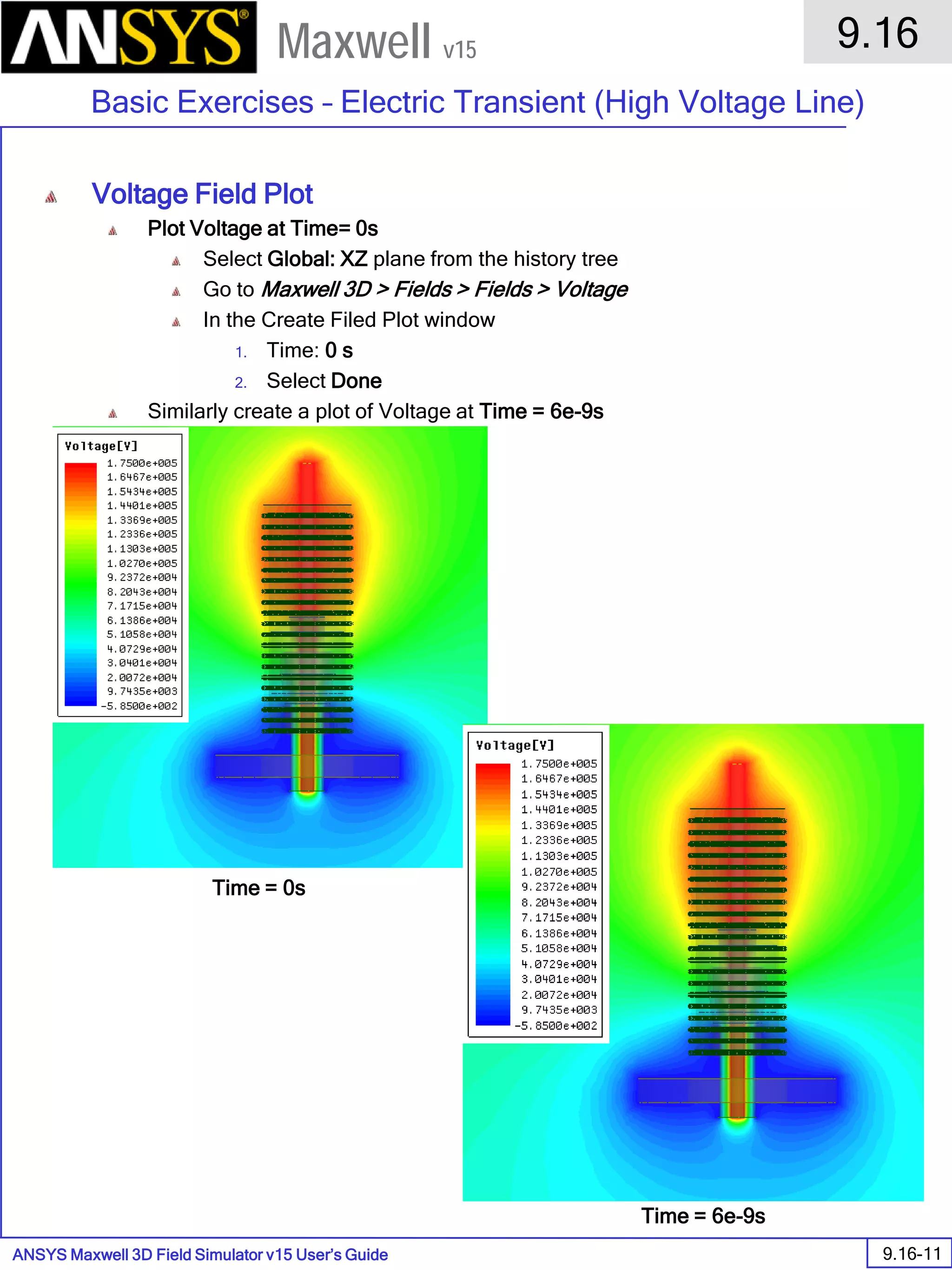
• Field Overlays
• To create a field plot:
1. Select the Global XZ Plane
1. Using the Model Tree, expand Planes
2. Select Global:XZ
2. Select the menu item Maxwell > Fields > Fields > B > Mag_B
3. Create Field Plot Window
1. Solution: Setup1 : LastAdaptive
2. Quantity: Mag_B
3. In Volume: All
4. Click the Done button
ANSYS Maxwell Field Simulator v15 – Training Seminar P1-33
Overview
Presentation
1
Maxwell v15
• Field Overlays
• To create a second field plot of same quantity, but different scale:
1. Select the Global XZ Plane
1. Using the Model Tree, expand Planes
2. Select Global:XZ
2. Select the menu item Maxwell 3D> Fields > Fields > B > Mag_B
3. Create Field Plot Window
1. Specify Folder: B1
2. Solution: Setup1 : LastAdaptive
3. Quantity: Mag_B
4. In Volume: All
5. Click the Done button
ANSYS Maxwell Field Simulator v15 – Training Seminar P1-34
Overview
Presentation
1
Maxwell v15
• To modify a Magnitude field plot:
1. Select the menu item Maxwell 3D> Fields > Modify Plot Attributes
2. Select Plot Folder Window:
1. Select: B
2. Click the OK button
3. B-Field Window:
1. Click the Scale tab
1. Scale: Log
2. Click the Close button
4. Hide the plots by clicking in the project tree and unchecking Plot Visibility
• Mesh Overlay
• To select the objects Core and Coil:
1. Select the menu item Edit > Select > By Name
2. Press and hold the CTRL key and select Core and Coil from the list
3. Click the OK button
• To create a mesh plot:
1. Select the menu item Maxwell 3D> Fields > Plot Mesh
2. Create Mesh Window:
1. Click the Done button
ANSYS Maxwell Field Simulator v15 – Training Seminar P1-35
Overview
Presentation
1
Maxwell v15
• Plot the z-component of B Field along the line
1. Create a line
2. Calculate the z-component of B using the Calculator tool
3. Create report – plot the desired graph
• To create a line
1. Select the menu item Draw > Line. The following window opens:
2. Answer YES to create a non model object and not to destroy the solution.
3. Place the cursor at the top face of the core and let the cursor snap to the center.
4. Click the left mouse button and hold the z button on the keyboard while moving the cursor up. Left click at
some distance from the core and double click left to end the line.
5. Leave the values in the upcoming dialog box and close the dialog by pressing OK.
ANSYS Maxwell Field Simulator v15 – Training Seminar P1-36
Overview
Presentation
1
Maxwell v15
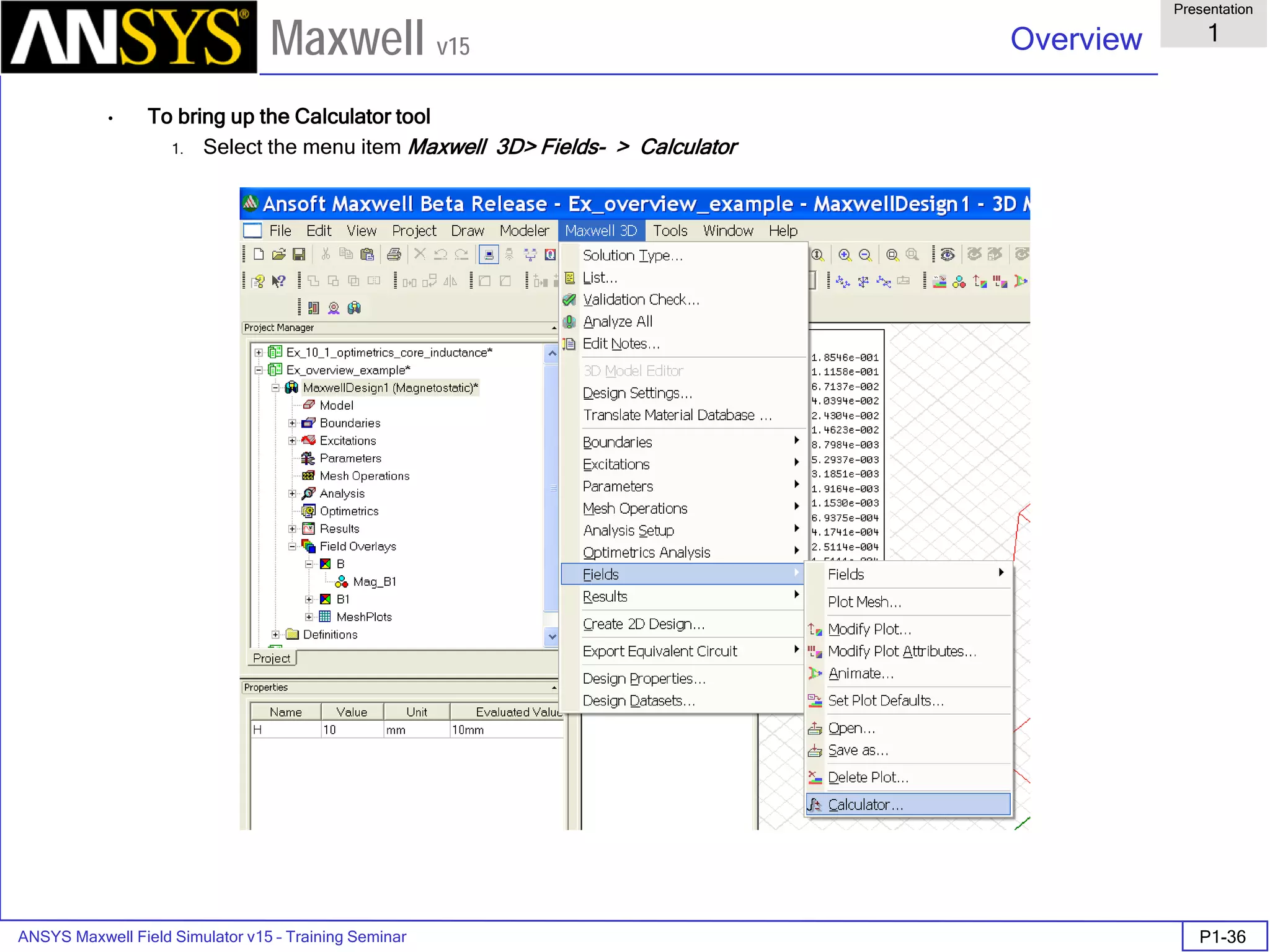
• To bring up the Calculator tool
1. Select the menu item Maxwell 3D> Fields- > Calculator
ANSYS Maxwell Field Simulator v15 – Training Seminar P1-37
Overview
Presentation
1
Maxwell v15
• To calculate the z-component of B field
1. In the Input Column select the Quantity B
2. In the Vector Column select the ScalarZ
component
3. In the General Column select Smooth
4. Press the Add button in the upper
part of the calculator and enter a name that
describes the calculation
- enter Bz for B field in z-direction
5. Click Done to close the calculator
ANSYS Maxwell Field Simulator v15 – Training Seminar P1-38
Overview
Presentation
1
Maxwell v15
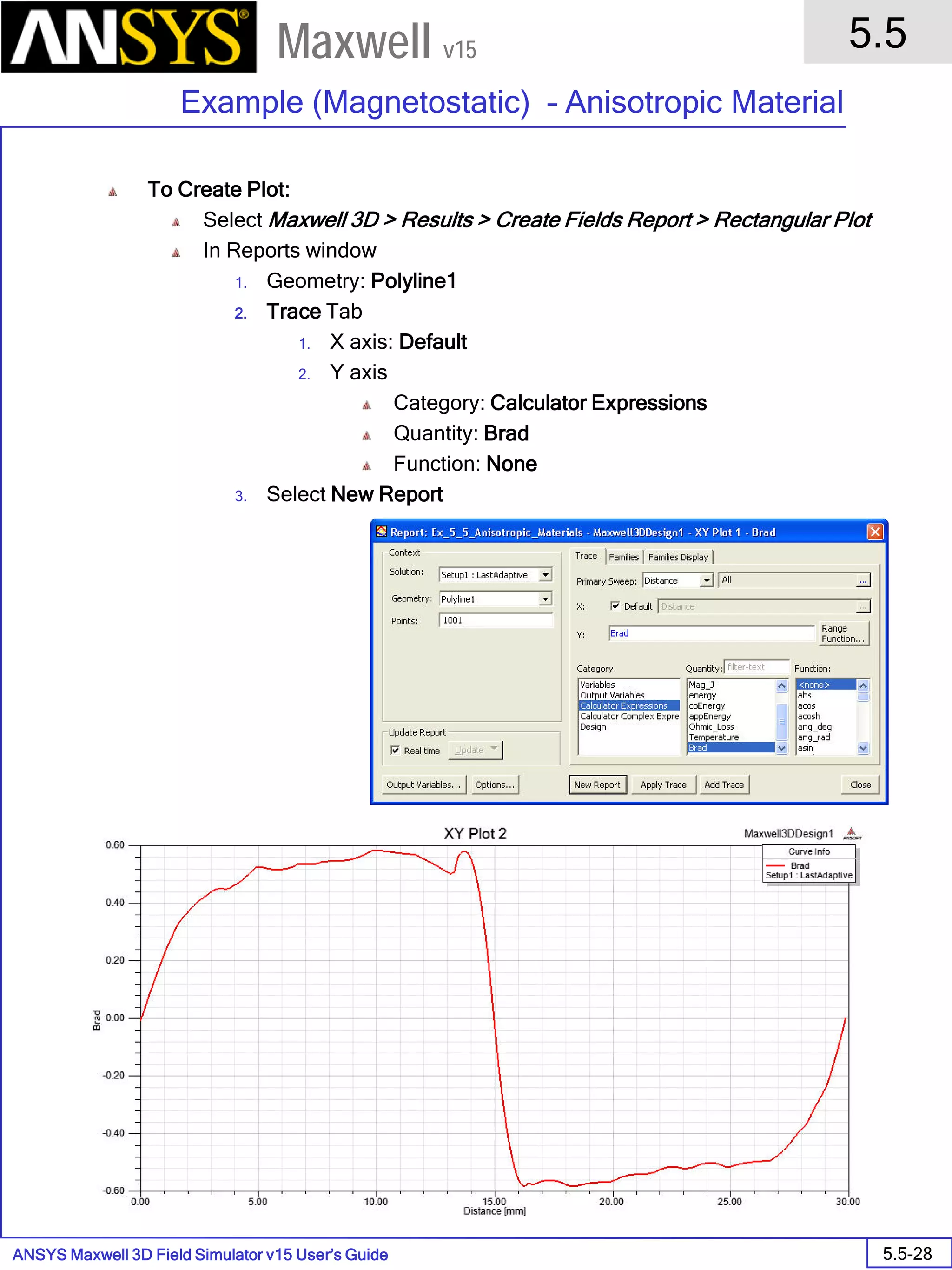
• To create report (plot the desired graph)
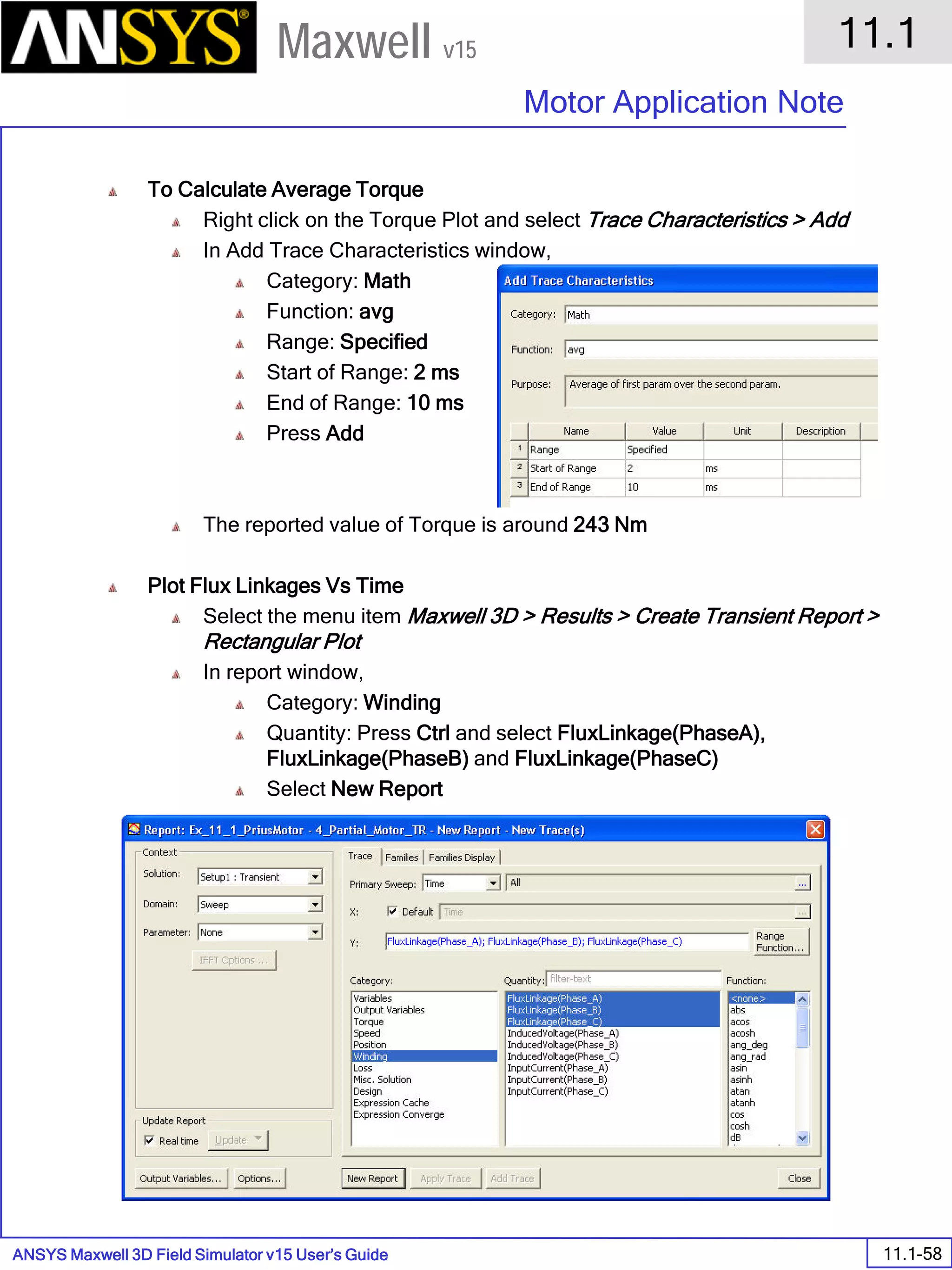
1. Select the menu item Maxwell 3D> Result > Create Report
2. Enter Fields and Rectangular Plot and click the OK button
3. Select the following: Geometry – Polyline1; Category – Calculator Expressions; Quantity – Bz
4. Press the Add Trace to copy your selection to the upper part of the window and click on the Done button
ANSYS Maxwell Field Simulator v15 – Training Seminar P1-39
Overview
Presentation
1
Maxwell v15
0.00 5.00 10.00 15.00 20.00
Distance [mm]
0.000
0.005
0.010
0.015
0.020
0.025
0.030
Bz
Ansoft Corporation MaxwellDesign1XY Plot 1
Curve Info
Bz
Setup1 : LastAdaptive
ANSYS Maxwell Field Simulator v15 – Training Seminar P1-40
Overview
Presentation
1
Maxwell v15
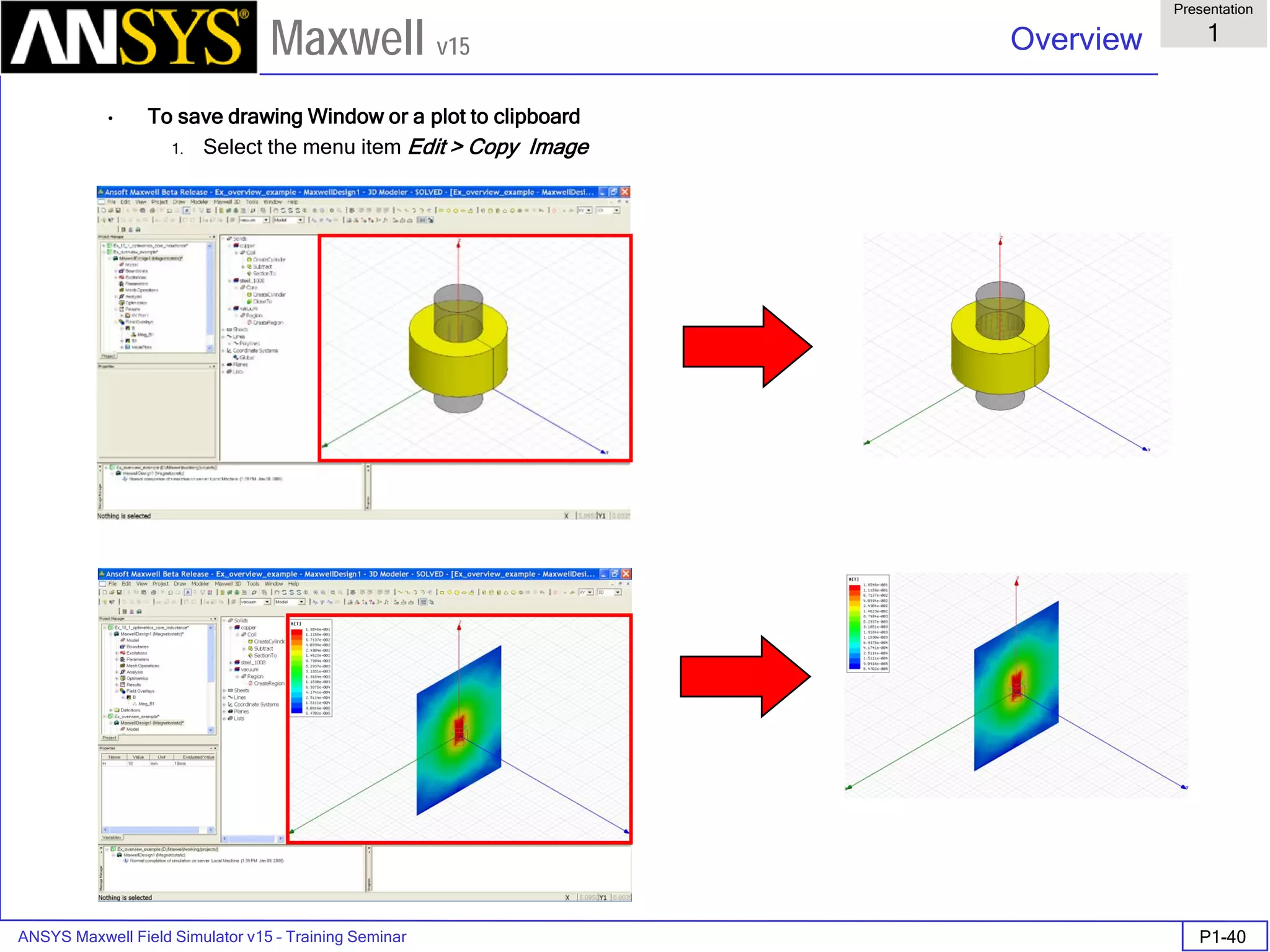
• To save drawing Window or a plot to clipboard
1. Select the menu item Edit > Copy Image
ANSYS Maxwell Field Simulator v15 – Training Seminar P1-41
Overview
Presentation
1
Maxwell v15
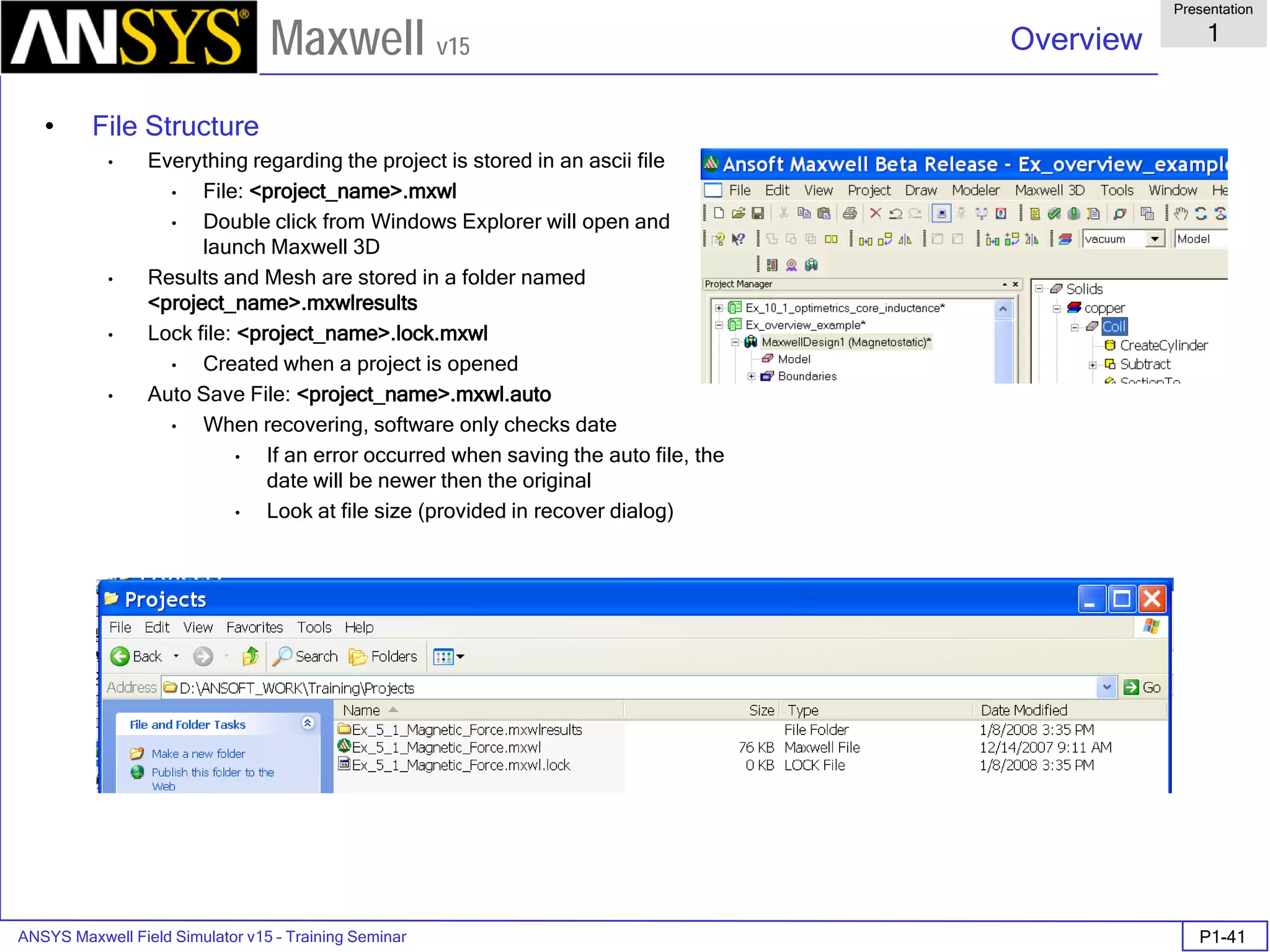
• File Structure
• Everything regarding the project is stored in an ascii file
• File: <project_name>.mxwl
• Double click from Windows Explorer will open and
launch Maxwell 3D
• Results and Mesh are stored in a folder named
<project_name>.mxwlresults
• Lock file: <project_name>.lock.mxwl
• Created when a project is opened
• Auto Save File: <project_name>.mxwl.auto
• When recovering, software only checks date
• If an error occurred when saving the auto file, the
date will be newer then the original
• Look at file size (provided in recover dialog)
ANSYS Maxwell Field Simulator v15 – Training Seminar P1-42
Overview
Presentation
1
Maxwell v15
• Scripts
• Default Script recorded in Maxwell
• Visual Basic Script
• Remote Solve (Windows Only)
• Tools > Options > General Options > Analysis Options
ANSYS Maxwell Field Simulator v15 – Training Seminar P1-43
Overview
Presentation
1
Maxwell v15
• The Process
Design
Solution Type
2. Boundaries
2. Excitations
3. Mesh
Operations
2. Analysis Setup
Solution Setup
Frequency Sweep
1. Parametric Model
Geometry/Materials
4. Results
2D Reports
Fields
Mesh
Refinement
Solve
Update
Converged
Analyze
Finished
2. Solve Loop
NO
YES
ANSYS Maxwell Field Simulator v15 – Training Seminar P1-44
Overview
Presentation
1
Maxwell v15
• Menu Structure
• Draw – Primitives
• Modeler – Settings and Boolean Operations
• Edit – Copy/Paste, Arrange, Duplicate
• Maxwell 3D– Boundaries, Excitations, Mesh Operations, Analysis Setup, Results
Note:
• Edit Copy/Paste is a dumb copy for only dimensions and
materials, but not the history
• Edit > Duplicate clones objects include dimensions,
materials and the creation history with all variables
ANSYS Maxwell Field Simulator v15 – Training Seminar P1-45
Overview
Presentation
1
Maxwell v15
• Modeler – Model Tree
• Select menu item Modeler > Group by Material
Grouped by Material Object View
Material
Object
Object Command History
ANSYS Maxwell Field Simulator v15 – Training Seminar P1-46
Overview
Presentation
1
Maxwell v15
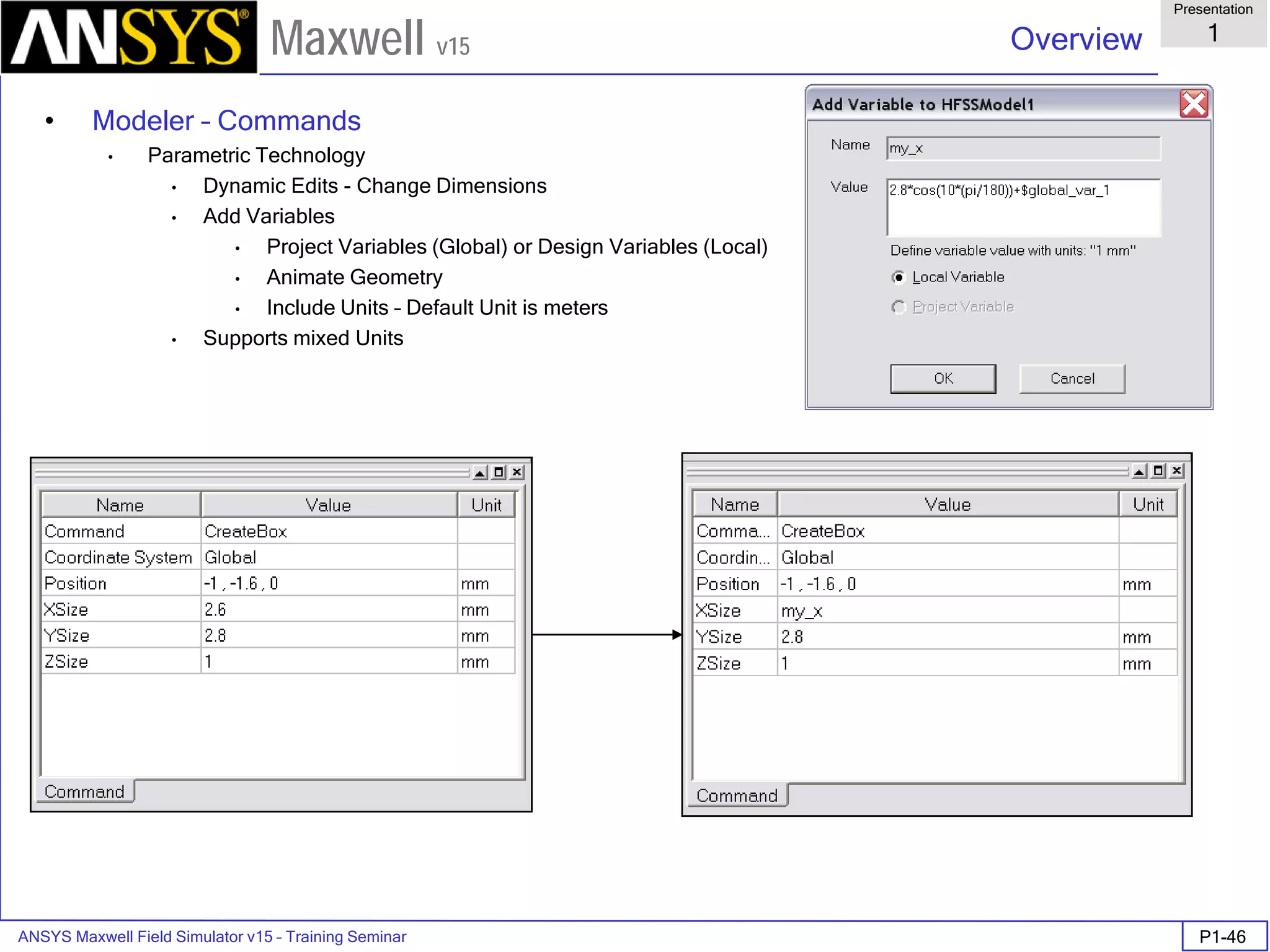
• Modeler – Commands
• Parametric Technology
• Dynamic Edits - Change Dimensions
• Add Variables
• Project Variables (Global) or Design Variables (Local)
• Animate Geometry
• Include Units – Default Unit is meters
• Supports mixed Units
ANSYS Maxwell Field Simulator v15 – Training Seminar P1-47
Overview
Presentation
1
Maxwell v15
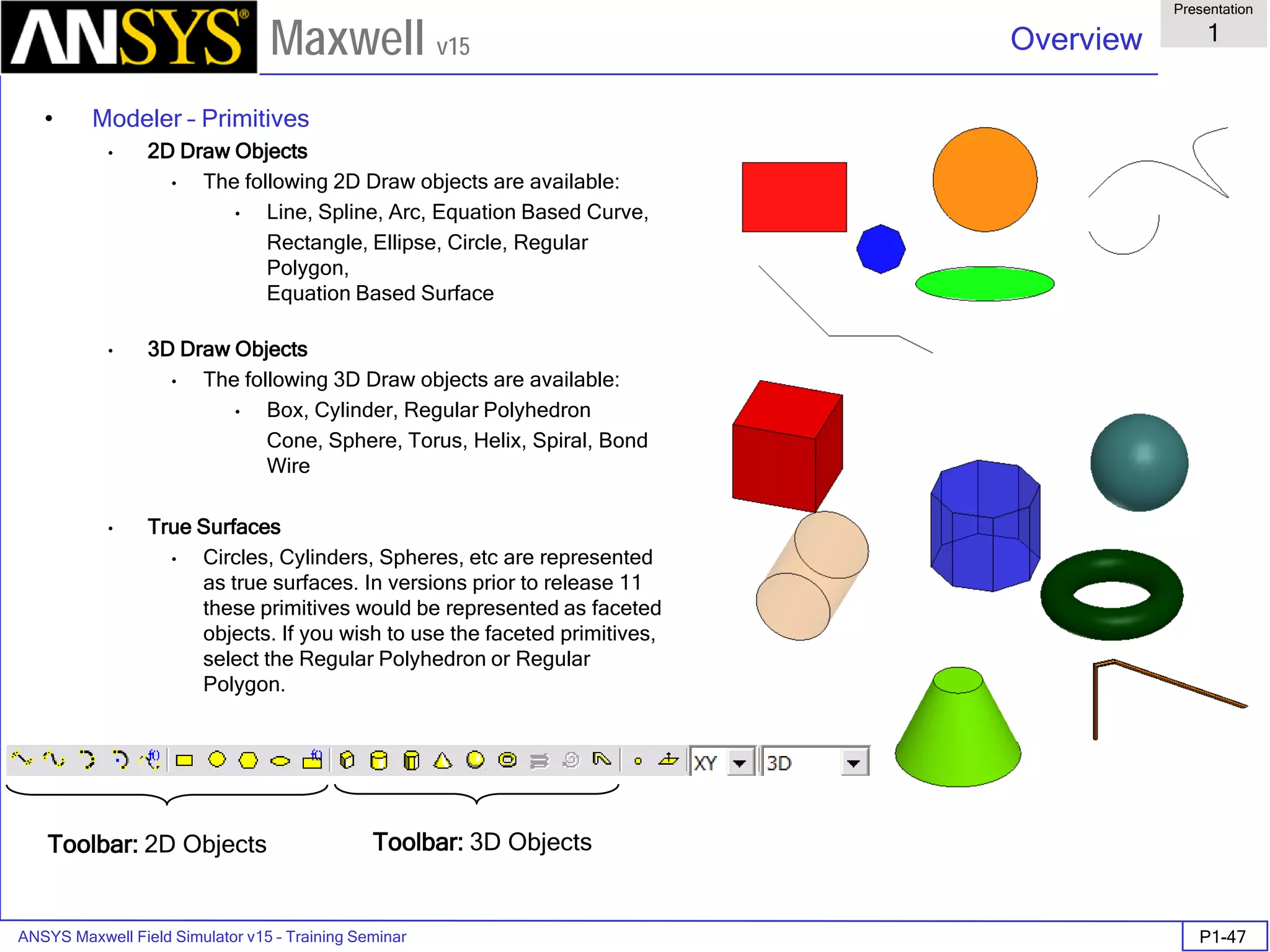
• Modeler – Primitives
• 2D Draw Objects
• The following 2D Draw objects are available:
• Line, Spline, Arc, Equation Based Curve,
Rectangle, Ellipse, Circle, Regular
Polygon,
Equation Based Surface
• 3D Draw Objects
• The following 3D Draw objects are available:
• Box, Cylinder, Regular Polyhedron
Cone, Sphere, Torus, Helix, Spiral, Bond
Wire
• True Surfaces
• Circles, Cylinders, Spheres, etc are represented
as true surfaces. In versions prior to release 11
these primitives would be represented as faceted
objects. If you wish to use the faceted primitives,
select the Regular Polyhedron or Regular
Polygon.
Toolbar: 2D Objects Toolbar: 3D Objects
ANSYS Maxwell Field Simulator v15 – Training Seminar P1-48
Overview
Presentation
1
Maxwell v15
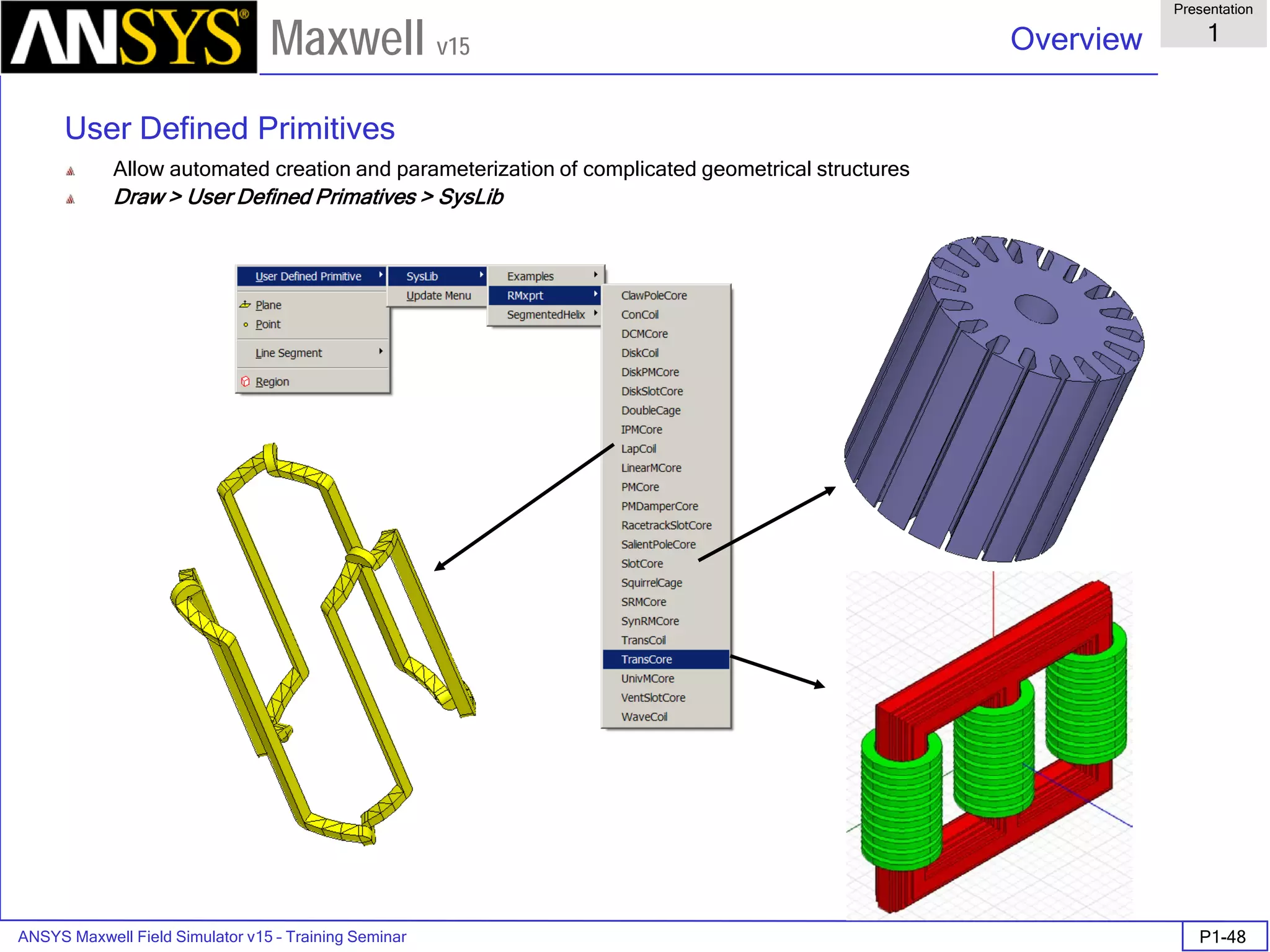
User Defined Primitives
Allow automated creation and parameterization of complicated geometrical structures
Draw > User Defined Primatives > SysLib
ANSYS Maxwell Field Simulator v15 – Training Seminar P1-49
Overview
Presentation
1
Maxwell v15
• Modeler – Boolean Operations/Transformations
• Modeler > Boolean >
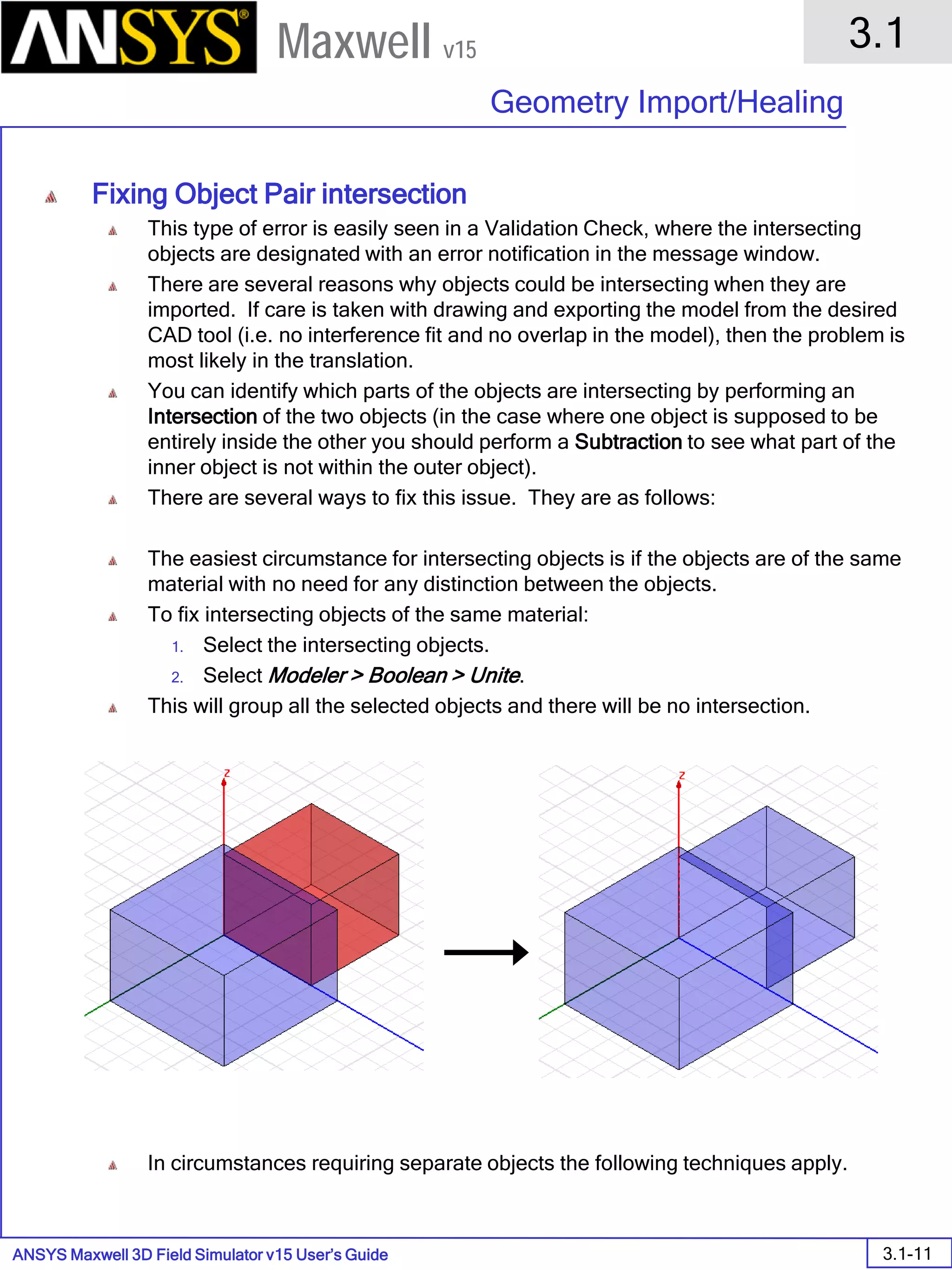
• Unite – combine multiple primitives
• Unite disjoint objects (Separate Bodies to separate)
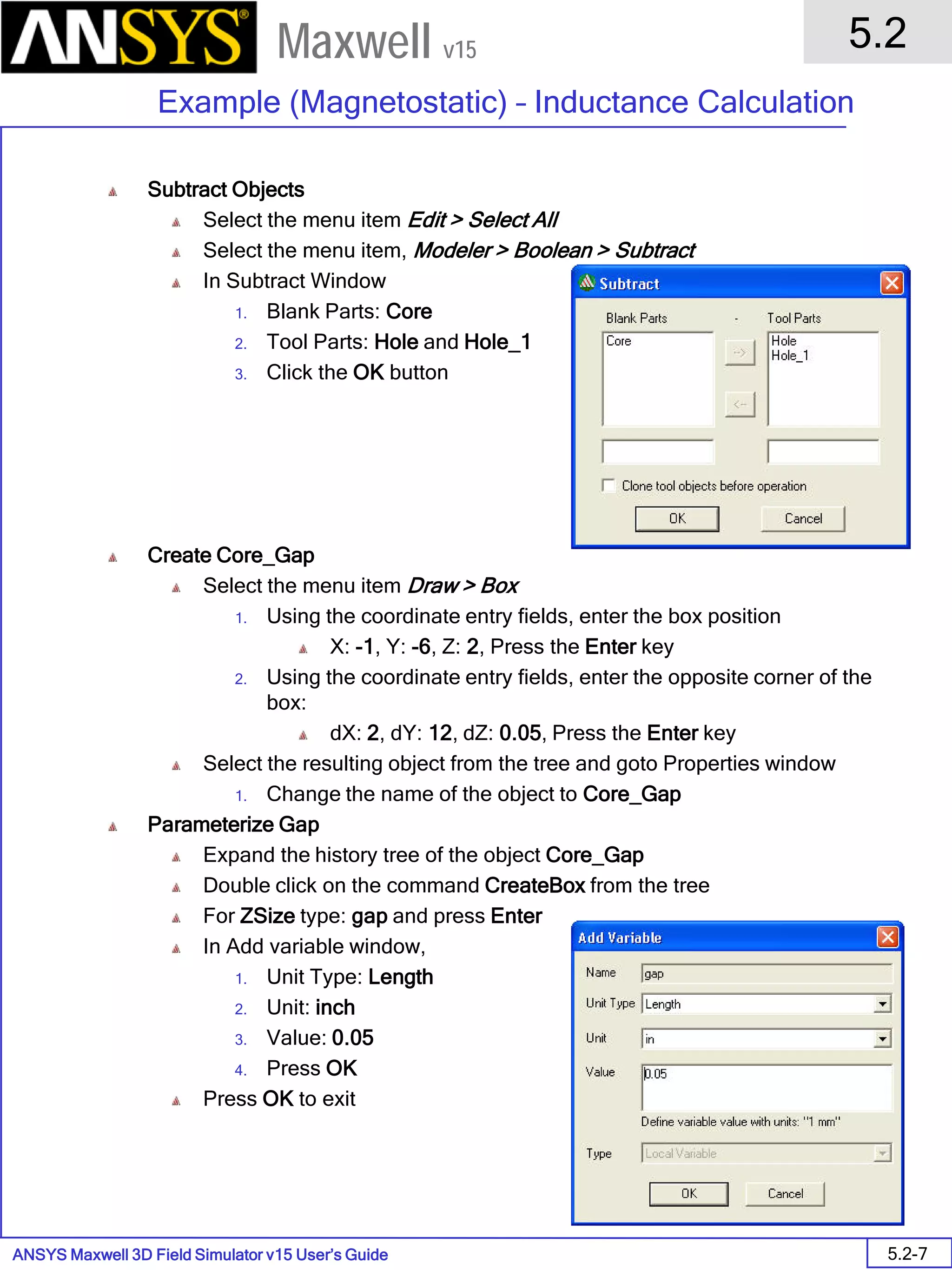
• Subtract – remove part of a primitive from another
• Intersect– keep only the parts of primitives that overlap
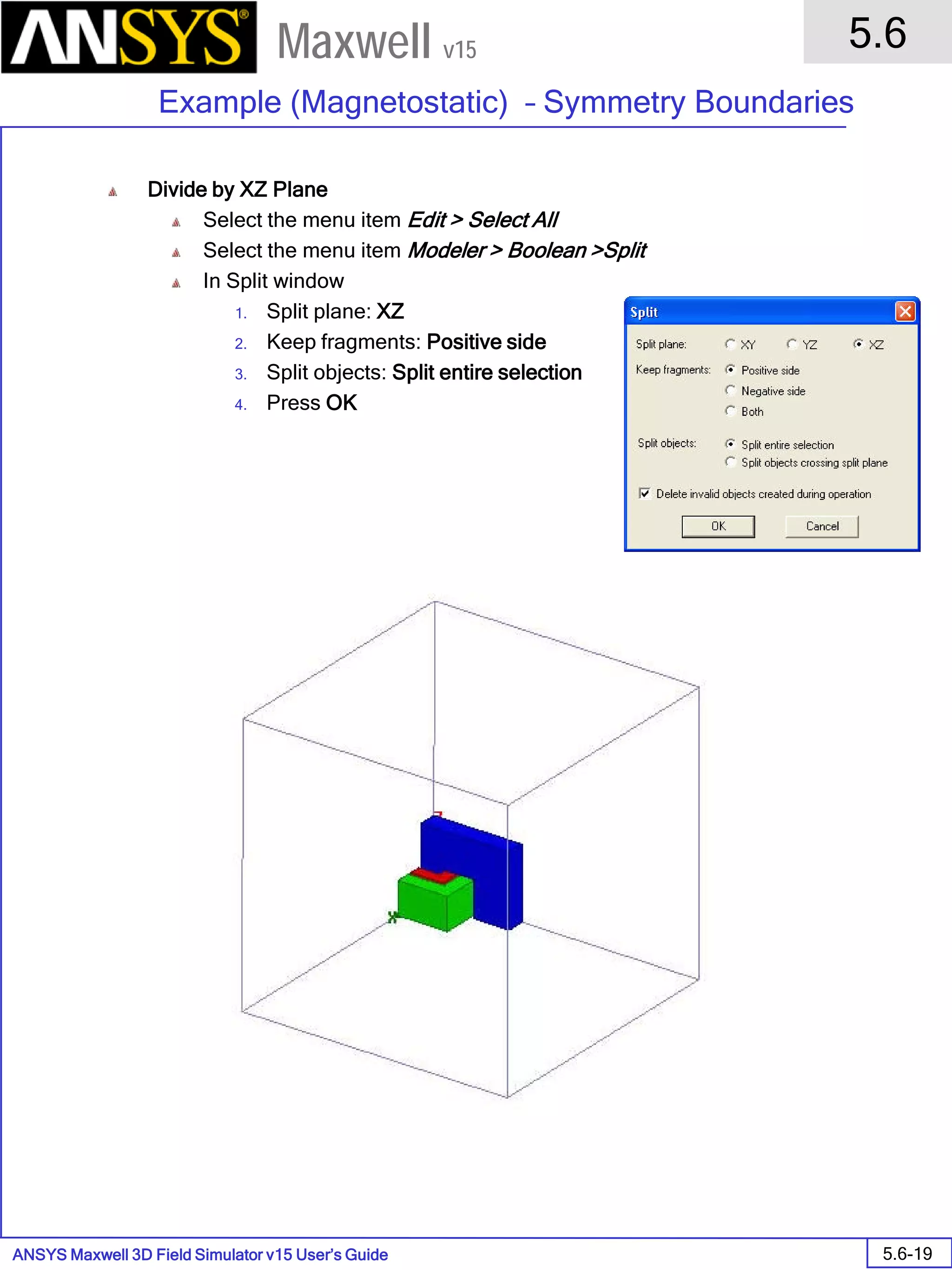
• Split – break primitives into multiple parts along a plane (XY, YZ, XZ)
• Split Crossing Objects – splits objects along a plane (XY, YZ, XZ) only where they intersect
• Separate Bodies – separates objects which are united but not physically connected into individual
objects
• Modeler > Surfaces > Move Faces – Resize or Reposition an objects face along a normal or vector.
• Edit > Arrange >
• Move – Translates the structure along a vector
• Rotate – Rotates the shape around a coordinate axis by an angle
• Mirror – Mirrors the shape around a specified plane
• Offset – Performs a uniform scale in x, y, and z.
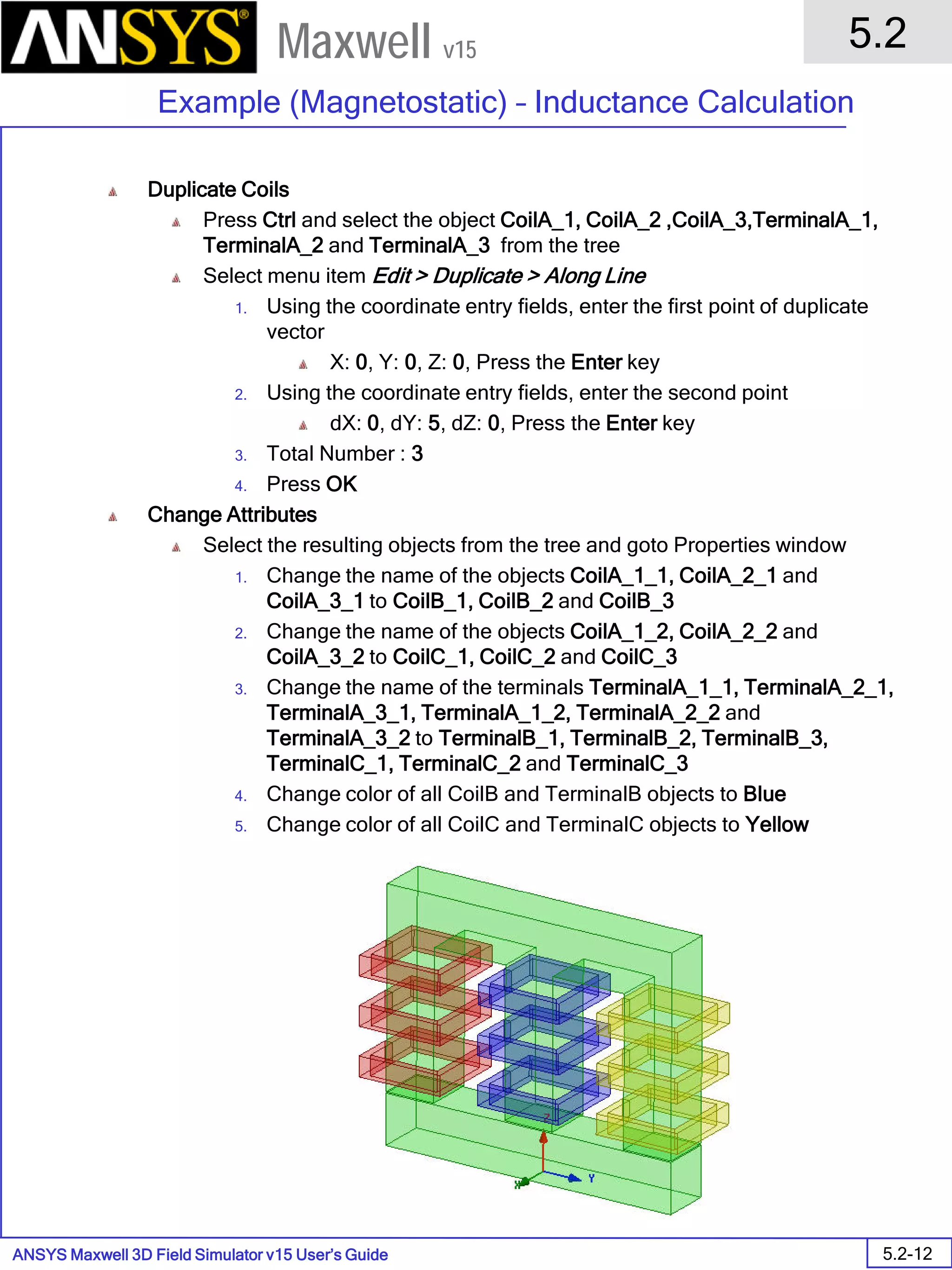
• Edit > Duplicate >
• Along Line – Create multiple copies of an object along a vector
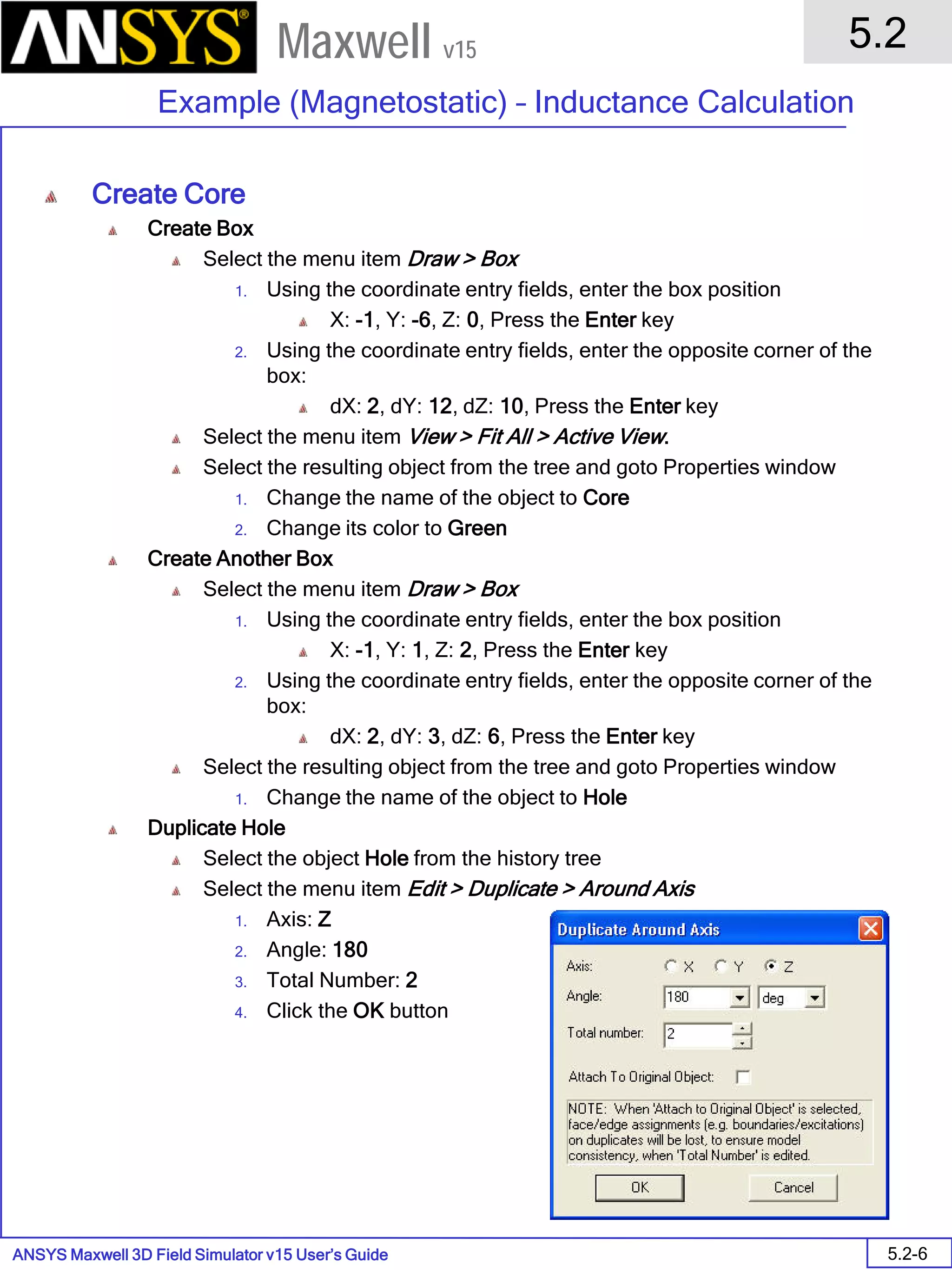
• Around Axis – Create multiple copies of an object rotated by a fixed angle around the x, y, or z axis
• Mirror - Mirrors the shape around a specified plane and creates a duplicate
• Edit > Scale – Allows non-uniform scaling in the x, y, or z direction
Toolbar: Boolean
Toolbar: Arrange
Toolbar: Duplicate
ANSYS Maxwell Field Simulator v15 – Training Seminar P1-50
Overview
Presentation
1
Maxwell v15
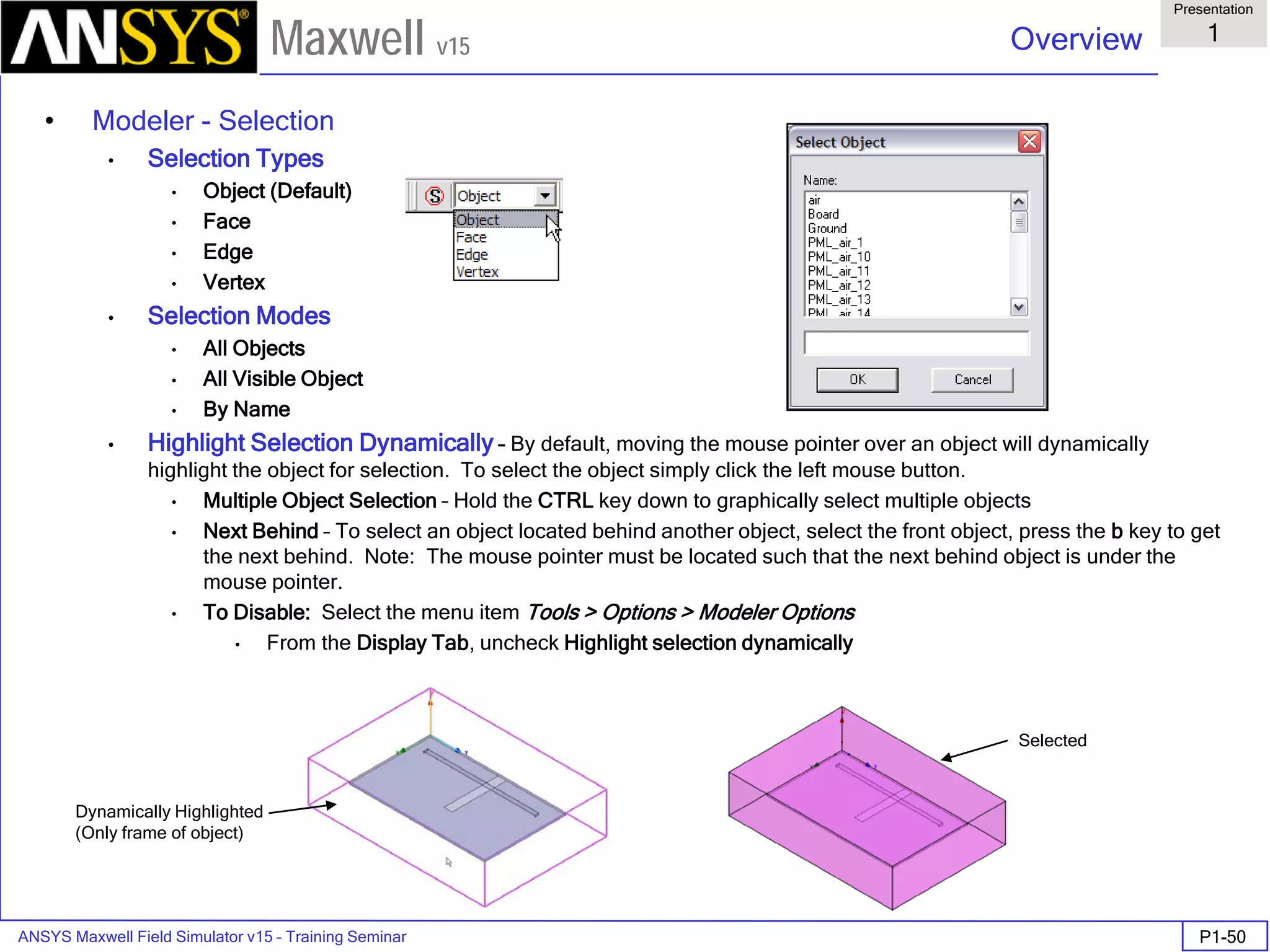
• Modeler - Selection
• Selection Types
• Object (Default)
• Face
• Edge
• Vertex
• Selection Modes
• All Objects
• All Visible Object
• By Name
• Highlight Selection Dynamically – By default, moving the mouse pointer over an object will dynamically
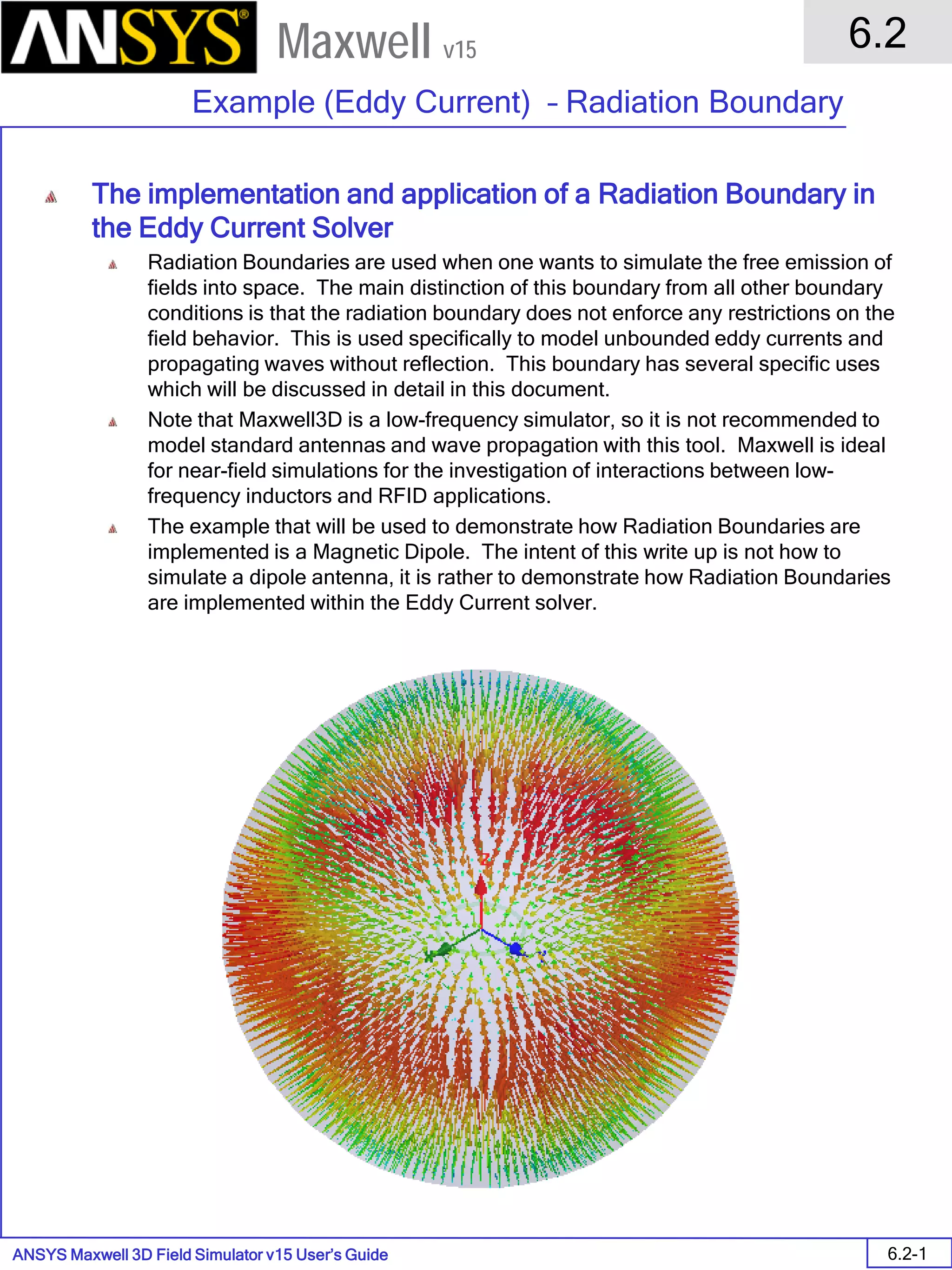
highlight the object for selection. To select the object simply click the left mouse button.
• Multiple Object Selection – Hold the CTRL key down to graphically select multiple objects
• Next Behind – To select an object located behind another object, select the front object, press the b key to get
the next behind. Note: The mouse pointer must be located such that the next behind object is under the
mouse pointer.
• To Disable: Select the menu item Tools > Options > Modeler Options
• From the Display Tab, uncheck Highlight selection dynamically
Dynamically Highlighted
(Only frame of object)
Selected
ANSYS Maxwell Field Simulator v15 – Training Seminar P1-51
Overview
Presentation
1
Maxwell v15
• Modeler – Moving Around
Step 1: Start Point Step 2: Hold X key (to only allow motion in X-
direction) and select vertex point
Step 3: CTRL+Enter Keys (sets a temporary
local reference)
Step 4: Hold Z key and set height
Edge Center Snap
Toolbar: Snap Mode
ANSYS Maxwell Field Simulator v15 – Training Seminar P1-52
Overview
Presentation
1
Maxwell v15
• Modeler – Coordinate Systems
• Can be Parameterized
• Working Coordinate System
• Currently selected CS. This can be a local or global CS
• Global CS
• The default fixed coordinate system
• Relative CS
• User defined local coordinate system.
• Offset
• Rotated
• Both
• Face CS (setting available to automatically switch to face coordinate system in the Modeler Options)
Step 1: Select Face Step 2: Select Origin
Step 3: Set X-Axis New Working CS
Cone created with Face CS
Change Box Size and Cone is
automatically positioned with
the top face of the box
Toolbar: C oordinate System
ANSYS Maxwell Field Simulator v15 – Training Seminar P1-53
Overview
Presentation
1
Maxwell v15
• Measure
• Modeler > Measure >
• Position – Points and Distance
• Length – Edge Length
• Area – Surface Area
• Volume – Object Volume
Position Points
ANSYS Maxwell Field Simulator v15 – Training Seminar P1-54
Overview
Presentation
1
Maxwell v15
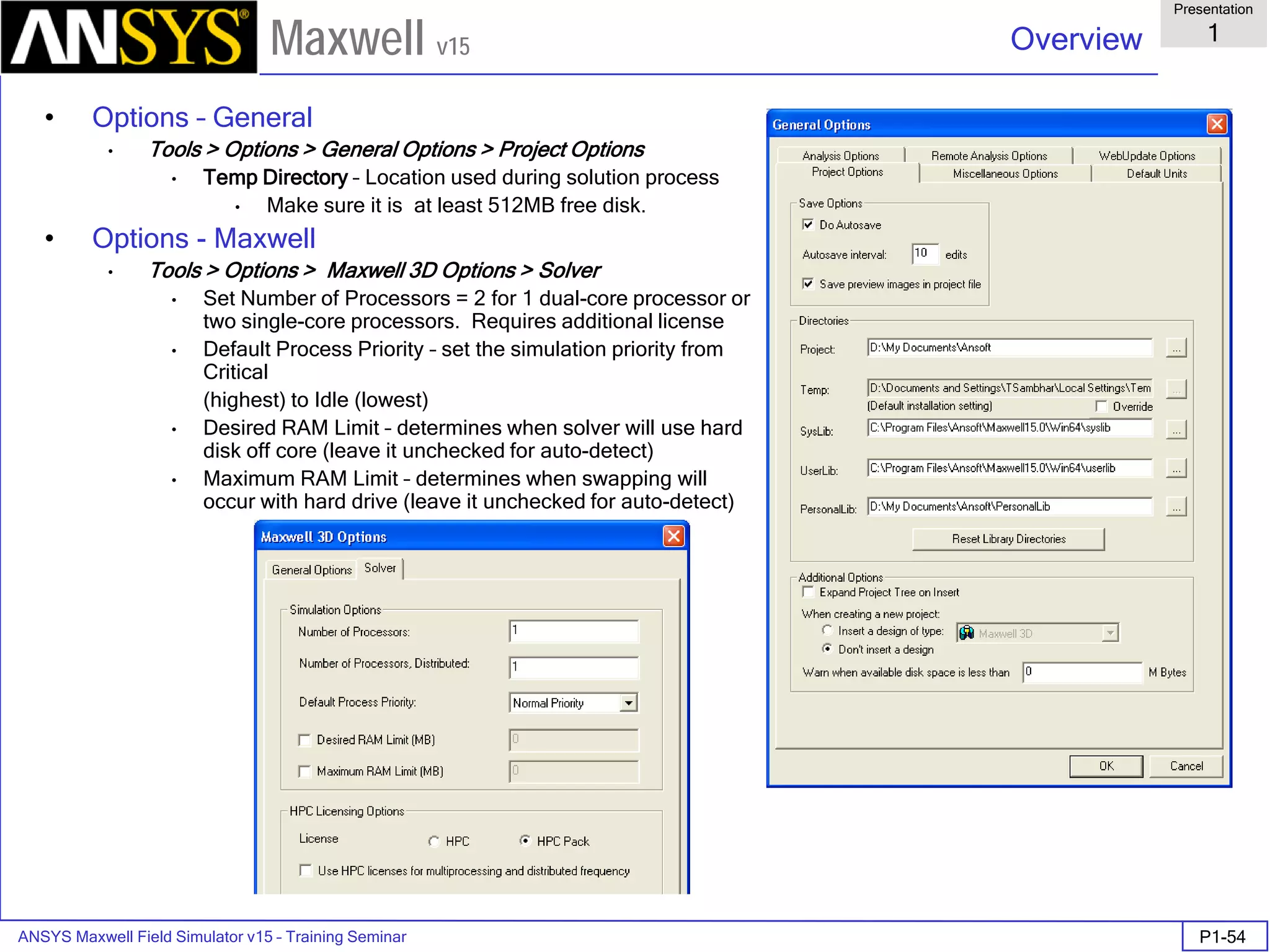
• Options – General
• Tools > Options > General Options > Project Options
• Temp Directory – Location used during solution process
• Make sure it is at least 512MB free disk.
• Options - Maxwell
• Tools > Options > Maxwell 3D Options > Solver
• Set Number of Processors = 2 for 1 dual-core processor or
two single-core processors. Requires additional license
• Default Process Priority – set the simulation priority from
Critical
(highest) to Idle (lowest)
• Desired RAM Limit – determines when solver will use hard
disk off core (leave it unchecked for auto-detect)
• Maximum RAM Limit – determines when swapping will
occur with hard drive (leave it unchecked for auto-detect)
ANSYS Maxwell Field Simulator v15 – Training Seminar P1-55
Overview
Presentation
1
Maxwell v15
• Options – 3D Modeler Options
• Tools > Options > Modeler Options > Drawing for Point and Dialog Entry Modes
• Can enter in new dimensions using either Point (mouse) or Dialog entry mode
• Tools > Options > Modeler Options > Display tab to Visualize history of objects
• Visualization is seen by clicking on primatives in the history tree
Typical
“Dialog” entry
mode window
ANSYS Maxwell Field Simulator v15 – Training Seminar P1-56
Overview
Presentation
1
Maxwell v15
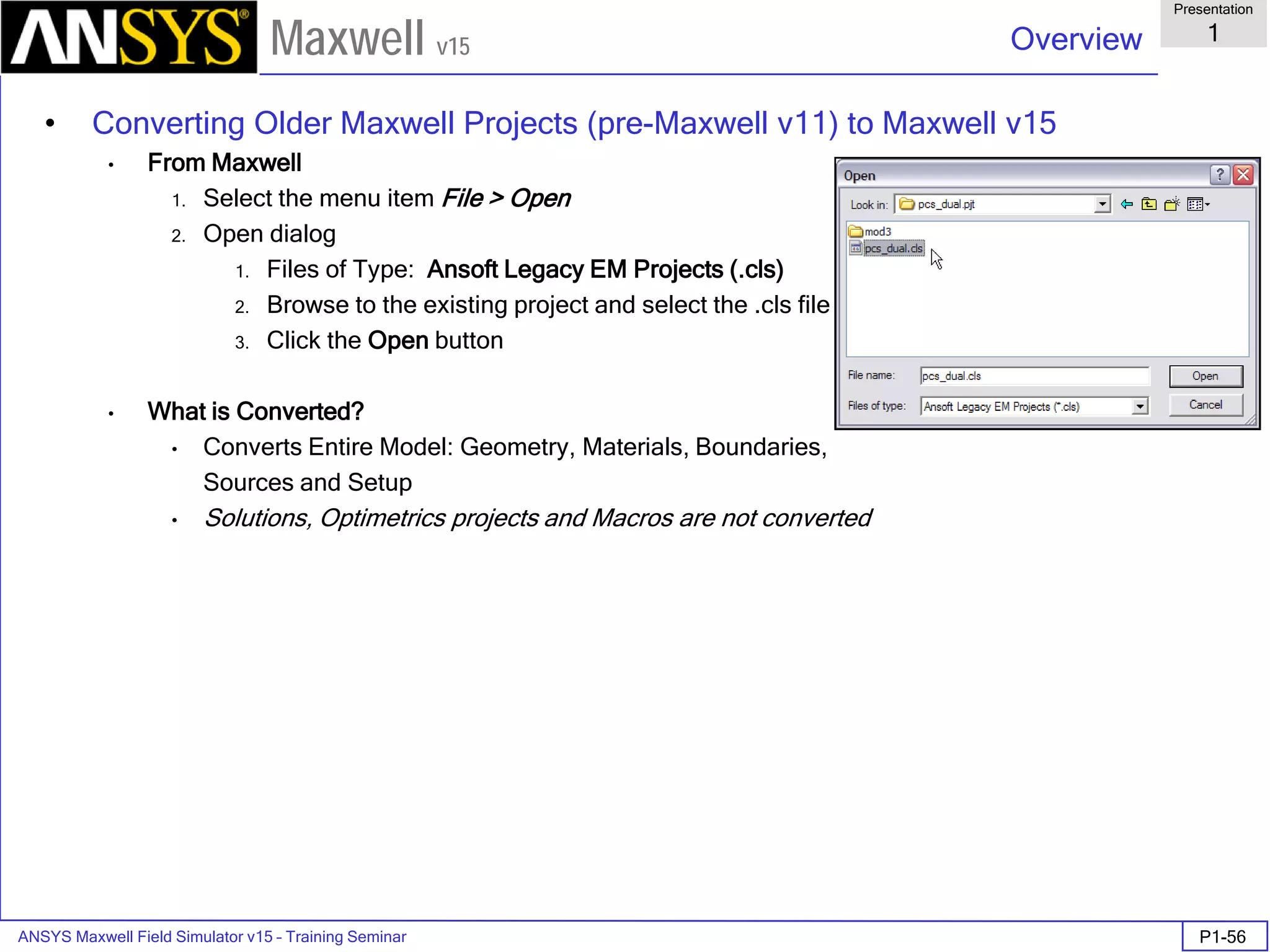
• Converting Older Maxwell Projects (pre-Maxwell v11) to Maxwell v15
• From Maxwell
1. Select the menu item File > Open
2. Open dialog
1. Files of Type: Ansoft Legacy EM Projects (.cls)
2. Browse to the existing project and select the .cls file
3. Click the Open button
• What is Converted?
• Converts Entire Model: Geometry, Materials, Boundaries,
Sources and Setup
• Solutions, Optimetrics projects and Macros are not converted
ANSYS Maxwell Field Simulator v15 – Training Seminar P1-57
Overview
Presentation
1
Maxwell v15
• Material Setup - Libraries
• 3-Tier library structure
• System (global) level – predefined from ANSYS and ships with new upgrades, users cannot
modify this
• User Library – to be shared among several users at a company (can be encrypted)
• Personal libraries - to be used only by single user (can be encrypted)
• Add a new material: Tools > Edit Configured Libraries > Materials
• New Interface for Materials Setting shared with RMxprt
ANSYS Maxwell Field Simulator v15 – Training Seminar P1-58
Overview
Presentation
1
Maxwell v15
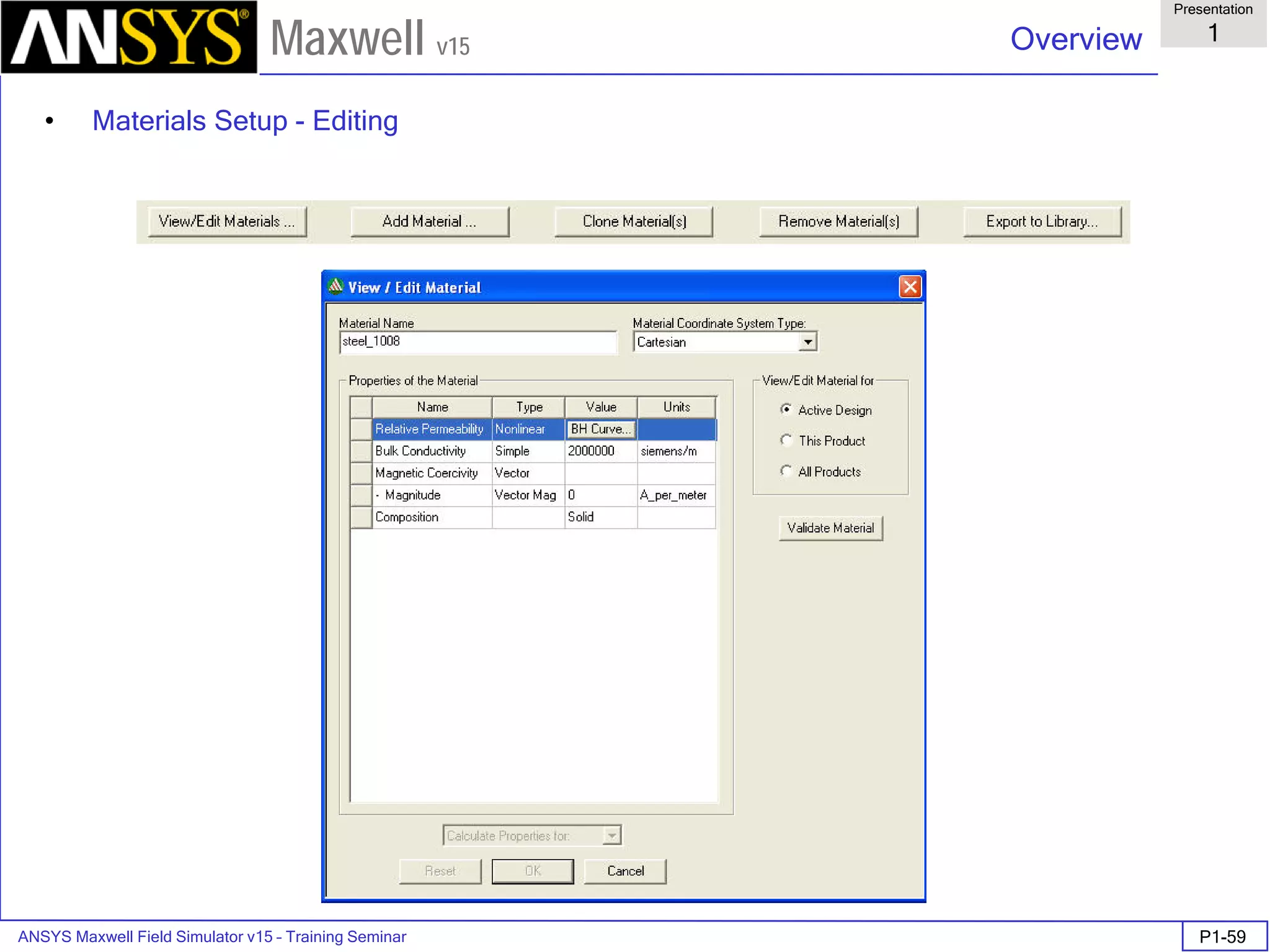
• Click “Add Material …”. The Material is only available in Project
• To add a material in the user or personal library: click on “Export Library” and save it in the desire
library.
• In the main project window, click on Tools > Configured Libraries. Locate the library to have the
material available for all the projects.
• Click on Save as default to automatically load library for any new project.
ANSYS Maxwell Field Simulator v15 – Training Seminar P1-59
Overview
Presentation
1
Maxwell v15
• Materials Setup - Editing
ANSYS Maxwell Field Simulator v15 – Training Seminar P1-60
Overview
Presentation
1
Maxwell v15
Material Setup – BH curve
Lamination model to account for stacking factor (modifies permeability, not conductivity)
Robust BH curve entry – can delete points Create the Object
To export BH curve for use in future, right-mouse-click on curve and select Export to File…
ANSYS Maxwell Field Simulator v15 – Training Seminar P1-61
Overview
Presentation
1
Maxwell v15
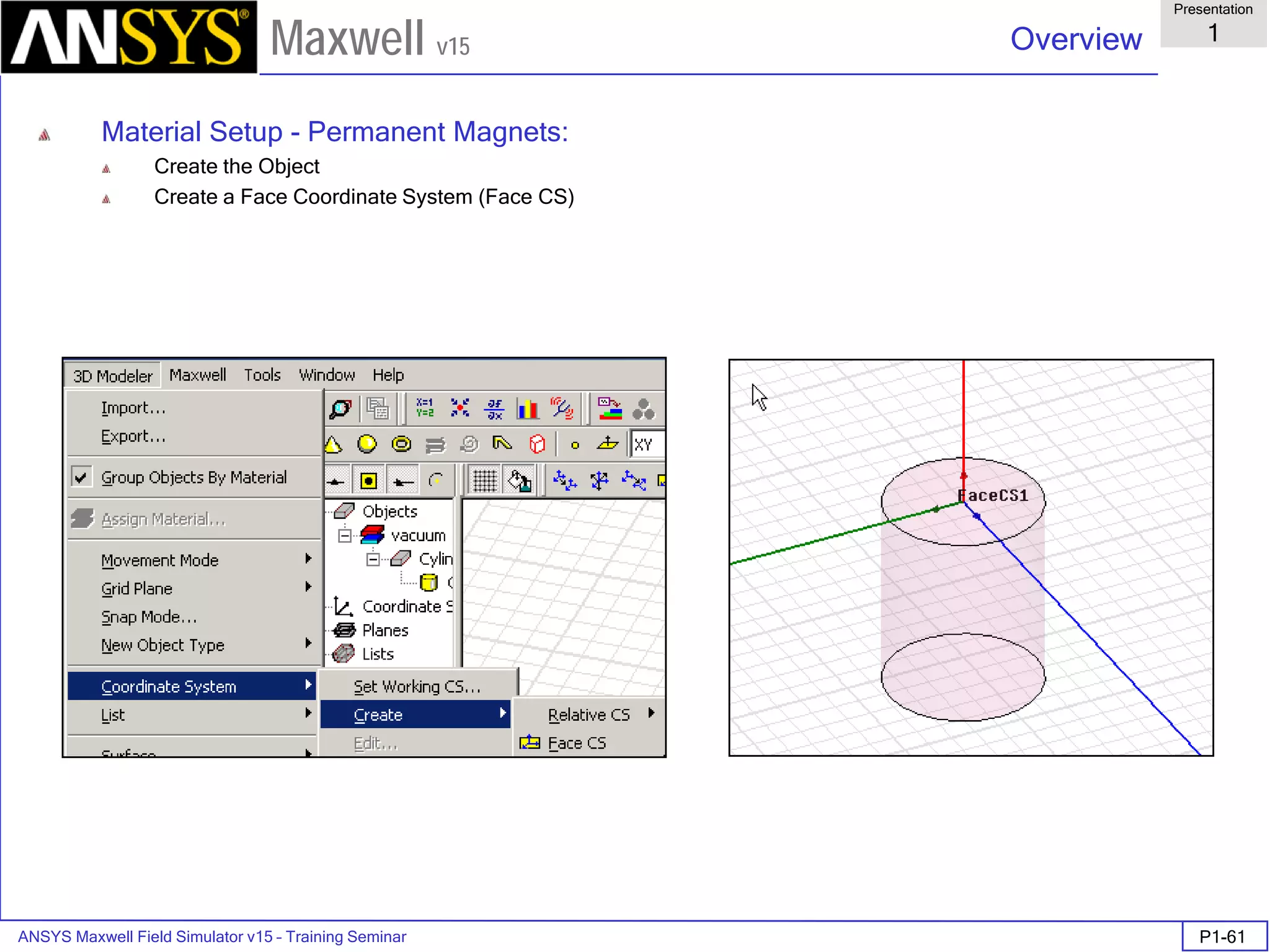
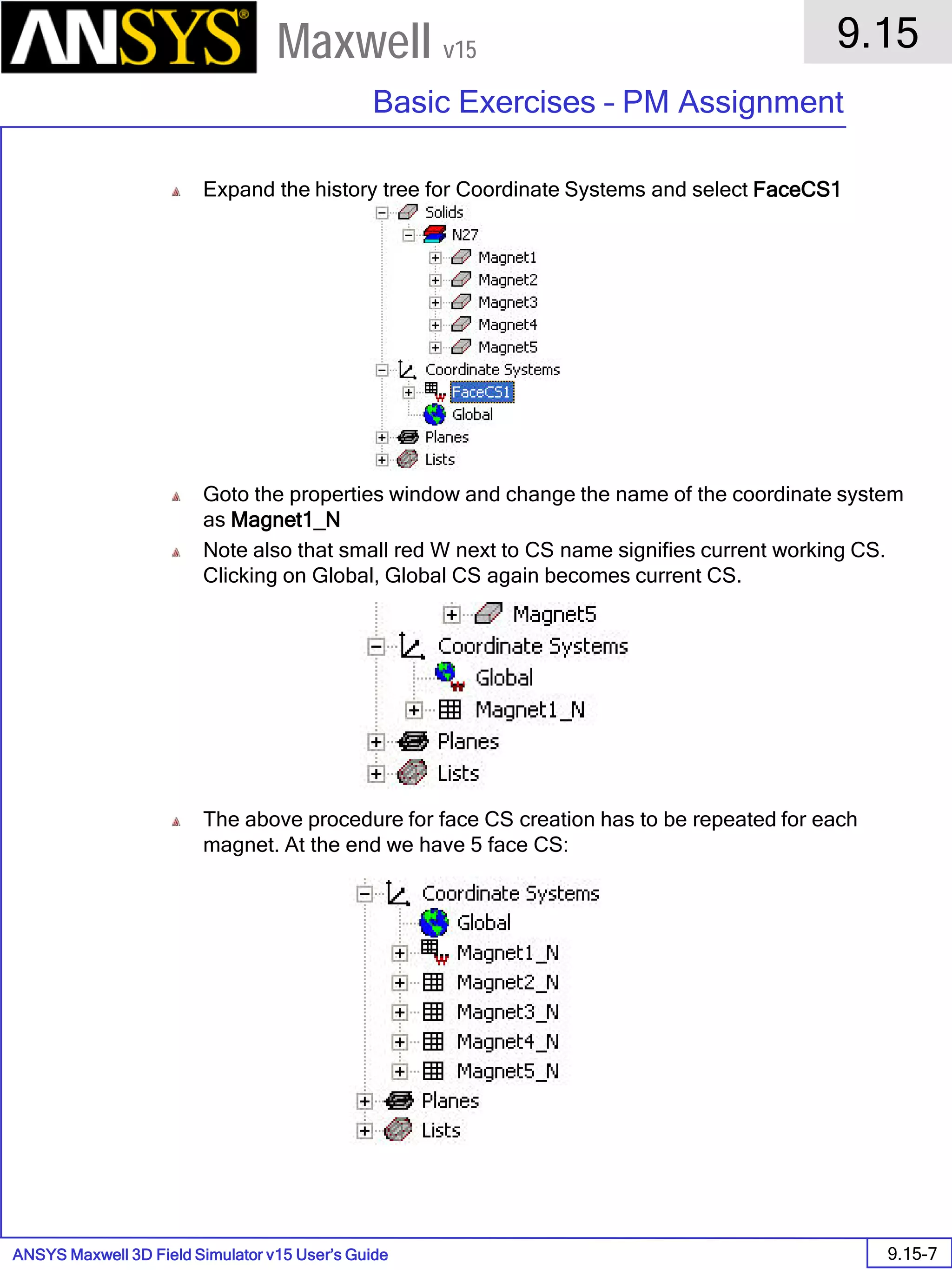
Material Setup - Permanent Magnets:
Create the Object
Create a Face Coordinate System (Face CS)
ANSYS Maxwell Field Simulator v15 – Training Seminar P1-62
Overview
Presentation
1
Maxwell v15
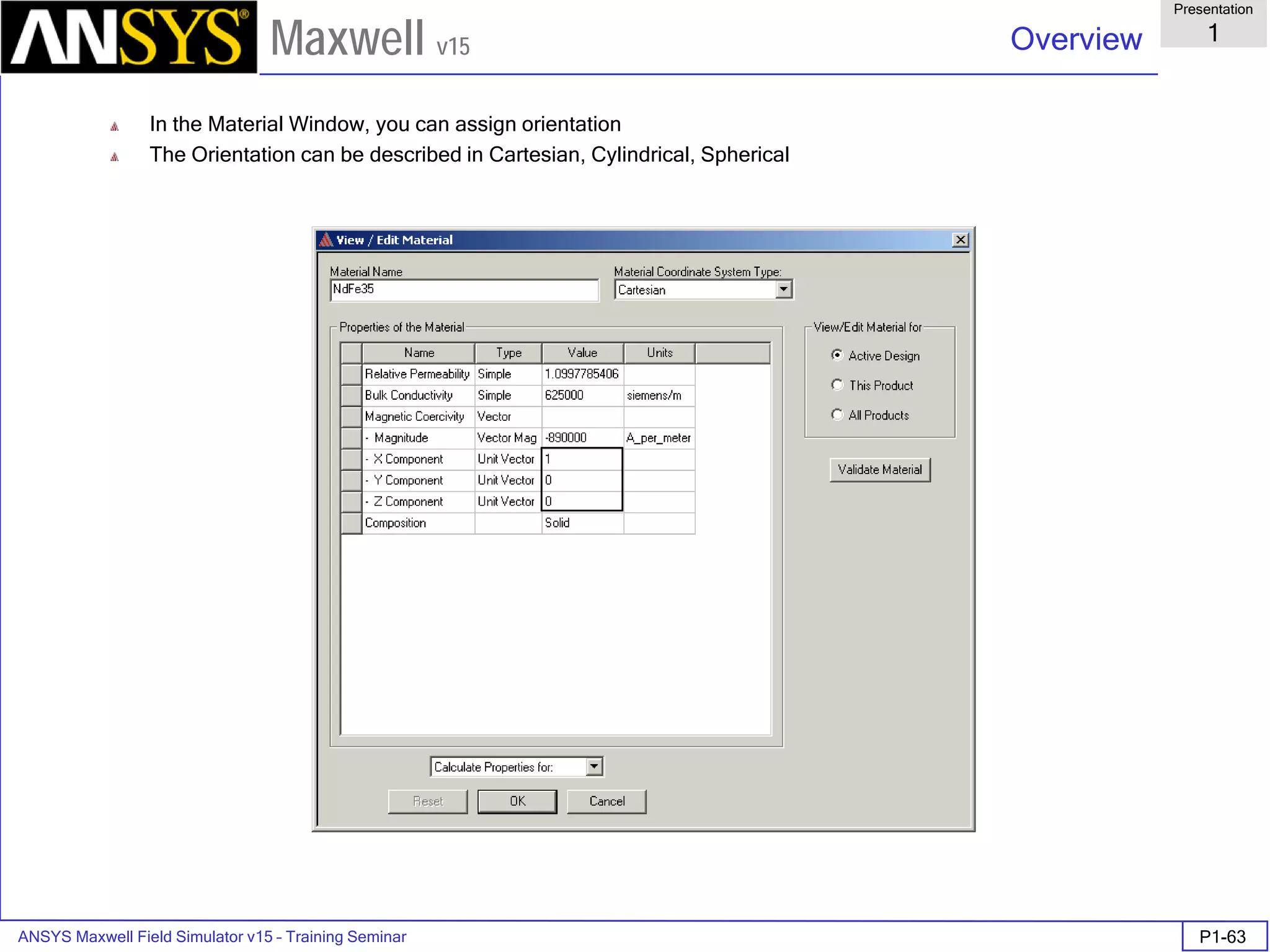
• Enter the Materials Library and choose the Desire Material
• Permanent Magnet Orientation refers by default to the global CS. To change the reference CS for orientation,
open the property window and change the CS reference
ANSYS Maxwell Field Simulator v15 – Training Seminar P1-63
Overview
Presentation
1
Maxwell v15
In the Material Window, you can assign orientation
The Orientation can be described in Cartesian, Cylindrical, Spherical
ANSYS Maxwell Field Simulator v15 – Training Seminar P1-64
Overview
Presentation
1
Maxwell v15
• Material setup - Anisotropic Material Properties
• ε1, µ1, and σ1 are tensors in the X direction.
• ε2, µ2, and σ2 are tensors in the Y direction.
• ε3, µ3, and σ3 are tensors in the Z direction.
• Anisotropic permeability definitions can be either LINEAR or NONLINEAR.
[ ] [ ] [ ]
Transient
&Current,Eddy
3
2
1
Transient
&Current,Eddy
tic,Magnetosta
3
2
1
CurrentEddy
&ticElectrosta
3
2
1
00
00
00
,
00
00
00
,
00
00
00










=










=










=
σ
σ
σ
σ
µ
µ
µ
µ
ε
ε
ε
ε
ANSYS Maxwell Field Simulator v15 – Training Seminar P1-65
Overview
Presentation
1
Maxwell v15
Boundary Type E-Field Behavior Used to model…
Default
Boundary
Conditions
(Natural and
Neumann)
Field behaves as follows:
Natural boundaries — The normal component of D
changes by the amount of surface charge density. No
special conditions are imposed.
Neumann boundaries — E is tangential to the boundary.
Flux cannot cross a Neumann boundary.
Ordinary E-field behavior
on boundaries. Object
interfaces are initially set
to natural boundaries;
outer boundaries are
initially set to Neumann
boundaries.
Symmetry Field behaves as follows:
Even Symmetry (Flux Tangential) — E is tangential to the
boundary; its normal components are zero.
Odd Symmetry (Flux Normal) — E is normal to the
boundary; its tangential components are zero.
Planes of geometric and
electrical symmetry.
Matching
(Master and
Slave)
The E-field on the slave boundary is forced to match the
magnitude and direction (or the negative of the direction) of
the E-field on the master boundary.
Planes of symmetry in
periodic structures where
E is oblique to the
boundary.
Note: No Balloon Boundary available
Electric Boundary Conditions
ANSYS Maxwell Field Simulator v15 – Training Seminar P1-66
Overview
Presentation
1
Maxwell v15
Source Type of Excitation
Floating
Conductor
Used to model conductors at unknown potentials.
Voltage The DC voltage on a surface or object.
Charge The total charge on a surface or object (either a conductor or
dielectric).
Charge Density The charge density in an object.
Note: DC conduction solution (voltage) can also be used as input for an electric
field solution
Electric Sources
ANSYS Maxwell Field Simulator v15 – Training Seminar P1-67
Overview
Presentation
1
Maxwell v15
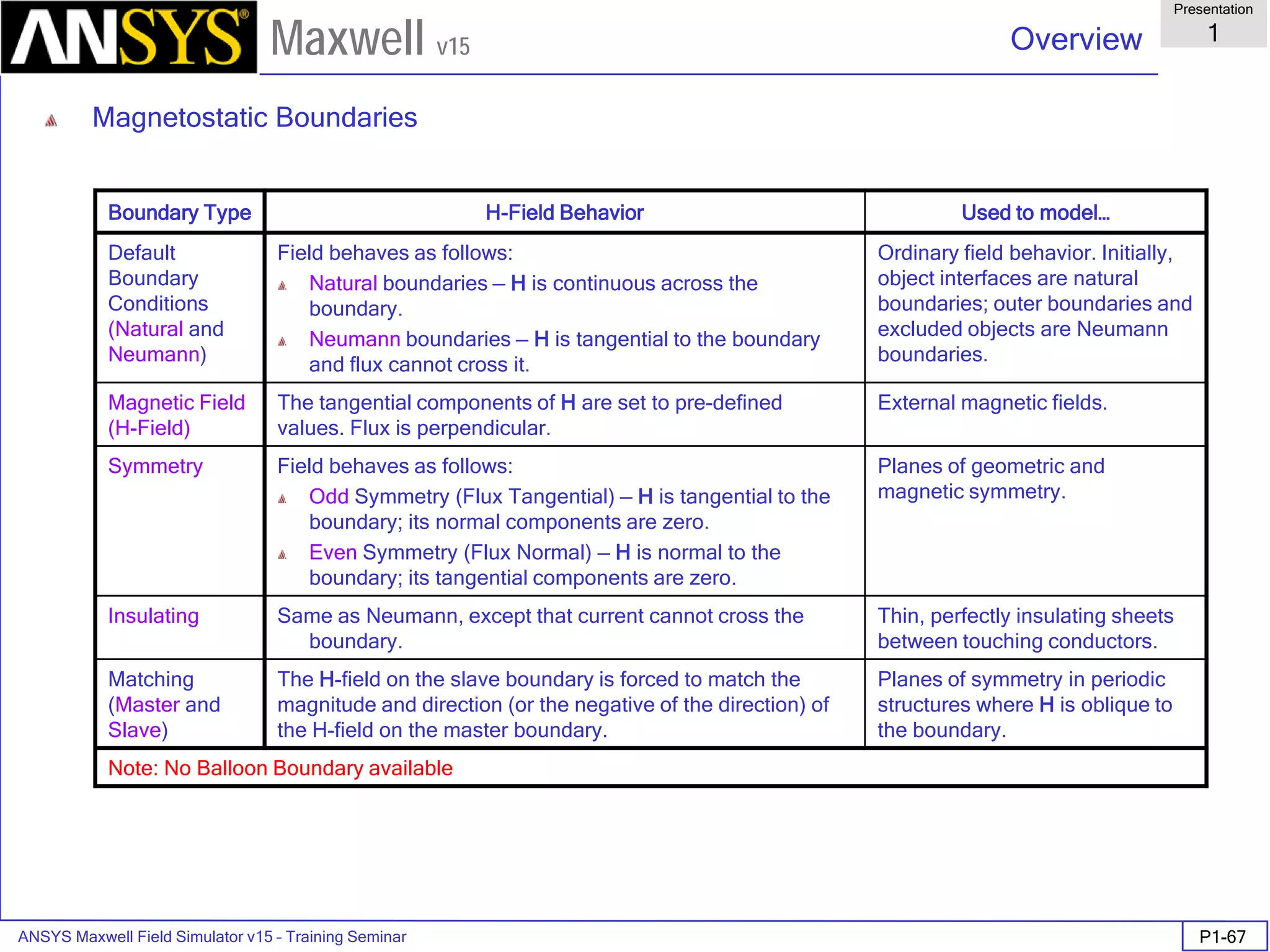
Boundary Type H-Field Behavior Used to model…
Default
Boundary
Conditions
(Natural and
Neumann)
Field behaves as follows:
Natural boundaries — H is continuous across the
boundary.
Neumann boundaries — H is tangential to the boundary
and flux cannot cross it.
Ordinary field behavior. Initially,
object interfaces are natural
boundaries; outer boundaries and
excluded objects are Neumann
boundaries.
Magnetic Field
(H-Field)
The tangential components of H are set to pre-defined
values. Flux is perpendicular.
External magnetic fields.
Symmetry Field behaves as follows:
Odd Symmetry (Flux Tangential) — H is tangential to the
boundary; its normal components are zero.
Even Symmetry (Flux Normal) — H is normal to the
boundary; its tangential components are zero.
Planes of geometric and
magnetic symmetry.
Insulating Same as Neumann, except that current cannot cross the
boundary.
Thin, perfectly insulating sheets
between touching conductors.
Matching
(Master and
Slave)
The H-field on the slave boundary is forced to match the
magnitude and direction (or the negative of the direction) of
the H-field on the master boundary.
Planes of symmetry in periodic
structures where H is oblique to
the boundary.
Note: No Balloon Boundary available
Magnetostatic Boundaries
ANSYS Maxwell Field Simulator v15 – Training Seminar P1-68
Overview
Presentation
1
Maxwell v15
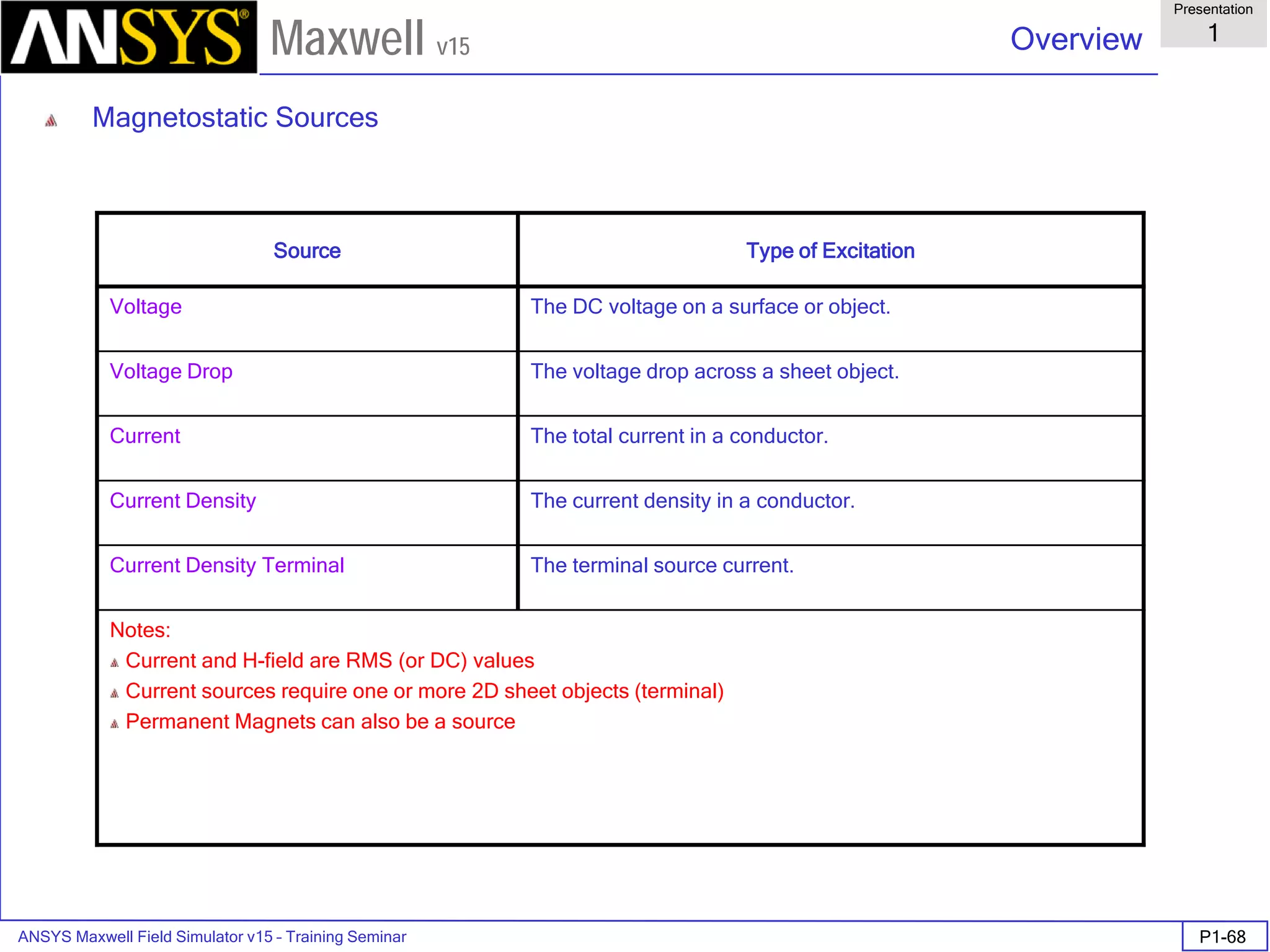
Source Type of Excitation
Voltage The DC voltage on a surface or object.
Voltage Drop The voltage drop across a sheet object.
Current The total current in a conductor.
Current Density The current density in a conductor.
Current Density Terminal The terminal source current.
Notes:
Current and H-field are RMS (or DC) values
Current sources require one or more 2D sheet objects (terminal)
Permanent Magnets can also be a source
Magnetostatic Sources
ANSYS Maxwell Field Simulator v15 – Training Seminar P1-69
Overview
Presentation
1
Maxwell v15
Boundary Type H-Field Behavior Used to model…
Default
Boundary
Conditions
(Natural and
Neumann)
Field behaves as follows:
Natural boundaries — H is continuous across the boundary.
Neumann boundaries — H is tangential to the boundary and
flux cannot cross it.
Ordinary field behavior. Initially,
object interfaces are natural
boundaries; outer boundaries and
excluded objects are Neumann
boundaries.
Magnetic Field
(H-Field)
The tangential components of H are set to pre-defined values.
Flux is perpendicular.
External AC magnetic fields.
Symmetry Field behaves as follows:
Odd Symmetry (Flux Tangential) — H is tangential to the
boundary; its normal components are zero.
Even Symmetry (Flux Normal) — H is normal to the boundary;
its tangential components are zero.
Planes of geometric and magnetic
symmetry.
Impedance Includes the effect of induced currents beyond the boundary
surface.
Conductors with very small skin
depths.
Insulating Same as Neumann, except that current cannot cross the
boundary.
Thin, perfectly insulating sheets
between touching conductors.
Radiation No restrictions on the field behavior. Unbounded eddy currents.
Matching
(Master and
Slave)
The H-field on the slave boundary is forced to match the
magnitude and direction (or the negative of the direction) of the
H-field on the master boundary.
Planes of symmetry in periodic
structures where H is oblique to the
boundary.
Note: Radiation (Balloon) Boundary available
Eddy-current boundaries
ANSYS Maxwell Field Simulator v15 – Training Seminar P1-70
Overview
Presentation
1
Maxwell v15
Source Type of Excitation
Current The total current in a conductor.
Current Density The current density in a conductor.
Current Density Terminal The current density terminals in a conductor.
Notes:
Current and H-field are Peak (Not RMS) values
Current sources requires a 2D sheet objects (terminal) which lie in the cross-section of the conductor
Eddy-current Sources
ANSYS Maxwell Field Simulator v15 – Training Seminar P1-71
Overview
Presentation
1
Maxwell v15
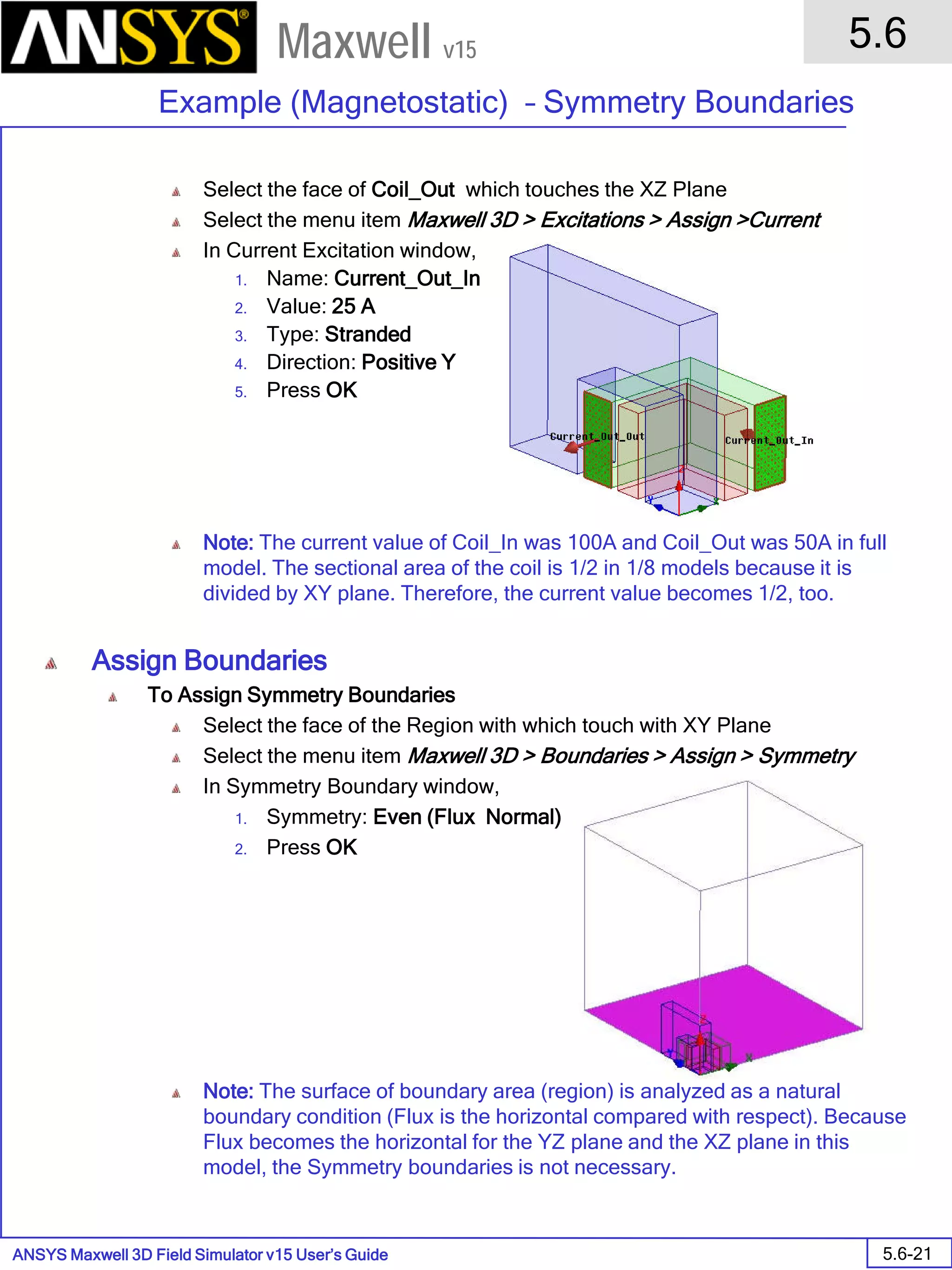
• Setup Boundaries/Sources
• Select Object (for solid sources and current terminals)
• Select Face (for insulating boundaries)
• Select item Maxwell > Excitations > Assign for sources
• Select item Maxwell > Boundaries > Assign for boundary conditions
• Turn on eddy or displacement current calculation in eddy current solver for materials of interest: Maxwell >
Excitations > Set Eddy Effects …
• Stranded coil option available in Magnetostatic and Eddy Current solvers
ANSYS Maxwell Field Simulator v15 – Training Seminar P1-72
Overview
Presentation
1
Maxwell v15
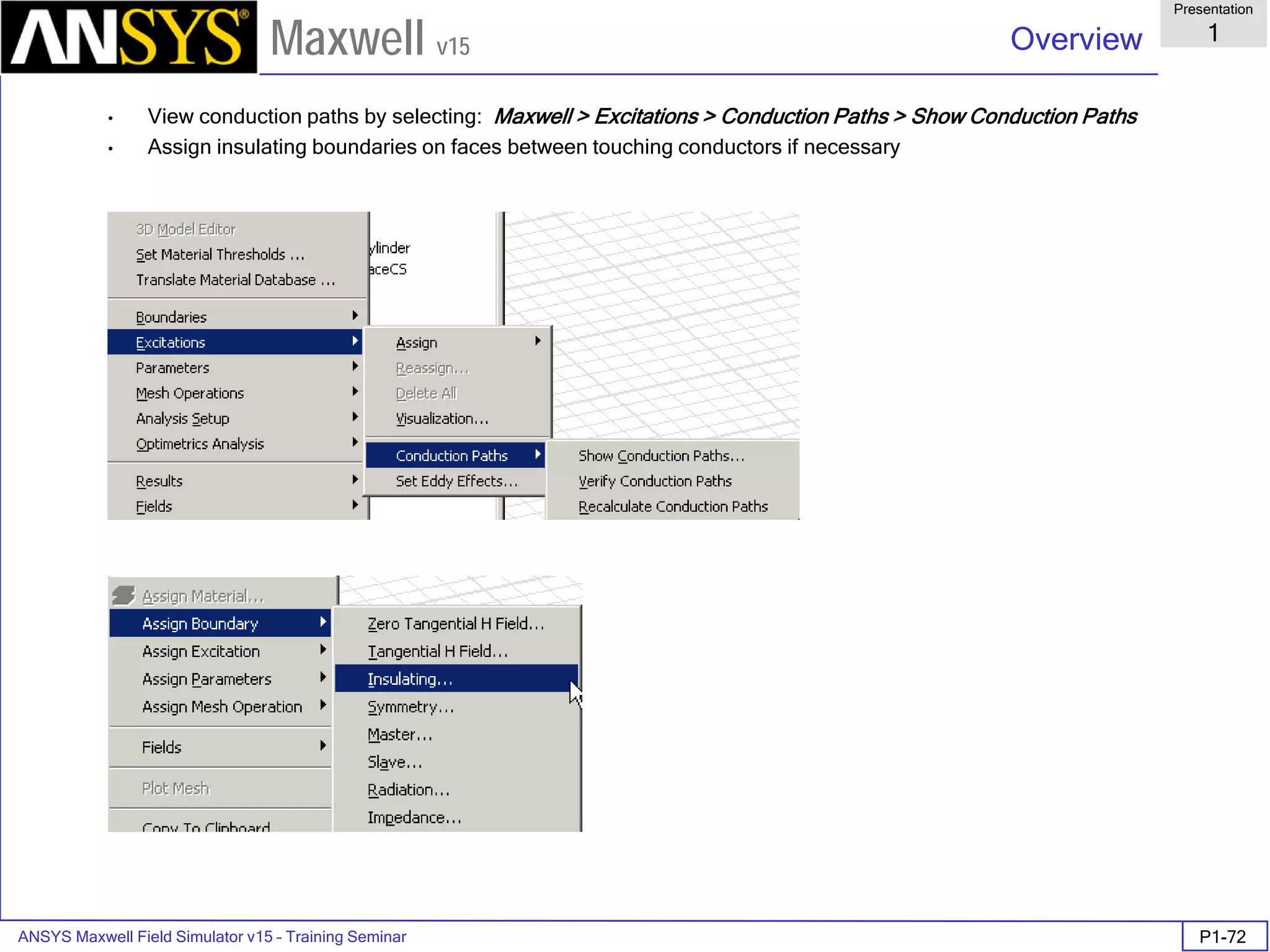
• View conduction paths by selecting: Maxwell > Excitations > Conduction Paths > Show Conduction Paths
• Assign insulating boundaries on faces between touching conductors if necessary
ANSYS Maxwell Field Simulator v15 – Training Seminar P1-73
Overview
Presentation
1
Maxwell v15
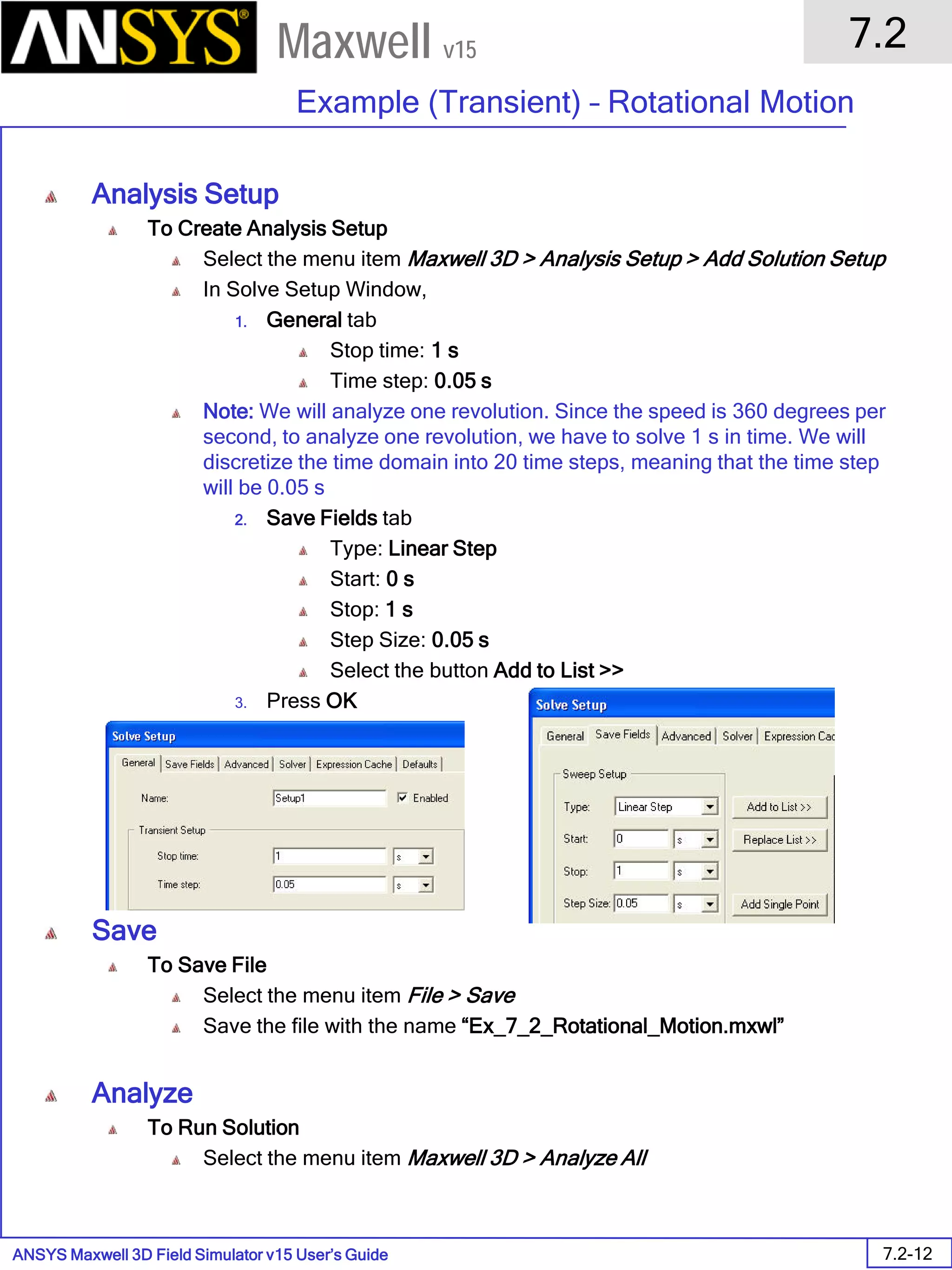
• Magnetostatic and Electric Solution Setup
• Start the menu of solution setup by: Maxwell > Analysis Setup > Add Solution Setup …
ANSYS Maxwell Field Simulator v15 – Training Seminar P1-74
Overview
Presentation
1
Maxwell v15
• Magnetostatic Setup
• For Magnetostatic solver on Solver tab, suggest setting nonlinear residual = 0.001.
• Expression Cache tab to set a calculator expression computation at each pass and use it as convergence criteria
• On default tab choose Save Defaults to set this value for all future projects.
ANSYS Maxwell Field Simulator v15 – Training Seminar P1-75
Overview
Presentation
1
Maxwell v15
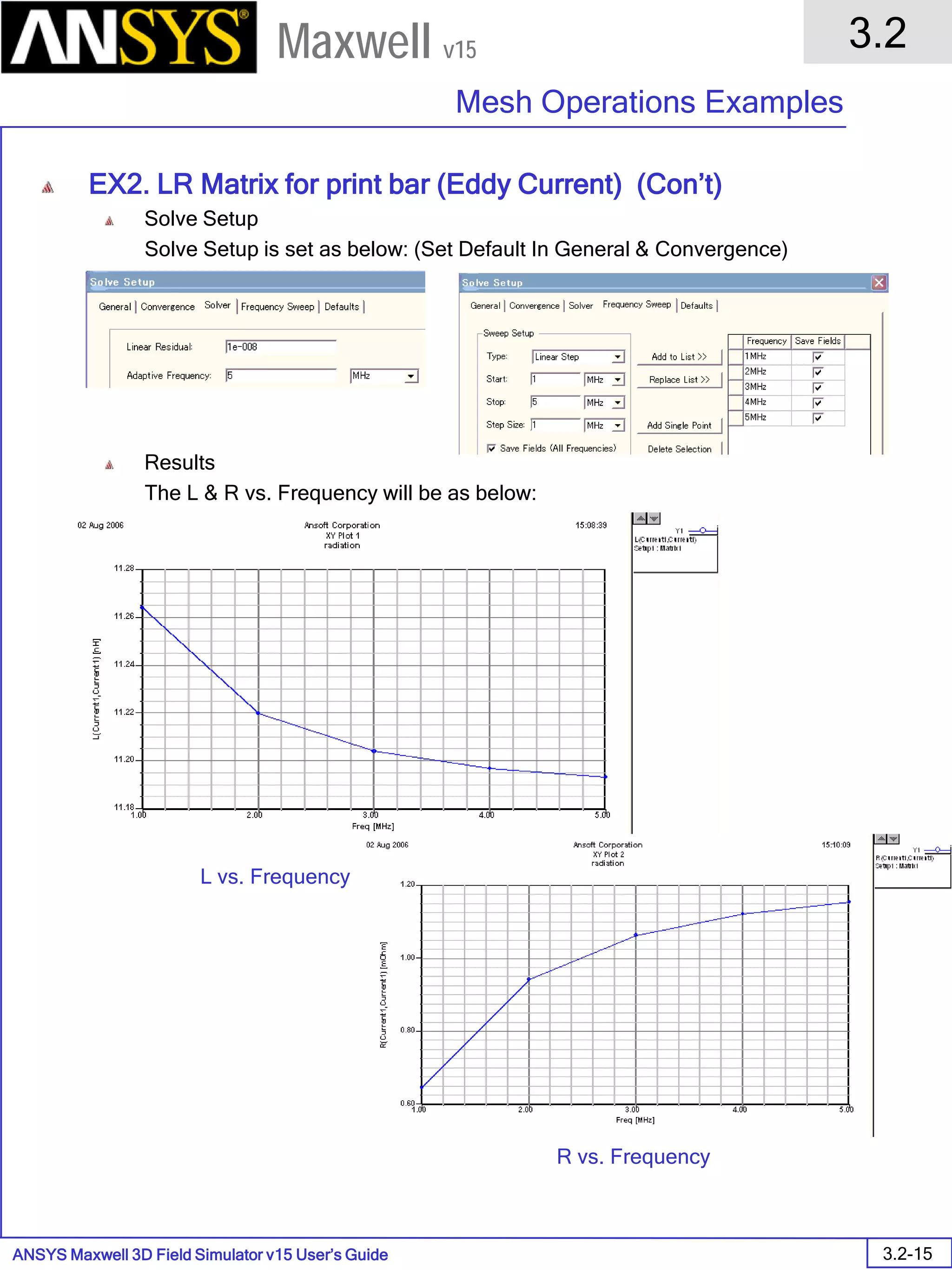
• Eddy Current Solution Setup
ANSYS Maxwell Field Simulator v15 – Training Seminar P1-76
Overview
Presentation
1
Maxwell v15
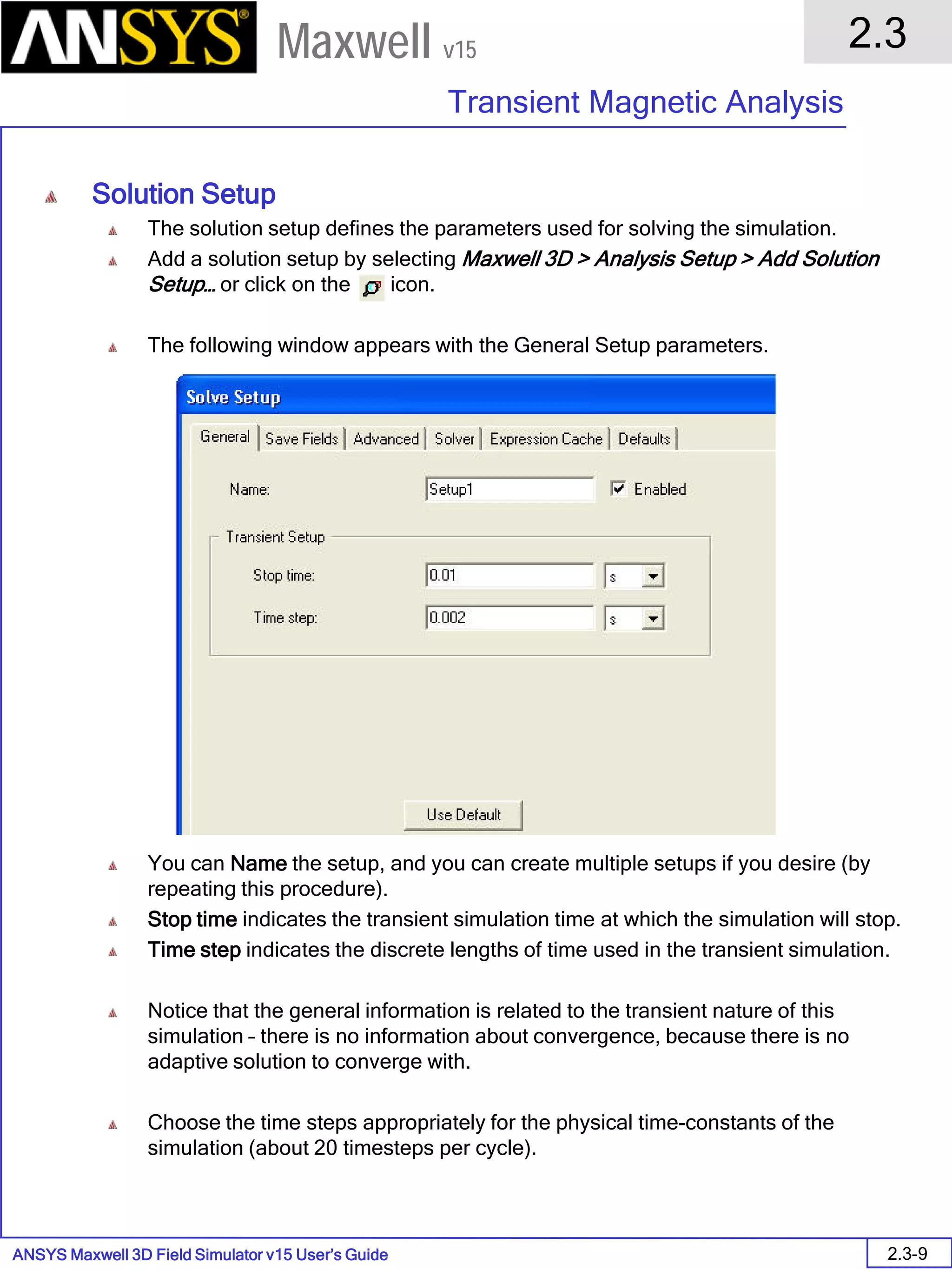
• Transient Solution Setup
ANSYS Maxwell Field Simulator v15 – Training Seminar P1-77
Overview
Presentation
1
Maxwell v15
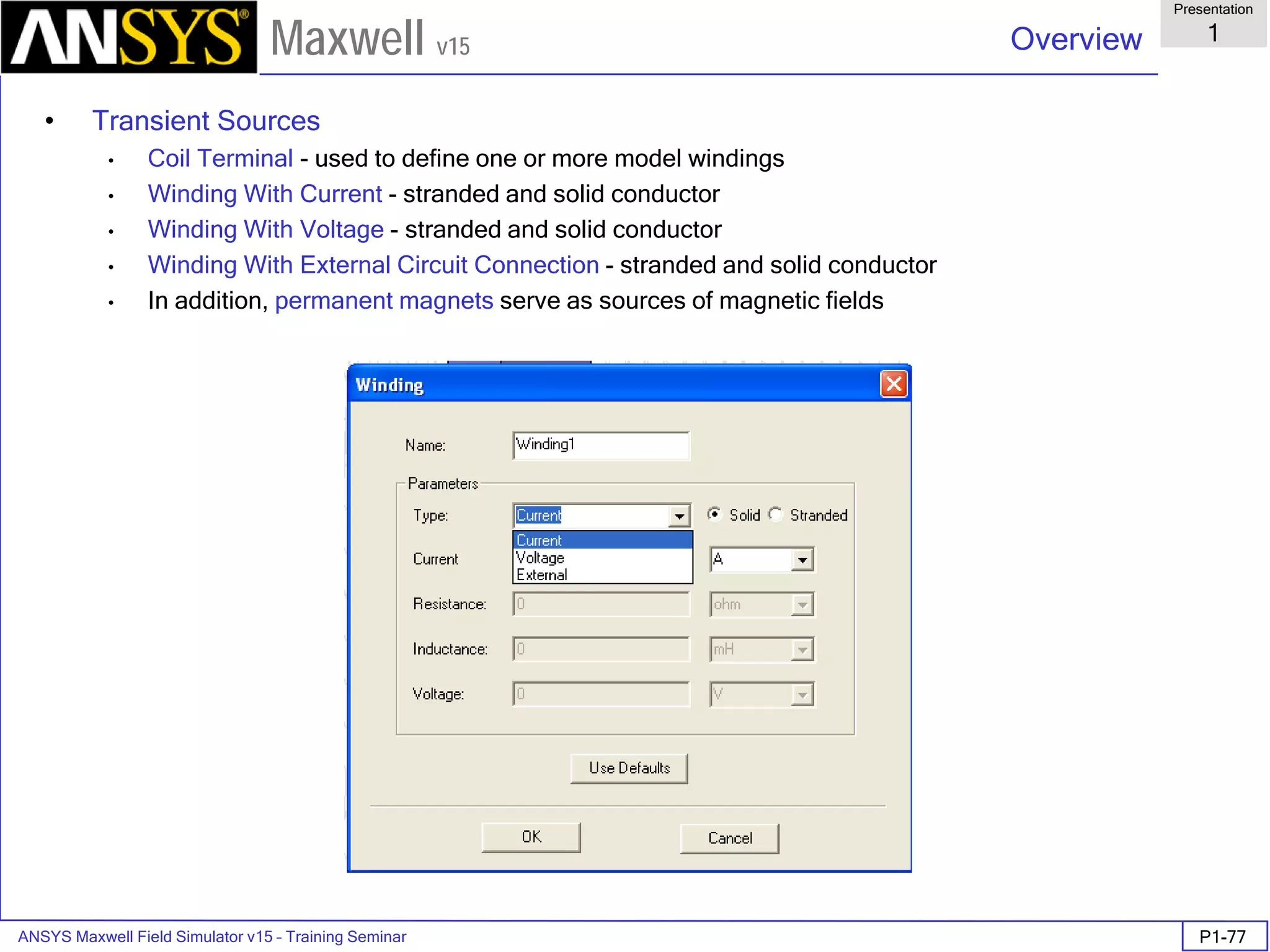
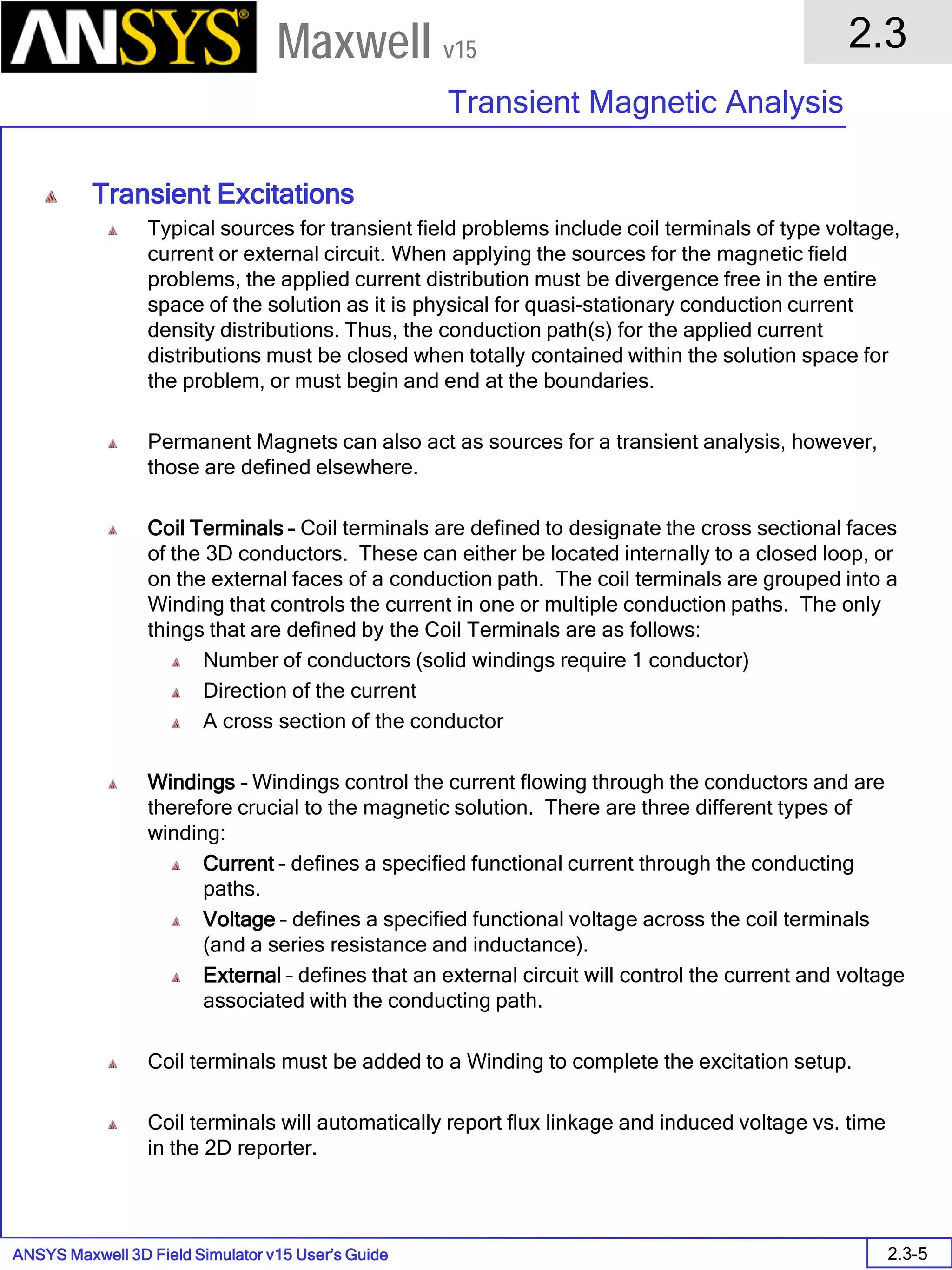
• Transient Sources
• Coil Terminal - used to define one or more model windings
• Winding With Current - stranded and solid conductor
• Winding With Voltage - stranded and solid conductor
• Winding With External Circuit Connection - stranded and solid conductor
• In addition, permanent magnets serve as sources of magnetic fields
ANSYS Maxwell Field Simulator v15 – Training Seminar P1-78
Overview
Presentation
1
Maxwell v15
Source Type of Excitation
Current The total current in a conductor.
Current Density The current density in a conductor.
Coil Current or voltage on a winding
representing 1 or more turns
Permanent magnets will also act as a source in the
Transient solver.
• Magnetic Field Sources (Transient)
• Current and voltage sources (solid or stranded) can be constant or functions of intrinsic
variables: speed (rpm or deg/sec), position (degrees), or time (seconds)
• Dataset function can be used for piecewise linear functions: Pwl_periodic (ds1, Time)
ANSYS Maxwell Field Simulator v15 – Training Seminar P1-79
Overview
Presentation
1
Maxwell v15
Magnetic Field Sources (Transient)
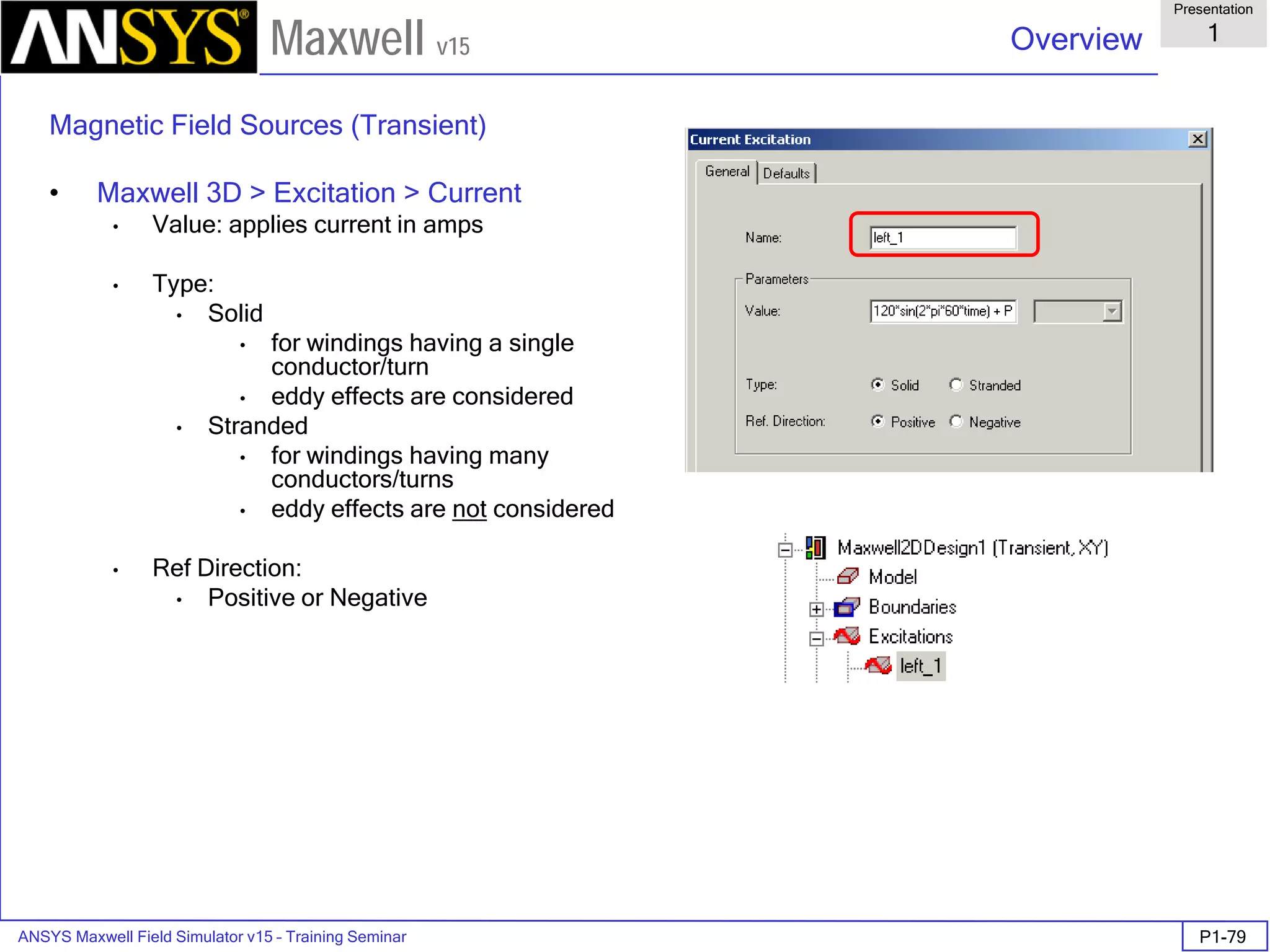
• Maxwell 3D > Excitation > Current
• Value: applies current in amps
• Type:
• Solid
• for windings having a single
conductor/turn
• eddy effects are considered
• Stranded
• for windings having many
conductors/turns
• eddy effects are not considered
• Ref Direction:
• Positive or Negative
ANSYS Maxwell Field Simulator v15 – Training Seminar P1-80
Overview
Presentation
1
Maxwell v15
Magnetic Field Sources (Transient)
• Maxwell 3D > Excitation > Add Winding
• Current – applies current in amps
• Solid or Stranded
• Input current and number of parallel branches as
seen from terminal
• Voltage – applies voltage (total voltage drop over the length
of a solid conductor or the entire winding)
• Solid or Stranded
• Input initial current, winding resistance, extra series
inductance not considered in FEA model, voltage,
and number of parallel branches as seen from
terminal
• External – couples to Maxwell Circuit Editor
• Solid or Stranded
• Input initial current and number of parallel branches
• Maxwell 3D > Excitation > Assign > Coil Terminal
Pick a conductor on the screen and then specify:
• Name
• Number of Conductors
Note: Windings in the XY solver will usually have 2 coils: one
positive and one negative polarity. Both coils will be added
to the appropriate winding by right-mouse clicking on Coil in
the project tree and choosing Add to Winding
ANSYS Maxwell Field Simulator v15 – Training Seminar P1-81
Overview
Presentation
1
Maxwell v15
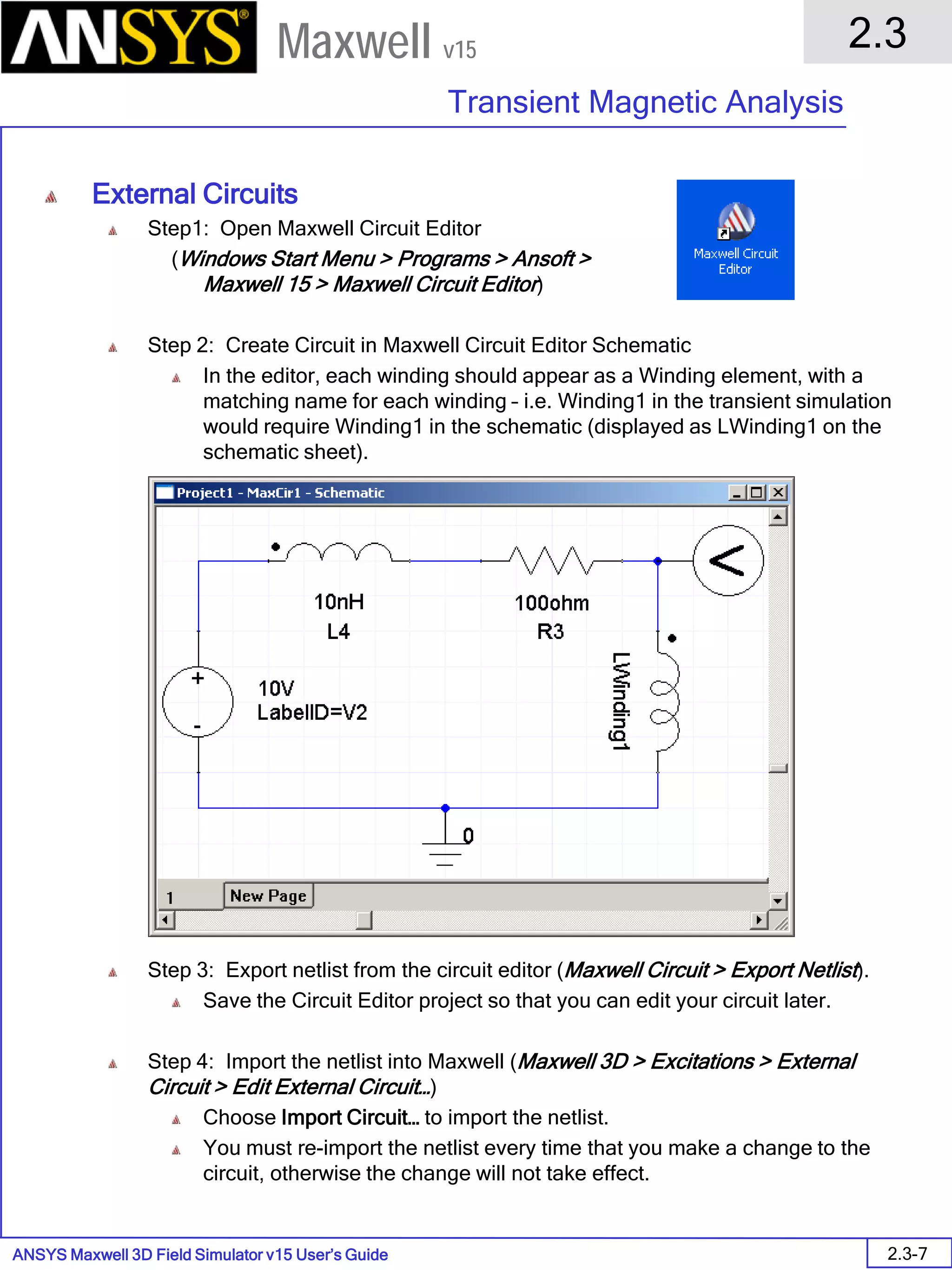
• To Create an External Circuit
1. Select: Maxwell3D > Excitations > External Circuit > Edit External Circuit > Import Circuit
2. After circuit editor opens, add elements to construct the circuit. Note that the name of the
Winding in the circuit (Winding1) must match the name of the Winding in Maxwell (Winding1)
3. Save circuit as *.amcp file and then Maxwell Circuit > Export Netlist > *.sph file.
0
LWinding15.3ohm
LabelID=R3
-
+
Model
V
switch2
V
S_sw2
D64
Model
d1
Model
I
switch1
I
W_sw1
LabelID=VI1
Note:
The dot on the
winding symbol is
used as the positive
reference for the
current (positive
current is oriented
from the "dotted"
terminal towards to
"un-dotted" terminal
of the winding as it
passes through the
winding).
ANSYS Maxwell Field Simulator v15 – Training Seminar P1-82
Overview
Presentation
1
Maxwell v15
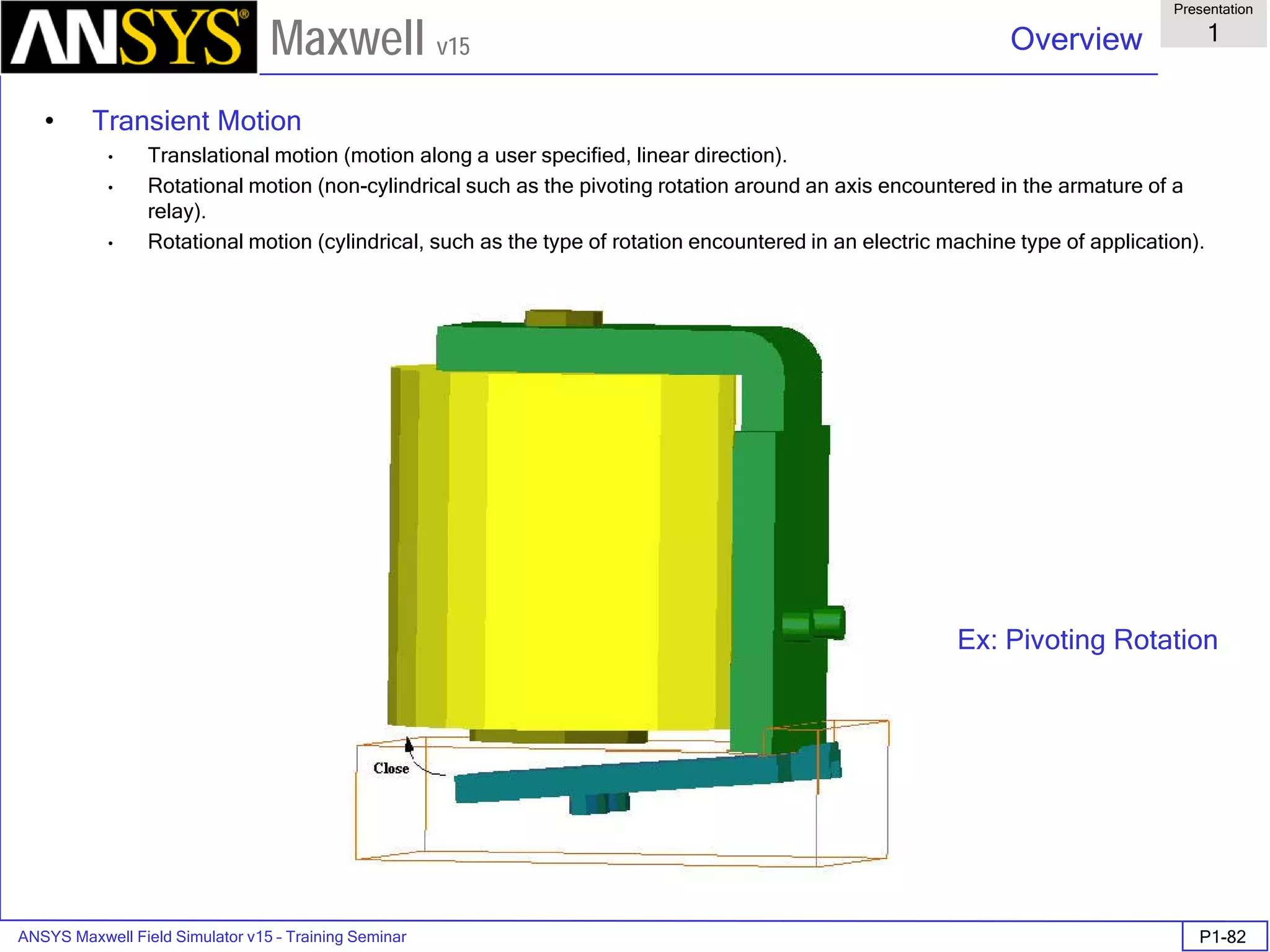
• Transient Motion
• Translational motion (motion along a user specified, linear direction).
• Rotational motion (non-cylindrical such as the pivoting rotation around an axis encountered in the armature of a
relay).
• Rotational motion (cylindrical, such as the type of rotation encountered in an electric machine type of application).
Ex: Pivoting Rotation
ANSYS Maxwell Field Simulator v15 – Training Seminar P1-83
Overview
Presentation
1
Maxwell v15
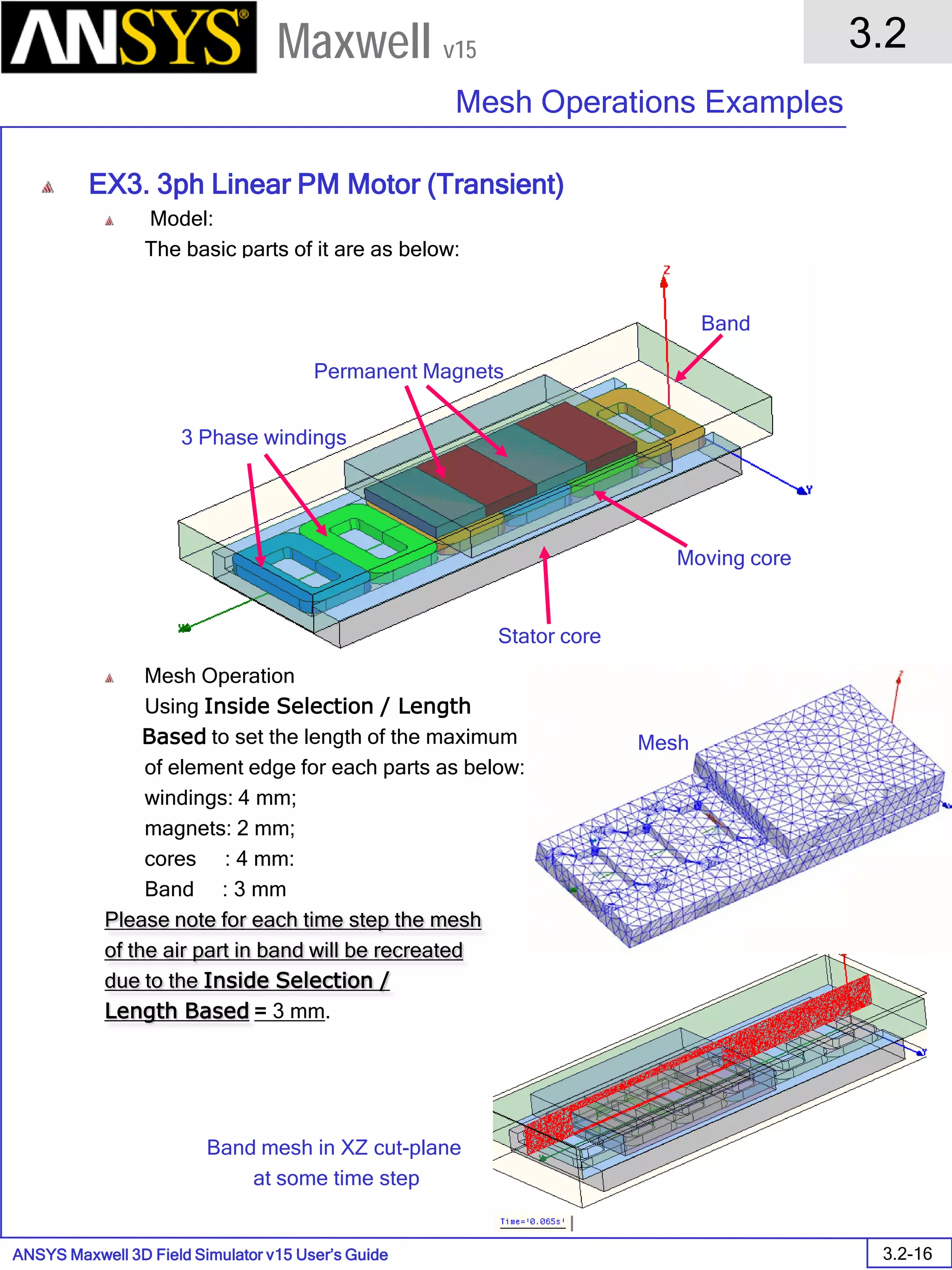
• Band
• Regardless of the particular type of motion involved, all types of motion applications require a band object that must
contain the moving part(s).
• If there are multiple moving objects, all of the moving parts must be included in one all-inclusive object — this is
because they all must be moving as one rigid body, with a single force acting on the assembly.
• Regardless of the type of motion, the user must create a mesh density capable of capturing the physical effects
characteristic for the specific application, such as field gradients, skin and proximity effects, etc.
• Translational and non-cylindrical rotation types of motion:
• The band object can touch the symmetry plane if any exists.
• The moving object cannot touch a stationary object during motion (the gap between the moving object and the band
can never become zero during analysis).
• The band cannot have true surface faces; all faces must be segmented (for example created with the regular
polyhedron primitive).
• The band object cannot separate the stationary part into unconnected sub-regions.
• Hollow objects cannot be used for band objects.
• For the cylindrical type of rotational motion applications:
• Always use a facetted (regular polyhedron) type of cylindrical object or a wedge object if symmetry is used. The
angular aperture of each facet depends on the problem; however, an opening of 2-3 degrees per facet is usually
sufficient.
• Hollow cylinders cannot be used for band objects.
• The band object can separate the stationary part into unconnected sub-regions (a rotor sandwiched between two
stators is allowed).
• Non-cylindrical band objects are allowed.
ANSYS Maxwell Field Simulator v15 – Training Seminar P1-84
Overview
Presentation
1
Maxwell v15
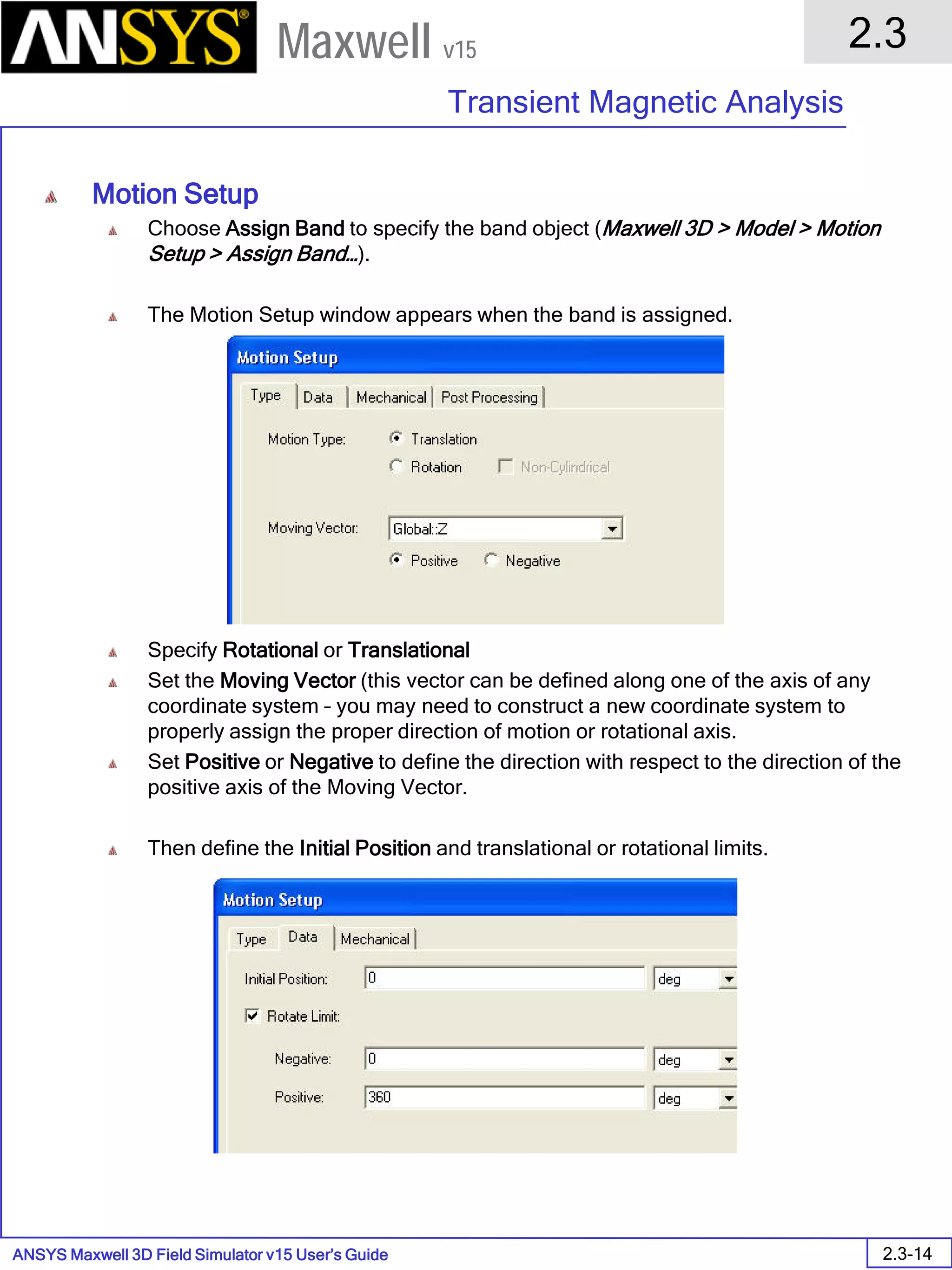
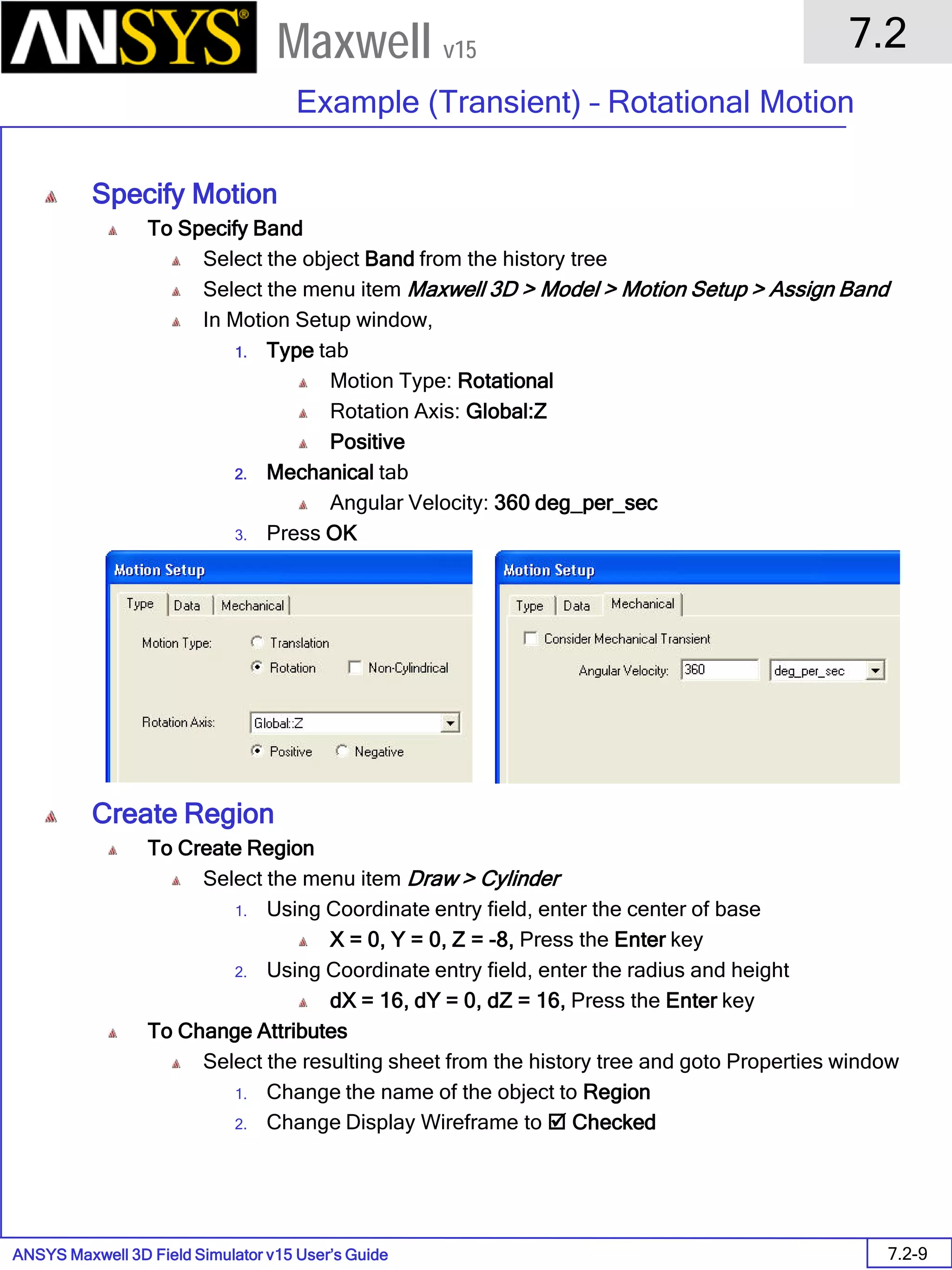
• Motion Setup
• To assign a band: Maxwell 3D > Model > Motion Setup > Assign Band
ANSYS Maxwell Field Simulator v15 – Training Seminar P1-85
Overview
Presentation
1
Maxwell v15
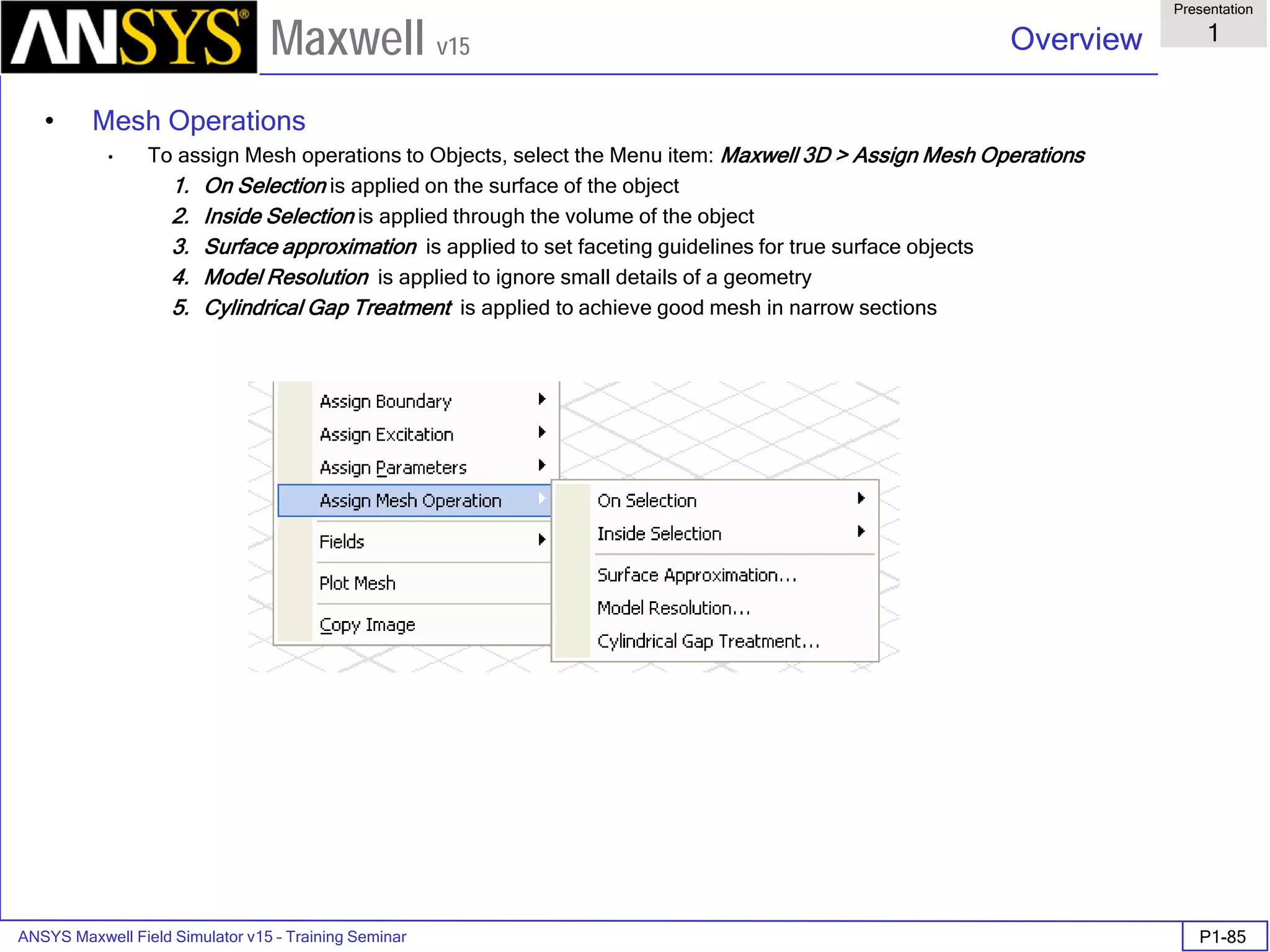
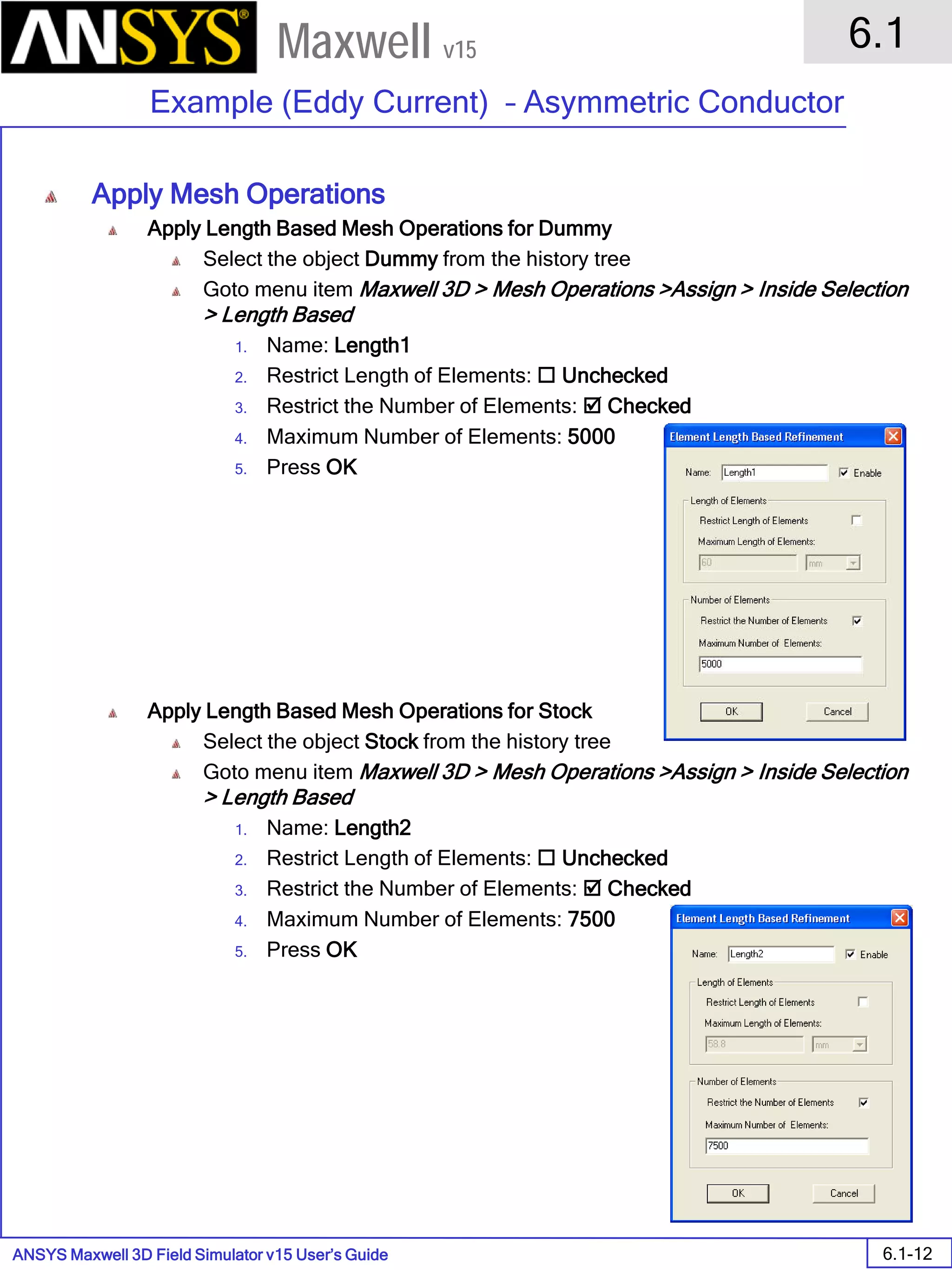
• Mesh Operations
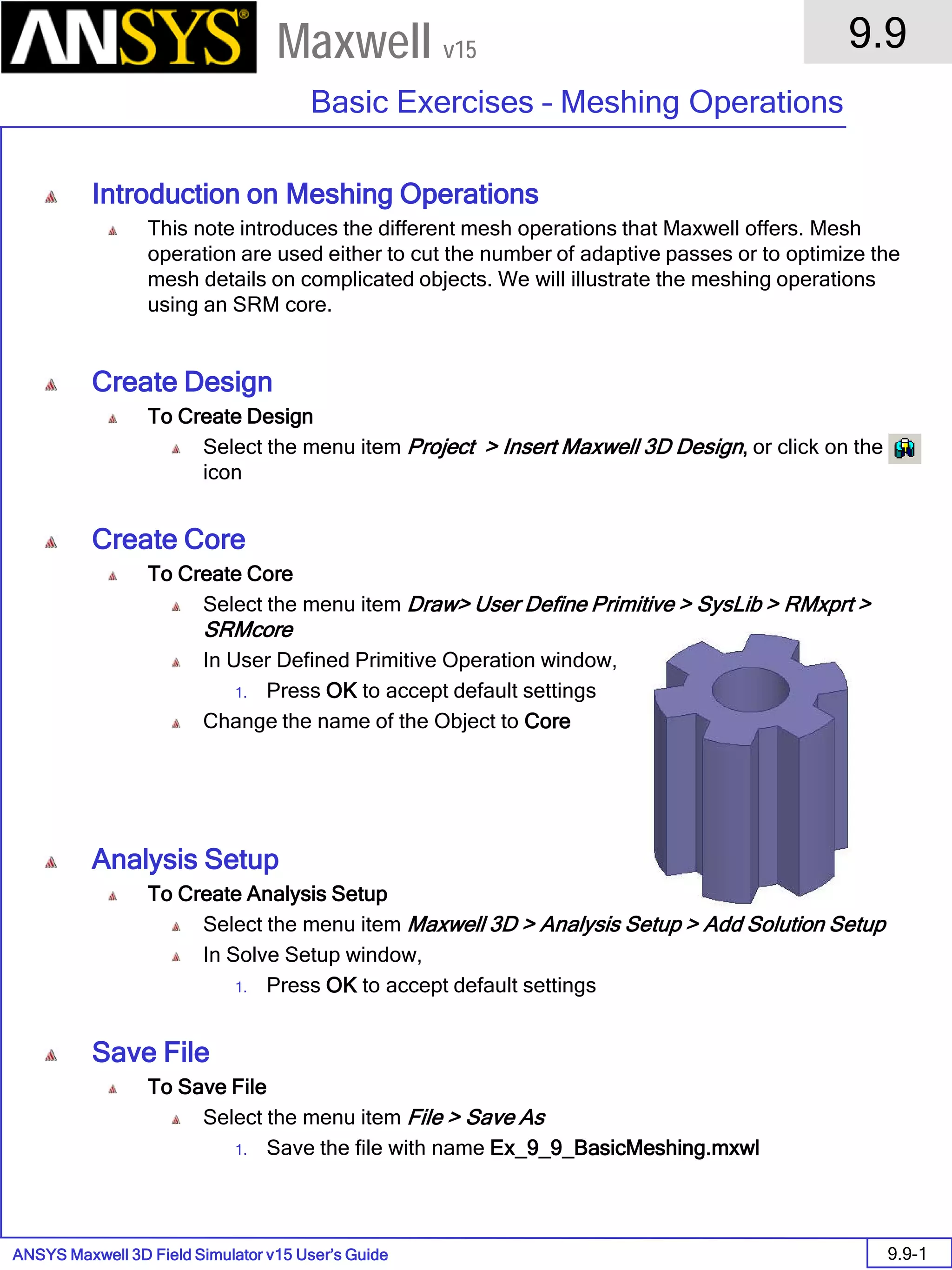
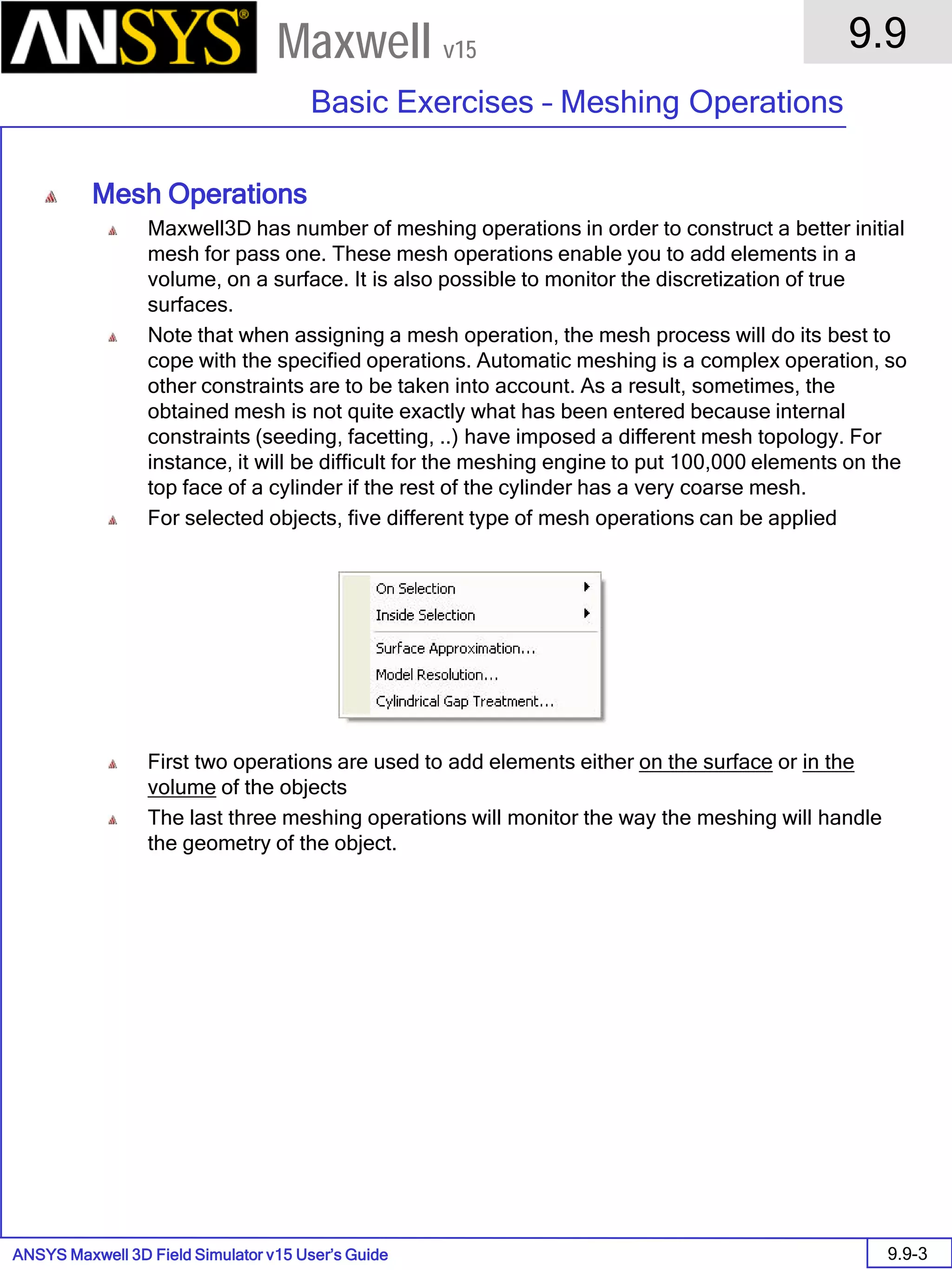
• To assign Mesh operations to Objects, select the Menu item: Maxwell 3D > Assign Mesh Operations
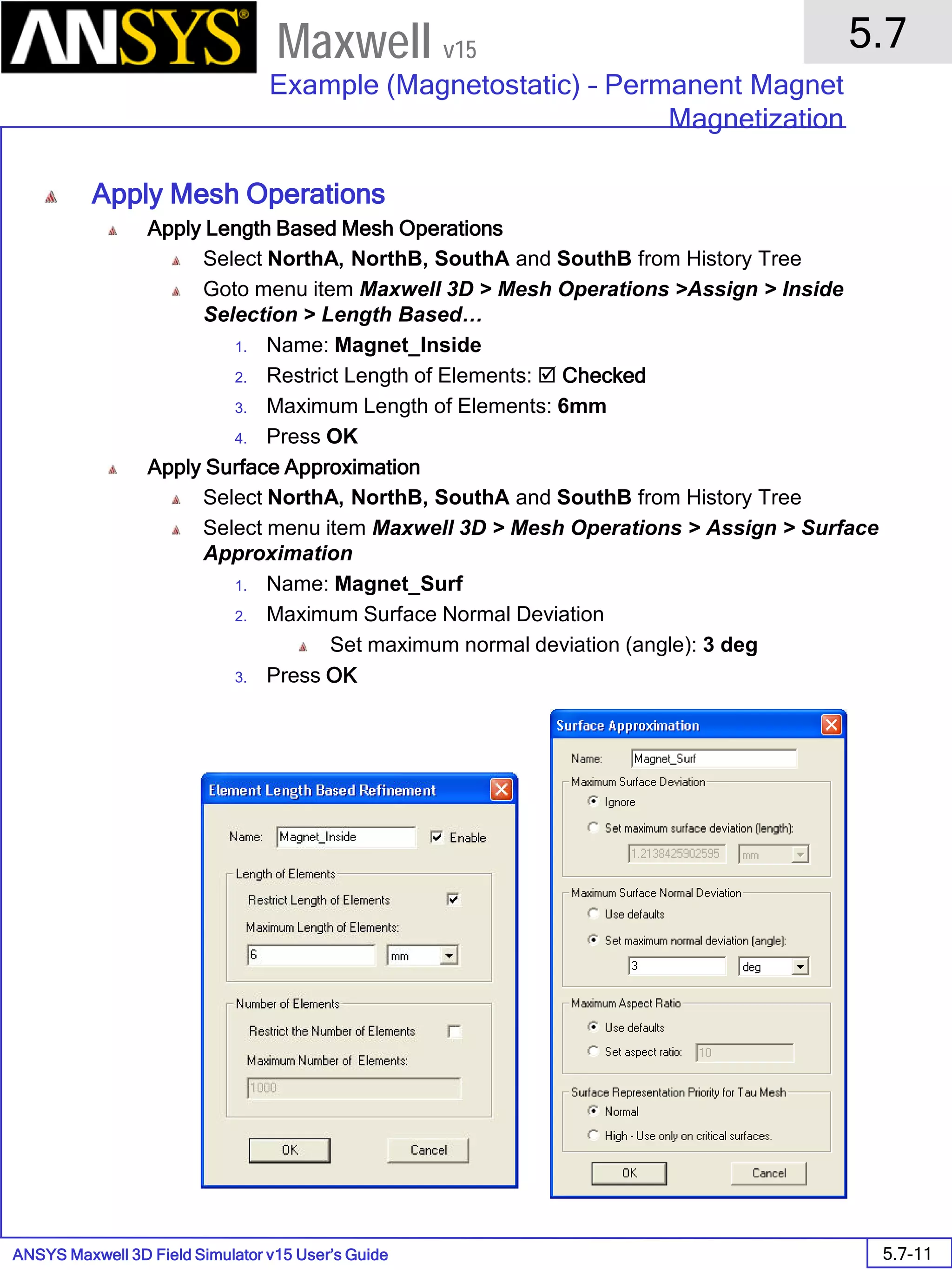
1. On Selection is applied on the surface of the object
2. Inside Selection is applied through the volume of the object
3. Surface approximation is applied to set faceting guidelines for true surface objects
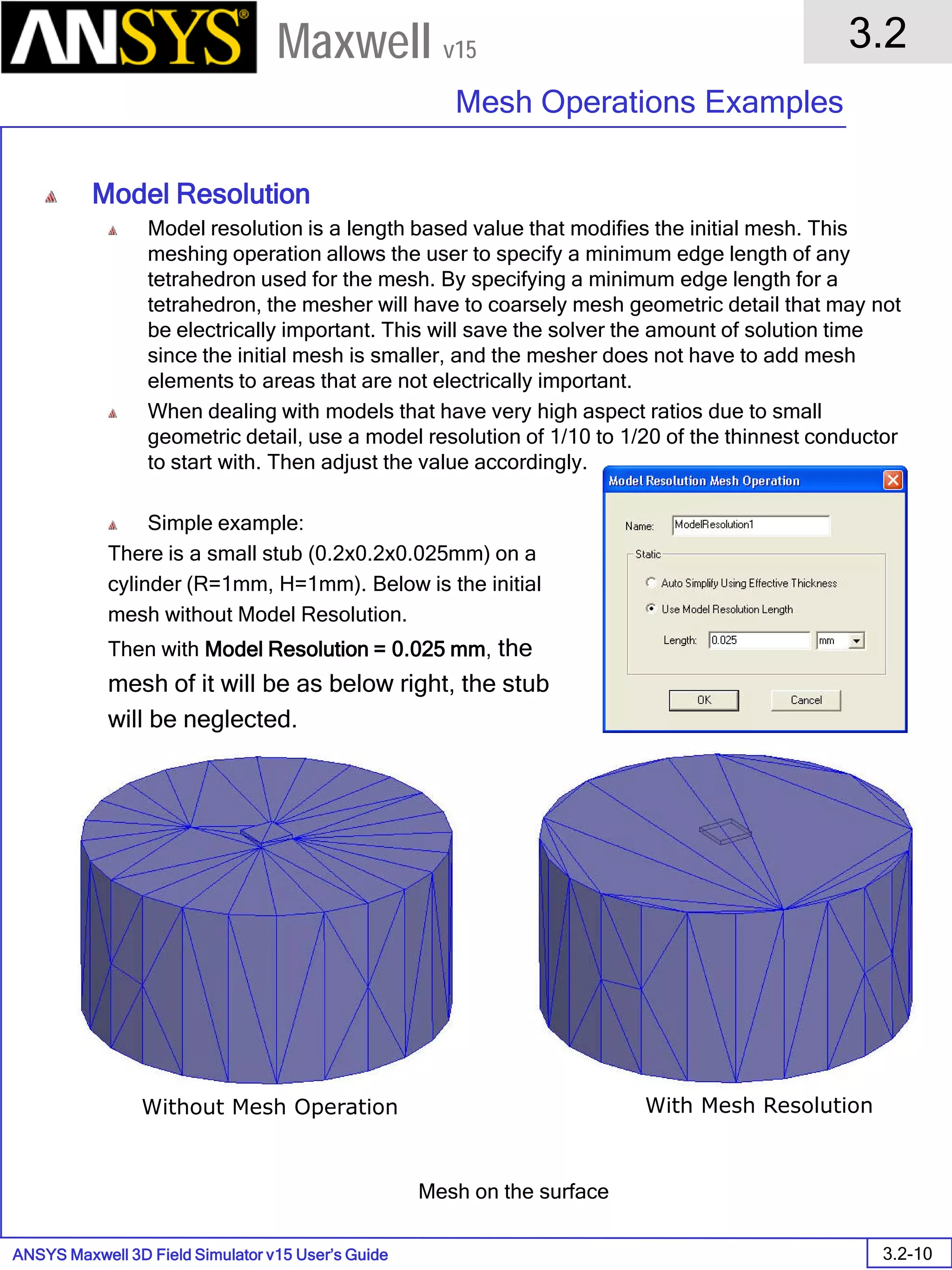
4. Model Resolution is applied to ignore small details of a geometry
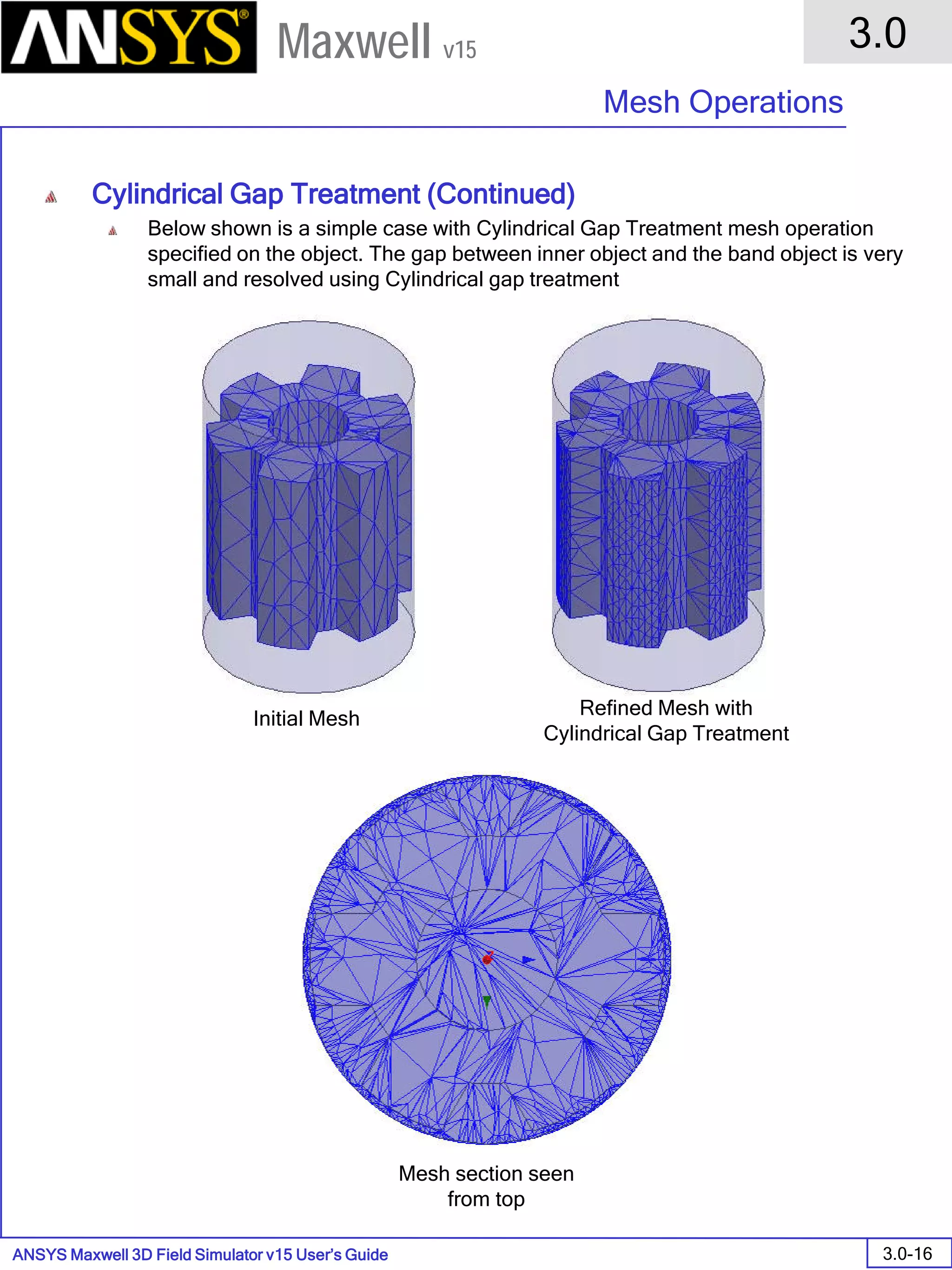
5. Cylindrical Gap Treatment is applied to achieve good mesh in narrow sections
ANSYS Maxwell Field Simulator v15 – Training Seminar P1-86
Overview
Presentation
1
Maxwell v15
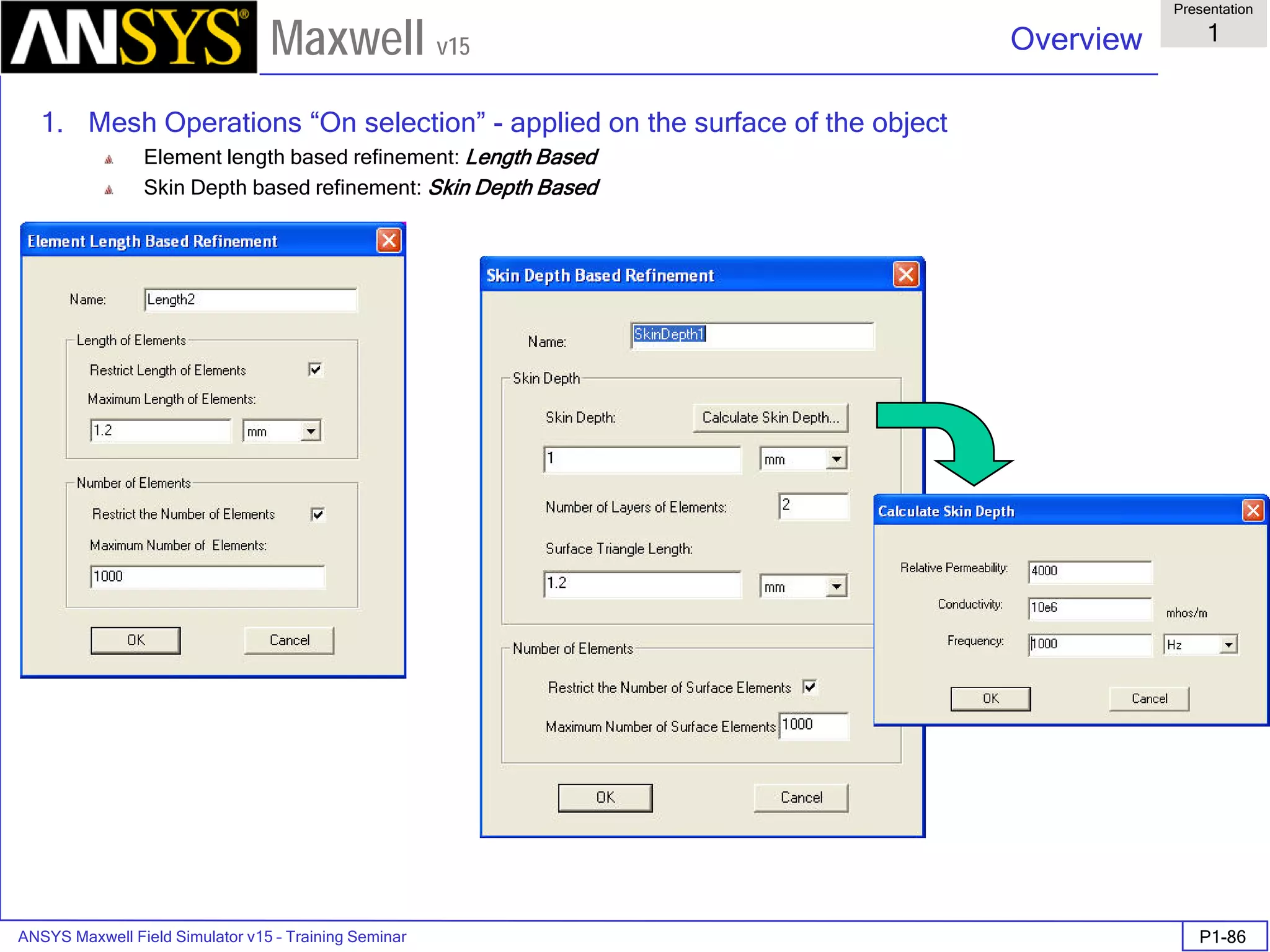
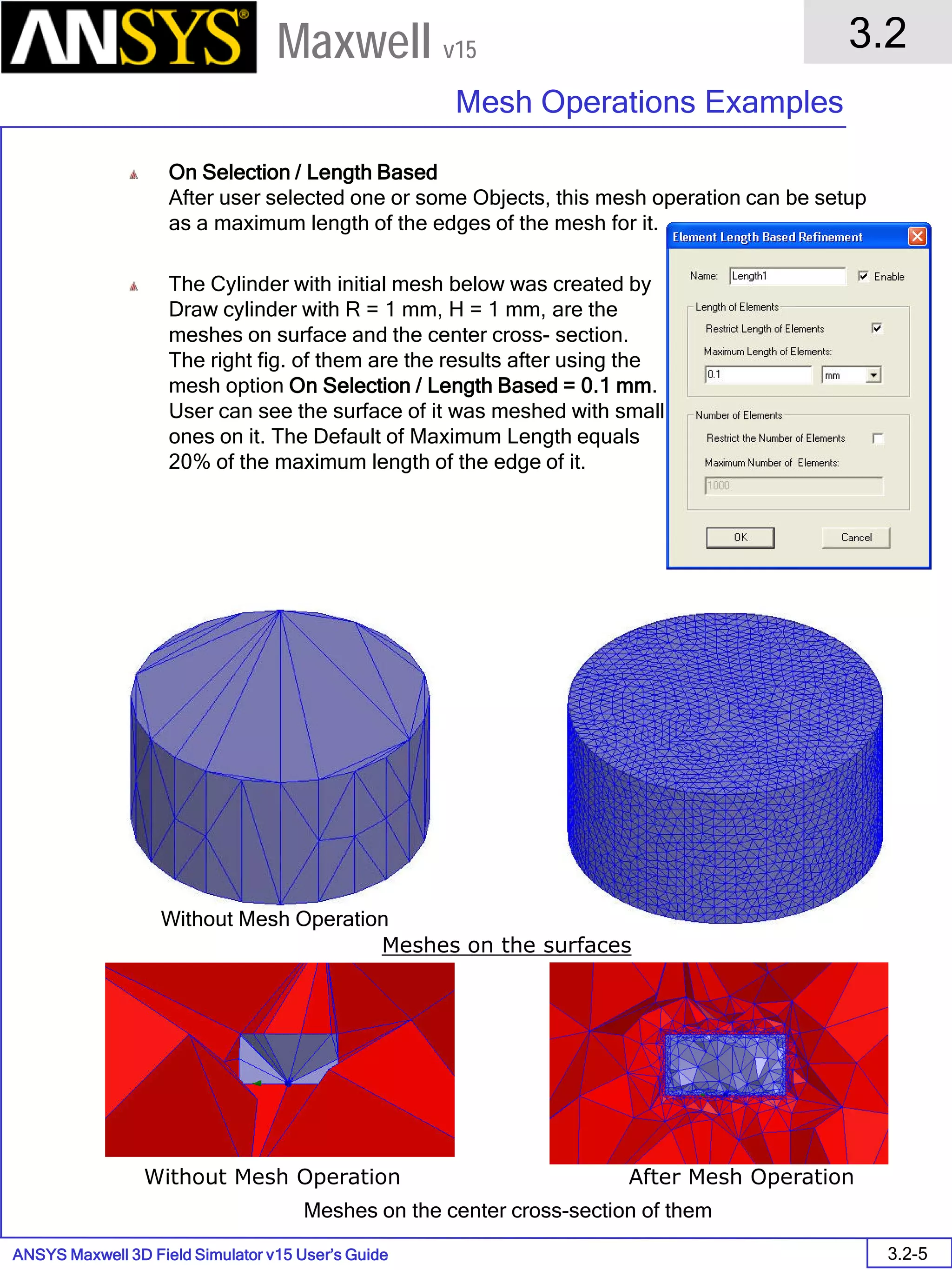
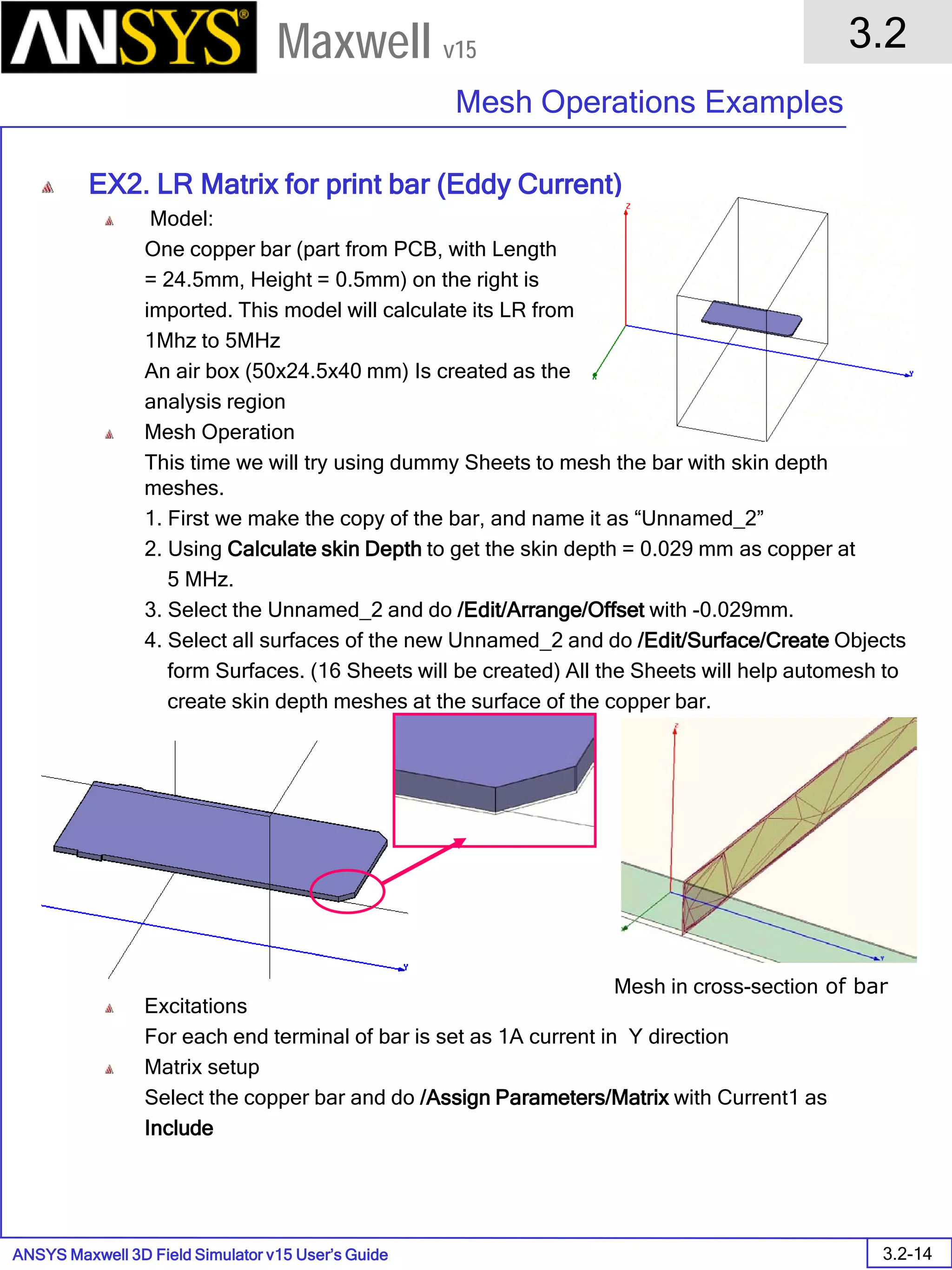
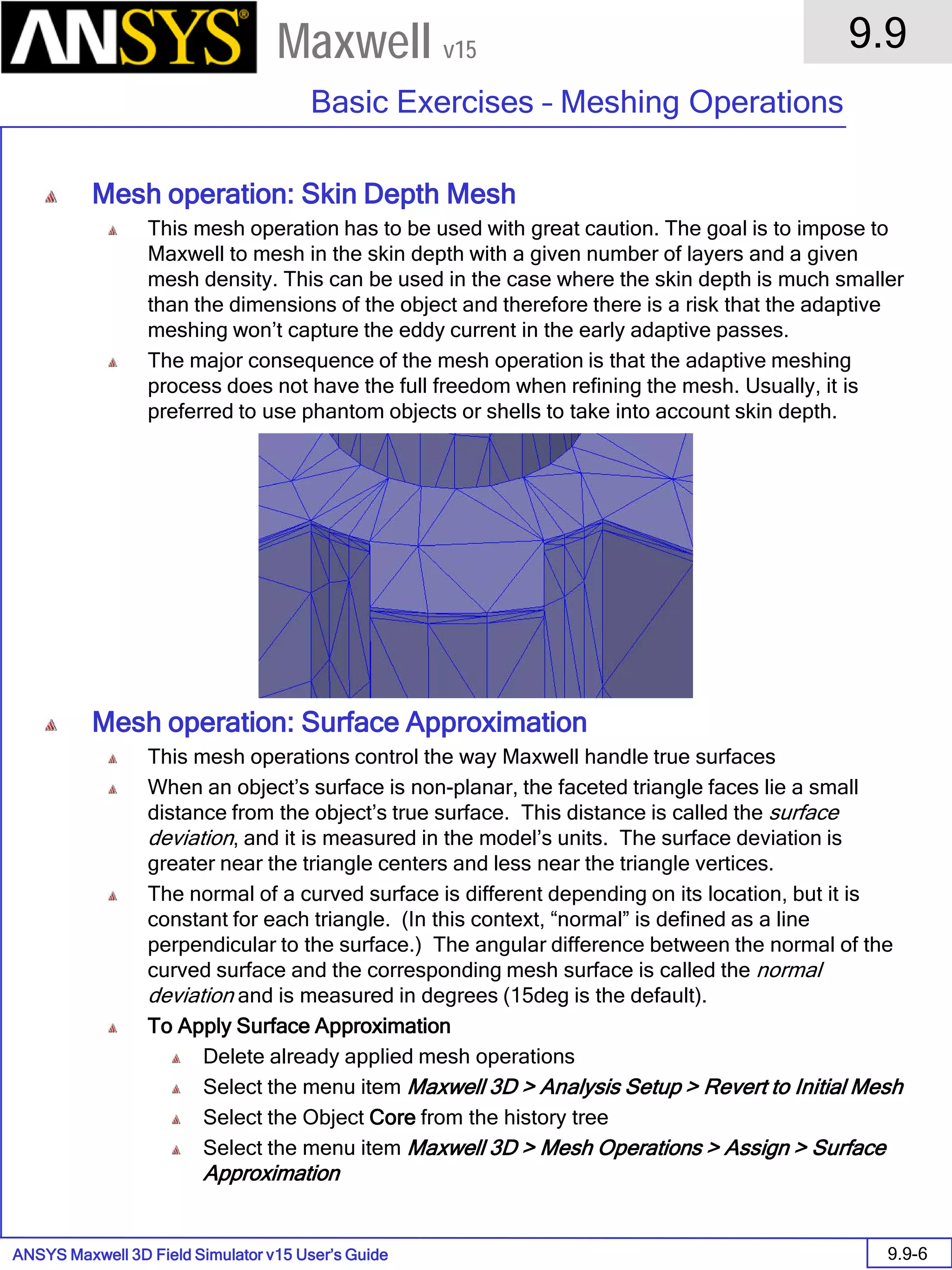
1. Mesh Operations “On selection” - applied on the surface of the object
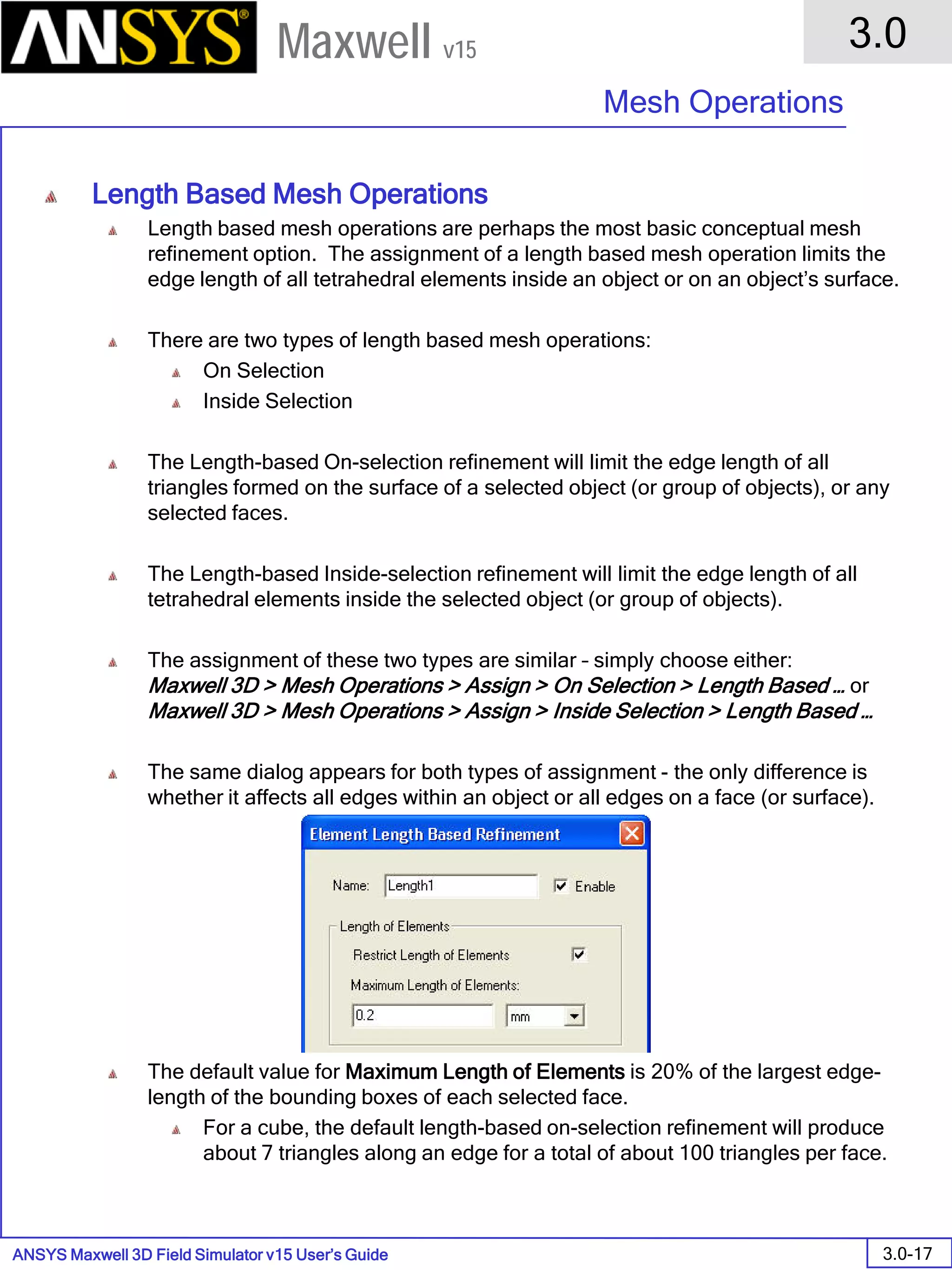
Element length based refinement: Length Based
Skin Depth based refinement: Skin Depth Based
ANSYS Maxwell Field Simulator v15 – Training Seminar P1-87
Overview
Presentation
1
Maxwell v15
Initial Top and bottom face Side face
“On selection” Skin Depth Based
Note: Adaptive refinement will be applied to objects which have a skin depth mesh operation. In some
cases, the skin depth mesh may be partially removed during the adaptive refinement process.
ANSYS Maxwell Field Simulator v15 – Training Seminar P1-88
Overview
Presentation
1
Maxwell v15
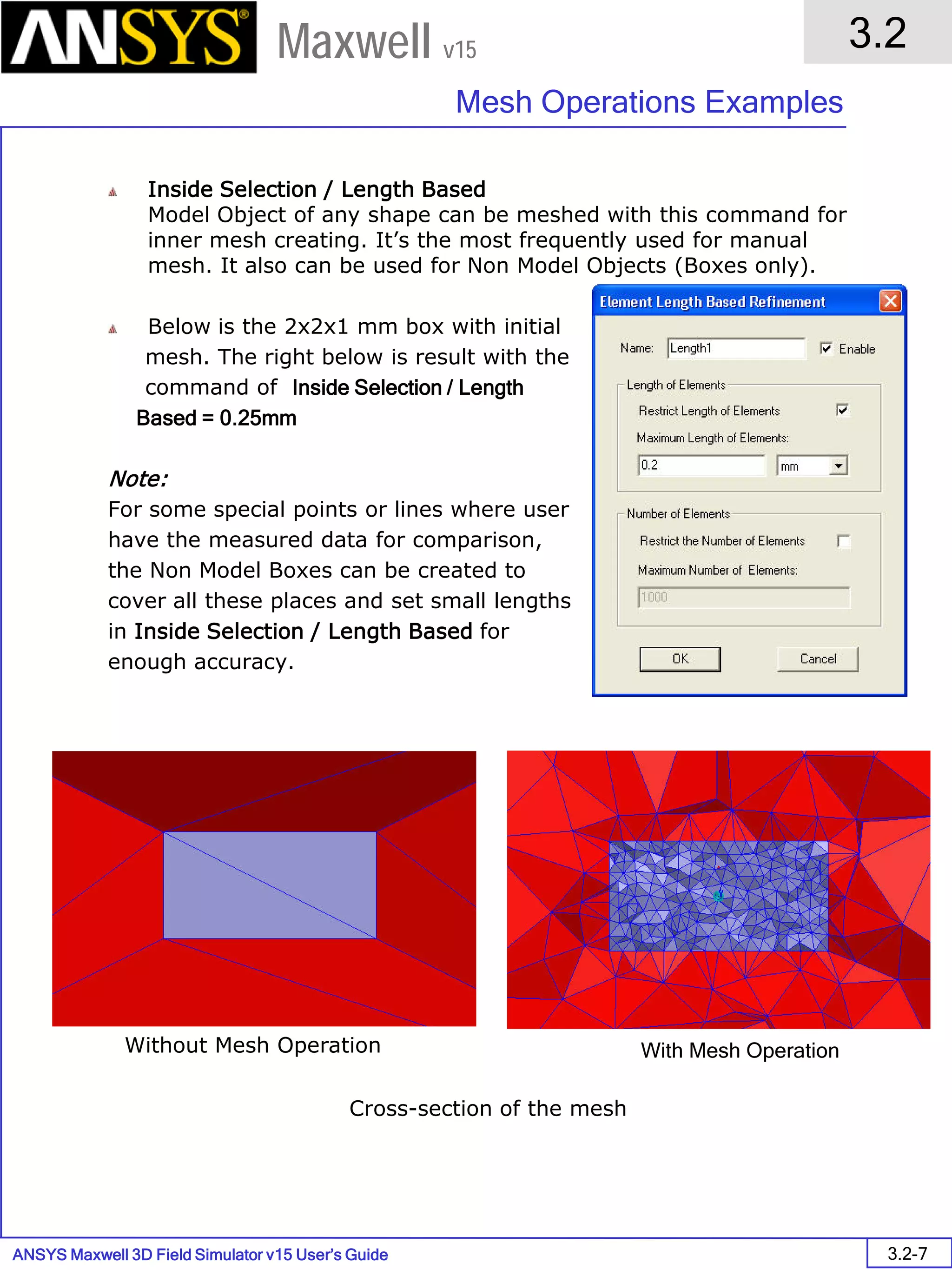
2. Mesh Operations “Inside selection” - applied throughout the volume of the object
Element length based refinement: Length Based
ANSYS Maxwell Field Simulator v15 – Training Seminar P1-89
Overview
Presentation
1
Maxwell v15
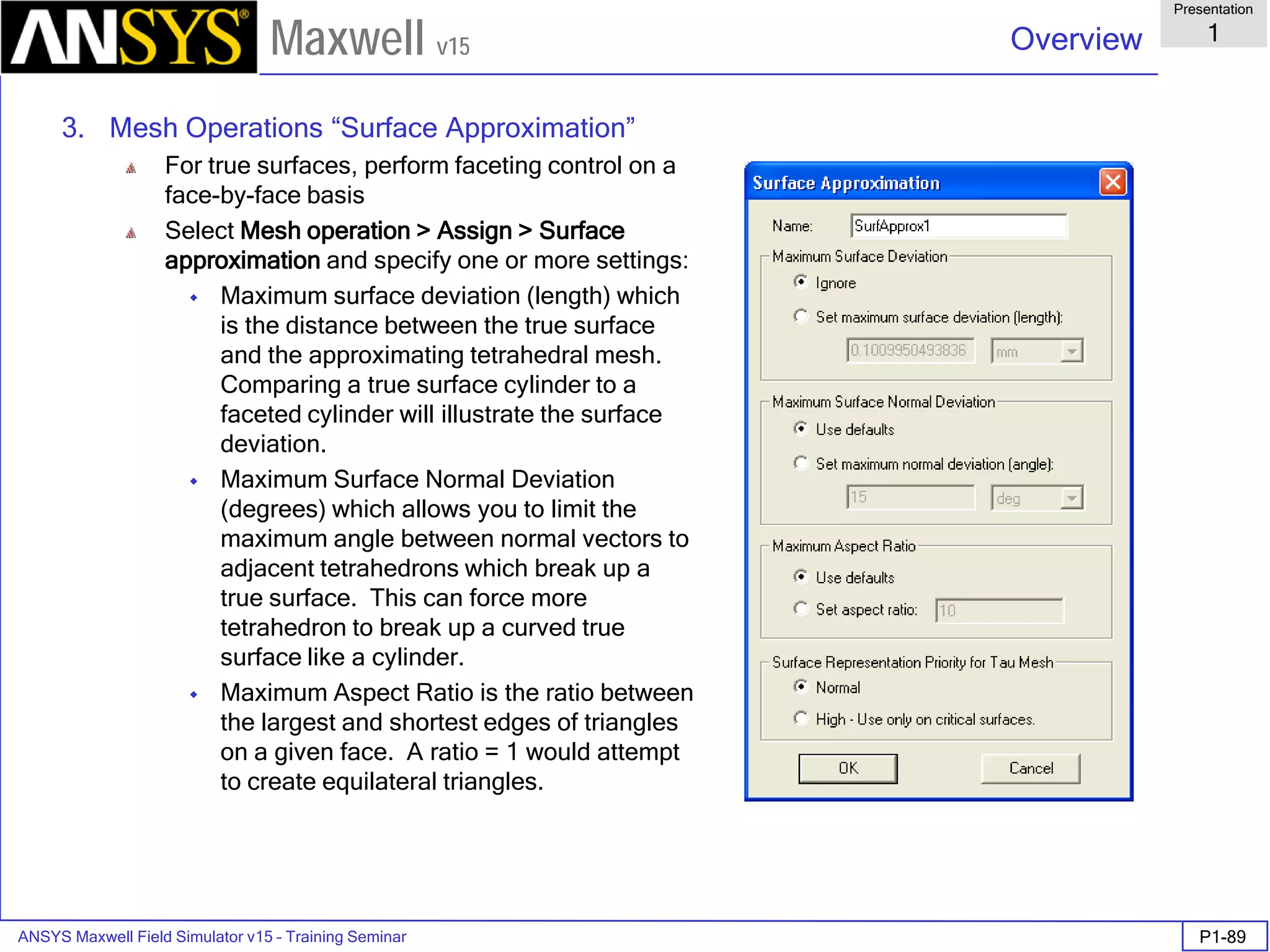
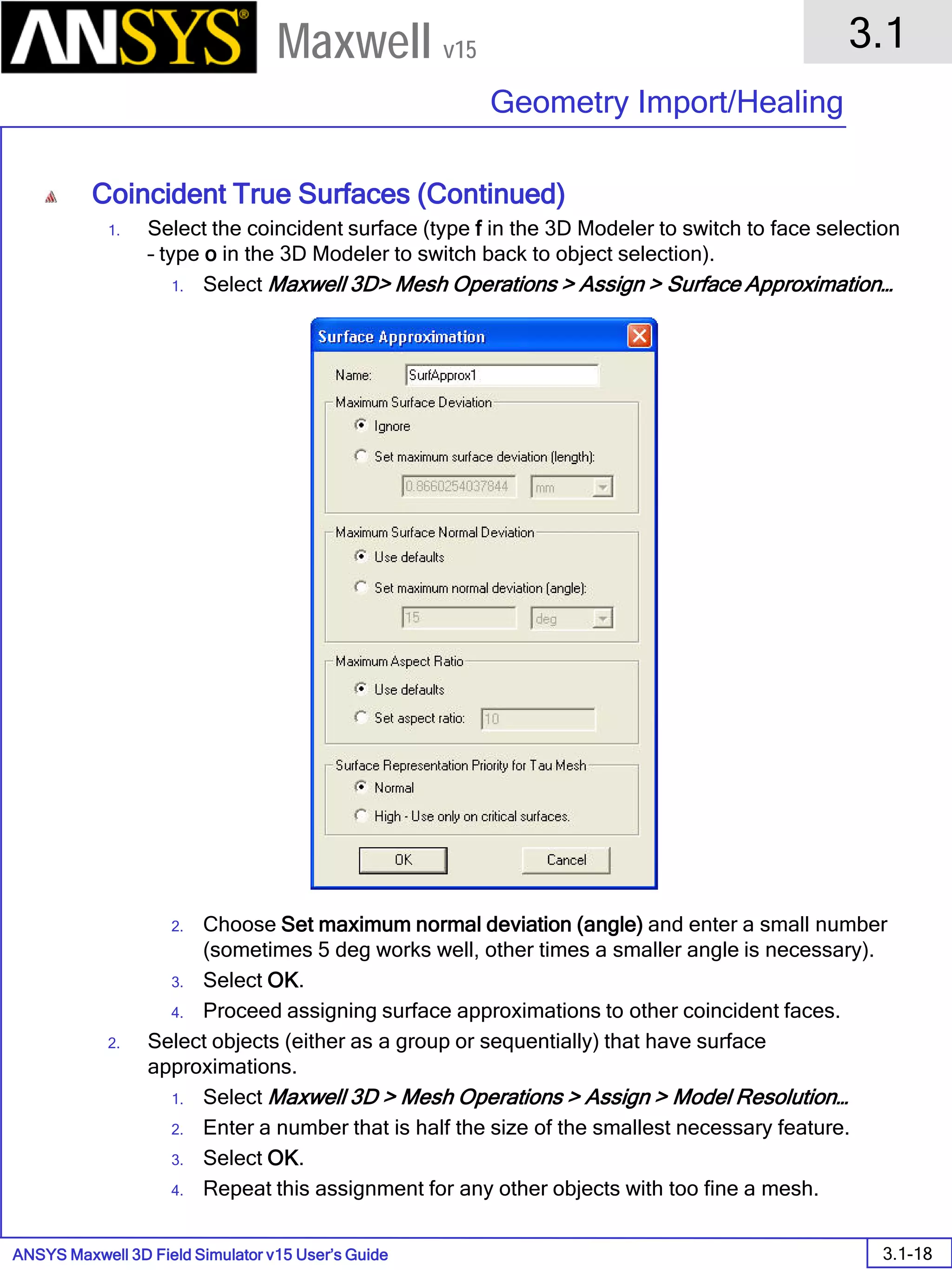
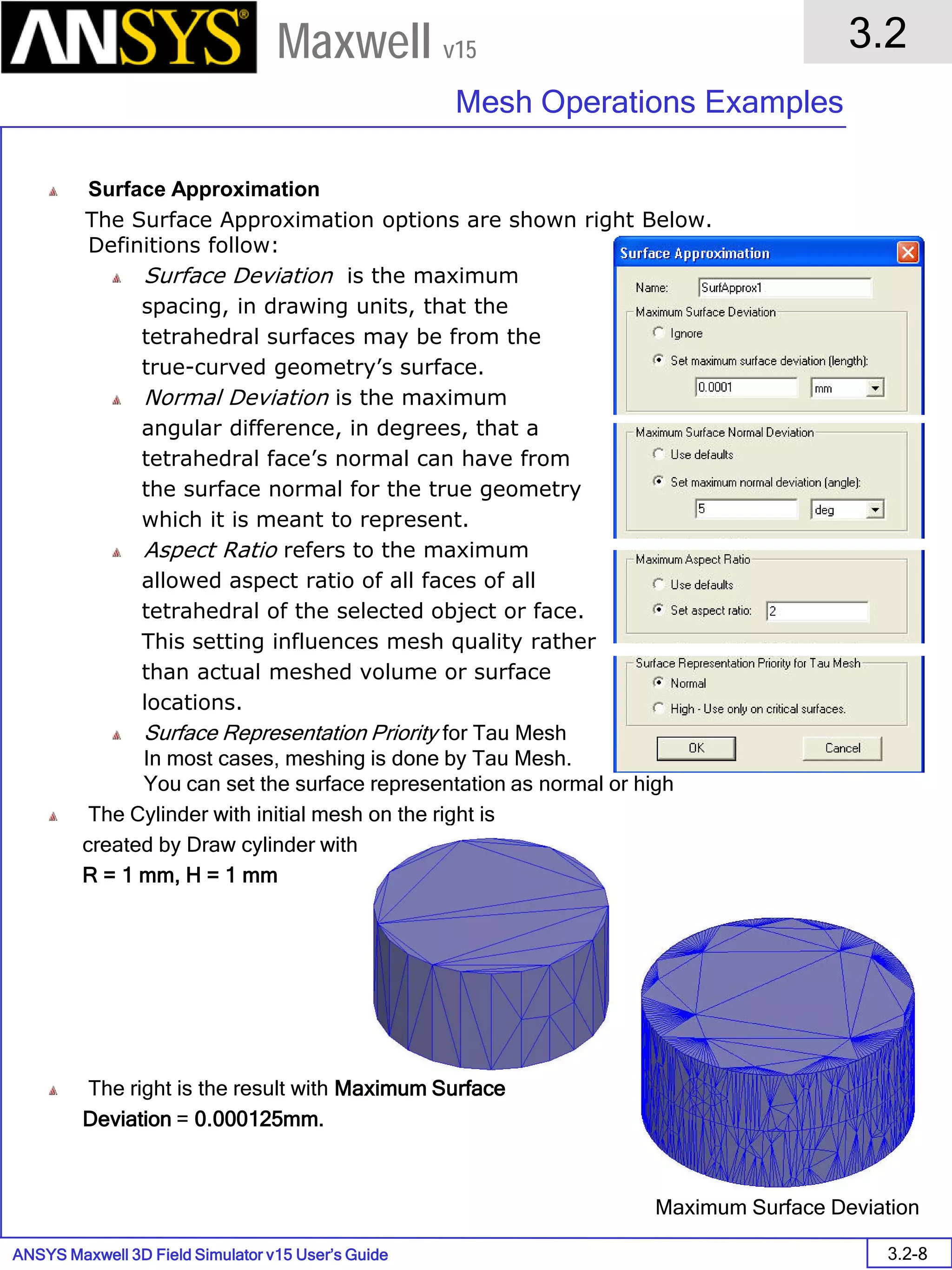
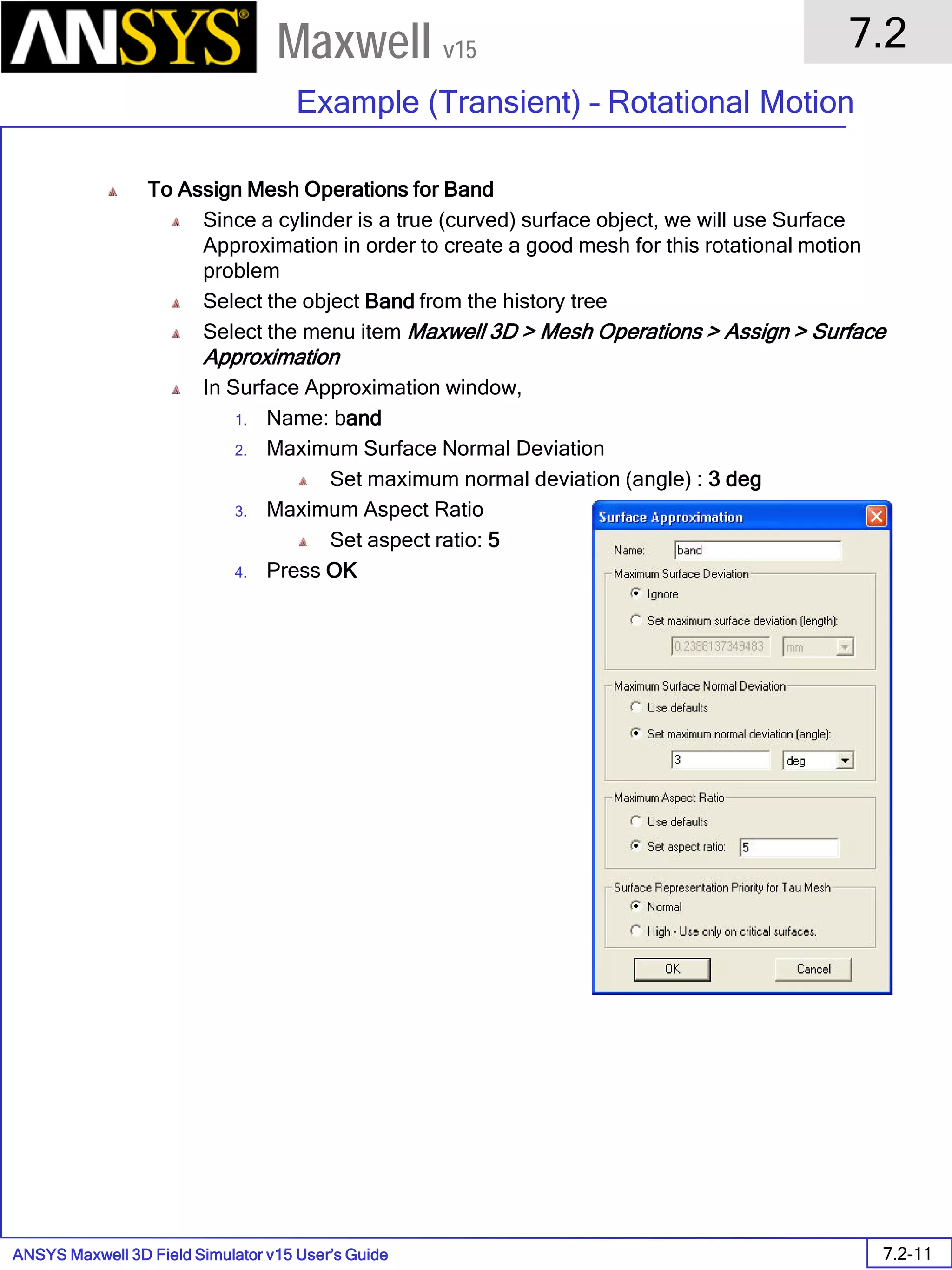
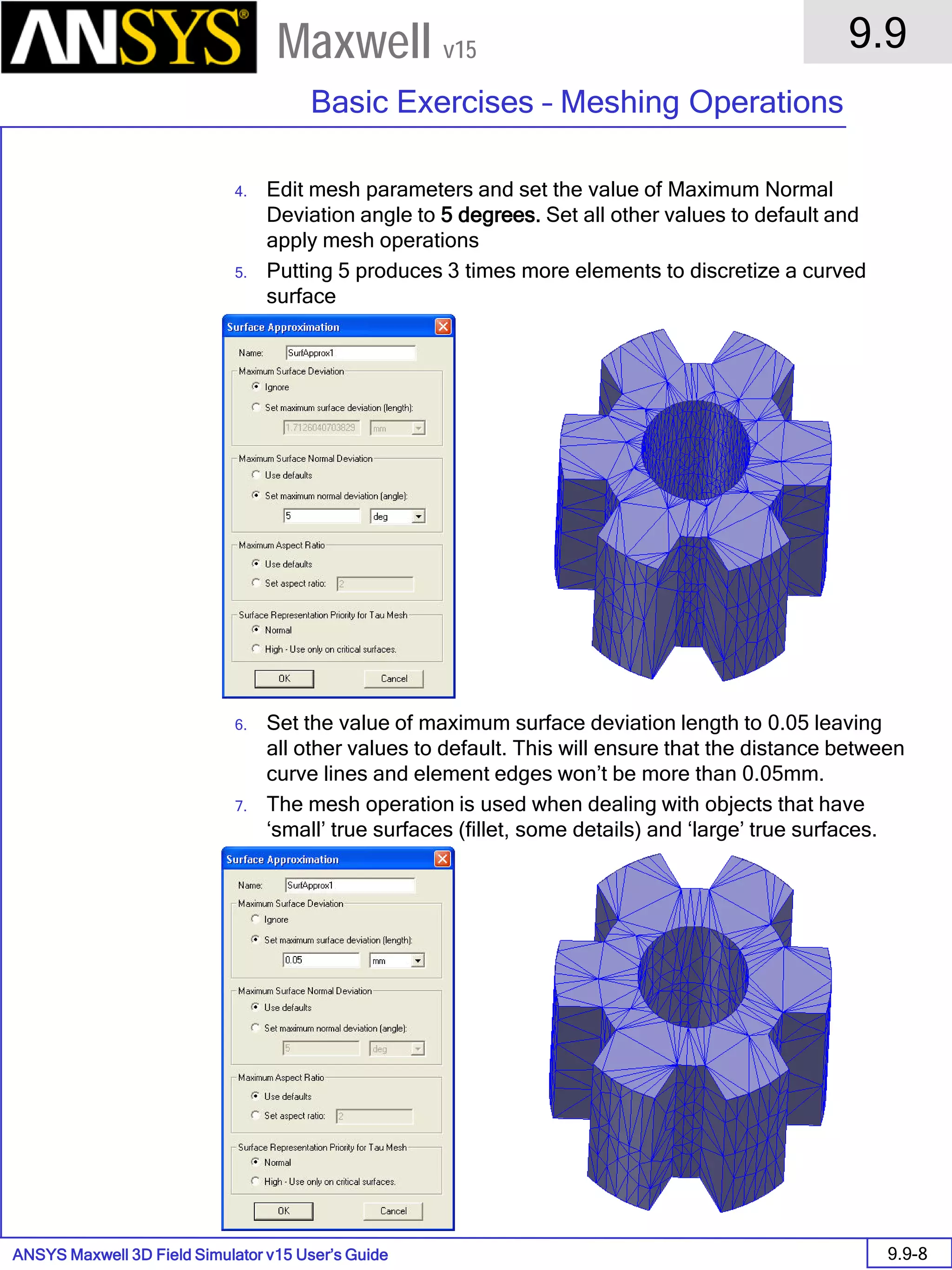
3. Mesh Operations “Surface Approximation”
For true surfaces, perform faceting control on a
face-by-face basis
Select Mesh operation > Assign > Surface
approximation and specify one or more settings:
 Maximum surface deviation (length) which
is the distance between the true surface
and the approximating tetrahedral mesh.
Comparing a true surface cylinder to a
faceted cylinder will illustrate the surface
deviation.
 Maximum Surface Normal Deviation
(degrees) which allows you to limit the
maximum angle between normal vectors to
adjacent tetrahedrons which break up a
true surface. This can force more
tetrahedron to break up a curved true
surface like a cylinder.
 Maximum Aspect Ratio is the ratio between
the largest and shortest edges of triangles
on a given face. A ratio = 1 would attempt
to create equilateral triangles.
ANSYS Maxwell Field Simulator v15 – Training Seminar P1-90
Overview
Presentation
1
Maxwell v15
Initial Surface Normal
Deviation – 5 deg
(default 15 deg)
Maximum
Aspect Ratio – 3
(default 10)
Both
3. Mesh Operations “Surface Approximation”
ANSYS Maxwell Field Simulator v15 – Training Seminar P1-91
Overview
Presentation
1
Maxwell v15
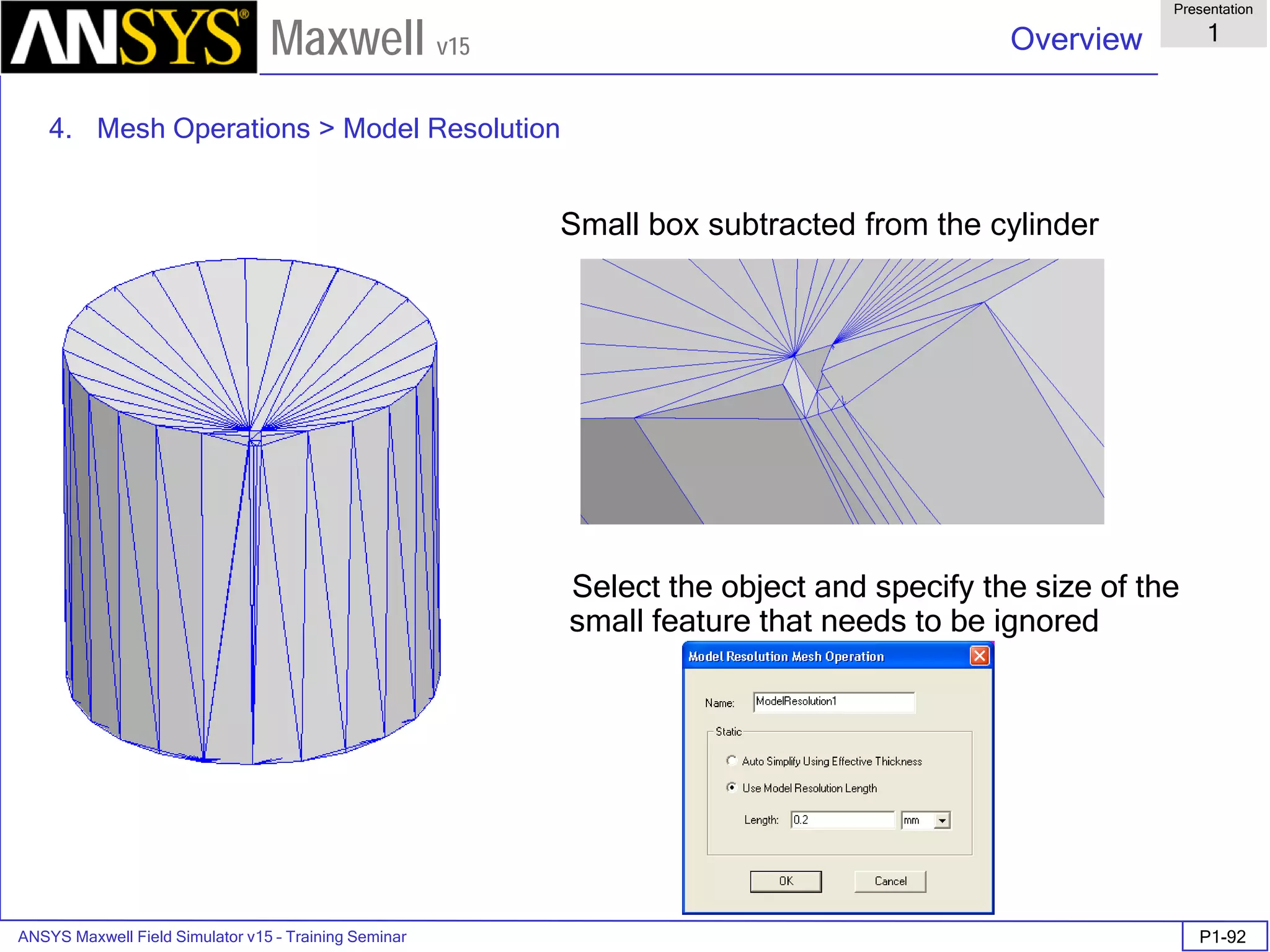
4. Mesh Operations > Model Resolution
• To de-feature the mesh:
1. Specify the maximum dimension to be used in the mesh under: Mesh Operations
> Assign > Model Resolution
2. Improves mesh quality and reduces mesh size for complex models
3. Increases the mesh speed
4. Reduces the load on the solver with reductions in mesh size
ANSYS Maxwell Field Simulator v15 – Training Seminar P1-92
Overview
Presentation
1
Maxwell v15
Small box subtracted from the cylinder
Select the object and specify the size of the
small feature that needs to be ignored
4. Mesh Operations > Model Resolution
ANSYS Maxwell Field Simulator v15 – Training Seminar P1-93
Overview
Presentation
1
Maxwell v15
No model resolution Model resolution larger that the small
box edge length
4. Mesh Operations > Model Resolution
ANSYS Maxwell Field Simulator v15 – Training Seminar P1-94
Overview
Presentation
1
Maxwell v15
• Manual mesh creation
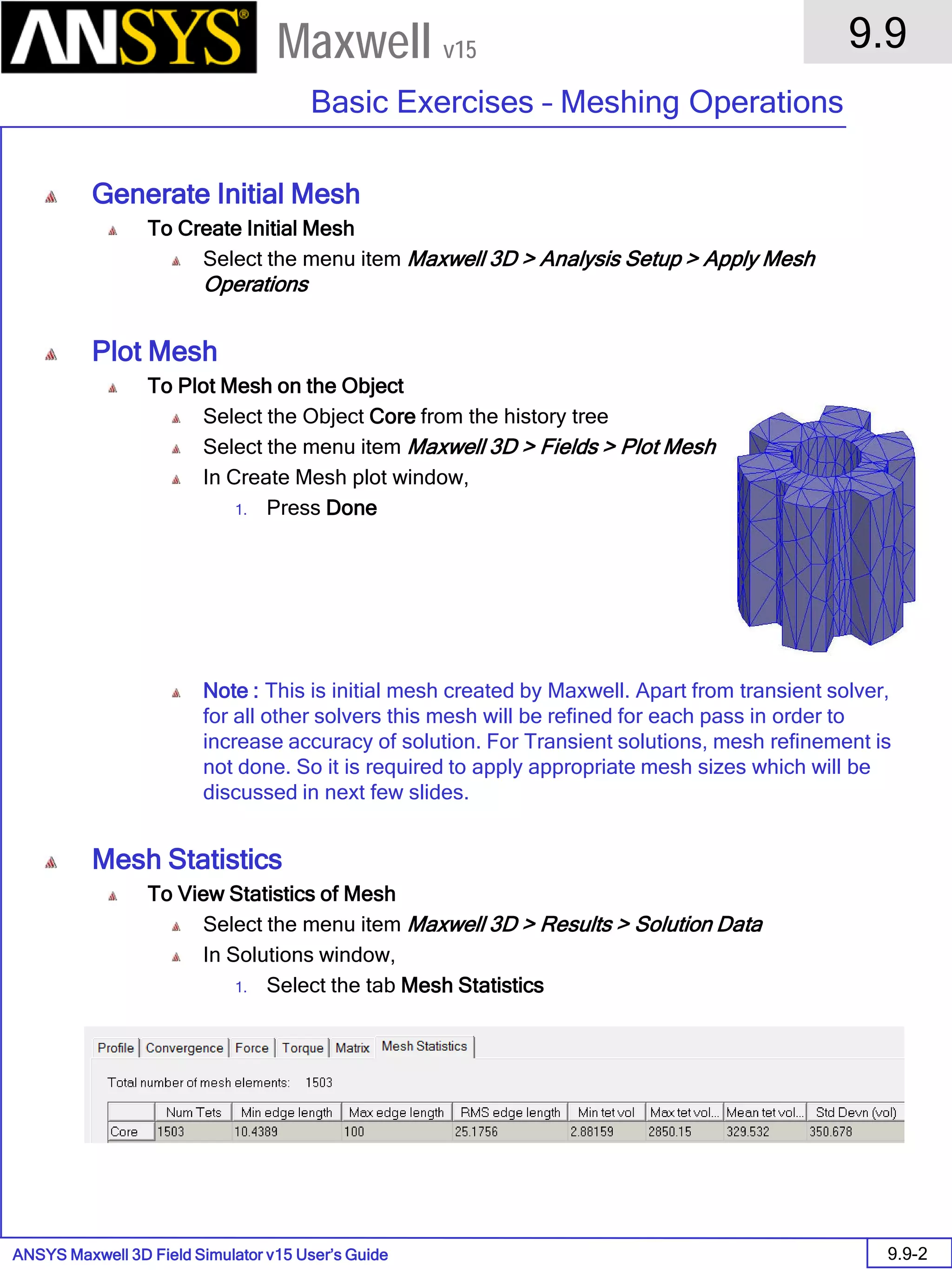
• To create the initial mesh: Click Maxwell 3D > Analysis Setup > Apply Mesh Operations
• To refine the mesh without solving
1. Define mesh operations as previously discussed
2. Click Maxwell 3D> Analysis Setup > Apply Mesh Operations
• If a mesh has been previously generated, Maxwell refines it using the defined mesh operations.
• If an initial mesh has not been generated, Maxwell generates it and applies the mesh operations to the initial mesh.
• If the defined mesh operations have been previously applied to the selected face or object, the current mesh is not
altered.
• Hint: When modifying an existing mesh operation, you should revert to initial mesh and then re-apply mesh
operations.
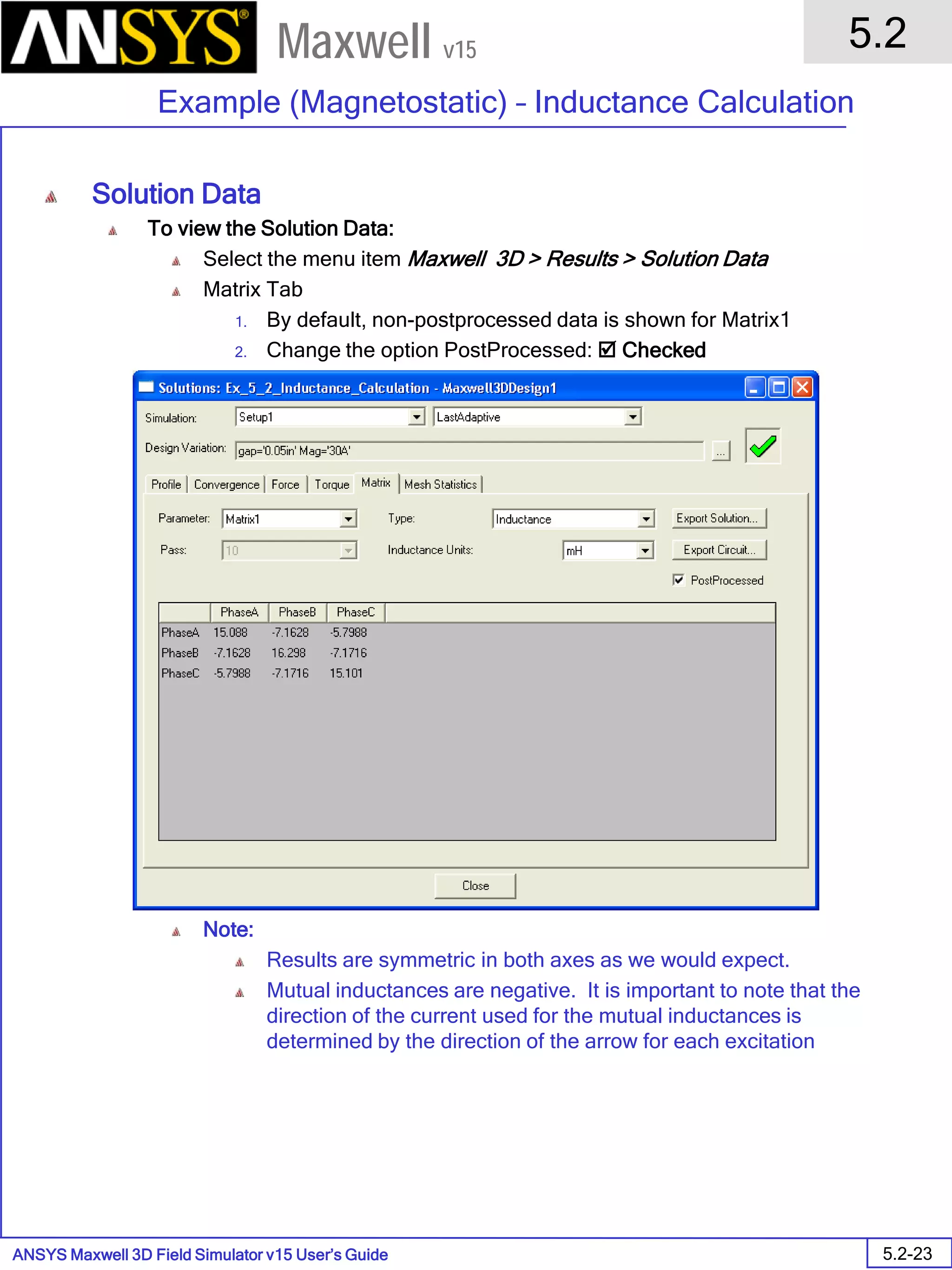
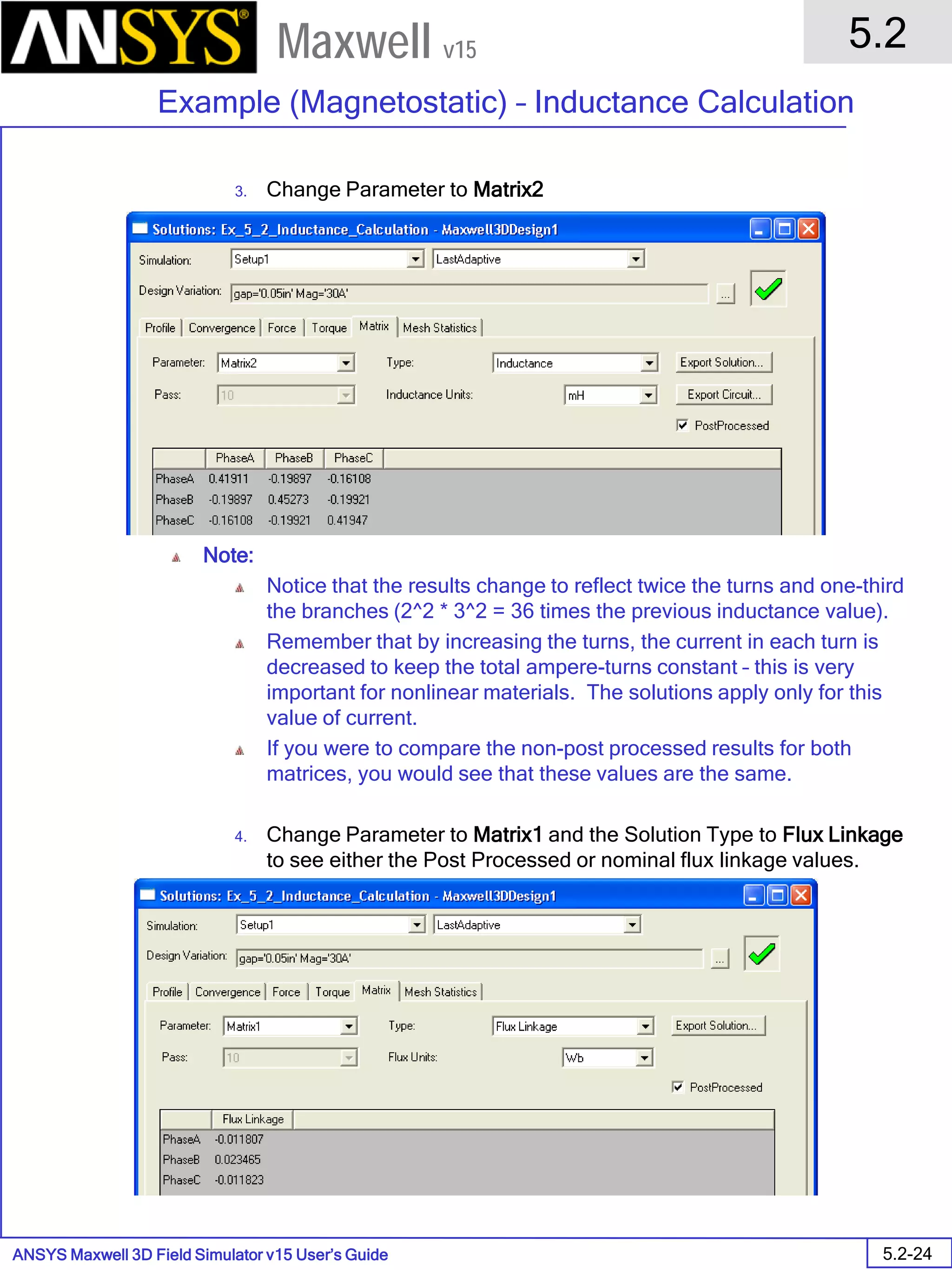
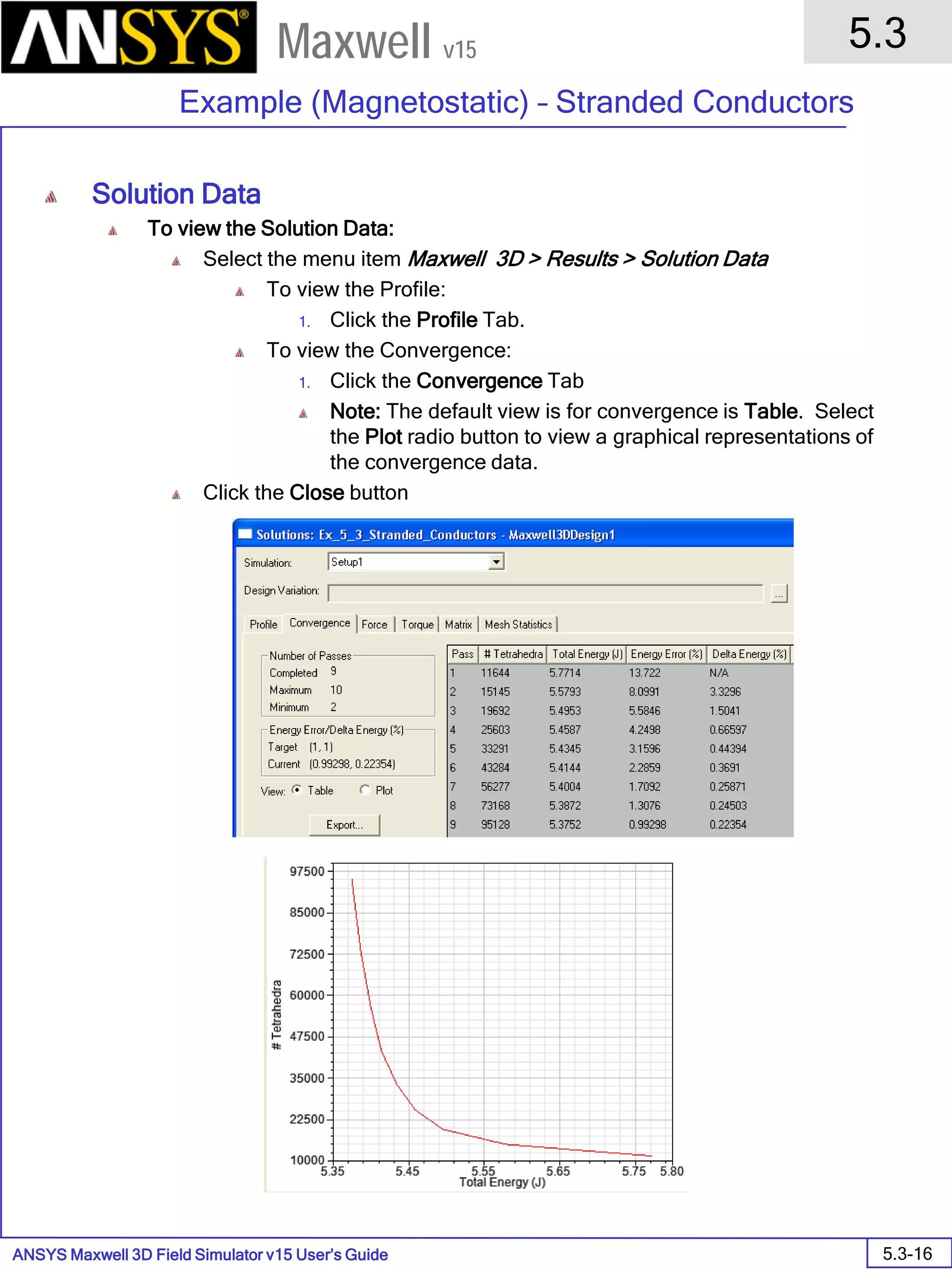
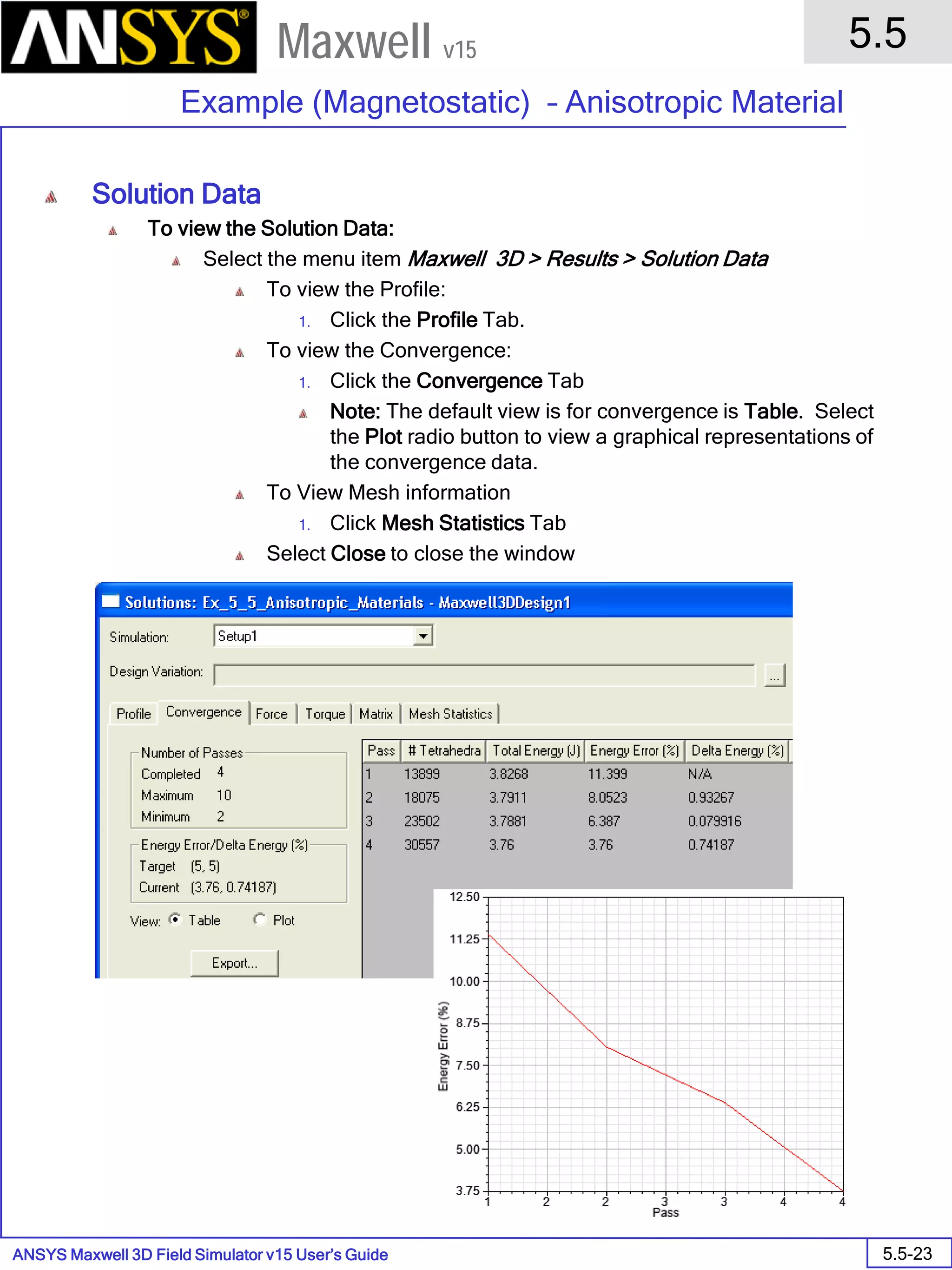
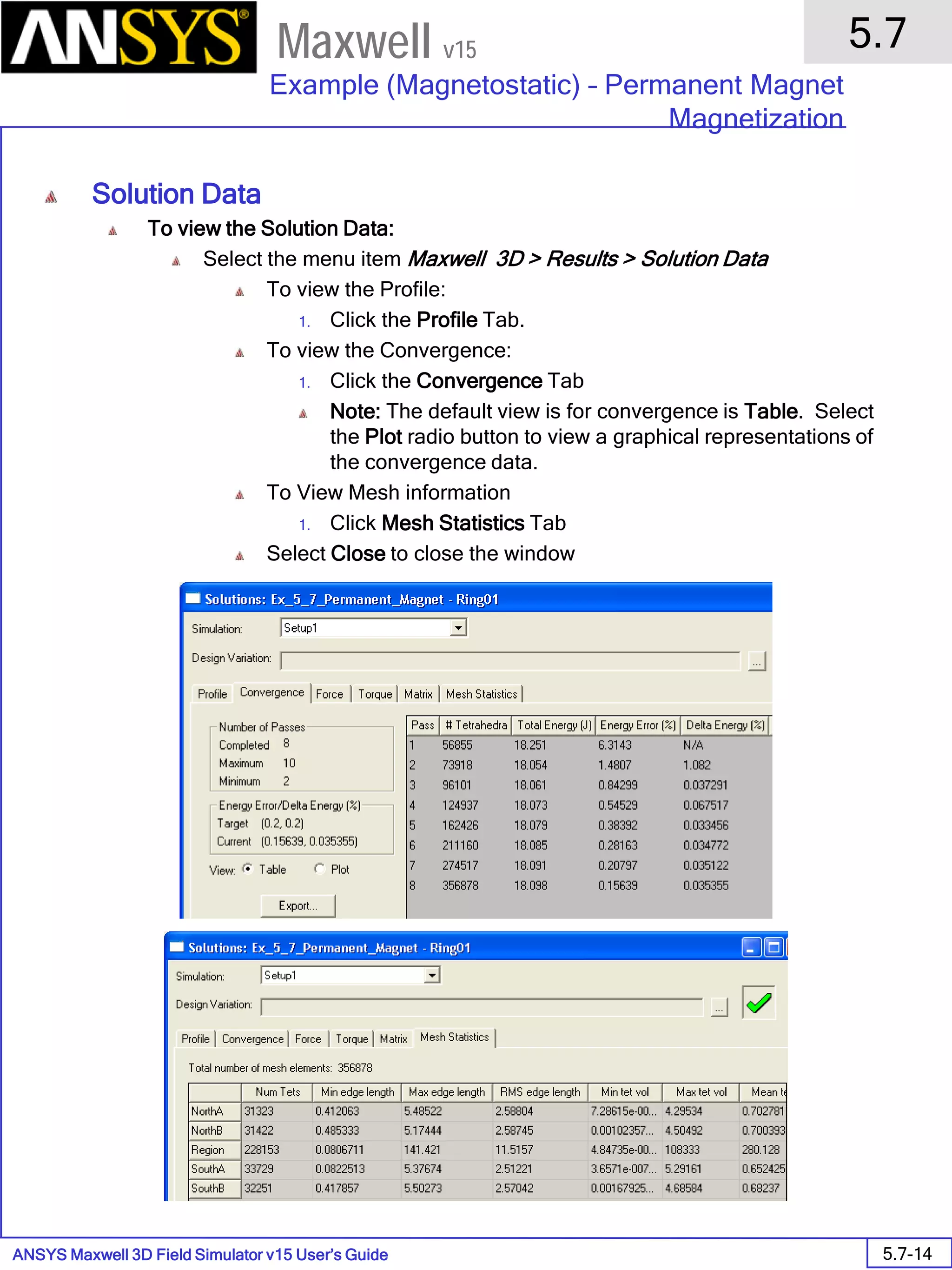
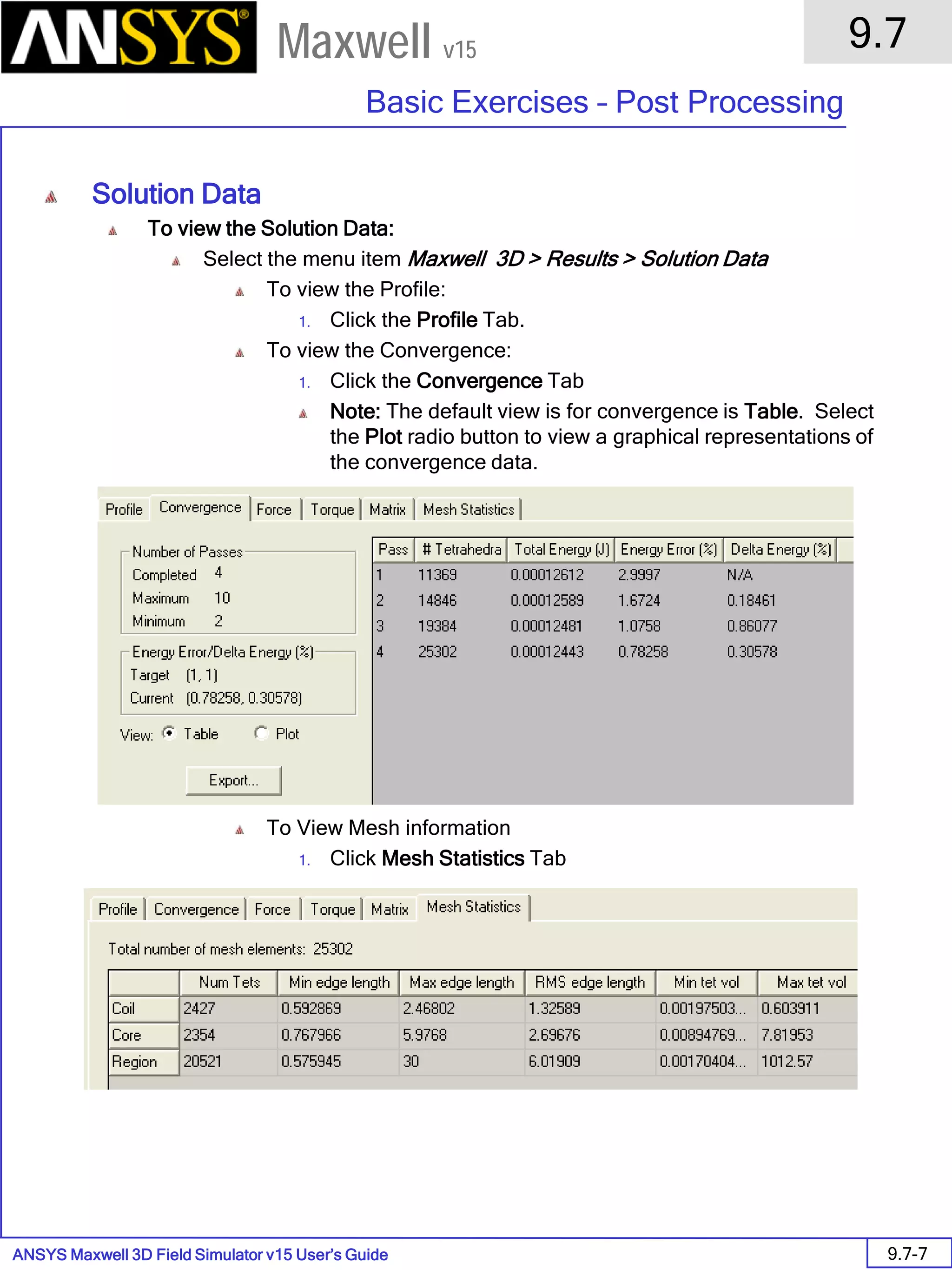
• To view mesh information: Click Maxwell 3D > Results > Solution Data and click on the tab Mesh Statistics
ANSYS Maxwell Field Simulator v15 – Training Seminar P1-95
Overview
Presentation
1
Maxwell v15
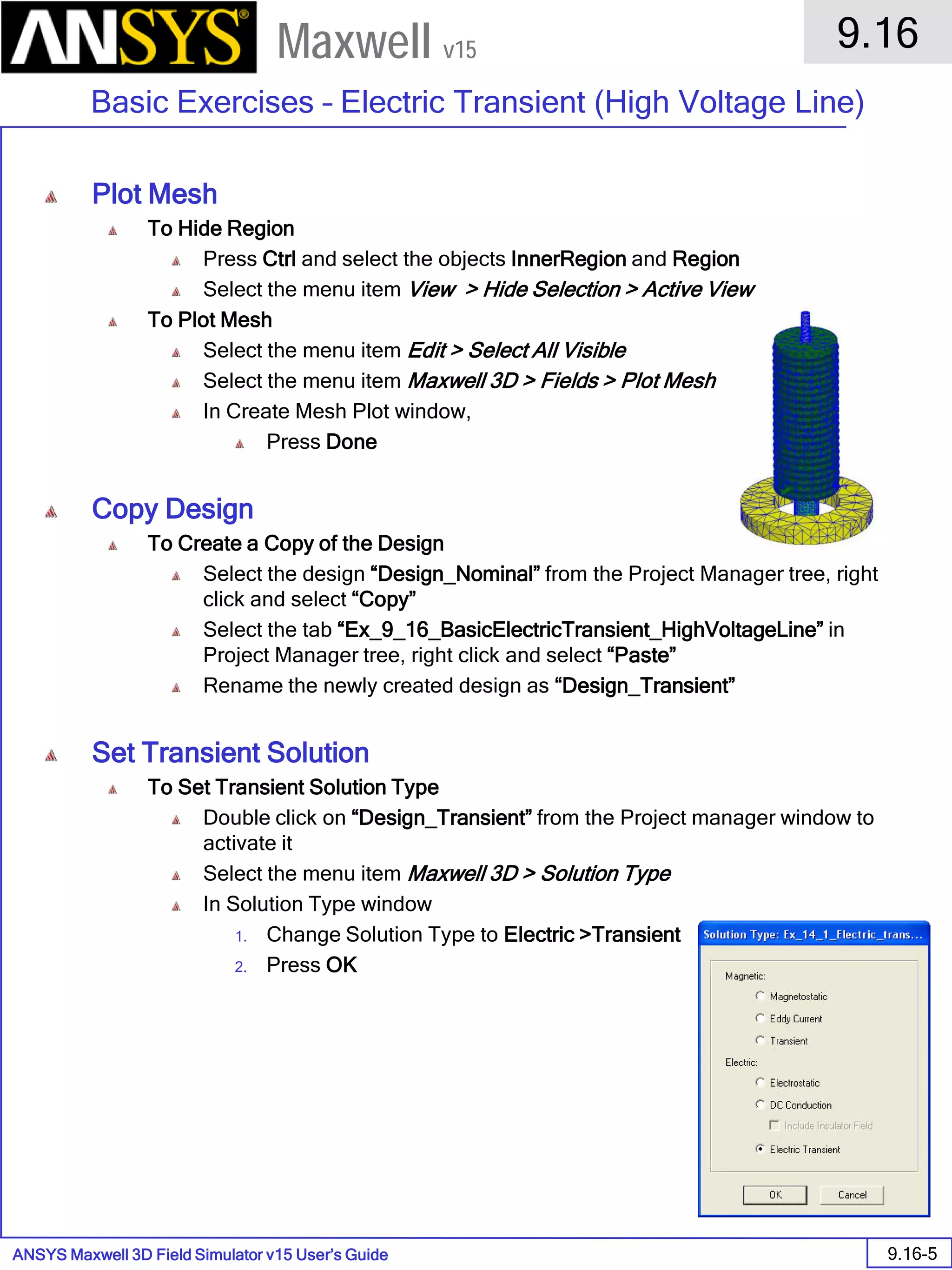
• Mesh Display
1. Select an object
2. Select the menu item Maxwell 3D > Fields > Plot Mesh
ANSYS Maxwell Field Simulator v15 – Training Seminar P1-96
Overview
Presentation
1
Maxwell v15
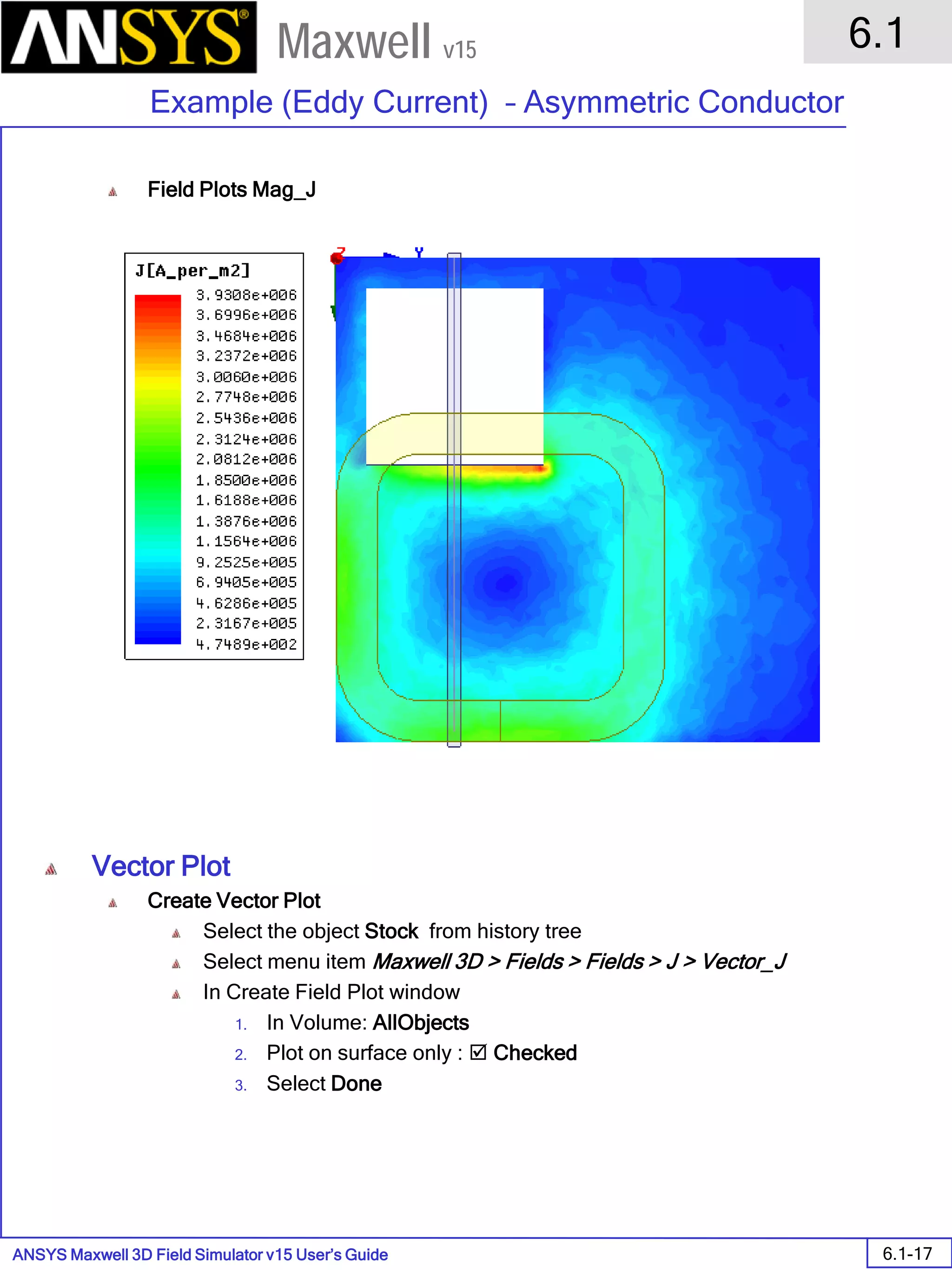
Post Processing
• Two Methods of Post Processing Solutions:
• Viewing Plots
• Manipulating Field Quantities in Calculator
• Six Types of Plots:
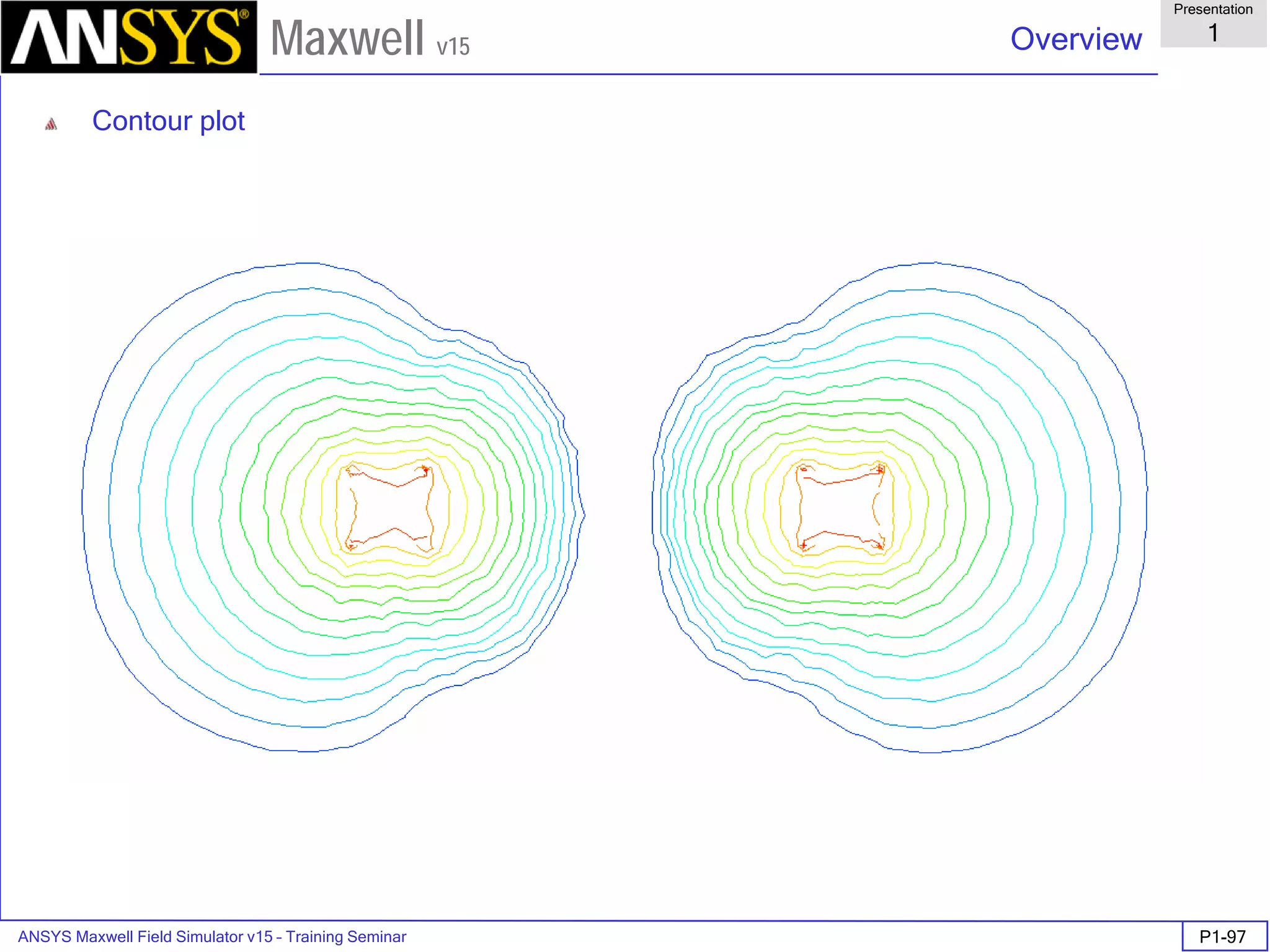
1. Contour plots (scalars): equipotential lines, ...
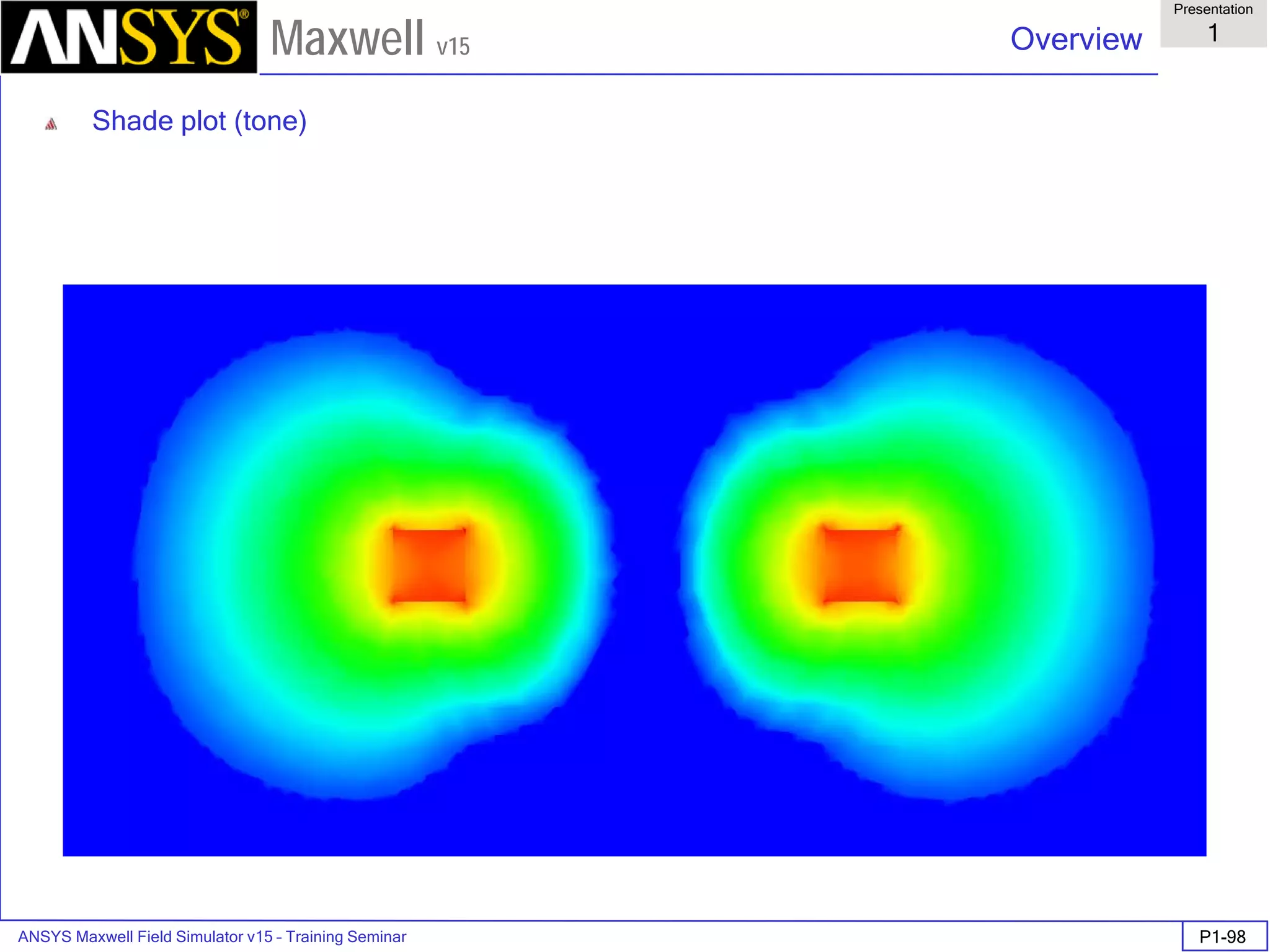
2. Shade plots (scalars): Bmag, Hmag, Jmag, …
3. Scatter plots (scalars): Bmag, Hmag, Jmag, Voltage
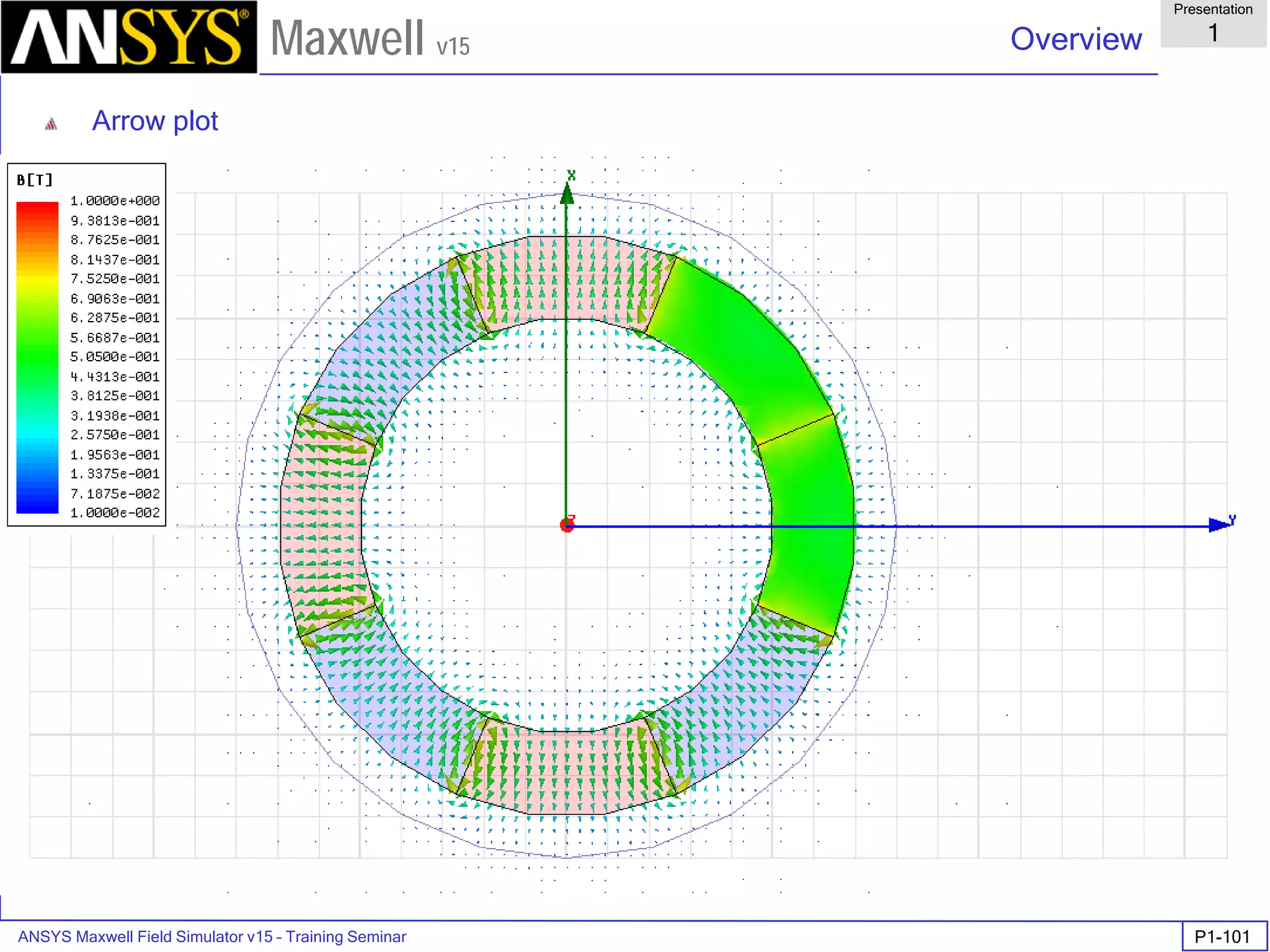
4. Arrow plots (vectors): B vector, H vector, …
5. Line plots (scalars): magnitude vs. distance along a predefined line
6. Animation Plots
ANSYS Maxwell Field Simulator v15 – Training Seminar P1-97
Overview
Presentation
1
Maxwell v15
Contour plot
ANSYS Maxwell Field Simulator v15 – Training Seminar P1-98
Overview
Presentation
1
Maxwell v15
Shade plot (tone)
ANSYS Maxwell Field Simulator v15 – Training Seminar P1-99
Overview
Presentation
1
Maxwell v15
Shade plot (fringe with outline)
ANSYS Maxwell Field Simulator v15 – Training Seminar P1-100
Overview
Presentation
1
Maxwell v15
Scatter plot
ANSYS Maxwell Field Simulator v15 – Training Seminar P1-101
Overview
Presentation
1
Maxwell v15
Arrow plot
ANSYS Maxwell Field Simulator v15 – Training Seminar P1-102
Overview
Presentation
1
Maxwell v15
Line plot
ANSYS Maxwell Field Simulator v15 – Training Seminar P1-103
Overview
Presentation
1
Maxwell v15
Multiple windows and multiple plots
ANSYS Maxwell Field Simulator v15 – Training Seminar P1-104
Overview
Presentation
1
Maxwell v15
• Animation plot
• Animate across different surfaces or with
different phase angles (eddy solver)
• Export to .gif or .avi format
ANSYS Maxwell Field Simulator v15 – Training Seminar P1-105
Overview
Presentation
1
Maxwell v15
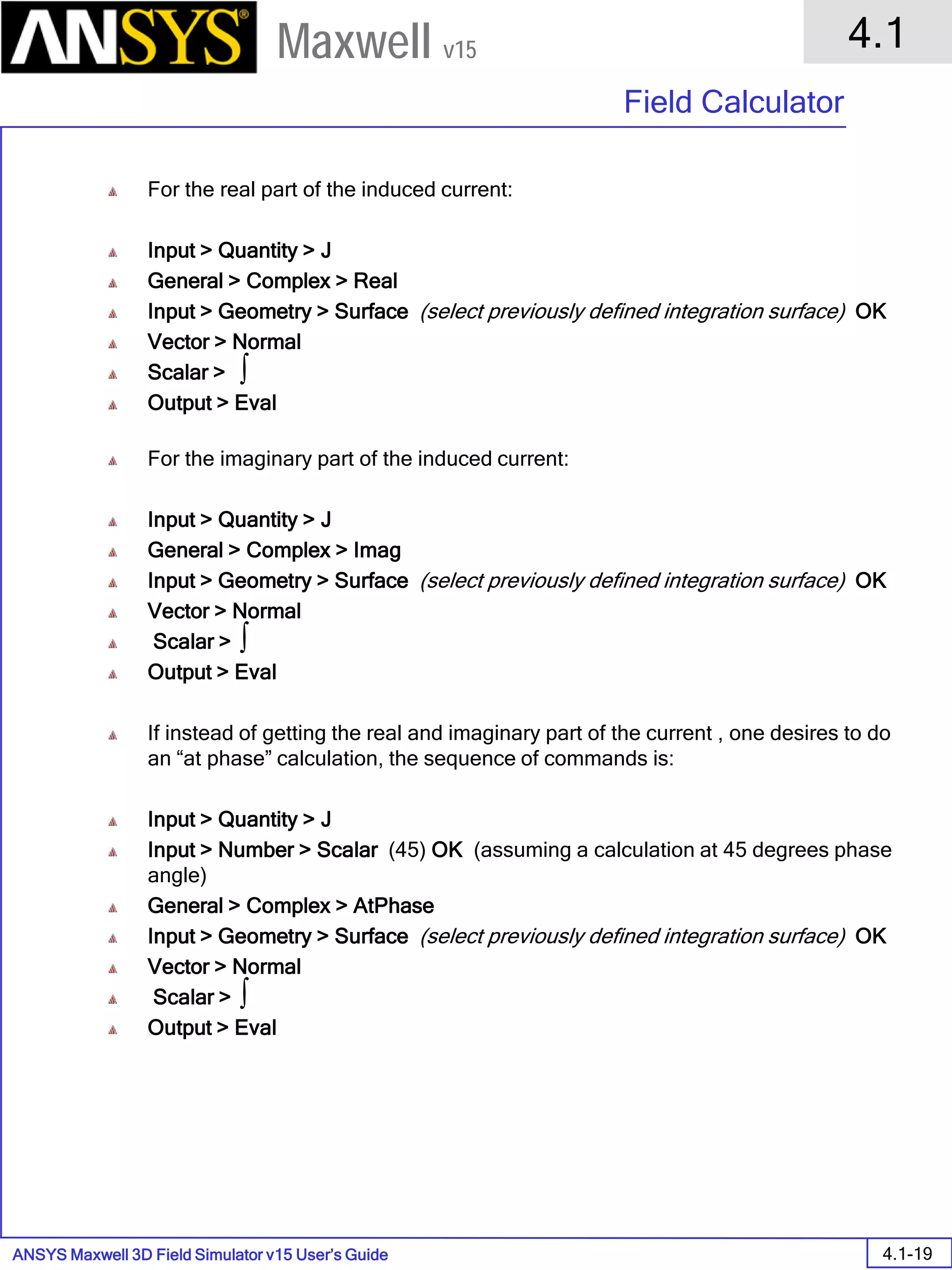
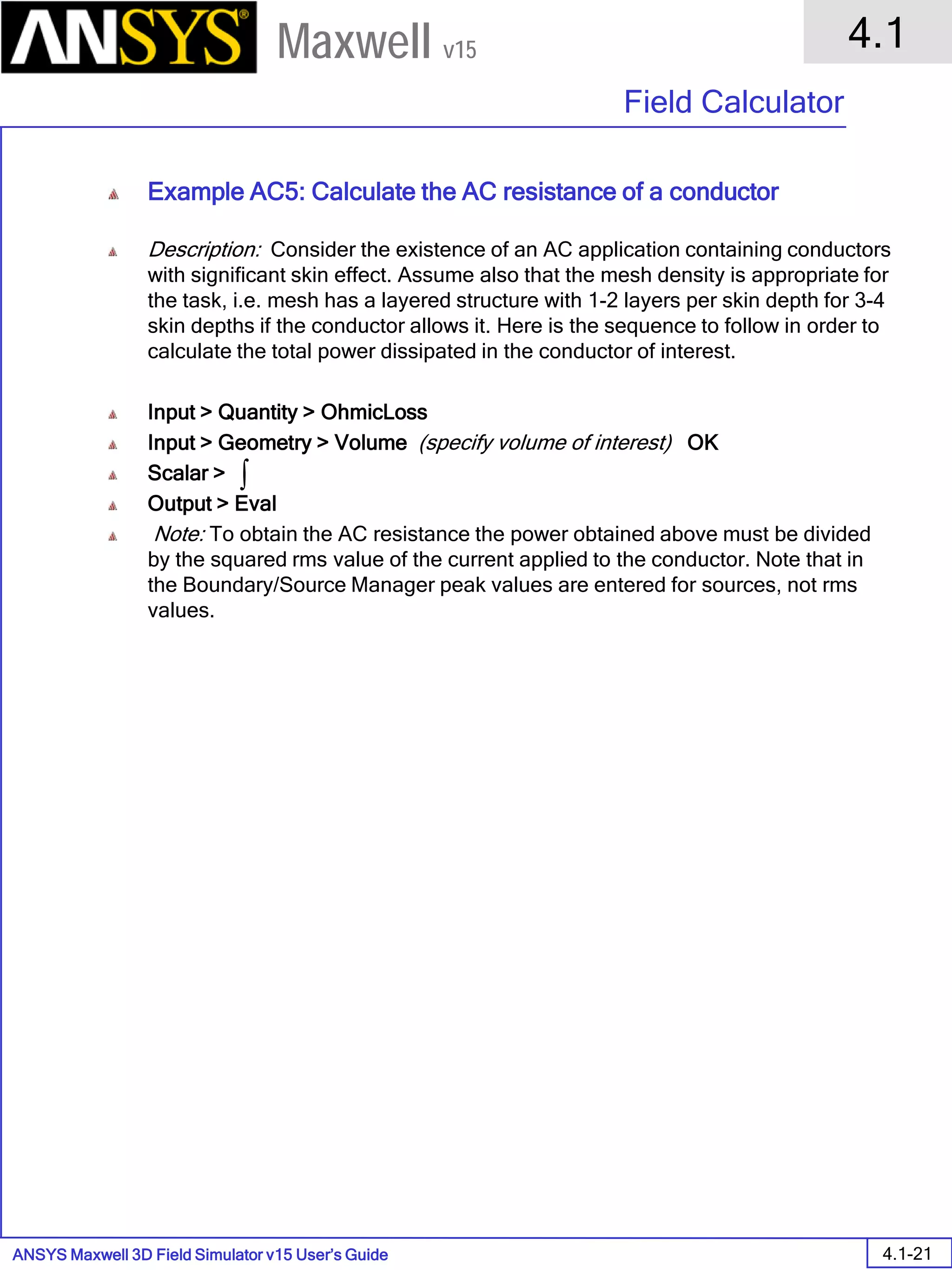
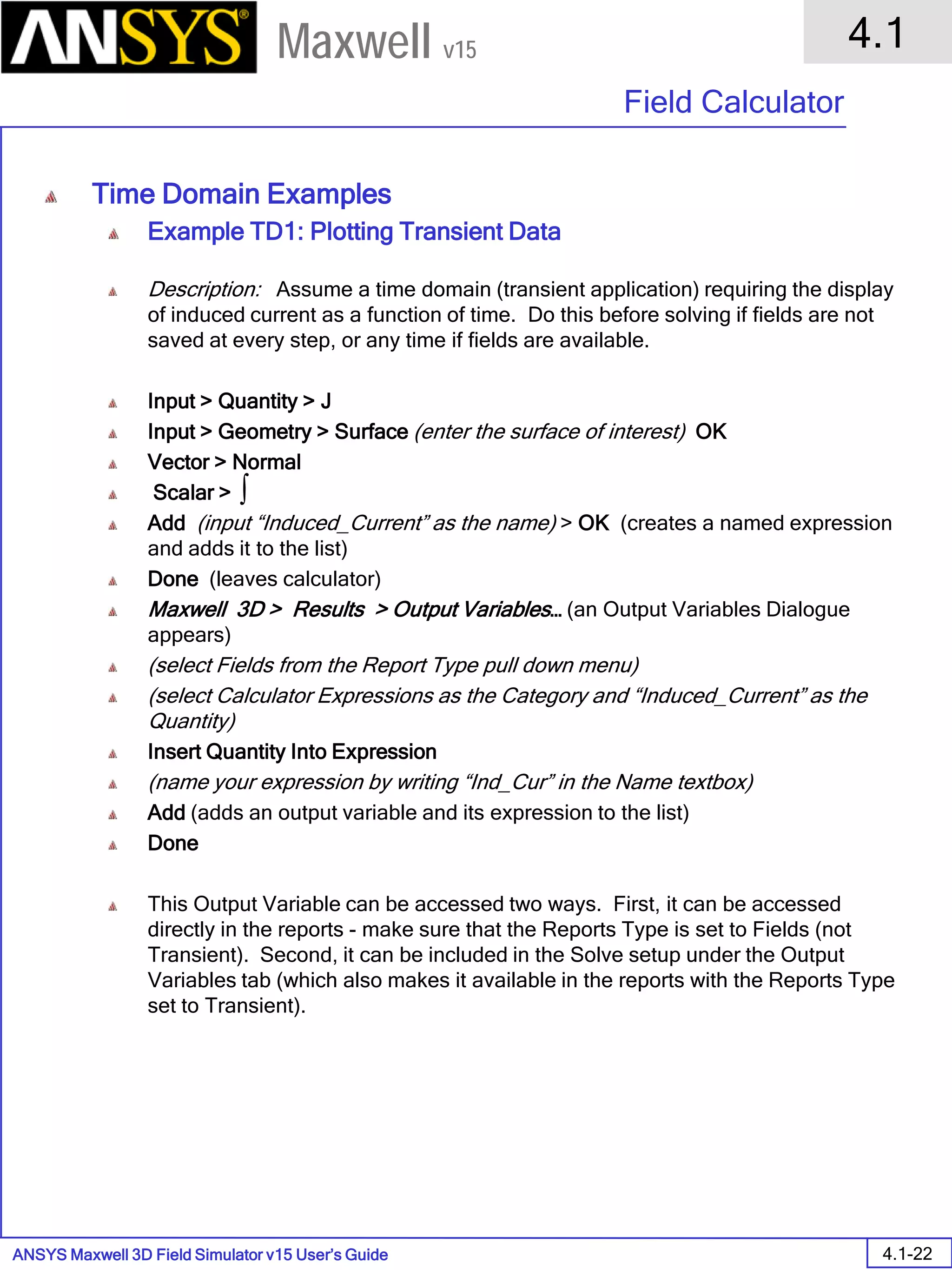
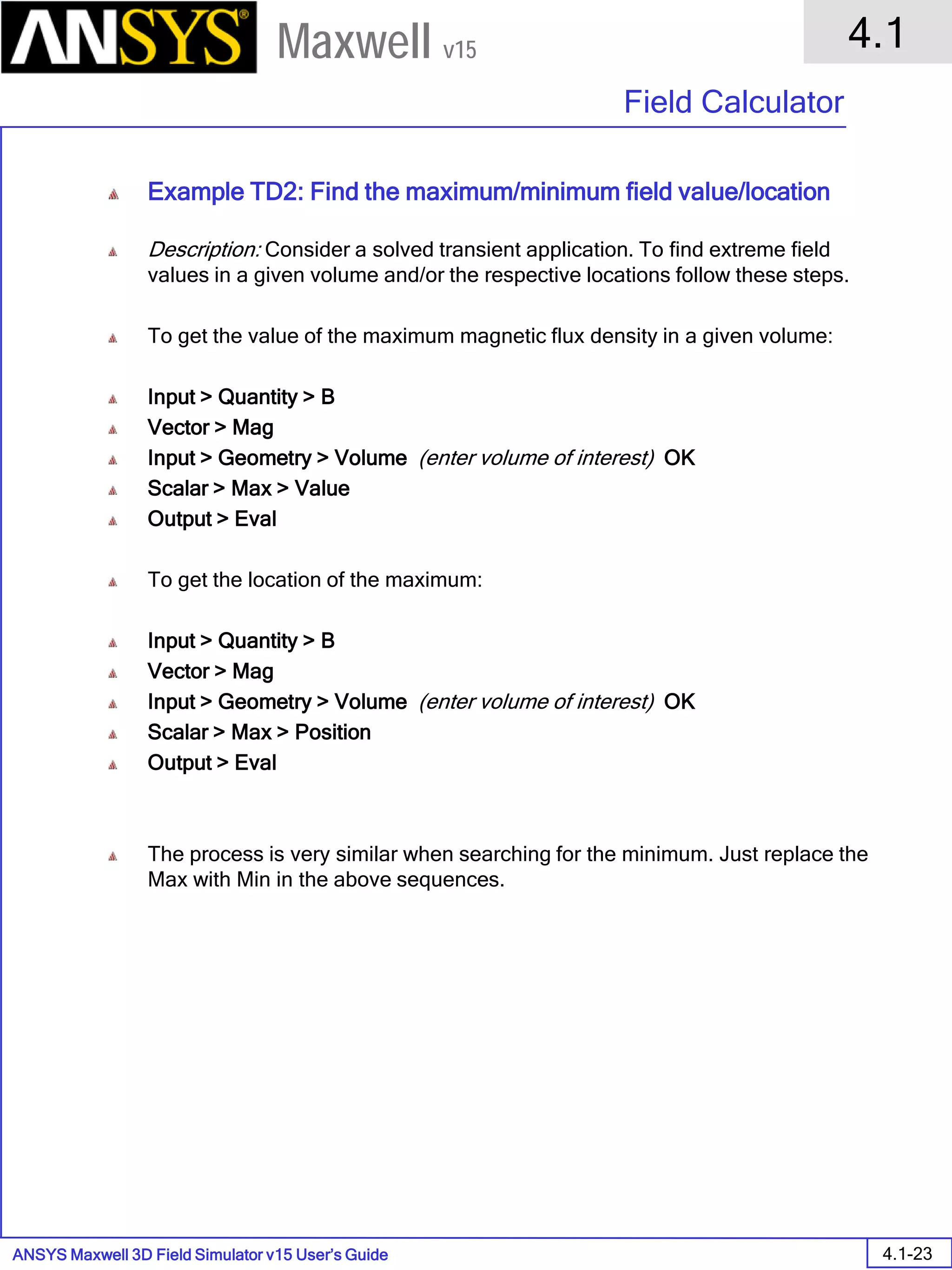
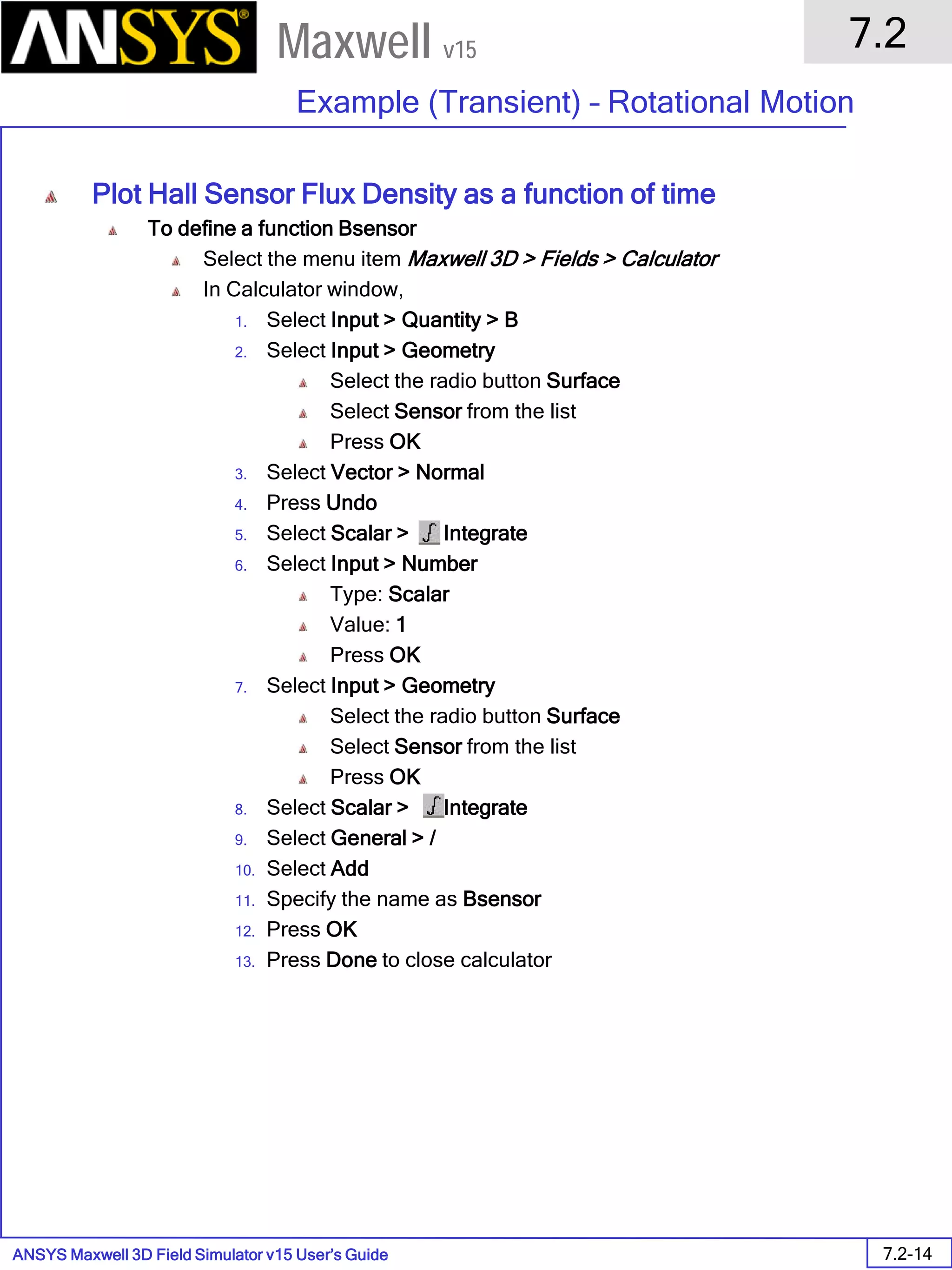
• Fields Calculator
• To bring up the Fields Calculator tool
1. Select the menu item Maxwell 3D > Fields >Calculator
• Typical quantities to analyze:
1. Flux through a surface
2. Current Flow through a surface
3. Tangential Component of E-field along a line
4. Average Magnitude of B-field in a core
5. Total Energy in an object
ANSYS Maxwell Field Simulator v15 – Training Seminar P1-106
Overview
Presentation
1
Maxwell v15
• Fields Calculator – Export Command
• Exports the field quantity in the top register to a file, mapping it to a grid of points. Use this command to save field
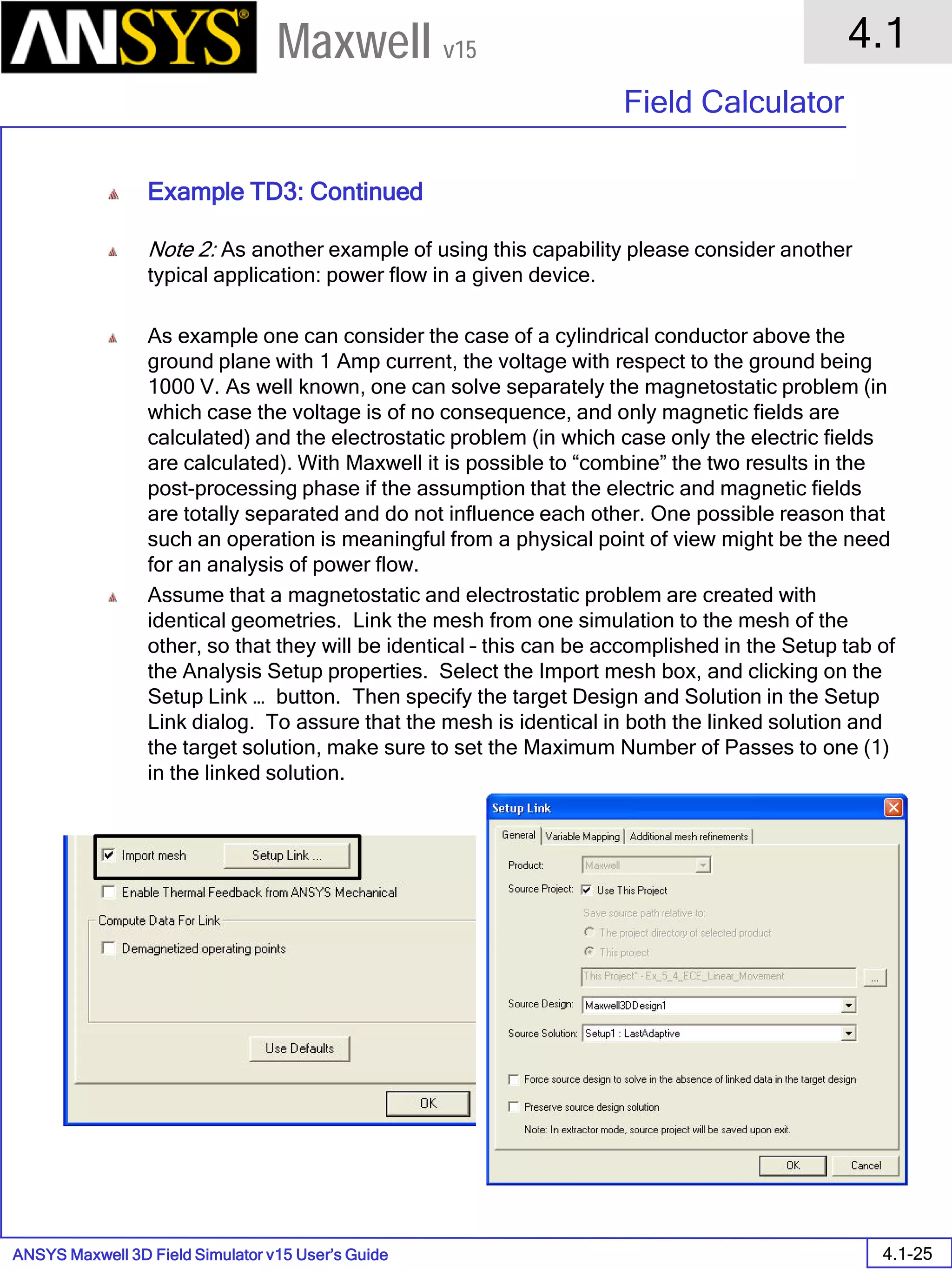
quantities in a format that can be read by other modeling or post-processing software packages. Two options are
available:
1. Grid points from file: Maps the field quantity to a customized grid of points. Before using this command, you
must create a file containing the points.
2. Calculate grid points: Maps the field quantity to a three-dimensional Cartesian grid. You specify the
dimensions and spacing of the grid in the x, y, and z directions.
ANSYS Maxwell Field Simulator v15 – Training Seminar P1-107
Overview
Presentation
1
Maxwell v15
• Export to Grid
• Vector data <Ex,Ey,Ez>
• Min: [0 0 0]
• Max: [2 2 2]
• Spacing: [1 1 1]
• Space delimited ASCII file saved in
project subdirectory
Vector data "<Ex,Ey,Ez>"
Grid Output Min: [0 0 0] Max: [2 2 2] Grid Size: [1 1 1
0 0 0 -71.7231 -8.07776 128.093
0 0 1 -71.3982 -1.40917 102.578
0 0 2 -65.76 -0.0539669 77.9481
0 1 0 -259.719 27.5038 117.572
0 1 1 -248.088 16.9825 93.4889
0 1 2 -236.457 6.46131 69.4059
0 2 0 -447.716 159.007 -8.6193
0 2 1 -436.085 -262.567 82.9676
0 2 2 -424.454 -236.811 58.8847
1 0 0 -8.91719 -241.276 120.392
1 0 1 -8.08368 -234.063 94.9798
1 0 2 -7.25016 -226.85 69.5673
1 1 0 -271.099 -160.493 129.203
1 1 1 -235.472 -189.125 109.571
1 1 2 -229.834 -187.77 84.9415
1 2 0 -459.095 -8.55376 2.12527
1 2 1 -447.464 -433.556 94.5987
1 2 2 -435.833 -407.8 70.5158
2 0 0 101.079 -433.897 -18.5698
2 0 1 -327.865 -426.684 95.8133
2 0 2 -290.824 -419.471 70.4008
2 1 0 -72.2234 -422.674 -9.77604
2 1 1 -495.898 -415.461 103.026
2 1 2 -458.857 -408.248 77.6138
2 2 0 -470.474 -176.115 12.8698
2 2 1 -613.582 -347.994 83.2228
2 2 2 -590.326 -339.279 63.86
ANSYS Maxwell Field Simulator v15 – Training Seminar P1-108
Overview
Presentation
1
Maxwell v15
• Getting Help
• If you have any questions while you are using Maxwell you can find answers in several ways:
• ANSYS Maxwell Online Help provides assistance while you are working.
• To get help about a specific, active dialog box, click the Help button in the dialog box or press the F1
key.
• Select the menu item Help > Contents to access the online help system.
• Tooltips are available to provide information about tools on the toolbars or dialog boxes. When you
hold the pointer over a tool for a brief time, a tooltip appears to display the name of the tool.
• As you move the pointer over a tool or click a menu item, the Status Bar at the bottom of the ANSYS
Maxwell window provides a brief description of the function of the tool or menu item.
• The ANSYS Maxwell Getting Started guide provides detailed information about using Maxwell to
create and solve 3D EM projects.
• PDF version of help manual at: ../Maxwell/Maxwell15/help/maxwell_onlinehelp.pdf for printing.
• ANSYS Technical Support
• To contact ANSYS technical support staff in your geographical area, please log on to the ANSYS
customer portal: https://www1.ansys.com/customer/default.asp
• Visiting the ANSYS Web Site
• If your computer is connected to the Internet, you can visit the ANSYS Web site to learn more about the ANSYS Inc
and products.
• From the Desktop
• Select the menu item Help > Ansoft Corporate Website to access the Online Technical Support (OTS)
system.
• From your Internet browser
• Visit http://www.ansys.com/
ANSYS Maxwell Field Simulator v15 – Training Seminar P1-109
Overview
Presentation
1
Maxwell v15
• WebUpdate
• This feature allows you to update any existing software from the WebUpdate window. This feature automatically
scans your system to find any software, and then allows you to download any updates if they are available.
ANSYS Maxwell Field Simulator v15 – Training Seminar P1-110
Overview
Presentation
1
Maxwell v15
• Application Support for North America
• The names and numbers in this list may change without notice
• Technical Support:
• 9-4 EST:
• Pittsburgh, PA
• (412) 261-3200 x199
• Burlington, MA
• (781) 229-8900 x199
• 9-4 PST:
• San Jose, CA
• (408) 261-9095 199
• Portland, OR
• (503) 906-7946 x199
• Irvine, CA
• (714) 417-9311 x199
ANSYS Maxwell 3D Field Simulator v15 User’s Guide
2.0
Solution Types and Solvers
2.0-1
Maxwell v15
Solution Types & Solvers
This chapter describes the basic generalities of the six different solution types in
Maxwell3D. With each solution type is a specific solver - each has its own setup
and solution method, yet they can often be integrated to produce powerful
solutions. We will discuss the fundamentals of the finite element solution,
boundary conditions, excitations and solution setup in this chapter. Then the
technical substance for each solver is explained in the next sections.
There are six different solvers, as mentioned before. They are:
Magnetostatic
Eddy Current
Transient Magnetic
Electrostatic
DC Conduction
Transient Electric
The last Electrostatic and DC Conduction solvers are joined together because
they solve in distinct solution spaces (the DC Conduction in the conductors, and
the Electrostatic in the insulators), yet the solution from the DC Conduction solver
can be used as a source in the Electrostatic solver (this will be discussed in detail
in the Electrostatic and DC Conduction sections).
The Magnetostatic, Eddy Current, Electrostatic, and DC Conduction solvers
(every solver except for the Transient solvers) perform an adaptive mesh
solution. This means that the finite element mesh is intelligently improved from
one adaptive pass to the next. The mesh will be discussed in the Mesh
Operations section – including methods to gain benefits of adaptive meshing in a
Transient simulation.
These solvers are designed to solve Maxwell’s equations within the scope of the
specific solution type.
ANSYS Maxwell 3D Field Simulator v15 User’s Guide
2.0
Solution Types and Solvers
2.0-2
Maxwell v15
General Finite Element Method Information
The Finite Element Method is one of many accepted methods of numerically
solving complicated fields where analytically solutions are not sufficient.
Below is a chart displaying different methods of electromagnetic analysis – each
method with its own strengths and weaknesses. Finite elements have proven to
be very robust for general electromagnetic analysis.
Electromagnetic
Analysis
Analytical
Techniques
Numerical
Techniques
Integral
Equations
Differential
Equations
Boundary
Elements
Finite
Difference
Finite
Elements
Scalar
Potentials
Vector
Potentials
Components of
H-Field
Closed
Form
BEM
FDM
FEM
Iterative
3D Magnetostatic
3D Eddy
3D Transient
2D Magnetostatic
2D Eddy
2D Transient
2D Electrostatic
2D/3D Thermal
3D Electrostatic
ANSYS Maxwell 3D Field Simulator v15 User’s Guide
2.0
Solution Types and Solvers
2.0-3
Maxwell v15
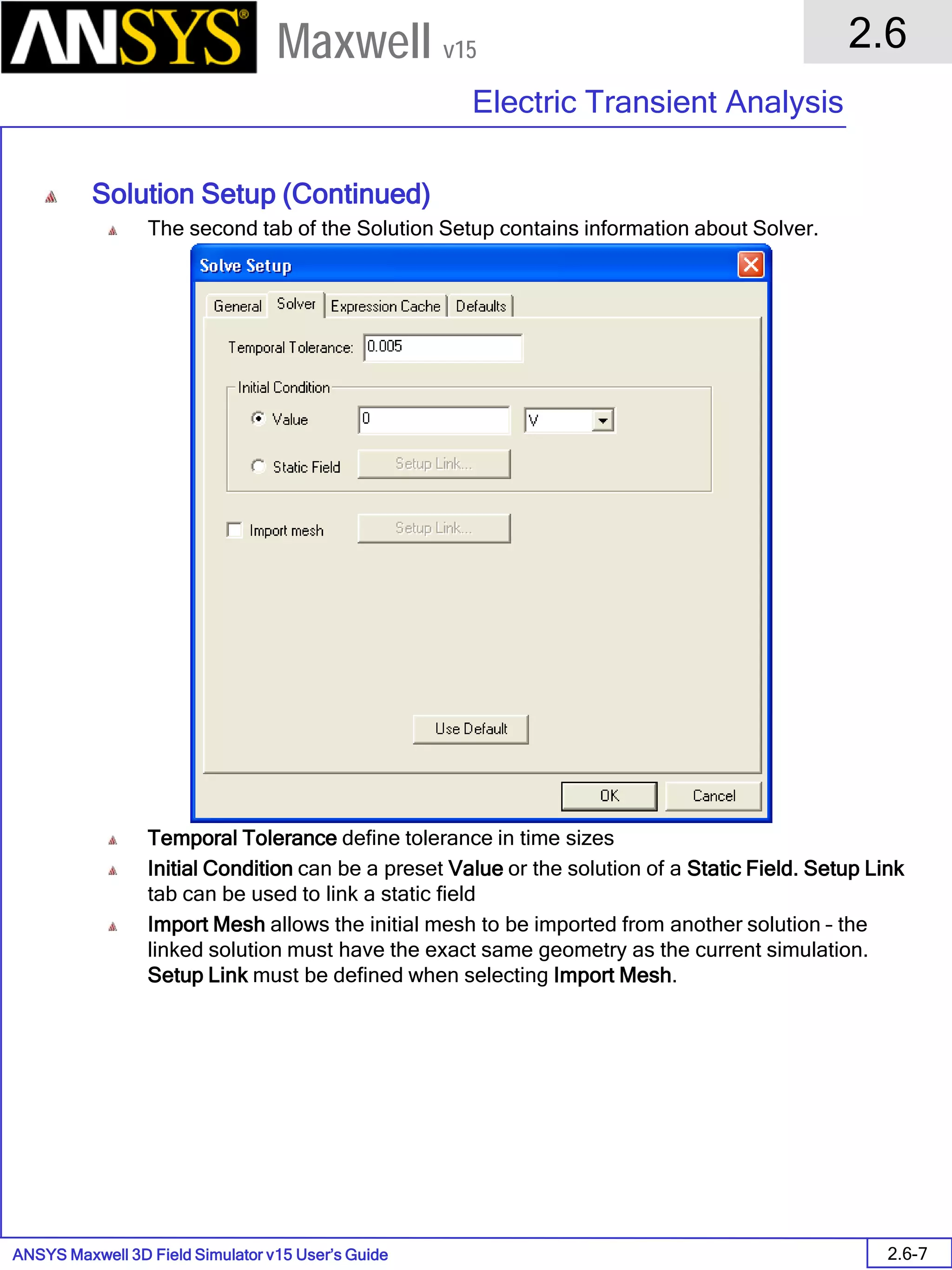
General Finite Element Method Information (Continued)
Finite element refers to the method from which the solution is numerically
obtained from an arbitrary geometry. The arbitrary, complicated geometry is
broken down into simple pieces called finite elements.
In Maxwell3D, the fundamental unit of the finite element is a tetrahedron (four-
sided pyramid). These elements are constructed together in what is known as
the finite element mesh.
Equilateral tetrahedra work best for the 2nd order quadratic interpolation that is
used between nodes. It is good to keep in mind that a relatively uniform,
equilateral mesh is often desired - this will be discussed in more detail in the
Mesh section.
The desired field in each element is approximated with a 2nd order quadratic
polynomial (basis function):
Hx(x,y,z) = a0 + a1x + a2y + a3z + a4xy + a5yz + a6xz + a7x2 + a8y2 + a9z2
In order to obtain the basis functions, field quantities are calculated for 10 points
in a 3D simulation (nodal values at vertices and on the edges).
All other quantities are determined from the field solution in part or in all of the
solution space.
The Components of a Field that are tangential
to the edges of an element are explicitly
stored at the vertices.
The Components of a field that is tangential
to the face of an element and normal to an
edge is explicitly stored at the midpoint of
selected edges.
The Values of a vector field at an interior
point is interpolated from the nodal values.
ANSYS Maxwell 3D Field Simulator v15 User’s Guide
2.0
Solution Types and Solvers
2.0-4
Maxwell v15
General Finite Element Method Information (Continued)
Once the tetrahedra are defined, the finite elements are placed in a large, sparse
matrix equation.
This can now be solved using standard matrix solution techniques such as:
Sparse Gaussian Elimination (direct solver)
Incomplete Choleski Conjugate Gradient Method (ICCG iterative solver)
It should be noted that the direct solver is the default solver, and is generally the
best method. The ICCG solver is included for special cases and for reference.
Error Evaluation
For each solver, there is some fundamental defining equation that provides an
error evaluation for the solved fields. In the case of the magnetostatic simulation,
this defining equation is the no-monopoles equation, which says:
When the field solution is returned to this equation, we get an error term:
The energy produced by these error terms (these errors act in a sense like
sources) is computed in the entire solution volume. This is then compared with
the total energy calculated to produce the percent error energy number.
This number is returned for each adaptive pass along with the total energy, and
these two numbers provide some measure of the convergence of the solution.
Remember that this is a global measure of the convergence – local errors can
exceed this percentage.
[ ][ ] [ ]JHS =
0=⋅∇ B

errBsolution =⋅∇

%100×=
energytotal
energyerror
energyerrorpercent
ANSYS Maxwell 3D Field Simulator v15 User’s Guide
2.0
Solution Types and Solvers
2.0-5
Maxwell v15
Solver Residuals
The solver residuals specify how close a solution must come before moving on to
the next iteration.
There are two types of residuals:
Nonlinear – used only for problems with nonlinear BH terms.
Linear – used only with the ICCG iterative matrix solver.
The nonlinear residual is set to 0.001 by default for the Magnetostatic simulator
and to 0.005 by default for the Transient simulator.
The linear residual is set to 1e-5 by default for all solution types.
Decreasing either residual will increase the simulation time, but it will improve the
accuracy of the solution to some degree.
It is very important to decrease the nonlinear residual if you perform simulations
with saturating materials. This will affect your solution.
ANSYS Maxwell 3D Field Simulator v15 User’s Guide
2.0
Solution Types and Solvers
2.0-6
Maxwell v15
Adaptive Refinement Process
In the Magnetostatic, Eddy Current, Electrostatic, and DC Conduction solvers
(every solver except for the Transient solver), the finite element mesh is
adaptively redefined to reduce the energy error.
The solution continues until one of two stopping criteria is met:
1. The specified number of passes are completed
OR
2. Percent error energy AND delta energy are less than specified
Start
Field Solution
Generate
Initial Mesh
Compute
Fields
Perform
Error Analysis
Stop
Field Solution
Has
Stopping Criteria
been met?
Refine
Mesh
Yes
No
ANSYS Maxwell 3D Field Simulator v15 User’s Guide
2.0
Solution Types and Solvers
2.0-7
Maxwell v15
Boundary Conditions
This section describes the basics for applying boundary conditions. Boundary
conditions enable you to control the characteristics of planes, faces, or interfaces
between objects. Boundary conditions are important to understand and are
fundamental to solution of Maxwell’s equations.
Why they are Important
The field equations that are solved by Maxwell 3D are derived from the
differential form of Maxwell’s Equations. For these expressions to be valid, it is
assumed that the field vectors are single-valued, bounded, and have continuous
distribution along with their derivatives. Along boundaries or sources, the fields
are discontinuous and the derivatives have no meaning. Therefore boundary
conditions define the field behavior across discontinuous boundaries.
As a user of Maxwell 3D you should be aware of the field assumptions made by
boundary conditions. Since boundary conditions force a field behavior we want
to be aware of the assumptions so we can determine if they are appropriate for
the simulation. Improper use of boundary conditions may lead to inconsistent
results.
When used properly, boundary conditions can be successfully utilized to reduce
the model complexity. In fact, Maxwell 3D automatically uses boundary
conditions to reduce the complexity of the model. Maxwell 3D can be thought of
as a virtual prototyping world. Unlike the real world which is bounded by infinite
space, the virtual prototyping world needs to be made finite. In order to achieve
this finite space, Maxwell 3D applies a background or outer boundary condition
which is applied to the region surrounding the geometric model.
The model complexity usually is directly tied to the solution time and computer
resources so it is a competitive advantage to utilize proper boundary conditions
whenever possible.
ANSYS Maxwell 3D Field Simulator v15 User’s Guide
2.0
Solution Types and Solvers
2.0-8
Maxwell v15
Common Boundary Conditions
There are three types of boundary conditions. The first two are largely the user’s
responsibility to define them or ensure that they are defined correctly. The
material boundary conditions are transparent to the user. The following are
examples of each type of boundary condition from various solvers.
Excitations
1. Current
2. Voltage
3. Charge
Surface Approximations
1. Symmetry Planes
2. Master/Slave Boundaries
3. Insulating Boundary
4. Default outer boundary
Material Properties
1. Boundary between two materials
ANSYS Maxwell 3D Field Simulator v15 User’s Guide
2.0
Solution Types and Solvers
2.0-9
Maxwell v15
How the Background Affects a Structure
The background is the volume that surrounds the geometric model and fills any
space that is not occupied by an object. Any object surface that touches the
background is automatically defined to be a flux tangential boundary. This forces
the flux to stay within the solution region.
If it is necessary, you can change a surface that is exposed to the background to
have properties that are different from the default:
In a magnetostatic simulation, to model a field imposed on the region, you
can assign tangential H fields to the sides of the region. This imposes a
directional field that simulates the response of the structure to an external
H field.
In an eddy current simulation, to model a surface to allow waves to radiate
infinitely far into space, redefine the surface to be radiation boundary.
To reduce the model size by splitting the structure in half (or into a periodic
unit), use a symmetry boundary (or master/slave boundaries).
The background can affect how you define the region surrounding your structure.
Since it is often desired not to strictly enforce a tangential flux boundary close to
the structure (the field is not necessarily tangent near to the structure), the region
will have to be defined large enough that fields have largely diminished at the
boundary of the region. By making the region large enough, the solution is not
perturbed by this finite approximation. This is very important for structures that
have large stray fields. However, if most of the fields are guided so that the
outside of the region is appropriately shielded, then the region can be smaller to
more tightly fit the structure.
Region Object
Every solver (except the DC conduction solver) needs to have a large region
containing all objects. This is important so that everything is defined within one
solution domain (the DC conduction solver can have multiple solution domains).
There is a method of automatically creating a region – select Draw > Region or
select the icon and input some padding data.
Keep in mind the above information about the background (it is the volume
outside of the region) when defining the padding data of the region.
ANSYS Maxwell 3D Field Simulator v15 User’s Guide
2.0
Solution Types and Solvers
2.0-10
Maxwell v15
Boundary Condition Precedence
The order in which boundaries are assigned is important in Maxwell 3D. Later
assigned boundaries take precedence over formerly assigned boundaries.
For example, if one face of an object is assigned to an Insulating boundary, and a
boundary in the same plane as this surface is assigned a Tangential H-Field
boundary, then the Tangential H-Field will override the Insulating in the area of
the overlap. If this operation were performed in the reverse order, then the
Insulating boundary would cover the Tangential H-Field boundary.
Once boundaries have been assigned, they can be re-prioritized by selecting
Maxwell 3D > Boundaries > Re-prioritize. The order of the boundaries can be
changed by clicking on a boundary and dragging it further up or down in the list.
NOTE: Excitations will always take the highest precedence.
Boundary Conditions in different solvers
There are different boundary conditions available in each solver, as each solver
has a slightly different setup, process, and purpose. The boundary conditions
can be assigned in the listed solvers.
Zero Tangential H Field (Magnetostatic , Eddy Current, Transient)
Tangential H Field (Magnetostatic , Eddy Current, )
Insulating (Magnetostatic , Eddy Current, , Transient, DC Conduction)
Symmetry (Magnetostatic , Eddy Current, , Transient, Electrostatic)
Master (Magnetostatic , Eddy Current, , Transient, Electrostatic)
Slave (Magnetostatic , Eddy Current, , Transient, Electrostatic)
Radiation (Eddy Current)
Impedance (Eddy Current)
The following sections will describe the boundary conditions available in each
solver and what they are used for in each case.
ANSYS Maxwell 3D Field Simulator v15 User’s Guide
2.0
Solution Types and Solvers
2.0-11
Maxwell v15
Excitations
Excitations are a unique type of boundary condition that define the sources of the
magnetic and/or electric fields. Excitations are general sources – like from
Maxwell’s equations (current for magnetic fields and charge or voltage for electric
fields). Source definitions are directly related to the magnitude and behavior of
the field solution.
There must be at least one source in the simulation (the total energy must be
non-zero) for the solver to run. Along with sources found in the excitations for
each solution type, boundaries that impose a field or objects that are permanently
magnetized act as sources for the field solution.
For current excitations in the magnetic field solvers it is necessary to solve a
separate conduction solution before the field solution starts – this is automatically
integrated into the solution process.
There are two types of excitation assignments – internal excitations and external
excitations. Internal excitations can be applied on 2D sheets (usually the cross-
section of a conductor) or the surface of objects (in the case of an electrostatic
voltage assignment) and are within the solution region. External excitations are
often assigned to the face of objects on the edge of the solution region – these
usually require multiple excitations to define input and output or difference
quantities.
When external sources are used and exactly two excitations are defined, one
excitation will be defined pointing into the conductor and the other will be pointing
out of the conductor. The excitation that is pointing into the conductor will be
referenced in the matrix parameter assignment and in the solutions.
When more than two external sources are assigned to one conduction path, an
inductance calculation cannot be performed for that conductor path.
The excitations available are described in the following sections for each
individual solution type.
ANSYS Maxwell 3D Field Simulator v15 User’s Guide
2.0
Solution Types and Solvers
2.0-12
Maxwell v15
Material Thresholds
There are two Material Thresholds that can be adjusted for special purposes.
To adjust these thresholds select Maxwell 3D > Design Settings
Every magnetic solver has some sort of conduction solver built in (the conduction
process is different depending on the type of source used and the solver). This
part of the solver determines the current distribution in the conducting solids
concurrently with the magnetic field solution (as they both effect each other when
eddy currents are taken into consideration). The setting that controls whether an
object is considered in the conduction solve or not is an object’s conductivity in
relation to the Insulator/Conductor material threshold. If the object is more
conductive than this threshold, the object will be considered as a conductor (able
to carry current). If the object is less conductive than this threshold the object will
be considered as an insulator (not able to carry current). Different solvers treat
conductors differently (i.e. conductors can carry eddy currents in the eddy current
and transient solvers), so this threshold can be important in some circumstances.
However, this setting is usually set to a value that is applicable for most
simulations (the default value is 1 Siemen/meter). This insulator/conductor
threshold is also applicable to electric solutions, as objects above this threshold
are considered to be perfect conductors (electrostatically) and current carrying
(DC conduction).
The Perfect Conductor material threshold is a similar conduction setting. Every
solver treats this setting differently (not available in the electrostatic solver).
Generally, the solution is not performed in objects that have a conductivity above
this threshold, but ideal surface currents are assumed.
Defaults can also be entered for these numbers by going to Tools > Options >
Maxwell 3D Options… and looking in the General Options tab.
ANSYS Maxwell 3D Field Simulator v15 User’s Guide
2.0
Solution Types and Solvers
2.0-13
Maxwell v15
General Solution Setup Procedure
As discussed before, here is a general solution setup procedure for users new to
electromagnetic field simulation:
1. Based on your application, choose the type of electromagnetic analysis to
be performed.
2. Draw the geometry of the model using the drawing space provided by the
3D Modeler menu and Draw menu commands available through the
Maxwell desktop interface.
3. Assign the material properties to all solid objects in the model, and define
new material properties if materials in the default library do not provide the
needed material.
Note: Always make sure the material properties assigned to an object
correspond to the real properties of the materials in the electromagnetic
device that is being simulated. Material properties supplied in the default
library are generic properties and may not always be substituted for actual
properties.
1. Specify the field sources (excitations) and boundary conditions for your
unique solution.
2. Define additional global parameters that you want to calculate (such as
force, torque, inductance/capacitance, etc.).
3. Define mesh operations for special applications (such as seeding in
areas/objects of interest).
4. Specify solution options.
5. Start the solution process.
6. When the solution becomes available, perform post processing, such as
plotting field quantities and calculating expressions.
This procedure works equally well for all solution types. The technical details
relevant to each solution type will be discussed in the following sections.
ANSYS Maxwell 3D Field Simulator v15 User’s Guide
2.0
Solution Types and Solvers
2.0-14
Maxwell v15
Analyze
There are many different methods to start an analysis – depending on what all
you wish to analyze.
To analyze a single analysis setup, right-click on the setup name and choose
Analyze.
To analyze a single optimetrics setup, right-click on the setup name and choose
Analyze.
To analyze all analysis setups, right-click on Analysis and choose Analyze All.
To analyze all optimetrics setups, right-click on Optimetrics and choose Analyze
> All.
To analyze all parametric setups, right click on Optimetrics and choose
Analyze > All Parametric.
The same procedure will work for Optimization analyses, Sensitivity
analyses, and Statistical analyses.
To analyze all setups within a design, there are three options:
Right-click on the design name and choose Analyze All.
Click on the icon from the toolbar.
Select Maxwell 3D > Analyze All.
This procedure will analyze all analysis setups and then all optimetrics setups
within the active design.
To analyze all setups within a project, there are two options:
Right-click on the project name and choose Analyze All.
Select Project > Analyze All.
This procedure will analyze all analysis setups and optimetrics setups within each
design of the active project.
ANSYS Maxwell 3D Field Simulator v15 User’s Guide
2.0
Solution Types and Solvers
2.0-15
Maxwell v15
Improved Analysis Configuration
Tools > Options > Maxwell 3D Options and select the Solver tab
Configure Number of Processors
(Requires a multi-processor license)
Configurable Default Processor Priority
(Normal Priority is the default)
Soft and Hard RAM limits can be
controlled here.
Remote Analysis
Heterogeneous platform support
Queuing
Queue Projects, Designs, Parametric Sweeps, Frequency Sweeps
To enable this feature, go to Tools > Options > General Options > Analysis Options
To view queued projects, go to Tools > Show Queued Simulations
ANSYS Maxwell 3D Field Simulator v15 User’s Guide
2.0
Solution Types and Solvers
2.0-16
Maxwell v15
Distributed Analysis
10X Analysis Speed-Up per distributed solve license – it can run as many projects
as you have processors.
An automated client-server implementation
little/no overhead
setup easily via remote analysis capability
For Optimetrics instances
Set the Distributed Machine configuration
Set the Analysis to Distributed Mode using the toolbar
ANSYS Maxwell 3D Field Simulator v15 User’s Guide
2.1
Magnetostatic Analysis
2.1-1
Maxwell v15
Magnetostatic Analysis
Magnetostatic Analysis is performed by choosing the Magnetostatic solution type.
Applications that use Magnetostatic Analysis can be solenoids, inductors,
motors, actuators, permanent magnets, stray field calculations and many others.
Overview
The magnetostatic solver computes static (DC) magnetic fields.
All objects are stationary.
The source of the static magnetic field can be:
DC current in conductors
Permanent magnets
Static magnetic fields represented by external boundary conditions.
The quantity solved is the magnetic field (H).
Current density (J) and magnetic flux density (B) are automatically calculated
from the magnetic field (H).
Derived quantities such as forces, torques, energy, and inductances may be
calculated from these basic field quantities.
Material permeabilities can be nonlinear and/or anisotropic.
ANSYS Maxwell 3D Field Simulator v15 User’s Guide
2.1
Magnetostatic Analysis
2.1-2
Maxwell v15
Setup
The options in the project tree for a magnetostatic simulation control all the
simulation setup parameters.
Notice that right-clicking on any of the options will open a menu with
important options for each step of the simulation setup.
1. The Model definition refers to the geometry and material definition.
2. Boundaries and Excitations refer to the specific boundaries and excitations
available in a magnetostatic simulation.
3. Parameters are values that the solver will automatically calculate after
finding the field solution.
4. Mesh Operations are discussed in a separate section.
5. Analysis defines the solution setup.
6. Optimetrics defines any automatic variational analyses.
7. Results and Field overlays are discussed in a separate section.
These options are displayed in an order that can be followed in creating a new
Magnetostatic simulation. This is a general purpose order that goes linearly
through simulation setup, analysis, and post-processing.
However, in some cases it is acceptable to work out of the defined order. This is
particularly true when defining results, field overlays, or calculated quantities. It
is important to think of results when defining the problem setup so that the
desired quantities may be obtained in a sufficient manner. Notice, however, that
the field calculator is not available until a solution setup is defined
ANSYS Maxwell 3D Field Simulator v15 User’s Guide
2.1
Magnetostatic Analysis
2.1-3
Maxwell v15
Magnetostatic Material Definition
In a Magnetostatic simulation, the following parameters may be defined for a
material:
Relative Permeability (can be Anisotropic and/or Nonlinear, or Simple)
Relative permeability along with the Magnetic Coercivity determine
the magnetic properties of the material.
Bulk Conductivity (can be Anisotropic or Simple)
Bulk Conductivity is used in determining the current distribution in
current carrying conductors – it has no influence in the magnetic part
of the solution process.
Magnetic Coercivity (defined as a vector magnitude and direction)
Magnetic Coercivity is used to define the permanent magnetization
of magnetic materials. When a non-zero magnitude is entered, the
directional entries are visible. The direction (like all directional
material properties) are determined by the coordinate system type
and the object orientation.
Composition (can be Solid or Lamination)
Setting Composition to Lamination creates an anisotropic
magnetization effect. This is discussed in the Anisotropic Material
example.
ANSYS Maxwell 3D Field Simulator v15 User’s Guide
2.1
Magnetostatic Analysis
2.1-4
Maxwell v15
Magnetostatic Boundary Conditions
Default – The default boundary conditions for the Magnetostatic solver are:
Natural boundaries on the interface between objects.
- This means that the H Field is continuous across the boundary.
Neumann boundaries on the outer boundaries.
- This means that the H Field is tangential to the boundary and flux cannot
cross it.
Zero Tangential H Field – This boundary is often used to model an applied
uniform, external field. This would model outer boundaries of the Region that are
perpendicular to the applied field. In this case, the boundary should be placed far
from the structure so that the simulation is not over-defined. This is equivalent to
the even symmetry boundary definition.
Tangential H Field – This boundary is used primarily to model an applied uniform,
external field. This would model outer boundaries of the Region that have a
defined tangential magnetic field. This boundary should always be placed far
from the structure so that the simulation is not over-defined. Faces must be
planar and must be defined one at a time, due to the U-V field definition on each
face.
To apply a uniform field along any orthogonal axis of a bounding box, first,
apply a Zero Tangential H Field on the top and bottom faces (with respect
to the direction of the desired axis) of the box. Then apply a Tangential H
Field to each side face – define each U vector to be parallel to the selected
axis (the V vector does not matter because no field will exist in that
direction), and assign the value of U with a constant value. The field will be
in the direction of the selected axis (perpendicular to the top and bottom
faces), and will have a constant value at the boundaries of the solution
region.
Note that it is very easy to create impossible field assignments with these
boundary conditions. If your simulation does not converge when using
these boundaries, try the boundary conditions without any objects included
to see if the boundaries are assigned correctly (the simulation will have
difficulties converging if boundaries are incorrect).
ANSYS Maxwell 3D Field Simulator v15 User’s Guide
2.1
Magnetostatic Analysis
2.1-5
Maxwell v15
Magnetostatic Boundary Conditions (Continued)
Insulating – This boundary defines a thin, perfectly insulating sheet between
touching conductors. This is particularly useful to separate coils from magnetic
steel (defined on surfaces between the two objects), but there are many other
applications.
Symmetry – There are two magnetic symmetries – odd symmetry (flux tangential)
and even symmetry (flux normal). Odd symmetry defines H to be tangential to
the boundary (this is equivalent to the default boundary condition on the outer
boundary). Even symmetry defines H to be normal to the boundary (this is
equivalent to the Zero Tangential H Field boundary condition). Remember that
geometric symmetry may not mean magnetic symmetry in all cases. Symmetry
boundaries enable you to model only part of a structure, which reduces the size
or complexity of your design, thereby shortening the solution time. Other
considerations for a Symmetry boundary condition:
A plane of symmetry must be exposed to the background.
A plane of symmetry must not cut through an object drawn in the 3D
Modeler window.
A plane of symmetry must be defined on a planar surface.
Only three orthogonal symmetry planes can be defined in a problem
Master/Slave – This boundary condition is also known as a matching boundary
condition because it matches the magnetic field at the slave boundary to the field
at the master boundary. The geometry must be identical on each face (the mesh
needs to be identical, but the solver takes care of this requirement for matched
geometries) and the faces need to be planar. It is required to define a U-V
coordinate system along each face to properly map the matched boundary as
desired. Master and Slave boundaries enable you to model only one period of a
periodic structure, which will reduce the size of a design. Example applications
are periodic rotational machines or infinite arrays.
ANSYS Maxwell 3D Field Simulator v15 User’s Guide
2.1
Magnetostatic Analysis
2.1-6
Maxwell v15
Magnetostatic Excitations
Typical sources for magnetostatic field problems include voltage, current, and
current density. When applying the sources for the magnetic field problems, the
applied current distribution must be divergence free in the entire space of the
solution as it is physical for quasi-stationary conduction current density
distributions. Thus, the conduction path(s) for the applied current distributions
must be closed when totally contained within the solution space for the problem,
or must begin and end at the boundaries.
Permanent Magnets and externally applied magnetic fields can also act as
sources for a magnetostatic analysis, however, those are defined elsewhere.
Voltage Excitations - These are used in conjunction with the material conductivity
to define the current through a solid conductor. Either multiple Voltage
excitations can be used to define a voltage difference across two faces of a
conductor (creating a current) or a Voltage Drop can be defined on a 2D sheet
object to signify the voltage drop around a conductive loop.
Current Excitations - This excitation can be assigned on any conductor to define
the total current (amp-turns) through the cross-section of a loop or to define the
current into and out of the opposing, external faces of a conducting object. This
is a very general purpose excitation that comes in two flavors – Solid or Stranded.
More information about Stranded Magnetostatic Current excitations (along with
an example and explanation) can be found in the Magnetostatic Switched
Reluctance Motor example.
Current Density - These excitations are used to define a known current density
throughout an object and must be used with a Current Density Terminal. The
Current Density is defined on the 3D object, and the Terminal is defined on either
an internal cross-sectional sheet, or on all external cross-sectional faces.
ANSYS Maxwell 3D Field Simulator v15 User’s Guide
2.1
Magnetostatic Analysis
2.1-7
Maxwell v15
Parameters
There are three parameters that can be automatically calculated in a
Magnetostatic simulation – Force, Torque, and Inductance Matrix.
All three quantities are computed directly from the magnetic field solution.
Force and torque can be calculated with two different methods - Virtual or Lorentz
(Lorentz cannot be used on magnetic materials).
Inductance Matrix has many post-processing options available – this is discussed
in detail in the Magnetostatic Inductance Matrix example.
The results of any parameters can be found by selecting Maxwell 3D > Results >
Solution Data… or by clicking on the icon.
Further results can be obtained manually through the field calculator.
Mesh Operations
Mesh operations are described in detail in the Mesh operations section.
Remember that the Magnetostatic solver has an adaptive mesh solution, so
excessive mesh operations are not usually required. It can often be worse to
over-define the mesh than to not define mesh operations at all (it will take longer
to solve, and it will be more difficult to adapt correctly).
ANSYS Maxwell 3D Field Simulator v15 User’s Guide
2.1
Magnetostatic Analysis
2.1-8
Maxwell v15
Solution Setup
The solution setup defines the parameters used for solving the simulation.
Add a solution setup by selecting Maxwell 3D > Analysis Setup > Add Solution
Setup… or click on the icon.
The following window appears with the General Setup parameters.
You can Name the setup, and you can create multiple setups if you desire (by
repeating this procedure).
Maximum Number of Passes defines a limit to the number of adaptively refined
passes that the solver performs (the default value is 10).
Percent Error is the error goal for both the Error Energy and Delta Energy.
Solve Fields Only ignores any defined parameters if checked.
Solve Matrix has the options of calculating the matrix after the last solved pass or
calculating the matrix only if the solution converges.
ANSYS Maxwell 3D Field Simulator v15 User’s Guide
2.1
Magnetostatic Analysis
2.1-9
Maxwell v15
Solution Setup (Continued)
The second tab of the Solution Setup contains information about Convergence.
Refinement Per Pass defines the number of tetrahedral elements added during
mesh refinement as a percentage of the previous pass (30% is the default).
Minimum Number of Passes defines the minimum number of adaptive passes
before the solution stops - if there is a conflict, this value is over-ridden by
Maximum Number of Passes (the default value is 2).
Minimum Converged Passes defines the minimum number of adaptive passes
that have been converged (with respect to the Percent error) before the solution
stops (the default value is 1).
ANSYS Maxwell 3D Field Simulator v15 User’s Guide
2.1
Magnetostatic Analysis
2.1-10
Maxwell v15
Solution Setup (Continued)
The third tab of the Solution Setup contains information about the Solver.
Nonlinear Residual defines how precisely the nonlinear solution must define the
B-H nonlinear operating points (the default value is 0.001).
Enable Iterative Solve to enable ICCG solvers (Direct is the default).
Permeability Option allows the nonlinear B-H operating points either to be
calculated by the solver from the Nonlinear B-H curve or to use frozen
permeabilities From Link – the linked solution must have the exact same
geometry as the current simulation (Nonlinear B-H curve is the default).
Demagnetization Option allows the permanent demagnetization to be determined
from the Nonlinear B-H curve or to use demagnetized values From Link - where
the linked solution must the option Compute Data for Link - Demagnetized
operating points checked and must have the exact same geometry (Nonlinear B-
H curve is the default).
Import Mesh allows the initial mesh to be imported from another solution – the
linked solution must have the exact same geometry as the current simulation.
Setup Link must be defined when selecting From Link or Import Mesh.
ANSYS Maxwell 3D Field Simulator v15 User’s Guide
2.1
Magnetostatic Analysis
2.1-11
Maxwell v15
Magnetostatic Solution Process
Unlike pre-processing, the solution process is very automated. Once the
problem has been defined properly, Maxwell will take over and step through
several stages of the solution process. To start the solution process, right-click
on Analysis in the Maxwell Project Tree and select Analyze.
Initial Setup
Adaptive Solution
Nonlinear Convergence
(Changing permeability)
Refine Mesh
Converged or Number of Passes
Stop Field Solution
Calculate Parameters
Solution Convergence ?
Force/Torque Calculation
ANSYS Maxwell 3D Field Simulator v15 User’s Guide
2.2
Eddy Current Analysis
2.2-1
Maxwell v15
Eddy Current Analysis
Eddy Current Analysis is performed by choosing the Eddy Current solution type.
Applications that use Eddy Current Analysis can be solenoids, inductors, motors,
stray field calculations and many others.
Overview
The eddy current solver computes steady-state, time-varying (AC) magnetic
fields at a given frequency – this is a frequency domain solution.
All objects are stationary.
The source of the static magnetic field can be:
Sinusoidal AC current (peak) in conductors.
Time-varying external magnetic fields represented by external boundary
conditions.
The quantities solved are the magnetic field (H) and the magnetic scalar potential
(Ω).
Current density (J) and magnetic flux density (B) are automatically calculated
from the magnetic field (H).
Derived quantities such as forces, torques, energy, and inductances may be
calculated from these basic field quantities.
Material permeabilities and conductivities can be anisotropic, but must be linear.
ANSYS Maxwell 3D Field Simulator v15 User’s Guide
2.2
Eddy Current Analysis
2.2-2
Maxwell v15
Setup
The options in the project tree for a eddy current simulation control all the
simulation setup parameters.
Notice that right-clicking on any of the options will open a menu with
important options for each step of the simulation setup.
1. The Model definition refers to the geometry and material definition.
2. Boundaries and Excitations refer to the specific boundaries and excitations
available in a eddy current simulation.
3. Parameters are values that the solver will automatically calculate after
finding the field solution.
4. Mesh Operations are discussed in a separate section.
5. Analysis defines the solution setup.
6. Optimetrics defines any automatic variational analyses.
7. Results and Field overlays are discussed in a separate section.
These options are displayed in an order that can be followed in creating a new
Eddy Current simulation. This is a general purpose order that goes linearly
through simulation setup, analysis, and post-processing.
However, in some cases it is acceptable to work out of the defined order. This is
particularly true when defining results, field overlays, or calculated quantities. It
is important to think of results when defining the problem setup so that the
desired quantities may be obtained in a sufficient manner. Notice, however, that
the field calculator is not available until a solution setup is defined.
ANSYS Maxwell 3D Field Simulator v15 User’s Guide
2.2
Eddy Current Analysis
2.2-3
Maxwell v15
Eddy Current Material Definition
In an Eddy Current simulation, the following parameters may be defined for a
material:
Relative Permittivity (can be Anisotropic or Simple)
Relative Permittivity effects the solution when displacement currents
are considered in an object.
Relative Permeability (can be Anisotropic or Simple)
Relative Permeability along with the Bulk Conductivity determine the
time-varying magnetic properties of the material.
Bulk Conductivity (can be Anisotropic or Simple)
Bulk Conductivity is used both in determining the current distribution
in current carrying conductors and in calculating eddy currents and
the resulting magnetic field solution.
Dielectric Loss Tangent (can be Anisotropic or Simple)
Dielectric Loss Tangent controls the ratio of imaginary and real
permittivities.
Magnetic Loss Tangent (can be Anisotropic or Simple)
Magnetic Loss Tangent controls the ratio of imaginary and real
permeabilities.
ANSYS Maxwell 3D Field Simulator v15 User’s Guide
2.2
Eddy Current Analysis
2.2-4
Maxwell v15
Eddy Current Boundary Conditions
Default – The default boundary conditions for the Eddy Current solver are:
Natural boundaries on the interface between objects.
- This means that the H Field is continuous across the boundary.
Neumann boundaries on the outer boundaries.
- This means that the H Field is tangential to the boundary and flux cannot
cross it.
Zero Tangential H Field – This boundary (similar to the Magnetostatic version) is
often used to model an applied uniform, external field. This would model outer
boundaries of the Region that are perpendicular to the applied field. In this case,
the boundary should be placed far from the structure so that the simulation is not
over-defined. This is equivalent to the even symmetry boundary definition.
Tangential H Field – This boundary (similar to the Magnetostatic version) is used
primarily to model an applied uniform, external field. This would model outer
boundaries of the Region that have a defined tangential magnetic field. This
boundary should always be placed far from the structure so that the simulation is
not over-defined. Faces must be planar and must be defined one at a time, due
to the U-V field definition on each face.
To apply a uniform field along any orthogonal axis of a bounding box, first,
apply a Zero Tangential H Field on the top and bottom faces (with respect
to the direction of the axis) of the box. Then apply a Tangential H Field to
each side face – define each U vector to be parallel to the selected axis (the
V vector does not matter because no field will exist in that direction), and
assign the real and imaginary values of U with constant values. The field
will be in the direction of the selected axis (perpendicular to the top and
bottom faces), and will have a constant value away from the defined
objects in the simulation.
Note that it is very easy to create impossible field assignments with these
boundary conditions. If your simulation does not converge when using
these boundaries, try the boundary conditions without any objects included
to see if the boundaries are assigned correctly (the simulation will have
difficulties converging if boundaries are incorrect).
ANSYS Maxwell 3D Field Simulator v15 User’s Guide
2.2
Eddy Current Analysis
2.2-5
Maxwell v15
Eddy Current Boundary Conditions (Continued)
Insulating – This boundary defines a thin, perfectly insulating sheet between
touching conductors. This is particularly useful to separate coils from magnetic
steel (defined on surfaces between the two objects), but there are many other
applications.
Symmetry – There are two magnetic symmetries – odd symmetry (flux tangential)
and even symmetry (flux normal). Odd symmetry defines H to be tangential to
the boundary (this is equivalent to the default boundary condition on the outer
boundary). Even symmetry defines H to be normal to the boundary (this is
equivalent to the Zero Tangential H Field boundary condition). Remember that
geometric symmetry may not mean magnetic symmetry in all cases. Symmetry
boundaries enable you to model only part of a structure, which reduces the size
or complexity of your design, thereby shortening the solution time. Other
considerations for a Symmetry boundary condition are the same as for a
Magnetostatic symmetry boundary.
Master/Slave – This boundary condition is also known as a matching boundary
condition because it matches the magnetic field at the slave boundary to the field
at the master boundary. The geometry must be identical on each face (the mesh
needs to be identical, but the solver takes care of this requirement for matched
geometries) and the faces need to be planar. It is required to define a U-V
coordinate system along each face to properly map the matched boundary as
desired. Master and Slave boundaries enable you to model only one period of a
periodic structure, which will reduce the size of a design. Example applications
are periodic rotational machines or infinite arrays.
Radiation – This boundary condition is specific to the Eddy Current solver. See
the discussion of the Radiation boundary in the Radiation Boundary example.
Impedance – This boundary can model induced currents within excluded objects
without explicitly solving within the objects. This can decrease simulation time
because the difficult to mesh areas near the surface of objects can be ignored
and approximated with this boundary. By excluding the object (accomplished by
deselecting Solve Inside in the object properties), there will be no solution inside
the object. This approximation is good for good conductors (where the skin depth
is less than half the width of the excluded conductor).
ANSYS Maxwell 3D Field Simulator v15 User’s Guide
2.2
Eddy Current Analysis
2.2-6
Maxwell v15
Eddy Current Excitations
Typical sources for eddy current problems include current and current density. In
applying the sources for the magnetic field problems, keep in mind that the
applied current distribution must be divergence free in the entire space of the
solution as it is physical for (quasi) stationary conduction current density
distributions. Thus, the conduction paths(s) for the applied current distributions
must be closed when totally contained within the solution space for the problem
or must begin and end at the boundaries. The total current applied to conductors
that touch the boundaries doesn't require the existence of terminals at the ends
where the current is applied, the respective planar surfaces of the conductors in
the plane of the region (background) can be used to apply the excitations.
Current Excitations - This excitation can be assigned on any conductor to define
the total peak current (amp-turns) through the cross-section of a loop or to define
the current into and out of the opposing, external faces of a conducting object.
This is a very general purpose excitation that comes in two flavors – Solid or
Stranded. More information about Stranded Current excitations (along with a
Magnetostatic example and explanation) can be found in the Magnetostatic
Switched Reluctance Motor example. The only difference between the use of
stranded and solid conductors between the magnetostatic solver and the eddy
current solver, is that in the eddy current solver eddy effects are not considered in
stranded conductors, but not in solid conductors.
Current Density - These excitations are used to define a known current density
throughout an object and must be used with a Current Density Terminal. The
peak Current Density (magnitude and phase) is defined on the 3D object, and the
Terminal is defined on either an internal cross-sectional sheet, or on all external
cross-sectional faces.
ANSYS Maxwell 3D Field Simulator v15 User’s Guide
2.2
Eddy Current Analysis
2.2-7
Maxwell v15
Parameters
There are three parameters that can be automatically calculated in an Eddy
Current simulation – Force, Torque, and Inductance Matrix.
All three quantities are computed directly from the magnetic field solution.
Force and torque can be calculated with two different methods - Virtual or Lorentz
(Lorentz cannot be used on magnetic materials).
The results of any parameters can be found by selecting Maxwell 3D > Results >
Solution Data… or by clicking on the icon.
Further results can be obtained manually through the field calculator.
Mesh Operations
Mesh operations are described in detail in the Mesh operations section.
Remember that the Eddy Current solver has an adaptive mesh solution, so
excessive mesh operations are not always required. It can often be worse to
over-define the mesh than to not define mesh operations at all (it will take longer
to solve, and it will be more difficult to adapt correctly).
However, it is very important to mesh properly to account for currents with small
skin depths – this is important on solid conducting objects.
ANSYS Maxwell 3D Field Simulator v15 User’s Guide
2.2
Eddy Current Analysis
2.2-8
Maxwell v15
Solution Setup
The solution setup defines the parameters used for solving the simulation.
Add a solution setup by selecting Maxwell 3D > Analysis Setup > Add Solution
Setup… or click on the icon.
The following window appears with the General Setup parameters.
You can Name the setup, and you can create multiple setups if you desire (by
repeating this procedure).
Maximum Number of Passes defines a limit to the number of adaptively refined
passes that the solver performs (the default value is 10).
Percent Error is the error goal for both the Error Energy and Delta Energy.
Solve Fields Only ignores any defined parameters if checked.
Solve Matrix has the options of calculating the matrix after the last solved pass or
calculating the matrix only if the solution converges.
ANSYS Maxwell 3D Field Simulator v15 User’s Guide
2.2
Eddy Current Analysis
2.2-9
Maxwell v15
Solution Setup (Continued)
The second tab of the Solution Setup contains information about Convergence.
Refinement Per Pass defines the number of tetrahedral elements added during
mesh refinement as a percentage of the previous pass (30% is the default).
Minimum Number of Passes defines the minimum number of adaptive passes
before the solution stops - if there is a conflict, this value is over-ridden by
Maximum Number of Passes (the default value is 2).
Minimum Converged Passes defines the minimum number of adaptive passes
that have been converged (with respect to the Percent error) before the solution
stops (the default value is 1).
ANSYS Maxwell 3D Field Simulator v15 User’s Guide
2.2
Eddy Current Analysis
2.2-10
Maxwell v15
Solution Setup (Continued)
The third tab of the Solution Setup contains information about the Solver.
Adaptive Frequency defines the frequency at which the mesh is constructed and
adapted, and at which solution is obtained (the default value is 60 Hz).
Enable Iterative Solve to enable ICCG solvers (Direct is the default).
Use higher order shape functions to enable the higher order option gains better
accuracy for eddy current regions.
Import Mesh allows the initial mesh to be imported from another solution – the
linked solution must have the exact same geometry as the current simulation.
Setup Link must be defined when selecting Import Mesh.
ANSYS Maxwell 3D Field Simulator v15 User’s Guide
2.2
Eddy Current Analysis
2.2-11
Maxwell v15
Solution Setup (Continued)
The fourth tab of the Solution Setup contains information about an optional
Frequency Sweep.
Define the sweep (Type, Start, Stop, Step) in the left panel.
Check Save Fields (All Frequencies) to save the fields for all frequencies in this
sweep definition.
Select Add to List >> to place this sweep definition in the Sweep List (the Sweep
List is displayed in the right panel).
Edit any entries in the Sweep List to adjust solution frequencies or whether to
save fields at specific frequencies in the list.
ANSYS Maxwell 3D Field Simulator v15 User’s Guide
2.2
Eddy Current Analysis
2.2-12
Maxwell v15
Eddy Current Solution Process
Unlike pre-processing, the solution process is very automated. Once the
problem has been defined properly, Maxwell will take over and step through
several stages of the solution process. To start the solution process, right-click
on Analysis in the Maxwell Project Tree and select Analyze.
Initial Setup
Adaptive Solution
Refine Mesh
Converged or Number of Passes
Stop Field Solution
Calculate Parameters
Solution Convergence ?
Frequency Sweep ?
Done
Next Frequency
ANSYS Maxwell 3D Field Simulator v15 User’s Guide
2.3
Transient Magnetic Analysis
2.3-1
Maxwell v15
Transient Magnetic Analysis
Transient Magnetic Analysis is performed by choosing the Transient magnetic
solution type.
Applications that use Transient Magnetic Analysis can be solenoids, inductors,
motors, actuators, permanent magnets and many others.
Overview
The Transient magnetic solver computes magnetic fields in the time domain
(instantaneously at each time step).
The solver formulation is based on a current vector potential in solid conductors,
and a scalar potential over the entire field domain.
The source of the static magnetic field can be:
Arbitrary time-varying current in conductors.
Permanent magnets.
Field Quantities are strongly coupled with circuit equations to allow voltage
sources and/or external driving circuits.
The quantity solved is the magnetic field (H) and the current density (J) while
magnetic flux density (B) is automatically calculated from the H-field.
Derived quantities such as forces, torques, flux linkage and core loss may be
calculated from these basic field quantities.
Material permeabilities can be nonlinear and/or anisotropic.
Permanent magnets are considered.
Excitations can be sinusoidal or non-sinusoidal including:
Voltages and currents applied to windings.
External circuits attached to windings.
Permanent magnets.
ANSYS Maxwell 3D Field Simulator v15 User’s Guide
2.3
Transient Magnetic Analysis
2.3-2
Maxwell v15
Setup
The options in the project tree for a transient simulation control all the simulation
setup parameters.
Notice that right-clicking on any of the options will open a menu with
important options for each step of the simulation setup.
1. The Model definition refers to the geometry and material, as well as motion
definitions.
2. Boundaries and Excitations refer to the specific boundaries and excitations
available in a transient simulation.
3. Parameters are values that the solver will automatically calculate after
finding the field solution.
4. Mesh Operations are discussed in a separate section.
5. Analysis defines the solution setup.
6. Optimetrics defines any automatic variational analyses.
7. Results and Field overlays are discussed in a separate section.
These options are displayed in an order that can be followed in creating a new
Transient simulation. This is a general purpose order that goes linearly through
simulation setup, analysis, and post-processing.
However, in some cases it is acceptable to work out of the defined order. This is
particularly true when defining results, field overlays, or calculated quantities. It
is important to think of results when defining the problem setup so that the
desired quantities may be obtained in a sufficient manner. Notice, however, that
the field calculator is not available until a solution setup is defined.
ANSYS Maxwell 3D Field Simulator v15 User’s Guide
2.3
Transient Magnetic Analysis
2.3-3
Maxwell v15
Transient Material Definition
In a Transient simulation, the following parameters may be defined for a material:
Relative Permeability (can be Anisotropic and/or Nonlinear, or Simple)
Relative Permeability plays a large role in determining the magnetic
field solution.
Bulk Conductivity (can be Anisotropic or Simple)
Bulk Conductivity is used both in determining the current distribution
in current carrying conductors and in finding the eddy currents in
solid conductors, which affect the magnetic solution.
Magnetic Coercivity (defined as a vector magnitude and direction)
Magnetic Coercivity is used to define the permanent magnetization
of magnetic materials. When a non-zero magnitude is entered, the
directional entries are visible. The direction (like all directional
material properties) are determined by the coordinate system type
and the object orientation.
Core Loss Type (can be Electrical Steel, Power Ferrite, or None)
Mass Density
Composition (can be Solid or Lamination)
Setting Composition to Lamination creates an anisotropic
magnetization effect. This is discussed in the Magnetostatic
Anisotropic Material example.
ANSYS Maxwell 3D Field Simulator v15 User’s Guide
2.3
Transient Magnetic Analysis
2.3-4
Maxwell v15
Transient Boundary Conditions
Default – The default boundary conditions for the Transient solver are:
Natural boundaries on the interface between objects.
- This means that the H Field is continuous across the boundary.
Neumann boundaries on the outer boundaries.
- This means that the H Field is tangential to the boundary and flux cannot
cross it.
Zero Tangential H Field – This boundary acts equivalently on the field as the even
symmetry boundary, but is used in special cases only. Use the even symmetry
boundary to model symmetries with normal H fields to the symmetry plane.
Insulating – This boundary defines a thin, perfectly insulating sheet between
touching conductors. This is particularly useful to separate coils from magnetic
steel (defined on surfaces between the two objects), but there are many other
applications.
Symmetry – There are two magnetic symmetries – odd symmetry (flux tangential)
and even symmetry (flux normal). Odd symmetry defines H to be tangential to
the boundary (this is equivalent to the default boundary condition on the outer
boundary). Even symmetry defines H to be normal to the boundary (this is
equivalent Zero Tangential H Field boundary condition). Remember that
geometric symmetry may not mean magnetic symmetry in all cases. Symmetry
boundaries enable you to model only part of a structure, which reduces the size
or complexity of your design, thereby shortening the solution time. Other
considerations for a Symmetry boundary condition are the same as for a
Magnetostatic symmetry boundary.
Master/Slave – This boundary condition is also known as a matching boundary
condition because it matches the magnetic field at the slave boundary to the field
at the master boundary. The geometry must be identical on each face (the mesh
needs to be identical, but the solver takes care of this requirement for matched
geometries) and the faces need to be planar. It is required to define a U-V
coordinate system along each face to properly map the matched boundary as
desired. Master and Slave boundaries enable you to model only one period of a
periodic structure, which will reduce the size of a design. Example applications
are periodic rotational machines or infinite arrays.
ANSYS Maxwell 3D Field Simulator v15 User’s Guide
2.3
Transient Magnetic Analysis
2.3-5
Maxwell v15
Transient Excitations
Typical sources for transient field problems include coil terminals of type voltage,
current or external circuit. When applying the sources for the magnetic field
problems, the applied current distribution must be divergence free in the entire
space of the solution as it is physical for quasi-stationary conduction current
density distributions. Thus, the conduction path(s) for the applied current
distributions must be closed when totally contained within the solution space for
the problem, or must begin and end at the boundaries.
Permanent Magnets can also act as sources for a transient analysis, however,
those are defined elsewhere.
Coil Terminals – Coil terminals are defined to designate the cross sectional faces
of the 3D conductors. These can either be located internally to a closed loop, or
on the external faces of a conduction path. The coil terminals are grouped into a
Winding that controls the current in one or multiple conduction paths. The only
things that are defined by the Coil Terminals are as follows:
Number of conductors (solid windings require 1 conductor)
Direction of the current
A cross section of the conductor
Windings – Windings control the current flowing through the conductors and are
therefore crucial to the magnetic solution. There are three different types of
winding:
Current – defines a specified functional current through the conducting
paths.
Voltage – defines a specified functional voltage across the coil terminals
(and a series resistance and inductance).
External – defines that an external circuit will control the current and voltage
associated with the conducting path.
Coil terminals must be added to a Winding to complete the excitation setup.
Coil terminals will automatically report flux linkage and induced voltage vs. time
in the 2D reporter.
ANSYS Maxwell 3D Field Simulator v15 User’s Guide
2.3
Transient Magnetic Analysis
2.3-6
Maxwell v15
Winding Setup
Assign a coil terminal to a winding by either:
Right-clicking on the winding and choosing Add Terminals…
or
Right-clicking on the terminal and choosing Add to Winding…
Group coil terminals by adding them to the same winding.
Grouped conductors are considered in series – the defined current goes through
each conductor, voltage is defined across all conductors plus additional
resistance and/or inductance – total winding inductance is treated as the sum of
each coil’s inductance.
In the Winding setup:
Define the Winding to be the desired Type and Solid vs. Stranded.
Then, define the necessary parameters – current or voltage can be a
function of time in their respective source types. Resistance and
inductance are available for voltage sources (to determine the current), and
are considered in series with winding.
ANSYS Maxwell 3D Field Simulator v15 User’s Guide
2.3
Transient Magnetic Analysis
2.3-7
Maxwell v15
External Circuits
Step1: Open Maxwell Circuit Editor
(Windows Start Menu > Programs > Ansoft >
Maxwell 15 > Maxwell Circuit Editor)
Step 2: Create Circuit in Maxwell Circuit Editor Schematic
In the editor, each winding should appear as a Winding element, with a
matching name for each winding – i.e. Winding1 in the transient simulation
would require Winding1 in the schematic (displayed as LWinding1 on the
schematic sheet).
Step 3: Export netlist from the circuit editor (Maxwell Circuit > Export Netlist).
Save the Circuit Editor project so that you can edit your circuit later.
Step 4: Import the netlist into Maxwell (Maxwell 3D > Excitations > External
Circuit > Edit External Circuit…)
Choose Import Circuit… to import the netlist.
You must re-import the netlist every time that you make a change to the
circuit, otherwise the change will not take effect.
ANSYS Maxwell 3D Field Simulator v15 User’s Guide
2.3
Transient Magnetic Analysis
2.3-8
Maxwell v15
Parameters
There are two parameters that can be automatically calculated in a Transient
simulation – Force and Torque.
Both quantities are computed directly from the magnetic field solution.
Force and torque are calculated with the Virtual work method.
With the motion setup, a force or torque associated with the translational or
rotational motion is automatically calculated – this force or torque (from the
motion setup) may or may not be exactly equal to a similar parameter assigned
on the same set of moving objects.
The results of the parameters are not located in the solution results for a transient
simulation – however, they can be obtained by creating a 2D report to find the
parameter values as a function of time.
Further results can be obtained manually through the field calculator.
Mesh Operations
Mesh operations are described in detail in the Mesh operations section.
Remember that the Transient solver does not have an adaptive mesh solution, so
significant, intelligent mesh operations are required. There are techniques to
obtain a more defined mesh, such as linking a transient simulation to the mesh
from a Magnetostatic simulation. Also, skin-depth meshing can be very important
if solid conductors have significant eddy effects.
ANSYS Maxwell 3D Field Simulator v15 User’s Guide
2.3
Transient Magnetic Analysis
2.3-9
Maxwell v15
Solution Setup
The solution setup defines the parameters used for solving the simulation.
Add a solution setup by selecting Maxwell 3D > Analysis Setup > Add Solution
Setup… or click on the icon.
The following window appears with the General Setup parameters.
You can Name the setup, and you can create multiple setups if you desire (by
repeating this procedure).
Stop time indicates the transient simulation time at which the simulation will stop.
Time step indicates the discrete lengths of time used in the transient simulation.
Notice that the general information is related to the transient nature of this
simulation – there is no information about convergence, because there is no
adaptive solution to converge with.
Choose the time steps appropriately for the physical time-constants of the
simulation (about 20 timesteps per cycle).
ANSYS Maxwell 3D Field Simulator v15 User’s Guide
2.3
Transient Magnetic Analysis
2.3-10
Maxwell v15
Solution Setup (Continued)
The second tab of the Solution Setup contains information about Saving Fields.
Define the sweep (Type, Start, Stop, Step) in the left panel.
Select Add to List >> to place this sweep definition in the Sweep List (the Sweep
List is displayed in the right panel).
Edit any entries in the Sweep List to adjust saved fields times.
The times that are included in this list will have a full field solution available for
post-processing. All other time-steps that are solved will not keep their field
solutions after solving and moving on to the next time step.
The last time step in a simulation will retain its fields automatically.
ANSYS Maxwell 3D Field Simulator v15 User’s Guide
2.3
Transient Magnetic Analysis
2.3-11
Maxwell v15
Solution Setup (Continued)
The third tab of the Solution Setup contains Advanced options.
Control Programs are used to dynamically adjust parameters and control the
simulation – information can be found in the Maxwell Help.
Demagnetization Option allows the permanent demagnetization to be determined
from the Nonlinear B-H curve or to use demagnetized values From Link - where
the linked solution must the option Compute Data for Link – Dynamic
demagnetization distribution checked and must have the exact same geometry
(Nonlinear B-H curve is the default).
Continue from a previously solved setup enables to continue the solution from a
linked Maxwell design setup
Import Mesh allows the initial mesh to be imported from another solution – the
linked solution must have the exact same geometry as the current simulation.
Setup Link must be defined when selecting From Link or Import Mesh.
ANSYS Maxwell 3D Field Simulator v15 User’s Guide
2.3
Transient Magnetic Analysis
2.3-12
Maxwell v15
Solution Setup (Continued)
The fourth tab of the Solution Setup contains information about the Solver.
Nonlinear Residual defines how precisely the nonlinear solution must define the
B-H nonlinear operating points (the default value is 0.005).
Output Error will calculate the percent energy error (as described in the Solver
section). This provides some measure of convergence of the total field solution
at each time step. Remember however, that this does not guarantee that the
field solution is converged at all points. Also, the calculation of this quantity
requires a moderate increase in solution time (because the calculation is
evaluated at every time step).
ANSYS Maxwell 3D Field Simulator v15 User’s Guide
2.3
Transient Magnetic Analysis
2.3-13
Maxwell v15
Solution Setup (Continued)
The fifth tab of the Solution Setup contains Expression Cache options.
The bottom two tabs are used to evaluate defined Output Variables. Output
variables can be added from the menu item Maxwell 3D > Results > Output
Variables
There are two options for defining the time steps at which these output variables
are calculated.
The first option is to evaluate the output variables at evenly spaced
increments of time by using a constant time step.
The second option is to evaluate the output variables after every specified
number of steps. If we specify say Number of solve setps as N, the output
variable will then be computed at 0s, and then at step N, step 2*N and so
on.
ANSYS Maxwell 3D Field Simulator v15 User’s Guide
2.3
Transient Magnetic Analysis
2.3-14
Maxwell v15
Motion Setup
Choose Assign Band to specify the band object (Maxwell 3D > Model > Motion
Setup > Assign Band…).
The Motion Setup window appears when the band is assigned.
Specify Rotational or Translational
Set the Moving Vector (this vector can be defined along one of the axis of any
coordinate system – you may need to construct a new coordinate system to
properly assign the proper direction of motion or rotational axis.
Set Positive or Negative to define the direction with respect to the direction of the
positive axis of the Moving Vector.
Then define the Initial Position and translational or rotational limits.
ANSYS Maxwell 3D Field Simulator v15 User’s Guide
2.3
Transient Magnetic Analysis
2.3-15
Maxwell v15
Motion Setup (Continued)
In the Mechanical tab of the motion setup, there are two fundamental options:
Velocity Definition
or
Consider Mechanical Transient
Velocity Definition is useful when the velocity is constant or follows a known
trajectory that can be expressed as a velocity as a function of time. Use this
option by de-selecting Consider Mechanical Transient.
Consider Mechanical Transient is useful for situations when the velocity varies
dynamically or is unknown. Requires the following inputs:
Initial Velocity or Initial Angular Velocity
Moment of Inertia
Damping
Load Torque
ANSYS Maxwell 3D Field Simulator v15 User’s Guide
2.3
Transient Magnetic Analysis
2.3-16
Maxwell v15
Motion Setup - Suggestions
Read the Maxwell Help note called Meshing Aspects for 3D Transient
Applications With Motion
When performing translational or non-cylindrical rotational motion, always include
a vacuum container object within the band that contains all the moving parts.
This container object should be spaced slightly away from all the objects that it
contains and should provide clearance when the objects and container move
within the band. This container object is necessary for both meshing purposes
with multiple objects and to produce a better force calculation surface. A vacuum
container object is often useful in cylindrical motion too, but not necessary due to
meshing considerations. The objects within the vacuum container are assumed
to move as one rigid body (all moving objects are assumed to move as one rigid
body by definition of the transient motion solution).
When conceptualizing translational or non-cylindrical rotational motion,
remember that the moving parts within the vacuum container move as one solid
body and the remeshing occurs between the surface of the band object and the
moving objects (generally a container object).
When conceptualizing cylindrical rotational motion, remember that the band
object and all moving parts rotate without remeshing between.
The conceptual difference between the two is that the band is more solid in the
cylindrical case (in that it does not change position with respect to the moving
parts), and the band is more fluid in the translational and non-cylindrical case (in
that the moving parts change position with respect to the band).
In the translational and non-cylindrical cases, the mesh the is created within the
band is created so that the edge length is not larger than the average edge length
for the elements on the surface of the band and the moving parts. If you wish to
better define the mesh within the band, you should apply a length-based mesh
operation on the surfaces of the band and moving parts (simply on the surface of
the vacuum container if used).
ANSYS Maxwell 3D Field Simulator v15 User’s Guide
2.3
Transient Magnetic Analysis
2.3-17
Maxwell v15
Transient Solution Process
Unlike pre-processing, the solution process is very automated. Once the
problem has been defined properly, Maxwell will take over and step through
several stages of the solution process. To start the solution process, right-click
on Analysis in the Maxwell Project Tree and select Analyze.
Initial Setup
Conduction Solution
Nonlinear Convergence
(Changing permeability)
Adjust for Motion
Force/Torque Calculation
Field Solution (concurrent with
external circuit solution)
Next Time Step
Make Initial Mesh
ANSYS Maxwell 3D Field Simulator v15 User’s Guide
2.4
Electrostatic Analysis
2.4-1
Maxwell v15
Electrostatic Analysis
Electrostatic Analysis is performed by choosing the Electric solution type and
selecting the Electrostatic option.
Applications that use Electrostatic Analysis can be capacitors, high voltage lines,
breakdown voltage calculations and many others.
Overview
The electrostatic solver computes static (DC) electric fields.
All objects are stationary.
The source of the static magnetic field can be:
Applied potentials.
Charge distributions.
The quantity solved is the electric scalar potential (ø).
Electric Field (E) and Electric Flux Density (D) are automatically calculated from
the scalar potential (ø).
Derived quantities such as forces, torques, energy, and capacitances may be
calculated from these basic field quantities.
Material permittivities and conductivities can be anisotropic.
All fields inside conductors are assumed to be perfect and equipotential in an
electrostatic equilibrium (no current flow), therefore Joule losses are zero
everywhere.
Conductivity is irrelevant except to define conductors from insulators.
Can be coupled with a DC conduction simulation, where the electric potential
from the DC conduction solution is used as a voltage boundary condition for the
electric field solution in the insulators in an electrostatic simulation.
ANSYS Maxwell 3D Field Simulator v15 User’s Guide
2.4
Electrostatic Analysis
2.4-2
Maxwell v15
Setup
The options in the project tree for an electrostatic simulation control all the
simulation setup parameters.
Notice that right-clicking on any of the options will open a menu with
important options for each step of the simulation setup.
1. The Model definition refers to the geometry and material definition.
2. Boundaries and Excitations refer to the specific boundaries and excitations
available in an electrostatic simulation.
3. Parameters are values that the solver will automatically calculate after
finding the field solution.
4. Mesh Operations are discussed in a separate section.
5. Analysis defines the solution setup.
6. Optimetrics defines any automatic variational analyses.
7. Results and Field overlays are discussed in a separate section.
These options are displayed in an order that can be followed in creating a new
Electrostatic simulation. This is a general purpose order that goes linearly
through simulation setup, analysis, and post-processing.
However, in some cases it is acceptable to work out of the defined order. This is
particularly true when defining results, field overlays, or calculated quantities. It
is important to think of results when defining the problem setup so that the
desired quantities may be obtained in a sufficient manner. Notice, however, that
the field calculator is not available until a solution setup is defined.
ANSYS Maxwell 3D Field Simulator v15 User’s Guide
2.4
Electrostatic Analysis
2.4-3
Maxwell v15
Electrostatic Material Definition
In an Electrostatic simulation, the following parameters may be defined for a
material:
Relative Permittivity (can be Anisotropic or Simple)
Relative permittivity determines the electric field solution in the
insulators.
Bulk Conductivity (can be Anisotropic or Simple)
Bulk Conductivity defines whether an object is a conductor (treated
as a perfect conductor in the Electrostatic solver) or an insulator.
This separation is determined by the insulator/conductor material
threshold setting.
ANSYS Maxwell 3D Field Simulator v15 User’s Guide
2.4
Electrostatic Analysis
2.4-4
Maxwell v15
Electrostatic Boundary Conditions
Default – The default boundary conditions for the Electrostatic solver are:
Natural boundaries on the interface between objects.
- This means that the normal component of the D Field at the boundary
changes by the amount of surface charge density on the boundary.
Neumann boundaries on the outer boundaries.
- This means that the E Field is tangential to the boundary and flux cannot
cross it.
Symmetry – There are two Electric symmetries – even symmetry (flux tangential)
and odd symmetry (flux normal). Even symmetry defines E to be tangential to
the boundary (this is equivalent to the default boundary condition on the outer
boundary). Odd symmetry defines E to be normal to the boundary. Remember
that geometric symmetry may not mean electric symmetry in all cases.
Symmetry boundaries enable you to model only part of a structure, which
reduces the size or complexity of your design, thereby shortening the solution
time. Other considerations for a Symmetry boundary condition:
A plane of symmetry must be exposed to the background.
A plane of symmetry must not cut through an object drawn in the 3D
Modeler window.
A plane of symmetry must be defined on a planar surface.
Only three orthogonal symmetry planes can be defined in a problem
Master/Slave – This boundary condition is also known as a matching boundary
condition because it matches the electric field at the slave boundary to the field at
the master boundary. The geometry must be identical on each face (the mesh
needs to be identical, but the solver takes care of this requirement for matched
geometries) and the faces need to be planar. It is required to define a U-V
coordinate system along each face to properly map the matched boundary as
desired. Master and Slave boundaries enable you to model only one period of a
periodic structure, which will reduce the size of a design. Example applications
are periodic rotational machines or infinite arrays.
ANSYS Maxwell 3D Field Simulator v15 User’s Guide
2.4
Electrostatic Analysis
2.4-5
Maxwell v15
Electrostatic Excitations
Typical sources for electrostatic problems are net charges (assumed to have a
uniform distribution) applied to perfect insulator model objects or on surfaces that
cannot touch conductors and voltages (electric potential applied to perfect
conductor model objects or on surfaces, also called a Dirichlet boundary
condition). Additionally, a floating boundary condition can be applied to perfect
conductors (surrounded by insulators) or to surfaces surrounded by perfect
insulators.
Voltage Excitations – surface or object is at a constant, known potential – E field is
normal to the boundary.
Charge – The total charge on a surface or object (either a conductor or dielectric).
Floating – used to model conductors at unknown potentials
Volume Charge Density – The charge density in an object.
ANSYS Maxwell 3D Field Simulator v15 User’s Guide
2.4
Electrostatic Analysis
2.4-6
Maxwell v15
Parameters
There are three parameters that can be
automatically calculated in an Electrostatic simulation – Force, Torque, and
Capacitance Matrix.
All three quantities are computed directly from the electric field solution.
Force and torque can be calculated with two different methods - Virtual or Lorentz
(Lorentz cannot be used on magnetic materials).
The results of any parameters can be found by selecting Maxwell 3D > Results >
Solution Data… or by clicking on the icon.
Further results can be obtained manually through the field calculator.
Mesh Operations
Mesh operations are described in detail in the Mesh operations section.
Remember that the Electrostatic solver has an adaptive mesh solution, so
excessive mesh operations are not usually required. It can often be worse to
over-define the mesh than to not define mesh operations at all (it will take longer
to solve, and it will be more difficult to adapt correctly).
ANSYS Maxwell 3D Field Simulator v15 User’s Guide
2.4
Electrostatic Analysis
2.4-7
Maxwell v15
Solution Setup
The solution setup defines the parameters used for solving the simulation.
Add a solution setup by selecting Maxwell 3D > Analysis Setup > Add Solution
Setup… or click on the icon.
The following window appears with the General Setup parameters.
You can Name the setup, and you can create multiple setups if you desire (by
repeating this procedure).
Maximum Number of Passes defines a limit to the number of adaptively refined
passes that the solver performs (the default value is 10).
Percent Error is the error goal for both the Error Energy and Delta Energy.
Solve Fields Only ignores any defined parameters if checked.
Solve Matrix has the options of calculating the matrix after the last solved pass or
calculating the matrix only if the solution converges.
ANSYS Maxwell 3D Field Simulator v15 User’s Guide
2.4
Electrostatic Analysis
2.4-8
Maxwell v15
Solution Setup (Continued)
The second tab of the Solution Setup contains information about Convergence.
Refinement Per Pass defines the number of tetrahedral elements added during
mesh refinement as a percentage of the previous pass (30% is the default).
Minimum Number of Passes defines the minimum number of adaptive passes
before the solution stops - if there is a conflict, this value is over-ridden by
Maximum Number of Passes (the default value is 2).
Minimum Converged Passes defines the minimum number of adaptive passes
that have been converged (with respect to the Percent error) before the solution
stops (the default value is 1).
ANSYS Maxwell 3D Field Simulator v15 User’s Guide
2.4
Electrostatic Analysis
2.4-9
Maxwell v15
Solution Setup (Continued)
The fourth tab of the Solution Setup contains information about the Solver.
Enable Iterative Solver to use ICCG solvers (Direct is the default).
Import Mesh allows the initial mesh to be imported from another solution – the
linked solution must have the exact same geometry as the current simulation.
Setup Link must be defined when selecting Import Mesh.
ANSYS Maxwell 3D Field Simulator v15 User’s Guide
2.4
Electrostatic Analysis
2.4-10
Maxwell v15
Electrostatic Solution Process
Unlike pre-processing, the solution process is very automated. Once the
problem has been defined properly, Maxwell will take over and step through
several stages of the solution process. To start the solution process, right-click
on Analysis in the Maxwell Project Tree and select Analyze.
Initial Setup
Adaptive Solution
Field Solution
Refine Mesh
Converged or Number of Passes
Stop Field Solution
Calculate Parameters
Solution Convergence ?
Force/Torque Calculation
ANSYS Maxwell 3D Field Simulator v15 User’s Guide
2.5
DC Conduction Analysis
2.5-1
Maxwell v15
DC Conduction Analysis
DC Conduction Analysis is performed by choosing the Electrostatic solution type
and selecting the DC conduction option.
Applications that use DC Conduction Analysis can be bus bars, power supplies,
and many others.
Overview
The DC Conduction solver computes static (DC) currents in conductors.
All objects are stationary.
The source of the static magnetic field can be:
Voltages at different ends of solid conductors.
Currents applied on surfaces of conductors.
The quantity solved is the electric scalar potential (ø).
Current density (J) and Electric Field (E) are automatically calculated from the
electric scalar potential (ø).
Material conductivities can be anisotropic.
All fields outside of the conductors are not calculated and totally decoupled from
the electric field distribution in the conductors – permittivity is irrelevant in this
calculation.
There is non-zero Joule loss (ohmic power loss) in the conductors.
Can be coupled with an electrostatic simulation, where the electric potentials
found in the conductors are used as a voltage boundary condition for the electric
field solution in the insulators in an electrostatic simulation.
ANSYS Maxwell 3D Field Simulator v15 User’s Guide
2.5
DC Conduction Analysis
2.5-2
Maxwell v15
Setup
The options in the project tree for a DC conduction simulation control all the
simulation setup parameters.
Notice that right-clicking on any of the options will open a menu with
important options for each step of the simulation setup.
1. The Model definition refers to the geometry and material definition.
2. Boundaries and Excitations refer to the specific boundaries and excitations
available in a DC Conduction simulation.
3. There are no parameters for a DC conduction simulation.
4. Mesh Operations are discussed in a separate section.
5. Analysis defines the solution setup.
6. Optimetrics defines any automatic variational analyses.
7. Results and Field overlays are discussed in a separate section.
These options are displayed in an order that can be followed in creating a new
DC Conduction simulation. This is a general purpose order that goes linearly
through simulation setup, analysis, and post-processing.
However, in some cases it is acceptable to work out of the defined order. This is
particularly true when defining results, field overlays, or calculated quantities. It
is important to think of results when defining the problem setup so that the
desired quantities may be obtained in a sufficient manner. Notice, however, that
the field calculator is not available until a solution setup is defined.
ANSYS Maxwell 3D Field Simulator v15 User’s Guide
2.5
DC Conduction Analysis
2.5-3
Maxwell v15
DC Conduction Material Definition
In a DC Conduction simulation, the following parameters may be defined for a
material:
Relative Permittivity (can be Anisotropic or Simple)
Relative permittivity does not affect the DC conduction calculation,
but will be important in insulators if this is coupled with an
electrostatic simulation.
Bulk Conductivity (can be Anisotropic or Simple)
Bulk Conductivity defines whether an object is a conductor (treated
as a perfect conductor in the Electrostatic solver) or an insulator.
This separation is determined by the insulator/conductor material
threshold setting.
ANSYS Maxwell 3D Field Simulator v15 User’s Guide
2.5
DC Conduction Analysis
2.5-4
Maxwell v15
DC Conduction Boundary Conditions
Default – The default boundary conditions for the DC Conduction solver are:
Natural boundaries on the interface between objects.
- This means that the normal component of the current density at the
boundary is continuous.
Neumann boundaries on the outer boundaries.
- This means that the E Field is tangential to the boundary and flux cannot
cross it (current cannot leave conductors).
Insulating – This boundary defines a thin, perfectly insulating sheet between
touching conductors. This is particularly useful to separate distinct conductors
(defined on surfaces between the objects).
Symmetry – There are two Electric symmetries – even symmetry (flux tangential)
and odd symmetry (flux normal). Even symmetry defines E to be tangential to
the boundary (this is equivalent to the default boundary condition on the outer
boundary). Odd symmetry defines E to be normal to the boundary. Remember
that geometric symmetry may not mean electric symmetry in all cases.
Symmetry boundaries enable you to model only part of a structure, which
reduces the size or complexity of your design, thereby shortening the solution
time. Other considerations for a Symmetry boundary condition:
A plane of symmetry must be exposed to the background.
A plane of symmetry must not cut through an object drawn in the 3D
Modeler window.
A plane of symmetry must be defined on a planar surface.
Only three orthogonal symmetry planes can be defined in a problem
Master/Slave – This boundary condition is also known as a matching boundary
condition because it matches the electric field at the slave boundary to the field at
the master boundary. The geometry must be identical on each face (the mesh
needs to be identical, but the solver takes care of this requirement for matched
geometries) and the faces need to be planar. It is required to define a U-V
coordinate system along each face to properly map the matched boundary as
desired. Master and Slave boundaries enable you to model only one period of a
periodic structure, which will reduce the size of a design. Example applications
are periodic rotational machines or infinite arrays.
ANSYS Maxwell 3D Field Simulator v15 User’s Guide
2.5
DC Conduction Analysis
2.5-5
Maxwell v15
DC Conduction Excitations
Typical sources for DC current flow problems are currents applied on surfaces of
conductors and voltages (electric potential applied to surfaces of conductors).
The direction of the applied current is either “in” or “out”, always normal to the
respective surfaces. Multiple conduction paths are allowed. Each conduction
path that has a current excitation must also have either a voltage excitation
applied or a sink to ensure a unique solution.
Voltage Excitations - These are used in conjunction with the material conductivity
to define the current through a solid conductor. Either multiple Voltage
excitations can be used to define a voltage difference across two faces of a
conductor (creating a current) or a Voltage can be defined along with a current
excitation to define a voltage reference for the electric field solution.
Current Excitations - This excitation can be assigned on any conductor to define
the total current (amp-turns) through the cross-sectional face of a conductor.
Sink – This excitation is used when only current excitations are defined in a
conduction path and there is no voltage excitation. This excitation ensures that
the total current flowing through the outside surface of a conduction path is
exactly zero.
Mesh Operations
Mesh operations are described in detail in the Mesh operations section.
Remember that the DC Conduction solver has an adaptive mesh solution, so
excessive mesh operations are not usually required. It can often be worse to
over-define the mesh than to not define mesh operations at all (it will take longer
to solve, and it will be more difficult to adapt correctly).
ANSYS Maxwell 3D Field Simulator v15 User’s Guide
2.5
DC Conduction Analysis
2.5-6
Maxwell v15
Solution Setup
The solution setup defines the parameters used for solving the simulation.
Add a solution setup by selecting Maxwell 3D > Analysis Setup > Add Solution
Setup… or click on the icon.
The following window appears with the General Setup parameters.
You can Name the setup, and you can create multiple setups if you desire (by
repeating this procedure).
Maximum Number of Passes defines a limit to the number of adaptively refined
passes that the solver performs (the default value is 10).
Percent Error is the error goal for both the Error Energy and Delta Energy.
Solve Fields Only ignores any defined parameters if checked.
Solve Matrix has the options of calculating the matrix after the last solved pass or
calculating the matrix only if the solution converges.
ANSYS Maxwell 3D Field Simulator v15 User’s Guide
2.5
DC Conduction Analysis
2.5-7
Maxwell v15
Solution Setup (Continued)
The second tab of the Solution Setup contains information about Convergence.
Refinement Per Pass defines the number of tetrahedral elements added during
mesh refinement as a percentage of the previous pass (30% is the default).
Minimum Number of Passes defines the minimum number of adaptive passes
before the solution stops - if there is a conflict, this value is over-ridden by
Maximum Number of Passes (the default value is 2).
Minimum Converged Passes defines the minimum number of adaptive passes
that have been converged (with respect to the Percent error) before the solution
stops (the default value is 1).
ANSYS Maxwell 3D Field Simulator v15 User’s Guide
2.5
DC Conduction Analysis
2.5-8
Maxwell v15
Solution Setup (Continued)
The third tab of the Solution Setup contains information about the Solver.
Enable Iterative Solve to use ICCG solvers (Direct is the default).
Import Mesh allows the initial mesh to be imported from another solution – the
linked solution must have the exact same geometry as the current simulation.
Setup Link must be defined when selecting Import Mesh.
ANSYS Maxwell 3D Field Simulator v15 User’s Guide
2.5
DC Conduction Analysis
2.5-9
Maxwell v15
DC Conduction Solution Process
Unlike pre-processing, the solution process is very automated. Once the
problem has been defined properly, Maxwell will take over and step through
several stages of the solution process. To start the solution process, right-click
on Analysis in the Maxwell Project Tree and select Analyze.
Initial Setup
Adaptive Solution
Field Solution
Refine Mesh
Converged or Number of Passes
Stop Field Solution
Solution Convergence ?
ANSYS Maxwell 3D Field Simulator v15 User’s Guide
2.5
DC Conduction Analysis
2.5-10
Maxwell v15
Electrostatic and DC Conduction Combination
The combination of the DC current flow and electrostatic solution is based on the
division of the arrangement into conductors and insulators (determined by the
object’s conductivity and the insulator/conductor material threshold). The
solution of such problems is performed in two steps: first the DC conduction
problem in the conductors is computed, then the electrostatic solution is
calculated using the electric scalar potential of the conductors as a voltage
boundary condition.
To enable combined solution with Electrostatic and DC Conduction, check the
box below DC Conduction Include Insulator Field
The setup for a ElectroDCConduction simulation is the same as if setting up a
DC Conduction simulation in the conducting objects, and setting up an
Electrostatic simulation in the insulators. All boundary conditions and excitations
for both setups are available when both options are selected. It is up to the user
to set up the simulation appropriately in each domain.
ANSYS Maxwell 3D Field Simulator v15 User’s Guide
2.6
Electric Transient Analysis
2.6-1
Maxwell v15
Electric Transient Analysis
Electric Transient Analysis is performed by choosing the Electrostatic solution
type and selecting the Electric Transient option.
Applications that use Electric Transient Analysis can be capacitors, power
supplies, and many others.
Overview
The Electric Transient solver computes currents in conductors and time varying
electric fields.
All objects are stationary.
The source of the time varying electric field can be:
Applied potentials.
Charge distributions.
Voltages at different ends of solid conductors.
Currents applied on surfaces of conductors.
The quantity solved is the electric scalar potential (ø).
Time varying values of Current density (J), Electric Flux Density (D) and Electric
Field (E) are automatically calculated from the electric scalar potential (ø).
Material permittivities and conductivities can be anisotropic.
ANSYS Maxwell 3D Field Simulator v15 User’s Guide
2.6
Electric Transient Analysis
2.6-2
Maxwell v15
Setup
The options in the project tree for a Electric Transient simulation control all the
simulation setup parameters.
Notice that right-clicking on any of the options will open a menu with
important options for each step of the simulation setup.
1. The Model definition refers to the geometry and material definition.
2. Boundaries and Excitations refer to the specific boundaries and excitations
available in a Electric Transient simulation.
3. Parameters are values that the solver will automatically calculate after
finding the field solution.
4. Mesh Operations are discussed in a separate section.
5. Analysis defines the solution setup.
6. Optimetrics defines any automatic variational analyses.
7. Results and Field overlays are discussed in a separate section.
These options are displayed in an order that can be followed in creating a new
Electric Transient simulation. This is a general purpose order that goes linearly
through simulation setup, analysis, and post-processing.
However, in some cases it is acceptable to work out of the defined order. This is
particularly true when defining results, field overlays, or calculated quantities. It
is important to think of results when defining the problem setup so that the
desired quantities may be obtained in a sufficient manner. Notice, however, that
the field calculator is not available until a solution setup is defined.
ANSYS Maxwell 3D Field Simulator v15 User’s Guide
2.6
Electric Transient Analysis
2.6-3
Maxwell v15
Electric Transient Material Definition
In a Electric Transient simulation, the following parameters may be defined for a
material:
Relative Permittivity (can be Anisotropic or Simple)
Relative permittivity determines the electric field solution in the
insulators.
Bulk Conductivity (can be Anisotropic or Simple)
Bulk Conductivity defines conductivity of the material.
ANSYS Maxwell 3D Field Simulator v15 User’s Guide
2.6
Electric Transient Analysis
2.6-4
Maxwell v15
Electric Transient Boundary Conditions
Default – The default boundary conditions for the Electric Transient solver are:
Natural boundaries on the interface between objects.
- This means that the normal component of the current density at the
boundary is continuous.
Neumann boundaries on the outer boundaries.
- This means that the E Field is tangential to the boundary and flux cannot
cross it (current cannot leave conductors).
Insulating – This boundary defines a thin, perfectly insulating sheet between
touching conductors. This is particularly useful to separate distinct conductors
(defined on surfaces between the objects).
Symmetry – There are two Electric symmetries – even symmetry (flux tangential)
and odd symmetry (flux normal). Even symmetry defines E to be tangential to
the boundary (this is equivalent to the default boundary condition on the outer
boundary). Odd symmetry defines E to be normal to the boundary. Remember
that geometric symmetry may not mean electric symmetry in all cases.
Symmetry boundaries enable you to model only part of a structure, which
reduces the size or complexity of your design, thereby shortening the solution
time. Other considerations for a Symmetry boundary condition:
A plane of symmetry must be exposed to the background.
A plane of symmetry must not cut through an object drawn in the 3D
Modeler window.
A plane of symmetry must be defined on a planar surface.
Only three orthogonal symmetry planes can be defined in a problem
Master/Slave – This boundary condition is also known as a matching boundary
condition because it matches the electric field at the slave boundary to the field at
the master boundary. The geometry must be identical on each face (the mesh
needs to be identical, but the solver takes care of this requirement for matched
geometries) and the faces need to be planar. It is required to define a U-V
coordinate system along each face to properly map the matched boundary as
desired. Master and Slave boundaries enable you to model only one period of a
periodic structure, which will reduce the size of a design. Example applications
are periodic rotational machines or infinite arrays.
ANSYS Maxwell 3D Field Simulator v15 User’s Guide
2.6
Electric Transient Analysis
2.6-5
Maxwell v15
Electric Transient Excitations
Typical sources for Electric Transient problems are as given below
Voltage Excitations - These are used in conjunction with the material conductivity
to define the current through a solid conductor. Either multiple Voltage
excitations can be used to define a voltage difference across two faces of a
conductor (creating a current) or a Voltage can be defined along with a current
excitation to define a voltage reference for the electric field solution.
Current Excitations - This excitation can be assigned on any conductor to define
the total current (amp-turns) through the cross-sectional face of a conductor.
Sink – This excitation is used when only current excitations are defined in a
conduction path and there is no voltage excitation. This excitation ensures that
the total current flowing through the outside surface of a conduction path is
exactly zero.
Charge – The total charge on a surface or object (either a conductor or dielectric).
Floating – used to model conductors at unknown potentials
Volume Charge Density – The charge density in an object.
Mesh Operations
Mesh operations are described in detail in the Mesh operations section.
Remember that transient solvers do not provide capability of Adaptive meshing.
Hence appropriate mesh operations are required before running the solution.
Users can also solve the problem using DC Conduction solver to get refined
mesh which can be used by electric transient solver.
ANSYS Maxwell 3D Field Simulator v15 User’s Guide
2.6
Electric Transient Analysis
2.6-6
Maxwell v15
Solution Setup
The solution setup defines the parameters used for solving the simulation.
Add a solution setup by selecting Maxwell 3D > Analysis Setup > Add Solution
Setup… or click on the icon.
The following window appears with the General Setup parameters.
You can Name the setup, and you can create multiple setups if you desire (by
repeating this procedure).
Stop Time defines the time interval for which the solution is calculated
Initial Time Step defines time step size used by solver at the start of the solution
Maximum Time Step defines maximum size of the time step used by solver
Solve Fields option enables to save fields at each time step enabling to analyze
results
ANSYS Maxwell 3D Field Simulator v15 User’s Guide
2.6
Electric Transient Analysis
2.6-7
Maxwell v15
Solution Setup (Continued)
The second tab of the Solution Setup contains information about Solver.
Temporal Tolerance define tolerance in time sizes
Initial Condition can be a preset Value or the solution of a Static Field. Setup Link
tab can be used to link a static field
Import Mesh allows the initial mesh to be imported from another solution – the
linked solution must have the exact same geometry as the current simulation.
Setup Link must be defined when selecting Import Mesh.
ANSYS Maxwell 3D Field Simulator v15 User’s Guide
3.0
Mesh Operations
3.0-1
Maxwell v15
Mesh Operations
This chapter provides details on meshing in the ANSYS Maxwell v15 software.
It discusses the default process of creating a mesh, meshing of curvature, user
control of meshing, and intermediate methods of manual mesh refinement. The
following topics are discussed:
Initial Mesh Process
Adaptive Mesh Process
Mesh Considerations and Impact on Solutions
Applying Mesh Operations
Surface Approximations
Curved Geometry Mesh Adaptation
Model Resolution
Cylindrical Gap Treatment
Length Based Mesh Operations
Skin Depth Based Mesh Operations
Mesh Reduction Techniques
Dummy Objects
Linking Mesh
Transient
Non-transient
Mesh failures and suggestions
ANSYS Maxwell 3D Field Simulator v15 User’s Guide
3.0
Mesh Operations
3.0-2
Maxwell v15
Initial Mesh Process
When you first analyze a problem, there must be an initial mesh in place to
perform a field calculation. The initial mesh is automatically constructed without
any instructions from the user (besides for the geometry definition) when the
analysis is first performed. The initial mesh is only constructed if no current mesh
exists – if a current mesh exists Maxwell will solve without creating a new initial
mesh. The automatic mesh process goes something like the following:
Check model for errors and
intersections.
Create basic mesh point information from
geometry vertices and model resolution data.
Smooth mesh.
Match up surface mesh between
objects and insert points.
Create mesh on the surface of curved
objects using surface approximations
(this is called surface triangulation).
Pass mesh information to the
field solver.
Click Analyze
Length and Skin Based Refinements.
ANSYS Maxwell 3D Field Simulator v15 User’s Guide
3.0
Mesh Operations
3.0-3
Maxwell v15
Adaptive Mesh Process
The adaptive mesh process takes numerous factors into consideration when
deciding where to refine the mesh at each pass. There are geometry factors,
field solution factors, and everything is based on the percent refinement number
defined in the analysis setup dialog.
If the percent refinement is set to 30%, and there are 1000 elements at pass 1,
then 300 points will be added for pass 2. This increase may not be exactly 30%
due to smoothing and other factors that will adjust the actual percent refinement.
The refined mesh points are calculated by the field solver and placed at points
where there are strong fields, large errors, large field gradients, or areas that
generally have a large impact on the field solution. This list of refined points is
then passed on to the meshing procedure which places the points and creates an
optimal refined mesh for the next adaptive pass.
Solver creates a list of points to
add for next pass.
Next adaptive pass.
Smooth mesh.
Add points determined from
previous adaptive pass.
Pass mesh information to the
field solver
Field solver finds field solution.
ANSYS Maxwell 3D Field Simulator v15 User’s Guide
3.0
Mesh Operations
3.0-4
Maxwell v15
Mesh Considerations and Impact on Solutions
The mesh is important for two separate, yet related reasons – first, the mesh is
used to directly determine the numerical field solution, second, the mesh is used
to produce all secondary results such as volume integrations or other field
calculations.
There is a trade-off among the size of the mesh, the desired level of accuracy
and the amount of available computing resources.
The accuracy of the solution depends on the size of each of the individual
elements (tetrahedra). Generally speaking, solutions based on meshes using
thousands of elements are more accurate than solutions based on coarse
meshes using relatively few elements. To generate a precise description of a
field quantity, each element must occupy a region that is small enough for the
field to be adequately interpolated from the nodal values.
However, generating a field solution involves inverting a matrix with
approximately as many elements as there are tetrahedra nodes. For meshes
with a large number of elements, such an inversion requires a significant amount
of computing power and memory. Therefore, it is desirable to use a mesh fine
enough to obtain an accurate field solution but not so fine that it overwhelms the
available computer memory and processing power.
Generally, uniform mesh elements with equilateral triangular faces are best
suited for second order interpolated field solutions. However, these triangles are
not easy to produce with complex geometries. The important thing to remember
is not to over-define the mesh in any region (this is especially true for non-
transient simulations). It is often necessary to define the mesh on specific
surfaces or volumes for further calculations, however there are efficient and
inefficient methods to achieve good results.
Inefficient meshes pick up all the details of every curve and joint, even in
unimportant areas for the field solution. There are methods that we will discuss
that can decrease the mesh in areas of low importance and promote overall
convergence of the field solution.
ANSYS Maxwell 3D Field Simulator v15 User’s Guide
3.0
Mesh Operations
3.0-5
Maxwell v15
The Initial Mesh and Why Mesh Operations are Often Necessary
The initial mesh is created only by taking into account the design’s geometry.
For example, if only one box is included in the simulation, there will be 5
elements generated inside the box in the initial mesh. Only the corners of the
geometry are used to create the initial mesh – this is constructed by an initial
mesh-maker that only looks at the geometry and knows nothing about the field
structure (there is no solution yet, so there can be no knowledge of the field
solution).
It is often the case that the initial mesh is too coarse in the regions of interest to
produce an efficient, accurate field solution (this is certainly true in transient
simulations). Mesh operations are able to define a manual refinement to the
initial mesh that can improve simulation time and provide enhanced solutions in
some cases.
It is sometimes the case that the initial mesh is overly defined in some places,
due to joints in the geometry or difficult to mesh areas. Mesh operations can
better define the initial mesh in the entire solution region so that the mesh is most
efficient and improvements are possible for both simulation time and solution
accuracy. This can even allow the simulation of geometries that would be
impossible without mesh operations.
Sometimes the initial mesh has difficulties that can be fixed by assigning mesh
operations. This means that problems that are not solvable with the default initial
mesh can sometimes be solved with the addition of a few mesh operations (or
with mesh considerations in mind during geometry creation).
ANSYS Maxwell 3D Field Simulator v15 User’s Guide
3.0
Mesh Operations
3.0-6
Maxwell v15
Applying Mesh Operations
If you want to refine the mesh on a face or volume you do not necessarily have to
generate a solution. Do either of the following after defining mesh operations to
apply mesh operations:
Select Maxwell 3D > Analysis Setup > Apply Mesh Operations or right-click
on the setup name in the project tree and choose Apply Mesh Operations
Analyze the design – the mesh operations will take effect when creating the
mesh for the current adaptive pass.
For non-transient simulations, the following behaviors can be expected when
applying mesh operations using either of the above methods:
If a current mesh has been generated, Maxwell will refine it using the
defined mesh operations.
If a current mesh has not been generated, Maxwell will apply the mesh
operations to the initial mesh.
If an initial mesh has not been generated, Maxwell will generate it and
apply the mesh operations to the initial mesh.
For transient simulations, the mesh must be the same from one time step to the
next, therefore, adjusting mesh operations of a transient simulation will force the
simulation to start from time zero.
Select Maxwell 3D > Analysis Setup > Revert to Initial Mesh to clear the mesh
information (as well as any solution information) and revert to the initial mesh.
This can also be accessed by right-clicking on the setup name and choosing
Revert to Initial Mesh.
ANSYS Maxwell 3D Field Simulator v15 User’s Guide
3.0
Mesh Operations
3.0-7
Maxwell v15
Applying Mesh Operations (Continued)
Note the following:
If the defined mesh operations have been applied to the selected face or
object, the current mesh will not be altered.
Define a new mesh operation rather than modify an existing mesh
operation. Maxwell will not re-apply a modified mesh operation.
Applying mesh operations without solving enables you to experiment with
mesh refinement in specific problem regions without losing design
solutions. You cannot undo the applied mesh operations, but you can
discard them by closing the project without saving them.
Model Resolutions adjust the effective geometry used for the initial mesh
(and the mesh maker used in solving the problem), so, applying a model
resolution will invalidate any solutions and revert to the initial mesh.
Surface approximations only work on the initial mesh. If a surface
approximation is applied with an existing current mesh, it will not take effect
until the mesh has been cleared.
Cylindrical Gap Treatment works only on the band objects which have
geometry containing inside it. If there is not geometry found inside the
selected object, Cylindrical gap Treatment can not be applied.
You can look at the mesh by selecting Maxwell 3D > Fields > Plot Mesh… or by
right-clicking on Field Overlays in the project tree and choosing Plot Mesh. A
setup must be created to define the plot. An object or surface must be selected
to create the mesh plot. Read the section on Data Reporting to find out more
about field plotting on 3D geometries.
You can view mesh statistics by right-clicking on the setup name and choosing
Mesh Statistics (except for Transient simulations), or by going to the Solution
Data or Analysis Profile and choosing the Mesh Statistics tab. This mesh
statistic information represents information about element length (the length of
the sides of each element), the tet volume (the volume of the tetrahedral mesh
elements), and the total number of elements in each object.
ANSYS Maxwell 3D Field Simulator v15 User’s Guide
3.0
Mesh Operations
3.0-8
Maxwell v15
Surface Approximations
Object surfaces in Maxwell may be planar, cylindrical or conical, toroidal,
spherical or splines. The original model surfaces are called true surfaces. To
create a finite element mesh, Maxwell first divides all true surfaces into triangles.
These triangulated surfaces are called faceted surfaces because a series of
straight line segments represents each curved or planar surface.
For planar surfaces, the triangles lie exactly on the model faces; there is no
difference in the location or the normal of the true surface and the meshed
surface. When an object’s surface is non-planar, the faceted triangle faces lie a
small distance from the object’s true surface. This distance is called the surface
deviation, and it is measured in the model’s units. The surface deviation is
greater near the triangle centers and less near the triangle vertices.
The normal of a curved surface is different depending on its location, but it is
constant for each triangle. (In this context, “normal” is defined as a line
perpendicular to the surface.) The angular difference between the normal of the
curved surface and the corresponding mesh surface is called the normal
deviation and is measured in degrees (15deg is the default).
The aspect ratio of triangles used in planar surfaces is based on the ratio of
circumscribed radius to the in radius of the triangle. It is unity for an equilateral
triangle and approaches infinity as the triangle becomes thinner (see the aspect
ratio comments after the usage suggestions for a detailed explanation).
You can modify the surface deviation, the maximum permitted normal deviation,
and the maximum aspect ratio of triangles settings on one or more faces at a
time in the Surface Approximation dialog box. (Click Maxwell 3D > Mesh
Operations > Assign > Surface Approximation.)
The surface approximation settings are applied to the initial mesh.
Below is a diagram that illustrates the surface deviation, “d”, and the normal
deviation, “θ”.
ANSYS Maxwell 3D Field Simulator v15 User’s Guide
3.0
Mesh Operations
3.0-9
Maxwell v15
Surface Approximations (Continued)
Since refining curved surfaces is not always enough to produce an efficient
solution, users can control the fidelity to which the initial mesh faceting conforms
to geometric curvature by assigning Surface Approximations to appropriate
objects and/or object faces
Mesh Operations can be assigned from the Maxwell 3D menu, from the Project
Tree, or from the geometry interface’s context-sensitive menu.
The Surface Approximation options are shown below right. Definitions follow:
Surface Deviation is the maximum spacing,
in drawing units, that the tetrahedral surfaces
may be from the true-curved geometry’s
surface.
Normal Deviation is the maximum angular
difference, in degrees, that a tetrahedral
face’s normal can have from the surface
normal for the true geometry which it is
meant to represent.
Aspect Ratio refers to the maximum allowed
aspect ratio of all faces of all tetrahedra of
the selected object or face. This setting
influences mesh quality rather than actual
meshed volume or surface locations.
ANSYS Maxwell 3D Field Simulator v15 User’s Guide
3.0
Mesh Operations
3.0-10
Maxwell v15
Surface Approximations - Usage Suggestions
Do not overspecify.
It is always easier to ‘add’ than subtract mesh, by running more adaptive
passes or by adding supplemental mesh instructions
Too stringent a setting (e.g. Normal Deviation of 1 degree) can result in
poor mesh qualities due to aspect ratios, poor mesh gradients to
surrounding objects, etc.
Use Aspect Ratio settings along with Normal or Surface Deviation settings
For cylindrical type objects where curved and planar faces meet, the
normal and surface deviation settings apply to the curved faces only.
Setting an aspect ratio limit as well (e.g. 4:1) will force a few additional
triangles on the planar faces and help preserve a cleaner overall mesh
Consider using Polyhedrons or Polygons instead if using to ‘reduce’ mesh
If your design has many curved objects which you want only very coarsely
meshed (e.g. individual current-carrying wires with no eddy or proximity
effects, for which 15 degree default normal deviation is unnecessary), and
the geometry is not imported, consider drawing the objects as hexagonal or
even square solids instead.
Surface approximations can be applied to either entire objects or faces (in groups
or individually) or sheets. The surface approximations take effect during the
surface meshing, so it does not matter if an object is selected whole, or if all
faces of an object are selected to apply these operations – either way, the volume
of the object will be meshed after the surface approximation is considered.
Surface Approximations – Aspect ratio comments
There is a different definition of aspect ratio on curved and planar surfaces, but in
either case, the aspect ratio is defined by the triangles on the selected surfaces.
On curved surfaces, the aspect ratio is essentially defined by the height to
width ratio of the triangles. The default minimum aspect ratio is around 1.2
and will tend to form nearly isosceles right triangles on the faceted faces.
The default aspect ratio on curved surfaces is 10.
On planar surfaces, the aspect ratio is equal to the circumscribed radius
over twice the inner radius of each triangle – this produces 1 for an
equilateral triangle. (See the diagram at left to see what is meant by
circumscribed circle and inner circle of a triangle.) The default minimum
aspect ratio is around 2. The default aspect ratio on planar surfaces is 200.
Specifying an aspect ratio of 1 will not produce perfectly equilateral triangles.
ANSYS Maxwell 3D Field Simulator v15 User’s Guide
3.0
Mesh Operations
3.0-11
Maxwell v15
Curved Geometry Mesh Adaptation
The new graphical drawing interface encourages the use of true-curved drawing
by removing the option to assign a facet count to the construction of primitives
such as circles, cylinders, spheres, and ellipses.
Faceted primitives are available however as polyhedrons and polyhedral
solids, if desired.
Initial meshing is constrained by faceting decisions made by the first pass of the
meshing algorithms. However, adaptive mesh points can be placed ‘anywhere’
on the true-surface of the curved object(s), as shown in the before and after
images below. (Initial mesh left, partly adapted in middle, fully adapted at right.)
Note that regular faceting is not maintained after adaptive mesh alteration.
This example documents a cylindrical, linear magnet oriented in the Z-direction,
with a 200% padded region. The pictures correspond to the initial pass, the 10th
pass, and the 20th pass, with total mesh sizes of 733, 7074, and 95095 mesh
elements for each respective pass.
The increase in mesh size due to the refinement of the cylinder may increase
model fidelity, but it may also increase the solution time.
Note that if you wish to maintain the initial faceting, you can use faceted
primitives during geometry creation.
ANSYS Maxwell 3D Field Simulator v15 User’s Guide
3.0
Mesh Operations
3.0-12
Maxwell v15
Model Resolution
In many models (especially imported models), there are small geometric details
that are present, yet do not affect the field solution to a large extent.
Small features in the geometry can lead to a mesh that is unnecessarily large and
contains long and thin tetrahedra that make the simulation converge slower.
For these reasons and more, Model resolution allows the initial mesh to generate
without including all the little details that can slow down simulations and do not
add to the quality of the solution.
Model resolution improves model convergence and reduces solve times. If in
previous versions the tetrahedron count got too large, the solver could run out of
memory. It would be trying to add meshing elements to areas of the model that
are not important. Now with model resolution, we are able to crank down the
mesh size in order to actually get convergence before memory becomes an
issue.
Model resolution is a length based value that modifies the initial mesh. This
meshing operation allows the user to specify a minimum edge length of any
tetrahedron used for the mesh. By specifying a minimum edge length for a
tetrahedron, the mesher will have to coarsely mesh geometric detail that may not
be important for the field solution. This saves the solver a tremendous amount of
solution time since the initial mesh is smaller, and the mesher does not have to
add mesh elements to areas that are not important for the field solution.
Model resolution can be assigned from the Maxwell menu, from the Project Tree,
or from the geometry interface’s context-sensitive menu, and is found
immediately below Surface Approximation in the Mesh Operations list.
The Model Resolution dialog is presented below. The suggested value for the
resolution length is determined by the smallest edge length on the selected
objects. This may not be the best value to use, but it might be a good place to
start or, at least, a good reference.
ANSYS Maxwell 3D Field Simulator v15 User’s Guide
3.0
Mesh Operations
3.0-13
Maxwell v15
Model Resolution (Continued)
Model resolution capabilities are an expanded capability of the ACIS engine and
are incorporated into the new fault tolerant meshing features. By default, ACIS
uses 1.0e-6 model units as the smallest possibly resolved length. Any two
geometry points that are closer than this absolute resolution length (ResAbs) will
not be resolved by ACIS (so choose the model units appropriately).
By default, if there are difficulties creating an initial mesh, a second initial mesh
will be attempted with a model resolution automatically applied to all model
objects with 100 times the absolute resolution length (ResAbs). If continued
difficulties are experienced, a third initial mesh will be attempted with an
automatic model resolution of 1000 times ResAbs on all model objects. After the
third attempt a mesh failure is reported (you will be able to see three distinct
“mesh_init” lines in the analysis profile).
If the user specifies the model resolution length so that the mesh grossly
misinterprets the model or changes the contacts between the objects, Maxwell
will detect this and report this as an error (“MRL too large or object_name lost all
surface triangles”).
ANSYS Maxwell 3D Field Simulator v15 User’s Guide
3.0
Mesh Operations
3.0-14
Maxwell v15
Model Resolution – Usage Suggestions
Apply model resolution to one specific object or a group of objects. Be aware of
what the size of important details are when assigning a new model resolution to
an object or group of objects. Measure various lengths (Modeler > Measure) to
survey some nominal lengths for the specific objects. Then, when applying the
model resolution, look at the number suggested in the model resolution
assignment dialog – this number is the smallest edge found on the selected
objects. If this edge is very much smaller than some of the measured and
expected lengths, apply a model resolution that is larger than the suggested
value, yet significantly smaller than the expected length (for example, if you have
an object that is cube-like with 10in sides, yet the smallest length is returned as
1e-6in, you should apply a model resolution of about 0.1in to the object).
If the mesh fails with a vague error, occasionally, applying a model resolution to a
complicated object will assist the initial mesh generation.
Model resolution is very useful when dealing with imported geometries.
When dealing with models that have very high aspect ratios due to small
geometric detail, use a model resolution of 1/10 to 1/20 of the thinnest conductor
to start with. Then adjust the value accordingly.
It is often good to be conservative with model resolutions as a large model
resolution can cause mesh errors.
Model resolution is often most useful when fillets, chamfers, and other small
features are included at joints and corners – these can often be ignored for
electromagnetic simulations and are often small enough to use an appropriate
model resolution.
Always create the initial mesh and look at the surface mesh on objects before
solving the problem. If too aggressive of a model resolution is used, then
important features can be skipped with a model resolution – it is important to
know that the mesh is appropriate for the simulation.
ANSYS Maxwell 3D Field Simulator v15 User’s Guide
3.0
Mesh Operations
3.0-15
Maxwell v15
Cylindrical Gap Treatment
In The geometries of motors or any geometries involving rotational motion
simulation, normally a Band object is created to separate the moving objects from
stationary objects.
In most of the cases, the gap between band object and Moving/Stationary objects
is very thin. This thin air gap needs to resolved well in meshing in order to
achieve good convergence
The mesh operations become more important in cases of motion simulation with
transient solver which does not provide capability of adaptive mesh refinement
In such cases, it is always better to use Cylindrical Gap Treatment mesh
operation in order to refine the mesh in thin air gap region
Cylindrical Gap Treatment mesh operation when assigned, will search for the
proximity of the faces between the object to which operation is assign and the
objects inside it. The refinement of mesh is done based on the closeness of the
faces in order to have better mesh in proximity region.
Note that in order to assign this mesh operation the assigned object should
contain some geometry inside it. If there is no geometry inside the object, this
mesh operation can not be assigned.
Cylindrical Gap Treatment mesh operation with transient solver is automatically
assigned once the motion setup is done. To set the motion, seletc the menu item
Maxwell 3D > Model > Motion Setup > Assign Band. Once the band object is
specified with rotational motion, a cylindrical Gap Treatment mesh operation is
automatically setup for the band object. Note that the mesh operation is not
created for translational motion.
For steady solvers this mesh operation can be assign through menu item
Maxwell 3D > Mesh Operations > Assign > Cylindrical Gap Treatment. Same
operation can also be applied by right clicking on Mesh Operations tab in Project
Manager tree
ANSYS Maxwell 3D Field Simulator v15 User’s Guide
3.0
Mesh Operations
3.0-16
Maxwell v15
Cylindrical Gap Treatment (Continued)
Below shown is a simple case with Cylindrical Gap Treatment mesh operation
specified on the object. The gap between inner object and the band object is very
small and resolved using Cylindrical gap treatment
Initial Mesh
Refined Mesh with
Cylindrical Gap Treatment
Mesh section seen
from top
ANSYS Maxwell 3D Field Simulator v15 User’s Guide
3.0
Mesh Operations
3.0-17
Maxwell v15
Length Based Mesh Operations
Length based mesh operations are perhaps the most basic conceptual mesh
refinement option. The assignment of a length based mesh operation limits the
edge length of all tetrahedral elements inside an object or on an object’s surface.
There are two types of length based mesh operations:
On Selection
Inside Selection
The Length-based On-selection refinement will limit the edge length of all
triangles formed on the surface of a selected object (or group of objects), or any
selected faces.
The Length-based Inside-selection refinement will limit the edge length of all
tetrahedral elements inside the selected object (or group of objects).
The assignment of these two types are similar – simply choose either:
Maxwell 3D > Mesh Operations > Assign > On Selection > Length Based … or
Maxwell 3D > Mesh Operations > Assign > Inside Selection > Length Based …
The same dialog appears for both types of assignment - the only difference is
whether it affects all edges within an object or all edges on a face (or surface).
The default value for Maximum Length of Elements is 20% of the largest edge-
length of the bounding boxes of each selected face.
For a cube, the default length-based on-selection refinement will produce
about 7 triangles along an edge for a total of about 100 triangles per face.
ANSYS Maxwell 3D Field Simulator v15 User’s Guide
3.0
Mesh Operations
3.0-18
Maxwell v15
Length Based Mesh Operations (Continued)
There is one other option that is
provided when assigning a length
based mesh operation that will limit
the number of elements that are
added into the simulation with that
particular mesh refinement.
Restrict the Number of Elements is
a hard limit and no more than the
specified number of elements will be
added to the simulation for the
particular mesh operation than are
specified here (unless the box is
un-checked).
For example: if the restriction to the
length of elements requires 3000
additional elements, yet the number
of elements is restricted to 1000, then only 1000 elements will be added, and the
elements will not meet the Length of Elements requirement (they will be larger
than specified).
This second restriction brings another possible method of adding elements to
objects without regard to the dimension of the object – you may uncheck the
Length of Elements restriction and enter a value for the Number of Elements
restriction, thereby adding a defined number of elements to the simulation.
This second method of adding elements is good and bad, because it allows
control over the number of elements that are inserted into the defined objects for
the particular mesh operation, however, it does not necessarily need to meet any
length requirements (so the elements could still be too large).
ANSYS Maxwell 3D Field Simulator v15 User’s Guide
3.0
Mesh Operations
3.0-19
Maxwell v15
Length Based Mesh Operations - Example
This example uses a cube inside a Region with 100% padding. An initial mesh
was created for four different cases of applying length-based mesh operations.
First, a default initial mesh was created without defining any mesh operations.
Second, an initial mesh was created by defining a length-based mesh operation
on the surface of the box at the default maximum length setting (20% edge
length).
Third, an initial mesh was created by defining a length-based mesh operation
inside the box at the default maximum length setting (20% edge length).
Fourth, an initial mesh was created with a length-based mesh operation defined
both on and inside the box at the default maximum length settings – 2 mesh
operations were used.
Default Initial mesh
42 elements
Initial mesh with Length-Based
On-Selection set to 20%
6467 elements
Initial mesh with Length-Based
Inside-Selection set to 20%
6698 elements
Initial mesh with Length-Based Inside
& On Selection set to 20%
9042 elements
ANSYS Maxwell 3D Field Simulator v15 User’s Guide
3.0
Mesh Operations
3.0-20
Maxwell v15
Skin Depth Based Mesh Operations
Skin depth based mesh operations
are similar to On-selection length-
based mesh operations. These
operations are defined by both the
triangles on the surface and a
seeding inside the selected faces.
This refinement method creates
layers of mesh within the
selected surfaces of objects – this
is useful for modeling induced
currents near the surface of a
conducting object.
Skin Depth defines the classical
skin depth value (discussed on
the next page).
Number of Layers defines the
number of layers of points that
are placed at distances according
to the skin depth value.
The Surface Triangle Length is equivalent to the surface length restriction for
length-based refinement.
The Number of Elements is equivalent to the surface element restriction for
length-based refinement. The total number of elements added may exceed this
number by a factor of the Number of Layers.
ANSYS Maxwell 3D Field Simulator v15 User’s Guide
3.0
Mesh Operations
3.0-21
Maxwell v15
Skin Depth Based Mesh Operations (Continued)
Instead of inserting a value straight into the skin depth box you can use the
automatic skin depth calculator. Simply fill in the relative permeability and
conductivity of the material, and the measurement frequency to calculate and
insert the skin depth in the skin depth box.
The skin depth of an object is calculated as:
Currents are concentrated near the surface of the conductor, decaying rapidly
past the skin depth. As the formula above indicates, the skin depth gets smaller
as the frequency increases.
The skin depth based mesh operation is most important in eddy current and
transient simulations where eddy currents and proximity effects are important to
the solution of the simulation.
rr f µσµπµωσµ
δ
00
12
==
ANSYS Maxwell 3D Field Simulator v15 User’s Guide
3.0
Mesh Operations
3.0-22
Maxwell v15
Mesh Reduction Techniques
Because the mesh size affects the simulation time, it is often desired to decrease
the total number of elements in a simulation to also decrease total simulation
time. This can be done either at the expense of accuracy or not depending on
the efficiency of the mesh construction. There are several ways to reduce the
mesh size – here are a few examples.
1. Mitigate large aspect ratios with intelligent geometry construction.
If you have a thin conductor that is far from other objects, this conductor
should not be drawn with curved surfaces. Draw a square or regular
polygon and sweep the square along the path of the conductor. This will
limit the number of triangles necessary in a large aspect ratio object and
will decrease the total number of mesh elements in the simulation.
2. Add a vacuum container object (dummy object) around all objects in simulation.
This can be a good method to limit the aspect ratios of triangles in the
region. The region needs to be defined a certain distance away from the
components (due to fringing fields) – so this vacuum container can assist
the mesh construction and reduce aspect ratios in the region near to the
structure.
3. Use a model resolution when it will reduce the size of the mesh but not affect the
solution of the simulation.
Look at the Model Resolution usage suggestions for more information.
4. Use faceted objects instead of curved surfaces when the surface is not in an area
of high fields.
Faceted objects are easier to mesh and do not add more surface elements
in the same manner as curved objects. This can reduce the mesh
significantly in many cases. Curved surfaces may provide a more true
representation of objects, especially important in areas with large fields.
However, using faceted surfaces even with large fields may be appropriate
and may reduce the mesh in many cases.
5. Add small mesh operations on conductors and inside magnetic materials.
These will intelligently assist the initial mesh formation, so that less
adaptive passes are necessary.
ANSYS Maxwell 3D Field Simulator v15 User’s Guide
3.0
Mesh Operations
3.0-23
Maxwell v15
Dummy Objects
Placing an object of the same material inside another object does not affect the
field solution for the field solver. However, this additional object defines another
set of surfaces on which the initial mesh will form. This object can also have
additional mesh operations defined on it. For these reasons and more, adding
additional objects may assist the mesh formation process, and, moreover,
increase the amount of control with which you can define the initial mesh. These
objects are called dummy or virtual objects.
Some example places to use dummy objects are the following:
In the gap of a magnetic core.
As a container object for subgroups of objects (such as the inner rotor of an
rotational machine).
As a container object for all objects.
Around a sensor.
Around a surface that will be integrated on.
Around a line that will be used for plotting or calculations.
These dummy object examples serve different purposes – the first three
examples in the above list are intended to improve the general convergence of
the solution, while the last three examples are intended to improve the post-
processing results due to the local mesh in the vicinity of the measurement.
When placing dummy objects, use simple objects (such as rectangles, or regular
polyhedrons) when possible. The size of the dummy objects should be
comparable to the objects around it. The placement is sometimes best to be
placed slightly away from model objects (such as a container object for a
rotational machine – which should have its radius in the middle of the gap, or
equally spaced in the gap with the band object) where the placement creates an
extra layer of mesh elements that allow for better calculation of changing fields.
Other times the placement is best when the dummy object touches the model
objects (such as in the gap of a magnetic core) where the dummy object helps to
both reduce the aspect ratio in the surroundings and to provide an object to apply
mesh operations if desired.
ANSYS Maxwell 3D Field Simulator v15 User’s Guide
3.0
Mesh Operations
3.0-24
Maxwell v15
Linking Mesh - Transient
Every solution type has a mesh linking capability. It is sometimes necessary to
have a simulation linked (when using demagnetization options, or otherwise).
However, it can be beneficial for mesh purposes to link a mesh from another
simulation. This is nowhere as powerful as in a transient simulation.
Because a transient simulation does not adaptively refine its mesh, the mesh that
it uses is constrained the initial mesh. Mesh operations can assist in manually
refining the mesh, but this can be insufficient sometimes. What is provided with
mesh linking, is the power of an adaptively refined mesh used in a transient
simulation.
A transient simulation can be linked to any other simulation with the exact same
geometry. This means that a magnetostatic or eddy current simulation can be
adaptively solved to any accuracy, then the design can be copied and converted
to a transient simulation that uses the same adaptively refined mesh.
In the transient simulation Analysis Setup, simply check Import Mesh. When this
box is initially checked on, a dialog appears that sets up the mesh link.
Either select This Project or browse to the desired project file. Then choose the
design name within the selected project and the desired setup name within the
design. Adjust any parameters if necessary and then select OK. The mesh in
the transient simulation will now be identical to the mesh in the selected
project/design/setup.
ANSYS Maxwell 3D Field Simulator v15 User’s Guide
3.0
Mesh Operations
3.0-25
Maxwell v15
Linking Mesh – Non-Transient
There are several important reasons why mesh linking capabilities are important
in non-transient simulations. One example is if DC power flow calculations are
performed, both an electrostatic and a magnetostatic solution are required, and
the mesh must be identical to perform the necessary calculations (see the Field
Calculator topic for an example). Another example is if the exact same mesh is
required in a parametric sweep (especially important with distributed analysis).
Note that if mesh operations are included in a linking simulation, the model
resolution and surface approximations are ignored – however, the length-based
and skin-depth based resolutions are performed. If identical meshes are desired,
delete mesh operations from the linking simulation.
You cannot link two analysis setups within the same design.
Any simulation can be linked to any other simulation with the exact same
geometry (regardless of solution type).
In the Analysis Setup, simply check Import Mesh. When this box is initially
checked on, a dialog appears that sets up the mesh link. In the dialog, either
select This Project or browse to the desired project file. Then choose the design
name within the selected project and the desired setup name within the design.
Adjust any parameters if necessary and then select OK. The mesh in the linking
simulation will now be identical to the mesh in the selected project/design/setup.
To guarantee identical meshes in a parametric sweep (with no geometry
variations) do the following:
1. Create a nominal design and solve it.
2. Copy the design and delete mesh operations.
3. Set up the mesh link in the copied design.
4. Create a parametric sweep in the linking design.
This will guarantee that every row of the parametric sweep (assuming no
geometry variations) will use an identical mesh.
To re-initialize the linked data, select Maxwell 3D > Analysis Setup > Clear
Linked Data or right-click on Analysis and choose Clear Linked Data.
ANSYS Maxwell 3D Field Simulator v15 User’s Guide
3.0
Mesh Operations
3.0-26
Maxwell v15
Mesh Failures and Suggestions
There are several different points at which the mesh can fail even if the design
passes all model verifications (no ACIS errors, no non-manifold objects, no
partial intersections).
If an ACIS error or other geometry error occurs, please see the section on
geometry import/healing.
Information about a mesh failure will appear in Modeler > Model Analysis > Show
Analysis Dialog > Last Simulation Mesh….
Generally, the mesh will fail at the point where it tries to match the surface mesh
between objects. The error for this failure will state “Volume Meshing Failed –
Stitching flag <#> failure mode <#>”. This is often the case if surfaces are not
perfectly coincident – if there is a small gap between two objects, the mesh will
have difficulties filling the gap yet retaining a reasonable aspect ratio and form.
Another semi-frequent mesh error is “Incompatible Faceting”. This error is
almost exclusively related to coincident true surfaces. There is some information
on coincident true surfaces in the geometry import/healing section.
You can determine which part of the model is causing problems for the mesh by
making an object non-model (double-click on the object to bring up the Properties
dialog – then deselect the Model check-box). If it meshes, then that object is the
problem.
Can you move the faces of the object or move the object so that it is not
coincident (or is fully coincident)? Try to change the geometry a little bit without
changing the solution.
ANSYS Maxwell 3D Field Simulator v15 User’s Guide
3.0
Mesh Operations
3.0-27
Maxwell v15
Mesh Failures and Suggestions (Continued)
Look in Modeler / Model Analysis > Show Analysis Dialog > Last Simulation Mesh.
Follow up on what the dialog says
Consider eliminating tiny details through healing
Consider aligning faces through healing
Determine which object or part of object is the trouble maker
Try miscellaneous modifications
Redraw as much as is needed to get the geometry to mesh
Vary Model Resolution and Surface Deviation
ANSYS Maxwell 3D Field Simulator v15 User’s Guide
3.1
Geometry Import/Healing
3.1-1
Maxwell v15
Importing a geometry into the 3D modeler and Healing of
geometries
Geometries can be imported from many sources in numerous formats. The
importing of geometry allows complicated structures from CAD type tools to
be used within an electromagnetic simulation. Several points must be kept
in mind when importing geometries, as important details in a CAD tool may
not be important to (or may even be detrimental to) an electromagnetic
simulation. However, with some general guidelines and knowledge of what
to look for, most geometries can be imported from many of the standard
modeling tools.
When geometries are imported, conversions may be necessary to allow the
file format to be read by the Modeler. There may be very small errors in this
conversion process which require healing. Also, the geometry of your model
will determine the meshing characteristics of the simulation, so proper
consideration for meshing should be given when creating, importing, and
healing objects. Several different methods of healing imported objects and
objects created in the Modeler exist and will be discussed.
ANSYS Maxwell 3D Field Simulator v15 User’s Guide
3.1
Geometry Import/Healing
3.1-2
Maxwell v15
ANSYS Maxwell Design Environment
The following features of the ANSYS Maxwell Design Environment are used to
create the models covered in this topic
Edit
Duplicate: Around Axis
3D Solid Modeling
Import
Purge History
Model Analysis: Analyze Objects
Heal
Align Faces
Surface Operations: Move Faces
Boolean Operations: Unite
Subtract
Intersect
Separate Bodies
Mesh Operations
Surface Approximation
Model Resolution
Cylindrical Gap Treatment
Analysis
Validation Check
ANSYS Maxwell 3D Field Simulator v15 User’s Guide
3.1
Geometry Import/Healing
3.1-3
Maxwell v15
Importing
1. To import a model, select Modeler > Import … .
1. An Import File dialog pops up, allowing you to browse to the desired
file.
On the left is a list of import files that we support. For some of these
import options you will need an add-on translator feature in your
license file.
On the right is the first available option for healing an imported model.
This will be discussed in detail later.
1. Select the desired model and then Open.
1. The model should appear in the window with any defined healing
applied to it.
ANSYS Maxwell 3D Field Simulator v15 User’s Guide
3.1
Geometry Import/Healing
3.1-4
Maxwell v15
Characteristics of Imported Objects
The imported objects will appear with the same units and dimensions as exported
(a 1in rod will appear as a 2.54cm rod when imported in those units).
The imported parts will arrive separately if defined separately within the import
file.
The imported parts will retain the names assigned in the import file.
The imported file will be added to the existing model; it will not replace it.
The location of the imported file will be relative to the current coordinate system.
The material assigned to the imported parts will be Not Assigned.
The imported model will not have any history defined (the history tree will simply
say Import), so it requires special operations to alter the model.
If the object can not be classified as either solid, sheet or wire (e.g. it is some
combination of the three), the object will be placed in an Unclassified folder in the
history tree.
Suggestions for Exporting Geometries from Drawing Tools
De-feature the model to get rid of details that are not important for EM
simulations (e.g. small rounds, chamfers, fillets, and mechanical connectors).
Small features will result in a large and inefficient mesh.
Use caution when exporting parts with touching (coincident) parts. Overlapping
objects will need adjusting in the imported model.
All parts should fit exactly when you create the assembly (materials should be in
contact where required for electrical connections).
Thin parts may also be successfully removed and replaced later with appropriate
2D objects (e.g. an insulating boundary in place of a thin insulating material).
Do not use the interference fit for your exported assemblies – use the slide fit so
that parts contact exactly as desired in the EM simulation.
ANSYS Maxwell 3D Field Simulator v15 User’s Guide
3.1
Geometry Import/Healing
3.1-5
Maxwell v15
Adjusting Imported Geometries
Several methods can be used to adjust an imported geometry – two methods are
described below. Creativity can expand the following basic strategies to adjust
most imported geometries and even allow parametric manipulation of these static
imports.
The first method is to use a combination of the geometry primitives (cylinders,
cubes, etc.) and Boolean expressions to add, subtract, and manipulate the
geometries and therefore allow access to many dimensional variables.
The second method is to use surface commands on the faces of imported objects
as described below.
Select the desired face to adjust (type f while in the Modeler to switch to
face select mode – type o to switch back to object select).
Select Modeler > Surface > Move Faces > Along Normal and type in the
distance the face should move along the normal. This will contract
(negative distance) or expand (positive distance) the object along the
normal of the face. This offset is now a parameterizable distance that is
accessible in the history tree.
The following is an example of how to manipulate an imported object to
adjust the size and position of a hole by selecting the walls of the hole.
Original
Along Normal ->
Along Vector ->
Caution!
This Move produces errors
ANSYS Maxwell 3D Field Simulator v15 User’s Guide
3.1
Geometry Import/Healing
3.1-6
Maxwell v15
Common Model Errors
The following are common model errors that can be encountered during
validation checks and when creating a mesh.
1. api_check_entity() errors. These are errors detected by ACIS and are
geometry and topology errors.
2. non-manifold topology. This detects non-manifold edges and vertices that
are present in the model (non-manifold means that a 3D object has no
thickness at some point – i.e. two faces meet and produce a 2D sheet,
edge, or vertex in a 3D object).
3. Body pair intersection. This detects if pairs of bodies intersect.
4. Small feature detection. This detects small edge length, small face area
and sliver faces.
5. Mis-aligned entities detection. This detects pairs of faces from bodies that
can be aligned to remove interbody intersections. This improves the odds
of mesh success.
6. Mesh failure error display. This is available for single body, body pairs and
last simulation run (all bodies in model). Errors reported by the meshing
module are reported to the user.
Errors of type 1, 2, and 3 must be resolved before the mesh can be applied to the
model.
Imported Geometry Errors
There are two types of errors related most specifically to Imported Parts:
Geometry errors
Topology errors
Geometry errors are errors in definition of the underlying geometry.
Topology errors are errors in how the underlying components like faces, edges,
and vertices are connected.
These errors must be fixed before mesh analysis can be performed.
ANSYS Maxwell 3D Field Simulator v15 User’s Guide
3.1
Geometry Import/Healing
3.1-7
Maxwell v15
Healing during Geometry Import
In the Import File dialog there is a check box “Heal Imported Objects”
This will heal small errors that occur when converting the imported file from its
original format to the format of the 3D Modeler (ACIS SAT v21.0).
There are two modes for healing the imported object – “auto” and “manual”.
Auto healing will try to address ACIS errors and non-manifold errors, the
first two classes of potential errors listed earlier.
Manual healing adds small-feature removal to the auto-healing. You can
remove small features at this stage if you wish. However, the usual
approach is to apply auto-healing at this stage and leave small-feature
removal until later.
After you import a part, you should perform a Validation Check as described in
the next section. This allows you to target problems before the model is altered
or becomes too complex.
ANSYS Maxwell 3D Field Simulator v15 User’s Guide
3.1
Geometry Import/Healing
3.1-8
Maxwell v15
Healing after Geometry Import
Healing can only be performed on objects that have no drawing history other than
“Import”.
If necessary, object history can be deleted through Modeler > Purge History. If
this causes a warning that another object will be deleted, you may need to purge
the history of that other object first, or purge the histories of several objects
simultaneously.
After you import an object, you should perform a validation check Maxwell 3D >
Validation Check. This lets you focus on objects and object pairs that prevent the
mesh from being invoked.
Fixing api_check_entity() errors
The objects that fail api_check_entity() should be analyzed via the Analyize
Objects menu item.
1. Select the objects that have ACIS errors.
2. Select Modeler > Model Analysis > Analyze Objects.
3. The Analysis Options dialog box appears with options for small feature detection.
4. Select OK to proceed.
ANSYS Maxwell 3D Field Simulator v15 User’s Guide
3.1
Geometry Import/Healing
3.1-9
Maxwell v15
Fixing api_check_entity() errors (Continued)
5. The Model Analysis dialog box appears.
This dialog produces a list of problems affecting faces, edges, and vertices.
There is also the option to auto zoom to regions where problems exist.
6. Select the objects marked with “Invalid Entities Found” and click Perform > Heal
Objects. The Healing Options dialog box appears. Adjust parameters as
necessary. Click OK. The Model Analysis dialog box reappears.
7. In most cases, the objects are healed, and the errors are fixed.
8. If errors persist, select the edges and faces still containing errors and click
Delete. This replaces each selected face/edge object by a tolerant edge/vertex,
respectively. In some cases, the replacement of face/edge by edge/vertex fails.
Objects in the Model Analysis can have the following statuses: Good, Null Body,
Analysis not performed, Invalid entities found, Small-entity errors.
Invalid-entity errors are ACIS and non-manifold errors.
Invalid-entity errors must be fixed before a mesh can be generated.
ANSYS Maxwell 3D Field Simulator v15 User’s Guide
3.1
Geometry Import/Healing
3.1-10
Maxwell v15
Fixing non-manifold errors
The main strategy for fixing non-manifold errors is to slightly adjust the geometry
to either add thickness to the object or delete the non-manifold edge.
Find the non-manifold face/edge/vertex either visually or with the Analyze
Objects menu item.
Create a small box to contain the non-manifold edge.
Either unite or subtract the non-manifold object with the small box.
A unite operation will add thickness to the object at the required place.
A subtract operation will delete the non-manifold edge (and a small portion of the
model).
This example shows a non-manifold edge along the z-axis
Use engineering judgment to decide whether this edge is in an area of high fields,
and is therefore important. The importance of this area can decide the size of the
box and whether to add or subtract the box.
Original
Create a small box
along edge
Subtract the two objects
to delete the edge
ANSYS Maxwell 3D Field Simulator v15 User’s Guide
3.1
Geometry Import/Healing
3.1-11
Maxwell v15
Fixing Object Pair intersection
This type of error is easily seen in a Validation Check, where the intersecting
objects are designated with an error notification in the message window.
There are several reasons why objects could be intersecting when they are
imported. If care is taken with drawing and exporting the model from the desired
CAD tool (i.e. no interference fit and no overlap in the model), then the problem is
most likely in the translation.
You can identify which parts of the objects are intersecting by performing an
Intersection of the two objects (in the case where one object is supposed to be
entirely inside the other you should perform a Subtraction to see what part of the
inner object is not within the outer object).
There are several ways to fix this issue. They are as follows:
The easiest circumstance for intersecting objects is if the objects are of the same
material with no need for any distinction between the objects.
To fix intersecting objects of the same material:
1. Select the intersecting objects.
2. Select Modeler > Boolean > Unite.
This will group all the selected objects and there will be no intersection.
In circumstances requiring separate objects the following techniques apply.
ANSYS Maxwell 3D Field Simulator v15 User’s Guide
3.1
Geometry Import/Healing
3.1-12
Maxwell v15
Fixing Object Pair intersection (Continued)
In the circumstance that two adjacent objects are supposed to be coincident
along their respective faces, yet the objects intersect, you can Align Faces.
Aligning faces will take two different object faces that are very close together and
make them coincident (more on mis-aligned objects will be discussed later).
To align the faces you can use the Analyze Objects tool similar to the process in
fixing api_check_entity() errors.
1. Make sure the histories for intersecting objects are purged.
2. Select the intersecting objects.
3. Select Modeler > Model Analysis > Analyze InterObject Misalignment.
4. Select the individual Object Sets to find which faces are mis-aligned at a
possibly intersecting area.
1. Select Align Faces to make the faces coincident.
2. Proceed with any other intersecting, mis-aligned faces.
3. Select Close.
This set of operations should fix the intersecting errors.
Run a Validation Check to determine that the aligned objects do not intersect.
ANSYS Maxwell 3D Field Simulator v15 User’s Guide
3.1
Geometry Import/Healing
3.1-13
Maxwell v15
Fixing Object Pair intersection (Continued)
Other circumstances for intersecting objects require manual Boolean
manipulation.
One Boolean method of fixing intersecting objects is to subtract a copy of one
object from the other. In the subtract dialog, the tool object should be the object
of which you want to keep the material definition in the overlapping area.
For example, Box1 and Box2 intersect (picture (a) below).
Box1 is vacuum.
Box2 is copper.
Subtraction with Box1 as the Blank Part and Box2 as the Tool Part will
define the intersecting area as the copper part (picture (b) below).
Subtraction with Box2 as the Blank Part and Box1 as the Tool Part will
define the intersecting area as the vacuum part (picture (c) below).
Note: Either Select Clone tool objects before subtracting while subtracting or
Duplicate the object (Select the tool object, then Edit > Duplicate > Around Axis
with an Angle of 0 and a Total number of 2, or use Ctrl+C, Ctrl+V if you are in the
original object’s coordinate system) before subtracting to retain both objects after
the subtraction is performed.
Box1
Box2
(b)
(a)
(c)
ANSYS Maxwell 3D Field Simulator v15 User’s Guide
3.1
Geometry Import/Healing
3.1-14
Maxwell v15
Fixing Object Pair intersection (Continued)
The final method for fixing intersecting objects is a general method that is very
robust, but more advanced.
Take for example a copper wire passing through a box that is defined as vacuum
(pictured below).
To solve this intersection easily, you would just subtract the wire from the box as
described in the last method. However, this creates a situation known as
Coincident True Surfaces, which is difficult for the Modeler to mesh correctly.
One way to get around this difficulty is to create three sections to the wire (one
section within the box and two sections on either side).
The process is as follows:
1. Select the wire and the box.
2. Select Edit > Duplicate > Around Axis with an Angle of 0 and a Total
number of 2 (or Type Ctrl+C, then Ctrl+V if you are in the original object’s
coordinate system).
3. Select the copies of both the wire and the box.
4. Select Modeler > Boolean > Intersect to create the middle section.
5. Select the original wire and box.
6. Select Modeler > Boolean > Subtract.
Make sure the wire is in the Blank Parts and the box is in the Tool
Parts, and the Clone tool objects before subtracting box is checked.
7. This creates the outer sections as one part.
8. To separate the outer sections, select the outer-section wire, then Select
Modeler > Boolean > Separate Bodies.
The wire is now either completely inside the box or completely outside the box.
There are still coincident surfaces, but these are not true surfaces.
Repeat this process for any other objects that may be intersecting.
ANSYS Maxwell 3D Field Simulator v15 User’s Guide
3.1
Geometry Import/Healing
3.1-15
Maxwell v15
Meshing difficulties
When there are no ACIS errors in the model, no non-manifold objects, and no
partial object intersections, the mesh generator can be invoked to create a valid
mesh for the electromagnetic analysis.
Even if the geometry is valid, mesh generation can still fail.
Possible causes of mesh failure are the presence of very short edges, very small
faces, long and thin sliver faces, and slight misalignments between faces that are
supposed to be coincident.
Small features
Small features in the geometry can lead to a mesh that is unnecessarily large and
contains long and thin tetrahedra that make the simulation converge slower.
Small features may even cause the mesh generation to fail.
By small, we mean details on an object that are thousands of times smaller than
the main features of the object, and that, in most cases, are unintended
consequences of the drawing history in another CAD tool.
Therefore, it is advantageous to remove small features.
This step is entirely optional, and although it could have been accomplished
when an object is imported (by selecting the Manual radio button instead of
Auto), we present this information here because the previous steps were
necessary to invoke mesh generation, while this one is optional.
To start the small-feature analysis:
1. Select the objects (their histories must be purged) and invoke Object
Analysis through Modeler > Model Analysis > Analyze Objects.
2. In the Model Analysis Window, select Perform > Analyze Objects.
3. The software will report the smallest edge length and the smallest face
area, and enable you to set thresholds for the detection of short edges,
small faces, and sliver faces.
4. Click OK, and the analysis is performed.
This will report small features in the analyzed objects that can be Deleted
automatically or repaired with Boolean operations in the Modeler.
ANSYS Maxwell 3D Field Simulator v15 User’s Guide
3.1
Geometry Import/Healing
3.1-16
Maxwell v15
Mis-aligned entities
Objects that touch each other in imported geometries don’t always have well-
aligned faces. Often, this is a consequence of the limited level of precision in the
imported file.
Misaligned faces can cause tiny object intersections or tiny gaps between
objects, which in turn can lead to an inefficient mesh or even a failure to create
the mesh.
To repair such misalignments in an automated way take the following steps:
1. Select groups of objects.
2. Select Modeler > Model Analysis > Analyze Interobject Misalignment.
3. This will produce face pairs from different bodies that are slightly
misaligned with respect to eachother.
4. In the window that shows this list, check the box Auto-Zoom to Selection.
5. Select face pairs from the list to visualize which face pairs are misaligned.
6. When it appears that the faces should be aligned (either they should be
coincident or on the same plane), click Align Faces.
ANSYS Maxwell 3D Field Simulator v15 User’s Guide
3.1
Geometry Import/Healing
3.1-17
Maxwell v15
Coincident True Surfaces
True Surfaces are curved surfaces in the Modeler (e.g. spheres have a true
surface, while boxes do not).
Due to the finite nature of the mesh, these true surfaces are approximated with
facets and tetrahedra (as explained in the section on Mesh Operations).
When two true surfaces are coincident the mesh that is constructed for each
object must align on the coincident face. This is difficult for the mesher.
A mesh failure can occur simply because of coincident true surfaces.
A mesh failure does not have to occur while constructing the first mesh –
coincident surface mesh errors can occur on any adaptive pass.
There are different schools of thought to avoiding mesh problems with coincident
true surfaces. Here are a few examples:
1) Avoid true surfaces (e.g. use a regular polyhedron in place of a cylinder –
this is usually not the preferred method).
2) Avoid coincident true surfaces (see the last example in Fixing Object Pair
Intersection for one method to achieve this).
3) Accept the geometry you have imported (or constructed) and try to improve
the chances of producing a usable mesh.
One method of improving the chances of a usable mesh involves increasing the
number of facets on the true surfaces to make it easier for the mesh on each
object to line up. After the mesher reconciles the meshes of the two coincident
faces, the initial mesh size can be reduced to a more manageable size by using
the model resolution. The procedure for this method is outlined in the following.
ANSYS Maxwell 3D Field Simulator v15 User’s Guide
3.1
Geometry Import/Healing
3.1-18
Maxwell v15
Coincident True Surfaces (Continued)
1. Select the coincident surface (type f in the 3D Modeler to switch to face selection
– type o in the 3D Modeler to switch back to object selection).
1. Select Maxwell 3D> Mesh Operations > Assign > Surface Approximation…
2. Choose Set maximum normal deviation (angle) and enter a small number
(sometimes 5 deg works well, other times a smaller angle is necessary).
3. Select OK.
4. Proceed assigning surface approximations to other coincident faces.
2. Select objects (either as a group or sequentially) that have surface
approximations.
1. Select Maxwell 3D > Mesh Operations > Assign > Model Resolution…
2. Enter a number that is half the size of the smallest necessary feature.
3. Select OK.
4. Repeat this assignment for any other objects with too fine a mesh.
ANSYS Maxwell 3D Field Simulator v15 User’s Guide
3.2
Mesh Operations Examples
3.2-1
Maxwell v15
Mesh Operations
This chapter provides details on meshing in the ANSYS Maxwell 3D software.
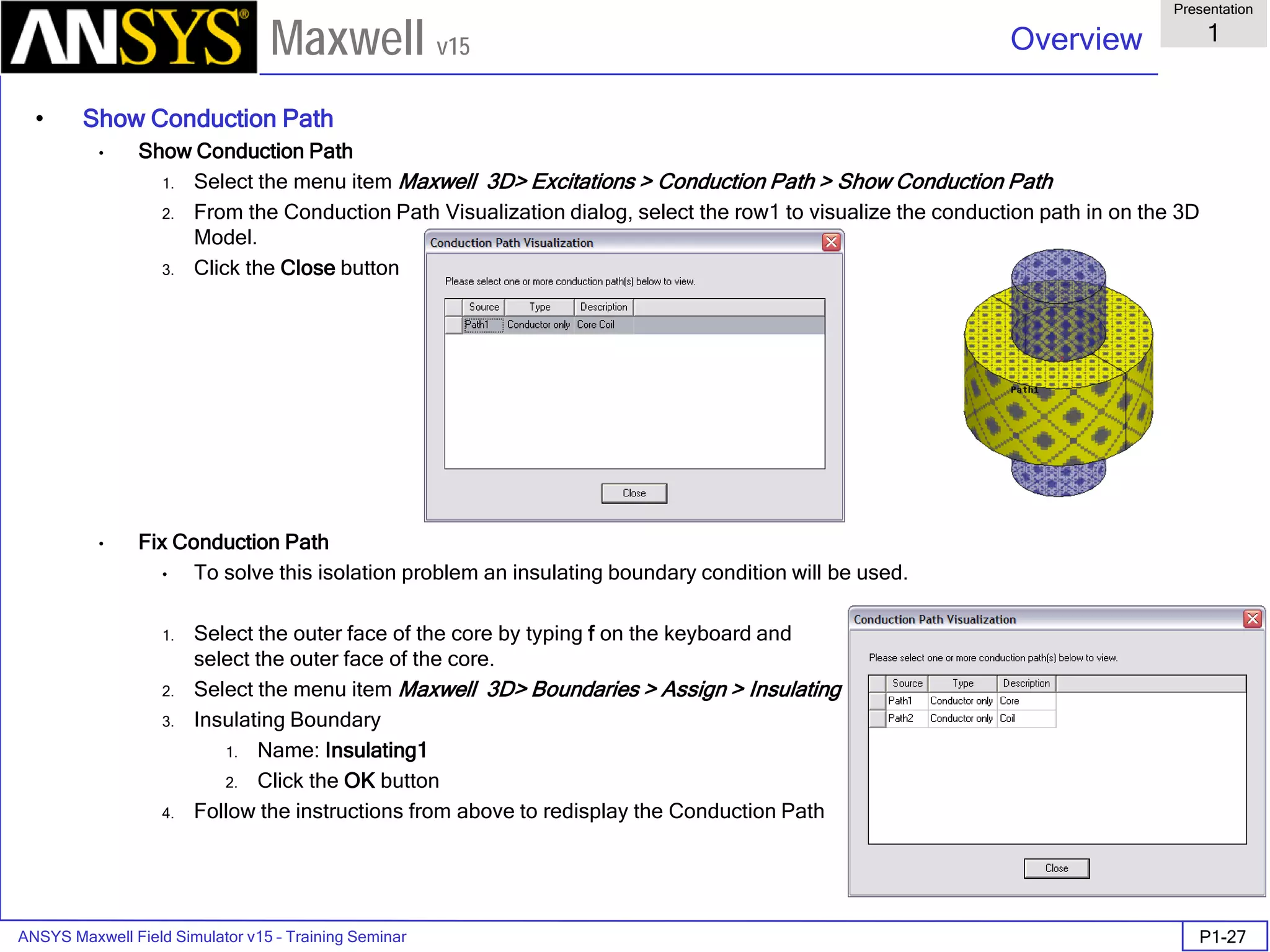
The following topics are discussed:
Curved Geometry Mesh Adaptation
Faceting Default Settings
User-Defining Surface Approximations
Application Recommendations
Model Resolution
Applying Mesh Operations
Examples
The following examples are provided to demonstrate the topics discussed
in the chapter:
Skin effect and adjacent effect for two bars (Eddy Current)
LR Matrix of a bar of PCB (Eddy Current)
3 Phase Linear PM Motor (Transient)
1.5kw 4p24s IPM Synchronous Motor (Transient)
ANSYS Maxwell 3D Field Simulator v15 User’s Guide
3.2
Mesh Operations Examples
3.2-2
Maxwell v15
Curve Mesh Adaptation in Maxwell v15
Maxwell v15 meshes handles curved surfaces differently than prior versions of
Maxwell. Proper understanding of the differences in curved mesh handling and
the advantages of new capabilities in the Maxwell v15 solver are essential to
obtaining accurate results.
The new graphical drawing interface offers the use of true-curved drawing,
by removing the option to assign a facet count to the construction of
primitives such as circles, cylinders, spheres, and ellipses.
Faceted primitives are still suggested as polyhedrons and polyhedral solids
for few cases. For examples, in translational motion analysis with Transient
solver, band have to be made as a faceted solid for better remeshing after
object motion
Initial meshing is constrained by faceting decisions made by the first pass
of the meshing algorithms as shown below.
For Maxwell v15 in order to provide more robust meshing with respect to
more complex geometries, the initial faceting selections made for curved
objects are respected throughout the adaptation process, so that the
adapted mesh is a subdivided variation of the same meshed volume as the
initial mesh. An adapted mesh from Maxwell v15 is shown below.
ANSYS Maxwell 3D Field Simulator v15 User’s Guide
3.2
Mesh Operations Examples
3.2-3
Maxwell v15
Faceter Default Settings
In order to resolve the true surfaces better, the initial faceting default setting is to
constrain the mesh surface normals to fall within 15 degrees of the true-curved
surface normals.
This means that a cylindrical surface would be ‘faceted’ into 24 segments
about its circumference, as illustrated below.
The normal for each flat segment cannot be off by more than 15 degrees
from the normal for the curved true surface which that segment’s face is
approximating.
The default is sufficient for many applications in which the curved geometry is not
itself highly critical to the simulation result, yet where more faceting would result
in an unnecessary large initial mesh. Special cases might need added meshing
operations to achieve better results.
ANSYS Maxwell 3D Field Simulator v15 User’s Guide
3.2
Mesh Operations Examples
3.2-4
Maxwell v15
Mesh Operations
Mesh Operations can be assigned from the Maxwell 3D menu, from the Design
Tree, or from the geometry interface’s context-sensitive menu.
Maxwell v15 can offer user 6 types of Mesh Operations:
On Selection/ Length Based;
On Selection / Skin Depth Based
Inside Selection / Length Based
Surface Approximation
Model Resolution
Cylindrical Gap Treatment
ANSYS Maxwell 3D Field Simulator v15 User’s Guide
3.2
Mesh Operations Examples
3.2-5
Maxwell v15
On Selection / Length Based
After user selected one or some Objects, this mesh operation can be setup
as a maximum length of the edges of the mesh for it.
The Cylinder with initial mesh below was created by
Draw cylinder with R = 1 mm, H = 1 mm, are the
meshes on surface and the center cross- section.
The right fig. of them are the results after using the
mesh option On Selection / Length Based = 0.1 mm.
User can see the surface of it was meshed with small
ones on it. The Default of Maximum Length equals
20% of the maximum length of the edge of it.
Meshes on the surfaces
Meshes on the center cross-section of them
Without Mesh Operation After Mesh Operation
ANSYS Maxwell 3D Field Simulator v15 User’s Guide
3.2
Mesh Operations Examples
3.2-6
Maxwell v15
On Selection / Skin Depth Based
The mesh will be created with the skin depth
effect in the object.
The Cylinder with initial mesh left below was
created by Draw regular Polyhedron with
R = 1 mm, H = 1 mm,
The right one was the results with the setting
in On Selection / Skin Depth Based:
Skin Depth = 0.25mm;
Number of Layer of Element = 4;
Surface Triangle Length = 0.4mm.
The inner mesh will be 4 layers where the skin
depth effects will be considered.
if user select Calculate Skin Depth, the skin
depth will be automatically calculated due to the
frequency, permeability and conductivity set
by user.
Cross-section of the mesh
Without Mesh Operation With Mesh Operation
Four Layers of
Skin Depth Mesh
ANSYS Maxwell 3D Field Simulator v15 User’s Guide
3.2
Mesh Operations Examples
3.2-7
Maxwell v15
Inside Selection / Length Based
Model Object of any shape can be meshed with this command for
inner mesh creating. It’s the most frequently used for manual
mesh. It also can be used for Non Model Objects (Boxes only).
Below is the 2x2x1 mm box with initial
mesh. The right below is result with the
command of Inside Selection / Length
Based = 0.25mm
Note:
For some special points or lines where user
have the measured data for comparison,
the Non Model Boxes can be created to
cover all these places and set small lengths
in Inside Selection / Length Based for
enough accuracy.
Cross-section of the mesh
Without Mesh Operation With Mesh Operation
ANSYS Maxwell 3D Field Simulator v15 User’s Guide
3.2
Mesh Operations Examples
3.2-8
Maxwell v15
Surface Approximation
The Surface Approximation options are shown right Below.
Definitions follow:
Surface Deviation is the maximum
spacing, in drawing units, that the
tetrahedral surfaces may be from the
true-curved geometry’s surface.
Normal Deviation is the maximum
angular difference, in degrees, that a
tetrahedral face’s normal can have from
the surface normal for the true geometry
which it is meant to represent.
Aspect Ratio refers to the maximum
allowed aspect ratio of all faces of all
tetrahedral of the selected object or face.
This setting influences mesh quality rather
than actual meshed volume or surface
locations.
Surface Representation Priority for Tau Mesh
In most cases, meshing is done by Tau Mesh.
You can set the surface representation as normal or high
The Cylinder with initial mesh on the right is
created by Draw cylinder with
R = 1 mm, H = 1 mm
The right is the result with Maximum Surface
Deviation = 0.000125mm.
Maximum Surface Deviation
ANSYS Maxwell 3D Field Simulator v15 User’s Guide
3.2
Mesh Operations Examples
3.2-9
Maxwell v15
Here in right Is the result with Maximum
Surface Normal Deviation = 5deg.
The last in the right is the surface result with
Maximum Aspect Ratio = 2.
Maximum Aspect Ratio
Maximum Surface Normal Deviation
ANSYS Maxwell 3D Field Simulator v15 User’s Guide
3.2
Mesh Operations Examples
3.2-10
Maxwell v15
Model Resolution
Model resolution is a length based value that modifies the initial mesh. This
meshing operation allows the user to specify a minimum edge length of any
tetrahedron used for the mesh. By specifying a minimum edge length for a
tetrahedron, the mesher will have to coarsely mesh geometric detail that may not
be electrically important. This will save the solver the amount of solution time
since the initial mesh is smaller, and the mesher does not have to add mesh
elements to areas that are not electrically important.
When dealing with models that have very high aspect ratios due to small
geometric detail, use a model resolution of 1/10 to 1/20 of the thinnest conductor
to start with. Then adjust the value accordingly.
Simple example:
There is a small stub (0.2x0.2x0.025mm) on a
cylinder (R=1mm, H=1mm). Below is the initial
mesh without Model Resolution.
Then with Model Resolution = 0.025 mm, the
mesh of it will be as below right, the stub
will be neglected.
Without Mesh Operation With Mesh Resolution
Mesh on the surface
ANSYS Maxwell 3D Field Simulator v15 User’s Guide
3.2
Mesh Operations Examples
3.2-11
Maxwell v15
Cylindrical Gap Treatment
Cylindrical Gap Treatment mesh operation is a proximity based mesh refinement.
The refinement of mesh is done on the applied objects based on the closeness of
the geometry lying inside it.
These mesh operation can be used effectively in motor geometry specially when
the gap between Band object and Stator/Rotor is very small. In such cases
meshing may fail or generate poor mesh in gap region. With this mesh operation
those problems can be avoided.
For Transient Solver involving rotational motion, this mesh operation is
automatically created once the rotational motion is defined
The mesh operation can be accessed through menu item similar to other mesh
operations.
In order to specify this mesh operation on any object, the selected object must
contain some geometry (Other Objects) inside it. Otherwise the mesh operation
can not be applied as proximity is not detected.
Below shown is a simple core surrounded by a cylinder. The gap between the
core and cylinder is around 1mm. A cylindrical Gap Treatment mesh Operation is
applied on the cylinder. The refinement can be seen on the faces of core which
are close to cylinder
Without
Mesh Operation
With
Mesh Operation
ANSYS Maxwell 3D Field Simulator v15 User’s Guide
3.2
Mesh Operations Examples
3.2-12
Maxwell v15
Mesh Operation Examples
EX1. Skin effect and adjacent effect for two bars (Eddy Current)
Model:
Two parallel copper bars (named coil1 &
coil2) are created by Draw Cylinder
with R = 0.15 mm, H = 3 mm,. The distance
between their axes is 0.4mm (Gap is 0.1mm)
The air box (3x3x3mm) Is created for analysis
region
Excitations
For each end terminal of bars is set as 1A
current in same Y direction (Design named “same”)
or Y direction for bar1, -Y direction for bar2 (Design named “opposite”)
Mesh Operation
Select cylindrical surfaces of bars except their end terminals as in right,
Then with On Selection / Skin Depth Based;
get in Calculate skin Depth… and get the
skin depth = 0.066mm for copper in 1MHz.
Then set Skin Depth Based Refinement
as below:
Skin Depth = 0.066mm;
Number of Layer of Element = 3;
Surface Triangle Length = 0.3mm.
and without Number Restriction
ANSYS Maxwell 3D Field Simulator v15 User’s Guide
3.2
Mesh Operations Examples
3.2-13
Maxwell v15
EX1. Skin effect and adjacent effect for two bars (Con’t)
Solve Setup
Solve Setup is set as below:
Results
The B & J distribution on the XZ cross-section of two bars will be as below:
B distribution for “opposite”
J distribution for “opposite”
With mesh plot
B distribution for “same”
J distribution for “same”
With mesh plot
ANSYS Maxwell 3D Field Simulator v15 User’s Guide
3.2
Mesh Operations Examples
3.2-14
Maxwell v15
EX2. LR Matrix for print bar (Eddy Current)
Model:
One copper bar (part from PCB, with Length
= 24.5mm, Height = 0.5mm) on the right is
imported. This model will calculate its LR from
1Mhz to 5MHz
An air box (50x24.5x40 mm) Is created as the
analysis region
Mesh Operation
This time we will try using dummy Sheets to mesh the bar with skin depth
meshes.
1. First we make the copy of the bar, and name it as “Unnamed_2”
2. Using Calculate skin Depth to get the skin depth = 0.029 mm as copper at
5 MHz.
3. Select the Unnamed_2 and do /Edit/Arrange/Offset with -0.029mm.
4. Select all surfaces of the new Unnamed_2 and do /Edit/Surface/Create Objects
form Surfaces. (16 Sheets will be created) All the Sheets will help automesh to
create skin depth meshes at the surface of the copper bar.
Excitations
For each end terminal of bar is set as 1A current in Y direction
Matrix setup
Select the copper bar and do /Assign Parameters/Matrix with Current1 as
Include
Mesh in cross-section of bar
ANSYS Maxwell 3D Field Simulator v15 User’s Guide
3.2
Mesh Operations Examples
3.2-15
Maxwell v15
EX2. LR Matrix for print bar (Eddy Current) (Con’t)
Solve Setup
Solve Setup is set as below: (Set Default In General & Convergence)
Results
The L & R vs. Frequency will be as below:
L vs. Frequency
R vs. Frequency
ANSYS Maxwell 3D Field Simulator v15 User’s Guide
3.2
Mesh Operations Examples
3.2-16
Maxwell v15
EX3. 3ph Linear PM Motor (Transient)
Model:
The basic parts of it are as below:
Mesh Operation
Using Inside Selection / Length
Based to set the length of the maximum
of element edge for each parts as below:
windings: 4 mm;
magnets: 2 mm;
cores : 4 mm:
Band : 3 mm
Please note for each time step the mesh
of the air part in band will be recreated
due to the Inside Selection /
Length Based = 3 mm.
3 Phase windings
Permanent Magnets
Moving core
Stator core
Band
Band mesh in XZ cut-plane
at some time step
Mesh
ANSYS Maxwell 3D Field Simulator v15 User’s Guide
3.2
Mesh Operations Examples
3.2-17
Maxwell v15
EX3. Linear Motor (Transient) (con’t)
Exciation
The current exciation is set as a time function:
U Phase: if((Speed>0&&Position<=41.5), 4*pwl_periodic(dsA,Position),
-4*pwl_periodic(dsA,Position))
.
Results
Transient current of 3 phase winding
Position
dsA(A)
Force in X direction (|fx|>2N)
ANSYS Maxwell 3D Field Simulator v15 User’s Guide
3.2
Mesh Operations Examples
3.2-18
Maxwell v15
EX3. Linear Motor (Transient) (con’t)
Results
Position vs. Time
Speed vs. Time
ANSYS Maxwell 3D Field Simulator v15 User’s Guide
3.2
Mesh Operations Examples
3.2-19
Maxwell v15
EX4. 1.5KW 4p24s IPM Synchronous Motor (Transient)
Model:
Please see the model as below:
Mesh Operation
For making the mesh as 6 levels in motor, 5 dummy circular sheets are created.
Using Inside Selection / Length Based to set the length of the maximum
of element edge for windings: 5 mm;
For rotor and stator, we only do mesh operation for the surfaces along the gap
and set Surface Approximation as below:
Set maximum surface deviation
(length): 2.5 mm;
Set maximum surface deviation
(angle): 3 deg
The mesh of the main parts will
be shown in the right.
Rotor core Stator core
Mesh
3 Phase windings
Permanent
Magnets
5 sheets (dummy) Circuit model of 3 Phase Y connection
ANSYS Maxwell 3D Field Simulator v15 User’s Guide
3.2
Mesh Operations Examples
3.2-20
Maxwell v15
EX4. 1.5KW 4p24s IPM Synchronous Motor (Transient) (con’t)
Results at Speed = 1800 rpm
Input node voltages
Output Torque
Current of 3 phase
Induced Voltages
ANSYS Maxwell Field Simulator v15 – Training Seminar 3.3-1
Overview
Presentation
3.3
Maxwell v15
Maxwell Adaptive
Meshing
ANSYS Maxwell Field Simulator v15 – Training Seminar 3.3-2
Overview
Presentation
3.3
Maxwell v15
Maxwell and the Finite Element Method
Maxwell uses the Finite Element Method (FEM) to solve Maxwell‘s equations. The
primary advantage of the FEM for solving partial differential equations lies in the ability of
the basic building blocks used to discretize the model to conform to arbitrary geometry.
The arbitrary shape of the basic building block (tetrahedron) also allows Maxwell to
generate a coarse mesh where fewer cells are needed to yield an accurate solution, while
creating a finely discretized mesh where the field is rapidly varying or higher accuracy is
needed to obtain an accurate global solution.
The FEM has been a standard for solving electromagnetic problems since the 1970s.
Maxwell appeared on the market in 1984 pioneering the use of adaptive meshing in a
commercial product.
The FEM has been a standard for solving problems in structure mechanics since the mid
1950‘s (imagine defining the 3D structure of a bridge with punch cards)!
First see the one-dimensional example…..
ANSYS Maxwell Field Simulator v15 – Training Seminar 3.3-3
Overview
Presentation
3.3
Maxwell v15
The Finite Element Method in 1-D
The finite element method (FEM) can be used to approximate the unknown
curve F(x)
x
F(x)
1
w
1
1
0
2
w
2
3
w
3
4
w
4
5
w
5
6
w
6w
0
 The model is “discretized into 6 individual cells. w0 – w6 are the
piecewise linear “basis functions” from which the approximate
solution will be built.
ANSYS Maxwell Field Simulator v15 – Training Seminar 3.3-4
Overview
Presentation
3.3
Maxwell v15
The Finite Element Method in 1-D
In the FEM, the unknown function is expressed as a weighted sum of the
piecewise continuous basis functions.
x
F(x)
1
Node 1 2 3 4 5 6
F’(x)=Σa wi i
 The approximate solution resulting from the FEM
calculation is F’(x) shown as a dotted line.
ANSYS Maxwell Field Simulator v15 – Training Seminar 3.3-5
Overview
Presentation
3.3
Maxwell v15
The Finite Element Method in 1-D
A key feature of the FEM as it is implemented in Maxwell is the ability to locally
determine the error. Recall that F(x) is not known, but the ERROR can be
determined1.
x
F(x)
Node 1 2 3 4 5 6
F’(x)=Σa wi i
1 Cendes, Z.J., and D.N. Shenton. Adaptive mesh refinement in the finite element. computation of magnetic
fields; IEEE Transactions on magnetics (T-MAG), Pages 1811-1816 , Volume 21, Issue 5, Sept 1985
Error!
ANSYS Maxwell Field Simulator v15 – Training Seminar 3.3-6
Overview
Presentation
3.3
Maxwell v15
The mesh density is increased where the error is largest. Hence, the final (and
computationally most expensive) solution will have a mesh that yields the
greatest accuracy with the fewest possible mesh cells.
x
F(x)
1
Node 1 2 3 4 5 6
F’(x)=Σa wi i
7
The Finite Element Method in 1-D
ANSYS Maxwell Field Simulator v15 – Training Seminar 3.3-7
Overview
Presentation
3.3
Maxwell v15
Model Definition
3D Example: Puck Magnet
above a steel plate
Steel Plate
NdFe Magnet
ANSYS Maxwell Field Simulator v15 – Training Seminar 3.3-8
Overview
Presentation
3.3
Maxwell v15
Adaptive Mesh Refinement
View of initial mesh
The projection of the 3-dimensional mesh onto the plate surface creates a
triangular mesh. The initial mesh is as coarse as possible while still
representing all geometric features.
ANSYS Maxwell Field Simulator v15 – Training Seminar 3.3-9
Overview
Presentation
3.3
Maxwell v15
Adaptive Mesh Refinement
Mesh after 2 passes
Convergence
EnergyError[%]
Pass
ANSYS Maxwell Field Simulator v15 – Training Seminar 3.3-10
Overview
Presentation
3.3
Maxwell v15
Adaptive Mesh Refinement
Mesh after 4 passes
Convergence
EnergyError[%]
Pass
ANSYS Maxwell Field Simulator v15 – Training Seminar 3.3-11
Overview
Presentation
3.3
Maxwell v15
Adaptive Mesh Refinement
Mesh after 6 passes
Convergence
EnergyError[%]
Pass
ANSYS Maxwell Field Simulator v15 – Training Seminar 3.3-12
Overview
Presentation
3.3
Maxwell v15
Adaptive Mesh Refinement
Mesh after 10 passes
Convergence
EnergyError[%]
Pass
ANSYS Maxwell Field Simulator v15 – Training Seminar 3.3-13
Overview
Presentation
3.3
Maxwell v15
Adaptive Mesh Refinement
Mesh after 16 passes.
Desired Energy Error of 0.2% is reached
Convergence
EnergyError[%]
Pass
ANSYS Maxwell Field Simulator v15 – Training Seminar 3.3-14
Overview
Presentation
3.3
Maxwell v15
Plot of |B| on surface of the Plate (DC after 16 passes)
ANSYS Maxwell Field Simulator v15 – Training Seminar 3.3-15
Overview
Presentation
3.3
Maxwell v15
Adaptive Mesh Refinement
Energy Error goal reduced further.
Mesh after 22 passes. Desired
Energy Error of 0.03% is reached
Convergence
EnergyError[%]
Pass
ANSYS Maxwell Field Simulator v15 – Training Seminar 3.3-16
Overview
Presentation
3.3
Maxwell v15
Plot of |B| on surface of the Plate (DC after 22 passes)
ANSYS Maxwell Field Simulator v15 – Training Seminar 3.3-17
Overview
Presentation
3.3
Maxwell v15
Convergence
Even in the region of the convergence
curve above pass number 16, a
gradient in the energy error from pass
to pass can be observed.
Continued iteration results in higher
accuracy but at a cost of a large
number of tetrahedrons.
Clearly a tradeoff must be found
EnergyError[%]
EnergyError[%]
Pass
Pass
No.TetsDeltaEnergy[%]
ANSYS Maxwell Field Simulator v15 – Training Seminar 3.3-18
Overview
Presentation
3.3
Maxwell v15
Convergence definition through use of additional variables
% Change in the Force on the magnet can be used to determine a more effective
stopping criteria since this value can be tied directly to the acceptable numerical
tolerance on a physical variable
DeltaForce[%]
DeltaForce[%]
Pass
Pass
ANSYS Maxwell Field Simulator v15 – Training Seminar 3.3-19
Overview
Presentation
3.3
Maxwell v15
Calculate local
Solution error
The “Solve” Procedure in Maxwell
Generate Initial
Mesh
Solve fields using the
Finite Element Method
End criteria
reached ?
Refine Mesh
Calculate Outputs
(Force, Inductance, etc.)
no
yes
Start
ANSYS Maxwell Field Simulator v15 – Training Seminar 3.3-20
Overview
Presentation
3.3
Maxwell v15
Summery
Most of the execution time in a field solver is spent on the “final” solution. This is the
solution that uses the largest mesh (i.e. the most finely discretized model) and hence
yields the most accurate results.
Autoadaptive mesh refinement generates an efficient mesh without requiring the user to be
an “expert mesher”.
User defined convergence criteria enable quantification of the trade-off between accuracy
and calculation time.
ANSYS Maxwell Field Simulator v15 – Training Seminar 3.3-22
Overview
Presentation
3.3
Maxwell v15
Small Air Gaps
Example: Team Problem #20
ANSYS Maxwell Field Simulator v15 – Training Seminar 3.3-23
Overview
Presentation
3.3
Maxwell v15
Measured
Automatic Adaptive Meshing
ANSYS Maxwell Field Simulator v15 – Training Seminar 3.3-24
Overview
Presentation
3.3
Maxwell v15
Measured
Comparison to Measurement
ANSYS Maxwell 3D Field Simulator v15 User’s Guide
4.0
Data Reporting
4.0-1
Maxwell v15
Overview
ANSYS Maxwell has very powerful and flexible data management and plotting
capabilities. Once understood, it will make the whole solution process much
easier, and will help craft the entire problem setup.
Topics of Discussion
2D Plotting
3D Plotting
Field Plotting
ANSYS Maxwell 3D Field Simulator v15 User’s Guide
4.0
Data Reporting
4.0-2
Maxwell v15
Data Plotting
Data plotting can take a variety of forms. The most often used format is 2D
Cartesian plotting, but we also have the capability to plot in 3D as well. Below is a
list of all the quantities that can be plotted on various graphs. For definitions of
each of these quantities, see the online help or the respective solution type
chapter.
Magnetostatic, Eddy Current, Electric
Force
Torque
Matrix
Transient
Motion
Position
Force/Torque
Velocity
Winding
Flux Linkage
Induced Voltage
Core Loss
Power Loss
Branch Current (external meter required)
Node Voltage (external meter required)
Fields
Mag_H
Mag_B
Mag_J
Energy Density
Coenergy Density
Apparent Energy Density
Ohmic Loss Density
Named Expressions
NOTE: For all data plots of Fields data, a Line must be defined before
creating the plot.
ANSYS Maxwell 3D Field Simulator v15 User’s Guide
4.0
Data Reporting
4.0-3
Maxwell v15
Data Plotting (Continued)
Types of Plots:
Rectangular Plot
Data Table
3D Rectangular Plot
To Create a Plot:
1. Select Maxwell 3D > Results > Create Magnetostatic Report
2. Reports Dialog will be displayed (options on the next page)
OR
1. Select Maxwell 3D > Results > Create Fields Report
2. Reports Dialog will be displayed (options on the next page)
OR
1. Select Maxwell 3D > Results > Create Quick Report (when available)
2. Choose Quick Report type and click OK.
ANSYS Maxwell 3D Field Simulator v15 User’s Guide
4.0
Data Reporting
4.0-4
Maxwell v15
Data Plotting (Continued)
Creating a Plot (continued)
4. Context
Design – choose from available designs within a project
Solution – choose from available setups or solution types
Geometry – if plotting Fields data, select an available Line from the
list.
5. Trace Tab
Primary Sweep – controls the source of the independent variable in
the plot.
NOTE: By default, the Report editor selects Use Current
Design and Project variable values. This will select the
primary sweep of distance for a field data plot, or an
undefined variable X for other plot types, and the current
simulated values of the project variables
To display a plot with multiple traces for different variable
values, select the Families tab and select the Sweeps for
variables to be plot with. The Plot will have Primary variable
as X axis and multiple traces corresponding to other variables
selected from Families tab. You can also select Particular
values of Sweep variable by selecting the radio button to
Available variations
X – controls any functional operator on the independent variable (this
is usually set to Primary Sweep).
Y – select the value to be plotted and any operator.
Category: Select the category of the variable which needs to
be plot
Quantity: to Select the variable
Function: To perform arithmetic operations on variable before
plot
6. Select Add Trace for as many values as you would like to plot
7. Select Done when finished
An example of a multi-trace plot of the sweep tab shown on the previous page is
shown next
ANSYS Maxwell 3D Field Simulator v15 User’s Guide
4.0
Data Reporting
4.0-5
Maxwell v15
Data Plotting (Continued)
ANSYS Maxwell 3D Field Simulator v15 User’s Guide
4.1
Field Calculator
4.1-1
Maxwell v15
Examples of the Field Calculator in Maxwell3D
The Field Calculator can be used for a variety of tasks, however its primary
use is to extend the post-processing capabilities within Maxwell beyond the
calculation / plotting of the main field quantities. The Field Calculator makes
it possible to operate with primary vector fields (such as H, B, J, etc) using
vector algebra and calculus operations in a way that is both mathematically
correct and meaningful from a Maxwell’s equations perspective.
The Field Calculator can also operate with geometry quantities for three
basic purposes:
- plot field quantities (or derived quantities) onto geometric entities;
- perform integration (line, surface, volume) of quantities over specified
geometric entities;
- export field results in a user specified box or at a user specified set of
locations (points).
Another important feature of the (field) calculator is that it can be fully script
driven. All operations that can be performed in the calculator have a
corresponding “image” in one or more lines of VBscript code. Scripts are
widely used for repetitive post-processing operations, for support purposes
and in cases where Optimetrics is used and post-processing scripts provide
some quantity required in the optimization / parameterization process.
This document describes the mechanics of the tools as well as the “softer”
side of it as well. So, apart from describing the structure of the interface this
document will show examples of how to use the calculator to perform many
of the post-processing operations encountered in practical, day to day
engineering activity using Maxwell. Examples are grouped according to the
type of solution. Keep in mind that most of the examples can be easily
transposed into similar operations performed with solutions of different
physical nature.
ANSYS Maxwell 3D Field Simulator v15 User’s Guide
4.1
Field Calculator
4.1-2
Maxwell v15
ANSYS Maxwell Design Environment
The following features of the ANSYS Maxwell Design Environment are used to
interact with the calculator as covered in this topic
Analysis
Electrostatic
DC Conduction
Magnetostatic
Eddy Current
Transient
Results
Output Variables
Field Calculator
Field Overlays:
Named Expressions
Animate
ANSYS Maxwell 3D Field Simulator v15 User’s Guide
4.1
Field Calculator
4.1-3
Maxwell v15
Description of the interface
The interface is shown in Fig. I1. It is structured such that it contains a stack
which holds the quantity of interest in stack registers. A number of operations
are intended to allow the user to manipulate the contents of the stack or
change the order of quantities being hold in stack registers. The description of
the functionality of the stack manipulation buttons (and of the corresponding
stack commands) is presented below:
- Push repeats the contents of the top stack register so that after the
operation the two top lines contain identical information;
- Pop deletes the last entry from the stack (deletes the top of the stack);
- RlDn (roll down) is a “circular” move that makes the contents of the stacks
slide down one line with the bottom of the stack advancing to the top;
- RlUp (roll up) is a “circular” move that makes the contents of the stacks
slide up one line with the top of the stack dropping to the bottom;
- Exch (exchange) produces an exchange between the contents of the two
top stack registers;
- Clear clears the entire contents of all stack registers;
- Undo reverses the result of the most recent operation.
The user should note that Undo operations could be nested up to the level
where a basic quantity is obtained.
ANSYS Maxwell 3D Field Simulator v15 User’s Guide
4.1
Field Calculator
4.1-4
Maxwell v15
Named
Expressions
Solution
Context
Stack & stack
registers
Stack
commands
Calculator
Buttons
Fig. I1 Field Calculator Interface
ANSYS Maxwell 3D Field Simulator v15 User’s Guide
4.1
Field Calculator
4.1-5
Maxwell v15
The calculator buttons are organized in five categories as follows:
- Input contains calculator buttons that allow the user to enter data in the stack;
sub-categories contain solution vector fields (B, H, J, etc.), geometry(point, line,
surface, volume, coordinate system), scalar, vector or complex constants
(depending on application) or even entire f.e.m. solutions.
- General contains general calculator operations that can be performed with
“general” data (scalar, vector or complex), if the operation makes sense; for
example if the top two entries on the stack are two vectors, one can perform the
addition (+) but not multiplication (*);indeed, with vectors one can perform a dot
product or a cross product but not a multiplication as it is possible with scalars.
- Scalar contains operations that can be performed on scalars; example of scalars
are scalar constants, scalar fields, mathematical operations performed on vector
which result in a scalar, components of vector fields (such as the X component of
a vector field), etc.
- Vector contains operations that can be performed on vectors only; example of
such operations are cross product (of two vectors), div, curl, etc.
- Output contains operations resulting in plots (2D / 3D), graphs, data export, data
evaluation, etc.
As a rule, calculator operations are allowed if they make sense from a mathematical
point of view. There are situations however where the contents of the top stack
registers should be in a certain order for the operation to produce the expected result.
The examples that follow will indicate the steps to be followed in order to obtain the
desired result in a number of frequently encountered operations. The examples are
grouped according to the type of solution (solver) used. They are typical medium/higher
level post-processing task that can be encountered in current engineering practice.
Throughout this manual it is assumed that the user has the basic skills of using the
Field Calculator for basic operations as explained in the on-line technical
documentation and/or during Ansoft basic training.
Note: The f.e.m. solution is always performed in the global (fixed) coordinate system.
The plots of vector quantities are therefore related to the global coordinate system and
will not change if a local coordinate system is defined with a different orientation from
the global coordinate system.
ANSYS Maxwell 3D Field Simulator v15 User’s Guide
4.1
Field Calculator
4.1-6
Maxwell v15
Electrostatic Examples
Example ES1: Calculate the charge density distribution and total
electric charge on the surface of an object
Description: Assume an electrostatic (3D) application with separate metallic
objects having applied voltages or floating voltages. The task is to calculate the
total electric charge on any of the objects.
Calculate/plot the charge density distribution on the object; the sequence of
calculator operations is described below:
Input > Quantity > D (load D vector into the calculator);
Input > Geometry
In Geometry window,
1. Select radio Button to Surface
2. Select the Surface of interest and Press OK
Vector > Unit Vec > Normal (creates the normal unit vector corresponding to the
surface of interest)
Vector > Dot (creates the dot product between D and the unit normal vector to
the surface of interest, equal to the surface charge density)
Add (input “charge_density” as the name) -> OK (creates a named expression
and adds it to the list)
Done (leaves calculator)
(select the surface of interest from the model)
Maxwell 3D > Fields > Fields > Named Expressions (a Selecting calculated
expression window appears)
(select “charge_density” from the list) -> OK (A Create Field Plot window
appears)
Done
Calculate the total electric charge on the surface of an object
Input > Quantity > D (load D vector into the calculator);
Input > Geometry > Surface… (select the surface of interest) -> OK
Vector > Normal
Scalar >
Output > Eval
∫
ANSYS Maxwell 3D Field Simulator v15 User’s Guide
4.1
Field Calculator
4.1-7
Maxwell v15
Example ES2: Calculate the Maxwell stress distribution on the
surface of an object
Description: Assume an electrostatic application (for ex. a parallel plate capacitor
structure). The surface of interest and adjacent region should have a fine finite
element mesh since the Maxwell stress method for calculation the force is quite
sensitive to mesh.
The Maxwell electric stress vector has the following expression for objects
without electrostrictive effects:
where the unit vector n is the normal vector to the surface of interest. The
sequence of calculator commands necessary to implement the above formula is
given below.
Input > Quantity > D
Input > Geometry > Surface (select the surface of interest) > OK
Vector > Unit Vec > Normal (creates the normal unit vector corresponding to the
surface of interest)
Vector > Dot
Input > Quantity > E
General > * (multiply)
Input > Geometry > Surface… (select the surface of interest) > OK
Vector > Unit Vec > Normal (creates the normal unit vector corresponding to the
surface of interest)
Input > Number >Scalar (0.5) OK
General > *
Input > Constant > Epsi0
General > *
Input > Quantity > E
Push
Dot
General > *
General > - (minus)
Continued on next page.
( ) 2
2
1
EnEnDTnE ε

−⋅=
ANSYS Maxwell 3D Field Simulator v15 User’s Guide
4.1
Field Calculator
4.1-8
Maxwell v15
Example ES2: Continued
Add … (input “stress” as the name) > OK (creates a named expression and adds
it to the list)
Done (leaves calculator)
(select the surface of interest from the model)
Maxwell 3D > Fields > Fields > Named Expressions (a Selecting calculated
expression window appears)
(select “stress” from the list) > OK (A Create Field Plot window appears)
Done
If an integration of the Maxwell stress is to be performed over the surface of
interest, then use the Named Expression in the following calculator sequence:
(select “stress” from the Named Expressions list)
Copy to stack (inserts the named expression to the stack)
Input > Geometry > Surface (select surface of interest) > OK
Vector > Normal
Scalar >
Output > Eval
Note: The surface in all the above calculator commands should lie in free space
or should coincide with the surface of an object surrounded by free space
(vacuum, air). It should also be noted that the above calculations hold true in
general for any instance where a volume distribution of force density is equivalent
to a surface distribution of stress (tension):
where Tn is the local tension force acting along the normal direction to the
surface and F is the total force acting on object(s) inside Σ.
The above results for the electrostatic case hold for magnetostatic applications if
the electric field quantities are replaced with corresponding magnetic quantities.
dSTdvfF
v
n∫ ∫Σ Σ
==

∫
ANSYS Maxwell 3D Field Simulator v15 User’s Guide
4.1
Field Calculator
4.1-9
Maxwell v15
Current flow Examples
Example CF1: Calculate the resistance of a conduction path between
two terminals
Description: Assume a given conductor geometry that extends between two
terminals with applied DC currents.
In DC applications (static current flow) one frequent question is related to the
calculation of the resistance when one has the field solution to the conduction
(current flow) problem. The formula for the analytical calculation of the DC
resistance is:
where the integral is calculated along curve C (between the terminals) coinciding
with the “axis” of the conductor. Note that both conductivity and cross section
area are in general function of point (location along C). The above formula is not
easily implementable in the general case in the field calculator so that alternative
methods to calculate the resistance must be found.
One possible way is to calculate the resistance using the power loss in the
respective conductor due to a known conduction current passing through the
conductor.
where power loss is given by
The sequence of calculator commands to compute the power loss P is given
below:
Input > Quantity > J
Push
Input > Number > Scalar (1e7) OK (conductivity assumed to be 1e7 S/m)
General > / (divide)
Vector > Dot
Input > Geometry > Volume (select the volume of interest) > OK
Scalar >
Output > Eval
The resistance can now be easily calculated from power and the square of the
current.
Continued on next page.
( ) ( )∫ ⋅
=
C
DC
sAs
ds
R
σ
2
DC
DC
I
P
R = dVJ
J
dVJEP
V
V



⋅=⋅= ∫ ∫σ
∫
ANSYS Maxwell 3D Field Simulator v15 User’s Guide
4.1
Field Calculator
4.1-10
Maxwell v15
There is another way to calculate the resistance which makes use of the well
known Ohm’s law.
Assuming that the conductor is bounded by two terminals, T1 and T2 (current
through T1 and T2 must be the same), the resistance of the conductor (between
T1 and T2) is given the ratio of the voltage differential U between T1 and T2 and
the respective current, I . So it is necessary to define two points on the
respective terminals and then calculate the voltage at the two locations (voltage
is called Phi in the field calculator). The rest is simple as described above.
Example CF2: Export the field solution to a uniform grid
Description: Assume a conduction problem solved. It is desired to export the
field solution at locations belonging to a uniform grid to an ASCII file.
The field calculator allows the field solutions to be exported regardless of the
nature of the solution or the type of solver used to obtain the solution. It is
possible to export any quantity that can be evaluated in the field calculator.
Depending on the nature of the data being exported (scalar, vector, complex),
the structure of each line in the output file is going to be different. However,
regardless of what data is being exported, each line in the data section of the
output file contains the coordinates of the point (x, y, z) followed by the data
being exported (1 value for a scalar quantity, 2 values for a complex quantity, 3
values for a vector in 3D, 6 values for a complex vector in 3D)
Continued on next page.
I
U
RDC =
ANSYS Maxwell 3D Field Simulator v15 User’s Guide
4.1
Field Calculator
4.1-11
Maxwell v15
To export the current density vector to a grid the field calculator steps are:
Input > Quantity > J
Output > Export (then fill in the data as appropriate, see Fig. CF2)
OK
Fig. CF2 Define the size of the export region (box) and spacing within
Select Calculate grid points and define minimum, maximum & spacing in all 3
directions X, Y, Z as the size of the rectangular export region (box) and the
spacing between locations. By default the location of the ASCII file containing
the export data is in the project directory. Clicking on the browse symbol one
can also choose another location for the exported file.
Note: One can export the quantity calculated with the field calculator at user
specified locations by selecting Input grid points from file. In that case the ASCII
file containing on each line the x, y and z coordinates of the locations must exist
prior to initiating the export-to-file command.
ANSYS Maxwell 3D Field Simulator v15 User’s Guide
4.1
Field Calculator
4.1-12
Maxwell v15
Example CF3: Calculate the conduction current in a branch of a
complex conduction path
Description: There are situations where the current splits along the conduction
path. If the nature of the problem is such that symmetry considerations cannot
be applied, it may be necessary to evaluate total current in 2 or more parallel
branches after the split point. To be able to perform the calculation described
above, it is necessary to have each parallel branch (where the current is to be
calculated) modeled as a separate solid.
Before the calculation process is started, make sure that the (local) coordinate
system is placed somewhere along the branch where the current is calculated,
preferably in a median location along that branch. In more general terms, that
location is where the integration is performed and it is advisable to choose it far
from areas where the current splits or changes direction, if possible.
Here is the process to be followed to perform the calculation using the field
calculator.
Input > Quantity > J
Input > Geometry > Volume (choose the volume of the branch of interest) OK
General > Domain (this is to limit the subsequent calculations to the branch of
interest only)
Input > Geometry > Surface > yz (choose axis plane that cuts perpendicular to
the branch) OK
Vector > Normal
Scalar >
Output > Eval
The result of the evaluation is positive or negative depending on the general
orientation of the J vector versus the normal of the integration surface (S). In
mathematical terms the operation performed above can be expressed as:
Note: The integration surface (yz, in the example above) extends through the
whole region, however because of the “domain” command used previously, the
calculation is restricted only to the specified solid (that is the S surface is the
intersection between the specified solid and the integration plane).
∫ ⋅=
S
dSnJI

∫
ANSYS Maxwell 3D Field Simulator v15 User’s Guide
4.1
Field Calculator
4.1-13
Maxwell v15
Magnetostatic examples
Example MS1: Calculate (check) the current in a conductor using
Ampere’s theorem
Description: Assume a magnetostatic problem where the magnetic field is
produced by a given distribution of currents in conductors. To calculate the
current in the conductor using Ampere’s theorem, a closed polyline (of arbitrary
shape) should be drawn around the respective conductor. In a mathematical
form the Ampere’s theorem is given by:
where Γ is the closed contour (polyline) and SΓ is an open surface bounded by
Γ but otherwise of arbitrary shape. ISΓ is the total current intercepting the surface
SΓ.
To calculate the (closed) line integral of H, the sequence of field calculator
commands is:
Input > Quantity > H
Input > Geometry > Line (choose the closed polygonal line around the
conductor) OK
Vector > Tangent
Scalar >
Output > Eval
The value should be reasonably close to the value of the corresponding current.
The match between the two can be used as a measure of the global accuracy of
the calculation in the general region where the closed line was placed.
∫Γ
Γ ⋅= sdHIS

∫
ANSYS Maxwell 3D Field Simulator v15 User’s Guide
4.1
Field Calculator
4.1-14
Maxwell v15
Example MS2: Calculate the magnetic flux through a surface
Description: Assume the case of a magnetostatic application. To calculate the
magnetic flux through an already existing surface the sequence of calculator
commands is:
Input > Quantity > B
Input > Geometry > Surface (specify the integration surface) OK
Vector > Normal
Scalar >
Output > Eval
The result is positive or negative depending on the orientation of the B vector
with respect to the normal to the surface of integration.
The above operation corresponds to the following mathematical formula for the
magnetic flux:
Example MS3: Calculate components of the Lorentz force
Description: Assume a distribution of magnetic field surrounding conductors with
applied DC currents. The calculation of the components of the Lorentz force has
the following steps in the field calculator.
Input > Quantity > J
Input > Quantity > B
Vector > Cross
Vector > Scal? > ScalarX
Input > Geometry > Volume (specify the volume of interest) OK
Scalar >
Output > Eval
The above example shows the process for calculating the X component of the
Lorentz force. Similar steps should be performed for all components of interest.
∫ ⋅=Φ
S
S dAnB

∫
∫
ANSYS Maxwell 3D Field Simulator v15 User’s Guide
4.1
Field Calculator
4.1-15
Maxwell v15
Example MS4: Calculate the distribution of relative permeability in
nonlinear material
Description: Assume a non-linear magnetostatic problem. To plot the relative
permeability distribution inside a non-linear material the following steps should
be taken:
Input > Quantity > B
Vector > Scal? > ScalarX
Input > Quantity > H
Vector > Scal? > ScalarX
Input > Constant > Mu0
General > * (multiply)
General > / (divide)
General > Smooth
Add (input “rel_perm” as the name)
OK (creates a named expression
and adds it to the list)
Done (leaves calculator)
(select the surface of interest from the model)
Maxwell 3D > Fields > Fields > Named Expressions (a Selecting calculated
expression window appears)
(select “rel_perm” from the list) > OK (a Create Field Plot window appears)
Done
Note: The above sequence of commands makes use of one single field
component (X component). Please note that any spatial component can be used
for the purpose of calculating relative permeability in isotropic, non-linear soft
magnetic materials. The result would still be the same if we used the Y
component or the Z component. However, this does not apply for anisotropic
materials. The “smoothing” also used in the sequence is also recommended
particularly in cases where the mesh density is not very high.
ANSYS Maxwell 3D Field Simulator v15 User’s Guide
4.1
Field Calculator
4.1-16
Maxwell v15
Frequency domain (AC) Examples
Example AC1: Calculate the radiation resistance of a circular loop
Description: Assume a circular loop of radius 0.02 m with an applied current
excitation at 1.5 GHz;
The radiation resistance is given by the following formula:
where S is the outer surface of the region (preferably spherical), placed
conveniently far away from the source of radiation.
Assuming that a half symmetry model is used, no ½ is needed in the above
formula. The sequence of calculator commands necessary for the calculation of
the average power is as follows:
Input > Quantity > H
Vector > Curl
Input > Number > Complex (0 , -12) OK
General > *
Input > Quantity > H
General > Complex > Conj
Vector > Cross
General > Complex > Real
Input > Geometry > Surface (select the surface of interest) > OK
Vector > Normal
Scalar >
Output > Eval
Note: The integration surface above must be an open surface (radiation surface)
if a symmetry model is used. Surfaces of existing objects cannot be used since
they are always closed. Therefore the necessary integration surface must be
created in the example above using Modeler > Surface > Create Object From
Face command.
2
rms
av
r
I
P
R = ( ) ( ) dSHH
j
dSHEP
SS
av ∫∫∫∫ 





××∇=×= *
0
* 1
Re
2
1
Re
2
1 
ωε
∫
ANSYS Maxwell 3D Field Simulator v15 User’s Guide
4.1
Field Calculator
4.1-17
Maxwell v15
Example AC2: Calculate/Plot the Poynting vector
Description: Same as in Example AC1.
To obtain the Poynting vector the following sequence of calculator commands is
necessary:
Input > Quantity > H
Vector > Curl
Input > Number > Complex (0 , -12) OK
General > *
Input > Quantity > H
General > Complex > Conj
Vector > Cross
To plot the real part of the Poynting vector the following commands
should be added to the above sequence:
General > Complex > Real
Input > Number > Scalar (0.5) OK
General > *
Add (input “Poynting” as the name) > OK (creates a named expression and
adds it to the list)
Done (leaves calculator)
(select the surface of interest from the model)
Maxwell 3D > Fields > Fields > Named Expressions (a Selecting calculated
expression window appears)
(select “Poynting” from the list) > OK (a Create Field Plot window appears)
Done
ANSYS Maxwell 3D Field Simulator v15 User’s Guide
4.1
Field Calculator
4.1-18
Maxwell v15
Example AC3: Calculate total induced current in a solid
Description: Consider (as example) the device in Fig. AC3.
a) full model b) quarter model
Fig. AC3 Geometry of inductor model
Assume that the induced current through the surface marked with an arrow in
the quarter model is to be calculated. Please note that there is an expected net
current flow through the market surface, due to the symmetry of the problem. As
a general recommendation, the surface that is going to be used in the process
of integrating the current density should exist prior to solving the problem. In
some cases this also means that the geometry needs to be created in such a
way so that the particular post-processing task is made possible. Once the
object containing the integration surface exists, use the Modeler > Surface >
Create Object From Face command to create the integration surface necessary
for the calculation. Make sure that the object with expected induced currents
has non-zero conductivity and that the eddy-effect calculation was turned on.
Assuming now that all of the above was taken care of, the sequence of
calculator commands necessary to obtain separately the real part and the
imaginary part of the induced current is described on the next page:
ANSYS Maxwell 3D Field Simulator v15 User’s Guide
4.1
Field Calculator
4.1-19
Maxwell v15
For the real part of the induced current:
Input > Quantity > J
General > Complex > Real
Input > Geometry > Surface (select previously defined integration surface) OK
Vector > Normal
Scalar >
Output > Eval
For the imaginary part of the induced current:
Input > Quantity > J
General > Complex > Imag
Input > Geometry > Surface (select previously defined integration surface) OK
Vector > Normal
Scalar >
Output > Eval
If instead of getting the real and imaginary part of the current , one desires to do
an “at phase” calculation, the sequence of commands is:
Input > Quantity > J
Input > Number > Scalar (45) OK (assuming a calculation at 45 degrees phase
angle)
General > Complex > AtPhase
Input > Geometry > Surface (select previously defined integration surface) OK
Vector > Normal
Scalar >
Output > Eval
∫
∫
∫
ANSYS Maxwell 3D Field Simulator v15 User’s Guide
4.1
Field Calculator
4.1-20
Maxwell v15
Example AC4: Calculate (ohmic) voltage drop along a conductive
path
Description: Assume the existence of a conductive path (a previously defined
open line totally contained inside a conductor). To calculate the real and
imaginary components of the ohmic voltage drop inside the conductor the
following steps should be followed:
For the real part of the voltage:
Input > Quantity > J
Vector > Matl > Conductivity > Divide OK
General > Complex > Real
Input > Geometry > Line > (select the applicable line) OK
Vector > Tangent
Scalar >
Output > Eval
For the imaginary part of the voltage:
Input > Quantity > J
Vector > Matl > Conductivity > Divide OK
General > Complex > Imag
Input > Geometry > Line > (select the applicable line) OK
Vector > Tangent
Scalar >
Output > Eval
To calculate the phase of the voltage manipulate the contents of the stack so
that the top register contains the real part of the voltage and the second register
of the stack contains the imaginary part. To calculate phase enter the following
command:
Scalar > Trig > Atan2
∫
∫
ANSYS Maxwell 3D Field Simulator v15 User’s Guide
4.1
Field Calculator
4.1-21
Maxwell v15
Example AC5: Calculate the AC resistance of a conductor
Description: Consider the existence of an AC application containing conductors
with significant skin effect. Assume also that the mesh density is appropriate for
the task, i.e. mesh has a layered structure with 1-2 layers per skin depth for 3-4
skin depths if the conductor allows it. Here is the sequence to follow in order to
calculate the total power dissipated in the conductor of interest.
Input > Quantity > OhmicLoss
Input > Geometry > Volume (specify volume of interest) OK
Scalar >
Output > Eval
Note: To obtain the AC resistance the power obtained above must be divided
by the squared rms value of the current applied to the conductor. Note that in
the Boundary/Source Manager peak values are entered for sources, not rms
values.
∫
ANSYS Maxwell 3D Field Simulator v15 User’s Guide
4.1
Field Calculator
4.1-22
Maxwell v15
Time Domain Examples
Example TD1: Plotting Transient Data
Description: Assume a time domain (transient application) requiring the display
of induced current as a function of time. Do this before solving if fields are not
saved at every step, or any time if fields are available.
Input > Quantity > J
Input > Geometry > Surface (enter the surface of interest) OK
Vector > Normal
Scalar >
Add (input “Induced_Current” as the name) > OK (creates a named expression
and adds it to the list)
Done (leaves calculator)
Maxwell 3D > Results > Output Variables… (an Output Variables Dialogue
appears)
(select Fields from the Report Type pull down menu)
(select Calculator Expressions as the Category and “Induced_Current” as the
Quantity)
Insert Quantity Into Expression
(name your expression by writing “Ind_Cur” in the Name textbox)
Add (adds an output variable and its expression to the list)
Done
This Output Variable can be accessed two ways. First, it can be accessed
directly in the reports - make sure that the Reports Type is set to Fields (not
Transient). Second, it can be included in the Solve setup under the Output
Variables tab (which also makes it available in the reports with the Reports Type
set to Transient).
∫
ANSYS Maxwell 3D Field Simulator v15 User’s Guide
4.1
Field Calculator
4.1-23
Maxwell v15
Example TD2: Find the maximum/minimum field value/location
Description: Consider a solved transient application. To find extreme field
values in a given volume and/or the respective locations follow these steps.
To get the value of the maximum magnetic flux density in a given volume:
Input > Quantity > B
Vector > Mag
Input > Geometry > Volume (enter volume of interest) OK
Scalar > Max > Value
Output > Eval
To get the location of the maximum:
Input > Quantity > B
Vector > Mag
Input > Geometry > Volume (enter volume of interest) OK
Scalar > Max > Position
Output > Eval
The process is very similar when searching for the minimum. Just replace the
Max with Min in the above sequences.
ANSYS Maxwell 3D Field Simulator v15 User’s Guide
4.1
Field Calculator
4.1-24
Maxwell v15
Example TD3: Combine (by summation) the solutions from two time
steps
Description: Assume a linear model transient application. It is possible to add
the solution from different time steps if you follow these steps:
First, set the solution context to a certain time step, say t1 by selecting View >
Set Solution Context… and choosing an appropriate time from the list.
Then in the calculator:
Input > Quantity > B
Write (enter the name of the file) OK
Exit the calculator and choose a different time step, say t2.
Then, in the calculator:
Input > Quantity > B
Read (specify the name of the .reg file to be read in) OK
General > + (add)
Vector > Mag
Input > Geometry > Surface > (enter surface of interest) OK
Note 1: For this operation to succeed it is necessary that the respective meshes
are identical. This condition is of course satisfied in transient applications
without motion since they do not have adaptive meshing. It should be noted that
this capability can be used in other solutions sequences –say static- if the
meshes in the two models are identical.
The whole operation is numeric entirely, therefore the nature of the quantities
being “combined” is not checked from a physical significance point of view. It is
possible to add for example an H vector solution to a B vector solution. This
doesn’t have of course any physical significance, so the user is responsible for
the physical significance of the operation.
For the particular case of time domain applications it is possible to study the
“displacement” of the (vector) solution from one time step to another, study the
spatial orthogonality of two solution, etc. It is a very powerful capability that can
be used in many interesting ways.
ANSYS Maxwell 3D Field Simulator v15 User’s Guide
4.1
Field Calculator
4.1-25
Maxwell v15
Example TD3: Continued
Note 2: As another example of using this capability please consider another
typical application: power flow in a given device.
As example one can consider the case of a cylindrical conductor above the
ground plane with 1 Amp current, the voltage with respect to the ground being
1000 V. As well known, one can solve separately the magnetostatic problem (in
which case the voltage is of no consequence, and only magnetic fields are
calculated) and the electrostatic problem (in which case only the electric fields
are calculated). With Maxwell it is possible to “combine” the two results in the
post-processing phase if the assumption that the electric and magnetic fields
are totally separated and do not influence each other. One possible reason that
such an operation is meaningful from a physical point of view might be the need
for an analysis of power flow.
Assume that a magnetostatic and electrostatic problem are created with
identical geometries. Link the mesh from one simulation to the mesh of the
other, so that they will be identical – this can be accomplished in the Setup tab of
the Analysis Setup properties. Select the Import mesh box, and clicking on the
Setup Link … button. Then specify the target Design and Solution in the Setup
Link dialog. To assure that the mesh is identical in both the linked solution and
the target solution, make sure to set the Maximum Number of Passes to one (1)
in the linked solution.
ANSYS Maxwell 3D Field Simulator v15 User’s Guide
4.1
Field Calculator
4.1-26
Maxwell v15
Example TD3: Continued
Solve both these models and access the electrostatic results. Export the
electric field solution as follows:
Input > Quantity > E
Output > Write… (enter the name of the .reg file to contain the solution) OK
Access now the solution of the magnetostatic problem and perform the following
operations with the calculator after placing the coordinate system in the median
plane of the conductor (yz plane if the conductor is oriented along x axis):
Input > Read (specify the name of the file containing electrostatic E field) OK
Input > Quantity > H
Vector > Cross
Input > Geometry > Volume > background > OK
General > Domain
Input > Geometry > Surface > yz
Vector > Normal
Scalar >
Output > Eval
A result around 1000 W should be obtained, corresponding to 1000 W of power
being transferred along the wire but NOT THROUGH THE WIRE! Indeed the
power is transmitted through the air around the wire (the Poynting vector has
higher values closer to the wire and decays in a radial direction). The wire here
only has the role of GUIDING the power transfer! The wire absorbs from the
electromagnetic field only the power corresponding to the conduction losses in
the wire.
When the integration of the Poynting vector was performed above, a domain
operation was also performed limiting the result to the background only. This
shows clearly that the distribution of the Poynting vector in the background is
responsible for the power transfer. Displaying the Poynting vector in different
transversal planes to the wire shows also the direction of the power transfer.
This type of analysis can be very useful in studying the power transfer in
complex devices.
∫
ANSYS Maxwell 3D Field Simulator v15 User’s Guide
4.1
Field Calculator
4.1-27
Maxwell v15
Example TD4: Create an animation from saved field solutions
Description: Assume a solved time domain application. To create an animation
file of a certain field quantity extracted from the saved field solution (say
magnitude of conduction current density J) proceed as described below.
(select surface of interest)
Maxwell 3D > Fields > Fields > J > Mag_J
Done
Maxwell 3D > Fields > Animate … (a Setup Animation dialogue appears)
(select desired time steps from those available in the list)
Done
ANSYS Maxwell 3D Field Simulator v15 User’s Guide
4.1
Field Calculator
4.1-28
Maxwell v15
Miscellaneous Examples
Example M1: Calculation of volumes and areas
To calculate the volume of an object here is the sequence of calculator
commands:
Input > Number > Scalar (1) OK (enters the scalar value of 1)
Input > Geometry > Volume (enter the volume of interest) OK
Scalar >
Output > Eval
The result is expressed in m3.
To calculate the area of a surface here is the sequence of calculator commands:
Input > Number > Scalar (1) OK (enters the scalar value of 1)
Input > Geometry > Surface (enter the surface of interest) OK
Scalar >
Output > Eval
The result is expressed in m2.
∫
∫
ANSYS Maxwell 3D Field Simulator v15 User’s Guide
5.0
Chapter 5.0 – Magnetostatic
5.0
Maxwell v15
Chapter 5.0 – Magnetostatic Examples
5.1 – Magnetic Force
5.2 – Inductance Calculation
5.3 –Stranded Conductors
5.4 – Equivalent Circuit Extraction (ECE) Linear Movement
5.5 – Anisotropic Materials
5.6 – Symmetry Boundaries
5.7 – Permanent Magnet Magnetization
5.8 – Master/Slave boundaries
ANSYS Maxwell 3D Field Simulator v15 User’s Guide
5.1
Example (Magnetostatic) – Magnetic Force
5.1-1
Maxwell v15
Magnetic Force
This example is intended to show you how to create and analyze a magnetostatic
problem with a permanent magnet to determine the force exerted on a steel bar
using the Magnetostatic solver in the Ansoft Maxwell 3D Design Environment.
ANSYS Maxwell 3D Field Simulator v15 User’s Guide
5.1
Example (Magnetostatic) – Magnetic Force
5.1-2
Maxwell v15
ANSYS Maxwell Design Environment
The following features of the ANSYS Maxwell Design Environment are used to
create the models covered in this topic
3D Solid Modeling
Primitives: Box
Surface Operations: Section
Boolean Operations: Subtract, Unite, Separate Bodies
Boundaries/Excitations
Current: Stranded
Analysis
Magnetostatic
Results
Force
Field Overlays:
Vector B
ANSYS Maxwell 3D Field Simulator v15 User’s Guide
5.1
Example (Magnetostatic) – Magnetic Force
5.1-3
Maxwell v15
Launching Maxwell
To access Maxwell:
1. Click the Microsoft Start button, select Programs, and select Ansoft >
Maxwell 15.0 and select Maxwell 15.0
Setting Tool Options
To set the tool options:
Note: In order to follow the steps outlined in this example, verify that the
following tool options are set :
1. Select the menu item Tools > Options > Maxwell 3D Options
Maxwell Options Window:
1. Click the General Options tab
Use Wizards for data input when creating new
boundaries:  Checked
Duplicate boundaries/mesh operations with geometry:
 Checked
2. Click the OK button
2. Select the menu item Tools > Options > Modeler Options.
Modeler Options Window:
1. Click the Operation tab
Automatically cover closed polylines:  Checked
2. Click the Display tab
Default transparency = 0.8
3. Click the Drawing tab
Edit property of new primitives:  Checked
4. Click the OK button
ANSYS Maxwell 3D Field Simulator v15 User’s Guide
5.1
Example (Magnetostatic) – Magnetic Force
5.1-4
Maxwell v15
Opening a New Project
To open a new project:
After launching Maxwell, a project will be automatically created. You can
also create a new project using below options.
1. In an Maxwell window, click the  On the Standard toolbar, or
select the menu item File > New.
Select the menu item Project > Insert Maxwell 3D Design, or click on the
icon
Set Solution Type
To set the Solution Type:
Select the menu item Maxwell 3D > Solution Type
Solution Type Window:
1. Choose Magnetostatic
2. Click the OK button
ANSYS Maxwell 3D Field Simulator v15 User’s Guide
5.1
Example (Magnetostatic) – Magnetic Force
5.1-5
Maxwell v15
Set Model Units
To Set the units:
Select the menu item Modeler > Units
Set Model Units:
1. Select Units: mm
2. Click the OK button
Set Default Material
To set the default material:
Using the 3D Modeler Materials toolbar, choose Select
In Select Definition window,
1. Type steel_1008 in the Search by Name field
2. Click the OK button
ANSYS Maxwell 3D Field Simulator v15 User’s Guide
5.1
Example (Magnetostatic) – Magnetic Force
5.1-6
Maxwell v15
Create Core
Create Box
Select the menu item Draw > Box
1. Using the coordinate entry fields, enter the box position
X: 0, Y: 0, Z: -5, Press the Enter key
2. Using the coordinate entry fields, enter the opposite corner of the
box:
dX: 10, dY: -30, dZ: 10, Press the Enter key
Select the menu item View > Fit All > Active View.
Duplicate Box
Select the object Box1 from the history tree
Select the menu item Edit > Duplicate Along Line
1. Using the coordinate entry fields, enter the first point
X: 0, Y: 0, Z: 0, Press the Enter key
2. Using the coordinate entry fields, enter the second point
dX: 30, dY: 0, dZ: 0, Press the Enter key
3. Total Number: 2
4. Click the OK button
Create another box
Select the menu item Draw > Box
1. Using the coordinate entry fields, enter the box position
X: 0, Y: -30, Z: -5, Press the Enter key
2. Using the coordinate entry fields, enter the opposite corner of the
box:
dX: 50, dY: -10, dZ: 10, Press the Enter key
Unite Objects
Select the menu item Edit > Select All
Select the menu item, Modeler > Boolean > Unite
ANSYS Maxwell 3D Field Simulator v15 User’s Guide
5.1
Example (Magnetostatic) – Magnetic Force
5.1-7
Maxwell v15
Change Attributes
Select the resulting object from the tree and goto Properties window
1. Change the name of the object to Core
2. Change its color to Green
Mirror object
Select the Object Core from the history tree
Select the menu item, Edit > Duplicate > Mirror
1. Using the coordinate entry fields, enter the first point
X: 0, Y: 0, Z: 0, Press the Enter key
2. Using the coordinate entry fields, enter the normal point
dX: 0, dY: 1, dZ: 0, Press the Enter key
Select the menu item View > Fit All > Active View.
Unite Objects
Press Ctrl and select the objects Core and Core_1 from the history tree
Select the menu item, Modeler > Boolean > Unite
ANSYS Maxwell 3D Field Simulator v15 User’s Guide
5.1
Example (Magnetostatic) – Magnetic Force
5.1-8
Maxwell v15
Create Bar
Create Box
Select the menu item Draw > Box
1. Using the coordinate entry fields, enter the box position
X: 51, Y: -40, Z: -5, Press the Enter key
2. Using the coordinate entry fields, enter the opposite corner of the
box:
dX: 10, dY: 80, dZ: 10, Press the Enter key
Change Attributes
Select the object from the tree and goto Properties window
1. Change the name of the object to Bar
2. Change its color to Blue
Parameterize Object
Expand the history tree of the object Bar
Double click on the command CreateBox from the tree
For Position, type: 50mm+mx, -40, -5, Click the Tab key to accept
In Add variable window,
1. Unit Type: Length
2. Unit: mm
3. Value: 1
4. Press OK
Press OK to exit
ANSYS Maxwell 3D Field Simulator v15 User’s Guide
5.1
Example (Magnetostatic) – Magnetic Force
5.1-9
Maxwell v15
Set Default Material
To set the default material:
Using the 3D Modeler Materials toolbar, choose Select
In Select Definition window,
1. Type Copper in the Search by Name field
2. Click the OK button
Create Coil
Create Box
Select the menu item Draw > Box
1. Using the coordinate entry fields, enter the box position
X: 45, Y: 30, Z: 10, Press the Enter key
2. Using the coordinate entry fields, enter the opposite corner of the
box:
dX: -20, dY: -60, dZ: -20, Press the Enter key
Change Attributes
Select the object from the tree and goto Properties window
1. Change the name of the object to Coil
2. Change its color to Yellow
Subtract Core
Press Ctrl and select the objects Core and Coil from the history tree
Select the menu item Modeler > Boolean > Subtract
In Subtract Window,
1. Blank Parts: Coil
2. Tool Parts: Core
3. Clone tool objects before subtracting:  Checked
4. Click the OK button
ANSYS Maxwell 3D Field Simulator v15 User’s Guide
5.1
Example (Magnetostatic) – Magnetic Force
5.1-10
Maxwell v15
Set Default Material
To set the default material:
Using the 3D Modeler Materials toolbar, choose Select
In Select Definition window,
1. Type NdFe35 in the Search by Name field
2. Click the OK button
Create Magnet
Create Box
Select the menu item Draw > Box
1. Using the coordinate entry fields, enter the box position
X: 0, Y: -10, Z: -5, Press the Enter key
2. Using the coordinate entry fields, enter the opposite corner of the
box:
dX: 10, dY: 20, dZ: 10, Press the Enter key
Change Attributes
Select the object from the tree and goto Properties window
1. Change the name of the object to Magnet
2. Change its color to Red
Subtract Object
Press Ctrl and select the objects Magnet and Core from the history tree
Select the menu item Modeler > Boolean > Subtract
In Subtract Window
1. Blank Parts: Core
2. Tool Parts: Magnet
3. Clone tool objects before subtracting:  Checked
4. Click the OK button
ANSYS Maxwell 3D Field Simulator v15 User’s Guide
5.1
Example (Magnetostatic) – Magnetic Force
5.1-11
Maxwell v15
Orient Magnet
Note: By default all objects in Maxwell will have their orientation with respect to
global co-ordinate system and all magnetic materials are magnetized in X
direction. If actual direction of magnetization is different from Global axis, we
need to create Local coordinate system in that direction and orient the magnet
with respect to local coordinate system.
Create Local coordinate system
Change Selection from Object to faces
1. Select the menu item Edit > Select > Faces or
2. Press shortcut key “F” from keyboard
Using the mouse, select the top face of the Magnet from graphic window
Select the menu item Modeler > Coordinate System > Create > Face CS
1. Using the coordinate entry fields, enter the origin
X: 10, Y: 10, Z: 5, Press the Enter key
2. Using the coordinate entry fields, enter the axis:
dX: 0, dY: -20, dZ: 0, Press the Enter key
Change Orientation of Magnet
Select Magnet from the tree and goto Properties window
Change Orientation to FaceCS1
Change Selection to Objects
1. Select the menu item Edit > Select > Objects or
2. Press shortcut key “O” from keyboard
ANSYS Maxwell 3D Field Simulator v15 User’s Guide
5.1
Example (Magnetostatic) – Magnetic Force
5.1-12
Maxwell v15
Assign Boundaries
Assign Insulating boundary to prevent current leakage out of the Coil
Select the object Coil from the tree
Select the menu item Maxwell 3D > Boundaries > Assign > Insulating
In Insulating Boundary window,
1. Name: Insulating1
2. Click the OK button
Create Excitations
Change Work Coordinate System
Goto Modeler > Coordinate System > Set Working CS
In Select Coordinate System Window
1. Select Global
2. Press Select
Create Section of coil for assigning Current
Select the object Coil from the history tree
Select the menu item Modeler > Surface > Section
In Section window,
1. Section Plane: XY
2. Click the OK button
Change Attributes
Select the object Coil_Section1 from the tree and goto Properties window
1. Change the name of the object to Coil_Terminal
Separate Sheets
Select the sheet Coil_Terminal
Select the menu item Modeler > Boolean > Separate Bodies
Delete Extra Sheets
Select the sheet Coil_Terminal_Seperate1 from the tree
Select the menu item Edit >Delete
ANSYS Maxwell 3D Field Simulator v15 User’s Guide
5.1
Example (Magnetostatic) – Magnetic Force
5.1-13
Maxwell v15
Assign Excitations
Select the sheet Coil_Terminal from the history tree
Select the menu item Maxwell 3D > Excitations > Assign > Current
In Current Excitation window,
1. Name: Current1
2. Value: c1
3. Type: Stranded
4. Current Direction: negative Z (Use Swap Direction if needed)
5. Press OK
In Add variable window,
1. Unit Type: Current
2. Unit: A
3. Value: 100
4. Press OK
Create Force Parameter
Create Parameter to calculate Force
Select the Object Bar from the history tree
Select the menu item Maxwell 3D > Parameters > Assign > Force
In Force Setup window,
1. Name: Force1
2. Type: Virtual
3. Press OK button
Note: Virtual forces are useful on any object while Lorentz forces are only
applicable on current carrying objects which have permeability = 1.
ANSYS Maxwell 3D Field Simulator v15 User’s Guide
5.1
Example (Magnetostatic) – Magnetic Force
5.1-14
Maxwell v15
Set Default Material
To Set Default Material
Using the 3D Modeler Materials toolbar, choose Vacuum
Define Region
Create Simulation Region
Select the menu item Draw > Region
In Region window,
1. Pad all directions similarly:  Checked
2. Padding Type: Percentage Offset
3. Value: 50
4. Press OK
Note: For all Maxwell 3D projects a solution space must be defined.
Unless a partial model (like a motor wedge) is used, a region is usually
created as described above.
ANSYS Maxwell 3D Field Simulator v15 User’s Guide
5.1
Example (Magnetostatic) – Magnetic Force
5.1-15
Maxwell v15
Analysis Setup
To create an analysis setup:
Select the menu item Maxwell 3D > Analysis Setup > Add Solution Setup
Solution Setup Window:
1. Click the OK button to accept all default settings.
Save Project
To save the project:
1. In an Ansoft Maxwell window, select the menu item File > Save As.
2. From the Save As window, type the Filename: Ex_5_1_Magnetic_Force
3. Click the Save button
Model Validation
To validate the model:
Select the menu item Maxwell 3D > Validation Check
Click the Close button
Note: To view any errors or warning messages, use the Message Manager.
Analyze
To start the solution process:
1. Select the menu item Maxwell 3D > Analyze All
ANSYS Maxwell 3D Field Simulator v15 User’s Guide
5.1
Example (Magnetostatic) – Magnetic Force
5.1-16
Maxwell v15
Solution Data
To view the Solution Data:
Select the menu item Maxwell 3D > Results > Solution Data
To view the Profile:
1. Click the Profile Tab.
To view the Convergence:
1. Click the Convergence Tab
Note: The default view is for convergence is Table. Select
the Plot radio button to view a graphical representations of
the convergence data.
To view the Force values:
1. Click the ForceTab
ANSYS Maxwell 3D Field Simulator v15 User’s Guide
5.1
Example (Magnetostatic) – Magnetic Force
5.1-17
Maxwell v15
Plot Flux Density on Core Cross section
To ensure that the current direction and magnetization are correct, create a plot
the flux density vector on the core cross section.
In the history tree, expand Planes and select the geometry on which to
create the plot: Global:XY
Select the menu item Maxwell 3D > Fields > Fields > B > B_Vector
In Create Field plot window
1. Quantity: B_vector
2. In Volume: Press Ctrl and select Core and Magnet
3. Press Done
Note: This field plot is for the nominal design case with: mx = 1mm and c1 = 100A.
ANSYS Maxwell 3D Field Simulator v15 User’s Guide
5.1
Example (Magnetostatic) – Magnetic Force
5.1-18
Maxwell v15
Optimetrics Setup – Parametric Sweep
During the design of a device, it is common practice to develop design trends
based on swept parameters. Ansoft Maxwell 3D with Optimetrics Parametric
Sweep can automatically create these design curves.
Add a Parametric Sweep
Select the menu item Maxwell 3D > Optimetrics Analysis > Add Parametric
In Setup Sweep Analysis window,
1. On the Sweep Definitions tab:
1. Click the Add button
2. Add/Edit Sweep Dialog
1. Select Variable: c1 (pull down menu to to change from “mx” if
necessary)
2. Select Linear Step
3. Start: 0
4. Stop: 500
5. Step: 100
6. Click the Add button
7. Click the OK button
2. Click the Options tab:
1. Save Fields And Mesh:  Checked
3. Click the OK button
Analyze Parametric Sweep
To start the solution process:
1. Expand the Project Tree to display the items listed under Optimetrics
2. Right-click the mouse on ParametricSetup1 and choose Analyze
ANSYS Maxwell 3D Field Simulator v15 User’s Guide
5.1
Example (Magnetostatic) – Magnetic Force
5.1-19
Maxwell v15
Optimetrics Results
To view the Optimetrics Results:
Select the menu item Maxwell 3D > Optimetrics Analysis > Optimetrics
Results
Select the Profile Tab to view the solution progress for each setup.
Click the Close button when you are finished viewing the results
ANSYS Maxwell 3D Field Simulator v15 User’s Guide
5.1
Example (Magnetostatic) – Magnetic Force
5.1-20
Maxwell v15
Create Plot of Force at each Current
To create a report:
Select the menu item Maxwell 3D> Results > Create Magnetostatic Report
> Rectangular Plot
In Reports window
1. Solution: Setup1: LastAdaptive
2. Parameter: Force1
3. Click the Trace tab
1. Parametric Sweep : c1
2. X Axis: Default
3. Y Axis:
1. Category: Force
2. Quantity: Force_x
3. Function: <none>
4. Click the New Report button
ANSYS Maxwell 3D Field Simulator v15 User’s Guide
5.1
Example (Magnetostatic) – Magnetic Force
5.1-21
Maxwell v15
Plot Flux Density on Core Cross section at a different current
Finally, create a plot of B_vector in the core corresponding to the last row in the
parametric table with c1 = 500A.
Switch to the solution for the last row in the parametric table:
Select Maxwell 3D > Design Properties > Local Variables. Change the
value for c1 = 500 and click on OK.
The previous B_vector plot automatically updates to show the fields for c1
= 500A. The flux density is higher as expected
ANSYS Maxwell 3D Field Simulator v15 User’s Guide
5.1
Example (Magnetostatic) – Magnetic Force
5.1-22
Maxwell v15
ANSYS Maxwell 3D Field Simulator v15 User’s Guide
5.2
Example (Magnetostatic) – Inductance Calculation
5.2-1
Maxwell v15
The implementation and application of a 3-phase Inductor using
the Magnetostatic Solver to calculate the nonlinear inductance
The inductance calculation is an important part of a magnetostatic simulation.
The inductive properties will, of course, change with the nonlinearities of the
problem. The properties and concepts of the inductance calculation are
described in this example.
This example uses a 3-phase, 3-coil-per-phase inductor to demonstrate how the
inductance calculation produces meaningful results. The setup is scrutinized and
the results are examined. Then a half-symmetry model is examined to familiarize
the user with a half-symmetry setup. Finally incremental inductance calculation
was compared with apparent inductance in non-linear region of operation to
define correct calculation.
ANSYS Maxwell 3D Field Simulator v15 User’s Guide
5.2
Example (Magnetostatic) – Inductance Calculation
5.2-2
Maxwell v15
ANSYS Maxwell Design Environment
The following features of the ANSYS Maxwell Design Environment are used to
create the models covered in this topic
3D Solid Modeling
Primitives: Box, Rectangle, Region
Surface Operations: Section
Boolean Operations: Subtract, Separate Bodies, Split
3D Modeler: Delete Last Operation
Sweep: Along Path
Duplicate: Along Line
Boundaries/Excitations
Current: Stranded
Analysis
Magnetostatic
Results
Inductance Matrix
ANSYS Maxwell 3D Field Simulator v15 User’s Guide
5.2
Example (Magnetostatic) – Inductance Calculation
5.2-3
Maxwell v15
Launching Maxwell
To access Maxwell:
1. Click the Microsoft Start button, select Programs, and select Ansoft >
Maxwell 15.0 and select Maxwell 15.0
Setting Tool Options
To set the tool options:
Note: In order to follow the steps outlined in this example, verify that the
following tool options are set :
1. Select the menu item Tools > Options > Maxwell 3D Options
Maxwell Options Window:
1. Click the General Options tab
Use Wizards for data input when creating new
boundaries:  Checked
Duplicate boundaries/mesh operations with geometry:
 Checked
2. Click the OK button
2. Select the menu item Tools > Options > Modeler Options.
Modeler Options Window:
1. Click the Operation tab
Automatically cover closed polylines:  Checked
2. Click the Display tab
Default transparency = 0.8
3. Click the Drawing tab
Edit property of new primitives:  Checked
4. Click the OK button
ANSYS Maxwell 3D Field Simulator v15 User’s Guide
5.2
Example (Magnetostatic) – Inductance Calculation
5.2-4
Maxwell v15
Opening a New Project
To open a new project:
After launching Maxwell, a project will be automatically created. You can
also create a new project using below options.
1. In an Maxwell window, click the  On the Standard toolbar, or
select the menu item File > New.
Select the menu item Project > Insert Maxwell 3D Design, or click on the
icon
Set Solution Type
To set the Solution Type:
Select the menu item Maxwell 3D > Solution Type
Solution Type Window:
1. Choose Magnetostatic
2. Click the OK button
ANSYS Maxwell 3D Field Simulator v15 User’s Guide
5.2
Example (Magnetostatic) – Inductance Calculation
5.2-5
Maxwell v15
Set Model Units
To Set the units:
Select the menu item Modeler > Units
Set Model Units:
1. Select Units: in (inches)
2. Click the OK button
Set Default Material
To set the default material:
Using the 3D Modeler Materials toolbar, choose Select
In Select Definition window,
1. Type steel_1008 in the Search by Name field
2. Click the OK button
ANSYS Maxwell 3D Field Simulator v15 User’s Guide
5.2
Example (Magnetostatic) – Inductance Calculation
5.2-6
Maxwell v15
Create Core
Create Box
Select the menu item Draw > Box
1. Using the coordinate entry fields, enter the box position
X: -1, Y: -6, Z: 0, Press the Enter key
2. Using the coordinate entry fields, enter the opposite corner of the
box:
dX: 2, dY: 12, dZ: 10, Press the Enter key
Select the menu item View > Fit All > Active View.
Select the resulting object from the tree and goto Properties window
1. Change the name of the object to Core
2. Change its color to Green
Create Another Box
Select the menu item Draw > Box
1. Using the coordinate entry fields, enter the box position
X: -1, Y: 1, Z: 2, Press the Enter key
2. Using the coordinate entry fields, enter the opposite corner of the
box:
dX: 2, dY: 3, dZ: 6, Press the Enter key
Select the resulting object from the tree and goto Properties window
1. Change the name of the object to Hole
Duplicate Hole
Select the object Hole from the history tree
Select the menu item Edit > Duplicate > Around Axis
1. Axis: Z
2. Angle: 180
3. Total Number: 2
4. Click the OK button
ANSYS Maxwell 3D Field Simulator v15 User’s Guide
5.2
Example (Magnetostatic) – Inductance Calculation
5.2-7
Maxwell v15
Subtract Objects
Select the menu item Edit > Select All
Select the menu item, Modeler > Boolean > Subtract
In Subtract Window
1. Blank Parts: Core
2. Tool Parts: Hole and Hole_1
3. Click the OK button
Create Core_Gap
Select the menu item Draw > Box
1. Using the coordinate entry fields, enter the box position
X: -1, Y: -6, Z: 2, Press the Enter key
2. Using the coordinate entry fields, enter the opposite corner of the
box:
dX: 2, dY: 12, dZ: 0.05, Press the Enter key
Select the resulting object from the tree and goto Properties window
1. Change the name of the object to Core_Gap
Parameterize Gap
Expand the history tree of the object Core_Gap
Double click on the command CreateBox from the tree
For ZSize type: gap and press Enter
In Add variable window,
1. Unit Type: Length
2. Unit: inch
3. Value: 0.05
4. Press OK
Press OK to exit
ANSYS Maxwell 3D Field Simulator v15 User’s Guide
5.2
Example (Magnetostatic) – Inductance Calculation
5.2-8
Maxwell v15
Subtract Core
Press Ctrl and select the objects Core and Core_Gap from the history tree
Select the menu item Modeler > Boolean > Subtract
In Subtract Window,
1. Blank Parts: Core
2. Tool Parts: Core_Gap
3. Click the OK button
Separate Core
Select the object Core from the history tree
Select the menu item Modeler > Boolean > Separate Bodies
Change Attributes
Select the object Core from the tree and goto Properties window
1. Change the name of the object to Core_E
Select the object Core_Separate1 from the tree and goto Properties
window
1. Change the name of the object to Core_I
ANSYS Maxwell 3D Field Simulator v15 User’s Guide
5.2
Example (Magnetostatic) – Inductance Calculation
5.2-9
Maxwell v15
Set Default Material
To set the default material:
Using the 3D Modeler Materials toolbar, choose Select
In Select Definition window,
1. Type Copper in the Search by Name field
2. Click the OK button
Create Coils and Terminals
Create Rectangle
Select menu item Modeler > Grid Plane > YZ
Select menu item Draw > Rectangle.
1. Using the coordinate entry fields, enter the rectangle position
X: 0, Y: -3.6, Z: 3.5, Press the Enter key
2. Using the coordinate entry fields, enter the opposite corner of the
rectangle
dX: 0, dY: 0.3, dZ: -0.8, Press the Enter key
Select the resulting object from the tree and goto Properties window
1. Change the name of the object to CoilA_1
Create Guide
Select menu item Modeler > Grid Plane > XY
Select menu item Draw > Rectangle.
1. Using the coordinate entry fields, enter the rectangle position
X: 1.5, Y: -6.5, Z: 3, Press the Enter key
2. Using the coordinate entry fields, enter the opposite corner of the
rectangle
dX: -3, dY: 3, dZ: 0, Press the Enter key
Select the resulting object from the tree and goto Properties window
1. Change the name of the object to Guide
Select Guide from the tree and goto menu item Modeler > Delete Last
Operation
Note: This operation will remove the cover closed polygon operation
that is performed automatically. The results will be a rectangular
polyline
ANSYS Maxwell 3D Field Simulator v15 User’s Guide
5.2
Example (Magnetostatic) – Inductance Calculation
5.2-10
Maxwell v15
Sweep Object
Press Ctrl and select the objects CoilA_1 and Guide from the history tree
Select menu item Draw > Sweep > Along Path
In Sweep along path window
1. Angle of twist: 0 deg
2. Draft Angle: 0 deg
3. Draft type: Round
4. Select OK
Create Section for CoilA_1
Select the object CoilA_1 from the history tree
Select the menu item Modeler > Surface > Section
In Section window,
1. Section Plane: YZ
2. Click the OK button
Rename CoilA_1_Section1 to TerminalA_1
Separate Sheets
Select the sheet TerminalA_1 resulted in last operation
Select the menu item Modeler > Boolean > Separate Bodies
Delete the extra sheet TerminalA_1_Seperate1
ANSYS Maxwell 3D Field Simulator v15 User’s Guide
5.2
Example (Magnetostatic) – Inductance Calculation
5.2-11
Maxwell v15
Duplicate Objects
Press Ctrl and select the objects CoilA_1 and TerminalA_1 from the tree
Select menu item Edit > Duplicate > Along Line
1. Using the coordinate entry fields, enter the first point of duplicate
vector
X: 0, Y: 0, Z: 0, Press the Enter key
2. Using the coordinate entry fields, enter the second point
dX: 0, dY: 0, dZ: 1.925, Press the Enter key
3. Total Number : 3
4. Press OK
Change Attributes of Coils
Select the resulting objects from the tree and goto Properties window
1. Change the name of the object CoilA_1_1 to CoilA_2
2. Change the name of the object CoilA_1_2 to CoilA_3
3. Change color of CoilA_1,CoilA_2 and CoilA_3 to Red
Change Attributes of Terminals
Select the resulting objects from the tree and goto Properties window
1. Change the name of the object TerminalA_1_1 to TerminalA_2
2. Change the name of the object TerminalA_1_2 to TerminalA_3
3. Change color of TerminalA_1,TerminalA_2 and TerminalA_3 to Red
ANSYS Maxwell 3D Field Simulator v15 User’s Guide
5.2
Example (Magnetostatic) – Inductance Calculation
5.2-12
Maxwell v15
Duplicate Coils
Press Ctrl and select the object CoilA_1, CoilA_2 ,CoilA_3,TerminalA_1,
TerminalA_2 and TerminalA_3 from the tree
Select menu item Edit > Duplicate > Along Line
1. Using the coordinate entry fields, enter the first point of duplicate
vector
X: 0, Y: 0, Z: 0, Press the Enter key
2. Using the coordinate entry fields, enter the second point
dX: 0, dY: 5, dZ: 0, Press the Enter key
3. Total Number : 3
4. Press OK
Change Attributes
Select the resulting objects from the tree and goto Properties window
1. Change the name of the objects CoilA_1_1, CoilA_2_1 and
CoilA_3_1 to CoilB_1, CoilB_2 and CoilB_3
2. Change the name of the objects CoilA_1_2, CoilA_2_2 and
CoilA_3_2 to CoilC_1, CoilC_2 and CoilC_3
3. Change the name of the terminals TerminalA_1_1, TerminalA_2_1,
TerminalA_3_1, TerminalA_1_2, TerminalA_2_2 and
TerminalA_3_2 to TerminalB_1, TerminalB_2, TerminalB_3,
TerminalC_1, TerminalC_2 and TerminalC_3
4. Change color of all CoilB and TerminalB objects to Blue
5. Change color of all CoilC and TerminalC objects to Yellow
ANSYS Maxwell 3D Field Simulator v15 User’s Guide
5.2
Example (Magnetostatic) – Inductance Calculation
5.2-13
Maxwell v15
Create Excitations
Assign Excitation to TerminalA
Press Ctrl and select objects TerminalA_1, TerminalA_2 and TerminalA_3
Select the menu item Maxwell 3D > Excitations > Assign > Current
In Current Excitation window,
1. Name: PhaseA
2. Value: -0.5*Mag
3. Type: Stranded
4. Press OK
In Add variable window,
1. Unit Type: Current
2. Unit: A
3. Value: 30
4. Press OK
Assign Excitation to TerminalB
Press Ctrl and select objects TerminalB_1, TerminalB_2 and TerminalB_3
Select the menu item Maxwell 3D > Excitations > Assign > Current
In Current Excitation window,
1. Name: PhaseB
2. Value: Mag
3. Type: Stranded
4. Press OK
Assign Excitation to TerminalC
Press Ctrl and select objects TerminalC_1, TerminalC_2 and TerminalC_3
Select the menu item Maxwell 3D > Excitations > Assign > Current
In Current Excitation window,
1. Name: PhaseC
2. Value: -0.5*Mag
3. Type: Stranded
4. Press OK
ANSYS Maxwell 3D Field Simulator v15 User’s Guide
5.2
Example (Magnetostatic) – Inductance Calculation
5.2-14
Maxwell v15
Define Region
Create Simulation Region
Select the menu item Draw > Region
In Region window,
1. Padding Data: Pad individual directions
2. Padding Type: Percentage Offset
3. Directions:
+X = 400
-X = 400
+Y = 100
-Y = 100
+Z = 150
-Z = 150
4. Press OK
ANSYS Maxwell 3D Field Simulator v15 User’s Guide
5.2
Example (Magnetostatic) – Inductance Calculation
5.2-15
Maxwell v15
Inductance Calculation Defining Equations
Inductance in a magnetostatic simulation can be defined as
where λ is the flux linkage for an individual coil, and I is the current.
This inductance is the apparent inductance – it defines the ratio of flux linkage to
current in one coil.
The inductance of a coil can also be defined by the energy storage as
where the energy is determined by the magnetic flux density and field intensity in
the solution space.
This energy storage calculation is what determines the inductance values in the
matrix. The on-diagonal elements (L11, L22, etc.) are determined by exciting the
coils individually and finding the energy from the B and H fields for each
individual case. The off-diagonal elements (L12, L21, L13, etc.) are determined
from a combination of the B and H fields from the individually excited cases. The
following is the exact defining equation for the inductance calculation
where it is assumed that one ampere is flowing through the respective coils.
For nonlinear materials, the value of the inductance obtained from these
calculations is only valid for the specific source currents. If any of the source
currents change, the characteristics of the field solution will change as well as the
inductance of each coil (less change when in a linear region, greatest change
when moving from the linear region to a saturated region).
If only linear materials are used, the value of the inductance will be valid for any
value of source currents.
Ω⋅= ∫ dHBL j
i
ij

2
2
2
IdHB
IWL
∫ Ω⋅=
×=




++=
++=
2221212
2121111
ILIL
ILIL
λ
λ
ANSYS Maxwell 3D Field Simulator v15 User’s Guide
5.2
Example (Magnetostatic) – Inductance Calculation
5.2-16
Maxwell v15
Inductance Calculation Methodology
The inductance calculation is performed after the field solution and depends on
the values of the field solution at every point in the solution space because it
requires an energy integral in the entire solution space.
After the field solution is completed, the relative permeability values are “frozen”.
Then, one ampere is sequentially excited in each coil, and a field solution is
performed with the frozen permeabilities. With these field solutions, the energy
integral is performed and the inductance is obtained as described previously.
The inductance obtained in this manner is the inductance per turn^2 (referred to
as the nominal inductance in the software) and is the apparent inductance
(determined by the flux linkage/current operating point in the graphic below).
Incremental inductance can also be obtained using Maxwell by setting the
parameter Maxwell 3D > Design Settings > Matrix Computation to the value
Incremental
ANSYS Maxwell 3D Field Simulator v15 User’s Guide
5.2
Example (Magnetostatic) – Inductance Calculation
5.2-17
Maxwell v15
Inductance Calculation Process
Initial Setup
Adaptive Solution
Nonlinear Convergence
(Changing permeability)
Refine Mesh
Converged or Number of Passes
Permeability is Frozen
Inductance Matrix Solution
(Linear solution process)
Matrix Post Processing
Solution Convergence ?
ANSYS Maxwell 3D Field Simulator v15 User’s Guide
5.2
Example (Magnetostatic) – Inductance Calculation
5.2-18
Maxwell v15
Inductance Calculation Post Processing
The nominal inductances that are computed by the solver are returned in units of
Henries/turns^2. In order to return each inductance in units of Henries, the
number of turns for each coil must be specified at some point. Also, the
inductance matrix can be grouped to represent windings in series, and a factor
can be included if the winding is made up of parallel branches. These are all
considered post-processing, and they can help to return meaningful quantities.
The post processed inductances are calculated as follows:
The first step is to find the coil inductances from the nominal inductances by
multiplying by the number of turns in each coil (or number of turns squared for
self inductances).
The next step is to group the series inductances by adding up all the inductances
in the block (i.e. if conductors 1 through N are grouped, then add up the N by N
block of inductances to obtain the grouped self inductance – the same process is
followed for grouped mutual inductances).
The final step is to take into account parallel branches by dividing by the number
of branches squared. The inductance decreases with parallel branches because
of the reduced number of turns per branch.
nomijjiij LNNL _=
∑ ∑=
groupi groupj
ijgroup LL
_ _
2
bLL groupbranched =
ANSYS Maxwell 3D Field Simulator v15 User’s Guide
5.2
Example (Magnetostatic) – Inductance Calculation
5.2-19
Maxwell v15
Analysis Setup
To create an analysis setup:
Select the menu item Maxwell 3D > Analysis Setup > Add Solution Setup
Solution Setup Window:
1. General Tab
Percentage Error: 1
2. Solver Tab
Nonlinear Residuals : 0.001
3. Click the OK button
The Nonlinear Residual is important in simulations with nonlinear materials that
operate outside of the linear region. Increasing the number will make the
simulation run faster, decreasing the number will force the nonlinear solver to
more precisely find the nonlinear B-H operating points within the steel (or other
nonlinear magnetic material).
It is often the case with saturated nonlinear materials that the Nonlinear Residual
will need to be reduced to obtain accurate results.
ANSYS Maxwell 3D Field Simulator v15 User’s Guide
5.2
Example (Magnetostatic) – Inductance Calculation
5.2-20
Maxwell v15
Create Matrix Parameters
Create parameters for 30 Turns of Coil
Select the menu item Maxwell 3D > Parameters > Assign > Matrix
In Matrix window,
1. Solver Tab:
Include :  Checked for all sources
2. In Post Processing Tab
1. Turns : Specify 30 for each of the sources
2. Press Ctrl and select PhaseA_1, PhaseA_2 and PhaseA_3
3. Select Group
4. Rename the group created as PhaseA
5. Leave Branches to 1
6. In similar way, create groups PhaseB and PhaseC
3. Press OK
This setup says that each source has 30 turns and that the sources on
each leg are connected in series (as far as the post-processing is
concerned).
ANSYS Maxwell 3D Field Simulator v15 User’s Guide
5.2
Example (Magnetostatic) – Inductance Calculation
5.2-21
Maxwell v15
Create parameters for 15 Turns of Coil
We will create a second Matrix Parameter to show what the settings signify.
Select the menu item Maxwell 3D > Parameters > Assign > Matrix
In Matrix window,
1. Solver Tab:
Include :  Checked for all sources
2. In Post Processing Tab
1. Turns : Specify 15 for each of the sources
2. Press Ctrl and select PhaseA_1, PhaseA_2 and PhaseA_3
3. Select Group
4. Rename the group created as PhaseA
5. Change Branches to 3
6. In similar way, create groups PhaseB and PhaseC
This setup says that each source has 15 turns in 3 branches of 15 turns
each (with twice the current in each turn as for the 30 turn case) and that
the sources on each leg are connected in series (as far as the post-
processing is concerned).
ANSYS Maxwell 3D Field Simulator v15 User’s Guide
5.2
Example (Magnetostatic) – Inductance Calculation
5.2-22
Maxwell v15
Save Project
To save the project:
1. In an Ansoft Maxwell window, select the menu item File > Save As.
2. From the Save As window, type the Filename:
Ex_5_2_Inductance_Calculation
3. Click the Save button
Model Validation
To validate the model:
Select the menu item Maxwell 3D > Validation Check
Click the Close button
Note: To view any errors or warning messages, use the Message Manager.
Analyze
To start the solution process:
1. Select the menu item Maxwell 3D > Analyze All
ANSYS Maxwell 3D Field Simulator v15 User’s Guide
5.2
Example (Magnetostatic) – Inductance Calculation
5.2-23
Maxwell v15
Solution Data
To view the Solution Data:
Select the menu item Maxwell 3D > Results > Solution Data
Matrix Tab
1. By default, non-postprocessed data is shown for Matrix1
2. Change the option PostProcessed:  Checked
Note:
Results are symmetric in both axes as we would expect.
Mutual inductances are negative. It is important to note that the
direction of the current used for the mutual inductances is
determined by the direction of the arrow for each excitation
ANSYS Maxwell 3D Field Simulator v15 User’s Guide
5.2
Example (Magnetostatic) – Inductance Calculation
5.2-24
Maxwell v15
3. Change Parameter to Matrix2
Note:
Notice that the results change to reflect twice the turns and one-third
the branches (2^2 * 3^2 = 36 times the previous inductance value).
Remember that by increasing the turns, the current in each turn is
decreased to keep the total ampere-turns constant – this is very
important for nonlinear materials. The solutions apply only for this
value of current.
If you were to compare the non-post processed results for both
matrices, you would see that these values are the same.
4. Change Parameter to Matrix1 and the Solution Type to Flux Linkage
to see either the Post Processed or nominal flux linkage values.
ANSYS Maxwell 3D Field Simulator v15 User’s Guide
5.2
Example (Magnetostatic) – Inductance Calculation
5.2-25
Maxwell v15
Results and Interpretations
These results are being obtained from a magnetostatic simulation with arbitrary
constant current inputs defined for each leg. The notation used was in terms of 3
phases, which might imply that this is an AC inductor of some sort. The modeling
of AC currents in a magnetostatic simulation can sometimes be valid for
instantaneous values (of force and inductance), but the requirements are that
eddy currents do not effect the solution (either a low frequency source or low loss
materials). The other two options available in the Maxwell software are eddy
current simulations (which allows AC sources, but does not allow nonlinear
materials), and transient simulations (which allows the study of nonlinear and AC
phenomena).
This type of magnetostatic simulation would also be valuable for an Equivalent
Circuit Extraction (again, eddy currents should be negligible) - this would require
each phase to be excited as a variable, and run as a full parametric simulation
including all phases across all possible current values (at least 5^3 variations to
see any nonlinear behavior). Notice that if you do an equivalent circuit extraction
of the inductance, the flux values automatically take into account the grouping
and other post-processing values specified in the matrix parameter.
Other magnetostatic results can be obtained from this simulation, such as force
on the Core_I object and magnetic field in the steel (is it saturating?).
Remember that this simulation uses nonlinear materials, so all of the solutions
are only valid for this specific set of excitations. If you were to change the input
currents, then you will have to solve again to see how the inductance and other
results change.
Another important note is that although we included 2 matrix parameters, this is
not necessary to see differently post-processed results. You can edit the post-
processing characteristics of the matrix after having solved the problem, and the
results will adjust to reflect the changes without needing to resolve. The only
time that you would need multiple matrices is if one matrix or the other did not
include all the coils. By using two matrices, the inductance calculation was
performed twice, lengthening the simulation. The point of this example was to
show that multiple matrix parameters can be defined – not to suggest using
multiple matrix parameters.
ANSYS Maxwell 3D Field Simulator v15 User’s Guide
5.2
Example (Magnetostatic) – Inductance Calculation
5.2-26
Maxwell v15
Example 2: Solving Symmetry Model
Create Symmetry Design
Copy Design
1. Select Maxwell3D Design1 in Project Manager window, right click and
select Copy
2. Select project Ex_5_2_Inductance_Calculation in Project Manager window
and select Paste
Split Geometry
Select Region from the history tree
Select the menu item View > Visibility> Hide Selection > Active View
Select the menu item Edit > Select All Visible
Select menu item Modeler > Boolean > Split
In Split window
1. Split plane: YZ
2. Keep fragments: Positive side
3. Split objects: Split entire selection
4. Press OK
Modify Region
Select menu item Draw > Region
In Properties window,
1. +X Padding Data: 800
2. -X padding Data: 0
3. Press OK
Select menu item View > Visibility >
Show All > Active View to view Region
ANSYS Maxwell 3D Field Simulator v15 User’s Guide
5.2
Example (Magnetostatic) – Inductance Calculation
5.2-27
Maxwell v15
Specify Excitations
Create Excitation for CoilA
Press Ctrl and select faces of CoilA as shown in image
Select menu item Maxwell 3D > Excitations > Assign > Current
In Current Excitation window,
1. Name: PhaseA_in
2. Value: -0.5*Mag
3. Type: Stranded
4. Direction: Positive X
5. Press OK
Press Ctrl and select faces of CoilA as shown in below image
Select menu item Maxwell 3D > Excitations > Assign > Current
In Current Excitation window,
1. Name: PhaseA_out
2. Value: -0.5*Mag
3. Type: Stranded
4. Direction: Negative X
5. Press OK
Create Excitations for CoilB
Press Ctrl and select faces of CoilB as shown in below image
Select menu item Maxwell 3D > Excitations > Assign > Current
In Current Excitation window,
1. Name: PhaseB_in
2. Value: Mag
3. Type: Stranded
4. Direction: Positive X
5. Press OK
ANSYS Maxwell 3D Field Simulator v15 User’s Guide
5.2
Example (Magnetostatic) – Inductance Calculation
5.2-28
Maxwell v15
Press Ctrl and select faces of CoilA as shown in below image
Select menu item Maxwell 3D > Excitations > Assign > Current
In Current Excitation window,
1. Name: PhaseB_out
2. Value: Mag
3. Type: Stranded
4. Direction: Negative X
5. Press OK
Create Excitation for CoilC
Press Ctrl and select faces of CoilC as shown in below image
Select menu item Maxwell 3D > Excitations > Assign > Current
In Current Excitation window,
1. Name: PhaseC_in
2. Value: -0.5*Mag
3. Type: Stranded
4. Direction: Positive X
5. Press OK
Press Ctrl and select faces of CoilC as shown in below image
Select menu item Maxwell 3D > Excitations > Assign > Current
In Current Excitation window,
1. Name: PhaseC_out
2. Value: -0.5*Mag
3. Type: Stranded
4. Direction: Negative X
5. Press OK
ANSYS Maxwell 3D Field Simulator v15 User’s Guide
5.2
Example (Magnetostatic) – Inductance Calculation
5.2-29
Maxwell v15
Create Matrix Parameters
Note:
When matrix parameters are defined, a check will be performed for proper
conduction paths and for terminals correctly defined across a cross-section
of the conduction paths. Several errors can appear when defining a matrix,
and these often have to do with the definition of the conducting objects or
the excitation.
The excitations that appear in the matrix setup, are those excitations that
are pointing into the conductor. So, for a symmetry model that requires two
excitations per conductor, only one excitation per conductor will be listed in
the matrix setup – this excitation will be the one pointing into the modeled
conductor.
Select the menu item Maxwell 3D > Parameters > Assign > Matrix
In Matrix window,
1. Solver Tab:
Include :  Checked for all sources
2. In Post Processing Tab
1. Turns : Specify 30 for each of the sources
2. Press Ctrl and select PhaseA_in_1, PhaseA_in_2 and
PhaseA_in_3
3. Select Group
4. Rename the group created as PhaseA
5. Leave Branches to 1
6. In similar way, create groups PhaseB and PhaseC
3. Press OK
ANSYS Maxwell 3D Field Simulator v15 User’s Guide
5.2
Example (Magnetostatic) – Inductance Calculation
5.2-30
Maxwell v15
Model Validation
To validate the model:
Select the menu item Maxwell 3D > Validation Check
Click the Close button
Note: To view any errors or warning messages, use the Message Manager.
Analyze
To start the solution process:
1. Select the menu item Maxwell 3D > Analyze All
ANSYS Maxwell 3D Field Simulator v15 User’s Guide
5.2
Example (Magnetostatic) – Inductance Calculation
5.2-31
Maxwell v15
Solution Data
To view the Solution Data:
Select the menu item Maxwell 3D > Results > Solution Data
Matrix Tab
1. By default, non-postprocessed data is shown for Matrix1
2. Change the option PostProcessed:  Checked
Note:
Notice that the results are half the value that we obtained for the full
model. This is very important to remember when using these
values. The halved results are consistent for other parameters and
properties as well (i.e. torque, total energy, etc.)
If these values are used to create an Equivalent Circuit Extraction,
remember to use a scaling factor of 2 to account for the symmetry.
3. Change the Solution Type to Flux Linkage to see either the Post
Processed or nominal flux linkage values.
ANSYS Maxwell 3D Field Simulator v15 User’s Guide
5.2
Example (Magnetostatic) – Inductance Calculation
5.2-32
Maxwell v15
Example 2: Incremental Inductance Calculation
Incremental Inductance Calculation
Apparent inductance calculation works fine when material operation is within the
linear region of BH Curve. When material is operating in non-linear region,
inductance calculation with apparent method may not correct.
In Such cases Incremental inductance gives better results compared to apparent
inductance.
Incremental inductance value is calculated using slope of the Flux linkage vs
Current graph at material operating point.
Create Symmetry Design
Copy Design
1. Select Maxwell3D Design1 in Project Manager window, right click and
select Copy
2. Select project Ex_5_2_Inductance_Calculation in Project Manager window
and select Paste
Change Inductance Calculation Method
To Change inductance Calculation method
Select the menu item Maxwell 3D > Design Settings
In Design Settings window,
Select the tab Matrix Computation
Press OK
k
jd
jk
i
L
∂
∂
=
λ
ANSYS Maxwell 3D Field Simulator v15 User’s Guide
5.2
Example (Magnetostatic) – Inductance Calculation
5.2-33
Maxwell v15
Analyze
To start the solution process:
1. Select the menu item Maxwell 3D > Analyze All
Solution Data
To view the Solution Data:
Select the menu item Maxwell 3D > Results > Solution Data
Matrix Tab
1. PostProcessed:  Checked
It can be seen that the results are almost the same as well got with
apparent inductance calculation method.
Now we will drive the core into nonlinear region of operation and check the
impact
ANSYS Maxwell 3D Field Simulator v15 User’s Guide
5.3
Example (Magnetostatic) – Stranded Conductors
5.3-1
Maxwell v15
Stranded Conductors
This example is intended to show you how to create and analyze a magnetostatic
problem with stranded conductors for a Switched Reluctance Motor geometry
using Magnetostatic solver in the ANSYS Maxwell 3D Design Environment.
Within the Maxwell 3D Design Environment, complete coils can be modeled as
Stranded Conductors. There are many advantages to using Stranded
Conductors when modeling coils that have multiple turns. The first obvious
advantage is that a coil with multiple wires, say 2500, can be modeled as a single
object as opposed to modeling each wire which would be impracticable.
Secondly, defining a Stranded Conductor means that the current density will be
uniform throughout the cross section of the conductor which is physically correct
for a coil with many turns.
The example that will be used to demonstrate how Stranded Conductors are
implemented in a switched Reluctance Motor. This switched reluctance motor
will have four phases and two coils per phase.
Note: There is no fundamental difference between how stranded conductors are
treated in the Eddy Current solver as compared to the Magnetostatic Solver.
When using the Eddy Current Solver and specifying Stranded for the terminal
excitation the Eddy Effect is automatically turned off
ANSYS Maxwell 3D Field Simulator v15 User’s Guide
5.3
Example (Magnetostatic) – Stranded Conductors
5.3-2
Maxwell v15
Theory – Magnetostatic Solver
When using the Magnetostatic Solver, with a Stranded Current Source, the solver
assumes the following conditions:
1. The current density is uniformly distributed over the cross section of the
terminal as well as through the entire conductor.
2. The direction of the current is indicated by the arrow as seen on the
terminal. Change the direction of the current by clicking on Swap Direction
in the Current Excitation window to reverse the flow.
3. The solver does not know how many turns are represented by the coil, thus
the value of current that is being applied represents the total ampere-turns.
For this example, the value 3570 could represent any of the following:
1. 1 amp thru 3570 turns
2. 5 amps thru 750 turns
3. 25 amps thru 150 turns
4. 3570 amps thru 1 turn
or any such combination that produces a value of 3750 ampere-turns. The
ratio of amperes to turns does not impact the field solution or the value of
inductance reported in the inductance matrix. However, this value of
inductance assumes a 1 turn coil, and must be multiplied by N2 to
determine the actual inductance of the coil. Please refer to the overview for
details of the inductance calculation.
ANSYS Maxwell 3D Field Simulator v15 User’s Guide
5.3
Example (Magnetostatic) – Stranded Conductors
5.3-3
Maxwell v15
Theory – Magnetostatic Solver (Continued)
The ampere-turn value used to define the current source is used to calculate the
current density which is the initial condition used by the solver according to the
equation:
Where: I is the total current in ampere-turns
S is the area of the terminal in m2
is the unit normal direction
is the Current Density vector in A/m2
The path of the current is determined by the conduction path. Select the menu
item Maxwell > Excitations > Conduction Paths to view the conduction path, and
verify that the conduction path is correct. In this example, if any of the coils
touched the stator, then this would constitute a separate conduction path since
the material properties of the stator has a conductivity value 2e6 siemens/meter;
to solve this problem an insulation boundary will need to be applied to the coils or
stator; please refer to the overview section for details on insulation boundaries.
Although the Magnetostatic solver uses the current density vector J as the initial
condition, it does not solve for J directly as part of the output solution matrix. The
quantity that the Magnetostatic solver directly calculates is the magnetic field
intensity H. From H, the current density J in any conductor is derived by:
HJ ×∇=
∧
= n
S
I
J
∧
n
J
ANSYS Maxwell 3D Field Simulator v15 User’s Guide
5.3
Example (Magnetostatic) – Stranded Conductors
5.3-4
Maxwell v15
ANSYS Maxwell Design Environment
The following features of the ANSYS Maxwell Design Environment are used to
create the models covered in this topic
3D Solid Modeling
User Defined Primitives (UDP): Switched Reluctance Motor
Primitives: Regular Polyhedron
Surface Operations: Section
Boolean Operations: Separate Bodies
Boundaries/Excitations
Current: Stranded
Analysis
Magnetostatic
Results
Field Calculator
Field Overlays:
Magnitude B
ANSYS Maxwell 3D Field Simulator v15 User’s Guide
5.3
Example (Magnetostatic) – Stranded Conductors
5.3-5
Maxwell v15
Launching Maxwell
To access Maxwell:
1. Click the Microsoft Start button, select Programs, and select Ansoft >
Maxwell 15.0 and select Maxwell 15.0
Setting Tool Options
To set the tool options:
Note: In order to follow the steps outlined in this example, verify that the
following tool options are set :
1. Select the menu item Tools > Options > Maxwell 3D Options
Maxwell Options Window:
1. Click the General Options tab
Use Wizards for data input when creating new
boundaries:  Checked
Duplicate boundaries/mesh operations with geometry:
 Checked
2. Click the OK button
2. Select the menu item Tools > Options > Modeler Options.
Modeler Options Window:
1. Click the Operation tab
Automatically cover closed polylines:  Checked
2. Click the Display tab
Default transparency = 0.8
3. Click the Drawing tab
Edit property of new primitives:  Checked
4. Click the OK button
ANSYS Maxwell 3D Field Simulator v15 User’s Guide
5.3
Example (Magnetostatic) – Stranded Conductors
5.3-6
Maxwell v15
Opening a New Project
To open a new project:
After launching Maxwell, a project will be automatically created. You can
also create a new project using below options.
1. In an Maxwell window, click the  On the Standard toolbar, or
select the menu item File > New.
Select the menu item Project > Insert Maxwell 3D Design, or click on the
icon
Set Solution Type
To set the Solution Type:
Select the menu item Maxwell 3D > Solution Type
Solution Type Window:
1. Choose Magnetostatic
2. Click the OK button
ANSYS Maxwell 3D Field Simulator v15 User’s Guide
5.3
Example (Magnetostatic) – Stranded Conductors
5.3-7
Maxwell v15
Set Model Units
To Set the units:
Select the menu item Modeler > Units
Set Model Units:
1. Select Units: mm
2. Click the OK button
Set Default Material
To set the default material:
Using the 3D Modeler Materials toolbar, choose Select
In Select Definition window,
1. Type steel_1008 in the Search by Name field
2. Click the OK button
ANSYS Maxwell 3D Field Simulator v15 User’s Guide
5.3
Example (Magnetostatic) – Stranded Conductors
5.3-8
Maxwell v15
Create Rotor
To Create Rotor
Select the menu item Draw > User Defined Primitive > SysLib > RMxprt >
SRMCore
In User Defined Primitive Operation window
1. For the value of DiaGap, type: 70, Click the Tab key to accept
2. For the value of DiaYoke, type: 30, Click the Tab key to accept
3. For the value of Length, type: 65, Click the Tab key to accept
4. For the value of Poles, type: 6, Click the Tab key to accept
5. For the value of ThkYoke, type: 9, Click the Tab key to accept
6. For the value of Embrace, type: 0.5, Click the Tab key to accept
7. For the value of EndExt, type: 0, Click the Tab key to accept
8. For the value of InfoCore, type: 0, Click the Tab key to accept
9. Click the OK button
Select the menu item View > Fit All > Active View.
ANSYS Maxwell 3D Field Simulator v15 User’s Guide
5.3
Example (Magnetostatic) – Stranded Conductors
5.3-9
Maxwell v15
Change Attributes
Select the resulting object from the tree and goto Properties window
1. Change the name of the object to Rotor
Create Stator and Coil
To Create Stator and Coils
Select the menu item Draw > User Defined Primitive > SysLib > RMxprt >
SRMCore
In User Defined Primitive Operation window
1. For the value of DiaGap, type: 75, Click the Tab key to accept
2. For the value of DiaYoke, type: 120, Click the Tab key to accept
3. For the value of Length, type: 65, Click the Tab key to accept
4. For the value of Poles, type: 8, Click the Tab key to accept
5. For the value of ThkYoke, type: 9, Click the Tab key to accept
6. For the value of Embrace, type: 0.5, Click the Tab key to accept
7. For the value of EndExt, type: 1, Click the Tab key to accept
8. For the value of InfoCore, type: 1, Click the Tab key to accept
9. Click the OK button
ANSYS Maxwell 3D Field Simulator v15 User’s Guide
5.3
Example (Magnetostatic) – Stranded Conductors
5.3-10
Maxwell v15
Change Attributes
Select the resulting object from the tree and goto Properties window
1. Change the name of the object to Stator
2. Change its color to Orange
Separate Coils
Select the object Stator from the tree
Select the menu item Modeler > Boolean > Separate Bodies
Delete Unwanted Objects
Select the objects Stator_Separate2, Stator_Separate3, Stator_Separate4,
Stator_Separate5, Stator_Separate6, Stator_Separate7 and
Stator_Separate8 from the tree
Select the menu item Edit > Delete
Note: We have kept only one coil and deleted others. We will recreate other
coils after excitations are specified for one coil. This way we can copy coil
terminal and excitation from one coil to all other coils. Thus we will can
save time needed to specify excitation for each coil.
Change Attributes
Select the object Stator_Separate1 from the tree and goto Properties
window
1. Change the name of the object to Coil_A1
2. Change its color to Red
3. Goto Material tab and select Edit
4. In Select Definition window,
1. Type copper in the Search by Name field
2. Click the OK button
ANSYS Maxwell 3D Field Simulator v15 User’s Guide
5.3
Example (Magnetostatic) – Stranded Conductors
5.3-11
Maxwell v15
Create Excitations
Create Section
Select the object Coil_A1 from the tree
Select the menu item Modeler > Surface >Section
In Section window,
1. Section Plane: XY
2. Click the OK button
Change Attributes
Select the object Coil_Section1 from the tree and goto Properties window
1. Change the name of the object to Terminal_A1
2. Change its color to Red
Separate Sections
Select the object Terminal_A1 from the tree
Select the menu item Modeler > Boolean > Separate Bodies
Delete Extra Sheets
Select the object Terminal_A1_Separate1 from the tree
Select the menu item Edit > Delete
Assign Excitation
Select the object Terminal_A1
Select the menu item Maxwell 3D > Excitations > Assign >Current
In Current Excitation window,
1. Name: Current1
2. Value: 3750 A
3. Type: Stranded
4. Press OK
ANSYS Maxwell 3D Field Simulator v15 User’s Guide
5.3
Example (Magnetostatic) – Stranded Conductors
5.3-12
Maxwell v15
Duplicate Coil with Excitations
Verify Duplicate Boundary Option is Set
Select the menu item Tools > Options > Maxwell 3D Options
Maxwell Options Window:
1. Click the General Options tab
Duplicate boundaries/mesh operations with geometry: 
Checked
2. Click the OK button
Duplicate Objects
Select the object Coil_A1 and sheet Terminal_A1 from the tree
Select the menu item Edit > Duplicate > Around Axis
In Duplicate Around Axis window,
1. Axis: Z
2. Angle: 45deg
3. Total Number: 8
4. Click the OK button
Note: As we have copies Terminals with the above option set, excitations
are also copied for each terminal. In the tree now total eight excitations can
be seen.
ANSYS Maxwell 3D Field Simulator v15 User’s Guide
5.3
Example (Magnetostatic) – Stranded Conductors
5.3-13
Maxwell v15
Change Attributes for Coils
Select the resulting object from the tree and goto Properties window
1. Change the name of the objects Coil_A1_1, Coil_A1_2, Coil_A1_3,
Coil_A1_4, Coil_A1_5, Coil_A1_6 and Coil_A1_7 to Coil_B1,
Coil_C1, Coil_D1, Coil_A2, Coil_B2, Coil_C2 and Coil_D2
2. Change the color of the objects Coil_B1 and Coil_B2 to Blue
3. Change the color of the objects Coil_C1 and Coil_C2 to Yellow
4. Change the color of the objects Coil_D1 and Coil_D2 to Green
Change Attributes for Terminals
Select the resulting object from the tree and goto Properties window
1. Change the name of the sheets Terminal_A1_1, Terminal_A1_2,
Terminal_A1_3, Terminal_A1_4, Terminal_A1_5, Terminal_A1_6
and Terminal_A1_7 to Terminal_B1, Terminal_C1, Terminal_D1,
Terminal_A2, Terminal_B2, Terminal_C2 and Terminal_D2
2. Change color of the sheets Terminal_B1 and Terminal_B2 to Blue
3. Change color of the sheets Terminal_C1 and Terminal_C2 to Yellow
4. Change color of the sheets Terminal_D1 and Terminal_D2 to Green
Coil_A1
Coil_B1
Coil_C1
Coil_D1
Coil_A2
Coil_B2
Coil_D2
Coil_C2
ANSYS Maxwell 3D Field Simulator v15 User’s Guide
5.3
Example (Magnetostatic) – Stranded Conductors
5.3-14
Maxwell v15
Set Default Material
To Set Default Material
Using the 3D Modeler Materials toolbar, choose Vacuum
Create Region
To create the region:
Select the menu item Draw > Regular Polyhedron
1. Using the coordinate entry fields, enter the center position
X: 0.0, Y: 0.0, Z: -100.0, Press the Enter key
2. Using the coordinate entry fields, enter the radius and height:
dX: 150.0 dY: 0.0, dZ: 200.0, Press the Enter key
3. Segment Number Window
Number of Segments: 12
Click the OK button
Change Attributes
Select the resulting object from the tree and goto Properties window
1. Change the name of the object to Region
2. Display Wireframe:  Checked
Hide Region
Select Region from the history tree
Select the menu item View >Visibility > Hide Selection > Active View
Select the menu item View > Fit All > Active View.
ANSYS Maxwell 3D Field Simulator v15 User’s Guide
5.3
Example (Magnetostatic) – Stranded Conductors
5.3-15
Maxwell v15
Analysis Setup
To create an analysis setup:
Select the menu item Maxwell 3D > Analysis Setup > Add Solution Setup
Solution Setup Window:
1. Click the OK button to accept all default settings.
Save Project
To save the project:
1. In an Ansoft Maxwell window, select the menu item File > Save As.
2. From Save As window, type the Filename: Ex_5_3_Stranded_Conductors
3. Click the Save button
Model Validation
To validate the model:
Select the menu item Maxwell 3D > Validation Check
Click the Close button
Note: To view any errors or warning messages, use the Message Manager.
Analyze
To start the solution process:
1. Select the menu item Maxwell 3D > Analyze All
ANSYS Maxwell 3D Field Simulator v15 User’s Guide
5.3
Example (Magnetostatic) – Stranded Conductors
5.3-16
Maxwell v15
Solution Data
To view the Solution Data:
Select the menu item Maxwell 3D > Results > Solution Data
To view the Profile:
1. Click the Profile Tab.
To view the Convergence:
1. Click the Convergence Tab
Note: The default view is for convergence is Table. Select
the Plot radio button to view a graphical representations of
the convergence data.
Click the Close button
ANSYS Maxwell 3D Field Simulator v15 User’s Guide
5.3
Example (Magnetostatic) – Stranded Conductors
5.3-17
Maxwell v15
Create Field Overlay
To create a field plot:
Select the objects Stator and Rotor from the tree
Select the menu item Maxwell 3D > Fields > Fields > B > Mag_B
In the Create Field Plot window:
1. Solution: Setup1 : LastAdaptive
2. Quantity: Mag_B
3. Plot on Surface Only:  Checked
4. Click the Done button
ANSYS Maxwell 3D Field Simulator v15 User’s Guide
5.3
Example (Magnetostatic) – Stranded Conductors
5.3-18
Maxwell v15
Calculate Current
Use the field calculator to verify the total amp-turns flowing in the winding:
Select the menu item Maxwell 3D > Fields > Calculator
In Fields Calculator window,
Select Input > Quantity > J
Select Input > Geometry
1. Select the radio button Surface
2. From the list select: Terminal_A1
3. Click the OK button
Select Vector > Normal to determine the current normal to the
terminal
Select ∫ (Integrate)
Click the Eval button to evaluate the results
Note: Value reported by calculator is current in Ampere-Turns
flowing through the coil which is equal to 3750
Press Done to exit calculator
ANSYS Maxwell 3D Field Simulator v15 User’s Guide
5.4
Example (Magnetostatic) – ECE: Linear Movement
5.4-1
Maxwell v15
Realization of an equivalent circuit extraction (ECE) of a problem
with linear movement
The Electro Mechanical software package provided by ANSYS enables system
simulation as well as component simulation. Often, the results of an in depth
study of a magnetic component are needed in a top level, system analysis.
With Maxwell, the results of a parametric analysis can be used to generated an
Equivalent Circuit that will be used into Simplorer. This Equivalent Circuit is
transmitted under the format of a Look up table containing the sweep variables as
well as the output variables.
This application note presents the extraction of an equivalent circuit of a Linear
Actuator. We will vary the air gap of the Armature (with the stators) and the Input
current in the Coil. The outputs will be the Force and the inductance of the Coil.
Our component in Simplorer will all 4 Terminals :
2 Electrical Terminals with the current and the EMF (the Inductance of the
Coil) as Through and Across quantities.
2 Mechanical Terminals with the Force and the air gap as Through and
Across quantities.
ANSYS Maxwell 3D Field Simulator v15 User’s Guide
5.4
Example (Magnetostatic) – ECE: Linear Movement
5.4-2
Maxwell v15
ANSYS Maxwell Design Environment
The following features of the ANSYS Maxwell Design Environment are used to
create the models covered in this topic
3D Solid Modeling
Primitives: Box, Cylinder, Lines
Surface Operations: Section, Sweep Along Vector, Sweep along
Path
Boolean Operations: Separate Bodies, Subtract, Duplicate (Mirror)
Design Properties
Parameters: Design Parameters
Boundaries/Excitations
Current: Stranded
Boundary: Insulating
Mesh Operations
Volume: Length Based
Executive Parameters
Force: Virtual Force
Matrix: Inductance
Output variables
From Executive Parameters
Analysis
Magnetostatic
Optimetrics Analysis
Parametric Sweep
Results
Solutions Data
Equivalent Circuit Extraction
From Parametric: Linear Movement
ANSYS Maxwell 3D Field Simulator v15 User’s Guide
5.4
Example (Magnetostatic) – ECE: Linear Movement
5.4-3
Maxwell v15
Launching Maxwell
To access Maxwell:
1. Click the Microsoft Start button, select Programs, and select Ansoft >
Maxwell 15.0 and select Maxwell 15.0
Setting Tool Options
To set the tool options:
Note: In order to follow the steps outlined in this example, verify that the
following tool options are set :
1. Select the menu item Tools > Options > Maxwell 3D Options
Maxwell Options Window:
1. Click the General Options tab
Use Wizards for data input when creating new
boundaries:  Checked
Duplicate boundaries/mesh operations with geometry:
 Checked
2. Click the OK button
2. Select the menu item Tools > Options > Modeler Options.
Modeler Options Window:
1. Click the Operation tab
Automatically cover closed polylines:  Checked
2. Click the Display tab
Default transparency = 0.8
3. Click the Drawing tab
Edit property of new primitives:  Checked
4. Click the OK button
ANSYS Maxwell 3D Field Simulator v15 User’s Guide
5.4
Example (Magnetostatic) – ECE: Linear Movement
5.4-4
Maxwell v15
Opening a New Project
To open a new project:
After launching Maxwell, a project will be automatically created. You can
also create a new project using below options.
1. In an Maxwell window, click the  On the Standard toolbar, or
select the menu item File > New.
Select the menu item Project > Insert Maxwell 3D Design, or click on the
icon
Set Solution Type
To set the Solution Type:
Select the menu item Maxwell 3D > Solution Type
Solution Type Window:
1. Choose Magnetostatic
2. Click the OK button
ANSYS Maxwell 3D Field Simulator v15 User’s Guide
5.4
Example (Magnetostatic) – ECE: Linear Movement
5.4-5
Maxwell v15
Set Model Units
To Set the units:
Select the menu item Modeler > Units
Set Model Units:
1. Select Units: in (inches)
2. Click the OK button
Set Default Material
To set the default material:
Using the 3D Modeler Materials toolbar, choose Select
In Select Definition window,
1. Type steel_1010 in the Search by Name field
2. Click the OK button
ANSYS Maxwell 3D Field Simulator v15 User’s Guide
5.4
Example (Magnetostatic) – ECE: Linear Movement
5.4-6
Maxwell v15
Create Armature
Create Box
Select the menu item Draw > Box
1. Using the coordinate entry fields, enter the box position
X: 0.469, Y: 0.4305, Z: 0.006, Press the Enter key
2. Using the coordinate entry fields, enter the opposite corner of the
box:
dX: -0.938, dY: -0.861, dZ: 0.112, Press the Enter key
Select the menu item View > Fit All > Active View.
Change Attributes
Select the resulting object from the tree and goto Properties window
1. Change the name of the object to Armature
2. Change its color to Purple
Parameterize Armature
Expand the history tree of the object Armature
Double click on the command CreateBox from the tree
For Position, type: 0.469, 0.4305, 0.006in +Gap, Click the Tab key to
accept
In Add variable window,
1. Unit Type: Length
2. Unit: in (inches)
3. Value: 0
4. Press OK
Press OK to exit
Note: We will first run a nominal calculation with value of Gap=0. Then we
will setup a parametric sweep to very Gap value over a range and check its
effect on output parameters.
ANSYS Maxwell 3D Field Simulator v15 User’s Guide
5.4
Example (Magnetostatic) – ECE: Linear Movement
5.4-7
Maxwell v15
Create Hole
Select the menu item Draw > Cylinder
1. Using the coordinate entry fields, enter the centre of base
X: 0.0, Y: 0.0, Z: 0.006, Press the Enter key
2. Using the coordinate entry fields, enter the radius and height of
cylinder
dX: 0.091, dY: 0.0, dZ: 0.112, Press the Enter key
Change Attributes
Select the resulting object from the tree and goto Properties window
1. Change the name of the object to Hole
Parameterize Hole
Expand the history tree of the object Hole
Double click on the command CreateCylinder from the tree
For Position, type: 0.469, 0.4305, 0.006in +Gap, Click the Tab key to
accept
Press OK to exit
Subtract Hole
Press Ctrl and select the objects Armature and Hole from the tree
Select the menu item Modeler > Boolean > Subtract
In Subtract Window,
1. Blank Parts: Armature
2. Tool Parts: Hole
3. Click the OK button
ANSYS Maxwell 3D Field Simulator v15 User’s Guide
5.4
Example (Magnetostatic) – ECE: Linear Movement
5.4-8
Maxwell v15
Create Stator
Create Profile for Sweep
Select the menu item Draw > Line
1. Using the coordinate entry field, enter the first point of the line
X: 0.5025, Y: 0.0, Z: 0.0, Press the Enter key
2. Using the coordinate entry field, enter the second point of the line
X: 0.5025, Y: 0.168, Z:0.0, Press the Enter key
3. Using the coordinate entry field, enter the next point of the line
X: 0.5025, Y: 0.168, Z:-0.803, Press the Enter key
4. Using the coordinate entry field, enter the next point of the line
X: 0.5025, Y: 0.324, Z:-0.803, Press the Enter key
5. Using the coordinate entry field, enter the next point of the line
X: 0.5025, Y: 0.324, Z:0.0, Press the Enter key
6. Using the coordinate entry field, enter the next point of the line
X: 0.5025, Y: 0.5, Z:0.0, Press the Enter key
7. Using the coordinate entry field, enter the next point of the line
X: 0.5025, Y: 0.5, Z:-0.98, Press the Enter key
8. Using the coordinate entry field, enter the next point of the line
X: 0.5025, Y: -0.5, Z:-0.98, Press the Enter key
9. Using the coordinate entry field, enter the next point of the line
X: 0.5025, Y: -0.5, Z:0.0, Press the Enter key
10. Using the coordinate entry field, enter the next point of the line
X: 0.5025, Y: -0.324, Z:0.0, Press the Enter key
11. Using the coordinate entry field, enter the next point of the line
X: 0.5025, Y: -0.324, Z:-0.803, Press the Enter key
12. Using the coordinate entry field, enter the next point of the line
X: 0.5025, Y: -0.168, Z:-0.803, Press the Enter key
13. Using the coordinate entry field, enter the next point of the line
X: 0.5025, Y: -0.168, Z:0.0, Press the Enter key
14. Using the coordinate entry field, enter the last point of the line
X: 0.5025, Y: 0.0, Z:0.0, Press the Enter key
15. Press Enter to exit
Change Attributes
Select the object Polyline1 from the tree and goto Properties window
1. Change the name of the object to Stator
2. Change its color to Orange
ANSYS Maxwell 3D Field Simulator v15 User’s Guide
5.4
Example (Magnetostatic) – ECE: Linear Movement
5.4-9
Maxwell v15
Sweep Profile
Select the object Stator from the history tree
Select the menu item Draw > Sweep >Along Vector
1. Using the coordinate entry field, enter the first point of the vector
X: 0.5025, Y: 0.0, Z:0.0, Press the Enter key
2. Using the coordinate entry field, enter the last point of the vector
(Note that the following coordinates are ABSOLUTE)
X: 0.091, Y: 0.0, Z:0.0, Press the Enter key.
Create Mirror
Select the object Stator from the history tree
Select the menu item Edit > Duplicate > Mirror
1. Using the coordinate entry field, enter the anchor point of mirror
plane
X: 0.0, Y: 0.0, Z:0.0, Press the Enter key
2. Using the coordinate entry field, enter the target point of vector
normal to the mirror plane
dX: -1, dY: 0.0, dZ:0.0, Press the Enter key
ANSYS Maxwell 3D Field Simulator v15 User’s Guide
5.4
Example (Magnetostatic) – ECE: Linear Movement
5.4-10
Maxwell v15
Set Default Material
To set the default material:
Using the 3D Modeler Materials toolbar, choose Select
In Select Definition window,
1. Type copper in the Search by Name field
2. Click the OK button
Create Coil
Create Box
Select the menu item Draw >Box
1. Using the coordinate entry fields, enter the box position
X: -0.646, Y: -0.264, Z: -0.803, Press the Enter key
2. Using the coordinate entry fields, enter the opposite corner of the
box:
dX: 1.292, dY: 0.528, dZ: 0.511, Press the Enter key
Change Attributes
Select the resulting object from the tree and goto Properties window
1. Change the name of the object to Coil
2. Change its color to Blue
Create another Box
Select the menu item Draw >Box
1. Using the coordinate entry fields, enter the box position
X: -0.55, Y: -0.168, Z: -0.803, Press the Enter key
2. Using the coordinate entry fields, enter the opposite corner of the
box:
dX: 1.1, dY: 0.336, dZ: 0.511, Press the Enter key
Change Attributes
Select the resulting object from the tree and goto Properties window
1. Change the name of the object to BaseCoil
ANSYS Maxwell 3D Field Simulator v15 User’s Guide
5.4
Example (Magnetostatic) – ECE: Linear Movement
5.4-11
Maxwell v15
Subtract Hole
Press Ctrl and select the objects Coil and BaseCoil from the tree
Select the menu item Modeler > Boolean > Subtract
In Subtract Window,
1. Blank Parts: Coil
2. Tool Parts: BaseCoil
3. Click the OK button
Set Default Material
To Set Default Material
Using the 3D Modeler Materials toolbar, choose Vacuum
Create Band Region
Note: During parametric sweep, we will very the location of armature, thus
moving it in positive or negative Z direction. In such cases, it is advisable to
create a Box (Band Region) around the moving object to help mesh creation.
(Band Region is usually created with Transient solver to specify Object motion.
But it is good to follow same process even for Magnetostatic simulation).
To Create Band Region
Select the menu item Draw >Box
1. Using the coordinate entry fields, enter the box position
X: -0.55, Y: -0.55, Z: 0.003, Press the Enter key
2. Using the coordinate entry fields, enter the opposite corner of the
box:
dX: 1.1, dY: 1.1, dZ: 0.147, Press the Enter key
Change Attributes
Select the resulting object from the tree and goto Properties window
1. Change the name of the object to Band
2. Display Wireframe:  Checked
ANSYS Maxwell 3D Field Simulator v15 User’s Guide
5.4
Example (Magnetostatic) – ECE: Linear Movement
5.4-12
Maxwell v15
Create Excitations
Create Section of coil for assigning Current
Select the object Coil from the history tree
Select the menu item Modeler > Surface > Section
In Section window,
1. Section Plane: YZ
2. Click the OK button
Change Attributes
Select the object Coil_Section1 from the tree and goto Properties window
1. Change the name of the object to Coil_Terminal
Separate Sheets
Select the sheet Coil_Terminal
Select the menu item Modeler > Boolean > Separate Bodies
Delete Extra Sheets
Select the sheet Coil_Terminal_Seperate1 from the tree
Select the menu item Edit >Delete
Assign Excitations
Select the sheet Coil_Terminal from the history tree
Select the menu item Maxwell 3D > Excitations > Assign > Current
In Current Excitation window,
1. Name: Current1
2. Value: amp_turns
3. Type: Stranded
4. Press OK
In Add variable window,
1. Unit Type: Current
2. Unit: A
3. Value: 576
4. Press OK
ANSYS Maxwell 3D Field Simulator v15 User’s Guide
5.4
Example (Magnetostatic) – ECE: Linear Movement
5.4-13
Maxwell v15
Assign Boundary Conditions
Check Conduction path
Select the menu item Maxwell 3D > Excitations > Conduction Path > Show
Conduction Paths
Note: We assume that no current leaks out of the coil and into the stators.
However, the stators and the coil are touching which forms a conduction path
from coil to both stators. Thus an insulating boundary must be applied to the
either the coil or to both stators to avoid current leakage.
Assign Boundary
Press Ctrl and select the objects Stator and Stator_1 from the tree
Select the menu item Maxwell 3D > Boundaries > Assign > Insulating
In Insulating Boundary window,
1. Press OK
Assign Executive Parameters
Assign Force Parameter
Select the object Armature from the history tree
Select the menu item Maxwell 3D > Parameters > Assign > Force
In Force Setup window,
1. Name: Force1
2. Type: Virtual
3. Press OK
ANSYS Maxwell 3D Field Simulator v15 User’s Guide
5.4
Example (Magnetostatic) – ECE: Linear Movement
5.4-14
Maxwell v15
Assign Matrix
Select menu item Maxwell 3D > Parameters > Assign > Matrix
In Matrix window,
1. Solver Tab:
Include :  Checked for source Current1
2. Press OK
Assign Mesh Operations
To Apply Mesh Operations
Select the menu item Edit > Select All
Select the menu item Maxwell 3D > Mesh Operations >Assign > Inside
Selection > Length Based
In Element Length Based Refinement window,
1. Restrict Length of Elements:  Unchecked
2. Restrict the Number of Elements:  Checked
3. Maximum Number of Elements: 25000
ANSYS Maxwell 3D Field Simulator v15 User’s Guide
5.4
Example (Magnetostatic) – ECE: Linear Movement
5.4-15
Maxwell v15
Define Region
Create Simulation Region
Select the menu item Draw > Region
In Region window,
1. Pad all directions similarly:  Checked
2. Padding Type: Percentage Offset
3. Value: 100
4. Press OK
ANSYS Maxwell 3D Field Simulator v15 User’s Guide
5.4
Example (Magnetostatic) – ECE: Linear Movement
5.4-16
Maxwell v15
Analysis Setup
To create an analysis setup:
Select the menu item Maxwell 3D > Analysis Setup > Add Solution Setup
Solution Setup Window:
1. Click the OK button to accept all default settings.
Save Project
To save the project:
1. In an Ansoft Maxwell window, select the menu item File > Save As.
2. From Save As window, type the Filename:
Ex_5_4_ECE_Linear_Movement
3. Click the Save button
Model Validation
To validate the model:
Select the menu item Maxwell 3D > Validation Check
Click the Close button
Note: To view any errors or warning messages, use the Message Manager.
Analyze
To start the solution process:
1. Select the menu item Maxwell 3D > Analyze All
ANSYS Maxwell 3D Field Simulator v15 User’s Guide
5.4
Example (Magnetostatic) – ECE: Linear Movement
5.4-17
Maxwell v15
Solution Data
To view the Solution Data:
Select the menu item Maxwell 3D > Results > Solution Data
To view the Profile:
1. Click the Profile Tab.
To view the Convergence:
1. Click the Convergence Tab
Note: The default view is for convergence is Table. Select
the Plot radio button to view a graphical representations of
the convergence data.
To view the Force values:
1. Click the Force Tab
To View Inductance values
1. Click the Matrix Tab
ANSYS Maxwell 3D Field Simulator v15 User’s Guide
5.4
Example (Magnetostatic) – ECE: Linear Movement
5.4-18
Maxwell v15
Setup the Parametric Analysis for ECE
The ECE model will have two input and two output variables
1. Input: amp_turns and Gap (variables already defined)
2. Output: Armature Force and Coil Inductance (need to create variables)
To Create Output Variables
Select the menu item Maxwell 3D > Results > Output Variables
In Output Variables window,
1. Parameter: Force1
2. Category: Force
3. Qunatity: Force_mag
4. Select the buttom Insert Into Expression
5. Specify the name as Fm and select Add
6. Similarly create variables Fx, Fy and Fz for Force_x, Force_y and
Force_z respectively
7. Change the Parameter to Matrix
8. Change Category to L and Quantity to L(Current1, Current1) and
select the button Insert Into Expression
9. Specify the name as Lcc and select Add
10. Press Done to close window
1. Select
Parameter
2. Select
Category
3. Select
Quantity
4. Select
the Button
5. Set the
Name
6. Press Add
ANSYS Maxwell 3D Field Simulator v15 User’s Guide
5.4
Example (Magnetostatic) – ECE: Linear Movement
5.4-19
Maxwell v15
Create Parametric Sweep
To Create Parametric Sweep
Select the menu item Maxwell 3D > Optimetrics Analysis > Add Parametric
In Setup Sweep Analysis window, on the Sweep Definitions tab, click the
Add button
Add/Edit Sweep Dialog
1. Select Variable: Gap
2. Select Linear Step
3. Start: 0
4. Stop: 0.006
5. Step: 0.001
6. Click Add
7. Change Variable to amp_turns
8. Change the option to Single Value
9. Specify Value of -1
10. Click Add
11. Follow previous three steps again for values of 330A, 661A and 992
A
12. Press OK to return to Setup Sweep Analysis window
ANSYS Maxwell 3D Field Simulator v15 User’s Guide
5.4
Example (Magnetostatic) – ECE: Linear Movement
5.4-20
Maxwell v15
Select Calculations tab, select Setup Calculations
In Add/Edit Calculation window,
1. Parameter: Force1
2. Category: Output Variables
3. Quantity: Fm
4. Click on Add Calculation
5. Repeat same steps for Fx, Fy and Fz
6. Change Parameter to Matrix1
7. Category: Output Variables
8. Quantity: Lcc
9. Click on Add Calculation
10. Press Done
On Options tab
1. Copy geometrically equivalent meshes:  Checked
Press OK to close window
ANSYS Maxwell 3D Field Simulator v15 User’s Guide
5.4
Example (Magnetostatic) – ECE: Linear Movement
5.4-21
Maxwell v15
Analyze Parametric Sweep
To start the solution process:
1. Expand the Project Tree to display the items listed under Optimetrics
2. Right-click the mouse on ParametricSetup1 and choose Analyze
Solution Data for Parametric Sweep
To view the Optimetrics Results:
Select the menu item Maxwell 3D > Optimetrics Analysis > Optimetrics
Results
Select the Profile Tab to view the solution progress for each setup.
Click the Close button when you are finished viewing the results
ANSYS Maxwell 3D Field Simulator v15 User’s Guide
5.4
Example (Magnetostatic) – ECE: Linear Movement
5.4-22
Maxwell v15
Create Plot of Force Vs Current for each Gap
To create a report:
Select the menu item Maxwell 3D > Results > Create Magnetostatic Report
> Rectangular Plot
In Report window,
1. Solution: Setup1: LastAdaptive
2. Parameter: Force1
3. Primary Sweep: amp_turns
4. X: Default
5. Category: Output Variables
6. Quantity: Fm
7. Press New Report
8. Press Close
Save and Exit
To Save
Select the menu item File > Save
Select the menu item File > Exit
This concludes Maxwell part.
ANSYS Maxwell 3D Field Simulator v15 User’s Guide
5.4
Example (Magnetostatic) – ECE: Linear Movement
5.4-23
Maxwell v15
ECE from the Parametric Analysis
In order to ultimately perform a system simulation in Simplorer an equivalent
magnetic model must exported from Maxwell 3D. This model contains input pins
for current and gap and outputs for force and flux linkage. The following steps
show how to create this equivalent model. (Note: if you do not intend to do a
system simulation in Simplorer, then these steps are not necessary.)
Extract Equvalent Circuit
To Extract Equivalent Circuit
Launch Simplorer and in Simplorer, select the menu item Simplorer Circuit
> SubCircuit > Maxwell Component > Add Equivalent Circuit
In Maxwell Equivalent Circuit Model window,
1. Source Project File: Browse to the location of saved Maxwell Project
file and select it
2. Design Type: Select 3D
3. Select the Button Extract Equivalent Circuit
Maxwell will be launched and source file will open. In Maxwell window,
1. Ensure Model Type is set to Linear Motion
2. Under Parametric Setup, select the parametric setup for which
circuit needs to extracted
3. Select the component Z as only Z component of force will be
transferred
4. Select Current Variable as Ampere-Turns as we have specified
ampere-turns value for current (as we specified stranded Conductor)
5. Press Next
ANSYS Maxwell 3D Field Simulator v15 User’s Guide
5.4
Example (Magnetostatic) – ECE: Linear Movement
5.4-24
Maxwell v15
In the next window
1. As the parameters Fm, Fx and Fy will not be used in simplorer
circuit, change the I/O column for these parameters to Unused
2. Make sure that the data types are correct: Gap corresponds to
Position and Amp_Turns corresponds to Current.
3. Optionally if data needs to be exported in tabular format, select
Export Table button
4. Press Next
Next window defines the scaling factor and the Terminals of the
conservative nodes in Simplorer. The conservative nodes will have their
Across and Through quantities solved by Simplorer, ensuring the physical
meaning of the simulation. The Flux (and therefore the EMF) is the
electrical Across quantity in this case. The current is the Through quantity.
In the Mechanical domain, gap is the Across quantity whereas Force1 is
the Through quantity.
In Maxwell, we specified the conductor as stranded but we have not
specified number of Turns. Set Turns column for Terminal as 17 and select
Finish
ANSYS Maxwell 3D Field Simulator v15 User’s Guide
5.4
Example (Magnetostatic) – ECE: Linear Movement
5.4-25
Maxwell v15
Return to Simplorer window, and select OK in the Maxwell Equivalent
Circuit Model window
Place the resulting component on the Project Page
Simplorer Circuit
Build Simplorer Circuit
Build the circuit as shown in below image
Specifications of components is as below
1. Voltage Source E1
ANSYS Maxwell 3D Field Simulator v15 User’s Guide
5.4
Example (Magnetostatic) – ECE: Linear Movement
5.4-26
Maxwell v15
2. Resistor R1, with R= 215 mOhm
3. Inductor L1, with L= 10pH
4. Ammeter AM1, for current measurement
5. Force meter FM_TRB1, for force measurement
6. Force Source F_TRB1, with F = 125 N
7. A mass MASS_TRB1 that describes the mass of the plunger of the
actuator
8. A Limit stop LIMIT_TRB1 that represents a parallel damper and
spring combination:
ANSYS Maxwell 3D Field Simulator v15 User’s Guide
5.4
Example (Magnetostatic) – ECE: Linear Movement
5.4-27
Maxwell v15
Create Plots
Create ECE Parameters for Plot
Double click on ECE component from the project page
In the window, goto Quantities tab
Goto the qunatities Fz_OUT and ICurrent1 and check the box in the colum
corresponding to SDB
Press OK
Create Plots
Select the menu item Simplorer Circuit > Results > Create Standard Report
> Rectangular Plot
In Report window,
1. Category: All
2. Quantity: ECE1.Fz_OUT
3. Press the button New Report
4. Change Quantity to ECE1.ICurrent1
5. Press the button New Report
6. Change the Quantity to MASS.S
7. For Y type 39.79*MASS.S
8. Press the button New Report
9. Press the button Close
Create a Transient Analysis
To Create Transient Setup
Select menu item Simplorer Circuit > Edit Setup
In Transient Analysis Setup window,
1. End Time: 5 ms
2. Min. Time Step: 1 us
3. Max Time Step: 2 us
4. Press OK
Run Solution
To Run Solution
Select the menu item Simplorer Circuit > Analyze
ANSYS Maxwell 3D Field Simulator v15 User’s Guide
5.4
Example (Magnetostatic) – ECE: Linear Movement
5.4-28
Maxwell v15
Results
View Result Plots
ANSYS Maxwell 3D Field Simulator v15 User’s Guide
5.5
Example (Magnetostatic) – Anisotropic Material
5.5-1
Maxwell v15
Implementation and Application of Nonlinear Anisotropic Material
In Maxwell, Nonlinear Anisotropic Material can be used with the Magnetostatic,
and Transient Solvers for simulating soft magnetic materials. The advantage is
significant because
Non-linear lamination is extensively used in low frequency electromagnetic
devices for having high induction but with significant reduction of eddy
current loss in the rolling direction.
Non-linear anisotropy is widely used magnetization, magnetic recording,
power transformers and large size electrical machines. Oriented materials
will have higher magnetic field like magnetic flux density in special
directions as users want but lower magnetic field in other directions.
In this note a magnetostatic model as one step of magnetization will be
introduced including how to set up Non-linear lamination and Non-linear
anisotropic materials.
The example that will be used to demonstrate how anisotropic non-linear material
& non-linear lamination are implemented in a Magnetization model is of a four-
poles out-rotor. The intent of this write up is not how to simulate the out-rotor
motors, it is rather to demonstrate how anisotropic materials are implemented
within the Magnetostatic solver. This magnet ring is an non-linear anisotropic one
(nonlinear in R & Z direction with low permeability in Theta direction) and the field
core is a laminated one.(lamination direction is Global X) Thus we can show
how these materials can be set up for create an four poles out-rotor.
ANSYS Maxwell 3D Field Simulator v15 User’s Guide
5.5
Example (Magnetostatic) – Anisotropic Material
5.5-2
Maxwell v15
ANSYS Maxwell Design Environment
The following features of the ANSYS Maxwell Design Environment are used to
create the models covered in this topic
3D Solid Modeling
User Defined Primitives (UDP): RMxprt/SlotCore
Primitives: Regular Polyhedron, Box, Cylinder
Surface Operations: Section, Edge Filet
Boolean Operations: Split, Separate Bodies
Boundaries/Excitations
Current: Stranded
Analysis
Magnetostatic
Results
Field Calculator
2D plot with Create Report
Field Overlays:
Flux Density Plots
ANSYS Maxwell 3D Field Simulator v15 User’s Guide
5.5
Example (Magnetostatic) – Anisotropic Material
5.5-3
Maxwell v15
Launching Maxwell
To access Maxwell:
1. Click the Microsoft Start button, select Programs, and select Ansoft >
Maxwell 15.0 and select Maxwell 15.0
Setting Tool Options
To set the tool options:
Note: In order to follow the steps outlined in this example, verify that the
following tool options are set :
1. Select the menu item Tools > Options > Maxwell 3D Options
Maxwell Options Window:
1. Click the General Options tab
Use Wizards for data input when creating new
boundaries:  Checked
Duplicate boundaries/mesh operations with geometry:
 Checked
2. Click the OK button
2. Select the menu item Tools > Options > Modeler Options.
Modeler Options Window:
1. Click the Operation tab
Automatically cover closed polylines:  Checked
2. Click the Display tab
Default transparency = 0.8
3. Click the Drawing tab
Edit property of new primitives:  Checked
4. Click the OK button
ANSYS Maxwell 3D Field Simulator v15 User’s Guide
5.5
Example (Magnetostatic) – Anisotropic Material
5.5-4
Maxwell v15
Opening a New Project
To open a new project:
After launching Maxwell, a project will be automatically created. You can
also create a new project using below options.
1. In an Maxwell window, click the  On the Standard toolbar, or
select the menu item File > New.
Select the menu item Project > Insert Maxwell 3D Design, or click on the
icon
Set Solution Type
To set the Solution Type:
Select the menu item Maxwell 3D > Solution Type
Solution Type Window:
1. Choose Magnetostatic
2. Click the OK button
ANSYS Maxwell 3D Field Simulator v15 User’s Guide
5.5
Example (Magnetostatic) – Anisotropic Material
5.5-5
Maxwell v15
Set Model Units
To Set the units:
Select the menu item Modeler > Units
Set Model Units:
1. Select Units: mm
2. Click the OK button
Create Region
Create a Box region
Select the menu item Draw > Box or click on the icon.
1. Using the coordinate entry field, enter the box position
X: -50, Y: -50, Z: -50,Press the Enter key
2. Using the coordinate entry fields, enter the opposite corner of the
box:
dX: 100, dY: 100, dZ: 100, Press the Enter key
Change Attributes
Select the resulting object from the tree and goto Properties window
1. Change the name of the object to Region
2. Display Wireframe:  Checked
Hide Region
Select Region from the history tree
Select the menu item View > Visibility> Hide Selection > Active View
ANSYS Maxwell 3D Field Simulator v15 User’s Guide
5.5
Example (Magnetostatic) – Anisotropic Material
5.5-6
Maxwell v15
Create Field Core
To Create Core
Select Draw > User Defined Primitive > SysLib > RMxprt > SlotCore
In User Defined Primitive Operation window
1. For the value of DiaGap, type: 36.6, Click the Tab key to accept
2. For the value of DiaYoke, type: 5, Click the Tab key to accept
3. For the value of Length, type: 22, Click the Tab key to accept
4. For the value of Slots, type: 4, Click the Tab key to accept
5. For the value of SlotType, type: 3, Click the Tab key to accept
6. For the value of Hs1, type: 5, Click the Tab key to accept
7. For the value of Hs2, type: 5.5, Click the Tab key to accept
8. For the value of Bs1, type: 11.5, Click the Tab key to accept
9. For the value of Bs2, type: 0.5, Click the Tab key to accept
10. Click the OK button
Change Attributes
Select the resulting object from the tree and goto Properties window
1. Change the name of the object to FieldCore
Rotate FieldCore
Select the object FieldCore from the history tree
Select the menu item Edit > Arrange > Rotate
In Rotate window,
1. Set Axis to Y
2. Set Angle to 90
3. Press OK
ANSYS Maxwell 3D Field Simulator v15 User’s Guide
5.5
Example (Magnetostatic) – Anisotropic Material
5.5-7
Maxwell v15
Define Material for FieldCore
To Create Material
Select the object FieldCore from the history tree, right click and select
Assign Material
In Select Definition window,
1. Select option Add Material
2. In View/Edit Material window
1. Material Name:Press
2. Relative Permeability
Change Type to Nonlinear
Click the BH Curve tab that will appear in Value field
In BH Curve window,
1. Select Import Dataset
2. Change File type to Tab Delimited data file
3. Locate the file Press.tab and Open it
4. Press OK to close BH Curve window
3. Composition: Change to Lamination
Stacking Factor: 0.95
Stacking Direction: V(1) [X Direction]
4. Press Validate Material
5. Press OK
3. Press OK to exit Select Definition window
ANSYS Maxwell 3D Field Simulator v15 User’s Guide
5.5
Example (Magnetostatic) – Anisotropic Material
5.5-8
Maxwell v15
Create Housing
Change Grid Plane
Select the menu item Modeler > Grid Plane > YZ
Create Regular Polyhedra
Select the menu item Draw > Regular Polyhedron
1. Using the coordinate entry field, enter the center position
X: -15.3, Y: 0, Z: 0, Press the Enter key
2. Using the coordinate entry field, enter the radius
dZ:24.4, Press the Enter key
3. Using the coordinate entry field, enter the height
dX: 30.8, Press the Enter key
4. Number of Segments: 36
5. Press OK
Change Attributes
Select the resulting object from the tree and goto Properties window
1. Change the name of the object to Housing
2. Change its color to Green
Create Housing1
Select the menu item Draw > Regular Polyhedron
1. Using the coordinate entry field, enter the center position
X: -15.3, Y: 0, Z: 0, Press the Enter key
2. Using the coordinate entry field, enter the radius
dZ:3.25, Press the Enter key
3. Using the coordinate entry field, enter the height
dX: -1.7, Press the Enter key
4. Number of Segments: 16
5. Press OK
Change Attributes
Select the resulting object from the tree and goto Properties window
1. Change the name of the object to Housing1
ANSYS Maxwell 3D Field Simulator v15 User’s Guide
5.5
Example (Magnetostatic) – Anisotropic Material
5.5-9
Maxwell v15
Unite Objects
Press Ctrl and select the objects Housing and Housing1 from the tree
Select the menu item Modeler > Boolean > Unite
Create Housing2
Select the menu item Draw > Regular Polyhedron
1. Using the coordinate entry field, enter the center position
X: -14.5, Y: 0, Z: 0, Press the Enter key
2. Using the coordinate entry field, enter the radius
dZ:22.8, Press the Enter key
3. Using the coordinate entry field, enter the height
dX: 30.8, Press the Enter key
4. Number of Segments: 72
5. Press OK
Change Attributes
Select the resulting object from the tree and goto Properties window
1. Change the name of the object to Housing2
Create Housing3
Select the menu item Draw > Regular Polyhedron
1. Using the coordinate entry field, enter the center position
X: 0, Y: 0, Z: 0, Press the Enter key
2. Using the coordinate entry field, enter the radius
dZ:2.45, Press the Enter key
3. Using the coordinate entry field, enter the height
dX: -20, Press the Enter key
4. Number of Segments: 16
5. Press OK
Change Attributes
Select the resulting object from the tree and goto Properties window
1. Change the name of the object to Housing3
ANSYS Maxwell 3D Field Simulator v15 User’s Guide
5.5
Example (Magnetostatic) – Anisotropic Material
5.5-10
Maxwell v15
Subtract Objects
Press Ctrl and select objects Housing, Housing2 and Housing3 from tree
Select the menu it Modeler > Boolean > Subtract
In Subtract window
1. Set Housing as Blank Part
2. Set Housing2 and Housing3 as Tool Parts
3. Press OK
Define Material for Housing
To Create Material
Select the object Housing from the history tree, right click and select Assign
Material
In Select Definition window,
1. Type Press in the Search by Name field
2. Select option Clone Material
3. In View/Edit Material window
1. Material Name:Press1
2. Composition: Change to Solid
3. Press Validate Material
4. Press OK
4. Press OK to exit Select Definition window
ANSYS Maxwell 3D Field Simulator v15 User’s Guide
5.5
Example (Magnetostatic) – Anisotropic Material
5.5-11
Maxwell v15
Create RingMagnet
Create Regular Polyhedra
Select the menu item Draw > Regular Polyhedron
1. Using the coordinate entry field, enter the center position
X: -10, Y: 0, Z: 0, Press the Enter key
2. Using the coordinate entry field, enter the radius
dZ:22.8, Press the Enter key
3. Using the coordinate entry field, enter the height
dX: 20, Press the Enter key
4. Number of Segments: 72
5. Press OK
Change Attributes
Select the resulting object from the tree and goto Properties window
1. Change the name of the object to RingMagnet and color to Red
Create Hole
Select the menu item Draw > Regular Polyhedron
1. Using the coordinate entry field, enter the center position
X: -10, Y: 0, Z: 0, Press the Enter key
2. Using the coordinate entry field, enter the radius
dZ:18.8, Press the Enter key
3. Using the coordinate entry field, enter the height
dX: 20, Press the Enter key
4. Number of Segments: 72
5. Press OK
Change Attributes
Select the resulting object from the tree and goto Properties window
1. Change the name of the object to Hole
Subtract Objects
Press Ctrl and select objects RingMagnet and Hole from tree
Select the menu it Modeler > Boolean > Subtract
In Subtract window
1. Set RingMagnet as Blank Part
2. Set Hole as Tool Parts
3. Press OK
ANSYS Maxwell 3D Field Simulator v15 User’s Guide
5.5
Example (Magnetostatic) – Anisotropic Material
5.5-12
Maxwell v15
Define Material for RingMagnet
To Create Material
Select the object RingMagnet from the history tree, right click and select
Assign Material
In Select Definition window,
1. Select option Add Material
2. In View/Edit Material window
1. Material Name:Magnet
2. Material Coordinate System Type: Cylindrical
3. Relative Permeability
Change Type to Anisotropic
Change T(1,1) to Nonlinear
Click the BH Curve tab that will appear in Value field
In BH Curve window,
1. Select Import Dataset
2. Change File type to Tab Delimited data file
3. Locate the file Mag.tab and Open it
4. Press OK to close BH Curve window
Change value for T(2,2) to 20
Change T(3,3) to Nonlinear
Click the BH Curve tab that will appear in Value field
In BH Curve window,
1. Import the same Mag.tab file
4. Press OK
3. Press OK to exit
ANSYS Maxwell 3D Field Simulator v15 User’s Guide
5.5
Example (Magnetostatic) – Anisotropic Material
5.5-13
Maxwell v15
Orient RingMagnet
Note: Material created for RingMagnet is with reference to cylindrical coordinate
system. In Cylindrical Coordinate System, Theta direction is fixed as T(2,2), the
Global CS can’t be used for RingMagnet directly as its orientation is not along
required direction. Relative Coordinate System must be created for it.
To Create Relative Coordinate System
Select the menu item Modeler > Coordinate System > Create >
Relative CS > Rotated
1. Using the coordinate entry field, enter the X axis position
X: 0, Y: 1, Z: 0, Press the Enter key
2. Using the coordinate entry field, enter the XY Plane position in
Absolute values
X: 0, Y: 0, Z: 1, Press the Enter key
Change Orientation of Magnet
Select RingMagnet from the tree and goto Properties window
Change Orientation to RelativeCS1
ANSYS Maxwell 3D Field Simulator v15 User’s Guide
5.5
Example (Magnetostatic) – Anisotropic Material
5.5-14
Maxwell v15
Create Coil
Change Work Coordinate System
Goto Modeler > Coordinate System > Set Working CS
In Select Coordinate System Window
1. Select Global
2. Press Select
Create Box
Select the menu item Draw > Box
1. Using the coordinate entry fields, enter the box position
X: 14.2, Y: 6.2, Z: -7.8, Press the Enter key
2. Using the coordinate entry fields, enter the opposite corner of the
box:
dX: -28.2, dY: 6.5, dZ: 15.6, Press the Enter key
Change Attributes
Select the object from the tree and goto Properties window
1. Change the name of the object to CoilA
2. Change its color to Orange
Create CoilA_1
Select the menu item Draw > Box
1. Using the coordinate entry fields, enter the box position
X: 11.2, Y: 6.2, Z: -4.8, Press the Enter key
2. Using the coordinate entry fields, enter the opposite corner of the
box:
dX: -22.4, dY: 6.5, dZ: 9.6, Press the Enter key
Change Attributes
Select the object from the tree and goto Properties window
1. Change the name of the object to CoilA_1
Subtract Objects
Press Ctrl and select objects CoilA and CoilA_1 from tree
Select the menu it Modeler > Boolean > Subtract
In Subtract window
1. Set CoilA as Blank Part
2. Set CoilA_1 as Tool Parts
3. Press OK
ANSYS Maxwell 3D Field Simulator v15 User’s Guide
5.5
Example (Magnetostatic) – Anisotropic Material
5.5-15
Maxwell v15
Hide All other Objects
Select the menu item View > Visibility > Active View Visibility
In Active View Visibility window
1. Change the visibility for all the objects to Unchecked
2. Keep the visibility for CoilA Checked
3. Press Done
Add Fillets
Select the menu item Edit > Select >Edges or press the key E from
keyboard
Press Ctrl and select edges of coil as shown in image
Select the menu item Modeler > Fillet
In Fillet Properties window,
1. Set Fillet Radius to 2
2. Press OK
Create Coordinate System to Split Coil
Select the menu item Modeler > Coordinate System > Create >
Relative CS > Both
1. Using the coordinate entry fields, enter the origin
X: 0, Y: 0.2, Z: 0.2, Press the Enter key
2. Using the coordinate entry field, enter the X axis position
dX: 0, dY: 1, dZ: -1, Press the Enter key
3. Using the coordinate entry field, enter the XY Plane position
dX: 0, dY: 1, dZ: 1, Press the Enter key
ANSYS Maxwell 3D Field Simulator v15 User’s Guide
5.5
Example (Magnetostatic) – Anisotropic Material
5.5-16
Maxwell v15
Split Coil
Select the menu item Edit > Select >Objects or press the key O from
keyboard to change selection to Objects
Select the object CoilA from the tree
Select the menu item Modeler > Boolean > Split
In Split window,
1. Split Plane: YZ
2. Keep fragments: Positive side
3. Split Objects: Split entire selection
4. Press OK
Similarly perform Split with XZ Plane
1. Split Plane: XZ
2. Keep fragments: Positive side
3. Split Objects: Split entire selection
4. Press OK
Note: Ensure RelativeCS2 its work Coordinate system while performing
Split operation
Assign Material to Coil
To assign material:
Select the object Coil from the history tree, right click and select Assign
Material
In Select Definition window,
1. Type copper in the Search by Name field
2. Click the OK button
Create Coil terminal
Change Work Coordinate System
Goto Modeler > Coordinate System > Set Working CS
In Select Coordinate System Window
1. Select Global
2. Press Select
ANSYS Maxwell 3D Field Simulator v15 User’s Guide
5.5
Example (Magnetostatic) – Anisotropic Material
5.5-17
Maxwell v15
Create Coil Terminal
Select the object CoilA from the history tree
Select the menu item Modeler > Surface > Section
In Section window,
1. Section Plane: YZ
2. Click the OK button
Change Attributes
Select the object CoilA_Section1 from the tree and goto Properties window
1. Change the name of the object to Terminal_A
Separate Sheets
Select the sheet Terminal_A
Select the menu item Modeler > Boolean > Separate Bodies
Delete Extra Sheets
Select the sheet Terminal_A_Seperate1 from the tree
Select the menu item Edit >Delete
Duplicate Coil and Terminal
To Duplicate Coil and Terminal
Press Ctrl and select the objects CoilA and Terminal_A
Select the menu item Edit > Duplicate > Around Axis
In Duplicate Around Axis window
1. Axis: X
2. Angle: 90
3. Total number : 4
4. Press OK
ANSYS Maxwell 3D Field Simulator v15 User’s Guide
5.5
Example (Magnetostatic) – Anisotropic Material
5.5-18
Maxwell v15
Change Attributes
Select the objects from the tree and goto Properties window
1. Change the name of the objects CoilA_2, CoilA_3 and CoilA_4 to
CoilB, CoilC and CoilD
Select the sheets from the tree and goto Properties window,
1. Change the name of the sheets Terminal_A_1, Terminal_A_2 and
Terminal_A_3 to Terminal_B, Terminal_C and Terminal_D
View all Objects
Select the menu item View > Visibility > Show All > Active View
Select Region from the history tree
Select the menu item View > Visibility > Hide Selection > Active View
Housing
Coils
FieldCore
RingMagnet
ANSYS Maxwell 3D Field Simulator v15 User’s Guide
5.5
Example (Magnetostatic) – Anisotropic Material
5.5-19
Maxwell v15
Specify Excitations
Assign Excitations for CoilA and CoilC
Select the sheet Terminal_A and Terminal_C from the history tree
Select the menu item Maxwell 3D > Excitations > Assign > Current
In Current Excitation window,
1. Name: Current_A_C
2. Value: 4000
3. Type: Stranded
4. Current Direction: negative X (Use Swap Direction if needed)
5. Press OK
Assign Excitations for CoilB and CoilD
Select the sheet Terminal_B and Terminal_D from the history tree
Select the menu item Maxwell 3D > Excitations > Assign > Current
In Current Excitation window,
1. Name: Current_B_D
2. Value: 4000
3. Type: Stranded
4. Current Direction: positive X (Use Swap Direction if needed)
5. Press OK
Analysis Setup
To create an analysis setup:
Select the menu item Maxwell 3D > Analysis Setup > Add Solution Setup
Solution Setup Window:
1. General Tab
Percentage Error: 5
2. Convergence Tab:
Refinement Per Pass: 30
3. Solver Tab
Nonlinear Residuals : 0.01
4. Click the OK button
ANSYS Maxwell 3D Field Simulator v15 User’s Guide
5.5
Example (Magnetostatic) – Anisotropic Material
5.5-20
Maxwell v15
Save Project
To save the project:
1. In an Ansoft Maxwell window, select the menu item File > Save As.
2. From the Save As window, type the Filename:
Ex_5_5_Anisotropic_Materials
3. Click the Save button
Model Validation
To validate the model:
Select the menu item Maxwell 3D > Validation Check
Click the Close button
Note: To view any errors or warning messages, use the Message Manager.
Analyze
To start the solution process:
1. Select the menu item Maxwell 3D > Analyze All
ANSYS Maxwell 3D Field Simulator v15 User’s Guide
5.5
Example (Magnetostatic) – Anisotropic Material
5.5-21
Maxwell v15
Theory of the Nonlinear Anisotropic Material for soft
magnetic materials
Basic ideas for new nonlinear anisotropic materials:
The cross effects of the magnetic field in the different principle directions
are decoupled by introducing an equivalent magnetic field magnitude in
each principle direction based on an anisotropic characterization of the
energy density .
Only B-H curves in the principal directions of the materials – two curves in
2D or three curves in 3D – need to be measured
The anisotropic behavior of laminations with either isotropic or anisotropic
steel is also considered.
Proposed approach
Since applying the same value of H in different principle directions will
cause different level of magnetic saturations, the approach refers all
components of H to each principle direction by referring factor k to
determine the saturation in that direction
where is introduced to consider lamination effects and kxy is determined
by magnetic energy density w in x and y principle directions, kxy = wx /wy,
and similarly to other k’s.
The permeability for each principle direction is obtained in terms of the
equivalent magnitude He in that direction. For example, for axis x:







++=
++=
++=
2
zz
2
yzy
2
xzx
z
e
2
zzyz
2
y
2
xyx
y
e
2
zzxz
2
yxy
2
x
x
e
HkHkHkH
HkkHHkH
HkkHkHH
)()()(
)()(
)()(
µ
µ
µ
ANSYS Maxwell 3D Field Simulator v15 User’s Guide
5.5
Example (Magnetostatic) – Anisotropic Material
5.5-22
Maxwell v15
1
The Modeling Sequence will be as follows:
Reference:
[1] D. Lin, P. Zhou, Z. Badics, W. N. Fu, Q. M. Chen and Z. J. Cendes, “A New Nonlinear
Anisotropic Model for Soft Magnetic Materials” , CSY0084 of COMPUMAG’2005
ANSYS Maxwell 3D Field Simulator v15 User’s Guide
5.5
Example (Magnetostatic) – Anisotropic Material
5.5-23
Maxwell v15
Solution Data
To view the Solution Data:
Select the menu item Maxwell 3D > Results > Solution Data
To view the Profile:
1. Click the Profile Tab.
To view the Convergence:
1. Click the Convergence Tab
Note: The default view is for convergence is Table. Select
the Plot radio button to view a graphical representations of
the convergence data.
To View Mesh information
1. Click Mesh Statistics Tab
Select Close to close the window
ANSYS Maxwell 3D Field Simulator v15 User’s Guide
5.5
Example (Magnetostatic) – Anisotropic Material
5.5-24
Maxwell v15
Vector Plot
Create Vector Plot
Select Global:YZ plane from history tree
Select menu item Maxwell 3D > Fields > Fields > B > B_Vector
In Create Field Plot window
1. In Volume: RingMagnet
2. Select Done
Modify Plot Attributes
Double click on the legend to change plot properties
In the window
1. Scale tab
User Limits:  Checked
1. Min: 0.0001
2. Max: 0.8
2. Marker/Arrow tab
Arrow Options
1. Size: Six spaces from left
2. Arrow tail:  Unchecked
3. Plots tab
Vector Plot
1. Spacing: Set to Minimum
2. Min: 0.7
3. Max: 3
4. Press Apply and Close
ANSYS Maxwell 3D Field Simulator v15 User’s Guide
5.5
Example (Magnetostatic) – Anisotropic Material
5.5-25
Maxwell v15
The plot of the flux density on YZ cut plane of the Mag will be as below:
Note: Please note that if the RingMagnet is not set up as anisotropic one
(i.e. uniform Nonlinear one) the B field between two magnetic poles will be
very large in the theta directions, which will be not as good as user wanted.
ANSYS Maxwell 3D Field Simulator v15 User’s Guide
5.5
Example (Magnetostatic) – Anisotropic Material
5.5-26
Maxwell v15
Plot Flux Density Contours
To Plot contours of Magnetic Flux Density
Select Global:YZ plane from history tree
Select menu item Maxwell 3D > Fields > Fields > B > Mag_B
In Create Field Plot window
1. In Volume: Press Ctrl and select objects FieldCore, Housing and
RingMagnet
2. Select Done
ANSYS Maxwell 3D Field Simulator v15 User’s Guide
5.5
Example (Magnetostatic) – Anisotropic Material
5.5-27
Maxwell v15
Create Rectangular Plot
Create Arc for Rectangular plot
Select menu item Draw > Arc > 3 Point
A massage will pop up asking if the entity needs to be created as non
model object. Select Yes to it.
1. Using Co-ordinate entry field Enter the first end point
X = 0, Y = 13.435, Z = 13.435, Press Enter
2. Using Co-ordinate entry field Enter the arc intercept (middle point)
X = 0, Y = 0, Z = 19, Press Enter
3. Using Co-ordinate entry field Enter the second end point
X = 0, Y = -13.435, Z = 13.435, Press Enter
4. Press Enter to exit
Create parameter for radial magnetic filed strength
Goto Maxwell 3D > Fileds > Calculator
1. Select Input > Quantity > B
2. Select General > Smooth
3. Select Vector > Scal? > ScalarX
4. Select Input > Function > Scalar > PHI
5. Select Scalar > Trig > Cos
6. Select General > *
7. Select Input > Quantity > B
8. Select General > Smooth
9. Select Vector > Scal? > ScalarY
10. Select Input > Function > Scalar > PHI
11. Select Scalar > Trig > Sin
12. Select General > *
13. Select General > +
14. Select Add and set the name of expression as Brad
15. Press Done
ANSYS Maxwell 3D Field Simulator v15 User’s Guide
5.5
Example (Magnetostatic) – Anisotropic Material
5.5-28
Maxwell v15
To Create Plot:
Select Maxwell 3D > Results > Create Fields Report > Rectangular Plot
In Reports window
1. Geometry: Polyline1
2. Trace Tab
1. X axis: Default
2. Y axis
Category: Calculator Expressions
Quantity: Brad
Function: None
3. Select New Report
ANSYS Maxwell 3D Field Simulator v15 User’s Guide
5.6
Example (Magnetostatic) – Symmetry Boundaries
5.6-1
Maxwell v15
The application of Symmetry Boundaries
There are many advantages to using Symmetry Boundaries when modeling.
Meshes can be decreased greatly by using Symmetry Boundaries when you
model the shape of an analytical object . As a result, the saving of the calculation
resource and shortening analytical time become possible.
In this note, the model of very simple transformer will be analyzed using
Magnetostatic solver. At this time, the model size is reduced by using the
Symmetry boundaries. The intent of this write up is not how to simulate the
Transformer, it is rather to demonstrate how Symmetry boundaries is
implemented within the Magnetostatic solver. A very simple transformer that rolls
the winding of Coil_In and Coil_Out in core is used.
Complete Geometry
Symmetry Model
ANSYS Maxwell 3D Field Simulator v15 User’s Guide
5.6
Example (Magnetostatic) – Symmetry Boundaries
5.6-2
Maxwell v15
ANSYS Maxwell Design Environment
The following features of the ANSYS Maxwell Design Environment are used to
create the models covered in this topic
3D Solid Modeling
Primitives: Line, Rectangle, Box
Surface Operations: Section, Sweep Along Path
Boolean Operations: Subtract, Separate Bodies, Split,
Duplicate (Mirror)
Boundaries/Excitations
Current: Stranded
Symmetry
Analysis
Magnetostatic
Results
Solution Data
Field Overlays:
Flux Density Plots
ANSYS Maxwell 3D Field Simulator v15 User’s Guide
5.6
Example (Magnetostatic) – Symmetry Boundaries
5.6-3
Maxwell v15
Launching Maxwell
To access Maxwell:
1. Click the Microsoft Start button, select Programs, and select Ansoft >
Maxwell 15.0 and select Maxwell 15.0
Setting Tool Options
To set the tool options:
Note: In order to follow the steps outlined in this example, verify that the
following tool options are set :
1. Select the menu item Tools > Options > Maxwell 3D Options
Maxwell Options Window:
1. Click the General Options tab
Use Wizards for data input when creating new
boundaries:  Checked
Duplicate boundaries/mesh operations with geometry:
 Checked
2. Click the OK button
2. Select the menu item Tools > Options > Modeler Options.
Modeler Options Window:
1. Click the Operation tab
Automatically cover closed polylines:  Checked
2. Click the Display tab
Default transparency = 0.8
3. Click the Drawing tab
Edit property of new primitives:  Checked
4. Click the OK button
ANSYS Maxwell 3D Field Simulator v15 User’s Guide
5.6
Example (Magnetostatic) – Symmetry Boundaries
5.6-4
Maxwell v15
Opening a New Project
To open a new project:
After launching Maxwell, a project will be automatically created. You can
also create a new project using below options.
1. In an Maxwell window, click the  On the Standard toolbar, or
select the menu item File > New.
Select the menu item Project > Insert Maxwell 3D Design, or click on the
icon
Change Design name
To Change Design Name:
Right-click Maxwell3D Design1 at the project manager window and select
Rename.
Change the Design Name to Full_Model
Set Solution Type
To set the Solution Type:
Select the menu item Maxwell 3D > Solution Type
Solution Type Window:
1. Choose Magnetostatic
2. Click the OK button
ANSYS Maxwell 3D Field Simulator v15 User’s Guide
5.6
Example (Magnetostatic) – Symmetry Boundaries
5.6-5
Maxwell v15
Example 1: Solve Full Model
Set Model Units
To Set the units:
Select the menu item Modeler > Units
Set Model Units:
1. Select Units: mm
2. Click the OK button
Create Region
Create a Box region
Select the menu item Draw > Box or click on the icon.
1. Using the coordinate entry field, enter the box position
X: -75, Y: -75, Z: -75,Press the Enter key
2. Using the coordinate entry fields, enter the opposite corner of the
box:
dX: 150, dY: 150, dZ: 150, Press the Enter key
Change Attributes
Select the resulting object from the tree and goto Properties window
1. Change the name of the object to Region
2. Display Wireframe:  Checked
Hide Region
Select Region from the history tree
Select the menu item View > Visibility > Hide Selection > Active View
ANSYS Maxwell 3D Field Simulator v15 User’s Guide
5.6
Example (Magnetostatic) – Symmetry Boundaries
5.6-6
Maxwell v15
Set Default Material
To set the default material:
Using the 3D Modeler Materials toolbar, choose Select
In Select Definition window,
1. Type ferrite in the Search by Name field
2. Click the OK button
ANSYS Maxwell 3D Field Simulator v15 User’s Guide
5.6
Example (Magnetostatic) – Symmetry Boundaries
5.6-7
Maxwell v15
Create Core
Change Grid Plane
Select the menu item Modeler > Grid Plane > YZ
Create Rectangle
Select menu item Draw > Rectangle.
1. Using the coordinate entry fields, enter the rectangle position
X: 5, Y: -25, Z: -20, Press the Enter key
2. Using the coordinate entry fields, enter the opposite corner of the
rectangle
dX: 0, dY: 50, dZ: 40, Press the Enter key
Select the resulting object from the tree and goto Properties window
1. Change the name of the object to Core
2. Change the color of the object to Blue
Create Slot
Select menu item Draw > Rectangle.
1. Using the coordinate entry fields, enter the rectangle position
X: 5, Y: -15, Z: 10, Press the Enter key
2. Using the coordinate entry fields, enter the opposite corner of the
rectangle
dX: 0, dY: 10, dZ: -20, Press the Enter key
Select the resulting object from the tree and goto Properties window
1. Change the name of the object to Slot
Duplicate Slot
Select the object Slot from the history tree
Select the menu item Edit > Duplicate > Mirror
1. Using the coordinate entry field, enter the anchor point of mirror
plane
X: 0, Y: 0, Z: 0, Press the Enter key
2. Using the coordinate entry field, enter the target point of vector
normal to the mirror plane
dX: 0, dY: 1, dZ: 0, Press the Enter key
ANSYS Maxwell 3D Field Simulator v15 User’s Guide
5.6
Example (Magnetostatic) – Symmetry Boundaries
5.6-8
Maxwell v15
Subtract Slot from Core
Press Ctrl and select the objects Core, Slot and Slot_1
Select the menu item Modeler > Boolean > Subtract
In Subtract Window,
1. Blank Parts: Core
2. Tool Parts: Slot, Slot_1
3. Click the OK button
Sweep Object
Select the object Core from the history tree
Select the menu item Draw > Sweep >Along Vector
1. Using the coordinate entry field, enter the first point of the vector
X: 0, Y: 0, Z:0, Press the Enter key
2. Using the coordinate entry field, enter the last point of the vector
dX: -10, dY: 0, dZ:0, Press the Enter key
3. Press OK
ANSYS Maxwell 3D Field Simulator v15 User’s Guide
5.6
Example (Magnetostatic) – Symmetry Boundaries
5.6-9
Maxwell v15
Set Default Material
To set the default material:
Using the 3D Modeler Materials toolbar, choose Select
In Select Definition window,
1. Type copper in the Search by Name field
2. Click the OK button
Create Coil_In
Create Box
Select the menu item Draw > Box
1. Using the coordinate entry fields, enter the box position
X: -9, Y: -9, Z: -9, Press the Enter key
2. Using the coordinate entry fields, enter opposite corner of the box:
dX: 18, dY: 18, dZ: 18, Press the Enter key
Change Attributes
Select the resulting object from the tree and goto Properties window
1. Change the name of the object to Coil_In
2. Change its color to Red
Create another Box
Select the menu item Draw > Box
1. Using the coordinate entry fields, enter the box position
X: -6, Y: -6, Z: -9, Press the Enter key
2. Using the coordinate entry fields, enter opposite corner of the box:
dX: 12, dY: 12, dZ: 18, Press the Enter key
Change Attributes
Select the resulting object from the tree and goto Properties window
1. Change the name of the object to Coil_In_1
Subtract Objects
Press Ctrl and select the objects Coil_In and Coil_In_1
Select the menu item Modeler > Boolean > Subtract
In Subtract Window,
1. Blank Parts: Coil_In
2. Tool Parts: Coil_In_1
3. Click the OK button
ANSYS Maxwell 3D Field Simulator v15 User’s Guide
5.6
Example (Magnetostatic) – Symmetry Boundaries
5.6-10
Maxwell v15
Create Coil_Out
Create Profile for Sweep
Select menu item Draw > Rectangle.
1. Using the coordinate entry fields, enter the rectangle position
X: 0, Y: 10, Z: -9, Press the Enter key
2. Using the coordinate entry fields, enter the opposite corner of the
rectangle
dX: 0, dY: 4, dZ: 18, Press the Enter key
Select the resulting object from the tree and goto Properties window
1. Change the name of the object to Coil_Out
2. Change the color of the object to Green
Create Path for Sweep
Select the menu item Draw > Line
1. Using the coordinate entry field, enter the first point of the line
X: 10, Y: 10, Z: 9, Press the Enter key
2. Using the coordinate entry field, enter the second point of the line
X: -10, Y: 10, Z: 9, Press the Enter key
3. Using the coordinate entry field, enter the next point of the line
X: -10, Y: -10, Z: 9, Press the Enter key
4. Using the coordinate entry field, enter the next point of the line
X: 10, Y: -10, Z: 9, Press the Enter key
5. Using the coordinate entry field, enter the first point of the line
X: 10, Y: 10, Z: 9, Press the Enter key
6. Press Enter
Select the resulting object from the tree and goto Properties window
1. Change the name of the object to Coil_Out_Path
Select the object Coil_Out_Path and select the menu item Modeler >
Delete Last Operation
Note: The object created in the last step results into a sheet. In order
to get a polyline, we delete the Coverlines command that is
automatically performed.
ANSYS Maxwell 3D Field Simulator v15 User’s Guide
5.6
Example (Magnetostatic) – Symmetry Boundaries
5.6-11
Maxwell v15
Create Sweep
Press Ctrl and select the objects Coil_Out and Coil_Out_Path from the tree
Select the menu item Draw > Sweep >Along Path
Press OK
Create Coil Terminals
Create Section
Press Ctrl and select the objects Coil_In and Coil_Out from the tree
Select the menu item Modeler > Surface >Section
In Section window,
1. Section Plane: YZ
2. Click the OK button
Change Attributes
Select the object Coil_In_Section1 and Coil_Out_Section1 from the tree
and goto Properties window
1. Change the name of the object to Term_In and Term_Out
Separate Sections
Press Ctrl and select the objects Term_In and Term_Out from the tree
Select the menu item Modeler > Boolean > Separate Bodies
Delete Extra Sheets
Press Ctrl and select the object Term_In_Separate1 and
Term_Out_Separate1 from the tree
Select the menu item Edit > Delete
ANSYS Maxwell 3D Field Simulator v15 User’s Guide
5.6
Example (Magnetostatic) – Symmetry Boundaries
5.6-12
Maxwell v15
Create Excitations
Assign Excitation for Coil_In
Select the object Term_In
Select the menu item Maxwell 3D > Excitations > Assign >Current
In Current Excitation window,
1. Name: Current_In
2. Value: 100 A
3. Type: Stranded
4. Direction: Positive X (Use Swap Direction if needed)
5. Press OK
Assign Excitation for Coil_Out
Select the object Term_Out
Select the menu item Maxwell 3D > Excitations > Assign >Current
In Current Excitation window,
1. Name: Current_Out
2. Value: 50 A
3. Type: Stranded
4. Direction: Negative X (Use Swap Direction if needed)
5. Press OK
ANSYS Maxwell 3D Field Simulator v15 User’s Guide
5.6
Example (Magnetostatic) – Symmetry Boundaries
5.6-13
Maxwell v15
Analysis Setup
To create an analysis setup:
Select the menu item Maxwell 3D > Analysis Setup > Add Solution Setup
Solution Setup Window:
1. Click the OK button to accept all default settings.
Save Project
To save the project:
1. In an Ansoft Maxwell window, select the menu item File > Save As.
2. From Save As window, type the Filename: Ex_5_6_Symmetry_Boundaries
3. Click the Save button
Model Validation
To validate the model:
Select the menu item Maxwell 3D > Validation Check
Click the Close button
Note: To view any errors or warning messages, use the Message Manager.
Analyze
To start the solution process:
1. Select the menu item Maxwell 3D > Analyze All
ANSYS Maxwell 3D Field Simulator v15 User’s Guide
5.6
Example (Magnetostatic) – Symmetry Boundaries
5.6-14
Maxwell v15
Solution Data
To view the Solution Data:
Select the menu item Maxwell 3D > Results > Solution Data
To view the Profile:
1. Click the Profile Tab.
To view the Convergence:
1. Click the Convergence Tab
Note: The default view is for convergence is Table. Select
the Plot radio button to view a graphical representations of
the convergence data.
To View Mesh information
1. Click Mesh Statistics Tab
Select Close to close the window
ANSYS Maxwell 3D Field Simulator v15 User’s Guide
5.6
Example (Magnetostatic) – Symmetry Boundaries
5.6-15
Maxwell v15
Vector Plot
Create Vector Plot
Select Global:YZ plane from history tree
Select menu item Maxwell 3D > Fields > Fields > B > B_Vector
In Create Field Plot window
1. In Volume: AllObjects
2. Select Done
Modify Plot Attributes
Double click on the legend to change plot properties
In the window
1. Scale tab
User Limits:  Checked
1. Min: 0
2. Max: 2
2. Marker/Arrow tab
Arrow Options
1. Size: Set to appropriate value
2. Arrow tail:  Unchecked
3. Plots tab
Vector Plot
1. Spacing: Set to Minimum
2. Min: 1.5
3. Max: 3
4. Press Apply and Close
ANSYS Maxwell 3D Field Simulator v15 User’s Guide
5.6
Example (Magnetostatic) – Symmetry Boundaries
5.6-16
Maxwell v15
The plot of the flux density on YZ plane will be as below:
Plot Flux Density Contours
To Plot contours of Magnetic Flux Density
Select Global:YZ plane from history tree
Select menu item Maxwell 3D > Fields > Fields > B > Mag_B
In Create Field Plot window
1. In Volume: AllObjects
2. Select Done
ANSYS Maxwell 3D Field Simulator v15 User’s Guide
5.6
Example (Magnetostatic) – Symmetry Boundaries
5.6-17
Maxwell v15
Modify Plot Attributes
Double click on the legend to change plot properties
In the window
1. Scale tab
Num. Divisions: 50
2. Plots tab
Plot: Mag_B1
Scalar Plot
IsoValType: Tone
3. Press Apply and Close
ANSYS Maxwell 3D Field Simulator v15 User’s Guide
5.6
Example (Magnetostatic) – Symmetry Boundaries
5.6-18
Maxwell v15
Example 2: Solve 1/8th of Model using Symmetry
Create Symmetry Design
Copy Design
1. Select the design Full_Model in Project Manager window, right click and
select Copy
2. Select project Ex_5_6_Symmetry_Boundaries in Project Manager window
and select Paste
3. Change the name of the design to 1_8_Model
Split Model for 1/8th Section
Divide by XY Plane
Select the menu item Edit > Select All
Select the menu item Modeler > Boolean >Split
In Split window
1. Split plane: XY
2. Keep fragments: Positive side
3. Split objects: Split entire selection
4. Press OK
Divide by YZ Plane
Select the menu item Edit > Select All
Select the menu item Modeler > Boolean >Split
In Split window
1. Split plane: YZ
2. Keep fragments: Positive side
3. Split objects: Split entire selection
4. Press OK
ANSYS Maxwell 3D Field Simulator v15 User’s Guide
5.6
Example (Magnetostatic) – Symmetry Boundaries
5.6-19
Maxwell v15
Divide by XZ Plane
Select the menu item Edit > Select All
Select the menu item Modeler > Boolean >Split
In Split window
1. Split plane: XZ
2. Keep fragments: Positive side
3. Split objects: Split entire selection
4. Press OK
ANSYS Maxwell 3D Field Simulator v15 User’s Guide
5.6
Example (Magnetostatic) – Symmetry Boundaries
5.6-20
Maxwell v15
Create Excitations
Assign Excitation for Coil_In
Select the menu item Edit > Select > Faces or press F from the keyboard to
change selection to faces
Select the face of Coil_In which touches the YZ Plane
Select the menu item Maxwell 3D > Excitations > Assign >Current
In Current Excitation window,
1. Name: Current_In_In
2. Value: 50 A
3. Type: Stranded
4. Direction: Positive X
5. Press OK
Select the face of Coil_In which touches the XZ Plane
Select the menu item Maxwell 3D > Excitations > Assign >Current
In Current Excitation window,
1. Name: Current_In_Out
2. Value: 50 A
3. Type: Stranded
4. Direction: Negative Y
5. Press OK
Assign Excitation for Coil_Out
Select the face of Coil_Out which touches the YZ Plane
Select the menu item Maxwell 3D > Excitations > Assign >Current
In Current Excitation window,
1. Name: Current_Out_Out
2. Value: 25 A
3. Type: Stranded
4. Direction: Negative X
5. Press OK
ANSYS Maxwell 3D Field Simulator v15 User’s Guide
5.6
Example (Magnetostatic) – Symmetry Boundaries
5.6-21
Maxwell v15
Select the face of Coil_Out which touches the XZ Plane
Select the menu item Maxwell 3D > Excitations > Assign >Current
In Current Excitation window,
1. Name: Current_Out_In
2. Value: 25 A
3. Type: Stranded
4. Direction: Positive Y
5. Press OK
Note: The current value of Coil_In was 100A and Coil_Out was 50A in full
model. The sectional area of the coil is 1/2 in 1/8 models because it is
divided by XY plane. Therefore, the current value becomes 1/2, too.
Assign Boundaries
To Assign Symmetry Boundaries
Select the face of the Region with which touch with XY Plane
Select the menu item Maxwell 3D > Boundaries > Assign > Symmetry
In Symmetry Boundary window,
1. Symmetry: Even (Flux Normal)
2. Press OK
Note: The surface of boundary area (region) is analyzed as a natural
boundary condition (Flux is the horizontal compared with respect). Because
Flux becomes the horizontal for the YZ plane and the XZ plane in this
model, the Symmetry boundaries is not necessary.
ANSYS Maxwell 3D Field Simulator v15 User’s Guide
5.6
Example (Magnetostatic) – Symmetry Boundaries
5.6-22
Maxwell v15
Analysis Setup
There is already Setup1 because it copied from the Full_Model design. Analyze
this design by the untouched setting.
Model Validation
To validate the model:
Select the menu item Maxwell 3D > Validation Check
Click the Close button
Note: To view any errors or warning messages, use the Message Manager.
Analyze
To start the solution process:
1. Select the menu item Maxwell 3D > Analyze All
ANSYS Maxwell 3D Field Simulator v15 User’s Guide
5.6
Example (Magnetostatic) – Symmetry Boundaries
5.6-23
Maxwell v15
Solution Data
To view the Solution Data:
Select the menu item Maxwell 3D > Results > Solution Data
In the full model, the number of mesh was 6768, now it becomes 930
meshes in 1/8 models. That means the number of mesh become about 1/7.
ANSYS Maxwell 3D Field Simulator v15 User’s Guide
5.6
Example (Magnetostatic) – Symmetry Boundaries
5.6-24
Maxwell v15
Field Plots
Field plots are already available as design was copied from Full_Model
ANSYS Maxwell 3D Field Simulator v15 User’s Guide
5.7
Example (Magnetostatic) – Permanent Magnet
Magnetization
5.7-1
Maxwell v15
Permanent Magnet Magnetization
Each object can have the coordinate system that is independent and is arbitrary
in Maxwell. The magnetization setting can be done in an arbitrary direction for
using this coordinate system.
Moreover, since it is also possible to do the magnetization setting by using the
equation and the numeric character data, the user can do a variety of
magnetization settings.
This chapter introduces the magnetization setting co-ordinate system, by
equations for direction or by character data
ANSYS Maxwell 3D Field Simulator v15 User’s Guide
5.7
Example (Magnetostatic) – Permanent Magnet
Magnetization
5.7-2
Maxwell v15
ANSYS Maxwell Design Environment
The following features of the Ansoft Maxwell Design Environment are used to
create the models covered in this topic
3D Solid Modeling
Primitives: Circle, Line
Modeler operations: Sweep
Boolean Operations: Subtract
Analysis
Magnetostatic
Field Overlays:
B Vector Plots
Results
Calculator Expressions
Plots
ANSYS Maxwell 3D Field Simulator v15 User’s Guide
5.7
Example (Magnetostatic) – Permanent Magnet
Magnetization
5.7-3
Maxwell v15
Launching Maxwell
To access Maxwell:
1. Click the Microsoft Start button, select Programs, and select Ansoft >
Maxwell 15.0 and select Maxwell 15.0
Setting Tool Options
To set the tool options:
Note: In order to follow the steps outlined in this example, verify that the
following tool options are set :
1. Select the menu item Tools > Options > Maxwell 3D Options
Maxwell Options Window:
1. Click the General Options tab
Use Wizards for data input when creating new
boundaries:  Checked
Duplicate boundaries/mesh operations with geometry:
 Checked
2. Click the OK button
2. Select the menu item Tools > Options > Modeler Options.
Modeler Options Window:
1. Click the Operation tab
Automatically cover closed polylines:  Checked
2. Click the Display tab
Default transparency = 0.8
3. Click the Drawing tab
Edit property of new primitives:  Checked
4. Click the OK button
ANSYS Maxwell 3D Field Simulator v15 User’s Guide
5.7
Example (Magnetostatic) – Permanent Magnet
Magnetization
5.7-4
Maxwell v15
Opening a New Project
To open a new project:
After launching Maxwell, a project will be automatically created. You can
also create a new project using below options.
1. In an Maxwell window, click the  On the Standard toolbar, or
select the menu item File > New.
Select the menu item Project > Insert Maxwell 3D Design, or click on the
icon
Change Design name
To Change Design Name:
Right-click Maxwell3D Design1 at the project manager window and select
Rename.
Change the Design Name to Ring01.
Save Project
To save the project:
1. In an Ansoft Maxwell window, select the menu item File > Save As.
2. From the Save As window, type the Filename: Ex_5_7_Permanent_Magnet
3. Click the Save button
ANSYS Maxwell 3D Field Simulator v15 User’s Guide
5.7
Example (Magnetostatic) – Permanent Magnet
Magnetization
5.7-5
Maxwell v15
Set Solution Type
To set the Solution Type:
Select the menu item Maxwell 3D > Solution Type
Solution Type Window:
1. Choose Magnetostatic
2. Click the OK button
Set Model Units
To Set the units:
Select the menu item Modeler > Units
Set Model Units:
1. Select Units: mm
2. Click the OK button
ANSYS Maxwell 3D Field Simulator v15 User’s Guide
5.7
Example (Magnetostatic) – Permanent Magnet
Magnetization
5.7-6
Maxwell v15
Example1:Coordinate system of object and setting for each axis
In this example, it is introduced the magnetization using Coordinate system of object.
Material : Mag_North and Mag_South is newly made in this Example.
Create Region
Create a Box region
Select the menu item Draw > Box or click on the icon.
1. Using the coordinate entry field, enter the box position
X: -200, Y: -200, Z: -200,Press the Enter key
2. Using the coordinate entry fields, enter the opposite corner of the
box:
dX: 400, dY: 400, dZ: 400, Press the Enter key
Change Attributes
Select the resulting object from the tree and goto Properties window
1. Change the name of the object to Region
2. Display Wireframe:  Checked
Hide Region
Select Region from the history tree
Select the menu item View > Visibility > Hide Selection > Active View
ANSYS Maxwell 3D Field Simulator v15 User’s Guide
5.7
Example (Magnetostatic) – Permanent Magnet
Magnetization
5.7-7
Maxwell v15
Create Magnets
Create Circle
Goto menu item Draw > Circle
1. Using the coordinate entry field, enter the center position
X: 0, Y: 0, Z: 0, Press the Enter key
2. Using the coordinate entry field, enter the radius of circle
dX:40 for radius, Press the Enter key
Select the resulting object from the tree and goto Properties window
1. Change the name of the object to RingMagnet
2. Change its color to Blue
Draw another circle
Goto menu item Daw > Circle
1. Using the coordinate entry field, enter the center position
X: 0, Y: 0, Z: 0, Press the Enter key
2. Using the coordinate entry field, enter the radius of circle
dX:30 for radius, Press the Enter key
Select the resulting object from the tree and goto Properties window
1. Change the name of the object to Hole
Subtract Hole from RingMagnet
Select RingMagnet and Hole from the history tree
Goto menu item Modeler > Boolean > Subtract
1. Select RingMagnet in Blank Parts
2. Select Hole in Tool Parts
3. Press OK
ANSYS Maxwell 3D Field Simulator v15 User’s Guide
5.7
Example (Magnetostatic) – Permanent Magnet
Magnetization
5.7-8
Maxwell v15
Split with YZ Plane
Select RingMagnet from the History Tree
Goto menu item Modeler > Boolean > Split
1. Split Plane: Select YZ Plane
2. Keep Fragments: Both
3. Press OK
Split with XZ Plane
Press Ctrl and select RingMagnet and RingMagnet_Split1 from the tree
Goto menu item Modeler > Boolean > Split
1. Split Plane: Select XZ Plane
2. Keep Fragments: Both
3. Press OK
Change Attributes
Change the attributes of the four objects resulted from split operation
RingMagnet
1. Name: NorthA
2. Color: Blue
RingMagnet_Split1
1. Name: SouthA
2. Color: Yellow
RingMagnet_Split1_Split1
1. Name: NorthB
2. Color: Red
Ringmagnet_Split2
1. Name: SouthB
2. Color: Green
NorthA
NorthBSouthA
SouthB
ANSYS Maxwell 3D Field Simulator v15 User’s Guide
5.7
Example (Magnetostatic) – Permanent Magnet
Magnetization
5.7-9
Maxwell v15
Create Guide for Sweep
Goto menu item Draw > Line
1. Using the coordinate entry field, enter first vertex positions
X: 0, Y: 0, Z: -20, Press the Enter key
2. Using the coordinate entry field, enter second vertex positions
X: 0, Y: 0, Z:20, Press the Enter key
3. Press Enter key to Exit
Create Sweep
Select NorthA, NorthB, SouthA, SouthB and Polyline1 from the History
Tree
Goto menu item Draw > Sweep > Along Path
1. Set Angle of Twist to 45 degrees
2. Press OK
Note: The 45 degree angle given in sweep command is the Skew Angle of
the Magnets. This value will be give through equation in the next exercise
of magnetization using equations.
ANSYS Maxwell 3D Field Simulator v15 User’s Guide
5.7
Example (Magnetostatic) – Permanent Magnet
Magnetization
5.7-10
Maxwell v15
Create Magnet Materials: Magnet_North, Magnet_South
To Create Material Magnet_North:
Select NorthA and NorthB from the history tree, right click and select
Assign Material
In Select Definition window,
1. Type NdFe35 in the Search by Name field
2. Select option Clone Material
3. In View/Edit Material window
1. Material Name:Magnet_North
2. Material Coordinate System:Cylindrical
3. Magnitude:-890000
4. R Component:1
5. Phi Component: 0
6. Z Component:0
7. Press OK
4. select OK to assign the material.
To Create Material Magnet_South:
Select SouthA and SouthB from history tree, right click and select Assign
Material
In Select Definition window,
1. Type NdFe35 in the Search by Name field
2. Select option Clone Material
3. In View/Edit Material window
1. Material Name:Magnet_South
2. Material Coordinate System:Cylindrical
3. Magnitude:-890000
4. R Component:-1
5. Phi Component: 0
6. Z Component:0
7. Press OK
4. select OK to assign the material.
ANSYS Maxwell 3D Field Simulator v15 User’s Guide
5.7
Example (Magnetostatic) – Permanent Magnet
Magnetization
5.7-11
Maxwell v15
Apply Mesh Operations
Apply Length Based Mesh Operations
Select NorthA, NorthB, SouthA and SouthB from History Tree
Goto menu item Maxwell 3D > Mesh Operations >Assign > Inside
Selection > Length Based…
1. Name: Magnet_Inside
2. Restrict Length of Elements:  Checked
3. Maximum Length of Elements: 6mm
4. Press OK
Apply Surface Approximation
Select NorthA, NorthB, SouthA and SouthB from History Tree
Select menu item Maxwell 3D > Mesh Operations > Assign > Surface
Approximation
1. Name: Magnet_Surf
2. Maximum Surface Normal Deviation
Set maximum normal deviation (angle): 3 deg
3. Press OK
ANSYS Maxwell 3D Field Simulator v15 User’s Guide
5.7
Example (Magnetostatic) – Permanent Magnet
Magnetization
5.7-12
Maxwell v15
Analysis Setup
To create an analysis setup:
Select the menu item Maxwell 3D > Analysis Setup > Add Solution Setup In
Solve Setup window
1. General tab
Percentage Error: 0.2
2. Press OK
ANSYS Maxwell 3D Field Simulator v15 User’s Guide
5.7
Example (Magnetostatic) – Permanent Magnet
Magnetization
5.7-13
Maxwell v15
Model Validation
To validate the model:
Select the menu item Maxwell 3D > Validation Check
Click the Close button
Note: To view any errors or warning messages, use the Message Manager.
Analyze
To start the solution process:
1. Select the menu item Maxwell 3D > Analyze All
ANSYS Maxwell 3D Field Simulator v15 User’s Guide
5.7
Example (Magnetostatic) – Permanent Magnet
Magnetization
5.7-14
Maxwell v15
Solution Data
To view the Solution Data:
Select the menu item Maxwell 3D > Results > Solution Data
To view the Profile:
1. Click the Profile Tab.
To view the Convergence:
1. Click the Convergence Tab
Note: The default view is for convergence is Table. Select
the Plot radio button to view a graphical representations of
the convergence data.
To View Mesh information
1. Click Mesh Statistics Tab
Select Close to close the window
ANSYS Maxwell 3D Field Simulator v15 User’s Guide
5.7
Example (Magnetostatic) – Permanent Magnet
Magnetization
5.7-15
Maxwell v15
Vector Plot
Create Vector Plot
Select NorthA, NorthB, SouthA and SouthB from history tree
Select menu item Maxwell 3D > Fields > Fields > B > B_Vector
In Create Field Plot window
1. Plot on surface only :  Checked
2. Select Done
Modify Plot Attributes
Double click on the legend to change plot properties
In the window
1. Scale tab
User Limits:  Checked
1. Min: 0
2. Max: 1
2. Marker/Arrow tab
Arrow Options
1. Size: Set to appropriate value
2. Map Size:  Unchecked
3. Plots tab
Vector Plot
1. Spacing: Set to Maximum
2. Min: 2
3. Max: 4
4. Press Apply and Close
ANSYS Maxwell 3D Field Simulator v15 User’s Guide
5.7
Example (Magnetostatic) – Permanent Magnet
Magnetization
5.7-16
Maxwell v15
Each of the magnets is magnetized in radial direction. The direction of
magnetization of North magnets is opposite to that of South magnets.
ANSYS Maxwell 3D Field Simulator v15 User’s Guide
5.7
Example (Magnetostatic) – Permanent Magnet
Magnetization
5.7-17
Maxwell v15
Create Entities for Rectangular Plot
Turn off automatic covering of polylines
Goto Tools > Options > Modeler Options
1. Operation tab
Automatically cover closed polylines:  Unchecked
2. Press OK
Create Circle
Select menu item Draw > Circle
A massage will pop up asking if the entity needs to be created as non
model object. Select Yes to it.
1. Using Co-ordinate entry field Enter the center of the circle
X = 0, Y = 0, Z = -10, Press Enter
2. Using Co-ordinate entry field Enter the radius
dX = 40, dY = 0, dZ = 0, Press Enter
Select the resulting object from the tree and goto Properties window
1. Change the name of the object to CircleA
Create Copies of CircleA along Z axis
Select CircleA from history tree
Goto menu item Edit > Duplicate > Along Line
1. Using Co-ordinate entry field Enter the first point of duplicate vector
X = 0, Y = 0, Z = -10, Press Enter
2. Using Co-ordinate entry field Enter the second point
dX = 0, dY = 0, dZ = 10, Press Enter
3. Set Total Number of Duplicates to 3
Select the resulting object from the tree and goto Properties window
1. Change the name of the object to CircleB and CircleC
ANSYS Maxwell 3D Field Simulator v15 User’s Guide
5.7
Example (Magnetostatic) – Permanent Magnet
Magnetization
5.7-18
Maxwell v15
Create parameter Brad
Create parameter for radial magnetic filed strength
Goto Maxwell 3D > Fileds > Calculator
1. Select Input > Quantity > B
2. Select General > Smooth
3. Select Vector > Scal? > ScalarX
4. Select Input > Function > Scalar > PHI
5. Select Scalar > Trig > Cos
6. Select General > *
7. Select Input > Quantity > B
8. Select General > Smooth
9. Select Vector > Scal? > ScalarY
10. Select Input > Function > Scalar > PHI
11. Select Scalar > Trig > Sin
12. Select General > *
13. Select General > +
14. Select Add and set the name of expression as Brad
15. Press Done
ANSYS Maxwell 3D Field Simulator v15 User’s Guide
5.7
Example (Magnetostatic) – Permanent Magnet
Magnetization
5.7-19
Maxwell v15
Rectangular Plot
To Create Plot:
Select Maxwell 3D > Results > Create Fields Report > Rectangular Plot
In Reports window
1. Geometry: CircleA
2. Trace Tab
1. X axis: Default
2. Y axis
Category: Calculator Expressions
Quantity: Brad
Function: None
3. Select New Report
4. Without closing window, change geometry to CircleB
5. Select Add Trace
6. Change Geomety to CircleC
7. select Add Trace
8. Select Close
ANSYS Maxwell 3D Field Simulator v15 User’s Guide
5.7
Example (Magnetostatic) – Permanent Magnet
Magnetization
5.7-20
Maxwell v15
Example2:Magnetization using the equation
In this example, direction of Magnetization is changed using equation. We
will learn to achieve same result as in last exercise without modeling four
different poles of Magnet
Prepare Design
Copy Design
1. Select Ring01 design in Project Manager window, right click and select
Copy
2. Select project Ex_5_7_Permanent_Magnet in Project Manager window and
select Paste
3. Ring2 design is created
Edit Geometry
1. Open the history of NorthA in history tree
2. Select the commands SplitEdit and delete them
using Delete key on your keyboard
3. Double click on the command SweepAlongPath from history tree
4. Change Twist Angle from 45 to 0 degress
5. Press OK
Change Attributes
Select the resulting object from the tree and goto Properties window
1. Change the name of the object to RingMagnet
ANSYS Maxwell 3D Field Simulator v15 User’s Guide
5.7
Example (Magnetostatic) – Permanent Magnet
Magnetization
5.7-21
Maxwell v15
Create New Material: Magnet_Equation
To Create material Magnet_Equation:
Select RingMagnet from the history tree, right click and select Assign
Material
In Select Definition window,
1. Select option Clone Material
2. In View/Edit Material window
1. Material Name:Magnet_Equation
2. Magnitude:-890000
3. R Component: sin (2*(Phi - 0.785*(Z/40mm)))
4. Press OK
3. select OK.
Note:About the equation
The equations used in this case is a sine function which switches the value
of R from positive to negative with Phi hence altering the direction of
magnetization. Rest of the equation gives skew to the direction along Z
direction. This gives the field similar to four pole magnet with 45 degree
skew modeled in last exercise
sin (2*(Phi - 0.785*(Z/40mm)))
Number of Poles / 2
Skew angle in radians[45 deg] Length of magnet
ANSYS Maxwell 3D Field Simulator v15 User’s Guide
5.7
Example (Magnetostatic) – Permanent Magnet
Magnetization
5.7-22
Maxwell v15
Analysis Setup
There is already Setup1 because it copied from the Ring01 design. Analyze this
design by the untouched setting.
Model Validation
To validate the model:
Select the menu item Maxwell 3D > Validation Check
Click the Close button
Analyze
To start the solution process:
1. Select the menu item Maxwell 3D > Analyze All
ANSYS Maxwell 3D Field Simulator v15 User’s Guide
5.7
Example (Magnetostatic) – Permanent Magnet
Magnetization
5.7-23
Maxwell v15
Results
Double click Field Overlays > B > B_Vector in Project tree to view vector plot
Check the Plots of Brad that we created in last exercise. The results in both
cases should be nearly same
ANSYS Maxwell 3D Field Simulator v15 User’s Guide
5.7
Example (Magnetostatic) – Permanent Magnet
Magnetization
5.7-24
Maxwell v15
Example3:Magnetization using Input Curve
In this example, we will learn to vary the magnitude and direction of magnetization by
specifying behavior curve to it
Create Design
To copy design
1. Select Ring2 in Project Manager tree, right click and select Copy
2. Select Ex_5_7_Permanent_Magnet in Project Manager window and select
Paste
Create New Material : Magnet_Curve
To Create material Magnet_Curve:
Select RingMagnet from tree, right click and select Assign Material
In Select Definition window,
1. Select option Clone Material
2. In View/Edit Material window
1. Material Name:Magnet_Curve
2. Magnitude: -890000 * pwl_periodic( $mg_skew1, 2* (Phi *
180 / PI - 45 *(Z / 40 mm)))
3. Add Dataset window will pop up.
Enter data points as shown in image and Press OK
4. R Component :1
5. Press OK
3. Select OK
ANSYS Maxwell 3D Field Simulator v15 User’s Guide
5.7
Example (Magnetostatic) – Permanent Magnet
Magnetization
5.7-25
Maxwell v15
Note:About the function
The function which has been specified in the material definition sets a multiplier
$mg_skew1 for the magnitude of magnetic coercivity.
Input curve that we specified varies the multiplier $mg_Skew1 from +1 to -1 with
the change in value of Phi. Hence it varies the direction of magnetization of
magnets.
Number of poles value will multiply the value of Phi. Hence ensuring value of
$mag_skew1 cycles twice in single rotation of Phi. This results two peaks (North
Pole) and two valleys (South Pole) giving a four pole magnet.
Moreover, to apply the skew, magnetic data is rotated with Z axis coordinates.
$CoreOrigin defines the Z position where value of $mg_skew becomes zero. In
our case this value is 0mm. Hence it is not considered in the function specified.
X : Phi = 0
Skew angle
$Height
$CoreOrigin
-837999 * pwl_periodic( $mg_skew1, 2* (Phi*180/PI - 45 *((Z- $CoreOrigin / 2 mm)))
Magnetization Number of Poles
Skew angle[deg]
0 position
Length of magnetMagnetization wave form
ANSYS Maxwell 3D Field Simulator v15 User’s Guide
5.7
Example (Magnetostatic) – Permanent Magnet
Magnetization
5.7-26
Maxwell v15
Analysis Setup
There is already Setup1 because it copied from the Ring2 design. Analyze this
design by the untouched setting.
Model Validation
To validate the model:
Select the menu item Maxwell 3D > Validation Check
Click the Close button
Note: A warning will be given by Maxwell informing if coercivity value is set
to positive, the direction will be reversed.
Analyze
To start the solution process:
1. Select the menu item Maxwell 3D > Analyze All
ANSYS Maxwell 3D Field Simulator v15 User’s Guide
5.7
Example (Magnetostatic) – Permanent Magnet
Magnetization
5.7-27
Maxwell v15
Results
Double click Field Overlays > B > B_Vector in Project tree to view vector plot
Check the Plots of Brad that we created in last exercise. The difference in the
results can be seen. The strength of magnetic filed in radial direction varies with
Phi. The function results in for pole magnet as expected.
ANSYS Maxwell 3D Field Simulator v15 User’s Guide
5.8
Example (Magnetostatic) – Master/Slave Boundaries
5.8-1
Maxwell v15
Assigning Master/Slave Boundary Conditions
Boundary Conditions
Boundary conditions enable you to control the characteristics of planes,
faces, or interfaces between objects. Boundary conditions are important to
understand and are fundamental to solution of Maxwell’s equations.
Master/Slave
Master and slave boundaries enable you to model planes of periodicity
where the H-field (E-field for Electrostatic Solver) at every point on the
slave boundary surface is forced to match the H-field of every
corresponding point on the master boundary surface. The transformation
used to map the H-field from the master to the slave is determined by
specifying a coordinate system on both the master and slave boundaries.
Considerations
Some considerations for Master/Slave boundaries:
They can only be assigned to planar surfaces.
The geometry of the surface on one boundary must match the
geometry on the surface of the other boundary.
Why They are Important
When used properly, Master/Slave boundary conditions can be
successfully utilized to reduce the model complexity.
The model complexity usually is directly tied to the solution time and
computer resources so it is a competitive advantage to utilize them
whenever possible.
ANSYS Maxwell 3D Field Simulator v15 User’s Guide
5.8
Example (Magnetostatic) – Master/Slave Boundaries
5.8-2
Maxwell v15
ANSYS Maxwell Design Environment
The following features of the ANSYS Maxwell Design Environment are used to
create the models covered in this topic
3D Solid Modeling
User Defined Primitives (UDP): SRMCore
Surface Operations: Section
Boolean Operations: Separate Bodies
Boundaries/Excitations
Current: Stranded
Boundaries: Master/Slave
Analysis
Magnetostatic
Field Overlays:
H Vector
ANSYS Maxwell 3D Field Simulator v15 User’s Guide
5.8
Example (Magnetostatic) – Master/Slave Boundaries
5.8-3
Maxwell v15
Launching Maxwell
To access Maxwell:
1. Click the Microsoft Start button, select Programs, and select Ansoft >
Maxwell 15.0 and select Maxwell 15.0
Setting Tool Options
To set the tool options:
Note: In order to follow the steps outlined in this example, verify that the
following tool options are set :
1. Select the menu item Tools > Options > Maxwell 3D Options
Maxwell Options Window:
1. Click the General Options tab
Use Wizards for data input when creating new
boundaries:  Checked
Duplicate boundaries/mesh operations with geometry:
 Checked
2. Click the OK button
2. Select the menu item Tools > Options > Modeler Options.
Modeler Options Window:
1. Click the Operation tab
Automatically cover closed polylines:  Checked
2. Click the Display tab
Default transparency = 0.8
3. Click the Drawing tab
Edit property of new primitives:  Checked
4. Click the OK button
ANSYS Maxwell 3D Field Simulator v15 User’s Guide
5.8
Example (Magnetostatic) – Master/Slave Boundaries
5.8-4
Maxwell v15
Designs in the Tutorial
There will be four designs in this example, as shown below. The objective is to
demonstrate how to assign Master/Slave boundary conditions and how they can
help reduce model complexity and hence solution time.
Design1: Full_Model_1 Design2: Full_Model_2
Design3: Quarter_Model_1, Slave=Master Design4: Quarter_Model_2, Slave=-Master
Slave=Master
Master
Slave=-Master
Master
ANSYS Maxwell 3D Field Simulator v15 User’s Guide
5.8
Example (Magnetostatic) – Master/Slave Boundaries
5.8-5
Maxwell v15
Problem1: Solve Full_Model_1
Opening a New Project
To open a new project:
After launching Maxwell, a project will be automatically created. You can
also create a new project using below options.
1. In an Maxwell window, click the  On the Standard toolbar, or
select the menu item File > New.
Select the menu item Project > Insert Maxwell 3D Design, or click on the
icon
Change Design name
To Change Design Name:
Right-click Maxwell3D Design1 at the project manager window and select
Rename.
Change the Design Name to Full_Model_1
Set Solution Type
To set the Solution Type:
Select the menu item Maxwell 3D > Solution Type
Solution Type Window:
1. Choose Magnetostatic
2. Click the OK button
ANSYS Maxwell 3D Field Simulator v15 User’s Guide
5.8
Example (Magnetostatic) – Master/Slave Boundaries
5.8-6
Maxwell v15
Set Model Units
To Set the units:
Select the menu item Modeler > Units
Set Model Units:
1. Select Units: mm
2. Click the OK button
Set Default Material
To set the default material:
Using the 3D Modeler Materials toolbar, choose Select
In Select Definition window,
1. Type nickel in the Search by Name field
2. Click the OK button
ANSYS Maxwell 3D Field Simulator v15 User’s Guide
5.8
Example (Magnetostatic) – Master/Slave Boundaries
5.8-7
Maxwell v15
Create Stator and Coils
To create Stator and Coils
Select the menu item Draw > User Defined Primitives > SysLib > RMxprt >
SRMCore
In User Defined Primitive Operation window
1. For the value of DiaGap, type: 80, Click the Tab key to accept
2. For the value of DiaYoke, type: 150, Click the Tab key to accept
3. For the value of Length, type: 10, Click the Tab key to accept
4. For the value of Poles, type: 4, Click the Tab key to accept
5. For the value of InfoCore, type: 1, Click the Tab key to accept
6. Click the OK button
Change Attributes
Select the resulting object from the tree and goto Properties window
1. Change the name of the object to Stator
Separate Objects
Select the object Stator from the history tree
Select the menu item Modeler > Boolean > Separate Bodies
ANSYS Maxwell 3D Field Simulator v15 User’s Guide
5.8
Example (Magnetostatic) – Master/Slave Boundaries
5.8-8
Maxwell v15
Change Attributes
Select the objects from the tree and goto Properties window
1. Change the name of the object Stator_Separate1 to Coil1 and Color
to Red
2. Change the name of the object Stator_Separate2 to Coil3 and Color
to Green
3. Change the name of the object Stator_Separate3 to Coil2 and Color
to Blue
4. Change the name of the object Stator_Separate4 to Coil4 and Color
to Yellow
Coil2
Coil1
Coil3
Coil4
Stator
ANSYS Maxwell 3D Field Simulator v15 User’s Guide
5.8
Example (Magnetostatic) – Master/Slave Boundaries
5.8-9
Maxwell v15
Assign Material for Coils
To Assign Material
Press Ctrl and select the objects Coil1, Coil2, Coil3 and Coil4, right click
and select Assign Material
In Select Definition window,
1. Type copper in the Search by Name field
2. Click the OK button
Create Coil Terminals
Create Section
Press Ctrl and select the objects Coil1, Coil2, Coil3 and Coil4 from the tree
Select the menu item Modeler > Surface >Section
In Section window,
1. Section Plane: XY
2. Click the OK button
Change Attributes
Select the sheets from the tree and goto Properties window
1. Change the name of the sheets Coil1_Section1, Coil2_Section1,
Coil3_Section1 and Coil4_Section1 to Term1, Term2, Term3 and
Term4 respectively
Separate Sections
Press Ctrl and select sheets Term1, Term2, Term3 and Term4 from tree
Select the menu item Modeler > Boolean > Separate Bodies
Delete Extra Sheets
Press Ctrl and select the sheets Term1_Separate1, Term2_Separate1,
Term3_Separate1 and Term4_Separate1 from the tree
Select the menu item Edit > Delete
ANSYS Maxwell 3D Field Simulator v15 User’s Guide
5.8
Example (Magnetostatic) – Master/Slave Boundaries
5.8-10
Maxwell v15
Create Excitations
To Assign Excitations
Press Ctrl and select the sheets Term1, Term2, Term3 and Term4
Select the menu item Maxwell 3D > Excitations > Assign > Current
In Current Excitation window,
1. Name: Current
2. Value: 100 A
3. Type: Stranded
4. Direction: Positive Z(Use Swap Direction if needed)
5. Press OK
ANSYS Maxwell 3D Field Simulator v15 User’s Guide
5.8
Example (Magnetostatic) – Master/Slave Boundaries
5.8-11
Maxwell v15
Set Default Material
To Set Default Material
Using the 3D Modeler Materials toolbar, choose Vacuum
Define Region
Create Simulation Region
Select the menu item Draw > Region
In Region window,
1. Pad all directions similarly:  Checked
2. Padding Type: Percentage Offset
3. Value: 100
4. Press OK
ANSYS Maxwell 3D Field Simulator v15 User’s Guide
5.8
Example (Magnetostatic) – Master/Slave Boundaries
5.8-12
Maxwell v15
Analysis Setup
To create an analysis setup:
Select the menu item Maxwell 3D > Analysis Setup > Add Solution Setup
Solution Setup Window:
1. Click the OK button to accept all default settings.
Save Project
To save the project:
1. In an Ansoft Maxwell window, select the menu item File > Save As.
2. From the Save As window, type the Filename: Ex_5_8_Master_Slave
3. Click the Save button
Model Validation
To validate the model:
Select the menu item Maxwell 3D > Validation Check
Click the Close button
Note: To view any errors or warning messages, use the Message Manager.
Analyze
To start the solution process:
1. Select the menu item Maxwell 3D > Analyze All
ANSYS Maxwell 3D Field Simulator v15 User’s Guide
5.8
Example (Magnetostatic) – Master/Slave Boundaries
5.8-13
Maxwell v15
Solution Data
To view the Solution Data:
Select the menu item Maxwell 3D > Results > Solution Data
To view the Profile:
1. Click the Profile Tab.
To view the Convergence:
1. Click the Convergence Tab
Note: The default view is for convergence is Table. Select
the Plot radio button to view a graphical representations of
the convergence data.
To View Mesh information
1. Click Mesh Statistics Tab
Select Close to close the window
ANSYS Maxwell 3D Field Simulator v15 User’s Guide
5.8
Example (Magnetostatic) – Master/Slave Boundaries
5.8-14
Maxwell v15
Vector Plot
Create Vector Plot
Select Global:XY plane from history tree
Select menu item Maxwell 3D > Fields > Fields > H > H_Vector
In Create Field Plot window
1. In Volume: AllObjects
2. Select Done
Modify Plot Attributes
Double click on the legend to change plot properties
In the window
1. Marker/Arrow tab
Arrow Options
1. Size: Set to appropriate value
2. Map Size:  Unchecked
2. Plots tab
Vector Plot
1. Spacing: Set to Minimum
2. Min: 4
3. Max: 4
3. Press Apply and Close
ANSYS Maxwell 3D Field Simulator v15 User’s Guide
5.8
Example (Magnetostatic) – Master/Slave Boundaries
5.8-15
Maxwell v15
H-field vector plot will appear, which is the result of the current excitation shown
below
ANSYS Maxwell 3D Field Simulator v15 User’s Guide
5.8
Example (Magnetostatic) – Master/Slave Boundaries
5.8-16
Maxwell v15
Problem 2: Solve Full_Model_2
Create Symmetry Design
Copy Design
1. Select the design Full_Model_1 in Project Manager window, right click and
select Copy
2. Select project Ex_5_8_Master_Slave in Project Manager window and
select Paste
3. Change the name of the design to Full_Model_2
Modify Excitations
Modify Direction of Current in Coil2
Expand the tree Excitations in Project Manager window
Double click on excitation corresponding to Coil2 (in this case Current2)
In Current Excitation window,
Use Swap Direction (Set direction to Negative Z)
Press Ok
Modify Direction of Current in Coil4
Expand the tree Excitations in Project Manager window
Double click on excitation corresponding to Coil4 (in this case Current3)
In Current Excitation window,
Use Swap Direction (Set direction to Negative Z)
Press Ok
ANSYS Maxwell 3D Field Simulator v15 User’s Guide
5.8
Example (Magnetostatic) – Master/Slave Boundaries
5.8-17
Maxwell v15
Analysis Setup
There is already Setup1 because it copied from the Full_Model_2 design.
Analyze this design by the untouched setting.
Model Validation
To validate the model:
Select the menu item Maxwell 3D > Validation Check
Click the Close button
Note: To view any errors or warning messages, use the Message Manager.
Analyze
To start the solution process:
1. Select the menu item Maxwell 3D > Analyze All
ANSYS Maxwell 3D Field Simulator v15 User’s Guide
5.8
Example (Magnetostatic) – Master/Slave Boundaries
5.8-18
Maxwell v15
Field Plots
Field plots are already available as design was copied from Full_Model_1
Double click Field Overlays > Field > H > H_Vector_1 from Project Manager tree
ANSYS Maxwell 3D Field Simulator v15 User’s Guide
5.8
Example (Magnetostatic) – Master/Slave Boundaries
5.8-19
Maxwell v15
Problem 3: Solve Quarter Geometry with Master = Slave
Create Symmetry Design
Copy Design
1. Select the design Full_Model_1 in Project Manager window, right click and
select Copy
2. Select project Ex_5_8_Master_Slave in Project Manager window and
select Paste
3. Change the name of the design to Quarter_Model_1
Split Model for 1/4th Section
Divide by YZ Plane
Select the menu item Edit > Select All
Select the menu item Modeler > Boolean >Split
In Split window
1. Split plane: YZ
2. Keep fragments: Positive side
3. Split objects: Split entire selection
4. Press OK
Divide by XZ Plane
Select the menu item Edit > Select All
Select the menu item Modeler > Boolean >Split
In Split window
1. Split plane: XZ
2. Keep fragments: Positive side
3. Split objects: Split entire selection
4. Press OK
ANSYS Maxwell 3D Field Simulator v15 User’s Guide
5.8
Example (Magnetostatic) – Master/Slave Boundaries
5.8-20
Maxwell v15
Excitations
As we are considering 1/4th section of geometry, apart from Coil1, all other coils
have been removed. Excitation assigned to Coil1 is available from the first
simulation.
Modify Region
To Modify Region
Select the menu item Draw > Region
In Properties window of Region
1. Change -X Padding Data to 0
2. Change -Y Padding Data to 0
3. Press OK
ANSYS Maxwell 3D Field Simulator v15 User’s Guide
5.8
Example (Magnetostatic) – Master/Slave Boundaries
5.8-21
Maxwell v15
Assign Boundaries
Assign Master Boundary
Select the menu item Edit > Select > Faces or press F from the keyboard to
change selection to faces
Select the face of the Region which touch with XZ Plane
Select the menu item Maxwell 3D > Boundaries > Assign > Master
In Master Boundary window
1. U Vector: Set the option to New Vector
1. Using the coordinate entry fields, enter the first vertex
X: 0, Y: 0, Z: 0, Press the Enter key
2. Using the coordinate entry fields, enter the second vertex
dX: 0, dY: 0, dZ: 1, Press the Enter key
2. Press OK
ANSYS Maxwell 3D Field Simulator v15 User’s Guide
5.8
Example (Magnetostatic) – Master/Slave Boundaries
5.8-22
Maxwell v15
Assign Slave Boundary
Select the face of the Region with which touch with YZ Plane
Select the menu item Maxwell 3D > Boundaries > Assign > Slave
In Slave Boundary window
1. Master boundary: Select Master1
2. U Vector: Set the option to New Vector
1. Using the coordinate entry fields, enter the first vertex
X: 0, Y: 0, Z: 0, Press the Enter key
2. Using the coordinate entry fields, enter the second vertex
dX: 0, dY: 0, dZ: 1, Press the Enter key
3. Relation: Select Hs=Hm
4. Press OK
ANSYS Maxwell 3D Field Simulator v15 User’s Guide
5.8
Example (Magnetostatic) – Master/Slave Boundaries
5.8-23
Maxwell v15
Analysis Setup
There is already Setup1 because it copied from the Full_Model_1 design.
Analyze this design by the untouched setting.
Model Validation
To validate the model:
Select the menu item Maxwell 3D > Validation Check
Click the Close button
Note: To view any errors or warning messages, use the Message Manager.
Analyze
To start the solution process:
1. Select the menu item Maxwell 3D > Analyze All
ANSYS Maxwell 3D Field Simulator v15 User’s Guide
5.8
Example (Magnetostatic) – Master/Slave Boundaries
5.8-24
Maxwell v15
Field Plots
Field plots are already available as design was copied from Full_Model_1
Double click Field Overlays > Field > H > H_Vector_1 from Project Manager tree
ANSYS Maxwell 3D Field Simulator v15 User’s Guide
5.8
Example (Magnetostatic) – Master/Slave Boundaries
5.8-25
Maxwell v15
Problem 3: Solve Quarter Geometry with Salve= -Master
Create Design
Copy Design
1. Select the design Quarter_Model_1 in Project Manager window, right click
and select Copy
2. Select project Ex_5_8_Master_Slave in Project Manager window and
select Paste
3. Change the name of the design to Quarter_Model_2
Modify Boundary
Modify Slave Boundary to achieve Slave = -Master
Expand the tree Boundaries in Project Manager window
Double click on Slave1 from the tree
In Slave Boundary window
1. Relation: Change to Hs=-Hm
2. Press OK
ANSYS Maxwell 3D Field Simulator v15 User’s Guide
5.8
Example (Magnetostatic) – Master/Slave Boundaries
5.8-26
Maxwell v15
Analysis Setup
There is already Setup1 because it copied from the Quarter_Model_1 design.
Analyze this design by the untouched setting.
Model Validation
To validate the model:
Select the menu item Maxwell 3D > Validation Check
Click the Close button
Note: To view any errors or warning messages, use the Message Manager.
Analyze
To start the solution process:
1. Select the menu item Maxwell 3D > Analyze All
ANSYS Maxwell 3D Field Simulator v15 User’s Guide
5.8
Example (Magnetostatic) – Master/Slave Boundaries
5.8-27
Maxwell v15
Field Plots
Field plots are already available as design was copied from Quarter_Model_1
Double click Field Overlays > Field > H > H_Vector_1 from Project Manager tree
ANSYS Maxwell 3D Field Simulator v15 User’s Guide
5.8
Example (Magnetostatic) – Master/Slave Boundaries
5.8-28
Maxwell v15
Topic Summary
Slave=Master
Master
Slave=-Master
Master
ANSYS Maxwell 3D Field Simulator v15 User’s Guide
6.0
Chapter 6.0 – Eddy Current
6.0
Maxwell v15
Chapter 6.0 – Eddy Current Examples
6.1 – Asymmetrical Conductor with a Hole
6.2 – Radiation Boundary
6.3 - Instantaneous Forces on Busbars
ANSYS Maxwell 3D Field Simulator v15 User’s Guide
6.1
Example (Eddy Current) – Asymmetric Conductor
6.1-1
Maxwell v15
The Asymmetrical Conductor with a Hole
This example is intended to show you how to create and analyze an
Asymmetrical Conductor with a Hole using the Eddy Current solver in the Ansoft
Maxwell 3D Design Environment.
Coil (Copper)
Stock (Aluminum)
ANSYS Maxwell 3D Field Simulator v15 User’s Guide
6.1
Example (Eddy Current) – Asymmetric Conductor
6.1-2
Maxwell v15
ANSYS Maxwell Design Environment
The following features of the ANSYS Maxwell Design Environment are used to
create the models covered in this topic
3D Solid Modeling
Primitives: Box
Surface Operations: Section
Boolean Operations: Subtract, Separate Bodies
Boundaries/Excitations
Current: Stranded
Analysis
Eddy Current
Results
Calculator Expressions
Plots
Field Overlays:
Mag_J
ANSYS Maxwell 3D Field Simulator v15 User’s Guide
6.1
Example (Eddy Current) – Asymmetric Conductor
6.1-3
Maxwell v15
Launching Maxwell
To access Maxwell:
1. Click the Microsoft Start button, select Programs, and select Ansoft >
Maxwell 15.0 and select Maxwell 15.0
Setting Tool Options
To set the tool options:
Note: In order to follow the steps outlined in this example, verify that the
following tool options are set :
1. Select the menu item Tools > Options > Maxwell 3D Options
Maxwell Options Window:
1. Click the General Options tab
Use Wizards for data input when creating new
boundaries:  Checked
Duplicate boundaries/mesh operations with geometry:
 Checked
2. Click the OK button
2. Select the menu item Tools > Options > Modeler Options.
Modeler Options Window:
1. Click the Operation tab
Automatically cover closed polylines:  Checked
2. Click the Display tab
Default transparency = 0.8
3. Click the Drawing tab
Edit property of new primitives:  Checked
4. Click the OK button
ANSYS Maxwell 3D Field Simulator v15 User’s Guide
6.1
Example (Eddy Current) – Asymmetric Conductor
6.1-4
Maxwell v15
Opening a New Project
To open a new project:
After launching Maxwell, a project will be automatically created. You can
also create a new project using below options.
1. In an Maxwell window, click the  On the Standard toolbar, or
select the menu item File > New.
Select the menu item Project > Insert Maxwell 3D Design, or click on the
icon
Set Solution Type
To set the Solution Type:
Select the menu item Maxwell 3D > Solution Type
Solution Type Window:
1. Choose Eddy Current
2. Click the OK button
ANSYS Maxwell 3D Field Simulator v15 User’s Guide
6.1
Example (Eddy Current) – Asymmetric Conductor
6.1-5
Maxwell v15
Set Model Units
To Set the units:
Select the menu item Modeler > Units
Set Model Units:
1. Select Units: mm
2. Click the OK button
Set Default Material
To set the default material:
Using the 3D Modeler Materials toolbar, choose Select
In Select Definition window,
1. Type aluminum in the Search by Name field
2. Click the OK button
ANSYS Maxwell 3D Field Simulator v15 User’s Guide
6.1
Example (Eddy Current) – Asymmetric Conductor
6.1-6
Maxwell v15
Create Stock
Create Box
Select the menu item Draw > Box
1. Using the coordinate entry fields, enter the box position
X: 0, Y: 0, Z: 0, Press the Enter key
2. Using the coordinate entry fields, enter the opposite corner of the
box:
dX: 294, dY: 294, dZ: 19, Press the Enter key
Select the menu item View > Visibility > Fit All > Active View.
Change Attributes
Select the resulting object from the tree and goto Properties window
1. Change the name of the object to Stock
2. Change its color to Blue
Create Hole
Select the menu item Draw > Box
1. Using the coordinate entry fields, enter the box position
X: 18, Y: 18, Z: 0, Press the Enter key
2. Using the coordinate entry fields, enter the opposite corner of the
box:
dX: 108, dY: 108, dZ: 19, Press the Enter key
Change Attributes
Select the resulting object from the tree and goto Properties window
1. Change the name of the object to Hole
Subtract Objects
Select the menu item Edit > Select All
Select the menu item, Modeler > Boolean > Subtract
1. Blank Parts: Stock
2. Tool Parts: Hole
3. Click the OK button
ANSYS Maxwell 3D Field Simulator v15 User’s Guide
6.1
Example (Eddy Current) – Asymmetric Conductor
6.1-7
Maxwell v15
Set Default Material
To set the default material:
Using the 3D Modeler Materials toolbar, choose Select
In Select Definition window,
1. Type Copper in the Search by Name field
2. Click the OK button
Create Coil
Create Coil_Hole
Select the menu item Draw > Box
1. Using the coordinate entry fields, enter the box position
X: 119, Y: 25, Z: 49, Press the Enter key
2. Using the coordinate entry fields, enter the opposite corner of the
box:
dX: 150, dY: 150, dZ: 100, Press the Enter key
Change Attributes
Select the object from the tree and goto Properties window
1. Change the name of the object to Coil_Hole
Create Fillets
Select the menu item Edit > Select > Edges or press “E” from keyboard
Press Ctrl and select the edges as shown in image
Select the menu item Modeler > Fillet
In Fillet Properties Window,
1. Fillet Radius: 25mm
2. Setback Distance: 0mm
3. Click the OK button
ANSYS Maxwell 3D Field Simulator v15 User’s Guide
6.1
Example (Eddy Current) – Asymmetric Conductor
6.1-8
Maxwell v15
Create Coil
Select the menu item Draw > Box
1. Using the coordinate entry fields, enter the box position
X: 94, Y: 0, Z: 49, Press the Enter key
2. Using the coordinate entry fields, enter the opposite corner of the
box:
dX: 200, dY: 200, dZ: 100, Press the Enter key
Change Attributes
Select the object from the tree and goto Properties window
1. Change the name of the object to Coil
2. Change its color to Yellow
Create Fillets
Press Ctrl and select the edges as shown in image
Select the menu item Modeler > Fillet
In Fillet Properties Window,
1. Fillet Radius: 50mm
2. Setback Distance: 0mm
3. Click the OK button
Subtract Objects
Select the menu item Edit > Select > Objects or press “O” from keyboard
Pres Ctrl and select the objects Coil and Coil_Hole from history tree
Select the menu item, Modeler > Boolean > Subtract
1. Blank Parts: Coil
2. Tool Parts: Coil_Hole
3. Click the OK button
ANSYS Maxwell 3D Field Simulator v15 User’s Guide
6.1
Example (Eddy Current) – Asymmetric Conductor
6.1-9
Maxwell v15
Create Offset Coordinate System
To Create Offset Coordinate System
Select the menu item Modeler > Coordinate System > Create > Relative
CS > Offset
1. Using the coordinate entry fields, enter the origin
X: 200, Y: 100, Z: 0, Press the Enter key
Create Excitations
Create Section of coil for assigning Current
Select the object Coil from the history tree
Select the menu item Modeler > Surface > Section
In Section window,
1. Section Plane: XZ
2. Click the OK button
Change Attributes
Select the object Coil_Section1 from the tree and goto Properties window
1. Change the name of the object to Coil_Terminal
Separate Sheets
Select the sheet Coil_Terminal
Select the menu item Modeler > Boolean > Separate Bodies
Delete Extra Sheets
Select the sheet Coil_Terminal_Seperate1 from the tree
Select the menu item Edit >Delete
Assign Excitations
Select the sheet Coil_Terminal from the history tree
Select the menu item Maxwell 3D > Excitations > Assign > Current
In Current Excitation window,
1. Name: Current1
2. Value: 2742
3. Phase: 0
4. Type: Stranded
5. Current Direction: positive Y
(Use Swap Direction if needed)
6. Press OK
ANSYS Maxwell 3D Field Simulator v15 User’s Guide
6.1
Example (Eddy Current) – Asymmetric Conductor
6.1-10
Maxwell v15
Set Default Material
To Set Default Material
Using the 3D Modeler Materials toolbar, choose Vacuum
Define Region
Create Simulation Region
Select the menu item Draw > Region
In Region window,
1. Pad all directions similarly:  Checked
2. Padding Type: Percentage Offset
3. Value: 300
4. Press OK
Note: For all Maxwell 3D projects a solution space must be defined.
Unless a partial model (like a motor wedge) is used, a region is usually
created as described above.
ANSYS Maxwell 3D Field Simulator v15 User’s Guide
6.1
Example (Eddy Current) – Asymmetric Conductor
6.1-11
Maxwell v15
Create Dummy Object
Note: As a post-processing results we are interested to calculate the flux density
on a line with the following end points: [0; 72; 34] and [288; 72; 34]. In order to
get as accurate results as possible, the mesh around the line has to be fine
enough. It is generally a good practice to create dummy objects around regions
of interest so that the mesh quality can be better controlled in those regions. For
this particular problem we create a box around the line of interest.
Change Work Coordinate System
Goto Modeler > Coordinate System > Set Working CS
In Select Coordinate System Window
1. Select Global
2. Press Select
To Create Dummy Object
Select the menu item Draw > Box
1. Using the coordinate entry fields, enter the box position
X: -3, Y: 68, Z: 30, Press the Enter key
2. Using the coordinate entry fields, enter the opposite corner of the
box: (in Absolute values)
X: 297, Y: 76, Z: 38, Press the Enter key
Change Attributes
Select the resulting object from the tree and goto Properties window
1. Change the name of the object to Dummy
Set Eddy Effects
To Set Eddy Effects
Select the menu item Maxwell 3D > Excitations > Set Eddy Effect
In Set Eddy Effects window
1. Eddy Effects:
Stock:  Checked
Coil:  UnChecked
2. Displacement Current:
Coil and Stock :  Unchecked
3. Press OK
ANSYS Maxwell 3D Field Simulator v15 User’s Guide
6.1
Example (Eddy Current) – Asymmetric Conductor
6.1-12
Maxwell v15
Apply Mesh Operations
Apply Length Based Mesh Operations for Dummy
Select the object Dummy from the history tree
Goto menu item Maxwell 3D > Mesh Operations >Assign > Inside Selection
> Length Based
1. Name: Length1
2. Restrict Length of Elements:  Unchecked
3. Restrict the Number of Elements:  Checked
4. Maximum Number of Elements: 5000
5. Press OK
Apply Length Based Mesh Operations for Stock
Select the object Stock from the history tree
Goto menu item Maxwell 3D > Mesh Operations >Assign > Inside Selection
> Length Based
1. Name: Length2
2. Restrict Length of Elements:  Unchecked
3. Restrict the Number of Elements:  Checked
4. Maximum Number of Elements: 7500
5. Press OK
ANSYS Maxwell 3D Field Simulator v15 User’s Guide
6.1
Example (Eddy Current) – Asymmetric Conductor
6.1-13
Maxwell v15
Analysis Setup
To create an analysis setup:
Select the menu item Maxwell 3D > Analysis Setup > Add Solution Setup
Solution Setup Window:
1. General Tab
Percentage Error: 0.2
2. Solver Tab
Adaptive Frequency: 200 Hz
3. Click the OK button
Save Project
To save the project:
1. In an Ansoft Maxwell window, select the menu item File > Save As.
2. From the Save As window, type the Filename:
Ex_6_1_Asymmetrical_Conductor
3. Click the Save button
Model Validation
To validate the model:
Select the menu item Maxwell 3D > Validation Check
Click the Close button
Note: To view any errors or warning messages, use the Message Manager.
Analyze
To start the solution process:
1. Select the menu item Maxwell 3D > Analyze All
ANSYS Maxwell 3D Field Simulator v15 User’s Guide
6.1
Example (Eddy Current) – Asymmetric Conductor
6.1-14
Maxwell v15
Create Objects for Rectangular Plot
To Create Line Object
Select menu item Draw > Line
A massage will pop up asking if the entity needs to be created as non
model object. Select Yes to it.
1. Using Co-ordinate entry field Enter the first vertex
X = 0, Y = 72, Z = 34, Press Enter
2. Using Co-ordinate entry field Enter the second vertex
X = 288, Y = 72, Z = 34, Press Enter
Change Attributes
Select the resulting object from the tree and goto Properties window
1. Change the name of the object to FieldLine
Create Parameters
Create parameter Bz_real
Go to Maxwell 3D > Fields > Calculator
1. Select Input > Quantity > B
2. Select Vector > Scal? > ScalarZ
3. Select General > Complex > Real
4. Select General > Smooth
Note: The flux density will be displayed by default in the units of
Tesla [T]. If you wish to see the results in Gaussian units perform
steps 5 and 6, otherwise jump to step 7
5. Select Input > Number
Type: Scalar
Value: 10000
Press OK
6. Select General > *
7. Select Add and set the name of expression as Bz_real
ANSYS Maxwell 3D Field Simulator v15 User’s Guide
6.1
Example (Eddy Current) – Asymmetric Conductor
6.1-15
Maxwell v15
Create parameter Bz_imag
Go to Maxwell 3D > Fields > Calculator
1. Select Input > Quantity > B
2. Select Vector > Scal? > ScalarZ
3. Select General > Complex > Imag
4. Select General > Smooth
Note: The flux density will be displayed by default in the units of
Tesla [T]. If you wish to see the results in Gaussian units perform
steps 5 and 6, otherwise jump to step 7
5. Select Input > Number
Type: Scalar
Value: 10000
Press OK
6. Select General > *
7. Select Add and set the name of expression as Bz_imag
8. Press Done
Rectangular Plot
To Create Plot:
Select Maxwell 3D > Results > Create Fields Report > Rectangular Plot
In Reports window
1. Geometry: FieldLine
2. Trace Tab
1. X axis: Default
2. Y axis
Category: Calculator Expressions
Quantity: Bz_real
Function: None
3. Select New Report
4. Without closing window, change quantity to Bz_imag
5. Select Add Trace
6. Select Close
ANSYS Maxwell 3D Field Simulator v15 User’s Guide
6.1
Example (Eddy Current) – Asymmetric Conductor
6.1-16
Maxwell v15
Rectangular Plot
Field Overlays
Create Field Plots for Mag_J
Double click on Maxwell3D Design1 from Project Manager window to return
to Maxwell Project
Select the object Stock from history tree
Select menu item Maxwell 3D > Fields > Fields > J > Mag_J
In Create Field Plot window
1. Plot on surface only :  Checked
2. Select Done
Modify Plot Attributes
Double click on the legend to change plot properties
In the window
1. Scale tab
Num. Divisions: 50
2. Press Apply and Close
ANSYS Maxwell 3D Field Simulator v15 User’s Guide
6.1
Example (Eddy Current) – Asymmetric Conductor
6.1-17
Maxwell v15
Field Plots Mag_J
Vector Plot
Create Vector Plot
Select the object Stock from history tree
Select menu item Maxwell 3D > Fields > Fields > J > Vector_J
In Create Field Plot window
1. In Volume: AllObjects
2. Plot on surface only :  Checked
3. Select Done
ANSYS Maxwell 3D Field Simulator v15 User’s Guide
6.1
Example (Eddy Current) – Asymmetric Conductor
6.1-18
Maxwell v15
Modify Plot Attributes
Double click on the legend to change plot properties
In the window
1. Scale tab
User Limits:  Checked
1. Min: 0
2. Max: 2e6
2. Marker/Arrow tab
Arrow Options
1. Size: Set to appropriate value
2. Map Size:  Unchecked
3. Arrow tail:  Unchecked
3. Plots tab
Plot: Vector_J1
Vector Plot
1. Spacing: Set to Minimum
2. Min: 30
3. Max: 60
4. Press Apply and Close
ANSYS Maxwell 3D Field Simulator v15 User’s Guide
6.2
Example (Eddy Current) – Radiation Boundary
6.2-1
Maxwell v15
The implementation and application of a Radiation Boundary in
the Eddy Current Solver
Radiation Boundaries are used when one wants to simulate the free emission of
fields into space. The main distinction of this boundary from all other boundary
conditions is that the radiation boundary does not enforce any restrictions on the
field behavior. This is used specifically to model unbounded eddy currents and
propagating waves without reflection. This boundary has several specific uses
which will be discussed in detail in this document.
Note that Maxwell3D is a low-frequency simulator, so it is not recommended to
model standard antennas and wave propagation with this tool. Maxwell is ideal
for near-field simulations for the investigation of interactions between low-
frequency inductors and RFID applications.
The example that will be used to demonstrate how Radiation Boundaries are
implemented is a Magnetic Dipole. The intent of this write up is not how to
simulate a dipole antenna, it is rather to demonstrate how Radiation Boundaries
are implemented within the Eddy Current solver.
ANSYS Maxwell 3D Field Simulator v15 User’s Guide
6.2
Example (Eddy Current) – Radiation Boundary
6.2-2
Maxwell v15
ANSYS Maxwell Design Environment
The following features of the ANSYS Maxwell Design Environment are used to
create the models covered in this topic
3D Solid Modeling
Primitives: Torus, Sphere
Surface Operations: Section
Boolean Operations: Separate Bodies
Boundaries/Excitations
Current: Solid
Radiation Boundary
Symmetry Boundary
Analysis
Eddy Current
Results
Calculator Expressions
Field Overlays:
Field Plots
ANSYS Maxwell 3D Field Simulator v15 User’s Guide
6.2
Example (Eddy Current) – Radiation Boundary
6.2-3
Maxwell v15
Launching Maxwell
To access Maxwell:
1. Click the Microsoft Start button, select Programs, and select Ansoft >
Maxwell 15.0 and select Maxwell 15.0
Setting Tool Options
To set the tool options:
Note: In order to follow the steps outlined in this example, verify that the
following tool options are set :
1. Select the menu item Tools > Options > Maxwell 3D Options
Maxwell Options Window:
1. Click the General Options tab
Use Wizards for data input when creating new
boundaries:  Checked
Duplicate boundaries/mesh operations with geometry:
 Checked
2. Click the OK button
2. Select the menu item Tools > Options > Modeler Options.
Modeler Options Window:
1. Click the Operation tab
Automatically cover closed polylines:  Checked
2. Click the Display tab
Default transparency = 0.8
3. Click the Drawing tab
Edit property of new primitives:  Checked
4. Click the OK button
ANSYS Maxwell 3D Field Simulator v15 User’s Guide
6.2
Example (Eddy Current) – Radiation Boundary
6.2-4
Maxwell v15
Opening a New Project
To open a new project:
After launching Maxwell, a project will be automatically created. You can
also create a new project using below options.
1. In an Maxwell window, click the  On the Standard toolbar, or
select the menu item File > New.
Select the menu item Project > Insert Maxwell 3D Design, or click on the
icon
Set Solution Type
To set the Solution Type:
Select the menu item Maxwell 3D > Solution Type
Solution Type Window:
1. Choose Eddy Current
2. Click the OK button
ANSYS Maxwell 3D Field Simulator v15 User’s Guide
6.2
Example (Eddy Current) – Radiation Boundary
6.2-5
Maxwell v15
Set Model Units
To Set the units:
Select the menu item Modeler > Units
Set Model Units:
1. Select Units: meter
2. Click the OK button
Set Default Material
To set the default material:
Using the 3D Modeler Materials toolbar, choose Select
In Select Definition window,
1. Type copper in the Search by Name field
2. Click the OK button
ANSYS Maxwell 3D Field Simulator v15 User’s Guide
6.2
Example (Eddy Current) – Radiation Boundary
6.2-6
Maxwell v15
Create Dipole Ring
Create Torus
Select the menu item Draw > Torus
1. Using the coordinate entry fields, enter the center point of torus
X: 0, Y: 0, Z: 0, Press the Enter key
2. Using the coordinate entry fields, enter the inner radius
dX: 0.0095, dY: 0, dZ: 0, Press the Enter key
3. Using the coordinate entry fields, enter the outer radius
dX: 0.001, dY: 0, dZ: 0, Press the Enter key
Select the menu item View > Fit All > Active View.
Change Attributes
Select the resulting object from the tree and goto Properties window
1. Change the name of the object to Ring
2. Change its color to Green
Create Excitations
Create Section of coil for assigning Current
Select the object Ring from the history tree
Select the menu item Modeler > Surface > Section
In Section window,
1. Section Plane: YZ
2. Click the OK button
Change Attributes
Select the object Ring_Section1 from the tree and goto Properties window
1. Change the name of the object to Terminal
Separate Sheets
Select the sheet Terminal
Select the menu item Modeler > Boolean > Separate Bodies
Delete Extra Sheets
Select the sheet Terminal_Seperate1 from the tree
Select the menu item Edit >Delete
ANSYS Maxwell 3D Field Simulator v15 User’s Guide
6.2
Example (Eddy Current) – Radiation Boundary
6.2-7
Maxwell v15
Assign Excitations
Select the sheet Terminal from the history tree
Select the menu item Maxwell 3D > Excitations > Assign > Current
In Current Excitation window,
1. Name: Current1
2. Value: 1.414
3. Phase: 0
4. Type: Solid
6. Press OK
Note: In Eddy Current Solver, peak current is always specified
instead of RMS
Set Default Material
To Set Default Material
Using the 3D Modeler Materials toolbar, choose Vacuum
Create Region
To create the region:
Select the menu item Draw > Sphere
1. Using the coordinate entry fields, enter the center of Sphere
X: 0, Y: 0, Z: 0, Press the Enter key
2. Using the coordinate entry fields, enter the radius:
dX: 0.06 dY: 0, dZ: 0, Press the Enter key
Change Attributes
Select the resulting object from the tree and goto Properties window
1. Change the name of the object to Region
ANSYS Maxwell 3D Field Simulator v15 User’s Guide
6.2
Example (Eddy Current) – Radiation Boundary
6.2-8
Maxwell v15
Radiation Boundary Overview
The radiation boundary is only available in the Eddy Current solver – it is only
applicable for frequency domain solutions.
The radiation boundary should be used in conjunction with displacement current
in the background object – implying that the fields in the background can
propagate to the edge of the model. This means that if displacement currents are
simulated in the background, then a radiation boundary should be used on the
outside surface of the background.
A radiation boundary is used to simulate an open problem that allows waves to
radiate infinitely far into space, such as antenna designs. Maxwell3D absorbs the
wave at the radiation boundary, essentially ballooning the boundary infinitely far
away from the structure.
A radiation surface does not have to be spherical, but it must be exposed to the
background, convex with regard to the radiation source, and located at least a
quarter wavelength from the radiating source. In some cases the radiation
boundary may be located closer than one-quarter wavelength, such as portions
of the radiation boundary where little radiated energy is expected.
Remember that Maxwell3D is a near-field simulator, so the dimension of
components should be much smaller than the wavelength (i.e. lambda/10)
The wavelength at 1.5GHz is 0.2m. Therefore, our 0.06m radius sphere is more
than one quarter wavelength from the ring. In order to make the boundary
placement more automated, we can use variables and equations to define the
size of the bounding object.
Assign Function to the Radius of the Region
Specify Radius of Region as Function of Speed of Light “c0” and Frequency
Expand the history tree of the object Region
Double click on the command CreateSphere from the tree
For Radius, type: lambda/4 + 0.01meters, Click the Tab key
ANSYS Maxwell 3D Field Simulator v15 User’s Guide
6.2
Example (Eddy Current) – Radiation Boundary
6.2-9
Maxwell v15
In Add variable window for lambda
1. Value: c0/frequ
2. Press OK
In Add variable window for frequ
1. Unit Type: Frequency
2. Unit: GHz
3. Value: 1.5
4. Press OK
Press OK
Assign Boundary
Assign Radiation Boundary
Select the menu item Edit > Select > Faces or press F from the keyboard to
change selection to faces
Select the face of the Region
Select the menu item Maxwell 3D > Boundaries > Assign > Radiation
In Radiation Boundary window,
1. Press OK
Note: This assigns a radiation boundary to the outside of the sphere, allowing the
waves to propagate outside of the sphere. If no radiation boundary is assigned,
the interactions of the components may be correct, but the fields near the
boundaries will certainly be incorrect. The Poynting vector on the outer surface is
a clear indicator of this, which we will explore later.
ANSYS Maxwell 3D Field Simulator v15 User’s Guide
6.2
Example (Eddy Current) – Radiation Boundary
6.2-10
Maxwell v15
Set Eddy Effects
To Set Eddy Effects
Select the menu item Maxwell 3D > Excitations > Set Eddy Effect
In Set Eddy Effects window
1. Eddy Effects:
Ring:  Checked
2. Displacement Current:
Ring:  Checked
Region:  Checked
3. Press OK
Apply Mesh Operations
Apply Length Based Mesh Operations for Ring
Select the menu item Edit >Select > Objects or press “O” from keyboard
Select the object Ring from the history tree
Goto menu item Maxwell 3D > Mesh Operations >Assign > Surface
Approximation
In Surface Approximation window
1. Maximum Surface Normal Deviation
Set maximum normal deviation (angle): 15 deg
2. Maximum Aspect Ratio
Set Aspect Ratio: 10
3. Press OK
ANSYS Maxwell 3D Field Simulator v15 User’s Guide
6.2
Example (Eddy Current) – Radiation Boundary
6.2-11
Maxwell v15
Create Outer Surface
Note: One important part of creating a geometry is to consider the results needed
in the post-processor. We will wish to use the outer surface of the sphere to
compute the radiated power and the radiation resistance. Therefore, we will need
to create a surface to integrate over that defines precisely the area that we need.
To Create Outer Surface
Select the outer face of the Region
Select the menu item Modeler > Surface > Create Object from Face
Change Attributes
Select the resulting object from the tree and goto Properties window
1. Change the name of the object to Outside
Assign Matrix Parameters
To Assign Parameters
Select the menu item Maxwell 3D > Parameters > Assign > Matrix
In Matrix window
1. Current1
Include:  Checked
2. Press OK
Analysis Setup
To create an analysis setup:
Select the menu item Maxwell 3D > Analysis Setup > Add Solution Setup
Solution Setup Window:
1. General Tab
Percentage Error: 0.2
2. Solver Tab
Adaptive Frequency: 1.5 GHz
3. Click the OK button
ANSYS Maxwell 3D Field Simulator v15 User’s Guide
6.2
Example (Eddy Current) – Radiation Boundary
6.2-12
Maxwell v15
Save Project
To save the project:
1. In an Ansoft Maxwell window, select the menu item File > Save As.
2. From the Save As window, type the Filename:
Ex_6_2_Radiation_Boundary
3. Click the Save button
Model Validation
To validate the model:
Select the menu item Maxwell 3D > Validation Check
Click the Close button
Note: To view any errors or warning messages, use the Message Manager.
Analyze
To start the solution process:
1. Select the menu item Maxwell 3D > Analyze All
ANSYS Maxwell 3D Field Simulator v15 User’s Guide
6.2
Example (Eddy Current) – Radiation Boundary
6.2-13
Maxwell v15
Solution Data
To view the Solution Data:
Select the menu item Maxwell 3D > Results > Solution Data
1. To view Impedance Matrix
Select the Matrix tab
Set Parameter to Matrix1
Set Type to R,L
2. Press Close
Create Parameters
Note: We will create a Poynting vector expression in the calculator that is
accessible as a field plot and for power calculations. The expression will be:
Create parameter Poynting
Goto Maxwell 3D > Fileds > Calculator
1. Select Input > Quantity > E
2. Select Input > Quantity > H
3. Select General > Complex > Conj
4. Select Vector > Cross
5. Select General > Complex > Real
6. Select Input > Number
Type: Scalar
Value: 0.5
Press OK
6. Select General > *
7. Select Add and set the name of expression as Poynting
8. Press Done
{ }∗
×= HEP

Re
2
1
ANSYS Maxwell 3D Field Simulator v15 User’s Guide
6.2
Example (Eddy Current) – Radiation Boundary
6.2-14
Maxwell v15
Create Vector Plot
To Create Vector Plot
Select outer surface of the object Region
Select the menu item Maxwell 3D > Fields > Fields > Named Expressions
1. Select the parameter Poynting
2. Press OK
In Create Field Plot window
1. Press Done
A plot similar to the following should appear, with strong fields near theta=90°.
ANSYS Maxwell 3D Field Simulator v15 User’s Guide
6.2
Example (Eddy Current) – Radiation Boundary
6.2-15
Maxwell v15
Calculate the Radiation Resistance
Note:
The radiation resistance of an antenna is determined by the following
formula:
Where the radiated Power is defined as the integral of the Poynting vector
over the surface S (outer surface of the region).
Since the rms current is 1 A (the peak current is defined as 1.414 A), the
radiation resistance is simply the result of this integral.
To Calculate Radiated Power
Goto Maxwell 3D > Fileds > Calculator
1. Select Poynting from Named Expressions list
2. Select Copy to Stack
3. Select Input > Geometry
Select Surface
Select Outside from the list
Press OK
4. Select Vector > Normal
5. Select Scalar > (Integrate)
6. Press Eval
The resulting value should be around -2.165 W
Since RMS current comes out to be 1A, the radiation resistance should
also be -2.165 Ohms
Note:
According to the literature, the radiation resistance of a Magnetic Dipole
with no thickness is:
where β is the wave number and a is the radius of the loop
This equation results in 1.923 ohms for a radius of 0.01m and a wavelength
of 0.2m.
2
rms
av
r
I
P
R =
( )dSHEP
S
av
*
Re
2
1 
×= ∫∫
442
_ 20 aR airrad βπ=
ANSYS Maxwell 3D Field Simulator v15 User’s Guide
6.2
Example (Eddy Current) – Radiation Boundary
6.2-16
Maxwell v15
PART 2: Create a 1/16th Section Model
Create Symmetry Design
Copy Design
1. Select the design Maxwell3D Design1 in Project Manager window, right
click and select Copy
2. Select project Ex_6_2_Radiation_Boundary in Project Manager window
and select Paste
3. Change the name of the design to 1_16_Model
Split Model for 1/16th Section
Divide by XY Plane
Select the menu item Edit > Select All
Select the menu item Modeler > Boolean >Split
In Split window
1. Split plane: XY
2. Keep fragments: Positive side
3. Split objects: Split entire selection
4. Press OK
Divide by YZ Plane
Select the menu item Edit > Select All
Select the menu item Modeler > Boolean >Split
In Split window
1. Split plane: YZ
2. Keep fragments: Positive side
3. Split objects: Split entire selection
4. Press OK
ANSYS Maxwell 3D Field Simulator v15 User’s Guide
6.2
Example (Eddy Current) – Radiation Boundary
6.2-17
Maxwell v15
Create Relative Coordinate System
Select the menu item Modeler > Coordinate System > Create >
Relative CS > Rotated
1. Using the coordinate entry field, enter the X axis position
X: 0.01, Y: 0.01, Z: 0, Press the Enter key
2. Using the coordinate entry field, enter the XY Plane position in
Absolute values
X: -0.01, Y: 0.01, Z: 0, Press the Enter key
Divide by XZ Plane
Select the menu item Edit > Select All
Select the menu item Modeler > Boolean >Split
In Split window
1. Split plane: XZ
2. Keep fragments: Positive side
3. Split objects: Split entire selection
4. Press OK
Change Work Coordinate System
Goto Modeler > Coordinate System > Set Working CS
In Select Coordinate System Window
1. Select Global
2. Press Select
ANSYS Maxwell 3D Field Simulator v15 User’s Guide
6.2
Example (Eddy Current) – Radiation Boundary
6.2-18
Maxwell v15
Assign Boundaries
To Assign Symmetry Boundaries
Select the menu item Edit > Select > Faces or press F from the keyboard to
change selection to faces
Select the face of the Region with which touch with XY Plane
Select the menu item Maxwell 3D > Boundaries > Assign > Symmetry
In Symmetry Boundary window,
1. Symmetry: Even (Flux Normal)
2. Press OK
Note: Only one symmetry boundary is required even though three surfaces
define distinct symmetries. The two surfaces perpendicular to the ring
have a symmetry that is accounted for by the default boundary condition of
Zero Tangential H Field – i.e. this is a special case of symmetry, where the
symmetric tangential fields are zero. The surface that lies in the plane of
the ring has a Flux Normal symmetry, so we need to define this separately.
Create Excitations
Assign Excitation Current_Out
Select the face of Ring which touches the YZ Plane
Select the menu item Maxwell 3D > Excitations > Assign >Current
In Current Excitation window,
1. Name: Current_Out
2. Value: 0.707 A
3. Type: Solid
4. Direction: Out of Model
5. Press OK
ANSYS Maxwell 3D Field Simulator v15 User’s Guide
6.2
Example (Eddy Current) – Radiation Boundary
6.2-19
Maxwell v15
Assign Excitation Current_In
Select the face of Ring as shown in image
Select the menu item Maxwell 3D > Excitations > Assign >Current
In Current Excitation window,
1. Name: Current_In
2. Value: 0.707 A
3. Type: Solid
4. Direction: Going in to Model
5. Press OK
Assign Matrix Parameters
To Assign Parameters
Select the menu item Maxwell 3D > Parameters > Assign > Matrix
In Matrix window
1. Current_In
Include:  Checked
2. Press OK
Note: The excitations available to the Matrix are only those excitations that
define the current entering the conduction path. The Current_Out
excitation defines current exiting the conduction path, and so is not
available to the matrix.
ANSYS Maxwell 3D Field Simulator v15 User’s Guide
6.2
Example (Eddy Current) – Radiation Boundary
6.2-20
Maxwell v15
Save Project
To save the project:
1. In an Ansoft Maxwell window, select the menu item File > Save
Model Validation
To validate the model:
Select the menu item Maxwell 3D > Validation Check
Click the Close button
Note: To view any errors or warning messages, use the Message Manager.
Analyze
To start the solution process:
1. Select the menu item Maxwell 3D > Analyze All
ANSYS Maxwell 3D Field Simulator v15 User’s Guide
6.2
Example (Eddy Current) – Radiation Boundary
6.2-21
Maxwell v15
Plot Power Flow
To View vector Plot
In the Project Manager tree, expand Field Overlays and NamedExpr to find
Poynting1
Double click on Poyntning1 to refresh the plot
The plot should look similar to the following
ANSYS Maxwell 3D Field Simulator v15 User’s Guide
6.2
Example (Eddy Current) – Radiation Boundary
6.2-22
Maxwell v15
Calculate the Radiation Resistance
To Calculate Radiated Power
Goto Maxwell 3D > Fileds > Calculator
1. Select Poynting from Named Expressions list
2. Select Copy to Stack
3. Select Input > Geometry
Select Surface
Select Outside from the list
Press OK
4. Select Vector > Normal
5. Select Scalar > (Integrate)
6. Press Eval
The resulting value should be around -0.1336 W which is around 1/16th of
previous value
Solution Data
To view the Solution Data:
Select the menu item Maxwell 3D > Results > Solution Data
1. To view Impedance Matrix
Select the Matrix tab
Set Parameter to Matrix1
Set Type to R,L
2. Press Close
Maxwell v15
Eddy Current – Application Note
6.3 - 1
6.3
ANSYS Maxwell Field Simulator v15 User’s Guide
Instantaneous Forces on Busbars in Maxwell 2D and 3D
This example analyzes the forces acting on a busbar model in Maxwell 2D and 3D. Specifically, it provides
a method for determining the instantaneous force on objects having sinusoidal AC excitation in the Eddy
Current Solver. Force vectors in AC problems are a combination of a time-averaged “DC” component and
an alternating “AC” component. The alternating component fluctuates at a frequency twice the excitation
frequency. Both of these components can be calculated using the formulas below so that the instantaneous
force can be determined. Three different force methods are used in this example: Virtual, Lorentz, and the
Maxwell Stress Tensor.
Description
This example will be solved in two parts using the 2D Eddy Current and 3D Eddy Current solvers. The
model consists of two 4mm parallel copper busbars separated by a center-center spacing of 16mm. The
excitation frequency is 100kHz.
ACDCINST
AC
DC
FFF
degreestωphaseatevaluateddVBJF
dVBJF
+=
=×=
×=
∫
∫
∗
)(
2
1
Re
2
1
3D Model2D Model
Maxwell v15
Eddy Current – Application Note
6.3 - 2
6.3
ANSYS Maxwell Field Simulator v15 User’s Guide
PART 1 - The 2D Eddy Project
A 2D model of the busbars will be simulated first. Access the Maxwell Project Manager and create a new
2D project called 2dbars. Open the project and change to the Eddy Current solver with an XY drawing
plane.
Setup the Design
1. Click on the menu item Project > Insert Maxwell 2D Design
2. Click on the menu item Maxwell 2D > Solution Type ...
o Set Geometry Mode: Cartesian, XY
o Select the radio button Magnetic: Eddy Current
• Draw the Solution Region
o Click on Draw > Rectangle (Enter the following points using the tab key).
 X: -150, Y: -150, Z: 0
 dX: 300, dY: 300, dZ: 0
o Change its properties:
 Name: Region
 Display Wireframe: Checked
o Select View > Fitall > Active View to resize the drawing window.
Create the Model
Now the model can be created. This model also consists of a left and right busbar that have a 4mm square
cross-section, however a length of 1 meter is assumed so that the results must be scaled to compare to 3D.
Create the Left Busbar
• Click on Draw > Rectangle
o X: -12, Y: -2, Z: 0
o dX: 4, dY: 4, dZ: 0
• Change its properties:
o Name: left
o Material: Copper
o Color: Red
Maxwell v15
Eddy Current – Application Note
6.3 - 3
6.3
ANSYS Maxwell Field Simulator v15 User’s Guide
Create the Right Busbar
• Click on Draw > Rectangle
o X: 8, Y: -2, Z: 0
o dX: 4, dY: 4, dZ: 0
• Change its properties:
o Name: right
o Material: Copper
o Color: Red
Assign the Boundaries and Sources
The current is assumed to be 1A at 0 degrees in the left busbar and -1A at 60 degrees in the right busbar. A
no-fringing vector potential boundary will be assigned to the outside of the 2D problem region which is
also the default boundary for all 3D projects. This forces all flux to stay in the solution region.
1. The boundary must be set on the solution region.
o Choose Edit > Select > Edges to change the selection mode from object to edge.
o While holding down the CTRL key, choose the four outer edges of the region.
o Click on Maxwell 2D > Boundaries> Assign > Vector Potential
 Value: 0
 Phase: 0
 OK
o When done, choose Edit > Select > Object to object selection mode.
1. Select left from the history tree
o Click on Maxwell 2D > Excitations > Assign > Current
 Name: Current1
 Value: 1A
 Phase: 0
 Type: Solid
 Reference Direction: Positive
2. Select right from the history tree.
o Click on Maxwell 2D > Excitations > Assign > Current
 Name: Current2
 Value: 1A
 Phase: 60
 Type: Solid
 Reference Direction: Negative
Maxwell v15
Eddy Current – Application Note
6.3 - 4
6.3
ANSYS Maxwell Field Simulator v15 User’s Guide
Turn on the Eddy Effects in the winding
In order to consider the skin effects in the busbars, you must manually turn on the eddy effect.
1. Choose Maxwell 2D > Excitations > Set Eddy Effects ...
2. Verify that the eddy effect is checked for both the left and right conductors.
Assign the Parameters
In order to automatically calculate force on an object, it must be selected in the Parameters panel. In 2D,
only the virtual force can be automatically calculated. Later, the Lorentz force will be calculated manually
in the Post Processor after solving the project.
1. Select the left busbar by clicking on it.
2. Click on Maxwell 2D > Parameters > Assign > Force
3. Click OK to enable the force calculation.
Add an Analysis Setup
1. Click Right on the Analysis folder in the Model Tree and select Add Solution Setup…
2. On the General tab, re-set the Number of passes to 15.
3. Percent Error to 0.01
4. On the Solver tab, re-set the Adaptive Frequency to 100kHz.
Solve the Problem
1. Save the project by clicking on menu item File > Save As
2. Select the menu item Maxwell 2D > Validation Check to verify problem setup
3. Click on Maxwell 2D > Analyze All.
Maxwell v15
Eddy Current – Application Note
6.3 - 5
6.3
ANSYS Maxwell Field Simulator v15 User’s Guide
View the Results
1. Select Maxwell 2D > Results > Solution Data… and click on the Force tab. The force results are
reported for a 1 meter depth of the model. The DC forces are shown below.
2. Now select Type:AC<Mag,Phase> This shows the magnitude of the force F(x)Mag is
approximately 5e-6 (N) and the phase F(x)Phase is -2.0 radians or -120 degrees.
Maxwell v15
Eddy Current – Application Note
6.3 - 6
6.3
ANSYS Maxwell Field Simulator v15 User’s Guide
Create a Plot of Force vs. Time
The average, AC, and instantaneous components of the Lorentz force can be plotted vs. phase by creating
named expressions in the calculator using the formulas at the beginning of the application note.
1. Determine the time-averaged component of Lorentz force:
• Click on Maxwell 2D > Fields > Calculator and then perform the following:
• Quantity > J
• Quantity > B > Complex > Conj > Cross
• Scalar X > Complex > Real
• Number > Scalar > 0.5 > OK
• Multiply
• Geometry > Volume > left > OK
• Integrate
• Add… Name: Force_DC
• Click OK
2. Determine the AC component of Lorentz force:
• Quantity > J
• Quantity > B > Cross
• Scalar X
• Function > Phase > OK
• Complex > AtPhase
• Number > Scalar > 0.5 > OK
• Multiply
• Geometry > Volume > left > OK
• Integrate
• Add… Name: Force_AC
• Click OK
3. Determine the instantaneous (DC + AC) component of Lorentz force. In the Named Expressions
panel:
• In the Named Expressions window, select Force_DC and Copy to stack
• Select Force_AC and Copy to stack
• Add
• Add… Name: Force_inst
• Click OK and Done to close the calculator window.
Maxwell v15
Eddy Current – Application Note
6.3 - 7
6.3
ANSYS Maxwell Field Simulator v15 User’s Guide
4. Create a plot of Force vs. Phase. Now that the force quantities have been created, a plot of these
named expressions can been created.
• Select Maxwell 2D > Results > Create Fields Report > Rectangular Plot
• Change the Primary Sweep: from the default Freq to Phase.
• Category: Calculator Expressions
• Quantity: Force_DC, Force_AC, Force_inst (hold down shift key to select all three at
once)
• New Report > Close
• Right mouse click on the legend and select: Trace Characteristics > Add…
• Category: Math
• Function: max
• Add > Done
• Double left mouse click on the legend and change from the Attribute to the General tab.
• Check Use Scientific Notation and click on OK.
Note: The "max" values match the results from Solution Data > Force. I can also be observed that
the forces fluctuate at 2 times the excitation frequency since there are two complete cycles over 360
degrees as shown below.
Maxwell v15
Eddy Current – Application Note
6.3 - 8
6.3
ANSYS Maxwell Field Simulator v15 User’s Guide
6. Finally, the instantaneous force on the left busbar can be calculated using an alternate method, the
Maxwell Stress Tensor method. This method is different than both the Lorentz force and virtual
force methods. The Maxwell Stress Tensor method is extremely sensitive to mesh. The force on an
object can be determined by the following equation:
Determine the instantaneous component of force at time wt=0 using the Maxwell Stress Tensor
method in the calculator:
Quantity > B Loads the B vector
Function > Phase > OK Loads the function Phase
Complex > At Phase Evaluates the B vector at phase = wt
Geometry > Line > left > OK This enters the edge of the left busbar
Unit Vector > Normal To determine the unit normal vector for left busbar
Dot To take B-dot-Unit Normal
Quantity > H Loads the H vector
Function > Phase > OK Loads the function Phase
Complex > At Phase Evaluates the H vector at phase = wt
Multiply This multiplies B and H
Quantity > B Loads the B vector
Function > Phase > OK Loads the function Phase
Complex > At Phase Evaluates the B vector at phase = wt
Quantity > H Loads the H vector
Function > Phase > OK Loads the function Phase
Complex > At Phase Evaluates the H vector at phase = wt
Dot Computes B-dot-H
Number > Scalar > 0.5 > OK
Multiply Multiplies the quantity by 0.5
Geometry > Line > left > OK Enters the edge of the left busbar
Unit Vector > Normal To determine the unit normal vector for left busbar
Multiply This multiplies the quantity times unit normal vector
Neg This takes the negative
Add
Scal? > ScalarX To extract the x-component of the quantity
Geometry > Line > left > OK Enters the edge of the left busbar
Integrate To integrate the force density and obtain the force in newtons
Add… Name: Force_MST
( ) )()(5.0 degreestωphaseatevaluateddVnHBHnBFMST =⋅−⋅= ∫
Maxwell v15
Eddy Current – Application Note
6.3 - 9
6.3
ANSYS Maxwell Field Simulator v15 User’s Guide
7. Create a plot of the Maxwell Stress Tensor Force vs. Phase.
• Select Maxwell 2D > Results > Create Fields Report > Rectangular Plot
• Change the Primary Sweep: from the default Freq to Phase.
• Category: Calculator Expressions
• Quantity: Force_inst, Force_MST
Note: The slight difference in these curves is due to mesh error in the stress tensor calculation.
This completes PART 1 of the exercise.
Maxwell v15
Eddy Current – Application Note
6.3 - 10
6.3
ANSYS Maxwell Field Simulator v15 User’s Guide
PART 2 - The 3D Eddy Project
Now the identical model will be simulated in Maxwell 3D.
Setup the Design
1. Click on the menu item Project > Insert Maxwell 3D Design
2. Click on the menu item Maxwell 3D > Solution Type ...
• Select the radio button Magnetic: Eddy Current
3. Draw the Solution Region
o Click on Draw > Box (Enter the following points using the tab key).
 X: 0, Y: -150, Z: -150
 dX: 10, dY: 300, dZ: 300
o Change its properties:
 Name: Region
 Display Wireframe: Checked
o Select View > Fitall > Active View to resize the drawing window.
Create the Model
Now the model can be created. This model also consists of a left and right busbar that have a 4mm square
cross-section and a length of 10mm.
Create the Left Busbar
Click on Draw > Box
X: 0 Y: -12, Z: -2
dX: 10, dY: 4, dZ: 4
Change its properties:
Name: left
Material: Copper
Color: Red
Create the Right Busbar
Click on Draw > Box
X: 0 Y: 8, Z: -2
dX: 10, dY: 4, dZ: 4
Change its properties:
Name: Right
Material: Copper
Color: Red
Maxwell v15
Eddy Current – Application Note
6.3 - 11
6.3
ANSYS Maxwell Field Simulator v15 User’s Guide
Assign the Boundaries and Sources
The current is assumed to be 1A at 0 degrees in the left busbar and -1A at 60 degrees in the right busbar.
The default boundary in Maxwell 3D in no-fringing. So a boundary does not need to be explicitly
assigned.
1. To assign the source current, the four (4) end faces of the conductors must be selected. Choose Edit
> Select > Faces to change the selection mode from object to face.
2. Zoom in to the busbars using:View > Zoom In
3. Click on the front face of the left busbar.
• Click on Maxwell > Excitations > Assign > Current
o Name: Current1
o Value: 1A
o Phase: 0
o Type: Solid
3. Select the other face of the left busbar. Select it and then:
• Click on Maxwell > Excitations > Assign > Current
o Name: Current2
o Value: 1A
o Phase: 0
o Type: Solid
o Click on Swap Direction to be sure that the red directional arrow is pointing out
of the conductor
5. Click on the front face of the right busbar.
• Click on Maxwell > Excitations > Assign > Current
o Name: Current3
o Value: 1A
o Phase: 60
o Type: Solid
6. Select the other face of the left busbar. Select it and then:
• Click on Maxwell > Excitations > Assign > Current
o Name: Current4
o Value: 1A
o Phase: 60
o Type: Solid
o Click on Swap Direction to be sure that the red directional arrow is pointing out
of the conductor
Maxwell v15
Eddy Current – Application Note
6.3 - 12
6.3
ANSYS Maxwell Field Simulator v15 User’s Guide
Turn on the Eddy Effects in the winding
In order to consider the skin effects in the busbars, the eddy effect must be turned on.
1. Choose Maxwell 3D > Excitations > Set Eddy Effects ...
2. Verify that the eddy effect for left and right is checked.
3. Un-check the displacement current calculation.
Assign the Parameters
In order to automatically calculate force on an object, it must be selected in the Parameters panel. In
Maxwell 3D, you can calculate both virtual and Lorentz force. Note however that Lorentz force is only
valid on objects with a permeability = 1.
1. Select the left busbar by clicking on it in the history tree or on the screen.
2. Click on Maxwell > Parameters > Assign > Force
3. Name: Force_Virtual
4. Type: Virtual
5. Click OK to enable the virtual force calculation.
6. Click on Maxwell > Parameters > Assign > Force
7. Name: Force_Lorentz
8. Type: Lorentz
9. Click OK to enable the lorentz force calculation.
Add an Analysis Setup
1. Click Right on the Analysis folder in the Model Tree and select Add Solution Setup…
2. On the General tab, re-set the Number of passes to 15.
3. Percent Error to 0.01
4. On the Solver tab, re-set the Adaptive Frequency to 100kHz.
5. Click OK to save the setup.
Solve the Problem
1. Save the project by clicking on menu item File > Save
2. Select the menu item Maxwell 3D > Validation Check to verify problem setup
3. Click on Maxwell 3D > Analyze All.
Maxwell v15
Eddy Current – Application Note
6.3 - 13
6.3
ANSYS Maxwell Field Simulator v15 User’s Guide
View the Results
3. Select Maxwell 3D > Results > Solution Data… and click on the Force tab. Notice that the 3D
results are reported for a 10mm depth while the 2D results were for 1meter depth. The DC forces
are shown below.
4. Now select Type:AC<Mag,Phase> This shows the magnitude of the force F(y)Mag is
approximately 5e-8 (N) and the phase F(y)Phase is -2.0 radians or -120 degrees. F(y) in 3D is
same direction as F(x) in 2D and has a magnitude 1/100th
of 2D since the modeled length is 10mm
compared to 1m in 2D.
Maxwell v15
Eddy Current – Application Note
6.3 - 14
6.3
ANSYS Maxwell Field Simulator v15 User’s Guide
Create a Plot of Force vs. Time
The time-averaged, AC, and instantaneous components Lorentz force can be plotted vs. time by creating
named expressions in the calculator using the formulas at the beginning of the application note.
1. Determine the time-averaged component of Lorentz force:
• Click on Maxwell 3D > Fields > Calculator and then perform the following:
• Quantity > J
• Quantity > B > Complex > Conj > Cross
• Scalar Y > Complex > Real
• Number > Scalar > 0.5 > OK
• Multiply
• Geometry > Volume > left > OK
• Integrate
• Add… Name: Force_DC
• OK
2. Determine the AC component of Lorentz force:
• Quantity > J
• Quantity > B > Cross
• Scalar Y
• Function > Phase > OK
• Complex > AtPhase
• Number > Scalar > 0.5 > OK
• Multiply
• Geometry > Volume > left > OK
• Integrate
• Add… Name: Force_AC
• OK
3. Determine the instantaneous (DC + AC) component of Lorentz force. In the Named Expressions
panel:
• In the Named Expressions window, select Force_DC and Copy to stack
• Select Force_AC and Copy to stack
• Add
• Add… Name: Force_inst
• Click on OK and Done to close the calculator window.
Maxwell v15
Eddy Current – Application Note
6.3 - 15
6.3
ANSYS Maxwell Field Simulator v15 User’s Guide
4. Create a plot of Force vs. Phase. Now that the force quantities have been created, a plot of these
named expressions can been created.
• Select Maxwell 3D > Results > Create Fields Report > Rectangular Plot
• Category: Calculator Expressions
• Change the Primary Sweep: from the default Freq to Phase.
• Quantity: Force_DC, Force_AC, Force_inst (hold down shift key to select all three at
once)
• New Report > Close
• Right mouse click on the legend and select: Trace Characteristics > Add…
• Category: Math
• Function: Max
• Add > Done
• Double left mouse click on the legend and change from the Attribute to the General tab.
• Check Use Scientific Notation and click on OK. Note that these values match the results
on the Solution Data > Force. Also, since forces fluctuate at 2 times the excitation
frequency, there are two complete cycles in 360 degrees shown below.
This completes PART 2 of the exercise.
Reference:
MSC Paper #118 "Post Processing of Vector Quantities, Lorentz Forces, and Moments
in AC Analysis for Electromagnetic Devices" MSC European Users Conference,
September 1993, by Peter Henninger, Research Laboratories of Siemens AG, Erlangen
ANSYS Maxwell 3D Field Simulator v15 User’s Guide
7.0
Chapter 7.0 – Magnetic Transient
7.0
Maxwell v15
Chapter 7.0 – Magnetic Transient
7.1 – Switched Reluctance Motor (Stranded Conductors)
7.2 – Rotational Motion
7.3 – Translational Motion
7.4 – Core Loss
ANSYS Maxwell 3D Field Simulator v15 User’s Guide
7.1
Example (Transient) – Stranded Conductors
7.1-1
Maxwell v15
Stranded Conductors
This example is intended to show you how to create and analyze a transient
problem on a Switched Reluctance Motor geometry using the Transient solver in
the Ansoft Maxwell 3D Design Environment.
Within the Maxwell 3D Design Environment, solid coils can be modeled as
Stranded Conductors. There are many advantages to using Stranded
Conductors when modeling coils that have multiple turns. The first obvious
advantage is that a coil with multiple wires, say 2500, can be modeled as a single
object as opposed to modeling each wire which would be impracticable. Defining
a Stranded Conductor means that the current density will be uniform throughout
the cross section of the conductor.
The example that will be used to demonstrate how Stranded Conductors are
implemented is a switched Reluctance Motor. This switched reluctance motor
will have four phases and two coils per phase, thus we can show how
independent coils can be grouped to create windings.
Note: This tutorial shows how to setup a stranded conductor using Transient
Solver and does not involve details regarding geometry creation. To see
geometry creation details, please refer the example 5.3
ANSYS Maxwell 3D Field Simulator v15 User’s Guide
7.1
Example (Transient) – Stranded Conductors
7.1-2
Maxwell v15
Theory – Transient Solver
When creating Windings in the Transient solver, it is assumed that all of the coils
used to make up that winding are connected in series.
When creating a Winding and using voltage sources, the Winding Panel asks for
the Initial Current, Resistance, Inductance, and Voltage.
Initial Current: This is an initial condition used by the solver
Resistance: This is the DC resistance of the total winding; for the Phase_A
winding, this is the resistance of Coil_A1 and Coil_A2 in series.
Inductance: This is any extra inductance that is not modeled that needs to
be added. For example, and additional line inductance or source
inductance.
Voltage: This is the source voltage which can be a constant, function, or
piecewise linear curve.
A sketch of the Phase_A Winding circuit is:
ANSYS Maxwell 3D Field Simulator v15 User’s Guide
7.1
Example (Transient) – Stranded Conductors
7.1-3
Maxwell v15
Theory – Transient Solver (Continued)
If the Winding was defined as a Current Source instead of a Voltage Source, the
only additional field to modify is the initial current. The circuit would look like this:
The DC Resistance and Extra Inductance is not needed since this is a
current source and its value is guaranteed regardless of any value for the
DC Resistance or Extra Inductance.
The third option for the Winding setup is External. This means that there is an
external circuit that is made up of arbitrary components. Please refer to the
Topic paper on External Circuits for the details on how this is implemented.
Please note that if the two coils that make up the Phase_A winding were
connected in parallel instead of series, then two separate Windings would need
to be created.
In regards to the current density, the Transient solver treats stranded conductors
the same as in the Magnetostatic solver; that is, the current density is uniform
across the terminal and the solver calculates the magnetic field intensity H
directly and the current density vector J indirectly.
There are two options when defining the type of winding: Solid or Stranded. This
write up is for Stranded Windings only. For a full description of how Solid
windings are implemented, please refer to the Topic paper Solid Conductors.
ANSYS Maxwell 3D Field Simulator v15 User’s Guide
7.1
Example (Transient) – Stranded Conductors
7.1-4
Maxwell v15
ANSYS Maxwell Design Environment
The following features of the ANSYS Maxwell Design Environment are used to
create the models covered in this topic
3D Solid Modeling
Boolean Operations: Split
Boundaries/Excitations
Current: Stranded
Analysis
Transient
Results
Field Calculator
Field Overlays:
Magnitude B
ANSYS Maxwell 3D Field Simulator v15 User’s Guide
7.1
Example (Transient) – Stranded Conductors
7.1-5
Maxwell v15
Launching Maxwell
To access Maxwell:
1. Click the Microsoft Start button, select Programs, and select Ansoft >
Maxwell 15.0 and select Maxwell 15.0
Setting Tool Options
To set the tool options:
Note: In order to follow the steps outlined in this example, verify that the
following tool options are set :
1. Select the menu item Tools > Options > Maxwell 3D Options
Maxwell Options Window:
1. Click the General Options tab
Use Wizards for data input when creating new
boundaries:  Checked
Duplicate boundaries/mesh operations with geometry:
 Checked
2. Click the OK button
2. Select the menu item Tools > Options > Modeler Options.
Modeler Options Window:
1. Click the Operation tab
Automatically cover closed polylines:  Checked
2. Click the Display tab
Default transparency = 0.8
3. Click the Drawing tab
Edit property of new primitives:  Checked
4. Click the OK button
ANSYS Maxwell 3D Field Simulator v15 User’s Guide
7.1
Example (Transient) – Stranded Conductors
7.1-6
Maxwell v15
Open Existing File
To Open a File
Select the menu item File > Open
Locate the file Ex_5_3_Stranded_Conductors.mxwl and Open it
Set Solution Type
To set the Solution Type:
Select the menu item Maxwell 3D > Solution Type
Solution Type Window:
1. Choose Magnetic > Transient
2. Click the OK button
Save File
To Save File
Select the menu item File > Save
Save the file with a name Ex_7_1_Transient_Reluctance_Motor
Delete Excitations
Delete Specified Excitations
As we have opened the file from a Magnetostatic setup, the excitation are
already existing in the file
Delete all excitations from Project Manager tree as new excitations will be
specified according to Transient Solver
ANSYS Maxwell 3D Field Simulator v15 User’s Guide
7.1
Example (Transient) – Stranded Conductors
7.1-7
Maxwell v15
Specify Coil Terminals
To Specify Coil terminals
Expand the history tree for Sheets
Press Ctrl and select the all sheet objects
Select the menu item Maxwell 3D > Excitations > Assign > Coil Terminal
In Coil Terminal Excitation window,
1. Base Name: CoilTerminal
2. Number of Conductors: 150
3. Press OK
Specify Windings
To Add Winding
Select the menu item Maxwell 3D > Excitations > Add Winding
In Winding window,
1. Name: Winding1
2. Type: Voltage
3. Stranded:  Checked
4. Initial Current: 0 A
5. Resistance: 2.3 ohm
6. Inductance: 0 mH
7. Voltage: 120 V
8. Press OK
ANSYS Maxwell 3D Field Simulator v15 User’s Guide
7.1
Example (Transient) – Stranded Conductors
7.1-8
Maxwell v15
Add Terminals to Winding
Expand the Project tree to display terminals
Right click on the Winding1 from the Project tree and select Add Terminals
In Add Terminals window,
1. Press Ctrl and select the terminals CoilTerminal_1 and
CoilTerminal_2
2. Press OK
Repeat the same steps to three more windings
Winding2
CoilTerminal_3
CoilTerminal_4
Winding3
CoilTerminal_5
CoilTerminal_6
Winding4
CoilTerminal_7
CoilTerminal_8
Assign Mesh Operations
Note: The transient solver does not use automatic adaptive meshing.
Assign Mesh Operations for Coils
Press Ctrl and select all the object corresponding to coils from history tree
Select the menu item Maxwell 3D > Mesh Operations > Assign > Inside
Selection > Length Based
In Element Length Based Refinement window,
1. Restrict Length of Elements:  Unchecked
2. Restrict the Number of Elements:  Checked
3. Maximum Number of Elements: 16000 (2000/tets per coil)
4. Click the OK button
ANSYS Maxwell 3D Field Simulator v15 User’s Guide
7.1
Example (Transient) – Stranded Conductors
7.1-9
Maxwell v15
Assign Mesh Operations for Stator and Rotor
Press Ctrl and select the objects Stator and Rotor from the history tree
Select the menu item Maxwell 3D > Mesh Operations > Assign > Inside
Selection > Length Based
In Element Length Based Refinement window,
1. Restrict Length of Elements:  Unchecked
2. Restrict the Number of Elements:  Checked
3. Maximum Number of Elements: 4000 (2000/tets per object)
4. Click the OK button
Analysis Setup
To create an analysis setup:
Select the menu item Maxwell 3D > Analysis Setup > Add Solution Setup
Solution Setup Window:
1. Click the General tab:
Stop time: 0.02s
Time step: 0.002s
2. Click the OK button
Model Validation
To validate the model:
Select the menu item Maxwell 3D > Validation Check
Click the Close button
Note: To view any errors or warning messages, use the Message Manager.
Analyze
To start the solution process:
1. Select the menu item Maxwell 3D > Analyze All
ANSYS Maxwell 3D Field Simulator v15 User’s Guide
7.1
Example (Transient) – Stranded Conductors
7.1-10
Maxwell v15
Create Quick Report
To Create a Report
Select the menu item Maxwell 3D > Results > Create Transient Reports >
Rectangular Plot
In Report Window,
1. Category: Winding
2. Quantity: Press Ctrl and select Current(Winding1),
Current(Winding2), Current(Winding3), Current(Winding4)
3. Select the button New Report
4. Press Close
Right Click on the plot and select Trace Characteristics > Add
In Add Trace Characteristics window,
Category: Math
Function: Max
Select Add and Done
ANSYS Maxwell 3D Field Simulator v15 User’s Guide
7.1
Example (Transient) – Stranded Conductors
7.1-11
Maxwell v15
Calculate Current
To Calculate Current
Select the menu item Maxwell 3D > Fields > Calculator
In Fields Calculator window,
1. Select Input > Quantity > J
2. Select Vector: Scal? > Scalar Z
3. Select Input > Geometry
Set the radio button to Surface
From the list select Terminal_A1
Press OK
4. Select Scalar > ∫ (Integrate)
5. Select Input > Number
Type: Scalar
Value: 150 (Number of Conductors)
Press OK
6. Select General > /
7. Select Output > Eval
8. Press Done to close the calculator
Note that the value reported in calculator is same as the value shown in
plot in the last step
ANSYS Maxwell 3D Field Simulator v15 User’s Guide
7.1
Example (Transient) – Stranded Conductors
7.1-12
Maxwell v15
Create Quarter Symmetry Geometry
So far we have been working with full geometry. Often it is useful to use
symmetry in order to reduce the problem size and thus decrease the solution
time. In this section, we’ll show how to create the symmetric model and its
impact on stranded conductors.
Create Symmetry Design
Copy Design
Select the design Maxwell3DDesign1 in Project Manager window, right
click and select Copy
Select project Ex_7_1_transient_reluctance_motor in Project Manager
window and select Paste
Rotate the Geometry to Create Quarter Symmetry
Before splitting the model to create a ¼ model, all of the objects need to be
rotated.
To Rotate Model
Select the menu item Edit > Select All
Select the menu item Edit > Arrange > Rotate
In Rotate Window,
1. Axis: Z
2. Angle: 22.5 deg
3. Press OK
To Rotate the object Rotor
Select the object Rotor from the history tree
Select the menu item Edit > Arrange > Rotate
In Rotate Window,
1. Axis: Z
2. Angle: 7.5 deg
3. Press OK
ANSYS Maxwell 3D Field Simulator v15 User’s Guide
7.1
Example (Transient) – Stranded Conductors
7.1-13
Maxwell v15
Split Model
Divide by XY Plane
Select the menu item Edit > Select All
Select the menu item Modeler > Boolean >Split
In Split window
1. Split plane: XY
2. Keep fragments: Positive side
3. Split objects: Split entire selection
4. Press OK
Divide by YZ Plane
Select the menu item Edit > Select All
Select the menu item Modeler > Boolean >Split
In Split window
1. Split plane: YZ
2. Keep fragments: Negative side
3. Split objects: Split entire selection
4. Press OK
ANSYS Maxwell 3D Field Simulator v15 User’s Guide
7.1
Example (Transient) – Stranded Conductors
7.1-14
Maxwell v15
Redefining the Terminals
When the entire coil is not being modeled and the coil cuts the surface of the
solution boundary (called Region in this example), terminals need to be defined
that are coincident with the Coil and the Region.
To Redefine Terminals
Press Ctrl and select the objects Region, Stator and Rotor
Select the menu item View > Visibility > Hide Selection > Active View
Select the menu item Edit > Select > Faces
Select the face of Coil_A2 that coincides with region as shown in below
image
Select the menu item Maxwell 3D > Excitations > Assign > Coil Terminal
In Coil Terminal Excitation window,
1. Name: Terminal_A2_1
2. Number of Conductors: 150
3. Press OK
Select the other face of the object Coil_A2 that touches with region
Select the menu item Maxwell 3D > Excitations > Assign > Coil Terminal
In Coil Terminal Excitation window,
1. Name: Terminal_A2_2
2. Number of Conductors: 150
3. Press the button Swap Direction to invert current direction
4. Press OK
ANSYS Maxwell 3D Field Simulator v15 User’s Guide
7.1
Example (Transient) – Stranded Conductors
7.1-15
Maxwell v15
Redefine coil terminals as specified in below image for other objects
Ensure the direction of current is consistent in all coils.
Add Terminals to Windings
To Add Terminals
Right click on Winding1 which exists from previous settings and select Add
Terminals
In Add Terminals window,
1. Press Ctrl and select the terminals Terminal_A2_1 and
Terminal_A2_2
2. Press OK
Repeat the same steps to three more windings
Winding2
Terminal_B1_1, Terminal_B1_2, Terminal_B2_1, Terminal_B2_2
Winding3
Terminal_C1_1, Terminal_C1_2
Winding4
Terminal_D1_1, Terminal_D1_2
ANSYS Maxwell 3D Field Simulator v15 User’s Guide
7.1
Example (Transient) – Stranded Conductors
7.1-16
Maxwell v15
Modify Mesh Operations
To Modify Mesh Operations
Expand the Project Manager tree to view Mesh Operations
Double click on the mesh operation Length1 that corresponds to Coils
In Element Length Based Refinement window,
1. Change Maximum Number of Elements to 4000 (1/4th of the value
used for Full Model
2. Press OK
Double click on Length2 that corresponds to Stator and Rotor
In Element Length Based Refinement window,
1. Change Maximum Number of Elements to 1000 (1/4th of the value
used for Full Model
2. Press OK
Set Symmetry Multiplier
To Set Symmetry Multiplier
Select the menu item Maxwell 3D > Model > Set Symmetry Multiplier
Set Symmetry Multiplier value of 4 in the window
Press OK
Model Validation
To validate the model:
Select the menu item Maxwell 3D > Validation Check
Click the Close button
Note: To view any errors or warning messages, use the Message Manager.
Analyze
To start the solution process:
1. Select the menu item Maxwell 3D > Analyze All
ANSYS Maxwell 3D Field Simulator v15 User’s Guide
7.1
Example (Transient) – Stranded Conductors
7.1-17
Maxwell v15
Results
To View Results
Expand the Project Manager tree to view XY Plot 1 under Results
Create Sheet Object for Current Calculation
Select any of the end faces of Coil_A2
Select the menu item Modeler > List > Create > Face List
To Calculate Current
Select the menu item Maxwell 3D > Fields > Calculator
In Fields Calculator window,
1. Select Input > Quantity > J
2. Select Vector: Scal? > Scalar Z
3. Select Input > Geometry
Set the radio button to Surface
From the list select Facelist1
Press OK
4. Select Scalar > ∫ (Integrate)
5. Select Input > Number
Type: Scalar
Value: 150 (Number of Conductors)
Press OK
6. Select General > /
7. Select Output > Eval
8. Press Done to close the calculator
The value of current is around 52 A which is save as previous
ANSYS Maxwell 3D Field Simulator v15 User’s Guide
7.1
Example (Transient) – Stranded Conductors
7.1-18
Maxwell v15
Half Coils
Note: If the cross section of the coil is cut in half, then the number of conductors
is half. An example for a simple coil is shown below:
H = 20mm
H = 10mm
Modeling the Full Coil:
Conductor Number = 150
Symmetry Multiplier = 1
Cut the Full Coil in half and use an
Odd Symmetry Boundary:
Conductor Number = 75
ANSYS Maxwell 3D Field Simulator v15 User’s Guide
7.2
Example (Transient) – Rotational Motion
7.2-1
Maxwell v15
Rotational Cylindrical Motion using the Transient Solver
Transient Solver in Maxwell allows to be combined with motion. This motion can
be translational, rotational cylindrical or rotational non-cylindrical (relay-type
motion). This example shows on a simple geometry how to set-up rotational
cylindrical motion project in a Transient Solver. It teaches how to set-up a band
for rotational cylindrical motion, create and post process time-dependent field
variables and create an animation. It shows how to utilize the periodicity of the
configuration to reduce the size of the problem.
The geometry consists of a cylindrical 4-pole radially magnetized NdFeB magnet
with sinusoidal distribution of magnetization. The magnet rotates with a constant
speed of 360 degrees per second around its axis. There is a Hall Sensor at
certain distance from the magnet. The goal is to model a time-dependent
magnetic field created by rotating magnet and follow the magnitude of this field
by employing the Hall sensor. The role of the sensor is to calculate the average
flux density passing through the sensor.
ANSYS Maxwell 3D Field Simulator v15 User’s Guide
7.2
Example (Transient) – Rotational Motion
7.2-2
Maxwell v15
ANSYS Maxwell Design Environment
The following features of the ANSYS Maxwell Design Environment are used to
create the models covered in this topic
3D Solid Modeling
Primitives: Regular Polyhedron, Rectangle
Boolean Operations: Split
Sweep Operations: Around Axis
Model: Band for rotational cylindrical motion
Boundaries/Excitations
Matching boundaries (Master/Slave)
Natural outer boundary
Material properties
Edit material (4-pole NdFeB radially magnetized magnet)
Analysis
Transient
Results
Fields Calculator
Rectangular Plot
Field Overlays:
Flux Density Vector Plots
Flux Density Vector Animation
ANSYS Maxwell 3D Field Simulator v15 User’s Guide
7.2
Example (Transient) – Rotational Motion
7.2-3
Maxwell v15
Launching Maxwell
To access Maxwell:
1. Click the Microsoft Start button, select Programs, and select Ansoft >
Maxwell 15.0 and select Maxwell 15.0
Setting Tool Options
To set the tool options:
Note: In order to follow the steps outlined in this example, verify that the
following tool options are set :
1. Select the menu item Tools > Options > Maxwell 3D Options
Maxwell Options Window:
1. Click the General Options tab
Use Wizards for data input when creating new
boundaries:  Checked
Duplicate boundaries/mesh operations with geometry:
 Checked
2. Click the OK button
2. Select the menu item Tools > Options > Modeler Options.
Modeler Options Window:
1. Click the Operation tab
Automatically cover closed polylines:  Checked
2. Click the Display tab
Default transparency = 0.8
3. Click the Drawing tab
Edit property of new primitives:  Checked
4. Click the OK button
ANSYS Maxwell 3D Field Simulator v15 User’s Guide
7.2
Example (Transient) – Rotational Motion
7.2-4
Maxwell v15
Opening a New Project
To open a new project:
After launching Maxwell, a project will be automatically created. You can
also create a new project using below options.
1. In an Maxwell window, click the  On the Standard toolbar, or
select the menu item File > New.
Select the menu item Project > Insert Maxwell 3D Design, or click on the
icon
Set Solution Type
To set the Solution Type:
Select the menu item Maxwell 3D > Solution Type
Solution Type Window:
1. Choose Magnetic > Transient
2. Click the OK button
ANSYS Maxwell 3D Field Simulator v15 User’s Guide
7.2
Example (Transient) – Rotational Motion
7.2-5
Maxwell v15
Create Magnet
Two different ways can be used to create the magnet
Using primitives from menu item Draw > Cylinder
Create a rectangle and sweep it along an axis
Here we will use second approach
To Create Rectangle
Select the menu item Modeler > Grid Plane > XZ
Select the menu item Draw > Rectangle
1. Using Coordinate entry field, enter the position of rectangle
X = 5, Y = 0, Z = -1, Press the Enter key
2. Using Coordinate entry field, enter the opposite corner of rectangle
X = 7, Y = 0, Z = 1, Press the Enter key
(Note: Above values are in Absolute coordinates)
To Change Attributes
Select the resulting sheet from the history tree and goto Properties window
1. Change the name of the sheet to Magnet
2. Change the color of the sheet to Blue
To Sweep Rectangle
Select the sheet Magnet from the history tree
Select the menu item Draw > Sweep > Around Axis
In Sweep Around Axis window,
1. Sweep Axis: Z
2. Angle of Sweep: 360 deg
3. Press OK
ANSYS Maxwell 3D Field Simulator v15 User’s Guide
7.2
Example (Transient) – Rotational Motion
7.2-6
Maxwell v15
Create Hall Sensor
To Create Rectangle
Select the menu item Modeler > Grid Plane > YZ
Select the menu item Draw > Rectangle
1. Using Coordinate entry field, enter the position of rectangle
X = 8, Y = -0.4, Z = -0.4, Press the Enter key
2. Using Coordinate entry field, enter the opposite corner of rectangle
dX = 0, dY = 0.8, dZ = 0.8, Press the Enter key
To Change Attributes
Select the resulting sheet from the history tree and goto Properties window
1. Change the name of the sheet to Sensor
2. Change the color of the sheet to Red
To Rotate the Sheet
Select the sheet Sensor from the history tree
Select the menu item Edit > Arrange > Rotate
In Rotate window,
1. Axis: Z
2. Angle: 45 deg
3. Press OK
ANSYS Maxwell 3D Field Simulator v15 User’s Guide
7.2
Example (Transient) – Rotational Motion
7.2-7
Maxwell v15
Create Band
In a Transient Solver, Band is an object that contains all rotating objects. It is a
way to tell Maxwell which objects are steady and which are moving. In this
example there is one moving (rotating) object: Magnet. For rotational cylindrical
type of motion Band is usually a cylinder or polyhedron. It should be a solid
cylinder, not a hollow cylinder. For translational type of motion Band cannot be a
true surface object (cylinder). It must be a faceted object, such as Regular
Polyhedron.
To Create a Band Object
Select the menu item Modeler > Grid Plane > XY
Select the menu item Draw > Cylinder
1. Using Coordinate entry field, enter the center of base
X = 0, Y = 0, Z = -6, Press the Enter key
2. Using Coordinate entry field, enter the radius and height
dX = 7.3, dY = 0, dZ = 12, Press the Enter key
To Change Attributes
Select the resulting object from the history tree and goto Properties window
1. Change the name of the object to Band
2. Change the transparency of the object to 0.8
3. Change the color of the object to Brown
ANSYS Maxwell 3D Field Simulator v15 User’s Guide
7.2
Example (Transient) – Rotational Motion
7.2-8
Maxwell v15
Assign Material: Magnet
To Assign Magnet Material
Select the object Magnet from the history tree, right click and select Assign
Material
In Select Definition window,
1. Type NdFe30 in the Search by Name field
2. Select option Clone Material
In View/Edit Material window,
1. Name: Magnet_Material
2. Material Coordinate System Type: Cylindrical
Note: The magnet is radially magnetized so it is advantageous to use the
cylindrical coordinate system. The direction of magnetization is determined
by Unit Vector. For the cylindrical coordinate system the components of
Unit Vector are R, Phi and Z, standing for radial, circumferential and z-
directions.
3. Magnetic Coercivity:
Magnitude: -838000
R Component: cos(2*Phi)
Note: Phi is a default symbol for an angle in cylindrical coordinate system.
In order to get 4-pole magnet the argument in cos is multiplied by two.
4. Select Validate Material
5. Press OK
ANSYS Maxwell 3D Field Simulator v15 User’s Guide
7.2
Example (Transient) – Rotational Motion
7.2-9
Maxwell v15
Specify Motion
To Specify Band
Select the object Band from the history tree
Select the menu item Maxwell 3D > Model > Motion Setup > Assign Band
In Motion Setup window,
1. Type tab
Motion Type: Rotational
Rotation Axis: Global:Z
Positive
2. Mechanical tab
Angular Velocity: 360 deg_per_sec
3. Press OK
Create Region
To Create Region
Select the menu item Draw > Cylinder
1. Using Coordinate entry field, enter the center of base
X = 0, Y = 0, Z = -8, Press the Enter key
2. Using Coordinate entry field, enter the radius and height
dX = 16, dY = 0, dZ = 16, Press the Enter key
To Change Attributes
Select the resulting sheet from the history tree and goto Properties window
1. Change the name of the object to Region
2. Change Display Wireframe to  Checked
ANSYS Maxwell 3D Field Simulator v15 User’s Guide
7.2
Example (Transient) – Rotational Motion
7.2-10
Maxwell v15
Assign Mesh Operations
Transient solver does not use Adaptive meshing as for other solvers. Hence
mesh parameters need to be specified in order to get refined mesh.
As we have defined Band region, Maxwell will automatically create a mesh
operation in order to resolve cylindrical gap region between Band and the object
inside it (Magnet). For rest, we need to manually specify mesh operations.
To Assign Mesh Operations for Magnet
Select the object Magnet from the history tree
Select the menu item Maxwell 3D > Mesh Operations > Assign > Inside
Selection > Length Based
In Element Length Based Refinement window,
1. Name: magnet
2. Restrict Length of Elements:  Unchecked
3. Restrict the Number of Elements:  Checked
4. Maximum Number of Elements: 1000
5. Press OK
To Assign Mesh Operations for Region
Repeat the steps same as for Magnet and specify parameters as below
1. Name: region
2. Maximum Number of Elements: 8000
ANSYS Maxwell 3D Field Simulator v15 User’s Guide
7.2
Example (Transient) – Rotational Motion
7.2-11
Maxwell v15
To Assign Mesh Operations for Band
Since a cylinder is a true (curved) surface object, we will use Surface
Approximation in order to create a good mesh for this rotational motion
problem
Select the object Band from the history tree
Select the menu item Maxwell 3D > Mesh Operations > Assign > Surface
Approximation
In Surface Approximation window,
1. Name: band
2. Maximum Surface Normal Deviation
Set maximum normal deviation (angle) : 3 deg
3. Maximum Aspect Ratio
Set aspect ratio: 5
4. Press OK
ANSYS Maxwell 3D Field Simulator v15 User’s Guide
7.2
Example (Transient) – Rotational Motion
7.2-12
Maxwell v15
Analysis Setup
To Create Analysis Setup
Select the menu item Maxwell 3D > Analysis Setup > Add Solution Setup
In Solve Setup Window,
1. General tab
Stop time: 1 s
Time step: 0.05 s
Note: We will analyze one revolution. Since the speed is 360 degrees per
second, to analyze one revolution, we have to solve 1 s in time. We will
discretize the time domain into 20 time steps, meaning that the time step
will be 0.05 s
2. Save Fields tab
Type: Linear Step
Start: 0 s
Stop: 1 s
Step Size: 0.05 s
Select the button Add to List >>
3. Press OK
Save
To Save File
Select the menu item File > Save
Save the file with the name “Ex_7_2_Rotational_Motion.mxwl”
Analyze
To Run Solution
Select the menu item Maxwell 3D > Analyze All
ANSYS Maxwell 3D Field Simulator v15 User’s Guide
7.2
Example (Transient) – Rotational Motion
7.2-13
Maxwell v15
Plot Flux Density Vector on XY plane at time 0 s
To Plot Flux Density at Time = 0 s
Select the menu item View > Set Solution Context
In Set View Context window,
1. Set Time to 0s
2. Press OK
Expand history tree for Planes and select Global:XY
Select the menu item Maxwell 3D > Fields > Fields > B > B_Vector
In Create Field Plot window,
1. Press Done
To Modify Plot Attributes
Double click on the legend to modify plot
In the window,
1. Marker/Arrow tab
Size: Set to appropriate value
Map Size:  Unchecked
2. Press Apply and Close
ANSYS Maxwell 3D Field Simulator v15 User’s Guide
7.2
Example (Transient) – Rotational Motion
7.2-14
Maxwell v15
Plot Hall Sensor Flux Density as a function of time
To define a function Bsensor
Select the menu item Maxwell 3D > Fields > Calculator
In Calculator window,
1. Select Input > Quantity > B
2. Select Input > Geometry
Select the radio button Surface
Select Sensor from the list
Press OK
3. Select Vector > Normal
4. Press Undo
5. Select Scalar > Integrate
6. Select Input > Number
Type: Scalar
Value: 1
Press OK
7. Select Input > Geometry
Select the radio button Surface
Select Sensor from the list
Press OK
8. Select Scalar > Integrate
9. Select General > /
10. Select Add
11. Specify the name as Bsensor
12. Press OK
13. Press Done to close calculator
ANSYS Maxwell 3D Field Simulator v15 User’s Guide
7.2
Example (Transient) – Rotational Motion
7.2-15
Maxwell v15
To Plot Bsensor Vs Time
Select the menu item Maxwell 3D > Create Fields Reports > Rectangular
Plot
In Report window,
1. Category: Calculator Expressions
2. Quantity: Bsensor
3. Select New Report
Create an Animation of Flux Density Vector Plot
To Animate Vector Plot
Expand the project manager tree to view Field Overlays > B_Vector1
Right click on B_Vector1 and select Animate
In Setup Animation window,
1. Press OK
A window will appear to facilitate Play, Pause or Rewind animation
ANSYS Maxwell 3D Field Simulator v15 User’s Guide
7.2
Example (Transient) – Rotational Motion
7.2-16
Maxwell v15
Utilize periodicity to reduce the size of the problem
It is always advisable to utilize possible symmetries present in the model in order
to reduce the size of the problem and in turn to reduce the computation time. The
geometry of the problem studied in this section is obviously symmetrical. It is a 4-
pole geometry where one pole pitch can be identified as the smallest symmetry
sector. The field pattern repeats itself every pole pitch, which in this case is 90
degrees (see plot on page 7-2.13). To be precise there is so called negative
periodicity present in the field pattern because the field along the x-axis is exactly
the same as the field along the y-axis but with the opposite direction. The
negative periodicity boundary conditions can be set-up in Maxwell using Master
and Slave boundaries.
Create Symmetry Design
Copy Design
1. Select the design Maxwell3DDesign1 in Project Manager window, right
click and select Copy
2. Select project Ex_7_2_rotational_motion in Project Manager window and
select Paste
Split Model for 1/4th Section
Divide by YZ Plane
Select the menu item Edit > Select All
Select the menu item Modeler > Boolean >Split
In Split window
1. Split plane: XZ
2. Keep fragments: Positive side
3. Split objects: Split entire selection
4. Press OK
ANSYS Maxwell 3D Field Simulator v15 User’s Guide
7.2
Example (Transient) – Rotational Motion
7.2-17
Maxwell v15
Divide by XZ Plane
Select the menu item Edit > Select All
Select the menu item Modeler > Boolean >Split
In Split window
1. Split plane: YZ
2. Keep fragments: Positive side
3. Split objects: Split entire selection
4. Press OK
Define Periodic
To Define Master Boundary
Select the menu item Edit > Select > Faces or press “F” from the keyboard
Select the faces of the region lying on the plane XZ
Select the menu item Maxwell 3D > Boundaries > Assign > Master
In Master Boundary window,
1. U Vector: Select New Vector
1. Using Coordinate entry field, enter the vertex
X = 0, Y = 0, Z = 0, Press the Enter key
2. Using Coordinate entry field, enter the radius
dX = 12, dY = 0, dZ = 0, Press the Enter key
2. V Vector: Check the box for Reverse Direction
3. Press the OK button
ANSYS Maxwell 3D Field Simulator v15 User’s Guide
7.2
Example (Transient) – Rotational Motion
7.2-18
Maxwell v15
To Define Slave Boundary
Select the face of the region that lies on YZ Plane
Select the menu item Maxwell 3D > Boundaries > Assign > Slave
In Slave Boundary window,
1. Master Boundary: Select Master1
2. U Vector: Select New Vector
1. Using Coordinate entry field, enter the vertex
X = 0, Y = 0, Z = 0, Press the Enter key
2. Using Coordinate entry field, enter the radius
dX = 0, dY = 12, dZ = 0, Press the Enter key
3. Relation: Hs=-Hm (negative periodicity)
4. Press the OK button
ANSYS Maxwell 3D Field Simulator v15 User’s Guide
7.2
Example (Transient) – Rotational Motion
7.2-19
Maxwell v15
Modify Mesh Operations
Since we are using only 1/4th of the geometry, our mesh parameters should also
be reduced to 1/4th to reduce number of elements
To Modify Mesh Parameters for magnet
Expand the history tree to view mesh operations
Double click on the mesh operation magnet to modify its parameters
In Element Length based Refinement window,
1. Maximum Number of Elements: Change to 250
2. Press OK
Repeat the same process for the mesh operation region and change Maximum
Number of Elements to 2000
Keep the mesh operation band unchanged
Set Symmetry Multiplier
Since only one quarter of a geometry is considered, the energy, torque and force
computed will be will be one quarter of the value computed with the full geometry.
In order to change that, we have to set Symmetry Multiplier to 4
To Set Symmetry Multiplier
Select the menu item Maxwell 3D > Model > Set Symmetry Multiplier
1. Set Symmetry Multiplier to 4
2. Press OK
Analyze
To Run the Solution
Select the menu item Maxwell 3D > Analyze All
Results
In the Project Manager Window expand Results and double-click on XY Plot 1
and view the results of Sensor Flux Density plot versus time. This plot should be
very similar to the one already created for the full geometry
ANSYS Maxwell 3D Field Simulator v15 User’s Guide
7.3
Example (Transient) – Translational Motion
7.3-1
Maxwell v15
Translational Motion using the Transient Solver
Transient Solver in Maxwell allows to be combined with motion. This motion can
be translational, rotational cylindrical or rotational non-cylindrical (relay-type
motion). This example shows on a simple geometry how to set-up a translational
motion project using the Transient Solver of Maxwell.
The geometry consists of a cylindrical NdFeB magnet with uniform distribution of
magnetization in the axial direction (z-direction). The magnet moves through a
copper hollow cylindrical structure (coil) with a constant speed of 1 mm per
second. As the magnet moves the eddy currents are induced and flow in the
copper structure. The goal is to model a time-dependent magnetic field created
by moving magnet and determine the eddy currents in the copper structure.
ANSYS Maxwell 3D Field Simulator v15 User’s Guide
7.3
Example (Transient) – Translational Motion
7.3-2
Maxwell v15
ANSYS Maxwell Design Environment
The following features of the ANSYS Maxwell Design Environment are used to
create the models covered in this topic
3D Solid Modeling
Primitives: Regular Polyhedron, Rectangle
Boolean Operations: Split
Sweep Operations: Around Axis
Model: Band for translational motion
Boundaries/Excitations
Natural outer boundary
Material properties
Edit material (NdFeB axially magnetized magnet with uniform
distribution of magnetization)
Analysis
Transient
Results
Fields Calculator
Rectangular Plot
Field Overlays:
Current Density Vector Plots
Current Density Vector Animation
ANSYS Maxwell 3D Field Simulator v15 User’s Guide
7.3
Example (Transient) – Translational Motion
7.3-3
Maxwell v15
Launching Maxwell
To access Maxwell:
1. Click the Microsoft Start button, select Programs, and select Ansoft >
Maxwell 15.0 and select Maxwell 15.0
Setting Tool Options
To set the tool options:
Note: In order to follow the steps outlined in this example, verify that the
following tool options are set :
1. Select the menu item Tools > Options > Maxwell 3D Options
Maxwell Options Window:
1. Click the General Options tab
Use Wizards for data input when creating new
boundaries:  Checked
Duplicate boundaries/mesh operations with geometry:
 Checked
2. Click the OK button
2. Select the menu item Tools > Options > Modeler Options.
Modeler Options Window:
1. Click the Operation tab
Automatically cover closed polylines:  Checked
2. Click the Display tab
Default transparency = 0.8
3. Click the Drawing tab
Edit property of new primitives:  Checked
4. Click the OK button
ANSYS Maxwell 3D Field Simulator v15 User’s Guide
7.3
Example (Transient) – Translational Motion
7.3-4
Maxwell v15
Opening a New Project
To open a new project:
After launching Maxwell, a project will be automatically created. You can
also create a new project using below options.
1. In an Maxwell window, click the  On the Standard toolbar, or
select the menu item File > New.
Select the menu item Project > Insert Maxwell 3D Design, or click on the
icon
Set Solution Type
To set the Solution Type:
Select the menu item Maxwell 3D > Solution Type
Solution Type Window:
1. Choose Magnetic > Transient
2. Click the OK button
Set Model Units
To Set the units:
Select the menu item Modeler > Units
Set Model Units:
1. Select Units: cm
2. Click the OK button
ANSYS Maxwell 3D Field Simulator v15 User’s Guide
7.3
Example (Transient) – Translational Motion
7.3-5
Maxwell v15
Create Magnet
To Create Magnet
Select the menu item Draw > Regular Polyhedron
1. Using Coordinate entry field, enter the center of base
X = 0, Y = 0, Z = -1, Press the Enter key
2. Using Coordinate entry field, enter the radius and height
dX = 0, dY = 1.3, dZ = 2, Press the Enter key
3. Number of Segments: 36
4. Press OK
To Change Attributes
Select the resulting object from the history tree and goto Properties window
1. Change the name of the object to Magnet
2. Change the color of the object to Blue
Create Coil
To Create Rectangle
Select the menu item Modeler > Grid Plane > YZ
Select the menu item Draw > Rectangle
1. Using Coordinate entry field, enter the position of rectangle
X = 0, Y = 1.5, Z = -2.5, Press the Enter key
2. Using Coordinate entry field, enter the opposite corner of rectangle
dX = 0, dY = 1, dZ = 5, Press the Enter key
To Change Attributes
Select the resulting sheet from the history tree and goto Properties window
1. Change the name of the sheet to Coil_Terminal
2. Change the color of the sheet to Yellow
ANSYS Maxwell 3D Field Simulator v15 User’s Guide
7.3
Example (Transient) – Translational Motion
7.3-6
Maxwell v15
To Create a Copy
Select the sheet Coil_Terminal from the history tree
Select the menu item Edit > Copy
Select the menu item Edit > Paste
A new sheet Coil_Terminal1 is created
To Sweep Coil_Terminal1
Select the sheet Coil_Terminal1 from the history tree
Select the menu item Draw > Sweep > Around Axis
In Sweep Around Axis window,
1. Sweep Axis: Z
2. Angle of Sweep: 360 deg
3. Press OK
To Change Attributes
Select the resulting object from the history tree and goto Properties window
1. Change the name of the object to Coil
ANSYS Maxwell 3D Field Simulator v15 User’s Guide
7.3
Example (Transient) – Translational Motion
7.3-7
Maxwell v15
Create Band
In Transient Solver, Band is an object that contains all moving objects. In other
words it is a way how to tell Maxwell which objects are steady and which are
moving. In this example there is one moving (translating) object: Magnet. For
translational type of motion Band cannot be a true surface object (cylinder). It
must be a faceted object, such as Regular Polyhedron:
To Create Band
Select the menu item Modeler > Grid Plane > XY
Select the menu item Draw > Regular Polyhedron
1. Using Coordinate entry field, enter the center of base
X = 0, Y = 0, Z = -6, Press the Enter key
2. Using Coordinate entry field, enter the radius and height
dX = 0, dY = 1.4, dZ = 12, Press the Enter key
3. Number of Segments: 36
4. Press OK
To Change Attributes
Select the resulting object from the history tree and goto Properties window
1. Change the name of the object to Band
2. Change the color of the object to Brown
3. Change the transparency to 0.8
Create Region
Create Simulation Region
Select the menu item Draw > Region
In Region window,
1. Pad all directions similarly:  Checked
2. Padding Type: Percentage Offset
3. Value: 50
4. Press OK
ANSYS Maxwell 3D Field Simulator v15 User’s Guide
7.3
Example (Transient) – Translational Motion
7.3-8
Maxwell v15
Assign Material: Magnet
To Assign Magnet Material
Select the object Magnet from the history tree, right click and select Assign
Material
In Select Definition window,
1. Type NdFe35 in the Search by Name field
2. Select option Clone Material
In View/Edit Material window,
1. Name: Magnet_Material
2. Material Coordinate System Type: Cartesian
Note: The direction of magnetization is determined by Unit Vector. For the
Cartesian coordinate system the components of Unit Vector are X, Y and Z.
The values of X, Y and Z are 1, 0, 0 by default. For this example they have
to be changed, because the magnet is magnetized in positive z-direction:
3. Magnetic Coercivity:
Magnitude: -890000
X Component: 0
Y Component: 0
Z Component: 1
4. Select Validate Material
5. Press OK
ANSYS Maxwell 3D Field Simulator v15 User’s Guide
7.3
Example (Transient) – Translational Motion
7.3-9
Maxwell v15
To Assign Material for Coil
Select the object Coil from the history tree, right click and select Assign
Material
In Select Definition window,
1. Type copper in the Search by Name field
2. Select OK
Assign Motion
To Assign band Object
Select the object Band from the history tree
Select the menu item Maxwell 3D > Model > Motion Setup > Assign Band
In Motion Setup window,
1. Type tab
Motion Type: Translation
Moving Vector: Global:Z
Positive
2. Data tab
Initial Position: -4 cm
Translation Limit
1. Negative: -4 cm
2. Positive: 4 cm
3. Mechanical tab
Velocity: 1 cm_per_sec
4. Press OK
ANSYS Maxwell 3D Field Simulator v15 User’s Guide
7.3
Example (Transient) – Translational Motion
7.3-10
Maxwell v15
Analysis Setup
To Create Analysis Setup
Select the menu item Maxwell 3D > Analysis Setup > Add Solution Setup
In Solve Setup Window,
1. General tab
Stop time: 8 s
Time step: 0.25 s
2. Save Fields tab
Type: Linear Step
Start: 0 s
Stop: 8 s
Step Size: 0.5 s
Select the button Add to List >>
3. Press OK
Save
To Save File
Select the menu item File > Save
Save the file with the name “Ex_7_3_Translational_Motion.mxwl”
ANSYS Maxwell 3D Field Simulator v15 User’s Guide
7.3
Example (Transient) – Translational Motion
7.3-11
Maxwell v15
Validity Check
To Check Validation of the case
Select the menu item Maxwell 3D > Validation Check
Two warning messages are shown in Validation Check
Details about warning can be sheen in Message Manager window
Warning 1: Eddy effect settings may need revisiting due to the recent
changes in the design.
1. In this example we are particularly interested to compute eddy
currents induced in the solid copper coil. We have to make sure that
the objects Coil is assigned for eddy current computation
2. Select the menu item Maxwell 3D > Excitations > Set Eddy Effects
3. In Set Eddy Effects window,
Coil
Eddy Effects:  Checked
Press OK
ANSYS Maxwell 3D Field Simulator v15 User’s Guide
7.3
Example (Transient) – Translational Motion
7.3-12
Maxwell v15
Warning 2: Currently no mesh operations or data link have been created for
the setup(s): Setup1. The initial mesh will be used. The initial mesh is
usually not fine enough to achieve an accurate solution
1. For demonstration purposes in this particular example we are
interested to see the induced eddy currents at the cross section of
the coil. Let us therefore refine the cross section by assigning
appropriate mesh operations
2. Select the object Coil from the history tree
3. Select the menu item Maxwell 3D > Mesh Operations > Assign >
Inside Selection > Length Based
4. In Element Length Based Refinement window,
Name: Length1
Restrict Length of Elements:  Unchecked
Restrict the Number of Elements:  Checked
Maximum Number of Elements: 8000
Press OK
Select the menu item Maxwell 3D > Validation Check for verification
ANSYS Maxwell 3D Field Simulator v15 User’s Guide
7.3
Example (Transient) – Translational Motion
7.3-13
Maxwell v15
Analyze
To Run Solution
Select the menu item Maxwell 3D > Analyze All
Plot Current Density Magnitude on Coil Terminal at time 2.5 s
To Set Time= 2.5 s
Select the menu item View > Set Solution Context
In Set View Context window,
1. Set Time to 2.5s
2. Press OK
To Plot Current Density on Coil_Terminal
Select the sheet Coil_Terminal from the history tree
Select the menu item Maxwell 3D > Fields > Fields > J > Mag_J
In Create Field Plot window,
1. Press Done
ANSYS Maxwell 3D Field Simulator v15 User’s Guide
7.3
Example (Transient) – Translational Motion
7.3-14
Maxwell v15
Plot Induced Current through the coil as a function of time
To Define Parameter for Current Through Terminal (It)
Select the menu item Maxwell 3D > Fields > Calculator
In Fields Calculator window,
1. Select Input > Quantity > J
2. Select Input > Geometry
Select the radio button to Surface
Select the surface Coil_Terminal from the list
Press OK
3. Select Vector > Normal
4. Select Scalar > Integrate
5. Select Add
6. Specify the name as It
7. Press OK
8. Press Done to close calculator
To Plot It Vs Time
Select the menu item Maxwell 3D > Results > Create Fields Report >
Rectangular Plot
In Report window,
Category: Calculator Expressions
Quantity: It
Press New Report
ANSYS Maxwell 3D Field Simulator v15 User’s Guide
7.3
Example (Transient) – Translational Motion
7.3-15
Maxwell v15
To Modify Plot Attributes
Select the trace shown on the screen and double click on it to edit its
properties
In Properties window,
Attributes tab
Show Symbol:  Checked
Symbol Frequency: 1 (To show symbol for every data point)
Press OK
Create an Animation of Current Density Magnitude Plot
To Animate a Field Plot
Expand the Project Manager tree to view Field Overlays > J > Mag_J1
Right click on the plot Mag_J1 and select Animate
In Setup Animation window,
Press Shift key and select all time points for which plot needs to be
animated and press OK
To start and stop the animation, to control the speed of the animation and
to export the animation use the buttons on the Animation Panel:
ANSYS Maxwell 3D Field Simulator v15 User’s Guide
7.4
Example (2D/3D Transient) – Core Loss
7.4-1
Maxwell v15
Transformer Core Loss Calculation in Maxwell 2D and 3D
This example analyzes cores losses for a 3ph power transformer having a
laminated steel core using Maxwell 2D and 3D. The transformer is rated 115-
13.8kV, 60Hz and 30MVA. The tested power losses are 23,710W. It is important
to realize that a finite element model cannot consider all of the physical and
manufacturing core loss effects in a laminated core. These effects include:
mechanical stress on laminations, edge burr losses, step gap fringing flux,
circulating currents, variations in sheet loss values, … to name just a few.
Because of this the simulated core losses can be significantly different than the
tested core losses.
This example will go through all steps to create the 2D and 3D models based on
a customer supplied base model. For core losses, only a single magnetizing
winding needs to be considered. Core material will be characterized for nonlinear
BH and core loss characteristics. An exponentially increasing voltage source will
be applied in order to eliminate inrush currents and the need for an unreasonably
long simulation time (of days or weeks). Finally, the core loss will be averaged
over time and the core flux density will be viewed in an animated plot.
This example will be solved in two parts using the 2D Transient and 3D Transient
solvers. The model consists of a magnetic core and low voltage winding on each
core leg.
3D Model 2D Model
ANSYS Maxwell 3D Field Simulator v15 User’s Guide
7.4
Example (2D/3D Transient) – Core Loss
7.4-2
Maxwell v15
ANSYS Maxwell 3D Field Simulator v15 User’s Guide
7.4
Example (2D/3D Transient) – Core Loss
7.4-3
Maxwell v15
Launch Maxwell
To access Maxwell
Click the Microsoft Start button, select Programs, and select Ansoft and
then Maxwell 15.
Opening a New Project
To Open a New Project
After launching Maxwell, a project will be automatically created. You can
also create a new project using below options.
1. In an Maxwell window, click the On the Standard toolbar, or select
the menu item File > New.
Select the menu item Project > Insert Maxwell 3D Design, or click on the
icon
Set Solution Type
To Set Solution Type
Select the menu item Maxwell 3D > Solution Type
Solution Type Window:
1. Choose Magnetic > Transient
2. Click the OK button
ANSYS Maxwell 3D Field Simulator v15 User’s Guide
7.4
Example (2D/3D Transient) – Core Loss
7.4-4
Maxwell v15
Prepare Geometry
To Import Geometry
Select the menu item Modeler > Import
Locate the parasolid file “Ex_7_4_Core_Loss.x_t” and Open it.
The geometry is of a transformer with core simplified in order to reduce the
complexity. Users can bring the geometries directly and do simplification
inside Maxwell.
Change Attributes
Press Ctrl and select the objects LV_A, LV_B and LV_C and goto their
properties window,
1. Change the color of the objects to Orange
2. Change the transparency of the objects to 0
Select the object Core from the history tree and goto Properties window,
1. Change the transparency of the object to 0
Specify Excitations
To Create Coil Terminals
Press Ctrl and select the objects LV_A, LV_B and LV_C
Select the menu item Modeler > Surface Section
In Section window,
1. Section Plane: Select XZ
2. Press OK
Rename the resulting sections to SectionA, SectionB and SectionC
respectively
Select the sheets SectionA, SectionB and SectionC from the history tree
Select the menu item Modeler > Boolean > Separate Bodies
Delete the sheets SectionA_Separate1, SectionB_Separate1 and
SectionC_Separate1
ANSYS Maxwell 3D Field Simulator v15 User’s Guide
7.4
Example (2D/3D Transient) – Core Loss
7.4-5
Maxwell v15
Assign Excitations
Press Ctrl and select the sheets SectionA, SectionB and SectionC from the
history tree
Select the menu item Maxwell 3D > Excitations > Assign > Coil Terminal
In Coil Terminal Excitation window,
1. Base Name: term_A
2. Number of Conductors: 76
3. Press OK
This will create three excitations corresponding to each section. Change
their names as below:
1. Rename the excitation corresponding to SectionA as term_A
2. Rename the excitation corresponding to SectionB as term_B
3. Rename the excitation corresponding to SectionC as term_C
Create Windings
Select the menu item Maxwell 3D > Excitations > Add Winding
In Winding window,
1. Name: WindingA
2. Type: Voltage
3. Stranded:  Checked
4. Initial Current: 0 A
5. Resistance: 1 mOhm
6. Inductance: 0 mH (Since this is calculated by solver)
7. Voltage: Vpeak*(1-exp(-50*time))*cos(2*pi*60*time)
8. Press OK
In Add Variable window,
1. Unit Type: Voltage
2. Unit: V
3. Value: 13800√2 / √3 = 11268
4. Press OK
Note: This is an exponentially increasing (in several cycles) sinusoidal 60Hz
waveform with peak magnitude of 11,268V..
ANSYS Maxwell 3D Field Simulator v15 User’s Guide
7.4
Example (2D/3D Transient) – Core Loss
7.4-6
Maxwell v15
In Similar way add two more windings
WindingB
1. Name: WindingB
2. Type: Voltage
3. Stranded:  Checked
4. Initial Current: 0 A
5. Resistance: 1 mOhm
6. Inductance: 0 mH (Since this is calculated by solver)
7. Voltage: Vpeak*(1-exp(-50*time))*cos(2*pi*60*time+(2/3*pi))
WindingC
1. Name: WindingC
2. Type: Voltage
3. Stranded:  Checked
4. Initial Current: 0 A
5. Resistance: 1 mOhm
6. Inductance: 0 mH (Since this is calculated by solver)
7. Voltage: Vpeak*(1-exp(-50*time))*cos(2*pi*60*time+(4/3*pi))
Add Terminals to Windings
Expand the Project Manager tree to view Excitations
Right click on WindingA and select Add Terminals
In Add Terminals window,
Select term_A
Press OK
In Similar way add term_B to WindingB
Add term_C to WindingC
ANSYS Maxwell 3D Field Simulator v15 User’s Guide
7.4
Example (2D/3D Transient) – Core Loss
7.4-7
Maxwell v15
Assign Materials
To Assign Materials to Coils
Press Ctrl and select the objects LV_A, LV_B and LV_C , right click and
select Assign Material
In Select Definition window,
1. Type copper in Search by Name field
2. Press OK to assign material
To Assign Material to Core
Select the object Core from the history tree, right click and select Assign
Material
In Select Definition window, select the button Add Material
In View/Edit Material window,
Material Name: M125_027
Relative Permeability:
Set the type to Nonlinear
Select the button BH Curve from value field
In BH Curve window,
Select the button Import Dataset
Set the File Type to *.Tab
Locate the file Ex_7_4_core_loss_B_H.tab and Open it
Press OK to close BH Curve window
ANSYS Maxwell 3D Field Simulator v15 User’s Guide
7.4
Example (2D/3D Transient) – Core Loss
7.4-8
Maxwell v15
Return to View/Edit Material window,
Core Loss Type: Set to Electrical Steel
Set the tab at the bottom of window Calculate Properties for to Core
Loss at one Frequency
In BP Curve window,
Select the button Import Dataset
Set the File Type to *.Tab
Locate the file Ex_7_4_core_loss_B_loss.tab and Open it
Core Loss Unit: w/kg
Mass Density: 7650 kg/m^3
Frequency: 60 Hz
Thickness: 0.27 mm
Conductivity: 5000000 S/m
Press OK to close BP Curve window
ANSYS Maxwell 3D Field Simulator v15 User’s Guide
7.4
Example (2D/3D Transient) – Core Loss
7.4-9
Maxwell v15
Note that the core loss coefficients are calculated automatically.
Press OK to create the new material
Press OK to close Select Definition window
Assign Mesh Operations
In the transient solvers, there is no automatic adaptive meshing. Therefore, the
user must either link the mesh from an identical model solved using the
magnetostatic and eddy current solvers, or alternatively a manual mesh must be
created. In this example, a mesh is created manually using “inside selection” to
create elements throughout the volume of the objects.
To Assign Mesh Operations for Core
Select the object Core from the history tree
Select the menu item Maxwell 3D > Mesh Operations > Assign > Inside
Selection > Length Based
In Element Length Based Refinement window,
Name: Length_Core
Restrict Length of Elements:  Unchecked
Restrict the Number of Elements:  Checked
Maximum Number of Elements: 10000
Press OK
ANSYS Maxwell 3D Field Simulator v15 User’s Guide
7.4
Example (2D/3D Transient) – Core Loss
7.4-10
Maxwell v15
To Assign Mesh Operations for Coils
Press Ctrl and select the objects LV_A, LV_B and LV_C from the history
tree
Select the menu item Maxwell 3D > Mesh Operations > Assign > Inside
Selection > Length Based
In Element Length Based Refinement window,
Name: Length_Coils
Restrict Length of Elements:  Unchecked
Restrict the Number of Elements:  Checked
Maximum Number of Elements: 10000
Press OK
Set Core Loss Calculations
To Set Core Loss calculations for Core
Select the menu item Maxwell 3D > Excitations > Set Core Loss
In Set Core Loss window,
Core:
Core Loss Settings:  Checked
Press OK
Note: Once the core loss properties are defined in material definition, a tick
mark will appear in the column Defined in Material indicating core loss
coefficients are already specified
ANSYS Maxwell 3D Field Simulator v15 User’s Guide
7.4
Example (2D/3D Transient) – Core Loss
7.4-11
Maxwell v15
Set Eddy Effects
Since winding is single object representing many strands and core is single
object representing many laminations, eddy effect must be turned off them.
To Turn off Eddy Effects in Objects
Select the menu item Maxwell 3D > Excitations > Set Eddy Effects
In Set Eddy Effects window,
Ensure Eddy Effects are Unchecked for all objects
Press OK
Create Simulation Region
To Create Region
Select the menu item Draw > Region
In Region window,
Padding Data: Pad individual directions
+/- X = 30
+/- Y = 200
+/- Z = 30
Note: This small padding % is acceptable as fields are completely
concentrated inside the magnetic core and there is little or no fringing
ANSYS Maxwell 3D Field Simulator v15 User’s Guide
7.4
Example (2D/3D Transient) – Core Loss
7.4-12
Maxwell v15
Analysis Setup
To Create Analysis Setup
Select the menu item Maxwell 3D > Analysis Setup > Add Solution Setup
In Solve Setup Window,
General tab
Stop time: 0.1s
Time step: 0.0005 s
Save Fields tab
Type: Linear Step
Start: 0.08 s
Stop: 0.1 s
Step Size: 0.0005 s
Select the button Add to List >>
Solver tab
Nonlinear Residuals: 1e-6 (To Provide accurate convergence
for BH Curve
Press OK
Save
To Save File
Select the menu item File > Save
Save the file with the name “Ex_7_4_Core_Loss.mxwl”
Analyze
To Run Solution
Select the menu item Maxwell 3D > Analyze All
ANSYS Maxwell 3D Field Simulator v15 User’s Guide
7.4
Example (2D/3D Transient) – Core Loss
7.4-13
Maxwell v15
Mesh Information
To Plot Mesh on Core and Coils
Select the object Region from the history tree
Select the menu item View > Visibility > Hide Selection > Active View
Select the menu item Edit > Select All Visible
Select the menu item Maxwell 3D > Fields > Plot Mesh
In Create Mesh Plot window,
Press Done
To View Mesh Information
Select the menu item Maxwell 3D > Results > Solution Data
In Solutions window,
Select the tab Mesh Statistics to view mesh information
ANSYS Maxwell 3D Field Simulator v15 User’s Guide
7.4
Example (2D/3D Transient) – Core Loss
7.4-14
Maxwell v15
Create Reports
Plot Winding Currents Vs Time
Select the menu item Maxwell 3D > Results > Create Transient Report >
Rectangular Plot
In Report window,
Category: Winding
Quantity: Press Ctrl and select Current(WindingA),
Current(WindingB) and Current(WindingC)
Select New Report
Note: Do not close Report window as we will create more plots using same
window
ANSYS Maxwell 3D Field Simulator v15 User’s Guide
7.4
Example (2D/3D Transient) – Core Loss
7.4-15
Maxwell v15
Plot Input Voltages Vs Time
In Report window,
Quantity
Deselect the Current quantities already selected
Press Ctrl and select InputVoltage(WindingA),
InputVoltage(WindingB) and InputVoltage(WindingC)
Select New Report
Plot Cores Loss vs Time
In Report window,
Category: Change to Loss
Quantity: Select CoreLoss
Select New Report
Press Close to close report window
ANSYS Maxwell 3D Field Simulator v15 User’s Guide
7.4
Example (2D/3D Transient) – Core Loss
7.4-16
Maxwell v15
Calculate Avg Losses over a Time Range
In XY Plot Corresponding to CoreLoss, right click on the Legend and select
Trace Characteristics > Add
In Add Trace Characteristics window,
Category: Math
Function: Avg
Change the Range from Full to Specified
Start of Range: 80 ms
End of Range: 100 ms
Select Add and Done
ANSYS Maxwell 3D Field Simulator v15 User’s Guide
7.4
Example (2D/3D Transient) – Core Loss
7.4-17
Maxwell v15
Create Flux Density Plot
To Plot Flux Density on Core
Double click on Maxwell3DDesign1 in Project Manager window to exit Plot
view
Select the object Core from the history tree
Select the menu item Maxwell 3D > Fields > Fields > B > Mag_B
In Create Field Plot window,
Plot on surface Only:  Checked
Press Done
ANSYS Maxwell 3D Field Simulator v15 User’s Guide
7.4
Example (2D/3D Transient) – Core Loss
7.4-18
Maxwell v15
To Animate the Plot
Select the menu item Maxwell 3D > Fields > Animate
In Setup Animation window,
Sweep Variable: Time
Select values: Select the time range from 0.0805s to 0.087s
Press OK
An Animation window will pop up which will enable to start, stop, pause the
animation. Animation speed can also be varied using same window. The
animation can be also exported in GIF or AVI format using Export button
ANSYS Maxwell 3D Field Simulator v15 User’s Guide
7.4
Example (2D/3D Transient) – Core Loss
7.4-19
Maxwell v15
Part 2: 2D Eddy Project
Create a 2D Design Automatically
To Create a 2D Design from 3D
Select the menu item Maxwell 3D > Create 2D Design
In Create 2D Design window,
Coordinate System: Global
Section Plane: ZX
2D Geometry Mode: XY
Press OK
Set Solution Type
To Set Solution Type
Select the menu item Maxwell 2D > Solution Type
In Solution Type window,
Verify that Geometry Mode is set to Cartesian, XY
Select the radio button to Magnetic > Transient
Press OK
Set Model Depth
Set the depth of the 2D XY model to give the same area as in Maxwell 3D =
264704 mm2. Since the width of the core leg = 580mm, set the depth = 456mm.
To Set Model Depth
Select the menu item Maxwell 2D > Model > Set Model Depth
In Design Settings window,
Set Model Depth to 456 mm
Press OK
ANSYS Maxwell 3D Field Simulator v15 User’s Guide
7.4
Example (2D/3D Transient) – Core Loss
7.4-20
Maxwell v15
Modify 2D Geometry
Modify Region
Expand the history tree corresponding to the sheet Region
Double click on the command CreateRegion from the history tree
In Properties window,
Change +X Padding Data to 100
Change –X Padding Data to 100
Press OK
Delete Unnecessary Sheets
Press Ctrl and select the sheets SectionA, SectionB and SectionC
Select the menu item Edit > Delete
Separate Coil Sections
Press Ctrl and select the sheets LV_A,LV_B and LV_C
Select the menu item Modeler > Boolean > Separate Bodies
ANSYS Maxwell 3D Field Simulator v15 User’s Guide
7.4
Example (2D/3D Transient) – Core Loss
7.4-21
Maxwell v15
Specify Excitations
Assign Coil: Out
Press Ctrl and select the sheets LV_A, LV_B and LV_C from history tree
Select the menu item Maxwell 2D > Excitations > Assign > Coil
In Coil Excitation window,
Base Name: out
Number of Conductors: 76
Polarity: Positive
Rename the excitations created to A_out, B_out and C_out
Assign Coil: In
Press Ctrl and select the sheets LV_A_Separate1, LV_B_Separate1 and
LV_C_Separate1 from history tree
Select the menu item Maxwell 2D > Excitations > Assign > Coil
In Coil Excitation window,
Base Name: in
Number of Conductors: 76
Polarity: Negative
Rename the excitations created to A_in, B_in and C_in
Add Windings
Select the menu item Maxwell 2D > Excitations > Add Winding
In Winding window,
1. Name: WindingA
2. Type: Voltage
3. Stranded:  Checked
4. Initial Current: 0 A
5. Resistance: 1 mOhm
6. Inductance: 0 mH (Since this is calculated by solver)
7. Voltage: Vpeak*(1-exp(-50*time))*cos(2*pi*60*time)
8. Press OK
In Add Variable window,
1. Unit Type: Voltage
2. Unit: V
3. Value: 13800√2 / √3 = 11268
4. Press OK
ANSYS Maxwell 3D Field Simulator v15 User’s Guide
7.4
Example (2D/3D Transient) – Core Loss
7.4-22
Maxwell v15
In Similar way add two more windings
WindingB
1. Name: WindingB
2. Type: Voltage
3. Stranded:  Checked
4. Initial Current: 0 A
5. Resistance: 1 mOhm
6. Inductance: 0 mH (Since this is calculated by solver)
7. Voltage: Vpeak*(1-exp(-50*time))*cos(2*pi*60*time+(2/3*pi))
WindingC
1. Name: WindingC
2. Type: Voltage
3. Stranded:  Checked
4. Initial Current: 0 A
5. Resistance: 1 mOhm
6. Inductance: 0 mH (Since this is calculated by solver)
7. Voltage: Vpeak*(1-exp(-50*time))*cos(2*pi*60*time+(4/3*pi))
Add Coils to the Winding
Expand the Project Manager tree to view Excitations
Right click on WindingA and select Add Coils
In Add Terminals window,
Press Ctrl and select A_in and A_out
Press OK
In Similar way add B_in and B_out to WindingB
Add C_in and C_out to WindingC
ANSYS Maxwell 3D Field Simulator v15 User’s Guide
7.4
Example (2D/3D Transient) – Core Loss
7.4-23
Maxwell v15
Assign Boundary
The current is assumed to be 1A at 0 degrees in the left busbar and -1A at 60
degrees in the right busbar. A no-fringing vector potential boundary will be
assigned to the outside of the 2D problem region which is also the default
boundary for all 3D projects. This forces all flux to stay in the solution region.
To Assign Boundary
Select the menu item Edit > Select > Edges
Select all external edges of the Region
Select the menu item Maxwell 2D > Boundaries > Assign > Vector Potential
In Vector Potential Boundary window,
Value: Set to 0
Press OK
Select the menu item Edit > Select > Objects to change selection filter
Assign Mesh Operations
As in the 3D transient solver, there is no adaptive meshing in the 2D transient
solver. A manual mesh is created manually using “inside selection” to create
elements throughout the volume of the objects.
To Assign Mesh Operation
Press Ctrl and select the core and all six sheets corresponding to coils
Select the menu item Maxwell 2D > Mesh Operations > Assign > Inside
Selection > Length Based
In Element Length Based Refinement window,
Restrict Length of Elements:  Checked
Maximum Length of Elements: 100 mm
Restrict the Number of Elements:  Unchecked
Press OK
Set Eddy Effects
To Turn off Eddy Effects in Objects
Select the menu item Maxwell 2D > Excitations > Set Eddy Effects
In Set Eddy Effects window,
Ensure Eddy Effects are Unchecked for all objects
Press OK
ANSYS Maxwell 3D Field Simulator v15 User’s Guide
7.4
Example (2D/3D Transient) – Core Loss
7.4-24
Maxwell v15
Set Core Loss Calculations
To Set Core Loss calculations for Core
Select the menu item Maxwell 2D > Excitations > Set Core Loss
In Set Core Loss window,
Core:
Core Loss Settings:  Checked
Press OK
Analysis Setup
To Create Analysis Setup
Select the menu item Maxwell 2D > Analysis Setup > Add Solution Setup
In Solve Setup Window,
General tab
Stop time: 0.1s
Time step: 0.0005 s
Save Fields tab
Type: Linear Step
Start: 0.08 s
Stop: 0.1 s
Step Size: 0.0005 s
Select the button Add to List >>
Solver tab
Nonlinear Residuals: 1e-6
Press OK
Save
To Save File
Select the menu item File > Save
Analyze
To Run Solution
Select the menu item Maxwell 3D > Analyze All
ANSYS Maxwell 3D Field Simulator v15 User’s Guide
7.4
Example (2D/3D Transient) – Core Loss
7.4-25
Maxwell v15
Mesh Information
To Plot Mesh on Core and Coils
Select the menu item Edit > Select All Visible
Select the menu item Maxwell 2D > Fields > Plot Mesh
In Create Mesh Plot window,
Press Done
To View Mesh Information
Select the menu item Maxwell 2D > Results > Solution Data
In Solutions window,
Select the tab Mesh Statistics to view mesh information
ANSYS Maxwell 3D Field Simulator v15 User’s Guide
7.4
Example (2D/3D Transient) – Core Loss
7.4-26
Maxwell v15
Create Reports
Plot Winding Currents Vs Time
Select the menu item Maxwell 2D > Results > Create Transient Report >
Rectangular Plot
In Report window,
Category: Winding
Quantity: Press Ctrl and select Current(WindingA),
Current(WindingB) and Current(WindingC)
Select New Report
Note: Do not close Report window as we will create more plots using same
window
ANSYS Maxwell 3D Field Simulator v15 User’s Guide
7.4
Example (2D/3D Transient) – Core Loss
7.4-27
Maxwell v15
Plot Input Voltages Vs Time
In Report window,
Quantity
Deselect the Current quantities already selected
Press Ctrl and select InputVoltage(WindingA),
InputVoltage(WindingB) and InputVoltage(WindingC)
Select New Report
Plot Cores Loss vs Time
In Report window,
Category: Change to Loss
Quantity: Select CoreLoss
Select New Report
Press Close to close report window
ANSYS Maxwell 3D Field Simulator v15 User’s Guide
7.4
Example (2D/3D Transient) – Core Loss
7.4-28
Maxwell v15
Calculate Avg Losses over a Time Range
In XY Plot Corresponding to CoreLoss, right click on the Legend and select
Trace Characteristics > Add
In Add Trace Characteristics window,
Category: Math
Function: Avg
Change the Range from Full to Specified
Start of Range: 80 ms
End of Range: 100 ms
Select Add and Done
ANSYS Maxwell 3D Field Simulator v15 User’s Guide
7.4
Example (2D/3D Transient) – Core Loss
7.4-29
Maxwell v15
Create Flux Density Plot
To Plot Flux Density on Core
Double click on Maxwell2DDesign1 in Project Manager window to exit Plot
view
Select the sheet Core from the history tree
Select the menu item Maxwell 2D > Fields > Fields > B > Mag_B
In Create Field Plot window,
Press Done
ANSYS Maxwell 3D Field Simulator v15 User’s Guide
7.4
Example (2D/3D Transient) – Core Loss
7.4-30
Maxwell v15
To Animate the Plot
Select the menu item Maxwell 2D > Fields > Animate
In Setup Animation window,
Sweep Variable: Time
Select values: Select the time range from 0.0805s to 0.087s
Press OK
An Animation window will pop up which will enable to start, stop, pause the
animation. Animation speed can also be varied using same window. The
animation can be also exported in GIF or AVI format using Export button
ANSYS Maxwell 3D Field Simulator v15 User’s Guide
8.0
Chapter 8.0 – Electrostatic
8.0
Maxwell v15
Chapter 8.0 – Electrostatic
8.1 – Mass Spectrometer
ANSYS Maxwell 3D Field Simulator v15 User’s Guide
8.1
Example (Electrostatic) – Mass Spectrometer
8.1-1
Maxwell v15
Quadrupole Mass Spectrometer
This example uses the Electrostatic solver in the ANSYS Maxwell 3D Design
Environment.
It models a Quadrupole Mass Spectrometer which is used to identify particles
present in a substance. The particles are ionized and subjected to an electric
field which deflects them in angles directly proportional to their mass. The
objective of this simulation is to determine the voltage magnitude and electric
field stress in the center of the device. These results will be exported to a file in a
uniform grid format so that they can be used in a separate program to calculate
particle trajectories.
The model consists of four vertical rods, one round disk with a hole in the center,
a box for mesh refinement, and a cylindrical region. Although the actual length of
this type of spectrometer is approximately 200 mm, only the last 30 mm will be
modeled and analyzed. This is where the deflection of the particles occurs due to
the fields.
The application note covers the drawing of the model as well as the assignment
of material properties and sources. Only one boundary condition: the ground
plane, needs to be specified. Otherwise, the default Neumann boundaries on the
remaining outer edges are adequate. The excitation consists of simple voltage
sources. A mesh operation is assigned to the box object in order to increase the
number of tetrahedra in that area. After the final solution is completed, plots are
generated for voltage contours and electric field intensities. Also, voltage values
are exported to a file in a uniform grid pattern.
Rods (Aluminum)
Box ( Vacuum)
Disk
(Aluminum)
ANSYS Maxwell 3D Field Simulator v15 User’s Guide
8.1
Example (Electrostatic) – Mass Spectrometer
8.1-2
Maxwell v15
ANSYS Maxwell Design Environment
The following features of the ANSYS Maxwell Design Environment are used to
create the models covered in this topic
3D Solid Modeling
Primitives: Regular Polyhedron, Box
Sweep Operations: Around Axis
Boundaries/Excitations
Voltage
Analysis
Electrostatic
Results
Voltage
Field Overlays:
Mag_E
Voltage
ANSYS Maxwell 3D Field Simulator v15 User’s Guide
8.1
Example (Electrostatic) – Mass Spectrometer
8.1-3
Maxwell v15
Launching Maxwell
To access Maxwell:
1. Click the Microsoft Start button, select Programs, and select Ansoft >
Maxwell 15.0 and select Maxwell 15.0
Setting Tool Options
To set the tool options:
Note: In order to follow the steps outlined in this example, verify that the
following tool options are set :
1. Select the menu item Tools > Options > Maxwell 3D Options
Maxwell Options Window:
1. Click the General Options tab
Use Wizards for data input when creating new
boundaries:  Checked
Duplicate boundaries/mesh operations with geometry:
 Checked
2. Click the OK button
2. Select the menu item Tools > Options > Modeler Options.
Modeler Options Window:
1. Click the Operation tab
Automatically cover closed polylines:  Checked
2. Click the Display tab
Default transparency = 0.8
3. Click the Drawing tab
Edit property of new primitives:  Checked
4. Click the OK button
ANSYS Maxwell 3D Field Simulator v15 User’s Guide
8.1
Example (Electrostatic) – Mass Spectrometer
8.1-4
Maxwell v15
Opening a New Project
To open a new project:
After launching Maxwell, a project will be automatically created. You can
also create a new project using below options.
1. In an Maxwell window, click the  On the Standard toolbar, or
select the menu item File > New.
Select the menu item Project > Insert Maxwell 3D Design, or click on the
icon
Set Solution Type
To set the Solution Type:
Select the menu item Maxwell 3D > Solution Type
Solution Type Window:
1. Choose Electric > Electrostatic
2. Click the OK button
ANSYS Maxwell 3D Field Simulator v15 User’s Guide
8.1
Example (Electrostatic) – Mass Spectrometer
8.1-5
Maxwell v15
Set Model Units
To Set the units:
Select the menu item Modeler > Units
Set Model Units:
1. Select Units: mm
2. Click the OK button
Set Default Material
To set the default material:
Using the 3D Modeler Materials toolbar, choose Select
In Select Definition window,
1. Type aluminum in the Search by Name field
2. Click the OK button
ANSYS Maxwell 3D Field Simulator v15 User’s Guide
8.1
Example (Electrostatic) – Mass Spectrometer
8.1-6
Maxwell v15
Create Rods
To Create Rod
Select the menu item Draw > Regular Polyhedron
1. Using Coordinate entry field, enter the center of base
X: -10, Y: -10, Z: 0, Press the Enter key
2. Using Coordinate entry field, enter the radius and height
dX: 4, dY: 0, dZ: 20, Press the Enter key
3. Number of Segments: 12
4. Press OK
To Change Attributes
Select the resulting object from the history tree and goto Properties window
1. Change the name of the object to Rod1
2. Change the color of the object to Red
Duplicate Rod1
Select the object Rod1 from the history tree
Select the menu item Edit > Duplicate > Around Axis
In Duplicate Around Axis window,
Axis: Z
Angle: 90 deg
Total Number: 4
Press OK
To Change Attributes
Select the resulting object from the history tree and goto Properties window
1. Change the name of the object Rod1_1 to Rod2 and color to Blue
2. Change the color of the object Rod1_2 to Rod3 and color to Red
3. Change the color of the object Rod1_3 to Rod4 and color to Blue
ANSYS Maxwell 3D Field Simulator v15 User’s Guide
8.1
Example (Electrostatic) – Mass Spectrometer
8.1-7
Maxwell v15
Create Round Disk
Create Rectangle
Select the menu item Modeler > Grid Plane > YZ
Select the menu item Draw > Rectangle
1. Using Coordinate entry field, enter the position of rectangle
X: 0, Y: 4, Z: 24, Press the Enter key
2. Using Coordinate entry field, enter the opposite corner of rectangle
dX: 0, dY: 20, dZ: 2, Press the Enter key
To Change Attributes
Select the resulting sheet from the history tree and goto Properties window
1. Change the name of the sheet to Disk
2. Change the color of the sheet to Yellow
To Sweep the Sheet
Select the sheet Disk from the history tree
Select the menu item Draw > Sweep > Around Axis
In Sweep Around Axis window,
1. Sweep Axis: Z
2. Angle of Sweep: 360 deg
3. Number of segments: 36
4. Press OK
ANSYS Maxwell 3D Field Simulator v15 User’s Guide
8.1
Example (Electrostatic) – Mass Spectrometer
8.1-8
Maxwell v15
Set Default Material
To set the default material:
Using the 3D Modeler Materials toolbar, choose Vacuum
Create a Box
You will need to create a box for the manual mesh refinement. This will be used
to increase the number of tetrahedra in an area which is of primary interest but
has low field strength.
To Create a Box
Select the menu item Draw > Box
1. Using the coordinate entry fields, enter the box position
X:-2, Y: -2, Z: 0, Press the Enter key
2. Using the coordinate entry fields, enter the opposite corner of the
box:
dX: 4, dY: 4, dZ: 30 , Press the Enter key
To Change Attributes
Select the resulting object from the history tree and goto Properties window
1. Change the name of the object to Box
2. Change the transparency of the object to 0.8
Create Solution Region
To Create Region
Select the menu item Modeler > Grid Plane > XY
Select the menu item Draw > Regular Polyhedron
1. Using Coordinate entry field, enter the center of base
X: 0, Y: 0, Z: 0, Press the Enter key
2. Using Coordinate entry field, enter the radius and height
dX: 0, dY: 24, dZ: 30, Press the Enter key
3. Number of Segments: 36
4. Press OK
To Change Attributes
Select the resulting object from the history tree and goto Properties window
1. Change the name of the object to Region
2. Change Display Wireframe:  Checked
ANSYS Maxwell 3D Field Simulator v15 User’s Guide
8.1
Example (Electrostatic) – Mass Spectrometer
8.1-9
Maxwell v15
Specify Excitations
Specify Positive Excitation
Press Ctrl and select the objects Rod1 and Rod3 from the history tree
Select the menu item Maxwell 3D > Excitations > Assign > Voltage
In Voltage Excitation window,
1. Name: Positive
2. Value: 10 V
3. Press OK
Specify Negative Excitation
Press Ctrl and select the objects Rod2 and Rod4 from the history tree
Select the menu item Maxwell 3D > Excitations > Assign > Voltage
In Voltage Excitation window,
1. Name: Negative
2. Value: -10 V
3. Press OK
Specify Voltage Source to Disk
Select the object Disk from the history tree
Select the menu item Maxwell 3D > Excitations > Assign > Voltage
In Voltage Excitation window,
1. Name: Source_Disk
2. Value: 5 V
3. Press OK
Specify Ground
Select the menu item Edit > Select > Faces
Select the top face of the Region as shown in image
Select the menu item Maxwell 3D > Excitations > Assign > Voltage
In Voltage Excitation window,
1. Name: Ground
2. Value: 0 V
3. Press OK
ANSYS Maxwell 3D Field Simulator v15 User’s Guide
8.1
Example (Electrostatic) – Mass Spectrometer
8.1-10
Maxwell v15
Assign Mesh Operations
The fields in the center of the assembly are of primary interest. In order to get a
very accurate solution in this area of low field strength, it is necessary to
manually refine the number of tetrahedra in this area.
To Assign Mesh Operations
Select the menu item Edit > Select > Objects
Select the object Box from the history tree
Select the menu item Maxwell 3D > Mesh Operations > Assign > On
Selection > Length Based
In Element Length Based Refinement window,
1. Name: Length1
2. Restrict Length of Elements:  Unchecked
3. Restrict the Number of Elements:  Checked
4. Maximum Number of Elements: 5000
5. Press OK
Analysis Setup
To create an analysis setup:
Select the menu item Maxwell 3D > Analysis Setup > Add Solution Setup
Solution Setup Window:
1. Click the OK button to accept all default settings.
ANSYS Maxwell 3D Field Simulator v15 User’s Guide
8.1
Example (Electrostatic) – Mass Spectrometer
8.1-11
Maxwell v15
Save Project
To save the project:
Select the menu item File > Save As.
Save the file with the name: Ex_8_1_Mass_Spectrometer
Model Validation
To validate the model:
Select the menu item Maxwell 3D > Validation Check
Click the Close button
Note: To view any errors or warning messages, use the Message Manager.
Analyze
To start the solution process:
Select the menu item Maxwell 3D > Analyze All
ANSYS Maxwell 3D Field Simulator v15 User’s Guide
8.1
Example (Electrostatic) – Mass Spectrometer
8.1-12
Maxwell v15
Solution Data
To view the Solution Data:
Select the menu item Maxwell 3D > Results > Solution Data
To view the Profile:
1. Click the Profile Tab.
To view the Convergence:
1. Click the Convergence Tab
Note: The default view is for convergence is Table. Select
the Plot radio button to view a graphical representations of
the convergence data.
To view the Mesh information:
1. Click the Mesh Statistics Tab
Plot Mesh
To Hide Region
Select the object Region from the history tree
Select the menu item View > Visibility > Hide Selection > Active View
To Plot Mesh
Select the menu item Edit > Select All Visible
Select the menu item Maxwell 3D > Fields > Plot Mesh
In Create Mesh Plot window,
1. Press Done
ANSYS Maxwell 3D Field Simulator v15 User’s Guide
8.1
Example (Electrostatic) – Mass Spectrometer
8.1-13
Maxwell v15
Plot the Mag_E field on surface of the box
To Plot Mag_E on the surface of the Box
Select the object Box from the history tree
Select the menu item Maxwell 3D > Fields > Fields > E > Mag_E
In Create Field Plot window,
1. Plot on surface only:  Checked
2. Press Done
Plot the isovalues of Mag_E field in the volume of the box
To Plot Mag_E in the volume of the Box
Select the object Box from the history tree
Select the menu item Maxwell 3D > Fields > Fields > E > Mag_E
In Create Field Plot window,
1. Plot on surface only:  Unchecked
2. Press Done
ANSYS Maxwell 3D Field Simulator v15 User’s Guide
8.1
Example (Electrostatic) – Mass Spectrometer
8.1-14
Maxwell v15
Plot Voltage on Plane XY
To Plot Voltage on a Plane
Expand the history tree for planes and select the plane Global:XY
Select the menu item Maxwell 3D > Fields > Fields > Voltage
In Create Field Plot window,
1. Press Done
To Modify plot Attributes
Double click on the legend to modify attributes of the plot
In the window, on Plots tab
Plot: Voltage1
IsoValType: Line
Press Close
ANSYS Maxwell 3D Field Simulator v15 User’s Guide
8.1
Example (Electrostatic) – Mass Spectrometer
8.1-15
Maxwell v15
Animate the plot for Voltage
To Animate a Field Plot
Expand the Project Manager tree to view Field Overlays > Voltage >
Voltage1
Right click on the plot Voltage1 and select Animate
In Setup Animation window,
Set Sweep variable to Normalized Distance and press OK
To start and stop the animation, to control the speed of the animation and
to export the animation use the buttons on the Animation Panel:
Export the Voltage values to a file
The voltage values are exported to an external file in order to be used in a
particle trajectory program.
To Export Voltage values to a Text File
Select the menu item Maxwell 3D > Fields > Calculator
In Calculator window,
1. Select Input > Quantity > Voltage
2. Select Output > Export
3. In Export Solution window,
Output file name: Voltages.rtf
Calculate grid points:  Checked
X: -1mm, 1mm, 1mm
Y: -1mm, 1mm, 1mm
Z: 20mm, 22mm, 1mm
4. Press OK
References
1. International Journal of Mass Spectrometry and Ion Physics, Kevin Hunter and
Bruce McIntosh, vol. 87 pp. 157-164, 1989
2. International Journal of Mass Spectrometry
ANSYS Maxwell 3D Field Simulator v15 User’s Guide
9.0
Chapter 9.0 – Basic Exercises
9.0
Maxwell v15
Chapter 9.0 – Basic Exercises
9.1 – Electrostatic
9.2 – DC Conduction
9.3 – Magnetostatic
9.4 – Parametrics
9.5 – Magnetic Transient
9.6 – Magnetic Transient with Circuit Editor
9.7 – Post Processing
9.8 – Optimetrics
9.9 – Meshing
9.10 – Scripting
9.11 – Linear ECE
9.12 – Eddy Current with ANSYS Mechanical
9.13 – Rotational Transient Motion
9.14 – Basic Electric Transient
9.15 – Permanent Magnet Assignment
9.16 – Electric Transient High Voltage Line
ANSYS Maxwell 3D Field Simulator v15 User’s Guide
9.1
Basic Exercises – Electrostatic Solver
9.1-1
Maxwell v15
Introduction on the Electrostatic Solver
This note introduces the “Electrostatic Solver” based on some simple examples.
This solver is meant to solve the static electric field without current flowing in
conductors (conductors are in electrostatic equilibrium). The conductors are
considered perfect such that there is no electric field inside conductors.
Example 1 : Capacitance of a Cylindrical Capacitor
Suppose we have a long coaxial line. We want to know what is the electric field
distribution based on the potential (or the charges) that are applied on each
conductor. We also want to determine the capacitance.
Create Design
To Create Design
Select the menu item Project > Insert Maxwell 3D Design, or click on the
icon
Rename design as Coaxial Line
Set Solution Type
To set the Solution Type:
Select the menu item Maxwell 3D > Solution Type
Solution Type Window:
1. Choose Electric > Electrostatic
2. Click the OK button
Set Default Material
To set the default material:
Using the 3D Modeler Materials toolbar, choose Select
In Select Definition window,
1. Type Copper in the Search by Name field
2. Click the OK button
ANSYS Maxwell 3D Field Simulator v15 User’s Guide
9.1
Basic Exercises – Electrostatic Solver
9.1-2
Maxwell v15
Create Geometry
Create Regular Polyhedron
Select the menu item Draw > Regular Polyhedron
1. Using the coordinate entry fields, enter the center of the base
X: 0, Y: 0, Z: -4, Press the Enter key
2. Using the coordinate entry fields, enter the radius
dX: 0.6, dY: 0, dZ: 0, Press the Enter key
3. Using the coordinate entry fields, enter the height
dX: 0, dY: 0, dZ:25, Press the Enter key
4. Number of Segments: 24
Change the name of the Object to Inner
Create Second Polyhedron
Select the menu item Draw > Regular Polyhedron
1. Using the coordinate entry fields, enter the center of the base
X: 0, Y: 0, Z: -4, Press the Enter key
2. Using the coordinate entry fields, enter the radius
dX: 1, dY: 0, dZ: 0, Press the Enter key
3. Using the coordinate entry fields, enter the height
dX: 0, dY: 0, dZ:25, Press the Enter key
4. Number of Segments: 24
Change the name of the Object to Gap
Create Third Polyhedron
Select the menu item Draw > Regular Polyhedron
1. Using the coordinate entry fields, enter the center of the base
X: 0, Y: 0, Z: -4, Press the Enter key
2. Using the coordinate entry fields, enter the radius
dX: 1.2, dY: 0, dZ: 0, Press the Enter key
3. Using the coordinate entry fields, enter the height
dX: 0, dY: 0, dZ:25, Press the Enter key
4. Number of Segments: 24
Change the name of the Object to Outer
ANSYS Maxwell 3D Field Simulator v15 User’s Guide
9.1
Basic Exercises – Electrostatic Solver
9.1-3
Maxwell v15
Subtract Objects
Press Ctrl and select the objects Outer and Gap from the history tree
Select the menu item, Modeler > Boolean > Subtract
1. Blank Parts: Outer
2. Tool Parts: Gap
3. Click the OK button
Define Region
Create Simulation Region
Select the menu item Draw > Region or click on the icon
In Region window,
1. Pad individual directions:  Checked
2. Padding Type: Percentage Offset
+X and -X = 300
+Y and -Y = 300
+Z and -Z = 0
3. Press OK
Assign Excitations
Based on the assumptions that the conductors are in electrostatic equilibrium, we
assign voltage potential on the object itself (and not on the surface of the object
like in the other solvers).
Assign Excitation for Inner
Select the object Inner from the history tree
Select the menu item Maxwell 3D > Excitations > Assign > Voltage
In Voltage Excitation window,
1. Set Value to -1000 V
2. Press OK
Assign Excitation for Outer
Select the object Outer from the history tree
Select the menu item Maxwell 3D > Excitations > Assign > Voltage
In Voltage Excitation window,
1. Set Value to 1000 V
2. Press OK
ANSYS Maxwell 3D Field Simulator v15 User’s Guide
9.1
Basic Exercises – Electrostatic Solver
9.1-4
Maxwell v15
Assign Parameters
In addition to the field, we are interested by the Capacitance value as well as the
force applied to the inner armature.
Assign Matrix Parameter to Calculate Capacitance
Select the menu item Maxwell 3D > Parameters > Assign > Matrix
In Matrix window
1. Voltage1 and Voltage2
Include:  Checked
2. Press OK
Assign Force Parameter for Inner
Select the Object Inner from the tree
Select the menu item Maxwell 3D > Parameters > Assign > Force
In Force Setup window,
1. Type : Virtual
2. Press OK
Analysis Setup
To create an analysis setup:
Select the menu item Maxwell 3D > Analysis Setup > Add Solution Setup
Solution Setup Window:
1. General Tab
Percent Error: 5
2. Convergence Tab
Refinement Per Pass: 50%
3. Click the OK button
Analyze
To start the solution process:
1. Select the menu item Maxwell 3D > Analyze All
(You will need to save your project before analyzing. Note that, the project is
always saved before the simulation starts).
ANSYS Maxwell 3D Field Simulator v15 User’s Guide
9.1
Basic Exercises – Electrostatic Solver
9.1-5
Maxwell v15
Create Vector Plot
To Create Vector Plot
Select the plane Global:XY from the history tree
Select the menu item Maxwell 3D > Fields > Fields > E > E_Vector
In Create Field Plot window
1. Press Done
To adjust spacing and size of arrows, double click on the legend and then
go to Marker/Arrow and Plots tabs
ANSYS Maxwell 3D Field Simulator v15 User’s Guide
9.1
Basic Exercises – Electrostatic Solver
9.1-6
Maxwell v15
Solution Data
To view the Solution Data:
Select the menu item Maxwell 3D > Results > Solution Data
1. To view Capacitance
Select the Matrix tab
In our problem, we only have two conductors, therefore the
capacitance values are symmetrical
2. To View Force
Select the Force tab
The analytical value of the capacitance per meter for an infinite long coaxial
wire is given by the following formula:
C = 2πε0 / ln(b/a) (a and b being the inside and outside diameters)
The analytical value would is therefore 1.089e-10 F/m (a =0.6mm, b=1mm)
In our project, then length of the conductor is 25 mm, therefore the total
capacitance is 2.72 pF. We obtain a good agreement with the obtained
result.
ANSYS Maxwell 3D Field Simulator v15 User’s Guide
9.1
Basic Exercises – Electrostatic Solver
9.1-7
Maxwell v15
Example 2: Capacitance of a planar capacitor
In this example we illustrate how to simulate a simple planar capacitor made of
two parallel plates
Create Design
To Create Design
Select the menu item Project > Insert Maxwell 3D Design
Rename design as Plate
Set Solution Type
To set the Solution Type:
Select the menu item Maxwell 3D > Solution Type
Solution Type Window:
1. Choose Electrostatic
2. Click the OK button
Set Default Material
To set the default material:
Using the 3D Modeler Materials toolbar, choose Select
In Select Definition window,
1. Type pec (Perfect Conductor) in the Search by Name field
2. Click the OK button
Create Geometry
Create Box
Select the menu item Draw > Box
1. Using the coordinate entry fields, enter the box position
X: 0, Y: 0, Z: 0, Press the Enter key
2. Using the coordinate entry fields, enter the opposite corner
dX: 25, dY: 25, dZ: 2, Press the Enter key
Change the name of the Object to DownPlate
Note: It is not needed to draw the plates; it is possible in this case just to
apply a voltage to the surface of the gap.
ANSYS Maxwell 3D Field Simulator v15 User’s Guide
9.1
Basic Exercises – Electrostatic Solver
9.1-8
Maxwell v15
Create Gap
Select the menu item Draw > Box
1. Using the coordinate entry fields, enter the box position
X: 0, Y: 0, Z: 2, Press the Enter key
2. Using the coordinate entry fields, enter the opposite corner
dX: 25, dY: 25, dZ: 1, Press the Enter key
Change the name of the Object to Gap and material to Vacuum
Create Second Box
Select the menu item Draw > Box
1. Using the coordinate entry fields, enter the box position
X: 0, Y: 0, Z: 3, Press the Enter key
2. Using the coordinate entry fields, enter the opposite corner
dX: 25, dY: 25, dZ: 2, Press the Enter key
Change the name of the Object to UpPlate
Change the colors of the objects if needed
Assign Excitations
Assign Excitation for DownPlate
Select the object DownPlate from the history tree
Select the menu item Maxwell 3D > Excitations > Assign > Voltage
In Voltage Excitation window,
1. Set Value to 0 V
2. Press OK
Assign Excitation for UpPlate
Select the object UpPlate from the history tree
Select the menu item Maxwell 3D > Excitations > Assign > Voltage
In Voltage Excitation window,
1. Set Value to 1 V
2. Press OK
Assign Parameters
Assign Matrix Parameter to Calculate Capacitance
Select the menu item Maxwell 3D > Parameters > Assign > Matrix
In Matrix window
1. Voltage1 and Voltage2
Include:  Checked
ANSYS Maxwell 3D Field Simulator v15 User’s Guide
9.1
Basic Exercises – Electrostatic Solver
9.1-9
Maxwell v15
Analysis Setup
To create an analysis setup:
Select the menu item Maxwell 3D > Analysis Setup > Add Solution Setup
Solution Setup Window:
1. Convergence Tab
Refinement Per Pass: 50%
Maximum Number of Passes: 15
2. Click the OK button
Analyze
To start the solution process:
1. Select the menu item Maxwell 3D > Analyze All
Solution Data
To view the Solution Data:
Select the menu item Maxwell 3D > Results > Solution Data
1. To view Capacitance
Select the Matrix tab
The analytical value of the capacitance for two parallel plates is given by:
C = A/ d *ε0 (A is the area of the plate and d is the thickness of the
dielectrics).
Using this formula, we obtain 5.53 pF. This value matches the value obtain
using the finite elements
ANSYS Maxwell 3D Field Simulator v15 User’s Guide
9.1
Basic Exercises – Electrostatic Solver
9.1-10
Maxwell v15
Example 3: Capacitance of planar capacitor with External Region
Here we look at the consequence for the capacitance value when external
surrounding is taken into consideration.
Copy Design
To Copy Design
1. Select the design Plate in Project Manager window, right click and select
Copy
2. Select project name in Project Manager window and select Paste
Define Region
Create Simulation Region
Select the menu item Draw > Region
In Region window,
1. Pad individual directions:  Checked
2. Padding Type: Percentage Offset
+X and -X = 200
+Y and -Y = 200
+Z and -Z = 400
3. Press OK
ANSYS Maxwell 3D Field Simulator v15 User’s Guide
9.1
Basic Exercises – Electrostatic Solver
9.1-11
Maxwell v15
Analyze
To start the solution process:
1. Select the menu item Maxwell 3D > Analyze All
Solution Data
To view the Solution Data:
Select the menu item Maxwell 3D > Results > Solution Data
1. To view Capacitance
Select the Matrix tab
Capacitance value reported is completely different from analytical value.
But the analysis results match to more realistic conditions specially when
dielectric size is relatively thick compared to electrodes.
ANSYS Maxwell 3D Field Simulator v15 User’s Guide
9.2
Basic Exercises – DC Conduction Solver
9.2-1
Maxwell v15
Introduction on the DC Conduction Solver
This note introduces the DC conduction solver. Only conductors are considered
in the process.
Example 1: Parallel Plates with Non-uniform media
In this example, we want to determine the DC resistance between two plates with
a non-uniform media made of graphite and sea water. We do not need to draw
the plates; we just need to draw the two media regions.
Create Design
To Create Design
Select the menu item Project > Insert Maxwell 3D Design, or click on the
icon
Change the name of the design to Plates
Set Solution Type
To set the Solution Type:
Select the menu item Maxwell 3D > Solution Type
Solution Type Window:
1. Choose DC Conduction
Include Insulator Field :  Unchecked
2. Click the OK button
ANSYS Maxwell 3D Field Simulator v15 User’s Guide
9.2
Basic Exercises – DC Conduction Solver
9.2-2
Maxwell v15
Create Geometry
Create Solid
Select the menu item Draw > Box
1. Using the coordinate entry fields, enter the box position
X: 0, Y: 0, Z: 0, Press the Enter key
2. Using the coordinate entry fields, enter the opposite corner
dX: 4, dY: 4, dZ: 0.5, Press the Enter key
Change the name of the Object to Solid and material to graphite
Create Liquid
Select the menu item Draw > Box
1. Using the coordinate entry fields, enter the box position
X: 0, Y: 0, Z: 0.5, Press the Enter key
2. Using the coordinate entry fields, enter the opposite corner
dX: 4, dY: 4, dZ: 1, Press the Enter key
Change the name of the Object to Liquid and material to water_sea
Assign Excitations
We apply the voltage to the plates. We did not draw the plates, because we can
apply a voltage to the top and bottom part of the regions.
Change Selection to Faces
Select the menu item Edit > Select > Faces or press F from the keyboard
Assign Excitation for Top
Select the top face of the Object Liquid
Select the menu item Maxwell 3D > Excitations > Assign > Voltage
In Voltage Excitation window,
1. Set Value to 10 V
2. Press OK
Assign Excitation for Top
Select the bottom face of the Object Solid
Select the menu item Maxwell 3D > Excitations > Assign > Voltage
In Voltage Excitation window,
1. Set Value to -10 V
2. Press OK
ANSYS Maxwell 3D Field Simulator v15 User’s Guide
9.2
Basic Exercises – DC Conduction Solver
9.2-3
Maxwell v15
Analysis Setup
To create an analysis setup:
Select the menu item Maxwell 3D > Analysis Setup > Add Solution Setup
Solution Setup Window:
1. Click the OK to accept default settings
Analyze
To start the solution process:
Select the menu item Maxwell 3D > Analyze All
Compute the DC Resistance
The DC resistance is not directly computed by Maxwell3D. However, we already
know the applied voltage. We need the DC current that flows through the media.
The current is obtained by taking the integral of Z component of J on a cross
section of the region. To define any cross section, we define a local coordinate
system, and use the planes defined by this local CS.
Create Local Coordinate System
Select the menu item Modeler > Coordinate System > Create > Relative
CS > Offset
1. Using the coordinate entry fields, enter the origin position
X: 0, Y: 0, Z: 1, Press the Enter key
Calculate Resistance
Select the menu item Maxwell 3D > Fields > Calculator
The field calculator is a tool that can compute any quantities using
geometric entities and fields. The total current going through the media is
the integral of the current J on the plane XY of the local CS.
1. Select Input > Quantity > J
2. Select Vector > Scal? > ScalarZ
3. Select Input > Geometry
Select Surface
Select RelativeCS1:XY from the list
Press OK
4. Select Scalar > (Integrate)
5. Press Eval
ANSYS Maxwell 3D Field Simulator v15 User’s Guide
9.2
Basic Exercises – DC Conduction Solver
9.2-4
Maxwell v15
The total current appears, close to -1.28A. The value is very low; it makes
sense because the conductivity of medium is very low. The negative sign is
just a matter of sign convention due to the CS orientation.
The DC resistance is given by R = Voltage / Current. The difference of
potential between the two plate is 20 V. We obtain R = 15.625 Ohm
Analytical value of Resistance
The analytical value of the resistance is given by the following formula
R = σ2h1 + σ1h2 / ( σ1σ2A)
where σ1, σ2 are the conductivity of the two medium, h1,h2 the thickness of
the two medium and A the surface of the plates.
If we take below values,
σ1 = 70000 Siemens/m,
h1= 0.5e-3 m (ferrite);
σ2 = 4 Siemens/m,
h2 = 1e-3 m (sea water) ;
A = 16e-6 m2.
The value of resistance comes out to be:
R = 15.625 Ohm
The values are similar to what we obtained using Maxwell
ANSYS Maxwell 3D Field Simulator v15 User’s Guide
9.2
Basic Exercises – DC Conduction Solver
9.2-5
Maxwell v15
Example 2: DC current flow in conductors
In this example, we illustrate the capability of the DC current solver to reconstruct
the current paths flowing in different conductors
Create Design
To Create Design
Select the menu item Project > Insert Maxwell 3D Design
Rename design as Conductors
Set Solution Type
To set the Solution Type:
Select the menu item Maxwell 3D > Solution Type
Solution Type Window:
1. Choose DC Conduction
2. Click the OK button
Set Default Material
To set the default material:
Using the 3D Modeler Materials toolbar, choose Select
In Select Definition window,
1. Type copper in the Search by Name field
2. Click the OK button
Create Geometry
Create Conductor
Select the menu item Draw > Box
1. Using the coordinate entry fields, enter the box position
X: 1, Y: -0.6, Z: 0, Press the Enter key
2. Using the coordinate entry fields, enter the opposite corner
dX: 1, dY: 0.2, dZ: 0.2, Press the Enter key
Change the name of the Object to Conductor
ANSYS Maxwell 3D Field Simulator v15 User’s Guide
9.2
Basic Exercises – DC Conduction Solver
9.2-6
Maxwell v15
Duplicate Conductor
Select the object Conductor from the history tree
Select the menu item Edit > Duplicate > Along Line
1. Using coordinate entry fields, enter the first point of duplicate vector
X: 0, Y: 0, Z: 0, Press the Enter key
2. Using coordinate entry fields, enter the second point
dX: 0, dY: 0.4, dZ: 0, Press the Enter key
3. Total Number: 4
4. Press OK
Create Conductor_4
Select the menu item Draw > Box
1. Using the coordinate entry fields, enter the box position
X: 0.8, Y: -1, Z: 0, Press the Enter key
2. Using the coordinate entry fields, enter the opposite corner
dX: 0.2, dY: 2.2, dZ: 0.2, Press the Enter key
Change the name of the Object to Conductor_4
Create Conductor_5
Select the menu item Draw > Box
1. Using the coordinate entry fields, enter the box position
X: 0.8, Y: -0.4, Z: 0, Press the Enter key
2. Using the coordinate entry fields, enter the opposite corner
dX: -1.2, dY: 0.2, dZ: 0.2, Press the Enter key
Change the name of the Object to Conductor_5
Duplicate Conductor_5
Select the object Conductor _5 from the history tree
Select the menu item Edit > Duplicate > Along Line
1. Using coordinate entry fields, enter the first point of duplicate vector
X: 0, Y: 0, Z: 0, Press the Enter key
2. Using coordinate entry fields, enter the second point
dX: 0, dY: 0.8, dZ: 0, Press the Enter key
3. Total Number: 2
4. Press OK
ANSYS Maxwell 3D Field Simulator v15 User’s Guide
9.2
Basic Exercises – DC Conduction Solver
9.2-7
Maxwell v15
Create Conductor_Sink
Select the menu item Draw > Box
1. Using the coordinate entry fields, enter the box position
X: -0.4, Y: 0.6, Z: 0, Press the Enter key
2. Using the coordinate entry fields, enter the opposite corner
dX: -0.4, dY: -1, dZ: 0.2, Press the Enter key
Change the name of the Object to Conductor_Sink
Assign Excitations
Change Selection to Faces
Select the menu item Edit > Select > Faces or press F from the keyboard
Assign Excitation Current
Select the top faces of the Objects Conductor, Conductor_1, Conductor_2,
Conductor_3 and Conductor_4 as shown below
Select the menu item Maxwell 3D > Excitations > Assign > Current
In Current Excitation window,
1. Set Value to 1 A
2. Press OK
Maxwell creates 6 current excitations of 1A, each for every faces selected.
The default current orientation is the current going inside the objects, so we
do not need to swap any current direction
ANSYS Maxwell 3D Field Simulator v15 User’s Guide
9.2
Basic Exercises – DC Conduction Solver
9.2-8
Maxwell v15
Assign Excitation for Top
Select the faces of Conductor_Sink as shown in the image
Select the menu item Maxwell 3D > Excitations > Assign > Sink
Press OK
Assign Mesh Operation
Change Selection to Objects
Select the menu item Edit > Select > Objects or press O from the keyboard
To Assign Mesh Operation
Select the menu item Edit > Select All
Select the menu item Maxwell 3D > Mesh Operations > Assign > Inside
Selection > Length Based
In Element Length Based Refinement window,
1. Restrict Length of Elements:  Unchecked
2. Restrict the Number of Elements:  Checked
3. Maximum Number of Elements: 10000
4. Press OK
Analysis Setup
To create an analysis setup:
Select the menu item Maxwell 3D > Analysis Setup > Add Solution Setup
Solution Setup Window:
1. Click the OK to accept default settings
Analyze
To start the solution process:
Select the menu item Maxwell 3D > Analyze All
ANSYS Maxwell 3D Field Simulator v15 User’s Guide
9.2
Basic Exercises – DC Conduction Solver
9.2-9
Maxwell v15
Plot Current Density Vector
To Plot J Vectors
Select the menu item Edit > Select All
Select the menu item Maxwell 3D > Fields > Fields > J > J_Vector
In Create Field Plot window
1. Press Done
Modify Plot Attributes
Double click on the legend to change plot properties
In the window
1. Scale tab
User Limits:  Checked
1. Min: 0
2. Max: 9e+7
2. Marker/Arrow tab
Arrow Options
1. Size: One space from right
2. Map Size:  Unchecked
3. Arrow tail:  Unchecked
3. Plots tab
Plot: Vector_J1
Vector Plot
1. Spacing: Set to Minimum
4. Press Apply and Close
ANSYS Maxwell 3D Field Simulator v15 User’s Guide
9.3
Basic Exercises – Magnetostatic Torque Calculation
9.3-1
Maxwell v15
Torque Calculation in Magnetostatic Solver
This exercise will discuss how to set up a torque calculation in the Magnetostatic
Solver.
Problem Description
As shown in the following image, the current in the coil generates a magnetic
field pointing upward. The permanent magnet in the middle is magnetized along
X-axis, hence there is a torque generated along Z-axis.
Current
Coil
Permanent Magnet
S
N
Magnetic Field Generated by Coil
ANSYS Maxwell 3D Field Simulator v15 User’s Guide
9.3
Basic Exercises – Magnetostatic Torque Calculation
9.3-2
Maxwell v15
Create Design
To Create Design
Select the menu item Project > Insert Maxwell 3D Design, or click on the
icon
Set Solution Type
To set the Solution Type:
Select the menu item Maxwell 3D > Solution Type
Solution Type Window:
1. Choose Magnetostatic
2. Click the OK button
Create Coil
Create Profile for Sweep
Select the menu item Draw > Regular Polygon
1. Using the coordinate entry fields, enter the center position
X: 0, Y: 5, Z: 0, Press the Enter key
2. Using the coordinate entry fields, enter the radius
dX: 0.5, dY: 0, dZ: 0, Press the Enter key
3. Number of Segments: 12
4. Press OK
Change the name of resulting object to Coil
Sweep Profile
Select the object Coil from the history tree
Select the menu item Draw > Sweep > Around Axis
In Sweep Around Axis window
1. Sweep Axis: X
2. Angle of Sweep: 360 deg
3. Number of Segments: 30
4. Press OK
Change material of resulting object to Copper
Change its Color and transparency if desired
ANSYS Maxwell 3D Field Simulator v15 User’s Guide
9.3
Basic Exercises – Magnetostatic Torque Calculation
9.3-3
Maxwell v15
Create Magnet
Create permanent Magnet
Select the menu item Draw > Box
1. Using the coordinate entry fields, enter the box position
X: -3, Y: -0.5, Z: -0.5, Press the Enter key
2. Using the coordinate entry fields, enter the opposite corner
dX: 6, dY: 1, dZ: 1, Press the Enter key
Change the name of the resulting object to Magnet
Change material of the object to NdFe35
Change its color and transparency if desired
Check Magnetization Direction
As we have applied magnetic material “NdFe35” to the object Magnet, it is
important to check the direction in which the material is magnetized.
To Check Properties of Material
Right click on NdFe35 from the history tree and select Properties
In Select Definition window, select View/Edit Materials
In View/Edit material window
1. Ensure X Component is set to 1
2. Ensure Y and Z Component is set to 0
In Maxwell All materials are magnetized in X Direction. Users can change the
direction as needed
ANSYS Maxwell 3D Field Simulator v15 User’s Guide
9.3
Basic Exercises – Magnetostatic Torque Calculation
9.3-4
Maxwell v15
Create Coil Terminal
To Create Coil terminal
Select the object Coil from the history tree
Select the menu item Modeler > Surface > Section
1. Section Plane: XY
2. Press OK
Change the name of the resulting sheet to Terminal
Separate Sheets
Select the sheet Terminal from the history tree
Select the menu item Modeler > Boolean > Separate Bodies
Delete Extra Sheet
Select the sheet Terminal_Separate1 from the history tree
Select the menu item Edit > Delete
Assign Excitation
To Assign Excitation
Select the sheet Terminal from the history tree
Select the menu item Maxwell 3D > Excitations > Assign > Current
In Current Excitation window,
1. Name: Current1
2. Value: 100 A
3. Type: Stranded
4. Press OK
ANSYS Maxwell 3D Field Simulator v15 User’s Guide
9.3
Basic Exercises – Magnetostatic Torque Calculation
9.3-5
Maxwell v15
Assign Torque Calculation
To Assign Torque Calculation
Select the object Magnet from the history tree
Select the menu item Maxwell 3D > Parameters > Assign > Torque
In Torque window,
1. Name: Torque1
2. Type: Virtual
3. Axis: Global::Z
4. Positive:  Checked
5. Press OK
Rotate Coil
To Rotate the Coil
Press Ctrl and select the object Coil and Terminal from the history tree
Select the menu item Edit > Arrange > Rotate
In Rotate window,
1. Axis: Z
2. Angle: 45 deg
3. Press OK
Create Region
To Create Simulation Region
Select the menu item Draw > Region
In Region window,
1. Padding all directions similarly:  Checked
2. Padding Type: Percentage Offset
Value: 100
3. Press OK
ANSYS Maxwell 3D Field Simulator v15 User’s Guide
9.3
Basic Exercises – Magnetostatic Torque Calculation
9.3-6
Maxwell v15
Analysis Setup
To create an analysis setup:
Select the menu item Maxwell 3D > Analysis Setup > Add Solution Setup
Solution Setup Window:
1. Click the OK to accept default settings
Analyze
To start the solution process:
Select the menu item Maxwell 3D > Analyze All
View Calculation results
To view the Solution Data:
Select the menu item Maxwell 3D > Results > Solution Data
1. To view Torque values
Select the Torque tab
ANSYS Maxwell 3D Field Simulator v15 User’s Guide
9.4
Basic Exercises – Parametric
9.4-1
Maxwell v15
Parametric study using a coil and Iron slug
A Magnetostatic problem will be used to demonstrate the setup of a parametric
solution using Optimetrics. The coil current and the dimensional length of an iron
slug will be varied and the force on the slug will be observed.
Create Design
To Create Design
Select the menu item Project > Insert Maxwell 3D Design, or click on the
icon
Set Solution Type
To set the Solution Type:
Select the menu item Maxwell 3D > Solution Type
Solution Type Window:
1. Choose Magnetostatic
2. Click the OK button
ANSYS Maxwell 3D Field Simulator v15 User’s Guide
9.4
Basic Exercises – Parametric
9.4-2
Maxwell v15
Create Coil
Create Regular Polyhedron
Select the menu item Draw > Regular Polyhedron
1. Using the coordinate entry fields, enter the center of the base
X: 0, Y: 0, Z: 0, Press the Enter key
2. Using the coordinate entry fields, enter the radius
dX: 1.25, dY: 0, dZ: 0, Press the Enter key
3. Using the coordinate entry fields, enter the height
dX: 0, dY: 0, dZ:0.8, Press the Enter key
4. Number of Segments: 36
Change the name of the Object to Coil
Change the material of the object to Copper
Change the color if desired
Create Second Polyhedron
Select the menu item Draw > Regular Polyhedron
1. Using the coordinate entry fields, enter the center of the base
X: 0, Y: 0, Z: 0, Press the Enter key
2. Using the coordinate entry fields, enter the radius
dX: 1, dY: 0, dZ: 0, Press the Enter key
3. Using the coordinate entry fields, enter the height
dX: 0, dY: 0, dZ:0.8, Press the Enter key
4. Number of Segments: 36
Change the name of the Object to Hole
Subtract Objects
Press Ctrl and select the objects Coil and Hole from the history tree
Select the menu item, Modeler > Boolean > Subtract
1. Blank Parts: Coil
2. Tool Parts: Hole
3. Click the OK button
ANSYS Maxwell 3D Field Simulator v15 User’s Guide
9.4
Basic Exercises – Parametric
9.4-3
Maxwell v15
Create Slug
To Create Iron Slug
Select the menu item Draw > Box
1. Using the coordinate entry fields, enter the box position
X: -0.5, Y: -0.5, Z: 0, Press the Enter key
2. Using the coordinate entry fields, enter the opposite corner
dX: 1, dY: 1, dZ: 1, Press the Enter key
Change the name of the resulting object to Slug
Change material of the object to Iron
Change its color and transparency if desired
Note: The material properties for iron has a linear permeability. This
means that no non-linear BH curve is being used in this example.
Add Parameter SlugHeight
To Add parameter for Slug Height
Expand the history tree for the object Slug and double click on CreateBox
command
In Properties window,
1. For ZSize specify value as SlugHeight, press Tab to accept
2. In Add Variable window,
Unit Type: Length
Unit: mm
Value: 1
Press OK
Note: By defining a variable name (SlugHeight) it becomes a design
variable. The design variables are accessible by selecting menu item
Maxwell 3D > Design Properties
ANSYS Maxwell 3D Field Simulator v15 User’s Guide
9.4
Basic Exercises – Parametric
9.4-4
Maxwell v15
Create Coil Terminal
To Create Coil terminal
Select the object Coil from the history tree
Select the menu item Modeler > Surface > Section
1. Section Plane: YZ
2. Press OK
Change the name of the resulting sheet to Terminal
Separate Sheets
Select the sheet Terminal from the history tree
Select the menu item Modeler > Boolean > Separate Bodies
Delete Extra Sheet
Select the sheet Terminal_Separate1 from the history tree
Select the menu item Edit > Delete
Assign Excitation
To Assign Excitation
Select the sheet Terminal from the history tree
Select the menu item Maxwell 3D > Excitations > Assign > Current
In Current Excitation window,
1. Name: Current1
2. Value: AmpTurns
3. Type: Stranded
4. Press OK
In Add Variable window,
1. Unit Type: Current
2. Unit: A
3. Value: 100
4. Press OK
ANSYS Maxwell 3D Field Simulator v15 User’s Guide
9.4
Basic Exercises – Parametric
9.4-5
Maxwell v15
Create Region
To Create Simulation Region
Select the menu item Draw > Region
In Region window,
1. Padding all directions similarly:  Checked
2. Padding Type: Percentage Offset
Value: 200
3. Press OK
Assign Force Calculation
To Assign Force Calculation
Select the object Slug from the history tree
Select the menu item Maxwell 3D > Parameters > Assign > Force
In Torque window,
1. Name: Force1
2. Type: Virtual
3. Press OK
Analysis Setup
To create an analysis setup:
Select the menu item Maxwell 3D > Analysis Setup > Add Solution Setup
Solution Setup Window:
1. General tab
Maximum Number of Passes: 15
2. Click the OK button
Analyze
To run Nominal Solution
Select the menu item Maxwell 3D > Analyze All
ANSYS Maxwell 3D Field Simulator v15 User’s Guide
9.4
Basic Exercises – Parametric
9.4-6
Maxwell v15
View Calculation results
To view the Solution Data:
Select the menu item Maxwell 3D > Results > Solution Data
1. To view Force values
Select the Force tab
Plot B Field
To Plot Mag_B
Expand the history tree for Planes and select the plane Global:YZ
Select the menu item Maxwell 3D > Fields > Fields > B > Mag_B
In Create Field Plot window,
1. Press Done
The results show about 0.2 Tesla field in the Center of the Slug which is
well within the linear region of the BH curve for most steels
ANSYS Maxwell 3D Field Simulator v15 User’s Guide
9.4
Basic Exercises – Parametric
9.4-7
Maxwell v15
Create a Parametric solution
To create Parametric Sweep
Select the menu item Maxwell 3D > Optimetrics Analysis > Add Parametric
In Setup Sweep Analysis window,
1. Select Add
2. In Add/Edit Sweep window,
Variable: SlugHeight
Linear Step:  Checked
Start: 1mm
Stop: 2mm
Step: 0.2mm
Select Add
Change Variable to AmpTurns
Linear Step:  Checked
Start: 100 A
Stop: 200 A
Step: 50 A
Select Add
Press OK
3. Change tab to Table inspect the combination of solutions that have
been created. There should be 18 solutions since we defined 6
variations of SlugHeight and 3 variations of AmpTurns.
4. Select Calculations tab to set the output parameters
5. Select Setup Calculations
6. In Add/Edit Calculations window, Select Output Variables
7. In Output Variables window,
Parameter: Force1
Category: Force
Quantity: Force_mag
Select Insert Into Expression
Name: MagForceSlug
Select Add
Select Done to close window
ANSYS Maxwell 3D Field Simulator v15 User’s Guide
9.4
Basic Exercises – Parametric
9.4-8
Maxwell v15
8. In Add/Edit Variable window,
Parameter: Force1
Category: Output Variables
Quantity: MagForceSlug
Select Add Calculation
Select Done to close window
9. Select Options tab on Setup Sweep Analysis window
Save Fields and Mesh:  Checked
Copy geometrically equivalent meshes:  Checked
10. Click OK to close
Solve the Parametric problem
To Solve Parametric Setup
In Project manager window, expand the tree for Optimetrics
Right click on the tab Parametric Setup1 and select Analyze
Note: the solving criteria is taken from the nominal problem, Setup1 . Each
parametric solution will re-mesh if the geometry has changed or the energy
error criteria is not met as defined in Setup1.
ANSYS Maxwell 3D Field Simulator v15 User’s Guide
9.4
Basic Exercises – Parametric
9.4-9
Maxwell v15
View Analysis Results
To view the Results of Parametric Sweep
In Project manager window, expand the tree for Optimetrics
Right click on the tab Parametric Setup1 and select View Analysis Results
In Post Analysis Display window,
1. View: Select Table to view results in tabular form
Graph the Force vs. AmpTurns vs. SlugHeight
To Create a Plot
Select the menu item Maxwell 3D > Results > Create Magnetostatic Report
> Rectangular Plot
In report window,
1. Parameter: Force1
2. Parametric Sweep: SlugHeight
3. X : Default
4. Y :
Category: Output Variables
Qantity: MagForceSlug
5. Select New Report
ANSYS Maxwell 3D Field Simulator v15 User’s Guide
9.4
Basic Exercises – Parametric
9.4-10
Maxwell v15
The Plot should appear as shown in below
Right click on the plot and select export to export the data in text file
Create a Table of SlugHeight, Force, and AmpTurns
To Create a Table
Select the menu item Maxwell 3D > Results > Create Magnetostatic Report
> Data Table
In report window,
1. Parameter: Force1
2. Parametric Sweep: SlugHeight
3. X : Default
4. Y :
Category: Output Variables
Qantity: MagForceSlug
5. Select New Report
ANSYS Maxwell 3D Field Simulator v15 User’s Guide
9.5
Basic Exercises – Transient
9.5-1
Maxwell v15
Inductor using Transient Source
This exercise will discuss how to use transient sources as the excitation for an
inductor coil.
Create Design
To Create Design
Select the menu item Project > Insert Maxwell 3D Design, or click on the
icon
Change the name of the Design to BE_Trans
Set Solution Type
To set the Solution Type:
Select the menu item Maxwell 3D > Solution Type
Solution Type Window:
1. Choose Magnetic > Transient
2. Click the OK button
Create Core
Create Regular Polyhedron
Select the menu item Draw > Regular Polyhedron
1. Using the coordinate entry fields, enter the center of the base
X: 0, Y: 0, Z: 0, Press the Enter key
2. Using the coordinate entry fields, enter the radius
dX: 2, dY: 2, dZ: 0, Press the Enter key
3. Using the coordinate entry fields, enter the height
dX: 0, dY: 0, dZ:20, Press the Enter key
4. Number of Segments: 24
Change the name of the Object to Core
Change the material of the object to ferrite
ANSYS Maxwell 3D Field Simulator v15 User’s Guide
9.5
Basic Exercises – Transient
9.5-2
Maxwell v15
Create Coil
Create Regular Polyhedron
Select the menu item Draw > Regular Polyhedron
1. Using the coordinate entry fields, enter the center of the base
X: 0, Y: 0, Z: 0, Press the Enter key
2. Using the coordinate entry fields, enter the radius
dX: 3, dY: 3, dZ: 0, Press the Enter key
3. Using the coordinate entry fields, enter the height
dX: 0, dY: 0, dZ:20, Press the Enter key
4. Number of Segments: 24
Change the name of the Object to Coil
Change the material of the object to copper
Subtract Objects
Press Ctrl and select the objects Coil and Core from the history tree
Select the menu item, Modeler > Boolean > Subtract
1. Blank Parts: Coil
2. Tool Parts: Core
3. Clone tool objects before operation:  Checked
4. Click the OK button
Create Coil Terminal
To Create Coil terminal
Select the object Coil from the history tree
Select the menu item Modeler > Surface > Section
1. Section Plane: YZ
2. Press OK
Change the name of the resulting sheet to Terminal
Separate Sheets
Select the sheet Terminal from the history tree
Select the menu item Modeler > Boolean > Separate Bodies
Delete Extra Sheet
Select the sheet Terminal_Separate1 from the history tree
Select the menu item Edit > Delete
ANSYS Maxwell 3D Field Simulator v15 User’s Guide
9.5
Basic Exercises – Transient
9.5-3
Maxwell v15
Assign Excitation
Specify Dataset
The excitation for this problem will be a voltage source with a 1KHz
triangular wave superimposed on a 50 Hz sine wave that has a 50 volt DC
offset.Triangular wave will be specified through a design dataset
Select the menu item Maxwell 3D > Design Datasets
In Datasets window, select Add
In Add Dataset window,
Name: DSet_A
Coordinates:
1. X1 = 0 Y1 = 0
2. X2 = 250e-6 Y2 = 1
3. X3 = 750e-6 Y3 = -1
4. X4 = 1e-3 Y4 = 0
Select OK and Done
To Assign Coil Terminal
Select the sheet Terminal from the history tree
Select the menu item Maxwell 3D > Excitations > Assign > Coil Terminal
In Current Excitation window,
1. Name: CoilTerminal1
2. Number of Conductors: 150
3. Press OK
ANSYS Maxwell 3D Field Simulator v15 User’s Guide
9.5
Basic Exercises – Transient
9.5-4
Maxwell v15
To Add Winding
Select the menu item Maxwell 3D > Excitations > Add Winding
In Winding window,
1. Name: Winding_A
2. Type: Voltage
3. Stranded:  Checked
4. Initial Current: 0 A
5. Resistance: 25 ohm
6. Inductance: 0 H
7. Voltage: 50 + 25*sin(2*PI*50*Time) + 5*pwl_periodic(DSet_A, Time)
8. Press OK
Note: The expression specified for Voltage has three different components
1. The first term is a 50 V DC offset
2. The second term is a 25 Vp-p, 50 Hz sine wave
3. The third term is a 5 Vp-p, 1 KHz triangular wave
Add Terminal to Winding
In Project manager window, expand the tree for Excitations
Right click on the tab CoilTerminal1 and select Add to Winding
In Add to Winding window,
1. Select Winding_A
2. Press OK
Note: An insulation boundary is not needed between the core and the coil
because the ferrite core has a conductivity = 0.01S/m which below the
default conductor/insulation threshold of 1S/m.
ANSYS Maxwell 3D Field Simulator v15 User’s Guide
9.5
Basic Exercises – Transient
9.5-5
Maxwell v15
Create Region
To Create Simulation Region
Select the menu item Draw > Region
In Region window,
1. Padding all directions similarly:  Checked
2. Padding Type: Percentage Offset
Value: 500
3. Press OK
Apply Mesh Operations
The transient solver does not use the automatic adaptive meshing process, so a
manual mesh needs to be created.
To Apply Mesh Operations for Core
Select the object Core from the history tree
Select the menu item Maxwell 3D > Mesh Operations > Assign > On
Selection > Length Based
In Element Length Based Refinement window,
1. Name: Length1
2. Restrict Length Of Elements:  Unchecked
3. Restrict the Number of Elements:  Checked
4. Maximum Number of Elements: 1000
5. Press OK
To Apply Mesh Operations for Coil
Select the object Coil from the history tree
Select the menu item Maxwell 3D > Mesh Operations > Assign > On
Selection > Length Based
In Element Length Based Refinement window,
1. Name: Length2
2. Restrict Length Of Elements:  Unchecked
3. Restrict the Number of Elements:  Checked
4. Maximum Number of Elements: 1000
5. Press OK
ANSYS Maxwell 3D Field Simulator v15 User’s Guide
9.5
Basic Exercises – Transient
9.5-6
Maxwell v15
Analysis Setup
To create an analysis setup:
Select the menu item Maxwell 3D > Analysis Setup > Add Solution Setup
Solution Setup Window:
1. General tab
Stop Time: 20 ms
Time Step: 100 us
2. Click the OK button
Analyze
To run Solution
Select the menu item Maxwell 3D > Analyze All
ANSYS Maxwell 3D Field Simulator v15 User’s Guide
9.5
Basic Exercises – Transient
9.5-7
Maxwell v15
Plot the Voltage and Current
To Create Plots
Select the menu item Maxwell 3D > Results > Create Transient Report >
Rectangular Plot
In Reports window,
1. Category: Winding
2. Quantity: Current (Winding_A)
3. Select New Report
4. Change Quantity to InputVoltage (Winding_A)
5. Select New Report
ANSYS Maxwell 3D Field Simulator v15 User’s Guide
9.6
Basic Exercises – Transient with Circuits
9.6-1
Maxwell v15
Inductor using Transient Source with External Circuits
This exercise will discuss how to link a transient source generated by an external
circuit to an inductor coil.
Create Design
To Create Design
Select the menu item Project > Insert Maxwell 3D Design, or click on the
icon
Change the name of the Design to BE_Trans_Ckt
Set Solution Type
To set the Solution Type:
Select the menu item Maxwell 3D > Solution Type
Solution Type Window:
1. Choose Magnetic > Transient
2. Click the OK button
Create Core
Create Regular Polyhedron
Select the menu item Draw > Regular Polyhedron
1. Using the coordinate entry fields, enter the center of the base
X: 0, Y: 0, Z: 0, Press the Enter key
2. Using the coordinate entry fields, enter the radius
dX: 2, dY: 2, dZ: 0, Press the Enter key
3. Using the coordinate entry fields, enter the height
dX: 0, dY: 0, dZ:20, Press the Enter key
4. Number of Segments: 24
Change the name of the Object to Core
Change the material of the object to ferrite
ANSYS Maxwell 3D Field Simulator v15 User’s Guide
9.6
Basic Exercises – Transient with Circuits
9.6-2
Maxwell v15
Create Coil
Create Regular Polyhedron
Select the menu item Draw > Regular Polyhedron
1. Using the coordinate entry fields, enter the center of the base
X: 0, Y: 0, Z: 0, Press the Enter key
2. Using the coordinate entry fields, enter the radius
dX: 3, dY: 3, dZ: 0, Press the Enter key
3. Using the coordinate entry fields, enter the height
dX: 0, dY: 0, dZ:20, Press the Enter key
4. Number of Segments: 24
Change the name of the Object to Coil
Change the material of the object to copper
Subtract Objects
Press Ctrl and select the objects Coil and Core from the history tree
Select the menu item, Modeler > Boolean > Subtract
1. Blank Parts: Coil
2. Tool Parts: Core
3. Clone tool objects before operation:  Checked
4. Click the OK button
Create Coil Terminal
To Create Coil terminal
Select the object Coil from the history tree
Select the menu item Modeler > Surface > Section
1. Section Plane: YZ
2. Press OK
Change the name of the resulting sheet to Terminal
Separate Sheets
Select the sheet Terminal from the history tree
Select the menu item Modeler > Boolean > Separate Bodies
Delete Extra Sheet
Select the sheet Terminal_Separate1 from the history tree
Select the menu item Edit > Delete
ANSYS Maxwell 3D Field Simulator v15 User’s Guide
9.6
Basic Exercises – Transient with Circuits
9.6-3
Maxwell v15
Assign Excitation
To Assign Coil Terminal
Select the sheet Terminal from the history tree
Select the menu item Maxwell 3D > Excitations > Assign > Coil Terminal
In Current Excitation window,
1. Name: CoilTerminal1
2. Number of Conductors: 150
3. Press OK
To Add Winding
Select the menu item Maxwell 3D > Excitations > Add Winding
In Winding window,
1. Name: Winding_A
2. Type: External
3. Stranded:  Checked
4. Initial Current: 0 A
5. Press OK
Add Terminal to Winding
In Project manager window, expand the tree for Excitations
Right click on the tab CoilTerminal1 and select Add to Winding
In Add to Winding window,
1. Select Winding_A
2. Press OK
Note: An insulation boundary is not needed between the core and the coil
because the ferrite core has a conductivity = 0.01S/m which below the
default conductor/insulation threshold of 1S/m.
ANSYS Maxwell 3D Field Simulator v15 User’s Guide
9.6
Basic Exercises – Transient with Circuits
9.6-4
Maxwell v15
Create External Circuit
To Launch Maxwell Circuit Editor
To access Maxwell Circuit Editor, click the Microsoft Start button, select
Programs > Ansoft > Maxwell 15> Maxwell Circuit Editor
To Add Components
Change the tab in Project Manager window to Components
In Project Manager window, expand the tree for Maxwell Circuit Elements >
Dedicated Elements . Select the element Winding from the tree, drag and
drop it on the worksheet
Select the winding added in worksheet and go to the properties window,
1. Change the name of the winding to Winding_A
Note: This name has to be exactly the same as used in Maxwell in
Maxwell 3D > Excitations > Add Winding
In Project Manager window, select Sources > VSin from the tree, drag and
drop it on the worksheet. Select the source added in worksheet and go to
the properties window,
1. Change the value of Va to 100 V
2. Change the value of VFreq to 50 Hz
Add another source VSin and change its properties as below
1. Change the value of Va to 10 V
2. Change the value of VFreq to 1000 Hz
In Project Manager window, select Passive Elements > Res , drag and drop
it on the worksheet. Select the resistor added in worksheet and go to the
properties window,
1. Change the value of R to 25 ohm
ANSYS Maxwell 3D Field Simulator v15 User’s Guide
9.6
Basic Exercises – Transient with Circuits
9.6-5
Maxwell v15
In Project Manager window, select Probes > Voltmeter, drag and drop it on
the worksheet
Select the menu item Draw > Wire to draw wires
Select the menu item Draw > Ground to add ground
Build the circuit as shown in below image
To Export Circuit
Select the menu item Maxwell Circuit > Export Netlist
1. Save the file with the name BE_Circuit.sph
To Save File
Select the menu item File > Save
1. Save the file with the name BE_Circuit.amcp
Link the circuit file to the Maxwell project
To Import circuit in Maxwell
Return to Maxwell window
In Maxwell, Select the menu item Maxwell 3D > Excitations > External
Circuit > Edit External Circuit
In Edit External Circuit window,
1. Select Import Circuit
2. Browse to the file BE_Circuit.sph and Open it
3. Press OK
Note: Same name used:
Winding_A
ANSYS Maxwell 3D Field Simulator v15 User’s Guide
9.6
Basic Exercises – Transient with Circuits
9.6-6
Maxwell v15
Create Region
To Create Simulation Region
Select the menu item Draw > Region
In Region window,
1. Padding all directions similarly:  Checked
2. Padding Type: Percentage Offset
Value: 500
3. Press OK
Apply Mesh Operations
The transient solver does not use the automatic adaptive meshing process, so a
manual mesh needs to be created.
To Apply Mesh Operations for Core
Select the object Core from the history tree
Select the menu item Maxwell 3D > Mesh Operations > Assign > On
Selection > Length Based
In Element Length Based Refinement window,
1. Name: Length1
2. Restrict Length Of Elements:  Unchecked
3. Restrict the Number of Elements:  Checked
4. Maximum Number of Elements: 1000
5. Press OK
To Apply Mesh Operations for Coil
Select the object Coil from the history tree
Select the menu item Maxwell 3D > Mesh Operations > Assign > On
Selection > Length Based
In Element Length Based Refinement window,
1. Name: Length2
2. Restrict Length Of Elements:  Unchecked
3. Restrict the Number of Elements:  Checked
4. Maximum Number of Elements: 1000
5. Press OK
ANSYS Maxwell 3D Field Simulator v15 User’s Guide
9.6
Basic Exercises – Transient with Circuits
9.6-7
Maxwell v15
Analysis Setup
To create an analysis setup:
Select the menu item Maxwell 3D > Analysis Setup > Add Solution Setup
Solution Setup Window:
1. General tab
Stop Time: 20 ms
Time Step: 100 us
2. Click the OK button
Analyze
To run Solution
Select the menu item Maxwell 3D > Analyze All
ANSYS Maxwell 3D Field Simulator v15 User’s Guide
9.6
Basic Exercises – Transient with Circuits
9.6-8
Maxwell v15
Plot the Voltage and Current
To Create Plots
Select the menu item Maxwell 3D > Results > Create Transient Report >
Rectangular Plot
In Reports window,
1. Category: Winding
2. Quantity: Current (Winding_A)
3. Select New Report
4. Change Category to NodeVoltage
5. Quantity: NodeVoltage
6. Select New Report
ANSYS Maxwell 3D Field Simulator v15 User’s Guide
9.7
Basic Exercises – Post Processing
9.7-1
Maxwell v15
Post Processing in Maxwell 3D
This exercise will discuss how to use the Maxwell 3D Post Processor. Field plots
and calculator operations will demonstrated on an Eddy Current project. The
following tasks will be performed:
Plot the mesh on the core and coil
Plot of MagB on a plane
Plot of B_vector on a plane
Plot of MagH along a line
Create a table of MagH along a line
Calculate average MagB in an object
Verify DivB = 0
Calculate flux flowing through the top surface of the core
Calculate loss in the conductor
Calculate net and total current flowing in the conductor
Export field results to a file.
Create Design
To Create Design
Select the menu item Project > Insert Maxwell 3D Design, or click on the
icon
Change the name of the Design to Post_Exercise
Set Solution Type
To set the Solution Type:
Select the menu item Maxwell 3D > Solution Type
Solution Type Window:
1. Choose Magnetic > Eddy Current
2. Click the OK button
ANSYS Maxwell 3D Field Simulator v15 User’s Guide
9.7
Basic Exercises – Post Processing
9.7-2
Maxwell v15
Create Core
Create Regular Polyhedron
Select the menu item Draw > Regular Polyhedron
1. Using the coordinate entry fields, enter the center of the base
X: 0, Y: 0, Z:-10, Press the Enter key
2. Using the coordinate entry fields, enter the radius
dX: 0, dY: 5, dZ: 0, Press the Enter key
3. Using the coordinate entry fields, enter the height
dX: 0, dY: 0, dZ:20, Press the Enter key
4. Number of Segments: 24
Change the name of the Object to Core and material to iron
Create Coil
Create Regular Polyhedron
Select the menu item Draw > Regular Polyhedron
1. Using the coordinate entry fields, enter the center of the base
X: 0, Y: 0, Z: 0, Press the Enter key
2. Using the coordinate entry fields, enter the radius
dX: 10, dY: 0, dZ: 0, Press the Enter key
3. Using the coordinate entry fields, enter the height
dX: 0, dY: 0, dZ:2, Press the Enter key
4. Number of Segments: 24
Change the name of the Object to Coil and material to copper
Create Hole
Select the menu item Draw > Regular Polyhedron
1. Using the coordinate entry fields, enter the center of the base
X: 0, Y: 0, Z: 0, Press the Enter key
2. Using the coordinate entry fields, enter the radius
dX: 8, dY: 0, dZ: 0, Press the Enter key
3. Using the coordinate entry fields, enter the height
dX: 0, dY: 0, dZ:2, Press the Enter key
4. Number of Segments: 24
Change the name of the Object to Hole
ANSYS Maxwell 3D Field Simulator v15 User’s Guide
9.7
Basic Exercises – Post Processing
9.7-3
Maxwell v15
Subtract Objects
Press Ctrl and select the objects Coil and Hole from the history tree
Select the menu item, Modeler > Boolean > Subtract
1. Blank Parts: Coil
2. Tool Parts: Hole
3. Click the OK button
Create Coil Terminal
To Create Coil terminal
Select the object Coil from the history tree
Select the menu item Modeler > Surface > Section
1. Section Plane: YZ
2. Press OK
Change the name of the resulting sheet to Terminal
Separate Sheets
Select the sheet Terminal from the history tree
Select the menu item Modeler > Boolean > Separate Bodies
Delete Extra Sheet
Select the sheet Terminal_Separate1 from the history tree
Select the menu item Edit > Delete
Create a line for plotting of the fields
To Create a Line
Select the menu item Draw > Line
1. Using the coordinate entry fields, enter the first vertex
X: 0, Y: 0, Z: 0, Press the Enter key
2. Using the coordinate entry fields, enter the second vertex
X: 0, Y: 0, Z: 20, Press the Enter key
3. Press Enter to exit line creation
ANSYS Maxwell 3D Field Simulator v15 User’s Guide
9.7
Basic Exercises – Post Processing
9.7-4
Maxwell v15
Assign Excitation
To Assign Excitation
Select the sheet Terminal from the history tree
Select the menu item Maxwell 3D > Excitations > Assign > Current
In Current Excitation window,
1. Name: Current1
2. Value: 100 A
3. Phase: 0
4. Type: Solid (eddy effects can only be determined in solid sources)
5. Direction: Point out of terminal
6. Press OK
Create Region
To Create Simulation Region
Select the menu item Draw > Region
In Region window,
1. Padding all directions similarly:  Checked
2. Padding Type: Percentage Offset
Value: 100
3. Press OK
Set Eddy Effect
To Set Eddy Calculations
Select the menu item Maxwell 3D > Excitations > Set Eddy Effect
In Set Eddy Effect window,
1. Core
Eddy Effects:  Unchecked
2. Press OK
ANSYS Maxwell 3D Field Simulator v15 User’s Guide
9.7
Basic Exercises – Post Processing
9.7-5
Maxwell v15
Setup the Impedance Calculation
To Setup Impedance Calculations
Select the menu item Maxwell 3D > Parameters > Assign > Matrix
In Matrix window,
1. Current1:
Include:  Checked
2. Press OK
Apply Mesh Operations
In order to create a fine initial mesh, several mesh operation will be performed.
To Apply Mesh Operations for Core
Select the object Core from the history tree
Select the menu item Maxwell 3D > Mesh Operations > Assign > On
Selection > Length Based
In Element Length Based Refinement window,
1. Name: Length1
2. Restrict Length Of Elements:  Unchecked
3. Restrict the Number of Elements:  Checked
4. Maximum Number of Elements: 5000
5. Press OK
To Apply Mesh Operations for Coil
Select the object Coil from the history tree
Select the menu item Maxwell 3D > Mesh Operations > Assign > On
Selection > Length Based
In Element Length Based Refinement window,
1. Name: Length2
2. Restrict Length Of Elements:  Unchecked
3. Restrict the Number of Elements:  Checked
4. Maximum Number of Elements: 5000
5. Press OK
ANSYS Maxwell 3D Field Simulator v15 User’s Guide
9.7
Basic Exercises – Post Processing
9.7-6
Maxwell v15
Analysis Setup
To create an analysis setup:
Select the menu item Maxwell 3D > Analysis Setup > Add Solution Setup
Solution Setup Window:
1. Solver tab
Adaptive Frequency: 100 kHz
2. Click the OK button
Validation Check
To Check the Validation of Case
Select the menu item Maxwell 3D > Validation Check
Analyze
To run Solution
Select the menu item Maxwell 3D > Analyze All
ANSYS Maxwell 3D Field Simulator v15 User’s Guide
9.7
Basic Exercises – Post Processing
9.7-7
Maxwell v15
Solution Data
To view the Solution Data:
Select the menu item Maxwell 3D > Results > Solution Data
To view the Profile:
1. Click the Profile Tab.
To view the Convergence:
1. Click the Convergence Tab
Note: The default view is for convergence is Table. Select
the Plot radio button to view a graphical representations of
the convergence data.
To View Mesh information
1. Click Mesh Statistics Tab
ANSYS Maxwell 3D Field Simulator v15 User’s Guide
9.7
Basic Exercises – Post Processing
9.7-8
Maxwell v15
To View Impedance values
1. Click Matrix tab
2. Set Type to Re(Z), Im(Z)
Note: the imaginary term of the matrix includes both the inductive
and capacitive reactance are reported in Ohms.
3. Change Type to R,L
Note: Imaginary term of the matrix includes only the inductance and
is reported in Ohms and Henries
Plot Mesh
To Plot Mesh on Core and Coil
Press Ctrl and select the objects Core and Coil
Select the menu item Maxwell 3D > Fields > Plot Mesh
In Create Mesh Plot window,
1. Press Done
ANSYS Maxwell 3D Field Simulator v15 User’s Guide
9.7
Basic Exercises – Post Processing
9.7-9
Maxwell v15
Plot Mag_B on Core
To Plot Mag_B
Select the object Core from the history tree
Select the menu item Maxwell 3D > Fields > Fields > B > Mag_B
In Create Field Plot window,
1. Plot on surface only:  Checked
2. Press Done
Plot Vector_B on YZ Plane
To Plot Vector_B on a Plane
Expand the tree for Planes in History tree and select the pane Global:YZ
Select the menu item Maxwell 3D > Fields > Fields > B > Vector_B
In Create Field Plot window
1. Press Done
To Modify Attributes
Double click on the legend to change plot properties
In the window
1. Marker/Arrow tab
Arrow Options
1. Size: Set to appropriate value
2. Plots tab
Vector Plot
1. Spacing: Minimum
2. Min: 1
3. Max: 3
3. Press Apply and Close
ANSYS Maxwell 3D Field Simulator v15 User’s Guide
9.7
Basic Exercises – Post Processing
9.7-10
Maxwell v15
Plot Mag_H along a Line
To Plot Mag_H
Select the menu item Maxwell 3D > Results > Create Field Reports >
Rectangular Plot
In Report window.
1. Geometry: Polyline1
2. X : Default
3. Category: Calculator Expressions
4. Quantity: Mag_H
5. Select New Report
Table of Mag_H along a Line
Select the menu item Maxwell 3D > Results > Create Field Reports > Data
Table
In Report window.
1. Geometry: Polyline1
2. X : Default
3. Category: Calculator Expressions
4. Quantity: Mag_H
5. Select New Report
ANSYS Maxwell 3D Field Simulator v15 User’s Guide
9.7
Basic Exercises – Post Processing
9.7-11
Maxwell v15
Calculate Average Mag_B in an Object
To Calculate Mag_B Over a Volume
Select the menu item Maxwell 3D > Fields > Calculator
1. Select Input > Quantity > B
2. Select General > Complex > Real
3. Select Vector > Mag
4. Select Input > Geometry
Volume:  Checked
Select Core from the list
Press OK
5. Select Scalar > Integrate
6. Select Input > Number
Scalar:  Checked
Value: 1
Press OK
7. Select Input > Geometry
Volume:  Checked
Select Core from the list
Press OK
8. Select Scalar > Integrate
9. Select General > / (Divide)
10. Select Output > Eval
The average value of flux density calculated is around 0.036 Tesla
ANSYS Maxwell 3D Field Simulator v15 User’s Guide
9.7
Basic Exercises – Post Processing
9.7-12
Maxwell v15
Calculate DivB = 0
To Calculate DivB
Select the menu item Maxwell 3D > Fields > Calculator
1. Select Input > Quantity > B
2. Select General > Complex > Real
3. Select Vector > Divg
4. Select Input > Geometry
Volume:  Checked
Select Core from the list
Press OK
5. Select Scalar > Integrate
6. Select Output > Eval
The divergence of B is approximately zero
Calculate flux flowing out of the top surface of the core
To Calculate flux
Select the menu Edit > Select > Faces or press F from keyboard
Select the menu item Modeler > List > Create > Face List
Select the top face of the Core as shown in below image
Select the menu item Maxwell 3D > Fields > Calculator
1. Select Input > Quantity > B
2. Select General > Complex > Real
3. Select Input > Geometry
Surface:  Checked
Select Facelist1 from the list
Press OK
4. Select Vector > Normal
5. Select Scalar > Integrate
6. Select Output > Eval
The net flux flowing out of the core is approximately (1.1 e-6 Webers)
ANSYS Maxwell 3D Field Simulator v15 User’s Guide
9.7
Basic Exercises – Post Processing
9.7-13
Maxwell v15
Calculate loss in a conductor
To calculate losses in Coil
1. Select Input > Quantity > OhmicLoss
2. Select Input > Geometry
Volume:  Checked
Select Coil from the list
Press OK
3. Select Scalar > Integrate
4. Select Output > Eval
The ohmic loss in the coil at 100 kHz is approximately 2.66 Watts.
Calculate the current flowing in a conductor
To Calculate Net Current in Coil
1. Select Input > Quantity > J
2. Select General > Complex > Real
3. Select Input > Geometry
Surface:  Checked
Select Terminal from the list
Press OK
4. Select Vector > Normal
5. Select Scalar > Integrate
6. Select Output > Eval
The net current in the coil is equal to the source amp-turns = +/- 100
Calculate Total Current including Eddy Component
1. Select Input > Quantity > J
2. Select General > Complex > CmplxMag
3. Select Input > Geometry
Surface:  Checked
Select Terminal from the list
Press OK
4. Select Vector > Normal
5. Select Scalar > Integrate
6. Select Output > Eval
Calculated value of current comes out to be around 120 A
ANSYS Maxwell 3D Field Simulator v15 User’s Guide
9.7
Basic Exercises – Post Processing
9.7-14
Maxwell v15
Export field results to a file
In order to use the field results in another software program, you can export the
fields on a uniform 3-dimensional grid.
To Export Results
1. Select Input > Quantity > H
2. Select Output > Export
3. In Export Solution window,
Output file name: H_Vector
Calculate grid points:  Checked
Minimum: (0, 0,0)
Maximum: (5, 5, 5)
Spacing: (1, 1, 1)
Minimum: The minimum coordinates of the grid, and unit of measure
Maximum: The maximum coordinates of the grid, and unit of measure
Spacing: The distance between grid points, and unit of measure
ANSYS Maxwell 3D Field Simulator v15 User’s Guide
9.8
Basic Exercises – Optimetrics
9.8-1
Maxwell v15
Puck Magnet Attractor
This example describes how to create and optimize a puck magnet producing an
optimal force on a steel plate using the 3D Magnetostatic solver and Optimetrics
in the ANSYS Maxwell 3D Design Environment.
The optimization obtains the desired force by varying the air gap between the
plate and the puck using a local variable.
Create Design
To Create Design
Select the menu item Project > Insert Maxwell 3D Design, or click on the
icon
Change the name of the Design to Puck_Attractor
Set Solution Type
To set the Solution Type:
Select the menu item Maxwell 3D > Solution Type
Solution Type Window:
1. Choose Magnetic > Magnetostatic
2. Click the OK button
ANSYS Maxwell 3D Field Simulator v15 User’s Guide
9.8
Basic Exercises – Optimetrics
9.8-2
Maxwell v15
Create Steel Plate
To Create Steel Plate
Select the menu item Draw > Box
1. Using the coordinate entry fields, enter the position of box
X: -10, Y: -10, Z: 0, Press the Enter key
2. Using the coordinate entry fields, enter the opposite corner
dX: 20, dY: 20, dZ: -1, Press the Enter key
Change the name of the Object to Plate
Change the material of the Object to steel_1008
Create Puck
To Create Puck
Select the menu item Draw > Regular Polyhedron
1. Using the coordinate entry fields, enter the center of the base
X: 0, Y: 0, Z: 2, Press the Enter key
2. Using the coordinate entry fields, enter the radius
dX: 2, dY: 2, dZ: 0, Press the Enter key
3. Using the coordinate entry fields, enter the height
dX: 0, dY: 0, dZ:2, Press the Enter key
4. Number of Segments: 12
Change the name of the Object to Puck
Change the material of the Object to NdFe30
ANSYS Maxwell 3D Field Simulator v15 User’s Guide
9.8
Basic Exercises – Optimetrics
9.8-3
Maxwell v15
Create Parameter for Puck Motion
To Create Puck Motion
Select the Object Puck from the history tree
Select the menu item Edit > Arrange > Move
1. Using the coordinate entry fields, enter the reference point of move
vector
X: 0, Y: 0, Z: 0, Press the Enter key
2. Using the coordinate entry fields, enter the target point of move
vector
dX: 0, dY: 0, dZ: 0, Press the Enter key
To Parameterize Puck Motion
Expand the history tree for the Object Puck
Double click on the command Move from the tree
In Properties window,
1. Move Vector: Specify as 0, 0, move
2. In Add variable window,
Unit Type: Length
Unit: mm
Value: 0
Press OK
3. Press OK to close Properties window
ANSYS Maxwell 3D Field Simulator v15 User’s Guide
9.8
Basic Exercises – Optimetrics
9.8-4
Maxwell v15
Create Relative Coordinate System
Note: In Maxwell, all magnetic materials are magnetized in X direction. In this
step, we will change the direction of magnetization for puck by creating relative
coordinate system.
To Create Relative Coordinate System
Select the menu item Modeler > Coordinate System > Create > Relative
CS > Rotated
1. Using the coordinate entry fields, enter the X axis
X: 0, Y: 0, Z: 1, Press the Enter key
2. Using the coordinate entry fields, enter a point on XY Plane
dX: 0, dY: 1, dZ: 0, Press the Enter key
To Assign Coordinate System to Puck
Select the object Puck from the history tree and goto the properties window
Change the Orientation of the object to RelativeCS1
Assign Parameters Force
To Assign Force Parameter
Select the object Plate from the history tree
Select the menu item Maxwell 3D > Parameters > Assign > Force
In Force Setup window,
1. Name: Force
2. Type: Virtual
3. Press OK
ANSYS Maxwell 3D Field Simulator v15 User’s Guide
9.8
Basic Exercises – Optimetrics
9.8-5
Maxwell v15
Create Region
To Change Work Coordinate System
Select the menu item Modeler > Coordinate System . Set Work CS
1. Select the coordinate System Global from the list
2. Press Select
To Create Simulation Region
Select the menu item Draw > Region
In Region window,
1. Padding individual directions:  Checked
2. Value:
+/- X = 100
+/- Y = 100
+/- Z = 500
3. Press OK
Analysis Setup
To create an analysis setup:
Select the menu item Maxwell 3D > Analysis Setup > Add Solution Setup
Solution Setup Window:
1. General tab
Percentage Error: 2
2. Convergence tab
Refinement Per Pass: 50%
Validation Check
To Check the Validation of Case
Select the menu item Maxwell 3D > Validation Check
Note: To view any errors or warning messages, use the Message
Manager.
Analyze
To run Solution
Select the menu item Maxwell 3D > Analyze All
ANSYS Maxwell 3D Field Simulator v15 User’s Guide
9.8
Basic Exercises – Optimetrics
9.8-6
Maxwell v15
Solution Data
To view the Solution Data:
Select the menu item Maxwell 3D > Results > Solution Data
To view the Profile:
1. Click the Profile Tab.
To view the Convergence:
1. Click the Convergence Tab
Note: The default view is for convergence is Table. Select
the Plot radio button to view a graphical representations of
the convergence data.
To View Mesh information
1. Click Mesh Statistics Tab
To View Force values
1. Click Force tab
ANSYS Maxwell 3D Field Simulator v15 User’s Guide
9.8
Basic Exercises – Optimetrics
9.8-7
Maxwell v15
Optimetrics Setup and Solution
It is possible to optimize position in order to obtain the specified force. For this
optimization, the position will be varied to obtain a desired force of 0.25N.
Specify Parametric Variables
Select the menu item Maxwell 3D > Design properties
In Properties window,
1. Optimization:  Checked
2. move:
Include:  Checked
Min : 0 mm
Max : 1 mm
3. Press OK
Setup an Optimization Analysis
Select the menu item Maxwell 3D > Optimetrics Analysis > Add
Optimization
In Setup Optimization window,
1. Optimizer: Sequential Nonlinear Programming
2. Max. No. of Iterations: 10
3. Select Setup Calculations
4. In Add/Edit calculations window, select Output Variables
5. In Output variables window,
Name: target
Expression: 0.25
Select Add
Without closing window, set name to cost1
Set Parameter to Force1
Expression: (target – Force_z)^2
Press Done
ANSYS Maxwell 3D Field Simulator v15 User’s Guide
9.8
Basic Exercises – Optimetrics
9.8-8
Maxwell v15
6. In Add/Edit Calculations window,
Parameter : Force1
Category: Output Variables
Quantity: cost1
Select Add Calculation
Press Done
7. Parameter cost1 will be added to Setup Optimization window.
8. Set Condition for cost1 to Minimize
9. Change the tab to Variables
10. For the variable move
Starting value: 0.5mm
Min: 0 mm
Max: 1 mm
Min Focus: 0.1 mm
Max Focus: 0.9 mm
Press OK
ANSYS Maxwell 3D Field Simulator v15 User’s Guide
9.8
Basic Exercises – Optimetrics
9.8-9
Maxwell v15
Solve Optimization Analysis
To Solve Optimization Analysis
Select the menu item Maxwell 3D > Analyze All
View Optimetrics Results
To View Results
Select the menu item Maxwell 3D > Optimetrics Analysis > Optimetrics
Results
In Post Analysis Display window,
1. Log Scale:  Checked
Plot Display should look as below
Change View to Table to see actual values
Press Close
ANSYS Maxwell 3D Field Simulator v15 User’s Guide
9.8
Basic Exercises – Optimetrics
9.8-10
Maxwell v15
Create Plot of Cost vs Move
To Create Report
Select menu item Maxwell 3D > Results > Create Magnetostatic Report >
Rectangular Plot
In Report window,
1. Parameter: Force1
2. X : Default
3. Category: Output Variables
4. Quantity: cost1
5. Function: <none>
6. Select New Report
To Modify Plot Attributes
Double click on Y axis of plot
In Properties window,
1. Scaling tab
Axis Scaling: Log
Pres OK
From the plot, it can be seen that minimum value of cost is obtained at
around 445 um
ANSYS Maxwell 3D Field Simulator v15 User’s Guide
9.9
Basic Exercises – Meshing Operations
9.9-1
Maxwell v15
Introduction on Meshing Operations
This note introduces the different mesh operations that Maxwell offers. Mesh
operation are used either to cut the number of adaptive passes or to optimize the
mesh details on complicated objects. We will illustrate the meshing operations
using an SRM core.
Create Design
To Create Design
Select the menu item Project > Insert Maxwell 3D Design, or click on the
icon
Create Core
To Create Core
Select the menu item Draw> User Define Primitive > SysLib > RMxprt >
SRMcore
In User Defined Primitive Operation window,
1. Press OK to accept default settings
Change the name of the Object to Core
Analysis Setup
To Create Analysis Setup
Select the menu item Maxwell 3D > Analysis Setup > Add Solution Setup
In Solve Setup window,
1. Press OK to accept default settings
Save File
To Save File
Select the menu item File > Save As
1. Save the file with name Ex_9_9_BasicMeshing.mxwl
ANSYS Maxwell 3D Field Simulator v15 User’s Guide
9.9
Basic Exercises – Meshing Operations
9.9-2
Maxwell v15
Generate Initial Mesh
To Create Initial Mesh
Select the menu item Maxwell 3D > Analysis Setup > Apply Mesh
Operations
Plot Mesh
To Plot Mesh on the Object
Select the Object Core from the history tree
Select the menu item Maxwell 3D > Fields > Plot Mesh
In Create Mesh plot window,
1. Press Done
Note : This is initial mesh created by Maxwell. Apart from transient solver,
for all other solvers this mesh will be refined for each pass in order to
increase accuracy of solution. For Transient solutions, mesh refinement is
not done. So it is required to apply appropriate mesh sizes which will be
discussed in next few slides.
Mesh Statistics
To View Statistics of Mesh
Select the menu item Maxwell 3D > Results > Solution Data
In Solutions window,
1. Select the tab Mesh Statistics
ANSYS Maxwell 3D Field Simulator v15 User’s Guide
9.9
Basic Exercises – Meshing Operations
9.9-3
Maxwell v15
Mesh Operations
Maxwell3D has number of meshing operations in order to construct a better initial
mesh for pass one. These mesh operations enable you to add elements in a
volume, on a surface. It is also possible to monitor the discretization of true
surfaces.
Note that when assigning a mesh operation, the mesh process will do its best to
cope with the specified operations. Automatic meshing is a complex operation, so
other constraints are to be taken into account. As a result, sometimes, the
obtained mesh is not quite exactly what has been entered because internal
constraints (seeding, facetting, ..) have imposed a different mesh topology. For
instance, it will be difficult for the meshing engine to put 100,000 elements on the
top face of a cylinder if the rest of the cylinder has a very coarse mesh.
For selected objects, five different type of mesh operations can be applied
First two operations are used to add elements either on the surface or in the
volume of the objects
The last three meshing operations will monitor the way the meshing will handle
the geometry of the object.
ANSYS Maxwell 3D Field Simulator v15 User’s Guide
9.9
Basic Exercises – Meshing Operations
9.9-4
Maxwell v15
Mesh operation: Add Elements in the Object
We can add more elements in any object to obtain a better mesh density right
away.
To Apply Mesh operations in an object
Select the object Core from the history tree
Select the menu item Maxwell 3D > Mesh Operations > Assign > Inside
Selection > Length Based
Mesh operations can be assigned based on either Maximum Length of
Elements or Maximum Number of elements in an object.
When you enter both a number of elements and you restrict the maximum
length of elements, Maxwell will stop when the first constraint is attained. In
this particular case, entering only a maximum length of 10mm produces
about 20,000 elements. Therefore, having both 10mm and 2,000 elements
lead to have only 2,000 elements added.
ANSYS Maxwell 3D Field Simulator v15 User’s Guide
9.9
Basic Exercises – Meshing Operations
9.9-5
Maxwell v15
Mesh operation: Add Elements on a Surface
To Apply Mesh Operations on a Surface
Delete already applied mesh operations
Select the menu item Maxwell 3D > Analysis Setup > Revert to Initial Mesh
Select the menu item Edit > Select > Faces to change selection filter to
faces
Select the face of the object as shown in the image
Select the menu item Maxwell 3D > Mesh Operations > Assign > On
Selection > Length Based
Set Maximum Number of Elements to 2000
Select the menu item Maxwell 3D > Analysis Setup > Apply Mesh
Operations
The resulting mesh takes into account the operation by adding elements on
the surface without affecting the other parts of the object.
ANSYS Maxwell 3D Field Simulator v15 User’s Guide
9.9
Basic Exercises – Meshing Operations
9.9-6
Maxwell v15
Mesh operation: Skin Depth Mesh
This mesh operation has to be used with great caution. The goal is to impose to
Maxwell to mesh in the skin depth with a given number of layers and a given
mesh density. This can be used in the case where the skin depth is much smaller
than the dimensions of the object and therefore there is a risk that the adaptive
meshing won’t capture the eddy current in the early adaptive passes.
The major consequence of the mesh operation is that the adaptive meshing
process does not have the full freedom when refining the mesh. Usually, it is
preferred to use phantom objects or shells to take into account skin depth.
Mesh operation: Surface Approximation
This mesh operations control the way Maxwell handle true surfaces
When an object’s surface is non-planar, the faceted triangle faces lie a small
distance from the object’s true surface. This distance is called the surface
deviation, and it is measured in the model’s units. The surface deviation is
greater near the triangle centers and less near the triangle vertices.
The normal of a curved surface is different depending on its location, but it is
constant for each triangle. (In this context, “normal” is defined as a line
perpendicular to the surface.) The angular difference between the normal of the
curved surface and the corresponding mesh surface is called the normal
deviation and is measured in degrees (15deg is the default).
To Apply Surface Approximation
Delete already applied mesh operations
Select the menu item Maxwell 3D > Analysis Setup > Revert to Initial Mesh
Select the Object Core from the history tree
Select the menu item Maxwell 3D > Mesh Operations > Assign > Surface
Approximation
ANSYS Maxwell 3D Field Simulator v15 User’s Guide
9.9
Basic Exercises – Meshing Operations
9.9-7
Maxwell v15
Maximum surface deviation corresponds to the distance d above
Normal Surface Normal Deviation corresponds to the angle θ
In most of the cases initial mesh is created using Tau Mesher. Using
Normal or High option in Surface Approximation window, we can set
tolerance in capturing small features. Using High option will help in creating
better mesh on small details with expense of mesh count.
In Surface Approximation window,
1. Set Maximum Aspect Ratio value to 2
2. Generate the mesh with these parameters
3. Maxwell will make sure that the elements are not too flat
ANSYS Maxwell 3D Field Simulator v15 User’s Guide
9.9
Basic Exercises – Meshing Operations
9.9-8
Maxwell v15
4. Edit mesh parameters and set the value of Maximum Normal
Deviation angle to 5 degrees. Set all other values to default and
apply mesh operations
5. Putting 5 produces 3 times more elements to discretize a curved
surface
6. Set the value of maximum surface deviation length to 0.05 leaving
all other values to default. This will ensure that the distance between
curve lines and element edges won’t be more than 0.05mm.
7. The mesh operation is used when dealing with objects that have
‘small’ true surfaces (fillet, some details) and ‘large’ true surfaces.
ANSYS Maxwell 3D Field Simulator v15 User’s Guide
9.9
Basic Exercises – Meshing Operations
9.9-9
Maxwell v15
Mesh Operation: Model Resolution
To Set Model Resolution
Delete the previous mesh operation
Select the object Core from the history tree
Select the menu item Maxwell 3D > Mesh Operations > Assign > Model
Resolution
In Model Resolution mesh Operation window,
1. Set the tab to Use Model Resolution Length
2. Set the Length value to 1mm
3. Press OK
This operation is meant to disfeature an object. By putting 1mm, Maxwell
will disregard any detail below 1mm. This can be useful when dealing with
imported geometries where some details, inconstancies remain. This
operation is seldom used. For this piece, the result is not spectacular at all.
ANSYS Maxwell 3D Field Simulator v15 User’s Guide
9.9
Basic Exercises – Meshing Operations
9.9-10
Maxwell v15
Mesh Operation: Cylindrical Gap Treatment
These mesh operations are generally used to resolve narrow gaps in motor
geometries . There are very small gaps between stator and rotor. The Band
region created between them which needs to have fine mesh resolution between
band region and stator or rotor. In such cases it is helpful to use this mesh
operation on Band region.
Create Band Region
Select the menu item Draw > Cylinder
1. Using the coordinate entry fields, enter the center of the base
X: 0, Y: 0, Z: -60, Press the Enter key
2. Using the coordinate entry fields, enter the radius
dX: 51, dY: 0, dZ: 0, Press the Enter key
3. Using the coordinate entry fields, enter the height
dX: 0, dY: 0, dZ:120, Press the Enter key
Change the name of the object to Band
Assign Mesh operation
Select the object Band from the history tree
Select the menu item Maxwell 3D > Mesh Operations > Assign >
Cylindrical Gap Treatment
Apply mesh operations
The refinement will be done in the region of small gap in order to capture
the thin region.
ANSYS Maxwell 3D Field Simulator v15 User’s Guide
9.10
Basic Exercises – Scripting
9.10-1
Maxwell v15
Scripting the Creation of a Model Object
This exercise will discuss how to record, modify and run a script for automating
the generation of a cylinder. The following tasks will be performed:
Record a script in which a cylinder is created.
Modify the script to change the cylinder’s radius and height.
Run the modified script.
Create Design
To Create Design
Select the menu item Project > Insert Maxwell 3D Design, or click on the
icon
Save File
To Save File
Select the menu item File > Save As
1. Save the file with name Ex_9_10_BasicScripting.mxwl
ANSYS Maxwell 3D Field Simulator v15 User’s Guide
9.10
Basic Exercises – Scripting
9.10-2
Maxwell v15
Start Recording the Script
To Record a Script
Select the menu item Tools > Record Script to File
Save the file with the name Ex_9_10_BasicScripting.vbs
Create Cylinder
To Create Cylinder
Select the menu item Draw > Cylinder
1. Using the coordinate entry fields, enter the center of the base
X: 0, Y: 0, Z: 0, Press the Enter key
2. Using the coordinate entry fields, enter the radius
dX: 1, dY: 0, dZ: 0, Press the Enter key
3. Using the coordinate entry fields, enter the height
dX: 0, dY: 0, dZ:10, Press the Enter key
Stop Script Recording
To Stop Recording a Script
Select the menu item Tools > Stop Script Recording
Delete Cylinder
To Delete Cylinder
Select the menu item Edit > Select All
Select the menu item Edit > Delete
Run Script to Recreate Cylinder
To Run Script
Select the menu item Tools > Run Script
Locate the file Ex_9_10_BasicScripting.vbs and Open it
If successful, the original cylinder, Cylinder1, should be back.
We can now explore the contents of the script file.
ANSYS Maxwell 3D Field Simulator v15 User’s Guide
9.10
Basic Exercises – Scripting
9.10-3
Maxwell v15
Open Script for Editing
To View Script
Open the script file using Textpad or Wordpad
Script File Contents
Definition of environment variables.
Dim is the generic visual basic variable type.
' ----------------------------------------------
' Script Recorded by Ansoft Maxwell Version 15.0.0
' 3:52:27 PM Dec 14, 2011
' ----------------------------------------------
Dim oAnsoftApp
Dim oDesktop
Dim oProject
Dim oDesign
Dim oEditor
Dim oModule
ANSYS Maxwell 3D Field Simulator v15 User’s Guide
9.10
Basic Exercises – Scripting
9.10-4
Maxwell v15
Reference defined environment variables
These variables are defined with the term Set
Set oAnsoftApp = CreateObject("AnsoftMaxwell.MaxwellScriptInterface")
Set oDesktop = oAnsoftApp.GetAppDesktop()
oDesktop.RestoreWindow
Set oProject = oDesktop.SetActiveProject("Ex_9_10_BasicScripting")
Set oDesign = oProject.SetActiveDesign("Maxwell3DDesign1")
Set oEditor = oDesign.SetActiveEditor("3D Modeler")
Commands for Creating Cylinder
All of the parameters needed to create the cylinder are defined in this line
of code. Here we will modify the Radius and Height of the cylinder by
changing the appropriate text.
oEditor.CreateCylinder Array("NAME:CylinderParameters", "XCenter:=",
"0mm", "YCenter:=", _ "0mm", "ZCenter:=", "0mm", "Radius:=", "1mm",
"Height:=", "10mm", "WhichAxis:=", _ "Z", "NumSides:=", "0"),
Array("NAME:Attributes", "Name:=", "Cylinder1", "Flags:=", _ "",
"Color:=", "(132 132 193)", "Transparency:=", 0.600000023841858,
"PartCoordinateSystem:=", _ "Global", "UDMId:=", "", "MaterialValue:=", ""
& Chr(34) & "vacuum" & Chr(34) & "", "SolveInside:=", _ true)
Modify Script
To Modify Cylinder parameters
Locate the line containing the Radius and Height and change the numerical
values to 5mm and 5mm, respectively.
Original: "Radius:=", "1mm", "Height:=", "10mm", "WhichAxis:=", _ "Z“
Modified: "Radius:=", “5mm", "Height:=", “5mm", "WhichAxis:=", _ "Z“
Save the modified script file
ANSYS Maxwell 3D Field Simulator v15 User’s Guide
9.10
Basic Exercises – Scripting
9.10-5
Maxwell v15
Delete Cylinder
To Delete Cylinder
Select the menu item Edit > Select All
Select the menu item Edit > Delete
Run Script to Recreate Cylinder
To Run Script
Select the menu item Tools > Run Script
Locate the file Ex_9_10_BasicScripting.vbs and Open it
If successful, the modified cylinder, Cylinder1, should appear.
ANSYS Maxwell 3D Field Simulator v15 User’s Guide
9.10
Basic Exercises – Scripting
9.10-6
Maxwell v15
Generalize the script to run in any Project and Design
To run the script in order to create your cylinder in a different project
Change the following lines in the script.
Set oProject = oDesktop.SetActiveProject("Ex_9_10_BasicScripting")
Set oDesign = oProject.SetActiveDesign("Maxwell3DDesign1")
Change the above two lines as below
Set oProject = oDesktop.GetActiveProject()
Set oDesign = oProject.GetActiveDesign()
ANSYS Maxwell 3D Field Simulator v15 User’s Guide
9.11
Basic Exercises – ECE: Linear Motion
9.11-1
Maxwell v15
Equivalent circuit extraction (ECE) of a linear actuator
This exercise will discuss how to use Maxwell’s magnetostatic solver combined
with Optimetrics to create an equivalent circuit model to be used in Simplorer
Create Design
To Create Design
Select the menu item Project > Insert Maxwell 3D Design, or click on the
icon
Set Solution Type
To set the Solution Type:
Select the menu item Maxwell 3D > Solution Type
Solution Type Window:
1. Choose Magnetic > Magnetostatic
2. Click the OK button
Set Model Units
To Set Units
Select the menu item Modeler > Units
In Set Model Units window,
1. Select units: in (inches)
2. Press OK
ANSYS Maxwell 3D Field Simulator v15 User’s Guide
9.11
Basic Exercises – ECE: Linear Motion
9.11-2
Maxwell v15
Create Armature
To Create Armature
Select the menu item Draw > Box
1. Using the coordinate entry fields, enter the box position
X: 0.5, Y: 0.5, Z: 0.001, Press the Enter key
2. Using the coordinate entry fields, enter the opposite corner
dX: -1, dY: -1, dZ: 0.1, Press the Enter key
Change the name of the resulting object to Armature and color to Orange
Change the material of the object to steel_1010
Parameterize Armature Position
Expand the history tree for the object Armature
Double click on the command CreateBox
In Properties window,
1. For Position, type 0.5, 0.5, Gap, Press the Tab key
2. In Add Variable window,
Unit Type: Length
Unit: in (inches)
Value: 0.001
Press OK
Create Yoke
Create Box
Select the menu item Draw > Box
1. Using the coordinate entry fields, enter the box position
X: 0.5, Y: 0.5, Z: 0, Press the Enter key
2. Using the coordinate entry fields, enter the opposite corner
dX: -1, dY: -1, dZ: -1, Press the Enter key
Change the name of the resulting object to Yoke and color to Blue
Change the material of the object to steel_1010
ANSYS Maxwell 3D Field Simulator v15 User’s Guide
9.11
Basic Exercises – ECE: Linear Motion
9.11-3
Maxwell v15
Create another Box
Select the menu item Draw > Box
1. Using the coordinate entry fields, enter the box position
X: 0.5, Y: 0.4, Z: 0, Press the Enter key
2. Using the coordinate entry fields, enter the opposite corner
dX: -1, dY: -0.3, dZ: -0.8, Press the Enter key
Change the name of the object to Slot
Duplicate Box
Select the object Slot from the history tree
Select the menu item Edit > Duplicate > Mirror
1. Using the coordinate entry fields, enter the anchor point of mirror
plane
X: 0, Y: 0, Z: 0, Press the Enter key
2. Using the coordinate entry fields, enter the target point
dX: 0, dY: -1, dZ: 0, Press the Enter key
Subtract Objects
Press Ctrl and select the objects Yoke, Slot and Slot_1
Select the menu item Modeler > Boolean > Subtract
In Subtract window,
1. Blank Parts: Yoke
2. Tool Parts: Slot, Slot_1
3. Press OK
Create Coil
Create Box
Select the menu item Draw > Box
1. Using the coordinate entry fields, enter the box position
X: -0.75, Y: -0.35, Z: -0.75, Press the Enter key
2. Using the coordinate entry fields, enter the opposite corner
dX: 1.5, dY: 0.7, dZ: 0.7, Press the Enter key
Change the name of the resulting object to Coil and color to Yellow
Change the material of the object to copper
ANSYS Maxwell 3D Field Simulator v15 User’s Guide
9.11
Basic Exercises – ECE: Linear Motion
9.11-4
Maxwell v15
Subtract Objects
Press Ctrl and select the objects Coil and Yoke
Select the menu item Modeler > Boolean > Subtract
In Subtract window,
1. Blank Parts: Coil
2. Tool Parts: Yoke
3. Clone tool objects before operation:  Checked
4. Press OK
Specify Excitations
To Create Coil Terminals
Select the object Coil from the history tree
Select the menu item Modeler > Surface > Section
In Section window,
1. Section Plane: YZ
2. Press OK
Change the name of the resulting sheet to Coil_Terminal
Select the sheet Coil_Terminal from history tree
Select the menu item Modeler > Boolean > Separate Bodies
Select the sheet Coil_Terminal_Separate1 and select the menu item Edit >
Delete
Assign Excitation
Select the sheet Coil_Terminal from the history tree
Select the menu item Maxwell 3D > Excitations > Assign > Current
In Current Excitation window,
1. Name: Current1
2. Value: Amp_Turns
3. Type: Stranded
4. Press OK
In Add Variable window,
1. Value: 576
2. Press OK
ANSYS Maxwell 3D Field Simulator v15 User’s Guide
9.11
Basic Exercises – ECE: Linear Motion
9.11-5
Maxwell v15
Assign Boundary
Since the Coil and the Yoke are conducting materials which touch, an insulating
boundary must be applied to prevent the current from flowing from the Coil into
the Yoke.
To Assign Insulating Boundary
Select the object Coil from the history tree
Select the menu item Maxwell 3D > Boundaries > Assign > Insulating
In Insulating Boundary window, press OK
Create Simulation Region
To Create Region
Select the menu item Draw > Region
In Region window,
1. Padding Data: Pad all directions similarly
2. Padding Type: Percentage Offset
3. Value: 100
4. Press OK
Assign Parameters
Assign parameter: Force
Select the object Armature from the history tree
Select the menu item Maxwell 3D > Parameters > Assign > Force
In Force Setup window,
1. Name: Force1
2. Type: Virtual
3. Press OK
Assign parameter: Inductance
Select the menu item Maxwell 3D > Parameters > Assign > Matrix
In Matrix window,
1. Current1
Include:  Checked
2. Press OK
ANSYS Maxwell 3D Field Simulator v15 User’s Guide
9.11
Basic Exercises – ECE: Linear Motion
9.11-6
Maxwell v15
Assign Mesh Operations
Assign Mesh Operations for Armature
Select the object Armature from the history tree
Select the menu item Maxwell 3D > Mesh Operations > Assign > Inside
Selection > Length Based
In Element Length Based Refinement window,
1. Name: Armature_Inside
2. Restrict Length of Elements:  Unchecked
3. Restrict the Number of Elements:  Checked
4. Maximum Number of Elements: 5000
5. Press OK
Assign Mesh Operations for Yoke
Select the object Yoke from the history tree
Select the menu item Maxwell 3D > Mesh Operations > Assign > Inside
Selection > Length Based
In Element Length Based Refinement window,
1. Name: Yoke_Inside
2. Restrict Length of Elements:  Unchecked
3. Restrict the Number of Elements:  Checked
4. Maximum Number of Elements: 5000
5. Press OK
Analysis Setup
To Create Analysis Setup
Select the menu item Maxwell 3D > Analysis Setup > Add Solution Setup
In Solve Setup window,
1. General tab
Percentage Error: 3
2. Convergence tab
Refinement Per Pass: 15 %
3. Solver tab
Nonlinear Residuals: 0.005
4. Press OK
ANSYS Maxwell 3D Field Simulator v15 User’s Guide
9.11
Basic Exercises – ECE: Linear Motion
9.11-7
Maxwell v15
Analyze
To Start the Analysis
Select the menu item Maxwell 3D > Analyze All
Results
To View Solution Data
Select the menu item Maxwell 3D > Results > Solution Data
To view force values
1. Select the Force tab
2. Reported force value is around 263 N
To view inductance values
1. Select the Matrix tab
2. Reported value is around 415 nH
To Create Field Plots
Press Ctrl and select the objects Armature and Yoke
Select the menu item Maxwell 3D > Fields > Fields > B > Mag_B
In Create Field Plot window,
1. Plot on surface only:  Checked
2. Press Done
Follow the same procedure to plot the B vector. Scale the size and length of the
arrows by double clicking on the legend.
ANSYS Maxwell 3D Field Simulator v15 User’s Guide
9.11
Basic Exercises – ECE: Linear Motion
9.11-8
Maxwell v15
Setup the Parametric Analysis for ECE
The ECE model will have two input and two output variables
1. Input: amp_turns and gap (variables already defined)
2. Output: Armature Force and Coil Inductance (need to create variables)
To Create Output Variables
Select the menu item Maxwell 3D > Results > Output Variables
In Output Variables window,
1. Parameter: Force1
2. Category: Force
3. Qunatity: Force_mag
4. Select the buttom Insert Into Expression
5. Specify the name as Fm and select Add
6. Similarly create variables Fx, Fy and Fz for Force_x, Force_y and
Force_z respectively
7. Change the Parameter to Matrix
8. Change Category to L and Quantity to L(Current1, Current1) and
select the button Insert Into Expression
9. Specify the name as Lcc and select Add
10. Press Done to close window
1. Select
Parameter
2. Select
Category
3. Select
Quantity
4. Select
the Button
5. Set the
Name
6. Press Add
ANSYS Maxwell 3D Field Simulator v15 User’s Guide
9.11
Basic Exercises – ECE: Linear Motion
9.11-9
Maxwell v15
Setup Parametric Analysis
To Setup Parametric Sweep
Select the menu item Maxwell 3D > Optimetrics Analysis > Add Parametric
In Setup Sweep Analysis window, on Sweep Definition tab, select Add
In Add/Edit Sweep window,
1. Variable: Gap
2. Select Linear Step
3. Start: 0.001 in
4. Stop: 0.006 in
5. Step: 0.001 in
6. Select Add >>
7. Change Variable to Amp_Turns
8. Select Linear Count
9. Start: 1 A
10. Stop: 1000 A
11. Count: 4
12. Select Add >>
13. Select OK
Select Table tab to view the entire parametric table
Select Calculations tab, select Setup Calculations
In Add/Edit Calculation window,
1. Parameter: Force1
2. Category: Output Variables
3. Quantity: Fm
4. Click on Add Calculation
5. Repeat same steps for Fx, Fy and Fz
6. Change Parameter to Matrix1
7. Category: Output Variables
8. Quantity: Lcc
9. Click on Add Calculation
10. Press Done
On Options tab
1. Copy geometrically equivalent meshes:  Checked
Press OK to close window
ANSYS Maxwell 3D Field Simulator v15 User’s Guide
9.11
Basic Exercises – ECE: Linear Motion
9.11-10
Maxwell v15
Solve Parametric Sweep
To Solve Parametric Analysis
Select the ParametricSetup1 tab under Optimetrics from project manager
window
Right click and select Analyze
Solution Data for Parametric Sweep
To View Solution Data
Select the menu item Maxwell 3D > Optimetrics Analysis > Optimetrics
Results
Create Plot of Force vs. Current for each gap
To Create Plot
Select the menu item Maxwell 3D > Results > Create Magnetostatic Report
> Rectangular Plot
In Report window,
1. Parameter: Force1
2. Primary Sweep: Amp_Turns
3. Category: Output Variables
4. Quantity: Fm
5. Families: Available variations
6. Select New Report
ANSYS Maxwell 3D Field Simulator v15 User’s Guide
9.11
Basic Exercises – ECE: Linear Motion
9.11-11
Maxwell v15
ECE from the Parametric Analysis
In order to ultimately perform a system simulation in Simplorer an equivalent
magnetic model must exported from Maxwell 3D. This model contains input pins
for current and gap and outputs for force and flux linkage. The following steps
show how to create this equivalent model. (Note: if you do not intend to do a
system simulation in Simplorer, then these steps are not necessary.)
Extract Equivalent Circuit
To Extract Equivalent Circuit
Launch Simplorer and in Simplorer, select the menu item Simplorer Circuit
> SubCircuit > Maxwell Component > Add Equivalent Circuit
In Maxwell Equivalent Circuit Model window,
1. Source Project File: Browse to the location of saved Maxwell Project
file and select it
2. Design Type: Select 3D
3. Select the Button Extract Equivalent Circuit
Maxwell will be launched and source file will open. In Maxwell window,
1. Ensure Model Type is set to Linear Motion
2. Under Parametric Setup, select the parametric setup for which
circuit needs to extracted
3. Select the component Z as only Z component of force will be
transferred
4. Select Current Variable as Ampere-Turns as we have specified
ampere-turns value for current (as we specified stranded Conductor)
5. Press Next
ANSYS Maxwell 3D Field Simulator v15 User’s Guide
9.11
Basic Exercises – ECE: Linear Motion
9.11-12
Maxwell v15
In the next window
1. As the parameters Fm, Fx and Fy will not be used in simplorer
circuit, change the I/O column for these parameters to Unused
2. Make sure that the data types are correct: Gap corresponds to
Position and Amp_Turns corresponds to Current.
3. Optionally if data needs to be exported in tabular format, select
Export Table button
4. Press Next
Next window defines the scaling factor and the Terminals of the
conservative nodes in Simplorer. The conservative nodes will have their
Across and Through quantities solved by Simplorer, ensuring the physical
meaning of the simulation. The Flux (and therefore the EMF) is the
electrical Across quantity in this case. The current is the Through quantity.
In the Mechanical domain, gap is the Across quantity whereas Force1 is
the Through quantity.
In Maxwell, we specified the conductor as stranded but we have not
specified number of Turns. Set Turns column for Terminal as 220 and
select Finish
ANSYS Maxwell 3D Field Simulator v15 User’s Guide
9.11
Basic Exercises – ECE: Linear Motion
9.11-13
Maxwell v15
Return to Simplorer window, and select OK in the Maxwell Equivalent
Circuit Model window
Place the resulting component on the Project Page
Simplorer Circuit
Build Simplorer Circuit
Although beyond the scope of this example, build a circuit for a coupled
electrical and mechanical simulation as shown below.
This coupled simulation takes into account flux linkage and back emf as
well as mechanical mass and spring forces so that the closing time of the
actuator can be determined.
ANSYS Maxwell 3D Field Simulator v15 User’s Guide
9.12
Basic Exercises – Maxwell Link with ANSYS Mechanical
9.12-1
Maxwell v15
Link between ANSYS Maxwell 3D and ANSYS Mechanical
This exercise describes how to set up a Maxwell 3D Eddy Current project and
then link the losses to ANSYS Mechanical for a thermal calculation
3D Geometry: Iron Disk above a Spiral Coil
A sinusoidal 500 Hz current will be passed through a spiral coil which will induce
eddy currents in an iron disk causing it to heat up.
Create Design
To Create Design
Select the menu item Project > Insert Maxwell 3D Design, or click on the
icon
Set Solution Type
To set the Solution Type:
Select the menu item Maxwell 3D > Solution Type
Solution Type Window:
1. Choose Magnetic > Eddy Current
2. Click the OK button
Set Model Units
To Set Units
Select the menu item Modeler > Units
In Set Modeler Units window,
1. Select units: cm (centimeters)
2. Press the OK buttom
ANSYS Maxwell 3D Field Simulator v15 User’s Guide
9.12
Basic Exercises – Maxwell Link with ANSYS Mechanical
9.12-2
Maxwell v15
Create Coil
Draw Spiral
Select the menu item Draw > User Defined Primitive > SysLib >
SegmentedHelix > PolygonHelix
In User Defined Primitive Operation window,
1. PolygonRadius: 1.5 cm
2. StartHelixRadius: 15 cm
3. RadiusChange: 3.1 cm
4. Pitch: 0 cm
5. Turns: 8
6. Leave other parameters as default and press OK
Change the name of the object to Coil and color to Yellow
Change the material of the object to Copper
Draw Box
Select the menu item Draw > Box
1. Using the coordinate entry fields, enter the box position
X: 14, Y: 0, Z: -2, Press the Enter key
2. Using the coordinate entry fields, enter the opposite corner
dX: 2, dY: 2, dZ: -2, Press the Enter key
Draw another Box
Select the menu item Draw > Box
1. Using the coordinate entry fields, enter the box position
X: 40.5, Y: 0, Z: -2, Press the Enter key
2. Using the coordinate entry fields, enter the opposite corner
dX: -2, dY: -2, dZ: -2, Press the Enter key
ANSYS Maxwell 3D Field Simulator v15 User’s Guide
9.12
Basic Exercises – Maxwell Link with ANSYS Mechanical
9.12-3
Maxwell v15
Connect Surfaces
Select the menu item Edit > Select > Faces
Select the faces of the box as shown in below image
Select the menu item Modeler > Surface > Create Object from Face
Select the resulting sheet objects from the history tree
Select the menu item Modeler > Surface > Connect
Duplicate Boxes
Select Box1 and Box2 from the history tree
Select the menu item Edit > Duplicate > Along Line
1. Using the coordinate entry fields, enter the first point of duplicate
vector
X: 0, Y: 0, Z: 0, Press the Enter key
2. Using the coordinate entry fields, enter the second point
dX: 0, dY: 0, dZ: 1, Press the Enter key
3. Total Number: 2
4. Press OK
Unite Objects
Select the menu item Edit > Select > Objects
Select the menu item Edit > Select All
Select the menu item Modeler > Boolean > Unite
ANSYS Maxwell 3D Field Simulator v15 User’s Guide
9.12
Basic Exercises – Maxwell Link with ANSYS Mechanical
9.12-4
Maxwell v15
Create Disk
Create Regular Polyhedron
Select the menu item Draw > Regular Polyhedron
1. Using the coordinate entry fields, enter the center of the base
X: 0, Y: 0, Z:1.5, Press the Enter key
2. Using the coordinate entry fields, enter the radius
dX: 41, dY: 0, dZ: 0, Press the Enter key
3. Using the coordinate entry fields, enter the height
dX: 0, dY: 0, dZ:1, Press the Enter key
4. Number of Segments: 36
Change the name of the Object to Disk and color to Orange
Change the material of the object to cast_iron
Specify Excitations
Create Coil Terminal
Select the object Coil from the history tree
Select the menu item Modeler > Surface > Section
In Section window,
1. Section Plane: YZ
2. Press the OK button
Change the name of the resulting object to Coil_Terminal
Select the sheet Coil_Terminal from the history tree
Select the menu item Modeler > Boolean > Separate Bodies
Delete all the resulting sheets apart from Coil_Terminal
Assign Excitation
Select the object Coil_Terminal from the history tree
Select the menu item Maxwell 3D > Excitations > Assign > Current
In Current Excitation window,
1. Name: I_Coil
2. Value: 125 A
3. Type: Solid
4. Press OK
ANSYS Maxwell 3D Field Simulator v15 User’s Guide
9.12
Basic Exercises – Maxwell Link with ANSYS Mechanical
9.12-5
Maxwell v15
Resolve Skin Depth
Compute Skin Depth
Skin depth is a measure of how current density concentrates at the surface
of a conductor carrying Alternating Current.
It is a function of the Permeability, Conductivity and frequency
Skin Depth in meters is defined as follows:
Where:
ω is the angular frequency, which is equal to 2πf. (f is the source
frequency which in this case is 500Hz).
σ is the conductor’s conductivity; for Cast Iron its 1.5e6 S/m
µr is the conductor’s relative permeability; for Cast Iron its 60
µο is the permeability of free space, which is equal to 4π×10-7 A/m.
For our model the skin depth is approximately 0.24 cm.
After three skin depths, the induced current will become almost negligible.
Create Surface layers to Assist with the Skin Depth Meshing
Select the menu item Edit > Select > Faces
Select the face on the disk that is closest to the coil
Select the menu item Modeler > Surface > Create Object from Face
Select the resulting sheet objects from the history tree
Select the menu item Edit > Arrange > Move
1. Using the coordinate entry fields, enter the reference point of move
vector
X: 0, Y: 0, Z: 0, Press the Enter key
2. Using the coordinate entry fields, enter the target point
dX: 0, dY: 0, dZ: 0.125, Press the Enter key
Select the moved sheet Disk_ObjectFromFace1
Select the menu item Edit > Duplicate > Along Line
1. Using the coordinate entry fields, enter the first point
X: 0, Y: 0, Z: 0, Press the Enter key
2. Using the coordinate entry fields, enter the second point
dX: 0, dY: 0, dZ:0.125, Press the Enter key
3. Total Number: 2
4. Press OK
rµωσµ
δ
ο
2
=
ANSYS Maxwell 3D Field Simulator v15 User’s Guide
9.12
Basic Exercises – Maxwell Link with ANSYS Mechanical
9.12-6
Maxwell v15
Define Region
Create Simulation Region
Select the menu item Draw > Regular Polyhedron
1. Using the coordinate entry fields, enter the center of the base
X: 0, Y: 0, Z:-50, Press the Enter key
2. Using the coordinate entry fields, enter the radius
dX: 150, dY: 0, dZ: 0, Press the Enter key
3. Using the coordinate entry fields, enter the height
dX: 0, dY: 0, dZ:100, Press the Enter key
4. Number of Segments: 36
Change the name of the object to Region and Change Display Wireframe:
 Checked
Set Eddy Effect
To Set Eddy Calculation for Disc
Select the menu item Maxwell 3D > Excitations > Set Eddy Effects
In Set Eddy Effects window,
1. Coil
Eddy Effects:  Unchecked
2. Disk
Eddy Effects:  Checked
Displacement Current:  Unchecked
3. Press OK
ANSYS Maxwell 3D Field Simulator v15 User’s Guide
9.12
Basic Exercises – Maxwell Link with ANSYS Mechanical
9.12-7
Maxwell v15
Analysis Setup
To create an analysis setup:
Select the menu item Maxwell 3D > Analysis Setup > Add Solution Setup
Solution Setup Window:
1. General Tab
Percentage Error: 2
2. Convergence Tab
Refinement Per Pass: 15 %
3. Solver Tab
Adaptive Frequency: 500 Hz
4. Click the OK button
Analyze
To start the solution process:
1. Select the menu item Maxwell 3D > Analyze All
Plot Mesh
To Plot Mesh on Disk
Select the object Disk from the history tree
Select the menu item Maxwell 3D > Fields > Plot Mesh
In Create Mesh Plot window,
1. Press Done
Bottom View: Notice the effect of the
automatic adaptive meshing
Top View
ANSYS Maxwell 3D Field Simulator v15 User’s Guide
9.12
Basic Exercises – Maxwell Link with ANSYS Mechanical
9.12-8
Maxwell v15
Calculate Total Ohmic Loss
To Calculate Ohmic Losses in Disk
Select the menu item Maxwell 3D > Fields > Calculator
In Fields Calculator window,
1. Select Input > Quantity > OhmicLoss
2. Select Input > Geometry
Select Volume
Select Disk from the list
Press OK
3. Select Scalar > Integrate
4. Select Output > Eval
The evaluated value of losses in the Disk should be around 270.38 W
Plot Current Density Vectors
To Plot Current Density Vectors
Select the object Disk from the history tree
Select the menu item Maxwell 3D > Fields > Fields > J > Vector_J
In Create Field Plot window,
1. Plot on surface only:  Checked
2. Press Done
ANSYS Maxwell 3D Field Simulator v15 User’s Guide
9.12
Basic Exercises – Maxwell Link with ANSYS Mechanical
9.12-9
Maxwell v15
Plot Ohmic Loss Distribution
To Plot Ohmic Losses on Disk
Select the object Disk from the history tree
Select the menu item Maxwell 3D > Fields > Fields > Other > Ohmic_Loss
In Create Field Plot window,
1. Plot on surface only:  Checked
2. Press Done
This is the end of the Maxwell 3D Eddy Current Design
Save and Exit
Save the file
Select the menu item File > Save As
Save the file with the name “Ex_9_12_BasicEddy_ANSYS_thermal”
Select the menu item File > Exit
ANSYS Maxwell 3D Field Simulator v15 User’s Guide
9.12
Basic Exercises – Maxwell Link with ANSYS Mechanical
9.12-10
Maxwell v15
ANSYS Mechanical
In this section of tutorial, we will map the losses calculated by Maxwell to ANSYS
Mechanical Steady State Thermal Solver. Solution in ANSYS Mechanical will
give final temperature distribution of the objects.Mapping data from Maxwell to
ANSYS Mechanical will be done through Workbench interface
Launch ANSYS Workbench
To Launch ANSYS Workbench
Select the Microsoft Start button and Select Programs > ANSYS 14.0 >
Workbench
Import Maxwell File
To Import Maxwell Project
In Workbench Project window, select the menu item File > Import
Set the file type to Maxwell Project File
Browse to the file Ex_9_12_BasicEddy_ANSYS_thermal.mxwl and Open it
A Maxwell 3D Design is created as shown below
Create ANSYS Mechanical Design
To Create Steady State Thermal Design
Select a Steady State Thermal Analysis System from Analysis Systems list
Drag and drop it on the Solution tab of Maxwell 3D Design
Similarly drag and drop the Geometry tab of Maxwell on the Geometry tab
of Steady State Thermal system. This will create a link between Maxwell
Solution and Setup of ANSYS Mechanical
Right click on Solution tab of Maxwell 3D Design and Select Update to
update the solution cell
Right click on the Geometry tab of Steady State Thermal system and select
Refresh
ANSYS Maxwell 3D Field Simulator v15 User’s Guide
9.12
Basic Exercises – Maxwell Link with ANSYS Mechanical
9.12-11
Maxwell v15
Define Material Database
To Define Material Database
Right click on the tab Engineering Data and select Edit
In Engineering Data window,
1. Select the icon Engineering Data Sources
2. Select the tab Thermal Materials from Data Sources
3. Locate Cast Iron material from the list and select Add
Launch ANSYS Mechanical
To Launch ANSYS Mechanical
Right click on Model tab of Steady State Thermal analysis system and
select Edit
A tab corresponding to Maxwell data is automatically added in the tree to
enable data mapping
ANSYS Maxwell 3D Field Simulator v15 User’s Guide
9.12
Basic Exercises – Maxwell Link with ANSYS Mechanical
9.12-12
Maxwell v15
Setup Geometry
Suppress Unwanted Objects
Expand the Project tree for Geometry under Model
Select all bodies apart from Disk, right click on the Bodies and select
Suppress
This will keep only Disk for analysis and rest will be ignored
Specify Material
Select the Disk from the tree and goto Details View window
In Details View window,
1. Material
Assignment: set to Cast Iron
ANSYS Maxwell 3D Field Simulator v15 User’s Guide
9.12
Basic Exercises – Maxwell Link with ANSYS Mechanical
9.12-13
Maxwell v15
Generate Mesh
Mesh specifications are important from the data mapping perspective. The mesh
should be sufficiently refined in order to have good accuracy in mapped heat
losses from Maxwell to ANSYS Mechanical
To Set Mesh Parameters
Right click on Mesh tab from specification tree and select Insert > Method
In Details View window,
1. Geometry: select the body Disk
2. Method: Sweep
3. Sweep Num Divs: 5
This will ensure four elements across the thickness of the disk and give the
refinement close to the mesh we have in Maxwell
To Generate Mesh
Right click on Mesh tab and select Generate Mesh
ANSYS Maxwell 3D Field Simulator v15 User’s Guide
9.12
Basic Exercises – Maxwell Link with ANSYS Mechanical
9.12-14
Maxwell v15
Map Data from Maxwell
To Map Heat Loss Data from Maxwell
Right click on the Imported Load (Maxwell3DSolution) and select Insert >
Heat Generation
In Details View window,
1. Geometry: Select the body Disk
Right click on the tab Imported Heat Generation and select Import Load
Heat losses calculated in Maxwell be mapped to the mesh in ANSYS
Mechanical
A Summery of mapped heat losses is shown below Imported Heat
Generation tab. Scaling factor shown in this summery should be close to 1
to ensure correct data mapping. If not, mesh needs to be refined in
important regions
Specify Convective Boundary
To Specify Convective Boundary
Right click on Steady State Thermal tab from the specification tree and
select Insert > Convection
In Details View window,
1. Geometry:
Change Selection Filter to Faces
Right click in Graphic window and select Select All
Press Apply in details view window
2. Film Coefficient: 10 W/m2°C
ANSYS Maxwell 3D Field Simulator v15 User’s Guide
9.12
Basic Exercises – Maxwell Link with ANSYS Mechanical
9.12-15
Maxwell v15
Create Temperature Plot
To Create Temperature Plot for Disk
Right click on Solution tab from specification tree and select Insert >
Thermal > Temperature
Solve
To Run the Solution
Right click on Solution tab from specification tree and select Solve
Temperature Plot
To View Temperature Plot
Select the Temperature plot from specification tree under Solution
Temperature distribution on Disk will be displayed in graphic window
ANSYS Maxwell 3D Field Simulator v15 User’s Guide
9.13
Basic Exercises – Transient – Large Motion - Rotational
9.13-1
Maxwell v15
Large Motion – its Quick Implementation Using the Maxwell 3D
Transient Solver
Maxwell Transient is able to consider interactions between transient
electromagnetic fields and mechanical motion of objects.
Maxwell Transient (with motion) includes dB /dt arising from mechanically moving
magnetic fields in space, i.e. moving objects. Thus, effects coming from so-called
motion induced currents can be considered.
In Maxwell rotational motion can occur around one single motion axis.
This paper represents a quick start to using rotational motion. It will exercise
rotational motion in Maxwell 3D using a rotational actuator (experimental motor)
example.
Subsequent papers will demonstrate rotational motion in more depth, non-
cylindrical rotational motion using a relays example, as well as translational
motion which a solenoid application will serve as an example for.
The goal of these papers is solely to show and practice working with large motion
in Maxwell. It is neither the goal to simulate real-world applications, nor to match
accurately measured results, nor will these papers show in detail how to setup
and work with other Maxwell functionality. Please refer to the corresponding
topics.
Quickstart – Rotational Motion Using a Rotational Actuator
Example
Maxwell Transient with large motion is a set of advanced topics. Users should
have thorough knowledge on Maxwell fundamentals as well as Maxwell Transient
(without motion) prior to approaching large motion. If necessary, please consult
the proper training papers, help files, manuals, and application notes.
We will exercise the following in this document:
Create a new or read in an existing rotational actuator model – to serve as
an experimental testbench for large motion
Prepare and adapt this existing actuator model to our needs
Apply large motion to the rotational actuator
Create the band object
Setup rotational motion
Mesh
ANSYS Maxwell 3D Field Simulator v15 User’s Guide
9.13
Basic Exercises – Transient – Large Motion - Rotational
9.13-2
Maxwell v15
Perform basic large motion tests
“Large Rotational Standstill” test
“Large Rotational Constant Speed” test
“Large Rotational Transient Motion” test
Compute magnetic rigidity and mechanical natural frequency
Estimate timestep for transient solver
Make a field animation with large motion
Open Input File
To Open the file
Select the menu item File > Open
Browse to the file Ex_9_13_Large_Motion_Rotational.mxwl and open it
File should look as shown below
ANSYS Maxwell 3D Field Simulator v15 User’s Guide
9.13
Basic Exercises – Transient – Large Motion - Rotational
9.13-3
Maxwell v15
Setup and Verify the Electromagnetic Part
Prior to employing large motion, the electromagnetic part of the model should
work correctly. Users are well advised not to setup a complex model completely
at once and then try to simulate. Rather, they should work in steps. Especially in
cases where the model includes eddy current effects, external circuits, and large
motion, extra steps should be taken to verify the correctness of the setup for each
individual property. After that, all properties can be considered together.
We use stranded windings with constant current (to generate a fixed stator flux
vector around which Rotor1 will oscillate later). Also, eddy effects will be
excluded.
Perform a test simulation on the electromagnetic part alone. If desired, play with
various excitations, switch eddy effects in Stator1 and Rotor1 on and off, vary
material properties, etc. For each test check the electromagnetic fields for
correctness.
Refer to the corresponding topics on materials, boundaries, excitations, meshing,
transient simulations without motion, and post processing.
If the electromagnetic part without motion effects yielded correct results, make
sure to re-apply the same model setup as elaborated at the previous page
Rotational Large Motion – The Maxwell Approach
Maxwell separates moving from non-moving objects.
All moving objects must be enclosed by one so-called band object.
For rotational motion, the band object must be cylindrical with segmented outer
surface, i.e. a regular polyhedron.
Maxwell considers all moving objects (inside the band) to form one single moving
object group.
Constant Speed mode:
If the model is setup to operate in constant speed mode (see below),
Maxwell will not compute mechanical transients.
However, changing magnetic fields owing to speed ωm, i. e. dB/dt effects
are included in the field solution.
Mechanical Transient mode:
In case inertia was specified, Maxwell will compute the motion equation in
each time step.
See Appendix A for a variable explanation.
Jm · d2ϕm(t) / dt2 + kD(t) · dϕm(t) / dt = Tψ(t) + Tm(t)
ANSYS Maxwell 3D Field Simulator v15 User’s Guide
9.13
Basic Exercises – Transient – Large Motion - Rotational
9.13-4
Maxwell v15
Setup Model
First, let‘s examine the moving parts to comply with Maxwell‘s conventions:
All moving objects can be separated from the stationary objects and can be
combined to one single rotating group. All moving objects be considered to
perform the same cylindrical motion.
However, the band object has a hole that we have to fill first.
Because there is only one moving object, there is no immediate need to
enclose it. But filling the hole can also be achieved by fully enclosing
Rotor1 by an extra object. We will first do this.
Create Enclosure for Rotor
Outer radius of Rotor is around 51.05 mm and height is 25.4 mm
Select the menu item Draw > Cylinder
1. Using the coordinate entry fields, enter the center of the base
X: 0, Y: 0, Z: 0, Press the Enter key
2. Using the coordinate entry fields, enter the radius
dX: 51.05, dY: 0, dZ: 0, Press the Enter key
3. Using the coordinate entry fields, enter the height
dX: 0 dY: 0, dZ: 25.4, Press the Enter key
Change the name of the resulting object to Region_Inner and material to
Vacuum
Note: Instead of using coordinate entry field, users can directly pick
vertices of Rotor to specify radius and height directly.
ANSYS Maxwell 3D Field Simulator v15 User’s Guide
9.13
Basic Exercises – Transient – Large Motion - Rotational
9.13-5
Maxwell v15
Create Band Object
We want a regular polyhedron that fully encloses Region_Inner.
Outer surface segmentation should be between 1° and 5°, i. e. we will have
between 360 and 72 outer surface segments.
The band object should preferably cut through the middle of the airgap,
leaving about the same space to Rotor1 and Stator1. However, this is not a
must.
Inner radius of the Stator is around 53.75 mm while outer radius of Rotor is
around 51.05 mm
Thus middle position comes out to be 52.4 mm. So we will use 52.5 mm as
radius of Band object
Select the menu item Draw > Regular Polyhedron
1. Using the coordinate entry fields, enter the center of the base
X: 0, Y: 0, Z: -12.5, Press the Enter key
2. Using the coordinate entry fields, enter the radius
dX: 52.5, dY: 0, dZ: 0, Press the Enter key
3. Using the coordinate entry fields, enter the height
dX: 0, dY: 0, dZ:50, Press the Enter key
4. Number of Segments: 72
Change the name of the object to Band and material to Vacuum
ANSYS Maxwell 3D Field Simulator v15 User’s Guide
9.13
Basic Exercises – Transient – Large Motion - Rotational
9.13-6
Maxwell v15
Setup1: Large Rotational Standstill
Assign Motion
To Specify Motion
Select the object Band from the history tree
Select the menu item Maxwell 3D > Model > Motion Setup > Assign Band
In Motion Setup window,
Type tab
1. Motion Type: Rotation
2. Rotation Axis: Global:Z
3. Positive:  Checked
Data tab
1. Initial Position: 0 deg
Thus, motion will start at t = 0 with the rotor position being as
drawn. A ϕm0 ≠ 0 would start with Rotor1 rotated by ϕm0 from
the drawn position.
2. Rotate Limit:  Unchecked
Mechanical tab
1. Consider Mechanical Transient:  Unchecked
2. Angular Velocity: 0 rpm
Press OK
Now, we have setup “Large Rotation Standstill“ Positive magnetic torque is
generated around the positive z-axis (global coordinate system)
A mesh Operation is automatically created after motion setup which will
ensure refinement of mesh in the gap region between Band and
Stator/Rotor
Analysis Setup
To Create Analysis Setup
Select the menu item Maxwell 3D > Analysis Setup > Add Solution Setup
In Solve Setup window,
1. Stop Time: 20 ms
2. Time Step: 5 ms
3. Press OK
ANSYS Maxwell 3D Field Simulator v15 User’s Guide
9.13
Basic Exercises – Transient – Large Motion - Rotational
9.13-7
Maxwell v15
Mesh Operations
Meshing is a very critical issue with respect to simulation speed and accuracy.
For here, we will apply a rather coarse mesh only, by which the solver will just
yield satisfactory results.
To Assign Mesh Operations on Band
For torque computation, the most critical areas are the airgap and its
immediate proximity. Thus, the band mesh is crucial for accurate results.
Our Band1 is 50 mm high, one segment is about 4.5 mm wide.
We will apply a length based mesh on the surface and inside of Band1.
Tetrahedral edge length will be set to 20 mm. We will then see a mesh
length of about 10 mm on the outer surface. This will do for these tests.
Select the object Band from the history tree
Select the menu item Maxwell 3D > Mesh Operations > Assign > Inside
Selection > Length Based
In Element Length Based Refinement window,
1. Name: Band_Length
2. Restrict Length of Elements:  Checked
3. Maximum Length of Elements: 20 mm
4. Restrict the Number of Elements:  Unchecked
5. Press OK
To Assign Mesh Operations on other Objects
Press Ctrl and select the objects CoilA and CoilB
Select the menu item Maxwell 3D > Mesh Operations > Assign > Inside
Selection > Length Based
In Element Length Based Refinement window,
1. Name: Coils_Length
2. Restrict Length of Elements:  Checked
3. Restrict the Number of Elements:  Unchecked
4. Maximum Number of Elements: 1000
5. Press OK
Note: Simultaneously selecting CoilA and CoilB will try to assign 1000
tetrahedrals to both objects, i. e. about 500 to each
ANSYS Maxwell 3D Field Simulator v15 User’s Guide
9.13
Basic Exercises – Transient – Large Motion - Rotational
9.13-8
Maxwell v15
In Similar way specify Mesh operations of other objects as specified below
Region_Inner
1. Name: Region_Inner_Length
2. Maximum Number of Elements: 2000
Rotor
1. Name: Rotor_Length
2. Maximum Number of Elements: 2000
Stator
1. Name: Stator_Length
2. Maximum Number of Elements: 2000
Region
1. Name: Region_Length
2. Maximum Number of Elements: 2500
To Create Mesh
Select the menu item Maxwell 3D > Analysis Setup > Apply Mesh
Operations
Select all the objects except Region and select the menu item Maxwell 3D
> Fields > Plot Mesh
ANSYS Maxwell 3D Field Simulator v15 User’s Guide
9.13
Basic Exercises – Transient – Large Motion - Rotational
9.13-9
Maxwell v15
Run Solution
To Run the Solution
Select the menu item Maxwell 3D > Analyze All
Results
Create Plot for Torque
Select the menu item Maxwell 3D > Results > Create Transient Report >
Rectangular Plot
In Reports window,
1. Solution: Setup1: Transient
2. Parameter: Moving1
3. X: Default
4. Category: Torque
5. Quantity: Torque
6. Press New Report
Report should show a constant torque value of 0.4Nm
ANSYS Maxwell 3D Field Simulator v15 User’s Guide
9.13
Basic Exercises – Transient – Large Motion - Rotational
9.13-10
Maxwell v15
Setup2 : Large Rotational Constant Speed
We will now operate the rotational actuator at a very slow constant speed.
Remember, there is only one magnetic excitation present in the model – namely
constant coil current with stranded windings. Alternatively, Rotor1 could have
been assigned permanent magnet properties. Eddy effects have been switched
off for all objects.
We can now use Transient with Large Motion to monitor cogging torque effects.
Copy Design
To Craete a Copy of Design
Select the tab Large_Motion_Standstill from the Project manager window,
right click and select Copy
Right click on the Project Name in Project Manager window and select
Paste
Change the name of the design to Large_Motion_ConstantSpeed
Modify Rotation Specifications
To Modify Rotation
Expand the tree for Model from Project Manager window
Double click on MotionSetup1 to open Motion Setup window
In Motion Setup window,
Data tab
1. Change Initial Position to -61 deg
Mechanical tab
1. Change Angular Velocity to 1 deg_per_sec
Press OK
Rotor as drawn has a -29° offset. This is taken to be the zero position for
the transient solver. By giving an extra -61°, positive rotation of 1 °/s starts
at -90°.
ANSYS Maxwell 3D Field Simulator v15 User’s Guide
9.13
Basic Exercises – Transient – Large Motion - Rotational
9.13-11
Maxwell v15
Modify Solution Setup
To Modify Solver Setup
Expand the tree for Analysis from Project manager window
Double click on Setup1 to open Solve Setup window
In Solve Setup window,
1. Change Stop Time to 180 s
2. Chnage Time Step to 5 s
3. Press OK
By rotating at a speed of 1 °/s 180 s long, Rotor will move 180°, i. e. from -
90° to +90°, at 5°/step.
Run Solution
To Run the Solution
Select the menu item Maxwell 3D > Analyze All
Results
To View Plot
Expand the tree for Results from Project Manager window
Double click on Torque plot that was created previously
ANSYS Maxwell 3D Field Simulator v15 User’s Guide
9.13
Basic Exercises – Transient – Large Motion - Rotational
9.13-12
Maxwell v15
Setup3 : Large Rotational Transient Motion
We will now operate the actuator as a one-body oscillator.
Inertia will be specified as well as some damping.
We can expect Rotor to oscillate around the stator flux axis (y-axis) at some
natural frequency f0, which can be approximated as:
J in kgm2 is the total moment of inertia acting on Rotor.
cψ in Nm/rad is the magnetic rigidity. As an analogy it can be understood as a
mechanical spring spanned between Rotor and Stator, whose force coming from
the magnetic field.
We can roughly calculate rigidity c from the cogging torque function (stable limb):
Assuming inertia J = 0.0024 kgm2, an approximated f0 = 5 Hz results.
This is sufficient for estimating the necessary timestep as far as mechanical
oscillations are regarded.
Copy Design
To Craete a Copy of Design
Select the tab Large_Motion_ConstantSpeed from the Project manager
window, right click and select Copy
Right click on the Project Name in Project Manager window and select
Paste
Change the name of the design to Large_Motion_MechTransient
J
c
f ψ
π2
1
0 =
Nm/rad3.2
)rad(10
mNm400
=
°
≈
∆
∆
=
m
T
c
ϕ
ψ
ψ
ANSYS Maxwell 3D Field Simulator v15 User’s Guide
9.13
Basic Exercises – Transient – Large Motion - Rotational
9.13-13
Maxwell v15
Modify Rotation Specifications
To Modify Rotation
Expand the tree for Model from Project Manager window
Double click on MotionSetup1 to open Motion Setup window
In Motion Setup window,
Data tab
1. Change Initial Position to 0 deg
Mechanical tab
1. Consider Mechanical Transient:  Checked
2. Initial Angular Velocity: 0 deg_per_sec
3. Moment of Inertia: 0.0024 Kgm^2
4. Damping: 0.015 N-m-sec/rad
5. Load Torque: 0 NewtonMeter
Press OK
This causes 15 mNm resistive torque at 1 rad/s speed
We thus expect oscillation between -29° and +29° (w. r. t. stator flux axis)
at f0 < 5 Hz with damped amplitudes
Modify Solution Setup
To Modify Solver Setup
Expand the tree for Analysis from Project manager window
Double click on Setup1 to open Solve Setup window
In Solve Setup window,
1. Change Stop Time to 0.5 s
2. Chnage Time Step to 0.01 s
3. Press OK
From f0, we can expect a >200 ms cycle. At 10 ms timestep we will sample
one cycle >20 times.
ANSYS Maxwell 3D Field Simulator v15 User’s Guide
9.13
Basic Exercises – Transient – Large Motion - Rotational
9.13-14
Maxwell v15
Run Solution
To Run the Solution
Select the menu item Maxwell 3D > Analyze All
Results
To View Torque Plot
Expand the tree for Results from Project Manager window
Double click on Torque plot that was created previously
To Create Plots for Speed and Position
Select the menu item Maxwell 3D > Results > Create Transient Report >
Rectangular Plot
In Reports window,
1. Solution: Setup1: Transient
2. Parameter: Moving1
3. X: Default
4. Category: Speed
5. Quantity: Speed
6. Press New Report
ANSYS Maxwell 3D Field Simulator v15 User’s Guide
9.13
Basic Exercises – Transient – Large Motion - Rotational
9.13-15
Maxwell v15
Plot for Speed should look as below
In Reports window,
1. Change Category to Position
2. Quantity: Position
3. Press New Report
ANSYS Maxwell 3D Field Simulator v15 User’s Guide
9.13
Basic Exercises – Transient – Large Motion - Rotational
9.13-16
Maxwell v15
Appendix A: Variable Explanation:
ϕm(t) Mechanical angular position in rad (angles can also be given in
degrees).
ϕm0 Initial ϕm in rad. Note that the drawn rotor position is considered
as ϕm0 = 0.
dϕm(t) / dt, ωm(t) Mechanical angular speed in rad/s.
ωm0 Initial ωm in rad/s.
d2ϕm(t) / dt2 Mechanical angular acceleration in rad/s2.
Jm Moment of inertia in kg·m2. This is the total inertia acting on the
moving object group. If extra inertia needs to be included (i. e.
inertia not geometrically modeled), just add this to Jm.
kD(t) Damping koefficient in Nm·s/rad. For kD = 1 Nm·s/rad, resistive
torque of 1 Nm would be generated if the moving parts turn at 1
rad/s. kD can be a function of t, ωm, or ϕm.
Tψ Magnetically generated torque in Nm.
Tm Mechanical extra torque in Nm, this can be a constant or a
function of t, ωm, or ϕm. Note, that a positive Tm value will
accelerate rather than brake.
t The current simulation time in s.
ANSYS Maxwell 3D Field Simulator v15 User’s Guide
9.14
Basic Exercises – Electric Transient Solver
9.14-1
Maxwell v15
Introduction on the Electric Transient Solver
This note introduces the Electro Transient solver based on a simple example.
This solver is meant to solve the transient electric field with current flowing in
“real” dielectrics before they reach electrostatic equilibrium.
Practical applications for an electric transient solver range from low frequency
biomedical applications to fine aspects of electric conduction in poor conductors,
both insulators and semi-conductors. Charge relaxation is often of interest. Other
application areas are distribution of electric fields in LED arrays, study of
(transient) electric fields in insulators, effects related to non-linear conductivity
materials used to control electric field stress in high voltage applications.
Maxwell’s Capacitor
In this example, we want to determine the transient electric field in the two layers
of “real” dielectric material between two plates connected to a voltage source.
Material properties in the two layers of dielectric are uniform within each layer but
different between the two layers. We do not need to draw the plates; we just need
to draw the two media regions.
Create Design
To Create Design
Select the menu item Project > Insert Maxwell 3D Design, or click on the
icon
Set Solution Type
To set the Solution Type:
Select the menu item Maxwell 3D > Solution Type
Solution Type Window:
1. Choose Electric > Electric Transient
2. Click the OK button
ANSYS Maxwell 3D Field Simulator v15 User’s Guide
9.14
Basic Exercises – Electric Transient Solver
9.14-2
Maxwell v15
Define Settings
To set Maxwell Settings
Select the menu item Tools > Options > Maxwell 3D Options
In Maxwell 3D Options window,
1. General Options tab
Default insulator/conductor: 1e-9 siemens/m
2. Click the OK button
Create Geometry
Create Box_Bottom
Select the menu item Draw > Box
1. Using the coordinate entry fields, enter the box position
X: -1, Y: -2, Z: -0.6, Press the Enter key
2. Using the coordinate entry fields, enter the opposite corner
dX: 2, dY: 4, dZ: 0.6, Press the Enter key
Change the name of the Object to Box_Bottom
Create Box_Top
Select the object Box_Bottom from the history tree
Select the menu item Edit > Duplicate > Along Line
1. Using the coordinate entry fields, enter the first point of duplicate
vector
X: 0, Y: 0, Z: 0, Press the Enter key
2. Using the coordinate entry fields, enter the opposite corner
dX: 0, dY: 0, dZ: 0.6, Press the Enter key
3. Total Number: 2
4. Press OK
Change the name of the Object to Box_Top
ANSYS Maxwell 3D Field Simulator v15 User’s Guide
9.14
Basic Exercises – Electric Transient Solver
9.14-3
Maxwell v15
Create Materials
To Create Material for Box_Bottom
Select the object Box_Bottom, right click and select Assign Material
In Select Definition window,
1. Select Add Material
2. In View/Edit Material window,
Material Name: Mat_Bottom
Relative Permittivity: 5
Bulk Conductivity: 1e-7 siemens/m
Select OK
To Create Material for Box_Top
Select the object Box_Top, right click and select Assign Material
In Select Definition wondow,
1. Select Add Material
2. In View/Edit Material window,
Material Name: Mat_Top
Relative Permittivity: 4
Bulk Conductivity: 2e-8 siemens/m
Select OK
Assign Excitations
We apply the voltage to the plates. We did not draw the plates, because we can
apply a voltage to the top and bottom part of the regions.
Assign Excitation for Box_Top
Select the menu item Edit > Select > Faces
Select the top face of the object Box_Top
Select the menu item Maxwell 3D > Excitations > Assign > Voltage
In Voltage Excitation window,
1. Set Value to if(Time<0, 0, if(Time<2.5e-3,1,0))
2. Press OK
Select the bottom face of the object Box_Bottom
Select the menu item Maxwell 3D > Excitations > Assign > Sink
In Sink Excitation window,
1. Press OK
ANSYS Maxwell 3D Field Simulator v15 User’s Guide
9.14
Basic Exercises – Electric Transient Solver
9.14-4
Maxwell v15
Assign Mesh Operations
To Assign Mesh operations
Select the menu item Edit > Select > Objects
Press Ctrl and select the objects Box_Bottom and Box_Top
Select the menu item Maxwell 3D > Mesh Operations > Assign > Inside
Selection > Length Based
In Element Length Based Refinement window,
1. Restrict length of Elements:  Checked
2. Maximum Length of Elements: 0.55 mm
3. Press OK
Analysis Setup
To create an analysis setup:
Select the menu item Maxwell 3D > Analysis Setup > Add Solution Setup
Solution Setup Window:
1. General Tab
Stop Time: 5 ms
Initial Time Step: 1us
Maximum Time Step: 10 us
Save Fields:  Checked
2. Click the OK button
Analyze
To start the solution process:
1. Select the menu item Maxwell 3D > Analyze All
ANSYS Maxwell 3D Field Simulator v15 User’s Guide
9.14
Basic Exercises – Electric Transient Solver
9.14-5
Maxwell v15
Create Objects for Plots
Create a Point
Select the menu item Draw > Point
1. Using the coordinate entry fields, enter the point position
X: 0, Y: 0, Z: 0.3, Press the Enter key
Create another Point
Select the menu item Draw > Point
1. Using the coordinate entry fields, enter the point position
X: 0, Y: 0, Z: -0.3, Press the Enter key
Create Parameters for Plot
To Create Parameters
Select the menu item Maxwell 3D > Fields > Calculator
1. Select Input > Quantity > E
2. Select Vector > Scal? > ScalarZ
3. Select Input > geometry
Select Point
Select Point1 from the list
Press OK
4. Select Output > Value
5. Press Add
6. Specify name of the parameter as E_a and press OK
7. Select Input > Quantity > E
8. Select Vector > Scal? > ScalarZ
9. Select Input > geometry
Select Point
Select Point2 from the list
Press OK
10. Select Output > Value
11. Press Add
12. Specify name of the parameter as E_b and press OK
13. Press Done
ANSYS Maxwell 3D Field Simulator v15 User’s Guide
9.14
Basic Exercises – Electric Transient Solver
9.14-6
Maxwell v15
Create Plot
To Create Plot
Select the menu item Maxwell 3D > Results > Create Field Report >
Rectangular Plot
In Report window,
X: Default
Category: Calculator Expressions
Quantity: E_a
Select New Report
Change Quantity to E_b
Select Add Trace
Plot E_Vector on a Plane
To Plot E_Vector
Expand the tree for Planes from history tree and select the plane Global:XZ
Select the menu item Maxwell 3D > Fields > Fields > E > E_vector
In Create Field Plot window,
1. Instrinsic Variables >Time:1e-6 sec
2. Press Done
ANSYS Maxwell 3D Field Simulator v15 User’s Guide
9.14
Basic Exercises – Electric Transient Solver
9.14-7
Maxwell v15
Modify Plot Attributes
Double click on the Legend to modify plot attributes
In the window,
1. Marker/Arrow tab
Arrow Options
1. Size : move to right to increase arrow length
2. Plot tab
Vector Plot
1. Spacing: move to left to reduce space between arrows
3. Press Apply and Close
Animate Plot
To Animate Plot
Expand the tree for Field Overlays from Project Manager window
Select the plot E_Vector1 from the list, right click and select Animate
In Setup Animation window, set start time and Stop Time and press OK
ANSYS Maxwell 3D Field Simulator v15 User’s Guide
9.14
Basic Exercises – Electric Transient Solver
9.14-8
Maxwell v15
System level Simulation
Due to uniform thickness of the dielectric layer, the surface of separation
between the two dielectrics can be assumed to be equipotential. Thus it becomes
possible to replace the two dielectric layers with equivalent series/parallel RC
circuits shown in the next page.
Since the material and geometry information of the two dielectric layers are
known, the resistances and capacitances can be calculated with the equations:
Comparison of the voltages across the dielectric layers simulated in a
circuit/system level simulator and calculated in Maxwell
,
ANSYS Maxwell 3D Field Simulator v15 User’s Guide
9.15
Basic Exercises – PM Assignment
9.15-1
Maxwell v15
Hallbach Array
This exercise will discuss how to set up a Hallbach array consisting of 5 magnets.
This procedure is applicable for Magnetostatic and Transient Solvers.
Problem definition
We are interested to solve the magnetic field around a Hallbach array consisting
of 5 magnets. The magnetization direction of each magnet is shown below. The
dimensions of each magnet are 5, 10, and 20 mm, respectively. The permanent
magnet material is N27 (Br = 1.03T; Hc = 796 kA/m).
Create Design
To Create Design
Select the menu item Project > Insert Maxwell 3D Design, or click on the
icon
Set Solution Type
To set the Solution Type:
Select the menu item Maxwell 3D > Solution Type
Solution Type Window:
1. Choose Magnetic > Magnetostatic
2. Click the OK button
ANSYS Maxwell 3D Field Simulator v15 User’s Guide
9.15
Basic Exercises – PM Assignment
9.15-2
Maxwell v15
Create Geometry
Draw Box
Select the menu item Draw > Box
1. Using the coordinate entry fields, enter the box position
X: 0, Y: 0, Z: 0, Press the Enter key
2. Using the coordinate entry fields, enter the opposite corner
dX: 10, dY: 20, dZ: 5, Press the Enter key
Change the name of the resulting object to Magnet1
Duplicate Box
Select the object Magnet1 from the history tree
Select the menu item Edit > Duplicate > Along Line
1. Using the coordinate entry fields, enter the first point of duplicate
vector
X: 0, Y: 0, Z: 0, Press the Enter key
2. Using the coordinate entry fields, enter the second point
dX: 10, dY: 0, dZ: 0, Press the Enter key
3. Total Number: 5
Change the name of the resulting object to Magnet2 through Magnet5 in
positive Y direction
ANSYS Maxwell 3D Field Simulator v15 User’s Guide
9.15
Basic Exercises – PM Assignment
9.15-3
Maxwell v15
Check Orientation of Objects
Each object in Maxwell is associated with certain coordinate system. This is
called Orientation and it is specified under attributes for each object. The
Orientation of a newly created (or imported) object is Global.
To Check Orientation of Magnet1
Select the object Magnet1 from the history tree, right click and select
Properties
A Properties window will pop up where Orientation of the object is listed
Here Magnet1 is orientated with respect to Global coordinate system
By left clicking on Global, we can change the orientation of the object to
any other existing coordinate system
Another way to Check Orientation
Select the menu item Tools > Options > Modeler Options
In Modeler Options window,
1. Display tab
Show orientation of selected objects:  Checked
2. Press OK
This will enable display of coordinate system in small for each select
object. The displayed coordinate system will the one to which object is
oriented
ANSYS Maxwell 3D Field Simulator v15 User’s Guide
9.15
Basic Exercises – PM Assignment
9.15-4
Maxwell v15
Define Permanent Magnet
The magnet material is N27, which does not exist in the library. We have to
create a new material with the properties of N27. For permanent magnets with
the linear characteristic in the second quadrant (such as N27), the
demagnetization curve is approximated with a line. This line is uniquely defined
by specifying Remanence Br (1.03) and Coercive Field Hc (796 kA/m).
To Define Magnet Material
Press Ctrl and select the objects Magnet1 through to Magnet5
Right click and select Assign Material
In Select Definition window,
1. Type NdFe35 in the Search by Name field
2. Select Clone Material button
In View/Edit Material window,
1. Material Name: N27
2. Select the tab Calculate Properties for Permanent Magnet
3. In Properties for Permanent Magnet window,
Mu:  Unchecked
Hc:  Checked
Specify value of -796000
Br/Mp:  Checked
Br: 1.03
Press OK
4. Note that the Relative Permeability (slope of the line) is
automatically determined from the equation of the line defined by Br
and Hc.
5. Press OK to create material N27
ANSYS Maxwell 3D Field Simulator v15 User’s Guide
9.15
Basic Exercises – PM Assignment
9.15-5
Maxwell v15
The direction of magnetization is specified by a unit vector relative to the
Coordinate System (CS) associated with the given object, that is relative to
the Orientation of the object. If the Orientation of the object is Global, the
unit vector will be specified relative to the Global CS. Maxwell also allows
to specify the type of the Coordinate System (upper right corner ). Thus
Cartesian, Cylindrical and Spherical CS type can be defined. This means
that if the Orientation of the object is Global and CS type Cartesian, the unit
vector will be specified as X, Y, and Z relative to the Cartesian Global CS.
Hence, the right direction of magnetization is specified by the appropriate
combination of object’s Orientation, CS type and Unit Vector.
For this particular magnet definition, the unit vector is [1,0,0]. This means
that if the magnet remains oriented in the Global CS, the magnet will be
magnetized in the Global X direction.
In order to change this direction, we either change the unit vector or define
a new coordinate system and associate the magnet with it. The X-axis of
the new CS will have point in the direction of magnetization as the original
(default) unit vector [1,0,0] in this case remains unchanged.
The most advantageous is creation of FACE coordinate systems, which is
discussed in the following.
ANSYS Maxwell 3D Field Simulator v15 User’s Guide
9.15
Basic Exercises – PM Assignment
9.15-6
Maxwell v15
Create Orientation CS
In this step, face coordinate systems are created in order to specify orientation of
each magnet with respect to them.
While creating FaceCS, it is ensured that X direction of the resulting CS is
pointing in the direction of magnetization of corresponding object.
To Create FaceCS for Magnet1
Select the menu item Edit > Select > Faces
Select the face of Magnet1 as shown in below image
Select the menu item Modeler > Coordinate System > Create > FaceCS
For the origin of the new face CS, snap to the face center (cursor becomes
circle) and click
For the X-axis (note that this should be oriented downwards in order to be
aligned with the magnetization direction of magnet1) snap to the center of
bottom edge (cursor becomes triangle) and click.
X-axis of the newly created face CS is now aligned with the direction of
magnetization of Magnet1
ANSYS Maxwell 3D Field Simulator v15 User’s Guide
9.15
Basic Exercises – PM Assignment
9.15-7
Maxwell v15
Expand the history tree for Coordinate Systems and select FaceCS1
Goto the properties window and change the name of the coordinate system
as Magnet1_N
Note also that small red W next to CS name signifies current working CS.
Clicking on Global, Global CS again becomes current CS.
The above procedure for face CS creation has to be repeated for each
magnet. At the end we have 5 face CS:
ANSYS Maxwell 3D Field Simulator v15 User’s Guide
9.15
Basic Exercises – PM Assignment
9.15-8
Maxwell v15
Set Orientation CS for Objects
Select the object Magnet1 from the history tree
Right click and select Properties
Change the Orientation from Global to Magnet1_N
In similar way, set the orientation of each object with respect to their
FaceCS
ANSYS Maxwell 3D Field Simulator v15 User’s Guide
9.15
Basic Exercises – PM Assignment
9.15-9
Maxwell v15
Define Region
Create Simulation Region
Select the menu item Draw > Region
In Region window,
1. Pad all directions similarly:  Checked
2. Padding Type: Absolute Offset
3. Value: 50mm
4. Press OK
Analysis Setup
To create an analysis setup:
Select the menu item Maxwell 3D > Analysis Setup > Add Solution Setup
Solution Setup Window:
1. General Tab
Maximum Number of Passes: 20
2. Click the OK button
Analyze
To start the solution process:
1. Select the menu item Maxwell 3D > Analyze All
ANSYS Maxwell 3D Field Simulator v15 User’s Guide
9.15
Basic Exercises – PM Assignment
9.15-10
Maxwell v15
Results
We will plot the magnetic flux density on the magnets’ middle plane. In order to
access this plane, we have to create a new coordinate system such that one
plane associated with this CS will be coincident with magnets’ middle plane.
To Create CS
Select the menu item Modeler > Coordinate System > Create > Relative
CS > Offset
Snap cursor to any magnet’s middle point
XZ plane of this new CS is coincident with magnets’ middle plane
To Create Filed Plot
Exapnd the history tree for Planes
Select the plane RelativeCS1:XZ
Select the menu item Maxwell 3D > Fileds >Fields > B > Mag_B
In Create Field Plot window,
1. Press Done
ANSYS Maxwell 3D Field Simulator v15 User’s Guide
9.16
Basic Exercises – Electric Transient (High Voltage Line)
9.16-1
Maxwell v15
Overview
This exercise explains how an electric transient case can be solved using
Maxwell V15.
The exercise uses the example of a high voltage electric line. The electric field
between the line and the ground is simulated with Electric Transient Solver
As the Electric Transient solver does not provide adaptive meshing, we will first
solve the case using Electrostatic solver and import its adaptively refined mesh
for use in Transient solution
Launch Maxwell
To Launch Maxwell
To access Maxwell, click the Microsoft Start button, select Programs, and
select Ansoft and then Maxwell 15.
Open Input File
To open a file
In Maxwell window, select the menu item File Open.
Browse to the file
“Ex_9_16_BasicElectricTransient_HighVoltageLine.mxwl” and select Open
The file contains the geometry of the power line termination created in
Maxwell as shown in below image. The geometry contains a copper
conductor surrounded by insulating objects. The materials for all the object
is already set in the file. Conductor and ground terminals are specified with
copper material
ANSYS Maxwell 3D Field Simulator v15 User’s Guide
9.16
Basic Exercises – Electric Transient (High Voltage Line)
9.16-2
Maxwell v15
Set Solution Type
The case will be solved with the Electrostatic solver to get an adaptively refined
mesh. The refined mesh will be used for the transient solution
To set the solution type
Select the menu item Maxwell 3D > Solution Type
Solution Type Window:
1. Choose Electrostatic
2. Click the OK button
Create Excitations
Specify excitation for the Conductor
Select the object Conductor from the tree
Go to the menu item Maxwell 3D > Excitations > Assign > Voltage
In the Voltage Excitation Window
1. Name: High_Voltage
2. Value: 175 kV
3. Click the OK button
ANSYS Maxwell 3D Field Simulator v15 User’s Guide
9.16
Basic Exercises – Electric Transient (High Voltage Line)
9.16-3
Maxwell v15
Specify excitation for Ground
Select the object Ground from the history tree
Go to the menu item Maxwell 3D > Excitations > Assign > Voltage
In the Voltage Excitation Window
1. Name: Ground
2. Value: 0 V
3. Click the OK button
Specify excitation for Shield
Select the object Ground from the history tree
Go to the menu item Maxwell 3D > Excitations > Assign > Voltage
In the Voltage Excitation Window
1. Name: Shield_Ground
2. Value: 0 V
3. Click the OK button
Analysis Setup
To Create an Analysis Setup
Go to the menu item Maxwell 3D > Analysis Setup > Add Solution Setup
In the Solve Setup window
1. General tab
• Percentage Error: 1
2. Convergence tab
• Refinement Per Pass: 15 %
3. Press OK to close
ANSYS Maxwell 3D Field Simulator v15 User’s Guide
9.16
Basic Exercises – Electric Transient (High Voltage Line)
9.16-4
Maxwell v15
Save Project
To save the project:
In an Ansoft Maxwell window, select the menu item File > Save As.
From the Save As window, type the appropriate file name
Click the Save button
Model Validation
To validate the model:
Select the menu item Maxwell 3D > Validation Check
Click the Close button
Note: To view any errors or warning messages, use the Message
Manager.
Analyze
To start the solution process:
Select the menu item Maxwell 3D > Analyze All
ANSYS Maxwell 3D Field Simulator v15 User’s Guide
9.16
Basic Exercises – Electric Transient (High Voltage Line)
9.16-5
Maxwell v15
Plot Mesh
To Hide Region
Press Ctrl and select the objects InnerRegion and Region
Select the menu item View > Hide Selection > Active View
To Plot Mesh
Select the menu item Edit > Select All Visible
Select the menu item Maxwell 3D > Fields > Plot Mesh
In Create Mesh Plot window,
Press Done
Copy Design
To Create a Copy of the Design
Select the design “Design_Nominal” from the Project Manager tree, right
click and select “Copy”
Select the tab “Ex_9_16_BasicElectricTransient_HighVoltageLine” in
Project Manager tree, right click and select “Paste”
Rename the newly created design as “Design_Transient”
Set Transient Solution
To Set Transient Solution Type
Double click on “Design_Transient” from the Project manager window to
activate it
Select the menu item Maxwell 3D > Solution Type
In Solution Type window
1. Change Solution Type to Electric >Transient
2. Press OK
ANSYS Maxwell 3D Field Simulator v15 User’s Guide
9.16
Basic Exercises – Electric Transient (High Voltage Line)
9.16-6
Maxwell v15
Transient Analysis Setup
To Create a Transient Analysis Setup
Go to Maxwell 3D > Analysis Setup > Add Solution Setup
In Solve Setup Window
1. General Tab
Stop Time: 6 ns
Initial Time Step: 0.05 ns
Maximum Time Step: 0.5 ns
2. Solver Tab
Import mesh:  Checked
In Setup Link Window
1. Source Project: Use This Project  Checked
2. Source Design: Design_Nominal
3. Press OK
3. Press OK
ANSYS Maxwell 3D Field Simulator v15 User’s Guide
9.16
Basic Exercises – Electric Transient (High Voltage Line)
9.16-7
Maxwell v15
Model Validation
To validate the model
Select the menu item Maxwell 3D > Validation Check
Click the Close button
Analyze
To start the solution process:
Select the menu item Maxwell 3D > Analyze All
Rectangular Plot
Create a point to plot magnitude of E on it
Select the menu item Draw > Point
1. Using Coordinate Entry Field, Enter the point position
X: 0, Y: 0, Z: -150, Press Enter
ANSYS Maxwell 3D Field Simulator v15 User’s Guide
9.16
Basic Exercises – Electric Transient (High Voltage Line)
9.16-8
Maxwell v15
To Plot Mag_E Vs Time
Select the menu item Maxwell 3D > Results > Create Field Reports >
Rectangular Plots
In Report window,
1. Geometry: Point1
2. X : Default
3. Category: Calculator Expressions
4. Quantity: Mag_E
5. Select New Report
Plot will be displayed on the screen
From the plot, it is clear that the magnitude of E has reached steady value by 6ns
and field has developed completely. Thus the solution need not to be run further
ANSYS Maxwell 3D Field Simulator v15 User’s Guide
9.16
Basic Exercises – Electric Transient (High Voltage Line)
9.16-9
Maxwell v15
Mag_E Field Plot
Plot Mag_E at Time= 0s
Select Global: XZ plane from the history tree
Go to Maxwell 3D > Fields > Fields > E > Mag_E
In the Create Filed Plot window
1. Time: 0 s
2. Select Done
Similarly create a plot at Time = 6e-9 s
To Change the Plot Attributes
Double click on the legend to modify plot
In the window
1. Scale tab
2. Num. Divisions: 50
3. Log:  Checked
4. Press Apply and Close
ANSYS Maxwell 3D Field Simulator v15 User’s Guide
9.16
Basic Exercises – Electric Transient (High Voltage Line)
9.16-10
Maxwell v15
A Field Plot will be displayed on screen as shown below
Plot at Time = 0s
Plot at Time = 6e-9s
ANSYS Maxwell 3D Field Simulator v15 User’s Guide
9.16
Basic Exercises – Electric Transient (High Voltage Line)
9.16-11
Maxwell v15
Voltage Field Plot
Plot Voltage at Time= 0s
Select Global: XZ plane from the history tree
Go to Maxwell 3D > Fields > Fields > Voltage
In the Create Filed Plot window
1. Time: 0 s
2. Select Done
Similarly create a plot of Voltage at Time = 6e-9s
Time = 0s
Time = 6e-9s
ANSYS Maxwell 3D Field Simulator v15 User’s Guide
10.0
Chapter 10.0 – Optimetrics
10.0
Maxwell v15
Chapter 10.0 – Optimetrics
10.1 – Gapped Inductor
ANSYS Maxwell 3D Field Simulator v15 User’s Guide
10.1
Example (Optimetrics) – Gapped Inductor
10.1-1
Maxwell v15
Gapped Inductor
This example describes how to create and optimize a gapped inductor for a
particular value of inductance using the 3D Magnetostatic solver and Optimetrics
in the ANSYS Maxwell 3D Design Environment.
Two optimizations will be completed:
1. Obtain the desired inductance by varying current
2. Obtain the desired inductance by core gap
ANSYS Maxwell 3D Field Simulator v15 User’s Guide
10.1
Example (Optimetrics) – Gapped Inductor
10.1-2
Maxwell v15
ANSYS Maxwell Design Environment
The following features of the ANSYS Maxwell Design Environment are used to
create the models covered in this topic
3D Solid Modeling
Primitives: Box, Recatangle
Boolean Operations: Subtract, Unite, Separate Bodies
Boundaries/Excitations
Current: Stranded
Analysis
Magnetostatic
Optimetrics
Results
Inductance
Flux Density
ANSYS Maxwell 3D Field Simulator v15 User’s Guide
10.1
Example (Optimetrics) – Gapped Inductor
10.1-3
Maxwell v15
Launching Maxwell
To access Maxwell:
1. Click the Microsoft Start button, select Programs, and select Ansoft >
Maxwell 15.0 and select Maxwell 15.0
Setting Tool Options
To set the tool options:
Note: In order to follow the steps outlined in this example, verify that the
following tool options are set :
1. Select the menu item Tools > Options > Maxwell 3D Options
Maxwell Options Window:
1. Click the General Options tab
Use Wizards for data input when creating new
boundaries:  Checked
Duplicate boundaries/mesh operations with geometry:
 Checked
2. Click the OK button
2. Select the menu item Tools > Options > Modeler Options.
Modeler Options Window:
1. Click the Operation tab
Automatically cover closed polylines:  Checked
2. Click the Display tab
Default transparency = 0.8
3. Click the Drawing tab
Edit property of new primitives:  Checked
4. Click the OK button
ANSYS Maxwell 3D Field Simulator v15 User’s Guide
10.1
Example (Optimetrics) – Gapped Inductor
10.1-4
Maxwell v15
Opening a New Project
To open a new project:
After launching Maxwell, a project will be automatically created. You can
also create a new project using below options.
1. In an Maxwell window, click the  On the Standard toolbar, or
select the menu item File > New.
Select the menu item Project > Insert Maxwell 3D Design, or click on the
icon
Set Solution Type
To set the Solution Type:
Select the menu item Maxwell 3D > Solution Type
Solution Type Window:
1. Choose Magnetostatic
2. Click the OK button
Set Model Units
To Set the units:
Select the menu item Modeler > Units
Set Model Units:
1. Select Units: mm
2. Click the OK button
ANSYS Maxwell 3D Field Simulator v15 User’s Guide
10.1
Example (Optimetrics) – Gapped Inductor
10.1-5
Maxwell v15
Create EE- Core
Create a Box
Select the menu item Draw > Box
1. Using the coordinate entry fields, enter the position of box
X: -10, Y: -20, Z: -10, Press the Enter key
2. Using the coordinate entry fields, enter the opposite corner
dX: 20, dY: 40, dZ: 20, Press the Enter key
Change Attributes
Select the resulting object from the history tree and goto Properties window
1. Change the name of the object to Core
2. Change the color of the object to Gray
3. Change the material of the object to “mu_metal”
Select the menu item View > Fit All > Active View
Create Core window
Select the menu item Draw > Box
1. Using the coordinate entry fields, enter the position of box
X: -10, Y: -15, Z: -5, Press the Enter key
2. Using the coordinate entry fields, enter the opposite corner
dX: 20, dY: 10, dZ: 10, Press the Enter key
Change Attributes
Select the resulting object from the history tree and goto Properties window
1. Change the name of the object to Window
Duplicate Window
Select the object Window from the history tree
Select the menu item, Edit > Duplicate > Along Line
1. Using the coordinate entry fields, enter the first point of duplicate
vector
X: 0, Y: 0, Z: 0, Press the Enter key
2. Using the coordinate entry fields, enter the second point
dX: 0, dY: 20, dZ: 0, Press the Enter key
3. Total Number: 2
4. Press OK
ANSYS Maxwell 3D Field Simulator v15 User’s Guide
10.1
Example (Optimetrics) – Gapped Inductor
10.1-6
Maxwell v15
Subtract Windows from Core
Select the menu item Edit > Select All
Select the menu item Modeler > Boolean > Subtract
In Subtract window,
1. Blank Parts: Core
2. Tool Parts: Window, Window_1
3. Press OK
Create Coil
Create a Box
Select the menu item Draw > Box
1. Using the coordinate entry fields, enter the position of box
X: -18, Y: -13, Z: -4, Press the Enter key
2. Using the coordinate entry fields, enter the opposite corner
dX: 36, dY: 26, dZ: 8, Press the Enter key
Change Attributes
Select the resulting object from the history tree and goto Properties window
1. Change the name of the object to Coil
2. Change the color of the object to Red
3. Change the material of the object to “copper”
Create Hole
Select the menu item Draw > Box
1. Using the coordinate entry fields, enter the position of box
X: -11, Y: -6, Z: -4, Press the Enter key
2. Using the coordinate entry fields, enter the opposite corner
dX: 22, dY: 12, dZ: 10, Press the Enter key
Change Attributes
Select the resulting object from the history tree and goto Properties window
1. Change the name of the object to Hole
ANSYS Maxwell 3D Field Simulator v15 User’s Guide
10.1
Example (Optimetrics) – Gapped Inductor
10.1-7
Maxwell v15
Subtract Hole from Coil
Press Ctrl and select the objects Coil and Hole from history tree
Select the menu item Modeler > Boolean > Subtract
In Subtract window,
1. Blank Parts: Coil
2. Tool Parts: Hole
3. Press OK
Create Coil Terminal
Create Section of coil
Select the object Coil from the history tree
Select the menu item Modeler > Surface > Section
In Section window,
1. Section Plane: YZ
2. Click the OK button
Change Attributes
Select the object Coil_Section1 from the tree and goto Properties window
1. Change the name of the object to Coil_Terminal
Separate Sheets
Select the sheet Coil_Terminal
Select the menu item Modeler > Boolean > Separate Bodies
Delete Extra Sheets
Select the sheet Coil_Terminal_Seperate1 from the tree
Select the menu item Edit >Delete
Create Core Gap
To Create Core gap
Select the menu item Draw > Box
1. Using the coordinate entry fields, enter the position of box
X: -15, Y: -25, Z: 0, Press the Enter key
2. Using the coordinate entry fields, enter the opposite corner
dX: 30, dY: 50, dZ: 0.1, Press the Enter key
ANSYS Maxwell 3D Field Simulator v15 User’s Guide
10.1
Example (Optimetrics) – Gapped Inductor
10.1-8
Maxwell v15
Change Attributes
Select the resulting object from the history tree and goto Properties window
1. Change the name of the object to Gap
Parameterize Gap
Expand the history tree for the object Gap
Double click on the command CreateBox from the history tree
In Properties window,
1. For ZSize type gap, press Tab to accept the value
2. In Add Variable window,
Unit Type: Length
Unit: mm
Value: 0.1
Press OK
3. Press OK to close Properties window
Subtract Gap from Core
Press Ctrl and select the objects Coil and Hole from history tree
Select the menu item Modeler > Boolean > Subtract
In Subtract window,
1. Blank Parts: Core
2. Tool Parts: Gap
3. Press OK
Separate Core
It is necessary to unlump both core halves for inductance calculation
Select the object Core from the history tree
Select the menu item Modeler > Boolean > Separate Bodies
Core_Separate1 will be created.
Rename the object as Core2
ANSYS Maxwell 3D Field Simulator v15 User’s Guide
10.1
Example (Optimetrics) – Gapped Inductor
10.1-9
Maxwell v15
Define Region
Create Simulation Region
Select the menu item Draw > Region
In Region window,
1. Pad all directions similarly:  Checked
2. Padding Type: Percentage Offset
3. Value: 50
4. Press OK
Assign Excitations
To Assign Excitations
Select the object Coil_Terminal from the history tree
Select the menu item Maxwell 3D > Excitations > Assign > Current
In Current Excitation window,
1. Name: Current1
2. Value: ampturns
3. Type: Stranded
4. Press OK
In Add Variable window,
1. Unit Type: Current
2. Unit: A
3. Value: 100
4. Press OK
Calculate Inductance
To Assign Inductance Calculation
Select the menu item Maxwell 3D > Parameters > Assign > Matrix
In matrix window,
Current1
Include:  Checked
Press OK
ANSYS Maxwell 3D Field Simulator v15 User’s Guide
10.1
Example (Optimetrics) – Gapped Inductor
10.1-10
Maxwell v15
Analysis Setup
To create an analysis setup:
Select the menu item Maxwell 3D > Analysis Setup > Add Solution Setup
Solution Setup Window:
1. General tab
Maximum Number of Passes: 5
2. Press OK
Note: Convergence will not be very good with specified settings. The settings are
used just to demonstrate the optimetrics capabilities in faster way.
Save Project
To save the project:
1. In an Ansoft Maxwell window, select the menu item File > Save As.
2. From the Save As window, type the Filename: Ex_10_1_Core_Inductance
3. Click the Save button
Model Validation
To validate the model:
Select the menu item Maxwell 3D > Validation Check
Click the Close button
Note: To view any errors or warning messages, use the Message Manager.
Analyze
To start the solution process:
1. Select the menu item Maxwell 3D > Analyze All
ANSYS Maxwell 3D Field Simulator v15 User’s Guide
10.1
Example (Optimetrics) – Gapped Inductor
10.1-11
Maxwell v15
Solution Data
To view the Solution Data:
Select the menu item Maxwell 3D > Results > Solution Data
To view the Profile:
1. Click the Profile Tab.
To view the Convergence:
1. Click the Convergence Tab
Note: The default view is for convergence is Table. Select
the Plot radio button to view a graphical representations of
the convergence data.
To View Mesh information
1. Click the Mesh Statistics tab
To view the Inductance values:
1. Click the MatrixTab
ANSYS Maxwell 3D Field Simulator v15 User’s Guide
10.1
Example (Optimetrics) – Gapped Inductor
10.1-12
Maxwell v15
Plot Flux Density in the core
To Hide Region
Select the object Region from the history tree
Select the menu item View > Hide Selection > Active View
To Plot Flux Density
Expand the history tree for Planes and select Global: YZ
Select the menu item Maxwell 3D > Fields > Fields > B > Mag_B
In Create Field Plot window,
1. Quantity: Mag_B
2. In Volume: Press Ctrl and select Core and Core2
3. Press Done
Note: This field plot is for the nominal design case with gap = 0.1mm
and ampturns = 100A.
ANSYS Maxwell 3D Field Simulator v15 User’s Guide
10.1
Example (Optimetrics) – Gapped Inductor
10.1-13
Maxwell v15
Optimetrics Setup and Solution
It is possible to optimize current, material properties such as permeability, or any
geometric dimension such as gap in order to obtain the specified inductance. For
this optimization, the current will be varied to obtain the desired inductance of
0.8uH. Later, the gap will be varied to obtain the desired inductance
Specify Parametric Variables
Select the menu item Maxwell 3D > Design properties
In Properties window,
1. Optimization:  Checked
2. gap:
Include:  Checked
Min : 0.05 mm
Max : 1 mm
3. ampturns:
Include:  Checked
Min : 1 A
Max : 500 A
4. Press OK
ANSYS Maxwell 3D Field Simulator v15 User’s Guide
10.1
Example (Optimetrics) – Gapped Inductor
10.1-14
Maxwell v15
Setup an Optimization Analysis
Select the menu item Maxwell 3D > Optimetrics Analysis > Add
Optimization
In Setup Optimization window,
1. Optimizer: Sequential Nonlinear Programming
2. Max. No. of Iterations: 20
3. Select Setup Calculations
4. In Add/Edit calculations window, select Output Variables
5. In Output variables window,
Name: target
Expression: 8e-7 H
Select Add
Without closing window, set name to cost1
Parameter: Matrix1
Expression: abs(target - L(Current1,Current1))/target/1H
Note: In the same Output Variable window, enter cost function. This unit-
less cost function is the absolute value of the percent difference between
the desired inductance (target) and the calculated inductance
(L(Current1,Current1)). Cost1 will approach zero as the calculated
inductance approaches the desired inductance.Use Insert Into Expression
buttons to help build this equation.
Press Add and Done
6. In Add/Edit Calculations window,
Parameter : Matrix1
Category: Output Variables
Quantity: cost1
Select Add Calculation
Press Done
ANSYS Maxwell 3D Field Simulator v15 User’s Guide
10.1
Example (Optimetrics) – Gapped Inductor
10.1-15
Maxwell v15
7. Parameter cost1 will be added to Setup Optimization window.
8. Set Condition for cost1 to Minimize
9. Change the tab to Variables
10. For the variable ampturns
Override:  Checked
Include:  Checked
Max Focus: 200
11. For the variable gap
Override:  Checked
Include:  Unchecked
12. Change the tab to Options
Save Fields And Mesh:  Checked
Copy geometrically equivalent meshes:  Checked
13. Press OK to close the window.
ANSYS Maxwell 3D Field Simulator v15 User’s Guide
10.1
Example (Optimetrics) – Gapped Inductor
10.1-16
Maxwell v15
Solve Optimization Analysis
To Solve Optimization Analysis
Select the menu item Maxwell 3D > Analyze All
View Optimetrics Results
To View Results
Select the menu item Maxwell 3D > Optimetrics Analysis > Optimetrics
Results
In Post Analysis Display window,
1. Log Scale:  Checked
Plot Display should look as below
Change View to Table to see actual values
Press Close
ANSYS Maxwell 3D Field Simulator v15 User’s Guide
10.1
Example (Optimetrics) – Gapped Inductor
10.1-17
Maxwell v15
Create Plot of Cost vs Ampturns
To create a report:
Select the menu item Maxwell 3D > Results > Create Magnetostatic Report
> Rectangular Plot
In Report window,
1. Parameter: Matrix1
2. Primary Sweep: ampturns
3. Category: Output Variables
4. Quantity: cost1
5. Select New Report
6. Press the Close button
The minimum cost occurs at 178 A
ANSYS Maxwell 3D Field Simulator v15 User’s Guide
10.1
Example (Optimetrics) – Gapped Inductor
10.1-18
Maxwell v15
Second Optimetrics Setup and Solution
For the second optimization, the core gap will be varied to obtain the desired
inductance of 0.8uH with ampturns = 100A.
Setup Optimization Analysis
To Setup an Optimization Analysis
Select the menu item Maxwell 3D > Optimetrics Analysis > Add
Optimization
In Setup Optimization window,
1. Optimizer: Sequential Nonlinear Programming
2. Max. No. of Iterations: 20
3. Select Setup Calculations
4. In Add/Edit Calculations window,
Parameter : Matrix1
Category: Output Variables
Quantity: cost1
Select Add Calculation
Press Done
5. Set Condition for cost1 to Minimize
6. Change the tab to Variables
7. For the variable gap
Include:  Checked
8. For the variable ampturns
Starting value: 100 A
Include:  Unchecked
9. Change the tab to Options
Save Fields And Mesh:  Checked
10. Press OK
ANSYS Maxwell 3D Field Simulator v15 User’s Guide
10.1
Example (Optimetrics) – Gapped Inductor
10.1-19
Maxwell v15
Solve Optimization Analysis
To Solve Optimization Analysis
Exand the Project Manager tree to see Optimetrics
Right click on Optimization Setup2 and select Analyze
View Optimetrics Results
To View Results
Right click on the tab Optimization Setup2 from Project Manager tree and
select View Analysis Results
In Post Analysis Display window,
1. Log Scale:  Checked
Plot Display should look as below
Change View to Table to see actual values
Press Close
ANSYS Maxwell 3D Field Simulator v15 User’s Guide
10.1
Example (Optimetrics) – Gapped Inductor
10.1-20
Maxwell v15
Create Plot of Cost vs gap
To create a report:
Select the menu item Maxwell 3D > Results > Create Magnetostatic Report
> Rectangular Plot
In Report window,
1. Parameter: Matrix1
2. Primary Sweep: gap
3. Category: Output Variables
4. Quantity: cost1
5. Change tab to Families
6. Under Sweeps, for variable ampturns, Select Edit
Use all values:  Unchecked
Select the value 100 A
Select Close
7. Select New Report
8. Press the Close button
ANSYS Maxwell 3D Field Simulator v15 User’s Guide
10.1
Example (Optimetrics) – Gapped Inductor
10.1-21
Maxwell v15
Minimum value of cost occurs at around 195 μm
In similar way, plot Inductance Vs Gap
From the plot it can be seen that target value of 0.8 uH for inductance is
achieved at a gap of 220 μm
ANSYS Maxwell 3D Field Simulator v15 User’s Guide
11.0
Chapter 11.0 – Motors
11.0
Maxwell v15
Chapter 11.0 – Motors
11.1 – Motor Application Notes
ANSYS Maxwell 3D Field Simulator v15 User’s Guide
11.1
Motor Application Note
11.1-1
Maxwell v15
Study of a Permanent Magnet Motor with
MAXWELL 3D:
Example of the 2004 Prius IPM Motor
ANSYS Maxwell 3D Field Simulator v15 User’s Guide
11.1
Motor Application Note
11.1-2
Maxwell v15
Study of a Motor
The Electro Mechanical software package provided by Ansoft enables extensive
motor simulation. This application note details the simulaton of a motor with
Maxwell3D. We will cover static and transient simulations.
This application note will use the 2004 Toyota Prius motor as basis. It is a 8-
pole permanent magnet motor with embedded magnets. The single layer
windings are made of 3 phases. The stator has 48 slots. This motor is public,
we therefore have the full set of parameters. We will also use Oak Ridge
National Laboratory testing results in this note.
Note: This application has not been done with the collaboration of Toyota
References:
Report on Toyota/Prius Motor Torque Capability, Torque Property, No-Load Back EMF,
and Mechanical Losses,
J. S. Hsu, Ph.D., C. W. Ayers, C. L. Coomer, R. H. Wiles
Oak Ridge National Laboratory
Report on Toyota/Prius Motor Design and manufacturing Assessment
J. S. Hsu, C. W. Ayers, C. L. Coomer
Oak Ridge National Laboratory
Evaluation of 2004 Toyota Prius Hybrid Electric Drive System Interim Report
C. W. Ayers, J. S. Hsu, L. D. Marlino, C. W. Miller,G. W. Ott, Jr.,C. B. Oland
Oak Ridge National Laboratory
ANSYS Maxwell 3D Field Simulator v15 User’s Guide
11.1
Motor Application Note
11.1-3
Maxwell v15
Overview of the Study:
Getting Started
Launching Maxwell
Setting Tool Options
Opening a new project
Set Model Units
Creating the 3D Model
Create the Stator
Create the Rotor
Create the Magnets
Create the Windings
Reducing the size of the 3D Model
Material properties of the motor
Permanent Magnets characterization
Steel definition
Applying Master/Slave Boundary Condition
STATIC ANALYSIS
Full Load Study
Apply Excitations
Apply Mesh Operations
Apply Torque computation
Inductance computation
Analyze Setup
Analyze
Postprocessing
ANSYS Maxwell 3D Field Simulator v15 User’s Guide
11.1
Motor Application Note
11.1-4
Maxwell v15
Overview of the Study (Cont’d)
DYNAMIC ANALYSIS
Create Current Terminals
Motor Excitation
Create Parameters for excitations
Create Windings
Add Band object
Mesh Operations
Assign Movement
Add an Analysis Setup
Solve the problem
Post Processing
Parametric Study
ANSYS Maxwell 3D Field Simulator v15 User’s Guide
11.1
Motor Application Note
11.1-5
Maxwell v15
Getting Started
Launching Maxwell
1. To access Maxwell, click the Microsoft Start button, select Programs, and select
Ansoft and then Maxwell 15.0 and Maxwell15.0
Setting Tool Options
To set the tool options:
Note: In order to follow the steps outlined in this example, verify that the
following tool options are set :
1. Select the menu item Tools > Options > Maxwell 3D Options
2. Maxwell Options Window:
1. Click the General Options tab
Use Wizards for data entry when creating new boundaries: 
Checked
Duplicate boundaries with geometry:  Checked
2. Click the OK button
3. Select the menu item Tools > Options > Modeler Options.
4. 3D Modeler Options Window:
1. Click the Operation tab
Automatically cover closed polylines:  Checked
2. Click the Drawing tab
Edit property of new primitives:  Checked
3. Click the OK button
ANSYS Maxwell 3D Field Simulator v15 User’s Guide
11.1
Motor Application Note
11.1-6
Maxwell v15
Opening a New Project
To open a new project:
In an Maxwell window, click the  icon on the Standard toolbar, or
select the menu item File > New.
Right mouse click on the project name, then select the menu item
Rename. Change the project name to Ex_11_1_PriusMotor
Select the menu item Project > Insert Maxwell Design, or click on the
icon
Right mouse click on Maxwelldesign1 and select Rename. Change
the name to 1_Whole_Motor
Set Model Units
To Set Model Units
Select the menu item Modeler > Units.
1. Select Units: mm (millimeters)
2. Press OK
ANSYS Maxwell 3D Field Simulator v15 User’s Guide
11.1
Motor Application Note
11.1-7
Maxwell v15
Creating the 3D Model
Maxwell has number of User Defined Primitives for motor parts. These primitives
can describe all the main parts of motors.
Create the Stator:
A User Defined Primitive will be used to create the stator
Select the menu item Draw > User Defined Primitive > Syslib > Rmxprt >
SlotCore
Use the values given in the panel below to create the stator
ANSYS Maxwell 3D Field Simulator v15 User’s Guide
11.1
Motor Application Note
11.1-8
Maxwell v15
Change Attributes
Change the name of the object to Stator
Change the color of the object to Gray
Create the Rotor
A User Defined Primitive will be used to create the rotor
Select the menu item Draw > User Defined Primitive > Syslib > Rmxprt >
IPMCore
Use the values given in the below to create the rotor
ANSYS Maxwell 3D Field Simulator v15 User’s Guide
11.1
Motor Application Note
11.1-9
Maxwell v15
Change Attributes
Change the name of the object to Rotor
Change the color of the object to Green
Create the Magnets
The same User Defined Primitive can be used to create the magnets, but
with different parameters. UDPs can be computed to generate different
topologies.
Select the menu item Draw > User Defined Primitive > Syslib > Rmxprt >
IPMCore
Use the values given in the panel below to create the magnets
ANSYS Maxwell 3D Field Simulator v15 User’s Guide
11.1
Motor Application Note
11.1-10
Maxwell v15
Change Attributes
Change the name of the object to Magnet
Change the color of the object to Light Red
Create Windings
A User Defined Primitive will be used to create the windings.
Select the menu item Draw > User Defined Primitive > Syslib > Rmxprt >
LapCoil
Use the values given in the panel below to create the coil
Change Attributes
Change the material of the object to Copper
Change the color of the object to Yellow
ANSYS Maxwell 3D Field Simulator v15 User’s Guide
11.1
Motor Application Note
11.1-11
Maxwell v15
Rotate Coil
Select the object LapCoil1 from the history tree
Select the menu item Edit > Arrange > Rotate
In Rotate window,
1. Axis: Z
2. Angle: 7.5 deg
3. Press OK
Duplicate Coil
Select the object LapCoil1 from the history tree
Select the menu item Edit > Duplicate > Around Axis
In Duplicate Around Axis window,
1. Axis: Z
2. Angle : 15 deg
3. Total Number: 3
4. Press OK
Change Attributes
Change the name of the objects LapCoil1, LapCoil1_1 and LapCoil1_2 to
PhaseA, PhaseC, and PhaseB respectively
Change the color of the objects PhaseB and Phase C to Blue and Red
ANSYS Maxwell 3D Field Simulator v15 User’s Guide
11.1
Motor Application Note
11.1-12
Maxwell v15
Duplicate Coils
Press Ctrl and select the object PhaseA, PhaseB and PhaseC from the
history tree
Select the menu item Edit > Duplicate > Around Axis
In Duplicate Around Axis window,
1. Axis: Z
2. Angle : 45 deg
3. Total Number: 8
4. Press OK
Motor geometry is complete
ANSYS Maxwell 3D Field Simulator v15 User’s Guide
11.1
Motor Application Note
11.1-13
Maxwell v15
Copy Design
To Copy Design
Select the Maxwell design “1_Whole_Motor” from the Project Manager tree,
right click and select “Copy”
Select the project name from the Project manager tree, right click and
select “Paste”
Change the name of the design to “2_Partial_Motor”
Reduce Model Size
We can take advantage of the topology of the motor to reduce the size of the
problem. This motor has 8 pair of poles. We can only use one height of the
motor. This is valid because the stator has:
48 slots (8 is a divider of 48).
The 3-phase winding has also a periodicity of 45 degrees.
From now on, the Maxwelldesign ‘2_Partial_motor’ will be used. We have saved
a copy of the whole geometry as it will be used later for other studies.
Rotate Model
Press Ctrl and select the object Stator and all Coils
Select the menu item Edit > Arrange > Rotate
In Rotate window,
1. Axis: Z
2. Angle: 7.5 deg
3. Press OK
This will shift the winding before splitting the objects.
Split Model by XZ
Select the menu item Edit > Select All
Select the menu item Modeler > Boolean > Split
In Split window,
1. Split Plane: XZ
2. Keep fragments: Positive Side
3. Split Objects: Split entire Selection
4. Press OK
ANSYS Maxwell 3D Field Simulator v15 User’s Guide
11.1
Motor Application Note
11.1-14
Maxwell v15
Rotate Model
We have achieved half model now
Select the menu item Edit > Select All
Select the menu item Edit > Arrange > Rotate
In Rotate window,
1. Axis: Z
2. Angle: -45 deg
3. Press OK
Split Model by XZ
Select the menu item Edit > Select All
Select the menu item Modeler > Boolean > Split
In Split window,
1. Split Plane: XZ
2. Keep fragments: Negative Side
3. Split Objects: Split entire Selection
4. Press OK
Rotate Model
Select the menu item Edit > Select All
Select the menu item Edit > Arrange > Rotate
In Rotate window,
1. Axis: Z
2. Angle: 45 deg
3. Press OK
Split Model by XY
Select the menu item Edit > Select All
Select the menu item Modeler > Boolean > Split
In Split window,
1. Split Plane: XY
2. Keep fragments: Positive Side
3. Split Objects: Split entire Selection
4. Press OK
ANSYS Maxwell 3D Field Simulator v15 User’s Guide
11.1
Motor Application Note
11.1-15
Maxwell v15
Reduced Model
The 3D model now looks like below
Change Attributes
Change the name of the objects PhaseA and PhaseA_7 to PhaseA1 and
PhaseA2
Change the name of the objects PhaseB_7 to PhaseB1
Change the name of the object PhaseC and PhaseC_7 to PhaseC1 and
PhaseC2
Create Region
Create Rectangle
Select the menu item Modeler > Grid Plane > XZ
Select the menu item Draw > Rectangle
1. Using the coordinate entry field, enter the box position
X: 0.0, Y: 0.0, Z: 0.0, Press the Enter key
2. Using the coordinate entry field, enter the relative size of the box
dX: 200.0, dY: 0.0, dZ: 100.0, Press the Enter key
ANSYS Maxwell 3D Field Simulator v15 User’s Guide
11.1
Motor Application Note
11.1-16
Maxwell v15
Sweep Rectangle
Select the sheet Rectangle1 from the history tree
Select the menu item Draw > Sweep > Around Axis
In Sweep Around Axis window,
1. Axis: Z
2. Angle of sweep: 45
3. Number of segments: 5
4. Press OK
Change Attributes
Change the name of the object to Region
Select Display Wireframe:  Checked
ANSYS Maxwell 3D Field Simulator v15 User’s Guide
11.1
Motor Application Note
11.1-17
Maxwell v15
Material Properties for the Motor
Permanent Magnet Characterization
The Prius Permanent Magnets (PMs) are high-strength magnets.
In order to define PMs magnetization orientation, we need to create separate
objects for each magnet.
Separate Objects
Select the object Magnets from the history tree
Select the menu item Modeler > Boolean > Separate Bodies
Change Attributes
Change the name of the object Magnets to PM1
Change the name of the object Magnets_Separate1 to PM2
Since the magnets will rotate, the orientation cannot be given through fixed
coordinate systems (CS). The use of face CS is required. Face CS are CS that
are attached to the face of an object. When the object moves, the Face CS also
moves along with the object.
The Prius’s PMs are oriented as shown below. Therefore, we will create a face
CS for each magnet.
ANSYS Maxwell 3D Field Simulator v15 User’s Guide
11.1
Motor Application Note
11.1-18
Maxwell v15
Hide All other Objects
Select the menu item View > Visibility > Active View Visibility
In the window,
1. Disable the visibility for all objects except Rotor, PM1 and PM2
2. Press Done
To Create Face Coordinate System
Select the menu item Edit > Select > Faces or press “f” from keyboard
Select the top face of the object PM1 as shown in below image
Select the menu item Modeler > Coordinate System > Create > Face CS
Select the vertex on the top face of PM1 to define origin
Select the vertex of the magnet as shown in below image to define X axis
A Face coordinate system will be created as shown in below image
Rename the FaceCS1 to PM1_CS
ANSYS Maxwell 3D Field Simulator v15 User’s Guide
11.1
Motor Application Note
11.1-19
Maxwell v15
Similarly Create a Face coordinate system for PM2 and name it as
PM2_CS.
Make sure to have the X axis looking toward the air gap
Select the menu item Modeler > Coordinate System > Set Work CS
1. Select Global
Set Magnet Orientations
Select the object PM1 and goto the Properties window,
Change the orientation coordinate system from Global to PM1_CS
Similarly change the orientation coordinate system for PM2 to PM2_CS
Select the menu item View > Visibility > Show All > Active View
Select the menu item Edit > Select > Objects or press “O” from keyboard
ANSYS Maxwell 3D Field Simulator v15 User’s Guide
11.1
Motor Application Note
11.1-20
Maxwell v15
Create Material for PM1
Select the object PM1 from the history tree, right click and select Assign
Material
In Select definition window, press the button Add Material to add new
material
In View/Edit Material window,
A separate menu is available at the bottom of window to assign
Magnet Properties
Set the option at the bottom Calculate Properties for Permanent
Magnet
In Properties for Permanent Magnet window,
1. Mu: 1.03
2. Hc: -920000 A_per_meter
3. Press OK
ANSYS Maxwell 3D Field Simulator v15 User’s Guide
11.1
Motor Application Note
11.1-21
Maxwell v15
In View/Edit Material window,
1. Material Name: N36Z_20
If the coordinate system PM1_CS is such that the X axis goes in
the opposite direction of the air gap accordingly to the image below,
change the X orientation to -1 and 0 for the Y and Z components. If
the X axis was in the opposite direction, you would need to enter 1
for the X component.
2. Select Validate Material
3. Press OK
Material for PM2
If the definition of PM2_CS is opposite with PM1_CS ( X axis in the
direction of the air gap), you can use the same material for N36Z_20 for
PM2. If it is not the case, you can clone the material N36Z_20 and change
the orientation to be consistent with the PM2_CS axis.
Since we created PM2_CS in opposite to PM1_CS, we will use same
material
Right click on the object PM2 and select Assign Material
In Select Definition window,
Type N36Z_20 in Search by Name field
Press OK
ANSYS Maxwell 3D Field Simulator v15 User’s Guide
11.1
Motor Application Note
11.1-22
Maxwell v15
Material for Stator and Rotor
Press Ctrl and select the objects Stator and Rotor, right click and select
Assign Material
In Select Definition window, select Add Material
In View/Edit Material window,
1. Material Name: M19_29G
2. Relative Permeability
Type: Nonlinear
Press the button BH Curve that appears in Value field
In BH Curve window, enter that values for B and H as given in
below table
Press OK
H B
0 0
22.28 0.05
25.46 0.1
31.83 0.15
47.74 0.36
63.66 0.54
79.57 0.65
159.15 0.99
318.3 1.2
477.46 1.28
636.61 1.33
795.77 1.36
1591.5 1.44
3183 1.52
4774.6 1.58
6366.1 1.63
7957.7 1.67
15915 1.8
31830 1.9
111407 2
190984 2.1
350138 2.3
509252 2.5
560177.2 2.563994494
1527756 3.779889874
ANSYS Maxwell 3D Field Simulator v15 User’s Guide
11.1
Motor Application Note
11.1-23
Maxwell v15
In View/Edit Material window,
1. Composition: change to Lamination
2. Stacking Factor: 0.94
The stacking factor is the proportion of steel in regards to insulating.
Also we provide to Maxwell the lamination direction.
3. Stacking Direction : Select V(3) ( Z Direction)
We neglect the Eddy current in this example, therefore we leave the
conductivity to 0.
4. Press Validate Material
5. Press OK
ANSYS Maxwell 3D Field Simulator v15 User’s Guide
11.1
Motor Application Note
11.1-24
Maxwell v15
Applying Master / Slave Boundary
The Master and Slave boundary condition takes advantage of the periodicity of
the motor. Two planes are to be defined: the master and slave planes. The H-
field at every point on the slave surface matches the (plus or minus) H-field at
every point on the master surface.
To Assign Master Boundary
Select the menu item Edit > Select > Faces
Select the face of the Region that lies on Global:XZ Plane
Select the menu item Maxwell 3D > Boundaries > Assign > Master
In Master Boundary window,
1. U Vector: Select the option New Vector
ANSYS Maxwell 3D Field Simulator v15 User’s Guide
11.1
Motor Application Note
11.1-25
Maxwell v15
2. Select the vertex of selected face that lies on the Global origin to
define first point for U Vector
3. Select the outer vertex of the selected face to define second point
4. V Vector: Select Reverse Direction
5. Press OK to finish master definition
ANSYS Maxwell 3D Field Simulator v15 User’s Guide
11.1
Motor Application Note
11.1-26
Maxwell v15
To Define Slave Boundary
Select opposite vertical face of the region as shown in below image
Select the menu item Maxwell 3D > Boundaries > Assign > Slave
In Slave Boundary window,
1. Master Boundary: Master1
2. U Vector: New Vector
Select the vertices using same method as for Master
3. Relation: select Hs = -Hm
The model represents one pole out of height. Since we represent an
odd number of poles, the condition at the slave surface is Slave = -
Master
Note: The XY plane is a symmetry plane, but it is not necessary to enter a
specific boundary condition as the natural boundary condition for a
bounding plane is the odd condition (Flux tangential)
ANSYS Maxwell 3D Field Simulator v15 User’s Guide
11.1
Motor Application Note
11.1-27
Maxwell v15
Static Analysis
We will study the different static parameters of the motor.
Copy Design
To Copy Design
Select the Maxwell Design “ 2_Partial_Motor” from the Project Manager
tree, right click and select Copy
Right click on Project Name and select Paste
Rename the newly created design to “3_Partial_Motor_MS”
The first analysis that will be performed consists in computing the fields
due to the permanent magnets and static currents applied .
Apply Excitations
The coils are partially represented in the model. We need to enter the current that
flows in and out inside each coil. The excitation is realized through a balanced
three phase system. For instance, in our example, we apply:
1500 A to PhaseA
-750 A to PhaseB
-750 A to PhaseC.
In the Magnetosatic solver, the sources are given in terms of currents. We do not
need to model each turn at this stage; therefore we only enter the total current in
each phase. The number of turns and the electrical topology are only taken into
account for the inductances calculation.
Current terminals need to be created to apply the loads. The terminals consist in
3D sheets that are normal to current directions. The 2D sheets are defined
thanks to plane sections.
ANSYS Maxwell 3D Field Simulator v15 User’s Guide
11.1
Motor Application Note
11.1-28
Maxwell v15
Create Coordinate System for Sectioning
Select the menu item Modeler > Coordinate System > Create > Relative
CS > Offset
1. Using Coordinate Entry Field, enter the origin
X: 0.0, Y: 0.0, Z: 20.0, Press the Enter key
Create Coil Terminals
Press Ctrl and select all five coils from history tree
Select the menu item Modeler > Surface > Section
In Section window,
1. Section Plane: XY
2. Press OK
The 2D sheets have been created
Select the menu item Modeler > Coordinate System > Set Work CS
1. Select Global
Assign Excitations for Phase A
Select the sheet PhaseA1_Section1 from history tree
Select the menu item Maxwell 3D > Excitations > Assign > Current
In Current Excitation window,
1. Name: PhaseA
2. Value: 1500 A
3. Type: Stranded
4. Direction: Positive Z (Use Swap Direction)
5. Press OK
Maxwell will also apply 1500A to the coil PhaseA2 thanks to the
Master/Slave boundary that has been defined.
ANSYS Maxwell 3D Field Simulator v15 User’s Guide
11.1
Motor Application Note
11.1-29
Maxwell v15
Assign Excitations for PhaseB
The sheet PhaseB1_Section1 is made of two isolated sheets which needs
to be separated
Select the sheet PhaseB1_Section1 from history tree
Select the menu item Modeler > Boolean > Separate Bodies
Select the sheet PhaseB1_Section1 from history tree
Select the menu item Maxwell 3D > Excitations > Assign > Current
In Current Excitation window,
1. Name: PhaseB
2. Value: -750 A
3. Type: Stranded
4. Direction: Positive Z (Use Swap Direction)
5. Press OK
Assign Excitations for PhaseC
Select the sheet PhaseC1_Section1 from history tree
Select the menu item Maxwell 3D > Excitations > Assign > Current
In Current Excitation window,
1. Name: PhaseC
2. Value: -750 A
3. Type: Stranded
4. Direction: Negative Z
5. Press OK
ANSYS Maxwell 3D Field Simulator v15 User’s Guide
11.1
Motor Application Note
11.1-30
Maxwell v15
Set Parameters
We are interested by the inductances computation. The source set up is
independent from the winding arrangement: we have only entered the
corresponding amp-turns for each terminal. When looking at the inductances, we
obviously need to enter the number of turns for the coils and also how the coils
are electrically organized.
To Sect Inductance Calculations
Select the menu item Maxwell 3D > Parameters > Assign > Matrix
In Matrix window,
1. Setup Tab
PhaseA, PhaseB and PhaseC:
1. Include :  Checked
2. Post Processing Tab
Set Turns for all phases to 9
Press OK
ANSYS Maxwell 3D Field Simulator v15 User’s Guide
11.1
Motor Application Note
11.1-31
Maxwell v15
Assign Torque Computation
Press Ctrl and select the objects PM1, PM2 and Rotor
Select the menu item Maxwell 3D > Parameters > Assign > Torque
In Torque window,
1. Type: Virtual
2. Press OK
Apply Mesh Operations
The adaptive meshing is very effective, so it is not necessary to enter dedicated
mesh operations. However, it is always a good idea to start with a decent initial
mesh in order to reduce time computation since we know where the mesh needs
to be refined for a motor. The non linear resolution will be faster with a small
aspect ratios for the elements in the steel.
To Apply Mesh Operations
Press Ctrl and select the objects PM1, PM2, Stator and Rotor
Select the menu item Maxwell 3D > Mesh Operations > Assign > Inside
Selection > Length Based
In Element Length Based Refinement window,
1. Restrict length of Elements:  Checked
2. Maximum Length of Elements: 15 mm
3. Press OK
ANSYS Maxwell 3D Field Simulator v15 User’s Guide
11.1
Motor Application Note
11.1-32
Maxwell v15
Analysis Setup
To Create Analysis Setup
Select the menu item Maxwell 3D > Analysis Setup > Add Solution Setup
In Solve Setup Window,
1. General Tab
Percentage Error: 2
2. Convergence tab
Refinement Per pass: 20 %
3. Solver Tab
Non-linear Residuals: 0.0005
4. Press OK
Analyze
To Run the Solution
Select the menu item Maxwell 3D > Analyze All
ANSYS Maxwell 3D Field Simulator v15 User’s Guide
11.1
Motor Application Note
11.1-33
Maxwell v15
Post Processing
Solution Data
Select the menu item Maxwell 3D > Results > Solution Data
To View Convergence
1. Select Convergence tab
To View Inductance Values
1. Select the Matrix tab
ANSYS Maxwell 3D Field Simulator v15 User’s Guide
11.1
Motor Application Note
11.1-34
Maxwell v15
The Values shown are Per Turn Values
To View Total inductance, check the button PostProcessed
To View Torque Values
1. Select the Torque tab
2. The torque for the full motor needs to be multiplied by 16. This gives
around 8 N.m. In this case, we have not synchronized the position of
the rotor poles with the winding currents, so we are far from the
optimized excitation value to obtain a maximum torque. Different
angles between the rotor and the stator would give different values.
ANSYS Maxwell 3D Field Simulator v15 User’s Guide
11.1
Motor Application Note
11.1-35
Maxwell v15
Field Plots
Plot Magnetic Flux Density
Press Ctrl and select Region and all Coils from history tree
Select the menu item View > Visibility > Hide Selection > Active View
Select the menu item Edit > Select All Visible
Select the menu item Maxwell 3D > Fields > Fields > B > Mag_B
In Create Field Plot window,
1. Plot on surface only:  Checked
2. Press Done
The steel is highly saturated in the ducks of the rotor as expected. This
saturations appears just because of the magnets strengths.
ANSYS Maxwell 3D Field Simulator v15 User’s Guide
11.1
Motor Application Note
11.1-36
Maxwell v15
Vector Plot in Airgap
Create an Arc for Vector Plot
Select the menu item Draw > Arc > Center Point
A massage box appears asking if Geometry needs to be create d as a Non-
model object. Press Yes to it
1. Using Coordinate entry field, enter the center of arc
X: 0, Y :0, Z: 20, Press the Enter Key
2. Using Coordinate entry field, enter the first point of arc
X: 80.575, Y :0, Z: 20, Press the Enter Key
3. Using Coordinate entry field, enter the first point of arc
X: 56.70996, Y : 56.70996, Z: 20, Press the Enter Key
4. To finish the arc, move the mouse on the drawing area, right mouse
click, and select the menu entry done
Rename the created Polyline to airgap_arc
Plot H_Vector on Arc
Select the line airgap_arc from the history tree
Select the menu item Maxwell 3D > Fields > Fields > H > H_Vector
In Create Field Plot window,
1. Press Done
ANSYS Maxwell 3D Field Simulator v15 User’s Guide
11.1
Motor Application Note
11.1-37
Maxwell v15
Modify Plot Attributes
Double click on the plot Legend to modify its attributes
In the window,
1. Scale Tab
Num. Division: 50
2. Marker/Arrow Tab
Size: Set to appripriate value
3. Press Apply and Close
ANSYS Maxwell 3D Field Simulator v15 User’s Guide
11.1
Motor Application Note
11.1-38
Maxwell v15
Plot H_Vector on XY Plane
Select the Plane Global:XY from history tree
Select the menu item Maxwell 3D > Fields > Fields > H > H_Vector
Press Done
Modify Plot Attributes
In the window,
1. Scale Tab
Select User Limits
Min: 1
Max: 1e6
Select Log
2. Marker/Arrow Tab
Map Size:  Unchecked
Arrow Tail:  Unchecked
3. Plots Tab
Plot: H_Vector2
Spacing: One Space from Left
Min: 2
Max: 5
4. Press Apply and Close
ANSYS Maxwell 3D Field Simulator v15 User’s Guide
11.1
Motor Application Note
11.1-39
Maxwell v15
Plot should look as below
Plot Mesh
Maxwell uses an adaptive meshing process. The mesh is continuously improves
pass after pass until converge is reached. It is always a good idea to plot the
mesh in order to see where Maxwell has put elements.
To Plot Mesh on Stator
Select the object Stator from history tree
Select the menu item Maxwell 3D > Fields > Plot Mesh
Press Done
It is interesting to see that the mesh is extremely refined around the air
gap, when the field changes rapidly whereas the field on the outside of the
Stator is that refined since the field change is low.
ANSYS Maxwell 3D Field Simulator v15 User’s Guide
11.1
Motor Application Note
11.1-40
Maxwell v15
Dynamic Analysis
We will study the transient characteristic of the motor.
Copy Design
To Copy Design
Select the Maxwell Design “ 3_Partial_Motor_MS” from the Project
Manager tree, right click and select Copy
Right click on Project Name and select Paste
Change the name of the design to “4_Partial_Motor_TR”
Change Analysis Type
To Set Transient Analysis
Select the menu item Maxwell 3D > Solution Type
1. Select Magnetic > Transient
2. Press OK
ANSYS Maxwell 3D Field Simulator v15 User’s Guide
11.1
Motor Application Note
11.1-41
Maxwell v15
About Transient Solver
The transient solver acts differently from the Magnetostatic solver mainly
because:
There is not adaptive meshing. Since the relative position of objects
changes at every time step, Maxwell does not re-mesh adaptively for
obvious time saving. In transient analysis, we will build a good mesh valid
for all the rotor positions.
The sources definition is different. In Magnetostatic, we were only
interested in the total current flowing into conductor. In Transient, we use
stranded conductors (the exact number of conductors is required for each
winding) as the current or voltage can be an arbitrary time function. We
need to create dedicated current terminals and windings.
When changing of solver, Maxwell removes incompatible setups between
Magnetostatic and Transient. For instance the Analysis setup is removed. The
current excitations are incompatible, but Maxwell does keep the source
definitions: the current definition is transformed as a coil Terminal excitation
Current Excitation (Magnetostatic) Coil Terminal (Transient)
ANSYS Maxwell 3D Field Simulator v15 User’s Guide
11.1
Motor Application Note
11.1-42
Maxwell v15
Modify Coil Terminals
To Modify Coil Terminals
Expand the Project Manager tree to view Excitations
Double click on the excitation PhaseA to modify it
In Coil Terminal Excitation window,
1. Number of Conductor: 9
2. Press OK
Similarly change the number of coductors for PhaseB and PhaseC to 9
Motor excitation
The IPM motor is such that the rotor is in synchronism with the phase excitation.
The excitation is such that the flux due to the permanent magnet is maximized in
synchronization with the rotor movement.
The excitation is a 3 phase balanced current. The phase sequence is A+C-B+
At t=0, the A-phase has to be in the opposite axis to the d-axis. Therefore we
have to move the initial position of the rotor by 30 deg such that the pole be
aligned at the middle of A+A-
A+
A+
A-
A-
B+
B+
B- B-C+
C+
A-
A- C- C-
B+
C+
C+
d-axis
q-axis
B-
37.5°
Maxwell model
parts
ANSYS Maxwell 3D Field Simulator v15 User’s Guide
11.1
Motor Application Note
11.1-43
Maxwell v15
Create Parameters for excitations
To Create Parameters
Select the menu item Maxwell 3D > Design Properties
In Properties window, select Add
In Add Property window,
Name: Poles
Value: 8
Press OK
Similarly add more properties as below
1. Name: PolePairs
Value: Poles/2
2. Name: Speed_rpm
Value: 3000
3. Name: Omega
Value: 360*Speed_rpm*PolePairs/60
4. Name: Omega_rad
Value: Omega * pi / 180
5. Name: Thet_deg
Value: 20
6. Name: Thet
Value: Thet_deg * pi /180
Note: Do not specify unit to any of the above parameters
7. Name: Imax
Value: 250
Unit: A
ANSYS Maxwell 3D Field Simulator v15 User’s Guide
11.1
Motor Application Note
11.1-44
Maxwell v15
Create Windings
The terminals are meant to define the excitation paths in and out of the model.
The actual excitation is defined through the definition of windings. A winding
needs to be defined for each parallel electrical excitation of the motor.
The motor is excited with a balanced three phase connection. A sinusoidal
excitation is applied. At each time step, the phases have a 120 degree shift. The
load angle is also added.
To Create Winding for Phase A
Select the menu item Maxwell 3D > Excitation > Add Winding
In Winding window,
1. Name: Phase_A
2. Type: Current
3. Check Stranded
4. Current: Imax*sin(Omega_rad*Time+Thet)
Time is internally reserved variable for the current time.
5. Press OK
To Add Terminal to Winding
Expand the Project Manager tree to view Excitations
Right click on winding Phase_A and select Add Terminals
Select the terminal PhaseA and select Add
ANSYS Maxwell 3D Field Simulator v15 User’s Guide
11.1
Motor Application Note
11.1-45
Maxwell v15
Add Winding for Phase B and Phase C
Similarly add Windings for Phase B and Phase C
Phase B
1. Name: Phase_B
2. Type: Current
3. Check Stranded
4. Current: Imax*sin(Omega_rad*Time-2*pi/3+Thet)
It is shift by -120 degrees from PhaseA.
5. Press OK
6. Add the terminal PhaseB to this winding
Phase C
1. Name: Phase_C
2. Type: Current
3. Check Stranded
4. Current: Imax*sin(Omega_rad*Time+2*pi/3+Thet)
It is shift by +120 degrees from PhaseA.
5. Press OK
6. Add the terminal PhaseC to this winding
ANSYS Maxwell 3D Field Simulator v15 User’s Guide
11.1
Motor Application Note
11.1-46
Maxwell v15
Create Band Object
The moving parts (rotor and permanent magnets) need to be enclosed in an air
object, the band. This will separated the moving part from the fixed part of the
project. Some rules apply for the definition of the band object for motor
applications:
The band object must be somewhat larger than the rotating parts in all
directions (except at the boundaries)
An ‘inner band’ object must also be present: it has to enclose all the moving
object inside the band object.
To create the Band object, we use an rectangle on the plane XZ that will be
swept around the Z axis to create a “Camembert” style volume.
To Create a Rectangle
Select the menu item Modeler > Coordinate System > Set Work CS
Select Global and press Select
Select the menu item Modeler > Grid Plane > XZ
Select the menu item Draw > Rectangle
The rotor radius is 80.2mm. The inner diameter of the stator
80.95mm. We pick the middle for Band object
1. Using the coordinate entry field, enter the box position
X: 80.575, Y: 0.0, Z: 0.0, Press the Enter key
2. Using the coordinate entry field, enter the relative size of the box
dX: -80.575, dY: 0.0, dZ: 43.0, Press the Enter key
Change the name of the resulting sheet to Band
ANSYS Maxwell 3D Field Simulator v15 User’s Guide
11.1
Motor Application Note
11.1-47
Maxwell v15
To Sweep Rectangle
Select the sheet Band from the history tree
Select the menu item Draw > Sweep > Around Axis
In Sweep Around Axis window,
1. Axis: Z
2. Angle of sweep: 45
3. Number of segments: 0
4. Press OK
ANSYS Maxwell 3D Field Simulator v15 User’s Guide
11.1
Motor Application Note
11.1-48
Maxwell v15
Mesh Operations
The transient solver does not use adaptive meshing because this would require
to refine the mesh at every time steps, leading to very high computation time.
Using Mesh operations, we will define a decent mesh for the full transient
simulation.
Once the Motion Setup is a Mesh operation for Refinement in airgap region is
automatically created. For the rest, we will define Mesh Operations
Mesh Operation for Rotor
The Rotor is designed to be highly saturated around the permanent
magnets, close to the air gap. It is required to have a good mesh density
around this area.
To achieve this requirement, we create a couple of objects inside the rotor;
then mesh operations will be applied to these objects in order to have a
nice mesh around the ducts.
Create Rectangle
Make sure the Grid Plane is set to XZ plane
Select the menu item Draw > Rectangle
1. Using the coordinate entry field, enter the box position
X: 78.72, Y: 0.0, Z: 0.0, Press the Enter key
2. Using the coordinate entry field, enter the relative size of the box
dX: 1.48, dY: 0.0, dZ: 41.91, Press the Enter key
Name the resulting object as Rotor2
Highly saturated zones
ANSYS Maxwell 3D Field Simulator v15 User’s Guide
11.1
Motor Application Note
11.1-49
Maxwell v15
To Sweep Rectangle
Select the sheet Rotor2 from the history tree
Select the menu item Draw > Sweep > Around Axis
In Sweep Around Axis window,
1. Axis: Z
2. Angle of sweep: 45
3. Number of segments: 0
4. Press OK
Change the material property of Rotor2 to M19_29G. Also, assign the
same color and transparency as the object Rotor.
Note: since Rotor2 is entirely inside Rotor, we do not need to apply
Boolean operations.
Note: because of the finite number of pixels on the computer’s screen, true
surfaces are represented as facetted surfaces. Also, for the same reason,
the object Rotor2 seems to intersect with the ducts but this is not the case.
You can modify the default visualization setting using: View > Render >
Curved Object Visualization
ANSYS Maxwell 3D Field Simulator v15 User’s Guide
11.1
Motor Application Note
11.1-50
Maxwell v15
Create Rectangle
Make sure the Grid Plane is set to XZ plane
Select the menu item Draw > Rectangle
1. Using the coordinate entry field, enter the box position
X: 78.72, Y: 0.0, Z: 0.0, Press the Enter key
2. Using the coordinate entry field, enter the relative size of the box
dX: 1.48/2, dY: 0.0, dZ: 41.91, Press the Enter key
Name the resulting object as Rotor3
To Sweep Rectangle
Select the sheet Rotor3 from the history tree
Select the menu item Draw > Sweep > Around Axis
In Sweep Around Axis window,
1. Axis: Z
2. Angle of sweep: 45
3. Number of segments: 0
4. Press OK
Change the material property of Rotor3 to M19_29G. Also, assign the
same color and transparency as the object Rotor.
We now have created two layers between the ducts and the air gap.
ANSYS Maxwell 3D Field Simulator v15 User’s Guide
11.1
Motor Application Note
11.1-51
Maxwell v15
Assign Mesh Operation for Coils
Delete existing mesh operations from the tree
Press Ctrl and select all Coils from history tree
Select the mesh item Maxwell 3D > Mesh Operations > Assign > Surface
Approximation
In Surface Approximation window,
1. Name: Coils
2. Set Maximum Surface Deviation (Length): 1mm
3. Set Maximum Normal Deviation (Angle) : 30 deg
4. Set Aspect Ratio: 15
5. Press OK
Mesh Operation for Magnets
Press Ctrl and select the objects PM1 and PM2 from history tree
Select the menu item Maxwell 3D > Mesh Operations > Assign > Inside
Selection > Length Based
In Element Length based Refinement window,
1. Name: Magnets
2. Restrict the Length of Elements:  Checked
3. Restrict the Number of Elements:  Unchecked
4. Maximum Length of Elements: 3.5 mm
5. Press OK
ANSYS Maxwell 3D Field Simulator v15 User’s Guide
11.1
Motor Application Note
11.1-52
Maxwell v15
Mesh Operation for Rotor
Select the object Rotor from history tree
Select the menu item Maxwell 3D > Mesh Operations > Assign > Inside
Selection > Length Based
In Element Length based Refinement window,
1. Name: Rotor
2. Restrict the Length of Elements:  Unchecked
3. Restrict the Number of Elements:  Checked
4. Maximum Number of Elements: 5000
5. Press OK
Mesh Operation for Stator
Select the object Stator from history tree
Select the menu item Maxwell 3D > Mesh Operations > Assign > Inside
Selection > Length Based
In Element Length based Refinement window,
1. Name: Stator
2. Restrict the Length of Elements:  Unchecked
3. Restrict the Number of Elements:  Checked
4. Maximum Number of Elements: 5000
5. Press OK
ANSYS Maxwell 3D Field Simulator v15 User’s Guide
11.1
Motor Application Note
11.1-53
Maxwell v15
Assign Motion
To Assign Motion
Select the object Band from the history tree
Select the menu item Maxwell 3D > Model > Motion Setup > Assign Band
In Motion Setup window,
1. Type Tab
Motion Type: Rotation
Rotation Axis: Global:Z
Select Positive
2. Data Tab
Initial Position: 37.5 deg
The initial position of this synchronous motor is such that the
A phase is opposite to the d-axis.
3. Mechanical Tab
Angular Velocity: 3000 rpm
4. Press OK
ANSYS Maxwell 3D Field Simulator v15 User’s Guide
11.1
Motor Application Note
11.1-54
Maxwell v15
Set Symmetry Multiplier
To Set Symmetry Multiplier
Select the menu item Maxwell 3D > Design Settings
In Design Settings window,
1. Symmetry Multiplier tab
Symmetry Multiplier: 16
2. Since we model 1/16th of the motor (our model spans on 45° and the
XY plane has a symmetry), The force, torque will be rescaled to take
into account the full model.
Since the Torque will be automatically computed, delete the Torque
calculation that was set in Magnetostatic. The Torque1 calculation is
present in Parameters
ANSYS Maxwell 3D Field Simulator v15 User’s Guide
11.1
Motor Application Note
11.1-55
Maxwell v15
Solution Setup
To Create Solution Setup
At 3000 rpm, a revolution takes 20ms (3000 rpm means 50 revolutions per
second or 1/50 s for one revolution) . To achieve reasonable accuracy, we
want to have a time step every 2 or 3 degrees. In this study, to have faster
results, we use a time step of 250 us (thus every 4.5 degrees).
Select the menu item Maxwell 3D > Analysis Setup > Add Solution Setup
In Solve Setup window,
1. General tab
Stop Time: 10 ms
Time Step: 250 us
2. Save Fields tab
Type : Linear Step
Start: 0 s
Stop: 10 ms
Step Size: 250 us
Select Add to List
3. Solver tab
Non-linear Residuals: 1e-4
4. Press OK
ANSYS Maxwell 3D Field Simulator v15 User’s Guide
11.1
Motor Application Note
11.1-56
Maxwell v15
Validation Check
To Check the Validity of the Setup
Select the menu item Maxwell 3D > Validation Check
Maxwell checks the geometry, excitation definitions, mesh operations and
so one. The model is validated but some Warnings are displayed in the
message box:
1. Boundary and Excitations lie on the same plane which is what we
want (coils and the Master/Slave planes intersect)
2. Eddy effect are not taken into account in our design which is what
we decided
Solve
To Run Solution
Select the menu item Maxwell 3D > Analyze All
If you have several CPUs on your machine and the subsequent licensing,
you can select in Tools > Options > Maxwell3D Options (Solver tab) the
number of CPUs to use
ANSYS Maxwell 3D Field Simulator v15 User’s Guide
11.1
Motor Application Note
11.1-57
Maxwell v15
Postprocessing
The full simulation takes about one hour to solve. It is not necessary to wait for
the end of the simulation to display results.
Solve information appear in the profile of simulation
To View Solution Data
Select the menu item Maxwell 3D > Results > Solution Data
Performance curves can be displayed during the simulation. They are updated at
the end of each time steps.
To Create Torque Vs Time Plot
Select the menu item Maxwell 3D > Results > Create Quick Reports
In Quick report window,
1. Select Torque
2. Press OK
We can see that there are a lot of ripples. The ratio between the torque and
the torque ripples is almost 5 percent. This is due to the unique structure of
the IPM motor (Internal Permanent Magnets). To limit the ripple, some
manufacturers modify slightly the rotor shape around the magnets or add a
second layer of internal magnets
ANSYS Maxwell 3D Field Simulator v15 User’s Guide
11.1
Motor Application Note
11.1-58
Maxwell v15
To Calculate Average Torque
Right click on the Torque Plot and select Trace Characteristics > Add
In Add Trace Characteristics window,
Category: Math
Function: avg
Range: Specified
Start of Range: 2 ms
End of Range: 10 ms
Press Add
The reported value of Torque is around 243 Nm
Plot Flux Linkages Vs Time
Select the menu item Maxwell 3D > Results > Create Transient Report >
Rectangular Plot
In report window,
Category: Winding
Quantity: Press Ctrl and select FluxLinkage(PhaseA),
FluxLinkage(PhaseB) and FluxLinkage(PhaseC)
Select New Report
ANSYS Maxwell 3D Field Simulator v15 User’s Guide
11.1
Motor Application Note
11.1-59
Maxwell v15
The curves are not really smooth. The reason is that the mesh is certainly
too coarse ; reducing the time step will also improve the smoothness of the
curve
Plot Flux Density
Select the menu item View > Set Solution Context
In Set View Context window,
1. Set Time to 0.01 s
2. Select OK
ANSYS Maxwell 3D Field Simulator v15 User’s Guide
11.1
Motor Application Note
11.1-60
Maxwell v15
Press Ctrl and select the objects Rotor, Rotor2, Rotor3, PM1, PM2 and
Stator
Select the menu item Maxwell 3D > Fields > Fields > B > Mag_B
In Create Field Plot window,
Plot on surface only:  Checked
Press Done
The plot lets us see local saturation of the steel at this time step.
ANSYS Maxwell 3D Field Simulator v15 User’s Guide
11.1
Motor Application Note
11.1-61
Maxwell v15
Parametric Study
The setup that has been solved was with a load angle of 20 deg. If the load angle
is modified, the simulation has to be restarted.
A parametric sweep will therefore take a very long time. We can propose two
approaches:
Realize a Equivalent Circuit Extraction of the motor. This method requires
the combination of parametric sweeps in magneto-static and the circuit
simulator Simplorer. We will not discuss this method in this write-up.
Realize a parametric transient simulation. To cut the simulation time, the
use of the Distributive Solve is necessary. This is the chosen method.
To Create a Parametric Analysis
Select the menu item Maxwell 3D > Optimetrics Analysis > Add Parametric
In Setup Sweep Analysis window, select Add
In Add/Edit window,
1. Variable: Thet_deg
2. Select Linear Step
3. Start: 0 deg
4. Stop: 60 deg
5. Step: 15 deg
6. Select Add
In Setup Sweep Analysis window, General Tab
This panel enables the user to change a design variable. For
instance, if you wish to run the parametric sweep with a peak
winding current of 400 A, select the Override button, and change the
current value.
ANSYS Maxwell 3D Field Simulator v15 User’s Guide
11.1
Motor Application Note
11.1-62
Maxwell v15
Calculation tab, Select Setup calculation
In Add/Edit Calculation window,
Category: Torque
Quantity: Moving1.Torque
Select the button Range Function
In Set Range Function window,
Category: Math
Function: avgabs
Press OK
Select Add Calculation
Press Done
Press OK to close
Run the parametric sweep.
To run the sweep, select the Parametricsetup1, right mouse click and
select the menu item Analysis:
It will run with Distributed Analysis if the DSO (Distributed Solve) license is
activated
It will run the sweep on a single computer otherwise
ANSYS Maxwell 3D Field Simulator v15 User’s Guide
12.0
Chapter 12.0 – Multiphysics Coupling
12.0
Maxwell v15
Chapter 12.0 – Multiphysics Coupling
12.1 – Maxwell Magnetostatic and ANSYS Mechanical Coupling (IGBT)
12.2 – Maxwell Eddy Current to FLUENT Coupling
12.3 – Maxwell Transient to FLUENT Coupling
12.4 – Maxwell Electrostatic to ANSYS Mechanical Coupling (Compact Capacitor)
ANSYS Maxwell 3D Field Simulator v15 User’s Guide
12.1
Multiphysics Coupling - IGBT
12.1-1
Maxwell v15
Insulated Gate Bipolar Transistor (IGBT)
Insulated Gate Bipolar Transistor is power semiconductor device used for high
efficiency and fast switching in modern appliances such as electric cars, trains,
variable speed refrigerators, air-conditioners, etc.
These devices are designed for carrying high currents and many times lead to
failures in Bondwires due to high thermal stresses.
In this example, we will be modeling an IGBT device using Maxwell to get Heat
losses and Lorentz forces in Bondwires and then transfer this data to ANSYS
Mechanical to calculate Stresses on the wires and determine regions prone to
failure.
In addition, thermal conductivity of all components will be set as function of
temperature. Temperature data from ANSYS Mechanical will be transferred back
to Maxwell to calculate exact heat losses.
Total geometry is a six leg IGBT system. To simplify the tutorial, we will be
modeling only one leg in the example.
Maxwell
Steady State Thermal
Static Structural
ANSYS Maxwell 3D Field Simulator v15 User’s Guide
12.1
Multiphysics Coupling - IGBT
12.1-2
Maxwell v15
ANSYS Maxwell Design Environment
The following features of the ANSYS Maxwell Design Environment are used to
create the models covered in this topic
Boundaries/Excitations
Current: Stranded
Analysis
Magnetostatic
Steady State Thermal (ANSYS Mechanical)
Static Structural (ANSYS Mechanical)
Results
Force
Field Overlays:
J Field
Temperature
Equivalent Stress
Deformation
ANSYS Maxwell 3D Field Simulator v15 User’s Guide
12.1
Multiphysics Coupling - IGBT
12.1-3
Maxwell v15
Prerequisites
To Run this Tutorial
ANSYS Workbench R13/R14 needs to be installed for performing this
tutorial
ANSYS Mechanical licenses are needed
Maxwell needs to be integrated with ANSYS Workbench while installation
Launching ANSYS Workbench
To launch Workbench:
1. Click the Microsoft Start button, select Programs, and select ANSYS 14.0
> Workbench
Open Maxwell Project
To Open Maxwell File
In ANSYS Workbench Project window, select the menu item File > Import
Set file type to Maxwell Project File (.mxwl)
Locate the file Ex_5_9_IGBT_One_Leg.mxwl and Open it
Maxwell Analysis System will be automatically created as shown in below
image
Launch Maxwell
To Launch Maxwell
Right click on Geometry tab of Maxwell 3D Analysis system and select
Edit
ANSYS Maxwell 3D Field Simulator v15 User’s Guide
12.1
Multiphysics Coupling - IGBT
12.1-4
Maxwell v15
Description of Geometry
Six Leg IGBT Device
Below shown is the image of a six leg IGBT device.
The device has three phase supply, Positive and Negative terminals as
shown in image
There are 12 IGBT chips and 12 diodes, six on each side of terminal wires
Diodes and IGBT chips are connected with each other using Aluminum
Bondwires
In this tutorial, we will be considering only one leg of geometry which is
shown in rectangle in below image.
Negative
Terminal
Positive
Terminal
Phase A Phase B Phase C
One Leg
Diodes
12 in Total
IGBTs
12 in Total
ANSYS Maxwell 3D Field Simulator v15 User’s Guide
12.1
Multiphysics Coupling - IGBT
12.1-5
Maxwell v15
Input File Description
One Leg IGBT Geometry
Input file contains the geometry of one leg separated out of Six leg IGBT
system. Names and Material definition to all parts is already done. Model
tree should look as shown in the image.
A_Bar, A_Out, A_Upper corresponds to Phase A of Supply. N_Bar
corresponds to Negative terminal while P_Bar corresponds to the positive
terminal.
Diodes A1_B, A2_B and IGBT A2_B are in “OFF” conditions. They have
been assigned with material as “vacuum” as they do not contribute to the
field.
Bondwires G1, G2, G3 and G4 will be the focus of this simulation as these
thin wires carry very high currents and more likely to fail due to thermal
stresses.
ANSYS Maxwell 3D Field Simulator v15 User’s Guide
12.1
Multiphysics Coupling - IGBT
12.1-6
Maxwell v15
Set Solution Type
To set the Solution Type:
Select the menu item Maxwell 3D > Solution Type
Solution Type Window:
1. Choose Magnetostatic
2. Click the OK button
Assign Excitations
To Assign Phase Current
Select the menu item Edit > Select > Faces or press F from the keyboard to
change selection to faces
Select the face of A_Out as shown in image
Select the menu item Maxwell 3D > Excitations > Assign >Current
In Current Excitation window,
1. Name: PhaseA
2. Value: 40 A
3. Type: Solid
4. Direction: Positive Z
5. Press OK
ANSYS Maxwell 3D Field Simulator v15 User’s Guide
12.1
Multiphysics Coupling - IGBT
12.1-7
Maxwell v15
To Assign Terminal Current to P_Bar
Select the face of P_Bar as shown in image
Select the menu item Maxwell 3D > Excitations > Assign >Current
In Current Excitation window,
1. Name: PTerm
2. Value: 20 A
3. Type: Solid
4. Direction: Negative X
5. Press OK
To Assign Terminal Current to A_Upper
Select the face of A_Upper as shown in image
Select the menu item Maxwell 3D > Excitations > Assign >Current
In Current Excitation window,
1. Name: PTerm2
2. Value: 20 A
3. Type: Solid
4. Direction: Negative X
5. Press OK
ANSYS Maxwell 3D Field Simulator v15 User’s Guide
12.1
Multiphysics Coupling - IGBT
12.1-8
Maxwell v15
Set Temperature Dependent Material Properties
Note: In this step, thermal conductivity of Copper and Aluminum will be set as
function of temperature. At the start, temperature of all objects is considered to
be at 22 ̊C. After Solving for Temperature in ANSYS Mechanical, temperature
data will be transferred back to Maxwell and solution will recalculated with new
temperatures applied through ANSYS Mechanical.
To Set Thermal Modifier for Copper
Right click on copper material tab from the history tree and select
properties
In Select Definition window,
1. Select option View/Edit Material
2. In View/Edit Material window
1. Thermal Modifier:  Checked
2. Bulk Conductivity:
Thermal Modifier: Select Edit
In Edit Thermal Modifier window,
Modifier: Set to
if(Temp > 1000, 0.2, if(Temp < 0, 1, 1/(1+0.004*Temp)))
Press OK
3. Press OK
3. Press OK
ANSYS Maxwell 3D Field Simulator v15 User’s Guide
12.1
Multiphysics Coupling - IGBT
12.1-9
Maxwell v15
To Set Thermal Modifier for Aluminum
Right click on aluminum material tab from the history tree and select
properties
In Select Definition window,
1. Select option View/Edit Material
2. In View/Edit Material window
1. Thermal Modifier:  Checked
2. Bulk Conductivity:
Thermal Modifier: Select Edit
In Edit Thermal Modifier window,
Modifier: Set to
if(Temp > 1000, 0.2, if(Temp < 0, 1, 1/(1+0.004*Temp)))
Press OK
3. Press OK
3. Press OK
Set Object Temperature
To Set Object Temperature
Select the menu item Maxwell 3D > Set Object Temperature
In Temperature of Objects window,
1. Include Temperature Dependence:  Checked
2. Enable Feedback:  Checked
3. Ensure all objects are set to 22 cel
4. Press OK
ANSYS Maxwell 3D Field Simulator v15 User’s Guide
12.1
Multiphysics Coupling - IGBT
12.1-10
Maxwell v15
Define Region
Create Simulation Region
Select the menu item Draw > Region
In Region window,
1. Pad individual directions:  Checked
2. +X = 0
3. -X = 100
4. +Y = 100
5. -Y = 100
6. +Z = 0
7. -Z = 100
8. Press OK
ANSYS Maxwell 3D Field Simulator v15 User’s Guide
12.1
Multiphysics Coupling - IGBT
12.1-11
Maxwell v15
Analysis Setup
To create an analysis setup:
Select the menu item Maxwell 3D > Analysis Setup > Add Solution Setup
Solution Setup Window:
1. General Tab
Percentage Error: 0.2
2. ConvergenceTab
Refinement Per Pass: 50
3. Click the OK button
Model Validation
To validate the model:
Select the menu item Maxwell 3D > Validation Check
Click the Close button
Note: To view any errors or warning messages, use the Message Manager.
Analyze
To start the solution process:
1. Select the menu item Maxwell 3D > Analyze All
ANSYS Maxwell 3D Field Simulator v15 User’s Guide
12.1
Multiphysics Coupling - IGBT
12.1-12
Maxwell v15
Solution Data
To view the Solution Data:
Select the menu item Maxwell 3D > Results > Solution Data
To view the Profile:
1. Click the Profile Tab.
To view the Convergence:
1. Click the Convergence Tab
Note: The default view is for convergence is Table. Select
the Plot radio button to view a graphical representations of
the convergence data.
ANSYS Maxwell 3D Field Simulator v15 User’s Guide
12.1
Multiphysics Coupling - IGBT
12.1-13
Maxwell v15
Mag_J Plot
Hide Region
Select the menu item Edit > Select > Objects or press O from the keyboard
to change selection to Objects
Select Region from the history tree
Select the menu item View > Visibility> Hide Selection > Active View
Create Field Plot
Select the menu item Edit > Select All Visible
Select menu item Maxwell 3D > Fields > Fields > J > Mag_J
In Create Field Plot window
1. Plot on surface only:  Checked
2. Select Done
Modify Plot Attributes
Double click on the legend to change plot properties
In the window
1. Scale tab
Num. Division: 50
User Limits:  Checked
1. Min: 1000
2. Max: 5e+7
Log:  Checked
2. Press Apply and Close
ANSYS Maxwell 3D Field Simulator v15 User’s Guide
12.1
Multiphysics Coupling - IGBT
12.1-14
Maxwell v15
The plot of the Mag_J will be as below:
Volume current density is high in thin sections of Bondwire_G1 and
Bondwire_G2
Exit Maxwell
To Close Maxwell
Select the menu item File > Close Desktop
Save Project
Save Workbench Project
To save the project, goto the Workbench project window and select menu
item File > Save As
Save the file with the name Ex_12_1_IGBT_One_Leg
ANSYS Maxwell 3D Field Simulator v15 User’s Guide
12.1
Multiphysics Coupling - IGBT
12.1-15
Maxwell v15
Create Steady State Thermal System
To Create a Steady State Thermal Analysis System
Select Steady State Thermal system from the Analysis Systems list
Drag and drop it on the Solution tab of Maxwell 3D Analysis System
Drag and drop the geometry tab of Maxwell analysis system on the
Geometry tab of the Steady State Thermal system
Note: By Dropping Steady State Thermal Analysis System onto Solution
tab of Maxwell System we are establishing a link between Solution tab of
Maxwell and Setup tab of Steady State thermal Analysis System. This will
enable the data transfer from Maxwell to ANSYS Mechanical
Update Maxwell Cell
To Update Maxwell Solution
Right click on Solution tab of Maxwell 3D Analysis System and select
update
A tick mark will appear adjacent to Solution tab of Maxwell
Right click on Geometry tab of Steady-State Thermal system and select
Refresh
ANSYS Maxwell 3D Field Simulator v15 User’s Guide
12.1
Multiphysics Coupling - IGBT
12.1-16
Maxwell v15
Define Material Database
To Specify Material Data
Right click on Engineering Data tab and select Edit
In Engineering Data window,
1. Select the icon Engineering Data Sources
2. From Engineering Data Sources, select the tab General Materials
3. Press Ctrl and select materials Aluminum Alloy, Copper Alloy and
Silicon Anisotropic, right click and select Add
4. Select Return to Project to exit Engineering Data
Launch ANSYS Mechanical
To Launch ANSYS Mechanical
Right click on Model tab of Steady State Thermal Analysis System and
select Edit
In ANSYS Mechanical window, a tab corresponding to Maxwell link will be
automatically added
ANSYS Maxwell 3D Field Simulator v15 User’s Guide
12.1
Multiphysics Coupling - IGBT
12.1-17
Maxwell v15
Set Units
To Set Unit System
Select the menu item Units > Metric (mm, kg, N, s, mV, mA)
Rest of the tutorial will be done in this unit system
Define Materials
To Define Copper Material
Expand the Geometry tab from the History tree
Press Ctrl and select the objects A_Bar, P_Bar, AA_Plate, AP_Plate,
AN_Plate, N_Bar, A_Out and A_Upper
In Details View Window:
1. Material:
Assignment: Set to Copper Alloy
To Define Aluminum Material
Press Ctrl and select the objects Bonwire_G1, Bondwire_G2, Bondwire_3
and Bondwire_G4
In Details View Window:
1. Definition:
Assignment: Set to Aluminum Alloy
To Define Silicon Material
Press Ctrl and select the objects Diode_A1_T, Diode_A1_B, Diode_A2_T,
Diode_A2_B, IGBT_A1_T, IGBT_A1_B, IGBT_A2_T and IGBT_A2_B
In Details View Window:
1. Material:
Assignment: Set to Silicon Anisotropic
Non-linear Effects: No
ANSYS Maxwell 3D Field Simulator v15 User’s Guide
12.1
Multiphysics Coupling - IGBT
12.1-18
Maxwell v15
Assign Mesh Parameters
Note: Mesh size variation from bondwires to the bodies attached with it can not
be too large. In order to avoid this, we need to specify smaller mesh sizes to
these bodies.
To Assign Mesh Parameters for Bondwires
Right click on Mesh tab from the tree and select Insert > Sizing
In Details of Sizing window,
1. Geometry:
Change the selection filter to “Bodies”
Press Ctrl and select all Bondwires from Graphic window
Press Apply
2. Element Size: 0.1mm
To Assign Mesh Parameters for Bondwires
Right click on Mesh tab from the tree and select Insert > Sizing
In Details of Sizing window,
1. Geometry:
Press Ctrl and select the bodies AA_Plate, Diode_A1_T,
Diode_A2_T, IGBT_A1_T and IGBT_A2_T from Graphic
window
Press Apply
2. Element Size: 0.25mm
ANSYS Maxwell 3D Field Simulator v15 User’s Guide
12.1
Multiphysics Coupling - IGBT
12.1-19
Maxwell v15
Generate Mesh
To Launch Meshing
Right click on Mesh tab and select Generate Mesh
Mesh will be generated and displayed on the Graphic Window
ANSYS Maxwell 3D Field Simulator v15 User’s Guide
12.1
Multiphysics Coupling - IGBT
12.1-20
Maxwell v15
Import Data from Maxwell
To Import Heat Generation from Maxwell
Right click on the tab Imported Load (Maxwell3DSolution) and select Insert
> Heat Generation
In Details of Imported Heat Generation window,
1. Geometry
Right click in graphic window and select “Select All”
Press Apply
Right click on the tab Imported Load (Maxwell3DSolution) and select Import
Load
Note: An Import Load transfer summery will be created below “Imported
Heat Generation”. This lists error in data transfer due to variation of mesh
in Maxwell and ANSYS Mechanical. The value of scale should be close to
1 in important regions.
ANSYS Maxwell 3D Field Simulator v15 User’s Guide
12.1
Multiphysics Coupling - IGBT
12.1-21
Maxwell v15
Specify Convective Boundary
To Assign Convective Boundary
Right click on Steady State Thermal tab from the tree and select Insert >
Convection
In Details of Convection window,
1. Geometry:
Change the selection filter to “Faces”
Right click in graphic window and select “Select All”
Press Ctrl and select bottom faces as shown in below image
to remove them from selection
Press Apply
2. Film Coefficient: 1e-4 W/mm2 .° C
Create Temperature Field Plot
To Create Temperature Contours
Right click on Solution tab from the tree and select Insert > Thermal >
Temperature
ANSYS Maxwell 3D Field Simulator v15 User’s Guide
12.1
Multiphysics Coupling - IGBT
12.1-22
Maxwell v15
Solve Thermal Setup
To Run the Solution
Right click on Solution tab and select Solve
Solution progress will be shown as below
Temperature Contours
Maximum Temperature is in Bondwires which is around 81 ̊C
ANSYS Maxwell 3D Field Simulator v15 User’s Guide
12.1
Multiphysics Coupling - IGBT
12.1-23
Maxwell v15
Transfer Object Temperatures to Maxwell
To Transfer Temperature Data to Maxwell
Right click on the tab Imported Load (Maxwell3DSolution) and select
Export Results
Temperatures calculated by Steady State Thermal will be transferred back
to Maxwell
Exit Steady State Thermal
To Close ANSYS Mechanical
Select the menu item File > Close Mechanical
Solve Maxwell with Imported Temperatures
To Launch Maxwell
Right click on Solution tab of Maxwell 3D analysis system and select Edit
To start the solution process:
Select the menu item Maxwell 3D > Analyze All
Maxwell will read imported temperatures from ANSYS Mechanical and
solve using imported temperature data
Note: Maxwell will now calculate heat losses based on imported
temperatures which can be again applied back to Steady State Thermal
Solver to get refined temperature distribution. These temperatures in turn
can be applied to Maxwell. The process can be repeated until there is no
significant change in Temperature results obtained
ANSYS Maxwell 3D Field Simulator v15 User’s Guide
12.1
Multiphysics Coupling - IGBT
12.1-24
Maxwell v15
Temperature Distribution in Maxwell
Temperature Filed plot can be can be created in Maxwell which will show
imported temperatures
Select the menu item Edit > Select All Visible
Select menu item Maxwell 3D > Fields > Fields > Other > Temperature
In Create Field Plot window
1. Plot on surface only:  Checked
2. Select Done
Note: As we applied temperature based properties only for Copper and
Aluminum, plot is for the objects having those materials.
Close Maxwell
Select the menu item File > Close Desktop
ANSYS Maxwell 3D Field Simulator v15 User’s Guide
12.1
Multiphysics Coupling - IGBT
12.1-25
Maxwell v15
Create Static Structural System
To Create Static Structural Analysis System
Select Static Structural system from the Analysis Systems list
Drag and drop it on the Solution tab of Steady State Thermal Analysis
System
Select Solution tab of Maxwell 3D Analysis system, drag and drop it on
Setup tab of Static Structural Analysis System
Note: By dropping Solution tab of Maxwell onto Setup tab of Static
Structural System, a link will be created between them. This will ensure
transfer of Lorentz Forces from Maxwell to ANSYS Mechanical
Update Steady State Thermal Cell
To Update Thermal Cell
Right click on Results tab of Steady State Analysis System and select
update
New temperature plot can be seem by opening Steady State Thermal
window
ANSYS Maxwell 3D Field Simulator v15 User’s Guide
12.1
Multiphysics Coupling - IGBT
12.1-26
Maxwell v15
Launch ANSYS Mechanical
To Launch ANSYS Mechanical
Right click on Setup tab of Static Structural Analysis System and select
Edit
Import Forces from Maxwell
To Import Lorentz Forces from Maxwell
Right click on the tab Imported Load (Maxwell3DSolution) and select Insert
> Body Force Density
In Details of Body Force Density window,
1. Geometry:
Change the selection filter to “Bodies”
Press Ctrl and select all bondwires from the graphic window
Press Apply
Right click on the tab Imported Load (Maxwell3DSolution) and select Import
Load
Specify Support
To Specify Supports
Right click on Static Structural tab of tree and select Insert > Frictionless
Support
In Details of Frictionless Support window
1. Geometry:
Select bottom faces of geometry as shown in image
Press Apply
ANSYS Maxwell 3D Field Simulator v15 User’s Guide
12.1
Multiphysics Coupling - IGBT
12.1-27
Maxwell v15
Create Field Plots
To Stress Field Plots for Bondwires
Right click on Solution tab and select Insert > Stress > Equivalent (von-
Mise
In Details of Equivalent Stress window
1. Geometry:
Change the selection filter to “Bodies”
Select all bondwires
Press Apply
To Deformation Field Plots for Bondwires
Right click on Solution tab and select Insert > Deformation > Total
In Details of Total Deformation window
1. Geometry:
Select all bondwires
Press Apply
Solve Structural Setup
To Run the Solution
Right click on Solution tab and select Solve
Solution progress will be shown as below
ANSYS Maxwell 3D Field Simulator v15 User’s Guide
12.1
Multiphysics Coupling - IGBT
12.1-28
Maxwell v15
Field Plots
Equivalent Stress
Maximum stress resulting in wires can be compared with the material
properties to predict the failure region.
Deformation
Note: Deformation images are magnified. To view results to the scale
Change the Result to True Scale
ANSYS Maxwell 3D Field Simulator v15 User’s Guide
12.1
Multiphysics Coupling - IGBT
12.1-29
Maxwell v15
Close ANSYS Mechanical
To Close ANSYS Mechanical
Select the menu item File > Close Mechanical
Save Workbench project
To Save Project
Select the menu item File > Save
ANSYS Maxwell 3D Field Simulator v15 User’s Guide
12.2
Multiphysics Coupling – Maxwell Eddy Current to FLUENT
12.2-1
Maxwell v15
Maxwell to FLUENT Coupling
This workshop guides how heat loss data can be transferred from Maxwell 15 to
FLUENT 13
The example uses an eddy current solver of Maxwell to calculate heat losses
which are then applied to FLUENT to simulate Natural Convection
The workshop also guides users through basic FLUENT setup.
This workshop is NOT intended to show how natural convection is simulated in
FLUENT but rather gives basic information about FLUENT setup. For more
details of FLUENT simulation, please refer FLUENT Users Guide
Prerequisites
Maxwell V15 and FLUENT V14 licenses should be available to perform this
tutorial
ANSYS Workbench R14 should be installed
Heat Losses
Mapped in FLUENT
Temperature In
Maxwell
ANSYS Maxwell 3D Field Simulator v15 User’s Guide
12.2
Multiphysics Coupling – Maxwell Eddy Current to FLUENT
12.2-2
Maxwell v15
Launch ANSYS Workbench
To Launch Workbench
Select the Microsoft Start button , select All Programes > ANSYS 14.0 >
Workbench 14.0
Import Maxwell Project File
Since we are using an existing Maxwell project, we will import it into Workbench.
Users can create a new Maxwell Analysis System to setup a new problem.
To Import Maxwell File
Select the menu item File > Import
Change the file type to Maxwell Project File (*.mxwl)
Browse to the location where tutorial input files are saved
Select the file “Ex_12_2_Maxwell_Fluent_Coupling.mxwl” and Open it.
Launch Maxwell
A Maxwell analysis system will be created as shown below.
To Lunch Maxwell
Double click on the solution tab of Maxwell analysis system.
The project used here is from a Maxwell workshop. Detailed settings for
the project can be found from the Maxwell workshop (6.2 Asymmetric
Conductor). The starting point here is an already setup project.
ANSYS Maxwell 3D Field Simulator v15 User’s Guide
12.2
Multiphysics Coupling – Maxwell Eddy Current to FLUENT
12.2-3
Maxwell v15
Set Temperature Dependence
In this step we will set the conductivity of the aluminum plate as function of
temperature. This will enable us to get the temperature from the CFD run and
recalculate the losses based on temperature dependent properties.
To Set Temperature Dependent Properties
Select the object Stock from the history tree, right click and select Assign
Material
In Select Definition window, Select View/ Edit Material
In View/ Edit Material window,
Thermal Modifier:  Checked
Goto the Thermal Modifier column for Bulk Conductivity and select
Edit
In Edit Thermal Modifier window,
Set Modifier as : if(Temp <=22, 1, 1/(1+0.0039*(Temp-22)))
Press OK
Press OK to close View/Edit Material window
Enable Temperature Feedback
Select the menu item Maxwell 3D > Set Object Temperature
In the window,
Enable the options “Include Temperature Dependence” and “Enable
Feedback”
Press OK
ANSYS Maxwell 3D Field Simulator v15 User’s Guide
12.2
Multiphysics Coupling – Maxwell Eddy Current to FLUENT
12.2-4
Maxwell v15
Verify Maxwell Settings
To Verify Analysis Settings
Expand the Project Manager tree to view Analysis
Double click on the tab Setup1
In Solve Setup window
1. General tab
Percentage Error : 0.1
2. Convergence Tab:
Refinement Per Pass: 50 %
3. Solver tab:
Adaptive Frequency : 200 Hz
4. Click the OK button
Model Validation
To validate the model:
Select the menu item Maxwell 3D >Validation Check
Click the Close button
Note: To view any errors or warning messages, use the Message
Manager.
Analyze
To start the solution process
Select the menu item Maxwell 3D > Analyze All
ANSYS Maxwell 3D Field Simulator v15 User’s Guide
12.2
Multiphysics Coupling – Maxwell Eddy Current to FLUENT
12.2-5
Maxwell v15
Calculate Ohmic Losses
To Calculate Ohmic Losses in Stock
Select the menu item Maxwell 3D > Fields > Calculator
1. Select Input > Quantity >OhmicLoss
2. Select Input >Geometry >Volume > Stock
3. Select Scalar > integrate
4. Select Output > Eval
The Ohmic losses in Stock volume are around 8.30 Watts
Click Done to exit
Close Maxwell
To Close Maxwell window
Select the menu item File > Close Desktop
Save
To Save Workbench Project
Return to Workbench Project window
Select the menu item File > Save
Save the file with the name “Ex_12_2_Maxwell_Fluent_Coupling.wbpj”
Enable Temperature Feedback
This Feature is a Beta option in Workbench R14.
To Enable this Feature
Goto Tools > Options > Appearance and Enable the Beta Options
Create a FLUENT Component System
To Create a FLUENT Component System
Expand the Toolbox for Component Systems and select a Fluent
component system from it. Drag and drop the FLUENT System on Project
page
ANSYS Maxwell 3D Field Simulator v15 User’s Guide
12.2
Multiphysics Coupling – Maxwell Eddy Current to FLUENT
12.2-6
Maxwell v15
Load Mesh
A CFD mesh is needed for the FLUENT run. The purpose of this workshop is to
show coupling steps and how it can be effectively used in mutiphysics
simulations. Hence meshing steps are not shown. A mesh file has been provided
in Tutorial Input files
To Load Mesh
Right click on Setup tab of FLUENT Analysis system and select Import
FLUENT Case > Browse
Change the File type to FLUENT Mesh file
Browse to the location of the Tutorial Input Files and select the mesh file
“Ex_12_2_Maxwell_Fluent_Coupling.msh.gz” and select Open
A FLUENT Launcher window will pop up as shown in below image. Press
OK to it.
A FLUENT window will launch and mesh file will be imported into FLUENT
Build Links
To Create Links
Without closing FLUENT window, return to Workbench project page
Drag and drop Solution tab of Maxwell Analysis system onto the Setup tab
of FLUENT system
Right click on Solution tab of Maxwell Analysis system and select Update
Right click on Setup tab of FLUENT System and select Refresh
ANSYS Maxwell 3D Field Simulator v15 User’s Guide
12.2
Multiphysics Coupling – Maxwell Eddy Current to FLUENT
12.2-7
Maxwell v15
FLUENT Setup
Set Thermal Solution
Go to Problem Setup > Models, select “Energy” from the list and click “Edit”
In Energy window,
1. Energy Equation:  Checked
2. Press “OK” to exit
Set Fluid Material
Go to Problem Setup > Materials >Fluid > air and select “Create/Edit”
Create/Edit Material window
1. Change Density from Constant to boussinesq
2. Set Density value to 1.225 kg/m3
3. Set Thermal Expansion Coefficient to 0.00343 1/K
4. Select “Change/Create”
5. Press “Close” to exit
ANSYS Maxwell 3D Field Simulator v15 User’s Guide
12.2
Multiphysics Coupling – Maxwell Eddy Current to FLUENT
12.2-8
Maxwell v15
Create Solid Material
FLUENT applies “Aluminum” as default material for all solids.
We need to add copper material from material database
Go to Problem Setup > Materials, select “Solid” from the Materials list and
select “Create/Edit”
Create/Edit Material window
Select FLUENT Datatbase
In FLUENT Database Window
1. Change the Material Type to “Solid”
2. From FLUENT Solid Materials list, select Copper(Cu)
3. Select “Copy” to add the material to project
4. Select “Close” to exit FLUENT Material database
Select Close to exit Create/Edit Material window
Go to Problem Setup > Cell Zone Conditions, select the zone “part-coil”
and select “Edit”
In Solid Window
1. Change Material name to “Copper”
2. Click “OK” to exit
ANSYS Maxwell 3D Field Simulator v15 User’s Guide
12.2
Multiphysics Coupling – Maxwell Eddy Current to FLUENT
12.2-9
Maxwell v15
Set Operating Conditions
To Set Operating conditions
Go to Problem Setup > Cell Zone Conditions and select the option
“Operating Conditions”
In Operating Conditions Window
1. Gravity:  Checked
2. Gravitational Acceleration:
X (m/s2) = 0
Y (m/s2) = 0
Z (m/s2) = -9.81
3. Operating Temperature (K) = 300
4. Specified Operating Density:  Checked
Operating Density (kg/m3) = 1.225
5. Select “OK” to exit
Initialize Solution
To Initialize the Solution
Go to Solution > Solution Initialization
Change the Initialization type to Standard Initialization
Press Initialize
Note: It is not necessary to initialize the solution before mapping the losses
from Maxwell. If you initialize the solution after mapping losses, mapping
will be redone automatically
ANSYS Maxwell 3D Field Simulator v15 User’s Guide
12.2
Multiphysics Coupling – Maxwell Eddy Current to FLUENT
12.2-10
Maxwell v15
Map Losses from Maxwell
To Maps Losses from Maxwell
Select the menu item File > EM Mapping > Volumetric Energy Source
In Maxwell Mapping window,
FLUENT Cell Zones: Select part-stock
Press OK
Mapped losses will be shown in transcript window. You can verify the
losses mapped in FLUENT are same as reported in Maxwell
To Plot Losses
Go to Display > Graphics and Animations… and double click Contours
In Contours window,
Filled:  Checked
Contour of: Teperature > Temperature EM Source
Surfaces: wall_stock
Press Display and Close
ANSYS Maxwell 3D Field Simulator v15 User’s Guide
12.2
Multiphysics Coupling – Maxwell Eddy Current to FLUENT
12.2-11
Maxwell v15
Set Residuals and Monitors
Turn off Residual Convergence
It is advisable to turn off Residual check for first few iterations as Residuals
might converge in first iteration itself
Go to Solution > Monitors, select the option Residuals-Print, Plot and
select Edit
In Residual Monitors window
1. Change Convergence Criterion to None
2. Press OK to exit
Set Surface Monitor
Go to Solution > Monitors > Surface Monitors and select Create
In Surface Monitors Window
1. Name: temperature_stock
2. Report Type: Area-Weighted Average
3. Field Variable: Temperature, Static Temperature
4. Surfaces: Select wall_stock
5. Options
Plot:  Checked
6. Press OK to exit
ANSYS Maxwell 3D Field Simulator v15 User’s Guide
12.2
Multiphysics Coupling – Maxwell Eddy Current to FLUENT
12.2-12
Maxwell v15
Run FLUENT Solution
To Run Fluent Solution
Go to Solution > Run Calculation
In Run Calculation Window
1. Number of Iterations = 150
2. Select Calculate to run calculations
FLUENT calculation will start
Residual and Surface Monitor plots will be displayed on the screen
Solution needs to be run until the monitor temperature_stock reaches a steady
value
Temperature Feedback
Once the FLUENT solution is completed, temperatures are sent to Maxwell
automatically
Residuals
Temperature Monitor
ANSYS Maxwell 3D Field Simulator v15 User’s Guide
12.2
Multiphysics Coupling – Maxwell Eddy Current to FLUENT
12.2-13
Maxwell v15
Postprocessing
Plot Temperature on Stock
Go to Results > Graphics and Animations, select Contours from the list
and select Set up
In Contours Window
1. Contours of : Temperature > Static Temperature
2. Surfaces: Select wall_stock
3. Options
Global Range:  Unchecked
4. Select Display to view contours
ANSYS Maxwell 3D Field Simulator v15 User’s Guide
12.2
Multiphysics Coupling – Maxwell Eddy Current to FLUENT
12.2-14
Maxwell v15
Create Iso-Surface
From Menu items, select Surface > Iso-Surface
In Iso-Surface window
1. Surface of Constant : Mesh > X-Coordinate
2. Iso-Values (m) : 0.194
3. New Surface Name : section-1
4. Select Create
5. Select Close to exit
Plot Velocity Vectors
Goto Results > Graphics and Animations, select Vectors from the list and
select Set up
In Vectors Window
1. Surfaces: Select section-1
2. Options
Global Range:  Unchecked
3. Select Display to view vectors
ANSYS Maxwell 3D Field Simulator v15 User’s Guide
12.2
Multiphysics Coupling – Maxwell Eddy Current to FLUENT
12.2-15
Maxwell v15
Temperature plot on section-1
Using previous steps plot Static Temperature on section-1
Exit FLUENT
To Close FLUENT window
Select the menu item File > Close FLUENT
Maxwell Solution with Temperature Feedback
Run Maxwell with Temperature Feedback
Double click on Solution tab of Maxwell system to launch Maxwell
In Maxwell, select the menu item Maxwell 3D > Analyze All
ANSYS Maxwell 3D Field Simulator v15 User’s Guide
12.2
Multiphysics Coupling – Maxwell Eddy Current to FLUENT
12.2-16
Maxwell v15
Plot Temperature in Maxwell
Select the object Stock history tree
Select the menu item Maxwell 3D > Fields > Fields > Other > Temperature
In Create Field Plot window,
Plot on Surface only:  Checked
Press Done
Maximum Temperature on Stock reported by FLUENT was 314.16 °K
which comes out to be close to 41 °C which is reported by Maxwell
Losses in Stock with Temperature Feedback
Select the menu item Maxwell 3D > Fields > Calculator
1. Select Input > Quantity >OhmicLoss
2. Select Input >Geometry >Volume > Stock
3. Select Scalar > integrate
4. Select Output > Eval
The losses calculated by Maxwell are 8.9 watts. This can further be sent to
FLUENT to calculate refined temperature
The loop can be continued until there is no significant change in
temperature calculated by FLUENT or losses computed by Maxwell
ANSYS Maxwell 3D Field Simulator v15 User’s Guide
12.3
Multiphysics Coupling – Maxwell Transient to FLUENT
12.3-1
Maxwell v15
Maxwell Transient to FLUENT Steady State Coupling
This workshop is intended to show how loss data from a Maxwell transient
solution can be transferred to FLUENT steady state solver for temperature
calculation
The example used is a Prius motor. The motor is simulated in Maxwell 2D for
electromagnetic losses and the thermal simulation is performed inside FLUENT
3D
The Ohmic losses in the magnets and core losses in the stator and rotor are
transferred from Maxwell 2D to a 3D mesh in FLUENT for temperature
calculation
Losses applied in FLUENT are time averaged values
This workshop shows only steps related to transferring losses from Maxwell to
FLUENT and does not contain details about Maxwell or FLUENT. Please refer to
FLUENT Users’ Guide for information on FLUENT Setup
Prerequisites
Maxwell V15 and FLUENT V14 need to be installed in order to carry out this
workshop
ANSYS Workbench needs to be installed as a coupling interface
ANSYS Maxwell 3D Field Simulator v15 User’s Guide
12.3
Multiphysics Coupling – Maxwell Transient to FLUENT
12.3-2
Maxwell v15
Launch ANSYS Workbench
To Launch Workbench
Select the Microsoft Start button , select All Programes > ANSYS 14.0 >
Workbench 14.0
Import Maxwell Project File
Since we are using an existing Maxwell project, we will import it into Workbench.
Users can create a new Maxwell Analysis System to setup a new problem.
To Import Maxwell File
Select the menu item File > Import
Change the file type to Maxwell Project File (*.mxwl)
Browse to the location where tutorial input files are saved
Select the file “Ex_12_3_MaxwellTransient_Fluent_Coupling.mxwl” and
Open it.
Launch Maxwell
A Maxwell analysis system will be created as shown below.
To Lunch Maxwell
Double click on the solution tab of Maxwell analysis system.
ANSYS Maxwell 3D Field Simulator v15 User’s Guide
12.3
Multiphysics Coupling – Maxwell Transient to FLUENT
12.3-3
Maxwell v15
About Input File
Input file contains a 2D geometry of a Prius motor
The setup of this motor has already been done
To obtain more details about the setup please refer to Example 11.1 of Maxwell
2D Tutorials
Model Validation
To validate the model:
Select the menu item Maxwell 3D >Validation Check
Click the Close button
Note: To view any errors or warning messages, use the Message
Manager.
Analyze
To start the solution process
Select the menu item Maxwell 3D > Analyze All
Stator
Phase A
Phase B
Phase C
Magnets
Rotor
Shaft
ANSYS Maxwell 3D Field Simulator v15 User’s Guide
12.3
Multiphysics Coupling – Maxwell Transient to FLUENT
12.3-4
Maxwell v15
Plot Losses
Create Parameter for Total Losses
Select the menu item Maxwell 2D > Fields > Calculator
1. Select Input > Quantity >TotalLoss
2. Select Input >Geometry >Surface > Magnet1
3. Select Scalar > integrate
4. Select Add
5. Specify the name of the expression as Loss_Magnet1
6. Press Done
Plot Loss Vs Time
Select the menu item Maxwell 2D > Results > Create Field Reports >
Rectangular Plot
In Report window
1. Category: Calculator Expressions
2. Quantity: Loss_Magnet1
3. Select New Report
4. Press Close
ANSYS Maxwell 3D Field Simulator v15 User’s Guide
12.3
Multiphysics Coupling – Maxwell Transient to FLUENT
12.3-5
Maxwell v15
Calculate Time Average Losses
Right click on the plot and select the option Trace Characteristics > Add
In Add Trace Characteristics window,
1. Category: Math
2. Function: avg
3. Range: Full
4. Select Add and Done
The value displayed is around 2.3166 watts
It shows time averaged Total losses
Since this is a 2D case, these losses are in watts per meter
We need to multiply this value with length of magnets in order to calculate
Losses
Do the same for the stator and rotor.
Close Maxwell
To Close Maxwell window
Select the menu item File > Close Desktop
Save
To Save Workbench Project
Return to Workbench Project window
Select the menu item File > Save
Save the file with the name
“Ex_12_3_MaxwellTransient_Fluent_Coupling.wbpj”
ANSYS Maxwell 3D Field Simulator v15 User’s Guide
12.3
Multiphysics Coupling – Maxwell Transient to FLUENT
12.3-6
Maxwell v15
Create a FLUENT Component System
To Create a FLUENT Component System
Expand the Toolbox for Component Systems and select a Fluent
component system from it. Drag and drop the FLUENT System on Project
page
Load Mesh
A CFD mesh is needed for the FLUENT run. The purpose of this workshop is to
show coupling steps and how it can be effectively used in mutiphysics
simulations. Hence meshing steps are not shown. A mesh file has been provided
in Tutorial Input files
The mesh file contains only solid mesh. Users can bring Solid+Fluid mesh as
well. The steps will be same as specified in the workshop.
To Learn about meshing, please refer ANSYS Meshing Training manual
To Load Mesh
Right click on Setup tab of FLUENT Analysis system and select Import
FLUENT Case > Browse
Change the File type to FLUENT Mesh file
Browse to the location of the Tutorial Input Files and select the mesh file
“Ex_12_3_MaxwellTransient_Fluent_Coupling.msh.gz” and select Open
A FLUENT Launcher window will pop up as shown in below image. Press
OK to it.
A FLUENT window will launch and mesh file will be imported into FLUENT
ANSYS Maxwell 3D Field Simulator v15 User’s Guide
12.3
Multiphysics Coupling – Maxwell Transient to FLUENT
12.3-7
Maxwell v15
Build Links
To Create Links
Without closing FLUENT window, return to Workbench project page
Drag and drop Solution tab of Maxwell Analysis system onto the Setup tab
of FLUENT system
Right click on Solution tab of Maxwell Analysis system and select Update
Right click on Setup tab of FLUENT System and select Refresh
Set Thermal Solution
To Set Thermal Solution
Go to Problem Setup > Models, select “Energy” from the list and click “Edit”
In Energy window,
1. Energy Equation:  Checked
2. Press “OK” to exit
Note: Thermal Solution needs to be ON for data mapping since mapped
quantities will be Heat Losses. If the Energy is not ON in FLUENT, it will be
turned ON automatically while mapping the data.
Initialize Solution
To Initialize the Solution
Go to Solution > Solution Initialization
Change the Initialization type to Standard Initialization
Press Initialize
Note: It is not necessary to initialize the solution before mapping the losses
from Maxwell. If you initialize the solution after mapping losses, mapping
will be redone automatically
ANSYS Maxwell 3D Field Simulator v15 User’s Guide
12.3
Multiphysics Coupling – Maxwell Transient to FLUENT
12.3-8
Maxwell v15
Map Losses from Maxwell
To Maps Losses from Maxwell
Select the menu item File > EM Mapping > Volumetric Energy Source
In Maxwell Mapping window,
FLUENT Cell Zones: Press Ctrl and select the zones magnet1,
magnet2, rotor and stator
Start: 3.125e4
Stop: 5.625e6
Press OK
Mapped Losses
After data mapping, FLUENT will display the losses mapped to selected zones
The losses reported for magnet1 and magnet2 are around 0.193 watts for both
If losses (per unit length value) calculated in Maxwell are multiplied with the
length of the magnet, it should be close to the mapped losses reported by
FLUENT
Length of the magnets is 0.08382 meters and losses calculated in Maxwell for
magent1 is around 2.3166 watts per meter
This gives a value of 0.194 watts which is close to the value reported in FLUENT
It can be verified that losses for other regions are also correct.
ANSYS Maxwell 3D Field Simulator v15 User’s Guide
12.3
Multiphysics Coupling – Maxwell Transient to FLUENT
12.3-9
Maxwell v15
Plot Mapped Losses
To Plot Losses
Go to Display > Graphics and Animations… and double click Contours
In Contours window,
Filled:  Checked
Contour of: Teperature > Temperature EM Source
Surfaces: wall-magnet1, wall-magnet2, wall-rotor and wall-stator
Press Display and Close
The workshop focuses on the mapping process. For temperature
calculation, the following is also important but not demonstrated
in the workshop
A mesh for the fluid surrounding the solid regions is needed for a CFD
calculation.
Winding losses are not mapped. Winding losses are actually the largest losses
among all and must be supplied for realistic temperature calculation. For
stranded windings, there is no spatial winding loss distribution and a constant
value can be specified in FLUENT as a heat source term.
ANSYS Maxwell 3D Field Simulator v15 User’s Guide
12.4
Multiphysics Coupling – Compact Parallel Plate Capacitor
12.4-1
Maxwell v15
Compact Parallel Plate Capacitor
This example uses the Electrostatic solver in the ANSYS Maxwell 3D Design
Environment.
It models an electrostatic parallel plate capacitor. The objective of this simulation
is to determine the nominal capacitance and the static electrical stress. The
electric fields will be visualized and the results coupled to ANSYS Mechanical for
a structural analysis.
The model consists of two parallel plates separated by a dielectric, coiled into a
cylindrical package. The package has a diameter of 100mm and a height of
100mm.
The application note covers the drawing of the model as well as the assignment
of material properties and sources. The default Neumann boundaries on the
outer region edges are adequate. The excitation consists of simple voltage
sources. After the final solution is completed, plots are generated for voltage
contours and electric field intensities.
ANSYS Maxwell 3D Field Simulator v15 User’s Guide
12.4
Multiphysics Coupling – Compact Parallel Plate Capacitor
12.4-2
Maxwell v15
ANSYS Maxwell Design Environment
The following features of the ANSYS Maxwell Design Environment are used to
create the models covered in this topic
3D Solid Modeling
Primitives: User Defined Primitives, Cylinder
Booleans: Subtract
Boundaries/Excitations
Voltage
Analysis
Electrostatic
Static Structural
Results
Voltage
Stress
Field Overlays:
Voltage
Stress Distribution
ANSYS Maxwell 3D Field Simulator v15 User’s Guide
12.4
Multiphysics Coupling – Compact Parallel Plate Capacitor
12.4-3
Maxwell v15
Launching Maxwell
To access Maxwell:
1. Click the Microsoft Start button, select Programs, and select Ansoft >
Maxwell 15.0 and select Maxwell 15.0
Setting Tool Options
To set the tool options:
Note: In order to follow the steps outlined in this example, verify that the
following tool options are set :
1. Select the menu item Tools > Options > Maxwell 3D Options
Maxwell Options Window:
1. Click the General Options tab
Use Wizards for data input when creating new
boundaries:  Checked
Duplicate boundaries/mesh operations with geometry:
 Checked
2. Click the OK button
2. Select the menu item Tools > Options > Modeler Options.
Modeler Options Window:
1. Click the Operation tab
Automatically cover closed polylines:  Checked
2. Click the Display tab
Default transparency = 0.8
3. Click the Drawing tab
Edit property of new primitives:  Checked
4. Click the OK button
ANSYS Maxwell 3D Field Simulator v15 User’s Guide
12.4
Multiphysics Coupling – Compact Parallel Plate Capacitor
12.4-4
Maxwell v15
Opening a New Project
To open a new project:
After launching Maxwell, a project will be automatically created. You can
also create a new project using below options.
1. In an Maxwell window, click the  On the Standard toolbar, or
select the menu item File > New.
Select the menu item Project > Insert Maxwell 3D Design, or click on the
icon
Set Solution Type
To set the Solution Type:
Select the menu item Maxwell 3D > Solution Type
Solution Type Window:
1. Choose Electric > Electrostatic
2. Click the OK button
ANSYS Maxwell 3D Field Simulator v15 User’s Guide
12.4
Multiphysics Coupling – Compact Parallel Plate Capacitor
12.4-5
Maxwell v15
Set Model Units
To Set the units:
Select the menu item Modeler > Units
Set Model Units:
1. Select Units: mm
2. Click the OK button
Set Default Material
To set the default material:
Using the 3D Modeler Materials toolbar, choose Select
In Select Definition window,
1. Type aluminum in the Search by Name field
2. Click the OK button
ANSYS Maxwell 3D Field Simulator v15 User’s Guide
12.4
Multiphysics Coupling – Compact Parallel Plate Capacitor
12.4-6
Maxwell v15
Create Coiled Electrodes
Create First Electrode
Select the menu item Draw > User Defined Primitive > SysLib >
SegmentedHelix > RectHelix
In User Defined Primitive Operation window,
1. RectHeight: 75mm
2. RectWidth: 2mm
3. StartHelixRadius: 12mm
4. RadiusChange: 6mm
5. Pitch: 0 mm
6. Turns: 2.5
7. SegmentsPerTurn: 0
8. RightHanded: 1
To Change Attributes
Select the resulting object from the history tree and goto Properties window
1. Change the name of the object to Electrode_A
2. Change the color of the object to Red
Create Second Electrode
Using same steps as above create object with below parameters
1. RectHeight: 75mm
2. RectWidth: 2mm
3. StartHelixRadius: 15mm
4. RadiusChange: 6mm
5. Pitch: 0 mm
6. Turns: 2
7. SegmentsPerTurn: 0
8. RightHanded: 1
To Change Attributes
Select the resulting object from the history tree and goto Properties window
1. Change the name of the object to Electrode_B
2. Change the color of the object to Blue
ANSYS Maxwell 3D Field Simulator v15 User’s Guide
12.4
Multiphysics Coupling – Compact Parallel Plate Capacitor
12.4-7
Maxwell v15
Set Default Material
To set the default material:
Using the 3D Modeler Materials toolbar, choose Select
In Select Definition window,
1. Type polyimide in the Search by Name field
2. Click the OK button
Create Coiled Dielectrics
Create Dielectric Layers
Using same steps as for electrodes, create first layer of dielectric with
below parameters
Dielectric_A
1. RectHeight: 75mm
2. RectWidth: 1.5mm
3. StartHelixRadius: 13.5mm
4. RadiusChange: 6mm
5. Pitch: 0 mm
6. Turns: 2.5
7. SegmentsPerTurn: 0
8. RightHanded: 1
Dielectric_B
1. RectHeight: 75mm
2. RectWidth: 1.5mm
3. StartHelixRadius: 16.5mm
4. RadiusChange: 6mm
5. Pitch: 0 mm
6. Turns: 2
7. SegmentsPerTurn: 0
8. RightHanded: 1
ANSYS Maxwell 3D Field Simulator v15 User’s Guide
12.4
Multiphysics Coupling – Compact Parallel Plate Capacitor
12.4-8
Maxwell v15
Fit the layers together
The layers were purposely drawn with some overlap to ensure a snug fit.
Subtract the overlapping areas to finish the layered plates
To Subtract Objects
Select the menu item Edit > Select All
Select the menu item Modeler > Boolean > Subtract
In Subtract window,
Blank Parts: Electrode_A, Electrode_B
Tool Parts: Dielectric_A, Dielectric_B
Clone tool objects before operation:  Checked
Press OK
ANSYS Maxwell 3D Field Simulator v15 User’s Guide
12.4
Multiphysics Coupling – Compact Parallel Plate Capacitor
12.4-9
Maxwell v15
Create Container
Create Cylinder
Select the menu item Draw > Cylinder
1. Using Coordinate entry field, enter the center of base
X: 0, Y: 0, Z: -50, Press the Enter key
2. Using Coordinate entry field, enter the radius and height
dX: 50, dY: 0, dZ: 100, Press the Enter key
3. Press OK
To Change Attributes
Select the resulting object from the history tree and goto Properties window
1. Change the name of the object to Can
2. Change the material of the object to Aluminum
To Create Fillets
Select the menu item Edit > Select > Edges or press “E” from the keyboard
Select the top edge of the cylinder as shown in image
Select the menu item Modeler > Fillet
In Fillet Properties window,
Fillet Radius: 6mm
Press OK
Select the menu item Edit > Select > Objects or press “O” from the
keyboard to change selection back to objects
ANSYS Maxwell 3D Field Simulator v15 User’s Guide
12.4
Multiphysics Coupling – Compact Parallel Plate Capacitor
12.4-10
Maxwell v15
Create the Inner Fillings
Copy the object Can
Select the object Can from the history tree
Select the menu item Edit > Copy followed by Edit > Paste
Hide All Other Objects
Select the menu item View > Visibility> Active View Visibility
In Active View Visibility window,
1. Check the visibility for Can1 and uncheck for others
2. Press Done
Create Inward
Select the menu item Edit > Select > Faces or press “F” from keyboard
Press Ctrl and select the three faces of Can1 as shown in image
Select the menu item Modeler > Surface > Move Faces > Along Normal
1. Set Distance to -3mm
2. Press OK
To Change Attributes
Select the object Can1 from the history tree and goto Properties window
1. Change the name of the object to Innards
2. Change the material of the object to Teflon
Select the menu item View > Visibility > Show All > Active View
Subtract Objects
Press Ctrl and select the objects Can and Innards
Select the menu item Modeler > Boolean > Subtract
In Subtract window,
Blank Parts: Can
Tool Parts: Innards
Clone tool objects before operation:  Checked
Press OK
1
2
3
ANSYS Maxwell 3D Field Simulator v15 User’s Guide
12.4
Multiphysics Coupling – Compact Parallel Plate Capacitor
12.4-11
Maxwell v15
Specify Excitations
Assign Excitations for Electrode_A
Select the object Electrode_A from the history tree
Select the menu item Maxwell 3D > Excitations > Assign > Voltage
In Voltage Excitation window,
1. Name: Voltage1
2. Value: 25 V
3. Press OK
Assign Excitations for Electrode_B
Select the object Electrode_B from the history tree
Select the menu item Maxwell 3D > Excitations > Assign > Voltage
In Voltage Excitation window,
1. Name: Voltage2
2. Value: 0 V
3. Press OK
Assign Excitations for Can
Select the object Can from the history tree
Select the menu item Maxwell 3D > Excitations > Assign > Floating
In Voltage Excitation window,
1. Name: Floating1
2. Value: 0 C
3. Press OK
Create Solution Region
To Create Region
Select the menu item Draw > Region
In Region window,
1. Padding Data: Pad all directions similarly
2. Padding type: Percentage Offset
3. Value: 200
4. Press OK
ANSYS Maxwell 3D Field Simulator v15 User’s Guide
12.4
Multiphysics Coupling – Compact Parallel Plate Capacitor
12.4-12
Maxwell v15
Analysis Setup
To create an analysis setup:
Select the menu item Maxwell 3D > Analysis Setup > Add Solution Setup
Solution Setup Window:
1. Click the OK button to accept all default settings.
Set Capacitance calculation
To calculate Capacitance
Select the menu item Maxwell 3D > Parameters > Assign > Matrix
In Matrix window,
Voltage1
Include:  Checked
Press OK
Note: Leaving Voltage2 unselected constrains it to be held at the 0V
applied to it, making it the reference ground for our two plate capacitor
Save Project
To save the project:
Select the menu item File > Save As.
Save the file with the name: Ex_8_2_Capacitor.mxwl
Model Validation
To validate the model:
Select the menu item Maxwell 3D > Validation Check
Click the Close button
Note: To view any errors or warning messages, use the Message Manager.
Analyze
To start the solution process:
Select the menu item Maxwell 3D > Analyze All
ANSYS Maxwell 3D Field Simulator v15 User’s Guide
12.4
Multiphysics Coupling – Compact Parallel Plate Capacitor
12.4-13
Maxwell v15
Solution Data
To view the Solution Data:
Select the menu item Maxwell 3D > Results > Solution Data
To view the Profile:
1. Click the Profile Tab.
To view the Convergence:
1. Click the Convergence Tab
Note: The default view is for convergence is Table. Select
the Plot radio button to view a graphical representations of
the convergence data.
To view the Mesh information:
1. Click the Mesh Statistics Tab
To view capacitance Values
1. Click the Matrix tab
Plot Mesh on Electrodes
Hide Region
Select the object Region from the history tree
Select the menu item View > Visibility > Hide Selection > Active View
To Plot mesh
Press Ctrl and select the objects Electrode_A and Electrode_B from history
tree
Select the menu item Maxwell 3D > Fields > Plot Mesh
In Create Mesh Plot window,
1. Press Done
ANSYS Maxwell 3D Field Simulator v15 User’s Guide
12.4
Multiphysics Coupling – Compact Parallel Plate Capacitor
12.4-14
Maxwell v15
Plot the Voltage field on the Global YZ and XY planes
To Plot Voltage on Planes
Expand history tree for Planes and press Ctrl and select the planes
Global:XY and Global:YZ
Select the menu item Maxwell 3D > Fields > Fields > Voltage
In Create Field Plot window,
1. Press Done
Export Geometry
Export Geometry for ANSYS Mechanical
Select the menu item Modeler > Export
Save the file in Parasolid Text Format with the name
“Ex_8_2_capacitor.x_t”
Save and Exit Maxwell
Save File
Select the menu item File > Save
Exit Maxwell
Select the menu item File > Exit
Note: Next section of tutorial shows how forces in Maxwell can be mapped to
ANSYS mechanical to calculate Stress
ANSYS Maxwell 3D Field Simulator v15 User’s Guide
12.4
Multiphysics Coupling – Compact Parallel Plate Capacitor
12.4-15
Maxwell v15
ANSYS Mechanical
In this section of tutorial, we will map the forces calculated by Maxwell to ANSYS
Mechanical Static Structural Solver. Solution in ANSYS Mechanical will give final
stress distribution of the objects
Mapping data from Maxwell to ANSYS Mechanical will be done through
Workbench interface
Launch ANSYS Workbench
To Launch ANSYS Workbench
Select the Microsoft Start button and Select Programs > ANSYS 14.0 >
Workbench
Import Maxwell File
To Import Maxwell Project
In Workbench Project window, select the menu item File > Import
Set the file type to Maxwell Project File
Browse to the file Ex_8_2_Capacitor.mxwl and Open it
Create ANSYS Mechanical Design
To Create Static Structural Design
Select a Static Structural Analysis System from Analysis Systems list
Drag and drop it on the Solution tab of Maxwell 3D Design
Drag the geometry tab of Maxwell design and drop it on Geometry tab of
Static Structural Analysis System
Right click on Solution tab of Maxwell 3D Design and Select Update to
update the solution cell
Right click on Geometry tab of Static Structural Analysis System and select
Refresh
ANSYS Maxwell 3D Field Simulator v15 User’s Guide
12.4
Multiphysics Coupling – Compact Parallel Plate Capacitor
12.4-16
Maxwell v15
Define Material Database
To Define Material Database
Right click on the tab Engineering Data and select Edit
In Engineering Data window,
1. Select the icon Engineering Data Sources
2. Select the tab General Materials from Data Sources
3. Locate Aluminum Alloy material from the list and select Add
To Define Material Polyimide
Polyimide material is not available in material database. Hence it needs to
be defined by creating new material
Add a new material with the properties shown in below image
Launch ANSYS Mechanical
To Launch ANSYS Mechanical
Right click on Model tab of Static Structural analysis system and select Edit
A tab corresponding to Maxwell data is automatically added in the tree to
enable data mapping
ANSYS Maxwell 3D Field Simulator v15 User’s Guide
12.4
Multiphysics Coupling – Compact Parallel Plate Capacitor
12.4-17
Maxwell v15
Setup Geometry
Suppress Unwanted Objects
Expand the Project tree for Geometry under Model
Press Ctrl and select the bodies Can and Innards, right click on the Bodies
and select Suppress Body
This will keep only electrodes and dielectric layers for simulation
Specify Material
Press Ctrl and select the bodies Electrode_A and Electrode_B from the
tree and goto Details View window
In Details View window,
1. Material
Assignment: set to Aluminum Alloy
Similarly assign Polyimide material for the bodies Dielectric_A and
Dielectric_B
ANSYS Maxwell 3D Field Simulator v15 User’s Guide
12.4
Multiphysics Coupling – Compact Parallel Plate Capacitor
12.4-18
Maxwell v15
Map Data from Maxwell
To Map Forces from Maxwell
Right click on the Imported Load (Maxwell3DSolution) and select Insert >
Body Force Density
In Details View window,
1. Geometry: Select all bodies
Right click on the tab Body Force Density and select Import Load
Forces calculated in Maxwell be mapped to the mesh in ANSYS
Mechanical
A Summery of mapped Forces is shown below Imported Heat Generation
tab. Scaling factor shown in this summery should be close to 1 to ensure
correct data mapping. If not, mesh needs to be refined in important regions.
To simplify the problem, we will continue without mesh refinement.
Specify Fixed Supports
To Specify Fixed Support
Right click on Static Structural tab from the specification tree and select
Insert > Fixed Support
In Details View window,
1. Geometry:
Change Selection Filter to Faces
Select the faces of the Electrode and Dielectric layers as
shown in below image
Press Apply in details view window
ANSYS Maxwell 3D Field Simulator v15 User’s Guide
12.4
Multiphysics Coupling – Compact Parallel Plate Capacitor
12.4-19
Maxwell v15
Create Stress Plot
To Plot Stresses on Electrode_A
Right click on Solution tab from specification tree and select Insert > Stress
> Equivalent (Von-Mises)
In Details View window,
1. Geometry:
Change Selection Filter to Bodies
Select the body corresponding to Electrode_A
Press Apply in details view window
Solve
To Run the Solution
Right click on Solution tab from specification tree and select Solve
Stress Plot
To View Stress Plot
Select the Equivalent Stress plot from specification tree under Solution
Stress distribution on Electrode_A will be displayed on the graphic window

Maxwell3 d

  • 1.
    user’s guide –Maxwell 3D Electromagnetic and Electromechanical Analysis ANSYS Inc • Southpointe • 275 Technology Drive • Canonsburg, PA 15317 Maxwell 3D electronic design automation software
  • 2.
    The information containedin this document is subject to change without notice. ANSYS Inc. makes no warranty of any kind with regard to this material, including, but not limited to, the implied warranties of merchantability and fitness for a particular purpose. ANSYS Inc. shall not be liable for errors contained herein or for incidental or consequential damages in connection with the furnishing, performance, or use of this material. © 2010 ANSYS Inc. All rights reserved. ANSYS Inc. Southpointe 275 Technology Drive Canonsburg, PA 15317 ansysinfo@ansys.com http://www.ansys.com (T) 724-746-3304 (F) 724-514-9494 Ansoft Maxwell, Simplorer, RMxprt and Optimetrics and any and all ANSYS, Inc. brand, product, service and feature names, logos and slogans are registered trademarks or trademarks of ANSYS, Inc. or its subsidiaries in the United States or other countries. All other brand, product, service and feature names or trademarks are the property of their respective owners. New editions of this manual will incorporate all material updated since the previous edition. The manual printing date, which indicates the manual’s current edition, changes when a new edition is printed. Minor corrections and updates which are incorporated at reprint do not cause the date to change. Update packages may be issued between editions and contain additional and/or replacement pages to be merged into the manual by the user. Note that pages which are rearranged due to changes on a previous page are not considered to be revised. Edition: REV6.0 Date: 13 March 2012 Software Version: 15
  • 3.
    Maxwell 3D User’sGuide Contents This document discusses some basic concepts and terminology used throughout the ANSYS Maxwell application. It provides an overview of the following topics: 1. Overview 2. Solution Types 2.0 - General Finite Element Information 2.1 - Magnetostatic Analysis 2.2 - Eddy Current Analysis 2.3 - Transient Magnetic Analysis 2.4 - Electrostatic Analysis 2.5 - DC Conduction Analysis 2.6- Electric Transient Analysis 3. Mesh Overview 3.0 - Meshing Process and Operations 3.1 - Geometry Import & Healing 3.2 - Mesh Operation Examples 3.3 - Adaptive Meshing 4. Data Reporting 4.0 - Data Plotting 4.1 - Field Calculator 5. Examples – Magnetostatic 5.1 – Magnetic Force 5.2 – Inductance Calculation 5.3 – Stranded Conductors 5.4 – Equivalent Circuit Extraction (ECE) Linear Movement 5.5 – Anisotropic Materials 5.6 – Symmetry Boundaries 5.7 – Permanent Magnet Magnetization 5.8 – Master/Slave boundaries 6. Examples – Eddy Current 6.1 – Asymmetrical Conductor with a Hole 6.2 – Radiation Boundary 6.3 - Instantaneous Forces on Busbars
  • 4.
    Maxwell 3D User’sGuide 7. Examples – Transient 7.1 – Switched Reluctance Motor (Stranded Conductors) 7.2 – Rotational Motion 7.3 – Translational Motion 7.4 – Core Loss 8. Examples – Electric 8.1 – Mass Spectrometer 9. Examples – Basic Exercises 9.1 – Electrostatic 9.2 – DC Conduction 9.3 – Magnetostatic 9.4 – Parametrics 9.5 – Magnetic Transient 9.6 – Magnetic Transient with Circuit Editor 9.7 – Post Processing 9.8 – Optimetrics 9.9 – Meshing 9.10 – Scripting 9.11 – Linear ECE 9.12 – Eddy Current with ANSYS Mechanical 9.13 – Rotational Transient Motion 9.14 – Basic Electric Transient 9.15 – Permanent Magnet Assignment 9.16 – Electric Transient High Voltage Line 10. Examples – Optimetrics 10.1 – Gapped Inductor 11. Examples – Motors 11.1 – Motor Application Note – Prius Motor 12.Examples – Multiphysics Coupling 12.1 – Maxwell Magnetostatic to Mechanical Coupling (IGBT) 12.2 - Maxwell Eddy Current to FLUENT Coupling 12.3 – Maxwell Transient to FLUENT Coupling 12.4 – Maxwell Electrostatic to Mechanical Coupling (Capacitor)
  • 5.
    ANSYS Maxwell FieldSimulator v15 – Training Seminar P1-1 Overview Presentation 1 Maxwell v15 Maxwell 3D is a high-performance interactive software package that uses finite element analysis (FEA) to solve electric, magnetostatic, eddy current, and transient problems. v15
  • 6.
    ANSYS Maxwell FieldSimulator v15 – Training Seminar P1-2 Overview Presentation 1 Maxwell v15 Maxwell solves the electromagnetic field problems by solving Maxwell's equations in a finite region of space with appropriate boundary conditions and — when necessary — with user-specified initial conditions in order to obtain a solution with guaranteed uniqueness. Electric fields: Electrostatic fields in dielectrics Electric fields in conductors A combination of the first two with conduction solutions being used as boundary conditions for an electrostatic problem. Magnetostatic fields Eddy current fields Transient fields v15
  • 7.
    ANSYS Maxwell FieldSimulator v15 – Training Seminar P1-3 Overview Presentation 1 Maxwell v15 In order to obtain the set of algebraic equations to be solved, the geometry of the problem is discretized automatically into small elements (e.g., tetrahedra in 3D). All the model solids are meshed automatically by the mesher. The assembly of all tetrahedra is referred to as the finite element mesh of the model or simply the mesh. Start Field Solution Generate Initial Mesh Compute Fields Perform Error Analysis Stop Field Solution Has Stopping Criteria been met? Refine Mesh Yes No FEM and adaptive meshing
  • 8.
    ANSYS Maxwell FieldSimulator v15 – Training Seminar P1-4 Overview Presentation 1 Maxwell v15 The complex functionality built into the Maxwell solvers is accessed through the main user interface (called the desktop). Problem can be setup in a fairly arbitrary order (rather than following the steps in a precise order as was required in previous versions of Maxwell). A “validation check” insures that all required steps are completed. GUI - Desktop
  • 9.
    ANSYS Maxwell FieldSimulator v15 – Training Seminar P1-5 Overview Presentation 1 Maxwell v15 ACIS solid modeling kernel The underlying solid modeling technology used by Maxwell products is provided by ACIS geometric modeler. ACIS version 21 is used in Maxwell v15. Users can create directly models using primitives and operations on primitives. In addition, users can import models saved in a variety of formats (sm2 .gds .sm3 .sat .step .iges .dxf .dwg .sld .geo .stl .prt .asm) When users import models into Maxwell products, translators are invoked that convert the models to an ACIS native format (sat format). Maxwell can also import CAD files (CATIA, Pro-E and Unigraphics) files directly. The import can be parametric or non-parametric Exports directly .sat, .dxf, .sm3, .sm2, .step, .iges
  • 10.
    ANSYS Maxwell FieldSimulator v15 – Training Seminar P1-6 Overview Presentation 1 Maxwell v15 Curved vs. Faceted Surfaces The Maxwell 3D interface encourages the use of curved surfaces Many CAD programs use curved surfaces Curved surfaces do not directly translate into a better solution, due to the nature of the finite tetrahedral mesh elements – there is always some deviation from the curved surface and the meshed surface Using faceted surfaces can be more robust in many cases Faceted surfaces may converge in fewer iterations and may use fewer mesh elements – therefore, there is a possible large speed improvement! Curved Faceted
  • 11.
    ANSYS Maxwell FieldSimulator v15 – Training Seminar P1-7 Overview Presentation 1 Maxwell v15 v15 Supported platforms Windows XP 32-bit Service Pack 2 Windows Server 2003 32-bit Service Pack 1 Windows XP 64-bit Service Pack 2 Windows Server 2003 64-bit Service Pack 1 Windows HPC Server 2008 Windows 7 Business Editions (32-bit and 64-bit versions) Red Hat (32 and 64 bit) v.4, v.5 SuSE (32 and 64 bit) v10, v11
  • 12.
    ANSYS Maxwell FieldSimulator v15 – Training Seminar P1-8 Overview Presentation 1 Maxwell v15 System requirements (Windows) 32-Bit System Requirements Minimum System Requirements: Processor: All fully compatible 686 (or later) instruction set processors, 500 MHz Hard Drive Space (for Maxwell software): 200 MB, RAM: 512 MB Recommended Minimum Configuration (for Optimal Performance): Processor: All fully compatible 786 (or later) instruction set processors, 1 GHz Video card: 128-bit SVGA or PCI Express video card Hard Drive Space (for Maxwell software and temporary files): 500 MB, RAM: 2 GB 64-bit System Requirements Minimum System Requirements: Supported processors: AMD Athlon 64, AMD Opteron, Intel Xeon with Intel EM64T support, Intel Pentium 4 with Intel EM64T support Hard Drive Space (for Maxwell software): 200 MB, RAM: 2 GB Recommended Minimum Configuration (for Optimal Performance): Supported processors: AMD Athlon 64, AMD Opteron, Intel Xeon with Intel EM64T support, Intel Pentium 4 with Intel EM64T support Video card: 128-bit SVGA or PCI Express video card Hard Drive Space (for Maxwell software and temporary files): 700 MB, RAM: 8 GB
  • 13.
    ANSYS Maxwell FieldSimulator v15 – Training Seminar P1-9 Overview Presentation 1 Maxwell v15 • Quick Example – Coil • Maxwell 3D • 3D field solver • Solves for the fields in an arbitrary volume Coil (120 Conductors, Copper) Core (Steel_1008)
  • 14.
    ANSYS Maxwell FieldSimulator v15 – Training Seminar P1-10 Overview Presentation 1 Maxwell v15 • Starting Maxwell • Click the Microsoft Start button, select Programs, and select the Ansoft > Maxwell 15 > Windows 64-bit > Maxwell 15 • Or Double click on the Maxwell 15 icon on the Windows Desktop • Adding a Design • When you first start Maxwell a new project will be automatically added to the Project Tree. • To insert a Maxwell Design to the project, select the menu item Project > Insert Maxwell Design Toolbar: Insert Maxwell 2D Design Insert RMxprt Design Insert Maxwell 3D Design
  • 15.
    ANSYS Maxwell FieldSimulator v15 – Training Seminar P1-11 Overview Presentation 1 Maxwell v15 • Maxwell Desktop Menu bar Property Window Message Manager Project Manager with project tree Status bar Coordinate Entry Fields Progress Window 3D Modeler Window Toolbars
  • 16.
    ANSYS Maxwell FieldSimulator v15 – Training Seminar P1-12 Overview Presentation 1 Maxwell v15 • Maxwell Desktop – Project Manager • Multiple Designs per Project • Multiple Projects per Desktop • Integrated Optimetrics Setup (requires license for analysis) Project Project Manager Window Design Design Results Design Setup Design Automation •Parametric •Optimization •Sensitivity •Statistical
  • 17.
    ANSYS Maxwell FieldSimulator v15 – Training Seminar P1-13 Overview Presentation 1 Maxwell v15 • Maxwell Desktop – 3D Modeler Edge Vertex Plane Coordinate System (CS) Origin Face Model 3D Modeler Window Graphics area Model 3D Modeler design tree (history) Context menu (right mouse click on 3D modeler window)
  • 18.
    ANSYS Maxwell FieldSimulator v15 – Training Seminar P1-14 Overview Presentation 1 Maxwell v15 • Set Solution Type • To set the solution type: 1. Select the menu item Maxwell 3D> Solution Type 2. Solution Type Window: 1. Choose Magnetostatic 2. Click the OK button • To edit notes: Maxwell > Edit Notes • Maxwell - Solution Types • Magnetostatic - Static magnetic fields, forces, torques, and inductances caused by DC currents, static external magnetic fields, and permanent magnets. Linear or nonlinear materials. • Eddy Current - Sinusoidally-varying magnetic fields, forces, torques, and impedances caused by AC currents and oscillating external magnetic fields. Linear materials only. Full wave solver considers displacement currents. Induced fields such as skin and proximity effects considered. • Transient Magnetic - Transient magnetic fields caused by time-varying or moving electrical sources and permanent magnets. Linear or nonlinear materials. Induced fields such as skin and proximity effects considered. Sources can be DC, sinusoidal, or transient voltages or currents. Can use external schematic circuit or link to Simplorer. • Electrostatic - Static electric fields, forces, torques, and capacitances caused by voltage distributions and charges. Linear materials only. • DC Conduction - Voltage, electric field, and the current density calculated from the potential. The resistance matrix can be derived quantity. Insulators surrounding the conductors can also be added to the simulation to calculate the electric field everywhere including the insulators • Transient Electric - Transient electric fields caused by time-varying voltages, charge distributions, or current excitations in inhomogeneous materials. The transient electric field simulator computes time-varying electric fields. Electric potential is the solution quantity.
  • 19.
    ANSYS Maxwell FieldSimulator v15 – Training Seminar P1-15 Overview Presentation 1 Maxwell v15 • Set Model Units • To set the units: 1. Select the menu item Modeler > Units 2. Set Model Units: 1. Select Units: mm 2. Click the OK button • Set Default Material • To set the default material: 1. Using the Modeler Materials toolbar, choose Select 2. Select Definition Window: 1. Type steel_1008 in the Search by Name field 2. Click the OK button
  • 20.
    ANSYS Maxwell FieldSimulator v15 – Training Seminar P1-16 Overview Presentation 1 Maxwell v15 • Modeler – Create a Primitive Point 2 Point 3 Point 1 Grid Plane Base Rectangle Point 1 Point 2 Point 3 Coordinate Entry Fields The Coordinate Entry fields allow equations to be entered for position values. Examples: 2*5, 2+6+8, 2*cos(10*(pi/180)). Variables are not allowed in the Coordinate Entry Field Note: Trig functions are in radians. Need to specify extension deg if specified in degrees. Ex. Sin(90deg) Note: Point 1 and Point 2 are drawn in the grid plane, while Point 3 is drawn in the 3rd direction
  • 21.
    ANSYS Maxwell FieldSimulator v15 – Training Seminar P1-17 Overview Presentation 1 Maxwell v15 • Modeler – Object Properties Attributes (properties of the object) Commands (dimensions and history) Attributes Commands In History Tree:
  • 22.
    ANSYS Maxwell FieldSimulator v15 – Training Seminar P1-18 Overview Presentation 1 Maxwell v15 • Modeler – Attributes Solve Inside – if unchecked meshes but no solution inside (like the old exclude feature in material manager) Model – if unchecked, the object is totally ignored outside of modeler with no mesh and no solution
  • 23.
    ANSYS Maxwell FieldSimulator v15 – Training Seminar P1-19 Overview Presentation 1 Maxwell v15 • Set Grid Plane • To set the Grid Plane: • Select the menu item Modeler > Grid Plane > XY • Create Core • To create the coax pin: 1. Select the menu item Draw > Cylinder 2. Using the coordinate entry fields, enter the center position • X: 0.0, Y: 0.0, Z: -3.0, Press the Enter key 4. Using the coordinate entry fields, enter the radius of the cylinder • dX: 0.0, dY: 2.0, dZ: 0.0, Press the Enter key 5. Using the coordinate entry fields, enter the height of the cylinder • dX: 0.0, dY: 0.0 dZ: 10.0, Press the Enter key • Continued on Next Page
  • 24.
    ANSYS Maxwell FieldSimulator v15 – Training Seminar P1-20 Overview Presentation 1 Maxwell v15 • Create Core (Continued) • To Parameterize the Height 1. Select the Command tab from the Properties window 2. Height: H 3. Press the Tab key 4. Add Variable Window 1. Value: 10 2. Unit: mm 3. Click the OK button • To set the name: 1. Select the Attribute tab from the Properties window. 2. For the Value of Name type: Core • To set the material: 1. Select the Attribute tab from the Properties window 2. Click on the button in Material value: set to steel_1008 • To set the color: 1. Select the Attribute tab from the Properties window. 2. Click the Edit button • To set the transparency: 1. Select the Attribute tab from the Properties window. 2. Click the OK button • To finish editing the object properties 1. Click the OK button • To fit the view: 1. Select the menu item View > Visibility > Fit All > Active View
  • 25.
    ANSYS Maxwell FieldSimulator v15 – Training Seminar P1-21 Overview Presentation 1 Maxwell v15 • Modeler - Views • View > Modify Attributes > • Orientation – Predefined/Custom View Angles • Lighting – Control angle, intensity, and color of light • Projection – Control camera and perspective • Background Color – Control color of 3D Modeler background • View > Visibility > Active View Visibility - Controls the display of: 3D Modeler Objects, Color Keys, Boundaries, Excitations, Field Plots • View > Options – Stereo Mode, Drag Optimization, Color Key Defaults, Default Rotation • View > Render > Wire Frame or Smooth Shaded (Default) • View > Coordinate System > Hide or Small (Large) • View > Grid Setting – Controls the grid display Toolbar: Toggle Grid Visibility
  • 26.
    ANSYS Maxwell FieldSimulator v15 – Training Seminar P1-22 Overview Presentation 1 Maxwell v15 • Changing the View • Toolbar • Context Menu • Shortcuts • Since changing the view is a frequently used operation, some useful shortcut keys exist. Press the appropriate keys and drag the mouse with the left button pressed: • ALT + Drag – Rotate • In addition, there are 9 pre-defined view angles that can be selected by holding the ALT key and double clicking on the locations shown on the next page. • Shift + Drag - Pan • ALT + Shift + Drag – Dynamic Zoom Pan Rotate Around Model Center Dynamic Zoom Zoom In/Out Top Bottom Right Predefined View Angles Left Rotate Around Current Axis Rotate Around Screen Center Fit All Fit Selected
  • 27.
    ANSYS Maxwell FieldSimulator v15 – Training Seminar P1-23 Overview Presentation 1 Maxwell v15 Maxwell 3D Keyboard Shortcuts General Shortcuts • F1: Help • Shift + F1: Context help • CTRL + F4: Close program • CTRL + C: Copy • CTRL + N: New project • CTRL + O: Open... • CTRL + S: Save • CTRL + P: Print... • CTRL + V: Paste • CTRL + X: Cut • CTRL + Y: Redo • CTRL + Z: Undo • CTRL + 0: Cascade windows • CTRL + 1: Tile windows horizontally • CTRL + 2: Tile windows vertically Modeller Shortcuts • B: Select face/object behind current selection • F: Face select mode • O: Object select mode • CTRL + A: Select all visible objects • CTRL + SHIFT + A: Deselect all objects • CTRL + D: Fit view • CTRL + E: Zoom in, screen center • CTRL + F: Zoom out, screen center • CTRL + Enter: Shifts the local coordinate system temporarily • SHIFT + Left Mouse Button: Drag • Alt + Left Mouse Button: Rotate model • Alt + SHIFT + Left Mouse Button: Zoom in / out • F3: Switch to point entry mode (i.e. draw objects by mouse) • F4: Switch to dialogue entry mode (i.e. draw object solely by entry in command and attributes box.) • F6: Render model wire frame • F7: Render model smooth shaded • Alt + Double Click Left Mouse Button at points on screen: Sets model projection to standard isometric projections (see diagram below). • ALT + Right Mouse Button + Double Click Left Mouse Button at points on screen: give the nine opposite projections. Top Bottom Right Predefined View Angles Left
  • 28.
    ANSYS Maxwell FieldSimulator v15 – Training Seminar P1-24 Overview Presentation 1 Maxwell v15 • Set Default Material • To set the default material: 1. Using the 3D Modeler Materials toolbar, choose Select 2. Select Definition Window: 1. Type copper in the Search by Name field 2. Click the OK button • Create Coil • To create the coil for the current to flow: 1. Select the menu item Draw > Cylinder 2. Using the coordinate entry fields, enter the center position • X: 0.0, Y: 0.0, Z: 0.0, Press the Enter key 4. Using the coordinate entry fields, enter the radius of the cylinder • dX: 0.0, dY: 4.0, dZ: 0.0, Press the Enter key 5. Using the coordinate entry fields, enter the height of the cylinder • dX: 0.0, dY: 0.0 dZ: 4.0, Press the Enter key • To set the name: 1. Select the Attribute tab from the Properties window. 2. For the Value of Name type: Coil 3. Click the OK button • To fit the view: 1. Select the menu item View > Fit All > Active View
  • 29.
    ANSYS Maxwell FieldSimulator v15 – Training Seminar P1-25 Overview Presentation 1 Maxwell v15 • Overlapping Objects • About Overlapping Objects • When the volume of a 3D object occupies the same space as two or more objects you will receive an overlap error during the validation process. This occurs because the solver can not determine which material properties to apply in the area of overlap. To correct this problem, Boolean operations can be used to subtract one object from the other or the overlapping object can be split into smaller pieces that are completely enclosed within the volume of another object. When an object is completely enclosed there will be no overlap errors. In this case, the material of the interior object is used in the area of overlap. • Complete the Coil • To select the objects Core and Coil: 1. Select the menu item Edit > Select All • To complete the Coil: 1. Select the menu item Modeler > Boolean > Subtract 2. Subtract Window • Blank Parts: Coil • Tool Parts: Core • Clone tool objects before subtract:  Checked • Click the OK button
  • 30.
    ANSYS Maxwell FieldSimulator v15 – Training Seminar P1-26 Overview Presentation 1 Maxwell v15 • Create Excitation • Object Selection 1. Select the menu item Edit > Select > By Name 2. Select Object Dialog, 1. Select the objects named: Coil 2. Click the OK button • Section Object 1. Select the menu item Modeler > Surface > Section 1. Section Plane: YZ 2. Click the OK button • Separate Bodies 1. Select the menu item Modeler > Boolean > Separate Bodies 2. Delete the extra sheet which is not needed • Assign Excitation 1. Select the menu item Maxwell 3D> Excitations > Assign > Current 2. Current Excitation : General 1. Name: Current1 2. Value: 120 A 3. Type: Stranded 3. Click the OK button
  • 31.
    ANSYS Maxwell FieldSimulator v15 – Training Seminar P1-27 Overview Presentation 1 Maxwell v15 • Show Conduction Path • Show Conduction Path 1. Select the menu item Maxwell 3D> Excitations > Conduction Path > Show Conduction Path 2. From the Conduction Path Visualization dialog, select the row1 to visualize the conduction path in on the 3D Model. 3. Click the Close button • Fix Conduction Path • To solve this isolation problem an insulating boundary condition will be used. 1. Select the outer face of the core by typing f on the keyboard and select the outer face of the core. 2. Select the menu item Maxwell 3D> Boundaries > Assign > Insulating 3. Insulating Boundary 1. Name: Insulating1 2. Click the OK button 4. Follow the instructions from above to redisplay the Conduction Path
  • 32.
    ANSYS Maxwell FieldSimulator v15 – Training Seminar P1-28 Overview Presentation 1 Maxwell v15 • Define a Region • Before solving a project a region has to be defined. A region is basically an outermost object that contains all other objects. The region can be defined by a special object in Draw > Region. This special region object will be resized automatically if your model changes size. • A ratio in percents has to be entered that specifies how much distance should be left from the model. • To define a Region: 1. Select the menu item Draw > Region 1. Padding Data: One 2. Padding Percentage: 200 3. Click the OK button Note: Since there will be considerable fringing in this device, a padding percentage of at least 2 times, or 200% is recommended
  • 33.
    ANSYS Maxwell FieldSimulator v15 – Training Seminar P1-29 Overview Presentation 1 Maxwell v15 • Maxwell - Solution Setup • Creating an Analysis Setup • To create an analysis setup: 1. Select the menu item Maxwell 3D> Analysis Setup > Add Solution Setup 2. Solution Setup Window: 1. Click the General tab: • Maximum Number of Passes: 10 • Percent Error: 1 2. Click the OK button Add Solution Setup
  • 34.
    ANSYS Maxwell FieldSimulator v15 – Training Seminar P1-30 Overview Presentation 1 Maxwell v15 • Save Project • To save the project: 1. In an Maxwell window, select the menu item File > Save As. 2. From the Save As window, type the Filename: maxwell_coil 3. Click the Save button • Analyze • Model Validation • To validate the model: 1. Select the menu item Maxwell 3D> Validation Check 2. Click the Close button • Note: To view any errors or warning messages, use the Message Manager. • Analyze • To start the solution process: 1. Select the menu item Maxwell 3D> Analyze All Validate Analyze All
  • 35.
    ANSYS Maxwell FieldSimulator v15 – Training Seminar P1-31 Overview Presentation 1 Maxwell v15 • View detailed information about the progress • In the Project Tree click on Analysis->Setup1 with the right mouse button und select Profile
  • 36.
    ANSYS Maxwell FieldSimulator v15 – Training Seminar P1-32 Overview Presentation 1 Maxwell v15 • Field Overlays • To create a field plot: 1. Select the Global XZ Plane 1. Using the Model Tree, expand Planes 2. Select Global:XZ 2. Select the menu item Maxwell > Fields > Fields > B > Mag_B 3. Create Field Plot Window 1. Solution: Setup1 : LastAdaptive 2. Quantity: Mag_B 3. In Volume: All 4. Click the Done button
  • 37.
    ANSYS Maxwell FieldSimulator v15 – Training Seminar P1-33 Overview Presentation 1 Maxwell v15 • Field Overlays • To create a second field plot of same quantity, but different scale: 1. Select the Global XZ Plane 1. Using the Model Tree, expand Planes 2. Select Global:XZ 2. Select the menu item Maxwell 3D> Fields > Fields > B > Mag_B 3. Create Field Plot Window 1. Specify Folder: B1 2. Solution: Setup1 : LastAdaptive 3. Quantity: Mag_B 4. In Volume: All 5. Click the Done button
  • 38.
    ANSYS Maxwell FieldSimulator v15 – Training Seminar P1-34 Overview Presentation 1 Maxwell v15 • To modify a Magnitude field plot: 1. Select the menu item Maxwell 3D> Fields > Modify Plot Attributes 2. Select Plot Folder Window: 1. Select: B 2. Click the OK button 3. B-Field Window: 1. Click the Scale tab 1. Scale: Log 2. Click the Close button 4. Hide the plots by clicking in the project tree and unchecking Plot Visibility • Mesh Overlay • To select the objects Core and Coil: 1. Select the menu item Edit > Select > By Name 2. Press and hold the CTRL key and select Core and Coil from the list 3. Click the OK button • To create a mesh plot: 1. Select the menu item Maxwell 3D> Fields > Plot Mesh 2. Create Mesh Window: 1. Click the Done button
  • 39.
    ANSYS Maxwell FieldSimulator v15 – Training Seminar P1-35 Overview Presentation 1 Maxwell v15 • Plot the z-component of B Field along the line 1. Create a line 2. Calculate the z-component of B using the Calculator tool 3. Create report – plot the desired graph • To create a line 1. Select the menu item Draw > Line. The following window opens: 2. Answer YES to create a non model object and not to destroy the solution. 3. Place the cursor at the top face of the core and let the cursor snap to the center. 4. Click the left mouse button and hold the z button on the keyboard while moving the cursor up. Left click at some distance from the core and double click left to end the line. 5. Leave the values in the upcoming dialog box and close the dialog by pressing OK.
  • 40.
    ANSYS Maxwell FieldSimulator v15 – Training Seminar P1-36 Overview Presentation 1 Maxwell v15 • To bring up the Calculator tool 1. Select the menu item Maxwell 3D> Fields- > Calculator
  • 41.
    ANSYS Maxwell FieldSimulator v15 – Training Seminar P1-37 Overview Presentation 1 Maxwell v15 • To calculate the z-component of B field 1. In the Input Column select the Quantity B 2. In the Vector Column select the ScalarZ component 3. In the General Column select Smooth 4. Press the Add button in the upper part of the calculator and enter a name that describes the calculation - enter Bz for B field in z-direction 5. Click Done to close the calculator
  • 42.
    ANSYS Maxwell FieldSimulator v15 – Training Seminar P1-38 Overview Presentation 1 Maxwell v15 • To create report (plot the desired graph) 1. Select the menu item Maxwell 3D> Result > Create Report 2. Enter Fields and Rectangular Plot and click the OK button 3. Select the following: Geometry – Polyline1; Category – Calculator Expressions; Quantity – Bz 4. Press the Add Trace to copy your selection to the upper part of the window and click on the Done button
  • 43.
    ANSYS Maxwell FieldSimulator v15 – Training Seminar P1-39 Overview Presentation 1 Maxwell v15 0.00 5.00 10.00 15.00 20.00 Distance [mm] 0.000 0.005 0.010 0.015 0.020 0.025 0.030 Bz Ansoft Corporation MaxwellDesign1XY Plot 1 Curve Info Bz Setup1 : LastAdaptive
  • 44.
    ANSYS Maxwell FieldSimulator v15 – Training Seminar P1-40 Overview Presentation 1 Maxwell v15 • To save drawing Window or a plot to clipboard 1. Select the menu item Edit > Copy Image
  • 45.
    ANSYS Maxwell FieldSimulator v15 – Training Seminar P1-41 Overview Presentation 1 Maxwell v15 • File Structure • Everything regarding the project is stored in an ascii file • File: <project_name>.mxwl • Double click from Windows Explorer will open and launch Maxwell 3D • Results and Mesh are stored in a folder named <project_name>.mxwlresults • Lock file: <project_name>.lock.mxwl • Created when a project is opened • Auto Save File: <project_name>.mxwl.auto • When recovering, software only checks date • If an error occurred when saving the auto file, the date will be newer then the original • Look at file size (provided in recover dialog)
  • 46.
    ANSYS Maxwell FieldSimulator v15 – Training Seminar P1-42 Overview Presentation 1 Maxwell v15 • Scripts • Default Script recorded in Maxwell • Visual Basic Script • Remote Solve (Windows Only) • Tools > Options > General Options > Analysis Options
  • 47.
    ANSYS Maxwell FieldSimulator v15 – Training Seminar P1-43 Overview Presentation 1 Maxwell v15 • The Process Design Solution Type 2. Boundaries 2. Excitations 3. Mesh Operations 2. Analysis Setup Solution Setup Frequency Sweep 1. Parametric Model Geometry/Materials 4. Results 2D Reports Fields Mesh Refinement Solve Update Converged Analyze Finished 2. Solve Loop NO YES
  • 48.
    ANSYS Maxwell FieldSimulator v15 – Training Seminar P1-44 Overview Presentation 1 Maxwell v15 • Menu Structure • Draw – Primitives • Modeler – Settings and Boolean Operations • Edit – Copy/Paste, Arrange, Duplicate • Maxwell 3D– Boundaries, Excitations, Mesh Operations, Analysis Setup, Results Note: • Edit Copy/Paste is a dumb copy for only dimensions and materials, but not the history • Edit > Duplicate clones objects include dimensions, materials and the creation history with all variables
  • 49.
    ANSYS Maxwell FieldSimulator v15 – Training Seminar P1-45 Overview Presentation 1 Maxwell v15 • Modeler – Model Tree • Select menu item Modeler > Group by Material Grouped by Material Object View Material Object Object Command History
  • 50.
    ANSYS Maxwell FieldSimulator v15 – Training Seminar P1-46 Overview Presentation 1 Maxwell v15 • Modeler – Commands • Parametric Technology • Dynamic Edits - Change Dimensions • Add Variables • Project Variables (Global) or Design Variables (Local) • Animate Geometry • Include Units – Default Unit is meters • Supports mixed Units
  • 51.
    ANSYS Maxwell FieldSimulator v15 – Training Seminar P1-47 Overview Presentation 1 Maxwell v15 • Modeler – Primitives • 2D Draw Objects • The following 2D Draw objects are available: • Line, Spline, Arc, Equation Based Curve, Rectangle, Ellipse, Circle, Regular Polygon, Equation Based Surface • 3D Draw Objects • The following 3D Draw objects are available: • Box, Cylinder, Regular Polyhedron Cone, Sphere, Torus, Helix, Spiral, Bond Wire • True Surfaces • Circles, Cylinders, Spheres, etc are represented as true surfaces. In versions prior to release 11 these primitives would be represented as faceted objects. If you wish to use the faceted primitives, select the Regular Polyhedron or Regular Polygon. Toolbar: 2D Objects Toolbar: 3D Objects
  • 52.
    ANSYS Maxwell FieldSimulator v15 – Training Seminar P1-48 Overview Presentation 1 Maxwell v15 User Defined Primitives Allow automated creation and parameterization of complicated geometrical structures Draw > User Defined Primatives > SysLib
  • 53.
    ANSYS Maxwell FieldSimulator v15 – Training Seminar P1-49 Overview Presentation 1 Maxwell v15 • Modeler – Boolean Operations/Transformations • Modeler > Boolean > • Unite – combine multiple primitives • Unite disjoint objects (Separate Bodies to separate) • Subtract – remove part of a primitive from another • Intersect– keep only the parts of primitives that overlap • Split – break primitives into multiple parts along a plane (XY, YZ, XZ) • Split Crossing Objects – splits objects along a plane (XY, YZ, XZ) only where they intersect • Separate Bodies – separates objects which are united but not physically connected into individual objects • Modeler > Surfaces > Move Faces – Resize or Reposition an objects face along a normal or vector. • Edit > Arrange > • Move – Translates the structure along a vector • Rotate – Rotates the shape around a coordinate axis by an angle • Mirror – Mirrors the shape around a specified plane • Offset – Performs a uniform scale in x, y, and z. • Edit > Duplicate > • Along Line – Create multiple copies of an object along a vector • Around Axis – Create multiple copies of an object rotated by a fixed angle around the x, y, or z axis • Mirror - Mirrors the shape around a specified plane and creates a duplicate • Edit > Scale – Allows non-uniform scaling in the x, y, or z direction Toolbar: Boolean Toolbar: Arrange Toolbar: Duplicate
  • 54.
    ANSYS Maxwell FieldSimulator v15 – Training Seminar P1-50 Overview Presentation 1 Maxwell v15 • Modeler - Selection • Selection Types • Object (Default) • Face • Edge • Vertex • Selection Modes • All Objects • All Visible Object • By Name • Highlight Selection Dynamically – By default, moving the mouse pointer over an object will dynamically highlight the object for selection. To select the object simply click the left mouse button. • Multiple Object Selection – Hold the CTRL key down to graphically select multiple objects • Next Behind – To select an object located behind another object, select the front object, press the b key to get the next behind. Note: The mouse pointer must be located such that the next behind object is under the mouse pointer. • To Disable: Select the menu item Tools > Options > Modeler Options • From the Display Tab, uncheck Highlight selection dynamically Dynamically Highlighted (Only frame of object) Selected
  • 55.
    ANSYS Maxwell FieldSimulator v15 – Training Seminar P1-51 Overview Presentation 1 Maxwell v15 • Modeler – Moving Around Step 1: Start Point Step 2: Hold X key (to only allow motion in X- direction) and select vertex point Step 3: CTRL+Enter Keys (sets a temporary local reference) Step 4: Hold Z key and set height Edge Center Snap Toolbar: Snap Mode
  • 56.
    ANSYS Maxwell FieldSimulator v15 – Training Seminar P1-52 Overview Presentation 1 Maxwell v15 • Modeler – Coordinate Systems • Can be Parameterized • Working Coordinate System • Currently selected CS. This can be a local or global CS • Global CS • The default fixed coordinate system • Relative CS • User defined local coordinate system. • Offset • Rotated • Both • Face CS (setting available to automatically switch to face coordinate system in the Modeler Options) Step 1: Select Face Step 2: Select Origin Step 3: Set X-Axis New Working CS Cone created with Face CS Change Box Size and Cone is automatically positioned with the top face of the box Toolbar: C oordinate System
  • 57.
    ANSYS Maxwell FieldSimulator v15 – Training Seminar P1-53 Overview Presentation 1 Maxwell v15 • Measure • Modeler > Measure > • Position – Points and Distance • Length – Edge Length • Area – Surface Area • Volume – Object Volume Position Points
  • 58.
    ANSYS Maxwell FieldSimulator v15 – Training Seminar P1-54 Overview Presentation 1 Maxwell v15 • Options – General • Tools > Options > General Options > Project Options • Temp Directory – Location used during solution process • Make sure it is at least 512MB free disk. • Options - Maxwell • Tools > Options > Maxwell 3D Options > Solver • Set Number of Processors = 2 for 1 dual-core processor or two single-core processors. Requires additional license • Default Process Priority – set the simulation priority from Critical (highest) to Idle (lowest) • Desired RAM Limit – determines when solver will use hard disk off core (leave it unchecked for auto-detect) • Maximum RAM Limit – determines when swapping will occur with hard drive (leave it unchecked for auto-detect)
  • 59.
    ANSYS Maxwell FieldSimulator v15 – Training Seminar P1-55 Overview Presentation 1 Maxwell v15 • Options – 3D Modeler Options • Tools > Options > Modeler Options > Drawing for Point and Dialog Entry Modes • Can enter in new dimensions using either Point (mouse) or Dialog entry mode • Tools > Options > Modeler Options > Display tab to Visualize history of objects • Visualization is seen by clicking on primatives in the history tree Typical “Dialog” entry mode window
  • 60.
    ANSYS Maxwell FieldSimulator v15 – Training Seminar P1-56 Overview Presentation 1 Maxwell v15 • Converting Older Maxwell Projects (pre-Maxwell v11) to Maxwell v15 • From Maxwell 1. Select the menu item File > Open 2. Open dialog 1. Files of Type: Ansoft Legacy EM Projects (.cls) 2. Browse to the existing project and select the .cls file 3. Click the Open button • What is Converted? • Converts Entire Model: Geometry, Materials, Boundaries, Sources and Setup • Solutions, Optimetrics projects and Macros are not converted
  • 61.
    ANSYS Maxwell FieldSimulator v15 – Training Seminar P1-57 Overview Presentation 1 Maxwell v15 • Material Setup - Libraries • 3-Tier library structure • System (global) level – predefined from ANSYS and ships with new upgrades, users cannot modify this • User Library – to be shared among several users at a company (can be encrypted) • Personal libraries - to be used only by single user (can be encrypted) • Add a new material: Tools > Edit Configured Libraries > Materials • New Interface for Materials Setting shared with RMxprt
  • 62.
    ANSYS Maxwell FieldSimulator v15 – Training Seminar P1-58 Overview Presentation 1 Maxwell v15 • Click “Add Material …”. The Material is only available in Project • To add a material in the user or personal library: click on “Export Library” and save it in the desire library. • In the main project window, click on Tools > Configured Libraries. Locate the library to have the material available for all the projects. • Click on Save as default to automatically load library for any new project.
  • 63.
    ANSYS Maxwell FieldSimulator v15 – Training Seminar P1-59 Overview Presentation 1 Maxwell v15 • Materials Setup - Editing
  • 64.
    ANSYS Maxwell FieldSimulator v15 – Training Seminar P1-60 Overview Presentation 1 Maxwell v15 Material Setup – BH curve Lamination model to account for stacking factor (modifies permeability, not conductivity) Robust BH curve entry – can delete points Create the Object To export BH curve for use in future, right-mouse-click on curve and select Export to File…
  • 65.
    ANSYS Maxwell FieldSimulator v15 – Training Seminar P1-61 Overview Presentation 1 Maxwell v15 Material Setup - Permanent Magnets: Create the Object Create a Face Coordinate System (Face CS)
  • 66.
    ANSYS Maxwell FieldSimulator v15 – Training Seminar P1-62 Overview Presentation 1 Maxwell v15 • Enter the Materials Library and choose the Desire Material • Permanent Magnet Orientation refers by default to the global CS. To change the reference CS for orientation, open the property window and change the CS reference
  • 67.
    ANSYS Maxwell FieldSimulator v15 – Training Seminar P1-63 Overview Presentation 1 Maxwell v15 In the Material Window, you can assign orientation The Orientation can be described in Cartesian, Cylindrical, Spherical
  • 68.
    ANSYS Maxwell FieldSimulator v15 – Training Seminar P1-64 Overview Presentation 1 Maxwell v15 • Material setup - Anisotropic Material Properties • ε1, µ1, and σ1 are tensors in the X direction. • ε2, µ2, and σ2 are tensors in the Y direction. • ε3, µ3, and σ3 are tensors in the Z direction. • Anisotropic permeability definitions can be either LINEAR or NONLINEAR. [ ] [ ] [ ] Transient &Current,Eddy 3 2 1 Transient &Current,Eddy tic,Magnetosta 3 2 1 CurrentEddy &ticElectrosta 3 2 1 00 00 00 , 00 00 00 , 00 00 00           =           =           = σ σ σ σ µ µ µ µ ε ε ε ε
  • 69.
    ANSYS Maxwell FieldSimulator v15 – Training Seminar P1-65 Overview Presentation 1 Maxwell v15 Boundary Type E-Field Behavior Used to model… Default Boundary Conditions (Natural and Neumann) Field behaves as follows: Natural boundaries — The normal component of D changes by the amount of surface charge density. No special conditions are imposed. Neumann boundaries — E is tangential to the boundary. Flux cannot cross a Neumann boundary. Ordinary E-field behavior on boundaries. Object interfaces are initially set to natural boundaries; outer boundaries are initially set to Neumann boundaries. Symmetry Field behaves as follows: Even Symmetry (Flux Tangential) — E is tangential to the boundary; its normal components are zero. Odd Symmetry (Flux Normal) — E is normal to the boundary; its tangential components are zero. Planes of geometric and electrical symmetry. Matching (Master and Slave) The E-field on the slave boundary is forced to match the magnitude and direction (or the negative of the direction) of the E-field on the master boundary. Planes of symmetry in periodic structures where E is oblique to the boundary. Note: No Balloon Boundary available Electric Boundary Conditions
  • 70.
    ANSYS Maxwell FieldSimulator v15 – Training Seminar P1-66 Overview Presentation 1 Maxwell v15 Source Type of Excitation Floating Conductor Used to model conductors at unknown potentials. Voltage The DC voltage on a surface or object. Charge The total charge on a surface or object (either a conductor or dielectric). Charge Density The charge density in an object. Note: DC conduction solution (voltage) can also be used as input for an electric field solution Electric Sources
  • 71.
    ANSYS Maxwell FieldSimulator v15 – Training Seminar P1-67 Overview Presentation 1 Maxwell v15 Boundary Type H-Field Behavior Used to model… Default Boundary Conditions (Natural and Neumann) Field behaves as follows: Natural boundaries — H is continuous across the boundary. Neumann boundaries — H is tangential to the boundary and flux cannot cross it. Ordinary field behavior. Initially, object interfaces are natural boundaries; outer boundaries and excluded objects are Neumann boundaries. Magnetic Field (H-Field) The tangential components of H are set to pre-defined values. Flux is perpendicular. External magnetic fields. Symmetry Field behaves as follows: Odd Symmetry (Flux Tangential) — H is tangential to the boundary; its normal components are zero. Even Symmetry (Flux Normal) — H is normal to the boundary; its tangential components are zero. Planes of geometric and magnetic symmetry. Insulating Same as Neumann, except that current cannot cross the boundary. Thin, perfectly insulating sheets between touching conductors. Matching (Master and Slave) The H-field on the slave boundary is forced to match the magnitude and direction (or the negative of the direction) of the H-field on the master boundary. Planes of symmetry in periodic structures where H is oblique to the boundary. Note: No Balloon Boundary available Magnetostatic Boundaries
  • 72.
    ANSYS Maxwell FieldSimulator v15 – Training Seminar P1-68 Overview Presentation 1 Maxwell v15 Source Type of Excitation Voltage The DC voltage on a surface or object. Voltage Drop The voltage drop across a sheet object. Current The total current in a conductor. Current Density The current density in a conductor. Current Density Terminal The terminal source current. Notes: Current and H-field are RMS (or DC) values Current sources require one or more 2D sheet objects (terminal) Permanent Magnets can also be a source Magnetostatic Sources
  • 73.
    ANSYS Maxwell FieldSimulator v15 – Training Seminar P1-69 Overview Presentation 1 Maxwell v15 Boundary Type H-Field Behavior Used to model… Default Boundary Conditions (Natural and Neumann) Field behaves as follows: Natural boundaries — H is continuous across the boundary. Neumann boundaries — H is tangential to the boundary and flux cannot cross it. Ordinary field behavior. Initially, object interfaces are natural boundaries; outer boundaries and excluded objects are Neumann boundaries. Magnetic Field (H-Field) The tangential components of H are set to pre-defined values. Flux is perpendicular. External AC magnetic fields. Symmetry Field behaves as follows: Odd Symmetry (Flux Tangential) — H is tangential to the boundary; its normal components are zero. Even Symmetry (Flux Normal) — H is normal to the boundary; its tangential components are zero. Planes of geometric and magnetic symmetry. Impedance Includes the effect of induced currents beyond the boundary surface. Conductors with very small skin depths. Insulating Same as Neumann, except that current cannot cross the boundary. Thin, perfectly insulating sheets between touching conductors. Radiation No restrictions on the field behavior. Unbounded eddy currents. Matching (Master and Slave) The H-field on the slave boundary is forced to match the magnitude and direction (or the negative of the direction) of the H-field on the master boundary. Planes of symmetry in periodic structures where H is oblique to the boundary. Note: Radiation (Balloon) Boundary available Eddy-current boundaries
  • 74.
    ANSYS Maxwell FieldSimulator v15 – Training Seminar P1-70 Overview Presentation 1 Maxwell v15 Source Type of Excitation Current The total current in a conductor. Current Density The current density in a conductor. Current Density Terminal The current density terminals in a conductor. Notes: Current and H-field are Peak (Not RMS) values Current sources requires a 2D sheet objects (terminal) which lie in the cross-section of the conductor Eddy-current Sources
  • 75.
    ANSYS Maxwell FieldSimulator v15 – Training Seminar P1-71 Overview Presentation 1 Maxwell v15 • Setup Boundaries/Sources • Select Object (for solid sources and current terminals) • Select Face (for insulating boundaries) • Select item Maxwell > Excitations > Assign for sources • Select item Maxwell > Boundaries > Assign for boundary conditions • Turn on eddy or displacement current calculation in eddy current solver for materials of interest: Maxwell > Excitations > Set Eddy Effects … • Stranded coil option available in Magnetostatic and Eddy Current solvers
  • 76.
    ANSYS Maxwell FieldSimulator v15 – Training Seminar P1-72 Overview Presentation 1 Maxwell v15 • View conduction paths by selecting: Maxwell > Excitations > Conduction Paths > Show Conduction Paths • Assign insulating boundaries on faces between touching conductors if necessary
  • 77.
    ANSYS Maxwell FieldSimulator v15 – Training Seminar P1-73 Overview Presentation 1 Maxwell v15 • Magnetostatic and Electric Solution Setup • Start the menu of solution setup by: Maxwell > Analysis Setup > Add Solution Setup …
  • 78.
    ANSYS Maxwell FieldSimulator v15 – Training Seminar P1-74 Overview Presentation 1 Maxwell v15 • Magnetostatic Setup • For Magnetostatic solver on Solver tab, suggest setting nonlinear residual = 0.001. • Expression Cache tab to set a calculator expression computation at each pass and use it as convergence criteria • On default tab choose Save Defaults to set this value for all future projects.
  • 79.
    ANSYS Maxwell FieldSimulator v15 – Training Seminar P1-75 Overview Presentation 1 Maxwell v15 • Eddy Current Solution Setup
  • 80.
    ANSYS Maxwell FieldSimulator v15 – Training Seminar P1-76 Overview Presentation 1 Maxwell v15 • Transient Solution Setup
  • 81.
    ANSYS Maxwell FieldSimulator v15 – Training Seminar P1-77 Overview Presentation 1 Maxwell v15 • Transient Sources • Coil Terminal - used to define one or more model windings • Winding With Current - stranded and solid conductor • Winding With Voltage - stranded and solid conductor • Winding With External Circuit Connection - stranded and solid conductor • In addition, permanent magnets serve as sources of magnetic fields
  • 82.
    ANSYS Maxwell FieldSimulator v15 – Training Seminar P1-78 Overview Presentation 1 Maxwell v15 Source Type of Excitation Current The total current in a conductor. Current Density The current density in a conductor. Coil Current or voltage on a winding representing 1 or more turns Permanent magnets will also act as a source in the Transient solver. • Magnetic Field Sources (Transient) • Current and voltage sources (solid or stranded) can be constant or functions of intrinsic variables: speed (rpm or deg/sec), position (degrees), or time (seconds) • Dataset function can be used for piecewise linear functions: Pwl_periodic (ds1, Time)
  • 83.
    ANSYS Maxwell FieldSimulator v15 – Training Seminar P1-79 Overview Presentation 1 Maxwell v15 Magnetic Field Sources (Transient) • Maxwell 3D > Excitation > Current • Value: applies current in amps • Type: • Solid • for windings having a single conductor/turn • eddy effects are considered • Stranded • for windings having many conductors/turns • eddy effects are not considered • Ref Direction: • Positive or Negative
  • 84.
    ANSYS Maxwell FieldSimulator v15 – Training Seminar P1-80 Overview Presentation 1 Maxwell v15 Magnetic Field Sources (Transient) • Maxwell 3D > Excitation > Add Winding • Current – applies current in amps • Solid or Stranded • Input current and number of parallel branches as seen from terminal • Voltage – applies voltage (total voltage drop over the length of a solid conductor or the entire winding) • Solid or Stranded • Input initial current, winding resistance, extra series inductance not considered in FEA model, voltage, and number of parallel branches as seen from terminal • External – couples to Maxwell Circuit Editor • Solid or Stranded • Input initial current and number of parallel branches • Maxwell 3D > Excitation > Assign > Coil Terminal Pick a conductor on the screen and then specify: • Name • Number of Conductors Note: Windings in the XY solver will usually have 2 coils: one positive and one negative polarity. Both coils will be added to the appropriate winding by right-mouse clicking on Coil in the project tree and choosing Add to Winding
  • 85.
    ANSYS Maxwell FieldSimulator v15 – Training Seminar P1-81 Overview Presentation 1 Maxwell v15 • To Create an External Circuit 1. Select: Maxwell3D > Excitations > External Circuit > Edit External Circuit > Import Circuit 2. After circuit editor opens, add elements to construct the circuit. Note that the name of the Winding in the circuit (Winding1) must match the name of the Winding in Maxwell (Winding1) 3. Save circuit as *.amcp file and then Maxwell Circuit > Export Netlist > *.sph file. 0 LWinding15.3ohm LabelID=R3 - + Model V switch2 V S_sw2 D64 Model d1 Model I switch1 I W_sw1 LabelID=VI1 Note: The dot on the winding symbol is used as the positive reference for the current (positive current is oriented from the "dotted" terminal towards to "un-dotted" terminal of the winding as it passes through the winding).
  • 86.
    ANSYS Maxwell FieldSimulator v15 – Training Seminar P1-82 Overview Presentation 1 Maxwell v15 • Transient Motion • Translational motion (motion along a user specified, linear direction). • Rotational motion (non-cylindrical such as the pivoting rotation around an axis encountered in the armature of a relay). • Rotational motion (cylindrical, such as the type of rotation encountered in an electric machine type of application). Ex: Pivoting Rotation
  • 87.
    ANSYS Maxwell FieldSimulator v15 – Training Seminar P1-83 Overview Presentation 1 Maxwell v15 • Band • Regardless of the particular type of motion involved, all types of motion applications require a band object that must contain the moving part(s). • If there are multiple moving objects, all of the moving parts must be included in one all-inclusive object — this is because they all must be moving as one rigid body, with a single force acting on the assembly. • Regardless of the type of motion, the user must create a mesh density capable of capturing the physical effects characteristic for the specific application, such as field gradients, skin and proximity effects, etc. • Translational and non-cylindrical rotation types of motion: • The band object can touch the symmetry plane if any exists. • The moving object cannot touch a stationary object during motion (the gap between the moving object and the band can never become zero during analysis). • The band cannot have true surface faces; all faces must be segmented (for example created with the regular polyhedron primitive). • The band object cannot separate the stationary part into unconnected sub-regions. • Hollow objects cannot be used for band objects. • For the cylindrical type of rotational motion applications: • Always use a facetted (regular polyhedron) type of cylindrical object or a wedge object if symmetry is used. The angular aperture of each facet depends on the problem; however, an opening of 2-3 degrees per facet is usually sufficient. • Hollow cylinders cannot be used for band objects. • The band object can separate the stationary part into unconnected sub-regions (a rotor sandwiched between two stators is allowed). • Non-cylindrical band objects are allowed.
  • 88.
    ANSYS Maxwell FieldSimulator v15 – Training Seminar P1-84 Overview Presentation 1 Maxwell v15 • Motion Setup • To assign a band: Maxwell 3D > Model > Motion Setup > Assign Band
  • 89.
    ANSYS Maxwell FieldSimulator v15 – Training Seminar P1-85 Overview Presentation 1 Maxwell v15 • Mesh Operations • To assign Mesh operations to Objects, select the Menu item: Maxwell 3D > Assign Mesh Operations 1. On Selection is applied on the surface of the object 2. Inside Selection is applied through the volume of the object 3. Surface approximation is applied to set faceting guidelines for true surface objects 4. Model Resolution is applied to ignore small details of a geometry 5. Cylindrical Gap Treatment is applied to achieve good mesh in narrow sections
  • 90.
    ANSYS Maxwell FieldSimulator v15 – Training Seminar P1-86 Overview Presentation 1 Maxwell v15 1. Mesh Operations “On selection” - applied on the surface of the object Element length based refinement: Length Based Skin Depth based refinement: Skin Depth Based
  • 91.
    ANSYS Maxwell FieldSimulator v15 – Training Seminar P1-87 Overview Presentation 1 Maxwell v15 Initial Top and bottom face Side face “On selection” Skin Depth Based Note: Adaptive refinement will be applied to objects which have a skin depth mesh operation. In some cases, the skin depth mesh may be partially removed during the adaptive refinement process.
  • 92.
    ANSYS Maxwell FieldSimulator v15 – Training Seminar P1-88 Overview Presentation 1 Maxwell v15 2. Mesh Operations “Inside selection” - applied throughout the volume of the object Element length based refinement: Length Based
  • 93.
    ANSYS Maxwell FieldSimulator v15 – Training Seminar P1-89 Overview Presentation 1 Maxwell v15 3. Mesh Operations “Surface Approximation” For true surfaces, perform faceting control on a face-by-face basis Select Mesh operation > Assign > Surface approximation and specify one or more settings:  Maximum surface deviation (length) which is the distance between the true surface and the approximating tetrahedral mesh. Comparing a true surface cylinder to a faceted cylinder will illustrate the surface deviation.  Maximum Surface Normal Deviation (degrees) which allows you to limit the maximum angle between normal vectors to adjacent tetrahedrons which break up a true surface. This can force more tetrahedron to break up a curved true surface like a cylinder.  Maximum Aspect Ratio is the ratio between the largest and shortest edges of triangles on a given face. A ratio = 1 would attempt to create equilateral triangles.
  • 94.
    ANSYS Maxwell FieldSimulator v15 – Training Seminar P1-90 Overview Presentation 1 Maxwell v15 Initial Surface Normal Deviation – 5 deg (default 15 deg) Maximum Aspect Ratio – 3 (default 10) Both 3. Mesh Operations “Surface Approximation”
  • 95.
    ANSYS Maxwell FieldSimulator v15 – Training Seminar P1-91 Overview Presentation 1 Maxwell v15 4. Mesh Operations > Model Resolution • To de-feature the mesh: 1. Specify the maximum dimension to be used in the mesh under: Mesh Operations > Assign > Model Resolution 2. Improves mesh quality and reduces mesh size for complex models 3. Increases the mesh speed 4. Reduces the load on the solver with reductions in mesh size
  • 96.
    ANSYS Maxwell FieldSimulator v15 – Training Seminar P1-92 Overview Presentation 1 Maxwell v15 Small box subtracted from the cylinder Select the object and specify the size of the small feature that needs to be ignored 4. Mesh Operations > Model Resolution
  • 97.
    ANSYS Maxwell FieldSimulator v15 – Training Seminar P1-93 Overview Presentation 1 Maxwell v15 No model resolution Model resolution larger that the small box edge length 4. Mesh Operations > Model Resolution
  • 98.
    ANSYS Maxwell FieldSimulator v15 – Training Seminar P1-94 Overview Presentation 1 Maxwell v15 • Manual mesh creation • To create the initial mesh: Click Maxwell 3D > Analysis Setup > Apply Mesh Operations • To refine the mesh without solving 1. Define mesh operations as previously discussed 2. Click Maxwell 3D> Analysis Setup > Apply Mesh Operations • If a mesh has been previously generated, Maxwell refines it using the defined mesh operations. • If an initial mesh has not been generated, Maxwell generates it and applies the mesh operations to the initial mesh. • If the defined mesh operations have been previously applied to the selected face or object, the current mesh is not altered. • Hint: When modifying an existing mesh operation, you should revert to initial mesh and then re-apply mesh operations. • To view mesh information: Click Maxwell 3D > Results > Solution Data and click on the tab Mesh Statistics
  • 99.
    ANSYS Maxwell FieldSimulator v15 – Training Seminar P1-95 Overview Presentation 1 Maxwell v15 • Mesh Display 1. Select an object 2. Select the menu item Maxwell 3D > Fields > Plot Mesh
  • 100.
    ANSYS Maxwell FieldSimulator v15 – Training Seminar P1-96 Overview Presentation 1 Maxwell v15 Post Processing • Two Methods of Post Processing Solutions: • Viewing Plots • Manipulating Field Quantities in Calculator • Six Types of Plots: 1. Contour plots (scalars): equipotential lines, ... 2. Shade plots (scalars): Bmag, Hmag, Jmag, … 3. Scatter plots (scalars): Bmag, Hmag, Jmag, Voltage 4. Arrow plots (vectors): B vector, H vector, … 5. Line plots (scalars): magnitude vs. distance along a predefined line 6. Animation Plots
  • 101.
    ANSYS Maxwell FieldSimulator v15 – Training Seminar P1-97 Overview Presentation 1 Maxwell v15 Contour plot
  • 102.
    ANSYS Maxwell FieldSimulator v15 – Training Seminar P1-98 Overview Presentation 1 Maxwell v15 Shade plot (tone)
  • 103.
    ANSYS Maxwell FieldSimulator v15 – Training Seminar P1-99 Overview Presentation 1 Maxwell v15 Shade plot (fringe with outline)
  • 104.
    ANSYS Maxwell FieldSimulator v15 – Training Seminar P1-100 Overview Presentation 1 Maxwell v15 Scatter plot
  • 105.
    ANSYS Maxwell FieldSimulator v15 – Training Seminar P1-101 Overview Presentation 1 Maxwell v15 Arrow plot
  • 106.
    ANSYS Maxwell FieldSimulator v15 – Training Seminar P1-102 Overview Presentation 1 Maxwell v15 Line plot
  • 107.
    ANSYS Maxwell FieldSimulator v15 – Training Seminar P1-103 Overview Presentation 1 Maxwell v15 Multiple windows and multiple plots
  • 108.
    ANSYS Maxwell FieldSimulator v15 – Training Seminar P1-104 Overview Presentation 1 Maxwell v15 • Animation plot • Animate across different surfaces or with different phase angles (eddy solver) • Export to .gif or .avi format
  • 109.
    ANSYS Maxwell FieldSimulator v15 – Training Seminar P1-105 Overview Presentation 1 Maxwell v15 • Fields Calculator • To bring up the Fields Calculator tool 1. Select the menu item Maxwell 3D > Fields >Calculator • Typical quantities to analyze: 1. Flux through a surface 2. Current Flow through a surface 3. Tangential Component of E-field along a line 4. Average Magnitude of B-field in a core 5. Total Energy in an object
  • 110.
    ANSYS Maxwell FieldSimulator v15 – Training Seminar P1-106 Overview Presentation 1 Maxwell v15 • Fields Calculator – Export Command • Exports the field quantity in the top register to a file, mapping it to a grid of points. Use this command to save field quantities in a format that can be read by other modeling or post-processing software packages. Two options are available: 1. Grid points from file: Maps the field quantity to a customized grid of points. Before using this command, you must create a file containing the points. 2. Calculate grid points: Maps the field quantity to a three-dimensional Cartesian grid. You specify the dimensions and spacing of the grid in the x, y, and z directions.
  • 111.
    ANSYS Maxwell FieldSimulator v15 – Training Seminar P1-107 Overview Presentation 1 Maxwell v15 • Export to Grid • Vector data <Ex,Ey,Ez> • Min: [0 0 0] • Max: [2 2 2] • Spacing: [1 1 1] • Space delimited ASCII file saved in project subdirectory Vector data "<Ex,Ey,Ez>" Grid Output Min: [0 0 0] Max: [2 2 2] Grid Size: [1 1 1 0 0 0 -71.7231 -8.07776 128.093 0 0 1 -71.3982 -1.40917 102.578 0 0 2 -65.76 -0.0539669 77.9481 0 1 0 -259.719 27.5038 117.572 0 1 1 -248.088 16.9825 93.4889 0 1 2 -236.457 6.46131 69.4059 0 2 0 -447.716 159.007 -8.6193 0 2 1 -436.085 -262.567 82.9676 0 2 2 -424.454 -236.811 58.8847 1 0 0 -8.91719 -241.276 120.392 1 0 1 -8.08368 -234.063 94.9798 1 0 2 -7.25016 -226.85 69.5673 1 1 0 -271.099 -160.493 129.203 1 1 1 -235.472 -189.125 109.571 1 1 2 -229.834 -187.77 84.9415 1 2 0 -459.095 -8.55376 2.12527 1 2 1 -447.464 -433.556 94.5987 1 2 2 -435.833 -407.8 70.5158 2 0 0 101.079 -433.897 -18.5698 2 0 1 -327.865 -426.684 95.8133 2 0 2 -290.824 -419.471 70.4008 2 1 0 -72.2234 -422.674 -9.77604 2 1 1 -495.898 -415.461 103.026 2 1 2 -458.857 -408.248 77.6138 2 2 0 -470.474 -176.115 12.8698 2 2 1 -613.582 -347.994 83.2228 2 2 2 -590.326 -339.279 63.86
  • 112.
    ANSYS Maxwell FieldSimulator v15 – Training Seminar P1-108 Overview Presentation 1 Maxwell v15 • Getting Help • If you have any questions while you are using Maxwell you can find answers in several ways: • ANSYS Maxwell Online Help provides assistance while you are working. • To get help about a specific, active dialog box, click the Help button in the dialog box or press the F1 key. • Select the menu item Help > Contents to access the online help system. • Tooltips are available to provide information about tools on the toolbars or dialog boxes. When you hold the pointer over a tool for a brief time, a tooltip appears to display the name of the tool. • As you move the pointer over a tool or click a menu item, the Status Bar at the bottom of the ANSYS Maxwell window provides a brief description of the function of the tool or menu item. • The ANSYS Maxwell Getting Started guide provides detailed information about using Maxwell to create and solve 3D EM projects. • PDF version of help manual at: ../Maxwell/Maxwell15/help/maxwell_onlinehelp.pdf for printing. • ANSYS Technical Support • To contact ANSYS technical support staff in your geographical area, please log on to the ANSYS customer portal: https://www1.ansys.com/customer/default.asp • Visiting the ANSYS Web Site • If your computer is connected to the Internet, you can visit the ANSYS Web site to learn more about the ANSYS Inc and products. • From the Desktop • Select the menu item Help > Ansoft Corporate Website to access the Online Technical Support (OTS) system. • From your Internet browser • Visit http://www.ansys.com/
  • 113.
    ANSYS Maxwell FieldSimulator v15 – Training Seminar P1-109 Overview Presentation 1 Maxwell v15 • WebUpdate • This feature allows you to update any existing software from the WebUpdate window. This feature automatically scans your system to find any software, and then allows you to download any updates if they are available.
  • 114.
    ANSYS Maxwell FieldSimulator v15 – Training Seminar P1-110 Overview Presentation 1 Maxwell v15 • Application Support for North America • The names and numbers in this list may change without notice • Technical Support: • 9-4 EST: • Pittsburgh, PA • (412) 261-3200 x199 • Burlington, MA • (781) 229-8900 x199 • 9-4 PST: • San Jose, CA • (408) 261-9095 199 • Portland, OR • (503) 906-7946 x199 • Irvine, CA • (714) 417-9311 x199
  • 115.
    ANSYS Maxwell 3DField Simulator v15 User’s Guide 2.0 Solution Types and Solvers 2.0-1 Maxwell v15 Solution Types & Solvers This chapter describes the basic generalities of the six different solution types in Maxwell3D. With each solution type is a specific solver - each has its own setup and solution method, yet they can often be integrated to produce powerful solutions. We will discuss the fundamentals of the finite element solution, boundary conditions, excitations and solution setup in this chapter. Then the technical substance for each solver is explained in the next sections. There are six different solvers, as mentioned before. They are: Magnetostatic Eddy Current Transient Magnetic Electrostatic DC Conduction Transient Electric The last Electrostatic and DC Conduction solvers are joined together because they solve in distinct solution spaces (the DC Conduction in the conductors, and the Electrostatic in the insulators), yet the solution from the DC Conduction solver can be used as a source in the Electrostatic solver (this will be discussed in detail in the Electrostatic and DC Conduction sections). The Magnetostatic, Eddy Current, Electrostatic, and DC Conduction solvers (every solver except for the Transient solvers) perform an adaptive mesh solution. This means that the finite element mesh is intelligently improved from one adaptive pass to the next. The mesh will be discussed in the Mesh Operations section – including methods to gain benefits of adaptive meshing in a Transient simulation. These solvers are designed to solve Maxwell’s equations within the scope of the specific solution type.
  • 116.
    ANSYS Maxwell 3DField Simulator v15 User’s Guide 2.0 Solution Types and Solvers 2.0-2 Maxwell v15 General Finite Element Method Information The Finite Element Method is one of many accepted methods of numerically solving complicated fields where analytically solutions are not sufficient. Below is a chart displaying different methods of electromagnetic analysis – each method with its own strengths and weaknesses. Finite elements have proven to be very robust for general electromagnetic analysis. Electromagnetic Analysis Analytical Techniques Numerical Techniques Integral Equations Differential Equations Boundary Elements Finite Difference Finite Elements Scalar Potentials Vector Potentials Components of H-Field Closed Form BEM FDM FEM Iterative 3D Magnetostatic 3D Eddy 3D Transient 2D Magnetostatic 2D Eddy 2D Transient 2D Electrostatic 2D/3D Thermal 3D Electrostatic
  • 117.
    ANSYS Maxwell 3DField Simulator v15 User’s Guide 2.0 Solution Types and Solvers 2.0-3 Maxwell v15 General Finite Element Method Information (Continued) Finite element refers to the method from which the solution is numerically obtained from an arbitrary geometry. The arbitrary, complicated geometry is broken down into simple pieces called finite elements. In Maxwell3D, the fundamental unit of the finite element is a tetrahedron (four- sided pyramid). These elements are constructed together in what is known as the finite element mesh. Equilateral tetrahedra work best for the 2nd order quadratic interpolation that is used between nodes. It is good to keep in mind that a relatively uniform, equilateral mesh is often desired - this will be discussed in more detail in the Mesh section. The desired field in each element is approximated with a 2nd order quadratic polynomial (basis function): Hx(x,y,z) = a0 + a1x + a2y + a3z + a4xy + a5yz + a6xz + a7x2 + a8y2 + a9z2 In order to obtain the basis functions, field quantities are calculated for 10 points in a 3D simulation (nodal values at vertices and on the edges). All other quantities are determined from the field solution in part or in all of the solution space. The Components of a Field that are tangential to the edges of an element are explicitly stored at the vertices. The Components of a field that is tangential to the face of an element and normal to an edge is explicitly stored at the midpoint of selected edges. The Values of a vector field at an interior point is interpolated from the nodal values.
  • 118.
    ANSYS Maxwell 3DField Simulator v15 User’s Guide 2.0 Solution Types and Solvers 2.0-4 Maxwell v15 General Finite Element Method Information (Continued) Once the tetrahedra are defined, the finite elements are placed in a large, sparse matrix equation. This can now be solved using standard matrix solution techniques such as: Sparse Gaussian Elimination (direct solver) Incomplete Choleski Conjugate Gradient Method (ICCG iterative solver) It should be noted that the direct solver is the default solver, and is generally the best method. The ICCG solver is included for special cases and for reference. Error Evaluation For each solver, there is some fundamental defining equation that provides an error evaluation for the solved fields. In the case of the magnetostatic simulation, this defining equation is the no-monopoles equation, which says: When the field solution is returned to this equation, we get an error term: The energy produced by these error terms (these errors act in a sense like sources) is computed in the entire solution volume. This is then compared with the total energy calculated to produce the percent error energy number. This number is returned for each adaptive pass along with the total energy, and these two numbers provide some measure of the convergence of the solution. Remember that this is a global measure of the convergence – local errors can exceed this percentage. [ ][ ] [ ]JHS = 0=⋅∇ B  errBsolution =⋅∇  %100×= energytotal energyerror energyerrorpercent
  • 119.
    ANSYS Maxwell 3DField Simulator v15 User’s Guide 2.0 Solution Types and Solvers 2.0-5 Maxwell v15 Solver Residuals The solver residuals specify how close a solution must come before moving on to the next iteration. There are two types of residuals: Nonlinear – used only for problems with nonlinear BH terms. Linear – used only with the ICCG iterative matrix solver. The nonlinear residual is set to 0.001 by default for the Magnetostatic simulator and to 0.005 by default for the Transient simulator. The linear residual is set to 1e-5 by default for all solution types. Decreasing either residual will increase the simulation time, but it will improve the accuracy of the solution to some degree. It is very important to decrease the nonlinear residual if you perform simulations with saturating materials. This will affect your solution.
  • 120.
    ANSYS Maxwell 3DField Simulator v15 User’s Guide 2.0 Solution Types and Solvers 2.0-6 Maxwell v15 Adaptive Refinement Process In the Magnetostatic, Eddy Current, Electrostatic, and DC Conduction solvers (every solver except for the Transient solver), the finite element mesh is adaptively redefined to reduce the energy error. The solution continues until one of two stopping criteria is met: 1. The specified number of passes are completed OR 2. Percent error energy AND delta energy are less than specified Start Field Solution Generate Initial Mesh Compute Fields Perform Error Analysis Stop Field Solution Has Stopping Criteria been met? Refine Mesh Yes No
  • 121.
    ANSYS Maxwell 3DField Simulator v15 User’s Guide 2.0 Solution Types and Solvers 2.0-7 Maxwell v15 Boundary Conditions This section describes the basics for applying boundary conditions. Boundary conditions enable you to control the characteristics of planes, faces, or interfaces between objects. Boundary conditions are important to understand and are fundamental to solution of Maxwell’s equations. Why they are Important The field equations that are solved by Maxwell 3D are derived from the differential form of Maxwell’s Equations. For these expressions to be valid, it is assumed that the field vectors are single-valued, bounded, and have continuous distribution along with their derivatives. Along boundaries or sources, the fields are discontinuous and the derivatives have no meaning. Therefore boundary conditions define the field behavior across discontinuous boundaries. As a user of Maxwell 3D you should be aware of the field assumptions made by boundary conditions. Since boundary conditions force a field behavior we want to be aware of the assumptions so we can determine if they are appropriate for the simulation. Improper use of boundary conditions may lead to inconsistent results. When used properly, boundary conditions can be successfully utilized to reduce the model complexity. In fact, Maxwell 3D automatically uses boundary conditions to reduce the complexity of the model. Maxwell 3D can be thought of as a virtual prototyping world. Unlike the real world which is bounded by infinite space, the virtual prototyping world needs to be made finite. In order to achieve this finite space, Maxwell 3D applies a background or outer boundary condition which is applied to the region surrounding the geometric model. The model complexity usually is directly tied to the solution time and computer resources so it is a competitive advantage to utilize proper boundary conditions whenever possible.
  • 122.
    ANSYS Maxwell 3DField Simulator v15 User’s Guide 2.0 Solution Types and Solvers 2.0-8 Maxwell v15 Common Boundary Conditions There are three types of boundary conditions. The first two are largely the user’s responsibility to define them or ensure that they are defined correctly. The material boundary conditions are transparent to the user. The following are examples of each type of boundary condition from various solvers. Excitations 1. Current 2. Voltage 3. Charge Surface Approximations 1. Symmetry Planes 2. Master/Slave Boundaries 3. Insulating Boundary 4. Default outer boundary Material Properties 1. Boundary between two materials
  • 123.
    ANSYS Maxwell 3DField Simulator v15 User’s Guide 2.0 Solution Types and Solvers 2.0-9 Maxwell v15 How the Background Affects a Structure The background is the volume that surrounds the geometric model and fills any space that is not occupied by an object. Any object surface that touches the background is automatically defined to be a flux tangential boundary. This forces the flux to stay within the solution region. If it is necessary, you can change a surface that is exposed to the background to have properties that are different from the default: In a magnetostatic simulation, to model a field imposed on the region, you can assign tangential H fields to the sides of the region. This imposes a directional field that simulates the response of the structure to an external H field. In an eddy current simulation, to model a surface to allow waves to radiate infinitely far into space, redefine the surface to be radiation boundary. To reduce the model size by splitting the structure in half (or into a periodic unit), use a symmetry boundary (or master/slave boundaries). The background can affect how you define the region surrounding your structure. Since it is often desired not to strictly enforce a tangential flux boundary close to the structure (the field is not necessarily tangent near to the structure), the region will have to be defined large enough that fields have largely diminished at the boundary of the region. By making the region large enough, the solution is not perturbed by this finite approximation. This is very important for structures that have large stray fields. However, if most of the fields are guided so that the outside of the region is appropriately shielded, then the region can be smaller to more tightly fit the structure. Region Object Every solver (except the DC conduction solver) needs to have a large region containing all objects. This is important so that everything is defined within one solution domain (the DC conduction solver can have multiple solution domains). There is a method of automatically creating a region – select Draw > Region or select the icon and input some padding data. Keep in mind the above information about the background (it is the volume outside of the region) when defining the padding data of the region.
  • 124.
    ANSYS Maxwell 3DField Simulator v15 User’s Guide 2.0 Solution Types and Solvers 2.0-10 Maxwell v15 Boundary Condition Precedence The order in which boundaries are assigned is important in Maxwell 3D. Later assigned boundaries take precedence over formerly assigned boundaries. For example, if one face of an object is assigned to an Insulating boundary, and a boundary in the same plane as this surface is assigned a Tangential H-Field boundary, then the Tangential H-Field will override the Insulating in the area of the overlap. If this operation were performed in the reverse order, then the Insulating boundary would cover the Tangential H-Field boundary. Once boundaries have been assigned, they can be re-prioritized by selecting Maxwell 3D > Boundaries > Re-prioritize. The order of the boundaries can be changed by clicking on a boundary and dragging it further up or down in the list. NOTE: Excitations will always take the highest precedence. Boundary Conditions in different solvers There are different boundary conditions available in each solver, as each solver has a slightly different setup, process, and purpose. The boundary conditions can be assigned in the listed solvers. Zero Tangential H Field (Magnetostatic , Eddy Current, Transient) Tangential H Field (Magnetostatic , Eddy Current, ) Insulating (Magnetostatic , Eddy Current, , Transient, DC Conduction) Symmetry (Magnetostatic , Eddy Current, , Transient, Electrostatic) Master (Magnetostatic , Eddy Current, , Transient, Electrostatic) Slave (Magnetostatic , Eddy Current, , Transient, Electrostatic) Radiation (Eddy Current) Impedance (Eddy Current) The following sections will describe the boundary conditions available in each solver and what they are used for in each case.
  • 125.
    ANSYS Maxwell 3DField Simulator v15 User’s Guide 2.0 Solution Types and Solvers 2.0-11 Maxwell v15 Excitations Excitations are a unique type of boundary condition that define the sources of the magnetic and/or electric fields. Excitations are general sources – like from Maxwell’s equations (current for magnetic fields and charge or voltage for electric fields). Source definitions are directly related to the magnitude and behavior of the field solution. There must be at least one source in the simulation (the total energy must be non-zero) for the solver to run. Along with sources found in the excitations for each solution type, boundaries that impose a field or objects that are permanently magnetized act as sources for the field solution. For current excitations in the magnetic field solvers it is necessary to solve a separate conduction solution before the field solution starts – this is automatically integrated into the solution process. There are two types of excitation assignments – internal excitations and external excitations. Internal excitations can be applied on 2D sheets (usually the cross- section of a conductor) or the surface of objects (in the case of an electrostatic voltage assignment) and are within the solution region. External excitations are often assigned to the face of objects on the edge of the solution region – these usually require multiple excitations to define input and output or difference quantities. When external sources are used and exactly two excitations are defined, one excitation will be defined pointing into the conductor and the other will be pointing out of the conductor. The excitation that is pointing into the conductor will be referenced in the matrix parameter assignment and in the solutions. When more than two external sources are assigned to one conduction path, an inductance calculation cannot be performed for that conductor path. The excitations available are described in the following sections for each individual solution type.
  • 126.
    ANSYS Maxwell 3DField Simulator v15 User’s Guide 2.0 Solution Types and Solvers 2.0-12 Maxwell v15 Material Thresholds There are two Material Thresholds that can be adjusted for special purposes. To adjust these thresholds select Maxwell 3D > Design Settings Every magnetic solver has some sort of conduction solver built in (the conduction process is different depending on the type of source used and the solver). This part of the solver determines the current distribution in the conducting solids concurrently with the magnetic field solution (as they both effect each other when eddy currents are taken into consideration). The setting that controls whether an object is considered in the conduction solve or not is an object’s conductivity in relation to the Insulator/Conductor material threshold. If the object is more conductive than this threshold, the object will be considered as a conductor (able to carry current). If the object is less conductive than this threshold the object will be considered as an insulator (not able to carry current). Different solvers treat conductors differently (i.e. conductors can carry eddy currents in the eddy current and transient solvers), so this threshold can be important in some circumstances. However, this setting is usually set to a value that is applicable for most simulations (the default value is 1 Siemen/meter). This insulator/conductor threshold is also applicable to electric solutions, as objects above this threshold are considered to be perfect conductors (electrostatically) and current carrying (DC conduction). The Perfect Conductor material threshold is a similar conduction setting. Every solver treats this setting differently (not available in the electrostatic solver). Generally, the solution is not performed in objects that have a conductivity above this threshold, but ideal surface currents are assumed. Defaults can also be entered for these numbers by going to Tools > Options > Maxwell 3D Options… and looking in the General Options tab.
  • 127.
    ANSYS Maxwell 3DField Simulator v15 User’s Guide 2.0 Solution Types and Solvers 2.0-13 Maxwell v15 General Solution Setup Procedure As discussed before, here is a general solution setup procedure for users new to electromagnetic field simulation: 1. Based on your application, choose the type of electromagnetic analysis to be performed. 2. Draw the geometry of the model using the drawing space provided by the 3D Modeler menu and Draw menu commands available through the Maxwell desktop interface. 3. Assign the material properties to all solid objects in the model, and define new material properties if materials in the default library do not provide the needed material. Note: Always make sure the material properties assigned to an object correspond to the real properties of the materials in the electromagnetic device that is being simulated. Material properties supplied in the default library are generic properties and may not always be substituted for actual properties. 1. Specify the field sources (excitations) and boundary conditions for your unique solution. 2. Define additional global parameters that you want to calculate (such as force, torque, inductance/capacitance, etc.). 3. Define mesh operations for special applications (such as seeding in areas/objects of interest). 4. Specify solution options. 5. Start the solution process. 6. When the solution becomes available, perform post processing, such as plotting field quantities and calculating expressions. This procedure works equally well for all solution types. The technical details relevant to each solution type will be discussed in the following sections.
  • 128.
    ANSYS Maxwell 3DField Simulator v15 User’s Guide 2.0 Solution Types and Solvers 2.0-14 Maxwell v15 Analyze There are many different methods to start an analysis – depending on what all you wish to analyze. To analyze a single analysis setup, right-click on the setup name and choose Analyze. To analyze a single optimetrics setup, right-click on the setup name and choose Analyze. To analyze all analysis setups, right-click on Analysis and choose Analyze All. To analyze all optimetrics setups, right-click on Optimetrics and choose Analyze > All. To analyze all parametric setups, right click on Optimetrics and choose Analyze > All Parametric. The same procedure will work for Optimization analyses, Sensitivity analyses, and Statistical analyses. To analyze all setups within a design, there are three options: Right-click on the design name and choose Analyze All. Click on the icon from the toolbar. Select Maxwell 3D > Analyze All. This procedure will analyze all analysis setups and then all optimetrics setups within the active design. To analyze all setups within a project, there are two options: Right-click on the project name and choose Analyze All. Select Project > Analyze All. This procedure will analyze all analysis setups and optimetrics setups within each design of the active project.
  • 129.
    ANSYS Maxwell 3DField Simulator v15 User’s Guide 2.0 Solution Types and Solvers 2.0-15 Maxwell v15 Improved Analysis Configuration Tools > Options > Maxwell 3D Options and select the Solver tab Configure Number of Processors (Requires a multi-processor license) Configurable Default Processor Priority (Normal Priority is the default) Soft and Hard RAM limits can be controlled here. Remote Analysis Heterogeneous platform support Queuing Queue Projects, Designs, Parametric Sweeps, Frequency Sweeps To enable this feature, go to Tools > Options > General Options > Analysis Options To view queued projects, go to Tools > Show Queued Simulations
  • 130.
    ANSYS Maxwell 3DField Simulator v15 User’s Guide 2.0 Solution Types and Solvers 2.0-16 Maxwell v15 Distributed Analysis 10X Analysis Speed-Up per distributed solve license – it can run as many projects as you have processors. An automated client-server implementation little/no overhead setup easily via remote analysis capability For Optimetrics instances Set the Distributed Machine configuration Set the Analysis to Distributed Mode using the toolbar
  • 131.
    ANSYS Maxwell 3DField Simulator v15 User’s Guide 2.1 Magnetostatic Analysis 2.1-1 Maxwell v15 Magnetostatic Analysis Magnetostatic Analysis is performed by choosing the Magnetostatic solution type. Applications that use Magnetostatic Analysis can be solenoids, inductors, motors, actuators, permanent magnets, stray field calculations and many others. Overview The magnetostatic solver computes static (DC) magnetic fields. All objects are stationary. The source of the static magnetic field can be: DC current in conductors Permanent magnets Static magnetic fields represented by external boundary conditions. The quantity solved is the magnetic field (H). Current density (J) and magnetic flux density (B) are automatically calculated from the magnetic field (H). Derived quantities such as forces, torques, energy, and inductances may be calculated from these basic field quantities. Material permeabilities can be nonlinear and/or anisotropic.
  • 132.
    ANSYS Maxwell 3DField Simulator v15 User’s Guide 2.1 Magnetostatic Analysis 2.1-2 Maxwell v15 Setup The options in the project tree for a magnetostatic simulation control all the simulation setup parameters. Notice that right-clicking on any of the options will open a menu with important options for each step of the simulation setup. 1. The Model definition refers to the geometry and material definition. 2. Boundaries and Excitations refer to the specific boundaries and excitations available in a magnetostatic simulation. 3. Parameters are values that the solver will automatically calculate after finding the field solution. 4. Mesh Operations are discussed in a separate section. 5. Analysis defines the solution setup. 6. Optimetrics defines any automatic variational analyses. 7. Results and Field overlays are discussed in a separate section. These options are displayed in an order that can be followed in creating a new Magnetostatic simulation. This is a general purpose order that goes linearly through simulation setup, analysis, and post-processing. However, in some cases it is acceptable to work out of the defined order. This is particularly true when defining results, field overlays, or calculated quantities. It is important to think of results when defining the problem setup so that the desired quantities may be obtained in a sufficient manner. Notice, however, that the field calculator is not available until a solution setup is defined
  • 133.
    ANSYS Maxwell 3DField Simulator v15 User’s Guide 2.1 Magnetostatic Analysis 2.1-3 Maxwell v15 Magnetostatic Material Definition In a Magnetostatic simulation, the following parameters may be defined for a material: Relative Permeability (can be Anisotropic and/or Nonlinear, or Simple) Relative permeability along with the Magnetic Coercivity determine the magnetic properties of the material. Bulk Conductivity (can be Anisotropic or Simple) Bulk Conductivity is used in determining the current distribution in current carrying conductors – it has no influence in the magnetic part of the solution process. Magnetic Coercivity (defined as a vector magnitude and direction) Magnetic Coercivity is used to define the permanent magnetization of magnetic materials. When a non-zero magnitude is entered, the directional entries are visible. The direction (like all directional material properties) are determined by the coordinate system type and the object orientation. Composition (can be Solid or Lamination) Setting Composition to Lamination creates an anisotropic magnetization effect. This is discussed in the Anisotropic Material example.
  • 134.
    ANSYS Maxwell 3DField Simulator v15 User’s Guide 2.1 Magnetostatic Analysis 2.1-4 Maxwell v15 Magnetostatic Boundary Conditions Default – The default boundary conditions for the Magnetostatic solver are: Natural boundaries on the interface between objects. - This means that the H Field is continuous across the boundary. Neumann boundaries on the outer boundaries. - This means that the H Field is tangential to the boundary and flux cannot cross it. Zero Tangential H Field – This boundary is often used to model an applied uniform, external field. This would model outer boundaries of the Region that are perpendicular to the applied field. In this case, the boundary should be placed far from the structure so that the simulation is not over-defined. This is equivalent to the even symmetry boundary definition. Tangential H Field – This boundary is used primarily to model an applied uniform, external field. This would model outer boundaries of the Region that have a defined tangential magnetic field. This boundary should always be placed far from the structure so that the simulation is not over-defined. Faces must be planar and must be defined one at a time, due to the U-V field definition on each face. To apply a uniform field along any orthogonal axis of a bounding box, first, apply a Zero Tangential H Field on the top and bottom faces (with respect to the direction of the desired axis) of the box. Then apply a Tangential H Field to each side face – define each U vector to be parallel to the selected axis (the V vector does not matter because no field will exist in that direction), and assign the value of U with a constant value. The field will be in the direction of the selected axis (perpendicular to the top and bottom faces), and will have a constant value at the boundaries of the solution region. Note that it is very easy to create impossible field assignments with these boundary conditions. If your simulation does not converge when using these boundaries, try the boundary conditions without any objects included to see if the boundaries are assigned correctly (the simulation will have difficulties converging if boundaries are incorrect).
  • 135.
    ANSYS Maxwell 3DField Simulator v15 User’s Guide 2.1 Magnetostatic Analysis 2.1-5 Maxwell v15 Magnetostatic Boundary Conditions (Continued) Insulating – This boundary defines a thin, perfectly insulating sheet between touching conductors. This is particularly useful to separate coils from magnetic steel (defined on surfaces between the two objects), but there are many other applications. Symmetry – There are two magnetic symmetries – odd symmetry (flux tangential) and even symmetry (flux normal). Odd symmetry defines H to be tangential to the boundary (this is equivalent to the default boundary condition on the outer boundary). Even symmetry defines H to be normal to the boundary (this is equivalent to the Zero Tangential H Field boundary condition). Remember that geometric symmetry may not mean magnetic symmetry in all cases. Symmetry boundaries enable you to model only part of a structure, which reduces the size or complexity of your design, thereby shortening the solution time. Other considerations for a Symmetry boundary condition: A plane of symmetry must be exposed to the background. A plane of symmetry must not cut through an object drawn in the 3D Modeler window. A plane of symmetry must be defined on a planar surface. Only three orthogonal symmetry planes can be defined in a problem Master/Slave – This boundary condition is also known as a matching boundary condition because it matches the magnetic field at the slave boundary to the field at the master boundary. The geometry must be identical on each face (the mesh needs to be identical, but the solver takes care of this requirement for matched geometries) and the faces need to be planar. It is required to define a U-V coordinate system along each face to properly map the matched boundary as desired. Master and Slave boundaries enable you to model only one period of a periodic structure, which will reduce the size of a design. Example applications are periodic rotational machines or infinite arrays.
  • 136.
    ANSYS Maxwell 3DField Simulator v15 User’s Guide 2.1 Magnetostatic Analysis 2.1-6 Maxwell v15 Magnetostatic Excitations Typical sources for magnetostatic field problems include voltage, current, and current density. When applying the sources for the magnetic field problems, the applied current distribution must be divergence free in the entire space of the solution as it is physical for quasi-stationary conduction current density distributions. Thus, the conduction path(s) for the applied current distributions must be closed when totally contained within the solution space for the problem, or must begin and end at the boundaries. Permanent Magnets and externally applied magnetic fields can also act as sources for a magnetostatic analysis, however, those are defined elsewhere. Voltage Excitations - These are used in conjunction with the material conductivity to define the current through a solid conductor. Either multiple Voltage excitations can be used to define a voltage difference across two faces of a conductor (creating a current) or a Voltage Drop can be defined on a 2D sheet object to signify the voltage drop around a conductive loop. Current Excitations - This excitation can be assigned on any conductor to define the total current (amp-turns) through the cross-section of a loop or to define the current into and out of the opposing, external faces of a conducting object. This is a very general purpose excitation that comes in two flavors – Solid or Stranded. More information about Stranded Magnetostatic Current excitations (along with an example and explanation) can be found in the Magnetostatic Switched Reluctance Motor example. Current Density - These excitations are used to define a known current density throughout an object and must be used with a Current Density Terminal. The Current Density is defined on the 3D object, and the Terminal is defined on either an internal cross-sectional sheet, or on all external cross-sectional faces.
  • 137.
    ANSYS Maxwell 3DField Simulator v15 User’s Guide 2.1 Magnetostatic Analysis 2.1-7 Maxwell v15 Parameters There are three parameters that can be automatically calculated in a Magnetostatic simulation – Force, Torque, and Inductance Matrix. All three quantities are computed directly from the magnetic field solution. Force and torque can be calculated with two different methods - Virtual or Lorentz (Lorentz cannot be used on magnetic materials). Inductance Matrix has many post-processing options available – this is discussed in detail in the Magnetostatic Inductance Matrix example. The results of any parameters can be found by selecting Maxwell 3D > Results > Solution Data… or by clicking on the icon. Further results can be obtained manually through the field calculator. Mesh Operations Mesh operations are described in detail in the Mesh operations section. Remember that the Magnetostatic solver has an adaptive mesh solution, so excessive mesh operations are not usually required. It can often be worse to over-define the mesh than to not define mesh operations at all (it will take longer to solve, and it will be more difficult to adapt correctly).
  • 138.
    ANSYS Maxwell 3DField Simulator v15 User’s Guide 2.1 Magnetostatic Analysis 2.1-8 Maxwell v15 Solution Setup The solution setup defines the parameters used for solving the simulation. Add a solution setup by selecting Maxwell 3D > Analysis Setup > Add Solution Setup… or click on the icon. The following window appears with the General Setup parameters. You can Name the setup, and you can create multiple setups if you desire (by repeating this procedure). Maximum Number of Passes defines a limit to the number of adaptively refined passes that the solver performs (the default value is 10). Percent Error is the error goal for both the Error Energy and Delta Energy. Solve Fields Only ignores any defined parameters if checked. Solve Matrix has the options of calculating the matrix after the last solved pass or calculating the matrix only if the solution converges.
  • 139.
    ANSYS Maxwell 3DField Simulator v15 User’s Guide 2.1 Magnetostatic Analysis 2.1-9 Maxwell v15 Solution Setup (Continued) The second tab of the Solution Setup contains information about Convergence. Refinement Per Pass defines the number of tetrahedral elements added during mesh refinement as a percentage of the previous pass (30% is the default). Minimum Number of Passes defines the minimum number of adaptive passes before the solution stops - if there is a conflict, this value is over-ridden by Maximum Number of Passes (the default value is 2). Minimum Converged Passes defines the minimum number of adaptive passes that have been converged (with respect to the Percent error) before the solution stops (the default value is 1).
  • 140.
    ANSYS Maxwell 3DField Simulator v15 User’s Guide 2.1 Magnetostatic Analysis 2.1-10 Maxwell v15 Solution Setup (Continued) The third tab of the Solution Setup contains information about the Solver. Nonlinear Residual defines how precisely the nonlinear solution must define the B-H nonlinear operating points (the default value is 0.001). Enable Iterative Solve to enable ICCG solvers (Direct is the default). Permeability Option allows the nonlinear B-H operating points either to be calculated by the solver from the Nonlinear B-H curve or to use frozen permeabilities From Link – the linked solution must have the exact same geometry as the current simulation (Nonlinear B-H curve is the default). Demagnetization Option allows the permanent demagnetization to be determined from the Nonlinear B-H curve or to use demagnetized values From Link - where the linked solution must the option Compute Data for Link - Demagnetized operating points checked and must have the exact same geometry (Nonlinear B- H curve is the default). Import Mesh allows the initial mesh to be imported from another solution – the linked solution must have the exact same geometry as the current simulation. Setup Link must be defined when selecting From Link or Import Mesh.
  • 141.
    ANSYS Maxwell 3DField Simulator v15 User’s Guide 2.1 Magnetostatic Analysis 2.1-11 Maxwell v15 Magnetostatic Solution Process Unlike pre-processing, the solution process is very automated. Once the problem has been defined properly, Maxwell will take over and step through several stages of the solution process. To start the solution process, right-click on Analysis in the Maxwell Project Tree and select Analyze. Initial Setup Adaptive Solution Nonlinear Convergence (Changing permeability) Refine Mesh Converged or Number of Passes Stop Field Solution Calculate Parameters Solution Convergence ? Force/Torque Calculation
  • 142.
    ANSYS Maxwell 3DField Simulator v15 User’s Guide 2.2 Eddy Current Analysis 2.2-1 Maxwell v15 Eddy Current Analysis Eddy Current Analysis is performed by choosing the Eddy Current solution type. Applications that use Eddy Current Analysis can be solenoids, inductors, motors, stray field calculations and many others. Overview The eddy current solver computes steady-state, time-varying (AC) magnetic fields at a given frequency – this is a frequency domain solution. All objects are stationary. The source of the static magnetic field can be: Sinusoidal AC current (peak) in conductors. Time-varying external magnetic fields represented by external boundary conditions. The quantities solved are the magnetic field (H) and the magnetic scalar potential (Ω). Current density (J) and magnetic flux density (B) are automatically calculated from the magnetic field (H). Derived quantities such as forces, torques, energy, and inductances may be calculated from these basic field quantities. Material permeabilities and conductivities can be anisotropic, but must be linear.
  • 143.
    ANSYS Maxwell 3DField Simulator v15 User’s Guide 2.2 Eddy Current Analysis 2.2-2 Maxwell v15 Setup The options in the project tree for a eddy current simulation control all the simulation setup parameters. Notice that right-clicking on any of the options will open a menu with important options for each step of the simulation setup. 1. The Model definition refers to the geometry and material definition. 2. Boundaries and Excitations refer to the specific boundaries and excitations available in a eddy current simulation. 3. Parameters are values that the solver will automatically calculate after finding the field solution. 4. Mesh Operations are discussed in a separate section. 5. Analysis defines the solution setup. 6. Optimetrics defines any automatic variational analyses. 7. Results and Field overlays are discussed in a separate section. These options are displayed in an order that can be followed in creating a new Eddy Current simulation. This is a general purpose order that goes linearly through simulation setup, analysis, and post-processing. However, in some cases it is acceptable to work out of the defined order. This is particularly true when defining results, field overlays, or calculated quantities. It is important to think of results when defining the problem setup so that the desired quantities may be obtained in a sufficient manner. Notice, however, that the field calculator is not available until a solution setup is defined.
  • 144.
    ANSYS Maxwell 3DField Simulator v15 User’s Guide 2.2 Eddy Current Analysis 2.2-3 Maxwell v15 Eddy Current Material Definition In an Eddy Current simulation, the following parameters may be defined for a material: Relative Permittivity (can be Anisotropic or Simple) Relative Permittivity effects the solution when displacement currents are considered in an object. Relative Permeability (can be Anisotropic or Simple) Relative Permeability along with the Bulk Conductivity determine the time-varying magnetic properties of the material. Bulk Conductivity (can be Anisotropic or Simple) Bulk Conductivity is used both in determining the current distribution in current carrying conductors and in calculating eddy currents and the resulting magnetic field solution. Dielectric Loss Tangent (can be Anisotropic or Simple) Dielectric Loss Tangent controls the ratio of imaginary and real permittivities. Magnetic Loss Tangent (can be Anisotropic or Simple) Magnetic Loss Tangent controls the ratio of imaginary and real permeabilities.
  • 145.
    ANSYS Maxwell 3DField Simulator v15 User’s Guide 2.2 Eddy Current Analysis 2.2-4 Maxwell v15 Eddy Current Boundary Conditions Default – The default boundary conditions for the Eddy Current solver are: Natural boundaries on the interface between objects. - This means that the H Field is continuous across the boundary. Neumann boundaries on the outer boundaries. - This means that the H Field is tangential to the boundary and flux cannot cross it. Zero Tangential H Field – This boundary (similar to the Magnetostatic version) is often used to model an applied uniform, external field. This would model outer boundaries of the Region that are perpendicular to the applied field. In this case, the boundary should be placed far from the structure so that the simulation is not over-defined. This is equivalent to the even symmetry boundary definition. Tangential H Field – This boundary (similar to the Magnetostatic version) is used primarily to model an applied uniform, external field. This would model outer boundaries of the Region that have a defined tangential magnetic field. This boundary should always be placed far from the structure so that the simulation is not over-defined. Faces must be planar and must be defined one at a time, due to the U-V field definition on each face. To apply a uniform field along any orthogonal axis of a bounding box, first, apply a Zero Tangential H Field on the top and bottom faces (with respect to the direction of the axis) of the box. Then apply a Tangential H Field to each side face – define each U vector to be parallel to the selected axis (the V vector does not matter because no field will exist in that direction), and assign the real and imaginary values of U with constant values. The field will be in the direction of the selected axis (perpendicular to the top and bottom faces), and will have a constant value away from the defined objects in the simulation. Note that it is very easy to create impossible field assignments with these boundary conditions. If your simulation does not converge when using these boundaries, try the boundary conditions without any objects included to see if the boundaries are assigned correctly (the simulation will have difficulties converging if boundaries are incorrect).
  • 146.
    ANSYS Maxwell 3DField Simulator v15 User’s Guide 2.2 Eddy Current Analysis 2.2-5 Maxwell v15 Eddy Current Boundary Conditions (Continued) Insulating – This boundary defines a thin, perfectly insulating sheet between touching conductors. This is particularly useful to separate coils from magnetic steel (defined on surfaces between the two objects), but there are many other applications. Symmetry – There are two magnetic symmetries – odd symmetry (flux tangential) and even symmetry (flux normal). Odd symmetry defines H to be tangential to the boundary (this is equivalent to the default boundary condition on the outer boundary). Even symmetry defines H to be normal to the boundary (this is equivalent to the Zero Tangential H Field boundary condition). Remember that geometric symmetry may not mean magnetic symmetry in all cases. Symmetry boundaries enable you to model only part of a structure, which reduces the size or complexity of your design, thereby shortening the solution time. Other considerations for a Symmetry boundary condition are the same as for a Magnetostatic symmetry boundary. Master/Slave – This boundary condition is also known as a matching boundary condition because it matches the magnetic field at the slave boundary to the field at the master boundary. The geometry must be identical on each face (the mesh needs to be identical, but the solver takes care of this requirement for matched geometries) and the faces need to be planar. It is required to define a U-V coordinate system along each face to properly map the matched boundary as desired. Master and Slave boundaries enable you to model only one period of a periodic structure, which will reduce the size of a design. Example applications are periodic rotational machines or infinite arrays. Radiation – This boundary condition is specific to the Eddy Current solver. See the discussion of the Radiation boundary in the Radiation Boundary example. Impedance – This boundary can model induced currents within excluded objects without explicitly solving within the objects. This can decrease simulation time because the difficult to mesh areas near the surface of objects can be ignored and approximated with this boundary. By excluding the object (accomplished by deselecting Solve Inside in the object properties), there will be no solution inside the object. This approximation is good for good conductors (where the skin depth is less than half the width of the excluded conductor).
  • 147.
    ANSYS Maxwell 3DField Simulator v15 User’s Guide 2.2 Eddy Current Analysis 2.2-6 Maxwell v15 Eddy Current Excitations Typical sources for eddy current problems include current and current density. In applying the sources for the magnetic field problems, keep in mind that the applied current distribution must be divergence free in the entire space of the solution as it is physical for (quasi) stationary conduction current density distributions. Thus, the conduction paths(s) for the applied current distributions must be closed when totally contained within the solution space for the problem or must begin and end at the boundaries. The total current applied to conductors that touch the boundaries doesn't require the existence of terminals at the ends where the current is applied, the respective planar surfaces of the conductors in the plane of the region (background) can be used to apply the excitations. Current Excitations - This excitation can be assigned on any conductor to define the total peak current (amp-turns) through the cross-section of a loop or to define the current into and out of the opposing, external faces of a conducting object. This is a very general purpose excitation that comes in two flavors – Solid or Stranded. More information about Stranded Current excitations (along with a Magnetostatic example and explanation) can be found in the Magnetostatic Switched Reluctance Motor example. The only difference between the use of stranded and solid conductors between the magnetostatic solver and the eddy current solver, is that in the eddy current solver eddy effects are not considered in stranded conductors, but not in solid conductors. Current Density - These excitations are used to define a known current density throughout an object and must be used with a Current Density Terminal. The peak Current Density (magnitude and phase) is defined on the 3D object, and the Terminal is defined on either an internal cross-sectional sheet, or on all external cross-sectional faces.
  • 148.
    ANSYS Maxwell 3DField Simulator v15 User’s Guide 2.2 Eddy Current Analysis 2.2-7 Maxwell v15 Parameters There are three parameters that can be automatically calculated in an Eddy Current simulation – Force, Torque, and Inductance Matrix. All three quantities are computed directly from the magnetic field solution. Force and torque can be calculated with two different methods - Virtual or Lorentz (Lorentz cannot be used on magnetic materials). The results of any parameters can be found by selecting Maxwell 3D > Results > Solution Data… or by clicking on the icon. Further results can be obtained manually through the field calculator. Mesh Operations Mesh operations are described in detail in the Mesh operations section. Remember that the Eddy Current solver has an adaptive mesh solution, so excessive mesh operations are not always required. It can often be worse to over-define the mesh than to not define mesh operations at all (it will take longer to solve, and it will be more difficult to adapt correctly). However, it is very important to mesh properly to account for currents with small skin depths – this is important on solid conducting objects.
  • 149.
    ANSYS Maxwell 3DField Simulator v15 User’s Guide 2.2 Eddy Current Analysis 2.2-8 Maxwell v15 Solution Setup The solution setup defines the parameters used for solving the simulation. Add a solution setup by selecting Maxwell 3D > Analysis Setup > Add Solution Setup… or click on the icon. The following window appears with the General Setup parameters. You can Name the setup, and you can create multiple setups if you desire (by repeating this procedure). Maximum Number of Passes defines a limit to the number of adaptively refined passes that the solver performs (the default value is 10). Percent Error is the error goal for both the Error Energy and Delta Energy. Solve Fields Only ignores any defined parameters if checked. Solve Matrix has the options of calculating the matrix after the last solved pass or calculating the matrix only if the solution converges.
  • 150.
    ANSYS Maxwell 3DField Simulator v15 User’s Guide 2.2 Eddy Current Analysis 2.2-9 Maxwell v15 Solution Setup (Continued) The second tab of the Solution Setup contains information about Convergence. Refinement Per Pass defines the number of tetrahedral elements added during mesh refinement as a percentage of the previous pass (30% is the default). Minimum Number of Passes defines the minimum number of adaptive passes before the solution stops - if there is a conflict, this value is over-ridden by Maximum Number of Passes (the default value is 2). Minimum Converged Passes defines the minimum number of adaptive passes that have been converged (with respect to the Percent error) before the solution stops (the default value is 1).
  • 151.
    ANSYS Maxwell 3DField Simulator v15 User’s Guide 2.2 Eddy Current Analysis 2.2-10 Maxwell v15 Solution Setup (Continued) The third tab of the Solution Setup contains information about the Solver. Adaptive Frequency defines the frequency at which the mesh is constructed and adapted, and at which solution is obtained (the default value is 60 Hz). Enable Iterative Solve to enable ICCG solvers (Direct is the default). Use higher order shape functions to enable the higher order option gains better accuracy for eddy current regions. Import Mesh allows the initial mesh to be imported from another solution – the linked solution must have the exact same geometry as the current simulation. Setup Link must be defined when selecting Import Mesh.
  • 152.
    ANSYS Maxwell 3DField Simulator v15 User’s Guide 2.2 Eddy Current Analysis 2.2-11 Maxwell v15 Solution Setup (Continued) The fourth tab of the Solution Setup contains information about an optional Frequency Sweep. Define the sweep (Type, Start, Stop, Step) in the left panel. Check Save Fields (All Frequencies) to save the fields for all frequencies in this sweep definition. Select Add to List >> to place this sweep definition in the Sweep List (the Sweep List is displayed in the right panel). Edit any entries in the Sweep List to adjust solution frequencies or whether to save fields at specific frequencies in the list.
  • 153.
    ANSYS Maxwell 3DField Simulator v15 User’s Guide 2.2 Eddy Current Analysis 2.2-12 Maxwell v15 Eddy Current Solution Process Unlike pre-processing, the solution process is very automated. Once the problem has been defined properly, Maxwell will take over and step through several stages of the solution process. To start the solution process, right-click on Analysis in the Maxwell Project Tree and select Analyze. Initial Setup Adaptive Solution Refine Mesh Converged or Number of Passes Stop Field Solution Calculate Parameters Solution Convergence ? Frequency Sweep ? Done Next Frequency
  • 154.
    ANSYS Maxwell 3DField Simulator v15 User’s Guide 2.3 Transient Magnetic Analysis 2.3-1 Maxwell v15 Transient Magnetic Analysis Transient Magnetic Analysis is performed by choosing the Transient magnetic solution type. Applications that use Transient Magnetic Analysis can be solenoids, inductors, motors, actuators, permanent magnets and many others. Overview The Transient magnetic solver computes magnetic fields in the time domain (instantaneously at each time step). The solver formulation is based on a current vector potential in solid conductors, and a scalar potential over the entire field domain. The source of the static magnetic field can be: Arbitrary time-varying current in conductors. Permanent magnets. Field Quantities are strongly coupled with circuit equations to allow voltage sources and/or external driving circuits. The quantity solved is the magnetic field (H) and the current density (J) while magnetic flux density (B) is automatically calculated from the H-field. Derived quantities such as forces, torques, flux linkage and core loss may be calculated from these basic field quantities. Material permeabilities can be nonlinear and/or anisotropic. Permanent magnets are considered. Excitations can be sinusoidal or non-sinusoidal including: Voltages and currents applied to windings. External circuits attached to windings. Permanent magnets.
  • 155.
    ANSYS Maxwell 3DField Simulator v15 User’s Guide 2.3 Transient Magnetic Analysis 2.3-2 Maxwell v15 Setup The options in the project tree for a transient simulation control all the simulation setup parameters. Notice that right-clicking on any of the options will open a menu with important options for each step of the simulation setup. 1. The Model definition refers to the geometry and material, as well as motion definitions. 2. Boundaries and Excitations refer to the specific boundaries and excitations available in a transient simulation. 3. Parameters are values that the solver will automatically calculate after finding the field solution. 4. Mesh Operations are discussed in a separate section. 5. Analysis defines the solution setup. 6. Optimetrics defines any automatic variational analyses. 7. Results and Field overlays are discussed in a separate section. These options are displayed in an order that can be followed in creating a new Transient simulation. This is a general purpose order that goes linearly through simulation setup, analysis, and post-processing. However, in some cases it is acceptable to work out of the defined order. This is particularly true when defining results, field overlays, or calculated quantities. It is important to think of results when defining the problem setup so that the desired quantities may be obtained in a sufficient manner. Notice, however, that the field calculator is not available until a solution setup is defined.
  • 156.
    ANSYS Maxwell 3DField Simulator v15 User’s Guide 2.3 Transient Magnetic Analysis 2.3-3 Maxwell v15 Transient Material Definition In a Transient simulation, the following parameters may be defined for a material: Relative Permeability (can be Anisotropic and/or Nonlinear, or Simple) Relative Permeability plays a large role in determining the magnetic field solution. Bulk Conductivity (can be Anisotropic or Simple) Bulk Conductivity is used both in determining the current distribution in current carrying conductors and in finding the eddy currents in solid conductors, which affect the magnetic solution. Magnetic Coercivity (defined as a vector magnitude and direction) Magnetic Coercivity is used to define the permanent magnetization of magnetic materials. When a non-zero magnitude is entered, the directional entries are visible. The direction (like all directional material properties) are determined by the coordinate system type and the object orientation. Core Loss Type (can be Electrical Steel, Power Ferrite, or None) Mass Density Composition (can be Solid or Lamination) Setting Composition to Lamination creates an anisotropic magnetization effect. This is discussed in the Magnetostatic Anisotropic Material example.
  • 157.
    ANSYS Maxwell 3DField Simulator v15 User’s Guide 2.3 Transient Magnetic Analysis 2.3-4 Maxwell v15 Transient Boundary Conditions Default – The default boundary conditions for the Transient solver are: Natural boundaries on the interface between objects. - This means that the H Field is continuous across the boundary. Neumann boundaries on the outer boundaries. - This means that the H Field is tangential to the boundary and flux cannot cross it. Zero Tangential H Field – This boundary acts equivalently on the field as the even symmetry boundary, but is used in special cases only. Use the even symmetry boundary to model symmetries with normal H fields to the symmetry plane. Insulating – This boundary defines a thin, perfectly insulating sheet between touching conductors. This is particularly useful to separate coils from magnetic steel (defined on surfaces between the two objects), but there are many other applications. Symmetry – There are two magnetic symmetries – odd symmetry (flux tangential) and even symmetry (flux normal). Odd symmetry defines H to be tangential to the boundary (this is equivalent to the default boundary condition on the outer boundary). Even symmetry defines H to be normal to the boundary (this is equivalent Zero Tangential H Field boundary condition). Remember that geometric symmetry may not mean magnetic symmetry in all cases. Symmetry boundaries enable you to model only part of a structure, which reduces the size or complexity of your design, thereby shortening the solution time. Other considerations for a Symmetry boundary condition are the same as for a Magnetostatic symmetry boundary. Master/Slave – This boundary condition is also known as a matching boundary condition because it matches the magnetic field at the slave boundary to the field at the master boundary. The geometry must be identical on each face (the mesh needs to be identical, but the solver takes care of this requirement for matched geometries) and the faces need to be planar. It is required to define a U-V coordinate system along each face to properly map the matched boundary as desired. Master and Slave boundaries enable you to model only one period of a periodic structure, which will reduce the size of a design. Example applications are periodic rotational machines or infinite arrays.
  • 158.
    ANSYS Maxwell 3DField Simulator v15 User’s Guide 2.3 Transient Magnetic Analysis 2.3-5 Maxwell v15 Transient Excitations Typical sources for transient field problems include coil terminals of type voltage, current or external circuit. When applying the sources for the magnetic field problems, the applied current distribution must be divergence free in the entire space of the solution as it is physical for quasi-stationary conduction current density distributions. Thus, the conduction path(s) for the applied current distributions must be closed when totally contained within the solution space for the problem, or must begin and end at the boundaries. Permanent Magnets can also act as sources for a transient analysis, however, those are defined elsewhere. Coil Terminals – Coil terminals are defined to designate the cross sectional faces of the 3D conductors. These can either be located internally to a closed loop, or on the external faces of a conduction path. The coil terminals are grouped into a Winding that controls the current in one or multiple conduction paths. The only things that are defined by the Coil Terminals are as follows: Number of conductors (solid windings require 1 conductor) Direction of the current A cross section of the conductor Windings – Windings control the current flowing through the conductors and are therefore crucial to the magnetic solution. There are three different types of winding: Current – defines a specified functional current through the conducting paths. Voltage – defines a specified functional voltage across the coil terminals (and a series resistance and inductance). External – defines that an external circuit will control the current and voltage associated with the conducting path. Coil terminals must be added to a Winding to complete the excitation setup. Coil terminals will automatically report flux linkage and induced voltage vs. time in the 2D reporter.
  • 159.
    ANSYS Maxwell 3DField Simulator v15 User’s Guide 2.3 Transient Magnetic Analysis 2.3-6 Maxwell v15 Winding Setup Assign a coil terminal to a winding by either: Right-clicking on the winding and choosing Add Terminals… or Right-clicking on the terminal and choosing Add to Winding… Group coil terminals by adding them to the same winding. Grouped conductors are considered in series – the defined current goes through each conductor, voltage is defined across all conductors plus additional resistance and/or inductance – total winding inductance is treated as the sum of each coil’s inductance. In the Winding setup: Define the Winding to be the desired Type and Solid vs. Stranded. Then, define the necessary parameters – current or voltage can be a function of time in their respective source types. Resistance and inductance are available for voltage sources (to determine the current), and are considered in series with winding.
  • 160.
    ANSYS Maxwell 3DField Simulator v15 User’s Guide 2.3 Transient Magnetic Analysis 2.3-7 Maxwell v15 External Circuits Step1: Open Maxwell Circuit Editor (Windows Start Menu > Programs > Ansoft > Maxwell 15 > Maxwell Circuit Editor) Step 2: Create Circuit in Maxwell Circuit Editor Schematic In the editor, each winding should appear as a Winding element, with a matching name for each winding – i.e. Winding1 in the transient simulation would require Winding1 in the schematic (displayed as LWinding1 on the schematic sheet). Step 3: Export netlist from the circuit editor (Maxwell Circuit > Export Netlist). Save the Circuit Editor project so that you can edit your circuit later. Step 4: Import the netlist into Maxwell (Maxwell 3D > Excitations > External Circuit > Edit External Circuit…) Choose Import Circuit… to import the netlist. You must re-import the netlist every time that you make a change to the circuit, otherwise the change will not take effect.
  • 161.
    ANSYS Maxwell 3DField Simulator v15 User’s Guide 2.3 Transient Magnetic Analysis 2.3-8 Maxwell v15 Parameters There are two parameters that can be automatically calculated in a Transient simulation – Force and Torque. Both quantities are computed directly from the magnetic field solution. Force and torque are calculated with the Virtual work method. With the motion setup, a force or torque associated with the translational or rotational motion is automatically calculated – this force or torque (from the motion setup) may or may not be exactly equal to a similar parameter assigned on the same set of moving objects. The results of the parameters are not located in the solution results for a transient simulation – however, they can be obtained by creating a 2D report to find the parameter values as a function of time. Further results can be obtained manually through the field calculator. Mesh Operations Mesh operations are described in detail in the Mesh operations section. Remember that the Transient solver does not have an adaptive mesh solution, so significant, intelligent mesh operations are required. There are techniques to obtain a more defined mesh, such as linking a transient simulation to the mesh from a Magnetostatic simulation. Also, skin-depth meshing can be very important if solid conductors have significant eddy effects.
  • 162.
    ANSYS Maxwell 3DField Simulator v15 User’s Guide 2.3 Transient Magnetic Analysis 2.3-9 Maxwell v15 Solution Setup The solution setup defines the parameters used for solving the simulation. Add a solution setup by selecting Maxwell 3D > Analysis Setup > Add Solution Setup… or click on the icon. The following window appears with the General Setup parameters. You can Name the setup, and you can create multiple setups if you desire (by repeating this procedure). Stop time indicates the transient simulation time at which the simulation will stop. Time step indicates the discrete lengths of time used in the transient simulation. Notice that the general information is related to the transient nature of this simulation – there is no information about convergence, because there is no adaptive solution to converge with. Choose the time steps appropriately for the physical time-constants of the simulation (about 20 timesteps per cycle).
  • 163.
    ANSYS Maxwell 3DField Simulator v15 User’s Guide 2.3 Transient Magnetic Analysis 2.3-10 Maxwell v15 Solution Setup (Continued) The second tab of the Solution Setup contains information about Saving Fields. Define the sweep (Type, Start, Stop, Step) in the left panel. Select Add to List >> to place this sweep definition in the Sweep List (the Sweep List is displayed in the right panel). Edit any entries in the Sweep List to adjust saved fields times. The times that are included in this list will have a full field solution available for post-processing. All other time-steps that are solved will not keep their field solutions after solving and moving on to the next time step. The last time step in a simulation will retain its fields automatically.
  • 164.
    ANSYS Maxwell 3DField Simulator v15 User’s Guide 2.3 Transient Magnetic Analysis 2.3-11 Maxwell v15 Solution Setup (Continued) The third tab of the Solution Setup contains Advanced options. Control Programs are used to dynamically adjust parameters and control the simulation – information can be found in the Maxwell Help. Demagnetization Option allows the permanent demagnetization to be determined from the Nonlinear B-H curve or to use demagnetized values From Link - where the linked solution must the option Compute Data for Link – Dynamic demagnetization distribution checked and must have the exact same geometry (Nonlinear B-H curve is the default). Continue from a previously solved setup enables to continue the solution from a linked Maxwell design setup Import Mesh allows the initial mesh to be imported from another solution – the linked solution must have the exact same geometry as the current simulation. Setup Link must be defined when selecting From Link or Import Mesh.
  • 165.
    ANSYS Maxwell 3DField Simulator v15 User’s Guide 2.3 Transient Magnetic Analysis 2.3-12 Maxwell v15 Solution Setup (Continued) The fourth tab of the Solution Setup contains information about the Solver. Nonlinear Residual defines how precisely the nonlinear solution must define the B-H nonlinear operating points (the default value is 0.005). Output Error will calculate the percent energy error (as described in the Solver section). This provides some measure of convergence of the total field solution at each time step. Remember however, that this does not guarantee that the field solution is converged at all points. Also, the calculation of this quantity requires a moderate increase in solution time (because the calculation is evaluated at every time step).
  • 166.
    ANSYS Maxwell 3DField Simulator v15 User’s Guide 2.3 Transient Magnetic Analysis 2.3-13 Maxwell v15 Solution Setup (Continued) The fifth tab of the Solution Setup contains Expression Cache options. The bottom two tabs are used to evaluate defined Output Variables. Output variables can be added from the menu item Maxwell 3D > Results > Output Variables There are two options for defining the time steps at which these output variables are calculated. The first option is to evaluate the output variables at evenly spaced increments of time by using a constant time step. The second option is to evaluate the output variables after every specified number of steps. If we specify say Number of solve setps as N, the output variable will then be computed at 0s, and then at step N, step 2*N and so on.
  • 167.
    ANSYS Maxwell 3DField Simulator v15 User’s Guide 2.3 Transient Magnetic Analysis 2.3-14 Maxwell v15 Motion Setup Choose Assign Band to specify the band object (Maxwell 3D > Model > Motion Setup > Assign Band…). The Motion Setup window appears when the band is assigned. Specify Rotational or Translational Set the Moving Vector (this vector can be defined along one of the axis of any coordinate system – you may need to construct a new coordinate system to properly assign the proper direction of motion or rotational axis. Set Positive or Negative to define the direction with respect to the direction of the positive axis of the Moving Vector. Then define the Initial Position and translational or rotational limits.
  • 168.
    ANSYS Maxwell 3DField Simulator v15 User’s Guide 2.3 Transient Magnetic Analysis 2.3-15 Maxwell v15 Motion Setup (Continued) In the Mechanical tab of the motion setup, there are two fundamental options: Velocity Definition or Consider Mechanical Transient Velocity Definition is useful when the velocity is constant or follows a known trajectory that can be expressed as a velocity as a function of time. Use this option by de-selecting Consider Mechanical Transient. Consider Mechanical Transient is useful for situations when the velocity varies dynamically or is unknown. Requires the following inputs: Initial Velocity or Initial Angular Velocity Moment of Inertia Damping Load Torque
  • 169.
    ANSYS Maxwell 3DField Simulator v15 User’s Guide 2.3 Transient Magnetic Analysis 2.3-16 Maxwell v15 Motion Setup - Suggestions Read the Maxwell Help note called Meshing Aspects for 3D Transient Applications With Motion When performing translational or non-cylindrical rotational motion, always include a vacuum container object within the band that contains all the moving parts. This container object should be spaced slightly away from all the objects that it contains and should provide clearance when the objects and container move within the band. This container object is necessary for both meshing purposes with multiple objects and to produce a better force calculation surface. A vacuum container object is often useful in cylindrical motion too, but not necessary due to meshing considerations. The objects within the vacuum container are assumed to move as one rigid body (all moving objects are assumed to move as one rigid body by definition of the transient motion solution). When conceptualizing translational or non-cylindrical rotational motion, remember that the moving parts within the vacuum container move as one solid body and the remeshing occurs between the surface of the band object and the moving objects (generally a container object). When conceptualizing cylindrical rotational motion, remember that the band object and all moving parts rotate without remeshing between. The conceptual difference between the two is that the band is more solid in the cylindrical case (in that it does not change position with respect to the moving parts), and the band is more fluid in the translational and non-cylindrical case (in that the moving parts change position with respect to the band). In the translational and non-cylindrical cases, the mesh the is created within the band is created so that the edge length is not larger than the average edge length for the elements on the surface of the band and the moving parts. If you wish to better define the mesh within the band, you should apply a length-based mesh operation on the surfaces of the band and moving parts (simply on the surface of the vacuum container if used).
  • 170.
    ANSYS Maxwell 3DField Simulator v15 User’s Guide 2.3 Transient Magnetic Analysis 2.3-17 Maxwell v15 Transient Solution Process Unlike pre-processing, the solution process is very automated. Once the problem has been defined properly, Maxwell will take over and step through several stages of the solution process. To start the solution process, right-click on Analysis in the Maxwell Project Tree and select Analyze. Initial Setup Conduction Solution Nonlinear Convergence (Changing permeability) Adjust for Motion Force/Torque Calculation Field Solution (concurrent with external circuit solution) Next Time Step Make Initial Mesh
  • 171.
    ANSYS Maxwell 3DField Simulator v15 User’s Guide 2.4 Electrostatic Analysis 2.4-1 Maxwell v15 Electrostatic Analysis Electrostatic Analysis is performed by choosing the Electric solution type and selecting the Electrostatic option. Applications that use Electrostatic Analysis can be capacitors, high voltage lines, breakdown voltage calculations and many others. Overview The electrostatic solver computes static (DC) electric fields. All objects are stationary. The source of the static magnetic field can be: Applied potentials. Charge distributions. The quantity solved is the electric scalar potential (ø). Electric Field (E) and Electric Flux Density (D) are automatically calculated from the scalar potential (ø). Derived quantities such as forces, torques, energy, and capacitances may be calculated from these basic field quantities. Material permittivities and conductivities can be anisotropic. All fields inside conductors are assumed to be perfect and equipotential in an electrostatic equilibrium (no current flow), therefore Joule losses are zero everywhere. Conductivity is irrelevant except to define conductors from insulators. Can be coupled with a DC conduction simulation, where the electric potential from the DC conduction solution is used as a voltage boundary condition for the electric field solution in the insulators in an electrostatic simulation.
  • 172.
    ANSYS Maxwell 3DField Simulator v15 User’s Guide 2.4 Electrostatic Analysis 2.4-2 Maxwell v15 Setup The options in the project tree for an electrostatic simulation control all the simulation setup parameters. Notice that right-clicking on any of the options will open a menu with important options for each step of the simulation setup. 1. The Model definition refers to the geometry and material definition. 2. Boundaries and Excitations refer to the specific boundaries and excitations available in an electrostatic simulation. 3. Parameters are values that the solver will automatically calculate after finding the field solution. 4. Mesh Operations are discussed in a separate section. 5. Analysis defines the solution setup. 6. Optimetrics defines any automatic variational analyses. 7. Results and Field overlays are discussed in a separate section. These options are displayed in an order that can be followed in creating a new Electrostatic simulation. This is a general purpose order that goes linearly through simulation setup, analysis, and post-processing. However, in some cases it is acceptable to work out of the defined order. This is particularly true when defining results, field overlays, or calculated quantities. It is important to think of results when defining the problem setup so that the desired quantities may be obtained in a sufficient manner. Notice, however, that the field calculator is not available until a solution setup is defined.
  • 173.
    ANSYS Maxwell 3DField Simulator v15 User’s Guide 2.4 Electrostatic Analysis 2.4-3 Maxwell v15 Electrostatic Material Definition In an Electrostatic simulation, the following parameters may be defined for a material: Relative Permittivity (can be Anisotropic or Simple) Relative permittivity determines the electric field solution in the insulators. Bulk Conductivity (can be Anisotropic or Simple) Bulk Conductivity defines whether an object is a conductor (treated as a perfect conductor in the Electrostatic solver) or an insulator. This separation is determined by the insulator/conductor material threshold setting.
  • 174.
    ANSYS Maxwell 3DField Simulator v15 User’s Guide 2.4 Electrostatic Analysis 2.4-4 Maxwell v15 Electrostatic Boundary Conditions Default – The default boundary conditions for the Electrostatic solver are: Natural boundaries on the interface between objects. - This means that the normal component of the D Field at the boundary changes by the amount of surface charge density on the boundary. Neumann boundaries on the outer boundaries. - This means that the E Field is tangential to the boundary and flux cannot cross it. Symmetry – There are two Electric symmetries – even symmetry (flux tangential) and odd symmetry (flux normal). Even symmetry defines E to be tangential to the boundary (this is equivalent to the default boundary condition on the outer boundary). Odd symmetry defines E to be normal to the boundary. Remember that geometric symmetry may not mean electric symmetry in all cases. Symmetry boundaries enable you to model only part of a structure, which reduces the size or complexity of your design, thereby shortening the solution time. Other considerations for a Symmetry boundary condition: A plane of symmetry must be exposed to the background. A plane of symmetry must not cut through an object drawn in the 3D Modeler window. A plane of symmetry must be defined on a planar surface. Only three orthogonal symmetry planes can be defined in a problem Master/Slave – This boundary condition is also known as a matching boundary condition because it matches the electric field at the slave boundary to the field at the master boundary. The geometry must be identical on each face (the mesh needs to be identical, but the solver takes care of this requirement for matched geometries) and the faces need to be planar. It is required to define a U-V coordinate system along each face to properly map the matched boundary as desired. Master and Slave boundaries enable you to model only one period of a periodic structure, which will reduce the size of a design. Example applications are periodic rotational machines or infinite arrays.
  • 175.
    ANSYS Maxwell 3DField Simulator v15 User’s Guide 2.4 Electrostatic Analysis 2.4-5 Maxwell v15 Electrostatic Excitations Typical sources for electrostatic problems are net charges (assumed to have a uniform distribution) applied to perfect insulator model objects or on surfaces that cannot touch conductors and voltages (electric potential applied to perfect conductor model objects or on surfaces, also called a Dirichlet boundary condition). Additionally, a floating boundary condition can be applied to perfect conductors (surrounded by insulators) or to surfaces surrounded by perfect insulators. Voltage Excitations – surface or object is at a constant, known potential – E field is normal to the boundary. Charge – The total charge on a surface or object (either a conductor or dielectric). Floating – used to model conductors at unknown potentials Volume Charge Density – The charge density in an object.
  • 176.
    ANSYS Maxwell 3DField Simulator v15 User’s Guide 2.4 Electrostatic Analysis 2.4-6 Maxwell v15 Parameters There are three parameters that can be automatically calculated in an Electrostatic simulation – Force, Torque, and Capacitance Matrix. All three quantities are computed directly from the electric field solution. Force and torque can be calculated with two different methods - Virtual or Lorentz (Lorentz cannot be used on magnetic materials). The results of any parameters can be found by selecting Maxwell 3D > Results > Solution Data… or by clicking on the icon. Further results can be obtained manually through the field calculator. Mesh Operations Mesh operations are described in detail in the Mesh operations section. Remember that the Electrostatic solver has an adaptive mesh solution, so excessive mesh operations are not usually required. It can often be worse to over-define the mesh than to not define mesh operations at all (it will take longer to solve, and it will be more difficult to adapt correctly).
  • 177.
    ANSYS Maxwell 3DField Simulator v15 User’s Guide 2.4 Electrostatic Analysis 2.4-7 Maxwell v15 Solution Setup The solution setup defines the parameters used for solving the simulation. Add a solution setup by selecting Maxwell 3D > Analysis Setup > Add Solution Setup… or click on the icon. The following window appears with the General Setup parameters. You can Name the setup, and you can create multiple setups if you desire (by repeating this procedure). Maximum Number of Passes defines a limit to the number of adaptively refined passes that the solver performs (the default value is 10). Percent Error is the error goal for both the Error Energy and Delta Energy. Solve Fields Only ignores any defined parameters if checked. Solve Matrix has the options of calculating the matrix after the last solved pass or calculating the matrix only if the solution converges.
  • 178.
    ANSYS Maxwell 3DField Simulator v15 User’s Guide 2.4 Electrostatic Analysis 2.4-8 Maxwell v15 Solution Setup (Continued) The second tab of the Solution Setup contains information about Convergence. Refinement Per Pass defines the number of tetrahedral elements added during mesh refinement as a percentage of the previous pass (30% is the default). Minimum Number of Passes defines the minimum number of adaptive passes before the solution stops - if there is a conflict, this value is over-ridden by Maximum Number of Passes (the default value is 2). Minimum Converged Passes defines the minimum number of adaptive passes that have been converged (with respect to the Percent error) before the solution stops (the default value is 1).
  • 179.
    ANSYS Maxwell 3DField Simulator v15 User’s Guide 2.4 Electrostatic Analysis 2.4-9 Maxwell v15 Solution Setup (Continued) The fourth tab of the Solution Setup contains information about the Solver. Enable Iterative Solver to use ICCG solvers (Direct is the default). Import Mesh allows the initial mesh to be imported from another solution – the linked solution must have the exact same geometry as the current simulation. Setup Link must be defined when selecting Import Mesh.
  • 180.
    ANSYS Maxwell 3DField Simulator v15 User’s Guide 2.4 Electrostatic Analysis 2.4-10 Maxwell v15 Electrostatic Solution Process Unlike pre-processing, the solution process is very automated. Once the problem has been defined properly, Maxwell will take over and step through several stages of the solution process. To start the solution process, right-click on Analysis in the Maxwell Project Tree and select Analyze. Initial Setup Adaptive Solution Field Solution Refine Mesh Converged or Number of Passes Stop Field Solution Calculate Parameters Solution Convergence ? Force/Torque Calculation
  • 181.
    ANSYS Maxwell 3DField Simulator v15 User’s Guide 2.5 DC Conduction Analysis 2.5-1 Maxwell v15 DC Conduction Analysis DC Conduction Analysis is performed by choosing the Electrostatic solution type and selecting the DC conduction option. Applications that use DC Conduction Analysis can be bus bars, power supplies, and many others. Overview The DC Conduction solver computes static (DC) currents in conductors. All objects are stationary. The source of the static magnetic field can be: Voltages at different ends of solid conductors. Currents applied on surfaces of conductors. The quantity solved is the electric scalar potential (ø). Current density (J) and Electric Field (E) are automatically calculated from the electric scalar potential (ø). Material conductivities can be anisotropic. All fields outside of the conductors are not calculated and totally decoupled from the electric field distribution in the conductors – permittivity is irrelevant in this calculation. There is non-zero Joule loss (ohmic power loss) in the conductors. Can be coupled with an electrostatic simulation, where the electric potentials found in the conductors are used as a voltage boundary condition for the electric field solution in the insulators in an electrostatic simulation.
  • 182.
    ANSYS Maxwell 3DField Simulator v15 User’s Guide 2.5 DC Conduction Analysis 2.5-2 Maxwell v15 Setup The options in the project tree for a DC conduction simulation control all the simulation setup parameters. Notice that right-clicking on any of the options will open a menu with important options for each step of the simulation setup. 1. The Model definition refers to the geometry and material definition. 2. Boundaries and Excitations refer to the specific boundaries and excitations available in a DC Conduction simulation. 3. There are no parameters for a DC conduction simulation. 4. Mesh Operations are discussed in a separate section. 5. Analysis defines the solution setup. 6. Optimetrics defines any automatic variational analyses. 7. Results and Field overlays are discussed in a separate section. These options are displayed in an order that can be followed in creating a new DC Conduction simulation. This is a general purpose order that goes linearly through simulation setup, analysis, and post-processing. However, in some cases it is acceptable to work out of the defined order. This is particularly true when defining results, field overlays, or calculated quantities. It is important to think of results when defining the problem setup so that the desired quantities may be obtained in a sufficient manner. Notice, however, that the field calculator is not available until a solution setup is defined.
  • 183.
    ANSYS Maxwell 3DField Simulator v15 User’s Guide 2.5 DC Conduction Analysis 2.5-3 Maxwell v15 DC Conduction Material Definition In a DC Conduction simulation, the following parameters may be defined for a material: Relative Permittivity (can be Anisotropic or Simple) Relative permittivity does not affect the DC conduction calculation, but will be important in insulators if this is coupled with an electrostatic simulation. Bulk Conductivity (can be Anisotropic or Simple) Bulk Conductivity defines whether an object is a conductor (treated as a perfect conductor in the Electrostatic solver) or an insulator. This separation is determined by the insulator/conductor material threshold setting.
  • 184.
    ANSYS Maxwell 3DField Simulator v15 User’s Guide 2.5 DC Conduction Analysis 2.5-4 Maxwell v15 DC Conduction Boundary Conditions Default – The default boundary conditions for the DC Conduction solver are: Natural boundaries on the interface between objects. - This means that the normal component of the current density at the boundary is continuous. Neumann boundaries on the outer boundaries. - This means that the E Field is tangential to the boundary and flux cannot cross it (current cannot leave conductors). Insulating – This boundary defines a thin, perfectly insulating sheet between touching conductors. This is particularly useful to separate distinct conductors (defined on surfaces between the objects). Symmetry – There are two Electric symmetries – even symmetry (flux tangential) and odd symmetry (flux normal). Even symmetry defines E to be tangential to the boundary (this is equivalent to the default boundary condition on the outer boundary). Odd symmetry defines E to be normal to the boundary. Remember that geometric symmetry may not mean electric symmetry in all cases. Symmetry boundaries enable you to model only part of a structure, which reduces the size or complexity of your design, thereby shortening the solution time. Other considerations for a Symmetry boundary condition: A plane of symmetry must be exposed to the background. A plane of symmetry must not cut through an object drawn in the 3D Modeler window. A plane of symmetry must be defined on a planar surface. Only three orthogonal symmetry planes can be defined in a problem Master/Slave – This boundary condition is also known as a matching boundary condition because it matches the electric field at the slave boundary to the field at the master boundary. The geometry must be identical on each face (the mesh needs to be identical, but the solver takes care of this requirement for matched geometries) and the faces need to be planar. It is required to define a U-V coordinate system along each face to properly map the matched boundary as desired. Master and Slave boundaries enable you to model only one period of a periodic structure, which will reduce the size of a design. Example applications are periodic rotational machines or infinite arrays.
  • 185.
    ANSYS Maxwell 3DField Simulator v15 User’s Guide 2.5 DC Conduction Analysis 2.5-5 Maxwell v15 DC Conduction Excitations Typical sources for DC current flow problems are currents applied on surfaces of conductors and voltages (electric potential applied to surfaces of conductors). The direction of the applied current is either “in” or “out”, always normal to the respective surfaces. Multiple conduction paths are allowed. Each conduction path that has a current excitation must also have either a voltage excitation applied or a sink to ensure a unique solution. Voltage Excitations - These are used in conjunction with the material conductivity to define the current through a solid conductor. Either multiple Voltage excitations can be used to define a voltage difference across two faces of a conductor (creating a current) or a Voltage can be defined along with a current excitation to define a voltage reference for the electric field solution. Current Excitations - This excitation can be assigned on any conductor to define the total current (amp-turns) through the cross-sectional face of a conductor. Sink – This excitation is used when only current excitations are defined in a conduction path and there is no voltage excitation. This excitation ensures that the total current flowing through the outside surface of a conduction path is exactly zero. Mesh Operations Mesh operations are described in detail in the Mesh operations section. Remember that the DC Conduction solver has an adaptive mesh solution, so excessive mesh operations are not usually required. It can often be worse to over-define the mesh than to not define mesh operations at all (it will take longer to solve, and it will be more difficult to adapt correctly).
  • 186.
    ANSYS Maxwell 3DField Simulator v15 User’s Guide 2.5 DC Conduction Analysis 2.5-6 Maxwell v15 Solution Setup The solution setup defines the parameters used for solving the simulation. Add a solution setup by selecting Maxwell 3D > Analysis Setup > Add Solution Setup… or click on the icon. The following window appears with the General Setup parameters. You can Name the setup, and you can create multiple setups if you desire (by repeating this procedure). Maximum Number of Passes defines a limit to the number of adaptively refined passes that the solver performs (the default value is 10). Percent Error is the error goal for both the Error Energy and Delta Energy. Solve Fields Only ignores any defined parameters if checked. Solve Matrix has the options of calculating the matrix after the last solved pass or calculating the matrix only if the solution converges.
  • 187.
    ANSYS Maxwell 3DField Simulator v15 User’s Guide 2.5 DC Conduction Analysis 2.5-7 Maxwell v15 Solution Setup (Continued) The second tab of the Solution Setup contains information about Convergence. Refinement Per Pass defines the number of tetrahedral elements added during mesh refinement as a percentage of the previous pass (30% is the default). Minimum Number of Passes defines the minimum number of adaptive passes before the solution stops - if there is a conflict, this value is over-ridden by Maximum Number of Passes (the default value is 2). Minimum Converged Passes defines the minimum number of adaptive passes that have been converged (with respect to the Percent error) before the solution stops (the default value is 1).
  • 188.
    ANSYS Maxwell 3DField Simulator v15 User’s Guide 2.5 DC Conduction Analysis 2.5-8 Maxwell v15 Solution Setup (Continued) The third tab of the Solution Setup contains information about the Solver. Enable Iterative Solve to use ICCG solvers (Direct is the default). Import Mesh allows the initial mesh to be imported from another solution – the linked solution must have the exact same geometry as the current simulation. Setup Link must be defined when selecting Import Mesh.
  • 189.
    ANSYS Maxwell 3DField Simulator v15 User’s Guide 2.5 DC Conduction Analysis 2.5-9 Maxwell v15 DC Conduction Solution Process Unlike pre-processing, the solution process is very automated. Once the problem has been defined properly, Maxwell will take over and step through several stages of the solution process. To start the solution process, right-click on Analysis in the Maxwell Project Tree and select Analyze. Initial Setup Adaptive Solution Field Solution Refine Mesh Converged or Number of Passes Stop Field Solution Solution Convergence ?
  • 190.
    ANSYS Maxwell 3DField Simulator v15 User’s Guide 2.5 DC Conduction Analysis 2.5-10 Maxwell v15 Electrostatic and DC Conduction Combination The combination of the DC current flow and electrostatic solution is based on the division of the arrangement into conductors and insulators (determined by the object’s conductivity and the insulator/conductor material threshold). The solution of such problems is performed in two steps: first the DC conduction problem in the conductors is computed, then the electrostatic solution is calculated using the electric scalar potential of the conductors as a voltage boundary condition. To enable combined solution with Electrostatic and DC Conduction, check the box below DC Conduction Include Insulator Field The setup for a ElectroDCConduction simulation is the same as if setting up a DC Conduction simulation in the conducting objects, and setting up an Electrostatic simulation in the insulators. All boundary conditions and excitations for both setups are available when both options are selected. It is up to the user to set up the simulation appropriately in each domain.
  • 191.
    ANSYS Maxwell 3DField Simulator v15 User’s Guide 2.6 Electric Transient Analysis 2.6-1 Maxwell v15 Electric Transient Analysis Electric Transient Analysis is performed by choosing the Electrostatic solution type and selecting the Electric Transient option. Applications that use Electric Transient Analysis can be capacitors, power supplies, and many others. Overview The Electric Transient solver computes currents in conductors and time varying electric fields. All objects are stationary. The source of the time varying electric field can be: Applied potentials. Charge distributions. Voltages at different ends of solid conductors. Currents applied on surfaces of conductors. The quantity solved is the electric scalar potential (ø). Time varying values of Current density (J), Electric Flux Density (D) and Electric Field (E) are automatically calculated from the electric scalar potential (ø). Material permittivities and conductivities can be anisotropic.
  • 192.
    ANSYS Maxwell 3DField Simulator v15 User’s Guide 2.6 Electric Transient Analysis 2.6-2 Maxwell v15 Setup The options in the project tree for a Electric Transient simulation control all the simulation setup parameters. Notice that right-clicking on any of the options will open a menu with important options for each step of the simulation setup. 1. The Model definition refers to the geometry and material definition. 2. Boundaries and Excitations refer to the specific boundaries and excitations available in a Electric Transient simulation. 3. Parameters are values that the solver will automatically calculate after finding the field solution. 4. Mesh Operations are discussed in a separate section. 5. Analysis defines the solution setup. 6. Optimetrics defines any automatic variational analyses. 7. Results and Field overlays are discussed in a separate section. These options are displayed in an order that can be followed in creating a new Electric Transient simulation. This is a general purpose order that goes linearly through simulation setup, analysis, and post-processing. However, in some cases it is acceptable to work out of the defined order. This is particularly true when defining results, field overlays, or calculated quantities. It is important to think of results when defining the problem setup so that the desired quantities may be obtained in a sufficient manner. Notice, however, that the field calculator is not available until a solution setup is defined.
  • 193.
    ANSYS Maxwell 3DField Simulator v15 User’s Guide 2.6 Electric Transient Analysis 2.6-3 Maxwell v15 Electric Transient Material Definition In a Electric Transient simulation, the following parameters may be defined for a material: Relative Permittivity (can be Anisotropic or Simple) Relative permittivity determines the electric field solution in the insulators. Bulk Conductivity (can be Anisotropic or Simple) Bulk Conductivity defines conductivity of the material.
  • 194.
    ANSYS Maxwell 3DField Simulator v15 User’s Guide 2.6 Electric Transient Analysis 2.6-4 Maxwell v15 Electric Transient Boundary Conditions Default – The default boundary conditions for the Electric Transient solver are: Natural boundaries on the interface between objects. - This means that the normal component of the current density at the boundary is continuous. Neumann boundaries on the outer boundaries. - This means that the E Field is tangential to the boundary and flux cannot cross it (current cannot leave conductors). Insulating – This boundary defines a thin, perfectly insulating sheet between touching conductors. This is particularly useful to separate distinct conductors (defined on surfaces between the objects). Symmetry – There are two Electric symmetries – even symmetry (flux tangential) and odd symmetry (flux normal). Even symmetry defines E to be tangential to the boundary (this is equivalent to the default boundary condition on the outer boundary). Odd symmetry defines E to be normal to the boundary. Remember that geometric symmetry may not mean electric symmetry in all cases. Symmetry boundaries enable you to model only part of a structure, which reduces the size or complexity of your design, thereby shortening the solution time. Other considerations for a Symmetry boundary condition: A plane of symmetry must be exposed to the background. A plane of symmetry must not cut through an object drawn in the 3D Modeler window. A plane of symmetry must be defined on a planar surface. Only three orthogonal symmetry planes can be defined in a problem Master/Slave – This boundary condition is also known as a matching boundary condition because it matches the electric field at the slave boundary to the field at the master boundary. The geometry must be identical on each face (the mesh needs to be identical, but the solver takes care of this requirement for matched geometries) and the faces need to be planar. It is required to define a U-V coordinate system along each face to properly map the matched boundary as desired. Master and Slave boundaries enable you to model only one period of a periodic structure, which will reduce the size of a design. Example applications are periodic rotational machines or infinite arrays.
  • 195.
    ANSYS Maxwell 3DField Simulator v15 User’s Guide 2.6 Electric Transient Analysis 2.6-5 Maxwell v15 Electric Transient Excitations Typical sources for Electric Transient problems are as given below Voltage Excitations - These are used in conjunction with the material conductivity to define the current through a solid conductor. Either multiple Voltage excitations can be used to define a voltage difference across two faces of a conductor (creating a current) or a Voltage can be defined along with a current excitation to define a voltage reference for the electric field solution. Current Excitations - This excitation can be assigned on any conductor to define the total current (amp-turns) through the cross-sectional face of a conductor. Sink – This excitation is used when only current excitations are defined in a conduction path and there is no voltage excitation. This excitation ensures that the total current flowing through the outside surface of a conduction path is exactly zero. Charge – The total charge on a surface or object (either a conductor or dielectric). Floating – used to model conductors at unknown potentials Volume Charge Density – The charge density in an object. Mesh Operations Mesh operations are described in detail in the Mesh operations section. Remember that transient solvers do not provide capability of Adaptive meshing. Hence appropriate mesh operations are required before running the solution. Users can also solve the problem using DC Conduction solver to get refined mesh which can be used by electric transient solver.
  • 196.
    ANSYS Maxwell 3DField Simulator v15 User’s Guide 2.6 Electric Transient Analysis 2.6-6 Maxwell v15 Solution Setup The solution setup defines the parameters used for solving the simulation. Add a solution setup by selecting Maxwell 3D > Analysis Setup > Add Solution Setup… or click on the icon. The following window appears with the General Setup parameters. You can Name the setup, and you can create multiple setups if you desire (by repeating this procedure). Stop Time defines the time interval for which the solution is calculated Initial Time Step defines time step size used by solver at the start of the solution Maximum Time Step defines maximum size of the time step used by solver Solve Fields option enables to save fields at each time step enabling to analyze results
  • 197.
    ANSYS Maxwell 3DField Simulator v15 User’s Guide 2.6 Electric Transient Analysis 2.6-7 Maxwell v15 Solution Setup (Continued) The second tab of the Solution Setup contains information about Solver. Temporal Tolerance define tolerance in time sizes Initial Condition can be a preset Value or the solution of a Static Field. Setup Link tab can be used to link a static field Import Mesh allows the initial mesh to be imported from another solution – the linked solution must have the exact same geometry as the current simulation. Setup Link must be defined when selecting Import Mesh.
  • 198.
    ANSYS Maxwell 3DField Simulator v15 User’s Guide 3.0 Mesh Operations 3.0-1 Maxwell v15 Mesh Operations This chapter provides details on meshing in the ANSYS Maxwell v15 software. It discusses the default process of creating a mesh, meshing of curvature, user control of meshing, and intermediate methods of manual mesh refinement. The following topics are discussed: Initial Mesh Process Adaptive Mesh Process Mesh Considerations and Impact on Solutions Applying Mesh Operations Surface Approximations Curved Geometry Mesh Adaptation Model Resolution Cylindrical Gap Treatment Length Based Mesh Operations Skin Depth Based Mesh Operations Mesh Reduction Techniques Dummy Objects Linking Mesh Transient Non-transient Mesh failures and suggestions
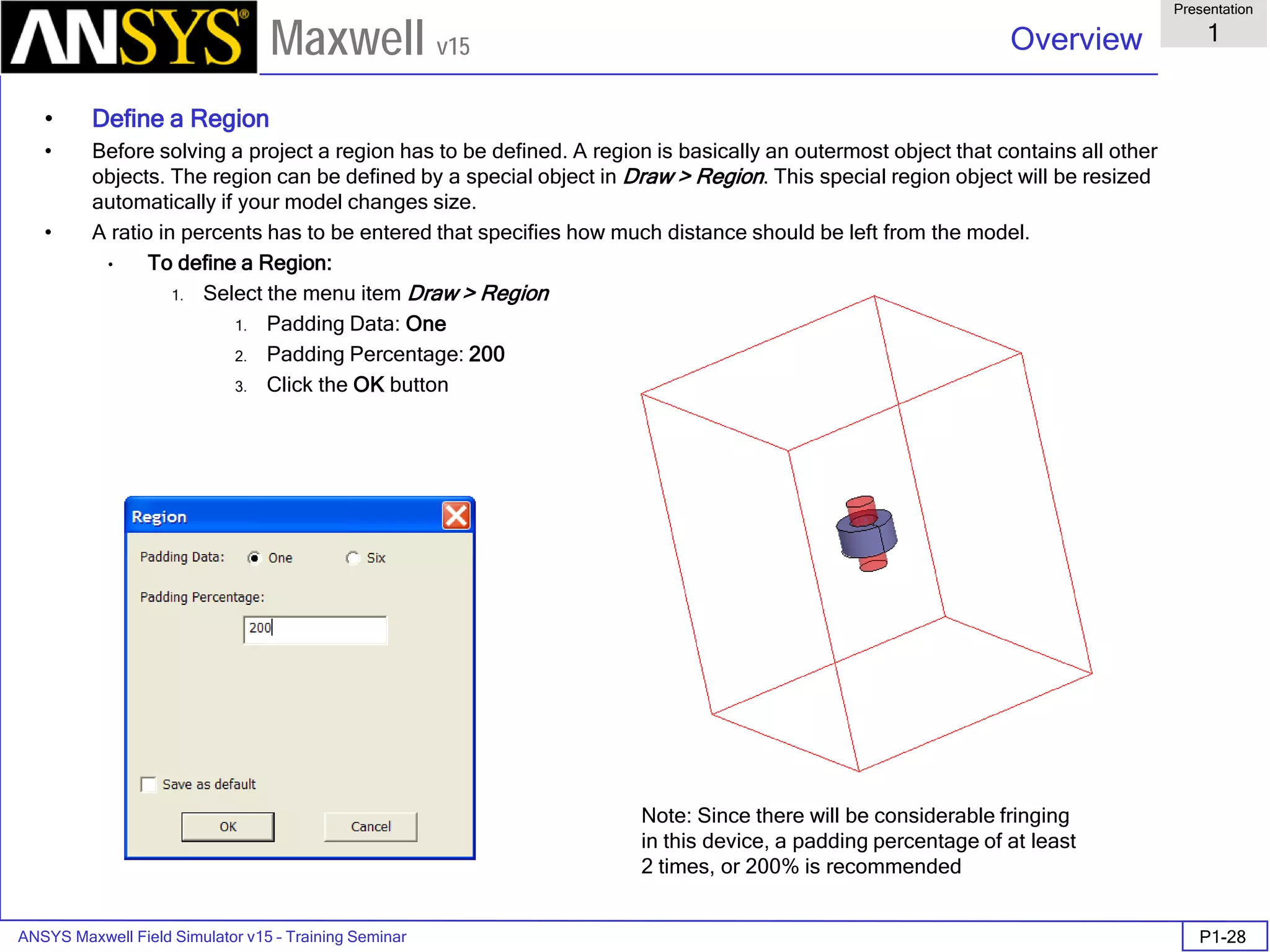
  • 199.
    ANSYS Maxwell 3DField Simulator v15 User’s Guide 3.0 Mesh Operations 3.0-2 Maxwell v15 Initial Mesh Process When you first analyze a problem, there must be an initial mesh in place to perform a field calculation. The initial mesh is automatically constructed without any instructions from the user (besides for the geometry definition) when the analysis is first performed. The initial mesh is only constructed if no current mesh exists – if a current mesh exists Maxwell will solve without creating a new initial mesh. The automatic mesh process goes something like the following: Check model for errors and intersections. Create basic mesh point information from geometry vertices and model resolution data. Smooth mesh. Match up surface mesh between objects and insert points. Create mesh on the surface of curved objects using surface approximations (this is called surface triangulation). Pass mesh information to the field solver. Click Analyze Length and Skin Based Refinements.
  • 200.
    ANSYS Maxwell 3DField Simulator v15 User’s Guide 3.0 Mesh Operations 3.0-3 Maxwell v15 Adaptive Mesh Process The adaptive mesh process takes numerous factors into consideration when deciding where to refine the mesh at each pass. There are geometry factors, field solution factors, and everything is based on the percent refinement number defined in the analysis setup dialog. If the percent refinement is set to 30%, and there are 1000 elements at pass 1, then 300 points will be added for pass 2. This increase may not be exactly 30% due to smoothing and other factors that will adjust the actual percent refinement. The refined mesh points are calculated by the field solver and placed at points where there are strong fields, large errors, large field gradients, or areas that generally have a large impact on the field solution. This list of refined points is then passed on to the meshing procedure which places the points and creates an optimal refined mesh for the next adaptive pass. Solver creates a list of points to add for next pass. Next adaptive pass. Smooth mesh. Add points determined from previous adaptive pass. Pass mesh information to the field solver Field solver finds field solution.
  • 201.
    ANSYS Maxwell 3DField Simulator v15 User’s Guide 3.0 Mesh Operations 3.0-4 Maxwell v15 Mesh Considerations and Impact on Solutions The mesh is important for two separate, yet related reasons – first, the mesh is used to directly determine the numerical field solution, second, the mesh is used to produce all secondary results such as volume integrations or other field calculations. There is a trade-off among the size of the mesh, the desired level of accuracy and the amount of available computing resources. The accuracy of the solution depends on the size of each of the individual elements (tetrahedra). Generally speaking, solutions based on meshes using thousands of elements are more accurate than solutions based on coarse meshes using relatively few elements. To generate a precise description of a field quantity, each element must occupy a region that is small enough for the field to be adequately interpolated from the nodal values. However, generating a field solution involves inverting a matrix with approximately as many elements as there are tetrahedra nodes. For meshes with a large number of elements, such an inversion requires a significant amount of computing power and memory. Therefore, it is desirable to use a mesh fine enough to obtain an accurate field solution but not so fine that it overwhelms the available computer memory and processing power. Generally, uniform mesh elements with equilateral triangular faces are best suited for second order interpolated field solutions. However, these triangles are not easy to produce with complex geometries. The important thing to remember is not to over-define the mesh in any region (this is especially true for non- transient simulations). It is often necessary to define the mesh on specific surfaces or volumes for further calculations, however there are efficient and inefficient methods to achieve good results. Inefficient meshes pick up all the details of every curve and joint, even in unimportant areas for the field solution. There are methods that we will discuss that can decrease the mesh in areas of low importance and promote overall convergence of the field solution.
  • 202.
    ANSYS Maxwell 3DField Simulator v15 User’s Guide 3.0 Mesh Operations 3.0-5 Maxwell v15 The Initial Mesh and Why Mesh Operations are Often Necessary The initial mesh is created only by taking into account the design’s geometry. For example, if only one box is included in the simulation, there will be 5 elements generated inside the box in the initial mesh. Only the corners of the geometry are used to create the initial mesh – this is constructed by an initial mesh-maker that only looks at the geometry and knows nothing about the field structure (there is no solution yet, so there can be no knowledge of the field solution). It is often the case that the initial mesh is too coarse in the regions of interest to produce an efficient, accurate field solution (this is certainly true in transient simulations). Mesh operations are able to define a manual refinement to the initial mesh that can improve simulation time and provide enhanced solutions in some cases. It is sometimes the case that the initial mesh is overly defined in some places, due to joints in the geometry or difficult to mesh areas. Mesh operations can better define the initial mesh in the entire solution region so that the mesh is most efficient and improvements are possible for both simulation time and solution accuracy. This can even allow the simulation of geometries that would be impossible without mesh operations. Sometimes the initial mesh has difficulties that can be fixed by assigning mesh operations. This means that problems that are not solvable with the default initial mesh can sometimes be solved with the addition of a few mesh operations (or with mesh considerations in mind during geometry creation).
  • 203.
    ANSYS Maxwell 3DField Simulator v15 User’s Guide 3.0 Mesh Operations 3.0-6 Maxwell v15 Applying Mesh Operations If you want to refine the mesh on a face or volume you do not necessarily have to generate a solution. Do either of the following after defining mesh operations to apply mesh operations: Select Maxwell 3D > Analysis Setup > Apply Mesh Operations or right-click on the setup name in the project tree and choose Apply Mesh Operations Analyze the design – the mesh operations will take effect when creating the mesh for the current adaptive pass. For non-transient simulations, the following behaviors can be expected when applying mesh operations using either of the above methods: If a current mesh has been generated, Maxwell will refine it using the defined mesh operations. If a current mesh has not been generated, Maxwell will apply the mesh operations to the initial mesh. If an initial mesh has not been generated, Maxwell will generate it and apply the mesh operations to the initial mesh. For transient simulations, the mesh must be the same from one time step to the next, therefore, adjusting mesh operations of a transient simulation will force the simulation to start from time zero. Select Maxwell 3D > Analysis Setup > Revert to Initial Mesh to clear the mesh information (as well as any solution information) and revert to the initial mesh. This can also be accessed by right-clicking on the setup name and choosing Revert to Initial Mesh.
  • 204.
    ANSYS Maxwell 3DField Simulator v15 User’s Guide 3.0 Mesh Operations 3.0-7 Maxwell v15 Applying Mesh Operations (Continued) Note the following: If the defined mesh operations have been applied to the selected face or object, the current mesh will not be altered. Define a new mesh operation rather than modify an existing mesh operation. Maxwell will not re-apply a modified mesh operation. Applying mesh operations without solving enables you to experiment with mesh refinement in specific problem regions without losing design solutions. You cannot undo the applied mesh operations, but you can discard them by closing the project without saving them. Model Resolutions adjust the effective geometry used for the initial mesh (and the mesh maker used in solving the problem), so, applying a model resolution will invalidate any solutions and revert to the initial mesh. Surface approximations only work on the initial mesh. If a surface approximation is applied with an existing current mesh, it will not take effect until the mesh has been cleared. Cylindrical Gap Treatment works only on the band objects which have geometry containing inside it. If there is not geometry found inside the selected object, Cylindrical gap Treatment can not be applied. You can look at the mesh by selecting Maxwell 3D > Fields > Plot Mesh… or by right-clicking on Field Overlays in the project tree and choosing Plot Mesh. A setup must be created to define the plot. An object or surface must be selected to create the mesh plot. Read the section on Data Reporting to find out more about field plotting on 3D geometries. You can view mesh statistics by right-clicking on the setup name and choosing Mesh Statistics (except for Transient simulations), or by going to the Solution Data or Analysis Profile and choosing the Mesh Statistics tab. This mesh statistic information represents information about element length (the length of the sides of each element), the tet volume (the volume of the tetrahedral mesh elements), and the total number of elements in each object.
  • 205.
    ANSYS Maxwell 3DField Simulator v15 User’s Guide 3.0 Mesh Operations 3.0-8 Maxwell v15 Surface Approximations Object surfaces in Maxwell may be planar, cylindrical or conical, toroidal, spherical or splines. The original model surfaces are called true surfaces. To create a finite element mesh, Maxwell first divides all true surfaces into triangles. These triangulated surfaces are called faceted surfaces because a series of straight line segments represents each curved or planar surface. For planar surfaces, the triangles lie exactly on the model faces; there is no difference in the location or the normal of the true surface and the meshed surface. When an object’s surface is non-planar, the faceted triangle faces lie a small distance from the object’s true surface. This distance is called the surface deviation, and it is measured in the model’s units. The surface deviation is greater near the triangle centers and less near the triangle vertices. The normal of a curved surface is different depending on its location, but it is constant for each triangle. (In this context, “normal” is defined as a line perpendicular to the surface.) The angular difference between the normal of the curved surface and the corresponding mesh surface is called the normal deviation and is measured in degrees (15deg is the default). The aspect ratio of triangles used in planar surfaces is based on the ratio of circumscribed radius to the in radius of the triangle. It is unity for an equilateral triangle and approaches infinity as the triangle becomes thinner (see the aspect ratio comments after the usage suggestions for a detailed explanation). You can modify the surface deviation, the maximum permitted normal deviation, and the maximum aspect ratio of triangles settings on one or more faces at a time in the Surface Approximation dialog box. (Click Maxwell 3D > Mesh Operations > Assign > Surface Approximation.) The surface approximation settings are applied to the initial mesh. Below is a diagram that illustrates the surface deviation, “d”, and the normal deviation, “θ”.
  • 206.
    ANSYS Maxwell 3DField Simulator v15 User’s Guide 3.0 Mesh Operations 3.0-9 Maxwell v15 Surface Approximations (Continued) Since refining curved surfaces is not always enough to produce an efficient solution, users can control the fidelity to which the initial mesh faceting conforms to geometric curvature by assigning Surface Approximations to appropriate objects and/or object faces Mesh Operations can be assigned from the Maxwell 3D menu, from the Project Tree, or from the geometry interface’s context-sensitive menu. The Surface Approximation options are shown below right. Definitions follow: Surface Deviation is the maximum spacing, in drawing units, that the tetrahedral surfaces may be from the true-curved geometry’s surface. Normal Deviation is the maximum angular difference, in degrees, that a tetrahedral face’s normal can have from the surface normal for the true geometry which it is meant to represent. Aspect Ratio refers to the maximum allowed aspect ratio of all faces of all tetrahedra of the selected object or face. This setting influences mesh quality rather than actual meshed volume or surface locations.
  • 207.
    ANSYS Maxwell 3DField Simulator v15 User’s Guide 3.0 Mesh Operations 3.0-10 Maxwell v15 Surface Approximations - Usage Suggestions Do not overspecify. It is always easier to ‘add’ than subtract mesh, by running more adaptive passes or by adding supplemental mesh instructions Too stringent a setting (e.g. Normal Deviation of 1 degree) can result in poor mesh qualities due to aspect ratios, poor mesh gradients to surrounding objects, etc. Use Aspect Ratio settings along with Normal or Surface Deviation settings For cylindrical type objects where curved and planar faces meet, the normal and surface deviation settings apply to the curved faces only. Setting an aspect ratio limit as well (e.g. 4:1) will force a few additional triangles on the planar faces and help preserve a cleaner overall mesh Consider using Polyhedrons or Polygons instead if using to ‘reduce’ mesh If your design has many curved objects which you want only very coarsely meshed (e.g. individual current-carrying wires with no eddy or proximity effects, for which 15 degree default normal deviation is unnecessary), and the geometry is not imported, consider drawing the objects as hexagonal or even square solids instead. Surface approximations can be applied to either entire objects or faces (in groups or individually) or sheets. The surface approximations take effect during the surface meshing, so it does not matter if an object is selected whole, or if all faces of an object are selected to apply these operations – either way, the volume of the object will be meshed after the surface approximation is considered. Surface Approximations – Aspect ratio comments There is a different definition of aspect ratio on curved and planar surfaces, but in either case, the aspect ratio is defined by the triangles on the selected surfaces. On curved surfaces, the aspect ratio is essentially defined by the height to width ratio of the triangles. The default minimum aspect ratio is around 1.2 and will tend to form nearly isosceles right triangles on the faceted faces. The default aspect ratio on curved surfaces is 10. On planar surfaces, the aspect ratio is equal to the circumscribed radius over twice the inner radius of each triangle – this produces 1 for an equilateral triangle. (See the diagram at left to see what is meant by circumscribed circle and inner circle of a triangle.) The default minimum aspect ratio is around 2. The default aspect ratio on planar surfaces is 200. Specifying an aspect ratio of 1 will not produce perfectly equilateral triangles.
  • 208.
    ANSYS Maxwell 3DField Simulator v15 User’s Guide 3.0 Mesh Operations 3.0-11 Maxwell v15 Curved Geometry Mesh Adaptation The new graphical drawing interface encourages the use of true-curved drawing by removing the option to assign a facet count to the construction of primitives such as circles, cylinders, spheres, and ellipses. Faceted primitives are available however as polyhedrons and polyhedral solids, if desired. Initial meshing is constrained by faceting decisions made by the first pass of the meshing algorithms. However, adaptive mesh points can be placed ‘anywhere’ on the true-surface of the curved object(s), as shown in the before and after images below. (Initial mesh left, partly adapted in middle, fully adapted at right.) Note that regular faceting is not maintained after adaptive mesh alteration. This example documents a cylindrical, linear magnet oriented in the Z-direction, with a 200% padded region. The pictures correspond to the initial pass, the 10th pass, and the 20th pass, with total mesh sizes of 733, 7074, and 95095 mesh elements for each respective pass. The increase in mesh size due to the refinement of the cylinder may increase model fidelity, but it may also increase the solution time. Note that if you wish to maintain the initial faceting, you can use faceted primitives during geometry creation.
  • 209.
    ANSYS Maxwell 3DField Simulator v15 User’s Guide 3.0 Mesh Operations 3.0-12 Maxwell v15 Model Resolution In many models (especially imported models), there are small geometric details that are present, yet do not affect the field solution to a large extent. Small features in the geometry can lead to a mesh that is unnecessarily large and contains long and thin tetrahedra that make the simulation converge slower. For these reasons and more, Model resolution allows the initial mesh to generate without including all the little details that can slow down simulations and do not add to the quality of the solution. Model resolution improves model convergence and reduces solve times. If in previous versions the tetrahedron count got too large, the solver could run out of memory. It would be trying to add meshing elements to areas of the model that are not important. Now with model resolution, we are able to crank down the mesh size in order to actually get convergence before memory becomes an issue. Model resolution is a length based value that modifies the initial mesh. This meshing operation allows the user to specify a minimum edge length of any tetrahedron used for the mesh. By specifying a minimum edge length for a tetrahedron, the mesher will have to coarsely mesh geometric detail that may not be important for the field solution. This saves the solver a tremendous amount of solution time since the initial mesh is smaller, and the mesher does not have to add mesh elements to areas that are not important for the field solution. Model resolution can be assigned from the Maxwell menu, from the Project Tree, or from the geometry interface’s context-sensitive menu, and is found immediately below Surface Approximation in the Mesh Operations list. The Model Resolution dialog is presented below. The suggested value for the resolution length is determined by the smallest edge length on the selected objects. This may not be the best value to use, but it might be a good place to start or, at least, a good reference.
  • 210.
    ANSYS Maxwell 3DField Simulator v15 User’s Guide 3.0 Mesh Operations 3.0-13 Maxwell v15 Model Resolution (Continued) Model resolution capabilities are an expanded capability of the ACIS engine and are incorporated into the new fault tolerant meshing features. By default, ACIS uses 1.0e-6 model units as the smallest possibly resolved length. Any two geometry points that are closer than this absolute resolution length (ResAbs) will not be resolved by ACIS (so choose the model units appropriately). By default, if there are difficulties creating an initial mesh, a second initial mesh will be attempted with a model resolution automatically applied to all model objects with 100 times the absolute resolution length (ResAbs). If continued difficulties are experienced, a third initial mesh will be attempted with an automatic model resolution of 1000 times ResAbs on all model objects. After the third attempt a mesh failure is reported (you will be able to see three distinct “mesh_init” lines in the analysis profile). If the user specifies the model resolution length so that the mesh grossly misinterprets the model or changes the contacts between the objects, Maxwell will detect this and report this as an error (“MRL too large or object_name lost all surface triangles”).
  • 211.
    ANSYS Maxwell 3DField Simulator v15 User’s Guide 3.0 Mesh Operations 3.0-14 Maxwell v15 Model Resolution – Usage Suggestions Apply model resolution to one specific object or a group of objects. Be aware of what the size of important details are when assigning a new model resolution to an object or group of objects. Measure various lengths (Modeler > Measure) to survey some nominal lengths for the specific objects. Then, when applying the model resolution, look at the number suggested in the model resolution assignment dialog – this number is the smallest edge found on the selected objects. If this edge is very much smaller than some of the measured and expected lengths, apply a model resolution that is larger than the suggested value, yet significantly smaller than the expected length (for example, if you have an object that is cube-like with 10in sides, yet the smallest length is returned as 1e-6in, you should apply a model resolution of about 0.1in to the object). If the mesh fails with a vague error, occasionally, applying a model resolution to a complicated object will assist the initial mesh generation. Model resolution is very useful when dealing with imported geometries. When dealing with models that have very high aspect ratios due to small geometric detail, use a model resolution of 1/10 to 1/20 of the thinnest conductor to start with. Then adjust the value accordingly. It is often good to be conservative with model resolutions as a large model resolution can cause mesh errors. Model resolution is often most useful when fillets, chamfers, and other small features are included at joints and corners – these can often be ignored for electromagnetic simulations and are often small enough to use an appropriate model resolution. Always create the initial mesh and look at the surface mesh on objects before solving the problem. If too aggressive of a model resolution is used, then important features can be skipped with a model resolution – it is important to know that the mesh is appropriate for the simulation.
  • 212.
    ANSYS Maxwell 3DField Simulator v15 User’s Guide 3.0 Mesh Operations 3.0-15 Maxwell v15 Cylindrical Gap Treatment In The geometries of motors or any geometries involving rotational motion simulation, normally a Band object is created to separate the moving objects from stationary objects. In most of the cases, the gap between band object and Moving/Stationary objects is very thin. This thin air gap needs to resolved well in meshing in order to achieve good convergence The mesh operations become more important in cases of motion simulation with transient solver which does not provide capability of adaptive mesh refinement In such cases, it is always better to use Cylindrical Gap Treatment mesh operation in order to refine the mesh in thin air gap region Cylindrical Gap Treatment mesh operation when assigned, will search for the proximity of the faces between the object to which operation is assign and the objects inside it. The refinement of mesh is done based on the closeness of the faces in order to have better mesh in proximity region. Note that in order to assign this mesh operation the assigned object should contain some geometry inside it. If there is no geometry inside the object, this mesh operation can not be assigned. Cylindrical Gap Treatment mesh operation with transient solver is automatically assigned once the motion setup is done. To set the motion, seletc the menu item Maxwell 3D > Model > Motion Setup > Assign Band. Once the band object is specified with rotational motion, a cylindrical Gap Treatment mesh operation is automatically setup for the band object. Note that the mesh operation is not created for translational motion. For steady solvers this mesh operation can be assign through menu item Maxwell 3D > Mesh Operations > Assign > Cylindrical Gap Treatment. Same operation can also be applied by right clicking on Mesh Operations tab in Project Manager tree
  • 213.
    ANSYS Maxwell 3DField Simulator v15 User’s Guide 3.0 Mesh Operations 3.0-16 Maxwell v15 Cylindrical Gap Treatment (Continued) Below shown is a simple case with Cylindrical Gap Treatment mesh operation specified on the object. The gap between inner object and the band object is very small and resolved using Cylindrical gap treatment Initial Mesh Refined Mesh with Cylindrical Gap Treatment Mesh section seen from top
  • 214.
    ANSYS Maxwell 3DField Simulator v15 User’s Guide 3.0 Mesh Operations 3.0-17 Maxwell v15 Length Based Mesh Operations Length based mesh operations are perhaps the most basic conceptual mesh refinement option. The assignment of a length based mesh operation limits the edge length of all tetrahedral elements inside an object or on an object’s surface. There are two types of length based mesh operations: On Selection Inside Selection The Length-based On-selection refinement will limit the edge length of all triangles formed on the surface of a selected object (or group of objects), or any selected faces. The Length-based Inside-selection refinement will limit the edge length of all tetrahedral elements inside the selected object (or group of objects). The assignment of these two types are similar – simply choose either: Maxwell 3D > Mesh Operations > Assign > On Selection > Length Based … or Maxwell 3D > Mesh Operations > Assign > Inside Selection > Length Based … The same dialog appears for both types of assignment - the only difference is whether it affects all edges within an object or all edges on a face (or surface). The default value for Maximum Length of Elements is 20% of the largest edge- length of the bounding boxes of each selected face. For a cube, the default length-based on-selection refinement will produce about 7 triangles along an edge for a total of about 100 triangles per face.
  • 215.
    ANSYS Maxwell 3DField Simulator v15 User’s Guide 3.0 Mesh Operations 3.0-18 Maxwell v15 Length Based Mesh Operations (Continued) There is one other option that is provided when assigning a length based mesh operation that will limit the number of elements that are added into the simulation with that particular mesh refinement. Restrict the Number of Elements is a hard limit and no more than the specified number of elements will be added to the simulation for the particular mesh operation than are specified here (unless the box is un-checked). For example: if the restriction to the length of elements requires 3000 additional elements, yet the number of elements is restricted to 1000, then only 1000 elements will be added, and the elements will not meet the Length of Elements requirement (they will be larger than specified). This second restriction brings another possible method of adding elements to objects without regard to the dimension of the object – you may uncheck the Length of Elements restriction and enter a value for the Number of Elements restriction, thereby adding a defined number of elements to the simulation. This second method of adding elements is good and bad, because it allows control over the number of elements that are inserted into the defined objects for the particular mesh operation, however, it does not necessarily need to meet any length requirements (so the elements could still be too large).
  • 216.
    ANSYS Maxwell 3DField Simulator v15 User’s Guide 3.0 Mesh Operations 3.0-19 Maxwell v15 Length Based Mesh Operations - Example This example uses a cube inside a Region with 100% padding. An initial mesh was created for four different cases of applying length-based mesh operations. First, a default initial mesh was created without defining any mesh operations. Second, an initial mesh was created by defining a length-based mesh operation on the surface of the box at the default maximum length setting (20% edge length). Third, an initial mesh was created by defining a length-based mesh operation inside the box at the default maximum length setting (20% edge length). Fourth, an initial mesh was created with a length-based mesh operation defined both on and inside the box at the default maximum length settings – 2 mesh operations were used. Default Initial mesh 42 elements Initial mesh with Length-Based On-Selection set to 20% 6467 elements Initial mesh with Length-Based Inside-Selection set to 20% 6698 elements Initial mesh with Length-Based Inside & On Selection set to 20% 9042 elements
  • 217.
    ANSYS Maxwell 3DField Simulator v15 User’s Guide 3.0 Mesh Operations 3.0-20 Maxwell v15 Skin Depth Based Mesh Operations Skin depth based mesh operations are similar to On-selection length- based mesh operations. These operations are defined by both the triangles on the surface and a seeding inside the selected faces. This refinement method creates layers of mesh within the selected surfaces of objects – this is useful for modeling induced currents near the surface of a conducting object. Skin Depth defines the classical skin depth value (discussed on the next page). Number of Layers defines the number of layers of points that are placed at distances according to the skin depth value. The Surface Triangle Length is equivalent to the surface length restriction for length-based refinement. The Number of Elements is equivalent to the surface element restriction for length-based refinement. The total number of elements added may exceed this number by a factor of the Number of Layers.
  • 218.
    ANSYS Maxwell 3DField Simulator v15 User’s Guide 3.0 Mesh Operations 3.0-21 Maxwell v15 Skin Depth Based Mesh Operations (Continued) Instead of inserting a value straight into the skin depth box you can use the automatic skin depth calculator. Simply fill in the relative permeability and conductivity of the material, and the measurement frequency to calculate and insert the skin depth in the skin depth box. The skin depth of an object is calculated as: Currents are concentrated near the surface of the conductor, decaying rapidly past the skin depth. As the formula above indicates, the skin depth gets smaller as the frequency increases. The skin depth based mesh operation is most important in eddy current and transient simulations where eddy currents and proximity effects are important to the solution of the simulation. rr f µσµπµωσµ δ 00 12 ==
  • 219.
    ANSYS Maxwell 3DField Simulator v15 User’s Guide 3.0 Mesh Operations 3.0-22 Maxwell v15 Mesh Reduction Techniques Because the mesh size affects the simulation time, it is often desired to decrease the total number of elements in a simulation to also decrease total simulation time. This can be done either at the expense of accuracy or not depending on the efficiency of the mesh construction. There are several ways to reduce the mesh size – here are a few examples. 1. Mitigate large aspect ratios with intelligent geometry construction. If you have a thin conductor that is far from other objects, this conductor should not be drawn with curved surfaces. Draw a square or regular polygon and sweep the square along the path of the conductor. This will limit the number of triangles necessary in a large aspect ratio object and will decrease the total number of mesh elements in the simulation. 2. Add a vacuum container object (dummy object) around all objects in simulation. This can be a good method to limit the aspect ratios of triangles in the region. The region needs to be defined a certain distance away from the components (due to fringing fields) – so this vacuum container can assist the mesh construction and reduce aspect ratios in the region near to the structure. 3. Use a model resolution when it will reduce the size of the mesh but not affect the solution of the simulation. Look at the Model Resolution usage suggestions for more information. 4. Use faceted objects instead of curved surfaces when the surface is not in an area of high fields. Faceted objects are easier to mesh and do not add more surface elements in the same manner as curved objects. This can reduce the mesh significantly in many cases. Curved surfaces may provide a more true representation of objects, especially important in areas with large fields. However, using faceted surfaces even with large fields may be appropriate and may reduce the mesh in many cases. 5. Add small mesh operations on conductors and inside magnetic materials. These will intelligently assist the initial mesh formation, so that less adaptive passes are necessary.
  • 220.
    ANSYS Maxwell 3DField Simulator v15 User’s Guide 3.0 Mesh Operations 3.0-23 Maxwell v15 Dummy Objects Placing an object of the same material inside another object does not affect the field solution for the field solver. However, this additional object defines another set of surfaces on which the initial mesh will form. This object can also have additional mesh operations defined on it. For these reasons and more, adding additional objects may assist the mesh formation process, and, moreover, increase the amount of control with which you can define the initial mesh. These objects are called dummy or virtual objects. Some example places to use dummy objects are the following: In the gap of a magnetic core. As a container object for subgroups of objects (such as the inner rotor of an rotational machine). As a container object for all objects. Around a sensor. Around a surface that will be integrated on. Around a line that will be used for plotting or calculations. These dummy object examples serve different purposes – the first three examples in the above list are intended to improve the general convergence of the solution, while the last three examples are intended to improve the post- processing results due to the local mesh in the vicinity of the measurement. When placing dummy objects, use simple objects (such as rectangles, or regular polyhedrons) when possible. The size of the dummy objects should be comparable to the objects around it. The placement is sometimes best to be placed slightly away from model objects (such as a container object for a rotational machine – which should have its radius in the middle of the gap, or equally spaced in the gap with the band object) where the placement creates an extra layer of mesh elements that allow for better calculation of changing fields. Other times the placement is best when the dummy object touches the model objects (such as in the gap of a magnetic core) where the dummy object helps to both reduce the aspect ratio in the surroundings and to provide an object to apply mesh operations if desired.
  • 221.
    ANSYS Maxwell 3DField Simulator v15 User’s Guide 3.0 Mesh Operations 3.0-24 Maxwell v15 Linking Mesh - Transient Every solution type has a mesh linking capability. It is sometimes necessary to have a simulation linked (when using demagnetization options, or otherwise). However, it can be beneficial for mesh purposes to link a mesh from another simulation. This is nowhere as powerful as in a transient simulation. Because a transient simulation does not adaptively refine its mesh, the mesh that it uses is constrained the initial mesh. Mesh operations can assist in manually refining the mesh, but this can be insufficient sometimes. What is provided with mesh linking, is the power of an adaptively refined mesh used in a transient simulation. A transient simulation can be linked to any other simulation with the exact same geometry. This means that a magnetostatic or eddy current simulation can be adaptively solved to any accuracy, then the design can be copied and converted to a transient simulation that uses the same adaptively refined mesh. In the transient simulation Analysis Setup, simply check Import Mesh. When this box is initially checked on, a dialog appears that sets up the mesh link. Either select This Project or browse to the desired project file. Then choose the design name within the selected project and the desired setup name within the design. Adjust any parameters if necessary and then select OK. The mesh in the transient simulation will now be identical to the mesh in the selected project/design/setup.
  • 222.
    ANSYS Maxwell 3DField Simulator v15 User’s Guide 3.0 Mesh Operations 3.0-25 Maxwell v15 Linking Mesh – Non-Transient There are several important reasons why mesh linking capabilities are important in non-transient simulations. One example is if DC power flow calculations are performed, both an electrostatic and a magnetostatic solution are required, and the mesh must be identical to perform the necessary calculations (see the Field Calculator topic for an example). Another example is if the exact same mesh is required in a parametric sweep (especially important with distributed analysis). Note that if mesh operations are included in a linking simulation, the model resolution and surface approximations are ignored – however, the length-based and skin-depth based resolutions are performed. If identical meshes are desired, delete mesh operations from the linking simulation. You cannot link two analysis setups within the same design. Any simulation can be linked to any other simulation with the exact same geometry (regardless of solution type). In the Analysis Setup, simply check Import Mesh. When this box is initially checked on, a dialog appears that sets up the mesh link. In the dialog, either select This Project or browse to the desired project file. Then choose the design name within the selected project and the desired setup name within the design. Adjust any parameters if necessary and then select OK. The mesh in the linking simulation will now be identical to the mesh in the selected project/design/setup. To guarantee identical meshes in a parametric sweep (with no geometry variations) do the following: 1. Create a nominal design and solve it. 2. Copy the design and delete mesh operations. 3. Set up the mesh link in the copied design. 4. Create a parametric sweep in the linking design. This will guarantee that every row of the parametric sweep (assuming no geometry variations) will use an identical mesh. To re-initialize the linked data, select Maxwell 3D > Analysis Setup > Clear Linked Data or right-click on Analysis and choose Clear Linked Data.
  • 223.
    ANSYS Maxwell 3DField Simulator v15 User’s Guide 3.0 Mesh Operations 3.0-26 Maxwell v15 Mesh Failures and Suggestions There are several different points at which the mesh can fail even if the design passes all model verifications (no ACIS errors, no non-manifold objects, no partial intersections). If an ACIS error or other geometry error occurs, please see the section on geometry import/healing. Information about a mesh failure will appear in Modeler > Model Analysis > Show Analysis Dialog > Last Simulation Mesh…. Generally, the mesh will fail at the point where it tries to match the surface mesh between objects. The error for this failure will state “Volume Meshing Failed – Stitching flag <#> failure mode <#>”. This is often the case if surfaces are not perfectly coincident – if there is a small gap between two objects, the mesh will have difficulties filling the gap yet retaining a reasonable aspect ratio and form. Another semi-frequent mesh error is “Incompatible Faceting”. This error is almost exclusively related to coincident true surfaces. There is some information on coincident true surfaces in the geometry import/healing section. You can determine which part of the model is causing problems for the mesh by making an object non-model (double-click on the object to bring up the Properties dialog – then deselect the Model check-box). If it meshes, then that object is the problem. Can you move the faces of the object or move the object so that it is not coincident (or is fully coincident)? Try to change the geometry a little bit without changing the solution.
  • 224.
    ANSYS Maxwell 3DField Simulator v15 User’s Guide 3.0 Mesh Operations 3.0-27 Maxwell v15 Mesh Failures and Suggestions (Continued) Look in Modeler / Model Analysis > Show Analysis Dialog > Last Simulation Mesh. Follow up on what the dialog says Consider eliminating tiny details through healing Consider aligning faces through healing Determine which object or part of object is the trouble maker Try miscellaneous modifications Redraw as much as is needed to get the geometry to mesh Vary Model Resolution and Surface Deviation
  • 225.
    ANSYS Maxwell 3DField Simulator v15 User’s Guide 3.1 Geometry Import/Healing 3.1-1 Maxwell v15 Importing a geometry into the 3D modeler and Healing of geometries Geometries can be imported from many sources in numerous formats. The importing of geometry allows complicated structures from CAD type tools to be used within an electromagnetic simulation. Several points must be kept in mind when importing geometries, as important details in a CAD tool may not be important to (or may even be detrimental to) an electromagnetic simulation. However, with some general guidelines and knowledge of what to look for, most geometries can be imported from many of the standard modeling tools. When geometries are imported, conversions may be necessary to allow the file format to be read by the Modeler. There may be very small errors in this conversion process which require healing. Also, the geometry of your model will determine the meshing characteristics of the simulation, so proper consideration for meshing should be given when creating, importing, and healing objects. Several different methods of healing imported objects and objects created in the Modeler exist and will be discussed.
  • 226.
    ANSYS Maxwell 3DField Simulator v15 User’s Guide 3.1 Geometry Import/Healing 3.1-2 Maxwell v15 ANSYS Maxwell Design Environment The following features of the ANSYS Maxwell Design Environment are used to create the models covered in this topic Edit Duplicate: Around Axis 3D Solid Modeling Import Purge History Model Analysis: Analyze Objects Heal Align Faces Surface Operations: Move Faces Boolean Operations: Unite Subtract Intersect Separate Bodies Mesh Operations Surface Approximation Model Resolution Cylindrical Gap Treatment Analysis Validation Check
  • 227.
    ANSYS Maxwell 3DField Simulator v15 User’s Guide 3.1 Geometry Import/Healing 3.1-3 Maxwell v15 Importing 1. To import a model, select Modeler > Import … . 1. An Import File dialog pops up, allowing you to browse to the desired file. On the left is a list of import files that we support. For some of these import options you will need an add-on translator feature in your license file. On the right is the first available option for healing an imported model. This will be discussed in detail later. 1. Select the desired model and then Open. 1. The model should appear in the window with any defined healing applied to it.
  • 228.
    ANSYS Maxwell 3DField Simulator v15 User’s Guide 3.1 Geometry Import/Healing 3.1-4 Maxwell v15 Characteristics of Imported Objects The imported objects will appear with the same units and dimensions as exported (a 1in rod will appear as a 2.54cm rod when imported in those units). The imported parts will arrive separately if defined separately within the import file. The imported parts will retain the names assigned in the import file. The imported file will be added to the existing model; it will not replace it. The location of the imported file will be relative to the current coordinate system. The material assigned to the imported parts will be Not Assigned. The imported model will not have any history defined (the history tree will simply say Import), so it requires special operations to alter the model. If the object can not be classified as either solid, sheet or wire (e.g. it is some combination of the three), the object will be placed in an Unclassified folder in the history tree. Suggestions for Exporting Geometries from Drawing Tools De-feature the model to get rid of details that are not important for EM simulations (e.g. small rounds, chamfers, fillets, and mechanical connectors). Small features will result in a large and inefficient mesh. Use caution when exporting parts with touching (coincident) parts. Overlapping objects will need adjusting in the imported model. All parts should fit exactly when you create the assembly (materials should be in contact where required for electrical connections). Thin parts may also be successfully removed and replaced later with appropriate 2D objects (e.g. an insulating boundary in place of a thin insulating material). Do not use the interference fit for your exported assemblies – use the slide fit so that parts contact exactly as desired in the EM simulation.
  • 229.
    ANSYS Maxwell 3DField Simulator v15 User’s Guide 3.1 Geometry Import/Healing 3.1-5 Maxwell v15 Adjusting Imported Geometries Several methods can be used to adjust an imported geometry – two methods are described below. Creativity can expand the following basic strategies to adjust most imported geometries and even allow parametric manipulation of these static imports. The first method is to use a combination of the geometry primitives (cylinders, cubes, etc.) and Boolean expressions to add, subtract, and manipulate the geometries and therefore allow access to many dimensional variables. The second method is to use surface commands on the faces of imported objects as described below. Select the desired face to adjust (type f while in the Modeler to switch to face select mode – type o to switch back to object select). Select Modeler > Surface > Move Faces > Along Normal and type in the distance the face should move along the normal. This will contract (negative distance) or expand (positive distance) the object along the normal of the face. This offset is now a parameterizable distance that is accessible in the history tree. The following is an example of how to manipulate an imported object to adjust the size and position of a hole by selecting the walls of the hole. Original Along Normal -> Along Vector -> Caution! This Move produces errors
  • 230.
    ANSYS Maxwell 3DField Simulator v15 User’s Guide 3.1 Geometry Import/Healing 3.1-6 Maxwell v15 Common Model Errors The following are common model errors that can be encountered during validation checks and when creating a mesh. 1. api_check_entity() errors. These are errors detected by ACIS and are geometry and topology errors. 2. non-manifold topology. This detects non-manifold edges and vertices that are present in the model (non-manifold means that a 3D object has no thickness at some point – i.e. two faces meet and produce a 2D sheet, edge, or vertex in a 3D object). 3. Body pair intersection. This detects if pairs of bodies intersect. 4. Small feature detection. This detects small edge length, small face area and sliver faces. 5. Mis-aligned entities detection. This detects pairs of faces from bodies that can be aligned to remove interbody intersections. This improves the odds of mesh success. 6. Mesh failure error display. This is available for single body, body pairs and last simulation run (all bodies in model). Errors reported by the meshing module are reported to the user. Errors of type 1, 2, and 3 must be resolved before the mesh can be applied to the model. Imported Geometry Errors There are two types of errors related most specifically to Imported Parts: Geometry errors Topology errors Geometry errors are errors in definition of the underlying geometry. Topology errors are errors in how the underlying components like faces, edges, and vertices are connected. These errors must be fixed before mesh analysis can be performed.
  • 231.
    ANSYS Maxwell 3DField Simulator v15 User’s Guide 3.1 Geometry Import/Healing 3.1-7 Maxwell v15 Healing during Geometry Import In the Import File dialog there is a check box “Heal Imported Objects” This will heal small errors that occur when converting the imported file from its original format to the format of the 3D Modeler (ACIS SAT v21.0). There are two modes for healing the imported object – “auto” and “manual”. Auto healing will try to address ACIS errors and non-manifold errors, the first two classes of potential errors listed earlier. Manual healing adds small-feature removal to the auto-healing. You can remove small features at this stage if you wish. However, the usual approach is to apply auto-healing at this stage and leave small-feature removal until later. After you import a part, you should perform a Validation Check as described in the next section. This allows you to target problems before the model is altered or becomes too complex.
  • 232.
    ANSYS Maxwell 3DField Simulator v15 User’s Guide 3.1 Geometry Import/Healing 3.1-8 Maxwell v15 Healing after Geometry Import Healing can only be performed on objects that have no drawing history other than “Import”. If necessary, object history can be deleted through Modeler > Purge History. If this causes a warning that another object will be deleted, you may need to purge the history of that other object first, or purge the histories of several objects simultaneously. After you import an object, you should perform a validation check Maxwell 3D > Validation Check. This lets you focus on objects and object pairs that prevent the mesh from being invoked. Fixing api_check_entity() errors The objects that fail api_check_entity() should be analyzed via the Analyize Objects menu item. 1. Select the objects that have ACIS errors. 2. Select Modeler > Model Analysis > Analyze Objects. 3. The Analysis Options dialog box appears with options for small feature detection. 4. Select OK to proceed.
  • 233.
    ANSYS Maxwell 3DField Simulator v15 User’s Guide 3.1 Geometry Import/Healing 3.1-9 Maxwell v15 Fixing api_check_entity() errors (Continued) 5. The Model Analysis dialog box appears. This dialog produces a list of problems affecting faces, edges, and vertices. There is also the option to auto zoom to regions where problems exist. 6. Select the objects marked with “Invalid Entities Found” and click Perform > Heal Objects. The Healing Options dialog box appears. Adjust parameters as necessary. Click OK. The Model Analysis dialog box reappears. 7. In most cases, the objects are healed, and the errors are fixed. 8. If errors persist, select the edges and faces still containing errors and click Delete. This replaces each selected face/edge object by a tolerant edge/vertex, respectively. In some cases, the replacement of face/edge by edge/vertex fails. Objects in the Model Analysis can have the following statuses: Good, Null Body, Analysis not performed, Invalid entities found, Small-entity errors. Invalid-entity errors are ACIS and non-manifold errors. Invalid-entity errors must be fixed before a mesh can be generated.
  • 234.
    ANSYS Maxwell 3DField Simulator v15 User’s Guide 3.1 Geometry Import/Healing 3.1-10 Maxwell v15 Fixing non-manifold errors The main strategy for fixing non-manifold errors is to slightly adjust the geometry to either add thickness to the object or delete the non-manifold edge. Find the non-manifold face/edge/vertex either visually or with the Analyze Objects menu item. Create a small box to contain the non-manifold edge. Either unite or subtract the non-manifold object with the small box. A unite operation will add thickness to the object at the required place. A subtract operation will delete the non-manifold edge (and a small portion of the model). This example shows a non-manifold edge along the z-axis Use engineering judgment to decide whether this edge is in an area of high fields, and is therefore important. The importance of this area can decide the size of the box and whether to add or subtract the box. Original Create a small box along edge Subtract the two objects to delete the edge
  • 235.
    ANSYS Maxwell 3DField Simulator v15 User’s Guide 3.1 Geometry Import/Healing 3.1-11 Maxwell v15 Fixing Object Pair intersection This type of error is easily seen in a Validation Check, where the intersecting objects are designated with an error notification in the message window. There are several reasons why objects could be intersecting when they are imported. If care is taken with drawing and exporting the model from the desired CAD tool (i.e. no interference fit and no overlap in the model), then the problem is most likely in the translation. You can identify which parts of the objects are intersecting by performing an Intersection of the two objects (in the case where one object is supposed to be entirely inside the other you should perform a Subtraction to see what part of the inner object is not within the outer object). There are several ways to fix this issue. They are as follows: The easiest circumstance for intersecting objects is if the objects are of the same material with no need for any distinction between the objects. To fix intersecting objects of the same material: 1. Select the intersecting objects. 2. Select Modeler > Boolean > Unite. This will group all the selected objects and there will be no intersection. In circumstances requiring separate objects the following techniques apply.
  • 236.
    ANSYS Maxwell 3DField Simulator v15 User’s Guide 3.1 Geometry Import/Healing 3.1-12 Maxwell v15 Fixing Object Pair intersection (Continued) In the circumstance that two adjacent objects are supposed to be coincident along their respective faces, yet the objects intersect, you can Align Faces. Aligning faces will take two different object faces that are very close together and make them coincident (more on mis-aligned objects will be discussed later). To align the faces you can use the Analyze Objects tool similar to the process in fixing api_check_entity() errors. 1. Make sure the histories for intersecting objects are purged. 2. Select the intersecting objects. 3. Select Modeler > Model Analysis > Analyze InterObject Misalignment. 4. Select the individual Object Sets to find which faces are mis-aligned at a possibly intersecting area. 1. Select Align Faces to make the faces coincident. 2. Proceed with any other intersecting, mis-aligned faces. 3. Select Close. This set of operations should fix the intersecting errors. Run a Validation Check to determine that the aligned objects do not intersect.
  • 237.
    ANSYS Maxwell 3DField Simulator v15 User’s Guide 3.1 Geometry Import/Healing 3.1-13 Maxwell v15 Fixing Object Pair intersection (Continued) Other circumstances for intersecting objects require manual Boolean manipulation. One Boolean method of fixing intersecting objects is to subtract a copy of one object from the other. In the subtract dialog, the tool object should be the object of which you want to keep the material definition in the overlapping area. For example, Box1 and Box2 intersect (picture (a) below). Box1 is vacuum. Box2 is copper. Subtraction with Box1 as the Blank Part and Box2 as the Tool Part will define the intersecting area as the copper part (picture (b) below). Subtraction with Box2 as the Blank Part and Box1 as the Tool Part will define the intersecting area as the vacuum part (picture (c) below). Note: Either Select Clone tool objects before subtracting while subtracting or Duplicate the object (Select the tool object, then Edit > Duplicate > Around Axis with an Angle of 0 and a Total number of 2, or use Ctrl+C, Ctrl+V if you are in the original object’s coordinate system) before subtracting to retain both objects after the subtraction is performed. Box1 Box2 (b) (a) (c)
  • 238.
    ANSYS Maxwell 3DField Simulator v15 User’s Guide 3.1 Geometry Import/Healing 3.1-14 Maxwell v15 Fixing Object Pair intersection (Continued) The final method for fixing intersecting objects is a general method that is very robust, but more advanced. Take for example a copper wire passing through a box that is defined as vacuum (pictured below). To solve this intersection easily, you would just subtract the wire from the box as described in the last method. However, this creates a situation known as Coincident True Surfaces, which is difficult for the Modeler to mesh correctly. One way to get around this difficulty is to create three sections to the wire (one section within the box and two sections on either side). The process is as follows: 1. Select the wire and the box. 2. Select Edit > Duplicate > Around Axis with an Angle of 0 and a Total number of 2 (or Type Ctrl+C, then Ctrl+V if you are in the original object’s coordinate system). 3. Select the copies of both the wire and the box. 4. Select Modeler > Boolean > Intersect to create the middle section. 5. Select the original wire and box. 6. Select Modeler > Boolean > Subtract. Make sure the wire is in the Blank Parts and the box is in the Tool Parts, and the Clone tool objects before subtracting box is checked. 7. This creates the outer sections as one part. 8. To separate the outer sections, select the outer-section wire, then Select Modeler > Boolean > Separate Bodies. The wire is now either completely inside the box or completely outside the box. There are still coincident surfaces, but these are not true surfaces. Repeat this process for any other objects that may be intersecting.
  • 239.
    ANSYS Maxwell 3DField Simulator v15 User’s Guide 3.1 Geometry Import/Healing 3.1-15 Maxwell v15 Meshing difficulties When there are no ACIS errors in the model, no non-manifold objects, and no partial object intersections, the mesh generator can be invoked to create a valid mesh for the electromagnetic analysis. Even if the geometry is valid, mesh generation can still fail. Possible causes of mesh failure are the presence of very short edges, very small faces, long and thin sliver faces, and slight misalignments between faces that are supposed to be coincident. Small features Small features in the geometry can lead to a mesh that is unnecessarily large and contains long and thin tetrahedra that make the simulation converge slower. Small features may even cause the mesh generation to fail. By small, we mean details on an object that are thousands of times smaller than the main features of the object, and that, in most cases, are unintended consequences of the drawing history in another CAD tool. Therefore, it is advantageous to remove small features. This step is entirely optional, and although it could have been accomplished when an object is imported (by selecting the Manual radio button instead of Auto), we present this information here because the previous steps were necessary to invoke mesh generation, while this one is optional. To start the small-feature analysis: 1. Select the objects (their histories must be purged) and invoke Object Analysis through Modeler > Model Analysis > Analyze Objects. 2. In the Model Analysis Window, select Perform > Analyze Objects. 3. The software will report the smallest edge length and the smallest face area, and enable you to set thresholds for the detection of short edges, small faces, and sliver faces. 4. Click OK, and the analysis is performed. This will report small features in the analyzed objects that can be Deleted automatically or repaired with Boolean operations in the Modeler.
  • 240.
    ANSYS Maxwell 3DField Simulator v15 User’s Guide 3.1 Geometry Import/Healing 3.1-16 Maxwell v15 Mis-aligned entities Objects that touch each other in imported geometries don’t always have well- aligned faces. Often, this is a consequence of the limited level of precision in the imported file. Misaligned faces can cause tiny object intersections or tiny gaps between objects, which in turn can lead to an inefficient mesh or even a failure to create the mesh. To repair such misalignments in an automated way take the following steps: 1. Select groups of objects. 2. Select Modeler > Model Analysis > Analyze Interobject Misalignment. 3. This will produce face pairs from different bodies that are slightly misaligned with respect to eachother. 4. In the window that shows this list, check the box Auto-Zoom to Selection. 5. Select face pairs from the list to visualize which face pairs are misaligned. 6. When it appears that the faces should be aligned (either they should be coincident or on the same plane), click Align Faces.
  • 241.
    ANSYS Maxwell 3DField Simulator v15 User’s Guide 3.1 Geometry Import/Healing 3.1-17 Maxwell v15 Coincident True Surfaces True Surfaces are curved surfaces in the Modeler (e.g. spheres have a true surface, while boxes do not). Due to the finite nature of the mesh, these true surfaces are approximated with facets and tetrahedra (as explained in the section on Mesh Operations). When two true surfaces are coincident the mesh that is constructed for each object must align on the coincident face. This is difficult for the mesher. A mesh failure can occur simply because of coincident true surfaces. A mesh failure does not have to occur while constructing the first mesh – coincident surface mesh errors can occur on any adaptive pass. There are different schools of thought to avoiding mesh problems with coincident true surfaces. Here are a few examples: 1) Avoid true surfaces (e.g. use a regular polyhedron in place of a cylinder – this is usually not the preferred method). 2) Avoid coincident true surfaces (see the last example in Fixing Object Pair Intersection for one method to achieve this). 3) Accept the geometry you have imported (or constructed) and try to improve the chances of producing a usable mesh. One method of improving the chances of a usable mesh involves increasing the number of facets on the true surfaces to make it easier for the mesh on each object to line up. After the mesher reconciles the meshes of the two coincident faces, the initial mesh size can be reduced to a more manageable size by using the model resolution. The procedure for this method is outlined in the following.
  • 242.
    ANSYS Maxwell 3DField Simulator v15 User’s Guide 3.1 Geometry Import/Healing 3.1-18 Maxwell v15 Coincident True Surfaces (Continued) 1. Select the coincident surface (type f in the 3D Modeler to switch to face selection – type o in the 3D Modeler to switch back to object selection). 1. Select Maxwell 3D> Mesh Operations > Assign > Surface Approximation… 2. Choose Set maximum normal deviation (angle) and enter a small number (sometimes 5 deg works well, other times a smaller angle is necessary). 3. Select OK. 4. Proceed assigning surface approximations to other coincident faces. 2. Select objects (either as a group or sequentially) that have surface approximations. 1. Select Maxwell 3D > Mesh Operations > Assign > Model Resolution… 2. Enter a number that is half the size of the smallest necessary feature. 3. Select OK. 4. Repeat this assignment for any other objects with too fine a mesh.
  • 243.
    ANSYS Maxwell 3DField Simulator v15 User’s Guide 3.2 Mesh Operations Examples 3.2-1 Maxwell v15 Mesh Operations This chapter provides details on meshing in the ANSYS Maxwell 3D software. The following topics are discussed: Curved Geometry Mesh Adaptation Faceting Default Settings User-Defining Surface Approximations Application Recommendations Model Resolution Applying Mesh Operations Examples The following examples are provided to demonstrate the topics discussed in the chapter: Skin effect and adjacent effect for two bars (Eddy Current) LR Matrix of a bar of PCB (Eddy Current) 3 Phase Linear PM Motor (Transient) 1.5kw 4p24s IPM Synchronous Motor (Transient)
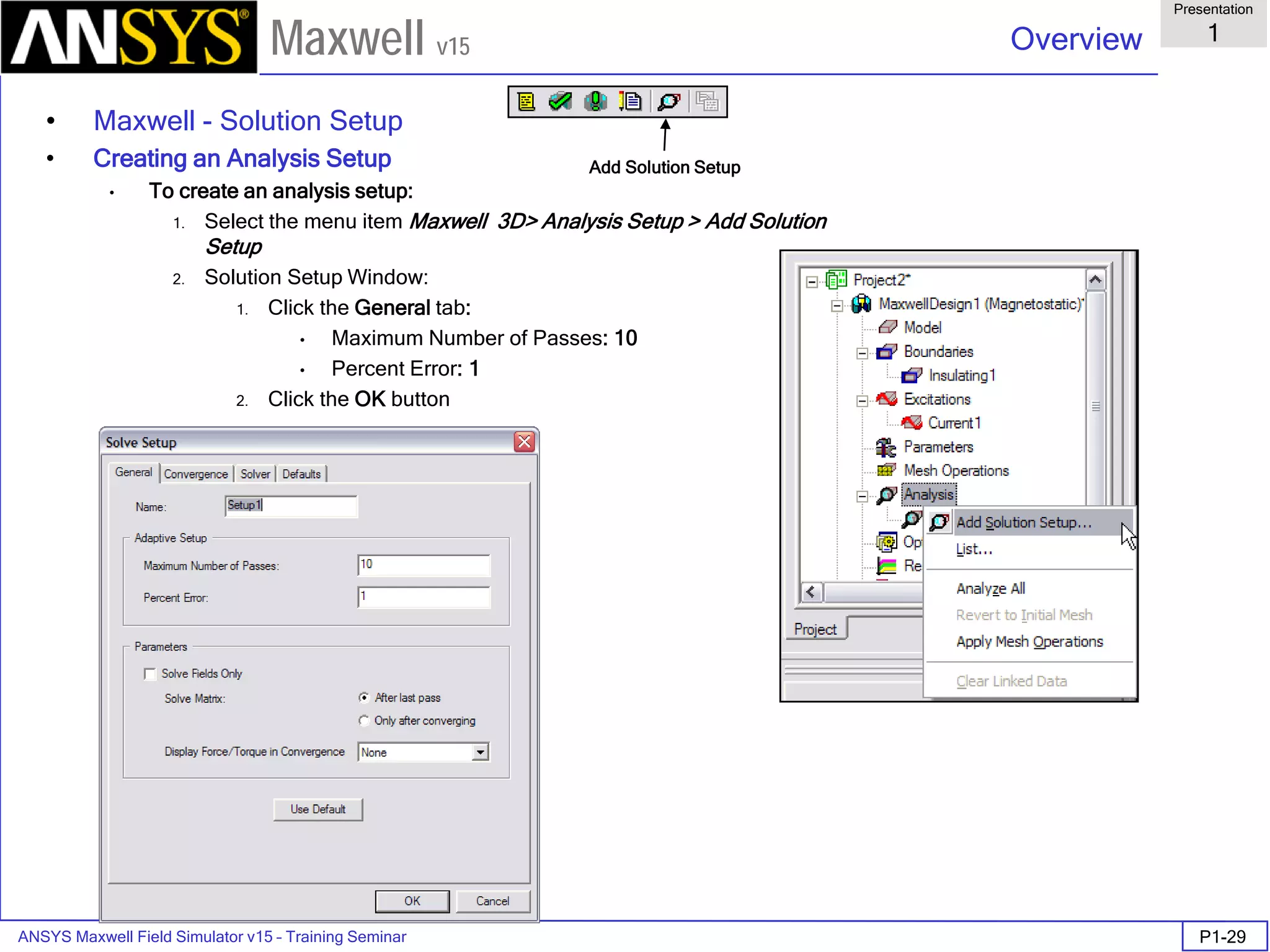
  • 244.
    ANSYS Maxwell 3DField Simulator v15 User’s Guide 3.2 Mesh Operations Examples 3.2-2 Maxwell v15 Curve Mesh Adaptation in Maxwell v15 Maxwell v15 meshes handles curved surfaces differently than prior versions of Maxwell. Proper understanding of the differences in curved mesh handling and the advantages of new capabilities in the Maxwell v15 solver are essential to obtaining accurate results. The new graphical drawing interface offers the use of true-curved drawing, by removing the option to assign a facet count to the construction of primitives such as circles, cylinders, spheres, and ellipses. Faceted primitives are still suggested as polyhedrons and polyhedral solids for few cases. For examples, in translational motion analysis with Transient solver, band have to be made as a faceted solid for better remeshing after object motion Initial meshing is constrained by faceting decisions made by the first pass of the meshing algorithms as shown below. For Maxwell v15 in order to provide more robust meshing with respect to more complex geometries, the initial faceting selections made for curved objects are respected throughout the adaptation process, so that the adapted mesh is a subdivided variation of the same meshed volume as the initial mesh. An adapted mesh from Maxwell v15 is shown below.
  • 245.
    ANSYS Maxwell 3DField Simulator v15 User’s Guide 3.2 Mesh Operations Examples 3.2-3 Maxwell v15 Faceter Default Settings In order to resolve the true surfaces better, the initial faceting default setting is to constrain the mesh surface normals to fall within 15 degrees of the true-curved surface normals. This means that a cylindrical surface would be ‘faceted’ into 24 segments about its circumference, as illustrated below. The normal for each flat segment cannot be off by more than 15 degrees from the normal for the curved true surface which that segment’s face is approximating. The default is sufficient for many applications in which the curved geometry is not itself highly critical to the simulation result, yet where more faceting would result in an unnecessary large initial mesh. Special cases might need added meshing operations to achieve better results.
  • 246.
    ANSYS Maxwell 3DField Simulator v15 User’s Guide 3.2 Mesh Operations Examples 3.2-4 Maxwell v15 Mesh Operations Mesh Operations can be assigned from the Maxwell 3D menu, from the Design Tree, or from the geometry interface’s context-sensitive menu. Maxwell v15 can offer user 6 types of Mesh Operations: On Selection/ Length Based; On Selection / Skin Depth Based Inside Selection / Length Based Surface Approximation Model Resolution Cylindrical Gap Treatment
  • 247.
    ANSYS Maxwell 3DField Simulator v15 User’s Guide 3.2 Mesh Operations Examples 3.2-5 Maxwell v15 On Selection / Length Based After user selected one or some Objects, this mesh operation can be setup as a maximum length of the edges of the mesh for it. The Cylinder with initial mesh below was created by Draw cylinder with R = 1 mm, H = 1 mm, are the meshes on surface and the center cross- section. The right fig. of them are the results after using the mesh option On Selection / Length Based = 0.1 mm. User can see the surface of it was meshed with small ones on it. The Default of Maximum Length equals 20% of the maximum length of the edge of it. Meshes on the surfaces Meshes on the center cross-section of them Without Mesh Operation After Mesh Operation Without Mesh Operation After Mesh Operation
  • 248.
    ANSYS Maxwell 3DField Simulator v15 User’s Guide 3.2 Mesh Operations Examples 3.2-6 Maxwell v15 On Selection / Skin Depth Based The mesh will be created with the skin depth effect in the object. The Cylinder with initial mesh left below was created by Draw regular Polyhedron with R = 1 mm, H = 1 mm, The right one was the results with the setting in On Selection / Skin Depth Based: Skin Depth = 0.25mm; Number of Layer of Element = 4; Surface Triangle Length = 0.4mm. The inner mesh will be 4 layers where the skin depth effects will be considered. if user select Calculate Skin Depth, the skin depth will be automatically calculated due to the frequency, permeability and conductivity set by user. Cross-section of the mesh Without Mesh Operation With Mesh Operation Four Layers of Skin Depth Mesh
  • 249.
    ANSYS Maxwell 3DField Simulator v15 User’s Guide 3.2 Mesh Operations Examples 3.2-7 Maxwell v15 Inside Selection / Length Based Model Object of any shape can be meshed with this command for inner mesh creating. It’s the most frequently used for manual mesh. It also can be used for Non Model Objects (Boxes only). Below is the 2x2x1 mm box with initial mesh. The right below is result with the command of Inside Selection / Length Based = 0.25mm Note: For some special points or lines where user have the measured data for comparison, the Non Model Boxes can be created to cover all these places and set small lengths in Inside Selection / Length Based for enough accuracy. Cross-section of the mesh Without Mesh Operation With Mesh Operation
  • 250.
    ANSYS Maxwell 3DField Simulator v15 User’s Guide 3.2 Mesh Operations Examples 3.2-8 Maxwell v15 Surface Approximation The Surface Approximation options are shown right Below. Definitions follow: Surface Deviation is the maximum spacing, in drawing units, that the tetrahedral surfaces may be from the true-curved geometry’s surface. Normal Deviation is the maximum angular difference, in degrees, that a tetrahedral face’s normal can have from the surface normal for the true geometry which it is meant to represent. Aspect Ratio refers to the maximum allowed aspect ratio of all faces of all tetrahedral of the selected object or face. This setting influences mesh quality rather than actual meshed volume or surface locations. Surface Representation Priority for Tau Mesh In most cases, meshing is done by Tau Mesh. You can set the surface representation as normal or high The Cylinder with initial mesh on the right is created by Draw cylinder with R = 1 mm, H = 1 mm The right is the result with Maximum Surface Deviation = 0.000125mm. Maximum Surface Deviation
  • 251.
    ANSYS Maxwell 3DField Simulator v15 User’s Guide 3.2 Mesh Operations Examples 3.2-9 Maxwell v15 Here in right Is the result with Maximum Surface Normal Deviation = 5deg. The last in the right is the surface result with Maximum Aspect Ratio = 2. Maximum Aspect Ratio Maximum Surface Normal Deviation
  • 252.
    ANSYS Maxwell 3DField Simulator v15 User’s Guide 3.2 Mesh Operations Examples 3.2-10 Maxwell v15 Model Resolution Model resolution is a length based value that modifies the initial mesh. This meshing operation allows the user to specify a minimum edge length of any tetrahedron used for the mesh. By specifying a minimum edge length for a tetrahedron, the mesher will have to coarsely mesh geometric detail that may not be electrically important. This will save the solver the amount of solution time since the initial mesh is smaller, and the mesher does not have to add mesh elements to areas that are not electrically important. When dealing with models that have very high aspect ratios due to small geometric detail, use a model resolution of 1/10 to 1/20 of the thinnest conductor to start with. Then adjust the value accordingly. Simple example: There is a small stub (0.2x0.2x0.025mm) on a cylinder (R=1mm, H=1mm). Below is the initial mesh without Model Resolution. Then with Model Resolution = 0.025 mm, the mesh of it will be as below right, the stub will be neglected. Without Mesh Operation With Mesh Resolution Mesh on the surface
  • 253.
    ANSYS Maxwell 3DField Simulator v15 User’s Guide 3.2 Mesh Operations Examples 3.2-11 Maxwell v15 Cylindrical Gap Treatment Cylindrical Gap Treatment mesh operation is a proximity based mesh refinement. The refinement of mesh is done on the applied objects based on the closeness of the geometry lying inside it. These mesh operation can be used effectively in motor geometry specially when the gap between Band object and Stator/Rotor is very small. In such cases meshing may fail or generate poor mesh in gap region. With this mesh operation those problems can be avoided. For Transient Solver involving rotational motion, this mesh operation is automatically created once the rotational motion is defined The mesh operation can be accessed through menu item similar to other mesh operations. In order to specify this mesh operation on any object, the selected object must contain some geometry (Other Objects) inside it. Otherwise the mesh operation can not be applied as proximity is not detected. Below shown is a simple core surrounded by a cylinder. The gap between the core and cylinder is around 1mm. A cylindrical Gap Treatment mesh Operation is applied on the cylinder. The refinement can be seen on the faces of core which are close to cylinder Without Mesh Operation With Mesh Operation
  • 254.
    ANSYS Maxwell 3DField Simulator v15 User’s Guide 3.2 Mesh Operations Examples 3.2-12 Maxwell v15 Mesh Operation Examples EX1. Skin effect and adjacent effect for two bars (Eddy Current) Model: Two parallel copper bars (named coil1 & coil2) are created by Draw Cylinder with R = 0.15 mm, H = 3 mm,. The distance between their axes is 0.4mm (Gap is 0.1mm) The air box (3x3x3mm) Is created for analysis region Excitations For each end terminal of bars is set as 1A current in same Y direction (Design named “same”) or Y direction for bar1, -Y direction for bar2 (Design named “opposite”) Mesh Operation Select cylindrical surfaces of bars except their end terminals as in right, Then with On Selection / Skin Depth Based; get in Calculate skin Depth… and get the skin depth = 0.066mm for copper in 1MHz. Then set Skin Depth Based Refinement as below: Skin Depth = 0.066mm; Number of Layer of Element = 3; Surface Triangle Length = 0.3mm. and without Number Restriction
  • 255.
    ANSYS Maxwell 3DField Simulator v15 User’s Guide 3.2 Mesh Operations Examples 3.2-13 Maxwell v15 EX1. Skin effect and adjacent effect for two bars (Con’t) Solve Setup Solve Setup is set as below: Results The B & J distribution on the XZ cross-section of two bars will be as below: B distribution for “opposite” J distribution for “opposite” With mesh plot B distribution for “same” J distribution for “same” With mesh plot
  • 256.
    ANSYS Maxwell 3DField Simulator v15 User’s Guide 3.2 Mesh Operations Examples 3.2-14 Maxwell v15 EX2. LR Matrix for print bar (Eddy Current) Model: One copper bar (part from PCB, with Length = 24.5mm, Height = 0.5mm) on the right is imported. This model will calculate its LR from 1Mhz to 5MHz An air box (50x24.5x40 mm) Is created as the analysis region Mesh Operation This time we will try using dummy Sheets to mesh the bar with skin depth meshes. 1. First we make the copy of the bar, and name it as “Unnamed_2” 2. Using Calculate skin Depth to get the skin depth = 0.029 mm as copper at 5 MHz. 3. Select the Unnamed_2 and do /Edit/Arrange/Offset with -0.029mm. 4. Select all surfaces of the new Unnamed_2 and do /Edit/Surface/Create Objects form Surfaces. (16 Sheets will be created) All the Sheets will help automesh to create skin depth meshes at the surface of the copper bar. Excitations For each end terminal of bar is set as 1A current in Y direction Matrix setup Select the copper bar and do /Assign Parameters/Matrix with Current1 as Include Mesh in cross-section of bar
  • 257.
    ANSYS Maxwell 3DField Simulator v15 User’s Guide 3.2 Mesh Operations Examples 3.2-15 Maxwell v15 EX2. LR Matrix for print bar (Eddy Current) (Con’t) Solve Setup Solve Setup is set as below: (Set Default In General & Convergence) Results The L & R vs. Frequency will be as below: L vs. Frequency R vs. Frequency
  • 258.
    ANSYS Maxwell 3DField Simulator v15 User’s Guide 3.2 Mesh Operations Examples 3.2-16 Maxwell v15 EX3. 3ph Linear PM Motor (Transient) Model: The basic parts of it are as below: Mesh Operation Using Inside Selection / Length Based to set the length of the maximum of element edge for each parts as below: windings: 4 mm; magnets: 2 mm; cores : 4 mm: Band : 3 mm Please note for each time step the mesh of the air part in band will be recreated due to the Inside Selection / Length Based = 3 mm. 3 Phase windings Permanent Magnets Moving core Stator core Band Band mesh in XZ cut-plane at some time step Mesh
  • 259.
    ANSYS Maxwell 3DField Simulator v15 User’s Guide 3.2 Mesh Operations Examples 3.2-17 Maxwell v15 EX3. Linear Motor (Transient) (con’t) Exciation The current exciation is set as a time function: U Phase: if((Speed>0&&Position<=41.5), 4*pwl_periodic(dsA,Position), -4*pwl_periodic(dsA,Position)) . Results Transient current of 3 phase winding Position dsA(A) Force in X direction (|fx|>2N)
  • 260.
    ANSYS Maxwell 3DField Simulator v15 User’s Guide 3.2 Mesh Operations Examples 3.2-18 Maxwell v15 EX3. Linear Motor (Transient) (con’t) Results Position vs. Time Speed vs. Time
  • 261.
    ANSYS Maxwell 3DField Simulator v15 User’s Guide 3.2 Mesh Operations Examples 3.2-19 Maxwell v15 EX4. 1.5KW 4p24s IPM Synchronous Motor (Transient) Model: Please see the model as below: Mesh Operation For making the mesh as 6 levels in motor, 5 dummy circular sheets are created. Using Inside Selection / Length Based to set the length of the maximum of element edge for windings: 5 mm; For rotor and stator, we only do mesh operation for the surfaces along the gap and set Surface Approximation as below: Set maximum surface deviation (length): 2.5 mm; Set maximum surface deviation (angle): 3 deg The mesh of the main parts will be shown in the right. Rotor core Stator core Mesh 3 Phase windings Permanent Magnets 5 sheets (dummy) Circuit model of 3 Phase Y connection
  • 262.
    ANSYS Maxwell 3DField Simulator v15 User’s Guide 3.2 Mesh Operations Examples 3.2-20 Maxwell v15 EX4. 1.5KW 4p24s IPM Synchronous Motor (Transient) (con’t) Results at Speed = 1800 rpm Input node voltages Output Torque Current of 3 phase Induced Voltages
  • 263.
    ANSYS Maxwell FieldSimulator v15 – Training Seminar 3.3-1 Overview Presentation 3.3 Maxwell v15 Maxwell Adaptive Meshing
  • 264.
    ANSYS Maxwell FieldSimulator v15 – Training Seminar 3.3-2 Overview Presentation 3.3 Maxwell v15 Maxwell and the Finite Element Method Maxwell uses the Finite Element Method (FEM) to solve Maxwell‘s equations. The primary advantage of the FEM for solving partial differential equations lies in the ability of the basic building blocks used to discretize the model to conform to arbitrary geometry. The arbitrary shape of the basic building block (tetrahedron) also allows Maxwell to generate a coarse mesh where fewer cells are needed to yield an accurate solution, while creating a finely discretized mesh where the field is rapidly varying or higher accuracy is needed to obtain an accurate global solution. The FEM has been a standard for solving electromagnetic problems since the 1970s. Maxwell appeared on the market in 1984 pioneering the use of adaptive meshing in a commercial product. The FEM has been a standard for solving problems in structure mechanics since the mid 1950‘s (imagine defining the 3D structure of a bridge with punch cards)! First see the one-dimensional example…..
  • 265.
    ANSYS Maxwell FieldSimulator v15 – Training Seminar 3.3-3 Overview Presentation 3.3 Maxwell v15 The Finite Element Method in 1-D The finite element method (FEM) can be used to approximate the unknown curve F(x) x F(x) 1 w 1 1 0 2 w 2 3 w 3 4 w 4 5 w 5 6 w 6w 0  The model is “discretized into 6 individual cells. w0 – w6 are the piecewise linear “basis functions” from which the approximate solution will be built.
  • 266.
    ANSYS Maxwell FieldSimulator v15 – Training Seminar 3.3-4 Overview Presentation 3.3 Maxwell v15 The Finite Element Method in 1-D In the FEM, the unknown function is expressed as a weighted sum of the piecewise continuous basis functions. x F(x) 1 Node 1 2 3 4 5 6 F’(x)=Σa wi i  The approximate solution resulting from the FEM calculation is F’(x) shown as a dotted line.
  • 267.
    ANSYS Maxwell FieldSimulator v15 – Training Seminar 3.3-5 Overview Presentation 3.3 Maxwell v15 The Finite Element Method in 1-D A key feature of the FEM as it is implemented in Maxwell is the ability to locally determine the error. Recall that F(x) is not known, but the ERROR can be determined1. x F(x) Node 1 2 3 4 5 6 F’(x)=Σa wi i 1 Cendes, Z.J., and D.N. Shenton. Adaptive mesh refinement in the finite element. computation of magnetic fields; IEEE Transactions on magnetics (T-MAG), Pages 1811-1816 , Volume 21, Issue 5, Sept 1985 Error!
  • 268.
    ANSYS Maxwell FieldSimulator v15 – Training Seminar 3.3-6 Overview Presentation 3.3 Maxwell v15 The mesh density is increased where the error is largest. Hence, the final (and computationally most expensive) solution will have a mesh that yields the greatest accuracy with the fewest possible mesh cells. x F(x) 1 Node 1 2 3 4 5 6 F’(x)=Σa wi i 7 The Finite Element Method in 1-D
  • 269.
    ANSYS Maxwell FieldSimulator v15 – Training Seminar 3.3-7 Overview Presentation 3.3 Maxwell v15 Model Definition 3D Example: Puck Magnet above a steel plate Steel Plate NdFe Magnet
  • 270.
    ANSYS Maxwell FieldSimulator v15 – Training Seminar 3.3-8 Overview Presentation 3.3 Maxwell v15 Adaptive Mesh Refinement View of initial mesh The projection of the 3-dimensional mesh onto the plate surface creates a triangular mesh. The initial mesh is as coarse as possible while still representing all geometric features.
  • 271.
    ANSYS Maxwell FieldSimulator v15 – Training Seminar 3.3-9 Overview Presentation 3.3 Maxwell v15 Adaptive Mesh Refinement Mesh after 2 passes Convergence EnergyError[%] Pass
  • 272.
    ANSYS Maxwell FieldSimulator v15 – Training Seminar 3.3-10 Overview Presentation 3.3 Maxwell v15 Adaptive Mesh Refinement Mesh after 4 passes Convergence EnergyError[%] Pass
  • 273.
    ANSYS Maxwell FieldSimulator v15 – Training Seminar 3.3-11 Overview Presentation 3.3 Maxwell v15 Adaptive Mesh Refinement Mesh after 6 passes Convergence EnergyError[%] Pass
  • 274.
    ANSYS Maxwell FieldSimulator v15 – Training Seminar 3.3-12 Overview Presentation 3.3 Maxwell v15 Adaptive Mesh Refinement Mesh after 10 passes Convergence EnergyError[%] Pass
  • 275.
    ANSYS Maxwell FieldSimulator v15 – Training Seminar 3.3-13 Overview Presentation 3.3 Maxwell v15 Adaptive Mesh Refinement Mesh after 16 passes. Desired Energy Error of 0.2% is reached Convergence EnergyError[%] Pass
  • 276.
    ANSYS Maxwell FieldSimulator v15 – Training Seminar 3.3-14 Overview Presentation 3.3 Maxwell v15 Plot of |B| on surface of the Plate (DC after 16 passes)
  • 277.
    ANSYS Maxwell FieldSimulator v15 – Training Seminar 3.3-15 Overview Presentation 3.3 Maxwell v15 Adaptive Mesh Refinement Energy Error goal reduced further. Mesh after 22 passes. Desired Energy Error of 0.03% is reached Convergence EnergyError[%] Pass
  • 278.
    ANSYS Maxwell FieldSimulator v15 – Training Seminar 3.3-16 Overview Presentation 3.3 Maxwell v15 Plot of |B| on surface of the Plate (DC after 22 passes)
  • 279.
    ANSYS Maxwell FieldSimulator v15 – Training Seminar 3.3-17 Overview Presentation 3.3 Maxwell v15 Convergence Even in the region of the convergence curve above pass number 16, a gradient in the energy error from pass to pass can be observed. Continued iteration results in higher accuracy but at a cost of a large number of tetrahedrons. Clearly a tradeoff must be found EnergyError[%] EnergyError[%] Pass Pass No.TetsDeltaEnergy[%]
  • 280.
    ANSYS Maxwell FieldSimulator v15 – Training Seminar 3.3-18 Overview Presentation 3.3 Maxwell v15 Convergence definition through use of additional variables % Change in the Force on the magnet can be used to determine a more effective stopping criteria since this value can be tied directly to the acceptable numerical tolerance on a physical variable DeltaForce[%] DeltaForce[%] Pass Pass
  • 281.
    ANSYS Maxwell FieldSimulator v15 – Training Seminar 3.3-19 Overview Presentation 3.3 Maxwell v15 Calculate local Solution error The “Solve” Procedure in Maxwell Generate Initial Mesh Solve fields using the Finite Element Method End criteria reached ? Refine Mesh Calculate Outputs (Force, Inductance, etc.) no yes Start
  • 282.
    ANSYS Maxwell FieldSimulator v15 – Training Seminar 3.3-20 Overview Presentation 3.3 Maxwell v15 Summery Most of the execution time in a field solver is spent on the “final” solution. This is the solution that uses the largest mesh (i.e. the most finely discretized model) and hence yields the most accurate results. Autoadaptive mesh refinement generates an efficient mesh without requiring the user to be an “expert mesher”. User defined convergence criteria enable quantification of the trade-off between accuracy and calculation time.
  • 283.
    ANSYS Maxwell FieldSimulator v15 – Training Seminar 3.3-22 Overview Presentation 3.3 Maxwell v15 Small Air Gaps Example: Team Problem #20
  • 284.
    ANSYS Maxwell FieldSimulator v15 – Training Seminar 3.3-23 Overview Presentation 3.3 Maxwell v15 Measured Automatic Adaptive Meshing
  • 285.
    ANSYS Maxwell FieldSimulator v15 – Training Seminar 3.3-24 Overview Presentation 3.3 Maxwell v15 Measured Comparison to Measurement
  • 286.
    ANSYS Maxwell 3DField Simulator v15 User’s Guide 4.0 Data Reporting 4.0-1 Maxwell v15 Overview ANSYS Maxwell has very powerful and flexible data management and plotting capabilities. Once understood, it will make the whole solution process much easier, and will help craft the entire problem setup. Topics of Discussion 2D Plotting 3D Plotting Field Plotting
  • 287.
    ANSYS Maxwell 3DField Simulator v15 User’s Guide 4.0 Data Reporting 4.0-2 Maxwell v15 Data Plotting Data plotting can take a variety of forms. The most often used format is 2D Cartesian plotting, but we also have the capability to plot in 3D as well. Below is a list of all the quantities that can be plotted on various graphs. For definitions of each of these quantities, see the online help or the respective solution type chapter. Magnetostatic, Eddy Current, Electric Force Torque Matrix Transient Motion Position Force/Torque Velocity Winding Flux Linkage Induced Voltage Core Loss Power Loss Branch Current (external meter required) Node Voltage (external meter required) Fields Mag_H Mag_B Mag_J Energy Density Coenergy Density Apparent Energy Density Ohmic Loss Density Named Expressions NOTE: For all data plots of Fields data, a Line must be defined before creating the plot.
  • 288.
    ANSYS Maxwell 3DField Simulator v15 User’s Guide 4.0 Data Reporting 4.0-3 Maxwell v15 Data Plotting (Continued) Types of Plots: Rectangular Plot Data Table 3D Rectangular Plot To Create a Plot: 1. Select Maxwell 3D > Results > Create Magnetostatic Report 2. Reports Dialog will be displayed (options on the next page) OR 1. Select Maxwell 3D > Results > Create Fields Report 2. Reports Dialog will be displayed (options on the next page) OR 1. Select Maxwell 3D > Results > Create Quick Report (when available) 2. Choose Quick Report type and click OK.
  • 289.
    ANSYS Maxwell 3DField Simulator v15 User’s Guide 4.0 Data Reporting 4.0-4 Maxwell v15 Data Plotting (Continued) Creating a Plot (continued) 4. Context Design – choose from available designs within a project Solution – choose from available setups or solution types Geometry – if plotting Fields data, select an available Line from the list. 5. Trace Tab Primary Sweep – controls the source of the independent variable in the plot. NOTE: By default, the Report editor selects Use Current Design and Project variable values. This will select the primary sweep of distance for a field data plot, or an undefined variable X for other plot types, and the current simulated values of the project variables To display a plot with multiple traces for different variable values, select the Families tab and select the Sweeps for variables to be plot with. The Plot will have Primary variable as X axis and multiple traces corresponding to other variables selected from Families tab. You can also select Particular values of Sweep variable by selecting the radio button to Available variations X – controls any functional operator on the independent variable (this is usually set to Primary Sweep). Y – select the value to be plotted and any operator. Category: Select the category of the variable which needs to be plot Quantity: to Select the variable Function: To perform arithmetic operations on variable before plot 6. Select Add Trace for as many values as you would like to plot 7. Select Done when finished An example of a multi-trace plot of the sweep tab shown on the previous page is shown next
  • 290.
    ANSYS Maxwell 3DField Simulator v15 User’s Guide 4.0 Data Reporting 4.0-5 Maxwell v15 Data Plotting (Continued)
  • 291.
    ANSYS Maxwell 3DField Simulator v15 User’s Guide 4.1 Field Calculator 4.1-1 Maxwell v15 Examples of the Field Calculator in Maxwell3D The Field Calculator can be used for a variety of tasks, however its primary use is to extend the post-processing capabilities within Maxwell beyond the calculation / plotting of the main field quantities. The Field Calculator makes it possible to operate with primary vector fields (such as H, B, J, etc) using vector algebra and calculus operations in a way that is both mathematically correct and meaningful from a Maxwell’s equations perspective. The Field Calculator can also operate with geometry quantities for three basic purposes: - plot field quantities (or derived quantities) onto geometric entities; - perform integration (line, surface, volume) of quantities over specified geometric entities; - export field results in a user specified box or at a user specified set of locations (points). Another important feature of the (field) calculator is that it can be fully script driven. All operations that can be performed in the calculator have a corresponding “image” in one or more lines of VBscript code. Scripts are widely used for repetitive post-processing operations, for support purposes and in cases where Optimetrics is used and post-processing scripts provide some quantity required in the optimization / parameterization process. This document describes the mechanics of the tools as well as the “softer” side of it as well. So, apart from describing the structure of the interface this document will show examples of how to use the calculator to perform many of the post-processing operations encountered in practical, day to day engineering activity using Maxwell. Examples are grouped according to the type of solution. Keep in mind that most of the examples can be easily transposed into similar operations performed with solutions of different physical nature.
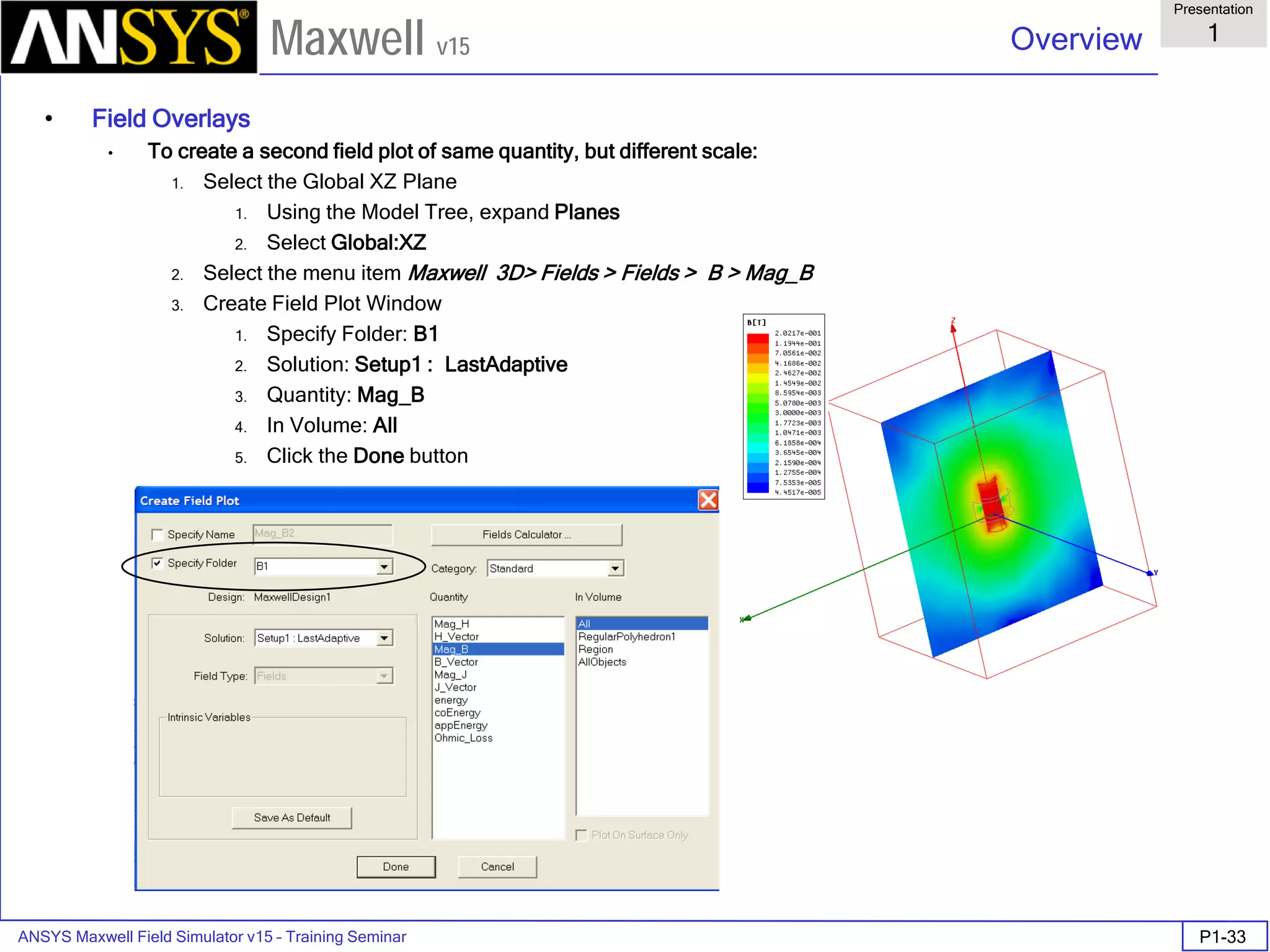
  • 292.
    ANSYS Maxwell 3DField Simulator v15 User’s Guide 4.1 Field Calculator 4.1-2 Maxwell v15 ANSYS Maxwell Design Environment The following features of the ANSYS Maxwell Design Environment are used to interact with the calculator as covered in this topic Analysis Electrostatic DC Conduction Magnetostatic Eddy Current Transient Results Output Variables Field Calculator Field Overlays: Named Expressions Animate
  • 293.
    ANSYS Maxwell 3DField Simulator v15 User’s Guide 4.1 Field Calculator 4.1-3 Maxwell v15 Description of the interface The interface is shown in Fig. I1. It is structured such that it contains a stack which holds the quantity of interest in stack registers. A number of operations are intended to allow the user to manipulate the contents of the stack or change the order of quantities being hold in stack registers. The description of the functionality of the stack manipulation buttons (and of the corresponding stack commands) is presented below: - Push repeats the contents of the top stack register so that after the operation the two top lines contain identical information; - Pop deletes the last entry from the stack (deletes the top of the stack); - RlDn (roll down) is a “circular” move that makes the contents of the stacks slide down one line with the bottom of the stack advancing to the top; - RlUp (roll up) is a “circular” move that makes the contents of the stacks slide up one line with the top of the stack dropping to the bottom; - Exch (exchange) produces an exchange between the contents of the two top stack registers; - Clear clears the entire contents of all stack registers; - Undo reverses the result of the most recent operation. The user should note that Undo operations could be nested up to the level where a basic quantity is obtained.
  • 294.
    ANSYS Maxwell 3DField Simulator v15 User’s Guide 4.1 Field Calculator 4.1-4 Maxwell v15 Named Expressions Solution Context Stack & stack registers Stack commands Calculator Buttons Fig. I1 Field Calculator Interface
  • 295.
    ANSYS Maxwell 3DField Simulator v15 User’s Guide 4.1 Field Calculator 4.1-5 Maxwell v15 The calculator buttons are organized in five categories as follows: - Input contains calculator buttons that allow the user to enter data in the stack; sub-categories contain solution vector fields (B, H, J, etc.), geometry(point, line, surface, volume, coordinate system), scalar, vector or complex constants (depending on application) or even entire f.e.m. solutions. - General contains general calculator operations that can be performed with “general” data (scalar, vector or complex), if the operation makes sense; for example if the top two entries on the stack are two vectors, one can perform the addition (+) but not multiplication (*);indeed, with vectors one can perform a dot product or a cross product but not a multiplication as it is possible with scalars. - Scalar contains operations that can be performed on scalars; example of scalars are scalar constants, scalar fields, mathematical operations performed on vector which result in a scalar, components of vector fields (such as the X component of a vector field), etc. - Vector contains operations that can be performed on vectors only; example of such operations are cross product (of two vectors), div, curl, etc. - Output contains operations resulting in plots (2D / 3D), graphs, data export, data evaluation, etc. As a rule, calculator operations are allowed if they make sense from a mathematical point of view. There are situations however where the contents of the top stack registers should be in a certain order for the operation to produce the expected result. The examples that follow will indicate the steps to be followed in order to obtain the desired result in a number of frequently encountered operations. The examples are grouped according to the type of solution (solver) used. They are typical medium/higher level post-processing task that can be encountered in current engineering practice. Throughout this manual it is assumed that the user has the basic skills of using the Field Calculator for basic operations as explained in the on-line technical documentation and/or during Ansoft basic training. Note: The f.e.m. solution is always performed in the global (fixed) coordinate system. The plots of vector quantities are therefore related to the global coordinate system and will not change if a local coordinate system is defined with a different orientation from the global coordinate system.
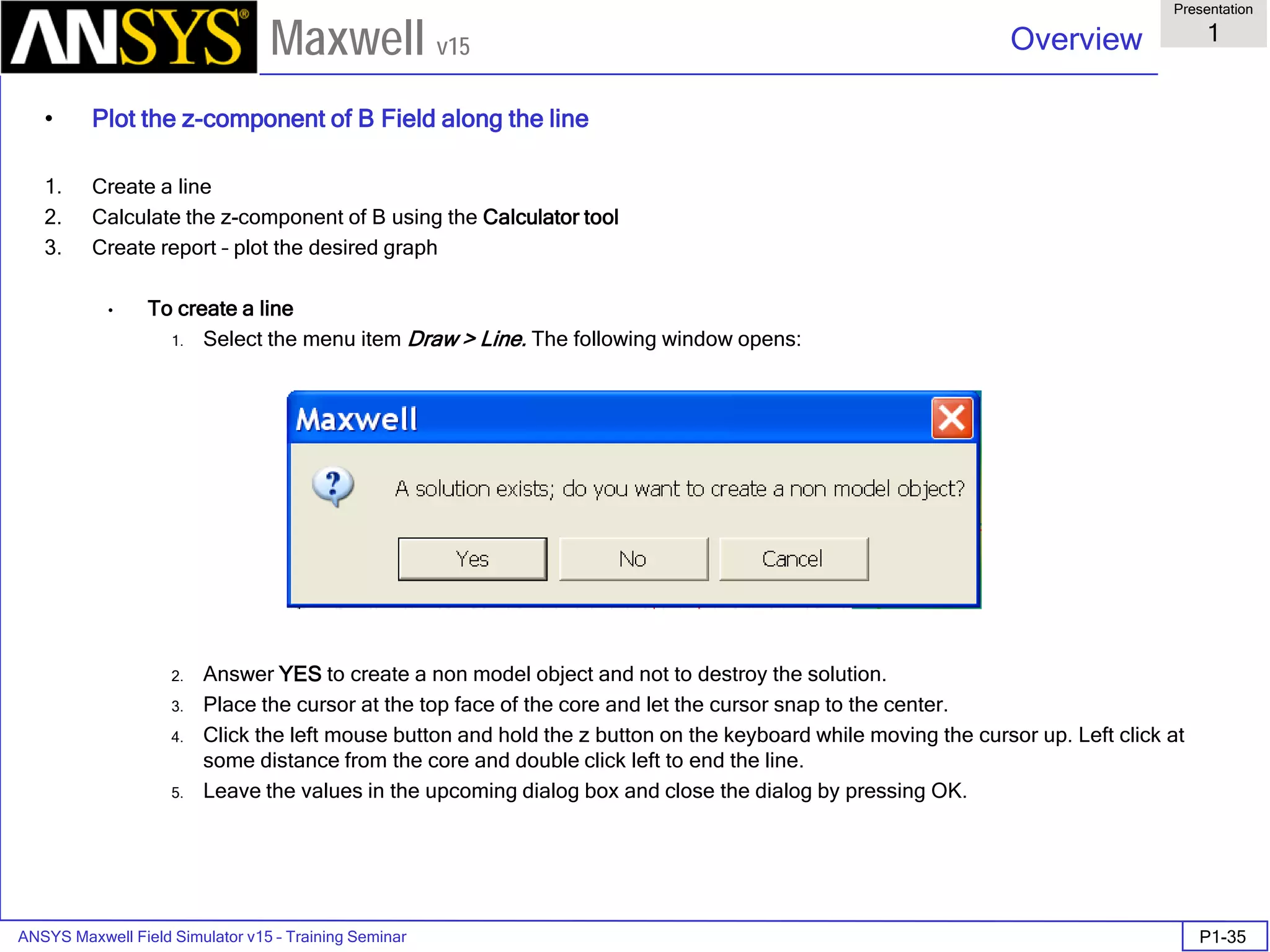
  • 296.
    ANSYS Maxwell 3DField Simulator v15 User’s Guide 4.1 Field Calculator 4.1-6 Maxwell v15 Electrostatic Examples Example ES1: Calculate the charge density distribution and total electric charge on the surface of an object Description: Assume an electrostatic (3D) application with separate metallic objects having applied voltages or floating voltages. The task is to calculate the total electric charge on any of the objects. Calculate/plot the charge density distribution on the object; the sequence of calculator operations is described below: Input > Quantity > D (load D vector into the calculator); Input > Geometry In Geometry window, 1. Select radio Button to Surface 2. Select the Surface of interest and Press OK Vector > Unit Vec > Normal (creates the normal unit vector corresponding to the surface of interest) Vector > Dot (creates the dot product between D and the unit normal vector to the surface of interest, equal to the surface charge density) Add (input “charge_density” as the name) -> OK (creates a named expression and adds it to the list) Done (leaves calculator) (select the surface of interest from the model) Maxwell 3D > Fields > Fields > Named Expressions (a Selecting calculated expression window appears) (select “charge_density” from the list) -> OK (A Create Field Plot window appears) Done Calculate the total electric charge on the surface of an object Input > Quantity > D (load D vector into the calculator); Input > Geometry > Surface… (select the surface of interest) -> OK Vector > Normal Scalar > Output > Eval ∫
  • 297.
    ANSYS Maxwell 3DField Simulator v15 User’s Guide 4.1 Field Calculator 4.1-7 Maxwell v15 Example ES2: Calculate the Maxwell stress distribution on the surface of an object Description: Assume an electrostatic application (for ex. a parallel plate capacitor structure). The surface of interest and adjacent region should have a fine finite element mesh since the Maxwell stress method for calculation the force is quite sensitive to mesh. The Maxwell electric stress vector has the following expression for objects without electrostrictive effects: where the unit vector n is the normal vector to the surface of interest. The sequence of calculator commands necessary to implement the above formula is given below. Input > Quantity > D Input > Geometry > Surface (select the surface of interest) > OK Vector > Unit Vec > Normal (creates the normal unit vector corresponding to the surface of interest) Vector > Dot Input > Quantity > E General > * (multiply) Input > Geometry > Surface… (select the surface of interest) > OK Vector > Unit Vec > Normal (creates the normal unit vector corresponding to the surface of interest) Input > Number >Scalar (0.5) OK General > * Input > Constant > Epsi0 General > * Input > Quantity > E Push Dot General > * General > - (minus) Continued on next page. ( ) 2 2 1 EnEnDTnE ε  −⋅=
  • 298.
    ANSYS Maxwell 3DField Simulator v15 User’s Guide 4.1 Field Calculator 4.1-8 Maxwell v15 Example ES2: Continued Add … (input “stress” as the name) > OK (creates a named expression and adds it to the list) Done (leaves calculator) (select the surface of interest from the model) Maxwell 3D > Fields > Fields > Named Expressions (a Selecting calculated expression window appears) (select “stress” from the list) > OK (A Create Field Plot window appears) Done If an integration of the Maxwell stress is to be performed over the surface of interest, then use the Named Expression in the following calculator sequence: (select “stress” from the Named Expressions list) Copy to stack (inserts the named expression to the stack) Input > Geometry > Surface (select surface of interest) > OK Vector > Normal Scalar > Output > Eval Note: The surface in all the above calculator commands should lie in free space or should coincide with the surface of an object surrounded by free space (vacuum, air). It should also be noted that the above calculations hold true in general for any instance where a volume distribution of force density is equivalent to a surface distribution of stress (tension): where Tn is the local tension force acting along the normal direction to the surface and F is the total force acting on object(s) inside Σ. The above results for the electrostatic case hold for magnetostatic applications if the electric field quantities are replaced with corresponding magnetic quantities. dSTdvfF v n∫ ∫Σ Σ ==  ∫
  • 299.
    ANSYS Maxwell 3DField Simulator v15 User’s Guide 4.1 Field Calculator 4.1-9 Maxwell v15 Current flow Examples Example CF1: Calculate the resistance of a conduction path between two terminals Description: Assume a given conductor geometry that extends between two terminals with applied DC currents. In DC applications (static current flow) one frequent question is related to the calculation of the resistance when one has the field solution to the conduction (current flow) problem. The formula for the analytical calculation of the DC resistance is: where the integral is calculated along curve C (between the terminals) coinciding with the “axis” of the conductor. Note that both conductivity and cross section area are in general function of point (location along C). The above formula is not easily implementable in the general case in the field calculator so that alternative methods to calculate the resistance must be found. One possible way is to calculate the resistance using the power loss in the respective conductor due to a known conduction current passing through the conductor. where power loss is given by The sequence of calculator commands to compute the power loss P is given below: Input > Quantity > J Push Input > Number > Scalar (1e7) OK (conductivity assumed to be 1e7 S/m) General > / (divide) Vector > Dot Input > Geometry > Volume (select the volume of interest) > OK Scalar > Output > Eval The resistance can now be easily calculated from power and the square of the current. Continued on next page. ( ) ( )∫ ⋅ = C DC sAs ds R σ 2 DC DC I P R = dVJ J dVJEP V V    ⋅=⋅= ∫ ∫σ ∫
  • 300.
    ANSYS Maxwell 3DField Simulator v15 User’s Guide 4.1 Field Calculator 4.1-10 Maxwell v15 There is another way to calculate the resistance which makes use of the well known Ohm’s law. Assuming that the conductor is bounded by two terminals, T1 and T2 (current through T1 and T2 must be the same), the resistance of the conductor (between T1 and T2) is given the ratio of the voltage differential U between T1 and T2 and the respective current, I . So it is necessary to define two points on the respective terminals and then calculate the voltage at the two locations (voltage is called Phi in the field calculator). The rest is simple as described above. Example CF2: Export the field solution to a uniform grid Description: Assume a conduction problem solved. It is desired to export the field solution at locations belonging to a uniform grid to an ASCII file. The field calculator allows the field solutions to be exported regardless of the nature of the solution or the type of solver used to obtain the solution. It is possible to export any quantity that can be evaluated in the field calculator. Depending on the nature of the data being exported (scalar, vector, complex), the structure of each line in the output file is going to be different. However, regardless of what data is being exported, each line in the data section of the output file contains the coordinates of the point (x, y, z) followed by the data being exported (1 value for a scalar quantity, 2 values for a complex quantity, 3 values for a vector in 3D, 6 values for a complex vector in 3D) Continued on next page. I U RDC =
  • 301.
    ANSYS Maxwell 3DField Simulator v15 User’s Guide 4.1 Field Calculator 4.1-11 Maxwell v15 To export the current density vector to a grid the field calculator steps are: Input > Quantity > J Output > Export (then fill in the data as appropriate, see Fig. CF2) OK Fig. CF2 Define the size of the export region (box) and spacing within Select Calculate grid points and define minimum, maximum & spacing in all 3 directions X, Y, Z as the size of the rectangular export region (box) and the spacing between locations. By default the location of the ASCII file containing the export data is in the project directory. Clicking on the browse symbol one can also choose another location for the exported file. Note: One can export the quantity calculated with the field calculator at user specified locations by selecting Input grid points from file. In that case the ASCII file containing on each line the x, y and z coordinates of the locations must exist prior to initiating the export-to-file command.
  • 302.
    ANSYS Maxwell 3DField Simulator v15 User’s Guide 4.1 Field Calculator 4.1-12 Maxwell v15 Example CF3: Calculate the conduction current in a branch of a complex conduction path Description: There are situations where the current splits along the conduction path. If the nature of the problem is such that symmetry considerations cannot be applied, it may be necessary to evaluate total current in 2 or more parallel branches after the split point. To be able to perform the calculation described above, it is necessary to have each parallel branch (where the current is to be calculated) modeled as a separate solid. Before the calculation process is started, make sure that the (local) coordinate system is placed somewhere along the branch where the current is calculated, preferably in a median location along that branch. In more general terms, that location is where the integration is performed and it is advisable to choose it far from areas where the current splits or changes direction, if possible. Here is the process to be followed to perform the calculation using the field calculator. Input > Quantity > J Input > Geometry > Volume (choose the volume of the branch of interest) OK General > Domain (this is to limit the subsequent calculations to the branch of interest only) Input > Geometry > Surface > yz (choose axis plane that cuts perpendicular to the branch) OK Vector > Normal Scalar > Output > Eval The result of the evaluation is positive or negative depending on the general orientation of the J vector versus the normal of the integration surface (S). In mathematical terms the operation performed above can be expressed as: Note: The integration surface (yz, in the example above) extends through the whole region, however because of the “domain” command used previously, the calculation is restricted only to the specified solid (that is the S surface is the intersection between the specified solid and the integration plane). ∫ ⋅= S dSnJI  ∫
  • 303.
    ANSYS Maxwell 3DField Simulator v15 User’s Guide 4.1 Field Calculator 4.1-13 Maxwell v15 Magnetostatic examples Example MS1: Calculate (check) the current in a conductor using Ampere’s theorem Description: Assume a magnetostatic problem where the magnetic field is produced by a given distribution of currents in conductors. To calculate the current in the conductor using Ampere’s theorem, a closed polyline (of arbitrary shape) should be drawn around the respective conductor. In a mathematical form the Ampere’s theorem is given by: where Γ is the closed contour (polyline) and SΓ is an open surface bounded by Γ but otherwise of arbitrary shape. ISΓ is the total current intercepting the surface SΓ. To calculate the (closed) line integral of H, the sequence of field calculator commands is: Input > Quantity > H Input > Geometry > Line (choose the closed polygonal line around the conductor) OK Vector > Tangent Scalar > Output > Eval The value should be reasonably close to the value of the corresponding current. The match between the two can be used as a measure of the global accuracy of the calculation in the general region where the closed line was placed. ∫Γ Γ ⋅= sdHIS  ∫
  • 304.
    ANSYS Maxwell 3DField Simulator v15 User’s Guide 4.1 Field Calculator 4.1-14 Maxwell v15 Example MS2: Calculate the magnetic flux through a surface Description: Assume the case of a magnetostatic application. To calculate the magnetic flux through an already existing surface the sequence of calculator commands is: Input > Quantity > B Input > Geometry > Surface (specify the integration surface) OK Vector > Normal Scalar > Output > Eval The result is positive or negative depending on the orientation of the B vector with respect to the normal to the surface of integration. The above operation corresponds to the following mathematical formula for the magnetic flux: Example MS3: Calculate components of the Lorentz force Description: Assume a distribution of magnetic field surrounding conductors with applied DC currents. The calculation of the components of the Lorentz force has the following steps in the field calculator. Input > Quantity > J Input > Quantity > B Vector > Cross Vector > Scal? > ScalarX Input > Geometry > Volume (specify the volume of interest) OK Scalar > Output > Eval The above example shows the process for calculating the X component of the Lorentz force. Similar steps should be performed for all components of interest. ∫ ⋅=Φ S S dAnB  ∫ ∫
  • 305.
    ANSYS Maxwell 3DField Simulator v15 User’s Guide 4.1 Field Calculator 4.1-15 Maxwell v15 Example MS4: Calculate the distribution of relative permeability in nonlinear material Description: Assume a non-linear magnetostatic problem. To plot the relative permeability distribution inside a non-linear material the following steps should be taken: Input > Quantity > B Vector > Scal? > ScalarX Input > Quantity > H Vector > Scal? > ScalarX Input > Constant > Mu0 General > * (multiply) General > / (divide) General > Smooth Add (input “rel_perm” as the name) OK (creates a named expression and adds it to the list) Done (leaves calculator) (select the surface of interest from the model) Maxwell 3D > Fields > Fields > Named Expressions (a Selecting calculated expression window appears) (select “rel_perm” from the list) > OK (a Create Field Plot window appears) Done Note: The above sequence of commands makes use of one single field component (X component). Please note that any spatial component can be used for the purpose of calculating relative permeability in isotropic, non-linear soft magnetic materials. The result would still be the same if we used the Y component or the Z component. However, this does not apply for anisotropic materials. The “smoothing” also used in the sequence is also recommended particularly in cases where the mesh density is not very high.
  • 306.
    ANSYS Maxwell 3DField Simulator v15 User’s Guide 4.1 Field Calculator 4.1-16 Maxwell v15 Frequency domain (AC) Examples Example AC1: Calculate the radiation resistance of a circular loop Description: Assume a circular loop of radius 0.02 m with an applied current excitation at 1.5 GHz; The radiation resistance is given by the following formula: where S is the outer surface of the region (preferably spherical), placed conveniently far away from the source of radiation. Assuming that a half symmetry model is used, no ½ is needed in the above formula. The sequence of calculator commands necessary for the calculation of the average power is as follows: Input > Quantity > H Vector > Curl Input > Number > Complex (0 , -12) OK General > * Input > Quantity > H General > Complex > Conj Vector > Cross General > Complex > Real Input > Geometry > Surface (select the surface of interest) > OK Vector > Normal Scalar > Output > Eval Note: The integration surface above must be an open surface (radiation surface) if a symmetry model is used. Surfaces of existing objects cannot be used since they are always closed. Therefore the necessary integration surface must be created in the example above using Modeler > Surface > Create Object From Face command. 2 rms av r I P R = ( ) ( ) dSHH j dSHEP SS av ∫∫∫∫       ××∇=×= * 0 * 1 Re 2 1 Re 2 1  ωε ∫
  • 307.
    ANSYS Maxwell 3DField Simulator v15 User’s Guide 4.1 Field Calculator 4.1-17 Maxwell v15 Example AC2: Calculate/Plot the Poynting vector Description: Same as in Example AC1. To obtain the Poynting vector the following sequence of calculator commands is necessary: Input > Quantity > H Vector > Curl Input > Number > Complex (0 , -12) OK General > * Input > Quantity > H General > Complex > Conj Vector > Cross To plot the real part of the Poynting vector the following commands should be added to the above sequence: General > Complex > Real Input > Number > Scalar (0.5) OK General > * Add (input “Poynting” as the name) > OK (creates a named expression and adds it to the list) Done (leaves calculator) (select the surface of interest from the model) Maxwell 3D > Fields > Fields > Named Expressions (a Selecting calculated expression window appears) (select “Poynting” from the list) > OK (a Create Field Plot window appears) Done
  • 308.
    ANSYS Maxwell 3DField Simulator v15 User’s Guide 4.1 Field Calculator 4.1-18 Maxwell v15 Example AC3: Calculate total induced current in a solid Description: Consider (as example) the device in Fig. AC3. a) full model b) quarter model Fig. AC3 Geometry of inductor model Assume that the induced current through the surface marked with an arrow in the quarter model is to be calculated. Please note that there is an expected net current flow through the market surface, due to the symmetry of the problem. As a general recommendation, the surface that is going to be used in the process of integrating the current density should exist prior to solving the problem. In some cases this also means that the geometry needs to be created in such a way so that the particular post-processing task is made possible. Once the object containing the integration surface exists, use the Modeler > Surface > Create Object From Face command to create the integration surface necessary for the calculation. Make sure that the object with expected induced currents has non-zero conductivity and that the eddy-effect calculation was turned on. Assuming now that all of the above was taken care of, the sequence of calculator commands necessary to obtain separately the real part and the imaginary part of the induced current is described on the next page:
  • 309.
    ANSYS Maxwell 3DField Simulator v15 User’s Guide 4.1 Field Calculator 4.1-19 Maxwell v15 For the real part of the induced current: Input > Quantity > J General > Complex > Real Input > Geometry > Surface (select previously defined integration surface) OK Vector > Normal Scalar > Output > Eval For the imaginary part of the induced current: Input > Quantity > J General > Complex > Imag Input > Geometry > Surface (select previously defined integration surface) OK Vector > Normal Scalar > Output > Eval If instead of getting the real and imaginary part of the current , one desires to do an “at phase” calculation, the sequence of commands is: Input > Quantity > J Input > Number > Scalar (45) OK (assuming a calculation at 45 degrees phase angle) General > Complex > AtPhase Input > Geometry > Surface (select previously defined integration surface) OK Vector > Normal Scalar > Output > Eval ∫ ∫ ∫
  • 310.
    ANSYS Maxwell 3DField Simulator v15 User’s Guide 4.1 Field Calculator 4.1-20 Maxwell v15 Example AC4: Calculate (ohmic) voltage drop along a conductive path Description: Assume the existence of a conductive path (a previously defined open line totally contained inside a conductor). To calculate the real and imaginary components of the ohmic voltage drop inside the conductor the following steps should be followed: For the real part of the voltage: Input > Quantity > J Vector > Matl > Conductivity > Divide OK General > Complex > Real Input > Geometry > Line > (select the applicable line) OK Vector > Tangent Scalar > Output > Eval For the imaginary part of the voltage: Input > Quantity > J Vector > Matl > Conductivity > Divide OK General > Complex > Imag Input > Geometry > Line > (select the applicable line) OK Vector > Tangent Scalar > Output > Eval To calculate the phase of the voltage manipulate the contents of the stack so that the top register contains the real part of the voltage and the second register of the stack contains the imaginary part. To calculate phase enter the following command: Scalar > Trig > Atan2 ∫ ∫
  • 311.
    ANSYS Maxwell 3DField Simulator v15 User’s Guide 4.1 Field Calculator 4.1-21 Maxwell v15 Example AC5: Calculate the AC resistance of a conductor Description: Consider the existence of an AC application containing conductors with significant skin effect. Assume also that the mesh density is appropriate for the task, i.e. mesh has a layered structure with 1-2 layers per skin depth for 3-4 skin depths if the conductor allows it. Here is the sequence to follow in order to calculate the total power dissipated in the conductor of interest. Input > Quantity > OhmicLoss Input > Geometry > Volume (specify volume of interest) OK Scalar > Output > Eval Note: To obtain the AC resistance the power obtained above must be divided by the squared rms value of the current applied to the conductor. Note that in the Boundary/Source Manager peak values are entered for sources, not rms values. ∫
  • 312.
    ANSYS Maxwell 3DField Simulator v15 User’s Guide 4.1 Field Calculator 4.1-22 Maxwell v15 Time Domain Examples Example TD1: Plotting Transient Data Description: Assume a time domain (transient application) requiring the display of induced current as a function of time. Do this before solving if fields are not saved at every step, or any time if fields are available. Input > Quantity > J Input > Geometry > Surface (enter the surface of interest) OK Vector > Normal Scalar > Add (input “Induced_Current” as the name) > OK (creates a named expression and adds it to the list) Done (leaves calculator) Maxwell 3D > Results > Output Variables… (an Output Variables Dialogue appears) (select Fields from the Report Type pull down menu) (select Calculator Expressions as the Category and “Induced_Current” as the Quantity) Insert Quantity Into Expression (name your expression by writing “Ind_Cur” in the Name textbox) Add (adds an output variable and its expression to the list) Done This Output Variable can be accessed two ways. First, it can be accessed directly in the reports - make sure that the Reports Type is set to Fields (not Transient). Second, it can be included in the Solve setup under the Output Variables tab (which also makes it available in the reports with the Reports Type set to Transient). ∫
  • 313.
    ANSYS Maxwell 3DField Simulator v15 User’s Guide 4.1 Field Calculator 4.1-23 Maxwell v15 Example TD2: Find the maximum/minimum field value/location Description: Consider a solved transient application. To find extreme field values in a given volume and/or the respective locations follow these steps. To get the value of the maximum magnetic flux density in a given volume: Input > Quantity > B Vector > Mag Input > Geometry > Volume (enter volume of interest) OK Scalar > Max > Value Output > Eval To get the location of the maximum: Input > Quantity > B Vector > Mag Input > Geometry > Volume (enter volume of interest) OK Scalar > Max > Position Output > Eval The process is very similar when searching for the minimum. Just replace the Max with Min in the above sequences.
  • 314.
    ANSYS Maxwell 3DField Simulator v15 User’s Guide 4.1 Field Calculator 4.1-24 Maxwell v15 Example TD3: Combine (by summation) the solutions from two time steps Description: Assume a linear model transient application. It is possible to add the solution from different time steps if you follow these steps: First, set the solution context to a certain time step, say t1 by selecting View > Set Solution Context… and choosing an appropriate time from the list. Then in the calculator: Input > Quantity > B Write (enter the name of the file) OK Exit the calculator and choose a different time step, say t2. Then, in the calculator: Input > Quantity > B Read (specify the name of the .reg file to be read in) OK General > + (add) Vector > Mag Input > Geometry > Surface > (enter surface of interest) OK Note 1: For this operation to succeed it is necessary that the respective meshes are identical. This condition is of course satisfied in transient applications without motion since they do not have adaptive meshing. It should be noted that this capability can be used in other solutions sequences –say static- if the meshes in the two models are identical. The whole operation is numeric entirely, therefore the nature of the quantities being “combined” is not checked from a physical significance point of view. It is possible to add for example an H vector solution to a B vector solution. This doesn’t have of course any physical significance, so the user is responsible for the physical significance of the operation. For the particular case of time domain applications it is possible to study the “displacement” of the (vector) solution from one time step to another, study the spatial orthogonality of two solution, etc. It is a very powerful capability that can be used in many interesting ways.
  • 315.
    ANSYS Maxwell 3DField Simulator v15 User’s Guide 4.1 Field Calculator 4.1-25 Maxwell v15 Example TD3: Continued Note 2: As another example of using this capability please consider another typical application: power flow in a given device. As example one can consider the case of a cylindrical conductor above the ground plane with 1 Amp current, the voltage with respect to the ground being 1000 V. As well known, one can solve separately the magnetostatic problem (in which case the voltage is of no consequence, and only magnetic fields are calculated) and the electrostatic problem (in which case only the electric fields are calculated). With Maxwell it is possible to “combine” the two results in the post-processing phase if the assumption that the electric and magnetic fields are totally separated and do not influence each other. One possible reason that such an operation is meaningful from a physical point of view might be the need for an analysis of power flow. Assume that a magnetostatic and electrostatic problem are created with identical geometries. Link the mesh from one simulation to the mesh of the other, so that they will be identical – this can be accomplished in the Setup tab of the Analysis Setup properties. Select the Import mesh box, and clicking on the Setup Link … button. Then specify the target Design and Solution in the Setup Link dialog. To assure that the mesh is identical in both the linked solution and the target solution, make sure to set the Maximum Number of Passes to one (1) in the linked solution.
  • 316.
    ANSYS Maxwell 3DField Simulator v15 User’s Guide 4.1 Field Calculator 4.1-26 Maxwell v15 Example TD3: Continued Solve both these models and access the electrostatic results. Export the electric field solution as follows: Input > Quantity > E Output > Write… (enter the name of the .reg file to contain the solution) OK Access now the solution of the magnetostatic problem and perform the following operations with the calculator after placing the coordinate system in the median plane of the conductor (yz plane if the conductor is oriented along x axis): Input > Read (specify the name of the file containing electrostatic E field) OK Input > Quantity > H Vector > Cross Input > Geometry > Volume > background > OK General > Domain Input > Geometry > Surface > yz Vector > Normal Scalar > Output > Eval A result around 1000 W should be obtained, corresponding to 1000 W of power being transferred along the wire but NOT THROUGH THE WIRE! Indeed the power is transmitted through the air around the wire (the Poynting vector has higher values closer to the wire and decays in a radial direction). The wire here only has the role of GUIDING the power transfer! The wire absorbs from the electromagnetic field only the power corresponding to the conduction losses in the wire. When the integration of the Poynting vector was performed above, a domain operation was also performed limiting the result to the background only. This shows clearly that the distribution of the Poynting vector in the background is responsible for the power transfer. Displaying the Poynting vector in different transversal planes to the wire shows also the direction of the power transfer. This type of analysis can be very useful in studying the power transfer in complex devices. ∫
  • 317.
    ANSYS Maxwell 3DField Simulator v15 User’s Guide 4.1 Field Calculator 4.1-27 Maxwell v15 Example TD4: Create an animation from saved field solutions Description: Assume a solved time domain application. To create an animation file of a certain field quantity extracted from the saved field solution (say magnitude of conduction current density J) proceed as described below. (select surface of interest) Maxwell 3D > Fields > Fields > J > Mag_J Done Maxwell 3D > Fields > Animate … (a Setup Animation dialogue appears) (select desired time steps from those available in the list) Done
  • 318.
    ANSYS Maxwell 3DField Simulator v15 User’s Guide 4.1 Field Calculator 4.1-28 Maxwell v15 Miscellaneous Examples Example M1: Calculation of volumes and areas To calculate the volume of an object here is the sequence of calculator commands: Input > Number > Scalar (1) OK (enters the scalar value of 1) Input > Geometry > Volume (enter the volume of interest) OK Scalar > Output > Eval The result is expressed in m3. To calculate the area of a surface here is the sequence of calculator commands: Input > Number > Scalar (1) OK (enters the scalar value of 1) Input > Geometry > Surface (enter the surface of interest) OK Scalar > Output > Eval The result is expressed in m2. ∫ ∫
  • 319.
    ANSYS Maxwell 3DField Simulator v15 User’s Guide 5.0 Chapter 5.0 – Magnetostatic 5.0 Maxwell v15 Chapter 5.0 – Magnetostatic Examples 5.1 – Magnetic Force 5.2 – Inductance Calculation 5.3 –Stranded Conductors 5.4 – Equivalent Circuit Extraction (ECE) Linear Movement 5.5 – Anisotropic Materials 5.6 – Symmetry Boundaries 5.7 – Permanent Magnet Magnetization 5.8 – Master/Slave boundaries
  • 320.
    ANSYS Maxwell 3DField Simulator v15 User’s Guide 5.1 Example (Magnetostatic) – Magnetic Force 5.1-1 Maxwell v15 Magnetic Force This example is intended to show you how to create and analyze a magnetostatic problem with a permanent magnet to determine the force exerted on a steel bar using the Magnetostatic solver in the Ansoft Maxwell 3D Design Environment.
  • 321.
    ANSYS Maxwell 3DField Simulator v15 User’s Guide 5.1 Example (Magnetostatic) – Magnetic Force 5.1-2 Maxwell v15 ANSYS Maxwell Design Environment The following features of the ANSYS Maxwell Design Environment are used to create the models covered in this topic 3D Solid Modeling Primitives: Box Surface Operations: Section Boolean Operations: Subtract, Unite, Separate Bodies Boundaries/Excitations Current: Stranded Analysis Magnetostatic Results Force Field Overlays: Vector B
  • 322.
    ANSYS Maxwell 3DField Simulator v15 User’s Guide 5.1 Example (Magnetostatic) – Magnetic Force 5.1-3 Maxwell v15 Launching Maxwell To access Maxwell: 1. Click the Microsoft Start button, select Programs, and select Ansoft > Maxwell 15.0 and select Maxwell 15.0 Setting Tool Options To set the tool options: Note: In order to follow the steps outlined in this example, verify that the following tool options are set : 1. Select the menu item Tools > Options > Maxwell 3D Options Maxwell Options Window: 1. Click the General Options tab Use Wizards for data input when creating new boundaries:  Checked Duplicate boundaries/mesh operations with geometry:  Checked 2. Click the OK button 2. Select the menu item Tools > Options > Modeler Options. Modeler Options Window: 1. Click the Operation tab Automatically cover closed polylines:  Checked 2. Click the Display tab Default transparency = 0.8 3. Click the Drawing tab Edit property of new primitives:  Checked 4. Click the OK button
  • 323.
    ANSYS Maxwell 3DField Simulator v15 User’s Guide 5.1 Example (Magnetostatic) – Magnetic Force 5.1-4 Maxwell v15 Opening a New Project To open a new project: After launching Maxwell, a project will be automatically created. You can also create a new project using below options. 1. In an Maxwell window, click the  On the Standard toolbar, or select the menu item File > New. Select the menu item Project > Insert Maxwell 3D Design, or click on the icon Set Solution Type To set the Solution Type: Select the menu item Maxwell 3D > Solution Type Solution Type Window: 1. Choose Magnetostatic 2. Click the OK button
  • 324.
    ANSYS Maxwell 3DField Simulator v15 User’s Guide 5.1 Example (Magnetostatic) – Magnetic Force 5.1-5 Maxwell v15 Set Model Units To Set the units: Select the menu item Modeler > Units Set Model Units: 1. Select Units: mm 2. Click the OK button Set Default Material To set the default material: Using the 3D Modeler Materials toolbar, choose Select In Select Definition window, 1. Type steel_1008 in the Search by Name field 2. Click the OK button
  • 325.
    ANSYS Maxwell 3DField Simulator v15 User’s Guide 5.1 Example (Magnetostatic) – Magnetic Force 5.1-6 Maxwell v15 Create Core Create Box Select the menu item Draw > Box 1. Using the coordinate entry fields, enter the box position X: 0, Y: 0, Z: -5, Press the Enter key 2. Using the coordinate entry fields, enter the opposite corner of the box: dX: 10, dY: -30, dZ: 10, Press the Enter key Select the menu item View > Fit All > Active View. Duplicate Box Select the object Box1 from the history tree Select the menu item Edit > Duplicate Along Line 1. Using the coordinate entry fields, enter the first point X: 0, Y: 0, Z: 0, Press the Enter key 2. Using the coordinate entry fields, enter the second point dX: 30, dY: 0, dZ: 0, Press the Enter key 3. Total Number: 2 4. Click the OK button Create another box Select the menu item Draw > Box 1. Using the coordinate entry fields, enter the box position X: 0, Y: -30, Z: -5, Press the Enter key 2. Using the coordinate entry fields, enter the opposite corner of the box: dX: 50, dY: -10, dZ: 10, Press the Enter key Unite Objects Select the menu item Edit > Select All Select the menu item, Modeler > Boolean > Unite
  • 326.
    ANSYS Maxwell 3DField Simulator v15 User’s Guide 5.1 Example (Magnetostatic) – Magnetic Force 5.1-7 Maxwell v15 Change Attributes Select the resulting object from the tree and goto Properties window 1. Change the name of the object to Core 2. Change its color to Green Mirror object Select the Object Core from the history tree Select the menu item, Edit > Duplicate > Mirror 1. Using the coordinate entry fields, enter the first point X: 0, Y: 0, Z: 0, Press the Enter key 2. Using the coordinate entry fields, enter the normal point dX: 0, dY: 1, dZ: 0, Press the Enter key Select the menu item View > Fit All > Active View. Unite Objects Press Ctrl and select the objects Core and Core_1 from the history tree Select the menu item, Modeler > Boolean > Unite
  • 327.
    ANSYS Maxwell 3DField Simulator v15 User’s Guide 5.1 Example (Magnetostatic) – Magnetic Force 5.1-8 Maxwell v15 Create Bar Create Box Select the menu item Draw > Box 1. Using the coordinate entry fields, enter the box position X: 51, Y: -40, Z: -5, Press the Enter key 2. Using the coordinate entry fields, enter the opposite corner of the box: dX: 10, dY: 80, dZ: 10, Press the Enter key Change Attributes Select the object from the tree and goto Properties window 1. Change the name of the object to Bar 2. Change its color to Blue Parameterize Object Expand the history tree of the object Bar Double click on the command CreateBox from the tree For Position, type: 50mm+mx, -40, -5, Click the Tab key to accept In Add variable window, 1. Unit Type: Length 2. Unit: mm 3. Value: 1 4. Press OK Press OK to exit
  • 328.
    ANSYS Maxwell 3DField Simulator v15 User’s Guide 5.1 Example (Magnetostatic) – Magnetic Force 5.1-9 Maxwell v15 Set Default Material To set the default material: Using the 3D Modeler Materials toolbar, choose Select In Select Definition window, 1. Type Copper in the Search by Name field 2. Click the OK button Create Coil Create Box Select the menu item Draw > Box 1. Using the coordinate entry fields, enter the box position X: 45, Y: 30, Z: 10, Press the Enter key 2. Using the coordinate entry fields, enter the opposite corner of the box: dX: -20, dY: -60, dZ: -20, Press the Enter key Change Attributes Select the object from the tree and goto Properties window 1. Change the name of the object to Coil 2. Change its color to Yellow Subtract Core Press Ctrl and select the objects Core and Coil from the history tree Select the menu item Modeler > Boolean > Subtract In Subtract Window, 1. Blank Parts: Coil 2. Tool Parts: Core 3. Clone tool objects before subtracting:  Checked 4. Click the OK button
  • 329.
    ANSYS Maxwell 3DField Simulator v15 User’s Guide 5.1 Example (Magnetostatic) – Magnetic Force 5.1-10 Maxwell v15 Set Default Material To set the default material: Using the 3D Modeler Materials toolbar, choose Select In Select Definition window, 1. Type NdFe35 in the Search by Name field 2. Click the OK button Create Magnet Create Box Select the menu item Draw > Box 1. Using the coordinate entry fields, enter the box position X: 0, Y: -10, Z: -5, Press the Enter key 2. Using the coordinate entry fields, enter the opposite corner of the box: dX: 10, dY: 20, dZ: 10, Press the Enter key Change Attributes Select the object from the tree and goto Properties window 1. Change the name of the object to Magnet 2. Change its color to Red Subtract Object Press Ctrl and select the objects Magnet and Core from the history tree Select the menu item Modeler > Boolean > Subtract In Subtract Window 1. Blank Parts: Core 2. Tool Parts: Magnet 3. Clone tool objects before subtracting:  Checked 4. Click the OK button
  • 330.
    ANSYS Maxwell 3DField Simulator v15 User’s Guide 5.1 Example (Magnetostatic) – Magnetic Force 5.1-11 Maxwell v15 Orient Magnet Note: By default all objects in Maxwell will have their orientation with respect to global co-ordinate system and all magnetic materials are magnetized in X direction. If actual direction of magnetization is different from Global axis, we need to create Local coordinate system in that direction and orient the magnet with respect to local coordinate system. Create Local coordinate system Change Selection from Object to faces 1. Select the menu item Edit > Select > Faces or 2. Press shortcut key “F” from keyboard Using the mouse, select the top face of the Magnet from graphic window Select the menu item Modeler > Coordinate System > Create > Face CS 1. Using the coordinate entry fields, enter the origin X: 10, Y: 10, Z: 5, Press the Enter key 2. Using the coordinate entry fields, enter the axis: dX: 0, dY: -20, dZ: 0, Press the Enter key Change Orientation of Magnet Select Magnet from the tree and goto Properties window Change Orientation to FaceCS1 Change Selection to Objects 1. Select the menu item Edit > Select > Objects or 2. Press shortcut key “O” from keyboard
  • 331.
    ANSYS Maxwell 3DField Simulator v15 User’s Guide 5.1 Example (Magnetostatic) – Magnetic Force 5.1-12 Maxwell v15 Assign Boundaries Assign Insulating boundary to prevent current leakage out of the Coil Select the object Coil from the tree Select the menu item Maxwell 3D > Boundaries > Assign > Insulating In Insulating Boundary window, 1. Name: Insulating1 2. Click the OK button Create Excitations Change Work Coordinate System Goto Modeler > Coordinate System > Set Working CS In Select Coordinate System Window 1. Select Global 2. Press Select Create Section of coil for assigning Current Select the object Coil from the history tree Select the menu item Modeler > Surface > Section In Section window, 1. Section Plane: XY 2. Click the OK button Change Attributes Select the object Coil_Section1 from the tree and goto Properties window 1. Change the name of the object to Coil_Terminal Separate Sheets Select the sheet Coil_Terminal Select the menu item Modeler > Boolean > Separate Bodies Delete Extra Sheets Select the sheet Coil_Terminal_Seperate1 from the tree Select the menu item Edit >Delete
  • 332.
    ANSYS Maxwell 3DField Simulator v15 User’s Guide 5.1 Example (Magnetostatic) – Magnetic Force 5.1-13 Maxwell v15 Assign Excitations Select the sheet Coil_Terminal from the history tree Select the menu item Maxwell 3D > Excitations > Assign > Current In Current Excitation window, 1. Name: Current1 2. Value: c1 3. Type: Stranded 4. Current Direction: negative Z (Use Swap Direction if needed) 5. Press OK In Add variable window, 1. Unit Type: Current 2. Unit: A 3. Value: 100 4. Press OK Create Force Parameter Create Parameter to calculate Force Select the Object Bar from the history tree Select the menu item Maxwell 3D > Parameters > Assign > Force In Force Setup window, 1. Name: Force1 2. Type: Virtual 3. Press OK button Note: Virtual forces are useful on any object while Lorentz forces are only applicable on current carrying objects which have permeability = 1.
  • 333.
    ANSYS Maxwell 3DField Simulator v15 User’s Guide 5.1 Example (Magnetostatic) – Magnetic Force 5.1-14 Maxwell v15 Set Default Material To Set Default Material Using the 3D Modeler Materials toolbar, choose Vacuum Define Region Create Simulation Region Select the menu item Draw > Region In Region window, 1. Pad all directions similarly:  Checked 2. Padding Type: Percentage Offset 3. Value: 50 4. Press OK Note: For all Maxwell 3D projects a solution space must be defined. Unless a partial model (like a motor wedge) is used, a region is usually created as described above.
  • 334.
    ANSYS Maxwell 3DField Simulator v15 User’s Guide 5.1 Example (Magnetostatic) – Magnetic Force 5.1-15 Maxwell v15 Analysis Setup To create an analysis setup: Select the menu item Maxwell 3D > Analysis Setup > Add Solution Setup Solution Setup Window: 1. Click the OK button to accept all default settings. Save Project To save the project: 1. In an Ansoft Maxwell window, select the menu item File > Save As. 2. From the Save As window, type the Filename: Ex_5_1_Magnetic_Force 3. Click the Save button Model Validation To validate the model: Select the menu item Maxwell 3D > Validation Check Click the Close button Note: To view any errors or warning messages, use the Message Manager. Analyze To start the solution process: 1. Select the menu item Maxwell 3D > Analyze All
  • 335.
    ANSYS Maxwell 3DField Simulator v15 User’s Guide 5.1 Example (Magnetostatic) – Magnetic Force 5.1-16 Maxwell v15 Solution Data To view the Solution Data: Select the menu item Maxwell 3D > Results > Solution Data To view the Profile: 1. Click the Profile Tab. To view the Convergence: 1. Click the Convergence Tab Note: The default view is for convergence is Table. Select the Plot radio button to view a graphical representations of the convergence data. To view the Force values: 1. Click the ForceTab
  • 336.
    ANSYS Maxwell 3DField Simulator v15 User’s Guide 5.1 Example (Magnetostatic) – Magnetic Force 5.1-17 Maxwell v15 Plot Flux Density on Core Cross section To ensure that the current direction and magnetization are correct, create a plot the flux density vector on the core cross section. In the history tree, expand Planes and select the geometry on which to create the plot: Global:XY Select the menu item Maxwell 3D > Fields > Fields > B > B_Vector In Create Field plot window 1. Quantity: B_vector 2. In Volume: Press Ctrl and select Core and Magnet 3. Press Done Note: This field plot is for the nominal design case with: mx = 1mm and c1 = 100A.
  • 337.
    ANSYS Maxwell 3DField Simulator v15 User’s Guide 5.1 Example (Magnetostatic) – Magnetic Force 5.1-18 Maxwell v15 Optimetrics Setup – Parametric Sweep During the design of a device, it is common practice to develop design trends based on swept parameters. Ansoft Maxwell 3D with Optimetrics Parametric Sweep can automatically create these design curves. Add a Parametric Sweep Select the menu item Maxwell 3D > Optimetrics Analysis > Add Parametric In Setup Sweep Analysis window, 1. On the Sweep Definitions tab: 1. Click the Add button 2. Add/Edit Sweep Dialog 1. Select Variable: c1 (pull down menu to to change from “mx” if necessary) 2. Select Linear Step 3. Start: 0 4. Stop: 500 5. Step: 100 6. Click the Add button 7. Click the OK button 2. Click the Options tab: 1. Save Fields And Mesh:  Checked 3. Click the OK button Analyze Parametric Sweep To start the solution process: 1. Expand the Project Tree to display the items listed under Optimetrics 2. Right-click the mouse on ParametricSetup1 and choose Analyze
  • 338.
    ANSYS Maxwell 3DField Simulator v15 User’s Guide 5.1 Example (Magnetostatic) – Magnetic Force 5.1-19 Maxwell v15 Optimetrics Results To view the Optimetrics Results: Select the menu item Maxwell 3D > Optimetrics Analysis > Optimetrics Results Select the Profile Tab to view the solution progress for each setup. Click the Close button when you are finished viewing the results
  • 339.
    ANSYS Maxwell 3DField Simulator v15 User’s Guide 5.1 Example (Magnetostatic) – Magnetic Force 5.1-20 Maxwell v15 Create Plot of Force at each Current To create a report: Select the menu item Maxwell 3D> Results > Create Magnetostatic Report > Rectangular Plot In Reports window 1. Solution: Setup1: LastAdaptive 2. Parameter: Force1 3. Click the Trace tab 1. Parametric Sweep : c1 2. X Axis: Default 3. Y Axis: 1. Category: Force 2. Quantity: Force_x 3. Function: <none> 4. Click the New Report button
  • 340.
    ANSYS Maxwell 3DField Simulator v15 User’s Guide 5.1 Example (Magnetostatic) – Magnetic Force 5.1-21 Maxwell v15 Plot Flux Density on Core Cross section at a different current Finally, create a plot of B_vector in the core corresponding to the last row in the parametric table with c1 = 500A. Switch to the solution for the last row in the parametric table: Select Maxwell 3D > Design Properties > Local Variables. Change the value for c1 = 500 and click on OK. The previous B_vector plot automatically updates to show the fields for c1 = 500A. The flux density is higher as expected
  • 341.
    ANSYS Maxwell 3DField Simulator v15 User’s Guide 5.1 Example (Magnetostatic) – Magnetic Force 5.1-22 Maxwell v15
  • 342.
    ANSYS Maxwell 3DField Simulator v15 User’s Guide 5.2 Example (Magnetostatic) – Inductance Calculation 5.2-1 Maxwell v15 The implementation and application of a 3-phase Inductor using the Magnetostatic Solver to calculate the nonlinear inductance The inductance calculation is an important part of a magnetostatic simulation. The inductive properties will, of course, change with the nonlinearities of the problem. The properties and concepts of the inductance calculation are described in this example. This example uses a 3-phase, 3-coil-per-phase inductor to demonstrate how the inductance calculation produces meaningful results. The setup is scrutinized and the results are examined. Then a half-symmetry model is examined to familiarize the user with a half-symmetry setup. Finally incremental inductance calculation was compared with apparent inductance in non-linear region of operation to define correct calculation.
  • 343.
    ANSYS Maxwell 3DField Simulator v15 User’s Guide 5.2 Example (Magnetostatic) – Inductance Calculation 5.2-2 Maxwell v15 ANSYS Maxwell Design Environment The following features of the ANSYS Maxwell Design Environment are used to create the models covered in this topic 3D Solid Modeling Primitives: Box, Rectangle, Region Surface Operations: Section Boolean Operations: Subtract, Separate Bodies, Split 3D Modeler: Delete Last Operation Sweep: Along Path Duplicate: Along Line Boundaries/Excitations Current: Stranded Analysis Magnetostatic Results Inductance Matrix
  • 344.
    ANSYS Maxwell 3DField Simulator v15 User’s Guide 5.2 Example (Magnetostatic) – Inductance Calculation 5.2-3 Maxwell v15 Launching Maxwell To access Maxwell: 1. Click the Microsoft Start button, select Programs, and select Ansoft > Maxwell 15.0 and select Maxwell 15.0 Setting Tool Options To set the tool options: Note: In order to follow the steps outlined in this example, verify that the following tool options are set : 1. Select the menu item Tools > Options > Maxwell 3D Options Maxwell Options Window: 1. Click the General Options tab Use Wizards for data input when creating new boundaries:  Checked Duplicate boundaries/mesh operations with geometry:  Checked 2. Click the OK button 2. Select the menu item Tools > Options > Modeler Options. Modeler Options Window: 1. Click the Operation tab Automatically cover closed polylines:  Checked 2. Click the Display tab Default transparency = 0.8 3. Click the Drawing tab Edit property of new primitives:  Checked 4. Click the OK button
  • 345.
    ANSYS Maxwell 3DField Simulator v15 User’s Guide 5.2 Example (Magnetostatic) – Inductance Calculation 5.2-4 Maxwell v15 Opening a New Project To open a new project: After launching Maxwell, a project will be automatically created. You can also create a new project using below options. 1. In an Maxwell window, click the  On the Standard toolbar, or select the menu item File > New. Select the menu item Project > Insert Maxwell 3D Design, or click on the icon Set Solution Type To set the Solution Type: Select the menu item Maxwell 3D > Solution Type Solution Type Window: 1. Choose Magnetostatic 2. Click the OK button
  • 346.
    ANSYS Maxwell 3DField Simulator v15 User’s Guide 5.2 Example (Magnetostatic) – Inductance Calculation 5.2-5 Maxwell v15 Set Model Units To Set the units: Select the menu item Modeler > Units Set Model Units: 1. Select Units: in (inches) 2. Click the OK button Set Default Material To set the default material: Using the 3D Modeler Materials toolbar, choose Select In Select Definition window, 1. Type steel_1008 in the Search by Name field 2. Click the OK button
  • 347.
    ANSYS Maxwell 3DField Simulator v15 User’s Guide 5.2 Example (Magnetostatic) – Inductance Calculation 5.2-6 Maxwell v15 Create Core Create Box Select the menu item Draw > Box 1. Using the coordinate entry fields, enter the box position X: -1, Y: -6, Z: 0, Press the Enter key 2. Using the coordinate entry fields, enter the opposite corner of the box: dX: 2, dY: 12, dZ: 10, Press the Enter key Select the menu item View > Fit All > Active View. Select the resulting object from the tree and goto Properties window 1. Change the name of the object to Core 2. Change its color to Green Create Another Box Select the menu item Draw > Box 1. Using the coordinate entry fields, enter the box position X: -1, Y: 1, Z: 2, Press the Enter key 2. Using the coordinate entry fields, enter the opposite corner of the box: dX: 2, dY: 3, dZ: 6, Press the Enter key Select the resulting object from the tree and goto Properties window 1. Change the name of the object to Hole Duplicate Hole Select the object Hole from the history tree Select the menu item Edit > Duplicate > Around Axis 1. Axis: Z 2. Angle: 180 3. Total Number: 2 4. Click the OK button
  • 348.
    ANSYS Maxwell 3DField Simulator v15 User’s Guide 5.2 Example (Magnetostatic) – Inductance Calculation 5.2-7 Maxwell v15 Subtract Objects Select the menu item Edit > Select All Select the menu item, Modeler > Boolean > Subtract In Subtract Window 1. Blank Parts: Core 2. Tool Parts: Hole and Hole_1 3. Click the OK button Create Core_Gap Select the menu item Draw > Box 1. Using the coordinate entry fields, enter the box position X: -1, Y: -6, Z: 2, Press the Enter key 2. Using the coordinate entry fields, enter the opposite corner of the box: dX: 2, dY: 12, dZ: 0.05, Press the Enter key Select the resulting object from the tree and goto Properties window 1. Change the name of the object to Core_Gap Parameterize Gap Expand the history tree of the object Core_Gap Double click on the command CreateBox from the tree For ZSize type: gap and press Enter In Add variable window, 1. Unit Type: Length 2. Unit: inch 3. Value: 0.05 4. Press OK Press OK to exit
  • 349.
    ANSYS Maxwell 3DField Simulator v15 User’s Guide 5.2 Example (Magnetostatic) – Inductance Calculation 5.2-8 Maxwell v15 Subtract Core Press Ctrl and select the objects Core and Core_Gap from the history tree Select the menu item Modeler > Boolean > Subtract In Subtract Window, 1. Blank Parts: Core 2. Tool Parts: Core_Gap 3. Click the OK button Separate Core Select the object Core from the history tree Select the menu item Modeler > Boolean > Separate Bodies Change Attributes Select the object Core from the tree and goto Properties window 1. Change the name of the object to Core_E Select the object Core_Separate1 from the tree and goto Properties window 1. Change the name of the object to Core_I
  • 350.
    ANSYS Maxwell 3DField Simulator v15 User’s Guide 5.2 Example (Magnetostatic) – Inductance Calculation 5.2-9 Maxwell v15 Set Default Material To set the default material: Using the 3D Modeler Materials toolbar, choose Select In Select Definition window, 1. Type Copper in the Search by Name field 2. Click the OK button Create Coils and Terminals Create Rectangle Select menu item Modeler > Grid Plane > YZ Select menu item Draw > Rectangle. 1. Using the coordinate entry fields, enter the rectangle position X: 0, Y: -3.6, Z: 3.5, Press the Enter key 2. Using the coordinate entry fields, enter the opposite corner of the rectangle dX: 0, dY: 0.3, dZ: -0.8, Press the Enter key Select the resulting object from the tree and goto Properties window 1. Change the name of the object to CoilA_1 Create Guide Select menu item Modeler > Grid Plane > XY Select menu item Draw > Rectangle. 1. Using the coordinate entry fields, enter the rectangle position X: 1.5, Y: -6.5, Z: 3, Press the Enter key 2. Using the coordinate entry fields, enter the opposite corner of the rectangle dX: -3, dY: 3, dZ: 0, Press the Enter key Select the resulting object from the tree and goto Properties window 1. Change the name of the object to Guide Select Guide from the tree and goto menu item Modeler > Delete Last Operation Note: This operation will remove the cover closed polygon operation that is performed automatically. The results will be a rectangular polyline
  • 351.
    ANSYS Maxwell 3DField Simulator v15 User’s Guide 5.2 Example (Magnetostatic) – Inductance Calculation 5.2-10 Maxwell v15 Sweep Object Press Ctrl and select the objects CoilA_1 and Guide from the history tree Select menu item Draw > Sweep > Along Path In Sweep along path window 1. Angle of twist: 0 deg 2. Draft Angle: 0 deg 3. Draft type: Round 4. Select OK Create Section for CoilA_1 Select the object CoilA_1 from the history tree Select the menu item Modeler > Surface > Section In Section window, 1. Section Plane: YZ 2. Click the OK button Rename CoilA_1_Section1 to TerminalA_1 Separate Sheets Select the sheet TerminalA_1 resulted in last operation Select the menu item Modeler > Boolean > Separate Bodies Delete the extra sheet TerminalA_1_Seperate1
  • 352.
    ANSYS Maxwell 3DField Simulator v15 User’s Guide 5.2 Example (Magnetostatic) – Inductance Calculation 5.2-11 Maxwell v15 Duplicate Objects Press Ctrl and select the objects CoilA_1 and TerminalA_1 from the tree Select menu item Edit > Duplicate > Along Line 1. Using the coordinate entry fields, enter the first point of duplicate vector X: 0, Y: 0, Z: 0, Press the Enter key 2. Using the coordinate entry fields, enter the second point dX: 0, dY: 0, dZ: 1.925, Press the Enter key 3. Total Number : 3 4. Press OK Change Attributes of Coils Select the resulting objects from the tree and goto Properties window 1. Change the name of the object CoilA_1_1 to CoilA_2 2. Change the name of the object CoilA_1_2 to CoilA_3 3. Change color of CoilA_1,CoilA_2 and CoilA_3 to Red Change Attributes of Terminals Select the resulting objects from the tree and goto Properties window 1. Change the name of the object TerminalA_1_1 to TerminalA_2 2. Change the name of the object TerminalA_1_2 to TerminalA_3 3. Change color of TerminalA_1,TerminalA_2 and TerminalA_3 to Red
  • 353.
    ANSYS Maxwell 3DField Simulator v15 User’s Guide 5.2 Example (Magnetostatic) – Inductance Calculation 5.2-12 Maxwell v15 Duplicate Coils Press Ctrl and select the object CoilA_1, CoilA_2 ,CoilA_3,TerminalA_1, TerminalA_2 and TerminalA_3 from the tree Select menu item Edit > Duplicate > Along Line 1. Using the coordinate entry fields, enter the first point of duplicate vector X: 0, Y: 0, Z: 0, Press the Enter key 2. Using the coordinate entry fields, enter the second point dX: 0, dY: 5, dZ: 0, Press the Enter key 3. Total Number : 3 4. Press OK Change Attributes Select the resulting objects from the tree and goto Properties window 1. Change the name of the objects CoilA_1_1, CoilA_2_1 and CoilA_3_1 to CoilB_1, CoilB_2 and CoilB_3 2. Change the name of the objects CoilA_1_2, CoilA_2_2 and CoilA_3_2 to CoilC_1, CoilC_2 and CoilC_3 3. Change the name of the terminals TerminalA_1_1, TerminalA_2_1, TerminalA_3_1, TerminalA_1_2, TerminalA_2_2 and TerminalA_3_2 to TerminalB_1, TerminalB_2, TerminalB_3, TerminalC_1, TerminalC_2 and TerminalC_3 4. Change color of all CoilB and TerminalB objects to Blue 5. Change color of all CoilC and TerminalC objects to Yellow
  • 354.
    ANSYS Maxwell 3DField Simulator v15 User’s Guide 5.2 Example (Magnetostatic) – Inductance Calculation 5.2-13 Maxwell v15 Create Excitations Assign Excitation to TerminalA Press Ctrl and select objects TerminalA_1, TerminalA_2 and TerminalA_3 Select the menu item Maxwell 3D > Excitations > Assign > Current In Current Excitation window, 1. Name: PhaseA 2. Value: -0.5*Mag 3. Type: Stranded 4. Press OK In Add variable window, 1. Unit Type: Current 2. Unit: A 3. Value: 30 4. Press OK Assign Excitation to TerminalB Press Ctrl and select objects TerminalB_1, TerminalB_2 and TerminalB_3 Select the menu item Maxwell 3D > Excitations > Assign > Current In Current Excitation window, 1. Name: PhaseB 2. Value: Mag 3. Type: Stranded 4. Press OK Assign Excitation to TerminalC Press Ctrl and select objects TerminalC_1, TerminalC_2 and TerminalC_3 Select the menu item Maxwell 3D > Excitations > Assign > Current In Current Excitation window, 1. Name: PhaseC 2. Value: -0.5*Mag 3. Type: Stranded 4. Press OK
  • 355.
    ANSYS Maxwell 3DField Simulator v15 User’s Guide 5.2 Example (Magnetostatic) – Inductance Calculation 5.2-14 Maxwell v15 Define Region Create Simulation Region Select the menu item Draw > Region In Region window, 1. Padding Data: Pad individual directions 2. Padding Type: Percentage Offset 3. Directions: +X = 400 -X = 400 +Y = 100 -Y = 100 +Z = 150 -Z = 150 4. Press OK
  • 356.
    ANSYS Maxwell 3DField Simulator v15 User’s Guide 5.2 Example (Magnetostatic) – Inductance Calculation 5.2-15 Maxwell v15 Inductance Calculation Defining Equations Inductance in a magnetostatic simulation can be defined as where λ is the flux linkage for an individual coil, and I is the current. This inductance is the apparent inductance – it defines the ratio of flux linkage to current in one coil. The inductance of a coil can also be defined by the energy storage as where the energy is determined by the magnetic flux density and field intensity in the solution space. This energy storage calculation is what determines the inductance values in the matrix. The on-diagonal elements (L11, L22, etc.) are determined by exciting the coils individually and finding the energy from the B and H fields for each individual case. The off-diagonal elements (L12, L21, L13, etc.) are determined from a combination of the B and H fields from the individually excited cases. The following is the exact defining equation for the inductance calculation where it is assumed that one ampere is flowing through the respective coils. For nonlinear materials, the value of the inductance obtained from these calculations is only valid for the specific source currents. If any of the source currents change, the characteristics of the field solution will change as well as the inductance of each coil (less change when in a linear region, greatest change when moving from the linear region to a saturated region). If only linear materials are used, the value of the inductance will be valid for any value of source currents. Ω⋅= ∫ dHBL j i ij  2 2 2 IdHB IWL ∫ Ω⋅= ×=     ++= ++= 2221212 2121111 ILIL ILIL λ λ
  • 357.
    ANSYS Maxwell 3DField Simulator v15 User’s Guide 5.2 Example (Magnetostatic) – Inductance Calculation 5.2-16 Maxwell v15 Inductance Calculation Methodology The inductance calculation is performed after the field solution and depends on the values of the field solution at every point in the solution space because it requires an energy integral in the entire solution space. After the field solution is completed, the relative permeability values are “frozen”. Then, one ampere is sequentially excited in each coil, and a field solution is performed with the frozen permeabilities. With these field solutions, the energy integral is performed and the inductance is obtained as described previously. The inductance obtained in this manner is the inductance per turn^2 (referred to as the nominal inductance in the software) and is the apparent inductance (determined by the flux linkage/current operating point in the graphic below). Incremental inductance can also be obtained using Maxwell by setting the parameter Maxwell 3D > Design Settings > Matrix Computation to the value Incremental
  • 358.
    ANSYS Maxwell 3DField Simulator v15 User’s Guide 5.2 Example (Magnetostatic) – Inductance Calculation 5.2-17 Maxwell v15 Inductance Calculation Process Initial Setup Adaptive Solution Nonlinear Convergence (Changing permeability) Refine Mesh Converged or Number of Passes Permeability is Frozen Inductance Matrix Solution (Linear solution process) Matrix Post Processing Solution Convergence ?
  • 359.
    ANSYS Maxwell 3DField Simulator v15 User’s Guide 5.2 Example (Magnetostatic) – Inductance Calculation 5.2-18 Maxwell v15 Inductance Calculation Post Processing The nominal inductances that are computed by the solver are returned in units of Henries/turns^2. In order to return each inductance in units of Henries, the number of turns for each coil must be specified at some point. Also, the inductance matrix can be grouped to represent windings in series, and a factor can be included if the winding is made up of parallel branches. These are all considered post-processing, and they can help to return meaningful quantities. The post processed inductances are calculated as follows: The first step is to find the coil inductances from the nominal inductances by multiplying by the number of turns in each coil (or number of turns squared for self inductances). The next step is to group the series inductances by adding up all the inductances in the block (i.e. if conductors 1 through N are grouped, then add up the N by N block of inductances to obtain the grouped self inductance – the same process is followed for grouped mutual inductances). The final step is to take into account parallel branches by dividing by the number of branches squared. The inductance decreases with parallel branches because of the reduced number of turns per branch. nomijjiij LNNL _= ∑ ∑= groupi groupj ijgroup LL _ _ 2 bLL groupbranched =
  • 360.
    ANSYS Maxwell 3DField Simulator v15 User’s Guide 5.2 Example (Magnetostatic) – Inductance Calculation 5.2-19 Maxwell v15 Analysis Setup To create an analysis setup: Select the menu item Maxwell 3D > Analysis Setup > Add Solution Setup Solution Setup Window: 1. General Tab Percentage Error: 1 2. Solver Tab Nonlinear Residuals : 0.001 3. Click the OK button The Nonlinear Residual is important in simulations with nonlinear materials that operate outside of the linear region. Increasing the number will make the simulation run faster, decreasing the number will force the nonlinear solver to more precisely find the nonlinear B-H operating points within the steel (or other nonlinear magnetic material). It is often the case with saturated nonlinear materials that the Nonlinear Residual will need to be reduced to obtain accurate results.
  • 361.
    ANSYS Maxwell 3DField Simulator v15 User’s Guide 5.2 Example (Magnetostatic) – Inductance Calculation 5.2-20 Maxwell v15 Create Matrix Parameters Create parameters for 30 Turns of Coil Select the menu item Maxwell 3D > Parameters > Assign > Matrix In Matrix window, 1. Solver Tab: Include :  Checked for all sources 2. In Post Processing Tab 1. Turns : Specify 30 for each of the sources 2. Press Ctrl and select PhaseA_1, PhaseA_2 and PhaseA_3 3. Select Group 4. Rename the group created as PhaseA 5. Leave Branches to 1 6. In similar way, create groups PhaseB and PhaseC 3. Press OK This setup says that each source has 30 turns and that the sources on each leg are connected in series (as far as the post-processing is concerned).
  • 362.
    ANSYS Maxwell 3DField Simulator v15 User’s Guide 5.2 Example (Magnetostatic) – Inductance Calculation 5.2-21 Maxwell v15 Create parameters for 15 Turns of Coil We will create a second Matrix Parameter to show what the settings signify. Select the menu item Maxwell 3D > Parameters > Assign > Matrix In Matrix window, 1. Solver Tab: Include :  Checked for all sources 2. In Post Processing Tab 1. Turns : Specify 15 for each of the sources 2. Press Ctrl and select PhaseA_1, PhaseA_2 and PhaseA_3 3. Select Group 4. Rename the group created as PhaseA 5. Change Branches to 3 6. In similar way, create groups PhaseB and PhaseC This setup says that each source has 15 turns in 3 branches of 15 turns each (with twice the current in each turn as for the 30 turn case) and that the sources on each leg are connected in series (as far as the post- processing is concerned).
  • 363.
    ANSYS Maxwell 3DField Simulator v15 User’s Guide 5.2 Example (Magnetostatic) – Inductance Calculation 5.2-22 Maxwell v15 Save Project To save the project: 1. In an Ansoft Maxwell window, select the menu item File > Save As. 2. From the Save As window, type the Filename: Ex_5_2_Inductance_Calculation 3. Click the Save button Model Validation To validate the model: Select the menu item Maxwell 3D > Validation Check Click the Close button Note: To view any errors or warning messages, use the Message Manager. Analyze To start the solution process: 1. Select the menu item Maxwell 3D > Analyze All
  • 364.
    ANSYS Maxwell 3DField Simulator v15 User’s Guide 5.2 Example (Magnetostatic) – Inductance Calculation 5.2-23 Maxwell v15 Solution Data To view the Solution Data: Select the menu item Maxwell 3D > Results > Solution Data Matrix Tab 1. By default, non-postprocessed data is shown for Matrix1 2. Change the option PostProcessed:  Checked Note: Results are symmetric in both axes as we would expect. Mutual inductances are negative. It is important to note that the direction of the current used for the mutual inductances is determined by the direction of the arrow for each excitation
  • 365.
    ANSYS Maxwell 3DField Simulator v15 User’s Guide 5.2 Example (Magnetostatic) – Inductance Calculation 5.2-24 Maxwell v15 3. Change Parameter to Matrix2 Note: Notice that the results change to reflect twice the turns and one-third the branches (2^2 * 3^2 = 36 times the previous inductance value). Remember that by increasing the turns, the current in each turn is decreased to keep the total ampere-turns constant – this is very important for nonlinear materials. The solutions apply only for this value of current. If you were to compare the non-post processed results for both matrices, you would see that these values are the same. 4. Change Parameter to Matrix1 and the Solution Type to Flux Linkage to see either the Post Processed or nominal flux linkage values.
  • 366.
    ANSYS Maxwell 3DField Simulator v15 User’s Guide 5.2 Example (Magnetostatic) – Inductance Calculation 5.2-25 Maxwell v15 Results and Interpretations These results are being obtained from a magnetostatic simulation with arbitrary constant current inputs defined for each leg. The notation used was in terms of 3 phases, which might imply that this is an AC inductor of some sort. The modeling of AC currents in a magnetostatic simulation can sometimes be valid for instantaneous values (of force and inductance), but the requirements are that eddy currents do not effect the solution (either a low frequency source or low loss materials). The other two options available in the Maxwell software are eddy current simulations (which allows AC sources, but does not allow nonlinear materials), and transient simulations (which allows the study of nonlinear and AC phenomena). This type of magnetostatic simulation would also be valuable for an Equivalent Circuit Extraction (again, eddy currents should be negligible) - this would require each phase to be excited as a variable, and run as a full parametric simulation including all phases across all possible current values (at least 5^3 variations to see any nonlinear behavior). Notice that if you do an equivalent circuit extraction of the inductance, the flux values automatically take into account the grouping and other post-processing values specified in the matrix parameter. Other magnetostatic results can be obtained from this simulation, such as force on the Core_I object and magnetic field in the steel (is it saturating?). Remember that this simulation uses nonlinear materials, so all of the solutions are only valid for this specific set of excitations. If you were to change the input currents, then you will have to solve again to see how the inductance and other results change. Another important note is that although we included 2 matrix parameters, this is not necessary to see differently post-processed results. You can edit the post- processing characteristics of the matrix after having solved the problem, and the results will adjust to reflect the changes without needing to resolve. The only time that you would need multiple matrices is if one matrix or the other did not include all the coils. By using two matrices, the inductance calculation was performed twice, lengthening the simulation. The point of this example was to show that multiple matrix parameters can be defined – not to suggest using multiple matrix parameters.
  • 367.
    ANSYS Maxwell 3DField Simulator v15 User’s Guide 5.2 Example (Magnetostatic) – Inductance Calculation 5.2-26 Maxwell v15 Example 2: Solving Symmetry Model Create Symmetry Design Copy Design 1. Select Maxwell3D Design1 in Project Manager window, right click and select Copy 2. Select project Ex_5_2_Inductance_Calculation in Project Manager window and select Paste Split Geometry Select Region from the history tree Select the menu item View > Visibility> Hide Selection > Active View Select the menu item Edit > Select All Visible Select menu item Modeler > Boolean > Split In Split window 1. Split plane: YZ 2. Keep fragments: Positive side 3. Split objects: Split entire selection 4. Press OK Modify Region Select menu item Draw > Region In Properties window, 1. +X Padding Data: 800 2. -X padding Data: 0 3. Press OK Select menu item View > Visibility > Show All > Active View to view Region
  • 368.
    ANSYS Maxwell 3DField Simulator v15 User’s Guide 5.2 Example (Magnetostatic) – Inductance Calculation 5.2-27 Maxwell v15 Specify Excitations Create Excitation for CoilA Press Ctrl and select faces of CoilA as shown in image Select menu item Maxwell 3D > Excitations > Assign > Current In Current Excitation window, 1. Name: PhaseA_in 2. Value: -0.5*Mag 3. Type: Stranded 4. Direction: Positive X 5. Press OK Press Ctrl and select faces of CoilA as shown in below image Select menu item Maxwell 3D > Excitations > Assign > Current In Current Excitation window, 1. Name: PhaseA_out 2. Value: -0.5*Mag 3. Type: Stranded 4. Direction: Negative X 5. Press OK Create Excitations for CoilB Press Ctrl and select faces of CoilB as shown in below image Select menu item Maxwell 3D > Excitations > Assign > Current In Current Excitation window, 1. Name: PhaseB_in 2. Value: Mag 3. Type: Stranded 4. Direction: Positive X 5. Press OK
  • 369.
    ANSYS Maxwell 3DField Simulator v15 User’s Guide 5.2 Example (Magnetostatic) – Inductance Calculation 5.2-28 Maxwell v15 Press Ctrl and select faces of CoilA as shown in below image Select menu item Maxwell 3D > Excitations > Assign > Current In Current Excitation window, 1. Name: PhaseB_out 2. Value: Mag 3. Type: Stranded 4. Direction: Negative X 5. Press OK Create Excitation for CoilC Press Ctrl and select faces of CoilC as shown in below image Select menu item Maxwell 3D > Excitations > Assign > Current In Current Excitation window, 1. Name: PhaseC_in 2. Value: -0.5*Mag 3. Type: Stranded 4. Direction: Positive X 5. Press OK Press Ctrl and select faces of CoilC as shown in below image Select menu item Maxwell 3D > Excitations > Assign > Current In Current Excitation window, 1. Name: PhaseC_out 2. Value: -0.5*Mag 3. Type: Stranded 4. Direction: Negative X 5. Press OK
  • 370.
    ANSYS Maxwell 3DField Simulator v15 User’s Guide 5.2 Example (Magnetostatic) – Inductance Calculation 5.2-29 Maxwell v15 Create Matrix Parameters Note: When matrix parameters are defined, a check will be performed for proper conduction paths and for terminals correctly defined across a cross-section of the conduction paths. Several errors can appear when defining a matrix, and these often have to do with the definition of the conducting objects or the excitation. The excitations that appear in the matrix setup, are those excitations that are pointing into the conductor. So, for a symmetry model that requires two excitations per conductor, only one excitation per conductor will be listed in the matrix setup – this excitation will be the one pointing into the modeled conductor. Select the menu item Maxwell 3D > Parameters > Assign > Matrix In Matrix window, 1. Solver Tab: Include :  Checked for all sources 2. In Post Processing Tab 1. Turns : Specify 30 for each of the sources 2. Press Ctrl and select PhaseA_in_1, PhaseA_in_2 and PhaseA_in_3 3. Select Group 4. Rename the group created as PhaseA 5. Leave Branches to 1 6. In similar way, create groups PhaseB and PhaseC 3. Press OK
  • 371.
    ANSYS Maxwell 3DField Simulator v15 User’s Guide 5.2 Example (Magnetostatic) – Inductance Calculation 5.2-30 Maxwell v15 Model Validation To validate the model: Select the menu item Maxwell 3D > Validation Check Click the Close button Note: To view any errors or warning messages, use the Message Manager. Analyze To start the solution process: 1. Select the menu item Maxwell 3D > Analyze All
  • 372.
    ANSYS Maxwell 3DField Simulator v15 User’s Guide 5.2 Example (Magnetostatic) – Inductance Calculation 5.2-31 Maxwell v15 Solution Data To view the Solution Data: Select the menu item Maxwell 3D > Results > Solution Data Matrix Tab 1. By default, non-postprocessed data is shown for Matrix1 2. Change the option PostProcessed:  Checked Note: Notice that the results are half the value that we obtained for the full model. This is very important to remember when using these values. The halved results are consistent for other parameters and properties as well (i.e. torque, total energy, etc.) If these values are used to create an Equivalent Circuit Extraction, remember to use a scaling factor of 2 to account for the symmetry. 3. Change the Solution Type to Flux Linkage to see either the Post Processed or nominal flux linkage values.
  • 373.
    ANSYS Maxwell 3DField Simulator v15 User’s Guide 5.2 Example (Magnetostatic) – Inductance Calculation 5.2-32 Maxwell v15 Example 2: Incremental Inductance Calculation Incremental Inductance Calculation Apparent inductance calculation works fine when material operation is within the linear region of BH Curve. When material is operating in non-linear region, inductance calculation with apparent method may not correct. In Such cases Incremental inductance gives better results compared to apparent inductance. Incremental inductance value is calculated using slope of the Flux linkage vs Current graph at material operating point. Create Symmetry Design Copy Design 1. Select Maxwell3D Design1 in Project Manager window, right click and select Copy 2. Select project Ex_5_2_Inductance_Calculation in Project Manager window and select Paste Change Inductance Calculation Method To Change inductance Calculation method Select the menu item Maxwell 3D > Design Settings In Design Settings window, Select the tab Matrix Computation Press OK k jd jk i L ∂ ∂ = λ
  • 374.
    ANSYS Maxwell 3DField Simulator v15 User’s Guide 5.2 Example (Magnetostatic) – Inductance Calculation 5.2-33 Maxwell v15 Analyze To start the solution process: 1. Select the menu item Maxwell 3D > Analyze All Solution Data To view the Solution Data: Select the menu item Maxwell 3D > Results > Solution Data Matrix Tab 1. PostProcessed:  Checked It can be seen that the results are almost the same as well got with apparent inductance calculation method. Now we will drive the core into nonlinear region of operation and check the impact
  • 375.
    ANSYS Maxwell 3DField Simulator v15 User’s Guide 5.3 Example (Magnetostatic) – Stranded Conductors 5.3-1 Maxwell v15 Stranded Conductors This example is intended to show you how to create and analyze a magnetostatic problem with stranded conductors for a Switched Reluctance Motor geometry using Magnetostatic solver in the ANSYS Maxwell 3D Design Environment. Within the Maxwell 3D Design Environment, complete coils can be modeled as Stranded Conductors. There are many advantages to using Stranded Conductors when modeling coils that have multiple turns. The first obvious advantage is that a coil with multiple wires, say 2500, can be modeled as a single object as opposed to modeling each wire which would be impracticable. Secondly, defining a Stranded Conductor means that the current density will be uniform throughout the cross section of the conductor which is physically correct for a coil with many turns. The example that will be used to demonstrate how Stranded Conductors are implemented in a switched Reluctance Motor. This switched reluctance motor will have four phases and two coils per phase. Note: There is no fundamental difference between how stranded conductors are treated in the Eddy Current solver as compared to the Magnetostatic Solver. When using the Eddy Current Solver and specifying Stranded for the terminal excitation the Eddy Effect is automatically turned off
  • 376.
    ANSYS Maxwell 3DField Simulator v15 User’s Guide 5.3 Example (Magnetostatic) – Stranded Conductors 5.3-2 Maxwell v15 Theory – Magnetostatic Solver When using the Magnetostatic Solver, with a Stranded Current Source, the solver assumes the following conditions: 1. The current density is uniformly distributed over the cross section of the terminal as well as through the entire conductor. 2. The direction of the current is indicated by the arrow as seen on the terminal. Change the direction of the current by clicking on Swap Direction in the Current Excitation window to reverse the flow. 3. The solver does not know how many turns are represented by the coil, thus the value of current that is being applied represents the total ampere-turns. For this example, the value 3570 could represent any of the following: 1. 1 amp thru 3570 turns 2. 5 amps thru 750 turns 3. 25 amps thru 150 turns 4. 3570 amps thru 1 turn or any such combination that produces a value of 3750 ampere-turns. The ratio of amperes to turns does not impact the field solution or the value of inductance reported in the inductance matrix. However, this value of inductance assumes a 1 turn coil, and must be multiplied by N2 to determine the actual inductance of the coil. Please refer to the overview for details of the inductance calculation.
  • 377.
    ANSYS Maxwell 3DField Simulator v15 User’s Guide 5.3 Example (Magnetostatic) – Stranded Conductors 5.3-3 Maxwell v15 Theory – Magnetostatic Solver (Continued) The ampere-turn value used to define the current source is used to calculate the current density which is the initial condition used by the solver according to the equation: Where: I is the total current in ampere-turns S is the area of the terminal in m2 is the unit normal direction is the Current Density vector in A/m2 The path of the current is determined by the conduction path. Select the menu item Maxwell > Excitations > Conduction Paths to view the conduction path, and verify that the conduction path is correct. In this example, if any of the coils touched the stator, then this would constitute a separate conduction path since the material properties of the stator has a conductivity value 2e6 siemens/meter; to solve this problem an insulation boundary will need to be applied to the coils or stator; please refer to the overview section for details on insulation boundaries. Although the Magnetostatic solver uses the current density vector J as the initial condition, it does not solve for J directly as part of the output solution matrix. The quantity that the Magnetostatic solver directly calculates is the magnetic field intensity H. From H, the current density J in any conductor is derived by: HJ ×∇= ∧ = n S I J ∧ n J
  • 378.
    ANSYS Maxwell 3DField Simulator v15 User’s Guide 5.3 Example (Magnetostatic) – Stranded Conductors 5.3-4 Maxwell v15 ANSYS Maxwell Design Environment The following features of the ANSYS Maxwell Design Environment are used to create the models covered in this topic 3D Solid Modeling User Defined Primitives (UDP): Switched Reluctance Motor Primitives: Regular Polyhedron Surface Operations: Section Boolean Operations: Separate Bodies Boundaries/Excitations Current: Stranded Analysis Magnetostatic Results Field Calculator Field Overlays: Magnitude B
  • 379.
    ANSYS Maxwell 3DField Simulator v15 User’s Guide 5.3 Example (Magnetostatic) – Stranded Conductors 5.3-5 Maxwell v15 Launching Maxwell To access Maxwell: 1. Click the Microsoft Start button, select Programs, and select Ansoft > Maxwell 15.0 and select Maxwell 15.0 Setting Tool Options To set the tool options: Note: In order to follow the steps outlined in this example, verify that the following tool options are set : 1. Select the menu item Tools > Options > Maxwell 3D Options Maxwell Options Window: 1. Click the General Options tab Use Wizards for data input when creating new boundaries:  Checked Duplicate boundaries/mesh operations with geometry:  Checked 2. Click the OK button 2. Select the menu item Tools > Options > Modeler Options. Modeler Options Window: 1. Click the Operation tab Automatically cover closed polylines:  Checked 2. Click the Display tab Default transparency = 0.8 3. Click the Drawing tab Edit property of new primitives:  Checked 4. Click the OK button
  • 380.
    ANSYS Maxwell 3DField Simulator v15 User’s Guide 5.3 Example (Magnetostatic) – Stranded Conductors 5.3-6 Maxwell v15 Opening a New Project To open a new project: After launching Maxwell, a project will be automatically created. You can also create a new project using below options. 1. In an Maxwell window, click the  On the Standard toolbar, or select the menu item File > New. Select the menu item Project > Insert Maxwell 3D Design, or click on the icon Set Solution Type To set the Solution Type: Select the menu item Maxwell 3D > Solution Type Solution Type Window: 1. Choose Magnetostatic 2. Click the OK button
  • 381.
    ANSYS Maxwell 3DField Simulator v15 User’s Guide 5.3 Example (Magnetostatic) – Stranded Conductors 5.3-7 Maxwell v15 Set Model Units To Set the units: Select the menu item Modeler > Units Set Model Units: 1. Select Units: mm 2. Click the OK button Set Default Material To set the default material: Using the 3D Modeler Materials toolbar, choose Select In Select Definition window, 1. Type steel_1008 in the Search by Name field 2. Click the OK button
  • 382.
    ANSYS Maxwell 3DField Simulator v15 User’s Guide 5.3 Example (Magnetostatic) – Stranded Conductors 5.3-8 Maxwell v15 Create Rotor To Create Rotor Select the menu item Draw > User Defined Primitive > SysLib > RMxprt > SRMCore In User Defined Primitive Operation window 1. For the value of DiaGap, type: 70, Click the Tab key to accept 2. For the value of DiaYoke, type: 30, Click the Tab key to accept 3. For the value of Length, type: 65, Click the Tab key to accept 4. For the value of Poles, type: 6, Click the Tab key to accept 5. For the value of ThkYoke, type: 9, Click the Tab key to accept 6. For the value of Embrace, type: 0.5, Click the Tab key to accept 7. For the value of EndExt, type: 0, Click the Tab key to accept 8. For the value of InfoCore, type: 0, Click the Tab key to accept 9. Click the OK button Select the menu item View > Fit All > Active View.
  • 383.
    ANSYS Maxwell 3DField Simulator v15 User’s Guide 5.3 Example (Magnetostatic) – Stranded Conductors 5.3-9 Maxwell v15 Change Attributes Select the resulting object from the tree and goto Properties window 1. Change the name of the object to Rotor Create Stator and Coil To Create Stator and Coils Select the menu item Draw > User Defined Primitive > SysLib > RMxprt > SRMCore In User Defined Primitive Operation window 1. For the value of DiaGap, type: 75, Click the Tab key to accept 2. For the value of DiaYoke, type: 120, Click the Tab key to accept 3. For the value of Length, type: 65, Click the Tab key to accept 4. For the value of Poles, type: 8, Click the Tab key to accept 5. For the value of ThkYoke, type: 9, Click the Tab key to accept 6. For the value of Embrace, type: 0.5, Click the Tab key to accept 7. For the value of EndExt, type: 1, Click the Tab key to accept 8. For the value of InfoCore, type: 1, Click the Tab key to accept 9. Click the OK button
  • 384.
    ANSYS Maxwell 3DField Simulator v15 User’s Guide 5.3 Example (Magnetostatic) – Stranded Conductors 5.3-10 Maxwell v15 Change Attributes Select the resulting object from the tree and goto Properties window 1. Change the name of the object to Stator 2. Change its color to Orange Separate Coils Select the object Stator from the tree Select the menu item Modeler > Boolean > Separate Bodies Delete Unwanted Objects Select the objects Stator_Separate2, Stator_Separate3, Stator_Separate4, Stator_Separate5, Stator_Separate6, Stator_Separate7 and Stator_Separate8 from the tree Select the menu item Edit > Delete Note: We have kept only one coil and deleted others. We will recreate other coils after excitations are specified for one coil. This way we can copy coil terminal and excitation from one coil to all other coils. Thus we will can save time needed to specify excitation for each coil. Change Attributes Select the object Stator_Separate1 from the tree and goto Properties window 1. Change the name of the object to Coil_A1 2. Change its color to Red 3. Goto Material tab and select Edit 4. In Select Definition window, 1. Type copper in the Search by Name field 2. Click the OK button
  • 385.
    ANSYS Maxwell 3DField Simulator v15 User’s Guide 5.3 Example (Magnetostatic) – Stranded Conductors 5.3-11 Maxwell v15 Create Excitations Create Section Select the object Coil_A1 from the tree Select the menu item Modeler > Surface >Section In Section window, 1. Section Plane: XY 2. Click the OK button Change Attributes Select the object Coil_Section1 from the tree and goto Properties window 1. Change the name of the object to Terminal_A1 2. Change its color to Red Separate Sections Select the object Terminal_A1 from the tree Select the menu item Modeler > Boolean > Separate Bodies Delete Extra Sheets Select the object Terminal_A1_Separate1 from the tree Select the menu item Edit > Delete Assign Excitation Select the object Terminal_A1 Select the menu item Maxwell 3D > Excitations > Assign >Current In Current Excitation window, 1. Name: Current1 2. Value: 3750 A 3. Type: Stranded 4. Press OK
  • 386.
    ANSYS Maxwell 3DField Simulator v15 User’s Guide 5.3 Example (Magnetostatic) – Stranded Conductors 5.3-12 Maxwell v15 Duplicate Coil with Excitations Verify Duplicate Boundary Option is Set Select the menu item Tools > Options > Maxwell 3D Options Maxwell Options Window: 1. Click the General Options tab Duplicate boundaries/mesh operations with geometry:  Checked 2. Click the OK button Duplicate Objects Select the object Coil_A1 and sheet Terminal_A1 from the tree Select the menu item Edit > Duplicate > Around Axis In Duplicate Around Axis window, 1. Axis: Z 2. Angle: 45deg 3. Total Number: 8 4. Click the OK button Note: As we have copies Terminals with the above option set, excitations are also copied for each terminal. In the tree now total eight excitations can be seen.
  • 387.
    ANSYS Maxwell 3DField Simulator v15 User’s Guide 5.3 Example (Magnetostatic) – Stranded Conductors 5.3-13 Maxwell v15 Change Attributes for Coils Select the resulting object from the tree and goto Properties window 1. Change the name of the objects Coil_A1_1, Coil_A1_2, Coil_A1_3, Coil_A1_4, Coil_A1_5, Coil_A1_6 and Coil_A1_7 to Coil_B1, Coil_C1, Coil_D1, Coil_A2, Coil_B2, Coil_C2 and Coil_D2 2. Change the color of the objects Coil_B1 and Coil_B2 to Blue 3. Change the color of the objects Coil_C1 and Coil_C2 to Yellow 4. Change the color of the objects Coil_D1 and Coil_D2 to Green Change Attributes for Terminals Select the resulting object from the tree and goto Properties window 1. Change the name of the sheets Terminal_A1_1, Terminal_A1_2, Terminal_A1_3, Terminal_A1_4, Terminal_A1_5, Terminal_A1_6 and Terminal_A1_7 to Terminal_B1, Terminal_C1, Terminal_D1, Terminal_A2, Terminal_B2, Terminal_C2 and Terminal_D2 2. Change color of the sheets Terminal_B1 and Terminal_B2 to Blue 3. Change color of the sheets Terminal_C1 and Terminal_C2 to Yellow 4. Change color of the sheets Terminal_D1 and Terminal_D2 to Green Coil_A1 Coil_B1 Coil_C1 Coil_D1 Coil_A2 Coil_B2 Coil_D2 Coil_C2
  • 388.
    ANSYS Maxwell 3DField Simulator v15 User’s Guide 5.3 Example (Magnetostatic) – Stranded Conductors 5.3-14 Maxwell v15 Set Default Material To Set Default Material Using the 3D Modeler Materials toolbar, choose Vacuum Create Region To create the region: Select the menu item Draw > Regular Polyhedron 1. Using the coordinate entry fields, enter the center position X: 0.0, Y: 0.0, Z: -100.0, Press the Enter key 2. Using the coordinate entry fields, enter the radius and height: dX: 150.0 dY: 0.0, dZ: 200.0, Press the Enter key 3. Segment Number Window Number of Segments: 12 Click the OK button Change Attributes Select the resulting object from the tree and goto Properties window 1. Change the name of the object to Region 2. Display Wireframe:  Checked Hide Region Select Region from the history tree Select the menu item View >Visibility > Hide Selection > Active View Select the menu item View > Fit All > Active View.
  • 389.
    ANSYS Maxwell 3DField Simulator v15 User’s Guide 5.3 Example (Magnetostatic) – Stranded Conductors 5.3-15 Maxwell v15 Analysis Setup To create an analysis setup: Select the menu item Maxwell 3D > Analysis Setup > Add Solution Setup Solution Setup Window: 1. Click the OK button to accept all default settings. Save Project To save the project: 1. In an Ansoft Maxwell window, select the menu item File > Save As. 2. From Save As window, type the Filename: Ex_5_3_Stranded_Conductors 3. Click the Save button Model Validation To validate the model: Select the menu item Maxwell 3D > Validation Check Click the Close button Note: To view any errors or warning messages, use the Message Manager. Analyze To start the solution process: 1. Select the menu item Maxwell 3D > Analyze All
  • 390.
    ANSYS Maxwell 3DField Simulator v15 User’s Guide 5.3 Example (Magnetostatic) – Stranded Conductors 5.3-16 Maxwell v15 Solution Data To view the Solution Data: Select the menu item Maxwell 3D > Results > Solution Data To view the Profile: 1. Click the Profile Tab. To view the Convergence: 1. Click the Convergence Tab Note: The default view is for convergence is Table. Select the Plot radio button to view a graphical representations of the convergence data. Click the Close button
  • 391.
    ANSYS Maxwell 3DField Simulator v15 User’s Guide 5.3 Example (Magnetostatic) – Stranded Conductors 5.3-17 Maxwell v15 Create Field Overlay To create a field plot: Select the objects Stator and Rotor from the tree Select the menu item Maxwell 3D > Fields > Fields > B > Mag_B In the Create Field Plot window: 1. Solution: Setup1 : LastAdaptive 2. Quantity: Mag_B 3. Plot on Surface Only:  Checked 4. Click the Done button
  • 392.
    ANSYS Maxwell 3DField Simulator v15 User’s Guide 5.3 Example (Magnetostatic) – Stranded Conductors 5.3-18 Maxwell v15 Calculate Current Use the field calculator to verify the total amp-turns flowing in the winding: Select the menu item Maxwell 3D > Fields > Calculator In Fields Calculator window, Select Input > Quantity > J Select Input > Geometry 1. Select the radio button Surface 2. From the list select: Terminal_A1 3. Click the OK button Select Vector > Normal to determine the current normal to the terminal Select ∫ (Integrate) Click the Eval button to evaluate the results Note: Value reported by calculator is current in Ampere-Turns flowing through the coil which is equal to 3750 Press Done to exit calculator
  • 393.
    ANSYS Maxwell 3DField Simulator v15 User’s Guide 5.4 Example (Magnetostatic) – ECE: Linear Movement 5.4-1 Maxwell v15 Realization of an equivalent circuit extraction (ECE) of a problem with linear movement The Electro Mechanical software package provided by ANSYS enables system simulation as well as component simulation. Often, the results of an in depth study of a magnetic component are needed in a top level, system analysis. With Maxwell, the results of a parametric analysis can be used to generated an Equivalent Circuit that will be used into Simplorer. This Equivalent Circuit is transmitted under the format of a Look up table containing the sweep variables as well as the output variables. This application note presents the extraction of an equivalent circuit of a Linear Actuator. We will vary the air gap of the Armature (with the stators) and the Input current in the Coil. The outputs will be the Force and the inductance of the Coil. Our component in Simplorer will all 4 Terminals : 2 Electrical Terminals with the current and the EMF (the Inductance of the Coil) as Through and Across quantities. 2 Mechanical Terminals with the Force and the air gap as Through and Across quantities.
  • 394.
    ANSYS Maxwell 3DField Simulator v15 User’s Guide 5.4 Example (Magnetostatic) – ECE: Linear Movement 5.4-2 Maxwell v15 ANSYS Maxwell Design Environment The following features of the ANSYS Maxwell Design Environment are used to create the models covered in this topic 3D Solid Modeling Primitives: Box, Cylinder, Lines Surface Operations: Section, Sweep Along Vector, Sweep along Path Boolean Operations: Separate Bodies, Subtract, Duplicate (Mirror) Design Properties Parameters: Design Parameters Boundaries/Excitations Current: Stranded Boundary: Insulating Mesh Operations Volume: Length Based Executive Parameters Force: Virtual Force Matrix: Inductance Output variables From Executive Parameters Analysis Magnetostatic Optimetrics Analysis Parametric Sweep Results Solutions Data Equivalent Circuit Extraction From Parametric: Linear Movement
  • 395.
    ANSYS Maxwell 3DField Simulator v15 User’s Guide 5.4 Example (Magnetostatic) – ECE: Linear Movement 5.4-3 Maxwell v15 Launching Maxwell To access Maxwell: 1. Click the Microsoft Start button, select Programs, and select Ansoft > Maxwell 15.0 and select Maxwell 15.0 Setting Tool Options To set the tool options: Note: In order to follow the steps outlined in this example, verify that the following tool options are set : 1. Select the menu item Tools > Options > Maxwell 3D Options Maxwell Options Window: 1. Click the General Options tab Use Wizards for data input when creating new boundaries:  Checked Duplicate boundaries/mesh operations with geometry:  Checked 2. Click the OK button 2. Select the menu item Tools > Options > Modeler Options. Modeler Options Window: 1. Click the Operation tab Automatically cover closed polylines:  Checked 2. Click the Display tab Default transparency = 0.8 3. Click the Drawing tab Edit property of new primitives:  Checked 4. Click the OK button
  • 396.
    ANSYS Maxwell 3DField Simulator v15 User’s Guide 5.4 Example (Magnetostatic) – ECE: Linear Movement 5.4-4 Maxwell v15 Opening a New Project To open a new project: After launching Maxwell, a project will be automatically created. You can also create a new project using below options. 1. In an Maxwell window, click the  On the Standard toolbar, or select the menu item File > New. Select the menu item Project > Insert Maxwell 3D Design, or click on the icon Set Solution Type To set the Solution Type: Select the menu item Maxwell 3D > Solution Type Solution Type Window: 1. Choose Magnetostatic 2. Click the OK button
  • 397.
    ANSYS Maxwell 3DField Simulator v15 User’s Guide 5.4 Example (Magnetostatic) – ECE: Linear Movement 5.4-5 Maxwell v15 Set Model Units To Set the units: Select the menu item Modeler > Units Set Model Units: 1. Select Units: in (inches) 2. Click the OK button Set Default Material To set the default material: Using the 3D Modeler Materials toolbar, choose Select In Select Definition window, 1. Type steel_1010 in the Search by Name field 2. Click the OK button
  • 398.
    ANSYS Maxwell 3DField Simulator v15 User’s Guide 5.4 Example (Magnetostatic) – ECE: Linear Movement 5.4-6 Maxwell v15 Create Armature Create Box Select the menu item Draw > Box 1. Using the coordinate entry fields, enter the box position X: 0.469, Y: 0.4305, Z: 0.006, Press the Enter key 2. Using the coordinate entry fields, enter the opposite corner of the box: dX: -0.938, dY: -0.861, dZ: 0.112, Press the Enter key Select the menu item View > Fit All > Active View. Change Attributes Select the resulting object from the tree and goto Properties window 1. Change the name of the object to Armature 2. Change its color to Purple Parameterize Armature Expand the history tree of the object Armature Double click on the command CreateBox from the tree For Position, type: 0.469, 0.4305, 0.006in +Gap, Click the Tab key to accept In Add variable window, 1. Unit Type: Length 2. Unit: in (inches) 3. Value: 0 4. Press OK Press OK to exit Note: We will first run a nominal calculation with value of Gap=0. Then we will setup a parametric sweep to very Gap value over a range and check its effect on output parameters.
  • 399.
    ANSYS Maxwell 3DField Simulator v15 User’s Guide 5.4 Example (Magnetostatic) – ECE: Linear Movement 5.4-7 Maxwell v15 Create Hole Select the menu item Draw > Cylinder 1. Using the coordinate entry fields, enter the centre of base X: 0.0, Y: 0.0, Z: 0.006, Press the Enter key 2. Using the coordinate entry fields, enter the radius and height of cylinder dX: 0.091, dY: 0.0, dZ: 0.112, Press the Enter key Change Attributes Select the resulting object from the tree and goto Properties window 1. Change the name of the object to Hole Parameterize Hole Expand the history tree of the object Hole Double click on the command CreateCylinder from the tree For Position, type: 0.469, 0.4305, 0.006in +Gap, Click the Tab key to accept Press OK to exit Subtract Hole Press Ctrl and select the objects Armature and Hole from the tree Select the menu item Modeler > Boolean > Subtract In Subtract Window, 1. Blank Parts: Armature 2. Tool Parts: Hole 3. Click the OK button
  • 400.
    ANSYS Maxwell 3DField Simulator v15 User’s Guide 5.4 Example (Magnetostatic) – ECE: Linear Movement 5.4-8 Maxwell v15 Create Stator Create Profile for Sweep Select the menu item Draw > Line 1. Using the coordinate entry field, enter the first point of the line X: 0.5025, Y: 0.0, Z: 0.0, Press the Enter key 2. Using the coordinate entry field, enter the second point of the line X: 0.5025, Y: 0.168, Z:0.0, Press the Enter key 3. Using the coordinate entry field, enter the next point of the line X: 0.5025, Y: 0.168, Z:-0.803, Press the Enter key 4. Using the coordinate entry field, enter the next point of the line X: 0.5025, Y: 0.324, Z:-0.803, Press the Enter key 5. Using the coordinate entry field, enter the next point of the line X: 0.5025, Y: 0.324, Z:0.0, Press the Enter key 6. Using the coordinate entry field, enter the next point of the line X: 0.5025, Y: 0.5, Z:0.0, Press the Enter key 7. Using the coordinate entry field, enter the next point of the line X: 0.5025, Y: 0.5, Z:-0.98, Press the Enter key 8. Using the coordinate entry field, enter the next point of the line X: 0.5025, Y: -0.5, Z:-0.98, Press the Enter key 9. Using the coordinate entry field, enter the next point of the line X: 0.5025, Y: -0.5, Z:0.0, Press the Enter key 10. Using the coordinate entry field, enter the next point of the line X: 0.5025, Y: -0.324, Z:0.0, Press the Enter key 11. Using the coordinate entry field, enter the next point of the line X: 0.5025, Y: -0.324, Z:-0.803, Press the Enter key 12. Using the coordinate entry field, enter the next point of the line X: 0.5025, Y: -0.168, Z:-0.803, Press the Enter key 13. Using the coordinate entry field, enter the next point of the line X: 0.5025, Y: -0.168, Z:0.0, Press the Enter key 14. Using the coordinate entry field, enter the last point of the line X: 0.5025, Y: 0.0, Z:0.0, Press the Enter key 15. Press Enter to exit Change Attributes Select the object Polyline1 from the tree and goto Properties window 1. Change the name of the object to Stator 2. Change its color to Orange
  • 401.
    ANSYS Maxwell 3DField Simulator v15 User’s Guide 5.4 Example (Magnetostatic) – ECE: Linear Movement 5.4-9 Maxwell v15 Sweep Profile Select the object Stator from the history tree Select the menu item Draw > Sweep >Along Vector 1. Using the coordinate entry field, enter the first point of the vector X: 0.5025, Y: 0.0, Z:0.0, Press the Enter key 2. Using the coordinate entry field, enter the last point of the vector (Note that the following coordinates are ABSOLUTE) X: 0.091, Y: 0.0, Z:0.0, Press the Enter key. Create Mirror Select the object Stator from the history tree Select the menu item Edit > Duplicate > Mirror 1. Using the coordinate entry field, enter the anchor point of mirror plane X: 0.0, Y: 0.0, Z:0.0, Press the Enter key 2. Using the coordinate entry field, enter the target point of vector normal to the mirror plane dX: -1, dY: 0.0, dZ:0.0, Press the Enter key
  • 402.
    ANSYS Maxwell 3DField Simulator v15 User’s Guide 5.4 Example (Magnetostatic) – ECE: Linear Movement 5.4-10 Maxwell v15 Set Default Material To set the default material: Using the 3D Modeler Materials toolbar, choose Select In Select Definition window, 1. Type copper in the Search by Name field 2. Click the OK button Create Coil Create Box Select the menu item Draw >Box 1. Using the coordinate entry fields, enter the box position X: -0.646, Y: -0.264, Z: -0.803, Press the Enter key 2. Using the coordinate entry fields, enter the opposite corner of the box: dX: 1.292, dY: 0.528, dZ: 0.511, Press the Enter key Change Attributes Select the resulting object from the tree and goto Properties window 1. Change the name of the object to Coil 2. Change its color to Blue Create another Box Select the menu item Draw >Box 1. Using the coordinate entry fields, enter the box position X: -0.55, Y: -0.168, Z: -0.803, Press the Enter key 2. Using the coordinate entry fields, enter the opposite corner of the box: dX: 1.1, dY: 0.336, dZ: 0.511, Press the Enter key Change Attributes Select the resulting object from the tree and goto Properties window 1. Change the name of the object to BaseCoil
  • 403.
    ANSYS Maxwell 3DField Simulator v15 User’s Guide 5.4 Example (Magnetostatic) – ECE: Linear Movement 5.4-11 Maxwell v15 Subtract Hole Press Ctrl and select the objects Coil and BaseCoil from the tree Select the menu item Modeler > Boolean > Subtract In Subtract Window, 1. Blank Parts: Coil 2. Tool Parts: BaseCoil 3. Click the OK button Set Default Material To Set Default Material Using the 3D Modeler Materials toolbar, choose Vacuum Create Band Region Note: During parametric sweep, we will very the location of armature, thus moving it in positive or negative Z direction. In such cases, it is advisable to create a Box (Band Region) around the moving object to help mesh creation. (Band Region is usually created with Transient solver to specify Object motion. But it is good to follow same process even for Magnetostatic simulation). To Create Band Region Select the menu item Draw >Box 1. Using the coordinate entry fields, enter the box position X: -0.55, Y: -0.55, Z: 0.003, Press the Enter key 2. Using the coordinate entry fields, enter the opposite corner of the box: dX: 1.1, dY: 1.1, dZ: 0.147, Press the Enter key Change Attributes Select the resulting object from the tree and goto Properties window 1. Change the name of the object to Band 2. Display Wireframe:  Checked
  • 404.
    ANSYS Maxwell 3DField Simulator v15 User’s Guide 5.4 Example (Magnetostatic) – ECE: Linear Movement 5.4-12 Maxwell v15 Create Excitations Create Section of coil for assigning Current Select the object Coil from the history tree Select the menu item Modeler > Surface > Section In Section window, 1. Section Plane: YZ 2. Click the OK button Change Attributes Select the object Coil_Section1 from the tree and goto Properties window 1. Change the name of the object to Coil_Terminal Separate Sheets Select the sheet Coil_Terminal Select the menu item Modeler > Boolean > Separate Bodies Delete Extra Sheets Select the sheet Coil_Terminal_Seperate1 from the tree Select the menu item Edit >Delete Assign Excitations Select the sheet Coil_Terminal from the history tree Select the menu item Maxwell 3D > Excitations > Assign > Current In Current Excitation window, 1. Name: Current1 2. Value: amp_turns 3. Type: Stranded 4. Press OK In Add variable window, 1. Unit Type: Current 2. Unit: A 3. Value: 576 4. Press OK
  • 405.
    ANSYS Maxwell 3DField Simulator v15 User’s Guide 5.4 Example (Magnetostatic) – ECE: Linear Movement 5.4-13 Maxwell v15 Assign Boundary Conditions Check Conduction path Select the menu item Maxwell 3D > Excitations > Conduction Path > Show Conduction Paths Note: We assume that no current leaks out of the coil and into the stators. However, the stators and the coil are touching which forms a conduction path from coil to both stators. Thus an insulating boundary must be applied to the either the coil or to both stators to avoid current leakage. Assign Boundary Press Ctrl and select the objects Stator and Stator_1 from the tree Select the menu item Maxwell 3D > Boundaries > Assign > Insulating In Insulating Boundary window, 1. Press OK Assign Executive Parameters Assign Force Parameter Select the object Armature from the history tree Select the menu item Maxwell 3D > Parameters > Assign > Force In Force Setup window, 1. Name: Force1 2. Type: Virtual 3. Press OK
  • 406.
    ANSYS Maxwell 3DField Simulator v15 User’s Guide 5.4 Example (Magnetostatic) – ECE: Linear Movement 5.4-14 Maxwell v15 Assign Matrix Select menu item Maxwell 3D > Parameters > Assign > Matrix In Matrix window, 1. Solver Tab: Include :  Checked for source Current1 2. Press OK Assign Mesh Operations To Apply Mesh Operations Select the menu item Edit > Select All Select the menu item Maxwell 3D > Mesh Operations >Assign > Inside Selection > Length Based In Element Length Based Refinement window, 1. Restrict Length of Elements:  Unchecked 2. Restrict the Number of Elements:  Checked 3. Maximum Number of Elements: 25000
  • 407.
    ANSYS Maxwell 3DField Simulator v15 User’s Guide 5.4 Example (Magnetostatic) – ECE: Linear Movement 5.4-15 Maxwell v15 Define Region Create Simulation Region Select the menu item Draw > Region In Region window, 1. Pad all directions similarly:  Checked 2. Padding Type: Percentage Offset 3. Value: 100 4. Press OK
  • 408.
    ANSYS Maxwell 3DField Simulator v15 User’s Guide 5.4 Example (Magnetostatic) – ECE: Linear Movement 5.4-16 Maxwell v15 Analysis Setup To create an analysis setup: Select the menu item Maxwell 3D > Analysis Setup > Add Solution Setup Solution Setup Window: 1. Click the OK button to accept all default settings. Save Project To save the project: 1. In an Ansoft Maxwell window, select the menu item File > Save As. 2. From Save As window, type the Filename: Ex_5_4_ECE_Linear_Movement 3. Click the Save button Model Validation To validate the model: Select the menu item Maxwell 3D > Validation Check Click the Close button Note: To view any errors or warning messages, use the Message Manager. Analyze To start the solution process: 1. Select the menu item Maxwell 3D > Analyze All
  • 409.
    ANSYS Maxwell 3DField Simulator v15 User’s Guide 5.4 Example (Magnetostatic) – ECE: Linear Movement 5.4-17 Maxwell v15 Solution Data To view the Solution Data: Select the menu item Maxwell 3D > Results > Solution Data To view the Profile: 1. Click the Profile Tab. To view the Convergence: 1. Click the Convergence Tab Note: The default view is for convergence is Table. Select the Plot radio button to view a graphical representations of the convergence data. To view the Force values: 1. Click the Force Tab To View Inductance values 1. Click the Matrix Tab
  • 410.
    ANSYS Maxwell 3DField Simulator v15 User’s Guide 5.4 Example (Magnetostatic) – ECE: Linear Movement 5.4-18 Maxwell v15 Setup the Parametric Analysis for ECE The ECE model will have two input and two output variables 1. Input: amp_turns and Gap (variables already defined) 2. Output: Armature Force and Coil Inductance (need to create variables) To Create Output Variables Select the menu item Maxwell 3D > Results > Output Variables In Output Variables window, 1. Parameter: Force1 2. Category: Force 3. Qunatity: Force_mag 4. Select the buttom Insert Into Expression 5. Specify the name as Fm and select Add 6. Similarly create variables Fx, Fy and Fz for Force_x, Force_y and Force_z respectively 7. Change the Parameter to Matrix 8. Change Category to L and Quantity to L(Current1, Current1) and select the button Insert Into Expression 9. Specify the name as Lcc and select Add 10. Press Done to close window 1. Select Parameter 2. Select Category 3. Select Quantity 4. Select the Button 5. Set the Name 6. Press Add
  • 411.
    ANSYS Maxwell 3DField Simulator v15 User’s Guide 5.4 Example (Magnetostatic) – ECE: Linear Movement 5.4-19 Maxwell v15 Create Parametric Sweep To Create Parametric Sweep Select the menu item Maxwell 3D > Optimetrics Analysis > Add Parametric In Setup Sweep Analysis window, on the Sweep Definitions tab, click the Add button Add/Edit Sweep Dialog 1. Select Variable: Gap 2. Select Linear Step 3. Start: 0 4. Stop: 0.006 5. Step: 0.001 6. Click Add 7. Change Variable to amp_turns 8. Change the option to Single Value 9. Specify Value of -1 10. Click Add 11. Follow previous three steps again for values of 330A, 661A and 992 A 12. Press OK to return to Setup Sweep Analysis window
  • 412.
    ANSYS Maxwell 3DField Simulator v15 User’s Guide 5.4 Example (Magnetostatic) – ECE: Linear Movement 5.4-20 Maxwell v15 Select Calculations tab, select Setup Calculations In Add/Edit Calculation window, 1. Parameter: Force1 2. Category: Output Variables 3. Quantity: Fm 4. Click on Add Calculation 5. Repeat same steps for Fx, Fy and Fz 6. Change Parameter to Matrix1 7. Category: Output Variables 8. Quantity: Lcc 9. Click on Add Calculation 10. Press Done On Options tab 1. Copy geometrically equivalent meshes:  Checked Press OK to close window
  • 413.
    ANSYS Maxwell 3DField Simulator v15 User’s Guide 5.4 Example (Magnetostatic) – ECE: Linear Movement 5.4-21 Maxwell v15 Analyze Parametric Sweep To start the solution process: 1. Expand the Project Tree to display the items listed under Optimetrics 2. Right-click the mouse on ParametricSetup1 and choose Analyze Solution Data for Parametric Sweep To view the Optimetrics Results: Select the menu item Maxwell 3D > Optimetrics Analysis > Optimetrics Results Select the Profile Tab to view the solution progress for each setup. Click the Close button when you are finished viewing the results
  • 414.
    ANSYS Maxwell 3DField Simulator v15 User’s Guide 5.4 Example (Magnetostatic) – ECE: Linear Movement 5.4-22 Maxwell v15 Create Plot of Force Vs Current for each Gap To create a report: Select the menu item Maxwell 3D > Results > Create Magnetostatic Report > Rectangular Plot In Report window, 1. Solution: Setup1: LastAdaptive 2. Parameter: Force1 3. Primary Sweep: amp_turns 4. X: Default 5. Category: Output Variables 6. Quantity: Fm 7. Press New Report 8. Press Close Save and Exit To Save Select the menu item File > Save Select the menu item File > Exit This concludes Maxwell part.
  • 415.
    ANSYS Maxwell 3DField Simulator v15 User’s Guide 5.4 Example (Magnetostatic) – ECE: Linear Movement 5.4-23 Maxwell v15 ECE from the Parametric Analysis In order to ultimately perform a system simulation in Simplorer an equivalent magnetic model must exported from Maxwell 3D. This model contains input pins for current and gap and outputs for force and flux linkage. The following steps show how to create this equivalent model. (Note: if you do not intend to do a system simulation in Simplorer, then these steps are not necessary.) Extract Equvalent Circuit To Extract Equivalent Circuit Launch Simplorer and in Simplorer, select the menu item Simplorer Circuit > SubCircuit > Maxwell Component > Add Equivalent Circuit In Maxwell Equivalent Circuit Model window, 1. Source Project File: Browse to the location of saved Maxwell Project file and select it 2. Design Type: Select 3D 3. Select the Button Extract Equivalent Circuit Maxwell will be launched and source file will open. In Maxwell window, 1. Ensure Model Type is set to Linear Motion 2. Under Parametric Setup, select the parametric setup for which circuit needs to extracted 3. Select the component Z as only Z component of force will be transferred 4. Select Current Variable as Ampere-Turns as we have specified ampere-turns value for current (as we specified stranded Conductor) 5. Press Next
  • 416.
    ANSYS Maxwell 3DField Simulator v15 User’s Guide 5.4 Example (Magnetostatic) – ECE: Linear Movement 5.4-24 Maxwell v15 In the next window 1. As the parameters Fm, Fx and Fy will not be used in simplorer circuit, change the I/O column for these parameters to Unused 2. Make sure that the data types are correct: Gap corresponds to Position and Amp_Turns corresponds to Current. 3. Optionally if data needs to be exported in tabular format, select Export Table button 4. Press Next Next window defines the scaling factor and the Terminals of the conservative nodes in Simplorer. The conservative nodes will have their Across and Through quantities solved by Simplorer, ensuring the physical meaning of the simulation. The Flux (and therefore the EMF) is the electrical Across quantity in this case. The current is the Through quantity. In the Mechanical domain, gap is the Across quantity whereas Force1 is the Through quantity. In Maxwell, we specified the conductor as stranded but we have not specified number of Turns. Set Turns column for Terminal as 17 and select Finish
  • 417.
    ANSYS Maxwell 3DField Simulator v15 User’s Guide 5.4 Example (Magnetostatic) – ECE: Linear Movement 5.4-25 Maxwell v15 Return to Simplorer window, and select OK in the Maxwell Equivalent Circuit Model window Place the resulting component on the Project Page Simplorer Circuit Build Simplorer Circuit Build the circuit as shown in below image Specifications of components is as below 1. Voltage Source E1
  • 418.
    ANSYS Maxwell 3DField Simulator v15 User’s Guide 5.4 Example (Magnetostatic) – ECE: Linear Movement 5.4-26 Maxwell v15 2. Resistor R1, with R= 215 mOhm 3. Inductor L1, with L= 10pH 4. Ammeter AM1, for current measurement 5. Force meter FM_TRB1, for force measurement 6. Force Source F_TRB1, with F = 125 N 7. A mass MASS_TRB1 that describes the mass of the plunger of the actuator 8. A Limit stop LIMIT_TRB1 that represents a parallel damper and spring combination:
  • 419.
    ANSYS Maxwell 3DField Simulator v15 User’s Guide 5.4 Example (Magnetostatic) – ECE: Linear Movement 5.4-27 Maxwell v15 Create Plots Create ECE Parameters for Plot Double click on ECE component from the project page In the window, goto Quantities tab Goto the qunatities Fz_OUT and ICurrent1 and check the box in the colum corresponding to SDB Press OK Create Plots Select the menu item Simplorer Circuit > Results > Create Standard Report > Rectangular Plot In Report window, 1. Category: All 2. Quantity: ECE1.Fz_OUT 3. Press the button New Report 4. Change Quantity to ECE1.ICurrent1 5. Press the button New Report 6. Change the Quantity to MASS.S 7. For Y type 39.79*MASS.S 8. Press the button New Report 9. Press the button Close Create a Transient Analysis To Create Transient Setup Select menu item Simplorer Circuit > Edit Setup In Transient Analysis Setup window, 1. End Time: 5 ms 2. Min. Time Step: 1 us 3. Max Time Step: 2 us 4. Press OK Run Solution To Run Solution Select the menu item Simplorer Circuit > Analyze
  • 420.
    ANSYS Maxwell 3DField Simulator v15 User’s Guide 5.4 Example (Magnetostatic) – ECE: Linear Movement 5.4-28 Maxwell v15 Results View Result Plots
  • 421.
    ANSYS Maxwell 3DField Simulator v15 User’s Guide 5.5 Example (Magnetostatic) – Anisotropic Material 5.5-1 Maxwell v15 Implementation and Application of Nonlinear Anisotropic Material In Maxwell, Nonlinear Anisotropic Material can be used with the Magnetostatic, and Transient Solvers for simulating soft magnetic materials. The advantage is significant because Non-linear lamination is extensively used in low frequency electromagnetic devices for having high induction but with significant reduction of eddy current loss in the rolling direction. Non-linear anisotropy is widely used magnetization, magnetic recording, power transformers and large size electrical machines. Oriented materials will have higher magnetic field like magnetic flux density in special directions as users want but lower magnetic field in other directions. In this note a magnetostatic model as one step of magnetization will be introduced including how to set up Non-linear lamination and Non-linear anisotropic materials. The example that will be used to demonstrate how anisotropic non-linear material & non-linear lamination are implemented in a Magnetization model is of a four- poles out-rotor. The intent of this write up is not how to simulate the out-rotor motors, it is rather to demonstrate how anisotropic materials are implemented within the Magnetostatic solver. This magnet ring is an non-linear anisotropic one (nonlinear in R & Z direction with low permeability in Theta direction) and the field core is a laminated one.(lamination direction is Global X) Thus we can show how these materials can be set up for create an four poles out-rotor.
  • 422.
    ANSYS Maxwell 3DField Simulator v15 User’s Guide 5.5 Example (Magnetostatic) – Anisotropic Material 5.5-2 Maxwell v15 ANSYS Maxwell Design Environment The following features of the ANSYS Maxwell Design Environment are used to create the models covered in this topic 3D Solid Modeling User Defined Primitives (UDP): RMxprt/SlotCore Primitives: Regular Polyhedron, Box, Cylinder Surface Operations: Section, Edge Filet Boolean Operations: Split, Separate Bodies Boundaries/Excitations Current: Stranded Analysis Magnetostatic Results Field Calculator 2D plot with Create Report Field Overlays: Flux Density Plots
  • 423.
    ANSYS Maxwell 3DField Simulator v15 User’s Guide 5.5 Example (Magnetostatic) – Anisotropic Material 5.5-3 Maxwell v15 Launching Maxwell To access Maxwell: 1. Click the Microsoft Start button, select Programs, and select Ansoft > Maxwell 15.0 and select Maxwell 15.0 Setting Tool Options To set the tool options: Note: In order to follow the steps outlined in this example, verify that the following tool options are set : 1. Select the menu item Tools > Options > Maxwell 3D Options Maxwell Options Window: 1. Click the General Options tab Use Wizards for data input when creating new boundaries:  Checked Duplicate boundaries/mesh operations with geometry:  Checked 2. Click the OK button 2. Select the menu item Tools > Options > Modeler Options. Modeler Options Window: 1. Click the Operation tab Automatically cover closed polylines:  Checked 2. Click the Display tab Default transparency = 0.8 3. Click the Drawing tab Edit property of new primitives:  Checked 4. Click the OK button
  • 424.
    ANSYS Maxwell 3DField Simulator v15 User’s Guide 5.5 Example (Magnetostatic) – Anisotropic Material 5.5-4 Maxwell v15 Opening a New Project To open a new project: After launching Maxwell, a project will be automatically created. You can also create a new project using below options. 1. In an Maxwell window, click the  On the Standard toolbar, or select the menu item File > New. Select the menu item Project > Insert Maxwell 3D Design, or click on the icon Set Solution Type To set the Solution Type: Select the menu item Maxwell 3D > Solution Type Solution Type Window: 1. Choose Magnetostatic 2. Click the OK button
  • 425.
    ANSYS Maxwell 3DField Simulator v15 User’s Guide 5.5 Example (Magnetostatic) – Anisotropic Material 5.5-5 Maxwell v15 Set Model Units To Set the units: Select the menu item Modeler > Units Set Model Units: 1. Select Units: mm 2. Click the OK button Create Region Create a Box region Select the menu item Draw > Box or click on the icon. 1. Using the coordinate entry field, enter the box position X: -50, Y: -50, Z: -50,Press the Enter key 2. Using the coordinate entry fields, enter the opposite corner of the box: dX: 100, dY: 100, dZ: 100, Press the Enter key Change Attributes Select the resulting object from the tree and goto Properties window 1. Change the name of the object to Region 2. Display Wireframe:  Checked Hide Region Select Region from the history tree Select the menu item View > Visibility> Hide Selection > Active View
  • 426.
    ANSYS Maxwell 3DField Simulator v15 User’s Guide 5.5 Example (Magnetostatic) – Anisotropic Material 5.5-6 Maxwell v15 Create Field Core To Create Core Select Draw > User Defined Primitive > SysLib > RMxprt > SlotCore In User Defined Primitive Operation window 1. For the value of DiaGap, type: 36.6, Click the Tab key to accept 2. For the value of DiaYoke, type: 5, Click the Tab key to accept 3. For the value of Length, type: 22, Click the Tab key to accept 4. For the value of Slots, type: 4, Click the Tab key to accept 5. For the value of SlotType, type: 3, Click the Tab key to accept 6. For the value of Hs1, type: 5, Click the Tab key to accept 7. For the value of Hs2, type: 5.5, Click the Tab key to accept 8. For the value of Bs1, type: 11.5, Click the Tab key to accept 9. For the value of Bs2, type: 0.5, Click the Tab key to accept 10. Click the OK button Change Attributes Select the resulting object from the tree and goto Properties window 1. Change the name of the object to FieldCore Rotate FieldCore Select the object FieldCore from the history tree Select the menu item Edit > Arrange > Rotate In Rotate window, 1. Set Axis to Y 2. Set Angle to 90 3. Press OK
  • 427.
    ANSYS Maxwell 3DField Simulator v15 User’s Guide 5.5 Example (Magnetostatic) – Anisotropic Material 5.5-7 Maxwell v15 Define Material for FieldCore To Create Material Select the object FieldCore from the history tree, right click and select Assign Material In Select Definition window, 1. Select option Add Material 2. In View/Edit Material window 1. Material Name:Press 2. Relative Permeability Change Type to Nonlinear Click the BH Curve tab that will appear in Value field In BH Curve window, 1. Select Import Dataset 2. Change File type to Tab Delimited data file 3. Locate the file Press.tab and Open it 4. Press OK to close BH Curve window 3. Composition: Change to Lamination Stacking Factor: 0.95 Stacking Direction: V(1) [X Direction] 4. Press Validate Material 5. Press OK 3. Press OK to exit Select Definition window
  • 428.
    ANSYS Maxwell 3DField Simulator v15 User’s Guide 5.5 Example (Magnetostatic) – Anisotropic Material 5.5-8 Maxwell v15 Create Housing Change Grid Plane Select the menu item Modeler > Grid Plane > YZ Create Regular Polyhedra Select the menu item Draw > Regular Polyhedron 1. Using the coordinate entry field, enter the center position X: -15.3, Y: 0, Z: 0, Press the Enter key 2. Using the coordinate entry field, enter the radius dZ:24.4, Press the Enter key 3. Using the coordinate entry field, enter the height dX: 30.8, Press the Enter key 4. Number of Segments: 36 5. Press OK Change Attributes Select the resulting object from the tree and goto Properties window 1. Change the name of the object to Housing 2. Change its color to Green Create Housing1 Select the menu item Draw > Regular Polyhedron 1. Using the coordinate entry field, enter the center position X: -15.3, Y: 0, Z: 0, Press the Enter key 2. Using the coordinate entry field, enter the radius dZ:3.25, Press the Enter key 3. Using the coordinate entry field, enter the height dX: -1.7, Press the Enter key 4. Number of Segments: 16 5. Press OK Change Attributes Select the resulting object from the tree and goto Properties window 1. Change the name of the object to Housing1
  • 429.
    ANSYS Maxwell 3DField Simulator v15 User’s Guide 5.5 Example (Magnetostatic) – Anisotropic Material 5.5-9 Maxwell v15 Unite Objects Press Ctrl and select the objects Housing and Housing1 from the tree Select the menu item Modeler > Boolean > Unite Create Housing2 Select the menu item Draw > Regular Polyhedron 1. Using the coordinate entry field, enter the center position X: -14.5, Y: 0, Z: 0, Press the Enter key 2. Using the coordinate entry field, enter the radius dZ:22.8, Press the Enter key 3. Using the coordinate entry field, enter the height dX: 30.8, Press the Enter key 4. Number of Segments: 72 5. Press OK Change Attributes Select the resulting object from the tree and goto Properties window 1. Change the name of the object to Housing2 Create Housing3 Select the menu item Draw > Regular Polyhedron 1. Using the coordinate entry field, enter the center position X: 0, Y: 0, Z: 0, Press the Enter key 2. Using the coordinate entry field, enter the radius dZ:2.45, Press the Enter key 3. Using the coordinate entry field, enter the height dX: -20, Press the Enter key 4. Number of Segments: 16 5. Press OK Change Attributes Select the resulting object from the tree and goto Properties window 1. Change the name of the object to Housing3
  • 430.
    ANSYS Maxwell 3DField Simulator v15 User’s Guide 5.5 Example (Magnetostatic) – Anisotropic Material 5.5-10 Maxwell v15 Subtract Objects Press Ctrl and select objects Housing, Housing2 and Housing3 from tree Select the menu it Modeler > Boolean > Subtract In Subtract window 1. Set Housing as Blank Part 2. Set Housing2 and Housing3 as Tool Parts 3. Press OK Define Material for Housing To Create Material Select the object Housing from the history tree, right click and select Assign Material In Select Definition window, 1. Type Press in the Search by Name field 2. Select option Clone Material 3. In View/Edit Material window 1. Material Name:Press1 2. Composition: Change to Solid 3. Press Validate Material 4. Press OK 4. Press OK to exit Select Definition window
  • 431.
    ANSYS Maxwell 3DField Simulator v15 User’s Guide 5.5 Example (Magnetostatic) – Anisotropic Material 5.5-11 Maxwell v15 Create RingMagnet Create Regular Polyhedra Select the menu item Draw > Regular Polyhedron 1. Using the coordinate entry field, enter the center position X: -10, Y: 0, Z: 0, Press the Enter key 2. Using the coordinate entry field, enter the radius dZ:22.8, Press the Enter key 3. Using the coordinate entry field, enter the height dX: 20, Press the Enter key 4. Number of Segments: 72 5. Press OK Change Attributes Select the resulting object from the tree and goto Properties window 1. Change the name of the object to RingMagnet and color to Red Create Hole Select the menu item Draw > Regular Polyhedron 1. Using the coordinate entry field, enter the center position X: -10, Y: 0, Z: 0, Press the Enter key 2. Using the coordinate entry field, enter the radius dZ:18.8, Press the Enter key 3. Using the coordinate entry field, enter the height dX: 20, Press the Enter key 4. Number of Segments: 72 5. Press OK Change Attributes Select the resulting object from the tree and goto Properties window 1. Change the name of the object to Hole Subtract Objects Press Ctrl and select objects RingMagnet and Hole from tree Select the menu it Modeler > Boolean > Subtract In Subtract window 1. Set RingMagnet as Blank Part 2. Set Hole as Tool Parts 3. Press OK
  • 432.
    ANSYS Maxwell 3DField Simulator v15 User’s Guide 5.5 Example (Magnetostatic) – Anisotropic Material 5.5-12 Maxwell v15 Define Material for RingMagnet To Create Material Select the object RingMagnet from the history tree, right click and select Assign Material In Select Definition window, 1. Select option Add Material 2. In View/Edit Material window 1. Material Name:Magnet 2. Material Coordinate System Type: Cylindrical 3. Relative Permeability Change Type to Anisotropic Change T(1,1) to Nonlinear Click the BH Curve tab that will appear in Value field In BH Curve window, 1. Select Import Dataset 2. Change File type to Tab Delimited data file 3. Locate the file Mag.tab and Open it 4. Press OK to close BH Curve window Change value for T(2,2) to 20 Change T(3,3) to Nonlinear Click the BH Curve tab that will appear in Value field In BH Curve window, 1. Import the same Mag.tab file 4. Press OK 3. Press OK to exit
  • 433.
    ANSYS Maxwell 3DField Simulator v15 User’s Guide 5.5 Example (Magnetostatic) – Anisotropic Material 5.5-13 Maxwell v15 Orient RingMagnet Note: Material created for RingMagnet is with reference to cylindrical coordinate system. In Cylindrical Coordinate System, Theta direction is fixed as T(2,2), the Global CS can’t be used for RingMagnet directly as its orientation is not along required direction. Relative Coordinate System must be created for it. To Create Relative Coordinate System Select the menu item Modeler > Coordinate System > Create > Relative CS > Rotated 1. Using the coordinate entry field, enter the X axis position X: 0, Y: 1, Z: 0, Press the Enter key 2. Using the coordinate entry field, enter the XY Plane position in Absolute values X: 0, Y: 0, Z: 1, Press the Enter key Change Orientation of Magnet Select RingMagnet from the tree and goto Properties window Change Orientation to RelativeCS1
  • 434.
    ANSYS Maxwell 3DField Simulator v15 User’s Guide 5.5 Example (Magnetostatic) – Anisotropic Material 5.5-14 Maxwell v15 Create Coil Change Work Coordinate System Goto Modeler > Coordinate System > Set Working CS In Select Coordinate System Window 1. Select Global 2. Press Select Create Box Select the menu item Draw > Box 1. Using the coordinate entry fields, enter the box position X: 14.2, Y: 6.2, Z: -7.8, Press the Enter key 2. Using the coordinate entry fields, enter the opposite corner of the box: dX: -28.2, dY: 6.5, dZ: 15.6, Press the Enter key Change Attributes Select the object from the tree and goto Properties window 1. Change the name of the object to CoilA 2. Change its color to Orange Create CoilA_1 Select the menu item Draw > Box 1. Using the coordinate entry fields, enter the box position X: 11.2, Y: 6.2, Z: -4.8, Press the Enter key 2. Using the coordinate entry fields, enter the opposite corner of the box: dX: -22.4, dY: 6.5, dZ: 9.6, Press the Enter key Change Attributes Select the object from the tree and goto Properties window 1. Change the name of the object to CoilA_1 Subtract Objects Press Ctrl and select objects CoilA and CoilA_1 from tree Select the menu it Modeler > Boolean > Subtract In Subtract window 1. Set CoilA as Blank Part 2. Set CoilA_1 as Tool Parts 3. Press OK
  • 435.
    ANSYS Maxwell 3DField Simulator v15 User’s Guide 5.5 Example (Magnetostatic) – Anisotropic Material 5.5-15 Maxwell v15 Hide All other Objects Select the menu item View > Visibility > Active View Visibility In Active View Visibility window 1. Change the visibility for all the objects to Unchecked 2. Keep the visibility for CoilA Checked 3. Press Done Add Fillets Select the menu item Edit > Select >Edges or press the key E from keyboard Press Ctrl and select edges of coil as shown in image Select the menu item Modeler > Fillet In Fillet Properties window, 1. Set Fillet Radius to 2 2. Press OK Create Coordinate System to Split Coil Select the menu item Modeler > Coordinate System > Create > Relative CS > Both 1. Using the coordinate entry fields, enter the origin X: 0, Y: 0.2, Z: 0.2, Press the Enter key 2. Using the coordinate entry field, enter the X axis position dX: 0, dY: 1, dZ: -1, Press the Enter key 3. Using the coordinate entry field, enter the XY Plane position dX: 0, dY: 1, dZ: 1, Press the Enter key
  • 436.
    ANSYS Maxwell 3DField Simulator v15 User’s Guide 5.5 Example (Magnetostatic) – Anisotropic Material 5.5-16 Maxwell v15 Split Coil Select the menu item Edit > Select >Objects or press the key O from keyboard to change selection to Objects Select the object CoilA from the tree Select the menu item Modeler > Boolean > Split In Split window, 1. Split Plane: YZ 2. Keep fragments: Positive side 3. Split Objects: Split entire selection 4. Press OK Similarly perform Split with XZ Plane 1. Split Plane: XZ 2. Keep fragments: Positive side 3. Split Objects: Split entire selection 4. Press OK Note: Ensure RelativeCS2 its work Coordinate system while performing Split operation Assign Material to Coil To assign material: Select the object Coil from the history tree, right click and select Assign Material In Select Definition window, 1. Type copper in the Search by Name field 2. Click the OK button Create Coil terminal Change Work Coordinate System Goto Modeler > Coordinate System > Set Working CS In Select Coordinate System Window 1. Select Global 2. Press Select
  • 437.
    ANSYS Maxwell 3DField Simulator v15 User’s Guide 5.5 Example (Magnetostatic) – Anisotropic Material 5.5-17 Maxwell v15 Create Coil Terminal Select the object CoilA from the history tree Select the menu item Modeler > Surface > Section In Section window, 1. Section Plane: YZ 2. Click the OK button Change Attributes Select the object CoilA_Section1 from the tree and goto Properties window 1. Change the name of the object to Terminal_A Separate Sheets Select the sheet Terminal_A Select the menu item Modeler > Boolean > Separate Bodies Delete Extra Sheets Select the sheet Terminal_A_Seperate1 from the tree Select the menu item Edit >Delete Duplicate Coil and Terminal To Duplicate Coil and Terminal Press Ctrl and select the objects CoilA and Terminal_A Select the menu item Edit > Duplicate > Around Axis In Duplicate Around Axis window 1. Axis: X 2. Angle: 90 3. Total number : 4 4. Press OK
  • 438.
    ANSYS Maxwell 3DField Simulator v15 User’s Guide 5.5 Example (Magnetostatic) – Anisotropic Material 5.5-18 Maxwell v15 Change Attributes Select the objects from the tree and goto Properties window 1. Change the name of the objects CoilA_2, CoilA_3 and CoilA_4 to CoilB, CoilC and CoilD Select the sheets from the tree and goto Properties window, 1. Change the name of the sheets Terminal_A_1, Terminal_A_2 and Terminal_A_3 to Terminal_B, Terminal_C and Terminal_D View all Objects Select the menu item View > Visibility > Show All > Active View Select Region from the history tree Select the menu item View > Visibility > Hide Selection > Active View Housing Coils FieldCore RingMagnet
  • 439.
    ANSYS Maxwell 3DField Simulator v15 User’s Guide 5.5 Example (Magnetostatic) – Anisotropic Material 5.5-19 Maxwell v15 Specify Excitations Assign Excitations for CoilA and CoilC Select the sheet Terminal_A and Terminal_C from the history tree Select the menu item Maxwell 3D > Excitations > Assign > Current In Current Excitation window, 1. Name: Current_A_C 2. Value: 4000 3. Type: Stranded 4. Current Direction: negative X (Use Swap Direction if needed) 5. Press OK Assign Excitations for CoilB and CoilD Select the sheet Terminal_B and Terminal_D from the history tree Select the menu item Maxwell 3D > Excitations > Assign > Current In Current Excitation window, 1. Name: Current_B_D 2. Value: 4000 3. Type: Stranded 4. Current Direction: positive X (Use Swap Direction if needed) 5. Press OK Analysis Setup To create an analysis setup: Select the menu item Maxwell 3D > Analysis Setup > Add Solution Setup Solution Setup Window: 1. General Tab Percentage Error: 5 2. Convergence Tab: Refinement Per Pass: 30 3. Solver Tab Nonlinear Residuals : 0.01 4. Click the OK button
  • 440.
    ANSYS Maxwell 3DField Simulator v15 User’s Guide 5.5 Example (Magnetostatic) – Anisotropic Material 5.5-20 Maxwell v15 Save Project To save the project: 1. In an Ansoft Maxwell window, select the menu item File > Save As. 2. From the Save As window, type the Filename: Ex_5_5_Anisotropic_Materials 3. Click the Save button Model Validation To validate the model: Select the menu item Maxwell 3D > Validation Check Click the Close button Note: To view any errors or warning messages, use the Message Manager. Analyze To start the solution process: 1. Select the menu item Maxwell 3D > Analyze All
  • 441.
    ANSYS Maxwell 3DField Simulator v15 User’s Guide 5.5 Example (Magnetostatic) – Anisotropic Material 5.5-21 Maxwell v15 Theory of the Nonlinear Anisotropic Material for soft magnetic materials Basic ideas for new nonlinear anisotropic materials: The cross effects of the magnetic field in the different principle directions are decoupled by introducing an equivalent magnetic field magnitude in each principle direction based on an anisotropic characterization of the energy density . Only B-H curves in the principal directions of the materials – two curves in 2D or three curves in 3D – need to be measured The anisotropic behavior of laminations with either isotropic or anisotropic steel is also considered. Proposed approach Since applying the same value of H in different principle directions will cause different level of magnetic saturations, the approach refers all components of H to each principle direction by referring factor k to determine the saturation in that direction where is introduced to consider lamination effects and kxy is determined by magnetic energy density w in x and y principle directions, kxy = wx /wy, and similarly to other k’s. The permeability for each principle direction is obtained in terms of the equivalent magnitude He in that direction. For example, for axis x:        ++= ++= ++= 2 zz 2 yzy 2 xzx z e 2 zzyz 2 y 2 xyx y e 2 zzxz 2 yxy 2 x x e HkHkHkH HkkHHkH HkkHkHH )()()( )()( )()( µ µ µ
  • 442.
    ANSYS Maxwell 3DField Simulator v15 User’s Guide 5.5 Example (Magnetostatic) – Anisotropic Material 5.5-22 Maxwell v15 1 The Modeling Sequence will be as follows: Reference: [1] D. Lin, P. Zhou, Z. Badics, W. N. Fu, Q. M. Chen and Z. J. Cendes, “A New Nonlinear Anisotropic Model for Soft Magnetic Materials” , CSY0084 of COMPUMAG’2005
  • 443.
    ANSYS Maxwell 3DField Simulator v15 User’s Guide 5.5 Example (Magnetostatic) – Anisotropic Material 5.5-23 Maxwell v15 Solution Data To view the Solution Data: Select the menu item Maxwell 3D > Results > Solution Data To view the Profile: 1. Click the Profile Tab. To view the Convergence: 1. Click the Convergence Tab Note: The default view is for convergence is Table. Select the Plot radio button to view a graphical representations of the convergence data. To View Mesh information 1. Click Mesh Statistics Tab Select Close to close the window
  • 444.
    ANSYS Maxwell 3DField Simulator v15 User’s Guide 5.5 Example (Magnetostatic) – Anisotropic Material 5.5-24 Maxwell v15 Vector Plot Create Vector Plot Select Global:YZ plane from history tree Select menu item Maxwell 3D > Fields > Fields > B > B_Vector In Create Field Plot window 1. In Volume: RingMagnet 2. Select Done Modify Plot Attributes Double click on the legend to change plot properties In the window 1. Scale tab User Limits:  Checked 1. Min: 0.0001 2. Max: 0.8 2. Marker/Arrow tab Arrow Options 1. Size: Six spaces from left 2. Arrow tail:  Unchecked 3. Plots tab Vector Plot 1. Spacing: Set to Minimum 2. Min: 0.7 3. Max: 3 4. Press Apply and Close
  • 445.
    ANSYS Maxwell 3DField Simulator v15 User’s Guide 5.5 Example (Magnetostatic) – Anisotropic Material 5.5-25 Maxwell v15 The plot of the flux density on YZ cut plane of the Mag will be as below: Note: Please note that if the RingMagnet is not set up as anisotropic one (i.e. uniform Nonlinear one) the B field between two magnetic poles will be very large in the theta directions, which will be not as good as user wanted.
  • 446.
    ANSYS Maxwell 3DField Simulator v15 User’s Guide 5.5 Example (Magnetostatic) – Anisotropic Material 5.5-26 Maxwell v15 Plot Flux Density Contours To Plot contours of Magnetic Flux Density Select Global:YZ plane from history tree Select menu item Maxwell 3D > Fields > Fields > B > Mag_B In Create Field Plot window 1. In Volume: Press Ctrl and select objects FieldCore, Housing and RingMagnet 2. Select Done
  • 447.
    ANSYS Maxwell 3DField Simulator v15 User’s Guide 5.5 Example (Magnetostatic) – Anisotropic Material 5.5-27 Maxwell v15 Create Rectangular Plot Create Arc for Rectangular plot Select menu item Draw > Arc > 3 Point A massage will pop up asking if the entity needs to be created as non model object. Select Yes to it. 1. Using Co-ordinate entry field Enter the first end point X = 0, Y = 13.435, Z = 13.435, Press Enter 2. Using Co-ordinate entry field Enter the arc intercept (middle point) X = 0, Y = 0, Z = 19, Press Enter 3. Using Co-ordinate entry field Enter the second end point X = 0, Y = -13.435, Z = 13.435, Press Enter 4. Press Enter to exit Create parameter for radial magnetic filed strength Goto Maxwell 3D > Fileds > Calculator 1. Select Input > Quantity > B 2. Select General > Smooth 3. Select Vector > Scal? > ScalarX 4. Select Input > Function > Scalar > PHI 5. Select Scalar > Trig > Cos 6. Select General > * 7. Select Input > Quantity > B 8. Select General > Smooth 9. Select Vector > Scal? > ScalarY 10. Select Input > Function > Scalar > PHI 11. Select Scalar > Trig > Sin 12. Select General > * 13. Select General > + 14. Select Add and set the name of expression as Brad 15. Press Done
  • 448.
    ANSYS Maxwell 3DField Simulator v15 User’s Guide 5.5 Example (Magnetostatic) – Anisotropic Material 5.5-28 Maxwell v15 To Create Plot: Select Maxwell 3D > Results > Create Fields Report > Rectangular Plot In Reports window 1. Geometry: Polyline1 2. Trace Tab 1. X axis: Default 2. Y axis Category: Calculator Expressions Quantity: Brad Function: None 3. Select New Report
  • 449.
    ANSYS Maxwell 3DField Simulator v15 User’s Guide 5.6 Example (Magnetostatic) – Symmetry Boundaries 5.6-1 Maxwell v15 The application of Symmetry Boundaries There are many advantages to using Symmetry Boundaries when modeling. Meshes can be decreased greatly by using Symmetry Boundaries when you model the shape of an analytical object . As a result, the saving of the calculation resource and shortening analytical time become possible. In this note, the model of very simple transformer will be analyzed using Magnetostatic solver. At this time, the model size is reduced by using the Symmetry boundaries. The intent of this write up is not how to simulate the Transformer, it is rather to demonstrate how Symmetry boundaries is implemented within the Magnetostatic solver. A very simple transformer that rolls the winding of Coil_In and Coil_Out in core is used. Complete Geometry Symmetry Model
  • 450.
    ANSYS Maxwell 3DField Simulator v15 User’s Guide 5.6 Example (Magnetostatic) – Symmetry Boundaries 5.6-2 Maxwell v15 ANSYS Maxwell Design Environment The following features of the ANSYS Maxwell Design Environment are used to create the models covered in this topic 3D Solid Modeling Primitives: Line, Rectangle, Box Surface Operations: Section, Sweep Along Path Boolean Operations: Subtract, Separate Bodies, Split, Duplicate (Mirror) Boundaries/Excitations Current: Stranded Symmetry Analysis Magnetostatic Results Solution Data Field Overlays: Flux Density Plots
  • 451.
    ANSYS Maxwell 3DField Simulator v15 User’s Guide 5.6 Example (Magnetostatic) – Symmetry Boundaries 5.6-3 Maxwell v15 Launching Maxwell To access Maxwell: 1. Click the Microsoft Start button, select Programs, and select Ansoft > Maxwell 15.0 and select Maxwell 15.0 Setting Tool Options To set the tool options: Note: In order to follow the steps outlined in this example, verify that the following tool options are set : 1. Select the menu item Tools > Options > Maxwell 3D Options Maxwell Options Window: 1. Click the General Options tab Use Wizards for data input when creating new boundaries:  Checked Duplicate boundaries/mesh operations with geometry:  Checked 2. Click the OK button 2. Select the menu item Tools > Options > Modeler Options. Modeler Options Window: 1. Click the Operation tab Automatically cover closed polylines:  Checked 2. Click the Display tab Default transparency = 0.8 3. Click the Drawing tab Edit property of new primitives:  Checked 4. Click the OK button
  • 452.
    ANSYS Maxwell 3DField Simulator v15 User’s Guide 5.6 Example (Magnetostatic) – Symmetry Boundaries 5.6-4 Maxwell v15 Opening a New Project To open a new project: After launching Maxwell, a project will be automatically created. You can also create a new project using below options. 1. In an Maxwell window, click the  On the Standard toolbar, or select the menu item File > New. Select the menu item Project > Insert Maxwell 3D Design, or click on the icon Change Design name To Change Design Name: Right-click Maxwell3D Design1 at the project manager window and select Rename. Change the Design Name to Full_Model Set Solution Type To set the Solution Type: Select the menu item Maxwell 3D > Solution Type Solution Type Window: 1. Choose Magnetostatic 2. Click the OK button
  • 453.
    ANSYS Maxwell 3DField Simulator v15 User’s Guide 5.6 Example (Magnetostatic) – Symmetry Boundaries 5.6-5 Maxwell v15 Example 1: Solve Full Model Set Model Units To Set the units: Select the menu item Modeler > Units Set Model Units: 1. Select Units: mm 2. Click the OK button Create Region Create a Box region Select the menu item Draw > Box or click on the icon. 1. Using the coordinate entry field, enter the box position X: -75, Y: -75, Z: -75,Press the Enter key 2. Using the coordinate entry fields, enter the opposite corner of the box: dX: 150, dY: 150, dZ: 150, Press the Enter key Change Attributes Select the resulting object from the tree and goto Properties window 1. Change the name of the object to Region 2. Display Wireframe:  Checked Hide Region Select Region from the history tree Select the menu item View > Visibility > Hide Selection > Active View
  • 454.
    ANSYS Maxwell 3DField Simulator v15 User’s Guide 5.6 Example (Magnetostatic) – Symmetry Boundaries 5.6-6 Maxwell v15 Set Default Material To set the default material: Using the 3D Modeler Materials toolbar, choose Select In Select Definition window, 1. Type ferrite in the Search by Name field 2. Click the OK button
  • 455.
    ANSYS Maxwell 3DField Simulator v15 User’s Guide 5.6 Example (Magnetostatic) – Symmetry Boundaries 5.6-7 Maxwell v15 Create Core Change Grid Plane Select the menu item Modeler > Grid Plane > YZ Create Rectangle Select menu item Draw > Rectangle. 1. Using the coordinate entry fields, enter the rectangle position X: 5, Y: -25, Z: -20, Press the Enter key 2. Using the coordinate entry fields, enter the opposite corner of the rectangle dX: 0, dY: 50, dZ: 40, Press the Enter key Select the resulting object from the tree and goto Properties window 1. Change the name of the object to Core 2. Change the color of the object to Blue Create Slot Select menu item Draw > Rectangle. 1. Using the coordinate entry fields, enter the rectangle position X: 5, Y: -15, Z: 10, Press the Enter key 2. Using the coordinate entry fields, enter the opposite corner of the rectangle dX: 0, dY: 10, dZ: -20, Press the Enter key Select the resulting object from the tree and goto Properties window 1. Change the name of the object to Slot Duplicate Slot Select the object Slot from the history tree Select the menu item Edit > Duplicate > Mirror 1. Using the coordinate entry field, enter the anchor point of mirror plane X: 0, Y: 0, Z: 0, Press the Enter key 2. Using the coordinate entry field, enter the target point of vector normal to the mirror plane dX: 0, dY: 1, dZ: 0, Press the Enter key
  • 456.
    ANSYS Maxwell 3DField Simulator v15 User’s Guide 5.6 Example (Magnetostatic) – Symmetry Boundaries 5.6-8 Maxwell v15 Subtract Slot from Core Press Ctrl and select the objects Core, Slot and Slot_1 Select the menu item Modeler > Boolean > Subtract In Subtract Window, 1. Blank Parts: Core 2. Tool Parts: Slot, Slot_1 3. Click the OK button Sweep Object Select the object Core from the history tree Select the menu item Draw > Sweep >Along Vector 1. Using the coordinate entry field, enter the first point of the vector X: 0, Y: 0, Z:0, Press the Enter key 2. Using the coordinate entry field, enter the last point of the vector dX: -10, dY: 0, dZ:0, Press the Enter key 3. Press OK
  • 457.
    ANSYS Maxwell 3DField Simulator v15 User’s Guide 5.6 Example (Magnetostatic) – Symmetry Boundaries 5.6-9 Maxwell v15 Set Default Material To set the default material: Using the 3D Modeler Materials toolbar, choose Select In Select Definition window, 1. Type copper in the Search by Name field 2. Click the OK button Create Coil_In Create Box Select the menu item Draw > Box 1. Using the coordinate entry fields, enter the box position X: -9, Y: -9, Z: -9, Press the Enter key 2. Using the coordinate entry fields, enter opposite corner of the box: dX: 18, dY: 18, dZ: 18, Press the Enter key Change Attributes Select the resulting object from the tree and goto Properties window 1. Change the name of the object to Coil_In 2. Change its color to Red Create another Box Select the menu item Draw > Box 1. Using the coordinate entry fields, enter the box position X: -6, Y: -6, Z: -9, Press the Enter key 2. Using the coordinate entry fields, enter opposite corner of the box: dX: 12, dY: 12, dZ: 18, Press the Enter key Change Attributes Select the resulting object from the tree and goto Properties window 1. Change the name of the object to Coil_In_1 Subtract Objects Press Ctrl and select the objects Coil_In and Coil_In_1 Select the menu item Modeler > Boolean > Subtract In Subtract Window, 1. Blank Parts: Coil_In 2. Tool Parts: Coil_In_1 3. Click the OK button
  • 458.
    ANSYS Maxwell 3DField Simulator v15 User’s Guide 5.6 Example (Magnetostatic) – Symmetry Boundaries 5.6-10 Maxwell v15 Create Coil_Out Create Profile for Sweep Select menu item Draw > Rectangle. 1. Using the coordinate entry fields, enter the rectangle position X: 0, Y: 10, Z: -9, Press the Enter key 2. Using the coordinate entry fields, enter the opposite corner of the rectangle dX: 0, dY: 4, dZ: 18, Press the Enter key Select the resulting object from the tree and goto Properties window 1. Change the name of the object to Coil_Out 2. Change the color of the object to Green Create Path for Sweep Select the menu item Draw > Line 1. Using the coordinate entry field, enter the first point of the line X: 10, Y: 10, Z: 9, Press the Enter key 2. Using the coordinate entry field, enter the second point of the line X: -10, Y: 10, Z: 9, Press the Enter key 3. Using the coordinate entry field, enter the next point of the line X: -10, Y: -10, Z: 9, Press the Enter key 4. Using the coordinate entry field, enter the next point of the line X: 10, Y: -10, Z: 9, Press the Enter key 5. Using the coordinate entry field, enter the first point of the line X: 10, Y: 10, Z: 9, Press the Enter key 6. Press Enter Select the resulting object from the tree and goto Properties window 1. Change the name of the object to Coil_Out_Path Select the object Coil_Out_Path and select the menu item Modeler > Delete Last Operation Note: The object created in the last step results into a sheet. In order to get a polyline, we delete the Coverlines command that is automatically performed.
  • 459.
    ANSYS Maxwell 3DField Simulator v15 User’s Guide 5.6 Example (Magnetostatic) – Symmetry Boundaries 5.6-11 Maxwell v15 Create Sweep Press Ctrl and select the objects Coil_Out and Coil_Out_Path from the tree Select the menu item Draw > Sweep >Along Path Press OK Create Coil Terminals Create Section Press Ctrl and select the objects Coil_In and Coil_Out from the tree Select the menu item Modeler > Surface >Section In Section window, 1. Section Plane: YZ 2. Click the OK button Change Attributes Select the object Coil_In_Section1 and Coil_Out_Section1 from the tree and goto Properties window 1. Change the name of the object to Term_In and Term_Out Separate Sections Press Ctrl and select the objects Term_In and Term_Out from the tree Select the menu item Modeler > Boolean > Separate Bodies Delete Extra Sheets Press Ctrl and select the object Term_In_Separate1 and Term_Out_Separate1 from the tree Select the menu item Edit > Delete
  • 460.
    ANSYS Maxwell 3DField Simulator v15 User’s Guide 5.6 Example (Magnetostatic) – Symmetry Boundaries 5.6-12 Maxwell v15 Create Excitations Assign Excitation for Coil_In Select the object Term_In Select the menu item Maxwell 3D > Excitations > Assign >Current In Current Excitation window, 1. Name: Current_In 2. Value: 100 A 3. Type: Stranded 4. Direction: Positive X (Use Swap Direction if needed) 5. Press OK Assign Excitation for Coil_Out Select the object Term_Out Select the menu item Maxwell 3D > Excitations > Assign >Current In Current Excitation window, 1. Name: Current_Out 2. Value: 50 A 3. Type: Stranded 4. Direction: Negative X (Use Swap Direction if needed) 5. Press OK
  • 461.
    ANSYS Maxwell 3DField Simulator v15 User’s Guide 5.6 Example (Magnetostatic) – Symmetry Boundaries 5.6-13 Maxwell v15 Analysis Setup To create an analysis setup: Select the menu item Maxwell 3D > Analysis Setup > Add Solution Setup Solution Setup Window: 1. Click the OK button to accept all default settings. Save Project To save the project: 1. In an Ansoft Maxwell window, select the menu item File > Save As. 2. From Save As window, type the Filename: Ex_5_6_Symmetry_Boundaries 3. Click the Save button Model Validation To validate the model: Select the menu item Maxwell 3D > Validation Check Click the Close button Note: To view any errors or warning messages, use the Message Manager. Analyze To start the solution process: 1. Select the menu item Maxwell 3D > Analyze All
  • 462.
    ANSYS Maxwell 3DField Simulator v15 User’s Guide 5.6 Example (Magnetostatic) – Symmetry Boundaries 5.6-14 Maxwell v15 Solution Data To view the Solution Data: Select the menu item Maxwell 3D > Results > Solution Data To view the Profile: 1. Click the Profile Tab. To view the Convergence: 1. Click the Convergence Tab Note: The default view is for convergence is Table. Select the Plot radio button to view a graphical representations of the convergence data. To View Mesh information 1. Click Mesh Statistics Tab Select Close to close the window
  • 463.
    ANSYS Maxwell 3DField Simulator v15 User’s Guide 5.6 Example (Magnetostatic) – Symmetry Boundaries 5.6-15 Maxwell v15 Vector Plot Create Vector Plot Select Global:YZ plane from history tree Select menu item Maxwell 3D > Fields > Fields > B > B_Vector In Create Field Plot window 1. In Volume: AllObjects 2. Select Done Modify Plot Attributes Double click on the legend to change plot properties In the window 1. Scale tab User Limits:  Checked 1. Min: 0 2. Max: 2 2. Marker/Arrow tab Arrow Options 1. Size: Set to appropriate value 2. Arrow tail:  Unchecked 3. Plots tab Vector Plot 1. Spacing: Set to Minimum 2. Min: 1.5 3. Max: 3 4. Press Apply and Close
  • 464.
    ANSYS Maxwell 3DField Simulator v15 User’s Guide 5.6 Example (Magnetostatic) – Symmetry Boundaries 5.6-16 Maxwell v15 The plot of the flux density on YZ plane will be as below: Plot Flux Density Contours To Plot contours of Magnetic Flux Density Select Global:YZ plane from history tree Select menu item Maxwell 3D > Fields > Fields > B > Mag_B In Create Field Plot window 1. In Volume: AllObjects 2. Select Done
  • 465.
    ANSYS Maxwell 3DField Simulator v15 User’s Guide 5.6 Example (Magnetostatic) – Symmetry Boundaries 5.6-17 Maxwell v15 Modify Plot Attributes Double click on the legend to change plot properties In the window 1. Scale tab Num. Divisions: 50 2. Plots tab Plot: Mag_B1 Scalar Plot IsoValType: Tone 3. Press Apply and Close
  • 466.
    ANSYS Maxwell 3DField Simulator v15 User’s Guide 5.6 Example (Magnetostatic) – Symmetry Boundaries 5.6-18 Maxwell v15 Example 2: Solve 1/8th of Model using Symmetry Create Symmetry Design Copy Design 1. Select the design Full_Model in Project Manager window, right click and select Copy 2. Select project Ex_5_6_Symmetry_Boundaries in Project Manager window and select Paste 3. Change the name of the design to 1_8_Model Split Model for 1/8th Section Divide by XY Plane Select the menu item Edit > Select All Select the menu item Modeler > Boolean >Split In Split window 1. Split plane: XY 2. Keep fragments: Positive side 3. Split objects: Split entire selection 4. Press OK Divide by YZ Plane Select the menu item Edit > Select All Select the menu item Modeler > Boolean >Split In Split window 1. Split plane: YZ 2. Keep fragments: Positive side 3. Split objects: Split entire selection 4. Press OK
  • 467.
    ANSYS Maxwell 3DField Simulator v15 User’s Guide 5.6 Example (Magnetostatic) – Symmetry Boundaries 5.6-19 Maxwell v15 Divide by XZ Plane Select the menu item Edit > Select All Select the menu item Modeler > Boolean >Split In Split window 1. Split plane: XZ 2. Keep fragments: Positive side 3. Split objects: Split entire selection 4. Press OK
  • 468.
    ANSYS Maxwell 3DField Simulator v15 User’s Guide 5.6 Example (Magnetostatic) – Symmetry Boundaries 5.6-20 Maxwell v15 Create Excitations Assign Excitation for Coil_In Select the menu item Edit > Select > Faces or press F from the keyboard to change selection to faces Select the face of Coil_In which touches the YZ Plane Select the menu item Maxwell 3D > Excitations > Assign >Current In Current Excitation window, 1. Name: Current_In_In 2. Value: 50 A 3. Type: Stranded 4. Direction: Positive X 5. Press OK Select the face of Coil_In which touches the XZ Plane Select the menu item Maxwell 3D > Excitations > Assign >Current In Current Excitation window, 1. Name: Current_In_Out 2. Value: 50 A 3. Type: Stranded 4. Direction: Negative Y 5. Press OK Assign Excitation for Coil_Out Select the face of Coil_Out which touches the YZ Plane Select the menu item Maxwell 3D > Excitations > Assign >Current In Current Excitation window, 1. Name: Current_Out_Out 2. Value: 25 A 3. Type: Stranded 4. Direction: Negative X 5. Press OK
  • 469.
    ANSYS Maxwell 3DField Simulator v15 User’s Guide 5.6 Example (Magnetostatic) – Symmetry Boundaries 5.6-21 Maxwell v15 Select the face of Coil_Out which touches the XZ Plane Select the menu item Maxwell 3D > Excitations > Assign >Current In Current Excitation window, 1. Name: Current_Out_In 2. Value: 25 A 3. Type: Stranded 4. Direction: Positive Y 5. Press OK Note: The current value of Coil_In was 100A and Coil_Out was 50A in full model. The sectional area of the coil is 1/2 in 1/8 models because it is divided by XY plane. Therefore, the current value becomes 1/2, too. Assign Boundaries To Assign Symmetry Boundaries Select the face of the Region with which touch with XY Plane Select the menu item Maxwell 3D > Boundaries > Assign > Symmetry In Symmetry Boundary window, 1. Symmetry: Even (Flux Normal) 2. Press OK Note: The surface of boundary area (region) is analyzed as a natural boundary condition (Flux is the horizontal compared with respect). Because Flux becomes the horizontal for the YZ plane and the XZ plane in this model, the Symmetry boundaries is not necessary.
  • 470.
    ANSYS Maxwell 3DField Simulator v15 User’s Guide 5.6 Example (Magnetostatic) – Symmetry Boundaries 5.6-22 Maxwell v15 Analysis Setup There is already Setup1 because it copied from the Full_Model design. Analyze this design by the untouched setting. Model Validation To validate the model: Select the menu item Maxwell 3D > Validation Check Click the Close button Note: To view any errors or warning messages, use the Message Manager. Analyze To start the solution process: 1. Select the menu item Maxwell 3D > Analyze All
  • 471.
    ANSYS Maxwell 3DField Simulator v15 User’s Guide 5.6 Example (Magnetostatic) – Symmetry Boundaries 5.6-23 Maxwell v15 Solution Data To view the Solution Data: Select the menu item Maxwell 3D > Results > Solution Data In the full model, the number of mesh was 6768, now it becomes 930 meshes in 1/8 models. That means the number of mesh become about 1/7.
  • 472.
    ANSYS Maxwell 3DField Simulator v15 User’s Guide 5.6 Example (Magnetostatic) – Symmetry Boundaries 5.6-24 Maxwell v15 Field Plots Field plots are already available as design was copied from Full_Model
  • 473.
    ANSYS Maxwell 3DField Simulator v15 User’s Guide 5.7 Example (Magnetostatic) – Permanent Magnet Magnetization 5.7-1 Maxwell v15 Permanent Magnet Magnetization Each object can have the coordinate system that is independent and is arbitrary in Maxwell. The magnetization setting can be done in an arbitrary direction for using this coordinate system. Moreover, since it is also possible to do the magnetization setting by using the equation and the numeric character data, the user can do a variety of magnetization settings. This chapter introduces the magnetization setting co-ordinate system, by equations for direction or by character data
  • 474.
    ANSYS Maxwell 3DField Simulator v15 User’s Guide 5.7 Example (Magnetostatic) – Permanent Magnet Magnetization 5.7-2 Maxwell v15 ANSYS Maxwell Design Environment The following features of the Ansoft Maxwell Design Environment are used to create the models covered in this topic 3D Solid Modeling Primitives: Circle, Line Modeler operations: Sweep Boolean Operations: Subtract Analysis Magnetostatic Field Overlays: B Vector Plots Results Calculator Expressions Plots
  • 475.
    ANSYS Maxwell 3DField Simulator v15 User’s Guide 5.7 Example (Magnetostatic) – Permanent Magnet Magnetization 5.7-3 Maxwell v15 Launching Maxwell To access Maxwell: 1. Click the Microsoft Start button, select Programs, and select Ansoft > Maxwell 15.0 and select Maxwell 15.0 Setting Tool Options To set the tool options: Note: In order to follow the steps outlined in this example, verify that the following tool options are set : 1. Select the menu item Tools > Options > Maxwell 3D Options Maxwell Options Window: 1. Click the General Options tab Use Wizards for data input when creating new boundaries:  Checked Duplicate boundaries/mesh operations with geometry:  Checked 2. Click the OK button 2. Select the menu item Tools > Options > Modeler Options. Modeler Options Window: 1. Click the Operation tab Automatically cover closed polylines:  Checked 2. Click the Display tab Default transparency = 0.8 3. Click the Drawing tab Edit property of new primitives:  Checked 4. Click the OK button
  • 476.
    ANSYS Maxwell 3DField Simulator v15 User’s Guide 5.7 Example (Magnetostatic) – Permanent Magnet Magnetization 5.7-4 Maxwell v15 Opening a New Project To open a new project: After launching Maxwell, a project will be automatically created. You can also create a new project using below options. 1. In an Maxwell window, click the  On the Standard toolbar, or select the menu item File > New. Select the menu item Project > Insert Maxwell 3D Design, or click on the icon Change Design name To Change Design Name: Right-click Maxwell3D Design1 at the project manager window and select Rename. Change the Design Name to Ring01. Save Project To save the project: 1. In an Ansoft Maxwell window, select the menu item File > Save As. 2. From the Save As window, type the Filename: Ex_5_7_Permanent_Magnet 3. Click the Save button
  • 477.
    ANSYS Maxwell 3DField Simulator v15 User’s Guide 5.7 Example (Magnetostatic) – Permanent Magnet Magnetization 5.7-5 Maxwell v15 Set Solution Type To set the Solution Type: Select the menu item Maxwell 3D > Solution Type Solution Type Window: 1. Choose Magnetostatic 2. Click the OK button Set Model Units To Set the units: Select the menu item Modeler > Units Set Model Units: 1. Select Units: mm 2. Click the OK button
  • 478.
    ANSYS Maxwell 3DField Simulator v15 User’s Guide 5.7 Example (Magnetostatic) – Permanent Magnet Magnetization 5.7-6 Maxwell v15 Example1:Coordinate system of object and setting for each axis In this example, it is introduced the magnetization using Coordinate system of object. Material : Mag_North and Mag_South is newly made in this Example. Create Region Create a Box region Select the menu item Draw > Box or click on the icon. 1. Using the coordinate entry field, enter the box position X: -200, Y: -200, Z: -200,Press the Enter key 2. Using the coordinate entry fields, enter the opposite corner of the box: dX: 400, dY: 400, dZ: 400, Press the Enter key Change Attributes Select the resulting object from the tree and goto Properties window 1. Change the name of the object to Region 2. Display Wireframe:  Checked Hide Region Select Region from the history tree Select the menu item View > Visibility > Hide Selection > Active View
  • 479.
    ANSYS Maxwell 3DField Simulator v15 User’s Guide 5.7 Example (Magnetostatic) – Permanent Magnet Magnetization 5.7-7 Maxwell v15 Create Magnets Create Circle Goto menu item Draw > Circle 1. Using the coordinate entry field, enter the center position X: 0, Y: 0, Z: 0, Press the Enter key 2. Using the coordinate entry field, enter the radius of circle dX:40 for radius, Press the Enter key Select the resulting object from the tree and goto Properties window 1. Change the name of the object to RingMagnet 2. Change its color to Blue Draw another circle Goto menu item Daw > Circle 1. Using the coordinate entry field, enter the center position X: 0, Y: 0, Z: 0, Press the Enter key 2. Using the coordinate entry field, enter the radius of circle dX:30 for radius, Press the Enter key Select the resulting object from the tree and goto Properties window 1. Change the name of the object to Hole Subtract Hole from RingMagnet Select RingMagnet and Hole from the history tree Goto menu item Modeler > Boolean > Subtract 1. Select RingMagnet in Blank Parts 2. Select Hole in Tool Parts 3. Press OK
  • 480.
    ANSYS Maxwell 3DField Simulator v15 User’s Guide 5.7 Example (Magnetostatic) – Permanent Magnet Magnetization 5.7-8 Maxwell v15 Split with YZ Plane Select RingMagnet from the History Tree Goto menu item Modeler > Boolean > Split 1. Split Plane: Select YZ Plane 2. Keep Fragments: Both 3. Press OK Split with XZ Plane Press Ctrl and select RingMagnet and RingMagnet_Split1 from the tree Goto menu item Modeler > Boolean > Split 1. Split Plane: Select XZ Plane 2. Keep Fragments: Both 3. Press OK Change Attributes Change the attributes of the four objects resulted from split operation RingMagnet 1. Name: NorthA 2. Color: Blue RingMagnet_Split1 1. Name: SouthA 2. Color: Yellow RingMagnet_Split1_Split1 1. Name: NorthB 2. Color: Red Ringmagnet_Split2 1. Name: SouthB 2. Color: Green NorthA NorthBSouthA SouthB
  • 481.
    ANSYS Maxwell 3DField Simulator v15 User’s Guide 5.7 Example (Magnetostatic) – Permanent Magnet Magnetization 5.7-9 Maxwell v15 Create Guide for Sweep Goto menu item Draw > Line 1. Using the coordinate entry field, enter first vertex positions X: 0, Y: 0, Z: -20, Press the Enter key 2. Using the coordinate entry field, enter second vertex positions X: 0, Y: 0, Z:20, Press the Enter key 3. Press Enter key to Exit Create Sweep Select NorthA, NorthB, SouthA, SouthB and Polyline1 from the History Tree Goto menu item Draw > Sweep > Along Path 1. Set Angle of Twist to 45 degrees 2. Press OK Note: The 45 degree angle given in sweep command is the Skew Angle of the Magnets. This value will be give through equation in the next exercise of magnetization using equations.
  • 482.
    ANSYS Maxwell 3DField Simulator v15 User’s Guide 5.7 Example (Magnetostatic) – Permanent Magnet Magnetization 5.7-10 Maxwell v15 Create Magnet Materials: Magnet_North, Magnet_South To Create Material Magnet_North: Select NorthA and NorthB from the history tree, right click and select Assign Material In Select Definition window, 1. Type NdFe35 in the Search by Name field 2. Select option Clone Material 3. In View/Edit Material window 1. Material Name:Magnet_North 2. Material Coordinate System:Cylindrical 3. Magnitude:-890000 4. R Component:1 5. Phi Component: 0 6. Z Component:0 7. Press OK 4. select OK to assign the material. To Create Material Magnet_South: Select SouthA and SouthB from history tree, right click and select Assign Material In Select Definition window, 1. Type NdFe35 in the Search by Name field 2. Select option Clone Material 3. In View/Edit Material window 1. Material Name:Magnet_South 2. Material Coordinate System:Cylindrical 3. Magnitude:-890000 4. R Component:-1 5. Phi Component: 0 6. Z Component:0 7. Press OK 4. select OK to assign the material.
  • 483.
    ANSYS Maxwell 3DField Simulator v15 User’s Guide 5.7 Example (Magnetostatic) – Permanent Magnet Magnetization 5.7-11 Maxwell v15 Apply Mesh Operations Apply Length Based Mesh Operations Select NorthA, NorthB, SouthA and SouthB from History Tree Goto menu item Maxwell 3D > Mesh Operations >Assign > Inside Selection > Length Based… 1. Name: Magnet_Inside 2. Restrict Length of Elements:  Checked 3. Maximum Length of Elements: 6mm 4. Press OK Apply Surface Approximation Select NorthA, NorthB, SouthA and SouthB from History Tree Select menu item Maxwell 3D > Mesh Operations > Assign > Surface Approximation 1. Name: Magnet_Surf 2. Maximum Surface Normal Deviation Set maximum normal deviation (angle): 3 deg 3. Press OK
  • 484.
    ANSYS Maxwell 3DField Simulator v15 User’s Guide 5.7 Example (Magnetostatic) – Permanent Magnet Magnetization 5.7-12 Maxwell v15 Analysis Setup To create an analysis setup: Select the menu item Maxwell 3D > Analysis Setup > Add Solution Setup In Solve Setup window 1. General tab Percentage Error: 0.2 2. Press OK
  • 485.
    ANSYS Maxwell 3DField Simulator v15 User’s Guide 5.7 Example (Magnetostatic) – Permanent Magnet Magnetization 5.7-13 Maxwell v15 Model Validation To validate the model: Select the menu item Maxwell 3D > Validation Check Click the Close button Note: To view any errors or warning messages, use the Message Manager. Analyze To start the solution process: 1. Select the menu item Maxwell 3D > Analyze All
  • 486.
    ANSYS Maxwell 3DField Simulator v15 User’s Guide 5.7 Example (Magnetostatic) – Permanent Magnet Magnetization 5.7-14 Maxwell v15 Solution Data To view the Solution Data: Select the menu item Maxwell 3D > Results > Solution Data To view the Profile: 1. Click the Profile Tab. To view the Convergence: 1. Click the Convergence Tab Note: The default view is for convergence is Table. Select the Plot radio button to view a graphical representations of the convergence data. To View Mesh information 1. Click Mesh Statistics Tab Select Close to close the window
  • 487.
    ANSYS Maxwell 3DField Simulator v15 User’s Guide 5.7 Example (Magnetostatic) – Permanent Magnet Magnetization 5.7-15 Maxwell v15 Vector Plot Create Vector Plot Select NorthA, NorthB, SouthA and SouthB from history tree Select menu item Maxwell 3D > Fields > Fields > B > B_Vector In Create Field Plot window 1. Plot on surface only :  Checked 2. Select Done Modify Plot Attributes Double click on the legend to change plot properties In the window 1. Scale tab User Limits:  Checked 1. Min: 0 2. Max: 1 2. Marker/Arrow tab Arrow Options 1. Size: Set to appropriate value 2. Map Size:  Unchecked 3. Plots tab Vector Plot 1. Spacing: Set to Maximum 2. Min: 2 3. Max: 4 4. Press Apply and Close
  • 488.
    ANSYS Maxwell 3DField Simulator v15 User’s Guide 5.7 Example (Magnetostatic) – Permanent Magnet Magnetization 5.7-16 Maxwell v15 Each of the magnets is magnetized in radial direction. The direction of magnetization of North magnets is opposite to that of South magnets.
  • 489.
    ANSYS Maxwell 3DField Simulator v15 User’s Guide 5.7 Example (Magnetostatic) – Permanent Magnet Magnetization 5.7-17 Maxwell v15 Create Entities for Rectangular Plot Turn off automatic covering of polylines Goto Tools > Options > Modeler Options 1. Operation tab Automatically cover closed polylines:  Unchecked 2. Press OK Create Circle Select menu item Draw > Circle A massage will pop up asking if the entity needs to be created as non model object. Select Yes to it. 1. Using Co-ordinate entry field Enter the center of the circle X = 0, Y = 0, Z = -10, Press Enter 2. Using Co-ordinate entry field Enter the radius dX = 40, dY = 0, dZ = 0, Press Enter Select the resulting object from the tree and goto Properties window 1. Change the name of the object to CircleA Create Copies of CircleA along Z axis Select CircleA from history tree Goto menu item Edit > Duplicate > Along Line 1. Using Co-ordinate entry field Enter the first point of duplicate vector X = 0, Y = 0, Z = -10, Press Enter 2. Using Co-ordinate entry field Enter the second point dX = 0, dY = 0, dZ = 10, Press Enter 3. Set Total Number of Duplicates to 3 Select the resulting object from the tree and goto Properties window 1. Change the name of the object to CircleB and CircleC
  • 490.
    ANSYS Maxwell 3DField Simulator v15 User’s Guide 5.7 Example (Magnetostatic) – Permanent Magnet Magnetization 5.7-18 Maxwell v15 Create parameter Brad Create parameter for radial magnetic filed strength Goto Maxwell 3D > Fileds > Calculator 1. Select Input > Quantity > B 2. Select General > Smooth 3. Select Vector > Scal? > ScalarX 4. Select Input > Function > Scalar > PHI 5. Select Scalar > Trig > Cos 6. Select General > * 7. Select Input > Quantity > B 8. Select General > Smooth 9. Select Vector > Scal? > ScalarY 10. Select Input > Function > Scalar > PHI 11. Select Scalar > Trig > Sin 12. Select General > * 13. Select General > + 14. Select Add and set the name of expression as Brad 15. Press Done
  • 491.
    ANSYS Maxwell 3DField Simulator v15 User’s Guide 5.7 Example (Magnetostatic) – Permanent Magnet Magnetization 5.7-19 Maxwell v15 Rectangular Plot To Create Plot: Select Maxwell 3D > Results > Create Fields Report > Rectangular Plot In Reports window 1. Geometry: CircleA 2. Trace Tab 1. X axis: Default 2. Y axis Category: Calculator Expressions Quantity: Brad Function: None 3. Select New Report 4. Without closing window, change geometry to CircleB 5. Select Add Trace 6. Change Geomety to CircleC 7. select Add Trace 8. Select Close
  • 492.
    ANSYS Maxwell 3DField Simulator v15 User’s Guide 5.7 Example (Magnetostatic) – Permanent Magnet Magnetization 5.7-20 Maxwell v15 Example2:Magnetization using the equation In this example, direction of Magnetization is changed using equation. We will learn to achieve same result as in last exercise without modeling four different poles of Magnet Prepare Design Copy Design 1. Select Ring01 design in Project Manager window, right click and select Copy 2. Select project Ex_5_7_Permanent_Magnet in Project Manager window and select Paste 3. Ring2 design is created Edit Geometry 1. Open the history of NorthA in history tree 2. Select the commands SplitEdit and delete them using Delete key on your keyboard 3. Double click on the command SweepAlongPath from history tree 4. Change Twist Angle from 45 to 0 degress 5. Press OK Change Attributes Select the resulting object from the tree and goto Properties window 1. Change the name of the object to RingMagnet
  • 493.
    ANSYS Maxwell 3DField Simulator v15 User’s Guide 5.7 Example (Magnetostatic) – Permanent Magnet Magnetization 5.7-21 Maxwell v15 Create New Material: Magnet_Equation To Create material Magnet_Equation: Select RingMagnet from the history tree, right click and select Assign Material In Select Definition window, 1. Select option Clone Material 2. In View/Edit Material window 1. Material Name:Magnet_Equation 2. Magnitude:-890000 3. R Component: sin (2*(Phi - 0.785*(Z/40mm))) 4. Press OK 3. select OK. Note:About the equation The equations used in this case is a sine function which switches the value of R from positive to negative with Phi hence altering the direction of magnetization. Rest of the equation gives skew to the direction along Z direction. This gives the field similar to four pole magnet with 45 degree skew modeled in last exercise sin (2*(Phi - 0.785*(Z/40mm))) Number of Poles / 2 Skew angle in radians[45 deg] Length of magnet
  • 494.
    ANSYS Maxwell 3DField Simulator v15 User’s Guide 5.7 Example (Magnetostatic) – Permanent Magnet Magnetization 5.7-22 Maxwell v15 Analysis Setup There is already Setup1 because it copied from the Ring01 design. Analyze this design by the untouched setting. Model Validation To validate the model: Select the menu item Maxwell 3D > Validation Check Click the Close button Analyze To start the solution process: 1. Select the menu item Maxwell 3D > Analyze All
  • 495.
    ANSYS Maxwell 3DField Simulator v15 User’s Guide 5.7 Example (Magnetostatic) – Permanent Magnet Magnetization 5.7-23 Maxwell v15 Results Double click Field Overlays > B > B_Vector in Project tree to view vector plot Check the Plots of Brad that we created in last exercise. The results in both cases should be nearly same
  • 496.
    ANSYS Maxwell 3DField Simulator v15 User’s Guide 5.7 Example (Magnetostatic) – Permanent Magnet Magnetization 5.7-24 Maxwell v15 Example3:Magnetization using Input Curve In this example, we will learn to vary the magnitude and direction of magnetization by specifying behavior curve to it Create Design To copy design 1. Select Ring2 in Project Manager tree, right click and select Copy 2. Select Ex_5_7_Permanent_Magnet in Project Manager window and select Paste Create New Material : Magnet_Curve To Create material Magnet_Curve: Select RingMagnet from tree, right click and select Assign Material In Select Definition window, 1. Select option Clone Material 2. In View/Edit Material window 1. Material Name:Magnet_Curve 2. Magnitude: -890000 * pwl_periodic( $mg_skew1, 2* (Phi * 180 / PI - 45 *(Z / 40 mm))) 3. Add Dataset window will pop up. Enter data points as shown in image and Press OK 4. R Component :1 5. Press OK 3. Select OK
  • 497.
    ANSYS Maxwell 3DField Simulator v15 User’s Guide 5.7 Example (Magnetostatic) – Permanent Magnet Magnetization 5.7-25 Maxwell v15 Note:About the function The function which has been specified in the material definition sets a multiplier $mg_skew1 for the magnitude of magnetic coercivity. Input curve that we specified varies the multiplier $mg_Skew1 from +1 to -1 with the change in value of Phi. Hence it varies the direction of magnetization of magnets. Number of poles value will multiply the value of Phi. Hence ensuring value of $mag_skew1 cycles twice in single rotation of Phi. This results two peaks (North Pole) and two valleys (South Pole) giving a four pole magnet. Moreover, to apply the skew, magnetic data is rotated with Z axis coordinates. $CoreOrigin defines the Z position where value of $mg_skew becomes zero. In our case this value is 0mm. Hence it is not considered in the function specified. X : Phi = 0 Skew angle $Height $CoreOrigin -837999 * pwl_periodic( $mg_skew1, 2* (Phi*180/PI - 45 *((Z- $CoreOrigin / 2 mm))) Magnetization Number of Poles Skew angle[deg] 0 position Length of magnetMagnetization wave form
  • 498.
    ANSYS Maxwell 3DField Simulator v15 User’s Guide 5.7 Example (Magnetostatic) – Permanent Magnet Magnetization 5.7-26 Maxwell v15 Analysis Setup There is already Setup1 because it copied from the Ring2 design. Analyze this design by the untouched setting. Model Validation To validate the model: Select the menu item Maxwell 3D > Validation Check Click the Close button Note: A warning will be given by Maxwell informing if coercivity value is set to positive, the direction will be reversed. Analyze To start the solution process: 1. Select the menu item Maxwell 3D > Analyze All
  • 499.
    ANSYS Maxwell 3DField Simulator v15 User’s Guide 5.7 Example (Magnetostatic) – Permanent Magnet Magnetization 5.7-27 Maxwell v15 Results Double click Field Overlays > B > B_Vector in Project tree to view vector plot Check the Plots of Brad that we created in last exercise. The difference in the results can be seen. The strength of magnetic filed in radial direction varies with Phi. The function results in for pole magnet as expected.
  • 500.
    ANSYS Maxwell 3DField Simulator v15 User’s Guide 5.8 Example (Magnetostatic) – Master/Slave Boundaries 5.8-1 Maxwell v15 Assigning Master/Slave Boundary Conditions Boundary Conditions Boundary conditions enable you to control the characteristics of planes, faces, or interfaces between objects. Boundary conditions are important to understand and are fundamental to solution of Maxwell’s equations. Master/Slave Master and slave boundaries enable you to model planes of periodicity where the H-field (E-field for Electrostatic Solver) at every point on the slave boundary surface is forced to match the H-field of every corresponding point on the master boundary surface. The transformation used to map the H-field from the master to the slave is determined by specifying a coordinate system on both the master and slave boundaries. Considerations Some considerations for Master/Slave boundaries: They can only be assigned to planar surfaces. The geometry of the surface on one boundary must match the geometry on the surface of the other boundary. Why They are Important When used properly, Master/Slave boundary conditions can be successfully utilized to reduce the model complexity. The model complexity usually is directly tied to the solution time and computer resources so it is a competitive advantage to utilize them whenever possible.
  • 501.
    ANSYS Maxwell 3DField Simulator v15 User’s Guide 5.8 Example (Magnetostatic) – Master/Slave Boundaries 5.8-2 Maxwell v15 ANSYS Maxwell Design Environment The following features of the ANSYS Maxwell Design Environment are used to create the models covered in this topic 3D Solid Modeling User Defined Primitives (UDP): SRMCore Surface Operations: Section Boolean Operations: Separate Bodies Boundaries/Excitations Current: Stranded Boundaries: Master/Slave Analysis Magnetostatic Field Overlays: H Vector
  • 502.
    ANSYS Maxwell 3DField Simulator v15 User’s Guide 5.8 Example (Magnetostatic) – Master/Slave Boundaries 5.8-3 Maxwell v15 Launching Maxwell To access Maxwell: 1. Click the Microsoft Start button, select Programs, and select Ansoft > Maxwell 15.0 and select Maxwell 15.0 Setting Tool Options To set the tool options: Note: In order to follow the steps outlined in this example, verify that the following tool options are set : 1. Select the menu item Tools > Options > Maxwell 3D Options Maxwell Options Window: 1. Click the General Options tab Use Wizards for data input when creating new boundaries:  Checked Duplicate boundaries/mesh operations with geometry:  Checked 2. Click the OK button 2. Select the menu item Tools > Options > Modeler Options. Modeler Options Window: 1. Click the Operation tab Automatically cover closed polylines:  Checked 2. Click the Display tab Default transparency = 0.8 3. Click the Drawing tab Edit property of new primitives:  Checked 4. Click the OK button
  • 503.
    ANSYS Maxwell 3DField Simulator v15 User’s Guide 5.8 Example (Magnetostatic) – Master/Slave Boundaries 5.8-4 Maxwell v15 Designs in the Tutorial There will be four designs in this example, as shown below. The objective is to demonstrate how to assign Master/Slave boundary conditions and how they can help reduce model complexity and hence solution time. Design1: Full_Model_1 Design2: Full_Model_2 Design3: Quarter_Model_1, Slave=Master Design4: Quarter_Model_2, Slave=-Master Slave=Master Master Slave=-Master Master
  • 504.
    ANSYS Maxwell 3DField Simulator v15 User’s Guide 5.8 Example (Magnetostatic) – Master/Slave Boundaries 5.8-5 Maxwell v15 Problem1: Solve Full_Model_1 Opening a New Project To open a new project: After launching Maxwell, a project will be automatically created. You can also create a new project using below options. 1. In an Maxwell window, click the  On the Standard toolbar, or select the menu item File > New. Select the menu item Project > Insert Maxwell 3D Design, or click on the icon Change Design name To Change Design Name: Right-click Maxwell3D Design1 at the project manager window and select Rename. Change the Design Name to Full_Model_1 Set Solution Type To set the Solution Type: Select the menu item Maxwell 3D > Solution Type Solution Type Window: 1. Choose Magnetostatic 2. Click the OK button
  • 505.
    ANSYS Maxwell 3DField Simulator v15 User’s Guide 5.8 Example (Magnetostatic) – Master/Slave Boundaries 5.8-6 Maxwell v15 Set Model Units To Set the units: Select the menu item Modeler > Units Set Model Units: 1. Select Units: mm 2. Click the OK button Set Default Material To set the default material: Using the 3D Modeler Materials toolbar, choose Select In Select Definition window, 1. Type nickel in the Search by Name field 2. Click the OK button
  • 506.
    ANSYS Maxwell 3DField Simulator v15 User’s Guide 5.8 Example (Magnetostatic) – Master/Slave Boundaries 5.8-7 Maxwell v15 Create Stator and Coils To create Stator and Coils Select the menu item Draw > User Defined Primitives > SysLib > RMxprt > SRMCore In User Defined Primitive Operation window 1. For the value of DiaGap, type: 80, Click the Tab key to accept 2. For the value of DiaYoke, type: 150, Click the Tab key to accept 3. For the value of Length, type: 10, Click the Tab key to accept 4. For the value of Poles, type: 4, Click the Tab key to accept 5. For the value of InfoCore, type: 1, Click the Tab key to accept 6. Click the OK button Change Attributes Select the resulting object from the tree and goto Properties window 1. Change the name of the object to Stator Separate Objects Select the object Stator from the history tree Select the menu item Modeler > Boolean > Separate Bodies
  • 507.
    ANSYS Maxwell 3DField Simulator v15 User’s Guide 5.8 Example (Magnetostatic) – Master/Slave Boundaries 5.8-8 Maxwell v15 Change Attributes Select the objects from the tree and goto Properties window 1. Change the name of the object Stator_Separate1 to Coil1 and Color to Red 2. Change the name of the object Stator_Separate2 to Coil3 and Color to Green 3. Change the name of the object Stator_Separate3 to Coil2 and Color to Blue 4. Change the name of the object Stator_Separate4 to Coil4 and Color to Yellow Coil2 Coil1 Coil3 Coil4 Stator
  • 508.
    ANSYS Maxwell 3DField Simulator v15 User’s Guide 5.8 Example (Magnetostatic) – Master/Slave Boundaries 5.8-9 Maxwell v15 Assign Material for Coils To Assign Material Press Ctrl and select the objects Coil1, Coil2, Coil3 and Coil4, right click and select Assign Material In Select Definition window, 1. Type copper in the Search by Name field 2. Click the OK button Create Coil Terminals Create Section Press Ctrl and select the objects Coil1, Coil2, Coil3 and Coil4 from the tree Select the menu item Modeler > Surface >Section In Section window, 1. Section Plane: XY 2. Click the OK button Change Attributes Select the sheets from the tree and goto Properties window 1. Change the name of the sheets Coil1_Section1, Coil2_Section1, Coil3_Section1 and Coil4_Section1 to Term1, Term2, Term3 and Term4 respectively Separate Sections Press Ctrl and select sheets Term1, Term2, Term3 and Term4 from tree Select the menu item Modeler > Boolean > Separate Bodies Delete Extra Sheets Press Ctrl and select the sheets Term1_Separate1, Term2_Separate1, Term3_Separate1 and Term4_Separate1 from the tree Select the menu item Edit > Delete
  • 509.
    ANSYS Maxwell 3DField Simulator v15 User’s Guide 5.8 Example (Magnetostatic) – Master/Slave Boundaries 5.8-10 Maxwell v15 Create Excitations To Assign Excitations Press Ctrl and select the sheets Term1, Term2, Term3 and Term4 Select the menu item Maxwell 3D > Excitations > Assign > Current In Current Excitation window, 1. Name: Current 2. Value: 100 A 3. Type: Stranded 4. Direction: Positive Z(Use Swap Direction if needed) 5. Press OK
  • 510.
    ANSYS Maxwell 3DField Simulator v15 User’s Guide 5.8 Example (Magnetostatic) – Master/Slave Boundaries 5.8-11 Maxwell v15 Set Default Material To Set Default Material Using the 3D Modeler Materials toolbar, choose Vacuum Define Region Create Simulation Region Select the menu item Draw > Region In Region window, 1. Pad all directions similarly:  Checked 2. Padding Type: Percentage Offset 3. Value: 100 4. Press OK
  • 511.
    ANSYS Maxwell 3DField Simulator v15 User’s Guide 5.8 Example (Magnetostatic) – Master/Slave Boundaries 5.8-12 Maxwell v15 Analysis Setup To create an analysis setup: Select the menu item Maxwell 3D > Analysis Setup > Add Solution Setup Solution Setup Window: 1. Click the OK button to accept all default settings. Save Project To save the project: 1. In an Ansoft Maxwell window, select the menu item File > Save As. 2. From the Save As window, type the Filename: Ex_5_8_Master_Slave 3. Click the Save button Model Validation To validate the model: Select the menu item Maxwell 3D > Validation Check Click the Close button Note: To view any errors or warning messages, use the Message Manager. Analyze To start the solution process: 1. Select the menu item Maxwell 3D > Analyze All
  • 512.
    ANSYS Maxwell 3DField Simulator v15 User’s Guide 5.8 Example (Magnetostatic) – Master/Slave Boundaries 5.8-13 Maxwell v15 Solution Data To view the Solution Data: Select the menu item Maxwell 3D > Results > Solution Data To view the Profile: 1. Click the Profile Tab. To view the Convergence: 1. Click the Convergence Tab Note: The default view is for convergence is Table. Select the Plot radio button to view a graphical representations of the convergence data. To View Mesh information 1. Click Mesh Statistics Tab Select Close to close the window
  • 513.
    ANSYS Maxwell 3DField Simulator v15 User’s Guide 5.8 Example (Magnetostatic) – Master/Slave Boundaries 5.8-14 Maxwell v15 Vector Plot Create Vector Plot Select Global:XY plane from history tree Select menu item Maxwell 3D > Fields > Fields > H > H_Vector In Create Field Plot window 1. In Volume: AllObjects 2. Select Done Modify Plot Attributes Double click on the legend to change plot properties In the window 1. Marker/Arrow tab Arrow Options 1. Size: Set to appropriate value 2. Map Size:  Unchecked 2. Plots tab Vector Plot 1. Spacing: Set to Minimum 2. Min: 4 3. Max: 4 3. Press Apply and Close
  • 514.
    ANSYS Maxwell 3DField Simulator v15 User’s Guide 5.8 Example (Magnetostatic) – Master/Slave Boundaries 5.8-15 Maxwell v15 H-field vector plot will appear, which is the result of the current excitation shown below
  • 515.
    ANSYS Maxwell 3DField Simulator v15 User’s Guide 5.8 Example (Magnetostatic) – Master/Slave Boundaries 5.8-16 Maxwell v15 Problem 2: Solve Full_Model_2 Create Symmetry Design Copy Design 1. Select the design Full_Model_1 in Project Manager window, right click and select Copy 2. Select project Ex_5_8_Master_Slave in Project Manager window and select Paste 3. Change the name of the design to Full_Model_2 Modify Excitations Modify Direction of Current in Coil2 Expand the tree Excitations in Project Manager window Double click on excitation corresponding to Coil2 (in this case Current2) In Current Excitation window, Use Swap Direction (Set direction to Negative Z) Press Ok Modify Direction of Current in Coil4 Expand the tree Excitations in Project Manager window Double click on excitation corresponding to Coil4 (in this case Current3) In Current Excitation window, Use Swap Direction (Set direction to Negative Z) Press Ok
  • 516.
    ANSYS Maxwell 3DField Simulator v15 User’s Guide 5.8 Example (Magnetostatic) – Master/Slave Boundaries 5.8-17 Maxwell v15 Analysis Setup There is already Setup1 because it copied from the Full_Model_2 design. Analyze this design by the untouched setting. Model Validation To validate the model: Select the menu item Maxwell 3D > Validation Check Click the Close button Note: To view any errors or warning messages, use the Message Manager. Analyze To start the solution process: 1. Select the menu item Maxwell 3D > Analyze All
  • 517.
    ANSYS Maxwell 3DField Simulator v15 User’s Guide 5.8 Example (Magnetostatic) – Master/Slave Boundaries 5.8-18 Maxwell v15 Field Plots Field plots are already available as design was copied from Full_Model_1 Double click Field Overlays > Field > H > H_Vector_1 from Project Manager tree
  • 518.
    ANSYS Maxwell 3DField Simulator v15 User’s Guide 5.8 Example (Magnetostatic) – Master/Slave Boundaries 5.8-19 Maxwell v15 Problem 3: Solve Quarter Geometry with Master = Slave Create Symmetry Design Copy Design 1. Select the design Full_Model_1 in Project Manager window, right click and select Copy 2. Select project Ex_5_8_Master_Slave in Project Manager window and select Paste 3. Change the name of the design to Quarter_Model_1 Split Model for 1/4th Section Divide by YZ Plane Select the menu item Edit > Select All Select the menu item Modeler > Boolean >Split In Split window 1. Split plane: YZ 2. Keep fragments: Positive side 3. Split objects: Split entire selection 4. Press OK Divide by XZ Plane Select the menu item Edit > Select All Select the menu item Modeler > Boolean >Split In Split window 1. Split plane: XZ 2. Keep fragments: Positive side 3. Split objects: Split entire selection 4. Press OK
  • 519.
    ANSYS Maxwell 3DField Simulator v15 User’s Guide 5.8 Example (Magnetostatic) – Master/Slave Boundaries 5.8-20 Maxwell v15 Excitations As we are considering 1/4th section of geometry, apart from Coil1, all other coils have been removed. Excitation assigned to Coil1 is available from the first simulation. Modify Region To Modify Region Select the menu item Draw > Region In Properties window of Region 1. Change -X Padding Data to 0 2. Change -Y Padding Data to 0 3. Press OK
  • 520.
    ANSYS Maxwell 3DField Simulator v15 User’s Guide 5.8 Example (Magnetostatic) – Master/Slave Boundaries 5.8-21 Maxwell v15 Assign Boundaries Assign Master Boundary Select the menu item Edit > Select > Faces or press F from the keyboard to change selection to faces Select the face of the Region which touch with XZ Plane Select the menu item Maxwell 3D > Boundaries > Assign > Master In Master Boundary window 1. U Vector: Set the option to New Vector 1. Using the coordinate entry fields, enter the first vertex X: 0, Y: 0, Z: 0, Press the Enter key 2. Using the coordinate entry fields, enter the second vertex dX: 0, dY: 0, dZ: 1, Press the Enter key 2. Press OK
  • 521.
    ANSYS Maxwell 3DField Simulator v15 User’s Guide 5.8 Example (Magnetostatic) – Master/Slave Boundaries 5.8-22 Maxwell v15 Assign Slave Boundary Select the face of the Region with which touch with YZ Plane Select the menu item Maxwell 3D > Boundaries > Assign > Slave In Slave Boundary window 1. Master boundary: Select Master1 2. U Vector: Set the option to New Vector 1. Using the coordinate entry fields, enter the first vertex X: 0, Y: 0, Z: 0, Press the Enter key 2. Using the coordinate entry fields, enter the second vertex dX: 0, dY: 0, dZ: 1, Press the Enter key 3. Relation: Select Hs=Hm 4. Press OK
  • 522.
    ANSYS Maxwell 3DField Simulator v15 User’s Guide 5.8 Example (Magnetostatic) – Master/Slave Boundaries 5.8-23 Maxwell v15 Analysis Setup There is already Setup1 because it copied from the Full_Model_1 design. Analyze this design by the untouched setting. Model Validation To validate the model: Select the menu item Maxwell 3D > Validation Check Click the Close button Note: To view any errors or warning messages, use the Message Manager. Analyze To start the solution process: 1. Select the menu item Maxwell 3D > Analyze All
  • 523.
    ANSYS Maxwell 3DField Simulator v15 User’s Guide 5.8 Example (Magnetostatic) – Master/Slave Boundaries 5.8-24 Maxwell v15 Field Plots Field plots are already available as design was copied from Full_Model_1 Double click Field Overlays > Field > H > H_Vector_1 from Project Manager tree
  • 524.
    ANSYS Maxwell 3DField Simulator v15 User’s Guide 5.8 Example (Magnetostatic) – Master/Slave Boundaries 5.8-25 Maxwell v15 Problem 3: Solve Quarter Geometry with Salve= -Master Create Design Copy Design 1. Select the design Quarter_Model_1 in Project Manager window, right click and select Copy 2. Select project Ex_5_8_Master_Slave in Project Manager window and select Paste 3. Change the name of the design to Quarter_Model_2 Modify Boundary Modify Slave Boundary to achieve Slave = -Master Expand the tree Boundaries in Project Manager window Double click on Slave1 from the tree In Slave Boundary window 1. Relation: Change to Hs=-Hm 2. Press OK
  • 525.
    ANSYS Maxwell 3DField Simulator v15 User’s Guide 5.8 Example (Magnetostatic) – Master/Slave Boundaries 5.8-26 Maxwell v15 Analysis Setup There is already Setup1 because it copied from the Quarter_Model_1 design. Analyze this design by the untouched setting. Model Validation To validate the model: Select the menu item Maxwell 3D > Validation Check Click the Close button Note: To view any errors or warning messages, use the Message Manager. Analyze To start the solution process: 1. Select the menu item Maxwell 3D > Analyze All
  • 526.
    ANSYS Maxwell 3DField Simulator v15 User’s Guide 5.8 Example (Magnetostatic) – Master/Slave Boundaries 5.8-27 Maxwell v15 Field Plots Field plots are already available as design was copied from Quarter_Model_1 Double click Field Overlays > Field > H > H_Vector_1 from Project Manager tree
  • 527.
    ANSYS Maxwell 3DField Simulator v15 User’s Guide 5.8 Example (Magnetostatic) – Master/Slave Boundaries 5.8-28 Maxwell v15 Topic Summary Slave=Master Master Slave=-Master Master
  • 528.
    ANSYS Maxwell 3DField Simulator v15 User’s Guide 6.0 Chapter 6.0 – Eddy Current 6.0 Maxwell v15 Chapter 6.0 – Eddy Current Examples 6.1 – Asymmetrical Conductor with a Hole 6.2 – Radiation Boundary 6.3 - Instantaneous Forces on Busbars
  • 529.
    ANSYS Maxwell 3DField Simulator v15 User’s Guide 6.1 Example (Eddy Current) – Asymmetric Conductor 6.1-1 Maxwell v15 The Asymmetrical Conductor with a Hole This example is intended to show you how to create and analyze an Asymmetrical Conductor with a Hole using the Eddy Current solver in the Ansoft Maxwell 3D Design Environment. Coil (Copper) Stock (Aluminum)
  • 530.
    ANSYS Maxwell 3DField Simulator v15 User’s Guide 6.1 Example (Eddy Current) – Asymmetric Conductor 6.1-2 Maxwell v15 ANSYS Maxwell Design Environment The following features of the ANSYS Maxwell Design Environment are used to create the models covered in this topic 3D Solid Modeling Primitives: Box Surface Operations: Section Boolean Operations: Subtract, Separate Bodies Boundaries/Excitations Current: Stranded Analysis Eddy Current Results Calculator Expressions Plots Field Overlays: Mag_J
  • 531.
    ANSYS Maxwell 3DField Simulator v15 User’s Guide 6.1 Example (Eddy Current) – Asymmetric Conductor 6.1-3 Maxwell v15 Launching Maxwell To access Maxwell: 1. Click the Microsoft Start button, select Programs, and select Ansoft > Maxwell 15.0 and select Maxwell 15.0 Setting Tool Options To set the tool options: Note: In order to follow the steps outlined in this example, verify that the following tool options are set : 1. Select the menu item Tools > Options > Maxwell 3D Options Maxwell Options Window: 1. Click the General Options tab Use Wizards for data input when creating new boundaries:  Checked Duplicate boundaries/mesh operations with geometry:  Checked 2. Click the OK button 2. Select the menu item Tools > Options > Modeler Options. Modeler Options Window: 1. Click the Operation tab Automatically cover closed polylines:  Checked 2. Click the Display tab Default transparency = 0.8 3. Click the Drawing tab Edit property of new primitives:  Checked 4. Click the OK button
  • 532.
    ANSYS Maxwell 3DField Simulator v15 User’s Guide 6.1 Example (Eddy Current) – Asymmetric Conductor 6.1-4 Maxwell v15 Opening a New Project To open a new project: After launching Maxwell, a project will be automatically created. You can also create a new project using below options. 1. In an Maxwell window, click the  On the Standard toolbar, or select the menu item File > New. Select the menu item Project > Insert Maxwell 3D Design, or click on the icon Set Solution Type To set the Solution Type: Select the menu item Maxwell 3D > Solution Type Solution Type Window: 1. Choose Eddy Current 2. Click the OK button
  • 533.
    ANSYS Maxwell 3DField Simulator v15 User’s Guide 6.1 Example (Eddy Current) – Asymmetric Conductor 6.1-5 Maxwell v15 Set Model Units To Set the units: Select the menu item Modeler > Units Set Model Units: 1. Select Units: mm 2. Click the OK button Set Default Material To set the default material: Using the 3D Modeler Materials toolbar, choose Select In Select Definition window, 1. Type aluminum in the Search by Name field 2. Click the OK button
  • 534.
    ANSYS Maxwell 3DField Simulator v15 User’s Guide 6.1 Example (Eddy Current) – Asymmetric Conductor 6.1-6 Maxwell v15 Create Stock Create Box Select the menu item Draw > Box 1. Using the coordinate entry fields, enter the box position X: 0, Y: 0, Z: 0, Press the Enter key 2. Using the coordinate entry fields, enter the opposite corner of the box: dX: 294, dY: 294, dZ: 19, Press the Enter key Select the menu item View > Visibility > Fit All > Active View. Change Attributes Select the resulting object from the tree and goto Properties window 1. Change the name of the object to Stock 2. Change its color to Blue Create Hole Select the menu item Draw > Box 1. Using the coordinate entry fields, enter the box position X: 18, Y: 18, Z: 0, Press the Enter key 2. Using the coordinate entry fields, enter the opposite corner of the box: dX: 108, dY: 108, dZ: 19, Press the Enter key Change Attributes Select the resulting object from the tree and goto Properties window 1. Change the name of the object to Hole Subtract Objects Select the menu item Edit > Select All Select the menu item, Modeler > Boolean > Subtract 1. Blank Parts: Stock 2. Tool Parts: Hole 3. Click the OK button
  • 535.
    ANSYS Maxwell 3DField Simulator v15 User’s Guide 6.1 Example (Eddy Current) – Asymmetric Conductor 6.1-7 Maxwell v15 Set Default Material To set the default material: Using the 3D Modeler Materials toolbar, choose Select In Select Definition window, 1. Type Copper in the Search by Name field 2. Click the OK button Create Coil Create Coil_Hole Select the menu item Draw > Box 1. Using the coordinate entry fields, enter the box position X: 119, Y: 25, Z: 49, Press the Enter key 2. Using the coordinate entry fields, enter the opposite corner of the box: dX: 150, dY: 150, dZ: 100, Press the Enter key Change Attributes Select the object from the tree and goto Properties window 1. Change the name of the object to Coil_Hole Create Fillets Select the menu item Edit > Select > Edges or press “E” from keyboard Press Ctrl and select the edges as shown in image Select the menu item Modeler > Fillet In Fillet Properties Window, 1. Fillet Radius: 25mm 2. Setback Distance: 0mm 3. Click the OK button
  • 536.
    ANSYS Maxwell 3DField Simulator v15 User’s Guide 6.1 Example (Eddy Current) – Asymmetric Conductor 6.1-8 Maxwell v15 Create Coil Select the menu item Draw > Box 1. Using the coordinate entry fields, enter the box position X: 94, Y: 0, Z: 49, Press the Enter key 2. Using the coordinate entry fields, enter the opposite corner of the box: dX: 200, dY: 200, dZ: 100, Press the Enter key Change Attributes Select the object from the tree and goto Properties window 1. Change the name of the object to Coil 2. Change its color to Yellow Create Fillets Press Ctrl and select the edges as shown in image Select the menu item Modeler > Fillet In Fillet Properties Window, 1. Fillet Radius: 50mm 2. Setback Distance: 0mm 3. Click the OK button Subtract Objects Select the menu item Edit > Select > Objects or press “O” from keyboard Pres Ctrl and select the objects Coil and Coil_Hole from history tree Select the menu item, Modeler > Boolean > Subtract 1. Blank Parts: Coil 2. Tool Parts: Coil_Hole 3. Click the OK button
  • 537.
    ANSYS Maxwell 3DField Simulator v15 User’s Guide 6.1 Example (Eddy Current) – Asymmetric Conductor 6.1-9 Maxwell v15 Create Offset Coordinate System To Create Offset Coordinate System Select the menu item Modeler > Coordinate System > Create > Relative CS > Offset 1. Using the coordinate entry fields, enter the origin X: 200, Y: 100, Z: 0, Press the Enter key Create Excitations Create Section of coil for assigning Current Select the object Coil from the history tree Select the menu item Modeler > Surface > Section In Section window, 1. Section Plane: XZ 2. Click the OK button Change Attributes Select the object Coil_Section1 from the tree and goto Properties window 1. Change the name of the object to Coil_Terminal Separate Sheets Select the sheet Coil_Terminal Select the menu item Modeler > Boolean > Separate Bodies Delete Extra Sheets Select the sheet Coil_Terminal_Seperate1 from the tree Select the menu item Edit >Delete Assign Excitations Select the sheet Coil_Terminal from the history tree Select the menu item Maxwell 3D > Excitations > Assign > Current In Current Excitation window, 1. Name: Current1 2. Value: 2742 3. Phase: 0 4. Type: Stranded 5. Current Direction: positive Y (Use Swap Direction if needed) 6. Press OK
  • 538.
    ANSYS Maxwell 3DField Simulator v15 User’s Guide 6.1 Example (Eddy Current) – Asymmetric Conductor 6.1-10 Maxwell v15 Set Default Material To Set Default Material Using the 3D Modeler Materials toolbar, choose Vacuum Define Region Create Simulation Region Select the menu item Draw > Region In Region window, 1. Pad all directions similarly:  Checked 2. Padding Type: Percentage Offset 3. Value: 300 4. Press OK Note: For all Maxwell 3D projects a solution space must be defined. Unless a partial model (like a motor wedge) is used, a region is usually created as described above.
  • 539.
    ANSYS Maxwell 3DField Simulator v15 User’s Guide 6.1 Example (Eddy Current) – Asymmetric Conductor 6.1-11 Maxwell v15 Create Dummy Object Note: As a post-processing results we are interested to calculate the flux density on a line with the following end points: [0; 72; 34] and [288; 72; 34]. In order to get as accurate results as possible, the mesh around the line has to be fine enough. It is generally a good practice to create dummy objects around regions of interest so that the mesh quality can be better controlled in those regions. For this particular problem we create a box around the line of interest. Change Work Coordinate System Goto Modeler > Coordinate System > Set Working CS In Select Coordinate System Window 1. Select Global 2. Press Select To Create Dummy Object Select the menu item Draw > Box 1. Using the coordinate entry fields, enter the box position X: -3, Y: 68, Z: 30, Press the Enter key 2. Using the coordinate entry fields, enter the opposite corner of the box: (in Absolute values) X: 297, Y: 76, Z: 38, Press the Enter key Change Attributes Select the resulting object from the tree and goto Properties window 1. Change the name of the object to Dummy Set Eddy Effects To Set Eddy Effects Select the menu item Maxwell 3D > Excitations > Set Eddy Effect In Set Eddy Effects window 1. Eddy Effects: Stock:  Checked Coil:  UnChecked 2. Displacement Current: Coil and Stock :  Unchecked 3. Press OK
  • 540.
    ANSYS Maxwell 3DField Simulator v15 User’s Guide 6.1 Example (Eddy Current) – Asymmetric Conductor 6.1-12 Maxwell v15 Apply Mesh Operations Apply Length Based Mesh Operations for Dummy Select the object Dummy from the history tree Goto menu item Maxwell 3D > Mesh Operations >Assign > Inside Selection > Length Based 1. Name: Length1 2. Restrict Length of Elements:  Unchecked 3. Restrict the Number of Elements:  Checked 4. Maximum Number of Elements: 5000 5. Press OK Apply Length Based Mesh Operations for Stock Select the object Stock from the history tree Goto menu item Maxwell 3D > Mesh Operations >Assign > Inside Selection > Length Based 1. Name: Length2 2. Restrict Length of Elements:  Unchecked 3. Restrict the Number of Elements:  Checked 4. Maximum Number of Elements: 7500 5. Press OK
  • 541.
    ANSYS Maxwell 3DField Simulator v15 User’s Guide 6.1 Example (Eddy Current) – Asymmetric Conductor 6.1-13 Maxwell v15 Analysis Setup To create an analysis setup: Select the menu item Maxwell 3D > Analysis Setup > Add Solution Setup Solution Setup Window: 1. General Tab Percentage Error: 0.2 2. Solver Tab Adaptive Frequency: 200 Hz 3. Click the OK button Save Project To save the project: 1. In an Ansoft Maxwell window, select the menu item File > Save As. 2. From the Save As window, type the Filename: Ex_6_1_Asymmetrical_Conductor 3. Click the Save button Model Validation To validate the model: Select the menu item Maxwell 3D > Validation Check Click the Close button Note: To view any errors or warning messages, use the Message Manager. Analyze To start the solution process: 1. Select the menu item Maxwell 3D > Analyze All
  • 542.
    ANSYS Maxwell 3DField Simulator v15 User’s Guide 6.1 Example (Eddy Current) – Asymmetric Conductor 6.1-14 Maxwell v15 Create Objects for Rectangular Plot To Create Line Object Select menu item Draw > Line A massage will pop up asking if the entity needs to be created as non model object. Select Yes to it. 1. Using Co-ordinate entry field Enter the first vertex X = 0, Y = 72, Z = 34, Press Enter 2. Using Co-ordinate entry field Enter the second vertex X = 288, Y = 72, Z = 34, Press Enter Change Attributes Select the resulting object from the tree and goto Properties window 1. Change the name of the object to FieldLine Create Parameters Create parameter Bz_real Go to Maxwell 3D > Fields > Calculator 1. Select Input > Quantity > B 2. Select Vector > Scal? > ScalarZ 3. Select General > Complex > Real 4. Select General > Smooth Note: The flux density will be displayed by default in the units of Tesla [T]. If you wish to see the results in Gaussian units perform steps 5 and 6, otherwise jump to step 7 5. Select Input > Number Type: Scalar Value: 10000 Press OK 6. Select General > * 7. Select Add and set the name of expression as Bz_real
  • 543.
    ANSYS Maxwell 3DField Simulator v15 User’s Guide 6.1 Example (Eddy Current) – Asymmetric Conductor 6.1-15 Maxwell v15 Create parameter Bz_imag Go to Maxwell 3D > Fields > Calculator 1. Select Input > Quantity > B 2. Select Vector > Scal? > ScalarZ 3. Select General > Complex > Imag 4. Select General > Smooth Note: The flux density will be displayed by default in the units of Tesla [T]. If you wish to see the results in Gaussian units perform steps 5 and 6, otherwise jump to step 7 5. Select Input > Number Type: Scalar Value: 10000 Press OK 6. Select General > * 7. Select Add and set the name of expression as Bz_imag 8. Press Done Rectangular Plot To Create Plot: Select Maxwell 3D > Results > Create Fields Report > Rectangular Plot In Reports window 1. Geometry: FieldLine 2. Trace Tab 1. X axis: Default 2. Y axis Category: Calculator Expressions Quantity: Bz_real Function: None 3. Select New Report 4. Without closing window, change quantity to Bz_imag 5. Select Add Trace 6. Select Close
  • 544.
    ANSYS Maxwell 3DField Simulator v15 User’s Guide 6.1 Example (Eddy Current) – Asymmetric Conductor 6.1-16 Maxwell v15 Rectangular Plot Field Overlays Create Field Plots for Mag_J Double click on Maxwell3D Design1 from Project Manager window to return to Maxwell Project Select the object Stock from history tree Select menu item Maxwell 3D > Fields > Fields > J > Mag_J In Create Field Plot window 1. Plot on surface only :  Checked 2. Select Done Modify Plot Attributes Double click on the legend to change plot properties In the window 1. Scale tab Num. Divisions: 50 2. Press Apply and Close
  • 545.
    ANSYS Maxwell 3DField Simulator v15 User’s Guide 6.1 Example (Eddy Current) – Asymmetric Conductor 6.1-17 Maxwell v15 Field Plots Mag_J Vector Plot Create Vector Plot Select the object Stock from history tree Select menu item Maxwell 3D > Fields > Fields > J > Vector_J In Create Field Plot window 1. In Volume: AllObjects 2. Plot on surface only :  Checked 3. Select Done
  • 546.
    ANSYS Maxwell 3DField Simulator v15 User’s Guide 6.1 Example (Eddy Current) – Asymmetric Conductor 6.1-18 Maxwell v15 Modify Plot Attributes Double click on the legend to change plot properties In the window 1. Scale tab User Limits:  Checked 1. Min: 0 2. Max: 2e6 2. Marker/Arrow tab Arrow Options 1. Size: Set to appropriate value 2. Map Size:  Unchecked 3. Arrow tail:  Unchecked 3. Plots tab Plot: Vector_J1 Vector Plot 1. Spacing: Set to Minimum 2. Min: 30 3. Max: 60 4. Press Apply and Close
  • 547.
    ANSYS Maxwell 3DField Simulator v15 User’s Guide 6.2 Example (Eddy Current) – Radiation Boundary 6.2-1 Maxwell v15 The implementation and application of a Radiation Boundary in the Eddy Current Solver Radiation Boundaries are used when one wants to simulate the free emission of fields into space. The main distinction of this boundary from all other boundary conditions is that the radiation boundary does not enforce any restrictions on the field behavior. This is used specifically to model unbounded eddy currents and propagating waves without reflection. This boundary has several specific uses which will be discussed in detail in this document. Note that Maxwell3D is a low-frequency simulator, so it is not recommended to model standard antennas and wave propagation with this tool. Maxwell is ideal for near-field simulations for the investigation of interactions between low- frequency inductors and RFID applications. The example that will be used to demonstrate how Radiation Boundaries are implemented is a Magnetic Dipole. The intent of this write up is not how to simulate a dipole antenna, it is rather to demonstrate how Radiation Boundaries are implemented within the Eddy Current solver.
  • 548.
    ANSYS Maxwell 3DField Simulator v15 User’s Guide 6.2 Example (Eddy Current) – Radiation Boundary 6.2-2 Maxwell v15 ANSYS Maxwell Design Environment The following features of the ANSYS Maxwell Design Environment are used to create the models covered in this topic 3D Solid Modeling Primitives: Torus, Sphere Surface Operations: Section Boolean Operations: Separate Bodies Boundaries/Excitations Current: Solid Radiation Boundary Symmetry Boundary Analysis Eddy Current Results Calculator Expressions Field Overlays: Field Plots
  • 549.
    ANSYS Maxwell 3DField Simulator v15 User’s Guide 6.2 Example (Eddy Current) – Radiation Boundary 6.2-3 Maxwell v15 Launching Maxwell To access Maxwell: 1. Click the Microsoft Start button, select Programs, and select Ansoft > Maxwell 15.0 and select Maxwell 15.0 Setting Tool Options To set the tool options: Note: In order to follow the steps outlined in this example, verify that the following tool options are set : 1. Select the menu item Tools > Options > Maxwell 3D Options Maxwell Options Window: 1. Click the General Options tab Use Wizards for data input when creating new boundaries:  Checked Duplicate boundaries/mesh operations with geometry:  Checked 2. Click the OK button 2. Select the menu item Tools > Options > Modeler Options. Modeler Options Window: 1. Click the Operation tab Automatically cover closed polylines:  Checked 2. Click the Display tab Default transparency = 0.8 3. Click the Drawing tab Edit property of new primitives:  Checked 4. Click the OK button
  • 550.
    ANSYS Maxwell 3DField Simulator v15 User’s Guide 6.2 Example (Eddy Current) – Radiation Boundary 6.2-4 Maxwell v15 Opening a New Project To open a new project: After launching Maxwell, a project will be automatically created. You can also create a new project using below options. 1. In an Maxwell window, click the  On the Standard toolbar, or select the menu item File > New. Select the menu item Project > Insert Maxwell 3D Design, or click on the icon Set Solution Type To set the Solution Type: Select the menu item Maxwell 3D > Solution Type Solution Type Window: 1. Choose Eddy Current 2. Click the OK button
  • 551.
    ANSYS Maxwell 3DField Simulator v15 User’s Guide 6.2 Example (Eddy Current) – Radiation Boundary 6.2-5 Maxwell v15 Set Model Units To Set the units: Select the menu item Modeler > Units Set Model Units: 1. Select Units: meter 2. Click the OK button Set Default Material To set the default material: Using the 3D Modeler Materials toolbar, choose Select In Select Definition window, 1. Type copper in the Search by Name field 2. Click the OK button
  • 552.
    ANSYS Maxwell 3DField Simulator v15 User’s Guide 6.2 Example (Eddy Current) – Radiation Boundary 6.2-6 Maxwell v15 Create Dipole Ring Create Torus Select the menu item Draw > Torus 1. Using the coordinate entry fields, enter the center point of torus X: 0, Y: 0, Z: 0, Press the Enter key 2. Using the coordinate entry fields, enter the inner radius dX: 0.0095, dY: 0, dZ: 0, Press the Enter key 3. Using the coordinate entry fields, enter the outer radius dX: 0.001, dY: 0, dZ: 0, Press the Enter key Select the menu item View > Fit All > Active View. Change Attributes Select the resulting object from the tree and goto Properties window 1. Change the name of the object to Ring 2. Change its color to Green Create Excitations Create Section of coil for assigning Current Select the object Ring from the history tree Select the menu item Modeler > Surface > Section In Section window, 1. Section Plane: YZ 2. Click the OK button Change Attributes Select the object Ring_Section1 from the tree and goto Properties window 1. Change the name of the object to Terminal Separate Sheets Select the sheet Terminal Select the menu item Modeler > Boolean > Separate Bodies Delete Extra Sheets Select the sheet Terminal_Seperate1 from the tree Select the menu item Edit >Delete
  • 553.
    ANSYS Maxwell 3DField Simulator v15 User’s Guide 6.2 Example (Eddy Current) – Radiation Boundary 6.2-7 Maxwell v15 Assign Excitations Select the sheet Terminal from the history tree Select the menu item Maxwell 3D > Excitations > Assign > Current In Current Excitation window, 1. Name: Current1 2. Value: 1.414 3. Phase: 0 4. Type: Solid 6. Press OK Note: In Eddy Current Solver, peak current is always specified instead of RMS Set Default Material To Set Default Material Using the 3D Modeler Materials toolbar, choose Vacuum Create Region To create the region: Select the menu item Draw > Sphere 1. Using the coordinate entry fields, enter the center of Sphere X: 0, Y: 0, Z: 0, Press the Enter key 2. Using the coordinate entry fields, enter the radius: dX: 0.06 dY: 0, dZ: 0, Press the Enter key Change Attributes Select the resulting object from the tree and goto Properties window 1. Change the name of the object to Region
  • 554.
    ANSYS Maxwell 3DField Simulator v15 User’s Guide 6.2 Example (Eddy Current) – Radiation Boundary 6.2-8 Maxwell v15 Radiation Boundary Overview The radiation boundary is only available in the Eddy Current solver – it is only applicable for frequency domain solutions. The radiation boundary should be used in conjunction with displacement current in the background object – implying that the fields in the background can propagate to the edge of the model. This means that if displacement currents are simulated in the background, then a radiation boundary should be used on the outside surface of the background. A radiation boundary is used to simulate an open problem that allows waves to radiate infinitely far into space, such as antenna designs. Maxwell3D absorbs the wave at the radiation boundary, essentially ballooning the boundary infinitely far away from the structure. A radiation surface does not have to be spherical, but it must be exposed to the background, convex with regard to the radiation source, and located at least a quarter wavelength from the radiating source. In some cases the radiation boundary may be located closer than one-quarter wavelength, such as portions of the radiation boundary where little radiated energy is expected. Remember that Maxwell3D is a near-field simulator, so the dimension of components should be much smaller than the wavelength (i.e. lambda/10) The wavelength at 1.5GHz is 0.2m. Therefore, our 0.06m radius sphere is more than one quarter wavelength from the ring. In order to make the boundary placement more automated, we can use variables and equations to define the size of the bounding object. Assign Function to the Radius of the Region Specify Radius of Region as Function of Speed of Light “c0” and Frequency Expand the history tree of the object Region Double click on the command CreateSphere from the tree For Radius, type: lambda/4 + 0.01meters, Click the Tab key
  • 555.
    ANSYS Maxwell 3DField Simulator v15 User’s Guide 6.2 Example (Eddy Current) – Radiation Boundary 6.2-9 Maxwell v15 In Add variable window for lambda 1. Value: c0/frequ 2. Press OK In Add variable window for frequ 1. Unit Type: Frequency 2. Unit: GHz 3. Value: 1.5 4. Press OK Press OK Assign Boundary Assign Radiation Boundary Select the menu item Edit > Select > Faces or press F from the keyboard to change selection to faces Select the face of the Region Select the menu item Maxwell 3D > Boundaries > Assign > Radiation In Radiation Boundary window, 1. Press OK Note: This assigns a radiation boundary to the outside of the sphere, allowing the waves to propagate outside of the sphere. If no radiation boundary is assigned, the interactions of the components may be correct, but the fields near the boundaries will certainly be incorrect. The Poynting vector on the outer surface is a clear indicator of this, which we will explore later.
  • 556.
    ANSYS Maxwell 3DField Simulator v15 User’s Guide 6.2 Example (Eddy Current) – Radiation Boundary 6.2-10 Maxwell v15 Set Eddy Effects To Set Eddy Effects Select the menu item Maxwell 3D > Excitations > Set Eddy Effect In Set Eddy Effects window 1. Eddy Effects: Ring:  Checked 2. Displacement Current: Ring:  Checked Region:  Checked 3. Press OK Apply Mesh Operations Apply Length Based Mesh Operations for Ring Select the menu item Edit >Select > Objects or press “O” from keyboard Select the object Ring from the history tree Goto menu item Maxwell 3D > Mesh Operations >Assign > Surface Approximation In Surface Approximation window 1. Maximum Surface Normal Deviation Set maximum normal deviation (angle): 15 deg 2. Maximum Aspect Ratio Set Aspect Ratio: 10 3. Press OK
  • 557.
    ANSYS Maxwell 3DField Simulator v15 User’s Guide 6.2 Example (Eddy Current) – Radiation Boundary 6.2-11 Maxwell v15 Create Outer Surface Note: One important part of creating a geometry is to consider the results needed in the post-processor. We will wish to use the outer surface of the sphere to compute the radiated power and the radiation resistance. Therefore, we will need to create a surface to integrate over that defines precisely the area that we need. To Create Outer Surface Select the outer face of the Region Select the menu item Modeler > Surface > Create Object from Face Change Attributes Select the resulting object from the tree and goto Properties window 1. Change the name of the object to Outside Assign Matrix Parameters To Assign Parameters Select the menu item Maxwell 3D > Parameters > Assign > Matrix In Matrix window 1. Current1 Include:  Checked 2. Press OK Analysis Setup To create an analysis setup: Select the menu item Maxwell 3D > Analysis Setup > Add Solution Setup Solution Setup Window: 1. General Tab Percentage Error: 0.2 2. Solver Tab Adaptive Frequency: 1.5 GHz 3. Click the OK button
  • 558.
    ANSYS Maxwell 3DField Simulator v15 User’s Guide 6.2 Example (Eddy Current) – Radiation Boundary 6.2-12 Maxwell v15 Save Project To save the project: 1. In an Ansoft Maxwell window, select the menu item File > Save As. 2. From the Save As window, type the Filename: Ex_6_2_Radiation_Boundary 3. Click the Save button Model Validation To validate the model: Select the menu item Maxwell 3D > Validation Check Click the Close button Note: To view any errors or warning messages, use the Message Manager. Analyze To start the solution process: 1. Select the menu item Maxwell 3D > Analyze All
  • 559.
    ANSYS Maxwell 3DField Simulator v15 User’s Guide 6.2 Example (Eddy Current) – Radiation Boundary 6.2-13 Maxwell v15 Solution Data To view the Solution Data: Select the menu item Maxwell 3D > Results > Solution Data 1. To view Impedance Matrix Select the Matrix tab Set Parameter to Matrix1 Set Type to R,L 2. Press Close Create Parameters Note: We will create a Poynting vector expression in the calculator that is accessible as a field plot and for power calculations. The expression will be: Create parameter Poynting Goto Maxwell 3D > Fileds > Calculator 1. Select Input > Quantity > E 2. Select Input > Quantity > H 3. Select General > Complex > Conj 4. Select Vector > Cross 5. Select General > Complex > Real 6. Select Input > Number Type: Scalar Value: 0.5 Press OK 6. Select General > * 7. Select Add and set the name of expression as Poynting 8. Press Done { }∗ ×= HEP  Re 2 1
  • 560.
    ANSYS Maxwell 3DField Simulator v15 User’s Guide 6.2 Example (Eddy Current) – Radiation Boundary 6.2-14 Maxwell v15 Create Vector Plot To Create Vector Plot Select outer surface of the object Region Select the menu item Maxwell 3D > Fields > Fields > Named Expressions 1. Select the parameter Poynting 2. Press OK In Create Field Plot window 1. Press Done A plot similar to the following should appear, with strong fields near theta=90°.
  • 561.
    ANSYS Maxwell 3DField Simulator v15 User’s Guide 6.2 Example (Eddy Current) – Radiation Boundary 6.2-15 Maxwell v15 Calculate the Radiation Resistance Note: The radiation resistance of an antenna is determined by the following formula: Where the radiated Power is defined as the integral of the Poynting vector over the surface S (outer surface of the region). Since the rms current is 1 A (the peak current is defined as 1.414 A), the radiation resistance is simply the result of this integral. To Calculate Radiated Power Goto Maxwell 3D > Fileds > Calculator 1. Select Poynting from Named Expressions list 2. Select Copy to Stack 3. Select Input > Geometry Select Surface Select Outside from the list Press OK 4. Select Vector > Normal 5. Select Scalar > (Integrate) 6. Press Eval The resulting value should be around -2.165 W Since RMS current comes out to be 1A, the radiation resistance should also be -2.165 Ohms Note: According to the literature, the radiation resistance of a Magnetic Dipole with no thickness is: where β is the wave number and a is the radius of the loop This equation results in 1.923 ohms for a radius of 0.01m and a wavelength of 0.2m. 2 rms av r I P R = ( )dSHEP S av * Re 2 1  ×= ∫∫ 442 _ 20 aR airrad βπ=
  • 562.
    ANSYS Maxwell 3DField Simulator v15 User’s Guide 6.2 Example (Eddy Current) – Radiation Boundary 6.2-16 Maxwell v15 PART 2: Create a 1/16th Section Model Create Symmetry Design Copy Design 1. Select the design Maxwell3D Design1 in Project Manager window, right click and select Copy 2. Select project Ex_6_2_Radiation_Boundary in Project Manager window and select Paste 3. Change the name of the design to 1_16_Model Split Model for 1/16th Section Divide by XY Plane Select the menu item Edit > Select All Select the menu item Modeler > Boolean >Split In Split window 1. Split plane: XY 2. Keep fragments: Positive side 3. Split objects: Split entire selection 4. Press OK Divide by YZ Plane Select the menu item Edit > Select All Select the menu item Modeler > Boolean >Split In Split window 1. Split plane: YZ 2. Keep fragments: Positive side 3. Split objects: Split entire selection 4. Press OK
  • 563.
    ANSYS Maxwell 3DField Simulator v15 User’s Guide 6.2 Example (Eddy Current) – Radiation Boundary 6.2-17 Maxwell v15 Create Relative Coordinate System Select the menu item Modeler > Coordinate System > Create > Relative CS > Rotated 1. Using the coordinate entry field, enter the X axis position X: 0.01, Y: 0.01, Z: 0, Press the Enter key 2. Using the coordinate entry field, enter the XY Plane position in Absolute values X: -0.01, Y: 0.01, Z: 0, Press the Enter key Divide by XZ Plane Select the menu item Edit > Select All Select the menu item Modeler > Boolean >Split In Split window 1. Split plane: XZ 2. Keep fragments: Positive side 3. Split objects: Split entire selection 4. Press OK Change Work Coordinate System Goto Modeler > Coordinate System > Set Working CS In Select Coordinate System Window 1. Select Global 2. Press Select
  • 564.
    ANSYS Maxwell 3DField Simulator v15 User’s Guide 6.2 Example (Eddy Current) – Radiation Boundary 6.2-18 Maxwell v15 Assign Boundaries To Assign Symmetry Boundaries Select the menu item Edit > Select > Faces or press F from the keyboard to change selection to faces Select the face of the Region with which touch with XY Plane Select the menu item Maxwell 3D > Boundaries > Assign > Symmetry In Symmetry Boundary window, 1. Symmetry: Even (Flux Normal) 2. Press OK Note: Only one symmetry boundary is required even though three surfaces define distinct symmetries. The two surfaces perpendicular to the ring have a symmetry that is accounted for by the default boundary condition of Zero Tangential H Field – i.e. this is a special case of symmetry, where the symmetric tangential fields are zero. The surface that lies in the plane of the ring has a Flux Normal symmetry, so we need to define this separately. Create Excitations Assign Excitation Current_Out Select the face of Ring which touches the YZ Plane Select the menu item Maxwell 3D > Excitations > Assign >Current In Current Excitation window, 1. Name: Current_Out 2. Value: 0.707 A 3. Type: Solid 4. Direction: Out of Model 5. Press OK
  • 565.
    ANSYS Maxwell 3DField Simulator v15 User’s Guide 6.2 Example (Eddy Current) – Radiation Boundary 6.2-19 Maxwell v15 Assign Excitation Current_In Select the face of Ring as shown in image Select the menu item Maxwell 3D > Excitations > Assign >Current In Current Excitation window, 1. Name: Current_In 2. Value: 0.707 A 3. Type: Solid 4. Direction: Going in to Model 5. Press OK Assign Matrix Parameters To Assign Parameters Select the menu item Maxwell 3D > Parameters > Assign > Matrix In Matrix window 1. Current_In Include:  Checked 2. Press OK Note: The excitations available to the Matrix are only those excitations that define the current entering the conduction path. The Current_Out excitation defines current exiting the conduction path, and so is not available to the matrix.
  • 566.
    ANSYS Maxwell 3DField Simulator v15 User’s Guide 6.2 Example (Eddy Current) – Radiation Boundary 6.2-20 Maxwell v15 Save Project To save the project: 1. In an Ansoft Maxwell window, select the menu item File > Save Model Validation To validate the model: Select the menu item Maxwell 3D > Validation Check Click the Close button Note: To view any errors or warning messages, use the Message Manager. Analyze To start the solution process: 1. Select the menu item Maxwell 3D > Analyze All
  • 567.
    ANSYS Maxwell 3DField Simulator v15 User’s Guide 6.2 Example (Eddy Current) – Radiation Boundary 6.2-21 Maxwell v15 Plot Power Flow To View vector Plot In the Project Manager tree, expand Field Overlays and NamedExpr to find Poynting1 Double click on Poyntning1 to refresh the plot The plot should look similar to the following
  • 568.
    ANSYS Maxwell 3DField Simulator v15 User’s Guide 6.2 Example (Eddy Current) – Radiation Boundary 6.2-22 Maxwell v15 Calculate the Radiation Resistance To Calculate Radiated Power Goto Maxwell 3D > Fileds > Calculator 1. Select Poynting from Named Expressions list 2. Select Copy to Stack 3. Select Input > Geometry Select Surface Select Outside from the list Press OK 4. Select Vector > Normal 5. Select Scalar > (Integrate) 6. Press Eval The resulting value should be around -0.1336 W which is around 1/16th of previous value Solution Data To view the Solution Data: Select the menu item Maxwell 3D > Results > Solution Data 1. To view Impedance Matrix Select the Matrix tab Set Parameter to Matrix1 Set Type to R,L 2. Press Close
  • 569.
    Maxwell v15 Eddy Current– Application Note 6.3 - 1 6.3 ANSYS Maxwell Field Simulator v15 User’s Guide Instantaneous Forces on Busbars in Maxwell 2D and 3D This example analyzes the forces acting on a busbar model in Maxwell 2D and 3D. Specifically, it provides a method for determining the instantaneous force on objects having sinusoidal AC excitation in the Eddy Current Solver. Force vectors in AC problems are a combination of a time-averaged “DC” component and an alternating “AC” component. The alternating component fluctuates at a frequency twice the excitation frequency. Both of these components can be calculated using the formulas below so that the instantaneous force can be determined. Three different force methods are used in this example: Virtual, Lorentz, and the Maxwell Stress Tensor. Description This example will be solved in two parts using the 2D Eddy Current and 3D Eddy Current solvers. The model consists of two 4mm parallel copper busbars separated by a center-center spacing of 16mm. The excitation frequency is 100kHz. ACDCINST AC DC FFF degreestωphaseatevaluateddVBJF dVBJF += =×= ×= ∫ ∫ ∗ )( 2 1 Re 2 1 3D Model2D Model
  • 570.
    Maxwell v15 Eddy Current– Application Note 6.3 - 2 6.3 ANSYS Maxwell Field Simulator v15 User’s Guide PART 1 - The 2D Eddy Project A 2D model of the busbars will be simulated first. Access the Maxwell Project Manager and create a new 2D project called 2dbars. Open the project and change to the Eddy Current solver with an XY drawing plane. Setup the Design 1. Click on the menu item Project > Insert Maxwell 2D Design 2. Click on the menu item Maxwell 2D > Solution Type ... o Set Geometry Mode: Cartesian, XY o Select the radio button Magnetic: Eddy Current • Draw the Solution Region o Click on Draw > Rectangle (Enter the following points using the tab key).  X: -150, Y: -150, Z: 0  dX: 300, dY: 300, dZ: 0 o Change its properties:  Name: Region  Display Wireframe: Checked o Select View > Fitall > Active View to resize the drawing window. Create the Model Now the model can be created. This model also consists of a left and right busbar that have a 4mm square cross-section, however a length of 1 meter is assumed so that the results must be scaled to compare to 3D. Create the Left Busbar • Click on Draw > Rectangle o X: -12, Y: -2, Z: 0 o dX: 4, dY: 4, dZ: 0 • Change its properties: o Name: left o Material: Copper o Color: Red
  • 571.
    Maxwell v15 Eddy Current– Application Note 6.3 - 3 6.3 ANSYS Maxwell Field Simulator v15 User’s Guide Create the Right Busbar • Click on Draw > Rectangle o X: 8, Y: -2, Z: 0 o dX: 4, dY: 4, dZ: 0 • Change its properties: o Name: right o Material: Copper o Color: Red Assign the Boundaries and Sources The current is assumed to be 1A at 0 degrees in the left busbar and -1A at 60 degrees in the right busbar. A no-fringing vector potential boundary will be assigned to the outside of the 2D problem region which is also the default boundary for all 3D projects. This forces all flux to stay in the solution region. 1. The boundary must be set on the solution region. o Choose Edit > Select > Edges to change the selection mode from object to edge. o While holding down the CTRL key, choose the four outer edges of the region. o Click on Maxwell 2D > Boundaries> Assign > Vector Potential  Value: 0  Phase: 0  OK o When done, choose Edit > Select > Object to object selection mode. 1. Select left from the history tree o Click on Maxwell 2D > Excitations > Assign > Current  Name: Current1  Value: 1A  Phase: 0  Type: Solid  Reference Direction: Positive 2. Select right from the history tree. o Click on Maxwell 2D > Excitations > Assign > Current  Name: Current2  Value: 1A  Phase: 60  Type: Solid  Reference Direction: Negative
  • 572.
    Maxwell v15 Eddy Current– Application Note 6.3 - 4 6.3 ANSYS Maxwell Field Simulator v15 User’s Guide Turn on the Eddy Effects in the winding In order to consider the skin effects in the busbars, you must manually turn on the eddy effect. 1. Choose Maxwell 2D > Excitations > Set Eddy Effects ... 2. Verify that the eddy effect is checked for both the left and right conductors. Assign the Parameters In order to automatically calculate force on an object, it must be selected in the Parameters panel. In 2D, only the virtual force can be automatically calculated. Later, the Lorentz force will be calculated manually in the Post Processor after solving the project. 1. Select the left busbar by clicking on it. 2. Click on Maxwell 2D > Parameters > Assign > Force 3. Click OK to enable the force calculation. Add an Analysis Setup 1. Click Right on the Analysis folder in the Model Tree and select Add Solution Setup… 2. On the General tab, re-set the Number of passes to 15. 3. Percent Error to 0.01 4. On the Solver tab, re-set the Adaptive Frequency to 100kHz. Solve the Problem 1. Save the project by clicking on menu item File > Save As 2. Select the menu item Maxwell 2D > Validation Check to verify problem setup 3. Click on Maxwell 2D > Analyze All.
  • 573.
    Maxwell v15 Eddy Current– Application Note 6.3 - 5 6.3 ANSYS Maxwell Field Simulator v15 User’s Guide View the Results 1. Select Maxwell 2D > Results > Solution Data… and click on the Force tab. The force results are reported for a 1 meter depth of the model. The DC forces are shown below. 2. Now select Type:AC<Mag,Phase> This shows the magnitude of the force F(x)Mag is approximately 5e-6 (N) and the phase F(x)Phase is -2.0 radians or -120 degrees.
  • 574.
    Maxwell v15 Eddy Current– Application Note 6.3 - 6 6.3 ANSYS Maxwell Field Simulator v15 User’s Guide Create a Plot of Force vs. Time The average, AC, and instantaneous components of the Lorentz force can be plotted vs. phase by creating named expressions in the calculator using the formulas at the beginning of the application note. 1. Determine the time-averaged component of Lorentz force: • Click on Maxwell 2D > Fields > Calculator and then perform the following: • Quantity > J • Quantity > B > Complex > Conj > Cross • Scalar X > Complex > Real • Number > Scalar > 0.5 > OK • Multiply • Geometry > Volume > left > OK • Integrate • Add… Name: Force_DC • Click OK 2. Determine the AC component of Lorentz force: • Quantity > J • Quantity > B > Cross • Scalar X • Function > Phase > OK • Complex > AtPhase • Number > Scalar > 0.5 > OK • Multiply • Geometry > Volume > left > OK • Integrate • Add… Name: Force_AC • Click OK 3. Determine the instantaneous (DC + AC) component of Lorentz force. In the Named Expressions panel: • In the Named Expressions window, select Force_DC and Copy to stack • Select Force_AC and Copy to stack • Add • Add… Name: Force_inst • Click OK and Done to close the calculator window.
  • 575.
    Maxwell v15 Eddy Current– Application Note 6.3 - 7 6.3 ANSYS Maxwell Field Simulator v15 User’s Guide 4. Create a plot of Force vs. Phase. Now that the force quantities have been created, a plot of these named expressions can been created. • Select Maxwell 2D > Results > Create Fields Report > Rectangular Plot • Change the Primary Sweep: from the default Freq to Phase. • Category: Calculator Expressions • Quantity: Force_DC, Force_AC, Force_inst (hold down shift key to select all three at once) • New Report > Close • Right mouse click on the legend and select: Trace Characteristics > Add… • Category: Math • Function: max • Add > Done • Double left mouse click on the legend and change from the Attribute to the General tab. • Check Use Scientific Notation and click on OK. Note: The "max" values match the results from Solution Data > Force. I can also be observed that the forces fluctuate at 2 times the excitation frequency since there are two complete cycles over 360 degrees as shown below.
  • 576.
    Maxwell v15 Eddy Current– Application Note 6.3 - 8 6.3 ANSYS Maxwell Field Simulator v15 User’s Guide 6. Finally, the instantaneous force on the left busbar can be calculated using an alternate method, the Maxwell Stress Tensor method. This method is different than both the Lorentz force and virtual force methods. The Maxwell Stress Tensor method is extremely sensitive to mesh. The force on an object can be determined by the following equation: Determine the instantaneous component of force at time wt=0 using the Maxwell Stress Tensor method in the calculator: Quantity > B Loads the B vector Function > Phase > OK Loads the function Phase Complex > At Phase Evaluates the B vector at phase = wt Geometry > Line > left > OK This enters the edge of the left busbar Unit Vector > Normal To determine the unit normal vector for left busbar Dot To take B-dot-Unit Normal Quantity > H Loads the H vector Function > Phase > OK Loads the function Phase Complex > At Phase Evaluates the H vector at phase = wt Multiply This multiplies B and H Quantity > B Loads the B vector Function > Phase > OK Loads the function Phase Complex > At Phase Evaluates the B vector at phase = wt Quantity > H Loads the H vector Function > Phase > OK Loads the function Phase Complex > At Phase Evaluates the H vector at phase = wt Dot Computes B-dot-H Number > Scalar > 0.5 > OK Multiply Multiplies the quantity by 0.5 Geometry > Line > left > OK Enters the edge of the left busbar Unit Vector > Normal To determine the unit normal vector for left busbar Multiply This multiplies the quantity times unit normal vector Neg This takes the negative Add Scal? > ScalarX To extract the x-component of the quantity Geometry > Line > left > OK Enters the edge of the left busbar Integrate To integrate the force density and obtain the force in newtons Add… Name: Force_MST ( ) )()(5.0 degreestωphaseatevaluateddVnHBHnBFMST =⋅−⋅= ∫
  • 577.
    Maxwell v15 Eddy Current– Application Note 6.3 - 9 6.3 ANSYS Maxwell Field Simulator v15 User’s Guide 7. Create a plot of the Maxwell Stress Tensor Force vs. Phase. • Select Maxwell 2D > Results > Create Fields Report > Rectangular Plot • Change the Primary Sweep: from the default Freq to Phase. • Category: Calculator Expressions • Quantity: Force_inst, Force_MST Note: The slight difference in these curves is due to mesh error in the stress tensor calculation. This completes PART 1 of the exercise.
  • 578.
    Maxwell v15 Eddy Current– Application Note 6.3 - 10 6.3 ANSYS Maxwell Field Simulator v15 User’s Guide PART 2 - The 3D Eddy Project Now the identical model will be simulated in Maxwell 3D. Setup the Design 1. Click on the menu item Project > Insert Maxwell 3D Design 2. Click on the menu item Maxwell 3D > Solution Type ... • Select the radio button Magnetic: Eddy Current 3. Draw the Solution Region o Click on Draw > Box (Enter the following points using the tab key).  X: 0, Y: -150, Z: -150  dX: 10, dY: 300, dZ: 300 o Change its properties:  Name: Region  Display Wireframe: Checked o Select View > Fitall > Active View to resize the drawing window. Create the Model Now the model can be created. This model also consists of a left and right busbar that have a 4mm square cross-section and a length of 10mm. Create the Left Busbar Click on Draw > Box X: 0 Y: -12, Z: -2 dX: 10, dY: 4, dZ: 4 Change its properties: Name: left Material: Copper Color: Red Create the Right Busbar Click on Draw > Box X: 0 Y: 8, Z: -2 dX: 10, dY: 4, dZ: 4 Change its properties: Name: Right Material: Copper Color: Red
  • 579.
    Maxwell v15 Eddy Current– Application Note 6.3 - 11 6.3 ANSYS Maxwell Field Simulator v15 User’s Guide Assign the Boundaries and Sources The current is assumed to be 1A at 0 degrees in the left busbar and -1A at 60 degrees in the right busbar. The default boundary in Maxwell 3D in no-fringing. So a boundary does not need to be explicitly assigned. 1. To assign the source current, the four (4) end faces of the conductors must be selected. Choose Edit > Select > Faces to change the selection mode from object to face. 2. Zoom in to the busbars using:View > Zoom In 3. Click on the front face of the left busbar. • Click on Maxwell > Excitations > Assign > Current o Name: Current1 o Value: 1A o Phase: 0 o Type: Solid 3. Select the other face of the left busbar. Select it and then: • Click on Maxwell > Excitations > Assign > Current o Name: Current2 o Value: 1A o Phase: 0 o Type: Solid o Click on Swap Direction to be sure that the red directional arrow is pointing out of the conductor 5. Click on the front face of the right busbar. • Click on Maxwell > Excitations > Assign > Current o Name: Current3 o Value: 1A o Phase: 60 o Type: Solid 6. Select the other face of the left busbar. Select it and then: • Click on Maxwell > Excitations > Assign > Current o Name: Current4 o Value: 1A o Phase: 60 o Type: Solid o Click on Swap Direction to be sure that the red directional arrow is pointing out of the conductor
  • 580.
    Maxwell v15 Eddy Current– Application Note 6.3 - 12 6.3 ANSYS Maxwell Field Simulator v15 User’s Guide Turn on the Eddy Effects in the winding In order to consider the skin effects in the busbars, the eddy effect must be turned on. 1. Choose Maxwell 3D > Excitations > Set Eddy Effects ... 2. Verify that the eddy effect for left and right is checked. 3. Un-check the displacement current calculation. Assign the Parameters In order to automatically calculate force on an object, it must be selected in the Parameters panel. In Maxwell 3D, you can calculate both virtual and Lorentz force. Note however that Lorentz force is only valid on objects with a permeability = 1. 1. Select the left busbar by clicking on it in the history tree or on the screen. 2. Click on Maxwell > Parameters > Assign > Force 3. Name: Force_Virtual 4. Type: Virtual 5. Click OK to enable the virtual force calculation. 6. Click on Maxwell > Parameters > Assign > Force 7. Name: Force_Lorentz 8. Type: Lorentz 9. Click OK to enable the lorentz force calculation. Add an Analysis Setup 1. Click Right on the Analysis folder in the Model Tree and select Add Solution Setup… 2. On the General tab, re-set the Number of passes to 15. 3. Percent Error to 0.01 4. On the Solver tab, re-set the Adaptive Frequency to 100kHz. 5. Click OK to save the setup. Solve the Problem 1. Save the project by clicking on menu item File > Save 2. Select the menu item Maxwell 3D > Validation Check to verify problem setup 3. Click on Maxwell 3D > Analyze All.
  • 581.
    Maxwell v15 Eddy Current– Application Note 6.3 - 13 6.3 ANSYS Maxwell Field Simulator v15 User’s Guide View the Results 3. Select Maxwell 3D > Results > Solution Data… and click on the Force tab. Notice that the 3D results are reported for a 10mm depth while the 2D results were for 1meter depth. The DC forces are shown below. 4. Now select Type:AC<Mag,Phase> This shows the magnitude of the force F(y)Mag is approximately 5e-8 (N) and the phase F(y)Phase is -2.0 radians or -120 degrees. F(y) in 3D is same direction as F(x) in 2D and has a magnitude 1/100th of 2D since the modeled length is 10mm compared to 1m in 2D.
  • 582.
    Maxwell v15 Eddy Current– Application Note 6.3 - 14 6.3 ANSYS Maxwell Field Simulator v15 User’s Guide Create a Plot of Force vs. Time The time-averaged, AC, and instantaneous components Lorentz force can be plotted vs. time by creating named expressions in the calculator using the formulas at the beginning of the application note. 1. Determine the time-averaged component of Lorentz force: • Click on Maxwell 3D > Fields > Calculator and then perform the following: • Quantity > J • Quantity > B > Complex > Conj > Cross • Scalar Y > Complex > Real • Number > Scalar > 0.5 > OK • Multiply • Geometry > Volume > left > OK • Integrate • Add… Name: Force_DC • OK 2. Determine the AC component of Lorentz force: • Quantity > J • Quantity > B > Cross • Scalar Y • Function > Phase > OK • Complex > AtPhase • Number > Scalar > 0.5 > OK • Multiply • Geometry > Volume > left > OK • Integrate • Add… Name: Force_AC • OK 3. Determine the instantaneous (DC + AC) component of Lorentz force. In the Named Expressions panel: • In the Named Expressions window, select Force_DC and Copy to stack • Select Force_AC and Copy to stack • Add • Add… Name: Force_inst • Click on OK and Done to close the calculator window.
  • 583.
    Maxwell v15 Eddy Current– Application Note 6.3 - 15 6.3 ANSYS Maxwell Field Simulator v15 User’s Guide 4. Create a plot of Force vs. Phase. Now that the force quantities have been created, a plot of these named expressions can been created. • Select Maxwell 3D > Results > Create Fields Report > Rectangular Plot • Category: Calculator Expressions • Change the Primary Sweep: from the default Freq to Phase. • Quantity: Force_DC, Force_AC, Force_inst (hold down shift key to select all three at once) • New Report > Close • Right mouse click on the legend and select: Trace Characteristics > Add… • Category: Math • Function: Max • Add > Done • Double left mouse click on the legend and change from the Attribute to the General tab. • Check Use Scientific Notation and click on OK. Note that these values match the results on the Solution Data > Force. Also, since forces fluctuate at 2 times the excitation frequency, there are two complete cycles in 360 degrees shown below. This completes PART 2 of the exercise. Reference: MSC Paper #118 "Post Processing of Vector Quantities, Lorentz Forces, and Moments in AC Analysis for Electromagnetic Devices" MSC European Users Conference, September 1993, by Peter Henninger, Research Laboratories of Siemens AG, Erlangen
  • 584.
    ANSYS Maxwell 3DField Simulator v15 User’s Guide 7.0 Chapter 7.0 – Magnetic Transient 7.0 Maxwell v15 Chapter 7.0 – Magnetic Transient 7.1 – Switched Reluctance Motor (Stranded Conductors) 7.2 – Rotational Motion 7.3 – Translational Motion 7.4 – Core Loss
  • 585.
    ANSYS Maxwell 3DField Simulator v15 User’s Guide 7.1 Example (Transient) – Stranded Conductors 7.1-1 Maxwell v15 Stranded Conductors This example is intended to show you how to create and analyze a transient problem on a Switched Reluctance Motor geometry using the Transient solver in the Ansoft Maxwell 3D Design Environment. Within the Maxwell 3D Design Environment, solid coils can be modeled as Stranded Conductors. There are many advantages to using Stranded Conductors when modeling coils that have multiple turns. The first obvious advantage is that a coil with multiple wires, say 2500, can be modeled as a single object as opposed to modeling each wire which would be impracticable. Defining a Stranded Conductor means that the current density will be uniform throughout the cross section of the conductor. The example that will be used to demonstrate how Stranded Conductors are implemented is a switched Reluctance Motor. This switched reluctance motor will have four phases and two coils per phase, thus we can show how independent coils can be grouped to create windings. Note: This tutorial shows how to setup a stranded conductor using Transient Solver and does not involve details regarding geometry creation. To see geometry creation details, please refer the example 5.3
  • 586.
    ANSYS Maxwell 3DField Simulator v15 User’s Guide 7.1 Example (Transient) – Stranded Conductors 7.1-2 Maxwell v15 Theory – Transient Solver When creating Windings in the Transient solver, it is assumed that all of the coils used to make up that winding are connected in series. When creating a Winding and using voltage sources, the Winding Panel asks for the Initial Current, Resistance, Inductance, and Voltage. Initial Current: This is an initial condition used by the solver Resistance: This is the DC resistance of the total winding; for the Phase_A winding, this is the resistance of Coil_A1 and Coil_A2 in series. Inductance: This is any extra inductance that is not modeled that needs to be added. For example, and additional line inductance or source inductance. Voltage: This is the source voltage which can be a constant, function, or piecewise linear curve. A sketch of the Phase_A Winding circuit is:
  • 587.
    ANSYS Maxwell 3DField Simulator v15 User’s Guide 7.1 Example (Transient) – Stranded Conductors 7.1-3 Maxwell v15 Theory – Transient Solver (Continued) If the Winding was defined as a Current Source instead of a Voltage Source, the only additional field to modify is the initial current. The circuit would look like this: The DC Resistance and Extra Inductance is not needed since this is a current source and its value is guaranteed regardless of any value for the DC Resistance or Extra Inductance. The third option for the Winding setup is External. This means that there is an external circuit that is made up of arbitrary components. Please refer to the Topic paper on External Circuits for the details on how this is implemented. Please note that if the two coils that make up the Phase_A winding were connected in parallel instead of series, then two separate Windings would need to be created. In regards to the current density, the Transient solver treats stranded conductors the same as in the Magnetostatic solver; that is, the current density is uniform across the terminal and the solver calculates the magnetic field intensity H directly and the current density vector J indirectly. There are two options when defining the type of winding: Solid or Stranded. This write up is for Stranded Windings only. For a full description of how Solid windings are implemented, please refer to the Topic paper Solid Conductors.
  • 588.
    ANSYS Maxwell 3DField Simulator v15 User’s Guide 7.1 Example (Transient) – Stranded Conductors 7.1-4 Maxwell v15 ANSYS Maxwell Design Environment The following features of the ANSYS Maxwell Design Environment are used to create the models covered in this topic 3D Solid Modeling Boolean Operations: Split Boundaries/Excitations Current: Stranded Analysis Transient Results Field Calculator Field Overlays: Magnitude B
  • 589.
    ANSYS Maxwell 3DField Simulator v15 User’s Guide 7.1 Example (Transient) – Stranded Conductors 7.1-5 Maxwell v15 Launching Maxwell To access Maxwell: 1. Click the Microsoft Start button, select Programs, and select Ansoft > Maxwell 15.0 and select Maxwell 15.0 Setting Tool Options To set the tool options: Note: In order to follow the steps outlined in this example, verify that the following tool options are set : 1. Select the menu item Tools > Options > Maxwell 3D Options Maxwell Options Window: 1. Click the General Options tab Use Wizards for data input when creating new boundaries:  Checked Duplicate boundaries/mesh operations with geometry:  Checked 2. Click the OK button 2. Select the menu item Tools > Options > Modeler Options. Modeler Options Window: 1. Click the Operation tab Automatically cover closed polylines:  Checked 2. Click the Display tab Default transparency = 0.8 3. Click the Drawing tab Edit property of new primitives:  Checked 4. Click the OK button
  • 590.
    ANSYS Maxwell 3DField Simulator v15 User’s Guide 7.1 Example (Transient) – Stranded Conductors 7.1-6 Maxwell v15 Open Existing File To Open a File Select the menu item File > Open Locate the file Ex_5_3_Stranded_Conductors.mxwl and Open it Set Solution Type To set the Solution Type: Select the menu item Maxwell 3D > Solution Type Solution Type Window: 1. Choose Magnetic > Transient 2. Click the OK button Save File To Save File Select the menu item File > Save Save the file with a name Ex_7_1_Transient_Reluctance_Motor Delete Excitations Delete Specified Excitations As we have opened the file from a Magnetostatic setup, the excitation are already existing in the file Delete all excitations from Project Manager tree as new excitations will be specified according to Transient Solver
  • 591.
    ANSYS Maxwell 3DField Simulator v15 User’s Guide 7.1 Example (Transient) – Stranded Conductors 7.1-7 Maxwell v15 Specify Coil Terminals To Specify Coil terminals Expand the history tree for Sheets Press Ctrl and select the all sheet objects Select the menu item Maxwell 3D > Excitations > Assign > Coil Terminal In Coil Terminal Excitation window, 1. Base Name: CoilTerminal 2. Number of Conductors: 150 3. Press OK Specify Windings To Add Winding Select the menu item Maxwell 3D > Excitations > Add Winding In Winding window, 1. Name: Winding1 2. Type: Voltage 3. Stranded:  Checked 4. Initial Current: 0 A 5. Resistance: 2.3 ohm 6. Inductance: 0 mH 7. Voltage: 120 V 8. Press OK
  • 592.
    ANSYS Maxwell 3DField Simulator v15 User’s Guide 7.1 Example (Transient) – Stranded Conductors 7.1-8 Maxwell v15 Add Terminals to Winding Expand the Project tree to display terminals Right click on the Winding1 from the Project tree and select Add Terminals In Add Terminals window, 1. Press Ctrl and select the terminals CoilTerminal_1 and CoilTerminal_2 2. Press OK Repeat the same steps to three more windings Winding2 CoilTerminal_3 CoilTerminal_4 Winding3 CoilTerminal_5 CoilTerminal_6 Winding4 CoilTerminal_7 CoilTerminal_8 Assign Mesh Operations Note: The transient solver does not use automatic adaptive meshing. Assign Mesh Operations for Coils Press Ctrl and select all the object corresponding to coils from history tree Select the menu item Maxwell 3D > Mesh Operations > Assign > Inside Selection > Length Based In Element Length Based Refinement window, 1. Restrict Length of Elements:  Unchecked 2. Restrict the Number of Elements:  Checked 3. Maximum Number of Elements: 16000 (2000/tets per coil) 4. Click the OK button
  • 593.
    ANSYS Maxwell 3DField Simulator v15 User’s Guide 7.1 Example (Transient) – Stranded Conductors 7.1-9 Maxwell v15 Assign Mesh Operations for Stator and Rotor Press Ctrl and select the objects Stator and Rotor from the history tree Select the menu item Maxwell 3D > Mesh Operations > Assign > Inside Selection > Length Based In Element Length Based Refinement window, 1. Restrict Length of Elements:  Unchecked 2. Restrict the Number of Elements:  Checked 3. Maximum Number of Elements: 4000 (2000/tets per object) 4. Click the OK button Analysis Setup To create an analysis setup: Select the menu item Maxwell 3D > Analysis Setup > Add Solution Setup Solution Setup Window: 1. Click the General tab: Stop time: 0.02s Time step: 0.002s 2. Click the OK button Model Validation To validate the model: Select the menu item Maxwell 3D > Validation Check Click the Close button Note: To view any errors or warning messages, use the Message Manager. Analyze To start the solution process: 1. Select the menu item Maxwell 3D > Analyze All
  • 594.
    ANSYS Maxwell 3DField Simulator v15 User’s Guide 7.1 Example (Transient) – Stranded Conductors 7.1-10 Maxwell v15 Create Quick Report To Create a Report Select the menu item Maxwell 3D > Results > Create Transient Reports > Rectangular Plot In Report Window, 1. Category: Winding 2. Quantity: Press Ctrl and select Current(Winding1), Current(Winding2), Current(Winding3), Current(Winding4) 3. Select the button New Report 4. Press Close Right Click on the plot and select Trace Characteristics > Add In Add Trace Characteristics window, Category: Math Function: Max Select Add and Done
  • 595.
    ANSYS Maxwell 3DField Simulator v15 User’s Guide 7.1 Example (Transient) – Stranded Conductors 7.1-11 Maxwell v15 Calculate Current To Calculate Current Select the menu item Maxwell 3D > Fields > Calculator In Fields Calculator window, 1. Select Input > Quantity > J 2. Select Vector: Scal? > Scalar Z 3. Select Input > Geometry Set the radio button to Surface From the list select Terminal_A1 Press OK 4. Select Scalar > ∫ (Integrate) 5. Select Input > Number Type: Scalar Value: 150 (Number of Conductors) Press OK 6. Select General > / 7. Select Output > Eval 8. Press Done to close the calculator Note that the value reported in calculator is same as the value shown in plot in the last step
  • 596.
    ANSYS Maxwell 3DField Simulator v15 User’s Guide 7.1 Example (Transient) – Stranded Conductors 7.1-12 Maxwell v15 Create Quarter Symmetry Geometry So far we have been working with full geometry. Often it is useful to use symmetry in order to reduce the problem size and thus decrease the solution time. In this section, we’ll show how to create the symmetric model and its impact on stranded conductors. Create Symmetry Design Copy Design Select the design Maxwell3DDesign1 in Project Manager window, right click and select Copy Select project Ex_7_1_transient_reluctance_motor in Project Manager window and select Paste Rotate the Geometry to Create Quarter Symmetry Before splitting the model to create a ¼ model, all of the objects need to be rotated. To Rotate Model Select the menu item Edit > Select All Select the menu item Edit > Arrange > Rotate In Rotate Window, 1. Axis: Z 2. Angle: 22.5 deg 3. Press OK To Rotate the object Rotor Select the object Rotor from the history tree Select the menu item Edit > Arrange > Rotate In Rotate Window, 1. Axis: Z 2. Angle: 7.5 deg 3. Press OK
  • 597.
    ANSYS Maxwell 3DField Simulator v15 User’s Guide 7.1 Example (Transient) – Stranded Conductors 7.1-13 Maxwell v15 Split Model Divide by XY Plane Select the menu item Edit > Select All Select the menu item Modeler > Boolean >Split In Split window 1. Split plane: XY 2. Keep fragments: Positive side 3. Split objects: Split entire selection 4. Press OK Divide by YZ Plane Select the menu item Edit > Select All Select the menu item Modeler > Boolean >Split In Split window 1. Split plane: YZ 2. Keep fragments: Negative side 3. Split objects: Split entire selection 4. Press OK
  • 598.
    ANSYS Maxwell 3DField Simulator v15 User’s Guide 7.1 Example (Transient) – Stranded Conductors 7.1-14 Maxwell v15 Redefining the Terminals When the entire coil is not being modeled and the coil cuts the surface of the solution boundary (called Region in this example), terminals need to be defined that are coincident with the Coil and the Region. To Redefine Terminals Press Ctrl and select the objects Region, Stator and Rotor Select the menu item View > Visibility > Hide Selection > Active View Select the menu item Edit > Select > Faces Select the face of Coil_A2 that coincides with region as shown in below image Select the menu item Maxwell 3D > Excitations > Assign > Coil Terminal In Coil Terminal Excitation window, 1. Name: Terminal_A2_1 2. Number of Conductors: 150 3. Press OK Select the other face of the object Coil_A2 that touches with region Select the menu item Maxwell 3D > Excitations > Assign > Coil Terminal In Coil Terminal Excitation window, 1. Name: Terminal_A2_2 2. Number of Conductors: 150 3. Press the button Swap Direction to invert current direction 4. Press OK
  • 599.
    ANSYS Maxwell 3DField Simulator v15 User’s Guide 7.1 Example (Transient) – Stranded Conductors 7.1-15 Maxwell v15 Redefine coil terminals as specified in below image for other objects Ensure the direction of current is consistent in all coils. Add Terminals to Windings To Add Terminals Right click on Winding1 which exists from previous settings and select Add Terminals In Add Terminals window, 1. Press Ctrl and select the terminals Terminal_A2_1 and Terminal_A2_2 2. Press OK Repeat the same steps to three more windings Winding2 Terminal_B1_1, Terminal_B1_2, Terminal_B2_1, Terminal_B2_2 Winding3 Terminal_C1_1, Terminal_C1_2 Winding4 Terminal_D1_1, Terminal_D1_2
  • 600.
    ANSYS Maxwell 3DField Simulator v15 User’s Guide 7.1 Example (Transient) – Stranded Conductors 7.1-16 Maxwell v15 Modify Mesh Operations To Modify Mesh Operations Expand the Project Manager tree to view Mesh Operations Double click on the mesh operation Length1 that corresponds to Coils In Element Length Based Refinement window, 1. Change Maximum Number of Elements to 4000 (1/4th of the value used for Full Model 2. Press OK Double click on Length2 that corresponds to Stator and Rotor In Element Length Based Refinement window, 1. Change Maximum Number of Elements to 1000 (1/4th of the value used for Full Model 2. Press OK Set Symmetry Multiplier To Set Symmetry Multiplier Select the menu item Maxwell 3D > Model > Set Symmetry Multiplier Set Symmetry Multiplier value of 4 in the window Press OK Model Validation To validate the model: Select the menu item Maxwell 3D > Validation Check Click the Close button Note: To view any errors or warning messages, use the Message Manager. Analyze To start the solution process: 1. Select the menu item Maxwell 3D > Analyze All
  • 601.
    ANSYS Maxwell 3DField Simulator v15 User’s Guide 7.1 Example (Transient) – Stranded Conductors 7.1-17 Maxwell v15 Results To View Results Expand the Project Manager tree to view XY Plot 1 under Results Create Sheet Object for Current Calculation Select any of the end faces of Coil_A2 Select the menu item Modeler > List > Create > Face List To Calculate Current Select the menu item Maxwell 3D > Fields > Calculator In Fields Calculator window, 1. Select Input > Quantity > J 2. Select Vector: Scal? > Scalar Z 3. Select Input > Geometry Set the radio button to Surface From the list select Facelist1 Press OK 4. Select Scalar > ∫ (Integrate) 5. Select Input > Number Type: Scalar Value: 150 (Number of Conductors) Press OK 6. Select General > / 7. Select Output > Eval 8. Press Done to close the calculator The value of current is around 52 A which is save as previous
  • 602.
    ANSYS Maxwell 3DField Simulator v15 User’s Guide 7.1 Example (Transient) – Stranded Conductors 7.1-18 Maxwell v15 Half Coils Note: If the cross section of the coil is cut in half, then the number of conductors is half. An example for a simple coil is shown below: H = 20mm H = 10mm Modeling the Full Coil: Conductor Number = 150 Symmetry Multiplier = 1 Cut the Full Coil in half and use an Odd Symmetry Boundary: Conductor Number = 75
  • 603.
    ANSYS Maxwell 3DField Simulator v15 User’s Guide 7.2 Example (Transient) – Rotational Motion 7.2-1 Maxwell v15 Rotational Cylindrical Motion using the Transient Solver Transient Solver in Maxwell allows to be combined with motion. This motion can be translational, rotational cylindrical or rotational non-cylindrical (relay-type motion). This example shows on a simple geometry how to set-up rotational cylindrical motion project in a Transient Solver. It teaches how to set-up a band for rotational cylindrical motion, create and post process time-dependent field variables and create an animation. It shows how to utilize the periodicity of the configuration to reduce the size of the problem. The geometry consists of a cylindrical 4-pole radially magnetized NdFeB magnet with sinusoidal distribution of magnetization. The magnet rotates with a constant speed of 360 degrees per second around its axis. There is a Hall Sensor at certain distance from the magnet. The goal is to model a time-dependent magnetic field created by rotating magnet and follow the magnitude of this field by employing the Hall sensor. The role of the sensor is to calculate the average flux density passing through the sensor.
  • 604.
    ANSYS Maxwell 3DField Simulator v15 User’s Guide 7.2 Example (Transient) – Rotational Motion 7.2-2 Maxwell v15 ANSYS Maxwell Design Environment The following features of the ANSYS Maxwell Design Environment are used to create the models covered in this topic 3D Solid Modeling Primitives: Regular Polyhedron, Rectangle Boolean Operations: Split Sweep Operations: Around Axis Model: Band for rotational cylindrical motion Boundaries/Excitations Matching boundaries (Master/Slave) Natural outer boundary Material properties Edit material (4-pole NdFeB radially magnetized magnet) Analysis Transient Results Fields Calculator Rectangular Plot Field Overlays: Flux Density Vector Plots Flux Density Vector Animation
  • 605.
    ANSYS Maxwell 3DField Simulator v15 User’s Guide 7.2 Example (Transient) – Rotational Motion 7.2-3 Maxwell v15 Launching Maxwell To access Maxwell: 1. Click the Microsoft Start button, select Programs, and select Ansoft > Maxwell 15.0 and select Maxwell 15.0 Setting Tool Options To set the tool options: Note: In order to follow the steps outlined in this example, verify that the following tool options are set : 1. Select the menu item Tools > Options > Maxwell 3D Options Maxwell Options Window: 1. Click the General Options tab Use Wizards for data input when creating new boundaries:  Checked Duplicate boundaries/mesh operations with geometry:  Checked 2. Click the OK button 2. Select the menu item Tools > Options > Modeler Options. Modeler Options Window: 1. Click the Operation tab Automatically cover closed polylines:  Checked 2. Click the Display tab Default transparency = 0.8 3. Click the Drawing tab Edit property of new primitives:  Checked 4. Click the OK button
  • 606.
    ANSYS Maxwell 3DField Simulator v15 User’s Guide 7.2 Example (Transient) – Rotational Motion 7.2-4 Maxwell v15 Opening a New Project To open a new project: After launching Maxwell, a project will be automatically created. You can also create a new project using below options. 1. In an Maxwell window, click the  On the Standard toolbar, or select the menu item File > New. Select the menu item Project > Insert Maxwell 3D Design, or click on the icon Set Solution Type To set the Solution Type: Select the menu item Maxwell 3D > Solution Type Solution Type Window: 1. Choose Magnetic > Transient 2. Click the OK button
  • 607.
    ANSYS Maxwell 3DField Simulator v15 User’s Guide 7.2 Example (Transient) – Rotational Motion 7.2-5 Maxwell v15 Create Magnet Two different ways can be used to create the magnet Using primitives from menu item Draw > Cylinder Create a rectangle and sweep it along an axis Here we will use second approach To Create Rectangle Select the menu item Modeler > Grid Plane > XZ Select the menu item Draw > Rectangle 1. Using Coordinate entry field, enter the position of rectangle X = 5, Y = 0, Z = -1, Press the Enter key 2. Using Coordinate entry field, enter the opposite corner of rectangle X = 7, Y = 0, Z = 1, Press the Enter key (Note: Above values are in Absolute coordinates) To Change Attributes Select the resulting sheet from the history tree and goto Properties window 1. Change the name of the sheet to Magnet 2. Change the color of the sheet to Blue To Sweep Rectangle Select the sheet Magnet from the history tree Select the menu item Draw > Sweep > Around Axis In Sweep Around Axis window, 1. Sweep Axis: Z 2. Angle of Sweep: 360 deg 3. Press OK
  • 608.
    ANSYS Maxwell 3DField Simulator v15 User’s Guide 7.2 Example (Transient) – Rotational Motion 7.2-6 Maxwell v15 Create Hall Sensor To Create Rectangle Select the menu item Modeler > Grid Plane > YZ Select the menu item Draw > Rectangle 1. Using Coordinate entry field, enter the position of rectangle X = 8, Y = -0.4, Z = -0.4, Press the Enter key 2. Using Coordinate entry field, enter the opposite corner of rectangle dX = 0, dY = 0.8, dZ = 0.8, Press the Enter key To Change Attributes Select the resulting sheet from the history tree and goto Properties window 1. Change the name of the sheet to Sensor 2. Change the color of the sheet to Red To Rotate the Sheet Select the sheet Sensor from the history tree Select the menu item Edit > Arrange > Rotate In Rotate window, 1. Axis: Z 2. Angle: 45 deg 3. Press OK
  • 609.
    ANSYS Maxwell 3DField Simulator v15 User’s Guide 7.2 Example (Transient) – Rotational Motion 7.2-7 Maxwell v15 Create Band In a Transient Solver, Band is an object that contains all rotating objects. It is a way to tell Maxwell which objects are steady and which are moving. In this example there is one moving (rotating) object: Magnet. For rotational cylindrical type of motion Band is usually a cylinder or polyhedron. It should be a solid cylinder, not a hollow cylinder. For translational type of motion Band cannot be a true surface object (cylinder). It must be a faceted object, such as Regular Polyhedron. To Create a Band Object Select the menu item Modeler > Grid Plane > XY Select the menu item Draw > Cylinder 1. Using Coordinate entry field, enter the center of base X = 0, Y = 0, Z = -6, Press the Enter key 2. Using Coordinate entry field, enter the radius and height dX = 7.3, dY = 0, dZ = 12, Press the Enter key To Change Attributes Select the resulting object from the history tree and goto Properties window 1. Change the name of the object to Band 2. Change the transparency of the object to 0.8 3. Change the color of the object to Brown
  • 610.
    ANSYS Maxwell 3DField Simulator v15 User’s Guide 7.2 Example (Transient) – Rotational Motion 7.2-8 Maxwell v15 Assign Material: Magnet To Assign Magnet Material Select the object Magnet from the history tree, right click and select Assign Material In Select Definition window, 1. Type NdFe30 in the Search by Name field 2. Select option Clone Material In View/Edit Material window, 1. Name: Magnet_Material 2. Material Coordinate System Type: Cylindrical Note: The magnet is radially magnetized so it is advantageous to use the cylindrical coordinate system. The direction of magnetization is determined by Unit Vector. For the cylindrical coordinate system the components of Unit Vector are R, Phi and Z, standing for radial, circumferential and z- directions. 3. Magnetic Coercivity: Magnitude: -838000 R Component: cos(2*Phi) Note: Phi is a default symbol for an angle in cylindrical coordinate system. In order to get 4-pole magnet the argument in cos is multiplied by two. 4. Select Validate Material 5. Press OK
  • 611.
    ANSYS Maxwell 3DField Simulator v15 User’s Guide 7.2 Example (Transient) – Rotational Motion 7.2-9 Maxwell v15 Specify Motion To Specify Band Select the object Band from the history tree Select the menu item Maxwell 3D > Model > Motion Setup > Assign Band In Motion Setup window, 1. Type tab Motion Type: Rotational Rotation Axis: Global:Z Positive 2. Mechanical tab Angular Velocity: 360 deg_per_sec 3. Press OK Create Region To Create Region Select the menu item Draw > Cylinder 1. Using Coordinate entry field, enter the center of base X = 0, Y = 0, Z = -8, Press the Enter key 2. Using Coordinate entry field, enter the radius and height dX = 16, dY = 0, dZ = 16, Press the Enter key To Change Attributes Select the resulting sheet from the history tree and goto Properties window 1. Change the name of the object to Region 2. Change Display Wireframe to  Checked
  • 612.
    ANSYS Maxwell 3DField Simulator v15 User’s Guide 7.2 Example (Transient) – Rotational Motion 7.2-10 Maxwell v15 Assign Mesh Operations Transient solver does not use Adaptive meshing as for other solvers. Hence mesh parameters need to be specified in order to get refined mesh. As we have defined Band region, Maxwell will automatically create a mesh operation in order to resolve cylindrical gap region between Band and the object inside it (Magnet). For rest, we need to manually specify mesh operations. To Assign Mesh Operations for Magnet Select the object Magnet from the history tree Select the menu item Maxwell 3D > Mesh Operations > Assign > Inside Selection > Length Based In Element Length Based Refinement window, 1. Name: magnet 2. Restrict Length of Elements:  Unchecked 3. Restrict the Number of Elements:  Checked 4. Maximum Number of Elements: 1000 5. Press OK To Assign Mesh Operations for Region Repeat the steps same as for Magnet and specify parameters as below 1. Name: region 2. Maximum Number of Elements: 8000
  • 613.
    ANSYS Maxwell 3DField Simulator v15 User’s Guide 7.2 Example (Transient) – Rotational Motion 7.2-11 Maxwell v15 To Assign Mesh Operations for Band Since a cylinder is a true (curved) surface object, we will use Surface Approximation in order to create a good mesh for this rotational motion problem Select the object Band from the history tree Select the menu item Maxwell 3D > Mesh Operations > Assign > Surface Approximation In Surface Approximation window, 1. Name: band 2. Maximum Surface Normal Deviation Set maximum normal deviation (angle) : 3 deg 3. Maximum Aspect Ratio Set aspect ratio: 5 4. Press OK
  • 614.
    ANSYS Maxwell 3DField Simulator v15 User’s Guide 7.2 Example (Transient) – Rotational Motion 7.2-12 Maxwell v15 Analysis Setup To Create Analysis Setup Select the menu item Maxwell 3D > Analysis Setup > Add Solution Setup In Solve Setup Window, 1. General tab Stop time: 1 s Time step: 0.05 s Note: We will analyze one revolution. Since the speed is 360 degrees per second, to analyze one revolution, we have to solve 1 s in time. We will discretize the time domain into 20 time steps, meaning that the time step will be 0.05 s 2. Save Fields tab Type: Linear Step Start: 0 s Stop: 1 s Step Size: 0.05 s Select the button Add to List >> 3. Press OK Save To Save File Select the menu item File > Save Save the file with the name “Ex_7_2_Rotational_Motion.mxwl” Analyze To Run Solution Select the menu item Maxwell 3D > Analyze All
  • 615.
    ANSYS Maxwell 3DField Simulator v15 User’s Guide 7.2 Example (Transient) – Rotational Motion 7.2-13 Maxwell v15 Plot Flux Density Vector on XY plane at time 0 s To Plot Flux Density at Time = 0 s Select the menu item View > Set Solution Context In Set View Context window, 1. Set Time to 0s 2. Press OK Expand history tree for Planes and select Global:XY Select the menu item Maxwell 3D > Fields > Fields > B > B_Vector In Create Field Plot window, 1. Press Done To Modify Plot Attributes Double click on the legend to modify plot In the window, 1. Marker/Arrow tab Size: Set to appropriate value Map Size:  Unchecked 2. Press Apply and Close
  • 616.
    ANSYS Maxwell 3DField Simulator v15 User’s Guide 7.2 Example (Transient) – Rotational Motion 7.2-14 Maxwell v15 Plot Hall Sensor Flux Density as a function of time To define a function Bsensor Select the menu item Maxwell 3D > Fields > Calculator In Calculator window, 1. Select Input > Quantity > B 2. Select Input > Geometry Select the radio button Surface Select Sensor from the list Press OK 3. Select Vector > Normal 4. Press Undo 5. Select Scalar > Integrate 6. Select Input > Number Type: Scalar Value: 1 Press OK 7. Select Input > Geometry Select the radio button Surface Select Sensor from the list Press OK 8. Select Scalar > Integrate 9. Select General > / 10. Select Add 11. Specify the name as Bsensor 12. Press OK 13. Press Done to close calculator
  • 617.
    ANSYS Maxwell 3DField Simulator v15 User’s Guide 7.2 Example (Transient) – Rotational Motion 7.2-15 Maxwell v15 To Plot Bsensor Vs Time Select the menu item Maxwell 3D > Create Fields Reports > Rectangular Plot In Report window, 1. Category: Calculator Expressions 2. Quantity: Bsensor 3. Select New Report Create an Animation of Flux Density Vector Plot To Animate Vector Plot Expand the project manager tree to view Field Overlays > B_Vector1 Right click on B_Vector1 and select Animate In Setup Animation window, 1. Press OK A window will appear to facilitate Play, Pause or Rewind animation
  • 618.
    ANSYS Maxwell 3DField Simulator v15 User’s Guide 7.2 Example (Transient) – Rotational Motion 7.2-16 Maxwell v15 Utilize periodicity to reduce the size of the problem It is always advisable to utilize possible symmetries present in the model in order to reduce the size of the problem and in turn to reduce the computation time. The geometry of the problem studied in this section is obviously symmetrical. It is a 4- pole geometry where one pole pitch can be identified as the smallest symmetry sector. The field pattern repeats itself every pole pitch, which in this case is 90 degrees (see plot on page 7-2.13). To be precise there is so called negative periodicity present in the field pattern because the field along the x-axis is exactly the same as the field along the y-axis but with the opposite direction. The negative periodicity boundary conditions can be set-up in Maxwell using Master and Slave boundaries. Create Symmetry Design Copy Design 1. Select the design Maxwell3DDesign1 in Project Manager window, right click and select Copy 2. Select project Ex_7_2_rotational_motion in Project Manager window and select Paste Split Model for 1/4th Section Divide by YZ Plane Select the menu item Edit > Select All Select the menu item Modeler > Boolean >Split In Split window 1. Split plane: XZ 2. Keep fragments: Positive side 3. Split objects: Split entire selection 4. Press OK
  • 619.
    ANSYS Maxwell 3DField Simulator v15 User’s Guide 7.2 Example (Transient) – Rotational Motion 7.2-17 Maxwell v15 Divide by XZ Plane Select the menu item Edit > Select All Select the menu item Modeler > Boolean >Split In Split window 1. Split plane: YZ 2. Keep fragments: Positive side 3. Split objects: Split entire selection 4. Press OK Define Periodic To Define Master Boundary Select the menu item Edit > Select > Faces or press “F” from the keyboard Select the faces of the region lying on the plane XZ Select the menu item Maxwell 3D > Boundaries > Assign > Master In Master Boundary window, 1. U Vector: Select New Vector 1. Using Coordinate entry field, enter the vertex X = 0, Y = 0, Z = 0, Press the Enter key 2. Using Coordinate entry field, enter the radius dX = 12, dY = 0, dZ = 0, Press the Enter key 2. V Vector: Check the box for Reverse Direction 3. Press the OK button
  • 620.
    ANSYS Maxwell 3DField Simulator v15 User’s Guide 7.2 Example (Transient) – Rotational Motion 7.2-18 Maxwell v15 To Define Slave Boundary Select the face of the region that lies on YZ Plane Select the menu item Maxwell 3D > Boundaries > Assign > Slave In Slave Boundary window, 1. Master Boundary: Select Master1 2. U Vector: Select New Vector 1. Using Coordinate entry field, enter the vertex X = 0, Y = 0, Z = 0, Press the Enter key 2. Using Coordinate entry field, enter the radius dX = 0, dY = 12, dZ = 0, Press the Enter key 3. Relation: Hs=-Hm (negative periodicity) 4. Press the OK button
  • 621.
    ANSYS Maxwell 3DField Simulator v15 User’s Guide 7.2 Example (Transient) – Rotational Motion 7.2-19 Maxwell v15 Modify Mesh Operations Since we are using only 1/4th of the geometry, our mesh parameters should also be reduced to 1/4th to reduce number of elements To Modify Mesh Parameters for magnet Expand the history tree to view mesh operations Double click on the mesh operation magnet to modify its parameters In Element Length based Refinement window, 1. Maximum Number of Elements: Change to 250 2. Press OK Repeat the same process for the mesh operation region and change Maximum Number of Elements to 2000 Keep the mesh operation band unchanged Set Symmetry Multiplier Since only one quarter of a geometry is considered, the energy, torque and force computed will be will be one quarter of the value computed with the full geometry. In order to change that, we have to set Symmetry Multiplier to 4 To Set Symmetry Multiplier Select the menu item Maxwell 3D > Model > Set Symmetry Multiplier 1. Set Symmetry Multiplier to 4 2. Press OK Analyze To Run the Solution Select the menu item Maxwell 3D > Analyze All Results In the Project Manager Window expand Results and double-click on XY Plot 1 and view the results of Sensor Flux Density plot versus time. This plot should be very similar to the one already created for the full geometry
  • 622.
    ANSYS Maxwell 3DField Simulator v15 User’s Guide 7.3 Example (Transient) – Translational Motion 7.3-1 Maxwell v15 Translational Motion using the Transient Solver Transient Solver in Maxwell allows to be combined with motion. This motion can be translational, rotational cylindrical or rotational non-cylindrical (relay-type motion). This example shows on a simple geometry how to set-up a translational motion project using the Transient Solver of Maxwell. The geometry consists of a cylindrical NdFeB magnet with uniform distribution of magnetization in the axial direction (z-direction). The magnet moves through a copper hollow cylindrical structure (coil) with a constant speed of 1 mm per second. As the magnet moves the eddy currents are induced and flow in the copper structure. The goal is to model a time-dependent magnetic field created by moving magnet and determine the eddy currents in the copper structure.
  • 623.
    ANSYS Maxwell 3DField Simulator v15 User’s Guide 7.3 Example (Transient) – Translational Motion 7.3-2 Maxwell v15 ANSYS Maxwell Design Environment The following features of the ANSYS Maxwell Design Environment are used to create the models covered in this topic 3D Solid Modeling Primitives: Regular Polyhedron, Rectangle Boolean Operations: Split Sweep Operations: Around Axis Model: Band for translational motion Boundaries/Excitations Natural outer boundary Material properties Edit material (NdFeB axially magnetized magnet with uniform distribution of magnetization) Analysis Transient Results Fields Calculator Rectangular Plot Field Overlays: Current Density Vector Plots Current Density Vector Animation
  • 624.
    ANSYS Maxwell 3DField Simulator v15 User’s Guide 7.3 Example (Transient) – Translational Motion 7.3-3 Maxwell v15 Launching Maxwell To access Maxwell: 1. Click the Microsoft Start button, select Programs, and select Ansoft > Maxwell 15.0 and select Maxwell 15.0 Setting Tool Options To set the tool options: Note: In order to follow the steps outlined in this example, verify that the following tool options are set : 1. Select the menu item Tools > Options > Maxwell 3D Options Maxwell Options Window: 1. Click the General Options tab Use Wizards for data input when creating new boundaries:  Checked Duplicate boundaries/mesh operations with geometry:  Checked 2. Click the OK button 2. Select the menu item Tools > Options > Modeler Options. Modeler Options Window: 1. Click the Operation tab Automatically cover closed polylines:  Checked 2. Click the Display tab Default transparency = 0.8 3. Click the Drawing tab Edit property of new primitives:  Checked 4. Click the OK button
  • 625.
    ANSYS Maxwell 3DField Simulator v15 User’s Guide 7.3 Example (Transient) – Translational Motion 7.3-4 Maxwell v15 Opening a New Project To open a new project: After launching Maxwell, a project will be automatically created. You can also create a new project using below options. 1. In an Maxwell window, click the  On the Standard toolbar, or select the menu item File > New. Select the menu item Project > Insert Maxwell 3D Design, or click on the icon Set Solution Type To set the Solution Type: Select the menu item Maxwell 3D > Solution Type Solution Type Window: 1. Choose Magnetic > Transient 2. Click the OK button Set Model Units To Set the units: Select the menu item Modeler > Units Set Model Units: 1. Select Units: cm 2. Click the OK button
  • 626.
    ANSYS Maxwell 3DField Simulator v15 User’s Guide 7.3 Example (Transient) – Translational Motion 7.3-5 Maxwell v15 Create Magnet To Create Magnet Select the menu item Draw > Regular Polyhedron 1. Using Coordinate entry field, enter the center of base X = 0, Y = 0, Z = -1, Press the Enter key 2. Using Coordinate entry field, enter the radius and height dX = 0, dY = 1.3, dZ = 2, Press the Enter key 3. Number of Segments: 36 4. Press OK To Change Attributes Select the resulting object from the history tree and goto Properties window 1. Change the name of the object to Magnet 2. Change the color of the object to Blue Create Coil To Create Rectangle Select the menu item Modeler > Grid Plane > YZ Select the menu item Draw > Rectangle 1. Using Coordinate entry field, enter the position of rectangle X = 0, Y = 1.5, Z = -2.5, Press the Enter key 2. Using Coordinate entry field, enter the opposite corner of rectangle dX = 0, dY = 1, dZ = 5, Press the Enter key To Change Attributes Select the resulting sheet from the history tree and goto Properties window 1. Change the name of the sheet to Coil_Terminal 2. Change the color of the sheet to Yellow
  • 627.
    ANSYS Maxwell 3DField Simulator v15 User’s Guide 7.3 Example (Transient) – Translational Motion 7.3-6 Maxwell v15 To Create a Copy Select the sheet Coil_Terminal from the history tree Select the menu item Edit > Copy Select the menu item Edit > Paste A new sheet Coil_Terminal1 is created To Sweep Coil_Terminal1 Select the sheet Coil_Terminal1 from the history tree Select the menu item Draw > Sweep > Around Axis In Sweep Around Axis window, 1. Sweep Axis: Z 2. Angle of Sweep: 360 deg 3. Press OK To Change Attributes Select the resulting object from the history tree and goto Properties window 1. Change the name of the object to Coil
  • 628.
    ANSYS Maxwell 3DField Simulator v15 User’s Guide 7.3 Example (Transient) – Translational Motion 7.3-7 Maxwell v15 Create Band In Transient Solver, Band is an object that contains all moving objects. In other words it is a way how to tell Maxwell which objects are steady and which are moving. In this example there is one moving (translating) object: Magnet. For translational type of motion Band cannot be a true surface object (cylinder). It must be a faceted object, such as Regular Polyhedron: To Create Band Select the menu item Modeler > Grid Plane > XY Select the menu item Draw > Regular Polyhedron 1. Using Coordinate entry field, enter the center of base X = 0, Y = 0, Z = -6, Press the Enter key 2. Using Coordinate entry field, enter the radius and height dX = 0, dY = 1.4, dZ = 12, Press the Enter key 3. Number of Segments: 36 4. Press OK To Change Attributes Select the resulting object from the history tree and goto Properties window 1. Change the name of the object to Band 2. Change the color of the object to Brown 3. Change the transparency to 0.8 Create Region Create Simulation Region Select the menu item Draw > Region In Region window, 1. Pad all directions similarly:  Checked 2. Padding Type: Percentage Offset 3. Value: 50 4. Press OK
  • 629.
    ANSYS Maxwell 3DField Simulator v15 User’s Guide 7.3 Example (Transient) – Translational Motion 7.3-8 Maxwell v15 Assign Material: Magnet To Assign Magnet Material Select the object Magnet from the history tree, right click and select Assign Material In Select Definition window, 1. Type NdFe35 in the Search by Name field 2. Select option Clone Material In View/Edit Material window, 1. Name: Magnet_Material 2. Material Coordinate System Type: Cartesian Note: The direction of magnetization is determined by Unit Vector. For the Cartesian coordinate system the components of Unit Vector are X, Y and Z. The values of X, Y and Z are 1, 0, 0 by default. For this example they have to be changed, because the magnet is magnetized in positive z-direction: 3. Magnetic Coercivity: Magnitude: -890000 X Component: 0 Y Component: 0 Z Component: 1 4. Select Validate Material 5. Press OK
  • 630.
    ANSYS Maxwell 3DField Simulator v15 User’s Guide 7.3 Example (Transient) – Translational Motion 7.3-9 Maxwell v15 To Assign Material for Coil Select the object Coil from the history tree, right click and select Assign Material In Select Definition window, 1. Type copper in the Search by Name field 2. Select OK Assign Motion To Assign band Object Select the object Band from the history tree Select the menu item Maxwell 3D > Model > Motion Setup > Assign Band In Motion Setup window, 1. Type tab Motion Type: Translation Moving Vector: Global:Z Positive 2. Data tab Initial Position: -4 cm Translation Limit 1. Negative: -4 cm 2. Positive: 4 cm 3. Mechanical tab Velocity: 1 cm_per_sec 4. Press OK
  • 631.
    ANSYS Maxwell 3DField Simulator v15 User’s Guide 7.3 Example (Transient) – Translational Motion 7.3-10 Maxwell v15 Analysis Setup To Create Analysis Setup Select the menu item Maxwell 3D > Analysis Setup > Add Solution Setup In Solve Setup Window, 1. General tab Stop time: 8 s Time step: 0.25 s 2. Save Fields tab Type: Linear Step Start: 0 s Stop: 8 s Step Size: 0.5 s Select the button Add to List >> 3. Press OK Save To Save File Select the menu item File > Save Save the file with the name “Ex_7_3_Translational_Motion.mxwl”
  • 632.
    ANSYS Maxwell 3DField Simulator v15 User’s Guide 7.3 Example (Transient) – Translational Motion 7.3-11 Maxwell v15 Validity Check To Check Validation of the case Select the menu item Maxwell 3D > Validation Check Two warning messages are shown in Validation Check Details about warning can be sheen in Message Manager window Warning 1: Eddy effect settings may need revisiting due to the recent changes in the design. 1. In this example we are particularly interested to compute eddy currents induced in the solid copper coil. We have to make sure that the objects Coil is assigned for eddy current computation 2. Select the menu item Maxwell 3D > Excitations > Set Eddy Effects 3. In Set Eddy Effects window, Coil Eddy Effects:  Checked Press OK
  • 633.
    ANSYS Maxwell 3DField Simulator v15 User’s Guide 7.3 Example (Transient) – Translational Motion 7.3-12 Maxwell v15 Warning 2: Currently no mesh operations or data link have been created for the setup(s): Setup1. The initial mesh will be used. The initial mesh is usually not fine enough to achieve an accurate solution 1. For demonstration purposes in this particular example we are interested to see the induced eddy currents at the cross section of the coil. Let us therefore refine the cross section by assigning appropriate mesh operations 2. Select the object Coil from the history tree 3. Select the menu item Maxwell 3D > Mesh Operations > Assign > Inside Selection > Length Based 4. In Element Length Based Refinement window, Name: Length1 Restrict Length of Elements:  Unchecked Restrict the Number of Elements:  Checked Maximum Number of Elements: 8000 Press OK Select the menu item Maxwell 3D > Validation Check for verification
  • 634.
    ANSYS Maxwell 3DField Simulator v15 User’s Guide 7.3 Example (Transient) – Translational Motion 7.3-13 Maxwell v15 Analyze To Run Solution Select the menu item Maxwell 3D > Analyze All Plot Current Density Magnitude on Coil Terminal at time 2.5 s To Set Time= 2.5 s Select the menu item View > Set Solution Context In Set View Context window, 1. Set Time to 2.5s 2. Press OK To Plot Current Density on Coil_Terminal Select the sheet Coil_Terminal from the history tree Select the menu item Maxwell 3D > Fields > Fields > J > Mag_J In Create Field Plot window, 1. Press Done
  • 635.
    ANSYS Maxwell 3DField Simulator v15 User’s Guide 7.3 Example (Transient) – Translational Motion 7.3-14 Maxwell v15 Plot Induced Current through the coil as a function of time To Define Parameter for Current Through Terminal (It) Select the menu item Maxwell 3D > Fields > Calculator In Fields Calculator window, 1. Select Input > Quantity > J 2. Select Input > Geometry Select the radio button to Surface Select the surface Coil_Terminal from the list Press OK 3. Select Vector > Normal 4. Select Scalar > Integrate 5. Select Add 6. Specify the name as It 7. Press OK 8. Press Done to close calculator To Plot It Vs Time Select the menu item Maxwell 3D > Results > Create Fields Report > Rectangular Plot In Report window, Category: Calculator Expressions Quantity: It Press New Report
  • 636.
    ANSYS Maxwell 3DField Simulator v15 User’s Guide 7.3 Example (Transient) – Translational Motion 7.3-15 Maxwell v15 To Modify Plot Attributes Select the trace shown on the screen and double click on it to edit its properties In Properties window, Attributes tab Show Symbol:  Checked Symbol Frequency: 1 (To show symbol for every data point) Press OK Create an Animation of Current Density Magnitude Plot To Animate a Field Plot Expand the Project Manager tree to view Field Overlays > J > Mag_J1 Right click on the plot Mag_J1 and select Animate In Setup Animation window, Press Shift key and select all time points for which plot needs to be animated and press OK To start and stop the animation, to control the speed of the animation and to export the animation use the buttons on the Animation Panel:
  • 637.
    ANSYS Maxwell 3DField Simulator v15 User’s Guide 7.4 Example (2D/3D Transient) – Core Loss 7.4-1 Maxwell v15 Transformer Core Loss Calculation in Maxwell 2D and 3D This example analyzes cores losses for a 3ph power transformer having a laminated steel core using Maxwell 2D and 3D. The transformer is rated 115- 13.8kV, 60Hz and 30MVA. The tested power losses are 23,710W. It is important to realize that a finite element model cannot consider all of the physical and manufacturing core loss effects in a laminated core. These effects include: mechanical stress on laminations, edge burr losses, step gap fringing flux, circulating currents, variations in sheet loss values, … to name just a few. Because of this the simulated core losses can be significantly different than the tested core losses. This example will go through all steps to create the 2D and 3D models based on a customer supplied base model. For core losses, only a single magnetizing winding needs to be considered. Core material will be characterized for nonlinear BH and core loss characteristics. An exponentially increasing voltage source will be applied in order to eliminate inrush currents and the need for an unreasonably long simulation time (of days or weeks). Finally, the core loss will be averaged over time and the core flux density will be viewed in an animated plot. This example will be solved in two parts using the 2D Transient and 3D Transient solvers. The model consists of a magnetic core and low voltage winding on each core leg. 3D Model 2D Model
  • 638.
    ANSYS Maxwell 3DField Simulator v15 User’s Guide 7.4 Example (2D/3D Transient) – Core Loss 7.4-2 Maxwell v15
  • 639.
    ANSYS Maxwell 3DField Simulator v15 User’s Guide 7.4 Example (2D/3D Transient) – Core Loss 7.4-3 Maxwell v15 Launch Maxwell To access Maxwell Click the Microsoft Start button, select Programs, and select Ansoft and then Maxwell 15. Opening a New Project To Open a New Project After launching Maxwell, a project will be automatically created. You can also create a new project using below options. 1. In an Maxwell window, click the On the Standard toolbar, or select the menu item File > New. Select the menu item Project > Insert Maxwell 3D Design, or click on the icon Set Solution Type To Set Solution Type Select the menu item Maxwell 3D > Solution Type Solution Type Window: 1. Choose Magnetic > Transient 2. Click the OK button
  • 640.
    ANSYS Maxwell 3DField Simulator v15 User’s Guide 7.4 Example (2D/3D Transient) – Core Loss 7.4-4 Maxwell v15 Prepare Geometry To Import Geometry Select the menu item Modeler > Import Locate the parasolid file “Ex_7_4_Core_Loss.x_t” and Open it. The geometry is of a transformer with core simplified in order to reduce the complexity. Users can bring the geometries directly and do simplification inside Maxwell. Change Attributes Press Ctrl and select the objects LV_A, LV_B and LV_C and goto their properties window, 1. Change the color of the objects to Orange 2. Change the transparency of the objects to 0 Select the object Core from the history tree and goto Properties window, 1. Change the transparency of the object to 0 Specify Excitations To Create Coil Terminals Press Ctrl and select the objects LV_A, LV_B and LV_C Select the menu item Modeler > Surface Section In Section window, 1. Section Plane: Select XZ 2. Press OK Rename the resulting sections to SectionA, SectionB and SectionC respectively Select the sheets SectionA, SectionB and SectionC from the history tree Select the menu item Modeler > Boolean > Separate Bodies Delete the sheets SectionA_Separate1, SectionB_Separate1 and SectionC_Separate1
  • 641.
    ANSYS Maxwell 3DField Simulator v15 User’s Guide 7.4 Example (2D/3D Transient) – Core Loss 7.4-5 Maxwell v15 Assign Excitations Press Ctrl and select the sheets SectionA, SectionB and SectionC from the history tree Select the menu item Maxwell 3D > Excitations > Assign > Coil Terminal In Coil Terminal Excitation window, 1. Base Name: term_A 2. Number of Conductors: 76 3. Press OK This will create three excitations corresponding to each section. Change their names as below: 1. Rename the excitation corresponding to SectionA as term_A 2. Rename the excitation corresponding to SectionB as term_B 3. Rename the excitation corresponding to SectionC as term_C Create Windings Select the menu item Maxwell 3D > Excitations > Add Winding In Winding window, 1. Name: WindingA 2. Type: Voltage 3. Stranded:  Checked 4. Initial Current: 0 A 5. Resistance: 1 mOhm 6. Inductance: 0 mH (Since this is calculated by solver) 7. Voltage: Vpeak*(1-exp(-50*time))*cos(2*pi*60*time) 8. Press OK In Add Variable window, 1. Unit Type: Voltage 2. Unit: V 3. Value: 13800√2 / √3 = 11268 4. Press OK Note: This is an exponentially increasing (in several cycles) sinusoidal 60Hz waveform with peak magnitude of 11,268V..
  • 642.
    ANSYS Maxwell 3DField Simulator v15 User’s Guide 7.4 Example (2D/3D Transient) – Core Loss 7.4-6 Maxwell v15 In Similar way add two more windings WindingB 1. Name: WindingB 2. Type: Voltage 3. Stranded:  Checked 4. Initial Current: 0 A 5. Resistance: 1 mOhm 6. Inductance: 0 mH (Since this is calculated by solver) 7. Voltage: Vpeak*(1-exp(-50*time))*cos(2*pi*60*time+(2/3*pi)) WindingC 1. Name: WindingC 2. Type: Voltage 3. Stranded:  Checked 4. Initial Current: 0 A 5. Resistance: 1 mOhm 6. Inductance: 0 mH (Since this is calculated by solver) 7. Voltage: Vpeak*(1-exp(-50*time))*cos(2*pi*60*time+(4/3*pi)) Add Terminals to Windings Expand the Project Manager tree to view Excitations Right click on WindingA and select Add Terminals In Add Terminals window, Select term_A Press OK In Similar way add term_B to WindingB Add term_C to WindingC
  • 643.
    ANSYS Maxwell 3DField Simulator v15 User’s Guide 7.4 Example (2D/3D Transient) – Core Loss 7.4-7 Maxwell v15 Assign Materials To Assign Materials to Coils Press Ctrl and select the objects LV_A, LV_B and LV_C , right click and select Assign Material In Select Definition window, 1. Type copper in Search by Name field 2. Press OK to assign material To Assign Material to Core Select the object Core from the history tree, right click and select Assign Material In Select Definition window, select the button Add Material In View/Edit Material window, Material Name: M125_027 Relative Permeability: Set the type to Nonlinear Select the button BH Curve from value field In BH Curve window, Select the button Import Dataset Set the File Type to *.Tab Locate the file Ex_7_4_core_loss_B_H.tab and Open it Press OK to close BH Curve window
  • 644.
    ANSYS Maxwell 3DField Simulator v15 User’s Guide 7.4 Example (2D/3D Transient) – Core Loss 7.4-8 Maxwell v15 Return to View/Edit Material window, Core Loss Type: Set to Electrical Steel Set the tab at the bottom of window Calculate Properties for to Core Loss at one Frequency In BP Curve window, Select the button Import Dataset Set the File Type to *.Tab Locate the file Ex_7_4_core_loss_B_loss.tab and Open it Core Loss Unit: w/kg Mass Density: 7650 kg/m^3 Frequency: 60 Hz Thickness: 0.27 mm Conductivity: 5000000 S/m Press OK to close BP Curve window
  • 645.
    ANSYS Maxwell 3DField Simulator v15 User’s Guide 7.4 Example (2D/3D Transient) – Core Loss 7.4-9 Maxwell v15 Note that the core loss coefficients are calculated automatically. Press OK to create the new material Press OK to close Select Definition window Assign Mesh Operations In the transient solvers, there is no automatic adaptive meshing. Therefore, the user must either link the mesh from an identical model solved using the magnetostatic and eddy current solvers, or alternatively a manual mesh must be created. In this example, a mesh is created manually using “inside selection” to create elements throughout the volume of the objects. To Assign Mesh Operations for Core Select the object Core from the history tree Select the menu item Maxwell 3D > Mesh Operations > Assign > Inside Selection > Length Based In Element Length Based Refinement window, Name: Length_Core Restrict Length of Elements:  Unchecked Restrict the Number of Elements:  Checked Maximum Number of Elements: 10000 Press OK
  • 646.
    ANSYS Maxwell 3DField Simulator v15 User’s Guide 7.4 Example (2D/3D Transient) – Core Loss 7.4-10 Maxwell v15 To Assign Mesh Operations for Coils Press Ctrl and select the objects LV_A, LV_B and LV_C from the history tree Select the menu item Maxwell 3D > Mesh Operations > Assign > Inside Selection > Length Based In Element Length Based Refinement window, Name: Length_Coils Restrict Length of Elements:  Unchecked Restrict the Number of Elements:  Checked Maximum Number of Elements: 10000 Press OK Set Core Loss Calculations To Set Core Loss calculations for Core Select the menu item Maxwell 3D > Excitations > Set Core Loss In Set Core Loss window, Core: Core Loss Settings:  Checked Press OK Note: Once the core loss properties are defined in material definition, a tick mark will appear in the column Defined in Material indicating core loss coefficients are already specified
  • 647.
    ANSYS Maxwell 3DField Simulator v15 User’s Guide 7.4 Example (2D/3D Transient) – Core Loss 7.4-11 Maxwell v15 Set Eddy Effects Since winding is single object representing many strands and core is single object representing many laminations, eddy effect must be turned off them. To Turn off Eddy Effects in Objects Select the menu item Maxwell 3D > Excitations > Set Eddy Effects In Set Eddy Effects window, Ensure Eddy Effects are Unchecked for all objects Press OK Create Simulation Region To Create Region Select the menu item Draw > Region In Region window, Padding Data: Pad individual directions +/- X = 30 +/- Y = 200 +/- Z = 30 Note: This small padding % is acceptable as fields are completely concentrated inside the magnetic core and there is little or no fringing
  • 648.
    ANSYS Maxwell 3DField Simulator v15 User’s Guide 7.4 Example (2D/3D Transient) – Core Loss 7.4-12 Maxwell v15 Analysis Setup To Create Analysis Setup Select the menu item Maxwell 3D > Analysis Setup > Add Solution Setup In Solve Setup Window, General tab Stop time: 0.1s Time step: 0.0005 s Save Fields tab Type: Linear Step Start: 0.08 s Stop: 0.1 s Step Size: 0.0005 s Select the button Add to List >> Solver tab Nonlinear Residuals: 1e-6 (To Provide accurate convergence for BH Curve Press OK Save To Save File Select the menu item File > Save Save the file with the name “Ex_7_4_Core_Loss.mxwl” Analyze To Run Solution Select the menu item Maxwell 3D > Analyze All
  • 649.
    ANSYS Maxwell 3DField Simulator v15 User’s Guide 7.4 Example (2D/3D Transient) – Core Loss 7.4-13 Maxwell v15 Mesh Information To Plot Mesh on Core and Coils Select the object Region from the history tree Select the menu item View > Visibility > Hide Selection > Active View Select the menu item Edit > Select All Visible Select the menu item Maxwell 3D > Fields > Plot Mesh In Create Mesh Plot window, Press Done To View Mesh Information Select the menu item Maxwell 3D > Results > Solution Data In Solutions window, Select the tab Mesh Statistics to view mesh information
  • 650.
    ANSYS Maxwell 3DField Simulator v15 User’s Guide 7.4 Example (2D/3D Transient) – Core Loss 7.4-14 Maxwell v15 Create Reports Plot Winding Currents Vs Time Select the menu item Maxwell 3D > Results > Create Transient Report > Rectangular Plot In Report window, Category: Winding Quantity: Press Ctrl and select Current(WindingA), Current(WindingB) and Current(WindingC) Select New Report Note: Do not close Report window as we will create more plots using same window
  • 651.
    ANSYS Maxwell 3DField Simulator v15 User’s Guide 7.4 Example (2D/3D Transient) – Core Loss 7.4-15 Maxwell v15 Plot Input Voltages Vs Time In Report window, Quantity Deselect the Current quantities already selected Press Ctrl and select InputVoltage(WindingA), InputVoltage(WindingB) and InputVoltage(WindingC) Select New Report Plot Cores Loss vs Time In Report window, Category: Change to Loss Quantity: Select CoreLoss Select New Report Press Close to close report window
  • 652.
    ANSYS Maxwell 3DField Simulator v15 User’s Guide 7.4 Example (2D/3D Transient) – Core Loss 7.4-16 Maxwell v15 Calculate Avg Losses over a Time Range In XY Plot Corresponding to CoreLoss, right click on the Legend and select Trace Characteristics > Add In Add Trace Characteristics window, Category: Math Function: Avg Change the Range from Full to Specified Start of Range: 80 ms End of Range: 100 ms Select Add and Done
  • 653.
    ANSYS Maxwell 3DField Simulator v15 User’s Guide 7.4 Example (2D/3D Transient) – Core Loss 7.4-17 Maxwell v15 Create Flux Density Plot To Plot Flux Density on Core Double click on Maxwell3DDesign1 in Project Manager window to exit Plot view Select the object Core from the history tree Select the menu item Maxwell 3D > Fields > Fields > B > Mag_B In Create Field Plot window, Plot on surface Only:  Checked Press Done
  • 654.
    ANSYS Maxwell 3DField Simulator v15 User’s Guide 7.4 Example (2D/3D Transient) – Core Loss 7.4-18 Maxwell v15 To Animate the Plot Select the menu item Maxwell 3D > Fields > Animate In Setup Animation window, Sweep Variable: Time Select values: Select the time range from 0.0805s to 0.087s Press OK An Animation window will pop up which will enable to start, stop, pause the animation. Animation speed can also be varied using same window. The animation can be also exported in GIF or AVI format using Export button
  • 655.
    ANSYS Maxwell 3DField Simulator v15 User’s Guide 7.4 Example (2D/3D Transient) – Core Loss 7.4-19 Maxwell v15 Part 2: 2D Eddy Project Create a 2D Design Automatically To Create a 2D Design from 3D Select the menu item Maxwell 3D > Create 2D Design In Create 2D Design window, Coordinate System: Global Section Plane: ZX 2D Geometry Mode: XY Press OK Set Solution Type To Set Solution Type Select the menu item Maxwell 2D > Solution Type In Solution Type window, Verify that Geometry Mode is set to Cartesian, XY Select the radio button to Magnetic > Transient Press OK Set Model Depth Set the depth of the 2D XY model to give the same area as in Maxwell 3D = 264704 mm2. Since the width of the core leg = 580mm, set the depth = 456mm. To Set Model Depth Select the menu item Maxwell 2D > Model > Set Model Depth In Design Settings window, Set Model Depth to 456 mm Press OK
  • 656.
    ANSYS Maxwell 3DField Simulator v15 User’s Guide 7.4 Example (2D/3D Transient) – Core Loss 7.4-20 Maxwell v15 Modify 2D Geometry Modify Region Expand the history tree corresponding to the sheet Region Double click on the command CreateRegion from the history tree In Properties window, Change +X Padding Data to 100 Change –X Padding Data to 100 Press OK Delete Unnecessary Sheets Press Ctrl and select the sheets SectionA, SectionB and SectionC Select the menu item Edit > Delete Separate Coil Sections Press Ctrl and select the sheets LV_A,LV_B and LV_C Select the menu item Modeler > Boolean > Separate Bodies
  • 657.
    ANSYS Maxwell 3DField Simulator v15 User’s Guide 7.4 Example (2D/3D Transient) – Core Loss 7.4-21 Maxwell v15 Specify Excitations Assign Coil: Out Press Ctrl and select the sheets LV_A, LV_B and LV_C from history tree Select the menu item Maxwell 2D > Excitations > Assign > Coil In Coil Excitation window, Base Name: out Number of Conductors: 76 Polarity: Positive Rename the excitations created to A_out, B_out and C_out Assign Coil: In Press Ctrl and select the sheets LV_A_Separate1, LV_B_Separate1 and LV_C_Separate1 from history tree Select the menu item Maxwell 2D > Excitations > Assign > Coil In Coil Excitation window, Base Name: in Number of Conductors: 76 Polarity: Negative Rename the excitations created to A_in, B_in and C_in Add Windings Select the menu item Maxwell 2D > Excitations > Add Winding In Winding window, 1. Name: WindingA 2. Type: Voltage 3. Stranded:  Checked 4. Initial Current: 0 A 5. Resistance: 1 mOhm 6. Inductance: 0 mH (Since this is calculated by solver) 7. Voltage: Vpeak*(1-exp(-50*time))*cos(2*pi*60*time) 8. Press OK In Add Variable window, 1. Unit Type: Voltage 2. Unit: V 3. Value: 13800√2 / √3 = 11268 4. Press OK
  • 658.
    ANSYS Maxwell 3DField Simulator v15 User’s Guide 7.4 Example (2D/3D Transient) – Core Loss 7.4-22 Maxwell v15 In Similar way add two more windings WindingB 1. Name: WindingB 2. Type: Voltage 3. Stranded:  Checked 4. Initial Current: 0 A 5. Resistance: 1 mOhm 6. Inductance: 0 mH (Since this is calculated by solver) 7. Voltage: Vpeak*(1-exp(-50*time))*cos(2*pi*60*time+(2/3*pi)) WindingC 1. Name: WindingC 2. Type: Voltage 3. Stranded:  Checked 4. Initial Current: 0 A 5. Resistance: 1 mOhm 6. Inductance: 0 mH (Since this is calculated by solver) 7. Voltage: Vpeak*(1-exp(-50*time))*cos(2*pi*60*time+(4/3*pi)) Add Coils to the Winding Expand the Project Manager tree to view Excitations Right click on WindingA and select Add Coils In Add Terminals window, Press Ctrl and select A_in and A_out Press OK In Similar way add B_in and B_out to WindingB Add C_in and C_out to WindingC
  • 659.
    ANSYS Maxwell 3DField Simulator v15 User’s Guide 7.4 Example (2D/3D Transient) – Core Loss 7.4-23 Maxwell v15 Assign Boundary The current is assumed to be 1A at 0 degrees in the left busbar and -1A at 60 degrees in the right busbar. A no-fringing vector potential boundary will be assigned to the outside of the 2D problem region which is also the default boundary for all 3D projects. This forces all flux to stay in the solution region. To Assign Boundary Select the menu item Edit > Select > Edges Select all external edges of the Region Select the menu item Maxwell 2D > Boundaries > Assign > Vector Potential In Vector Potential Boundary window, Value: Set to 0 Press OK Select the menu item Edit > Select > Objects to change selection filter Assign Mesh Operations As in the 3D transient solver, there is no adaptive meshing in the 2D transient solver. A manual mesh is created manually using “inside selection” to create elements throughout the volume of the objects. To Assign Mesh Operation Press Ctrl and select the core and all six sheets corresponding to coils Select the menu item Maxwell 2D > Mesh Operations > Assign > Inside Selection > Length Based In Element Length Based Refinement window, Restrict Length of Elements:  Checked Maximum Length of Elements: 100 mm Restrict the Number of Elements:  Unchecked Press OK Set Eddy Effects To Turn off Eddy Effects in Objects Select the menu item Maxwell 2D > Excitations > Set Eddy Effects In Set Eddy Effects window, Ensure Eddy Effects are Unchecked for all objects Press OK
  • 660.
    ANSYS Maxwell 3DField Simulator v15 User’s Guide 7.4 Example (2D/3D Transient) – Core Loss 7.4-24 Maxwell v15 Set Core Loss Calculations To Set Core Loss calculations for Core Select the menu item Maxwell 2D > Excitations > Set Core Loss In Set Core Loss window, Core: Core Loss Settings:  Checked Press OK Analysis Setup To Create Analysis Setup Select the menu item Maxwell 2D > Analysis Setup > Add Solution Setup In Solve Setup Window, General tab Stop time: 0.1s Time step: 0.0005 s Save Fields tab Type: Linear Step Start: 0.08 s Stop: 0.1 s Step Size: 0.0005 s Select the button Add to List >> Solver tab Nonlinear Residuals: 1e-6 Press OK Save To Save File Select the menu item File > Save Analyze To Run Solution Select the menu item Maxwell 3D > Analyze All
  • 661.
    ANSYS Maxwell 3DField Simulator v15 User’s Guide 7.4 Example (2D/3D Transient) – Core Loss 7.4-25 Maxwell v15 Mesh Information To Plot Mesh on Core and Coils Select the menu item Edit > Select All Visible Select the menu item Maxwell 2D > Fields > Plot Mesh In Create Mesh Plot window, Press Done To View Mesh Information Select the menu item Maxwell 2D > Results > Solution Data In Solutions window, Select the tab Mesh Statistics to view mesh information
  • 662.
    ANSYS Maxwell 3DField Simulator v15 User’s Guide 7.4 Example (2D/3D Transient) – Core Loss 7.4-26 Maxwell v15 Create Reports Plot Winding Currents Vs Time Select the menu item Maxwell 2D > Results > Create Transient Report > Rectangular Plot In Report window, Category: Winding Quantity: Press Ctrl and select Current(WindingA), Current(WindingB) and Current(WindingC) Select New Report Note: Do not close Report window as we will create more plots using same window
  • 663.
    ANSYS Maxwell 3DField Simulator v15 User’s Guide 7.4 Example (2D/3D Transient) – Core Loss 7.4-27 Maxwell v15 Plot Input Voltages Vs Time In Report window, Quantity Deselect the Current quantities already selected Press Ctrl and select InputVoltage(WindingA), InputVoltage(WindingB) and InputVoltage(WindingC) Select New Report Plot Cores Loss vs Time In Report window, Category: Change to Loss Quantity: Select CoreLoss Select New Report Press Close to close report window
  • 664.
    ANSYS Maxwell 3DField Simulator v15 User’s Guide 7.4 Example (2D/3D Transient) – Core Loss 7.4-28 Maxwell v15 Calculate Avg Losses over a Time Range In XY Plot Corresponding to CoreLoss, right click on the Legend and select Trace Characteristics > Add In Add Trace Characteristics window, Category: Math Function: Avg Change the Range from Full to Specified Start of Range: 80 ms End of Range: 100 ms Select Add and Done
  • 665.
    ANSYS Maxwell 3DField Simulator v15 User’s Guide 7.4 Example (2D/3D Transient) – Core Loss 7.4-29 Maxwell v15 Create Flux Density Plot To Plot Flux Density on Core Double click on Maxwell2DDesign1 in Project Manager window to exit Plot view Select the sheet Core from the history tree Select the menu item Maxwell 2D > Fields > Fields > B > Mag_B In Create Field Plot window, Press Done
  • 666.
    ANSYS Maxwell 3DField Simulator v15 User’s Guide 7.4 Example (2D/3D Transient) – Core Loss 7.4-30 Maxwell v15 To Animate the Plot Select the menu item Maxwell 2D > Fields > Animate In Setup Animation window, Sweep Variable: Time Select values: Select the time range from 0.0805s to 0.087s Press OK An Animation window will pop up which will enable to start, stop, pause the animation. Animation speed can also be varied using same window. The animation can be also exported in GIF or AVI format using Export button
  • 667.
    ANSYS Maxwell 3DField Simulator v15 User’s Guide 8.0 Chapter 8.0 – Electrostatic 8.0 Maxwell v15 Chapter 8.0 – Electrostatic 8.1 – Mass Spectrometer
  • 668.
    ANSYS Maxwell 3DField Simulator v15 User’s Guide 8.1 Example (Electrostatic) – Mass Spectrometer 8.1-1 Maxwell v15 Quadrupole Mass Spectrometer This example uses the Electrostatic solver in the ANSYS Maxwell 3D Design Environment. It models a Quadrupole Mass Spectrometer which is used to identify particles present in a substance. The particles are ionized and subjected to an electric field which deflects them in angles directly proportional to their mass. The objective of this simulation is to determine the voltage magnitude and electric field stress in the center of the device. These results will be exported to a file in a uniform grid format so that they can be used in a separate program to calculate particle trajectories. The model consists of four vertical rods, one round disk with a hole in the center, a box for mesh refinement, and a cylindrical region. Although the actual length of this type of spectrometer is approximately 200 mm, only the last 30 mm will be modeled and analyzed. This is where the deflection of the particles occurs due to the fields. The application note covers the drawing of the model as well as the assignment of material properties and sources. Only one boundary condition: the ground plane, needs to be specified. Otherwise, the default Neumann boundaries on the remaining outer edges are adequate. The excitation consists of simple voltage sources. A mesh operation is assigned to the box object in order to increase the number of tetrahedra in that area. After the final solution is completed, plots are generated for voltage contours and electric field intensities. Also, voltage values are exported to a file in a uniform grid pattern. Rods (Aluminum) Box ( Vacuum) Disk (Aluminum)
  • 669.
    ANSYS Maxwell 3DField Simulator v15 User’s Guide 8.1 Example (Electrostatic) – Mass Spectrometer 8.1-2 Maxwell v15 ANSYS Maxwell Design Environment The following features of the ANSYS Maxwell Design Environment are used to create the models covered in this topic 3D Solid Modeling Primitives: Regular Polyhedron, Box Sweep Operations: Around Axis Boundaries/Excitations Voltage Analysis Electrostatic Results Voltage Field Overlays: Mag_E Voltage
  • 670.
    ANSYS Maxwell 3DField Simulator v15 User’s Guide 8.1 Example (Electrostatic) – Mass Spectrometer 8.1-3 Maxwell v15 Launching Maxwell To access Maxwell: 1. Click the Microsoft Start button, select Programs, and select Ansoft > Maxwell 15.0 and select Maxwell 15.0 Setting Tool Options To set the tool options: Note: In order to follow the steps outlined in this example, verify that the following tool options are set : 1. Select the menu item Tools > Options > Maxwell 3D Options Maxwell Options Window: 1. Click the General Options tab Use Wizards for data input when creating new boundaries:  Checked Duplicate boundaries/mesh operations with geometry:  Checked 2. Click the OK button 2. Select the menu item Tools > Options > Modeler Options. Modeler Options Window: 1. Click the Operation tab Automatically cover closed polylines:  Checked 2. Click the Display tab Default transparency = 0.8 3. Click the Drawing tab Edit property of new primitives:  Checked 4. Click the OK button
  • 671.
    ANSYS Maxwell 3DField Simulator v15 User’s Guide 8.1 Example (Electrostatic) – Mass Spectrometer 8.1-4 Maxwell v15 Opening a New Project To open a new project: After launching Maxwell, a project will be automatically created. You can also create a new project using below options. 1. In an Maxwell window, click the  On the Standard toolbar, or select the menu item File > New. Select the menu item Project > Insert Maxwell 3D Design, or click on the icon Set Solution Type To set the Solution Type: Select the menu item Maxwell 3D > Solution Type Solution Type Window: 1. Choose Electric > Electrostatic 2. Click the OK button
  • 672.
    ANSYS Maxwell 3DField Simulator v15 User’s Guide 8.1 Example (Electrostatic) – Mass Spectrometer 8.1-5 Maxwell v15 Set Model Units To Set the units: Select the menu item Modeler > Units Set Model Units: 1. Select Units: mm 2. Click the OK button Set Default Material To set the default material: Using the 3D Modeler Materials toolbar, choose Select In Select Definition window, 1. Type aluminum in the Search by Name field 2. Click the OK button
  • 673.
    ANSYS Maxwell 3DField Simulator v15 User’s Guide 8.1 Example (Electrostatic) – Mass Spectrometer 8.1-6 Maxwell v15 Create Rods To Create Rod Select the menu item Draw > Regular Polyhedron 1. Using Coordinate entry field, enter the center of base X: -10, Y: -10, Z: 0, Press the Enter key 2. Using Coordinate entry field, enter the radius and height dX: 4, dY: 0, dZ: 20, Press the Enter key 3. Number of Segments: 12 4. Press OK To Change Attributes Select the resulting object from the history tree and goto Properties window 1. Change the name of the object to Rod1 2. Change the color of the object to Red Duplicate Rod1 Select the object Rod1 from the history tree Select the menu item Edit > Duplicate > Around Axis In Duplicate Around Axis window, Axis: Z Angle: 90 deg Total Number: 4 Press OK To Change Attributes Select the resulting object from the history tree and goto Properties window 1. Change the name of the object Rod1_1 to Rod2 and color to Blue 2. Change the color of the object Rod1_2 to Rod3 and color to Red 3. Change the color of the object Rod1_3 to Rod4 and color to Blue
  • 674.
    ANSYS Maxwell 3DField Simulator v15 User’s Guide 8.1 Example (Electrostatic) – Mass Spectrometer 8.1-7 Maxwell v15 Create Round Disk Create Rectangle Select the menu item Modeler > Grid Plane > YZ Select the menu item Draw > Rectangle 1. Using Coordinate entry field, enter the position of rectangle X: 0, Y: 4, Z: 24, Press the Enter key 2. Using Coordinate entry field, enter the opposite corner of rectangle dX: 0, dY: 20, dZ: 2, Press the Enter key To Change Attributes Select the resulting sheet from the history tree and goto Properties window 1. Change the name of the sheet to Disk 2. Change the color of the sheet to Yellow To Sweep the Sheet Select the sheet Disk from the history tree Select the menu item Draw > Sweep > Around Axis In Sweep Around Axis window, 1. Sweep Axis: Z 2. Angle of Sweep: 360 deg 3. Number of segments: 36 4. Press OK
  • 675.
    ANSYS Maxwell 3DField Simulator v15 User’s Guide 8.1 Example (Electrostatic) – Mass Spectrometer 8.1-8 Maxwell v15 Set Default Material To set the default material: Using the 3D Modeler Materials toolbar, choose Vacuum Create a Box You will need to create a box for the manual mesh refinement. This will be used to increase the number of tetrahedra in an area which is of primary interest but has low field strength. To Create a Box Select the menu item Draw > Box 1. Using the coordinate entry fields, enter the box position X:-2, Y: -2, Z: 0, Press the Enter key 2. Using the coordinate entry fields, enter the opposite corner of the box: dX: 4, dY: 4, dZ: 30 , Press the Enter key To Change Attributes Select the resulting object from the history tree and goto Properties window 1. Change the name of the object to Box 2. Change the transparency of the object to 0.8 Create Solution Region To Create Region Select the menu item Modeler > Grid Plane > XY Select the menu item Draw > Regular Polyhedron 1. Using Coordinate entry field, enter the center of base X: 0, Y: 0, Z: 0, Press the Enter key 2. Using Coordinate entry field, enter the radius and height dX: 0, dY: 24, dZ: 30, Press the Enter key 3. Number of Segments: 36 4. Press OK To Change Attributes Select the resulting object from the history tree and goto Properties window 1. Change the name of the object to Region 2. Change Display Wireframe:  Checked
  • 676.
    ANSYS Maxwell 3DField Simulator v15 User’s Guide 8.1 Example (Electrostatic) – Mass Spectrometer 8.1-9 Maxwell v15 Specify Excitations Specify Positive Excitation Press Ctrl and select the objects Rod1 and Rod3 from the history tree Select the menu item Maxwell 3D > Excitations > Assign > Voltage In Voltage Excitation window, 1. Name: Positive 2. Value: 10 V 3. Press OK Specify Negative Excitation Press Ctrl and select the objects Rod2 and Rod4 from the history tree Select the menu item Maxwell 3D > Excitations > Assign > Voltage In Voltage Excitation window, 1. Name: Negative 2. Value: -10 V 3. Press OK Specify Voltage Source to Disk Select the object Disk from the history tree Select the menu item Maxwell 3D > Excitations > Assign > Voltage In Voltage Excitation window, 1. Name: Source_Disk 2. Value: 5 V 3. Press OK Specify Ground Select the menu item Edit > Select > Faces Select the top face of the Region as shown in image Select the menu item Maxwell 3D > Excitations > Assign > Voltage In Voltage Excitation window, 1. Name: Ground 2. Value: 0 V 3. Press OK
  • 677.
    ANSYS Maxwell 3DField Simulator v15 User’s Guide 8.1 Example (Electrostatic) – Mass Spectrometer 8.1-10 Maxwell v15 Assign Mesh Operations The fields in the center of the assembly are of primary interest. In order to get a very accurate solution in this area of low field strength, it is necessary to manually refine the number of tetrahedra in this area. To Assign Mesh Operations Select the menu item Edit > Select > Objects Select the object Box from the history tree Select the menu item Maxwell 3D > Mesh Operations > Assign > On Selection > Length Based In Element Length Based Refinement window, 1. Name: Length1 2. Restrict Length of Elements:  Unchecked 3. Restrict the Number of Elements:  Checked 4. Maximum Number of Elements: 5000 5. Press OK Analysis Setup To create an analysis setup: Select the menu item Maxwell 3D > Analysis Setup > Add Solution Setup Solution Setup Window: 1. Click the OK button to accept all default settings.
  • 678.
    ANSYS Maxwell 3DField Simulator v15 User’s Guide 8.1 Example (Electrostatic) – Mass Spectrometer 8.1-11 Maxwell v15 Save Project To save the project: Select the menu item File > Save As. Save the file with the name: Ex_8_1_Mass_Spectrometer Model Validation To validate the model: Select the menu item Maxwell 3D > Validation Check Click the Close button Note: To view any errors or warning messages, use the Message Manager. Analyze To start the solution process: Select the menu item Maxwell 3D > Analyze All
  • 679.
    ANSYS Maxwell 3DField Simulator v15 User’s Guide 8.1 Example (Electrostatic) – Mass Spectrometer 8.1-12 Maxwell v15 Solution Data To view the Solution Data: Select the menu item Maxwell 3D > Results > Solution Data To view the Profile: 1. Click the Profile Tab. To view the Convergence: 1. Click the Convergence Tab Note: The default view is for convergence is Table. Select the Plot radio button to view a graphical representations of the convergence data. To view the Mesh information: 1. Click the Mesh Statistics Tab Plot Mesh To Hide Region Select the object Region from the history tree Select the menu item View > Visibility > Hide Selection > Active View To Plot Mesh Select the menu item Edit > Select All Visible Select the menu item Maxwell 3D > Fields > Plot Mesh In Create Mesh Plot window, 1. Press Done
  • 680.
    ANSYS Maxwell 3DField Simulator v15 User’s Guide 8.1 Example (Electrostatic) – Mass Spectrometer 8.1-13 Maxwell v15 Plot the Mag_E field on surface of the box To Plot Mag_E on the surface of the Box Select the object Box from the history tree Select the menu item Maxwell 3D > Fields > Fields > E > Mag_E In Create Field Plot window, 1. Plot on surface only:  Checked 2. Press Done Plot the isovalues of Mag_E field in the volume of the box To Plot Mag_E in the volume of the Box Select the object Box from the history tree Select the menu item Maxwell 3D > Fields > Fields > E > Mag_E In Create Field Plot window, 1. Plot on surface only:  Unchecked 2. Press Done
  • 681.
    ANSYS Maxwell 3DField Simulator v15 User’s Guide 8.1 Example (Electrostatic) – Mass Spectrometer 8.1-14 Maxwell v15 Plot Voltage on Plane XY To Plot Voltage on a Plane Expand the history tree for planes and select the plane Global:XY Select the menu item Maxwell 3D > Fields > Fields > Voltage In Create Field Plot window, 1. Press Done To Modify plot Attributes Double click on the legend to modify attributes of the plot In the window, on Plots tab Plot: Voltage1 IsoValType: Line Press Close
  • 682.
    ANSYS Maxwell 3DField Simulator v15 User’s Guide 8.1 Example (Electrostatic) – Mass Spectrometer 8.1-15 Maxwell v15 Animate the plot for Voltage To Animate a Field Plot Expand the Project Manager tree to view Field Overlays > Voltage > Voltage1 Right click on the plot Voltage1 and select Animate In Setup Animation window, Set Sweep variable to Normalized Distance and press OK To start and stop the animation, to control the speed of the animation and to export the animation use the buttons on the Animation Panel: Export the Voltage values to a file The voltage values are exported to an external file in order to be used in a particle trajectory program. To Export Voltage values to a Text File Select the menu item Maxwell 3D > Fields > Calculator In Calculator window, 1. Select Input > Quantity > Voltage 2. Select Output > Export 3. In Export Solution window, Output file name: Voltages.rtf Calculate grid points:  Checked X: -1mm, 1mm, 1mm Y: -1mm, 1mm, 1mm Z: 20mm, 22mm, 1mm 4. Press OK References 1. International Journal of Mass Spectrometry and Ion Physics, Kevin Hunter and Bruce McIntosh, vol. 87 pp. 157-164, 1989 2. International Journal of Mass Spectrometry
  • 683.
    ANSYS Maxwell 3DField Simulator v15 User’s Guide 9.0 Chapter 9.0 – Basic Exercises 9.0 Maxwell v15 Chapter 9.0 – Basic Exercises 9.1 – Electrostatic 9.2 – DC Conduction 9.3 – Magnetostatic 9.4 – Parametrics 9.5 – Magnetic Transient 9.6 – Magnetic Transient with Circuit Editor 9.7 – Post Processing 9.8 – Optimetrics 9.9 – Meshing 9.10 – Scripting 9.11 – Linear ECE 9.12 – Eddy Current with ANSYS Mechanical 9.13 – Rotational Transient Motion 9.14 – Basic Electric Transient 9.15 – Permanent Magnet Assignment 9.16 – Electric Transient High Voltage Line
  • 684.
    ANSYS Maxwell 3DField Simulator v15 User’s Guide 9.1 Basic Exercises – Electrostatic Solver 9.1-1 Maxwell v15 Introduction on the Electrostatic Solver This note introduces the “Electrostatic Solver” based on some simple examples. This solver is meant to solve the static electric field without current flowing in conductors (conductors are in electrostatic equilibrium). The conductors are considered perfect such that there is no electric field inside conductors. Example 1 : Capacitance of a Cylindrical Capacitor Suppose we have a long coaxial line. We want to know what is the electric field distribution based on the potential (or the charges) that are applied on each conductor. We also want to determine the capacitance. Create Design To Create Design Select the menu item Project > Insert Maxwell 3D Design, or click on the icon Rename design as Coaxial Line Set Solution Type To set the Solution Type: Select the menu item Maxwell 3D > Solution Type Solution Type Window: 1. Choose Electric > Electrostatic 2. Click the OK button Set Default Material To set the default material: Using the 3D Modeler Materials toolbar, choose Select In Select Definition window, 1. Type Copper in the Search by Name field 2. Click the OK button
  • 685.
    ANSYS Maxwell 3DField Simulator v15 User’s Guide 9.1 Basic Exercises – Electrostatic Solver 9.1-2 Maxwell v15 Create Geometry Create Regular Polyhedron Select the menu item Draw > Regular Polyhedron 1. Using the coordinate entry fields, enter the center of the base X: 0, Y: 0, Z: -4, Press the Enter key 2. Using the coordinate entry fields, enter the radius dX: 0.6, dY: 0, dZ: 0, Press the Enter key 3. Using the coordinate entry fields, enter the height dX: 0, dY: 0, dZ:25, Press the Enter key 4. Number of Segments: 24 Change the name of the Object to Inner Create Second Polyhedron Select the menu item Draw > Regular Polyhedron 1. Using the coordinate entry fields, enter the center of the base X: 0, Y: 0, Z: -4, Press the Enter key 2. Using the coordinate entry fields, enter the radius dX: 1, dY: 0, dZ: 0, Press the Enter key 3. Using the coordinate entry fields, enter the height dX: 0, dY: 0, dZ:25, Press the Enter key 4. Number of Segments: 24 Change the name of the Object to Gap Create Third Polyhedron Select the menu item Draw > Regular Polyhedron 1. Using the coordinate entry fields, enter the center of the base X: 0, Y: 0, Z: -4, Press the Enter key 2. Using the coordinate entry fields, enter the radius dX: 1.2, dY: 0, dZ: 0, Press the Enter key 3. Using the coordinate entry fields, enter the height dX: 0, dY: 0, dZ:25, Press the Enter key 4. Number of Segments: 24 Change the name of the Object to Outer
  • 686.
    ANSYS Maxwell 3DField Simulator v15 User’s Guide 9.1 Basic Exercises – Electrostatic Solver 9.1-3 Maxwell v15 Subtract Objects Press Ctrl and select the objects Outer and Gap from the history tree Select the menu item, Modeler > Boolean > Subtract 1. Blank Parts: Outer 2. Tool Parts: Gap 3. Click the OK button Define Region Create Simulation Region Select the menu item Draw > Region or click on the icon In Region window, 1. Pad individual directions:  Checked 2. Padding Type: Percentage Offset +X and -X = 300 +Y and -Y = 300 +Z and -Z = 0 3. Press OK Assign Excitations Based on the assumptions that the conductors are in electrostatic equilibrium, we assign voltage potential on the object itself (and not on the surface of the object like in the other solvers). Assign Excitation for Inner Select the object Inner from the history tree Select the menu item Maxwell 3D > Excitations > Assign > Voltage In Voltage Excitation window, 1. Set Value to -1000 V 2. Press OK Assign Excitation for Outer Select the object Outer from the history tree Select the menu item Maxwell 3D > Excitations > Assign > Voltage In Voltage Excitation window, 1. Set Value to 1000 V 2. Press OK
  • 687.
    ANSYS Maxwell 3DField Simulator v15 User’s Guide 9.1 Basic Exercises – Electrostatic Solver 9.1-4 Maxwell v15 Assign Parameters In addition to the field, we are interested by the Capacitance value as well as the force applied to the inner armature. Assign Matrix Parameter to Calculate Capacitance Select the menu item Maxwell 3D > Parameters > Assign > Matrix In Matrix window 1. Voltage1 and Voltage2 Include:  Checked 2. Press OK Assign Force Parameter for Inner Select the Object Inner from the tree Select the menu item Maxwell 3D > Parameters > Assign > Force In Force Setup window, 1. Type : Virtual 2. Press OK Analysis Setup To create an analysis setup: Select the menu item Maxwell 3D > Analysis Setup > Add Solution Setup Solution Setup Window: 1. General Tab Percent Error: 5 2. Convergence Tab Refinement Per Pass: 50% 3. Click the OK button Analyze To start the solution process: 1. Select the menu item Maxwell 3D > Analyze All (You will need to save your project before analyzing. Note that, the project is always saved before the simulation starts).
  • 688.
    ANSYS Maxwell 3DField Simulator v15 User’s Guide 9.1 Basic Exercises – Electrostatic Solver 9.1-5 Maxwell v15 Create Vector Plot To Create Vector Plot Select the plane Global:XY from the history tree Select the menu item Maxwell 3D > Fields > Fields > E > E_Vector In Create Field Plot window 1. Press Done To adjust spacing and size of arrows, double click on the legend and then go to Marker/Arrow and Plots tabs
  • 689.
    ANSYS Maxwell 3DField Simulator v15 User’s Guide 9.1 Basic Exercises – Electrostatic Solver 9.1-6 Maxwell v15 Solution Data To view the Solution Data: Select the menu item Maxwell 3D > Results > Solution Data 1. To view Capacitance Select the Matrix tab In our problem, we only have two conductors, therefore the capacitance values are symmetrical 2. To View Force Select the Force tab The analytical value of the capacitance per meter for an infinite long coaxial wire is given by the following formula: C = 2πε0 / ln(b/a) (a and b being the inside and outside diameters) The analytical value would is therefore 1.089e-10 F/m (a =0.6mm, b=1mm) In our project, then length of the conductor is 25 mm, therefore the total capacitance is 2.72 pF. We obtain a good agreement with the obtained result.
  • 690.
    ANSYS Maxwell 3DField Simulator v15 User’s Guide 9.1 Basic Exercises – Electrostatic Solver 9.1-7 Maxwell v15 Example 2: Capacitance of a planar capacitor In this example we illustrate how to simulate a simple planar capacitor made of two parallel plates Create Design To Create Design Select the menu item Project > Insert Maxwell 3D Design Rename design as Plate Set Solution Type To set the Solution Type: Select the menu item Maxwell 3D > Solution Type Solution Type Window: 1. Choose Electrostatic 2. Click the OK button Set Default Material To set the default material: Using the 3D Modeler Materials toolbar, choose Select In Select Definition window, 1. Type pec (Perfect Conductor) in the Search by Name field 2. Click the OK button Create Geometry Create Box Select the menu item Draw > Box 1. Using the coordinate entry fields, enter the box position X: 0, Y: 0, Z: 0, Press the Enter key 2. Using the coordinate entry fields, enter the opposite corner dX: 25, dY: 25, dZ: 2, Press the Enter key Change the name of the Object to DownPlate Note: It is not needed to draw the plates; it is possible in this case just to apply a voltage to the surface of the gap.
  • 691.
    ANSYS Maxwell 3DField Simulator v15 User’s Guide 9.1 Basic Exercises – Electrostatic Solver 9.1-8 Maxwell v15 Create Gap Select the menu item Draw > Box 1. Using the coordinate entry fields, enter the box position X: 0, Y: 0, Z: 2, Press the Enter key 2. Using the coordinate entry fields, enter the opposite corner dX: 25, dY: 25, dZ: 1, Press the Enter key Change the name of the Object to Gap and material to Vacuum Create Second Box Select the menu item Draw > Box 1. Using the coordinate entry fields, enter the box position X: 0, Y: 0, Z: 3, Press the Enter key 2. Using the coordinate entry fields, enter the opposite corner dX: 25, dY: 25, dZ: 2, Press the Enter key Change the name of the Object to UpPlate Change the colors of the objects if needed Assign Excitations Assign Excitation for DownPlate Select the object DownPlate from the history tree Select the menu item Maxwell 3D > Excitations > Assign > Voltage In Voltage Excitation window, 1. Set Value to 0 V 2. Press OK Assign Excitation for UpPlate Select the object UpPlate from the history tree Select the menu item Maxwell 3D > Excitations > Assign > Voltage In Voltage Excitation window, 1. Set Value to 1 V 2. Press OK Assign Parameters Assign Matrix Parameter to Calculate Capacitance Select the menu item Maxwell 3D > Parameters > Assign > Matrix In Matrix window 1. Voltage1 and Voltage2 Include:  Checked
  • 692.
    ANSYS Maxwell 3DField Simulator v15 User’s Guide 9.1 Basic Exercises – Electrostatic Solver 9.1-9 Maxwell v15 Analysis Setup To create an analysis setup: Select the menu item Maxwell 3D > Analysis Setup > Add Solution Setup Solution Setup Window: 1. Convergence Tab Refinement Per Pass: 50% Maximum Number of Passes: 15 2. Click the OK button Analyze To start the solution process: 1. Select the menu item Maxwell 3D > Analyze All Solution Data To view the Solution Data: Select the menu item Maxwell 3D > Results > Solution Data 1. To view Capacitance Select the Matrix tab The analytical value of the capacitance for two parallel plates is given by: C = A/ d *ε0 (A is the area of the plate and d is the thickness of the dielectrics). Using this formula, we obtain 5.53 pF. This value matches the value obtain using the finite elements
  • 693.
    ANSYS Maxwell 3DField Simulator v15 User’s Guide 9.1 Basic Exercises – Electrostatic Solver 9.1-10 Maxwell v15 Example 3: Capacitance of planar capacitor with External Region Here we look at the consequence for the capacitance value when external surrounding is taken into consideration. Copy Design To Copy Design 1. Select the design Plate in Project Manager window, right click and select Copy 2. Select project name in Project Manager window and select Paste Define Region Create Simulation Region Select the menu item Draw > Region In Region window, 1. Pad individual directions:  Checked 2. Padding Type: Percentage Offset +X and -X = 200 +Y and -Y = 200 +Z and -Z = 400 3. Press OK
  • 694.
    ANSYS Maxwell 3DField Simulator v15 User’s Guide 9.1 Basic Exercises – Electrostatic Solver 9.1-11 Maxwell v15 Analyze To start the solution process: 1. Select the menu item Maxwell 3D > Analyze All Solution Data To view the Solution Data: Select the menu item Maxwell 3D > Results > Solution Data 1. To view Capacitance Select the Matrix tab Capacitance value reported is completely different from analytical value. But the analysis results match to more realistic conditions specially when dielectric size is relatively thick compared to electrodes.
  • 695.
    ANSYS Maxwell 3DField Simulator v15 User’s Guide 9.2 Basic Exercises – DC Conduction Solver 9.2-1 Maxwell v15 Introduction on the DC Conduction Solver This note introduces the DC conduction solver. Only conductors are considered in the process. Example 1: Parallel Plates with Non-uniform media In this example, we want to determine the DC resistance between two plates with a non-uniform media made of graphite and sea water. We do not need to draw the plates; we just need to draw the two media regions. Create Design To Create Design Select the menu item Project > Insert Maxwell 3D Design, or click on the icon Change the name of the design to Plates Set Solution Type To set the Solution Type: Select the menu item Maxwell 3D > Solution Type Solution Type Window: 1. Choose DC Conduction Include Insulator Field :  Unchecked 2. Click the OK button
  • 696.
    ANSYS Maxwell 3DField Simulator v15 User’s Guide 9.2 Basic Exercises – DC Conduction Solver 9.2-2 Maxwell v15 Create Geometry Create Solid Select the menu item Draw > Box 1. Using the coordinate entry fields, enter the box position X: 0, Y: 0, Z: 0, Press the Enter key 2. Using the coordinate entry fields, enter the opposite corner dX: 4, dY: 4, dZ: 0.5, Press the Enter key Change the name of the Object to Solid and material to graphite Create Liquid Select the menu item Draw > Box 1. Using the coordinate entry fields, enter the box position X: 0, Y: 0, Z: 0.5, Press the Enter key 2. Using the coordinate entry fields, enter the opposite corner dX: 4, dY: 4, dZ: 1, Press the Enter key Change the name of the Object to Liquid and material to water_sea Assign Excitations We apply the voltage to the plates. We did not draw the plates, because we can apply a voltage to the top and bottom part of the regions. Change Selection to Faces Select the menu item Edit > Select > Faces or press F from the keyboard Assign Excitation for Top Select the top face of the Object Liquid Select the menu item Maxwell 3D > Excitations > Assign > Voltage In Voltage Excitation window, 1. Set Value to 10 V 2. Press OK Assign Excitation for Top Select the bottom face of the Object Solid Select the menu item Maxwell 3D > Excitations > Assign > Voltage In Voltage Excitation window, 1. Set Value to -10 V 2. Press OK
  • 697.
    ANSYS Maxwell 3DField Simulator v15 User’s Guide 9.2 Basic Exercises – DC Conduction Solver 9.2-3 Maxwell v15 Analysis Setup To create an analysis setup: Select the menu item Maxwell 3D > Analysis Setup > Add Solution Setup Solution Setup Window: 1. Click the OK to accept default settings Analyze To start the solution process: Select the menu item Maxwell 3D > Analyze All Compute the DC Resistance The DC resistance is not directly computed by Maxwell3D. However, we already know the applied voltage. We need the DC current that flows through the media. The current is obtained by taking the integral of Z component of J on a cross section of the region. To define any cross section, we define a local coordinate system, and use the planes defined by this local CS. Create Local Coordinate System Select the menu item Modeler > Coordinate System > Create > Relative CS > Offset 1. Using the coordinate entry fields, enter the origin position X: 0, Y: 0, Z: 1, Press the Enter key Calculate Resistance Select the menu item Maxwell 3D > Fields > Calculator The field calculator is a tool that can compute any quantities using geometric entities and fields. The total current going through the media is the integral of the current J on the plane XY of the local CS. 1. Select Input > Quantity > J 2. Select Vector > Scal? > ScalarZ 3. Select Input > Geometry Select Surface Select RelativeCS1:XY from the list Press OK 4. Select Scalar > (Integrate) 5. Press Eval
  • 698.
    ANSYS Maxwell 3DField Simulator v15 User’s Guide 9.2 Basic Exercises – DC Conduction Solver 9.2-4 Maxwell v15 The total current appears, close to -1.28A. The value is very low; it makes sense because the conductivity of medium is very low. The negative sign is just a matter of sign convention due to the CS orientation. The DC resistance is given by R = Voltage / Current. The difference of potential between the two plate is 20 V. We obtain R = 15.625 Ohm Analytical value of Resistance The analytical value of the resistance is given by the following formula R = σ2h1 + σ1h2 / ( σ1σ2A) where σ1, σ2 are the conductivity of the two medium, h1,h2 the thickness of the two medium and A the surface of the plates. If we take below values, σ1 = 70000 Siemens/m, h1= 0.5e-3 m (ferrite); σ2 = 4 Siemens/m, h2 = 1e-3 m (sea water) ; A = 16e-6 m2. The value of resistance comes out to be: R = 15.625 Ohm The values are similar to what we obtained using Maxwell
  • 699.
    ANSYS Maxwell 3DField Simulator v15 User’s Guide 9.2 Basic Exercises – DC Conduction Solver 9.2-5 Maxwell v15 Example 2: DC current flow in conductors In this example, we illustrate the capability of the DC current solver to reconstruct the current paths flowing in different conductors Create Design To Create Design Select the menu item Project > Insert Maxwell 3D Design Rename design as Conductors Set Solution Type To set the Solution Type: Select the menu item Maxwell 3D > Solution Type Solution Type Window: 1. Choose DC Conduction 2. Click the OK button Set Default Material To set the default material: Using the 3D Modeler Materials toolbar, choose Select In Select Definition window, 1. Type copper in the Search by Name field 2. Click the OK button Create Geometry Create Conductor Select the menu item Draw > Box 1. Using the coordinate entry fields, enter the box position X: 1, Y: -0.6, Z: 0, Press the Enter key 2. Using the coordinate entry fields, enter the opposite corner dX: 1, dY: 0.2, dZ: 0.2, Press the Enter key Change the name of the Object to Conductor
  • 700.
    ANSYS Maxwell 3DField Simulator v15 User’s Guide 9.2 Basic Exercises – DC Conduction Solver 9.2-6 Maxwell v15 Duplicate Conductor Select the object Conductor from the history tree Select the menu item Edit > Duplicate > Along Line 1. Using coordinate entry fields, enter the first point of duplicate vector X: 0, Y: 0, Z: 0, Press the Enter key 2. Using coordinate entry fields, enter the second point dX: 0, dY: 0.4, dZ: 0, Press the Enter key 3. Total Number: 4 4. Press OK Create Conductor_4 Select the menu item Draw > Box 1. Using the coordinate entry fields, enter the box position X: 0.8, Y: -1, Z: 0, Press the Enter key 2. Using the coordinate entry fields, enter the opposite corner dX: 0.2, dY: 2.2, dZ: 0.2, Press the Enter key Change the name of the Object to Conductor_4 Create Conductor_5 Select the menu item Draw > Box 1. Using the coordinate entry fields, enter the box position X: 0.8, Y: -0.4, Z: 0, Press the Enter key 2. Using the coordinate entry fields, enter the opposite corner dX: -1.2, dY: 0.2, dZ: 0.2, Press the Enter key Change the name of the Object to Conductor_5 Duplicate Conductor_5 Select the object Conductor _5 from the history tree Select the menu item Edit > Duplicate > Along Line 1. Using coordinate entry fields, enter the first point of duplicate vector X: 0, Y: 0, Z: 0, Press the Enter key 2. Using coordinate entry fields, enter the second point dX: 0, dY: 0.8, dZ: 0, Press the Enter key 3. Total Number: 2 4. Press OK
  • 701.
    ANSYS Maxwell 3DField Simulator v15 User’s Guide 9.2 Basic Exercises – DC Conduction Solver 9.2-7 Maxwell v15 Create Conductor_Sink Select the menu item Draw > Box 1. Using the coordinate entry fields, enter the box position X: -0.4, Y: 0.6, Z: 0, Press the Enter key 2. Using the coordinate entry fields, enter the opposite corner dX: -0.4, dY: -1, dZ: 0.2, Press the Enter key Change the name of the Object to Conductor_Sink Assign Excitations Change Selection to Faces Select the menu item Edit > Select > Faces or press F from the keyboard Assign Excitation Current Select the top faces of the Objects Conductor, Conductor_1, Conductor_2, Conductor_3 and Conductor_4 as shown below Select the menu item Maxwell 3D > Excitations > Assign > Current In Current Excitation window, 1. Set Value to 1 A 2. Press OK Maxwell creates 6 current excitations of 1A, each for every faces selected. The default current orientation is the current going inside the objects, so we do not need to swap any current direction
  • 702.
    ANSYS Maxwell 3DField Simulator v15 User’s Guide 9.2 Basic Exercises – DC Conduction Solver 9.2-8 Maxwell v15 Assign Excitation for Top Select the faces of Conductor_Sink as shown in the image Select the menu item Maxwell 3D > Excitations > Assign > Sink Press OK Assign Mesh Operation Change Selection to Objects Select the menu item Edit > Select > Objects or press O from the keyboard To Assign Mesh Operation Select the menu item Edit > Select All Select the menu item Maxwell 3D > Mesh Operations > Assign > Inside Selection > Length Based In Element Length Based Refinement window, 1. Restrict Length of Elements:  Unchecked 2. Restrict the Number of Elements:  Checked 3. Maximum Number of Elements: 10000 4. Press OK Analysis Setup To create an analysis setup: Select the menu item Maxwell 3D > Analysis Setup > Add Solution Setup Solution Setup Window: 1. Click the OK to accept default settings Analyze To start the solution process: Select the menu item Maxwell 3D > Analyze All
  • 703.
    ANSYS Maxwell 3DField Simulator v15 User’s Guide 9.2 Basic Exercises – DC Conduction Solver 9.2-9 Maxwell v15 Plot Current Density Vector To Plot J Vectors Select the menu item Edit > Select All Select the menu item Maxwell 3D > Fields > Fields > J > J_Vector In Create Field Plot window 1. Press Done Modify Plot Attributes Double click on the legend to change plot properties In the window 1. Scale tab User Limits:  Checked 1. Min: 0 2. Max: 9e+7 2. Marker/Arrow tab Arrow Options 1. Size: One space from right 2. Map Size:  Unchecked 3. Arrow tail:  Unchecked 3. Plots tab Plot: Vector_J1 Vector Plot 1. Spacing: Set to Minimum 4. Press Apply and Close
  • 704.
    ANSYS Maxwell 3DField Simulator v15 User’s Guide 9.3 Basic Exercises – Magnetostatic Torque Calculation 9.3-1 Maxwell v15 Torque Calculation in Magnetostatic Solver This exercise will discuss how to set up a torque calculation in the Magnetostatic Solver. Problem Description As shown in the following image, the current in the coil generates a magnetic field pointing upward. The permanent magnet in the middle is magnetized along X-axis, hence there is a torque generated along Z-axis. Current Coil Permanent Magnet S N Magnetic Field Generated by Coil
  • 705.
    ANSYS Maxwell 3DField Simulator v15 User’s Guide 9.3 Basic Exercises – Magnetostatic Torque Calculation 9.3-2 Maxwell v15 Create Design To Create Design Select the menu item Project > Insert Maxwell 3D Design, or click on the icon Set Solution Type To set the Solution Type: Select the menu item Maxwell 3D > Solution Type Solution Type Window: 1. Choose Magnetostatic 2. Click the OK button Create Coil Create Profile for Sweep Select the menu item Draw > Regular Polygon 1. Using the coordinate entry fields, enter the center position X: 0, Y: 5, Z: 0, Press the Enter key 2. Using the coordinate entry fields, enter the radius dX: 0.5, dY: 0, dZ: 0, Press the Enter key 3. Number of Segments: 12 4. Press OK Change the name of resulting object to Coil Sweep Profile Select the object Coil from the history tree Select the menu item Draw > Sweep > Around Axis In Sweep Around Axis window 1. Sweep Axis: X 2. Angle of Sweep: 360 deg 3. Number of Segments: 30 4. Press OK Change material of resulting object to Copper Change its Color and transparency if desired
  • 706.
    ANSYS Maxwell 3DField Simulator v15 User’s Guide 9.3 Basic Exercises – Magnetostatic Torque Calculation 9.3-3 Maxwell v15 Create Magnet Create permanent Magnet Select the menu item Draw > Box 1. Using the coordinate entry fields, enter the box position X: -3, Y: -0.5, Z: -0.5, Press the Enter key 2. Using the coordinate entry fields, enter the opposite corner dX: 6, dY: 1, dZ: 1, Press the Enter key Change the name of the resulting object to Magnet Change material of the object to NdFe35 Change its color and transparency if desired Check Magnetization Direction As we have applied magnetic material “NdFe35” to the object Magnet, it is important to check the direction in which the material is magnetized. To Check Properties of Material Right click on NdFe35 from the history tree and select Properties In Select Definition window, select View/Edit Materials In View/Edit material window 1. Ensure X Component is set to 1 2. Ensure Y and Z Component is set to 0 In Maxwell All materials are magnetized in X Direction. Users can change the direction as needed
  • 707.
    ANSYS Maxwell 3DField Simulator v15 User’s Guide 9.3 Basic Exercises – Magnetostatic Torque Calculation 9.3-4 Maxwell v15 Create Coil Terminal To Create Coil terminal Select the object Coil from the history tree Select the menu item Modeler > Surface > Section 1. Section Plane: XY 2. Press OK Change the name of the resulting sheet to Terminal Separate Sheets Select the sheet Terminal from the history tree Select the menu item Modeler > Boolean > Separate Bodies Delete Extra Sheet Select the sheet Terminal_Separate1 from the history tree Select the menu item Edit > Delete Assign Excitation To Assign Excitation Select the sheet Terminal from the history tree Select the menu item Maxwell 3D > Excitations > Assign > Current In Current Excitation window, 1. Name: Current1 2. Value: 100 A 3. Type: Stranded 4. Press OK
  • 708.
    ANSYS Maxwell 3DField Simulator v15 User’s Guide 9.3 Basic Exercises – Magnetostatic Torque Calculation 9.3-5 Maxwell v15 Assign Torque Calculation To Assign Torque Calculation Select the object Magnet from the history tree Select the menu item Maxwell 3D > Parameters > Assign > Torque In Torque window, 1. Name: Torque1 2. Type: Virtual 3. Axis: Global::Z 4. Positive:  Checked 5. Press OK Rotate Coil To Rotate the Coil Press Ctrl and select the object Coil and Terminal from the history tree Select the menu item Edit > Arrange > Rotate In Rotate window, 1. Axis: Z 2. Angle: 45 deg 3. Press OK Create Region To Create Simulation Region Select the menu item Draw > Region In Region window, 1. Padding all directions similarly:  Checked 2. Padding Type: Percentage Offset Value: 100 3. Press OK
  • 709.
    ANSYS Maxwell 3DField Simulator v15 User’s Guide 9.3 Basic Exercises – Magnetostatic Torque Calculation 9.3-6 Maxwell v15 Analysis Setup To create an analysis setup: Select the menu item Maxwell 3D > Analysis Setup > Add Solution Setup Solution Setup Window: 1. Click the OK to accept default settings Analyze To start the solution process: Select the menu item Maxwell 3D > Analyze All View Calculation results To view the Solution Data: Select the menu item Maxwell 3D > Results > Solution Data 1. To view Torque values Select the Torque tab
  • 710.
    ANSYS Maxwell 3DField Simulator v15 User’s Guide 9.4 Basic Exercises – Parametric 9.4-1 Maxwell v15 Parametric study using a coil and Iron slug A Magnetostatic problem will be used to demonstrate the setup of a parametric solution using Optimetrics. The coil current and the dimensional length of an iron slug will be varied and the force on the slug will be observed. Create Design To Create Design Select the menu item Project > Insert Maxwell 3D Design, or click on the icon Set Solution Type To set the Solution Type: Select the menu item Maxwell 3D > Solution Type Solution Type Window: 1. Choose Magnetostatic 2. Click the OK button
  • 711.
    ANSYS Maxwell 3DField Simulator v15 User’s Guide 9.4 Basic Exercises – Parametric 9.4-2 Maxwell v15 Create Coil Create Regular Polyhedron Select the menu item Draw > Regular Polyhedron 1. Using the coordinate entry fields, enter the center of the base X: 0, Y: 0, Z: 0, Press the Enter key 2. Using the coordinate entry fields, enter the radius dX: 1.25, dY: 0, dZ: 0, Press the Enter key 3. Using the coordinate entry fields, enter the height dX: 0, dY: 0, dZ:0.8, Press the Enter key 4. Number of Segments: 36 Change the name of the Object to Coil Change the material of the object to Copper Change the color if desired Create Second Polyhedron Select the menu item Draw > Regular Polyhedron 1. Using the coordinate entry fields, enter the center of the base X: 0, Y: 0, Z: 0, Press the Enter key 2. Using the coordinate entry fields, enter the radius dX: 1, dY: 0, dZ: 0, Press the Enter key 3. Using the coordinate entry fields, enter the height dX: 0, dY: 0, dZ:0.8, Press the Enter key 4. Number of Segments: 36 Change the name of the Object to Hole Subtract Objects Press Ctrl and select the objects Coil and Hole from the history tree Select the menu item, Modeler > Boolean > Subtract 1. Blank Parts: Coil 2. Tool Parts: Hole 3. Click the OK button
  • 712.
    ANSYS Maxwell 3DField Simulator v15 User’s Guide 9.4 Basic Exercises – Parametric 9.4-3 Maxwell v15 Create Slug To Create Iron Slug Select the menu item Draw > Box 1. Using the coordinate entry fields, enter the box position X: -0.5, Y: -0.5, Z: 0, Press the Enter key 2. Using the coordinate entry fields, enter the opposite corner dX: 1, dY: 1, dZ: 1, Press the Enter key Change the name of the resulting object to Slug Change material of the object to Iron Change its color and transparency if desired Note: The material properties for iron has a linear permeability. This means that no non-linear BH curve is being used in this example. Add Parameter SlugHeight To Add parameter for Slug Height Expand the history tree for the object Slug and double click on CreateBox command In Properties window, 1. For ZSize specify value as SlugHeight, press Tab to accept 2. In Add Variable window, Unit Type: Length Unit: mm Value: 1 Press OK Note: By defining a variable name (SlugHeight) it becomes a design variable. The design variables are accessible by selecting menu item Maxwell 3D > Design Properties
  • 713.
    ANSYS Maxwell 3DField Simulator v15 User’s Guide 9.4 Basic Exercises – Parametric 9.4-4 Maxwell v15 Create Coil Terminal To Create Coil terminal Select the object Coil from the history tree Select the menu item Modeler > Surface > Section 1. Section Plane: YZ 2. Press OK Change the name of the resulting sheet to Terminal Separate Sheets Select the sheet Terminal from the history tree Select the menu item Modeler > Boolean > Separate Bodies Delete Extra Sheet Select the sheet Terminal_Separate1 from the history tree Select the menu item Edit > Delete Assign Excitation To Assign Excitation Select the sheet Terminal from the history tree Select the menu item Maxwell 3D > Excitations > Assign > Current In Current Excitation window, 1. Name: Current1 2. Value: AmpTurns 3. Type: Stranded 4. Press OK In Add Variable window, 1. Unit Type: Current 2. Unit: A 3. Value: 100 4. Press OK
  • 714.
    ANSYS Maxwell 3DField Simulator v15 User’s Guide 9.4 Basic Exercises – Parametric 9.4-5 Maxwell v15 Create Region To Create Simulation Region Select the menu item Draw > Region In Region window, 1. Padding all directions similarly:  Checked 2. Padding Type: Percentage Offset Value: 200 3. Press OK Assign Force Calculation To Assign Force Calculation Select the object Slug from the history tree Select the menu item Maxwell 3D > Parameters > Assign > Force In Torque window, 1. Name: Force1 2. Type: Virtual 3. Press OK Analysis Setup To create an analysis setup: Select the menu item Maxwell 3D > Analysis Setup > Add Solution Setup Solution Setup Window: 1. General tab Maximum Number of Passes: 15 2. Click the OK button Analyze To run Nominal Solution Select the menu item Maxwell 3D > Analyze All
  • 715.
    ANSYS Maxwell 3DField Simulator v15 User’s Guide 9.4 Basic Exercises – Parametric 9.4-6 Maxwell v15 View Calculation results To view the Solution Data: Select the menu item Maxwell 3D > Results > Solution Data 1. To view Force values Select the Force tab Plot B Field To Plot Mag_B Expand the history tree for Planes and select the plane Global:YZ Select the menu item Maxwell 3D > Fields > Fields > B > Mag_B In Create Field Plot window, 1. Press Done The results show about 0.2 Tesla field in the Center of the Slug which is well within the linear region of the BH curve for most steels
  • 716.
    ANSYS Maxwell 3DField Simulator v15 User’s Guide 9.4 Basic Exercises – Parametric 9.4-7 Maxwell v15 Create a Parametric solution To create Parametric Sweep Select the menu item Maxwell 3D > Optimetrics Analysis > Add Parametric In Setup Sweep Analysis window, 1. Select Add 2. In Add/Edit Sweep window, Variable: SlugHeight Linear Step:  Checked Start: 1mm Stop: 2mm Step: 0.2mm Select Add Change Variable to AmpTurns Linear Step:  Checked Start: 100 A Stop: 200 A Step: 50 A Select Add Press OK 3. Change tab to Table inspect the combination of solutions that have been created. There should be 18 solutions since we defined 6 variations of SlugHeight and 3 variations of AmpTurns. 4. Select Calculations tab to set the output parameters 5. Select Setup Calculations 6. In Add/Edit Calculations window, Select Output Variables 7. In Output Variables window, Parameter: Force1 Category: Force Quantity: Force_mag Select Insert Into Expression Name: MagForceSlug Select Add Select Done to close window
  • 717.
    ANSYS Maxwell 3DField Simulator v15 User’s Guide 9.4 Basic Exercises – Parametric 9.4-8 Maxwell v15 8. In Add/Edit Variable window, Parameter: Force1 Category: Output Variables Quantity: MagForceSlug Select Add Calculation Select Done to close window 9. Select Options tab on Setup Sweep Analysis window Save Fields and Mesh:  Checked Copy geometrically equivalent meshes:  Checked 10. Click OK to close Solve the Parametric problem To Solve Parametric Setup In Project manager window, expand the tree for Optimetrics Right click on the tab Parametric Setup1 and select Analyze Note: the solving criteria is taken from the nominal problem, Setup1 . Each parametric solution will re-mesh if the geometry has changed or the energy error criteria is not met as defined in Setup1.
  • 718.
    ANSYS Maxwell 3DField Simulator v15 User’s Guide 9.4 Basic Exercises – Parametric 9.4-9 Maxwell v15 View Analysis Results To view the Results of Parametric Sweep In Project manager window, expand the tree for Optimetrics Right click on the tab Parametric Setup1 and select View Analysis Results In Post Analysis Display window, 1. View: Select Table to view results in tabular form Graph the Force vs. AmpTurns vs. SlugHeight To Create a Plot Select the menu item Maxwell 3D > Results > Create Magnetostatic Report > Rectangular Plot In report window, 1. Parameter: Force1 2. Parametric Sweep: SlugHeight 3. X : Default 4. Y : Category: Output Variables Qantity: MagForceSlug 5. Select New Report
  • 719.
    ANSYS Maxwell 3DField Simulator v15 User’s Guide 9.4 Basic Exercises – Parametric 9.4-10 Maxwell v15 The Plot should appear as shown in below Right click on the plot and select export to export the data in text file Create a Table of SlugHeight, Force, and AmpTurns To Create a Table Select the menu item Maxwell 3D > Results > Create Magnetostatic Report > Data Table In report window, 1. Parameter: Force1 2. Parametric Sweep: SlugHeight 3. X : Default 4. Y : Category: Output Variables Qantity: MagForceSlug 5. Select New Report
  • 720.
    ANSYS Maxwell 3DField Simulator v15 User’s Guide 9.5 Basic Exercises – Transient 9.5-1 Maxwell v15 Inductor using Transient Source This exercise will discuss how to use transient sources as the excitation for an inductor coil. Create Design To Create Design Select the menu item Project > Insert Maxwell 3D Design, or click on the icon Change the name of the Design to BE_Trans Set Solution Type To set the Solution Type: Select the menu item Maxwell 3D > Solution Type Solution Type Window: 1. Choose Magnetic > Transient 2. Click the OK button Create Core Create Regular Polyhedron Select the menu item Draw > Regular Polyhedron 1. Using the coordinate entry fields, enter the center of the base X: 0, Y: 0, Z: 0, Press the Enter key 2. Using the coordinate entry fields, enter the radius dX: 2, dY: 2, dZ: 0, Press the Enter key 3. Using the coordinate entry fields, enter the height dX: 0, dY: 0, dZ:20, Press the Enter key 4. Number of Segments: 24 Change the name of the Object to Core Change the material of the object to ferrite
  • 721.
    ANSYS Maxwell 3DField Simulator v15 User’s Guide 9.5 Basic Exercises – Transient 9.5-2 Maxwell v15 Create Coil Create Regular Polyhedron Select the menu item Draw > Regular Polyhedron 1. Using the coordinate entry fields, enter the center of the base X: 0, Y: 0, Z: 0, Press the Enter key 2. Using the coordinate entry fields, enter the radius dX: 3, dY: 3, dZ: 0, Press the Enter key 3. Using the coordinate entry fields, enter the height dX: 0, dY: 0, dZ:20, Press the Enter key 4. Number of Segments: 24 Change the name of the Object to Coil Change the material of the object to copper Subtract Objects Press Ctrl and select the objects Coil and Core from the history tree Select the menu item, Modeler > Boolean > Subtract 1. Blank Parts: Coil 2. Tool Parts: Core 3. Clone tool objects before operation:  Checked 4. Click the OK button Create Coil Terminal To Create Coil terminal Select the object Coil from the history tree Select the menu item Modeler > Surface > Section 1. Section Plane: YZ 2. Press OK Change the name of the resulting sheet to Terminal Separate Sheets Select the sheet Terminal from the history tree Select the menu item Modeler > Boolean > Separate Bodies Delete Extra Sheet Select the sheet Terminal_Separate1 from the history tree Select the menu item Edit > Delete
  • 722.
    ANSYS Maxwell 3DField Simulator v15 User’s Guide 9.5 Basic Exercises – Transient 9.5-3 Maxwell v15 Assign Excitation Specify Dataset The excitation for this problem will be a voltage source with a 1KHz triangular wave superimposed on a 50 Hz sine wave that has a 50 volt DC offset.Triangular wave will be specified through a design dataset Select the menu item Maxwell 3D > Design Datasets In Datasets window, select Add In Add Dataset window, Name: DSet_A Coordinates: 1. X1 = 0 Y1 = 0 2. X2 = 250e-6 Y2 = 1 3. X3 = 750e-6 Y3 = -1 4. X4 = 1e-3 Y4 = 0 Select OK and Done To Assign Coil Terminal Select the sheet Terminal from the history tree Select the menu item Maxwell 3D > Excitations > Assign > Coil Terminal In Current Excitation window, 1. Name: CoilTerminal1 2. Number of Conductors: 150 3. Press OK
  • 723.
    ANSYS Maxwell 3DField Simulator v15 User’s Guide 9.5 Basic Exercises – Transient 9.5-4 Maxwell v15 To Add Winding Select the menu item Maxwell 3D > Excitations > Add Winding In Winding window, 1. Name: Winding_A 2. Type: Voltage 3. Stranded:  Checked 4. Initial Current: 0 A 5. Resistance: 25 ohm 6. Inductance: 0 H 7. Voltage: 50 + 25*sin(2*PI*50*Time) + 5*pwl_periodic(DSet_A, Time) 8. Press OK Note: The expression specified for Voltage has three different components 1. The first term is a 50 V DC offset 2. The second term is a 25 Vp-p, 50 Hz sine wave 3. The third term is a 5 Vp-p, 1 KHz triangular wave Add Terminal to Winding In Project manager window, expand the tree for Excitations Right click on the tab CoilTerminal1 and select Add to Winding In Add to Winding window, 1. Select Winding_A 2. Press OK Note: An insulation boundary is not needed between the core and the coil because the ferrite core has a conductivity = 0.01S/m which below the default conductor/insulation threshold of 1S/m.
  • 724.
    ANSYS Maxwell 3DField Simulator v15 User’s Guide 9.5 Basic Exercises – Transient 9.5-5 Maxwell v15 Create Region To Create Simulation Region Select the menu item Draw > Region In Region window, 1. Padding all directions similarly:  Checked 2. Padding Type: Percentage Offset Value: 500 3. Press OK Apply Mesh Operations The transient solver does not use the automatic adaptive meshing process, so a manual mesh needs to be created. To Apply Mesh Operations for Core Select the object Core from the history tree Select the menu item Maxwell 3D > Mesh Operations > Assign > On Selection > Length Based In Element Length Based Refinement window, 1. Name: Length1 2. Restrict Length Of Elements:  Unchecked 3. Restrict the Number of Elements:  Checked 4. Maximum Number of Elements: 1000 5. Press OK To Apply Mesh Operations for Coil Select the object Coil from the history tree Select the menu item Maxwell 3D > Mesh Operations > Assign > On Selection > Length Based In Element Length Based Refinement window, 1. Name: Length2 2. Restrict Length Of Elements:  Unchecked 3. Restrict the Number of Elements:  Checked 4. Maximum Number of Elements: 1000 5. Press OK
  • 725.
    ANSYS Maxwell 3DField Simulator v15 User’s Guide 9.5 Basic Exercises – Transient 9.5-6 Maxwell v15 Analysis Setup To create an analysis setup: Select the menu item Maxwell 3D > Analysis Setup > Add Solution Setup Solution Setup Window: 1. General tab Stop Time: 20 ms Time Step: 100 us 2. Click the OK button Analyze To run Solution Select the menu item Maxwell 3D > Analyze All
  • 726.
    ANSYS Maxwell 3DField Simulator v15 User’s Guide 9.5 Basic Exercises – Transient 9.5-7 Maxwell v15 Plot the Voltage and Current To Create Plots Select the menu item Maxwell 3D > Results > Create Transient Report > Rectangular Plot In Reports window, 1. Category: Winding 2. Quantity: Current (Winding_A) 3. Select New Report 4. Change Quantity to InputVoltage (Winding_A) 5. Select New Report
  • 727.
    ANSYS Maxwell 3DField Simulator v15 User’s Guide 9.6 Basic Exercises – Transient with Circuits 9.6-1 Maxwell v15 Inductor using Transient Source with External Circuits This exercise will discuss how to link a transient source generated by an external circuit to an inductor coil. Create Design To Create Design Select the menu item Project > Insert Maxwell 3D Design, or click on the icon Change the name of the Design to BE_Trans_Ckt Set Solution Type To set the Solution Type: Select the menu item Maxwell 3D > Solution Type Solution Type Window: 1. Choose Magnetic > Transient 2. Click the OK button Create Core Create Regular Polyhedron Select the menu item Draw > Regular Polyhedron 1. Using the coordinate entry fields, enter the center of the base X: 0, Y: 0, Z: 0, Press the Enter key 2. Using the coordinate entry fields, enter the radius dX: 2, dY: 2, dZ: 0, Press the Enter key 3. Using the coordinate entry fields, enter the height dX: 0, dY: 0, dZ:20, Press the Enter key 4. Number of Segments: 24 Change the name of the Object to Core Change the material of the object to ferrite
  • 728.
    ANSYS Maxwell 3DField Simulator v15 User’s Guide 9.6 Basic Exercises – Transient with Circuits 9.6-2 Maxwell v15 Create Coil Create Regular Polyhedron Select the menu item Draw > Regular Polyhedron 1. Using the coordinate entry fields, enter the center of the base X: 0, Y: 0, Z: 0, Press the Enter key 2. Using the coordinate entry fields, enter the radius dX: 3, dY: 3, dZ: 0, Press the Enter key 3. Using the coordinate entry fields, enter the height dX: 0, dY: 0, dZ:20, Press the Enter key 4. Number of Segments: 24 Change the name of the Object to Coil Change the material of the object to copper Subtract Objects Press Ctrl and select the objects Coil and Core from the history tree Select the menu item, Modeler > Boolean > Subtract 1. Blank Parts: Coil 2. Tool Parts: Core 3. Clone tool objects before operation:  Checked 4. Click the OK button Create Coil Terminal To Create Coil terminal Select the object Coil from the history tree Select the menu item Modeler > Surface > Section 1. Section Plane: YZ 2. Press OK Change the name of the resulting sheet to Terminal Separate Sheets Select the sheet Terminal from the history tree Select the menu item Modeler > Boolean > Separate Bodies Delete Extra Sheet Select the sheet Terminal_Separate1 from the history tree Select the menu item Edit > Delete
  • 729.
    ANSYS Maxwell 3DField Simulator v15 User’s Guide 9.6 Basic Exercises – Transient with Circuits 9.6-3 Maxwell v15 Assign Excitation To Assign Coil Terminal Select the sheet Terminal from the history tree Select the menu item Maxwell 3D > Excitations > Assign > Coil Terminal In Current Excitation window, 1. Name: CoilTerminal1 2. Number of Conductors: 150 3. Press OK To Add Winding Select the menu item Maxwell 3D > Excitations > Add Winding In Winding window, 1. Name: Winding_A 2. Type: External 3. Stranded:  Checked 4. Initial Current: 0 A 5. Press OK Add Terminal to Winding In Project manager window, expand the tree for Excitations Right click on the tab CoilTerminal1 and select Add to Winding In Add to Winding window, 1. Select Winding_A 2. Press OK Note: An insulation boundary is not needed between the core and the coil because the ferrite core has a conductivity = 0.01S/m which below the default conductor/insulation threshold of 1S/m.
  • 730.
    ANSYS Maxwell 3DField Simulator v15 User’s Guide 9.6 Basic Exercises – Transient with Circuits 9.6-4 Maxwell v15 Create External Circuit To Launch Maxwell Circuit Editor To access Maxwell Circuit Editor, click the Microsoft Start button, select Programs > Ansoft > Maxwell 15> Maxwell Circuit Editor To Add Components Change the tab in Project Manager window to Components In Project Manager window, expand the tree for Maxwell Circuit Elements > Dedicated Elements . Select the element Winding from the tree, drag and drop it on the worksheet Select the winding added in worksheet and go to the properties window, 1. Change the name of the winding to Winding_A Note: This name has to be exactly the same as used in Maxwell in Maxwell 3D > Excitations > Add Winding In Project Manager window, select Sources > VSin from the tree, drag and drop it on the worksheet. Select the source added in worksheet and go to the properties window, 1. Change the value of Va to 100 V 2. Change the value of VFreq to 50 Hz Add another source VSin and change its properties as below 1. Change the value of Va to 10 V 2. Change the value of VFreq to 1000 Hz In Project Manager window, select Passive Elements > Res , drag and drop it on the worksheet. Select the resistor added in worksheet and go to the properties window, 1. Change the value of R to 25 ohm
  • 731.
    ANSYS Maxwell 3DField Simulator v15 User’s Guide 9.6 Basic Exercises – Transient with Circuits 9.6-5 Maxwell v15 In Project Manager window, select Probes > Voltmeter, drag and drop it on the worksheet Select the menu item Draw > Wire to draw wires Select the menu item Draw > Ground to add ground Build the circuit as shown in below image To Export Circuit Select the menu item Maxwell Circuit > Export Netlist 1. Save the file with the name BE_Circuit.sph To Save File Select the menu item File > Save 1. Save the file with the name BE_Circuit.amcp Link the circuit file to the Maxwell project To Import circuit in Maxwell Return to Maxwell window In Maxwell, Select the menu item Maxwell 3D > Excitations > External Circuit > Edit External Circuit In Edit External Circuit window, 1. Select Import Circuit 2. Browse to the file BE_Circuit.sph and Open it 3. Press OK Note: Same name used: Winding_A
  • 732.
    ANSYS Maxwell 3DField Simulator v15 User’s Guide 9.6 Basic Exercises – Transient with Circuits 9.6-6 Maxwell v15 Create Region To Create Simulation Region Select the menu item Draw > Region In Region window, 1. Padding all directions similarly:  Checked 2. Padding Type: Percentage Offset Value: 500 3. Press OK Apply Mesh Operations The transient solver does not use the automatic adaptive meshing process, so a manual mesh needs to be created. To Apply Mesh Operations for Core Select the object Core from the history tree Select the menu item Maxwell 3D > Mesh Operations > Assign > On Selection > Length Based In Element Length Based Refinement window, 1. Name: Length1 2. Restrict Length Of Elements:  Unchecked 3. Restrict the Number of Elements:  Checked 4. Maximum Number of Elements: 1000 5. Press OK To Apply Mesh Operations for Coil Select the object Coil from the history tree Select the menu item Maxwell 3D > Mesh Operations > Assign > On Selection > Length Based In Element Length Based Refinement window, 1. Name: Length2 2. Restrict Length Of Elements:  Unchecked 3. Restrict the Number of Elements:  Checked 4. Maximum Number of Elements: 1000 5. Press OK
  • 733.
    ANSYS Maxwell 3DField Simulator v15 User’s Guide 9.6 Basic Exercises – Transient with Circuits 9.6-7 Maxwell v15 Analysis Setup To create an analysis setup: Select the menu item Maxwell 3D > Analysis Setup > Add Solution Setup Solution Setup Window: 1. General tab Stop Time: 20 ms Time Step: 100 us 2. Click the OK button Analyze To run Solution Select the menu item Maxwell 3D > Analyze All
  • 734.
    ANSYS Maxwell 3DField Simulator v15 User’s Guide 9.6 Basic Exercises – Transient with Circuits 9.6-8 Maxwell v15 Plot the Voltage and Current To Create Plots Select the menu item Maxwell 3D > Results > Create Transient Report > Rectangular Plot In Reports window, 1. Category: Winding 2. Quantity: Current (Winding_A) 3. Select New Report 4. Change Category to NodeVoltage 5. Quantity: NodeVoltage 6. Select New Report
  • 735.
    ANSYS Maxwell 3DField Simulator v15 User’s Guide 9.7 Basic Exercises – Post Processing 9.7-1 Maxwell v15 Post Processing in Maxwell 3D This exercise will discuss how to use the Maxwell 3D Post Processor. Field plots and calculator operations will demonstrated on an Eddy Current project. The following tasks will be performed: Plot the mesh on the core and coil Plot of MagB on a plane Plot of B_vector on a plane Plot of MagH along a line Create a table of MagH along a line Calculate average MagB in an object Verify DivB = 0 Calculate flux flowing through the top surface of the core Calculate loss in the conductor Calculate net and total current flowing in the conductor Export field results to a file. Create Design To Create Design Select the menu item Project > Insert Maxwell 3D Design, or click on the icon Change the name of the Design to Post_Exercise Set Solution Type To set the Solution Type: Select the menu item Maxwell 3D > Solution Type Solution Type Window: 1. Choose Magnetic > Eddy Current 2. Click the OK button
  • 736.
    ANSYS Maxwell 3DField Simulator v15 User’s Guide 9.7 Basic Exercises – Post Processing 9.7-2 Maxwell v15 Create Core Create Regular Polyhedron Select the menu item Draw > Regular Polyhedron 1. Using the coordinate entry fields, enter the center of the base X: 0, Y: 0, Z:-10, Press the Enter key 2. Using the coordinate entry fields, enter the radius dX: 0, dY: 5, dZ: 0, Press the Enter key 3. Using the coordinate entry fields, enter the height dX: 0, dY: 0, dZ:20, Press the Enter key 4. Number of Segments: 24 Change the name of the Object to Core and material to iron Create Coil Create Regular Polyhedron Select the menu item Draw > Regular Polyhedron 1. Using the coordinate entry fields, enter the center of the base X: 0, Y: 0, Z: 0, Press the Enter key 2. Using the coordinate entry fields, enter the radius dX: 10, dY: 0, dZ: 0, Press the Enter key 3. Using the coordinate entry fields, enter the height dX: 0, dY: 0, dZ:2, Press the Enter key 4. Number of Segments: 24 Change the name of the Object to Coil and material to copper Create Hole Select the menu item Draw > Regular Polyhedron 1. Using the coordinate entry fields, enter the center of the base X: 0, Y: 0, Z: 0, Press the Enter key 2. Using the coordinate entry fields, enter the radius dX: 8, dY: 0, dZ: 0, Press the Enter key 3. Using the coordinate entry fields, enter the height dX: 0, dY: 0, dZ:2, Press the Enter key 4. Number of Segments: 24 Change the name of the Object to Hole
  • 737.
    ANSYS Maxwell 3DField Simulator v15 User’s Guide 9.7 Basic Exercises – Post Processing 9.7-3 Maxwell v15 Subtract Objects Press Ctrl and select the objects Coil and Hole from the history tree Select the menu item, Modeler > Boolean > Subtract 1. Blank Parts: Coil 2. Tool Parts: Hole 3. Click the OK button Create Coil Terminal To Create Coil terminal Select the object Coil from the history tree Select the menu item Modeler > Surface > Section 1. Section Plane: YZ 2. Press OK Change the name of the resulting sheet to Terminal Separate Sheets Select the sheet Terminal from the history tree Select the menu item Modeler > Boolean > Separate Bodies Delete Extra Sheet Select the sheet Terminal_Separate1 from the history tree Select the menu item Edit > Delete Create a line for plotting of the fields To Create a Line Select the menu item Draw > Line 1. Using the coordinate entry fields, enter the first vertex X: 0, Y: 0, Z: 0, Press the Enter key 2. Using the coordinate entry fields, enter the second vertex X: 0, Y: 0, Z: 20, Press the Enter key 3. Press Enter to exit line creation
  • 738.
    ANSYS Maxwell 3DField Simulator v15 User’s Guide 9.7 Basic Exercises – Post Processing 9.7-4 Maxwell v15 Assign Excitation To Assign Excitation Select the sheet Terminal from the history tree Select the menu item Maxwell 3D > Excitations > Assign > Current In Current Excitation window, 1. Name: Current1 2. Value: 100 A 3. Phase: 0 4. Type: Solid (eddy effects can only be determined in solid sources) 5. Direction: Point out of terminal 6. Press OK Create Region To Create Simulation Region Select the menu item Draw > Region In Region window, 1. Padding all directions similarly:  Checked 2. Padding Type: Percentage Offset Value: 100 3. Press OK Set Eddy Effect To Set Eddy Calculations Select the menu item Maxwell 3D > Excitations > Set Eddy Effect In Set Eddy Effect window, 1. Core Eddy Effects:  Unchecked 2. Press OK
  • 739.
    ANSYS Maxwell 3DField Simulator v15 User’s Guide 9.7 Basic Exercises – Post Processing 9.7-5 Maxwell v15 Setup the Impedance Calculation To Setup Impedance Calculations Select the menu item Maxwell 3D > Parameters > Assign > Matrix In Matrix window, 1. Current1: Include:  Checked 2. Press OK Apply Mesh Operations In order to create a fine initial mesh, several mesh operation will be performed. To Apply Mesh Operations for Core Select the object Core from the history tree Select the menu item Maxwell 3D > Mesh Operations > Assign > On Selection > Length Based In Element Length Based Refinement window, 1. Name: Length1 2. Restrict Length Of Elements:  Unchecked 3. Restrict the Number of Elements:  Checked 4. Maximum Number of Elements: 5000 5. Press OK To Apply Mesh Operations for Coil Select the object Coil from the history tree Select the menu item Maxwell 3D > Mesh Operations > Assign > On Selection > Length Based In Element Length Based Refinement window, 1. Name: Length2 2. Restrict Length Of Elements:  Unchecked 3. Restrict the Number of Elements:  Checked 4. Maximum Number of Elements: 5000 5. Press OK
  • 740.
    ANSYS Maxwell 3DField Simulator v15 User’s Guide 9.7 Basic Exercises – Post Processing 9.7-6 Maxwell v15 Analysis Setup To create an analysis setup: Select the menu item Maxwell 3D > Analysis Setup > Add Solution Setup Solution Setup Window: 1. Solver tab Adaptive Frequency: 100 kHz 2. Click the OK button Validation Check To Check the Validation of Case Select the menu item Maxwell 3D > Validation Check Analyze To run Solution Select the menu item Maxwell 3D > Analyze All
  • 741.
    ANSYS Maxwell 3DField Simulator v15 User’s Guide 9.7 Basic Exercises – Post Processing 9.7-7 Maxwell v15 Solution Data To view the Solution Data: Select the menu item Maxwell 3D > Results > Solution Data To view the Profile: 1. Click the Profile Tab. To view the Convergence: 1. Click the Convergence Tab Note: The default view is for convergence is Table. Select the Plot radio button to view a graphical representations of the convergence data. To View Mesh information 1. Click Mesh Statistics Tab
  • 742.
    ANSYS Maxwell 3DField Simulator v15 User’s Guide 9.7 Basic Exercises – Post Processing 9.7-8 Maxwell v15 To View Impedance values 1. Click Matrix tab 2. Set Type to Re(Z), Im(Z) Note: the imaginary term of the matrix includes both the inductive and capacitive reactance are reported in Ohms. 3. Change Type to R,L Note: Imaginary term of the matrix includes only the inductance and is reported in Ohms and Henries Plot Mesh To Plot Mesh on Core and Coil Press Ctrl and select the objects Core and Coil Select the menu item Maxwell 3D > Fields > Plot Mesh In Create Mesh Plot window, 1. Press Done
  • 743.
    ANSYS Maxwell 3DField Simulator v15 User’s Guide 9.7 Basic Exercises – Post Processing 9.7-9 Maxwell v15 Plot Mag_B on Core To Plot Mag_B Select the object Core from the history tree Select the menu item Maxwell 3D > Fields > Fields > B > Mag_B In Create Field Plot window, 1. Plot on surface only:  Checked 2. Press Done Plot Vector_B on YZ Plane To Plot Vector_B on a Plane Expand the tree for Planes in History tree and select the pane Global:YZ Select the menu item Maxwell 3D > Fields > Fields > B > Vector_B In Create Field Plot window 1. Press Done To Modify Attributes Double click on the legend to change plot properties In the window 1. Marker/Arrow tab Arrow Options 1. Size: Set to appropriate value 2. Plots tab Vector Plot 1. Spacing: Minimum 2. Min: 1 3. Max: 3 3. Press Apply and Close
  • 744.
    ANSYS Maxwell 3DField Simulator v15 User’s Guide 9.7 Basic Exercises – Post Processing 9.7-10 Maxwell v15 Plot Mag_H along a Line To Plot Mag_H Select the menu item Maxwell 3D > Results > Create Field Reports > Rectangular Plot In Report window. 1. Geometry: Polyline1 2. X : Default 3. Category: Calculator Expressions 4. Quantity: Mag_H 5. Select New Report Table of Mag_H along a Line Select the menu item Maxwell 3D > Results > Create Field Reports > Data Table In Report window. 1. Geometry: Polyline1 2. X : Default 3. Category: Calculator Expressions 4. Quantity: Mag_H 5. Select New Report
  • 745.
    ANSYS Maxwell 3DField Simulator v15 User’s Guide 9.7 Basic Exercises – Post Processing 9.7-11 Maxwell v15 Calculate Average Mag_B in an Object To Calculate Mag_B Over a Volume Select the menu item Maxwell 3D > Fields > Calculator 1. Select Input > Quantity > B 2. Select General > Complex > Real 3. Select Vector > Mag 4. Select Input > Geometry Volume:  Checked Select Core from the list Press OK 5. Select Scalar > Integrate 6. Select Input > Number Scalar:  Checked Value: 1 Press OK 7. Select Input > Geometry Volume:  Checked Select Core from the list Press OK 8. Select Scalar > Integrate 9. Select General > / (Divide) 10. Select Output > Eval The average value of flux density calculated is around 0.036 Tesla
  • 746.
    ANSYS Maxwell 3DField Simulator v15 User’s Guide 9.7 Basic Exercises – Post Processing 9.7-12 Maxwell v15 Calculate DivB = 0 To Calculate DivB Select the menu item Maxwell 3D > Fields > Calculator 1. Select Input > Quantity > B 2. Select General > Complex > Real 3. Select Vector > Divg 4. Select Input > Geometry Volume:  Checked Select Core from the list Press OK 5. Select Scalar > Integrate 6. Select Output > Eval The divergence of B is approximately zero Calculate flux flowing out of the top surface of the core To Calculate flux Select the menu Edit > Select > Faces or press F from keyboard Select the menu item Modeler > List > Create > Face List Select the top face of the Core as shown in below image Select the menu item Maxwell 3D > Fields > Calculator 1. Select Input > Quantity > B 2. Select General > Complex > Real 3. Select Input > Geometry Surface:  Checked Select Facelist1 from the list Press OK 4. Select Vector > Normal 5. Select Scalar > Integrate 6. Select Output > Eval The net flux flowing out of the core is approximately (1.1 e-6 Webers)
  • 747.
    ANSYS Maxwell 3DField Simulator v15 User’s Guide 9.7 Basic Exercises – Post Processing 9.7-13 Maxwell v15 Calculate loss in a conductor To calculate losses in Coil 1. Select Input > Quantity > OhmicLoss 2. Select Input > Geometry Volume:  Checked Select Coil from the list Press OK 3. Select Scalar > Integrate 4. Select Output > Eval The ohmic loss in the coil at 100 kHz is approximately 2.66 Watts. Calculate the current flowing in a conductor To Calculate Net Current in Coil 1. Select Input > Quantity > J 2. Select General > Complex > Real 3. Select Input > Geometry Surface:  Checked Select Terminal from the list Press OK 4. Select Vector > Normal 5. Select Scalar > Integrate 6. Select Output > Eval The net current in the coil is equal to the source amp-turns = +/- 100 Calculate Total Current including Eddy Component 1. Select Input > Quantity > J 2. Select General > Complex > CmplxMag 3. Select Input > Geometry Surface:  Checked Select Terminal from the list Press OK 4. Select Vector > Normal 5. Select Scalar > Integrate 6. Select Output > Eval Calculated value of current comes out to be around 120 A
  • 748.
    ANSYS Maxwell 3DField Simulator v15 User’s Guide 9.7 Basic Exercises – Post Processing 9.7-14 Maxwell v15 Export field results to a file In order to use the field results in another software program, you can export the fields on a uniform 3-dimensional grid. To Export Results 1. Select Input > Quantity > H 2. Select Output > Export 3. In Export Solution window, Output file name: H_Vector Calculate grid points:  Checked Minimum: (0, 0,0) Maximum: (5, 5, 5) Spacing: (1, 1, 1) Minimum: The minimum coordinates of the grid, and unit of measure Maximum: The maximum coordinates of the grid, and unit of measure Spacing: The distance between grid points, and unit of measure
  • 749.
    ANSYS Maxwell 3DField Simulator v15 User’s Guide 9.8 Basic Exercises – Optimetrics 9.8-1 Maxwell v15 Puck Magnet Attractor This example describes how to create and optimize a puck magnet producing an optimal force on a steel plate using the 3D Magnetostatic solver and Optimetrics in the ANSYS Maxwell 3D Design Environment. The optimization obtains the desired force by varying the air gap between the plate and the puck using a local variable. Create Design To Create Design Select the menu item Project > Insert Maxwell 3D Design, or click on the icon Change the name of the Design to Puck_Attractor Set Solution Type To set the Solution Type: Select the menu item Maxwell 3D > Solution Type Solution Type Window: 1. Choose Magnetic > Magnetostatic 2. Click the OK button
  • 750.
    ANSYS Maxwell 3DField Simulator v15 User’s Guide 9.8 Basic Exercises – Optimetrics 9.8-2 Maxwell v15 Create Steel Plate To Create Steel Plate Select the menu item Draw > Box 1. Using the coordinate entry fields, enter the position of box X: -10, Y: -10, Z: 0, Press the Enter key 2. Using the coordinate entry fields, enter the opposite corner dX: 20, dY: 20, dZ: -1, Press the Enter key Change the name of the Object to Plate Change the material of the Object to steel_1008 Create Puck To Create Puck Select the menu item Draw > Regular Polyhedron 1. Using the coordinate entry fields, enter the center of the base X: 0, Y: 0, Z: 2, Press the Enter key 2. Using the coordinate entry fields, enter the radius dX: 2, dY: 2, dZ: 0, Press the Enter key 3. Using the coordinate entry fields, enter the height dX: 0, dY: 0, dZ:2, Press the Enter key 4. Number of Segments: 12 Change the name of the Object to Puck Change the material of the Object to NdFe30
  • 751.
    ANSYS Maxwell 3DField Simulator v15 User’s Guide 9.8 Basic Exercises – Optimetrics 9.8-3 Maxwell v15 Create Parameter for Puck Motion To Create Puck Motion Select the Object Puck from the history tree Select the menu item Edit > Arrange > Move 1. Using the coordinate entry fields, enter the reference point of move vector X: 0, Y: 0, Z: 0, Press the Enter key 2. Using the coordinate entry fields, enter the target point of move vector dX: 0, dY: 0, dZ: 0, Press the Enter key To Parameterize Puck Motion Expand the history tree for the Object Puck Double click on the command Move from the tree In Properties window, 1. Move Vector: Specify as 0, 0, move 2. In Add variable window, Unit Type: Length Unit: mm Value: 0 Press OK 3. Press OK to close Properties window
  • 752.
    ANSYS Maxwell 3DField Simulator v15 User’s Guide 9.8 Basic Exercises – Optimetrics 9.8-4 Maxwell v15 Create Relative Coordinate System Note: In Maxwell, all magnetic materials are magnetized in X direction. In this step, we will change the direction of magnetization for puck by creating relative coordinate system. To Create Relative Coordinate System Select the menu item Modeler > Coordinate System > Create > Relative CS > Rotated 1. Using the coordinate entry fields, enter the X axis X: 0, Y: 0, Z: 1, Press the Enter key 2. Using the coordinate entry fields, enter a point on XY Plane dX: 0, dY: 1, dZ: 0, Press the Enter key To Assign Coordinate System to Puck Select the object Puck from the history tree and goto the properties window Change the Orientation of the object to RelativeCS1 Assign Parameters Force To Assign Force Parameter Select the object Plate from the history tree Select the menu item Maxwell 3D > Parameters > Assign > Force In Force Setup window, 1. Name: Force 2. Type: Virtual 3. Press OK
  • 753.
    ANSYS Maxwell 3DField Simulator v15 User’s Guide 9.8 Basic Exercises – Optimetrics 9.8-5 Maxwell v15 Create Region To Change Work Coordinate System Select the menu item Modeler > Coordinate System . Set Work CS 1. Select the coordinate System Global from the list 2. Press Select To Create Simulation Region Select the menu item Draw > Region In Region window, 1. Padding individual directions:  Checked 2. Value: +/- X = 100 +/- Y = 100 +/- Z = 500 3. Press OK Analysis Setup To create an analysis setup: Select the menu item Maxwell 3D > Analysis Setup > Add Solution Setup Solution Setup Window: 1. General tab Percentage Error: 2 2. Convergence tab Refinement Per Pass: 50% Validation Check To Check the Validation of Case Select the menu item Maxwell 3D > Validation Check Note: To view any errors or warning messages, use the Message Manager. Analyze To run Solution Select the menu item Maxwell 3D > Analyze All
  • 754.
    ANSYS Maxwell 3DField Simulator v15 User’s Guide 9.8 Basic Exercises – Optimetrics 9.8-6 Maxwell v15 Solution Data To view the Solution Data: Select the menu item Maxwell 3D > Results > Solution Data To view the Profile: 1. Click the Profile Tab. To view the Convergence: 1. Click the Convergence Tab Note: The default view is for convergence is Table. Select the Plot radio button to view a graphical representations of the convergence data. To View Mesh information 1. Click Mesh Statistics Tab To View Force values 1. Click Force tab
  • 755.
    ANSYS Maxwell 3DField Simulator v15 User’s Guide 9.8 Basic Exercises – Optimetrics 9.8-7 Maxwell v15 Optimetrics Setup and Solution It is possible to optimize position in order to obtain the specified force. For this optimization, the position will be varied to obtain a desired force of 0.25N. Specify Parametric Variables Select the menu item Maxwell 3D > Design properties In Properties window, 1. Optimization:  Checked 2. move: Include:  Checked Min : 0 mm Max : 1 mm 3. Press OK Setup an Optimization Analysis Select the menu item Maxwell 3D > Optimetrics Analysis > Add Optimization In Setup Optimization window, 1. Optimizer: Sequential Nonlinear Programming 2. Max. No. of Iterations: 10 3. Select Setup Calculations 4. In Add/Edit calculations window, select Output Variables 5. In Output variables window, Name: target Expression: 0.25 Select Add Without closing window, set name to cost1 Set Parameter to Force1 Expression: (target – Force_z)^2 Press Done
  • 756.
    ANSYS Maxwell 3DField Simulator v15 User’s Guide 9.8 Basic Exercises – Optimetrics 9.8-8 Maxwell v15 6. In Add/Edit Calculations window, Parameter : Force1 Category: Output Variables Quantity: cost1 Select Add Calculation Press Done 7. Parameter cost1 will be added to Setup Optimization window. 8. Set Condition for cost1 to Minimize 9. Change the tab to Variables 10. For the variable move Starting value: 0.5mm Min: 0 mm Max: 1 mm Min Focus: 0.1 mm Max Focus: 0.9 mm Press OK
  • 757.
    ANSYS Maxwell 3DField Simulator v15 User’s Guide 9.8 Basic Exercises – Optimetrics 9.8-9 Maxwell v15 Solve Optimization Analysis To Solve Optimization Analysis Select the menu item Maxwell 3D > Analyze All View Optimetrics Results To View Results Select the menu item Maxwell 3D > Optimetrics Analysis > Optimetrics Results In Post Analysis Display window, 1. Log Scale:  Checked Plot Display should look as below Change View to Table to see actual values Press Close
  • 758.
    ANSYS Maxwell 3DField Simulator v15 User’s Guide 9.8 Basic Exercises – Optimetrics 9.8-10 Maxwell v15 Create Plot of Cost vs Move To Create Report Select menu item Maxwell 3D > Results > Create Magnetostatic Report > Rectangular Plot In Report window, 1. Parameter: Force1 2. X : Default 3. Category: Output Variables 4. Quantity: cost1 5. Function: <none> 6. Select New Report To Modify Plot Attributes Double click on Y axis of plot In Properties window, 1. Scaling tab Axis Scaling: Log Pres OK From the plot, it can be seen that minimum value of cost is obtained at around 445 um
  • 759.
    ANSYS Maxwell 3DField Simulator v15 User’s Guide 9.9 Basic Exercises – Meshing Operations 9.9-1 Maxwell v15 Introduction on Meshing Operations This note introduces the different mesh operations that Maxwell offers. Mesh operation are used either to cut the number of adaptive passes or to optimize the mesh details on complicated objects. We will illustrate the meshing operations using an SRM core. Create Design To Create Design Select the menu item Project > Insert Maxwell 3D Design, or click on the icon Create Core To Create Core Select the menu item Draw> User Define Primitive > SysLib > RMxprt > SRMcore In User Defined Primitive Operation window, 1. Press OK to accept default settings Change the name of the Object to Core Analysis Setup To Create Analysis Setup Select the menu item Maxwell 3D > Analysis Setup > Add Solution Setup In Solve Setup window, 1. Press OK to accept default settings Save File To Save File Select the menu item File > Save As 1. Save the file with name Ex_9_9_BasicMeshing.mxwl
  • 760.
    ANSYS Maxwell 3DField Simulator v15 User’s Guide 9.9 Basic Exercises – Meshing Operations 9.9-2 Maxwell v15 Generate Initial Mesh To Create Initial Mesh Select the menu item Maxwell 3D > Analysis Setup > Apply Mesh Operations Plot Mesh To Plot Mesh on the Object Select the Object Core from the history tree Select the menu item Maxwell 3D > Fields > Plot Mesh In Create Mesh plot window, 1. Press Done Note : This is initial mesh created by Maxwell. Apart from transient solver, for all other solvers this mesh will be refined for each pass in order to increase accuracy of solution. For Transient solutions, mesh refinement is not done. So it is required to apply appropriate mesh sizes which will be discussed in next few slides. Mesh Statistics To View Statistics of Mesh Select the menu item Maxwell 3D > Results > Solution Data In Solutions window, 1. Select the tab Mesh Statistics
  • 761.
    ANSYS Maxwell 3DField Simulator v15 User’s Guide 9.9 Basic Exercises – Meshing Operations 9.9-3 Maxwell v15 Mesh Operations Maxwell3D has number of meshing operations in order to construct a better initial mesh for pass one. These mesh operations enable you to add elements in a volume, on a surface. It is also possible to monitor the discretization of true surfaces. Note that when assigning a mesh operation, the mesh process will do its best to cope with the specified operations. Automatic meshing is a complex operation, so other constraints are to be taken into account. As a result, sometimes, the obtained mesh is not quite exactly what has been entered because internal constraints (seeding, facetting, ..) have imposed a different mesh topology. For instance, it will be difficult for the meshing engine to put 100,000 elements on the top face of a cylinder if the rest of the cylinder has a very coarse mesh. For selected objects, five different type of mesh operations can be applied First two operations are used to add elements either on the surface or in the volume of the objects The last three meshing operations will monitor the way the meshing will handle the geometry of the object.
  • 762.
    ANSYS Maxwell 3DField Simulator v15 User’s Guide 9.9 Basic Exercises – Meshing Operations 9.9-4 Maxwell v15 Mesh operation: Add Elements in the Object We can add more elements in any object to obtain a better mesh density right away. To Apply Mesh operations in an object Select the object Core from the history tree Select the menu item Maxwell 3D > Mesh Operations > Assign > Inside Selection > Length Based Mesh operations can be assigned based on either Maximum Length of Elements or Maximum Number of elements in an object. When you enter both a number of elements and you restrict the maximum length of elements, Maxwell will stop when the first constraint is attained. In this particular case, entering only a maximum length of 10mm produces about 20,000 elements. Therefore, having both 10mm and 2,000 elements lead to have only 2,000 elements added.
  • 763.
    ANSYS Maxwell 3DField Simulator v15 User’s Guide 9.9 Basic Exercises – Meshing Operations 9.9-5 Maxwell v15 Mesh operation: Add Elements on a Surface To Apply Mesh Operations on a Surface Delete already applied mesh operations Select the menu item Maxwell 3D > Analysis Setup > Revert to Initial Mesh Select the menu item Edit > Select > Faces to change selection filter to faces Select the face of the object as shown in the image Select the menu item Maxwell 3D > Mesh Operations > Assign > On Selection > Length Based Set Maximum Number of Elements to 2000 Select the menu item Maxwell 3D > Analysis Setup > Apply Mesh Operations The resulting mesh takes into account the operation by adding elements on the surface without affecting the other parts of the object.
  • 764.
    ANSYS Maxwell 3DField Simulator v15 User’s Guide 9.9 Basic Exercises – Meshing Operations 9.9-6 Maxwell v15 Mesh operation: Skin Depth Mesh This mesh operation has to be used with great caution. The goal is to impose to Maxwell to mesh in the skin depth with a given number of layers and a given mesh density. This can be used in the case where the skin depth is much smaller than the dimensions of the object and therefore there is a risk that the adaptive meshing won’t capture the eddy current in the early adaptive passes. The major consequence of the mesh operation is that the adaptive meshing process does not have the full freedom when refining the mesh. Usually, it is preferred to use phantom objects or shells to take into account skin depth. Mesh operation: Surface Approximation This mesh operations control the way Maxwell handle true surfaces When an object’s surface is non-planar, the faceted triangle faces lie a small distance from the object’s true surface. This distance is called the surface deviation, and it is measured in the model’s units. The surface deviation is greater near the triangle centers and less near the triangle vertices. The normal of a curved surface is different depending on its location, but it is constant for each triangle. (In this context, “normal” is defined as a line perpendicular to the surface.) The angular difference between the normal of the curved surface and the corresponding mesh surface is called the normal deviation and is measured in degrees (15deg is the default). To Apply Surface Approximation Delete already applied mesh operations Select the menu item Maxwell 3D > Analysis Setup > Revert to Initial Mesh Select the Object Core from the history tree Select the menu item Maxwell 3D > Mesh Operations > Assign > Surface Approximation
  • 765.
    ANSYS Maxwell 3DField Simulator v15 User’s Guide 9.9 Basic Exercises – Meshing Operations 9.9-7 Maxwell v15 Maximum surface deviation corresponds to the distance d above Normal Surface Normal Deviation corresponds to the angle θ In most of the cases initial mesh is created using Tau Mesher. Using Normal or High option in Surface Approximation window, we can set tolerance in capturing small features. Using High option will help in creating better mesh on small details with expense of mesh count. In Surface Approximation window, 1. Set Maximum Aspect Ratio value to 2 2. Generate the mesh with these parameters 3. Maxwell will make sure that the elements are not too flat
  • 766.
    ANSYS Maxwell 3DField Simulator v15 User’s Guide 9.9 Basic Exercises – Meshing Operations 9.9-8 Maxwell v15 4. Edit mesh parameters and set the value of Maximum Normal Deviation angle to 5 degrees. Set all other values to default and apply mesh operations 5. Putting 5 produces 3 times more elements to discretize a curved surface 6. Set the value of maximum surface deviation length to 0.05 leaving all other values to default. This will ensure that the distance between curve lines and element edges won’t be more than 0.05mm. 7. The mesh operation is used when dealing with objects that have ‘small’ true surfaces (fillet, some details) and ‘large’ true surfaces.
  • 767.
    ANSYS Maxwell 3DField Simulator v15 User’s Guide 9.9 Basic Exercises – Meshing Operations 9.9-9 Maxwell v15 Mesh Operation: Model Resolution To Set Model Resolution Delete the previous mesh operation Select the object Core from the history tree Select the menu item Maxwell 3D > Mesh Operations > Assign > Model Resolution In Model Resolution mesh Operation window, 1. Set the tab to Use Model Resolution Length 2. Set the Length value to 1mm 3. Press OK This operation is meant to disfeature an object. By putting 1mm, Maxwell will disregard any detail below 1mm. This can be useful when dealing with imported geometries where some details, inconstancies remain. This operation is seldom used. For this piece, the result is not spectacular at all.
  • 768.
    ANSYS Maxwell 3DField Simulator v15 User’s Guide 9.9 Basic Exercises – Meshing Operations 9.9-10 Maxwell v15 Mesh Operation: Cylindrical Gap Treatment These mesh operations are generally used to resolve narrow gaps in motor geometries . There are very small gaps between stator and rotor. The Band region created between them which needs to have fine mesh resolution between band region and stator or rotor. In such cases it is helpful to use this mesh operation on Band region. Create Band Region Select the menu item Draw > Cylinder 1. Using the coordinate entry fields, enter the center of the base X: 0, Y: 0, Z: -60, Press the Enter key 2. Using the coordinate entry fields, enter the radius dX: 51, dY: 0, dZ: 0, Press the Enter key 3. Using the coordinate entry fields, enter the height dX: 0, dY: 0, dZ:120, Press the Enter key Change the name of the object to Band Assign Mesh operation Select the object Band from the history tree Select the menu item Maxwell 3D > Mesh Operations > Assign > Cylindrical Gap Treatment Apply mesh operations The refinement will be done in the region of small gap in order to capture the thin region.
  • 769.
    ANSYS Maxwell 3DField Simulator v15 User’s Guide 9.10 Basic Exercises – Scripting 9.10-1 Maxwell v15 Scripting the Creation of a Model Object This exercise will discuss how to record, modify and run a script for automating the generation of a cylinder. The following tasks will be performed: Record a script in which a cylinder is created. Modify the script to change the cylinder’s radius and height. Run the modified script. Create Design To Create Design Select the menu item Project > Insert Maxwell 3D Design, or click on the icon Save File To Save File Select the menu item File > Save As 1. Save the file with name Ex_9_10_BasicScripting.mxwl
  • 770.
    ANSYS Maxwell 3DField Simulator v15 User’s Guide 9.10 Basic Exercises – Scripting 9.10-2 Maxwell v15 Start Recording the Script To Record a Script Select the menu item Tools > Record Script to File Save the file with the name Ex_9_10_BasicScripting.vbs Create Cylinder To Create Cylinder Select the menu item Draw > Cylinder 1. Using the coordinate entry fields, enter the center of the base X: 0, Y: 0, Z: 0, Press the Enter key 2. Using the coordinate entry fields, enter the radius dX: 1, dY: 0, dZ: 0, Press the Enter key 3. Using the coordinate entry fields, enter the height dX: 0, dY: 0, dZ:10, Press the Enter key Stop Script Recording To Stop Recording a Script Select the menu item Tools > Stop Script Recording Delete Cylinder To Delete Cylinder Select the menu item Edit > Select All Select the menu item Edit > Delete Run Script to Recreate Cylinder To Run Script Select the menu item Tools > Run Script Locate the file Ex_9_10_BasicScripting.vbs and Open it If successful, the original cylinder, Cylinder1, should be back. We can now explore the contents of the script file.
  • 771.
    ANSYS Maxwell 3DField Simulator v15 User’s Guide 9.10 Basic Exercises – Scripting 9.10-3 Maxwell v15 Open Script for Editing To View Script Open the script file using Textpad or Wordpad Script File Contents Definition of environment variables. Dim is the generic visual basic variable type. ' ---------------------------------------------- ' Script Recorded by Ansoft Maxwell Version 15.0.0 ' 3:52:27 PM Dec 14, 2011 ' ---------------------------------------------- Dim oAnsoftApp Dim oDesktop Dim oProject Dim oDesign Dim oEditor Dim oModule
  • 772.
    ANSYS Maxwell 3DField Simulator v15 User’s Guide 9.10 Basic Exercises – Scripting 9.10-4 Maxwell v15 Reference defined environment variables These variables are defined with the term Set Set oAnsoftApp = CreateObject("AnsoftMaxwell.MaxwellScriptInterface") Set oDesktop = oAnsoftApp.GetAppDesktop() oDesktop.RestoreWindow Set oProject = oDesktop.SetActiveProject("Ex_9_10_BasicScripting") Set oDesign = oProject.SetActiveDesign("Maxwell3DDesign1") Set oEditor = oDesign.SetActiveEditor("3D Modeler") Commands for Creating Cylinder All of the parameters needed to create the cylinder are defined in this line of code. Here we will modify the Radius and Height of the cylinder by changing the appropriate text. oEditor.CreateCylinder Array("NAME:CylinderParameters", "XCenter:=", "0mm", "YCenter:=", _ "0mm", "ZCenter:=", "0mm", "Radius:=", "1mm", "Height:=", "10mm", "WhichAxis:=", _ "Z", "NumSides:=", "0"), Array("NAME:Attributes", "Name:=", "Cylinder1", "Flags:=", _ "", "Color:=", "(132 132 193)", "Transparency:=", 0.600000023841858, "PartCoordinateSystem:=", _ "Global", "UDMId:=", "", "MaterialValue:=", "" & Chr(34) & "vacuum" & Chr(34) & "", "SolveInside:=", _ true) Modify Script To Modify Cylinder parameters Locate the line containing the Radius and Height and change the numerical values to 5mm and 5mm, respectively. Original: "Radius:=", "1mm", "Height:=", "10mm", "WhichAxis:=", _ "Z“ Modified: "Radius:=", “5mm", "Height:=", “5mm", "WhichAxis:=", _ "Z“ Save the modified script file
  • 773.
    ANSYS Maxwell 3DField Simulator v15 User’s Guide 9.10 Basic Exercises – Scripting 9.10-5 Maxwell v15 Delete Cylinder To Delete Cylinder Select the menu item Edit > Select All Select the menu item Edit > Delete Run Script to Recreate Cylinder To Run Script Select the menu item Tools > Run Script Locate the file Ex_9_10_BasicScripting.vbs and Open it If successful, the modified cylinder, Cylinder1, should appear.
  • 774.
    ANSYS Maxwell 3DField Simulator v15 User’s Guide 9.10 Basic Exercises – Scripting 9.10-6 Maxwell v15 Generalize the script to run in any Project and Design To run the script in order to create your cylinder in a different project Change the following lines in the script. Set oProject = oDesktop.SetActiveProject("Ex_9_10_BasicScripting") Set oDesign = oProject.SetActiveDesign("Maxwell3DDesign1") Change the above two lines as below Set oProject = oDesktop.GetActiveProject() Set oDesign = oProject.GetActiveDesign()
  • 775.
    ANSYS Maxwell 3DField Simulator v15 User’s Guide 9.11 Basic Exercises – ECE: Linear Motion 9.11-1 Maxwell v15 Equivalent circuit extraction (ECE) of a linear actuator This exercise will discuss how to use Maxwell’s magnetostatic solver combined with Optimetrics to create an equivalent circuit model to be used in Simplorer Create Design To Create Design Select the menu item Project > Insert Maxwell 3D Design, or click on the icon Set Solution Type To set the Solution Type: Select the menu item Maxwell 3D > Solution Type Solution Type Window: 1. Choose Magnetic > Magnetostatic 2. Click the OK button Set Model Units To Set Units Select the menu item Modeler > Units In Set Model Units window, 1. Select units: in (inches) 2. Press OK
  • 776.
    ANSYS Maxwell 3DField Simulator v15 User’s Guide 9.11 Basic Exercises – ECE: Linear Motion 9.11-2 Maxwell v15 Create Armature To Create Armature Select the menu item Draw > Box 1. Using the coordinate entry fields, enter the box position X: 0.5, Y: 0.5, Z: 0.001, Press the Enter key 2. Using the coordinate entry fields, enter the opposite corner dX: -1, dY: -1, dZ: 0.1, Press the Enter key Change the name of the resulting object to Armature and color to Orange Change the material of the object to steel_1010 Parameterize Armature Position Expand the history tree for the object Armature Double click on the command CreateBox In Properties window, 1. For Position, type 0.5, 0.5, Gap, Press the Tab key 2. In Add Variable window, Unit Type: Length Unit: in (inches) Value: 0.001 Press OK Create Yoke Create Box Select the menu item Draw > Box 1. Using the coordinate entry fields, enter the box position X: 0.5, Y: 0.5, Z: 0, Press the Enter key 2. Using the coordinate entry fields, enter the opposite corner dX: -1, dY: -1, dZ: -1, Press the Enter key Change the name of the resulting object to Yoke and color to Blue Change the material of the object to steel_1010
  • 777.
    ANSYS Maxwell 3DField Simulator v15 User’s Guide 9.11 Basic Exercises – ECE: Linear Motion 9.11-3 Maxwell v15 Create another Box Select the menu item Draw > Box 1. Using the coordinate entry fields, enter the box position X: 0.5, Y: 0.4, Z: 0, Press the Enter key 2. Using the coordinate entry fields, enter the opposite corner dX: -1, dY: -0.3, dZ: -0.8, Press the Enter key Change the name of the object to Slot Duplicate Box Select the object Slot from the history tree Select the menu item Edit > Duplicate > Mirror 1. Using the coordinate entry fields, enter the anchor point of mirror plane X: 0, Y: 0, Z: 0, Press the Enter key 2. Using the coordinate entry fields, enter the target point dX: 0, dY: -1, dZ: 0, Press the Enter key Subtract Objects Press Ctrl and select the objects Yoke, Slot and Slot_1 Select the menu item Modeler > Boolean > Subtract In Subtract window, 1. Blank Parts: Yoke 2. Tool Parts: Slot, Slot_1 3. Press OK Create Coil Create Box Select the menu item Draw > Box 1. Using the coordinate entry fields, enter the box position X: -0.75, Y: -0.35, Z: -0.75, Press the Enter key 2. Using the coordinate entry fields, enter the opposite corner dX: 1.5, dY: 0.7, dZ: 0.7, Press the Enter key Change the name of the resulting object to Coil and color to Yellow Change the material of the object to copper
  • 778.
    ANSYS Maxwell 3DField Simulator v15 User’s Guide 9.11 Basic Exercises – ECE: Linear Motion 9.11-4 Maxwell v15 Subtract Objects Press Ctrl and select the objects Coil and Yoke Select the menu item Modeler > Boolean > Subtract In Subtract window, 1. Blank Parts: Coil 2. Tool Parts: Yoke 3. Clone tool objects before operation:  Checked 4. Press OK Specify Excitations To Create Coil Terminals Select the object Coil from the history tree Select the menu item Modeler > Surface > Section In Section window, 1. Section Plane: YZ 2. Press OK Change the name of the resulting sheet to Coil_Terminal Select the sheet Coil_Terminal from history tree Select the menu item Modeler > Boolean > Separate Bodies Select the sheet Coil_Terminal_Separate1 and select the menu item Edit > Delete Assign Excitation Select the sheet Coil_Terminal from the history tree Select the menu item Maxwell 3D > Excitations > Assign > Current In Current Excitation window, 1. Name: Current1 2. Value: Amp_Turns 3. Type: Stranded 4. Press OK In Add Variable window, 1. Value: 576 2. Press OK
  • 779.
    ANSYS Maxwell 3DField Simulator v15 User’s Guide 9.11 Basic Exercises – ECE: Linear Motion 9.11-5 Maxwell v15 Assign Boundary Since the Coil and the Yoke are conducting materials which touch, an insulating boundary must be applied to prevent the current from flowing from the Coil into the Yoke. To Assign Insulating Boundary Select the object Coil from the history tree Select the menu item Maxwell 3D > Boundaries > Assign > Insulating In Insulating Boundary window, press OK Create Simulation Region To Create Region Select the menu item Draw > Region In Region window, 1. Padding Data: Pad all directions similarly 2. Padding Type: Percentage Offset 3. Value: 100 4. Press OK Assign Parameters Assign parameter: Force Select the object Armature from the history tree Select the menu item Maxwell 3D > Parameters > Assign > Force In Force Setup window, 1. Name: Force1 2. Type: Virtual 3. Press OK Assign parameter: Inductance Select the menu item Maxwell 3D > Parameters > Assign > Matrix In Matrix window, 1. Current1 Include:  Checked 2. Press OK
  • 780.
    ANSYS Maxwell 3DField Simulator v15 User’s Guide 9.11 Basic Exercises – ECE: Linear Motion 9.11-6 Maxwell v15 Assign Mesh Operations Assign Mesh Operations for Armature Select the object Armature from the history tree Select the menu item Maxwell 3D > Mesh Operations > Assign > Inside Selection > Length Based In Element Length Based Refinement window, 1. Name: Armature_Inside 2. Restrict Length of Elements:  Unchecked 3. Restrict the Number of Elements:  Checked 4. Maximum Number of Elements: 5000 5. Press OK Assign Mesh Operations for Yoke Select the object Yoke from the history tree Select the menu item Maxwell 3D > Mesh Operations > Assign > Inside Selection > Length Based In Element Length Based Refinement window, 1. Name: Yoke_Inside 2. Restrict Length of Elements:  Unchecked 3. Restrict the Number of Elements:  Checked 4. Maximum Number of Elements: 5000 5. Press OK Analysis Setup To Create Analysis Setup Select the menu item Maxwell 3D > Analysis Setup > Add Solution Setup In Solve Setup window, 1. General tab Percentage Error: 3 2. Convergence tab Refinement Per Pass: 15 % 3. Solver tab Nonlinear Residuals: 0.005 4. Press OK
  • 781.
    ANSYS Maxwell 3DField Simulator v15 User’s Guide 9.11 Basic Exercises – ECE: Linear Motion 9.11-7 Maxwell v15 Analyze To Start the Analysis Select the menu item Maxwell 3D > Analyze All Results To View Solution Data Select the menu item Maxwell 3D > Results > Solution Data To view force values 1. Select the Force tab 2. Reported force value is around 263 N To view inductance values 1. Select the Matrix tab 2. Reported value is around 415 nH To Create Field Plots Press Ctrl and select the objects Armature and Yoke Select the menu item Maxwell 3D > Fields > Fields > B > Mag_B In Create Field Plot window, 1. Plot on surface only:  Checked 2. Press Done Follow the same procedure to plot the B vector. Scale the size and length of the arrows by double clicking on the legend.
  • 782.
    ANSYS Maxwell 3DField Simulator v15 User’s Guide 9.11 Basic Exercises – ECE: Linear Motion 9.11-8 Maxwell v15 Setup the Parametric Analysis for ECE The ECE model will have two input and two output variables 1. Input: amp_turns and gap (variables already defined) 2. Output: Armature Force and Coil Inductance (need to create variables) To Create Output Variables Select the menu item Maxwell 3D > Results > Output Variables In Output Variables window, 1. Parameter: Force1 2. Category: Force 3. Qunatity: Force_mag 4. Select the buttom Insert Into Expression 5. Specify the name as Fm and select Add 6. Similarly create variables Fx, Fy and Fz for Force_x, Force_y and Force_z respectively 7. Change the Parameter to Matrix 8. Change Category to L and Quantity to L(Current1, Current1) and select the button Insert Into Expression 9. Specify the name as Lcc and select Add 10. Press Done to close window 1. Select Parameter 2. Select Category 3. Select Quantity 4. Select the Button 5. Set the Name 6. Press Add
  • 783.
    ANSYS Maxwell 3DField Simulator v15 User’s Guide 9.11 Basic Exercises – ECE: Linear Motion 9.11-9 Maxwell v15 Setup Parametric Analysis To Setup Parametric Sweep Select the menu item Maxwell 3D > Optimetrics Analysis > Add Parametric In Setup Sweep Analysis window, on Sweep Definition tab, select Add In Add/Edit Sweep window, 1. Variable: Gap 2. Select Linear Step 3. Start: 0.001 in 4. Stop: 0.006 in 5. Step: 0.001 in 6. Select Add >> 7. Change Variable to Amp_Turns 8. Select Linear Count 9. Start: 1 A 10. Stop: 1000 A 11. Count: 4 12. Select Add >> 13. Select OK Select Table tab to view the entire parametric table Select Calculations tab, select Setup Calculations In Add/Edit Calculation window, 1. Parameter: Force1 2. Category: Output Variables 3. Quantity: Fm 4. Click on Add Calculation 5. Repeat same steps for Fx, Fy and Fz 6. Change Parameter to Matrix1 7. Category: Output Variables 8. Quantity: Lcc 9. Click on Add Calculation 10. Press Done On Options tab 1. Copy geometrically equivalent meshes:  Checked Press OK to close window
  • 784.
    ANSYS Maxwell 3DField Simulator v15 User’s Guide 9.11 Basic Exercises – ECE: Linear Motion 9.11-10 Maxwell v15 Solve Parametric Sweep To Solve Parametric Analysis Select the ParametricSetup1 tab under Optimetrics from project manager window Right click and select Analyze Solution Data for Parametric Sweep To View Solution Data Select the menu item Maxwell 3D > Optimetrics Analysis > Optimetrics Results Create Plot of Force vs. Current for each gap To Create Plot Select the menu item Maxwell 3D > Results > Create Magnetostatic Report > Rectangular Plot In Report window, 1. Parameter: Force1 2. Primary Sweep: Amp_Turns 3. Category: Output Variables 4. Quantity: Fm 5. Families: Available variations 6. Select New Report
  • 785.
    ANSYS Maxwell 3DField Simulator v15 User’s Guide 9.11 Basic Exercises – ECE: Linear Motion 9.11-11 Maxwell v15 ECE from the Parametric Analysis In order to ultimately perform a system simulation in Simplorer an equivalent magnetic model must exported from Maxwell 3D. This model contains input pins for current and gap and outputs for force and flux linkage. The following steps show how to create this equivalent model. (Note: if you do not intend to do a system simulation in Simplorer, then these steps are not necessary.) Extract Equivalent Circuit To Extract Equivalent Circuit Launch Simplorer and in Simplorer, select the menu item Simplorer Circuit > SubCircuit > Maxwell Component > Add Equivalent Circuit In Maxwell Equivalent Circuit Model window, 1. Source Project File: Browse to the location of saved Maxwell Project file and select it 2. Design Type: Select 3D 3. Select the Button Extract Equivalent Circuit Maxwell will be launched and source file will open. In Maxwell window, 1. Ensure Model Type is set to Linear Motion 2. Under Parametric Setup, select the parametric setup for which circuit needs to extracted 3. Select the component Z as only Z component of force will be transferred 4. Select Current Variable as Ampere-Turns as we have specified ampere-turns value for current (as we specified stranded Conductor) 5. Press Next
  • 786.
    ANSYS Maxwell 3DField Simulator v15 User’s Guide 9.11 Basic Exercises – ECE: Linear Motion 9.11-12 Maxwell v15 In the next window 1. As the parameters Fm, Fx and Fy will not be used in simplorer circuit, change the I/O column for these parameters to Unused 2. Make sure that the data types are correct: Gap corresponds to Position and Amp_Turns corresponds to Current. 3. Optionally if data needs to be exported in tabular format, select Export Table button 4. Press Next Next window defines the scaling factor and the Terminals of the conservative nodes in Simplorer. The conservative nodes will have their Across and Through quantities solved by Simplorer, ensuring the physical meaning of the simulation. The Flux (and therefore the EMF) is the electrical Across quantity in this case. The current is the Through quantity. In the Mechanical domain, gap is the Across quantity whereas Force1 is the Through quantity. In Maxwell, we specified the conductor as stranded but we have not specified number of Turns. Set Turns column for Terminal as 220 and select Finish
  • 787.
    ANSYS Maxwell 3DField Simulator v15 User’s Guide 9.11 Basic Exercises – ECE: Linear Motion 9.11-13 Maxwell v15 Return to Simplorer window, and select OK in the Maxwell Equivalent Circuit Model window Place the resulting component on the Project Page Simplorer Circuit Build Simplorer Circuit Although beyond the scope of this example, build a circuit for a coupled electrical and mechanical simulation as shown below. This coupled simulation takes into account flux linkage and back emf as well as mechanical mass and spring forces so that the closing time of the actuator can be determined.
  • 788.
    ANSYS Maxwell 3DField Simulator v15 User’s Guide 9.12 Basic Exercises – Maxwell Link with ANSYS Mechanical 9.12-1 Maxwell v15 Link between ANSYS Maxwell 3D and ANSYS Mechanical This exercise describes how to set up a Maxwell 3D Eddy Current project and then link the losses to ANSYS Mechanical for a thermal calculation 3D Geometry: Iron Disk above a Spiral Coil A sinusoidal 500 Hz current will be passed through a spiral coil which will induce eddy currents in an iron disk causing it to heat up. Create Design To Create Design Select the menu item Project > Insert Maxwell 3D Design, or click on the icon Set Solution Type To set the Solution Type: Select the menu item Maxwell 3D > Solution Type Solution Type Window: 1. Choose Magnetic > Eddy Current 2. Click the OK button Set Model Units To Set Units Select the menu item Modeler > Units In Set Modeler Units window, 1. Select units: cm (centimeters) 2. Press the OK buttom
  • 789.
    ANSYS Maxwell 3DField Simulator v15 User’s Guide 9.12 Basic Exercises – Maxwell Link with ANSYS Mechanical 9.12-2 Maxwell v15 Create Coil Draw Spiral Select the menu item Draw > User Defined Primitive > SysLib > SegmentedHelix > PolygonHelix In User Defined Primitive Operation window, 1. PolygonRadius: 1.5 cm 2. StartHelixRadius: 15 cm 3. RadiusChange: 3.1 cm 4. Pitch: 0 cm 5. Turns: 8 6. Leave other parameters as default and press OK Change the name of the object to Coil and color to Yellow Change the material of the object to Copper Draw Box Select the menu item Draw > Box 1. Using the coordinate entry fields, enter the box position X: 14, Y: 0, Z: -2, Press the Enter key 2. Using the coordinate entry fields, enter the opposite corner dX: 2, dY: 2, dZ: -2, Press the Enter key Draw another Box Select the menu item Draw > Box 1. Using the coordinate entry fields, enter the box position X: 40.5, Y: 0, Z: -2, Press the Enter key 2. Using the coordinate entry fields, enter the opposite corner dX: -2, dY: -2, dZ: -2, Press the Enter key
  • 790.
    ANSYS Maxwell 3DField Simulator v15 User’s Guide 9.12 Basic Exercises – Maxwell Link with ANSYS Mechanical 9.12-3 Maxwell v15 Connect Surfaces Select the menu item Edit > Select > Faces Select the faces of the box as shown in below image Select the menu item Modeler > Surface > Create Object from Face Select the resulting sheet objects from the history tree Select the menu item Modeler > Surface > Connect Duplicate Boxes Select Box1 and Box2 from the history tree Select the menu item Edit > Duplicate > Along Line 1. Using the coordinate entry fields, enter the first point of duplicate vector X: 0, Y: 0, Z: 0, Press the Enter key 2. Using the coordinate entry fields, enter the second point dX: 0, dY: 0, dZ: 1, Press the Enter key 3. Total Number: 2 4. Press OK Unite Objects Select the menu item Edit > Select > Objects Select the menu item Edit > Select All Select the menu item Modeler > Boolean > Unite
  • 791.
    ANSYS Maxwell 3DField Simulator v15 User’s Guide 9.12 Basic Exercises – Maxwell Link with ANSYS Mechanical 9.12-4 Maxwell v15 Create Disk Create Regular Polyhedron Select the menu item Draw > Regular Polyhedron 1. Using the coordinate entry fields, enter the center of the base X: 0, Y: 0, Z:1.5, Press the Enter key 2. Using the coordinate entry fields, enter the radius dX: 41, dY: 0, dZ: 0, Press the Enter key 3. Using the coordinate entry fields, enter the height dX: 0, dY: 0, dZ:1, Press the Enter key 4. Number of Segments: 36 Change the name of the Object to Disk and color to Orange Change the material of the object to cast_iron Specify Excitations Create Coil Terminal Select the object Coil from the history tree Select the menu item Modeler > Surface > Section In Section window, 1. Section Plane: YZ 2. Press the OK button Change the name of the resulting object to Coil_Terminal Select the sheet Coil_Terminal from the history tree Select the menu item Modeler > Boolean > Separate Bodies Delete all the resulting sheets apart from Coil_Terminal Assign Excitation Select the object Coil_Terminal from the history tree Select the menu item Maxwell 3D > Excitations > Assign > Current In Current Excitation window, 1. Name: I_Coil 2. Value: 125 A 3. Type: Solid 4. Press OK
  • 792.
    ANSYS Maxwell 3DField Simulator v15 User’s Guide 9.12 Basic Exercises – Maxwell Link with ANSYS Mechanical 9.12-5 Maxwell v15 Resolve Skin Depth Compute Skin Depth Skin depth is a measure of how current density concentrates at the surface of a conductor carrying Alternating Current. It is a function of the Permeability, Conductivity and frequency Skin Depth in meters is defined as follows: Where: ω is the angular frequency, which is equal to 2πf. (f is the source frequency which in this case is 500Hz). σ is the conductor’s conductivity; for Cast Iron its 1.5e6 S/m µr is the conductor’s relative permeability; for Cast Iron its 60 µο is the permeability of free space, which is equal to 4π×10-7 A/m. For our model the skin depth is approximately 0.24 cm. After three skin depths, the induced current will become almost negligible. Create Surface layers to Assist with the Skin Depth Meshing Select the menu item Edit > Select > Faces Select the face on the disk that is closest to the coil Select the menu item Modeler > Surface > Create Object from Face Select the resulting sheet objects from the history tree Select the menu item Edit > Arrange > Move 1. Using the coordinate entry fields, enter the reference point of move vector X: 0, Y: 0, Z: 0, Press the Enter key 2. Using the coordinate entry fields, enter the target point dX: 0, dY: 0, dZ: 0.125, Press the Enter key Select the moved sheet Disk_ObjectFromFace1 Select the menu item Edit > Duplicate > Along Line 1. Using the coordinate entry fields, enter the first point X: 0, Y: 0, Z: 0, Press the Enter key 2. Using the coordinate entry fields, enter the second point dX: 0, dY: 0, dZ:0.125, Press the Enter key 3. Total Number: 2 4. Press OK rµωσµ δ ο 2 =
  • 793.
    ANSYS Maxwell 3DField Simulator v15 User’s Guide 9.12 Basic Exercises – Maxwell Link with ANSYS Mechanical 9.12-6 Maxwell v15 Define Region Create Simulation Region Select the menu item Draw > Regular Polyhedron 1. Using the coordinate entry fields, enter the center of the base X: 0, Y: 0, Z:-50, Press the Enter key 2. Using the coordinate entry fields, enter the radius dX: 150, dY: 0, dZ: 0, Press the Enter key 3. Using the coordinate entry fields, enter the height dX: 0, dY: 0, dZ:100, Press the Enter key 4. Number of Segments: 36 Change the name of the object to Region and Change Display Wireframe:  Checked Set Eddy Effect To Set Eddy Calculation for Disc Select the menu item Maxwell 3D > Excitations > Set Eddy Effects In Set Eddy Effects window, 1. Coil Eddy Effects:  Unchecked 2. Disk Eddy Effects:  Checked Displacement Current:  Unchecked 3. Press OK
  • 794.
    ANSYS Maxwell 3DField Simulator v15 User’s Guide 9.12 Basic Exercises – Maxwell Link with ANSYS Mechanical 9.12-7 Maxwell v15 Analysis Setup To create an analysis setup: Select the menu item Maxwell 3D > Analysis Setup > Add Solution Setup Solution Setup Window: 1. General Tab Percentage Error: 2 2. Convergence Tab Refinement Per Pass: 15 % 3. Solver Tab Adaptive Frequency: 500 Hz 4. Click the OK button Analyze To start the solution process: 1. Select the menu item Maxwell 3D > Analyze All Plot Mesh To Plot Mesh on Disk Select the object Disk from the history tree Select the menu item Maxwell 3D > Fields > Plot Mesh In Create Mesh Plot window, 1. Press Done Bottom View: Notice the effect of the automatic adaptive meshing Top View
  • 795.
    ANSYS Maxwell 3DField Simulator v15 User’s Guide 9.12 Basic Exercises – Maxwell Link with ANSYS Mechanical 9.12-8 Maxwell v15 Calculate Total Ohmic Loss To Calculate Ohmic Losses in Disk Select the menu item Maxwell 3D > Fields > Calculator In Fields Calculator window, 1. Select Input > Quantity > OhmicLoss 2. Select Input > Geometry Select Volume Select Disk from the list Press OK 3. Select Scalar > Integrate 4. Select Output > Eval The evaluated value of losses in the Disk should be around 270.38 W Plot Current Density Vectors To Plot Current Density Vectors Select the object Disk from the history tree Select the menu item Maxwell 3D > Fields > Fields > J > Vector_J In Create Field Plot window, 1. Plot on surface only:  Checked 2. Press Done
  • 796.
    ANSYS Maxwell 3DField Simulator v15 User’s Guide 9.12 Basic Exercises – Maxwell Link with ANSYS Mechanical 9.12-9 Maxwell v15 Plot Ohmic Loss Distribution To Plot Ohmic Losses on Disk Select the object Disk from the history tree Select the menu item Maxwell 3D > Fields > Fields > Other > Ohmic_Loss In Create Field Plot window, 1. Plot on surface only:  Checked 2. Press Done This is the end of the Maxwell 3D Eddy Current Design Save and Exit Save the file Select the menu item File > Save As Save the file with the name “Ex_9_12_BasicEddy_ANSYS_thermal” Select the menu item File > Exit
  • 797.
    ANSYS Maxwell 3DField Simulator v15 User’s Guide 9.12 Basic Exercises – Maxwell Link with ANSYS Mechanical 9.12-10 Maxwell v15 ANSYS Mechanical In this section of tutorial, we will map the losses calculated by Maxwell to ANSYS Mechanical Steady State Thermal Solver. Solution in ANSYS Mechanical will give final temperature distribution of the objects.Mapping data from Maxwell to ANSYS Mechanical will be done through Workbench interface Launch ANSYS Workbench To Launch ANSYS Workbench Select the Microsoft Start button and Select Programs > ANSYS 14.0 > Workbench Import Maxwell File To Import Maxwell Project In Workbench Project window, select the menu item File > Import Set the file type to Maxwell Project File Browse to the file Ex_9_12_BasicEddy_ANSYS_thermal.mxwl and Open it A Maxwell 3D Design is created as shown below Create ANSYS Mechanical Design To Create Steady State Thermal Design Select a Steady State Thermal Analysis System from Analysis Systems list Drag and drop it on the Solution tab of Maxwell 3D Design Similarly drag and drop the Geometry tab of Maxwell on the Geometry tab of Steady State Thermal system. This will create a link between Maxwell Solution and Setup of ANSYS Mechanical Right click on Solution tab of Maxwell 3D Design and Select Update to update the solution cell Right click on the Geometry tab of Steady State Thermal system and select Refresh
  • 798.
    ANSYS Maxwell 3DField Simulator v15 User’s Guide 9.12 Basic Exercises – Maxwell Link with ANSYS Mechanical 9.12-11 Maxwell v15 Define Material Database To Define Material Database Right click on the tab Engineering Data and select Edit In Engineering Data window, 1. Select the icon Engineering Data Sources 2. Select the tab Thermal Materials from Data Sources 3. Locate Cast Iron material from the list and select Add Launch ANSYS Mechanical To Launch ANSYS Mechanical Right click on Model tab of Steady State Thermal analysis system and select Edit A tab corresponding to Maxwell data is automatically added in the tree to enable data mapping
  • 799.
    ANSYS Maxwell 3DField Simulator v15 User’s Guide 9.12 Basic Exercises – Maxwell Link with ANSYS Mechanical 9.12-12 Maxwell v15 Setup Geometry Suppress Unwanted Objects Expand the Project tree for Geometry under Model Select all bodies apart from Disk, right click on the Bodies and select Suppress This will keep only Disk for analysis and rest will be ignored Specify Material Select the Disk from the tree and goto Details View window In Details View window, 1. Material Assignment: set to Cast Iron
  • 800.
    ANSYS Maxwell 3DField Simulator v15 User’s Guide 9.12 Basic Exercises – Maxwell Link with ANSYS Mechanical 9.12-13 Maxwell v15 Generate Mesh Mesh specifications are important from the data mapping perspective. The mesh should be sufficiently refined in order to have good accuracy in mapped heat losses from Maxwell to ANSYS Mechanical To Set Mesh Parameters Right click on Mesh tab from specification tree and select Insert > Method In Details View window, 1. Geometry: select the body Disk 2. Method: Sweep 3. Sweep Num Divs: 5 This will ensure four elements across the thickness of the disk and give the refinement close to the mesh we have in Maxwell To Generate Mesh Right click on Mesh tab and select Generate Mesh
  • 801.
    ANSYS Maxwell 3DField Simulator v15 User’s Guide 9.12 Basic Exercises – Maxwell Link with ANSYS Mechanical 9.12-14 Maxwell v15 Map Data from Maxwell To Map Heat Loss Data from Maxwell Right click on the Imported Load (Maxwell3DSolution) and select Insert > Heat Generation In Details View window, 1. Geometry: Select the body Disk Right click on the tab Imported Heat Generation and select Import Load Heat losses calculated in Maxwell be mapped to the mesh in ANSYS Mechanical A Summery of mapped heat losses is shown below Imported Heat Generation tab. Scaling factor shown in this summery should be close to 1 to ensure correct data mapping. If not, mesh needs to be refined in important regions Specify Convective Boundary To Specify Convective Boundary Right click on Steady State Thermal tab from the specification tree and select Insert > Convection In Details View window, 1. Geometry: Change Selection Filter to Faces Right click in Graphic window and select Select All Press Apply in details view window 2. Film Coefficient: 10 W/m2°C
  • 802.
    ANSYS Maxwell 3DField Simulator v15 User’s Guide 9.12 Basic Exercises – Maxwell Link with ANSYS Mechanical 9.12-15 Maxwell v15 Create Temperature Plot To Create Temperature Plot for Disk Right click on Solution tab from specification tree and select Insert > Thermal > Temperature Solve To Run the Solution Right click on Solution tab from specification tree and select Solve Temperature Plot To View Temperature Plot Select the Temperature plot from specification tree under Solution Temperature distribution on Disk will be displayed in graphic window
  • 803.
    ANSYS Maxwell 3DField Simulator v15 User’s Guide 9.13 Basic Exercises – Transient – Large Motion - Rotational 9.13-1 Maxwell v15 Large Motion – its Quick Implementation Using the Maxwell 3D Transient Solver Maxwell Transient is able to consider interactions between transient electromagnetic fields and mechanical motion of objects. Maxwell Transient (with motion) includes dB /dt arising from mechanically moving magnetic fields in space, i.e. moving objects. Thus, effects coming from so-called motion induced currents can be considered. In Maxwell rotational motion can occur around one single motion axis. This paper represents a quick start to using rotational motion. It will exercise rotational motion in Maxwell 3D using a rotational actuator (experimental motor) example. Subsequent papers will demonstrate rotational motion in more depth, non- cylindrical rotational motion using a relays example, as well as translational motion which a solenoid application will serve as an example for. The goal of these papers is solely to show and practice working with large motion in Maxwell. It is neither the goal to simulate real-world applications, nor to match accurately measured results, nor will these papers show in detail how to setup and work with other Maxwell functionality. Please refer to the corresponding topics. Quickstart – Rotational Motion Using a Rotational Actuator Example Maxwell Transient with large motion is a set of advanced topics. Users should have thorough knowledge on Maxwell fundamentals as well as Maxwell Transient (without motion) prior to approaching large motion. If necessary, please consult the proper training papers, help files, manuals, and application notes. We will exercise the following in this document: Create a new or read in an existing rotational actuator model – to serve as an experimental testbench for large motion Prepare and adapt this existing actuator model to our needs Apply large motion to the rotational actuator Create the band object Setup rotational motion Mesh
  • 804.
    ANSYS Maxwell 3DField Simulator v15 User’s Guide 9.13 Basic Exercises – Transient – Large Motion - Rotational 9.13-2 Maxwell v15 Perform basic large motion tests “Large Rotational Standstill” test “Large Rotational Constant Speed” test “Large Rotational Transient Motion” test Compute magnetic rigidity and mechanical natural frequency Estimate timestep for transient solver Make a field animation with large motion Open Input File To Open the file Select the menu item File > Open Browse to the file Ex_9_13_Large_Motion_Rotational.mxwl and open it File should look as shown below
  • 805.
    ANSYS Maxwell 3DField Simulator v15 User’s Guide 9.13 Basic Exercises – Transient – Large Motion - Rotational 9.13-3 Maxwell v15 Setup and Verify the Electromagnetic Part Prior to employing large motion, the electromagnetic part of the model should work correctly. Users are well advised not to setup a complex model completely at once and then try to simulate. Rather, they should work in steps. Especially in cases where the model includes eddy current effects, external circuits, and large motion, extra steps should be taken to verify the correctness of the setup for each individual property. After that, all properties can be considered together. We use stranded windings with constant current (to generate a fixed stator flux vector around which Rotor1 will oscillate later). Also, eddy effects will be excluded. Perform a test simulation on the electromagnetic part alone. If desired, play with various excitations, switch eddy effects in Stator1 and Rotor1 on and off, vary material properties, etc. For each test check the electromagnetic fields for correctness. Refer to the corresponding topics on materials, boundaries, excitations, meshing, transient simulations without motion, and post processing. If the electromagnetic part without motion effects yielded correct results, make sure to re-apply the same model setup as elaborated at the previous page Rotational Large Motion – The Maxwell Approach Maxwell separates moving from non-moving objects. All moving objects must be enclosed by one so-called band object. For rotational motion, the band object must be cylindrical with segmented outer surface, i.e. a regular polyhedron. Maxwell considers all moving objects (inside the band) to form one single moving object group. Constant Speed mode: If the model is setup to operate in constant speed mode (see below), Maxwell will not compute mechanical transients. However, changing magnetic fields owing to speed ωm, i. e. dB/dt effects are included in the field solution. Mechanical Transient mode: In case inertia was specified, Maxwell will compute the motion equation in each time step. See Appendix A for a variable explanation. Jm · d2ϕm(t) / dt2 + kD(t) · dϕm(t) / dt = Tψ(t) + Tm(t)
  • 806.
    ANSYS Maxwell 3DField Simulator v15 User’s Guide 9.13 Basic Exercises – Transient – Large Motion - Rotational 9.13-4 Maxwell v15 Setup Model First, let‘s examine the moving parts to comply with Maxwell‘s conventions: All moving objects can be separated from the stationary objects and can be combined to one single rotating group. All moving objects be considered to perform the same cylindrical motion. However, the band object has a hole that we have to fill first. Because there is only one moving object, there is no immediate need to enclose it. But filling the hole can also be achieved by fully enclosing Rotor1 by an extra object. We will first do this. Create Enclosure for Rotor Outer radius of Rotor is around 51.05 mm and height is 25.4 mm Select the menu item Draw > Cylinder 1. Using the coordinate entry fields, enter the center of the base X: 0, Y: 0, Z: 0, Press the Enter key 2. Using the coordinate entry fields, enter the radius dX: 51.05, dY: 0, dZ: 0, Press the Enter key 3. Using the coordinate entry fields, enter the height dX: 0 dY: 0, dZ: 25.4, Press the Enter key Change the name of the resulting object to Region_Inner and material to Vacuum Note: Instead of using coordinate entry field, users can directly pick vertices of Rotor to specify radius and height directly.
  • 807.
    ANSYS Maxwell 3DField Simulator v15 User’s Guide 9.13 Basic Exercises – Transient – Large Motion - Rotational 9.13-5 Maxwell v15 Create Band Object We want a regular polyhedron that fully encloses Region_Inner. Outer surface segmentation should be between 1° and 5°, i. e. we will have between 360 and 72 outer surface segments. The band object should preferably cut through the middle of the airgap, leaving about the same space to Rotor1 and Stator1. However, this is not a must. Inner radius of the Stator is around 53.75 mm while outer radius of Rotor is around 51.05 mm Thus middle position comes out to be 52.4 mm. So we will use 52.5 mm as radius of Band object Select the menu item Draw > Regular Polyhedron 1. Using the coordinate entry fields, enter the center of the base X: 0, Y: 0, Z: -12.5, Press the Enter key 2. Using the coordinate entry fields, enter the radius dX: 52.5, dY: 0, dZ: 0, Press the Enter key 3. Using the coordinate entry fields, enter the height dX: 0, dY: 0, dZ:50, Press the Enter key 4. Number of Segments: 72 Change the name of the object to Band and material to Vacuum
  • 808.
    ANSYS Maxwell 3DField Simulator v15 User’s Guide 9.13 Basic Exercises – Transient – Large Motion - Rotational 9.13-6 Maxwell v15 Setup1: Large Rotational Standstill Assign Motion To Specify Motion Select the object Band from the history tree Select the menu item Maxwell 3D > Model > Motion Setup > Assign Band In Motion Setup window, Type tab 1. Motion Type: Rotation 2. Rotation Axis: Global:Z 3. Positive:  Checked Data tab 1. Initial Position: 0 deg Thus, motion will start at t = 0 with the rotor position being as drawn. A ϕm0 ≠ 0 would start with Rotor1 rotated by ϕm0 from the drawn position. 2. Rotate Limit:  Unchecked Mechanical tab 1. Consider Mechanical Transient:  Unchecked 2. Angular Velocity: 0 rpm Press OK Now, we have setup “Large Rotation Standstill“ Positive magnetic torque is generated around the positive z-axis (global coordinate system) A mesh Operation is automatically created after motion setup which will ensure refinement of mesh in the gap region between Band and Stator/Rotor Analysis Setup To Create Analysis Setup Select the menu item Maxwell 3D > Analysis Setup > Add Solution Setup In Solve Setup window, 1. Stop Time: 20 ms 2. Time Step: 5 ms 3. Press OK
  • 809.
    ANSYS Maxwell 3DField Simulator v15 User’s Guide 9.13 Basic Exercises – Transient – Large Motion - Rotational 9.13-7 Maxwell v15 Mesh Operations Meshing is a very critical issue with respect to simulation speed and accuracy. For here, we will apply a rather coarse mesh only, by which the solver will just yield satisfactory results. To Assign Mesh Operations on Band For torque computation, the most critical areas are the airgap and its immediate proximity. Thus, the band mesh is crucial for accurate results. Our Band1 is 50 mm high, one segment is about 4.5 mm wide. We will apply a length based mesh on the surface and inside of Band1. Tetrahedral edge length will be set to 20 mm. We will then see a mesh length of about 10 mm on the outer surface. This will do for these tests. Select the object Band from the history tree Select the menu item Maxwell 3D > Mesh Operations > Assign > Inside Selection > Length Based In Element Length Based Refinement window, 1. Name: Band_Length 2. Restrict Length of Elements:  Checked 3. Maximum Length of Elements: 20 mm 4. Restrict the Number of Elements:  Unchecked 5. Press OK To Assign Mesh Operations on other Objects Press Ctrl and select the objects CoilA and CoilB Select the menu item Maxwell 3D > Mesh Operations > Assign > Inside Selection > Length Based In Element Length Based Refinement window, 1. Name: Coils_Length 2. Restrict Length of Elements:  Checked 3. Restrict the Number of Elements:  Unchecked 4. Maximum Number of Elements: 1000 5. Press OK Note: Simultaneously selecting CoilA and CoilB will try to assign 1000 tetrahedrals to both objects, i. e. about 500 to each
  • 810.
    ANSYS Maxwell 3DField Simulator v15 User’s Guide 9.13 Basic Exercises – Transient – Large Motion - Rotational 9.13-8 Maxwell v15 In Similar way specify Mesh operations of other objects as specified below Region_Inner 1. Name: Region_Inner_Length 2. Maximum Number of Elements: 2000 Rotor 1. Name: Rotor_Length 2. Maximum Number of Elements: 2000 Stator 1. Name: Stator_Length 2. Maximum Number of Elements: 2000 Region 1. Name: Region_Length 2. Maximum Number of Elements: 2500 To Create Mesh Select the menu item Maxwell 3D > Analysis Setup > Apply Mesh Operations Select all the objects except Region and select the menu item Maxwell 3D > Fields > Plot Mesh
  • 811.
    ANSYS Maxwell 3DField Simulator v15 User’s Guide 9.13 Basic Exercises – Transient – Large Motion - Rotational 9.13-9 Maxwell v15 Run Solution To Run the Solution Select the menu item Maxwell 3D > Analyze All Results Create Plot for Torque Select the menu item Maxwell 3D > Results > Create Transient Report > Rectangular Plot In Reports window, 1. Solution: Setup1: Transient 2. Parameter: Moving1 3. X: Default 4. Category: Torque 5. Quantity: Torque 6. Press New Report Report should show a constant torque value of 0.4Nm
  • 812.
    ANSYS Maxwell 3DField Simulator v15 User’s Guide 9.13 Basic Exercises – Transient – Large Motion - Rotational 9.13-10 Maxwell v15 Setup2 : Large Rotational Constant Speed We will now operate the rotational actuator at a very slow constant speed. Remember, there is only one magnetic excitation present in the model – namely constant coil current with stranded windings. Alternatively, Rotor1 could have been assigned permanent magnet properties. Eddy effects have been switched off for all objects. We can now use Transient with Large Motion to monitor cogging torque effects. Copy Design To Craete a Copy of Design Select the tab Large_Motion_Standstill from the Project manager window, right click and select Copy Right click on the Project Name in Project Manager window and select Paste Change the name of the design to Large_Motion_ConstantSpeed Modify Rotation Specifications To Modify Rotation Expand the tree for Model from Project Manager window Double click on MotionSetup1 to open Motion Setup window In Motion Setup window, Data tab 1. Change Initial Position to -61 deg Mechanical tab 1. Change Angular Velocity to 1 deg_per_sec Press OK Rotor as drawn has a -29° offset. This is taken to be the zero position for the transient solver. By giving an extra -61°, positive rotation of 1 °/s starts at -90°.
  • 813.
    ANSYS Maxwell 3DField Simulator v15 User’s Guide 9.13 Basic Exercises – Transient – Large Motion - Rotational 9.13-11 Maxwell v15 Modify Solution Setup To Modify Solver Setup Expand the tree for Analysis from Project manager window Double click on Setup1 to open Solve Setup window In Solve Setup window, 1. Change Stop Time to 180 s 2. Chnage Time Step to 5 s 3. Press OK By rotating at a speed of 1 °/s 180 s long, Rotor will move 180°, i. e. from - 90° to +90°, at 5°/step. Run Solution To Run the Solution Select the menu item Maxwell 3D > Analyze All Results To View Plot Expand the tree for Results from Project Manager window Double click on Torque plot that was created previously
  • 814.
    ANSYS Maxwell 3DField Simulator v15 User’s Guide 9.13 Basic Exercises – Transient – Large Motion - Rotational 9.13-12 Maxwell v15 Setup3 : Large Rotational Transient Motion We will now operate the actuator as a one-body oscillator. Inertia will be specified as well as some damping. We can expect Rotor to oscillate around the stator flux axis (y-axis) at some natural frequency f0, which can be approximated as: J in kgm2 is the total moment of inertia acting on Rotor. cψ in Nm/rad is the magnetic rigidity. As an analogy it can be understood as a mechanical spring spanned between Rotor and Stator, whose force coming from the magnetic field. We can roughly calculate rigidity c from the cogging torque function (stable limb): Assuming inertia J = 0.0024 kgm2, an approximated f0 = 5 Hz results. This is sufficient for estimating the necessary timestep as far as mechanical oscillations are regarded. Copy Design To Craete a Copy of Design Select the tab Large_Motion_ConstantSpeed from the Project manager window, right click and select Copy Right click on the Project Name in Project Manager window and select Paste Change the name of the design to Large_Motion_MechTransient J c f ψ π2 1 0 = Nm/rad3.2 )rad(10 mNm400 = ° ≈ ∆ ∆ = m T c ϕ ψ ψ
  • 815.
    ANSYS Maxwell 3DField Simulator v15 User’s Guide 9.13 Basic Exercises – Transient – Large Motion - Rotational 9.13-13 Maxwell v15 Modify Rotation Specifications To Modify Rotation Expand the tree for Model from Project Manager window Double click on MotionSetup1 to open Motion Setup window In Motion Setup window, Data tab 1. Change Initial Position to 0 deg Mechanical tab 1. Consider Mechanical Transient:  Checked 2. Initial Angular Velocity: 0 deg_per_sec 3. Moment of Inertia: 0.0024 Kgm^2 4. Damping: 0.015 N-m-sec/rad 5. Load Torque: 0 NewtonMeter Press OK This causes 15 mNm resistive torque at 1 rad/s speed We thus expect oscillation between -29° and +29° (w. r. t. stator flux axis) at f0 < 5 Hz with damped amplitudes Modify Solution Setup To Modify Solver Setup Expand the tree for Analysis from Project manager window Double click on Setup1 to open Solve Setup window In Solve Setup window, 1. Change Stop Time to 0.5 s 2. Chnage Time Step to 0.01 s 3. Press OK From f0, we can expect a >200 ms cycle. At 10 ms timestep we will sample one cycle >20 times.
  • 816.
    ANSYS Maxwell 3DField Simulator v15 User’s Guide 9.13 Basic Exercises – Transient – Large Motion - Rotational 9.13-14 Maxwell v15 Run Solution To Run the Solution Select the menu item Maxwell 3D > Analyze All Results To View Torque Plot Expand the tree for Results from Project Manager window Double click on Torque plot that was created previously To Create Plots for Speed and Position Select the menu item Maxwell 3D > Results > Create Transient Report > Rectangular Plot In Reports window, 1. Solution: Setup1: Transient 2. Parameter: Moving1 3. X: Default 4. Category: Speed 5. Quantity: Speed 6. Press New Report
  • 817.
    ANSYS Maxwell 3DField Simulator v15 User’s Guide 9.13 Basic Exercises – Transient – Large Motion - Rotational 9.13-15 Maxwell v15 Plot for Speed should look as below In Reports window, 1. Change Category to Position 2. Quantity: Position 3. Press New Report
  • 818.
    ANSYS Maxwell 3DField Simulator v15 User’s Guide 9.13 Basic Exercises – Transient – Large Motion - Rotational 9.13-16 Maxwell v15 Appendix A: Variable Explanation: ϕm(t) Mechanical angular position in rad (angles can also be given in degrees). ϕm0 Initial ϕm in rad. Note that the drawn rotor position is considered as ϕm0 = 0. dϕm(t) / dt, ωm(t) Mechanical angular speed in rad/s. ωm0 Initial ωm in rad/s. d2ϕm(t) / dt2 Mechanical angular acceleration in rad/s2. Jm Moment of inertia in kg·m2. This is the total inertia acting on the moving object group. If extra inertia needs to be included (i. e. inertia not geometrically modeled), just add this to Jm. kD(t) Damping koefficient in Nm·s/rad. For kD = 1 Nm·s/rad, resistive torque of 1 Nm would be generated if the moving parts turn at 1 rad/s. kD can be a function of t, ωm, or ϕm. Tψ Magnetically generated torque in Nm. Tm Mechanical extra torque in Nm, this can be a constant or a function of t, ωm, or ϕm. Note, that a positive Tm value will accelerate rather than brake. t The current simulation time in s.
  • 819.
    ANSYS Maxwell 3DField Simulator v15 User’s Guide 9.14 Basic Exercises – Electric Transient Solver 9.14-1 Maxwell v15 Introduction on the Electric Transient Solver This note introduces the Electro Transient solver based on a simple example. This solver is meant to solve the transient electric field with current flowing in “real” dielectrics before they reach electrostatic equilibrium. Practical applications for an electric transient solver range from low frequency biomedical applications to fine aspects of electric conduction in poor conductors, both insulators and semi-conductors. Charge relaxation is often of interest. Other application areas are distribution of electric fields in LED arrays, study of (transient) electric fields in insulators, effects related to non-linear conductivity materials used to control electric field stress in high voltage applications. Maxwell’s Capacitor In this example, we want to determine the transient electric field in the two layers of “real” dielectric material between two plates connected to a voltage source. Material properties in the two layers of dielectric are uniform within each layer but different between the two layers. We do not need to draw the plates; we just need to draw the two media regions. Create Design To Create Design Select the menu item Project > Insert Maxwell 3D Design, or click on the icon Set Solution Type To set the Solution Type: Select the menu item Maxwell 3D > Solution Type Solution Type Window: 1. Choose Electric > Electric Transient 2. Click the OK button
  • 820.
    ANSYS Maxwell 3DField Simulator v15 User’s Guide 9.14 Basic Exercises – Electric Transient Solver 9.14-2 Maxwell v15 Define Settings To set Maxwell Settings Select the menu item Tools > Options > Maxwell 3D Options In Maxwell 3D Options window, 1. General Options tab Default insulator/conductor: 1e-9 siemens/m 2. Click the OK button Create Geometry Create Box_Bottom Select the menu item Draw > Box 1. Using the coordinate entry fields, enter the box position X: -1, Y: -2, Z: -0.6, Press the Enter key 2. Using the coordinate entry fields, enter the opposite corner dX: 2, dY: 4, dZ: 0.6, Press the Enter key Change the name of the Object to Box_Bottom Create Box_Top Select the object Box_Bottom from the history tree Select the menu item Edit > Duplicate > Along Line 1. Using the coordinate entry fields, enter the first point of duplicate vector X: 0, Y: 0, Z: 0, Press the Enter key 2. Using the coordinate entry fields, enter the opposite corner dX: 0, dY: 0, dZ: 0.6, Press the Enter key 3. Total Number: 2 4. Press OK Change the name of the Object to Box_Top
  • 821.
    ANSYS Maxwell 3DField Simulator v15 User’s Guide 9.14 Basic Exercises – Electric Transient Solver 9.14-3 Maxwell v15 Create Materials To Create Material for Box_Bottom Select the object Box_Bottom, right click and select Assign Material In Select Definition window, 1. Select Add Material 2. In View/Edit Material window, Material Name: Mat_Bottom Relative Permittivity: 5 Bulk Conductivity: 1e-7 siemens/m Select OK To Create Material for Box_Top Select the object Box_Top, right click and select Assign Material In Select Definition wondow, 1. Select Add Material 2. In View/Edit Material window, Material Name: Mat_Top Relative Permittivity: 4 Bulk Conductivity: 2e-8 siemens/m Select OK Assign Excitations We apply the voltage to the plates. We did not draw the plates, because we can apply a voltage to the top and bottom part of the regions. Assign Excitation for Box_Top Select the menu item Edit > Select > Faces Select the top face of the object Box_Top Select the menu item Maxwell 3D > Excitations > Assign > Voltage In Voltage Excitation window, 1. Set Value to if(Time<0, 0, if(Time<2.5e-3,1,0)) 2. Press OK Select the bottom face of the object Box_Bottom Select the menu item Maxwell 3D > Excitations > Assign > Sink In Sink Excitation window, 1. Press OK
  • 822.
    ANSYS Maxwell 3DField Simulator v15 User’s Guide 9.14 Basic Exercises – Electric Transient Solver 9.14-4 Maxwell v15 Assign Mesh Operations To Assign Mesh operations Select the menu item Edit > Select > Objects Press Ctrl and select the objects Box_Bottom and Box_Top Select the menu item Maxwell 3D > Mesh Operations > Assign > Inside Selection > Length Based In Element Length Based Refinement window, 1. Restrict length of Elements:  Checked 2. Maximum Length of Elements: 0.55 mm 3. Press OK Analysis Setup To create an analysis setup: Select the menu item Maxwell 3D > Analysis Setup > Add Solution Setup Solution Setup Window: 1. General Tab Stop Time: 5 ms Initial Time Step: 1us Maximum Time Step: 10 us Save Fields:  Checked 2. Click the OK button Analyze To start the solution process: 1. Select the menu item Maxwell 3D > Analyze All
  • 823.
    ANSYS Maxwell 3DField Simulator v15 User’s Guide 9.14 Basic Exercises – Electric Transient Solver 9.14-5 Maxwell v15 Create Objects for Plots Create a Point Select the menu item Draw > Point 1. Using the coordinate entry fields, enter the point position X: 0, Y: 0, Z: 0.3, Press the Enter key Create another Point Select the menu item Draw > Point 1. Using the coordinate entry fields, enter the point position X: 0, Y: 0, Z: -0.3, Press the Enter key Create Parameters for Plot To Create Parameters Select the menu item Maxwell 3D > Fields > Calculator 1. Select Input > Quantity > E 2. Select Vector > Scal? > ScalarZ 3. Select Input > geometry Select Point Select Point1 from the list Press OK 4. Select Output > Value 5. Press Add 6. Specify name of the parameter as E_a and press OK 7. Select Input > Quantity > E 8. Select Vector > Scal? > ScalarZ 9. Select Input > geometry Select Point Select Point2 from the list Press OK 10. Select Output > Value 11. Press Add 12. Specify name of the parameter as E_b and press OK 13. Press Done
  • 824.
    ANSYS Maxwell 3DField Simulator v15 User’s Guide 9.14 Basic Exercises – Electric Transient Solver 9.14-6 Maxwell v15 Create Plot To Create Plot Select the menu item Maxwell 3D > Results > Create Field Report > Rectangular Plot In Report window, X: Default Category: Calculator Expressions Quantity: E_a Select New Report Change Quantity to E_b Select Add Trace Plot E_Vector on a Plane To Plot E_Vector Expand the tree for Planes from history tree and select the plane Global:XZ Select the menu item Maxwell 3D > Fields > Fields > E > E_vector In Create Field Plot window, 1. Instrinsic Variables >Time:1e-6 sec 2. Press Done
  • 825.
    ANSYS Maxwell 3DField Simulator v15 User’s Guide 9.14 Basic Exercises – Electric Transient Solver 9.14-7 Maxwell v15 Modify Plot Attributes Double click on the Legend to modify plot attributes In the window, 1. Marker/Arrow tab Arrow Options 1. Size : move to right to increase arrow length 2. Plot tab Vector Plot 1. Spacing: move to left to reduce space between arrows 3. Press Apply and Close Animate Plot To Animate Plot Expand the tree for Field Overlays from Project Manager window Select the plot E_Vector1 from the list, right click and select Animate In Setup Animation window, set start time and Stop Time and press OK
  • 826.
    ANSYS Maxwell 3DField Simulator v15 User’s Guide 9.14 Basic Exercises – Electric Transient Solver 9.14-8 Maxwell v15 System level Simulation Due to uniform thickness of the dielectric layer, the surface of separation between the two dielectrics can be assumed to be equipotential. Thus it becomes possible to replace the two dielectric layers with equivalent series/parallel RC circuits shown in the next page. Since the material and geometry information of the two dielectric layers are known, the resistances and capacitances can be calculated with the equations: Comparison of the voltages across the dielectric layers simulated in a circuit/system level simulator and calculated in Maxwell ,
  • 827.
    ANSYS Maxwell 3DField Simulator v15 User’s Guide 9.15 Basic Exercises – PM Assignment 9.15-1 Maxwell v15 Hallbach Array This exercise will discuss how to set up a Hallbach array consisting of 5 magnets. This procedure is applicable for Magnetostatic and Transient Solvers. Problem definition We are interested to solve the magnetic field around a Hallbach array consisting of 5 magnets. The magnetization direction of each magnet is shown below. The dimensions of each magnet are 5, 10, and 20 mm, respectively. The permanent magnet material is N27 (Br = 1.03T; Hc = 796 kA/m). Create Design To Create Design Select the menu item Project > Insert Maxwell 3D Design, or click on the icon Set Solution Type To set the Solution Type: Select the menu item Maxwell 3D > Solution Type Solution Type Window: 1. Choose Magnetic > Magnetostatic 2. Click the OK button
  • 828.
    ANSYS Maxwell 3DField Simulator v15 User’s Guide 9.15 Basic Exercises – PM Assignment 9.15-2 Maxwell v15 Create Geometry Draw Box Select the menu item Draw > Box 1. Using the coordinate entry fields, enter the box position X: 0, Y: 0, Z: 0, Press the Enter key 2. Using the coordinate entry fields, enter the opposite corner dX: 10, dY: 20, dZ: 5, Press the Enter key Change the name of the resulting object to Magnet1 Duplicate Box Select the object Magnet1 from the history tree Select the menu item Edit > Duplicate > Along Line 1. Using the coordinate entry fields, enter the first point of duplicate vector X: 0, Y: 0, Z: 0, Press the Enter key 2. Using the coordinate entry fields, enter the second point dX: 10, dY: 0, dZ: 0, Press the Enter key 3. Total Number: 5 Change the name of the resulting object to Magnet2 through Magnet5 in positive Y direction
  • 829.
    ANSYS Maxwell 3DField Simulator v15 User’s Guide 9.15 Basic Exercises – PM Assignment 9.15-3 Maxwell v15 Check Orientation of Objects Each object in Maxwell is associated with certain coordinate system. This is called Orientation and it is specified under attributes for each object. The Orientation of a newly created (or imported) object is Global. To Check Orientation of Magnet1 Select the object Magnet1 from the history tree, right click and select Properties A Properties window will pop up where Orientation of the object is listed Here Magnet1 is orientated with respect to Global coordinate system By left clicking on Global, we can change the orientation of the object to any other existing coordinate system Another way to Check Orientation Select the menu item Tools > Options > Modeler Options In Modeler Options window, 1. Display tab Show orientation of selected objects:  Checked 2. Press OK This will enable display of coordinate system in small for each select object. The displayed coordinate system will the one to which object is oriented
  • 830.
    ANSYS Maxwell 3DField Simulator v15 User’s Guide 9.15 Basic Exercises – PM Assignment 9.15-4 Maxwell v15 Define Permanent Magnet The magnet material is N27, which does not exist in the library. We have to create a new material with the properties of N27. For permanent magnets with the linear characteristic in the second quadrant (such as N27), the demagnetization curve is approximated with a line. This line is uniquely defined by specifying Remanence Br (1.03) and Coercive Field Hc (796 kA/m). To Define Magnet Material Press Ctrl and select the objects Magnet1 through to Magnet5 Right click and select Assign Material In Select Definition window, 1. Type NdFe35 in the Search by Name field 2. Select Clone Material button In View/Edit Material window, 1. Material Name: N27 2. Select the tab Calculate Properties for Permanent Magnet 3. In Properties for Permanent Magnet window, Mu:  Unchecked Hc:  Checked Specify value of -796000 Br/Mp:  Checked Br: 1.03 Press OK 4. Note that the Relative Permeability (slope of the line) is automatically determined from the equation of the line defined by Br and Hc. 5. Press OK to create material N27
  • 831.
    ANSYS Maxwell 3DField Simulator v15 User’s Guide 9.15 Basic Exercises – PM Assignment 9.15-5 Maxwell v15 The direction of magnetization is specified by a unit vector relative to the Coordinate System (CS) associated with the given object, that is relative to the Orientation of the object. If the Orientation of the object is Global, the unit vector will be specified relative to the Global CS. Maxwell also allows to specify the type of the Coordinate System (upper right corner ). Thus Cartesian, Cylindrical and Spherical CS type can be defined. This means that if the Orientation of the object is Global and CS type Cartesian, the unit vector will be specified as X, Y, and Z relative to the Cartesian Global CS. Hence, the right direction of magnetization is specified by the appropriate combination of object’s Orientation, CS type and Unit Vector. For this particular magnet definition, the unit vector is [1,0,0]. This means that if the magnet remains oriented in the Global CS, the magnet will be magnetized in the Global X direction. In order to change this direction, we either change the unit vector or define a new coordinate system and associate the magnet with it. The X-axis of the new CS will have point in the direction of magnetization as the original (default) unit vector [1,0,0] in this case remains unchanged. The most advantageous is creation of FACE coordinate systems, which is discussed in the following.
  • 832.
    ANSYS Maxwell 3DField Simulator v15 User’s Guide 9.15 Basic Exercises – PM Assignment 9.15-6 Maxwell v15 Create Orientation CS In this step, face coordinate systems are created in order to specify orientation of each magnet with respect to them. While creating FaceCS, it is ensured that X direction of the resulting CS is pointing in the direction of magnetization of corresponding object. To Create FaceCS for Magnet1 Select the menu item Edit > Select > Faces Select the face of Magnet1 as shown in below image Select the menu item Modeler > Coordinate System > Create > FaceCS For the origin of the new face CS, snap to the face center (cursor becomes circle) and click For the X-axis (note that this should be oriented downwards in order to be aligned with the magnetization direction of magnet1) snap to the center of bottom edge (cursor becomes triangle) and click. X-axis of the newly created face CS is now aligned with the direction of magnetization of Magnet1
  • 833.
    ANSYS Maxwell 3DField Simulator v15 User’s Guide 9.15 Basic Exercises – PM Assignment 9.15-7 Maxwell v15 Expand the history tree for Coordinate Systems and select FaceCS1 Goto the properties window and change the name of the coordinate system as Magnet1_N Note also that small red W next to CS name signifies current working CS. Clicking on Global, Global CS again becomes current CS. The above procedure for face CS creation has to be repeated for each magnet. At the end we have 5 face CS:
  • 834.
    ANSYS Maxwell 3DField Simulator v15 User’s Guide 9.15 Basic Exercises – PM Assignment 9.15-8 Maxwell v15 Set Orientation CS for Objects Select the object Magnet1 from the history tree Right click and select Properties Change the Orientation from Global to Magnet1_N In similar way, set the orientation of each object with respect to their FaceCS
  • 835.
    ANSYS Maxwell 3DField Simulator v15 User’s Guide 9.15 Basic Exercises – PM Assignment 9.15-9 Maxwell v15 Define Region Create Simulation Region Select the menu item Draw > Region In Region window, 1. Pad all directions similarly:  Checked 2. Padding Type: Absolute Offset 3. Value: 50mm 4. Press OK Analysis Setup To create an analysis setup: Select the menu item Maxwell 3D > Analysis Setup > Add Solution Setup Solution Setup Window: 1. General Tab Maximum Number of Passes: 20 2. Click the OK button Analyze To start the solution process: 1. Select the menu item Maxwell 3D > Analyze All
  • 836.
    ANSYS Maxwell 3DField Simulator v15 User’s Guide 9.15 Basic Exercises – PM Assignment 9.15-10 Maxwell v15 Results We will plot the magnetic flux density on the magnets’ middle plane. In order to access this plane, we have to create a new coordinate system such that one plane associated with this CS will be coincident with magnets’ middle plane. To Create CS Select the menu item Modeler > Coordinate System > Create > Relative CS > Offset Snap cursor to any magnet’s middle point XZ plane of this new CS is coincident with magnets’ middle plane To Create Filed Plot Exapnd the history tree for Planes Select the plane RelativeCS1:XZ Select the menu item Maxwell 3D > Fileds >Fields > B > Mag_B In Create Field Plot window, 1. Press Done
  • 837.
    ANSYS Maxwell 3DField Simulator v15 User’s Guide 9.16 Basic Exercises – Electric Transient (High Voltage Line) 9.16-1 Maxwell v15 Overview This exercise explains how an electric transient case can be solved using Maxwell V15. The exercise uses the example of a high voltage electric line. The electric field between the line and the ground is simulated with Electric Transient Solver As the Electric Transient solver does not provide adaptive meshing, we will first solve the case using Electrostatic solver and import its adaptively refined mesh for use in Transient solution Launch Maxwell To Launch Maxwell To access Maxwell, click the Microsoft Start button, select Programs, and select Ansoft and then Maxwell 15. Open Input File To open a file In Maxwell window, select the menu item File Open. Browse to the file “Ex_9_16_BasicElectricTransient_HighVoltageLine.mxwl” and select Open The file contains the geometry of the power line termination created in Maxwell as shown in below image. The geometry contains a copper conductor surrounded by insulating objects. The materials for all the object is already set in the file. Conductor and ground terminals are specified with copper material
  • 838.
    ANSYS Maxwell 3DField Simulator v15 User’s Guide 9.16 Basic Exercises – Electric Transient (High Voltage Line) 9.16-2 Maxwell v15 Set Solution Type The case will be solved with the Electrostatic solver to get an adaptively refined mesh. The refined mesh will be used for the transient solution To set the solution type Select the menu item Maxwell 3D > Solution Type Solution Type Window: 1. Choose Electrostatic 2. Click the OK button Create Excitations Specify excitation for the Conductor Select the object Conductor from the tree Go to the menu item Maxwell 3D > Excitations > Assign > Voltage In the Voltage Excitation Window 1. Name: High_Voltage 2. Value: 175 kV 3. Click the OK button
  • 839.
    ANSYS Maxwell 3DField Simulator v15 User’s Guide 9.16 Basic Exercises – Electric Transient (High Voltage Line) 9.16-3 Maxwell v15 Specify excitation for Ground Select the object Ground from the history tree Go to the menu item Maxwell 3D > Excitations > Assign > Voltage In the Voltage Excitation Window 1. Name: Ground 2. Value: 0 V 3. Click the OK button Specify excitation for Shield Select the object Ground from the history tree Go to the menu item Maxwell 3D > Excitations > Assign > Voltage In the Voltage Excitation Window 1. Name: Shield_Ground 2. Value: 0 V 3. Click the OK button Analysis Setup To Create an Analysis Setup Go to the menu item Maxwell 3D > Analysis Setup > Add Solution Setup In the Solve Setup window 1. General tab • Percentage Error: 1 2. Convergence tab • Refinement Per Pass: 15 % 3. Press OK to close
  • 840.
    ANSYS Maxwell 3DField Simulator v15 User’s Guide 9.16 Basic Exercises – Electric Transient (High Voltage Line) 9.16-4 Maxwell v15 Save Project To save the project: In an Ansoft Maxwell window, select the menu item File > Save As. From the Save As window, type the appropriate file name Click the Save button Model Validation To validate the model: Select the menu item Maxwell 3D > Validation Check Click the Close button Note: To view any errors or warning messages, use the Message Manager. Analyze To start the solution process: Select the menu item Maxwell 3D > Analyze All
  • 841.
    ANSYS Maxwell 3DField Simulator v15 User’s Guide 9.16 Basic Exercises – Electric Transient (High Voltage Line) 9.16-5 Maxwell v15 Plot Mesh To Hide Region Press Ctrl and select the objects InnerRegion and Region Select the menu item View > Hide Selection > Active View To Plot Mesh Select the menu item Edit > Select All Visible Select the menu item Maxwell 3D > Fields > Plot Mesh In Create Mesh Plot window, Press Done Copy Design To Create a Copy of the Design Select the design “Design_Nominal” from the Project Manager tree, right click and select “Copy” Select the tab “Ex_9_16_BasicElectricTransient_HighVoltageLine” in Project Manager tree, right click and select “Paste” Rename the newly created design as “Design_Transient” Set Transient Solution To Set Transient Solution Type Double click on “Design_Transient” from the Project manager window to activate it Select the menu item Maxwell 3D > Solution Type In Solution Type window 1. Change Solution Type to Electric >Transient 2. Press OK
  • 842.
    ANSYS Maxwell 3DField Simulator v15 User’s Guide 9.16 Basic Exercises – Electric Transient (High Voltage Line) 9.16-6 Maxwell v15 Transient Analysis Setup To Create a Transient Analysis Setup Go to Maxwell 3D > Analysis Setup > Add Solution Setup In Solve Setup Window 1. General Tab Stop Time: 6 ns Initial Time Step: 0.05 ns Maximum Time Step: 0.5 ns 2. Solver Tab Import mesh:  Checked In Setup Link Window 1. Source Project: Use This Project  Checked 2. Source Design: Design_Nominal 3. Press OK 3. Press OK
  • 843.
    ANSYS Maxwell 3DField Simulator v15 User’s Guide 9.16 Basic Exercises – Electric Transient (High Voltage Line) 9.16-7 Maxwell v15 Model Validation To validate the model Select the menu item Maxwell 3D > Validation Check Click the Close button Analyze To start the solution process: Select the menu item Maxwell 3D > Analyze All Rectangular Plot Create a point to plot magnitude of E on it Select the menu item Draw > Point 1. Using Coordinate Entry Field, Enter the point position X: 0, Y: 0, Z: -150, Press Enter
  • 844.
    ANSYS Maxwell 3DField Simulator v15 User’s Guide 9.16 Basic Exercises – Electric Transient (High Voltage Line) 9.16-8 Maxwell v15 To Plot Mag_E Vs Time Select the menu item Maxwell 3D > Results > Create Field Reports > Rectangular Plots In Report window, 1. Geometry: Point1 2. X : Default 3. Category: Calculator Expressions 4. Quantity: Mag_E 5. Select New Report Plot will be displayed on the screen From the plot, it is clear that the magnitude of E has reached steady value by 6ns and field has developed completely. Thus the solution need not to be run further
  • 845.
    ANSYS Maxwell 3DField Simulator v15 User’s Guide 9.16 Basic Exercises – Electric Transient (High Voltage Line) 9.16-9 Maxwell v15 Mag_E Field Plot Plot Mag_E at Time= 0s Select Global: XZ plane from the history tree Go to Maxwell 3D > Fields > Fields > E > Mag_E In the Create Filed Plot window 1. Time: 0 s 2. Select Done Similarly create a plot at Time = 6e-9 s To Change the Plot Attributes Double click on the legend to modify plot In the window 1. Scale tab 2. Num. Divisions: 50 3. Log:  Checked 4. Press Apply and Close
  • 846.
    ANSYS Maxwell 3DField Simulator v15 User’s Guide 9.16 Basic Exercises – Electric Transient (High Voltage Line) 9.16-10 Maxwell v15 A Field Plot will be displayed on screen as shown below Plot at Time = 0s Plot at Time = 6e-9s
  • 847.
    ANSYS Maxwell 3DField Simulator v15 User’s Guide 9.16 Basic Exercises – Electric Transient (High Voltage Line) 9.16-11 Maxwell v15 Voltage Field Plot Plot Voltage at Time= 0s Select Global: XZ plane from the history tree Go to Maxwell 3D > Fields > Fields > Voltage In the Create Filed Plot window 1. Time: 0 s 2. Select Done Similarly create a plot of Voltage at Time = 6e-9s Time = 0s Time = 6e-9s
  • 848.
    ANSYS Maxwell 3DField Simulator v15 User’s Guide 10.0 Chapter 10.0 – Optimetrics 10.0 Maxwell v15 Chapter 10.0 – Optimetrics 10.1 – Gapped Inductor
  • 849.
    ANSYS Maxwell 3DField Simulator v15 User’s Guide 10.1 Example (Optimetrics) – Gapped Inductor 10.1-1 Maxwell v15 Gapped Inductor This example describes how to create and optimize a gapped inductor for a particular value of inductance using the 3D Magnetostatic solver and Optimetrics in the ANSYS Maxwell 3D Design Environment. Two optimizations will be completed: 1. Obtain the desired inductance by varying current 2. Obtain the desired inductance by core gap
  • 850.
    ANSYS Maxwell 3DField Simulator v15 User’s Guide 10.1 Example (Optimetrics) – Gapped Inductor 10.1-2 Maxwell v15 ANSYS Maxwell Design Environment The following features of the ANSYS Maxwell Design Environment are used to create the models covered in this topic 3D Solid Modeling Primitives: Box, Recatangle Boolean Operations: Subtract, Unite, Separate Bodies Boundaries/Excitations Current: Stranded Analysis Magnetostatic Optimetrics Results Inductance Flux Density
  • 851.
    ANSYS Maxwell 3DField Simulator v15 User’s Guide 10.1 Example (Optimetrics) – Gapped Inductor 10.1-3 Maxwell v15 Launching Maxwell To access Maxwell: 1. Click the Microsoft Start button, select Programs, and select Ansoft > Maxwell 15.0 and select Maxwell 15.0 Setting Tool Options To set the tool options: Note: In order to follow the steps outlined in this example, verify that the following tool options are set : 1. Select the menu item Tools > Options > Maxwell 3D Options Maxwell Options Window: 1. Click the General Options tab Use Wizards for data input when creating new boundaries:  Checked Duplicate boundaries/mesh operations with geometry:  Checked 2. Click the OK button 2. Select the menu item Tools > Options > Modeler Options. Modeler Options Window: 1. Click the Operation tab Automatically cover closed polylines:  Checked 2. Click the Display tab Default transparency = 0.8 3. Click the Drawing tab Edit property of new primitives:  Checked 4. Click the OK button
  • 852.
    ANSYS Maxwell 3DField Simulator v15 User’s Guide 10.1 Example (Optimetrics) – Gapped Inductor 10.1-4 Maxwell v15 Opening a New Project To open a new project: After launching Maxwell, a project will be automatically created. You can also create a new project using below options. 1. In an Maxwell window, click the  On the Standard toolbar, or select the menu item File > New. Select the menu item Project > Insert Maxwell 3D Design, or click on the icon Set Solution Type To set the Solution Type: Select the menu item Maxwell 3D > Solution Type Solution Type Window: 1. Choose Magnetostatic 2. Click the OK button Set Model Units To Set the units: Select the menu item Modeler > Units Set Model Units: 1. Select Units: mm 2. Click the OK button
  • 853.
    ANSYS Maxwell 3DField Simulator v15 User’s Guide 10.1 Example (Optimetrics) – Gapped Inductor 10.1-5 Maxwell v15 Create EE- Core Create a Box Select the menu item Draw > Box 1. Using the coordinate entry fields, enter the position of box X: -10, Y: -20, Z: -10, Press the Enter key 2. Using the coordinate entry fields, enter the opposite corner dX: 20, dY: 40, dZ: 20, Press the Enter key Change Attributes Select the resulting object from the history tree and goto Properties window 1. Change the name of the object to Core 2. Change the color of the object to Gray 3. Change the material of the object to “mu_metal” Select the menu item View > Fit All > Active View Create Core window Select the menu item Draw > Box 1. Using the coordinate entry fields, enter the position of box X: -10, Y: -15, Z: -5, Press the Enter key 2. Using the coordinate entry fields, enter the opposite corner dX: 20, dY: 10, dZ: 10, Press the Enter key Change Attributes Select the resulting object from the history tree and goto Properties window 1. Change the name of the object to Window Duplicate Window Select the object Window from the history tree Select the menu item, Edit > Duplicate > Along Line 1. Using the coordinate entry fields, enter the first point of duplicate vector X: 0, Y: 0, Z: 0, Press the Enter key 2. Using the coordinate entry fields, enter the second point dX: 0, dY: 20, dZ: 0, Press the Enter key 3. Total Number: 2 4. Press OK
  • 854.
    ANSYS Maxwell 3DField Simulator v15 User’s Guide 10.1 Example (Optimetrics) – Gapped Inductor 10.1-6 Maxwell v15 Subtract Windows from Core Select the menu item Edit > Select All Select the menu item Modeler > Boolean > Subtract In Subtract window, 1. Blank Parts: Core 2. Tool Parts: Window, Window_1 3. Press OK Create Coil Create a Box Select the menu item Draw > Box 1. Using the coordinate entry fields, enter the position of box X: -18, Y: -13, Z: -4, Press the Enter key 2. Using the coordinate entry fields, enter the opposite corner dX: 36, dY: 26, dZ: 8, Press the Enter key Change Attributes Select the resulting object from the history tree and goto Properties window 1. Change the name of the object to Coil 2. Change the color of the object to Red 3. Change the material of the object to “copper” Create Hole Select the menu item Draw > Box 1. Using the coordinate entry fields, enter the position of box X: -11, Y: -6, Z: -4, Press the Enter key 2. Using the coordinate entry fields, enter the opposite corner dX: 22, dY: 12, dZ: 10, Press the Enter key Change Attributes Select the resulting object from the history tree and goto Properties window 1. Change the name of the object to Hole
  • 855.
    ANSYS Maxwell 3DField Simulator v15 User’s Guide 10.1 Example (Optimetrics) – Gapped Inductor 10.1-7 Maxwell v15 Subtract Hole from Coil Press Ctrl and select the objects Coil and Hole from history tree Select the menu item Modeler > Boolean > Subtract In Subtract window, 1. Blank Parts: Coil 2. Tool Parts: Hole 3. Press OK Create Coil Terminal Create Section of coil Select the object Coil from the history tree Select the menu item Modeler > Surface > Section In Section window, 1. Section Plane: YZ 2. Click the OK button Change Attributes Select the object Coil_Section1 from the tree and goto Properties window 1. Change the name of the object to Coil_Terminal Separate Sheets Select the sheet Coil_Terminal Select the menu item Modeler > Boolean > Separate Bodies Delete Extra Sheets Select the sheet Coil_Terminal_Seperate1 from the tree Select the menu item Edit >Delete Create Core Gap To Create Core gap Select the menu item Draw > Box 1. Using the coordinate entry fields, enter the position of box X: -15, Y: -25, Z: 0, Press the Enter key 2. Using the coordinate entry fields, enter the opposite corner dX: 30, dY: 50, dZ: 0.1, Press the Enter key
  • 856.
    ANSYS Maxwell 3DField Simulator v15 User’s Guide 10.1 Example (Optimetrics) – Gapped Inductor 10.1-8 Maxwell v15 Change Attributes Select the resulting object from the history tree and goto Properties window 1. Change the name of the object to Gap Parameterize Gap Expand the history tree for the object Gap Double click on the command CreateBox from the history tree In Properties window, 1. For ZSize type gap, press Tab to accept the value 2. In Add Variable window, Unit Type: Length Unit: mm Value: 0.1 Press OK 3. Press OK to close Properties window Subtract Gap from Core Press Ctrl and select the objects Coil and Hole from history tree Select the menu item Modeler > Boolean > Subtract In Subtract window, 1. Blank Parts: Core 2. Tool Parts: Gap 3. Press OK Separate Core It is necessary to unlump both core halves for inductance calculation Select the object Core from the history tree Select the menu item Modeler > Boolean > Separate Bodies Core_Separate1 will be created. Rename the object as Core2
  • 857.
    ANSYS Maxwell 3DField Simulator v15 User’s Guide 10.1 Example (Optimetrics) – Gapped Inductor 10.1-9 Maxwell v15 Define Region Create Simulation Region Select the menu item Draw > Region In Region window, 1. Pad all directions similarly:  Checked 2. Padding Type: Percentage Offset 3. Value: 50 4. Press OK Assign Excitations To Assign Excitations Select the object Coil_Terminal from the history tree Select the menu item Maxwell 3D > Excitations > Assign > Current In Current Excitation window, 1. Name: Current1 2. Value: ampturns 3. Type: Stranded 4. Press OK In Add Variable window, 1. Unit Type: Current 2. Unit: A 3. Value: 100 4. Press OK Calculate Inductance To Assign Inductance Calculation Select the menu item Maxwell 3D > Parameters > Assign > Matrix In matrix window, Current1 Include:  Checked Press OK
  • 858.
    ANSYS Maxwell 3DField Simulator v15 User’s Guide 10.1 Example (Optimetrics) – Gapped Inductor 10.1-10 Maxwell v15 Analysis Setup To create an analysis setup: Select the menu item Maxwell 3D > Analysis Setup > Add Solution Setup Solution Setup Window: 1. General tab Maximum Number of Passes: 5 2. Press OK Note: Convergence will not be very good with specified settings. The settings are used just to demonstrate the optimetrics capabilities in faster way. Save Project To save the project: 1. In an Ansoft Maxwell window, select the menu item File > Save As. 2. From the Save As window, type the Filename: Ex_10_1_Core_Inductance 3. Click the Save button Model Validation To validate the model: Select the menu item Maxwell 3D > Validation Check Click the Close button Note: To view any errors or warning messages, use the Message Manager. Analyze To start the solution process: 1. Select the menu item Maxwell 3D > Analyze All
  • 859.
    ANSYS Maxwell 3DField Simulator v15 User’s Guide 10.1 Example (Optimetrics) – Gapped Inductor 10.1-11 Maxwell v15 Solution Data To view the Solution Data: Select the menu item Maxwell 3D > Results > Solution Data To view the Profile: 1. Click the Profile Tab. To view the Convergence: 1. Click the Convergence Tab Note: The default view is for convergence is Table. Select the Plot radio button to view a graphical representations of the convergence data. To View Mesh information 1. Click the Mesh Statistics tab To view the Inductance values: 1. Click the MatrixTab
  • 860.
    ANSYS Maxwell 3DField Simulator v15 User’s Guide 10.1 Example (Optimetrics) – Gapped Inductor 10.1-12 Maxwell v15 Plot Flux Density in the core To Hide Region Select the object Region from the history tree Select the menu item View > Hide Selection > Active View To Plot Flux Density Expand the history tree for Planes and select Global: YZ Select the menu item Maxwell 3D > Fields > Fields > B > Mag_B In Create Field Plot window, 1. Quantity: Mag_B 2. In Volume: Press Ctrl and select Core and Core2 3. Press Done Note: This field plot is for the nominal design case with gap = 0.1mm and ampturns = 100A.
  • 861.
    ANSYS Maxwell 3DField Simulator v15 User’s Guide 10.1 Example (Optimetrics) – Gapped Inductor 10.1-13 Maxwell v15 Optimetrics Setup and Solution It is possible to optimize current, material properties such as permeability, or any geometric dimension such as gap in order to obtain the specified inductance. For this optimization, the current will be varied to obtain the desired inductance of 0.8uH. Later, the gap will be varied to obtain the desired inductance Specify Parametric Variables Select the menu item Maxwell 3D > Design properties In Properties window, 1. Optimization:  Checked 2. gap: Include:  Checked Min : 0.05 mm Max : 1 mm 3. ampturns: Include:  Checked Min : 1 A Max : 500 A 4. Press OK
  • 862.
    ANSYS Maxwell 3DField Simulator v15 User’s Guide 10.1 Example (Optimetrics) – Gapped Inductor 10.1-14 Maxwell v15 Setup an Optimization Analysis Select the menu item Maxwell 3D > Optimetrics Analysis > Add Optimization In Setup Optimization window, 1. Optimizer: Sequential Nonlinear Programming 2. Max. No. of Iterations: 20 3. Select Setup Calculations 4. In Add/Edit calculations window, select Output Variables 5. In Output variables window, Name: target Expression: 8e-7 H Select Add Without closing window, set name to cost1 Parameter: Matrix1 Expression: abs(target - L(Current1,Current1))/target/1H Note: In the same Output Variable window, enter cost function. This unit- less cost function is the absolute value of the percent difference between the desired inductance (target) and the calculated inductance (L(Current1,Current1)). Cost1 will approach zero as the calculated inductance approaches the desired inductance.Use Insert Into Expression buttons to help build this equation. Press Add and Done 6. In Add/Edit Calculations window, Parameter : Matrix1 Category: Output Variables Quantity: cost1 Select Add Calculation Press Done
  • 863.
    ANSYS Maxwell 3DField Simulator v15 User’s Guide 10.1 Example (Optimetrics) – Gapped Inductor 10.1-15 Maxwell v15 7. Parameter cost1 will be added to Setup Optimization window. 8. Set Condition for cost1 to Minimize 9. Change the tab to Variables 10. For the variable ampturns Override:  Checked Include:  Checked Max Focus: 200 11. For the variable gap Override:  Checked Include:  Unchecked 12. Change the tab to Options Save Fields And Mesh:  Checked Copy geometrically equivalent meshes:  Checked 13. Press OK to close the window.
  • 864.
    ANSYS Maxwell 3DField Simulator v15 User’s Guide 10.1 Example (Optimetrics) – Gapped Inductor 10.1-16 Maxwell v15 Solve Optimization Analysis To Solve Optimization Analysis Select the menu item Maxwell 3D > Analyze All View Optimetrics Results To View Results Select the menu item Maxwell 3D > Optimetrics Analysis > Optimetrics Results In Post Analysis Display window, 1. Log Scale:  Checked Plot Display should look as below Change View to Table to see actual values Press Close
  • 865.
    ANSYS Maxwell 3DField Simulator v15 User’s Guide 10.1 Example (Optimetrics) – Gapped Inductor 10.1-17 Maxwell v15 Create Plot of Cost vs Ampturns To create a report: Select the menu item Maxwell 3D > Results > Create Magnetostatic Report > Rectangular Plot In Report window, 1. Parameter: Matrix1 2. Primary Sweep: ampturns 3. Category: Output Variables 4. Quantity: cost1 5. Select New Report 6. Press the Close button The minimum cost occurs at 178 A
  • 866.
    ANSYS Maxwell 3DField Simulator v15 User’s Guide 10.1 Example (Optimetrics) – Gapped Inductor 10.1-18 Maxwell v15 Second Optimetrics Setup and Solution For the second optimization, the core gap will be varied to obtain the desired inductance of 0.8uH with ampturns = 100A. Setup Optimization Analysis To Setup an Optimization Analysis Select the menu item Maxwell 3D > Optimetrics Analysis > Add Optimization In Setup Optimization window, 1. Optimizer: Sequential Nonlinear Programming 2. Max. No. of Iterations: 20 3. Select Setup Calculations 4. In Add/Edit Calculations window, Parameter : Matrix1 Category: Output Variables Quantity: cost1 Select Add Calculation Press Done 5. Set Condition for cost1 to Minimize 6. Change the tab to Variables 7. For the variable gap Include:  Checked 8. For the variable ampturns Starting value: 100 A Include:  Unchecked 9. Change the tab to Options Save Fields And Mesh:  Checked 10. Press OK
  • 867.
    ANSYS Maxwell 3DField Simulator v15 User’s Guide 10.1 Example (Optimetrics) – Gapped Inductor 10.1-19 Maxwell v15 Solve Optimization Analysis To Solve Optimization Analysis Exand the Project Manager tree to see Optimetrics Right click on Optimization Setup2 and select Analyze View Optimetrics Results To View Results Right click on the tab Optimization Setup2 from Project Manager tree and select View Analysis Results In Post Analysis Display window, 1. Log Scale:  Checked Plot Display should look as below Change View to Table to see actual values Press Close
  • 868.
    ANSYS Maxwell 3DField Simulator v15 User’s Guide 10.1 Example (Optimetrics) – Gapped Inductor 10.1-20 Maxwell v15 Create Plot of Cost vs gap To create a report: Select the menu item Maxwell 3D > Results > Create Magnetostatic Report > Rectangular Plot In Report window, 1. Parameter: Matrix1 2. Primary Sweep: gap 3. Category: Output Variables 4. Quantity: cost1 5. Change tab to Families 6. Under Sweeps, for variable ampturns, Select Edit Use all values:  Unchecked Select the value 100 A Select Close 7. Select New Report 8. Press the Close button
  • 869.
    ANSYS Maxwell 3DField Simulator v15 User’s Guide 10.1 Example (Optimetrics) – Gapped Inductor 10.1-21 Maxwell v15 Minimum value of cost occurs at around 195 μm In similar way, plot Inductance Vs Gap From the plot it can be seen that target value of 0.8 uH for inductance is achieved at a gap of 220 μm
  • 870.
    ANSYS Maxwell 3DField Simulator v15 User’s Guide 11.0 Chapter 11.0 – Motors 11.0 Maxwell v15 Chapter 11.0 – Motors 11.1 – Motor Application Notes
  • 871.
    ANSYS Maxwell 3DField Simulator v15 User’s Guide 11.1 Motor Application Note 11.1-1 Maxwell v15 Study of a Permanent Magnet Motor with MAXWELL 3D: Example of the 2004 Prius IPM Motor
  • 872.
    ANSYS Maxwell 3DField Simulator v15 User’s Guide 11.1 Motor Application Note 11.1-2 Maxwell v15 Study of a Motor The Electro Mechanical software package provided by Ansoft enables extensive motor simulation. This application note details the simulaton of a motor with Maxwell3D. We will cover static and transient simulations. This application note will use the 2004 Toyota Prius motor as basis. It is a 8- pole permanent magnet motor with embedded magnets. The single layer windings are made of 3 phases. The stator has 48 slots. This motor is public, we therefore have the full set of parameters. We will also use Oak Ridge National Laboratory testing results in this note. Note: This application has not been done with the collaboration of Toyota References: Report on Toyota/Prius Motor Torque Capability, Torque Property, No-Load Back EMF, and Mechanical Losses, J. S. Hsu, Ph.D., C. W. Ayers, C. L. Coomer, R. H. Wiles Oak Ridge National Laboratory Report on Toyota/Prius Motor Design and manufacturing Assessment J. S. Hsu, C. W. Ayers, C. L. Coomer Oak Ridge National Laboratory Evaluation of 2004 Toyota Prius Hybrid Electric Drive System Interim Report C. W. Ayers, J. S. Hsu, L. D. Marlino, C. W. Miller,G. W. Ott, Jr.,C. B. Oland Oak Ridge National Laboratory
  • 873.
    ANSYS Maxwell 3DField Simulator v15 User’s Guide 11.1 Motor Application Note 11.1-3 Maxwell v15 Overview of the Study: Getting Started Launching Maxwell Setting Tool Options Opening a new project Set Model Units Creating the 3D Model Create the Stator Create the Rotor Create the Magnets Create the Windings Reducing the size of the 3D Model Material properties of the motor Permanent Magnets characterization Steel definition Applying Master/Slave Boundary Condition STATIC ANALYSIS Full Load Study Apply Excitations Apply Mesh Operations Apply Torque computation Inductance computation Analyze Setup Analyze Postprocessing
  • 874.
    ANSYS Maxwell 3DField Simulator v15 User’s Guide 11.1 Motor Application Note 11.1-4 Maxwell v15 Overview of the Study (Cont’d) DYNAMIC ANALYSIS Create Current Terminals Motor Excitation Create Parameters for excitations Create Windings Add Band object Mesh Operations Assign Movement Add an Analysis Setup Solve the problem Post Processing Parametric Study
  • 875.
    ANSYS Maxwell 3DField Simulator v15 User’s Guide 11.1 Motor Application Note 11.1-5 Maxwell v15 Getting Started Launching Maxwell 1. To access Maxwell, click the Microsoft Start button, select Programs, and select Ansoft and then Maxwell 15.0 and Maxwell15.0 Setting Tool Options To set the tool options: Note: In order to follow the steps outlined in this example, verify that the following tool options are set : 1. Select the menu item Tools > Options > Maxwell 3D Options 2. Maxwell Options Window: 1. Click the General Options tab Use Wizards for data entry when creating new boundaries:  Checked Duplicate boundaries with geometry:  Checked 2. Click the OK button 3. Select the menu item Tools > Options > Modeler Options. 4. 3D Modeler Options Window: 1. Click the Operation tab Automatically cover closed polylines:  Checked 2. Click the Drawing tab Edit property of new primitives:  Checked 3. Click the OK button
  • 876.
    ANSYS Maxwell 3DField Simulator v15 User’s Guide 11.1 Motor Application Note 11.1-6 Maxwell v15 Opening a New Project To open a new project: In an Maxwell window, click the  icon on the Standard toolbar, or select the menu item File > New. Right mouse click on the project name, then select the menu item Rename. Change the project name to Ex_11_1_PriusMotor Select the menu item Project > Insert Maxwell Design, or click on the icon Right mouse click on Maxwelldesign1 and select Rename. Change the name to 1_Whole_Motor Set Model Units To Set Model Units Select the menu item Modeler > Units. 1. Select Units: mm (millimeters) 2. Press OK
  • 877.
    ANSYS Maxwell 3DField Simulator v15 User’s Guide 11.1 Motor Application Note 11.1-7 Maxwell v15 Creating the 3D Model Maxwell has number of User Defined Primitives for motor parts. These primitives can describe all the main parts of motors. Create the Stator: A User Defined Primitive will be used to create the stator Select the menu item Draw > User Defined Primitive > Syslib > Rmxprt > SlotCore Use the values given in the panel below to create the stator
  • 878.
    ANSYS Maxwell 3DField Simulator v15 User’s Guide 11.1 Motor Application Note 11.1-8 Maxwell v15 Change Attributes Change the name of the object to Stator Change the color of the object to Gray Create the Rotor A User Defined Primitive will be used to create the rotor Select the menu item Draw > User Defined Primitive > Syslib > Rmxprt > IPMCore Use the values given in the below to create the rotor
  • 879.
    ANSYS Maxwell 3DField Simulator v15 User’s Guide 11.1 Motor Application Note 11.1-9 Maxwell v15 Change Attributes Change the name of the object to Rotor Change the color of the object to Green Create the Magnets The same User Defined Primitive can be used to create the magnets, but with different parameters. UDPs can be computed to generate different topologies. Select the menu item Draw > User Defined Primitive > Syslib > Rmxprt > IPMCore Use the values given in the panel below to create the magnets
  • 880.
    ANSYS Maxwell 3DField Simulator v15 User’s Guide 11.1 Motor Application Note 11.1-10 Maxwell v15 Change Attributes Change the name of the object to Magnet Change the color of the object to Light Red Create Windings A User Defined Primitive will be used to create the windings. Select the menu item Draw > User Defined Primitive > Syslib > Rmxprt > LapCoil Use the values given in the panel below to create the coil Change Attributes Change the material of the object to Copper Change the color of the object to Yellow
  • 881.
    ANSYS Maxwell 3DField Simulator v15 User’s Guide 11.1 Motor Application Note 11.1-11 Maxwell v15 Rotate Coil Select the object LapCoil1 from the history tree Select the menu item Edit > Arrange > Rotate In Rotate window, 1. Axis: Z 2. Angle: 7.5 deg 3. Press OK Duplicate Coil Select the object LapCoil1 from the history tree Select the menu item Edit > Duplicate > Around Axis In Duplicate Around Axis window, 1. Axis: Z 2. Angle : 15 deg 3. Total Number: 3 4. Press OK Change Attributes Change the name of the objects LapCoil1, LapCoil1_1 and LapCoil1_2 to PhaseA, PhaseC, and PhaseB respectively Change the color of the objects PhaseB and Phase C to Blue and Red
  • 882.
    ANSYS Maxwell 3DField Simulator v15 User’s Guide 11.1 Motor Application Note 11.1-12 Maxwell v15 Duplicate Coils Press Ctrl and select the object PhaseA, PhaseB and PhaseC from the history tree Select the menu item Edit > Duplicate > Around Axis In Duplicate Around Axis window, 1. Axis: Z 2. Angle : 45 deg 3. Total Number: 8 4. Press OK Motor geometry is complete
  • 883.
    ANSYS Maxwell 3DField Simulator v15 User’s Guide 11.1 Motor Application Note 11.1-13 Maxwell v15 Copy Design To Copy Design Select the Maxwell design “1_Whole_Motor” from the Project Manager tree, right click and select “Copy” Select the project name from the Project manager tree, right click and select “Paste” Change the name of the design to “2_Partial_Motor” Reduce Model Size We can take advantage of the topology of the motor to reduce the size of the problem. This motor has 8 pair of poles. We can only use one height of the motor. This is valid because the stator has: 48 slots (8 is a divider of 48). The 3-phase winding has also a periodicity of 45 degrees. From now on, the Maxwelldesign ‘2_Partial_motor’ will be used. We have saved a copy of the whole geometry as it will be used later for other studies. Rotate Model Press Ctrl and select the object Stator and all Coils Select the menu item Edit > Arrange > Rotate In Rotate window, 1. Axis: Z 2. Angle: 7.5 deg 3. Press OK This will shift the winding before splitting the objects. Split Model by XZ Select the menu item Edit > Select All Select the menu item Modeler > Boolean > Split In Split window, 1. Split Plane: XZ 2. Keep fragments: Positive Side 3. Split Objects: Split entire Selection 4. Press OK
  • 884.
    ANSYS Maxwell 3DField Simulator v15 User’s Guide 11.1 Motor Application Note 11.1-14 Maxwell v15 Rotate Model We have achieved half model now Select the menu item Edit > Select All Select the menu item Edit > Arrange > Rotate In Rotate window, 1. Axis: Z 2. Angle: -45 deg 3. Press OK Split Model by XZ Select the menu item Edit > Select All Select the menu item Modeler > Boolean > Split In Split window, 1. Split Plane: XZ 2. Keep fragments: Negative Side 3. Split Objects: Split entire Selection 4. Press OK Rotate Model Select the menu item Edit > Select All Select the menu item Edit > Arrange > Rotate In Rotate window, 1. Axis: Z 2. Angle: 45 deg 3. Press OK Split Model by XY Select the menu item Edit > Select All Select the menu item Modeler > Boolean > Split In Split window, 1. Split Plane: XY 2. Keep fragments: Positive Side 3. Split Objects: Split entire Selection 4. Press OK
  • 885.
    ANSYS Maxwell 3DField Simulator v15 User’s Guide 11.1 Motor Application Note 11.1-15 Maxwell v15 Reduced Model The 3D model now looks like below Change Attributes Change the name of the objects PhaseA and PhaseA_7 to PhaseA1 and PhaseA2 Change the name of the objects PhaseB_7 to PhaseB1 Change the name of the object PhaseC and PhaseC_7 to PhaseC1 and PhaseC2 Create Region Create Rectangle Select the menu item Modeler > Grid Plane > XZ Select the menu item Draw > Rectangle 1. Using the coordinate entry field, enter the box position X: 0.0, Y: 0.0, Z: 0.0, Press the Enter key 2. Using the coordinate entry field, enter the relative size of the box dX: 200.0, dY: 0.0, dZ: 100.0, Press the Enter key
  • 886.
    ANSYS Maxwell 3DField Simulator v15 User’s Guide 11.1 Motor Application Note 11.1-16 Maxwell v15 Sweep Rectangle Select the sheet Rectangle1 from the history tree Select the menu item Draw > Sweep > Around Axis In Sweep Around Axis window, 1. Axis: Z 2. Angle of sweep: 45 3. Number of segments: 5 4. Press OK Change Attributes Change the name of the object to Region Select Display Wireframe:  Checked
  • 887.
    ANSYS Maxwell 3DField Simulator v15 User’s Guide 11.1 Motor Application Note 11.1-17 Maxwell v15 Material Properties for the Motor Permanent Magnet Characterization The Prius Permanent Magnets (PMs) are high-strength magnets. In order to define PMs magnetization orientation, we need to create separate objects for each magnet. Separate Objects Select the object Magnets from the history tree Select the menu item Modeler > Boolean > Separate Bodies Change Attributes Change the name of the object Magnets to PM1 Change the name of the object Magnets_Separate1 to PM2 Since the magnets will rotate, the orientation cannot be given through fixed coordinate systems (CS). The use of face CS is required. Face CS are CS that are attached to the face of an object. When the object moves, the Face CS also moves along with the object. The Prius’s PMs are oriented as shown below. Therefore, we will create a face CS for each magnet.
  • 888.
    ANSYS Maxwell 3DField Simulator v15 User’s Guide 11.1 Motor Application Note 11.1-18 Maxwell v15 Hide All other Objects Select the menu item View > Visibility > Active View Visibility In the window, 1. Disable the visibility for all objects except Rotor, PM1 and PM2 2. Press Done To Create Face Coordinate System Select the menu item Edit > Select > Faces or press “f” from keyboard Select the top face of the object PM1 as shown in below image Select the menu item Modeler > Coordinate System > Create > Face CS Select the vertex on the top face of PM1 to define origin Select the vertex of the magnet as shown in below image to define X axis A Face coordinate system will be created as shown in below image Rename the FaceCS1 to PM1_CS
  • 889.
    ANSYS Maxwell 3DField Simulator v15 User’s Guide 11.1 Motor Application Note 11.1-19 Maxwell v15 Similarly Create a Face coordinate system for PM2 and name it as PM2_CS. Make sure to have the X axis looking toward the air gap Select the menu item Modeler > Coordinate System > Set Work CS 1. Select Global Set Magnet Orientations Select the object PM1 and goto the Properties window, Change the orientation coordinate system from Global to PM1_CS Similarly change the orientation coordinate system for PM2 to PM2_CS Select the menu item View > Visibility > Show All > Active View Select the menu item Edit > Select > Objects or press “O” from keyboard
  • 890.
    ANSYS Maxwell 3DField Simulator v15 User’s Guide 11.1 Motor Application Note 11.1-20 Maxwell v15 Create Material for PM1 Select the object PM1 from the history tree, right click and select Assign Material In Select definition window, press the button Add Material to add new material In View/Edit Material window, A separate menu is available at the bottom of window to assign Magnet Properties Set the option at the bottom Calculate Properties for Permanent Magnet In Properties for Permanent Magnet window, 1. Mu: 1.03 2. Hc: -920000 A_per_meter 3. Press OK
  • 891.
    ANSYS Maxwell 3DField Simulator v15 User’s Guide 11.1 Motor Application Note 11.1-21 Maxwell v15 In View/Edit Material window, 1. Material Name: N36Z_20 If the coordinate system PM1_CS is such that the X axis goes in the opposite direction of the air gap accordingly to the image below, change the X orientation to -1 and 0 for the Y and Z components. If the X axis was in the opposite direction, you would need to enter 1 for the X component. 2. Select Validate Material 3. Press OK Material for PM2 If the definition of PM2_CS is opposite with PM1_CS ( X axis in the direction of the air gap), you can use the same material for N36Z_20 for PM2. If it is not the case, you can clone the material N36Z_20 and change the orientation to be consistent with the PM2_CS axis. Since we created PM2_CS in opposite to PM1_CS, we will use same material Right click on the object PM2 and select Assign Material In Select Definition window, Type N36Z_20 in Search by Name field Press OK
  • 892.
    ANSYS Maxwell 3DField Simulator v15 User’s Guide 11.1 Motor Application Note 11.1-22 Maxwell v15 Material for Stator and Rotor Press Ctrl and select the objects Stator and Rotor, right click and select Assign Material In Select Definition window, select Add Material In View/Edit Material window, 1. Material Name: M19_29G 2. Relative Permeability Type: Nonlinear Press the button BH Curve that appears in Value field In BH Curve window, enter that values for B and H as given in below table Press OK H B 0 0 22.28 0.05 25.46 0.1 31.83 0.15 47.74 0.36 63.66 0.54 79.57 0.65 159.15 0.99 318.3 1.2 477.46 1.28 636.61 1.33 795.77 1.36 1591.5 1.44 3183 1.52 4774.6 1.58 6366.1 1.63 7957.7 1.67 15915 1.8 31830 1.9 111407 2 190984 2.1 350138 2.3 509252 2.5 560177.2 2.563994494 1527756 3.779889874
  • 893.
    ANSYS Maxwell 3DField Simulator v15 User’s Guide 11.1 Motor Application Note 11.1-23 Maxwell v15 In View/Edit Material window, 1. Composition: change to Lamination 2. Stacking Factor: 0.94 The stacking factor is the proportion of steel in regards to insulating. Also we provide to Maxwell the lamination direction. 3. Stacking Direction : Select V(3) ( Z Direction) We neglect the Eddy current in this example, therefore we leave the conductivity to 0. 4. Press Validate Material 5. Press OK
  • 894.
    ANSYS Maxwell 3DField Simulator v15 User’s Guide 11.1 Motor Application Note 11.1-24 Maxwell v15 Applying Master / Slave Boundary The Master and Slave boundary condition takes advantage of the periodicity of the motor. Two planes are to be defined: the master and slave planes. The H- field at every point on the slave surface matches the (plus or minus) H-field at every point on the master surface. To Assign Master Boundary Select the menu item Edit > Select > Faces Select the face of the Region that lies on Global:XZ Plane Select the menu item Maxwell 3D > Boundaries > Assign > Master In Master Boundary window, 1. U Vector: Select the option New Vector
  • 895.
    ANSYS Maxwell 3DField Simulator v15 User’s Guide 11.1 Motor Application Note 11.1-25 Maxwell v15 2. Select the vertex of selected face that lies on the Global origin to define first point for U Vector 3. Select the outer vertex of the selected face to define second point 4. V Vector: Select Reverse Direction 5. Press OK to finish master definition
  • 896.
    ANSYS Maxwell 3DField Simulator v15 User’s Guide 11.1 Motor Application Note 11.1-26 Maxwell v15 To Define Slave Boundary Select opposite vertical face of the region as shown in below image Select the menu item Maxwell 3D > Boundaries > Assign > Slave In Slave Boundary window, 1. Master Boundary: Master1 2. U Vector: New Vector Select the vertices using same method as for Master 3. Relation: select Hs = -Hm The model represents one pole out of height. Since we represent an odd number of poles, the condition at the slave surface is Slave = - Master Note: The XY plane is a symmetry plane, but it is not necessary to enter a specific boundary condition as the natural boundary condition for a bounding plane is the odd condition (Flux tangential)
  • 897.
    ANSYS Maxwell 3DField Simulator v15 User’s Guide 11.1 Motor Application Note 11.1-27 Maxwell v15 Static Analysis We will study the different static parameters of the motor. Copy Design To Copy Design Select the Maxwell Design “ 2_Partial_Motor” from the Project Manager tree, right click and select Copy Right click on Project Name and select Paste Rename the newly created design to “3_Partial_Motor_MS” The first analysis that will be performed consists in computing the fields due to the permanent magnets and static currents applied . Apply Excitations The coils are partially represented in the model. We need to enter the current that flows in and out inside each coil. The excitation is realized through a balanced three phase system. For instance, in our example, we apply: 1500 A to PhaseA -750 A to PhaseB -750 A to PhaseC. In the Magnetosatic solver, the sources are given in terms of currents. We do not need to model each turn at this stage; therefore we only enter the total current in each phase. The number of turns and the electrical topology are only taken into account for the inductances calculation. Current terminals need to be created to apply the loads. The terminals consist in 3D sheets that are normal to current directions. The 2D sheets are defined thanks to plane sections.
  • 898.
    ANSYS Maxwell 3DField Simulator v15 User’s Guide 11.1 Motor Application Note 11.1-28 Maxwell v15 Create Coordinate System for Sectioning Select the menu item Modeler > Coordinate System > Create > Relative CS > Offset 1. Using Coordinate Entry Field, enter the origin X: 0.0, Y: 0.0, Z: 20.0, Press the Enter key Create Coil Terminals Press Ctrl and select all five coils from history tree Select the menu item Modeler > Surface > Section In Section window, 1. Section Plane: XY 2. Press OK The 2D sheets have been created Select the menu item Modeler > Coordinate System > Set Work CS 1. Select Global Assign Excitations for Phase A Select the sheet PhaseA1_Section1 from history tree Select the menu item Maxwell 3D > Excitations > Assign > Current In Current Excitation window, 1. Name: PhaseA 2. Value: 1500 A 3. Type: Stranded 4. Direction: Positive Z (Use Swap Direction) 5. Press OK Maxwell will also apply 1500A to the coil PhaseA2 thanks to the Master/Slave boundary that has been defined.
  • 899.
    ANSYS Maxwell 3DField Simulator v15 User’s Guide 11.1 Motor Application Note 11.1-29 Maxwell v15 Assign Excitations for PhaseB The sheet PhaseB1_Section1 is made of two isolated sheets which needs to be separated Select the sheet PhaseB1_Section1 from history tree Select the menu item Modeler > Boolean > Separate Bodies Select the sheet PhaseB1_Section1 from history tree Select the menu item Maxwell 3D > Excitations > Assign > Current In Current Excitation window, 1. Name: PhaseB 2. Value: -750 A 3. Type: Stranded 4. Direction: Positive Z (Use Swap Direction) 5. Press OK Assign Excitations for PhaseC Select the sheet PhaseC1_Section1 from history tree Select the menu item Maxwell 3D > Excitations > Assign > Current In Current Excitation window, 1. Name: PhaseC 2. Value: -750 A 3. Type: Stranded 4. Direction: Negative Z 5. Press OK
  • 900.
    ANSYS Maxwell 3DField Simulator v15 User’s Guide 11.1 Motor Application Note 11.1-30 Maxwell v15 Set Parameters We are interested by the inductances computation. The source set up is independent from the winding arrangement: we have only entered the corresponding amp-turns for each terminal. When looking at the inductances, we obviously need to enter the number of turns for the coils and also how the coils are electrically organized. To Sect Inductance Calculations Select the menu item Maxwell 3D > Parameters > Assign > Matrix In Matrix window, 1. Setup Tab PhaseA, PhaseB and PhaseC: 1. Include :  Checked 2. Post Processing Tab Set Turns for all phases to 9 Press OK
  • 901.
    ANSYS Maxwell 3DField Simulator v15 User’s Guide 11.1 Motor Application Note 11.1-31 Maxwell v15 Assign Torque Computation Press Ctrl and select the objects PM1, PM2 and Rotor Select the menu item Maxwell 3D > Parameters > Assign > Torque In Torque window, 1. Type: Virtual 2. Press OK Apply Mesh Operations The adaptive meshing is very effective, so it is not necessary to enter dedicated mesh operations. However, it is always a good idea to start with a decent initial mesh in order to reduce time computation since we know where the mesh needs to be refined for a motor. The non linear resolution will be faster with a small aspect ratios for the elements in the steel. To Apply Mesh Operations Press Ctrl and select the objects PM1, PM2, Stator and Rotor Select the menu item Maxwell 3D > Mesh Operations > Assign > Inside Selection > Length Based In Element Length Based Refinement window, 1. Restrict length of Elements:  Checked 2. Maximum Length of Elements: 15 mm 3. Press OK
  • 902.
    ANSYS Maxwell 3DField Simulator v15 User’s Guide 11.1 Motor Application Note 11.1-32 Maxwell v15 Analysis Setup To Create Analysis Setup Select the menu item Maxwell 3D > Analysis Setup > Add Solution Setup In Solve Setup Window, 1. General Tab Percentage Error: 2 2. Convergence tab Refinement Per pass: 20 % 3. Solver Tab Non-linear Residuals: 0.0005 4. Press OK Analyze To Run the Solution Select the menu item Maxwell 3D > Analyze All
  • 903.
    ANSYS Maxwell 3DField Simulator v15 User’s Guide 11.1 Motor Application Note 11.1-33 Maxwell v15 Post Processing Solution Data Select the menu item Maxwell 3D > Results > Solution Data To View Convergence 1. Select Convergence tab To View Inductance Values 1. Select the Matrix tab
  • 904.
    ANSYS Maxwell 3DField Simulator v15 User’s Guide 11.1 Motor Application Note 11.1-34 Maxwell v15 The Values shown are Per Turn Values To View Total inductance, check the button PostProcessed To View Torque Values 1. Select the Torque tab 2. The torque for the full motor needs to be multiplied by 16. This gives around 8 N.m. In this case, we have not synchronized the position of the rotor poles with the winding currents, so we are far from the optimized excitation value to obtain a maximum torque. Different angles between the rotor and the stator would give different values.
  • 905.
    ANSYS Maxwell 3DField Simulator v15 User’s Guide 11.1 Motor Application Note 11.1-35 Maxwell v15 Field Plots Plot Magnetic Flux Density Press Ctrl and select Region and all Coils from history tree Select the menu item View > Visibility > Hide Selection > Active View Select the menu item Edit > Select All Visible Select the menu item Maxwell 3D > Fields > Fields > B > Mag_B In Create Field Plot window, 1. Plot on surface only:  Checked 2. Press Done The steel is highly saturated in the ducks of the rotor as expected. This saturations appears just because of the magnets strengths.
  • 906.
    ANSYS Maxwell 3DField Simulator v15 User’s Guide 11.1 Motor Application Note 11.1-36 Maxwell v15 Vector Plot in Airgap Create an Arc for Vector Plot Select the menu item Draw > Arc > Center Point A massage box appears asking if Geometry needs to be create d as a Non- model object. Press Yes to it 1. Using Coordinate entry field, enter the center of arc X: 0, Y :0, Z: 20, Press the Enter Key 2. Using Coordinate entry field, enter the first point of arc X: 80.575, Y :0, Z: 20, Press the Enter Key 3. Using Coordinate entry field, enter the first point of arc X: 56.70996, Y : 56.70996, Z: 20, Press the Enter Key 4. To finish the arc, move the mouse on the drawing area, right mouse click, and select the menu entry done Rename the created Polyline to airgap_arc Plot H_Vector on Arc Select the line airgap_arc from the history tree Select the menu item Maxwell 3D > Fields > Fields > H > H_Vector In Create Field Plot window, 1. Press Done
  • 907.
    ANSYS Maxwell 3DField Simulator v15 User’s Guide 11.1 Motor Application Note 11.1-37 Maxwell v15 Modify Plot Attributes Double click on the plot Legend to modify its attributes In the window, 1. Scale Tab Num. Division: 50 2. Marker/Arrow Tab Size: Set to appripriate value 3. Press Apply and Close
  • 908.
    ANSYS Maxwell 3DField Simulator v15 User’s Guide 11.1 Motor Application Note 11.1-38 Maxwell v15 Plot H_Vector on XY Plane Select the Plane Global:XY from history tree Select the menu item Maxwell 3D > Fields > Fields > H > H_Vector Press Done Modify Plot Attributes In the window, 1. Scale Tab Select User Limits Min: 1 Max: 1e6 Select Log 2. Marker/Arrow Tab Map Size:  Unchecked Arrow Tail:  Unchecked 3. Plots Tab Plot: H_Vector2 Spacing: One Space from Left Min: 2 Max: 5 4. Press Apply and Close
  • 909.
    ANSYS Maxwell 3DField Simulator v15 User’s Guide 11.1 Motor Application Note 11.1-39 Maxwell v15 Plot should look as below Plot Mesh Maxwell uses an adaptive meshing process. The mesh is continuously improves pass after pass until converge is reached. It is always a good idea to plot the mesh in order to see where Maxwell has put elements. To Plot Mesh on Stator Select the object Stator from history tree Select the menu item Maxwell 3D > Fields > Plot Mesh Press Done It is interesting to see that the mesh is extremely refined around the air gap, when the field changes rapidly whereas the field on the outside of the Stator is that refined since the field change is low.
  • 910.
    ANSYS Maxwell 3DField Simulator v15 User’s Guide 11.1 Motor Application Note 11.1-40 Maxwell v15 Dynamic Analysis We will study the transient characteristic of the motor. Copy Design To Copy Design Select the Maxwell Design “ 3_Partial_Motor_MS” from the Project Manager tree, right click and select Copy Right click on Project Name and select Paste Change the name of the design to “4_Partial_Motor_TR” Change Analysis Type To Set Transient Analysis Select the menu item Maxwell 3D > Solution Type 1. Select Magnetic > Transient 2. Press OK
  • 911.
    ANSYS Maxwell 3DField Simulator v15 User’s Guide 11.1 Motor Application Note 11.1-41 Maxwell v15 About Transient Solver The transient solver acts differently from the Magnetostatic solver mainly because: There is not adaptive meshing. Since the relative position of objects changes at every time step, Maxwell does not re-mesh adaptively for obvious time saving. In transient analysis, we will build a good mesh valid for all the rotor positions. The sources definition is different. In Magnetostatic, we were only interested in the total current flowing into conductor. In Transient, we use stranded conductors (the exact number of conductors is required for each winding) as the current or voltage can be an arbitrary time function. We need to create dedicated current terminals and windings. When changing of solver, Maxwell removes incompatible setups between Magnetostatic and Transient. For instance the Analysis setup is removed. The current excitations are incompatible, but Maxwell does keep the source definitions: the current definition is transformed as a coil Terminal excitation Current Excitation (Magnetostatic) Coil Terminal (Transient)
  • 912.
    ANSYS Maxwell 3DField Simulator v15 User’s Guide 11.1 Motor Application Note 11.1-42 Maxwell v15 Modify Coil Terminals To Modify Coil Terminals Expand the Project Manager tree to view Excitations Double click on the excitation PhaseA to modify it In Coil Terminal Excitation window, 1. Number of Conductor: 9 2. Press OK Similarly change the number of coductors for PhaseB and PhaseC to 9 Motor excitation The IPM motor is such that the rotor is in synchronism with the phase excitation. The excitation is such that the flux due to the permanent magnet is maximized in synchronization with the rotor movement. The excitation is a 3 phase balanced current. The phase sequence is A+C-B+ At t=0, the A-phase has to be in the opposite axis to the d-axis. Therefore we have to move the initial position of the rotor by 30 deg such that the pole be aligned at the middle of A+A- A+ A+ A- A- B+ B+ B- B-C+ C+ A- A- C- C- B+ C+ C+ d-axis q-axis B- 37.5° Maxwell model parts
  • 913.
    ANSYS Maxwell 3DField Simulator v15 User’s Guide 11.1 Motor Application Note 11.1-43 Maxwell v15 Create Parameters for excitations To Create Parameters Select the menu item Maxwell 3D > Design Properties In Properties window, select Add In Add Property window, Name: Poles Value: 8 Press OK Similarly add more properties as below 1. Name: PolePairs Value: Poles/2 2. Name: Speed_rpm Value: 3000 3. Name: Omega Value: 360*Speed_rpm*PolePairs/60 4. Name: Omega_rad Value: Omega * pi / 180 5. Name: Thet_deg Value: 20 6. Name: Thet Value: Thet_deg * pi /180 Note: Do not specify unit to any of the above parameters 7. Name: Imax Value: 250 Unit: A
  • 914.
    ANSYS Maxwell 3DField Simulator v15 User’s Guide 11.1 Motor Application Note 11.1-44 Maxwell v15 Create Windings The terminals are meant to define the excitation paths in and out of the model. The actual excitation is defined through the definition of windings. A winding needs to be defined for each parallel electrical excitation of the motor. The motor is excited with a balanced three phase connection. A sinusoidal excitation is applied. At each time step, the phases have a 120 degree shift. The load angle is also added. To Create Winding for Phase A Select the menu item Maxwell 3D > Excitation > Add Winding In Winding window, 1. Name: Phase_A 2. Type: Current 3. Check Stranded 4. Current: Imax*sin(Omega_rad*Time+Thet) Time is internally reserved variable for the current time. 5. Press OK To Add Terminal to Winding Expand the Project Manager tree to view Excitations Right click on winding Phase_A and select Add Terminals Select the terminal PhaseA and select Add
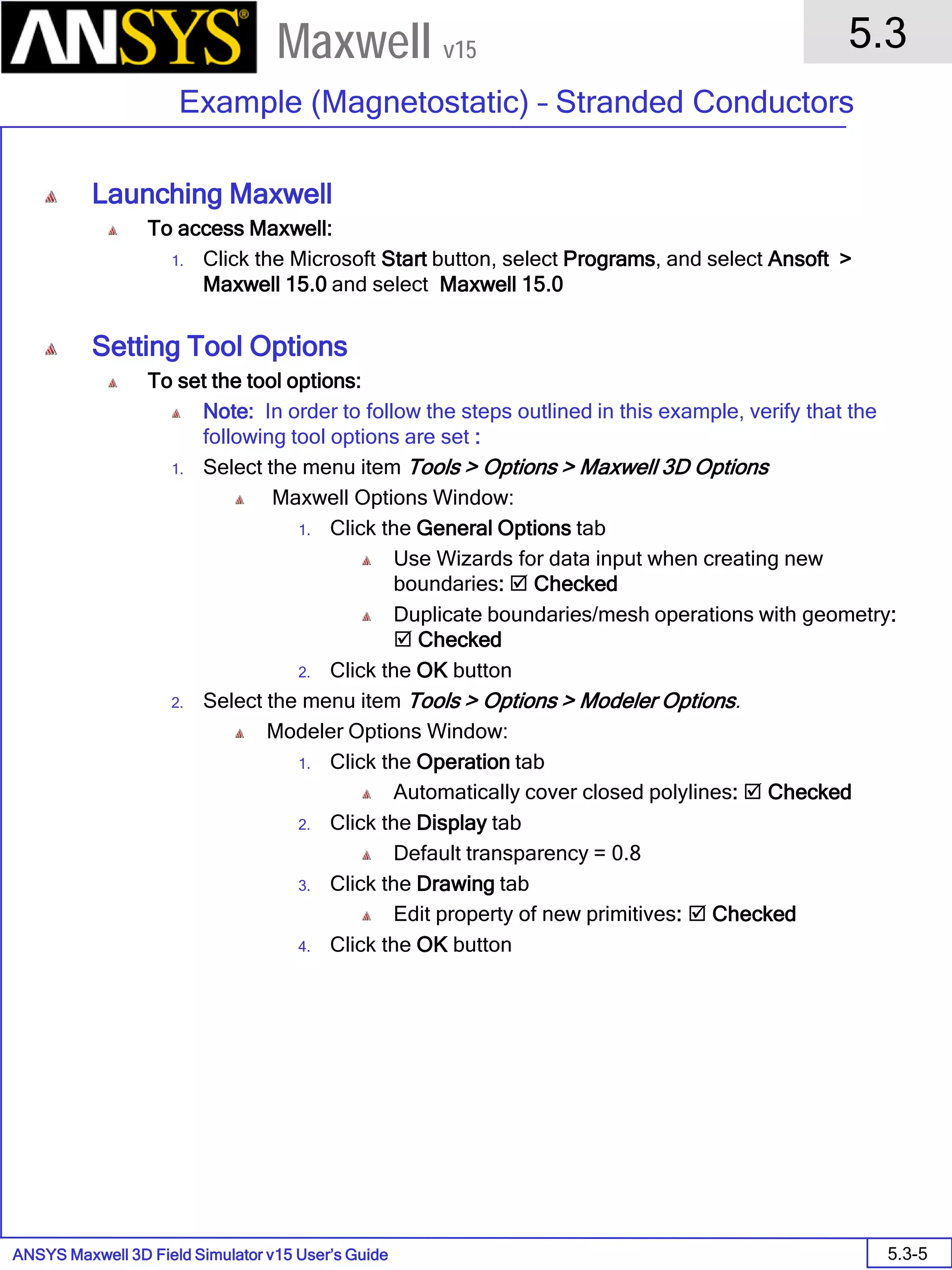
  • 915.
    ANSYS Maxwell 3DField Simulator v15 User’s Guide 11.1 Motor Application Note 11.1-45 Maxwell v15 Add Winding for Phase B and Phase C Similarly add Windings for Phase B and Phase C Phase B 1. Name: Phase_B 2. Type: Current 3. Check Stranded 4. Current: Imax*sin(Omega_rad*Time-2*pi/3+Thet) It is shift by -120 degrees from PhaseA. 5. Press OK 6. Add the terminal PhaseB to this winding Phase C 1. Name: Phase_C 2. Type: Current 3. Check Stranded 4. Current: Imax*sin(Omega_rad*Time+2*pi/3+Thet) It is shift by +120 degrees from PhaseA. 5. Press OK 6. Add the terminal PhaseC to this winding
  • 916.
    ANSYS Maxwell 3DField Simulator v15 User’s Guide 11.1 Motor Application Note 11.1-46 Maxwell v15 Create Band Object The moving parts (rotor and permanent magnets) need to be enclosed in an air object, the band. This will separated the moving part from the fixed part of the project. Some rules apply for the definition of the band object for motor applications: The band object must be somewhat larger than the rotating parts in all directions (except at the boundaries) An ‘inner band’ object must also be present: it has to enclose all the moving object inside the band object. To create the Band object, we use an rectangle on the plane XZ that will be swept around the Z axis to create a “Camembert” style volume. To Create a Rectangle Select the menu item Modeler > Coordinate System > Set Work CS Select Global and press Select Select the menu item Modeler > Grid Plane > XZ Select the menu item Draw > Rectangle The rotor radius is 80.2mm. The inner diameter of the stator 80.95mm. We pick the middle for Band object 1. Using the coordinate entry field, enter the box position X: 80.575, Y: 0.0, Z: 0.0, Press the Enter key 2. Using the coordinate entry field, enter the relative size of the box dX: -80.575, dY: 0.0, dZ: 43.0, Press the Enter key Change the name of the resulting sheet to Band
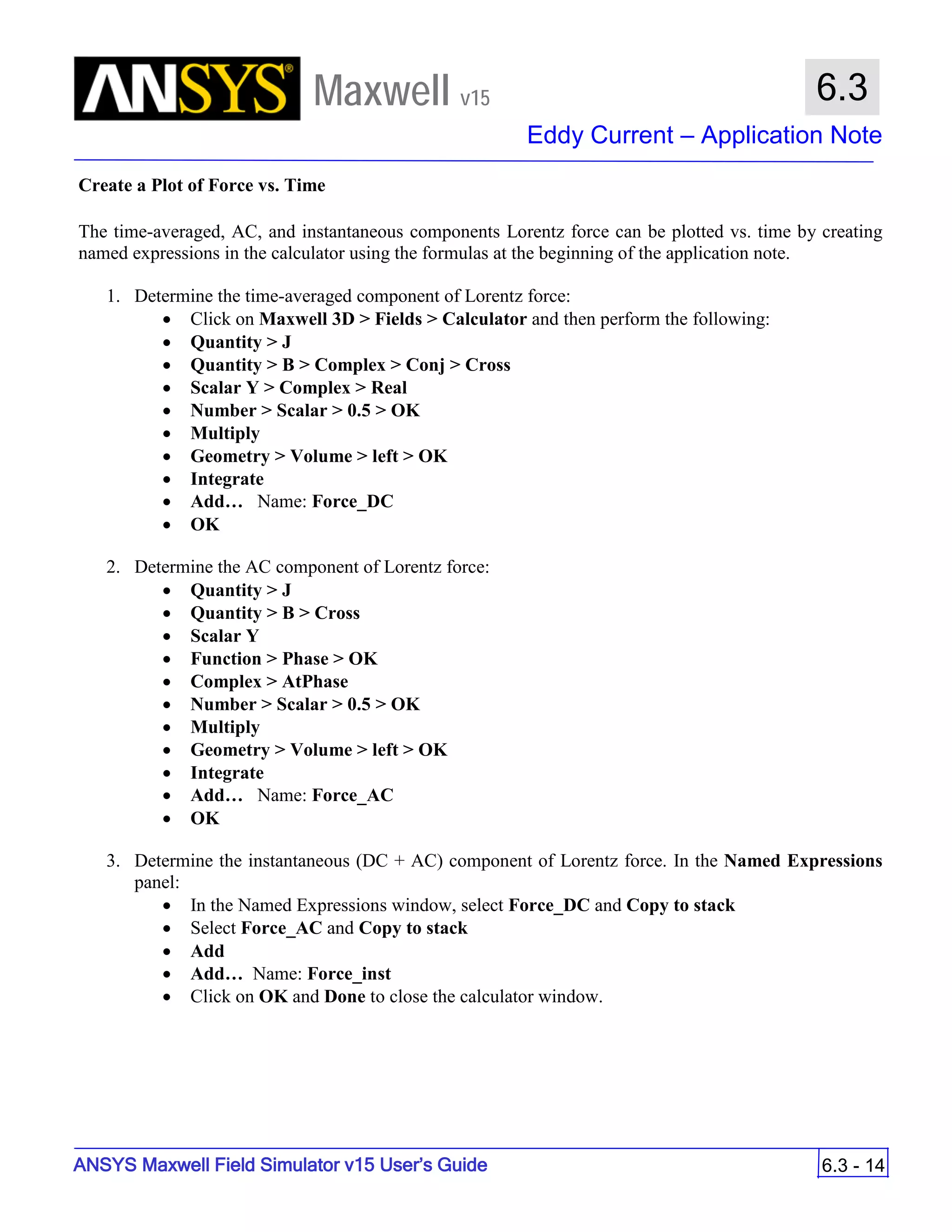
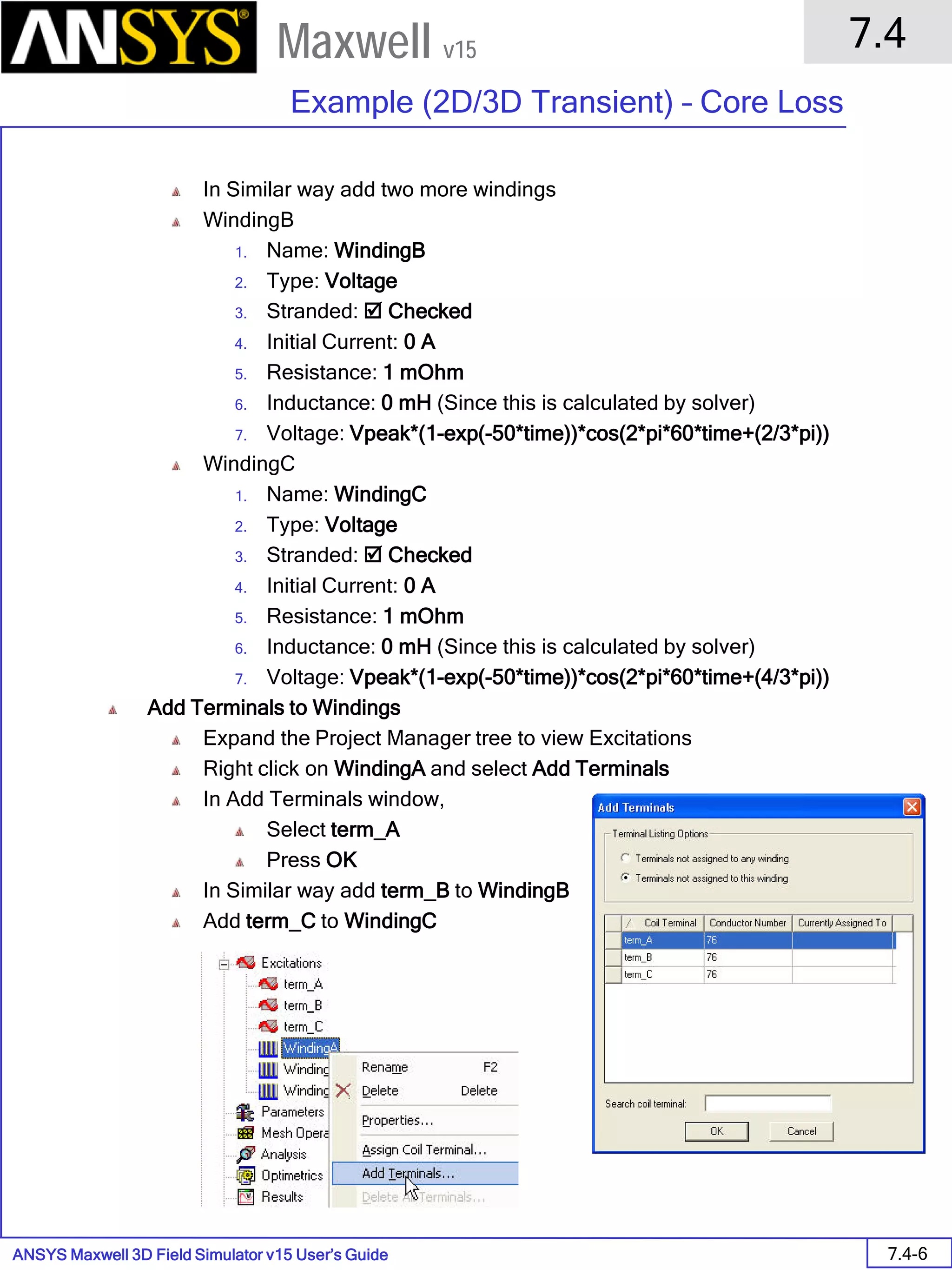
  • 917.
    ANSYS Maxwell 3DField Simulator v15 User’s Guide 11.1 Motor Application Note 11.1-47 Maxwell v15 To Sweep Rectangle Select the sheet Band from the history tree Select the menu item Draw > Sweep > Around Axis In Sweep Around Axis window, 1. Axis: Z 2. Angle of sweep: 45 3. Number of segments: 0 4. Press OK
  • 918.
    ANSYS Maxwell 3DField Simulator v15 User’s Guide 11.1 Motor Application Note 11.1-48 Maxwell v15 Mesh Operations The transient solver does not use adaptive meshing because this would require to refine the mesh at every time steps, leading to very high computation time. Using Mesh operations, we will define a decent mesh for the full transient simulation. Once the Motion Setup is a Mesh operation for Refinement in airgap region is automatically created. For the rest, we will define Mesh Operations Mesh Operation for Rotor The Rotor is designed to be highly saturated around the permanent magnets, close to the air gap. It is required to have a good mesh density around this area. To achieve this requirement, we create a couple of objects inside the rotor; then mesh operations will be applied to these objects in order to have a nice mesh around the ducts. Create Rectangle Make sure the Grid Plane is set to XZ plane Select the menu item Draw > Rectangle 1. Using the coordinate entry field, enter the box position X: 78.72, Y: 0.0, Z: 0.0, Press the Enter key 2. Using the coordinate entry field, enter the relative size of the box dX: 1.48, dY: 0.0, dZ: 41.91, Press the Enter key Name the resulting object as Rotor2 Highly saturated zones
  • 919.
    ANSYS Maxwell 3DField Simulator v15 User’s Guide 11.1 Motor Application Note 11.1-49 Maxwell v15 To Sweep Rectangle Select the sheet Rotor2 from the history tree Select the menu item Draw > Sweep > Around Axis In Sweep Around Axis window, 1. Axis: Z 2. Angle of sweep: 45 3. Number of segments: 0 4. Press OK Change the material property of Rotor2 to M19_29G. Also, assign the same color and transparency as the object Rotor. Note: since Rotor2 is entirely inside Rotor, we do not need to apply Boolean operations. Note: because of the finite number of pixels on the computer’s screen, true surfaces are represented as facetted surfaces. Also, for the same reason, the object Rotor2 seems to intersect with the ducts but this is not the case. You can modify the default visualization setting using: View > Render > Curved Object Visualization
  • 920.
    ANSYS Maxwell 3DField Simulator v15 User’s Guide 11.1 Motor Application Note 11.1-50 Maxwell v15 Create Rectangle Make sure the Grid Plane is set to XZ plane Select the menu item Draw > Rectangle 1. Using the coordinate entry field, enter the box position X: 78.72, Y: 0.0, Z: 0.0, Press the Enter key 2. Using the coordinate entry field, enter the relative size of the box dX: 1.48/2, dY: 0.0, dZ: 41.91, Press the Enter key Name the resulting object as Rotor3 To Sweep Rectangle Select the sheet Rotor3 from the history tree Select the menu item Draw > Sweep > Around Axis In Sweep Around Axis window, 1. Axis: Z 2. Angle of sweep: 45 3. Number of segments: 0 4. Press OK Change the material property of Rotor3 to M19_29G. Also, assign the same color and transparency as the object Rotor. We now have created two layers between the ducts and the air gap.
  • 921.
    ANSYS Maxwell 3DField Simulator v15 User’s Guide 11.1 Motor Application Note 11.1-51 Maxwell v15 Assign Mesh Operation for Coils Delete existing mesh operations from the tree Press Ctrl and select all Coils from history tree Select the mesh item Maxwell 3D > Mesh Operations > Assign > Surface Approximation In Surface Approximation window, 1. Name: Coils 2. Set Maximum Surface Deviation (Length): 1mm 3. Set Maximum Normal Deviation (Angle) : 30 deg 4. Set Aspect Ratio: 15 5. Press OK Mesh Operation for Magnets Press Ctrl and select the objects PM1 and PM2 from history tree Select the menu item Maxwell 3D > Mesh Operations > Assign > Inside Selection > Length Based In Element Length based Refinement window, 1. Name: Magnets 2. Restrict the Length of Elements:  Checked 3. Restrict the Number of Elements:  Unchecked 4. Maximum Length of Elements: 3.5 mm 5. Press OK
  • 922.
    ANSYS Maxwell 3DField Simulator v15 User’s Guide 11.1 Motor Application Note 11.1-52 Maxwell v15 Mesh Operation for Rotor Select the object Rotor from history tree Select the menu item Maxwell 3D > Mesh Operations > Assign > Inside Selection > Length Based In Element Length based Refinement window, 1. Name: Rotor 2. Restrict the Length of Elements:  Unchecked 3. Restrict the Number of Elements:  Checked 4. Maximum Number of Elements: 5000 5. Press OK Mesh Operation for Stator Select the object Stator from history tree Select the menu item Maxwell 3D > Mesh Operations > Assign > Inside Selection > Length Based In Element Length based Refinement window, 1. Name: Stator 2. Restrict the Length of Elements:  Unchecked 3. Restrict the Number of Elements:  Checked 4. Maximum Number of Elements: 5000 5. Press OK
  • 923.
    ANSYS Maxwell 3DField Simulator v15 User’s Guide 11.1 Motor Application Note 11.1-53 Maxwell v15 Assign Motion To Assign Motion Select the object Band from the history tree Select the menu item Maxwell 3D > Model > Motion Setup > Assign Band In Motion Setup window, 1. Type Tab Motion Type: Rotation Rotation Axis: Global:Z Select Positive 2. Data Tab Initial Position: 37.5 deg The initial position of this synchronous motor is such that the A phase is opposite to the d-axis. 3. Mechanical Tab Angular Velocity: 3000 rpm 4. Press OK
  • 924.
    ANSYS Maxwell 3DField Simulator v15 User’s Guide 11.1 Motor Application Note 11.1-54 Maxwell v15 Set Symmetry Multiplier To Set Symmetry Multiplier Select the menu item Maxwell 3D > Design Settings In Design Settings window, 1. Symmetry Multiplier tab Symmetry Multiplier: 16 2. Since we model 1/16th of the motor (our model spans on 45° and the XY plane has a symmetry), The force, torque will be rescaled to take into account the full model. Since the Torque will be automatically computed, delete the Torque calculation that was set in Magnetostatic. The Torque1 calculation is present in Parameters
  • 925.
    ANSYS Maxwell 3DField Simulator v15 User’s Guide 11.1 Motor Application Note 11.1-55 Maxwell v15 Solution Setup To Create Solution Setup At 3000 rpm, a revolution takes 20ms (3000 rpm means 50 revolutions per second or 1/50 s for one revolution) . To achieve reasonable accuracy, we want to have a time step every 2 or 3 degrees. In this study, to have faster results, we use a time step of 250 us (thus every 4.5 degrees). Select the menu item Maxwell 3D > Analysis Setup > Add Solution Setup In Solve Setup window, 1. General tab Stop Time: 10 ms Time Step: 250 us 2. Save Fields tab Type : Linear Step Start: 0 s Stop: 10 ms Step Size: 250 us Select Add to List 3. Solver tab Non-linear Residuals: 1e-4 4. Press OK
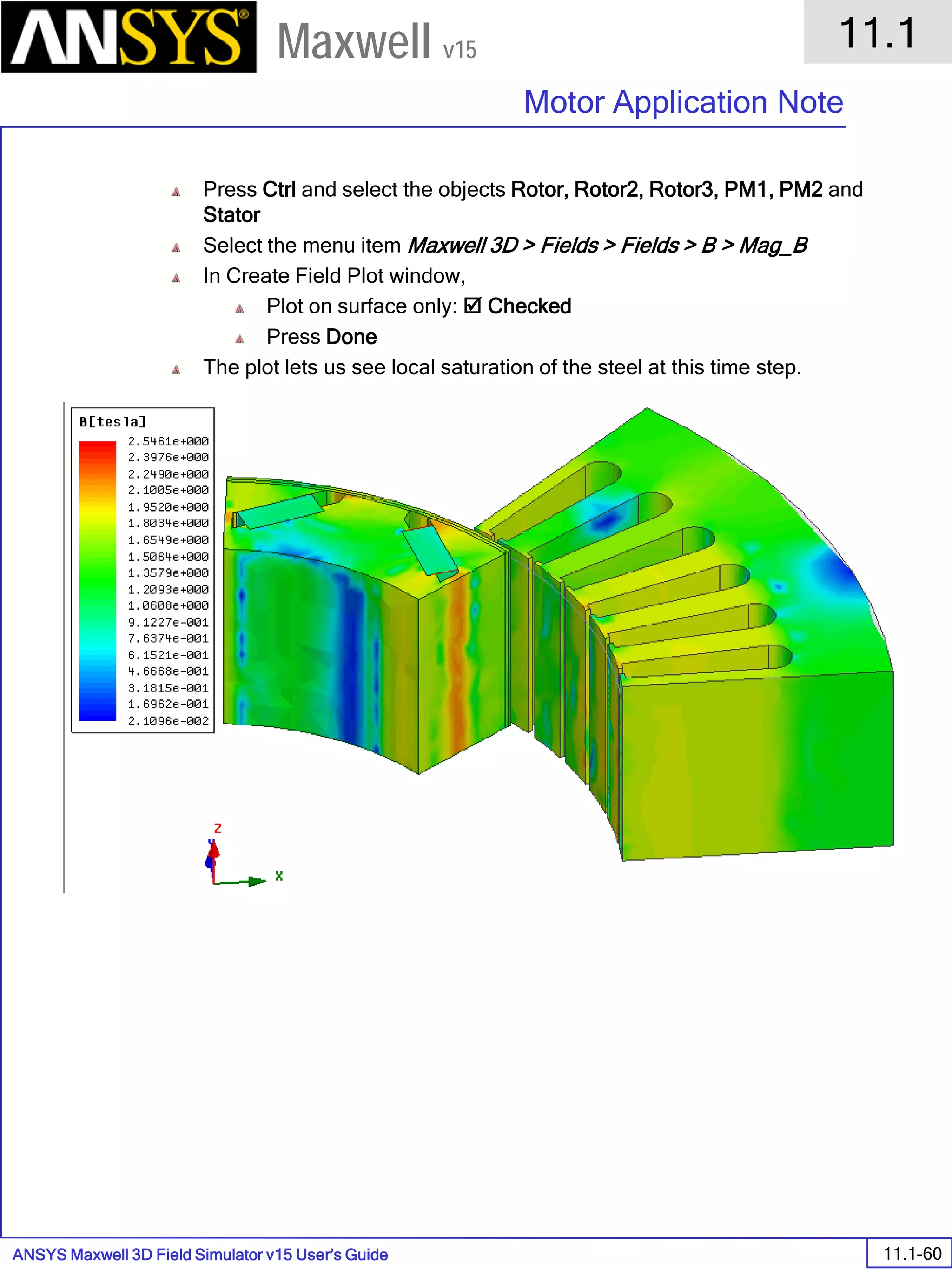
  • 926.
    ANSYS Maxwell 3DField Simulator v15 User’s Guide 11.1 Motor Application Note 11.1-56 Maxwell v15 Validation Check To Check the Validity of the Setup Select the menu item Maxwell 3D > Validation Check Maxwell checks the geometry, excitation definitions, mesh operations and so one. The model is validated but some Warnings are displayed in the message box: 1. Boundary and Excitations lie on the same plane which is what we want (coils and the Master/Slave planes intersect) 2. Eddy effect are not taken into account in our design which is what we decided Solve To Run Solution Select the menu item Maxwell 3D > Analyze All If you have several CPUs on your machine and the subsequent licensing, you can select in Tools > Options > Maxwell3D Options (Solver tab) the number of CPUs to use
  • 927.
    ANSYS Maxwell 3DField Simulator v15 User’s Guide 11.1 Motor Application Note 11.1-57 Maxwell v15 Postprocessing The full simulation takes about one hour to solve. It is not necessary to wait for the end of the simulation to display results. Solve information appear in the profile of simulation To View Solution Data Select the menu item Maxwell 3D > Results > Solution Data Performance curves can be displayed during the simulation. They are updated at the end of each time steps. To Create Torque Vs Time Plot Select the menu item Maxwell 3D > Results > Create Quick Reports In Quick report window, 1. Select Torque 2. Press OK We can see that there are a lot of ripples. The ratio between the torque and the torque ripples is almost 5 percent. This is due to the unique structure of the IPM motor (Internal Permanent Magnets). To limit the ripple, some manufacturers modify slightly the rotor shape around the magnets or add a second layer of internal magnets
  • 928.
    ANSYS Maxwell 3DField Simulator v15 User’s Guide 11.1 Motor Application Note 11.1-58 Maxwell v15 To Calculate Average Torque Right click on the Torque Plot and select Trace Characteristics > Add In Add Trace Characteristics window, Category: Math Function: avg Range: Specified Start of Range: 2 ms End of Range: 10 ms Press Add The reported value of Torque is around 243 Nm Plot Flux Linkages Vs Time Select the menu item Maxwell 3D > Results > Create Transient Report > Rectangular Plot In report window, Category: Winding Quantity: Press Ctrl and select FluxLinkage(PhaseA), FluxLinkage(PhaseB) and FluxLinkage(PhaseC) Select New Report
  • 929.
    ANSYS Maxwell 3DField Simulator v15 User’s Guide 11.1 Motor Application Note 11.1-59 Maxwell v15 The curves are not really smooth. The reason is that the mesh is certainly too coarse ; reducing the time step will also improve the smoothness of the curve Plot Flux Density Select the menu item View > Set Solution Context In Set View Context window, 1. Set Time to 0.01 s 2. Select OK
  • 930.
    ANSYS Maxwell 3DField Simulator v15 User’s Guide 11.1 Motor Application Note 11.1-60 Maxwell v15 Press Ctrl and select the objects Rotor, Rotor2, Rotor3, PM1, PM2 and Stator Select the menu item Maxwell 3D > Fields > Fields > B > Mag_B In Create Field Plot window, Plot on surface only:  Checked Press Done The plot lets us see local saturation of the steel at this time step.
  • 931.
    ANSYS Maxwell 3DField Simulator v15 User’s Guide 11.1 Motor Application Note 11.1-61 Maxwell v15 Parametric Study The setup that has been solved was with a load angle of 20 deg. If the load angle is modified, the simulation has to be restarted. A parametric sweep will therefore take a very long time. We can propose two approaches: Realize a Equivalent Circuit Extraction of the motor. This method requires the combination of parametric sweeps in magneto-static and the circuit simulator Simplorer. We will not discuss this method in this write-up. Realize a parametric transient simulation. To cut the simulation time, the use of the Distributive Solve is necessary. This is the chosen method. To Create a Parametric Analysis Select the menu item Maxwell 3D > Optimetrics Analysis > Add Parametric In Setup Sweep Analysis window, select Add In Add/Edit window, 1. Variable: Thet_deg 2. Select Linear Step 3. Start: 0 deg 4. Stop: 60 deg 5. Step: 15 deg 6. Select Add In Setup Sweep Analysis window, General Tab This panel enables the user to change a design variable. For instance, if you wish to run the parametric sweep with a peak winding current of 400 A, select the Override button, and change the current value.
  • 932.
    ANSYS Maxwell 3DField Simulator v15 User’s Guide 11.1 Motor Application Note 11.1-62 Maxwell v15 Calculation tab, Select Setup calculation In Add/Edit Calculation window, Category: Torque Quantity: Moving1.Torque Select the button Range Function In Set Range Function window, Category: Math Function: avgabs Press OK Select Add Calculation Press Done Press OK to close Run the parametric sweep. To run the sweep, select the Parametricsetup1, right mouse click and select the menu item Analysis: It will run with Distributed Analysis if the DSO (Distributed Solve) license is activated It will run the sweep on a single computer otherwise
  • 933.
    ANSYS Maxwell 3DField Simulator v15 User’s Guide 12.0 Chapter 12.0 – Multiphysics Coupling 12.0 Maxwell v15 Chapter 12.0 – Multiphysics Coupling 12.1 – Maxwell Magnetostatic and ANSYS Mechanical Coupling (IGBT) 12.2 – Maxwell Eddy Current to FLUENT Coupling 12.3 – Maxwell Transient to FLUENT Coupling 12.4 – Maxwell Electrostatic to ANSYS Mechanical Coupling (Compact Capacitor)
  • 934.
    ANSYS Maxwell 3DField Simulator v15 User’s Guide 12.1 Multiphysics Coupling - IGBT 12.1-1 Maxwell v15 Insulated Gate Bipolar Transistor (IGBT) Insulated Gate Bipolar Transistor is power semiconductor device used for high efficiency and fast switching in modern appliances such as electric cars, trains, variable speed refrigerators, air-conditioners, etc. These devices are designed for carrying high currents and many times lead to failures in Bondwires due to high thermal stresses. In this example, we will be modeling an IGBT device using Maxwell to get Heat losses and Lorentz forces in Bondwires and then transfer this data to ANSYS Mechanical to calculate Stresses on the wires and determine regions prone to failure. In addition, thermal conductivity of all components will be set as function of temperature. Temperature data from ANSYS Mechanical will be transferred back to Maxwell to calculate exact heat losses. Total geometry is a six leg IGBT system. To simplify the tutorial, we will be modeling only one leg in the example. Maxwell Steady State Thermal Static Structural
  • 935.
    ANSYS Maxwell 3DField Simulator v15 User’s Guide 12.1 Multiphysics Coupling - IGBT 12.1-2 Maxwell v15 ANSYS Maxwell Design Environment The following features of the ANSYS Maxwell Design Environment are used to create the models covered in this topic Boundaries/Excitations Current: Stranded Analysis Magnetostatic Steady State Thermal (ANSYS Mechanical) Static Structural (ANSYS Mechanical) Results Force Field Overlays: J Field Temperature Equivalent Stress Deformation
  • 936.
    ANSYS Maxwell 3DField Simulator v15 User’s Guide 12.1 Multiphysics Coupling - IGBT 12.1-3 Maxwell v15 Prerequisites To Run this Tutorial ANSYS Workbench R13/R14 needs to be installed for performing this tutorial ANSYS Mechanical licenses are needed Maxwell needs to be integrated with ANSYS Workbench while installation Launching ANSYS Workbench To launch Workbench: 1. Click the Microsoft Start button, select Programs, and select ANSYS 14.0 > Workbench Open Maxwell Project To Open Maxwell File In ANSYS Workbench Project window, select the menu item File > Import Set file type to Maxwell Project File (.mxwl) Locate the file Ex_5_9_IGBT_One_Leg.mxwl and Open it Maxwell Analysis System will be automatically created as shown in below image Launch Maxwell To Launch Maxwell Right click on Geometry tab of Maxwell 3D Analysis system and select Edit
  • 937.
    ANSYS Maxwell 3DField Simulator v15 User’s Guide 12.1 Multiphysics Coupling - IGBT 12.1-4 Maxwell v15 Description of Geometry Six Leg IGBT Device Below shown is the image of a six leg IGBT device. The device has three phase supply, Positive and Negative terminals as shown in image There are 12 IGBT chips and 12 diodes, six on each side of terminal wires Diodes and IGBT chips are connected with each other using Aluminum Bondwires In this tutorial, we will be considering only one leg of geometry which is shown in rectangle in below image. Negative Terminal Positive Terminal Phase A Phase B Phase C One Leg Diodes 12 in Total IGBTs 12 in Total
  • 938.
    ANSYS Maxwell 3DField Simulator v15 User’s Guide 12.1 Multiphysics Coupling - IGBT 12.1-5 Maxwell v15 Input File Description One Leg IGBT Geometry Input file contains the geometry of one leg separated out of Six leg IGBT system. Names and Material definition to all parts is already done. Model tree should look as shown in the image. A_Bar, A_Out, A_Upper corresponds to Phase A of Supply. N_Bar corresponds to Negative terminal while P_Bar corresponds to the positive terminal. Diodes A1_B, A2_B and IGBT A2_B are in “OFF” conditions. They have been assigned with material as “vacuum” as they do not contribute to the field. Bondwires G1, G2, G3 and G4 will be the focus of this simulation as these thin wires carry very high currents and more likely to fail due to thermal stresses.
  • 939.
    ANSYS Maxwell 3DField Simulator v15 User’s Guide 12.1 Multiphysics Coupling - IGBT 12.1-6 Maxwell v15 Set Solution Type To set the Solution Type: Select the menu item Maxwell 3D > Solution Type Solution Type Window: 1. Choose Magnetostatic 2. Click the OK button Assign Excitations To Assign Phase Current Select the menu item Edit > Select > Faces or press F from the keyboard to change selection to faces Select the face of A_Out as shown in image Select the menu item Maxwell 3D > Excitations > Assign >Current In Current Excitation window, 1. Name: PhaseA 2. Value: 40 A 3. Type: Solid 4. Direction: Positive Z 5. Press OK
  • 940.
    ANSYS Maxwell 3DField Simulator v15 User’s Guide 12.1 Multiphysics Coupling - IGBT 12.1-7 Maxwell v15 To Assign Terminal Current to P_Bar Select the face of P_Bar as shown in image Select the menu item Maxwell 3D > Excitations > Assign >Current In Current Excitation window, 1. Name: PTerm 2. Value: 20 A 3. Type: Solid 4. Direction: Negative X 5. Press OK To Assign Terminal Current to A_Upper Select the face of A_Upper as shown in image Select the menu item Maxwell 3D > Excitations > Assign >Current In Current Excitation window, 1. Name: PTerm2 2. Value: 20 A 3. Type: Solid 4. Direction: Negative X 5. Press OK
  • 941.
    ANSYS Maxwell 3DField Simulator v15 User’s Guide 12.1 Multiphysics Coupling - IGBT 12.1-8 Maxwell v15 Set Temperature Dependent Material Properties Note: In this step, thermal conductivity of Copper and Aluminum will be set as function of temperature. At the start, temperature of all objects is considered to be at 22 ̊C. After Solving for Temperature in ANSYS Mechanical, temperature data will be transferred back to Maxwell and solution will recalculated with new temperatures applied through ANSYS Mechanical. To Set Thermal Modifier for Copper Right click on copper material tab from the history tree and select properties In Select Definition window, 1. Select option View/Edit Material 2. In View/Edit Material window 1. Thermal Modifier:  Checked 2. Bulk Conductivity: Thermal Modifier: Select Edit In Edit Thermal Modifier window, Modifier: Set to if(Temp > 1000, 0.2, if(Temp < 0, 1, 1/(1+0.004*Temp))) Press OK 3. Press OK 3. Press OK
  • 942.
    ANSYS Maxwell 3DField Simulator v15 User’s Guide 12.1 Multiphysics Coupling - IGBT 12.1-9 Maxwell v15 To Set Thermal Modifier for Aluminum Right click on aluminum material tab from the history tree and select properties In Select Definition window, 1. Select option View/Edit Material 2. In View/Edit Material window 1. Thermal Modifier:  Checked 2. Bulk Conductivity: Thermal Modifier: Select Edit In Edit Thermal Modifier window, Modifier: Set to if(Temp > 1000, 0.2, if(Temp < 0, 1, 1/(1+0.004*Temp))) Press OK 3. Press OK 3. Press OK Set Object Temperature To Set Object Temperature Select the menu item Maxwell 3D > Set Object Temperature In Temperature of Objects window, 1. Include Temperature Dependence:  Checked 2. Enable Feedback:  Checked 3. Ensure all objects are set to 22 cel 4. Press OK
  • 943.
    ANSYS Maxwell 3DField Simulator v15 User’s Guide 12.1 Multiphysics Coupling - IGBT 12.1-10 Maxwell v15 Define Region Create Simulation Region Select the menu item Draw > Region In Region window, 1. Pad individual directions:  Checked 2. +X = 0 3. -X = 100 4. +Y = 100 5. -Y = 100 6. +Z = 0 7. -Z = 100 8. Press OK
  • 944.
    ANSYS Maxwell 3DField Simulator v15 User’s Guide 12.1 Multiphysics Coupling - IGBT 12.1-11 Maxwell v15 Analysis Setup To create an analysis setup: Select the menu item Maxwell 3D > Analysis Setup > Add Solution Setup Solution Setup Window: 1. General Tab Percentage Error: 0.2 2. ConvergenceTab Refinement Per Pass: 50 3. Click the OK button Model Validation To validate the model: Select the menu item Maxwell 3D > Validation Check Click the Close button Note: To view any errors or warning messages, use the Message Manager. Analyze To start the solution process: 1. Select the menu item Maxwell 3D > Analyze All
  • 945.
    ANSYS Maxwell 3DField Simulator v15 User’s Guide 12.1 Multiphysics Coupling - IGBT 12.1-12 Maxwell v15 Solution Data To view the Solution Data: Select the menu item Maxwell 3D > Results > Solution Data To view the Profile: 1. Click the Profile Tab. To view the Convergence: 1. Click the Convergence Tab Note: The default view is for convergence is Table. Select the Plot radio button to view a graphical representations of the convergence data.
  • 946.
    ANSYS Maxwell 3DField Simulator v15 User’s Guide 12.1 Multiphysics Coupling - IGBT 12.1-13 Maxwell v15 Mag_J Plot Hide Region Select the menu item Edit > Select > Objects or press O from the keyboard to change selection to Objects Select Region from the history tree Select the menu item View > Visibility> Hide Selection > Active View Create Field Plot Select the menu item Edit > Select All Visible Select menu item Maxwell 3D > Fields > Fields > J > Mag_J In Create Field Plot window 1. Plot on surface only:  Checked 2. Select Done Modify Plot Attributes Double click on the legend to change plot properties In the window 1. Scale tab Num. Division: 50 User Limits:  Checked 1. Min: 1000 2. Max: 5e+7 Log:  Checked 2. Press Apply and Close
  • 947.
    ANSYS Maxwell 3DField Simulator v15 User’s Guide 12.1 Multiphysics Coupling - IGBT 12.1-14 Maxwell v15 The plot of the Mag_J will be as below: Volume current density is high in thin sections of Bondwire_G1 and Bondwire_G2 Exit Maxwell To Close Maxwell Select the menu item File > Close Desktop Save Project Save Workbench Project To save the project, goto the Workbench project window and select menu item File > Save As Save the file with the name Ex_12_1_IGBT_One_Leg
  • 948.
    ANSYS Maxwell 3DField Simulator v15 User’s Guide 12.1 Multiphysics Coupling - IGBT 12.1-15 Maxwell v15 Create Steady State Thermal System To Create a Steady State Thermal Analysis System Select Steady State Thermal system from the Analysis Systems list Drag and drop it on the Solution tab of Maxwell 3D Analysis System Drag and drop the geometry tab of Maxwell analysis system on the Geometry tab of the Steady State Thermal system Note: By Dropping Steady State Thermal Analysis System onto Solution tab of Maxwell System we are establishing a link between Solution tab of Maxwell and Setup tab of Steady State thermal Analysis System. This will enable the data transfer from Maxwell to ANSYS Mechanical Update Maxwell Cell To Update Maxwell Solution Right click on Solution tab of Maxwell 3D Analysis System and select update A tick mark will appear adjacent to Solution tab of Maxwell Right click on Geometry tab of Steady-State Thermal system and select Refresh
  • 949.
    ANSYS Maxwell 3DField Simulator v15 User’s Guide 12.1 Multiphysics Coupling - IGBT 12.1-16 Maxwell v15 Define Material Database To Specify Material Data Right click on Engineering Data tab and select Edit In Engineering Data window, 1. Select the icon Engineering Data Sources 2. From Engineering Data Sources, select the tab General Materials 3. Press Ctrl and select materials Aluminum Alloy, Copper Alloy and Silicon Anisotropic, right click and select Add 4. Select Return to Project to exit Engineering Data Launch ANSYS Mechanical To Launch ANSYS Mechanical Right click on Model tab of Steady State Thermal Analysis System and select Edit In ANSYS Mechanical window, a tab corresponding to Maxwell link will be automatically added
  • 950.
    ANSYS Maxwell 3DField Simulator v15 User’s Guide 12.1 Multiphysics Coupling - IGBT 12.1-17 Maxwell v15 Set Units To Set Unit System Select the menu item Units > Metric (mm, kg, N, s, mV, mA) Rest of the tutorial will be done in this unit system Define Materials To Define Copper Material Expand the Geometry tab from the History tree Press Ctrl and select the objects A_Bar, P_Bar, AA_Plate, AP_Plate, AN_Plate, N_Bar, A_Out and A_Upper In Details View Window: 1. Material: Assignment: Set to Copper Alloy To Define Aluminum Material Press Ctrl and select the objects Bonwire_G1, Bondwire_G2, Bondwire_3 and Bondwire_G4 In Details View Window: 1. Definition: Assignment: Set to Aluminum Alloy To Define Silicon Material Press Ctrl and select the objects Diode_A1_T, Diode_A1_B, Diode_A2_T, Diode_A2_B, IGBT_A1_T, IGBT_A1_B, IGBT_A2_T and IGBT_A2_B In Details View Window: 1. Material: Assignment: Set to Silicon Anisotropic Non-linear Effects: No
  • 951.
    ANSYS Maxwell 3DField Simulator v15 User’s Guide 12.1 Multiphysics Coupling - IGBT 12.1-18 Maxwell v15 Assign Mesh Parameters Note: Mesh size variation from bondwires to the bodies attached with it can not be too large. In order to avoid this, we need to specify smaller mesh sizes to these bodies. To Assign Mesh Parameters for Bondwires Right click on Mesh tab from the tree and select Insert > Sizing In Details of Sizing window, 1. Geometry: Change the selection filter to “Bodies” Press Ctrl and select all Bondwires from Graphic window Press Apply 2. Element Size: 0.1mm To Assign Mesh Parameters for Bondwires Right click on Mesh tab from the tree and select Insert > Sizing In Details of Sizing window, 1. Geometry: Press Ctrl and select the bodies AA_Plate, Diode_A1_T, Diode_A2_T, IGBT_A1_T and IGBT_A2_T from Graphic window Press Apply 2. Element Size: 0.25mm
  • 952.
    ANSYS Maxwell 3DField Simulator v15 User’s Guide 12.1 Multiphysics Coupling - IGBT 12.1-19 Maxwell v15 Generate Mesh To Launch Meshing Right click on Mesh tab and select Generate Mesh Mesh will be generated and displayed on the Graphic Window
  • 953.
    ANSYS Maxwell 3DField Simulator v15 User’s Guide 12.1 Multiphysics Coupling - IGBT 12.1-20 Maxwell v15 Import Data from Maxwell To Import Heat Generation from Maxwell Right click on the tab Imported Load (Maxwell3DSolution) and select Insert > Heat Generation In Details of Imported Heat Generation window, 1. Geometry Right click in graphic window and select “Select All” Press Apply Right click on the tab Imported Load (Maxwell3DSolution) and select Import Load Note: An Import Load transfer summery will be created below “Imported Heat Generation”. This lists error in data transfer due to variation of mesh in Maxwell and ANSYS Mechanical. The value of scale should be close to 1 in important regions.
  • 954.
    ANSYS Maxwell 3DField Simulator v15 User’s Guide 12.1 Multiphysics Coupling - IGBT 12.1-21 Maxwell v15 Specify Convective Boundary To Assign Convective Boundary Right click on Steady State Thermal tab from the tree and select Insert > Convection In Details of Convection window, 1. Geometry: Change the selection filter to “Faces” Right click in graphic window and select “Select All” Press Ctrl and select bottom faces as shown in below image to remove them from selection Press Apply 2. Film Coefficient: 1e-4 W/mm2 .° C Create Temperature Field Plot To Create Temperature Contours Right click on Solution tab from the tree and select Insert > Thermal > Temperature
  • 955.
    ANSYS Maxwell 3DField Simulator v15 User’s Guide 12.1 Multiphysics Coupling - IGBT 12.1-22 Maxwell v15 Solve Thermal Setup To Run the Solution Right click on Solution tab and select Solve Solution progress will be shown as below Temperature Contours Maximum Temperature is in Bondwires which is around 81 ̊C
  • 956.
    ANSYS Maxwell 3DField Simulator v15 User’s Guide 12.1 Multiphysics Coupling - IGBT 12.1-23 Maxwell v15 Transfer Object Temperatures to Maxwell To Transfer Temperature Data to Maxwell Right click on the tab Imported Load (Maxwell3DSolution) and select Export Results Temperatures calculated by Steady State Thermal will be transferred back to Maxwell Exit Steady State Thermal To Close ANSYS Mechanical Select the menu item File > Close Mechanical Solve Maxwell with Imported Temperatures To Launch Maxwell Right click on Solution tab of Maxwell 3D analysis system and select Edit To start the solution process: Select the menu item Maxwell 3D > Analyze All Maxwell will read imported temperatures from ANSYS Mechanical and solve using imported temperature data Note: Maxwell will now calculate heat losses based on imported temperatures which can be again applied back to Steady State Thermal Solver to get refined temperature distribution. These temperatures in turn can be applied to Maxwell. The process can be repeated until there is no significant change in Temperature results obtained
  • 957.
    ANSYS Maxwell 3DField Simulator v15 User’s Guide 12.1 Multiphysics Coupling - IGBT 12.1-24 Maxwell v15 Temperature Distribution in Maxwell Temperature Filed plot can be can be created in Maxwell which will show imported temperatures Select the menu item Edit > Select All Visible Select menu item Maxwell 3D > Fields > Fields > Other > Temperature In Create Field Plot window 1. Plot on surface only:  Checked 2. Select Done Note: As we applied temperature based properties only for Copper and Aluminum, plot is for the objects having those materials. Close Maxwell Select the menu item File > Close Desktop
  • 958.
    ANSYS Maxwell 3DField Simulator v15 User’s Guide 12.1 Multiphysics Coupling - IGBT 12.1-25 Maxwell v15 Create Static Structural System To Create Static Structural Analysis System Select Static Structural system from the Analysis Systems list Drag and drop it on the Solution tab of Steady State Thermal Analysis System Select Solution tab of Maxwell 3D Analysis system, drag and drop it on Setup tab of Static Structural Analysis System Note: By dropping Solution tab of Maxwell onto Setup tab of Static Structural System, a link will be created between them. This will ensure transfer of Lorentz Forces from Maxwell to ANSYS Mechanical Update Steady State Thermal Cell To Update Thermal Cell Right click on Results tab of Steady State Analysis System and select update New temperature plot can be seem by opening Steady State Thermal window
  • 959.
    ANSYS Maxwell 3DField Simulator v15 User’s Guide 12.1 Multiphysics Coupling - IGBT 12.1-26 Maxwell v15 Launch ANSYS Mechanical To Launch ANSYS Mechanical Right click on Setup tab of Static Structural Analysis System and select Edit Import Forces from Maxwell To Import Lorentz Forces from Maxwell Right click on the tab Imported Load (Maxwell3DSolution) and select Insert > Body Force Density In Details of Body Force Density window, 1. Geometry: Change the selection filter to “Bodies” Press Ctrl and select all bondwires from the graphic window Press Apply Right click on the tab Imported Load (Maxwell3DSolution) and select Import Load Specify Support To Specify Supports Right click on Static Structural tab of tree and select Insert > Frictionless Support In Details of Frictionless Support window 1. Geometry: Select bottom faces of geometry as shown in image Press Apply
  • 960.
    ANSYS Maxwell 3DField Simulator v15 User’s Guide 12.1 Multiphysics Coupling - IGBT 12.1-27 Maxwell v15 Create Field Plots To Stress Field Plots for Bondwires Right click on Solution tab and select Insert > Stress > Equivalent (von- Mise In Details of Equivalent Stress window 1. Geometry: Change the selection filter to “Bodies” Select all bondwires Press Apply To Deformation Field Plots for Bondwires Right click on Solution tab and select Insert > Deformation > Total In Details of Total Deformation window 1. Geometry: Select all bondwires Press Apply Solve Structural Setup To Run the Solution Right click on Solution tab and select Solve Solution progress will be shown as below
  • 961.
    ANSYS Maxwell 3DField Simulator v15 User’s Guide 12.1 Multiphysics Coupling - IGBT 12.1-28 Maxwell v15 Field Plots Equivalent Stress Maximum stress resulting in wires can be compared with the material properties to predict the failure region. Deformation Note: Deformation images are magnified. To view results to the scale Change the Result to True Scale
  • 962.
    ANSYS Maxwell 3DField Simulator v15 User’s Guide 12.1 Multiphysics Coupling - IGBT 12.1-29 Maxwell v15 Close ANSYS Mechanical To Close ANSYS Mechanical Select the menu item File > Close Mechanical Save Workbench project To Save Project Select the menu item File > Save
  • 963.
    ANSYS Maxwell 3DField Simulator v15 User’s Guide 12.2 Multiphysics Coupling – Maxwell Eddy Current to FLUENT 12.2-1 Maxwell v15 Maxwell to FLUENT Coupling This workshop guides how heat loss data can be transferred from Maxwell 15 to FLUENT 13 The example uses an eddy current solver of Maxwell to calculate heat losses which are then applied to FLUENT to simulate Natural Convection The workshop also guides users through basic FLUENT setup. This workshop is NOT intended to show how natural convection is simulated in FLUENT but rather gives basic information about FLUENT setup. For more details of FLUENT simulation, please refer FLUENT Users Guide Prerequisites Maxwell V15 and FLUENT V14 licenses should be available to perform this tutorial ANSYS Workbench R14 should be installed Heat Losses Mapped in FLUENT Temperature In Maxwell
  • 964.
    ANSYS Maxwell 3DField Simulator v15 User’s Guide 12.2 Multiphysics Coupling – Maxwell Eddy Current to FLUENT 12.2-2 Maxwell v15 Launch ANSYS Workbench To Launch Workbench Select the Microsoft Start button , select All Programes > ANSYS 14.0 > Workbench 14.0 Import Maxwell Project File Since we are using an existing Maxwell project, we will import it into Workbench. Users can create a new Maxwell Analysis System to setup a new problem. To Import Maxwell File Select the menu item File > Import Change the file type to Maxwell Project File (*.mxwl) Browse to the location where tutorial input files are saved Select the file “Ex_12_2_Maxwell_Fluent_Coupling.mxwl” and Open it. Launch Maxwell A Maxwell analysis system will be created as shown below. To Lunch Maxwell Double click on the solution tab of Maxwell analysis system. The project used here is from a Maxwell workshop. Detailed settings for the project can be found from the Maxwell workshop (6.2 Asymmetric Conductor). The starting point here is an already setup project.
  • 965.
    ANSYS Maxwell 3DField Simulator v15 User’s Guide 12.2 Multiphysics Coupling – Maxwell Eddy Current to FLUENT 12.2-3 Maxwell v15 Set Temperature Dependence In this step we will set the conductivity of the aluminum plate as function of temperature. This will enable us to get the temperature from the CFD run and recalculate the losses based on temperature dependent properties. To Set Temperature Dependent Properties Select the object Stock from the history tree, right click and select Assign Material In Select Definition window, Select View/ Edit Material In View/ Edit Material window, Thermal Modifier:  Checked Goto the Thermal Modifier column for Bulk Conductivity and select Edit In Edit Thermal Modifier window, Set Modifier as : if(Temp <=22, 1, 1/(1+0.0039*(Temp-22))) Press OK Press OK to close View/Edit Material window Enable Temperature Feedback Select the menu item Maxwell 3D > Set Object Temperature In the window, Enable the options “Include Temperature Dependence” and “Enable Feedback” Press OK
  • 966.
    ANSYS Maxwell 3DField Simulator v15 User’s Guide 12.2 Multiphysics Coupling – Maxwell Eddy Current to FLUENT 12.2-4 Maxwell v15 Verify Maxwell Settings To Verify Analysis Settings Expand the Project Manager tree to view Analysis Double click on the tab Setup1 In Solve Setup window 1. General tab Percentage Error : 0.1 2. Convergence Tab: Refinement Per Pass: 50 % 3. Solver tab: Adaptive Frequency : 200 Hz 4. Click the OK button Model Validation To validate the model: Select the menu item Maxwell 3D >Validation Check Click the Close button Note: To view any errors or warning messages, use the Message Manager. Analyze To start the solution process Select the menu item Maxwell 3D > Analyze All
  • 967.
    ANSYS Maxwell 3DField Simulator v15 User’s Guide 12.2 Multiphysics Coupling – Maxwell Eddy Current to FLUENT 12.2-5 Maxwell v15 Calculate Ohmic Losses To Calculate Ohmic Losses in Stock Select the menu item Maxwell 3D > Fields > Calculator 1. Select Input > Quantity >OhmicLoss 2. Select Input >Geometry >Volume > Stock 3. Select Scalar > integrate 4. Select Output > Eval The Ohmic losses in Stock volume are around 8.30 Watts Click Done to exit Close Maxwell To Close Maxwell window Select the menu item File > Close Desktop Save To Save Workbench Project Return to Workbench Project window Select the menu item File > Save Save the file with the name “Ex_12_2_Maxwell_Fluent_Coupling.wbpj” Enable Temperature Feedback This Feature is a Beta option in Workbench R14. To Enable this Feature Goto Tools > Options > Appearance and Enable the Beta Options Create a FLUENT Component System To Create a FLUENT Component System Expand the Toolbox for Component Systems and select a Fluent component system from it. Drag and drop the FLUENT System on Project page
  • 968.
    ANSYS Maxwell 3DField Simulator v15 User’s Guide 12.2 Multiphysics Coupling – Maxwell Eddy Current to FLUENT 12.2-6 Maxwell v15 Load Mesh A CFD mesh is needed for the FLUENT run. The purpose of this workshop is to show coupling steps and how it can be effectively used in mutiphysics simulations. Hence meshing steps are not shown. A mesh file has been provided in Tutorial Input files To Load Mesh Right click on Setup tab of FLUENT Analysis system and select Import FLUENT Case > Browse Change the File type to FLUENT Mesh file Browse to the location of the Tutorial Input Files and select the mesh file “Ex_12_2_Maxwell_Fluent_Coupling.msh.gz” and select Open A FLUENT Launcher window will pop up as shown in below image. Press OK to it. A FLUENT window will launch and mesh file will be imported into FLUENT Build Links To Create Links Without closing FLUENT window, return to Workbench project page Drag and drop Solution tab of Maxwell Analysis system onto the Setup tab of FLUENT system Right click on Solution tab of Maxwell Analysis system and select Update Right click on Setup tab of FLUENT System and select Refresh
  • 969.
    ANSYS Maxwell 3DField Simulator v15 User’s Guide 12.2 Multiphysics Coupling – Maxwell Eddy Current to FLUENT 12.2-7 Maxwell v15 FLUENT Setup Set Thermal Solution Go to Problem Setup > Models, select “Energy” from the list and click “Edit” In Energy window, 1. Energy Equation:  Checked 2. Press “OK” to exit Set Fluid Material Go to Problem Setup > Materials >Fluid > air and select “Create/Edit” Create/Edit Material window 1. Change Density from Constant to boussinesq 2. Set Density value to 1.225 kg/m3 3. Set Thermal Expansion Coefficient to 0.00343 1/K 4. Select “Change/Create” 5. Press “Close” to exit
  • 970.
    ANSYS Maxwell 3DField Simulator v15 User’s Guide 12.2 Multiphysics Coupling – Maxwell Eddy Current to FLUENT 12.2-8 Maxwell v15 Create Solid Material FLUENT applies “Aluminum” as default material for all solids. We need to add copper material from material database Go to Problem Setup > Materials, select “Solid” from the Materials list and select “Create/Edit” Create/Edit Material window Select FLUENT Datatbase In FLUENT Database Window 1. Change the Material Type to “Solid” 2. From FLUENT Solid Materials list, select Copper(Cu) 3. Select “Copy” to add the material to project 4. Select “Close” to exit FLUENT Material database Select Close to exit Create/Edit Material window Go to Problem Setup > Cell Zone Conditions, select the zone “part-coil” and select “Edit” In Solid Window 1. Change Material name to “Copper” 2. Click “OK” to exit
  • 971.
    ANSYS Maxwell 3DField Simulator v15 User’s Guide 12.2 Multiphysics Coupling – Maxwell Eddy Current to FLUENT 12.2-9 Maxwell v15 Set Operating Conditions To Set Operating conditions Go to Problem Setup > Cell Zone Conditions and select the option “Operating Conditions” In Operating Conditions Window 1. Gravity:  Checked 2. Gravitational Acceleration: X (m/s2) = 0 Y (m/s2) = 0 Z (m/s2) = -9.81 3. Operating Temperature (K) = 300 4. Specified Operating Density:  Checked Operating Density (kg/m3) = 1.225 5. Select “OK” to exit Initialize Solution To Initialize the Solution Go to Solution > Solution Initialization Change the Initialization type to Standard Initialization Press Initialize Note: It is not necessary to initialize the solution before mapping the losses from Maxwell. If you initialize the solution after mapping losses, mapping will be redone automatically
  • 972.
    ANSYS Maxwell 3DField Simulator v15 User’s Guide 12.2 Multiphysics Coupling – Maxwell Eddy Current to FLUENT 12.2-10 Maxwell v15 Map Losses from Maxwell To Maps Losses from Maxwell Select the menu item File > EM Mapping > Volumetric Energy Source In Maxwell Mapping window, FLUENT Cell Zones: Select part-stock Press OK Mapped losses will be shown in transcript window. You can verify the losses mapped in FLUENT are same as reported in Maxwell To Plot Losses Go to Display > Graphics and Animations… and double click Contours In Contours window, Filled:  Checked Contour of: Teperature > Temperature EM Source Surfaces: wall_stock Press Display and Close
  • 973.
    ANSYS Maxwell 3DField Simulator v15 User’s Guide 12.2 Multiphysics Coupling – Maxwell Eddy Current to FLUENT 12.2-11 Maxwell v15 Set Residuals and Monitors Turn off Residual Convergence It is advisable to turn off Residual check for first few iterations as Residuals might converge in first iteration itself Go to Solution > Monitors, select the option Residuals-Print, Plot and select Edit In Residual Monitors window 1. Change Convergence Criterion to None 2. Press OK to exit Set Surface Monitor Go to Solution > Monitors > Surface Monitors and select Create In Surface Monitors Window 1. Name: temperature_stock 2. Report Type: Area-Weighted Average 3. Field Variable: Temperature, Static Temperature 4. Surfaces: Select wall_stock 5. Options Plot:  Checked 6. Press OK to exit
  • 974.
    ANSYS Maxwell 3DField Simulator v15 User’s Guide 12.2 Multiphysics Coupling – Maxwell Eddy Current to FLUENT 12.2-12 Maxwell v15 Run FLUENT Solution To Run Fluent Solution Go to Solution > Run Calculation In Run Calculation Window 1. Number of Iterations = 150 2. Select Calculate to run calculations FLUENT calculation will start Residual and Surface Monitor plots will be displayed on the screen Solution needs to be run until the monitor temperature_stock reaches a steady value Temperature Feedback Once the FLUENT solution is completed, temperatures are sent to Maxwell automatically Residuals Temperature Monitor
  • 975.
    ANSYS Maxwell 3DField Simulator v15 User’s Guide 12.2 Multiphysics Coupling – Maxwell Eddy Current to FLUENT 12.2-13 Maxwell v15 Postprocessing Plot Temperature on Stock Go to Results > Graphics and Animations, select Contours from the list and select Set up In Contours Window 1. Contours of : Temperature > Static Temperature 2. Surfaces: Select wall_stock 3. Options Global Range:  Unchecked 4. Select Display to view contours
  • 976.
    ANSYS Maxwell 3DField Simulator v15 User’s Guide 12.2 Multiphysics Coupling – Maxwell Eddy Current to FLUENT 12.2-14 Maxwell v15 Create Iso-Surface From Menu items, select Surface > Iso-Surface In Iso-Surface window 1. Surface of Constant : Mesh > X-Coordinate 2. Iso-Values (m) : 0.194 3. New Surface Name : section-1 4. Select Create 5. Select Close to exit Plot Velocity Vectors Goto Results > Graphics and Animations, select Vectors from the list and select Set up In Vectors Window 1. Surfaces: Select section-1 2. Options Global Range:  Unchecked 3. Select Display to view vectors
  • 977.
    ANSYS Maxwell 3DField Simulator v15 User’s Guide 12.2 Multiphysics Coupling – Maxwell Eddy Current to FLUENT 12.2-15 Maxwell v15 Temperature plot on section-1 Using previous steps plot Static Temperature on section-1 Exit FLUENT To Close FLUENT window Select the menu item File > Close FLUENT Maxwell Solution with Temperature Feedback Run Maxwell with Temperature Feedback Double click on Solution tab of Maxwell system to launch Maxwell In Maxwell, select the menu item Maxwell 3D > Analyze All
  • 978.
    ANSYS Maxwell 3DField Simulator v15 User’s Guide 12.2 Multiphysics Coupling – Maxwell Eddy Current to FLUENT 12.2-16 Maxwell v15 Plot Temperature in Maxwell Select the object Stock history tree Select the menu item Maxwell 3D > Fields > Fields > Other > Temperature In Create Field Plot window, Plot on Surface only:  Checked Press Done Maximum Temperature on Stock reported by FLUENT was 314.16 °K which comes out to be close to 41 °C which is reported by Maxwell Losses in Stock with Temperature Feedback Select the menu item Maxwell 3D > Fields > Calculator 1. Select Input > Quantity >OhmicLoss 2. Select Input >Geometry >Volume > Stock 3. Select Scalar > integrate 4. Select Output > Eval The losses calculated by Maxwell are 8.9 watts. This can further be sent to FLUENT to calculate refined temperature The loop can be continued until there is no significant change in temperature calculated by FLUENT or losses computed by Maxwell
  • 979.
    ANSYS Maxwell 3DField Simulator v15 User’s Guide 12.3 Multiphysics Coupling – Maxwell Transient to FLUENT 12.3-1 Maxwell v15 Maxwell Transient to FLUENT Steady State Coupling This workshop is intended to show how loss data from a Maxwell transient solution can be transferred to FLUENT steady state solver for temperature calculation The example used is a Prius motor. The motor is simulated in Maxwell 2D for electromagnetic losses and the thermal simulation is performed inside FLUENT 3D The Ohmic losses in the magnets and core losses in the stator and rotor are transferred from Maxwell 2D to a 3D mesh in FLUENT for temperature calculation Losses applied in FLUENT are time averaged values This workshop shows only steps related to transferring losses from Maxwell to FLUENT and does not contain details about Maxwell or FLUENT. Please refer to FLUENT Users’ Guide for information on FLUENT Setup Prerequisites Maxwell V15 and FLUENT V14 need to be installed in order to carry out this workshop ANSYS Workbench needs to be installed as a coupling interface
  • 980.
    ANSYS Maxwell 3DField Simulator v15 User’s Guide 12.3 Multiphysics Coupling – Maxwell Transient to FLUENT 12.3-2 Maxwell v15 Launch ANSYS Workbench To Launch Workbench Select the Microsoft Start button , select All Programes > ANSYS 14.0 > Workbench 14.0 Import Maxwell Project File Since we are using an existing Maxwell project, we will import it into Workbench. Users can create a new Maxwell Analysis System to setup a new problem. To Import Maxwell File Select the menu item File > Import Change the file type to Maxwell Project File (*.mxwl) Browse to the location where tutorial input files are saved Select the file “Ex_12_3_MaxwellTransient_Fluent_Coupling.mxwl” and Open it. Launch Maxwell A Maxwell analysis system will be created as shown below. To Lunch Maxwell Double click on the solution tab of Maxwell analysis system.
  • 981.
    ANSYS Maxwell 3DField Simulator v15 User’s Guide 12.3 Multiphysics Coupling – Maxwell Transient to FLUENT 12.3-3 Maxwell v15 About Input File Input file contains a 2D geometry of a Prius motor The setup of this motor has already been done To obtain more details about the setup please refer to Example 11.1 of Maxwell 2D Tutorials Model Validation To validate the model: Select the menu item Maxwell 3D >Validation Check Click the Close button Note: To view any errors or warning messages, use the Message Manager. Analyze To start the solution process Select the menu item Maxwell 3D > Analyze All Stator Phase A Phase B Phase C Magnets Rotor Shaft
  • 982.
    ANSYS Maxwell 3DField Simulator v15 User’s Guide 12.3 Multiphysics Coupling – Maxwell Transient to FLUENT 12.3-4 Maxwell v15 Plot Losses Create Parameter for Total Losses Select the menu item Maxwell 2D > Fields > Calculator 1. Select Input > Quantity >TotalLoss 2. Select Input >Geometry >Surface > Magnet1 3. Select Scalar > integrate 4. Select Add 5. Specify the name of the expression as Loss_Magnet1 6. Press Done Plot Loss Vs Time Select the menu item Maxwell 2D > Results > Create Field Reports > Rectangular Plot In Report window 1. Category: Calculator Expressions 2. Quantity: Loss_Magnet1 3. Select New Report 4. Press Close
  • 983.
    ANSYS Maxwell 3DField Simulator v15 User’s Guide 12.3 Multiphysics Coupling – Maxwell Transient to FLUENT 12.3-5 Maxwell v15 Calculate Time Average Losses Right click on the plot and select the option Trace Characteristics > Add In Add Trace Characteristics window, 1. Category: Math 2. Function: avg 3. Range: Full 4. Select Add and Done The value displayed is around 2.3166 watts It shows time averaged Total losses Since this is a 2D case, these losses are in watts per meter We need to multiply this value with length of magnets in order to calculate Losses Do the same for the stator and rotor. Close Maxwell To Close Maxwell window Select the menu item File > Close Desktop Save To Save Workbench Project Return to Workbench Project window Select the menu item File > Save Save the file with the name “Ex_12_3_MaxwellTransient_Fluent_Coupling.wbpj”
  • 984.
    ANSYS Maxwell 3DField Simulator v15 User’s Guide 12.3 Multiphysics Coupling – Maxwell Transient to FLUENT 12.3-6 Maxwell v15 Create a FLUENT Component System To Create a FLUENT Component System Expand the Toolbox for Component Systems and select a Fluent component system from it. Drag and drop the FLUENT System on Project page Load Mesh A CFD mesh is needed for the FLUENT run. The purpose of this workshop is to show coupling steps and how it can be effectively used in mutiphysics simulations. Hence meshing steps are not shown. A mesh file has been provided in Tutorial Input files The mesh file contains only solid mesh. Users can bring Solid+Fluid mesh as well. The steps will be same as specified in the workshop. To Learn about meshing, please refer ANSYS Meshing Training manual To Load Mesh Right click on Setup tab of FLUENT Analysis system and select Import FLUENT Case > Browse Change the File type to FLUENT Mesh file Browse to the location of the Tutorial Input Files and select the mesh file “Ex_12_3_MaxwellTransient_Fluent_Coupling.msh.gz” and select Open A FLUENT Launcher window will pop up as shown in below image. Press OK to it. A FLUENT window will launch and mesh file will be imported into FLUENT
  • 985.
    ANSYS Maxwell 3DField Simulator v15 User’s Guide 12.3 Multiphysics Coupling – Maxwell Transient to FLUENT 12.3-7 Maxwell v15 Build Links To Create Links Without closing FLUENT window, return to Workbench project page Drag and drop Solution tab of Maxwell Analysis system onto the Setup tab of FLUENT system Right click on Solution tab of Maxwell Analysis system and select Update Right click on Setup tab of FLUENT System and select Refresh Set Thermal Solution To Set Thermal Solution Go to Problem Setup > Models, select “Energy” from the list and click “Edit” In Energy window, 1. Energy Equation:  Checked 2. Press “OK” to exit Note: Thermal Solution needs to be ON for data mapping since mapped quantities will be Heat Losses. If the Energy is not ON in FLUENT, it will be turned ON automatically while mapping the data. Initialize Solution To Initialize the Solution Go to Solution > Solution Initialization Change the Initialization type to Standard Initialization Press Initialize Note: It is not necessary to initialize the solution before mapping the losses from Maxwell. If you initialize the solution after mapping losses, mapping will be redone automatically
  • 986.
    ANSYS Maxwell 3DField Simulator v15 User’s Guide 12.3 Multiphysics Coupling – Maxwell Transient to FLUENT 12.3-8 Maxwell v15 Map Losses from Maxwell To Maps Losses from Maxwell Select the menu item File > EM Mapping > Volumetric Energy Source In Maxwell Mapping window, FLUENT Cell Zones: Press Ctrl and select the zones magnet1, magnet2, rotor and stator Start: 3.125e4 Stop: 5.625e6 Press OK Mapped Losses After data mapping, FLUENT will display the losses mapped to selected zones The losses reported for magnet1 and magnet2 are around 0.193 watts for both If losses (per unit length value) calculated in Maxwell are multiplied with the length of the magnet, it should be close to the mapped losses reported by FLUENT Length of the magnets is 0.08382 meters and losses calculated in Maxwell for magent1 is around 2.3166 watts per meter This gives a value of 0.194 watts which is close to the value reported in FLUENT It can be verified that losses for other regions are also correct.
  • 987.
    ANSYS Maxwell 3DField Simulator v15 User’s Guide 12.3 Multiphysics Coupling – Maxwell Transient to FLUENT 12.3-9 Maxwell v15 Plot Mapped Losses To Plot Losses Go to Display > Graphics and Animations… and double click Contours In Contours window, Filled:  Checked Contour of: Teperature > Temperature EM Source Surfaces: wall-magnet1, wall-magnet2, wall-rotor and wall-stator Press Display and Close The workshop focuses on the mapping process. For temperature calculation, the following is also important but not demonstrated in the workshop A mesh for the fluid surrounding the solid regions is needed for a CFD calculation. Winding losses are not mapped. Winding losses are actually the largest losses among all and must be supplied for realistic temperature calculation. For stranded windings, there is no spatial winding loss distribution and a constant value can be specified in FLUENT as a heat source term.
  • 988.
    ANSYS Maxwell 3DField Simulator v15 User’s Guide 12.4 Multiphysics Coupling – Compact Parallel Plate Capacitor 12.4-1 Maxwell v15 Compact Parallel Plate Capacitor This example uses the Electrostatic solver in the ANSYS Maxwell 3D Design Environment. It models an electrostatic parallel plate capacitor. The objective of this simulation is to determine the nominal capacitance and the static electrical stress. The electric fields will be visualized and the results coupled to ANSYS Mechanical for a structural analysis. The model consists of two parallel plates separated by a dielectric, coiled into a cylindrical package. The package has a diameter of 100mm and a height of 100mm. The application note covers the drawing of the model as well as the assignment of material properties and sources. The default Neumann boundaries on the outer region edges are adequate. The excitation consists of simple voltage sources. After the final solution is completed, plots are generated for voltage contours and electric field intensities.
  • 989.
    ANSYS Maxwell 3DField Simulator v15 User’s Guide 12.4 Multiphysics Coupling – Compact Parallel Plate Capacitor 12.4-2 Maxwell v15 ANSYS Maxwell Design Environment The following features of the ANSYS Maxwell Design Environment are used to create the models covered in this topic 3D Solid Modeling Primitives: User Defined Primitives, Cylinder Booleans: Subtract Boundaries/Excitations Voltage Analysis Electrostatic Static Structural Results Voltage Stress Field Overlays: Voltage Stress Distribution
  • 990.
    ANSYS Maxwell 3DField Simulator v15 User’s Guide 12.4 Multiphysics Coupling – Compact Parallel Plate Capacitor 12.4-3 Maxwell v15 Launching Maxwell To access Maxwell: 1. Click the Microsoft Start button, select Programs, and select Ansoft > Maxwell 15.0 and select Maxwell 15.0 Setting Tool Options To set the tool options: Note: In order to follow the steps outlined in this example, verify that the following tool options are set : 1. Select the menu item Tools > Options > Maxwell 3D Options Maxwell Options Window: 1. Click the General Options tab Use Wizards for data input when creating new boundaries:  Checked Duplicate boundaries/mesh operations with geometry:  Checked 2. Click the OK button 2. Select the menu item Tools > Options > Modeler Options. Modeler Options Window: 1. Click the Operation tab Automatically cover closed polylines:  Checked 2. Click the Display tab Default transparency = 0.8 3. Click the Drawing tab Edit property of new primitives:  Checked 4. Click the OK button
  • 991.
    ANSYS Maxwell 3DField Simulator v15 User’s Guide 12.4 Multiphysics Coupling – Compact Parallel Plate Capacitor 12.4-4 Maxwell v15 Opening a New Project To open a new project: After launching Maxwell, a project will be automatically created. You can also create a new project using below options. 1. In an Maxwell window, click the  On the Standard toolbar, or select the menu item File > New. Select the menu item Project > Insert Maxwell 3D Design, or click on the icon Set Solution Type To set the Solution Type: Select the menu item Maxwell 3D > Solution Type Solution Type Window: 1. Choose Electric > Electrostatic 2. Click the OK button
  • 992.
    ANSYS Maxwell 3DField Simulator v15 User’s Guide 12.4 Multiphysics Coupling – Compact Parallel Plate Capacitor 12.4-5 Maxwell v15 Set Model Units To Set the units: Select the menu item Modeler > Units Set Model Units: 1. Select Units: mm 2. Click the OK button Set Default Material To set the default material: Using the 3D Modeler Materials toolbar, choose Select In Select Definition window, 1. Type aluminum in the Search by Name field 2. Click the OK button
  • 993.
    ANSYS Maxwell 3DField Simulator v15 User’s Guide 12.4 Multiphysics Coupling – Compact Parallel Plate Capacitor 12.4-6 Maxwell v15 Create Coiled Electrodes Create First Electrode Select the menu item Draw > User Defined Primitive > SysLib > SegmentedHelix > RectHelix In User Defined Primitive Operation window, 1. RectHeight: 75mm 2. RectWidth: 2mm 3. StartHelixRadius: 12mm 4. RadiusChange: 6mm 5. Pitch: 0 mm 6. Turns: 2.5 7. SegmentsPerTurn: 0 8. RightHanded: 1 To Change Attributes Select the resulting object from the history tree and goto Properties window 1. Change the name of the object to Electrode_A 2. Change the color of the object to Red Create Second Electrode Using same steps as above create object with below parameters 1. RectHeight: 75mm 2. RectWidth: 2mm 3. StartHelixRadius: 15mm 4. RadiusChange: 6mm 5. Pitch: 0 mm 6. Turns: 2 7. SegmentsPerTurn: 0 8. RightHanded: 1 To Change Attributes Select the resulting object from the history tree and goto Properties window 1. Change the name of the object to Electrode_B 2. Change the color of the object to Blue
  • 994.
    ANSYS Maxwell 3DField Simulator v15 User’s Guide 12.4 Multiphysics Coupling – Compact Parallel Plate Capacitor 12.4-7 Maxwell v15 Set Default Material To set the default material: Using the 3D Modeler Materials toolbar, choose Select In Select Definition window, 1. Type polyimide in the Search by Name field 2. Click the OK button Create Coiled Dielectrics Create Dielectric Layers Using same steps as for electrodes, create first layer of dielectric with below parameters Dielectric_A 1. RectHeight: 75mm 2. RectWidth: 1.5mm 3. StartHelixRadius: 13.5mm 4. RadiusChange: 6mm 5. Pitch: 0 mm 6. Turns: 2.5 7. SegmentsPerTurn: 0 8. RightHanded: 1 Dielectric_B 1. RectHeight: 75mm 2. RectWidth: 1.5mm 3. StartHelixRadius: 16.5mm 4. RadiusChange: 6mm 5. Pitch: 0 mm 6. Turns: 2 7. SegmentsPerTurn: 0 8. RightHanded: 1
  • 995.
    ANSYS Maxwell 3DField Simulator v15 User’s Guide 12.4 Multiphysics Coupling – Compact Parallel Plate Capacitor 12.4-8 Maxwell v15 Fit the layers together The layers were purposely drawn with some overlap to ensure a snug fit. Subtract the overlapping areas to finish the layered plates To Subtract Objects Select the menu item Edit > Select All Select the menu item Modeler > Boolean > Subtract In Subtract window, Blank Parts: Electrode_A, Electrode_B Tool Parts: Dielectric_A, Dielectric_B Clone tool objects before operation:  Checked Press OK
  • 996.
    ANSYS Maxwell 3DField Simulator v15 User’s Guide 12.4 Multiphysics Coupling – Compact Parallel Plate Capacitor 12.4-9 Maxwell v15 Create Container Create Cylinder Select the menu item Draw > Cylinder 1. Using Coordinate entry field, enter the center of base X: 0, Y: 0, Z: -50, Press the Enter key 2. Using Coordinate entry field, enter the radius and height dX: 50, dY: 0, dZ: 100, Press the Enter key 3. Press OK To Change Attributes Select the resulting object from the history tree and goto Properties window 1. Change the name of the object to Can 2. Change the material of the object to Aluminum To Create Fillets Select the menu item Edit > Select > Edges or press “E” from the keyboard Select the top edge of the cylinder as shown in image Select the menu item Modeler > Fillet In Fillet Properties window, Fillet Radius: 6mm Press OK Select the menu item Edit > Select > Objects or press “O” from the keyboard to change selection back to objects
  • 997.
    ANSYS Maxwell 3DField Simulator v15 User’s Guide 12.4 Multiphysics Coupling – Compact Parallel Plate Capacitor 12.4-10 Maxwell v15 Create the Inner Fillings Copy the object Can Select the object Can from the history tree Select the menu item Edit > Copy followed by Edit > Paste Hide All Other Objects Select the menu item View > Visibility> Active View Visibility In Active View Visibility window, 1. Check the visibility for Can1 and uncheck for others 2. Press Done Create Inward Select the menu item Edit > Select > Faces or press “F” from keyboard Press Ctrl and select the three faces of Can1 as shown in image Select the menu item Modeler > Surface > Move Faces > Along Normal 1. Set Distance to -3mm 2. Press OK To Change Attributes Select the object Can1 from the history tree and goto Properties window 1. Change the name of the object to Innards 2. Change the material of the object to Teflon Select the menu item View > Visibility > Show All > Active View Subtract Objects Press Ctrl and select the objects Can and Innards Select the menu item Modeler > Boolean > Subtract In Subtract window, Blank Parts: Can Tool Parts: Innards Clone tool objects before operation:  Checked Press OK 1 2 3
  • 998.
    ANSYS Maxwell 3DField Simulator v15 User’s Guide 12.4 Multiphysics Coupling – Compact Parallel Plate Capacitor 12.4-11 Maxwell v15 Specify Excitations Assign Excitations for Electrode_A Select the object Electrode_A from the history tree Select the menu item Maxwell 3D > Excitations > Assign > Voltage In Voltage Excitation window, 1. Name: Voltage1 2. Value: 25 V 3. Press OK Assign Excitations for Electrode_B Select the object Electrode_B from the history tree Select the menu item Maxwell 3D > Excitations > Assign > Voltage In Voltage Excitation window, 1. Name: Voltage2 2. Value: 0 V 3. Press OK Assign Excitations for Can Select the object Can from the history tree Select the menu item Maxwell 3D > Excitations > Assign > Floating In Voltage Excitation window, 1. Name: Floating1 2. Value: 0 C 3. Press OK Create Solution Region To Create Region Select the menu item Draw > Region In Region window, 1. Padding Data: Pad all directions similarly 2. Padding type: Percentage Offset 3. Value: 200 4. Press OK
  • 999.
    ANSYS Maxwell 3DField Simulator v15 User’s Guide 12.4 Multiphysics Coupling – Compact Parallel Plate Capacitor 12.4-12 Maxwell v15 Analysis Setup To create an analysis setup: Select the menu item Maxwell 3D > Analysis Setup > Add Solution Setup Solution Setup Window: 1. Click the OK button to accept all default settings. Set Capacitance calculation To calculate Capacitance Select the menu item Maxwell 3D > Parameters > Assign > Matrix In Matrix window, Voltage1 Include:  Checked Press OK Note: Leaving Voltage2 unselected constrains it to be held at the 0V applied to it, making it the reference ground for our two plate capacitor Save Project To save the project: Select the menu item File > Save As. Save the file with the name: Ex_8_2_Capacitor.mxwl Model Validation To validate the model: Select the menu item Maxwell 3D > Validation Check Click the Close button Note: To view any errors or warning messages, use the Message Manager. Analyze To start the solution process: Select the menu item Maxwell 3D > Analyze All
  • 1000.
    ANSYS Maxwell 3DField Simulator v15 User’s Guide 12.4 Multiphysics Coupling – Compact Parallel Plate Capacitor 12.4-13 Maxwell v15 Solution Data To view the Solution Data: Select the menu item Maxwell 3D > Results > Solution Data To view the Profile: 1. Click the Profile Tab. To view the Convergence: 1. Click the Convergence Tab Note: The default view is for convergence is Table. Select the Plot radio button to view a graphical representations of the convergence data. To view the Mesh information: 1. Click the Mesh Statistics Tab To view capacitance Values 1. Click the Matrix tab Plot Mesh on Electrodes Hide Region Select the object Region from the history tree Select the menu item View > Visibility > Hide Selection > Active View To Plot mesh Press Ctrl and select the objects Electrode_A and Electrode_B from history tree Select the menu item Maxwell 3D > Fields > Plot Mesh In Create Mesh Plot window, 1. Press Done
  • 1001.
    ANSYS Maxwell 3DField Simulator v15 User’s Guide 12.4 Multiphysics Coupling – Compact Parallel Plate Capacitor 12.4-14 Maxwell v15 Plot the Voltage field on the Global YZ and XY planes To Plot Voltage on Planes Expand history tree for Planes and press Ctrl and select the planes Global:XY and Global:YZ Select the menu item Maxwell 3D > Fields > Fields > Voltage In Create Field Plot window, 1. Press Done Export Geometry Export Geometry for ANSYS Mechanical Select the menu item Modeler > Export Save the file in Parasolid Text Format with the name “Ex_8_2_capacitor.x_t” Save and Exit Maxwell Save File Select the menu item File > Save Exit Maxwell Select the menu item File > Exit Note: Next section of tutorial shows how forces in Maxwell can be mapped to ANSYS mechanical to calculate Stress
  • 1002.
    ANSYS Maxwell 3DField Simulator v15 User’s Guide 12.4 Multiphysics Coupling – Compact Parallel Plate Capacitor 12.4-15 Maxwell v15 ANSYS Mechanical In this section of tutorial, we will map the forces calculated by Maxwell to ANSYS Mechanical Static Structural Solver. Solution in ANSYS Mechanical will give final stress distribution of the objects Mapping data from Maxwell to ANSYS Mechanical will be done through Workbench interface Launch ANSYS Workbench To Launch ANSYS Workbench Select the Microsoft Start button and Select Programs > ANSYS 14.0 > Workbench Import Maxwell File To Import Maxwell Project In Workbench Project window, select the menu item File > Import Set the file type to Maxwell Project File Browse to the file Ex_8_2_Capacitor.mxwl and Open it Create ANSYS Mechanical Design To Create Static Structural Design Select a Static Structural Analysis System from Analysis Systems list Drag and drop it on the Solution tab of Maxwell 3D Design Drag the geometry tab of Maxwell design and drop it on Geometry tab of Static Structural Analysis System Right click on Solution tab of Maxwell 3D Design and Select Update to update the solution cell Right click on Geometry tab of Static Structural Analysis System and select Refresh
  • 1003.
    ANSYS Maxwell 3DField Simulator v15 User’s Guide 12.4 Multiphysics Coupling – Compact Parallel Plate Capacitor 12.4-16 Maxwell v15 Define Material Database To Define Material Database Right click on the tab Engineering Data and select Edit In Engineering Data window, 1. Select the icon Engineering Data Sources 2. Select the tab General Materials from Data Sources 3. Locate Aluminum Alloy material from the list and select Add To Define Material Polyimide Polyimide material is not available in material database. Hence it needs to be defined by creating new material Add a new material with the properties shown in below image Launch ANSYS Mechanical To Launch ANSYS Mechanical Right click on Model tab of Static Structural analysis system and select Edit A tab corresponding to Maxwell data is automatically added in the tree to enable data mapping
  • 1004.
    ANSYS Maxwell 3DField Simulator v15 User’s Guide 12.4 Multiphysics Coupling – Compact Parallel Plate Capacitor 12.4-17 Maxwell v15 Setup Geometry Suppress Unwanted Objects Expand the Project tree for Geometry under Model Press Ctrl and select the bodies Can and Innards, right click on the Bodies and select Suppress Body This will keep only electrodes and dielectric layers for simulation Specify Material Press Ctrl and select the bodies Electrode_A and Electrode_B from the tree and goto Details View window In Details View window, 1. Material Assignment: set to Aluminum Alloy Similarly assign Polyimide material for the bodies Dielectric_A and Dielectric_B
  • 1005.
    ANSYS Maxwell 3DField Simulator v15 User’s Guide 12.4 Multiphysics Coupling – Compact Parallel Plate Capacitor 12.4-18 Maxwell v15 Map Data from Maxwell To Map Forces from Maxwell Right click on the Imported Load (Maxwell3DSolution) and select Insert > Body Force Density In Details View window, 1. Geometry: Select all bodies Right click on the tab Body Force Density and select Import Load Forces calculated in Maxwell be mapped to the mesh in ANSYS Mechanical A Summery of mapped Forces is shown below Imported Heat Generation tab. Scaling factor shown in this summery should be close to 1 to ensure correct data mapping. If not, mesh needs to be refined in important regions. To simplify the problem, we will continue without mesh refinement. Specify Fixed Supports To Specify Fixed Support Right click on Static Structural tab from the specification tree and select Insert > Fixed Support In Details View window, 1. Geometry: Change Selection Filter to Faces Select the faces of the Electrode and Dielectric layers as shown in below image Press Apply in details view window
  • 1006.
    ANSYS Maxwell 3DField Simulator v15 User’s Guide 12.4 Multiphysics Coupling – Compact Parallel Plate Capacitor 12.4-19 Maxwell v15 Create Stress Plot To Plot Stresses on Electrode_A Right click on Solution tab from specification tree and select Insert > Stress > Equivalent (Von-Mises) In Details View window, 1. Geometry: Change Selection Filter to Bodies Select the body corresponding to Electrode_A Press Apply in details view window Solve To Run the Solution Right click on Solution tab from specification tree and select Solve Stress Plot To View Stress Plot Select the Equivalent Stress plot from specification tree under Solution Stress distribution on Electrode_A will be displayed on the graphic window