Matlab Serial Port
Practical notes on Matlab serial port programming
by
Roberto Meattini
PhD student in Robotics and Automatic Control @ University of Bologna
roberto [dot] meattini2 [at] unibo [dot] it
Matlab interfaces with serial ports through the
SERIAL PORT OBJECT
but first…
by Roberto Meattini - PhD student in Robotics and Automatic
Control @ University of Bologna
2
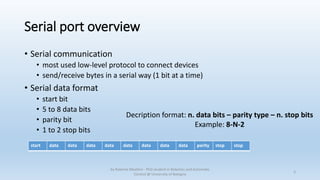
Serial port overview
• Serial communication
• most used low-level protocol to connect devices
• send/receive bytes in a serial way (1 bit at a time)
• Serial data format
• start bit
• 5 to 8 data bits
• parity bit
• 1 to 2 stop bits
by Roberto Meattini - PhD student in Robotics and Automatic
Control @ University of Bologna
3
start data data data data data data data data parity stop stop
Decription format: n. data bits – parity type – n. stop bits
Example: 8-N-2
Serial port overview (I)
• Synchronous vs. asynchronous
• sync: all transmitted bits are synchronized with a common clock
(start/stop bits are not necessary)
• async: every device has its own internal clock and data is transmitted at
arbitrary time
(start/stop bits are necessary)
• Baud rate
• n. bits transferred per second
• OS serial port
• in the following we will refer to Windows OS  COM1, COM2, …
by Roberto Meattini - PhD student in Robotics and Automatic
Control @ University of Bologna
4
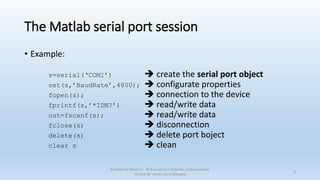
The Matlab serial port session
• Example:
s=serial(‘COM1’)  create the serial port object
set(s,’BaudRate’,4800);  configurate properties
fopen(s);  connection to the device
fprintf(s,’*IDN?’)  read/write data
out=fscanf(s);  read/write data
fclose(s)  disconnection
delete(s)  delete port boject
clear s  clean
by Roberto Meattini - PhD student in Robotics and Automatic
Control @ University of Bologna
5
The serial port session (I)
• set(s)
• shows the list of all properties
• get(s)
• shows the list of all properties with respective values
• s.BaudRate
• the way to show a single property value
• set(s,’BaudRate’,4800)
• the way to set a property value
by Roberto Meattini - PhD student in Robotics and Automatic
Control @ University of Bologna
6
Create a Serial Port Object
• s = serial(‘<port_name>’);
• the port name depends on the OS (Windows  COM1,COM2, ...)
• instrhwinfo(‘serial’)
• it is a Control Instrument Toolbox command that return a list of available
serial port
• Once the port object is created, typing
s ,
we obtain an object display summary with
serial port obj name, communication settings,
communication state, read/write operations state
by Roberto Meattini - PhD student in Robotics and Automatic
Control @ University of Bologna
7
Communication settings
• BaudRate  bits per second
• DataBits  specifies n. bits to be transmitted
• Parity  specifies the parity checking type
• Terminator  specifies the termination character
by Roberto Meattini - PhD student in Robotics and Automatic
Control @ University of Bologna
8
Writing and reading data
• Synchronous communication
• transmission is synchronized using start and stop bits and/or a common clock
between devices
• in this case, the read/write operations block the access to the Matlab command line
• Asynchronous communication
• read/write operations are not blocking
• it is possible to read and write simultaneously
• callback functions can be used
by Roberto Meattini - PhD student in Robotics and Automatic
Control @ University of Bologna
9
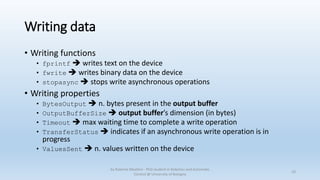
Writing data
• Writing functions
• fprintf  writes text on the device
• fwrite  writes binary data on the device
• stopasync  stops write asynchronous operations
• Writing properties
• BytesOutput  n. bytes present in the output buffer
• OutputBufferSize  output buffer’s dimension (in bytes)
• Timeout  max waiting time to complete a write operation
• TransferStatus  indicates if an asynchronous write operation is in
progress
• ValuesSent  n. values written on the device
by Roberto Meattini - PhD student in Robotics and Automatic
Control @ University of Bologna
10
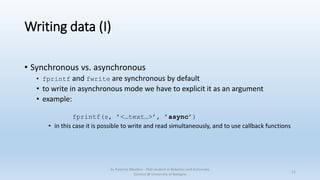
Writing data (I)
• Synchronous vs. asynchronous
• fprintf and fwrite are synchronous by default
• to write in asynchronous mode we have to explicit it as an argument
• example:
fprintf(s, ’<…text…>’, ’async’)
• in this case it is possible to write and read simultaneously, and to use callback functions
by Roberto Meattini - PhD student in Robotics and Automatic
Control @ University of Bologna
11
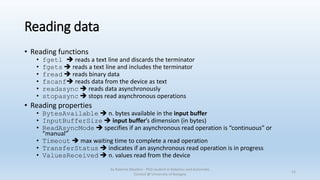
Reading data
• Reading functions
• fgetl  reads a text line and discards the terminator
• fgets  reads a text line and includes the terminator
• fread  reads binary data
• fscanf reads data from the device as text
• readasync  reads data asynchronously
• stopasync  stops read asynchronous operations
• Reading properties
• BytesAvailable  n. bytes available in the input buffer
• InputBufferSize  input buffer’s dimension (in bytes)
• ReadAsyncMode  specifies if an asynchronous read operation is “continuous” or
“manual”
• Timeout  max waiting time to complete a read operation
• TransferStatus  indicates if an asynchronous read operation is in progress
• ValuesReceived  n. values read from the device
by Roberto Meattini - PhD student in Robotics and Automatic
Control @ University of Bologna
12
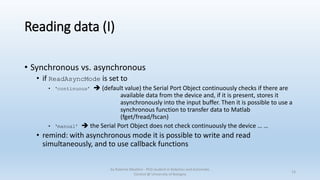
Reading data (I)
• Synchronous vs. asynchronous
• if ReadAsyncMode is set to
• ‘continuous’  (default value) the Serial Port Object continuously checks if there are
available data from the device and, if it is present, stores it
asynchronously into the input buffer. Then it is possible to use a
synchronous function to transfer data to Matlab
(fget/fread/fscan)
• ‘manual’  the Serial Port Object does not check continuously the device … …
• remind: with asynchronous mode it is possible to write and read
simultaneously, and to use callback functions
by Roberto Meattini - PhD student in Robotics and Automatic
Control @ University of Bologna
13
Reading data (II)
• fscanf operation
• blocks access to the command line until:
• the terminator is read
• timeout is expired
• n. of specified values are read
• input buffer is full
• fread operation
• it does not care about the terminator because reads directly the number of specified
values (by default bytes). Example:
s.BytesAvailable = 69;
out = fread(s, 69)  reads directly 69 bytes and stores in the variable “out”
by Roberto Meattini - PhD student in Robotics and Automatic
Control @ University of Bologna
14
Callback
A function executed when an event occurs, specifying the name of the callback function as a
value of the associated callback property
by Roberto Meattini - PhD student in Robotics and Automatic
Control @ University of Bologna
15
Events and Callbacks
• Event: BREAK INTERRUPT
• Associated properties: BreakInterruptFcn
• the serial port generate a break interrupt when the received data stay inactive for a period
greater than a character transmission time
• Event: BYTES AVAILABLE
• Associated properties: BytesAvailableFcn
BytesAvailableFcnCount
BytesAvailableFcnMode
• if BytesAvailableFcnMode is set as ‘byte’, the callback specified in
BytesAvailableFcn is executed every time there are as many bytes as in
BytesAvailableFcnCount
• if BytesAvailableFcnMode is set as ‘terminator’, the callback is executed when
the terminator character is read
• N.b.: this event can be generated only during asynchronous read operations
by Roberto Meattini - PhD student in Robotics and Automatic
Control @ University of Bologna
16
Events and Callbacks (I)
• Event: ERROR
• Associated properties: ErrorFcn
• an error event occurs when read/write operation are not complited in the time specified
in Timeout
• only for asynchronous read/write
• Event: OUTPUT EMPTY
• Associated properties: OutoutEmptyFcn
• only for asynchronous write operations
• Event: PIN STATUS
• Associated properties: PinStatusFcn
• associated to the change of the values of some control pins … …
• for both sync and async operations
by Roberto Meattini - PhD student in Robotics and Automatic
Control @ University of Bologna
17
Events and Callbacks (II)
• Event: TIMER
• Associated properties: TimerFcn
TimerPeriod
• this event is generated when the time specified in TimerPeriod expires, starting from
the serial obj connection time; callback specified in TimerFcn is executed
• based on the “system velocity” the TimePeriod value is lower bounded
by Roberto Meattini - PhD student in Robotics and Automatic
Control @ University of Bologna
18
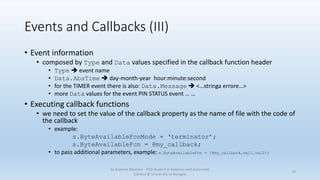
Events and Callbacks (III)
• Event information
• composed by Type and Data values specified in the callback function header
• Type  event name
• Data.AbsTime  day-month-year hour:minute:second
• for the TIMER event there is also: Data.Message  <…stringa errore…>
• more Data values for the event PIN STATUS event … …
• Executing callback functions
• we need to set the value of the callback property as the name of file with the code of
the callback
• example:
s.ByteAvailableFcnMode = ‘terminator’;
s.ByteAvailableFcn = @my_callback;
• to pass additional parameters, example: s.ByteAvailableFcn = {@my_callback,val1,val2};
by Roberto Meattini - PhD student in Robotics and Automatic
Control @ University of Bologna
19
Events and Callbacks (IV)
• Callback file, example:
function my_callback(obj,event[…others possible parameters …])
…
…
…
end
• If an error occurs during the callback execution
• the callback is automatically disabled
• a warning is shown
by Roberto Meattini - PhD student in Robotics and Automatic
Control @ University of Bologna
20
Save and loading
• myserial  file
• s  serial port obj
• out  variable with read data
save myserial s out  stores data and serial obj
load myserial  recreates s and out in the workspace
by Roberto Meattini - PhD student in Robotics and Automatic
Control @ University of Bologna
21
REFERENCE:
http://it.mathworks.com/help/matlab/serial-port-devices.html
by Roberto Meattini - PhD student in Robotics and Automatic
Control @ University of Bologna
22

Matlab Serial Port

  • 1.
    Matlab Serial Port Practicalnotes on Matlab serial port programming by Roberto Meattini PhD student in Robotics and Automatic Control @ University of Bologna roberto [dot] meattini2 [at] unibo [dot] it
  • 2.
    Matlab interfaces withserial ports through the SERIAL PORT OBJECT but first… by Roberto Meattini - PhD student in Robotics and Automatic Control @ University of Bologna 2
  • 3.
    Serial port overview •Serial communication • most used low-level protocol to connect devices • send/receive bytes in a serial way (1 bit at a time) • Serial data format • start bit • 5 to 8 data bits • parity bit • 1 to 2 stop bits by Roberto Meattini - PhD student in Robotics and Automatic Control @ University of Bologna 3 start data data data data data data data data parity stop stop Decription format: n. data bits – parity type – n. stop bits Example: 8-N-2
  • 4.
    Serial port overview(I) • Synchronous vs. asynchronous • sync: all transmitted bits are synchronized with a common clock (start/stop bits are not necessary) • async: every device has its own internal clock and data is transmitted at arbitrary time (start/stop bits are necessary) • Baud rate • n. bits transferred per second • OS serial port • in the following we will refer to Windows OS  COM1, COM2, … by Roberto Meattini - PhD student in Robotics and Automatic Control @ University of Bologna 4
  • 5.
    The Matlab serialport session • Example: s=serial(‘COM1’)  create the serial port object set(s,’BaudRate’,4800);  configurate properties fopen(s);  connection to the device fprintf(s,’*IDN?’)  read/write data out=fscanf(s);  read/write data fclose(s)  disconnection delete(s)  delete port boject clear s  clean by Roberto Meattini - PhD student in Robotics and Automatic Control @ University of Bologna 5
  • 6.
    The serial portsession (I) • set(s) • shows the list of all properties • get(s) • shows the list of all properties with respective values • s.BaudRate • the way to show a single property value • set(s,’BaudRate’,4800) • the way to set a property value by Roberto Meattini - PhD student in Robotics and Automatic Control @ University of Bologna 6
  • 7.
    Create a SerialPort Object • s = serial(‘<port_name>’); • the port name depends on the OS (Windows  COM1,COM2, ...) • instrhwinfo(‘serial’) • it is a Control Instrument Toolbox command that return a list of available serial port • Once the port object is created, typing s , we obtain an object display summary with serial port obj name, communication settings, communication state, read/write operations state by Roberto Meattini - PhD student in Robotics and Automatic Control @ University of Bologna 7
  • 8.
    Communication settings • BaudRate bits per second • DataBits  specifies n. bits to be transmitted • Parity  specifies the parity checking type • Terminator  specifies the termination character by Roberto Meattini - PhD student in Robotics and Automatic Control @ University of Bologna 8
  • 9.
    Writing and readingdata • Synchronous communication • transmission is synchronized using start and stop bits and/or a common clock between devices • in this case, the read/write operations block the access to the Matlab command line • Asynchronous communication • read/write operations are not blocking • it is possible to read and write simultaneously • callback functions can be used by Roberto Meattini - PhD student in Robotics and Automatic Control @ University of Bologna 9
  • 10.
    Writing data • Writingfunctions • fprintf  writes text on the device • fwrite  writes binary data on the device • stopasync  stops write asynchronous operations • Writing properties • BytesOutput  n. bytes present in the output buffer • OutputBufferSize  output buffer’s dimension (in bytes) • Timeout  max waiting time to complete a write operation • TransferStatus  indicates if an asynchronous write operation is in progress • ValuesSent  n. values written on the device by Roberto Meattini - PhD student in Robotics and Automatic Control @ University of Bologna 10
  • 11.
    Writing data (I) •Synchronous vs. asynchronous • fprintf and fwrite are synchronous by default • to write in asynchronous mode we have to explicit it as an argument • example: fprintf(s, ’<…text…>’, ’async’) • in this case it is possible to write and read simultaneously, and to use callback functions by Roberto Meattini - PhD student in Robotics and Automatic Control @ University of Bologna 11
  • 12.
    Reading data • Readingfunctions • fgetl  reads a text line and discards the terminator • fgets  reads a text line and includes the terminator • fread  reads binary data • fscanf reads data from the device as text • readasync  reads data asynchronously • stopasync  stops read asynchronous operations • Reading properties • BytesAvailable  n. bytes available in the input buffer • InputBufferSize  input buffer’s dimension (in bytes) • ReadAsyncMode  specifies if an asynchronous read operation is “continuous” or “manual” • Timeout  max waiting time to complete a read operation • TransferStatus  indicates if an asynchronous read operation is in progress • ValuesReceived  n. values read from the device by Roberto Meattini - PhD student in Robotics and Automatic Control @ University of Bologna 12
  • 13.
    Reading data (I) •Synchronous vs. asynchronous • if ReadAsyncMode is set to • ‘continuous’  (default value) the Serial Port Object continuously checks if there are available data from the device and, if it is present, stores it asynchronously into the input buffer. Then it is possible to use a synchronous function to transfer data to Matlab (fget/fread/fscan) • ‘manual’  the Serial Port Object does not check continuously the device … … • remind: with asynchronous mode it is possible to write and read simultaneously, and to use callback functions by Roberto Meattini - PhD student in Robotics and Automatic Control @ University of Bologna 13
  • 14.
    Reading data (II) •fscanf operation • blocks access to the command line until: • the terminator is read • timeout is expired • n. of specified values are read • input buffer is full • fread operation • it does not care about the terminator because reads directly the number of specified values (by default bytes). Example: s.BytesAvailable = 69; out = fread(s, 69)  reads directly 69 bytes and stores in the variable “out” by Roberto Meattini - PhD student in Robotics and Automatic Control @ University of Bologna 14
  • 15.
    Callback A function executedwhen an event occurs, specifying the name of the callback function as a value of the associated callback property by Roberto Meattini - PhD student in Robotics and Automatic Control @ University of Bologna 15
  • 16.
    Events and Callbacks •Event: BREAK INTERRUPT • Associated properties: BreakInterruptFcn • the serial port generate a break interrupt when the received data stay inactive for a period greater than a character transmission time • Event: BYTES AVAILABLE • Associated properties: BytesAvailableFcn BytesAvailableFcnCount BytesAvailableFcnMode • if BytesAvailableFcnMode is set as ‘byte’, the callback specified in BytesAvailableFcn is executed every time there are as many bytes as in BytesAvailableFcnCount • if BytesAvailableFcnMode is set as ‘terminator’, the callback is executed when the terminator character is read • N.b.: this event can be generated only during asynchronous read operations by Roberto Meattini - PhD student in Robotics and Automatic Control @ University of Bologna 16
  • 17.
    Events and Callbacks(I) • Event: ERROR • Associated properties: ErrorFcn • an error event occurs when read/write operation are not complited in the time specified in Timeout • only for asynchronous read/write • Event: OUTPUT EMPTY • Associated properties: OutoutEmptyFcn • only for asynchronous write operations • Event: PIN STATUS • Associated properties: PinStatusFcn • associated to the change of the values of some control pins … … • for both sync and async operations by Roberto Meattini - PhD student in Robotics and Automatic Control @ University of Bologna 17
  • 18.
    Events and Callbacks(II) • Event: TIMER • Associated properties: TimerFcn TimerPeriod • this event is generated when the time specified in TimerPeriod expires, starting from the serial obj connection time; callback specified in TimerFcn is executed • based on the “system velocity” the TimePeriod value is lower bounded by Roberto Meattini - PhD student in Robotics and Automatic Control @ University of Bologna 18
  • 19.
    Events and Callbacks(III) • Event information • composed by Type and Data values specified in the callback function header • Type  event name • Data.AbsTime  day-month-year hour:minute:second • for the TIMER event there is also: Data.Message  <…stringa errore…> • more Data values for the event PIN STATUS event … … • Executing callback functions • we need to set the value of the callback property as the name of file with the code of the callback • example: s.ByteAvailableFcnMode = ‘terminator’; s.ByteAvailableFcn = @my_callback; • to pass additional parameters, example: s.ByteAvailableFcn = {@my_callback,val1,val2}; by Roberto Meattini - PhD student in Robotics and Automatic Control @ University of Bologna 19
  • 20.
    Events and Callbacks(IV) • Callback file, example: function my_callback(obj,event[…others possible parameters …]) … … … end • If an error occurs during the callback execution • the callback is automatically disabled • a warning is shown by Roberto Meattini - PhD student in Robotics and Automatic Control @ University of Bologna 20
  • 21.
    Save and loading •myserial  file • s  serial port obj • out  variable with read data save myserial s out  stores data and serial obj load myserial  recreates s and out in the workspace by Roberto Meattini - PhD student in Robotics and Automatic Control @ University of Bologna 21
  • 22.
    REFERENCE: http://it.mathworks.com/help/matlab/serial-port-devices.html by Roberto Meattini- PhD student in Robotics and Automatic Control @ University of Bologna 22