Math-Bridge
Education Solution
CREATION OF STATIC LEARNING
OBJECTS
Dr. Giorgi Goguadze
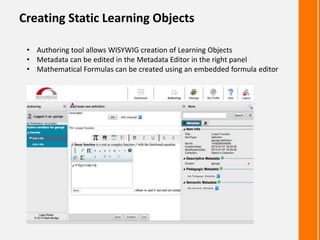
Creating Static Learning Objects
• Authoring tool allows WISYWIG creation of Learning Objects
• Metadata can be edited in the Metadata Editor in the right panel
• Mathematical Formulas can be created using an embedded formula editor
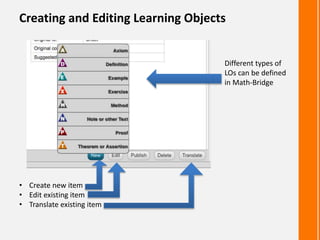
Creating and Editing Learning Objects
• Create new item
• Edit existing item
• Translate existing item
Different types of
LOs can be defined
in Math-Bridge
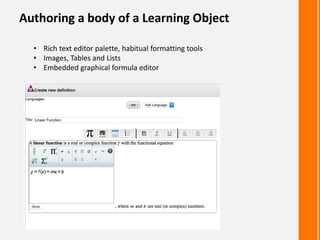
Authoring a body of a Learning Object
• Rich text editor palette, habitual formatting tools
• Images, Tables and Lists
• Embedded graphical formula editor
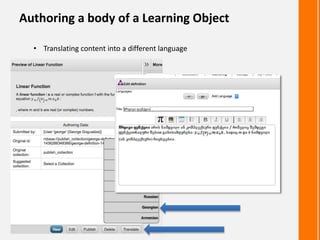
Authoring a body of a Learning Object
• Translating content into a different language
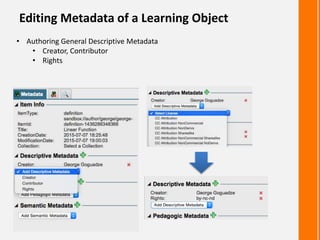
Editing Metadata of a Learning Object
• Authoring General Descriptive Metadata
• Creator, Contributor
• Rights
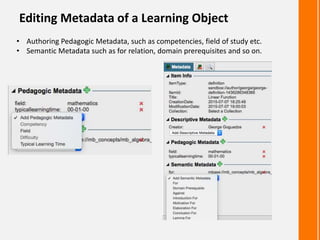
Editing Metadata of a Learning Object
• Authoring Pedagogic Metadata, such as competencies, field of study etc.
• Semantic Metadata such as for relation, domain prerequisites and so on.
Publishing a Learning Object
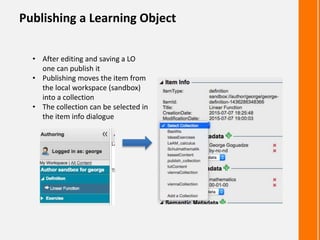
• After editing and saving a LO
one can publish it
• Publishing moves the item from
the local workspace (sandbox)
into a collection
• The collection can be selected in
the item info dialogue
Different Types of LOs have different Metadata
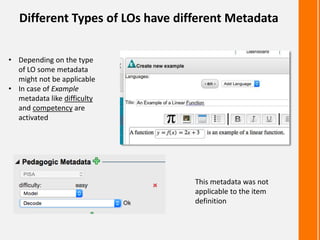
• Depending on the type
of LO some metadata
might not be applicable
• In case of Example
metadata like difficulty
and competency are
activated
This metadata was not
applicable to the item
definition
Editing and Translating Existing LOs
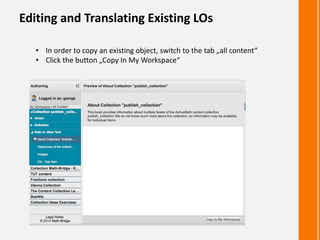
• In order to copy an existing object, switch to the tab „all content“
• Click the button „Copy In My Workspace“
Editing and Translating Existing LOs
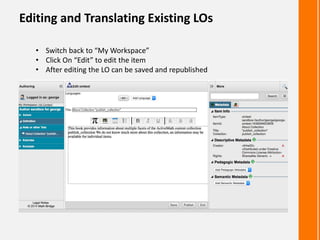
• Switch back to “My Workspace”
• Click On “Edit” to edit the item
• After editing the LO can be saved and republished
Thank you.
The Mathematical Bridge, Cambridge, England

Math-Bridge Author Staticl-os

  • 1.
  • 2.
    CREATION OF STATICLEARNING OBJECTS Dr. Giorgi Goguadze
  • 3.
    Creating Static LearningObjects • Authoring tool allows WISYWIG creation of Learning Objects • Metadata can be edited in the Metadata Editor in the right panel • Mathematical Formulas can be created using an embedded formula editor
  • 4.
    Creating and EditingLearning Objects • Create new item • Edit existing item • Translate existing item Different types of LOs can be defined in Math-Bridge
  • 5.
    Authoring a bodyof a Learning Object • Rich text editor palette, habitual formatting tools • Images, Tables and Lists • Embedded graphical formula editor
  • 6.
    Authoring a bodyof a Learning Object • Translating content into a different language
  • 7.
    Editing Metadata ofa Learning Object • Authoring General Descriptive Metadata • Creator, Contributor • Rights
  • 8.
    Editing Metadata ofa Learning Object • Authoring Pedagogic Metadata, such as competencies, field of study etc. • Semantic Metadata such as for relation, domain prerequisites and so on.
  • 9.
    Publishing a LearningObject • After editing and saving a LO one can publish it • Publishing moves the item from the local workspace (sandbox) into a collection • The collection can be selected in the item info dialogue
  • 10.
    Different Types ofLOs have different Metadata • Depending on the type of LO some metadata might not be applicable • In case of Example metadata like difficulty and competency are activated This metadata was not applicable to the item definition
  • 11.
    Editing and TranslatingExisting LOs • In order to copy an existing object, switch to the tab „all content“ • Click the button „Copy In My Workspace“
  • 12.
    Editing and TranslatingExisting LOs • Switch back to “My Workspace” • Click On “Edit” to edit the item • After editing the LO can be saved and republished
  • 13.
    Thank you. The MathematicalBridge, Cambridge, England

Editor's Notes

  • #2 Diese Vorlage kann als Ausgangsdatei für ein Fotoalbum verwendet werden.