1
AIT - Management
PRACTICAL COURSE FILE
MBA-BA
BIG DATA TECHNOLOGIES LAB
(Subject Code: 22BBH-704)
(L:2 T:0 P:2 C:3)
Instructor: DR. ANAND SHARMA
Chandigarh University
2
List of Experiments
S.No Objective of the Experiments
1 To implement the file management tasks in Hadoop:
Adding files and directories, Retrieving files, Deleting files
2 Install and Run Hive then use Hive to create, load, alter, and drop databases, tables.
3 Implement Hive Partitioning with data set
4 Implement Hive bucketing with data set.
5 Implement sqoop commands
6 Working on POC with dataset
7 Implement Hbase commands with data set.
8 Install and Run Pig then write Pig Latin scripts to sort, group, join and filter your data.
9 Using Fluid Query with Big SQL.
10 Run a basic Word Count Map Reduce program to understand Map Reduce Paradigm
with data set
3
Experiment-1
Aim: Implement the following file management tasks in Hadoop:
(i) Adding files and directories
(ii) Retrieving files
(iii) Deleting files
The experiment was finished with the following steps:
(i) Adding files and directories
Step-1:
First, the command “hadoop fs -ls /user”was used to return the list of directories and each
directory’s direct children.
Step 2:
Next, the command ‘hadoop fs -mkdir exp_1’ is used to create a new directory in the Hadoop
file system.
Step 3:
Next, the command ‘hadoop fs -touchz exp_1/first.txt’ is used to make a new file (with zero
length) in the newly created directory exp_1.
(ii) Retrieving files
Step 4:
Then,usingthe command ‘hadoop fs -copyFromLocal
/home/cloudera/Downloads/dow_jones_index/dow_jones_index.data /user/cloudea/exp_1’ is
used to copy the downloaded data set form the UCI repository online, stored currently in the
Local File system’s Downloads directory to the exp_1 directory in the Hadoop File System.
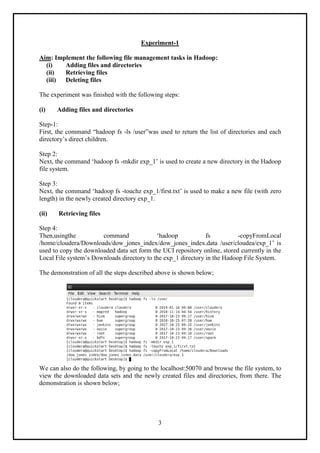
The demonstration of all the steps described above is shown below;
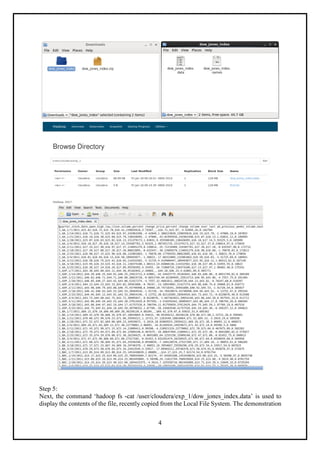
We can also do the following, by going to the localhost:50070 and browse the file system, to
view the downloaded data sets and the newly created files and directories, from there. The
demonstration is shown below;
4
Step 5:
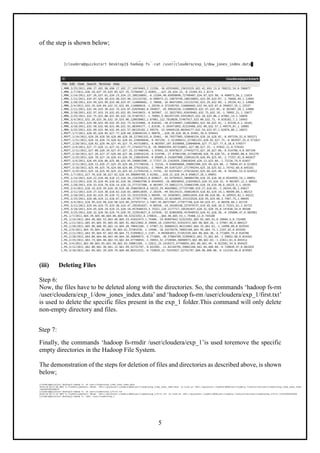
Next, the command ‘hadoop fs -cat /user/cloudera/exp_1/dow_jones_index.data’ is used to
display the contents of the file, recently copied from the Local File System. The demonstration
5
of the step is shown below;
(iii) Deleting Files
Step 6:
Now, the files have to be deleted along with the directories. So, the commands ‘hadoop fs-rm
/user/cloudera/exp_1/dow_jones_index.data’ and ‘hadoop fs-rm /user/cloudera/exp_1/first.txt’
is used to delete the specific files present in the exp_1 folder.This command will only delete
non-empty directory and files.
Step 7:
Finally, the commands ‘hadoop fs-rmdir /user/cloudera/exp_1’is used toremove the specific
empty directories in the Hadoop File System.
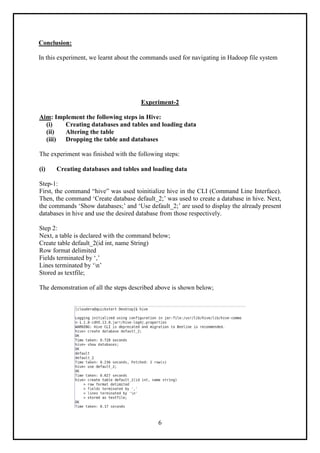
The demonstration of the steps for deletion of files and directories as described above, is shown
below;
6
Conclusion:
In this experiment, we learnt about the commands used for navigating in Hadoop file system
Experiment-2
Aim: Implement the following steps in Hive:
(i) Creating databases and tables and loading data
(ii) Altering the table
(iii) Dropping the table and databases
The experiment was finished with the following steps:
(i) Creating databases and tables and loading data
Step-1:
First, the command “hive” was used toinitialize hive in the CLI (Command Line Interface).
Then, the command ‘Create database default_2;’ was used to create a database in hive. Next,
the commands ‘Show databases;’ and ‘Use default_2;’ are used to display the already present
databases in hive and use the desired database from those respectively.
Step 2:
Next, a table is declared with the command below;
Create table default_2(id int, name String)
Row format delimited
Fields terminated by ‘,’
Lines terminated by ‘n’
Stored as textfile;
The demonstration of all the steps described above is shown below;
7
Step 3:
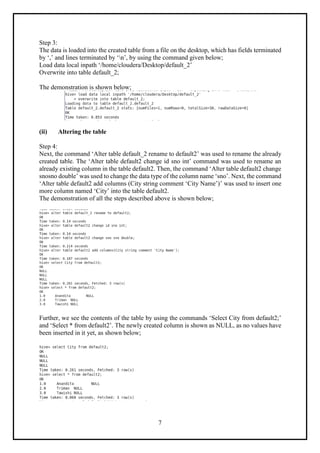
The data is loaded into the created table from a file on the desktop, which has fields terminated
by ‘,’ and lines terminated by ‘n’, by using the command given below;
Load data local inpath ‘/home/cloudera/Desktop/default_2’
Overwrite into table default_2;
The demonstration is shown below;
(ii) Altering the table
Step 4:
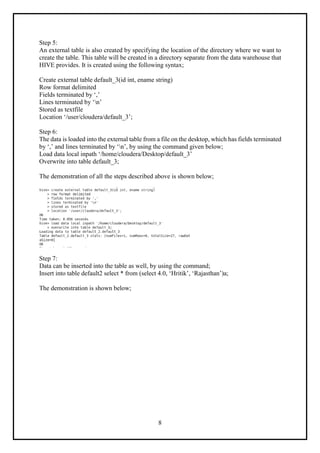
Next, the command ‘Alter table default_2 rename to default2’ was used to rename the already
created table. The ‘Alter table default2 change id sno int’ command was used to rename an
already existing column in the table default2. Then, the command ‘Alter table default2 change
snosno double’ was used to change the data type of the column name ‘sno’. Next, the command
‘Alter table default2 add columns (City string comment ‘City Name’)’ was used to insert one
more column named ‘City’ into the table default2.
The demonstration of all the steps described above is shown below;
Further, we see the contents of the table by using the commands ‘Select City from default2;’
and ‘Select * from default2’. The newly created column is shown as NULL, as no values have
been inserted in it yet, as shown below;
8
Step 5:
An external table is also created by specifying the location of the directory where we want to
create the table. This table will be created in a directory separate from the data warehouse that
HIVE provides. It is created using the following syntax;
Create external table default_3(id int, ename string)
Row format delimited
Fields terminated by ‘,’
Lines terminated by ‘n’
Stored as textfile
Location ‘/user/cloudera/default_3’;
Step 6:
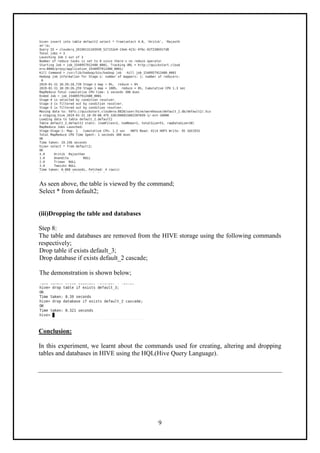
The data is loaded into the external table from a file on the desktop, which has fields terminated
by ‘,’ and lines terminated by ‘n’, by using the command given below;
Load data local inpath ‘/home/cloudera/Desktop/default_3’
Overwrite into table default_3;
The demonstration of all the steps described above is shown below;
Step 7:
Data can be inserted into the table as well, by using the command;
Insert into table default2 select * from (select 4.0, ‘Hritik’, ‘Rajasthan’)a;
The demonstration is shown below;
9
As seen above, the table is viewed by the command;
Select * from default2;
(iii)Dropping the table and databases
Step 8:
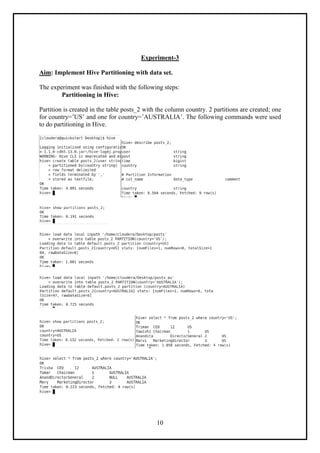
The table and databases are removed from the HIVE storage using the following commands
respectively;
Drop table if exists default_3;
Drop database if exists default_2 cascade;
The demonstration is shown below;
Conclusion:
In this experiment, we learnt about the commands used for creating, altering and dropping
tables and databases in HIVE using the HQL(Hive Query Language).
10
Experiment-3
Aim: Implement Hive Partitioning with data set.
The experiment was finished with the following steps:
Partitioning in Hive:
Partition is created in the table posts_2 with the column country. 2 partitions are created; one
for country=’US’ and one for country=’AUSTRALIA’. The following commands were used
to do partitioning in Hive.
11
Experiment-4
Aim: Implement Hive Bucketing with data set.
The experiment was finished with the following steps:
Bucketing in Hive:
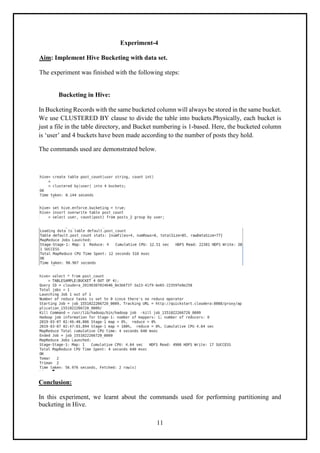
In Bucketing Records with the same bucketed column will always be stored in the same bucket.
We use CLUSTERED BY clause to divide the table into buckets.Physically, each bucket is
just a file in the table directory, and Bucket numbering is 1-based. Here, the bucketed column
is ‘user’ and 4 buckets have been made according to the number of posts they hold.
The commands used are demonstrated below.
Conclusion:
In this experiment, we learnt about the commands used for performing partitioning and
bucketing in Hive.
12
Experiment-5
Aim: Implement Sqoop commands.
The following steps were executed in Sqoop:
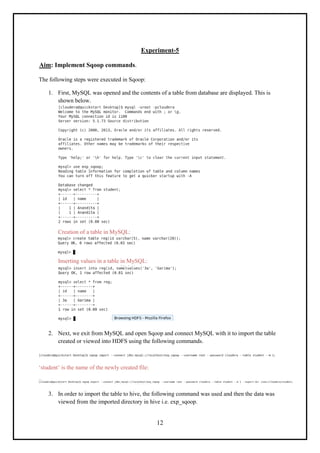
1. First, MySQL was opened and the contents of a table from database are displayed. This is
shown below.
Creation of a table in MySQL:
Inserting values in a table in MySQL:
2. Next, we exit from MySQL and open Sqoop and connect MySQL with it to import the table
created or viewed into HDFS using the following commands.
‘student’ is the name of the newly created file:
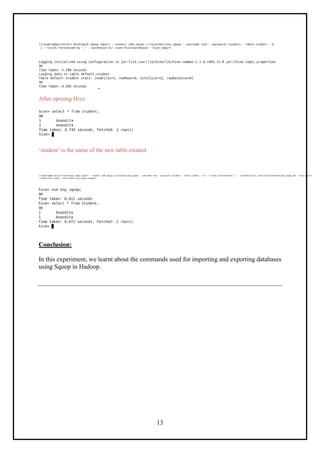
3. In order to import the table to hive, the following command was used and then the data was
viewed from the imported directory in hive i.e. exp_sqoop.
13
After opening Hive:
‘student’ is the name of the new table created:
Conclusion:
In this experiment, we learnt about the commands used for importing and exporting databases
using Sqoop in Hadoop.
14
Experiment-6
Aim: Weather Report POC-Map Reduce Program to analyse time-temperature statistics and
generate report with max/min temperature.
Problem Statement:
1. The system receives temperatures of various cities(Austin, Boston,etc) of USA captured at regular
intervals of time on each day in an input file.
2. System will process the input data file and generates a report with Maximum and Minimum
temperatures of each day along with time.
3. Generates a separate output report for each city.
Ex: Austin-r-00000
Boston-r-00000
Newjersy-r-00000
Baltimore-r-00000
California-r-00000
Newyork-r-00000
Expected output:- In each output file record should be like this:
25-Jan-2014 Time: 12:34:542 MinTemp: -22.3 Time: 05:12:345 MaxTemp:
35.7
First download input file which contains temperature statistics with time for multiple cities.
Schema of record set : CA_25-Jan-2014 00:12:345 15.7
01:19:345 23.1 02:34:542 12.3 ......
CA is city code, here it stands for California followed by date. After that each
pair of values represent time and temperature.
Mapper class and map method:-
The very first thing which is required for any map reduce problem is to understand what will be the
type of keyIn, ValueIn, KeyOut,ValueOut for the given Mapper class and followed by type of map
method parameters.
• public class WhetherForcastMapper extends Mapper <Object, Text,
Text, Text>
• Object (keyIn) - Offset for each line, line number 1, 2...
• Text (ValueIn) - Whole string for each line (CA_25-Jan-2014
00:12:345 ......)
• Text (KeyOut) - City information with date information as string
• Text (ValueOut) - Temperature and time information which need to be
passed to reducer as string.
• public void map(Object keyOffset, Text dayReport, Context con) { }
• KeyOffset is like line number for each line in input file.
• dayreport is input to map method - whole string present in one line of
input file.
• con is context where we write mapper output and it is used by reducer.
Reducer class and reducer method:-
Similarly,we have to decide what will be the type of keyIn, ValueIn, KeyOut,ValueOut for the given
Reducer class and followed by type of reducer
method parameters.
• public class WhetherForcastReducer extends Reducer<Text, Text,
Text, Text>
• Text(keyIn) - it is same as keyOut of Mapper.
• Text(ValueIn)- it is same as valueOut of Mapper.
• Text(KeyOut)- date as string
• text(ValueOut) - reducer writes max and min temperature with time as
string
• public void reduce(Text key, Iterable<Text> values, Context
15
context)
• Text key is value of mapper output. i.e:- City & date information
• Iterable<Text> values - values stores multiple temperature values for a
given city and date.
• context object is where reducer write it's processed outcome and finally
written in file.
MultipleOutputs :- In general, reducer generates output file(i.e: part_r_0000), however in this use
case we want to generate multiple output files. In order to deal with such scenario we need to use
MultipleOutputs of "org.apache.hadoop.mapreduce.lib.output.MultipleOutputs" which provides
a way to write multiple file depending on reducer outcome.
For each reducer task multipleoutput object is created and key/result is written to appropriate file.
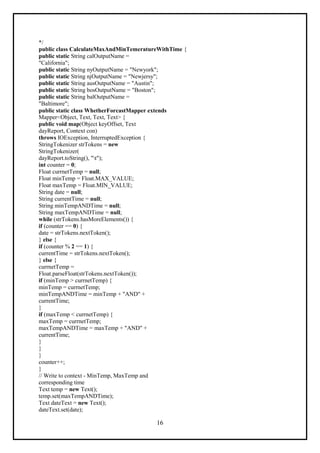
Lets create a Map/Reduce project in eclipse and create a class file name it
as CalculateMaxAndMinTemeratureWithTime.
For simplicity,here we have written mapper and reducer class as inner static class. Copy following
code lines and paste in newly created class file.
/**
* Question:- To find Max and Min temperature from
record set stored in
* text file. Schema of record set :- tab
separated (t) CA_25-Jan-2014
* 00:12:345 15.7 01:19:345 23.1 02:34:542
12.3 03:12:187 16 04:00:093
* -14 05:12:345 35.7 06:19:345 23.1 07:34:542
12.3 08:12:187 16
* 09:00:093 -7 10:12:345 15.7 11:19:345 23.1
12:34:542 -22.3 13:12:187
* 16 14:00:093 -7 15:12:345 15.7 16:19:345
23.1 19:34:542 12.3
* 20:12:187 16 22:00:093 -7
* Expected output:- Creates files for each city and store maximum & minimum
* temperature for each day along with time.
*/
import java.io.IOException;
import java.util.StringTokenizer;
import org.apache.hadoop.io.Text;
import org.apache.hadoop.mapreduce.Mapper;
import org.apache.hadoop.mapreduce.Reducer;
import
org.apache.hadoop.mapreduce.lib.output.MultipleOutput
s;
import org.apache.hadoop.conf.Configuration;
import org.apache.hadoop.fs.Path;
import org.apache.hadoop.mapreduce.Job;
import
org.apache.hadoop.mapreduce.lib.input.FileInputFormat
;
import
org.apache.hadoop.mapreduce.lib.output.FileOutputForm
at;
import
org.apache.hadoop.mapreduce.lib.output.TextOutputForm
at;
/**
* @author devinline
16
*/
public class CalculateMaxAndMinTemeratureWithTime {
public static String calOutputName =
"California";
public static String nyOutputName = "Newyork";
public static String njOutputName = "Newjersy";
public static String ausOutputName = "Austin";
public static String bosOutputName = "Boston";
public static String balOutputName =
"Baltimore";
public static class WhetherForcastMapper extends
Mapper<Object, Text, Text, Text> {
public void map(Object keyOffset, Text
dayReport, Context con)
throws IOException, InterruptedException {
StringTokenizer strTokens = new
StringTokenizer(
dayReport.toString(), "t");
int counter = 0;
Float currnetTemp = null;
Float minTemp = Float.MAX_VALUE;
Float maxTemp = Float.MIN_VALUE;
String date = null;
String currentTime = null;
String minTempANDTime = null;
String maxTempANDTime = null;
while (strTokens.hasMoreElements()) {
if (counter == 0) {
date = strTokens.nextToken();
} else {
if (counter % 2 == 1) {
currentTime = strTokens.nextToken();
} else {
currnetTemp =
Float.parseFloat(strTokens.nextToken());
if (minTemp > currnetTemp) {
minTemp = currnetTemp;
minTempANDTime = minTemp + "AND" +
currentTime;
}
if (maxTemp < currnetTemp) {
maxTemp = currnetTemp;
maxTempANDTime = maxTemp + "AND" +
currentTime;
}
}
}
counter++;
}
// Write to context - MinTemp, MaxTemp and
corresponding time
Text temp = new Text();
temp.set(maxTempANDTime);
Text dateText = new Text();
dateText.set(date);
17
try {
con.write(dateText, temp);
} catch (Exception e) {
e.printStackTrace();
}
temp.set(minTempANDTime);
dateText.set(date);
con.write(dateText, temp);
}
}
public static class WhetherForcastReducer extends
Reducer<Text, Text, Text, Text> {
MultipleOutputs<Text, Text> mos;
public void setup(Context context) {
mos = new MultipleOutputs<Text,
Text>(context);
}
public void reduce(Text key, Iterable<Text>
values, Context context)
throws IOException, InterruptedException {
int counter = 0;
String reducerInputStr[] = null;
String f1Time = "";
String f2Time = "";
String f1 = "", f2 = "";
Text result = new Text();
for (Text value : values) {
if (counter == 0) {
reducerInputStr =
value.toString().split("AND");
f1 = reducerInputStr[0];
f1Time = reducerInputStr[1];
}
else {
reducerInputStr =
value.toString().split("AND");
f2 = reducerInputStr[0];
f2Time = reducerInputStr[1];
}
counter = counter + 1;
}
if (Float.parseFloat(f1) >
Float.parseFloat(f2)) {
result = new Text("Time: " + f2Time + "
MinTemp: " + f2 + "t"
+ "Time: " + f1Time + " MaxTemp: " + f1);
} else {
result = new Text("Time: " + f1Time + "
MinTemp: " + f1 + "t"
+ "Time: " + f2Time + " MaxTemp: " + f2);
}
String fileName = "";
if (key.toString().substring(0, 2).equals("CA"))
{
fileName =
18
CalculateMaxAndMinTemeratureTime.calOutputName;
} else if (key.toString().substring(0,
2).equals("NY")) {
fileName =
CalculateMaxAndMinTemeratureTime.nyOutputName;
} else if (key.toString().substring(0,
2).equals("NJ")) {
fileName =
CalculateMaxAndMinTemeratureTime.njOutputName;
} else if (key.toString().substring(0,
3).equals("AUS")) {
fileName =
CalculateMaxAndMinTemeratureTime.ausOutputName;
} else if (key.toString().substring(0,
3).equals("BOS")) {
fileName =
CalculateMaxAndMinTemeratureTime.bosOutputName;
} else if (key.toString().substring(0,
3).equals("BAL")) {
fileName =
CalculateMaxAndMinTemeratureTime.balOutputName;
}
String strArr[] = key.toString().split("_");
key.set(strArr[1]); //Key is date value
mos.write(fileName, key, result);
}
@Override
public void cleanup(Context context) throws
IOException,
InterruptedException {
mos.close();
}
}
public static void main(String[] args) throws
IOException,
ClassNotFoundException,
InterruptedException {
Configuration conf = new Configuration();
Job job = Job.getInstance(conf, "Wheather
Statistics of USA");
job.setJarByClass(CalculateMaxAndMinTemeratureW
ithTime.class);
job.setMapperClass(WhetherForcastMapper.class);
job.setReducerClass(WhetherForcastReducer.class)
;
job.setMapOutputKeyClass(Text.class);
job.setMapOutputValueClass(Text.class);
job.setOutputKeyClass(Text.class);
job.setOutputValueClass(Text.class);
MultipleOutputs.addNamedOutput(job,
calOutputName,
TextOutputFormat.class, Text.class,
Text.class);
MultipleOutputs.addNamedOutput(job,
nyOutputName,
19
TextOutputFormat.class, Text.class,
Text.class);
MultipleOutputs.addNamedOutput(job,
njOutputName,
TextOutputFormat.class, Text.class,
Text.class);
MultipleOutputs.addNamedOutput(job,
bosOutputName,
TextOutputFormat.class, Text.class,
Text.class);
MultipleOutputs.addNamedOutput(job,
ausOutputName,
TextOutputFormat.class, Text.class,
Text.class);
MultipleOutputs.addNamedOutput(job,
balOutputName,
TextOutputFormat.class, Text.class,
Text.class);
// FileInputFormat.addInputPath(job, new
Path(args[0]));
// FileOutputFormat.setOutputPath(job, new
Path(args[1]));
Path pathInput = new Path(
"hdfs://192.168.213.133:54310/weatherInputData/
input_temp.txt");
Path pathOutputDir = new Path(
"hdfs://192.168.213.133:54310/user/hduser1/
testfs/output_mapred3");
FileInputFormat.addInputPath(job, pathInput);
FileOutputFormat.setOutputPath(job,
pathOutputDir);
try {
System.exit(job.waitForCompletion(true) ? 0 :
1);
} catch (Exception e) {
// TODO Auto-generated catch block
e.printStackTrace();
}
}
}
20
Experiment-7
Aim: Implement HBase commands with data set.
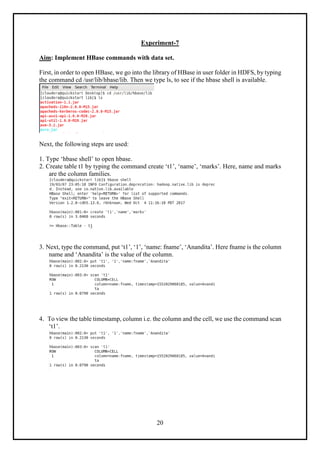
First, in order to open HBase, we go into the library of HBase in user folder in HDFS, by typing
the command cd /usr/lib/hbase/lib. Then we type ls, to see if the hbase shell is available.
Next, the following steps are used:
1. Type ‘hbase shell’ to open hbase.
2. Create table t1 by typing the command create ‘t1’, ‘name’, ‘marks’. Here, name and marks
are the column families.
3. Next, type the command, put ‘t1’, ‘1’, ‘name: fname’, ‘Anandita’. Here fname is the column
name and ‘Anandita’ is the value of the column.
4. To view the table timestamp, column i.e. the column and the cell, we use the command scan
‘t1’.
21
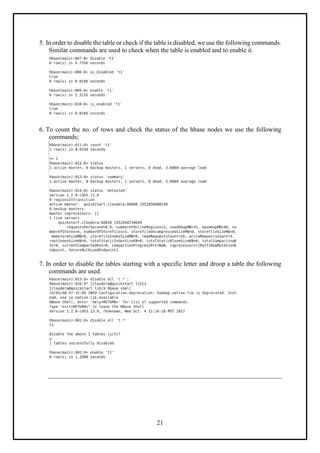
5. In order to disable the table or check if the table is disabled, we use the following commands.
Similar commands are used to check when the table is enabled and to enable it.
6. To count the no. of rows and check the status of the hbase nodes we use the following
commands;
7. In order to disable the tables starting with a specific letter and droop a table the following
commands are used.
22
Experiment-8
Aim: Install & Run Pig then write Pig Latin scripts to sort, group, join & filter your data.
The experiment was finished with the following steps:
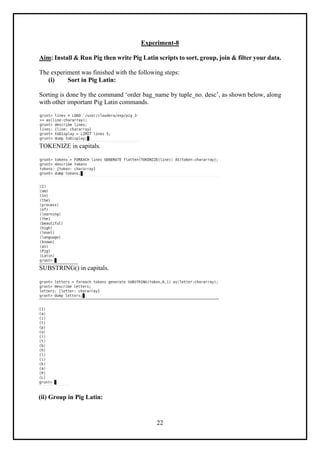
(i) Sort in Pig Latin:
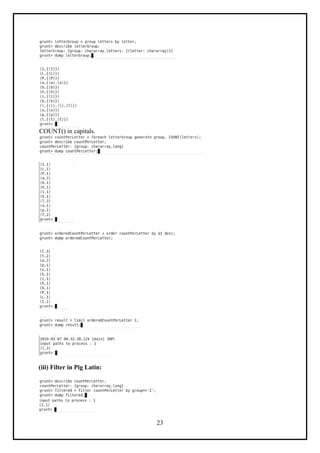
Sorting is done by the command ‘order bag_name by tuple_no. desc’, as shown below, along
with other important Pig Latin commands.
TOKENIZE in capitals.
SUBSTRING() in capitals.
(ii) Group in Pig Latin:
23
COUNT() in capitals.
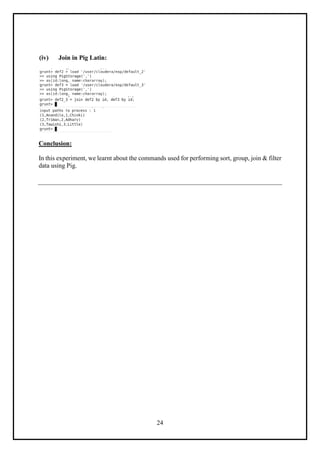
(iii) Filter in Pig Latin:
24
(iv) Join in Pig Latin:
Conclusion:
In this experiment, we learnt about the commands used for performing sort, group, join & filter
data using Pig.
25
Experiment-9
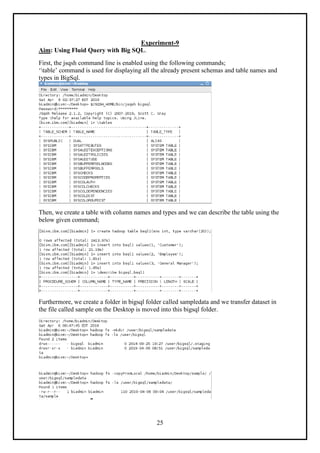
Aim: Using Fluid Query with Big SQL.
First, the jsqsh command line is enabled using the following commands;
‘table’ command is used for displaying all the already present schemas and table names and
types in BigSql.
Then, we create a table with column names and types and we can describe the table using the
below given command;
Furthermore, we create a folder in bigsql folder called sampledata and we transfer dataset in
the file called sample on the Desktop is moved into this bigsql folder.
26
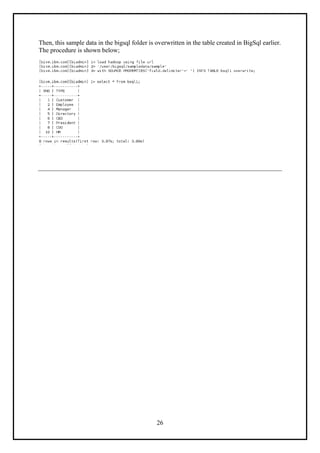
Then, this sample data in the bigsql folder is overwritten in the table created in BigSql earlier.
The procedure is shown below;
27
Experiment-10
Aim: Run a basic Word Count Map Reduce program to understand Map Reduce
Paradigm with data set
WordCount is a simple program which counts the number of occurrences of each word in a given
text input data set. WordCount fits very well with the MapReduce programming model making it
a great example to understand the Hadoop Map/Reduce programming style. Our implementation
consists of three main parts:
1. Mapper
2. Reducer
3. Driver
Source code:
import java.io.IOException;
import java.util.StringTokenizer;
import org.apache.hadoop.io.IntWritable;
import org.apache.hadoop.io.LongWritable;
import org.apache.hadoop.io.Text;
import org.apache.hadoop.mapreduce.Mapper;
import org.apache.hadoop.mapreduce.Reducer;
import org.apache.hadoop.conf.Configuration;
import org.apache.hadoop.mapreduce.Job;
import org.apache.hadoop.mapreduce.lib.input.TextInputFormat;
import org.apache.hadoop.mapreduce.lib.output.TextOutputFormat;
import org.apache.hadoop.mapreduce.lib.input.FileInputFormat;
import org.apache.hadoop.mapreduce.lib.output.FileOutputFormat;
import org.apache.hadoop.fs.Path;
public class WordCount
{
public static class Map extends Mapper<LongWritable,Text,Text,IntWritable> {
public void map(LongWritable key, Text value,Context context) throws
IOException,InterruptedException{
String line = value.toString();
StringTokenizer tokenizer = new StringTokenizer(line);
while (tokenizer.hasMoreTokens()) {
value.set(tokenizer.nextToken());
context.write(value, new IntWritable(1));
}
}
}
public static class Reduce extends Reducer<Text,IntWritable,Text,IntWritable> {
public void reduce(Text key, Iterable<IntWritable> values,Context context)
throws IOException,InterruptedException {
int sum=0;
for(IntWritable x: values)
{
sum+=x.get();
}
context.write(key, new IntWritable(sum));
}
}
public static void main(String[] args) throws Exception {
Configuration conf= new Configuration();
Job job = new Job(conf,"My Word Count Program");
job.setJarByClass(WordCount.class);
job.setMapperClass(Map.class);
28
job.setReducerClass(Reduce.class);
job.setOutputKeyClass(Text.class);
job.setOutputValueClass(IntWritable.class);
job.setInputFormatClass(TextInputFormat.class);
job.setOutputFormatClass(TextOutputFormat.class);
Path outputPath = new Path(args[1]);
//Configuring the input/output path from the filesystem into the job
FileInputFormat.addInputPath(job, new Path(args[0]));
FileOutputFormat.setOutputPath(job, new Path(args[1]));
//deleting the output path automatically from hdfs so that we don't have to
delete it explicitly
outputPath.getFileSystem(conf).delete(outputPath);
//exiting the job only if the flag value becomes false
System.exit(job.waitForCompletion(true) ? 0 : 1);
}
}
The entire MapReduce program can be fundamentally divided
into three parts:
• Mapper Phase Code
• Reducer Phase Code
• Driver Code
We will understand the code for each of these three parts sequentially.
Mapper code:
public static class Map extends
Mapper<LongWritable,Text,Text,IntWritable> {
public void map(LongWritable key, Text value, Context context) throws
IOException,InterruptedException {
String line = value.toString();
StringTokenizer tokenizer = new StringTokenizer(line);
while (tokenizer.hasMoreTokens()) {
value.set(tokenizer.nextToken());
context.write(value, new IntWritable(1));
}
We have created a class Map that extends the class Mapper which is already defined in the
MapReduce Framework.
• We define the data types of input and output key/value pair after the class declaration using
angle brackets.
• Both the input and output of the Mapper is a key/value pair.
• Input:
◦ The key is nothing but the offset of each line in the text file:LongWritable
◦ The value is each individual line (as shown in the figure at the right): Text
• Output:
◦ The key is the tokenized words: Text
◦ We have the hardcoded value in our case which is 1: IntWritable
◦ Example – Dear 1, Bear 1, etc.
• We have written a java code where we have tokenized each word and assigned them a
hardcoded value equal to 1.
Reducer Code:
public static class Reduce extends
Reducer<Text,IntWritable,Text,IntWritable> {
public void reduce(Text key, Iterable<IntWritable> values,Context
context)
throws IOException,InterruptedException {
29
int sum=0;
for(IntWritable x: values)
{
sum+=x.get();
}
context.write(key, new IntWritable(sum));
}}
• We have created a class Reduce which extends class Reducer like that of Mapper.
• We define the data types of input and output key/value pair after the class declaration using
angle brackets as done for Mapper.
• Both the input and the output of the Reducer is a keyvalue pair.
• Input:
The key nothing but those unique words which have been generated after the sorting
and shuffling phase: Text
The value is a list of integers corresponding to each key: IntWritable
Example – Bear, [1, 1], etc.
• Output:
◦ The key is all the unique words present in the input text file: Text
◦ The value is the number of occurrences of each of the unique words: IntWritable
◦ Example – Bear, 2; Car, 3, etc.
We have aggregated the values present in each of the list corresponding to each key and
produced the final answer.
In general, a single reducer is created for each of the unique words, but, you can specify the
number of reducer in mapred-site.xml.
Driver Code:
Configuration conf= new Configuration();
Job job = new Job(conf,"My Word Count Program");
job.setJarByClass(WordCount.class);
job.setMapperClass(Map.class);
job.setReducerClass(Reduce.class);
job.setOutputKeyClass(Text.class);
job.setOutputValueClass(IntWritable.class);
job.setInputFormatClass(TextInputFormat.class);
job.setOutputFormatClass(TextOutputFormat.class);
Path outputPath = new Path(args[1]);
//Configuring the input/output path from the filesystem into the job
FileInputFormat.addInputPath(job, new Path(args[0]));
FileOutputFormat.setOutputPath(job, new Path(args[1]));
• In the driver class, we set the configuration of our
MapReduce job to run in Hadoop.
• We specify the name of the job , the data type of input/
output of the mapper and reducer.
• We also specify the names of the mapper and reducer
classes.
• The path of the input and output folder is also specified.
• The method setInputFormatClass () is used for specifying that how a Mapper will read the
input data or what will be the unit of work. Here, we have chosen TextInputFormat so that
single line is read by the mapper at a time from the input text file.
• The main () method is the entry point for the driver.
In this method, we instantiate a new Configuration object for the job.
30
Run the MapReduce code:
The command for running a MapReduce code is:
hadoop jar hadoop-mapreduce-example.jar WordCount /
sample/input /sample/output

Vikas 500 BIG DATA TECHNOLOGIES LAB.pdf

  • 1.
    1 AIT - Management PRACTICALCOURSE FILE MBA-BA BIG DATA TECHNOLOGIES LAB (Subject Code: 22BBH-704) (L:2 T:0 P:2 C:3) Instructor: DR. ANAND SHARMA Chandigarh University
  • 2.
    2 List of Experiments S.NoObjective of the Experiments 1 To implement the file management tasks in Hadoop: Adding files and directories, Retrieving files, Deleting files 2 Install and Run Hive then use Hive to create, load, alter, and drop databases, tables. 3 Implement Hive Partitioning with data set 4 Implement Hive bucketing with data set. 5 Implement sqoop commands 6 Working on POC with dataset 7 Implement Hbase commands with data set. 8 Install and Run Pig then write Pig Latin scripts to sort, group, join and filter your data. 9 Using Fluid Query with Big SQL. 10 Run a basic Word Count Map Reduce program to understand Map Reduce Paradigm with data set
  • 3.
    3 Experiment-1 Aim: Implement thefollowing file management tasks in Hadoop: (i) Adding files and directories (ii) Retrieving files (iii) Deleting files The experiment was finished with the following steps: (i) Adding files and directories Step-1: First, the command “hadoop fs -ls /user”was used to return the list of directories and each directory’s direct children. Step 2: Next, the command ‘hadoop fs -mkdir exp_1’ is used to create a new directory in the Hadoop file system. Step 3: Next, the command ‘hadoop fs -touchz exp_1/first.txt’ is used to make a new file (with zero length) in the newly created directory exp_1. (ii) Retrieving files Step 4: Then,usingthe command ‘hadoop fs -copyFromLocal /home/cloudera/Downloads/dow_jones_index/dow_jones_index.data /user/cloudea/exp_1’ is used to copy the downloaded data set form the UCI repository online, stored currently in the Local File system’s Downloads directory to the exp_1 directory in the Hadoop File System. The demonstration of all the steps described above is shown below; We can also do the following, by going to the localhost:50070 and browse the file system, to view the downloaded data sets and the newly created files and directories, from there. The demonstration is shown below;
  • 4.
    4 Step 5: Next, thecommand ‘hadoop fs -cat /user/cloudera/exp_1/dow_jones_index.data’ is used to display the contents of the file, recently copied from the Local File System. The demonstration
  • 5.
    5 of the stepis shown below; (iii) Deleting Files Step 6: Now, the files have to be deleted along with the directories. So, the commands ‘hadoop fs-rm /user/cloudera/exp_1/dow_jones_index.data’ and ‘hadoop fs-rm /user/cloudera/exp_1/first.txt’ is used to delete the specific files present in the exp_1 folder.This command will only delete non-empty directory and files. Step 7: Finally, the commands ‘hadoop fs-rmdir /user/cloudera/exp_1’is used toremove the specific empty directories in the Hadoop File System. The demonstration of the steps for deletion of files and directories as described above, is shown below;
  • 6.
    6 Conclusion: In this experiment,we learnt about the commands used for navigating in Hadoop file system Experiment-2 Aim: Implement the following steps in Hive: (i) Creating databases and tables and loading data (ii) Altering the table (iii) Dropping the table and databases The experiment was finished with the following steps: (i) Creating databases and tables and loading data Step-1: First, the command “hive” was used toinitialize hive in the CLI (Command Line Interface). Then, the command ‘Create database default_2;’ was used to create a database in hive. Next, the commands ‘Show databases;’ and ‘Use default_2;’ are used to display the already present databases in hive and use the desired database from those respectively. Step 2: Next, a table is declared with the command below; Create table default_2(id int, name String) Row format delimited Fields terminated by ‘,’ Lines terminated by ‘n’ Stored as textfile; The demonstration of all the steps described above is shown below;
  • 7.
    7 Step 3: The datais loaded into the created table from a file on the desktop, which has fields terminated by ‘,’ and lines terminated by ‘n’, by using the command given below; Load data local inpath ‘/home/cloudera/Desktop/default_2’ Overwrite into table default_2; The demonstration is shown below; (ii) Altering the table Step 4: Next, the command ‘Alter table default_2 rename to default2’ was used to rename the already created table. The ‘Alter table default2 change id sno int’ command was used to rename an already existing column in the table default2. Then, the command ‘Alter table default2 change snosno double’ was used to change the data type of the column name ‘sno’. Next, the command ‘Alter table default2 add columns (City string comment ‘City Name’)’ was used to insert one more column named ‘City’ into the table default2. The demonstration of all the steps described above is shown below; Further, we see the contents of the table by using the commands ‘Select City from default2;’ and ‘Select * from default2’. The newly created column is shown as NULL, as no values have been inserted in it yet, as shown below;
  • 8.
    8 Step 5: An externaltable is also created by specifying the location of the directory where we want to create the table. This table will be created in a directory separate from the data warehouse that HIVE provides. It is created using the following syntax; Create external table default_3(id int, ename string) Row format delimited Fields terminated by ‘,’ Lines terminated by ‘n’ Stored as textfile Location ‘/user/cloudera/default_3’; Step 6: The data is loaded into the external table from a file on the desktop, which has fields terminated by ‘,’ and lines terminated by ‘n’, by using the command given below; Load data local inpath ‘/home/cloudera/Desktop/default_3’ Overwrite into table default_3; The demonstration of all the steps described above is shown below; Step 7: Data can be inserted into the table as well, by using the command; Insert into table default2 select * from (select 4.0, ‘Hritik’, ‘Rajasthan’)a; The demonstration is shown below;
  • 9.
    9 As seen above,the table is viewed by the command; Select * from default2; (iii)Dropping the table and databases Step 8: The table and databases are removed from the HIVE storage using the following commands respectively; Drop table if exists default_3; Drop database if exists default_2 cascade; The demonstration is shown below; Conclusion: In this experiment, we learnt about the commands used for creating, altering and dropping tables and databases in HIVE using the HQL(Hive Query Language).
  • 10.
    10 Experiment-3 Aim: Implement HivePartitioning with data set. The experiment was finished with the following steps: Partitioning in Hive: Partition is created in the table posts_2 with the column country. 2 partitions are created; one for country=’US’ and one for country=’AUSTRALIA’. The following commands were used to do partitioning in Hive.
  • 11.
    11 Experiment-4 Aim: Implement HiveBucketing with data set. The experiment was finished with the following steps: Bucketing in Hive: In Bucketing Records with the same bucketed column will always be stored in the same bucket. We use CLUSTERED BY clause to divide the table into buckets.Physically, each bucket is just a file in the table directory, and Bucket numbering is 1-based. Here, the bucketed column is ‘user’ and 4 buckets have been made according to the number of posts they hold. The commands used are demonstrated below. Conclusion: In this experiment, we learnt about the commands used for performing partitioning and bucketing in Hive.
  • 12.
    12 Experiment-5 Aim: Implement Sqoopcommands. The following steps were executed in Sqoop: 1. First, MySQL was opened and the contents of a table from database are displayed. This is shown below. Creation of a table in MySQL: Inserting values in a table in MySQL: 2. Next, we exit from MySQL and open Sqoop and connect MySQL with it to import the table created or viewed into HDFS using the following commands. ‘student’ is the name of the newly created file: 3. In order to import the table to hive, the following command was used and then the data was viewed from the imported directory in hive i.e. exp_sqoop.
  • 13.
    13 After opening Hive: ‘student’is the name of the new table created: Conclusion: In this experiment, we learnt about the commands used for importing and exporting databases using Sqoop in Hadoop.
  • 14.
    14 Experiment-6 Aim: Weather ReportPOC-Map Reduce Program to analyse time-temperature statistics and generate report with max/min temperature. Problem Statement: 1. The system receives temperatures of various cities(Austin, Boston,etc) of USA captured at regular intervals of time on each day in an input file. 2. System will process the input data file and generates a report with Maximum and Minimum temperatures of each day along with time. 3. Generates a separate output report for each city. Ex: Austin-r-00000 Boston-r-00000 Newjersy-r-00000 Baltimore-r-00000 California-r-00000 Newyork-r-00000 Expected output:- In each output file record should be like this: 25-Jan-2014 Time: 12:34:542 MinTemp: -22.3 Time: 05:12:345 MaxTemp: 35.7 First download input file which contains temperature statistics with time for multiple cities. Schema of record set : CA_25-Jan-2014 00:12:345 15.7 01:19:345 23.1 02:34:542 12.3 ...... CA is city code, here it stands for California followed by date. After that each pair of values represent time and temperature. Mapper class and map method:- The very first thing which is required for any map reduce problem is to understand what will be the type of keyIn, ValueIn, KeyOut,ValueOut for the given Mapper class and followed by type of map method parameters. • public class WhetherForcastMapper extends Mapper <Object, Text, Text, Text> • Object (keyIn) - Offset for each line, line number 1, 2... • Text (ValueIn) - Whole string for each line (CA_25-Jan-2014 00:12:345 ......) • Text (KeyOut) - City information with date information as string • Text (ValueOut) - Temperature and time information which need to be passed to reducer as string. • public void map(Object keyOffset, Text dayReport, Context con) { } • KeyOffset is like line number for each line in input file. • dayreport is input to map method - whole string present in one line of input file. • con is context where we write mapper output and it is used by reducer. Reducer class and reducer method:- Similarly,we have to decide what will be the type of keyIn, ValueIn, KeyOut,ValueOut for the given Reducer class and followed by type of reducer method parameters. • public class WhetherForcastReducer extends Reducer<Text, Text, Text, Text> • Text(keyIn) - it is same as keyOut of Mapper. • Text(ValueIn)- it is same as valueOut of Mapper. • Text(KeyOut)- date as string • text(ValueOut) - reducer writes max and min temperature with time as string • public void reduce(Text key, Iterable<Text> values, Context
  • 15.
    15 context) • Text keyis value of mapper output. i.e:- City & date information • Iterable<Text> values - values stores multiple temperature values for a given city and date. • context object is where reducer write it's processed outcome and finally written in file. MultipleOutputs :- In general, reducer generates output file(i.e: part_r_0000), however in this use case we want to generate multiple output files. In order to deal with such scenario we need to use MultipleOutputs of "org.apache.hadoop.mapreduce.lib.output.MultipleOutputs" which provides a way to write multiple file depending on reducer outcome. For each reducer task multipleoutput object is created and key/result is written to appropriate file. Lets create a Map/Reduce project in eclipse and create a class file name it as CalculateMaxAndMinTemeratureWithTime. For simplicity,here we have written mapper and reducer class as inner static class. Copy following code lines and paste in newly created class file. /** * Question:- To find Max and Min temperature from record set stored in * text file. Schema of record set :- tab separated (t) CA_25-Jan-2014 * 00:12:345 15.7 01:19:345 23.1 02:34:542 12.3 03:12:187 16 04:00:093 * -14 05:12:345 35.7 06:19:345 23.1 07:34:542 12.3 08:12:187 16 * 09:00:093 -7 10:12:345 15.7 11:19:345 23.1 12:34:542 -22.3 13:12:187 * 16 14:00:093 -7 15:12:345 15.7 16:19:345 23.1 19:34:542 12.3 * 20:12:187 16 22:00:093 -7 * Expected output:- Creates files for each city and store maximum & minimum * temperature for each day along with time. */ import java.io.IOException; import java.util.StringTokenizer; import org.apache.hadoop.io.Text; import org.apache.hadoop.mapreduce.Mapper; import org.apache.hadoop.mapreduce.Reducer; import org.apache.hadoop.mapreduce.lib.output.MultipleOutput s; import org.apache.hadoop.conf.Configuration; import org.apache.hadoop.fs.Path; import org.apache.hadoop.mapreduce.Job; import org.apache.hadoop.mapreduce.lib.input.FileInputFormat ; import org.apache.hadoop.mapreduce.lib.output.FileOutputForm at; import org.apache.hadoop.mapreduce.lib.output.TextOutputForm at; /** * @author devinline
  • 16.
    16 */ public class CalculateMaxAndMinTemeratureWithTime{ public static String calOutputName = "California"; public static String nyOutputName = "Newyork"; public static String njOutputName = "Newjersy"; public static String ausOutputName = "Austin"; public static String bosOutputName = "Boston"; public static String balOutputName = "Baltimore"; public static class WhetherForcastMapper extends Mapper<Object, Text, Text, Text> { public void map(Object keyOffset, Text dayReport, Context con) throws IOException, InterruptedException { StringTokenizer strTokens = new StringTokenizer( dayReport.toString(), "t"); int counter = 0; Float currnetTemp = null; Float minTemp = Float.MAX_VALUE; Float maxTemp = Float.MIN_VALUE; String date = null; String currentTime = null; String minTempANDTime = null; String maxTempANDTime = null; while (strTokens.hasMoreElements()) { if (counter == 0) { date = strTokens.nextToken(); } else { if (counter % 2 == 1) { currentTime = strTokens.nextToken(); } else { currnetTemp = Float.parseFloat(strTokens.nextToken()); if (minTemp > currnetTemp) { minTemp = currnetTemp; minTempANDTime = minTemp + "AND" + currentTime; } if (maxTemp < currnetTemp) { maxTemp = currnetTemp; maxTempANDTime = maxTemp + "AND" + currentTime; } } } counter++; } // Write to context - MinTemp, MaxTemp and corresponding time Text temp = new Text(); temp.set(maxTempANDTime); Text dateText = new Text(); dateText.set(date);
  • 17.
    17 try { con.write(dateText, temp); }catch (Exception e) { e.printStackTrace(); } temp.set(minTempANDTime); dateText.set(date); con.write(dateText, temp); } } public static class WhetherForcastReducer extends Reducer<Text, Text, Text, Text> { MultipleOutputs<Text, Text> mos; public void setup(Context context) { mos = new MultipleOutputs<Text, Text>(context); } public void reduce(Text key, Iterable<Text> values, Context context) throws IOException, InterruptedException { int counter = 0; String reducerInputStr[] = null; String f1Time = ""; String f2Time = ""; String f1 = "", f2 = ""; Text result = new Text(); for (Text value : values) { if (counter == 0) { reducerInputStr = value.toString().split("AND"); f1 = reducerInputStr[0]; f1Time = reducerInputStr[1]; } else { reducerInputStr = value.toString().split("AND"); f2 = reducerInputStr[0]; f2Time = reducerInputStr[1]; } counter = counter + 1; } if (Float.parseFloat(f1) > Float.parseFloat(f2)) { result = new Text("Time: " + f2Time + " MinTemp: " + f2 + "t" + "Time: " + f1Time + " MaxTemp: " + f1); } else { result = new Text("Time: " + f1Time + " MinTemp: " + f1 + "t" + "Time: " + f2Time + " MaxTemp: " + f2); } String fileName = ""; if (key.toString().substring(0, 2).equals("CA")) { fileName =
  • 18.
    18 CalculateMaxAndMinTemeratureTime.calOutputName; } else if(key.toString().substring(0, 2).equals("NY")) { fileName = CalculateMaxAndMinTemeratureTime.nyOutputName; } else if (key.toString().substring(0, 2).equals("NJ")) { fileName = CalculateMaxAndMinTemeratureTime.njOutputName; } else if (key.toString().substring(0, 3).equals("AUS")) { fileName = CalculateMaxAndMinTemeratureTime.ausOutputName; } else if (key.toString().substring(0, 3).equals("BOS")) { fileName = CalculateMaxAndMinTemeratureTime.bosOutputName; } else if (key.toString().substring(0, 3).equals("BAL")) { fileName = CalculateMaxAndMinTemeratureTime.balOutputName; } String strArr[] = key.toString().split("_"); key.set(strArr[1]); //Key is date value mos.write(fileName, key, result); } @Override public void cleanup(Context context) throws IOException, InterruptedException { mos.close(); } } public static void main(String[] args) throws IOException, ClassNotFoundException, InterruptedException { Configuration conf = new Configuration(); Job job = Job.getInstance(conf, "Wheather Statistics of USA"); job.setJarByClass(CalculateMaxAndMinTemeratureW ithTime.class); job.setMapperClass(WhetherForcastMapper.class); job.setReducerClass(WhetherForcastReducer.class) ; job.setMapOutputKeyClass(Text.class); job.setMapOutputValueClass(Text.class); job.setOutputKeyClass(Text.class); job.setOutputValueClass(Text.class); MultipleOutputs.addNamedOutput(job, calOutputName, TextOutputFormat.class, Text.class, Text.class); MultipleOutputs.addNamedOutput(job, nyOutputName,
  • 19.
    19 TextOutputFormat.class, Text.class, Text.class); MultipleOutputs.addNamedOutput(job, njOutputName, TextOutputFormat.class, Text.class, Text.class); MultipleOutputs.addNamedOutput(job, bosOutputName, TextOutputFormat.class,Text.class, Text.class); MultipleOutputs.addNamedOutput(job, ausOutputName, TextOutputFormat.class, Text.class, Text.class); MultipleOutputs.addNamedOutput(job, balOutputName, TextOutputFormat.class, Text.class, Text.class); // FileInputFormat.addInputPath(job, new Path(args[0])); // FileOutputFormat.setOutputPath(job, new Path(args[1])); Path pathInput = new Path( "hdfs://192.168.213.133:54310/weatherInputData/ input_temp.txt"); Path pathOutputDir = new Path( "hdfs://192.168.213.133:54310/user/hduser1/ testfs/output_mapred3"); FileInputFormat.addInputPath(job, pathInput); FileOutputFormat.setOutputPath(job, pathOutputDir); try { System.exit(job.waitForCompletion(true) ? 0 : 1); } catch (Exception e) { // TODO Auto-generated catch block e.printStackTrace(); } } }
  • 20.
    20 Experiment-7 Aim: Implement HBasecommands with data set. First, in order to open HBase, we go into the library of HBase in user folder in HDFS, by typing the command cd /usr/lib/hbase/lib. Then we type ls, to see if the hbase shell is available. Next, the following steps are used: 1. Type ‘hbase shell’ to open hbase. 2. Create table t1 by typing the command create ‘t1’, ‘name’, ‘marks’. Here, name and marks are the column families. 3. Next, type the command, put ‘t1’, ‘1’, ‘name: fname’, ‘Anandita’. Here fname is the column name and ‘Anandita’ is the value of the column. 4. To view the table timestamp, column i.e. the column and the cell, we use the command scan ‘t1’.
  • 21.
    21 5. In orderto disable the table or check if the table is disabled, we use the following commands. Similar commands are used to check when the table is enabled and to enable it. 6. To count the no. of rows and check the status of the hbase nodes we use the following commands; 7. In order to disable the tables starting with a specific letter and droop a table the following commands are used.
  • 22.
    22 Experiment-8 Aim: Install &Run Pig then write Pig Latin scripts to sort, group, join & filter your data. The experiment was finished with the following steps: (i) Sort in Pig Latin: Sorting is done by the command ‘order bag_name by tuple_no. desc’, as shown below, along with other important Pig Latin commands. TOKENIZE in capitals. SUBSTRING() in capitals. (ii) Group in Pig Latin:
  • 23.
    23 COUNT() in capitals. (iii)Filter in Pig Latin:
  • 24.
    24 (iv) Join inPig Latin: Conclusion: In this experiment, we learnt about the commands used for performing sort, group, join & filter data using Pig.
  • 25.
    25 Experiment-9 Aim: Using FluidQuery with Big SQL. First, the jsqsh command line is enabled using the following commands; ‘table’ command is used for displaying all the already present schemas and table names and types in BigSql. Then, we create a table with column names and types and we can describe the table using the below given command; Furthermore, we create a folder in bigsql folder called sampledata and we transfer dataset in the file called sample on the Desktop is moved into this bigsql folder.
  • 26.
    26 Then, this sampledata in the bigsql folder is overwritten in the table created in BigSql earlier. The procedure is shown below;
  • 27.
    27 Experiment-10 Aim: Run abasic Word Count Map Reduce program to understand Map Reduce Paradigm with data set WordCount is a simple program which counts the number of occurrences of each word in a given text input data set. WordCount fits very well with the MapReduce programming model making it a great example to understand the Hadoop Map/Reduce programming style. Our implementation consists of three main parts: 1. Mapper 2. Reducer 3. Driver Source code: import java.io.IOException; import java.util.StringTokenizer; import org.apache.hadoop.io.IntWritable; import org.apache.hadoop.io.LongWritable; import org.apache.hadoop.io.Text; import org.apache.hadoop.mapreduce.Mapper; import org.apache.hadoop.mapreduce.Reducer; import org.apache.hadoop.conf.Configuration; import org.apache.hadoop.mapreduce.Job; import org.apache.hadoop.mapreduce.lib.input.TextInputFormat; import org.apache.hadoop.mapreduce.lib.output.TextOutputFormat; import org.apache.hadoop.mapreduce.lib.input.FileInputFormat; import org.apache.hadoop.mapreduce.lib.output.FileOutputFormat; import org.apache.hadoop.fs.Path; public class WordCount { public static class Map extends Mapper<LongWritable,Text,Text,IntWritable> { public void map(LongWritable key, Text value,Context context) throws IOException,InterruptedException{ String line = value.toString(); StringTokenizer tokenizer = new StringTokenizer(line); while (tokenizer.hasMoreTokens()) { value.set(tokenizer.nextToken()); context.write(value, new IntWritable(1)); } } } public static class Reduce extends Reducer<Text,IntWritable,Text,IntWritable> { public void reduce(Text key, Iterable<IntWritable> values,Context context) throws IOException,InterruptedException { int sum=0; for(IntWritable x: values) { sum+=x.get(); } context.write(key, new IntWritable(sum)); } } public static void main(String[] args) throws Exception { Configuration conf= new Configuration(); Job job = new Job(conf,"My Word Count Program"); job.setJarByClass(WordCount.class); job.setMapperClass(Map.class);
  • 28.
    28 job.setReducerClass(Reduce.class); job.setOutputKeyClass(Text.class); job.setOutputValueClass(IntWritable.class); job.setInputFormatClass(TextInputFormat.class); job.setOutputFormatClass(TextOutputFormat.class); Path outputPath =new Path(args[1]); //Configuring the input/output path from the filesystem into the job FileInputFormat.addInputPath(job, new Path(args[0])); FileOutputFormat.setOutputPath(job, new Path(args[1])); //deleting the output path automatically from hdfs so that we don't have to delete it explicitly outputPath.getFileSystem(conf).delete(outputPath); //exiting the job only if the flag value becomes false System.exit(job.waitForCompletion(true) ? 0 : 1); } } The entire MapReduce program can be fundamentally divided into three parts: • Mapper Phase Code • Reducer Phase Code • Driver Code We will understand the code for each of these three parts sequentially. Mapper code: public static class Map extends Mapper<LongWritable,Text,Text,IntWritable> { public void map(LongWritable key, Text value, Context context) throws IOException,InterruptedException { String line = value.toString(); StringTokenizer tokenizer = new StringTokenizer(line); while (tokenizer.hasMoreTokens()) { value.set(tokenizer.nextToken()); context.write(value, new IntWritable(1)); } We have created a class Map that extends the class Mapper which is already defined in the MapReduce Framework. • We define the data types of input and output key/value pair after the class declaration using angle brackets. • Both the input and output of the Mapper is a key/value pair. • Input: ◦ The key is nothing but the offset of each line in the text file:LongWritable ◦ The value is each individual line (as shown in the figure at the right): Text • Output: ◦ The key is the tokenized words: Text ◦ We have the hardcoded value in our case which is 1: IntWritable ◦ Example – Dear 1, Bear 1, etc. • We have written a java code where we have tokenized each word and assigned them a hardcoded value equal to 1. Reducer Code: public static class Reduce extends Reducer<Text,IntWritable,Text,IntWritable> { public void reduce(Text key, Iterable<IntWritable> values,Context context) throws IOException,InterruptedException {
  • 29.
    29 int sum=0; for(IntWritable x:values) { sum+=x.get(); } context.write(key, new IntWritable(sum)); }} • We have created a class Reduce which extends class Reducer like that of Mapper. • We define the data types of input and output key/value pair after the class declaration using angle brackets as done for Mapper. • Both the input and the output of the Reducer is a keyvalue pair. • Input: The key nothing but those unique words which have been generated after the sorting and shuffling phase: Text The value is a list of integers corresponding to each key: IntWritable Example – Bear, [1, 1], etc. • Output: ◦ The key is all the unique words present in the input text file: Text ◦ The value is the number of occurrences of each of the unique words: IntWritable ◦ Example – Bear, 2; Car, 3, etc. We have aggregated the values present in each of the list corresponding to each key and produced the final answer. In general, a single reducer is created for each of the unique words, but, you can specify the number of reducer in mapred-site.xml. Driver Code: Configuration conf= new Configuration(); Job job = new Job(conf,"My Word Count Program"); job.setJarByClass(WordCount.class); job.setMapperClass(Map.class); job.setReducerClass(Reduce.class); job.setOutputKeyClass(Text.class); job.setOutputValueClass(IntWritable.class); job.setInputFormatClass(TextInputFormat.class); job.setOutputFormatClass(TextOutputFormat.class); Path outputPath = new Path(args[1]); //Configuring the input/output path from the filesystem into the job FileInputFormat.addInputPath(job, new Path(args[0])); FileOutputFormat.setOutputPath(job, new Path(args[1])); • In the driver class, we set the configuration of our MapReduce job to run in Hadoop. • We specify the name of the job , the data type of input/ output of the mapper and reducer. • We also specify the names of the mapper and reducer classes. • The path of the input and output folder is also specified. • The method setInputFormatClass () is used for specifying that how a Mapper will read the input data or what will be the unit of work. Here, we have chosen TextInputFormat so that single line is read by the mapper at a time from the input text file. • The main () method is the entry point for the driver. In this method, we instantiate a new Configuration object for the job.
  • 30.
    30 Run the MapReducecode: The command for running a MapReduce code is: hadoop jar hadoop-mapreduce-example.jar WordCount / sample/input /sample/output